
MediaPad M2-801L - Tablet HUAWEI - Free user manual and instructions
Find the device manual for free MediaPad M2-801L HUAWEI in PDF.


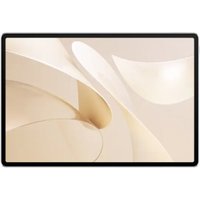
| Product Type | Tablet |
| Brand | Huawei |
| Model | MediaPad M2-801L |
| Display Size | 8.0 inches (IPS LCD) |
| Resolution | 1920 x 1200 pixels |
| Operating System | Android 5.1 (Lollipop) with Emotion UI |
| Processor | HiSilicon Kirin 930 (octa-core, 2.0 GHz) |
| RAM | 2 GB |
| Internal Storage | 16 GB / 32 GB (varies by configuration) |
| Expandable Storage | microSD up to 128 GB |
| Rear Camera | 8 MP with autofocus |
| Front Camera | 2 MP |
| Battery | 4800 mAh (typical) non-removable Li-Po |
| Charging | Micro-USB (5V/2A) |
| Connectivity | Wi-Fi 802.11 a/b/g/n/ac, Bluetooth 4.0, GPS, LTE |
| Dimensions | 214.8 x 124.2 x 7.9 mm |
| Weight | 330 g (approximately) |
| Colors | Silver, Gold (varies by region) |
| Care and Cleaning | Use a soft, dry cloth; avoid liquids and abrasive cleaners. |
| Safety | Do not expose to extreme temperatures or moisture; avoid dropping. |
| Spare Parts and Repairability | Spare parts (screen, battery, etc.) available through authorized Huawei service centers. |
Frequently Asked Questions - MediaPad M2-801L HUAWEI
User questions about MediaPad M2-801L HUAWEI
0 question about this device. Answer the ones you know or ask your own.
Ask a new question about this device
Download the instructions for your Tablet in PDF format for free! Find your manual MediaPad M2-801L - HUAWEI and take your electronic device back in hand. On this page are published all the documents necessary for the use of your device. MediaPad M2-801L by HUAWEI.
USER MANUAL MediaPad M2-801L HUAWEI
Locking and unlocking the screen 2
Notification and status icons....2
Common keys 2
Home screen operations ....3
3 Text input .... 5
Editing Text....5
Selecting an input method....5
4 Network connection....6
Connecting to a Wi-Fi network 6
Connecting to a Wi-Fi network using WPS....6
Turning on your mobile data connection (Applicable to selected models) 6
5 Network sharing .... 7
Sharing your data connection using a Wi-Fi hotspot (Applicable to selected models)....7
Sharing your data connection through USB tethering ....7
Sharing your data connection through Bluetooth tethering (Applicable to selected models) 8
6 Contacts....9
Creating a contact 9
Synchronizing contacts 9
Importing contacts....9
Backing up contacts....10
Sharing contacts....10
7 Calls (Applicable to selected models).... 11
Making an emergency call....11
Making a conference call....11
Adding an unknown number to your contacts.... 11
Clearing call logs....11
Enabling pocket mode (Applicable to selected models)....12
8 Messaging (Applicable to selected models).... 13
Searching for a message 13
Customizing message settings....13
9 Managing applications.... 14
Installing an application....14
Uninstalling and sharing an application 14
10 Multimedia .... 15
Taking an all-focus photo....15
Taking a panoramic photo (Applicable to selected models)......15
Importing photos (Applicable to selected models)....15
Viewing photos or videos 16
Sharing photos or videos....16
Scanning a QR code using the camera (Applicable to selected models) 17
Scanning a QR code using Gallery (Applicable to selected models) 17
11 Customized settings 18
Changing the theme....18
Adding a widget to the home screen 18
Managing home screens....19
Setting the ringtone....19
Setting the font size....20
Adjusting the screen brightness 20
Setting the file safe....20
Setting privacy protection (Applicable to selected models)......20
12 File sharing 22
Sharing files using Wi-Fi Direct 22
Sharing files using Bluetooth....22
Multi-screen display (Applicable to selected models)....22
Copying files from a computer....24
13 Settings 25
Motion control (Applicable to selected models)....25
Setting the screen timeout period....25
Setting a screen lock....25
Adjusting the volume 25
Enabling power saving mode 25
Checking the memory status....26
Setting the date and time 26
Formatting a microSD card 26
Restoring factory settings....26
Updating your HUAWEI MediaPad....26
14 Personal Information and Data Security 28
15 Legal Notice....29
1 About this document
Thank you for choosing the HUAWEI MediaPad.
This document is intended for HUAWEI MediaPad that runs EMUI 3.0.5/EMUI 3.1.
Figures in this document are screeshots taken under the Bloom theme. Switch to the Bloom theme to better understand this guide. For details, see Changing the theme.

● Not all models support calling, SMS, and other mobile network related functions.
● Certain functions may vary with models and regions.
2 Getting started
Locking and unlocking the screen
- Locking the screen: If your HUAWEI MediaPad has been idle for a specified period of time, the screen locks itself automatically. You can also press the power button to lock the screen.

On the home screen, touch

Settings > Display > Sleep and choose a time.
- Unlocking the screen: Press the power button to turn on the screen. Slide your finger toward any direction to unlock the screen.
Notification and status icons
The notification and status bars may display the following icons to inform you of your HUAWEI MediaPad's status.
 | Airplane mode |  | Bluetooth on |
 | GPS in use |  | Charging |
 | Battery full |  | Battery extremely low |
 | New email |  | Wi-Fi hotspot on |
 | SIM card not inserted |  | Preparing the microSD card |
 | Upcoming event |  | Alarms enabled |
 | Uploading or sending files | [X20] | Downloading or receiving files |
| [XXHG] | Memory full | [ZWY2] | System exception |
 | Synchronizing data | [2KTW] | Synchronization failed |
 | Connected to a VPN | [YADD] | USB tethering on |
| [CXKE] | Wi-Fi networks available |  | Connected to a Wi-Fi network |
| [XREA] | USB debugging on | [C4TC] | Headset connected |
Common keys
| [BKT7] | More |  | Share |
| [SY37]Q | CompletedSearch | [TTSW] | AddDelete data |
| [42TK] | Refresh | Save | |
| [6WHH] | Favorites | Call |
Home screen operations
● To open an application: On the home screen, touch the application.
- To switch between the home screen and its extensions: On the home screen, flick your finger left or right.
- Personalizing the home screen: Touch and hold a blank area on the home screen or pinch two fingers together to set the wallpaper, widgets, and more.

natural_image
Simple grayscale interface panel with icons and a central 'X' mark, no readable text or symbols- On the home screen, pinch three fingers together to display the home screen thumbnails, where you will be able to manage your home screens. For details, see Managing home screens.

- Opening the notification and shortcut panels: Slide down from the status bar to open the notification panel. Flick left or right to switch between the notifications and shortcuts tabs.

| 1 | Touch a notification to view its details and flick left or right across a notification to dismiss it. |
| 2 | Touch 📄 to delete all notifications. |
| 3 | Drag the slider to adjust the screen brightness.You can also enable or disable automatic brightness. (Applicable to selected models) |
4
Touch the shortcut switches on the notification panel to turn on or off the functions. Touch and hold a switch to enter the settings screen of the corresponding function.
Slide down the shortcut switches, you can then touch Edit to customize the list.
3 Text input
Your HUAWEI MediaPad comes with multiple input methods. You can quickly enter text using the onscreen keyboard.
- Touch a text input field to bring up the onscreen keyboard.
- When you are done, touch √ to hide the onscreen keyboard.
Editing Text
You can copy, cut, and paste text.
- Select text: Touch and hold the text field until

and

appear. Drag

and to select the text you want to edit, or touch Select all to select all text.
● Copy text: After selecting text, touch Copy.
● Cut text: After selecting text, touch Cut.
- Paste text: Touch where you want to insert the text (to move the insertion point, drag
) and touch Paste to paste the text you copied or cut.
Selecting an input method
The HUAWEI MediaPad provides multiple ways to text input. You can select the input method you like.
- On the text editing screen, touch a text field to bring up the onscreen keyboard.
- Flick down from the notification bar to display the notification panel.
- On the notification panel, touch Change keyboard.
- On the displayed option menu, select the desired input method.
4 Network connection
Connecting to a Wi-Fi network

When both a Wi-Fi network and a mobile network are available simultaneously, the HUAWEI MediaPad connects to the Wi-Fi network by default. If the Wi-Fi network disconnects, the HUAWEI MediaPad then automatically connects to the mobile network.

Settings > Wi-Fi.
-
On the home screen, touch
-
Toggle the switch of Wi-Fi to for available Wi-Fi networks.

to turn on Wi-Fi. Your HUAWEI MediaPad then scans
- Select the desired Wi-Fi network and follow the onscreen instructions.

To connect to a Wi-Fi network that has a hidden SSID, touch Add network under the Wi-Fi network list, and then follow the onscreen instructions to enter the required information and connect to that network.
Your HUAWEI MediaPad consumes more power when Wi-Fi is turned on. To save battery power, turn off Wi-Fi when it is not in use.
Connecting to a Wi-Fi network using WPS
If the wireless router being used supports the Wi-Fi protected setup (WPS) function, you can quickly connect to a Wi-Fi network using WPS.
- On the home screen, touch

Settings > Wi-Fi.
- Toggle the switch of Wi-Fi to

to turn on Wi-Fi.
- Touch > Advanced settings > WPS connection or WPS PIN connection, and follow the onscreen instructions for operations to perform on the wireless router.
Turning on your mobile data connection (Applicable to selected models)
Using mobile data services may incur data usage charges. For details, contact your service provider.
- On the home screen, touch

Settings.
-
Touch More > Mobile network under Wireless & networks.
-
Touch the key next to Data enabled or drag the key to

to enable the data service.
5 Network sharing
You can use various methods to share your HUAWEI MediaPad's data connection with other wireless devices.
Sharing your data connection using a Wi-Fi hotspot (Applicable to selected models)
By setting up your HUAWEI MediaPad as a Wi-Fi hotspot, you can share your mobile network with other devices.
Before sharing your data connection, turn on mobile data on your HUAWEI MediaPad. For details, see Turning on your mobile data connection (Applicable to selected models).
When other devices access the Internet using your HUAWEI MediaPad's data connection, the data usage of your HUAWEI MediaPad will be consumed.

Settings.
- On the home screen, touch
- Under Wireless & networks, touch More > Tethering & portable hotspot.
- Touch Portable Wi-Fi hotspot.
- Toggle the switch to 📋 to turn on your Wi-Fi hotspot.
- Touch Configure Wi-Fi hotspot and follow the onscreen instructions to set the required information, such as your Wi-Fi network name and password.
Once the Wi-Fi hotspot settings are complete, other Wi-Fi enabled devices can search for and connect to the Wi-Fi hotspot provided by your HUAWEI MediaPad.
Sharing your data connection through USB tethering
You can share your HUAWEI MediaPad's network with a computer using a single USB cable.
- Connect your HUAWEI MediaPad to a computer using the USB cable provided with the HUAWEI MediaPad.

Settings.
- On the home screen, touch
- Under Wireless & networks, touch More > Tethering & portable hotspot.
- Touch USB tethering to share your mobile data connection.
After the connection is set up, you can access the Internet from the computer.

When using the USB tethering function, you cannot simultaneously use your HUAWEI MediaPad as a USB storage device.
Sharing your data connection through Bluetooth tethering (Applicable to selected models)
With Bluetooth tethering, you can share your HUAWEI MediaPad's data connection with other Bluetooth devices.

Settings.
1. On the home screen, touch
2. Under Wireless & networks, touch More > Tethering & portable hotspot.
3. Touch Bluetooth tethering to turn on Bluetooth tethering.
4. Enable Bluetooth on the other device and pair your HUAWEI MediaPad with it.
6 Contacts
Creating a contact
- On the home screen, touch

Contacts to display your contacts list.
- Touch +.

If you are creating contacts for the first time, your HUAWEI MediaPad prompts you to select a storage location. When you create contacts next time, the new c contacts are stored in the same storage location by default. In addition, the storage location is displayed on the new contacts screen, and you can touch the storage location to select a new one.
- Enter the related information, such as the contact's name, phone number, and email address.
- Touch Add another field to add more information.
- Touch √.
Synchronizing contacts
You can synchronize the contacts stored in your Gmail and Exchange accounts to your HUAWEI MediaPad and vice versa.
- On the home screen, touch

Settings.
-
Under Accounts, touch the type of account you want to synchronize.
-
Touch the account you want to synchronize.
-
Toggle the Sync contacts switch to

If the account you want to synchronize has not been added to your HUAWEI MediaPad, touch Add account and follow the onscreen instructions to add the account. When it is added, your HUAWEI MediaPad automatically synchronizes with it.
Importing contacts
You can import contacts from a micro-SIM or microSD card to your HUAWEI MediaPad, or use Wi-Fi Direct to import the contacts from other devices to your HUAWEI MediaPad.
- On the home screen, touch

Contacts to display your contacts list.
- Touch ≡ > Import/Export.
- Select an import method and follow the onscreen instructions.
Backing up contacts
You can back up your contacts to a microSD card in case your contacts are accidentally deleted or lost.

- On the home screen, touch
Contacts to display your contacts list.
-
Touch ≡ > Import/Export.
-
Touch Export to storage.
Sharing contacts
You can share contacts in your HUAWEI MediaPad with your friends using email, Bluetooth, and more.

-
On the home screen, touch Contacts.
-
From the contacts list, you can:
-
Touch the contact you want to share, and then touch
-
Touch ≡ > Import/Export > Share contacts, select the contacts you want to share, and touch 🔍.
-
In the displayed dialog box, choose a sharing mode and follow the onscreen instructions to share the contacts.
7 Calls (Applicable to selected models)
Making an emergency call
In the event of an emergency, you can make emergency calls without a SIM card. However, you must still be within the coverage area.
- On the home screen, touch Dialer.

- Enter a local emergency number and touch


Emergency calls are subject to the quality of the cellular network, use environment, service provider policies, and local laws and regulations. Never rely solely on your HUAWEI MediaPad for critical communications when emergencies occur.
Making a conference call
Making conference calls with your friends, family, and co-workers is easy with your HUAWEI MediaPad.

Before you make a conference call, be sure you have subscribed to the conference call service. For details, contact your service provider.
- Call the first participant.
- When the call is connected, touch > + and call the second participant. The call with the first participant is put on hold.
- When the second call is connected, touch ↑ to start a conference call.
- To add more participants, repeat steps 2 and 3.
When the call is complete, touch 📄 to end it.
Adding an unknown number to your contacts
-
On the home screen, touch Dialer.
-
From the call log, touch ⓘ next to the unknown number.
-
Touch + or .

You can also touch and hold the number you want to add, and then touch Create new contact or Save to existing contact.
Clearing call logs
To delete a single call log entry: On the Dialer screen, touch and hold the call log entry. On the displayed option menu, touch Delete entry.
To delete all or multiple call log entries: On the Dialer screen, touch ≡ > Delete call log.
- Select the Select all check box and touch 📋 to delete all call log entries.
- Select one or more call logs and touch 📄 to delete them.
Enabling pocket mode (Applicable to selected models)
Worried about missing important calls when your HUAWEI MediaPad is in your pocket? Pocket mode can help you out by increasing the ringtone volume and vibration intensity of incoming calls over time.

-
On the home screen, touch Dialer.
-
Under Dialer, touch ≡ > Call settings.
-
Toggle the switch next to Pocket mode to turn on pocket mode.
8 Messaging (Applicable to selected models)
Searching for a message
If you are having trouble finding a specific message in a pile of messages, this function can come to your rescue.

- On the home screen, touch Messaging.
- Enter a keyword in the search box.
- Touch Search.
- In the results list, select the desired message to open it.
Customizing message settings
To customize text and multimedia message settings, message notification tones, and more, from the message list, touch > Settings.
9 Managing applications
Installing an application

When you install an application, the "Install blocked" message may be displayed. Read the message carefully. If you want to continue with the installation, follow the onscreen instructions.
You can obtain and install an application using any of the following methods:
- Download it from an online app store or by using a browser. After the application is downloaded, follow the onscreen instructions to install it.

Some third-party applications may not be compatible with your HUAWEI MediaPad. They may not run properly and your HUAWEI MediaPad may shut down. It is recommended that you download applications from trusted sources only.
- Connect your HUAWEI MediaPad to a computer. Then use the HiSuite or third-party software to download the application. After the application is downloaded, follow the onscreen instructions to install it.
- Use Bluetooth or Wi-Fi Direct to send the application on another device, such as a phone or tablet, to your HUAWEI MediaPad. After the transmission is complete, click the application to install it.
- Download the application from a computer. Then copy the application to your HUAWEI
MediaPad. Once copied, touch

Files on your HUAWEI MediaPad's home screen.
Select the application and touch Applications > Apps under Categories, select and follow the onscreen instructions to install it.
Uninstalling and sharing an application
On the home screen, touch and hold the application you want to uninstall or share.
- Drag it to 📄 to uninstall the application.
- Drag it to 📋 to share the application.

Some pre-installed applications cannot be uninstalled.
10 Multimedia
Taking an all-focus photo
In all-focus mode, you can change the focal point of a photo after it's been taken.

Camera.
-
On the home screen, touch
-
Touch > All-focus to switch to all-focus mode.
- Touch ● to take a photo.
- Go to Gallery and select the photo that was taken in all-focus mode.
indicates photos taken in all-focus mode.
- Touch 📄 to enter all-focus editing mode.
- Touch an area of the photo to change the focal point to that location.
- Touch ☐.
Taking a panoramic photo (Applicable to selected models)
Your HUAWEI MediaPad enables you to easily take panoramic photos without a wide-angle lens.

Camera.
1. On the home screen, touch
2. Touch ≡ > Panorama to switch to panorama mode.
3. Touch ● to start shooting.
4. Follow the onscreen instructions and move your device slowly in one direction.
5. Touch ☐ to stop shooting. The camera automatically merges all the photos captured to create one panoramic photo.
Importing photos (Applicable to selected models)
You can import photos from a camera or other storage device (such as a USB flash drive or phone) to your HUAWEI MediaPad using only a USB OTG cable.

To purchase a USB OTG cable, please contact an Huawei authorized supplier or your device vendor.
Use a USB OTG cable to connect a camera and your HUAWEI MediaPad.


- On your HUAWEI MediaPad's home screen, touch Files > Local > USB.
- Touch 📄 or ✗, select the photos or folders you want to import into your HUAWEI MediaPad.
- Touch Copy or Cut.
- Choose where you want to save the files and touch Paste.
Viewing photos or videos
Gallery enables you to conveniently view photos and videos. It automatically searches and organizes photos and videos stored on your HUAWEI MediaPad's internal storage and the microSD card for your easy reference.

-
On the home screen, touch Gallery to open Gallery.
-
Touch a photo or video to view it in full screen mode. Flick your finger left or right across the screen to view the previous or next file.

You can pinch two fingers apart or together to zoom in or out.
Sharing photos or videos
You can share photos and videos via Bluetooth or email. Take your HUAWEI MediaPad and start sharing!

-
On the home screen, touch Gallery to open Gallery.
-
Touch and hold the photo, video you want to share.
-
Touch 📁 and choose how you want to share the selected file, for example, using Bluetooth or Wi-Fi Direct. Then follow the onscreen instructions. For details, see File sharing.
Scanning a QR code using the camera (Applicable to selected models)

Camera.
1. On the home screen, touch Camera.
2. Frame the QR code with the camera.
3. After the QR code is successfully scanned, touch View details.
Scanning a QR code using Gallery (Applicable to selected models)

Gallery.
- On the home screen, touch
- Choose a QR code photo.
- Touch the photo.
- Touch View details.
11 Customized settings
Changing the theme
Your HUAWEI MediaPad comes with multiple themes, easily allowing your device to have a new look as often as you want.

- On the home screen, touch Themes.
- Flick left or right to browse different local and online themes. (Applicable to selected models)
- Select the desired theme. Then, touch ☑.
Adding a widget to the home screen
You can add widgets, such as the calendar and bookmarks, to the home screen.
- On the home screen, touch and hold a blank area.
- Touch Widgets.
- Drag a widget to the home screen and release your finger.

Managing home screens
On the home screen, pinch three fingers together to display the home screen thumbnails.
- Setting the default home screen: Touch 🔒 at the bottom of the screen and select the current home screen as the default home screen.
- Moving a home screen: Touch and hold the home screen until your device vibrates, drag the home screens to adjust their positions.
- Adding a home screen: Touch + to add a home screen.
- Deleting a home screen: Touch ✗ to delete a blank home screen.
Setting the ringtone

Settings > Sound.
-
On the home screen, touch
-
Select the desired ringtone type.
-
Follow the onscreen instructions to select your favorite music or recording as the ringtone.
Setting the font size

Settings > Display.
- On the home screen, touch
- Touch Font size.
- Select the desired font size.
Adjusting the screen brightness

Settings > Display > Brightness.
1. On the home screen, touch
2. In the displayed dialog box, perform either of the following operations:
- Select the Automatic brightness check box to let your device automatically adjust the screen brightness based on the ambient light. (Applicable to selected models)
- Drag the slider left or right to manually adjust the screen brightness.

You can also open the notification panel and quickly adjust the screen brightness using the shortcut switch.
Setting the file safe
The file safe helps you keep your important files private and protected.

Files.
1. On the home screen, touch
2. Under Categories or Local, touch Safe.
3. Touch Enable.
5. Touch Add.
7. Touch ADD to add the files to the safe.
-
Follow the onscreen instructions to set up your safe password and security question, and then touch Done.
-
Follow the onscreen instructions and select the files you want to add to the safe.

Enter the file safe, touch Settings > Destroy safe, and follow the onscreen instructions to destroy the safe. To remove any files before destroying the safe, select Remove files.
Setting privacy protection (Applicable to selected models)
If you have private data in your device that you wish to keep hidden from others, you can enable privacy protection and set two different passwords, one for yourself and one for guests. Content that you set as private will be hidden from people logged in with the guest password.

Settings > Security.
1. On the home screen, touch
2. Touch Privacy protection > Let's start.
3. Select a password format.
4. Follow the onscreen instructions and enter your owner password and guest password.
- Under Set private data, set your private contacts, albums, and applications.

To disable privacy protection, unlock your HUAWEI MediaPad using the owner password. Enter the Privacy protection screen, enter the owner password, and then disable Privacy protection. After privacy protection is disabled, your owner password will function as the screen unlock password and the guest password will become invalid.
12 File sharing
Sharing files using Wi-Fi Direct
Wi-Fi Direct is a function to connect wireless devices using a Wi-Fi network. After wireless devices are connected, they can quickly share files among them.
- On the home screen, touch

Settings > Wi-Fi.
- Touch the key next to Wi-Fi or drag the key to

to turn on Wi-Fi.
- Touch ⬆. On the receiving device, turn on Wi-Fi Direct. Your HUAWEI MediaPad then automatically searches for available devices.
- Select the device to pair it with your HUAWEI MediaPad.
- On your HUAWEI MediaPad, touch and hold the file you want to share. On the displayed option menu, touch Share > Wi-Fi Direct.
- On the displayed option menu, select the desired device, and lastly, touch the key on the device to receive the file.

If your HUAWEI MediaPad and the device have connected to the same Wi-Fi network and both have Wi-Fi Direct turned on, you can directly share files between them without pairing them.
Sharing files using Bluetooth
- On the home screen, touch

Settings > Bluetooth.
- Touch the key next to Bluetooth or drag the key to 📋 to turn on Bluetooth.
- Select the device to pair your HUAWEI MediaPad and the device.
- On your HUAWEI MediaPad, touch and hold the file you want to share. On the displayed option menu, touch Share > Bluetooth.
- On the displayed option menu, select the desired device. On the device, touch the related key to receive the file.
Multi-screen display (Applicable to selected models)
You can push photos, videos, or games on your HUAWEI MediaPad to a large screen, such as a TV, to view them more conveniently. If your TV supports HDMI and a resolution of 720p or above, you can use it with a HUAWEI MediaQ for multi-screen display.
- Use an HDMI cable to connect the HUAWEI MediaQ to the TV.
- Power on the HUAWEI MediaQ and TV, and switch the TV to HDMI input. The main interface of the HUAWEI MediaQ is then displayed on the TV.
- Connect your HUAWEI MediaPad to the same Wi-Fi network as the HUAWEI MediaQ in either of the following ways:
- Connect your HUAWEI MediaPad to the Wi-Fi network set up by the HUAWEI MediaQ.
You can find the Wi-Fi network name and password of the HUAWEI MediaQ in the upper left corner of the TV.

natural_image
Illustration of a child sitting on a bench holding red balloons and a teddy bear against a blue sky, with a MediaQ device logo in the corner (no text on main subject)
natural_image
Child sitting on a beach with red balloons and a teddy bear, under a blue sky (no text or symbols)- Connect your HUAWEI MediaPad and HUAWEI MediaQ to your home Wi-Fi network.

-
On the home screen of your HUAWEI MediaPad, flick down from the status bar to open the notification panel.
-
Open your notification panel. Under Shortcuts, touch 📋, select the receiving device, and start the multi-screen display.

For more details, see the HUAWEI MediaQ User Guide.
Copying files from a computer
Use a USB cable to connect your HUAWEI MediaPad to a computer. Flick down from the status bar to open the notification panel. Follow your HUAWEI MediaPad's onscreen instructions to select a connection method. You can then transfer files between your HUAWEI MediaPad and the computer.
| Connection Mode | Function Operation | |
| Photos | ● On the computer, view and manage the image files stored on your HUAWEI MediaPad. | ● Click the newly displayed drive letter on the computer. Then transfer image files between your HUAWEI MediaPad and the computer. |
| Files | ● On the computer, view and manage the files stored on your HUAWEI MediaPad and the microSD card.● Using Windows Media Player 11 or a later version in the computer, view and manage the multimedia files stored on your HUAWEI MediaPad and the microSD card.. | ● Click the newly displayed drive letter on the computer. Then transfer files between your HUAWEI MediaPad and the computer.● Start Windows Media Player on the computer. Follow the onscreen instructions to transfer multimedia files between your HUAWEI MediaPad and the computer. |
| USB drive | On the computer, view and manage the files stored on the microSD card. i This method is available only when your HUAWEI MediaPad has a microSD card inserted. | Click the newly displayed drive letter on the computer. Then transfer files between the microSD card and the computer. |
13 Settings
Motion control (Applicable to selected models)
Motion control lets you control your HUAWEI MediaPad using simple motions. For example, mute the phone or answer and make calls quickly.

Settings.
1. On the home screen, touch
2. Touch Motion control.
3. On the Motion control screen, select an option, and select a motion to enable it.
Setting the screen timeout period
You can set a screen timeout period so your HUAWEI MediaPad automatically turn offs the screen to save power.

Settings > Display > Sleep.
- On the home screen, touch
- Choose a timeout period.
Setting a screen lock

Settings > Screen lock & passwords.
- On the home screen, touch
- Follow the onscreen instructions to set the screen lock.
With a screen lock set, if your HUAWEI MediaPad is idle for a specified period of time, it automatically locks its screen. You can also touch the power key to lock the screen.
Adjusting the volume
You can set the volume for the ringtone, media, alarms, and notifications.

Settings > Sound > Volume.
- On the home screen, touch
- Drag the sliders left or right to adjust the volume.
You can also use the volume keys to adjust the volume of running applications.
Enabling power saving mode

Settings > Power saving.
- On the home screen, touch
- Select a power saving mode.
Checking the memory status
Before moving a large file to your HUAWEI MediaPad's internal storage or the microSD card, check the available storage space that has left on it.

Settings.
1. On the home screen, touch
2. Touch Storage to view memory information.
Setting the date and time

Settings > Date & time.
1. On the home screen, touch
2. Deselect the Automatic date & time check box.
3. Follow the onscreen instructions to set the date and time.

If your HUAWEI MediaPad is set to automatically update the date and time, it obtains the date and time information from the network and updates them according to your time zone. In this case, you cannot manually change the time zone, date, or time displayed on your HUAWEI MediaPad.
Formatting a microSD card

Back up important data before you format a microSD card.

Settings.
1. On the home screen, touch
2. Touch Storage > My SD card > Erase SD card.
Restoring factory settings

Restoring your HUAWEI MediaPad to its factory settings erases all your personal data, including information about your accounts, your system and application settings, and your installed applications. Before restoring factory settings, back up the important data on your HUAWEI MediaPad.

Settings > Backup & reset.
1. On the home screen, touch
2. Touch Factory data reset and follow the onscreen instructions to back up data or directly restore factory settings.
Updating your HUAWEI MediaPad

- Updating your HUAWEI MediaPad may clear all the data in it. Back up important data before updating your HUAWEI MediaPad.
- If you use unauthorized software to update the system, a update failure may occur or your personal information may be leaked. Update your HUAWEI MediaPad online or by using authorized software.

-
On the home screen, touch Tools > System Update to view the system information.
-
Touch Check for updates. If a new version is available, follow the onscreen instructions to update online. You can also choose ≡ > Local update to update the system using a local update package.

To update using a local update package, refer to the update guide included in the package.
14 Personal Information and Data Security
The use of some functions or third-party applications on your device could result in your personal information and data being lost or becoming accessible to others. Several measures are recommended to help you protect personal and confidential information.
- Place your device in a safe area to prevent it from unauthorized use.
- Set your device screen to lock and create a password or unlock pattern to open it.
- Periodically back up personal information kept on your memory card, or stored in your device memory. If you change to a different device, be sure to move or delete any personal information on your old device.
- If you are worried about viruses when you receive messages or emails from a stranger, you can delete them without opening them.
- If you use your device to browse the Internet, avoid websites that might pose a security risk to avoid theft of your personal information.
- If you use services such as Wi-Fi or Bluetooth, set passwords for these services to prevent unauthorized access. When these services are not in use, turn them off.
● Install or upgrade device security software and regularly scan for viruses. - Be sure to obtain third-party applications from a legitimate source. Downloaded third-party applications should be scanned for viruses.
- Install security software or patches released by Huawei or third-party application providers.
- Some applications require and transmit location information. As a result, a third-party may be able to share your location information.
- Your device may provide detection and diagnostic information to third-party application providers. Third party vendors use this information to improve their products and services.
- If you have concerns about the security of your personal information and data, please contact mobile@huawei.com.
15 Legal Notice
Copyright © Huawei Technologies Co., Ltd. 2015. All rights reserved.
No part of this manual may be reproduced or transmitted in any form or by any means without prior written consent of Huawei Technologies Co., Ltd. and its affiliates ("Huawei").
The product described in this manual may include copyrighted software of Huawei and possible licensors. Customers shall not in any manner reproduce, distribute, modify, decompile, disassemble, decrypt, extract, reverse engineer, lease, assign, or sublicense the said software, unless such restrictions are prohibited by applicable laws or such actions are approved by respective copyright holders.
Trademarks and Permissions

HUAWEI, HUAWEI, and

are trademarks or registered trademarks of Huawei
Technologies Co., Ltd.
Android ^™ is a trademark of Google Inc.
LTE is a trade mark of ETSI.
The Bluetooth ^® word mark and logos are registered trademarks owned by Bluetooth SIG, Inc. and any use of such marks by Huawei Technologies Co., Ltd. is under license.
Other trademarks, product, service and company names mentioned may be the property of their respective owners.
Notice
Some features of the product and its accessories described herein rely on the software installed, capacities and settings of local network, and therefore may not be activated or may be limited by local network operators or network service providers.
Thus, the descriptions herein may not exactly match the product or its accessories which you purchase.
Huawei reserves the right to change or modify any information or specifications contained in this manual without prior notice and without any liability.
Third-Party Software Statement
Huawei does not own the intellectual property of the third-party software and applications that are delivered with this product. Therefore, Huawei will not provide any warranty of any kind for third party software and applications. Neither will Huawei provide support to customers who use third-party software and applications, nor be responsible or liable for the functions or performance of third-party software and applications.
Third-party software and applications services may be interrupted or terminated at any time, and Huawei does not guarantee the availability of any content or service. Third-party service providers provide content and services through network or transmission tools outside of the control of Huawei. To the greatest extent permitted by applicable law, it is explicitly stated that Huawei shall not compensate or be liable for services provided by third-party service providers, or the interruption or termination of third-party contents or services.
Huawei shall not be responsible for the legality, quality, or any other aspects of any software installed on this product, or for any uploaded or downloaded third-party works in any form, including but not limited to texts, images, videos, or software etc. Customers shall bear the risk for any and all effects, including incompatibility between the software and this product, which result from installing software or uploading or downloading the third-party works.
This product is based on the open-source Android ^™ platform. Huawei has made necessary changes to the platform. Therefore, this product may not support all the functions that are supported by the standard Android platform or may be incompatible with third-party software. Huawei does not provide any warranty or representation in connect with any such compatibility and expressly excludes all liability in connection with such matters.
DISCLAIMER
ALL CONTENTS OF THIS MANUAL ARE PROVIDED "AS IS". EXCEPT AS REQUIRED BY APPLICABLE LAWS, NO WARRANTIES OF ANY KIND, EITHER EXPRESS OR IMPLIED, INCLUDING BUT NOT LIMITED TO, THE IMPLIED WARRANTIES OF MERCHANTABILITY AND FITNESS FOR A PARTICULAR PURPOSE, ARE MADE IN RELATION TO THE ACCURACY, RELIABILITY OR CONTENTS OF THIS MANUAL. TO THE MAXIMUM EXTENT PERMITTED BY APPLICABLE LAW, IN NO EVENT SHALL HUAWEI BE LIABLE FOR ANY SPECIAL, INCIDENTAL, INDIRECT, OR CONSEQUENTIAL DAMAGES, OR LOSS OF PROFITS, BUSINESS, REVENUE, DATA, GOODWILL SAVINGS OR ANTICIPATED SAVINGS REGARDLESS OF WHETHER SUCH LOSSES ARE FORSEEABLE OR NOT.
THE MAXIMUM LIABILITY (THIS LIMITATION SHALL NOT APPLY TO LIABILITY FOR PERSONAL INJURY TO THE EXTENT APPLICABLE LAW PROHIBITS SUCH A LIMITATION) OF HUAWEI ARISING FROM THE USE OF THE PRODUCT DESCRIBED IN THIS MANUAL SHALL BE LIMITED TO THE AMOUNT PAID BY CUSTOMERS FOR THE PURCHASE OF THIS PRODUCT.
Import and Export Regulations
Customers shall comply with all applicable export or import laws and regulations and be responsible to obtain all necessary governmental permits and licenses in order to export, re-export or import the product mentioned in this manual including the software and technical data therein.
Privacy Policy
To better understand how we protect your personal information, please see the privacy policy at http://consumer.huawei.com/privacy-policy.
903416_01


- Text input .... 5
- Network connection....6
- Network sharing .... 7
- Contacts....9
- Calls (Applicable to selected models).... 11
- Messaging (Applicable to selected models).... 13
- Managing applications.... 14
- Multimedia .... 15
- Customized settings 18
- File sharing 22
- Settings 25
- About this document
- Getting started
- Locking and unlocking the screen
- Notification and status icons
- Common keys
- Home screen operations
- Text input
- Editing Text
- Selecting an input method
- Network connection
- Connecting to a Wi-Fi network
- Connecting to a Wi-Fi network using WPS
- Turning on your mobile data connection (Applicable to selected models)
- Network sharing
- Sharing your data connection using a Wi-Fi hotspot (Applicable to selected models)
- Settings.
- Sharing your data connection through USB tethering
- Sharing your data connection through Bluetooth tethering (Applicable to selected models)
- Contacts
- Creating a contact
- Synchronizing contacts
- Importing contacts
- Backing up contacts
- Sharing contacts
- Calls (Applicable to selected models)
- Making an emergency call
- Making a conference call
- Adding an unknown number to your contacts
- Clearing call logs
- Enabling pocket mode (Applicable to selected models)
- Messaging (Applicable to selected models)
- Searching for a message
- Customizing message settings
- Managing applications
- Installing an application
- Uninstalling and sharing an application
- Multimedia
- Taking an all-focus photo
- Taking a panoramic photo (Applicable to selected models)
- Importing photos (Applicable to selected models)
- Viewing photos or videos
- Sharing photos or videos
- Scanning a QR code using the camera (Applicable to selected models)
- Scanning a QR code using Gallery (Applicable to selected models)
- Customized settings
- Changing the theme
- Adding a widget to the home screen
- Managing home screens
- Setting the ringtone
- Setting the font size
- Adjusting the screen brightness
- Setting the file safe
- Setting privacy protection (Applicable to selected models)
- File sharing
- Sharing files using Wi-Fi Direct
- Sharing files using Bluetooth
- Multi-screen display (Applicable to selected models)
- Copying files from a computer
- Settings
- Motion control (Applicable to selected models)
- Setting the screen timeout period
- Setting a screen lock
- Adjusting the volume
- Enabling power saving mode
- Checking the memory status
- Setting the date and time
- Formatting a microSD card
- Restoring factory settings
- Updating your HUAWEI MediaPad
- Personal Information and Data Security
- Legal Notice
- Copyright © Huawei Technologies Co., Ltd. 2015. All rights reserved.
- Trademarks and Permissions
- Notice
- Third-Party Software Statement
- DISCLAIMER
- Import and Export Regulations
- Privacy Policy
Brand : HUAWEI
Model : MediaPad M2-801L
Category : Tablet