
ZBOX MI522 nano - Desktop computer Zotac - Free user manual and instructions
Find the device manual for free ZBOX MI522 nano Zotac in PDF.


| Product Type | Mini PC / Desktop Computer |
| Brand | Zotac |
| Model | ZBOX MI522 nano |
| Processor | Intel Celeron N3350 or Pentium N4200 (approx.) |
| Memory | 4GB DDR3L or DDR4 SODIMM (max 8GB) |
| Storage | 2.5" SATA HDD/SSD (up to 2TB) |
| Dimensions (WxDxH) | Approx. 130 x 130 x 50 mm |
| Weight | Approx. 0.8 kg (without accessories) |
| Power Supply | External 40W AC adapter (19V 2.1A) |
| Cooling | Passive or silent fan |
| Video Output | HDMI 1.4, VGA (via adapter), DisplayPort |
| Audio | Analog audio jack, HDMI audio |
| Networking | Gigabit Ethernet, 802.11ac Wi-Fi, Bluetooth 4.2 |
| USB Ports | 2x USB 3.0, 2x USB 2.0 |
| Operating System | None (barebone) or Windows 10 pre-installed |
| Main Functions | Desktop computing, media streaming, office work, light gaming |
| Cleaning and Maintenance | Use a soft dry cloth; avoid liquids. Clean vents regularly with compressed air. |
| Safety Precautions | Keep in well-ventilated area; do not block vents; use only supplied power adapter. |
| Spare Parts and Repairability | RAM and storage replaceable; other components soldered. Contact Zotac support for parts. |
| General Information | Fanless design available; VESA mount compatible; TDP 15W |
Frequently Asked Questions - ZBOX MI522 nano Zotac
User questions about ZBOX MI522 nano Zotac
0 question about this device. Answer the ones you know or ask your own.
Ask a new question about this device
Download the instructions for your Desktop computer in PDF format for free! Find your manual ZBOX MI522 nano - Zotac and take your electronic device back in hand. On this page are published all the documents necessary for the use of your device. ZBOX MI522 nano by Zotac.
USER MANUAL ZBOX MI522 nano Zotac
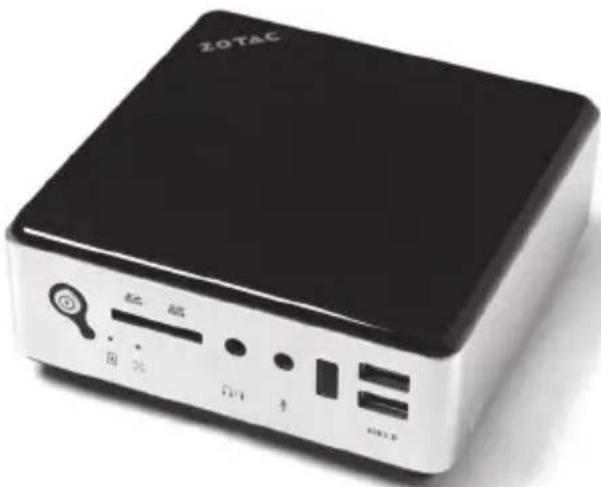
ZOTAC ZBOX nano User's Manual
natural_image
Black ZOTAC portable electronic device with ports and indicator lights (no visible text or symbols on body)No part of this manual, including the products and software described in it, may be reproduced, transmitted, transcribed, stored in a retrieval system, or translated into any language in any form or by any means, except documentation kept by the purchaser for backup purposes, without the express written permission of ZOTAC.
Products and corporate names mentioned in this manual may not be registered trademarks or copyrights of their respective companies, and are used for identification purposes only. All trademarks are the property of their respective owners.
Every effort has been made to ensure that the contents of this manual are correct and up to date. However, the manufacturer makes no guarantee regarding the accuracy of its contents, and reserves the right to make changes without prior notice.
CAUTION:
Risk of explosion if the battery is replaced with an incorrect type. Batteries should be recycled where possible. Disposal of used batteries must be in accordance with local environmental regulations.
Table of Contents
Product specifications 3
Safety information 4
Setting up your system 4
Care during use 4
Welcome 5
Package contents 5
Getting to know your ZOTAC ZBOX nano 6
Front view 6
Rear view----7
How to disable the ring LED indicator 8
Customizing the ZOTAC ZBOX nano 9
Installing a memory module 10
Installing a hard disk 11
Connecting a SPDIF cable 13
Setting up the ZOTAC ZBOX nano 14
Positioning the ZOTAC ZBOX nano---- 16
Mounting the ZOTAC ZBOX nano to an LCD monitor----16
Installing drivers and software 18
Installing an operating system 18
Installing system drivers---- 18
Using your ZOTAC ZBOX nano---- 19
Configuring wireless connection 19
Configuring wired connection 19
Using a static IP 19
Using a dynamic IP (PPPoE connection)---- 20
Configuring audio output via an HDMI device 20
Product specifications
Processor
- Intel Core i3-5010U Processor (dual core, 2.1 GHz) for ZBOX-MI522NANO series
- Intel Core i5-5200U Processor (dual core, 2.2 GHz, up to 2.7 GHz) for ZBOX-MI542NANO series
Onboard graphics
• Intel HD Graphics 5500
• HDMI 1.4a (max resolution: 4096×2160 @24Hz)
• DP 1.2 (max resolution: 3840x2160 @60Hz)
Memory support
• 2 204-pin DDR3L-1600/1333 SO-DIMM slots
- Up to 16 GB of memory
USB ports
• 4 USB 3.0 ports & 1 USB 2.0 port
Storage support
• SATA 6.0 Gb/s transfer rates
• Supports one 2.5-inch SATA HDD/SSD (9.5mm max height)
Network support
• Dual Gigabit (10/100/1000Mbps) LAN
- IEEE 802.3 compatible
WiFi/BT support
• 802.11ac Wi-Fi (dual-band)
- Bluetooth 4.0
Audio
• Digital 8 Channel Audio (LPCM/bitstream via HDMI)
- SPDIF output
Operating System support
- Windows 7 32bit/64bit, Windows 8 32bit/64bit and Windows 8.1 32bit/64bit
Product Dimensions
- 127mm x 127mm x 45mm
Safety information
Your ZOTAC ZBOX nano is designed and tested to meet the latest standards of safety for information technology equipment. However, to ensure your safety, it is important that you read the following safety instructions.
Setting up your system
Read and follow all instructions in the documentation before you operate your system.
Do not use this product near water or a heat source such as a radiator.
- Set up the system on a stable surface with the provided stand. Never use the system alone without the stand.
Openings on the chassis are for ventilation. Do not block or cover these openings. Make sure you leave plenty of space around the system for ventilation. Never insert objects of any kind into the ventilation openings.
Use this product in environments with ambient temperatures between 0°C and 35°C.
If you use an extension cord, please use the UL listed cord and make sure that the total ampere rating of the devices plugged into the extension cord does not exceed its ampere rating.

Care during use
Do not walk on the power cord or allow anything to rest on it.
Do not spill water or any other liquids on your system.
When the system is turned off, a small amount of electrical current still flows. Always unplug all power, modem, and network cables from the power outlets before cleaning the system.
If you encounter the following technical problems with the product, unplug the power cord and contact a qualified service technician or your retailer.
The power cord or plug is damaged.
Liquid has been spilled into the system.
The system does not function properly even if you follow the operating instructions.
The system was dropped or the cabinet is damaged.
The system performance changes.
Welcome
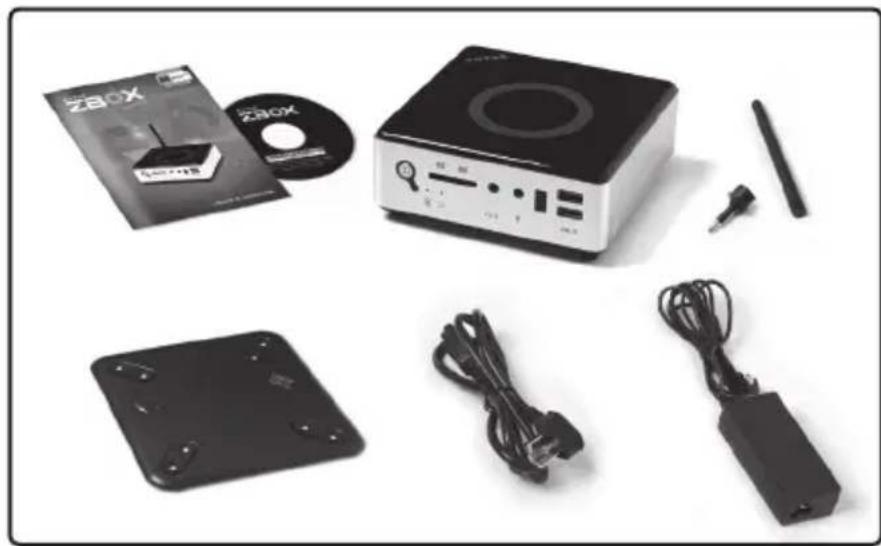
Congratulations on your purchase of the ZOTAC ZBOX nano mini-PC. The following illustration displays the package contents of your new ZOTAC ZBOX nano. Please contact your retailer If any of the below items are damaged or missed.
Package contents
• 1 x ZOTAC ZBOX nano mini-PC
• 1 x ZOTAC VESA mount
- 4 x Mount screws
- 1 x AC Adapter
- 1 x Power Cord
• 1 x Headphone/SPDIF adapter
- 1 x WiFi antenna
• 1 x USB flash drive with OS drivers
- 1 x User Manual
• 1 x Quick Start Guide
- 1 x Support DVD
natural_image
Product display set including a ZBOX CD, a black electronic device with buttons, and various accessories (no visible text or symbols)Getting to know your ZOTAC ZBOX nano
Front view
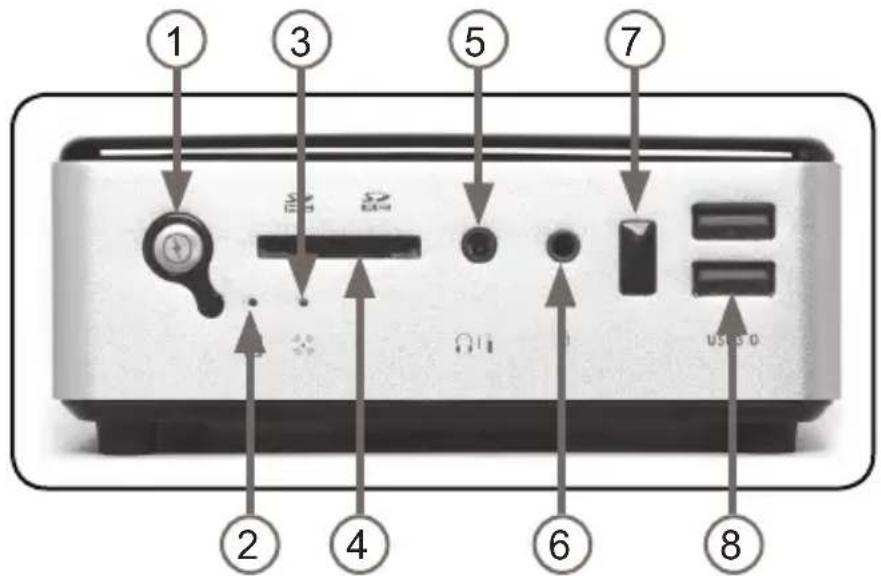
Refer to the diagram below to identify the components on this side of the system
1. Power button
The power button turns the mini-PC ON and OFF.
2. HDD status indicator
The hard disk LED blinks when data is being written onto or read from the hard disk drive.
3. Wi-Fi status indicator
The Wi-Fi LED blinks when data is being transferred over Wi-Fi.
4. Memory card reader
The built-in memory card reader reads SD/SDHC/SDXC cards used in devices such as digital cameras, MP3 players, mobile phones and PDAs.
5. Combo analog/mini-Optical S/PDIF output
The Combo analog/mini-Optical S/PDIF output (3.5mm) is used to connect the system's audio output signal to amplified speakers or headphones. It also supports SPDIF output with the headphone/SPDIF adapter included in the package. The optical SPDIF output enables connecting the ZBOX nano to digital audio receivers and speakers for crystal clear digital audio and surround sound from compatible soundtracks.
6. Microphone input
The microphone input is designed to connect a microphone for video conferencing, voice narrations or simple audio recordings.
7. IR receiver
The integrated IR receiver is used to receive signals from the IR remote control.
8. USB 3.0 ports
The USB 3.0 ports support the SuperSpeed USB 3.0 devices and are backwards compatible with USB 2.0/1.1 devices. Use the ports for USB 3.0 devices for maximum performance with USB 3.0 compatible devices.
Rear view
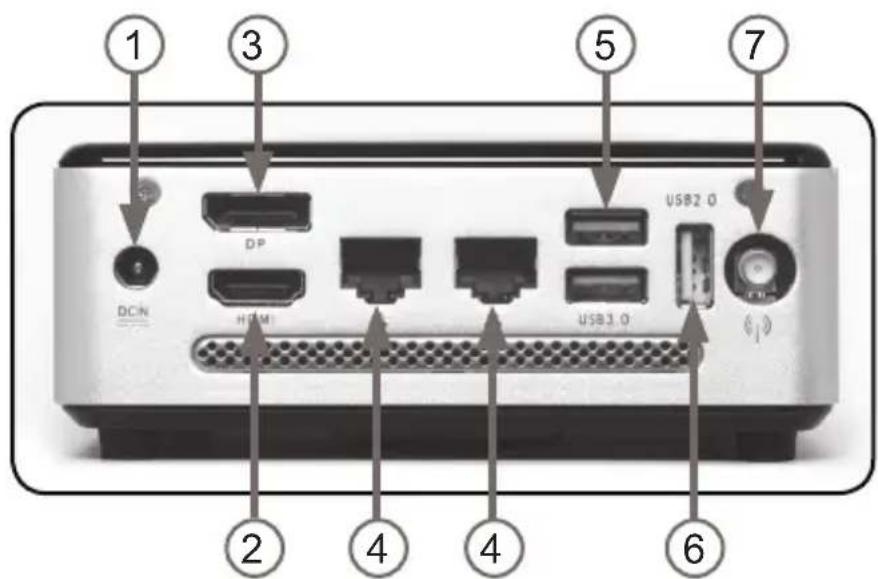
Refer to the diagram below to identify the components on this side of the system.
1. Power input (DC19V)
The supplied power adapter converts AC power to DC power for use with this jack. Power supplied through this jack supplies power to the mini-PC. To prevent damage to the mini-PC, always use the supplied power adapter.
2. HDMI output
The HDMI (High Definition Multimedia Interface) output supports UHD displays such as an HDTV or monitor.
3. DisplayPort output
The DisplayPort output supports displays with resolution up to 3840x2160 @60Hz.
4. Ethernet ports
The eight-pin RJ-45 LAN port supports standard Ethernet cable for connection to a local area network (LAN) with speeds of 10/100/1000Mbps.
5. USB 3.0 ports
The USB 3.0 ports support the SuperSpeed USB 3.0 devices and are backwards compatible with USB 2.0/1.1 devices. Use the ports for USB 3.0 devices for maximum performance with USB 3.0 compatible devices.
6. USB 2.0 port
The USB (Universal Serial Bus) port is compatible with USB devices such as keyboards, mice, cameras and hard disk drives.
7. Wi-Fi antenna connector
The Wi-Fi antenna connector supports the included Wi-Fi antenna.
Note 1: The power adapter may become warm to hot when in use. Do not cover the adapter and keep it away from your body.
Note 2: Due to the special design for easy upgrade, some connectors are placed upside down.
How to disable the ring LED indicator
- Turn on the ZBOX mini-PC and press
to enter the BIOS SETUP UTILITY. - Use the arrow keys to navigate to the Power menu and select Logo Indicator.
![ZOTAC® BIOS SETUP UTILITY Main OC Features PC Health Power Boot Save&Exit ACPI Settings Enable Hibernation [Enabled] ACPI Sleep State [S3 (Suspend to RAM)] Lock Legacy Resources [Disabled] S3 Video Repost [Disabled] DeepSleep(EnP Compliant) S5 [Disabled] Functions below available when Deep Sleep Disabled. Restore From PC Power Loss [Power Off] Logo Indicator [Turn On ] Make On Lan [Disabled] USB make S3/S4 [Enabled] RTC Makeup Setting [Disabled] Logo Indicator Turn On or Off +: Select Screen +: Select Item Enter: Select +/-: Change Dot. F1: General Help F2: Previous Values F9: Optimized Defaults F10: Save & Exit ESC: Exit](/content/2026/06/1283397/images/c2ca75d50f16014df325a041b4048b8d00348c1efb5c68c3705003a454dcd965.jpg)
- Press
and select Turn off.
![ZOTAC® BIOS SETUP UTILITY Main OC Features PC Health Power Boot Save&Exit ACPI Settings Enable Kibernation [Enabled] ACPI Sleep State [S3 (Suspend to RAM)] Lock Legacy Resources [Disabled] S3 Video Repost [Disabled] DeepSleep(EnP Compliant) GS Logo indicator Turn On Turn Off Functions below available when De Restore From PC Power Loss [Power Off] Logo Indicator [Turn On ] Make On Lan [Disabled] USB make SS/34 [Enabled] RTC Makeup Setting [Disabled] Logo indicator: Turn On or Off #: Select Screen TL: Select Item Enter: Select +/-: Change Opt. F1: General Help F2: Previous Values F9: Optimized Defaults F10: Save & Exit ESC: Exit](/content/2026/06/1283397/images/cc888e163707405720dab9d24367cbd730e3a5404850474b7cb76dbc8298099b.jpg)
- Press F10 to save the configuration and exit.
Customizing the ZOTAC ZBOX nano
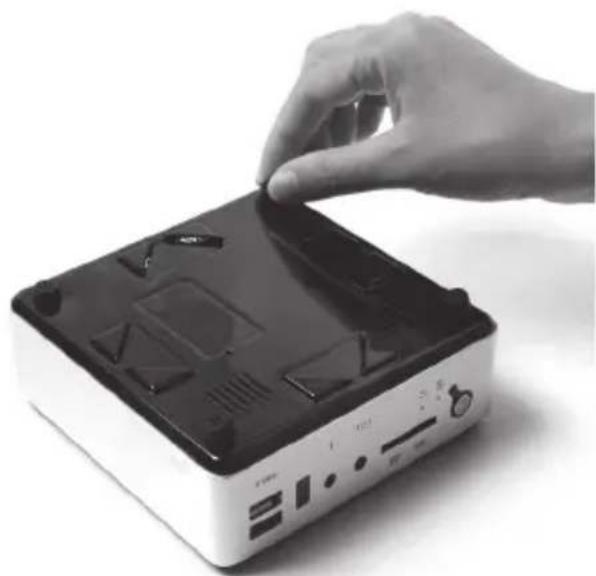
Please follow the instructions below to remove the cover of the ZOTAC ZBOX nano before customizing.
- Loosen the 4 screws securing the bottom cover into place.
natural_image
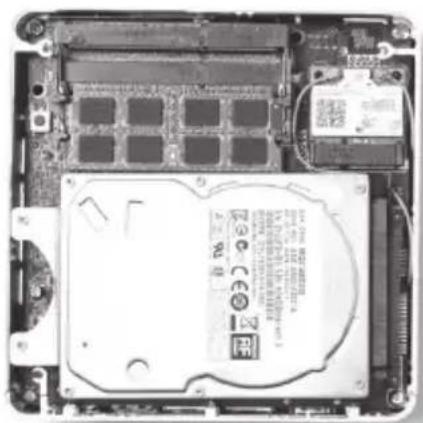
Hand placing a black plastic object onto a white electronic device (no visible text or symbols)- Gently remove the cover.
natural_image
Interior view of an internal hard disk drive with visible circuitry and battery pack (no text or symbols)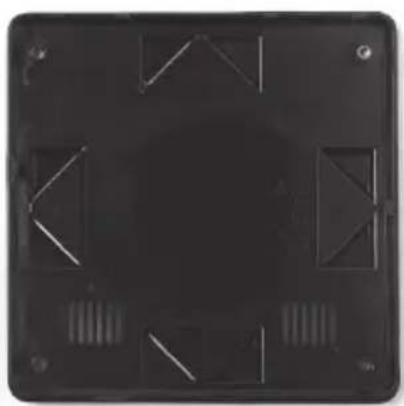
natural_image
Top-down view of a black rectangular electronic device with internal circuitry and mounting holes (no text or symbols visible)Installing a memory module
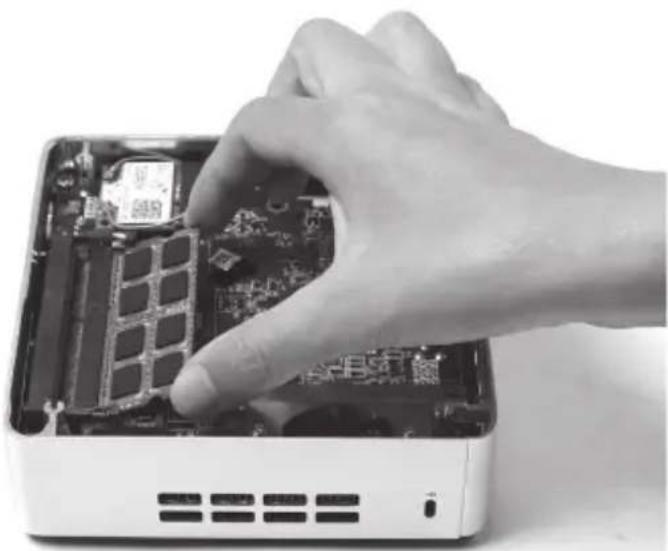
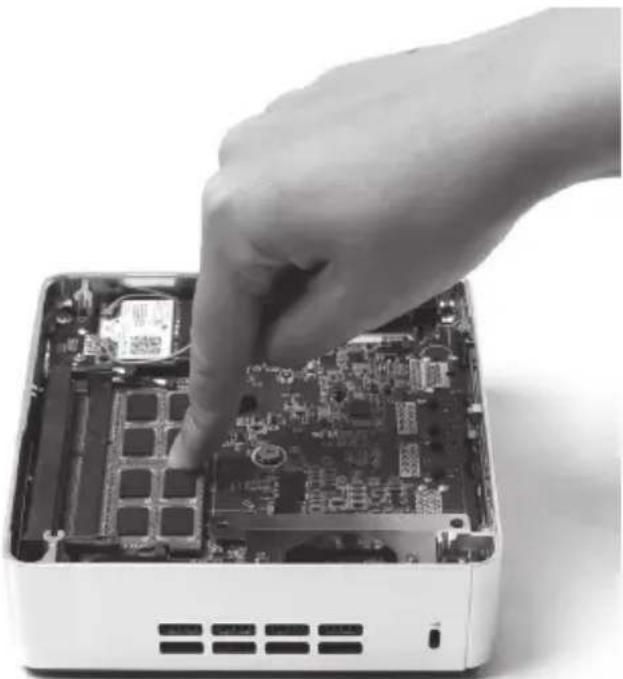
- Locate the SO-DIMM memory slot and insert a SO-DIMM memory module into the slot at a 45 degree angle.
natural_image
Hand inserting a circuit board into a device casing (no visible text or symbols)- Gently press down on the memory module until it locks into place by the arms of the memory slot.
natural_image
Hand inserting a CPU into an open electronic device (no visible text or symbols)Installing a hard disk
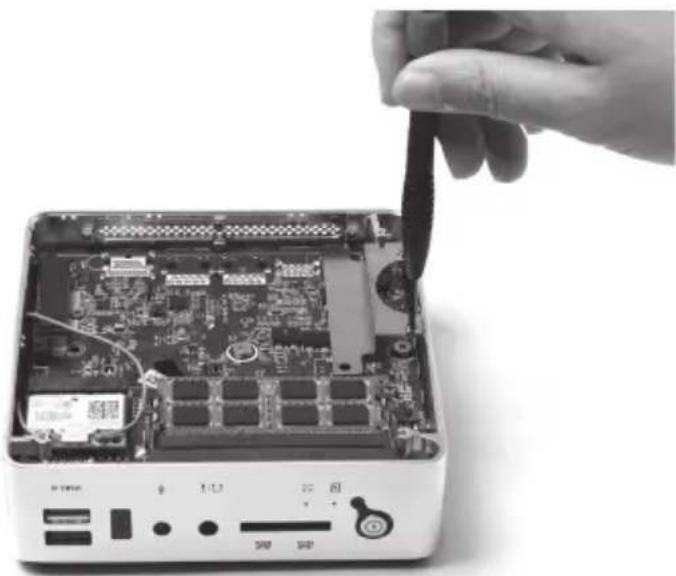
- Locate the hard disk bracket, remove the 2 screws, and remove the hard disk bracket as shown in the image below.
natural_image
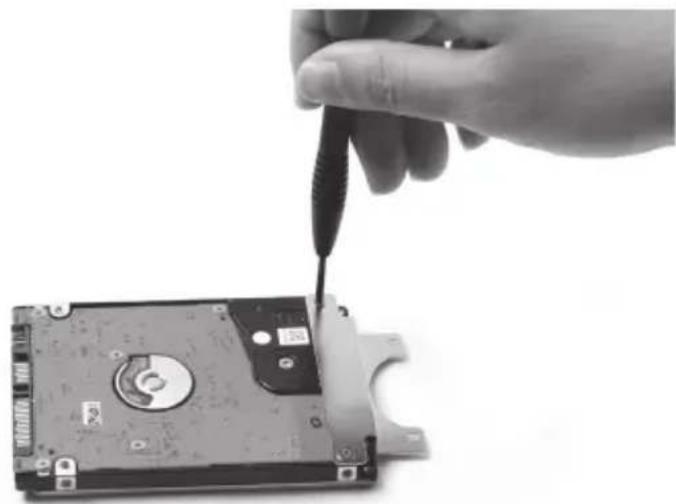
Hand inserting a USB cable into an open electronic device with circuit board and ports (no visible text or symbols)- Install the hard disk bracket onto a 2.5-inch SATA hard disk with 2 screws.
natural_image
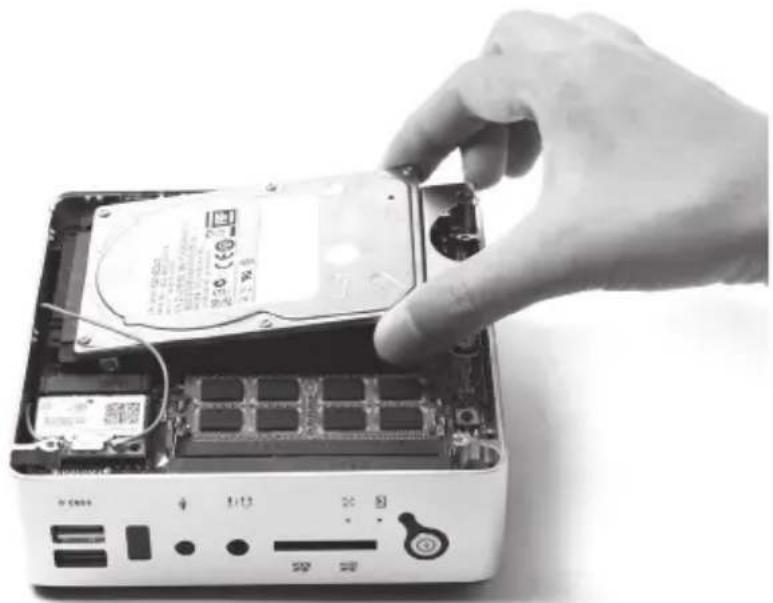
Hand using a screwdriver to adjust or install a hard disk drive (no text or symbols visible)- Insert the hard disk into the socket and gently slide into the connector.
natural_image
Hand inserting a hard disk into an open computer case with visible circuitry and control buttons (no text or symbols on main subject)- Reinstall the screws for the hard disk bracket.
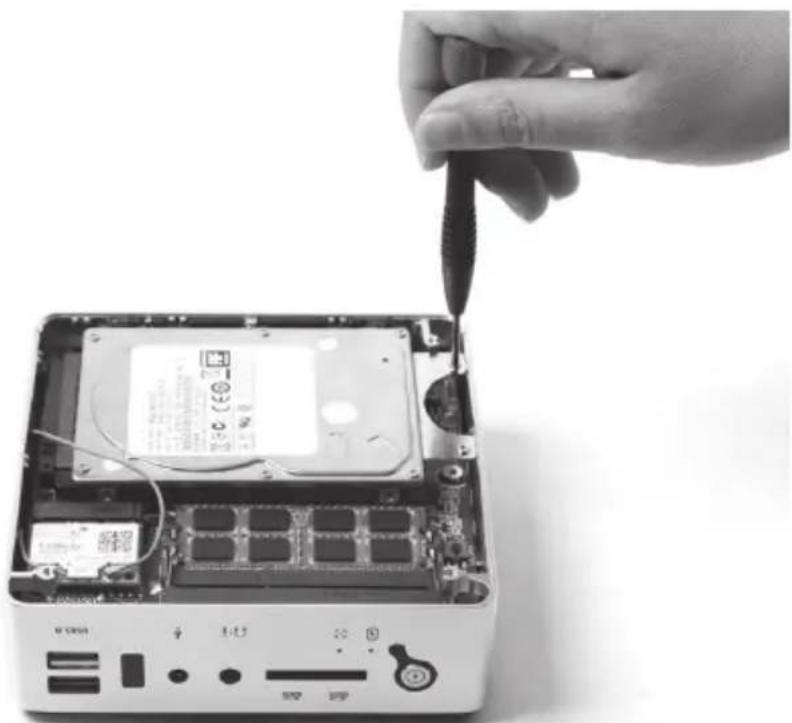
natural_image
Hand inserting a screwdriver into an open hard disk drive (no visible text or symbols)Connecting a SPDIF cable
- Connect the SPDIF cable to the headphone/SPDIF adapter correctly.
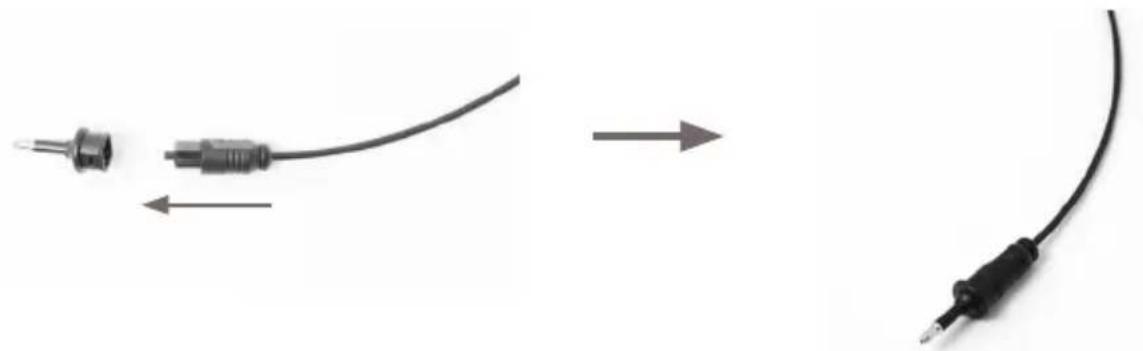
natural_image
Three black cable connectors with arrows indicating direction of connection (no text or symbols)- Locate the front panel and connect the headphone/SPDIF adapter to the headphone/SPDIF jack.
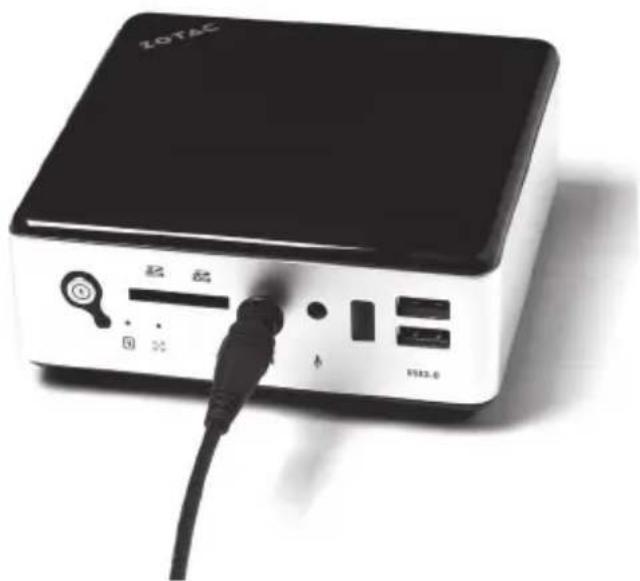
natural_image
Black ZOTAC device with ports and cable, no visible text or symbols on bodySetting up the ZOTAC ZBOX nano
Please connect your peripherals before using your ZOTAC ZBOX nano.
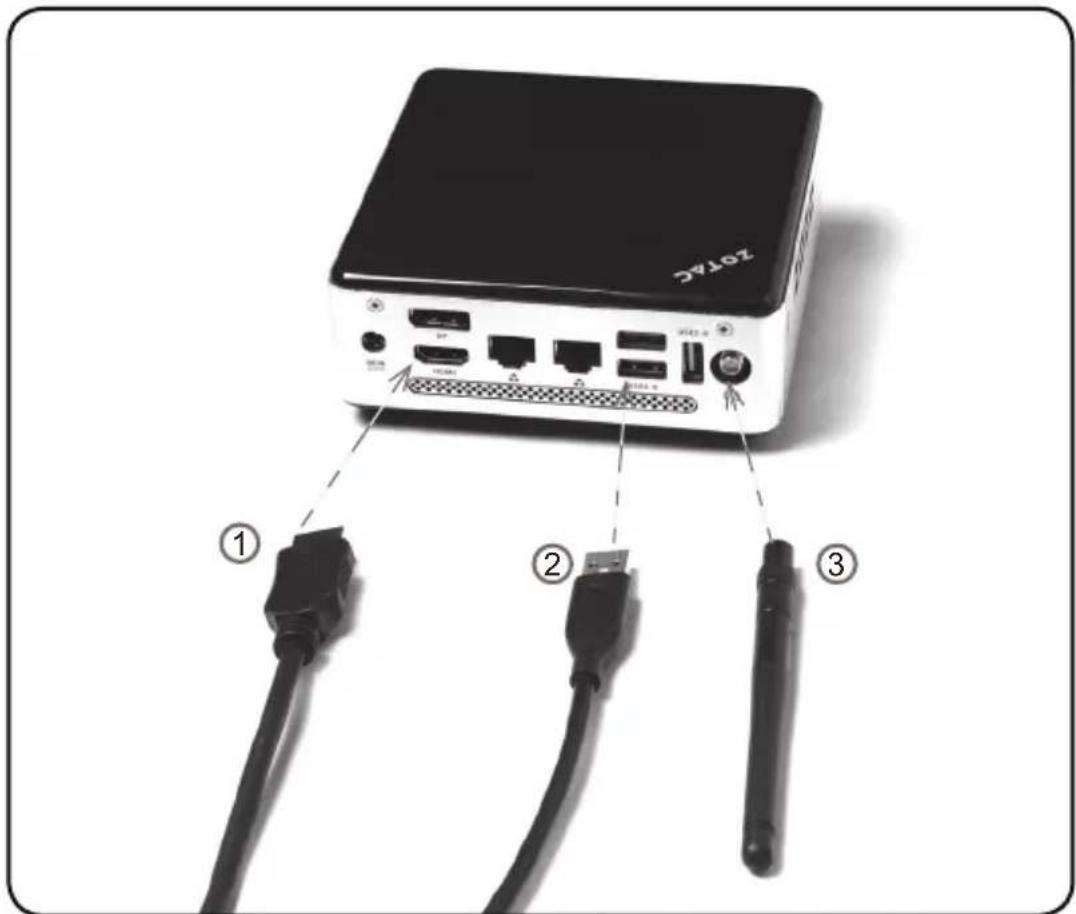
1. Connecting to an HDMI display
Connect one end of an HDMI cable to the HDMI port on the system rear panel and the other end to a HDMI-compatible display such as an HDTV or monitor. (When both the HDMI and the DP are connected, the audio output is from HDMI by default.)
2. Connecting USB 3.0 device
Connect USB 3.0 devices such as external hard drives, SSDs and flash drives to the USB 3.0 port.
3. Connecting the WiFi antenna module
Connect the included WiFi antenna to the WiFi antenna connector.
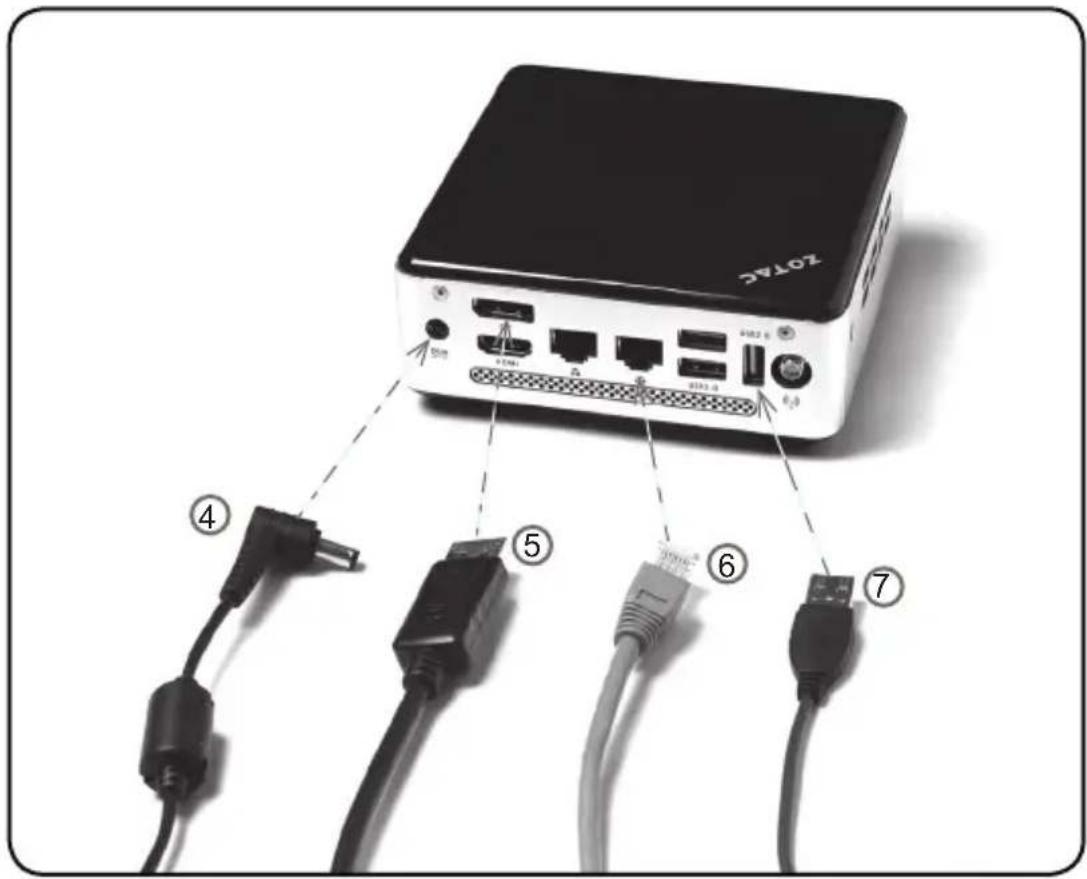
4. Turning on the system
Connect the supplied AC adapter to the DC IN jack on the system rear panel and then press the power switch on the front panel to turn on the system.
5. Connecting a DisplayPort display
Connect the DisplayPort connector to the DP port.
6. Connecting to a network device
Connect one end of a network cable to the LAN port on the system rear panel and the other end to a network hub, switch or router.
7. Connecting to USB 2.0 devices
Connect USB devices like wired/wireless keyboards (varying with areas), mouse devices and printers to the USB ports on the system rear panel.
Note: When your ZOTAC ZBOX nano is not in use, unplug the power adapter or switch off the AC outlet to conserve power.
Positioning the ZOTAC ZBOX nano
- Do not cover or block the ventilation holes on ZOTAC ZBOX nano. To ensure proper operation and reliability, leave approximately 4 inches (10 cm) of spacing in front of the ventilation holes.
- ZOTAC ZBOX nano mini-PC systems provide ample expansion in a miniature form factor, please use connectors and cables that are appropriate in size to avoid interference.
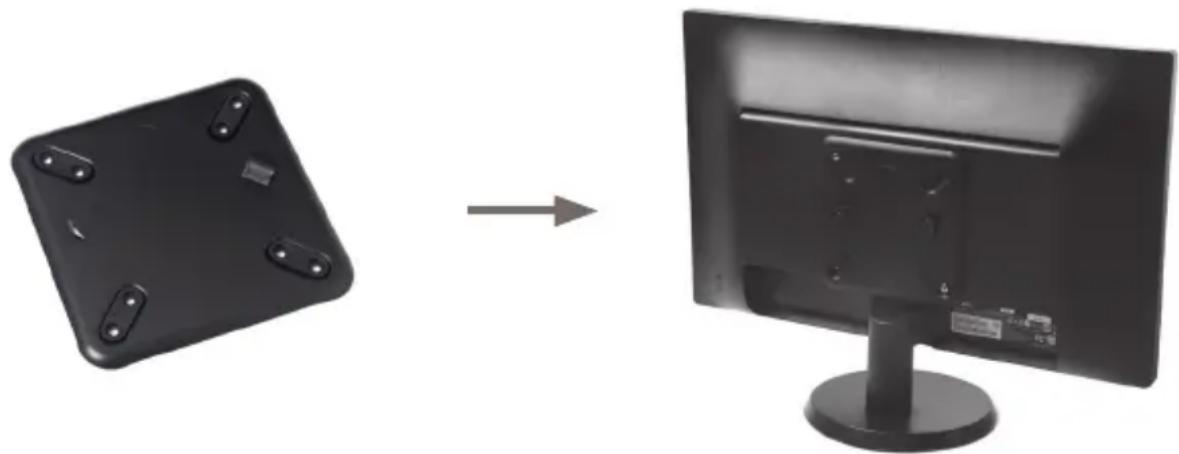
Mounting the ZOTAC ZBOX nano to an LCD monitor
The ZOTAC ZBOX nano is monitor-mountable using the included VESA mount.
- Secure the VESA mount to the LCD monitor using screws (not included). Disclaimer: ZOTAC cannot be held liable for damages resulting from an improper installation.
natural_image
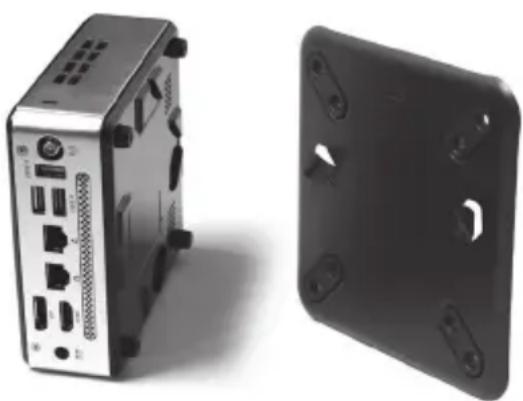
Two black electronic devices with buttons on either side, one shown and one on a monitor stand (no text or symbols visible)- Align the ZOTAC ZBOX nano mounting holes to the VESA mount attachment pegs. Attach the ZOTAC ZBOX nano to the VESA mount and gently press down to secure the ZBOX nano to the mount.
natural_image
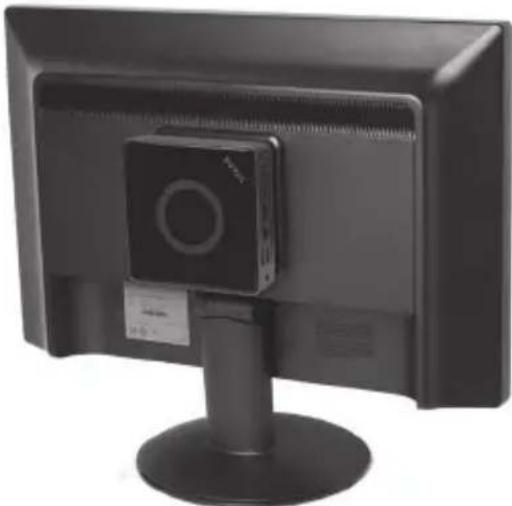
Exterior view of a silver industrial device with ports and a black plastic cover (no text or symbols visible)- Connect the ZOTAC ZBOX nano to your LCD monitor with an HDMI cable.
natural_image
Front view of a desktop computer monitor with a mounted camera and stand (no visible text or symbols)Installing drivers and software
Installing an operating system
The ZOTAC ZBOX nano does not ship with an operating system preinstalled. An operating system must be installed before the ZOTAC ZBOX nano can be used. The following operating systems are supported:
- Windows 7
- Windows 8
- Windows 8.1
Follow the instructions below to install an operating system:
- Insert disk for operating system into the optical drive.
- Wait for the ZOTAC ZBOX nano to boot from the disk.
- Follow the onscreen directions to install the operating system.
- Install system drivers to gain full functionality of the ZOTAC ZBOX nano hardware and features.
Installing system drivers
Before you can use the full features of the ZOTAC ZBOX nano, the system drivers must be installed. The following types of operating systems are supported by the ZOTAC ZBOX nano driver DVD and USB flash drive:
- Windows 7
- Windows 8
- Windows 8.1
Follow the instructions below to install the system drivers:
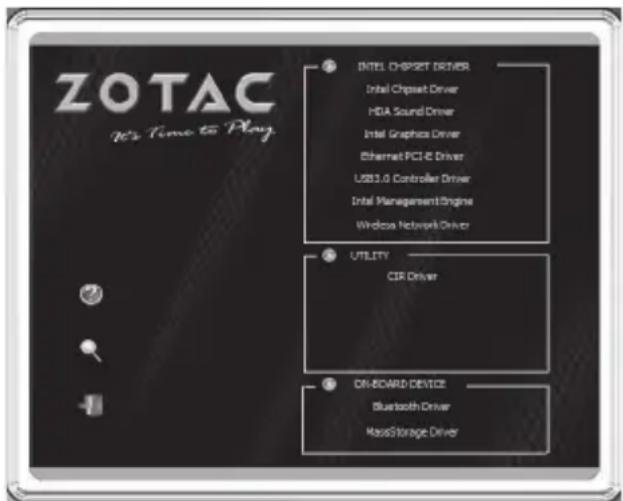
- Insert the ZOTAC ZBOX nano driver DVD or USB flash drive. If autorun is enabled, the driver installation main menu will show up automatically.
Note: If autorun is disabled, you can click the file Launch.EXE to bring up the driver installation main menu.
-
The following drivers are available on the DVD and USB flash drive:
-
Intel Chipset Driver
• HDA Sound Driver - Intel Graphics Driver
- Ethernet PCI-E Driver
- USB3.0 Controller Driver
• Intel Management Engine - Wireless Network Driver
- CIR Driver
- Bluetooth Driver
- MassStorage Driver
- USB Charger (optional)
Note: If you want to use USB charger for iPhone/iPad, please install the driver at X:\Utility\Software\Usb Charger\setup.exe (X: your driver disk letter).

Each driver must be installed individually to ensure proper operation of the ZOTAC ZBOX.
- Select the driver you want to install. The driver installer should launch.
- Follow the onscreen instructions to install the drivers.
- Restart the system.
Using your ZOTAC ZBOX nano
Configuring wireless connection
Please follow the instructions below to connect to a wireless network:
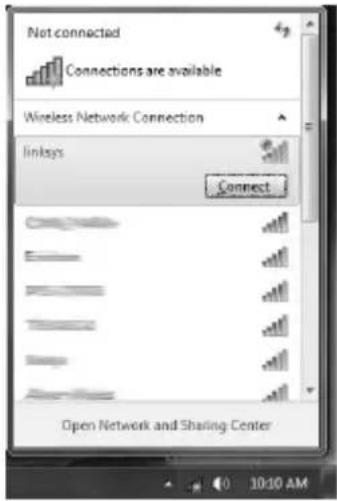
- Double-click the crossed wireless network icon (pic) in the notification area.
- Select the wireless network you want to connect to from the list and click Connect.
- After connection was established, you will see "Connected".
Note 1: For security concerns, Do NOT connect to an unsecured network, otherwise, the transmitted information without encryption might be visible to others.
Note 2: Enter the network security key if necessary.
Configuring wired connection Using a static IP
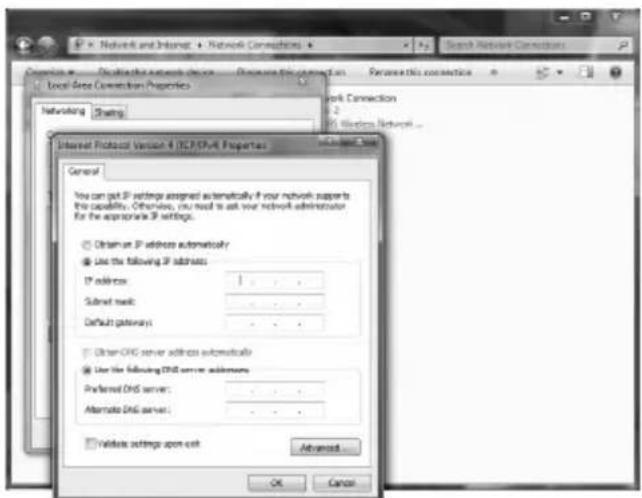
- Right-click the network icon in the notification area and select "Open Network Connections".
- Right-click "Local Area Connection" and select "Properties".
- Highlight "Internet Protocol (TCP/IP)" and click "Properties".
- Select "Use the following IP address".
-
Enter your IP address, subnet mask and Default gateway.
-
Enter the preferred DNS server address if necessary.
-
After entering all of the related values, click "OK" to finish the configuration.
Using a dynamic IP (PPPoE connection)
- Repeat Step 1-3 in the previous section.
- Select "Obtain an IP address automatically" and click "OK".
- Click "Create a new connection" to start the NEW Connection Wizard.
- Click "Next".
-
Select "Connect to the Internet" and click "Next".
-
Select "Set up my connection manually".
-
Select your connection type and click "Next".
-
Enter your ISP Name and click "Next".
-
Enter your User name and Password. Click "Next".
-
Click "Finish" to finish the configuration.
-
Enter your user name and password. Click "Connect" to connect to the internet.
![Control Panel Home Manage wireless network Change adapter settings Change advanced sharing settings Show how to access basic networks information and set up connections [This computer] View your basic network information and set up connections Connect or Document Access types Internet HomeGroups Jirand New network Change your networking settings Set up a new connection or network Set up a network, broadband, dan up, or access point. Connect to a network Connect or connect to a wireless, will Choose from the group and sharing options Access Files and printers located on other Test demonstrate problems Diagnose and repair network problems 3. Set up a Connection or Network Choose a connection option Connect to the Internet Set up a network, broadband or data connection by the Internet Set up a new network Configures a new router or security point. Manually connect to a wireless network Connect to a hidden network or create a new wireless profile. Connect to a workplace Set up a dial-up on 20% connection by your workplace. Set up a dial-up connection Connect to the Internet using a dial-up connection. Next Cancel password. Click](/content/2026/06/1283397/images/5157a8ba823c6f0663515e1548b1a6233f98a425c2bf2806b74f82b36340a861.jpg)
Note: Contact your internet Service Provider (ISP) if you have problems connecting to the network.
Configuring audio output via an HDMI device
Follow the steps below to enable audio output via HDMI when connecting the ZOTAC ZBOX nano to a TV or receiver via HDMI.
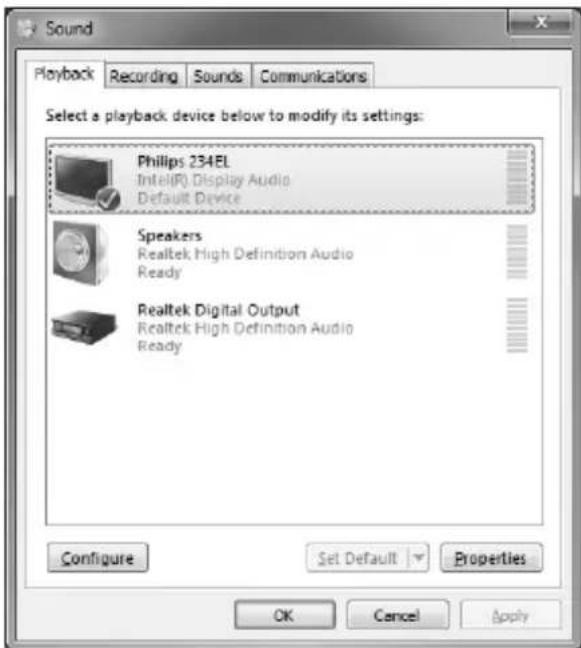
- Access the Sound settings via the system Control Panel.
- Under Playback devices, click the display device that corresponds with your HDMI audio compatible display
- Click the "Set Default" button in the lower right hand corner.
- Click "OK" to exit the setup.
- ZOTAC ZBOX nano User's Manual
- CAUTION:
- Table of Contents
- Product specifications 3
- Safety information 4
- Welcome 5
- Getting to know your ZOTAC ZBOX nano 6
- How to disable the ring LED indicator 8
- Customizing the ZOTAC ZBOX nano 9
- Setting up the ZOTAC ZBOX nano 14
- Positioning the ZOTAC ZBOX nano---- 16
- Installing drivers and software 18
- Using your ZOTAC ZBOX nano---- 19
- Product specifications
- Processor
- Onboard graphics
- Memory support
- USB ports
- Storage support
- Network support
- WiFi/BT support
- Audio
- Operating System support
- Product Dimensions
- Safety information
- Setting up your system
- Care during use
- Welcome
- Package contents
- Getting to know your ZOTAC ZBOX nano
- Front view
- Power button
- HDD status indicator
- Wi-Fi status indicator
- Memory card reader
- Combo analog/mini-Optical S/PDIF output
- Microphone input
- IR receiver
- USB 3.0 ports
- Rear view
- Power input (DC19V)
- HDMI output
- DisplayPort output
- Ethernet ports
- USB 3.0 ports
- USB 2.0 port
- Wi-Fi antenna connector
- How to disable the ring LED indicator
- Customizing the ZOTAC ZBOX nano
- Installing a memory module
- Installing a hard disk
- Connecting a SPDIF cable
- Setting up the ZOTAC ZBOX nano
- Connecting to an HDMI display
- Connecting USB 3.0 device
- Connecting the WiFi antenna module
- Turning on the system
- Connecting a DisplayPort display
- Connecting to a network device
- Connecting to USB 2.0 devices
- Positioning the ZOTAC ZBOX nano
- Mounting the ZOTAC ZBOX nano to an LCD monitor
- Installing drivers and software
- Installing an operating system
- Installing system drivers
- Using your ZOTAC ZBOX nano
- Configuring wireless connection
- Configuring wired connection Using a static IP
- Using a dynamic IP (PPPoE connection)
- Configuring audio output via an HDMI device
Brand : Zotac
Model : ZBOX MI522 nano
Category : Desktop computer