
HTL5130B - Soundbar PHILIPS - Free user manual and instructions
Find the device manual for free HTL5130B PHILIPS in PDF.


| Product Type | Soundbar |
| Brand | Philips |
| Model | HTL5130B |
| Main Dimensions (W x H x D) | 1000 x 75 x 120 mm |
| Weight (soundbar) | 2.5 kg |
| Power Supply | 100-240 V, 50/60 Hz |
| Power Consumption | 35 W (standby <0.5 W) |
| Channels | 2.1 |
| Total Power Output | 200 W RMS |
| Subwoofer | Wireless, 150 W, 6.5" driver |
| Connectivity | Bluetooth 4.2, HDMI ARC, USB, Optical, Coaxial, Aux |
| Audio Formats | Dolby Digital, DTS |
| Sound Modes | Movie, Music, Voice, Game |
| Special Features | Bass Boost, Dialog Enhancement, Night Mode |
| Cleaning | Wipe with a soft dry cloth. Do not use liquids. |
| Safety Warnings | Do not expose to water. Disconnect power before cleaning. |
| Remote Control | Included (battery type: CR2025) |
| Spare Parts | Remote, cables, subwoofer (contact Philips support) |
| Wall Mountable | Yes (brackets included) |
Frequently Asked Questions - HTL5130B PHILIPS
User questions about HTL5130B PHILIPS
0 question about this device. Answer the ones you know or ask your own.
Ask a new question about this device
Download the instructions for your Soundbar in PDF format for free! Find your manual HTL5130B - PHILIPS and take your electronic device back in hand. On this page are published all the documents necessary for the use of your device. HTL5130B by PHILIPS.
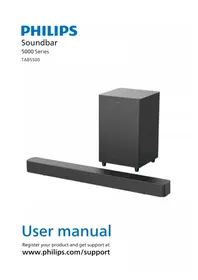
USER MANUAL HTL5130B PHILIPS
Always there to help you
Register your product and get support at
www.philips.com/support

HTL5130B

User manual
PHILIPS
Contents
1 Important 2
Help and support 2
Safety 2
Care for your product 3
Care of the environment 3
Compliance 4
2 Your product 4
Main unit 4
Remote control 5
Connectors 6
3 Placement 6
Place the main unit 6
4 Connect 7
Connect to TV 7
Connect audio from TV and other devices 8
5 Use your product 9
Adjust the volume 9
Choose your sound 9
Play audio through Bluetooth 9
Connect Bluetooth via NFC 10
USB storage devices 10
MP3 player 11
Auto standby 11
Set display brightness 11
Apply factory settings 11
6 Update software 12
Check software version 12
Update software via USB 12
7 Product specifications 13
8 Troubleshooting 14
1 Important
Read and understand all instructions before you use your product. If damage is caused by failure to follow instructions, the warranty does not apply.
Help and support
For extensive online support, visit www.philips.com/support to:
- download the user manual and the quick start guide
- watch video tutorials (available only for selected models)
• find answers to frequently answered questions (FAQs) - email us a question
- chat with our support representative.
Follow the instructions on the website to select your language, and then enter your product model number.
Alternatively, you can contact Consumer Care in your country. Before you contact, note down the model number and serial number of your product. You can find this information on the back or bottom of your product.
Safety
Risk of electric shock or fire!
- Before you make or change any connections, make sure that all devices are disconnected from the power outlet.
- Never expose the product and accessories to rain or water. Never place liquid containers, such as vases, near the product. If liquids are spilt on or into the product, disconnect it from the power outlet immediately. Contact Consumer Care to have the product checked before use.
- Never place the product and accessories near naked flames or other heat sources, including direct sunlight.
- Never insert objects into the ventilation slots or other openings on the product.
- Where the mains plug or an appliance coupler is used as the disconnect device, the disconnect device shall remain readily operable.
- Batteries (battery pack or batteries installed) shall not be exposed to excessive heat such as sunshine, fire or the like.
- Disconnect the product from the power outlet before lightning storms.
- When you disconnect the power cord, always pull the plug, never the cable.
Risk of short circuit or fire!
- For identification and supply ratings, see the type plate at the back or bottom of the product.
- Before you connect the product to the power outlet, ensure that the power voltage matches the value printed on the back or bottom of the product. Never connect the product to the power outlet if the voltage is different.
Risk of injury or damage to this product!
- Never place the product or any objects on power cords or on other electrical equipment.
- If the product is transported in temperatures below 5°C, unpack the product and wait until its temperature matches room temperature before connecting it to the power outlet.
- Parts of this product can be made of glass. Handle with care to avoid injury and damage.
Risk of overheating!
- Never install this product in a confined space. Always leave a space of at least four inches around the product for ventilation. Ensure curtains or other objects never cover the ventilation slots on the product.
Risk of contamination!
- Do not mix batteries (old and new or carbon and alkaline, etc.).
- Danger of explosion if batteries are incorrectly replaced. Replace only with the same or equivalent type.
- Remove batteries if they are exhausted or if the remote control is not to be used for a long time.
- Batteries contain chemical substances, they should be disposed of properly.
Risk of swallowing batteries!
- The product/remote control may contain a coin/button type battery, which can be swallowed. Keep the battery out of reach of children at all times! If swallowed, the battery can cause serious injury or death. Severe internal burns can occur within two hours of ingestion.
- If you suspect that a battery has been swallowed or placed inside any part of the body, seek immediate medical attention.
- When you change the batteries, always keep all new and used batteries out of reach of children. Ensure that the battery compartment is completely secure after you replace the battery.
- If the battery compartment cannot be completely secured, discontinue use of the product. Keep out of reach of children and contact the manufacturer.

This is CLASS II apparatus with double insulation, and no protective earth provided.
Care for your product
Use only microfiber cloth to clean the product.
Care of the environment
Disposal of your old product and battery

Your product is designed and manufactured with high quality materials and components, which can be recycled and reused.
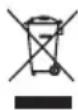
This symbol on a product means that the product is covered by European Directive 2012/19/EU.

This symbol means that the product contains batteries covered by European Directive 2013/56/EU which cannot be disposed of with normal household waste. Inform yourself about the local separate collection system for electrical and electronic products and batteries. Follow local rules and never dispose of the product and batteries with normal household waste. Correct disposal of old products and batteries helps prevent negative consequences for the environment and human health.
Removing the disposable batteries
To remove the disposable batteries, see battery installation section.
Compliance
C€0560
This product complies with the radio interference requirements of the European Community.
Hereby, Gibson Innovations declares that this product is in compliance with the essential requirements and other relevant provisions of Directive 1999/5/EC. You can find the Declaration of Conformity on www.p4c.philips.com.
2 Your product
Congratulations on your purchase, and welcome to Philips! To fully benefit from the support that Philips offers(e.g. notification of product software upgrade), register your product at www.philips.com/welcome.
Main unit
This section includes an overview of the main unit.
Front view
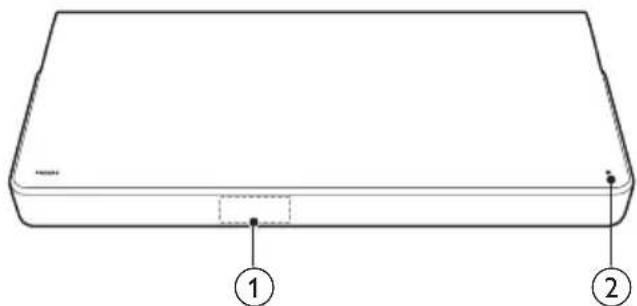
① Display panel
② NFC tag
Tap the NFC-enabled device on the tag for Bluetooth connection.
Side view

① ⏻
Switch this product on or to standby.
② SOURCE Select an input source for this product.
③ +/- (Volume)
Increase or decrease volume.
Remote control
This section includes an overview of the remote control.

① ⏻(Standby-On)
Switch this product on or to standby.
② Source buttons
• COAX: Switch your audio source to the coaxial connection.
• OPTICAL: Switch your audio source to the optical connection.
- AUX: Switch your audio source to the AUX connection.
• AUDIO IN: Switch your audio source to the MP3 connection (3.5mm jack).
• USB: Switch to USB mode.
• : Switch to Bluetooth mode.
• HDMI ARC: Switch your source to HDMI ARC connection.
③ ◀/▶(Previous/Next)
Skip to the previous or next track in USB mode and Bluetooth mode (only for AVRCP-supported Bluetooth devices).
④ ▶ II (Play/Pause)
Start, pause or resume play in USB mode and Bluetooth mode (only for AVRCP-supported Bluetooth devices).
⑤ BASS +/-
Increase or decrease bass.
⑥ Volume control
• +/-: Increase or decrease volume.
• Mute or restore volume.
⑦ SOUND
Select a sound mode.
⑧ NIGHT ON/OFF
Turn night mode on or off.
⑨ AUDIO SYNC +/-
Increase or decrease audio delay.
⑩ DIM
Set the brightness of the display panel for this product.
⑪ TREBLE +/-
Increase or decrease treble.
Connectors
This section includes an overview of the connectors available on this product.
Rear connectors
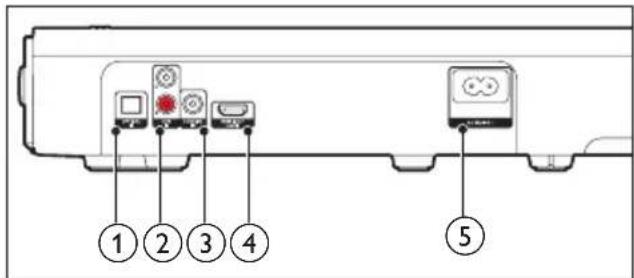
① OPTICAL IN
Connect to an optical audio output on the TV or a digital device.
② AUX IN L/R
Connect to an analog audio output on the TV or an analog device.
③ COAXIAL IN
Connect to a coaxial audio output on the TV or a digital device.
④ HDMI OUT (ARC)
Connect to the HDMI input on the TV.
⑤ AC MAINS\~
Connect to the power supply.
Side connectors
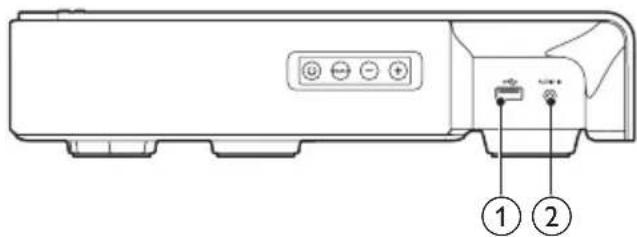
①

• Audio input from a USB storage device.
- Upgrade software of this product.
② AUDIO IN
Audio input from, for example, an MP3 player (3.5mm jack).
3 Placement
Place the main unit
This product is designed to be placed under your TV.

Caution
- This product is designed for TVs that weigh no more than 24 kg. Do not place a CRT type TV on this product.
- Do not place this product on an unstable cart, stand, bracket or table. Otherwise, this product may fall, and it may cause serious injury to people and serious damage to this product.
• Make sure the ventilation openings on the rear panel are not blocked. - Do not change the position of this product after placing your TV on top of it.
1 Place this product on any flat and stable surface near your TV. Then place your TV on top of this product.
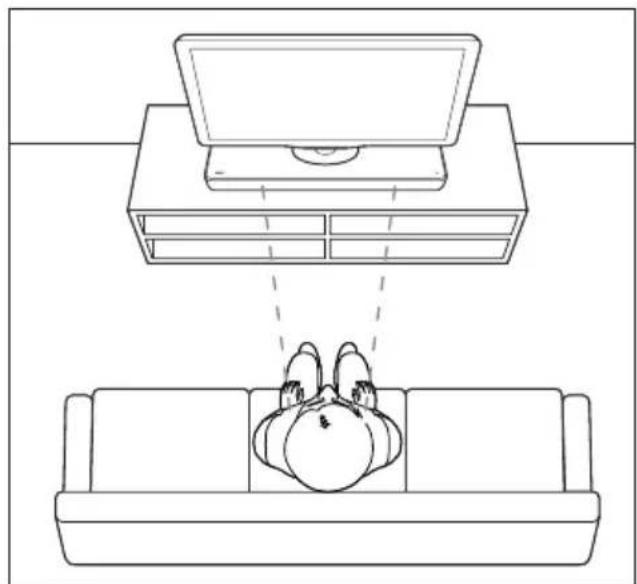
2 Make sure the TV base is centered on it and not hanging over any of its edges.


Tip
- If the TV base is too large to put on top of this product, place this product in another location such as on an open shelf under the TV, but keep it close to your TV so the audio cable will reach. You can also mount your TV on the wall above this product.
- If your TV comes with an anti-tip device, install it according to the manufacturer's instructions and adjust the tether after placing the TV on top of this product.
- If placing this product in a cabinet or on a shelf, for optimum audio performance, make sure the front of this product as close as possible to the front edge of the shelf.
- If placing this product backed up to a wall, make sure there is at least a distance of 1 inch between the wall and the rear of this product.
4 Connect
This section helps you connect this product to a TV and other devices.
For information about the basic connections of this product and accessories, see the quick start guide.

Note
- For identification and supply ratings, see the type plate at the back or bottom of the product.
- Before you make or change any connections, make sure that all devices are disconnected from the power outlet.
Connect to TV
Connect this product to a TV to watch videos. You can listen to the TV audio through this product.
Use the best quality connection available on your product and TV.
Connect to TV through HDMI (ARC)
Best quality audio
This product supports HDMI with Audio Return Channel (ARC). If your TV is HDMI ARC compliant, you can hear the TV audio through this product by using a single HDMI cable.

1 Using a High Speed HDMI cable, connect the HDMI OUT (ARC) connector on this product to the HDMI ARC connector on the TV.
- The HDMI ARC connector on the TV might be labeled differently. For details, see the TV user manual.
2 On your TV, turn on HDMI-CEC operations. For details, see the TV user manual.

Note
- If your TV is not HDMI ARC compliant, connect an audio cable to hear the TV audio through this product.
- If your TV has a DVI connector, you can use an HDMI/DVI adapter to connect to TV. However, some of the features may not be available.
Connect audio from TV and other devices
Play audio from TV or other devices through the speakers of this product.
Use the best quality connection available on your TV, this product, and other devices.

Note
- When your product and TV are connected through HDMI ARC, an audio connection is not required.
Option 1: Connect audio through a digital optical cable
Best quality audio
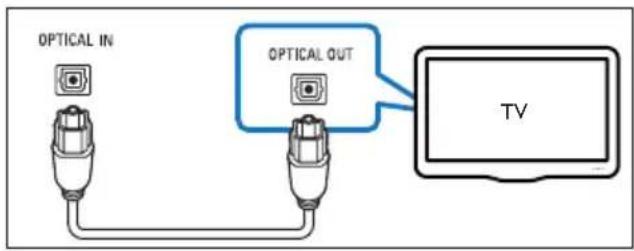
1 Using an optical cable, connect the OPTICAL IN connector on this product to the OPTICAL OUT connector on the TV or other device.
• The digital optical connector might be labeled SPDIF or SPDIF OUT.
Option 2: Connect audio through a digital coaxial cable
Best quality audio
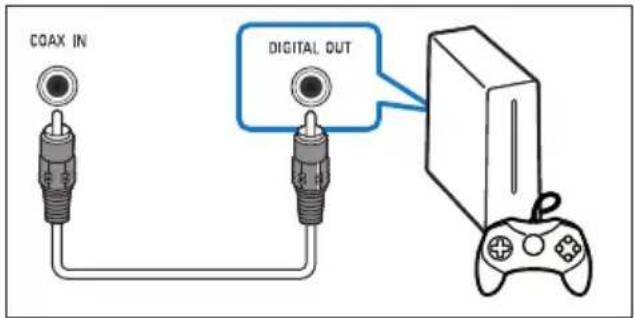
1 Using a coaxial cable, connect the COAXIAL IN connector on this product to the COAXIAL/DIGITAL OUT connector on the TV or other device.
• The digital coaxial connector might be labeled DIGITAL AUDIO OUT.
Option 3: Connect audio through analog audio cables
Basic quality audio
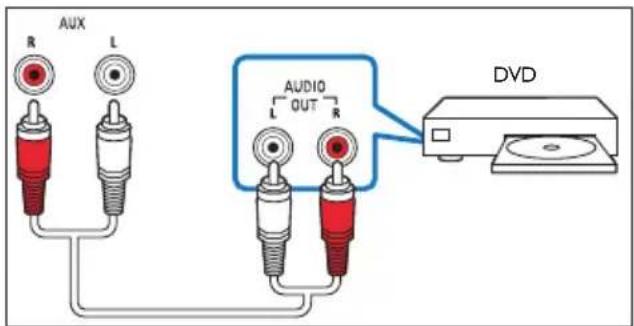
1 Using an analog cable, connect the AUX IN connectors on this product to the AUDIO OUT connectors on the TV or other device.
5 Use your product
This section helps you use this product to play media from a wide range of sources.
Before you start
- Make the necessary connections described in Quick start guide and User manual.
- Switch this product to the correct source for the other devices.
Adjust the volume
1 Press +/- (Volume) to increase or decrease a volume level.
• To mute sound, press × .
- To restore the sound, press × again or press +/- (Volume).
Choose your sound
This section helps you choose the ideal sound for your video or music.
Sound mode
Select predefined sound modes to suit your video or music.
1 Press SOUND to select a sound option from the display panel.
- POWER: Enjoy thrilling arcade sounds, ideal for action-packed videos and loud parties.
• BRIGHT: Spice up your dull movies and music with added sound effects. - CLEAR: Hear every detail in your music and clear voices in your movies.
- WARM: Experience spoken words and music vocals in comfort.
• PERSONAL: Personalize the sound based on your preferences.
• BALANCED: Experience the original sound of your movies and music, without added sound effects.
Equalizer
Change the high frequency (treble) and low frequency (bass) settings of this product.
1 Press TREBLE +/- or BASS +/- to change the treble or bass level.
Synchronize video and sound
If the audio and video are not synchronized, delay the audio to match the video.
1 Press AUDIO SYNC +/- to synchronize the audio with the video.
Night mode
For quiet listening, night mode decreases the volume of loud sounds when audio is played. Night mode is only available for Dolby Digital soundtracks.
1 Press NIGHT ON/OFF to turn night mode on or off.
Play audio through Bluetooth
Through Bluetooth, connect this proudct with your Bluetooth device (such as an iPad, iPhone, iPod touch, Android phone, or laptop), and then you can listen to the audio files stored on the device through this product.
What you need
- A Bluetooth device which supports Bluetooth profile A2DP, AVRCP and with Bluetooth version as 4.0 + EDR.
- The operational range between this product and a Bluetooth device is approximately 10 meters (30 feet).
1 Press on the remote control to switch this product to Bluetooth mode.
→ BT is displayed on the display panel, blinking.
2 On the Bluetooth device, switch on Bluetooth, search for and select Philips
HTL5130B to start connection (see the user manual of the Bluetooth device on how to enable Bluetooth).
→ During connection, BT on the display panel blinks.
3 Wait until this product beeps.
When the Bluetooth connection succeeds, BT is displayed on the display panel.
→ If the connection fails, BT on the display panel blinks continuously.
4 Select and play audio files or music on your Bluetooth device.
- During play, if a call is coming, music play is paused. Play resumes when the call ends (this feature is dependent on the connected mobile device).
- If your Bluetooth device supports AVRCP profile, on the remote control you can press ◀ / ▶ to skip to a track, or press ▶ II to pause/resume play.
5 To exit Bluetooth, select other source.
- When your switch back to Bluetooth mode, Bluetooth connection remains active.

Note
- The music streaming may be interrupted by obstacles between the device and this product, such as wall, metallic casing that covers the device, or other devices nearby that operate in the same frequency.
- If you want to connect this product with another Bluetooth device, press and hold 📣 on the remote control to disconnect the currently connected Bluetooth device.
Connect Bluetooth via NFC
NFC (Near Field Communication) is a technology that enables short-range wireless communication between NFC-enabled devices, such as mobile phones.
What you need
• A Bluetooth device with NFC function.
- For pairing, tap the NFC device on the NFC tag of this product.
1 Enable NFC on the Bluetooth device (see the device's user manual for details).
2 Tap the NFC device onto the NFC tag of this product until this product beeps.
- For first time connection, on some mobile devices prompt for pair-up appears, select "YES" for connection.
When the Bluetooth connection succeeds, BT is displayed on the display panel.
→ If the connection fails, BT on the display panel blinks continuously.
3 Select and play audio files or music on your NFC device.
- To break the connection, tap again the NFC device onto the NFC tag on this product.
USB storage devices
Enjoy audio on a USB storage device, such as an MP3 player and USB flash memory, etc.
What you need
- A USB storage device that is formatted for FAT or NTFS file systems, and complies with the Mass Storage Class.
- An MP3 or WMA file on a USB storage device
1 Connect a USB storage device to this product.
2 Press USB on the remote control.
3 Use the remote control to control play.
- Press ▶II to start, pause or resume play.
- Press ◀/▶to skip to the previous or next track.
- During USB play, press and hold USB to select one of the following play modes.
- ONE REPEAT: repeat the current track.
- ALL RPT: repeat all tracks in all folders.
- SHUFFLE: play randomly in all folders.
• OFF RPT: exit repeat or shuffle play mode.

Note
- This product supports WMA files which are converted via Windows Media Player (WMA files converted via other file format converters may not work).
- If a USB storage device has a large media library, it takes some time to load those contents.
- This product may not be compatible with certain types of USB storage device.
- If you use a USB extension cable, USB HUB, or USB multi-reader, the USB storage device may not be recognized.
- Digital camera PTP and MTP protocols are not supported.
- Do not remove the USB storage device while it is being read.
- DRM-protected music files (MP3, WMA) are not supported.
• Support a USB port: 5V—1A.
MP3 player
Connect your MP3 player to play your audio files or music.
What you need
- An MP3 player.
• A 3.5mm stereo audio cable.
1 Using the 3.5mm stereo audio cable, connect the MP3 player to the AUDIO IN connector on this product.
2 Press AUDIO IN on the remote control.
3 Press the buttons on the MP3 player to select and play audio files or music.
Auto standby
When playing media from a connected device, this product automatically switches to standby after 18 minutes of button inactivity and no audio/video play from a connected device.
Set display brightness
You can press DIM repeatedly to select a different brightness level of the display panel on this product.
Apply factory settings
You can reset this product to the default settings programmed at the factory.
1 In any source mode, on the remote control press Volume -, BASS -, and TREBLE - in sequence within three seconds.
When the factory settings restore is complete, the product automatically switches off and restarts.
6 Update software
To get the best features and support, update your product with the latest software.
Check software version
1 In HDMI ARC source, on the remote control, press TREBLE -, BASS -, and Volume - in sequence within three seconds. → On the display panel, the current software version is displayed.
Update software via USB
1 Check the latest software version on www.philips.com/support.
- Search for your model and click on "Software and drivers".
2 Download the software into a USB storage device.
① Unzip the download if zipped, and make sure that the unzipped folder is named "HTL5130B.bin".
② Put the "HTL5130B.bin" folder in the root directory.
3 Connect the USB storage device to the USB connector of this product.
4 Press HDMI ARC on the remote control, within 6 seconds press twice, and Volume + once, then hold down SOUND.
→ If an upgrade file is detected, [UPG] will be fast flashed.
If an upgrade file is not detected, [ERROR] will be slowly flashed.
5 Press to start the update. → [UPG] is displayed.
12 EN
6 Wait until the update is completed.
If the update is complete, this product automatically turns off and on again.

Caution
- Do not turn off the power or remove the USB storage device when the software update is in progress because you might damage this product. - The upgrade may take around 6 minutes.
7 Product specifications

Note
- Specifications and design are subject to change without notice.
Amplifier
• Total output power:
150W RMS (+/- 0.5 dB, 10% THD)
• Frequency response: 20 Hz-20 kHz / ±3 dB
• Signal-to-noise ratio: > 65 dB (CCIR) / (A-weighted)
- Input sensitivity:
- AUX: 2 V rms
• AUDIO IN: 1 V rms
Audio
• S/PDIF Digital audio input:
• Coaxial: IEC 60958-3
- Optical: TOSLINK
USB
- Compatibility: Hi-Speed USB (2.0)
• Class support: USB Mass Storage Class (MSC)
• File system: FAT16, FAT32, NTFS
• Maximum memory support: ≤ 64 GB
• Supports MP3 and WMA file formats - Sampling frequency:
- MP3: 8 kHz, 11 kHz, 12 kHz, 16 kHz, 22 kHz, 24 kHz, 32 kHz, 44.1 kHz, 48 kHz
• WMA: 44.1 kHz, 48 kHz
- Constant bit rate:
• MP3: 8 kbps-320 kbps
• WMA: 32 kbps-192 kbps
- Version:
- WMA: V7, V8, V9

Note
- This product supports WMA files which are converted via Windows Media Player (WMA files converted via other file format converters may not work).
Bluetooth
- Bluetooth profiles: A2DP, AVRCP
- Bluetooth version: 4.0 + EDR
Main unit
• Power supply: 110-240 V\~, 50-60 Hz
• Power consumption: 50 W
- Standby power consumption: ≤ 0.5 W
• Speaker impedance: 4 ohm
- Speaker drivers: 3 × 2" full range + 1 × 4" woofer
• Dimensions (W × H × D):
713 × 75 × 325 mm
- Weight: 4.5 kg
- Operating temperature and humidity: 0°C to 45°C, 5% to 90% humidity for all climates
• Storage temperature and humidity: -40°C to 70°C, 5% to 95%
Standby power management
- When the product remains inactive for 18 minutes, it automatically switches to standby or networked standby.
- The power consumption in standby or networked standby is less than 0.5W.
- To deactivate Bluetooth connection, press and hold the Bluetooth button on the remote control.
- To activate Bluetooth connection, enable Bluetooth connection on your Bluetooth device, or enable Bluetooth connection via the NFC tag (if available).
Remote control batteries
- 1 × AAA-R03-1.5 V
8 Troubleshooting

Warning
- Risk of electric shock. Never remove the casing of the product.
To keep the warranty valid, never try to repair the product yourself.
If you have problems using this product, check the following points before you request service. If you still have a problem, get support at www.philips.com/support.
Main unit
The buttons on this proudct do not work.
- Disconnect this product from the power supply for a few minutes, then reconnect.
Sound
No sound from the speakers of this product.
- Connect the audio cable from this product to your TV or other devices. However, you do not need a separate audio connection when this product and TV are connected through HDMI ARC connection.
- Reset this product to its factory settings.
- On the remote control, select the correct audio input.
• Make sure that this product is not muted.
Distorted sound or echo.
- If you play audio from the TV through this product, make sure that the TV is muted.
Audio and video are not synchronized.
- Press AUDIO SYNC +/- to synchronize the audio with the video.
Bluetooth
A device cannot connect with this product.
- The device does not support the compatible profiles required for this product.
- You have not enabled the Bluetooth function of the device. See the user manual of the device on how to enable the function.
- The device is not correctly connected. Connect the device correctly.
- This product is already connected with another Bluetooth device. Disconnect the connected device, then try again.
Quality of audio play from a connected Bluetooth device is poor.
- The Bluetooth reception is poor. Move the device closer to this product, or remove any obstacle between the device and this product.
The connected Bluetooth device connects and disconnects constantly.
- The Bluetooth reception is poor. Move the device closer to this product, or remove any obstacle between the device and this product.
- Turn off Wi-Fi function on the Bluetooth device to avoid interference.
- For some Bluetooth, the Bluetooth connection can be deactivated automatically to save power. This does not indicate any malfunction of this product.
NFC
A device cannot connect with this product via NFC.
- Make sure that the device is supported by NFC.
- Make sure that NFC is enabled on the device (see the device's user manual for details).
- For pairing, tap the NFC device on the NFC tag of this product.
Manufactured under license from Dolby Laboratories. Dolby, Pro Logic, and the double-D symbol are trademarks of Dolby Laboratories.

The terms HDMI and HDMI High-Definition Multimedia Interface, and the HDMI Logo are trademarks or registered trademarks of HDMI Licensing LLC in the United States and other countries.

The Bluetooth ® word mark and logos are registered trademarks owned by Bluetooth SIG, Inc. and any use of such marks by Gibson is under license. Other trademarks and trade names are those of their respective owners.

The N Mark is a trademark of NFC Forum, Inc. in the United States and in other countries.

Specifications are subject to change without notice
2015 © Gibson Innovations Limited. All rights reserved.
This product has been manufactured by, and is sold under the responsibility of Gibson Innovations Ltd., and Gibson Innovations Ltd. is the warrantor in relation to this product. Philips and the Philips Shield Emblem are registered trademarks of Koninklijke Philips N.V. and are used under license from Koninklijke Philips N.V.

- ALWAYS THERE TO HELP YOU
- CONTENTS
- 1 IMPORTANT 2
- 2 YOUR PRODUCT 4
- 3 PLACEMENT 6
- 4 CONNECT 7
- 5 USE YOUR PRODUCT 9
- 6 UPDATE SOFTWARE 12
- 7 PRODUCT SPECIFICATIONS 13
- 8 TROUBLESHOOTING 14
- 1 IMPORTANT
- HELP AND SUPPORT
- SAFETY
- RISK OF ELECTRIC SHOCK OR FIRE
- RISK OF SHORT CIRCUIT OR FIRE
- RISK OF INJURY OR DAMAGE TO THIS PRODUCT
- RISK OF OVERHEATING
- RISK OF CONTAMINATION
- RISK OF SWALLOWING BATTERIES
- CARE FOR YOUR PRODUCT
- CARE OF THE ENVIRONMENT
- DISPOSAL OF YOUR OLD PRODUCT AND BATTERY
- REMOVING THE DISPOSABLE BATTERIES
- COMPLIANCE
- C€0560
- 2 YOUR PRODUCT
- MAIN UNIT
- REMOTE CONTROL
- CONNECTORS
- ① OPTICAL IN
- ② AUX IN L/R
- ③ COAXIAL IN
- ④ HDMI OUT (ARC)
- ⑤ AC MAINS
- ①
- ② AUDIO IN
- 3 PLACEMENT
- PLACE THE MAIN UNIT
- CAUTION
- TIP
- 4 CONNECT
- NOTE
- CONNECT TO TV
- CONNECT TO TV THROUGH HDMI (ARC)
- CONNECT AUDIO FROM TV AND OTHER DEVICES
- OPTION 1: CONNECT AUDIO THROUGH A DIGITAL OPTICAL CABLE
- OPTION 2: CONNECT AUDIO THROUGH A DIGITAL COAXIAL CABLE
- OPTION 3: CONNECT AUDIO THROUGH ANALOG AUDIO CABLES
- 5 USE YOUR PRODUCT
- BEFORE YOU START
- ADJUST THE VOLUME
- CHOOSE YOUR SOUND
- SOUND MODE
- EQUALIZER
- SYNCHRONIZE VIDEO AND SOUND
- NIGHT MODE
- PLAY AUDIO THROUGH BLUETOOTH
- WHAT YOU NEED
- CONNECT BLUETOOTH VIA NFC
- USB STORAGE DEVICES
- 3 USE THE REMOTE CONTROL TO CONTROL PLAY
- MP3 PLAYER
- AUTO STANDBY
- SET DISPLAY BRIGHTNESS
- APPLY FACTORY SETTINGS
- 6 UPDATE SOFTWARE
- CHECK SOFTWARE VERSION
- UPDATE SOFTWARE VIA USB
- 7 PRODUCT SPECIFICATIONS
- AMPLIFIER
- AUDIO
- USB
- BLUETOOTH
- STANDBY POWER MANAGEMENT
- REMOTE CONTROL BATTERIES
- 8 TROUBLESHOOTING
- WARNING
- SOUND
- QUALITY OF AUDIO PLAY FROM A CONNECTED BLUETOOTH DEVICE IS POOR
- THE CONNECTED BLUETOOTH DEVICE CONNECTS AND DISCONNECTS CONSTANTLY
- NFC
Brand : PHILIPS
Model : HTL5130B
Category : Soundbar