
MX5800SA - Home Theater System PHILIPS - Free user manual and instructions
Find the device manual for free MX5800SA PHILIPS in PDF.


| Product Type | Home Theater System |
| Brand | Philips |
| Model | MX5800SA |
| Main Unit Dimensions (W x H x D) | 360 x 60 x 310 mm |
| Main Unit Weight | 3.5 kg |
| Power Consumption | 50 W (standby < 0.5 W) |
| Speaker Output Power | 5 x 100 W RMS (1% THD) |
| Number of Speakers | 5 (front, center, rear) + subwoofer |
| Disc Playback | DVD, DVD±R/RW, CD, CD-R/RW, DivX, MP3, WMA, JPEG |
| Video Outputs | HDMI, Component, Composite, S-Video |
| Audio Inputs | 2 x analog (RCA), 1 x optical digital, 1 x coaxial digital |
| USB Port | 1 x USB 2.0 (front) |
| FM Tuner | Yes, with 40 presets |
| Remote Control | Included |
| Audio Formats | MP3, WMA, AAC, PCM, Dolby Digital, DTS |
| Video Formats | DivX, MPEG-4, MPEG-2, AVI, MKV |
| Cleaning | Wipe with a soft, dry cloth. Do not use liquid cleaners. |
| Safety | Keep away from moisture and heat sources. Use only supplied power cord. |
| Repair / Parts | Contact Philips authorized service center for spare parts and repairs. |
| General Information | Designed for home entertainment with 5.1 surround sound. |
Frequently Asked Questions - MX5800SA PHILIPS
User questions about MX5800SA PHILIPS
0 question about this device. Answer the ones you know or ask your own.
Ask a new question about this device
Download the instructions for your Home Theater System in PDF format for free! Find your manual MX5800SA - PHILIPS and take your electronic device back in hand. On this page are published all the documents necessary for the use of your device. MX5800SA by PHILIPS.
USER MANUAL MX5800SA PHILIPS
natural_image
Product series of Philips and two tall speakers with visible brand logos, arranged in a row (no text or symbols on main components)PHILIPS
México
Use of controls or adjustments or performance of procedures other than herein may result in hazardous radiation exposure or other unsafe operation.
This product incorporates copyright protection technology that is protected by method claims of certain U.S. patents and other intellectual property rights owned by Macrovision Corporation and other rights owners. Use of this copyright protection technology must be authorized by Macrovision Corporation, and is intended for home and other limited viewing uses only unless otherwise authorized by Macrovision Corporation. Reverse engineering or disassembly is prohibited.
Manufactured under license from Dolby Laboratories. "Dolby", "Pro-Logic" and the double-D symbol are trademarks of Dolby Laboratories. Confidential Unpublished Works. ©1992-1999 Dolby Laboratories, Inc. All rights reserved.
Manufactured under license from Digital Theater Systems, inc. US Pat. No. 5,451,942 and other worldwide patents issued and pending. "DTS" and "DTS Digital Surround" are trademarks of Digital Theater Systems, Inc. 1996 Digital Theater Systems, Inc. All rights reserved.
English 6
Français---- 50
Español 94
中文 138
General Information
Supplied accessories 8
Care and safety information 8
Connections
Step 1: Set up the surround speakers ..... 9
Step 2: Set up the front speakers with the subwoofer stands....9
Step 3: Connecting speakers and twin subwoofer .... 10
Step 4: Placing the speakers and subwoofer stands .... 11
Step 5: Connecting FM/MW antennas ..... 11
Step 6: Connecting TV .... 12 Using Composite Video jack (CVBS) .... 12
Using Component Video jacks (Pr Pb Y) . 12
Using S-Video jack 13
Using an accessory RF modulator ..... 13
Step 7: Connecting the power cord ..... 14
Connections (optional)
Connecting a VCR or Cable/Satellite Box ... 15
Viewing and listening to the playback ..... 15
Using the VCR for recording DVDs ...... 15
Connecting digital audio equipment 15
Listening to the playback 15
Recording (digital) 15
Functional Overview
Main unit and remote control 16–17
Control buttons available on the remote only 17
Getting Started
Step 1: Inserting batteries into the remote control .... 18
Using the remote control to operate the system 18
Step 2: Setting the clock 18
Step 3: Setting the TV 19
Changing the NTSC/PAL setting via the remote control 19
Selecting the colour system that corresponds to your TV 19
Step 4: Selecting speaker layout ...... 20
Changing seating control position 20
Setting the speakers' channels 21
Step 5: Setting language preference .... 21
Disc Operations
playable discs 22
Playing discs 22 Turning on /off auto Eco standby mode .. 23
Using the Disc Menu 23
Basic playback controls 23
Resuming playback from the last stopped point (DVD/VCD) 23
Replacing discs without interrupting playback 23
Selecting various repeat functions 24
Repeat play mode 24
Repeating a section within a chapter/track 24
Programme favourite tracks
(audio CDs only) 24–25
Clearing the programme 25
Using the menu bar to programme 26
Playing MP3 disc.... 27
Programme MP3 disc 27
DVD Menu Options
Using the menu bar 28
Using the Karaoke feature 29
Using the Setup Menu (User Preference
Settings) 30
Setting the TV shape 30
Improving the image for NTSC setting ... 31
Adjusting the picture position on the TV 31
Selecting a predefined colour setting ..... 31
Fine-tuning the personal colour setting .. 32
Improving the image for Progressive Scan Video output setting 32
Setting the digital output 33
Setting the PCM output 33
Setting the analogue output 34
Night mode – turning on/off 34
Status window – turning on/off 35
PBC (Playback Control) - turning on/off 35
Help text – turning on/off 35
Changing the password 36
Restricting playback by setting Parental Level 37
Locking/Unlocking the DVD for viewing 38
Enabling Play one/Play always 39
Changing the country 39
Tuner Operations
Tuning to radio stations 40
Presetting radio stations 40
Using the Plug and Play 40
Automatic presetting 40–41
Manual presetting 41
Selecting a preset radio station 41
Deleting a preset radio station 41
Changing tuning grid 41
Timer Operations
Setting the timer 42
Activating/Deactivating the timer 42
Setting the Sleep timer 43
Sound and Volume Controls
Sound Control 44
Selecting surround sound 44
Turning on /off clear voice effect 44
Changing subwoofer volume level ..... 44
Adjusting Bass/ Treble level 44
Selecting digital sound effects 44
Volume Control 44
Other Functions
Switching on/ off 45
Switching to active mode 45
Switching to Eco Power standby mode ... 45
Switching to standby mode (view clock). 45
Dimming system's display screen 45
Recording to an external device 45
Using the remote to operate your television 45
Troubleshooting 46–47
Specifications 48
Glossary 49
Supplied accessories
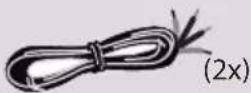
Surround/centre speaker cable
Front speaker and Subwoofer cables
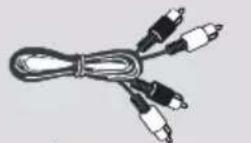
Audio cable (red/white)
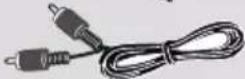
Composite video cable (yellow)
Component video cables (red/blue/green)
FM wire antenna
MW loop antenna
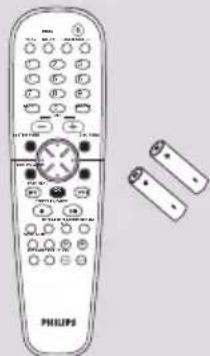
Remote control and two batteries
AC power cable
Mini speaker stands and screws
Brackets and screws

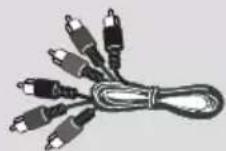

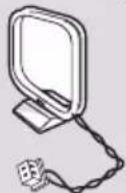
natural_image
Line drawing of a Philips remote control with two batteries (no text or symbols)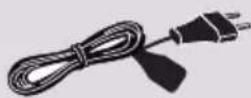

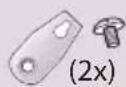
Additional accessories:
- Adaptor (for version/21S only)
Care and safety information
Avoid high temperatures, moisture, water and dust
- Do not expose the system, batteries or discs to humidity, rain, sand or excessive heat (caused by heating equipment or direct sunlight.) Always keep the disc tray closed to avoid getting dust on the lens.
Avoid condensation problem
- The lens may cloud over when the player is suddenly moved from cold to warm surroundings, making it impossible to play a disc. Leave the player in the warm environment until the moisture evaporates.
Do not block the vents
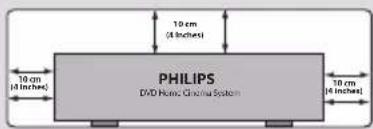
- Do not operate the DVD system in an enclosed cabinet and allow about 10 cm (4 inches) of free space all around the player for adequate ventilation.
Care of disc
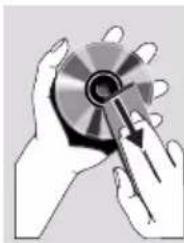
- To clean a CD, wipe it in a straight line from the centre towards the edge using a soft, lint-free cloth. Do not use cleaning agent, as they may damage the disc!
natural_image
Illustration of hands holding a circular object with a pointer (no text or symbols)- Write only on the printed side of a CDR(W) and only with a soft felt-tipped pen.
- Handle the disc by its edge, do not touch the surface.
Care of the cabinet
- Use a soft cloth slightly moistened with a mild detergent solution. Do not use a solution containing alcohol, spirits, ammonia or abrasives.
Finding a suitable location
— Place the player on a flat, hard, stable surface.
Step 1: Set up the surround speakers
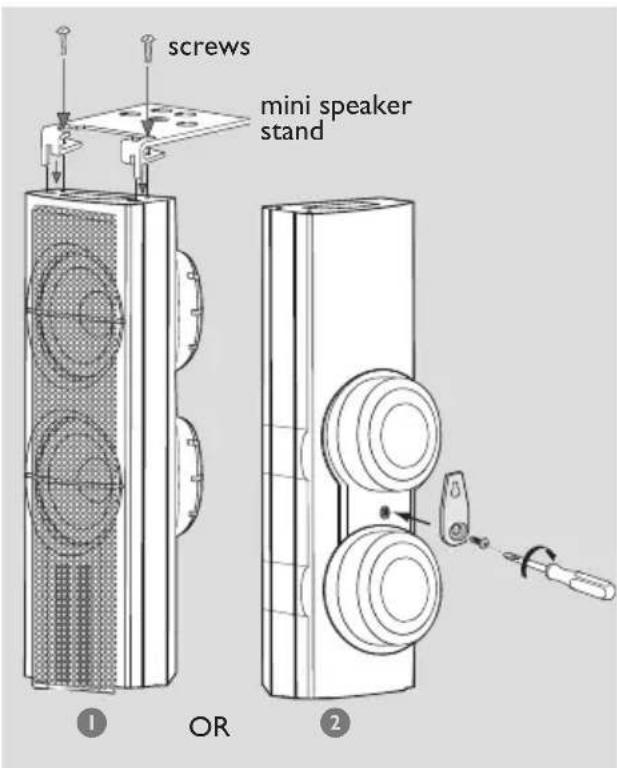
Before connecting the speakers to the DVD system, firmly attach the mini speaker stands to the surround speakers using the supplied screws.
OR
2 Alternatively, you can choose to mount the speakers on the wall. Attach the supplied bracket firmly to the rear of speakers using the supplied screws. Then mount a screw (not supplied) on the wall where the speaker is to be hung and hook the speaker securely onto the mounted screw.
CAUTION!
You should get a qualified person to attach the brackets to the wall.
DO NOT do it by yourself to avoid unexpected damage to the equipment or injury to personnel.
Note:
- The surround speakers are labelled as REAR L (left) or REAR R (right).
Step 2: Set up the front speakers with the subwoofer stands
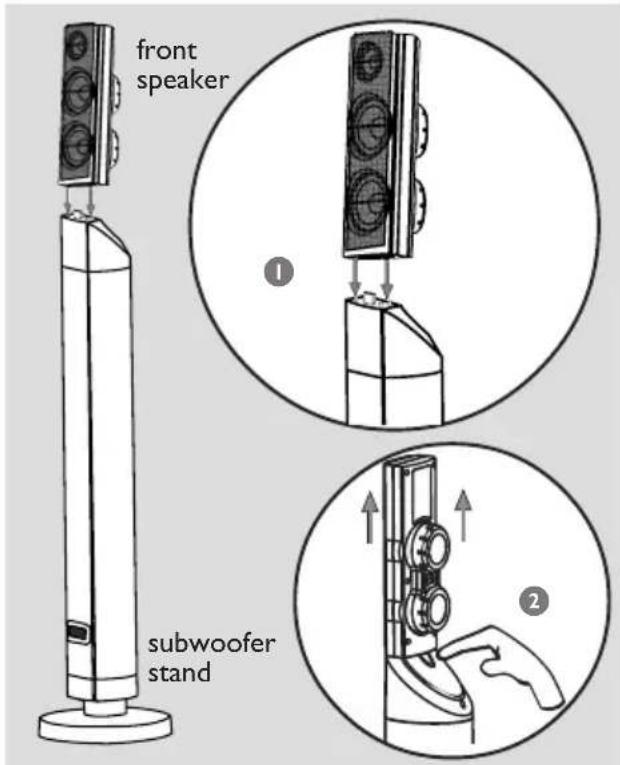
The connections between front speakers and DVD system are through the twin subwoofer stands.
① Attach the left front speaker to the left subwoofer stand and right front speaker to the right subwoofer stand.
2 If you want to disconnect speaker from the subwoofer stand, press the button at the rear of subwoofer stand while pulling up the speaker.
Note:
- The front speakers are labelled as FRONT L (left) or FRONT R (right).
Step 3: Connecting speakers and twin subwoofer
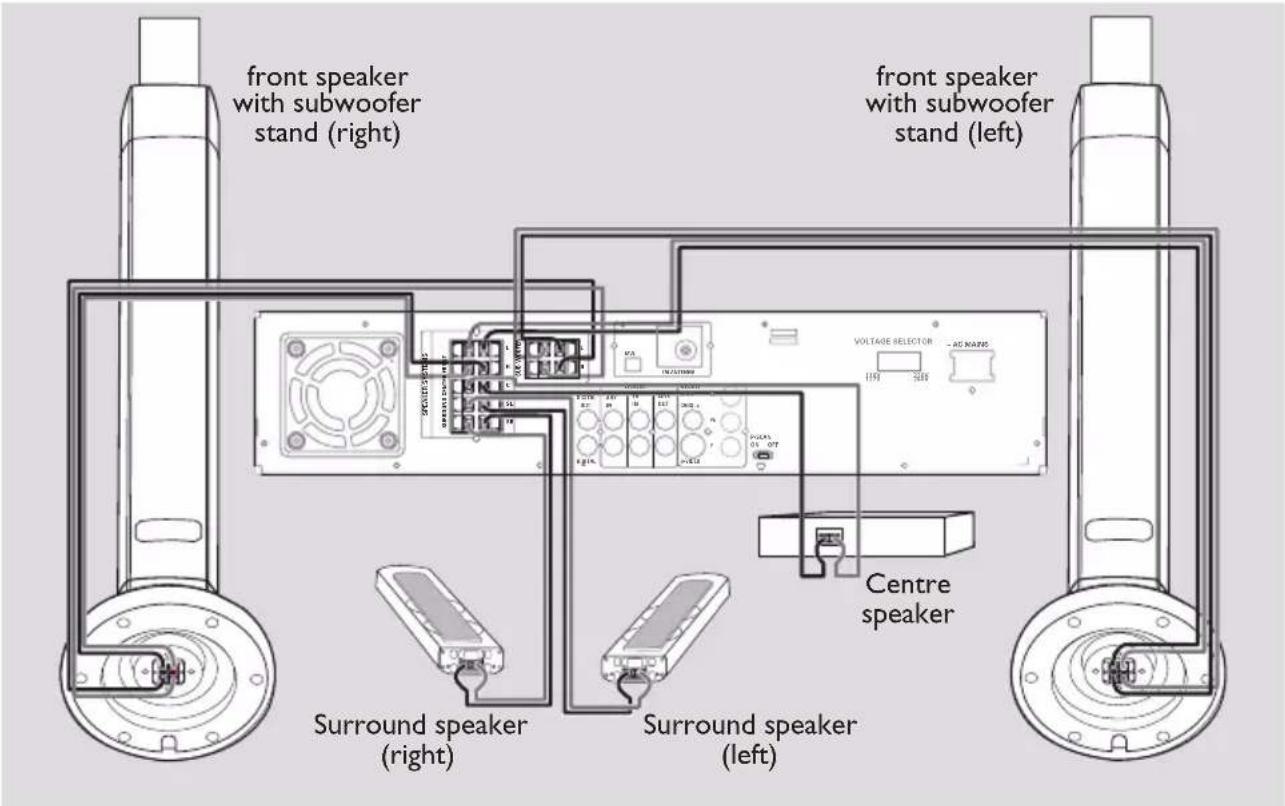
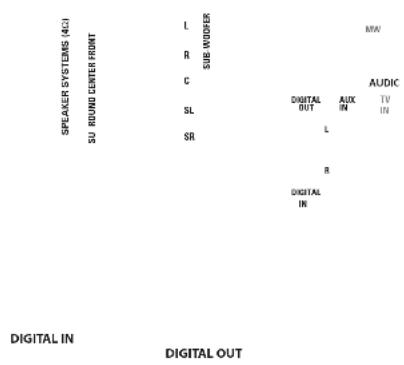
Connect the supplied speaker systems using the supplied speaker cables by matching the colours of the jacks and speaker cables.
Fully insert the stripped portion of the speaker wire into the jacks.
| Speakers / Subwoofer | ||
| Front Left (FL) (L) | black | white |
| Front Right (FR) (R) | black | red |
| Center (C) | black | green |
| Surround Left (SL) | black | blue |
| Surround Right (SR) | black | gray |
| Subwoofer (L) | black | purple |
| Subwoofer (R) | black | purple |
Notes:
- Ensure that the speaker cables are correctly connected. Improper connections may damage the system due to short-circuit.
- Do not connect more than one speaker to any one pair of +/- speaker jacks.
- Do not connect speakers with an impedance lower than the speakers supplied. Please refer to the SPECIFICATIONS section of this manual.
Step 4: Placing the speakers and subwoofers
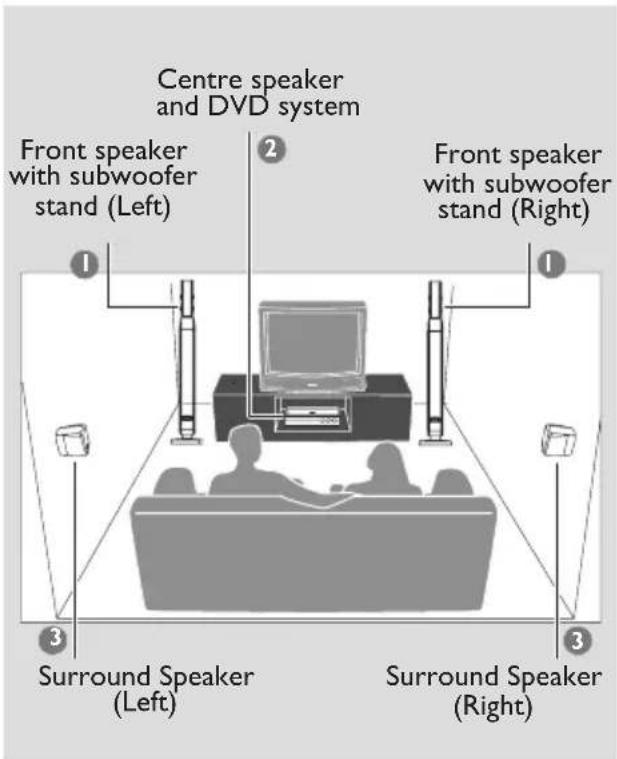
For best possible surround sound, all the speakers should be placed at the same distance from the listening position.
1 Place the left and right front speakers with subwoofer stands at equal distances from the TV and at an angle of approximately 45 degrees from the listening position.
2 Place the centre speaker above the TV or the DVD system so that the centre channel's sound is localised.
3 Place the surround speakers at normal listening ear level facing each other or mounted on the wall.
Notes:
- To avoid magnetic interference, do not position the front speakers too close to your TV.
- Allow adequate ventilation around the DVD system.
Step 5: Connecting FM/MW antennas
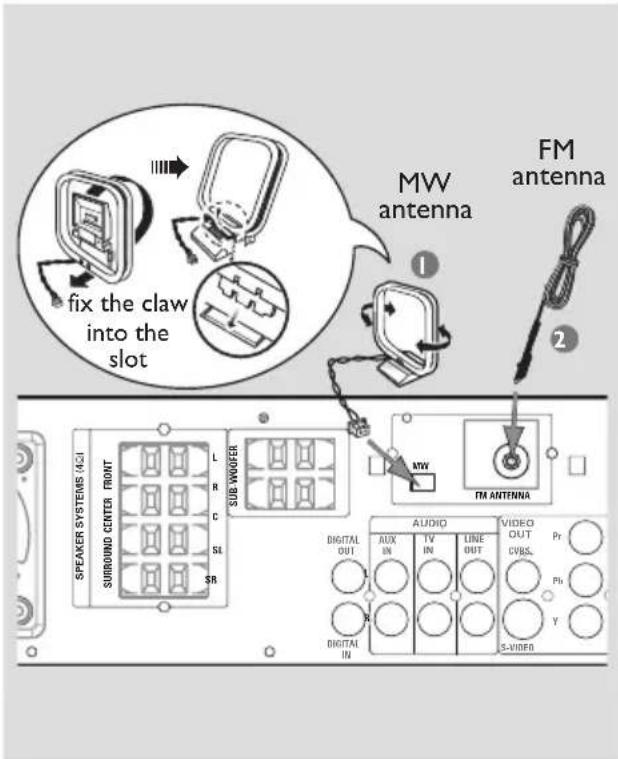
Connect the supplied MW loop antenna to the MW jack. Place the MW loop antenna on a shelf or attach it to a stand or wall.
2 Connect the supplied FM antenna to the FM jack. Extend the FM antenna and fix its ends to the wall.
For better FM stereo reception, connect an external FM antenna (not supplied).
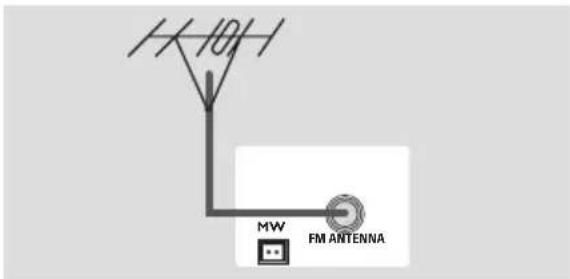
Notes:
- Adjust the position of the antennas for optimal reception.
- Position the antennas as far as possible from your TV, VCR or other radiation source to prevent unwanted interference.
Step 6: Connecting TV
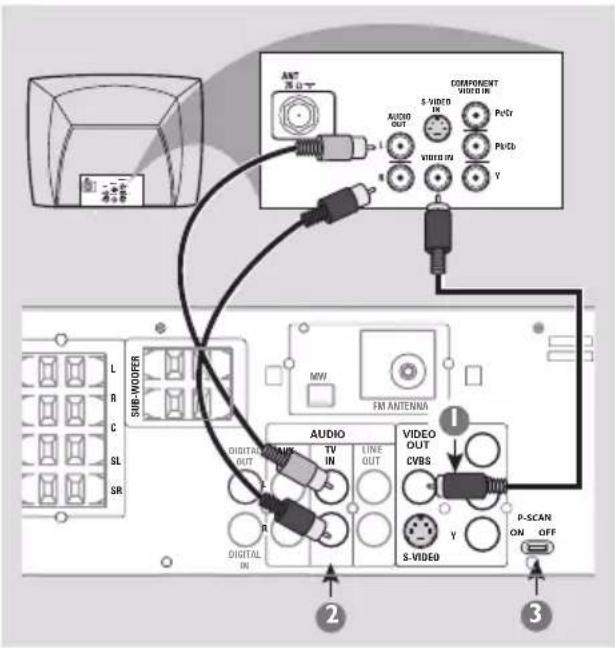
IMPORTANT!
- You only need to make one video connection from the following options, depending on the capabilities of your TV system.
- Connect the DVD system directly to the TV.
Using Composite Video jack (CVBS)
Use the composite video cable (yellow) to connect the DVD system's CVBS jack to the video input jack (or labelled as A/V In, Video In, Composite or Baseband) on the TV.
2 To hear the TV channels through this DVD system, use the audio cables (white/red) to connect TV IN (L/R) jacks to the corresponding AUDIO OUT jacks on the TV.
3 Set the P-SCAN switch to 'OFF.'
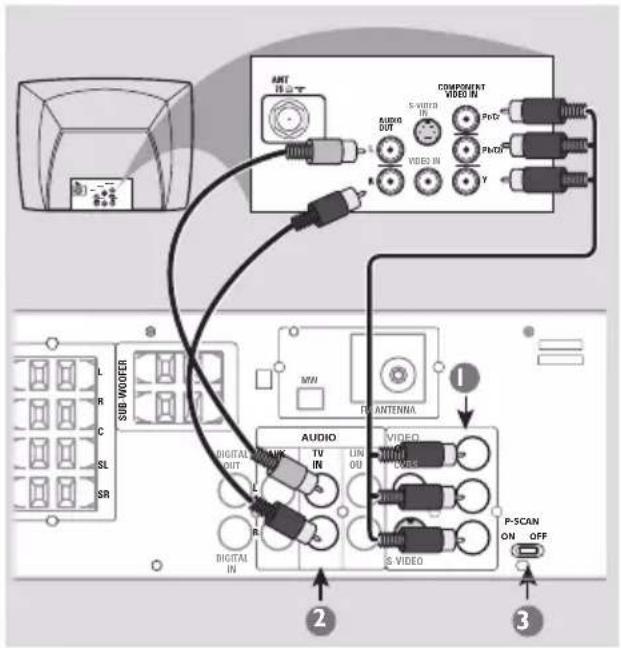
IMPORTANT!
- Component Video connection provides higher picture quality. This option must be available on your TV. - The progressive scan video quality is only possible through Component Video (Pr Pb Y) output.
Using Component Video jacks (Pr Pb Y)
Use the component video cables (red/blue/green) to connect the DVD system's Pr Pb Y jacks to the corresponding Component video input jacks (or labelled as Pr/ Cr Pb/Cb Y or YUV) on the TV.
2 To hear the TV channels through this DVD system, use the audio cables (white/red) to connect TV IN (L/R) jacks to the corresponding AUDIO OUT jacks on the TV.
3 If you are using a Progressive Scan TV (TV must indicate Progressive Scan or ProScan capability,) set the P-SCAN switch to 'ON.' Otherwise, set it to 'OFF.'
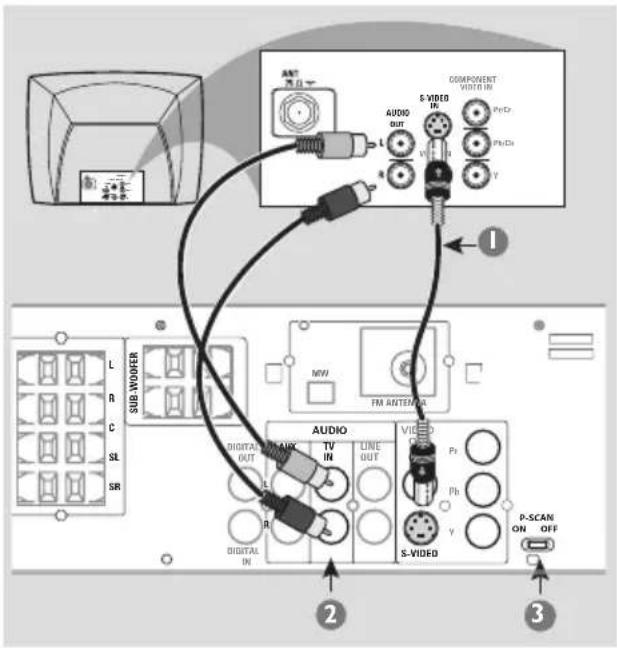
IMPORTANT!
- S-Video connection provides better picture quality. This option must be available on your TV.
Using S-Video jack
Use the S-video cable (not supplied) to connect the DVD system's S-VIDEO OUT jack to the S-Video input jack (or labelled as Y/C or S-VHS) on the TV.
2 To hear the TV channels through this DVD system, use the audio cables (white/red) to connect TV IN (L/R) jacks to the corresponding AUDIO OUT jacks on the TV.
3 Set the P-SCAN switch to 'OFF.'
IMPORTANT!
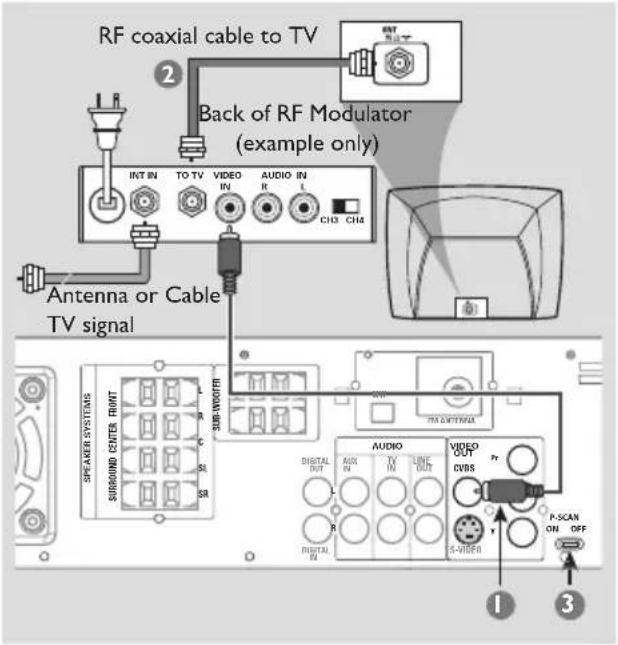
- If your TV only has a single Antenna In jack (or labelled as 75 ohm or RF In), you will need an RF modulator in order to view the DVD playback on the TV. See your electronics retailer or contact Philips for details on RF modulator availability and operations.
Using an accessory RF modulator
Use the composite video cable (yellow) to connect the DVD system's CVBS jack to the video input jack on the RF modulator.
2 Use the RF coaxial cable (not supplied) to connect the RF modulator to your TV's RF jack.
3 Set the P-SCAN switch to 'OFF.'
Step 7: Connecting the power cord
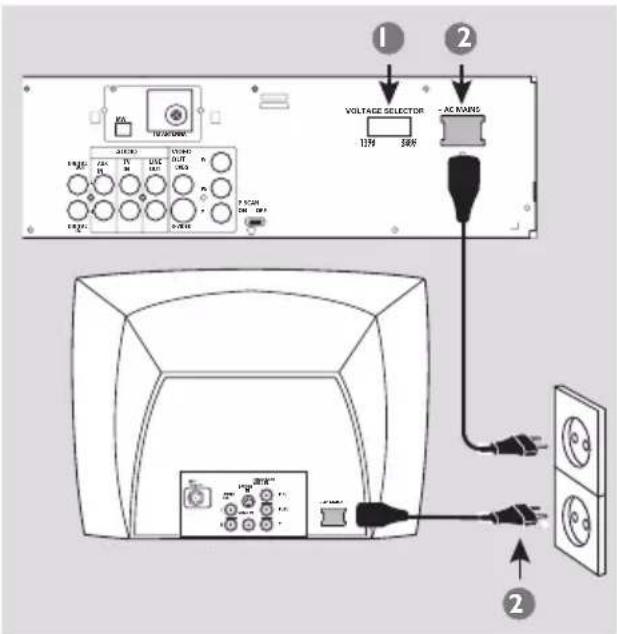
After everything is connected properly,
1 Set the VOLTAGE SELECTOR to the local power line voltage.
2 Plug in the AC power cord to the power outlet.
Never make or change any connections with the power switched on.
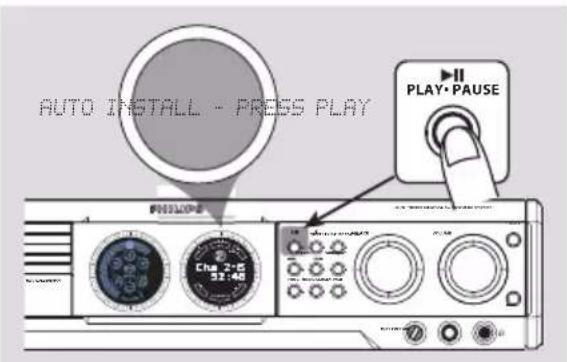
On the DVD system,
"AUTO INSTALL - PRESS PLAY" may appear on the display panel. Press ▶II on the front panel to store all available radio stations or press ■ to exit (see page 40 "Tuner Operations").
Connections (optional)
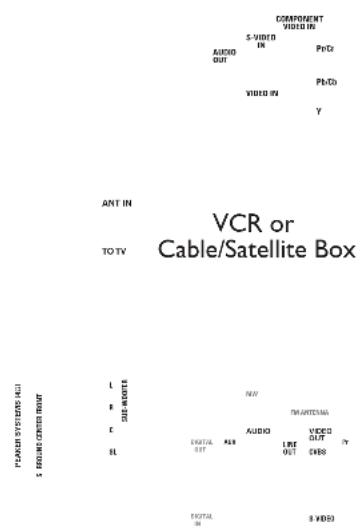
Connecting a VCR or Cable/Satellite Box
Connecting digital audio equipment
(for example) CD Recorder
Connect the VCR or Cable/Satellite Box to the TV as shown.
2 Connect the DVD system's AUX IN (R/L) jacks to the AUDIO OUT jacks on the VCR or cable/satellite box.
Before starting operation, press AUX/DI on the remote to select "AUX" in order to activate the input source.
Some DVDs are copy-protected. You cannot record or dub protected discs using a VCR.
3 Connect the DVD system's CVBS jack to the VIDEO IN jack on the VCR.
4 Connect the DVD system's LINE OUT (R/L) jacks to the AUDIO IN jacks on the VCR. This will allow you to make analogue stereo (two channel, right and left) recordings.
To view DVD playback while recording,
you must connect the DVD system to your TV using the S-VIDEO (as shown above) or the Component (Pr Pb Y) video connection.
Connect the DVD system's DIGITAL IN jack to the DIGITAL OUT jack on a digital audio device.
Before starting operation, press AUX/DI on the remote to select "DI" in order to activate the input source.
2 Connect the DVD system's DIGITAL OUT jack to the DIGITAL IN jack on a digital recording device (DTS-Digital Theatre System compatible, with a Dolby Digital decoder, for example).
Before starting operation, set the DIGITAL OUTPUT according to the audio connection. (See page 33 "Setting the digital output").
Notes:
- Some DVDs are copy-protected. You cannot record the disc through a VCR or digital recording device.
- Always refer to the owner's manual of the other equipment for complete connection and usage details.
Main unit and remote control
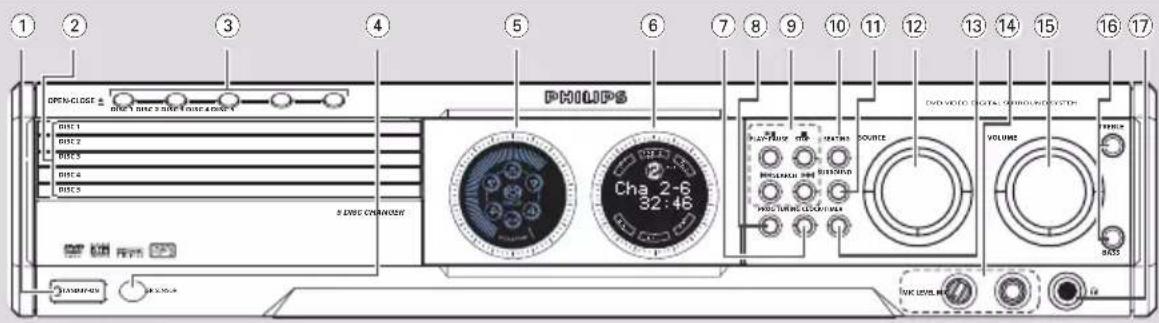
① STANDBY ON
- Switches to Eco Power standby mode or turns on the system.
- *Switches to standby mode.
② Disc trays 1\~5
③ OPEN·CLOSE ≧ (DISC1\~5)
- Opens/Closes the individual disc tray.
④ iR SENSOR
- Point the remote control towards this sensor.
⑤ Speaker display panel
⑥ System display panel
⑦ TUNING
- Switches between frequency tuning and preset tuning mode.
⑧ PROG (PROGRAM)
- DISC: starts programming.
- TUNER: starts *automatic/manual preset programming.
- CLOCK: selects 12- or 24-hour clock display.
⑨ ▶ II PLAY·PAUSE
- DISC: starts/pauses playback.
- TUNER: *enters Plug & Play mode and/or starts preset radio station installation (only on the main unit).
STOP
- Exits an operation.
- DISC: stops playback or clears a programme.
- TUNER: *erases a preset radio station.
SEARCH (PREV/NEXT)
- DISC: *searches backward/forward or selects a track.
- TUNER: *tunes the radio frequency up/ down or selects a preset radio station.
(On the remote, it can only tune the radio frequency up/down).
- CLOCK: sets the minutes and hours.
⑩ SEATING (only available in Multi-channel mode)
- Turns on/off the seating control diagram on the TV. Use the VOLUME control on the main unit or joystick on the remote to select the desired seating position.
⑪ SURROUND (SURR.)
- Selects multichannel surround, 3D sound or stereo mode.
⑫ SOURCE
- Selects the relevant active mode : TV/AV, DISC, TUNER, AUX/DI.
- DISC: toggles between DISC 1\~5 (only on the main unit).
– TUNER: toggles between FM and MW band.
- AUX/DI: toggles between AUX and DI (Digital Input) mode.
⑬ CLOCK·TIMER
- *Enters clock or timer setting mode.
- Shows clock display for a few seconds.
⑭ MIC LEVEL
- Adjusts the mixing level when using the microphone.
MIC
– Plug in the microphone jack.
⑭ VOLUME (VOL + -)
- Adjusts the volume level.
⑯ BASS / TREBLE
- Selects bass or treble sound. Use the VOLUME control to select the desired enhancement level.
⑰
- Plugging in the headphones jack. The speakers output will be cancelled.
Control buttons available on the remote only
⑱ SYSTEM MENU (DVD mode only)
- Enters or exits system setup menu.
⑲ Joystick ◀▶ ▲▼
– Selects movement direction in the menu.
- Use ◀▶ to select a preset radio station.
20 OK
- Confirms a selection.
②1 DISC SKIP
– Selects next disc tray for playback.
⑳ REPEAT
– Selects various repeat modes.
②3 VOICE (only available in Multi-channel mode)
- Turns on/ off clear voice sound effect.
24 MUTE
- Mutes or restores the volume.
25 DIM
- Turns on/ off the dim mode.
26 SLEEP
- Sets the sleep timer function.
⑳ SUB + -
- Adjusts subwoofer's sound level.
⑳ TVVOL + -
- Adjusts TV volume (Philips TV only).
⑲29 REPEAT A-B
– Repeats a specific section on a disc.
30 ZOOM
- Enlarges a picture on the TV screen.
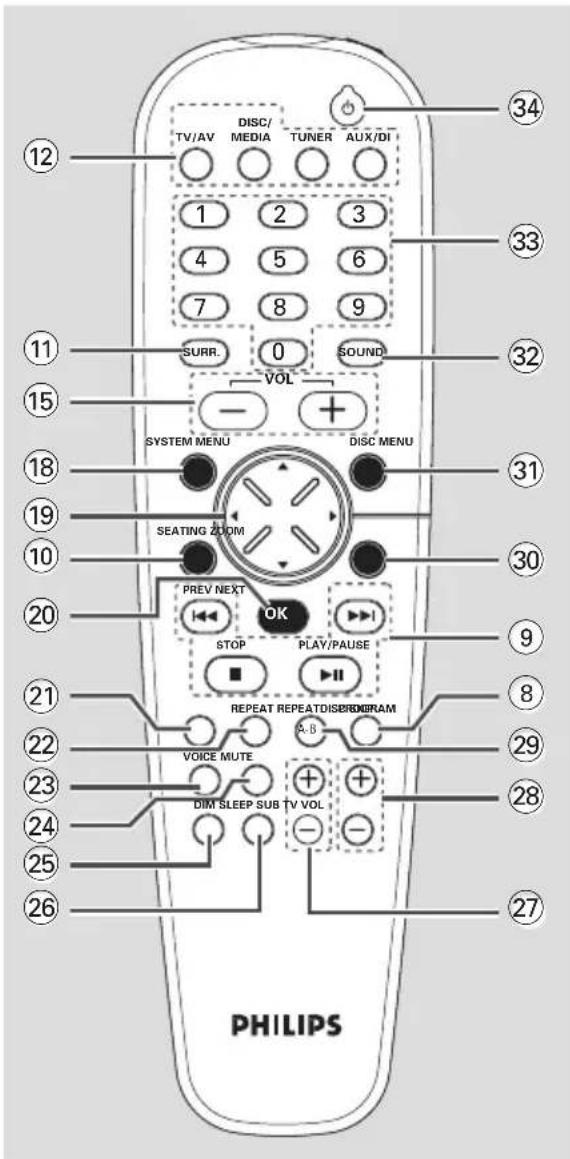
③1 DISC MENU
- Enters or exits disc contents menu.
- For VCD version 2.0 only;
In stop mode, turns on/off playback control (PBC) mode.
During playback, returns to main menu.
32 SOUND
- Selects a sound effect.
③3 Numeric Keypad (0-9)
- Enters a track/title number of the disc.
- Enters a number of a preset radio station.
34
– Switches to Eco Power standby mode.
- *Switches to standby mode.
Step 1: Inserting batteries into the remote control
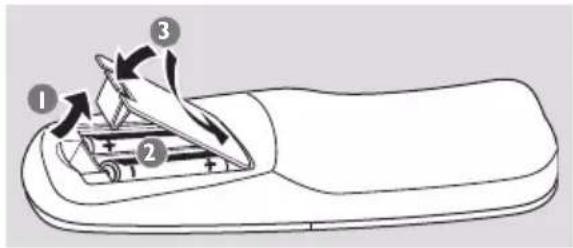
Open the battery compartment.
2 Insert two batteries type R06 or AA, following the indications (+ - ) inside the compartment.
3 Close the cover.
Using the remote control to operate the system
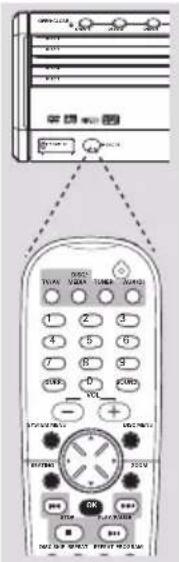
Aim the remote control directly at the remote sensor (iR) on the front panel.
2 Select the source you wish to control by pressing one of the source select buttons on the remote control (for example TV/AV, TUNER).
3 Then select the desired function (for example ▶ II, |◀◀, ▶▶).
CAUTION!
- Remove batteries if they are exhausted or if the remote is not to be used for a long time.
- Do not use old and new or different types of batteries in combination.
- Batteries contain chemical substances, so they should be disposed of properly.
Step 2: Setting the clock
The clock can be set in either 12-hour or 24-hour mode ("12:00 AM" or "00:00" for example).
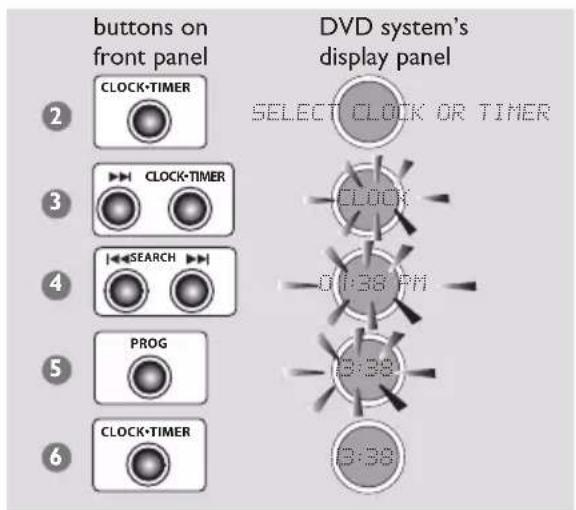
1 Press STANDBY ON to switch on the DVD system.
2 Press and hold CLOCK·TIMER until "SELECT CLOCK OR TIMER" appears.
3 Press ▶▶▶ (if necessary) to change the display to "CLOCK", then press CLOCK•TIMER again to confirm.
4 Press |◀◀ / ▶▶▶ to set the minutes and hours. To increase the speed, hold down |◀◀ / ▶▶▶.
→ The changes in minutes will roll over to the hours.
5 Press PROG to change between 12-hour and 24-hour clock mode.
6 Press CLOCK•TIMER again to store the setting.
→ The clock will start working.
To view the clock time in any active mode
- Press CLOCK·TIMER.
→ The clock will display for a few seconds.
Notes:
- If the DVD system is disconnected from the power supply, it will erase the clock setting. - If you do not press any buttons within 90 seconds, the system will exit clock setting mode.
Step 3: Setting the TV
IMPORTANT!
Make sure you have completed all the necessary connections. (See pages 12\~13 "Connecting TV").
1 Adjust SOURCE control until "DISC X" appears on the display panel (or press DISC/MEDIA on the remote).
2 Turn on the TV and set to the correct video-in channel. You should see the blue Philips DVD background screen on the TV.
→ Usually this channel is between the lowest and highest channels and may be called FRONT, A/V IN, or VIDEO. See your TV manual for more details.
→ Or, you may go to channel 1 on your TV, then press the Channel down button repeatedly until you see the Video In channel.
→ Or, the TV remote control may have a button or switch that chooses different video modes.
→ Or, set the TV to channel 3 or 4 if you are using an RF modulator.
Changing the NTSC/PAL setting via the remote control
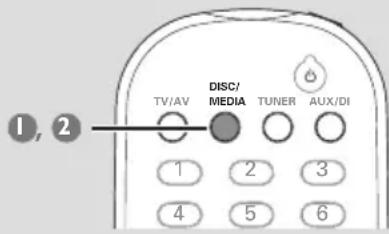
Press DISC/MEDIA on the remote to enter disc mode.
→ Make sure no MP3 disc is in disc tray 1.
→ Wait until the system finishes reading the discs before proceeding to next step.
If playback begins, press ■ to stop playback.
2 Press and hold DISC/MEDIA on the remote until "PAL" or "NTSC" appears on the display panel.
→ To change the setting, repeat step 2.
Selecting the colour system that corresponds to your TV
This DVD system is compatible with both NTSC and PAL. In order for a DVD to play on this DVD system, the colour system of the DVD, the TV and the DVD system should match.
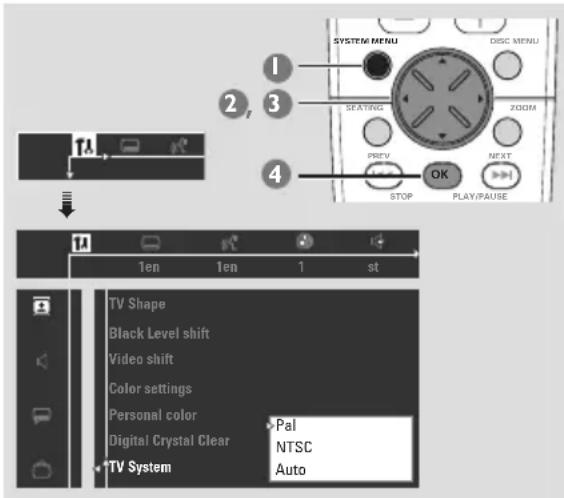
In disc mode, stop playback and press SYSTEM MENU.
2 Use the joystick (◀▶ ▲▼) on the remote to navigate in the menu.
3 Select icon and press ▼.
Move to and press ▶.
Move to 'TV System' and press ▶.
Auto – Select this if the connected TV is compatible with both NTSC and PAL (multi-system). The output format will be in accordance with the video signal of the disc.
NTSC – Select this if the connected TV is NTSC system. It will change the video signal of a PAL disc (VCD only) and output to NTSC format. Set the 'Black level shift' to 'On' in order to improve the colour contrast and picture when you play an NTSC-compatible DVD.
PAL – Select this if the connected TV is PAL system. It will change the video signal of an NTSC disc and output to PAL format.
4 Select an item and press OK.
To remove the menu Press SYSTEM MENU.
Step 4: Selecting speaker layout
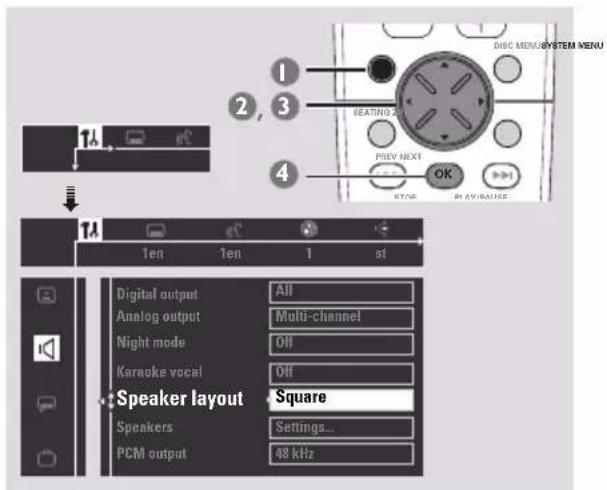
In disc mode, press SYSTEM MENU.
2 Use the joystick (◀▶ ▲▼) on the remote to navigate in the menu.
3 Select icon and press ▼.
Move to and press ▶.
Move to 'Speaker Layout' and press ▶.
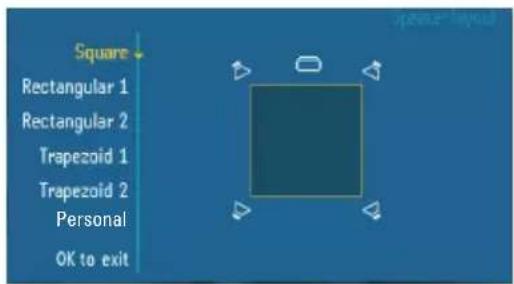
4 Select the layout that most closely resembles your speakers' arrangement, then press OK.
→ The speaker output will adjust automatically to suit the selected speaker layout settings based on the seating position in the middle. To change the seating position, see “Changing seating control position”.
→ If you choose 'Personal', the speaker output will follow the settings in the 'Speakers' menu (see next page "Setting the speakers' channels").
To remove the menu
Press SYSTEM MENU.
Changing seating control position
Normally, the best sound spot and the ideal setting position is in the middle of the room. With this 'SEATING' feature, it allows you to select the current seating position in the room and the speaker setting will automatically be adjusted for optimum performance.
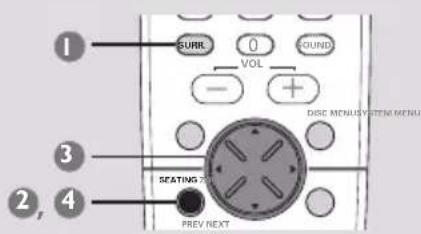
1 Press SURR. (or SURROUND on the front panel) repeatedly to select 'Multi-channel'.
2 Press SEATING.
→ The seating control diagram which represents your current speaker layout appears on the TV screen. To change the speaker layout, see “Selecting speaker layout”.
3 Use the joystick (◀▶▲▼) on the remote (or VOLUME control on the front panel) to select your current seating position.
→ During playback, you can hear the changing of sound effect when you change the seating position.
→ If you do not press any buttons within five seconds, the seating control diagram will exit from the TV and the system will execute the last selected seating position.
4 If you want to turn off the seating feature, press SEATING again.
→ "PERSONAL SETTING" appears and the system will revert to the personal speaker settings.
Setting the speakers' channels
You can adjust the delay times (centre and surround only) and volume level for individual speakers. These adjustments let you optimise the sound according to your surroundings and setup. Speaker settings are only active on Multi-channel audio outputs.
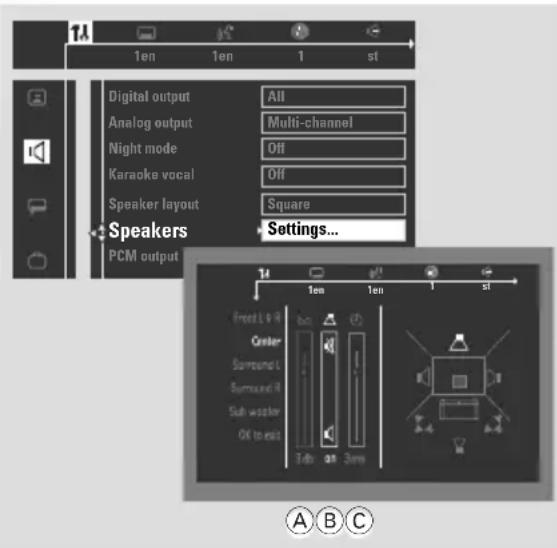
Press SURR. (or SURROUND on the front panel) repeatedly to select 'Multi-channel'.
2 In disc mode, press SYSTEM MENU.
3 Use the joystick (◀▶ ▲▼) on the remote to navigate in the menu.
4 Select icon and press ▼.
Move to and press ▶. Move to 'Speakers' and press ▶.
5 Press ▲ ▼ to select (Front L&R, Center, Surround L&R, Sub Woofer), then press ▶ to enter the speaker setting menu. → The test tone will be automatically generated.
6 Use ▲▼ to adjust the settings for each speaker that suit your surround sound needs, which may include : A Adjusting the volume levels for one or both speakers until the sound evens. B Turning on or off the sound output. C Delay time settings - use the longer delay settings when the surround speakers are closer to the listener than the front speakers.
7 Press OK to confirm.
To remove the menu
Press SYSTEM MENU.
Step 5: Setting language preference
You can select your preferred language settings so that this DVD system will automatically switch to the language for you whenever you load a disc. If the language selected is not available on the disc, the disc's default setting language will be used instead. Except the DVD system's menu language, it will remain once selected.
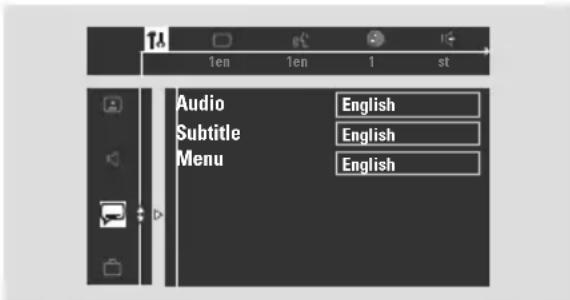
In disc mode, stop playback and press SYSTEM MENU.
2 Use the joystick (◀▶ ▲▼) on the remote to navigate in the menu.
3 Select icon and press ▼.
Move to and press ▶. Move to one of the following and press ▶. - 'Audio' (disc's soundtrack) - 'Subtitle' (disc's subtitles) - 'Menu' (on screen menu)
4 Press ▲▼ to select a language and press OK.
5 Repeat steps 3\~5 for other settings.
To remove the menu
Press SYSTEM MENU.
IMPORTANT!
- DVD discs and players are designed with regional restrictions. Before playing a disc, make sure the disc is for the same zone as your player.
- Depending on the DVD or VIDEO CD, some operations may be different or restricted.
- Do not push on the disc tray or put any objects other than discs on the disc tray. Doing so may cause the disc player to malfunction.
playable discs
Your DVD home cinema system will play:
– Digital Video Discs (DVDs)
- Video CDs (VCDs)
– Super Video CDs (SVCDs)
– Super Audio CDs (SACDs)
- Digital Video Discs + Rewritable(DVD+RW)
- Compact Discs (CDs)
- MP3 discs
– Maximum 30 characters display.
– Supported sampling frequencies : 32 kHz, 44.1 kHz, 48 kHz
– Supported Bit-rates : 32\~256 (kbps), variable bit rates

VIDEO

DIGITAL VIDEO

SUPER VIDEO

SUPER AUDIO CD

DVD + ReWritable

DIGITAL AUDIO

Recordable

ReWritable
Region Codes
DVDs must be labelled for ALL regions or for versions / 21R-
Region 3, or for versions /21S-
Region 4, in order to play on this DVD system. You cannot play discs that are labelled for other regions.


Note:
- If you are having trouble playing a certain disc, remove the disc and try a different one.
Improperly formatted discs will not play on this DVD system.
IMPORTANT!

If the inhibit icon (or X) appears on the TV screen when a button is pressed, it means the function is not available on the current disc or at current time.
Playing discs
1 Adjust SOURCE control until "DISC X" appears on the display panel (or press DISC/ MEDIA on the remote).
2 Turn on the TV power and set to the correct Video In channel. (See page 19 “Setting the TV”).
→ You should see the blue Philips DVD background screen on the TV.
3 Press OPEN·CLOSE ▲ button once to open the disc tray and load a disc, then press the same button again to close the disc tray.
→ Make sure the disc label is facing up. For double-sided discs, load the side you want to play face up.
4 Repeat step 3 for loading a disc onto another disc tray.
5 Playback will start automatically from the last loaded disc.
→ All the available discs will play once, then stop.
→ If a disc menu shows on the TV, see next page on “Using the Disc Menu”.
→ If the disc is locked by parental control, you must enter your four-digit password. (See page 37).
- To obtain the best surround effects, see page 20 “Changing seating control position”.
Note:
- Only one tray can be opened at a time. If you intend to open the second tray before closing the first tray, the first tray will automatically close before the second tray opens.
Turning on/off auto Eco standby mode
This is a power-saving feature, the system will automatically switch to Eco standby mode if you do not press any buttons within 30 minutes after a disc has stopped playing.
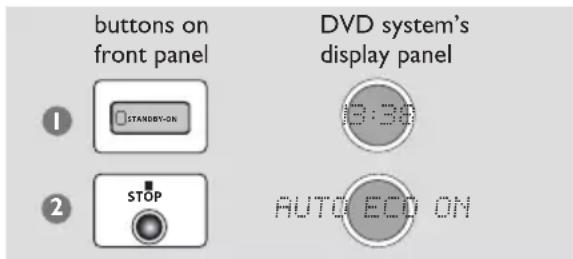
Press and hold STANDBY ON to switch the system to standby mode.
→ The clock appears.
2 Press and hold ■ until "AUTO ECO ON" appears.
→ To turn off the setting, repeat step 2 until "AUTO ECO OFF" appears.
Using the Disc Menu
Depending on the disc, a menu may appear on the TV screen once you load in the disc.
To select a playback feature or item
- Use the joystick (◀▶ ▲▼) or numeric keypad (0-9) on the remote, then press ▶II or OK to start playback.
To access or remove the menu
- Press DISC MENU on the remote.
For VCD with Playback Control (PBC) feature (version 2.0 only)
- In stop mode, press DISC MENU to toggle between 'PBC ON' and 'PBC OFF', then the playback will start automatically.
→ If you select 'PBC ON', the disc menu (if available) will appear on the TV. Use the Joystick (◀▶ ▲▼) to highlight your selection and press OK to confirm or use the numeric keypad (0-9) to select a play option.
- During playback, pressing DISC MENU will return to the menu screen (if PBC is on).
Basic playback controls
Pausing playback
- Press ▶ II.
→ To resume normal playback, press ▶ II again.
Selecting another track/chapter
- Press |◀◀ / ▶▶| or use the numeric keypad (0-9) to key in a track/chapter number.
Searching backward/forward
- Press and hold |◀◀ / ▶▶, then press ▶ II to resume normal playback.
→ While searching, pressing and holding |◀◀ / ▶▶| again will increase the search speed.
Selecting next disc
- Press DISC SKIP.
→ The selected disc will play once, then stop.
Stopping playback
- Press ■.
Resuming playback from the last stopped point (DVD /VCD)
- In stop mode and when the disc has not been ejected, press ▶ II.
To cancel the resume mode
- In stop mode, press ■ again.
Notes:
- Opening the current disc tray or selecting another disc tray will cancel the resume feature. - Resume option may not be available on some discs.
Replacing discs without interrupting playback
- Press OPEN•CLOSE ▲ buttons of the inactive disc trays. For example, if currently disc tray 1 is playing, you can replace the discs on disc trays 2\~5.
Selecting various repeat functions
Repeat play mode
• While playing a disc, press REPEAT to select :
REPEAT CHAPTER (DVD)
- to repeat playback of the current chapter.
REPEAT ALBUM (MP3)
- to repeat playback of the current album.
REPEAT TRACK/TITLE
- to repeat playback of the current track/title.
REPEAT DISC
- to repeat playback of the current disc or the programmed tracks (if the programme mode is active).
REPEAT ALL
- to repeat playback of all available discs or the programmed tracks (if the programme mode is off).
REPEAT OFF
- to cancel the repeat mode.
Notes:
- Repeat play might not work correctly with some DVDs.
- For VCD, if the PBC mode is switched on, repeat play is not possible.
Repeating a section within a chapter/track
While playing a disc, press REPEAT A-B at the starting point.
2 Press REPEAT A-B again at the point to end the section.
→ The section A and B can be set only within the same chapter/track.
→ The section will now repeat continuously.
3 Press REPEAT A-B again to resume normal playback.
Programme favourite tracks (audio CDs only)
You can play the contents of the disc in the order you want by programming the order of the tracks to be played. Up to 20 tracks can be stored.
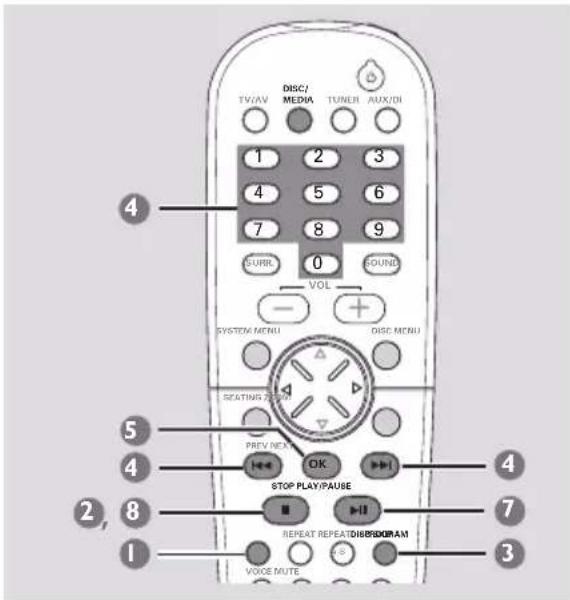
1 Press DISC SKIP repeatedly to select a disc tray containing audio CD.
→ Wait until the system finishes reading the discs before proceeding to next step.
2 When the playback begins, press ■ to stop playback.
3 Press PROGRAM to enter programme mode.
→ "PROGRAM FULL" will appear if you have programmed 20 tracks.
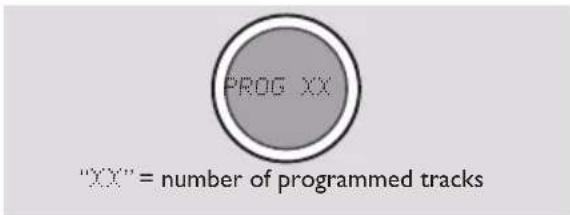
4 Press |◀◀ / ▶▶▶ or use the numeric keypad (0-9) to enter the track number.
5 Press OK to store the track.
6 Repeat steps 4\~5 to select other tracks.
7 Press ▶ II to start programme playback.
→ Only the tracks programmed from audio CDs will play.
8 Press ■ to stop playback or exit programme mode.
Note:
- If you do not press any buttons within 20 seconds, the system will exit programming mode.
Clearing the programme
- Stop playback, then press ■ again.
→ PROG disappears from the display panel and "PROGRAM CLEARED" appears.
Using the menu bar to programme
Favourite Track Selection (FTS) lets you play your favourite Titles/Chapters or Tracks/Indexes in the order you select. An FTS programme can contain 20 items (Titles, Chapters, etc.).
IMPORTANT!
- It is only possible to programme from the current selected disc tray.
- You have to turn on your TV and set to the correct Video In channel. (See page 19 "Setting the TV").
Insert a disc (DVD, Video CD or Audio CD).
2 In disc mode, press SYSTEM MENU.
→ The menu bar will appear across the top of the TV screen.
→ The menu bar will appear across the top of the TV screen.
3 Use the joystick (◀▶) to select √ and press
▼ to enter the programme menu.
→ FTS menu appears.
![(example for DVD FTS menu) FTS On OP Title 1 2 3 4 5 6 7 8 9 > Chapter 1 2 3 4 5 6 7 8 9 > Program [ ] Clear all Favorite Track Selection](/content/2026/06/1276960/images/e47d5ef6061ec9ac319eebb3e41c4f5e1b57b394dd0baba5b14e4137a79e11ef.jpg)
4 Press ▼ repeatedly to select 'Title/Track' in the menu.
5 To programme the entire Title/Track, press OK.
OR
Press ◀▶ to select the required Title/Track number, then press OK to store.
→ The number will appear on the 'Program' line.
- To programme only certain Chapter/Index of the selected Title/Track, go to step 6 (not applicable for Audio CDs).
6 Move to 'Chapter/ Index' in the menu, then press ◀▶ to select the required Chapter/ Index number and press OK to confirm.
→ The Title/Chapter or Track/Index number will appear on the ‘Program’ line.
⑦ Repeat steps ④\~⑥ to select others Title/Track or Chapter/Index.
8 Press ▲ to select 'FTS', then press ◀▶ to select programme 'On' or 'Off' and press OK to confirm.
9 Press ▶ II to start playback.
→ If 'FTS' set to 'On', the programme will play.
→ If 'FTS' set to 'Off', tracks will play in normal order.
- In stop mode, you can press PROG on the front panel to toggle between programme on and off.
To erase an FTS programme
Move to 'Program' in the menu.
2 Press ◀▶ to select the required number, then press OK to erase.
To erase the entire FTS programme
- Move to 'Clear all' in the menu, then press OK to erase.
Playing MP3
IMPORTANT!
You have to turn on your TV and set to the correct Video In channel. (See page 19 "Setting the TV").
Load an MP3 disc.
→ The disc reading time may exceed 30 seconds due to the complexity of the directory/file configuration.
2 Playback will start automatically.
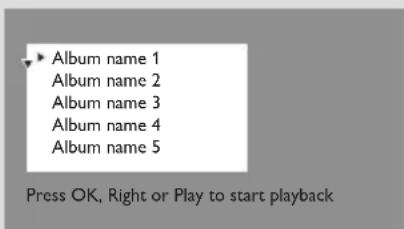
→ A list of albums/tracks menu will appear on the TV.
(example for MP3 album menu)
(example for MP3 track menu)
| Album name 3 | |
| Title name 1 Title name 2 Title name 3 Title name 4 Title name 5 | Time: 0:00:31 |
Press OK, Right or Play to start playback
- During playback, you can use the joystick (▲▼) on the remote to select another track in the current album.
- To select another album from the current MP3 disc, press ◀ to return to the album menu, then use the joystick (▲▼) to make your selection and press OK to confirm.
- Press ▶ II to pause/resume playback.
3 To stop playback, press ■.
Notes:
- Due to the recording nature of Digital Audio MP3 (DAM), only digital audio music will play.
- It is normal to experience an occasional "skip" while listening to your MP3 discs.
- For multi-session discs with different formats, only the first session will be available.
- Some MP3 discs may be distorted during playback due to the configuration and characteristics of the disc.
Programme MP3 disc
It is only possible to programme from the last selected album. Up to 99 tracks can be stored in the programme.
Stop playback, press ■.
2 Use the joystick (◀▶) on the remote to toggle between MP3 album and track menu, then press (▲▼) to make your selection.
→ Only the tracks from the last selected album can be programmed.
3 Press PROG to add the desired tracks into the programming list.
→ “*” will appear in front of the selected tracks.
→ To cancel the current selection, press PROG again.
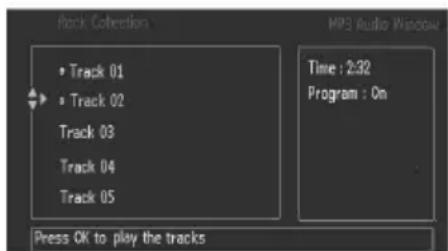
4 Press OK to confirm and begin the programme playback.
→ A list of programme tracks appear on the menu.
Clearing the programme
- Stop playback, then press ■ again.
Note:
- If the DVD system is disconnected from the power supply or the programmed disc tray is opened, it will erase the programme.
Using the menu bar
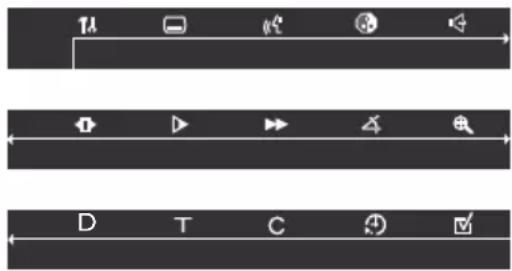
You can continue a number of operations directly via the multiple menu bars on the TV screen without interrupting the disc playback. The exception is when you enter SETUP MENU), the playback will pause.
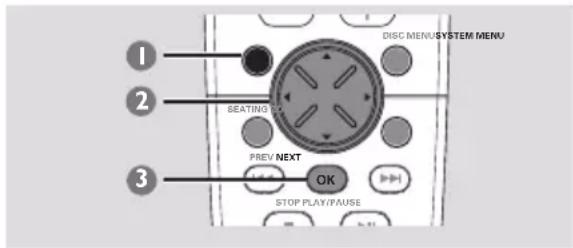
In disc mode, press SYSTEM MENU.
→ The menu bar will appear across the top of the TV screen.
2 Use the joystick (◀▶ ▲▼) on the remote to navigate in the menu.
→ Press ◀▶ to move through the menu bar.
→ Press ▼ to enter the selection. If there are multiple choices available, press ▼ repeatedly to select.
3 Press OK to confirm the selection.
→ Playback will resume or begin automatically.
To remove the menu
Press SYSTEM MENU.
IMPORTANT!
- Some operations may be different or restricted, depending on the disc format. Refer to the jacket or case of the disc you are playing.
- Changing the Subtitle Language and Audio Language from the menu bar will only apply to the current disc, it will not change the default preset.
| [GTDS] | Subtitle LanguagePress ▲▼ to select a subtitle language available on the DVD. |
| [ASGT] | Audio LanguageDVD: Press ▲▼ to select an audio soundtrack language available on the DVD.VCD: Select audio channels :LEFT VOCAL (LL),RIGHT VOCAL (RL), STEREO (LR). |
 | Smart ColorPress ▲▼ to select one of the predefined sets of colour settings : 1 (Personal), 2 (Rich), 3 (Natural), 4 (Soft) and 5 (Animation). |
| [ZZZW] | Sound modePress ▲▼ to select a desired surround sound output : 6ch (Multi-channel), 3d (3D Sound), St (Stereo). |
 | Frame by FrameThe playback will pause. Press ◀▶ to select the previous or next picture frame. To resume normal playback, press ▶II. |
| [7AVT] | Slow MotionThe slow motion speed will display.Press ◀▶ to select a reverse or forward slow motion speed. To resume normal playback, press ▶II. |
 | Scan SpeedsThe fast scan speed will display. Press ◀▶ to select a reverse or forward fast scan speed. The volume will be muted. To resume normal playback, press ▶II. |
 | Camera AnglePress ▲▼ to select to view the same scene from different angles if the DVD is recorded with multiple angles. |
 | Enlarge PicturePress ▲▼ to select an enlarge picture ratio : 1.33, 2 or 4, then press OK to confirm.You can use the joystick (◀▶▲▼) to move within the enlarged picture on the TV.To resume normal playback, select the zoom factor 'Off' from the menu. |
| [3HA0] | DiscPress ▲▼ to select a disc tray and the playback will start automatically. |
 | TitlePress ▲▼ to select a Title number (if available) for playback to begin. |
 | ChapterPress ▲▼ to select a Chapter number (if available) for playback to begin. |

Time Search
The playback will pause and a time edit box appears on the display. Use the numeric keypad (0-9) to enter the time (hours : minutes : seconds) at which you want playback to begin, then press OK to start playback. (this function is not available if the PBC is set to On)

Favorite Track Selection
Stop playback, then select this to enter the programme menu (see page 26 "Using the menu bar to programme".
Using the Karaoke feature
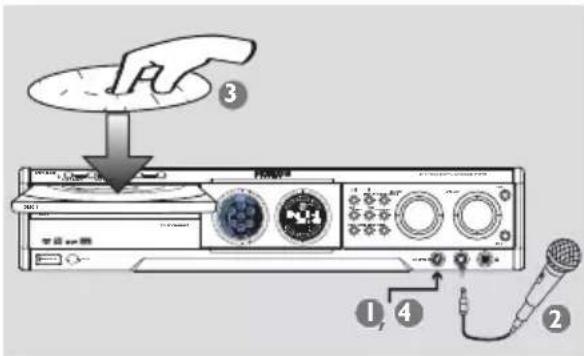
1 Set the MIC LEVEL control at the front panel to the minimum level (turn to left) to prevent acoustic feedback when connecting the microphone.
2 Plug in the microphone to the MIC input.
3 Load a karaoke disc.
→ Plugging in or out the microphone will automatically turn on or off the karaoke mode respectively.
4 Adjust the MIC LEVEL control to select the microphone volume level.
- Some VCDs or SVCDs are recorded on multiple audio channels. For example, a Karaoke disc may record music on the left channel and vocals on the right channel. To choose an audio channel, use the joystick (◀▶) to select 📋 and press ▼ repeatedly to make your selection.
Using the Setup Menu (User Preference Settings)
This DVD setup is carried out via the TV, enabling you to customise the DVD system to suit your particular requirements.
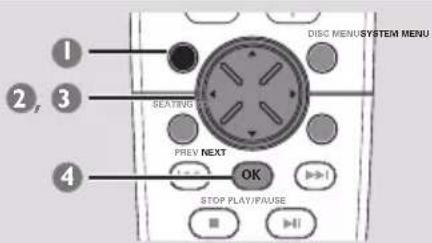
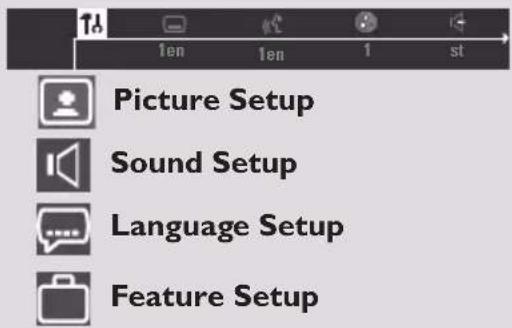
In disc mode, press SYSTEM MENU.
→ The menu bar will appear across the top of the TV screen.
2 Select icon and press ▼ to enter the setup menu. Then press ▲▼ to select one of the setup menu options and press ▶ to enter the menu.
→ Playback will pause.
3 Use the joystick (◀▶ ▲▼) on the remote to navigate in the menu.
4 Press OK to confirm your selection. → Playback will resume or begin automatically.
To remove the menu Press SYSTEM MENU.
NOTE: Some of the features in the Setup Menu are described in "Getting Started".
Setting the TV shape
The format you select must be available on the disc. If it is not, the setting for TV Shape will not affect the picture during playback.
Follow the steps of "Using the Setup Menu" and select :
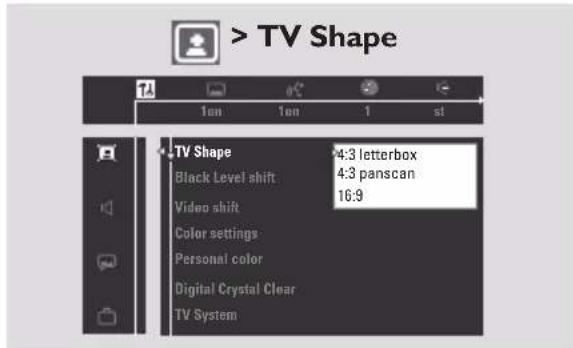
4:3 panscan
Select this if you have a conventional TV and your DVD is not formatted for wide screen viewing.
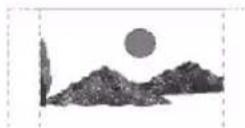
A wide picture will display on the whole TV screen with a portion automatically cut off.
4:3 letterbox
Select this if you have a conventional TV and your DVD is formatted for wide screen viewing. Black bars

appear on the upper and lower portions of the TV screen.
16:9
Select this if you have a wide screen TV (you must also set your wide screen TV to "full size").

Improving the image for NTSC setting
This feature is only applicable if you have set the 'TV System' to 'NTSC' setting (see page 19).
Follow the steps of "Using the setup menu" and select :

Black level shift
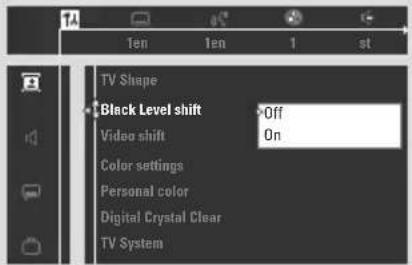
Off
Select this to deactivate the function.
On
Select this to improve the colour contrast and picture of the NTSC-compatible DVD.
Adjusting the picture position on the TV
Follow the steps of "Using the setup menu" and select :

Video shift
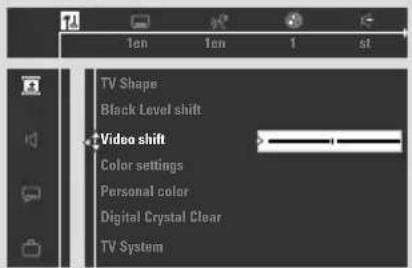
Press ◀▶ to adjust the horizontal position of the picture on your TV screen by scrolling the slider to the left or right.
Selecting a predefined colour setting
This DVD system provides four predefined sets of colour settings and one personal setting which you can define yourself.
Follow the steps of "Using the setup menu" and select :

Color settings
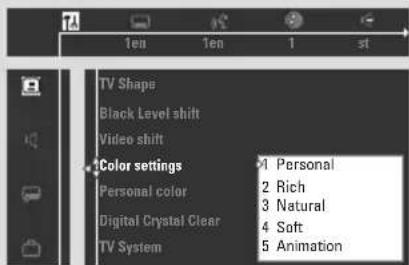
Press ▲▼ to select one of the colour settings : Personal, Rich, Natural, Soft or Animation.
Fine-tuning the personal colour setting
If you choose 'Personal' from Colour
Settings menu, it will follow the settings in the 'Personal Color'.
Follow the steps of "Using the setup menu" and select :

Personal color
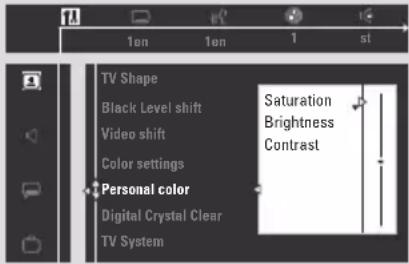
Press ▲▼ to adjust the values of these parametres that best suit your personal preference :
Saturation – Increase the value will enhance the colour in your picture or vice versa. Choose zero (0) to balance the colour.
Brightness – Increase the value will brighten the pictureor vice versa. Choose zero (0) for average setting.
Contrast – Increase the value will sharpen the picture or vice versa. Choose zero (0) to balance the contrast.
Improving the image for Progressive Scan Video output setting (not available for all versions)
This feature is only applicable if you have connected this DVD system to a Progressive Scan TV through the Component Video jacks (see page 12).
Follow the steps of "Using the setup menu" and select :

Digital Crystal Clear
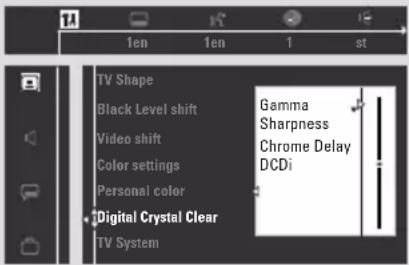
Press ▲ ▼ to adjust the values of these parametres that best suit your vision :
Gamma, Sharpness, Chrome Delay and DCDi.
Gamma
Select this allows you to adjust the intensity of the picture non-linearly. A positive value allows you to bring out low level detail in dark scenes, while a negative value will emphasize contrast.
Sharpness
Select this allows you to adjust sharpness of the picture.
Chrome Delay
Select this allows you to adjust the advance delay of the chrome signal to yield a perfectly clear picture. Especially when the chrome (colour) and luma (brightness) signals are not synchronised.
DCDi (New Directional Correlation Deinterlacing)
Select this will optimise the image quality significantly, especially during the slow motion playback. It computes and tracks the angle of edge to fill in the missing pixel on the TV screen.
Setting the digital output
Set Digital Output according to your optional audio equipment connections.
Follow the steps of "Using the Setup Menu" and select :
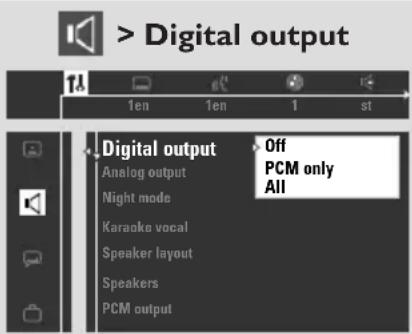
Off
Select this to deactivate the digital output.
All
Select this if you have connected the digital output to an optional piece of audio equipment that has a multichannel decoder.
PCM only
Select this if the optional audio equipment is not capable of decoding multichannel audio. After that, proceed to “Setting the PCM output”. Once you select ‘PCM only’. the surround mode will automatically change to ‘STEREO’.
Setting the PCM output
Set your PCM (Pulse Code Modulation) output only after you have set the system's Digital Output to 'PCM only'. (See "Setting the digital output").
Follow the steps of "Using the Setup Menu" and select :
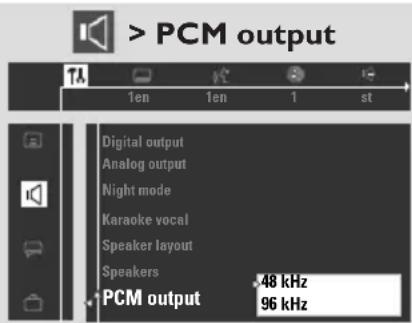
48 kHz
Select this if the optional audio equipment is incapable of processing 96 kHz digital signal input. The signal will then be converted to a standard signal with sampling rates of 48 kHz.
96 kHz
Select this if the optional audio equipment is capable of processing digital signal input with sampling rates of 96 kHz. However, if the sound output is distorted or there is no sound, select '48 kHz' instead.
Setting the analogue output
Set Analogue Output to match your DVD home cinema system's playback capability. This function can also be accessed via the SURR. button on the remote control (or SURROUND on the front panel).
Follow the steps of "Using the Setup Menu" and select :
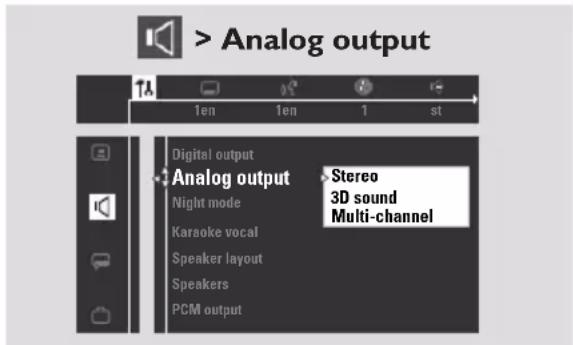
Stereo
Select this to change channel output to stereo which delivers sound from only the two front speakers and subwoofer.
3D Sound
Select this to change channel output to 3D sound which delivers surround sound from only the two front speakers and subwoofer.
Multi-channel
Select this to enable Multi-channel output.
Night mode – turning on/off
Follow the steps of "Using the Setup Menu" and select :
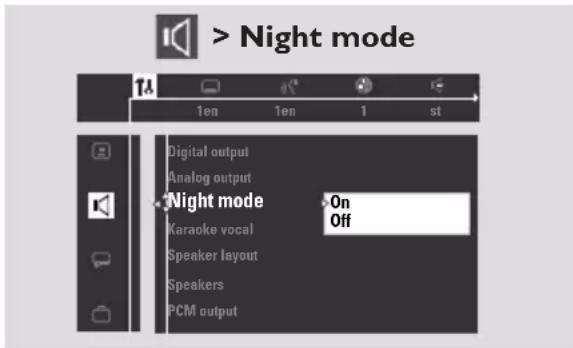
Off
Select this when you want to enjoy the surround sound with its full dynamic range.
On
Select this to level out the volume. High volume outputs will be softened and low volume outputs are brought upward to an audible level. This feature is only available for movies with Dolby Digital mode.
Status window – turning on/off
Follow the steps of "Using the Setup Menu" and select :
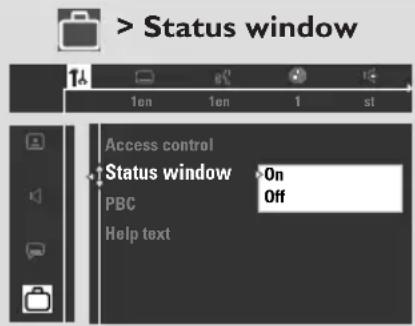
Off
Select this to remove the status window from the TV screen.
On
Select this if you want the status window to display on the TV screen. It contains information on the current play state and time.
PBC (Playback Control) – turning on/off
This feature is available only on Video CD 2.0 with playback control (PBC) feature.
Follow the steps of "Using the setup menu" and select :
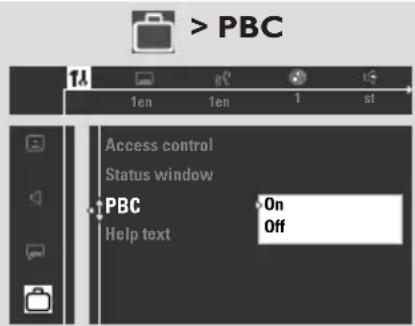
Off
Select this if you want the VCD to start playback automatically once loaded in the disc tray.
On
Select this if you want the disc menu of the VCD (if available) to show on the TV screen once loaded in the disc tray.
Help text – turning on/off
Follow the steps of "Using the Setup Menu" and select :
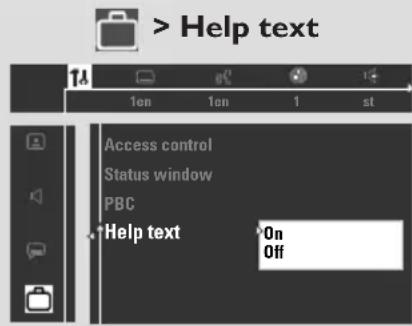
Off
Select this to turn off the help text display.
On
Select this if you want to see a brief description of the selected menu bar icon to show at the bottom of the TV screen.
Changing the password
You can change the four-digit code used for Access Control.
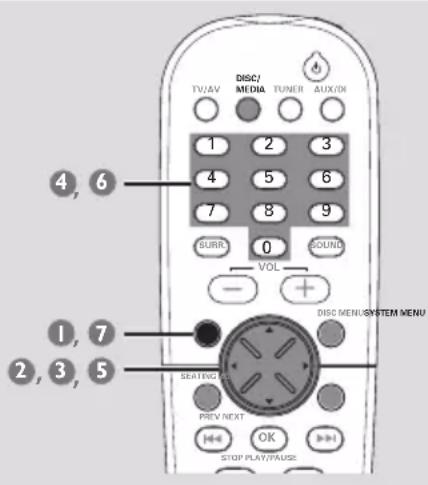
In disc mode, press SYSTEM MENU.
2 Select icon and press ▼.
3 Use the joystick (◀▶ ▲▼) on the remote to navigate in the menu.
Move to and press ▶.
Move to 'Access Control' and press ▶.
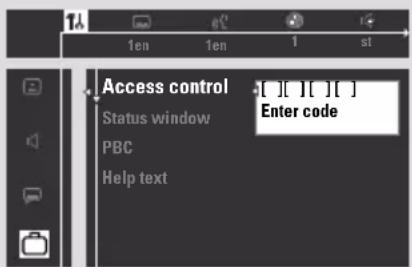
4 Use the numeric keypad (0-9) to enter your old four-digit code.
→ When doing this for the first time, enter any four numbers you prefer. You will have to enter the same code, exactly, twice. This will set your code for the first time. Press SYSTEM MENU if this is your first time setting the code.
→ If you forget your old four-digit code, press ■ four times when prompted for the four-digit code. Then, enter any four numbers you prefer, twice.
5 Move to 'Change code' and press ▶.
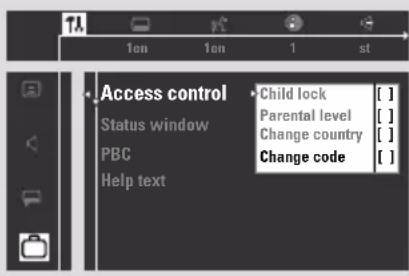
6 Use the numeric keypad (0-9) to enter your new four-digit code. Then, enter the same code again to reconfirm.
![Access control Status window PBC Help text [ ][ ][ ][ ] Confirm code](/content/2026/06/1276960/images/a3206ab52db59801991415b0e91eac1137691accf0f8f4240384434f136bf5cd.jpg)
7 Press SYSTEM MENU again to remove the menu.
Restricting playback by Parental Level
(only available in region 1 players)
Some DVDs may have a parental level assigned to the complete disc or to certain scenes on the disc. This feature lets you set a playback limitation level. The rating levels are from 1 to 8 and are country dependent. You can prohibit the playing of certain discs that are not suitable for your children or have certain discs played with alternative scenes.
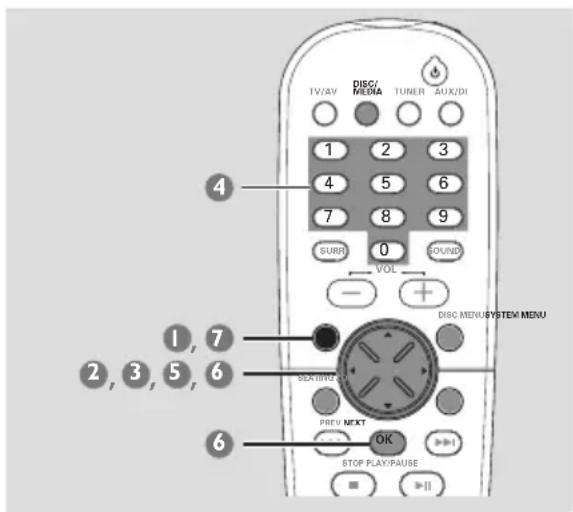
In disc mode, press SYSTEM MENU.
2 Select icon and press ▼.
3 Use the joystick (◀▶ ▲▼) on the remote to navigate in the menu.
Move to and press ▶.
Move to 'Access Control' and press ▶.
![Access control Status window PBC Help text [ ][ ][ ][ ] Enter code](/content/2026/06/1276960/images/c4059264b613bf57974015410d48015c3cc9be8debb62dd0215ad811c6eb4444.jpg)
4 Use the numeric keypad (0-9) to enter the four-digit code. You may have to enter the same code, exactly, twice.
→ If not successful, see page 36 “Changing the password”.
5 Move to 'Parental level' and press ▶.
6 Press ▲▼ to select a rating level between 0-8 and press OK.
→ DVDs that are rated above the level you selected will not play unless you enter your four-digit password or choose a higher level rating. Select '0' to deactivate Parental level and have all discs play.
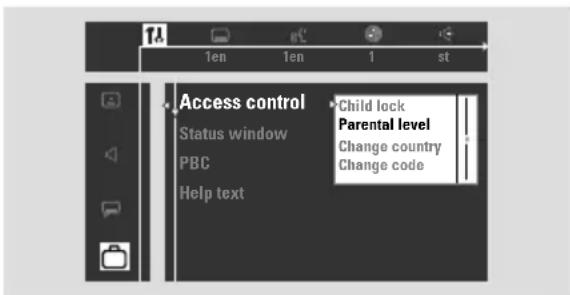
7 Press SYSTEM MENU again to remove the menu.
→ See page 39 if necessary to select the country for which the Parental Level ratings apply (according to your discs).
Rating explanations
NO PARENTAL – It will play all discs.
8 ADULT – Mature material; should be viewed only by adults due to graphic sexual material, violence, or language.
7 NC-17 – No children under age 17; not recommended viewing for children under age 17.
6 PG-R – Parental Guidance - Restricted; recommended that parents restrict children under 17 from viewing or allow to view only when supervised by a parent or adult guardian.
4 PG13 – Material is unsuitable for children under age 13.
3 PG – Parental Guidance suggested.
1 G – General Audience; recommended as acceptable for viewers of all ages.
Note:
- Some DVDs are not encoded with a rating though the movie rating may be printed on the disc jacket. The rating level feature does not work for such discs.
Locking/Unlocking the DVD for viewing
Not all DVDs are rated or coded by the disc maker. You can prevent a specific DVD from playing by locking or unlocking the DVD, regardless of its rating.
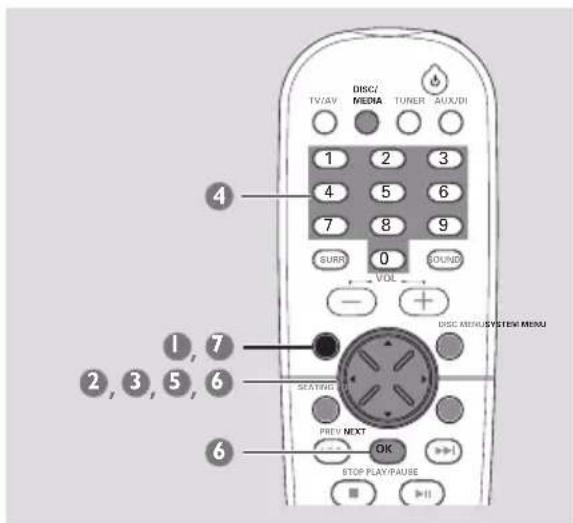
In disc mode, press SYSTEM MENU.
2 Select icon and press ▼.
3 Use the joystick (◀▶ ▲▼) on the remote to navigate in the menu.
Move to and press ▶.
Move to 'Access Control' and press ▶.
![Access control Status window PBC Help text [ ][ ][ ][ ] Enter code](/content/2026/06/1276960/images/7bffe2f4db0ed43b9dfa8d7996432c4282e6293fb3933000073550c534bb2ca1.jpg)
4 Use the numeric keypad (0-9) to enter the four-digit code. You may have to enter the same code, exactly, twice.
→ If not successful, see page 36 "Changing the password".
5 Move to 'Child lock' and press ▶.
6 Press ▲▼ to select (lock) or (unlock), then press OK.
→ Locked discs will not play unless you enter your four-digit code.
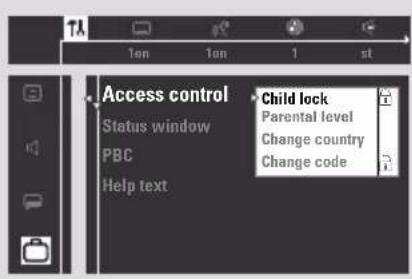
7 Press SYSTEM MENU again to remove the menu.
Note:
- Lock/Unlock each side of two-sided DVDs and each volume of multi-volume Video CDs.
Enabling Play once/Play Always
You can enable or disable viewing of a specific disc. The DVD system can memorise settings for 120 discs. When you select 'Play Always', the disc currently in the player moves to the top of the list. When the list is full and you add a new disc, the last disc in the list will drop out of the list.
Insert a disc.
→ The Access Control message will appear on the TV screen.
![Locked Access Control Play once [ ] [ ] [ ] [ ] Play always [ ] [ ] [ ] [ ] Choose play always for inserting disk in child-safe list.](/content/2026/06/1276960/images/c4a2ad29d44dce7831fcd9b448f942b55abbcd99ee95b97f7b9a2c6636e34351.jpg)
2 Press ▲▼ to select 'Play once' or 'Play always'. Then, enter the four-digit code.
→ 'Play once' - the disc can play as long as it is in the disc tray and the DVD system power is on.
→ 'Play always' - the disc will play always. even the Child Lock is set to (lock).
3 If you later want to lock the disc so it will not play always, insert the disc and press ■ while the safe icon appears on the TV screen.
→ Locked icon will appear. You may need to remove the disc or turn off the power before the disc is completely locked. The next time when you insert the disc, it will not play unless you enter the four-digit code.
Changing the country
If a disc has Parental Level coding, the codings are applicable only for the country specified on the disc. The disc manufacturer sets these codings. For example, a disc may be coded at level 3 for United States. So, for some discs, you may need to choose the country for which the disc is coded in order for the disc to play at the Parental Level you select (see page 34).
In disc mode, press SYSTEM MENU.
② Select 📋 icon and press ▼.
3 Use the joystick (◀▶ ▲▼) on the remote to navigate in the menu.
Move to and press ▶.
Move to 'Access Control' and press ▶.
![Access control Status window PBC Help text [ ][ ][ ][ ] Enter code](/content/2026/06/1276960/images/f0a6b56f10dee151c35b8b9113583b70d36302e7abee44bc95226a0af427fad1.jpg)
4 Use the numeric keypad (0-9) to enter the four-digit code. You may have to enter the same code, exactly, twice.
→ If not successful, see page 36 “Changing the password”.
5 Move to 'Change country' and press ▶.
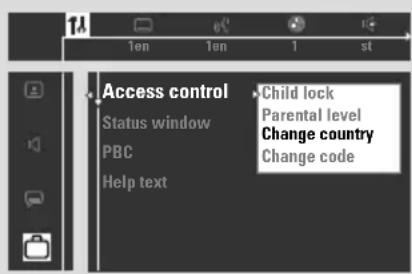
6 Press ▲▼ to select the country for which the disc is coded, then press OK.
7 Press SYSTEM MENU again to remove the menu.
IMPORTANT!
- Make sure the FM and MW antennas are connected. - The TUNING button on the front panel is used to toggle between frequency tuning and preset tuning. When in preset tuning mode, pressing |◀◀ / ▶▶| buttons on the front panel will change the preset number. Otherwise, pressing |◀◀ / ▶▶| will change the radio frequency.
Tuning to radio stations
1 Press TUNER on the remote (or adjust SOURCE control on front panel) to select "FM TUNER" or "MW TUNER".
2 Press and hold |◀◀/▶▶| on the remote until the frequency indication starts to change, then release.
→ The next radio station will tune automatically.
→ lights up for FM stereo reception.
3 To tune a weak station, press |◀◀ / ▶▶▶| briefly and repeatedly until an optimal reception is found.
- If you use |◀◀ / ▶▶| on the front panel for frequency tuning, make sure the system is in frequency tuning mode. If not, press TUNING.
→ "FREQ MODE" appears.
Presetting radio stations
You can store up to 40 preset radio stations in the memory, starting from FM and followed by MW bands.
Notes:
- The system will exit presetting mode if no button is pressed within 20 seconds. - If no stereo frequency is detected during Plug and Play, "CHECK ANTENNA" appears.
Using the Plug and Play
Plug and Play allows you to store all available radio stations automatically.
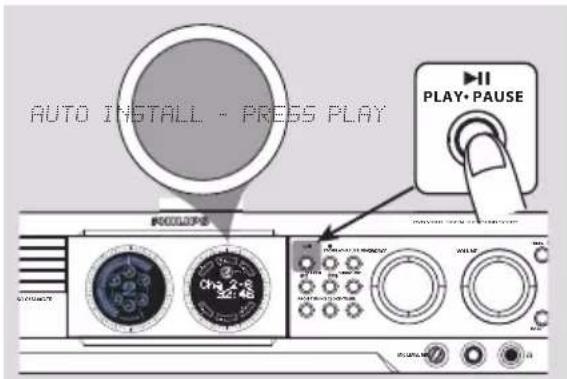
Connect the system to the power supply, "AUTO INSTALL-PRESS PLAY" appears. OR
In Eco Power standby/standby mode, press and hold ▶ II on the front panel until "AUTO INSTALL - PRESS PLAY" appears.
2 Press ▶II on the front panel to start installation.
→ "INSTALL TUNER" appears.
→ All previously stored radio stations will be replaced.
→ Once completed, the last tuned radio station will play.
Automatic presetting
You can start the automatic presetting from a selected preset number.
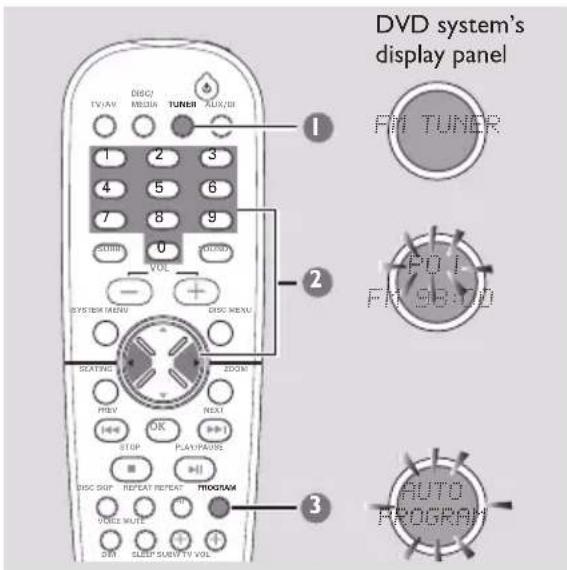
Press TUNER on the remote (or adjust SOURCE control on front panel) to select "FM TUNER" or "MW TUNER".
2 Press ◀▶ or use the numeric keypad (0-9) to select a preset number to begin.
- If you use |◀◀ / ▶▶▶| on the front panel for preset tuning, make sure the system is in preset tuning mode. If not, press TUNING. → "PRESET MODE" appears.
3 Press and hold PROGRAM (or PROG on the front panel) until "AUTO PROGRAM" appears.
→ If a radio station is stored in one of the presets, the same radio station will not store under another preset number.
→ If no preset number is selected, automatic preset will begin from preset (1) and all your former presets will be overridden.
Manual presetting
You can choose to store only your favourite radio stations.
In tuner mode, press PROGRAM (or PROG on the front panel).
2 Press ◀▶ or use the numeric keypad (0-9) to select a preset number.
3 Press |◀◀ / ▶▶▶ on the remote to select a radio station.
4 Press PROGRAM again to store.
Selecting a preset radio station
- Press ◀▶ or use the numeric keypad (0-9) to select a preset number.
→ The preset number, radio frequency, and waveband will appear.
Deleting a preset radio station
- Press and hold ■ until "PRESET DELETED" appears.
→ The current preset radio station will be deleted and the next available preset radio station will take its place.
→ All other preset radio stations with higher numbers will decrease by one.
Changing tuning grid (not available for all versions)
In North and South America, the frequency step between adjacent channels in the MW band is 10 kHz (9 kHz in some areas). The preset frequency step in the factory is 9 kHz.
IMPORTANT!
Changing the tuning grid will erase all previously stored preset radio stations.
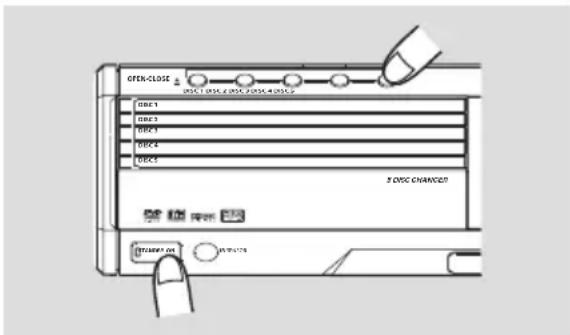
1 Disconnect the system from the AC power supply (pull out the AC power cord).
2 While holding down STANDBY ON and OPEN·CLOSE ▲ DISC5 on the main unit, reconnect the system to the AC power supply.
→ The display will show "GRID 9" or "GRID 10".
Notes:
- GRID 9 and GRID 10 indicate that the tuning grid is in step of 9kHz and 10kHz respectively. - The FM tuning grid also will be changed from 50kHz to 100kHz or vice versa.
Setting the timer
The system can switch on to DISC or TUNER mode automatically at a preset time, serving as an alarm to wake you up.
IMPORTANT!
- Before setting the timer, ensure that the clock is set correctly.
- The volume of the timer will increase gradually to the last tuned volume level. If the last tuned volume level is too low, the set will then increase to a predetermined minimum audible level.
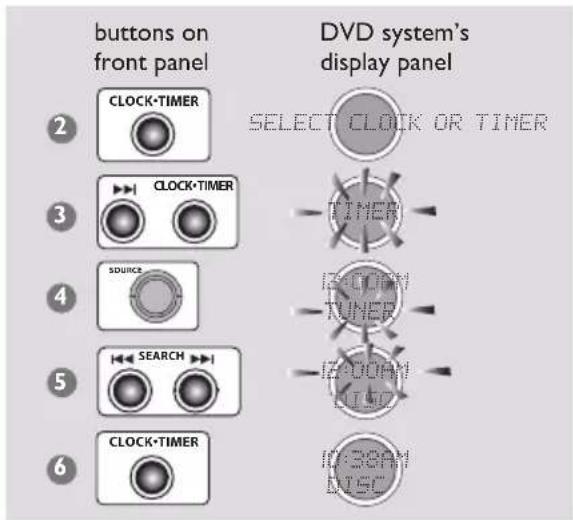
Press STANDBY ON to switch on the DVD system.
2 Press and hold CLOCK•TIMER until "SELECT CLOCK OR TIMER" appears.
3 Press ▶▶▶ (if necessary) to change the display to "TIMER", then press CLOCK•TIMER again to confirm.
4 Adjust SOURCE (or press DISC/MEDIA or TUNER on the remote) to select the wake up source (DISC or TUNER).
5 Press |◀◀ / ▶▶▶| to set the wake up time (minutes and hours.)
To increase the speed, hold down ◀◀◀ or ▶▶.
→ The changes in minutes will rollover to the hours.
6 Press CLOCK•TIMER again to store the setting.
→ Once the timer is set, it will always switch on unless you deactivate it.
→ Icon will remain on the display panel. It indicates the timer is activated.
- At the preset time, the selected sound source will play for 30 minutes before it switches to Eco Power standby mode (if no button is being pressed within the time frame).
→ DISC – the first track of the last selected disc will be played. If the last selected disc tray is empty, it will switch to the next available disc. If all the disc trays are not available, it will switch to Tuner mode.
→ TUNER – the last tuned radio station will be played.
Activating/Deactivating the timer
1 Repeat steps 1\~3 of "Setting the timer".
2 Press ■ to turn off the timer.
→ Icon will disappear from the display panel and "TIMER OFF" appears.
OR
Press CLOCK·TIMER to turn on the timer to the last setting.
→ The timer information will display for a few seconds, then the system resumes its last active source or stays in standby mode.
Note:
- The system will exit timer setting mode if no button is pressed within 90 seconds.
Setting the Sleep timer
The sleep timer enables the system to switch to Eco Power standby mode automatically at a preset time.
- Press SLEEP on the remote repeatedly until it reaches the desired preset turn-off time.
→ The selections are as follows (time in minutes):
$$ \begin{array}{l}\text {IB} \rightarrow 3 0 \rightarrow 4 5 \rightarrow 6 0 \rightarrow 9 0 \rightarrow \text {IBD} \rightarrow\\text {OFF} \rightarrow \text {IB...}\end{array} $$
→ SLEEP will show on the display panel, except if "OFF" is selected.
→ Before the system switches to Eco Power standby mode, a countdown of 10 seconds is displayed.
$$ \text {"SLEEP 10"} \rightarrow \text {"SLEEP 9"} \dots \rightarrow $$
$$ \text { " } \quad \text { " } \quad \text { " } \quad \text { " } \quad \text { " } \quad \text { " } \quad \text { " } \quad \text { " } \quad \text { " } \quad \text { " } \quad \text { " } \quad \text { " } \quad \rightarrow \quad \text { " } \quad \text { " } \quad \text { " } \quad \text { " } \quad \text { " } \quad \text { " } \quad \text { " } \quad \text { " } \quad \text { " } \quad \text { " } \quad \text { " }. $$
To check or change the setting
- Press SLEEP once to show the remaining time before switching off. If you continue pressing the SLEEP button, the next Sleep Timer option will appear on the display panel.
To cancel the sleep timer
- Press SLEEP repeatedly until "OFF" appears or press the STANDBY ON button.
Sound Control
IMPORTANT!
For proper surround sound, make sure the speakers and subwoofer are connected (see page 10).
Selecting surround sound
- Press SURROUND (SURR.) to select : MULTI-channel, 3D SOUND or STEREO.
→ The availability of the various surround sound modes depends on the number of speakers used and the sound available on the disc.
→ The centre and surround speakers operate only when the DVD home cinema system is set to Multi-channel mode.
→ The available output modes for Multi-channel include: Dolby Digital, DTS (Digital Theatre Systems) Surround and Dolby Pro Logic.
→ Stereo broadcasts or recordings will produce some surround channel effects when played in a surround mode. However, mono (single channel sound) sources will not produce any sound from the surround speakers.
Note:
- You are not able to select the surround sound mode if the system menu/menu bar is turned on.
Turning on/off clear voice effect
You can enhance the centre and surround sound outputs by activating the clear voice sound feature if you have selected Multi-channel as the surround mode.
- Press VOICE on the remote to select
"CLEAR VOICE ON".
→ To turn off the setting, press VOICE again to select "CLEAR VOICE OFF".
Changing subwoofer volume level
- Press SUB +/— on the remote to adjust subwoofer volume level (-6dB to + 6dB).
Adjusting Bass/ Treble level
The BASS (low tone) and TREBLE (high tone) features enable you to define the sound-processor settings.
Press BASS or TREBLE.
→ The level indicator appears.
2 Within five seconds, use the VOLUME control to adjust the Bass or Treble level (-3 to +3).
→ If the volume control is not used within five seconds, it will resume its normal volume control function.
Selecting digital sound effects
Select a preset digital sound effects that matches your disc's content or that optimises the sound of the musical style you are playing.
- Press SOUND on the remote.
When playing movie discs, you can select : CONCERT, DRAMA, ACTION or SCI-FI.
When playing music discs or while in TUNER or AUX/DI mode, you can select : ROCK, DIGITAL, CLASSIC or JAZZ.
Note:
- For flat sound output, select CONCERT or CLASSIC.
Volume control
- Adjust VOLUME control (or press
VOL +/— on the remote) to increase or decrease the volume level.
→ "VOL MIN" is the minimum volume level and "VOL MAX" is the maximum volume level.
To listen through the headphones
- Connect the headphones plug to the ⏻ socket at the front of the DVD system.
→ The speakers will be muted.
To turn off the volume temporarily
- Press MUTE on the remote.
→ Playback will continue without sound and "MUTE" appears.
→ To restore the volume, press MUTE again or increase the volume level.
Switching on/off
Switching to active mode
- Adjust the SOURCE control to select : DISC 1....DISC 5 → FMTUNER → MW TUNER → TV/AV → AUX → DI → DISC 1.... OR
Press DISC/MEDIA, TUNER, TV/AV or AUX/DI on the remote.
Switching to Eco Power standby mode
- Press STANDBY ON (⏻).
→ ECO POWER button lights up.
→ The display screen will go blank.
Switching to standby mode (view clock)
- Press and hold STANDBY ON (⏻).
→ The clock appears.
→ While in standby mode, pressing CLOCK•TIMER button will switch the system to Eco Power standby mode.
Dimming system's display screen
- Press DIM repeatedly to select different levels of brightness for the display screen.
Recording to an external device
Connect the external recording device to LINE OUT or DIGITAL OUT.
(See page 15 "Connections-optional").
2 Select the source to record from your DVD system (DISC, TUNER, TV/AV or AUX) and start playback (if necessary).
→ You can only record from DISC if using DIGITAL OUT to connect the external recording device.
3 Start recording on the external recording device.
Notes:
- All the sound control features are available for selection.
- Refer to the owner's manual of the connected equipment for details.
Using the remote to operate your television
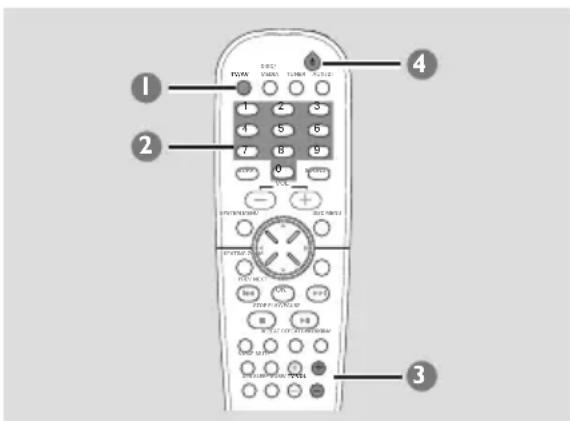
Press TV/AV.
2 Press |◀◀ / ▶▶▶ or use the numeric keypad (0-9) to select the TV's channel.
3 Press TVVOL +/— to adjust the TV's volume level.
4 Press ⏻ to turn off your TV.
WARNING
Under no circumstances should you try to repair the system yourself, as this will invalidate the warranty. Do not open the system as there is a risk of electric shock.
If a fault occurs, first check the points listed below before taking the system for repair. If you are unable to remedy a problem by following these hints, consult your dealer or Philips for help.
| Problem | Solution |
| No power. | - Check if the AC power cord is properly connected.- Press the STANDBY ON on the front of the DVD system to turn on the power. |
| No picture. | - Refer to your TV's manual for correct Video In channel selection. Change the TV channel until you see the DVD screen.- Press DISC on the remote. |
| Distorted or poor picture. | - Sometimes a small amount of picture distortion may appear. This is not a malfunction.- Clean the disc. |
| Completely distorted picture or black/ white picture. | - TVs have a colour system standard. If the disc's or DVD system's colour system is different than your TV's colour system, the picture may be distorted or colourless. Set to the correct 'TV System' setting. |
| The aspect ratio of the screen cannot be changed even though you have set the TV display. | - The aspect ratio is fixed on the DVD disc.- Depending on the TV, it may not be possible to change the aspect ratio. |
| No sound or distorted sound. | - Adjust the volume.- Replace the speaker cables.- Check the speaker connections and settings.- Disconnect the headphones.- Press PLAY to resume normal play mode if necessary.- Press the correct source button on the remote (TV/AV or AUX, for example) to choose the equipment that you want to hear through the DVD system. |
| The DVD system does not work. | - Disconnect the power cord from the power outlet for a few minutes. Reconnect the power cord and try to operate again as usual. |
Problem
The DVD player does not start playback.
Cannot activate some features, such as Angles, Subtitles, or multi-language Audio.
There is no sound from the centre and surround speakers.
Radio reception is poor.
The remote control does not function properly.
The timer is not working.
The display panel is dark.
Low hum or buzz sound.
Solution
- Insert a readable disc with the playback side facing down.
- Check the disc type, colour system and region code.
- Check for any scratches or smudges on the disc.
- Press SYSTEM SETUP to turn off the setup menu screen.
– Change the rating level.
- Moisture has condensed inside the system. Remove the disc and leave the system turned on for about an hour.
– The features may not be available on the DVD.
- Changing the language for the sound or subtitle is prohibited on the DVD.
- Make sure the centre and surround speakers are connected correctly.
- Press SURROUND button to select a correct surround sound setting.
- Make sure the source you are playing is recorded or broadcast in surround sound (DTS, Dolby Digital, etc.).
- If the signal is too weak, adjust the antenna or connect an external antenna for better reception.
- Increase the distance between the system and your TV or VCR.
– Tune in to the correct frequency.
- Place the antenna farther away from any equipment that may be causing the noise.
- Select the source (DISC or TUNER, for example) before pressing the function button (▶ II, |◀◀, ▶▶).
- Reduce the distance between the remote control and the system.
- Replace the batteries with new ones.
- Point the remote control directly toward the IR sensor.
- Check that the batteries are loaded correctly.
- Set the clock correctly.
- Press and hold CLOCK•TIMER to switch on the timer.
- Press DIM again.
- Place the DVD system as far away as possible from electrical devices that may be causing interference.
AMPLIFIER SECTION
Output power 5400 W PMPO
- Stereo mode (DIN) 75 W + 75 W RMS ①
- Surround mode (1 kHz) 75 W RMS/channel
Frequency Response 120 Hz - 20 kHz / -3 dB
Signal-to-Noise Ratio > 65 dB (CCIR)
Input Sensitivity
- AUX In 880 mV
- TV In 350 mV
Output Sensitivity
- Headphone 32 Ω - 1000 Ω
- Line Out 600 mV
- Digital In acc IEC 60958 & IEC 61937
① 4ohm, 1 kHz, 10% THD
TUNER SECTION
| Tuning Range | FM 87.5 – 108 MHz |
| MW 531 – 1602 kHz (9 kHz) | |
| MW 530 – 1700 kHz (10 kHz) | |
| 26 dB Quieting Sensitivity | FM 20 dB |
| MW 3162 mV/m | |
| Image Rejection Radio | FM 25 dB |
| MW 28 dB | |
| IF Rejection Ratio | FM 60 dB |
| MW 24 dB | |
| Signal-to-Noise Ratio FM | 60 dB |
| MW 40 dB | |
| AM Suppression Ratio | FM 30 dB |
| Harmonic Distortion | FM Mono 3% |
| FM Stereo 3% | |
| MW 5% | |
| Frequency Response FM | 180 Hz – 10 kHz / ±6 dB |
| Stereo Separation | FM 26 dB (1 kHz) |
| Stereo Threshold | FM 23.5 dB |
DISC SECTION
Laser Type Semiconductor
Frequency Response 4 Hz - 20 kHz (44.1 kHz)
4 Hz - 22 kHz (48 kHz)
4 Hz - 44 kHz (96 kHz)
Digital Output/Input SPDIF (Sony Philips digital
interface) Coaxial
- PCM IEC 60958
- Dolby Digital/DTS IEC 60958, IEC 61937
MAIN UNIT
Power Supply Rating 230 – 240 V; 50 Hz
110 - 127 / 220 - 240 V;
50/60 Hz Switchable
Power Consumption 150 W
Dimensions (w x h x d) 435 x 100 x 360 (mm)
Weight 7.15 kg
SPEAKERS
Front speakers / Rear (surround) speaker
System triple driver
Impedance 4 Ω
Speaker drivers 2 x 3" woofer,
1 x 2" ribbon tweeter
Frequency response 120 Hz – 50 kHz
Dimensions (w x h x d) 94 x 280 x 70 (mm)
Weight 1.23 kg/each
CENTRE SPEAKER
System 5 multi-directional driver
Impedance 4 Ω
Speaker drivers 4 x 2" woofer,
1 3/4" ribbon tweeter
Frequency response 120 Hz – 20 kHz
Dimensions (w x h x d) 435 x 72 x 63.5 (mm)
Weight 1.32 kg
TWIN SUBWOOFER
Impedance 4 Ω
Speaker drivers 4" woofer
Frequency response 30 Hz – 120 Hz
Dimensions
- Base diametre 240 x 40 (mm)
- Tube 110 x 900 (mm)
Weight 4.5 kg
Analogue: Sound that has not been turned into numbers. Analogue sound varies, while digital sound has specific numerical values. These jacks send audio through two channels, the left and right.
Aspect ratio: The ratio of vertical and horizontal sizes of a displayed image. The horizontal vs. vertical ratio of conventional TVs. is 4:3, and that of wide-screens is 16:9.
AUDIO OUT Jacks: Jacks on the back of the DVD System that send audio to another system (TV, Stereo, etc.).
Bit Rate: The amount of data used to hold a given length of music; measured in kilobits per seconds, or kbps. Or, the speed at which you record. Generally, the higher the bit rate, or the higher the recording speed, the better the sound quality. However, higher bit rates use more space on a Disc.
Chapter: Sections of a picture or a music piece on a DVD that are smaller than titles. A title is composed of several chapters. Each chapter is assigned a chapter number enabling you to locate the chapter you want.
Clear voice: It enables the digital sound processor to extract the voice dynamics in movie dialog on all 5 surround channels without compromising on the location accuracy and the width of the surround sound.
Component Video Out Jacks: Jacks on the back of the DVD System that send high-quality video to a TV that has Component Video In jacks (R/G/B, Y/Pb/Pr, etc.).
Disc menu: A screen display prepared for allowing selection of images, sounds, subtitles, multi-angles, etc recorded on a DVD.
Digital: Sound that has been converted into numerical values. Digital sound is available when you use the DIGITAL AUDIO OUT COAXIAL or OPTICAL jacks. These jacks send audio through multiple channels, instead of just two channels as analogue does.
Dolby Digital: A surround sound system developed by Dolby Laboratories containing up to six channels of digital audio (front left and right, surround left and right and centre).
DTS: Digital Theatre Systems. This is a surround sound system, but it is different from Dolby Digital. The formats were developed by different companies.
MP3: A file format with a sound data compression system. "MP3" is the abbreviation of Motion Picture Experts Group 1 (or MPEG-1) Audio Layer 3. By using MP3 format, one CD-R or CD-RW can contain about 10 times as much data volume as a regular CD can.
Multichannel: DVD is specified to have each sound track constitute one sound field. Multichannel refers to a structure of sound tracks having three or more channels.
Parental level: A function of the DVD to limit playback of the disc by the age of the users according to the limitation level in each country. The limitation varies from disc to disc; when it is activated, playback will be prohibited if the software's level is higher than the user-set level.
PCM (Pulse Code Modulation): A system for converting analogue sound signal to digital signal for later processing, with no data compression used in conversion.
Playback control (PBC): Refers to the signal recorded on video CDs or SVCDs for controlling reproduction. By using menu screens recorded on a Video CD or SVCD that supports PBC, you can enjoy interactive-type software as well as software having a search function.
Plug and Play: After power up, the system will prompt the user to proceed with the automatic installation of radio stations by simply pressing the PLAY button on the main unit.
Progressive Scan: It displays all the horizontal lines of a picture at one time, as a signal frame. This system can convert the interlaced video from DVD into progressive format for connection to a progressive display. It dramatically increases the vertical resolution.
Region code: A system for allowing discs to be played back only in the region designated beforehand. This unit will only play discs that have compatible region codes. You can find the region code of your unit by looking on the product label. Some discs are compatible with more than one region (or ALL regions).
S-Video: Produces a clear picture by sending separate signals for the luminance and the colour. You can use S-Video only if your TV has S-video In jack.
Sampling Frequency: Frequency of sampling data when analogue data is converted to digital data Sampling frequency numerically represents how many time the original analogue signal is sampled per second.
Seating control: It gives the user a perfect sound and movie experience anywhere in the room, providing maximum flexibility and real total immersion because the user can choose their preferred seat.
Super Audio CD (SACD): This audio format is based upon the current CD standards but includes a greater amount of information which provides higher quality sound. There are three types of discs: single layer, double layer and hybrid discs. The hybrid disc contains both standard audio CD and Super Audio CD information.
Surround: A system for creating realistic three-dimensional sound fields full of realism by arranging multiple speakers around the listener.
Title: The longest section of a picture or music feature on DVD, music, etc., in video software, or the entire album in audio software. Each title is assigned a title number enabling you to locate the title you want.
VIDEO OUT jack: Jack on the back of the DVD System that sends video to a TV.
- México
- General Information
- Connections
- Connections (optional)
- Functional Overview
- Getting Started
- Disc Operations
- DVD Menu Options
- Tuner Operations
- Timer Operations
- Sound and Volume Controls
- Other Functions
- Supplied accessories
- Care and safety information
- Avoid high temperatures, moisture, water and dust
- Avoid condensation problem
- Do not block the vents
- Care of disc
- Care of the cabinet
- Finding a suitable location
- CAUTION!
- Notes:
- Step 4: Placing the speakers and subwoofers
- Step 5: Connecting FM/MW antennas
- Step 6: Connecting TV
- IMPORTANT!
- Using Composite Video jack (CVBS)
- Using Component Video jacks (Pr Pb Y)
- Using S-Video jack
- Using an accessory RF modulator
- After everything is connected properly,
- On the DVD system,
- Connecting a VCR or Cable/Satellite Box
- Connecting digital audio equipment
- Main unit and remote control
- ① STANDBY ON
- ② Disc trays 1\~5
- ③ OPEN·CLOSE ≧ (DISC1\~5)
- ④ iR SENSOR
- ⑤ Speaker display panel
- ⑥ System display panel
- ⑦ TUNING
- ⑧ PROG (PROGRAM)
- ⑨ ▶ II PLAY·PAUSE
- STOP
- SEARCH (PREV/NEXT)
- ⑩ SEATING (only available in Multi-channel mode)
- ⑪ SURROUND (SURR.)
- ⑫ SOURCE
- ⑬ CLOCK·TIMER
- ⑭ MIC LEVEL
- MIC
- Control buttons available on the remote only
- Step 1: Inserting batteries into the remote control
- Using the remote control to operate the system
- Step 2: Setting the clock
- To view the clock time in any active mode
- Step 3: Setting the TV
- Changing the NTSC/PAL setting via the remote control
- Selecting the colour system that corresponds to your TV
- Step 4: Selecting speaker layout
- To remove the menu
- Changing seating control position
- Setting the speakers' channels
- Step 5: Setting language preference
- playable discs
- Your DVD home cinema system will play:
- Region Codes
- Playing discs
- Turning on/off auto Eco standby mode
- Using the Disc Menu
- To select a playback feature or item
- To access or remove the menu
- For VCD with Playback Control (PBC) feature (version 2.0 only)
- Basic playback controls
- Pausing playback
- Selecting another track/chapter
- Searching backward/forward
- Selecting next disc
- Stopping playback
- Resuming playback from the last stopped point (DVD /VCD)
- To cancel the resume mode
- Replacing discs without interrupting playback
- Selecting various repeat functions
- Repeat play mode
- REPEAT CHAPTER (DVD)
- REPEAT ALBUM (MP3)
- REPEAT TRACK/TITLE
- REPEAT DISC
- REPEAT ALL
- REPEAT OFF
- Repeating a section within a chapter/track
- Programme favourite tracks (audio CDs only)
- Clearing the programme
- Using the menu bar to programme
- To erase an FTS programme
- To erase the entire FTS programme
- Playing MP3
- Programme MP3 disc
- Using the menu bar
- Time Search
- Favorite Track Selection
- Using the Karaoke feature
- Using the Setup Menu (User Preference Settings)
- Setting the TV shape
- 4:3 panscan
- 4:3 letterbox
- 16:9
- Improving the image for NTSC setting
- Off
- On
- Adjusting the picture position on the TV
- Selecting a predefined colour setting
- Fine-tuning the personal colour setting
- Improving the image for Progressive Scan Video output setting (not available for all versions)
- Gamma
- Sharpness
- Chrome Delay
- DCDi (New Directional Correlation Deinterlacing)
- Setting the digital output
- All
- PCM only
- Setting the PCM output
- kHz
- kHz
- Setting the analogue output
- Stereo
- 3D Sound
- Multi-channel
- Night mode – turning on/off
- Status window – turning on/off
- PBC (Playback Control) – turning on/off
- Help text – turning on/off
- Changing the password
- Restricting playback by Parental Level
- (only available in region 1 players)
- Rating explanations
- Locking/Unlocking the DVD for viewing
- Enabling Play once/Play Always
- Insert a disc.
- Changing the country
- Tuning to radio stations
- Presetting radio stations
- Using the Plug and Play
- Automatic presetting
- Manual presetting
- Selecting a preset radio station
- Deleting a preset radio station
- Changing tuning grid (not available for all versions)
- Changing the tuning grid will erase all previously stored preset radio stations.
- Setting the timer
- Activating/Deactivating the timer
- Setting the Sleep timer
- To check or change the setting
- To cancel the sleep timer
- Sound Control
- Selecting surround sound
- Turning on/off clear voice effect
- Changing subwoofer volume level
- Adjusting Bass/ Treble level
- Selecting digital sound effects
- Volume control
- To listen through the headphones
- To turn off the volume temporarily
- Switching on/off
- Switching to active mode
- Switching to Eco Power standby mode
- Switching to standby mode (view clock)
- Dimming system's display screen
- Recording to an external device
- Using the remote to operate your television
- WARNING
- Problem
- Solution
- AMPLIFIER SECTION
- TUNER SECTION
- DISC SECTION
- MAIN UNIT
- SPEAKERS
- CENTRE SPEAKER
- TWIN SUBWOOFER
Brand : PHILIPS
Model : MX5800SA
Category : Home Theater System