
e-studio 2500c - Printer TOSHIBA - Free user manual and instructions
Find the device manual for free e-studio 2500c TOSHIBA in PDF.


| Product Type | Color Multifunction Printer |
| Brand | Toshiba |
| Model | e-studio 2500c |
| Print Technology | Color Laser |
| Functions | Print, Copy, Scan, Fax (optional) |
| Print Speed (Color) | 25 ppm |
| Print Resolution | 2400 x 600 dpi |
| Paper Capacity | 1,100 sheets (standard) |
| Dimensions (W x D x H) | 20.5 x 24.8 x 25.6 inches |
| Weight | 242 lbs |
| Power Requirements | 120V, 15A, 60 Hz |
| Power Consumption (Active) | Approx. 1.5 kW |
| Display | 10.4-inch Color Touchscreen |
| Connectivity | Ethernet (10/100/1000), USB 2.0, optional Wi-Fi |
| Duplex Printing | Automatic (standard) |
| Maintenance | Replace toner, drum, waste toner; clean scanner glass |
| Safety | Use grounded outlet; avoid laser exposure; follow manual |
| Spare Parts | Toner cartridges, drum, fuser, feed rollers available |
| Repairability | Serviceable by certified technician; parts online |
| Manual Pages | 406 pages (EN) |
Frequently Asked Questions - e-studio 2500c TOSHIBA
User questions about e-studio 2500c TOSHIBA
0 question about this device. Answer the ones you know or ask your own.
Ask a new question about this device
Download the instructions for your Printer in PDF format for free! Find your manual e-studio 2500c - TOSHIBA and take your electronic device back in hand. On this page are published all the documents necessary for the use of your device. e-studio 2500c by TOSHIBA.
USER MANUAL e-studio 2500c TOSHIBA
MULTIFUNCTIONAL DIGITAL COLOR SYSTEMS
Printing Guide
e-STUDIO2500c/3500c/3510c
INSTALLING OR OTHERWISE USING THIS SOFTWARE PRODUCT CONSTITUTES YOUR ACCEPTANCE OF THE FOLLOWING TERMS AND CONDITIONS (UNLESS A SEPARATE LICENSE IS PROVIDED BY THE SUPPLIER OF APPLICABLE SOFTWARE IN WHICH CASE SUCH SEPARATE LICENSE SHALL APPLY). IF YOU DO NOT ACCEPT THESE TERMS, YOU MAY NOT INSTALL OR USE THIS SOFTWARE, AND YOU MUST PROMPTLY RETURN THE SOFTWARE TO THE LOCATION WHERE YOU OBTAINED IT.
THE SOFTWARE INSTALLED ON THIS PRODUCT INCLUDES NUMEROUS INDIVIDUAL SOFTWARE COMPONENTS, EACH HAVING ITS OWN APPLICABLE END USER LICENSE AGREEMENT ("EULA"). INFORMATION RELATING TO THE EULAS MAY BE FOUND IN AN ELECTRONIC FILE INCLUDED ON THE USER DOCUMENTATION CD-ROM INCLUDED HEREWITH; HOWEVER, ALL SOFTWARE AND DOCUMENTATION DEVELOPED OR CREATED BY OR FOR TOSHIBA TEC CORPORATION ("TTEC") ARE PROPRIETARY PRODUCTS OF TTEC AND ARE PROTECTED BY COPYRIGHT LAWS, INTERNATIONAL TREATY PROVISIONS, AND OTHER APPLICABLE LAWS.
Grant of License
This is a legal agreement between you, the end-user (“You”), and TTEC and its suppliers. This software, fonts (including their typefaces) and related documentation (“Software”) is licensed for use with the system CPU on which it was installed (“System”) in accordance with the terms contained in this Agreement. This Software is proprietary to TTEC and/or its suppliers.
TTEC and its suppliers disclaim responsibility for the installation and/or use of this Software, and for the results obtained by using this Software. You may use one copy of the Software as installed on a single System, and may not copy the Software for any reason except as necessary to use the Software on a single System. Any copies of the Software shall be subject to the conditions of this Agreement.
You may not, nor cause or permit any third party to, modify, adapt, merge, translate, reverse compile, reverse assemble, or reverse engineer the Software. You may not use the Software, except in accordance with this license. No title to the intellectual property in the Software is transferred to you and full ownership is retained by TTEC or its suppliers. Source code of the Software is not licensed to you. You will be held legally responsible for any copyright infringement, unauthorized transfer, reproduction or use of the Software or its documentation.
Term
This license is effective until terminated by TTEC or upon your failure to comply with any term of this Agreement. Upon termination, you agree to destroy all copies of the Software and its documentation.
You may terminate this license at any time by destroying the Software and its documentation and all copies.
Disclaimer of Warranty
THIS SOFTWARE IS PROVIDED "AS IS" WITHOUT WARRANTY OF ANY KIND, EITHER EXPRESS OR IMPLIED, INCLUDING, BUT NOT LIMITED TO, THE IMPLIED WARRANTIES OF MERCHANTABILITY, FITNESS FOR A PARTICULAR PURPOSE, TITLE, AND NON-INFRINGEMENT. TTEC AND ITS SUPPLIERS DISCLAIM ANY WARRANTY RELATING TO THE QUALITY AND PERFORMANCE OF THE SOFTWARE. IF THE SOFTWARE PROVES DEFECTIVE, YOU (AND NOT TTEC OR ITS SUPPLIERS) SHALL BE RESPONSIBLE FOR THE ENTIRE COST OF ALL NECESSARY SERVICING, REPAIR OR CORRECTION. TTEC AND ITS SUPPLIERS DO NOT WARRANT THAT THE FUNCTIONS CONTAINED IN THE SOFTWARE WILL MEET YOUR REQUIREMENTS OR THAT THE OPERATION OF THE SOFTWARE WILL BE UNINTERRUPTED OR ERROR FREE.
ALL INFORMATION CONTAINED HEREIN THAT IS PROVIDED BY TTEC AND ITS AFFILIATES PURSUANT TO A EULA IS PROVIDED "AS IS" WITHOUT WARRANTY OF ANY KIND, EITHER EXPRESS OR IMPLIED.
Limitation of Liability
IN NO EVENT WILL TTEC OR ITS SUPPLIERS BE LIABLE TO YOU FOR ANY DAMAGES, WHETHER IN CONTRACT, TORT, OR OTHERWISE (EXCEPT PERSONAL INJURY OR DEATH RESULTING FROM NEGLIGENCE ON THE PART OF TTEC OR ITS SUPPLIERS), INCLUDING WITHOUT LIMITATION ANY LOST PROFITS, LOST DATA, LOST SAVINGS OR OTHER INCIDENTAL, SPECIAL OR CONSEQUENTIAL DAMAGES ARISING OUT OF THE USE OR INABILITY TO USE THE SOFTWARE, EVEN IF TTEC OR ITS SUPPLIERS HAVE BEEN ADVISED OF THE POSSIBILITY OF SUCH DAMAGES, NOR FOR THIRD PARTY CLAIMS.
U.S. Government Restricted Rights
The Software is provided with RESTRICTED RIGHTS. Use, duplication or disclosure by the U.S. Government is subject to restrictions set forth in subdivision (b) (3) (ii) or (c) (i) (ii) of the Rights in Technical Data and Computer Software Clause set forth in 252.227-7013, or 52.227-19 (c) (2) of the DOD FAR, as appropriate. Contractor/Manufacturer is TOSHIBA TEC Corporation, 6-78, Minami-cho, Mishima-shi, Shizuoka-ken, 411-8520, Japan.
General
You may not sublicense, lease, rent, assign or transfer this license or the Software. Any attempt to sublicense, lease, rent, assign or transfer any of the rights, duties or obligations hereunder is void. You agree that you do not intend to, and will not ship, transmit (directly or indirectly) the Software, including any copies of the Software, or any technical data contained in the Software or its media, or any direct product thereof, to any country or destination prohibited by the United States Government. This license shall be governed by the laws of Japan or, at the election of a Supplier of TTEC concerned with a dispute arising from or relating to this Agreement, the laws of the Country designated from time to time by the relevant Supplier of TTEC. If any provision or portion of this Agreement shall be found to be illegal, invalid or unenforceable, the remaining provisions or portions shall remain in full force and effect.
YOU ACKNOWLEDGE THAT YOU HAVE READ THIS LICENSE AGREEMENT AND THAT YOU UNDERSTAND ITS PROVISIONS. YOU AGREE TO BE BOUND BY ITS TERMS AND CONDITIONS. YOU FURTHER AGREE THAT THIS LICENSE AGREEMENT CONTAINS THE COMPLETE AND EXCLUSIVE AGREEMENT BETWEEN YOU AND TTEC AND ITS SUPPLIERS AND SUPERSEDES ANY PROPOSAL OR PRIOR AGREEMENT, ORAL OR WRITTEN, OR ANY OTHER COMMUNICATION RELATING TO THE SUBJECT MATTER OF THIS LICENSE AGREEMENT.
TOSHIBA TEC Corporation, 6-78, Minami-cho, Mishima-shi, Shizuoka-ken, 411-8520, Japan.
Trademarks
- The official name of Windows 98 is Microsoft Windows 98 Operating System.
- The official name of Windows Me is Microsoft Windows Me Operating System.
- The official name of Windows 2000 is Microsoft Windows 2000 Operating System.
- The official name of Windows XP is Microsoft Windows XP Operating System.
- The official name of Windows Server 2003 is Microsoft Windows Server 2003 Operating System.
- Microsoft, Windows, Windows NT, and the brand names and product names of other Microsoft products are trademarks of Microsoft Corporation in the US and other countries.
- Apple, AppleTalk, Macintosh, Mac, TrueType, and LaserWriter are trademarks of Apple Computer, Inc. in the US and other countries.
• Postscript is a trademark of Adobe Systems Incorporated. - Netscape is a trademark of Netscape Communications Corporation.
• IBM, AT and AIX are trademarks of International Business Machines Corporation.
• NOVELL, NetWare, and NDS are trademarks of Novell, Inc. - Other company names and product names in this manual are the trademarks of their respective companies.
Copyright
© 2006 TOSHIBA TEC CORPORATION All rights reserved
Under the copyright laws, this manual cannot be reproduced in any form without prior written permission of TTEC. No patent liability is assumed, however, with respect to the use of the information contained herein.
Thank you for purchasing e-STUDIO3510c Series Multifunctional Digital Color Systems. This guide provides instructions on how to set up your computer and print to the equipment. Read this guide before printing to your e-STUDIO3510c Series. Keep this guide within easy reach, and use it to configure an environment that makes best use of the e-STUDIO's functions.
About This Guide
This manual describes how to install the user software for the printer functions, set up printing, and manage print jobs from Microsoft Windows, Apple Mac OS, and UNIX computers.
For information about setting up network servers and clients to use the e-STUDIO3510c Series, see the Network Administration Guide. For general information on using the copier, your computer, your application software, or your network, see the manuals that accompany those products.
Conventions
- The term "this equipment" in this manual refers to the e-STUDIO3510c Series.
- The term "e-Filing" in this manual is an abbreviation of "electronic filing".
Lineup of Our Manuals
Thank you for purchasing the TOSHIBA multifunctional digital color systems e-STUDIO3510c Series.
We have provided you with these manuals for the operation of this equipment. Select and read the manual best suited to your needs.
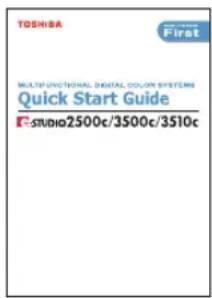
Quick Start Guide
This Quick Start Guide describes the initial setup method of this equipment and accessories of this product such as operator's manuals and CD-ROMs.
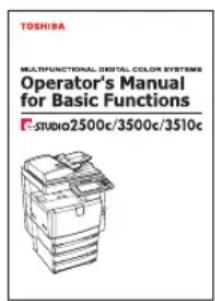
Operator's Manual Basic Functions
This Operator's Manual Basic Functions describes how to use the basic functions of this equipment mainly focusing on the copying function. Also this manual contains safety precautions for users to be observed. Be sure to read it first carefully.
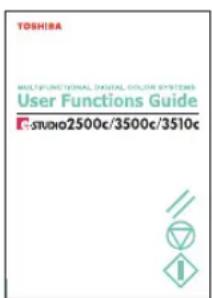
User Functions Guide
This User Functions Guide describes the functions and settings under the [USER FUNCTIONS] button on the control panel of this equipment.
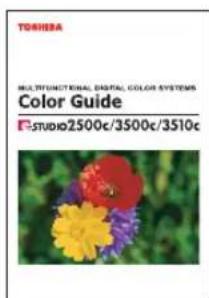
Color Guide
This color Guide simply explains the functions such as "copy density adjustment", "color adjustment", "copy editing", "image editing" and "image processing" in color. This guide also includes the basic knowledge of color.
Other guides are provided by the User Documentation CD-ROM in PDF files:
TopAccess Guide
This TopAccess Guide explains how to operate and set up the network functions such as the network scanning function and job management, using the TopAccess (Web-based utility) from client computers.
Network Administration Guide
This Network Administration Guide explains the guidelines for setting up network servers to provide various network services, and troubleshooting for network administrators.
Printing Guide
This Printing Guide explains how to install the client software for printing from Microsoft Windows, Apple Mac OS, and UNIX computers, and print to the equipment.
Scanning Guide
This Scanning Guide explains how to operate the scanning function of this equipment.
e-Filing Guide
This e-Filing Guide explains how to operate the e-Filing function using the TWAIN driver, File Downloader and e-Filing web utility.
Network Fax Guide
This Network Fax Guide explains how to use the network fax function that enable users to operate fax and internet fax sending from a client computer via network.
User Management Guide
This User Management Guide describes how to manage this equipment using the functions of “Department Management”, “User Management Setting” and “User Authentication for Scan to E-mail”.
To read manuals in PDF (Portable Document Format) files
Viewing and printing this operator's manual in PDF files require that you install Adobe Reader or Adobe Acrobat Reader on your PC. If Adobe Reader or Adobe Acrobat Reader is not installed on your PC, download and install it from the website of Adobe Systems Incorporated.
Precautions in this manual
To ensure correct and safe use of this equipment, this operator's manual describes safety precautions according to the three levels shown below.
You should fully understand the meaning and importance of these items before reading this manual.
Warning
Indicates a potentially hazardous situation which, if not avoided, could result in death, serious injury, or serious damage, or fire in the equipment or surrounding assets.
Caution
Indicates a potentially hazardous situation which, if not avoided, may result in minor or moderate injury, partial damage of the equipment or surrounding assets, or loss of data.
Note
Indicates a procedure you should follow to ensure the optimal performance of the equipment and problem-free copying.
Other than the above, this manual also describes information that may be useful for the operation of this equipment with the following signage:
Tip
Describes handy information that is useful to know when operating the equipment.

Pages describing items related to what you are currently doing. See these pages as required.
TABLE OF CONTENTS
SOFTWARE LICENSE AGREEMENT ....1
TRADEMARKS AND COPYRIGHT....3
Preface....4
Chapter 1 Overview
Features and Functions ....14
About the Client CD-ROM ....15
For Windows....15
For Macintosh....15
For UNIX.... 16
Chapter 2 Installing Client Software for Windows
About the Installation....18
About Client Software for Windows....18
Planning for Installation 18
Installing Client Software for USB Printing....25
Installation for USB Printing by Plug and Play....25
Installing Client Software for Raw TCP/LPR Printing 35
Installation for Raw TCP/LPR Printing Using the Installer....35
Installation for Raw TCP/LPR Printing by Add Printer Wizard......48
Installing Client Software for SMB Printing 61
Installation for SMB Printing Using the Installer 61
Installation for SMB Printing by Point and Print....67
Installation for SMB Printing by Add Printer Wizard ....71
Installing Client Software for IPP Printing 88
Installation for IPP Printing by Add Printer Wizard 88
Installing Client Software for Novell Printing 95
Installation for Novell Printing Using the Installer 95
Installation for Novell Printing by Point and Print....101
Installing Client Software for Novell iPrint....109
Installing Client Software from TopAccess 110
Uninstalling Client Utilities Software....112
When Installed Using the Installer 112
When Installed Using Add Printer Wizard 117
Repairing Client Software....120
Chapter 3 Installing Client Software for Macintosh
About the Installation....124
About Client Software for Macintosh 124
Planning for Installation 124
Installing the Printer on Mac OS X 10.2.4 to Mac OS X 10.4.x....125
Installing the Macintosh PPD File....125
Configuring the Printer on Mac OS X 10.4.x ....128
Configuring the Printer on Mac OS X 10.2.4 to Mac OS X 10.3.x ......139
Installing the Printer on Mac OS 8.6/9.x ....150
Installing the Macintosh PPD File....150
Configuring the Printer on Mac OS 8.6/9.x....150
Installing Client Software from TopAccess 156
Chapter 4 Installing Client Software for UNIX
Setting Up the UNIX Filters....160
About UNIX Filters....160
System Requirements ....160
Configuring UNIX Printing Using UNIX Filters....161
Setting Up the CUPS ....169
About CUPS 169
Configuring UNIX Printing Using CUPS 169
Installing Client Software from TopAccess 185
Chapter 5 Printing from Windows
Before Using the Printer Driver....188
Configuring the Options....188
Setting the Department Code 192
Copying the PPD File for Windows 194
Printing from Application 196
Considerations and Limitations ....196
How to Print....196
Setting Up Print Options....199
How to Setup ....199
Print Options....202
Printing with Extended Print Functionality 238
Printing Various Print Job Types 238
Printing with Various Layout and Finishing Options 246
Chapter 6 Printing from Macintosh
Printing from Application on Mac OS X 10.2.4 to Mac OS X 10.4.x .....266
Considerations and Limitations ......266
How to Print from Mac OS X 10.2.4 to Mac OS X 10.4.x .....266
Page Setup Dialog on Mac OS X 10.2.4 to Mac OS X 10.4.x....267
Print Dialog on Mac OS X 10.3.x to Mac OS X 10.4.x....272
Print Dialog on Mac OS X 10.2.x....287
Printing from Application on Mac OS 8.6 to 9.x ....303
How to Print from Mac OS 8.6 or 9.x....303
Page Setup Dialog on Mac OS 8.6/9.x....304
Print Dialog on Mac OS 8.6/9.x ....306
Chapter 7 Printing from UNIX
Printing from an Application 324
Considerations and Limitations ....324
Printing Using LP Command 324
Generic "Ip" and "Iptap" Options 324
General Options 325
PCL5e Specific Options....338
Chapter 8 Other Printing Methods
FTP Printing 344
Email Printing 346
Chapter 9 Monitoring Print Jobs
Monitoring Print Jobs with TopAccessDocMon....348
Features and Functions....348
How to Use TopAccessDocMon....348
Monitoring the Printer ....354
Chapter 10 Troubleshooting
When Printing cannot be Performed 376
Printer Driver Errors....377
Printer Driver Installation Error Messages....377
Printer Driver General Errors....378
TopAccessDocMon Errors ....381
TopAccessDocMon Error Conditions ....381
TopAccessDocMon Error Messages ....382
Device Status Indicators....388
Chapter 11 Appendix
Managing Fonts with Font Manager ....392
Installing Font Manager....392
Searching Fonts ....392
Installing Fonts in Windows 392
Uninstalling Fonts in Windows....393
Removing Fonts from the Computer ....393
Displaying Font Preview 393
Creating a Font Group....394
Sorting Fonts in the List....394
Internal Fonts List ....396
Internal PCL Fonts List ....396
Internal PS Fonts List ....397
INDEX 399
1
Overview
This section describes the overview of the printing functions.
Features and Functions ....14
About the Client CD-ROM ....15
For Windows 15
For Macintosh 15
For UNIX 16
Extensive Client Platform Support
This equipment supports printing from IBM-compatible PC, Macintosh, and UNIX workstations. Not all features are supported on all platforms, however.
Various Port Options
You can map this equipment to print to a SMB, IPP, Raw TCP, or LPR port.
Multiple Job Types
Job Types refer to the way this equipment handles a print job.
- Normal mode requires no special handling and is the most frequently used printing mode.
- Scheduled Print lets you specify the time and date at which to print a job.
- Private Print mode allows you to hold a job in the print queue until you enter a password at the copier touch panel to print the job.
- Proof Print mode prints the first copy of a multi-copy job then awaits your approval before printing the remaining copies.
- Store to e-Filing mode allows you to store the printed document in e-Filing.
- Overlay File prints a document element, such as text or graphics, to a file for superimposing on the background of other documents.
Professional Finishing Options
Depending on the type of finishing units you have installed on this equipment, you can choose to sort, group, fold and staple your documents (including saddle-stitching) and punch binding holes.
Sophisticated Document Layout and Assembly Options
You can choose whether to print your document as you have set it up in the application, or to impose printer-driven document layout options such as printing in Book Format or printing Multiple Pages per Sheet.
Additionally, the printer drivers provide the ability to print selected pages on different media. This includes printing front and back covers, inserting sheets at predefined positions within the document, or interleaving pages so that every other page is inserted blank or printed on a different type of media.
Watermark and Image Overlay Support
Watermarks are a great way to subtly convey useful information about your printed documents. Common watermarks are “Confidential,” “Draft,” and “Original.” Several watermarks have been pre-defined for use with your documents, or you can create and save your own custom watermarks.
Watermarks consist of text. Image Overlays can be any combination of text, graphics or other document elements.
Printing watermarks consumes fewer resources than using Image Overlays, so you should use watermarks wherever possible, particularly when printing speed is an issue.
For Windows
The contents of the Client Utilities CD-ROM:
Client Software Installer
- Client Utilities CD-ROM:\Client\setup.exe This is the setup program to install the printer drivers, TopAccessDocMon, and Font Manager on your computer.
PCL6 Printer Drivers
- This includes the setup files to install the PCL6 printer driver on the Windows 98/Me for each language version by Add Printer Wizard or Plug and Play.
- This includes the setup files to install the PCL6 printer driver on the Windows NT 4.0 for each language version by Add Printer Wizard.
- Client Utilities CD-ROM:\Client\W2K_XP_2003\PCL6\
\This includes the setup files to install the PCL6 printer driver on the Windows 2000/XP/Server 2003 for each language version by Add Printer Wizard or Plug and Play.
PS3 Printer Drivers (PostScript)
- This includes the setup files to install the PS3 printer driver on the Windows 98/Me for each language version by Add Printer Wizard or Plug and Play.
- This includes the setup files to install the PS3 printer driver on the Windows NT 4.0 for each language version by Add Printer Wizard.
- Client Utilities CD-ROM:\Client\W2K_XP_2003\PS\
\This includes the setup files to install the PS3 printer driver on the Windows 2000/XP/Server 2003 for each language version by Add Printer Wizard or Plug and Play.
Printer Driver Setup files (Zip Compressed)
- Client Utilities CD-ROM:\Client\PandP\
Tip
Further information about user software for Windows is described in next chapter.
P.18 "About Client Software for Windows"
For Macintosh
The contents of the Client Utilities CD-ROM:
Macintosh PPD files
- This includes the PPD file for Apple LaserWriter8 to enable printing from Macintosh on the Mac OS 8.6, Mac OS 9.x, and Mac OS X 10.1/10.2 Classic Mode
- This includes the PPD file to enable printing from Macintosh on the Mac OS X 10.2.4 to Mac OS X 10.4.x.
Tip
Further information about user software for Macintosh is described in next chapter.
P.124 "About Client Software for Macintosh"
For UNIX
The contents of the Client Utilities CD-ROM:
Solaris Filter
- Client Utilities CD-ROM/Admin/SolarisFilter/Usa/ This includes the Tar file for Solaris v2.6/2.7/7.8/8/9.
HP-UX Filter
- Client Utilities CD-ROM/Admin/HP-UXFilter/Usa/This includes the Tar file for HP-UX ver.10.20/11.x.
AIX Filter
- Client Utilities CD-ROM/Admin/AIXFilter/Usa/This includes the Tar file for AIX 4.3.3.
Linux Filter
- Client Utilities CD-ROM/Admin/LinuxFilter/Usa/ This includes the Tar file for Red Hat 7.x/8.x/9.x, Red Hat Enterprise WS2, SuSE Linux 7.x/8.x/9.x, Mandrake Linux 7.x/8.x/9.x and Turbo Linux 8/10.
SCO UNIX Filter
- Client Utilities CD-ROM/Admin/OpenUnixFilter/Usa/ This includes the Tar file for SCO UnixWare 7 and SCO OpenUNIX 8.
Tip
Further information about user software for Windows is described in next chapter. P.160 "About UNIX Filters"
Installing Client Software for Windows
This section describes the instructions on how to install the client software on Windows.
About the Installation ....18
About Client Software for Windows....18
Planning for Installation....18
Installing Client Software for USB Printing 25
Installation for USB Printing by Plug and Play 25
Installing Client Software for Raw TCP/LPR Printing 35
Installation for Raw TCP/LPR Printing Using the Installer 35
Installation for Raw TCP/LPR Printing by Add Printer Wizard 48
Installing Client Software for SMB Printing....61
Installation for SMB Printing Using the Installer 61
Installation for SMB Printing by Point and Print 67
Installation for SMB Printing by Add Printer Wizard....71
Installing Client Software for IPP Printing 88
Installation for IPP Printing by Add Printer Wizard....88
Installing Client Software for Novell Printing 95
Installation for Novell Printing Using the Installer....95
Installation for Novell Printing by Point and Print 101
Installing Client Software for Novell iPrint ....109
Installing Client Software from TopAccess ....110
Uninstalling Client Utilities Software ....112
When Installed Using the Installer....112
When Installed Using Add Printer Wizard....117
Repairing Client Software ....120
About Client Software for Windows
Printer Drivers
Printer drivers are software components that enable application programs to interact with the printer. The e-STUDIO3510c Series comes with two printer drivers, PCL6 and PS3 (PostScript) printer drivers. These printer drivers offer document print, layout and assembly functions that are not available with many applications.
TopAccessDocMon
This utility allows you to monitor all jobs and control your own current jobs. With the notification feature enabled, TopAccessDocMon informs you of copier or printing events, such as paper-out or drawer open, before you walk to the copier to find your job incomplete or unsuccessful.
Font Manager
This utility allows you to install and manage the TrueType fonts that are corresponding to the internal PS fonts on the equipment.
Tip
There is another job monitoring utility, TopAccess, which allows you to monitor and manage your print jobs over the Internet using either Netscape Navigator or Internet Explorer. Because TopAccess is an embedded web-based device and job management tool it does not require your installation.
Planning for Installation
This section will help you to plan an installation suited to your environment. Before installing the client software, read this section.
Before Installing Client Software
Before installing the client software, confirm the followings to perform an appropriate installation.
— When Same Printer Drivers Have Been Installed Previously
Before updating the printer drivers, please delete the existing printer drivers.
— When GL-DocMon Has Been Installed Previously
If the GL-DocMon for GL-1010 or GL-1020 has been installed, uninstall the GL-DocMon prior to installing the TopAccessDocMon. TopAccessDocMon can be used to monitor the GL-1010 and GL-1020 controller.
— When TopAccessDocMon Has Been Installed Previously
If the TopAccessDocMon have been installed from other e-STUDIO Client Utilities CD-ROM, uninstall the TopAccessDocMon then install them from the e-STUDIO3510c Series Client Utilities CD-ROM. TopAccessDocMon can be used for e-STUDIO3510c Series, e-STUDIO451c Series, e-STUDIO850 Series, e-STUDIO452 Series, e-STUDIO282 Series, e-STUDIO4511 Series, e-STUDIO450 Series, and e-STUDIO280 Series. When you uninstall the TopAccessDocMon, please click [No] at the dialog box that displays the message to delete the settings for the TopAccessDocMon so that you can restore the settings after installing new one.
Type of Printer Drivers
- PCL6 Printer Driver — for printing documents from general applications such as Microsoft Office.
- PS3 Printer Driver — for printing documents from graphical application such as Adobe Illustrator as well as general applications such as Microsoft Office.
System Requirements
To install the printer drivers and other client software on a Windows workstation, the following is required.
- Display Resolution
1024 x 768 dots or more
- Display Color
High Color (16bit) or higher is recommended
- CPU
Pentium 133 MHz minimum (Pentium 266 MHz or faster recommended)
- Memory
64MB for Windows 98
96MB for Windows Me and Windows NT 4.0
128MB for Windows 2000/XP/Server 2003
The applicable computers depend on the printing systems:
• Raw TCP/LPR Printing
Windows NT 4.0 Service Pack 6a
Windows 2000 Service Pack 4
Windows XP Service Pack 1/Service Pack 2
Windows Server 2003 Service Pack 1
- SMB Printing
Windows 98 (Windows 98 Second Edition Recommended)
Windows Me
Windows NT 4.0 Service Pack 6a
Windows 2000 Service Pack 4
Windows XP Service Pack 1/Service Pack 2
Windows Server 2003 Service Pack 1
- IPP Printing
Windows 2000 Service Pack 4
Windows XP Service Pack 1/Service Pack 2
Windows Server 2003 Service Pack 1
About Installation Procedure
Please find the installation procedure suited to your environment from the following:
P.20 "USB Connection"
P.20 "Local Area Network over TCP/IP"
P.22 "Internet Connection"
P.22 "Novell Printing"
— USB Connection
Available for: Windows Me, Windows 2000, Windows XP, Windows Server 2003
Connecting with USB
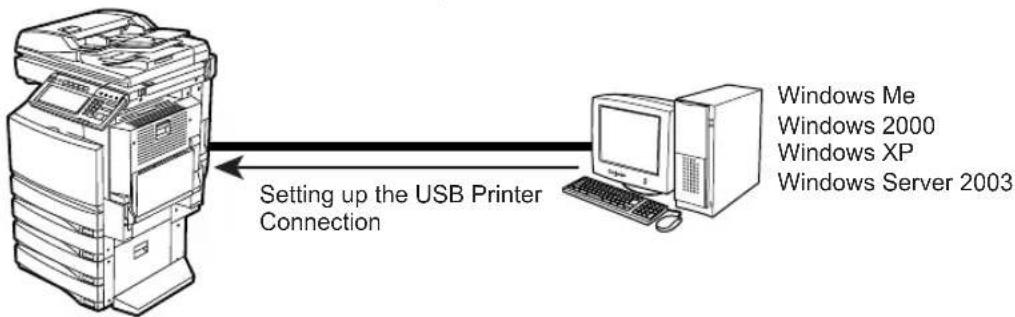
flowchart
graph LR
    A["Windows Me"] --> B["Windows 2000"]
    B --> C["Windows XP"]
    C --> D["Windows Server 2003"]
    E["Setting up the USB Printer Connection"] --> A
This equipment supports the USB 1.1 Full Speed connection. When this equipment is connected to your computer with the USB cable, you must install the printer drivers using the Windows Plug and Play functions.
P.25 "Installing Client Software for USB Printing"
— Local Area Network over TCP/IP
When this equipment is connected to your computer in the local area network over TCP/IP, various printing methods are available such as:
- Raw TCP/LPR Printing (only available for Windows NT 4.0/2000/XP/Server 2003)
- SMB Printing
Some of them are applicable to your environments, the printing methods generally recommended are decided by the Windows version.
• Windows 98, Windows Me — SMB Printing
- Windows NT 4.0, Windows 2000, Windows XP, Windows Server 2003 — Raw TCP/LPR Printing
If you have no advance instruction for an installation from your administrator, check these printing methods whether they are suited to your network environments.
Note
It assumes using SMB printing in a small network. If you can use the Windows NT 4.0, Windows 2000, Windows XP, or Windows Server 2003 as a print server, it is recommended to set up for printing via Windows print server. For further information about setting up printing via a Windows print server, see the Network Administration Guide.
Tip
You can also perform FTP printing over the TCP/IP network. For more information about FTP printing, please refer to the following section.
P.344 "FTP Printing"
Raw TCP/LPR Printing
Available for: Windows NT 4.0, Windows 2000, Windows XP, Windows Server 2003
Connecting over TCP/IP Network
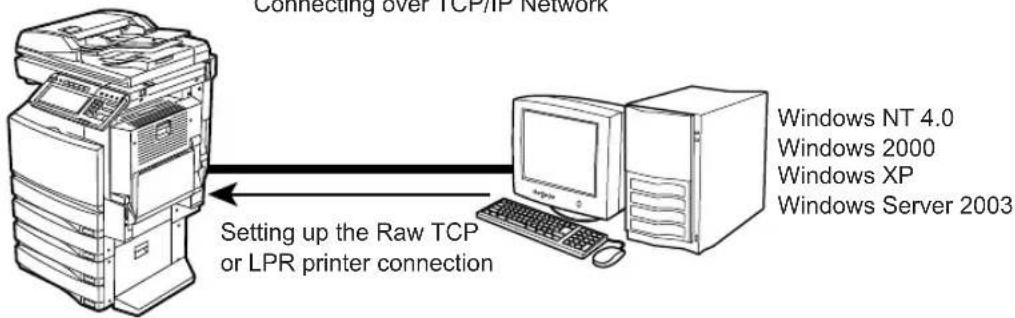
This equipment allows you to connect using Raw TCP or LPR which is available for Windows NT 4.0, Windows 2000, Windows XP, and Windows Server 2003. If you use Windows NT 4.0, Windows 2000, Windows XP, or Windows Server 2003, Raw TCP/LPR printing may be most suitable.
P.35 "Installing Client Software for Raw TCP/LPR Printing"
Tips
- To print with a Raw TCP connection, this equipment must be configured to enable Raw TCP Print Service. Ask your administrator if the Raw TCP Print Service is enabled.
- To print with a LPR connection, this equipment must be configured to enable LPD Print Service. Ask your administrator if the LPD Print Service is enabled.
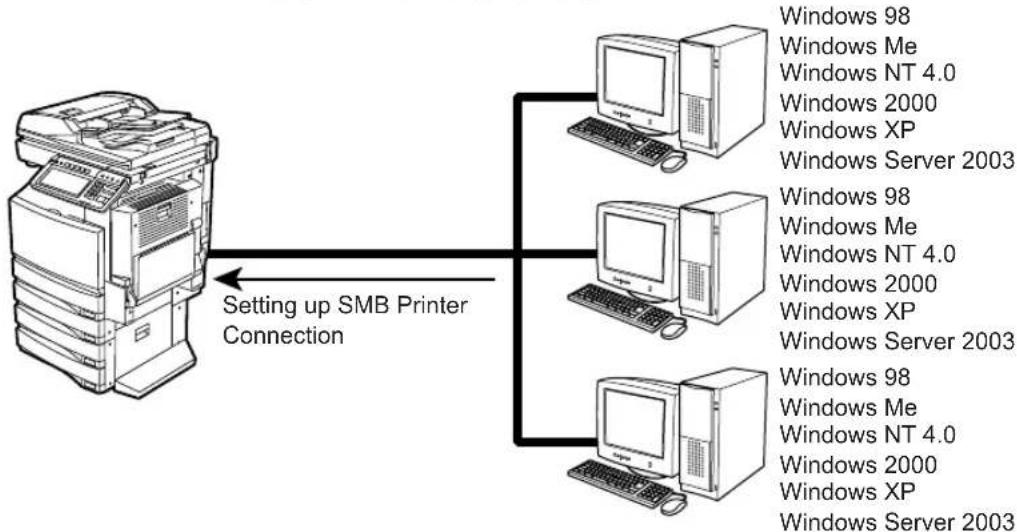
SMB Printing
Available for: Windows 98, Windows Me, Windows NT 4.0, Windows 2000, Windows XP, Windows Server 2003
Network Environment over TCP/IP
flowchart
graph TD
    A["Desktop"] -->|Setting up SMB Printer Connection| B["Windows 98"]
    A -->|Setting up SMB Printer Connection| C["Windows Me"]
    A -->|Setting up SMB Printer Connection| D["Windows NT 4.0"]
    A -->|Setting up SMB Printer Connection| E["Windows 2000"]
    A -->|Setting up SMB Printer Connection| F["Windows XP"]
    A -->|Setting up SMB Printer Connection| G["Windows Server 2003"]
    A --> H["Desktop"]
    H --> I["Windows 98"]
    H --> J["Windows Me"]
    H --> K["Windows NT 4.0"]
    H --> L["Windows 2000"]
    H --> M["Windows XP"]
    H --> N["Windows Server 2003"]
    H --> O["Desktop"]
    O --> P["Windows 98"]
    O --> Q["Windows Me"]
    O --> R["Windows NT 4.0"]
    O --> S["Windows 2000"]
    O --> T["Windows XP"]
    O --> U["Windows Server 2003"]
This equipment can be used with an SMB printer connection that allows you to connect to this equipment using File and Printer Sharing for Microsoft Networks service. SMB printing is the common method used to set up the printer. However, SMB printing is not suitable for printing a large amount of documents.
P.61 "Installing Client Software for SMB Printing"
Note
It assumes using SMB printing in a small network. If you can use the Windows NT 4.0, Windows 2000, Windows XP, or Windows Server 2003 as a print server, it is recommended to set up for printing via Windows print server. For further information about setting up printing via a Windows print server, see the Network Administration Guide.
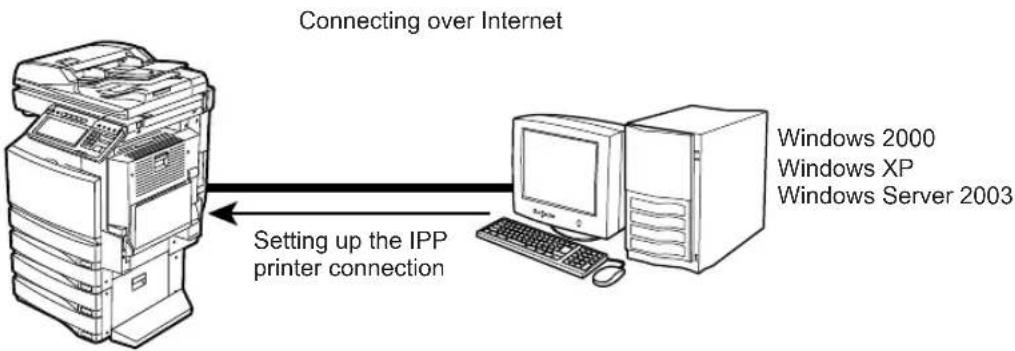
— Internet Connection
Available for: Windows 2000, Windows XP, Windows Server 2003
flowchart
graph LR
    A["Windows 2000"] -->|Setting up the IPP printer connection| B["Windows XP"]
    B --> C["Windows Server 2003"]
    style A fill:#f9f,stroke:#333
    style B fill:#ccf,stroke:#333
    style C fill:#cfc,stroke:#333
If you print to this equipment over the Internet, you can use IPP printing under Windows 2000, Windows XP, and Windows Server 2003. This allows you to print to this equipment from anywhere on the Internet.
P.88 "Installing Client Software for IPP Printing"
Tips
- To print with an IPP connection, this equipment must be configured to enable the IPP Print Service and must be connected to the Internet. Ask your administrator if the IPP Print Service is enabled.
- You can also perform Email printing over the Internet. For more information about Email printing, please refer to the following section.
P.346 "Email Printing"
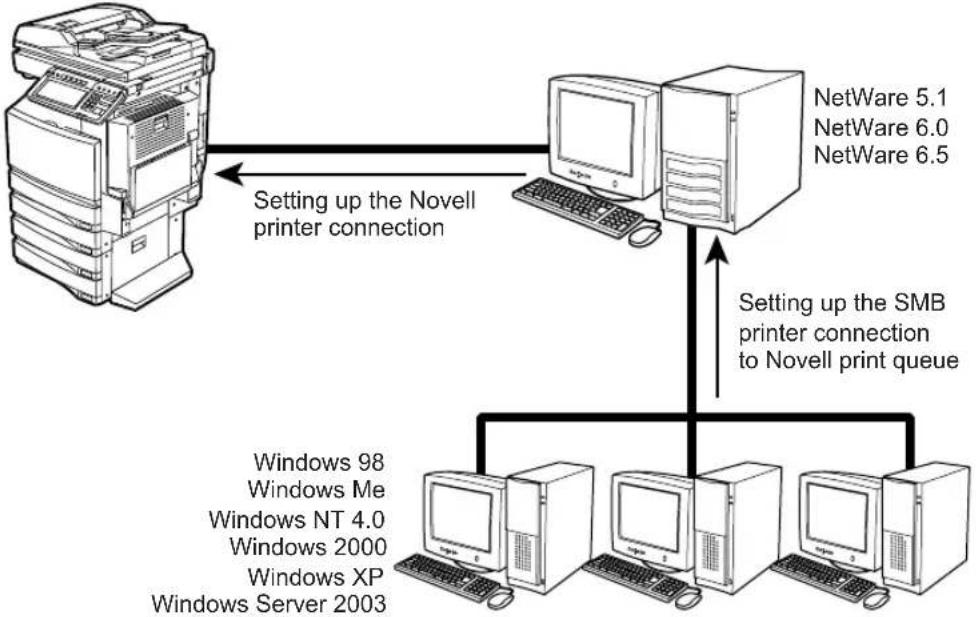
— Novell Printing
Available for: Windows 98, Windows Me, Windows NT 4.0, Windows 2000,
Windows XP, Windows Server 2003
Connecting with a NetWare Environment over TCP/IP or IPX/SPX Network
flowchart
graph TD
    A["Server"] -->|Setting up the Novell printer connection| B["NetWare 5.1\nNetWare 6.0\nNetWare 6.5"]
    B -->|Setting up the SMB printer connection to Novell print queue| C["Desktop with Windows 98, Windows Me, Windows NT 4.0, Windows 2000, Windows XP, Windows Server 2003"]
When this equipment is configured to manage printing with NetWare 5.1/6.0/6.5 over TCP/IP or IPX/SPX, you can print through the NetWare print server from Windows 98/Me, Windows NT 4.0, Windows 2000, Windows XP, and Windows Server 2003. In this case, install the printer driver and set up the SMB printer connection to a print queue created in the NetWare server. P.95 "Installing Client Software for Novell Printing"
Tip
To print with a Novell connection, the NetWare server must be configured for printing and this equipment must be configured to enable NetWare Print Service.
— Novell iPrint
Available for: Windows 98, Windows Me, Windows NT 4.0, Windows 2000, Windows XP, Windows Server 2003
Connecting with a Novell iPrint Environment over TCP/IP Network
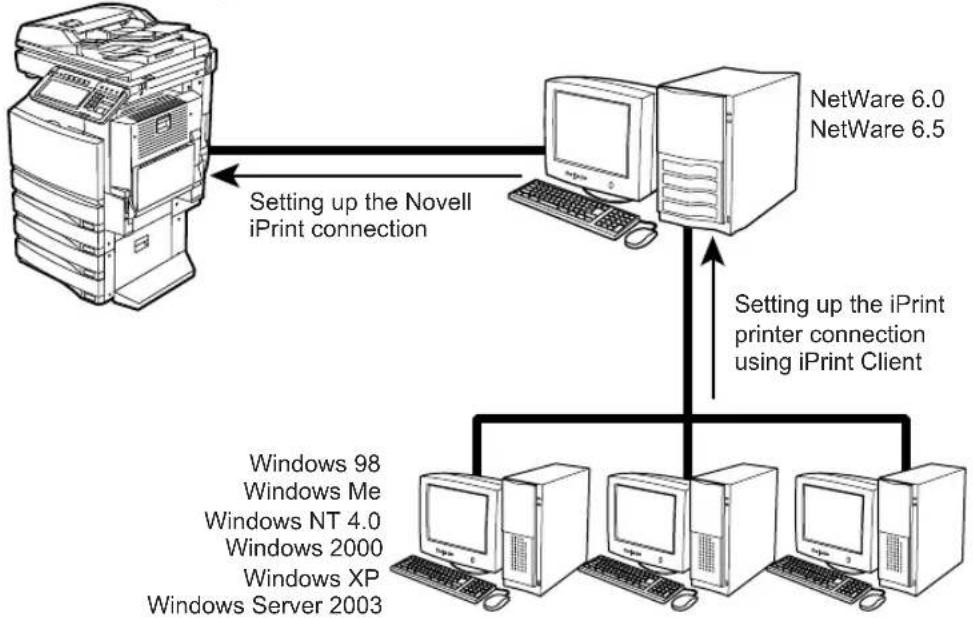
flowchart
graph TD
    A["Windows 98"] -->|Setting up the Novell iPrint connection| B["NetWare 6.0\nNetWare 6.5"]
    C["Windows Me"] -->|Setting up the iPrint printer connection using iPrint Client| D["NetWare 6.0\nNetWare 6.5"]
    E["Windows NT 4.0"] -->|Setting up the iPrint printer connection using iPrint Client| F["NetWare 6.0\nNetWare 6.5"]
    G["Windows 2000"] -->|Setting up the iPrint printer connection using iPrint Client| H["NetWare 6.0\nNetWare 6.5"]
    I["Windows XP"] -->|Setting up the iPrint printer connection using iPrint Client| J["NetWare 6.0\nNetWare 6.5"]
    K["Windows Server 2003"] -->|Setting up the iPrint printer connection using iPrint Client| L["NetWare 6.0\nNetWare 6.5"]
When this equipment is configured to manage iPrint with NetWare 6.0/6.5 over TCP/IP, you can print through the NetWare print server from Windows 98/Me, Windows NT 4.0, Windows 2000, Windows XP, and Windows Server 2003. In this case, install the printer driver using iPrint Client from the NetWare server.
P.109 "Installing Client Software for Novell iPrint"
Tip
To print with a Novell iPrint, the NetWare server must be configured for iPrint and this equipment must be configured to enable NetWare Print Service.
Installing Client Software for USB Printing
This section describes how to set up the printer drivers when this equipment is connected with USB cable.
To set up the printer drivers for USB printing, you must install the printer drivers by Plug and Play functions instead of installing the client software using the installer in the Client Utilities CD-ROM.
When this equipment is connected to a USB port of Windows Me, Windows 2000, Windows XP, or Windows Server 2003 computers, the Plug and Play Wizard automatically starts. You can install a printer driver using this method but other client software cannot be installed.
Tips
- TopAccessDocMon is not available when this equipment is connected using only the USB cable. However, when this equipment and your computer are connected to the local area network and this equipment is connected to the USB port of your computer, you can use TopAccessDocMon to monitor your print jobs. To install TopAccessDocMon, you must install it from the Client Utilities CD-ROM separately.
- The Font Manager is also available to install and manage the TrueType fonts on your computer. To install the Font Manager, you must install it from the Client Utilities CD-ROM separately.
Note
USB printing is not supported in Windows NT 4.0.
Installation for USB Printing by Plug and Play
The procedure to install the printer driver for USB printing by Plug and Play differs depending on the version of Windows used.
P.25 "Windows XP/Server 2003"
P.28 "Windows 2000"
P.30 "Windows Me"
Windows XP/Server 2003
Installing the printer driver for USB printing by Plug and Play
The following describes an installation on Windows XP. The procedure is the same when Windows Server 2003 is used.
Note
You must log into Windows as a user who has the “Administrators” or “Power Users” privilege when using Windows XP or Windows Server 2003.
1 Power on this equipment and your computer.
2 Connect the USB cable to this equipment and your computer.
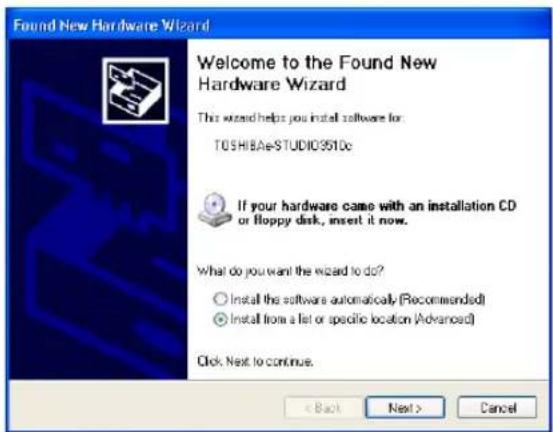
• The Found New Hardware Wizard dialog box appears.
3 Select "Install from a list or specific location (Advanced)" and click [Next].
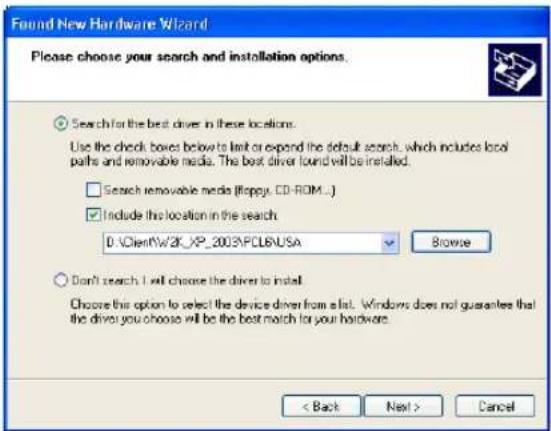
4 Select "Search for the best driver in these locations." and check only the "Include this location in the search" check box. Then click [Browse].
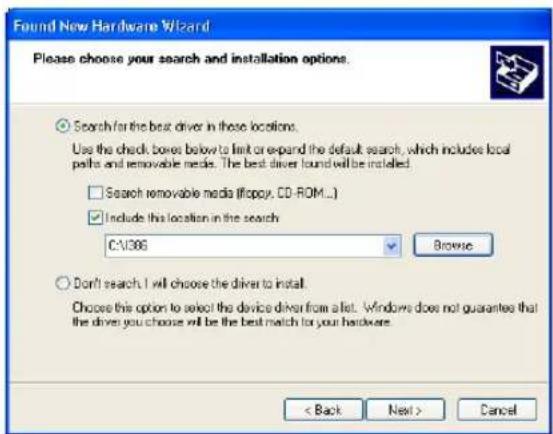
• The Browse For Folder dialog box appears.
5 Insert the Client Utilities CD-ROM into the CD-ROM drive.
- When inserting the Client Utilities CD-ROM, the installer may automatically start. Click [Cancel] to exit the installer and continue the operation.
6 Locate the directory where the printer driver for Windows XP/Server 2003 is located and click [OK].
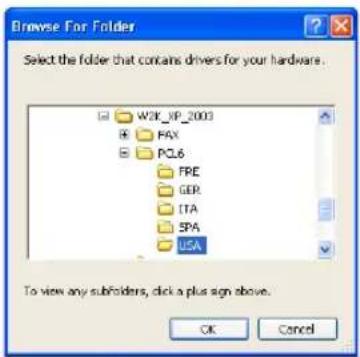
- To install the PCL6 printer driver, locate "[CD-ROM drive]:\Client\W2K_XP_2003\PCL6\
" - To install the PS3 printer driver, locate "[CD-ROM drive]:\Client\W2K_XP_2003\PS\
".
7 Click [Next].
- It starts copying files.
8 Click [Finish].
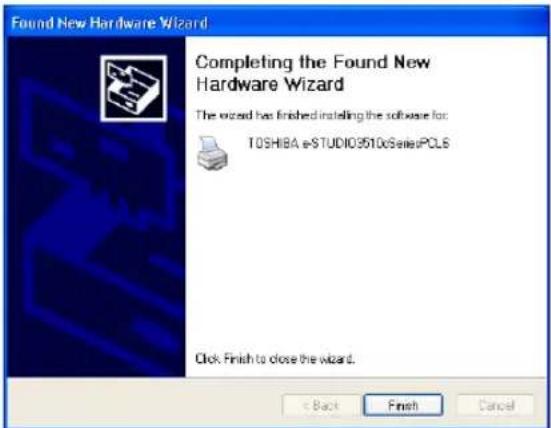
9 The installation is completed.
Note
Before using the printer driver for printing, please configure the installed options of the equipment and department code (if required) on the printer driver. P.188 "Before Using the Printer Driver"
Windows 2000
Installing the printer driver for USB printing by Plug and Play
Note
You must log into Windows as a user who has the "Administrators" or "Power Users" privilege when using Windows 2000.
1 Power on this equipment and your computer.
2 Connect the USB cable to this equipment and your computer.
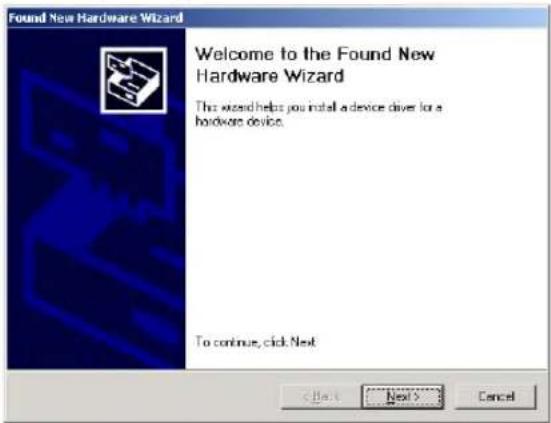
• The Found New Hardware Wizard dialog box appears.
3 Click [Next].
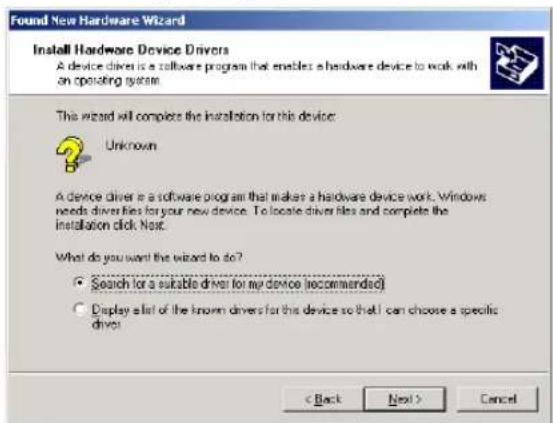
4 Select "Search for a suitable driver for my device (recommended)" and click [Next].
5 Insert the Client Utilities CD-ROM into the CD-ROM drive.
- When inserting the Client Utilities CD-ROM, the installer may automatically start. Click [Cancel] to exit the installer and continue the operation.
6 Select only "Specify a location" and click [Next].
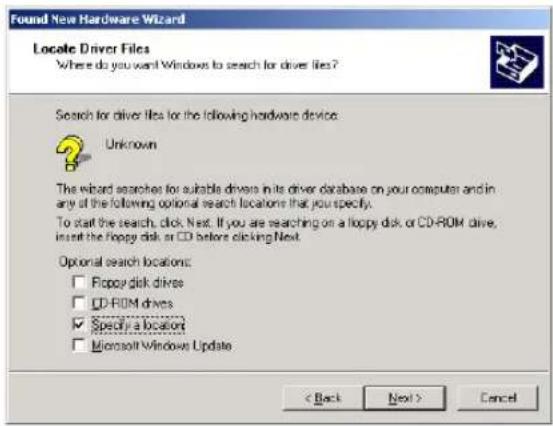
7 Click [Browse].
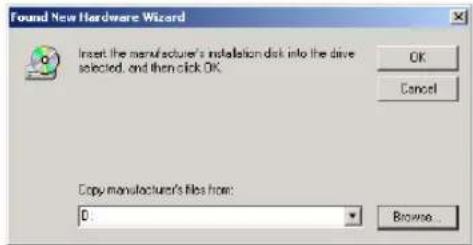
• The Locate File dialog box appears.
8 Locate the directory where the printer driver for Windows 2000 is located, select a inf file, and click [Open].
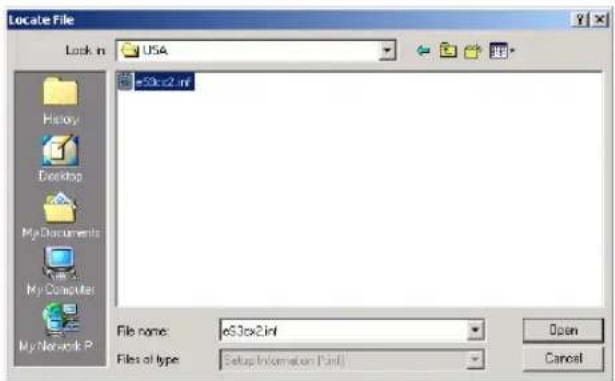
- To install the PCL6 printer driver, locate "[CD-ROM drive]:\Client\W2K_XP_2003\PCL6\
". - To install the PS3 printer driver, locate "[CD-ROM drive]:\Client\W2K_XP_2003\PS\
"
9 Click [OK].
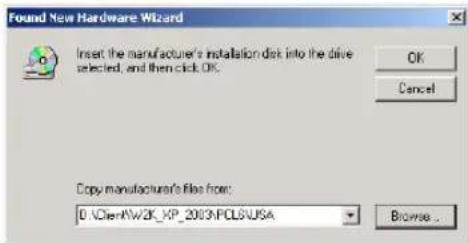
10 Check [Next].
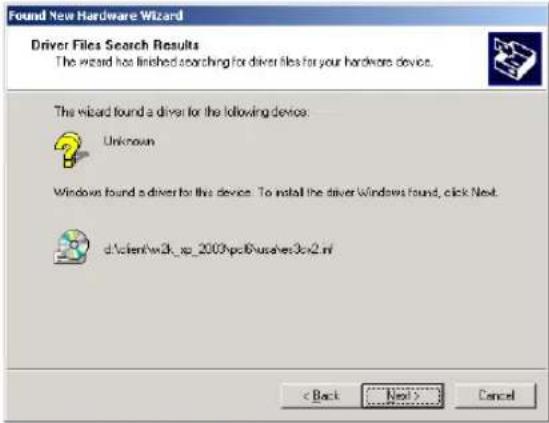
• It starts copying files.
11 Click [Finish].
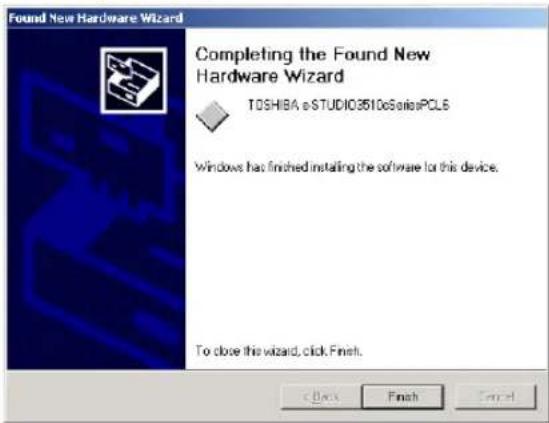
12 The installation is completed.
Note
Before using the printer driver for printing, please configure the installed options of the equipment and department code (if required) on the printer driver.
P.188 "Before Using the Printer Driver"
Windows Me
Installing the printer driver for USB printing by Plug and Play
1 Power on this equipment and your computer.
2 Insert the Client Utilities CD-ROM into the CD-ROM drive.
- When inserting the Client Utilities CD-ROM, the installer may automatically start. Click [Cancel] to exit the installer and continue the operation.
3 Connect the USB cable to this equipment and your computer.
• The Add New Hardware Wizard dialog box appears.
4 Select "Automatic search for a better driver (Recommended)" and click [Next].
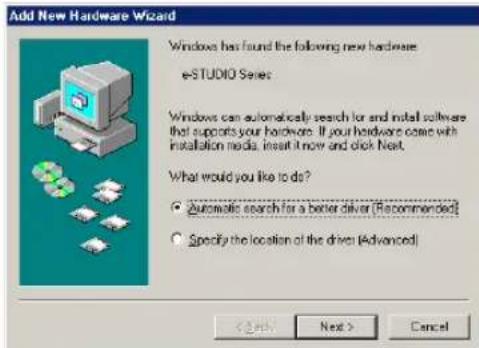
- It starts searching the USB driver. When the USB port driver is found in the Client Utilities CD-ROM, it automatically installs the USB port driver.
Note
If the USB port driver cannot be installed automatically, click [Back] in the displayed dialog box, make sure the Client Utilities CD-ROM is inserted in the CD-ROM drive, and then click [Next] to install the USB port driver again.
5 Click [Finish].
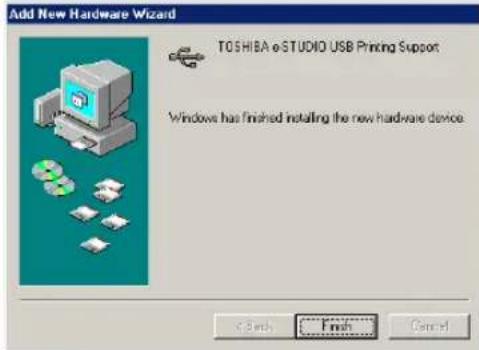
6 Click [Next].
7 Select "Search for the best driver for your device (Recommended)" and click [Next].
![Add New Hardware Wizard What do you want Windows to do? • Search for the best driver for your device. [Recommended] • Display a list of all live drivers in a specific location, so you can select the driver you want < Back Next > Cancel](/content/2026/06/1276857/images/fb12308656e0ca5d5d1f9f4a09462c4345cc1ca54690e4e251aa148b8145946a.jpg)
8 Check only the "Specify a location" check box and click [Browse].
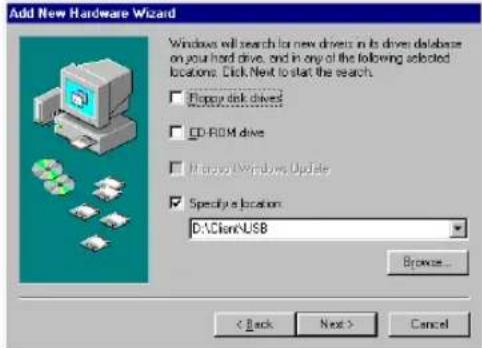
• The Browse for Folder dialog box appears.
9 Locate the directory where the printer driver for Windows 98/Me is located and click [OK].
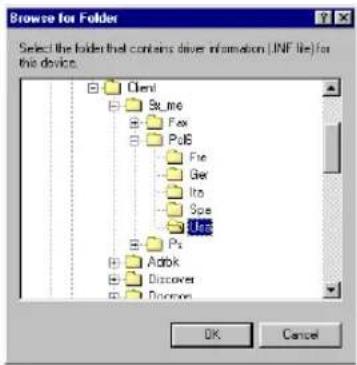
- To install the PCL6 printer driver, locate "[CD-ROM drive]:\Client\9X_ME\PCL6\
" - To install the PS3 printer driver, locate "[CD-ROM drive]:\Client\9X_ME\PS\
"
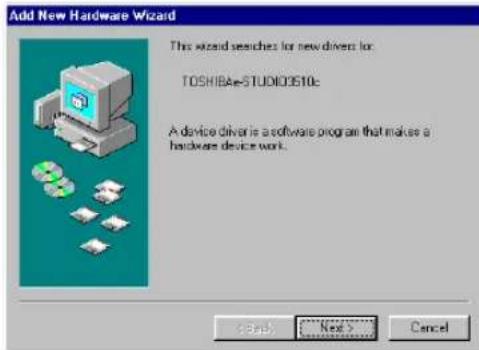
10 Click [Next].
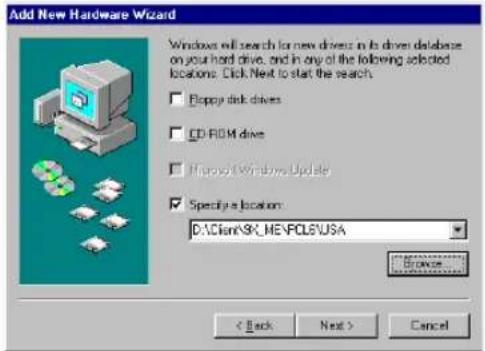
11 Click [Next].
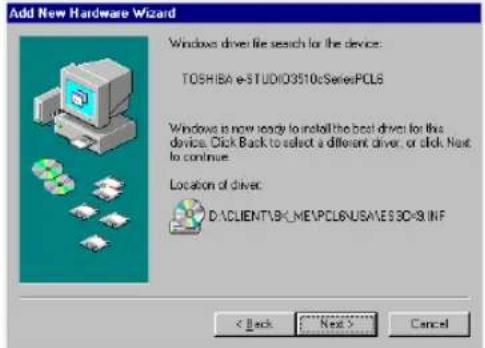
12 Change the name if desired and click [Next].
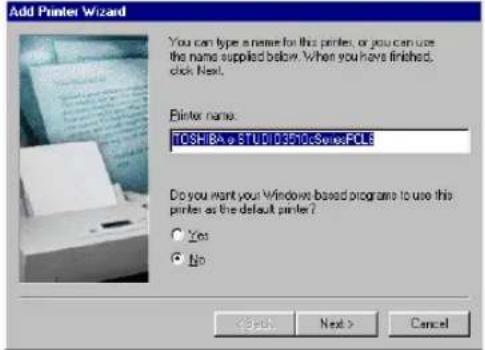
Tip
If any printer drivers have installed on the computer, select whether using this printer as a default printer.
13 Select "Yes (recommended)" to print a test page and click [Finish].
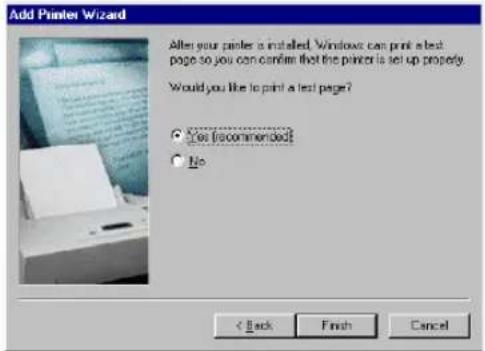
- Start copying files.
14 Make sure the test page is successfully printed and click [Yes].
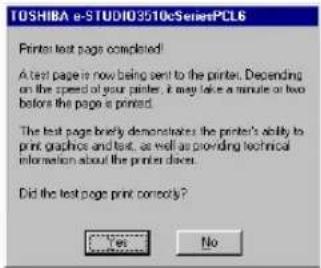
15 Click [Finish].
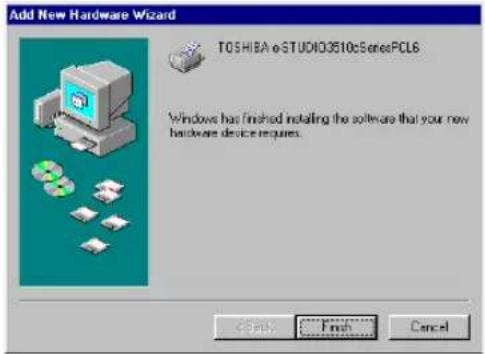
16 The installation is completed.
Note
Before using the printer driver for printing, please configure the installed options of the equipment and department code (if required) on the printer driver.
P.188 "Before Using the Printer Driver"
This section describes how to set up the printer drivers for Raw TCP/LPR printing which is available for the local area network over TCP/IP.
There are Two ways to set up the printer drivers for Raw TCP/LPR printing:
- Using the installer in the Client Utilities CD-ROM You can set up the printer drivers for Raw TCP/LPR printing by installing the printer drivers using the installer in the Client Utilities CD-ROM. Then you install and configure the Raw TCP or LPR port to configure the connection.
P.35 "Installation for Raw TCP/LPR Printing Using the Installer"
- Using Add Printer Wizard When you want to install the printer drivers without using the installer, or when you want to install the same printer driver for another equipment, install the printer drivers using the Add Printer Wizard.
P.48 "Installation for Raw TCP/LPR Printing by Add Printer Wizard"
Notes
- Before operating the following setup, check with your system administrator to make sure of the following:
- This equipment is connected to the network and turned on.
- The TCP/IP setting is correct on this equipment and your computer.
- Raw TCP Printing is only available for Windows 2000, Windows XP, and Windows Server 2003.
- LPR Printing is only available for Windows NT 4.0, Windows 2000, Windows XP, and Windows Server 2003.
Installation for Raw TCP/LPR Printing Using the Installer
Install the client software using the installer in the Client Utilities CD-ROM first, then configure the Raw TCP or LPR port in each printer driver.
Installing the client software for Raw TCP/LPR printing using the installer
The following describes an installation on Windows XP. The procedure is the same when other versions of Windows are used.
Note
You must log into Windows as a user who has the “Administrators” or “Power Users” privilege when using Windows NT 4.0, Windows 2000, Windows XP, or Windows Server 2003.
1 Insert the Client Utilities CD-ROM into the CD-ROM drive.
- The installer automatically starts and the Choose Setup Language dialog box appears.
- If the installer does not automatically start, double-click "Setup.exe" in the Client Utilities CD-ROM.
2 Select your language and click [OK].
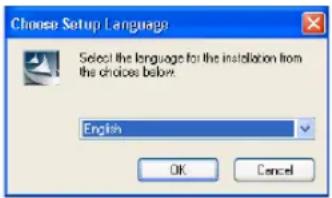
• The License Agreement screen is displayed.
3 Select "I accept the terms of the license agreement" and click [Next].
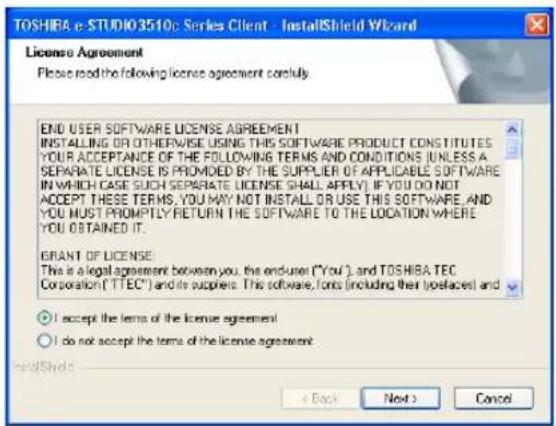
• The Setup Type screen is displayed.
4 Select "Custom" and click [Next].
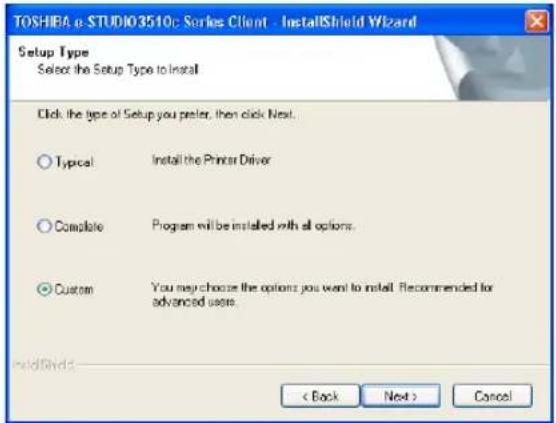
• The Select Components screen is displayed.
5 Check the software that you want to install and click [Next].
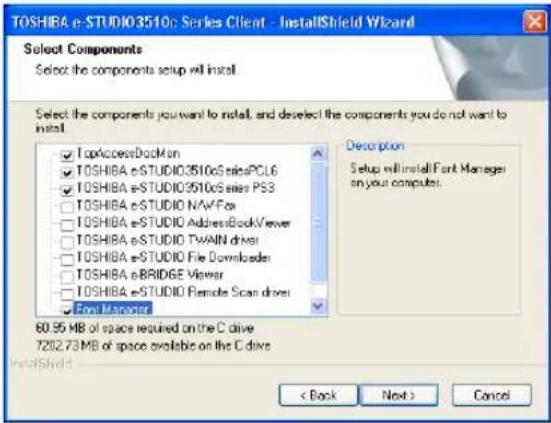
TopAccessDocMon — Check this to install the Document Monitor.
TOSHIBA e-STUDIO3510cSeriesPCL6 — Check this to install the PCL6 printer driver.
TOSHIBA e-STUDIO3510cSeriesPS3 — Check this to install the PS3 printer driver.
Font Manager — Check this to install Font Manager and fonts.
• The Choose Destination Location screen is displayed.
Tip
There are also Network Fax software, e-Filing software, and scan software in the list. For more information about these software, please see the Network Fax Guide, e-Filing Guide, and Scanning Guide.
6 Click [Next].
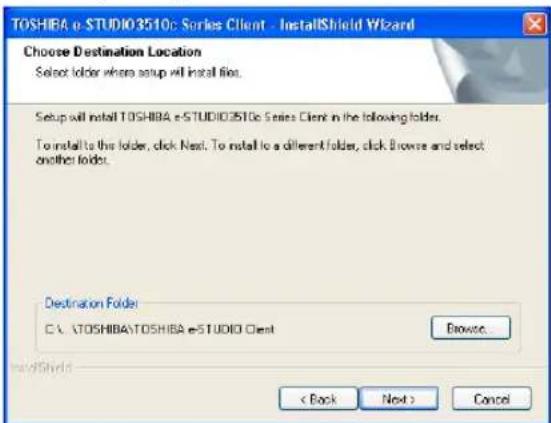
- If you want to change the location where the programs are installed, click [Browse]. In the dialog box that appears, select the folder and click [OK].
• The Select Port screen is displayed.
Note
If the following dialog box appears, click [Continue] to proceed the operation.
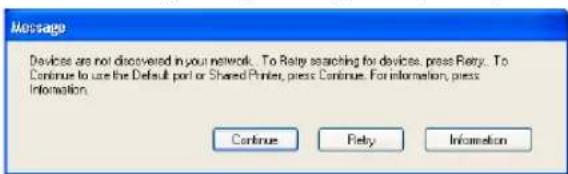
7 Select "Local Port" option and select "LPT1:" in the drop down box. Then click [Next].
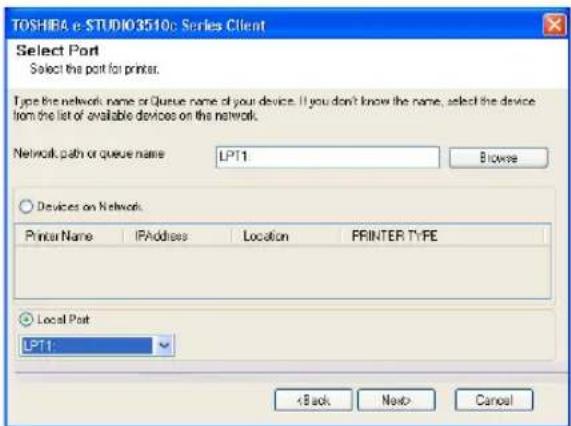
• The Select Program Folder screen is displayed.
8 Click [Next].
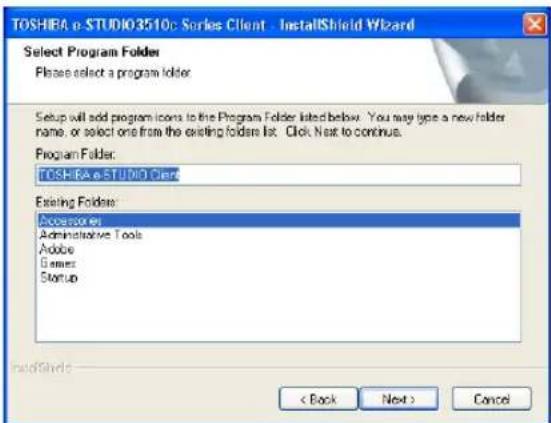
- If you want to change the program folder, rename the folder in the "Program Folder" field.
- Starts copying files and the InstallShield Wizard Complete screen is displayed when copying files are completed.
Notes
- When you select to install the N/W-Fax driver, the Digital Signature Not Found dialog box appears while copying files. Click [Yes] to continue the installation.
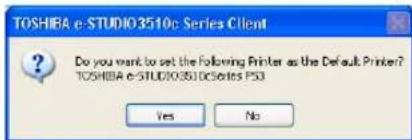
- If the following message appears, click [Yes] to set the indicated printer driver to be the default printer driver, or click [No] to not change the default printer driver.
9 Click [Finish].
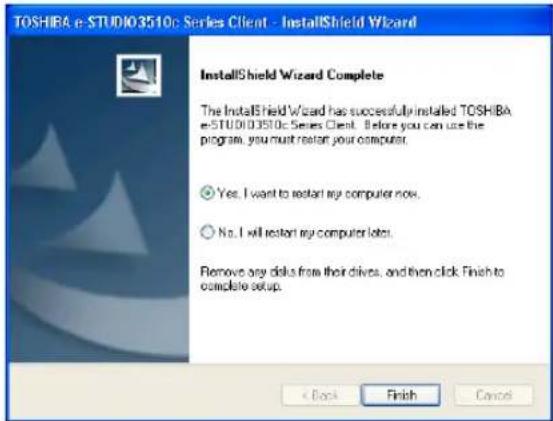
- If you selected to install TopAccessDocMon during the installation, the system may ask whether you want to view the Readme file and launch TopAccessDocMon.
Note
The Installer may ask you to restart your computer. If it does, select "Yes, I want to restart my computer now." and click [Finish] to restart your computer.
10 Continue to configure the Raw TCP or LPR port.
The procedure to configure the Raw TCP or LPR port differs depending on the version of Windows used.
P.39 "Configuring the Raw TCP/LPR port for Windows 2000/XP/Server 2003"
P.45 "Configuring the LPR port for Windows NT 4.0"
Configuring the Raw TCP/LPR port for Windows 2000/XP/Server 2003
After you install the client software using the installer in the Client Utilities CD-ROM, create the Raw TCP or LPR port.
The following describes an installation on Windows XP. The procedure is the same when Windows 2000 or Windows Server 2003 is used.
Tip
For instructions on how to install the client software, see the following section.
P.35 "Installing the client software for Raw TCP/LPR printing using the installer"
Note
You must log into Windows as a user who has the "Administrators" or "Power Users" privilege when using Windows 2000, Windows XP, or Windows Server 2003.
1 After installing the client software, click [Start] and click [Printers and Faxes] to open the Printers and Faxes folder.
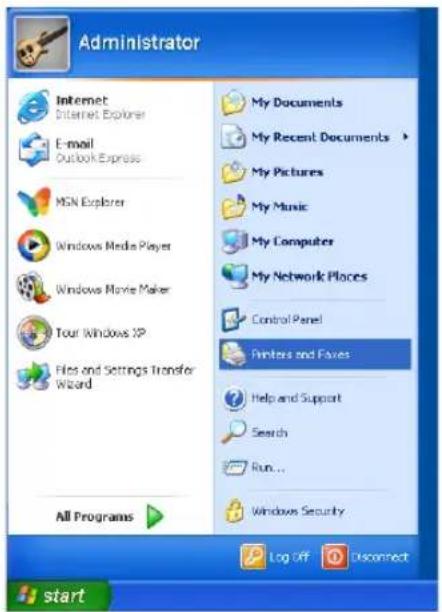
- If you are using the Windows 2000, click [Start], select [Settings], and click [Printers] to open the Printers folder.
2 Select the printer driver and select [Properties] in the [File] menu.
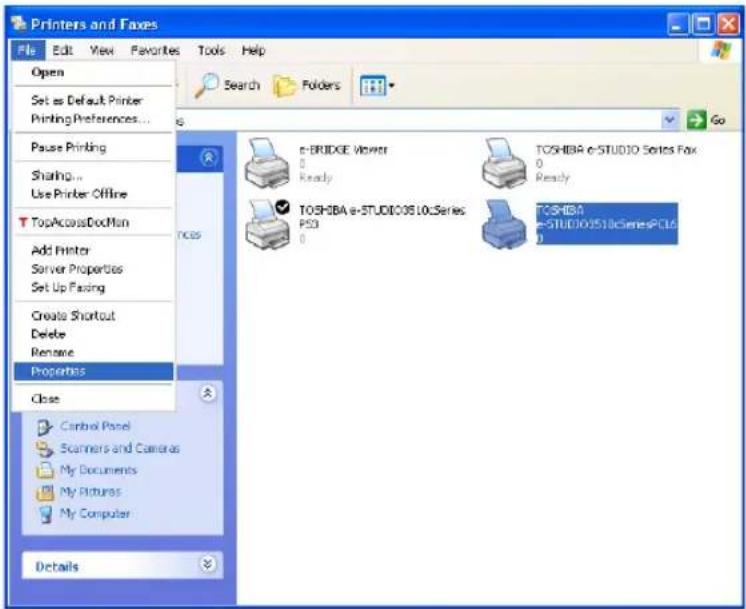
• The printer driver properties dialog box appears.
3 Display the [Ports] tab and click [Add Port...].
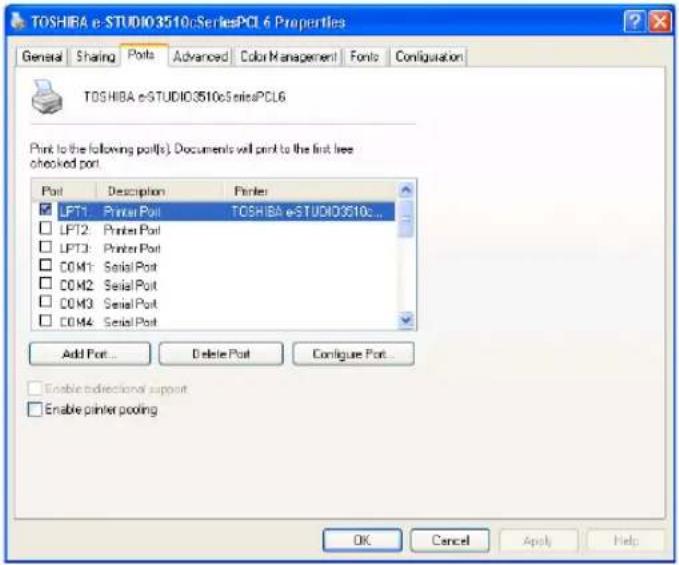
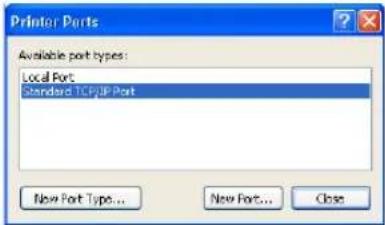
• The Printer Ports dialog box appears.
4 Select "Standard TCP/IP Port" and click [New Port...].
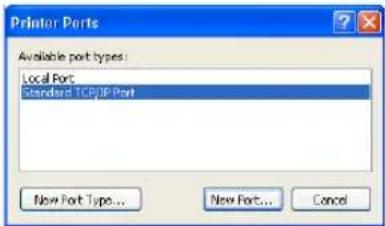
• The Add Standard TCP/IP Printer Port Wizard dialog box appears.
5 Click [Next].
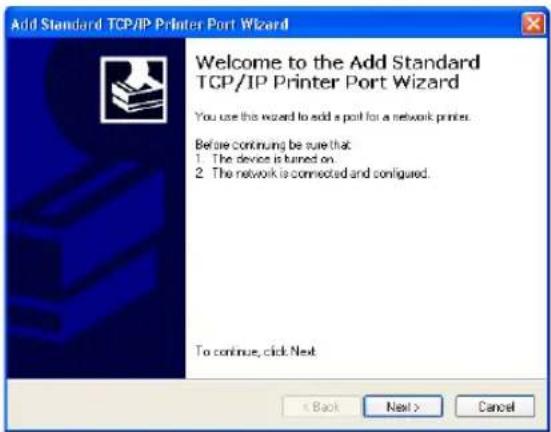
6 Enter the IP address of this equipment in the "Printer Name or IP Address" field and click [Next].
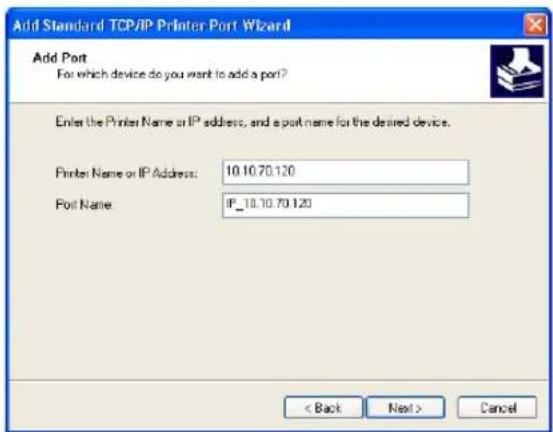
- If your network uses a DNS or WINS server, enter the printer name of this equipment provided from DNS or WINS in the "Printer Name or IP Address" field.
- In the "Port Name" field, the port name is automatically entered according to the IP address or DNS name entered in the "Printer Name or IP Address" field.
7 Select "Standard" and click [Next].
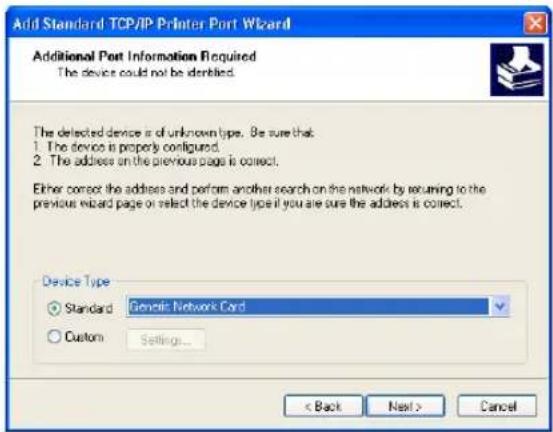
Tip
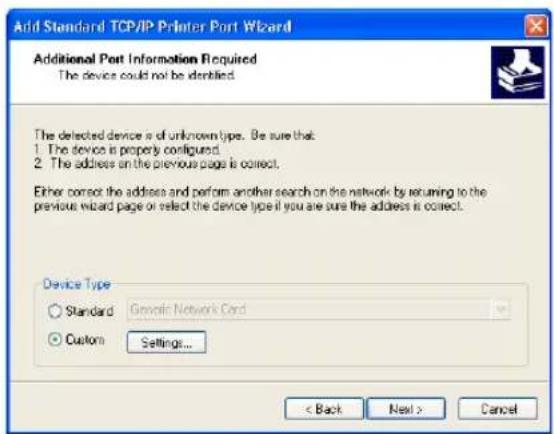
When the LPD Print setting is enabled, you can also configure LPR printing. When you want to configure LPR printing, follow the procedure below.
Select "Custom" and click [Settings...].
Select "LPR" at the "Protocol" option, enter "Print" in the "Queue Name" field at the "LPR Settings" option, and then click [OK].
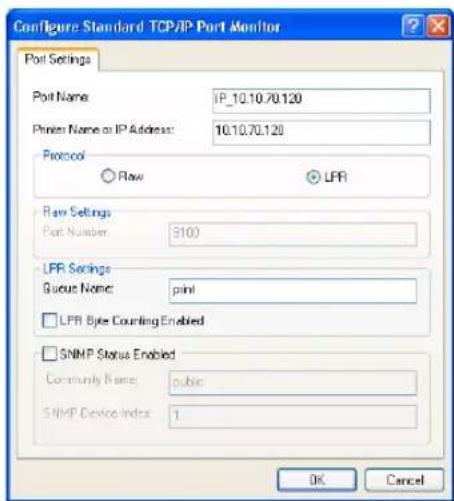
Click [Next].
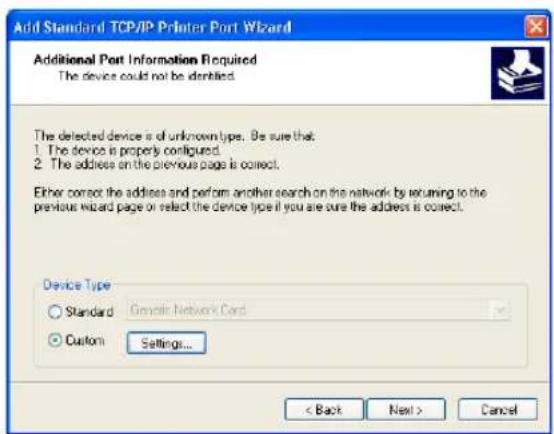
8 Click [Finish].
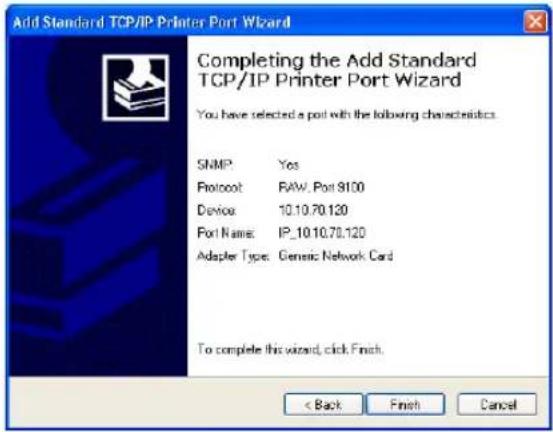
• The screen returns to the Printer Ports dialog box.
9 Click [Close] to close the Printer Ports dialog box.
10 Make sure the created Raw TCP or LPR port is checked in the "Print to the following port(s)" list and click [Close].
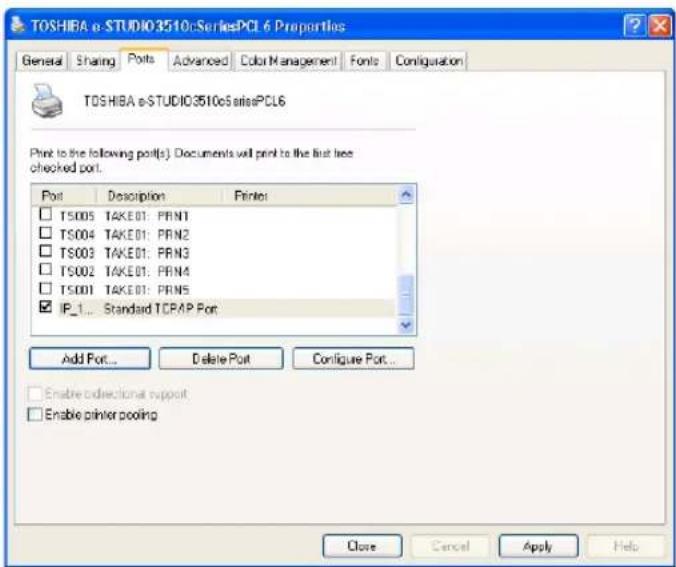
Note
Before using the printer driver for printing, please configure the installed options of the equipment and department code (if required) on the printer driver.
P.188 "Before Using the Printer Driver"
Configuring the LPR port for Windows NT 4.0
After you install the client software using the installer in the Client Utilities CD-ROM, create the LPR port.
Tip
For instructions on how to install the client software, see the following section.
P.35 "Installing the client software for Raw TCP/LPR printing using the installer"
Note
You must log into Windows as a user who has the "Administrators" or "Power Users" privilege when using Windows NT 4.0.
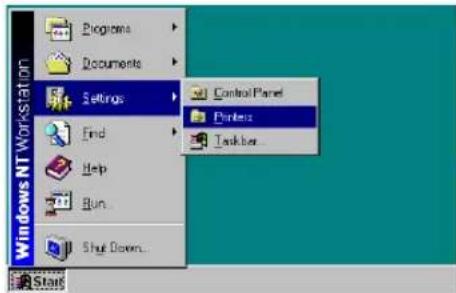
1 After installing the client software, click [Start], select [Settings], and click [Printers] to open the Printers folder.
2 Select the printer driver and select [Properties] in the [File] menu.
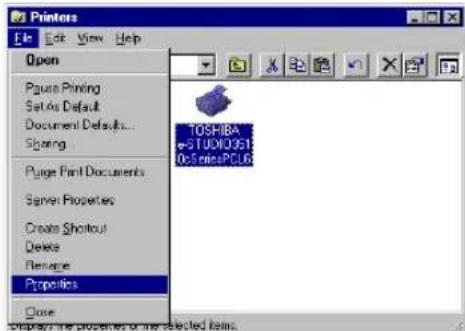
• The printer driver properties dialog box appears.
3 Display the [Ports] tab and click [Add Port...].
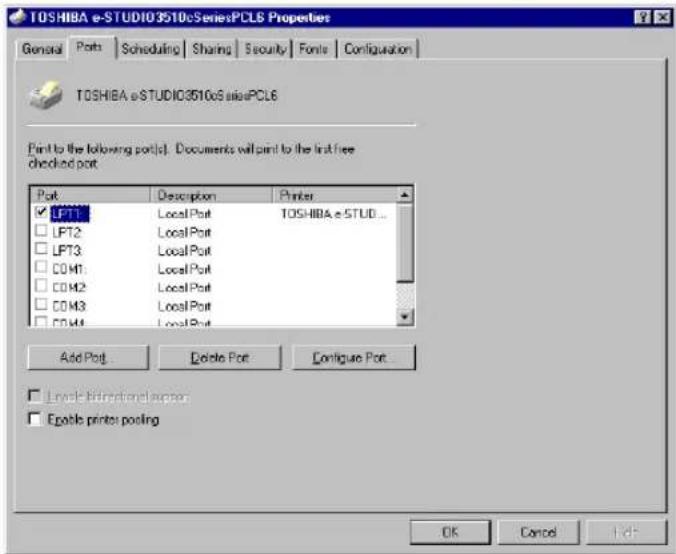
• The Printer Ports dialog box appears.
4 Select "LPR Port" and click [New Port...].
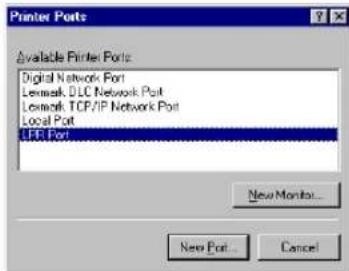
• The Add LPR compatible printer dialog box appears.
Note
If "LPR Port" is not listed, make sure the TCP/IP Printing Service is installed on your Windows NT 4.0. "LPR Port" is not listed unless the TCP/IP Printing Service is installed.
5 Enter the IP address of this equipment in the "Name or address of server providing lpd" field and "Print" in the "Name of printer or print queue on that server" field, and click [OK].
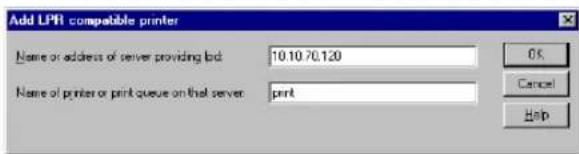
- When your network uses DNS or WINS server, enter the printer name of this equipment provided from DNS or WINS in the "Name or address of server providing lpd" field.
6 Click [Close] to close the Printer Ports dialog box.
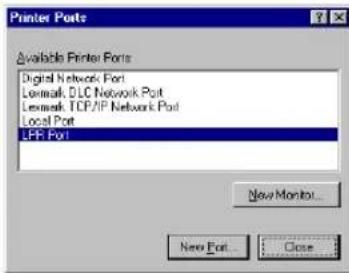
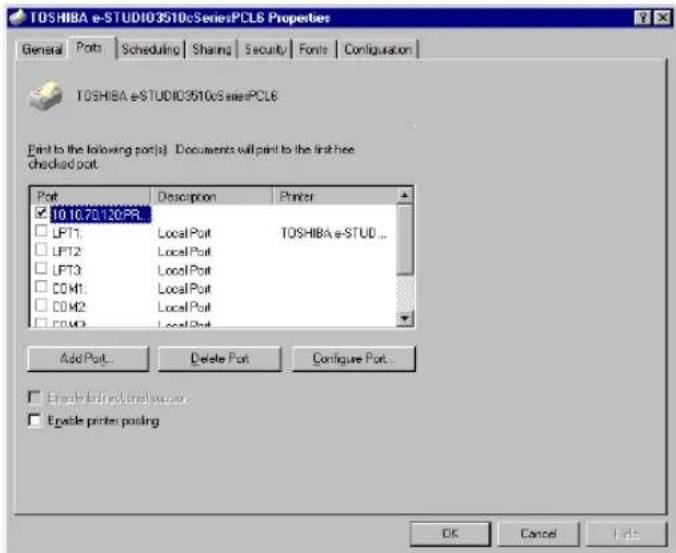
7 Make sure the created LPR port is checked in the "Print to the following port(s)" list and click [OK] to save settings.
Note
Before using the printer driver for printing, please configure the installed options of the equipment and department code (if required) on the printer driver.
P.188 "Before Using the Printer Driver"
Installation for Raw TCP/LPR Printing by Add Printer Wizard
The procedure to install the printer driver for Raw TCP/LPR printing by Add Printer Wizard differs depending on the version of the Windows being used.
P.48 "Windows 2000/XP/Server 2003"
P.56 "Windows NT 4.0"
Tips
- TopAccessDocMon is also available for Raw TCP/LPR printing. To install TopAccessDocMon, you must install it from the Client Utilities CD-ROM separately.
- The Font Manager is also available to install and manage the TrueType fonts on your computer. To install the Font Manager, you must install it from the Client Utilities CD-ROM separately.
Windows 2000/XP/Server 2003
Installing the printer driver for Raw TCP/LPR printing by Add Printer Wizard
The following describes an installation on Windows XP. The procedure is the same when Windows 2000 or Windows Server 2003 is used.
Note
You must log into Windows as a user who has the "Administrators" or "Power Users" privilege when using Windows 2000, Windows XP or Windows Server 2003.
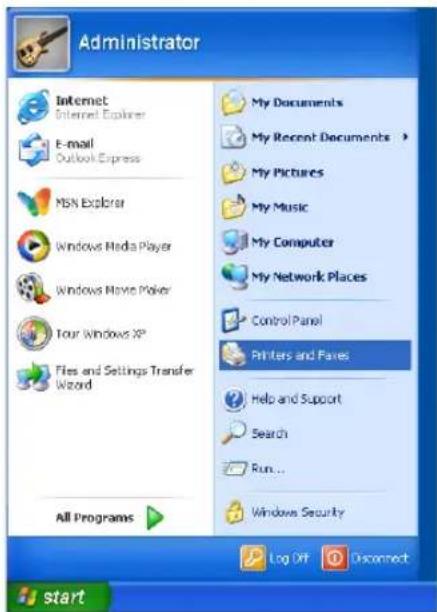
1 After installing the client software, click [Start] and click [Printers and Faxes] to open the Printers and Faxes folder.
- If you are using the Windows 2000, click [Start], select [Settings], and click [Printers] to open the Printers folder.
2 Click the [Add a printer] in the Printer Tasks menu.
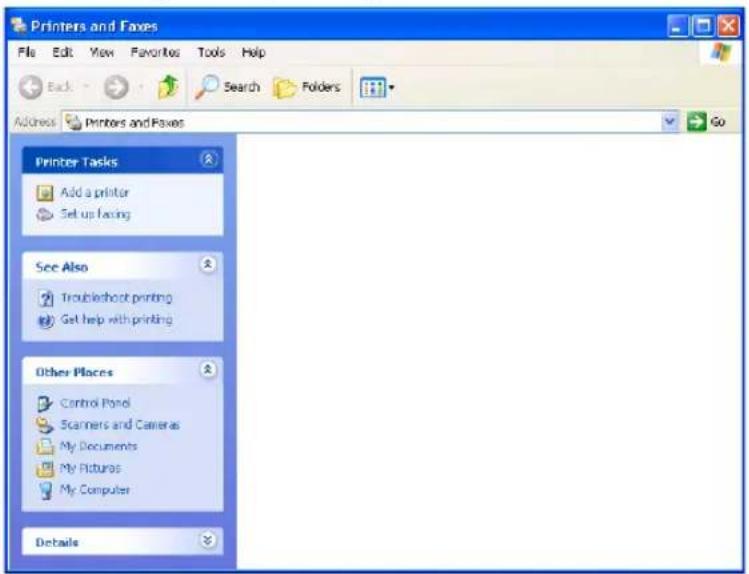
- When using the Windows 2000, double-click [Add Printer] icon.
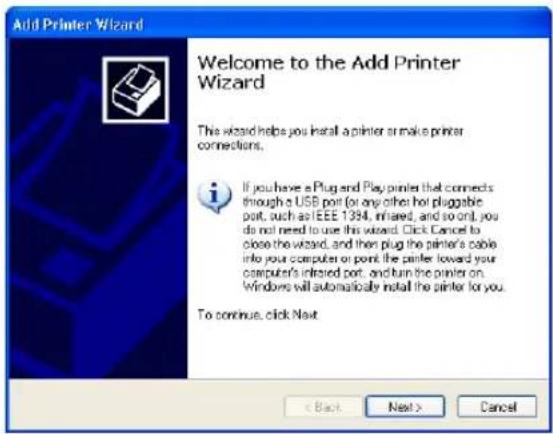
• The Add Printer Wizard dialog box appears.
3 Click [Next].
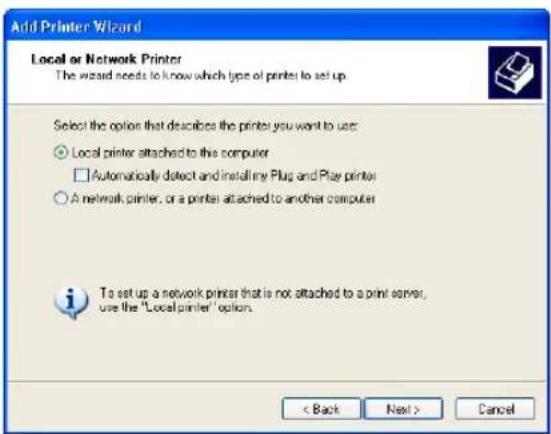
4 Select "Local printer attached to this computer", uncheck the "Automatically detect and install my Plug and Play printer", and click [Next].
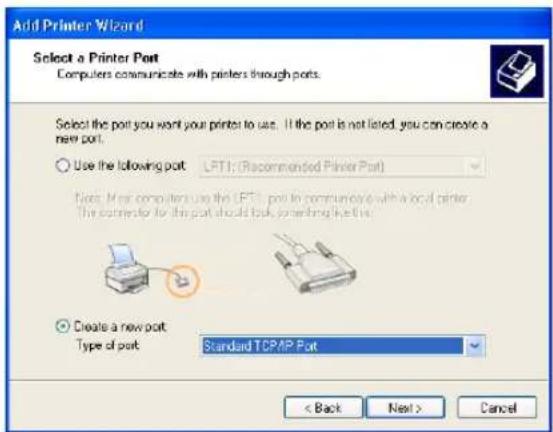
5 Select "Create a new port" and select "Standard TCP/IP Port" in the "Type of port" drop down box. Then click [Next].
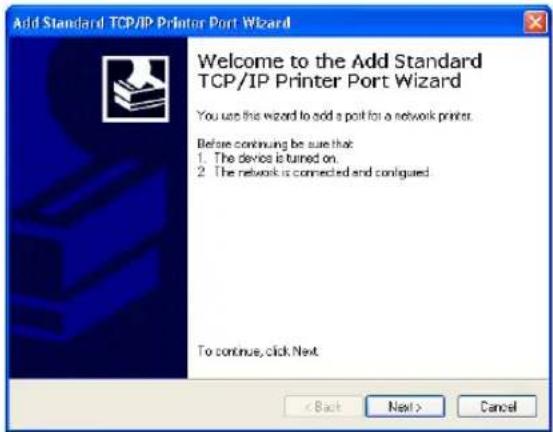
• The Add Standard TCP/IP Printer Port Wizard dialog box appears.
6 Click [Next].
7 Enter the IP address of this equipment in the "Printer Name or IP Address" field and click [Next].
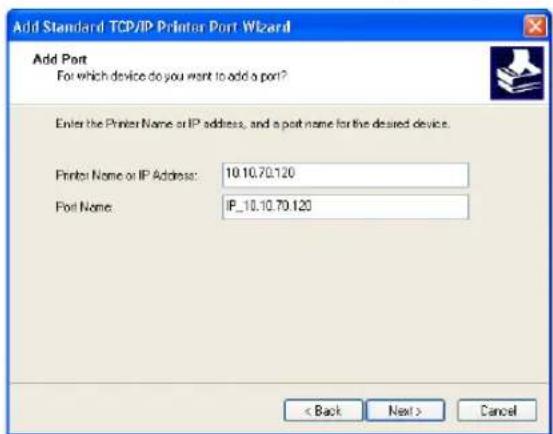
- If your network uses a DNS or WINS server, enter the printer name of this equipment provided from DNS or WINS in the "Printer Name or IP Address" field.
- In the "Port Name" field, the port name is automatically entered according to the IP address or DNS name entered in the "Printer Name or IP Address" field.
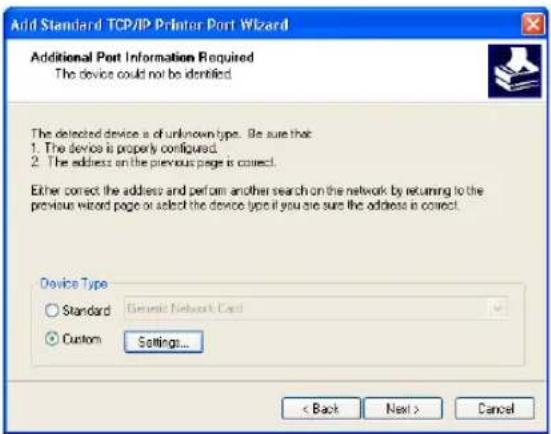
8 Select "Standard" and click [Next].
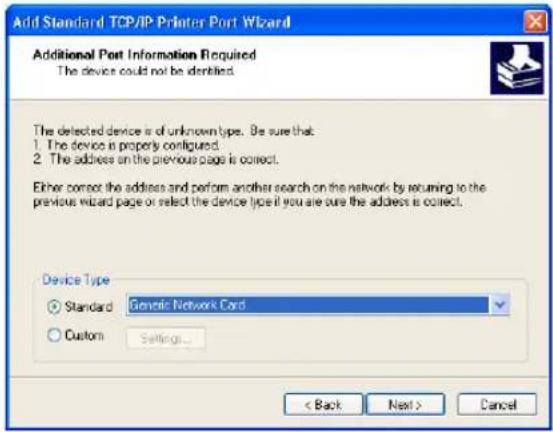
Tip
When the LPD Print setting is enabled, you can also configure LPR printing. When you want to configure LPR printing, follow the procedure below.
Select "Custom" and click [Settings...].
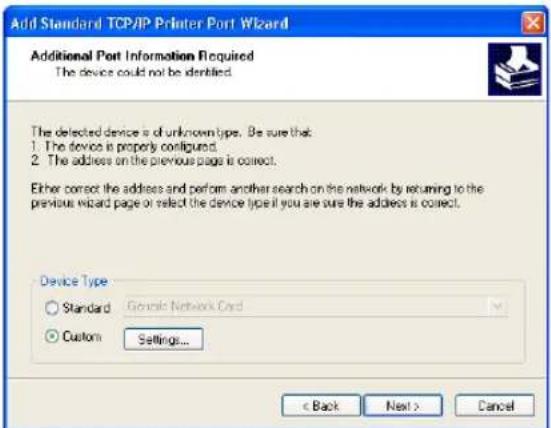
Select "LPR" at the "Protocol" option, enter "Print" in the "Queue Name" field at the "LPR Settings" option, and then click [OK].
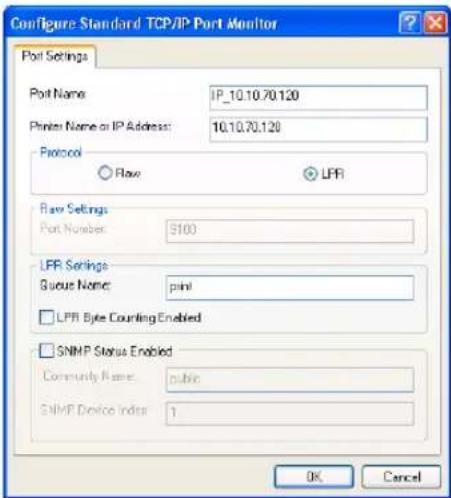
Click [Next].
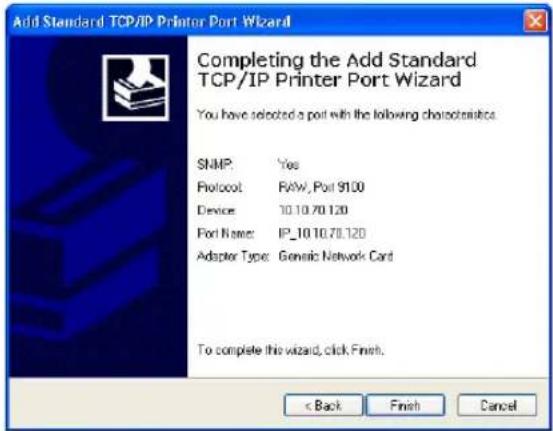
9 Click [Finish].
10 Click [Have Disk...].
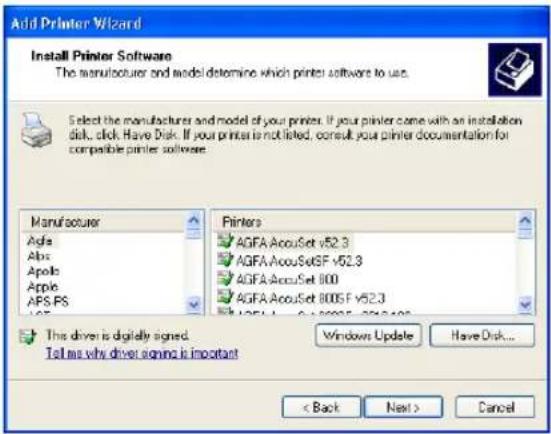
• The Install From Disk dialog box appears.
11 Click [Browse...].
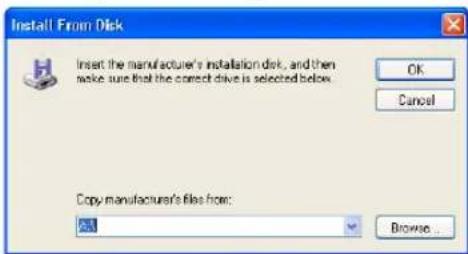
• The Locate File dialog box appears.
12 Insert the Client Utilities CD-ROM into the CD-ROM drive.
- When inserting the Client Utilities CD-ROM, the installer may automatically start. Click [Cancel] to exit the installer and continue the operation.
13 Locate the directory where the printer driver for Windows 2000/XP/Server 2003 is located and click [Open].
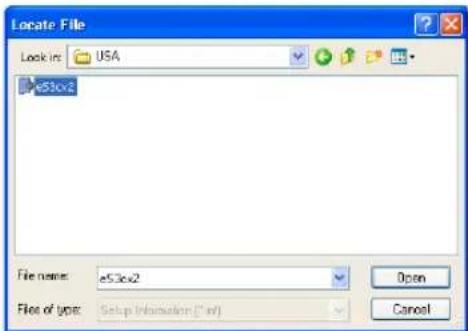
- To install the PCL6 printer driver, locate "[CD-ROM drive]:\Client\W2K_XP_2003\PCL6\
". - To install the PS3 printer driver, locate "[CD-ROM drive]:\Client\W2K_XP_2003\PS\
"
14 Click [OK].
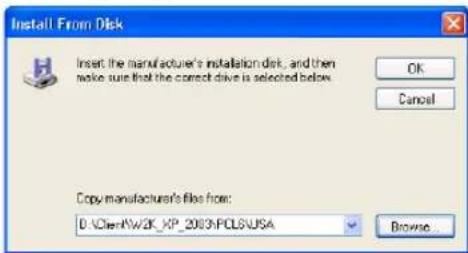
15 Select the printer driver and click [Next].
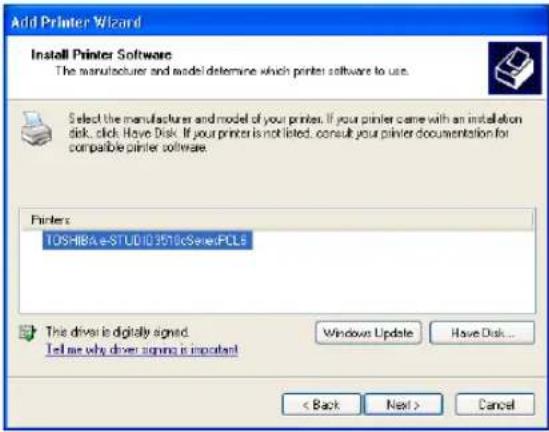
Note
If the same printer driver has been installed, the following dialog box appears. If it appears, select "Replace existing driver" and click [Next].
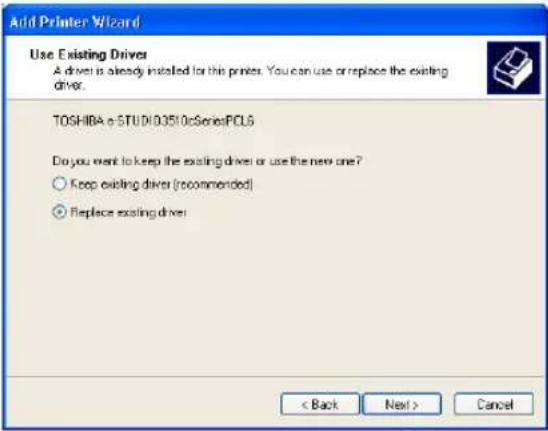
16 Change the name if desired and click [Next].
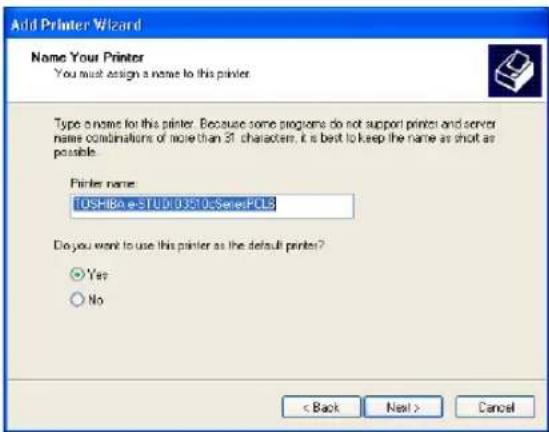
Tip
If any printer drivers have installed on the computer, select whether using this printer as a default printer.
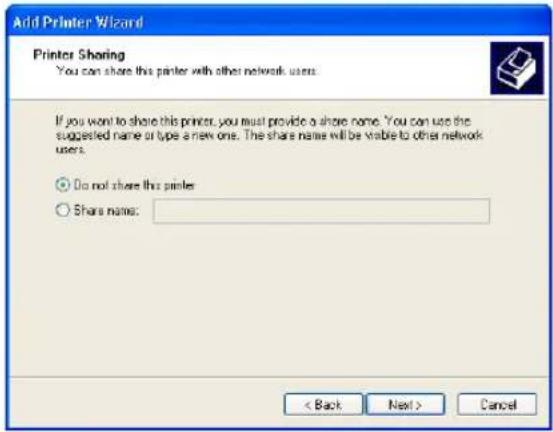
17 Select whether this printer is shared or not, and click [Next].
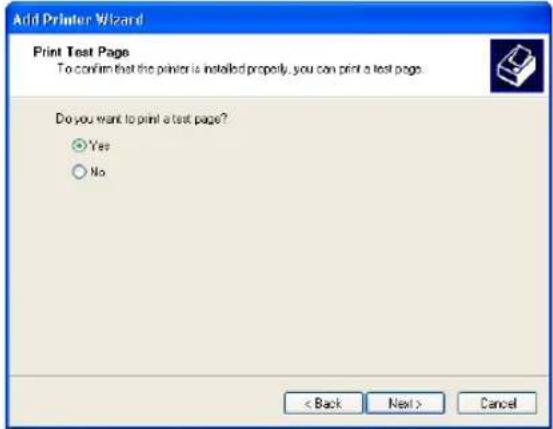
18 Select "Yes" to print a test page and click [Next].
19 Click [Finish].
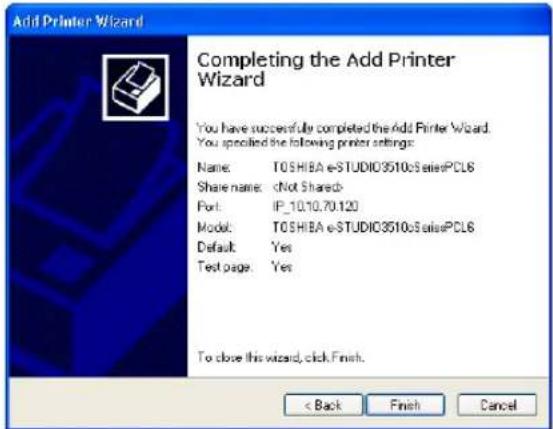
- Start copying files.
20 The installation is completed.
Note
Before using the printer driver for printing, please configure the installed options of the equipment and department code (if required) on the printer driver.
P.188 "Before Using the Printer Driver"
Windows NT 4.0
Installing the printer driver for LPR printing by Add Printer Wizard
Note
You must log into Windows NT 4.0 as a user who has the "Administrators" or "Power Users" privilege.
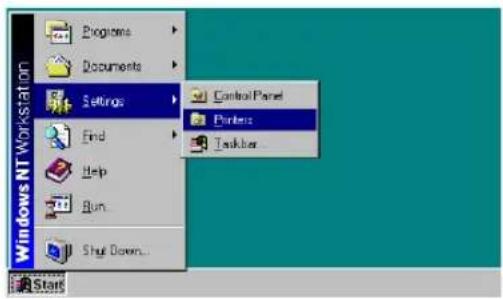
1 Click [Start], select [Settings], and click [Printers] to open the Printers folder.
2 Double-click the [Add Printer] icon.
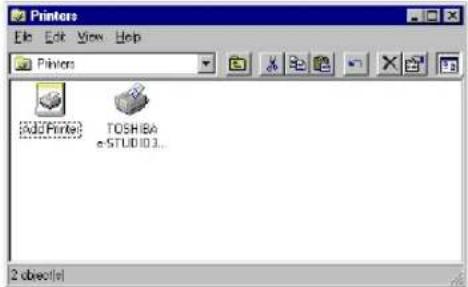
• The Add Printer Wizard dialog box appears.
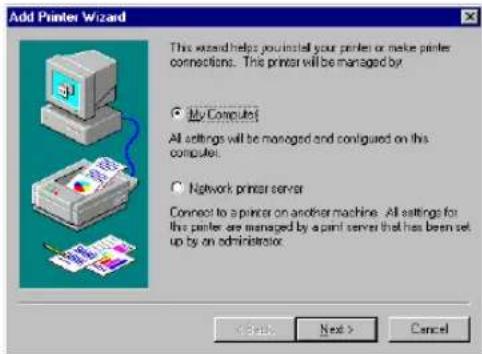
3 Select "My Computer" and click [Next].
4 Click [Add Port...].
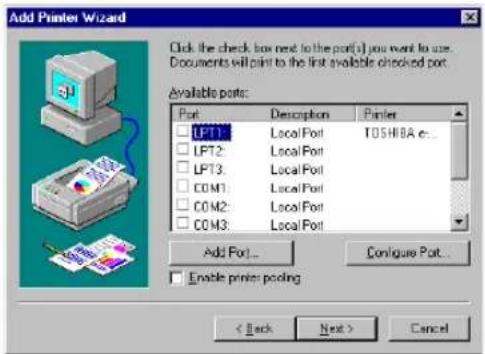
• The Printer Ports dialog box appears.
5 Select "LPR Port" and click [New Port...].
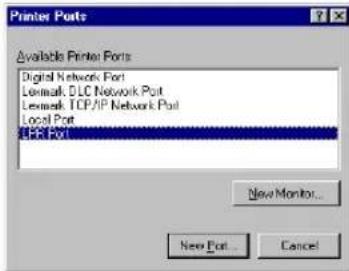
• The Add LPR compatible printer dialog box appears.
Note
If "LPR Port" is not listed, make sure the TCP/IP Printing Service is installed on your Windows NT 4.0. "LPR Port" is not listed unless the TCP/IP Printing Service is installed.
6 Enter the IP address of this equipment in the "Name or address of server providing lpd" field and "Print" in the "Name of printer or print queue on that server" field, and click [OK].
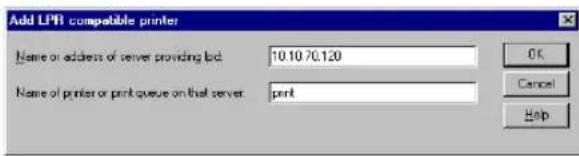
- When your network uses DNS or WINS server, enter the printer name of this equipment provided from DNS or WINS in the "Name or address of server providing lpd" field.
7 Click [Close] to close the Printer Ports dialog box.
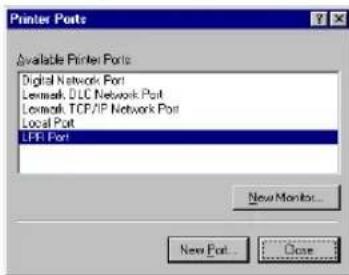
8 Make sure that the created LPR Port is selected in the "Available ports" list and click [Next].
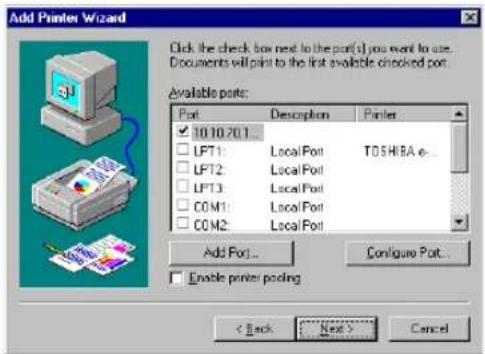
9 Click [Have Disk...].
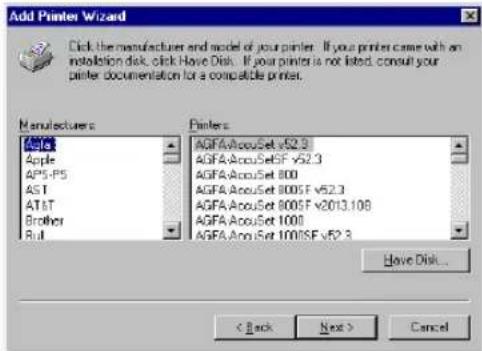
• The Install From Disk dialog box appears.
10 Click [Browse...].
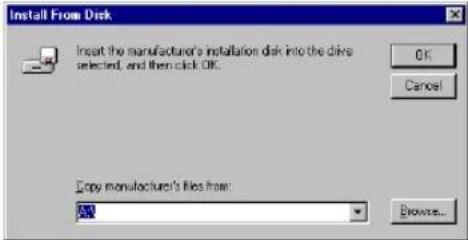
- The "A:\ is not accessible" message appears.
11 Click [Cancel].
![TOSHIBA e-studio 2500c - Click [Close] to close the Printer Ports dialog box. - 5](/content/2026/06/1276857/images/86a72f1408895fb4c6399866c0bf026640106d4364615eb44cd67c12dfd90cc8.jpg)
• The Locate File dialog box appears.
12 Insert the Client Utilities CD-ROM into the CD-ROM drive.
- When inserting the Client Utilities CD-ROM, the installer may automatically start. Click [Cancel] to exit the installer and continue the operation.
13 Locate the directory where the printer driver for Windows NT 4.0 is located and click [Open].
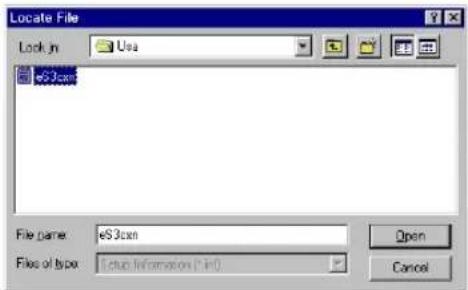
- To install the PCL6 printer driver, locate "[CD-ROM drive]:\Client\NT\PCL6\
" - To install the PS3 printer driver, locate "[CD-ROM drive]:\Client\NT\PS\
"
14 Click [OK].
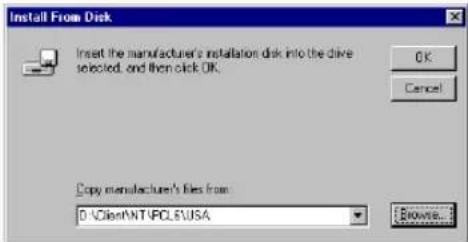
15 Select the printer driver and click [Next].
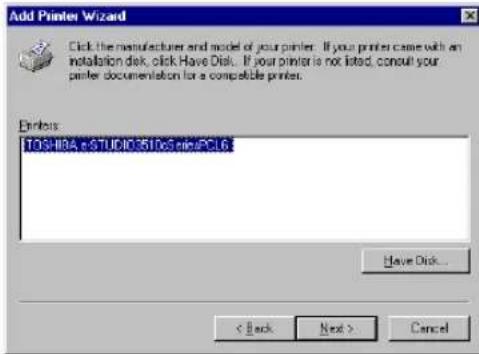
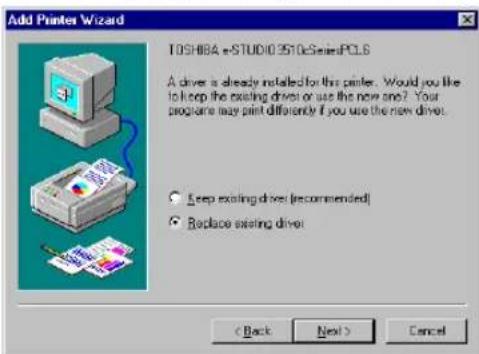
Note
If the same printer driver has been installed, the following dialog box appears. If it appears, select "Replace existing driver" and click [Next].
16 Change the name if desired and click [Next].
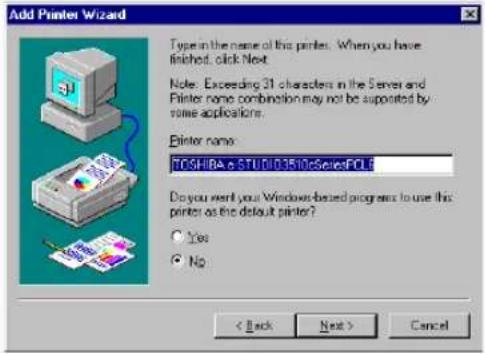
Tip
If any printer drivers have installed on the computer, select whether using this printer as a default printer.
17 Select whether this printer is shared or not, and click [Next].
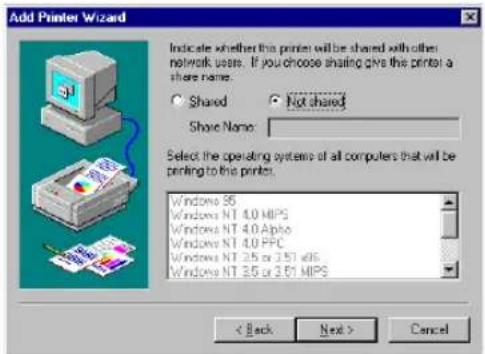
- When you select "Shared", you can also select the operating systems of printer drivers that you want to install for clients. If you select any operating systems, repeat the procedure from Step 9 to 15 to install the printer drivers for selected operating systems.
18 Select "Yes (recommended)" to print a test page and click [Finish].
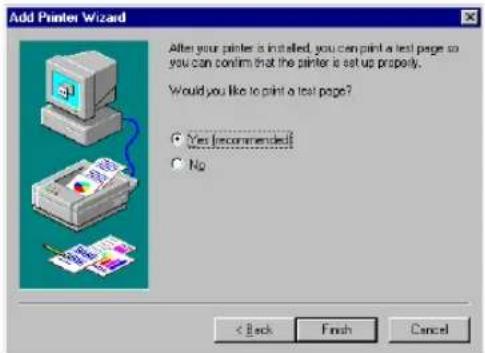
19 The installation is completed.
Note
Before using the printer driver for printing, please configure the installed options of the equipment and department code (if required) on the printer driver.
P.188 "Before Using the Printer Driver"
This section describes how to set up the client software for SMB printing which is available for the local area network over TCP/IP.
There are three ways to set up the printer drivers for SMB printing:
• Using the installer in the Client Utilities CD-ROM
When you insert the Client Utilities CD-ROM into your CD-ROM drive, the installer automatically starts. You can install printer drivers and other client software using the installer. If you want to install printer drivers as well as other client software, this method is convenient.
P.61 "Installation for SMB Printing Using the Installer"
• Using Point and Print
You can install the printer driver by double-clicking network queues on the system. By this method, printer drivers can be downloaded from the system so that the Client Utilities CD-ROM is not required. However, other client software cannot be installed using this method. P.67 "Installation for SMB Printing by Point and Print"
• Using Add Printer Wizard
When you want to install the printer drivers without connecting to the equipment using Point and Print, install the printer drivers using the Add Printer Wizard.
P.71 "Installation for SMB Printing by Add Printer Wizard"
Note
Before installing the printer driver for SMB printing, check with your system administrator to make sure of the following:
- This equipment is connected to the network and turned on.
- The TCP/IP setting is correct on this equipment and your computer.
Installation for SMB Printing Using the Installer
You can install the client software and set up the SMB printing using the installer in the Client Utilities CD-ROM.
Note
It assumes using SMB printing in a small network. If you can use the Windows NT 4.0, Windows 2000, Windows XP, or Windows Server 2003 as a print server, it is recommended to set up for printing via Windows print server. For further information about setting up printing via a Windows print server, see the Network Administration Guide.
Installing the client software for SMB printing using the installer
The following describes an installation on Windows XP. The procedure is the same when other versions of Windows are used.
Note
You must log into Windows as a user who has the “Administrators” or “Power Users” privilege when using Windows NT 4.0, Windows 2000, Windows XP, or Windows Server 2003.
1 Insert the Client Utilities CD-ROM into the CD-ROM drive.
- The installer automatically starts and the Choose Setup Language dialog box appears.
- If the installer does not automatically start, double-click "Setup.exe" in the Client Utilities CD-ROM.
2 Select your language and click [OK].
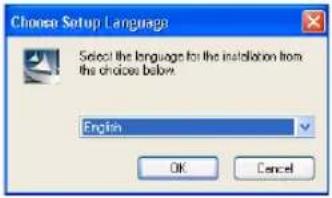
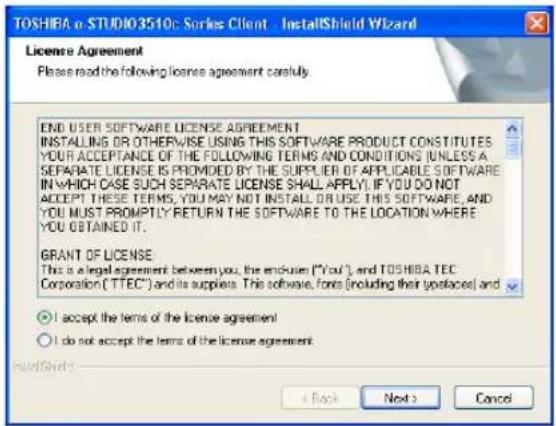
• The License Agreement screen is displayed.
3 Select "I accept the terms of the license agreement" and click [Next].
• The Setup Type screen is displayed.
4 Select "Custom" and click [Next].
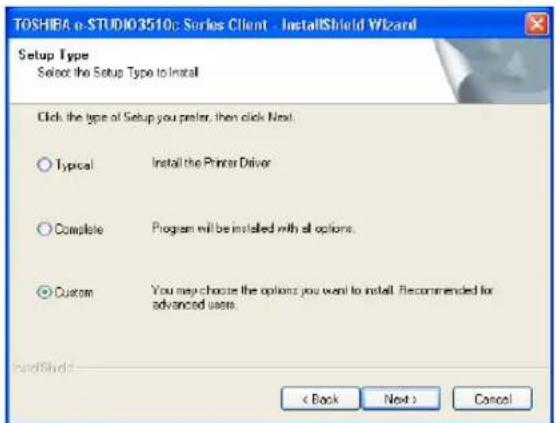
• The Select Components screen is displayed.
5 Check the software that you want to install and click [Next].
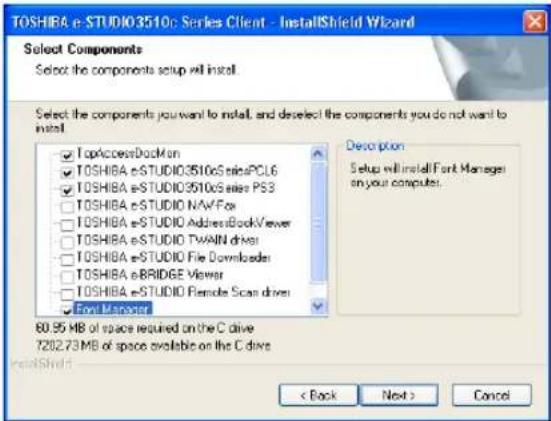
TopAccessDocMon — Check this to install the Document Monitor.
TOSHIBA e-STUDIO3510cSeriesPCL6 — Check this to install the PCL6 printer driver.
TOSHIBA e-STUDIO3510cSeriesPS3 — Check this to install the PS3 printer driver.
Font Manager — Check this to install Font Manager and fonts.
• The Choose Destination Location screen is displayed.
Tip
There are also Network Fax software, e-Filing software, and scan software in the list. For more information about these software, please see the Network Fax Guide, e-Filing Guide, and Scanning Guide.
6 Click [Next].
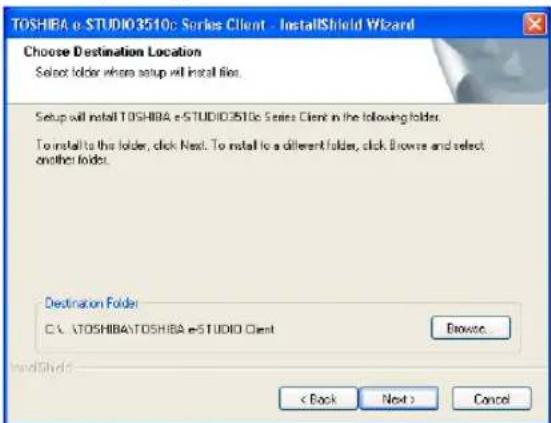
- If you want to change the location where the programs are installed, click [Browse]. In the dialog box that appears, select the folder and click [OK].
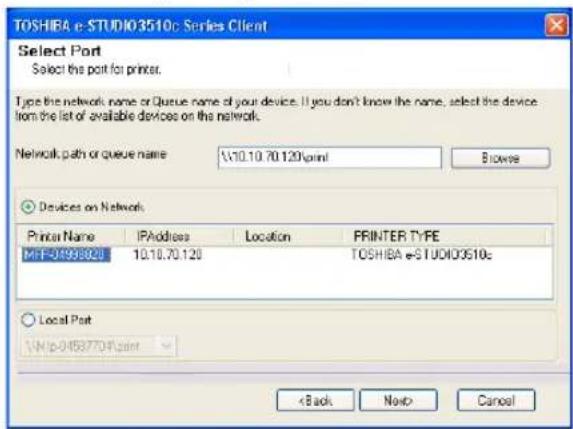
• The Select Port screen is displayed.
7 When the equipment is automatically found in the network, the "Device on Network" option is selected and the found devices are displayed in the list. Select the equipment that you want to connect and click [Next].
• The Select Program Folder screen is displayed.
Tips
When the equipment is not automatically found in the network, the "Message" dialog box appears. In that case, proceed the procedure below to select the network queue manually.
- The "Message" dialog box appears, and click [Continue].
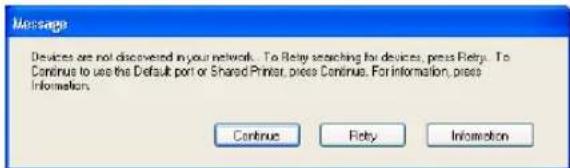
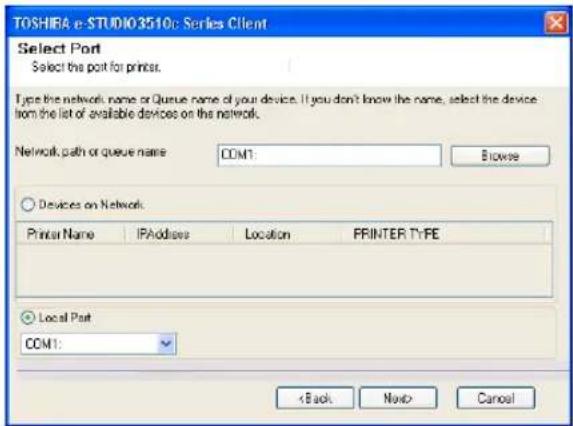
- The Select Port screen is displayed, and click [Browse].
- The Browse for Folder dialog box appears. Locate this equipment in your network, select the "print" queue, and click [OK].
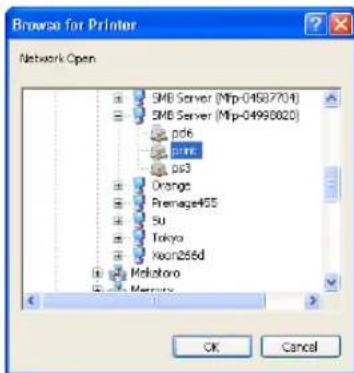
- Do not select "pcl6", or "ps3" queue. These queues only accept the print job in each emulation. If you install several printer drivers and specify one of these queues, the print job may not be printed properly due to mismatch of the emulations between the print job and queue.
- Click [Next].
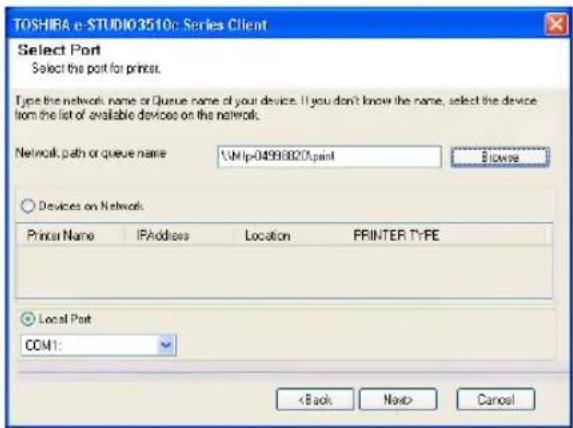
8 Click [Next].
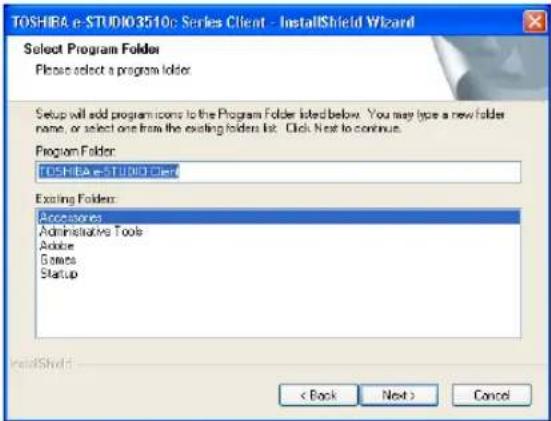
- If you want to change the program folder, rename the folder in the "Program Folder" field.
- Starts copying files and the InstallShield Wizard Complete screen is displayed when copying files are completed.
Notes
- When you select to install the N/W-Fax driver, the Digital Signature Not Found dialog box appears while copying files. Click [Yes] to continue the installation.
- If the following message appears, click [Yes] to set the indicated printer driver to be the default printer driver, or click [No] to not change the default printer driver.
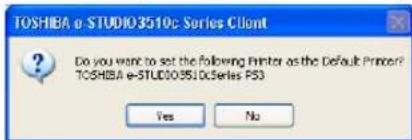
9 Click [Finish].
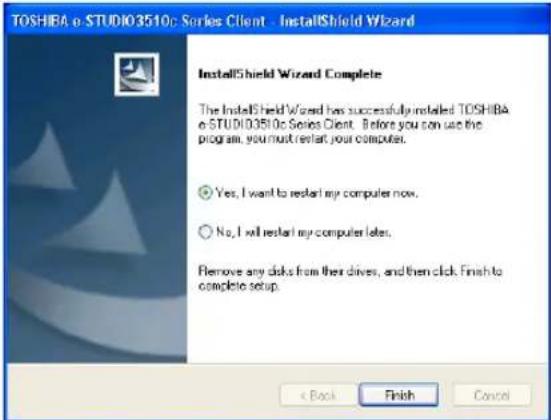
- If you selected to install TopAccessDocMon during the installation, the system may ask whether you want to view the Readme file and launch TopAccessDocMon.
Note
The Installer may ask you to restart your computer. If it does, select "Yes, I want to restart my computer now." and click [Finish] to restart your computer.
10 The installation is completed.
Note
Before using the printer driver for printing, please configure the installed options of the equipment and department code (if required) on the printer driver.
P.188 "Before Using the Printer Driver"
Installation for SMB Printing by Point and Print
The procedure to install the printer driver for SMB printing by Point and Print differs depending on the version of Windows used.
P.67 "Windows NT 4.0/2000/XP/Server 2003"
P.69 "Windows 98/Me"
Note
It assumes using SMB printing by Point and Print in a small network. If you can use the Windows NT 4.0, Windows 2000, Windows XP, or Windows Server 2003 as a print server, it is recommended to set up for printing via Windows print server. For further information about setting up printing via a Windows print server, see the Network Administration Guide.
Tips
- TopAccessDocMon is also available for SMB printing. To install TopAccessDocMon, you must install it from the Client Utilities CD-ROM separately.
- The Font Manager is also available to install and manage the TrueType fonts on your computer. To install the Font Manager, you must install it from the Client Utilities CD-ROM separately.
Windows NT 4.0/2000/XP/Server 2003
Installing the printer drivers for SMB printing by Point and Print
The following describes an installation on Windows XP. The procedure is the same when other versions of Windows are used.
Note
You must log into Windows as a user who has the “Administrators” or “Power Users” privilege when using Windows NT 4.0, Windows 2000, Windows XP, or Windows Server 2003.
1 Open this equipment in the network with Windows Explorer, and double-click a queue in which the printer driver should be installed (see below).
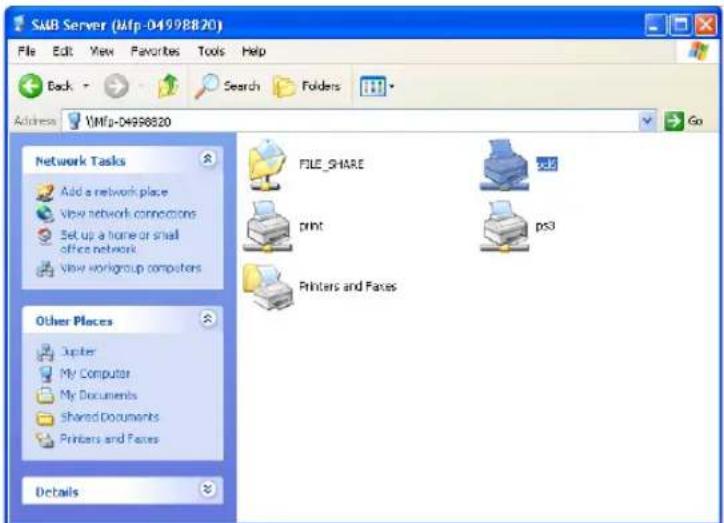
pcl6 — Double-click this queue to install the PCL6 printer driver. ps3 — Double-click this queue to install the PS3 printer driver.
Tips
- When you are installing the printer driver on Windows XP, the Connect to Printers dialog box may appear. In that case, click [Yes].

- When you are installing the printer driver on Windows 2000/NT 4.0, the Printers dialog box appears. In that case, click [Yes].

2 The printer driver is installed.
Note
Before using the printer driver for printing, please configure the installed options of the equipment and department code (if required) on the printer driver. P.188 "Before Using the Printer Driver"
Windows 98/Me
Installing the printer drivers for SMB printing by Point and Print
1 Open this equipment in the network with Windows Explorer, and double-click a queue in which the printer driver should be installed (see below).
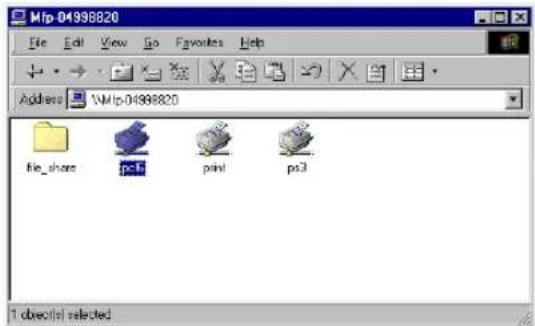
pcl6 — Double-click this queue to install the PCL6 printer driver. ps3 — Double-click this queue to install the PS3 printer driver.
• The Printers dialog box appears.
2 Click [Yes].

• The Add Printer Wizard dialog box appears.
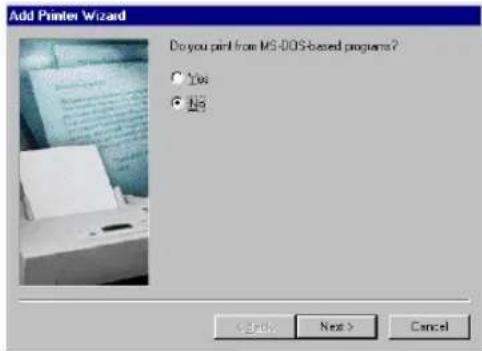
3 Select whether printing MS-DOS-based programs and click [Next].
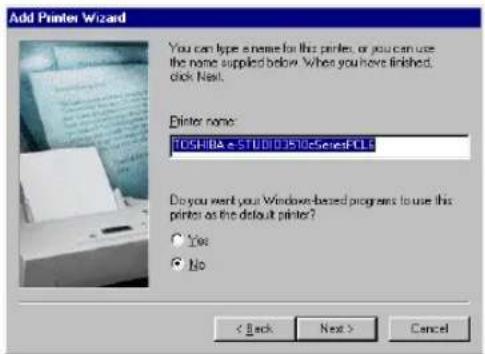
4 Change the name if desired, select whether you are using this printer as a default printer, and click [Next].
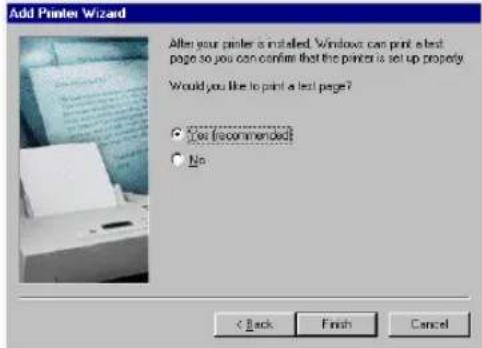
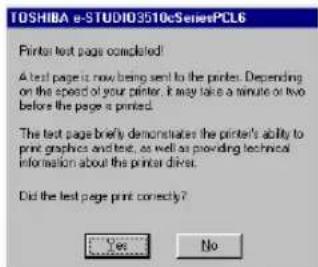
5 Select "Yes" to print a test page and click [Finish].
6 Make sure a test page is printed successfully and click [Yes] to close the dialog box.
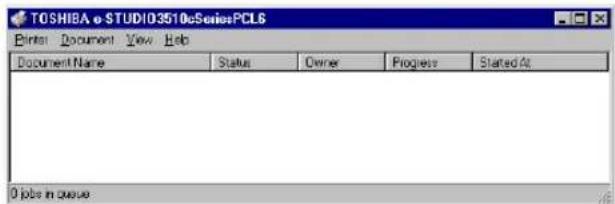
7 The printer driver is installed and the print queue window appears.
Note
Before using the printer driver for printing, please configure the installed options of the equipment and department code (if required) on the printer driver.
P.188 "Before Using the Printer Driver"
Installation for SMB Printing by Add Printer Wizard
The procedure to install the printer driver for SMB printing by Add Printer Wizard differs depending on the version of the Windows being used.
P.71 "Windows 2000/XP/Server 2003"
P.77 "Windows NT 4.0"
P.82 "Windows 98/Me"
Note
It assumes using SMB printing in a small network. If you can use the Windows NT 4.0, Windows 2000, Windows XP, or Windows Server 2003 as a print server, it is recommended to set up for printing via Windows print server. For further information about setting up printing via a Windows print server, see the Network Administration Guide.
Tips
- TopAccessDocMon is also available for SMB printing. To install TopAccessDocMon, you must install it from the Client Utilities CD-ROM separately.
- The Font Manager is also available to install and manage the TrueType fonts on your computer. To install the Font Manager, you must install it from the Client Utilities CD-ROM separately.
Windows 2000/XP/Server 2003
Installing the printer driver for SMB printing by Add Printer Wizard
The following describes an installation on Windows XP. The procedure is the same when other versions of Windows are used.
Note
You must log into Windows as a user who has the “Administrators” or “Power Users” privilege when using Windows 2000, Windows XP, or Windows Server 2003.
1 Click [Start] and click [Printers and Faxes] to open the Printers and Faxes folder.
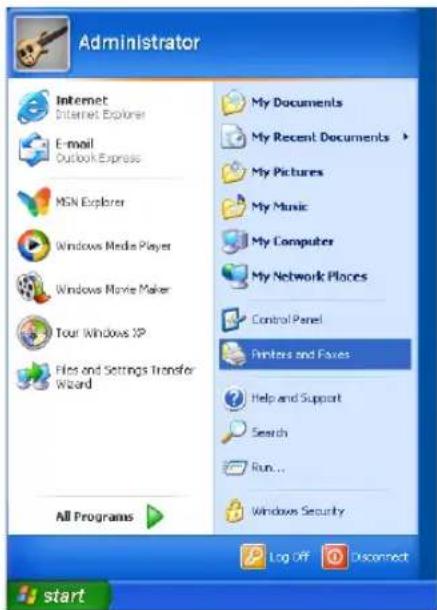
- If you are using the Windows 2000, click [Start], select [Settings], and click [Printers] to open the Printers folder.
2 Click the [Add a printer] in the Printer Tasks menu.
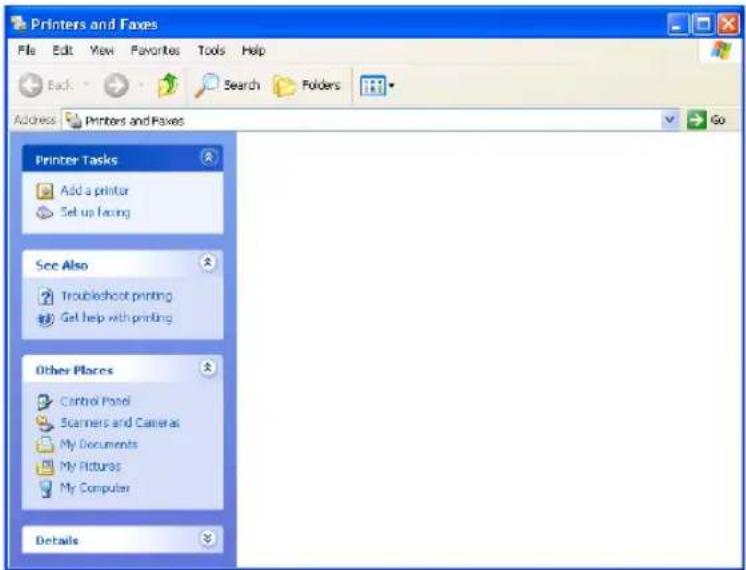
- When using the Windows 2000, double-click [Add Printer] icon.
• The Add Printer Wizard dialog box appears.
3 Click [Next].
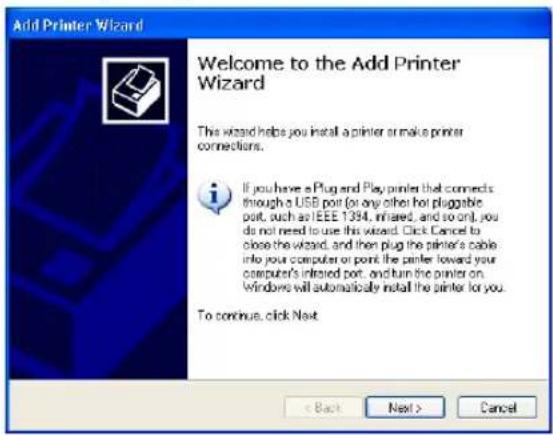
4 Select "Local printer", uncheck the "Automatically detect and install my Plug and Play printer", and click [Next].
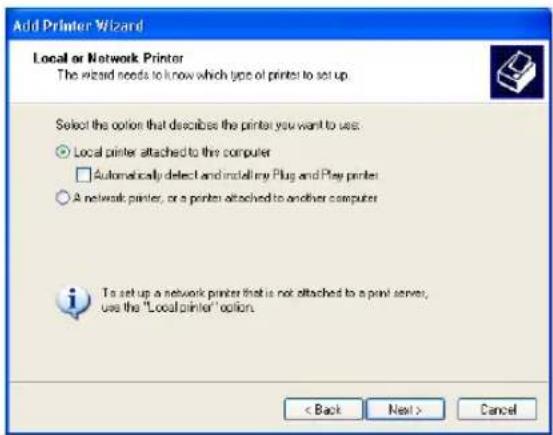
5 Select "Create a new port" and select "Local Port" in the "Type of port" drop down box. Then click [Next].
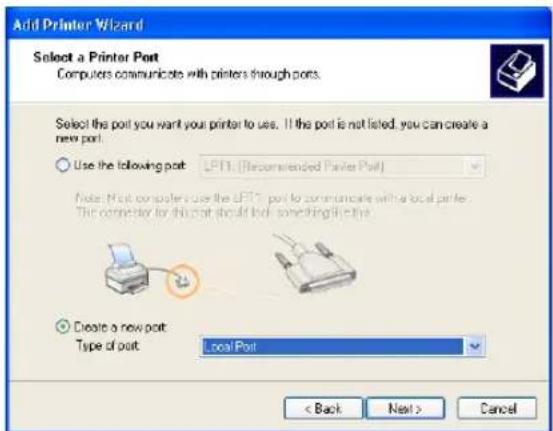
• The Port Name dialog box appears.
6 Enter "\\print" in the field and click [OK].
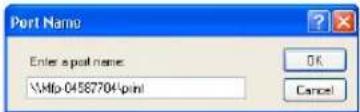
Example: NetBIOS Name = Mfp-04587704 \Mfp-04587704\print
Tip
You can also enter the IP address instead of the NetBIOS Name. Example: \10.10.70.120\print
7 Click [Have Disk...].
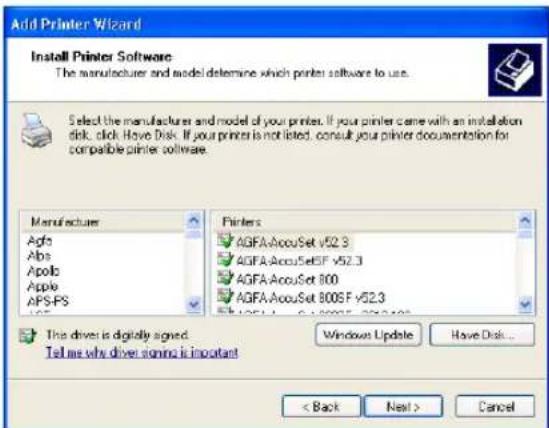
• The Install From Disk dialog box appears.
8 Click [Browse...].
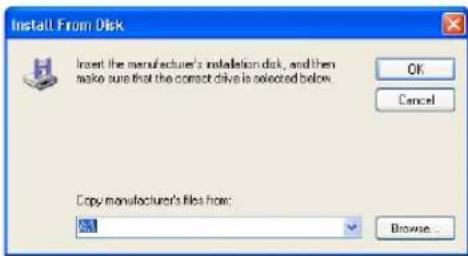
• The Locate File dialog box appears.
9 Insert the Client Utilities CD-ROM into the CD-ROM drive.
- When inserting the Client Utilities CD-ROM, the installer may automatically start. Click [Cancel] to exit the installer and continue the operation.
10 Locate the directory where the printer driver for Windows 2000/XP/Server 2003 is located and click [Open].
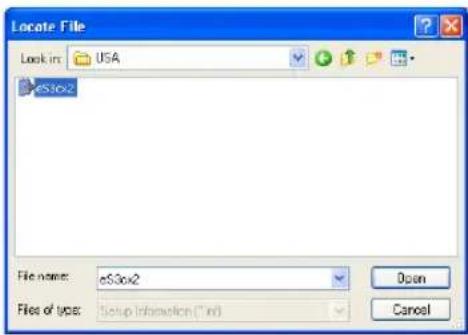
- To install the PCL6 printer driver, locate "[CD-ROM drive]:\Client\W2K_XP_2003\PCL6\
". - To install the PS3 printer driver, locate "[CD-ROM drive]:\Client\W2K_XP_2003\PS\
"
11 Click [OK].
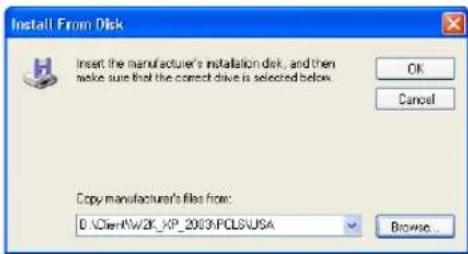
12 Select the printer driver and click [Next].
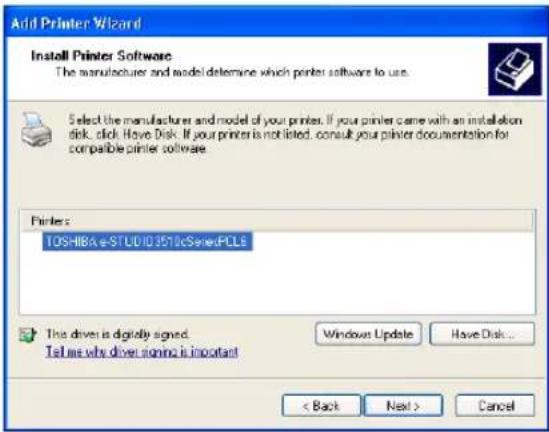
Note
If the same printer driver has been installed, the following dialog box appears. If it appears, select "Replace existing driver" and click [Next].
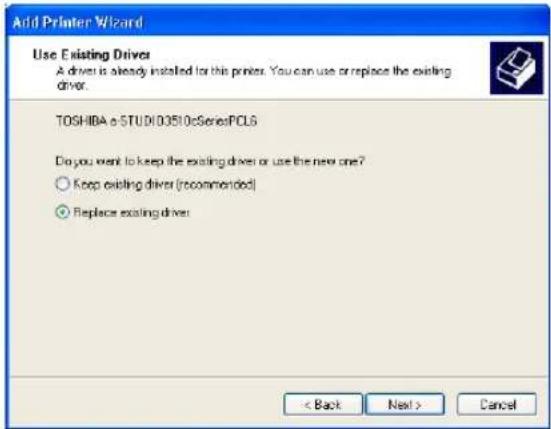
13 Change the name if desired and click [Next].
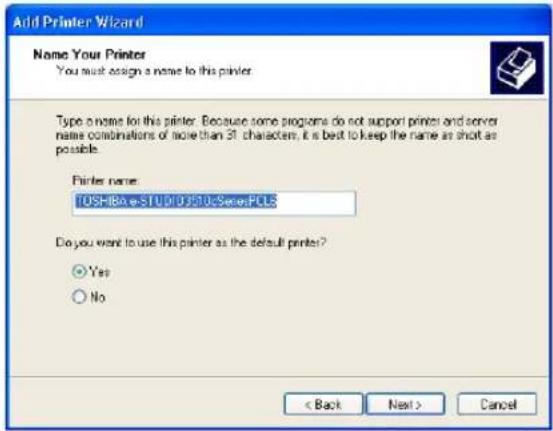
Tip
If any printer drivers have installed on the computer, select whether using this printer as a default printer.
14 Select whether this printer is shared or not, and click [Next].
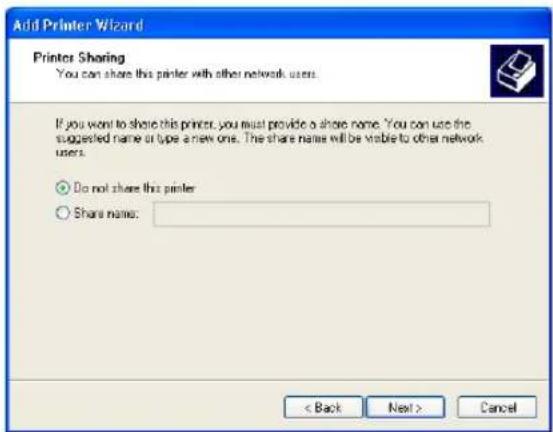
15 Select "Yes" to print a test page and click [Next].
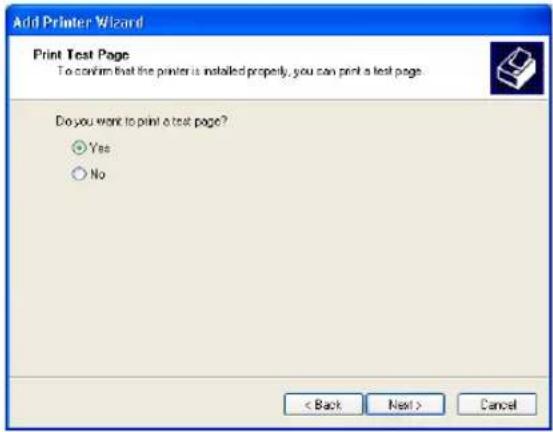
16 Click [Finish].
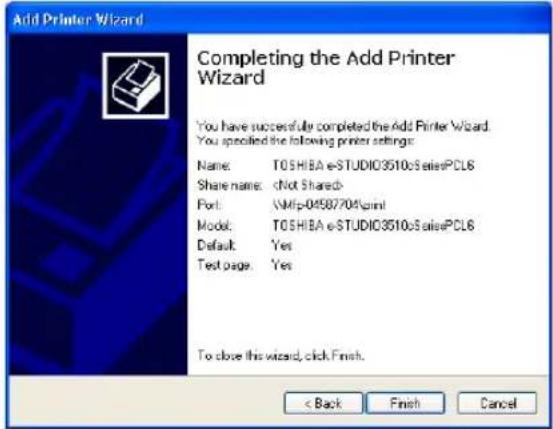
- Start copying files.
17 The installation is completed.
Note
Before using the printer driver for printing, please configure the installed options of the equipment and department code (if required) on the printer driver.
P.188 "Before Using the Printer Driver"
Windows NT 4.0
Installing the printer driver for SMB printing by Add Printer Wizard
Note
You must log into Windows NT 4.0 as a user who has the "Administrators" or "Power Users" privilege.
1 Click [Start], select [Settings], and click [Printers] to open the Printers folder.
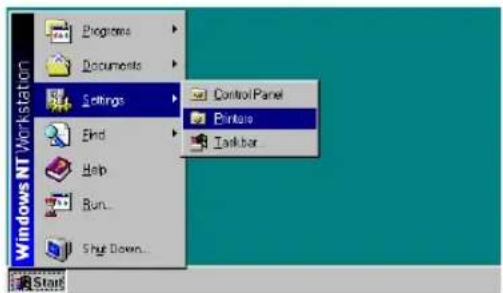
2 Double-click the [Add Printer] icon.
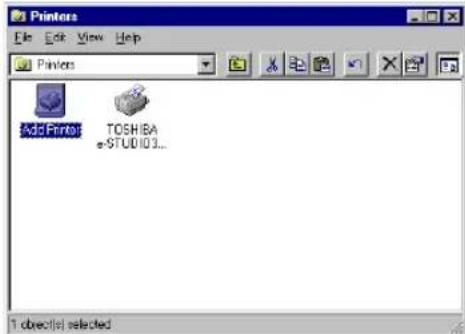
• The Add Printer Wizard dialog box appears.
3 Select "My Computer" and click [Next].
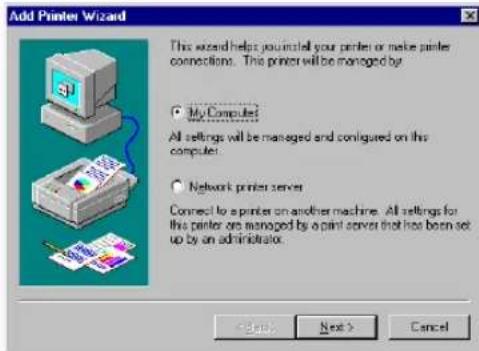
4 Click [Add Port...].
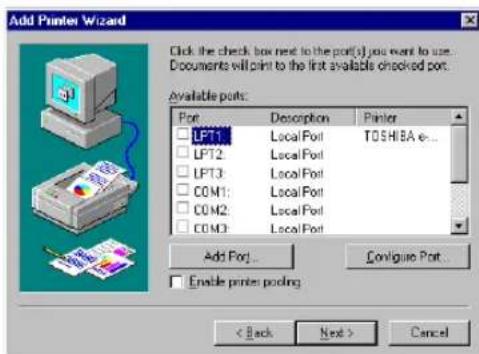
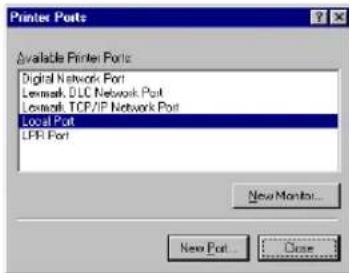
• The Printer Ports dialog box appears.
5 Select "Local Port" and click [New Port...].
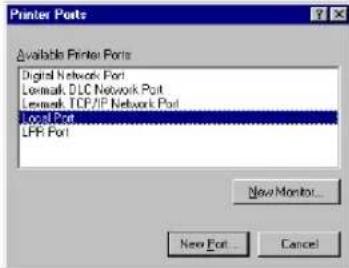
• The Port Name dialog box appears.
6 Enter "\\print" in the field and click [OK].
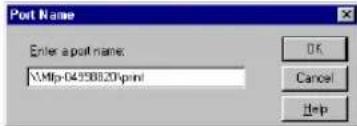
Example: NetBIOS Name = Mfp-04998820 \Mfp-04998820\print
Tip
You can also enter the IP address instead of the NetBIOS Name. Example: \10.10.70.120\print
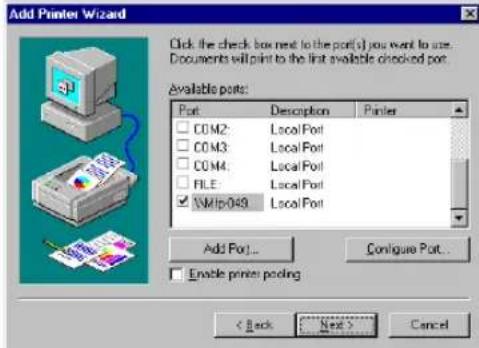
7 Click [Close].
8 Make sure the created port is selected and click [Next].
9 Click [Have Disk...].
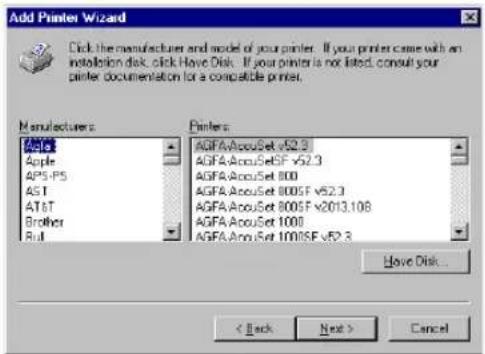
• The Install From Disk dialog box appears.
10 Click [Browse...].
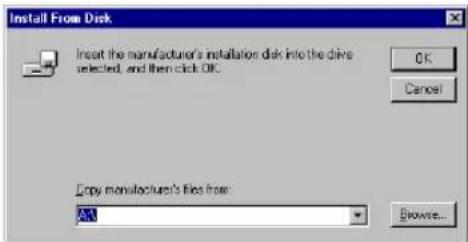
- The "A:\ is not accessible" message appears.
11 Click [Cancel].
![TOSHIBA e-studio 2500c - Click [Cancel]. - 1](/content/2026/06/1276857/images/1e59dd0caf9d968c7aa6f4b51ec0270879ce8aa06c41ca7186c685d3348cc4ea.jpg)
• The Locate File dialog box appears.
12 Insert the Client Utilities CD-ROM into the CD-ROM drive.
- When inserting the Client Utilities CD-ROM, the installer may automatically start. Click [Cancel] to exit the installer and continue the operation.
13 Locate the directory where the printer driver for Windows NT 4.0 is located and click [Open].
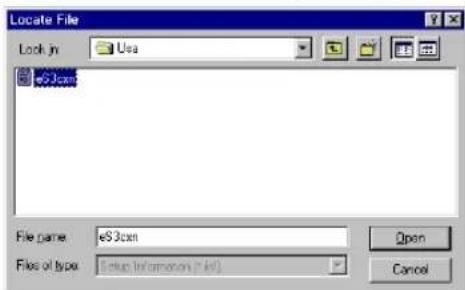
- To install the PCL6 printer driver, locate "[CD-ROM drive]:\Client\NT\PCL6\
" - To install the PS3 printer driver, locate "[CD-ROM drive]:\Client\NT\PS\
"
14 Click [OK].
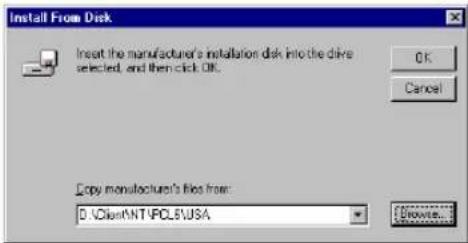
15 Select the printer driver and click [Next].
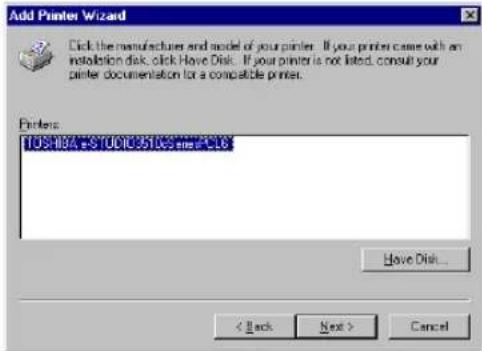
Note
If the same printer driver has been installed, the following dialog box appears. If it appears, select "Replace existing driver" and click [Next].
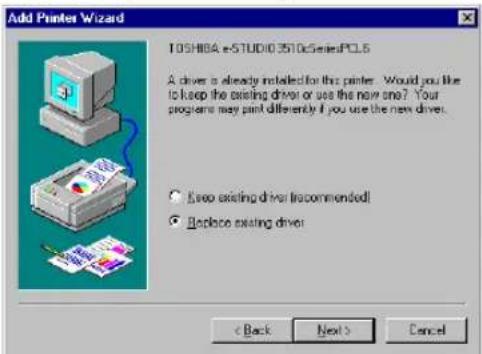
16 Change the name if desired and click [Next].
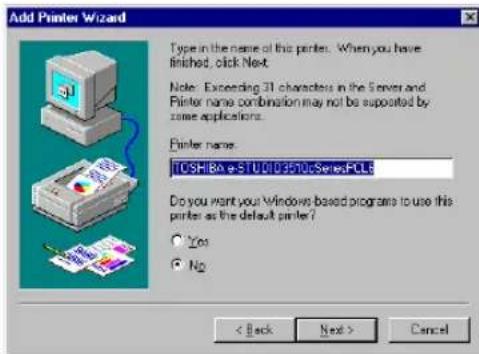
Tip
If any printer drivers have installed on the computer, select whether using this printer as a default printer.
17 Select whether this printer is shared or not, and click [Next].
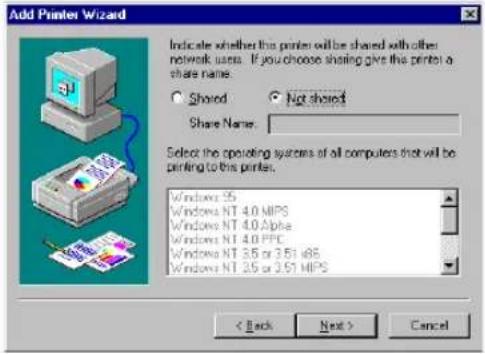
Tip
When you select "Shared", you can also select the operating systems of printer drivers that you want to install for clients. If you select any operating systems, repeat the procedure from Step 9 to 15 to install the printer drivers for selected operating systems.
18 Select "Yes (recommended)" to print a test page and click [Finish].
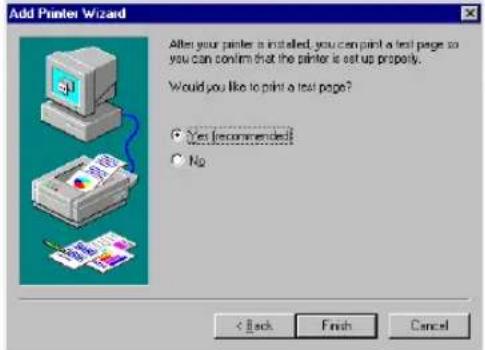
19 The installation is completed.
Note
Before using the printer driver for printing, please configure the installed options of the equipment and department code (if required) on the printer driver.
P.188 "Before Using the Printer Driver"
Windows 98/Me
Installing the printer driver for SMB printing by Add Printer Wizard
The following describes an installation on Windows 98. The procedure is the same when Windows Me is used.
1 Click [Start], select [Settings], and click [Printers] to open the Printers folder.
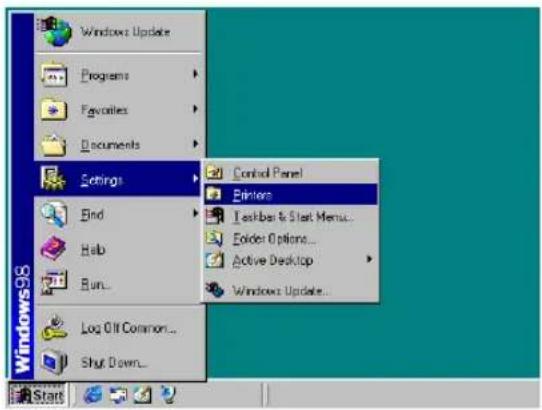
2 Double-click the [Add Printer] icon.
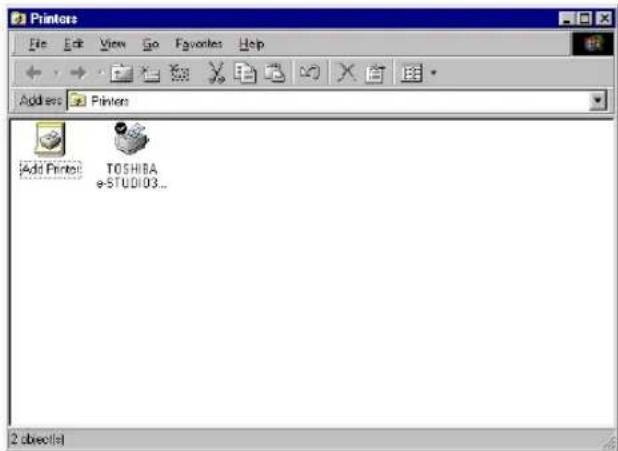
• The Add Printer Wizard dialog box appears.
3 Click [Next].
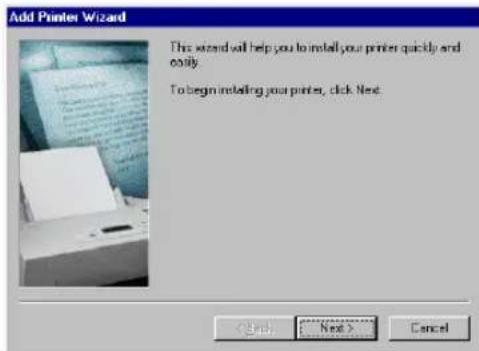
4 Select "Local printer" and click [Next].
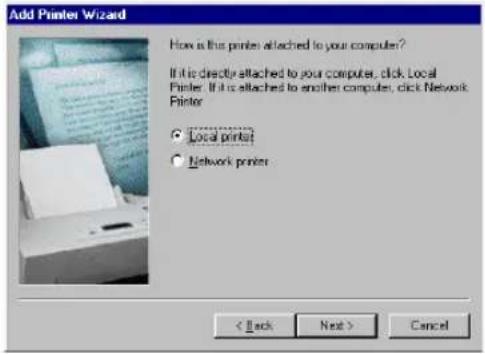
5 Click [Have Disk...].
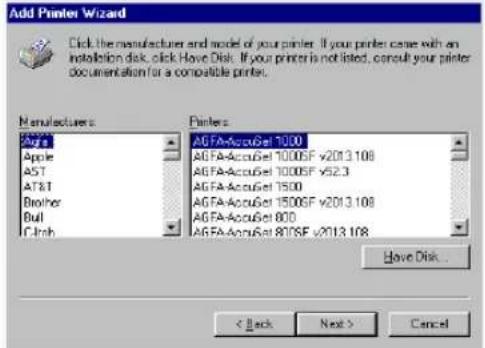
• The Install From Disk dialog box appears.
6 Click [Browse...].
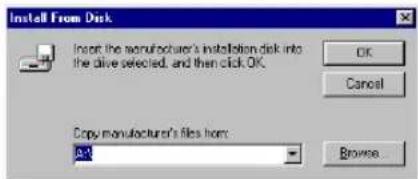
• The Open dialog box appears.
7 Insert the Client Utilities CD-ROM into the CD-ROM drive.
- When inserting the Client Utilities CD-ROM, the installer may automatically start. Click [Cancel] to exit the installer and continue the operation.
8 Locate the directory where the printer driver for Windows 98/Me is located and click [OK].
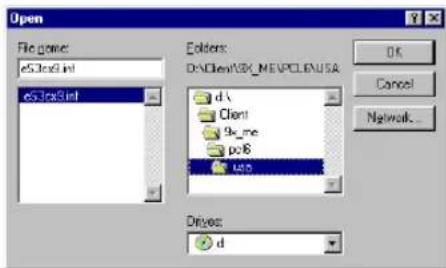
- To install the PCL6 printer driver, locate "[CD-ROM drive]:\Client\9X_ME\PCL6\
" - To install the PS3 printer driver, locate "[CD-ROM drive]:\Client\9X_ME\PS\
"
9 Click [OK].
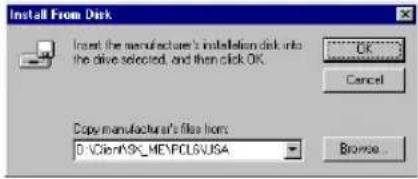
10 Select the printer driver and click [Next].
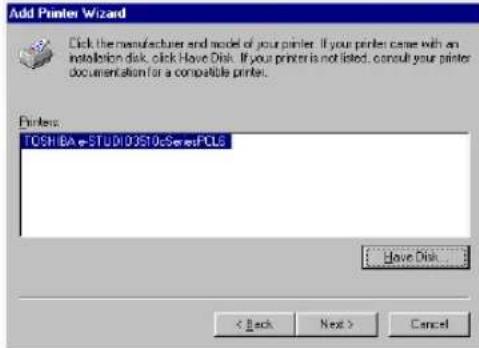
11 Select "LPT1:" and click [Next].
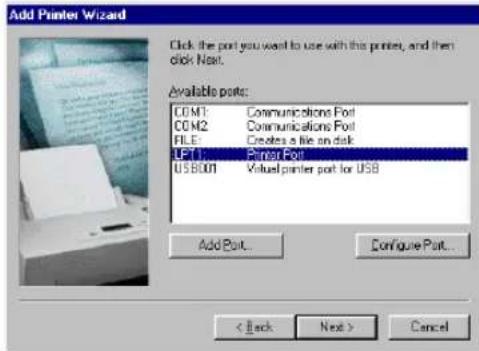
12 Change the name if desired and click [Next].
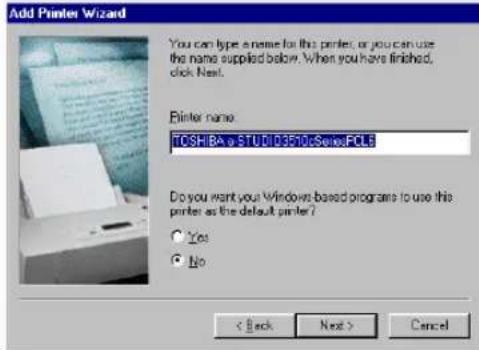
Tip
If any printer drivers have installed on the computer, select whether using this printer as a default printer.
13 Select "No" and click [Finish].
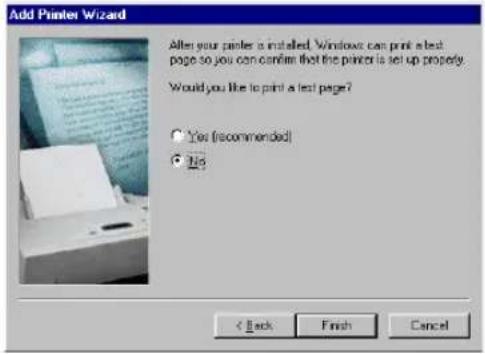
- Start copying files.
14 The printer driver is installed and appears in the Printers folder.
15 Select the printer driver and select [Properties] in the [File] menu.
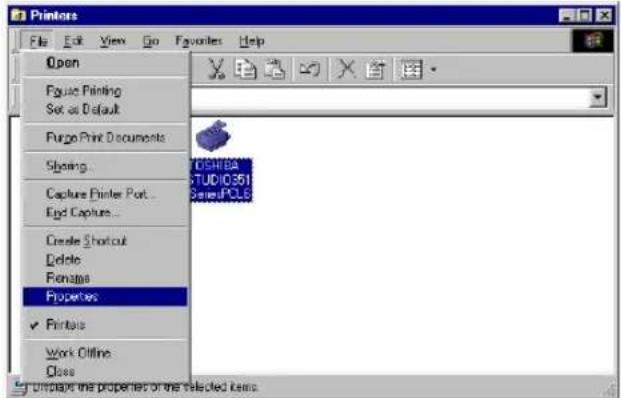
• The printer driver properties dialog box appears.
16 Display the [Details] tab and click [Add Port...].
![TOSHIBA e-STUDIO3510cSeriesPCL6 Properties Effect Others Fonts Configuration General Details Calcium Management Sharing Basic Finishing Paper Handing Image Quality TOSHIBA e-STUDIO3510cSeriesPCL6 Print to the following port: LPT1: [Printer Port] Add Port... Print using the following driver: TOSHIBA e-STUDIO3510cSeriesPCL6 New Driver Capture Printer Port... End Capture... - Timeout settings Not selected 15 seconds Transmission retry: 45 seconds Spool Settings... Port Settings... OK Cancel Entry Help](/content/2026/06/1276857/images/ec7a8cf89df53692cf502dbc87cc90247e42e4653556b6b4fee2c9afd6d6bb6b.jpg)
• The Add Port dialog box appears.
17 Select "Other" and "Local Port", and click [OK].
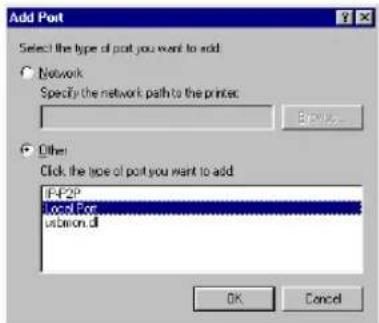
• The Port Name dialog box appears.
18 Enter "\\print" in the field and click [OK].
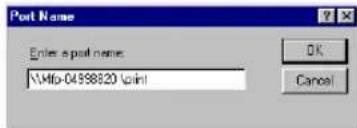
Example: NetBIOS Name = MFP-04998820
\Mfp-04998820\print
Tip
You can also enter the IP address instead of the NetBIOS Name.
Example: \10.10.70.120\print
19 Click [OK] to save settings.
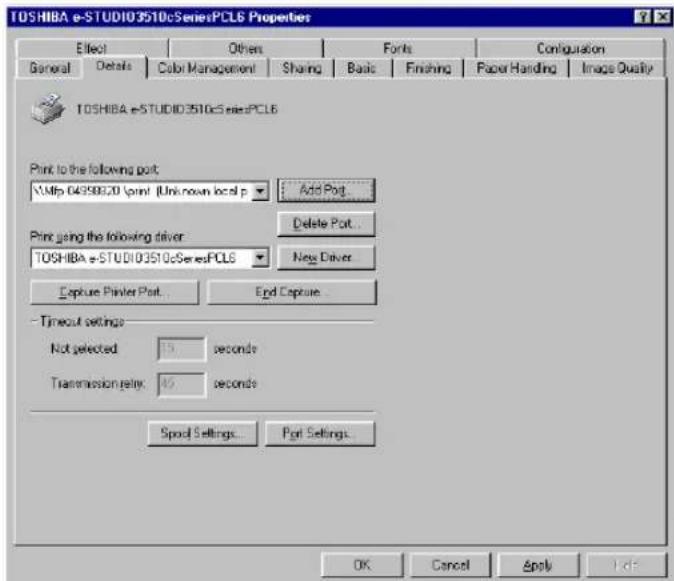
20 The installation is completed.
Note
Before using the printer driver for printing, please configure the installed options of the equipment and department code (if required) on the printer driver.
P.188 "Before Using the Printer Driver"
Installing Client Software for IPP Printing
This section describes how to set up the printer drivers for IPP printing which is available for Internet connection.
To set up the printer drivers for IPP printing, install the printer drivers by Add Printer Wizard, and then install the other software that you require.
Notes
- Before installing the printer driver for IPP printing, check with your system administrator to make sure of the following:
- This equipment is connected to the network and turned on.
- The TCP/IP setting is correct on this equipment and your computer.
- IPP Printing is only available for Windows 2000, Windows XP, and Windows Server 2003.
Installation for IPP Printing by Add Printer Wizard
Installing the printer driver for IPP printing by Add Printer Wizard
The following describes an installation on Windows XP. The procedure is the same when Windows 2000 or Windows Server 2003 is used.
Note
You must log into Windows as a user who has the "Administrators" or "Power Users" privilege.
1 Click [Start] and click [Printers and Faxes] to open the Printers and Faxes folder.
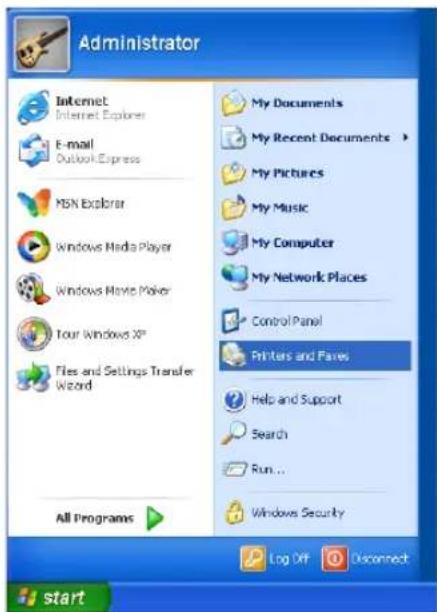
- If you are using the Windows 2000, click [Start], select [Settings], and click [Printers] to open the Printers folder.
2 Click the [Add a printer] in the Printer Tasks menu.
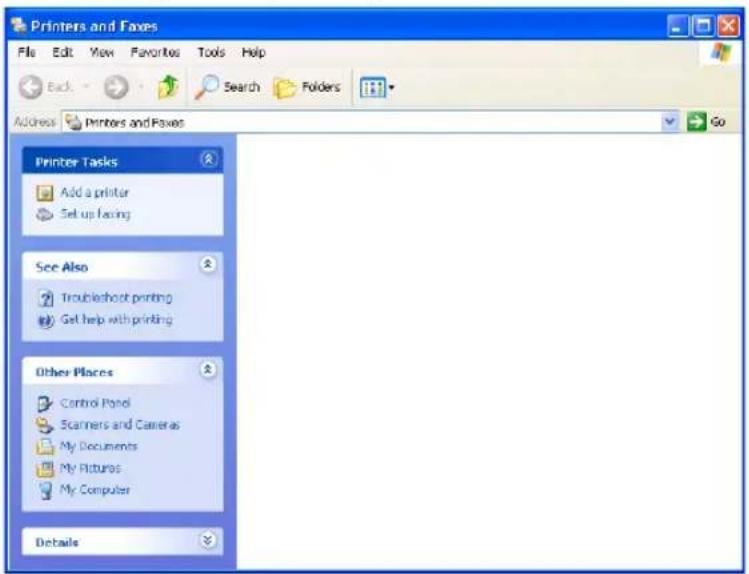
- When using the Windows 2000, double-click [Add Printer] icon.
• The Add Printer Wizard dialog box appears.
3 Click [Next].
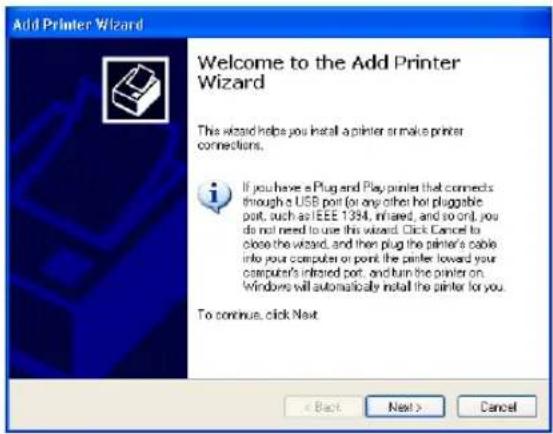
4 Select "Network printer" and click [Next].
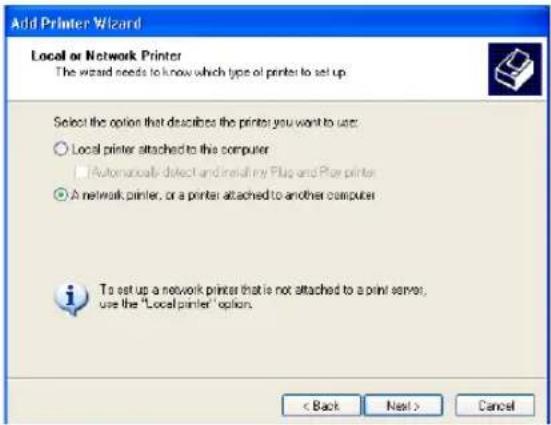
5 Select "Connect to a printer on the Internet or on a home or office network", and enter "http://[IP address]:631/Print" in the "URL" field.
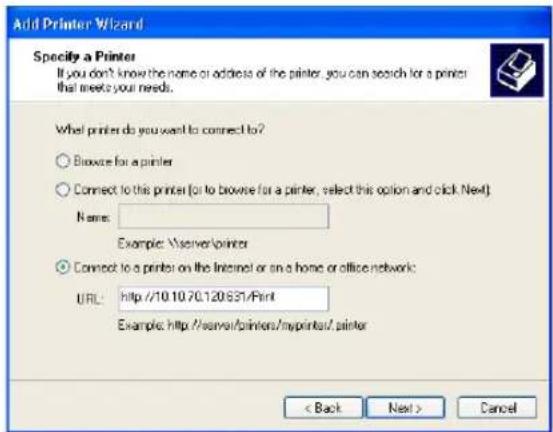
- Enter the IP address of this equipment instead of [IP address].
Example: IP address = 10.10.70.120
http://10.10.70.120:631/Print - If your network uses a DNS or WINS server, enter the printer name of this equipment provided from DNS or WINS instead of [IP address].
Example: Print Server Name = Mfp-00c67861
http://Mfp-00c67861:631/Print - When you connect from the Internet, enter the FQDN of this equipment provided from DNS instead of [IP address].
Example: URL = mfp_00c67861.toshiba.com
http://mfp_00c67861.toshiba.com:631/Print
Note
"P" for "Print" in the IPP URL must be capitalized. When you are using on Windows XP, the IPP port can be created by entering "print" (non-capitalized) in the IPP URL, but the print job cannot be sent to the equipment. In that case, delete the IPP port and then create the IPP port correctly again.
Tips
- If an administrator has enabled the IPP Port80 Enabled option on this equipment, you can exclude the port number from the URL. (i.e. "http://192.168.255.48/Print")
- If an administrator has enabled the Enable SSL option for IPP Print, you must enter "https://[IP address]:[SSL port number]/Print" in the "URL" field.
(i.e. "https://192.168.255.48:443/Print")
6 Click [Next].
• The Add Printer Wizard dialog box appears.
Note
When the Authentication setting for IPP Print is enabled, the dialog box to enter a user name and password appears. If this dialog box appears, enter the user name and password and click [OK]. For user name and password, please ask your administrator.
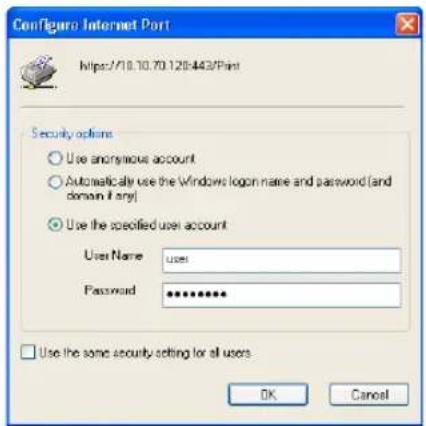
7 Click [Have Disk...].
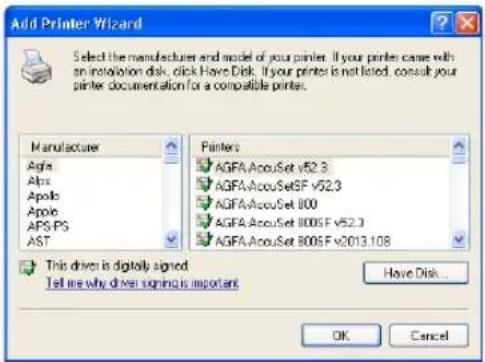
• The Install From Disk dialog box appears.
8 Click [Browse...].
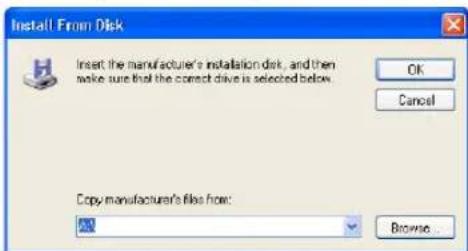
• The Locate File dialog box appears.
9 Insert the Client Utilities CD-ROM into the CD-ROM drive.
- When inserting the Client Utilities CD-ROM, the installer may automatically start. Click [Cancel] to exit the installer and continue the operation.
10 Locate the directory where the printer driver for your Windows version is located, select the inf file, and click [Open].
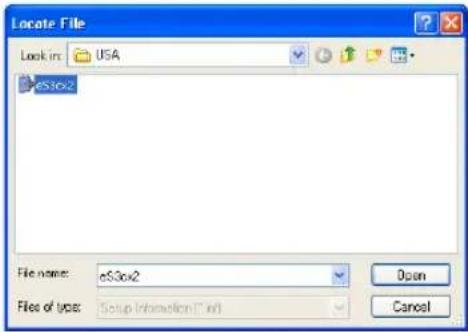
- To install the PCL6 printer driver for Windows 2000/XP/Server 2003, locate "[CD-ROM drive]:\Client\W2K_XP_2003\PCL6\
" - To install the PS3 printer driver for Windows 2000/XP/ Server 2003, locate "[CD-ROM drive]:\Client\W2K_XP_2003\PS\
"
11 Click [OK].
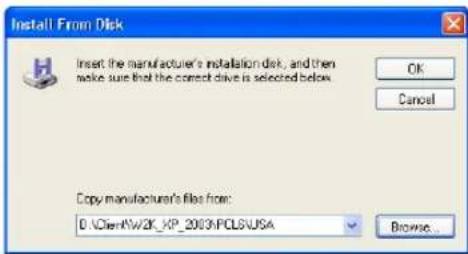
12 Select the printer driver and click [OK].
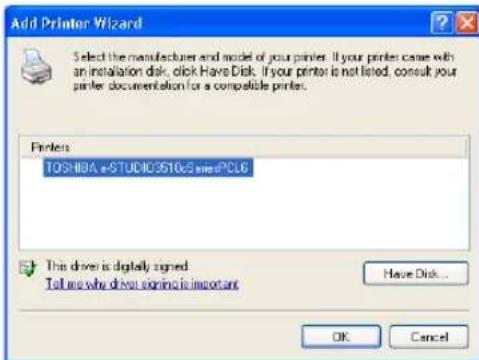
- If any other printer driver(s) had already been installed on your computer, the Default Printer screen is displayed. Continue to next step.
- If no printer driver had been installed on your computer, the complete screen is displayed. Skip to step 14.
Note
If the same printer driver has been installed, the following dialog box appears. If it appears, select "Replace existing driver" and click [Next].
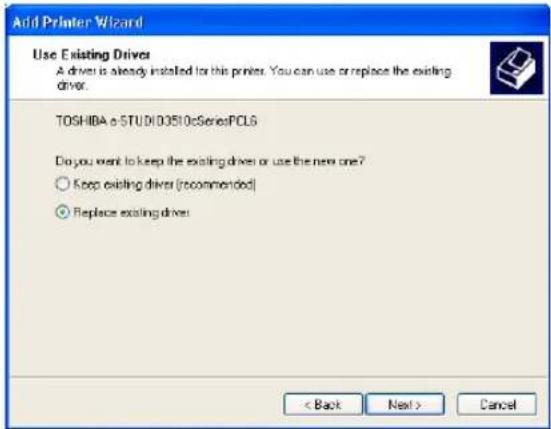
13 Select whether using this printer as a default printer and click [Next].
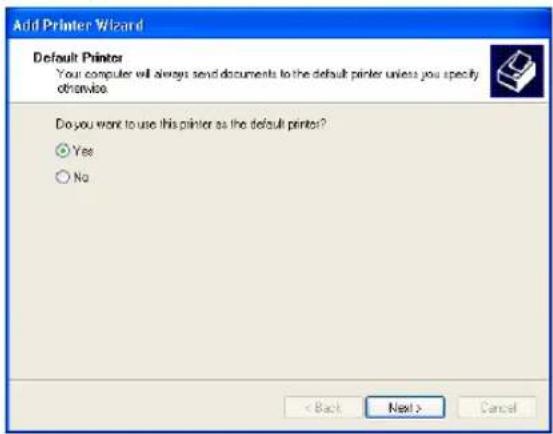
14 Click [Finish].
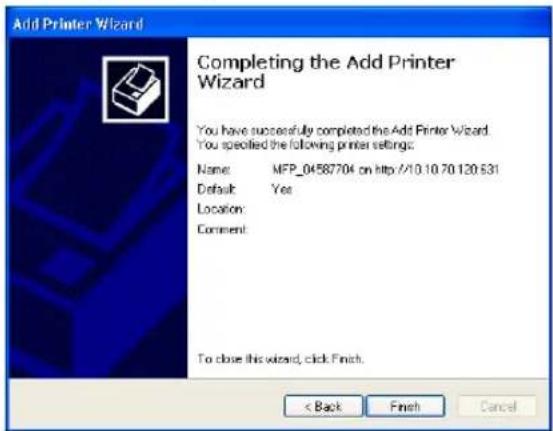
15 The printer driver is installed.
Note
Before using the printer driver for printing, please configure the installed options of the equipment and department code (if required) on the printer driver.
P.188 "Before Using the Printer Driver"
Tips
- If you want to install TopAccessDocMon, you must install it from the Client Utilities CD-ROM separately.
- The Font Manager is also available to install and manage the TrueType fonts on your computer. To install the Font Manager, you must install it from the Client Utilities CD-ROM separately.
This section describes how to install the client software for Novell printing on NetWare print server environments.
There are two ways to set up the printer drivers for Novell printing:
• Using the installer in the Client Utilities CD-ROM
When you insert the Client Utilities CD-ROM into your CD-ROM drive, the installer automatically starts. You can install printer drivers and other client software using the installer. If you want to install printer drivers as well as other client software, this method is convenient.
P.95 "Installation for Novell Printing Using the Installer"
• Using Point and Print
You can install the printer driver by double-clicking network queues on the NetWare. If the NetWare has been set up for NDPS, printer drivers can be downloaded from the system so that the Client Utilities CD-ROM is not required. However, other client software cannot be installed using this method.
P.101 "Installation for Novell Printing by Point and Print"
Tip
In addition to the above methods, you can also install the printer driver using Add Printer Wizard. The printer driver that is installed by Add Printer Wizard is set up same as Point and Print.
Note
Before installing the printer driver for Novell printing, check with your system administrator to make sure of the following:
- This equipment is connected to the network and turned on.
- The NetWare server is configured correctly and running on your network.
- The IPX/SPX or TCP/IP, and NetWare settings are correct on this equipment.
Before installing the client software for Novell printing, please make sure following network services and protocols are installed on your computer:
Windows 98/ME
- TCP/IP protocol (Required only when using the NetWare in the TCP/IP network.)
- Novell Client 3.4
Windows NT 4.0
- TCP/IP protocol (Required only when using the NetWare in the TCP/IP network.)
• Novell Client 4.9 SP1a
Windows 2000/XP/Server 2003
- TCP/IP protocol (Required only when using the NetWare in the TCP/IP network.)
• Novell Client 4.91 SP2
Tip
Novell Client is not included in the Client Utilities CD-ROM. Novell Client can be downloaded from the Novell Inc. homepage.
Installation for Novell Printing Using the Installer
You can install the client software and set up the Novell printing using the installer in the Client Utilities CD-ROM.
Installing the client software for Novell printing using the installer
The following describes an installation on Windows XP. The procedure is the same when other versions of Windows are used.
Notes
- You must log into Windows as a user who has the "Administrators" or "Power Users" privilege when using Windows NT 4.0, Windows 2000, Windows XP, or Windows Server 2003.
- You have an appropriate privilege to access the NetWare server.
1 Insert the Client Utilities CD-ROM into the CD-ROM drive.
- The installer automatically starts and the Choose Setup Language dialog box appears.
- If the installer does not automatically start, double-click "Setup.exe" in the Client Utilities CD-ROM.
2 Select your language and click [OK].
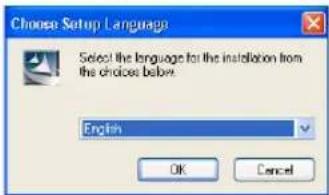
• The License Agreement screen is displayed.
3 Select "I accept the terms of the license agreement" and click [Next].
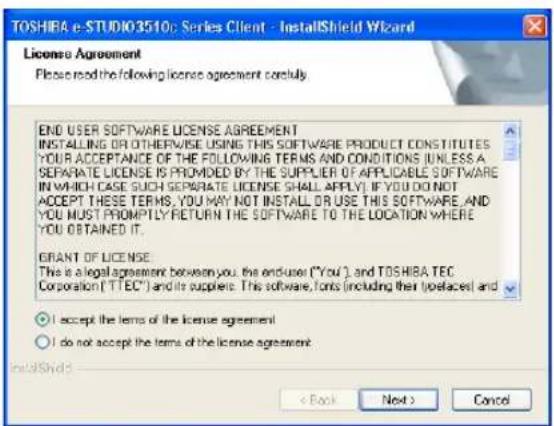
• The Setup Type screen is displayed.
4 Select "Custom" and click [Next].
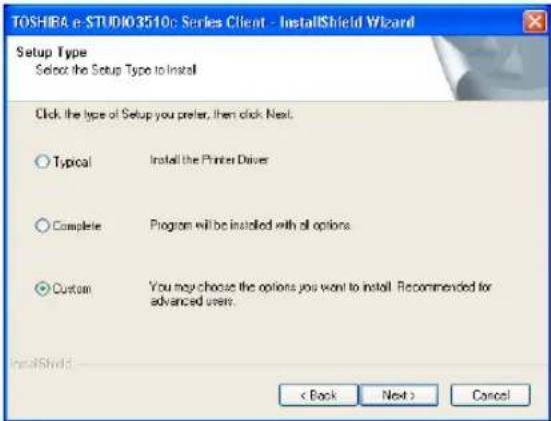
• The Select Components screen is displayed.
5 Check the software that you want to install and click [Next].
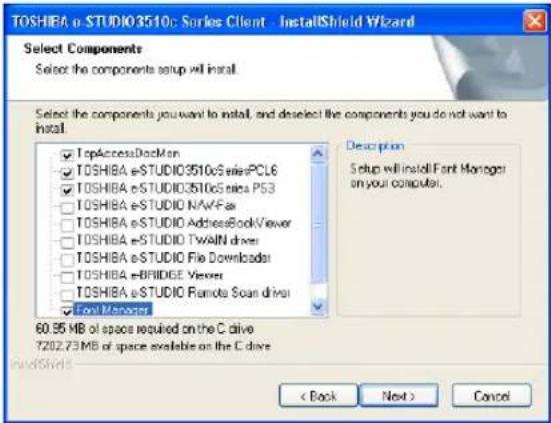
TopAccessDocMon — Check this to install the Document Monitor. TOSHIBA e-STUDIO3510cSeriesPCL6 — Check this to install the PCL6 printer driver. TOSHIBA e-STUDIO3510cSeriesPS3 — Check this to install the PS3 printer driver. Font Manager — Check this to install Font Manager and fonts. • The Choose Destination Location screen is displayed.
Tip
There are also Network Fax software, e-Filing software, and scan software in the list. For more information about these software, please see the Network Fax Guide, e-Filing Guide, and Scanning Guide.
6 Click [Next].
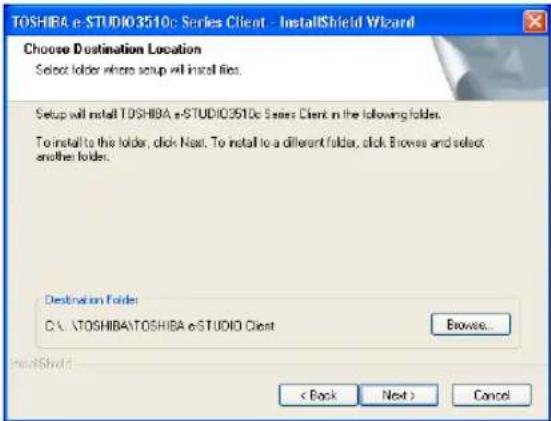
- If you want to change the location where the programs are installed, click [Browse]. In the dialog box that appears, select the folder and click [OK].
• The Select Port screen is displayed.
Note
If the following dialog box appears, click [Continue] to proceed the operation.
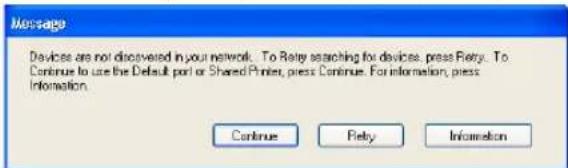
7 Enter the queue name in the "Network path or queue name" field, and click [Next].
For NDS/NDPS Mode
Example: Root=Org, Context=dept1, queue name=mfp_queue
For Bindery Mode
Example: NetWare file server name=Nwsrv, queue name=mfp_queue
\Nwsrv\mfp_queue
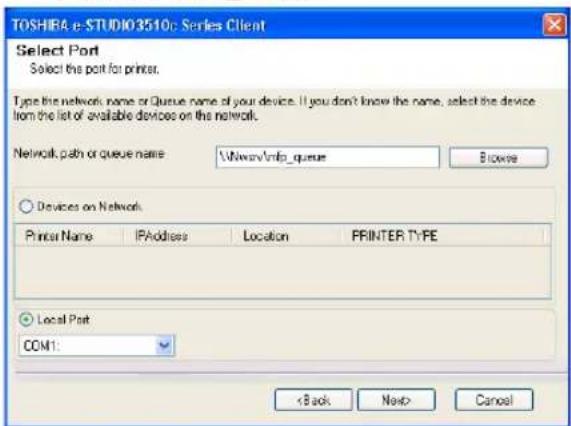
Tip
The queue for this equipment should be set up by an administrator. If you do not know the queue for this equipment, ask your administrator.
8 Click [Next].
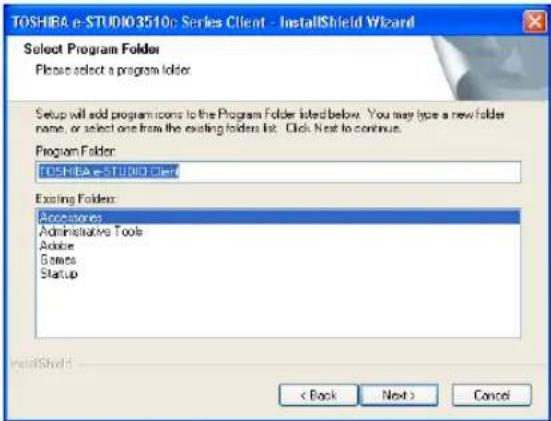
- If you want to change the program folder, rename the folder in the "Program Folder" field.
- Starts copying files and the InstallShield Wizard Complete screen is displayed when copying files are completed.
Notes
- When you select to install the N/W-Fax driver, the Digital Signature Not Found dialog box appears while copying files. Click [Yes] to continue the installation.
- If the following message appears, click [Yes] to set the indicated printer driver to be the default printer driver, or click [No] to not change the default printer driver.
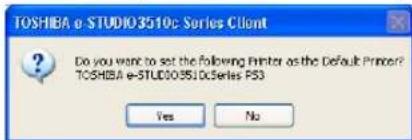
9 Click [Finish].
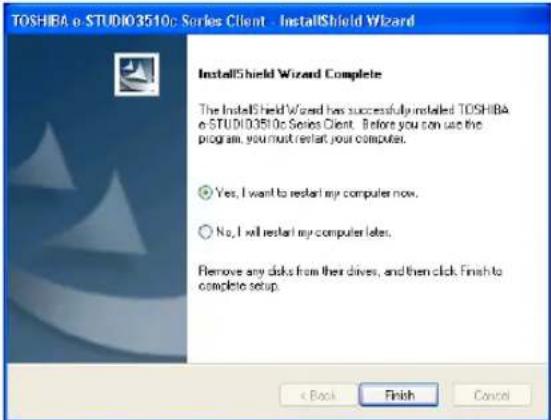
- If you selected to install TopAccessDocMon during the installation, the system may ask whether you want to view the Readme file and launch TopAccessDocMon.
Note
The Installer may ask you to restart your computer. If it does, select "Yes, I want to restart my computer now." and click [Finish] to restart your computer.
10 The installation is completed.
Note
Before using the printer driver for printing, please configure the installed options of the equipment and department code (if required) on the printer driver.
P.188 "Before Using the Printer Driver"
Installation for Novell Printing by Point and Print
The procedure to install the printer driver for Novell printing by Point and Print differs depending on the version of Windows used.
P.101 "Windows NT 4.0/2000/XP/Server 2003"
P.105 "Windows 98/Me"
Tips
- TopAccessDocMon is also available for Novell printing. To install TopAccessDocMon, you must install it from the Client Utilities CD-ROM separately.
- The Font Manager is also available to install and manage the TrueType fonts on your computer. To install the Font Manager, you must install it from the Client Utilities CD-ROM separately.
Windows NT 4.0/2000/XP/Server 2003
Installing the printer drivers for Novell printing by Point and Print
The following describes an installation on Windows XP. The procedure is the same when Windows NT 4.0, Windows 2000, or Windows Server 2003 is used.
Note
You must log into Windows as a user who has the “Administrators” or “Power Users” privilege when using Windows NT 4.0, Windows 2000, Windows XP, or Windows Server 2003.
1 Open the NetWare queue for the equipment in the network with Windows Explorer, and double-click a queue.
When the NetWare has been set up for the Bindery mode, open the NetWare file server and double-click the queue for the equipment.
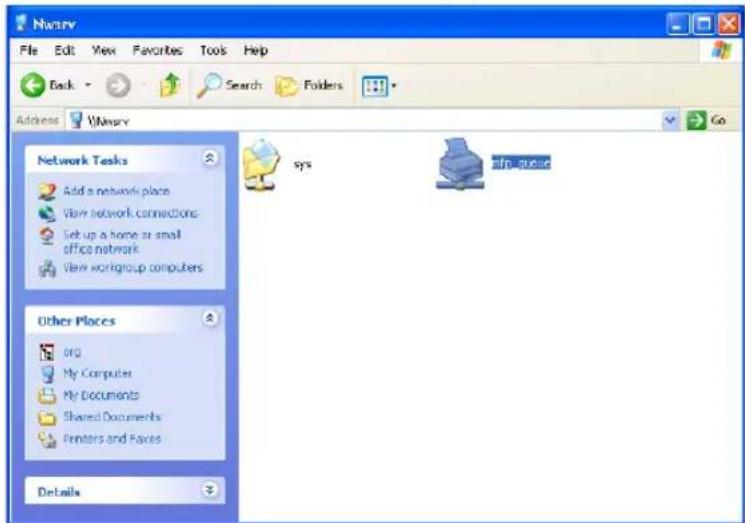
When the NetWare has been set up for the NDS or NDPS mode, browse the NDS tree and context, and double-click the queue for the equipment.
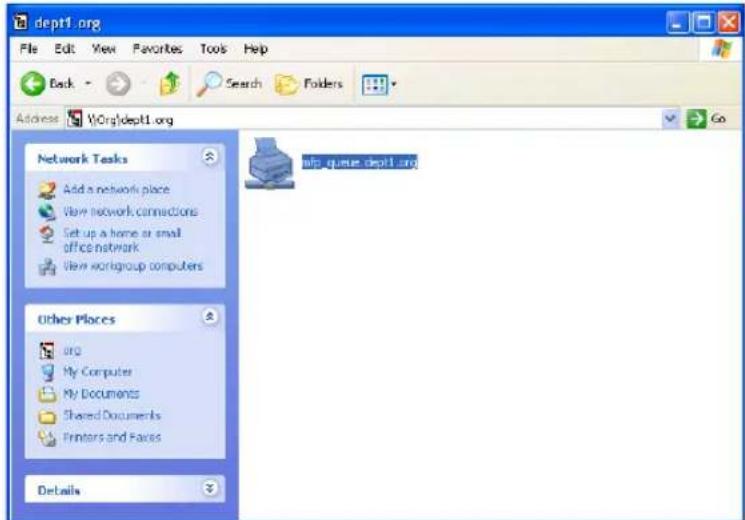
- When using the NetWare in NDPS mode and the printer drivers for each Operating System are installed to a NDPS broker, the printer driver is automatically installed.
- Unless using the NetWare in NDPS mode and printer drivers for each Operating System are installed to a NDPS broker, the Add Printer Wizard dialog box appears. Continue to the next step.
2 Click [OK].

3 Click [Have Disk...].
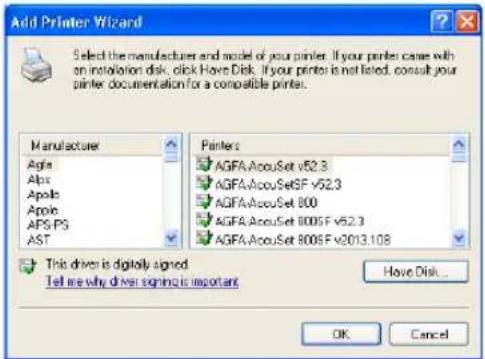
• The Install From Disk dialog box appears.
4 Click [Browse...].
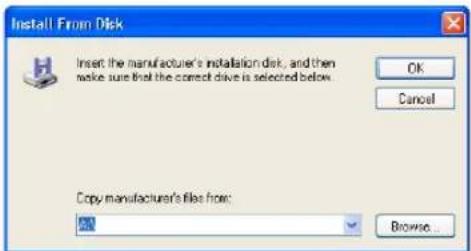
• The Locate File dialog box appears.
5 Insert the Client Utilities CD-ROM into the CD-ROM drive.
- When inserting the Client Utilities CD-ROM, the installer may automatically start. Click [Cancel] to exit the installer and continue the operation.
6 Locate the directory where the printer driver for Windows 2000/XP/Server 2003 is located and click [Open].
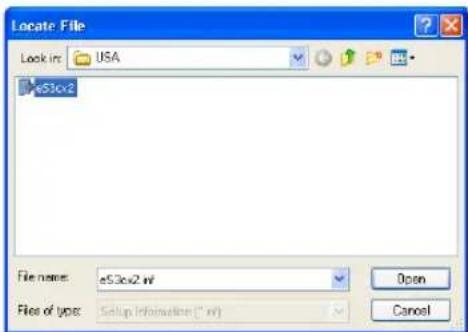
- To install the PCL6 printer driver, locate "[CD-ROM drive]:\Client\W2K_XP_2003\PCL6\
". - To install the PS3 printer driver, locate "[CD-ROM drive]:\Client\W2K_XP_2003\PS\
"
7 Click [OK].
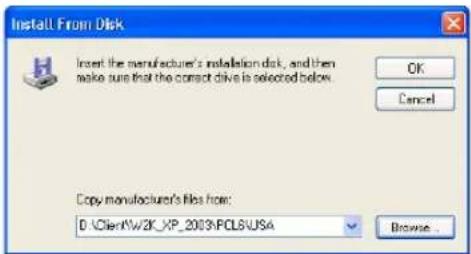
8 Select the printer driver and click [OK].
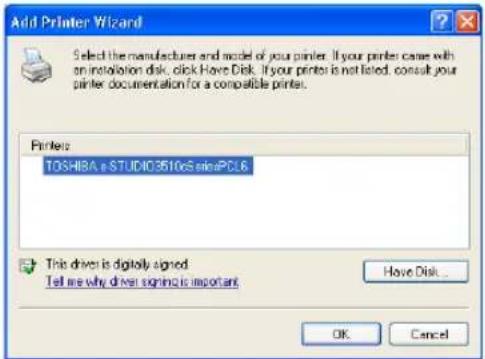
9 The installation is completed.
Note
Before using the printer driver for printing, please configure the installed options of the equipment and department code (if required) on the printer driver.
P.188 "Before Using the Printer Driver"
Windows 98/Me
Installing the printer drivers for Novell printing by Point and Print
1 Open the NetWare queue for the equipment in the network with Windows Explorer, and double-click a queue.
When the NetWare has been set up for the Bindery mode, open the NetWare file server and double-click the queue for the equipment.
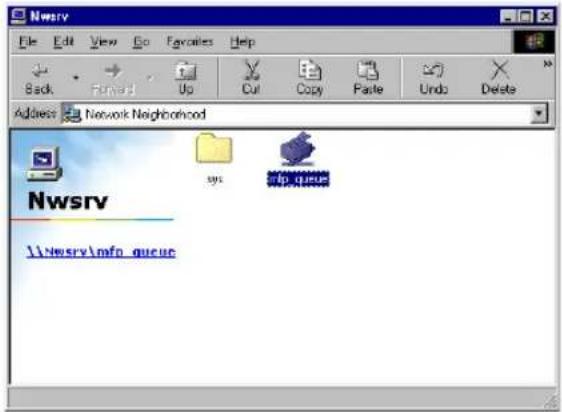
When the NetWare has been set up for the NDS or NDPS mode, browse the NDS tree and context, and double-click the queue for the equipment.
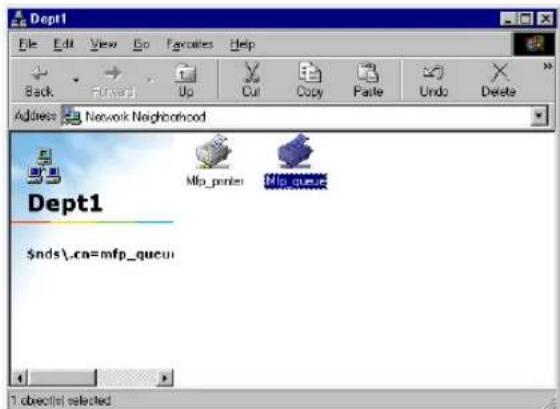
• The Printers dialog box appears.
2 Click [Yes].

• The Add Printer Wizard dialog box appears.
3 Select whether printing MS-DOS-based programs and click [Next].
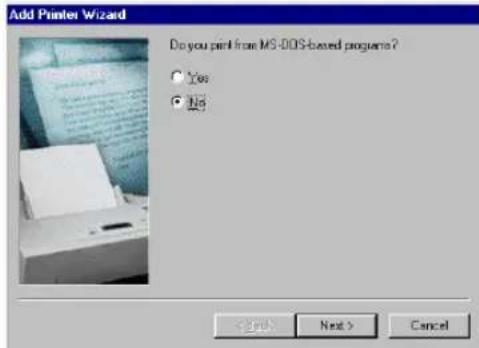
- When using the NetWare in NDPS mode and the printer drivers for each Operating System are installed to a NDPS broker, the printer driver is automatically installed. Skip to Step 10.
- Unless using the NetWare in NDPS mode and printer drivers for each Operating System are installed to a NDPS broker, the Add Printer Wizard dialog box appears. Continue to the next step.
4 Click [Have Disk...].
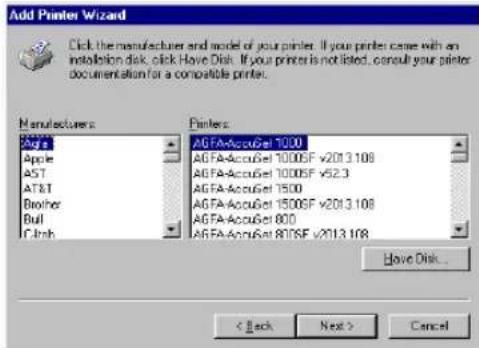
• The Install From Disk dialog box appears.
5 Click [Browse...].
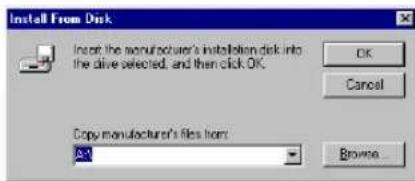
• The Open dialog box appears.
6 Insert the Client Utilities CD-ROM into the CD-ROM drive.
- When inserting the Client Utilities CD-ROM, the installer may automatically start. Click [Cancel] to exit the installer and continue the operation.
7 Locate the directory where the printer driver for Windows 98/Me is located and click [OK].
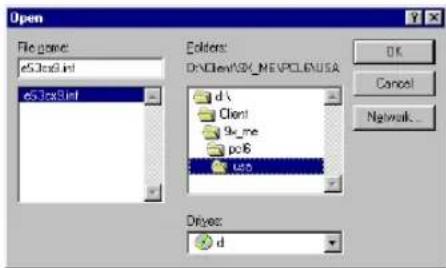
- To install the PCL6 printer driver, locate "[CD-ROM drive]:\Client\9X_ME\PCL6\
" - To install the PS3 printer driver, locate "[CD-ROM drive]:\Client\9X_ME\PS\
"
8 Click [OK].
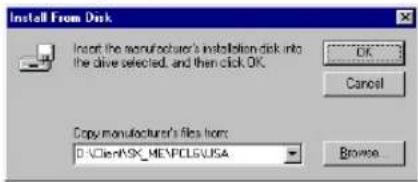
9 Select the printer driver and click [Next].
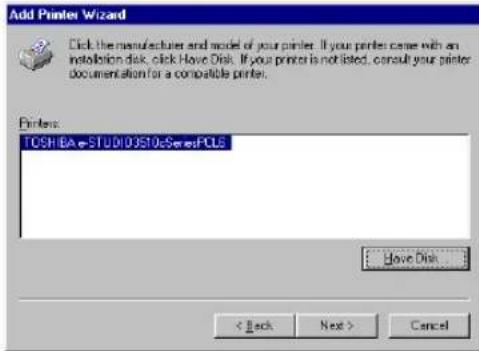
Note
If the same printer driver has been installed, the following dialog box appears. If it appears, select "Replace existing driver" and click [Next].
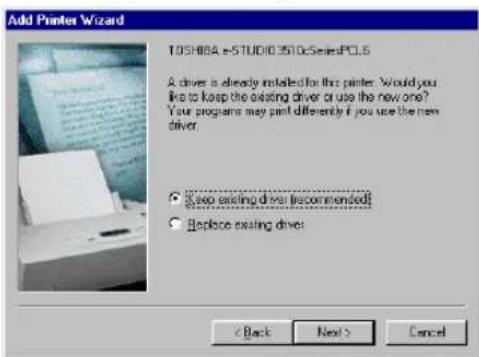
10 Change the name if desired, select whether you are using this printer as a default printer, and click [Next].
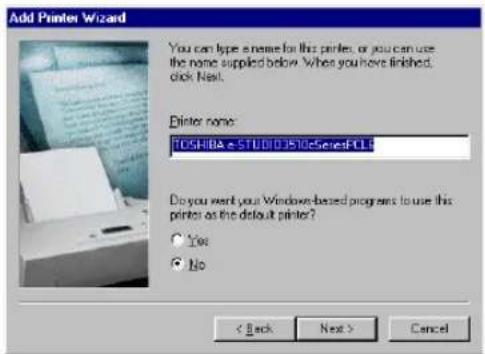
11 Select "Yes" to print a test page and click [Finish].
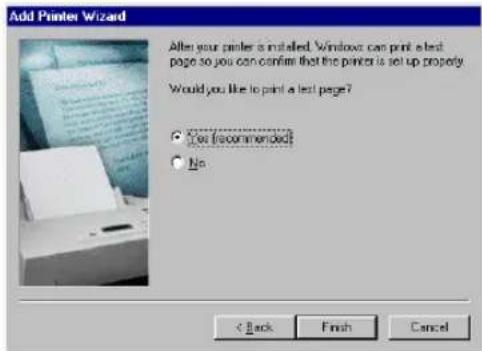
12 Make sure a test page is printed successfully and click [Yes] to close the dialog box.
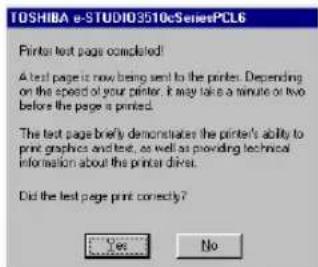
13 The printer driver is installed and the print queue window appears.
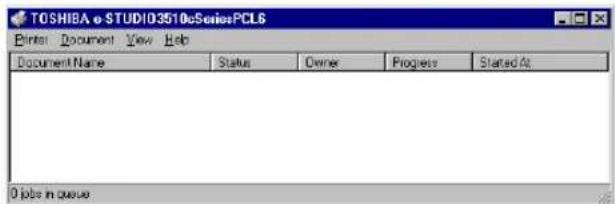
Note
Before using the printer driver for printing, please configure the installed options of the equipment and department code (if required) on the printer driver.
P.188 "Before Using the Printer Driver"
This section describes how to install the printer drivers for Novell iPrint.
Notes
- To set up the iPrint in the client computers, the NetWare server must be configured for iPrint first. For more information about setting up the NetWare server for Novell iPrint, please see Network Administration Guide.
- Before installing the printer driver for Novell iPrint, the printer driver for Novell iPrint, please make sure the following environments are satisfied in your computer.
- Microsoft Internet Explorer 5.0 or later or Netscape 4.76 is installed (iPrint is not supported on Netscape 6)
- JavaScript must be enabled on the web browser.
Installing the printer driver for Novell iPrint
To install the printer driver for Novell iPrint on the client computer, download and install the iPrint Client and printer driver from the NetWare server.
1 Start the your web browser and enter the following URL in the address bar.
http://
Notes
- If you do not know the IP address or DNS for NDPS Manager, please ask your network administrator.
- If the IP address or DNS is secured using SSL, enter the URL address as following: https://
/ipps
2 If the iPrint Client is not installed on your computer, you are prompted to install it.
3 Click the printer that you want to install from the list of available printers that is displayed in the iPrint web page.
- The selected printer driver is installed on your computer.
Installing Client Software from TopAccess
If the system administrator has uploaded the driver software to this equipment, you can use TopAccess to install the software on your workstation.
Notes
- When using Windows Server 2003 that the Service Pack is installed, the installation from TopAccess cannot be performed. In that case, please install the software in the other method.
- For instructions on how to upload the software in the equipment, please refer to the TopAccess Guide.
Installing client software from TopAccess for Windows
1 In TopAccess, click the Install Software link at the bottom of the screen.
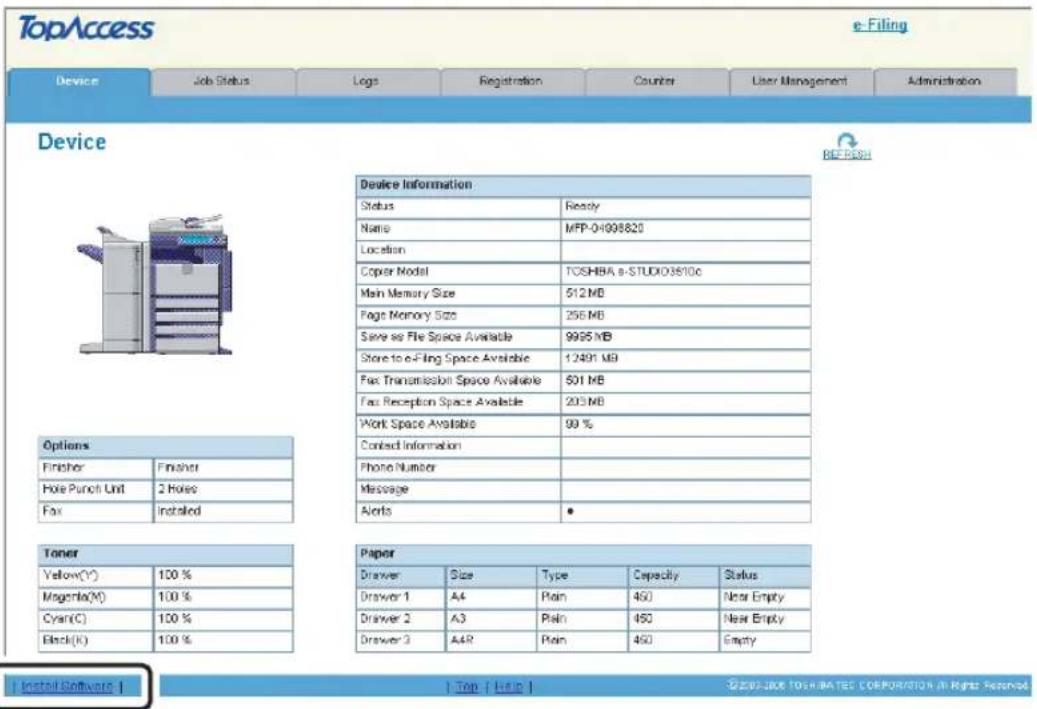
• The Install Client Software page opens.
2 Click the "Install Client1" link to download the installer file.
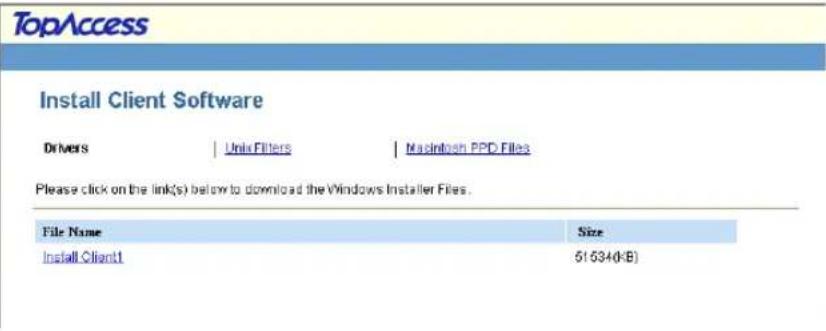
3 Download the installer file on your desktop by following the prompts.
4 Double-click the "InstallClient1.exe" file that you downloaded.
- The installer starts and the InstallShield Wizard dialog box appears.
5 Follow the installation procedure using the Client Utilities CD-ROM described in following section.
P.35 "Installation for Raw TCP/LPR Printing Using the Installer"
P.61 "Installation for SMB Printing Using the Installer"
P.95 "Installation for Novell Printing Using the Installer"
Uninstalling Client Utilities Software
The following instructions describe how to uninstall the client software. The uninstallation procedure is different how you installed the client software.
P.112 "When Installed Using the Installer"
P.117 "When Installed Using Add Printer Wizard"
When Installed Using the Installer
When the client software was installed using the Installer in the Client Utilities CD-ROM or downloaded from TopAccess, you can delete all files using the Add/Remove Programs function.
You can uninstall all client software that have installed from the Client Utilities CD-ROM, or you can uninstall only the components that you want to remove.
P.112 "Uninstalling all Client Utilities Software"
P.114 "Uninstalling only the components that you want to remove"
Uninstalling all Client Utilities Software
The following describes an installation on Windows XP. The procedure is the same when other versions of Windows are used.
Note
Before uninstalling the software, please make sure you exit TopAccessDocMon.
1 Open "Control Panel" and click the "Add/Remove Programs" icon.
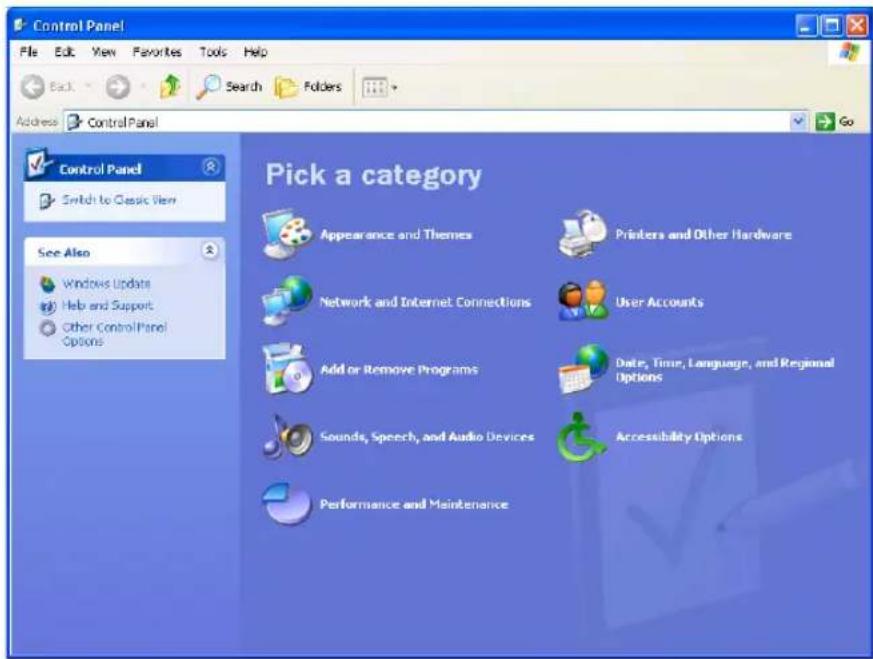
• The Add/Remove Programs dialog box appears.
2 Select "TOSHIBA e-STUDIO3510c Series Client" and click [Change/Remove].
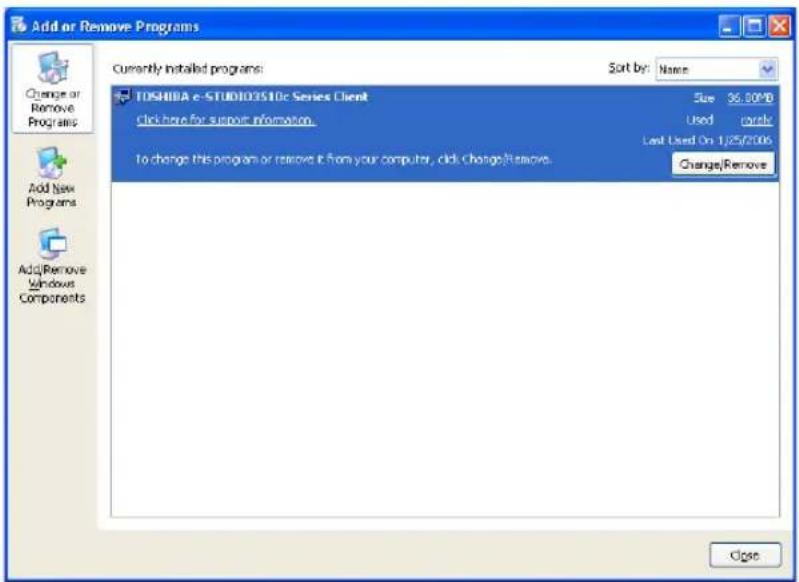
• The InstallShield Wizard dialog box appears.
3 Select "Remove" and click [Next].
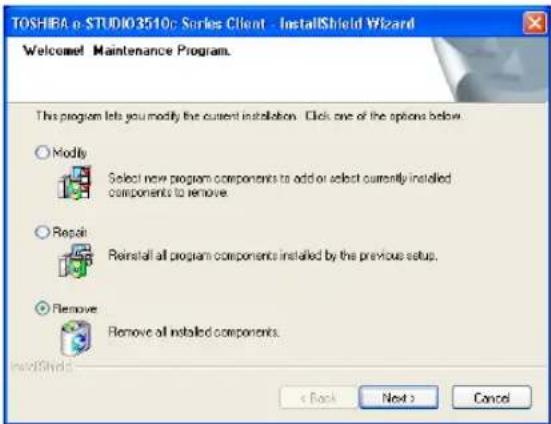
• The Confirm Uninstall dialog box appears.
4 Click [OK].

5 Click [Yes] to delete the setting files.
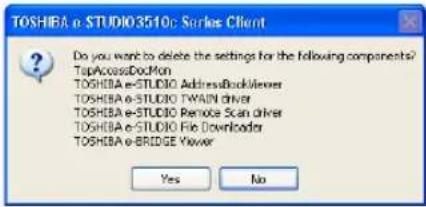
- Deleting files starts.
Note
If you want to re-install the client software later, click [No] to remain the setting files. You can restore the data and settings when you re-install the client software.
6 Select "Yes, I want to restart my computer now." and click [Finish] to restart your computer.
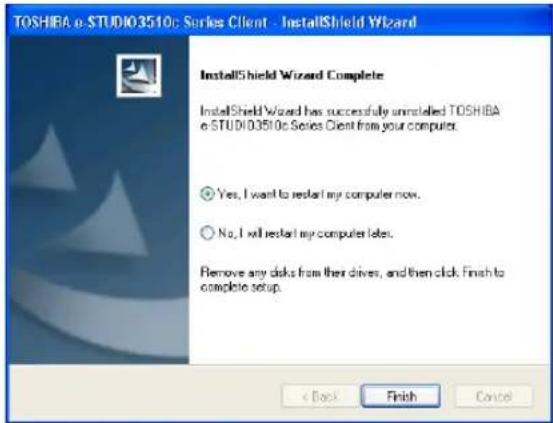
• Some files may be deleted after restarting the computer.
Uninstalling only the components that you want to remove
The following describes an installation on Windows XP. The procedure is the same when other versions of Windows are used.
Note
Before uninstalling the software, please make sure you exit TopAccessDocMon.
1 Open "Control Panel" and click the "Add/Remove Programs" icon.
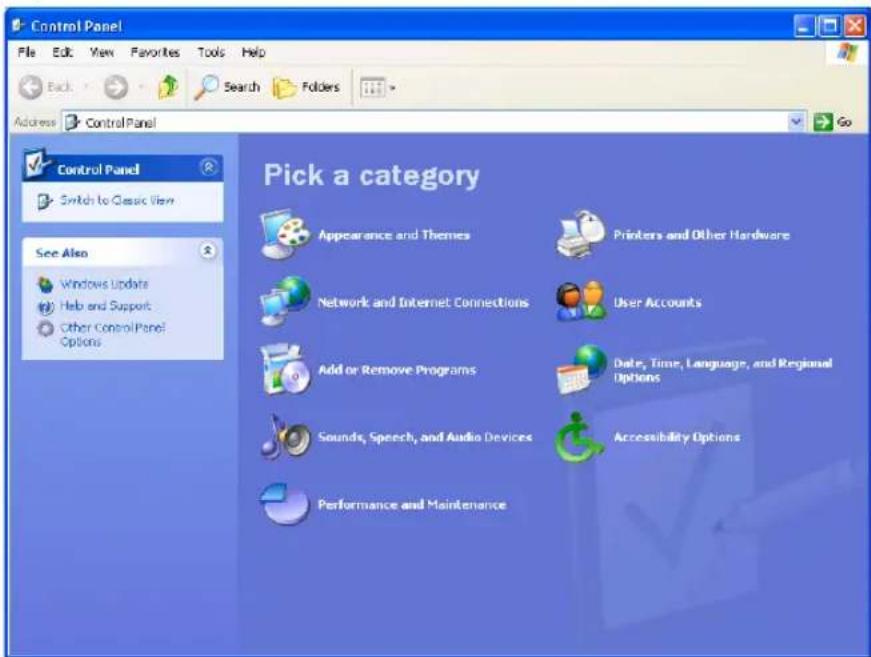
• The Add/Remove Programs dialog box appears.
2 Select "TOSHIBA e-STUDIO3510c Series Client" and click [Change/Remove].
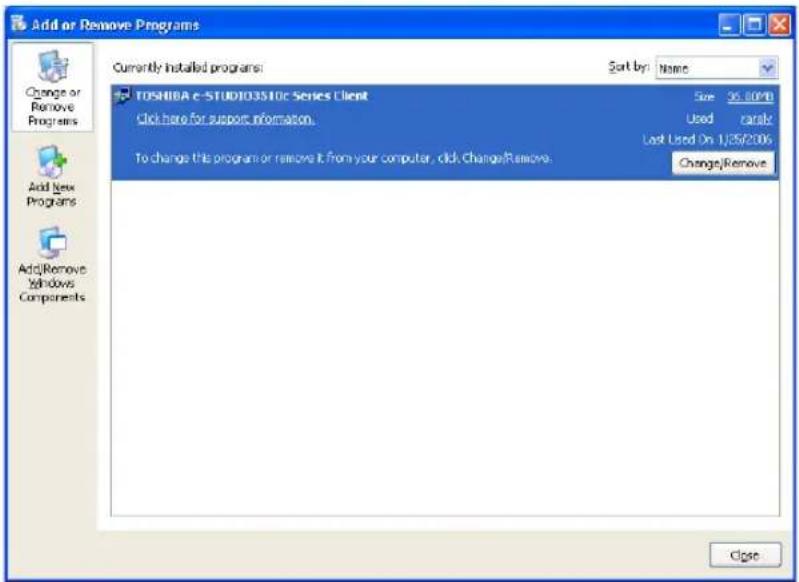
• The InstallShield Wizard dialog box appears.
3 Select "Modify" and click [Next].
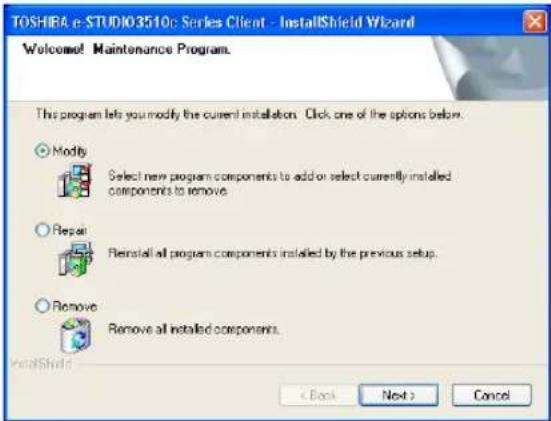
4 Uncheck the components that you want to uninstall and click [Next].
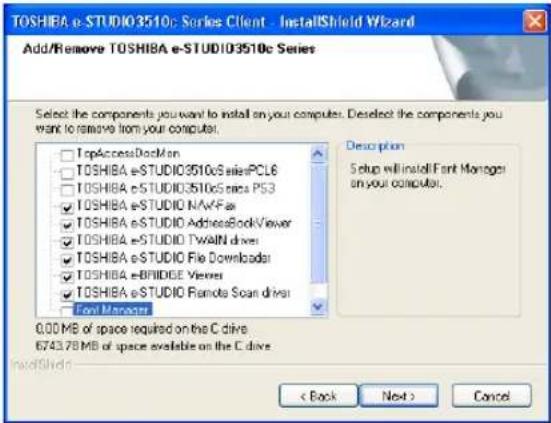
5 Click [Next].
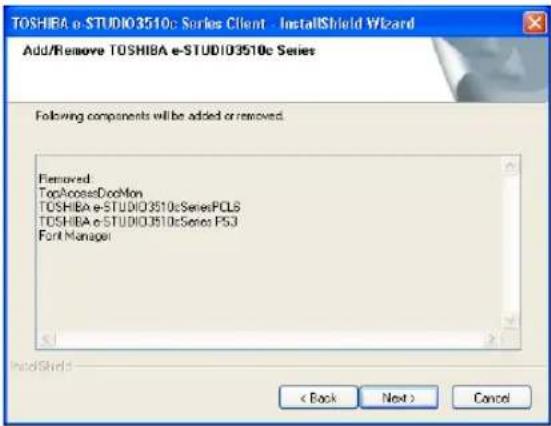
6 Click [Yes] to delete the setting files.
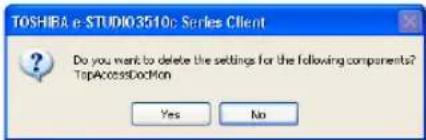
- Deleting files starts.
Note
If you want to re-install the client software later, click [No] to remain the setting files. You can restore the data and settings when you re-install the client software.
7 Click [Finish].
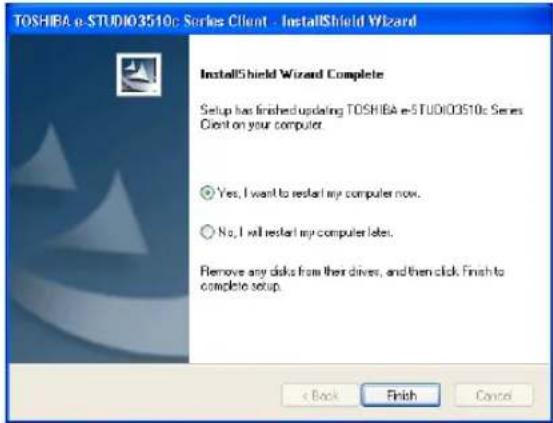
Note
The Installer may ask you to restart your computer. If it does, select "Yes, I want to restart my computer now." and click [Finish] to restart your computer.
When Installed Using Add Printer Wizard
If only printer drivers are installed by Add Printer Wizard or Point and Print, you can uninstall them by deleting the printer icons from the Printers folder.
Deleting printer drivers
The following describes an installation on Windows XP. The procedure is the same when other versions of Windows are used.
1 Click [Start] and click [Printers and Faxes] to open the Printers and Faxes folder.
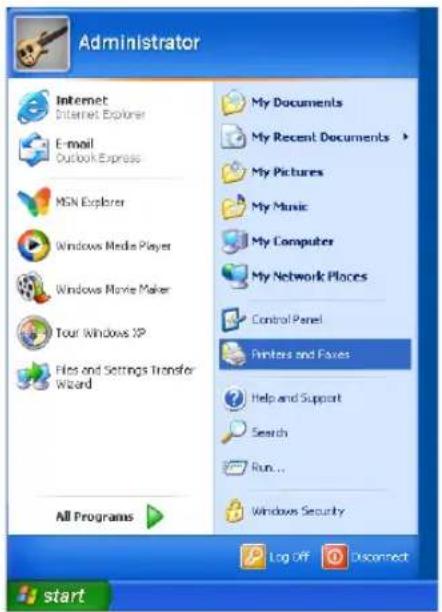
- If you are using the Windows 2000/NT 4.0/Me/98, click [Start], select [Settings], and click [Printers] to open the Printers folder.
2 Select the printer drivers and select [Delete] in the [File] menu.
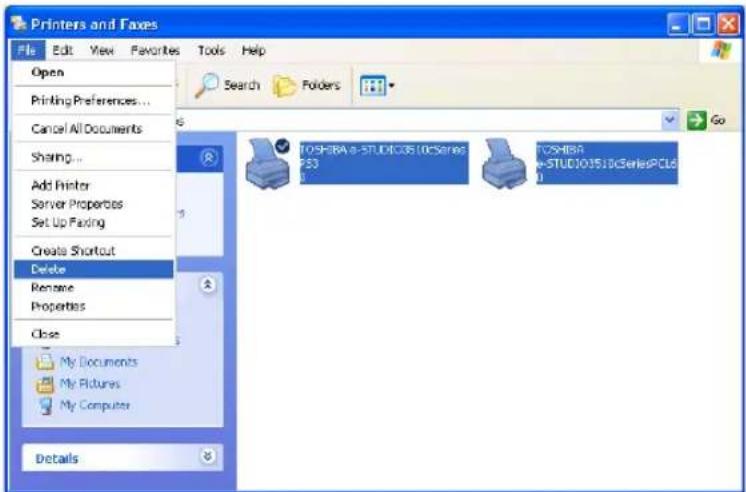
• The Printers dialog box appears.
3 Click [Yes].
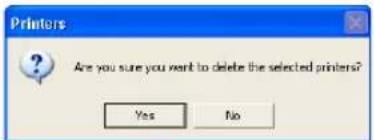
- When using Windows 98/Me or Windows NT 4.0, uninstallation has finished.
- When using Windows 2000/XP/Server 2003, continue to the next step.
4 Click the [File] menu and select [Server Properties].
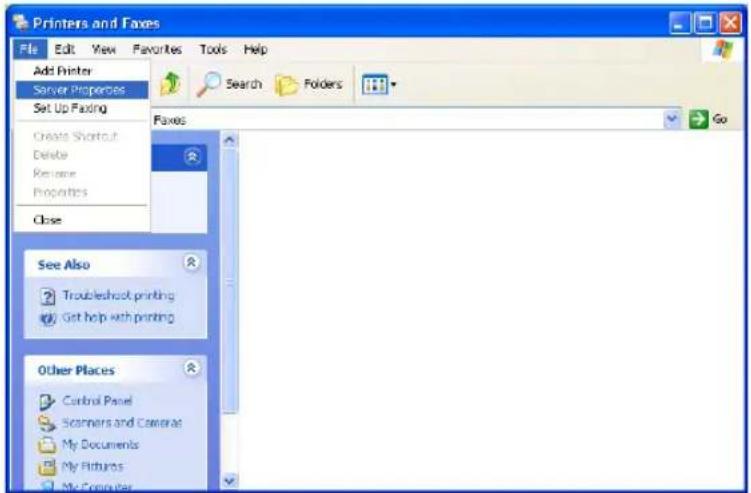
• The Print Server Properties dialog box appears.
5 Display the Drivers tab. Select the printer drivers that you want to delete, and click [Remove].
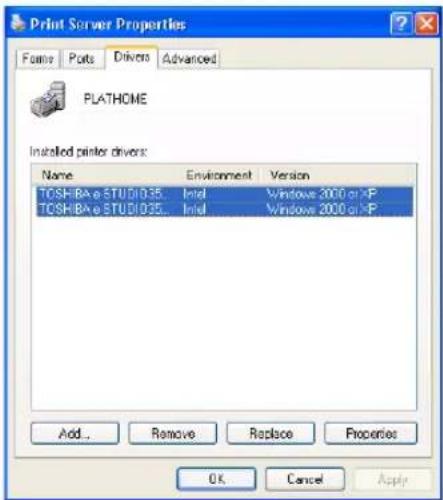
• The Printer Server Properties dialog box appears.
6 Click [Yes].

• The printer drivers are completely deleted.
Repairing Client Software
When the client software will not work correctly, you can repair the client software.
Repairing Client Utilities Software
The following describes an installation on Windows XP. The procedure is the same when other versions of Windows are used.
Notes
- Do not perform preparing the client software on Windows XP that the Service Pack 2 is not installed. In that case, uninstall the client software and then install again to repair the client software.
- Before repairing the software, please make sure you exit TopAccessDocMon and e-BRIDGE Viewer.
1 Insert the Client Utilities CD-ROM into the CD-ROM drive.
- If the installer does not automatically start, double-click "Setup.exe" in the Client Utilities CD-ROM.
2 Select "Repair" and click [Next].
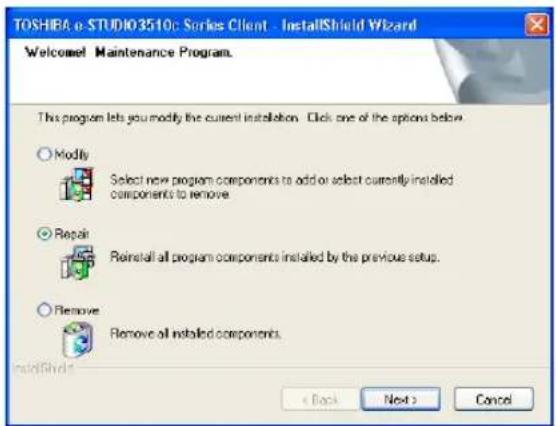
- Repairing files starts.
Tip
If the printer drivers and N/W-Fax driver are installed, the Select Port screen is displayed. If this screen is displayed, select "Local Port" and select the port for the printer drivers if printer drivers were installed. If this screen is displayed, specify the network path or queue name and click [Next].
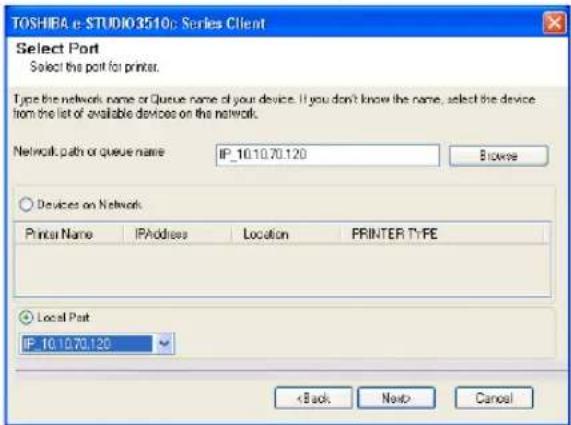
3 Select "Yes, I want to restart my computer now." and click [Finish] to restart your computer.
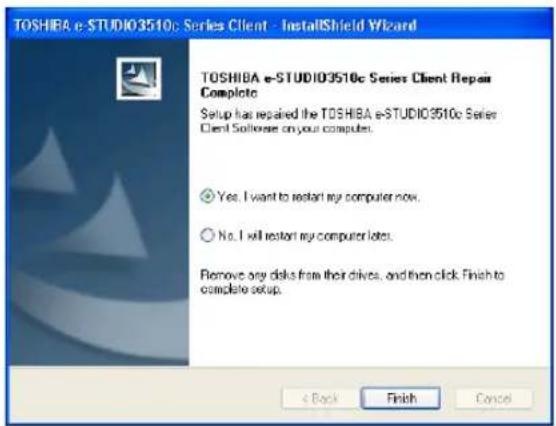
Installing Client Software for Macintosh
This section describes the instructions on how to install the client software on Macintosh.
About the Installation ....124
About Client Software for Macintosh....124
Planning for Installation....124
Installing the Printer on Mac OS X 10.2.4 to Mac OS X 10.4.x ....125
Installing the Macintosh PPD File 125
Configuring the Printer on Mac OS X 10.4.x....128
Configuring the Printer on Mac OS X 10.2.4 to Mac OS X 10.3.x....139
Installing the Printer on Mac OS 8.6/9.x....150
Installing the Macintosh PPD File 150
Configuring the Printer on Mac OS 8.6/9.x ....150
Installing Client Software from TopAccess ....156
Please refer to following instructions for configuring printing systems on Macintosh computers.
P.124 "About Client Software for Macintosh"
P.124 "Planning for Installation"
P.125 "Installing the Printer on Mac OS X 10.2.4 to Mac OS X 10.4.x"
P.150 "Installing the Printer on Mac OS 8.6/9.x"
About Client Software for Macintosh
PostScript Printer Description File
The Macintosh PPD (PostScript Printer Description) file contains information about controller-specific features. There are two PPD files provided in the Client Utilities CD-ROM: one is for Mac OS 8.6/9.x and the other is for Mac OS X.
Information within the PPD file for Mac OS 8.6/9.x works in conjunction with the standard Macintosh LaserWriter 8 printer driver version 8.6.5 (or later). This Macintosh PPDs are supplied for Mac OS 8.6 to 9.x and it also supports Mac OS X 10.1/10.2 Classic mode.
Information within the PPD file for Mac OS X works in conjunction with the Print Center (Mac OS X 10.2.4 to 10.2.8) or Printer Setup Utility (Mac OS X 10.3.x to Mac OS X 10.4.x) on Mac OS X 10.2.4 to Mac OS X 10.4.x.
Planning for Installation
System Requirements
To install the printer drivers on a Mac OS computer, the following environment is required.
Display Resolution: 1028 x 768 dots or more
OS: Mac OS 8.6 to 9.x, Mac OS X 10.1 (Classic), Mac OS X 10.2 (Classic)
Mac OS X 10.2.4 to Mac OS X 10.3.x
Protocol: TCP/IP, AppleTalk (Ethernet), Bonjour
Printer Driver: LaserWriter 8 printer driver version 8.6.5 or later
(not required for Mac OS X)
Note
Mac OS X 10.2 and its earlier versions of Mac OS X are supported in Classic mode using the PPD file for Mac OS 8.6 to 9.x. This equipment also provides the PPD file for Mac OS X 10.2.4 to Mac OS X 10.3.x.
Install and configure the printer by the following steps:
P.125 "Installing the Macintosh PPD File"
P.139 "Configuring the Printer on Mac OS X 10.2.4 to Mac OS X 10.3.x"
P.147 "Configuring the installable options"
Installing the Macintosh PPD File
This equipment supports printing from Mac OS X 10.2.4 to Mac OS X 10.4.x.
Installing the PPD file to Mac OS X
The following describes an installation on Mac OS 10.4.x. The procedure is the same when Mac OS X 10.2.4 to 10.3.x is used.
1 Insert the Client Utilities CD-ROM into the CD-ROM drive and open your language folder in the "Client:MacPPD:OSX" folder.
2 Copy the GZIP file (TOSHIBA_e-ST3510cSrs.dmg.gz) to the desktop.
3 Double-click the GZIP file on the desktop.
- The Disk Image file (TOSHIBA_e-ST3510cSrs.dmg) is extracted on the desktop.
• If the installer window does appear, go to step 5.
4 Double-click the Disk Image file (TOSHIBA_e-ST3510cSrs.dmg).
• The installer window appears.
5 Double-click the icon in the installer window.
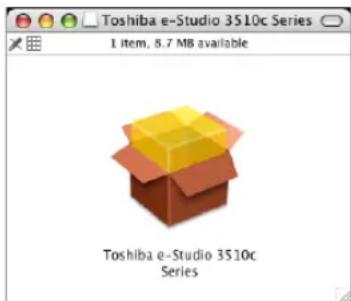
• The welcome message is displayed.
Note
When you install the PPD file to Mac OS 10.2.4 to 10.2.8, the Authenticate dialog box appears. In that case, enter the name and password and click [OK].
6 Click [Continue].
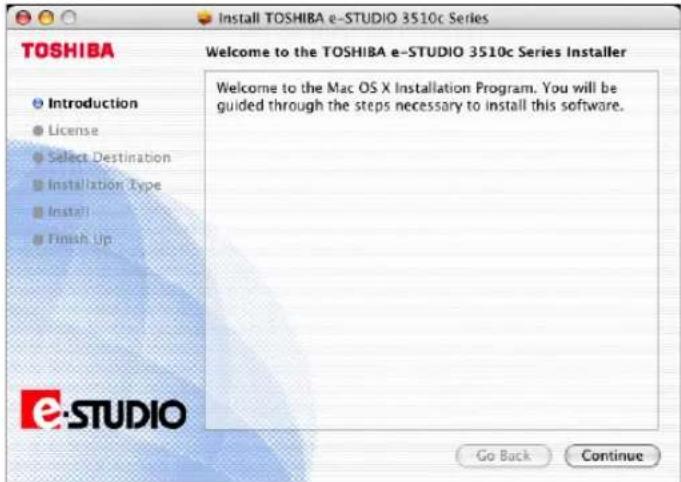
• The Software License Agreement window is displayed.
7 Click [Continue].
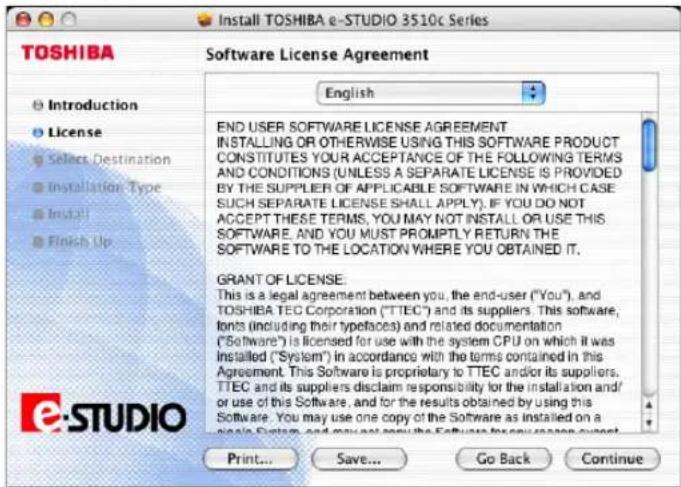
8 Click [Agree].
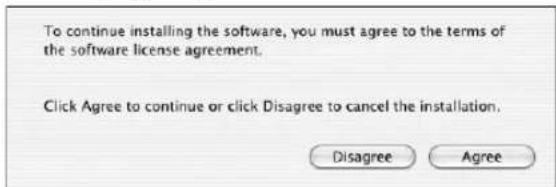
• The Select a Destination window is displayed.
9 Select the boot hard disk of your Mac OS X and click [Continue].
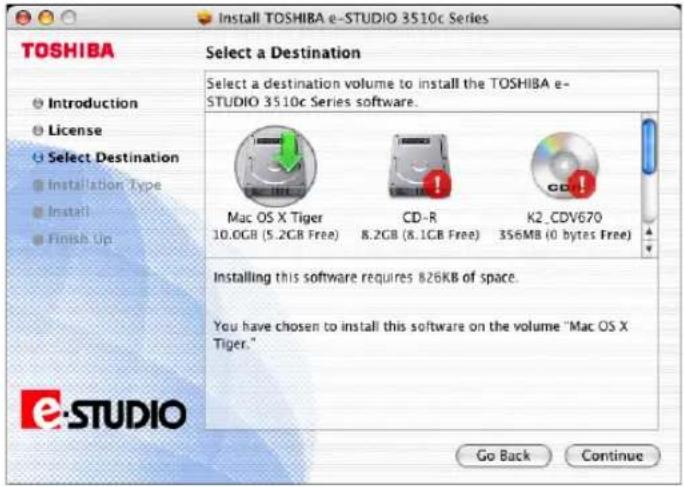
• The Easy Install window is displayed.
10 Click [Install] (or [Upgrade]).
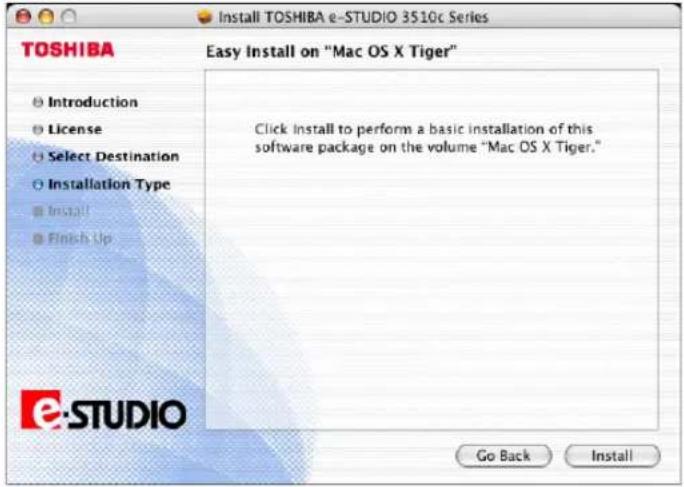
• The Authenticate dialog box appears.
11 Enter the name and password, and click [OK].
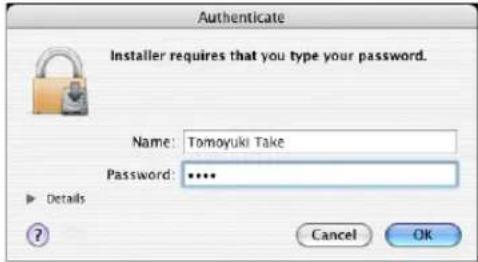
- It start copying the PPD files for each language.
Note
When you install the PPD file to Mac OS 10.2.4 to 10.2.8, the Authenticate dialog box does not appear in this step.
12 Click [Close] to close the installer window.
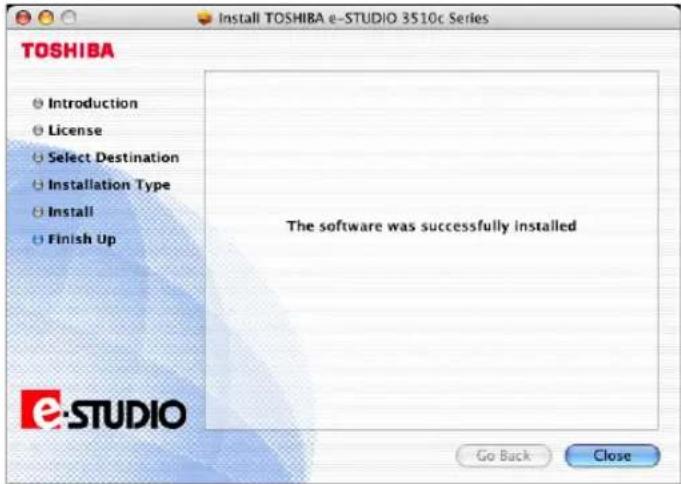
13 Delete the GZIP files and Installer files created from the desktop.
14 Continue the procedure for configuring the printer.
P.139 "Configuring the Printer on Mac OS X 10.2.4 to Mac OS X 10.3.x"
P.128 "Configuring the Printer on Mac OS X 10.4.x"
Configuring the Printer on Mac OS X 10.4.x
After you copy the PPD file to the library folder in the System Folder, you can configure the printer.
This equipment supports the following Macintosh Printing Services: LPR Printing, AppleTalk Printing, IPP Printing, and Bonjour Printing.
- LPR Printing
When this equipment and your computer are connected over TCP/IP network, you can enable LPR printing from Macintosh computer.
- AppleTalk Printing
When this equipment and your computer are connected over AppleTalk network, you can enable AppleTalk printing from Macintosh computer.
- IPP Printing
When this equipment and your computer are connected over TCP/IP network, you can enable IPP printing from Macintosh computer.
- Bonjour Printing
When this equipment and your computer are connected over TCP/IP network, you can enable Bonjour printing from Macintosh computer.
Configuring Macintosh LPR printing
1 Start the Printer Setup Utility, located in the "Applications:Utilities" folder in the Boot Disk.
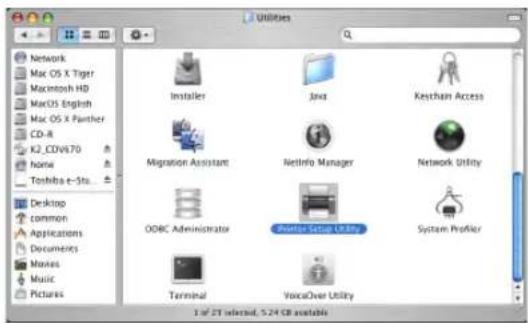
• The Printer List dialog box appears.
2 Click [Add].
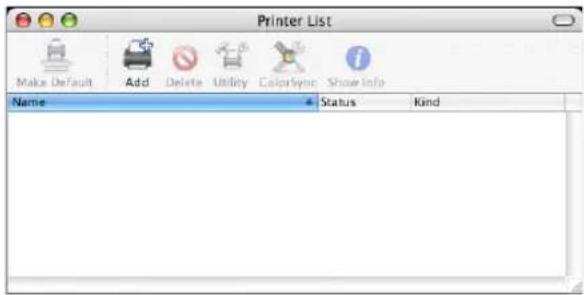
3 Click [IP Printer] and specify the items as described below.
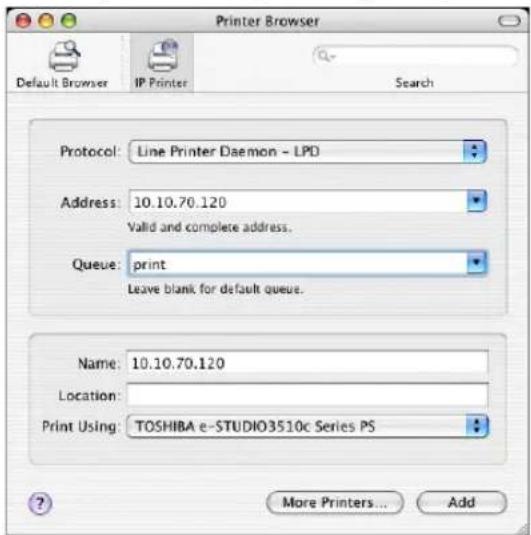
Protocol: Line Printer Daemon - LPD
Address:
Queue: p r i n t
Name:
Location:
Print Using: TOSHIBA e-STUDIO3510c Series PS (or UK PS)
Tips
- In the "Name" field, the name that is entered in the Address field is automatically displayed.
- When you enter the IP address or DNS name of this equipment in the "Address" field, the correct PPD file is automatically selected in the "Print Using" drop down box. If the correct PPD is not automatically selected, select "TOSHIBA" in the "Print Using" drop down box and select the PPD file displayed in the list.
4 Click [Add].
• The Installable Options window appears.
5 Set the following options.
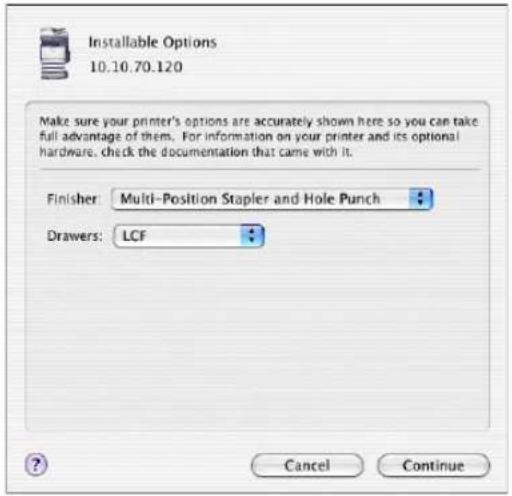
- Finisher
Not Installed — Select this if a finisher is not installed.
Multi-Position Stapler — Select this when the Finisher or Saddle Stitch Finisher is installed.
Multi-Position Stapler and Hole Punch — Select this when the Finisher or Saddle Stitch Finisher and Hole Punch unit are installed.
- Drawers
Not Installed — Select this when no optional drawer is installed.
Drawer 3 — Select this when the drawer 3 is installed.
Drawer 3 and 4 — Select this when the drawer 3 and 4 are installed.
LCF — Select this when the LCF is installed.
Notes
• LCF is not available for some countries or regions.
- The finisher options such as stapling and hole punching can be selected even if you select "Not Installed" for the Finisher option. If you select the finisher options for printing but the finisher is not installed, finisher settings will be ignored and perform printing correctly.
6 Click [Continue].
• The printer is added to the Printer List.
Configuring Macintosh AppleTalk printing
1 Start the Printer Setup Utility, located "Applications:Utilities" folder in the Boot Disk.
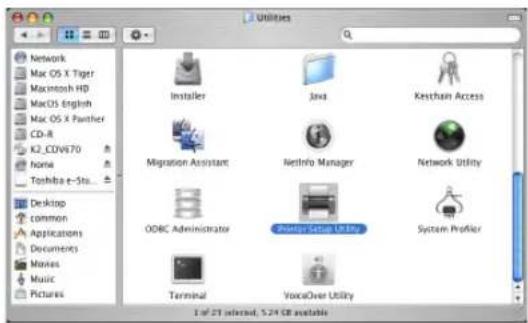
• The Printer List dialog box appears.
2 Click [Add].
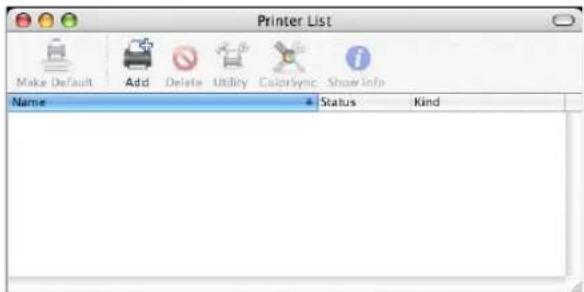
3 Click [Default Browser] and select the equipment of the AppleTalk connection displayed in the list.
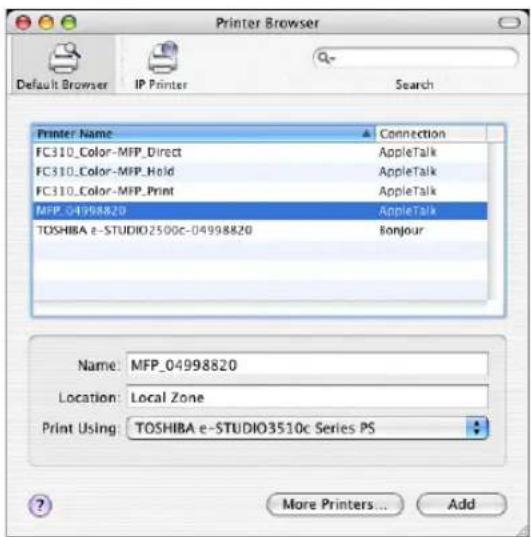
Tips
- In the "Name" field, the device name that you selected in the list is automatically displayed.
- When you select the equipment in the list, the correct PPD file is automatically selected in the "Print Using" drop down box. If the correct PPD is not automatically selected, select "TOSHIBA" in the "Print Using" drop down box and select the PPD file displayed in the list.
4 Click [Add].
- The Determining Installable Options window appears.
5 Click [Configure...] while the windows is displayed.
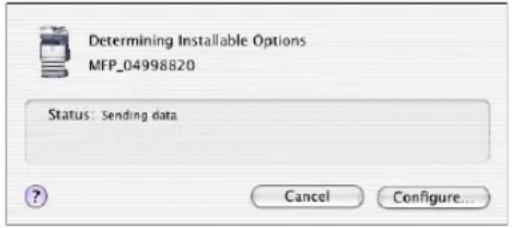
• The Installable Options window appears.
6 Set the following options.
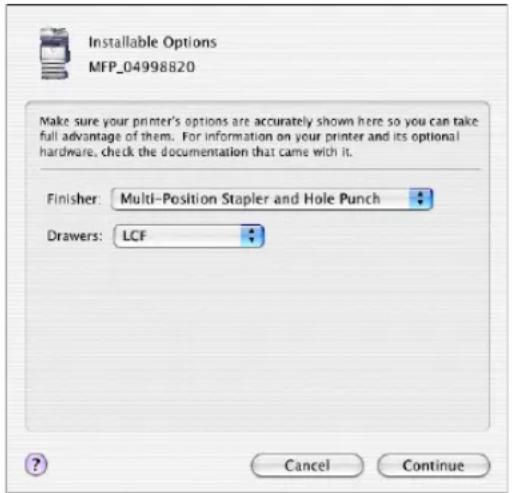
- Finisher
Not Installed — Select this if a finisher is not installed.
Multi-Position Stapler — Select this when the Finisher or Saddle Stitch Finisher is installed.
Multi-Position Stapler and Hole Punch — Select this when the Finisher or Saddle Stitch Finisher and Hole Punch unit are installed.
- Drawers
Not Installed — Select this when no optional drawer is installed.
Drawer 3 — Select this when the drawer 3 is installed.
Drawer 3 and 4 — Select this when the drawer 3 and 4 are installed.
LCF — Select this when the LCF is installed.
Notes
• LCF is not available for some countries or regions.
- The finisher options such as stapling and hole punching can be selected even if you select "Not Installed" for the Finisher option. If you select the finisher options for printing but the finisher is not installed, finisher settings will be ignored and perform printing correctly.
7 Click [Continue].
• The printer is added to the Printer List.
Configuring Macintosh IPP Printing
When you want to setup IPP print queue in the Mac OS X, follow the procedures here.
1 Start the Printer Setup Utility, located "Applications:Utilities" folder in the Boot Disk.
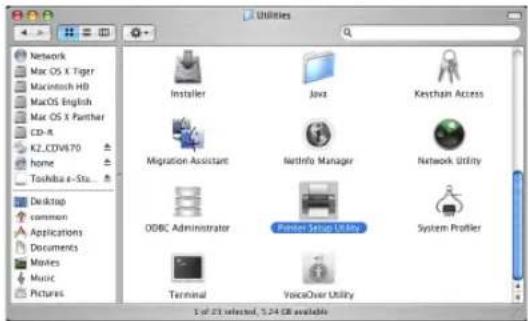
• The Printer List dialog box appears.
2 Click [Add].
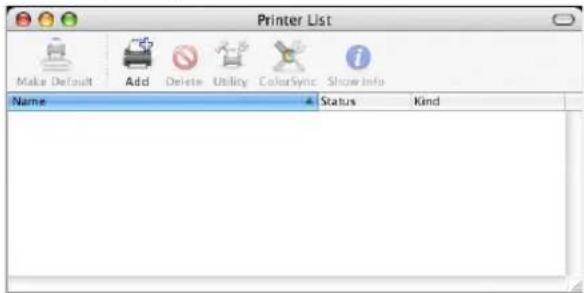
- This is mandatory to show all the advanced print option in the drop down box in the Print List window.
3 Click [IP Printer] and specify the items as described below.
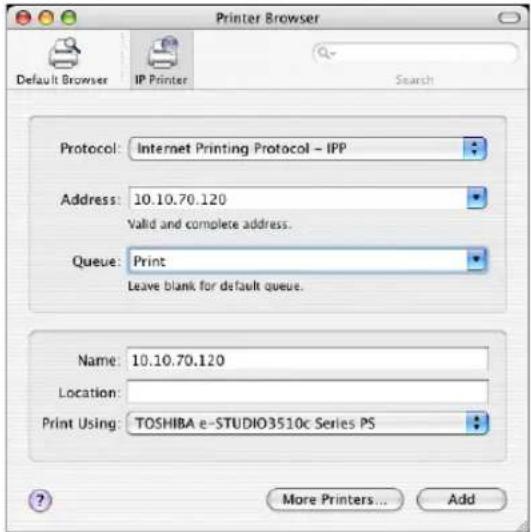
Protocol: Internet Printing Protocol - IPP
Address:
Queue: P r i n t
Name:
Location:
Print Using: TOSHIBA e-STUDIO3510c Series PS (or UK PS)
Tips
- In the "Name" field, the name that is entered in the Address field is automatically displayed.
- When you enter the IP address or DNS name of this equipment in the "Address" field, the correct PPD file is automatically selected in the "Print Using" drop down box. If the correct PPD is not automatically selected, select "TOSHIBA" in the "Print Using" drop down box and select the PPD file displayed in the list.
Note
When IPP/SSL is enabled, click [More Printers...] while pressing the [option] key. In the displayed dialog box, select "Advanced" in the drop down box and specify as followings:
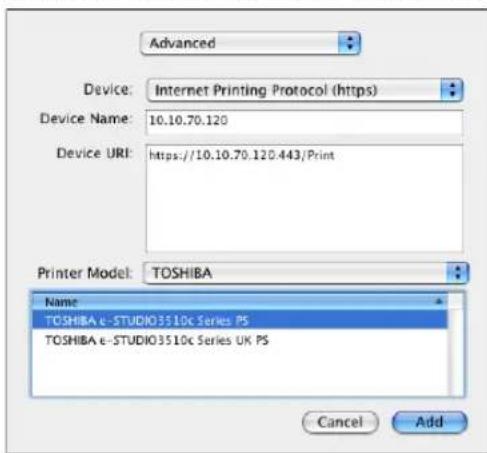
- Device: Internet Printing Protocol (https)
- Device Name:
- Device URI: https://
:443/Print - Printer Model: TOSHIBA
- PPD: TOSHIBA e-STUDIO3510c Series PS (or UK PS)
4 Click [Add].
• The Installable Options window appears.
5 Set the following options.
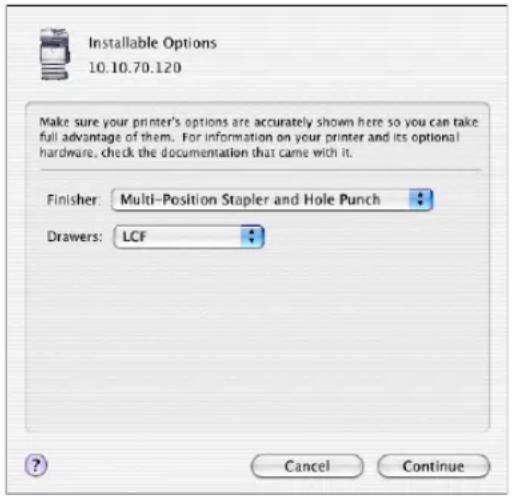
- Finisher
Not Installed — Select this if a finisher is not installed.
Multi-Position Stapler — Select this when the Finisher or Saddle Stitch Finisher is installed.
Multi-Position Stapler and Hole Punch — Select this when the Finisher or Saddle Stitch Finisher and Hole Punch unit are installed.
- Drawers
Not Installed — Select this when no optional drawer is installed.
Drawer 3 — Select this when the drawer 3 is installed.
Drawer 3 and 4 — Select this when the drawer 3 and 4 are installed.
LCF — Select this when the LCF is installed.
Notes
• LCF is not available for some countries or regions.
- The finisher options such as stapling and hole punching can be selected even if you select "Not Installed" for the Finisher option. If you select the finisher options for printing but the finisher is not installed, finisher settings will be ignored and perform printing correctly.
6 Click [Continue].
• The printer is added to the Printer List.
Configuring Macintosh Bonjour Printing
1 Start the Printer Setup Utility, located in the "Applications:Utilities" folder in the Boot Disk.
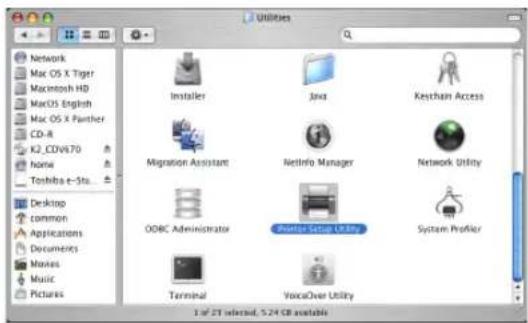
• The Printer List dialog box appears.
2 Click [Add].
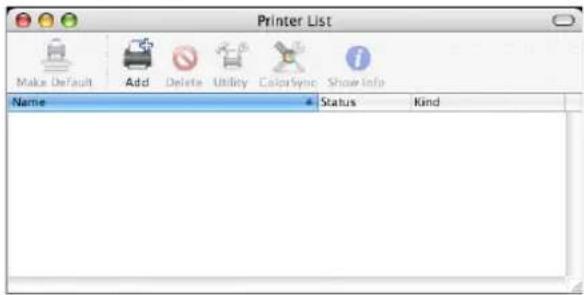
- This is mandatory to show all the advanced print option in the drop down box in the Print List window.
3 Click [Default Printer] and select the equipment of the Bonjour connection displayed in the list.
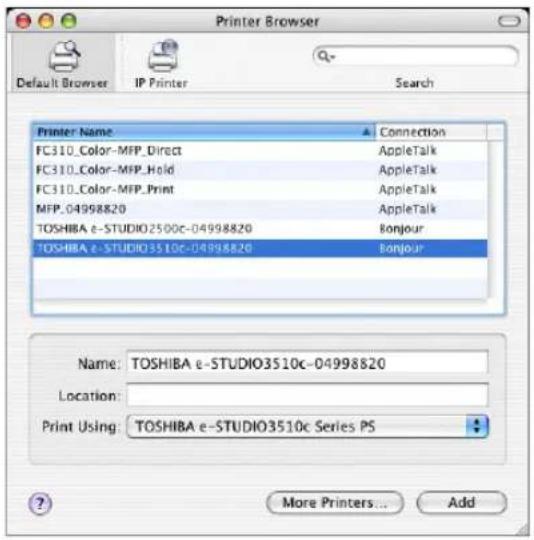
Tips
- In the "Name" field, the device name that you selected in the list is automatically displayed.
- When you select the equipment in the list, the correct PPD file is automatically selected in the "Print Using" drop down box. If the correct PPD is not automatically selected, select "TOSHIBA" in the "Print Using" drop down box and select the PPD file displayed in the list.
4 Click [Add].
• The Installable Options window appears.
5 Set the following options.
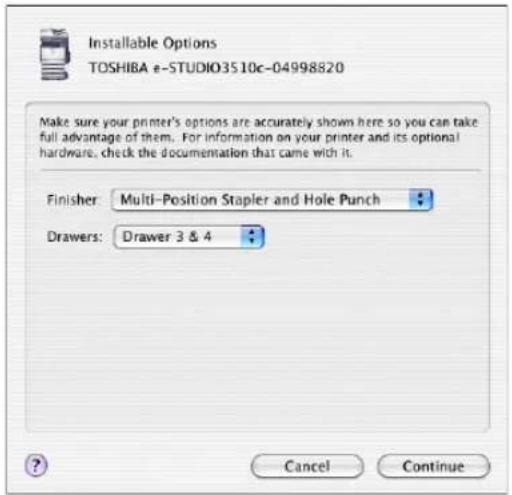
- Finisher
Not Installed — Select this if a finisher is not installed. Multi-Position Stapler — Select this when the Finisher or Saddle Stitch Finisher is installed. Multi-Position Stapler and Hole Punch — Select this when the Finisher or Saddle Stitch Finisher and Hole Punch unit are installed.
- Drawers
Not Installed — Select this when no optional drawer is installed.
Drawer 3 — Select this when the drawer 3 is installed.
Drawer 3 and 4 — Select this when the drawer 3 and 4 are installed.
LCF — Select this when the LCF is installed.
Notes
• LCF is not available for some countries or regions.
- The finisher options such as stapling and hole punching can be selected even if you select "Not Installed" for the Finisher option. If you select the finisher options for printing but the finisher is not installed, finisher settings will be ignored and perform printing correctly.
6 Click [Continue].
• The printer is added to the Printer List.
Configuring the Printer on Mac OS X 10.2.4 to Mac OS X 10.3.x
After you copy the PPD file to the library folder in the System Folder, you can configure the printer.
This equipment supports the following Macintosh Printing Services: LPR Printing, AppleTalk Printing, IPP Printing, and Bonjour Printing.
- LPR Printing
When this equipment and your computer are connected over TCP/IP network, you can enable LPR printing from Macintosh computer. - AppleTalk Printing
When this equipment and your computer are connected over AppleTalk network, you can enable AppleTalk printing from Macintosh computer. - IPP Printing
When this equipment and your computer are connected over TCP/IP network, you can enable IPP printing from Macintosh computer. - Bonjour Printing
When this equipment and your computer are connected over TCP/IP network, you can enable Bonjour printing from Macintosh computer.
Configuring Macintosh LPR printing
The following describes an operation on Mac OS 10.3.x. The procedure is the same when Mac OS X 10.2.4 to 10.2.8 is used.
1 Start the Print Center (for Mac OS X 10.2.4 to 10.2.8) or Printer Setup Utility (for Mac OS X 10.3.x), located in the "Applications:Utilities" folder in the Boot Disk.
Mac OS X 10.2.4 to 10.2.8
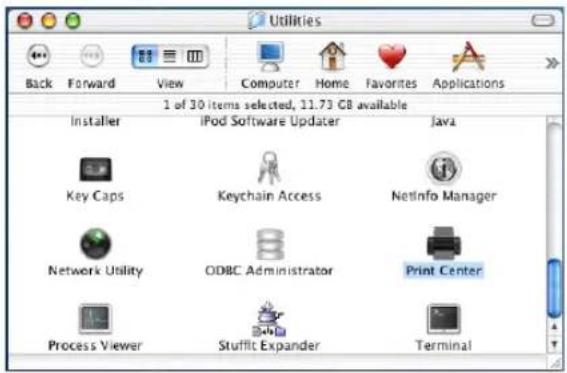
Mac OS X 10.3.x
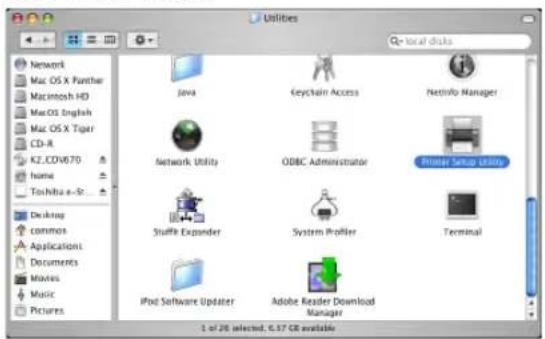
• The Printer List dialog box appears.
2 Click [Add].
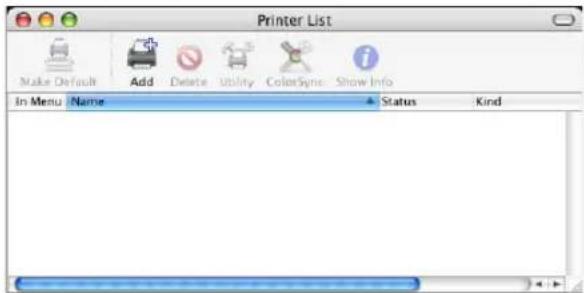
3 Select "IP Printing" in the drop down box and specify the items as described below.
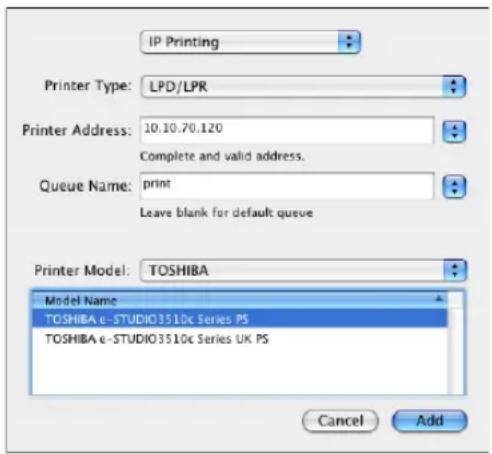
Printer Type: LPD/LPR
Printer's Address:
Queue Name: p r i n t
Printer Model: TOSHIBA
PPD: TOSHIBA e-STUDIO3510c Series PS (or UK PS)
Notes
- For Mac OS X 10.2.4 to 10.2.8, the "Printer Type" drop down box does not displayed.
- For Mac OS X 10.2.4 to 10.2.8, please uncheck the "Use default queue on server" box.
4 Click [Add].
• The printer is added to the Printer List.
5 Continue the procedure to configure the installable options.
P.147 "Configuring the installable options"
Configuring Macintosh AppleTalk printing
The following describes an operation on Mac OS 10.3.x. The procedure is the same when Mac OS X 10.2.4 to 10.2.8 is used.
1 Start the Print Center (for Mac OS X 10.2.4 to 10.2.8) or Printer Setup Utility (for Mac OS X 10.3.x), located "Applications:Utilities" folder in the Boot Disk.
Mac OS X 10.2.4 to 10.2.8
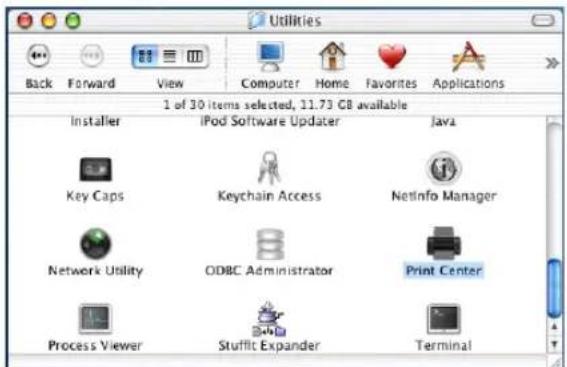
Mac OS X 10.3.x
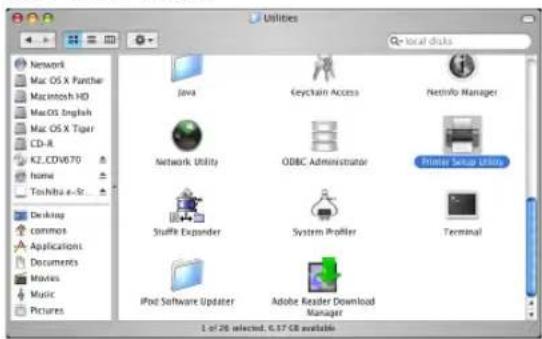
• The Printer List dialog box appears.
2 Click [Add].
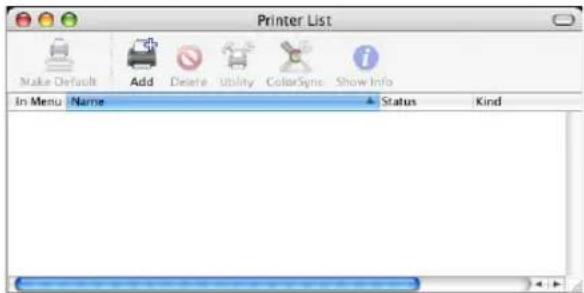
3 Select "AppleTalk" in the drop down box and select the zone name that this equipment is located. Then select the equipment displayed in the list.
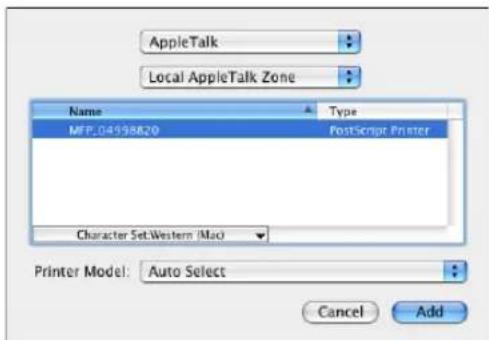
- If the AppleTalk network is not configured with a zone, select "Local AppleTalk zone".
4 Select "TOSHIBA" at the "Printer Model" drop down box, and select the PPD file.
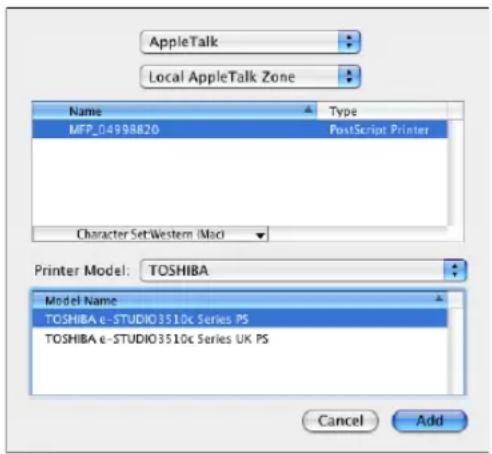
5 Click [Add].
• The printer is added to the Printer List.
6 Continue the procedure to configure the installable options.
P.147 "Configuring the installable options"
Configuring Macintosh IPP Printing
When you want to setup IPP print queue in the Mac OS X, follow the procedures here. The following describes an operation on Mac OS 10.3.x. The procedure is the same when Mac OS X 10.2.4 to 10.2.8 is used.
1 Start the Print Center (for Mac OS X 10.2.4 to 10.2.8) or Printer Setup Utility (for Mac OS X 10.3.x), located "Applications:Utilities" folder in the Boot Disk.
Mac OS X 10.2.4 to 10.2.8
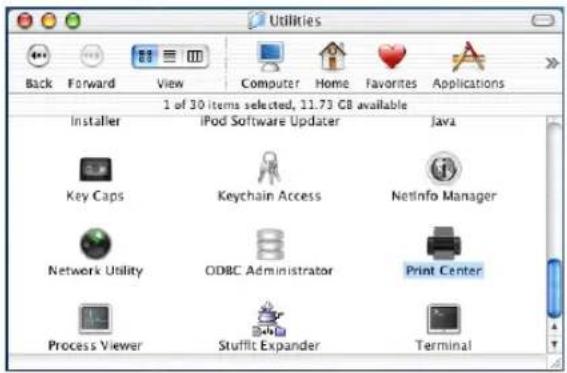
Mac OS X 10.3.x
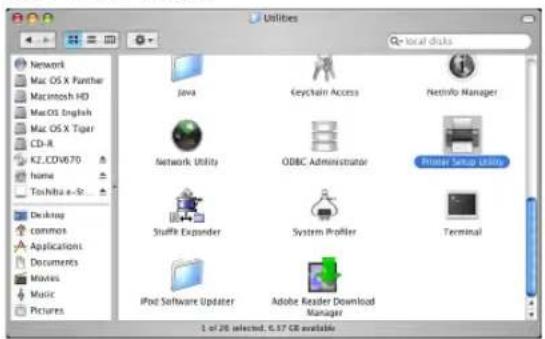
• The Printer List dialog box appears.
2 Click [Add] while pressing the [option] button.
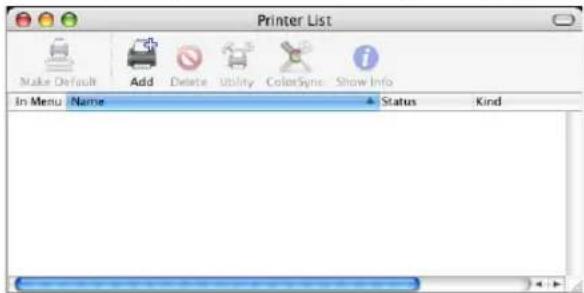
- This is mandatory to show all the advanced print option in the drop down box in the Print List window.
3 Select "Advanced" in the drop down box and specify the items as described below.
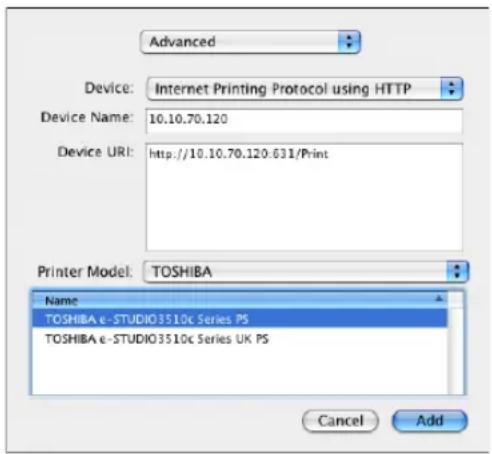
Device: Mac OS 10.2.x: Internet Printing Protocol (http)
Mac OS 10.3.x: Internet Printing Protocol using HTTP
Device Name:
Device URI: http://
Printer Model: TOSHIBA
PPD: TOSHIBA e-STUDIO3510c Series PS (or UK PS)
Note
When IPP/SSL is enabled, specify as followings:
- Device: Internet Printing Protocol (https)
- Device URL: https://
:443/Print
4 Click [Add].
• The printer is added to the Printer List.
5 Continue the procedure to configure the installable options.
P.147 "Configuring the installable options"
Configuring Macintosh Bonjour Printing
The following describes an operation on Mac OS 10.3.x. The procedure is the same when Mac OS X 10.2.4 to 10.2.8 is used.
1 Start the Print Center (for Mac OS X 10.2.4 to 10.2.8) or Printer Setup Utility (for Mac OS X 10.3.x), located in the "Applications:Utilities" folder in the Boot Disk.
Mac OS X 10.2.4 to 10.2.8
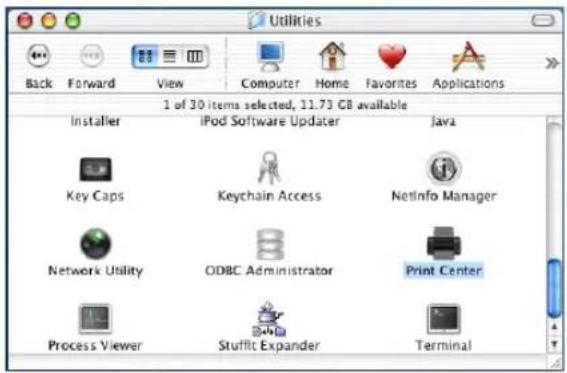
Mac OS X 10.3.x
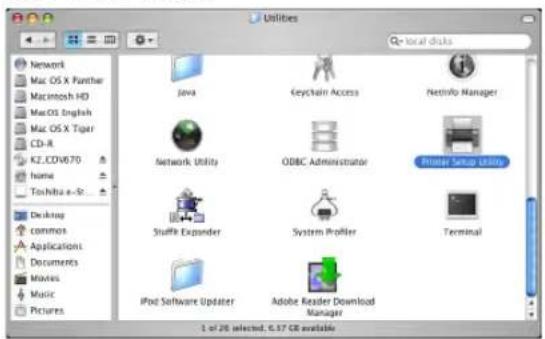
• The Printer List dialog box appears.
2 Click [Add].
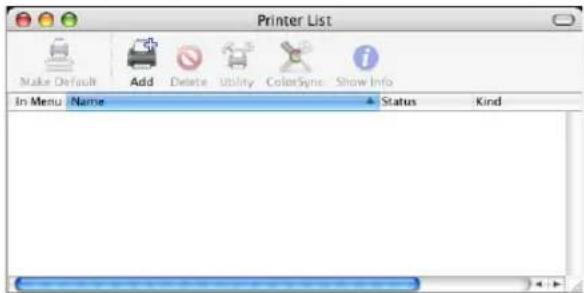
- This is mandatory to show all the advanced print option in the drop down box in the Print List window.
3 Select "Rendezvous" in the drop down box and select the equipment displayed in the list.
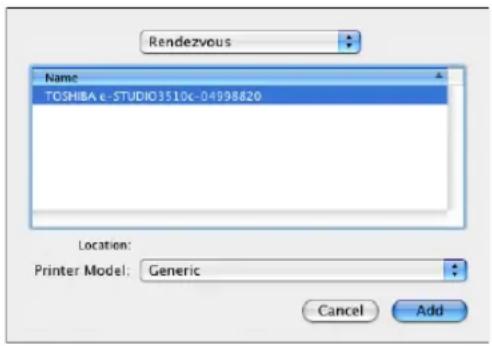
Note
In Mac OS X 10.2.4 to 10.3.x, the "Bonjour" is named as "Rendezvous".
4 Select "TOSHIBA" at the "Printer Model" drop down box, and select the PPD file.
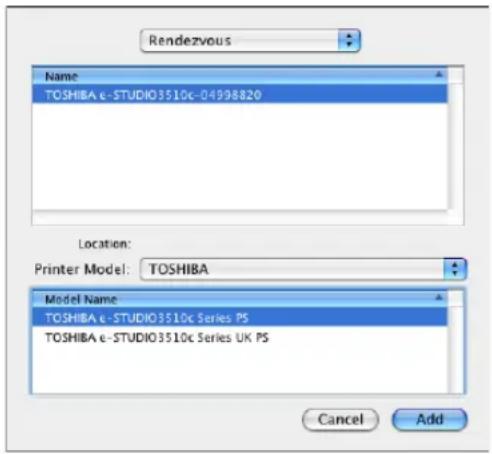
5 Click [Add].
• The printer is added to the Printer List.
6 Continue the procedure to configure the installable options.
P.147 "Configuring the installable options"
Configuring the installable options
The following describes an operation on Mac OS 10.3.x. The procedure is the same when Mac OS X 10.2.4 to 10.2.8 is used.
1 In the Printer List dialog box, select the printer and, then, select [Show Info] in the [Printers] menu.
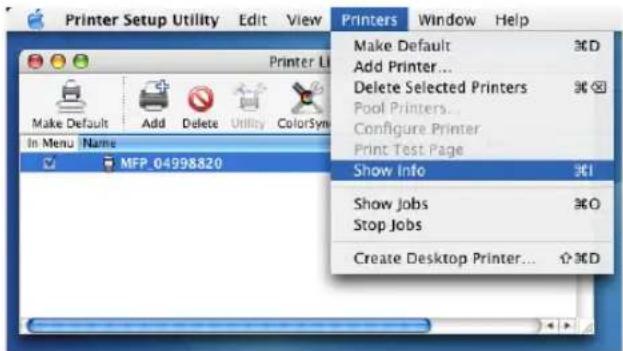
• The Printer Info dialog box appears.
2 Select "Installable Options" in the drop down menu.
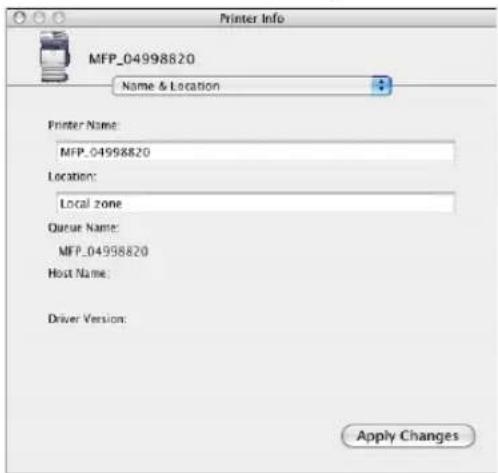
• The Installable Options window is displayed.
3 Set the following options.
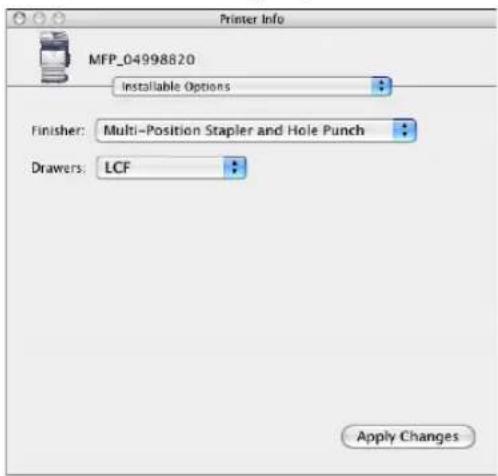
- Finisher
Not Installed — Select this if a finisher is not installed.
Multi-Position Stapler — Select this when the Finisher or Saddle Stitch Finisher is installed.
Multi-Position Stapler and Hole Punch — Select this when the Finisher or Saddle Stitch Finisher and Hole Punch unit are installed.
- Drawers
Not Installed — Select this when no optional drawer is installed.
Drawer 3 — Select this when the drawer 3 is installed.
Drawer 3 and 4 — Select this when the drawer 3 and 4 are installed.
LCF — Select this when the LCF is installed.
Notes
• LCF is not available for some countries or regions.
- The finisher options such as stapling and hole punching can be selected even if you select "Not Installed" for the Finisher option. If you select the finisher options for printing but the finisher is not installed, finisher settings will be ignored and perform printing correctly.
4 Click [Apply Changes] and close the window.
Installing the Macintosh PPD File
The Macintosh PPD file that is provided in the Client Utilities CD-ROM can be installed by copying it to the System Folder: Extensions: Printer Descriptions folder.
This PPD file supports printing from Mac OS X 8.6 or 9.x. In addition, it supports printing with these operating systems running on the Mac OS X 10.1/10.2 Classic Mode. The options need to be configured manually in Mac OS X 10.1.
Copying the PPD file to Mac OS 8.6 or 9.x
1 Insert the Client Utilities CD-ROM into the CD-ROM drive and open your language folder in the "Client:MacPPD:OS9" folder.
2 Copy the Stuffit file (TOSHIBA_e-STUDIO3510cSeries.sit) to the desktop, and extract the Macintosh PPD file.
Note
To extract the file, the Stufflt utility must be installed on your computer. For instructions on how to extract the file, refer to your Stufflt documentation.
3 Double-click the boot drive icon and open the "System Folder:Extensions:Printer Descriptions" folder.
4 Select and drag the Macintosh PPD file that you extracted to the "Printer Descriptions" folder.
5 Continue the procedure for configuring the printer.
P.150 "Configuring the Printer on Mac OS 8.6/9.x"
Configuring the Printer on Mac OS 8.6/9.x
After you copy the PPD file to the Printer Descriptions folder in the System Folder, you can configure the printer.
This equipment supports two types of Macintosh Printing Service: LPR Printing or AppleTalk Printing.
- LPR Printing
When this equipment and your computer are connected over TCP/IP network, you can enable LPR printing from Macintosh computer. - AppleTalk Printing
When this equipment and your computer are connected over AppleTalk network, you can enable AppleTalk printing from Macintosh computer.
Configuring Macintosh LPR printing
Note
Before installing the printer driver for LPR printing on Macintosh, check with your system administrator to make sure of the following:
- This equipment is connected to the network and turned on.
- The TCP/IP setting is correct.
- LPD Printing Service is enabled on this equipment.
1 Start the Desktop Printer Utility.
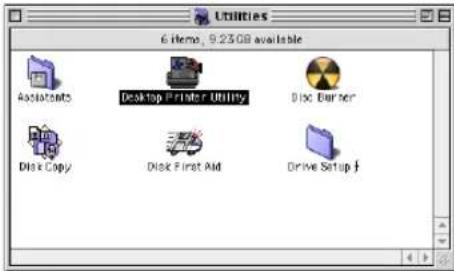
- The folder containing the Desktop Printer Utility differs depending on the Mac OS version. If you cannot locate the Desktop Printer Utility, search it in the boot disk.
• The New Desktop Printer dialog box appears.
2 Make sure "LaserWriter 8" is selected in the "With" drop down menu, select "Printer (LPR)" and click [OK].
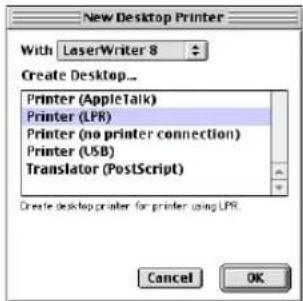
• The Macintosh LPR Printer Selection dialog box opens.
3 Click [Change...] in the PostScript Printer Description (PPD) File area.
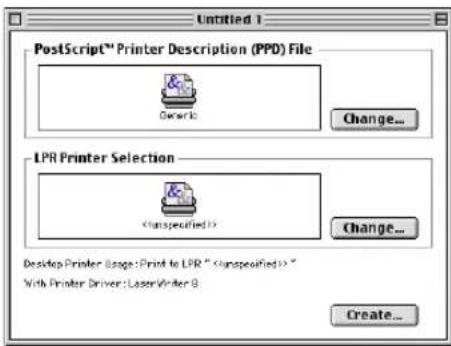
• The Select a PostScript Printer Description File dialog box appears.
4 Select the PPD file (TOSHIBA\_e-STUDIO3510cSeries) for the equipment and click [Select].
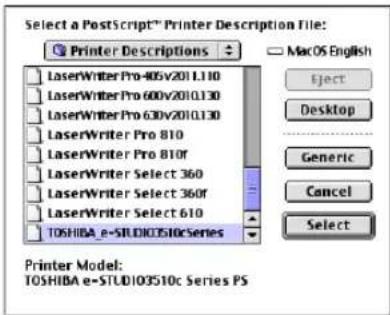
5 Click [Change...] in the LPR Printer Selection area.
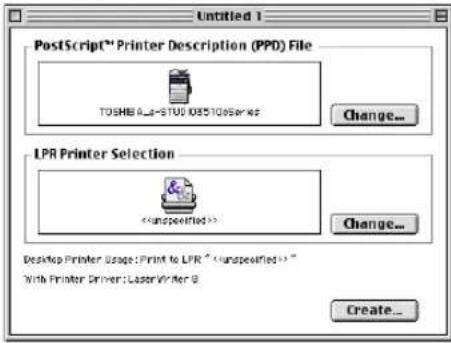
• The Internet Printer dialog box appears.
6 Enter the IP Address of this equipment in the "Printer Address" field and "Print" in the "Queue" field. Then click [OK].
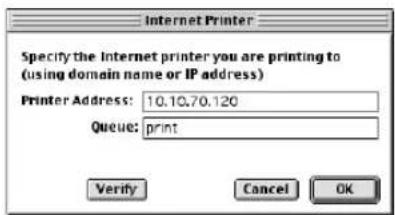
7 Click [Create...].
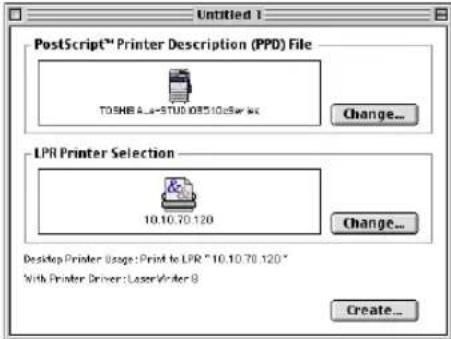
8 Enter the Desktop Printer name and click [Save].
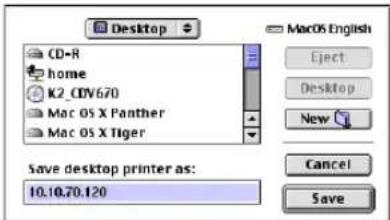
• The printer is added to the desktop.
9 Double-click the desktop printer icon that you created.
• The Desktop Printer utility window opens.
10 Click the [Printing] menu and select [Change Setup...].
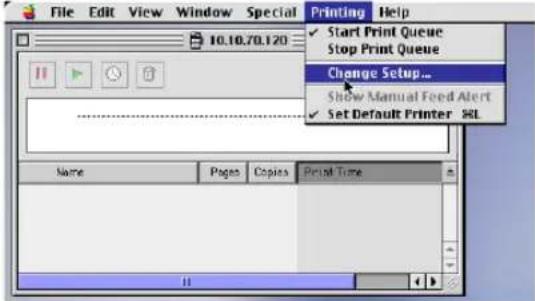
• The LaserWriter setup dialog box appears.
11 Select each option item in the "Change" drop down menu and select installed option in the "To" drop down menu according to the configuration of this equipment.
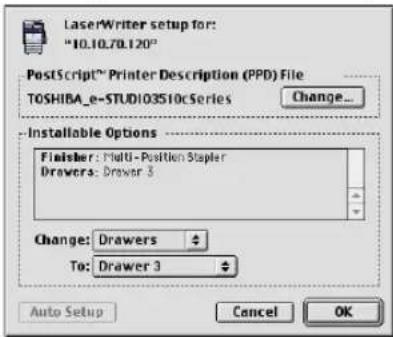
- Finisher
Not Installed — Select this if a finisher is not installed.
Multi-Position Stapler — Select this when the Finisher or Saddle Stitch Finisher is installed.
Multi-Position Stapler and Hole Punch — Select this when the Finisher or Saddle Stitch Finisher and Hole Punch unit are installed.
Note
When you select "Multi-Position Stapler" or "Multi-Position Stapler and Hole Punch", the saddle-stitching function will be selectable for printing. However, saddle-stitching is available only when the Saddle Stitch Finisher is installed.
- Drawers
Not Installed — Select this when no optional drawer is installed.
Drawer 3 — Select this when the drawer 3 is installed.
Drawer 3 and 4 — Select this when the drawer 3 and 4 are installed.
LCF — Select this when the LCF is installed.
Note
LCF is not available for some countries or regions.
12 Click [OK].
Configuring Macintosh AppleTalk printing
Note
Before installing the printer driver for AppleTalk printing on Macintosh, check with your system administrator to make sure of the following:
- This equipment is connected to the network and turned on.
- The AppleTalk settings is correct.
1 Click Apple menu and select [Chooser].
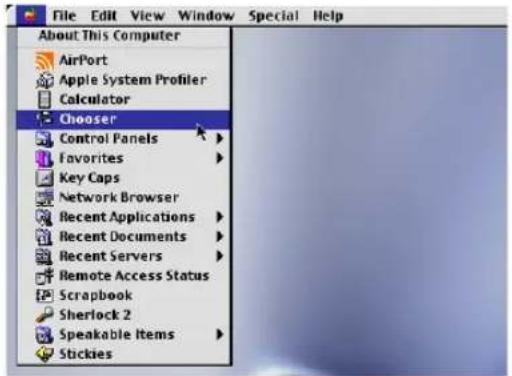
• The Chooser dialog box appears.
2 Select the LaserWriter 8 icon (and select the AppleTalk zone if configured). Then select this equipment displayed in the list, and click [Create].
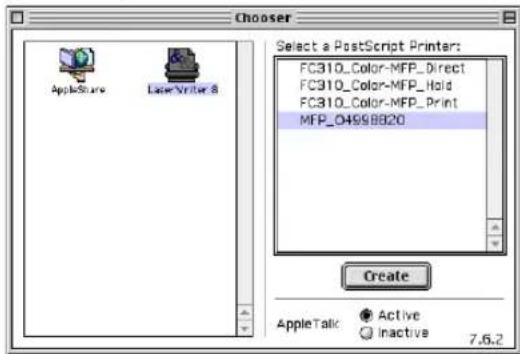
• The Select a PostScript Printer Description File dialog box appears.
3 Select the PPD file (TOSHIBA\_e-STUDIO3510cSeries) for the equipment and click [Select].
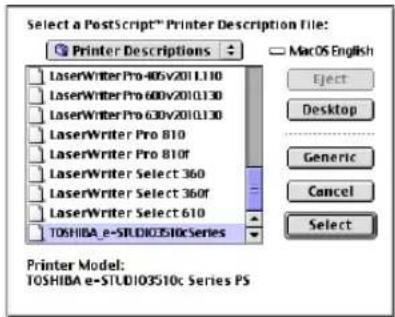
4 Select each option according to the configuration of this equipment and click [OK].
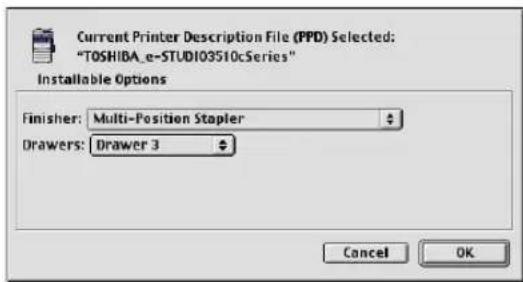
- Finisher
Not Installed — Select this if a finisher is not installed.
Multi-Position Stapler — Select this when the Finisher or Saddle Stitch Finisher is installed.
Multi-Position Stapler and Hole Punch — Select this when the Finisher or Saddle Stitch Finisher and Hole Punch unit are installed.
Note
When you select "Multi-Position Stapler" or "Multi-Position Stapler and Hole Punch", the saddle-stitching function will be selectable for printing. However, saddle-stitching is available only when the Saddle Stitch Finisher is installed.
- Drawers
Not Installed — Select this when no optional drawer is installed.
Drawer 3 — Select this when the drawer 3 is installed.
Drawer 3 and 4 — Select this when the drawer 3 and 4 are installed.
LCF — Select this when the LCF is installed.
Note
LCF is not available for some countries or regions.
5 Close the Chooser Dialog box.
• The Printer icon is created on the desktop.
Installing Client Software from TopAccess
If the system administrator has uploaded the driver software to this equipment, you can use TopAccess to install the software on your workstation.
Notes
- When using Windows Server 2003 that the Service Pack is installed, the installation from TopAccess cannot be performed. In that case, please install the software in the other method.
- For instructions on how to upload the software in the equipment, please refer to the TopAccess Guide.
Installing client software from TopAccess for Macintosh
1 In TopAccess, click the Install Software link at the bottom of the screen.
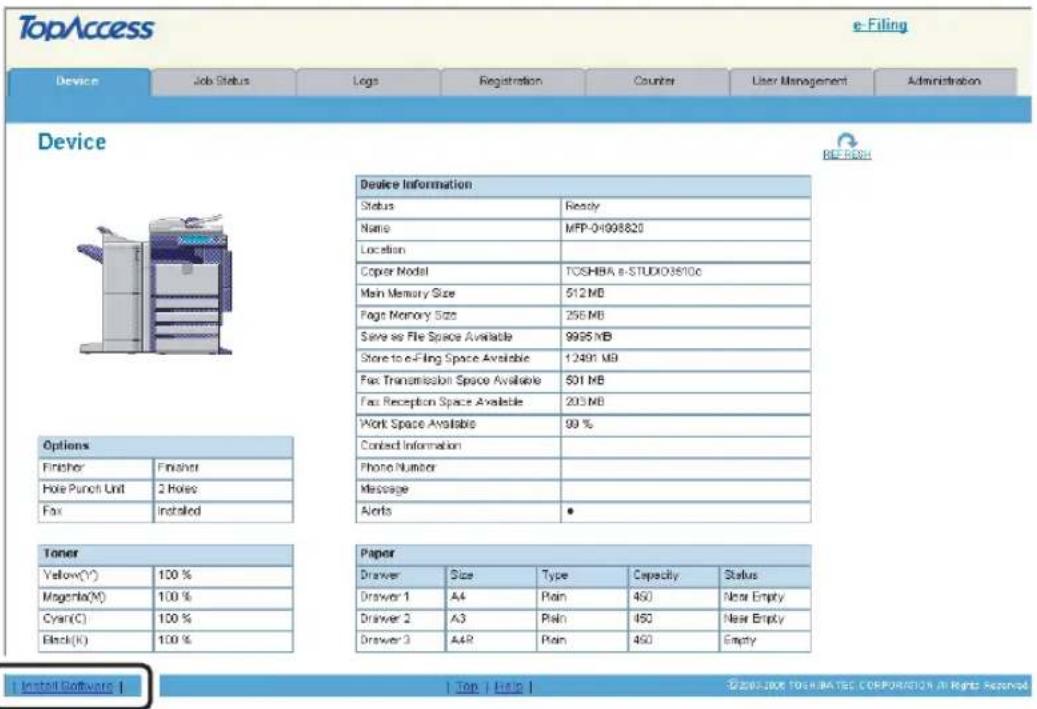
• The Install Client Software page opens.
2 Click the "Macintosh PPD Files" link.
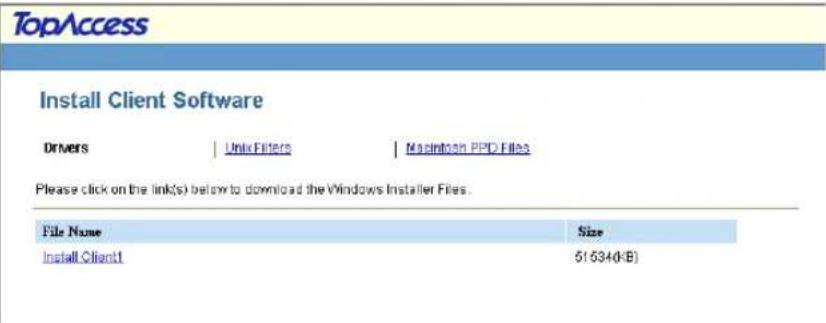
• The software components list is displayed.
3 Click the File Name link that you want to download.
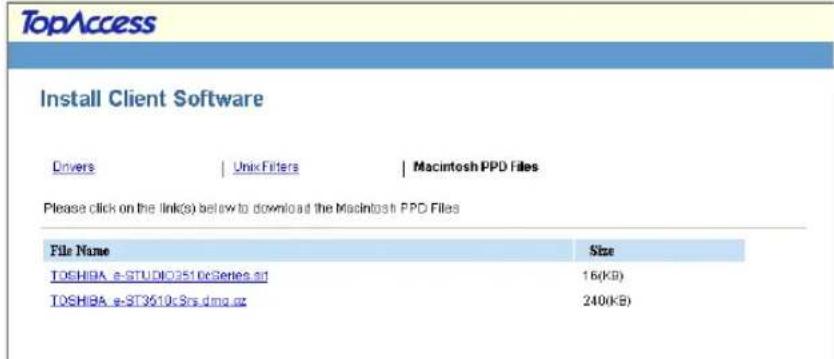
TOSHIBA_e-STUDIO3510cSeries.sit — Click this link to download the PPD file for Mac OS 8.6/9.x and Mac OS X 10.1/10.2 Classic mode.
TOSHIBA_e-ST3510cSrs.dmg.gz — Click this link to download the PPD file for Mac OS X 10.2.4 to Mac OS X 10.4.x.
4 Download the PPD file of your Mac OS version on your desktop by following the prompts.
5 After you download the PPD file, refer to the installation procedure for Macintosh to set up the printer.
P.150 "Installing the Printer on Mac OS 8.6/9.x"
P.125 "Installing the Printer on Mac OS X 10.2.4 to Mac OS X 10.4.x"
Installing Client Software for UNIX
This section describes the instructions on how to install the client software on UNIX.
Setting Up the UNIX Filters ....160
About UNIX Filters 160
System Requirements....160
Configuring UNIX Printing Using UNIX Filters 161
Setting Up the CUPS....169
About CUPS....169
Configuring UNIX Printing Using CUPS....169
Installing Client Software from TopAccess ....185
About UNIX Filters
In the Client Utilities CD-ROM, the following filters for UNIX workstations are included:
net\_estcolor
This file is a shell script that will be installed in "/usr/lib/lp/model". It contains all the parsing for the printer specific commands and it generates all the output code. Being a shell script, a system administrator can modify it if a site requires any custom options or if other components are installed in non-standard locations.
lpdsend
This is an executable program that is called by net_estcolor to send the print file to the system using the LPD protocol. This program will be installed in "/opt/toshiba/tap/bin".
IpLinux.sh (Linux filter only)
This file is a shell script that simulates the command line functions of Ip. After processing the command line options, the e-STUDIO filter is invoked in the same way as a System V print filter. This file is installed in "/opt/toshiba/tap/bin". A symbolic link to this file will be installed in the "/usr/local/bin" directory as lptap.
estcolorBackend (AIX filter only)
This is an executable program that is called by the AIX qdaemon. It receives the arguments from the qdaemon, interrogates it for copy information etc. then calls the queues' copy of net_estcolor to run the print. This program will be installed in "/opt/toshiba/tap/bin".
estcoloradd
This file is a shell script that is used to create a printer description. This file will be installed in "/opt/toshiba/tap/bin". A symbolic link will be installed in the "/bin" directory that will point to the actual location of this file.
estcolorrm
This file is a shell script that is used to remove a printer description. This file will be installed in "/opt/toshiba/tap/bin". A symbolic link will be installed in the "/bin" directory that will point to the actual location of this file.
net\_estcolor.1
This is an input file for the man command that supplies online documentation for the printer specific options. This file will be installed in "/opt/toshiba/tap/man/man1". A symbolic link will be installed in the /usr/man/man1 directory that will point to the actual location of this file.
System Requirements
For UNIX workstation, the following environment is required.
OS: Sun Solaris v2.6/2.7/7.8/8/9
HP-UX ver.10.20/11.x
IBM AIX 4.3.3
SCO UnixWare 7
SCO OpenUnix 8
Red Hat Linux 7.x/8.0/9.x
Red Hat Linux Enterprise WS2
SuSE Linux ver.7.x/8.x/9.x
Mandrake Linux ver.7.x./8.x/9.x
Turbo Linux 8/10
Protocol: TCP/IP
Module: Python must be installed.
Note
The “Python” module must be installed on your UNIX workstation to enable printing. The “Python” module is usually installed in the “/usr/bin/” directory. Check this directory whether the “Python” module is installed.
Configuring UNIX Printing Using UNIX Filters
When you want to configure the UNIX printing using the UNIX filters, install the UNIX filters and configure the LPR queue.
Installing the UNIX Filters
UNIX Filters are provided as TAR files for each Operating System. You can install them by copying the TAR file into the root directory and extract the file.
Copying the UNIX filters
1 Insert the Client Utilities CD-ROM into the CD-ROM drive.
2 Log on to the root account.
3 Enter the following command and check the output:
- For Solaris:
uname -a
Output on screen should be:
SunOS
- For HP-UX:
uname -a
Output on screen should be:
HP-UX
- For IBM AIX:
uname -a
Output on screen should be:
AIX
- For Linux:
uname -a
Output on screen should be:
Linux
- For OpenUNIX:
uname -a
Output on screen should be:
OpenUNIX
Note
If the output is not as above, ask your administrator.
4 Copy the TAR file onto the root.
- A TAR file for each operating system is included in following folders:
For Solaris: [CD-ROM]/Admin/SolarisFilter/Usa/
For HP-UX:[CD-ROM]/Admin/HP-UXFilter/Usa/
For AIX:[CD-ROM]/Admin/AixFilter/Usa/
For Linux: [CD-ROM]/Admin/LinuxFilter/Usa/
For OpenUNIX: [CD-ROM]/Admin/OpenUnixFilter/Usa/
5 Change to the root directory.
6 Enter the following command:
- For Solaris:
tar xvf solaris.tar
- For HP-UX:
tar xvf hpux.tar
- For IBM AIX:
tar xvf aix.tar
- For Linux:
tar xvf linux.tar
- For OpenUNIX:
tar xvf openunix.tar
7 The command extracts all the required files and installs them in the correct locations. Continue the procedure for configuring the print queue.
P.162 "Configuring the Print Queue"
Configuring the Print Queue
After you copy UNIX Filters, you can configure the print queue.
There are two ways to configure the print queue: one is creating a print queue using estcoloradd, and the other is creating a print queue manually without using estcoloradd.
P.162 "Creating a Print Queue Using estcoloradd"
P.163 "Creating a Print Queue Manually"
— Creating a Print Queue Using estcoloradd
You can create a print queue using estcoloradd.
Creating a print queue
1 Log on to the root account.
2 Enter the following command:
estcoloradd
Tips
- This command creates a print queue using the system's lpadmin command. It also creates a configuration file that has the destination IP address or host name. Use the configuration file to change print queue parameters.
- The lpadmin command stores the printer interface file in the /etc/lp/interfaces directory in a file with the same name as the print queue. The configuration file is stored in the /etc/lp/interfaces directory in a file named
.conf. - Under Linux, the printtool (or equivalent) utility must be used to add the printer into the lp printing system after executing the est coloradd command.
— Creating a Print Queue Manually
You can also configure the print queue by adding a remote printer manually.
The procedure varies depending on the operating systems.
P.163 "Creating a print queue manually on Solaris"
P.164 "Creating a print queue manually on HP-UX"
P.164 "Creating a print queue manually on IBX AIX"
P.165 "Creating a print queue manually on Linux"
P.166 "Creating a print queue manually on OpenUNIX"
Creating a print queue manually on Solaris
1 Log on to the root account.
2 Open your Linux/UNIX editor.
3 Create the following file.
/etc/lp/interfaces/
4 Add a line as below in the
dest=
5 Save the file.
6 Enter the following command:
chmod +x
7 Enter the following command:
chown lp:lp
8 Enter the following command:
lpadmin -p
9 Enter the following command:
accept
10 Enter the following command:
enable
Creating a print queue manually on HP-UX
1 Log on to the root account.
2 Open your Linux/UNIX editor.
3 Create the following file.
/etc/lp/interfaces/
Creating a print queue manually on IBX AIX
1 Enter the following command:
ls /opt/toshiba/tap/filter
2 If the above directory does not exist, enter the following command:
mkdir /opt/toshiba/tap/filter
3 Log on to the root account.
4 Open your Linux/UNIX editor.
5 Create the following file.
/etc/lp/interfaces/
6 Add a line as below in the
7 Save the file.
8 Enter the following command:
mkque -q
9 Enter the following command:
mkquedev -q
10 Enter the following command:
cp /usr/lib/lpd/pio/predef/net_estcolor \
/opt/toshiba/tap/filter/
Creating a print queue manually on Linux
Enter the following command:
ls /opt/toshiba/tap/interface
If the above directory does not exist, enter the following command:
mkdir /opt/toshiba/tap/interface
As root open your Linux/UNIX editor.
Open your Linux/UNIX editor.
Create the following file.
/opt/toshiba/tap/interface/
Creating a print queue manually on OpenUNIX
1 Log on to the root account.
2 Open your Linux/UNIX editor.
3 Create the following file.
/etc/lp/interfaces/
Changing the Default Values
You can change the default values of a print queue by the following procedure.
Changing the default values of a print queue
1 Study the interface file, named
Deleting the Print Queue
There are two ways to delete the print queue: one is deleting a print queue using estcolorm, and the other is deleting a print queue manually without using estcolorm.
P.167 "Deleting a Print Queue Using estcolorrm"
P.167 "Deleting a Print Queue Manually"
— Deleting a Print Queue Using estcolorrm
When you want to delete the queue using estcolorm, perform the following procedure.
Deleting a print queue
1 Log on to the root account.
2 Enter the following command:
estcolorrm
Tips
- This command uses the system's lpadmin command to delete the print queue and configuration file.
- Please restart the lpd under Linux.
— Deleting a Print Queue Manually
You can also configure the print queue by adding a print queue manually.
The procedure varies depending on the operating systems.
P.167 "Deleting a print queue manually on Solaris"
P.167 "Deleting a print queue manually on HP-UX"
P.168 "Deleting a print queue manually on IBM AIX"
P.168 "Deleting a print queue manually on Linux"
P.168 "Deleting a print queue manually on OpenUNIX"
Deleting a print queue manually on Solaris
1 Log on to the root account.
2 Enter the following command:
lpadmin -x
3 Enter the following command:
rm /etc/lp/interfaces/
Deleting a print queue manually on HP-UX
1 Log on to the root account.
2 Enter the following command:
ps -ef | grep lpsched | grep -iv grep > /dev/null 2>&1
3 Enter the following command:
Echo \$?
4 If "0" outputted on the screen, turn the scheduler OFF. Enter the following command:
/usr/sbin/lpshut > /dev/null 2>&1
5 Enter the following command:
/usr/sbin/lpadmin -x
6 Enter the following command:
rm /etc/lp/interfaces/
7 If "0" was outputted on the screen in step 3, turn the scheduler ON. Enter the following command:
/usr/sbin/lpsched > /dev/null 2>&1
Deleting a print queue manually on IBM AIX
1 Log on to the root account.
2 Enter the following command:
rm /opt/toshiba/tap/filter/
Deleting a print queue manually on Linux
1 Log on to the root account.
2 Enter the following command:
rm /opt/toshiba/tap/interface/
Deleting a print queue manually on OpenUNIX
1 Log on to the root account.
2 Enter the following command:
lpadmin -x
When you want to configure the UNIX printing using CUPS, you can use LPR printing or IPP printing.
Note
When printing using CUPS, the output paper size cannot be specified. If you want to specify the output paper size, please use the UNIX filter.
About CUPS
This section describes the behavior, options, and installation method of the CUPS printer driver for the equipment. The behavior of the printer driver presented in this specification is consistent with CUPS v1.1.15. The driver may appear and/or operate slightly differently in the different versions.
In reality, the file supplied in this package is not really a printer driver it is actually a PostScript Printer Description (PPD) file.
Development Environment
The provided CUPS printer driver is supported on the following UNIX workstation. • Red Hat 8.0 CUPS 1.1.18
Implementation Method
This driver consists of a PPD file that works in conjunction with an interface like XPP, KPrinter, etc. It can also be used on OSX in the same way that it is used on Linux, but this is not recommended.
Supplied Components
There is one supplied component, a PPD file called "TOSHIBA_EST3510c_CUPS.gz". It has been compressed using gzip. It does not need to be uncompressed for Linux to use the PPD file and so it should be left compressed.
The user needs root privileges to place the PPD file in the default location. The default location for the standard CUPS PPD files is:
/usr/share/cups/model/Toshiba
Configuring UNIX Printing Using CUPS
You can configure the CUPS for LPR printing or IPP printing.
Installing the CUPS for LPR Printing
The PPD must first be copied onto the local machine, the printer installed, and then the PPD configured. The printer is then installed and configured using CUPS via the browser.
The PPD is placed in the "/usr/share/cups/model/Toshiba" directory (which will require root privileges and the Toshiba directory may need to be created). The PPD can be simply copied to the appropriate directory and the CUPS daemon re-started.
Installing the CUPS for LPR printing
1 Insert the Client Utilities CD-ROM into the CD-ROM drive.
2 Log on to the root account and create "Toshiba" directory in the "/usr/share/cups/model" directory.
3 Copy the GZIP file into the "/usr/share/cups/model/Toshiba" directory or enter the following command:
cp TOSHIBA_EST3510c_CUPS.gz /usr/share/cups/model/Toshiba
- A GZIP file is included in the "Admin/CUPS/Usa" folder in the CD-ROM.
4 Enter the following command:
service lpd stop
Note
If lpd is already stopped, "Failed" will be displayed.
- When using the Red Hat Linux, continue to the next step.
- When using other than the Red Hat Linux, skip to step 10.
5 When using the Red Hat Linux, enter the following command:
/usr/bin/redhat-switch-printer
• The redhat-switch-printer dialog box appears.
6 Select "CUPS" and click [OK].
• The information dialog box appears.
7 Click [OK].
8 Enter the following command:
service cups start
Note
If the CUPS has already been started, stop the CUPS service once by entering "service cups stop" command, and then enter the above command to restart the CUPS service.
9 Enter the following command:
/usr/bin/cupsconfig
- The Common UNIX Printing System page appears. Skip to step 11.
10 Open the browser and locate CUPS by typing "http://local host:631/" in the address field.
• The Common UNIX Printing System page appears.
11 Click the "Manage Printers" link.
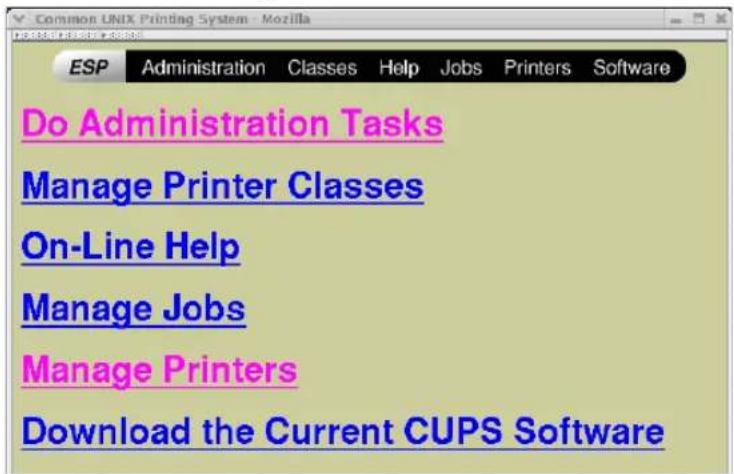
• The Printer page is displayed.
12 Click [Add Printer].
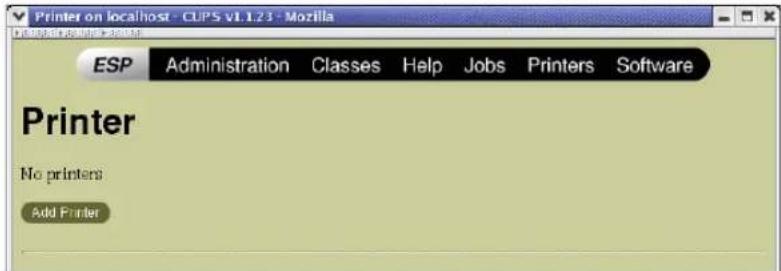
• The Admin page is displayed.
13 Enter the printer name, location, and description of the printer in each field and click [Continue].
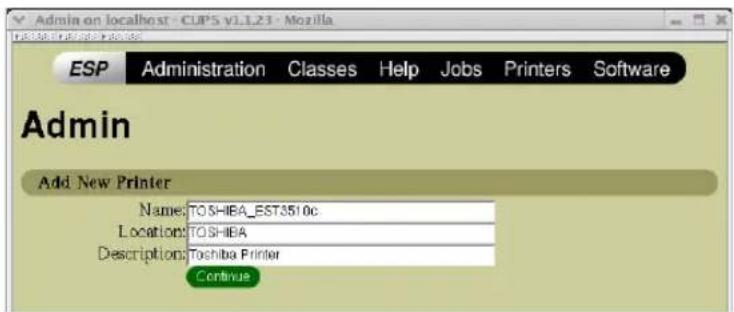
Note
If a new printer name is a duplicate of a name already in the printer list, the new printer will replace the original printer.
14 Select "LPD/LPR Host or Printer" at the "Device" drop down box and click [Continue].
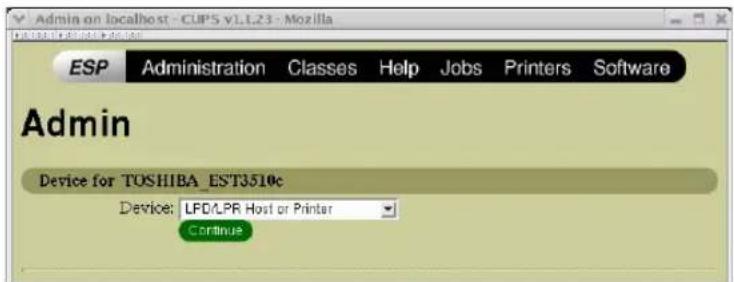
15 Enter "Ipd://
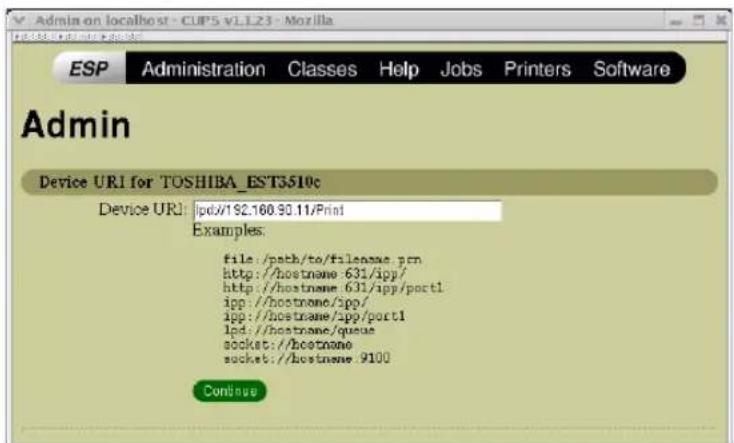
Note
Make sure to capitalize the "P" in "Print" for the device URI.
16 Select "TOSHIBA" at the "Make" list and click [Continue].
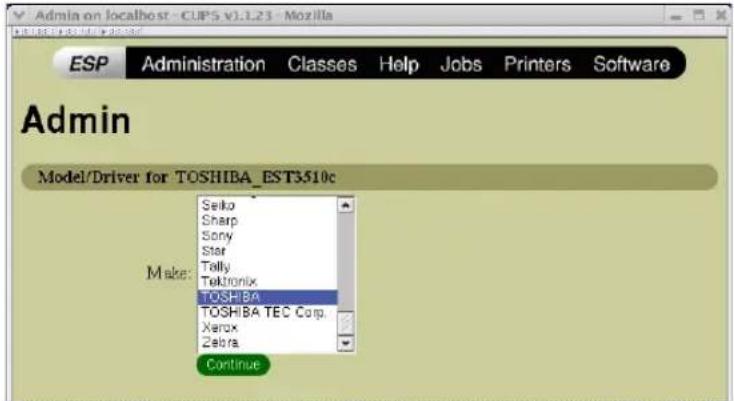
Note
If you do not see "TOSHIBA" in the "Make" list, restart CUPS.
17 Select the PPD in the "Model" list and click [Continue].
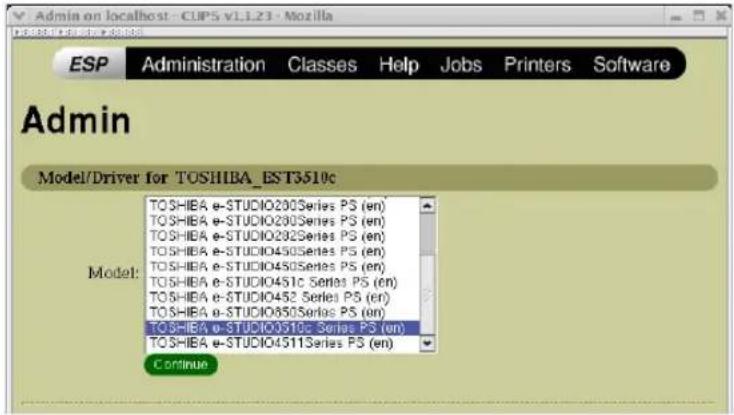
18 Confirm that the message notifying that the new printer has been properly added appears.
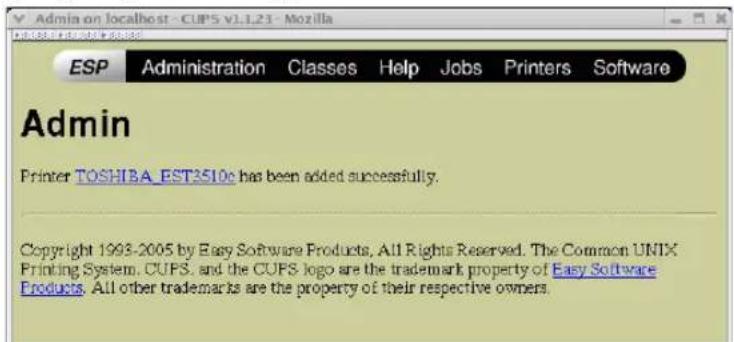
19 Go to the following page for configuring the print options:
P.175 "Configuring print options"
Installing the CUPS for IPP Printing
When you want to setup IPP print queue in the Linux OS, follow the procedures here.
When IPP SSL is enabled on the Equipment
When the IPP SSL is enabled on the equipment, you require the following settings on Linux OS.
- OpenSSL should be installed
- CUPS should be configured with “--enable-ssl” option
-
HTTPS symbol should be created in the "/usr/lib/cups/backend" directory.
-
Open the console and login with root privileges.
- Use 'su' or 'sudo -s' to login with root privileges.
- Enter the following command: cd /usr/lib/cups/backend
- Enter the following command:
ln -s ipp https
- Restart the CUPS Service in Linux.
- IPP/SSL certificates in the "/etc/cups" directory should be created
- Enter the following command: mkdir ssl folder in /etc/cups
2. Enter the following command:
openssl req -new -x509
-keyout /etc/cups/ssl/server.key
-out /etc/cups/ssl/server.crt -days 365 -nodes
Note
The above command must be entered as one continuous command with no carriage returns.
3. Enter the following command:
chmod 600 /etc/cups/ssl/server.*
* The "-nodes" option prevents the certificate and key from being encrypted. The cupsd process runs in the background, detached from any input source; if you encrypt these files then cupsd will not be able to load them.
4. Add the following lines in the cupsd.conf file in /etc/cups path.
SSLPort 443
ServerCertificate /etc/cups/ssl/server.crt
ServerKey /etc/cups/ssl/server.key
5. Run the following command on the shell to restart the CUPS Server.
Service cups restart
Add IPP Printer
IPP printing from Linux OS is done from the CUPS server as a backend.
1 Insert the Client Utilities CD-ROM into the CD-ROM drive.
2 Log on to the root account and create "Toshiba" directory in the "/usr/share/cups/model" directory.
3 Copy the GZIP file into the "/usr/share/cups/model/Toshiba" directory or enter the following command:
cp TOSHIBA_EST3510c_CUPS.gz /usr/share/cups/model/Toshiba
- A GZIP file is included in the "Admin/CUPS/Usa" folder in the CD-ROM.
4 Enter the following command:
service lpd stop
Note
If lpd is already stopped, "Failed" will be displayed.
- When using the Red Hat Linux, continue to the next step.
- When using other than the Red Hat Linux, skip to step 10.
5 When using the Red Hat Linux, enter the following command:
/usr/bin/redhat-switch-printer
• The redhat-switch-printer dialog box appears.
6 Select "CUPS" and click [OK].
• The information dialog box appears.
7 Click [OK].
8 Enter the following command:
service cups start
Note
If the CUPS has already been started, stop the CUPS service once by entering "service cups stop" command, and then enter the above command to restart the CUPS service.
9 Enter the following command:
/usr/bin/cupsconfig
- The Common UNIX Printing System page appears. Skip to step 11.
10 Open the browser and locate CUPS by typing "http://local host:631/" in the address field.
• The Common UNIX Printing System page appears.
Note
When IPP/SSL is enabled, specify "https://local host:433/" in the address field to access the Common UNIX Printing System.
11 Add a new https printer by clicking [Add Printer].
Configure the parameters as:
Name:
Location:
Description:
Device: Internet Printing Protocol (http)
Device URL: http://
Model/Driver: TOSHIBA
Note
When IPP/SSL is enabled, specify as followings:
- Device: Internet Printing Protocol (https)
- Device URL: https://
Tip
Using CUPS Client (print commands lp, lpr, etc.) with -e option, the connection can be encrypted and printing can be done in the above configured printer.
12 Confirm that the message notifying that the new printer has been properly added appears.
13 Go to the following page for configuring the print options:
P.175 "Configuring print options"
Configuring print options
You can set the print options that applied for the print jobs using CUPS.
Print option configuration
1 Click the "Manage Printers" link in the startup page.
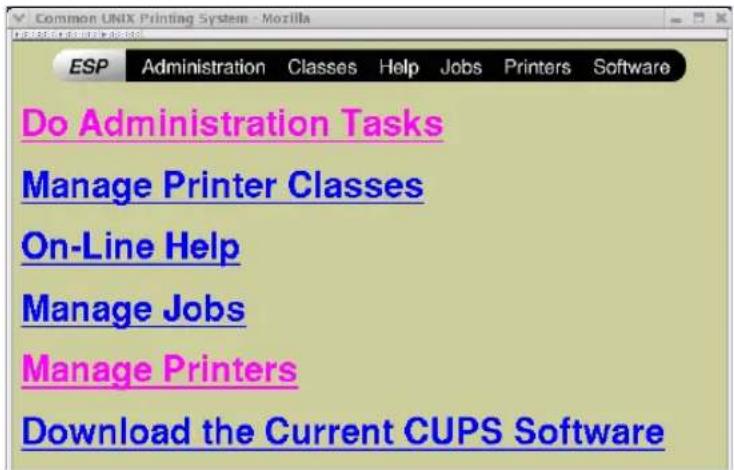
The Printer page is displayed.
2 Select this equipment and then click [Configure Printer].
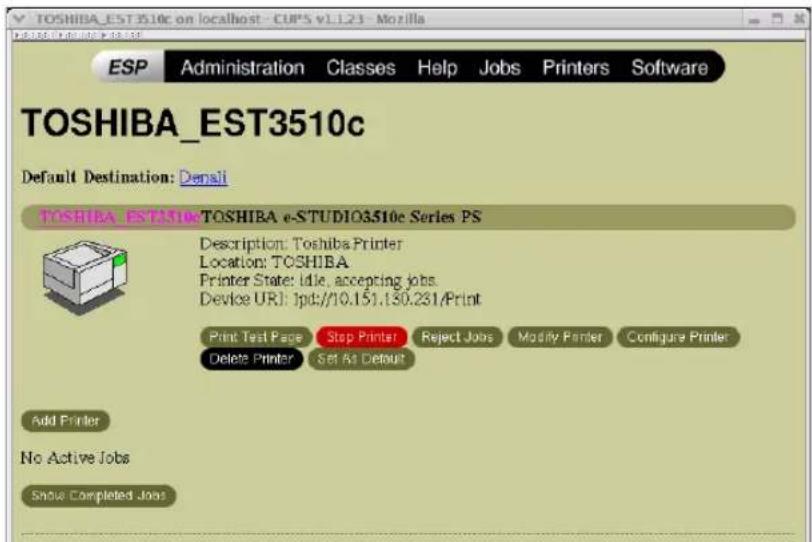
3 Configure the print options on the displayed page.
The underscored items are set by default.
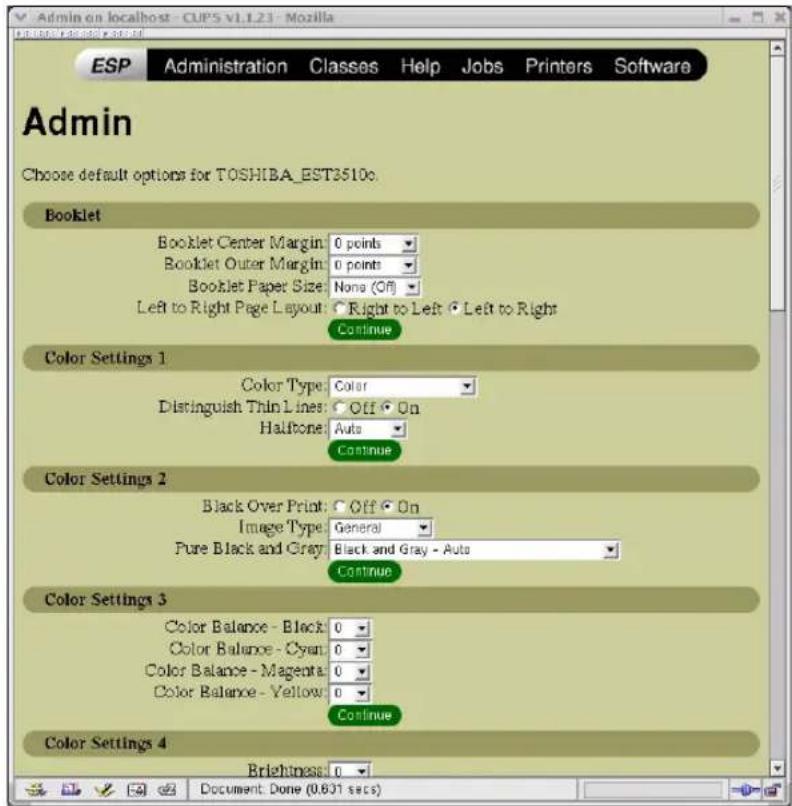
Booklet
| Option Value Alternative Value Description | ||
| Booklet Center Margin 0 to 36 (in unit of 3 points) Select the center margin. | ||
| Booklet Outer Margin 0 | _ to 72 (in unit of 6 points) Select the outer margin. | |
| Booklet Paper Size None (Off)LetterA4LegalStatementLedgerFolioA3A5B4B5Computer13" LG8.5" SQ8K16K | Select a paper size for the booklet.Each two pages are printed on both side of a sheet which is then folded.The booklet size will be the half size of the paper size that you specify. | |
| Left to Right Page Lay-out | Right to LeftLeft to Right | Select whether to create a booklet can be read from right to left or left to right. |
| [Continue] button Determines the selected items. | ||
Color Settings 1
| Option Value Alternative Value Description | ||
| Color Type Auto | ColorMonoBlack and RedBlack and GreenBlack and BlueBlack and CyanBlack and MagentaBlack and YellowBlack and White | Select whether a print job is printed in color, mono, or twin color. |
| Distinguish Thin Lines Off | _, On Select whether to distinguish thin lines or not. | |
| Halftone Auto | ____DetailSmooth | Select the appropriate processing on halftone images among “Auto”, “Detail (high density)” and “Smooth (smooth tone reproduction)”. |
| [Continue] button Determines the selected items. | ||
Color Settings 2
| Option Value Alternative Value Description | ||
| Black Over Print Off, On Select whether printing background | content that has black text overlayed on it. | |
| Image Type General | PhotoPresentationLine Art | Select how colors are printed. The printer driver automatically applies proper image quality for selected job type. |
| Pure Black and Gray Black | - AutoBlack - TextBlack - Text and GraphicBlack - Text, Graphic and ImageBlack and Gray - AutoBlack and Gray - TextBlack and Gray - Text and GraphicBlack and Gray - Text, Graphic and Image | Select whether printing the black and gray scale contents in a document using the black toner. |
| [Continue] button Determines the selected items. | ||
Color Settings 3
| Option Value Alternative Value Description | ||
| Color Balance - Black | -4, -3, -2, -1, 0, 1, 2, 3, 4 | Select the density for black toner. |
| Color Balance - Cyan | -4, -3, -2, -1, 0, 1, 2, 3, 4 Select the density for cyan toner. | |
| Color Balance - Magenta | -4, -3, -2, -1, 0, 1, 2, 3, 4 Select the density for magenta toner. | |
| Color Balance - Yellow | -4, -3, -2, -1, 0, 1, 2, 3, 4 Select the density for yellow toner. | |
| [Continue] button Determines the selected items. | ||
Color Settings 4
| Option Value Alternative Value Description | ||
| Brightness -4, -3, -2, -1, 0 | 1, 2, 3, 4 Select the brightness. | |
| Contrast -4, -3, -2, -1, 0 | _, 1, 2, 3, 4 Select the contrast. | |
| Saturation -4, -3, -2, -1, 0 | _, 1, 2, 3, 4 Select the saturation. | |
| Sharpness -4, -3, -2, -1, 0 | _, 1, 2, 3, 4 Select the sharpness. | |
| [Continue] button Determines the selected items. | ||
Finishing
| Option Value Alternative Value Description | ||
| Destination Printer's Default | Inner TrayTray 1Tray 2 | Select the destination.NoteStapling cannot be applied when “Tray 1” is specified. |
| Hole Punch Off | Long Edge Punch without rotationShort Edge Punch without rotationLong Edge Punch with 180 degree rotationShort Edge Punch with 180 degree rotation | Select whether or not a print job is hole punched. |
| Stapling Off | Upper Left (Portrait)/Upper Right (Landscape)Middle Left (Portrait)/Middle Top (Landscape)Lower Left (Portrait)/Upper Left (Landscape)/Upper Right (Portrait)/Lower Right (Landscape)Middle Right (Portrait)/Middle Bottom (Landscape)Lower Right (Portrait)/Lower Left (Landscape)Middle Top (Portrait)/Middle Right (Landscape)Middle Bottom (Portrait)/Middle Left (Landscape)Saddle Stitch (Portrait)/Saddle Stitch (Landscape) | whether a print job is stapled.Note“Saddle Stitch (Portrait)/Saddle Stitch (Landscape)” can be selected only when the Saddle Stitch Finisher is installed. |
| [Continue] button Determines the selected items. | ||
General
| Option Value Alternative Value Description | ||
| Collate Yes, No Select w | whether exited sheets are collated or not. | |
| Duplex 1-Sided | ____ | 1-sided printing |
| 2-Sided, No Tumble(Long-Edge Binding) | 2-sided printing (Long-edge binding) | |
| 2-Sided, Tumble(Short-Edge Binding) | 2-sided printing (Short-edge binding) | |
| Media Size A3, A4, A5, A6, B4, B5,Ledger, Legal, Letter,Statement, Folio, Computer, 13" LG, 8.5" SQ,(12x18"), A3-Wide, 8K,16K | Select the paper size. | |
| Media Source Auto | ____ (Default)Drawer 1Drawer 2LCFDrawer 3Drawer 4Bypass TrayPlainThick 1Thick 2 (Front)Thick 2 (Back)Thick 3 (Front)Thick 3 (Back)TransparencyRecycledSpecial 1 (Front)Special 1 (Back)Special 2 (Front)Special 2 (Back) | Select the paper source. |
| [Continue] button Determines the selected items. | ||
Options Installed
| Option Value Alternative Value Description | ||
| Drawers Not Installed | ____Drawer 3Drawer 3 and 4LCF | Select the combination among Drawer 3, Drawer 4, and LCF. |
| Finisher Not Installed | ____FinisherSaddle Stitch Finisher | Select whether the optional finisher is installed or not. |
| [Continue] button Determines the selected items. | ||
Printing Modes
| Option Value Alternative Value Description | ||
| Department Code Disabled | Enabled | Select whether to use the department codes for printing or not.When this equipment is managed under the department codes, this option should be enabled. |
| Do not Print Blank Pages | Off, On Select whether to distinguish thin lines or not.Do not Print Blank Pages | |
| Print Mode Normal | ProofPrivate - Password | Select the print mode. |
| Toner Save Off | _, On Select whether to enable the toner save mode. | |
| [Continue] button Determines the selected items. | ||
Printing Modes DC
| Option Value Alternative Value Description | ||
| Department Code (DC) - Digit 1 to Digit 5 | 0 to 9 Specify the 5-digit department code | when “Department Code” of “Printing Modes” is enabled.For the appropriate department code, check with your system administrator. |
| [Continue] button Determines the selected items. | ||
Private Document Password
| Option Value Alternative Value Description | ||
| Password - Digit 1 to Digit 5 | 0 to 9 Specify the 5-digit document pass-word when “Private - Password” is selected for “Print Modes”. | |
| [Continue] button Determines the selected items. | ||
Banners
| Option Value Alternative Value Description | ||
| Starting Banner none Select whether banner pages are printed before printing documents or not. If they are, select among the items below. | ||
| Ending Banner none | ____ | Select whether banner pages are printed after printing documents or not. If they are, select among the items below. |
| classified Classified information | ||
| confidential Confidential information | ||
| secret Secret information | ||
| standard Standard information | ||
| topsecret Top secret | ||
| unclassified Unclassified information | ||
| [Continue] button Determines the selected items. | ||
PS Binary Protocol
| Option Value Alternative Value Description | ||
| PS Binary Protocol | None, TBCP | Select whether print data are processed in a binary format using PostScript and printed using TBCP protocol or not. |
| [Continue] button Determines the selected items. | ||
Modifying Printer
You can modify the printer that you create.
Modifying Printer
You can change the location and description of the printer.
1 Click the "Manage Printers" link in the startup page.
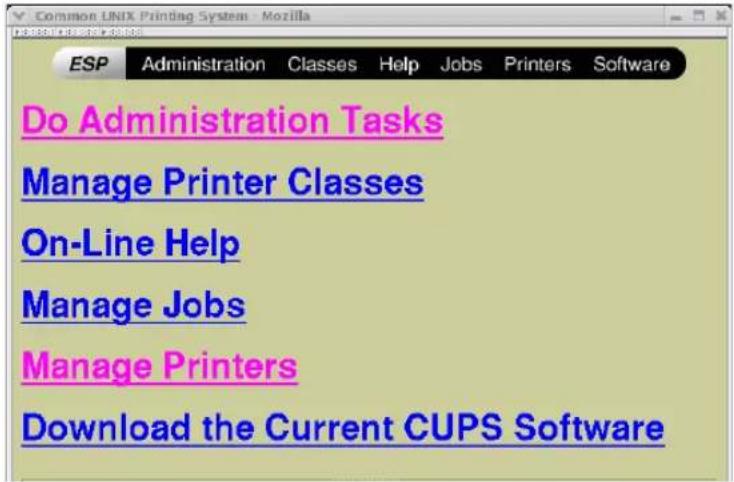
• The Printer page is displayed.
2 Click [Modify Printer].
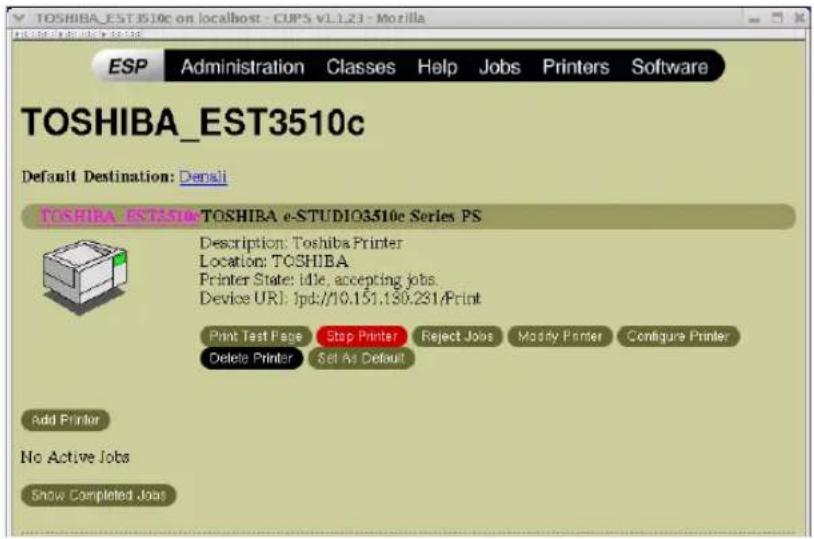
3 Modify the location and description in each field and click [Continue].
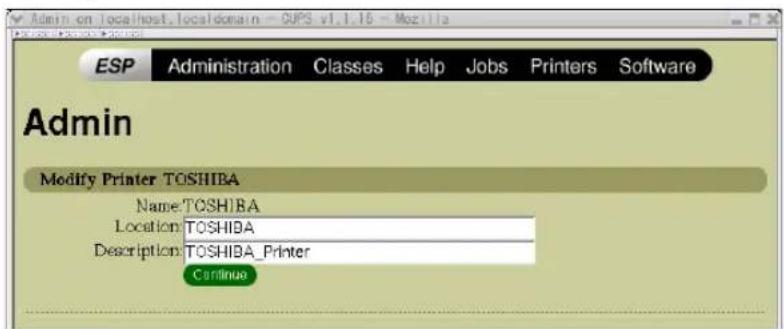
Uninstalling Printer
To uninstall the printer that you create, perform the following procedure.
Uninstalling Printer
1 Click the "Manage Printers" link in the startup page.
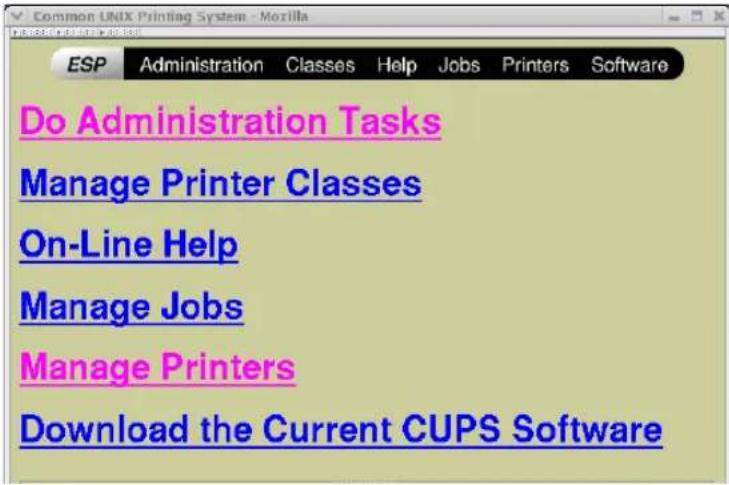
• The Printer page is displayed.
2 Click [Delete Printer].
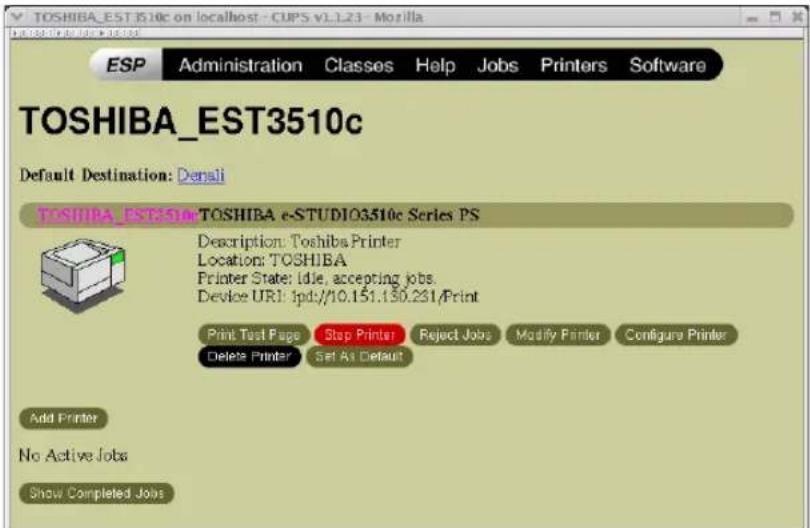
• The printer is deleted.
3 Then delete the PPD file "TOSHIBA\_EST3510c\_CUPS.gz" from the "/usr/share/cups/model/Toshiba" directory.
Installing Client Software from TopAccess
If the system administrator has uploaded the driver software to this equipment, you can use TopAccess to install the software on your workstation.
Notes
- When using Windows Server 2003 that the Service Pack is installed, the installation from TopAccess cannot be performed. In that case, please install the software in the other method.
- For instructions on how to upload the software in the equipment, please refer to the TopAccess Guide.
Installing client software from TopAccess for UNIX
1 In TopAccess, click the Install Software link at the bottom of the screen.
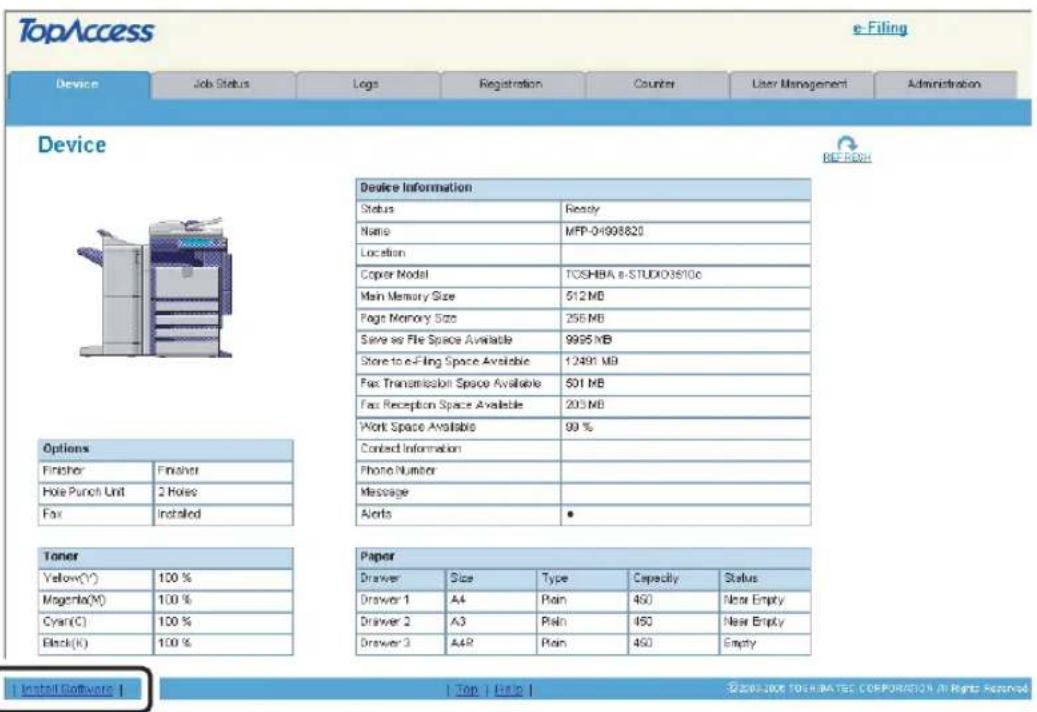
• The Install Client Software page opens.
2 Click the "Unix Filters" link.
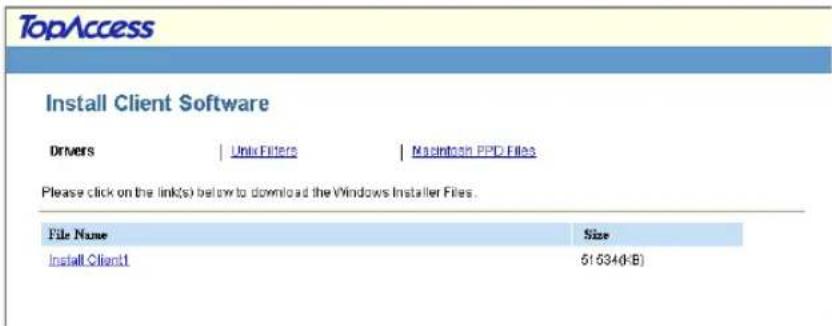
• The software components list is displayed.
3 Click the UNIX filter link that you want to install.
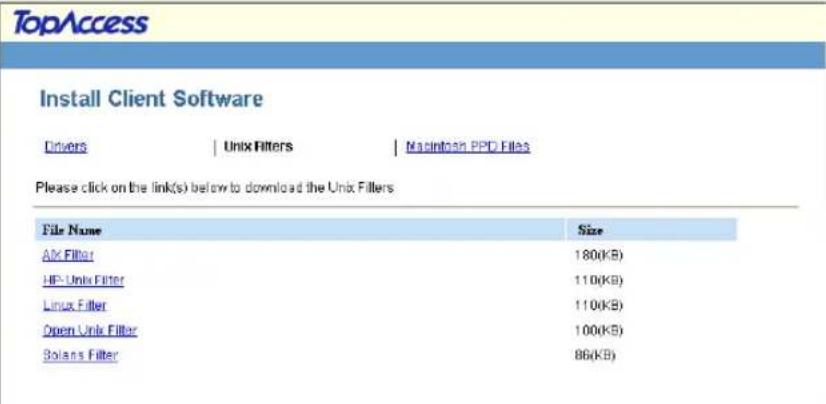
4 Download the UNIX tar file containing the UNIX filters on your desktop by following the prompts.
5 After you download the UNIX tar file, refer to the installation procedure for UNIX to set up the printer.
P.160 "Setting Up the UNIX Filters"
Printing from Windows
This describes the instructions on how to print from Windows computer.
Before Using the Printer Driver 188
Configuring the Options 188
Setting the Department Code....192
Copying the PPD File for Windows....194
Printing from Application....196
Considerations and Limitations 196
How to Print....196
Setting Up Print Options 199
How to Setup....199
Print Options 202
Printing with Extended Print Functionality 238
Printing Various Print Job Types 238
Printing with Various Layout and Finishing Options 246
Before Using the Printer Driver
Before printing, you have to configure the following options:
- Configuration Settings You have to configure such options as optional drawers, finisher, and hole punch unit. The features of these optional devices are not available unless you tell the system that the optional devices are installed.
- Department Code This system can manage jobs by department code. This feature lets you manage job counters for every department code. For example, a network administrator can check the number of copies printed from specific department member. If the Department Code is enabled, enter your Department Code provided by your administrator.
Configuring the Options
After you complete the installation of the printer drivers, you should configure the option settings on the printer drivers.
There are two methods to configure the options;
- If this equipment and your computer are not connected in the TCP/IP network, you can configure the options manually.
P.188 "Configuring the Options Manually" - If this equipment and your computer are connected in the TCP/IP network, you can configure the options automatically obtaining the settings using SNMP communication.
P.190 "Configuring the Options Automatically"
Note
When the printer drivers are installed using Point and Print on Windows 98/Me, you must click [Update Now] in the [Configuration] tab before starting to use the printer.
Configuring the Options Manually
The following describes an instruction on Windows XP. The procedure is the same when other versions of Windows are used.
Setting the configuration tab manually
Note
You must log into Windows as a user who has the “Administrators” or “Power Users” privilege when using Windows NT 4.0, Windows 2000, Windows XP, or Windows Server 2003.
1 Select the printer driver in the Printers and Faxes folder. Then click [File] and select [Properties].
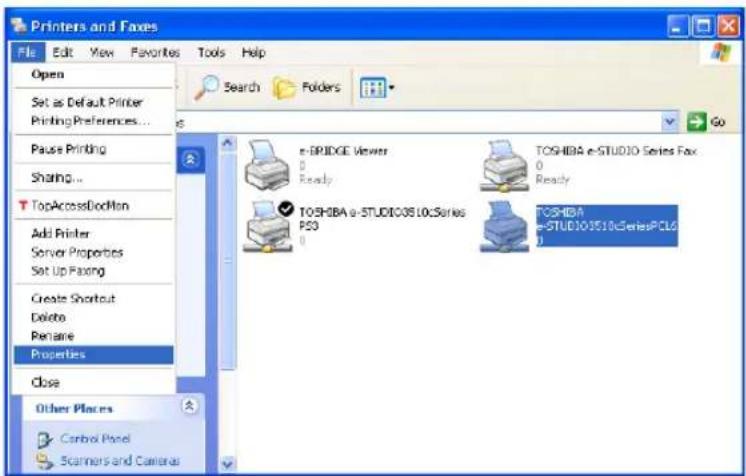
- When you are operating under Windows 98/Me/NT 4.0/2000, open the Printers folder to access the printer driver.
• The printer driver properties dialog box appears.
2 Display the [Configuration] tab, check off the "Enable SNMP Communication" option, and set the following options.
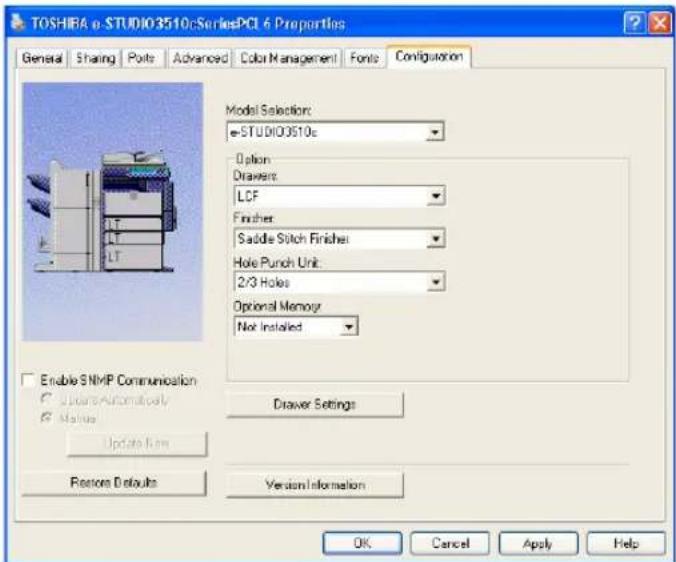
Model Selection — This sets the model type of the equipment.
Drawer — This sets whether the drawers or LCF (not available for some countries or regions) are installed.
Finisher — This sets whether or not optional finisher is installed.
Hole Punch Unit — This sets whether or not optional hole punch unit is installed.
Optional Memory — Select the whether the optional memory is installed.
Note
LCF is not available for some countries or regions.
Tip
For more information about each item, see descriptions about the Configuration Tab.
P.235 "Configuration Tab"
3 Click [Drawer Settings].
• The Drawer Settings dialog box appears.
4 Set the following options and click [OK].
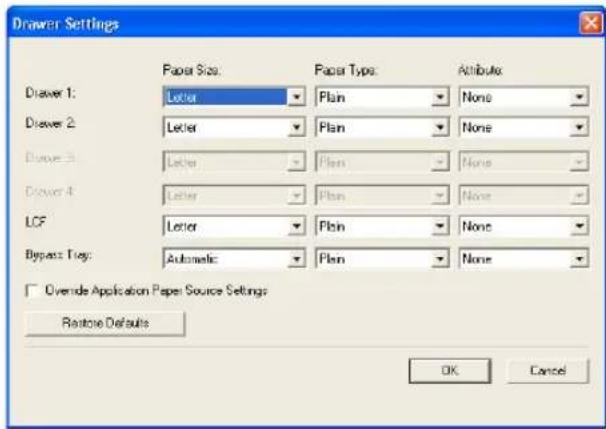
Drawer 1 — Select the paper size and paper type of paper that is loaded in the 1st Drawer.
Drawer 2 — Select the paper size and paper type of paper that is loaded in the 2nd Drawer.
Drawer 3 — Select the paper size and paper type of paper that is loaded in the 3rd Drawer when it is installed.
Drawer 4 — Select the paper size and paper type of paper that is loaded in the 4th Drawer when it is installed.
LCF — Select the paper size and paper type of paper that is loaded in the LCF when it is installed.
Bypass Tray — Select the paper type of paper that is loaded in the Bypass Tray.
Override Application Paper Settings — Check this to use the paper source setting in the printer driver rather than the application setting.
5 Click [Apply] and [OK] to save settings.
Configuring the Options Automatically
The following describes an instruction on Windows XP. The procedure is the same when other versions of Windows are used.
Setting the configuration tab using SNMP communication
Note
You must log into Windows as a user who has the "Administrators" or "Power Users" privilege when using Windows NT 4.0, Windows 2000, Windows XP, or Windows Server 2003.
1 Select the printer driver in the Printers and Faxes folder. Then click [File] and select [Properties].
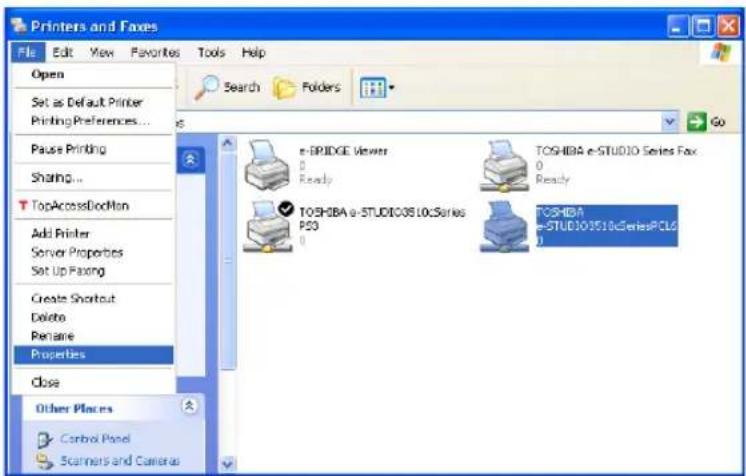
- When you are operating under Windows 98/Me/NT 4.0/2000, open the Printers folder to access the printer driver.
• The printer driver properties dialog box appears.
2 Display the [Configuration] tab, check on "Enable SNMP Communication", and click [Update Now].
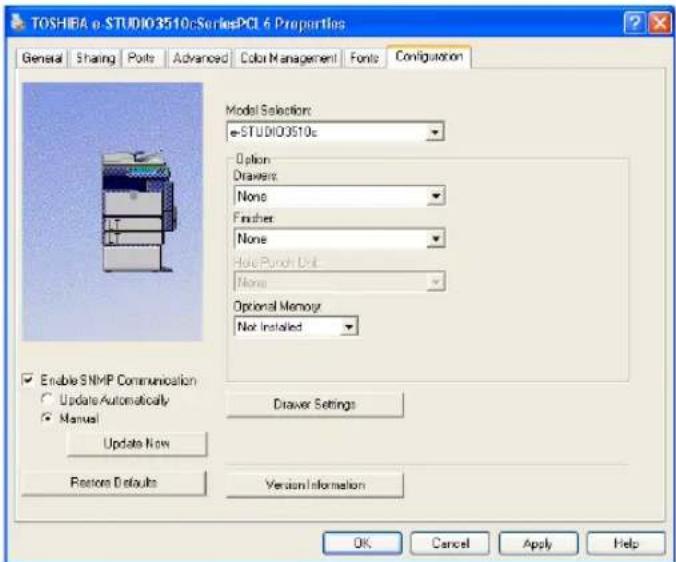
- The printer driver starts communicating with system and obtains option settings automatically.
Note
If the connection to the equipment has not been configured correctly, the message "The address of your printer could not be located. Would you like to find it?" will be displayed. If it is displayed, click [Yes] and search for the equipment using the TopAccessDocMon Local Discovery dialog box. After searching the equipment, SNMP communication will be enabled. For the instructions on how to search the equipment, refer to the instructions of TopAccessDocMon.
3 If you want to update option settings automatically when the [Configuration] tab is opened, select on "Update Automatically".
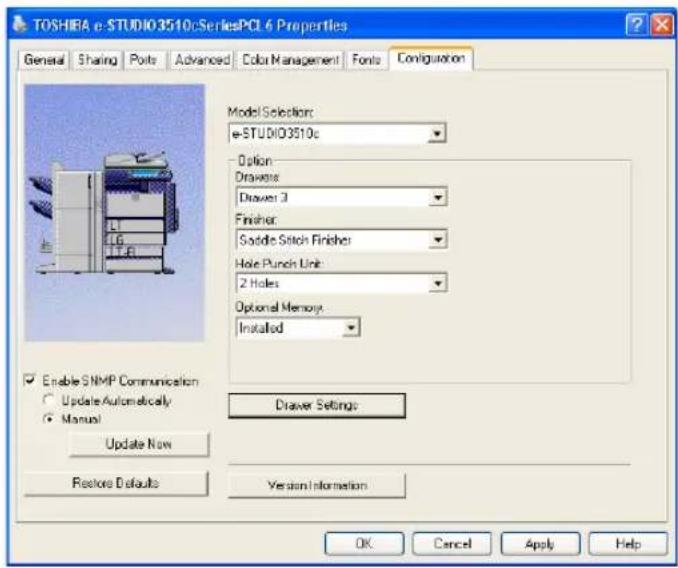
4 Click [Apply] and [OK] to save settings.
Tip
For more information about each item, see descriptions about the Configuration Tab. P.235 "Configuration Tab"
Setting the Department Code
When this equipment is managed by department codes, you have to enter your department code on the printer driver.
This allows a network administrator to check the number of copies printed from specific department members. Also users can check to see who submitted the print jobs, by using the Touch Panel Display and monitoring tools.
Please ask your administrator whether or not you should enter the Department Code.
Notes
- When the User Management Setting is enabled on the equipment, the User Management Setting is used to manage the print jobs instead of the department code. In that case, the user name that is entered to login to your computer is used for the authentication of the print job. Therefore, you do not need to enter the department code in the printer driver but your user name must be registered in the equipment. If the user name is not registered, your print job is processed as the invalid job according to the Department Code Enforcement settings.
- If the No Limit Black function is enabled, you do not have to specify the department code when you print a document with selecting "Black and White" in the "Color" option in the Basic tab of printer driver.
Tips
- How the equipment performs printing for an invalid department code print job, which no department code or invalid department code is specified, varies depending on the Department Code Enforcement setting that can be set from TopAccess Administrator mode and whether SNMP communication is enabled or not. When SNMP communication is enabled and Department Code Enforcement is set to "ON", an error message will be displayed when entering an invalid department code. When SNMP communication is disabled and Department Code Enforcement is set to "ON", the invalid department code print job will be stored in the invalid department code print job list without printing. When the Department Code Enforcement is set to "Print", the invalid department code print job will be printed. When the Department Code Enforcement is set to "Delete", the invalid department code print job will be deleted without printing.
However, when using Windows NT 4.0 and configure the connection through a NetWare print server, an error message for entering the invalid department code will not be displayed even if the Department Code Enforcement setting and SNMP Communication is enabled.
- A department code can be entered every time you begin printing. If you have to use a different department code for each print job, enter it when you begin printing.
Entering department code
1 Select the printer driver in the Printers folder. Then click [File] and select [Properties] (for Windows 98/Me), select [Document Defaults...] (for Windows NT 4.0), or [Printing Preferences...] (for Windows 2000/XP/Server 2003).
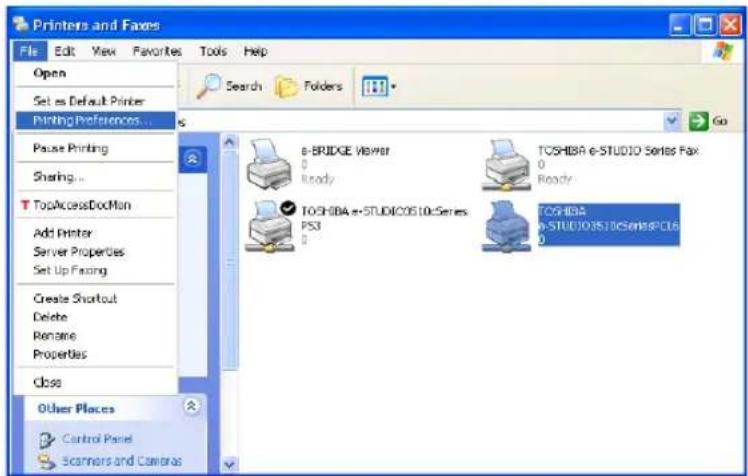
• The printer driver properties dialog box appears.
2 Display the [Others] tab and enter your department code in the "Department Code" field.
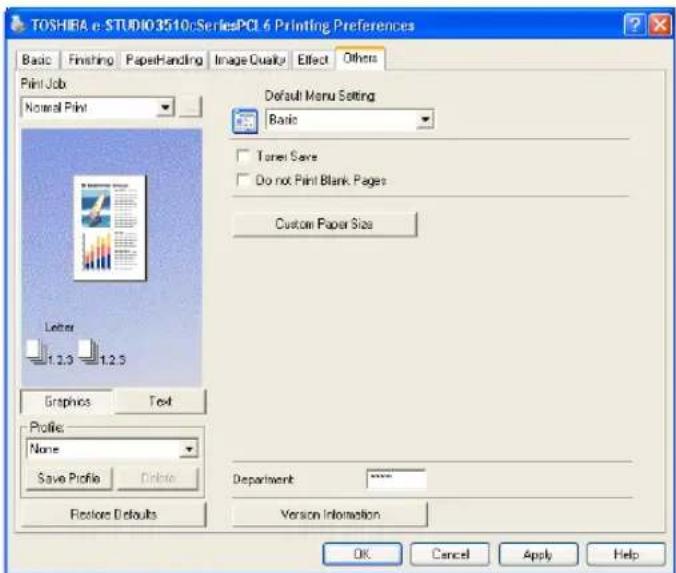
- In the Department field, only numeric characters can be entered. The Department Code must be 5-digit number.
3 Click [Apply] and [OK] to save settings.
Copying the PPD File for Windows
The Client Utilities CD-ROM contains a printer description file for popular Windows applications. PageMaker 6.0, 6.5, and 7.0 do not support automatic installation of printer description files. To make printing available in the Print and Page Setup dialog boxes of this application, copy the printer description file to the appropriate location.
Copying the printer description file
1 On the Client Utilities CD-ROM, open the folder that contains the PS3 printer driver.
- For Windows 98/Me:
- For Windows NT 4.0:
- For Windows 2000/XP/Server 2003:
2 Copy the printer description file (\*.ppd) to the appropriate location.
- For PageMaker 6.0:
\PM6\RSRC\
\PPD4 - For PageMaker 6.5:
\PM65\RSRC\
\PPD4 - For PageMaker 7.0:
\Program Files\Adobe\PageMaker 7.0\Rsrc\
\PPD4
Note
You can select the high resolution setting (such as "Color High-res General") for the Color Resolution Type in the Print dialog box even if the optional expansion memory is not installed. In that case, the print job will not be printed.
This section describes how to print a document from an application.
P.196 "Considerations and Limitations"
P.196 "How to Print"
Considerations and Limitations
- When the User Management Setting is enabled on the equipment, the user name that is entered to login to your computer is used for the authentication of the print job. Therefore, your user name must be registered in the equipment. If the user name is not registered, your print job is processed as the invalid job according to the Department Code Enforcement settings. When the Windows Domain Authentication is used for the User Management Setting, your computer must log in the domain.
- If the No Limit Black function is enabled, you do not have to specify the department code when you print a document with selecting "Black and White" in the "Color" option in the Basic tab of printer driver.
- Some options listed in the printer driver can also be set from an application (for example, collation). However, using collation in the application may cause problems. In that case, use the driver option to perform the function, rather than setting it from the application. But depending on the application, settings such as the orientation may need to be set in the application, or the printer driver, or both. The application may not set up the file properly for printing on this equipment and may also take longer to process. In order to print properly from the application that you are using, please see the section about printing in the application's manual.
- When printing with the PS3 printer driver from Adobe Acrobat, the Fit to Paper enlargement feature does not work if the "Use PostScript Passthrough" option is enabled in the PostScript settings of the PS3 printer driver. To use the Fit to Paper enlargement feature, please disable the "Use PostScript Passthrough" option in the PostScript settings of the PS3 printer driver.
-
When printing with the PS3 printer driver from the application that creates the PostScript code for printing such as Adobe Acrobat, the following print options may not work correctly. In that case, please disable the "Use PostScript Passthrough" option in the PostScript settings of the PS3 printer driver.
-
Manual Scale
- Print Paper Size
- Paper Type
- Use Front Cover
- Use Back Cover
- Interleave Pages
- Insert Pages
- Booklet
- Multiple Pages per Sheet
- All options in the Effect tab
- All options in the Image Quality tab
How to Print
Once you have installed the printer driver and configured it properly, you can print directly from most Windows applications. Simply choose the Print command from within your application.
You can print using the various functions by setting print options on the printer driver.
Printing from Windows applications
The following describes an example for printing from NotePad on Windows XP.
1 Open a file and select [Print] from the [File] menu of the application.
• The Print dialog box appears.
2 Select the printer driver of the equipment to be used and Click [Preferences].
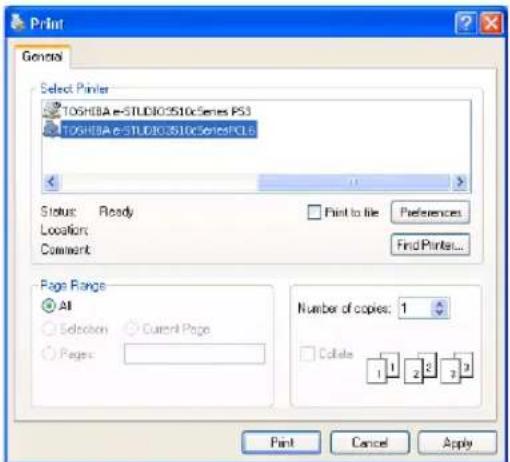
• The Printing Preferences dialog box appears.
Tip
The procedures for displaying the properties dialog for the printer driver may be different depending on an application that you are using. See your application's manual about displaying the printer properties dialog box.
3 Setting the Print Options for each tab according to how you want to print.
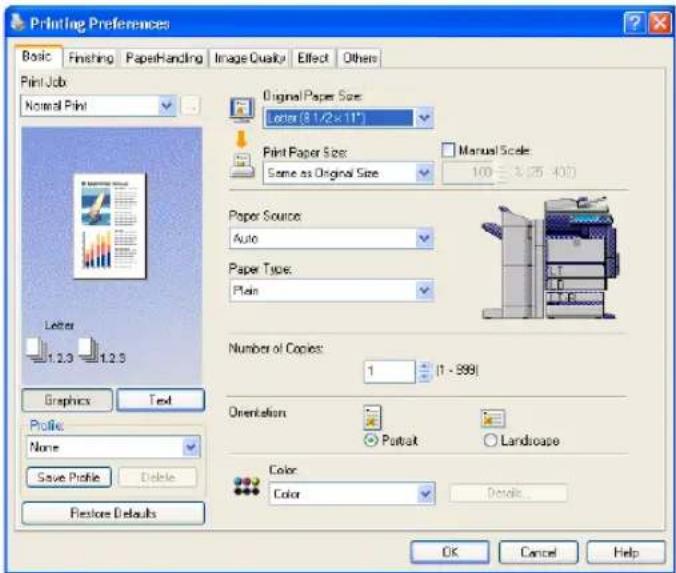
- Setting the print options varies depending on how you want to print a document.
P.202 "Print Options"
- You can also set the print options using setting profiles.
P.200 "Setting Print Options Using Profiles"
4 Click [OK] to save the settings.
5 Click [Print] to print a document.
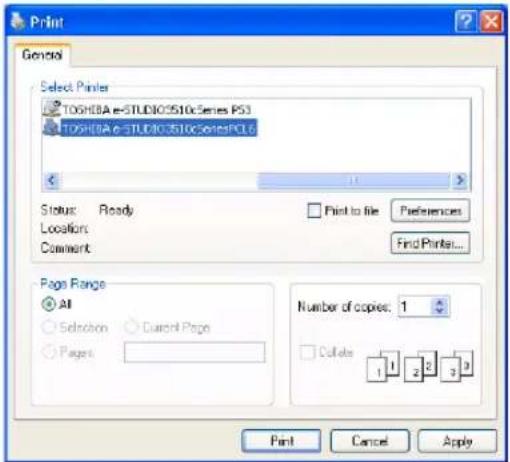
Print Options are the attributes you set to define the way a print job is processed. For example, the private print and proof print options determine how the copier manages your print job.
Tip
To find the printing instructions for your specific needs, refer to the procedures in the following section.
P.238 "Printing with Extended Print Functionality"
How to Setup
There are several ways to set print options. Also, how the settings effect printing varies depending on the way you set the options. Also the tabs displayed vary depending on how you display the printer properties.
Setting Initial Values of Print Options
Setting the print options by displaying the printer properties from the Printers folder within the Windows Start menu will establish the initial values of the options. For example, the paper size setting you most commonly use, optional device settings, user information settings, etc., are settings you will not want to change every time you print. It is convenient to set these options as initial values.
How to display: Windows 2000/XP/Server 2003
1 Click [Start], [Settings], and select [Printers and Faxes].
2 Select the printer driver for the equipment, click the [File] menu and select [Printing Preferences].
How to display: Windows NT 4.0
1 Click [Start], [Settings], and select [Printers].
2 Select the printer driver for the equipment, click the [File] menu and select [Document Defaults].
How to display: Windows 98/Me
1 Click [Start], [Settings], and select [Printers].
2 Select the printer driver for the equipment, click the [File] menu and select [Properties].
Setting Print Options for Each Print Job
Setting the print options by displaying the printer properties from the Print dialog box within an application will establish the values for the current print job. The print option settings specific to each print job are set using this method.
How to display:
1 Click the [File] menu and select [Print] on an application.
2 Select the printer driver of the equipment to be used and Click [Properties].
Setting Print Options Using Profiles
Print option settings can be saved so you can easily load specifically configured settings for a particular job.
Tip
There are several profiles that has been registered as default.
In order to print a document using profiles, you should create the saved profile first.
P.200 "Saving profile"
Once you save profile, you can load the settings for a particular job to print a document.
P.201 "Loading profile"
You can also delete the profile that you no longer require.
P.202 "Deleting profile"
Saving profile
You can create up to 20 profiles for a printer driver.
1 Configure the print options on each tab.
- Setting the print options varies depending on how you want to print a document. P.202 "Print Options"
2 Click [Save Profile] at the Profile group.
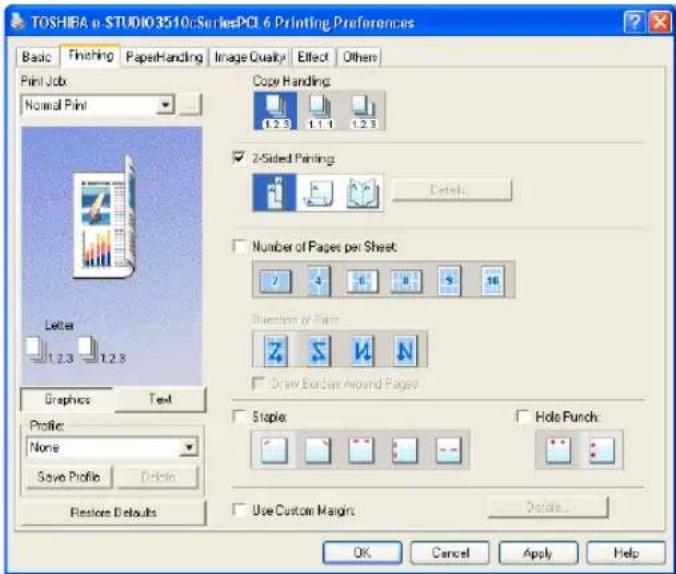
• The Profile Name dialog box appears.
3 Enter the profile name and click [OK].
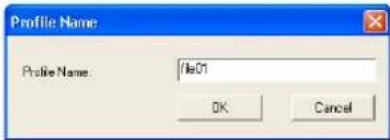
• The file name can be up to 63 characters long.
Tips
- If you enter the existing profile name, it prompts whether overwrite the existing profile or not. If you want to overwrite the existing profile, click [OK].
- You can not specify "None" for the profile name.
4 The setting profile is saved.
Loading profile
1 Select a profile in the "Profile" drop down box.
![TOSHRA e-STUDIO3510eSeriesPCI 6 Printing Preferences Basic Finishing PaperHandling Image Quality Effect Others Print Job: Normal/Print Original Paper Size: Letter [0 1/2 x 11°] Print Paper Size: Same as Original Size Manual Scale: 100 - 5 (25 - 401) Paper Source: Auto Paper Type: Plain Number of Copies: 1 - [1 - 999] Orientation: Passalt Landscape Color: Color Details OK Cancel Apply Help](/content/2026/06/1276857/images/c206852e5aa8249199177e3eedcc1788b477b41a7756f9aace9a3b4c28ec38e0.jpg)
- The settings profile is loaded from the file and apply to the printer options.
Note
Selecting "None" in the "Profile" drop down box cannot restore the initial settings on the printer driver. To restore the initial settings after selecting a profile, click [Restore Defaults].
Deleting profile
1 Select a profile that you want to delete in the "Profile" drop down box, and click [Delete].
![TOSHRA e-STUDIO3510cSeriesPCL 6 Printing Preferences Basic Finishing PaperHandling(Image Quality Effect Others Print Job: Normal Print Original Paper Size: Letter [8 1/2 x 11°] Print Paper Size: Manual Scale Same as Original Size 100% (25 - 407) Paper Source: Auto Paper Type: Plain Number of Copies: 1 (1 - 999) Orientation: Portrait Landscape Color: Color Dots... Graphics Text Profile: bio01 Save Profile Delete Restore Defaults OK Cancel Apply Help](/content/2026/06/1276857/images/c0104cbcfd90aee33f47c0da8be1429b61483497fa55305549bacd120b0dffa6.jpg)
• The Confirm Profile Delete dialog box appears.
2 Click [Yes] to delete the selected profile.
Print Options
This section describes print options in each tab of the printer driver. This section will help you to find the description of specific print options, or understand the functions for each print option.
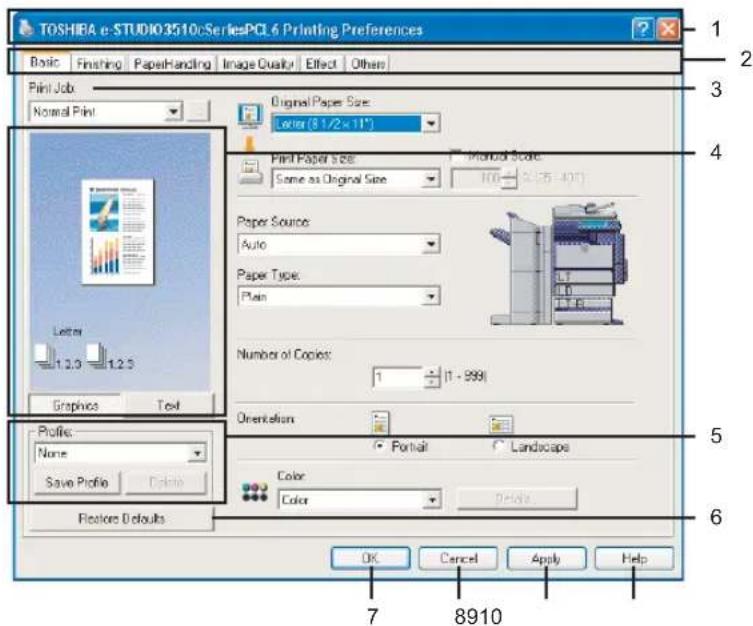
1) Printer Name
Displays the name given to the printer driver when it was installed, or the name it displays on the icon in the Printer folder.
2) Menu Tabs
The menu items of the printer driver are displayed as tabs. Clicking on a tab will display the contents of the selected tab. The tabs displayed vary depending on the way the print properties are displayed.
- Basic Tab
The Basic tab contains basic print operation settings, such as original paper size, print paper size, paper source, paper type, orientation, number of copies, and so on.
P.206 "Basic Tab"
- Finishing Tab
The Finishing tab allows you to enable sort printing, stapling and punching, 2-sided printing, and N-up printing.
P.210 "Finishing Tab"
- Paper Handling Tab
The Paper Handling Tab contains Cover page printing.
P.217 "Paper Handling Tab"
- Image Quality Tab
The Image Quality Tab allows you to select how images are printed. You can easily select appropriate image quality depending on the type of job being printed.
P.221 "Image Quality Tab"
- Effect Tab
The Effect Tab contains print options that add the effects to your print jobs such as Watermarks, Overlay Image printing and so on.
P.226 "Effect Tab"
- Others Tab
The Others Tab contains special features such as toner save, custom pager size, and so on.
P.229 "Others Tab"
- F o n t s T a b
The Fonts Tab allows you to select how the TrueType fonts are printed. This tab is only displayed when the printer properties are accessed from the Printers folder.
P.233 "Fonts Tab"
- Configuration Tab
The Configuration Tab allows you to configure the options. When any optional unit is installed in this equipment, set the configuration of the machine on this tab. This tab is only displayed when the printer properties are accessed from the Printers folder.
P.235 "Configuration Tab"
3) Print Job
This sets the type of print job.
- Normal Print
Select this to print a job normally.
- Scheduled Print
Select this to print a job at a future date and time.
When this is selected, click the button at the right to set the date and time to print a job.
- Private Print
Select this to print a private job. When you select this, click the button at the right and enter a password using the alphanumeric characters and symbol characters (ASCII code characters between 0x21 to 0x7E) in the Password field. The password must be between 1 to 63 characters.
The print job, sent as a private job, is saved in the private job queue on this equipment, and is not printed until you activate printing from the Touch Panel Display. This option is useful when you want to print a confidential document that is secured by a password.
The user has to enter the password to print the private job when activating printing from the Touch Panel Display.
- Proof Print
Select this to print the first copy of a multicopy job and then wait for approval before printing the remaining copies. The print job, sent as a proof job, is saved in the proof job queue on this equipment, and the remaining copies are not printed until you activate printing from the Touch Panel Display. This option allows you to check a job's output before printing the remaining copies and thereby reduce paper waste.
Note
When printing from an application that sends a separate job for each number of copies, this equipment will print all copies even if you set the Proof Print. In that case, set one copy for the number of copies for a proof print job in the printer driver, and then change the number of copies from the Control Panel to print required copies of the print job.
- Print to Overlay File
Select this to save the print job as an overlay file that is imposed on other documents. When you select this, click the button at the right and enter the file name.
For example, if you want to print a master page image on the background of a document, you can create an overlay file of the master merge image using this option. Then you can print a document using this overlay by specifying this file as an overlay image in the "Overlay Image" option of the Effect tab.
Notes
- If the print job has several pages in the document, only the first page of the document will be saved as an overlay file.
- Both the overlay file and the documents on which you superimpose the overlay image must be created at the same size, color mode, and orientation.
- When creating an overlay file using the PS3 printer driver from an application that can create the PS command directly, the overlay file will not be created properly. In that case, disable the "Use PostScript Passthrough" option in the PostScript Settings dialog box. P.233 "PostScript Settings"
- Store to e-Filing
Select this to save a job to an e-Filing box. When this is selected, click the button at the right and select the box from the drop down box. When the SNMP commutation is enabled, it detects the available box numbers and Box name in the drop down box. If not, all box numbers are listed in the drop down box.
If you select a user box, you may be required to enter the appropriate password for the selected box. The job saved to a box can be printed from the Touch Panel Display at a later time. It can also be composed with other documents using the e-Filing web utility. You can also print a job and save it to a box by checking on the "Print" option.
Note
When you store a document in e-Filing using the printer driver, the printing image (not the original document in your computer) will be stored in e-Filing.
Tip
For more information about e-Filing operations, see e-Filing Guide.
4) Preview window
In the Preview windows, you can check the current settings in the printer driver. You can change view type by clicking [Graphic] to display the print options settings graphically or [Text] to display the print options settings as a texts.
5) Profile
Print option settings can be saved on your hard disk. You can save print option settings by clicking [Save Profile] and easily load a setting file by selecting a profile name in the drop down box.
P.200 "Setting Print Options Using Profiles"
Tip
There are several profiles that has been registered as default.
Click this to restore the settings to the original factory defaults.
7) [OK]
Click this to enter the input settings and complete the print options settings.
8) [Cancel]
Click this to cancel the input settings and exit the print options settings.
9) [Apply]
Click this to enter the input settings without closing the print options settings. This button is only displayed when the printer properties are accessed from the Printers folder for Windows NT 4.0, Windows 2000, Windows XP, and Windows Server 2003. This button remains grayed out until a setting is changed.
10) [Help]
Click this to browse the HELP for the printer driver.
Basic Tab
The Basic tab contains basic print operation settings, such as original paper size, print paper size, paper source, paper type, orientation, number of copies, and so on.
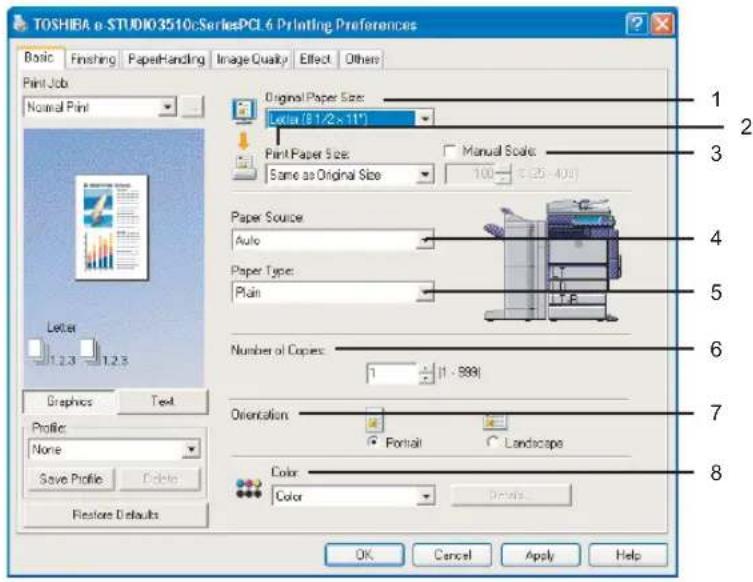
1) Original Paper Size
This selects the size of a document to be printed.
Available original paper sizes are listed below:
- Letter
- Legal
- Ledger
- Statement
- Computer
• 13"LG
8.5"SQ - 12 x 18"
A4
A5
A3
B4
B5
A3-Wide - Folio
A6
• 16K
• 8K
Tips
- There are also 20 custom paper sizes in the "Original Paper Size" drop down box. You can set the custom paper sizes in the Others tab.
P.229 "Others Tab"
- The default paper size will be "Letter" or "A4" according to the regional setting in the Windows.
- "A3-Wide" is displayed only for the european version, and "12 x 18" is displayed only for the US version.
2) Print Paper Size
Select this to enlarge or reduce a page image to fit exactly in the selected paper size. If you do not wish to enable enlarge or reduce printing, select "Same as Original Size".
Also when you want to enable Tab printing, select "Letter Tab" or "A4 Tab" here. When you select "Letter Tab" or "A4 Tab", the Primary Tab dialog box appears.
Tip
There are also 20 custom paper sizes in the "Print Paper Size" drop down box. You can set the custom paper sizes in the Others tab.
P.229 "Others Tab"
— Primary Tab Dialog
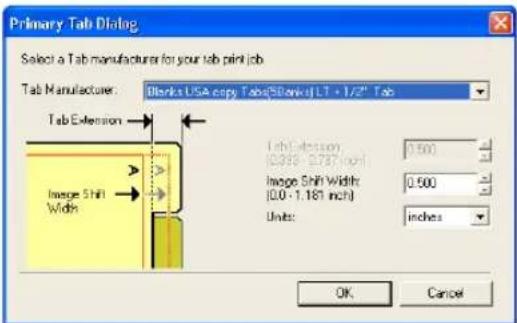
Tab Manufacturer
Select the product name of the tab paper that you use. This equipment supports following tab paper.
For Letter Tab: Blanks USA copy Tabs (5 Banks) LT + 1/2" Tab Blanks USA copy Tabs (8 Banks) LT + 1/2" Tab
For A4 Tab: KOKUYO A4-S (5 Banks) King JIM A4-S (5Banks)
If you use tab papers other than above, select "Custom". When you select "Custom", you must specify the tab extension manually.
Tab Extension
Enter the width of the tab extension. This must be set only when "Custom" is selected in the "Tab Manufacturer" option.
Image Shift Width
Enter the width to shift the printed image.
For example, if you want to print text on the tab extension of Letter Tab paper, create a Letter sized document and input the text on the right side. You must place the text at the exact height to fit the tab extension. Also the right margin, the margin between the text and right edge of the document, must have more than 0.2 inch or 5 mm space because the equipment cannot print in the space. Then enter the width of the tab extension as Image Shift Width.
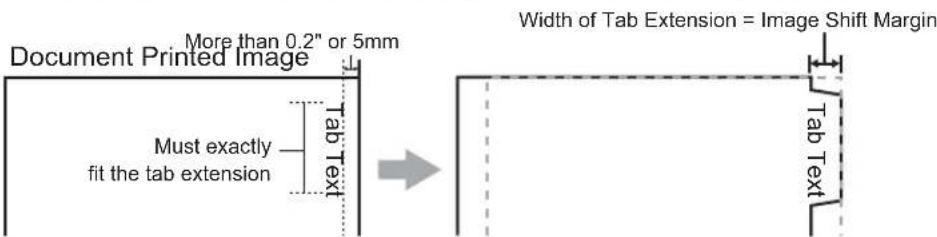
Units
Select the unit for the Tab Extension and Image Shift option. The default unit varies depending on the regional setting of the client computer.
Notes
- The tab paper cannot be fed from LCF (not available for some countries or regions) and drawers.
- When you place the tab paper on the Bypass Tray, make sure the tab side of the paper becomes outside.
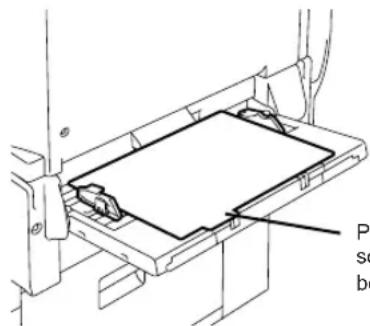
Place the tab paper so that the tab side becomes outside.
- If the document for tab printing is not created properly or the Image Shift Width is not set properly, the image will not be printed in the correct position within the tab extension. Please make sure to create the document and set the Image Shift Width correctly.
- If mis-printing occurs while multiple tab pages are printed continuously, dirt may adhere to the reverse side of a paper. To avoid this, it is recommended to print a tab paper as a separated job for each page so that this equipment performs cleaning before printing next tab paper.
- When printing tab paper, the tab paper may be caught in the exit of the inner tray preventing the tab extension from exiting. In that case, remove the tab paper before printing the next job.
3) Manual Scale
Check this box to manually enter the zoom ratio, to enlarge or reduce an image. You can set any integer from 25 to 400(%) for the zoom ratio. This is not available when you enable the Booklet printing.
4) Paper Source
This selects the paper source. Please select a paper source that correlates with the printing size. You can confirm the paper size of When you select the paper source, the cyan borders around the selected paper source is drawn in the illustration.
- Auto — Automatically selects the paper set in this equipment according to the printed document size.
- Drawer 1 — Paper is fed from the 1st Drawer.
- Drawer 2 — Paper is fed from the 2nd Drawer.
- Drawer 3 — Paper is fed from the 3rd Drawer. This cannot be selected if the Drawer 3 is not installed.
- Drawer 4 — Paper is fed from the 4th Drawer. This cannot be selected if the Drawer 3 and 4 are not installed.
- LCF — Paper is fed from the LCF. This cannot be selected if the LCF is not installed.
- Bypass Tray — Paper is fed from the Bypass Tray. When this is selected and print a job, the [JOB STATUS] button of the equipment will be blink. Press the [JOB STATUS] button and check the paper size of the job. Then set the paper and press the [STRAT] button to print a job.
Notes
• LCF is not available for some countries or regions.
- The selectable values vary depending on the optional devices installed on this equipment and their configuration on the Configuration tab.
- When the paper size settings on the Configuration tab are differ from the paper size settings in the equipment, the paper source setting is ignored and the equipment may prompt to set the paper in the bypass tray.
5) Paper Type
This sets the media type of the paper.
- Plain — Select this when printing on 20-28 lbs plain paper (64-105 g/m2 plain paper).
- Thick1 — Select this when printing on 32-90 lbs thick paper (106-163 g/m2 thick paper).
- Thick2 (Front) — Select this when printing on the front side of 90-110 lbs thick paper (164-209 g/m2 thick paper).
- Thick2 (Back) — Select this when printing on the back side of 90-110 lbs thick paper (164-209 g/m2 thick paper).
- Thick3 (Front) — Select this when printing on the front side of 110-130 lbs thick paper (210-256 g/m2 thick paper).
- Thick3 (Back) — Select this when printing on the back side of 110-130 lbs thick paper (210-256 g/m2 thick paper).
- Special 1 (Front) — Select this when printing on the front side of the special 1 paper.
- Special 1 (Back) — Select this when printing on the back side of the special 1 paper.
- Special 2 (Front) — Select this when printing on the front side of the special 2 paper.
- Special 2 (Back) — Select this when printing on the back side of the special 2 paper.
- Recycled — Select this when printing on the recycled paper.
- Transparency — Select this when printing on transparent sheets.
Note
When “A4 Tab” or “Letter Tab” is selected at the “Print Paper Size” drop down box, “Tab” will be displayed and you cannot change the paper type.
Tip
For more information about the paper types that are available for this equipment, please refer to Operator's Manual for Basic Function.
6) Number of Copies
This sets the number of printed copies. You can set any integer from 1 to 999.
7) Orientation
This sets the paper printing direction.
- Portrait — The document is printed in the portrait direction.
- Landscape — The document is printed in the landscape direction.
8) Color
This sets whether a print job is printed in color mode or monochrome mode.
- Auto — Select this to determine the color mode automatically. When a print job is a black and white document, the system automatically prints the document in monochrome mode. When a print job is a color document, it prints the document in color mode.
- Color — Select this to print a document in color mode.
- Black and White — Select this to print a document in monochrome mode.
- Twin Color — Select this to print a document in twin color mode. When this is selected, click [Details] to specify the color that the non-black part of document will be printed in. You can specify either "Red", "Green", "Blue", "Cyan", "Magenta", "Yellow", or "White".
Finishing Tab
The Finishing tab allows you to enable sort printing, 2-sided printing, N-up printing, stapling and punching.
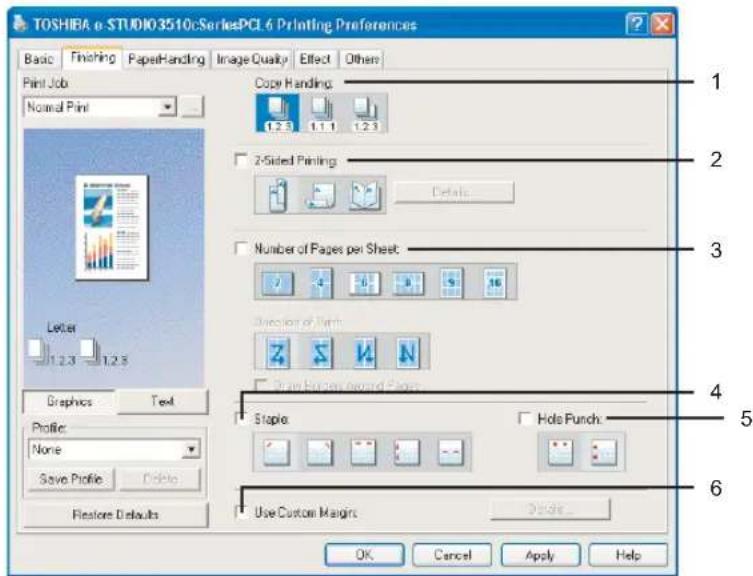
1) Copy Handling
This sets how to sort the printed sheet when numerous copies are made for printing.
- Sort Copies — Select this for sort-printing (1, 2, 3... 1, 2, 3...).
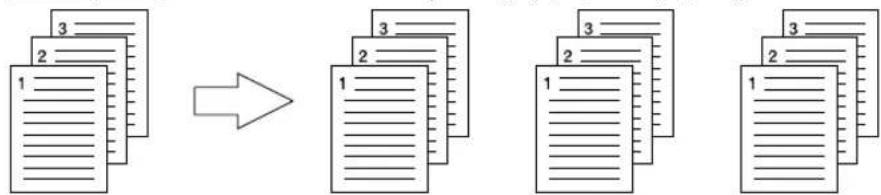
flowchart
graph LR
    A["1 Document Page"] --> B["2 Document Page"]
    B --> C["3 Document Page"]
    C --> D["4 Document Page"]
    style A fill:#f9f,stroke:#333
    style B fill:#f9f,stroke:#333
    style C fill:#f9f,stroke:#333
    style D fill:#f9f,stroke:#333
- Group Copies — Select this for group-printing (1, 1, 1... 2, 2, 2... 3, 3, 3...).
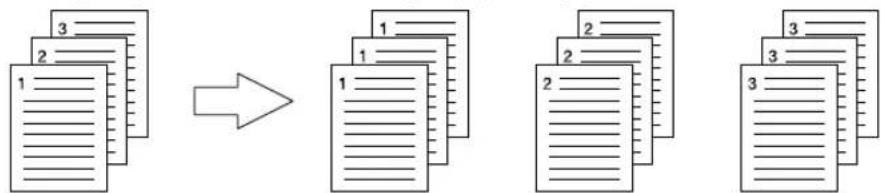
flowchart
graph LR
    A["1 - 3"] --> B["1 - 2"]
    B --> C["2 - 3"]
    C --> D["3 - 3"]
    style A fill:#f9f,stroke:#333
    style B fill:#f9f,stroke:#333
    style C fill:#f9f,stroke:#333
    style D fill:#f9f,stroke:#333
- Rotated Sort Copies — Select this for rotate sort-printing.
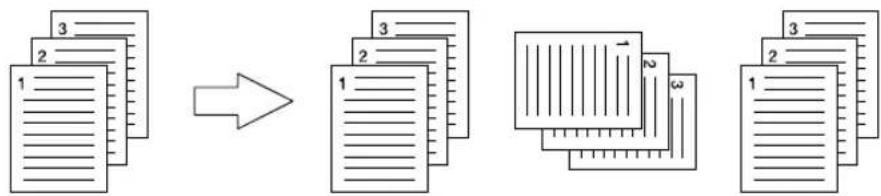
flowchart
graph LR
    A["1: Document"] --> B["2: Sheet"]
    B --> C["3: Paper"]
    C --> D["4: Grid with 1, 2, 3, 4: Data Points"]
    D --> E["Final Output"]
Notes
- "Group Copies" and "Rotated Sort Copies" can be selected only when more than 2 copies are entered at the Number of Copies option.
- "Rotated Sort Copies" can be selected only when "Letter", "A4", "B5", or "16K" is selected at the Output Paper Size option. When you want to use the "Rotated Sort Copies" option, you must set Letter/Letter-R paper, A4/A4-R paper, B5/B5-R paper, or 16K/16K-R paper in the cassettes before printing. The job will be output in the inner tray.
2) 2-Sided Printing
This sets 2-Sided printing (printing on both sides of paper) according to the type of binding for 2-sided-printed pages.
This option is only for printing on both sides of the paper. If you want to bind the output with staples, you should set the finishing option as well.
- Book — Select this to print on both sides of the paper in the same direction and to bind the document along the vertical side of the paper so that the pages can be turned over right and left.
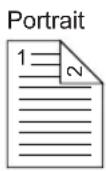
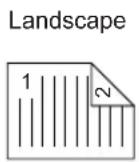
- Tablet — Select this to print on both sides of the paper with a vertical reversal and to bind the document along the horizontal side of the paper so that the pages can be turned over up and down.
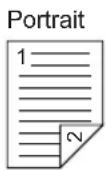
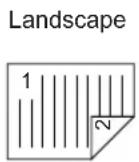
- Booklet — Select this to print a properly paginated booklet or magazine-style publication. When this is selected, click [Details...] to specify the detail of the Booklet printing.
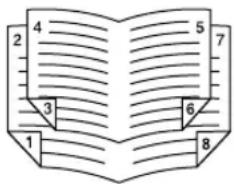
Notes
- 2-Sided printing cannot be set when the following paper size in selected at the "Print Paper Size" drop down box in the Basic Tab.
- A5
- A6
- A3-Wide
- 12 x 18"
- A 4 T a b
- Letter Tab
- Custom Paper Size
- 2-Sided printing cannot be set when the following paper type in selected at the "Paper Type" drop down box in the Basic Tab.
- Special 1 (Front)
- Special 1 (Back)
- Special 2 (Front)
- Special 2 (Back)
- Transparency
- When Booklet printing is performed using the PS3 printer driver from an application that can create the PS command directly, the overlay image will not be printed. In that case, disable the "Use PostScript Passthrough" option in the PostScript Settings dialog box.
P.233 "PostScript Settings"
— Booklet Details
In the Booklet Details dialog box, you can specify how Booklet printing is performed.
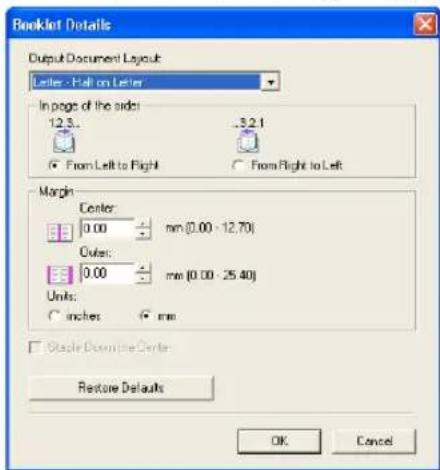
Output Document Layout
Select the booklet size to be made.
- A5 on A4 — Select this to print a A5 size booklet. Every 2 pages are printed on A4 paper to fit on half a sheet (A5).
- A4 on A3 — Select this to print a A4 size booklet. Every 2 pages are printed on A3 paper to fit on half a sheet (A4).
- B5 on B4 — Select this to print a B5 size booklet. Every 2 pages are printed on B4 paper to fit on half a sheet (B5).
- Letter-Half on Letter — Select this to print a 1/2 Letter size booklet. Every 2 pages are printed on Letter paper to fit on half a sheet.
- LT on LD — Select this to print a Letter size booklet. Every 2 pages are printed on Ledger paper to fit on half a sheet (Letter).
- A6 on A5 — Select this to print a A6 size booklet. Every 2 pages are printed on A5 paper to fit on half a sheet (A6).
- B6 on B5 — Select this to print a B6 size booklet. Every 2 pages are printed on B5 paper to fit on half a sheet (B6).
- 1/2 LG on LG — Select this to print a 1/2 Legal size booklet. Every 2 pages are printed on Legal paper to fit on half a sheet.
- 1/2 Comp on Comp — Select this to print a 1/2 Computer size booklet. Every 2 pages are printed on Computer paper to fit on half a sheet.
- 1/2 Folio on Folio — Select this to print a 1/2 Folio size booklet. Every 2 pages are printed on Folio paper to fit on half a sheet.
- 1/2 Statement on Statement — Select this to print a 1/2 Statement size booklet. Every 2 pages are printed on Statement paper to fit on half a sheet.
- 1/2 13'LG on 13'LG — Select this to print a 1/2 13inchLG size booklet. Every 2 pages are printed on 13inchLG paper to fit on half a sheet.
- 1/2 8.5'SQ on 8.5'SQ — Select this to print a 1/2 8.5inchSQ size booklet. Every 2 pages are printed on 8.5inchSQ paper to fit on half a sheet.
- 32K on 16K — Select this to print a 32K size booklet. Every 2 pages are printed on 16K paper to fit on half a sheet.
- 16K on 8K — Select this to print a 16K size booklet. Every 2 pages are printed on 8K paper to fit on half a sheet.
In page of the order - From Left to Right
Select this to print the pages from left to right.
In page of the order - From Right to Left
Select this to print the pages from right to left.
Margin - Center
This sets the gutter on the center of two sided page. You can enter up to 0.500 inch (12.700 mm). The printed images will be reduced according to the margin setting.
Margin - Outer
This sets the gutter on the right side and left side on the paper. You can enter up to 1.00 inch (25.40 mm). The printed images will be reduced according to the margin setting.
Units
Select the unit for the Center Margin and Outer Margin option. The default unit varies depending on the regional setting in the Windows.
Staple Down the Center
Check this to staple double in the center.
Note
"Staple Down the Center" is available only when "A5 on A4", "A4 on A3", "B5 on B4", "Letter - Half on Letter", "LT on LD", "1/2 LG on LG", or "16K on 8K" is selected at the Output Document Layout drop down box and the Saddle Stitch Finisher is installed.
3) Number of pages per sheet
This sets the printing of multiple pages on one sheet. The pages are reduced to fit the selected paper size automatically and printed.
- 2 pages — Select this to print images from 2 pages arranged on one sheet.
- 4 pages — Select this to print images from 4 pages arranged on one sheet.
- 6 pages — Select this to print images from 6 pages arranged on one sheet.
- 8 pages — Select this to print images from 8 pages arranged on one sheet.
- 9 pages — Select this to print images from 9 pages arranged on one sheet.
- 16 pages — Select this to print images from 16 pages arranged on one sheet.
Direction of print
This sets how the pages are arranged on one sheet.
- Left to Right — Select this to arrange pages horizontally from the left and printed top to bottom on one sheet.
- Right to Left — Select this to arranged pages horizontally from the right and printed top to bottom on one sheet.
- Left to Right by column — Select this to arrange pages vertically from the top and printed left to right on one sheet.
- Right to Left by column — Select this to arrange pages vertically from the top and printed right to left on one sheet.
Draw Borders Around Pages
Check this to print borders around each page.
4) Staple
This sets whether a print job is printed with staples.
- Upper Left — Select this to staple the printed document in the upper left.
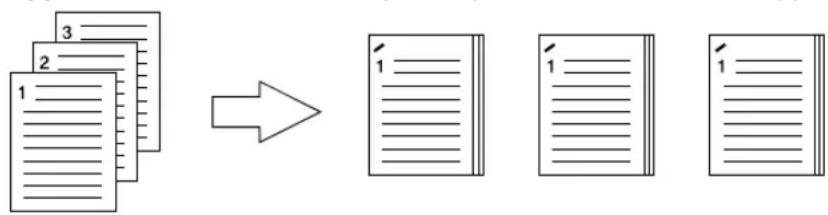
flowchart
graph LR
    A["1: Document"] --> B["2: Document"]
    B --> C["3: Document"]
    C --> D["4: Output"]
    style A fill:#f9f,stroke:#333
    style B fill:#f9f,stroke:#333
    style C fill:#f9f,stroke:#333
    style D fill:#f9f,stroke:#333
- Upper Right — Select this to staple the printed document in the upper right.
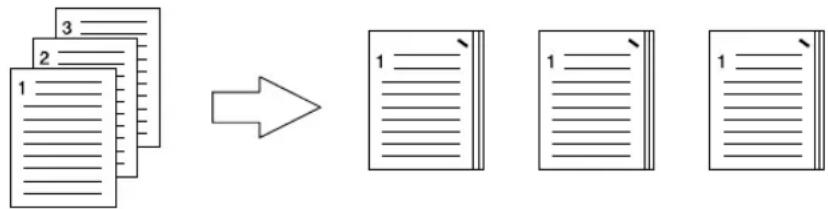
- Center Top — Select this to staple the printed document double along the top edge.
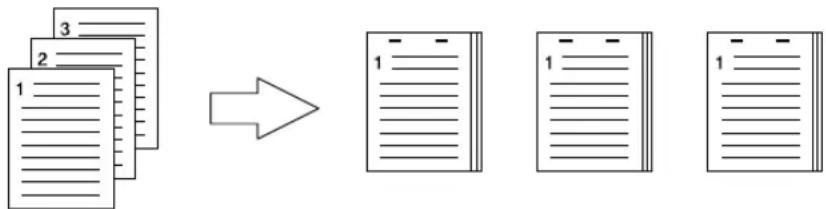
flowchart
graph LR
    A["Document 1"] --> B["Document 2"]
    B --> C["Document 3"]
    C --> D["Output: None"]

    subgraph Output
    E["1"] --> F["1"]
    end

    Note: The diagram illustrates a process where the output is transformed into a single file (1).
- Middle Left — Select this to staple the printed document double along the left side.
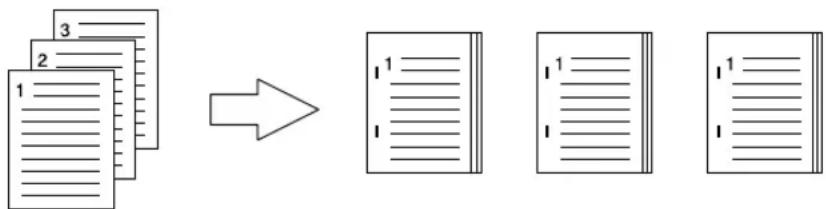
flowchart
graph LR
    A["1 - 2 - 3 -"] --> B["1 - 2 - 3 -"]
    B --> C["1 - 2 - 3 -"]
    C --> D["1 - 2 - 3 -"]
- Center Double — Select this to fold and staple the printed document double in the center. When you select this, the pages will be printed on the sheets according to the print option settings, and then simply fold and staple double in the center of the sheets.
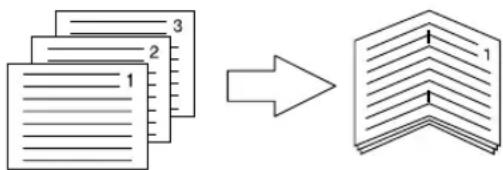
flowchart
graph LR
    A["1"] --> B["2"]
    B --> C["3"]
    style A fill:#f9f,stroke:#333
    style B fill:#f9f,stroke:#333
    style C fill:#f9f,stroke:#333
Tip
"Center Double" can be used to create a booklet from a document that has been already created as a paginated booklet. To create a paginated booklet from a normal document, perform the booklet printing in the 2-Sided Printing option.
Notes
- The selectable options vary depending on the paper size.
- "Center Double" can be selected only when the Saddle Stitch Finisher is installed.
-
2-Sided printing cannot be set when the following paper size in selected at the "Print Paper Size" drop down box in the Basic Tab.
-
A5
- A6
- A3-Wide
- Statement
- 12 x 18"
- A 4 T a b
- Letter Tab
- Custom Paper Size
- 2-Sided printing cannot be set when the following paper type in selected at the "Paper Type" drop down box in the Basic Tab.
- Thick 1
- Thick 2 (Front)
- Thick 2 (Back)
- Thick 3 (Front)
- Thick 3 (Back)
- Special 1 (Front)
- Special 1 (Back)
- Special 2 (Front)
- Special 2 (Back)
- Transparency
5) Hole Punch
This sets whether a print job is printed with hole punches.
- Center Top — Select this to create holes along the top edge and print.
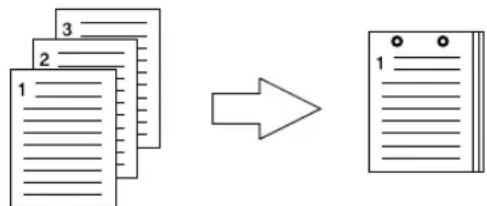
flowchart
graph LR
    A["1: Document"] --> B["2: Document"]
    B --> C["3: Document"]
    C --> D["Output: 1: Document with two dots"]
- Middle Left — Select this to create holes along the left side and print.
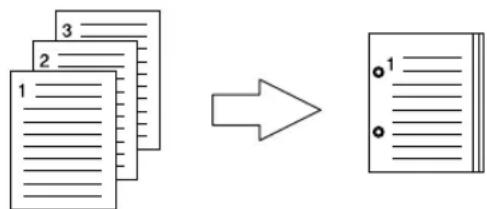
flowchart
graph LR
    A["1: Document"] --> B["2: Document"]
    B --> C["3: Document"]
    C --> D["Output 1: Text"]
    style A fill:#f9f,stroke:#333
    style B fill:#f9f,stroke:#333
    style C fill:#ccf,stroke:#333
    style D fill:#cfc,stroke:#333
Notes
- Hole punching can be selected only when a hole punch unit is installed.
- 2-Sided printing cannot be set when the following paper size in selected at the "Print Paper Size" drop down box in the Basic Tab.
- A5
- A6
- A3-Wide
- 12 x 18"
- A 4 T a b
- Letter Tab
- Custom Paper Size
- 2-Sided printing cannot be set when the following paper type in selected at the "Paper Type" drop down box in the Basic Tab.
- Thick 2 (Front)
- Thick 2 (Back)
- Thick 3 (Front)
- Thick 3 (Back)
- Special 1 (Front)
- Special 1 (Back)
- Special 2 (Front)
- Special 2 (Back)
- Transparency
6) Use Custom Margin
Check this to set the margin on the printed pages. When this is checked, click [Detail...] to set the margins in the Custom Margin dialog box.
Notes
- Enable this function to add the margins if the application does not support the margin function. When the application has the margin function, use the application's function rather than this option.
• This cannot specify the binding margin for Booklet printing.
Paper Handling Tab
The Paper Handling tab allows you to enable Front Cover printing, Back Cover printing, Inserting Pages, and Interleaving Pages.
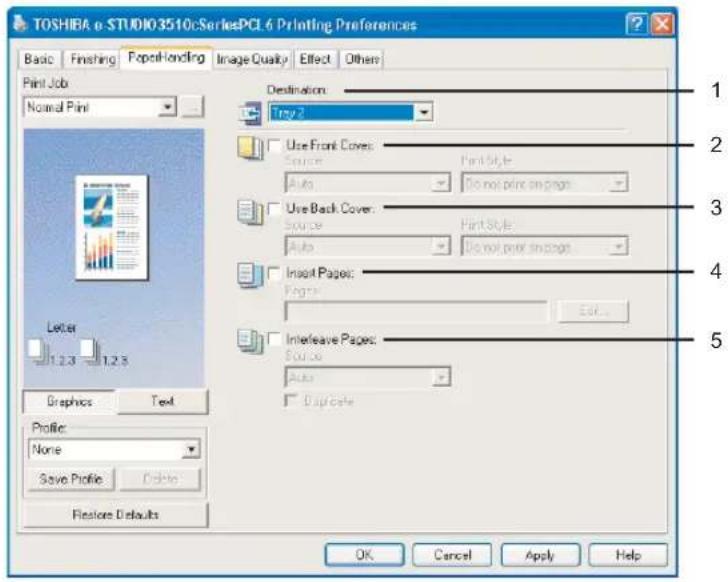
1) Destination
This selects the destination tray to which jobs will be output.
- Inner Tray — Select this to route the output to the inner tray.
- Tray 1 — Select this to route the output to the upper tray of the Finisher.
- Tray 2 — Select this to route the output to the lower tray of the Finisher.
Notes
- "Tray 1" and "Tray 2" can be selected when the Finisher or Saddle Stitch Finisher are installed and configured on the Configuration tab.
- If you select "Rotated Sort Copies" at the "Copy Handling" option in the Finishing tab, only "Inner Tray" can be selected.
2) Use Front Cover
This sets front cover printing which allows you to insert or print a cover on a sheet fed from a different tray than the Paper Source option selected on the Basic tab.
To enable cover printing, check on the box and select the location from where a cover sheet is to be fed and the print style to be used.
Source
Select the location from where a cover sheet is to be fed. When "Auto" is selected, the paper is automatically selected according to the printed document size.
Note
The selectable values in the Source drop down box vary depending on the optional devices installed on this equipment and their configuration on the Configuration tab.
Print Style
This selects how you want to print a cover.
- Do not print on page — Select this to insert a blank cover.
- Print on 1 side of the page — Select this to print the first page image on the front side of a cover.
- Print both sides of page — Select this to print the first two page images on both sides of a cover. This is available only when the 2-Sided Printing option is enabled on the Finishing tab.
Note
If "Print on 1 side of the page" is selected while 2-Sided Printing is performed, the first page is printed on the front side of the cover sheet and the back side of the cover will be blank.
3) Use Back Cover
This sets back cover printing which allows you to insert or print a back cover on a sheet fed from a different tray than the Paper Source option selected on the Basic tab.
To enable back cover printing, check on the box and select the location from where a back cover sheet is to be fed and the print style to be used.
Source
Select the location from where a back cover sheet is to be fed. When "Auto" is selected, the paper is automatically selected according to the printed document size.
Note
The selectable values in the Source drop down box vary depending on the optional devices installed on this equipment and their configuration on the Configuration tab.
Print Style
This selects how you want to print a back cover.
- Do not print on page — Select this to insert a blank cover.
- Print on 1 side of the page — Select this to print the last page image on the front side of a cover.
- Print both sides of page — Select this to print the last two page images on both sides of a cover. This is available only when the 2-Sided Printing option is enabled on the Finishing tab.
Notes
- If "Print on 1 side of the page" is selected while 2-Sided Printing is performed, the last page is printed on the front side of the cover sheet and back side of the cover will be blank.
- If "Print both sides of page" is selected but there is only one page printed on the back cover, the last page is printed on the front side of the cover sheet and back side of the cover will be blank.
4) Insert Pages
This sets sheet insertion printing which allows you to insert a sheet between pages, or print a specific page on a sheet fed from a tray other than the Paper Source option selected on the Basic tab.
This option is useful when you want to insert a blank sheet between chapters, or when you want to print chapter cover pages on the different paper.
To enable sheet insertion printing, check on the box and click [Edit...] to set how the pages are inserted in the Insert Pages dialog box.
Notes
- This option cannot be set when "Interleave Pages" option is enabled.
• Up to 50 pages can be inserted.
- When Insert Pages printing is performed using the PS3 printer driver from an application that can create the PS command directly, the overlay image will not be printed. In that case, disable the "Use PostScript Passthrough" option in the PostScript Settings dialog box.
P.233 "PostScript Settings"
— Insert Pages
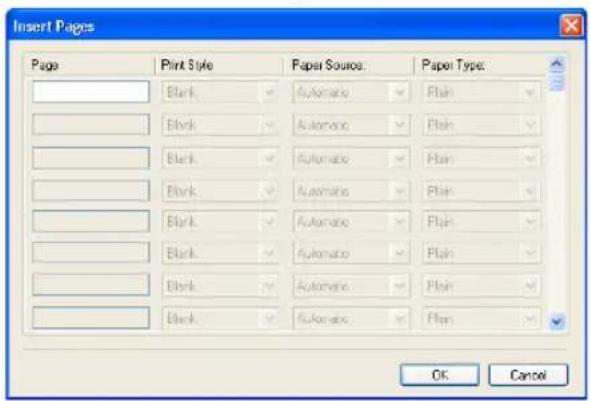
Page
Enter the page number where the sheet is to be inserted.
When "Blank" is selected from the Print Style drop down box, the blank sheet is inserted before the entered pages.
When "1 Side" is selected from the Print Style drop down box, the entered page will be printed on the inserted sheet.
Note
A sheet cannot be inserted before the first page when 2-Sided printing is enabled.
Print Style
This selects how you want to print on insertion sheets.
- Blank — Select this to insert blank sheets.
- 1 Side — Select this to print the specified page on the front side of the insertion sheets.
- 2 Sides — Select this to print the specified page and the next page on the both sides of the insertion sheets.
Paper Source
Select the location from where insertion sheets are to be fed. When "Auto" is selected, the paper is automatically selected according to the printed document size.
Note
The selectable values in the Paper Source drop down box vary depending on the optional devices installed on this equipment and their configuration on the Configuration tab.
Paper Type
Select the paper type to be inserted.
Notes
- If "Blank" is selected while 2-sided printing is performed, and you enter an even numbered page (printed on the back side of the paper) for the Pages field, the specified page will be blank. The desired blank sheet is inserted next and the 2-sided printing continues from the next page.
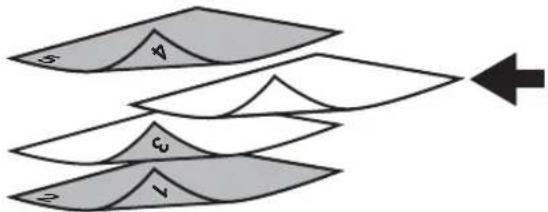
flowchart
graph TD
    S["Segment S"] --> V["V"]
    V --> C["C"]
    C --> N["N"]
    N --> S
    style S fill:#ccc,stroke:#333
    style V fill:#ccc,stroke:#333
    style C fill:#ccc,stroke:#333
    style N fill:#ccc,stroke:#333
- If "1 Side" is selected while 2-sided printing is performed, the specified page is printed on the front side of the sheet and back side of the sheet will be blank.
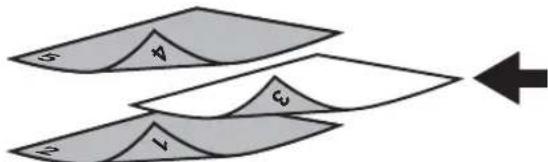
flowchart
graph TD
    S["5"] --> A["A"]
    A --> C["C"]
    C --> V["V"]
    V --> Right["←"]
- If "1 Side" is selected while 2-sided printing is performed, and you enter an even numbered page (printed on the back side of the paper) for the Pages field, the specified page will be blank. The page is printed on the front side of the inserted sheet and the 2-sided printing continues from the next page.
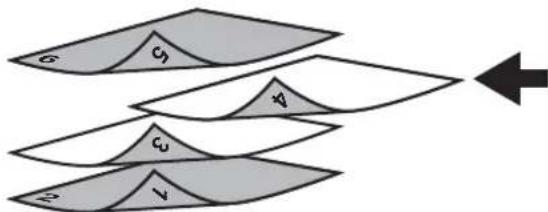
flowchart
graph TD
    A["σ"] --> B["σ₁"]
    B --> C["Δ"]
    C --> D["σ₂"]
    D --> E["V"]
    E --> F["→"]
- If "2 Sides" is selected while 2-sided printing is performed, and you enter an even numbered page (printed on the back side of the paper) for the Pages field, the specified page will be blank. The specified page and the next page are printed on the inserted sheet and the 2-sided printing continues from the next page.
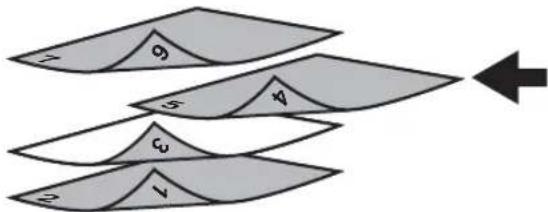
flowchart
graph TD
    A["1"] --> B["2"]
    C["3"] --> D["4"]
    E["5"] --> F["6"]
    G["7"] --> H["8"]
    I["9"] --> J["10"]
    B --> K["11"]
    D --> L["12"]
    F --> M["13"]
    H --> N["14"]
    J --> O["15"]
5) Interleave Pages
This sets the interleaving page feature that is useful when you want to insert paper of a different type (or from another source) between every page of your print job. For example, you could use this option to insert blank, colored sheets between overhead transparencies. To enable interleaving pages, check on the box and select the location from where sheets are to be fed.
Notes
- When this option is enabled as well as the "Use Front Cover" and "Use Back Cover" options enabled, no page is inserted after the front cover and back cover.
- This option cannot be set when "Insert Pages" option is enabled.
Source
Select the location from where the interleaving sheet is to be fed. When "Auto" is selected, the paper is automatically selected according to the printed document size.
Note
The selectable values in the Source drop down box vary depending on the optional devices installed on this equipment and their configuration on the Configuration tab.
Duplicate
When you check on this, you can print previous page images on the inserted sheet.
Image Quality Tab
The Image Quality Tab allows you to select how images are printed. You can easily select appropriate image quality depending on the type of document.
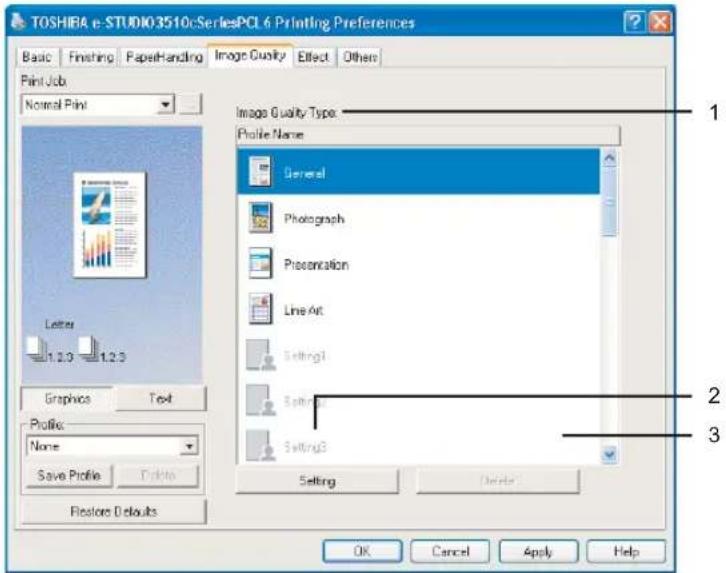
1) Image Quality Type
This sets how colors are printed by selecting the job type. The printer driver automatically applies proper image quality for selected job type. You can select a pre-defined image quality type, or you can select a custom image quality type that you created. The custom image quality type can be created or modified by clicking [Setting].
- General — Select this to apply proper image quality for printing a general color document.
- Photograph — Select this to apply proper image quality for printing photos.
- Presentation — Select this to apply proper image quality for printing a vivid document.
- Line Art — Select this to apply proper image quality for printing a document contains a lot of characters or line arts.
Note
The Image Quality type option is not available when “Black and White” or “Twin Color” is selected at the “Color” drop down box on the Basic tab.
2) [Setting]
Click this to customize a image quality setting. When this is clicked, the Setting dialog box appears. You can set up to 20 custom image quality settings.
P.222 "Setting: Basic Tab"
P.224 "Setting: Color Balance Tab"
P.225 "Setting: Image Attribute Tab"
Note
In order to create a new custom image quality setting, you must access the printer driver properties from the Printers and Faxes folder. When you access the printer driver properties from an application's Print dialog box, you can edit the settings but not create a new custom image quality setting.
3) [Delete]
Click this to delete the custom image quality setting.
— Setting: Basic Tab
In the Basic Tab of the Setting dialog box, you can specify the following functions.
Note
When "Black and White" or "Twin Color" is selected at the "Color" drop down box on the Basic Tab, the Setting dialog box contains only "Halftone", "Use Black for All Text", and Distinguish Thin Line" options.
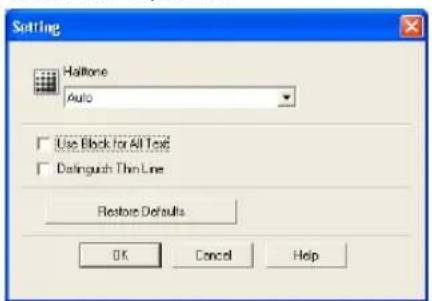
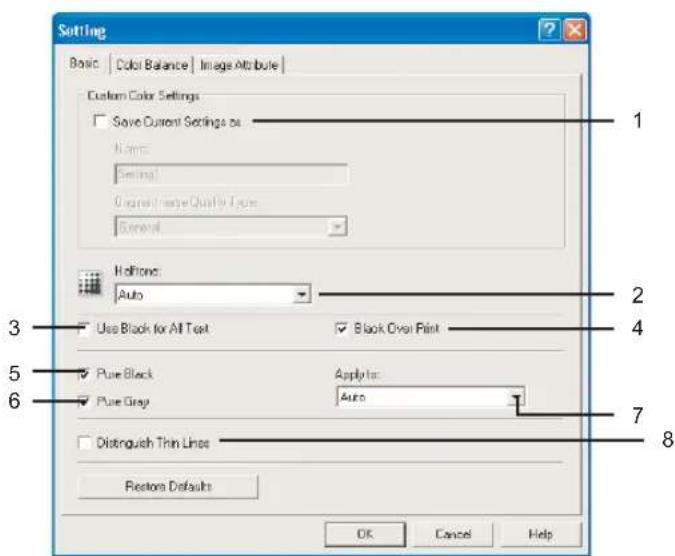
1) Save Current Settings As
Check this to save the settings as the different setting. If you do not check this, the Image Quality Type that you selected will be undefined.
Note
This option can be set when you log into Windows as a user who has the “Administrators” or “Power Users” privilege when using Windows NT 4.0, Windows 2000, Windows XP, or Windows Server 2003 and access the printer driver properties from the Printers and Faxes folder.
Name
Enter the Image Quality type name to be created. This must be entered when “Save Current Settings As” is checked.
Tips
- When you are editing an existing custom Image Quality type and if you do not rename the Image Quality type name, the selected Image Quality type will be overwritten.
- When you are editing an existing custom Image Quality type and if you rename the Image Quality type name, a new custom Quality Type will be created.
- Even if you enter the name either "General", "PhotoGraph", "Presentation", or "Line Art", the default Image Quality type cannot be overwritten. In that case, a new custom Quality Type will be created.
Original Image Quality Type
Select the image quality type to be applied as the based image quality.
Note
The “Custom Color Settings” group is not displayed when “Black and White” or “Twin Color” is selected in the “Color” drop down box on the Basic Tab.
2) Halftone
This sets how halftones are printed.
- Auto — Select this to print using proper halftone depending on the contents in the document automatically.
- Smooth — Select this to print halftone smoothly.
- Detail — Select this to print halftone in detail.
3) Use Black for All Texts
Check this to print all texts in 100% black except white texts.
4) Black Over Print
Check this when printing background content that has black text overlayed on it. If this is not enabled, the background of the black content will not print. When you print a document that has any of its content on background with black text overlayed, enable this option.
Note
The "Black Over Print" option is available only for PS3 printer driver.
5) Pure Black
Check this to print to print the black contents using the black toner. When you check this, please select how this function applies in the "Apply to" drop down box.
Note
The Pure Black option is not available when “Black and White” or “Twin Color” is selected at the “Color” drop down box in the Basic tab.
6) Pure Gray
Check this to print the gray scale contents using the black toner. When you check this, please select how this function applies in the "Apply to" drop down box.
Note
The Pure Gray option is not available when "Pure Black" is not enabled.
7) Apply to
Select how the Pure Black and Pure Gray functions apply.
8) Distinguish Thin Lines
Check this to print thin lines clearly.
— Setting: Color Balance Tab
In the Color Balance tab of the Setting dialog box, you can specify the following functions.
Note
The Color Balance tab is not displayed when "Black and White" or "Twin Color" is selected at the "Color" drop down box in the Basic tab.
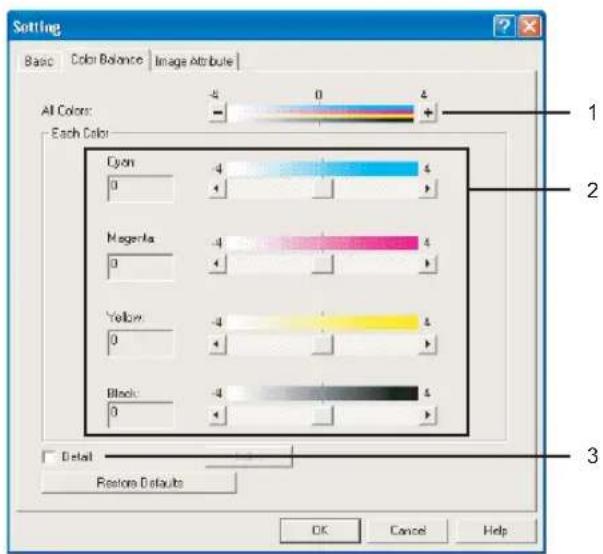
1) All Colors
Adjust the density of the all colors.
2) Each Color
Adjust the density of each color separately.
3) Detail
Check this to adjust the density of each color separately in details. When you check this, click [Edit] to display the Color Balance Details dialog box and specify the density of each color.
— Color Balance Details
In the Color Balance Details dialog box, you can specify the density of low, medium, and high colors for each color.
- Low — Change this density to adjust the density of light color.
- Medium — Change this density to adjust the density of half color.
- High — Change this density to adjust the density of deep color.
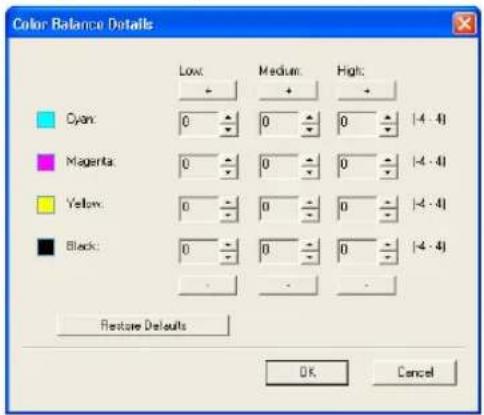
— Setting: Image Attribute Tab
In the Image Attribute tab of the Setting dialog box, you can specify the following functions.
Note
The Image Attribute tab is not displayed when "Black and White" or "Twin Color" is selected at the "Color" drop down box in the Basic tab.
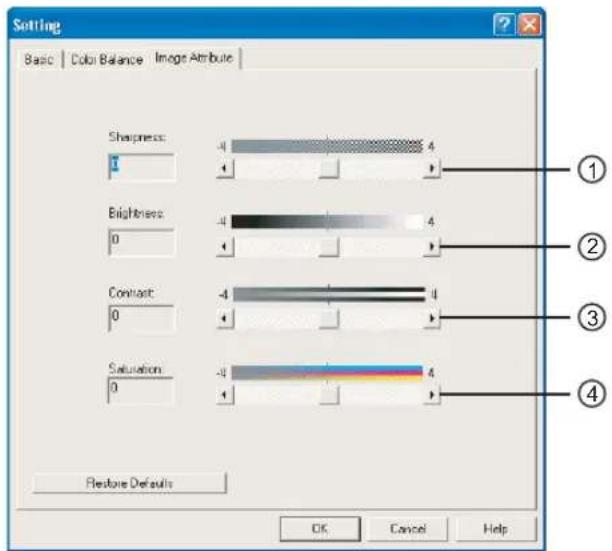
1) Sharpness
Adjust the sharpness for printing. You can set from -4 (smoothest) to 4 (sharpest) in units of 1 by moving the scroll bar.
2) Brightness
Adjust the brightness for printing. You can set from -4 (darkest) to 4 (lightest) in units of 1 by moving the scroll bar.
3) Contrast
Adjust the contrast for printing. You can set from -4 (lowest) to 4 (highest) in units of 1 by moving the scroll bar.
4) Saturation
Adjust the saturation for printing. You can set from -4 (low clear) to 4 (high clear) in units of 1 by moving the scroll bar.
Effect Tab
The Effect Tab contains print options that add effects to your print jobs such as Watermarks, Overlay Image printing, Rotate printing, Mirror printing, and Negative printing.
Effect Tab for PCL6
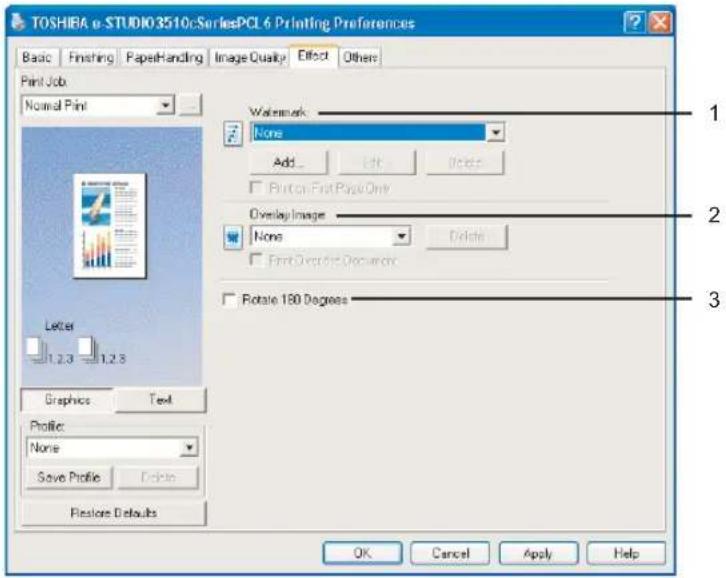
Effect Tab for PS3
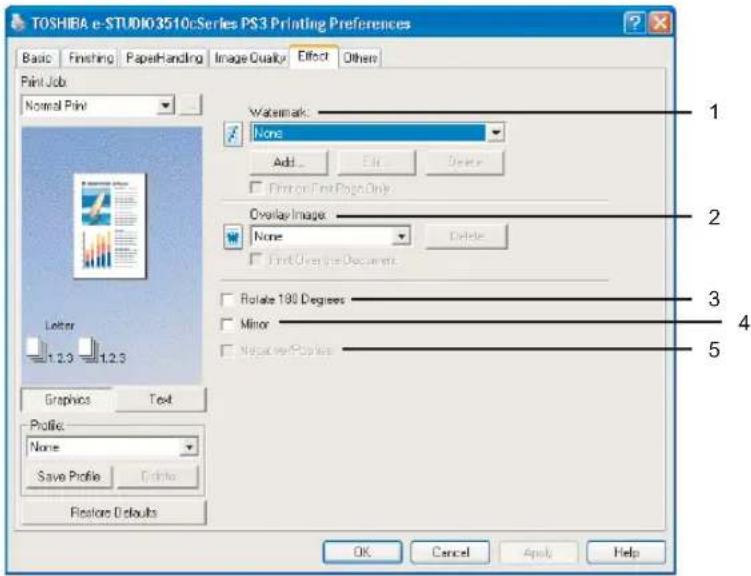
1) Watermark
This selects the watermark to be used or edited. The following values except "None" are the default watermarks that have been registered in the printer driver. New watermarks you create are added to the drop down box list.
- None — Select this if no watermark is desired.
The following default watermarks are also displayed in the drop down box:
- TOP SECRET
- CONFIDENTIAL
- DRAFT
- ORIGINAL
- COPY
[Add]
Click this to create new watermark. The Watermark dialog box appears by clicking on this.
P.228 "Add/Edit Watermark"
[Edit]
Select a watermark from the Watermark drop down box and click it to edit the watermark.
The Watermark dialog box appears by clicking on this.
P.228 "Add/Edit Watermark"
[Delete]
Select a watermark from the Watermark drop down box and click it to delete a watermark.
Notes
- The default watermarks can be deleted but, If deleted, they cannot be restored.
- "None" cannot be deleted.
Print on First Page Only
Check this to print a watermark on the first page only. This setting will become available when any watermark is selected from the Watermark drop down box.
2) Overlay Image
This selects an overlay image to be used. This feature allows you to print an image on the background of a print job, although the watermark allows only text.
Notes
- If the print job has several pages in the document, only the first page of the document will be saved as an overlay file.
- Both the overlay file and the documents on which you superimpose the overlay image must be created at the same size, color mode and orientation.
- When printing with Overlay Image using the PS3 printer driver from an application that can create the PS command directly, the overlay image will not be printed. In that case, disable the "Use PostScript Passthrough" option in the PostScript Settings dialog box.
P.233 "PostScript Settings"
Tip
If you want to use an overlay image in your job, you must first create an overlay file. To create an overlay image, create an overlay image with most applications and print it as an overlay file. You can enable creating an overlay file on the Print Job drop down box.
P.202 "Print Options"
[Delete]
Click this to delete the overlay image that you select in the drop down box.
Print over the document
Check this to print overlay image over the document.
3) Rotate 180 degrees
Check on this to perform rotation printing of an image.
4) Mirror
Check on this to perform mirror printing of an image. This print option is available only for the PS3 printer driver.
Notes
- The mirror printing may not be applied when the application gives priority to the application's PostScript settings over the printer driver settings.
- When printing from Adobe Acrobat or similar applications, the mirror printing does not work if the "Use PostScript Passthrough" option is enabled in the PostScript settings. To use the mirror printing, please disable the "Use PostScript Passthrough" option in the PostScript Settings dialog box.
P.233 "PostScript Settings"
5) Negative/Positive
Check on this to perform negative printing of an image. This print option is available only for the PS3 printer driver.
Notes
- The Negative/Positive option is available only when "Black and White" is selected at the "Color" drop down box on the Basic tab.
- Negative printing may not be applied when the application gives priority to the application's PostScript settings over the printer driver settings.
- When printing from Adobe Acrobat or similar applications, Negative/Positive printing does not work if the "Use PostScript Passthrough" option is enabled in the PostScript settings. To use Negative/Positive printing, please disable the "Use PostScript Passthrough" option in the PostScript Settings dialog box.
P.233 "PostScript Settings"
— Add/Edit Watermark
When you click [Add] or [Edit], the Watermark dialog box appears and you can create new watermark or edit selected watermarks.
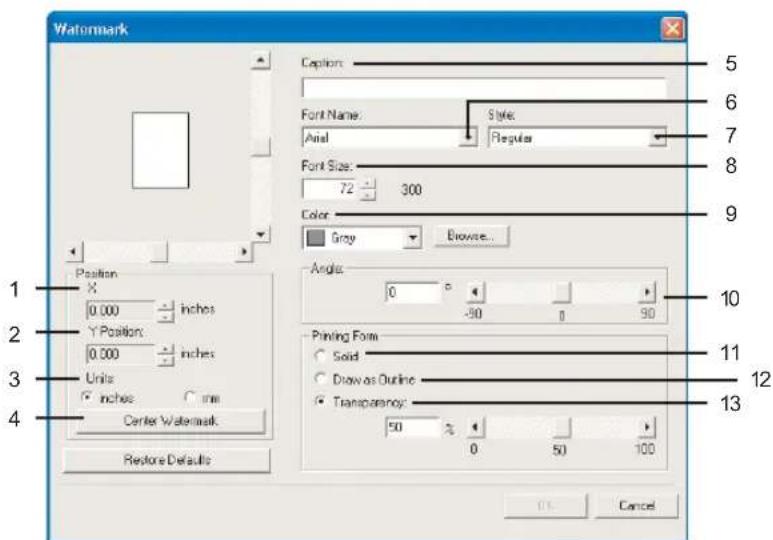
1) X Position
The horizontal position of a watermark is displayed. You can change the position using the horizontal scroll bar.
2) Y Position
The vertical position of a watermark is displayed. You can change the position using the vertical scroll bar.
3) Units
Select the unit for the "X Position" and "Y Position" field.
4) [Center Watermark]
Click this to automatically move the watermark position to the center.
5) Caption
Enter the text of a watermark. You can enter up to 63 alphanumeric characters. When you are editing a watermark, the selected watermark text is displayed in the field.
6) Font Name
Select the font to be used for the watermark text.
7) Style
Select the font style for the watermark text.
- Regular — Select this to set the regular style to the text.
- Bold — Select this to set the bold style to the text.
- Italic — Select this to set the italic style to the text.
- Bold Italic — Select this to set the bold and italic style to the text.
8) Color
Select the color of the watermark text. If the color that you require is not listed in the drop down box, click [Browse] to add new color.
Note
When “Black and White” is selected at the “Color” drop down box on the Basic tab, this option will be disabled.
9) Font Size
Enter the font size for the watermark text. The font size can be set from 6 to 300 pt in units of 1 pt.
10) Angle
Enter the degree of angle for rotating the watermark text. The angle can be set from -90 to 90 degrees in units of 1 degree. You can also set the degree of angle by moving the scroll bar.
11) Solid
Select this to print solid type of watermark.
12) Draw as Outline
Select this to print outline type of watermark.
13) Transparency
Select this to print a transparent watermark. When you select this, set the brightness from 0 (darker) to 100% (lighter) in units of 1%. You can also set the brightness using the scroll bar.
Others Tab
The Others tab contains print options such as toner saving, custom paper size and so on.
Others Tab for PCL6
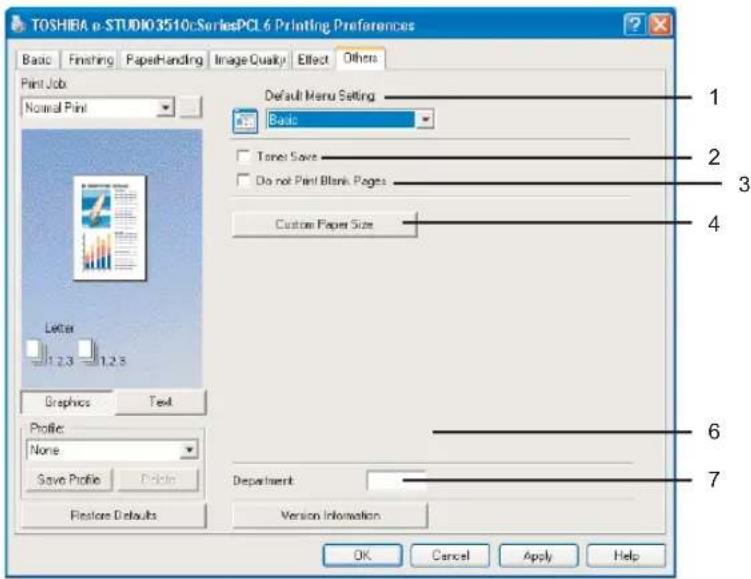
Others Tab for PS3
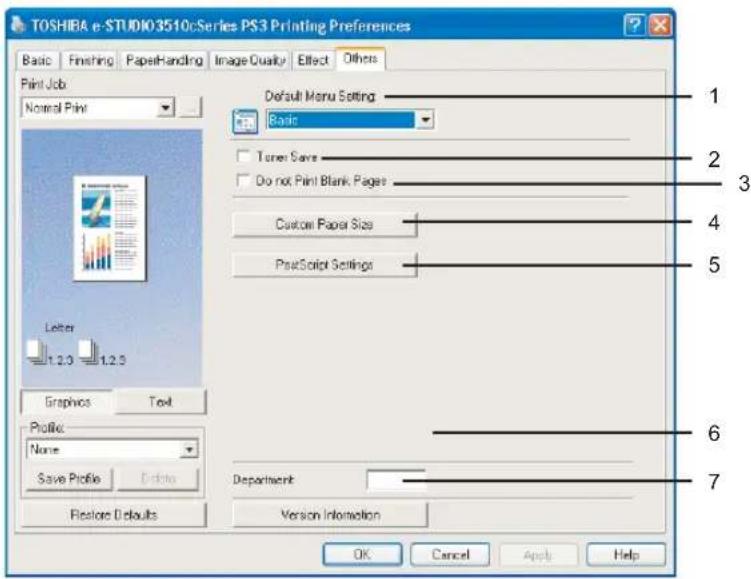
1) Default Menu Setting
Select the default tab that is displayed when opening the properties of printer driver.
2) Toner Save
Check this to print in toner save mode.
Note
When the toner save mode is enabled, printing may become light.
3) Do not Print Blank Pages
Check this ignore blank pages for printing.
Note
The pages that the header or footer exists will be printed even if the content are blank.
4) [Custom Paper Size]
Click this to specify the custom paper size. The Custom Paper Size dialog box appears by clicking this.
Note
In order to create a custom paper size, you must log into Windows as a user who has the "Administrators" or "Power Users" privilege when using Windows NT 4.0, Windows 2000, Windows XP, or Windows Server 2003 and access the printer driver properties from the Printers and Faxes folder. When you access the printer driver properties from an application's Print dialog box, you cannot create a custom paper size.
— Custom Paper Size
In the Custom Paper Size dialog box, you can create the custom paper size setting. The custom page size that you specify can be selected in the "Original Paper Size" and "Print Paper Size" drop down box on the Basic tab.
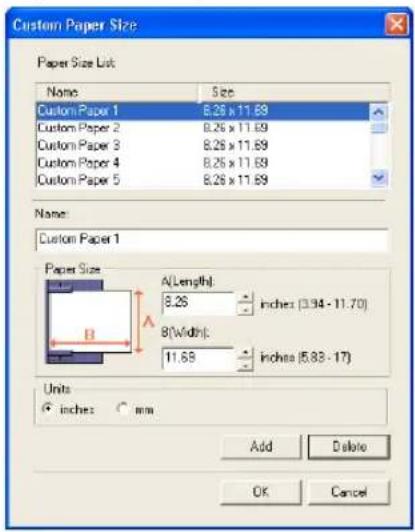
Paper Size List
Select the custom paper size that you want to modify.
Name
Enter the custom paper size name. This name will be displayed in the "Original Paper Size" and "Print Paper Size" drop down box on the Basic tab.
Paper Size
Enter A (Length) and B (Width) to specify the paper size.
Units
Select the unit for the paper size. The default unit varies depending on the regional setting in the Windows.
[Add]
Click this to save the settings over the selected custom paper size that you selected in the "Paper Size List".
[Delete]
Click this to clear and restore the default settings of the selected custom paper size that you selected in the "Paper Size List".
Notes
- To register a custom paper size, either A (Length) or B (Width) should be different more than 0.1inch (2mm) from the standard paper size. If not, the created custom paper size is considered as the standard paper size.
- You cannot create a custom paper size with A (Length) longer than B (Width). If you want to print such a document, print the document by selecting "landscape" for the "Orientation".
5) [PostScript Settings]
Click this to specify the PostScript specific functions. The PostScript Settings dialog box appears by clicking this. This print option is available only for the PS3 printer driver.
P.233 "PostScript Settings"
6) Department
Enter the user's department code if the system is managed with department codes. Please ask your administrator for your department code.
Notes
- When the User Management Setting is enabled on the equipment, the User Management Setting is used to manage the print jobs instead of the department code. In that case, the user name that is entered to login to your computer is used for the authentication of the print job. Therefore, you do not need to enter the department code in the printer driver but your user name must be registered in the equipment. If the user name is not registered, your print job is processed as the invalid job according to the Department Code Enforcement settings.
- If the No Limit Black function is enabled, you do not have to specify the department code when you print a document with selecting "Black and White" in the "Color" option in the Basic tab of printer driver.
- If the number of the printed sheets for a print job exceeds the output limitation for the entered department code, the print job is stored in the invalid department code print job list without printing. When you want to print the print job, perform printing from the [JOB STATUS] button in the Control Panel by entering another department code for which the output limitation is more than the number of printed sheets.
Tip
How the equipment performs printing for an invalid department code print job, which no department code or invalid department code is specified, varies depending on the Department Code Enforcement setting that can be set from TopAccess Administrator mode and whether SNMP Communication is enabled or not. When SNMP Communication is enabled and Department Code Enforcement is set to "ON", an error message will be displayed when entering an invalid department code. When SNMP Communication is disabled and Department Code Enforcement is set to "ON", the invalid department code print job will be stored in the invalid department code print job list without printing. When the Department Code Enforcement is "Print", the invalid department code print job will be printed. When the Department Code Enforcement is "Delete", the invalid department code print job will be deleted without printing.
However, when using Windows NT 4.0 and configure the connection through a NetWare print server, an error message for entering the invalid department code will not be displayed even if the Department Code Enforcement setting and SNMP Communication is enabled.
7) [Version Information]
Click this to display the Version Information dialog box.
— PostScript Settings
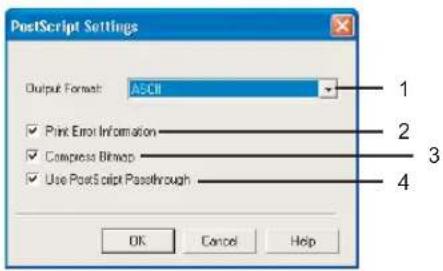
1) Output Format
This selects the output format for printing.
- ASCII — The job is sent in ASCII data format.
- Encapsulated PostScript (EPS) — The job is sent in EPS format.
- Tagged BCP — Select this to send a job in Tagged Binary format over parallel ports.
- Using Adobe DSC — Select this to send a job with DSC comments.
Note
The EPS format is usually used for creating an image to import into another document. Therefore, only the first page of the document will be printed when “Encapsulated PostScript (EPS)” is selected.
2) Print Error Information
Check on this to print a PS error information page when any errors occur for printing.
3) Compress Bitmap
Check on this to send compress bitmaps to this equipment.
4) Use PostScript Passthrough
Check this for PostScript data created by the application that creates the PostScript code for printing (such as Adobe Acrobat, Adobe Photoshop, or Adobe Illustrator) to be passed through to this equipment.
Note
If this option is enabled, the following print options may not work correctly when printing from the application that creates the PostScript code for printing such as Adobe Acrobat. In that case, please disable this option for printing.
- Manual Scale
- Print Paper Size
- Paper Type
- Use Front Cover
- Use Back Cover
- Interleave Pages
- Insert Pages
- Booklet
- Multiple Pages per Sheet
- All options in the Effect tab
- All options in the Image Quality tab
Fonts Tab
The Fonts tab allows you to select how the TrueType fonts are printed. The following figure is the Fonts Tab for the PS3 printer driver.
Note
The Fonts tab can be displayed only from the Printers folder (and not displayed when displaying the properties from the application's Print dialog box).
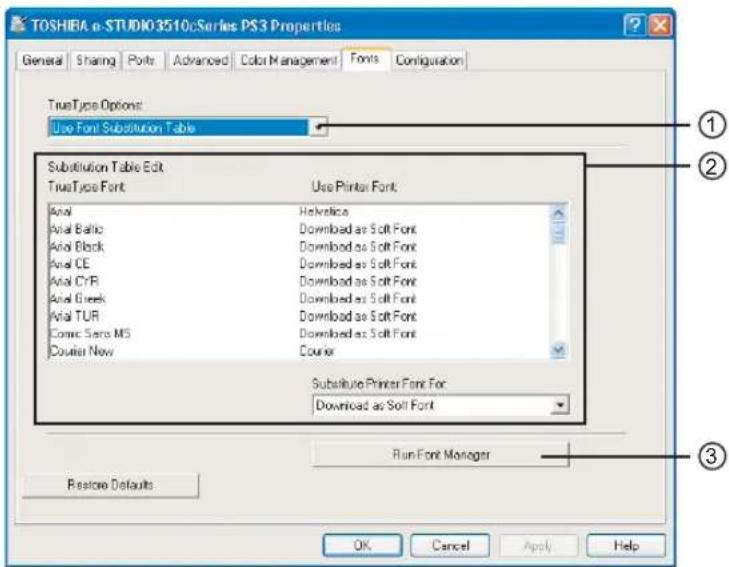
1) TrueType Options
This sets how to print TrueType fonts.
- Always Use TrueType Fonts — Select this to print the document the same as the print image shown on the screen. All TrueType fonts are extracted on the system for printing.
- Always Use Printer Fonts — Select this to substitute the TrueType fonts with the internal fonts for printing. The print result may differ from the print image on the screen.
- Use Font Substitution Table — Select this to substitute the TrueType fonts using the internal fonts according to the settings of the font substitution table. You can edit the font substitution table that is displayed at the Substitution Table Edit table.
- Download as Bitmap — Select this to print the document as same as the image shown on the screen.
Tips
- The default value will be "Always Use TrueType Fonts" for the PCL6 printer driver.
- The default value will be "Use Font Substitution Table" for the PS3 printer driver.
2) Substitution Table Edit
This table shows how each TrueType font is substituted. You can edit the substitution setting for each TrueType font. In this table, the TrueType font names are displayed in the TrueType Font column, and how the TrueType font is printed is shown in the Use Printer Font column. To edit the substitution table, select the TrueType font that you want to edit from the table, and select how the TrueType font is printed at the Printer Font For drop down box.
At the Printer Font For drop down box, you can select "Download as Soft Font" to send the TrueType fonts in Type 42 format, or other available printer fonts to be substituted. The printer fonts displayed in the drop down box differ depending on the TrueType fonts.
3) [Run Font Manager]
Click this to run the Font Manager. This is not available if the Font Manager is not installed.
Note
The [Run Font Manager] button is not displayed for the PCL6 printer driver.
Configuration Tab
The Configuration Tab allows you to configure options. When any optional unit is installed in this equipment, set the configuration of the machine on this tab.
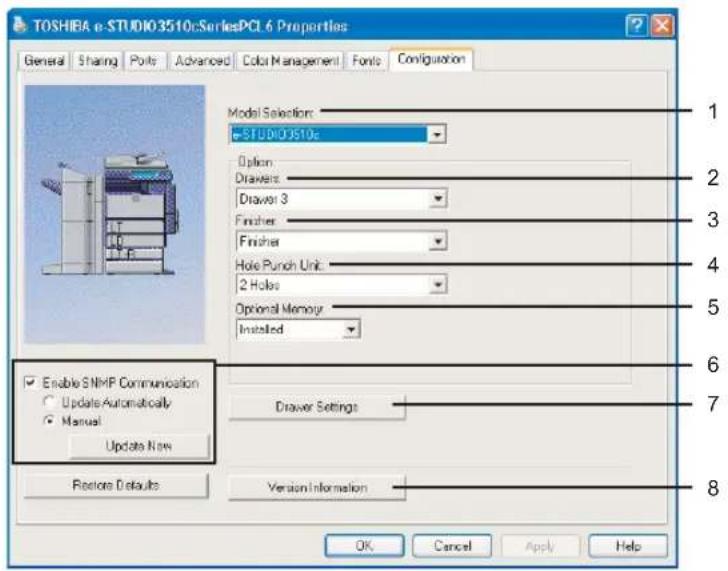
1) Model Selection
This sets the model name of the equipment.
2) Drawers
This sets whether or not the optional drawers or LCF is installed.
- None — Select this when neither drawer nor LCF is installed.
- Drawer3 — Select this when 3rd drawer is installed.
- Drawer3 & Drawer4 — Select this when 3rd drawer and 4th drawer are installed.
- LCF — Select this when the LCF is installed.
Note
LCF is not available for some countries or regions.
3) Finisher
This sets whether or not the optional finisher is installed.
- None — Select this when a finisher is not installed.
- Finisher — Select this when a Finisher is installed.
- Saddle Stitch Finisher — Select this when a Saddle Stitch Finisher is installed.
4) Hole Punch Unit
This sets whether or not the optional hole punch unit is installed.
- None — Select this when a hole punch unit is not installed.
- 2 Holes — Select this when a 2 hole punch unit is installed.
- 2/3 Holes — Select this when a 2/3 hole punch unit is installed.
- 4 Holes (F) — Select this when a 4 hole (F) punch unit is installed.
- 4 Holes (S) — Select this when a 4 hole (S) punch unit is installed.
5) Optional Memory
Select whether or not the optional memory is installed.
6) Enable SNMP Communication
Check this to enable obtaining the configuration information from this equipment.
Note
If you disable SNMP Communication, TopAccessDocMon notification also will be disabled.
Update Automatically/Manual
Select whether or not to update the configuration information every time the printer driver is opened. This is available only when “Enable SNMP Communication” is checked.
Note
If the connection to the equipment has not been configured correctly, the message "The address of your printer could not be located. Would you like to find it?" will be displayed when the Configuration tab is displayed. If it is displayed, click [Yes] and search for the equipment using the TopAccessDocMon Local Discovery dialog box. After searching the equipment, SNMP communication will be enabled. For the instructions on how to search the equipment, refer to the instructions of TopAccessDocMon.
P.356 "Searching for a Printer"
[Update Now]
Click this to obtain the configuration information from this equipment immediately. This is available only when "Enable SNMP Communication" is checked.
Note
If the connection to the equipment has not been configured correctly, the message “The address of your printer could not be located. Would you like to find it?” will be displayed when you click [Update Now]. If it is displayed, click [Yes] and search for the equipment using the TopAccessDocMon Local Discovery dialog box. After searching the equipment, SNMP communication will be enabled. For the instructions on how to search the equipment, refer to the instructions of TopAccessDocMon.
P.356 "Searching for a Printer"
7) [Drawer Settings]
Click this to set the paper size and paper type of each drawer. The Drawer Settings dialog box appears by clicking this.
— Drawer Settings
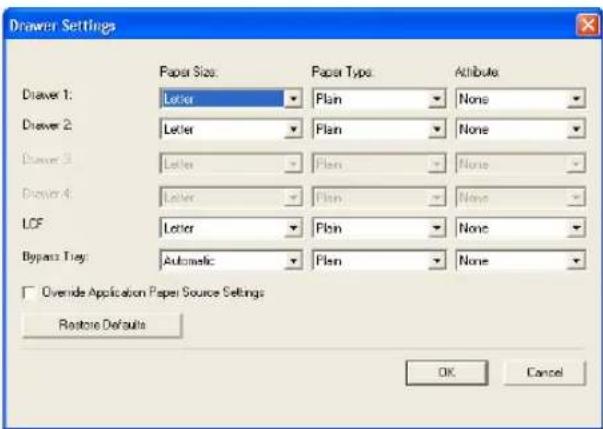
Paper Size
Select the paper size set in each drawer.
Paper Type
Select the paper type set in each drawer.
Attribute
Select the attribute of the paper. When you set the attribute, the drawer will be selected preferentially according to the print settings.
Override Application Paper Settings
Check this to use the paper source setting in the printer driver rather than the application setting.
8) [Version Information]
Click this to display the Version Information dialog box.
Printing with Extended Print Functionality
In this section, procedures are given to print various types of print jobs, using the layout and finishing options.
Printing Various Print Job Types
The printer drivers provide various ways to handle such jobs as Scheduled Print, Private Print, Proof Print, Overlay Image file, and Store to e-Filing.
Printing Scheduled Print Jobs
The Print Scheduling feature allows you to specify the date and time to print your job. This can be especially useful for delaying printing until off-peak hours.
Printing on a specified date and time
1 Select "Scheduled Print" in the "Print Job" drop down box.
2 Click [...].
• The Scheduled Time dialog box appears.
3 Click the arrow button at the "Date" drop down box to display the Calendar window, and select the desired date for your print job.
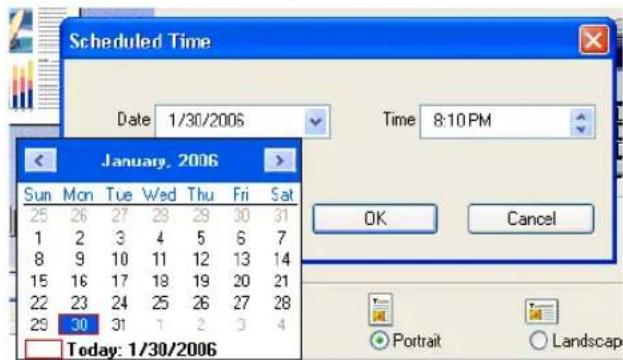
4 Select the Time field and click the spin button to change the time.
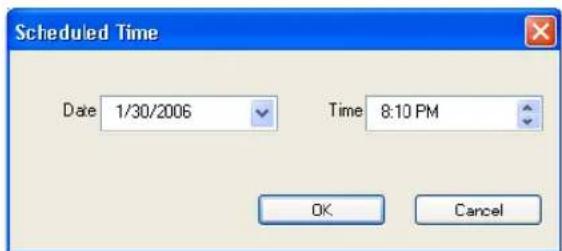
• To change the hour, select the hour number and click the spin button.
• To change the time, select the time number and click the spin button.
5 Click [OK].
• The specified date and time is displayed in the Time field.
6 Set any other print options you require and click [OK].
7 Click [OK] or [Print] to send the print job.
- The document will be queued to print at the specified time and date.
Printing Private Print Jobs
The private print feature permits sensitive or confidential documents to be printed only in the presence of the person who sent the job.
Printing confidential documents
1 Select "Private Print" in the "Print Job" drop down box.
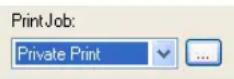
2 Click [...].
• The Password dialog box appears.
3 Enter a password in the "Password" field and click [OK].
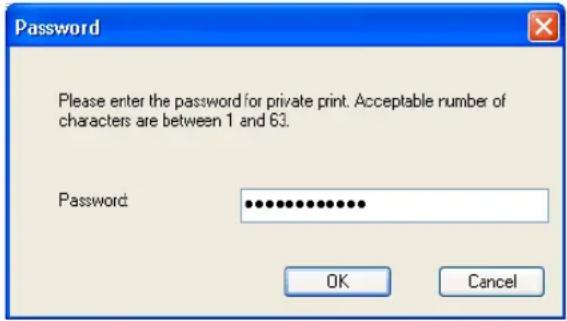
Notes
- Enter a password using the alphanumeric characters and symbol characters (ASCII code characters between 0x21 to 0x7E) in the Password field. The password must be between 1 to 63 characters.
- This number will be used to release the private job from the Touch Panel Display. If you forget this number, you can no longer print the private print job.
4 Set any other print options you require and click [OK].
5 Click [OK] or [Print] to send the print job.
- The print job is stored in the Private Job list in the Touch Panel Display.
6 Press the [JOB STATUS] button on the control panel.
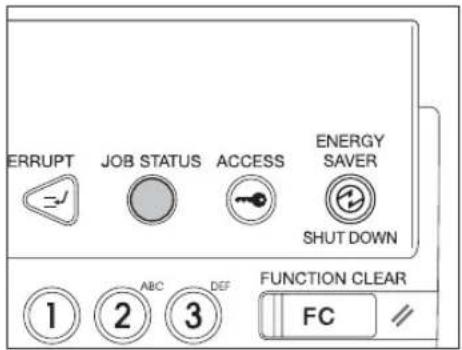
• The print job list is displayed.
7 Press the [PRIVATE] button.
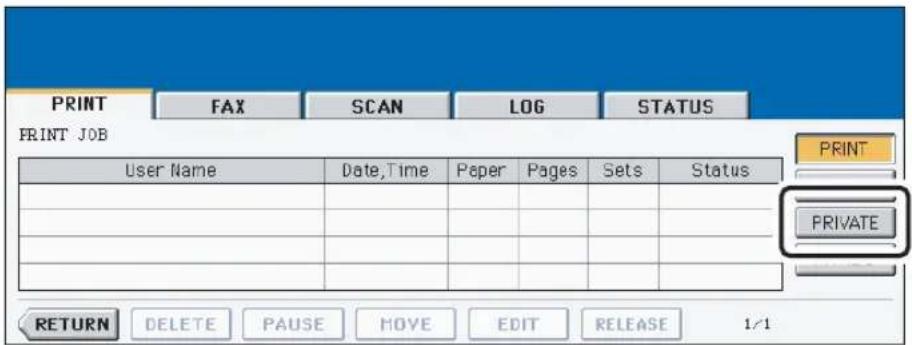
8 Select the appropriate user name and press the [PASSWORD] button.
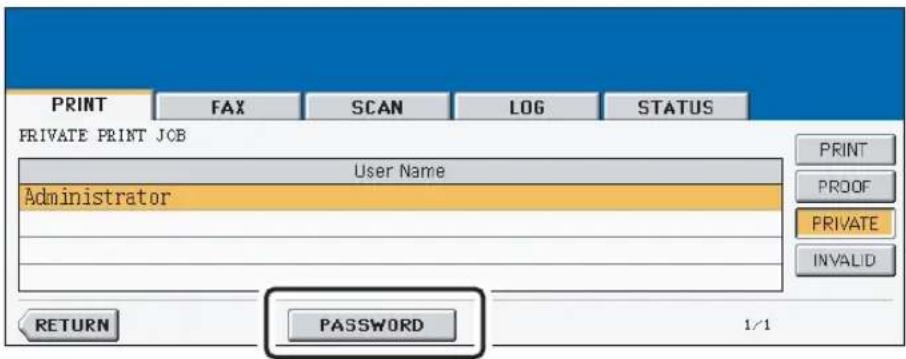
- The letter entry menu is displayed. Key in the password, which has previously been set from the client PC, and then press the [ENTER] button.
- You can key in the Admin Password by pressing the [ADMIN. PASSWORD] button instead of keying in the password, previously set from the client PC. In this case, jobs can be deleted but not printed.
• The private print job list is displayed.
Note
If private print jobs are submitted using different password from the same user, the private print job will be stored in the user name, but only the private print jobs of the entered password will be displayed after you enter the password.
9 Select the job you want to print on the private print job list.
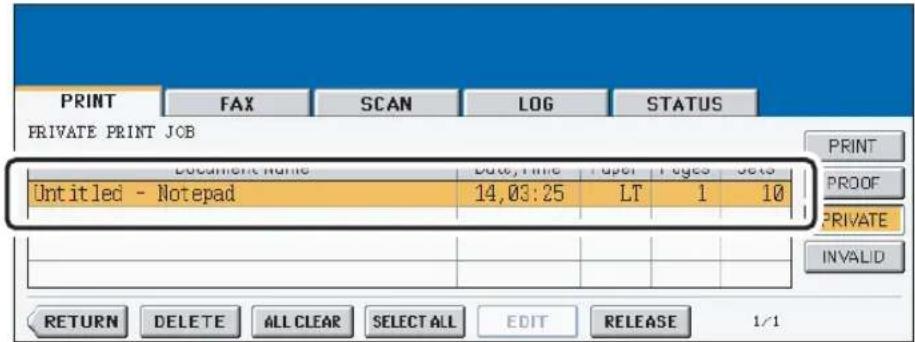
- If the corresponding job is not displayed on the page, press the [Prev] or [Next] button to switch the page.
- To select all jobs on the private print job list, press the [SELECT ALL] button. To clear the selection, press the [ALL CLEAR] button.
10 Press the [RELEASE] button.
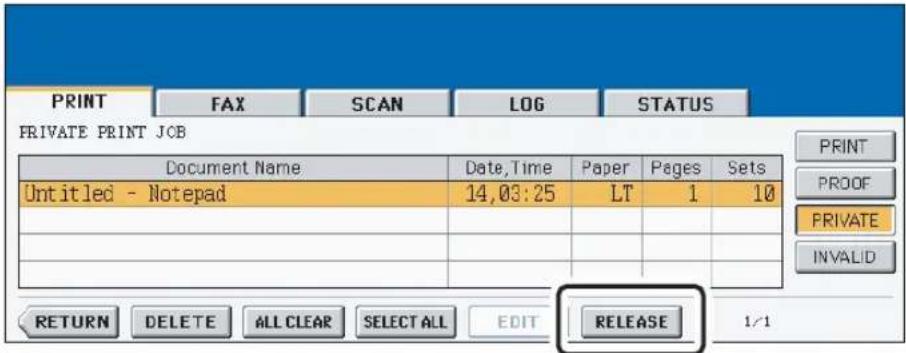
- Printing starts.
• The printing status can be confirmed on the print job list.
Printing Proof Print Jobs
The proof print feature prevents costly mistakes by allowing you to check the printed output on a sample copy before printing an entire multi-copy job
Note
When printing from an application that sends data separately for each number of copies, this equipment will print all of the copies even if you set the Proof Print. In that case, set one copy for the number of copies for a proof print job in the printer driver, and then change the number of copies from the Control Panel to print required copies of the print job.
Printing a proof copy
1 Select "Proof Print" in the "Print Job" drop down box.
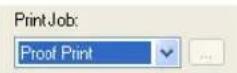
2 Set any other print options you require and click [OK].
3 Click [OK] or [Print] to send the print job.
- One copy of the document is printed and the print job is stored in the Proof Job list in the Touch Panel Display.
4 Press the [JOB STATUS] button on the control panel.
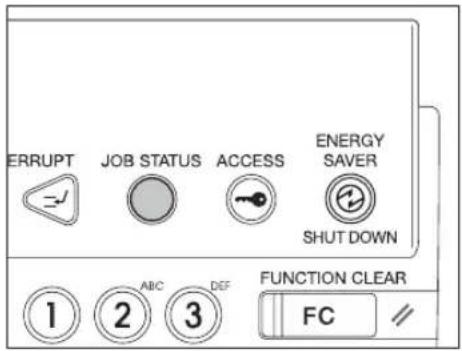
• The print job list is displayed.
5 Press the [PROOF] button.
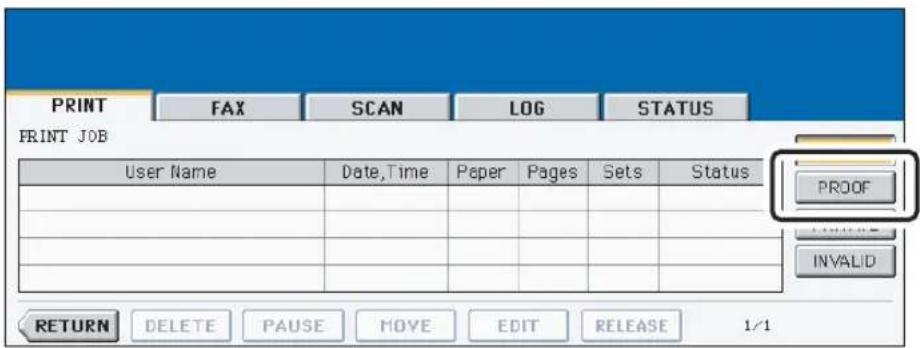
• The proof print job list is displayed.
6 Select the job you want to print on the proof print job list.
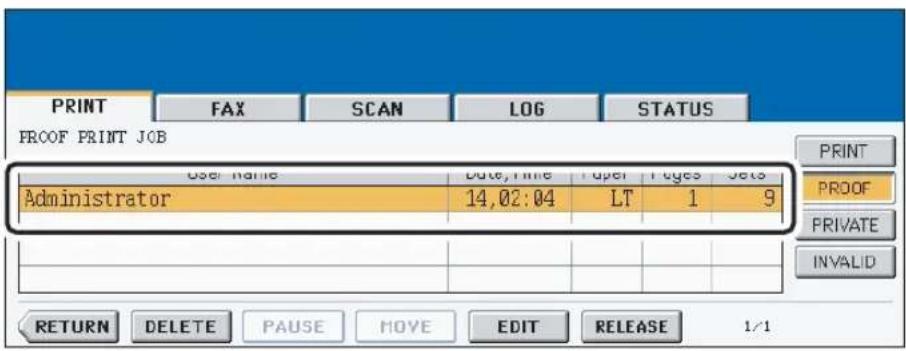
- If the corresponding job is not displayed on the page, press the [Prev] or [Next] button to switch the page.
7 Press the [RELEASE] button.
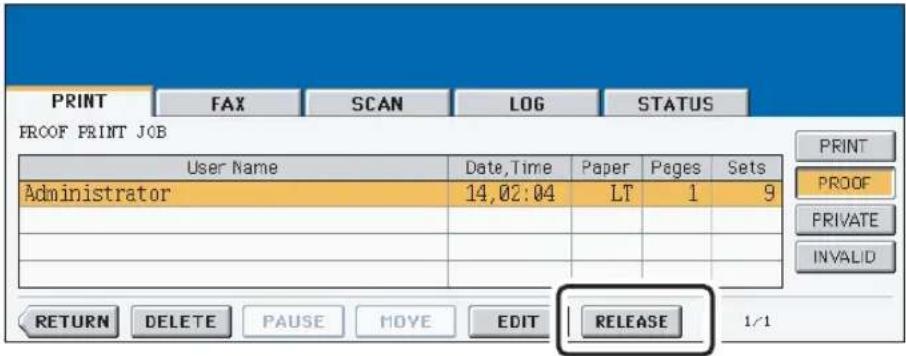
- Printing starts.
• The printing status can be confirmed on the print job list.
When you want to change the number of sets
When you want to change the number of sets, press the [EDIT] button and key in the desired number. Then press the [RELEASE] button to start printing.
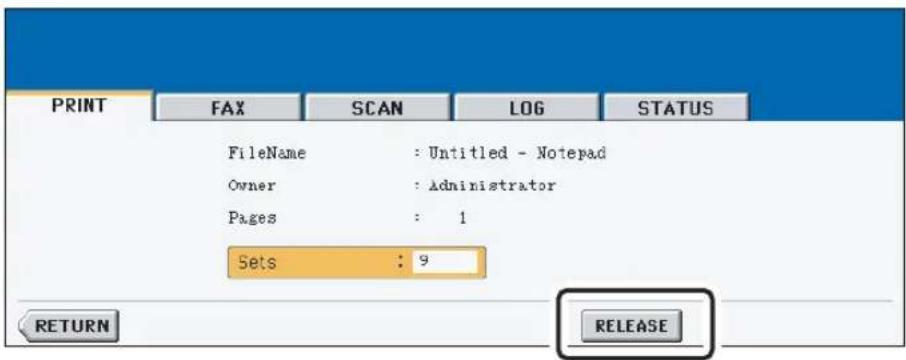
Creating An Overlay File
You can print a document as an overlay file. The created overlay file can then be merged into another document during printing.
P.260 "Printing with an Overlay File"
Notes
- If the print job has several pages in the document, only the first page of the document will be saved as an overlay file.
- Both the overlay file and the documents on which you superimpose the overlay image must be created at the same size, color mode, and orientation.
- When creating an overlay file using the PS3 printer driver from an application that can create the PS command directly, the overlay file will not be created properly. In that case, disable the "Use PostScript Passthrough" option in the PostScript Settings dialog box.
P.233 "PostScript Settings"
Printing a document as an overlay file
1 Select "Print to Overlay File" in the "Print Job" drop down box.
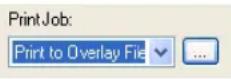
2 Click [...].
• The Overlay Image Name dialog box appears.
3 Enter a overlay image name and then click [OK].
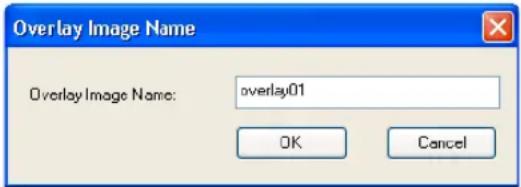
• You can enter up to 63 characters.
4 Set any other print options you require and click [OK].
• The Overlay Image Name dialog box appears.
5 Click [OK] or [Print] to send the print job.
• The document is saved as an overly file.
Tip
You can use created overly file to print a document.
P.260 "Printing with an Overlay File"
Storing to e-Filing
The Store to e-Filing feature allows you to send print jobs to e-Filing on this equipment. The job stored to e-Filing can then be printed from the Touch Panel Display at a later time. It can be also composed with other documents using the e-Filing web utility.
You can store a print job to either the public box or a user box. The public box is shared by all users who can see the jobs stored in this box. A user box is for personal use and is protected by password.
Note
When you store a document in e-Filing using the printer driver, the printing image (not the original document in your computer) will be stored in e-Filing.
Tips
- You can manage the files within a box from the Touch Panel Display. Please refer to the Operator's Manual for Basic Function to manage files in a box.
- You can also manage the files within a box using the e-Filing web utility. Please refer to the e-Filing Guide.
Saving a print job to a public box
1 Select "Store to e-Filing" in the "Print Job" drop down box.
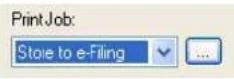
2 Click [...].
• The Overlay Image Name dialog box appears.
3 Select "Public Box" to save a print job to a public box.
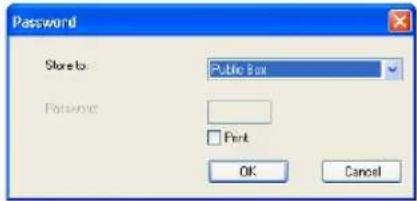
4 If you print a job as well as saving to the public box, check the "Print" box.
5 Click [OK].
6 Set any other print options you require and click [OK].
7 Click [OK] or [Print] to send the print job.
• The print job is saved to a public box.
Saving a print job to a user box
1 Select "Store to e-Filing" in the "Print Job" drop down box.
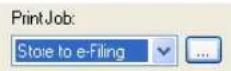
2 Click [...].
• The Overlay Image Name dialog box appears.
3 Select a user box to save a print job and enter the 5-digit password for the user box in the "Password" field if required.
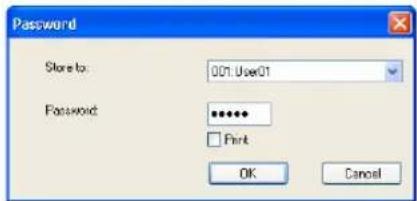
4 If you print a job as well as saving to a box, check the "Print" box.
5 Click [OK].
6 Set any other print options you require and click [OK].
7 Click [OK] or [Print] to send the print job.
• The print job is saved to a specified user box.
Printing with Various Layout and Finishing Options
Printer drivers allows you to create a print job with layout options to make your document more essential. Also you can enable finishing options that determine how the jobs are output, such as stapling and hole punching, sorting, and creating a booklet.
Sort Printing
You can select how multiple copies of a document to be output, such as separately for each copy, grouping each page, and alternating the paper direction for each copies.
Output each copy separately
1 Display the Basic tab and enter the number of copies to be printed at the "Number of Copies" field.
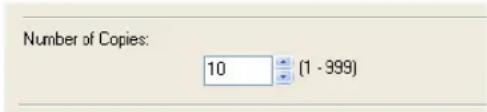
2 Display the Finishing tab and select "Sort Copies" icon at "Copy Handling".
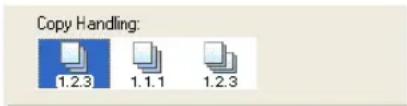
3 Set any other print options you require and click [OK].
4 Click [OK] or [Print] to send the print job.
• The print job is output separately for each copy.
Output with grouping of each page within a set
For example, assume that you have a three page job (A, B, C) and you want three copies of each page in this order (AAA, BBB, CCC).
1 Display the Basic tab and enter the number of copies to be printed at the "Number of Copies" field.
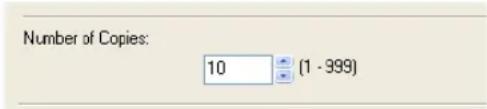
2 Display the Finishing tab and select "Group Copies" icon at "Copy Handling".
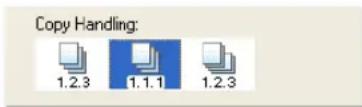
3 Set any other print options you require and click [OK].
4 Click [OK] or [Print] to send the print job.
- The print job is output separately for each page.
Note
Rotated Sort Copies can be enabled only when printing on Letter, A4, B5, or 16K.
1 Display the Basic tab and enter the number of copies to be printed at the "Number of Copies" field.
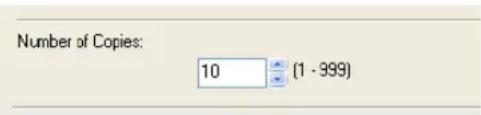
2 Display the Finishing tab and select "Rotated Sort" icon at "Copy Handling".
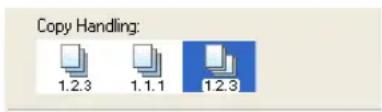
3 Set any other print options you require and click [OK].
4 Click [OK] or [Print] to send the print job.
- The print job is output in different direction for each copy.
Enlarge/Reduce Printing
You can automatically enlarge or reduce a document image to fit a specified paper size, or manually set the zoom ratio to enlarge or reduce the image.
Printing enlarged or reduced image to fit specified paper size
1 Display the Basic tab and select the document size on the "Original Paper Size" drop down box. Then select the paper size that you want to print at the "Print Paper Size" drop down box.
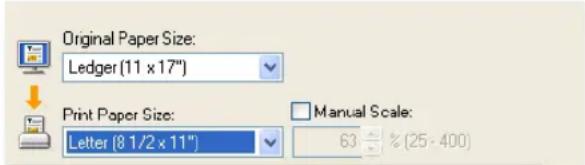
- The document image is automatically enlarged or reduced depending on the original paper size and print paper size.
2 Set any other print options you require and click [OK].
3 Click [OK] or [Print] to send the print job.
- Enlarged or reduced image is printed to fit specified paper size.
Printing an enlarged or reduced image by specifying the zoom ratio manually
1 Display the Basic tab and check the "Manual Scale" box. Then enter the percentage of zoom ratio.
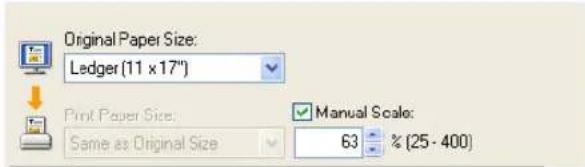
• The zoom ratio can be set from 25% to 400% in units of 1%.
2 Set any other print options you require and click [OK].
3 Click [OK] or [Print] to send the print job.
- Enlarged or reduced image is printed by specified zoom ratio.
Printing Color Document in Gray scale
This equipment can print in color as well as black and white.
The printer driver automatically detects whether the document uses only color or only black and white, and it prints the document accordingly.
Additionally, you can select black and white mode manually to print a color document in gray scale to reduce the print cost and consumption of color toners.
Printing a color document in gray scale
1 Display the Basic tab and select "Black and White" at the "Color" drop down box.
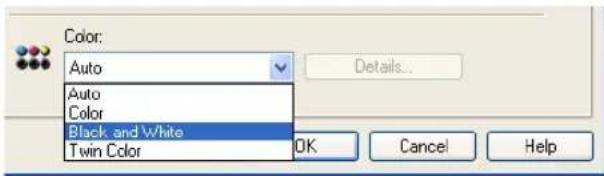
2 Set any other print options you require and click [OK].
3 Click [OK] or [Print] to send the print job.
• The print job is printed in gray scale.
Printing Color Document in Twin Color
This equipment can print in twin color mode.
When the document is printed in twin color mode, the black parts of the document are printed in black and colored parts of the document are printed in a specified color.
Printing a color document in twin color mode
1 Display the Basic tab and select "Twin Color" at the "Color" drop down box.
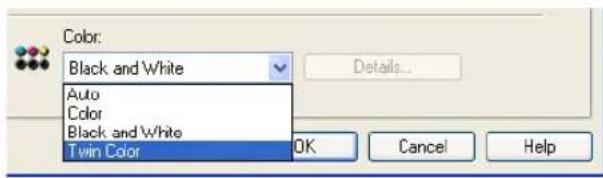
2 Click [Details...].
• The Twin Color dialog box appears.
3 Select a color that the color parts of the document to be printed at the "Color" drop down box and click [OK].
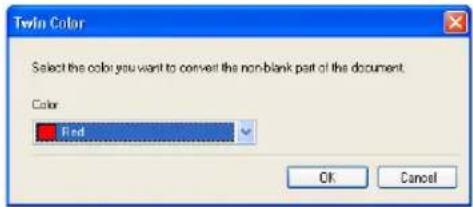
4 Set any other print options you require and click [OK].
5 Click [OK] or [Print] to send the print job.
• The print job is printed in twin color mode.
Stapling and Hole Punching
You can staple and punch the paper.
Notes
• Stapling is not available if a finisher is not installed.
- Hole Punching is not available if a hole punch unit is not installed.
Stapling the paper
1 Display the Finishing tab and check the "Staple" check box. Then select how to staple.
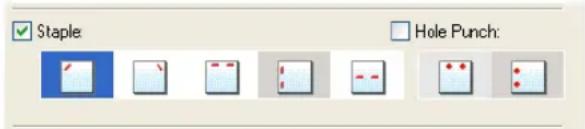
Upper Left — Select this to staple the printed document in the upper left.
Upper Right — Select this to staple the printed document in the upper right.
Center Top — Select this to staple the printed document double along the top edge.
Middle Left — Select this to staple the printed document double along the left side.
Center Double — Select this to fold and staple the printed document double in the center.
Notes
- The selectable options vary depending on the paper size.
- "Center Double" can be selected only when the Saddle Stitch Finisher is installed and configured on the Configuration tab.
2 Set any other print options you require and click [OK].
3 Click [OK] or [Print] to send the print job.
• The output is stapled for each copy.
Punching holes
1 Display the Finishing tab and check the "Hole Punch" check box. Then select how to hole punching.
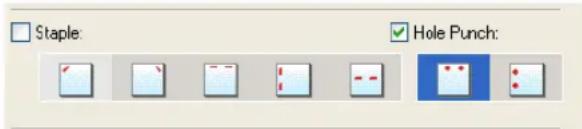
Center Top — Select this to create holes along the top edge.
Middle Left — Select this to create holes along the left side.
2 Set any other print options you require and click [OK].
3 Click [OK] or [Print] to send the print job.
• The output is hole punched.
Printing on Both Sides of a Sheet
You can print on both sides of the paper.
Printing both sides of paper
1 Display the Finishing tab, check the "2-Sided Printing" check box and select the direction to be printed.
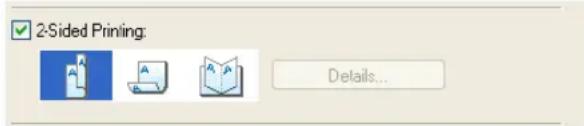
Book — Select this to print on both sides of the paper in a vertical direction, so the pages can be bound and turned over right and left.
Tablet — Select this to print on both sides of the paper in a vertical reversal motion, so the pages can be bound and turned over up and down.
Tip
You can also set booklet printing at the "2-Sided Printing" option by selecting the "Booklet" icon. For the instructions on how to perform booklet printing, see the following section.
P.254 "Printing Booklets"
2 Set any other print options you require and click [OK].
3 Click [OK] or [Print] to send the print job.
- The print job is printed on both sides of paper in the specified direction.
Printing or Inserting Sheets from Different Paper Sources
You can print paper for covers, back covers, or for insert between pages by feeding from different paper sources. This is useful when you want to print or insert a color cover and color sheets in front of every chapter in a document.
Printing or inserting a front cover and back cover
1 Display the Paper Handling tab.
2 To print or insert a front cover, check the "Use Front Cover" box and select the drawer where the cover paper is loaded at the "Source" drop down box. Then select whether inserting a blank cover or printed front cover at the "Print Style" drop down box.

Do not print on page — Select this to insert a blank front cover.
Print on 1 side of the page — Select this to print the first page of the document on a front side of a cover.
Print both sides of page — Select this to print the first two pages of the document on both sides of a cover.
Notes
- When "Auto" is selected in the "Source" drop down box, the paper is automatically selected according to the printed document size.
- “Print both sides of page” is available only when 2-Sided printing is enabled at the Finishing tab.
3 To print or insert a back cover, check the "Use Back Cover" box and set the "Source" and "Print Style" options that you require.

- How to set the Source and Print Style options are the same as "Use Front Cover" option.
4 To print or insert sheets between the pages, check the "Insert Pages" box and click [Edit...].

• The Insert Pages dialog box appears.
Notes
- Up to 50 pages can be inserted.
- When Insert Pages printing is performed using the PS3 printer driver from an application that can create the PS command directly, the overlay image will not be printed. In that case, disable the "Use PostScript Passthrough" option in the PostScript Settings dialog box.
P.233 "PostScript Settings"
5 Enter the page numbers the sheet will be inserted in each "Page" field and select the "Print Style", "Paper Source", and "Paper Type" options as you require. Then click [OK].
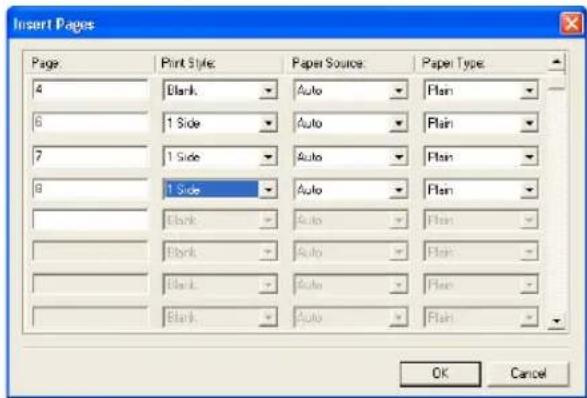
6 Set any other print options you require and click [OK].
7 Click [OK] or [Print] to send the print job.
• A front cover and back cover are printed or inserted for output.
Interleaving Pages
This feature is useful when you want to insert paper of a different type, or from another source, between every page of your print job. For example, you could use this option to insert blank, colored sheets between overhead transparencies.
Inserting sheets between every page of a print job
1 Display the Paper Handling tab. 2 To insert sheets between every page, check the "Interleave Pages" box and select the drawer where the desired paper is loaded at the "Source" drop down box.
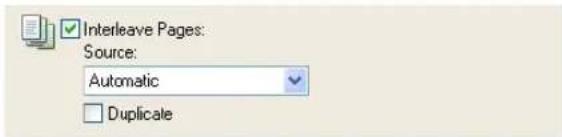
Note
When "Auto" is selected in the "Source" drop down box, the paper is automatically selected according to the printed document size.
3 To print the previous page on interleaved sheets, check on "Duplicate" box.
- This equipment prints every previous page on interleaved sheets which are inserted after the page so that you can duplicate a document.
4 Set any other print options you require and click [OK].
5 Click [OK] or [Print] to send the print job.
• Sheets are interleaved between every page.
Printing Booklets
Printing in normal booklet mode produces a document that, when folded, becomes a properly paginated booklet or magazine-style publication. You can even create bound booklets that are folded and stapled in the center.
For example, if you create a document on letter-size paper (8½ x 11 inches) and then print in booklet mode, the yield is a 5½-x-8½-inch booklet. Each page has been scaled to fit on half a sheet and reordered so that the booklet is properly paginated when folded.
To retain your original document size when printing booklets, select the booklet size same as your original document size. Then, your 8½-inch document is printed on ledger size paper (11 x 17 inches) and reordered so that, when folded, the yield is an 8½-x-11-inch booklet. You can select from the following page-size options when printing a tiled booklet:
• Letter Booklet on Ledger
• A4 Booklet on A3
• B5 Booklet on B4
Note
When Booklet printing is performed using the PS3 printer driver from an application that can create the PS command directly, the overlay image will not be printed. In that case, disable the "Use PostScript Passthrough" option in the PostScript Settings dialog box.
P.233 "PostScript Settings"
Creating a booklet
1 Display the Finishing tab.
2 Check the "2-Sided Printing" box and select the "Booklet" icon.



3 Click [Details...].
• The Booklet Details dialog box appears.
4 Select the a booklet size at the "Output Document Layout" drop down box.
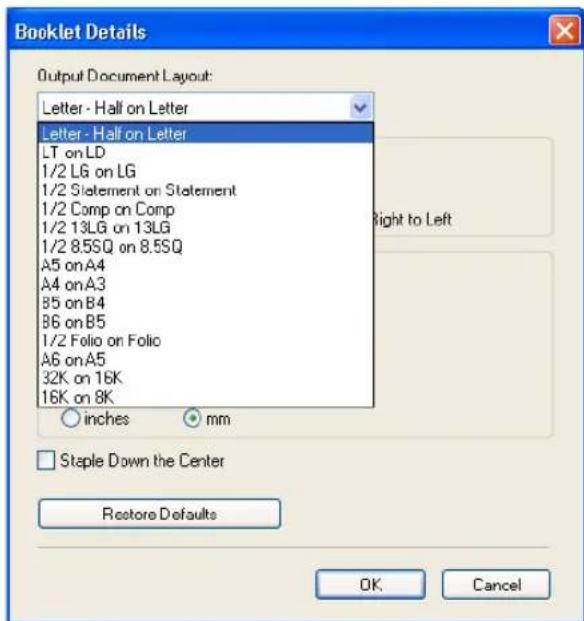
Letter-Half on Letter — Select this to print a 1/2 Letter size booklet. Every 2 pages are printed on Letter paper to fit on half a sheet.
LT on LD — Select this to print a Letter size booklet. Every 2 pages are printed on Ledger paper to fit on half a sheet (Letter).
1/2 LG on LG — Select this to print a 1/2 Legal size booklet. Every 2 pages are printed on Legal paper to fit on half a sheet.
1/2 Statement on Statement — Select this to print a 1/2 Statement size booklet. Every 2 pages are printed on Statement paper to fit on half a sheet.
1/2 Comp on Comp — Select this to print a 1/2 Computer size booklet. Every 2 pages are printed on Computer paper to fit on half a sheet.
1/2 13LG on 13LG — Select this to print a 1/2 13inchLG size booklet. Every 2 pages are printed on 13inchLG paper to fit on half a sheet.
1/2 8.5SQ on 8.5SQ — Select this to print a 1/2 8.5inchSQ size booklet. Every 2 pages are printed on 8.5inchSQ paper to fit on half a sheet.
A5 on A4 — Select this to print a A5 size booklet. Every 2 pages are printed on A4 paper to fit on half a sheet (A5).
A4 on A3 — Select this to print a A4 size booklet. Every 2 pages are printed on A3 paper to fit on half a sheet (A4).
B5 on B4 — Select this to print a B5 size booklet. Every 2 pages are printed on B4 paper to fit on half a sheet (B5).
B6 on B5 — Select this to print a B6 size booklet. Every 2 pages are printed on B5 paper to fit on half a sheet (B6).
1/2 Folio on Folio — Select this to print a 1/2 Folio size booklet. Every 2 pages are printed on Folio paper to fit on half a sheet.
A6 on A5 — Select this to print a A6 size booklet. Every 2 pages are printed on A5 paper to fit on half a sheet (A6).
32K on 16K — Select this to print a 32K size booklet. Every 2 pages are printed on 16K paper to fit on half a sheet.
16K on 8K — Select this to print a 16K size booklet. Every 2 pages are printed on 8K paper to fit on half a sheet.
5 Select the page order for booklet in the "In page of the order" option.
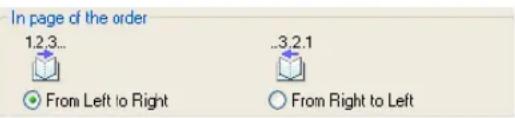
From Left to Right — Select this to print the pages from left to right.
From Right to Left — Select this to print the pages from right to left.
6 If you want to add a margin space between facing pages, enter a width in the "Center" field, and if you want to add a margin on the outside edge, enter a width in the "Outer" field.
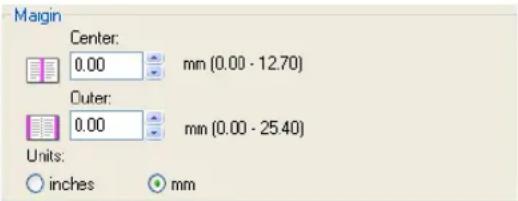
- You can change the unit of the margin at the "Units" drop down box.
- The center margin can be set from 0.000 inch to 0.500 inches in units of 0.01 inch when the unit is inch, and from 0.000 mm to 12.700 mm in units of 0.10 mm when the unit is mm.
The printed images will be reduced according to the margin setting.
7 If you want to double staple the center, check the "Staple Down the Center" box.
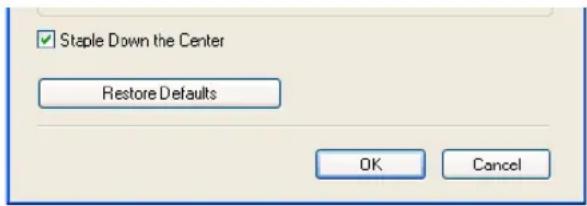
Note
"Staple Down the Center" is available only when the Saddle Stitch Finisher is installed and configured on the Configuration tab.
8 Set any other print options you require and click [OK].
9 Click [OK] or [Print] to send the print job.
• The print job is printed as a booklet.
Note
If a Saddle Stitch Finisher is not installed, the output will not be folded. But you can create a booklet by folding along the center by yourself.
Printing Several Reduced Pages per Sheet
The N-up feature allows you to condense and print several pages of a document on one sheet of paper. This feature is very useful for browsing a large number of pages for appearance or page order.
For example, to check the navigation path of a number of web pages or review the narrative of a slide presentation, using N-up is not only convenient but conserves paper as well.
Tip
If you are using the Image Overlay feature in combination with N-up printing, the overlay prints once per sheet, rather than once per page.
Printing multiple pages per sheet
1 Display the Finishing tab.
2 Select how many pages you want to print on a single sheet at the "Number of pages per sheet" drop down box.
√ Number of pages per sheet:

2 pages — Select this to print images from 2 pages arranged on one sheet.
4 pages — Select this to print images from 4 pages arranged on one sheet.
6 pages — Select this to print images from 6 pages arranged on one sheet.
8 pages — Select this to print images from 8 pages arranged on one sheet.
9 pages — Select this to print images from 9 pages arranged on one sheet.
16 pages — Select this to print images from 16 pages arranged on one sheet.
3 Select how the pages are arranged on one sheet in the "Direction of print" option.
Direction of print:

Draw Borders Around Pages
Left to Right — Select this to arrange pages horizontally from the left and printed top to bottom on one sheet.
Right to Left — Select this to arranged pages horizontally from the right and printed top to bottom on one sheet.
Left to Right by column — Select this to arrange pages vertically from the top and printed left to right on one sheet.
Right to Left by column — Select this to arrange pages vertically from the top and printed right to left on one sheet.
4 If you want to draw a line around each page, check the "Draw Borders Around Pages" box.
5 Set any other print options you require and click [OK].
6 Click [OK] or [Print] to send the print job.
• Multiple pages are printed per sheet.
Using Watermarks
Watermarks overprint your document with useful information, such as “Confidential,” “Draft,” or “Original.” You can choose from several predefined watermarks or you can create and save your own custom watermarks.
Watermarks are text only. To add graphics or other document elements, use image overlays instead.
Printing a watermark
1 Display the Effect tab and select the watermark to be printed at the "Watermark" drop down box.
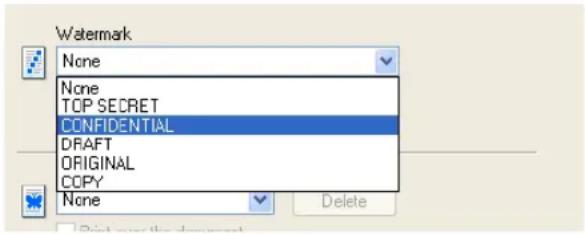
Note
You can create a new watermark if the watermark that you prefer is not listed in the drop down box.
2 If you want to print the watermark on only the first page, check on the "Print on First Page Only" box.
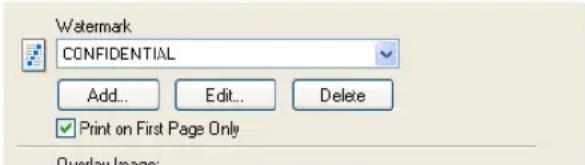
3 Set any other print options you require and click [OK].
4 Click [OK] or [Print] to send the print job.
• The print job is printed with the watermark.
Creating or editing a watermark
1 Click [Add] to create new watermark, or select a watermark that you want to edit and click [Edit] to edit a watermark.
• The Watermark dialog box appears.
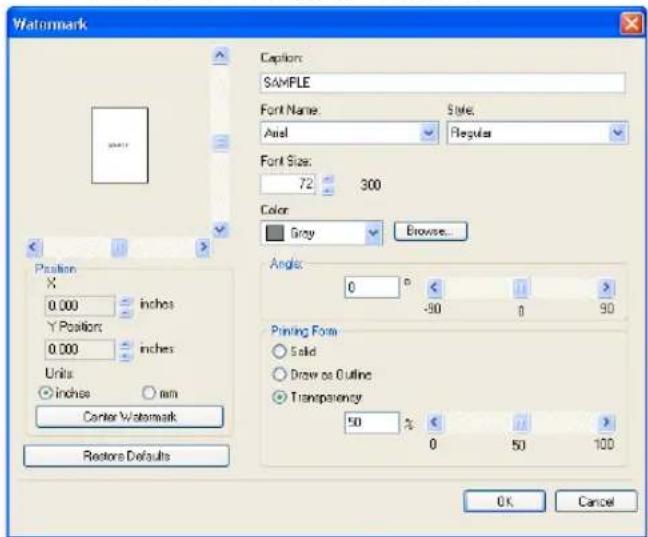
2 Enter the watermark text in the "Caption" field.
- You can enter up to 63 characters for the "Caption" field. However, if too many characters are entered, the watermark may not be printed correctly.
3 Select a font for the watermark at the "Font Name" drop down box.
4 Select a font style for the watermark at the "Style" drop down box.
5 Enter the font size in the "Font Size" field.
• You can enter any integer between 6 to 300pt in units of 1pt.
6 Select a color for the watermark at the "Color" drop down box.
- If your preferred color is not listed in the drop down box, click [Browse...] to display the color palette and add your color.
Notes
- The "Color" drop down box is not available for the PCL6 printer driver.
- When "Black and White" is selected at the "Color" drop down box on the Basic tab, the "Color" drop down box is not available.
7 To rotate the watermark, enter the degrees in the "Angle" field.
- You can enter from -90 degrees to 90 degrees in units of 1 degree in the "Angle" field.
• You can also set the angle using the scroll bar.
8 Select how the watermark text is printed from "Solid", "Draw as Outline", and "Transparency".
Solid — Select this to print solid type of watermark.
Draw as Outline — Select this to print an outline type of watermark.
Transparency — Select this for a transparent watermark. Set the transparent ratio from
0 to 100% in units of 1%. You can also set the transparent ratio using the scroll bar.
9 Click [OK] to save the watermark settings.
• The watermark is added or edited.
Deleting a watermark
Note
You can delete the default watermarks. However, they cannot be restored by clicking the [Restore Defaults] button.
1 Select a watermark that you want to delete at the "Watermark" drop down box.
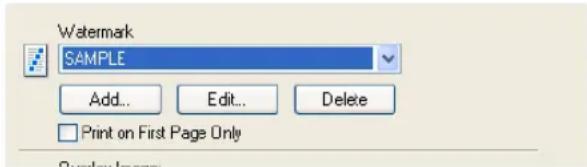
2 Click [Delete].
Printing with an Overlay File
Using image overlays ensures that widely-used images are readily available and consistently reproduced. Image overlays are independent documents that are merged into other documents during printing and thereby increase the time required to print a job. To superimpose text on your document, it may be faster to use watermarks.
To print with an overlay file, you should create an overlay file first.
P.243 "Creating An Overlay File"
Notes
- If you use Image Overlays in combination with the N-up feature, the image overlay is printed once per sheet, not once per page.
- Both the overlay file and the documents on which you superimpose the overlay image must be created at the same size, color mode, and orientation.
- When printing with Overlay Image using the PS3 printer driver from an application that can create the PS command directly, the overlay image will not be printed. In that case, disable the "Use PostScript Passthrough" option in the PostScript Settings dialog box.
P.233 "PostScript Settings"
Printing an overlay image on a print job
1 Display the Effect tab and select the overlay image name to be used in the "Overlay Image" drop down box.
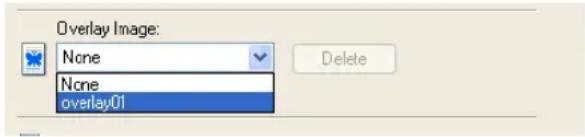
2 Set any other print options you require and click [OK].
3 Click [OK] or [Print] to send the print job.
- The print job is printed with the overlay image.
Printing on a Tab Paper
This equipment supports tab printing, which can print in the tab extension of the tab paper.
Notes
• This equipment can print only on the Letter sized or A4 sized tab paper.
- If mis-printing occurs while multiple tab pages are printed continuously, toner may adhere to the reverse side of a paper. To avoid this, it is recommended to print a tab paper as a separated job for each page so that this equipment performs cleaning before printing the next tab paper.
- When printing tab paper, the tab paper may be caught in the exit in the inner tray because the roller failed to deliver the tab extension to the exit. In that case, remove the tab paper before printing the next job.
Printing a document on tab paper
1 Create a Letter sized or A4 sized document and place the text or object that should appear on the tab extension as described below.
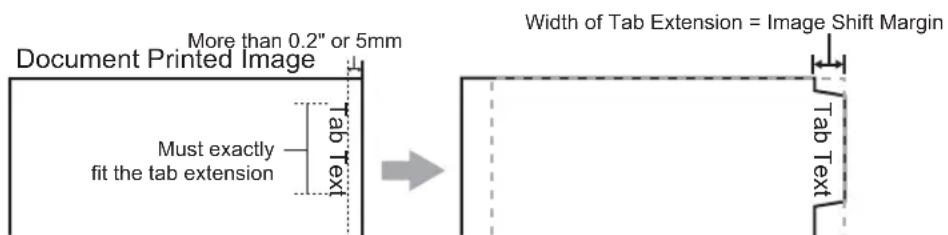
When you create a document for tab printing, place the text or object that should appear on the tab extension on the right side of the document. You must place the text in the height exactly to fit to the tab extension. Also the right margin, a margin between the text and right edge of the document, must have more than 0.2 inch or 5 mm space because the equipment cannot print in the space.
2 Place tab paper on the Bypass Tray.
- When placing the tab paper on the Bypass Tray, place the tab paper so that the tab side becomes outside.
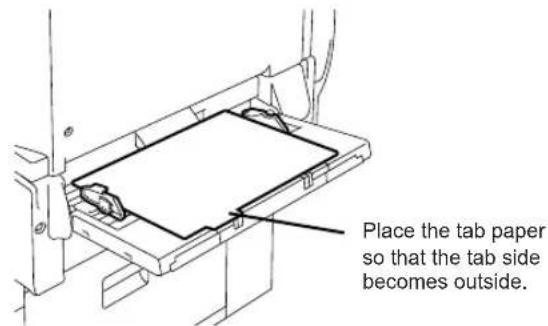
3 When printing a document, display the Basic tab of the printer driver properties, select document size in the "Original Paper Size" drop down box, and select either "Letter Tab" or "A4 Tab" (according to the document size) in the "Print Paper Size" drop down box.
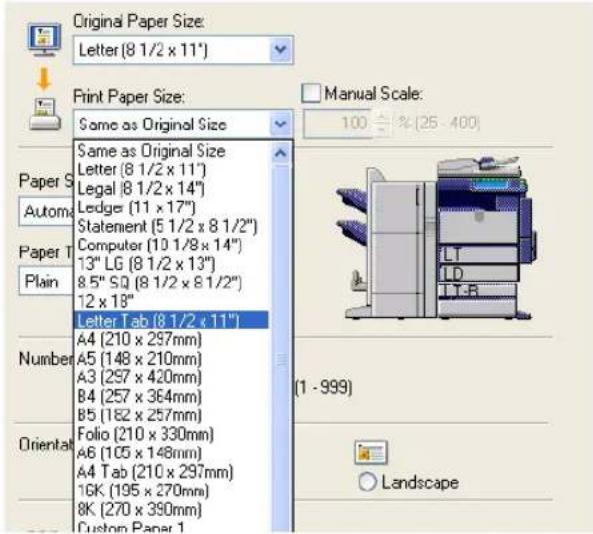
• The Primary Tab Dialog dialog box appears.
4 In the "Tab Manufacturer" drop down box, select the product name of the tab paper that you use, or select "Custom" when you use other manufactured tab paper.
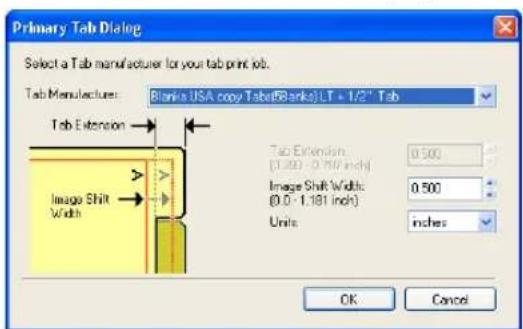
5 When you select "Custom" in the "Tab Manufacturer" option, enter the width of tab extension in the "Tab Extension" field.
6 Enter the width to shift the printed image in the "Image Shift Width" field.
- If you created a document as described in Step 1, enter the width of the tab extension here.
Note
This equipment cannot print in the 0.2 inch or 5 mm margin area on the right side on the paper. Therefore, be sure to enter the image shift margin so that an image will be printed within the printable area.
7 Click [OK].
8 Set any other print options you require and click [OK].
9 Click [OK] or [Print] to send the print job.
• The print job is printed on the tab paper.
Printing from Macintosh
This describes the instructions on how to print from client computer.
Printing from Application on Mac OS X 10.2.4 to Mac OS X 10.4.x....266
Considerations and Limitations 266
How to Print from Mac OS X 10.2.4 to Mac OS X 10.4.x....266
Page Setup Dialog on Mac OS X 10.2.4 to Mac OS X 10.4.x....267
Print Dialog on Mac OS X 10.3.x to Mac OS X 10.4.x 272
Print Dialog on Mac OS X 10.2.x 287
Printing from Application on Mac OS 8.6 to 9.x....303
How to Print from Mac OS 8.6 or 9.x 303
Page Setup Dialog on Mac OS 8.6/9.x 304
Print Dialog on Mac OS 8.6/9.x....306
Printing from Application on Mac OS X 10.2.4 to Mac OS X 10.4.x
Once you have installed the PPD file as described in "Installing the Printer on Mac OS X 10.2.4 to Mac OS X 10.4.x" on page 125, you can print directly from most Mac OS applications.
Note
When the User Management Setting is enabled on the equipment, the print jobs that are sent from Macintosh computers are processed as invalid jobs according to the Department Code Enforcement setting.
Considerations and Limitations
- If you print a PDF file with "Preview" application on Mac OS 10.2.x, the page order will be incorrect. Please use Adobe Acrobat Reader.
How to Print from Mac OS X 10.2.4 to Mac OS X 10.4.x
All printers are managed within the Printer Setup Utility and there is no need to switch the printer.
Once you add a printer to the Printer List, all printers can be selected directly from Print Setup dialog box.
Setting Options and Printing from Macintosh Computers
In Mac OS applications, print options are set from both the Page Setup dialog box and the Print dialog box.
Printing from Macintosh applications
1 Open a file and select [Page Setup] from the [File] menu of the application.
2 Select the name of the equipment at the "Format for" drop down box and specify the Page Setup settings for your print job.
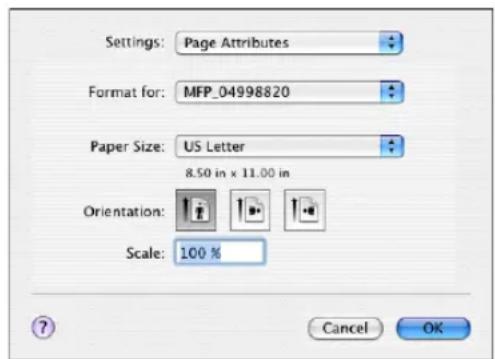
- Setting the Page Setup varies depending on how you want to print a document. P.267 "Page Setup Dialog on Mac OS X 10.2.4 to Mac OS X 10.4.x"
3 Click [OK] to save the Page Setup settings.
4 Select [Print] from the [File] menu of the application.
5 In the dialog box that appears, make sure the name of the equipment is selected at the "Printer" menu and specify the Print settings for your print job.
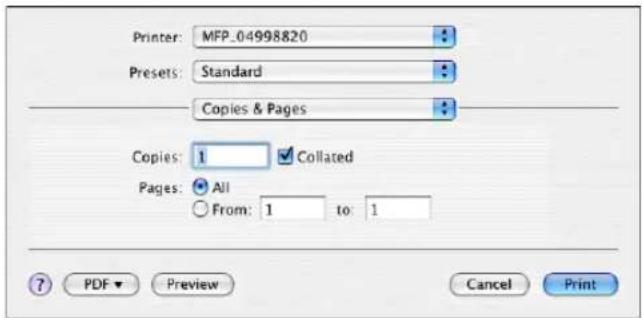
- Setting the Print Setup varies depending on how you want to print a document. P.287 "Print Dialog on Mac OS X 10.2.x"
6 Click [Print] to print a document.
Page Setup Dialog on Mac OS X 10.2.4 to Mac OS X 10.4.x
The Page Setup dialog boxes can be displayed by selecting the [Page Setup] command from the [File] menu of the application.
In the Page Setup dialog boxes, you can specify the Page Attribute settings and manage the Custom Page Size settings.
Note
The Page Setup dialog boxes vary across applications.
Page Attributes
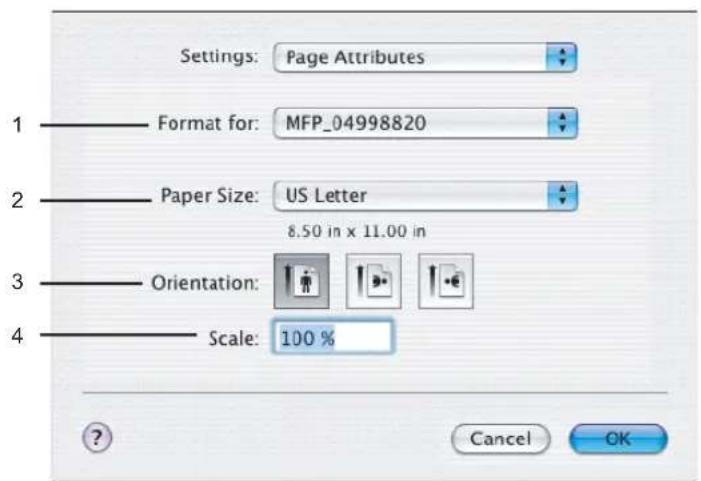
1) Format for
This select the printer to be used for printing.
2) Paper Size
This selects the size of a document to be printed.
Available original paper sizes are listed below:
- US Letter
A4 - Tabloid (Ledger)
A5
• US Legal
A3 - Statement
JB4 - Computer
JB5
13"LG
A3-Wide
8.5"SQ - Folio
- 12 x 18"
A6
• 8K
• 16K
Tip
The default paper size is "Letter" for the United States, and "A4" for the other countries.
3) Orientation
This sets the paper printing direction.
- Portrait — The document is printed in the portrait direction.
- Landscape (90 degree) — The document is printed in the landscape direction from left.
- Landscape (270 degree) — The document is printed in the landscape direction from right.
4) Scale
This changes the size of the printed image on the page. Enter the zoom ratio to enlarge or reduce an image. You can set any integer from 25 to 400(%) for the zoom ratio.
Custom Page Sizes
The PPD file for this equipment supports the Custom Page Sizes.
The procedure to create the Custom Page Size varies between the Mac OS X 10.4.x and Mac OS X 10.2.8 to 10.3.x.
Creating Custom Page Size on Mac OS X 10.4.x
1 Select "Manage Custom Sizes..." in the "Paper Size" drop down box.
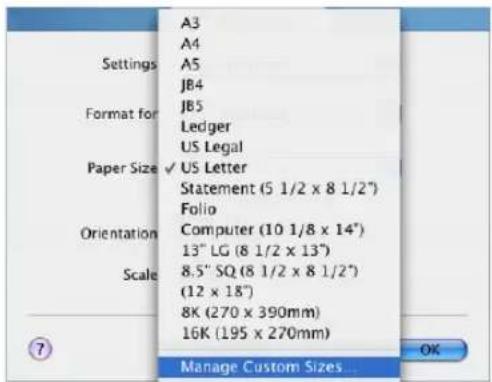
• The Custom Page Sizes dialog box appears.
2 Click the [+] button.
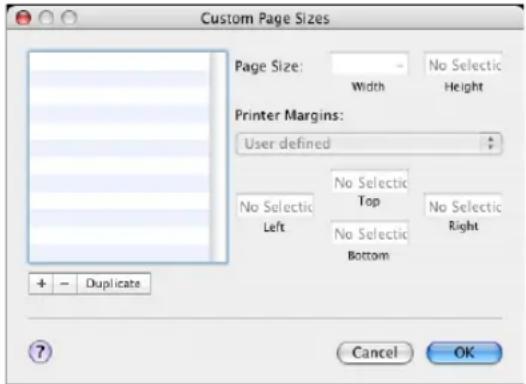
• A new custom page size name is added in the list.
Tip
If you want to create a new custom page size by duplicating an existing custom page size, select the custom page size name in the list and click [Duplicate].
3 Double-click the added custom page size name in the list and rename the custom page size name.
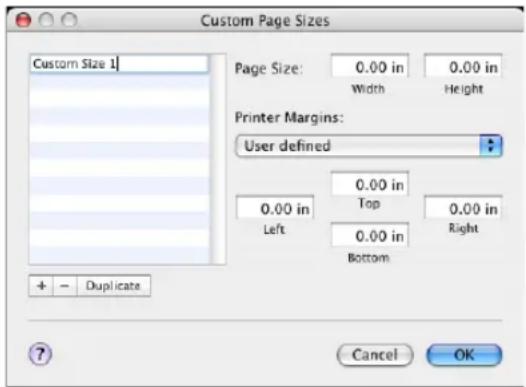
4 Enter the width and height in the "Page Size" fields, and select the printer name of this equipment in the "Printer Margins" drop down box.
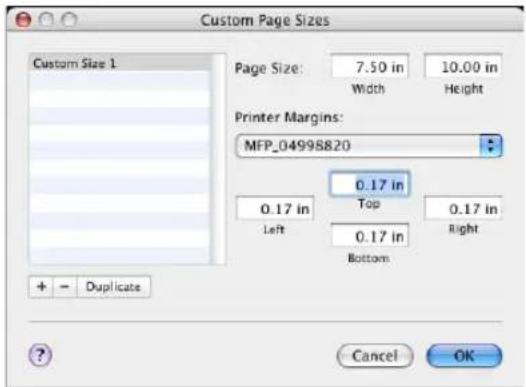
Tips
- Please use the margin settings that are automatically entered by selecting the printer name in the "Printer Margins" drop down box.
- You can delete the created custom page size by clicking the [-] button.
5 Click [OK].
- The Custom Page Size is saved and it can be selected in the "Paper Size" drop down menu in the Page Attributes menu.
Creating Custom Page Size on Mac OS X 10.2.8 to 10.3.x
1 Select "Custom Paper Size" in the "Settings" drop down box.
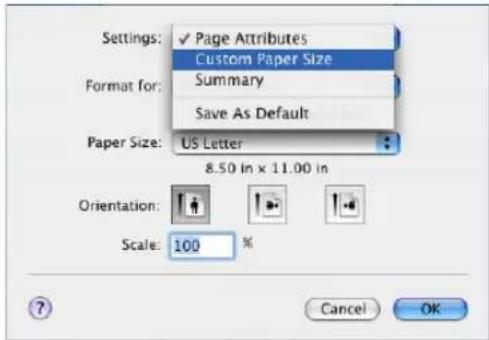
• The Custom Paper Size menu is displayed.
2 Click [New].
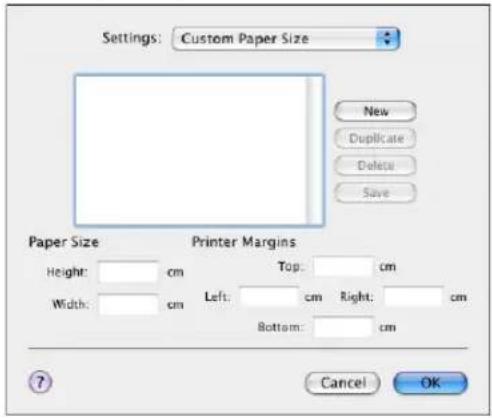
• A new custom page size name is added in the list.
Tip
If you want to create a new custom page size by duplicating an existing custom page size, select the custom page size name in the list and click [Duplicate].
3 Rename the custom page size name.
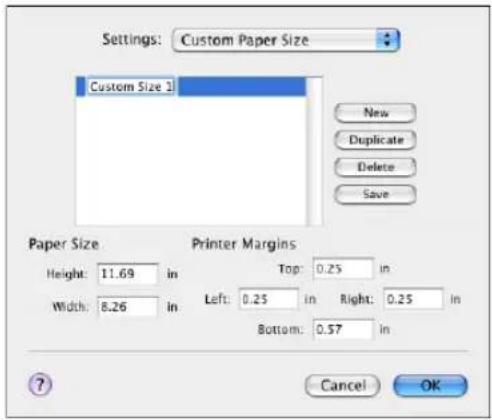
4 Enter the width and height in the "Page Size" fields, and enter the printer margins in the "Printer Margins" fields.
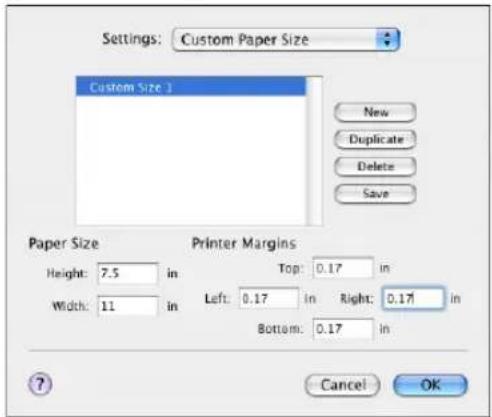
Tips
- In the "Printer Margins" field, please enter "0.17" inch.
- You can delete the created custom page size by clicking [Delete].
5 Click [Save] and click [OK].
- The Custom Page Size is saved and it can be selected in the "Paper Size" drop down menu in the Page Attributes menu.
Print Dialog on Mac OS X 10.3.x to Mac OS X 10.4.x
The Print dialog boxes can be displayed by selecting the [Print] command from the [File] menu of the application.
Tip
The Print dialog boxes are different between Mac OS 10.2.x and Mac OS X 10.3.x to Mac OS 10.4.x. Please see the following section for the descriptions of the Print dialog boxes for Mac OX 10.2.x.
P.287 "Print Dialog on Mac OS X 10.2.x"
Note
The Print dialog boxes vary across applications.
Copies & Pages
In the Copies & Pages menu, you can set general print options such as number of copies, and sort printing.
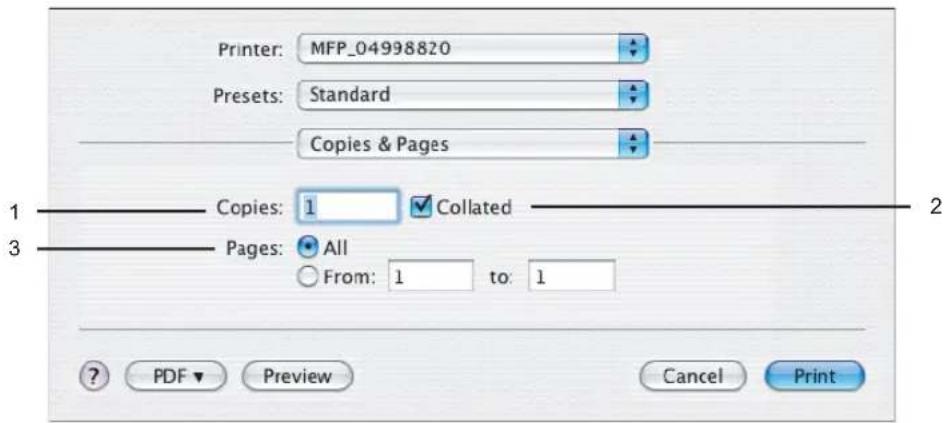
1) Copies
This sets the number of printed copies. You can set any integer from 1 to 999.
2) Collated
Check this for sort-printing (1, 2, 3... 1, 2, 3...)
3) Pages
This sets the range of pages to be printed.
- All — Select this to print all pages.
- From/To — Select this to specify the pages to be printed. Enter the page range in the From and To field.
Layout
In the Layout menu, you can set N-up printing (multiple pages per sheet).
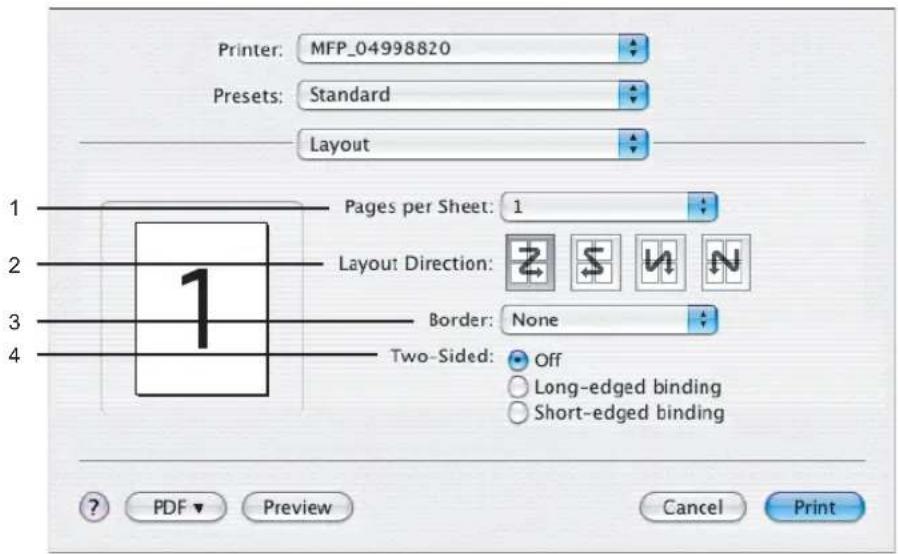
1) Pages per Sheet
This sets the number of multiple pages printed on one sheet. The pages are reduced to fit the selected paper size automatically and are printed.
- 1_ — Select this if do not wish to enable N-up printing.
- 2 — Select this to print images from 2 pages arranged on one sheet.
- 4 — Select this to print images from 4 pages arranged on one sheet.
- 6 — Select this to print images from 6 pages arranged on one sheet.
- 9 — Select this to print images from 9 pages arranged on one sheet.
- 16 — Select this to print images from 16 pages arranged on one sheet.
2) Layout Direction
This sets how pages are arranged on one sheet. This is available only when N-up printing (printing multiple pages on one sheet) is set.
- Across Left to Right Before Down — Pages arranged horizontally from left to right and then top to bottom on one sheet.
- Across Right to Left Before Down — Pages arranged horizontally from right to left and then top to bottom on one sheet.
- Down Before Across Left to Right — Pages arranged vertically from top to down and then left to right on one sheet.
- Down Before Across Right to Left — Pages arranged vertically from top to down and then right to left on one sheet.
3) Border
Select if a border line is to be drawn on each page. This is available only when the N-up printing (printing multiple pages on one sheet) is set.
- None — Select this if no border line is to be drawn.
- Single hairline — Select this to draw single hairline for the border.
- Single thin line — Select this to draw single thin line for the border.
- Double hairline — Select this to draw double hairline for the border.
- Double thin line — Select this to draw double thin line for the border.
4) Two Sided Printing
This sets whether or not you want to print on both sides of the paper.
- Off — Select this when you do not want to print on both sides of the paper.
- Long Edge Binding — Select this to bind along the long edge side of the paper. The direction to be printed on the back side of the paper differs depending on the orientation.
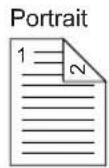
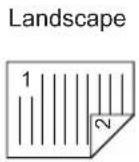
- Short Edge Binding — Select this to bind along the short edge side of the paper. The direction to be printed on the back side of the paper differs depending on the orientation.
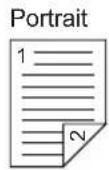
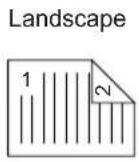
Output Options
In the Output Options menu, you can save a print job as a file.
Note
This menu is displayed only for Mac OS X 10.3.x.
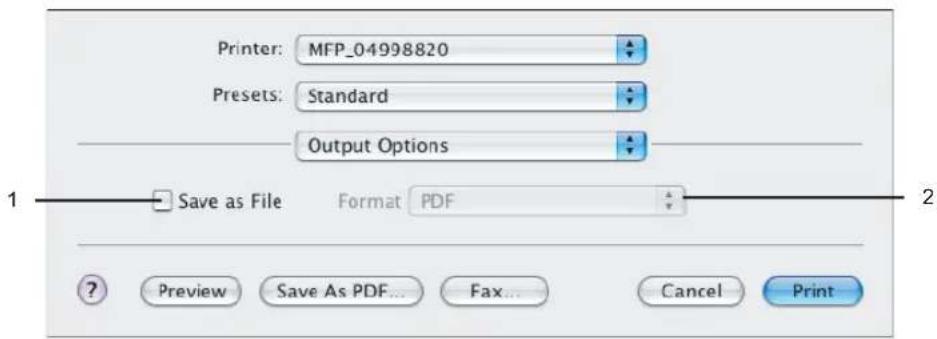
1) Save as File
Check this to save a print job as a file. When this is checked, select the file type at the "Format" drop down box.
2) Format
This sets the format of a file to be saved.
- PDF — Select this to save a print job as a PDF file.
- PostScript — Select this to save a print job as a PS file.
Scheduler
In the Scheduler menu, you can set when a print job will be sent to the equipment.
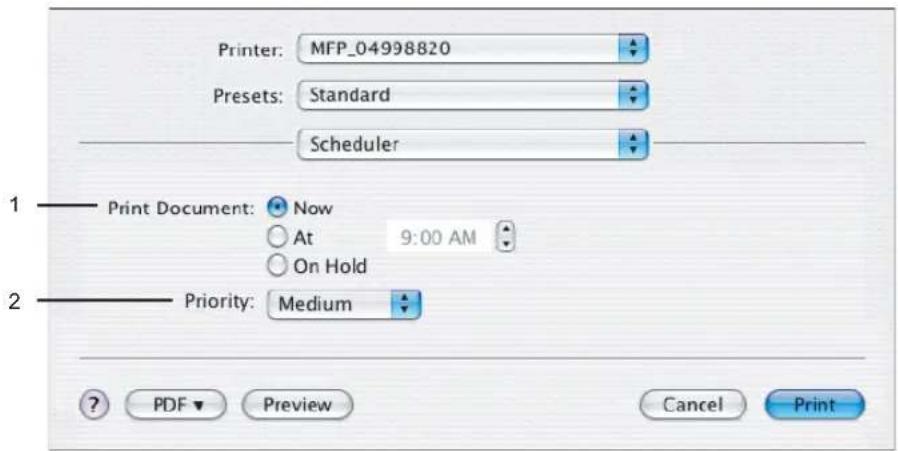
1) Print Document
This sets when a print job will be sent to the equipment.
- Now — Select this to send a print job now.
- At — Select this to specify the time to send a print job. When you select this, specify the time to be send. The print job will be held in the queue on Mac OS until the specified time has been reached or you resume the print job to be sent from the queue on Mac OS.
- On Hold — Select this to hold a print job in the queue on Mac OS. When you select this, the print job will be held in the queue on Mac OS until you resume the print job to be sent from the queue on Mac OS.
2) Priority
Select the priority of a print job.
Paper Handling
In the Paper Handling menu, you can set Reverse page order printing and Odd or Even numbered page printing.
The screens in the Paper Handling menu vary between Mac OS X 10.3.x and Mac OS 10.4.x.
Mac OS X 10.3.x
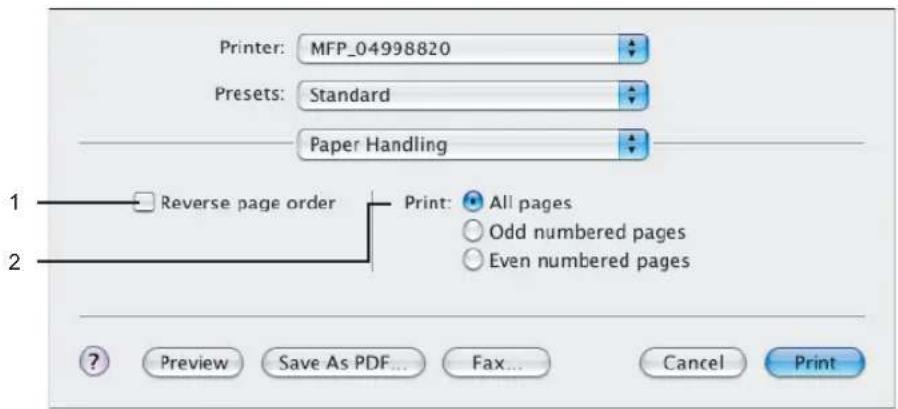
1) Reverse page order
Check this when you want to print a document beginning with the last page.
2) Print
Select whether all pages will be printed or only odd or even pages will be printed.
Mac OS X 10.4.x
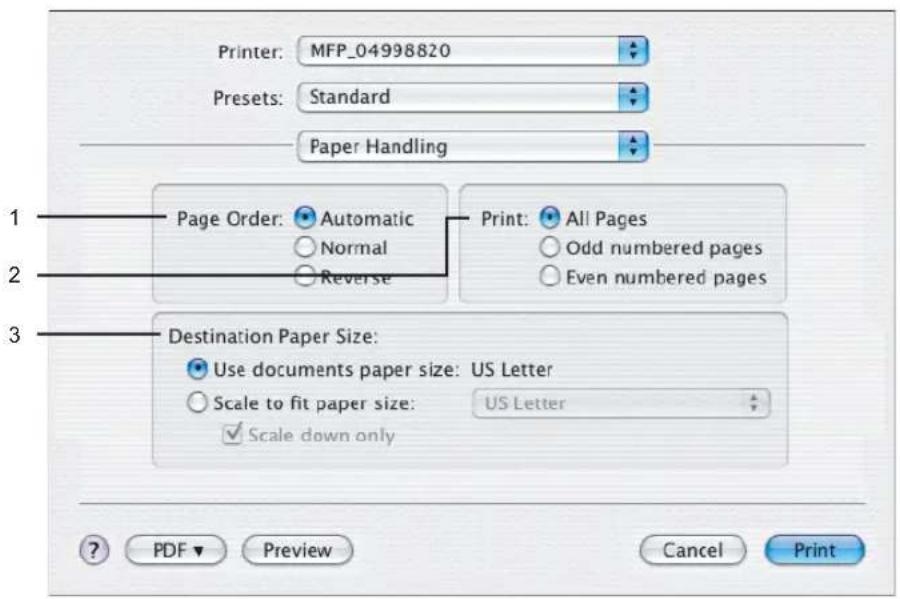
1) Page Order
Select the page order for printing.
2) Print
Select whether all pages will be printed or only odd or even pages will be printed.
3) Destination Paper Size
Select the output paper size.
- Use documents paper size — Select this to print on the same sized paper as the document size.
- Scale to fit paper size — Select this to perform enlarge/reduce printing. When this is selected, select the output paper size in the drop down box. If you do not want to enlarge the document images when larger paper size is selected, check the "Scale down only" box.
ColorSync
This equipment does not support the ColorSync feature. You cannot make any changes in the ColorSync menu.
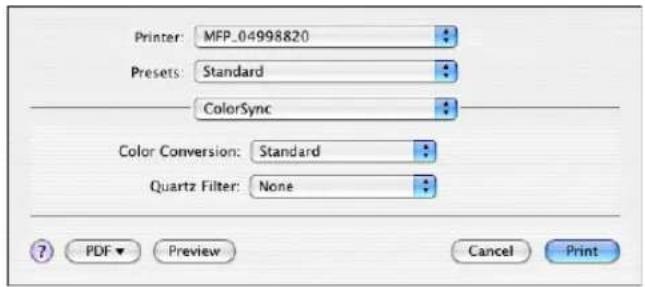
Cover Page
In the Cover Page menu, you can set whether a print job is sent with a banner page. The banner page includes information about owner of the job, job name, application name, date and time, and printer name.
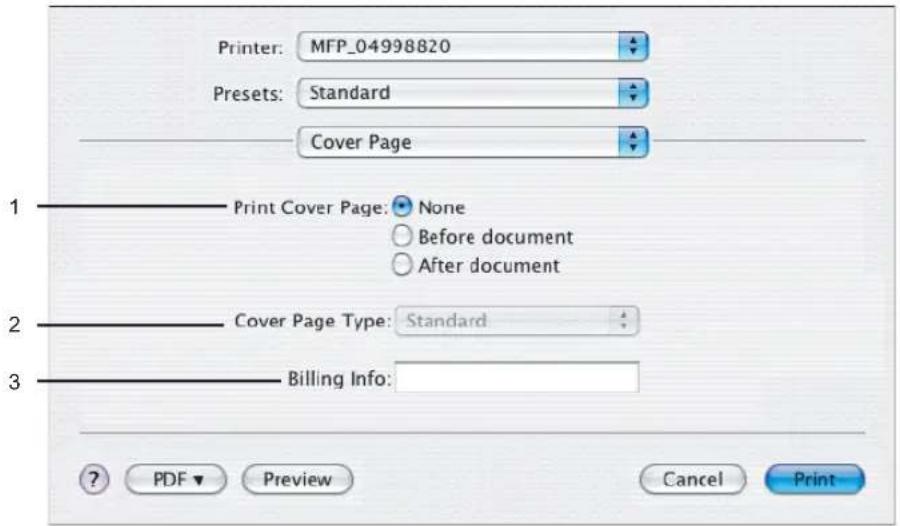
1) Print Cover Page
This sets how a banner page is inserted.
- None — Select this not to print a banner page.
- Before Document — Select this to print a banner page before the document.
- After Document — Select this to print a banner page after the document.
2) Cover Page Type
Select the type of a banner page.
3) Billing Info
Enter the billing information to have it appear on the banner page. You can enter up to 24 characters.
Error Handling
In the Error Handling menu, you can set how to report a PostScript error.
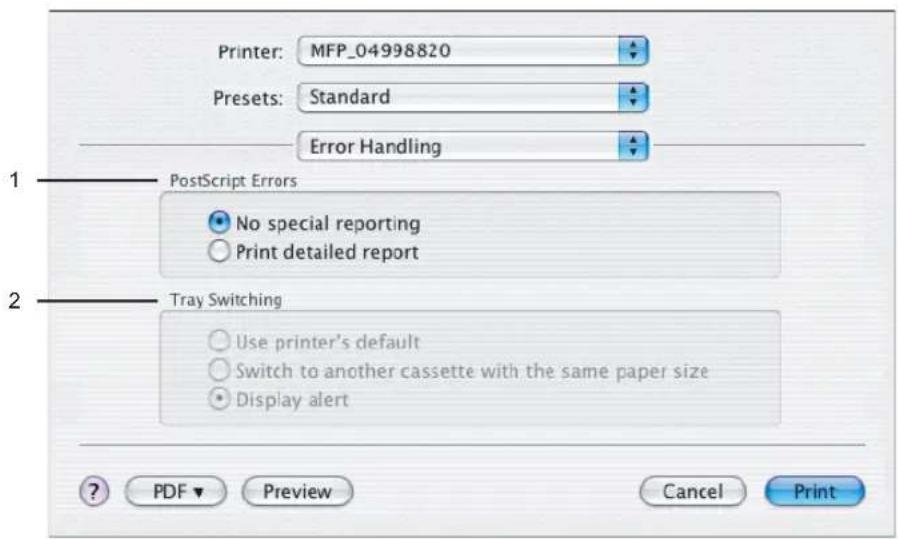
1) PostScript Errors
This sets whether or not you want to print a PostScript error report.
- No special reporting — Select this if you do not want to print PostScript error information.
- Print detailed report — Select this to print PostScript error information.
2) Tray Switching
This is not supported by this equipment.
Paper Feed
In the Paper Feed menu, you can set the paper source.
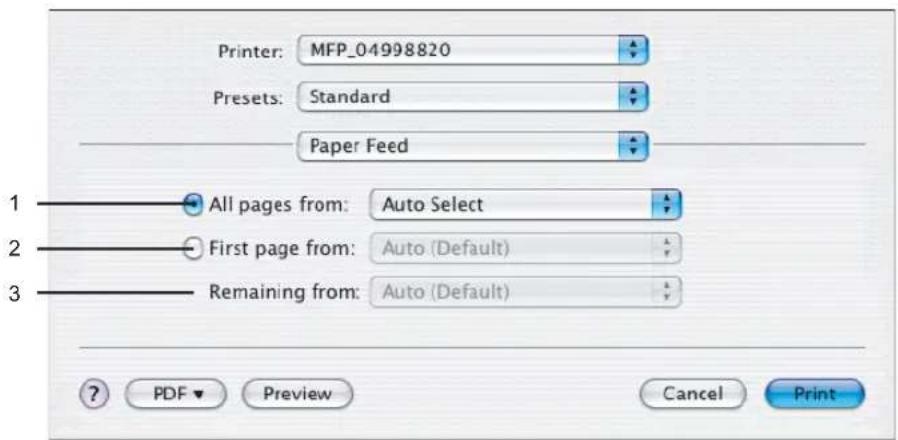
1) All pages from
Select this option button when you want to use the same paper source for all pages. When this is selected, select the paper source or paper type to be used at the drop down menu.
2) First page from
Select this option button when you want to specify different paper sources for the first page and remaining pages. When this selected, select the paper source or paper type to be used for the first page at the drop down menu.
3) Remaining from
Select the paper source or paper type to be used for remaining pages in the drop down menu. This can be selected only when you select the "First page from" option button.
Color Settings
In the Color Settings 1 and Color Settings 2 menu, you can adjust the color settings for printing.
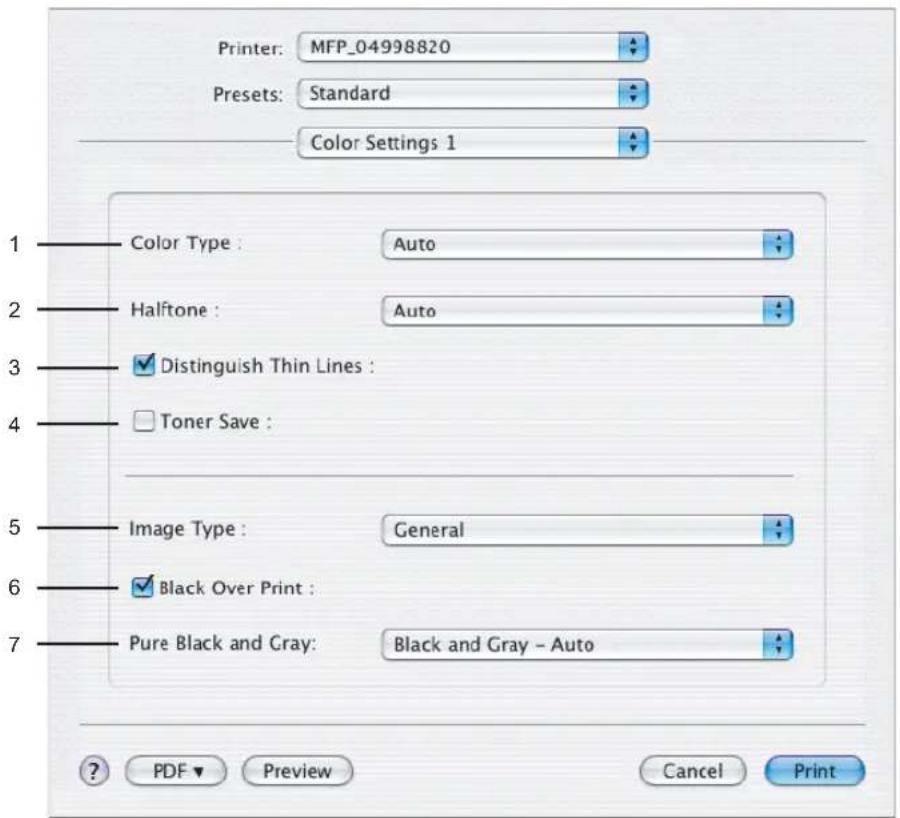
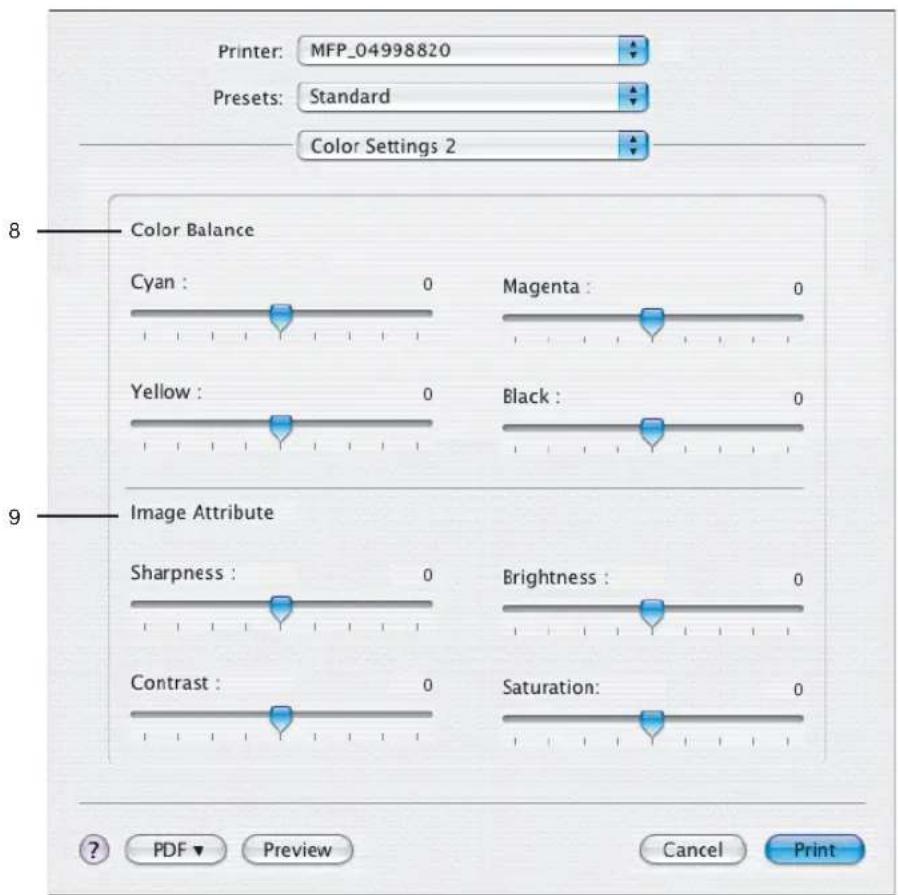
1) Color Type
This sets whether a print job is printed in color mode or monochrome mode.
- Auto — Select this to determine the color mode automatically. When a print job is a black and white document, the system automatically prints the document in monochrome mode. When a print job is a color document, it prints the document in color mode.
- Color — Select this to print a document in color mode.
- Mono — Select this to print a document in monochrome mode.
- Black and Red — Select this to print a document in twin color mode with red. When this is selected, the black parts of the document are printed in black and color parts of the document are printed in red.
- Black and Green — Select this to print a document in twin color mode with green. When this is selected, the black parts of the document are printed in black and color parts of the document are printed in green.
- Black and Blue — Select this to print a document in twin color mode with blue. When this is selected, the black parts of the document are printed in black and color parts of the document are printed in blue.
- Black and Cyan — Select this to print a document in twin color mode with cyan. When this is selected, the black parts of the document are printed in black and color parts of the document are printed in cyan.
- Black and Magenta — Select this to print a document in twin color mode with magenta. When this is selected, the black parts of the document are printed in black and color parts of the document are printed in magenta.
- Black and Yellow — Select this to print a document in twin color mode with yellow. When this is selected, the black parts of the document are printed in black and color parts of the document are printed in yellow.
- Black and White — Select this to print a document in twin color mode with white. When this is selected, the black parts of the document are printed in black and color parts of the document are not printed.
2) Halftone
This sets how halftones are printed.
- Auto — Select this to print using proper halftone depending on the contents in the document automatically.
- Detail — Select this to print halftone in detail.
- Smooth — Select this to print halftone smoothly.
3) Distinguish Thin Lines
Check this to print thin lines clearly.
4) Image Type
This sets how colors are printed by selecting the job type. The printer driver automatically applies proper image quality for selected job type.
- General — Select this to apply proper image quality for printing a general color document.
- Photograph — Select this to apply proper image quality for printing photos.
- Presentation — Select this to apply proper image quality for printing a vivid document.
- Line Art — Select this to apply proper image quality for printing a document contains a lot of characters or line arts.
Note
Other than "General" cannot be selected when "Mono" is selected at the "Color Type" drop down box.
5) Black Over Print
Check this when printing background content that has black text overlayed on it. If this is not enabled, the background of the black content will not print. When you print a document that has any of its content on background with black text overlayed, enable this option.
6) Pure Black and Gray
Select whether printing the black and gray scale contents in a document using the black toner.
- Off — Select this to print the document in color mode.
- Black - Auto — Select this to print black contents using the black toner according to the document.
- Black - Text — Select this to print the black texts using the black toner.
- Black - Text and Graphic — Select this to print the black texts and graphics using the black toner.
- Black - Text, Graphic and Image — Select this to print the black texts, graphics and images using the black toner.
- Black and Gray - Auto — Select this to print black and gray scale contents using the black toner according to the document.
- Black and Gray - Text — Select this to print the black and gray scale texts using the black toner.
- Black and Gray - Text and Graphic — Select this to print the black and gray scale texts and graphics using the black toner.
- Black and Gray - Text, Graphic and Image — Select this to print the black and gray scale texts, graphics, and images using the black toner.
7) Color Balance
Adjust the density of each color for printing. You can set from -4 to 4 in units of 1.
8) Image Attribute
This sets the sharpness, brightness, contrast, and saturation for printing.
- Sharpness
Adjust the sharpness for printing. You can set from -4 (smoothest) to 4 (sharpest) in units of 1 by moving the scroll bar.
- Brightness
Adjust the brightness for printing. You can set from -4 (darkest) to 4 (lightest) in units of 1 by moving the scroll bar.
- Contrast
Adjust the contrast for printing. You can set from -4 (lowest) to 4 (highest) in units of 1 by moving the scroll bar.
- Saturation
Adjust the saturation for printing. You can set from -4 (low clear) to 4 (high clear) in units of 1 by moving the scroll bar.
Print Mode
In the Print Mode menu, you can set the way this equipment handles the print job. This menu allows you to enable various job types such as Private Print and Proof Print.
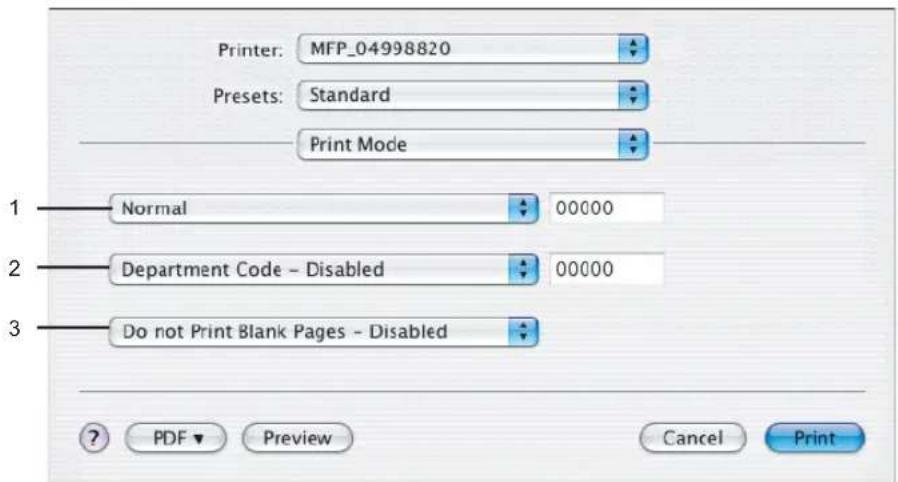
1) Print Mode
This sets the type of print job.
- Normal — Select this to print a normal job.
- Proof — Select this to print the first copy of a multicopy job and then wait for approval before printing the remaining copies. The print job, sent as a proof job, is saved in the proof job queue on this equipment, and the remaining copies are not printed until you activate printing from the Touch Panel Display. This option allows you to check a job's output before printing the remaining copies and thereby reduce paper waste.
- Private — Select this to print a private job. When this is selected, specify the 5-digit password in the field next to the drop down box. The print job is saved in the private job queue on this equipment, and not printed until you activate printing from the Touch Panel Display of this equipment. This option is useful when you want to print a confidential document secured using a password. The user has to enter the password to print the private job when activating printing from the Touch Panel Display.
2) Department Code
Select whether a department code is required for printing. When this is enabled, specify the 5-digit department code in the field next to the drop down box.
Enabling the department code depends on whether this equipment is managed with department codes or not. Please ask your administrator for your department code.
3) Do not Print Blank Pages
Select whether you require printing blank pages.
Notes
- When more than 2 is selected at the "Page per Sheet" option in the Layout menu, the blank pages will be printed.
- The pages that the header or footer exists will be printed even if the content are blank.
Printer Features
In the Printer Features menu, you can set special printing features.
— Finishing
In the Finishing menu, you can set destination, hole punching and stapling.
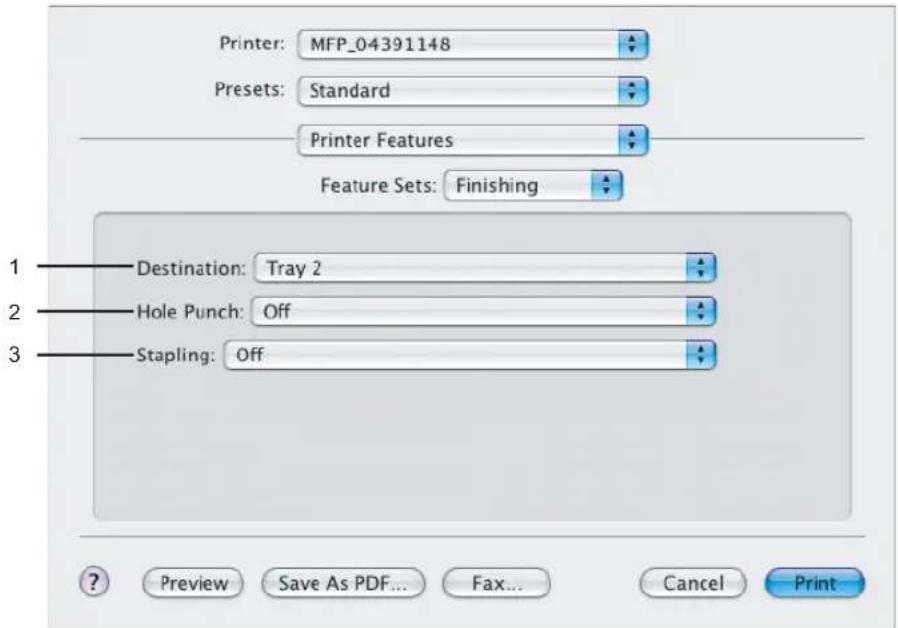
1) Destination
This selects the destination tray.
- Printer's Default — Select this to route the output to the default tray (that is set as the default tray for raw job in the Printer setting page of TopAccess Administrator's page).
- Inner Tray — Select this to route the output to the inner tray.
- Tray 1 — Select this to route the output to the upper tray of the Finisher.
- Tray 2 — Select this to route the output to the lower tray of the Finisher.
Note
"Tray 1" and "Tray 2" can be selected when the Hanging Finisher, Finisher, or Saddle Stitch Finisher are installed.
2) Hole Punch
This sets whether or not a print job is hole punched.
- Off — Select this to print without hole punches.
- Long Edge Punch without rotation — Select this to create holes on the left side for the portrait document, or on the top for the landscape document.
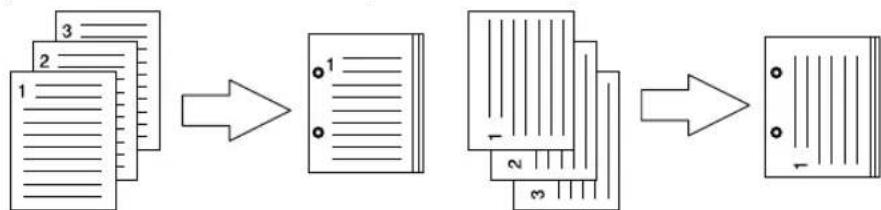
flowchart
graph LR
    A["1 - 2 - 3 -"] --> B["1 - 2 - 3 -"]
    B --> C["1 - 2 - 3 -"]
- Short Edge Punch without rotation — Select this to create holes on the top for the portrait document, or on the right for the landscape document.
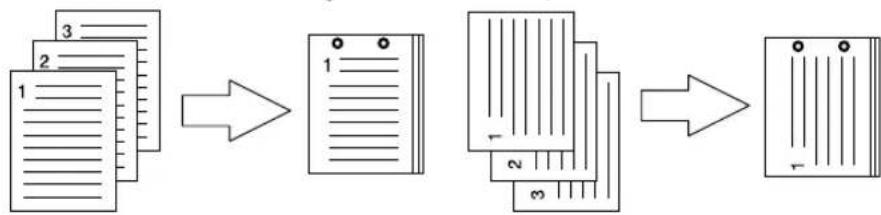
flowchart
graph LR
    A["Document 1"] --> B["Section 1"]
    B --> C["Section 2"]
    C --> D["Section 3"]
    D --> E["Final Output"]
- Long Edge Punch with 180 degree rotation — Select this to create holes on the right side for the portrait document, or on the bottom for the landscape document.
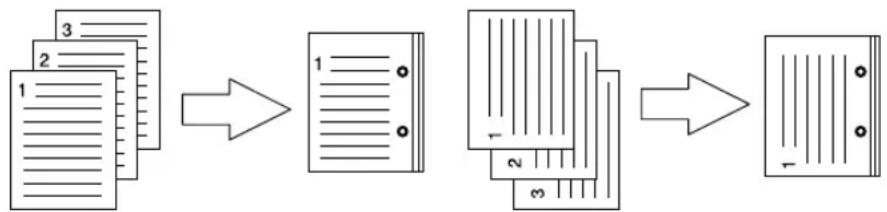
flowchart
graph LR
    A["1: Document 3"] --> B["1: Document 1"]
    B --> C["2: Document 2"]
    C --> D["3: Document 3"]
    D --> E["1: Output"]
- Short Edge Punch with 180 degree rotation — Select this to create holes on the bottom for the portrait document, or on the left for the landscape document.
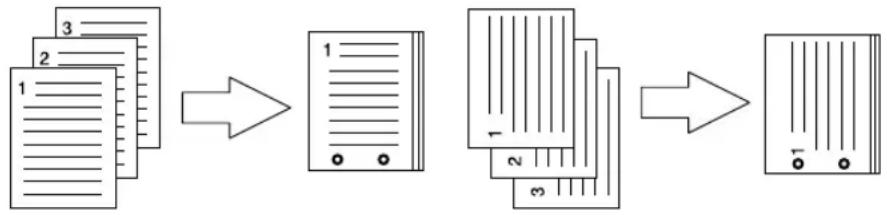
flowchart
graph LR
    A["Document 1"] --> B["Data Transmission"]
    B --> C["Server Rack 1"]
    C --> D["Data Transmission"]
    D --> E["Server Rack 2"]
Note
This option cannot be selected if a hole punch unit is not installed.
3) Stapling
This sets whether a print job is stapled.
- Off — Select this to print without stapling.
- Upper Left (Portrait)/Upper Right (Landscape) — Select this to staple in the upper left for the portrait document, or in the upper right for the landscape document.
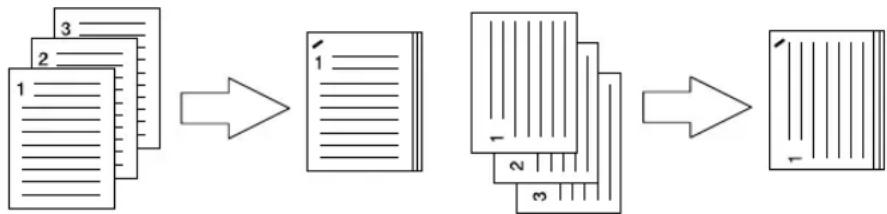
flowchart
graph LR
    A["Document 1"] --> B["Section 1"]
    B --> C["Section 2"]
    C --> D["Section 3"]
- Middle Left (Portrait)/Middle Top (Landscape) — Select this to staple double in the left for the portrait document, or in the top for the landscape document.
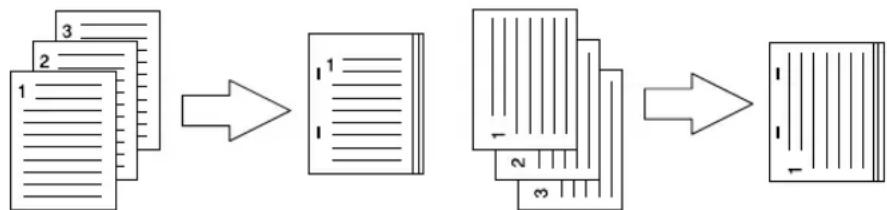
flowchart
graph LR
    A["1: Document"] --> B["2: Document"]
    B --> C["3: Document"]
    C --> D["4: Document"]
    D --> E["5: Document"]
    E --> F["6: Document"]
    F --> G["7: Document"]
    G --> H["8: Document"]
- Lower Left (Portrait)/Upper Left (Landscape) — Select this to staple in the lower left for the portrait document, or in the upper left for the landscape document.
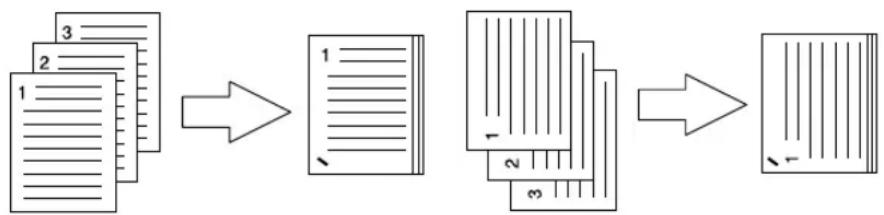
flowchart
graph LR
    A["Document 1"] --> B["Section 1"]
    B --> C["Section 2"]
    C --> D["Section 3"]
    D --> E["Final Output"]
- Upper Right (Portrait)/Lower Right (Landscape) — Select this to staple in the upper right for the portrait document, or in the lower right for the landscape document.
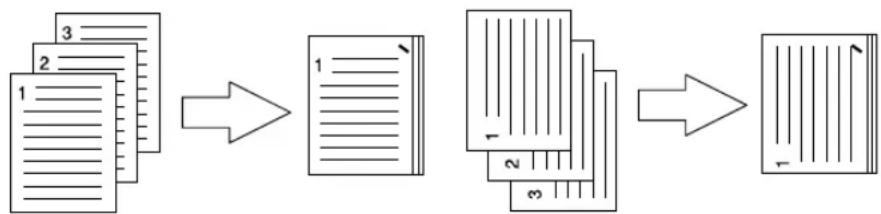
flowchart
graph LR
    A["1: Document"] --> B["2: Document"]
    B --> C["3: Document"]
    C --> D["4: Text"]
    D --> E["5: Text"]
    E --> F["6: Text"]
    F --> G["7: Text"]
- Middle Right (Portrait)/Middle Bottom (Landscape) — Select this to staple double in the right for the portrait document, or in the bottom for the landscape document.
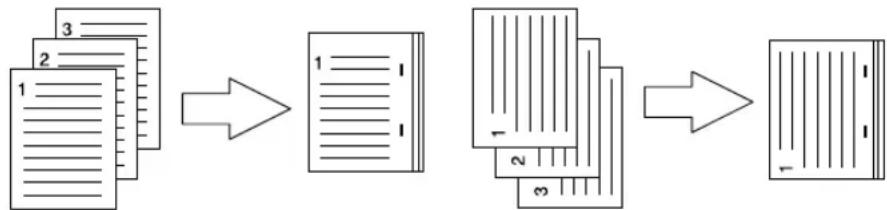
flowchart
graph LR
    A["Document 1"] --> B["Section 1"]
    B --> C["Section 2"]
    C --> D["Section 3"]
    D --> E["Final Output"]
- Lower Right (Portrait)/Lower Left (Landscape) — Select this to staple in the lower right for the portrait document, or in the lower left for the landscape document.
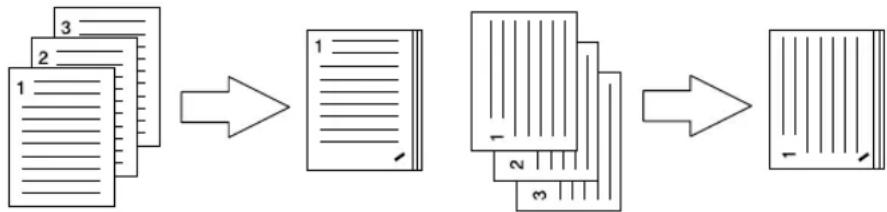
flowchart
graph LR
    A["Document 1"] --> B["Section 1"]
    B --> C["Section 2"]
    C --> D["Section 3"]
    D --> E["Final Output"]
- Middle Top (Portrait)/Middle Right (Landscape) — Select this to staple double in the top for the portrait document, or in the right for the landscape document.
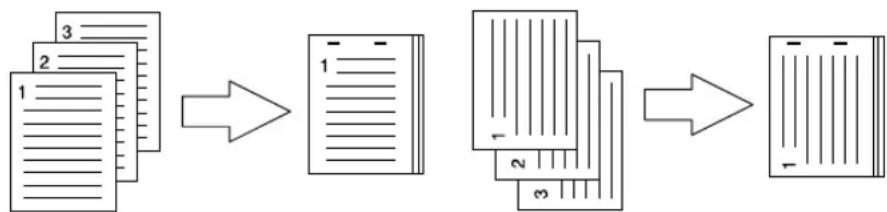
flowchart
graph LR
    A["Document 1"] --> B["Section 1"]
    B --> C["Section 2"]
    C --> D["Section 3"]
    D --> E["Final Output"]
- Middle Bottom (Portrait)/Middle Left (Landscape) — Select this to staple double in the bottom for the portrait document, or in the left for the landscape document.
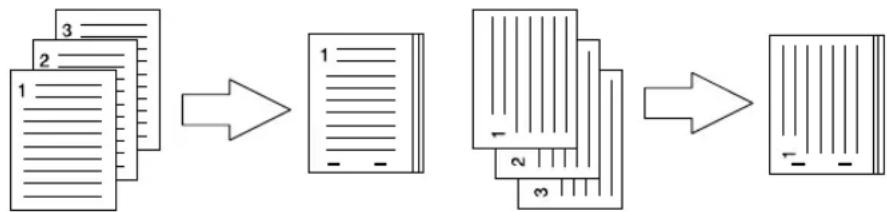
flowchart
graph LR
    A["Document 1"] --> B["Section 1"]
    B --> C["Section 2"]
    C --> D["Section 3"]
    D --> E["Final Output"]
- Saddle Stitch (Portrait)/Saddle Stitch (Landscape) — Select this to staple double in the center for a booklet to be printed. Select this only when booklet printing is performed.
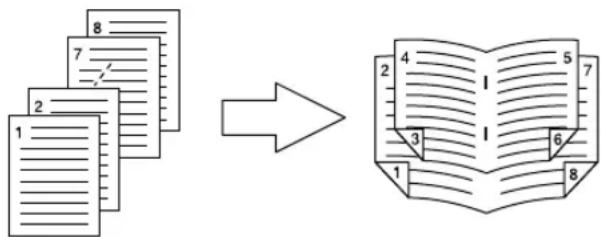
Notes
• This option cannot be selected if a finisher is not installed.
- "Saddle Stitch (Portrait)/Saddle Stitch (Landscape)" can be selected only when the Saddle Stitch Finisher is installed.
- Stapling cannot be enable when "Tray 1" is selected at the "Destination" option.
— Booklet
In the Booklet menu, you can set booklet printing.
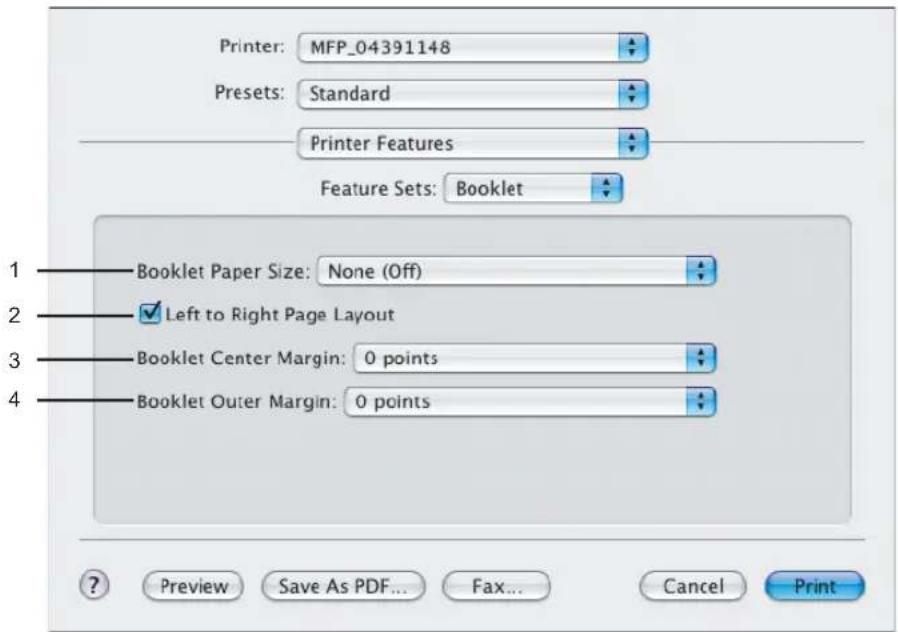
1) Booklet Paper Size
Select a paper size for the booklet. Each two pages are printed on both side of a sheet which is then folded. The booklet size will be the half size of the paper size that you specify.
2) Left to Right Page Layout
Check this to create a booklet can be read from left to right.
3) Booklet Center Margin
Select the width of space added to the center.
4) Booklet Outer Margin
Select the width of space added short edge side of a sheet.
Summary
In the Summary menu, you can confirm the current settings for printing.
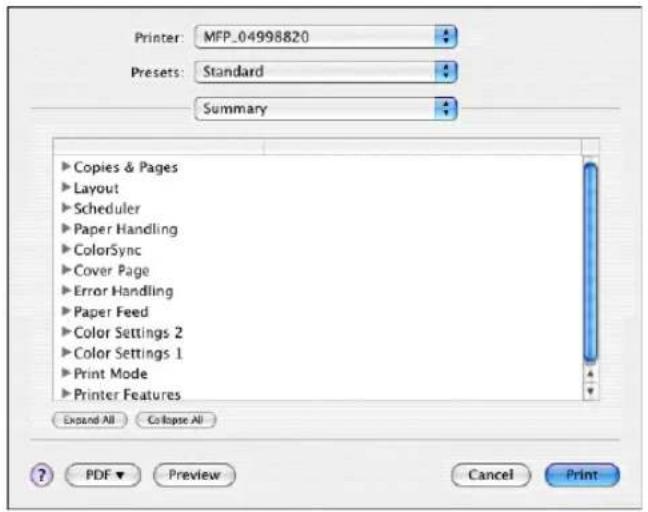
Print Dialog on Mac OS X 10.2.x
The Print dialog boxes can be displayed by selecting the [Print] command from the [File] menu of the application.
Tip
The Print dialog box are different between Mac OS 10.2.x and Mac OS X 10.3.x to Mac OS 10.4.x. Please see the following section for the descriptions of the Print dialog box for Mac OX 10.3.x to 10.4.x.
P.272 "Print Dialog on Mac OS X 10.3.x to Mac OS X 10.4.x"
Note
The Print dialog boxes vary across applications.
Copies & Pages
In the Copies & Pages menu, you can set the general print options such as number of copies, sort printing.
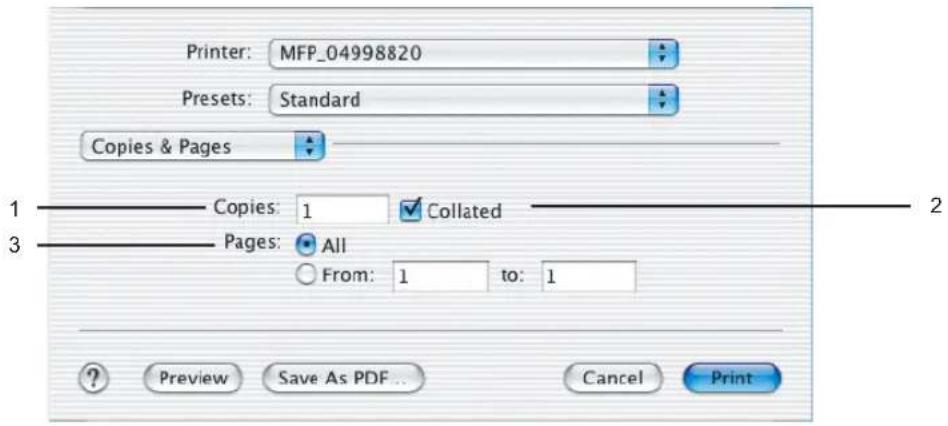
1) Copies
This sets the number of printed copies. You can set any integer from 1 to 999.
2) Collated
Check this for sort-printing (1, 2, 3... 1, 2, 3...)
3) Pages
This sets the pages to be printed.
- All — Select this to print all pages.
- From/To — Select this to specify the pages to be printed. Enter the page range in the From and To field.
Layout
In the Layout menu, you can set N-up printing (multiple pages per sheets). The items in the Layout menu vary depending on the Mac OS version.
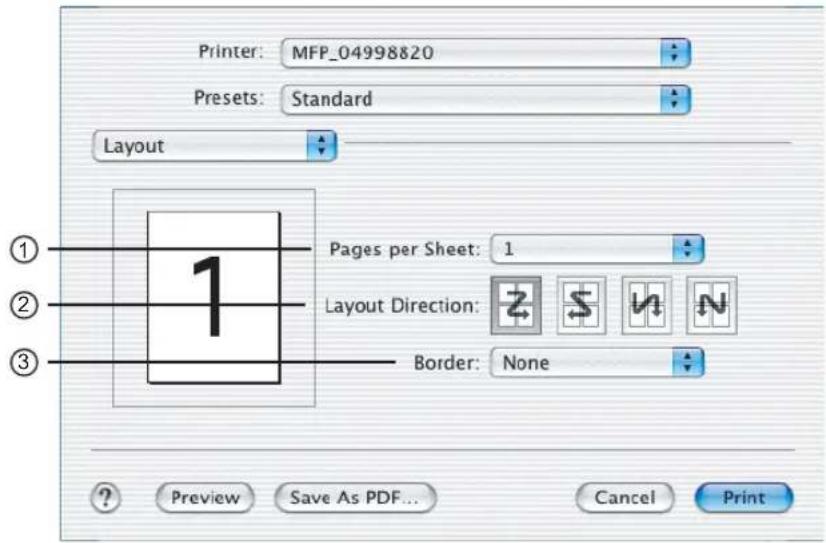
1) Pages per Sheet
This sets the number of multiple pages printed on one sheet. The pages are reduced to fit the selected paper size automatically and are printed.
- 1_ — Select this if do not wish to enable N-up printing.
- 2 — Select this to print images from 2 pages arranged on one sheet.
- 4 — Select this to print images from 4 pages arranged on one sheet.
- 6 — Select this to print images from 6 pages arranged on one sheet.
- 9 — Select this to print images from 9 pages arranged on one sheet.
- 16 — Select this to print images from 16 pages arranged on one sheet.
2) Layout Direction
This sets how pages are arranged on one sheet. This is available only when the N-up printing (printing a page on multiple sheets) is set.
- Across Left to Right Before Down — Pages arranged horizontally from left to right and then top to bottom on one sheet.
- Across Right to Left Before Down — Pages arranged horizontally from right to left and then top to bottom on one sheet.
- Down Before Across Left to Right — Pages arranged vertically from top to down and then left to right on one sheet.
- Down Before Across Right to Left — Pages arranged vertically from top to down and then right to left on one sheet.
3) Border
Select if a border line is to be drawn on each page. This is available only when the N-up printing (printing a page on multiple sheets) is set.
- None — Select this if no border line is to be drawn.
- Single hairline — Select this to draw single hairline for the border.
- Single thin line — Select this to draw single thin line for the border.
- Double hairline — Select this to draw double hairline for the border.
- Double thin line — Select this to draw double thin line for the border.
Duplex
In the Duplex menu, you can set 2-Sided printing (printing on both sides of a sheet).
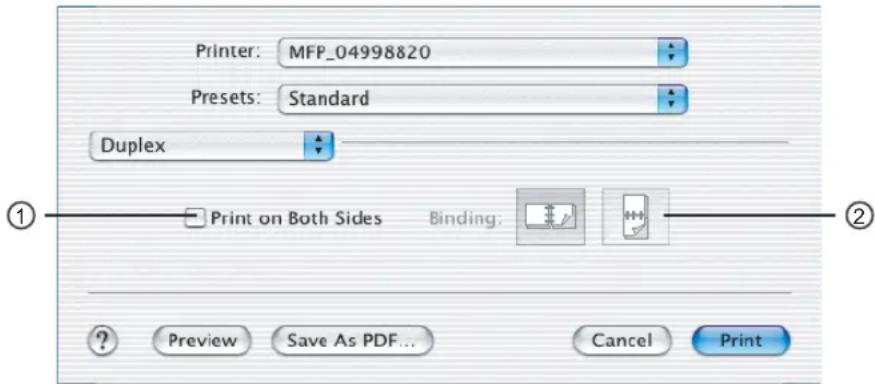
1) Print on Both Sides
Check this to print on both sides of the paper. When this is checked, select the binding direction at the "Binding" option.
2) Binding
This sets the type of binding for 2-sided printed pages.
- Off — Select this when you do not want to print on both sides of the paper.
- Long Edge Binding — Select this to bind along the long edge side of paper. The direction to be printed on the back side of the paper differs depending on the orientation.
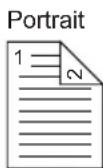
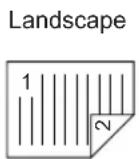
- Short Edge Binding — Select this to bind along the short edge side of paper. The direction to be printed on the back side of the paper differs depending on the orientation.
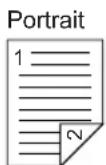
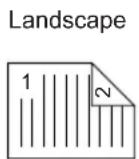
Output Options
In the Output Options menu, you can save a print job as a file.
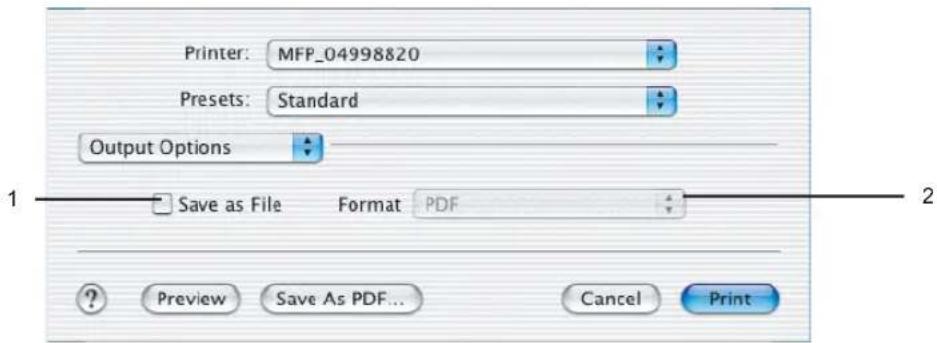
1) Save as File
Check this to save a print job as a file. When this is checked, select the file type at the "Format" drop down box.
2) Format
This sets the format of a file to be saved.
- PDF — Select this to save a print job as a PDF file.
- PostScript — Select this to save a print job as a PS file.
Error Handling
In the Error Handling menu, you can set how to report a PostScript error.
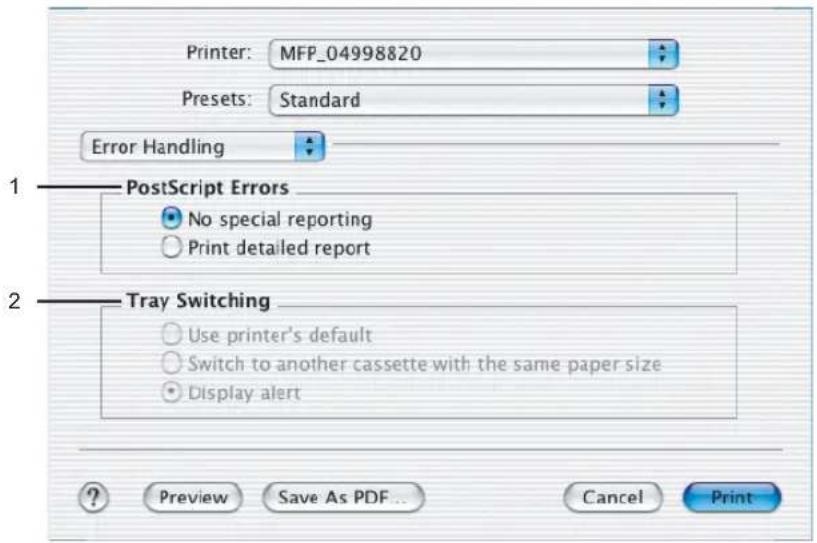
1) PostScript Errors
This sets whether or not you want to print a PostScript error report.
- No special reporting — Select this if you do not want to print PostScript error information.
- Print detailed report — Select this to print PostScript error information.
2) Tray Switching
This is not supported by this equipment.
Paper Feed
In the Paper Feed menu, you can set the paper source.
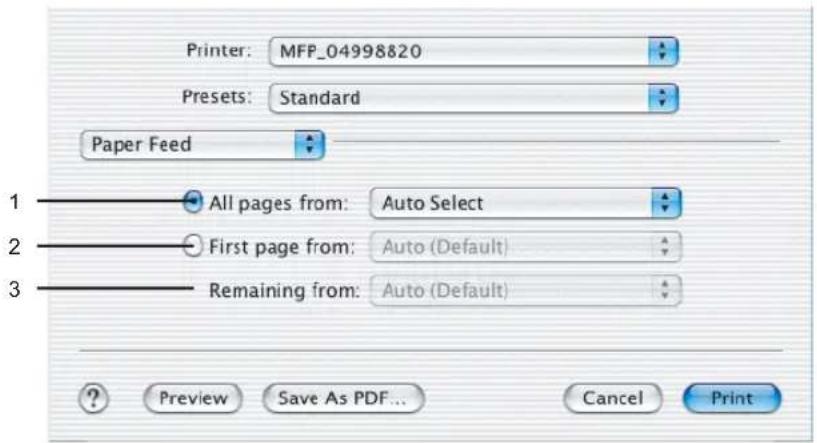
1) All pages from
Select the option button when you want to use same paper source for all pages. When this is selected, select the paper source or paper type to be used at the drop down menu.
2) First page from
Select the option button when you want to specify different paper source for a first page and remaining pages. When this selected, select the paper source or paper type to be used for a first page at the drop down menu.
3) Remaining from
Select the paper source or paper type to be used for remaining pages in the drop down menu. This can be selected only when you select the option button of the "First page from" option.
Printer Features
In the Printer Features menu, you can set special printing features.
P.292 "Color Settings 1"
P.293 "Color Settings 2"
P.294 "Color Settings 3"
P.295 "Color Settings 4"
P.296 "Finishing"
P.299 "Printing Modes"
P.300 "Printing Modes DC"
P.301 "Private Document Password"
— Color Settings 1
In the Color Settings 1, you can set special features for printing.
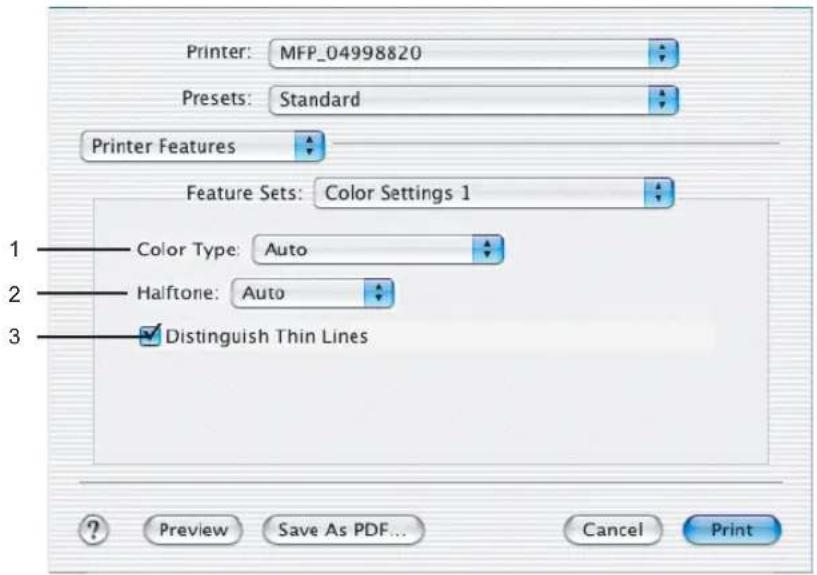
1) Color Type
This sets whether a print job is printed in color mode or monochrome mode.
- Auto — Select this to determine the color mode automatically. When a print job is a black and white document, the system automatically prints the document in monochrome mode. When a print job is a color document, it prints the document in color mode.
- Color — Select this to print a document in color mode.
- Mono — Select this to print a document in monochrome mode.
- Black and Red — Select this to print a document in twin color mode with red. When this is selected, the black parts of the document are printed in black and color parts of the document are printed in red.
- Black and Green — Select this to print a document in twin color mode with green. When this is selected, the black parts of the document are printed in black and color parts of the document are printed in green.
- Black and Blue — Select this to print a document in twin color mode with blue. When this is selected, the black parts of the document are printed in black and color parts of the document are printed in blue.
- Black and Cyan — Select this to print a document in twin color mode with cyan. When this is selected, the black parts of the document are printed in black and color parts of the document are printed in cyan.
- Black and Magenta — Select this to print a document in twin color mode with magenta. When this is selected, the black parts of the document are printed in black and color parts of the document are printed in magenta.
- Black and Yellow — Select this to print a document in twin color mode with yellow. When this is selected, the black parts of the document are printed in black and color parts of the document are printed in yellow.
- Black and White — Select this to print a document in twin color mode with white. When this is selected, the black parts of the document are printed in black and color parts of the document are not printed.
2) Halftone
This sets how halftones are printed.
- Auto — Select this to print using proper halftone depending on the contents in the document automatically.
- Detail — Select this to print halftone in detail.
- Smooth — Select this to print halftone smoothly.
3) Distinguish Thin Lines
Check this to print thin lines clearly.
— Color Settings 2
In the Color Settings 2, you can set image quality for printing.
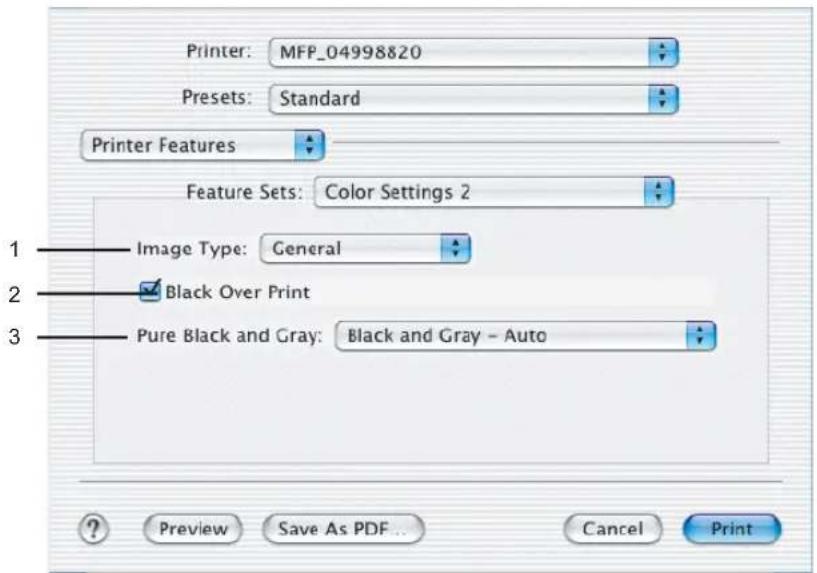
1) Image Type
This sets how colors are printed by selecting the job type. The printer driver automatically applies proper image quality for selected job type.
- General — Select this to apply proper image quality for printing a general color document.
- Photograph — Select this to apply proper image quality for printing photos.
- Presentation — Select this to apply proper image quality for printing a vivid document.
- Line Art — Select this to apply proper image quality for printing a document contains a lot of characters or line arts.
Note
Other than "General" cannot be selected when "Mono" is selected at the "Color Type" drop down box.
2) Black Over Print
Check this when printing background content that has black text overlayed on it. If this is not enabled, the background of the black content will not print. When you print a document that has any of its content on background with black text overlayed, enable this option.
3) Pure Black and Gray
Select whether printing the black and gray scale contents in a document using the black toner.
- Off — Select this to print the document in color mode.
- Black - Auto — Select this to print black contents using the black toner according to the document.
- Black - Text — Select this to print the black texts using the black toner.
- Black - Text and Graphic — Select this to print the black texts and graphics using the black toner.
-
Black - Text, Graphic and Image — Select this to print the black texts, graphics and images using the black toner.
-
Black and Gray - Auto — Select this to print black and gray scale contents using the black toner according to the document.
- Black and Gray - Text — Select this to print the black and gray scale texts using the black toner.
- Black and Gray - Text and Graphic — Select this to print the black and gray scale texts and graphics using the black toner.
- Black and Gray - Text, Graphic and Image — Select this to print the black and gray scale texts, graphics, and images using the black toner.
— Color Settings 3
In the Color Settings 3, you can set color balance for printing.
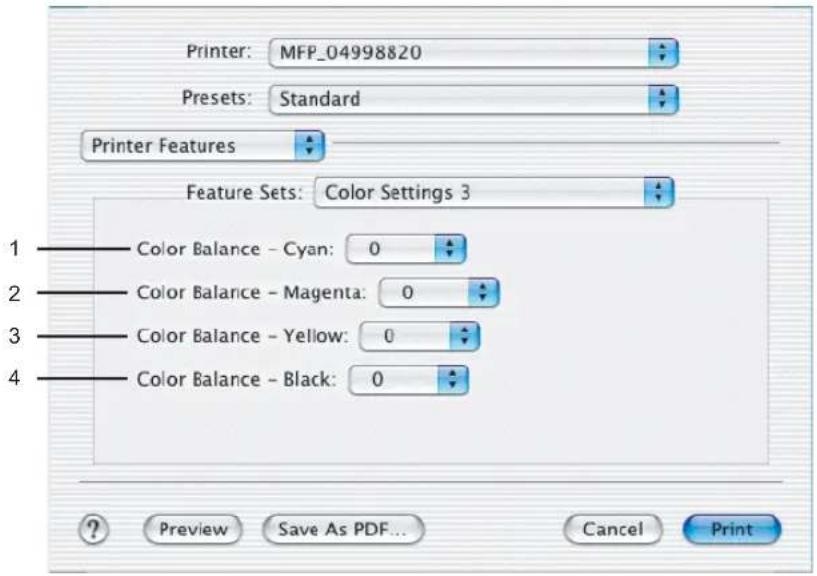
1) Color Balance - Cyan
Adjust the density of cyan for printing. You can set from -4 to 4 in units of 1.
Adjust the density of magenta for printing. You can set from -4 to 4 in units of 1.
3) Color Balance - Yellow
Adjust the density of yellow for printing. You can set from -4 to 4 in units of 1.
4) Color Balance - Black
Adjust the density of black for printing. You can set from -4 to 4 in units of 1.
— Color Settings 4
In the Color Settings 4, you can set image attributes for printing.
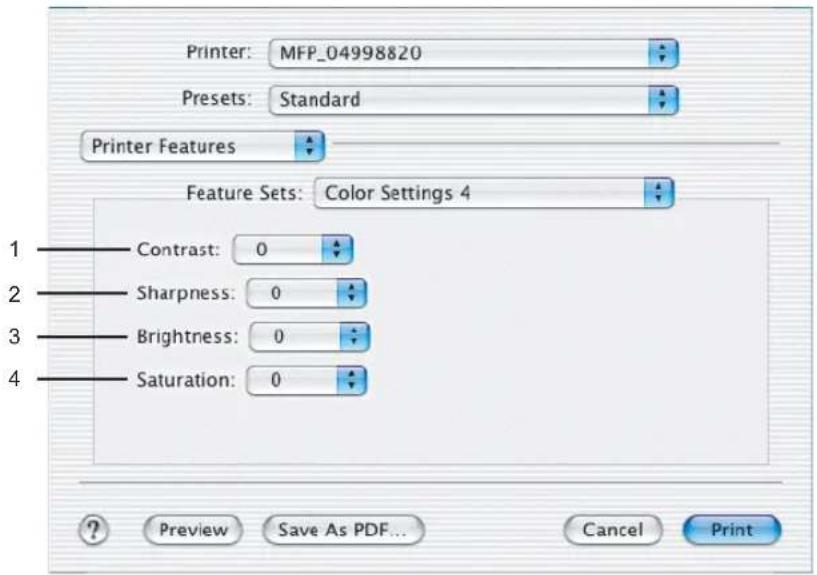
1) Contrast
Adjust the contrast for printing. You can set from -4 (lowest) to 4 (highest) in units of 1 by moving the scroll bar.
2) Sharpness
Adjust the sharpness for printing. You can set from -4 (smoothest) to 4 (sharpest) in units of 1 by moving the scroll bar.
3) Brightness
Adjust the brightness for printing. You can set from -4 (darkest) to 4 (lightest) in units of 1 by moving the scroll bar.
4) Saturation
Adjust the saturation for printing. You can set from -4 (low clear) to 4 (high clear) in units of 1 by moving the scroll bar.
— Finishing
In the Finishing menu, you can set destination, hole punching and stapling.
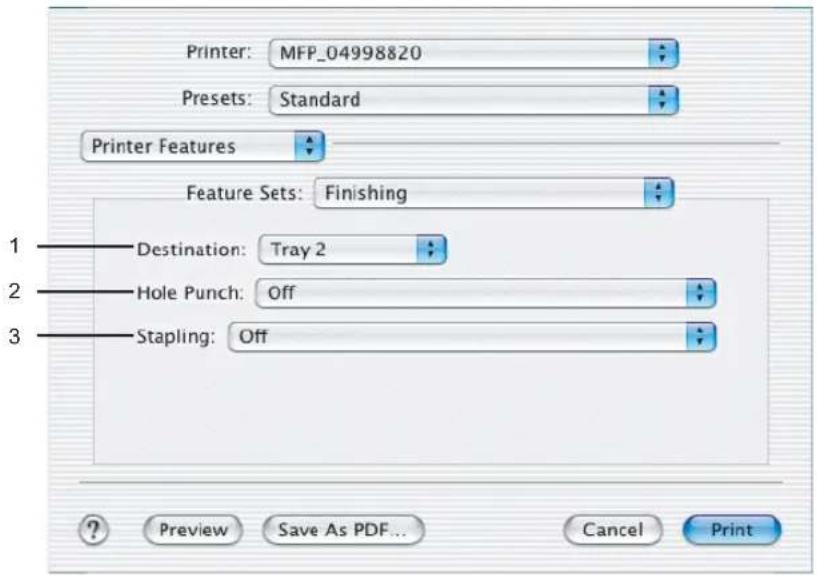
1) Destination
This selects the destination tray.
- Printer's Default — Select this to route the output to the default tray (that is set as the default tray for raw job in the Printer setting page of TopAccess Administrator's page).
- Inner Tray — Select this to route the output to the inner tray.
- Tray 1 — Select this to route the output to the upper tray of the Finisher.
- Tray 2 — Select this to route the output to the lower tray of the Finisher.
Note
"Tray 1" and "Tray 2" are only available when the Finisher, or Saddle Stitch Finisher are installed.
2) Hole Punch
This sets whether or not a print job is hole punched.
- Off — Select this to print without hole punches.
- Long Edge Punch without rotation — Select this to create holes on the left side for the portrait document, or on the top for the landscape document.
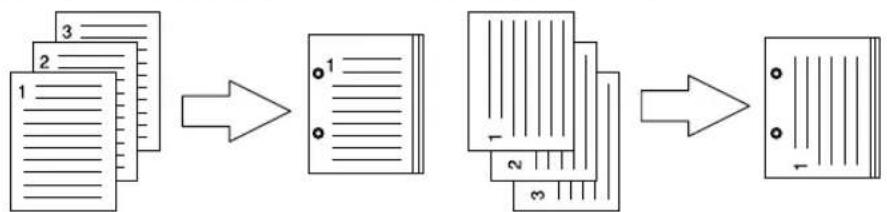
flowchart
graph LR
    A["1: Document 3"] --> B["2: Document 2"]
    B --> C["3: Document 1"]
    C --> D["4: Document 2"]
    D --> E["5: Document 3"]
    E --> F["6: Document 1"]
- Short Edge Punch without rotation — Select this to create holes on the top for the portrait document, or on the right for the landscape document.
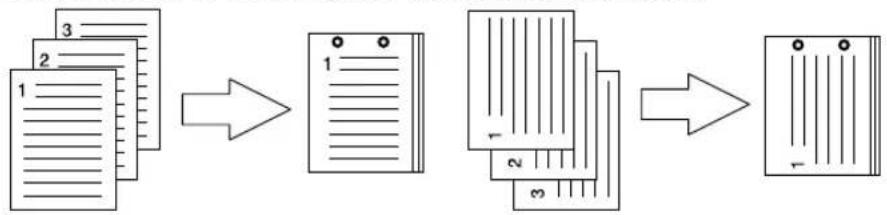
flowchart
graph LR
    A["Document 1"] --> B["Section 1"]
    B --> C["Section 2"]
    C --> D["Section 3"]
    D --> E["Output Section 1"]
- Long Edge Punch with 180 degree rotation — Select this to create holes on the right side for the portrait document, or on the bottom for the landscape document.
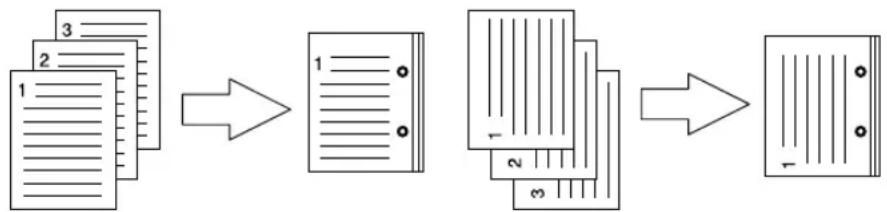
flowchart
graph LR
    A["1 - 2 - 3 -"] --> B["1 - 2 - 3 -"]
    B --> C["1 - 2 - 3 -"]
- Short Edge Punch with 180 degree rotation — Select this to create holes on the bottom for the portrait document, or on the left for the landscape document.
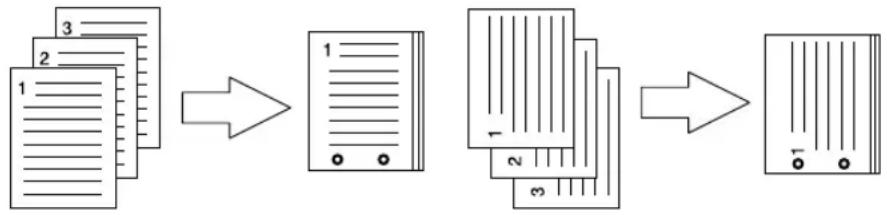
flowchart
graph LR
    A["Document 1"] --> B["Data Transmission"]
    B --> C["Server Rack 1"]
    C --> D["Data Transmission"]
    D --> E["Server Rack 2"]
Note
This option cannot be selected if a hole punch unit is not installed.
3) Stapling
This sets whether a print job is stapled.
- Off — Select this to print without stapling.
- Upper Left (Portrait)/Upper Right (Landscape) — Select this to staple in the upper left for the portrait document, or in the upper right for the landscape document.
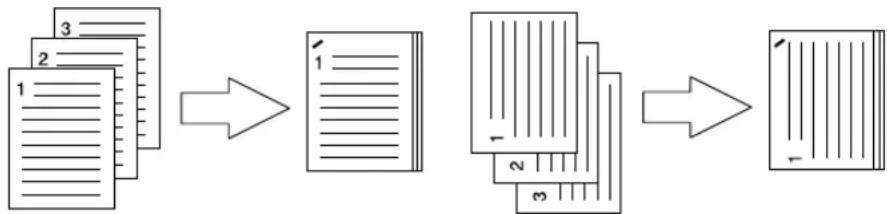
flowchart
graph LR
    A["Document 1"] --> B["Section 1"]
    B --> C["Section 2"]
    C --> D["Section 3"]
- Middle Left (Portrait)/Middle Top (Landscape) — Select this to staple double in the left for the portrait document, or in the top for the landscape document.
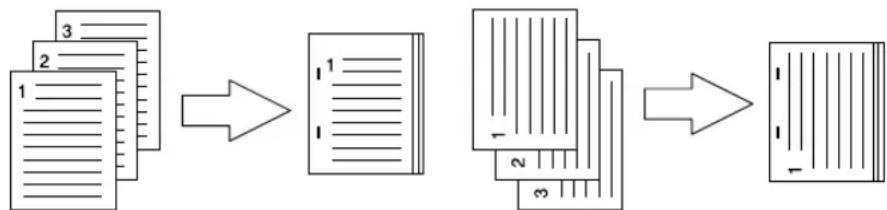
flowchart
graph LR
    A["1-3: Document"] --> B["1-1: Text"]
    B --> C["2-1: Text"]
    C --> D["3-1: Text"]
    D --> E["Final Output"]
- Lower Left (Portrait)/Upper Left (Landscape) — Select this to staple in the lower left for the portrait document, or in the upper left for the landscape document.
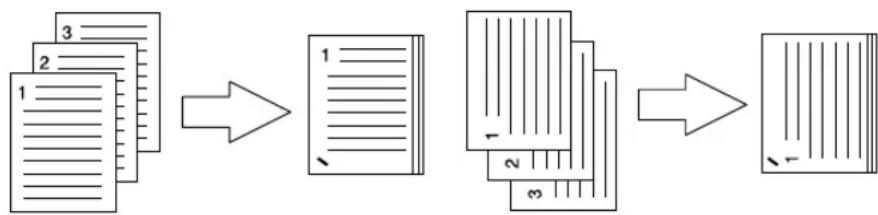
flowchart
graph LR
    A["1: Document"] --> B["2: Document"]
    B --> C["3: Document"]
    C --> D["4: Document"]
    D --> E["5: Document"]
    E --> F["6: Document"]
    F --> G["7: Document"]
- Upper Right (Portrait)/Lower Right (Landscape) — Select this to staple in the upper right for the portrait document, or in the lower right for the landscape document.

flowchart
graph LR
    A["Document 1"] --> B["Section 1"]
    B --> C["Section 2"]
    C --> D["Section 3"]
    D --> E["Final Output"]
- Middle Right (Portrait)/Middle Bottom (Landscape) — Select this to staple double in the right for the portrait document, or in the bottom for the landscape document.
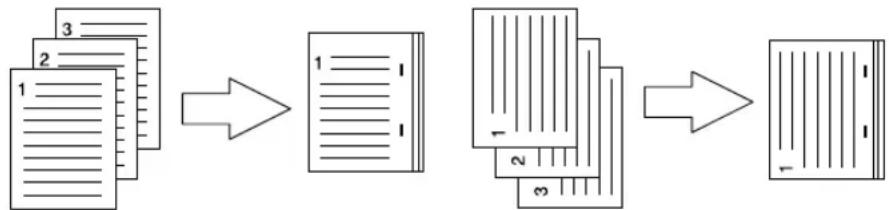
flowchart
graph LR
    A["Document 1"] --> B["Section 1"]
    B --> C["Section 2"]
    C --> D["Section 3"]
    D --> E["Final Output"]
- Lower Right (Portrait)/Lower Left (Landscape) — Select this to staple in the lower right for the portrait document, or in the lower left for the landscape document.
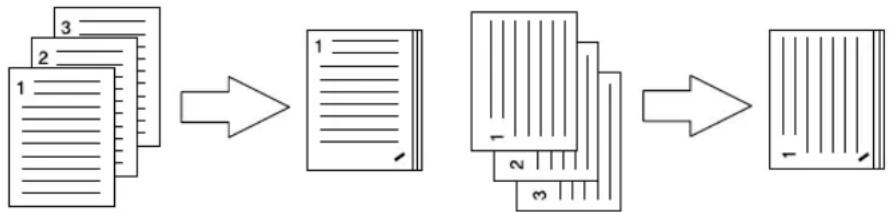
flowchart
graph LR
    A["1: Document"] --> B["2: Document"]
    B --> C["3: Document"]
    C --> D["4: Document"]
    D --> E["5: Final Output"]
- Middle Top (Portrait)/Middle Right (Landscape) — Select this to staple double in the top for the portrait document, or in the right for the landscape document.
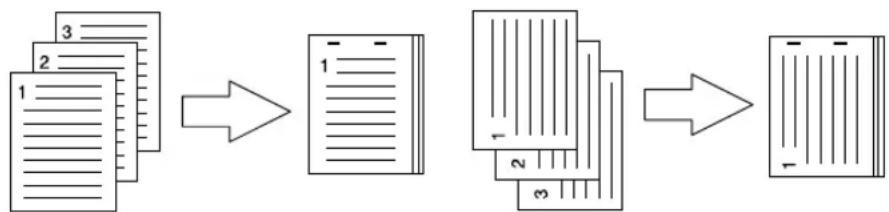
flowchart
graph LR
    A["1: Document 3"] --> B["2: Document 2"]
    B --> C["3: Document 1"]
    C --> D["4: Document 2"]
    D --> E["5: Document 3"]
    E --> F["6: Document 1"]
- Middle Bottom (Portrait)/Middle Left (Landscape) — Select this to staple double in the bottom for the portrait document, or in the left for the landscape document.
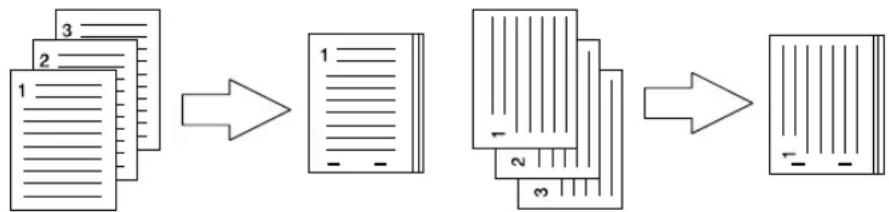
flowchart
graph LR
    A["Document 1"] --> B["Section 1"]
    B --> C["Section 2"]
    C --> D["Section 3"]
    D --> E["Final Output"]
- Saddle Stitch (Portrait)/Saddle Stitch (Landscape) — Select this to staple double in the center for a booklet to be printed. Select this only when booklet printing is performed.
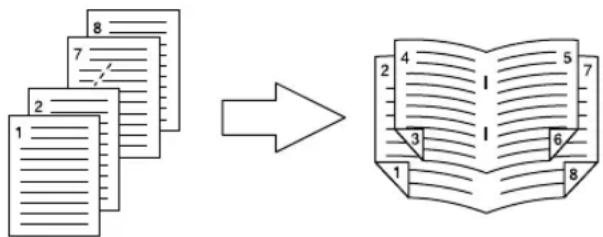
Notes
• This option cannot be selected if a finisher is not installed.
- "Saddle Stitch (Portrait)/Saddle Stitch (Landscape)" can be selected only when the Saddle Stitch Finisher is installed.
- Stapling cannot be enabled when "Tray 1" is selected at the "Destination" option.
— Printing Modes
In the Printing Modes menu, you can set the way this equipment handles the print job. This menu allows you to enable various job types such as Private Print and Proof Print.
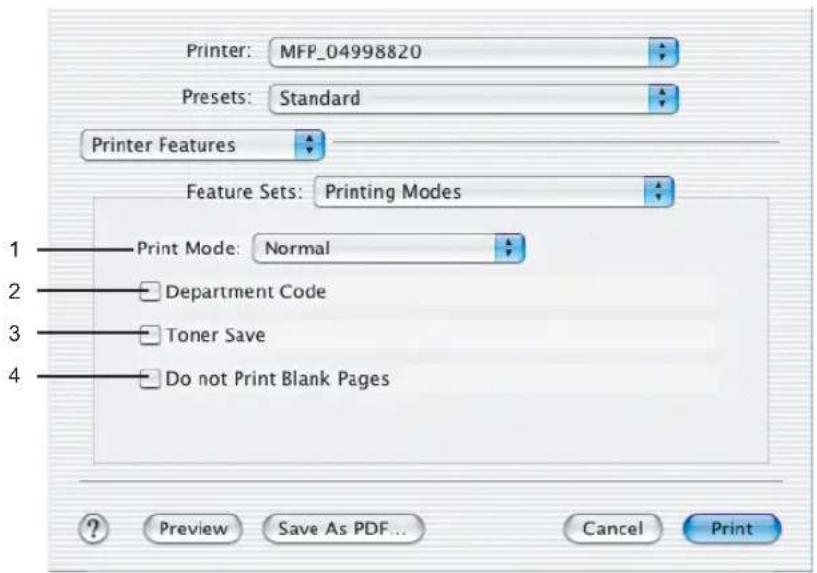
1) Print Mode
This sets the type of print job.
- Normal — Select this to print a normal job.
- Proof — Select this to print the first copy of a multicopy job and then wait for approval before printing the remaining copies. The print job, sent as a proof job, is saved in the proof job queue on this equipment, and the remaining copies are not printed until you activate printing from the Touch Panel Display. This option allows you to check a job's output before printing the remaining copies and thereby reduce paper waste.
- Private - Password — Select this to print a private job. When this is selected, specify the 5-digit password in the Private Document Password menu. The print job is saved in the private job queue on this equipment, and not printed until you activate printing from the Touch Panel Display of this equipment. This option is useful when you want to print a confidential document secured using a password. The user has to enter the password to print the private job when activating printing from the Touch Panel Display.
2) Department Code
Check this if a department code is required for printing. When this is enabled, specify the 5-digit department code in the DC menu.
Enabling the department code depends on whether this equipment is managed with department codes or not. Please ask your administrator for your department code.
3) Toner Save
Select this to print in the toner save mode.
Note
When the toner save mode is enabled, printing may become light.
4) Do not Print Blank Pages
Select whether you require printing blank pages.
Notes
- When more than 2 is selected at the "Page per Sheet" option in the Layout menu, the blank pages will be printed.
- The pages that the header or footer exists will be printed even if the content are blank.
— Printing Modes DC
In the Printing Modes DC menu, you can specify your department code, if this equipment is enabled the department codes. Before specifying the department code, you must check the Department Code option in the Printing Modes menu. Then specify the department code in this menu.
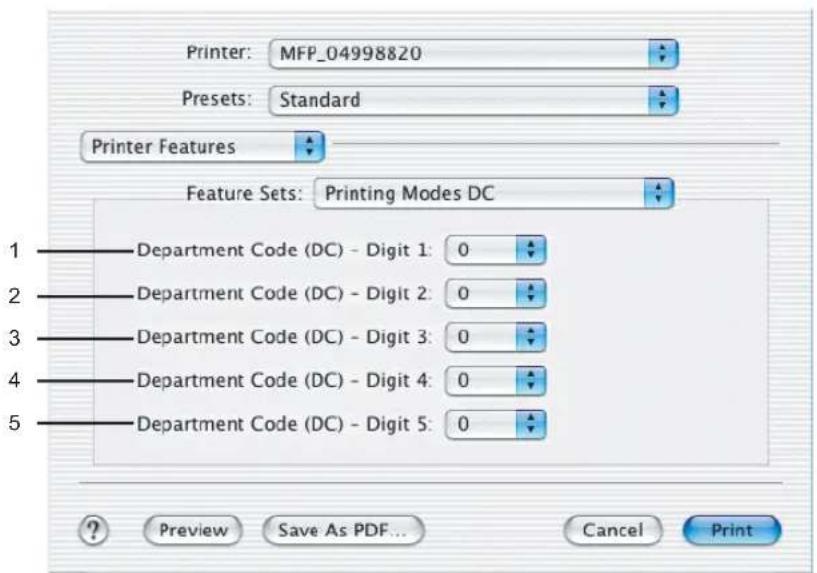
Tip
How the equipment performs printing for an invalid department code print job, which no department code or invalid department code is specified, varies depending on the Department Code Enforcement setting that can be set from TopAccess Administrator mode. When the Department Code Enforcement is set to "ON", the invalid department code print job will be stored in the invalid department code print job list without printing. When the Department Code Enforcement is set to "Print", the invalid department code print job will be printed. When the Department Code Enforcement is set to "Delete", the invalid department code print job will be deleted without printing.
1) Department Code (DC) - Digit 1
Select the first digit of the department code.
2) Department Code (DC) - Digit 2
Select the second digit of the department code.
3) Department Code (DC) - Digit 3
Select the third digit of the department code.
4) Department Code (DC) - Digit 4
Select the forth digit of the department code.
5) Department Code (DC) - Digit 1
Select the fifth digit of the department code.
— Private Document Password
In the Private Document Password menu, you can specify the Document ID number for the private job. It is recommended to specify the Private Document Password when you select to print a private job. If you do not specify the Private Document Password, the private job uses default Private Document Password "00000".
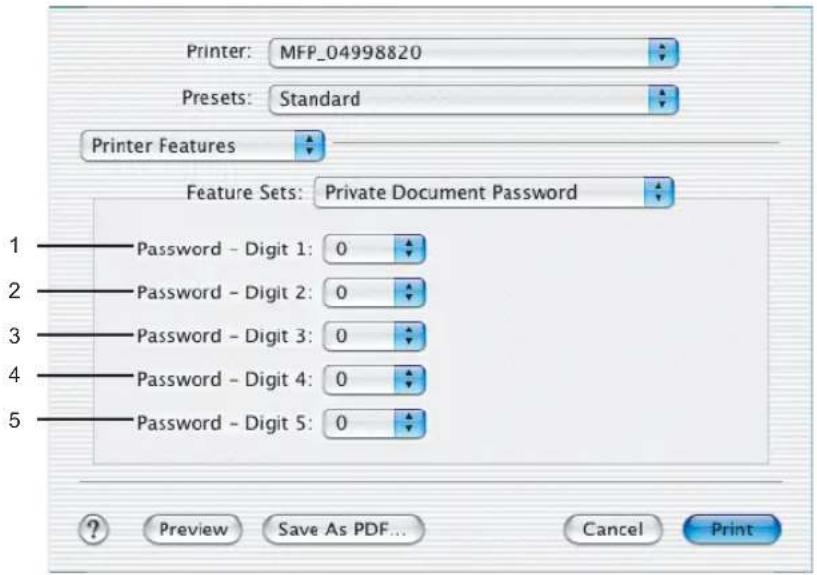
1) Password - Digit 1
Select the first digit of the Document ID.
2) Password - Digit 2
Select the second digit of the Document ID.
3) Password - Digit 3
Select the third digit of the Document ID.
4) Password - Digit 4
Select the forth digit of the Document ID.
5) Password - Digit 5
Select the fifth digit of the Document ID.
— Booklet
In the Booklet menu, you can set booklet printing.
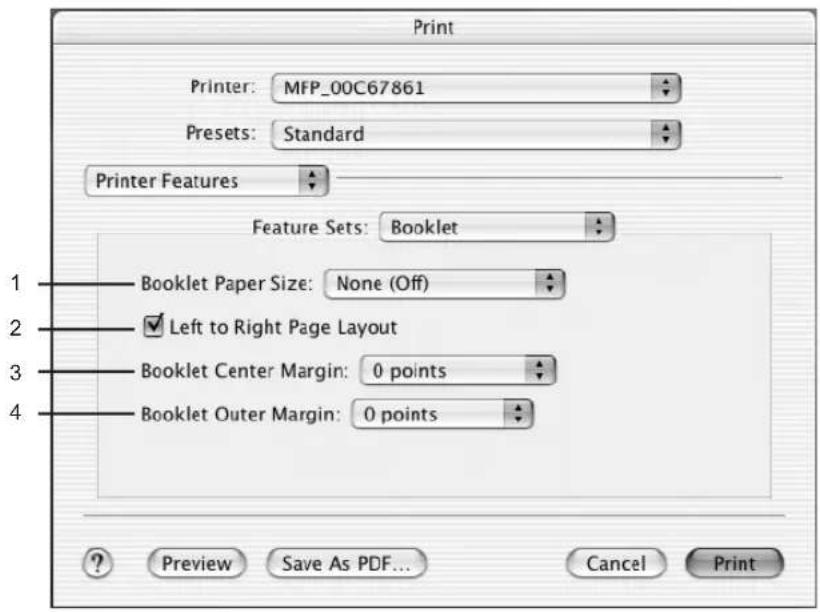
1) Booklet Paper Size
Select a paper size for the booklet. Each two pages are printed on both side of a sheet which is then folded. The booklet size will be the half size of the paper size that you specify.
2) Left to Right Page Layout
Check this to create a booklet can be read from left to right.
3) Booklet Center Margin
Select the width of space added to the center.
4) Booklet Outer Margin
Select the width of space added short edge side of a sheet.
Printing from Application on Mac OS 8.6 to 9.x
Once you have installed the PPD file as described in the section "Installing the Printer on Mac OS 8.6/9.x" on page 150, you can print directly from most Mac OS applications.
Note
When the User Management Setting is enabled on the equipment, the print jobs that are sent from Macintosh computers are processed as invalid jobs according to the Department Code Enforcement setting.
How to Print from Mac OS 8.6 or 9.x
Using the LaserWriter 8 printer driver and the correct PostScript Printer Description file (PPD), you can control the system's various printing features by specifying job settings from print dialog boxes.
Setting Options and Printing from Macintosh Computer
In Mac OS applications, print options are set from both the Page Setup dialog box and the Print dialog box.
Printing from Macintosh applications
1 Open a file and select [Page Setup] from the [File] menu of the application.
2 Select the printer name at the "Format for" drop down box and specify the Page Setup settings for your print job.
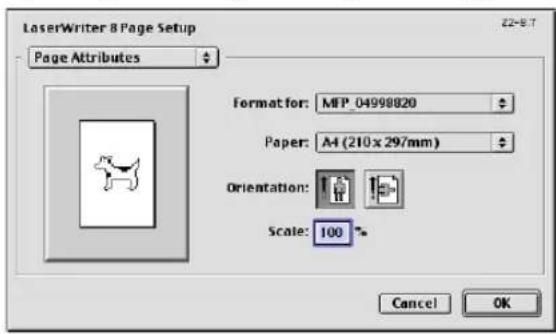
- Setting the Page Setup varies depending on how you want to print a document. P.304 "Page Setup Dialog on Mac OS 8.6/9.x"
3 Click [OK] to save the Page Setup settings.
4 Select [Print] from the [File] menu of the application.
5 In the dialog box that appears, make sure the printer name is selected at the "Printer" menu and specify the Print settings for your print job.
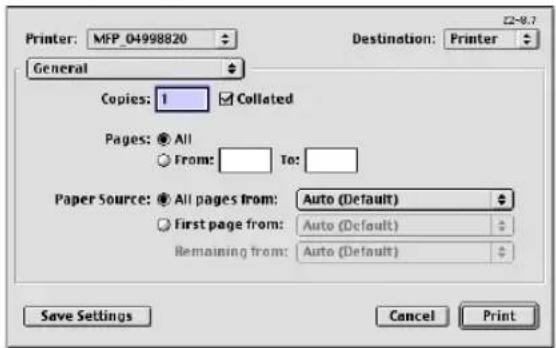
- Setting the Print Setup varies depending on how you want to print a document. P.306 "Print Dialog on Mac OS 8.6/9.x"
6 Click [Print] to print a document.
Page Setup Dialog on Mac OS 8.6/9.x
The Page Setup dialog boxes can be displayed by selecting the [Page Setup] command from the [File] menu of the application.
In the Page Setup dialog boxes, you can specify the Page Attribute settings and Custom Page Size settings.
Notes
• The Page Setup dialog boxes vary across applications.
- The PostScript Options window contains the setting items that are generally provided by the LaserWriter 8 printer driver. For details of the PostScript Options, please refer to the Balloon Help on the Mac OS.
Page Attributes
In the Page Attributes menu, you can specify the paper size, orientation, and scale.
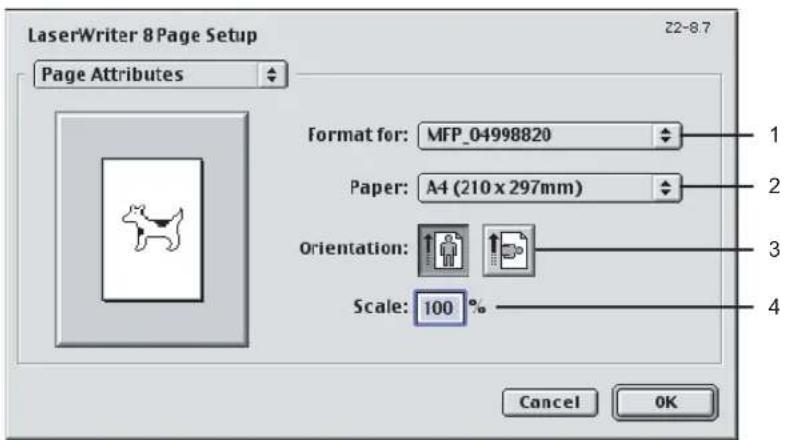
1) Format for
This selects the printer to be used for printing.
2) Paper
This selects the size of a document to be printed.
Available original paper sizes are listed below:
- Letter
A4 - Ledger
A5 - Legal
A3 - Statement
B4 - Computer
B5
13"LG
A3-Wide
8.5"SQ - Folio
- 12 x 18"
A6
• 8K
16K
Tip
The default paper size is "Letter" for the United States, and "A4" for the other countries.
3) Orientation
This sets the paper printing direction.
- Portrait — The document is printed in the portrait direction.
- Landscape — The document is printed in the landscape direction.
4) Scale
This changes the size of the printed image on the page. Enter the zoom ratio to enlarge or reduce an image. You can set any integer from 25 to 400(%) for the zoom ratio.
Custom Page Sizes
The PPD file for this equipment supports the Custom Page Size.
Creating Custom Page Size on Mac OS 8.6/9.x
1 Select "Custom Page Sizes" in the drop down box.
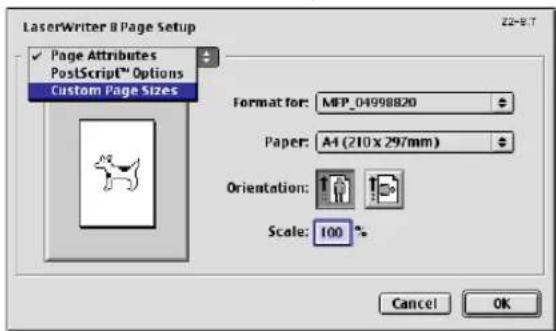
• The Custom Page Sizes menu is displayed.
2 Click [New].
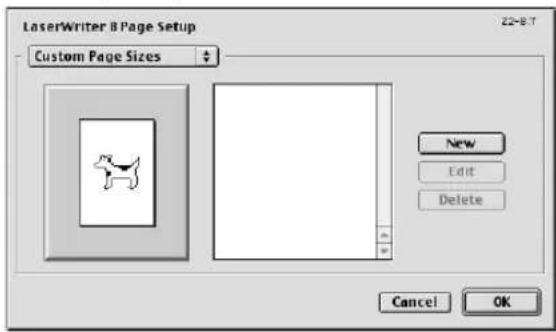
Tips
- If you want to edit an existing custom page size, select the custom page size name in the list and click [Edit].
- You can delete the created custom page size by clicking [Delete].
3 Enter the width and height in the "Page Size" fields, enter the printer margins in the "Margins" fields, and enter the custom page size name in the "Custom Page Size Name" field.
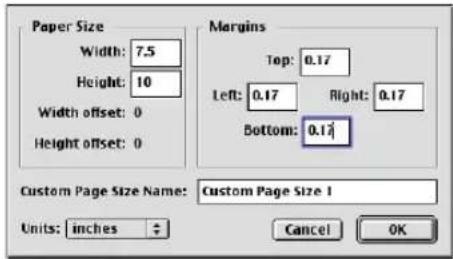
Tip
In the "Margins" field, please enter "0.17" inch.
4 Click [OK].
5 Click [OK].
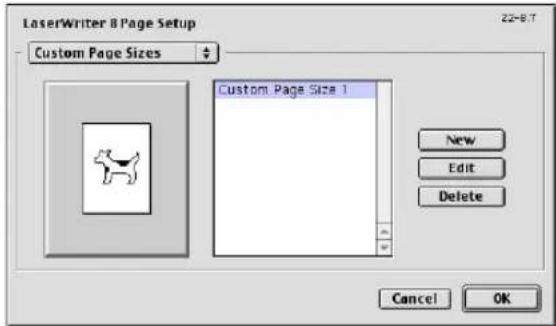
- The Custom Page Size is saved and it can be selected in the "Paper Size" drop down menu in the Page Attributes menu.
Print Dialog on Mac OS 8.6/9.x
The Print dialog boxes can be displayed by selecting the [Print] command from the [File] menu of the application.
In the Print dialog boxes, you can display the General window, Background Printing window, Color Matching window, Cover Page window, Font Settings window, Job Logging window, Layout window, Save as File window, Finishing Options window, Printing Modes window, Watermark Options windows, and Color Settings windows.
Notes
• The Print dialog boxes vary across applications.
- The Save as File window contains the setting items that are generally provided by the LaserWriter 8 printer driver. For details of the Save as File window, please refer to the Balloon Help on the Mac OS.
General
In the General menu, you can set the general print options such as number of copies, sort printing.
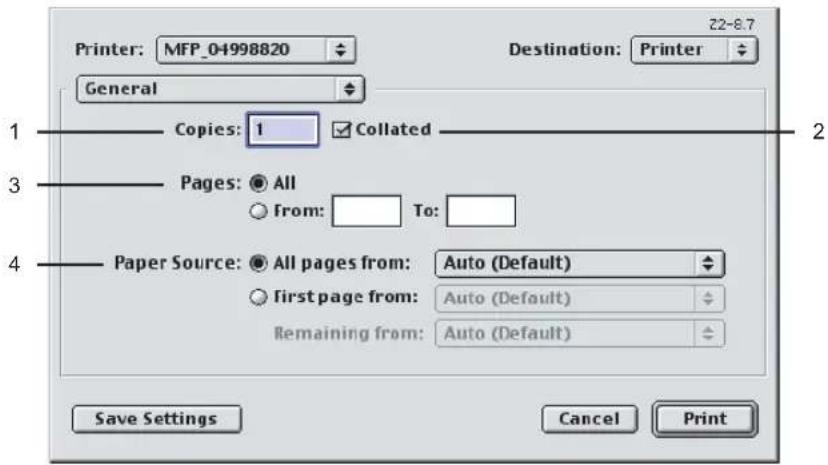
1) Copies
This sets the number of printed copies. You can set any integer from 1 to 999.
2) Collated
Check this for sort-printing (1, 2, 3... 1, 2, 3...)
3) Pages
This sets the pages to be printed.
- All — Select this to print all pages.
- From/To — Select this to specify the pages to be printed. Enter the page range in the From and To field.
4) Paper Source
This selects the source for feeding paper. Please select a paper source that correlates with the printing size.
- All pages from — Select this to use the same paper source for all pages. Select the paper source or paper type at the pop-up menu on the right.
- First page from — Select this to use the different paper source for the first page from the remaining pages. Select the paper source or paper type for the first page at the pop-up menu on the right.
- Remaining from — Select the paper source or paper type for the remaining pages at the pop-up menu on the right when you select the First page from option.
Background Printing
In the Background Printing menu, you can set how the print job is spooled.
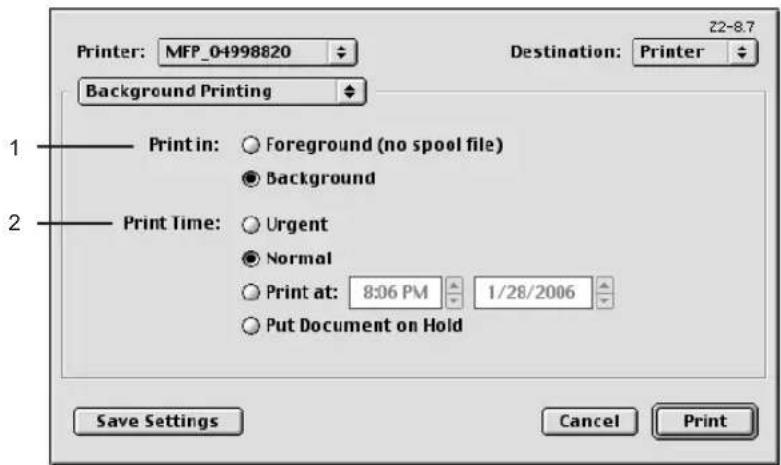
1) Print in
This sets how the print job is spooled.
- Foreground (no spool file) — Select this to disable any operation on the computer until printing is completed.
- Background — Select this to enable any operation on the computer during printing.
2) Print Time
This sets the schedule for printing.
- Urgent — Select this to print a job immediately.
- Normal — Select this to print a job normally.
- Print at — Select this to specify the time that the print job is sent to this equipment. Specify the time and date when this is selected.
- Put Document on Hold — Select this to hold the print job in the desktop print queue. To send the print job held in the desktop print queue, double-click the printer icon on the desktop and activate the print job.
Color Matching
This sets the color matching for printing.
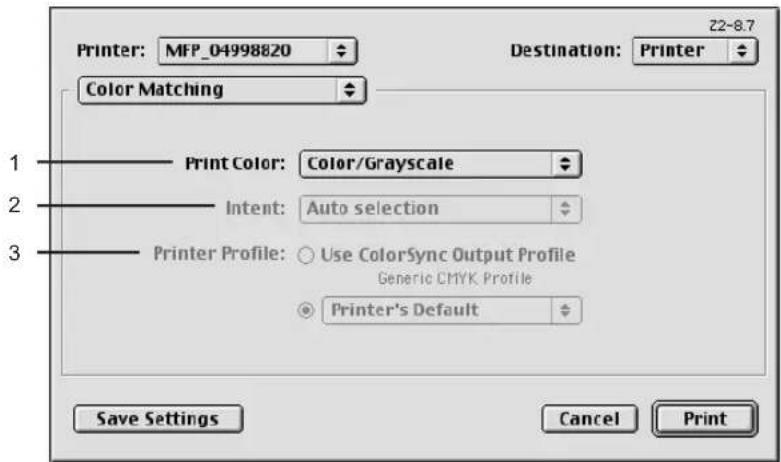
1) Print Color
Select "Color/Grayscale" to print to this equipment. Other selections are not supported by this equipment.
2) Intent
Do not specify this because "ColorSync Color Matching" and "PostScript Color Matching" at the "Print Color" drop down box are not supported.
3) Printer Profile
Do not specify this because "ColorSync Color Matching" and "PostScript Color Matching" at the "Print Color" drop down box are not supported.
Cover Page
In the Cover Page menu, you can set whether a print job is sent with a banner page. The banner page includes information about owner of the job, job name, application name, date and time, and printer name.
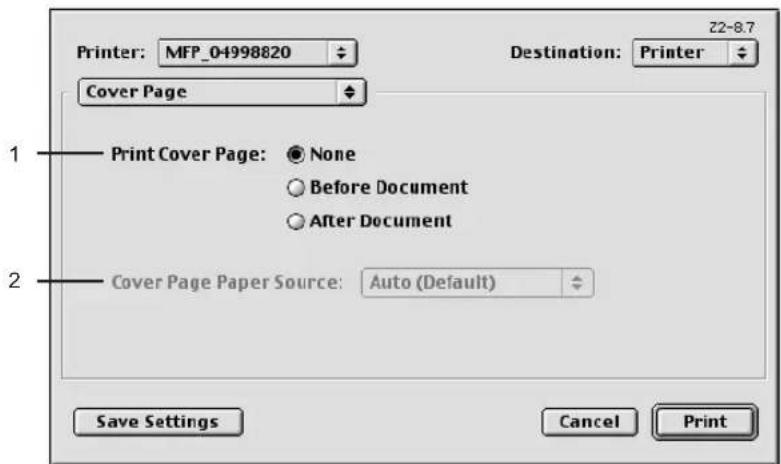
1) Print Cover Page
This sets how a banner page is inserted.
- None — Select this not to print a banner page.
- Before Document — Select this to print a banner page before the document. When this is selected, select the paper source at the Cover Page Paper Source option.
- After Document — Select this to print a banner page after the document. When this is selected, select the paper source at the Cover Page Paper Source option.
2) Cover Page Paper Source
Select the paper source when you set to print a banner page.
Font Settings
In the Font Settings menu, you can set how the fonts are printed.
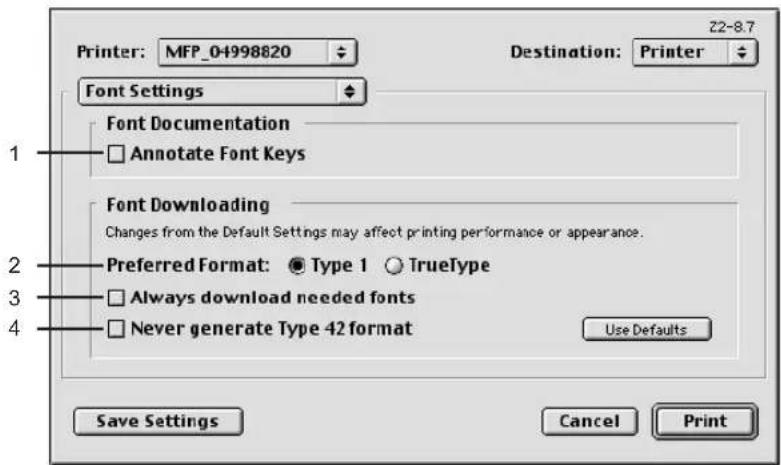
1) Annotate Font Keys
Check this to annotate font keys for printing.
2) Preferred Format
This sets the whether Type 1 fonts or TrueType fonts are used for printing.
- Type 1 — Select this to print fonts using Type 1 fonts.
- TrueType — Select this to print fonts using TrueType fonts.
3) Always Download needed fonts
Check this to always download fonts for printing.
4) Never generate Type 42 format
Check this not to generate the Type 42 format.
Job Logging
In the Job Logging menu, you can set the error handling and generate job logs.
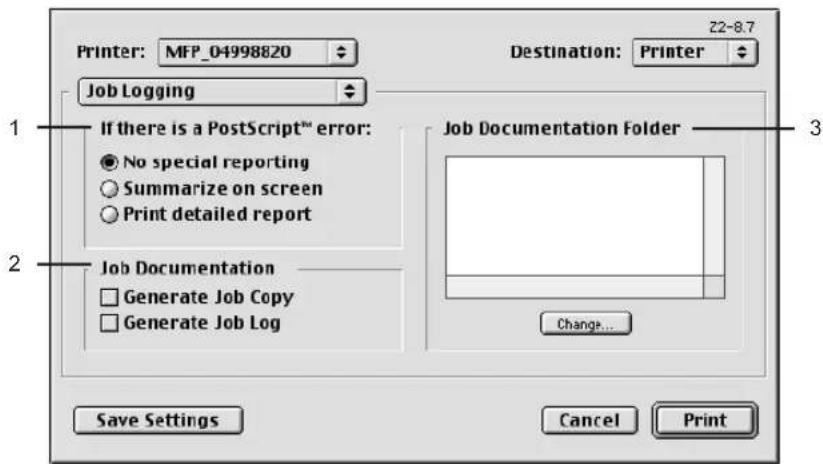
1) If there is PostScript error
This sets whether reporting the error or not.
- No special reporting — Select this not to report an error.
- Summarize on screen — Select this to report on the screen when a PostScript error occurs.
- Print detailed report — Select this to print a detailed report when a PostScript error occurs.
2) Job Documentation
This sets whether job logs or job copies are generated or not.
- Generate Job Copy — Check this to generate a job copy. If enabled, a job copy is generated in the folder which is specified at the "Job Documentation Folder".
- Generate Job Log — Check this to generate a job log. If enabled, a job log is generated in the folder which is specified at the "Job Documentation Folder".
3) Job Documentation Folder
The folder where job copies and job logs are stored is displayed. To change the folder, click [Change] and select a different folder.
Layout
In the Layout menu, you can set N-up printing and 2-Sided printing.
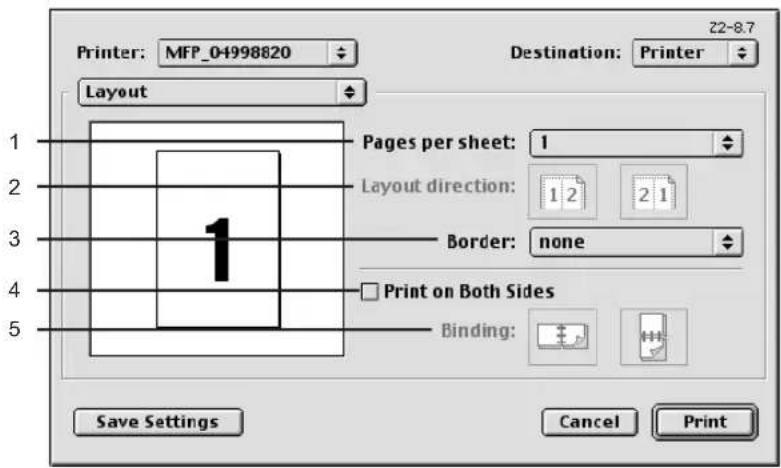
1) Pages per sheet
This sets the printing of multiple pages on one sheet. The pages are reduced to fit the selected paper size automatically.
- 1—Select this if do not wish to enable N-up printing.
- 2 — Select this to print images from 2 pages arranged on one sheet.
- 4 — Select this to print images from 4 pages arranged horizontally and printed top to bottom on one sheet.
- 6 — Select this to print images from 6 pages arranged horizontally and printed top to bottom on one sheet.
- 9 — Select this to print images from 9 pages arranged horizontally and printed top to bottom on one sheet.
- 16 — Select this to print images from 16 pages arranged horizontally and printed top to bottom on one sheet.
- 4 (Down Before Across) — Select this to print images from 4 pages arranged vertically from the top and printed horizontally on one sheet.
- 6 (Down Before Across) — Select this to print images from 6 pages arranged vertically from the top and printed horizontally on one sheet.
- 9 (Down Before Across) — Select this to print images from 9 pages arranged vertically from the top and printed horizontally on one sheet.
- 16 (Down Before Across) — Select this to print images from 16 pages arranged vertically from the top and printed horizontally on one sheet.
2) Layout direction
This sets pages to be printed from left to right or right to left. It is available only when the N-up printing (printing a page on multiple sheets) is set.
3) Border
Select whether a border line is to be drawn on each page. It is available only when the N-up printing (printing a page on multiple sheets) is set.
- None — Select this if no border line to be drawn.
- Single hairline — Select this to draw a single hairline for the border.
- Single thin line — Select this to draw a single thin line for the border.
- Double hairline — Select this to draw a double hairline for the border.
- Double thin line — Select this to draw a double thin line for the border.
4) Print on Both Sides
Check this to print on both sides of the paper. When checked, select the binding direction at the "Binding" option.
5) Binding
This sets the type of binding for 2-sided-printed pages.
- Long Edge Binding — Select this to bind along the long edge side of paper. The direction to be printed on the back side of the paper differs depending on the orientation.
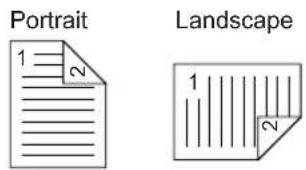
- Short Edge Binding — Select this to bind along the short edge side of paper. The direction to be printed on the back side of the paper differs depending on the orientation.
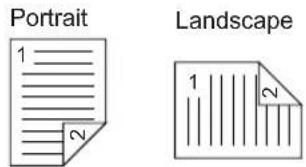
Finishing Options
In the Finishing Options menu, you can set the destination, hole punching and stapling features.
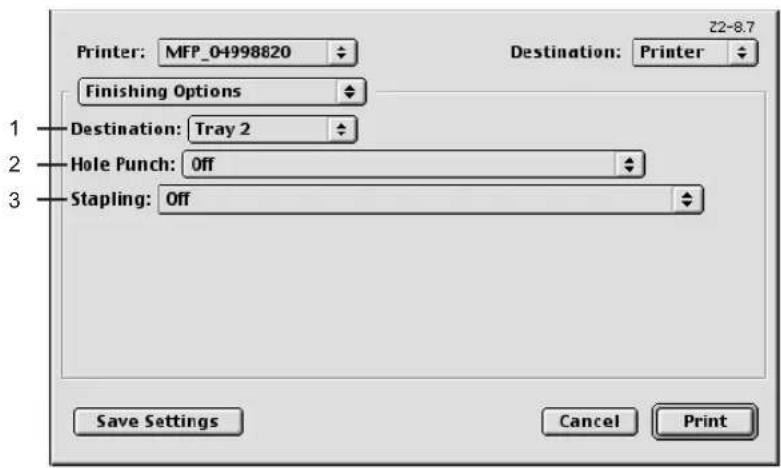
1) Destination
This selects the output destination tray.
- Inner Tray — Select this when no finisher is installed.
- Tray 1 — Select this to route the output to the upper tray of the Finisher.
- Tray 2 — Select this to route the output to the lower tray of the Finisher.
Note
"Tray 1" and "Tray 2" can be selected when the Hanging Finisher, Finisher, or Saddle Stitch Finisher are installed.
2) Hole Punch
This sets whether or not a print job is hole punched.
- Off — Select this to print without hole punches.
- Long Edge Punch without rotation — Select this to create holes on the left side for the portrait document, or on the top for the landscape document.
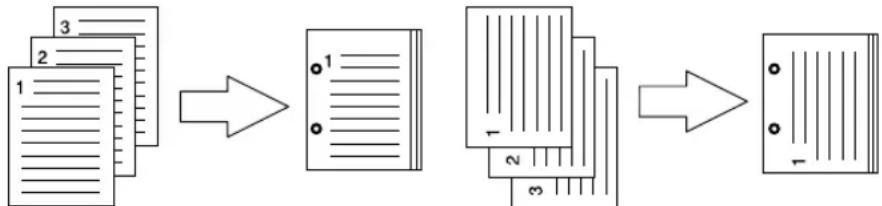
flowchart
graph LR
    A["1: Document"] --> B["2: Section 1"]
    B --> C["3: Section 2"]
    C --> D["4: Section 3"]
    D --> E["5: Section 4"]
    E --> F["6: Section 5"]
- Short Edge Punch without rotation — Select this to create holes on the top for the portrait document, or on the right for the landscape document.
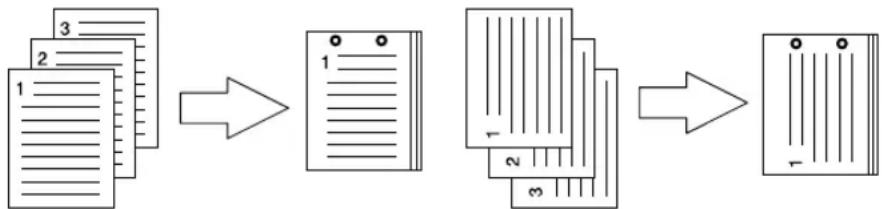
flowchart
graph LR
    A["1-3: Document"] --> B["1-2: Document"]
    B --> C["1-2: Document"]
    C --> D["1-3: Document"]
    D --> E["1-4: Document"]
- Long Edge Punch with 180 degree rotation — Select this to create holes on the right side for the portrait document, or on the bottom for the landscape document.
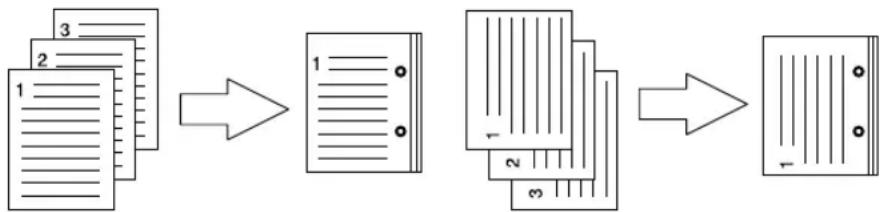
flowchart
graph LR
    A["Document 1"] --> B["Section 1"]
    B --> C["Section 2"]
    C --> D["Section 3"]
    D --> E["Final Output"]
- Short Edge Punch with 180 degree rotation — Select this to create holes on the bottom for the portrait document, or on the left for the landscape document.
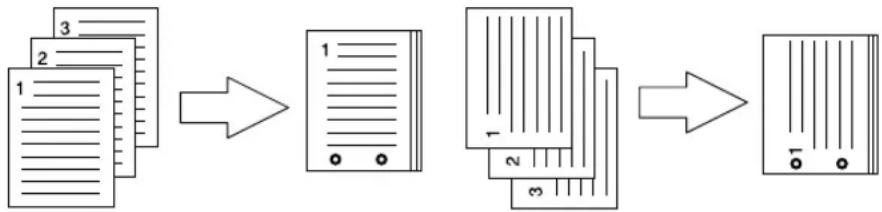
flowchart
graph LR
    A["Document 1"] --> B["File Transmission"]
    B --> C["Server Rack 1"]
    C --> D["Server Rack 2"]
Note
This option cannot be selected if a hole punch unit is not installed.
3) Stapling
This sets whether a print job is stapled.
- Off — Select this to print without stapling.
- Upper Left (Portrait)/Upper Right (Landscape) — Select this to staple in the upper left for the portrait document, or in the upper right for the landscape document.
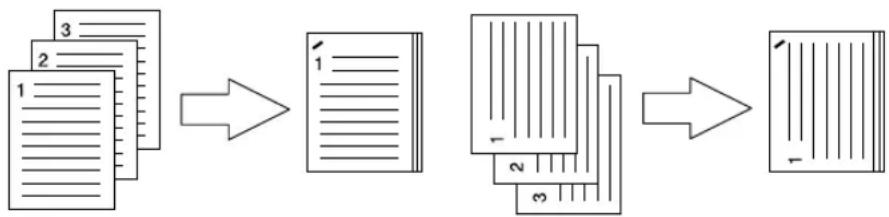
flowchart
graph LR
    A["1: Document"] --> B["2: Document"]
    B --> C["3: Document"]
    C --> D["4: Document"]
    D --> E["5: Document"]
    E --> F["6: Document"]
- Middle Left (Portrait)/Middle Top (Landscape) — Select this to staple double in the left for the portrait document, or in the top for the landscape document.
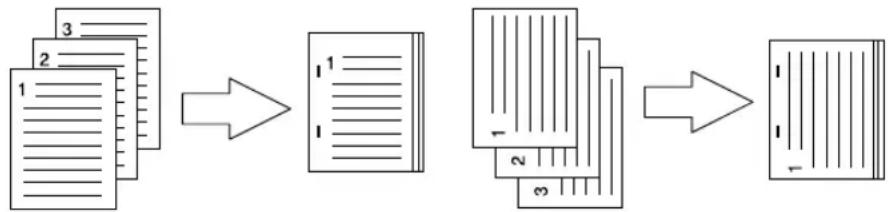
flowchart
graph LR
    A["1-3"] --> B["2-1"]
    B --> C["3-1"]
    C --> D["4-2"]
    D --> E["5-3"]
    E --> F["6-1"]
- Lower Left (Portrait)/Upper Left (Landscape) — Select this to staple in the lower left for the portrait document, or in the upper left for the landscape document.
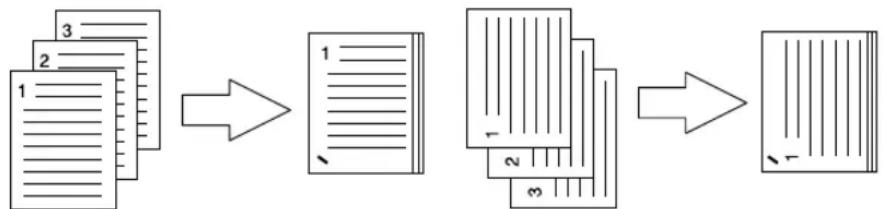
flowchart
graph LR
    A["1 Document"] --> B["2 Section"]
    B --> C["3 Section"]
    C --> D["4 Section"]
    D --> E["5 Section"]
- Upper Right (Portrait)/Lower Right (Landscape) — Select this to staple in the upper right for the portrait document, or in the lower right for the landscape document.
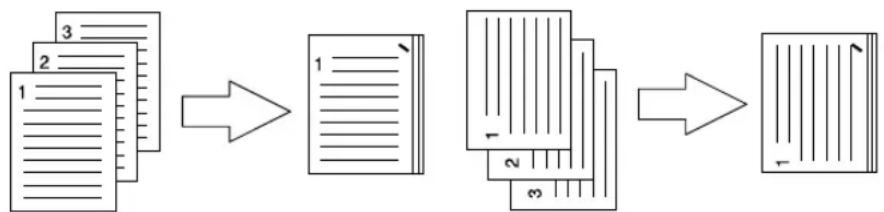
flowchart
graph LR
    A["Document 1"] --> B["Section 1"]
    B --> C["Section 2"]
    C --> D["Section 3"]
    D --> E["Final Output"]
- Middle Right (Portrait)/Middle Bottom (Landscape) — Select this to staple double in the right for the portrait document, or in the bottom for the landscape document.
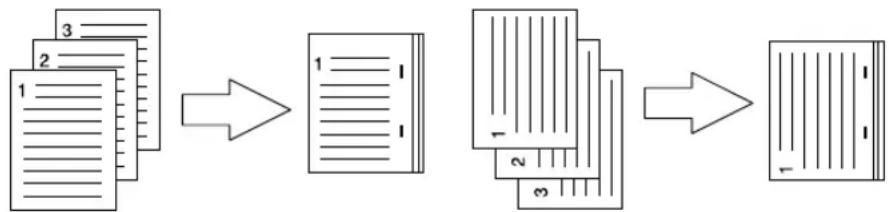
flowchart
graph LR
    A["Document 1"] --> B["Section 1"]
    B --> C["Section 2"]
    C --> D["Section 3"]
    D --> E["Final Output"]
- Lower Right (Portrait)/Lower Left (Landscape) — Select this to staple in the lower right for the portrait document, or in the lower left for the landscape document.
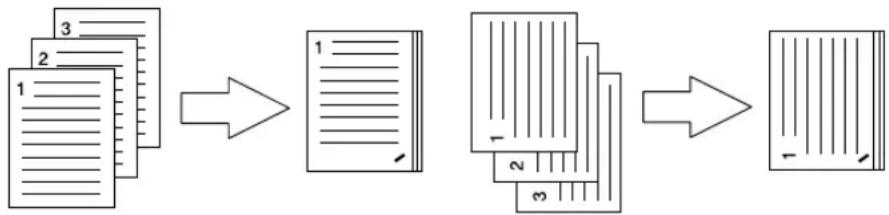
flowchart
graph LR
    A["Document 1"] --> B["Section 1"]
    B --> C["Section 2"]
    C --> D["Section 3"]
    D --> E["Final Output"]
- Middle Top (Portrait)/Middle Right (Landscape) — Select this to staple double in the top for the portrait document, or in the right for the landscape document.
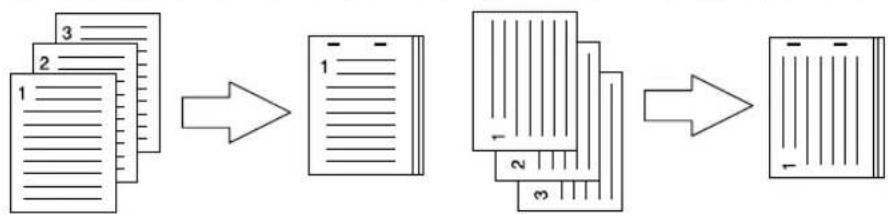
flowchart
graph LR
    A["1: Document"] --> B["2: Document"]
    B --> C["3: Document"]
    C --> D["4: Document"]
    D --> E["5: Final Output"]
- Middle Bottom (Portrait)/Middle Left (Landscape) — Select this to staple double in the bottom for the portrait document, or in the left for the landscape document.
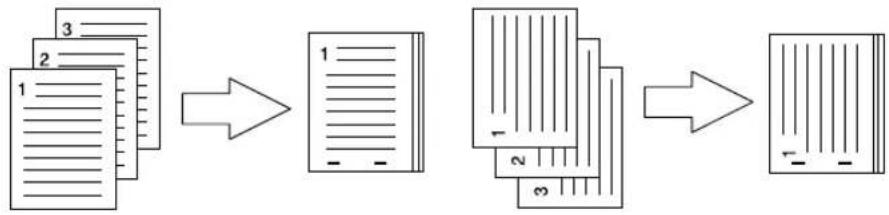
flowchart
graph LR
    A["1: Document"] --> B["2: Document"]
    B --> C["3: Document"]
    C --> D["4: Document"]
    D --> E["5: Document"]
    E --> F["6: Document"]
Note
This option cannot be selected if a finisher is not installed.
Printing Modes
In the Printing Mode menu, you can set the way this equipment handles the print job. This menu allows you to enable various system features such as Private Print and Proof Print.
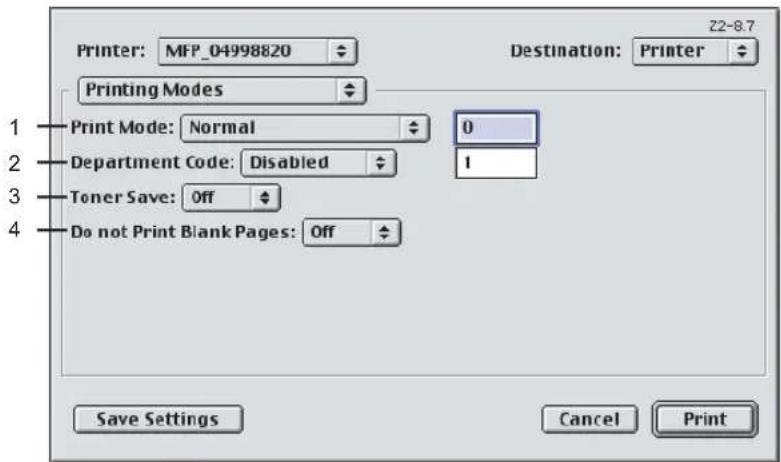
1) Print Job
This sets the type of print job.
- Normal — Select this to print a job normally.
- Proof — Select this to print the first copy of a multi-copy job then await your approval before printing the remaining copies. The print job sent as a proof job is saved in the proof job list on this equipment, and the remaining copies are not printed until you activate printing from the Touch Panel Display of this equipment. This option allows you to check the output before printing additional copies and thereby reduce paper waste.
- Private - Password — Select this to print a private job. When this is selected, enter 5-digit Password in the field. The print job is saved in the private job queue on this equipment, and not printed until you activate printing from the Touch Panel Display of this equipment. This option is useful when you want to print a confidential document secured using a password. The user has to enter the password to print the private job when activating printing from the Touch Panel Display. It is recommended to specify the password when you select to print a private job. If you do not specify the password, the private job uses default password "00000".
2) Department Code
Enter a user's department code when this equipment is managed with department codes. Please ask your administrator for your department code.
Tip
How the equipment performs printing for an invalid department code print job, which no department code or invalid department code is specified, varies depending on the Department Code Enforcement setting that can be set from TopAccess Administrator mode. When the Department Code Enforcement is set to "ON", the invalid department code print job will be stored in the invalid department code print job list without printing. When the Department Code Enforcement is set to "Print", the invalid department code print job will be printed. When the Department Code Enforcement is set to "Delete", the invalid department code print job will be deleted without printing.
3) Toner Save
Select this to print in the toner save mode.
Note
When the toner save mode is enabled, printing may become light.
4) Do not Print Blank Pages
Select whether you require printing blank pages.
Watermark Options
In the Watermark Options (A) and Watermark Options (B) menu, you can enable watermark printing.
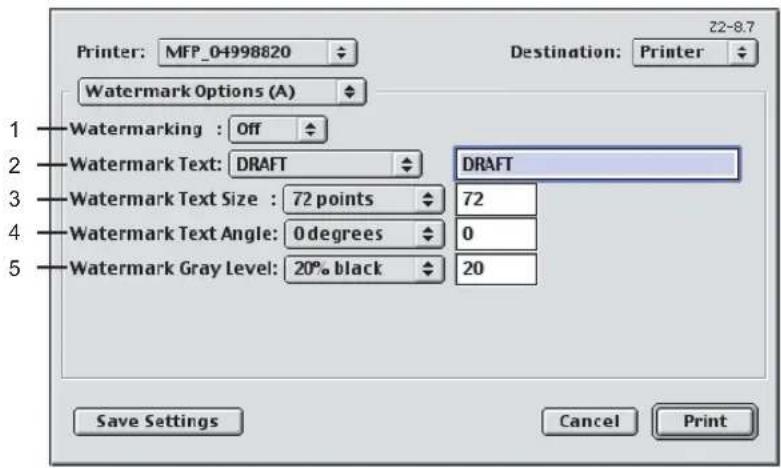
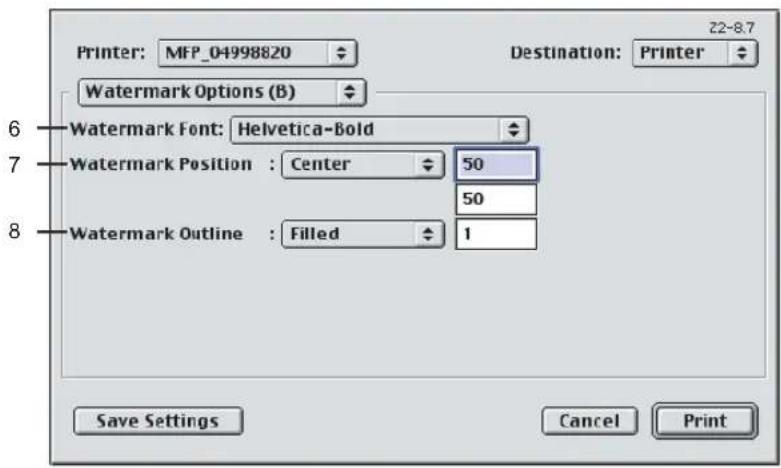
1) Watermarking
This sets the printing of a watermark.
2) Watermark Text
Select the watermark text to be printed. If there is not a preferred watermark in the list, enter the watermark text in the field displayed.
3) Watermark Text Size
Select the font size of watermark text. If there is not a preferred font size in the list, enter the font size by points. You can enter from 4 points to 400 points in units of 1 point.
4) Watermark Text Angle
Select the degree of angle for rotating the watermark text. If there is not a preferred angle in the list, enter the degrees from -90 to 90 degrees in units of 1 degree.
5) Watermark Gray Level
Select the gray level of the watermark text color. If there is not preferred gray level in the list, enter the percentage from 1% to 100% in units of 1%.
6) Watermark Font
Select the font family for the watermark text.
7) Watermark Position
Select the position of the watermark text. If there is not preferred position in the list, enter the X position and Y position manually.
8) Watermark Outline
Select the outline points or "Filled" to print a watermark as a solid text. If there is not a preferred point listed, enter from 0.1 points to 20 points in units of 0.1 points.
Color Settings
In the Color Settings 1, Color Settings 2, Color Settings 3, and Color Settings 4 menu, you can adjust the color settings for printing.
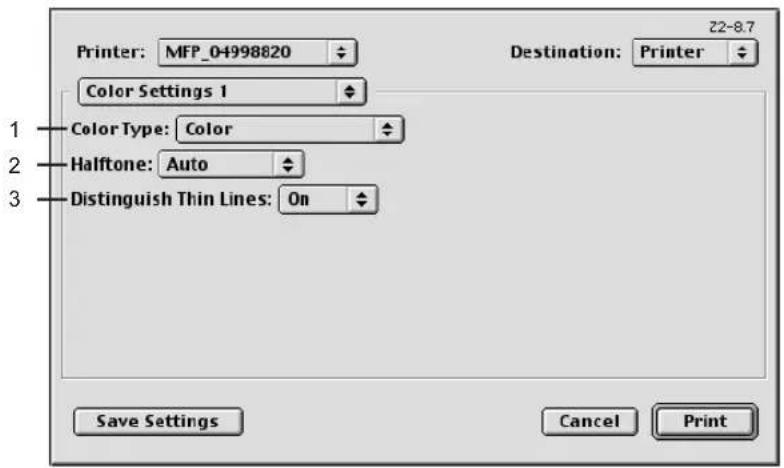
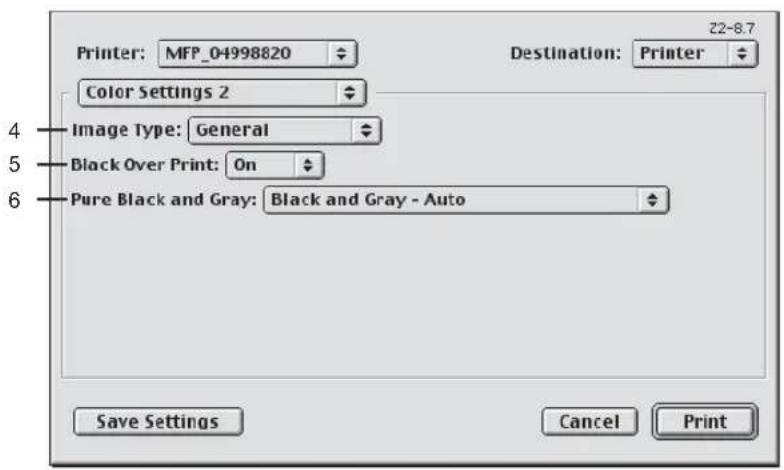
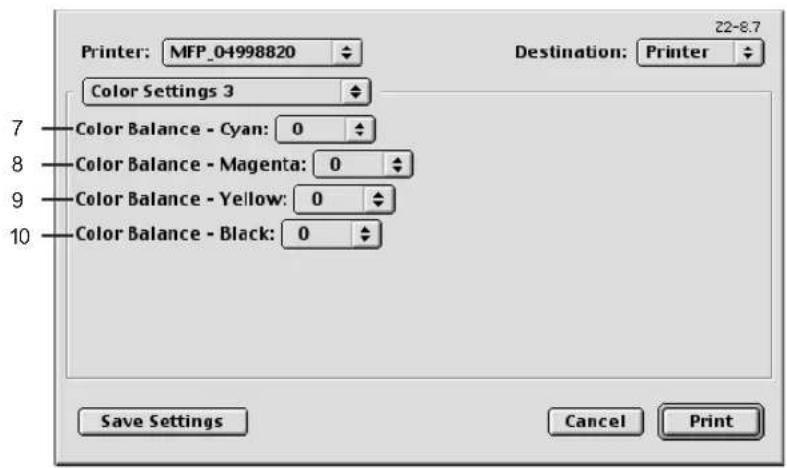
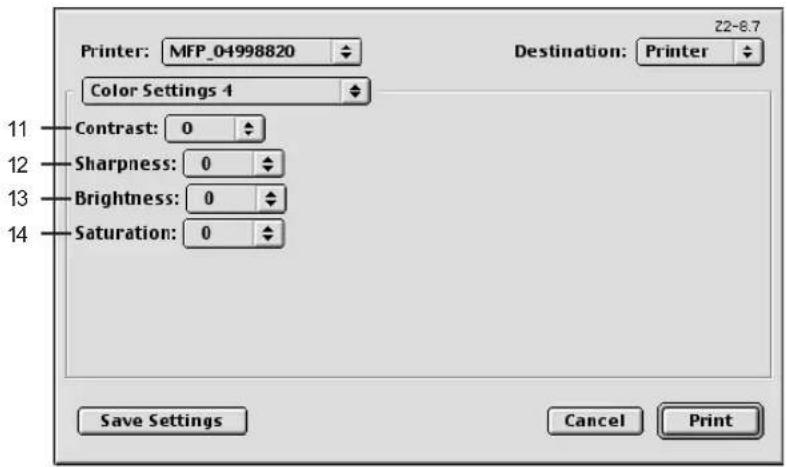
1) Color Type
This sets whether a print job is printed in color mode or monochrome mode.
- Auto — Select this to determine the color mode automatically. When a print job is a black and white document, the system automatically prints the document in monochrome mode. When a print job is a color document, it prints the document in color mode.
- Color — Select this to print a document in color mode.
- Mono — Select this to print a document in monochrome mode.
- Black and Red — Select this to print a document in twin color mode with red. When this is selected, the black parts of the document are printed in black and color parts of the document are printed in red.
- Black and Green — Select this to print a document in twin color mode with green. When this is selected, the black parts of the document are printed in black and color parts of the document are printed in green.
- Black and Blue — Select this to print a document in twin color mode with blue. When this is selected, the black parts of the document are printed in black and color parts of the document are printed in blue.
- Black and Cyan — Select this to print a document in twin color mode with cyan. When this is selected, the black parts of the document are printed in black and color parts of the document are printed in cyan.
- Black and Magenta — Select this to print a document in twin color mode with magenta. When this is selected, the black parts of the document are printed in black and color parts of the document are printed in magenta.
- Black and Yellow — Select this to print a document in twin color mode with yellow. When this is selected, the black parts of the document are printed in black and color parts of the document are printed in yellow.
- Black and White — Select this to print a document in twin color mode with white. When this is selected, the black parts of the document are printed in black and color parts of the document are not printed.
2) Halftone
This sets how halftones are printed.
- Auto — Select this to print using proper halftone depending on the contents in the document automatically.
- Detail — Select this to print halftone in detail.
- Smooth — Select this to print halftone smoothly.
3) Distinguish Thin Lines
Check this to print thin lines clearly.
4) Image Type
This sets how colors are printed by selecting the job type. The printer driver automatically applies proper image quality for selected job type.
- General — Select this to apply proper image quality for printing a general color document.
- Photograph — Select this to apply proper image quality for printing photos.
- Presentation — Select this to apply proper image quality for printing a vivid document.
- Line Art — Select this to apply proper image quality for printing a document contains a lot of characters or line arts.
Note
Other than "General" cannot be selected when "Mono" is selected at the "Color Type" drop down box.
5) Black Over Print
Select this when printing background content that has black text overlayed on it. If this is not enabled, the background of the black content will not print. When you print a document that has any of its content on background with black text overlayed, enable this option.
6) Pure Black and Gray
Select whether printing the black and gray scale contents in a document using the black toner.
- Off — Select this to print the document in color mode.
- Black - Auto — Select this to print black contents using the black toner according to the document.
- Black - Text — Select this to print the black texts using the black toner.
- Black - Text and Graphic — Select this to print the black texts and graphics using the black toner.
- Black - Text, Graphic and Image — Select this to print the black texts, graphics and images using the black toner.
- Black and Gray - Auto — Select this to print black and gray scale contents using the black toner according to the document.
- Black and Gray - Text — Select this to print the black and gray scale texts using the black toner.
- Black and Gray - Text and Graphic — Select this to print the black and gray scale texts and graphics using the black toner.
- Black and Gray - Text, Graphic and Image — Select this to print the black and gray scale texts, graphics, and images using the black toner.
7) Color Balance Cyan
Adjust the density of cyan for printing. You can set from -4 to 4 in units of 1.
Adjust the density of magenta for printing. You can set from -4 to 4 in units of 1.
9) Color Balance Yellow
Adjust the density of yellow for printing. You can set from -4 to 4 in units of 1.
10) Color Balance Black
Adjust the density of black for printing. You can set from -4 to 4 in units of 1.
11) Contrast
Adjust the contrast for printing. You can set from -4 (lowest) to 4 (highest) in units of 1 by moving the scroll bar.
12) Sharpness
Adjust the sharpness for printing. You can set from -4 (smoothest) to 4 (sharpest) in units of 1 by moving the scroll bar.
13) Brightness
Adjust the brightness for printing. You can set from -4 (darkest) to 4 (lightest) in units of 1 by moving the scroll bar.
14) Saturation
Adjust the saturation for printing. You can set from -4 (low clear) to 4 (high clear) in units of 1 by moving the scroll bar.
Printing from UNIX
This describes the instructions on how to print from UNIX workstation.
Printing from an Application....324
Considerations and Limitations 324
Printing Using LP Command....324
Generic "lp" and "lptap" Options....324
General Options 325
PCL5e Specific Options 338
This section describes how to print from a UNIX workstation.
Notes
- When the User Management Setting is enabled on the equipment, the print jobs that are sent from UNIX workstations are processed as invalid jobs according to the Department Code Enforcement setting.
- Before attempting to print from a UNIX workstation, make sure all the UNIX Filters are installed in your workstation.
P.159 "Installing Client Software for UNIX"
Considerations and Limitations
- This equipment acts only as a filter and not as a complete driver. The size and order of the printed pages cannot be modified.
- The UNIX filters do not support the following engine-supplied features:
- Enlarge/Reduce printing
- Rotate Sort
- N-up printing
- Watermarks
- Cover Sheets
- Sheet Insertion
- Scheduled Print
- Print to Overlay File
- Store to e-Filing
- Use Overlay Image
Linux uses the Iptap command to send a file to this equipment.
Since Ip is not supported in all versions of Linux, the Iptap command should be used instead.
- AIX supports printing using the qdaemon. This can be invoked by the user with the commands lp, lpr or qprt. In order to use the filter, either lp or qprt should be used.
Printing Using LP Command
Use the lp command (lptap in Linux) to send a file to this equipment for printing. This command specifies various printer-specific options using the -o option parameter on the command line.
The lp command also sets other print options using various other parameters. Use the man est-color.1 command to display the online document that describes the various options and parameters that can be set to configure printed output.
All the options are sent to this equipment at the start of a print job so, if the print file contains its own commands, they may override the lp options.
Generic "Ip" and "Iptap" Options
Copies
The number of copies of a print job is specified using the "-n value" parameter with the "lp" command. The default value is determined by the "lp" command and it is always 1. The copies are always collated.
Title
The title that is printed on the banner page can be specified using the "-t title" parameter with the "lp" command. The default value is determined by the "lp" command and it is often the name of the print file. If multiple files are printed using the same "lp" command the default title is set to the name of the first file by the "lp" command.
General Options
The following options apply to all print files.
Note
Option commands are case sensitive and must be entered exactly as shown.
Print Language
The "net_estcolor" program needs to know what printer language is used in each of the files that it is printing so that it can issue the correct commands to select various options. The following options are valid for the print languages.
| Option Value | Alternate Value | Description |
| auto Each file to be | printed is examined | to see if it starts with the “%!” sequence. If it does, then it is assumed that it is a PostScript file, otherwise it assumes that it is a plain text or a PCL6 file. |
| pcl The print file is | always treated as a | plain text or a PCL6 file. |
| postscript ps The file is always treated | as a PostScript file. | |
| raw The file is treated as a fully formatted file that already contains all the necessary commands. The file is sent to the printer without any modifications. In this mode no other options are valid and a banner page is not printed. | ||
All PCL5e jobs automatically send the "
The default print language is "auto".
Example: The command to specify that a file is PostScript is "lp -o ps filename".
Stapling
The staple position can be specified using the following option.
| Option Value | Alternate Value | Description |
| staple=0 Stapling is turned off. | ||
| staple=1 Staple in the top left corner of a portrait page and the upper right corner of a landscape page. | ||
| staple=2 Put two staples on the left side of a portrait page or the top side of a landscape page printed on long-edge-feed paper. This command has no affect when the paper is fed from the short-edge side. | ||
| staple=3 Staple in the bottom left corner of a portrait page and the upper left corner of a landscape page. | ||
| staple=4 Staple in the top right corner of a portrait page and the bottom right corner of a landscape page. | ||
| staple=5 Put 2 staples on the right side of a portrait page or the bottom side of a landscape page printed on long-edge-feed paper. This command has no affect when the paper is fed from the short-edge side. | ||
| staple=6 Staple in the bottom right corner of a portrait page and the lower left corner of a landscape page. | ||
| staple=7 Put 2 staples on the top side of a portrait page or the right side of a landscape page printed on short-edge-feed large format (A3/Ledger) paper. This command has no affect when the paper is fed from the long-edge side or small paper size. | ||
| staple=8 Put 2 staples on the bottom side of a portrait page or the left side of a landscape page printed on short-edge-feed large format (A3/Ledger) paper. This command has no affect when the paper is fed from the long-edge side or small paper size. | ||
| staple=9 Put 2 staples in the middle of a landscape page and fold the paper in half vertically along the staple line (saddle stitching). This command works in conjunction with booklet printing. This command has no affect when the paper is fed from the long-edge side. | ||
If this option is not specified, the printer's default value will be used.
Example: The command to staple in the upper left corner of a long edge feed portrait page is "lp -o staple=1 filename".
The value for the stapling position depends on the paper size, the paper feed direction, and the print direction. This function is not available for all paper sizes and the users should refer to the copier manual for a list of compatible paper sizes. In particular, A5, A6 and statement paper sizes will not work with this function.
Note
Stapling cannot be applied when "Tray 1" is specified for the Destination option.
Output Bin
The output bin can be specified using the following options.
| Option Value | Alternate Value | Description |
| inner Select the inner tray. | ||
| bin1 Select the upper output tray of the finisher. | ||
| bin2 Select the lower output tray of the finisher. | ||
If the finisher option is not installed on the equipment, the default output tray will be used (inner). If the finisher option is installed on the equipment, the default output tray will be used (bin2). Example: The command to specify output bin 1 is "lp -o bin1 filename".
Hole Punching
When the hole punch option is installed it can be activated using the following option.
| Option Value | Alternate Value | Description |
| punch=0 nopunch | Hole punching is turned off. | |
| punch=1 Hole punch long edge without rotation. | ||
| punch=2 Hole punch short edge without rotation. | ||
| punch=3 Hole punch long edge with 180 degree rotation. | ||
| punch=4 Hole punch short edge with 180 degree rotation. | ||
If this option is not specified, the default value of "nopunch" will be used.
This function is not available for all paper sizes and the users should refer to the copier manual for a list of compatible paper sizes. In particular, A5, A6 and statement paper sizes will not work with this function.
Example: The command to hole punch the long edge feed portrait page is "lp -o punch=1 filename".
Media Type
The paper source can also be selected using the media type using the following option.
| Option Value | Alternate Value | Description |
| mtype=Plain The paper source that contains Plain paper is requested. | ||
| mtype=Transparency | The paper source that contains transparency slides is requested. | |
| mtype=Thick1 The paper source that contains Thick1 paper is requested. | ||
| mtype=Thick2 The paper source that contains Thich2 paper is requested. | ||
| mtype=Thick3 The paper source that contains Thich3 paper is requested. | ||
In PostScript Deferred Media Selection is always turned on so the paper size has priority over the media type and the paper source.
In PCL5e the paper size always has priority over the media type and the paper source. If this option is not specified, the default value will be used.
Example: The command to specify Thick1 media type is "lp -o mtype=Thick1 filename".
Paper Source
The paper source can be selected using the following options.
| Option Value | Alternate Value | Description |
| auto-source Select | auto paper tray selection. | |
| manual Select Bypass Tray. | ||
| drawer1 upper | cas1 | Select the 1st drawer. |
| drawer2 lower | cas2 | Select the 2nd drawer. |
| drawer3 pedupper | cas3 | Select the 3rd drawer. |
| drawer4 pedlower | cas4 | Select the 4th drawer. |
| LCF lcf Select the LCF. LCF is not available for some countries or regions. | ||
In PostScript Deferred Media Selection is always turned on so the paper size has priority over the paper source. In PCL5e the paper size always has priority over the paper source.
If this option is not specified the command will not be sent so the printer's default value will be used.
Example: The command to specify the LCF paper source is "lp - o lcf filename".
Duplexing
The current duplex mode can be specified using the following options.
| Option Value | Alternate Value | Description |
| simplex Turn duplexing off. | ||
| duplex Iduplex | duplex_longduplex=longhduplex | Turn duplexing on with long edge binding. |
| sduplex duplex_shortduplex=shortvduplex | Turn duplexing on with short edge binding. | |
If this option is not specified, the default value "simplex" will be used.
It is not necessary to specify duplexing for Booklet Mode (sduplex). Setting duplexing separately can override the booklet mode setting for duplexing.
Example: The command to specify long edge duplexing is "lp -o duplex filename".
Paper Size
The current paper size can be specified using the following options.
| Option Value | Alternate Value | Description |
| letter lt | LT | Select letter size paper. |
| A4 a4 Select A4 size paper. | ||
| legal lg | LG | Select legal size paper. |
| statement st | ST | Select statement size paper. |
| ledger ld | LD | Select ledger size paper. |
| ledgerwode ldwide | LDWIDE | Select ledger wide size paper. |
| folio folio-japan Select folio size paper. | ||
| A3 a3 Select A3 size paper. | ||
| A3WIDE a3side Select A3-Wdie size paper. | ||
| A5 a5 Select A5 size paper. | ||
| A6 a6 Select A6 size paper. | ||
| B4 b4 | b4-jisB4-JIS | Select JIS B4 size paper. |
| B5 b5 | b5-jisB5-JIS | Select JIS B5 size paper. |
| computer co | CO | Select computer size paper. |
| legal13 | lg13LG13 | Select LG13inch size paper. |
| sq85 | letter-square | Select SQ8.5inch size paper. |
| postcard | Select postcard size paper. | |
| 8K 8k | Select 8K size paper. | |
| 16K | 16k | Select 16K size paper. |
If this option is not specified, the printer's default value will be used.
Example: The command to specify the A4 paper size is "lp -o a4 filename".
Printing Modes
The printing mode can be selected using the following options.
| Option Value | Alternate Value | Description |
| normal Process as a normal print job. | ||
| proof Process as a proof print job. | ||
| private= din Process as a private print job. The din is up to 63-digit (between 1 to 63) password. | ||
If this option is not specified, the printer's default value will be used.
A private printing job requires the user to enter a maximum number of 63 character long string. Character lengths longer than 63 will be clipped to 63.
The following characters are invalid, but no type checking is carried out.
$$ " \& ^ {\prime} (); < > ^ {\wedge} | \sim $$
Department Code
The department access code can be set using the following option.
| Option Value | Alternate Value | Description |
| dept=code Set the | department access | code. The code is a 5-digit numeric value. |
Tip
How the equipment performs printing for an invalid department code print job, which no department code or invalid department code is specified, varies depending on the Department Code Enforcement setting that can be set from TopAccess Administrator mode. When the Department Code Enforcement is set to "ON", the invalid department code print job will be stored in the invalid department code print job list without printing. When the Department Code Enforcement is set to "Print", the invalid department code print job will be printed. When the Department Code Enforcement is set to "Delete", the invalid department code print job will be deleted without printing.
Smoothing
The smoothing mode can be set using the following option.
| Option Value | Alternate Value | Description |
| smoothing=on ON | Set the smoothing mode. | |
| smoothing=off OFF | Cancel the smoothing mode. |
Example: The command to set the smoothing mode is "lp -o smoothing=on filename".
Distinguish Thin Lines
The thin line limit mode can be set using the following option.
| Option Value | Alternate Value | Description |
| thinlinelimit=on ON | Set the thin line limit mode. | |
| thinlinelimit=off OFF | Cancel the thin line limit mode. | |
Example: The command to set the thin line limit mode is "lp -o thinlinelimit=on filename".
Do not Print Blank Pages
The Blank page mode can be selected using the following option.
| Option Value | Alternate Value | Description |
| blankpage=0 Set the blank page mode | (disable Do not Print Blank Pages). | |
| blankpage=1 Cancel the blank page mode | (enable Do not Print Blank Pages). | |
Toner Save
The toner save mode can be set using the following option.
| Option Value | Alternate Value | Description |
| tonersave=on ON | Set the toner save mode. | |
| tonersave=off OFF | Cancel the toner save mode. |
Example: The command to set the toner save mode is "lp -o tonersave=on filename".
Booklet Modes
The booklet mode can be selected using the following options.
Note
The booklet mode applies only for the PostScript data. When the PCL data is printed, the booklet mode option will be invalid.
| Option Value | Alternate Value | Description |
| booklet=letter lt | LT | Select letter size paper for booklet printing mode. |
| booklet=A4 a4 Select A4 size paper for booklet printing mode. | ||
| booklet=legal lg | LG | Select legal size paper for booklet printing mode. |
| booklet=statement | stST | Select statement size paper for booklet printing mode. |
| booklet=ledger Id | LD | Select ledger size paper for booklet printing mode. |
| booklet=folio folio-j | Japan Select folio size paper for booklet printing mode. | |
| booklet=A3 a3 Select A3 size paper for booklet printing mode. | ||
| booklet=A5 a5 Select A5 size paper for booklet printing mode. | ||
| booklet=B4 b4 | B4-JISb4-jis | Select JIS B4 size paper for booklet printing mode. |
| booklet=B5 b5 | B5-JISb5-jis | Select JIS B5 size paper for booklet printing mode. |
| booklet=computer | coCO | Select computer size paper for booklet printing mode. |
| booklet=legal13 lg13LG13 | Select legal-13 size paper for booklet printing mode. | |
| booklet=SQ85 sq85 letter-square | Select 8.5 inch square size paper for booklet printing mode. | |
| booklet=8K 8k Select 8K size paper for booklet printing mode. | ||
| booklet=16K 16k Select 16K size paper for booklet printing mode. | ||
In a job, if this value is LT, and in PDL too the data is for LT paper size, this will result in a scaled booklet on Letter paper. In a job, if this value is A3, and in PDL the data is for A4 paper size, this will result in a tiled booklet on A3 paper.
When the Booklet Mode options is selected, the paper size is automatically set to the same size as for Booklet Mode. This function is only available for A3, A4, B4, Letter and Ledger paper sizes.
If booklet mode is selected, then duplexing is also selected automatically (sduplex). Setting duplexing separately can override the booklet mode setting for duplexing.
Example: The command to select the letter size paper for booklet printing mode is "lp -o booklet=letter filename".
Page Layout
The booklet mode page layout can be selected using the following options.
| Option Value | Alternate Value | Description |
| left2right=off OFF | Select right to left page layout for booklet printing mode.This value decides the layout of the pages in the booklet.If this value is OFF then the layout of pages is Right to Left as shown in the figure below.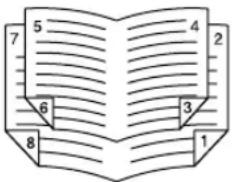 | |
| left2right=on ON | Select left to right page layout for booklet printing mode.This is the default setting.If the value is ON then the layout of the pages is from Left to Right as shown in the figure below.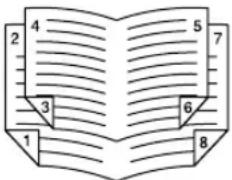 |
If left2right=off then long edge binding is selected, otherwise if left2right=on then short edge binding is used.
Example: The command to select left to right page layout for booklet printing mode is "lp -o left2right=on filename".
Center Margin
The booklet mode center margin can be selected using the following options.
| Option Value | Alternate Value | Description |
| centermargin=value | Select the center margin value for booklet printing mode.This value specifies in pixels the Center Margin or the “Gutter”. This is in addition to the center margin already specified by the application. The valid range for value is 0 - 300. Default is 0. |
Example: The command to select the center margin value for booklet printing mode is "lp -o centremargin=value filename".
Outer Margin
The booklet mode outer margin can be selected using the following options.
| Option Value | Alternate Value | Description |
| outermargin=value | Select the outer margin value for booklet printing mode. This value specifies in pixels the Outer Margin or the “Creep” per page, which should take place while printing a booklet. The valid range for value is 0 - 600. Default is 0. |
Example: The command to select the outer margin value for booklet printing mode is "lp -o outermargin=value filename".
Collate
The collate option can be selected using the following options.
| Option Value | Alternate Value | Description |
| collate=off OFF Cancel the collate printing mode. | ||
| collate=on ON Set the collate printing mode. | ||
Example: The command to select collate off is "lp -o collate=off filename".
Orientation
The following orientation options are available.
| Option Value | Alternate Value | Description |
| portrait Print the document in portrait orientation. | ||
| landscape Print the document in landscape orientation. | ||
If this option is not specified the command will not be sent so the printer's default value will be used.
Example: The command to specify landscape orientation is "lp -o landscape filename".
Font Pitch
If the pitch is specified the net_estcolor program will always select the Courier font; otherwise the default font is used. The following options are used to select the font pitch.
| Option Value | Alternate Value | Description |
| c pitch=16.67 Set the character pitch to | 16.67 characters per inch. | |
| 10 pitch=10 Set the character pitch to | 10 characters per inch. | |
| 12 pitch=12 Set the character pitch to | 12 characters per inch. | |
| pitch=value Set the character pitch to value characters per inch. | ||
In all the cases shown above the Courier font will also be selected. When the pitch is changed the font size will automatically be scaled to the appropriate size.
If this option is not specified, the default pitch and font will be used.
Example: The command to specify 8 characters per inch is "lp -o pitch=8 filename".
Page Length
The number of lines to print on a page can be specified with the following option.
| Option Value | Alternate Value | Description |
| pl=value Set the lines per page to value. | ||
As this equipment is a page printer we cannot change the physical length of a piece of paper so the actual effect of this command is to change the value for lines per inch so that the requested number of lines is printed on the page. The actual page length may differ from this value if the top margin or the text length option is used.
If this option is not specified the PJL command will not be sent so the printer's default value will be used. The minimum page length allowable is 5. If value is less than 5 page length is set to 5. The command to specify 66 lines per page is "lp -o pl=66 filename".
Color Mode
The color mode print mode can be selected using the following options.
| Option Value | Alternate Value | Description |
| colormode= COLOR | color Set the color | mode printing for the print mode. |
| colormode= GRAYSCALE | grayscale Set the | grayscale mode printing for the print mode. |
| colormode= AUTO | auto Set the auto color mode printing for the print mode. | |
| colormode= 2KR | 2kr Set the twin color mode (Black and Red) printing for the print mode. | |
| colormode= 2KG | 2kg Set the twin color mode (Black and Green) printing for the print mode. | |
| colormode= 2KB | 2kb Set the twin color mode (Black and Blue) printing for the print mode. | |
| colormode= 2KC | 2kc Set the twin color mode (Black and Cyan) printing for the print mode. | |
| colormode= 2KM | 2km Set the twin color mode (Black and Magenta) printing for the print mode. | |
| colormode= 2KY | 2ky Set the twin color mode (Black and Yellow) printing for the print mode. | |
| colormode= 2KW | 2kw Set the twin color mode (Black and White) printing for the print mode. | |
Example: The command to set the color mode for the print job is
"lp -o colormode=COLOR filename"
Pure Black and Pure Gray
The pure black and pure gray mode can be selected using the following options.
| Option Value | Alternate Value | Description |
| pureblackgray=0 | Disable the pure black | and pure gray mode. |
| pureblackgray=1 | Enable the pure black | and pure gray mode. |
Example: The command to set the pure black and pure gray mode for the print job is "lp -o pureblackgray=1 filename"
Image Quality Type
The Image Quality Type can be selected using the following options.
| Option Value | Alternate Value | Description |
| iqnormal Set the proper image quality for printing a general color document. | ||
| iqphoto Set the proper image quality for printing photos. | ||
| iqpresen Set the proper image quality for printing a vivid document. | ||
| iqlineart Set the proper image quality for printing a document contains a lot of characters or line arts. | ||
Example: The command to set the normal quality type for the print job is "lp -o iqnormal filename"
Halftone
The halftone can be selected using the following options.
| Option Value | Alternate Value | Description |
| halftone=AUTO Set the proper halftone depending on the contents in the document automatically. | ||
| halftone=DETAIL Set the halftone in detail. | ||
| halftone=SMOOTH | Set the halftone smoothly. | |
Example: The command to set the auto halftone for the print job is "lp -o halftone=AUTO filename"
Black Over Print
The black over print mode can be selected using the following options.
| Option Value | Alternate Value | Description |
| blackoverprint=0 D | Disable the black over | print mode. |
| blackoverprint=1 | Enable the black over | print mode. |
Example: The command to set the black over print mode for the print job is "lp -o blackoverprint=1 filename"
Color Balance
The Color Balance can be selected using the following options.
| Option Value | Alternate Value | Description |
| CBC=value Specify | the color density of | cyan toner. You can specify the following values:-4. -3, -2, -1, 0, 1, 2, 3, 4 |
| CBM=value Specify | the color density of | magenta toner. You can specify the following values:-4. -3, -2, -1, 0, 1, 2, 3, 4 |
| CBY=value Specify | the color density of | yellow toner. You can specify the following values:-4. -3, -2, -1, 0, 1, 2, 3, 4 |
| CBK=value Specify | the color density of | black toner. You can specify the following values:-4. -3, -2, -1, 0, 1, 2, 3, 4 |
Example: The command to set "1" to the color balance for black toner for the print job is "lp -o CBK=1 filename"
Image Attributes
The Image Attributes can be selected using the following options.
| Option Value | Alternate Value | Description |
| brightness=value | Specify the brightness. You can specify the following values:-4. -3, -2, -1, 0, 1, 2, 3, 4 | |
| contrast=value | Specify the contrast. You can specify the following values:-4. -3, -2, -1, 0, 1, 2, 3, 4 | |
| saturation=value | Specify the saturation. You can specify the following values:-4. -3, -2, -1, 0, 1, 2, 3, 4 | |
| sharpness=value | Specify the sharpness. You can specify the following values:-4. -3, -2, -1, 0, 1, 2, 3, 4 | |
Example: The command to set "1" to the brightness for the print job is "lp -o brightness=1 filename"
PCL5e Specific Options
Some of the options only apply to plain text or PCL5e files.
Text Wrapping
The following options control text wrapping when it reaches the right margin.
| Option Value | Alternate Value | Description |
| wrap Enable automatic text wrapping. | ||
| nowrap Disable automatic text wrapping. | ||
If this option is not specified the command will not be sent so the printer's default value will be used.
Example: The command to specify wrapping is "lp -o wrap filename".
Left Margin
The left margin position can be specified with the following option.
| Option Value | Alternate Value | Description |
| lm=value Set the left margin to value columns. | ||
If the left margin is set to the right of the right margin it will be ignored.
If this option is not specified the command will not be sent so the printer's default value will be used.
Example: The command to set the left margin to five columns is "lp -o lm=5 filename".
Right Margin
The right margin position can be specified with the following option.
| Option Value | Alternate Value | Description |
| rm=value Set the right margin to value | columns. | |
If the right margin is set to the left of the left margin or if it is set to a position wider than the logical page it will be ignored. The right margin is specified in columns from the left margin. A negative value will be ignored.
If this option is not specified the command will not be sent so the printer's default value will be used.
Example: The command to set the right margin to fifty columns is
"lp -o rm=50 filename".
Top Margin
The top margin position can be specified with the following option.
| Option Value | Alternate Value | Description |
| tm=value Set the top margin to value lines. | ||
If the top margin is set too high or too low part of the text may not appear due to the printer's unprintable region. The top margin will be ignored if it is set to a value greater than the printer's logical page length. Setting this value may affect the number of lines specified using the page length option.
If this option is not specified the command will not be sent so the printer's default value will be used.
Example: The command to set the top margin to ten lines is "lp -o tm=10 filename".
Text Length
The text length can be specified using the following options.
| Option Value | Alternate Value | Description |
| tl=value Set the length to value lines. | ||
If the text length is set too high, the part of the text may not appear due to the printer's unprintable area. The text length will be ignored if it is set to a value greater than the printer's logical page length minus the top margin. The text length is specified in rows from the top margin. Setting this value may affect the number of lines specified using the page length option.
If this option is not specified the command will not be sent so the printer's default value will be used.
Example: The command to set the text length to 40 lines is "lp -o tl=40 filename".
Banner Page
A banner page is automatically generated for each file in each job. The banner page contains the following items. The banner page is always sent as a PCL5e job.
• The name of the user that submitted the print job.
• The job ID number and from which workstation it was submitted.
- The title of the job. This title can be specified using the "-t" option. The same title is used for every file within a job. The default title is controlled by the "lp" command.
• The name of the printer or its IP address.
- The date and time when the job was printed according to the print server.
Only one copy of the banner page is printed for each file, even if a number of copies of the job are requested. The banner page is sent to the equipment as a separate sub-job so that it is never stapled to the document.
The banner page is printed with the following settings.
- Copies = 1.
- Stapling off.
• Orientation = portrait. - Duplex off.
- Paper size as requested by the “-o” parameter or the printer’s default value.
- The paper source and the media type for the banner page can be set to different values than the job's paper source and media type.
• Auto paper source selection or the requested banner page source or media type. - Output bin as requested by the “-o” parameter or the printer default value.
- 6 lines per inch
- Auto-wrap on.
• Automatic carriage-return when a line-feed is sent.
Notes
- The banner page is designed to fit the paper bigger than Statement / A5. The banner page uses the default paper size if paper is set to:
- Statement
- A5
- A6
- B5
- Postcard
- The default is that the banner page is printed before the job so that it is in the correct stacking order.
- When the language is set to "raw" the banner is always disabled.
- The paper source and the media type for the banner page can be set to different values than the job's paper source and media type. If a banner paper source is not specified then the auto source command is sent. If a banner media type is not specified then no banner media type command is sent, so the printer's default value will be used.
- If the file being printed specifies the paper destination or the paper size internally the banner page may print to the wrong output or on an incorrect paper size.
— Banner Options
The banner page can be printed using the following options.
| Option Value | Alternate Value | Description |
| banner=last Print the banner page after the job so that it will be physically on top of the job in the output tray. | ||
| banner=first banner Print the banner page before the job so that it will be physically under the job in the output tray. | ||
| nobanner nb Do not print a banner. The ability to specify the “nobanner” option can be disabled by the system administrator to force all jobs to print with a banner. | ||
The default value for this option is that the banner page prints first.
— Banner Paper Source
The banner paper source can be specified using the following option.
| Option Value | Alternate Value | Description |
| bauto-source Select the auto paper tray selection. | ||
| bdrawer1 bumper | bcas1 | Select the 1st drawer. |
| bdrawer2 blower | bcas2 | Select the 2nd drawer. |
| bdrawer3 bpedupper | bcas3 | Select the 3rd drawer. |
| bdrawer4 bpedlower | bcas4 | Select the 4th drawer. |
| blcf BLCF Select the LCF. LCF is not available for some countries or regions. | ||
If the banner paper source is not specified the PCL5e auto paper source command "
Example: The command to specify that the banner page paper source is the LCF is "lp -o blcf filename".
— Banner Media Type
The banner page paper source can also be selected using the media type using the following option.
| Option Value | Alternate Value | Description |
| bmtype=Plain1 The paper source that contains Plain1 paper is requested. | ||
| bmtype=Transparency | The paper source that contains transparency slides is requested. | |
| bmtype=Thick1 The paper source that contains Thick1 paper is requested. | ||
| bmtype=Thick2 The paper source that contains Thich2 paper is requested. | ||
| bmtype=Thick3 The paper source that contains Thich3 paper is requested. | ||
The paper size always has priority over the media type and the paper source. If this option is not specified the command will not be sent so the printer's default value will be used to print the banner page.
The command to specify that the banner page should print on a colored media type is "lp -o bmtype=Plain1 filename".
Other Printing Methods
This equipment also supports following printing methods:
FTP Printing....344
Email Printing....346
FTP printing is available when the FTP print service is enabled on this equipment.
You can print a document by sending the print file to this equipment using the FTP. This equipment can accept following files for printing:
- PCL file
- PS file
- Text file
Note
When the User Management Setting is enabled on the equipment, the print jobs that are sent by FTP printing are processed as invalid jobs according to the Department Code Enforcement setting.
Tips
- In Windows, you can create the PCL file and PS file using the printer driver. To create the PCL file or PS file, change the printer port of the printer driver to "FILE:" port and print a document using the printer driver. For more information about printing to a file, refer to the Windows documentation.
- In Macintosh, you can create the PS file using the printer driver. To create the PS file, select "File" at the "Destination" drop down box in the Print dialog box to print. For more information about printing to a file, refer to the Macintosh documentation.
Printing a file using the FTP command
The procedure below describes the example of printing using the FTP command with the MS-DOS Prompt.
1 Launch the MS-DOS Prompt.
2 Change the current directory to where the print file is located.
3 Type following command and press the [Enter] key:
ftp
- In the
4 If it prompts you to enter the user name, enter the FTP Print User Name and press the [Enter] key.
Note
It prompts you to enter the user name if the FTP Print User Name is assigned by an administrator. Ask your administrator for the FTP Print User Name.
5 If it prompts you to enter the password, enter the FTP Print Password and press the [Enter] key.
Notes
- It prompts you to enter the password if the FTP Print User Name is assigned by an administrator. Ask your administrator for the FTP Print Password.
- If the FTP Print User Name has been assigned but the FTP Print Password blank, do not enter when it prompts you to enter the password and press the [Enter] key.
6 Type the following command and press the [Enter] key:
put
For example of the print file name is "sample.ps":
put sample.ps
7 The file is sent to this equipment and spooled in the queue.
Email printing is available when enabled on this equipment.
You can print a document by sending the print file, as an email attachment, to this equipment using the mail client software. This equipment can accept only TIFF-S, TIFF-F and TIFF-J files for printing:
Notes
- When the User Management Setting is enabled on the equipment, the print jobs that are sent by Email printing are processed as invalid jobs according to the Department Code Enforcement setting.
- The Email print job is printed according to the RX Print settings, Discard Printing and RX Reduction Printing, that can be set from the [RX PRINT] button in the [FAX] menu on the Control Panel.
When Discard Printing is ON, the part of the print image that exceeds the paper printing area is discarded if the print image is up to 10mm larger than the printing area. If the print image is 10mm or more larger than the printing area, the print image is printed on the largest paper. When Discard Printing is OFF, the print image is printed on the largest paper if its length exceeds the paper printing area.
When RX Reduction Printing is ON, it will be vertically reduced to fit on the paper if the print image is longer than the paper. When the print image cannot fit in the paper even if the print image is reduced, the print image is printed on the largest paper.
When RX Reduction Printing is OFF, the print image is printed on the largest paper if its length exceeds the paper printing area.
Printing a file using the email client
The procedure below gives as example of printing using the Microsoft Outlook Express.
Note
When you send an email message to this equipment to print a file, send the message in plain text format. If you send an email message in the HTML format, this equipment prints the HTML source code of the message.
1 Open your email application and create new mail message.
2 Enter the email address of the equipment in the To: line.
3 Enter text in the Subject line or leave the Subject line blank.
4 Enter text in the body field.
5 Attach the file you want to print.
6 Send the email.
Note
The header and body of the email will be printed only when the “Print Header” and “Print Message Body” for the Email print service is enabled on this equipment.
Monitoring Print Jobs
This section describes how to monitor print jobs using TopAccessDocMon.
Monitoring Print Jobs with TopAccessDocMon ....348
Features and Functions 348
How to Use TopAccessDocMon....348
Monitoring the Printer....354
Monitoring Print Jobs with TopAccessDocMon
TopAccessDocMon is a job monitoring tool that can remotely display and manage print jobs on the queues of the equipment and other compatible TOSHIBA printer controllers from the client computer.
TopAccessDocMon supports device and job monitoring the following TOSHIBA controllers:
• e-STUDIO3510c Series
• e-STUDIO451c Series
• e-STUDIO850 Series
• e-STUDIO452 Series
• e-STUDIO282 Series
• e-STUDIO4511 Series
• e-STUDIO450 Series
• e-STUDIO280 Series
- GL-1020
- GL-1010
- SC-2
Tip
TopAccessDocMon also can monitor the device status of the devices that support MIB-II, Host Resource MIB, and Printer MIB.
Notes
- To monitor the print jobs using TopAccessDocMon, the equipment and your computer must be connected in the TCP/IP or IPX/SPX network.
- To monitor the print jobs using TopAccessDocMon, the SNMP Network Service must be enabled using TopAccess. Information about setting up the SNMP Network Service from the TopAccess is provided in the TopAccess Guide.
- TopAccessDocMon is only available for Windows. To monitor and manage print jobs via a network environments, use TopAccess. Information about monitoring print jobs from the TopAccess is provided in the TopAccess Guide.
Features and Functions
The document monitor, TopAccessDocMon, follows the progress of each job from your computer desktop until it is printed on this equipment.
TopAccessDocMon consists of the document monitor and a printer status component.
- The document monitor provides event notification (alerts).
This means that if an event interrupts printing, such as a paper out condition, the monitor displays an alert.
You can control which events cause TopAccessDocMon to display an alert. - “Printer status” provides device-summary information and access to the print queues (Print queue, Private Print queue, Proof Print queue, Scheduled Print queue, Fax queue, e-Filing queue, and Invalid queue).
How to Use TopAccessDocMon
To monitor the print job using TopAccessDocMon, you must first activate it. Also you can configured the settings how TopAccessDocMon works.
P.348 "Running TopAccessDocMon"
P.350 "Configuring TopAccessDocMon"
P.348 "Running TopAccessDocMon" P.350 "Configuring TopAccessDocMon"
Running TopAccessDocMon
To access the TopAccessDocMon window, you must first activate it.
P.349 "Starting TopAccessDocMon"
Once you activate TopAccessDocMon, you can access the general functions from the Document Monitor menu.
P.349 "Document Monitor Taskbar Menu"
— Starting TopAccessDocMon
First, load TopAccessDocMon so its icon appears on the Windows operating system taskbar. You only need to do this once.
Starting TopAccessDocMon
1 Click the [Start] menu.
2 Select [TOSHIBA e-STUDIO Client] in the [All Programs] menu, and click [TopAccessDocMon].
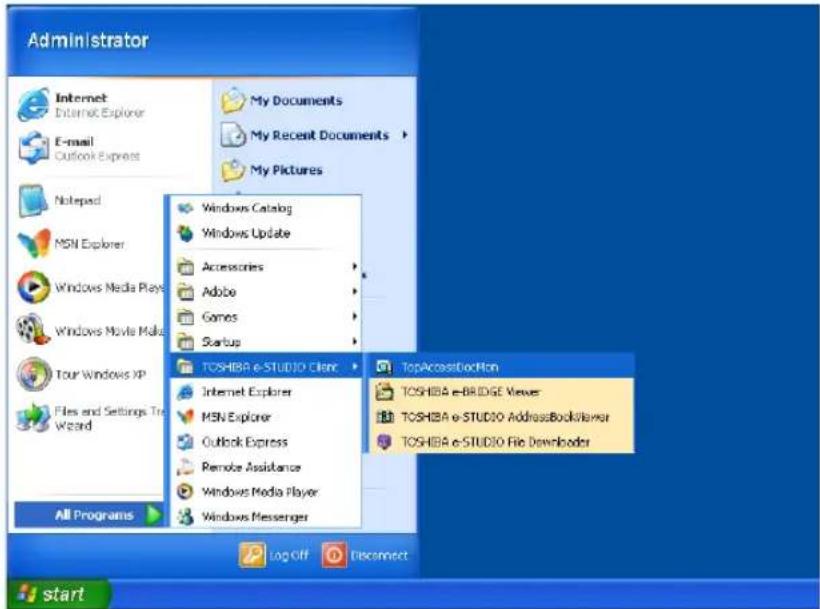
• The TopAccessDocMon icon appears in the taskbar.
— Document Monitor Taskbar Menu
After TopAccessDocMon is activated, you can access its functions from the Document Monitor menu (displayed by right-clicking on the TopAccessDocMon icon in the taskbar).
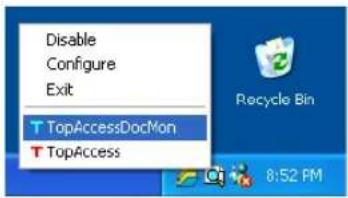
The following menus appears in the Document Monitor taskbar menu:
- Disable/Enable — This allows you to enable or disable document monitoring. To turn on document monitoring, click [Enable] from the Document Monitor menu. The option changes to Disable and displays the TopAccessDocMon icon on the taskbar. Click [Disable] to terminate document monitoring.
- Configure — This allows you to configure how TopAccessDocMon monitors the devices. When this is selected, the configuration dialog box appears.
P.350 "Configuring TopAccessDocMon"
- Exit — This allows you to exit TopAccessDocMon.
- TopAccessDocMon — This allows you to display the TopAccessDocMon window for the default printer.
P.361 "TopAccessDocMon Window"
- TopAccess — This allows you to access TopAccess on the default printer. This is available only when the default printer is set to either the e-STUDIO3510c Series, e-STUDIO451c Series, e-STUDIO850 Series, e-STUDIO452 Series, e-STUDIO282 Series, e-STUDIO4511 Series, e-STUDIO450 Series, e-STUDIO280 Series, GL-1020, or GL-1010.
Configuring TopAccessDocMon
The configuration dialog box allows you to set startup options, select notification events and methods, display or modify refresh rates, and manually update device discovery settings. In the configuration dialog box, the following tabs are displayed:
- Startup — This controls whether TopAccessDocMon is launched when starting Windows. P.350 "Configuring the Start Up Options"
- Notification — This controls which printing events cause a popup message or beep alert. P.351 "Configuring the Notification"
- Refresh Rates — This controls how often the Document Monitor searches for event notifications, printer status, and print queue contents in order to refresh the information displayed. Refresh rates are also known as polling rates.
P.352 "Configuring the Refresh Rates"
- Installed — This shows the network address associated with each installed printer driver. P.354 "Finding the Printer Address"
Accessing configuration
To display the configuration dialog box, right-click the TopAccessDocMon icon in the task bar and select [Configure] from the Document Monitor menu. You can also access the configuration dialog box by double-clicking on the TopAccessDocMon icon in the task bar. To close the dialog box without changing settings, click [Cancel].
— Configuring the Start Up Options
In the Startup tab, you can set TopAccessDocMon to launch when starting Windows.
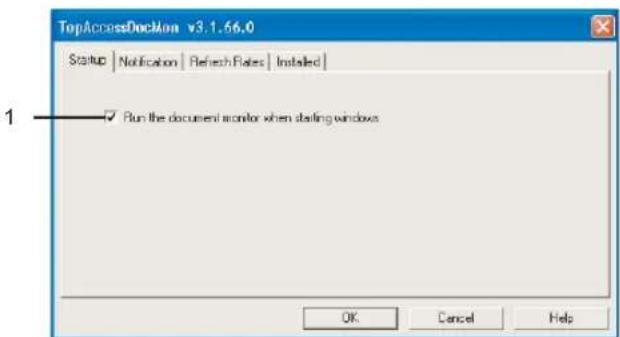
1) Run the document monitor when starting Windows
Check this to run TopAccessDocMon when starting Windows. When this is checked, the TopAccessDocMon icon will automatically appear in the task bar every time you start Windows.
— Configuring the Notification
In the Notification tab, you can enable or disable the events notified by TopAccessDocMon.
Note
If you disable SNMP communication in the printer driver, the notification of the TopAccessDoc-Mon also will be disabled.
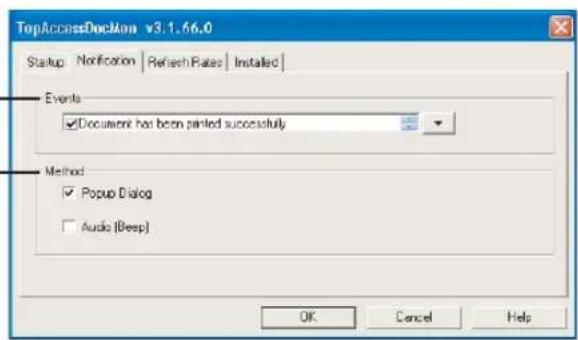
1) Events
This sets the events which are notified. To enable or disable the notification of each event, click the arrow button in the right. The events list is displayed, and you can check on/off events that enable or disable notification.
- Document has been printed successfully — Check this to notify you when the printer is finished printing the document.
- Private print document is being held — Check this to notify you when a private print job that you have sent is ready for you to walk over to the printer and release.
- Proof set has been printed — Check this to notify you when the printer has printed the first copy of your multi-copy job, which is ready for your review before releasing and printing the remaining copies.
- Fax has been transmitted successfully — Check this to notify you when the printer has sent a fax when you have sent using the N/W-Fax driver. This is only available when the Fax option is installed to the devices.
- Document has been cancelled by the printer — Check this to notify you when the printer has cancelled the job. This can happen when a paper size is not available and the timeout has expired. This event occurs only when catastrophic circumstances force the printer to cancel the job, such as a missing byte or memory failure. Expired private print or proof print jobs are never cancelled by the printer.
- Document cannot be printed due to error — Check this to notify you when the printer is unable to print the job.
- Printer has a paper jam — Check this to notify you when there is a paper jam in the printer.
- Fax transmission failure — Check this to notify you when the printer has failed in sending a fax using the N/W-Fax driver. This message apply for e-STUDIO3510c Series, e-STUDIO451c Series, e-STUDIO850 Series, e-STUDIO452 Series, e-STUDIO282 Series, e-STUDIO4511 Series, e-STUDIO450 Series, and e-STUDIO280 Series only.
- Document is held as Invalid — Check this to notify you when a print job is held as an invalid job because of exceeding the limitation for number of copies. This message apply for e-STUDIO3510c Series, e-STUDIO451c Series, e-STUDIO850 Series, e-STUDIO452 Series, e-STUDIO282 Series, e-STUDIO4511 Series, e-STUDIO450 Series, and e-STUDIO280 Series only.
- Printer is offline — Check this to notify you when the printer is off line. This is only available for GL-1010, GL-1020, and SC-2.
- Drawer is out of paper — Check this to notify you when one of the printer drawers is out of paper. This drawer may not be the drawer the printer is using for your job.
- Printer door is open — Check this to notify you when the cover on the printer is open.
- Printer requires attention — Check this to notify you when the printer requires immediate attention.
- Toner is Empty — Check this to notify you when a toner is empty.
- Used Toner Container is full — Check this to notify you when the used toner container is full.
- Toner is low — Check this to notify you when the toner become near empty.
2) Method
This sets how TopAccessDocMon notifies you when events occur.
- Popup Dialog — Check this for a popup dialog box.
- Audio (Beep) — Check this for a beep sound.
— Configuring the Refresh Rates
The Refresh Rates tab lets you change the refresh rates for document notification, printer status, and print queue.
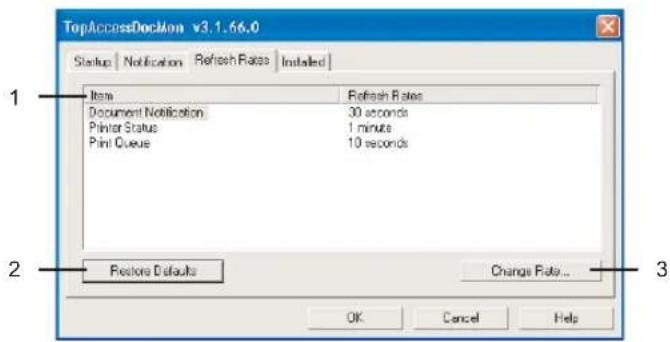
1) Item/Refresh Rates
This list displays the refresh rate settings for each item. You can change the refresh rate by selecting the item in this list and clicking [Change Rate...].
Click this to restore the default refresh rate for each item.
3) [Change Rate...]
Select an item in the list and click it to change the refresh rate. The Document Notification, Printer Status, and Print Queue dialog box appears.
P.352 "Changing the refresh rate"
Changing the refresh rate
The Document Notification, Printer Status, and Print Queue dialog box appears when clicking [Change Rate...] in the Refresh Rate tab of the configuration dialog box.
When the dialog box appears, select the desired refresh rate using the slide bar. The available range of the refresh rate varies for each item.
Document Notification
You can set the refresh rate from 0 second to 1 minute in units of 10 seconds. The default refresh rate for the document notification is 30 seconds.
![Document Notification Select the Desired Refresh Rate [No Refresh] 1 minute 30 seconds OK Cancel Help](/content/2026/06/1276857/images/69398efa212bb71a45d0ba026a35d2f5bfe66bf4c492732c1c522f5cae901b84.jpg)
Printer Status
You can set the refresh rate from 0 second to 5 minute in units of 30 seconds. The default refresh rate for the document notification is 1 minute.
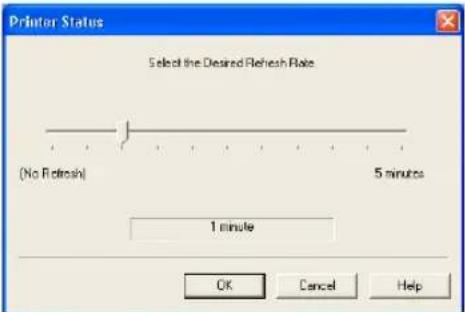
Print Queue
You can set the refresh rate from 0 second to 1 minute in units of 10 seconds. The default refresh rate for the document notification is 10 seconds.
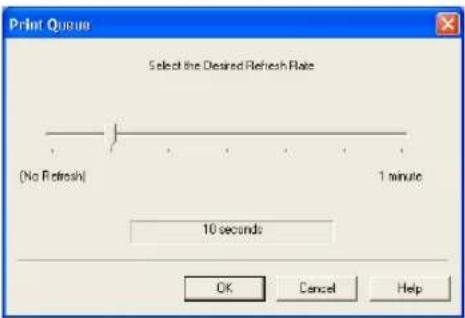
— Finding the Printer Address
The Installed tab displays the network IP address of each device on your computer that has a printer driver installed.
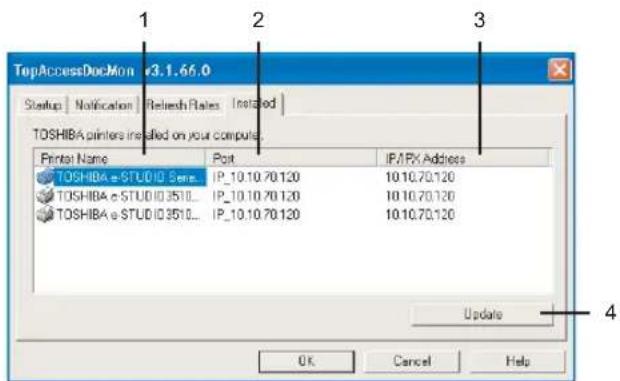
1) Printer Name
This displays the printer driver name.
2) Port
This displays the port on your computer to which the printer driver is connected.
3) IP/IPX Address
This displays the IP address or IPX address of the printer the printer driver maps.
4) [Update]
Click this to update the printer address information.
Monitoring the Printer
This section describes how to monitor the printer using the TopAccessDocMon window.
P.354 "How to Access the TopAccessDocMon Window"
P.361 "TopAccessDocMon Window"
P.372 "Event Notification"
How to Access the TopAccessDocMon Window
To display the TopAccessDocMon window that displays the print job information and printer status, access either from the Document Monitor menu or Printers menu.
— Accessing from the Document Monitor Menu
You can access the TopAccessDocMon window from the Document Monitor menu and control it from the TopAccessDocMon icon in the task bar.
Accessing TopAccessDocMon from the Document Monitor menu
1 Right-click the TopAccessDocMon icon in the task bar.
2 In the menu displayed, select "TopAccessDocMon" to access the TopAccessDocMon window.
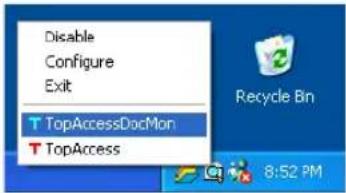
• The TopAccessDocMon window appears.
Notes
- TopAccessDocMon displays the TopAccessDocMon window for the printer set as a default printer in the Printers folder. If the default printer is set to other than the TOSHIBA printer driver, it displays the error message and the TopAccessDocMon window cannot be displayed.
- If the connection to the printer is properly set in the selected printer driver, a message dialog box appears. In this case, click [Yes] to search for a printer and maintain the connection.
P.356 "Searching for a Printer"
— Accessing from the Printers File Menu
You can access the TopAccessDocMon window from the File menu of the Printers folder. When you access TopAccessDocMon from the Printers File menu, the TopAccessDocMon window for the selected printer.
Accessing TopAccessDocMon from the Printers File menu
1 Open the Printers folder and select the printer driver.
2 Click the [File] menu and select [TopAccessDocMon].
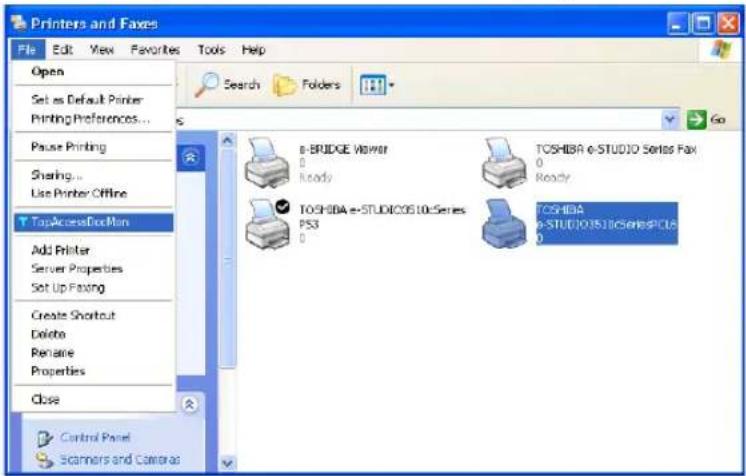
- The TopAccessDocMon window for the selected printer appears.
Note
If the connection to the printer is properly set in the selected printer driver, a message dialog box appears. In this case, click [Yes] to search for a printer and maintain the connection.
P.356 "Searching for a Printer"
— Searching for a Printer
When you activate TopAccessDocMon, if the printer driver you select is not connected correctly to the printer, a message dialog box appears.
In this case, you can use the printer discovery functions to search the printer automatically in the network, or enter the printer address manually.
P.356 "Finding a printer by searching automatically"
P.358 "Finding a printer by entering printer address manually"
Finding a printer by searching automatically
1 Click [OK] in the message dialog box to find a printer.
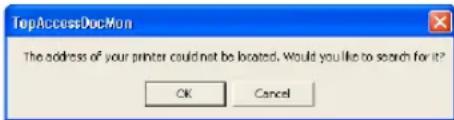
- The TopAccessDocMon Local Discovery dialog box appears.
2 Click [Start Discovery] to begin the process.
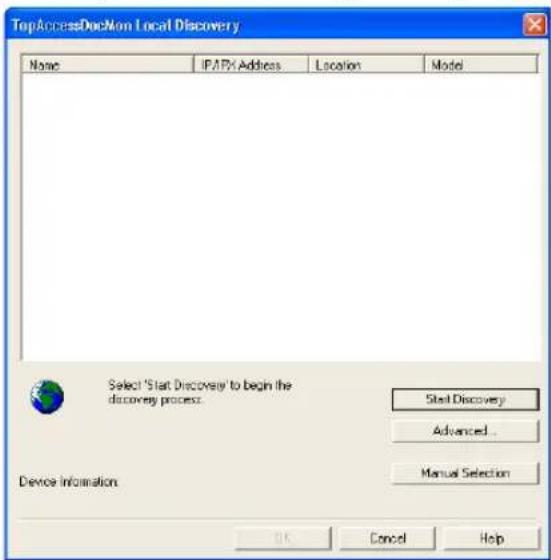
- TopAccessDocMon locates the compatible printers in your network.
Tips
• You can quit the process by clicking [Stop Discovery].
- It may not find the device that is located in the different segment. If a device cannot be found, find a device manually from the [Manual Selection] button.
P.358 "Finding a printer by entering printer address manually"
- If the process continues for a long time, it is because too many network clients are in the network. Also, you must change the discover settings if you want to search for a printer in the IPX/SPX network. In these cases, please configure the discovery settings using the [Advanced] button.
P.360 "Configuring Discovery Settings"
Note
When the equipment is connected to the IPX/SPX network of the NDS or NDPS environment, the equipment cannot be discovered on Windows 98/Me. In this case, please configure the connection manually.
P.358 "Finding a printer by entering printer address manually"
3 When the process is complete, the printers that have been found are listed in the list.
4 Select the printers that you want to monitor from the list and click [OK].
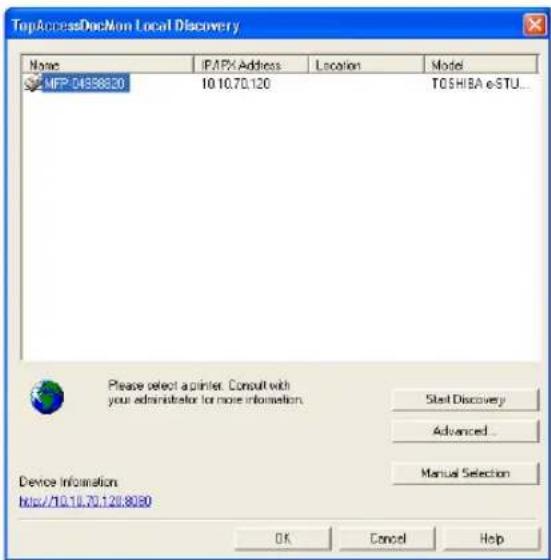
- TopAccessDocMon connects to selected printer and displays the TopAccessDocMon window.
Note
If you select a different device from the default printer driver (when you run TopAccessDocMon by selecting [TopAccessDocMon] from the Document Monitor menu in the task bar) or the selected printer driver (when you run TopAccessDocMon by selecting a printer driver in the Printers folder and selecting [TopAccessDocMon] in the File menu), the message "This printer is different from default printer. Continue to open TopAccessDocMon, please click 'Yes'." is displayed. If this message is displayed, click [No] and select a correct device.
Finding a printer by entering printer address manually
1 Click [OK] in the message dialog box to find a printer.
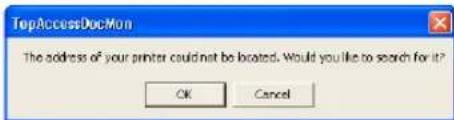
• The TopAccessDocMon Local Discovery dialog box appears.
2 Click [Manual Selection].
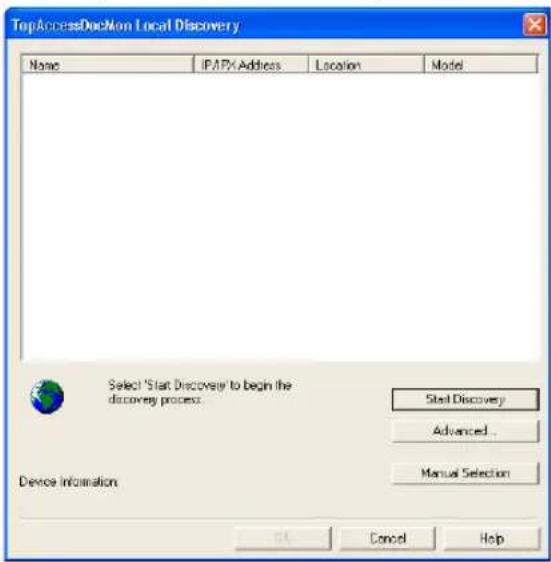
• The Manual Selection dialog box appears.
3 Enter each item to specify the printer address and click [OK].
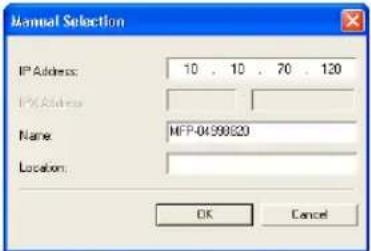
IP Address — Enter the IP address of the printer.
IPX Address — Enter the IPX address of the printer. This is available only when the IPX/SPX protocol and Novell Client are installed in your computer, and the computer is connected to the NetWare server.
Name — Enter the printer name.
Location — Enter the location of the printer.
Note
You must enter "Name" and either "IP Address" or "IPX Address".
4 Entered printer is added in the list. Select a printer that you want to monitor from the list and click [OK].
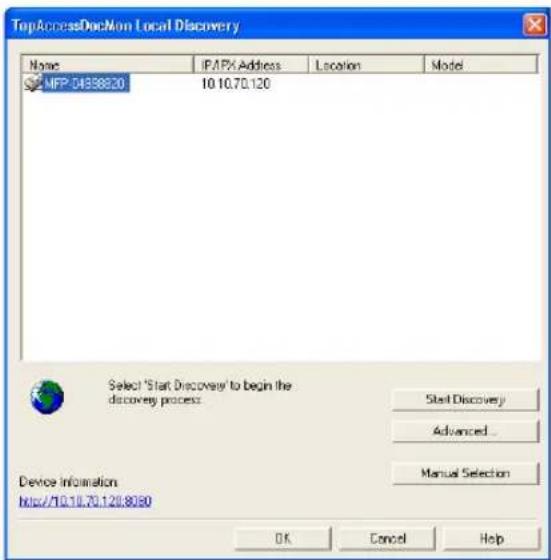
- TopAccessDocMon connects to selected printer and display the TopAccessDocMon window.
Note
If you select a different device from the default printer driver (when you run TopAccessDocMon by selecting [TopAccessDocMon] from the Document Monitor menu in the task bar) or the selected printer driver (when you run TopAccessDocMon by selecting a printer driver in the Printers folder and selecting [TopAccessDocMon] in the File menu), the message "This printer is different from default printer. Continue to open TopAccessDocMon, please click 'Yes'." is displayed. If this message is displayed, click [No] and select a correct device.
Configuring Discovery Settings
You can configure the discovery settings.
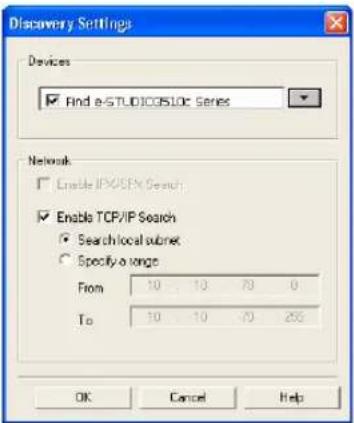
1) Devices
Click the arrow button to display the pull down list and check the model name that you want to search.
2) Network - Enable IPX/SPX Search
Check on this to search for printers connected to the IPX/SPX network. This is available only when the IPX/SPX protocol and Novell Client are installed in your computer, and the computer is connected to the NetWare server.
3) Network - Enable TCP/IP Search
Check on this to search for printers connected to the TCP/IP network. This is available only when the TCP/IP protocol is installed in your computer.
When this is enabled, select how TopAccessDocMon should search for printers in the TCP/IP network.
- Search local subnet — Select this to search for printers in local subnet.
- Specify a range — Select this to search for printers in a specific range of IP addresses. When this is selected, enter the IP addresses in "From" field and "To" field to specify the range.
TopAccessDocMon Window
In the TopAccessDocMon window, you can monitor print jobs and printer status.
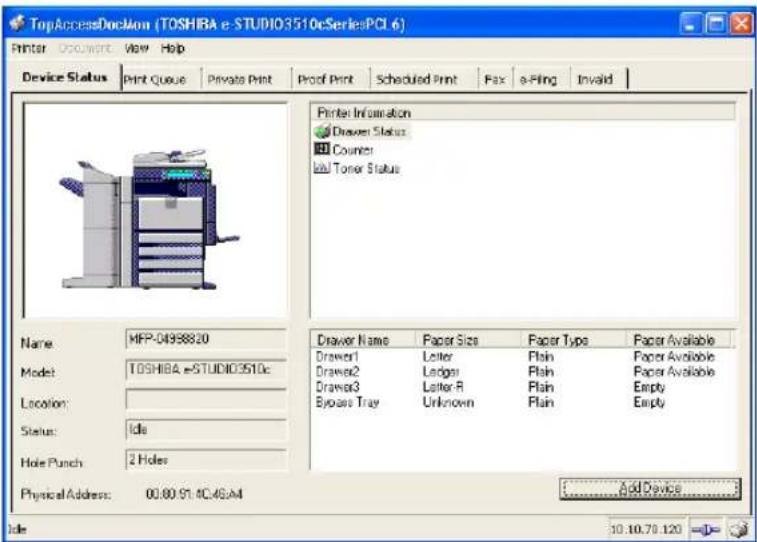
This window consists of:
- A menu bar containing the options Printer, Document, View, and Help. The Device Status tab includes only the Printer, View and Help menus.
- There are nine (9) possible tabbed views: Device Status, Print Queue, Private Print, Proof Print, Scheduled Print, Fax, e-Filing, TopAccessComposer, and Invalid. The tabs displayed vary depending on the printer being monitored.
- A status bar containing icons and text that allow you to quickly see the status of the printer.
Menu Bar Options
The options are:
- Printer > Close — Closes the current window.
- Printer > Change Printer — The device names that have been added to the monitoring list are displayed. You can change the monitoring device by selecting the device name.
P.364 "Changing Monitoring Devices"
- Document > Cancel — This menu is displayed under all queue tab. This item allows you to delete the print job from the queue. You can only cancel print jobs that you submitted.
- Document > Release Proof — This menu is displayed under the Proof Print tab. This item displays the Release Proof dialog box where the number of copies to be printed can be changed and the job released for printing (added to the current jobs print queue). You can only release jobs that you submitted.
P.369 "Monitoring Queues"
- Document > Print Now — This menu is displayed under the Scheduled Print tab. This item overrides the assigned print schedule order for a particular job and prints the selected job immediately.
P.369 "Monitoring Queues" - Document > Invalid Release — This menu is displayed under the Invalid tab. This item displays the Invalid Release dialog box where the department code is entered and the job is released for printing.
• View > Configure — Displays the Configuration window.
P.350 "Configuring TopAccessDocMon"
• View > Refresh — Renews the window display.
• View > Status Bar — Check or uncheck to display or hide the status bar. - Help > Contents and Index — Accesses the online help application.
- Help > About TopAccessDocMon — Displays copyright, version, and other information about the Document Monitor.
Document Monitoring Tabs
The tabs on this window vary depending on the monitoring device:
e-STUDIO3510c Series, e-STUDIO451c Series, e-STUDIO850 Series, e-STUDIO452 Series, e-STUDIO282 Series, e-STUDIO4511 Series, e-STUDIO450 Series, or e-STUDIO280 Series
— Device Status, Print Queue, Private Print, Proof Print, Scheduled Print, Fax, e-Filing, and Invalid
GL-1020 — Device Status, Print Queue, Private Print, Proof Print, Scheduled Print, Fax, TopAccessComposer, and Invalid
GL-1010 — Device Status, Print Queue, Private Print, Proof Print, Scheduled Print, Fax, TopAccessComposer, and Invalid
SC-2 — Device Status, Print Queue, Private Print, and Proof Print.
Other devices (that supports MIB-II, Host Resource MIB, and Printer MIB) — Device Status
• Device Status tab — Displays the printer information.
- Print Queue tab — Displays a list of all current jobs. Using this tab you can display all the jobs in the print queue, pause and resume printing, and cancel a print job.
- Private Print tab — Lists the confidential print jobs. Using this tab you can display all your private print jobs and cancel jobs as needed.
- Proof Print tab — Displays details of proof print jobs. Proof print jobs are those for which a proof copy has already been printed but the balance remaining is being held in this queue. You can display all proof print jobs that have not been printed, release the rest of the document for printing, and cancel a print job — as needed.
- Scheduled Print tab — Displays details of jobs that are being held for printing at a specified date and time.
- Fax tab — Displays details of fax jobs that are being sent using the N/W-Fax driver.
• e-Filing tab — Displays details of documents that are being stored in Box about one minute.
- TopAccessComposer tab — Displays details of documents that are being stored in TopAccessComposer about one minute.
- Invalid tab — Lists jobs with invalid department codes and jobs exceed the limitation for number of copies.
Status Bar
The status bar extends along the lower border of the TopAccessDocMon window. The information it contains depends upon the tab you've chosen.
Tip
You can choose whether or not to display the status bar by checking/unchecking the Status Bar option using the View menu.
1) Status
Located on the left side of the bar, is a phrase that describes the status of the device or job:
- Device Status tab — shows the condition of the printer.
- Print Queue tab — shows the number of documents in the print queue.
- Private Print tab — shows the number of private print jobs.
- Proof Print tab — shows the number of proof print jobs.
- Scheduled Print tab — shows the order of scheduled print jobs for the selected device.
- Fax tab — shows the number of fax jobs.
- e-Filing tab — shows the number of print jobs to be sent to Box.
- TopAccessComposer tab — shows the number of print jobs to be sent to TopAccessComposer.
- Invalid — shows the number of print jobs in the Invalid print queue.
2) IP/IPX Address
This item on the taskbar shows the IP address or IPX address for the device connected to the selected printer.
3) Connection Status
The icon shows the communication status of the printer.

Shows that TopAccessDocMon is communicating with the printer.

Shows that the communications link between TopAccessDocMon and the printer is broken and displays the message The printer is not responding.
TopAccessDocMon periodically tries to reestablish the link. How frequently this is done depends upon the refresh rate.
Warnings display in yellow and errors in red. Clicking the primary icon (the first one) takes you to the TopAccessDocMon window.
4) Printer Icon
Click the printer icon to update the information.
— Checking Device Status
In the Device Status tab, you can check the printer status.
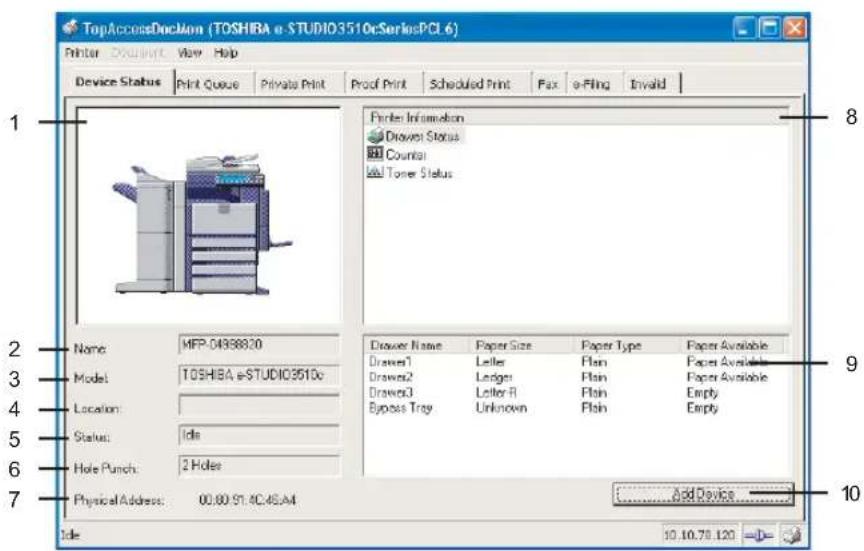
The printer information includes:
1) Printer Image
This displays a visual representation of the printer, showing the device status icon when an error condition occurs.
P.388 "Device Status Indicators"
2) Name
This displays the name of the printer.
3) Model
This displays the printer model name.
4) Location
This displays the printer's physical location.
5) Status
This tells you if the machine is ready for printing.
6) Hole Punch
This displays the type of hole punch unit installed.
7) Physical Address
This displays the printer's machine address (a unique ID provided by the printer's network card, also referred to as the hardware address.)
8) Printer Information
This displays the drawer status icon along with the errors, warnings that have been recorded for the printer, and toner information. Shows drawer status and provides machine information such as toner low, door open, paper jam, etc. Also it provides the alert and counter information.
9) Description (list box below Printer Information)
This highlights the method of recovery for the alert selected above.
10) [Add Device]
Click this to add a new device to be monitored. The TopAccessDocMon Network Discovery dialog box appears.
P.364 "Adding Devices"
— Changing Monitoring Devices
You can change the device to display the details in the TopAccessDocMon window.
To change the device, click the [Printer] menu, [Change Printer], and select the device name of which the details are displayed in the TopAccessDocMon window.
Tip
You can add the device name in the Change Printer menu by clicking [Add Device] in the Device Status tab.
P.364 "Adding Devices"
— Adding Devices
You can add the devices to be monitored by TopAccessDocMon.
To add the new device, you can use the TopAccessDocMon Network Discovery function. You can add the printer by automatically searching the printer in your network, or entering the printer address manually.
Adding new device by searching the printer automatically
1 Click [Add Device] in the Device Status tab.
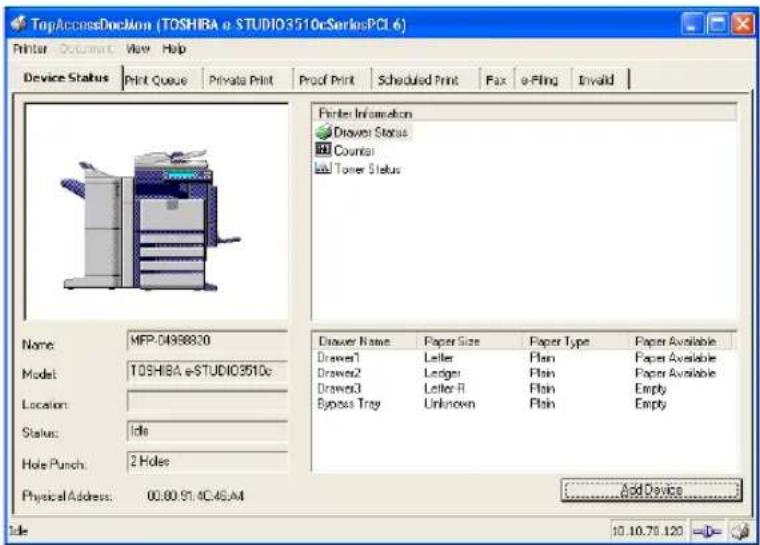
• The TopAccessDocMon Network Discovery dialog box appears.
2 Click [Start Discovery] to begin the process.
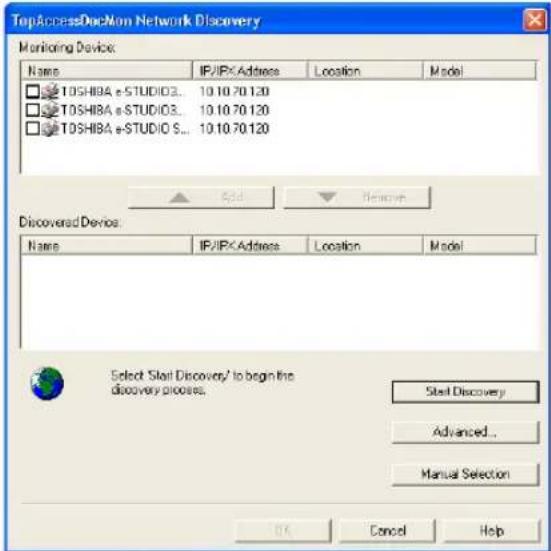
- TopAccessDocMon locates the compatible printers in your network.
Tips
• You can quit the process by clicking [Stop Discovery].
- It may not find the device that is located in the different segment. If a device cannot be found, find a device manually from the [Manual Selection] button.
P.367 "Adding new device by entering the printer address manually"
3 When the process is complete, the printers that have been found are listed in the "Discovered Device" list.
Tip
If the process continues for a long time, it is because too many network clients are on the network. Also, you must change the discover settings if you want to search for a printer in the IPX/SPX network. In this case, you can configure the discovery settings using the [Advanced] button.
P.368 "Configuring Network Discovery Settings"
4 Select the printers that you want to monitor from the "Discovered Device" list and click [Add].
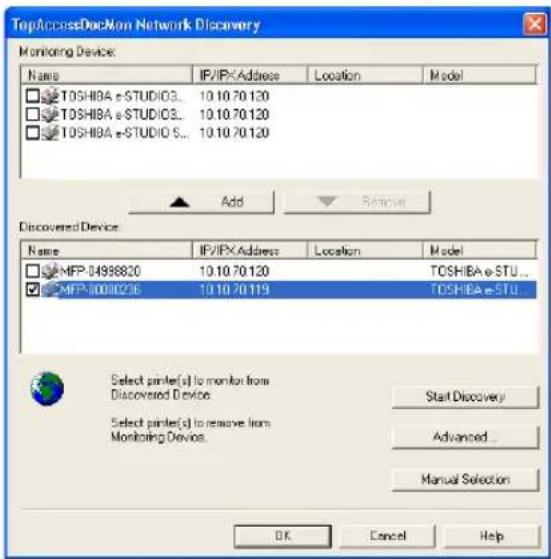
- The selected printer is added to the "Monitoring Device" list.
Tip
You can remove the printers from the "Monitoring Device" list. To do this, select the printer that you want to remove and click [Remove]. However, you cannot remove the printers which are related to the installed printer drivers.
5 Click [OK].
Adding new device by entering the printer address manually
1 Click [Add Device] in the Device Status tab.
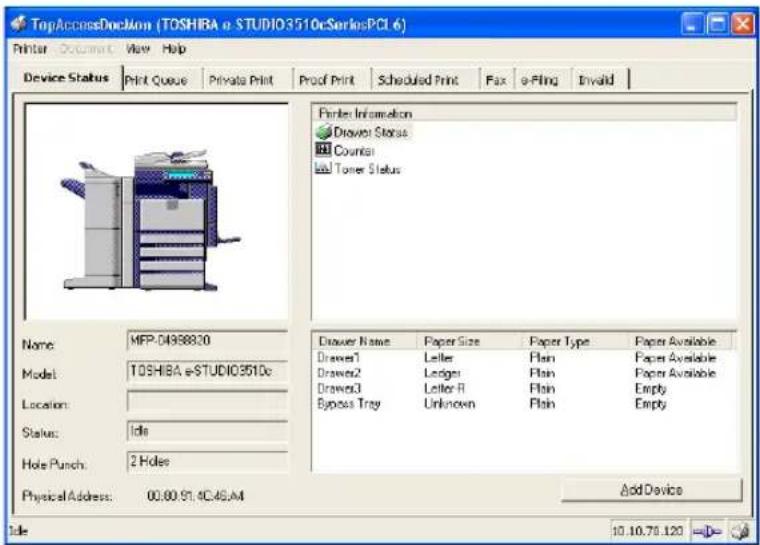
• The TopAccessDocMon Network Discovery dialog box appears.
2 Click [Manual Selection].
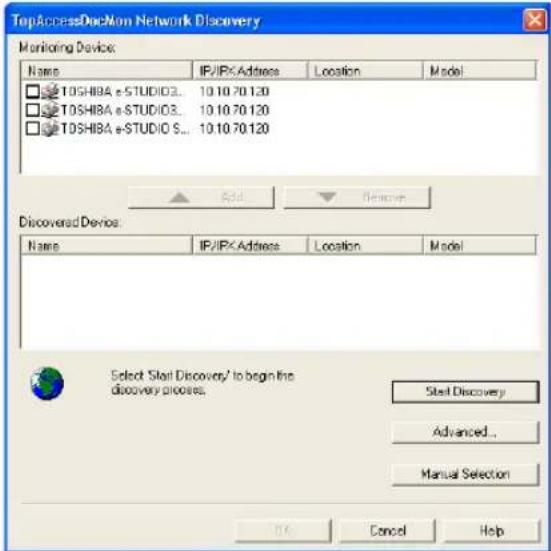
• The Manual Selection dialog box appears.
3 Enter each item to specify the printer address.
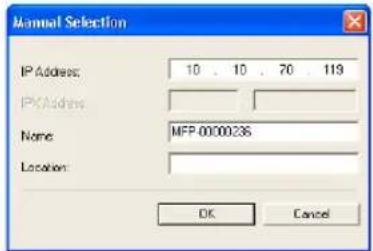
IP Address — Enter the IP address of the printer.
IPX Address — Enter the IPX address of the printer. This is available only when the IPX/SPX protocol and Novell Client are installed in your computer, and the computer is connected to the NetWare server.
Name — Enter the printer name.
Location — Enter the location of the printer.
Note
You must enter "Name" and either "IP Address" or "IPX Address".
4 Entered printer is added in the "Monitoring Device" list. Click [OK].
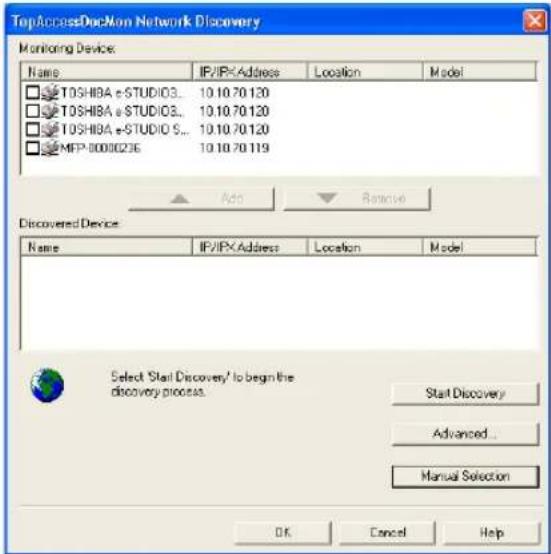
Configuring Network Discovery Settings
You can configure the discovery settings for the Network Discovery in the Discovery Settings dialog box.
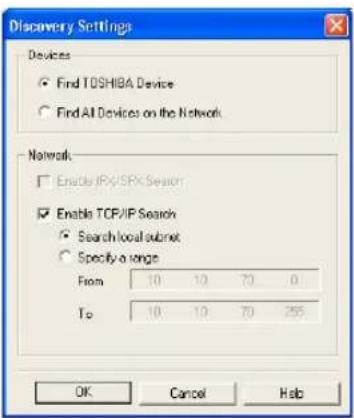
1) Devices - Find TOSHIBA Devices
Check on this to search only for TOSHIBA devices in your network, such as the e-STUDIO3510c Series, e-STUDIO451c Series, e-STUDIO850 Series, e-STUDIO452 Series, e-STUDIO282 Series, e-STUDIO4511 Series, e-STUDIO450 Series, e-STUDIO280 Series, GL-1020, GL-1010 and SC-2.
2) Devices - Find All Devices on the Network
Check on this to search for all compatible devices can be detected.
3) Network - Enable IPX/SPX Search
Check on this to search for printers connected to the IPX/SPX network. This is available only when the IPX/SPX protocol and Novell Client are installed in your computer, and the computer is connected to the NetWare server.
4) Network - Enable TCP/IP Search
Check on this to search for printers connected to the TCP/IP network. This is available only when the TCP/IP protocol is installed in your computer.
When this is enabled, select how TopAccessDocMon should search for printers in the TCP/IP network.
- Search local subnet — Select this to search for printers in local subnet.
- Specify a range — Select this to search for printers in a specific range of IP addresses. When this is selected, enter the IP addresses in the "From" field and "To" field to specify the range.
— Monitoring Queues
Each of the TopAccessDocMon job status tabs display essentially the same information.
The Queue tabs on the TopAccessDocMon window are vary depending on the monitoring device:
e-STUDIO3510c Series, e-STUDIO451c Series, e-STUDIO850 Series, e-STUDIO452 Series, e-STUDIO282 Series, e-STUDIO4511 Series, e-STUDIO450 Series, and e-STUDIO280
Series — Print Queue, Private Print, Proof Print, Scheduled Print, Fax, e-Filing, and Invalid GL-1020 — Print Queue, Private Print, Proof Print, Scheduled Print, Fax, TopAccessComposer, and Invalid
GL-1010 — Print Queue, Private Print, Proof Print, Scheduled Print, Fax, TopAccessComposer, and Invalid
SC-2 — Device Status, Print Queue, Private Print, and Proof Print.
Job status information
- Document Name — is the name of the document that is printing.
• Status — is the state or condition of the job. - Scheduled — for Scheduled Print jobs, this item displays the date and time the job is scheduled to print in localized form.
- User Name — identifies who submitted the job.
• Pages — shows the pages in the job and number of pages printed. - Submitted — is the date and time that the print job was submitted.
- Copies — this item contains the number of copies requested.
In each queue tab, you can delete a print job that you originally submitted.
In addition, in the Proof Print tab, you can print the remaining copies of proof print jobs. In the Scheduled Print tab, you can print the selected scheduled job immediately. In the Invalid tab, you can print the selected job by entering the department code.
Deleting print jobs
1 Display the queue tab and select a print job that you want to delete.
Note
You can delete the print job only that you originally submitted.
2 Click [Document] menu and select [Cancel].
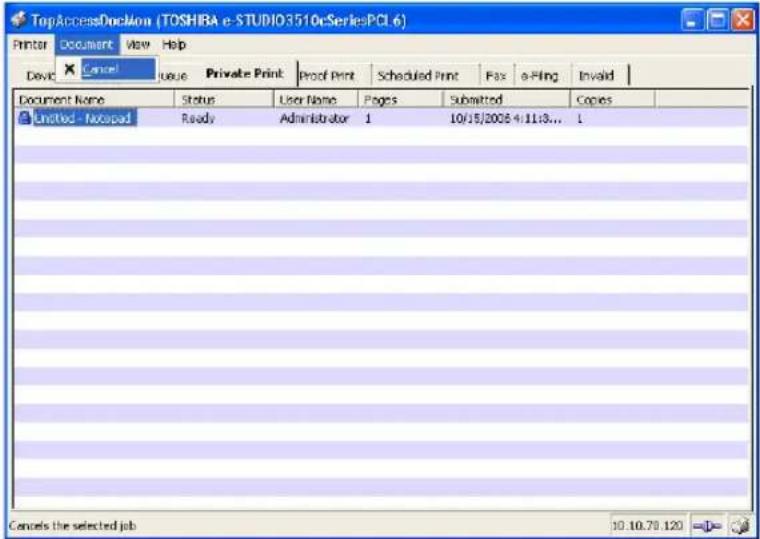
• The selected job is deleted.
Releasing proof print documents
1 Display the Proof Print tab and select a proof print job that you want to print of remaining copies.
Note
You can release the proof print job only that you originally submitted.
2 Click [Document] menu and select [Release Proof].
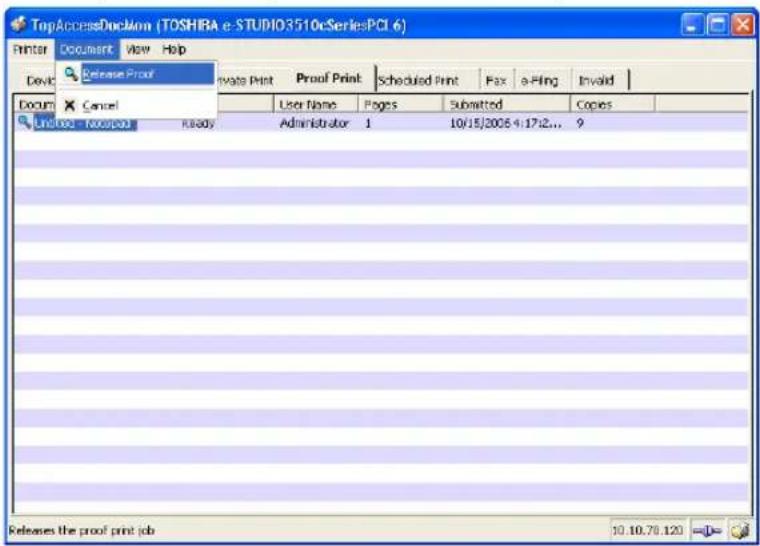
• The Release Proof dialog box appears.
3 Enter the number of copies and click [OK].
• The remaining copies of the proof print job are printed.
Releasing scheduled print documents immediately
1 Display the Scheduled Print tab and select a scheduled print job that you want to print immediately.
Note
You can release the scheduled print job only that you originally submitted.
2 Click [Document] menu and select [Print Now].
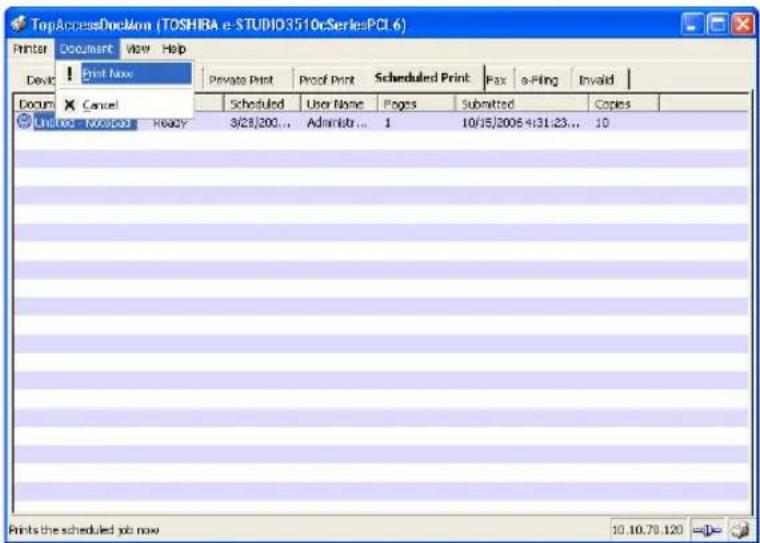
• The selected scheduled print job is immediately printed.
Releasing invalid print documents
1 Display the Invalid Print tab and select a print job that you want to print.
Notes
• You can release the print job only that you originally submitted.
- The invalid jobs for exceeding the limitation for number of copies cannot be released.
2 Click [Document] menu and select [Invalid Release].
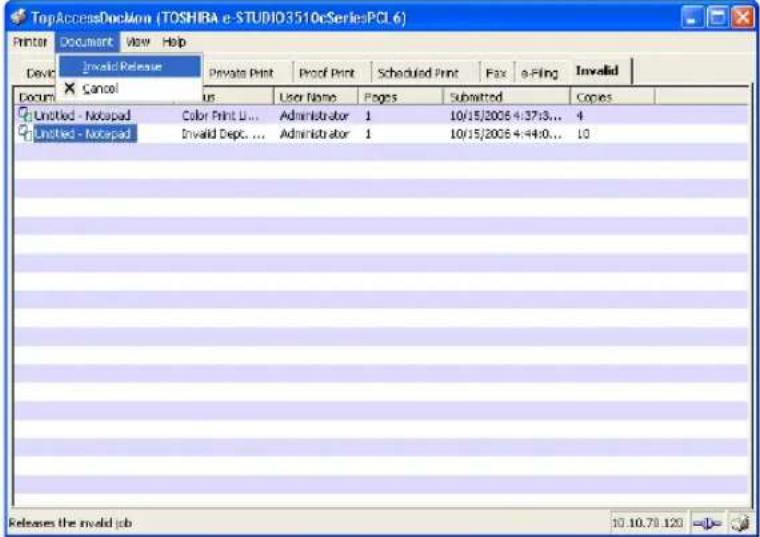
• The Invalid Release dialog box appears.
3 Enter the 5-digit department code and click [OK].
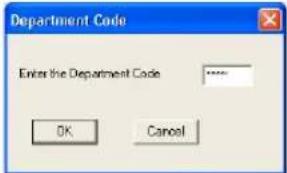
• The selected invalid print job is printed.
Event Notification
When an event occurs that has been assigned alert status (selected for notification), a popup notification dialog box appears. This popup message contains the following information about the event:
Note
If you did not select Popup Message as the notification method, you will not see a popup notification dialog box.
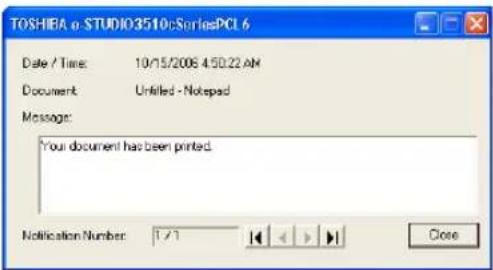
- Date/Time — displays the date and time of the document.
- Document — displays the name of the document.
- Message — displays the event notification message.
- Notification Number — displays the sequential order of the current message in the notification queue. For example, 3/8 indicates that it is the third message in a queue of eight notifications.
- Click this to display the first notification dialog box in the queue.
- Click this to display the previous notification dialog box in the queue.
- Click this to display the next notification dialog box in the queue.
- Click this to display the last notification dialog box in the queue.
• [Close] — closes the window.
10
Troubleshooting
This section describes about troubleshooting for printing features.
When Printing cannot be Performed....376
Printer Driver Errors ....377
Printer Driver Installation Error Messages ....377
Printer Driver General Errors 378
TopAccessDocMon Errors ....381
TopAccessDocMon Error Conditions ....381
TopAccessDocMon Error Messages....382
Device Status Indicators....388
Note
This problem can arise as the result of a hardware malfunction, a network communication or configuration problem. Before troubleshooting the client error, ask your administrator to troubleshoot the hardware or network errors. Those troubleshooting are described in the Network Administration Guide.
The following checklist helps you identify the source of the error and directs to you where you can find more information about resolving it.
Client Error for Windows Platform
| No Check... Yes No | For Instruction, Go To... | ||
| 1 Have you ever printed successfully from this client workstation? | Next Step ↓ | → | P.378 “Driver Mapped to Wrong Port” |
| 2 Do you set up the printer driver other than a SMB connection? | Next Step ↓ | → | P.379 “Cannot Print a Job Using SMB” |
| 3 Open TopAccessDocMon and note the taskbar connection icon and status bar message. Is this equipment responding? | Next Step ↓ | → | P.381 “The Device is Not Responding” |
| 4 Try resubmitting the job. Does the printer status read “Document has printed successfully”? | End → | P.382 “Cannot Interpret TopAccessDocMon Messages/Warning/Errors” |
Client Error for Macintosh Platform
| No Check... Yes No | For Instruction, Go To... | ||
| 1 Is this equipment you created selected in the Chooser? | End ⇒ | P.150 “Installing the Printer on Mac OS 8.6/9.x” |
Print Job Status Messages
The status and result of the print jobs is indicated as following in the Print Job page in the Job Status tab and Print Log page in the Logs tab.
| Error Code | Cause Corrective Action | |
| 402F | PM size error 1200 dpi print jobs | cannot be printed without the optional expansion memory. Send a print job with a 600 dpi setting. |
| 4031 | HDD full error Delete unnecessary | private print jobs and invalid department print jobs. |
| A221 Job canceled (Job was canceled.) | ||
| A222 | Power failure | Check if the power cable is connected properly and it is inserted securely. Check if the power voltage is unstable. |
Printer Driver Installation Error Messages
Setup Needs to Copy Windows NT Files
Problem Description
The wrong port type was selected from the Printer Ports dialog.
Corrective Action
- Click Cancel until the Add Printer Wizard terminates.
- Double-click Add Printer from the Printers folder but, when prompted to select a port, choose Local Port.
Client Software CD Now Required
Problem Description
When adding a new printer driver, the end user did not choose the Have Disk option; instead, he selected the printer name from the Add Printer list.
Corrective Action
- Cancel the Add Printer Wizard.
- Double-click Add Printer from the Printers folder but, when prompted to locate the driver, click Have Disk.
- Select Use Existing Driver to add another copy of an existing driver or browse to the subdirectory that contains the appropriate *.inf file.
File \*.DRV on Client CD Could Not Be Found
Problem Description
When adding a new printer driver, the user did not choose the Have Disk option but selected the printer name from the Add Printer list.
Corrective Action
- Cancel the Add Printer Wizard.
- Double-click Add Printer from the Printers folder, but when prompted to locate the driver, click Have Disk.
- Browse to the subdirectory that contains the appropriate *.inf file.
Location Does Not Contain Information About Your Hardware
Problem Description
The path to the *.inf file selected during driver installation is too far away. In other words, there are too many characters in the directory path.
Corrective Action
Copy the directory containing the *.inf file to the local drive and resume installation.
This Port is Currently in Use
Problem Description
The driver was either open, printing a job, or is in use by another printer or application, when you attempted to delete it.
Corrective Action
Make sure all print jobs have completed before deleting a port. If there are still problems, exit all applications and try again. Check each driver to see if another driver is using the same port. If so, first change the driver's port setting and delete the port.
Problem with the Current Printer Setup
Problem Description
The driver was not set up properly, possibly because the installation procedure did not complete.
Corrective Action
Delete the driver and either reinstall it from the distribution CD-ROM or download it from this equipment.
Printer Driver General Errors
Driver Mapped to Wrong Port
Problem Description
If the printer driver on a client workstation points to the wrong network port, jobs do not appear in the current jobs queue or print out.
Corrective Action
- Open the Printers folder from the Control Panel.
- Right-click the printer driver icon.
- Select Properties from the shortcut menu.
- Depending on the operating system, select the following tab:
- In Windows 98/Me — Select Details. Browse to select the printer or Novell queue.
- In Windows NT 4.0/2000/XP/Server 2003 — Select Ports. Add a new port and map it to the printer.
- Make sure that the path to the printer and the device name are correct.
\\print - Where
is the same as the device name set from the Touch Panel Display. - Click the General Tab and click Print Test Page to confirm that the settings are correct.
Command Line Options Not Processed
Problem Description
All print options are sent to this equipment at the start of the print job. If the print file already contains print commands, they override the command line options you set. For example, if the print file specifies the Letter media, and you specify the A4 media option with the lp command, the document is output on letter size paper (provided, of course, that all copier-related restrictions have been met).
Corrective Action
Change the properties in the document you want to print and recreate the print file. Submit the print job using the LP command without setting additional parameters.
Cannot Remember Document Password
Problem Description
There is no way to obtain the password for a Private Print job after it has been sent. A private print job remains in the queue until the correct Document Password is entered.
Corrective Action
The end user must delete the job from the Touch Panel Display or through TopAccessDocMon and resubmit the Private Print job using a new password. Encourage the user to write down the password so they can enter it to retrieve their jobs from the Touch Panel Display.
Retrieval of Printer Configuration Failed
Problem Description
When accessing the printer properties, the system displayed “Retrieval of printer configuration failed”.
Corrective Action
If the printer driver cannot communicate with this equipment — Verify that the system is running. If not, turn it on. Connect to this equipment via TopAccess. If you cannot connect, reboot this equipment. If that fails, check the printer driver port assignment to make sure it is correct.
Cannot Print a Job Using SMB
Problem Description
When printing a document using a SMB connection, the job cannot be printed because an error such as “No more connections can be made to this remote computer” and “Your file could not be printed due to an error” are continuously displayed.
Corrective Action
It assumes using SMB printing in a small network. If you can use the Windows NT 4.0, Windows 2000, Windows XP, or Windows Server 2003 as a print server, it is recommended to set up for printing via Windows print server. For further information about setting up printing via a Windows print server, see the Network Administration Guide.
If you cannot use a Windows print server in your network, use LPR printing for Windows NT 4.0/2000/XP/Server 2003.
Cannot Print a Job as Expected Using PS Printer Driver
Problem Description
When printing with the PS3 printer driver from the application that creates the PostScript code for printing such as Adobe Acrobat, the following print options may not work correctly.
- Manual Scale
- Print Paper Size
- Paper Type
-
User Front Cover
-
User Back Cover
- Interleave Pages
- Insert Pages
- Booklet
• Multiple Pages per Sheet
• All options in the Effect tab
• All options in the Image Quality tab
Corrective Action
Disable "Use PostScript Passthrough" in the PostScript Settings dialog box and print a document.
Cannot Change Settings on Fonts Tab and Configuration Tab
Problem Description
The Fonts tab and Configuration tab are grayed out and they cannot be modified.
Corrective Action
Users who do not have the privilege to change the printer driver setting cannot change the options in the Fonts tab and Configuration tab. Please log in with Administrator or Power User.
Cannot Print Properly by AppleTalk Printing
Problem Description
- Texts will be printed as the stripe lines when printing the email message.
• Some texts are not printed. - A web page is not printed although the print job is sent to the equipment when printing from a browser.
Corrective Action
If the above errors occur by AppleTalk printing, please use LPR printing.
This section describes about the error conditions and messages of TopAccessDocMon.
P.381 "TopAccessDocMon Error Conditions"
P.382 "TopAccessDocMon Error Messages"
P.388 "Device Status Indicators"
TopAccessDocMon Error Conditions
Refer to the corrective action for the following error conditions.
P.381 "The Device is Not Responding"
P.381 "Cannot View Job in TopAccessDocMon Print Queue"
P.382 "Cannot Interpret TopAccessDocMon Messages/Warning/Errors"
The Device is Not Responding
Problem Description
The status bar reads, "The device is not responding" and the broken connection icon is displayed in the taskbar.
Technically, this icon means that the SNMP manager on the client machine cannot communicate with the SNMP agent on this equipment. Several error conditions can cause this status:
- The network connection between the client and the device has been broken.
- The device IP Address has changed and the client is still using the old address.
• The device is currently rebooting. - The SNMP agent on the device is not functioning properly or has stopped functioning.
Corrective Action
- Make sure that the SNMP Network Service is enabled from the Network Setup page in the TopAccess Administrator mode.
- Wait for a couple of minutes. Most of the time, the connection is reestablished automatically.
- If the broken connection condition persists, exit and restart TopAccessDocMon.
- If, upon restarting TopAccessDocMon, you receive a message that the address cannot be resolved, manually discover and select the device.
P.356 "Searching for a Printer"
Cannot View Job in TopAccessDocMon Print Queue
Problem Description
After submitting a job to print, there are several reasons why you may not see the job in the print queue:
• The wrong device selected.
- The job is queued on the Windows operating system print spooler.
• The job may be held in the Novell print queue.
• A copier error prevents printing.
Corrective Action
- Check the device location to see if there really should be any jobs listed.
- Check the Jobs Log in TopAccess to see if the status of the job is listed as Done, Deleted, or Unserviceable.
- If the job is very small, it may have already been serviced and moved to the Jobs Log as a terminated job. If the job was unserviceable for some reason, it no longer appears in the under Current Jobs list.
-
Look at the Touch Panel Display for error messages. For instance, a prompt to load paper holds up subsequent jobs in the queue.
-
In a Peer to Peer environment, the job may be queued on the Microsoft Windows operating system print spooler and, consequently, not available in Current Jobs or the Jobs Log. If you do not see any error messages and the printer seems to be working fine, resubmit the job.
- The job may be in the Novell print queue and thus, not visible for the moment. Use NWAdmin or PCONSOLE to see if there are any queue errors.
Cannot Interpret TopAccessDocMon Messages/Warning/Errors
Problem Description
The device status indicates the current state of the copier to which print jobs are being submitted.
Corrective Action
For an explanation of device status messages, refer to the following section.
P.382 "TopAccessDocMon Notification Messages"
P.383 "TopAccessDocMon Printer Status Messages"
TopAccessDocMon Error Messages
When the error message or printer status message is displayed, refer to the following section to find your corrective action.
P.382 "TopAccessDocMon Notification Messages"
P.383 "TopAccessDocMon Printer Status Messages"
TopAccessDocMon Notification Messages
The following table shows the notification messages displayed and helps you to find more information about resolving it.
| Message Description | |
| Your document has been printed. | User has sent a print job and it has finished printing successfully. |
| Your private print document is now being held. | User has sent a private print job and it is ready for the user to walk to copier and activate the job. |
| Your proof set has been printed. | User has sent a proof copy of a multi-copy job has printed, and it is ready for the user to review before releasing and printing the remaining copies. |
| Your fax has been transmitted successfully. | User has sent a fax job and it has finished faxing successfully. |
| Your document has been cancelled. | User had sent a print job and it has been changed to a cancelled state. This can happen when a paper size is not available and the timeout has expired. Ensure proper paper has been set to this equipment and resubmit the job.If this message is notified after sending a private, proof, or scheduled print job, the private or proof print job was cancelled before it was put into a held state. This may occur because of a missing byte or memory failure. In this case, ask your administrator to maintain the available hard disk space to store the jobs, or delete the unnecessary jobs stored and resubmit the job. |
| Your document cannot be printed due to error. | User has sent a print job and it was rendered unserviceable by this equipment. Make sure you use the correct printer driver. |
| Fax transmission failure | The the transmission of a fax job that was sent using N/W-Fax driver failed. Make sure you specify the correct destinations. |
| Document is held as invalid | The print job is held as an invalid job because of exceeding the limitation for number of copies. Make sure you specify the number of copies that does not exceed the limitation. |
| The printer has a paper jam. A | paper jam has occurred. Remove the jam and resubmit the job. |
| The printer is offline. | The printer is offline. This may be displayed by monitoring other TOSHIBA device, such as GL-1020, GL-1010, SC-2, so on. Turn the printer online and resubmit the job. |
| The printer is out of paper. One | of the drawers is out of paper. Add paper. |
| The printer door is open. One of the doors is opened. Close the door. | |
| The printer requires attention. | An error has occurred. Go to the Touch Panel Display to see the type of error. For more details on resolving the error, refer to theOperator's Manual for Basic Functionorconsult your network administrator. |
| The yellow toner is Empty.The magenta toner is Empty.The cyan toner is Empty.The black toner is Empty. | One of the toner cartridges is empty. Replace it.Toner Empty message for yellow, magenta, cyan toners are displayed only for e-STUDIO3510c Series, e-STUDIO451c Series and e-STUDIO4511 Series. |
| The used toner container is full. | The toner bag is full. Replace the toner bag. |
| The yellow toner is low.The magenta toner is low.The cyan toner is low.The black toner is low. | One of the toner cartridges is low. Replace it.Toner Empty message for yellow, magenta, cyan toners are displayed only for e-STUDIO3510c Series, e-STUDIO451c Series and e-STUDIO4511 Series. |
TopAccessDocMon Printer Status Messages
The following table shows the printer status messages displayed in the Device Status tab and helps you to find more information about resolving it.
| Status Details Description | ||
| Paper Empty Paper | Paper Empty in Drawer 1 - Please Add Paper Add paper in the Drawer 1. | |
| Paper Empty in Drawer 2 - Please Add Paper Add paper in the Drawer 2. | ||
| Paper Empty in Drawer 3 - Please Add Paper Add paper in the Drawer 3. | ||
| Paper Empty in Drawer 4 - Please Add Paper Add paper in the Drawer 4. | ||
| Paper Empty in Large Capacity Feeder - Please Add Paper. | Add paper in the Large Capacity Feeder. | |
| Paper Empty in Bypass Tray - Please Add Paper. Add paper in the Bypass Tray. | ||
| Status | Details | Description |
| Cover Open Pl | Platen Cover Open - Please Close Cover Close the Platen Cover. | |
| Front Cover Open - Please Close Cover. Close the Front Cover. | ||
| Paper Feeding Cover Open - Please Close Cover. Close the Paper Feeding Cover. | ||
| Transfer/Transport Unit Open - Please Close Cover. | Close the Transfer/Transport Unit. | |
| Lower Side Cover Open - Please Close Cover. Close the LCF Feeding Cover. | ||
| Drawer Open - Please Close Cover. Close the Drawer Cover. | ||
| Automatic Document Feeder Cover Open - Please Close Cover. | Close the Automatic Document Feeder cover. | |
| Relay Unit Cover Open - Please Close Cover. Close the Relay Unit Cover. | ||
| Finisher Door Open - Please Close Door. Close the Finisher Door. | ||
| Lower Tray Delivery Cover Open - Please Close Cover. | Close the Lower Tray Delivery Cover. | |
| Lower Tray Front Cover Open - Please Close Cover. | Close the Lower Tray Front Cover. | |
| Hole Punch Unit Front Cover Open - Please Close Cover. | Close the Punch Unit Front Cover. | |
| Hole Punch Unit Cover Open - Please Close Cover. | Close the Punch Unit Cover. | |
| Inserter Unit Cover Open - Please Close Cover Close the Inserter Unit Cover. | ||
| Exit Cover Open - Please Close Cover Close the Exit Cover. | ||
| Job Separator Cover Open - Please Close Cover. Close the Job Separator Cover.This error message is only displayed for e-STUDIO452 Series, e-STUDIO282 Series, e-STUDIO450 Series, and e-STUDIO280 Series. | ||
| Offset Tray Cover Open - Please Close Cover. Close the Offset Tray Cover.This error message is only displayed for e-STUDIO452 Series, e-STUDIO282 Series, e-STUDIO450 Series, and e-STUDIO280 Series. | ||
| Automatic Duplexing Unit Cover Open - Please Close Cover. | Close the Automatic Duplexing Unit Cover. | |
| Lower Tray Transport Cover Open- Please Close Cover | Close the Lower Tray Transport Cover. | |
| Bypass Cover Open - Please Close Cover Close the Bypass Cover. The error message is only displayed for e-STUDIO850 Series. | ||
| Toner Cover Open - Please Close Cover | Close the Toner Cover. This error message is only displayed for e-STUDIO850 Series. | |
| Status Details Description | ||
| Paper Jam Paper | Paper Jam in Automatic Document Feeder - Please Clear Paper Path | Refer to the HELP on the Touch Panel Display to remove jammed paper. |
| Paper Jam in Bypass Tray - Please Clear Paper Path | Refer to the HELP on the Touch Panel Display to remove jammed paper. | |
| Paper Jam in Drawer 1 - Please Clear Paper Path | Refer to the HELP on the Touch Panel Display to remove jammed paper. | |
| Paper Jam in Drawer 2 - Please Clear Paper Path | Refer to the HELP on the Touch Panel Display to remove jammed paper. | |
| Paper Jam in Large Capacity Feeder - Please Clear Paper Path | Refer to the HELP on the Touch Panel Display to remove jammed paper. | |
| Paper Jam in Drawer 3 - Please Clear Paper Path | Refer to the HELP on the Touch Panel Display to remove jammed paper. | |
| Paper Jam in Drawer 4 - Please Clear Paper Path | Refer to the HELP on the Touch Panel Display to remove jammed paper. | |
| Paper Jam in Finisher - Please Clear Paper Path | Refer to the HELP on the Touch Panel Display to remove jammed paper. | |
| Paper Jam in Printer - Please Clear Paper Path Refer to the HELP on the Touch Panel Display to remove jammed paper. | ||
| Paper Jam in Job Separator - Please Clear Paper Path. | Refer to the HELP on the Touch Panel Display to remove jammed paper.This error message is only displayed for e-STUDIO450 Series, and e-STUDIO280 Series. | |
| Paper Jam in Offset Tray - Please Clear Paper Path. | Refer to the HELP on the Touch Panel Display to remove jammed paper.This error message is only displayed for e-STUDIO450 Series, and e-STUDIO280 Series. | |
| Paper Ejection Jam - Please Clear Paper Path | Refer to the HELP on the Touch Panel Display to remove jammed paper. | |
| Paper Insertion Jam - Please Clear Paper Path Refer to the HELP on the Touch Panel Display to remove jammed paper. | ||
| Paper Jam in Automatic Duplexing Unit - Please Clear Paper Path | Refer to the HELP on the Touch Panel Display to remove jammed paper. | |
| Paper Jam in Inserter Unit - Please Clear Paper Path | Refer to the HELP on the Touch Panel Display to remove jammed paper.This error message is only displayed for e-STUDIO850 Series. | |
| Paper Jam in External Large Capacity Feeder - Please Clear Paper Path | Refer to the HELP on the Touch Panel Display to remove jammed paper.This error message is only displayed for e-STUDIO850 Series. | |
| Toner Full | Used Toner Container Full - Please Replace. | Refer to the HELP on the Touch Panel Display to replace the Toner Container. |
| Toner Empty | Black Toner Empty - Please Replace. | Refer to the HELP on the Touch Panel Display to replace the Black Toner. |
| Cyan Toner Empty - Please Replace. Refer to the H | HELP on the Touch Panel Display to replace the Cyan Toner.This error message is only displayed for e-STUDIO3510c Series, e-STUDIO451c Series and e-STUDIO4511 Series. | |
| Magenta Toner Empty - Please Replace. Refer to the | HELP on the Touch Panel Display to replace the Magenta Toner.This error message is only displayed for e-STUDIO3510c Series, e-STUDIO451c and e-STUDIO4511 Series. | |
| Yellow Toner Empty - Please Replace. Refer to the | HELP on the Touch Panel Display to replace the Yellow Toner.This error message is only displayed for e-STUDIO3510c Series, e-STUDIO451c and e-STUDIO4511 Series. | |
| Toner Near Empty | Black Toner Cartridge Low - Please Install New Cartridge Before System is Empty. | Refer to the HELP on the Touch Panel Display to replace the Black Toner. |
| Cyan Toner Cartridge Low - Please Install New Cartridge Before System is Empty. | Refer to the HELP on the Touch Panel Display to replace the Cyan Toner.This error message is only displayed for e-STUDIO3510c Series, e-STUDIO451c and e-STUDIO4511 Series. | |
| Magenta Toner Cartridge Low - Please Install New Cartridge Before System is Empty. | Refer to the HELP on the Touch Panel Display to replace the Magenta Toner.This error message is only displayed for e-STUDIO3510c Series, e-STUDIO451c and e-STUDIO4511 Series. | |
| Yellow Toner Cartridge Low - Please Install New Cartridge Before System is Empty. | Refer to the HELP on the Touch Panel Display to replace the Yellow Toner.This error message is only displayed for e-STUDIO3510c Series, e-STUDIO451c and e-STUDIO4511 Series. | |
| Staple Empty | Staple Empty - Please Set Staple Cartridge | Set the Staple Cartridge. Refer to theOperator's Manual for Basic Functionfor instruction. |
| Finisher's Lower Tray Staples are Empty - Please Replace Staple Cartridge | Set the Saddle Staple Cartridge. Refer to theOperator's Manual for Basic Functionfor instruction. | |
| Printer Error Fin | Finisher Disconnected - Please Join Finisher to Copier. | Join the Finisher to the copier stably. |
| Hole Punch Jam in Finisher - Please Clear Hole Punch | Clear hole punches from the Finisher. Refer to theOperator's Manual for Basic Functionfor instruction. | |
| Staple Jam in Finisher - Please Clear Staple | Remove jammed staples from the Finisher. Refer to theOperator's Manual for Basic Functionfor instruction. | |
| Staple Jam in Lower Tray of Finisher - Please Clear Staple | Remove jammed staples from the Saddle Stitch Finisher. Refer to theOperator's Manual for Basic Functionfor instruction. | |
| Toner Not Recognized - Please Check Toner Check | and adjust the toner bottle. | |
| Finisher Lower Tray Full - Please Remove Paper Rem | remove paper from the Lower Tray of Saddle Stitch Finisher. | |
| Mixed Sized Paper not Allowed - Please Check Paper | Check the paper. | |
| Finisher Tray 1 Paper Full - Please Remove Paper. | Remove paper from the Finisher Tray 1. | |
| Finisher Tray 2 Paper Full - Please Remove Paper. | Remove paper from the Finisher Tray 2. | |
| Inner Tray Paper Full - Please Remove Paper. Rem | move paper from the Inner Tray.This error message is only displayed fore-STUDIO452 Series, e-STUDIO282 Series,e-STUDIO4511 Series, e-STUDIO450 Series, ande-STUDIO280 Series. | |
| Hole Punch Full in Finisher- Please Clear Hole Punch. | Dispose the punched paper bits. Refer to theOperator's Manual for Basic Functionfor instruction. | |
| Job Separator Upper Paper Full - Please Remove Paper. | Remove paper form the Job Separator Upper Tray.This error message is only displayed fore-STUDIO452 Series, e-STUDIO282 Series,e-STUDIO450 Series, and e-STUDIO280 Series. | |
| Job Separator Lower Paper Full - Please Remove Paper. | Remove paper from the Job Separator Lower Tray.This error message is only displayed fore-STUDIO452 Series, e-STUDIO282 Series,e-STUDIO450 Series, and e-STUDIO280 Series. | |
| Offset Tray Full - Please Remove Paper. Remove paper from the Offset Tray.This error message is only displayed fore-STUDIO452 Series, e-STUDIO282 Series,e-STUDIO450 Series, and e-STUDIO280 Series. | ||
| Printer Output Error - Please Contact Service Technician. | Contact your service representative. | |
| Printer Input Error - Please Contact Service Technician. | Contact your service representative. | |
| Time for Slit Glass and Main Charger Cleaning - Please Clean Slit Glass and Main Charger | Contact your service representative.This error message is only displayed fore-STUDIO3510c Series. | |
| Contact Service Technician | Automatic Document Feeder Error - Please Contact Service Technician. | Contact your service representative. |
| Alignment Error in Automatic Document Feeder - Please Contact Service Technician. | Contact your service representative. | |
| Motor Error in Automatic Document Feeder - Please Contact Service Technician. | Contact your service representative. | |
| I/F Error in Automatic Document Feeder - Please Contact Service Technician. | Contact your service representative. | |
| Fatal Error - Please Contact Service Technician. | Contact your service representative. | |
| Main Motor Error - Please Contact Service Technician. | Contact your service representative. | |
| Fuser Error - Please Contact Service Technician. | Contact your service representative. | |
| Scanner Error - Please Contact Service Technician. | Contact your service representative. | |
| Motor Error - Please Contact Service Technician. | Contact your service representative. | |
| HDD Error - Please Contact Service Technician. | Contact your service representative. | |
| The Time for Periodic Maintenance - Please Contact Service Technician. | Contact your service representative. | |
Device Status Indicators
The Printer Image area for the TopAccessDocMon Device tab window displays visual Device Status Indicators in the event of a device malfunction.
- Printer Error 1

The above printer error icon indicate that non-recommended toner is being used. For information on resolving the error condition, refer to "REPLACE TONER CARTRIDGE SYMBOL" in Operator's Manual for Basic Function.
- Printer Error 2

The above printer error icon indicates:
- You need to remove paper from standard output tray.
- You need to remove paper from Job Separator.(Only for e-STUDIO3510c Series, e-STUDIO451c Series, e-STUDIO452 Series, e-STUDIO282 Series, e-STUDIO4511 Series, e-STUDIO450 Series, and e-STUDIO230 Series)
- You need to remove paper from Finisher tray.
- You need to remove staples jammed in the Finisher. For information on resolving the error condition, refer to "CLEAR PAPER SYMBOL" in Operator's Manual for Basic Function.
- You need to clear hole punches from Finisher. For information on resolving the error condition, refer to "DISPOSING OF THE PUNCHED PAPER BITS (OPTIONAL)" in Operator's Manual for Basic Function.
- Non-recommended toner is being used. For information on resolving the error condition, refer to "REPLACE TONER CARTRIDGE SYMBOL" in Operator's Manual for Basic Function.
- You need to remove excess staples from the Saddle Stitch Finisher.
- You performed saddle stitch printing using mixed paper sizes.
- Cannot load paper from the LCF.
- Cannot output to inner tray. (Only for e-STUDIO3510c Series, e-STUDIO451c Series, e-STUDIO452 Series, e-STUDIO282 Series, e-STUDIO4511 Series, e-STUDIO450 Series, and e-STUDIO280 Series).
- Cover Open

The Cover Open error icon indicates that you need to close the cover.
- Drawer Open

The Drawer Open error icon shows that drawer is open. You must close the specified drawer to resume printing and copying functions.
- Toner Empty

The color of the Toner Empty icon varies depending on which toner cartridge is empty:
- Black — Black Toner Empty
- Cyan — Cyan Toner Empty
- Magenta — Magenta Toner Empty
- Yellow — Yellow Toner Empty
For information on resolving the error condition, refer to "REPLACE TONER CARTRIDGE SYMBOL" in Operator's Manual for Basic Function.
- Toner Full

The Toner Full error icon indicates you need to replace the toner container. For information on resolving the error condition, refer to "REPLACE TONER BAG SYMBOL" in Operator's Manual for Basic Function.
- Paper Empty

The Out of Paper error icon shows that drawer is empty. A paper out condition does not necessarily terminate a print or copy job. If Auto-select options are configured, printing and copying may continue by drawing paper from a different drawer. Refer to the TopAccess online Help for instructions on setting up Auto-Select mode. For information on resolving the error condition, refer to "ADD PAPER SYMBOL" in Operator's Manual for Basic Function.
- Paper Jam

The Paper Jam icon indicates that you need to remove jammed paper from the equipment. For information on resolving the error condition, refer to "CLEAR PAPER SYMBOL" in Operator's Manual for Basic Function.
- Staple Empty

The Add Staples error icon indicates you need to add staples to the finisher. For information on resolving the error condition, refer to "ADDING STAPLES (OPTIONAL)" in Operator's Manual for Basic Function.
- Serviceman Calls

The Service Call error icon indicates that a call for service is needed. Contact your service representative.
11
Appendix
This section describe about the following contents.
Managing Fonts with Font Manager....392
Installing Font Manager....392
Searching Fonts....392
Installing Fonts in Windows....392
Uninstalling Fonts in Windows 393
Removing Fonts from the Computer 393
Displaying Font Preview....393
Creating a Font Group 394
Sorting Fonts in the List 394
Internal Fonts List....396
Internal PCL Fonts List....396
Internal PS Fonts List....397
Managing Fonts with Font Manager
The Font Manager program can be used to manage your fonts in Windows. This program can be launch by clicking [Run Font Manager] on the Fonts tab of the printer driver.
It can:
• Search your local and network drives for fonts.
• Install and uninstall fonts in Windows.
- Remove fonts from your computer.
- Preview or print the fonts on your computer or network.
- Create font groups for personal or workgroup projects.
- Sort your fonts in a variety of ways, etc.
Installing Font Manager
The Font Manager can be installed from the Client Utilities CD-ROM.
Searching Fonts
The first time you start Font Manager, the Find Fonts dialog box appears automatically. Before installing a font in Windows, you have to search the available fonts that can be installed by Font Manager 2000.
Searching fonts
1 Click the [Fonts] menu and select [Search for Fonts...].
• The Find Fonts dialog box appears.
2 Select which drive you want to search for fonts.
Selected Drives — Select this to choose one of the drives when searching for fonts.
All Drives — Select this to search on all drives when searching for fonts.
Selected Paths — Select this to enter the path to the drive when searching for fonts.
Enter the path to the drive you want to search when you select this.
3 Click [OK].
- When you select "Selected Drives", Continue to the next step.
- When you select "All Drives", skip to Step 6.
- When you select "Selected Paths", skip to Step 6.
4 The Select Drives dialog box appears.
5 Select a drive to search for fonts from the list and click [OK].
6 Searching for fonts begins. The Search for fonts... dialog box is displayed while searching for fonts.
• If you cancel to search for fonts, click [Stop].
7 The searched fonts are displayed at the Available Font list.
Installing Fonts in Windows
After searching the fonts, you can install them in Windows. Once the fonts are installed in Windows, the fonts can be displayed on the dialog box in applications and printed by the machine.
Installing the TrueType fonts
1 Highlight the fonts you want to install in Windows from the "Available Font List".
2 Click the [Fonts] menu and select [Install].
3 The fonts are installed in Windows and added to the installed fonts list.
Uninstalling Fonts in Windows
You can uninstall the fonts in Windows. However, even if you uninstall the fonts from Windows, the source files of the uninstalled fonts are not deleted from the drive.
Uninstalling the TrueType fonts
1 Highlight the fonts you want to uninstall from Windows from the installed fonts list.
2 Click the [Fonts] menu and select [Un-install].
3 The fonts are uninstalled from Windows. The uninstalled fonts are added to the "Available Fonts List".
Removing Fonts from the Computer
You can remove from your computer the fonts that no longer be required. Even if you uninstall the fonts from Windows, the source files of the uninstalled fonts are not deleted from the hard drive. You can remove the sources of the uninstalled fonts from your computer by this function. Before removing the fonts, the fonts must be uninstalled from Windows first.
Removing the TrueType font files from your computer
1 Highlight the fonts you want to remove from your computer in the installed fonts list.
2 Click the [Fonts] menu and select [Remove Font].
3 The Remove Fonts dialog box appears.
4 Check on the box for "Delete font(s) from the hard disk" and click [OK].
- If you do not check on the checkbox for "Delete font(s) from the hard disk", the source of the fonts are not deleted from the hard disk. If you want to remove the fonts from the Available Font List but do not want to delete the source file, do not check this checkbox.
5 The source files of the fonts are deleted from the hard drive.
Displaying Font Preview
You can preview the fonts that are displayed in the Available Font List and the installed fonts list.
Previewing fonts
1 Highlight a font you want to preview from the Available Font List or the installed fonts list.
2 Click [Fonts] menu and select [Preview].
3 The Preview dialog box appears. The sample font is displayed on the dialog box.
Point Size — You can select the point size of the sample font displayed.
Normal Styles — When this is selected, the font is displayed in the normal face on the dialog box.
All Styles — When this is selected, the font is displayed in all of its available font faces in the dialog box.
Creating a Font Group
You can create a group of fonts and give a descriptive name to the group. The created group can be used to install or uninstall the fonts in Windows. This function can be used to configure the different working scenarios of the fonts for each user.
Creating a font group
1 Select the Font Groups folder and click the [Fonts] menu and select [New Group...].
• The New Group dialog box appears.
2 Enter the group name in the Group Name field.
3 In the All Available Fonts, expand each folder and select the fonts that you want to add to the group.
4 Click [Add>>].
• The selected fonts are added to the Fonts in Group list.
5 Click [OK].
6 The created group is added to the Font Groups list.
Sorting Fonts in the List
You can sort and change the order of fonts to be displayed in the Available Font and Installed Fonts list.
Sorting by Name
Click the [Sort] menu and click [Sort by Name]. The fonts are listed alphabetically by the font family name.
Sorting by Font Type
Click the [Sort] menu and click [Sort by Font Type]. The fonts are grouped according to their technology type (TrueType, Type 1, or screen bitmap) and within each group the names will be listed alphabetically.
Inverting the Alphabetical Order
The lists can be inverted by clicking on the [Sort] menu and [Inverse Sort].
Internal PCL Fonts List
| 0 Courier 40 Helvetica-BoldOblique | ||
| 1 CG-Times 41 Helvetica-Narrow | ||
| 2 CG-Times Bold 42 Helvetica-Narrow-Bold | ||
| 3 CG-Times Italic 43 Helvetica-Narrow-Oblique | ||
| 4 CG-Times Bold Italic 44 Helvetica-Narrow-BoldOblique | ||
| 5 CG Omega 45 Palatino-Roman | ||
| 6 CG Omega Bold 46 Palatino-Bold | ||
| 7 CG Omega Italic 47 Palatino-Italic | ||
| 8 CG Omega Bold Italic 48 Palatino-BoldItalic | ||
| 9 Coronet 49 ITC AvantGarde-Book | ||
| 10 Clarendon Condensed 50 ITC AvantGarde-BookOblique | ||
| 11 Univers Medium | 51 ITC AvantGarde-Demi | |
| 12 Univers Bold | 52 ITC AvantGarde-DemiOblique | |
| 13 Univers Italic | 53 ITC Bookman-Light | |
| 14 Univers Bold Italic | 54 ITC Bookman-LightItalic | |
| 15 Univers Medium Condensed | 55 ITC Bookman-Demi | |
| 16 Univers Condensed Bold | 56 ITC Bookman-Demiltalic | |
| 17 Univers Medium Condensed Italic | 57 NewCenturySchlbk-Roman | |
| 18 Univers Condensed Bold Italic | 58 NewCenturySchlbk-Bold | |
| 19 Antique Olive | 59 NewCenturySchlbk-Italic | |
| 20 Antique Olive Bold | 60 NewCenturySchlbk-BoldItalic | |
| 21 Antique Olive Italic | 61 Times-Roman | |
| 22 Garamond Antiqua | 62 Times-Bold | |
| 23 Garamond Halbfett | 63 Times-Italic | |
| 24 Garamond Kursiv | 64 Times-BoldItalic | |
| 25 Garamond Kursiv Halbfett | 65 ITCZapf Chancery-MediumItalic | |
| 26 Mrigold 66 Symbol | ||
| 27 Albertus Medium | 67 Symbol PS | |
| 28 Albertus Extra Bold | 68 Wingdings | |
| 29 Arial | 69 ITCZapf Dingbats | |
| 30 Arial Bold | 70 Courier Bold | |
| 31 Arial Italic | 71 Courier Italic | |
| 32 Arial Bold Italic | 72 Courier Bold Italic | |
| 33 Times New Roman | 73 Letter Gothic Regular | |
| 34 Times New Roman Bold | 74 Letter Gothic Bold | |
| 35 Times New Roman Italic | 75 Letter Gothic Italic | |
| 36 Times New Roman Bold Italic | 76 CourierPS | |
| 37 Helvetica | 77 CourierPS Oblique | |
| 38 Helvetica-Bold | 78 CourierPS Bold | |
| 39 Helvetica-Oblique | 79 CourierPS BoldOblique | |
Internal PS Fonts List
| AlbertusMT-Light Eurostile-ExtendedTwo | |
| AlbertusMT Eurostile-BoldExtendedTwo | |
| AlbertusMT-Italic Geneva | |
| AntiqueOlive-Roman GillSans-Light | |
| AntiqueOlive-Italic GillSans-LightItalic | |
| AntiqueOlive-Bold GillSans | |
| AntiqueOlive-Compact GillSans-Italic | |
| Apple-Chancery GillSans-Bold | |
| ArialMT GillSans-BoldItalic | |
| Arial-ItalicMT GillSans-ExtraBold | |
| Arial-BoldMT GillSans-BoldCondensed | |
| Arial-BoldItalicMT GillSans-Condensed | |
| AvantGarde-Book Goudy | |
| AvantGarde-BookOblique Goudy-Italic | |
| AvantGarde-Demi Goudy-Bold | |
| AvantGarde-DemiOblique Goudy-BoldItalic | |
| Bodoni | Goudy-ExtraBold |
| Bodoni-Italic | Helvetica |
| Bodoni-Bold | Helvetica-Oblique |
| Bodoni-BoldItalic | Helvetica-Bold |
| Bodoni-Poster | Helvetica-BoldOblique |
| Bodoni-PosterCompressed | Helvetica-Condensed |
| Bookman-Light | Helvetica-Condensed-Oblique |
| Bookman-LightItalic | Helvetica-Condensed-Bold |
| Bookman-Demi | Helvetica-Condensed-BoldObI |
| Bookman-Demiltalic | Helvetica-Narrow |
| Candid | Helvetica-Narrow-Oblique |
| Chicago | Helvetica-Narrow-Bold |
| Clarendon-Light | Helvetica-Narrow-BoldOblique |
| Clarendon | HoeflerText-Regular |
| Clarendon-Bold | HoeflerText-Italic |
| CooperBlack | HoeflerText-Black |
| CooperBlack-Italic | HoeflerText-BlackItalic |
| Copperplate-ThirtyTwoBC | HoeflerText-Ornaments |
| Copperplate-ThirtyThreeBC | JoannaMT |
| Coronet-Regular | JoannaMT-Italic |
| Courier | JoannaMT-Bold |
| Courier-Oblique | JoannaMT-BoldItalic |
| Courier-Bold | LetterGothic |
| Courier-BoldOblique | LetterGothic-Slanted |
| Eurostile | LetterGothic-Bold |
| Eurostile-Bold | LetterGothic-BoldSlanted |
| LubalinGraph-Book Univers-CondensedBold | |
| LubalinGraph-BookOblique Univers-CondensedBoldOblique | |
| LubalinGraph-Demi Univers-Extended | |
| LubalinGraph-DemiOblique Univers-ExtendedObI | |
| Marigold Univers-BoldExt | |
| Monaco Univers-BoldExtObI | |
| MonaLisa-Recut Wingdings-Regular | |
| NewCenturySchlbk-Roman ZapfChancery-MediumItalic | |
| NewCenturySchlbk-Italic ZapfDingbats | |
| NewCenturySchlbk-Bold | |
| NewCenturySchlbk-BoldItalic | |
| NewYork | |
| Optima | |
| Optima-Italic | |
| Optima-Bold | |
| Optima-BoldItalic | |
| Oxford | |
| Palatino-Roman | |
| Palatino-Italic | |
| Palatino-Bold | |
| Palatino-BoldItalic | |
| StempelGaramond-Roman | |
| StempelGaramond-Italic | |
| StempelGaramond-Bold | |
| StempelGaramond-BoldItalic | |
| Symbol | |
| Taffy | |
| Times-Roman | |
| Times-Italic | |
| Times-Bold | |
| Times-BoldItalic | |
| TimesNewRomanPSMT | |
| TimesNewRomanPS-ItalicMT | |
| TimesNewRomanPS-BoldMT | |
| TimesNewRomanPS-BoldItalicMT | |
| Univers-Light | |
| Univers-LightOblique | |
| Univers | |
| Univers-Oblique | |
| Univers-Bold | |
| Univers-BoldOblique | |
| Univers-Condensed | |
| Univers-CondensedOblique | |
Numerics
2-Sided Printing 211, 251
A
A4 Tab 206, 262
Add Device 364, 365
All pages from 278, 291
Always Download needed fonts 310
Angle 229, 259
Annotate Font Keys 310
AppleTalk Printing 154
B
Background Printing 308
Basic Tab 203, 206
Billing Info 277
Binding 289,312
Black Over Print 223, 280, 293, 321
Booklet Center Margin 286, 302
Booklet Outer Margin 286, 302
Booklet Paper Size 286,302
Border 273, 289, 312
Brightness 225, 281, 295, 321
C
Caption 229, 259
Center Watermark 229
Change Printer 364
Change Rate 352
Client CD-ROM 15
Client Utilities CD-ROM 16
Collated 272, 288, 307
Color 209
Color Balance 224, 281, 294
Color Balance Black 321
Color Balance Cyan 321
Color Balance Magenta 321
Color Balance Yellow 321
Color Type 280, 292, 320
Compress Bitmap 233
Configuration Settings 188
Configuration Tab 189, 203
Configure 350
Connection Status 363
Considerations 196, 266
Contrast 225, 281, 295, 321
Copies 272, 288, 307
Copy Handling 210, 246, 247
Cover Page Paper Source 309
Cover Page Type 277
CUPS 169
Custom 262
Custom Paper Size 231
D
Default Menu Setting 230
Department 232
Department Code ......188, 194, 299, 316
Department Code (DC) 300
Department Code (DC) On 282
Destination 217, 283, 296, 312
Destination Paper Size ....276
Devices 360
Direction of print 213, 257
Disable/Enable 349
Discovery Settings 360, 368
Distinguish Thin Lines .....224, 280, 293, 320
Do not Print Blank Pages ..230, 282, 300, 316
Document Monitoring Tabs 362
Document Notification 353
Draw as Outline 229, 260
Draw Borders Around Pages 213, 257
Drawer 189
Drawers 235
Duplicate 221, 253
E
Effect Tab 203
Enable IPX/SPX Search 360, 369
Enable SNMP Communication .....235
Enable TCP/IP Search 361, 369
Event Notification 372
Events 351
F
Features 14
Filter 16
Find All Devices on the Network ....369
Find TOSHIBA Devices ....369
Finisher 189,235
Finishing Tab 203
First page from 278, 291
Font Manager 18,392
Font Name 229, 259
Font Size 229, 259
Fonts Tab 203
Format 274, 290
Format for 267, 304
Functions 14
G
General 307
General Errors 378
GL-DocMon 18
H
Halftone 223, 280, 292, 320
Help 205
Hole Punch 215, 283, 296, 313, 364
Hole Punch Unit 189, 235
How to Print 196
|
If there is PostScript error 310
Image Attribute 225, 281
Image Quality Tab 203
Image Quality Type 221
Image Shift Width 207, 263
Image Type 280, 293, 320
In page of the order 212, 256
Initial Values 199
Insert Pages 218, 252
Install Software link 110
Installation Error 377
Installed 350, 354
Installer 15
Intent 309
Interleave Pages 220, 253
Internal Fonts 396
Internet Connection 22
IP Address 359, 368
IP/IPX Address 354, 363
IPP Printing 22,88
IPX Address 359, 368
Item/Refresh Rate 352
J
Job Documentation 311
Job Documentation Folder 311
L
Layout Direction 273, 288
Layout direction 311
Left to Right Page Layout 286, 302
Letter Tab 206, 262
Limitations 196, 266
Local Area Network 20
Local Discovery 356
Location 359, 364, 368
lp command 324
LPR Printing 21,35,150
Iptap 324
M
Macintosh PPD 124
Manual Scale 208, 248
Manual Selection 359, 367
Margin 213
Menu Bar Options 361
Menu Tabs 203
Method 352
Mirror 227
Model 364
Model Selection 189, 235
N
Name 359, 364, 368
Negative/Positive 228
Network Discovery 365
Never generate Type 42 format ....310
Normal Print 203
Notification 350, 351
Novell iPrint 24,109
Novell Printing 22,95
Number of Copies 209
Number of pages per sheet 213, 257
0
Optional Memory 189, 235
Orientation 209, 268, 305
Original Image Quality Type 223
Original Paper Size 206, 247, 262
Others Tab 203, 229
Output Document Layout 212, 255
Output Format 233
Overlay Image 227, 261
Override Application Paper Settings ... 190, 237
P
Page Order 276
Pages 272, 288, 307
Pages per Sheet 273, 288
Pages per sheet 311
Paper 305
Paper Handling Tab 203, 217
Paper Size 268
Paper Source 208,307
Paper Type 209
PCL Fonts 396
Physical Address 364
Point and Print 67
Port 354
PostScript 15
PostScript Errors 278, 290
PostScript Settings 232
PPD 15,194
Preferred Format ....310
Preview window 205
Primary Tab Dialog ......207
Print Color 308
Print Cover Page 277,309
Print Document 275
Print Error Information 233
Print in 308
Print Job 203, 315
Print Job Status Messages 376
Print Mode 282, 299
Print on Both Sides 289, 312
Print on First Page Only 227, 258
Print Options 199
Print over the document 227
Print Paper Size 206, 247, 262
Print Queue 353
Print to Overlay File 204, 244
printer description file 194
Printer Drivers 15, 18, 19
Printer Icon 363
Printer Image 363
Printer Information 364
Printer Name 203, 354
Printer Profile 309
Printer Status 353
Printers File Menu 355
Priority 275
Private Print 204, 239
Profile 200, 205
Proof Print 204, 241
PS Fonts 397
Pure Black 223
Pure Black and Gray 281, 293, 321
Pure Gray 224
R
Raw TCP Printing 21,35
Refresh Rates 350, 352
Remaining from 278, 291
Save as File 274, 290
Save Current Settings As 222
Scale 268,305
Scheduled Print 203, 238
Sharpness 225, 281, 295, 321
SMB Printing 21,61
Solid 229, 260
Staple 213
Staple Down the Center 213, 256
Start Discovery 357, 365
Startup 350
Status 362, 364
Status Bar 362
Store to e-Filing 204, 245
Style 229
Substitution Table Edit 234
System Requirements
Mac OS 124
UNIX 160
Windows 19
T
Tab Extension 207, 262
Tab Manufacturer 207, 262
TCP/IP 20
Toner Save 230, 299, 316
TopAccess 110, 156, 185, 350
TopAccessDocMon 18,348,350
Transparency 229, 260
Tray Switching 278, 290
TrueType Options ......234
Two Sided Printing 273
U
Uninstalling 112
Units 207, 213, 228
Update 354
Update Automatically 192, 236
Update Now 236
USB Connection 20
USB Printing 20, 25
Use Back Cover 218, 252
Use Black for All Texts 223
Use Custom Margin ......216
Use Front Cover 217, 252
Use PostScript Passthrough .....233
V
Version Information 232, 237
W
Watermark 226, 258
Watermark Font 317
Watermark Gray Level 317
Watermark Outline 318
Watermark Position 317
Watermark Text 317
Watermark Text Angle 317
Watermark Text Size 317
Watermarking 317
X
X Position 228
Y
Y Position 228
MULTIFUNCTIONAL DIGITAL COLOR SYSTEMS Printing Guide
e:STUDIO2500c/3500c/3510c
TOSHIBA TEC CORPORATION
- MULTIFUNCTIONAL DIGITAL COLOR SYSTEMS
- Printing Guide
- e-STUDIO2500c/3500c/3510c
- Grant of License
- Term
- Disclaimer of Warranty
- Limitation of Liability
- U.S. Government Restricted Rights
- General
- Trademarks
- Copyright
- About This Guide
- Conventions
- Lineup of Our Manuals
- Quick Start Guide
- Operator's Manual Basic Functions
- User Functions Guide
- Color Guide
- Other guides are provided by the User Documentation CD-ROM in PDF files:
- TopAccess Guide
- Network Administration Guide
- Scanning Guide
- e-Filing Guide
- Network Fax Guide
- User Management Guide
- To read manuals in PDF (Portable Document Format) files
- Precautions in this manual
- Warning
- Caution
- Note
- Tip
- TABLE OF CONTENTS
- Chapter 1 Overview
- Chapter 2 Installing Client Software for Windows
- Chapter 3 Installing Client Software for Macintosh
- Chapter 4 Installing Client Software for UNIX
- Chapter 5 Printing from Windows
- Chapter 6 Printing from Macintosh
- Printing from Application on Mac OS X 10.2.4 to Mac OS X 10.4.x .....266
- Printing from Application on Mac OS 8.6 to 9.x ....303
- Chapter 7 Printing from UNIX
- Printing from an Application 324
- Chapter 8 Other Printing Methods
- FTP Printing 344
- Email Printing 346
- Chapter 9 Monitoring Print Jobs
- Monitoring Print Jobs with TopAccessDocMon....348
- Chapter 10 Troubleshooting
- When Printing cannot be Performed 376
- Printer Driver Errors....377
- TopAccessDocMon Errors ....381
- Chapter 11 Appendix
- Managing Fonts with Font Manager ....392
- Internal Fonts List ....396
- INDEX 399
- 1
- Overview
- Extensive Client Platform Support
- Various Port Options
- Multiple Job Types
- Professional Finishing Options
- Sophisticated Document Layout and Assembly Options
- Watermark and Image Overlay Support
- For Windows
- Client Software Installer
- PCL6 Printer Drivers
- PS3 Printer Drivers (PostScript)
- Printer Driver Setup files (Zip Compressed)
- For Macintosh
- Macintosh PPD files
- For UNIX
- Solaris Filter
- HP-UX Filter
- AIX Filter
- Linux Filter
- SCO UNIX Filter
- Installing Client Software for Windows
- About Client Software for Windows
- Printer Drivers
- TopAccessDocMon
- Font Manager
- Planning for Installation
- Before Installing Client Software
- — When Same Printer Drivers Have Been Installed Previously
- — When GL-DocMon Has Been Installed Previously
- — When TopAccessDocMon Has Been Installed Previously
- Type of Printer Drivers
- System Requirements
- About Installation Procedure
- — USB Connection
- — Local Area Network over TCP/IP
- Raw TCP/LPR Printing
- Tips
- SMB Printing
- — Internet Connection
- — Novell Printing
- — Novell iPrint
- Installing Client Software for USB Printing
- Installation for USB Printing by Plug and Play
- Windows XP/Server 2003
- Installing the printer driver for USB printing by Plug and Play
- Locate the directory where the printer driver for Windows XP/Server 2003 is located and click [OK].
- Click [Next].
- Click [Finish].
- The installation is completed.
- Windows 2000
- Insert the Client Utilities CD-ROM into the CD-ROM drive.
- Select only "Specify a location" and click [Next].
- Click [Browse].
- Locate the directory where the printer driver for Windows 2000 is located, select a inf file, and click [Open].
- Click [OK].
- Check [Next].
- Click [Finish].
- The installation is completed.
- Windows Me
- Insert the Client Utilities CD-ROM into the CD-ROM drive.
- Connect the USB cable to this equipment and your computer.
- Select "Automatic search for a better driver (Recommended)" and click [Next].
- Click [Finish].
- Click [Next].
- Click [Next].
- Click [Next].
- Change the name if desired and click [Next].
- Select "Yes (recommended)" to print a test page and click [Finish].
- Make sure the test page is successfully printed and click [Yes].
- Click [Finish].
- The installation is completed.
- Notes
- Installation for Raw TCP/LPR Printing Using the Installer
- Installing the client software for Raw TCP/LPR printing using the installer
- Insert the Client Utilities CD-ROM into the CD-ROM drive.
- Select your language and click [OK].
- Select "I accept the terms of the license agreement" and click [Next].
- Select "Custom" and click [Next].
- Check the software that you want to install and click [Next].
- Select "Local Port" option and select "LPT1:" in the drop down box. Then click [Next].
- Click [Next].
- Click [Finish].
- Continue to configure the Raw TCP or LPR port.
- Configuring the Raw TCP/LPR port for Windows 2000/XP/Server 2003
- After installing the client software, click [Start] and click [Printers and Faxes] to open the Printers and Faxes folder.
- Select the printer driver and select [Properties] in the [File] menu.
- Display the [Ports] tab and click [Add Port...].
- Select "Standard TCP/IP Port" and click [New Port...].
- Click [Next].
- Enter the IP address of this equipment in the "Printer Name or IP Address" field and click [Next].
- Select "Standard" and click [Next].
- Click [Close] to close the Printer Ports dialog box.
- Make sure the created Raw TCP or LPR port is checked in the "Print to the following port(s)" list and click [Close].
- Configuring the LPR port for Windows NT 4.0
- Select "LPR Port" and click [New Port...].
- Enter the IP address of this equipment in the "Name or address of server providing lpd" field and "Print" in the "Name of printer or print queue on that server" field, and click [OK].
- Click [Close] to close the Printer Ports dialog box.
- Make sure the created LPR port is checked in the "Print to the following port(s)" list and click [OK] to save settings.
- Installation for Raw TCP/LPR Printing by Add Printer Wizard
- Windows 2000/XP/Server 2003
- Installing the printer driver for Raw TCP/LPR printing by Add Printer Wizard
- Click the [Add a printer] in the Printer Tasks menu.
- Click [Next].
- Select "Local printer attached to this computer", uncheck the "Automatically detect and install my Plug and Play printer", and click [Next].
- Select "Standard" and click [Next].
- Click [Have Disk...].
- Click [Browse...].
- Insert the Client Utilities CD-ROM into the CD-ROM drive.
- Locate the directory where the printer driver for Windows 2000/XP/Server 2003 is located and click [Open].
- Click [OK].
- Select the printer driver and click [Next].
- Change the name if desired and click [Next].
- Select whether this printer is shared or not, and click [Next].
- Select "Yes" to print a test page and click [Next].
- Click [Finish].
- The installation is completed.
- Windows NT 4.0
- Installing the printer driver for LPR printing by Add Printer Wizard
- Click [Add Port...].
- Select "LPR Port" and click [New Port...].
- Enter the IP address of this equipment in the "Name or address of server providing lpd" field and "Print" in the "Name of printer or print queue on that server" field, and click [OK].
- Click [Close] to close the Printer Ports dialog box.
- Locate the directory where the printer driver for Windows NT 4.0 is located and click [Open].
- Select "Yes (recommended)" to print a test page and click [Finish].
- The installation is completed.
- Installation for SMB Printing Using the Installer
- Installing the client software for SMB printing using the installer
- The installation is completed.
- Installation for SMB Printing by Point and Print
- Windows NT 4.0/2000/XP/Server 2003
- Installing the printer drivers for SMB printing by Point and Print
- The printer driver is installed.
- Windows 98/Me
- Installation for SMB Printing by Add Printer Wizard
- Installing the printer driver for SMB printing by Add Printer Wizard
- Click [Start] and click [Printers and Faxes] to open the Printers and Faxes folder.
- Select "Local printer", uncheck the "Automatically detect and install my Plug and Play printer", and click [Next].
- Select "Create a new port" and select "Local Port" in the "Type of port" drop down box. Then click [Next].
- Enter "\\print" in the field and click [OK].
- Click [Have Disk...].
- Click [Browse...].
- Insert the Client Utilities CD-ROM into the CD-ROM drive.
- Locate the directory where the printer driver for Windows 2000/XP/Server 2003 is located and click [Open].
- Click [OK].
- Select the printer driver and click [Next].
- Change the name if desired and click [Next].
- Select whether this printer is shared or not, and click [Next].
- Select "Yes" to print a test page and click [Next].
- Click [Finish].
- The installation is completed.
- Select "Local Port" and click [New Port...].
- Click [Close].
- Make sure the created port is selected and click [Next].
- Click [Have Disk...].
- Click [Browse...].
- Click [Cancel].
- Select "Local printer" and click [Next].
- Click [Have Disk...].
- Click [Browse...].
- Insert the Client Utilities CD-ROM into the CD-ROM drive.
- Locate the directory where the printer driver for Windows 98/Me is located and click [OK].
- Select the printer driver and click [Next].
- Select "LPT1:" and click [Next].
- Select "No" and click [Finish].
- The printer driver is installed and appears in the Printers folder.
- Select the printer driver and select [Properties] in the [File] menu.
- Display the [Details] tab and click [Add Port...].
- Select "Other" and "Local Port", and click [OK].
- Enter "\\print" in the field and click [OK].
- Click [OK] to save settings.
- Installing Client Software for IPP Printing
- Installation for IPP Printing by Add Printer Wizard
- Installing the printer driver for IPP printing by Add Printer Wizard
- Select "Network printer" and click [Next].
- Select "Connect to a printer on the Internet or on a home or office network", and enter "http://[IP address]:631/Print" in the "URL" field.
- Locate the directory where the printer driver for your Windows version is located, select the inf file, and click [Open].
- Select the printer driver and click [OK].
- Select whether using this printer as a default printer and click [Next].
- Click [Finish].
- The printer driver is installed.
- Installation for Novell Printing Using the Installer
- Installing the client software for Novell printing using the installer
- Enter the queue name in the "Network path or queue name" field, and click [Next].
- For Bindery Mode
- Installation for Novell Printing by Point and Print
- Installing the printer drivers for Novell printing by Point and Print
- Open the NetWare queue for the equipment in the network with Windows Explorer, and double-click a queue.
- Click [OK].
- Click [Have Disk...].
- Click [Browse...].
- Locate the directory where the printer driver for Windows 2000/XP/Server 2003 is located and click [Open].
- Click [OK].
- Select the printer driver and click [OK].
- Click [Yes].
- Select whether printing MS-DOS-based programs and click [Next].
- Click [Have Disk...].
- Click [Browse...].
- Insert the Client Utilities CD-ROM into the CD-ROM drive.
- Locate the directory where the printer driver for Windows 98/Me is located and click [OK].
- Click [OK].
- Select the printer driver and click [Next].
- Installing the printer driver for Novell iPrint
- Start the your web browser and enter the following URL in the address bar.
- If the iPrint Client is not installed on your computer, you are prompted to install it.
- Click the printer that you want to install from the list of available printers that is displayed in the iPrint web page.
- Installing Client Software from TopAccess
- Installing client software from TopAccess for Windows
- In TopAccess, click the Install Software link at the bottom of the screen.
- Click the "Install Client1" link to download the installer file.
- Download the installer file on your desktop by following the prompts.
- Uninstalling Client Utilities Software
- When Installed Using the Installer
- Uninstalling all Client Utilities Software
- Open "Control Panel" and click the "Add/Remove Programs" icon.
- Select "TOSHIBA e-STUDIO3510c Series Client" and click [Change/Remove].
- Select "Remove" and click [Next].
- Click [OK].
- Click [Yes] to delete the setting files.
- Select "Yes, I want to restart my computer now." and click [Finish] to restart your computer.
- Uninstalling only the components that you want to remove
- Select "Modify" and click [Next].
- Uncheck the components that you want to uninstall and click [Next].
- Click [Yes] to delete the setting files.
- Click [Finish].
- When Installed Using Add Printer Wizard
- Deleting printer drivers
- Select the printer drivers and select [Delete] in the [File] menu.
- Click [Yes].
- Click the [File] menu and select [Server Properties].
- Display the Drivers tab. Select the printer drivers that you want to delete, and click [Remove].
- Click [Yes].
- Repairing Client Software
- Repairing Client Utilities Software
- Select "Repair" and click [Next].
- Select "Yes, I want to restart my computer now." and click [Finish] to restart your computer.
- Installing Client Software for Macintosh
- About Client Software for Macintosh
- PostScript Printer Description File
- Installing the Macintosh PPD File
- Installing the PPD file to Mac OS X
- Click [Continue].
- Click [Continue].
- Click [Agree].
- Select the boot hard disk of your Mac OS X and click [Continue].
- Click [Install] (or [Upgrade]).
- Enter the name and password, and click [OK].
- Click [Close] to close the installer window.
- Delete the GZIP files and Installer files created from the desktop.
- Continue the procedure for configuring the printer.
- Configuring the Printer on Mac OS X 10.4.x
- - LPR Printing
- - AppleTalk Printing
- - IPP Printing
- - Bonjour Printing
- Configuring Macintosh LPR printing
- Click [IP Printer] and specify the items as described below.
- Click [Add].
- Set the following options.
- - Finisher
- - Drawers
- Configuring Macintosh AppleTalk printing
- Start the Printer Setup Utility, located "Applications:Utilities" folder in the Boot Disk.
- Click [Add].
- Click [Default Browser] and select the equipment of the AppleTalk connection displayed in the list.
- Click [Configure...] while the windows is displayed.
- Set the following options.
- Configuring Macintosh IPP Printing
- Configuring Macintosh Bonjour Printing
- Start the Printer Setup Utility, located in the "Applications:Utilities" folder in the Boot Disk.
- Click [Default Printer] and select the equipment of the Bonjour connection displayed in the list.
- Configuring the Printer on Mac OS X 10.2.4 to Mac OS X 10.3.x
- Start the Print Center (for Mac OS X 10.2.4 to 10.2.8) or Printer Setup Utility (for Mac OS X 10.3.x), located in the "Applications:Utilities" folder in the Boot Disk.
- Select "IP Printing" in the drop down box and specify the items as described below.
- Continue the procedure to configure the installable options.
- Start the Print Center (for Mac OS X 10.2.4 to 10.2.8) or Printer Setup Utility (for Mac OS X 10.3.x), located "Applications:Utilities" folder in the Boot Disk.
- Click [Add] while pressing the [option] button.
- Select "Advanced" in the drop down box and specify the items as described below.
- Configuring the installable options
- In the Printer List dialog box, select the printer and, then, select [Show Info] in the [Printers] menu.
- Select "Installable Options" in the drop down menu.
- Set the following options.
- Click [Apply Changes] and close the window.
- Copying the PPD file to Mac OS 8.6 or 9.x
- Configuring the Printer on Mac OS 8.6/9.x
- Start the Desktop Printer Utility.
- Make sure "LaserWriter 8" is selected in the "With" drop down menu, select "Printer (LPR)" and click [OK].
- Click [Change...] in the PostScript Printer Description (PPD) File area.
- Select the PPD file (TOSHIBA\_e-STUDIO3510cSeries) for the equipment and click [Select].
- Click [Change...] in the LPR Printer Selection area.
- Enter the IP Address of this equipment in the "Printer Address" field and "Print" in the "Queue" field. Then click [OK].
- Click [Create...].
- Enter the Desktop Printer name and click [Save].
- Double-click the desktop printer icon that you created.
- Click the [Printing] menu and select [Change Setup...].
- Select each option item in the "Change" drop down menu and select installed option in the "To" drop down menu according to the configuration of this equipment.
- Click [OK].
- Click Apple menu and select [Chooser].
- Select the LaserWriter 8 icon (and select the AppleTalk zone if configured). Then select this equipment displayed in the list, and click [Create].
- Select the PPD file (TOSHIBA\_e-STUDIO3510cSeries) for the equipment and click [Select].
- Select each option according to the configuration of this equipment and click [OK].
- Close the Chooser Dialog box.
- Installing client software from TopAccess for Macintosh
- Click the "Macintosh PPD Files" link.
- Click the File Name link that you want to download.
- Download the PPD file of your Mac OS version on your desktop by following the prompts.
- After you download the PPD file, refer to the installation procedure for Macintosh to set up the printer.
- Installing Client Software for UNIX
- About UNIX Filters
- net\_estcolor
- lpdsend
- IpLinux.sh (Linux filter only)
- estcolorBackend (AIX filter only)
- estcoloradd
- estcolorrm
- net\_estcolor.1
- Configuring UNIX Printing Using UNIX Filters
- Installing the UNIX Filters
- Copying the UNIX filters
- Copy the TAR file onto the root.
- Change to the root directory.
- Enter the following command:
- The command extracts all the required files and installs them in the correct locations. Continue the procedure for configuring the print queue.
- Configuring the Print Queue
- — Creating a Print Queue Using estcoloradd
- Creating a print queue
- Log on to the root account.
- Enter the following command:
- — Creating a Print Queue Manually
- Creating a print queue manually on Solaris
- Changing the Default Values
- Deleting the Print Queue
- — Deleting a Print Queue Using estcolorrm
- Deleting a print queue
- — Deleting a Print Queue Manually
- Deleting a print queue manually on Solaris
- Deleting a print queue manually on HP-UX
- About CUPS
- Development Environment
- Implementation Method
- Supplied Components
- Configuring UNIX Printing Using CUPS
- Installing the CUPS for LPR Printing
- Click the "Manage Printers" link.
- Click [Add Printer].
- Enter the printer name, location, and description of the printer in each field and click [Continue].
- Select the PPD in the "Model" list and click [Continue].
- Confirm that the message notifying that the new printer has been properly added appears.
- Go to the following page for configuring the print options:
- Installing the CUPS for IPP Printing
- When IPP SSL is enabled on the Equipment
- Enter the following command:
- Enter the following command:
- Add the following lines in the cupsd.conf file in /etc/cups path.
- Run the following command on the shell to restart the CUPS Server.
- Add IPP Printer
- Enter the following command:
- When using the Red Hat Linux, enter the following command:
- Select "CUPS" and click [OK].
- Enter the following command:
- Enter the following command:
- Open the browser and locate CUPS by typing "http://local host:631/" in the address field.
- Add a new https printer by clicking [Add Printer].
- Confirm that the message notifying that the new printer has been properly added appears.
- Go to the following page for configuring the print options:
- Configuring print options
- Print option configuration
- Click the "Manage Printers" link in the startup page.
- Select this equipment and then click [Configure Printer].
- Configure the print options on the displayed page.
- Modifying Printer
- Click [Modify Printer].
- Modify the location and description in each field and click [Continue].
- Uninstalling Printer
- Click [Delete Printer].
- Then delete the PPD file "TOSHIBA\_EST3510c\_CUPS.gz" from the "/usr/share/cups/model/Toshiba" directory.
- Installing client software from TopAccess for UNIX
- Click the "Unix Filters" link.
- Click the UNIX filter link that you want to install.
- Printing from Windows
- Before Using the Printer Driver
- Configuring the Options
- Configuring the Options Manually
- Setting the configuration tab manually
- Select the printer driver in the Printers and Faxes folder. Then click [File] and select [Properties].
- Display the [Configuration] tab, check off the "Enable SNMP Communication" option, and set the following options.
- Click [Drawer Settings].
- Set the following options and click [OK].
- Click [Apply] and [OK] to save settings.
- Configuring the Options Automatically
- Setting the configuration tab using SNMP communication
- Display the [Configuration] tab, check on "Enable SNMP Communication", and click [Update Now].
- If you want to update option settings automatically when the [Configuration] tab is opened, select on "Update Automatically".
- Click [Apply] and [OK] to save settings.
- Setting the Department Code
- Entering department code
- Display the [Others] tab and enter your department code in the "Department Code" field.
- Click [Apply] and [OK] to save settings.
- Copying the PPD File for Windows
- Copying the printer description file
- On the Client Utilities CD-ROM, open the folder that contains the PS3 printer driver.
- Copy the printer description file (\*.ppd) to the appropriate location.
- Considerations and Limitations
- How to Print
- Printing from Windows applications
- Click [Print] to print a document.
- How to Setup
- Setting Initial Values of Print Options
- How to display: Windows 2000/XP/Server 2003
- How to display: Windows NT 4.0
- How to display: Windows 98/Me
- Setting Print Options for Each Print Job
- How to display:
- Setting Print Options Using Profiles
- Saving profile
- Configure the print options on each tab.
- Click [Save Profile] at the Profile group.
- Enter the profile name and click [OK].
- The setting profile is saved.
- Loading profile
- Select a profile in the "Profile" drop down box.
- Deleting profile
- Print Options
- 1) Printer Name
- 2) Menu Tabs
- - Basic Tab
- - Finishing Tab
- - Paper Handling Tab
- - Image Quality Tab
- - Effect Tab
- - Others Tab
- - F o n t s T a b
- - Configuration Tab
- 3) Print Job
- - Normal Print
- - Scheduled Print
- - Private Print
- - Proof Print
- - Print to Overlay File
- - Store to e-Filing
- 4) Preview window
- 5) Profile
- 7) [OK]
- 8) [Cancel]
- 9) [Apply]
- 10) [Help]
- Basic Tab
- 1) Original Paper Size
- 2) Print Paper Size
- — Primary Tab Dialog
- Tab Manufacturer
- Tab Extension
- Image Shift Width
- Units
- 3) Manual Scale
- 4) Paper Source
- 5) Paper Type
- 6) Number of Copies
- 7) Orientation
- 8) Color
- Finishing Tab
- 1) Copy Handling
- 2) 2-Sided Printing
- — Booklet Details
- Output Document Layout
- In page of the order - From Left to Right
- In page of the order - From Right to Left
- Margin - Center
- Margin - Outer
- Staple Down the Center
- 3) Number of pages per sheet
- Direction of print
- Draw Borders Around Pages
- 4) Staple
- 5) Hole Punch
- 6) Use Custom Margin
- Paper Handling Tab
- 1) Destination
- 2) Use Front Cover
- Source
- Print Style
- 3) Use Back Cover
- 4) Insert Pages
- — Insert Pages
- Page
- Paper Source
- Paper Type
- 5) Interleave Pages
- Duplicate
- Image Quality Tab
- 1) Image Quality Type
- 2) [Setting]
- 3) [Delete]
- — Setting: Basic Tab
- 1) Save Current Settings As
- Name
- Original Image Quality Type
- 2) Halftone
- 3) Use Black for All Texts
- 4) Black Over Print
- 5) Pure Black
- 6) Pure Gray
- 7) Apply to
- 8) Distinguish Thin Lines
- — Setting: Color Balance Tab
- 1) All Colors
- 2) Each Color
- 3) Detail
- — Color Balance Details
- — Setting: Image Attribute Tab
- 1) Sharpness
- 2) Brightness
- 3) Contrast
- 4) Saturation
- Effect Tab
- 1) Watermark
- [Add]
- [Edit]
- [Delete]
- Print on First Page Only
- 2) Overlay Image
- Print over the document
- 3) Rotate 180 degrees
- 4) Mirror
- 5) Negative/Positive
- — Add/Edit Watermark
- 1) X Position
- 2) Y Position
- 3) Units
- 4) [Center Watermark]
- 5) Caption
- 6) Font Name
- 7) Style
- 9) Font Size
- 10) Angle
- 11) Solid
- 12) Draw as Outline
- 13) Transparency
- Others Tab
- 1) Default Menu Setting
- 2) Toner Save
- 3) Do not Print Blank Pages
- 4) [Custom Paper Size]
- — Custom Paper Size
- Paper Size List
- Paper Size
- 5) [PostScript Settings]
- 6) Department
- 7) [Version Information]
- — PostScript Settings
- 1) Output Format
- 2) Print Error Information
- 3) Compress Bitmap
- 4) Use PostScript Passthrough
- Fonts Tab
- 1) TrueType Options
- 2) Substitution Table Edit
- 3) [Run Font Manager]
- Configuration Tab
- 1) Model Selection
- 2) Drawers
- 3) Finisher
- 4) Hole Punch Unit
- 5) Optional Memory
- 6) Enable SNMP Communication
- Update Automatically/Manual
- [Update Now]
- 7) [Drawer Settings]
- — Drawer Settings
- Attribute
- Override Application Paper Settings
- 8) [Version Information]
- Printing with Extended Print Functionality
- Printing Various Print Job Types
- Printing Scheduled Print Jobs
- Printing on a specified date and time
- Click [OK] or [Print] to send the print job.
- Printing Private Print Jobs
- Printing confidential documents
- Select "Private Print" in the "Print Job" drop down box.
- Click [...].
- Enter a password in the "Password" field and click [OK].
- Set any other print options you require and click [OK].
- Click [OK] or [Print] to send the print job.
- Press the [JOB STATUS] button on the control panel.
- Press the [PRIVATE] button.
- Select the appropriate user name and press the [PASSWORD] button.
- Select the job you want to print on the private print job list.
- Press the [RELEASE] button.
- Printing Proof Print Jobs
- Printing a proof copy
- Click [OK] or [Print] to send the print job.
- Press the [JOB STATUS] button on the control panel.
- Press the [PROOF] button.
- Select the job you want to print on the proof print job list.
- Press the [RELEASE] button.
- When you want to change the number of sets
- Creating An Overlay File
- Printing a document as an overlay file
- Storing to e-Filing
- Saving a print job to a public box
- Saving a print job to a user box
- Printing with Various Layout and Finishing Options
- Sort Printing
- Output each copy separately
- Output with grouping of each page within a set
- Enlarge/Reduce Printing
- Printing enlarged or reduced image to fit specified paper size
- Printing an enlarged or reduced image by specifying the zoom ratio manually
- Display the Basic tab and check the "Manual Scale" box. Then enter the percentage of zoom ratio.
- Set any other print options you require and click [OK].
- Printing Color Document in Gray scale
- Printing a color document in gray scale
- Display the Basic tab and select "Black and White" at the "Color" drop down box.
- Printing Color Document in Twin Color
- Printing a color document in twin color mode
- Stapling and Hole Punching
- Stapling the paper
- Punching holes
- Printing on Both Sides of a Sheet
- Printing both sides of paper
- Printing or Inserting Sheets from Different Paper Sources
- Printing or inserting a front cover and back cover
- Interleaving Pages
- Inserting sheets between every page of a print job
- Printing Booklets
- Creating a booklet
- Select the a booklet size at the "Output Document Layout" drop down box.
- Select the page order for booklet in the "In page of the order" option.
- If you want to add a margin space between facing pages, enter a width in the "Center" field, and if you want to add a margin on the outside edge, enter a width in the "Outer" field.
- If you want to double staple the center, check the "Staple Down the Center" box.
- Set any other print options you require and click [OK].
- Click [OK] or [Print] to send the print job.
- Printing Several Reduced Pages per Sheet
- Printing multiple pages per sheet
- Using Watermarks
- Printing a watermark
- Creating or editing a watermark
- Select how the watermark text is printed from "Solid", "Draw as Outline", and "Transparency".
- Click [OK] to save the watermark settings.
- Deleting a watermark
- Select a watermark that you want to delete at the "Watermark" drop down box.
- Click [Delete].
- Printing with an Overlay File
- Printing an overlay image on a print job
- Printing on a Tab Paper
- Printing a document on tab paper
- Place tab paper on the Bypass Tray.
- Enter the width to shift the printed image in the "Image Shift Width" field.
- Printing from Macintosh
- Printing from Application on Mac OS X 10.2.4 to Mac OS X 10.4.x....266
- Printing from Application on Mac OS 8.6 to 9.x....303
- Printing from Application on Mac OS X 10.2.4 to Mac OS X 10.4.x
- How to Print from Mac OS X 10.2.4 to Mac OS X 10.4.x
- Setting Options and Printing from Macintosh Computers
- Printing from Macintosh applications
- Click [Print] to print a document.
- Page Setup Dialog on Mac OS X 10.2.4 to Mac OS X 10.4.x
- 1) Format for
- 2) Paper Size
- 3) Orientation
- 4) Scale
- Custom Page Sizes
- Creating Custom Page Size on Mac OS X 10.4.x
- Select "Manage Custom Sizes..." in the "Paper Size" drop down box.
- Click the [+] button.
- Double-click the added custom page size name in the list and rename the custom page size name.
- Click [OK].
- Creating Custom Page Size on Mac OS X 10.2.8 to 10.3.x
- Select "Custom Paper Size" in the "Settings" drop down box.
- Click [New].
- Rename the custom page size name.
- Enter the width and height in the "Page Size" fields, and enter the printer margins in the "Printer Margins" fields.
- Click [Save] and click [OK].
- Print Dialog on Mac OS X 10.3.x to Mac OS X 10.4.x
- Copies & Pages
- 1) Copies
- 2) Collated
- 3) Pages
- Layout
- 1) Pages per Sheet
- 2) Layout Direction
- 3) Border
- 4) Two Sided Printing
- Output Options
- 1) Save as File
- 2) Format
- Scheduler
- 1) Print Document
- 2) Priority
- Paper Handling
- 1) Reverse page order
- 2) Print
- 1) Page Order
- 3) Destination Paper Size
- ColorSync
- Cover Page
- 1) Print Cover Page
- 2) Cover Page Type
- 3) Billing Info
- Error Handling
- 1) PostScript Errors
- 2) Tray Switching
- Paper Feed
- 1) All pages from
- 2) First page from
- 3) Remaining from
- Color Settings
- 1) Color Type
- 3) Distinguish Thin Lines
- 4) Image Type
- 5) Black Over Print
- 6) Pure Black and Gray
- 7) Color Balance
- 8) Image Attribute
- - Brightness
- - Contrast
- - Saturation
- Print Mode
- 1) Print Mode
- 2) Department Code
- Printer Features
- — Finishing
- 2) Hole Punch
- 3) Stapling
- — Booklet
- Summary
- Print Dialog on Mac OS X 10.2.x
- Duplex
- 1) Print on Both Sides
- 2) Binding
- — Color Settings 1
- — Color Settings 2
- 1) Image Type
- 2) Black Over Print
- 3) Pure Black and Gray
- — Color Settings 3
- — Color Settings 4
- 1) Contrast
- 2) Sharpness
- 3) Brightness
- — Printing Modes
- 3) Toner Save
- 4) Do not Print Blank Pages
- — Printing Modes DC
- — Private Document Password
- Printing from Application on Mac OS 8.6 to 9.x
- How to Print from Mac OS 8.6 or 9.x
- Setting Options and Printing from Macintosh Computer
- Page Setup Dialog on Mac OS 8.6/9.x
- Page Attributes
- 2) Paper
- Creating Custom Page Size on Mac OS 8.6/9.x
- Select "Custom Page Sizes" in the drop down box.
- Enter the width and height in the "Page Size" fields, enter the printer margins in the "Margins" fields, and enter the custom page size name in the "Custom Page Size Name" field.
- Print Dialog on Mac OS 8.6/9.x
- Background Printing
- 1) Print in
- 2) Print Time
- Color Matching
- 1) Print Color
- 2) Intent
- 3) Printer Profile
- 2) Cover Page Paper Source
- Font Settings
- 1) Annotate Font Keys
- 2) Preferred Format
- 3) Always Download needed fonts
- 4) Never generate Type 42 format
- Job Logging
- 1) If there is PostScript error
- 2) Job Documentation
- 3) Job Documentation Folder
- 4) Print on Both Sides
- 5) Binding
- Finishing Options
- Printing Modes
- 1) Print Job
- Watermark Options
- 1) Watermarking
- 2) Watermark Text
- 3) Watermark Text Size
- 4) Watermark Text Angle
- 5) Watermark Gray Level
- 6) Watermark Font
- 7) Watermark Position
- 8) Watermark Outline
- 7) Color Balance Cyan
- 9) Color Balance Yellow
- 10) Color Balance Black
- 11) Contrast
- 12) Sharpness
- 13) Brightness
- 14) Saturation
- Printing from UNIX
- Printing from an Application....324
- Printing Using LP Command
- Generic "Ip" and "Iptap" Options
- Copies
- Title
- General Options
- Print Language
- Stapling
- Output Bin
- Hole Punching
- Media Type
- Duplexing
- Department Code
- Smoothing
- Distinguish Thin Lines
- Do not Print Blank Pages
- Toner Save
- Booklet Modes
- Page Layout
- Center Margin
- Outer Margin
- Collate
- Orientation
- Font Pitch
- Page Length
- Color Mode
- Pure Black and Pure Gray
- Image Quality Type
- Halftone
- Black Over Print
- Color Balance
- Image Attributes
- PCL5e Specific Options
- Text Wrapping
- Left Margin
- Right Margin
- Top Margin
- Text Length
- Banner Page
- — Banner Options
- — Banner Paper Source
- — Banner Media Type
- Other Printing Methods
- Printing a file using the FTP command
- Printing a file using the email client
- Monitoring Print Jobs
- Monitoring Print Jobs with TopAccessDocMon
- Features and Functions
- How to Use TopAccessDocMon
- Running TopAccessDocMon
- — Starting TopAccessDocMon
- Starting TopAccessDocMon
- — Document Monitor Taskbar Menu
- Configuring TopAccessDocMon
- Accessing configuration
- — Configuring the Start Up Options
- 1) Run the document monitor when starting Windows
- — Configuring the Notification
- 1) Events
- 2) Method
- — Configuring the Refresh Rates
- 1) Item/Refresh Rates
- 3) [Change Rate...]
- Changing the refresh rate
- Document Notification
- Printer Status
- Print Queue
- — Finding the Printer Address
- 2) Port
- 3) IP/IPX Address
- 4) [Update]
- Monitoring the Printer
- How to Access the TopAccessDocMon Window
- — Accessing from the Document Monitor Menu
- Accessing TopAccessDocMon from the Document Monitor menu
- In the menu displayed, select "TopAccessDocMon" to access the TopAccessDocMon window.
- — Accessing from the Printers File Menu
- Accessing TopAccessDocMon from the Printers File menu
- — Searching for a Printer
- Finding a printer by searching automatically
- Click [OK] in the message dialog box to find a printer.
- Click [Start Discovery] to begin the process.
- When the process is complete, the printers that have been found are listed in the list.
- Select the printers that you want to monitor from the list and click [OK].
- Finding a printer by entering printer address manually
- Click [Manual Selection].
- Enter each item to specify the printer address and click [OK].
- Entered printer is added in the list. Select a printer that you want to monitor from the list and click [OK].
- Configuring Discovery Settings
- 1) Devices
- 2) Network - Enable IPX/SPX Search
- 3) Network - Enable TCP/IP Search
- TopAccessDocMon Window
- Menu Bar Options
- Document Monitoring Tabs
- Status Bar
- 1) Status
- 2) IP/IPX Address
- 3) Connection Status
- 4) Printer Icon
- — Checking Device Status
- 1) Printer Image
- 2) Name
- 3) Model
- 4) Location
- 5) Status
- 6) Hole Punch
- 7) Physical Address
- 8) Printer Information
- 9) Description (list box below Printer Information)
- 10) [Add Device]
- — Changing Monitoring Devices
- — Adding Devices
- Adding new device by searching the printer automatically
- Click [Add Device] in the Device Status tab.
- When the process is complete, the printers that have been found are listed in the "Discovered Device" list.
- Select the printers that you want to monitor from the "Discovered Device" list and click [Add].
- Adding new device by entering the printer address manually
- Enter each item to specify the printer address.
- Entered printer is added in the "Monitoring Device" list. Click [OK].
- Configuring Network Discovery Settings
- 1) Devices - Find TOSHIBA Devices
- 2) Devices - Find All Devices on the Network
- 3) Network - Enable IPX/SPX Search
- 4) Network - Enable TCP/IP Search
- — Monitoring Queues
- Job status information
- Deleting print jobs
- Releasing proof print documents
- Click [Document] menu and select [Release Proof].
- Enter the number of copies and click [OK].
- Releasing scheduled print documents immediately
- Display the Scheduled Print tab and select a scheduled print job that you want to print immediately.
- Click [Document] menu and select [Print Now].
- Releasing invalid print documents
- Event Notification
- 10
- Troubleshooting
- Print Job Status Messages
- Printer Driver Installation Error Messages
- Setup Needs to Copy Windows NT Files
- Problem Description
- Corrective Action
- Client Software CD Now Required
- File \*.DRV on Client CD Could Not Be Found
- Location Does Not Contain Information About Your Hardware
- This Port is Currently in Use
- Problem with the Current Printer Setup
- Printer Driver General Errors
- Driver Mapped to Wrong Port
- Command Line Options Not Processed
- Cannot Remember Document Password
- Retrieval of Printer Configuration Failed
- Cannot Print a Job Using SMB
- Cannot Print a Job as Expected Using PS Printer Driver
- Cannot Change Settings on Fonts Tab and Configuration Tab
- Cannot Print Properly by AppleTalk Printing
- TopAccessDocMon Error Conditions
- The Device is Not Responding
- Cannot View Job in TopAccessDocMon Print Queue
- Cannot Interpret TopAccessDocMon Messages/Warning/Errors
- TopAccessDocMon Error Messages
- TopAccessDocMon Notification Messages
- TopAccessDocMon Printer Status Messages
- Device Status Indicators
- 11
- Appendix
- Managing Fonts with Font Manager....392
- Internal Fonts List....396
- Managing Fonts with Font Manager
- It can:
- Installing Font Manager
- Searching Fonts
- Installing Fonts in Windows
- Installing the TrueType fonts
- Uninstalling Fonts in Windows
- Uninstalling the TrueType fonts
- Removing Fonts from the Computer
- Removing the TrueType font files from your computer
- Displaying Font Preview
- Previewing fonts
- Creating a Font Group
- Sorting Fonts in the List
- Sorting by Name
- Sorting by Font Type
- Inverting the Alphabetical Order
- Numerics
- A
- B
- C
- D
- E
- F
- G
- H
- |
- J
- L
- M
- N
- 0
- P
- R
- T
- U
- V
- W
- X
- Y
- MULTIFUNCTIONAL DIGITAL COLOR SYSTEMS Printing Guide
Brand : TOSHIBA
Model : e-studio 2500c
Category : Printer