
eeWave Wireless Bluetooth Audio Link - Network card / adapter TRUST - Free user manual and instructions
Find the device manual for free eeWave Wireless Bluetooth Audio Link TRUST in PDF.


| Product Type | Wireless Bluetooth Audio Adapter |
| Brand | Trust |
| Model | eeWave Wireless Bluetooth Audio Link |
| Connectivity | Bluetooth 5.0 |
| Maximum Range | 10 meters (without obstacles) |
| Supported Bluetooth Profiles | A2DP, AVRCP, HFP, HSP |
| Compatibility | Audio devices with 3.5 mm auxiliary input or RCA |
| Power Supply | USB 5 V / 500 mA (cable included) |
| Power Consumption | 0.5 W in operation |
| Dimensions (L × W × H) | 6 × 3 × 1.5 cm |
| Weight | 20 g |
| Housing Material | ABS Plastic |
| Main Functions | Wireless audio streaming, multipoint connection (up to 2 devices), music reception and hands-free calls |
| LED Indicators | Power and Bluetooth status (blue/red) |
| Care and Cleaning | Clean with a soft, dry cloth. Do not use abrasive products. |
| Safety Precautions | Use only indoors, avoid moisture and extreme temperatures. Do not open the device. |
| Spare Parts | No spare parts available. The device is sealed. |
| Repairability | Not user-repairable. Contact Trust customer service in case of failure. |
| Warranty | 2 years (in accordance with applicable law) |
| Package Contents | Bluetooth audio adapter, USB charging cable, 3.5mm audio cable, user manual |
| General Information | Made in China. Trust registered trademark. CE and RoHS certified. |
Frequently Asked Questions - eeWave Wireless Bluetooth Audio Link TRUST
User questions about eeWave Wireless Bluetooth Audio Link TRUST
0 question about this device. Answer the ones you know or ask your own.
Ask a new question about this device
Download the instructions for your Network card / adapter in PDF format for free! Find your manual eeWave Wireless Bluetooth Audio Link - TRUST and take your electronic device back in hand. On this page are published all the documents necessary for the use of your device. eeWave Wireless Bluetooth Audio Link by TRUST.
USER MANUAL eeWave Wireless Bluetooth Audio Link TRUST
www.trust.com/17827/faq
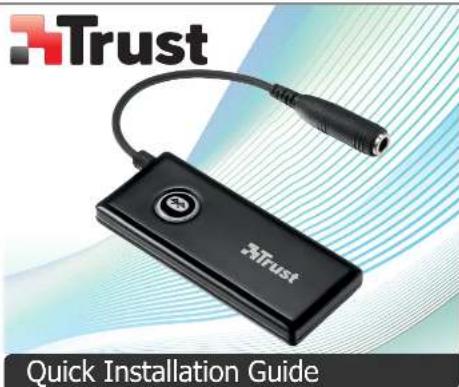


Bluetooth Wireless Audio - USER'S MANUAL
Trust
| IndexLanguage | ||
| page | ||
| Englisch | 2 | |
| Deutsch | 5 | |
| Français | 8 | |
| Italiano | 11 | |
| Español | 14 | |
| Português | 17 | |
| Nederlands | 20 | |
| Dansk | 23 | |
| Suomi | 26 | |
| Norsk | 29 | |
| Svenska | 32 | |
| Polski | 35 | |
| Česky | 38 | |
| Slovenčina | 41 | |
| Magyar | 44 | |
| Română | 47 | |
| Български | 50 | |
| Русский | 53 | |
| Еллнгикă | 56 | |
| Türkçe | 59 | |
| Hrvatski | 62 | |
Bluetooth Wireless Audio - USER'S MANUAL
Trust
Installation

④ 3.5mm Audio output
(B) Power Adapter socket
© Power Button/ LED Indicator: - Pairing: blue/ red alternative
- Connected: blue quick flashing
- Standby (disconnected): blue slow flashing
Power Adapter
⑤ 3.5mm to Cinch cable

- Connect the power adapter to the device.
- Connect your speakers or sound system to the device.
(3.5mm to Cinch cable).

- Press and hold the power button on the device for 7 seconds.
- The LED on the power button will be flashing blue and red alternating.

passcode is requested during the configuration of the device. Use '1234'.
Configuration
iOS

- Go to 'Settings'.
- Go to the 'General' settings.
- Go to 'Bluetooth'.

- Make sure that Bluetooth is on.
- Select 'Trust Wireless Audio' in the list of Bluetooth devices (make sure the device is in pairing mode).
When the device status is 'paired', your device is ready to use.
Android

Go to 'Settings'.
Go to 'Wireless and network'.

Go to 'Bluetooth settings'.

Select 'Trust Wireless Audio' in the list of Bluetooth devices (make sure the device is in pairing mode).

Press and hold 'Trust Wireless Audio' to go to the options menu of the wireless audio device.

ke sure that the device is 'Connected' and the 'Media' profile is selected.
Your device is ready to use.
Bluetooth Wireless Audio - USER'S MANUAL
Trust
Windows
⑫ A. Open the taskbar icons.
B. Click on the Bluetooth icon.
- Select 'Trust Wireless Audio' in the list of Bluetooth devices (make sure the device is in pairing mode). When the device is successfully added, your device is ready to use.
⑭ - Right click the speaker icon in the taskbar
- Open the 'Playback devices'.
⑮ - Set the 'Trust Wireless audio' device as your default device.
Configuration on a Mac system
- Click on the Bluetooth icon in the taskbar.
- Make sure Bluetooth is on.
- Go to 'set up Bluetooth device...'
- Select 'Trust Wireless Audio' in the list of Bluetooth devices (make sure the device is in pairing mode).
- Click on 'Continue'.
- If the pairing attempt was unsuccessful. Go to 'Passcode options'.
- Select 'Use a specific passcode'.
- The passcode to use is '1234'.
- Click on 'ok'.
- Click on 'Continue'.
Your device is now ready to use.

Bluetooth Wireless Audio - USER'S MANUAL
Trust
Trouble shooting
| Problem | Solution |
| Can't connect the wireless audio set to my device | - Make sure that the wireless audio set is in paring mode (blue/red led flashing alternately).- If a passcode is requested. Use '1234'.- Your Wireless audio set is too far from your device (maximum distance 10m under ideal circumstances). |
| No Sound Distorted Sound | - Check the LED light. LED light needs to be flashing blue quickly. If not repeat step 3.- Repeat the configuration steps for your device (iOS, Android, Windows, Mac).- Your Wireless audio set is too far from your device (maximum distance 10m under ideal circumstances).- If you are using the product around large metal surfaces, remove the metal surface or move you product away from the metal surface.- Walls and Floors drastically reduce the range of the product. Move the wireless audio set closer to your audio source.- Move the wireless audio device away from other wireless devices (like Wireless network routers, mouse and keyboard). |
| Sound volume is low | - Use a speaker set that is connected to the mains power.- Check the volume setting of your device (Tablet, Phone, PC). |
▶ If your problem is not solved, please contact the helpdesk at www.trust.com/17827/faq.
Bluetooth Wireless Audio - USER'S MANUAL
Trust
Installation

- Vá a 'Bluetooth' ['Bluetooth'].

© Kabel RCA (Cinch) 3,5 mm
Brand : TRUST
Model : eeWave Wireless Bluetooth Audio Link
Category : Network card / adapter