GD-PD05U - Docking Station Inter-Tech - Free user manual and instructions
Find the device manual for free GD-PD05U Inter-Tech in PDF.


| Product Type | Docking Station + USB Hub |
| Brand | Inter-Tech |
| Model | GD-PD05U |
| Interface | USB 3.0 (backward compatible with USB 2.0) |
| Supported Drive Types | 2.5" and 3.5" SATA I/II/III HDD or SSD |
| Maximum Drive Capacity | Up to 4 TB |
| USB Hub Ports | 3 (USB 3.0) |
| Charging Ports | 3 (1A, 1A, 2A) |
| Charging Standards | CDP (Battery Charging Spec 1.2), DCP |
| Data Transfer Rate (USB 3.0) | Up to 5 Gbps |
| Data Transfer Rate (USB 2.0) | Up to 480 Mbps |
| Power Supply | External 12V/5A |
| Dimensions (W x D x H) | 142 x 101 x 82 mm |
| Operating Temperature | 5°C to 50°C |
| Storage Temperature | -40°C to 70°C |
| Humidity | 5% to 90% (non-condensing) |
| Supported Operating Systems | Windows 2000/XP/Vista/7/8/10, Mac OS 10.x and higher |
| Features | Plug & Play, One Touch Backup (software required), LED indicators for power and HDD activity |
| Intended Use | Indoor use with computers |
Frequently Asked Questions - GD-PD05U Inter-Tech
User questions about GD-PD05U Inter-Tech
0 question about this device. Answer the ones you know or ask your own.
Ask a new question about this device
Download the instructions for your Docking Station in PDF format for free! Find your manual GD-PD05U - Inter-Tech and take your electronic device back in hand. On this page are published all the documents necessary for the use of your device. GD-PD05U by Inter-Tech.
USER MANUAL GD-PD05U Inter-Tech
natural_image
Abstract green molecular-like shape with three black circular elements and a large letter 'A' below (no text or symbols on the diagram itself)ARGUS
Manual
GD-PD05U
Docking Station + USB HUB
1 General information ....3
1.1 Introduction ....3
1.2 Scope of delivery....3
2 Safety....4
2.1 Intended use ....4
2.1.1 Application area and local requirements ....4
2.1.2 Disposal....4
2.2 General notice....4
2.3 Danger and protection....4
3 Product information ....5
3.1 Features....5
3.2 Technical Specification....5
4 Installation and use....6
4.1 Description of controls and connectors....6
4.2 Connection....6
4.3 Operating 7
4.4 One Touch Backup ....7
5 FAQ....9
6 Maintenance....10
7 Disposal 10
8 Warranty terms....11
9 Contact....11
1 General information
1.1 Introduction
Thank you for purchasing our HDD Docking Station.
For your safety and the satisfaction of using this product, please read this manual carefully before installation or using.
1.2 Scope of delivery
1x Docking Station
1x USB 3.0 cable
1x Power supply
1x Manual in German
2 Safety
2.1 Intended use
2.1.1 Application area and local requirements
This product is only for use in combination with computers inside of rooms.
Don't use or store this product close to water or in humid rooms.
Don't use this product close to heat. The additional heat could cause overheating or fire.
2.1.2 Disposal
Don't put this product to the general trash
This product can be disposed at the intended places without any costs.

2.2 General notice
Please read this manual before installing or using.
Please keep this manual and pass it if the product will be passed.
Please follow the introductions and warnings.
The non-observance of this manual can cause defects, violation or death.
We assume no liability for damages or violations caused by the non-observance of this manual.
2.3 Danger and protection
Don't place the product close to heatings.
Don't operate the products with wet or humid hands.
Don't pull out the power supply by pulling the cable.
Don't use repaired or defective cables.
In case of strange noise or smell, pull out the power supply immediately.
Don't open the product or the power supply.
Please take care that all cables will be connected stable.
Take electric products away from children.
Don't pull out the power supply with wet or humid hands.
Pull out the power supply from socket in case of longer non-use.
Maintenance and cleaning only by authorized personnel.
3 Product information
3.1 Features
- Plug&Play
- Support of 2,5" and 3,5" SATA I/ II/ III HDDs or SSDs
- Hard drive size up to 4 GB
- SuperSpeed USB 3.0
- 3-Port USB 3.0 Hub
- Automatic charge function recognition
- USB charge ports with 1A, 1A, 2A
- CDP (Battery charging spec 1.2)
- DCP
- One Touch Backup (OTB)
- Supports Windows 2000/ XP/ Vista/ Win7/ Win8/ Win10
- Suppors MacOS 10.x and higher
(One Touch Backup don't supports Windows 98 and MacOS)
3.2 Technical specifications
| Connection | USB 3.0 (5 Gbps) or USB 2.0 (480Mbps) |
| HDD | Support 2,5" and 3,5" SATA I, II, III HDDs up to 4TB |
| LEDs | Power/ HDD activity/ connected devices |
| Power supply | via external power supply 12V/ 5A |
| Operation temperature | 5°C to 50°C |
| Storage temperature | -40°C to 70°C |
| Humidity | 5% bis 90%, non-condensing |
| Supported OS | Windows 2000/ XP/ Vista/ 7/ 8/ 10Mac OS ab Version 10.x |
| Dimension | 142 x 101 x 82mm |
4 Installation and use
4.1 Description of controls and connectors
Front
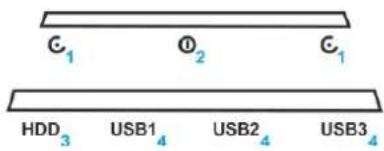
Rear
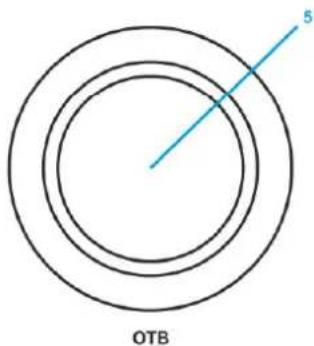
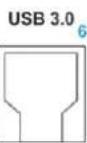
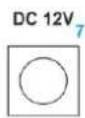
1 HDD activity LED
2 Operating LED
3 HDD-LED
4 USB-LED
5 One Touch Backup switch
6 USB Input
7 Power supply
8 On/ Off switch
Pic.1
4.2 Connection
- Unpack the device and control for defects and missing parts of scope of delivery.
In case of defects or missing parts please contact your local dealer.
Keep the original package in case of RMA.
- Connect the docking station, with the included USB 3.0 cable, with your computer (Pic.1 - 6)
By using the USB 3.0 port of your computer (Blue USB port) you can get data transfer rates up to 5Gbps erzielen (depends of hard disk and controller).
The docking station can also be connected to an USB 2.0 port (white USB port). The connection to an USB 2.0 port has no limits to functions of the docking station, except the data transfer rate will be limited to 480Mbps.
-
Connect the docking station with the power supply (Abb.1 - 7).
-
Switch on the docking station by pushing the On/ Off switch (Abb.1 - 8)
All LED will light up temporary. Then only the operating LED will be lighted (Abb.1 - 2).
- Put a 2,5" or 3,5" HDD into the provided bay.
If connection will be correct the HDD LED lights up (Abb.1 - 3).
- The hard drive will be shown in your OS.
If you're using an un-formated HDD, you have to prepare the HDD for first use. Insert the HDD into the docking station and start the disk management of your OS.
If you don't know what to do, please ask a professional for help. Mistakes can cause damage of OS or loss of important data.
4.3 Operating
- You can change hard drives without switching the docking station off.
Please take care that no data will be transferred between computer and docking station when switching the hard disk. Data can be lost.
4.4 One Touch Backup
To use the One Touch Backup (OTB) function, please download the software from our website:
www.inter-tech.de/Service &Support/Downloads/Drivers
The OTB software allows to copy files, folders or drives, auto-scheduled or manually by switching the OTB switch (Abb.1 – 5) to the installed hard disk.
The software is not usable to make OS backups for OS recovery. Please use provided special software for this.
Information for the OTB software are on our website
The supported software is checked for virus.
Please note that we won't assume liability for lost data, defects of OS, loss of use or costs for recovery, caused by installing or use of the OTB software. Normal warranty terms for damages or faults of the docking station are still unaffected and will be handled referred to the warranty terms.
5 FAQ
1. The device will not be shown at the computer.
a) Is the device swichted on?
Push the On/ Off switch backside the device
b) Is the USB cable connected to the computer?
Is the USB cable fixed correctly to docking station and computer?
Pull out the cable on both side and connect it again between docking station and computer.
c) Is the docking station connected to the socket?
Please check if the power supply is connected to the docking station and to the socket.
d) Is the inserted hard disk formatted and partitioned?
When using a new hard disk, the hard disk must be formatted and partitioned first.
e) Is the hard disk functionally?
Check the function of the hard disk by mounting it into the computer directly, in an external enclosure or by inserting a real functional hard disk into the docking station.
If none of the above named possibilities will show a result, one of these items will be defective. Bring your docking station incl. all accessories, the hard disk and your invoices to your local dealer to look for the operational reliability.
2. Which kind of hard disks can be used?
You can use 2,5" and 3,5" SATA I, II and III hard disks.
3. What can be charged at the USB port?
You can charge all devices which are used to be charged by USB.
4. What is the output of the USB ports.?
At two ports is the output max. 1A and one port has max. 2A. The ports are labeled according to that.
5. Can I charge different devices at the same time?
You can charge up to 3 different devices simultaneously.
6 Maintenance
This device need no maintenance which requires the opening of the device or the power supply.
To get a steady and smooth function, please remove dust from time to time.
Cut the docking station from socket and computer and remove the dust with a damp cloth. You can blow or draw off the dust from drive bay additionally.
7 Disposal
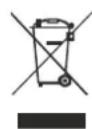
Please dispose your product by using the special discharge point for electronic waste. Please ask your municipality or disposal company in case of further questions.
8 Warranty terms
Inter-Tech grants 24 months warranty by proper use up from the date of purchase.
In case of warranty please contact your local dealer or the dealer from which you bought the product.
We will grant no warranty by:
- Missing or damaged warranty seal,
- Negligent behavior,
- Improper use,
- Nonobservance of the manual,
- External violence,
- Acts of god,
- Damages caused by manipulation, upgrading, updating or reconstruction of hardware or software
- Damages caused by other harm,
In case of data loss Inter-Tech will only be liable at wanton negligence or deliberate intention or, in all other cases, only for the recovery of data from a continuous, daily backup. Inter-Tech does not assume liability for all other matters.
Please look also at our complete warranty terms on our website.
9 Contact
This product complies to the requirements set out in the EMC directive 2004/108/EG, 2006/95/EG, 2011/65/EG and 2009/125/EG of the council of the European Parliament and the Council of the European Union.
The declaration of confirmity will be shown on our website:
Service & Support/ Downloads/ Declarations
ARGUS
www.inter-tech.de
- ARGUS
- Manual
- Docking Station + USB HUB
- General information ....3
- Safety....4
- Product information ....5
- Installation and use....6
- FAQ....9
- Maintenance....10
- Disposal 10
- Warranty terms....11
- Contact....11
- General information
- Introduction
- Scope of delivery
- Safety
- Intended use
- Application area and local requirements
- Disposal
- General notice
- Danger and protection
- Product information
- Features
- Technical specifications
- Installation and use
- Description of controls and connectors
- Connection
- Operating
- One Touch Backup
- FAQ
- The device will not be shown at the computer.
- Which kind of hard disks can be used?
- What can be charged at the USB port?
- What is the output of the USB ports.?
- Can I charge different devices at the same time?
- Maintenance
- Disposal
- Warranty terms
- Contact
Brand : Inter-Tech
Model : GD-PD05U
Category : Docking Station