
MediaPad M2-A01L - Tablet HUAWEI - Free user manual and instructions
Find the device manual for free MediaPad M2-A01L HUAWEI in PDF.


| Product Type | Tablet |
| Model | MediaPad M2-A01L |
| Brand | Huawei |
| Display Size | 8 inches IPS LCD |
| Resolution | 1920 x 1200 pixels |
| Operating System | Android 5.1 (Lollipop) with EMUI 3.1 |
| Processor | Quad-core 2.0 GHz |
| RAM | 2 GB |
| Internal Storage | 16/32 GB |
| Expandable Storage | microSD up to 128 GB |
| Rear Camera | 8 MP |
| Front Camera | 5 MP |
| Connectivity | Wi-Fi 802.11 a/b/g/n/ac, Bluetooth 4.0, GPS, LTE |
| Battery Capacity | 4800 mAh |
| Dimensions | 214.8 x 124.0 x 7.8 mm (8.46 x 4.88 x 0.31 in) |
| Weight | 330 g (11.64 oz) |
| Charger | 5V 2A |
| Maintenance | Clean with a soft, dry cloth; avoid liquids and abrasive cleaners. |
| Safety | Use only original charger and cables; avoid extreme temperatures; do not disassemble. |
| Spare Parts & Repairability | Contact Huawei authorized service center for genuine parts and repairs. |
| General Information | User manual available in English, 40 pages. Model M2-A01L supports LTE. |
Frequently Asked Questions - MediaPad M2-A01L HUAWEI
User questions about MediaPad M2-A01L HUAWEI
0 question about this device. Answer the ones you know or ask your own.
Ask a new question about this device
Download the instructions for your Tablet in PDF format for free! Find your manual MediaPad M2-A01L - HUAWEI and take your electronic device back in hand. On this page are published all the documents necessary for the use of your device. MediaPad M2-A01L by HUAWEI.
USER MANUAL MediaPad M2-A01L HUAWEI
natural_image
Abstract geometric pattern with three parallel lines and a large number '2' (no text or symbols)MediaPad
1 About this document .... 1
2 Getting started.... 2
Enrolling a fingerprint ....2
Fingerprint recognition....2
Fingerprint sensor touch gestures....2
M-Pen features....3
Locking and unlocking the screen 3
Notification and status icons....3
Common keys 4
Home screen operations ....4
Dual windows gestures 6
3 Text input .... 7
Editing Text....7
Selecting an input method....7
4 Network connection .... 8
Connecting to a Wi-Fi network 8
Connecting to a Wi-Fi network using WPS....8
Turning on your mobile data connection (Applicable to selected models) 8
5 Network sharing ...... 9
Sharing your data connection using a Wi-Fi hotspot (Applicable to selected models)....9
Sharing your data connection through USB tethering 9
Sharing your data connection through Bluetooth tethering (Applicable to selected models) 10
6 Contacts.... 11
Creating a contact 11
Synchronizing contacts 11
Importing contacts....11
Backing up contacts 12
Sharing contacts....12
7 Calls (Applicable to selected models).... 13
Making an emergency call....13
Making a conference call....13
Adding an unknown number to your contacts....13
Clearing call logs....14
8 Messaging (Applicable to selected models).... 15
Searching for a message 15
Customizing message settings....15
9 Managing applications.... 16
Installing an application....16
Uninstalling and sharing an application 16
10 Multimedia .... 17
Perfect selfie ....17
Time-lapse mode....17
Taking an all-focus photo....17
Taking a panoramic photo (Applicable to selected models)......18
Importing photos 18
Viewing photos or videos 19
Sharing photos or videos....19
Scanning a QR code using the camera....19
Scanning a QR code using Gallery 19
11 Customized settings 20
Changing the theme....20
Adding a widget to the home screen 20
Managing home screens 21
Setting the ringtone 21
Setting the font size....21
Adjusting the screen brightness 21
Setting the file safe....22
Setting privacy protection 22
12 File sharing 23
Sharing files using Wi-Fi Direct 23
Sharing files using Bluetooth....23
Multi-screen display....24
Copying files from a computer....26
13 Settings 27
Voice wakeup....27
Setting the screen timeout period....27
Setting a screen lock....27
Adjusting the volume....27
Enabling power saving mode 28
Checking the memory status....28
Setting the date and time 28
Formatting a microSD card ....28
Restoring factory settings....28
Updating your M2....29
14 Personal Information and Data Security .... 30
15 Safety information.... 31
16 Legal Notice....35
1 About this document
Thank you for choosing the M2.
This document is intended for M2 that runs EMUI 3.1.
Figures in this document are screenshots taken under the Melody(magazine) theme.
Switch to the Melody(magazine) theme to better understand this guide. For details, see Changing the theme.

- Not all models support calling, SMS, and other mobile network related functions.
● Certain functions may vary with models and regions.
2 Getting started
Enrolling a fingerprint
After your fingerprint is enrolled, it can do a lot for you, including unlocking the screen, accessing encrypted files and protected apps.

To better protect your privacy, you can use the fingerprint screen unlock feature only when the unlocking method is set to PIN or Password.

- Go to Settings > Fingerprint ID > Fingerprint management.
- Select PIN or Password, and then follow the onscreen instructions to set a password.
- Touch Enroll and place your fingertip on the fingerprint sensor. The fingerprint enroll progress is shown on the screen as a percentage. Repeat this step using different parts of your fingertip until your phone has successfully enrolled your fingerprint.
- Touch Rename to name the fingerprint or touch OK to directly save it.
On the Fingerprint management screen, you can rename or delete an enrolled fingerprint or touch New fingerprint to enroll a new fingerprint.
Fingerprint recognition
You can use your fingerprint to unlock the screen, access encrypted files and protected apps.

- Go to Settings > Fingerprint ID > Fingerprint management.
- Enable Access safe, Access app lock as required, and follow the onscreen instructions.
To access encrypted files and protected apps, simply place your finger on the fingerprint sensor.
Fingerprint sensor touch gestures
M2 supports multiple fingerprint sensor touch gestures. In landscape mode, place your finger on the fingerprint sensor to go to the home screen, return to the upper-level menu, and perform other shortcut operations.

- Go to Settings > Fingerprint ID.
- Enable the desired fingerprint sensor touch gestures.
M-Pen features
The M-Pen is a substitute for your fingers, which can bring you much handwriting and drawing fun when working with feature applications.
Pressing and holding the M-Pen function button and touching the screen will display the dropzone. Touching an application icon in the dropzone will open that application.
M-Pen feature applications:
- Bamboo Paper: supports handwriting and drawing with various pen settings and allows you to import pictures.
- Email: supports handwriting and doodling. Your handwritten emails and doodles will be sent as they are.
- Calculator: supports handwriting.

To learn more about the calculator, go to = > Tutorial.
Locking and unlocking the screen
- Locking the screen: If your M2 has been idle for a specified period of time, the screen locks itself automatically. You can also press the power button to lock the screen.

On the home screen, touch

Settings > Display > Sleep and choose a time.
- Unlocking the screen: Press the power button to turn on the screen. Slide your finger toward any direction to unlock the screen.
Notification and status icons
The notification and status bars may display the following icons to inform you of your M2's status.
 | Airplane mode |  | Bluetooth on |
| [8EZA] | GPS in use | [8BK2] | Charging |
| [DIWWB] | Battery full | [174K] | Battery extremely low |
 | New email |  | Wi-Fi hotspot on |
 | SIM card not inserted |  | Preparing the microSD card |
 | Upcoming event |  | Alarms enabled |
 | Uploading or sending files |  | Downloading or receiving files |
 | Memory full |  | System exception |
 | Synchronizing data |  | Synchronization failed |
 | Connected to a VPN |  | USB tethering on |
 | Wi-Fi networks available |  | Connected to a Wi-Fi network |
 | USB debugging on |  | Headset connected |
Common keys
 | More |  | Share |
 | Completed |  | Add |
| [C32S] | Search |  | Delete data |
 | Refresh |  | Save |
 | Favorites |  | Call |
Home screen operations
- To open an application: On the home screen, touch the application.
- To switch between the home screen and its extensions: On the home screen, flick your finger left or right.
- Personalizing the home screen: Touch and hold a blank area on the home screen or pinch two fingers together to set the wallpaper, widgets, and more.

natural_image
Abstract digital wave pattern with flowing curves and grid lines, displayed in a presentation interface (no readable text or symbols)- On the home screen, pinch three fingers together to display the home screen thumbnails, where you will be able to manage your home screens. For details, see Managing home screens.

- Opening the notification and shortcut panels: Slide down from the status bar to open the notification panel. Flick left or right to switch between the notifications and shortcuts tabs.

| 1 | Touch a notification to view its details and flick left or right across a notification to dismiss it. |
| 2 | Touch [icon] to delete all notifications. |
| 3 | Drag the slider to adjust the screen brightness.You can also enable or disable automatic brightness. (Applicable to selected models) |
| 4 | Touch the shortcut switches on the notification panel to turn on or off the functions. Touch and hold a switch to enter the settings screen of the corresponding function.Slide down the shortcut switches, you can then touch Edit to customize the list. |
Dual windows gestures
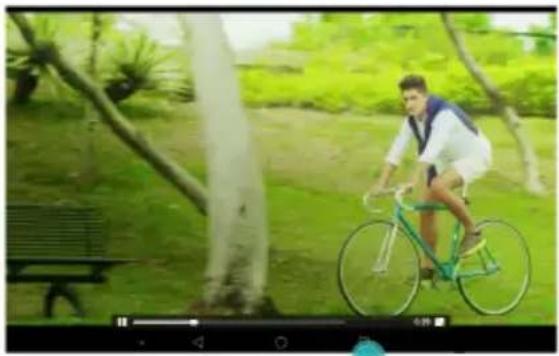
You can split the screen into two parts and view different content simultaneously.
To enable dual windows mode, touch and hold the recent key □ or use two fingers to slide up from the bottom of the screen.
natural_image
Person riding a bicycle in a park with trees and grass, no visible text or symbols
natural_image
Man riding a bicycle in a park with trees and benches (no visible text or symbols)On the screen, touch

to access the option menu or drag to adjust the screen ratio.

3 Text input
Your M2 comes with multiple input methods. You can quickly enter text using the onscreen keyboard.
- Touch a text input field to bring up the onscreen keyboard.
- When you are done, touch to hide the onscreen keyboard.
Editing Text
You can copy, cut, and paste text.
- Select text: Touch and hold the text field until and appear. Drag and to select the text you want to edit, or touch Select all to select all text.
- Copy text: After selecting text, touch Copy.
- Cut text: After selecting text, touch Cut.
- Paste text: Touch where you want to insert the text (to move the insertion point, drag
) and touch Paste to paste the text you copied or cut.
Selecting an input method
The M2 provides multiple ways to text input. You can select the input method you like.
- On the text editing screen, touch a text field to bring up the onscreen keyboard.
- Flick down from the notification bar to display the notification panel.
- On the notification panel, touch Select input method.
- On the displayed option menu, select the desired input method.
i
When you use the M-Pen,M2 will auto-enable the handwriting input method.
4 Network connection
Connecting to a Wi-Fi network

When both a Wi-Fi network and a mobile network are available simultaneously, the M2 connects to the Wi-Fi network by default. If the Wi-Fi network disconnects, the M2 then automatically connects to the mobile network.

- On the home screen, touch
Settings > Wi-Fi.
- Toggle the switch of Wi-Fi to Wi-Fi networks.

to turn on Wi-Fi. Your M2 then scans for available
- Select the desired Wi-Fi network and follow the onscreen instructions.

To connect to a Wi-Fi network that has a hidden SSID, touch Add network... under the Wi-Fi network list, and then follow the onscreen instructions to enter the required information and connect to that network.
Your M2 consumes more power when Wi-Fi is turned on. To save battery power, turn off Wi-Fi when it is not in use.
Connecting to a Wi-Fi network using WPS
If the wireless router being used supports the Wi-Fi protected setup (WPS) function, you can quickly connect to a Wi-Fi network using WPS.
- On the home screen, touch

Settings > Wi-Fi.
- Toggle the switch of Wi-Fi to

to turn on Wi-Fi.
- Touch = > Advanced settings > WPS connection or WPS PIN connection, and follow the onscreen instructions for operations to perform on the wireless router.
Turning on your mobile data connection (Applicable to selected models)
Using mobile data services may incur data usage charges. For details, contact your service provider.
- On the home screen, touch

Settings.
-
Touch More > Mobile network under Wireless & networks.
-
Toggle the Mobile data switch to

to enable mobile data.
5 Network sharing
You can use various methods to share your M2's data connection with other wireless devices.
Sharing your data connection using a Wi-Fi hotspot (Applicable to selected models)
By setting up your M2 as a Wi-Fi hotspot, you can share your mobile network with other devices.
Before sharing your data connection, turn on mobile data on your M2. For details, see Turning on your mobile data connection (Applicable to selected models).
When other devices access the Internet using your M2's data connection, the data usage of your M2 will be consumed.

- On the home screen, touch
- Under Wireless & networks, touch More > Tethering & portable hotspot.
- Touch Portable Wi-Fi hotspot.
- Toggle the switch to turn on your Wi-Fi hotspot.
- Touch Configure Wi-Fi hotspot and follow the onscreen instructions to set the required information, such as your Wi-Fi network name and password.
Once the Wi-Fi hotspot settings are complete, other Wi-Fi enabled devices can search for and connect to the Wi-Fi hotspot provided by your M2.
Sharing your data connection through USB tethering
You can share your M2's network with a computer using a single USB cable.
- Connect your M2 to a computer using the USB cable provided with the M2.

- On the home screen, touch Settings.
- Under Wireless & networks, touch More > Tethering & portable hotspot.
- Touch USB tethering to share your mobile data connection.
After the connection is set up, you can access the Internet from the computer.

When using the USB tethering function, you cannot simultaneously use your M2 as a USB storage device.
Sharing your data connection through Bluetooth tethering (Applicable to selected models)
With Bluetooth tethering, you can share your M2's data connection with other Bluetooth devices.

- On the home screen, touch
Settings.
- Under Wireless & networks, touch More > Tethering & portable hotspot.
- Touch Bluetooth tethering to turn on Bluetooth tethering.
- Turn on Bluetooth on the device that requires the data connection and send a Bluetooth connection request to your M2. When connected to your M2, the device can use your M2 network for Internet access.

The request for a Bluetooth connection must be sent to your M2 from the device that requires the data connection.
6 Contacts
Creating a contact
- On the home screen, touch

Contacts to display your contacts list.
- Touch + .

If you are creating contacts for the first time, your M2 prompts you to select a storage location. When you create contacts next time, the new contacts are stored in the same storage location by default. In addition, the storage location is displayed on the new contacts screen, and you can touch the storage location to select a new one.
- Enter the related information, such as the contact's name, phone number, and email address.
- Touch Add another field to add more information.
- Touch √.
Synchronizing contacts
You can synchronize the contacts stored in your Gmail and Exchange accounts to your M2 and vice versa.

Settings.
1. On the home screen, touch
2. Under Accounts, touch the type of account you want to synchronize.
3. Touch the account you want to synchronize.
- Toggle the Sync contacts switch to

If the account you want to synchronize has not been added to your M2, touch Add account and follow the onscreen instructions to add the account. When it is added, your M2 automatically synchronizes with it.
Importing contacts
You can import contacts from a micro-SIM or microSD card to your M2, or use Wi-Fi Direct to import the contacts from other devices to your M2.

Contacts to display your contacts list.
- On the home screen, touch
- Touch ≡ > Import/Export.
- Select an import method and follow the onscreen instructions.
Backing up contacts
You can back up your contacts to a microSD card in case your contacts are accidentally deleted or lost.

- On the home screen, touch
Contacts to display your contacts list.
- Touch ≡ > Import/Export.
- Touch Export to storage.
Sharing contacts
You can share contacts in your M2 with your friends using email, Bluetooth, and more.

- On the home screen, touch Contacts.
- From the contacts list, you can:
- Touch the contact you want to share, and then touch

- Touch ≡ > Import/Export > Share contact, select the contacts you want to share, and touch 🔍.
- In the displayed dialog box, choose a sharing mode and follow the onscreen instructions to share the contacts.
7 Calls (Applicable to selected models)
Making an emergency call
In the event of an emergency, you can make emergency calls without a SIM card. However, you must still be within the coverage area.
- On the home screen, touch

Dialer.
- Enter a local emergency number and touch


Emergency calls are subject to the quality of the cellular network, use environment, service provider policies, and local laws and regulations. Never rely solely on your M2 for critical communications when emergencies occur.
Making a conference call
Making conference calls with your friends, family, and co-workers is easy with your M2.

Before you make a conference call, be sure you have subscribed to the conference call service. For details, contact your service provider.
-
Call the first participant.
-
When the call is connected, touch the first participant is put on hold.

and call the second participant. The call with
- When the second call is connected, touch

to start a conference call.
- To add more participants, repeat steps 2 and 3.
When the call is complete, touch

to end it.
Adding an unknown number to your contacts
- On the home screen, touch

Dialer.
- From the call log, touch

next to the unknown number.
- Touch + or .

You can also touch and hold the number you want to add, and then touch Create new contact or Save to existing contact.
Clearing call logs
To delete a single call log entry: On the Dialer screen, touch and hold the call log entry. On the displayed option menu, touch Delete entry.
To delete all or multiple call log entries: On the Dialer screen, touch ≡ > Delete call log.
- Select the Select all check box and touch 📋 to delete all call log entries.
- Select one or more call logs and touch 📄 to delete them.
8 Messaging (Applicable to selected models)
Searching for a message
If you are having trouble finding a specific message in a pile of messages, this function can come to your rescue.
- On the home screen, touch Messaging.
- Enter a keyword in the search box.
- Touch
- In the results list, select the desired message to open it.
Customizing message settings
To customize text and multimedia message settings, message notification tones, and more, from the message list, touch > Settings.
9 Managing applications
Installing an application

When you install an application, the "Install blocked" message may be displayed. Read the message carefully. If you want to continue with the installation, follow the onscreen instructions.
You can obtain and install an application using any of the following methods:
- Download it from an online app store or by using a browser. After the application is downloaded, follow the onscreen instructions to install it.

Some third-party applications may not be compatible with your M2. They may not run properly and your M2 may shut down. It is recommended that you download applications from trusted sources only.
- Connect your M2 to a computer. Then use the HiSuite or third-party software to download the application. After the application is downloaded, follow the onscreen instructions to install it.
- Use Bluetooth or Wi-Fi Direct to send the application on another device, such as a phone or tablet, to your M2. After the transmission is complete, touch the application to install it.
- Download the application from a computer. Then copy the application to your M2. Once
copied, touch Files on your M2's home screen. Touch Applications > Apps under Categories, select the application and then follow the onscreen instructions to complete the installation.
Uninstalling and sharing an application
On the home screen, touch and hold the application you want to uninstall or share.
- Drag it to 📊 to uninstall the application.
- Drag it to 📋 to share the application.

Some pre-installed applications cannot be uninstalled.
10 Multimedia
Perfect selfie
Set your own custom beauty settings for facial enhancement and beautifying effects when you take photos in Beauty mode.
- Open

Camera.
- Touch

Settings > Perfect selfie.
- Turn on Perfect selfie.
- Touch Perfect selfie to take three self-portrait shots.

You can touch Perfect selfie > Edit personal info in Camera to edit your personal information.
- On the Set beauty effects screen, adjust your beauty settings, and then touch

- In Beauty mode, touch

to take a photo.
Time-lapse mode
Use this mode to create an accelerated video of a slow-changing scene, such as the sunset or sunrise.
- On the home screen, touch

Camera.
-
Slide up or down to select Time-lapsemode.
-
Touch

to start recording.
- Touch

to stop recording.
The captured video will be played back at an accelerated pace.
Taking an all-focus photo
In all-focus mode, you can change the focal point of a photo after it's been taken.
- On the home screen, touch

Camera.
- Touch

All-focus to switch to all-focus mode.
- Touch

to take a photo.
- Go to Gallery and select the photo that was taken in all-focus mode.


indicates photos taken in all-focus mode.
- Touch 📄 to enter all-focus editing mode.
- Touch an area of the photo to change the focal point to that location.
- Touch
Taking a panoramic photo (Applicable to selected models)
Your M2 enables you to easily take panoramic photos without a wide-angle lens.

Camera.
1. On the home screen, touch Camera.
2. Touch ≡ > Panorama to switch to panorama mode.
3. Touch to start shooting.
4. Follow the onscreen instructions and move your device slowly in one direction.
5. Touch ☐ to stop shooting. The camera automatically merges all the photos captured to create one panoramic photo.
Importing photos
You can import photos from a camera or other storage device (such as a USB flash drive or phone) to your M2 using only a USB OTG cable.

To purchase a USB OTG cable, please contact an Huawei authorized supplier or your device vendor.
Use a USB OTG cable to connect a camera and your M2.


Files > Local > USB.
1. On your M2's home screen, touch Files > Local > USB.
2. Touch ☐ or ✗, select the photos or folders you want to import into your M2.
3. Touch COPY or CUT.
4. Choose where you want to save the files and touch PASTE.
Viewing photos or videos
Gallery enables you to conveniently view photos and videos. It automatically searches and organizes photos and videos stored on your M2's internal storage and the microSD card for your easy reference.

- On the home screen, touch
Gallery to open Gallery.
- Touch a photo or video to view it in full screen mode. Flick your finger left or right across the screen to view the previous or next file.

You can pinch two fingers apart or together to zoom in or out.
Sharing photos or videos
You can share photos and videos via Bluetooth or email. Take your M2 and start sharing!

Gallery to open Gallery.
1. On the home screen, touch
2. Touch and hold the photo, video you want to share.
3. Touch 🔍 and choose how you want to share the selected file, for example, using Bluetooth or Wi-Fi Direct. Then follow the onscreen instructions. For details, see File sharing.
Scanning a QR code using the camera

Camera.
1. On the home screen, touch
2. Frame the QR code with the camera.
3. After the QR code is successfully scanned, touch View details.
Scanning a QR code using Gallery

Gallery.
- On the home screen, touch
- Choose a QR code photo.
- Touch the photo.
- Touch View details.
11 Customized settings
Changing the theme
Your M2 comes with multiple themes, easily allowing your device to have a new look as often as you want.

- On the home screen, touch Themes.
- Flick left or right to browse different local and online themes. (Applicable to selected models)
- Select the desired theme. Then, touch √.
Adding a widget to the home screen
You can add widgets, such as the calendar and bookmarks, to the home screen.
- On the home screen, touch and hold a blank area.
- Touch Widgets.
- Drag a widget to the home screen and release your finger.

natural_image
Digital interface screenshot showing a hand interacting with a blue button and a transparent abstract background (no readable text or symbols)Managing home screens
On the home screen, pinch three fingers together to display the home screen thumbnails.
- Setting the default home screen: Touch 📋 at the bottom of the screen to select the current home screen as the default home screen.
- Moving a home screen: Touch and hold the home screen until your device vibrates, and then drag the home screens to adjust their positions.
- Adding a home screen: Touch + to add a home screen.
- Deleting a home screen: Touch ✗ to delete a blank home screen.
Setting the ringtone

Settings > Sound.
-
On the home screen, touch
-
Select the desired ringtone type.
-
Follow the onscreen instructions to select your favorite music or recording as the ringtone.
Setting the font size

Settings > Display.
- On the home screen, touch
- Touch Font size.
- Select the desired font size.
Adjusting the screen brightness

Settings > Display > Brightness.
-
On the home screen, touch
-
In the displayed dialog box, perform either of the following operations:
- Select the Automatic brightness check box to let your device automatically adjust the screen brightness based on the ambient light. (Applicable to selected models)
- Drag the slider left or right to manually adjust the screen brightness.

You can also open the notification panel and quickly adjust the screen brightness using the shortcut switch.
Setting the file safe
The file safe helps you keep your important files private and protected.

- On the home screen, touch Files.
- Under Categories or Local, touch Safe.
- Touch Enable.
- Follow the onscreen instructions to set up your safe password and security question, and then touch Done.
- Touch Add.
- Follow the onscreen instructions and select the files you want to add to the safe.
- Touch ADD to add the files to the safe.

Enter the file safe, touch

Destroy safe, and follow the onscreen instructions to file files before destroying the safe, select Remove files.
Setting privacy protection
If you have private data in your device that you wish to keep hidden from others, you can enable privacy protection and set two different passwords, one for yourself and one for guests. Content that you set as private will be hidden from people logged in with the guest password.

- On the home screen, touch Settings > Security.
- Touch Privacy protection > Let's start.
- Select a password format.
- Follow the onscreen instructions and enter your owner password and guest password.
- Under Set private data, set your private contacts, albums, and applications.

To disable privacy protection, unlock your M2 using the owner password. Enter the Privacy protection screen, enter the owner password, and then disable Privacy protection. After privacy protection is disabled, your owner password will function as the screen unlock password and the guest password will become invalid.
12 File sharing
Sharing files using Wi-Fi Direct
Wi-Fi Direct is a function to connect wireless devices using a Wi-Fi network. After wireless devices are connected, they can quickly share files among them.

- On the home screen, touch
Settings > Wi-Fi.
- Touch the key next to Wi-Fi or drag the key to

- Touch

-
Select the device to pair it with your M2.
-
On your M2, touch and hold the file you want to share. On the displayed option menu, touch Share > Wi-Fi Direct.
-
On the displayed option menu, select the desired device, and lastly, touch the key on the device to receive the file.

If your M2 and the device have connected to the same Wi-Fi network and both have Wi-Fi Direct turned on, you can directly share files between them without pairing them.
Sharing files using Bluetooth

- On the home screen, touch
Settings > Bluetooth.
- Touch the key next to Turn on Bluetooth or drag the key to

-
Select the device to pair your M2 and the device.
-
On your M2, touch and hold the file you want to share. On the displayed option menu, touch Share > Bluetooth.
-
On the displayed option menu, select the desired device. On the device, touch the related key to receive the file.
Multi-screen display
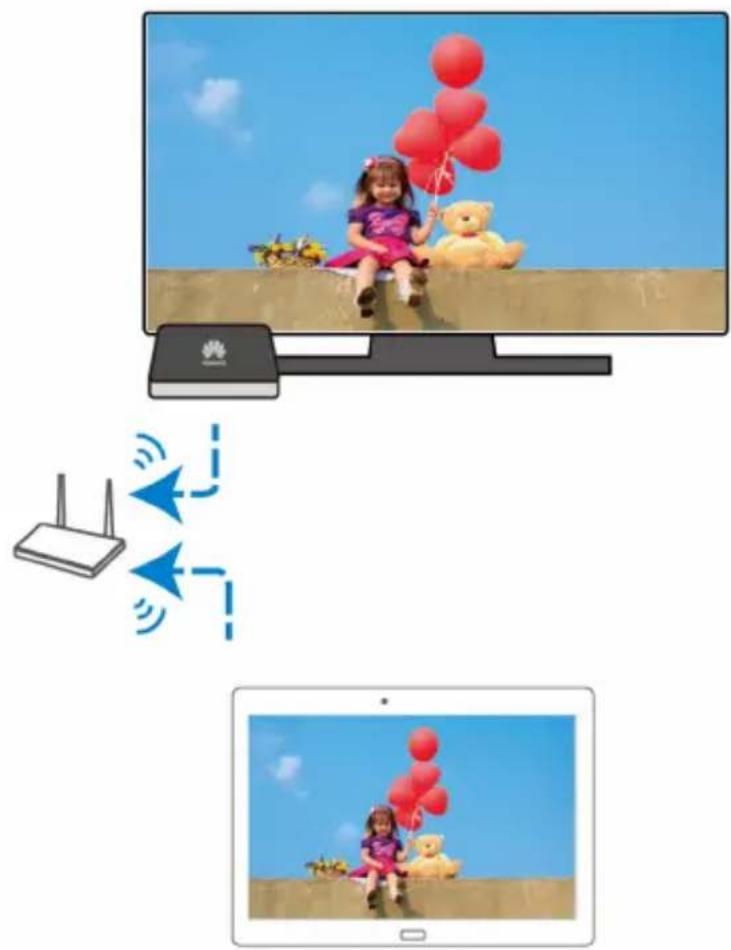
You can push photos, videos, or games on your M2 to a large screen, such as a TV, to view them more conveniently. If your TV supports HDMI and a resolution of 720p or above, you can use it with a HUAWEI MediaQ for multi-screen display.
- Use an HDMI cable to connect the HUAWEI MediaQ to the TV.
-
Power on the HUAWEI MediaQ and TV, and switch the TV to HDMI input. The main interface of the HUAWEI MediaQ is then displayed on the TV.
-
Connect your M2 to the same Wi-Fi network as the HUAWEI MediaQ in either of the following ways:
- Connect your M2 to the Wi-Fi network set up by the HUAWEI MediaQ. You can find the Wi-Fi network name and password of the HUAWEI MediaQ in the upper left corner of the TV.

natural_image
A young girl sitting on a bench holding red balloons and a teddy bear against a clear blue sky (no text or symbols visible)

natural_image
Child sitting on a beach holding red balloons and a teddy bear against a blue sky (no text or symbols visible)- Connect your M2 and HUAWEI MediaQ to your home Wi-Fi network.
-
On the home screen of your M2, flick down from the status bar to open the notification panel.
-
Open your notification panel. Under Shortcuts, touch 📄, select the receiving device, and start the multi-screen display.

For more details, see the HUAWEI MediaQ User Guide.
Copying files from a computer
Use a USB cable to connect your M2 to a computer. Flick down from the status bar to open the notification panel. Follow your M2's onscreen instructions to select a connection method. You can then transfer files between your M2 and the computer.
| Connection Mode | Function Operation | |
| Photos | On the computer, view and manage the image files stored on your M2. | Click the newly displayed drive letter on the computer. Then transfer image files between your M2 and the computer. |
| Files | ● On the computer, view and manage the files stored on your M2 and the microSD card.● Using Windows Media Player 11 or a later version in the computer, view and manage the multimedia files stored on your M2 and the microSD card. | ● Click the newly displayed drive letter on the computer. Then transfer files between your M2 and the computer.● Start Windows Media Player on the computer. Follow the onscreen instructions to transfer multimedia files between your M2 and the computer. |
| USB drive | On the computer, view and manage the files stored on the microSD card. i This method is available only when your M2 has a microSD card inserted. | Click the newly displayed drive letter on the computer. Then transfer files between the microSD card and the computer. |
13 Settings
Voice wakeup
If you can't find your M2 when you know it's nearby, or your hands are full when you need to call somebody, use voice wakeup to find your M2 and place calls.

-
Open Settings.
-
Under Smart assistance, touch Voice wakeup.
- Turn on Voice wakeup.
- Follow the onscreen instructions to set up a wakeup keyword.
- Say your keyword to find your M2 or place calls.
Setting the screen timeout period
You can set a screen timeout period so your M2 automatically turn offs the screen to save power.

- On the home screen, touch
Settings > Display > Sleep. - Choose a timeout period.
Setting a screen lock
- On the home screen, touch

Settings > Screen lock & passwords.
- Follow the onscreen instructions to set the screen lock.
With a screen lock set, if your M2 is idle for a specified period of time, it automatically locks its screen. You can also touch the power key to lock the screen.
Adjusting the volume
You can set the volume for the ringtone, media, alarms, and notifications.

Settings > Sound > Volume.
- On the home screen, touch
- Drag the sliders left or right to adjust the volume.
You can also use the volume keys to adjust the volume of running applications.
Enabling power saving mode

Settings > Power saving.
- On the home screen, touch
- Select a power saving mode.
Checking the memory status
Before moving a large file to your M2's internal storage or the microSD card, check the available storage space that has left on it.

Settings.
1. On the home screen, touch
2. Touch Storage to view memory information.
Setting the date and time

Settings > Date & time.
1. On the home screen, touch
2. Deselect the Automatic date & time check box.
3. Follow the onscreen instructions to set the date and time.

If your M2 is set to automatically update the date and time, it obtains the date and time information from the network and updates them according to your time zone. In this case, you cannot manually change the time zone, date, or time displayed on your M2.
Formatting a microSD card

Back up important data before you format a microSD card.

Settings.
1. On the home screen, touch
2. Touch Storage > My SD card > Erase SD card.
Restoring factory settings

Restoring your M2 to its factory settings erases all your personal data, including information about your accounts, your system and application settings, and your installed applications. Before restoring factory settings, back up the important data on your M2.

Settings > Backup & reset.
1. On the home screen, touch
2. Touch Factory data reset and follow the onscreen instructions to back up data or directly restore factory settings.
Updating your M2

- Updating your M2 may clear all the data in it. Back up important data before updating your M2.
- If you use unauthorized software to update the system, a update failure may occur or your personal information may be leaked. Update your M2 online or by using authorized software.
Emu
- On the home screen, touch Cloud Apps > Updater to view the system information.
- Touch Check for updates. If a new version is available, follow the onscreen instructions to update online. You can also choose > Local update to update the system using a local update package.

To update using a local update package, refer to the update guide included in the package.
14 Personal Information and Data Security
The use of some functions or third-party applications on your device could result in your personal information and data being lost or becoming accessible to others. Several measures are recommended to help you protect personal and confidential information.
- Place your device in a safe area to prevent it from unauthorized use.
- Set your device screen to lock and create a password or unlock pattern to open it.
- Periodically back up personal information kept on your memory card, or stored in your device memory. If you change to a different device, be sure to move or delete any personal information on your old device.
- If you are worried about viruses when you receive messages or emails from a stranger, you can delete them without opening them.
- If you use your device to browse the Internet, avoid websites that might pose a security risk to avoid theft of your personal information.
- If you use services such as Wi-Fi or Bluetooth, set passwords for these services to prevent unauthorized access. When these services are not in use, turn them off.
- Install or upgrade device security software and regularly scan for viruses.
- Be sure to obtain third-party applications from a legitimate source. Downloaded third-party applications should be scanned for viruses.
- Install security software or patches released by Huawei or third-party application providers.
- Some applications require and transmit location information. As a result, a third-party may be able to share your location information.
- Your device may provide detection and diagnostic information to third-party application providers. Third party vendors use this information to improve their products and services.
- If you have concerns about the security of your personal information and data, please contact mobile@huawei.com.
15 Safety information
This section contains important information about the operation of your device. It also contains information about how to use the device safely. Read this information carefully before using your device.
Electronic device
Do not use your device if using the device is prohibited. Do not use the device if doing so causes danger or interference with other electronic devices.
Interference with medical equipment
- Follow rules and regulations set forth by hospitals and health care facilities. Do not use your device where prohibited.
- Some wireless devices may affect the performance of hearing aids or pacemakers. Consult your service provider for more information.
- Pacemaker manufacturers recommend that a minimum distance of 15 cm be maintained between a device and a pacemaker to prevent potential interference with the pacemaker. If using a pacemaker, hold the device on the side opposite the pacemaker and do not carry the device in your front pocket.
Protecting your hearing when using a headset
- Using a headset at high volumes may damage your hearing. To reduce this risk, lower the headset volume to a safe and comfortable level.
- Exposure to high volumes while driving may cause distraction and increase your risk of an accident.
Areas with flammables and explosives
- Do not use the device where flammables or explosives are stored (in a gas station, oil depot, or chemical plant, for example). Using your device in these environments increases the risk of explosion or fire. In addition, follow the instructions indicated in text or symbols.
- Do not store or transport the device in containers with flammable liquids, gases, or explosives.
Traffic security
- Observe local laws and regulations while using the device. To reduce the risk of accidents, do not use your wireless device while driving.
- Concentrate on driving. Your first responsibility is to drive safely.
- Do not hold the device while driving. Use hands-free accessories.
- When you must make or answer a call, pull off the road safely and park the vehicle first.
- RF signals may affect the electronic systems of motor vehicles. For more information, consult the vehicle manufacturer.
- Do not place the device over the air bag or in the air bag deployment area in a motor vehicle. Doing so may hurt you because of the strong force when the air bag inflates.
- Do not use your device while flying in an aircraft or immediately before boarding. Using wireless devices in an aircraft may disrupt wireless networks, present a hazard to aircraft operation, or be illegal.
Operating environment
- Avoid dusty, damp, or dirty environments. Avoid magnetic fields. Using the device in these environments may result in circuit malfunctions.
- Do not use your device during thunderstorms to protect your device against any danger
caused by lightning.
- Do not expose your device to direct sunlight (such as on a car dashboard) for prolonged periods.
- To protect your device or accessories from fire or electrical shock hazards, avoid rain and moisture.
- Keep the device away from sources of heat and fire, such as a heater, microwave oven, stove, water heater, radiator, or candle.
- Do not place sharp metal objects, such as pins, near the earpiece or speaker. The earpiece may attract these objects and result in injury.
- Stop using your device or applications for a while if the device is overheated. If skin is exposed to an overheated device for an extended period, low temperature burn symptoms, such as red spots and darker pigmentation, may occur.
- Do not use your device's camera flash directly in the eyes of people or pets. Otherwise temporary loss of vision or damage to the eyes may occur.
- Do not touch the device's antenna. Otherwise, communication quality may be reduced.
- Do not allow children or pets to bite or suck the device or accessories. Doing so may result in damage or explosion.
Child's safety
- Comply with all precautions with regard to child's safety. Letting children play with the device or its accessories may be dangerous. The device includes detachable parts that may present a choking hazard. Keep away from children.
- The device and its accessories are not intended for use by children. Children should only use the device with adult supervision.
Accessories
- Using an unapproved or incompatible power adapter, charger or battery may cause fire, explosion or other hazards.
- Choose only accessories approved for use with this model by the device manufacturer. The use of any other types of accessories may void the warranty, may violate local regulations and laws, and may be dangerous. Please contact your retailer for information about the availability of approved accessories in your area.
Charger safety
- For pluggable devices, the socket-outlet shall be installed near the devices and shall be easily accessible.
● Unplug the charger from electrical outlets and the device when not in use. - Do not drop or cause an impact to the charger.
- If the power cable is damaged (for example, the cord is exposed or broken), or the plug loosens, stop using it at once. Continued use may lead to electric shocks, short circuits, or fire.
- Do not touch the power cord with wet hands or pull the power cord to disconnect the charger.
- Do not touch the device or the charger with wet hands. Doing so may lead to short circuits, malfunctions, or electric shocks.
- If your charger has been exposed to water, other liquids, or excessive moisture, take it to an authorized service center for inspection.
- Ensure that the charger meets the requirements of Clause 2.5 in IEC60950-1/EN60950-1/UL60950-1 and has been tested and approved according to national or local standards.
- Connect the device only to products with the USB-IF logo or with USB-IF compliance program completion.
Battery safety
- Do not connect battery poles with conductors, such as keys, jewelry, or other metal
materials. Doing so may short-circuit the battery and cause injuries or burns.
- Keep the battery away from excessive heat and direct sunlight. Do not place it on or in heating devices, such as microwave ovens, stoves, or radiators. Batteries may explode if overheated.
- Do not attempt to modify or remanufacture the battery, insert foreign objects into it, or immerse or expose it to water or other liquids. Doing so may lead to fire, explosion, or other hazards.
- If the battery leaks, ensure that the electrolyte does not make direct contact with your skins or eyes. If the electrolyte touches your skins or splashes into your eyes, immediately flush with clean water and consult a doctor.
- In case of battery deformation, color change, or overheating while charging or storing, immediately stop using the device and remove the battery. Continued use may lead to battery leakage, fire, or explosion.
- Do not put batteries in fire as they may explode. Damaged batteries may also explode.
- Dispose of used batteries in accordance with local regulations. Improper battery use may lead to fire, explosion, or other hazards.
- Do not allow children or pets to bite or suck the battery. Doing so may result in damage or explosion.
- Do not smash or pierce the battery, or expose it to high external pressure. Doing so may lead to a short circuit or overheating.
- Do not drop the device or battery. If the device or battery is dropped, especially on a hard surface, it may be damaged.
- If the device standby time shortens significantly, replace the battery.
- The device has a built-in, non-removable battery. Do not attempt to remove the battery, otherwise the device may be damaged. To replace the battery, take the device to an authorized service center.
Cleaning and maintenance
- Keep the device and accessories dry. Do not attempt to dry it with an external heat source, such as a microwave oven or hair dryer.
- Do not expose your device or accessories to extreme heat or cold. These environments may interfere with proper function and may lead to fire or explosion.
- Avoid collision, which may lead to device malfunctions, overheating, fire, or explosion.
- Before you clean or maintain the device, stop using it, stop all applications, and disconnect all cables connected to it.
- Do not use any chemical detergent, powder, or other chemical agents (such as alcohol and benzene) to clean the device or accessories. These substances may cause damage to parts or present a fire hazard. Use a clean, soft, and dry cloth to clean the device and accessories.
- Do not place magnetic stripe cards, such as credit cards and phone cards, near the device for extended periods of time. Otherwise the magnetic stripe cards may be damaged.
- Do not dismantle or remanufacture the device and its accessories. This voids the warranty and releases the manufacturer from liability for damage. In case of damage, contact an authorized service center for assistance or repair.
- If the device screen is broken in a collision, immediately stop using the device. Do not touch or attempt to remove the broken parts. Promptly contact an authorized service center.
Emergency calls
The availability of emergency calls is subject to your cellular network quality, service provider policy, and local laws and regulations. Never rely solely on your device for critical communications like medical emergencies.
Environmental protection
- The device and its accessories (if included), such as the power adapter, headset, and battery should not be disposed of with household garbage.
- Disposal of the device and its accessories is subject to local regulations. Support proper collection and recycling.
16 Legal Notice
Copyright © Huawei Technologies Co., Ltd. 2016. All rights reserved.
No part of this manual may be reproduced or transmitted in any form or by any means without prior written consent of Huawei Technologies Co., Ltd. and its affiliates ("Huawei").
The product described in this manual may include copyrighted software of Huawei and possible licensors. Customers shall not in any manner reproduce, distribute, modify, decompile, disassemble, decrypt, extract, reverse engineer, lease, assign, or sublicense the said software, unless such restrictions are prohibited by applicable laws or such actions are approved by respective copyright holders.
Trademarks and Permissions

HUAWEI, HUAWEI, and

are trademarks or registered trademarks of Huawei
Technologies Co., Ltd.
Android ^™ is a trademark of Google Inc.
LTE is a trade mark of ETSI.
The Bluetooth ^® word mark and logos are registered trademarks owned by Bluetooth SIG, Inc. and any use of such marks by Huawei Technologies Co., Ltd. is under license.
Other trademarks, product, service and company names mentioned may be the property of their respective owners.
Notice
Some features of the product and its accessories described herein rely on the software installed, capacities and settings of local network, and therefore may not be activated or may be limited by local network operators or network service providers.
Thus, the descriptions herein may not exactly match the product or its accessories which you purchase.
Huawei reserves the right to change or modify any information or specifications contained in this manual without prior notice and without any liability.
Third-Party Software Statement
Huawei does not own the intellectual property of the third-party software and applications that are delivered with this product. Therefore, Huawei will not provide any warranty of any kind for third party software and applications. Neither will Huawei provide support to customers who use third-party software and applications, nor be responsible or liable for the functions or performance of third-party software and applications.
Third-party software and applications services may be interrupted or terminated at any time, and Huawei does not guarantee the availability of any content or service. Third-party service providers provide content and services through network or transmission tools outside of the control of Huawei. To the greatest extent permitted by applicable law, it is explicitly stated that Huawei shall not compensate or be liable for services provided by third-party service providers, or the interruption or termination of third-party contents or services.
Huawei shall not be responsible for the legality, quality, or any other aspects of any software installed on this product, or for any uploaded or downloaded third-party works in any form, including but not limited to texts, images, videos, or software etc. Customers shall bear the risk for any and all effects, including incompatibility between the software and this product, which result from installing software or uploading or downloading the third-party works.
This product is based on the open-source Android ^™ platform. Huawei has made necessary changes to the platform. Therefore, this product may not support all the functions that are supported by the standard Android platform or may be incompatible with third-party software. Huawei does not provide any warranty or representation in connect with any such compatibility and expressly excludes all liability in connection with such matters.
DISCLAIMER
ALL CONTENTS OF THIS MANUAL ARE PROVIDED "AS IS". EXCEPT AS REQUIRED BY APPLICABLE LAWS, NO WARRANTIES OF ANY KIND, EITHER EXPRESS OR IMPLIED, INCLUDING BUT NOT LIMITED TO, THE IMPLIED WARRANTIES OF MERCHANTABILITY AND FITNESS FOR A PARTICULAR PURPOSE, ARE MADE IN RELATION TO THE ACCURACY, RELIABILITY OR CONTENTS OF THIS MANUAL.
TO THE MAXIMUM EXTENT PERMITTED BY APPLICABLE LAW, IN NO EVENT SHALL HUAWEI BE LIABLE FOR ANY SPECIAL, INCIDENTAL, INDIRECT, OR CONSEQUENTIAL DAMAGES, OR LOSS OF PROFITS, BUSINESS, REVENUE, DATA, GOODWILL SAVINGS OR ANTICIPATED SAVINGS REGARDLESS OF WHETHER SUCH LOSSES ARE FORSEEABLE OR NOT.
THE MAXIMUM LIABILITY (THIS LIMITATION SHALL NOT APPLY TO LIABILITY FOR PERSONAL INJURY TO THE EXTENT APPLICABLE LAW PROHIBITS SUCH A LIMITATION) OF HUAWEI ARISING FROM THE USE OF THE PRODUCT DESCRIBED IN THIS MANUAL SHALL BE LIMITED TO THE AMOUNT PAID BY CUSTOMERS FOR THE PURCHASE OF THIS PRODUCT.
Import and Export Regulations
Customers shall comply with all applicable export or import laws and regulations and be responsible to obtain all necessary governmental permits and licenses in order to export, re-export or import the product mentioned in this manual including the software and technical data therein.
Privacy Policy
To better understand how we protect your personal information, please see the privacy policy at http://consumer.huawei.com/privacy-policy.


- About this document .... 1
- Getting started.... 2
- Text input .... 7
- Network connection .... 8
- Network sharing ...... 9
- Contacts.... 11
- Calls (Applicable to selected models).... 13
- Messaging (Applicable to selected models).... 15
- Managing applications.... 16
- Multimedia .... 17
- Customized settings 20
- File sharing 23
- Settings 27
- About this document
- Getting started
- Enrolling a fingerprint
- Fingerprint recognition
- Fingerprint sensor touch gestures
- M-Pen features
- Locking and unlocking the screen
- Notification and status icons
- Common keys
- Home screen operations
- Dual windows gestures
- Text input
- Editing Text
- Selecting an input method
- Network connection
- Connecting to a Wi-Fi network
- Connecting to a Wi-Fi network using WPS
- Turning on your mobile data connection (Applicable to selected models)
- Network sharing
- Sharing your data connection using a Wi-Fi hotspot (Applicable to selected models)
- Sharing your data connection through USB tethering
- Sharing your data connection through Bluetooth tethering (Applicable to selected models)
- Settings.
- Contacts
- Creating a contact
- Synchronizing contacts
- Importing contacts
- Backing up contacts
- Sharing contacts
- Calls (Applicable to selected models)
- Making an emergency call
- Making a conference call
- Adding an unknown number to your contacts
- Clearing call logs
- Messaging (Applicable to selected models)
- Searching for a message
- Customizing message settings
- Managing applications
- Installing an application
- Uninstalling and sharing an application
- Multimedia
- Perfect selfie
- Time-lapse mode
- Taking an all-focus photo
- Taking a panoramic photo (Applicable to selected models)
- Importing photos
- Viewing photos or videos
- Sharing photos or videos
- Scanning a QR code using the camera
- Scanning a QR code using Gallery
- Customized settings
- Changing the theme
- Adding a widget to the home screen
- Managing home screens
- Setting the ringtone
- Setting the font size
- Adjusting the screen brightness
- Setting the file safe
- Setting privacy protection
- File sharing
- Sharing files using Wi-Fi Direct
- Sharing files using Bluetooth
- Multi-screen display
- Copying files from a computer
- Settings
- Voice wakeup
- Setting the screen timeout period
- Setting a screen lock
- Adjusting the volume
- Enabling power saving mode
- Checking the memory status
- Setting the date and time
- Formatting a microSD card
- Restoring factory settings
- Updating your M2
- Personal Information and Data Security
- Safety information
- Electronic device
- Interference with medical equipment
- Protecting your hearing when using a headset
- Areas with flammables and explosives
- Traffic security
- Operating environment
- Child's safety
- Accessories
- Charger safety
- Battery safety
- Cleaning and maintenance
- Emergency calls
- Environmental protection
- Legal Notice
- Copyright © Huawei Technologies Co., Ltd. 2016. All rights reserved.
- Trademarks and Permissions
- Notice
- Third-Party Software Statement
- DISCLAIMER
- Import and Export Regulations
- Privacy Policy
Brand : HUAWEI
Model : MediaPad M2-A01L
Category : Tablet