TRUST GXT 285 - Keyboard

GXT 285 - Keyboard TRUST - Free user manual and instructions

Find the device manual for free GXT 285 TRUST in PDF.

📄 91 pages English EN Download 💬 AI Question 10 questions ⚙️ Specs
Notice TRUST GXT 285 - page 9
Pick your language and provide your email: we'll send you a specifically translated version.
BrandTrust
ModelGXT 285
CategoryGaming keyboard
Product typeWired keyboard
Dimensions (L x W x H)440 x 140 x 30 mm
Weight900 g
Power supplyUSB, 5V DC
Cable length1.8 m
InterfaceUSB-A
Key layoutAZERTY (French)
Key typeMembrane
BacklightingRGB, multiple zones
Anti-ghostingYes, 12 simultaneous keys
Multimedia keysYes, dedicated keys
Wrist restIntegrated, removable
MaterialABS plastic, textured surface
Compatible operating systemsWindows 10/11, macOS
Care and cleaningUnplug, clean with a soft slightly damp cloth. Do not use solvents.
SafetyDo not expose to water or extreme temperatures. Use in a dry environment.
Spare parts and repairabilityNot available. Product not user serviceable.
Warranty2 years

Frequently Asked Questions - GXT 285 TRUST

How to connect the Trust GXT 285 keyboard to my computer?
Simply plug the keyboard's USB cable into a USB port on your computer. The operating system will automatically recognize it as a HID device. No driver is required.
How to clean my GXT 285 keyboard?
Unplug the keyboard. Use a soft slightly damp cloth (water) to wipe the keys and surface. For the spaces between the keys, you can use compressed air. Avoid harsh chemicals.
RGB backlighting not working, what to do?
Check that the keyboard is properly plugged in. Try pressing the dedicated function key for lighting change (usually an Fn key combined with a function key). Make sure that the Trust software is not necessary for advanced effects.
Is this keyboard compatible with PlayStation or Xbox?
The Trust GXT 285 keyboard is designed for PC (Windows/macOS). It may work on some consoles via a USB adapter, but all features (such as backlighting) are not guaranteed.
How to change the backlight color?
Use the Fn key + a function key (F1 to F12) to toggle between predefined lighting modes. Refer to the manual for exact combinations.
What to do if a key is stuck or not responding?
Clean the key with compressed air. If the problem persists, check in the device manager that the keyboard is recognized. Try a different USB port. If nothing works, contact customer service.
Is the wrist rest removable?
Yes, the wrist rest of the Trust GXT 285 is removable. It attaches with clips on the front of the keyboard and can be removed if you prefer.
What are the exact dimensions of the keyboard?
The keyboard measures approximately 440 mm wide, 140 mm deep and 30 mm high. The weight is about 900 grams.
How to activate game mode to disable the Windows key?
Press the Fn key + the Windows key (or a specific function key) to enable/disable game mode. An indicator may light up to show activation.
Where can I download the keyboard configuration software?
The Trust GXT 285 keyboard does not require specific software for basic functions. For updates or advanced configurations, visit Trust.com and search for model GXT 285 in the support section.

User questions about GXT 285 TRUST

0 question about this device. Answer the ones you know or ask your own.

Ask a new question about this device

The email remains private: it is only used to notify you if someone responds to your question.

No questions yet. Be the first to ask one.

Download the instructions for your Keyboard in PDF format for free! Find your manual GXT 285 - TRUST and take your electronic device back in hand. On this page are published all the documents necessary for the use of your device. GXT 285 by TRUST.

USER MANUAL GXT 285 TRUST

Button programming / Light settings
3 a A

Exchange of keys Current key settings: A single keystroke Left! Reset Profile Load profile Save

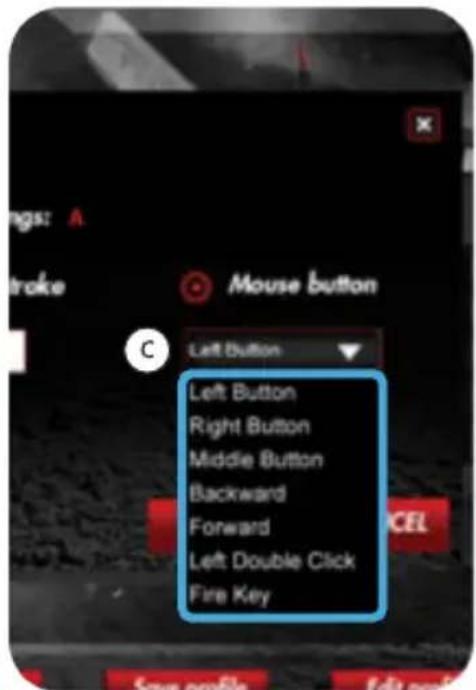
ngs: A stroke Mouse button C Left Button Left Button Right Button Middle Button Backward Forward Left Double Click Fire Key

4 Settings Advanced Settings

125Hz 500Hz Light Effect Switch Light 100% Red b 0% 30% 60% 100% Single Color Breathing Color Cycle Breathing Create profile profile 1

500Hz 1000Hz Light Color Red Blue Purple Red profile Load profile profile 2

Macro settings

5 Macro manager OK CANCEL APPLY

MACRO MANAGER Assign macro Key combination New Delete

MACRO MANAGER Assign macro LOL=Katama key combination New Delete

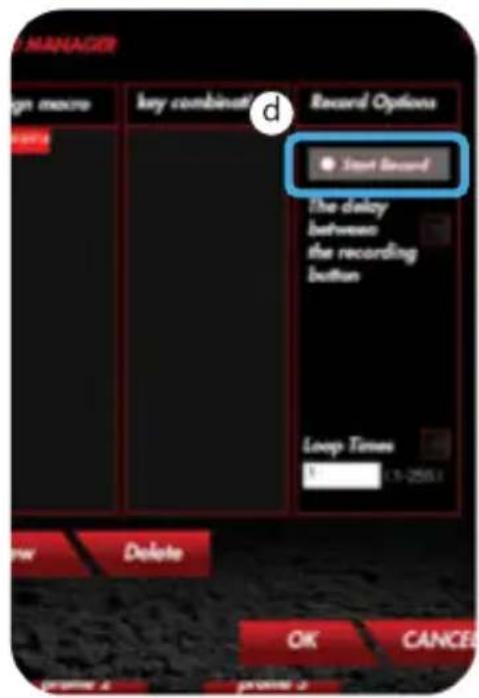
MANAGER Sign macro Key combination Record Options Start Record The delay between the recording button Loop Times 1 1-259.1 New Delete OK CANCEL

D MANAGE Sign macro key combinations Record Options e Stop Record The delay between the recording button Loop Times 1:25:1 View Delete OK CANCEL

Macro settings / Reset
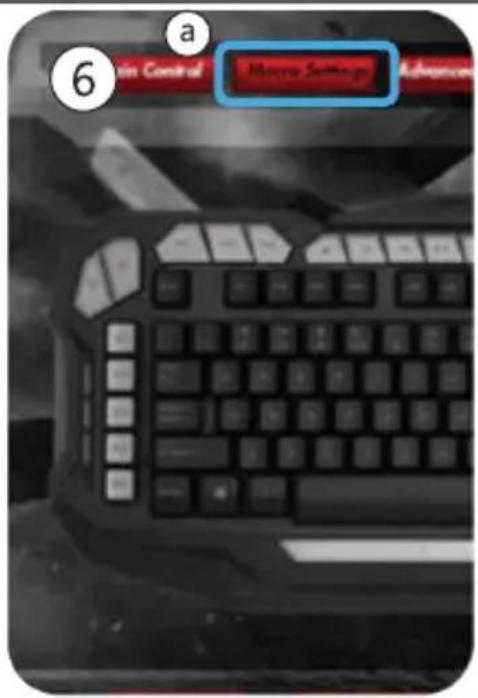
On Control Substance 6 a

GRO KEY FUNCTIONS Ctrl+1 b Full Media Internal Explorer Mouse Standard Assign a shortcut Launch Program Deadstrate Create profile Load profile profile 2

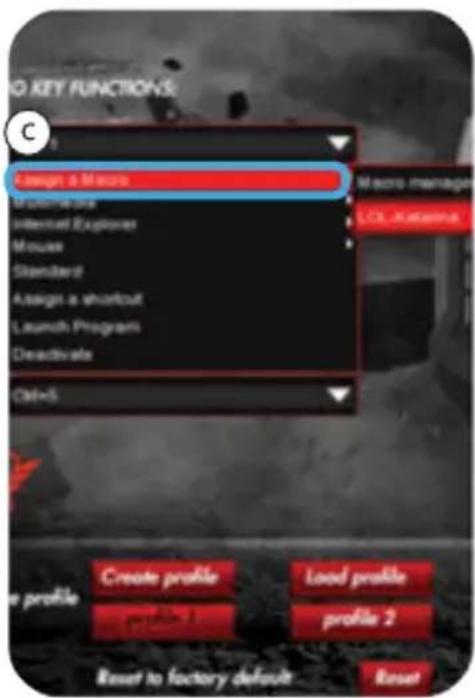
C Assign a Macro Macro profile Internet Explorer Mouse Standard Assign a shortcut Launch Programs Deadivate Ctrl+S Macro manager LOL-Kateman Create profile Load profile profile 2 Reset to factory default Reset

G2 Ctrl+2 G3 Ctrl+3 G4 Ctrl+4 G5 Ctrl+5 Edit game profile Create profile Load profile Save profile Edit profile Macro manage profile 1 profile 2 profile 3 profile 1 Reset to factory default Reset OK CANCEL APP

Profile settings
8 a Create profile Load profile Save profile Edit profile Macro manager profile 1 profile 2 profile 3 Reset to factory default Reset OK CANCEL APPLY

CREATE/ERT GAME CONFIGURATION FILE GAME CONFIGURATION FILE INFORMATION figuration file name League of Legends EXECUTABLE FILE PATH Configuration file name: Specify a name for your configuration file in there Executable file path that must be associated with a configuration file path for executable film as long as the executable rule, the driver will automatically switch to the corresponding configuration file.

Open Desktop This PC Libraries Network League of Legends ShortText 332 KB Adobe Creative Cloud ShortText 112 KB Fraps ShortText File name: League of Legends Files of type: (see file(* .axis)

MACRO KEY FUSE Save As Save in: config Name Date modified Type Default0.glcp 2-11-2016 10:06 GKP File Default1.glcp 2-11-2016 10:06 GKP File Default2.glcp 2-11-2016 10:06 GKP File Default3.glcp 2-11-2016 10:06 GKP File Default4.glcp 2-11-2016 10:06 GKP File File name: League of legends Save Save as type: Gaming Event Profile("glcp) Cancel Create profile Load profile Save profile Edit profile Profile 2 profile 3 Edit game profile

www.trust.com/20433/faq TRUST CXT

www.trust.com/20433/faq

TRUST CXT

GXT Gaming Keyboard

Special keys

1. Special keys

a Change the intensity of the LED light.
b Change the LED light to red, blue or purple.
c Disable the "Windows" key.

Keyboard functions

2 Controls

Macro keys
b Profile keys
c Record marco

  • Press the record button.
  • Press on the Macro key(2.a) that you want to assign the macro to.
  • Record the preferred keyboard sequence.
  • Press the record button to stop recording.

d Music player
e Previous track
f Pause / play
g Next track
h Stop
i Volume -
j Volume +
k Mute

GXT Gaming Keyboard

Button programming

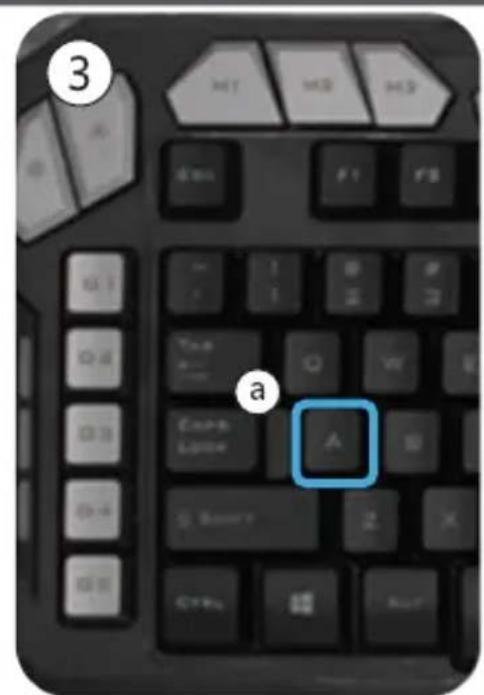
3. Assign a function

a - Click on the button which you want to re-assign.
b - Choose between a single keystroke or mouse button
c - Click on the mouse key function to open a menu.
- Click on 'Apply' → The keyboard is being updated.

Light Settings

4. Change the LED light

a - Click on the 'Advanced Settings' tab.
b - Change the brightness of the light or change to breathing.
c - Select the desired LED color.
- Click on 'Apply' → The keyboard is being updated.

Macro Settings

5. Create a macro (Store a sequence of keys in the software)

a - Click on the 'Macro manager' tab.
b - Create a new macro by clicking on 'New'.
c - Enter the name of the new macro and click on the Enter key on your keyboard.
d - Click on the 'start record' button to start recording the preferred keyboard sequence.
e - When you're finished creating your macro, click the 'stop record' button.
- Click on 'OK' → The macro is saved.

6. Assign a macro

a - Click on the 'Macro Settings' tab
b - Hoover over the function to open the side menu's.
c - Click on the created macro in the 'Assign a Macro' menu to assign the macro to a Macro key.
- Click on 'Apply' → The keyboard is being updated.

Reset

7. Reset the profiles

a - Click 'Reset' to reset all the profiles.

Profile Settings

8. Create, Save or Load a profile

a - Click on 'Create profile'
b - Enter a name for the profile
c - Link the profile to activate the profile automatically
d - Select your favourite application
e - Click on 'Save profile' → the profile is saved to your PC

GXT Gaming Keyboard

Trouble shooting

ProblemSolution
Windows key is not working.- Press the lock button (1.c) to unlock the windows key.
The macro keys are not working.- Press the correct profile key (2.b) to active the correct profile.
If your problem is not solved, please contact the help desk at www.trust.com/20433/faq.

GXT Gaming Keyboard

Sondertasten

1. Sondertasten

Manual assistant
Powered by Anthropic
Waiting for your message
Product information

Brand : TRUST

Model : GXT 285

Category : Keyboard