Fifa 14 (Playstation 2) - Game EA - Free user manual and instructions
Find the device manual for free Fifa 14 (Playstation 2) EA in PDF.


| Type | Video Game |
| Platform | PlayStation 2 |
| Genre | Sports (Football/Soccer) |
| Developer | EA Canada |
| Publisher | EA Sports |
| Release Date | September 27, 2013 (US) |
| ESRB Rating | E (Everyone) |
| Number of Players | 1-4 (via multitap) |
| Game Modes | Kick-off, Career Mode, Ultimate Team, Skill Games, Online (discontinued) |
| Languages | English, French, Spanish, Italian, German, etc. |
| Disc Format | DVD-ROM |
| Dimensions | 19 cm x 13.5 cm x 1.5 cm |
| Weight | 100 g |
| Power Supply | Not required (game disc) |
| Care Instructions | Keep disc clean and dry; avoid scratches and fingerprints. |
| Safety Warnings | Small parts; keep away from children under 3 years. |
| Spare Parts | None; manual available online at notice-facile.com |
Frequently Asked Questions - Fifa 14 (Playstation 2) EA
User questions about Fifa 14 (Playstation 2) EA
0 question about this device. Answer the ones you know or ask your own.
Ask a new question about this device
Download the instructions for your Game in PDF format for free! Find your manual Fifa 14 (Playstation 2) - EA and take your electronic device back in hand. On this page are published all the documents necessary for the use of your device. Fifa 14 (Playstation 2) by EA.
USER MANUAL Fifa 14 (Playstation 2) EA
- This disc contains software for the PlayStation®2 computer entertainment system. Never use this disc on any other system, as it could damage it. - This disc conforms to PlayStation®2 specifications for the PAL market only. It cannot be used on other specification versions of PlayStation®2. - Read the PlayStation®2 Instruction Manual carefully to ensure correct usage. - When inserting this disc in the PlayStation®2 console always place it with the required playback side facing down. - When handling the disc, do not touch the surface. Hold it by the edge. - Keep the disc clean and free of scratches. Should the surface become dirty, wipe it gently with a soft dry cloth. - Do not leave the disc near heat sources or in direct sunlight or excessive moisture. - Do not use an irregularly shaped disc, a cracked or warped disc, or one that has been repaired with adhesives, as it could lead to malfunction.
Health Warning
For your health, be sure to take a break of about 15 minutes during every hour of play. Avoid playing when tired or suffering from lack of sleep. Always play in a well-lit room, sitting as far from the screen as the cord will allow. Some people experience epileptic seizures when viewing flashing lights or patterns in our daily environment. These people may experience seizures while watching TV pictures or playing video games. Even players who have never had any seizures may nonetheless have an undetected epileptic condition. Consult your doctor before playing video games if you have an epileptic condition or immediately should you experience any of the following symptoms during play: dizziness, altered vision, muscle twitching, other involuntary movements, loss of awareness of your surroundings, mental confusion, and / or convulsions.
PIRACY
The unauthorised reproduction of all or any game part of this product and the unauthorised use of registered trademarks are likely to constitute a criminal offence. PIRACY harms Consumers as well as legitimate Developers, Publishers and Retailers. If you suspect this game product is an unauthorised copy, or have any other information about pirate product, please call your local Customer Service number given at the back of this manual.
See back page of this manual for Customer Service Numbers.
Pan European Games Information (PEGI) Age Rating System
The PEGI age rating system protects minors from games unsuitable for their particular age group. PLEASE NOTE it is not a guide to gaming difficulty. Comprising two parts, PEGI allows parents and those purchasing games for children to make an informed choice appropriate to the age of the intended player. The first part is an age rating:-

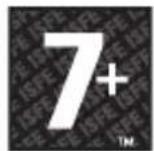

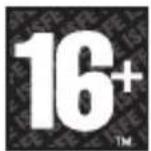

The second is icons indicating the type of content in the game. Depending on the game, there may be a number of such icons. The age rating of the game reflects the intensity of this content. The icons are:-

VIOLENCE

BAD LANGUAGE

FEAR

SEXUAL CONTENT

DRUGS

DISCRIMINATION
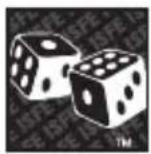
GAMBLING
For further information visit http://www.pegi.info
SLES-55671
1 or 2 Player • Memory Card (8MB) (for PlayStation ☉2): 3000KB minimum • Multitap (for PlayStation ☉2) adaptable: 1-5 Players (6-8 Players = second multitap required) • Analog Control Compatible: Analog Sticks Only • Vibration Function Compatible
STARTING THE GAME
- Set up your PlayStation®2 computer entertainment system according to the instructions in its instruction manual. Attach game controllers and other accessories, as appropriate.
- Make sure the MAIN POWER switch (located at the back of the console) is turned ON.
- Press the ⏻/RESET button. When the ⏻ indicator is green, press the ≅ button. The disc tray opens.
- Place the FIFA14 disc on the disc tray with the label side facing up. Press the △ button again and the disc tray closes.
- Follow on-screen instructions and refer to this manual for information on using the software.
It is advised that you do not insert or remove accessories or memory cards (8MB) (for PlayStation®2) once the power is turned on. Make sure there is enough free space on your memory card (8MB) (for PlayStation®2) before commencing play.
NOTE: Any saved data present on a memory card (8MB) (for PlayStation®2) in MEMORY CARD slot 1 will be autoloaded on boot up.
NOTE: FIFA14 requires and only supports a memory card (8MB) (for PlayStation®2) inserted in MEMORY CARD slot 1.
NOTE: Select your preferred language from the console's internal System Configuration menu or select your preferred language from the language selection screen displayed on boot up.
NOTE: If using a multitap (for PlayStation® 2), insert the multitap (for PlayStation® 2) into controller port 1 and insert the controllers sequentially into controller port 1-A, controller port 1-B etc.
CONTENTS
1 STARTING THE GAME
3 COMPLETE CONTROLS
11 SETTING UP THE GAME
12 PLAYING THE GAME
13 GAME MODES
16 OTHER GAME MODES
17 TEAM MANAGEMENT
17 HINTS AND TIPS
18 CONSENT TO USE OF DATA
19 WARRANTY
20 NEED HELP?
STAY IN THE GAME AND REGISTER WITH EA!
Create an Origin Account (EA) and register this game to receive free cheat codes and game hints from EA. Creating an Origin Account (EA) and registering this game is fast and easy!
Visit our website at profile.ea.com and sign up today!
WWW.EASPORTSFOOTBALL.COM
COMPLETE CONTROLS
NOTE: The controls below refer to the Classic Analog Dribble configuration.
ATTACKING
| DRIBBLING | |
| Move player | left analog stick |
| Sprint | R1 button (hold) |
| Stop ball and face goal | left analog stick (release) + R2 button |
| Stop ball and shield | left analog stick (release) + R1 button |
| Pace control/Stop ball | R2 button (hold) |
| Dummy | L2 button |
| Trigger run | L1 button (tap) |
| Knock on (while sprinting) right analog stick | |
| Tricks (while standing or jogging) right analog stick | |
TRAPPING
| Trap ball | left analog stick |
| First touch (while receiving ball) right analog stick (hold to determine distance) | |
| Cancel trap | R2 button (hold) + L2 button (hold) |
| Shielding | R1 button (hold) |
| Push marker (while shielding) right analog stick (in direction of marker) | |
COACHING TIPS
FIRST TOUCH
The world's best players are always one step ahead of the game. FIFA 14 gives you total freedom to decide how to control the ball and where to direct it before it even reaches you.
The strength of your first touch should depend on the proximity of your marker and the amount of space around you. If you're being closely marked and the pitch is congested, quickly move the right analog stick in the direction you want to send the ball in order to get it out from under your feet, while ensuring you retain possession. Alternatively, if you have acres to run into, hold the right analog stick toward the space and set off after it, leaving your marker standing.
PUSHING YOUR MARKER
Pushing your marker by moving the right analog stick is a good way to keep him at arm's length while shielding the ball (hold the R1 button). However don't overdo it—getting overly physical with your opponent could draw the unwanted attentions of the referee!
PASSING
| Pass/Header | × button (hold to pass to further player) |
| Cross/Long pass | □ button (hold to determine distance) |
| Through ball | △ button (hold to determine distance) |
| Lobbed through pass | L1 button + ▲ button(hold to determine distance) |
| Cheeky lob (while standing) □ button (tap) | |
| One-two pass (ground) | L1 button + × button (double tap) |
CROSSING
| Manual cross | button (hold to determine distance) |
| Low cross (within cross zone) button (double tap) | |
| Early cross (outside cross zone) | L1 button + button |
| Early low cross (outside cross zone) | L1 button + button (double tap) |
SHOOTING
| Shoot/Header | ◎ button |
| Finesse shot | L1 button + ◎ button |
| Chip shot | L2 button + ◎ button |
TRICKS
| Fake shot/Cross/Lob | ✕ button (while powering up—hold the left analog stick in the direction you want to perform the fake). |
| Fake first touch | Press the right analog stick in the direction of fake (before receiving the ball) and then in the desired direction. |
SKILL MOVES
NOTE: Only the most skilled players can complete the more challenging moves.
STANDING MOVES
NOTE: The controls listed below assume that the controlled player is facing vertically upwards.
| Scoop turn | right analog stick ←, ↗, ↑, ↗, →/ right analog stick →, ↗, ↑, ↗, ← |
| Standing Rainbow flick (right/left) | right analog stick ↑, ↗, ←, ↗, ↓/ right analog stick ↑, ↗, →, ↗, ↓ |
| Step-over fake (left/right) | right analog stick ←, →/ right analog stick →, ← |
| Fake kick | right analog stick ↑, ↑ |
| Drag back | right analog stick ↓, ↓ |
| Fake (left/right) right analog stick ←, ←/ | right analog stick →, → |
| Drag back, turn (left/right) | right analog stick ↓, ↗, ←/ right analog stick ↓, ↗, → |
JOGGING MOVES
| Heel-to-heel | right analog stick ↓, ↑ |
| Step-over roll (forward) | right analog stick ↑, ↓ |
| Step-over (backward) | right analog stick ↓, ↘, →/ right analog stick ↓, ↕, ← |
| Lane-change (left/right) | right analog stick ↑, ↘, ←/ right analog stick ↑, ↗, → |
| Quick lane-change (left/right) | right analog stick ↑, ←/ right analog stick ↑, → |
| Feint (right/left) right analog stick ←, →/ | right analog stick →, ← |
| 360 | right analog stick ↓, ↘, →, ↗, ↑/ right analog stick ↓, ↕, ←, ↖, ↑ |
| Flick ball up | right analog stick ↑, ↓, ↑ |
| Rainbow flick | right analog stick ←, ↕, ↓, ↘, →/ right analog stick →, ↘, ↓, ↖, ← |
DEFENDING
| Switch player | L1 button |
| Directional player switch | right analog stick |
| Sprint | R1 button (hold) |
| Press | ◎ button (hold) |
| Standing tackle | ◎ button |
| Call second defender | ✕ button |
| Jockey | R2 button (hold) |
| Sliding tackle | ◎ button |
| Clearance (when in possession in own half) ◎ button | |
COACHING TIP: PRESSING AND JOCKEYING
Pressing is a good way of winning the ball cleanly from your opponent. Hold the Ⓧ button to make your player pressure the ball carrier and take the ball the instant he loses control. If he proves tricky to dispossess, press the ✗ button at the same time to call over another defender for help.
If you're concerned about getting sucked in, press the R2 button to stand off the player and jockey for the ball. This holds him up and gives you more space to react to his movements.
GOALKEEPER
| Charge | ▲ button (hold) |
| Move/Aim kick | left analog stick |
| Throw | ✕ button (hold to pass to further player) |
| Fake throw | ✕ button (while powering up throw) |
| Drop kick | ☐ button/○ button |
| Drop the ball | ▲ button |
| Switch to keeper (when in own half) | R 3 button |
| Anticipation save (while controlling keeper) ▲ button | |
| Sliding tackle (while controlling keeper) ☐ button | |
SET PIECES
| DIRECT FREE KICK | |
| Aim | left analog stick ←/→ |
| Shot | ◎ button (hold for increased power) |
| Driven shot | L1 button + ◎ button(hold for increased power) |
| Lob pass | ◎ button (hold for increased power) |
| Add spin (to shot, driven shot, or lob pass) left analog stick (while powering kick) | |
| Short pass | ✕ button |
| Switch kick taker | R1 button (hold) + left analog stick ↑/↓ |
| Quick free kick (during on-screen reminder) R1 button | |
| Move player/wall | left analog stick |
| Charge kick | ◎ button |
| Jump wall | ▲ button |
COACHING TIP: ADDING ELE VATION AND SPIN
To add elevation to your shot, power it up for longer (but beware of overpowering), and move the left analog stick / to add sidespin, to add topspin, or to add backspin. Topspin can be employed to bring a ball down quickly (e.g., after it has cleared the wall).
NOTE: When switching your free kick taker, use the indicator to select the ideal player to curl one into the top corner (FK), go for a quick pass (SPA), lob one into the box (LPA), or blast one directly at goal (PWR).
COACHING TIP: FREE K ICK OPTIONS
LAY-OFF MAN
The lay-off man gives you more options. Hold the R2 button to switch his position. Hold the R2 button while pressing the shot or lob command (◎ button/□ button) to call for him to take the set piece. Or hold the R2 button + ✗ button to tell him to roll it to the primary kicker for a shot.
FAKE FREE KICK
Aim your shot and then press the L2 button to lock the camera (to prevent other players seeing your changes) and alter your direction (the analog controller, DUALSHOCK®2, vibrates when you're aiming at either post).
INDIRECT FREE KICK OR GOAL KICK
| Aim | left analog stick |
| Long pass | ☑ button (hold for increased power) |
| Short pass | ☒ button |
THROW-IN
| Move receiving player | left analog stick |
| Lock onto receiver | ◎ button |
| Direct throw | ✕ button |
| Leading throw | △ button |
| Quick throw-in | R2 button |
| Switch player | L1 button |
| Directional player switch | right analog stick |
| Fake throw | ◎ button, L1 button, ✕ button |
CORNER
| Aim | left analog stick |
| Lob cross | button (hold for increased power) |
| Driven cross | button (hold for increased power) |
| Add spin (to lobbed or driven cross) left analog stick (while powering cross) | |
| Ground cross | L1 button + button(hold for increased power) |
| Short corner | R2 button (call player), × button (pass) |
| Change kick taker | R1 button (hold) + left analog stick ↑/↓ |
TAKING A PENALTY KICK
| Aim | left analog stick |
| Driven shot | ◎ button |
| Placed shot | L1 button + ◎ button |
| Chip shot | L2 button + ◎ button |
| Dive/Move along goal line (goalkeeper) left analog stick | |
| Squat (goalkeeper) right analog stick ↓ | |
| Wave arms (goalkeeper) right analog stick ↑ | |
| Jumping jacks (goalkeeper) | right analog stick ←/→ |
MENTALITY
Press the SELECT button to show the current Team Mentality, then press the SELECT button again to cycle through the mentality options, including Neutral, All-out Attack, and Defensive.
CASUAL CONTROLS
If playing FIFA 14 is a completely new experience for you or if your friends are all seasoned gamers, turn on Casual Controls and AI assists and go toe-to-toe with the pros.
NOTE: How quickly you pick up the pace is up to you. The more advanced controls are still active on your analog controller (DUALSHOCK 2) and are available for use at any point during the game.
| ATTACKING | |
| Move player | left analog stick |
| Smart pass | ✕ button |
| Shot | ✕ button |
| Engage auto-pilot | left analog stick (release) |
| DEFENDING | |
| Move player | left analog stick |
| Switch player | ✕ button |
| Slide tackle | ✕ button |
| Charge ball carrier | ✕ button (hold) |
| Engage auto-pilot | left analog stick (release) |
COACHING TIPS
Even when in auto-pilot, you're still in charge of passing, shooting, tackling, and tricks. You can still hold the R1 button to sprint and the △ button to bring the keeper out when using the casual controls.
TRICKS
Move the right analog stick to perform the following no-hassle tricks and flicks.
NOTE: The controls listed below assume the controlled player is facing vertically upwards.
| Lane-change | right analog stick ←/→ |
| Step-over | right analog stick ↑ |
| Step on ball (stop) right analog stick ↓ |
SETTING UP THE GAME
USER PROFILE
Before heading out onto the pitch, you must create a profile to track your stats and results in FIFA 14. To do so, when you first start the game, enter your name, select your favorite team, enable/disable casual controls, select a controller configuration, and decide if you want to use autosave.
NOTE: If you choose to use casual controls, your controller configuration is set for you and autosave is turned on automatically.
NOTE: If your television supports Progressive Scan, you can activate Progressive Scan mode by pressing the △ button and the ✕ button at the same time on the Language Select screen. After confirming the settings, loading will continue as usual.
NOTE: FIFA 14 has one save file for User Profiles, which can hold up to eight different profiles. Overwriting this file automatically deletes all previously-saved User Profiles. If you have a memory card (8MB) (for PlayStation®2 system) containing previously-saved profiles, ensure it is inserted prior to launching FIFA 14 to prevent any risk of overwriting the saved data (the game will prompt you prior to attempting to overwrite saved files on the memory card). Please use the Profile option in MY FIFA 14 to manage all your existing profiles.
If you think that you're the best of the best, then FIFA 14 is ready to put you and your skills to the test. Go to Game Settings in the MY FIFA 14 menu and change the difficulty setting to Legendary. Good luck!
SCOUTING REPORT
FIFA 14, before every match against the CPU, displays the Scouting Report. This report identifies a key player, explains the team's formation, and even tells you about their style of play. Use the Scouting Report to discover the tactics the opposing team will use during the game, and adjust your style of play accordingly.
PLAYING THE GAME
KICK-OFF
Press the START button in the main menu to get straight out onto the pitch with your default settings. If you'd like to play a different mode, select TEAM, BE A PRO, or BE A KEEPER.

SAVING AND LOADING
Before exiting a game mode or a menu where changes have been made, make sure you save your progress to a memory card. All unsaved information will be lost otherwise. You can load files manually by accessing the Load Screen (via the main menu).
GAME MODES
CAREER MODE
Career Mode is an immersive experience that offers you the chance to play through a lifelong football career. Career Mode is split into three different eras: Player, Player Coach, and Manager. Start as a player and play through all three or start later as Coach or Manager. Your success in each mode is tracked through the Fame system, so the better you perform the more famous you become!
PLAYER CAREER
Take control of a single professional football player as you play in multiple league, cup, and continental competitions to boost your form rating and ultimately represent your national team.
PLAYER COACH CAREER
Player Coach is the perfect stepping-stone from being a player to becoming a manager. Handle the tough decisions and play as either the full eleven or just your pro when on the pitch. Your main focus on the team is having full control of everything from the formation, playing style, and training, to who is on the bench. As a coach, you do not have to worry about the financial side, such as transfers and ticket prices. The manager is in charge of your team's finances.
MANAGER CAREER
Take control of the financial side of your favorite club and please the Board. Rise to prominence with the Fame system by keeping the team in top form by winning prestigious cup matches and your league!
FAME
Throughout Career Mode, Fame is the measure of how well known you are in the football world. Fame points are needed to progress through the eight levels of Fame. Meet challenges and perform well to earn points. Rising to the occasion will also give you benefits. Check out the Fame screen in Career Mode for your current level and its benefits.
LOUNGE MODE
Compete for ultimate bragging rights with up to eight players in offline multiplayer matches. Throw down with your friends over the course of a series of games while FIFA 14 keeps track of your wins and losses. Play a round with all your friends and figure out who is the FIFA 14 king!
CHEAP SHOTS
Cheap shots are rewards and tricks you can use to help defeat your opponent. They are not representative of real football and the laws of the game. Select YES to activate cheap shots or NO to leave them out.
BE A KEEPER
Keeper is one of the most important positions on the pitch. In Be A Keeper, you take control of the goalie and must keep your team's net secure! Maintain good positioning in front of the net, make saving shots, cut off crosses, and distribute the ball to your teammates after saves. Stay alert! You cannot afford to fail.
NOTE: There are two camera modes in Be A Keeper. One allows you to follow the ball as the action takes place down the field. The other allows you to focus on the goalkeeper and prepare for oncoming attacks. To switch between the two camera modes, press the L1 button.
| BE A KEEPER CONTROLS | |
| Save attempt | × button |
| Toggle camera | L1 button |
| Run to position | L2 button |
| Face the ball | R2 button (hold) |
| Distract kicker (when facing ball) | R3 button |
BE A PRO
Be A Pro is your chance to become a national hero. You can take control of a specific player on the field and follow all the action with the player-focused 3rd Person Cam.
NOTE: The 3rd Person Cam is only available when playing as a single-player in Be A Pro modes. When playing with your friends, the normal Be A Pro camera is used.
BE A PRO CONTROLS
If you're going to play as a pro, you've got to think like one. When your team is on the attack, time your runs and call for the ball at the right time. When defending, ensure you cover any dangers posed by your opponents. Teamwork is everything in football and communication with your teammates is the key to success. Wherever you are on the field, make sure you use the following controls to increase your chances of victory.
| Ask for pass | ✕ button |
| Ask for high pass/cross | ✕ button |
| Ask for through ball | ✕ button |
| Ask for shot | ✕ button |
| Defensive pressure (when defending) ✗ button | |
| Run to position (when defending) L2 button (hold) | |
GAMEPLAY INDICATORS
Be A Pro mode provides many of the same challenges faced by real players. Use the in-game indicators to make sure you're in the right place at the right time.
OFFSIDE
To ensure the assistant referee doesn't bring a swift end to another attacking move, make sure you keep an eye out for his flag. When you stray offside, a flag icon appears. To avoid being pulled up (and losing valuable XP), run back past the last defender to get into an onside position.
SET PIECES
If your team is awarded with a free kick, corner, or penalty, the first player to press the button displayed on-screen will take the kick.
FATIGUE
Make sure your player lasts the 90 minutes! If you run around the pitch non-stop, the analog controller (DUALSHOCK 2) vibrates, indicating that he needs a rest. Release the R1 button and let him slow down to replenish his energy.
OTHER GAME MODES
TEAM STYLES
Every team has a different way to approach the game. Team Styles gives you the chance to create a custom style for your team of choice, putting your indelible stamp on a classic club. Formations, attacking and defensive tactics, and styles of attack can be fine-tuned before gameplay begins, allowing you to experiment with a classic team in a new way. If you so choose, you can completely disable the Team Styles feature.
THE SEASON
In The Season, you can take control of a football club and play through a full season campaign without worrying about anything but playing the game. Managing finances, transfers, and training your team is for someone else to handle—you simply need to get on the pitch. Pick it up and play away.
TEAM MANAGEMENT
CRE ATE FORMATIONS
Create custom formations for individual opponents by selecting CREATE FORMATIONS in the Team Management screen and following these steps:
- Select an empty slot, then a formation to use as your base.
- Select the position you want to customize. The grey box shows what area of the pitch it covers (if boxes overlap, that area is well covered).
- Move the icon for the selected position with the left analog stick. If you move it outside the grey box you are prompted to relabel the position (press the ▲ button to reset it).
NOTE: The position icon's color changes according to which part of the pitch it's in—red for strikers, blue for midfielders, green for defenders, and yellow for goalkeepers.
-
Decide where each player in your team will run during attacks by selecting a position and moving the left analog stick to choose a direction. You can assign up to two directions to each position.
-
Assign defensive runs in the same way as attacking runs.
-
Once you're happy with your formation, press the START button to name it and assign it to any team in the game.
NOTE: Custom Formations are saved automatically if the autosave feature is turned on (see Saving and Loading on p. 12). Otherwise, you are prompted to save upon exiting.
HINTS AND TIPS
NOTE: To see more hints in-game select MY FIFA 14 > TIPS & HINTS.
TRICKS WHILE SHIELDING
When you have control of a skillful player, try the Scoop Turn or Rainbow Flick while faking a shield (R1 button) to leave your marker for dead.
BE THE KEEPER
You don't have to play Be A Keeper to be the keeper! Press the R3 button in open play or during a set piece to take control of your goalie. When the opposition is bearing down on goal, close down the angle by charging out and making a goal-stopping save.
CONSENT TO USE OF DATA
EA knows that you care how information about you is collected, used and shared, and we appreciate your trust that we will do so carefully and sensibly. Information about our customers is an important part of our business, and EA would never sell your personally identifiable information to anyone. We and agents acting on our behalf do not share information that personally identifies you without your consent, except in rare instances where disclosure is required by law or to enforce EA's legal rights.
When you play this game, EA and its affiliates may collect and store data from your computer or device. Information that EA and its affiliates collect includes technical and related information regarding your computer (or device) and operating system (including Internet Protocol Address and device ID(s)), as well as information about your Software usage (including but not limited to successful installation and/or removal), gameplay and usage statistics, system interactions and peripheral hardware. If you play this game offline, this data will be transmitted to EA and its affiliates if and when you access online features and/or services. EA and its affiliates may use this information to improve their products and services, provide services to and communicate with you (including for marketing purposes), facilitate the provision of software updates, dynamically served content, and software support, and to trouble-shoot bugs or otherwise enhance your experience. IF YOU DO NOT CONSENT TO THIS COLLECTION AND USE OF INFORMATION, DO NOT INSTALL OR USE THE SOFTWARE.
This and all other data provided to EA and/or collected by EA in connection with your installation and use of this Software is collected, used, stored and transmitted by EA Inc., 209 Redwood Shores Parkway, Redwood City, CA 94065 in accordance with EA's Privacy Policy at www.ea.com. To the extent that anything in this section conflicts or is inconsistent with EA's Privacy Policy, the terms of the Privacy Policy shall control.
WARRANTY
Limited Warranty
Electronic Arts warrants to the original purchaser of this computer software product that the recording media on which the software programs are recorded will be free from defects in materials and workmanship for 90 days from the date of purchase. During such period defective media will be replaced if the original product is returned to Electronic Arts at the below address, together with a dated proof of purchase, a statement describing the defects, the faulty media and your return address. This warranty is in addition to, and does not affect your statutory rights in any way. This warranty does not apply to the software program themselves, which are provided “as is”, nor does it apply to media which has been subject to misuse, damage or excessive wear.
Returns After Warranty
Electronic Arts will replace user-damaged media, current stocks allowing, if the original media is returned with a Eurocheque or postal order for £10 per disc, payable to Electronic Arts Ltd. For more information on warranty replacements or user-damaged discs or manuals, please visit https://help.ea.com/uk/article/ea-uk-warranty-policy for up to date information. If you have any other queries on warranty replacements, you can contact our Game Advisors through our support site: https://help.ea.com.

Online Warranty Information:
https://help.ea.com/uk/article/ea-uk-warranty-policy

EA Warranty Mailing Address:
Electronic Arts Customer Warranty, PO Box 1096, Guildford, GU1 9JN, United Kingdom
NEED HELP?
The EA Customer Experience team is here to ensure you get the most out of your game—anytime, anywhere. Whether online, in community forums, through chat, on the phone, or in your social network, our game experts are available and ready to help.

Online Support
For instant access to all of our FAQs and help articles, please visit help.ea.com. We update daily, so check here for the latest issues and resolutions.

Telephone Support
Help is also available from 9am - 9pm GMT by calling us at 0870 2432435 (Calls are charged at standard national rate; please consult your telecoms provider for details)

Twitter & Facebook Support
Need a quick tip? Reach out on Twitter to @askeasupport or post on facebook.com/askeasupport where our online game experts are available and ready to help.
© 2013 Electronic Arts Inc. EA, EA SPORTS, and the EA SPORTS logo are trademarks of Electronic Arts Inc. Official FIFA licensed product. © The FIFA name and OLP Logo are copyright or trademark protected by FIFA. All rights reserved. Manufactured under license by Electronic Arts Inc. The Premier League Logo © The Football Association Premier League Limited 2006. The Premier League Logo is a trade mark of the Football Association Premier League Limited which is registered in the UK and other jurisdictions. The Premier League Club logos are copyright works and registered trademarks of the respective Clubs. All are used with the kind permission of their respective owners. Manufactured under licence from the Football Association Premier League Limited. No association with nor endorsement of this product by any player is intended or implied by the licence granted by the Football Association Premier League Limited to Electronic Arts. All other trademarks are the property of their respective owners.
100527402001
Customer Services Numbers
- Australia
1300 365 911
Calls charged at local rate. Please call these Customer Service Numbers only for hardware support of PlayStation products.
- Österreich
0820 44 45 40
All calls charged at National Rate. Please call these Customer Service Numbers only for hardware support of PlayStation products.
• Israel
09 971170
Please call these Customer Service Numbers only for hardware support of PlayStation products.
- Italia
199 116 266
National Rate. Please call these Customer Service Numbers only for hardware support of PlayStation products.
- Nederland
0495 574 817
National Rate. Please call these Customer Service Numbers only for hardware support of PlayStation products.
• Norge
81 55 09 70
• UK (network Gaming Only)
08702 42 22 99
• UK (all other enquiries)
08705 99 88 77
National rate. Calls may be recorded for training purposes. Please call these Customer Service Numbers only for hardware support of PlayStation products.
- Health Warning
- PIRACY
- Pan European Games Information (PEGI) Age Rating System
- STARTING THE GAME
- CONTENTS
- STAY IN THE GAME AND REGISTER WITH EA!
- WWW.EASPORTSFOOTBALL.COM
- COMPLETE CONTROLS
- COACHING TIPS
- FIRST TOUCH
- PUSHING YOUR MARKER
- SKILL MOVES
- STANDING MOVES
- COACHING TIP: PRESSING AND JOCKEYING
- SET PIECES
- COACHING TIP: ADDING ELE VATION AND SPIN
- COACHING TIP: FREE K ICK OPTIONS
- LAY-OFF MAN
- FAKE FREE KICK
- MENTALITY
- CASUAL CONTROLS
- TRICKS
- SETTING UP THE GAME
- USER PROFILE
- SCOUTING REPORT
- PLAYING THE GAME
- KICK-OFF
- SAVING AND LOADING
- GAME MODES
- CAREER MODE
- PLAYER CAREER
- PLAYER COACH CAREER
- MANAGER CAREER
- FAME
- LOUNGE MODE
- CHEAP SHOTS
- BE A KEEPER
- BE A PRO
- BE A PRO CONTROLS
- GAMEPLAY INDICATORS
- OFFSIDE
- FATIGUE
- OTHER GAME MODES
- TEAM STYLES
- THE SEASON
- TEAM MANAGEMENT
- CRE ATE FORMATIONS
- HINTS AND TIPS
- TRICKS WHILE SHIELDING
- BE THE KEEPER
- CONSENT TO USE OF DATA
- WARRANTY
- Limited Warranty
- Returns After Warranty
- NEED HELP?
- Online Support
- Telephone Support
- Twitter & Facebook Support
- Customer Services Numbers
- - Australia
- - Österreich
- • Israel
- - Italia
- - Nederland
- • Norge
- • UK (network Gaming Only)
- • UK (all other enquiries)
Brand : EA
Model : Fifa 14 (Playstation 2)
Category : Game