
Envaya Mini - Docking Station DENON - Free user manual and instructions
Find the device manual for free Envaya Mini DENON in PDF.


| Product Type | Portable Bluetooth Speaker / Docking Station |
| Brand | Denon |
| Model | Envaya Mini |
| Dimensions (W x H x D) | 180 x 60 x 60 mm (7.1 x 2.4 x 2.4 in) |
| Weight | 0.5 kg (1.1 lbs) |
| Power Source | Built-in rechargeable lithium-ion battery, USB charging (5V) |
| Battery Life | Up to 12 hours (dependent on volume and content) |
| Bluetooth Version | Bluetooth 4.2 |
| Wireless Range | Up to 10 meters (33 feet) |
| Audio Inputs | Bluetooth, 3.5mm AUX |
| Speaker Configuration | Full-range driver with passive radiator |
| Output Power | 15W RMS |
| Frequency Response | 70 Hz - 20 kHz |
| Water Resistance | Not specified (assume no official IP rating) |
| Microphone | Built-in for hands-free calls |
| Control | Buttons on top (power, volume, Bluetooth, play/pause) |
| Compatible Devices | Bluetooth-enabled smartphones, tablets, computers |
| Box Contents | Envaya Mini speaker, USB charging cable, AUX cable, user manual |
| Cleaning and Maintenance | Wipe with a soft, dry cloth. Do not use abrasive cleaners. |
| Safety Warnings | Do not expose to extreme temperatures or moisture. Unplug when not in use. |
Frequently Asked Questions - Envaya Mini DENON
User questions about Envaya Mini DENON
0 question about this device. Answer the ones you know or ask your own.
Ask a new question about this device
Download the instructions for your Docking Station in PDF format for free! Find your manual Envaya Mini - DENON and take your electronic device back in hand. On this page are published all the documents necessary for the use of your device. Envaya Mini by DENON.
USER MANUAL Envaya Mini DENON
Contents Preparation Connections
Operation
Troubleshooting
Appendix
DENON®
envaya mini
DSB-100
Portable Premium
Bluetooth Speaker
Owner's Manual
You can print more than one page of a PDF onto a single sheet of paper.
Index

Contents Preparation Connections
Operation
Troubleshooting
Appendix
Preparation
| Unpacking | 3 |
| Overview | 4 |
| Sound Quality | 4 |
| Design | 4 |
| Operation | 4 |
| Features and functions | 5 |
| Charging | 7 |
| Turning the power on | 9 |
| Turning the power off | 9 |
Connections
| Bluetooth operation | 10 |
| Pairing | 10 |
| Connecting | 10 |
| 1: Connecting for the first time | 11 |
| 2: Reconnecting paired devices | 13 |
| 3: Reconnecting NFC devices | 14 |
| Simultaneously connecting multiple Bluetooth devices (Multipoint function) | 15 |
Operation
| Adjusting the volume | 16 |
| Performing basic operations | 16 |
| Listening to music using a wired connection | 17 |
| Conducting hands-free phone calls using Envaya Mini | 18 |
Troubleshooting
| Tips | 20 |
| Troubleshooting | 22 |
| Changing the device name of Envaya Mini displayed on the Bluetooth device | 27 |
| Restarting the Envaya Mini | 28 |
Appendix
| Playing back a Bluetooth device | 29 |
| Notes on splash-proof capabilities | 29 |
| Trademark information | 30 |
| Specifications | 31 |
| Index | 33 |
Index


flowchart
graph LR
    A["Contents"] --> B["Preparation"]
    B --> C["Operation"]
    C --> D["Troubleshooting"]
    D --> E["Appendix"]
Thank you for purchasing this product. Please make sure to read this owner's manual before using your Envaya Mini.
Unpacking
Unpack your Envaya Mini and verify that the following items are included.
 | 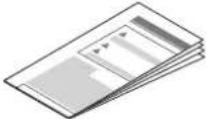 Safety InstructionsQuick Start Guide Safety InstructionsQuick Start Guide |  USB Cable USB Cable |
 Carrying Pouch Carrying Pouch | ||

USB to AC power adapter not included.
Index

Contents
ation
Operation
Troubleshooting
Appendix
Overview
Sound Quality
- Despite the compact size of Envaya Mini, powerful playback sound is produced by using neodymium magnets in the magnetic circuit and utilizing an original surround shape in the passive radiator.
- Envaya Mini is compatible with a wide range of codecs, including the high sound quality aptX, AAC and SBC. Envaya Mini automatically selects the optimum compatible codec for your Bluetooth device (smartphone or tablet) so you can enjoy high-grade wireless sound. Additionally, aptX is Low Latency compatible so you can enjoy videos and gaming without audio lag.
Design
- Envaya Mini has a slim stick design for easy carrying.
- Splash-proof design prevents damage caused by splashing or handling with wet hands.
This allows much more options for use, such as using Envaya Mini outdoors.
Operation
- Basic operations (Play/Pause/skipping) can be performed using the button on the Envaya Mini.
- Hands-free phone calls can be conducted using Envaya Mini by pairing with a Bluetooth-compatible mobile phone. Envaya Mini is equipped with CVC (Clear Voice Capture) technology for low-noise calls with minimal echo.
- Multiple Bluetooth devices can be paired with Envaya Mini and mobile devices equipped with the NFC function can be easily paired and connected with just a touch of the device on the top of Envaya Mini.
Index


flowchart
graph LR
    A["Contents"] --> B["Operation"]
    B --> C["Operation"]
    C --> D["Troubleshooting"]
    D --> E["Appendix"]
Features and functions

① N mark
Contact location for pairing and connecting NFC compatible Bluetooth devices. (17 p. 14)
② Microphone
This microphone is used when conducting hands-free phone calls.
(18) p. 18


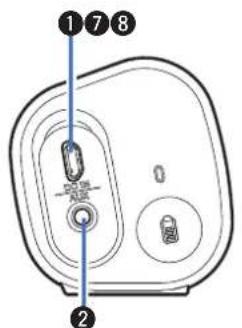
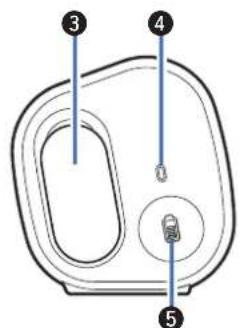

① Micro USB port
Connect Envaya Mini to the USB to AC power adapter (not included) or the USB port of a computer using the supplied USB cable to charge this unit. (125 p. 7)
② AUX Input connector
Used to connect an external audio player with an analog output. (125 p. 17)
3 Cap
Close this cap securely to maintain the splash-proof capabilities.
④ Battery/Charging Indicator
Indicates the amount of remaining battery power and charging status. (127 p. 8)
⑤ Battery button
Press this button to check the amount of remaining battery power. (15 p. 8)
⑥ Volume adjustment buttons (−,+)
Adjusts the volume up and down. (p. 16)
⑦ Status Indicator
Lit when power is on.
• During Bluetooth connection: Lit
- No Bluetooth connection: Blinks slowly
• Pairing mode: Blinks quickly
8 Power button (⏻)
Turns the power on/off. (p. 9)
⑨ Play/Pause button (▶/III)
• Starts/pauses playback. (1 p. 16)
• Skips to the next or previous track. (p. 16)
• Used to enter Bluetooth pairing mode. (p. 10)
- Answers incoming calls and ends calls. (p. 18)
- Mutes playback when using the AUX input. (p. 17)
Contents
ation
Operation
Troubleshooting
Appendix
Charging
Envaya Mini can be charged and operated on battery power. It can also be operated from an AC power source by connecting it to the USB to AC power adapter (not included) or the USB port of a computer using the supplied USB cable.
Please make sure you charge the battery completely before listening on battery power.

- It takes at least 2.5 hours to fully charge the battery when it is completely discharged. (if using a USB to AC power adapter with an output of 2A or higher)
- Envaya Mini can be used for approximately 10 hours when the battery is fully charged. (The playback time may differ depending on the ambient temperature, playback volume, and usage conditions)
NOTE
- Only use the supplied USB cable.
• We recommend using a USB to AC power adapter with an output of 2A or higher.
• The rating of adapter should be less than DC 5V, 2.4A.
- Must be used with an approved adapter suitable for the countries where the requirement will be applied.
■ Charging the speaker
① Open the cap on the left side.
② Connect the small end of USB cable to the speaker.
③ Connect the large end of the USB cable to a USB to AC power adapter and a power source or the USB port on your computer.
NOTE
Remove the USB cable and firmly close the cap when charging is completed.

7
Index

Contents
ation
Operation
Troubleshooting
Appendix
■ Battery indicator
The battery indicator uses 3 colors to indicate the approximate time remaining on the internal battery and the status of the charge process when connected to the USB to AC power adapter or the USB port of a computer.
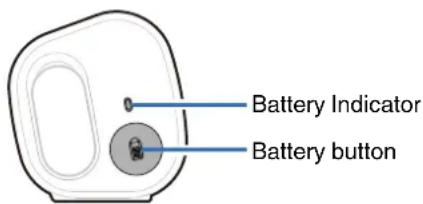
When connected to the USB to AC power adapter or the USB port of a computer (charging)
The battery indicator is always lit when charging.
The battery indicator turns off when charging is complete while the Envaya Mini is in standby.
| Charging status (Approximate) Battery Indicator | |
| 100 % Lit in green | |
| 70 – 99 % Blinking in green | |
| 30 – 69 % | Blinking in orange |
| 1 – 29 % Blinking in red | |
When running on battery power
Press and release the Battery button to check the remaining battery. The remaining battery level is displayed for approximately 5 seconds.
| Remaining battery (Approximate) | Battery Indicator |
| 70 – 100 % Lit in green | |
| 30 – 69 % Lit in orange | |
| 5 – 29 % Lit in red | |
| 1 – 4 % Blinking in red |

When the battery indicator flashes in red, connect Envaya Mini to the USB to AC power adapter or the USB port of a computer.
Index

Contents
ation
Operation
Troubleshooting
Appendix
Turning the power on
1 Press and hold ⏻ until a notification sound is heard.
The status indicator illuminates and Envaya Mini turns on.
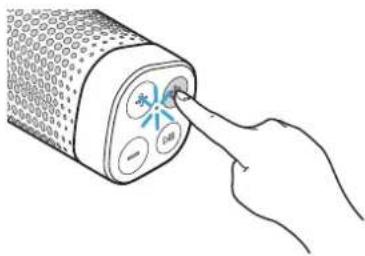
Turning the power off
1 Press and hold ⏻ until a notification sound is heard.
The status indicator lights turn off and the speaker's power is turned off.

natural_image
Hand inserting a button into a cylindrical device with four buttons (no text or symbols visible)
- Envaya Mini automatically turns off when there is no audio output from a Bluetooth device for approximately 15 minutes and the unit is not operated during this time.
- If the stereo mini plug cable is connected to Envaya Mini and Envaya Mini is not operated for approximately 8 hours, Envaya Mini automatically turns off (AUX auto off function).
- To turn the AUX Auto Off function on or off, press and hold the battery button for approximately three seconds while the input of this unit is set to AUX.
On (Default): The status indicator blinks once.
Off: The status indicator blinks twice.
- The notification sound beeps at the same time as the status indicator blinks.
Index

Contents Preparation
Connections
Operation
Troubleshooting
Appendix
Bluetooth operation
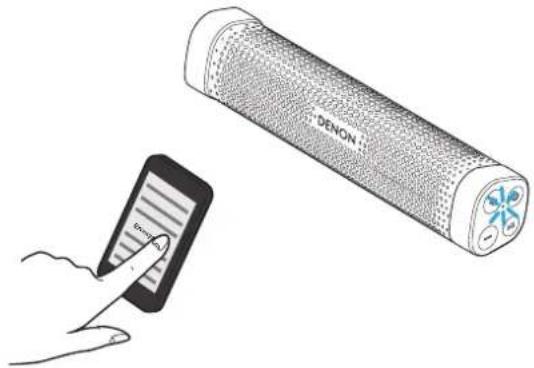
You can enjoy listening to music wirelessly by connecting Envaya Mini to your Bluetooth device.
Pairing
Pairing (registration) is an operation that is required in order to connect a Bluetooth device to Envaya Mini.
When using Bluetooth for the first time, you need to pair Envaya Mini and your Bluetooth device so they can communicate with each other. Envaya Mini can store pairing information for up to 8 devices.
NOTE
Multiple Bluetooth devices cannot be played back at the same time.
Connecting
There are three methods for connecting with Bluetooth devices:
1
Connecting for the first time (p. 11)
2
Reconnecting paired devices (p. 13)
3
Reconnecting NFC devices (p. 14)
Index

Contents
Preparation
ections
Operation
Troubleshooting
Appendix
1: Connecting for the first time
1 Turn on Bluetooth on your mobile device.
- For details, see the Owner's Manual of your Bluetooth device.

2 Press and hold ⏻ until a notification sound is heard.
The status indicator illuminates and Envaya Mini turns on.
- Envaya Mini automatically enters pairing mode the first time the power is turned on after purchase. In this case, you do not need to perform step 3.
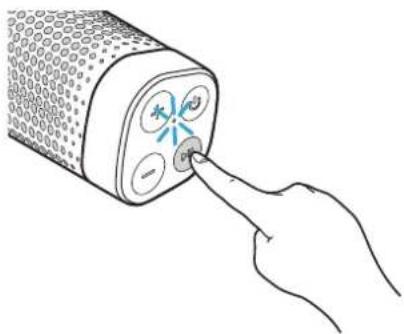
3 Press and hold the ▶/□ button for 3 seconds until a notification sound is heard.
The status indicator blinks rapidly and Envaya Mini enters pairing mode.
natural_image
Hand inserting a pin into a cylindrical device with four circular buttons (no text or symbols visible)Index

Contents
Preparation
ections
Operation
Troubleshooting
Appendix
4 Select "Envaya Mini" from the list of devices displayed on the screen of your Bluetooth device.
When pairing is complete a notification sound is heard and the status indicator changes from blinking to on.

If you are asked to enter a pass key in the Bluetooth device screen, enter "0000".
5 Listening to music.
Music played back on the Bluetooth device will now play through your Envaya Mini speaker.

Adjust the volume to an appropriate level.
NOTE
- Envaya Mini remains in the pairing mode for approximately 5 minutes and then will exit pairing mode. If your device could not connect, please try again from step 3.
- Envaya Mini cannot pair with Bluetooth devices that require a pass key other than "0000".
Index

Contents
Preparation
ections
Operation
Troubleshooting
Appendix
2: Reconnecting paired devices
1 Turn on Bluetooth on your mobile device.
- For details, see the Owner's Manual of your Bluetooth device.

2 Press and hold ⏻ until a notification sound is heard.
The status indicator illuminates and Envaya Mini turns on.
- If the last device which was connected to Envaya Mini is turned on, in range, and has Bluetooth enabled, it automatically connects to Envaya Mini.
- If the stereo mini plug cable is connected to Envaya Mini, remove the cable to switch to the Bluetooth input.
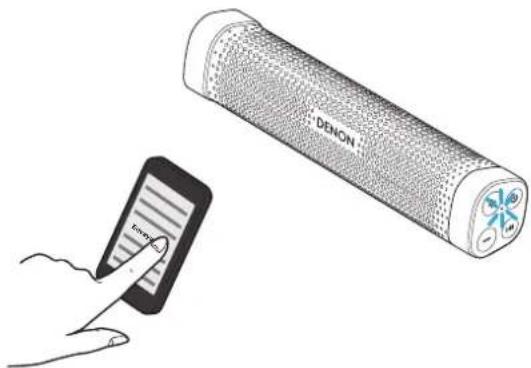
3 Select "Envaya Mini" from the list of devices displayed on the screen of your Bluetooth device.
When a device is connected by Bluetooth, a notification sound is heard and the status indicator changes from blinking to on.
4 Listening to music.
Music played back on the Bluetooth device will now play through your Envaya Mini speaker.
Index

3: Reconnecting NFC devices
Simply touch Envaya Mini with the Bluetooth device. Envaya Mini automatically turns on and the Bluetooth device reconnects.
1 Turn on the NFC function of the Bluetooth device.
- For details, see the Owner's Manual of your Bluetooth device.
2 Touch the NFC antenna section of the Bluetooth device onto the N mark on Envaya Mini.
The power supply to Envaya Mini turns on and the device automatically reconnects.
When a device is connected by Bluetooth, a notification sound is heard and the status indicator changes from blinking to on.
- Follow the instructions displayed on the screen of your Bluetooth device to complete the operation.

3 Listening to music.
Music played back on the Bluetooth device will now play through your Envaya Mini speaker.

- When a Bluetooth device that is playing back music touches the N mark on Envaya Mini, the music starts being output from Envaya Mini.
- Touch Envaya Mini again with the Bluetooth device connected by NFC to disconnect the Bluetooth device.
NOTE
When connecting using the NFC connection, release the lock function on the Bluetooth device.
Index

Simultaneously connecting multiple Bluetooth devices (Multipoint function)
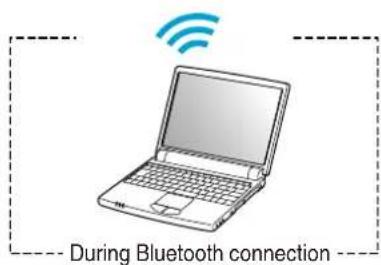
Two Bluetooth devices can be simultaneously connected to Envaya Mini so you can easily switch between multiple Bluetooth audio sources without having to disconnect and reconnect each device. ("Bluetooth operation" (17 p. 10))
It is convenient to connect devices that you use frequently so that you do not need to re-connect each time you want to switch playback devices. Pair the devices that you want to connect in advance.
Audio signal

■ Switching playback devices
1 Stop or pause playback on the device that you are currently listening to.
2 Begin playback on the device that you want to listen to.
■ Disconnecting the bluetooth connection
Disconnect the Bluetooth connection by turning off the Bluetooth function of the Bluetooth device.
Contents
Preparation Connections
Operation
Troubleshooting
Appendix
Adjusting the volume
1 While playing music, press the + button to increase the volume. Press the - button to decrease the volume.
- For the best signal to noise ratio, you may have to raise the volume of your connected music player up to an appropriate level then adjust the volume of the speaker up or down.

natural_image
Line drawing of a hand pressing down on a cylindrical device with buttons (no text or symbols)Performing basic operations
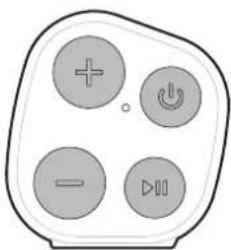
You can perform basic operations on a device connected by Bluetooth from Envaya Mini.
- Start or pause playback: Press the ▶/■ button.
- Skip to the next track: Press the ▶/■ button twice consecutively.
- Skip to the previous track: Press the ▶/■ button three times consecutively.

This function is enabled when the device is compatible with AVRCP (Audio/Video Remote Control Profile).
natural_image
Simple diagram of a four-hole remote control panel with plus, minus, and two buttons (no text or symbols)Index

Listening to music using a wired connection
You can enjoy listening to music from devices that do not support Bluetooth audio by connecting to Envaya Mini using a stereo mini plug cable (not included).
1 Press and hold ⏻ until a notification sound is heard.
The status indicator illuminates and Envaya Mini turns on.
2 Connect the AUX input connector on Envaya Mini to the headphones jack of the portable music player using a stereo mini plug cable (not included).
- When a stereo mini plug cable is connected to the AUX input connector of Envaya Mini, the input of Envaya Mini automatically switches to AUX.

3 Start playing music from the device. You may need to adjust the volume up on the connected device, then adjust the volume on Envaya Mini.
- Remove the stereo mini plug cable to switch to Bluetooth input.
- Pressing the ▶/Ⅲ button during AUX input mutes playback. Press the button again to stop muting.
A status indicator blinks during muting.
Index

Contents Preparation Connections
Operation
Troubleshooting
Appendix
Conducting hands-free phone calls using Envaya Mini
If your mobile phone supports the Hands-Free profile (HFP), you can answer incoming calls to your mobile phone from Envaya Mini when the devices are connected by Bluetooth.
■ Answering an incoming call
If a mobile phone connected to Envaya Mini receives an incoming call, the music being played is paused and Envaya Mini plays a ring tone.
Press and release the ▶/□ button on Envaya Mini while the ring tone plays to answer an incoming call.
Speak into the microphone on Envaya Mini.
■ Ending a call
Press the ▶/■ button on Envaya Mini while a call is in progress to end the call.
If you were playing music before the call, playback of the music resumes.
■ Canceling an incoming call
Press and hold the ▶/■ button on Envaya Mini for approximately two seconds while the ring tone plays to cancel an incoming call.

Index

Contents
Preparation
Connections
Operation
Troubleshooting
Appendix
Tips
Changing the Bluetooth name of your Envaya Mini speaker 20
I want to perform basic operations for music playback from Envaya Mini 20
I want to answer incoming calls to my mobile phone on Envaya Mini 20
Connecting multiple Bluetooth devices and switching easily between them 20
Using an NFC compatible mobile device 21
I want to disconnect an NFC compatible device 21
I want to switch connection between multiple NFC compatible devices 21
Troubleshooting
Speaker does not turn on 22
Envaya Mini cannot be charged 22
No sound from the speaker 23
Sound is distorted, noisy, or cuts in and out 23
Cannot pair a Bluetooth device with the speaker 24
Cannot pair or connect an NFC device 24
Speaker is turning off automatically 25
Speaker is malfunctioning 25
Cannot conduct a call 26
Index

Contents
Preparation Connections
Operation
Troubleshooting
Appendix
Tips
Changing the Bluetooth name of your Envaya Mini speaker
- If you have more than one of Envaya Mini, you need to change the device name displayed on the Bluetooth device in order to identify which speakers to output sound from.
Change the device name of Envaya Mini displayed on the Bluetooth device. (p. 27)
I want to perform basic operations for music playback from Envaya Mini
- Basic operations for music playback (Play/Pause/skipping tracks) can be performed using the buttons on the Envaya Mini. (p. 16)
I want to answer incoming calls to my mobile phone on Envaya Mini
- If a mobile phone connected by Bluetooth receives an incoming call, the music being played is paused and a ring tone plays. Press and release the ▶/□ button on Envaya Mini to answer the call. (p. 18)
Connecting multiple Bluetooth devices and switching easily between them
- Music can only be output from Envaya Mini from one Bluetooth device connected using Bluetooth, but two Bluetooth devices can be simultaneously connected to Envaya Mini. To switch easily between connections, connect Bluetooth devices that you use frequently to Envaya Mini. To switch playback to a different Bluetooth device when multiple Bluetooth devices are connected, stop playback on the device that is currently playing back, and then start playback on a different Bluetooth device. (p. 15)
Index

Contents Preparation Connections
Operation
Troubleshooting
Appendix
Using an NFC compatible mobile device
- Enable the NFC function on the NFC compatible device, and touch the NFC device to the N mark on Envaya Mini. (p. 14)
I want to disconnect an NFC compatible device
- Touch the mark with the NFC compatible device again while the device is connected to disconnect it.
I want to switch connection between multiple NFC compatible devices
- Touch the mark with a different NFC compatible device while an NFC compatible.
Index

Contents Preparation Connections
Operation
Troubleshooting
Appendix
Troubleshooting
Check all connections.
If Envaya Mini does not operate properly, check the items listed in the table below.
Should the problem persist, there may be a malfunction. In this case, disconnect the power immediately and contact your store of purchase.
■ Speaker does not turn on
| Symptom Cause / Solution Page | ||
| Speaker does not turn on. (AC power) | To turn on the speaker, press and hold the power button for 2 seconds. 9 | - |
| Speaker does not turn on. (Battery power) | The battery is completely discharged. Connect Envaya Mini to the USB to AC power adapter or the USB port of a computer to charge Envaya Mini. | 7 |
■ Envaya Mini cannot be charged
| Symptom Cause / $solution Page | ||
| Envaya Mini cannot be charged. | The speaker is not connected to a USB to AC power adapter. Make sure the USB to AC power adapter is connected to a working power source (AC wall outlet). | 7 |
| Make sure the supplied USB cable is correctly connected to Envaya Mini. 7 | - | |
| If Envaya Mini is connected to the USB port of a computer, make sure the computer is turned on. | - | |
Index

Contents Preparation Connections
Operation
Troubleshooting
Appendix
No sound from the speaker
| Symptom Cause / Solution Page | ||
| No sound from the speaker. | The speaker is not connected to USB to AC power adapter or the battery is not charged. Connect power and turn on the speaker. | 9 |
| The volume is too low on your connected device. Turn up the volume on your device to about 90 % and then adjust the volume on the speaker. | 16 | |
| There is no connected Bluetooth device. Pair and connect a Bluetooth device and try again. 10 | — | |
| There is no connected AUX device. Connect an audio device to the AUX input using a stereo 3.5mm cable and make sure music playing music on your device. | 17 | |
| The AUX input connector of Envaya Mini is compatible with stereo mini plug cables that have 3-conductor plugs. Be sure to use a 3-conductor stereo mini plug cable. | 17 | |
Sound is distorted, noisy, or cuts in and out
| Symptom Cause / Solution Page | ||
| Sound is distorted, noisy, or cuts in and out. | The volume is too low on your connected device. Turn up the volume on your device to about 90 % and then adjust the volume on the speaker. | 16 |
| The Bluetooth device is out of range. Bring the Bluetooth device closer to the speaker. — | ||
| The Bluetooth connection is experiencing wireless interference. Move the speaker away from appliances such as microwave ovens and other wireless devices. | — | |
| The Bluetooth device is having connectivity issues. Cycle the power on the Bluetooth and reconnect to the speaker. | — | |
| Depending on the type of USB to AC power adapter connected to Envaya Mini, a small amount of noise may occur during charging. This is not a malfunction. | — | |
Index

Contents Preparation Connections
Operation
Troubleshooting
Appendix
Cannot pair a Bluetooth device with the speaker
| Symptom Cause / Solution Page | ||
| Cannot pair a Bluetooth device with the speaker. | Power On the speaker then press and hold the ▶/III button for 3 seconds until you hear a 3 tone beep.Make sure your mobile device has Bluetooth On and select “Envaya Mini” from the list of Bluetooth devices. | — |
| The Bluetooth connection is experiencing wireless interference. Move the speaker away from appliances such as microwave ovens and other wireless devices. | — | |
| The Bluetooth device is out of range. Bring the Bluetooth device closer to the speaker. — | ||
| The Bluetooth device is malfunctioning. Power cycle the device and try again. — | ||
| The Bluetooth device is malfunctioning. Power cycle the device, remove the pairing information (Forget this Device on iOS and Unpair on Android) and re-pair the speaker to the device. | — | |
| Bluetooth is off on the device. Make sure Bluetooth is set to ON on your device. — | ||
| If the stereo mini plug cable is connected, remove the cable. — | ||
Cannot pair or connect an NFC device
| Symptom Cause / $Solution Page | ||
| Cannot pair or connect an NFC device. | Bluetooth is off on the device. Make sure Bluetooth is set to ON on your device. — | |
| NFC is off on the device. Check that NFC is set to ON on your device. — | ||
| Check the position of the NFC antenna on the Bluetooth device and touch it to the N mark on Envaya Mini. Make sure to touch it until the Bluetooth device responds. | 14 | |
Index

Contents Preparation Connections
Operation
Troubleshooting
Appendix
Speaker is turning off automatically
| Symptom Cause / Solution Page | ||
| Speaker is turning off automatically. | To save battery power, the speaker is designed to turn off when no audio is played via Bluetooth for approximately 15 minutes. Power on the speaker by pressing and holding the power button for 2 seconds. | 9 |
| If the input of Envaya Mini is set to AUX and it is not operated for approximately 8 hours, Envaya Mini automatically turns off. Power on the speaker by pressing and holding the power button for 2 seconds. To turn the AUX Auto Off function on or off, press and hold the battery button for approximately three seconds while the input of this unit is set to AUX. | 9 | |
| The power turns off quickly. | If usage time is extremely short even when the battery has been fully charged, the battery may be near the end of its life. In this case, please contact Denon service center. | — |
Speaker is malfunctioning
| Symptom Cause / Solution Page | ||
| Speaker is malfunctioning. | To reset the speaker, turn on the speaker then, press and release the POWER button, ▶/■ button and BATTERY button simultaneously. Envaya Mini is reset. | 28 |
| The speaker needs to be reset to the factory default settings. Turn on the speaker. Press and hold the BATTERY and ▶/■ buttons together for approximately 4 seconds. The status indicator will blink 4 times to indicate a reset (Note: All pairing information from Bluetooth devices will be erased). | — | |
Index

Contents Preparation Connections
Operation
Troubleshooting
Appendix
Cannot conduct a call
| Symptom Cause / Solution Page | ||
| Cannot conduct a call. | Hands-free phone calls cannot be conducted when a cable is connected to the AUX input.Remove the cable and try again. | 10 |
| Not all mobile phones and Apps support Hands-free phone calling. — | ||
* If you need additional help in solving problems, contact Denon customer service in your area.
For more information, visit www.denon.com.
Index

Contents Preparation Connections
Operation
Troubleshooting
Appendix
Changing the device name of Envaya Mini displayed on the Bluetooth device
1 When the power is on, press and hold the ▶/□ button and volume adjustment (+) button simultaneously for approximately 4 seconds.
A notification sound is heard and the status indicator blinks 3 times.
2 Press the volume adjustment button.
The device name changes as shown below each time the volume adjustment button is pressed.
| Button The device name of Envaya Mini | |
| Volume adjustment button (+) | |
| Volume adjustment button (-) | |
The status indicator blinks as shown below each time the device name is switched.
| The device name of Envaya Mini | Status Indicator |
| Envaya Mini Blinks once | |
| Envaya Mini2 Blinks twice | |
| Envaya Mini3 Blinks three times | |
| Envaya Mini4 Blinks four times |
* The notification sound beeps at the same time as the status indicator blinks.
NOTE
- If you change Envaya Mini's Bluetooth device name, you must repair and reconnect all of your Bluetooth devices using the selected name.
- When the volume adjustment button is not operated for approximately 5 seconds, the selected device name is entered and Envaya Mini restarts.

You cannot change to a different device name other than those listed above.
Index

| Contents | Preparation Connections | Operation | Troubleshooting | Appendix |
Restarting the Envaya Mini
To reset the speaker, turn on the speaker then, press and release the POWER button, ▶/■ button and BATTERY button simultaneously. Envaya Mini is reset.

Index

Playing back a Bluetooth device
Envaya Mini supports the following Bluetooth profile.
• A2DP (Advanced Audio Distribution Profile):
When a Bluetooth device that supports this standard is connected, monaural and stereo sound data can be streamed at a high quality.
• AVRCP (Audio/Video Remote Control Profile):
When a Bluetooth device that supports this standard is connected, the Bluetooth device can be operated from Envaya Mini.
• HFP (Hands-Free profile):
When a Bluetooth device that supports this standard is connected, hands-free calls can be conducted via Envaya Mini.
■ About Bluetooth Communications
Radio waves broadcast from Envaya Mini may interfere with the operation of medical devices. Make sure you turn off the power of Envaya Mini and Bluetooth device in the following locations as radio wave interference may cause malfunctions.
- Hospitals, trains, aircraft, petrol kiosks and places where flammable gases are generated
• Near automatic doors and fire alarms
Notes on splash-proof capabilities
- This unit is a splash-proof product equivalent to IPX4*. Splashing this unit with water or handling it with wet hands will not cause problems in use. However, malfunctions may occur if this unit is left in a humid bathroom for long periods of time or comes into contact with water other than fresh water, such as sea water.
(*) IPX4 is a standard of protection against splashing. It refers to splashing from all angles at a volume of 0.07L/min from each splash port with no submergence. - Do not splash with large volumes of water or place in water.
- Splash-proofing is not guaranteed when the cap is open.
- Changing the cap every year is recommended for satisfactory splash-proofing (charge applies).
For more information, contact Denon customer service.
Index

Trademark information

Bluetooth®
The Bluetooth ^® word mark and logos are registered trademarks owned by Bluetooth SIG, Inc. and any use of such marks by D&M Holdings Inc. is under license. Other trademarks and trade names are those of their respective owners.


©2013 CSR plc and its group companies. The aptX® mark and the aptX logo are trade marks of CSR plc or one of its group companies and may be registered in one or more jurisdictions. The CSR logo is a trademark of CSR plc or one of its group companies.

The N mark is a trademark or registered trademark of NFC Forum, Inc. in the United States and in other countries.
Specifications
■ Speaker section
Type: 40 mm full range × 2
40 × 83 mm passive radiator × 1
Bluetooth section
Communication system: Bluetooth Specification version 3.0
Compatible Bluetooth profiles: A2DP/AVRCP/HFP
Supported codecs: aptX Low Latency/AAC/SBC
Supported content protection: SCMS-T method
General
Input
5 V = 2.1 A
Power consumption (power off) 3 mW
Splash-proof specifications Equivalent to IPX4
* For purposes of improvement, specifications and design are subject to change without notice.
Contents Preparation Connections
Operation
Troubleshooting
Appendix
■ Dimensions (Unit : mm)


■ Weight: 0.51 kg
Index

Contents
Preparation Connections
Operation
Troubleshooting
Appendix
Index
A
Accessories 3
AUX auto off function 9
B
Basic operations 16
Bluetooth connection (NFC connection) ..... 14
C
Changing the device name (Envaya Mini) ..... 27
Charging 7
H
Hands-free function 18
M
Multipoint function 15
N
N mark 5
P
Pairing 10
Features and functions 5
Playback Bluetooth device 10
R
Remaining battery indicator 8
Restarting the unit 28
S
Turning the power off 9
Turning the power on 9
U
USB Cable 7
V
Volume adjustment 16
W
Wired connection (AUX) 17
Index


DENON®
www.denon.com
D&M Holdings Inc. 3520 10368 00ADA


- DENON®
- Owner's Manual
- Unpacking
- Overview
- Sound Quality
- Design
- Operation
- Charging
- NOTE
- ■ Charging the speaker
- ■ Battery indicator
- When running on battery power
- Turning the power on
- Press and hold ⏻ until a notification sound is heard.
- Turning the power off
- Bluetooth operation
- Pairing
- Connecting
- 1: Connecting for the first time
- Turn on Bluetooth on your mobile device.
- Press and hold ⏻ until a notification sound is heard.
- Press and hold the ▶/□ button for 3 seconds until a notification sound is heard.
- Select "Envaya Mini" from the list of devices displayed on the screen of your Bluetooth device.
- Listening to music.
- 2: Reconnecting paired devices
- Select "Envaya Mini" from the list of devices displayed on the screen of your Bluetooth device.
- Listening to music.
- 3: Reconnecting NFC devices
- Turn on the NFC function of the Bluetooth device.
- Touch the NFC antenna section of the Bluetooth device onto the N mark on Envaya Mini.
- Listening to music.
- Simultaneously connecting multiple Bluetooth devices (Multipoint function)
- ■ Switching playback devices
- ■ Disconnecting the bluetooth connection
- Adjusting the volume
- While playing music, press the + button to increase the volume. Press the - button to decrease the volume.
- Performing basic operations
- Listening to music using a wired connection
- Connect the AUX input connector on Envaya Mini to the headphones jack of the portable music player using a stereo mini plug cable (not included).
- Start playing music from the device. You may need to adjust the volume up on the connected device, then adjust the volume on Envaya Mini.
- Conducting hands-free phone calls using Envaya Mini
- ■ Answering an incoming call
- ■ Ending a call
- ■ Canceling an incoming call
- Tips
- Troubleshooting
- Changing the Bluetooth name of your Envaya Mini speaker
- I want to perform basic operations for music playback from Envaya Mini
- I want to answer incoming calls to my mobile phone on Envaya Mini
- Connecting multiple Bluetooth devices and switching easily between them
- Check all connections.
- Changing the device name of Envaya Mini displayed on the Bluetooth device
- Restarting the Envaya Mini
- Playing back a Bluetooth device
- ■ About Bluetooth Communications
- Notes on splash-proof capabilities
- Trademark information
- Bluetooth®
- Specifications
- ■ Speaker section
- Bluetooth section
- General
- Index
- A
- B
- C
- H
- M
- N
- P
- R
- S
- U
- V
- W
Brand : DENON
Model : Envaya Mini
Category : Docking Station