
10FF2CMW - Digital photo frame PHILIPS - Free user manual and instructions
Find the device manual for free 10FF2CMW PHILIPS in PDF.


| Product Type | Digital Photo Frame |
| Brand | Philips |
| Model | 10FF2CMW |
| Display Size | 10 inches |
| Display Type | TFT LCD |
| Resolution | 800 x 600 pixels |
| Aspect Ratio | 4:3 |
| Supported Image Formats | JPEG, BMP, GIF, PNG |
| Internal Memory | 128 MB |
| Memory Card Slots | SD, MMC, Memory Stick, xD |
| USB Port | USB 2.0 Host |
| Power Supply | AC 100-240V, 50/60 Hz (5V DC adapter) |
| Dimensions (W x H x D) | 280 x 210 x 40 mm |
| Weight | 0.8 kg |
| Functions | Slideshow, Calendar, Clock, Photo Rotation, Zoom |
| Cleaning | Use a soft dry cloth; avoid solvents |
| Safety | Keep away from liquids; do not disassemble |
| Wall-Mountable | Yes (VESA compatible) |
| Remote Control | Included |
| Repairability | Not user-serviceable; contact Philips support |
Frequently Asked Questions - 10FF2CMW PHILIPS
User questions about 10FF2CMW PHILIPS
0 question about this device. Answer the ones you know or ask your own.
Ask a new question about this device
Download the instructions for your Digital photo frame in PDF format for free! Find your manual 10FF2CMW - PHILIPS and take your electronic device back in hand. On this page are published all the documents necessary for the use of your device. 10FF2CMW by PHILIPS.
USER MANUAL 10FF2CMW PHILIPS
10FF2 Series
7FF2 Series
5FF2 Series
TC User Manual 1
Table of Contents
1. Important Information 3
32° \~ 113° (Fahrenheit)
Humidity: 20% \~ 80%
1.3. Recycling
- To minimize environmental impact,
Digital PhotoFrame
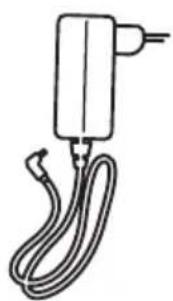
Power adapter USB cable for connecting to computer
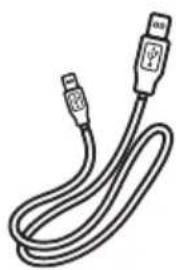
(Male B type plug)(Male B type plug)

Quick User Manual

Auto-run software CD Auto-run software CD
What else do you need
Power outlet
Digital photos on a memory card or computer
Digital photos on a memory card or computer
2.1.2. Control buttons and menu navigation

A. CF card
B. SD/MMC/MS/xD card
Inserting a memory card:
- Insert the memory card into the slot on the photo frame.
2.2. Product highlights
3. Quick start
3.1. Placing the product
3 Time:
Date:
3 · Navigate up and down to select the clock display
3 Navigate right to view photos in the selected album.
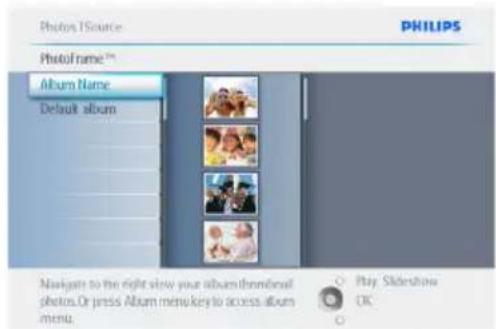
4 · Navigate left or right to move between photos.
- Navigate up or down to move 16 images up or down.
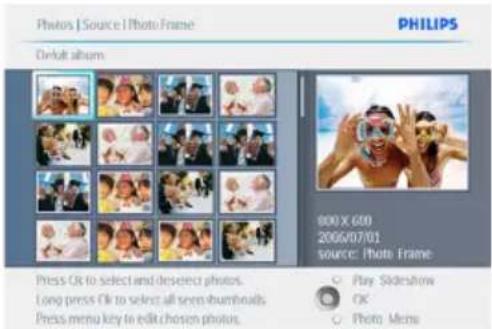
Note:
Press to the left of the first photo to return to the previous menu.
3 Navigate right to view photos in the selected album.

4 · Navigate left or right to move between photos.
4.5 Deleting Photos
3 Navigate right to view photos in the selected album.


5. Using PhotoFrame
More Features
5.1 Menu Navigation
4 · Use the navigation buttons to select photos.
Note:
3 Navigate right to view photos in the selected album.

5 Press OK to confirm the crop.

3 Navigate right to view photos in the selected album.
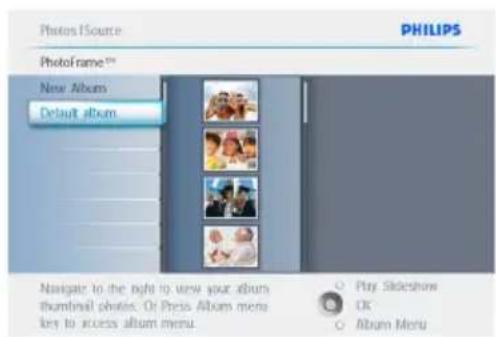
4 Press the down navigation button to move between photos.
3 Navigate right to view photos in the selected album.

4 Select the photo you want to change.

3 Navigate right to view photos in the selected album.
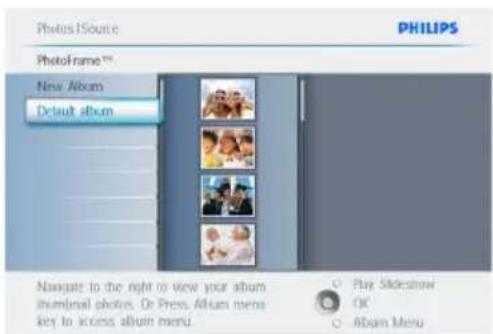

5 Navigate down to select the frame you want.

3 Navigate right to move to the slideshow list.

Press Play Slideshow to exit this function
and play the slideshow.
Icon.

3 Navigate right to access different collage layouts.
5 The new alarm will appear on the left.

Step 2
Event reminder photo
Select the photo to be displayed when the reminder is activated.
2 · Navigate down to select the photo.
- Navigate right to move to the album list.

3 · Navigate down to select the album.
- Navigate right to move to the thumbnails.
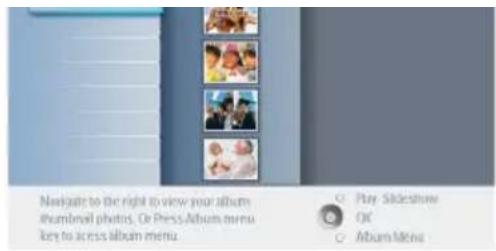
4 · Navigate to select the photo.
Step 4
Event reminder date
Select the date on which the event reminder will be activated.
3 Navigate right to move to delete alarm

3 • Navigate right to select Do Not Allow or Allow. - Press OK to confirm the selection.
6.3 Memory card
4 Time:

4 · Navigate up or down to change the time.
6.7 Sound on/off
Turns the button sound on or off.
Recycling Information for Customers
Philips establishes technically and economically viable objectives to optimize the environmental performance of the organization's product, service and activities.
From the planning, design and production stages, Philips emphasizes the importance of making products that can easily be recycled. At Philips, end-of-life management primarily entails participation in national take-back initiatives and recycling programs whenever possible, preferably in cooperation with competitors.
There is currently a system of recycling up and running in the European countries, such as The Netherlands, Belgium, Norway, Sweden and Denmark.
In U.S.A., Philips Consumer Electronics North America has contributed funds for the Electronic Industries Alliance (EIA) Electronics Recycling Project and state recycling initiatives for end-of-life electronics products from household sources. In addition, the Northeast Recycling Council (NERC) - a multi-state non-profit organization focused on promoting recycling market development - plans to implement a recycling program.
In Asia Pacific, Taiwan, the products can be taken back by Environment Protection Administration (EPA) to follow the IT product recycling management process, detail can be found in web site www.epa.gov.tw
For help and service, please read the section of Service and Warranty or the following team of Environmental specialist can help.
Mr. Job Chiu - Environment manager Philips Electronics Industries (Taiwan) Ltd, Monitor Business Unit
E-mail: job.chiu@philips.com
Tel: +886 (0) 3 454 9839
Mr. Maarten ten Houten - Senior Environmental Consultant
Philips Consumer Electronics
E-mail: marten.ten.houten@philips.com
Tel: +31 (0) 40 27 33402
Ms. Delmer F. Teglas
Philips Electronics North America
E-mail: butch.teglas@philips.com
Tel: +1 865 521 4322
Banned Substance Declaration
This product complies with RoHS and Philips BSD (AR17-G04-5010-010) requirements.
CE Declaration of Conformity
Philips Consumer Electronics declares under our responsibility that the product is in conformity with the following standards:
• EN60950:2000 (Safety requirements for Information Technology Equipment) • EN55022:1998 (Radio disturbance requirements for Information Technology Equipment) • EN55024:1998 (Immunity requirements for Information Technology Equipment) • EN61000-3-2:2000 (Limits for harmonic current emissions) • EN61000-3-3:1995 (Limitation of voltage fluctuations and flicker) following provisions of applicable directives: • 73/23/EEC (Low Voltage Directive) • 89/336/EEC (EMC Directive) • 93/68/EEC (Amendment of EMC and Low Voltage Directive)
and is produced by a manufacturing organization at ISO9000 level.
Federal Communications Commission (FCC) Notice (U.S. Only)

Note:
This equipment has been tested and found to comply with the limits for a Class B digital device, pursuant to Part 15 of the FCC Rules. These limits are designed to provide reasonable protection against harmful interference in a residential installation. This equipment generates, uses, and can radiate radio frequency energy and, if not installed and used in accordance with the instructions, may cause harmful interference to radio communications. However, there is no guarantee that interference will not occur in a particular installation. If this equipment does cause harmful interference to radio or television reception, which can be determined by turning the equipment off and on, the user is encouraged to try to correct the interference by one or more of the following measures:
- Reorient or relocate the receiving antenna.
- Increase the separation between the equipment and receiver.
- Connect the equipment into an outlet on a circuit different from that to which the receiver is connected.
- Consult the dealer or an experienced radio/TV technician for help.
Caution:
Changes or modifications not expressly approved by the party responsible for compliance could void the user's authority to operate the equipment.
Connections to this device must be made with shielded cables with metallic RFI/EMI connector hoods to maintain compliance with FCC Rules and Regulations.
To prevent damage which may result in fire or shock hazard, do not expose this appliance to rain or excessive moisture.
THIS CLASS B DIGITAL APPARATUS MEETS ALL REQUIREMENTS OF THE CANADIAN
INTERFERENCE-CAUSING EQUIPMENT REGULATIONS.
FCC Declaration of Conformity
Model Number: 9FF2
Trade Name: Philips
Responsible Party: Philips Consumer
Electronics North America
P.O. Box 671539
Marietta, GA 30006-0026
1-888-PHILIPS (744-5477)
Declaration of Conformity for Products Marked with FCC Logo, United States Only
Trade Name Model Number

Tested To Comply With FCC Standards
FOR HOME OR OFFICE USE
This device complies with Part 15 of the FCC Rules. Operation is subject to the following two conditions: (1) this device may not cause harmful interference, and (2) this device must accept any interference received, including interference that may cause undesired operation.
Federal Communications Commission (FCC Declaration)

Note:
EN 55022 Compliance (Czech Republic Only)
This device belongs to category B devices as described in EN 55022, unless it is specifically stated that it is a Class A device on the specification label. The following applies to devices in Class A of EN 55022 (radius of protection up to 30 meters). The user of the device is obliged to take all steps necessary to remove sources of interference to telecommunication or other devices.
VCCI Notice (Japan Only)
This is a Class B product based on the standard of the Voluntary Control Council for Interference (VCCI) for Information technology equipment. If this equipment is used near a radio or television receiver in a domestic environment, it may cause radio Interference. Install and use the equipment according to the instruction manual.
Class B ITE

Polish Center for Testing and Certification Notice
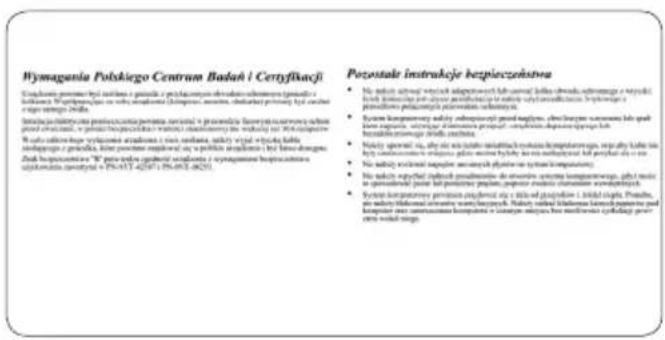
- The equipment should draw power from a socket with an attached protection circuit (a three-prong socket). All equipment that works together (computer, monitor, printer, and so on) should have the same power supply source.
- The phasing conductor of the room's electrical installation should have a reserve short-circuit protection device in the form of a fuse with a nominal value no larger than 16 amperes (A).
- To completely switch off the equipment, the power supply cable must be removed from the power supply socket, which should be located near the equipment and easily accessible.
- A protection mark “B” confirms that the equipment is in compliance with the protection usage requirements of standards PN-93/T-42107 and PN-89/E-06251.
North Europe Information (Nordic Countries)
WARNING:
ENSURE THAT THE MAIN SWITCH AND THE OUTLET ARE EASILY ACCESSIBLE WHEN YOU PLACE YOUR EQUIPMENT.
Placement/Ventilation
WARNING:
WHEN PLACING THE EQUIPMENT, ENSURE THAT THE POWER CORD'S PLUG AND SOCKET ARE EASILY ACCESSIBLE.
Placement/Ventilation
WARNING:
PLACE THE DEVICE SO THAT THE POWER CORD CAN BE EASILY DISCONNECTED FROM THE WALL OUTLET WHEN NEEDED.
BSMI Notice (Taiwan Only)
Complies with the standards for Class B information products
End-of-Life Disposal
- Your new product contains materials that can be recycled and reused. Specialized companies can recycle your product to increase the amount of reusable materials and to minimize the amount to be disposed of.
- Please find out about the local regulations on how to dispose of your old monitor from your local Philips dealer. • (For customers in Canada and U.S.A.) Dispose of in accordance to local-state and federal regulations.
For additional information on recycling contact www.eia.org (Consumer Education Initiative)
Waste Electronics and Electrical Equipment (WEEE)
This product is labelled with this symbol in accordance with European Directive 2002/96/EG to indicate that it must not be disposed of with your other household waste. Please check your local city office or waste disposal service for the return and recycling of this product.

Waste Electronics and Electrical Equipment (WEEE)
This product is labelled with this symbol in accordance with European Directive 2002/96/EG to indicate that it must not be disposed of with your other household waste. Please check your local city office or waste disposal service for the return and recycling of this product.
End of life directives - Recycling
Your new TV contains several materials that can be recycled for new uses.
Like all LCD products, this set contains a lamp with Mercury, please dispose of according to all Local, State and Federal laws.


- TABLE OF CONTENTS
- IMPORTANT INFORMATION
- RECYCLING
- WHAT ELSE DO YOU NEED
- CONTROL BUTTONS AND MENU NAVIGATION
- INSERTING A MEMORY CARD
- PRODUCT HIGHLIGHTS
- QUICK START
- PLACING THE PRODUCT
- TIME
- DATE
- NAVIGATE UP AND DOWN TO SELECT THE CLOCK DISPLAY
- DELETING PHOTOS
- USING PHOTOFRAME
- MORE FEATURES
- MENU NAVIGATION
- STEP
- MEMORY CARD
- SOUND ON/OFF
- RECYCLING INFORMATION FOR CUSTOMERS
- BANNED SUBSTANCE DECLARATION
- CE DECLARATION OF CONFORMITY
- NOTE
- CAUTION
- FCC DECLARATION OF CONFORMITY
- FEDERAL COMMUNICATIONS COMMISSION (FCC DECLARATION)
- EN 55022 COMPLIANCE (CZECH REPUBLIC ONLY)
- VCCI NOTICE (JAPAN ONLY)
- CLASS B ITE
- POLISH CENTER FOR TESTING AND CERTIFICATION NOTICE
- NORTH EUROPE INFORMATION (NORDIC COUNTRIES)
- WARNING
- BSMI NOTICE (TAIWAN ONLY)
- END-OF-LIFE DISPOSAL
- WASTE ELECTRONICS AND ELECTRICAL EQUIPMENT (WEEE)
- END OF LIFE DIRECTIVES - RECYCLING
Brand : PHILIPS
Model : 10FF2CMW
Category : Digital photo frame