
Maxtab - Tablet MAXELL - Free user manual and instructions
Find the device manual for free Maxtab MAXELL in PDF.


| Product Type | Tablet |
| Model | Maxtab |
| Brand | MAXELL |
| Screen Size | 10.1 inches |
| Resolution | 1280 x 800 pixels |
| Processor | Quad-core 1.3 GHz |
| RAM | 2 GB |
| Storage | 32 GB |
| Battery Capacity | 4000 mAh |
| Operating System | Android 10 |
| Dimensions | 240 x 160 x 10 mm |
| Weight | 500 g |
| Power Adapter | 5V / 2A |
| Connectivity | Wi-Fi 802.11 b/g/n, Bluetooth 4.0, Micro-USB |
| Sensors | G-sensor, Light sensor |
| Cameras | Front 2 MP, Rear 5 MP |
| Audio | Built-in speaker, 3.5 mm headphone jack |
| Memory Card Support | microSD up to 128 GB |
| Maintenance | Clean with a soft dry cloth; avoid liquids. |
| Safety | Do not expose to moisture; use only the specified charger. |
| Repairability | Battery and screen replaceable by authorized service. |
Frequently Asked Questions - Maxtab MAXELL
User questions about Maxtab MAXELL
0 question about this device. Answer the ones you know or ask your own.
Ask a new question about this device
Download the instructions for your Tablet in PDF format for free! Find your manual Maxtab - MAXELL and take your electronic device back in hand. On this page are published all the documents necessary for the use of your device. Maxtab by MAXELL.
USER MANUAL Maxtab MAXELL
**Product specifications are subject to change**
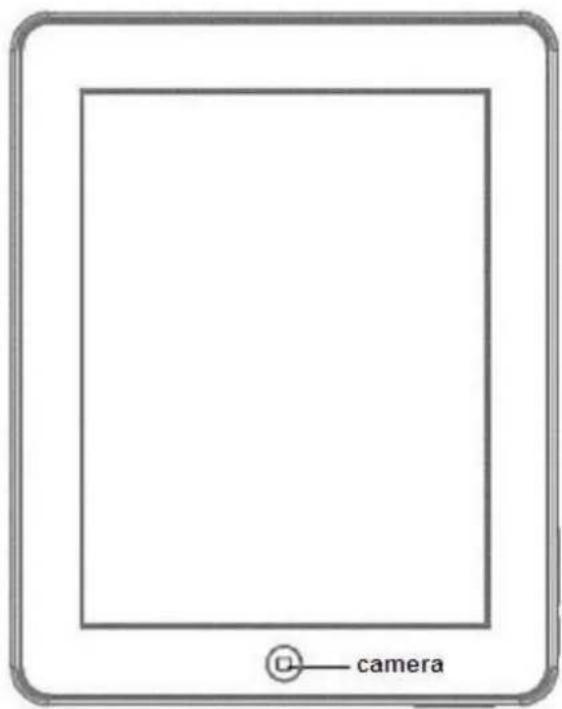
Keys and Functions
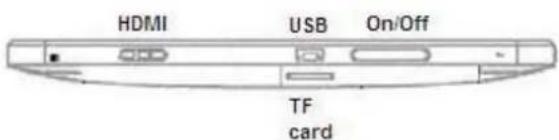

Connect to PC via USB cable
When connecting to PC with a USB cable, the icon appears at the left side of the status bar. Hold and slide the icon downwards, select and tap “USB connected”, then “Turn on USB storage”.

Icons on Home Screen
At the top of the Home Screen is your Status Bar.

Home: touch it to go back to the home screen
-Return: return to the previous menu
-Menu: touch to show the submenu
-Vol-: touch to reduce volume
-Vol+: touch to increase volume
-App Panel: touch to view all apps
Other Icon definitions:
 | New email |  | Mute |
 | New instant messaging |  | No SD card |
 | Use USB line to connect computer with MID |  | Uploading/downloading |
 | Matters to be handled |  | Download is completed |
 | Alarm opening |  | General notice (such as: synchronization error) |
 | Music playing |  | Flight mode |
 | Data synchronization |  | Charging |
 | Insufficient SD card space |  | More |
 | WIFI service already connected ,network available |  | Battery changing sign |
Add app icon to home screen
Within the App Panel, touch and hold any icon for about 2 seconds, the icon will be in the movable status and appear on the home screen.
Delete app icon from home screen
On the main screen, touch and hold undesired icon till it becomes movable. The panel turns into a trash can. Drag the item to the trash can and release it when it turns red.

How to set wallpaper
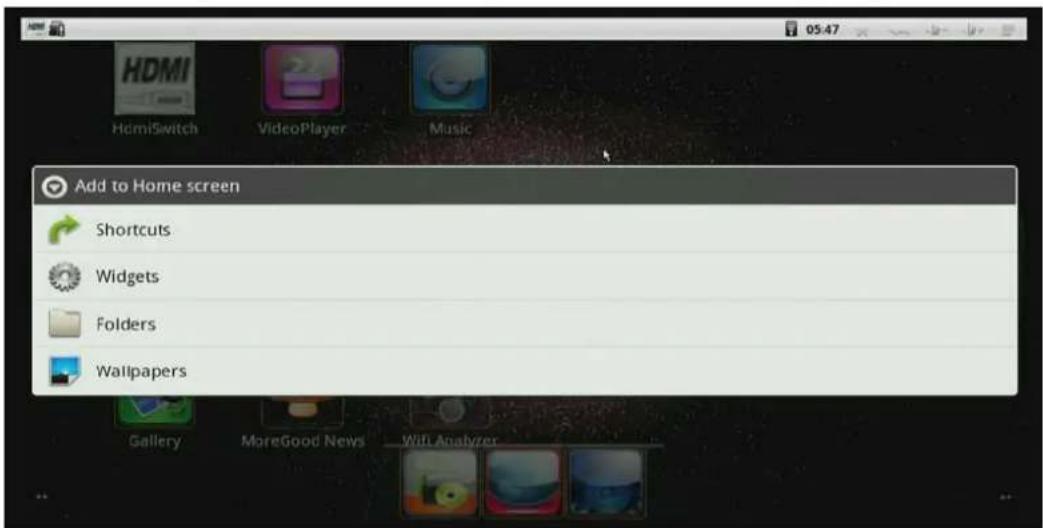
To add a wallpaper, tap and hold your finger on any open space on your home screen, and select Wallpapers from the context menu that opens. In the popup “Select wallpaper from” dialog, select a wallpaper from Gallery
Wi-Fi
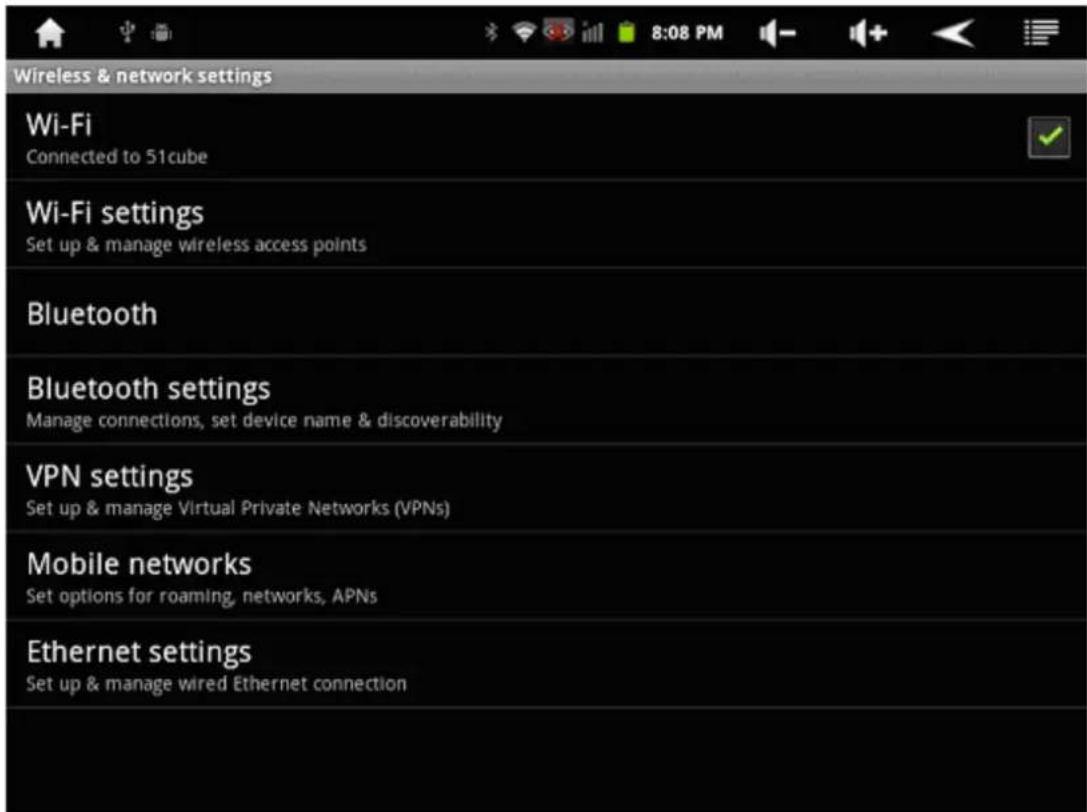
Turn on Wi-Fi
Within the App Panel, tap “Settings” → then “Wireless & networks” → “Wi-Fi” to turn on and scan. Tap a network to connect. If necessary, enter Network SSID, Security, and Wireless password. When connected to the network, the wireless
indicator appears in the status bar.
Turn off Wi-Fi
To turn off Wi-Fi, uncheck "Wi-Fi" under "Wireless & networks". NOTE: Turning off Wi-Fi can extend battery run time.
Internet Browsing
On the main screen, tap the Google text field


icon to open your browser.
In the address bar, tap the text field to make the Android keyboard appear for entry of keywords or URL.

Tap to see a submenu.

Install and Manage Apps
Go to the "ApkInstaller"

to install and manage your apps.
-
Copy the .apk file to your tablet via USB cable from your PC.
-
Tap to open the 'APKInstaller' → 'Install' → then tap "Internal Memory" or "SD Card". Available .apk files appear at the right side.
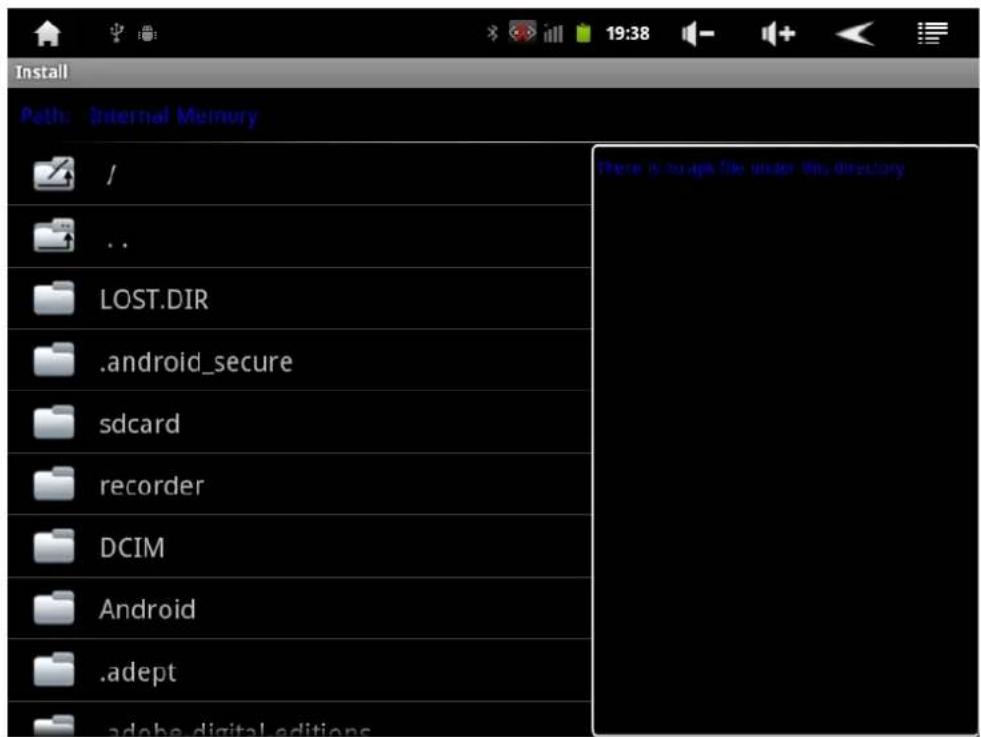
Note: Make sure the .apk file is workable on android 2.3, and the suffix is .apk.
In some cases an “Install blocked” dialog appears as below after your first attempt to install an .apk file:

Tap "Settings" → "Unknown sources" → "OK" → install once again.
Managing and Uninstalling Apps.
- On the homepage interface, press the menu button to popup setting menu.
- Click Settings.
- Click "application".
- Click "management applications", list all installed application list in the system.
- Click "unloading".
- Click "sure" to finish unloading.
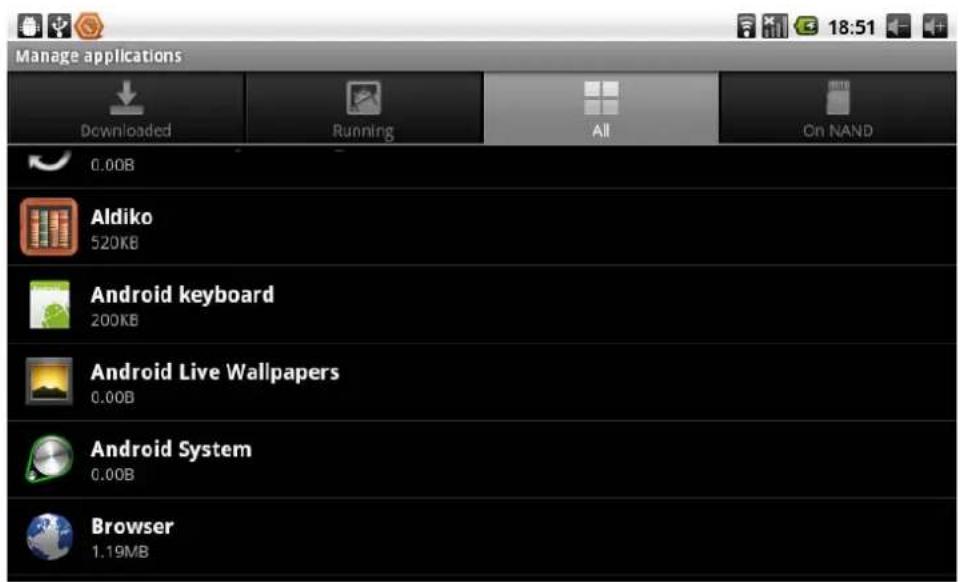
Settings
Within the App Panel, tap the “Settings” icon (or found by default on your home screen)
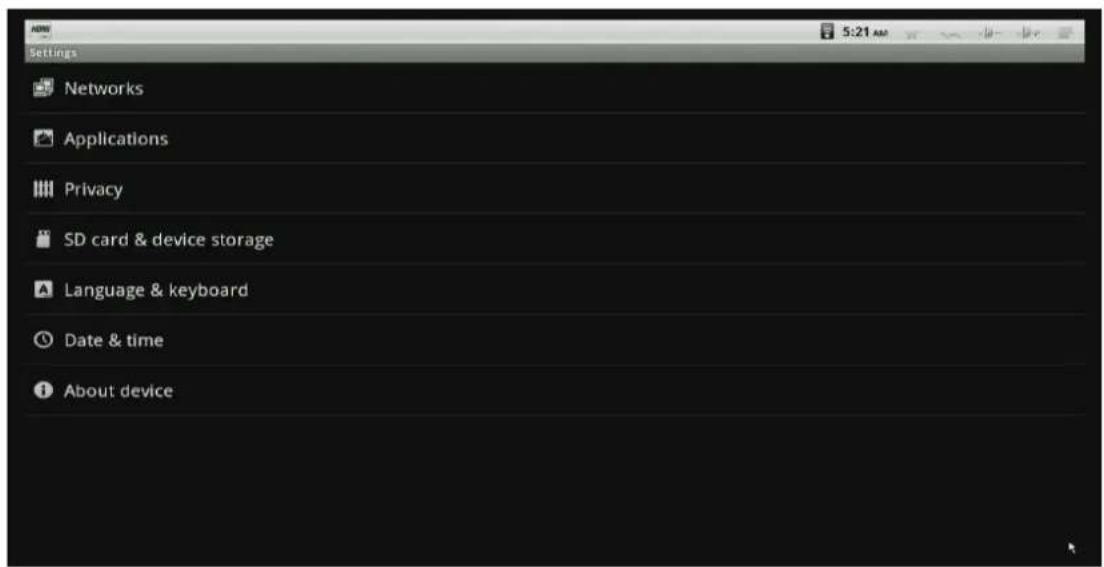
What being set here includes Wireless & networks, Sound, Display, Location & Security, Applications, Accounts & sync, Privacy, Storage, Language & keyboard, Voice input & output, Accessibility, Date & time and About phone.
Set display
Under “Settings”, tap 'Display' to set Brightness, Accelerometer coordinate system, Animation and Screen time-out.
For some games, special coordinate system may be needed. To do this, tap “Accelerometer coordinate system” → “Special coordinate system”.
The display has a screen timeout by default set to 1 min. If the unit is left inactive for that period of time, the screen will go dark as if turned off. However, it is simply in standby mode. Pull downwards and release the power button and a screen will appear with a green padlock button on the lower lefthand corner. This is your Lock Screen.
Set applications
Under “Settings”, tap 'Applications'. To view storage used by applications, tap "Storage use":
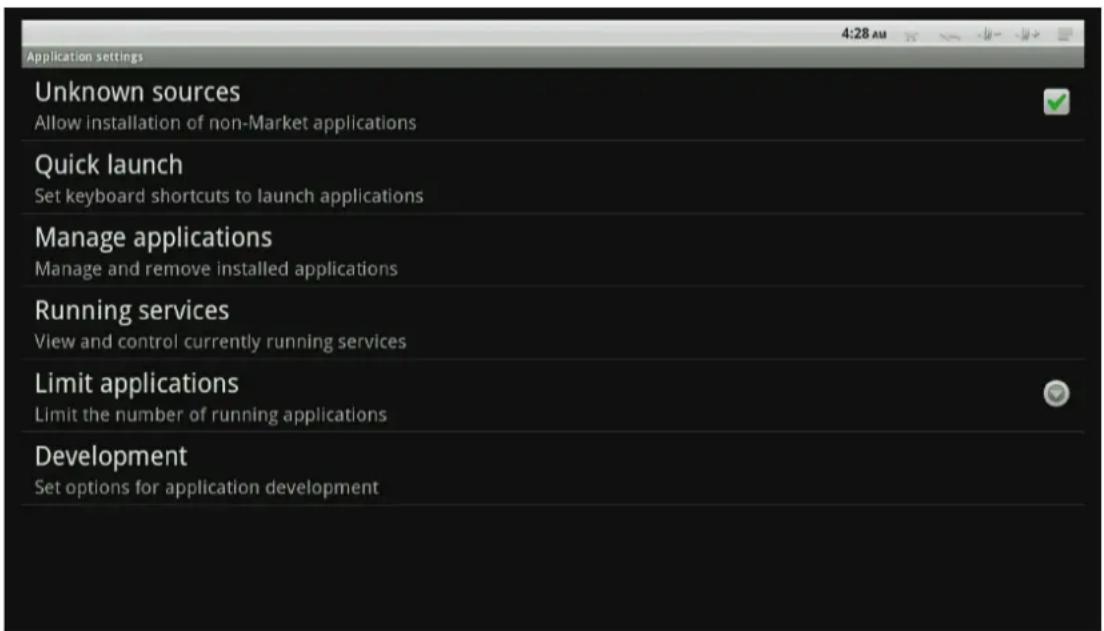
Tap one application to view storage use.

Set language & keyboard
Under “Settings”, tap “Language & keyboard”. You may set your language or keyboard here.

Storage
To view your storage status, tap "Storage" under "Settings".
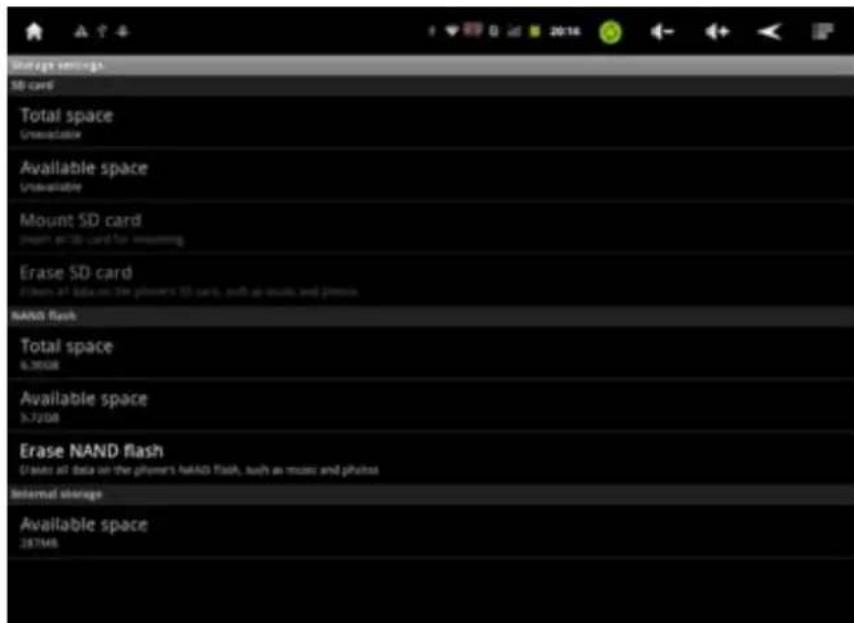
Note: As software takes up your tablet memory, the total memory is usually less than the actual flash memory.
- Connect to PC via USB cable
- Icons on Home Screen
- Add app icon to home screen
- Delete app icon from home screen
- How to set wallpaper
- Wi-Fi
- Turn on Wi-Fi
- Turn off Wi-Fi
- Internet Browsing
- Install and Manage Apps
- Managing and Uninstalling Apps.
- Settings
- Set display
- Set applications
- Set language & keyboard
- Storage
Brand : MAXELL
Model : Maxtab
Category : Tablet