V550 - Smartphone Aligator - Free user manual and instructions
Find the device manual for free V550 Aligator in PDF.


| Product Type | Smartphone |
| Brand | Aligator |
| Model | V550 |
| Dimensions | 155.0 x 75.0 x 9.0 mm |
| Weight | 180 g |
| Display | 5.5 inch, 480 x 960 pixels |
| Processor | Quad-core 1.3 GHz |
| RAM | 1 GB |
| Internal Storage | 8 GB (expandable via microSD) |
| Battery Capacity | 2500 mAh Li-ion |
| Operating System | Android 10 Go Edition |
| Rear Camera | 5 MP with LED flash |
| Front Camera | 2 MP |
| Network | 4G LTE, 3G, 2G |
| Connectivity | Wi-Fi 802.11 b/g/n, Bluetooth 4.0, GPS |
| SIM Card | Dual SIM (Micro-SIM) |
| Ports | Micro USB 2.0, 3.5 mm headphone jack |
| Sensors | Accelerometer, Proximity |
| Maintenance | Wipe with a soft dry cloth. Do not use liquids. |
| Safety | Use only original charger. Avoid temperatures above 45°C. |
| Spare Parts | Battery, screen, charging cable available from Aligator service. |
Frequently Asked Questions - V550 Aligator
User questions about V550 Aligator
0 question about this device. Answer the ones you know or ask your own.
Ask a new question about this device
Download the instructions for your Smartphone in PDF format for free! Find your manual V550 - Aligator and take your electronic device back in hand. On this page are published all the documents necessary for the use of your device. V550 by Aligator.
USER MANUAL V550 Aligator
Welcome to the world of Vodafone live! We are pleased that you have chosen the Motorola V550 GSM mobile phone.
Welcome - 1
Check It Out!
| Feature Description | |
| Record Video Clip | Record a video clip:PressMy Items > Videos > [NeweVideo] point lens at subject, press CAPTURE (_) to begin recording, press STOP (_) to stop recording. |
| Play Video Clip | Play a video clip:My Items > Videos > video clip |
| Take Photo Press | Camera, point lens at subject,press CAPTURE(_) to take a photo. |
| Feature Description | |
| Send Photo | Send a photo to a phone number or email address:Take photo, then press STORE ( ◎) > SendIncMessage |
| Set Photo as Picture ID | Assign a photo to a phonebook entry to allow picture caller ID:Take photo, then press STORE ( ◎) > Applycascontactscentry |
| Send Multimedia Message | Send a multimedia message with pictures, animations, sounds, and videos:  > Messages > CreatecMessage > MMS > Messages > CreatecMessage > MMS |
| Read Multimedia Message | Read a new multimedia message or letter that you have received: Press READ ( ◎).  |
| Store Message Objects | Go to a multimedia message page, or highlight an object in a letter, then:  then: > Store then: > Store |
| Wireless Connection | Set up a Bluetooth® wireless connection to a headset accessory, car kit, or external device: > Settings > Connection > BluetoothLink > Setup > Power > On, pre sACK (<), press > Handsfree > [LookcForceDevices] |
www.motorola.com
MOTOROLA and the Stylised M Logo are registered in the US Patent & Trademark Office. The Bluetooth trademarks are owned by their proprietor and used by Motorola, Inc. under licence. Java and all other Java-based marks are trademarks or registered trademarks of Sun Microsystems, Inc. in the U.S. and other countries. All other product or service names are the property of their respective owners.
© Motorola, Inc. 2003, 2004.
The information contained in Motorola's user's guides is believed to be correct at the time of printing. Motorola reserves the right to change or modify any information or specifications without notice. The contents of Motorola's user's guides are provided "as is." Except as required by applicable law, no warranties of any kind, either express or implied, including, but not limited to, the implied warranties of merchantability and fitness for a particular purpose, are made in relation to the accuracy, reliability, or contents of this guide.
Caution: Changes or modifications made in the radio phone, not expressly approved by Motorola, will void the user's authority to operate the equipment.
While Products specifications and features may be subject to change without notice, we are making every possible effort to ensure that user manuals are updated on a regular basis to reflect product functionality revisions. However, in the unlikely event that your manual version does not fully reflect the core functionality of your product, please let us know. You may also be able to access up-to-date versions of our manuals in the consumer section of our Motorola web site, at http://www.motorola.com.
4 - Check It Out!
Contents
Safety and General Information 8
Getting Started.... 15
AboutThisGuide.... 15
InstallingtheSIMCard 16
Battery Use 16
InstallingtheBattery 18
ChargingtheBattery.... 19
Turning Your Phone On 20
Turning Your Phone Off 20
Adjusting Volume 20
Making a Call 21
AnsweringaCall 21
Viewing Your Phone Number.... 22
Highlight Features. 23
Vodafonelive! 23
Browser.... 23
Recording, Playing and Sending Video Clips ....
Taking and Sending a Photo 32
UsingPhotosandPictures 34
SendingaMultimediaMessage(MMS) 36
SendingaPostcard 39
Viewing a Sent Postcard 41
Receiving a Multimedia Message (MMS) 42
Using a Bluetooth® Wireless Connection 42
Learning to Use Your Phone. 45
Using the Display 45
Using the 5-Way Navigation Key 50
Using Menus 51
Contents - 5
Entering Text.... 53
Using the Smart Key 64
UsingtheExternalDisplay.... 64
Using the HandsfreeSpeaker.... 65
Changing a Code, PIN, or Password.... 66
Locking and Unlocking Your Phone 66
If You Forget a Code, PIN, or Password 67
UsingyourContactList.... 68
Setting Up Your Phone 71
SettingaRingStyle.... 71
Changing the Call Alert 71
Setting the Time and Date.... 72
Setting a Wallpaper Image 72
Setting a Screen Saver Image.... 73
Changing Phone Skin 74
SettingAnswerOptions 75
Setting Display Brightness.... 75
AdjustingtheBacklight 75
SettingDisplayTimeout.... 76
Storing Your Name and Phone Number 76
Calling Features.... 77
TurningOffaCallAlert 77
ViewingRecentCalls.... 77
Redialling a Number 79
UsingAutomaticRedial 79
ReturninganUnansweredCall.... 79
Using the Notepad.... 80
Putting a Call On Hold or Mute 81
Using Call Waiting 81
Using CallerID (IncomingCalls) 82
Calling an Emergency Number 82
Dialling International Numbers....82
Calling With 1-Touch Dial....83
Using Voicemail.... 83
Changing the Active Line.... 84
Phone Features 85
MainMenu 85
SettingsMenu 86
Feature Quick Reference.... 87
Calling Features. 87
Messages 88
Contacts.... 89
Personalising Features 91
CreatingandUsingShortcuts.... 92
Chat 94
E m a i l.... 95
Menu Features. 97
Special Dialling Features.... 98
CallMonitoring.... 99
Handsfree Features.... 100
Data and Fax Calls 101
Network Synchronisation.... 101
Bluetooth® Wireless Connections.... 102
Network Features 103
Adjusting Network Settings 103
Personal Organiser Features. 105
Security.... 106
News and Entertainment 107
Specific Absorption Rate Data.... 109
Index 111
Safety and General Information
IMPORTANT INFORMATION ON SAFE AND EFFICIENT OPERATION. READ THIS INFORMATION BEFORE USING YOUR PHONE.
The information provided in this document supersedes the general safety information in user guides published prior to December 1, 2002.
Exposure To Radio Frequency (RF) Energy
Your phone contains a transmitter and a receiver. When it is ON, it receives and transmits RF energy. When you communicate with your phone, the system handling your call controls the power level at which your phone transmits.
Your Motorola phone is designed to comply with local regulatory requirements in your country concerning exposure of human beings to RF energy.
Operational Precautions
To assure optimal phone performance and make sure human exposure to RF energy is within the guidelines set forth in the relevant standards, always adhere to the following procedures.
External Antenna Care
Use only the supplied or Motorola-approved replacement antenna. Unauthorised antennas, modifications, or attachments could damage the phone.
Do NOT hold the external antenna when the phone is IN USE. Holding the external antenna affects call quality and may cause the phone to operate at a higher power level than needed. In addition, use of unauthorised antennas may result in non-compliance with the local regulatory requirements in your country.
8 - Safety and General Information
Facilities
Turn off your phone in any facility where posted notices instruct you to do so. These facilities may include hospitals or health care facilities that may be using equipment that is sensitive to external RF energy.
Aircraft
When instructed to do so, turn off your phone when on board an aircraft. Any use of a phone must be in accordance with applicable regulations per airline crew instructions.
Medical Devices
Pacemakers
Pacemaker manufacturers recommend that a minimum separation of 6 inches (15 centimetres) be maintained between a handheld mobile phone and a pacemaker.
Persons with pacemakers should:
- ALWAYS keep the phone more than 6 inches (15 centimetres) from your pacemaker when the phone is turned ON.
• NOT carry the phone in the breast pocket. - Use the ear opposite the pacemaker to minimise the potential for interference.
- Turn OFF the phone immediately if you have any reason to suspect that interference is taking place.
Hearing Aids
Some digital mobile phones may interfere with some hearing aids. In the event of such interference, you may want to consult your hearing aid manufacturer to discuss alternatives.
Other Medical Devices
If you use any other personal medical device, consult the manufacturer of your device to determine if it is adequately shielded from RF energy. Your GP may be able to assist you in obtaining this information.
10 - Safety and General Information
Phone Operation
When placing or receiving a phone call, hold your phone as you would a wireline telephone.
Body-Worn Operation
To maintain compliance with RF energy exposure guidelines, if you wear a phone on your body when transmitting, always place the phone in a Motorola-supplied or approved clip, holder, holster, case, or body harness for this phone, if available. Use of accessories not approved by Motorola may exceed RF energy exposure guidelines. If you do not use one of the body-worn accessories approved or supplied by Motorola, and are not using the phone held in the normal use position, ensure the phone and its antenna are at least 1 inch (2.5 centimetres) from your body when transmitting.
Data Operation
When using any data feature of the phone, with or without an accessory cable, position the phone and its antenna at least 1 inch (2.5 centimetres) from your body.
Approved Accessories
Use of accessories not approved by Motorola, including but not limited to batteries and antenna, may cause your phone to exceed RF energy exposure guidelines. For a list of approved Motorola accessories, visit our website at www.Motorola.com.
RF Energy Interference/Compatibility
Note: Nearly every electronic device is susceptible to RF energy interference from external sources if inadequately shielded, designed, or otherwise configured for RF energy compatibility. In some circumstances your phone may cause interference.
Safety and General Information - 9
Use While Driving
Check the laws and regulations on the use of phones in the area where you drive. Always obey them.
When using your phone while driving, please:
- Give full attention to driving and to the road.
- Use hands-free operation, if available.
- Pull off the road and park before making or answering a call if driving conditions so require.
Operational Warnings
For Vehicles With an Air Bag
Do not place a phone in the area over an air bag or in the air bag deployment area. Air bags inflate with great force. If a phone is placed in the air bag deployment area and the air bag inflates, the phone may be propelled with great force and cause serious injury to occupants of the vehicle.
Potentially Explosive Atmospheres
Turn off your phone prior to entering any area with a potentially explosive atmosphere, unless it is a phone type especially qualified for use in such areas and certified as "Intrinsically Safe." Do not remove, install, or charge batteries in such areas. Sparks in a potentially explosive atmosphere can cause an explosion or fire resulting in bodily injury or even death.
Note: The areas with potentially explosive atmospheres referred to above include fuelling areas such as below decks on boats, fuel or chemical transfer or storage facilities, areas where the air contains chemicals or particles, such as grain, dust, or metal powders. Areas with potentially explosive atmospheres are often but not always posted.
Blasting Caps and Areas
To avoid possible interference with blasting operations, turn OFF your phone when you are near electrical blasting caps, in a blasting area, or in areas posted "Turn off electronic devices." Obey all signs and instructions.
Batteries
Batteries can cause property damage and/or bodily injury such as burns if a conductive material such as jewellery, keys, or beaded chains touch exposed terminals. The conductive material may complete an electrical circuit (short circuit) and become quite hot. Exercise care in handling any charged battery, particularly when placing it inside a pocket, bag, or other container with metal objects. Use only Motorola original batteries and chargers.
Your battery or phone may contain symbols, defined as follows:
| Symbol Definition | |
 | Important safety information will follow. |
| [30HD] | Your battery or phone should not be disposed of in a fire . |
 | Your battery or phone may require recycling in accordance with local laws. Contact your local regulatory authorities for more information. |
| [2ZX4] | Your battery or phone should not be thrown in the trash. |
 | Your phone contains an internal lithium ion battery. |
Seizures/Blackouts
Some people may be susceptible to epileptic seizures or blackouts when exposed to blinking lights, such as when watching television
12 - Safety and General Information
European Union Directives Conformance Statement
Hereby, Motorola declares that this product is in compliance with

- The essential requirements and other relevant provisions of Directive 1999/5/EC
• All other relevant EU Directives
IMEI: 350034/40/394721/9
CE0168
Type: MC2-41H14
Product
Approval
Number
The above gives an example of a typical Product Approval Number.
You can view your product's Declaration of Conformity (DoC) to Directive 1999/5/EC (the R&TTE Directive) at www.motorola.com/rtte - to find your DoC, enter the product Approval Number from your product's label in the "Search" bar on the Web site
or playing video games. These seizures or blackouts may occur even if a person never had a previous seizure or blackout.
If you have experienced seizures or blackouts, or if you have a family history of such occurrences, please consult with your doctor before playing video games on your phone or enabling a blinking-lights feature on your phone. (The blinking-light feature is not available on all products.)
Parents should monitor their children's use of video game or other features that incorporate blinking lights on the phones. All persons should discontinue use and consult a doctor if any of the following symptoms occur: convulsion, eye or muscle twitching, loss of awareness, involuntary movements, or disorientation.
To limit the likelihood of such symptoms, please take the following safety precautions:
- Do not play or use a blinking-lights feature if you are tired or need sleep.
• Take a minimum of a 15-minute break hourly. - Play in a room in which all lights are on.
- Play at the farthest distance possible from the screen.
Repetitive Motion Injuries
When you play games on your phone, you may experience occasional discomfort in your hands, arms, shoulders, neck, or other parts of your body. Follow these instructions to avoid problems such as tendonitis, carpal tunnel syndrome, or other musculoskeletal disorders:
• Take a minimum 15-minute break every hour of game playing.
- If your hands, wrists, or arms become tired or sore while playing, stop and rest for several hours before playing again.
- If you continue to have sore hands, wrists, or arms during or after play, stop playing and see a doctor.
Safety and General Information - 13
CAUTION: Before using the phone for the first time, read the Important Safety and Legal Information included in the gray-edged pages at the back of this guide.
About This Guide
This guided describe the basic features of your Motorola phone.
Selecting a Menu Feature
Use the menu system to access your phone's features. This guide shows you how to select a menu feature from the home screen as follows:
Find the Feature
Call log > Dialled Calls
This example shows that, from the home screen, you must press the menu key ☐ to open the menu, scroll to and select Call log, then scroll to and select Dalled Calls
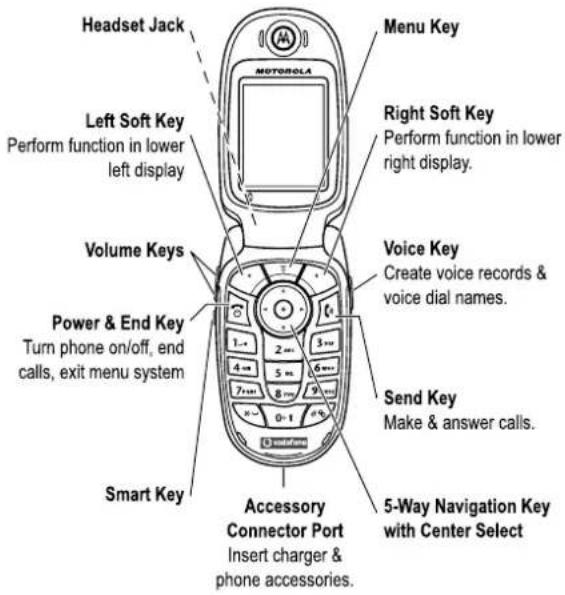
Press the 5-way navigation key ⏻ to scroll and highlight a menu feature. Press SELECT (◀) to select the highlighted menu feature.
Optional Features

This label identifies an optional network, SIM card, or subscription-dependent feature that may not be offered in all geographical areas. Contact Vodafone for more information.
Getting Started - 15
Optional Accessories

This label identifies a feature that requires an optional Motorola Original™ accessory.
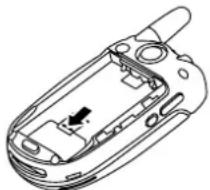
Installing the SIM Card
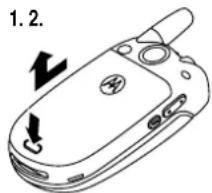
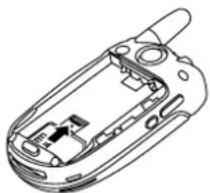
Your Vodafone SIM (Subscriber Identity Module) card contains your phone number, service details, and contacts/message memory.
Caution: Do not bend or scratch your SIM card. Avoid exposing your SIM card to static electricity, water, or dirt.
natural_image
Line drawing of a mobile phone casing with internal components (no text or symbols)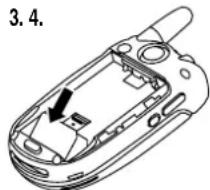
natural_image
Line drawing of a mobile phone casing with internal components and an arrow indicating a location (no text or symbols)Battery Use
Battery performance depends on many factors, including network configuration; signal strength; the temperature at which you
operate your phone; the features and/or settings you select and use; items attached to the phone's accessory connector port; and your voice, data, and other application usage patterns.
Caution: To prevent injuries or burns, do not allow metal objects to contact or short-circuit the battery terminals.
To maximise your battery's performance:
- Always use Motorola Original batteries and battery chargers. The phone warranty does not cover damage caused from using non-Motorola batteries and/or battery chargers.
- New batteries or batteries that have been stored for a long time may require a longer charge time.
- Maintain the battery at or near room temperature when charging.
- Do not expose batteries to temperatures below -10°C (14°F) or above 45°C (113°F). Always take your phone with you when you leave your vehicle.
- When you do not intend to use a battery for a while, store it uncharged in a cool, dark, dry place, such as a refrigerator.
- Batteries gradually wear down and require longer charging times. This is normal. If you charge your battery regularly and notice a decrease in talk time or an increase in charging time, then it is probably time to purchase a new battery.

The rechargeable batteries that power this phone must be disposed of properly and may need to be recycled. Refer to your battery's label for battery type. Contact your local recycling centre for proper disposal methods.
Warning: Never dispose of batteries in a fire because they may explode.
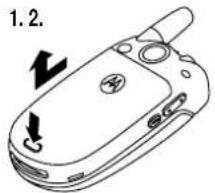
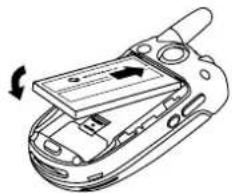
Installing the Battery

TM Your phone is designed to use only Motorol aOriginal batteries and accessories.
Note: Your phone is shipped with a protective clear
plastic liner covering the battery door latch. Remove the
liner to ensure that the battery door attaches and closes properly.
natural_image
Line drawing of a mobile phone showing the internal mechanism with an arrow indicating rotation (no text or symbols present)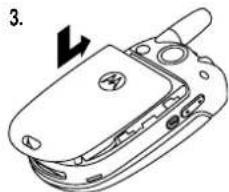
natural_image
Line drawing of a mobile phone case with a switch and battery (no text or symbols)Note: Ensure that the battery cover is in place at the top and then clip into the bottom of the phone.
18 - Getting Started
Turning Your Phone On
Action
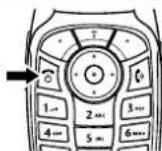
1 Open your phone.
2 Press and hold the power key for 2 seconds to turn the phone on.
Note: It may take up to 4 seconds for the display to illuminate after you turn the phone on.
3 If necessary, enter your SIM card PIN code and press OK (☐) to unlock the SIM card.
Caution: If you enter an incorrect PIN code 3 times in a row, your SIM card is disabled and your phone displays SIMcBlocked
4 If necessary, enter your 4-digit unlock code and press OK (☐) to unlock the phone.
Turning Your Phone Off
Action
Press and hold the power key ☑ for 2 seconds to turn the phone off.
Adjusting Volume
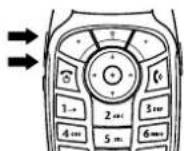
Press the up or down volume keys to:
• silence an incoming call alert. i.e. to stop the phone ringing
- increase or decrease earpiece volume during a call
20 - Getting Started
Charging the Battery
New batteries are shipped partially charged. Before you can use your phone, you need to install and charge the battery as described below. Some batteries perform best after several full charge/discharge cycles.
Action
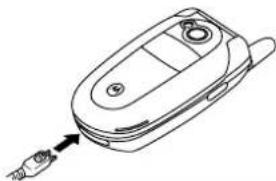
1 Insert the travel charger plug into your phone with the release tab facing up. Make sure that both of the plug's connector hooks engage to lock the plug in place.
natural_image
Line drawing of a mobile phone with a hand inserting a cable (no text or symbols)2 Plug the other end of the travel charger into the appropriate electrical outlet.
Note: It make take up to 10 seconds for your phone to provide a visible or audible indication that the battery is charging.
3 When your phone indicates ChargeComplete press the release tab and remove the travel charger.
Tip: You can safely leave the travel charger connected to the phone after charging is complete. This will not damage the battery.
Getting Started - 19
- increase or decrease the ringer volume setting when the home screen is visible (flip must be open)
Tip: At the lowest volume setting, press the down volume key once to switch to vibrate alert. Press it again to switch to silent alert. Press the up volume key to switch back to vibrate alert, then ring alert.
Making a Call
You must be in the home screen to dial a phone number (see page 45).
Press To
| 1 | keypad keys | dial the phone number |
| 2 | make the call | |
| 3 | end the call and “hang up” the phone when you are finished |
Tip: You can also close the phone flip to end the call.
Answering a Call
When you receive a call, your phone rings and/or vibrates and displays an incoming call message.
When the phone flip is active, simply open the phone to answer the call. (To activate, press > Settings > In-CallSetup > AnswercOptions > OpenctocAnswer)
Getting Started - 21
If the phone flip is not active:
Press To
1 or ANSWER (◇) answer the call
| 2 | A | end the call and “hang up” the phone when you are finished |
Viewing Your Phone Number
To view your phone number from the home screen, press 📄.
While you are on a call, press 📄 > My Tel. Numbers
Note: Your phone number must be stored on your SIM card to use this feature. To store your phone number on the SIM card, see page 76. If you do not know your phone number, contact Vodafone.
22 - Getting Started
You can do much more with your phone than make and receive calls!
Vodafone live!
Browser
Your phone has been customised to give access to Vodafone live! mobile internet portal. Visit www.vodafone.com for additional information about the services Vodafone live! offers.
To connect to the Vodafone live! service, press the Vodafone live! browser key on your handset. If you have any problems connecting to Vodafone live!, please contact Vodafone.
Find the Feature >

Vodafone live!
The following options are available:
| Option Description | |
| Vodafone live! | Launches the browser. |
| Web Shortcuts | Takes you to the shortcuts menu. |
| Stored pages | Takes you to a list of stored pages. |
| History | View a list of recently viewed pages. |
| Enter URL | Go to a requested page. |
| Browser Settings | Browser setup parameters. |
| Web Sessions | Select or create a web session. |
Highlight Features - 23
You can also download pictures, videos, ringtones and games from Vodafone live! and install them on your phone.

The browser lets you access Web pages and Web-based applications on your phone. Contact Vodafone to set up access, if necessary.
Your phone may use a high-speed General Packet Radio Service (GPRS) network connection. This type of connection is identified by a ☐ (GPRS) indicator in the home screen that disappears when you start a browser session. If you see an ⬆ (in-call) indicator during a browser session, your phone is using a standard voice connection. The type of network connection your phone uses depends on your service provider's network. Your network connection charges may vary depending on the type of connection used.
Note: Some features on your phone might open a browser session automatically.
Starting a Browser Session
You can start a browser session from a number of different options:
Press To
1

start the browser
| Option Description | |
| Home | Takes you to the Vodafone live! home page |
| Reload | Refreshes the current web page |
| Enter URL | Go to a requested page |
| Web Shortcuts | Takes you to the Web Shortcuts menu |
| Option Description | |
| Store | Allows you to store a page or an image |
| Messages | Takes you to the Message Centre |
| History | View a list of recently viewed pages |
| View URL | View a list of URLs |
| Security | Contains Security Certificate and Cookie control |
| Reset Cache | Clears the temporary Browser memory |
| Exit | Finishes the Browser session and displays the idle menu |
Press To
2
⊕ up or down
scroll to a bookmark, service, or application
3
SELECT key select the item
Shortcut: If you open a text message with a Web address (URL) embedded in it, you can press 📋 > Go Toto launch the browser and go directly to the URL.
If you are unable to establish a network connection with the browser, contact your service provider.
Interacting With Web Pages
| Press To | |
| ⊕ up or down scroll | through text, or highlight a selectable item |
| SELECT key | select the highlighted item |
| keypad keys,followed by the OK key | enter informationTip: Press Ⓔ to delete one letter at a time if you make a mistake. |
| BACK key | go back to the previous page |
| open the BrowserMenu |
Downloading Objects From a Web Page
You can download a picture, sound, videos, games or other objects from a web page by selecting its link. You can store these media objects on your phone, and use them as wallpaper images, screen saver images, and event alerts.
- The files that you download or receive as attachments might have a lock that keeps you from saving them on external memory, forwarding them, or editing them.
• To end a download in progress, press 📄.
Selecting or Creating a Web Session
Use this feature to select or create a Web session, or network connection profile. You can use different Web sessions to connect to the Internet in different ways.
Find the Feature > Vodafoneclivel> InternetcProfiles
Contact your service provider to obtain Web session settings, if necessary.
Running the Browser in the Background
Some phones are set up to run a browser session in the background when the phone registers with a network. This lets your phone display information services messages sent by your service
26 - Highlight Features
The active viewfinder image appears on your display.
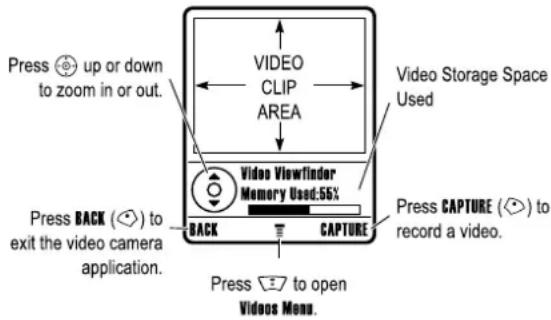
Point the camera lens at the video subject, then:
Press To
1 CAPTURE (◇) begin video recording
| 2 | STOP (💡) stop video recording | |
| 3 | STORE (💡) | view storage optionsIf you choose to store the video,continue to step 4. |
| or | ||
| DISCARD (💡) | delete the video and return to active viewfinder | |
| 4 | 💡 | scroll to Send in Messenger Store Only |
| 5 | SELECT (💡) | perform the storage option |
provider (such as stock updates, news headlines, or sports scores). These types of services typically are available through subscription from your service provider.
Setting Up Browser Messages
| Find the Feature | >Messages > BrowsrcMessage |
| >BrowsrcMsgcSetup> Service |
| Option Description | |
| Off | Stop all browser messages. |
| Receive All | Allow all browser messages. |
| Restricted | Allow only browser messages from your service centre number. |
Recording, Playing and Sending Video Clips
You can record a video clip with your phone, and send it to other mobile phone users in a multimedia message.
Recording a Video Clip
To activate your phone's video camera:
Find the Feature
My Items > Videos > [New Video]
Highlight Features - 27
Sending a Video Clip in a Message
| 1 | Press ToSELECT (💡) | Send In Message |
| 1 | Keypad keysorOK (💡) [💡]or(💡) | enter a text noteSelect addresses from your phone listadd a 'one time entry' |
| 2 | DONE (💡) | save the message |
| 3 | SEND (💡) | send the message |
Playing a Video Clip
To play a video clip stored on your phone:
Find the Feature
My Items > Videos > video clip
The video clip displays in the video clip playback screen.
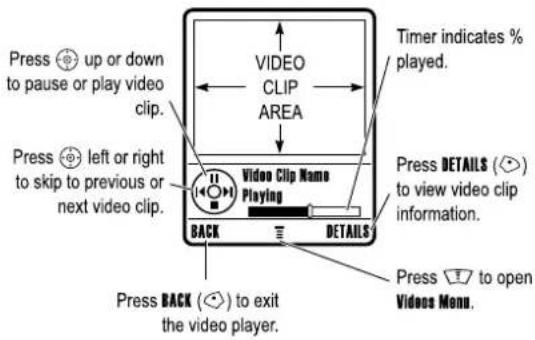
Video Menu
Press ☑ to open the VideoMenu during video recording or playback. The following options are available:
| Option Description | |
| New | Record a video clip. |
| Details | View video clip information. |
| Rename | Rename the video clip. |
| Delete | Delete the selected video clip or all marked video clips. |
| Move | Move selected video clip or marked video clips to another device, and delete original video(s) from phone memory. |
30 - Highlight Features
| Option Description | |
| Copy | Copy selected video clip or marked video clips to another device, and leave copy of video(s) on phone. |
| Mark/Unmark or MarkcAllUnmarkcAll | Mark one or more video clips that you want to move, copy, send, or delete. |
| Categories | Assign the video clip to a defined category. |
| AssigncTocCategory | Assign the video clip to a defined category. |
| VideoscSetup | Open the setup menu to adjust video settings. |
| ViewcFreecSpace | View memory space available for storing video clips. |
| GocTocVideos | View video clips stored on your phone. |
Highlight Features - 31
Taking and Sending a Photo
To activate your phone's camera:
Find the Feature
Camera
The active viewfinder image appears on your display.
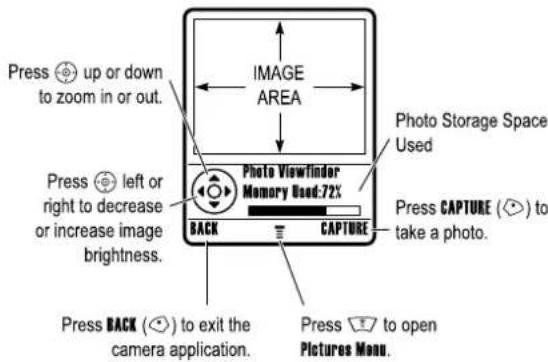
Point the camera lens at the photo subject, then:
Press To
1 CAPTURE (◇) take a photo
2 STORE (◇)
view storage and send options If you choose to store the photo continue to step 3.
or
DISCARD (◇)
delete the photo and return to active viewfinder
Press To
3

scroll to SendcincMessage StorecOnly ApplycaseWallpaper ApplycaseScreenSaver or Applycascontactscentry
4 SELECT (☐) perform the storage option
Using the Auto Timer
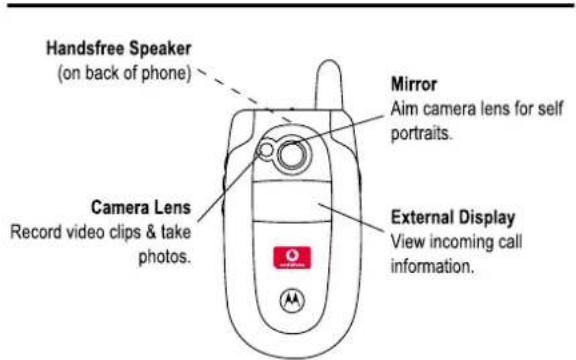
Activate the camera and then press 📄 > Auto-TimedeCapture. Press left or right to set a 5 or 10 second timer delay, then press START (✗). Close the flip, and use the mirror to aim the camera lens. When you hear the camera click, open the flip to see your photo.
Adjusting Camera Settings
Press 📋 to open the PicturescMenu when the camera is active. The PicturescMenu can include the following options:
| Option Description | |
| Pictures | View pictures and photos stored on your phone. |
| Auto-TimedeCapture | Set a tim er for the c am er at o photo. |
| PicturescSetup | Open the setup menu to adjust picture settings. |
| VieweFreecSpace | See how much memory remains for storing pictures. |
32 - Highlight Features
Highlight Features - 33
Using Photos and Pictures
You can send your photos to other mobile phone users or email addresses, assign photos to specific phonebook entries, and use them as wallpaper or screen saver images.
Downloading Pictures

Your phone may contain predefined photos, pictures, and animations. You can download and store additional images on your phone.
If you are unable to establish a network connection with Vodafone live!, contact your service provider.
Note: The files that you download or receive as attachments might have a lock that keeps you from saving them on external memory, forwarding them, or editing them.
To download a picture from Vodafone live!, see page 23. To store a picture from a message, see p a g 88.
Viewing and Managing Pictures
To view a photo, picture, or animation stored on your phone:
Find the Feature

MycItems > Pictures
Press To
| 1 | ⊕ | up or down | scroll to the picture |
| 2 | VIEW key view the picture |
| 3 | ○ | view the next/previous picture |
| or | ||
| ? | open the PicturescMenuto perform other options |
34 - Highlight Features
Tip: You can change the way your picture list displays using the Setup option in the PicturescMenu
Press ☑ to open the PicturescMenu from the picture list. The menu can include the following options:
| Option Description | |
| Send In Message | Insert selected picture in a new message. Note: This feature is not available if the picture you are trying to insert has a lock on it. |
| Send Postcard | Send the picture and text to your operator along with the contact address in order to generate a postcard. You will receive a text message when the picture is ready.  |
| Apply as | Set the picture as your phone's Wallpaper or ScreenSaverimage. |
| Zoom | Zoom in or out on the picture. |
| New | Capture a new picture or create an album of stored pictures. |
| Details | View picture information. |
| Copy | Copy selected picture or marked picture(s) to another device. |
| Mark | Mark the picture to move, copy, send or delete it. |
| Mark All | Mark all pictures to move, copy, send, or delete them. |
| Pictures Setup | Open the setup menu to adjust picture settings. |
| View Free Space | View memory space available for storing pictures. |
Highlight Features
Sending a Multimedia Message (MMS)

A Multimedia Messaging Service (MMS) can contain a variety of media (including text, photos, pictures, animations, sounds, voice records, and video clips). You can send the letter to other mobile phone users, and to dresses.
Tip: The layout of all pages in a multimedia message is defined by the layout of the first page. To display a media object at the top of the page, insert it in the first half of the message text. To display a media object at the bottom of the page, insert it in the second half of the message text.
Find the Feature

Press To
| 1 | keypad keys | enter text on the page |
| 2 | open the MMSeManu | |
| 3 | scroll to Insert | |
| 4 | SELECT (◇) | display a list of items you can insert |
| 5 | scroll to Picture, VoiceRecord Sound, Video, NewcPage, QuickNote, or ContactInfo | |
| 6 | SELECT (◇) select the file type | |
| 7 | highlight the file you want | |
| 8 | SELECT (◇) insert the fileTo add another page to the message, continue to step 9. | |
| 9 | open the MMSeMonuto insert a new page | |
| 10 | scroll to Insert | |
Press To
| 11 SELECT (◇) | display a list of items you can insert |
| 12 [IMAGE] | scroll to NowcPage |
| 13 SELECT (◇) | insert a new page after the current pageRepeat steps 1 to 8 to enter contents for the new page. |
When you finish composing the multimedia message:
Note: It will not be possible to send protected files as part of a multimedia message.
Press To
| 1 OK (◇) | store the message |
| 2 ⚙️ | scroll to a SendeTo option:Highlight an existing contact.Or highlight [OneceTimeEntry]to enter one or more phone numbers or email addresses.Or highlight NeweContact to enter a number/address and add it to the contacts list. |
| 3 ADD (◇) | add a contact to the list of recipientsRepeat steps 2 and 3 to add additional contacts to the list. |
| or SELECT (◇) | select [OneceTimeEntry]Or NeweContact |
36 - Highlight Features
Highlight Features
Press To
4 DONE (◇) store the numbers/addresses
5
scroll to Subject

| 6 | CHANGE (⇨) select | Subject |
| 7 | keypad keys | enter the subject |
| 8 | OK (⇨) store the subject | |
| 9 | CHANGE (⇨) select | Attachments to attach a file to the message, if desired |
| 10 | ⇨ | scroll to Picture, Sounds, or Video |
| 11 | SELECT (⇨) select the file type | |
| 12 | ⇨ | highlight the file you want |
| 13 | SELECT (⇨) attach the file | |
| 14 | BACK (⇨) | return to the message editor |
| 15 | ⇨ | scroll to Receipt to request a receipt, if desired |
| 16 | CHANGE (⇨) select | Receipt |
| 17 | ADD (⇨) or REMOVE (⇨) | activate/deactivate the delivery report |
| 18 | DONE (⇨) | return to the message editor |
| 19 | SEND (⇨)or⇨ | send the messageview message details, save the message in the drafts folder, or cancel the message |
38 - Highlight Features
 | ToSelect Insert > Picture and select either a picture that has been saved earlier, or a picture you have just taken and press SELECT | |
| 3 | to go to MMS Menu | |
| 4 | ADDRESS | select the address of the recipient from your contactsNote: Only contact entries that contain complete address information will show in the list. See section x below for inserting a new address entry. |
| If the intended recipient already contains complete address information in the contacts list, do the following: | ||
| 5 | up or down | scroll to the name of the person you wish to send the postcard to |
| 6 | centre key | select the recipient's nameNote: You can select more than one recipient for your postcard. |
| 7 | BACK | return back to the Postcard editor |
| 8 | centre key | go to the Postcard Menu |
| 9 | up or down select | Insert to insert a picture |
| 10 | Picture/ New Picture | select either a picture that has been saved earlier, or a picture you have just taken and press SELECT |
| 11 | SEND | send the postcard when you inserted the picture and the recipient(s) address(es) |
Highlight Features
Sending a Postcard
The Vodafone live! postcard service allows you to send a picture as an MMS, which will be delivered as a real postcard to a street address. You can send a picture that you have just taken, or a picture that has already been saved on your phone. You can also include a personal greeting to the postcard.
Note: This service may not be available in all countries.
Find the Feature
Messages > CreateMessage
MMS
Contacts Send Postcard
My items > Pictures Send Postcard
You can also access this option after you have taken a picture. Press STORE and select Send Postcard.
Please note that the different steps when sending the postcard may differ slightly depending on whether you are in the My items Menu Contacts Menu or Messages Menu. The following describes the steps for editing the Postcard from the Messages Menu
| Find the Feature | > Messages > CreatecMessage |
| > MMS |
| Press1cSELECT | Toselect theMMSoption and go to the Postcard editor |
| 2 keypad keys | enter your greeting textNote:The maximum length for the greeting text is 200 characters. |
Inserting a new address entry
If your Phonebook does not have the intended recipient's address, insert a new address by selecting ADDRESS and New Address Entry. Define the following information:
| Option | Description |
| Name: | enter the recipient's name (mandatory) |
| Street 1: | enter the street name (mandatory) |
| Street 2: | continue the street name (optional) |
| City: | enter the city name (mandatory) |
| State: | enter the state name (optional) |
| Zip code: | enter the zip code (optional) |
| Country: | enter the country name (optional) |
Once you have entered all mandatory fields, pressDONE. The phone will ask you whether you want to save the postal address to Phonebook.
Select NO to return to the Address To Menu and send the postcard without saving the recipient's address.
Select YES to save the address and select whether you want the address to be saved either with Phone Number or Email Address.
After entering all necessary information, press DONE to return to the Address To Menu.
Viewing a Sent Postcard
You can view a postcard that you have sent.
Press MESSAGES Ⓧ down, select Outbox
Receiving a Multimedia Message (MMS)

When you receive an MMS message, your phone displays the message indicator ☑ and the CreatecMessage notification, and sounds an alert.
Press To
READ (◇) open the message
MMS messages that you receive can contain different media elements:
- Photos, pictures, and animations are displayed as you read the message.
- A sound file or video clip begins playing when its page is displayed. Use the volume keys to adjust the volume as the sound file or video clip plays.
Note: In a multimedia letter, you may have to highlight an indicator embedded in the text to play a sound file or video clip.
- Attached files are added to the end of the message. To open the attachment, highlight the file indicator/filename and press VIEW (☐) (image file type), PLAY (☐) (sound file or video clip), or OPEN (☐) (vObject such as a phonebook vCard or datebook vCalendar entry, or unknown file type).
Using a Bluetooth ^® Wireless Connection
Your phone supports Bluetooth wireless connections. You can set up a wireless link with a Bluetooth headset or handsfree car kit, or connect to a computer or hand-held device to exchange and synchronise data.
42 - Highlight Features
To connect to a device, highlight the device name and press SELECT (◇).
The device may request permission to bond with your phone. Select YES (✗) and enter the correct PIN code to create a secure connection with the device. When the connection is made, the Bluetooth indicator ✗ displays in the home screen.
Sending Objects to Another Device
You can use a Bluetooth wireless connection to send a picture, sound, video, phonebook entry, datebook event, or bookmark from your phone to another phone, computer, or hand-held device.
Sending a Picture, Sound, or Video
Highlight the object on your phone that you want to send to the other device, then press 📄 > Copy.
Select a recognised device name listed in the ObjectExchangeMenu, or LookForDeviceTo search for the device to which you want to send the object.
Sending a Contact Entry, Calendar Event, or Bookmark
Highlight the item on your phone that you want to send to the other device, then press 📄 > Send.
Select a recognised device name listed in the ObjecteExchange menu, or LookeForceDevicesto search for the device to which you want to send the item.
Turning Bluetooth On or Off
The preferred method for connecting your phone to a Bluetooth headset or handsfree car kit is to turn on Bluetooth on your phone, then connect your phone to the headset or car kit.
To turn Bluetooth on:
Find the Feature
Settings > Connection
BluetoothLink> Setup > Power
On
This procedure turns Bluetooth on and leaves it on until you turn it off. When your phone's Bluetooth power is on, your handsfree accessory can automatically reconnect to the phone when you turn on the accessory or move it within range of the phone.
Note: To extend battery life, use the above procedure and set Bluetooth power to Off when not in use.
Searching for Other Devices
To connect your phone to a Bluetooth headset or handsfree device:
Find the Feature
Settings > Connection
BluetoothLink> Handsfree
[LookcForcDevices]
If Bluetooth is turned off, your phone asks if you want to TemporaryyePowercOn?Bluetooth. Press YES (✗) to proceed.
Alternatively, set Power to On in the Setup menu to turn Bluetooth on and leave it on.
Your phone scans for and displays a list of device(s) located within range of the phone.
Note: If your phone is already connected to a device, you must disconnect from it to search for other devices.
Highlight Features
See page 1 for a basic phone diagram.
Using the Display
The home screen (shown below) is displayed when you are not on a call or using the menu. You must be in the home screen to dial a phone number.
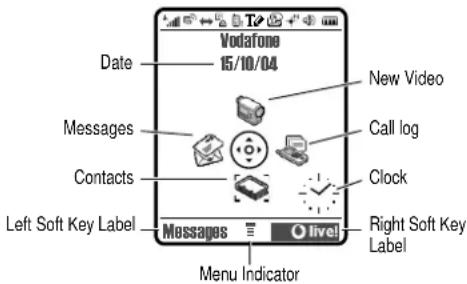
Press the 5-way navigation key Ⓧ up, down, left, or right to select one of the menu feature icons in the home screen. If you select a menu feature by mistake, press 🔒 to return to the home screen.
The ≡ (menu) indicator in the bottom centre of the display indicates you can press the menu key ( ☑ ) to go to the main menu to see more features. (This is context sensitive, and similar to a right-click on a computer mouse.)
Learning to Use Your Phone
Labels at the bottom corners of the display show the current soft key functions. Press the left soft key or right soft key to perform the indicated function.
Notes:
- Your home screen may appear different than shown. For example, the menu feature icons normally are hidden to allow a better view of the wallpaper image. You can still select the menu icons when they are hidden from view. To show or hide menu icons, see page 91.
- Your phone can display an analogue or digital clock in the home screen (see page91).
- Your phone's display normally is visible only when the display backlight is on, or when the display is viewed in direct sunlight. To extend battery life, the backlight turns off automatically when no activity is detected for a period of time. The backlight turns back on when you open the flip or press any key. To set the time that the backlight stays on, see page75.
- To further extend battery life, you can set the display to turn off, in addition to the backlight, after a period of inactivity. The display turns back on when you open the flip or press any key. To set the time that the display stays on, see page76.
The following status indicators can display:
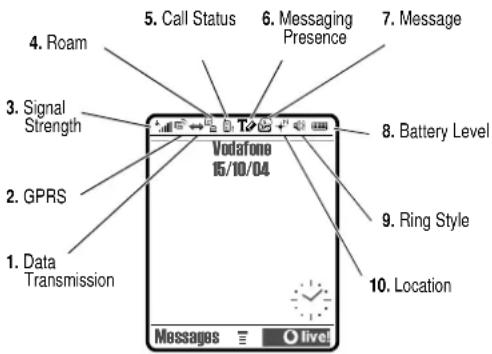
- Data Transmission Indicator – Shows connection and data transmission status. The Bluetooth ^® wireless connection indicator shows when a Bluetooth connection is active. Other indicators can include:
= secure packet data transfer
= secure application connection
^① = secure Circuit Switch
Data (CSD) call
= unsecure packet data transfer
= unsecure application connection
^回 = unsecure CSD call

- GPRS Indicator – Shows that your phone is using a high-speed General Packet Radio Service (GPRS) network connection. GPRS allows faster data transfer speeds. Other indicators can include:
=GPRS PDP context active
G = GPRS packet data available
- Signal Strength Indicator – Vertical bars show the strength of the network connection. You cannot make or receive calls when the no signal indicator i^2 or not transmit indicator i^3X is displayed.

- Roam Indicator – The roam indicator ▲ shows when your phone is seeking or using another network outside your home network. Other indicators can include:
= 2.5G home
= 2.5G roam
= 2G home
= 2G roam

- Call Status Indicator – Shows the call status of your phone. For dual-line-enabled SIM cards, shows the current active phone line. Indicators can include:
E^(i) = phone in call
= call forward on
Q_1 = line 1 active
_2 = line 2 active
增 = line 1 active, call forward on
= line 2 active, call forward on

- Messaging Presence Indicator – Shows when instant messaging is active. Indicators can include:
48 - Learning to Use Your Phone
emergency call. Indicators show when your phone is sending location information:
^N = location on
= location off
Using the 5-Way Navigation Key
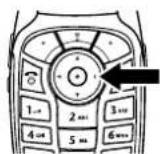
Press the 5-way navigation key ⚙️ up, down, left, or right to scroll through the menu system, highlight menu items, change feature settings, and play games. Press the centre select key ⚙️ in the centre of the 5-way navigation key to select a highlighted menu item. The centre select key usually performs the same function as the right sof the y ◇.
Ω = Messenger active
= available for Messenger
= busy = invisible to Messenger
= available for phone calls
= offline
When a Java™ application is active, the Java midlet indicator 🤨 appears in this location.

- Message Indicator – Appears when you receive a new message. Indicators can include:
= text message
= voicemail message
= voicemail and text message
= Messenger message
= active chat session
-
Battery Level Indicator – Vertical bars show the battery charge level. Recharge the battery when Low Battery displays and the battery alert sounds.
-
Ring Style Indicator – Shows the ring style setting.
= loud ring
= soft ring
= vibrate
= vibrate and ring
暗 = silent

- Location Indicator – Your phone may be able to send location information to the network during an
Learning to Use Your Phone - 49
Using Menus
From the home screen, press centre select or 📄 to enter the main menu.
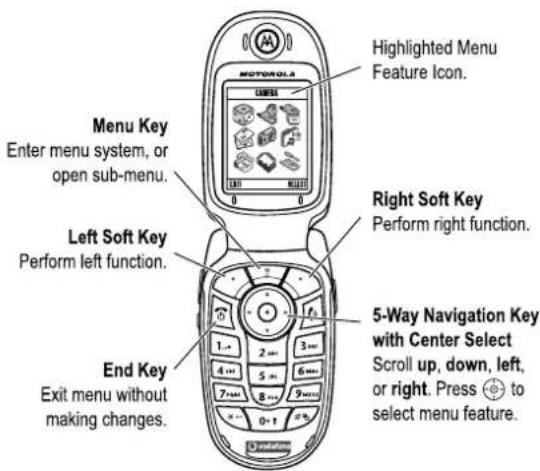
Press Ⓧ to scroll to and highlight a menu feature icon in the main menu. Press SELECT (⇨) or Ⓧ to select the highlighted menu feature.
The following icons represent features that may display in the main menu, depending on your service provider and service subscription options.
| Menu Icon Feature | Menu Icon Feature | ||
| ContactscCall log | |||
| MessagescOrganiser | |||
| GamesccMorecVodafone Level | |||
| My Items | Camera | ||
| Settings | |||
Selecting a Feature Option
Some features require you to select an option from a list:
- Press Ⓞ to scroll up or down to highlight the option you want.
• In a numbered list, press a number key to highlight the option.
52 - Learning to Use Your Phone
The message centre lets you compose text messages.
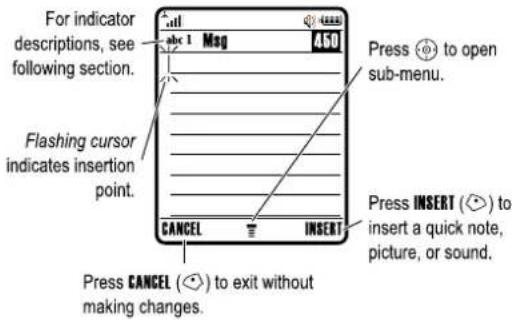
Selecting a Text Entry Mode
Multiple text entry modes make it easy for you to enter names, numbers, and messages. The mode you select remains active until you select another mode.
Press ☑ in any text entry screen to select one of the following entry modes:
| Primary | The primary text entry mode (see below to set). |
| Numeric | Enter number only (seepage 62). |
| Symbol | Enter symbols only (see page 62). |
| Secondary | The secondary text entry mode (see below to set). |
Alternatively, you can select a text entry mode in any text entry screen by pressing 📄 > EntrycMode
- In an alphabetised list, press a key repeatedly to cycle through the letters on the key and highlight the closest matching list option.
- When an option has a list of possible values, press ⏻ left or right to scroll through and select a value.
- When an option has a list of possible numeric values, press a number key to set the value.
Entering Text
Some features require you to enter information.
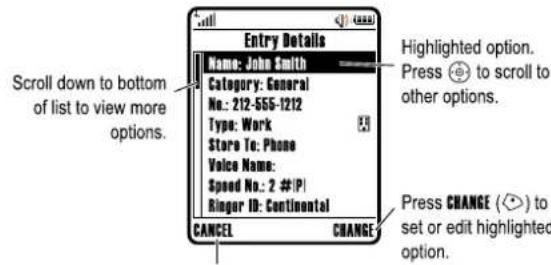
Press CANCEL (◇) to exit without making changes. DONE (◇) displays when you enter or edit information.
Learning to Use Your Phone - 53
Setting Primary and Secondary Text Entry Modes
You can set different primary and secondary text entry modes, and easily switch between modes when you enter data or compose a message.
Press ☐ > EntrycSetup in a text entry screen. SelectPrimarycSetup or SecondarycSetup, and choose:
| iTAP | iTAP® software predicts each word as you enter it, to simplify and speed up text entry. |
| Tap | Enter letters and numbers by pressing a key one or more times. |
| TapeExtended | Enter individual letters, numbers, and symbols by pressing a key one or more times. |
| None | Hide theSecondarysetting if you prefer not to set a secondary text entry mode (only available for SecondarycSetup). |
Press ☐ in a text entry screen to change text case. Indicators at the top of the display show the capitalisation setting:
| abc = no capital letters | Abc = capitalise next letter only |
| ABC = all capital letters |
Text Entry Mode Indicators
In Primary or Secondary text entry mode, indicators at the top of the display show the text entry setting:
PrimarycSecondary
| 1 | 2 | Tap, no capital letters |
| 1 | 2 | Tap, capitalise next letter only |
| 1↑ | 2↑ | Tap, all capital letters |
| 田 | 田 | iTAP, no capital letters |
| 田↑ | 田↑ | iTAP, capitalise next letter only |
| 田↑ | 田↑ | iTAP, all capital letters |
The following indicators identify Numeric or Symbol entry mode:
$$ \mathbf {1 2 3} = \text { numeric mode } $$
$$ \& = \text { symbol mode } $$
Using iTAP ^® Mode
iTAP mode lets you enter words using one keypress per letter. The iTAP software combines your keypresses into common words, and predicts each word as you enter it.
For example, to enter "the," you would p keys 1. The iTAP software recognises that the most common word formed by this keypress combination is "the," and predicts that "the" is the word you are spelling. Other common words or word fragments that can be spelled by the same keypress combination are presented as alternate choices at the bottom of the display.
If necessary, press in a text entry screen to switch to TAP mode. An indicator tells you which mode is active (see page55). If ITAP mode is not set as the Primary or Secondary entry mode, see page 55.
Entering Words i iTAP Mode
Press To
1 Keypad keys (one press per letter)
show possible letter combinations at the bottom of the display
56 - Learning to Use Your Phone
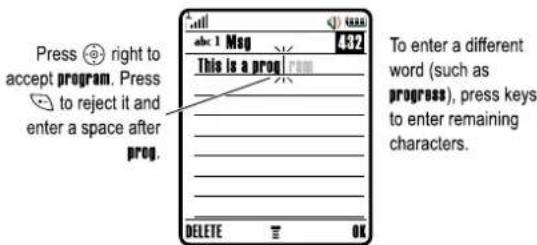
If you want a different word (such as Progress), continue pressing keypad keys to enter the remaining characters.
Entering Novel Words in iTAP Mode
You may enter a word that the iTAP software does not recognise. If your word is not shown as a letter combination choice at the bottom of the display:
Action
1 Press DELETE (✗) one or more times to delete letters, until you see a letter combination at the bottom of the display that matches the start of the word you want to enter.
2 Press Ⓤ left or right to highlight the letter combination.
3 Press SELECT (☐) to select the letter combination.
4 Continue to enter letters and select letter combinations to spell the word.
Your phone automatically stores the novel word and displays it as an option the next time you enter its letter combination. When the memory space for storing novel words is filled, your phone deletes the oldest words to add new words.
Entering Numbers and Punctuation in iTAP Mode
To enter numbers quickly, press and hold a number key to temporarily switch to numeric mode. Press the number keys to enter the numbers you want. Enter a space to revert to ITAP mode.
Press ☐ to enter punctuation or other characters as shown in the "Character Chart" on page 61.
Using Tap Mode
This is the basic text entry mode on your phone.
| Press To | ||
| 2 | left or right | highlight the combination you want |
| 3 | up | accept the predicted word completion, followed by a space |
| or | ||
| enter the highlighted combination, followed by a space | ||
| or | ||
| SELECT (◇) | select the highlighted combination, with no space | |
| You can press keypad keys to add more letters at the end of the combination. | ||
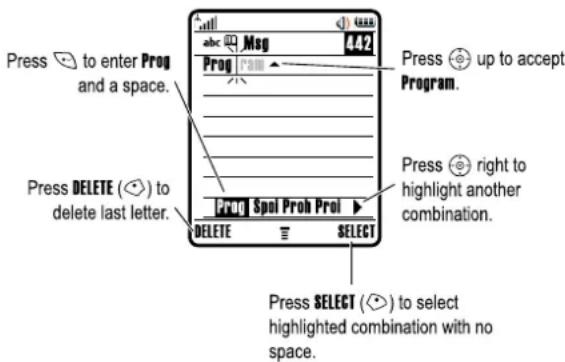
For example, if you press 7mm 7mm 6mm 4mm, your phone displays:
Learning to Use Your Phone - 57
TAP mode cycles through the letters and number of the key you press. TapcExtendedmode also cycles through additional symbols as shown in the "Character Chart" on pag e61.
If necessary, press in a text entry screen to switch to Tap mode. An indicator shows which mode is active (TAP or page 55). If TapcExtendedis not set as the Primary or Secondary entry mode, see page 55.
Tap Mode Text Entry Rules
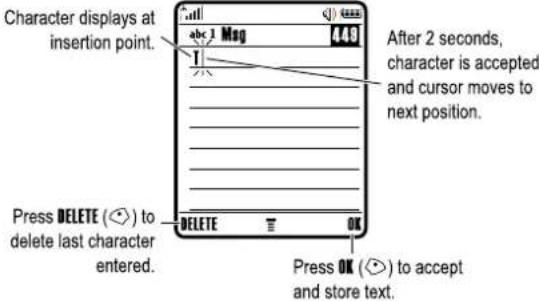
- Press a keypad key repeatedly to cycle through its characters. For example, you would press ☐ one time to enter “a” two times to enter “b,” three times to enter “c,” or four times to enter “z.”
- After 2 seconds, Tap mode accepts the character, and the cursor moves to the next position.
- The first character of every sentence is capitalised. If necessary, press Ⓧ down to change the character to lowercase before the cursor moves to the next position.
- Press to move the flashing cursor to enter or edit message text.
- If you do not want to save your text or text edits, press 📄 to exit without saving.
Entering Words in Tap Mode
Press To
| 1 | a keypad key one or more times | select a letter, number, or symbol |
| 2 | keypad keys | enter remaining charactersTip:Press right to accept a word completion, or to insert a space. |
Press To
3 OK (◇) store the text
In a text entry screen, you can press ☑ to switch entry modes. An indicator shows which mode is active (see page 55). If Tap or TapeExtendedis not set as the Primary or Secondary entry mode, see page 55.
For example, if you press 8-- one time, your phone displays:
60 - Learning to Use Your Phone
| change text case, for capital letters | |
| enter a space (hold to enter a return) | |
| change text entry mode (hold for default) |
Note: This chart may not reflect the exact character set available on your phone. In an email or Web address editor, first shows common characters for that editor.
Using Numeric Mode
In a text entry screen, press ☐ to switch entry modes until the numeric indicator 123 displays.
Press the number keys to enter the numbers you want. When you finish entering numbers, press ☑ to switch to another entry mode.
Using Symbol Mode
In a text entry screen, press ☑ to switch entry modes until the symbol indicator displays.
Press To
| 1 keypad keys(one press persymbol) | show possible symbol combinationsat the bottom of the display |
| 2 ⚙ left or right | highlight the combination you want |
| 3 SELECT (⇨) | select the highlighted combinationYou can press keypad keys to addmore symbols to the end of thecombination. |
| or⇨ | enter the highlighted combination |
62 - Learning to Use Your Phone
When you enter 3 or more characters in a row, your phone may guess the rest of the word. For example, if you enter "prog" your phone might display:
Character Chart
Use this chart as a guide for entering characters with TapeExtended mode.
| 1. | . 1 ? ! , @ _ & ~ : ; " - ( ) '¿ i % £ $ ¥+αx€ / \ [ ]= > < # § |
| 2. | a b c 2 ä ä á á à ä ä α β ç |
| 3. | d e f 3 δ ë é è ê φ |
| 4. | g h i 4 ì í í γ |
| 5. | j k l 5 λ |
| 6. | m n o 6 ñ ö ø ó ò õ ω |
| 7. | p q r s 7 π β σ |
| 8. | t u v 8 θ ü ú ù û |
| 9. | w x y z 9 ξ ψ |
Learning to Use Your Phone - 61
Symbol Chart
Use this chart as a guide for entering characters with symbol mode.
| 1- | .?! , @ _ & ~ : ; " - ( ) ' ¿i % £ ¥ ☐ € |
| 2- | @ _ \ |
| 3- | / : ; |
| 4- | " & ' |
| 5- | ( ) [ ] |
| 6- | ¿ i ~ |
| 7- | < > = |
| 8- | £ ¥ ☐ € |
| 9- | # % * |
| 0- | + - x * / = > < # § |
| enter a space (hold to enter a return) | |
| change text entry mode (hold for default) | |
Note: This chart may not reflect the exact character set available on your phone. In an email or Web address editor, first shows common characters for that editor.
Deleting Letters and Words
Place the cursor to the right of the text you want to delete, and then:
| Action |
| Press DELETE (💡) to delete one letter at a time. |
| Hold DELETE (💡) to delete the entire message. |
Learning to Use Your Phone - 63
Using the Smart Key
The smart key gives you another way to perform many basic phone functions. It anticipates the next action you are likely to perform. For example, when you highlight a menu item, you can press the smart key to select it. You can use the smart key to make and end calls, turn features on and off, and open your contacts list. The smart key usually performs the same function as the right sof the y ◇.
Using the External Display
When the flip is closed, the external display shows time and phone status information. It also displays messages to notify you of incoming calls and other events. You can perform the following functions in the external display.
Setting Phone Ring Style
Press To
| 1 volume keys scroll to | Style | |
| 2 | smart key | select a ring style |
| 3 | volume keys | return to the home screen |
64 - Learning to Use Your Phone
Changing a Code, PIN, or Password
Your phone's 4-digit unlock code is originally set to 1234, and the 6-digit security code is originally set to 000000. Vodafone may reset these codes before you receive your phone.
If Vodafone has not reset these codes, we recommend that you change them to prevent others from accessing your personal information. The unlock code must contain 4 digits, and the security code must contain 6 digits.
You can also reset your SIM card PIN code, PIN2 code, and/or call barring password if necessary.
To change a code or password:
Find the Feature

Locking and Unlocking Your Phone
You can lock your phone manually or set the phone to lock automatically whenever you turn it off.
To use a locked phone, you must enter the unlock code. A locked phone still rings or vibrates for incoming calls or messages, but you must unlock it to answer.
You can make emergency calls on your phone even when it is locked (see page 82).
Locking Your Phone Manually
Find the Feature

Returning an Unanswered Call
Your phone keeps a record of your unanswered calls and displays XcMissedeCallain the external display.
Action
1 Press the smart key to display the received calls list.
or
Press the volume keys to dismiss the MissedCalls message.
2 If necessary, press the volume keys to scroll through the list and highlight an unanswered call.
3 If a headset is connected to your phone, press and hold the smart key to call the number.
or
Press the smart key to exit without calling.
Note: Because the microphone and earpiece are unavailable when the phone is closed, you must use a headset or other handsfree device with this feature.
Using the Handsfree Speaker
When you activate your phone's integrated handsfree speaker, you can talk to the other party without holding the phone to your ear.
Press SPEAKER (☐) to turn the handsfree speaker on or off during a call.
When you turn the handsfree speaker on, your phone displays SpeakerphoneOn in the home screen. The handsfree speaker remains on until you press SPEAKER (💡) again or end the call.
Note: The handsfree speaker is disabled when you connect your phone to a handsfree car kit or headset accessory.
Learning to Use Your Phone
-65
Press To
| 1 | keypad keys | enter your unlock code |
| 2 | OK (◇) | lock the phone |
Unlocking Your Phone
Tip: Your phone's unlock code is originally set to 1234. Your service provider may reset the unlock code to the last 4 digits of your phone number.
At the EntercUnlockeCodeprompt:
Press To
| 1 | keypad keys | enter your unlock code |
| 2 | OK (◇) | unlock your phone |
Setting Your Phone to Lock Automatically
You can set your phone to lock every time you turn it off:
Find the Feature

Press To
| 1 | keypad keys | enter your unlock code |
| 2 | OK (◇) | activate automatic lock |
If You Forget a Code, PIN, or Password
Note: Your phone's 4-digit unlock code is originally set to 1234, and the 6-digit security code is originally set to 000000. Vodafone may have may reset the unlock code to the last 4 digits of your phone number before you receive your phone.
If you forget your unlock code, try entering 1234 or the last 4 digits of your phone number. If that does not work, do the following at the EntercUnlockeCodeprompt:
Press To
| 1 | # | display the unlock code bypass screen |
| 2 | keypad keys | enter your security code |
| 3 | OK (✗) submit your security code | |
If you forget your security code, SIM card PIN code, PIN2 code, or call barring password, contactVodafone.
Using your Contact List
This section describes basic contacts list operations. For more information about using the contacts list, please see page 89.
Storing a Phone Number
Enter a phone number in the home screen, then pressSTORE (☐) to create a contact with that number. Press DONE (☐) to store the number by itself, or fill in the other fields as necessary to complete the entry.
If you assign a Name to the contact, you can select MORE to store another number (for example, a work number) for the same Name.
Recording a Voice Name
When creating a contact, scroll to VoiceName and press RECORD (☐). Press and release the voice key and say the entry's name (within 2 seconds). When prompted, press and release the voice key and repeat the name.
Note: This option is not available for entries stored on the SIM card.
68 - Learning to Use Your Phone
Viewing Entries By Category
Press > Contacts, pre s > Categories, then select whether you want to view All entries, entries in a predefined category (Business, Personal, General, VIPs), or entries in a category you created.
To set the category for a contact, see page90.
Dialling a Number
Press 📄 > Contacts, highlight the contact, press 🔒 to call.
Shortcut: In the contacts list, press a keypad key one or more times to jump to entries that begin with the key's letters.
Voice Dialling a Number
Press and release the voice key, and say the entry's name (within 2 seconds).
Sorting Contacts
Press 📄 > Contacts, pre s 📋 > Setup > Sortchy then select whether you want to sort the contact list by Name, SpeedcNo, VoicecName or Email.
When sorting by name, you can view All numbers or just the Primary number for each name. To set the primary number for a name, see page 90.
Tip: In Primary number view mode, highlight a name and press left or right to view other numbers associated with the name.
Setting a Picture ID for a Contact
Press 📄 > Contacts > entry, pres 📋 > Edit > Picture > picture name.
Also see pages 3 and32.
Setting Picture ID View
Press 📄 > Contacts, pres 🅐 > Setup > Viewchy > Picture.
Learning to Use Your Phone - 69
Setting a Ring Style
You can set the following ring styles on your phone:
- Loud
- Soft
• Vibrate
• VibratecEcRing - Silent
Each ring style is a profile that uses a different set of ring tone alerts or vibration alerts to notify you of incoming calls, text messages, and other events. The Silent setting silences your phone until you set another ring style.
To set a ring style:
Find the Feature
Settings > RingcStyles > Style
style name
The ring style indicator shows the current ring style setting (see page 49).
Changing the Call Alert
You can change the alert that a ring style uses to notify you of incoming calls or other events. Any changes you make are saved to the ring style profile.
Find the Feature
Settings > RingcStyles
Style Detail
Setting Up Your Phone - 71
Note: Style represents the current ring style. You cannot set an alert for the Silent ring style setting.
Press To
| 1 | ○ | scroll to Calls (scroll to Lineector Lineector dual-line phones) |
| 2 | CHANGE (○) | select the event |
| 3 | ○ | scroll to the alert you want |
| 4 | SELECT (○) | select the alert |
| 5 | BACK (○) | save the alert setting |
The ring style profile contains additional settings for other events, and settings for ringer ID, ringer and keypad volume. You can change ring style profile settings as desired to personalise the ring style.
Setting the Time and Date
You must set the time and date to use the datebook.
Find the Feature
Settings >InitialcSetup Time candcDate
Setting a Wallpaper Image
Set a photo, picture, or animation as a wallpaper (background) image in your phone's home screen. The wallpaper image appears as a faint watermark in text and menu displays.
Find the Feature
Settings > Personalise Wallpaper
Press To
| 1 | ○ | scroll to Picture |
| 2 | CHANGE (◇) open the picture viewer | |
| 3 | ○ up or down | scroll to a picture/animationScroll to (None) to turn off the wallpaper image. |
| 4 | SELECT (◇) select the image | |
| 5 | ○ | scroll to Layout |
| 6 | CHANGE (◇) adjust the image layout | |
| 7 | ○ | scroll to Centre, Tile, or Fit-to-screenCentre places the image in the centre of the display.Tile fills the display with adjacent copies of the image.Fit-to-screen resizes the image, if necessary, to fit the display. |
| 8 | SELECT (◇) confirm the layout setting | |
| 9 | BACK (◇) save wallpaper settings | |
Setting a Screen Saver Image
Set a photo, picture, or animation as a screen saver image. The screen saver image displays when the flip is open and no activity is detected for a period of time. If necessary, the image shrinks to fill the display. An animation repeats for 1 minute, then the first frame of the animation displays.
Tip: Turn off the screen saver to extend battery life.
Find the Feature
Settings > Personalise ScreeneSaver
Press To
| 1 | ◎ | scroll to Picture |
| 2 | CHANGE (◎) open the picture viewer | |
| 3 | ◎ up or down | scroll to a picture/animationScroll to (None) to turn off the screen saver image. |
| 4 | SELECT (◎) select the image | |
| 5 | ◎ | scroll to Delay |
| 6 | CHANGE (◎) set the delay interval | |
| 7 | ◎ | scroll to the inactivity interval that triggers the screen saver |
| 8 | SELECT (◎) confirm the delay setting | |
| 9 | BACK (◎) save screen saver settings | |
Changing Phone Skin
Change the look and feel of your phone's user interface by selecting a different skin setting.
Find the Feature
Settings > Personalise > Skin skin
Your phone displays the new skin.
74 - Setting Up Your Phone
when no activity is detected for a period of time. The backlight turns back on when you open the flip or press any key.
Setting Display Timeout
To further extend battery life, you can set the display to turn off (in addition to the backlight) when no activity is detected for a period of time.
Find the Feature
Settings > InitialcSetup DisplayTimeout
You can set the display to stay on for 1 or 2 minutes, or set off to disable display timeout.
Note: The display turns back on when you open the flip or press any key.
Storing Your Name and Phone Number

To store or edit your name and phone number information on your SIM card:
Find the Feature
Settings > PhonecStatus MycTel.cNumbers
Shortcut: Press ☐ from the home screen to view and edit your name and phone number(s).
If you do not know your phone number, contact your service provider.
Setting Answer Options
You can use additional, alternative methods to answer an incoming call.
Multi-Key answer by pressing any key OpenctocAnswer answer by opening the flip
To activate or deactivate an answer option:
Find the Feature
Settings > In-CallcSetup AnswercOptions
Press To
| 1 | ○ | scroll to Multi-Key or OpenctocAnswer |
| 2 | CHANGE (○) select the option | |
| 3 | ○ | scroll to On or Off |
| 4 | SELECT (○) confirm the setting | |
Setting Display Brightness
Find the Feature
Settings > InitialSetup Brightness
Adjusting the Backlight
Set the amount of time that the display and keypad backlights remain on.
Find the Feature
Settings>InitialcSetup >Backlight
Note: Your phone's display normally is visible only when the display backlight is on, or when the display is viewed in direct sunlight. To extend battery life, the backlight turns off automatically
Setting Up Your Phone - 75
Calling Features
For basic instructions on how to make and answer calls, see page 21.
Turning Off a Call Alert
You can turn off your phone's incoming call alert before answering the call.
Action
1 Press the volume keys to turn off the alert.
2 Open the flip (or press the button on a handsfree headset) to answer the call.
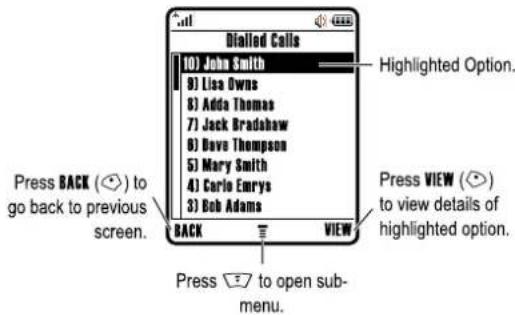
Viewing Recent Calls
Your phone keeps lists of incoming and outgoing calls, even for calls that did not connect. The most recent calls are listed first. The oldest calls are deleted as new calls are added.
Shortcut: Press ☑ from the home screen to view the dialled calls list.
Find the Feature
Call log
Press To
| 1 | scroll to ReceivedeCalls or DialledeCalls | |||
| 2 | SELECT (◇) | s | e | l |
Calling Features - 77
| Press To | |
| 3 | scroll to an entryNote:√ means the call connected. |
| 4 | call the entry's number |
| or | |
| VIEW (○) | view entry details (such as time and date of call) |
| or | |
| open theLastCallsMendo perform other procedures | |
The LastCallsMenu can include the following options:
| Option Description | |
| Store | Create a contact with the number in the No. field. |
| Delete | Delete the entry. |
| DeleteAll | Delete all entries in the list. |
| HideeID'ShowcID | Hide or show your caller ID for the next call. |
| SendcMessage | Open a new text message with the number in the To field. |
| AddcDigits | Add digits after the number. |
| AttachcNumber | Attach a number from the contact or recent calls lists. |
| Option Description | |
| SendcTones | Send the number to the network as DTMF tones.Note: This option displays only during a call. |
| TalkcthencFax | Talk and then send a fax in the same call (see page 101).  |
Redialling a Number
Press To
| 1 | view the dialled calls list | |
| 2 | scroll to the entry you want to call | |
| 3 | redial the number |
Using Automatic Redial

When you receive a busy signal, your phone displays CalleFailed NumbercBusy
Press To
or RETRY( ◇ ) redial the number
When the call goes through, your phone rings or vibrates one time, displays RedialcSuccessful and connects the call.
Returning an Unanswered Call
Your phone keeps a record of your unanswered calls, and displays:
- the missed call indicator
- XcMissedcCalls where is the number of missed calls
Press To
| 1 | VIEW (◇) | display the received calls list |
| 2 | select a call to return | |
| 3 | make the call |
Using the Notepad
The most recent set of digits entered on the keypad are stored in your phone's notepad memory. This can be a phone number that you called, or a number that you jot down during a call, for later use. To retrieve the number stored in the notepad:
| Find the Feature | > Call log> Notepad |
| Press To | |
| or | call the number |
| STORE ( ◊) | create an entry in your contacts list with the number in the No. field |
| or | |
| open the DiallingeMonuto attach a number or insert a special character |
80 - Calling Features
Using Caller ID (Incoming Calls)

Calling line identification (caller ID) displays the phone number for incoming calls in your phone's external and internal displays.
The phone displays the caller's name (and picture ID, if available) when the name is stored in your contacts list, or IncomingCallwhen caller ID information is not available.
You can also set your phone to play a distinctive ringer ID for specific entries stored in your contacts list. For more information, see page89.
Calling an Emergency Number
Your service provider programs one or more emergency phone numbers, such as 911 or 112, that you can call under any circumstances, even when your phone is locked or the SIM card is not inserted.
Note: Emergency numbers vary by country. Your phone's preprogrammed emergency number(s) may not work in all locations, and sometimes an emergency call cannot be placed due to network, environmental, or interference issues.
Press To
| 1 | keypad keys | dial the emergency number |
| 2 | call the emergency number |
Dialling International Numbers

If your phone service includes international dialling, press and hold 0.1 to insert the local international access code (+) for the country from which you are calling. (Inserting + enables your phone to make an international
82 - Calling Features
Putting a Call On Hold or Mute
Press To
| >Hold | put all active calls on hold |
| or | |
| >Mute | mute all active calls |
Using Call Waiting

When you are on a call, an alert tone sounds to indicate that you have received a second call.
Press To
| 1 | answer the new call | |
| 2 | SWITCH (○) | switch between calls |
| or | ||
| LINK (○) | connect the 2 calls | |
| or | ||
| > EndeCalleOneHold | end the call on hold |
If necessary, you must turn on call waiting to use the feature. To turn call waiting on or off:
Find the Feature
Settings > In-CallcSetup CallcWaiting
Calling Features - 81
call.) Then press the keypad keys as usual to dial the country code and phone number.
Calling With 1-Touch Dial
To call phonebook entries 1 to 9, press and hold the single-digit speed dial number for one second.
You can set 1-touch dial to call the entries in your phone memory contacts list or the SIM card phonebook:
Find the Feature
Settings > InitialcSetup 1-TouchcDial
Press To
| 1 | scroll to the location you want | |
| 2 | SELECT (◇) | select the location |
Using Voicemail

Voicemail messages that you receive are stored by Vodafone. To listen to your messages, you must call your voicemail phone number.
Note: Contact Vodafone for additional information about using this feature.
Listening to Voicemail Messages
Find the Feature
Messages >CalleVoicemail
Press To
CALL (◇)
listen to the message
Calling Features - 83
The phone calls your voicemail phone number. If no voicemail number is stored, your phone prompts you to store a number.
Storing Your Voicemail Number
If necessary, use the following procedure to store your voicemail phone number on your phone. Usually, Vodafone has already done this for you.
Find the Feature

Press To
1 keypad keys
enter your voicemail number
2 OK (◇) store the number
Note: You cannot store a p (pause), w (wait), or n (number) character in this number. If you want to store a voicemail number with these characters, create a phonebook entry for it. Then, you can use the entry to call your voicemail.
Changing the Active Line

Change the active phone line to make and receive calls from your other phone number.
Note: This feature is available only for dual-line-enabled SIM cards.
Find the Feature

The active line indicator in the display shows the current active phone line (see page 48).
84 - Calling Features
Main Menu
This is the standard main menu layout. Menu organisation and feature names may vary on your phone. Not all features may be available on your phone.
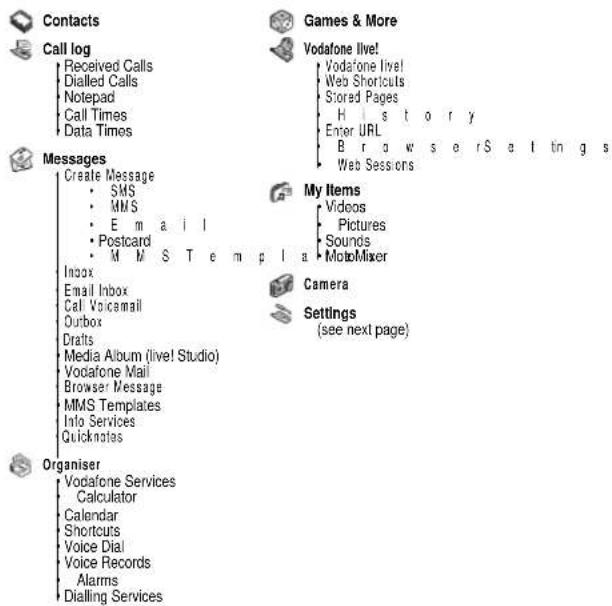
Phone Features - 85
Settings Menu
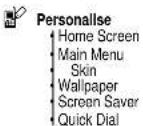
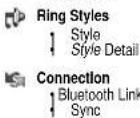
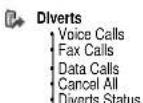
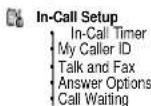
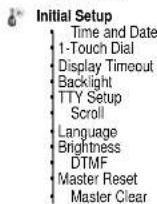
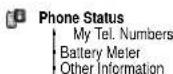
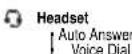
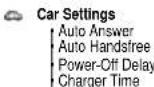
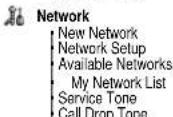
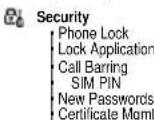
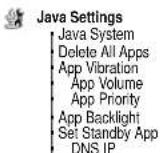
Feature Quick Reference
This section helps you locate and use additional phone features that are not described in this guide.
Calling Features
| Feature | Description |
| Conference Call | During a call:Dial next number, press  , press LINK ( ). , press LINK ( ). |
| Transferring a Call | During a call:  Transfer, dial transfer number, press . Transfer, dial transfer number, press . |
| Caller ID (Outgoing) | Hide or show your caller ID phone number for the next outgoing call:  Settings > In-CalleSetup> MycCallercID > NextcCallcOnly> HidecID or ShowcID Settings > In-CalleSetup> MycCallercID > NextcCallcOnly> HidecID or ShowcID |
| Attaching a Number | Dial an area code or prefix for a contacts number, then:  AttacheNumber AttacheNumber |
| Speed Dial | Speed dial and call a contacts entry:  Enter speed dial number, press press . Enter speed dial number, press press . |
| Call Diverting | Set up or cancel call diverting:  Settings > Diverts Settings > Diverts |
| Feature Description | |
| Call Barring | Restrict outgoing or incoming calls: [Settings > Security > CalleBarring  |
Messages
| Feature Description | ||
| Send Text Message | Send a text message: >Messages >CreatecMessage >SMS |  |
| Send Multimedia Message | Send a multimedia message: >Messages >CreatecMessage >MMS |  |
| Send Postcard | Send a Postcard: >Messages >CreatecMessage >Postcard |  |
| Use MMS Template | Open an MMS template with preloaded media: >Messages >MMScTemplates |  |
| Read New Message | Read a new text or multimedia message that you have received: Press READ ( ) when the Create Message notification is displayed. |  |
| Received Messages | Read received messages: >Messages >InboxTip:Press to perform various operations on the message. |  |
88 - Phone Features
| Feature Description | |
| Store Message Objects | Go to a multimedia message page,or highlight an object in a letter,then: Store Store |
Contacts
| Feature Description | |
| Add New Entry | Add a new entry to the contact list: > Contacts > New > PhoneNumber or EmailAddress |
| Dial Number | Call a number stored in the contact list: > Contacts, highlight the contact list entry, press to call |
| Voice Dial Number | Voice dial a number stored in the contact list: Press and release the voice key, and say the entry's name (within 2 seconds). |
| Set Ringer ID for Entry | Assign a distinctive ringer alert to a contact: > Contacts > entry > Edit > RingerID > ringer nameNote: The RingerID option is not available for entries stored on the SIM card. |
| Set Picture ID for Entry | Assign a photo or picture to a contact entry: > Contacts > entry > Edit > Picture > picture nameNote: The Picture option is not available for entries stored on the SIM card. |
| Feature Description | |
| Set Picture ID View | View contacts as text list, or with picture caller ID photos:☑> Contacts☑> Setup > Vieweby> view name |
| Set Category for Entry | Set the category for a contact:☑> Contacts > entry☑> Edit > Category > category nameNote: The Category option is not available for entries stored on the SIM card. |
| Set Category View | Set a contact list category view:☑> Contacts☑> Categories > category view |
| Sort Contact List | Set the order in which contacts are listed:☑> Contacts☑> Setup > Sorteby> sort order |
| Set Primary Number | Set the primary number for a contact with multiple numbers:☑> Contacts, highlight the entry, press☑> SatePrimary> phone number. |
| Copy Contact list | Copy a contact between the phone and SIM card:☑> Contacts, highlight the entry, press☑> Copy > Entries > To |
| Send Contact list to Another Device | Send a contact to another phone, computer, or device:☑> Contacts, highlight the entry, press☑> Send |
| Create Group Mailing List | Create a group mailing list as a contact:☑> Contacts☑> Now > MailingList |
Phone Features - 89
Personalising Features
| Feature Description | |
| Ringer IDs | Activate distinctive ring alerts assigned to contacts:☑> Settings > RingcStyles> Style Detail>RingercIDs |
| Ring Volume | Set ringer volume:☑> Settings > RingcStyles> Style Detail>RingeVolume |
| Keypad Volume | Set keypad keypress volume:☑> Settings > RingcStyles> Style Detail> KeycVolume |
| Reminders | Set reminder alerts for messages that you receive:☑> Settings > RingcStyles> Style Detail> Reminders |
| Clock View | Display an analog clock or digital time readout in the home screen:☑> Settings > Personalise > HomocScreen> Clock |
| Menu View | Display the main menu as graphic icons or as a text-based list:☑> Settings > Personalise > MaincMenu> View |
| Main Menu | Reorder your phone's main menu:☑> Settings > Personalise > MaincMenu> Reorder |
| Show or Hide Menu Icons | Show or hide menu feature icons in the home screen:☑> Settings > Personalise > HomecScreen> HomecKeys>Icons |
| Change Soft Keys & Menu Icons | Change soft key labels and menu feature icons in the home screen ☑> Settings> Personalise > HomecScreen > HomecKeys |
90 - Phone Features
Phone Features - 91
Creating and Using Shortcuts
Your phone includes several standard shortcuts. You can create additional custom shortcuts to frequently used menu items.
Standard Shortcuts
The following shortcuts are preprogrammed on your phone. You cannot edit or delete these shortcuts.
| Task Shortcut | |
| Change your phone's ringer alert setting | Press the down volume key (at lowest volume setting) to switch to vibrate call alert. Press again to switch to silent call alert.Press the up volume key to cycle back to vibrate alert, then ring alert. |
| Display your phone number | From the home screen, press 📋#. |
| Go to the dialled calls list | From the home screen, press 📋. |
| Exit the menu system | Press 📋. |
Preconfigured Vodafone shortcuts
On your phone there are preconfigured Vodafone Web Shortcuts, which enable you to quickly access the Vodafone live! services, such as: Vodafone Mail, Vodafone Messenger and My Vodafone.
92 - Phone Features
Find the Feature

Organiser > Shortcuts
Press To
| 1 | ⊕ | up or down | scroll to the shortcut |
| 2 | open theShortcuteMenuto perform various options on the shortcut |
The ShortcutMenucan include the following options:
| Option Description | |
| New | Read instructions on how to create a new shortcut. |
| Edit | Edit the shortcut.Tip: Use this option to delete the associated voice shortcut. |
| Reorder List | Change the shortcut list order. |
| Delete | Delete the shortcut. |
| Delete All | Delete all shortcuts. |
Chat
| Feature Description | ||
| Start Chat | Start a new chat session: >Chat >New Chat |  |
| Receive Chat Request | When you receive a chat request:Press ACCEPT (◇) or IGNORE (◇). |  |
94 - Phone Features
Creating a Shortcut
Action
1 Press ☐ to enter the menu system.
2 Press 📍 up or down to scroll to the menu item.
3 Press and hold ☐ to open the shortcut editor.
4 Press the YES key to view shortcut options.
To change the keypad shortcut number:
a Press ⊙ up or down to scroll to Key
b Press keypad keys to enter the new key
c Press OK to store the new key
5 Press the DONE key to store the shortcut.
Using a Keypad Shortcut
Press To
| 1 | open the main menu | |
| 2 | a number key | go to the menu item with that shortcut number |
Selecting a Shortcut From the List
Find the Feature
Organiser>Shortcuts
shortcut name
Editing or Deleting a Shortcut
The shortcut list is sorted by key. If you change a shortcut's key, you change its place in the list.
Phone Features - 93
| Feature Description | |
| End Chat | During a chat session:  |
Before you can read or send email, you need to set up your email inbox. If your email inbox has already been set up, go directly to "Send Email Message" on p a g e97.
Find the Feature
Messages > EmailInbox> SETUP
1 To define your email account settings, define the following options first:
| Option | Description |
| Name | Enter your name. |
| User ID | Define your user ID for the inbox. |
| Password | Define the password. |
| Return address | Define the address where you want to receive return messages. |
2 Select ISP Settings (Internet Service Provider) from the list and define the following:
| Option | Description |
| Connection type | Select GPRS or CSD as your connection type. |
| Dial-up Number | Define the dial-up number. |
| User Name | Define the user name for ISP settings. |
| Password | Define the password for ISP settings. |
Phone Features - 95
| Option Description | |
| DNS IP | Define the DNS IP address. |
If you have questions about the ISP settings, please contact your internet service provider for more information.
3 To create a new email account, select EmailMsgcSetup> Account Settings > Create New and define the following options:
| Option Description | |
| Email Provider | Select your email provider from a list of options. |
| Protocol | Select either POP3 or IMAP4. |
| Sending host | Define the IP address or the account name from which you want to send email. |
| Sending port | Define the port for sending email. |
| Receiving host | Define the IP address or the account name where you want to receive email. |
| Receiving port | Define the port for receiving email. |
| Cleanup | Define the criteria for cleaning up messages from your inbox (e.g. to delete 7 days old messages, select 7eday old msg). |
| Save on server | Select Yes/No to keep/dispose of a copy of the messages. |
| Email notify | Select Yes if you want to be notified when you receive email. |
| Check new msgs | Select the interval with which you want to check for new messages. |
| Hide fields | Select cc and/or bcc to be hidden. |
| Auto signature | Enter automatic signature text. |
96 - Phone Features
| Feature Description | |
| Master Clear | Clear all user settings and entries except SIM card information, erase all downloaded pictures and sound files, reset all options except unlock code, security code, and lifetime timer: > Settings > InitialSetup> MastersClearCaution: Master clear erases all user-entered information (including contacts and calendar entries) and user-downloaded content (including photos and sounds) stored in your phone's memory. After you erase the information, you cannot recover it. |
Special Dialling Features
| Feature Description | ||
| Fixed Dial | Turn fixed dialling on or off:  > Settings > Security > FixedcDial Use the fixed dial list: - > Organiser > DiallingcServices > FixedcDial > Settings > Security > FixedcDial Use the fixed dial list: - > Organiser > DiallingcServices > FixedcDial | |
| Service Dial | Dial service phone numbers:  > Organiser > DiallingcServices > ServicecDial > Organiser > DiallingcServices > ServicecDial | |
| Quick Dial | Dial preprogrammed phone numbers:  > Organiser > DiallingcServices > QuickcDial > Organiser > DiallingcServices > QuickcDial | |
| Option Description | |
| Unread only | Select Yes/No. |
| Receive Date Range | Select the date range. |
| Attachments | Select the type of attachments: All, Graphics only, Music only, None. |
| Size restrictions | Define size restrictions for the email messages. |
| Feature Description | ||
| Send Email Message | Send an email message: >Messages >CreatecMessage >Email |  |
| Read Email Message | Read a new email message that you have received: Press READ( ). |  |
Menu Features
| Feature Description | |
| Language Set menu language: | Settings >InitialSetup> Language |
| Master Reset Reset | set all options except unlock code, security code, and lifetime timer:Settings >InitialSetup> MasterReset |
Phone Features - 97
| Feature Description | |
| DTMF Tones | Activate DTMF tones: > Settings > InitialSetup> DTMFSend DTMF tones during a call:Press number keys.Send stored numbers as DTMF tones during a call:Highlight a number in the contacts or recent calls lists, then press > SendcTones |
Call Monitoring
Network connection time is the elapsed time from the moment you connect to your service provider's network to the moment you end the call by pressing 📄. This time includes busy signals and ringing.
The amount of network connection time you track on your resettable timer may not equal the amount of time for which you are billed by Vodafone. For billing information, please contact Vodafone.
| Feature Description | ||
| Call Times | View call timers: [×] > Call log> CallcTimes | [×KHA] |
| In-Call Timer | Display time or cost information during a call: [×] > Settings > In-CallcSetup > In-CallcTimer |  |
Handsfree Features
Note: The use of wireless devices and their accessories may be prohibited or restricted in certain areas. Always obey the laws and regulations on the use of these products.
| Feature Description | |
| Speaker-phone | Activate a connected externalspeakerphone during a call:Press SPEAKER (○) (if available) or 三 > SpeakerphoneOn. |
| Auto Answer(car kit or headset) | Automatically answer calls whenconnected to a car kit or headset: 三 > Settings >CareSettingsor Headset> AutocAnswer |
| Voice Dial(headset) | Enable voice dial with headset send/end key: 三 > Settings >Headset >VoiceDial |
| Auto Handsfree(car kit) | Automatically route calls to a car kitwhen connected: 三 > Settings >CareSettings> AutocHandsfree |
| Power-OffDelay(car kit) | Set the phone to stay on for a period of time after the ignition is switched off: 三 > Settings >CareSettings> Power-OffcDelay |
| Charger Time(car kit) | Charge the phone for a period of time after the ignition is switched off: 三 > Settings >CareSettings>ChargereTime |
100 - Phone Features
| Option Description | |
| User Name | User name to log on to the server |
| Password | Password to log on to the server |
| DataOPaths | Name of the folder (beneath the URL path) where your data is stored |
Using an Internet Sync Partner
To synchronise your phone's entries with a sync partner:
Find the Feature
Settings > Connection > Sync
partner name
Your phone attempts to make a sync connection with the sync partner. This might take several minutes, if there are many entries to synchronise.
Bluetooth® Wireless Connections
| Feature Description | |
| Make PhoneVisible to OtherDevice | Allow a Bluetooth device to discover your phone:Settings > Connection > BluetoothLink > Setup> FindMe |
| Connect toRecognisedDevice | Connect to a recognised handsfree device:Settings > Connection > BluetoothLink> Handsfree > device name |
| DisconnectFrom Device | Disconnect from a device:Highlight the device name and press DROP ( ). |
Data and Fax Calls
| Feature Description | |
| Send Data or Fax | Connect your phone to the device, then place the call through the device application. |
| ReceiveDataor Fax | Connect your phone to the device, then answer the call through the device application. |
| Talk Then Fax | Connect your phone to the device, enter the number, press >DialogcMenu>TalkeThencFax then press to make the call. |
Network Synchronisation
You can quickly synchronise your phonebook and datebook entries with an Internet server using a wireless connection, such as Vodafone live! network. Visit www.vodafone.com for details. Note that this service is not available for all countries.
Creating an Internet Sync Partner
To enter a computer as a sync partner for your phone:
Find the Feature
Settings > Connection > Sync
NewcEntry
Your phone opens a PartnercDetails list:
| Option Description | |
| Name | Assign a common name to the computer (such as workserver) |
| URL | The URL for the server (you can omit http://) |
Phone Features - 101
| Feature Description | |
| Switch to Device During Call | Switch to a headset or car kit during a call: ✉ > UsecBluetooth |
| Send Multimedia Object to Device | Send a multimedia object to another device: Highlight the object, press ✉ >Copy, select the device name. |
| Move Multimedia Object to Device | Move a multimedia object to another device: Highlight the object, press ✉ >Move, select the device name.Caution: Moving an object deletes the original object from your phone. |
| Send Data to Another Device | Copy a contact, calendar event, or bookmark to another device: Highlight the item, press ✉ > Send. |
| Edit Device Properties | Edit the properties of a recognised device: Highlight the device name and press ✉ > Edit. |
| Set Bluetooth Options | Set your phone's Bluetooth options: ✉ > Settings > Connection > BluetoothLink > Setup |
Network Features
Adjusting Network Settings

Your service provider registers your phone to its network. In some situations, such as using the phone as a modem, you may need to change the network registration.
Note: Some settings and/or options described in this section may not be available for all phone models.
| Feature Description | |
| Finding a New Network | You may decide to switch to another network to improve the calling  conditions, because of network coverage or roaming conditions. To select a new network: > Settings > Network > NewNetwork conditions, because of network coverage or roaming conditions. To select a new network: > Settings > Network > NewNetwork |
| Listing All Networks | View a list of available networks, and register your phone with a  network. > Settings > Network > AvailableeNetworks network. > Settings > Network > AvailableeNetworks |
| Changing Network Setup Values | Set how your phone searches for a network connection.  > Settings > Network > Network Setup > Settings > Network > Network Setup |
| Adjusting Service Tones | View network information and adjust network settings:  > Settings > Network > ServicecTone> On or Off > Settings > Network > ServicecTone> On or Off |
| Setting the Call Drop Alert | You can set your phone to emit an alert tone whenever the network drops a call. Because digital networks are so quiet, the call drop alert may be your only indication that a call has been dropped. > Settings > Network > CalleDropcTone > On or Off |
104 - Phone Features
| Feature Description | |
| Play Voice Record | Play back a voice record: » > Organiser > VoiceRecorder > voice record |
| Calculator Calculate numbers: » > Organiser > Calculator | |
| Currency Converter | Convert currency: » > Organiser > Calculator » > ExchangeRateEnter exchange rate, press OK (◇), enter amount, press » > ConvertcCurrency |
Security
| Feature Description | |
| SIM PIN | Lock or unlock the SIM card: [IMAGE] > Settings > Security> SIMePINCaution: If you enter an incorrect PIN code 3 times in a row, your SIM card is disabled and your phone displays SIMcBlocked |
| Lock Application | Lock phone applications: Contact Vodafone for assistance. [IMAGE] > Settings > Security> LockeApplication |
| Certificate Management | Enable or disable security certificates stored on your phone: [IMAGE] > Settings > Security> CertificateeMgmt |
Personal Organiser Features
| Feature Description | |
| Set Alarm | Set an alarm: ☑ > Organiser > Alarms |
| Turn Off Alarm Turn off alarm:Press DISABLE (⇨) or [IMAGE]Set 8-minute delay:Press SNOOZE (⇨) | |
| Add New Calendar Event | Add a new event to the Calendar: ☑ > Organiser > Calendar, highlight the day, press ⚙, p r e s >New |
| View Calendar Event | View or edit event details: ☑ > Organiser > Calendar, highlight the day, press ⚙, p r e s (⇨) |
| Event Reminder | View an event reminder:VIEW (⇨)Dismiss an event reminder:EXIT (⇨) |
| Copy Calendar Event to Another Device | Send a calendar event to another phone, computer, or device: ☑ > Organiser > Calendar, highlight the day, press ⚙, highlight the event, press ☑ > Send |
| Create Voice Record | Create a voice record:Press and hold voice key, speak into the phone, release voice key.Note:Recording phone calls is subject to varying state and federal laws regarding privacy and recording of conversations. |
Phone Features - 105
News and Entertainment
| Feature Description | ||
| Manage Video Clips | Manage video clips:☑ > My Items > Videos | |
| ManagePictures | Manage pictures and animations:☑ > My Items > Pictures  | |
| ManageSounds | Manage ring tones and music that you have downloaded or composed:☑ > My Items > Sounds | |
| Edit SoundsWithMotoMixer | Edit MIDI-based sound files that you can use with your phone:☑ > My Items > MotoMixer > |NewcMix|ormix file name | |
| LaunchBrowser | Start a Browser session:☑ > Vodafone livel > Vodafone livel  | |
| DownloadObjects fromWeb Page | Download a picture or sound from a Web page:Highlight the file, press SELECT (💡),press STORE (💡).  | |
| Web Sessions | Select or create a Web session:☑ > Vodafone livel > Web Sessions  | |
| DownloadGame orApplication(Browser) | Download a JavaTM game or application with the Browser:☑ > Vodafone livel > Vodafone livel ,highlight the application, pressSELECT (💡), press DOWNLOAD (💡).  | |
| Download Game or Application (Computer) | Download a Java game or application from a computer:  Press Settings > Java Settings> Java App Loaderconnect your phone to the computer when prompted. Press Settings > Java Settings> Java App Loaderconnect your phone to the computer when prompted. | |
| Launch Game or Application | Launch a Java game or application: Games & Mourg highlight the  application, press SELECT ( ). application, press SELECT ( ). | |
| Create Ring Tones | Create ring tones that you can use with your phone: My Items > Sounds > [New iMelody] | |
This model phone meets international standards for exposure to radio waves
Your mobile phone is a radio transmitter and receiver. It is designed and manufactured not to exceed limits for exposure to radio frequency (RF) energy. These limits are part of comprehensive guidelines and establish permitted levels of RF energy for the general population. The guidelines are based on standards that were developed by independent scientific organisations through periodic and thorough evaluation of scientific studies. The guidelines include a substantial safety margin designed to assure the safety of all persons, regardless of age and health.
The exposure standard for mobile phones employs a unit of measurement known as the Specific Absorption Rate, or SAR. Under the guidelines for your phone model, the SAR limit is 2.0 W/kg. ^1 Tests for SAR are conducted in accordance with CENELEC ^2 testing procedures using standard operating positions with the phone transmitting at its highest certified power level in all tested frequency bands. Although the SAR is determined at the highest certified power level, the actual SAR of the phone while operating can be well below the maximum value. This is because the phone is designed to operate at multiple power levels so as to use only the power required to reach the network. In general, the closer you are to a base station, the lower the power output of the phone.
Before a phone model is available for sale to the public, it is tested to confirm compliance with the guidelines. The tests are performed in positions that conform to a uniform testing methodology determined by an expert standards body. The highest SAR value for this model phone when tested for use at the ear is: 0.81 W/kg. ^3
Specific Absorption Rate Data - 109
While there may be differences between the SAR levels of various phones and at various positions, they all meet the governmental requirements for safe exposure. Please note that improvements to this product model could cause differences in the SAR value for later products; in all cases, products are designed to be within the guidelines.
A
accessories 16, 65
active line indicator 47
active line, changing 84
alarm clock 105
alert
creating 108
defined 71
downloading 3
setting 21, 64, 71
turning off 20, 77
animation
downloading 3, 26, 89, 107
managing 34
screen saver 35, 73
viewing 107
wallpaper 35, 72
answering a call 21, 75
application, locking and
unlocking 106
automatic redial 79
B
backlight 75
barring calls 88
battery
charging 19
extending battery life 16, 43,
46, 74, 75
installing 18
level indicator 47, 49
Bluetooth 3, 42, 90, 102, 103,
[Non-Text]
brightness, setting 75
browser
animation 26
background sessions 26
browser setup 26, 107
Java applications 107, 108
menu feature icon 45
picture 26
ring tone 26
using 23, 107
Web sessions 26, 107
adding digits after phone
number 78
alert, setting 71
Index - 111
alert, turning off 20, 77
answer options 75
answering 21
barring 88
barring password, changing 66
call waiting 81
deleting 77
dialled calls list 77
dialling 21
diverting 87
emergency number 82
ending 21, 2 2
handsfree speaker 65
hold 81
international access code 82
making 21
received calls list 77
receiving 21
recent calls 77
ring style 21, 64, 71
speakerphone 100
storing 77
talk then fax 79
timers 99
transferring 87
unanswered call 65, 79
Call Failed, Number Busy message 79
call status indicator 48
call waiting 81
caller ID 3, 33, 35, 69, 78, 82, 87, 89, 90
calling line identification. See caller ID
camera
auto timer 33
taking a photo 2, 32
car kit 100
centre select key 50
certificate management 106
character chart 61
chat 94
clock
illustration 45
selecting analog or digital 91
setting 72
codes
changing 66
default 66, 67
forgetting 67
conference call 87
contact list
adding an entry 89
attaching 2 numbers 78
attaching a number 87
attaching to prefix 87
category views 70, 90
copying entries 90
dialling a number 89
entry category 90
group mailing list 90
1-touch dial 83
picture ID 3, 33, 69, 82, 89
primary number, setting 90
ringer ID 89, 91
sending entries 90
sorting entries 69, 90
speed dial number 87
voice dialling 89
contacts
picture ID 69, 90
cursor 54
customising the menu 91
D
data call 101
date, setting 72
deleting a call 77
dialing a number 98
dialled calls list 77
dialling a number 21, 98
display
backlight 75
brightness 75
description 45
home screen 45
language 97
personalising 91
skin 74
timeout 76
distinctive ringer alert 91
diverting calls 87
drafts folder 38
DTMF tones
activating 99
sending 79, 99
E
earpiece volume 20
email 91, 97
emergency number 82
end key 21, 2 2
ending a call 21, 2 2
Enter Unlock Code message 67, 68
event alert 71
external display 64
F
fax call 79, 101
5-way navigation key 50
fixed dial 98
flashing cursor 54
flip
external display 64
open to answer 21, 75
screen saver 73
G
games 107, 108
GPRS indicator 24, 47, 48
groove tunes 107
H
handsfree speaker 65
handsfree use 100
headset
accessory, using 100
using with external display 65
Hide ID feature 78
hold a call 81
home keys, personalising 91
home screen
defined 45
selecting clock view 91
|
in use indicator 47
incoming call
answering 21
diverting 87
Incoming Call message 82
indicators
active line 47
battery level 47, 49
call status 48
GPRS 24, 47, 48
in use 47
Java midlet 49
location 47, 4 9
loud ring style 49
menu 45
message 49
message waiting 42, 47
messaging presence 48
missed call 80
ring style 47, 49
roam 47, 4 8
signal strength 47, 48
silent alert 49
soft ring style 49
text case 55, 56
text entry method 47
text entry mode 49, 55, 56
transmission 47
vibrate alert 49
vibrate and ring style 49
voicemail message 49
international access code 82
iTAP software 56
J
Java applications 107, 108
Java midlet indicator 49
114 - Index
K
key
centre select 50
end 21, 2 2
5-way navigation 50
left soft key 46, 91
menu 15
power 20
right soft key 46, 91
send 21, 2 2, 77
smart 64, 65
volume control 20
keypad
answering calls 75
volume, setting 91
L
language, setting 97
left soft key
functions 46
personalising 91
line, changing 84
location indicator 47, 49
lock
application 106
phone 66
SIM card 106
Low Battery message 49
M
making a call 21
master clear 98
master reset 97
menu
entering text 53
icons, changing in home
screen 91
icons, converting to text 91
icons, described 45
icons, showing or hiding 91
language, setting 97
lists 52
navigating 51
personalising 91
rearranging features 91
using features 52
view, changing 91
menu indicator 45
menu key 15
message
chat 94
draft 38
menu feature icon 45
MMS template 88
MMS, defined 36
multimedia message 88
postcard 88
reading 88
reminders, turning on/off 91
Index - 115
text 88
message indicator 49
message waiting indicator 42, 47
messages
menu feature icon 45
messages menu feature icon 45
messaging presence indicator 48
missed call indicator 80
Missed Calls message 65, 80
MMS template 88
MMS. See message
MotoMixer 107
multimedia message reading 88
receiving 3, 42
sending 3, 36, 88
multimedia messaging service. See message
music
downloading 89, 107
managing 107
my telephone number 22,76
N
network settings 103
notepad 80
number
storing your number 76
viewing your number 22
numbers, entering 62
0
object exchange 44
1-touch dial 83
open to answer 75
optional accessory, defined 16
optional feature, defined 15
P
passwords. See codes
phone
active line, changing 84
alert, setting 71
alert, turning off 20, 77
answer options 75
call status indicator 48
clear stored information 98
codes 66
date, setting 72
flip 21
keypad, answering calls 75
language, setting 97
locking 66
network settings 103
reset all options 97
ring style 21, 64, 71
security code 66
skin 74
time, setting 72
turning on/off 20
unlock code 66
unlocking 20, 66, 67, 68
phone number
active line, changing 84
adding digits after 78
call status indicator 48
international access code 82
redialling 79
storing in contact list 89
storing your number 76
viewing your number 22
phonebook
picture ID 35
photo
auto timer 33
downloading 3, 26, 89, 107
managing 34
picture ID 3, 33, 35, 69, 82, 89, 90
screen saver 35
sending 3, 32
taking 2, 32
wallpaper 35
picture
downloading 3, 26, 89, 107
managing 34
screen saver 35, 73
viewing 107
wallpaper 35, 72
picture ID 3, 33, 35, 69, 82, 89, 90
PIN code
changing 66
entering 106
PIN2 code, changing 66
power key 20
predictive text entry 56
primary text entry mode 54
Q
quick dial 98
R
received calls list 77
recent calls 77
redial
automatic redial 79
busy number 79
reminders
turning on/off 91
right soft key
functions 46
personalising 91
ring style indicators 47, 49
ring style, setting 21, 64, 71
ring tone
creating 108
downloading 3, 26, 89, 107 editing with MotoMixer 107 managing 107
ringer ID
setting 89
turning on/off 91
ringer volume, setting 21, 91
roam indicator 47, 48
S
screen saver 35, 73
secondary text entry mode 54
security code
changing 66
default 66
forgetting 68
send key 21, 22, 77
service dial 98
shortcuts 92
Show ID feature 78
signal strength indicator 47, 48
silent alert indicator 49
silent alert, setting 21, 64, 71
SIM Blocked message 20, 106
SIM card
defined 16
installing 16
locking 106
PIN code entry 20
PIN code, changing 66
PIN2 code, changing 66
precautions 16
SIM Blocked message 20, 106
SIM PIN code
changing 66
entering 106
SIM PIN2 code, changing 66
skin 74
smart key 64, 65
soft keys
functions 46
labels 45
personalising 91
song
downloading 89, 107
managing 107
sound
creating 108
downloading 3, 26, 89, 107
managing 107
Speaker On message 65
speakerphone
activating 100
automatic answer 100
speed dial 87
standby time, increasing 74, 75
storing a call 77
symbol chart 63
symbols, entering 62
T
talk then fax call 79
tap mode text entry 58
telephone number
storing your number 76
viewing your number 22
text
capitalisation, changing 55
character chart 61
entering 53
entry mode, selecting 54
entry mode, setup 55
flashing cursor 54
iTAP software predictive text entry 56
numeric mode 62
symbol chart 63
symbol mode 62
tap mode 58
text case indicator 55, 56
text entry method indicator 47
text entry mode
selecting 54
setup 55
text entry mode indicator 49, 55, 56
time, setting 72
timers 99
transfer a call 87
transmission indicator 47
travel charger 19
U
unlock
application 106
phone 66
unlock code
bypassing 67
changing 66
default 66, 67
entering 20, 67
forgetting 68
V
vibrate alert
setting 21, 64, 71
turning off 20, 77
video clip
downloading 3, 26, 89, 107
managing 107
playing 2, 29
recording 2, 27
voice dial 89, 100
voice key
dialling a number 89
voice record 105
voicemail 83
118 - Index
Index - 119
voicemail message indicator 49
volume
earpiece 20
keypad 91
ringer 21, 91
volume keys 20
W
wallpaper 35, 72
Web pages 23, 107
Web sessions 26, 107

- Check It Out!
- Contents
- Safety and General Information
- Exposure To Radio Frequency (RF) Energy
- Operational Precautions
- External Antenna Care
- Facilities
- Aircraft
- Medical Devices
- Pacemakers
- Hearing Aids
- Other Medical Devices
- Phone Operation
- Body-Worn Operation
- Data Operation
- Approved Accessories
- RF Energy Interference/Compatibility
- Use While Driving
- Operational Warnings
- For Vehicles With an Air Bag
- Potentially Explosive Atmospheres
- Blasting Caps and Areas
- Batteries
- Seizures/Blackouts
- European Union Directives Conformance Statement
- Repetitive Motion Injuries
- About This Guide
- Selecting a Menu Feature
- Optional Features
- Optional Accessories
- Installing the SIM Card
- Battery Use
- Installing the Battery
- Turning Your Phone On
- Action
- Turning Your Phone Off
- Adjusting Volume
- Charging the Battery
- Making a Call
- Answering a Call
- Viewing Your Phone Number
- Vodafone live!
- Browser
- Starting a Browser Session
- Press To
- Interacting With Web Pages
- Downloading Objects From a Web Page
- Selecting or Creating a Web Session
- Running the Browser in the Background
- Setting Up Browser Messages
- Recording, Playing and Sending Video Clips
- Recording a Video Clip
- Sending a Video Clip in a Message
- Playing a Video Clip
- Video Menu
- Taking and Sending a Photo
- Using the Auto Timer
- Adjusting Camera Settings
- Using Photos and Pictures
- Downloading Pictures
- Viewing and Managing Pictures
- Sending a Multimedia Message (MMS)
- Sending a Postcard
- Inserting a new address entry
- Viewing a Sent Postcard
- Receiving a Multimedia Message (MMS)
- Using a Bluetooth ® Wireless Connection
- Sending Objects to Another Device
- Sending a Picture, Sound, or Video
- Sending a Contact Entry, Calendar Event, or Bookmark
- Turning Bluetooth On or Off
- Find the Feature
- Searching for Other Devices
- Using the Display
- Notes:
- Using the 5-Way Navigation Key
- Using Menus
- Selecting a Feature Option
- Selecting a Text Entry Mode
- Entering Text
- Setting Primary and Secondary Text Entry Modes
- Text Entry Mode Indicators
- Using iTAP ® Mode
- Entering Words i iTAP Mode
- Entering Novel Words in iTAP Mode
- Entering Numbers and Punctuation in iTAP Mode
- Using Tap Mode
- Tap Mode Text Entry Rules
- Entering Words in Tap Mode
- OK (◇) store the text
- Using Numeric Mode
- Using Symbol Mode
- Character Chart
- Symbol Chart
- Deleting Letters and Words
- Using the Smart Key
- Using the External Display
- Setting Phone Ring Style
- Changing a Code, PIN, or Password
- Locking and Unlocking Your Phone
- Locking Your Phone Manually
- Returning an Unanswered Call
- Using the Handsfree Speaker
- Unlocking Your Phone
- Setting Your Phone to Lock Automatically
- If You Forget a Code, PIN, or Password
- Using your Contact List
- Storing a Phone Number
- Recording a Voice Name
- Viewing Entries By Category
- Dialling a Number
- Voice Dialling a Number
- Sorting Contacts
- Setting a Picture ID for a Contact
- Setting Picture ID View
- Setting a Ring Style
- Changing the Call Alert
- Setting the Time and Date
- Setting a Wallpaper Image
- Setting a Screen Saver Image
- Changing Phone Skin
- Setting Display Timeout
- Storing Your Name and Phone Number
- Setting Answer Options
- Setting Display Brightness
- Adjusting the Backlight
- Calling Features
- Turning Off a Call Alert
- Viewing Recent Calls
- Redialling a Number
- Using Automatic Redial
- Using the Notepad
- Using Caller ID (Incoming Calls)
- Calling an Emergency Number
- Dialling International Numbers
- Putting a Call On Hold or Mute
- Using Call Waiting
- Calling With 1-Touch Dial
- Using Voicemail
- Listening to Voicemail Messages
- Storing Your Voicemail Number
- Changing the Active Line
- Main Menu
- Settings Menu
- Feature Quick Reference
- Creating and Using Shortcuts
- Standard Shortcuts
- Preconfigured Vodafone shortcuts
- Chat
- Creating a Shortcut
- Using a Keypad Shortcut
- Selecting a Shortcut From the List
- Editing or Deleting a Shortcut
- Special Dialling Features
- Menu Features
- Call Monitoring
- Handsfree Features
- Using an Internet Sync Partner
- Bluetooth® Wireless Connections
- Network Synchronisation
- Creating an Internet Sync Partner
- Network Features
- Adjusting Network Settings
- A
- B
- D
- E
- F
- G
- H
- |
- J
- K
- key
- keypad
- L
- M
- text 88
- N
- 0
- P
- Q
- R
- S
- T
- U
- V
- W
Brand : Aligator
Model : V550
Category : Smartphone