
SPF1528 - Digital photo frame PHILIPS - Free user manual and instructions
Find the device manual for free SPF1528 PHILIPS in PDF.


| Product Type | Digital Photo Frame |
| Brand | Philips |
| Model | SPF1528 |
| Display Size (Aspect Ratio) | 4:3 |
| Panel Resolution | 800 x 600 pixels |
| Brightness | 160 cd/m² |
| Contrast Ratio | 300:1 |
| Viewing Angle | 120° (H) / 100° (V) @ C/R > 10 |
| Display Lifetime (to 50% brightness) | 20,000 hours |
| Dimensions (without stand) | 205.5 x 138 x 25 mm |
| Dimensions (with stand) | 205.5 x 138 x 102.5 mm |
| Weight (without stand) | 0.31 kg |
| Power Supply | AC 100-240 V, 50/60 Hz, adaptor output DC 9 V, 1 A |
| Power Consumption (typical) | 5 W |
| Built-in Memory | 2 GB |
| Supported Memory Cards | SD, SDHC, MMC, MS, MS Pro |
| USB Port | USB 2.0 (MSC class, max 64 GB, FAT32) |
| Max File Count | 10,000 |
| Photo Formats Supported | JPEG (baseline up to 64MP, progressive up to 800x600), BMP (>64x64) |
| Video Formats Supported | AVI, TS, TMS, MOV, MP4 (up to 1080p, 20 Mbps, 30 fps) |
| Clock & Calendar | Yes, with multiple display modes |
| SmartPower Timer | Auto on/off scheduling |
| Slideshow Settings | Interval, shuffle, transition effect, background color |
| Hibernate Mode | Yes, configurable |
| Languages Supported | Multiple (selectable in menu) |
| Security | Kensington lock slot |
| Mounting Options | Stand (included) or wall mount |
| Cleaning Instructions | Soft damp cloth, no alcohol or chemicals |
| Spare Parts / Repairability | Internal memory fixed, power adaptor replaceable; no user-serviceable parts |
Frequently Asked Questions - SPF1528 PHILIPS
User questions about SPF1528 PHILIPS
0 question about this device. Answer the ones you know or ask your own.
Ask a new question about this device
Download the instructions for your Digital photo frame in PDF format for free! Find your manual SPF1528 - PHILIPS and take your electronic device back in hand. On this page are published all the documents necessary for the use of your device. SPF1528 by PHILIPS.
USER MANUAL SPF1528 PHILIPS
User manual
PHILIPS
Contents
1 Important 2
Safety 2
Notice 2
Banned Substance Declaration 3
2 Your PhotoFrame 4
Introduction 4
Playable media 4
What's in the box 4
Overview of your PhotoFrame 5
3 Get started 6
Install the stand 6
Connect power 6
Turn on the PhotoFrame 7
Transfer photos 7
Quick menu 8
4 Display photos 9
Manage slideshow and photos 9
Manage albums and media 10
5 Play videos 11
Manage video files 11
6 Clock and calendar 12
Clock menu 12
7 Setup 13
Select an on-screen language 13
Adjust display brightness 13
Set time and date 13
Set SmartPower timer 14
Hibernate the PhotoFrame 14
Slideshow setting 15
View the status of the PhotoFrame 15
Restore factory defaults 15
8 Upgrade the PhotoFrame 16
9 Product information 17
10 Frequently asked questions 18
11 Glossary 19
Need help?
Please visit www.philips.com/welcome where you can access a full set of supporting materials such as user manual, the latest software updates and answers to frequently asked questions.
1 Important
Safety
Safety precautions and maintenance
- Never touch, push, rub or strike the screen with hard objects as this may damage the screen permanently.
- When the product is not used for long periods, unplug it.
- Before you clean the screen, turn off and unplug the power cord. Only clean the screen with a soft, water-damp cloth. Never use substances such as alcohol, chemicals, or household cleaners to clean the product.
- Never place the product near naked flames or other heat sources, including direct sunlight.
- Never expose the product to rain or water. Never place liquid containers, such as vases, near the product.
- Never drop the product. When you drop the product, it will be damaged.
- Ensure that you install and use services or software only from trustworthy sources free of virus or harmful software.
- This product is designed for indoor use only.
- Only use the supplied power adaptor for the product.
Notice
CE
This product is in compliance with the essential requirements and other relevant provisions of Directives 2006/95/EC (Low Voltage), 2004/108/EC (EMC).

Be responsible. Respect copyrights.
The making of unauthorized copies of copy-protected material, including computer programs, files, broadcasts and sound recordings, may be an infringement of copyrights and constitute a criminal offence. This equipment should not be used for such purposes.
End of life disposal
- Your new product contains materials that can be recycled and reused. Specialized companies can recycle your product to increase the amount of reusable materials and to minimize the amount to be disposed of.
- Please find out about the local regulations on how to dispose your old monitor from your local Philips dealer.
- (For customers in Canada and U.S.A.) Dispose of the old product in accordance with local, state, and federal regulations. For additional information on recycling, contact www.eia.org (Consumer Education Initiative).
Recycling Information for Customers
Philips establishes technically and economically viable objectives to optimize the environmental performance of the organization's products, services, and activities.
From the planning, design, and production stages, Philips emphasizes the importance of making products that can easily be recycled. At Philips, end-of-life management primarily entails participation in national take-back initiatives and recycling programs whenever possible, preferably in cooperation with competitors. There is currently a system of recycling up and running in European countries such as The Netherlands, Belgium, Norway, Sweden, and Denmark.
In the U.S.A., Philips Consumer Lifestyle North America has contributed funds for the Electronic Industries Alliance (EIA) Electronics Recycling Project and state recycling initiatives for end-of-life electronics products from household sources. In addition, the Northeast Recycling Council (NERC) - a multi-state non-profit organization focused on promoting recycling market development - plans to implement a recycling program.
In Asia Pacific, Taiwan, the products can be taken back by the Environment Protection Administration (EPA) to follow the IT product recycling management process. Details can be found on the website www.epa.gov.tw.
Recycling

Your product is designed and manufactured with high quality materials and components, which can be recycled and reused.
When you see the crossed-out wheel bin symbol attached to a product, it means the product is covered by the European Directive 2002/96/EC:

Never dispose of your product with other household waste. Please inform yourself about the local rules on the separate collection of electrical and electronic products. The correct disposal of your old product helps prevent potentially negative consequences on the environment and human health.
Banned Substance Declaration
This product complies with RoHS.
2 Your PhotoFrame
Congratulations on your purchase, and welcome to Philips! To fully benefit from the support that Philips offers, register your product at www.philips.com/welcome.
Introduction
With this Philips Digital PhotoFrame, you can display photos in high quality and play videos directly from your memory card or USB flash drive.
Playable media
Photo
- JPG, JPEG
• Baseline: < 8000 × 8000 pixels • Progressive: < 800 × 600 pixels
- BMP
- > 64 x 64 pixels
Video
- Resolution: 1080p
- Bitrate: 20 Mbps
- Frame rate: 30 fps • AVI
• Video codec: MPEG-4 (Part 2), H.264, M-JPEG - Audio codec: PCM (128–536 kbps, 8–48 kHz), ADPCM (32–384 kbps, 8–48 kHz), AAC (8–256 kbps, 8–48 kHz)
• TS, TMS
• Video codec: H.264 - Audio codec: LPCM (192–448 kbps, 48–96 kHz), AAC (8–256 kbps, 8–48 kHz)
- MOV, MP4
• Video codec: MPEG-4, H.264 - Audio codec: PCM (128–536 kbps, 8–48 kHz), ADPCM (32–384 kbps, 8–48 kHz), AAC (8–256 kbps, 8–48 kHz)
• DivX, Xvid, and VC1 are not supported.
What's in the box

• Philips Digital PhotoFrame

- Stand

- AC-DC power adaptor

- User manual
Overview of your PhotoFrame

① BACK|POWER
- Hold to turn on/off the PhotoFrame.
- Press to go to the home screen.
- Press to go back.
② ▲ / ▼/ ◀️ ▶
- Press to select the upper/lower/right/left option.
③ OK
- Press to play/pause slideshow.
- Press to confirm a selection.
④ MENU
- Press to enter/exit a menu.
⑤ USB socket
⑥ DC
- Socket for the AC-DC power adaptor.
⑦ SD/MMC/MS/MS Pro
- Slot for an SD/MMC/MS/MS Pro card
⑧ 🔒 Kensington lock
⑨ Stand hole ⑩ Wall mounting hole
3 Get started

Caution
• Use the controls only as stated in this user manual.
Always follow the instructions in this chapter in sequence.
If you contact Philips, you will be asked for the model and serial number of this apparatus. The model number and serial number are on the back of the apparatus. Write the numbers here:
Model No. ____
Serial No. ____
Install the stand
To place the PhotoFrame on a flat surface, attach the supplied stand to the back of the PhotoFrame.
1 Insert the stand into the PhotoFrame. 2 Position the indication on the stand to the position.

3 Turn the stand anti-clockwise 45 degrees to the 🔒 position and lock it to the PhotoFrame firmly.

Connect power

Note
- When you position the PhotoFrame, make sure that the power plug and outlet are easily accessible.

Connect the supplied power adaptor to:
• the DC socket of the PhotoFrame - the AC outlet A few seconds later, the PhotoFrame turns on automatically.
Turn on the PhotoFrame

Note
- When you connect the PhotoFrame to a power supply, the PhotoFrame turns on automatically.
When the PhotoFrame is turned off and connected to the power supply, you can press
BACK|POWER to turn on the PhotoFrame.
A few seconds later, the home screen is displayed.

For the first time you turn on the PhotoFrame:
The screen prompts you to select a language.

- Press ▲ to select a language, and then press OK to confirm.
Turn off the PhotoFrame

Note
- You can only turn off the PhotoFrame after all copy and save actions are complete.
- To turn off the PhotoFrame, press and hold ➕ BACK|POWER for 2 seconds.
Transfer photos

Caution
- Do not remove a storage device from the PhotoFrame when you are transferring photos from the storage device. - Philips does not guarantee the compatibility with all types of storage device media.
You can play photos on one of the following storage device that is connected to the PhotoFrame:
- Secure Digital (SD)
- Secure Digital High Capacity (SDHC) • Multimedia Card (MMC) • Memory Stick (MS) • Memory Stick Pro (MS Pro, with adaptor)
- USB flash drive
1. Insert a storage device into the slot.


A confirmation message is displayed.

• [Play Photos]: Select it to play media on the storage device. - [Browse]: Select it to browse media on the storage device. - [Copy to PhotoFrame]: Select it to start transfer operation.
2. Select [Copy to PhotoFrame], and then press OK.
A confirmation message is displayed.
To copy photos to the PhotoFrame:
Select [Yes], and then press OK to confirm.
To display photos directly:
1. Select [No], and then press OK to confirm. 2. Select [Photo], and then press OK. • To remove a storage device, pull it out.
Quick menu
1. In the home screen, press MENU.
→ The quick menu is displayed.

2. Select an option, and then press OK. 3. Follow the on-screen instructions to adjust the brightness or view the status of the PhotoFrame.
• To exit the quick menu, press MENU repeatedly.
4 Display photos

1 In the home menu, press ◀ ▶ to select [Photo] and then press OK. → The [Browse] interface is displayed.
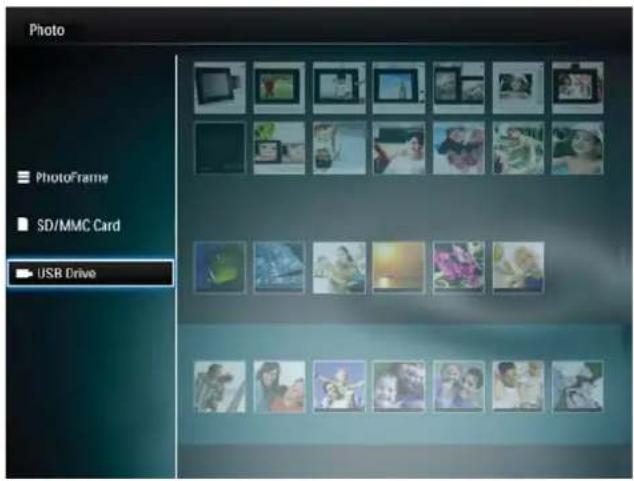
2 Select a storage device and then select a photo thumbnail.
3 Press OK. → Photos are displayed in slideshow mode.
- During slideshow, press ◀/▶ to display the next/previous photo.
Manage slideshow and photos
You can take the following steps to manage the photo in slideshow mode or change the slideshow settings:
1 Press MENU.
An option menu is displayed.

2 Select an option, and then press OK.
• [Slideshow Settings]
• [Interval]: Set the interval in slideshow. • [Shuffle]: Play media randomly or not. • [Color Tone]: Select the color for the photo. • [Transition Effect]: Select the transition effect. • [Background Color]: Select the background color.
• [Zoom]: Zoom and crop a photo. - [Rotate]: Select an orientation to rotate the photo. • [Copy]: Copy the photo to another album. • [Delete]: Delete the photo. • [Brightness]: Move the joystick up/down to adjust the brightness of display.
Manage albums and media
Storage device
1 Select a storage device: [PhotoAlbum], [SD/MMC Card], or [USB Drive].
2 Press MENU.
→ An option menu is displayed.
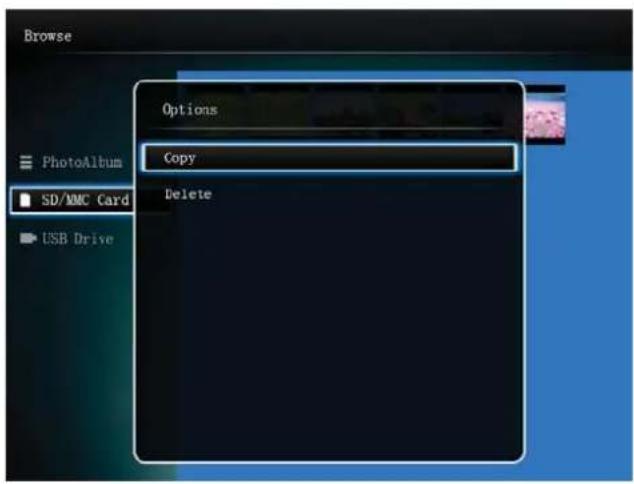
3 Select an option, and then press OK to continue.
• [Copy]: Copy media on the storage device to another one - [Delete]: Delete media on the storage device
Thumbnail
1 Select a photo thumbnail. 2 Press MENU.
An option menu is displayed.

3 Select an option, and then press OK to continue.
• [Copy]: Copy this photo to another storage device • [Delete]: Delete this photo • [Color Tone]: Select a color for this photo
Copy media
1 Select [Copy], and then press OK. 2 Select a destination storage device, and then press OK to start copy.
Delete media
1 Select [Delete], and then press OK. → A confirmation message is displayed. 2 Select [Yes], and then press OK to start deletion.
- To cancel the operation, press BACK|POWER.
5 Play videos

Note
- See "Your PhotoFrame" > " playable media" for supported video formats.
- Some video files in the list cannot be played due to the compatibility.

1 In the home menu, press ◀ ▶ to select [Video], and then press OK. → The following interface is displayed.
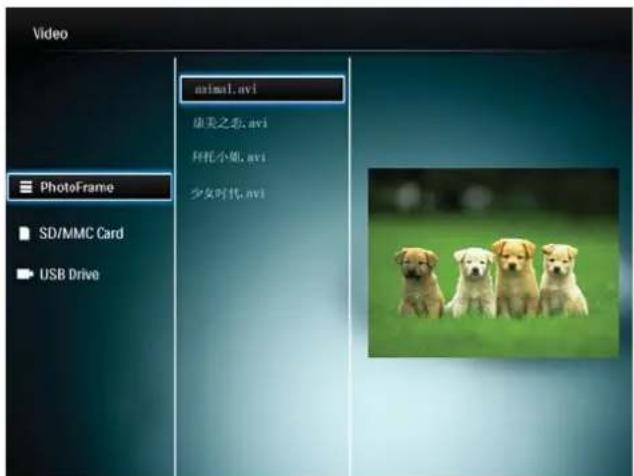
2 Select a video file and then press OK.
→ The video starts play.
• To pause/resume play, press OK.
• To adjust the volume, press ▲ / ▼
Manage video files
1 Select a video file, and then press MENU. 2 Select an option, and then press OK.
• [Copy]: Copy this file to another storage device
• [Delete]: Delete this file
• [Repeat]: Select a play mode between [Play Once] and [Play in Loop]
6 Clock and calendar
You can display clock and calendar in slideshow or display the clock separately.
1 Make sure that you have set the time and date correctly. 2 In the home menu, press ◀ to select [Clock], and then press OK.

3 Press ◀ to select different clock/calendar display mode.

Clock menu
1 With the clock displayed, press MENU. → An option menu is displayed.
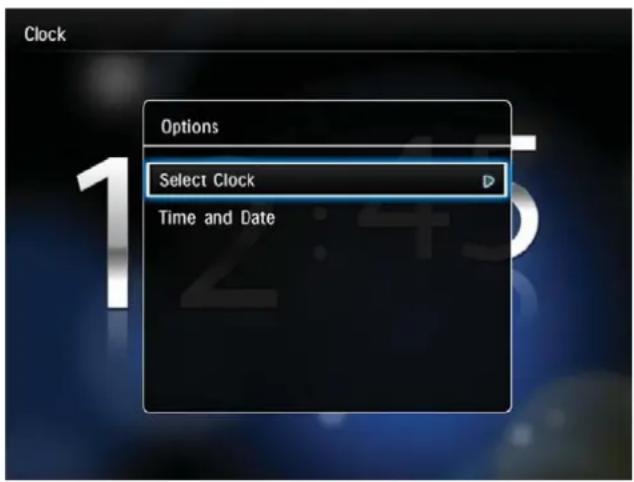
2 Select an option and then press OK.
- [Select Clock]: Press ◀/▶ to preview clock/calendar styles, and then press OK to select the highlighted one. • [Time and Date]: Set the time and date.
7 Setup
In the home menu, press ◀/ ▶ to select [Settings], and then press OK.

Select an on-screen language
1 Select [Language], and then press OK.

2 Select a language, and then press OK.
Adjust display brightness
1 Select [Brightness], and then press OK.
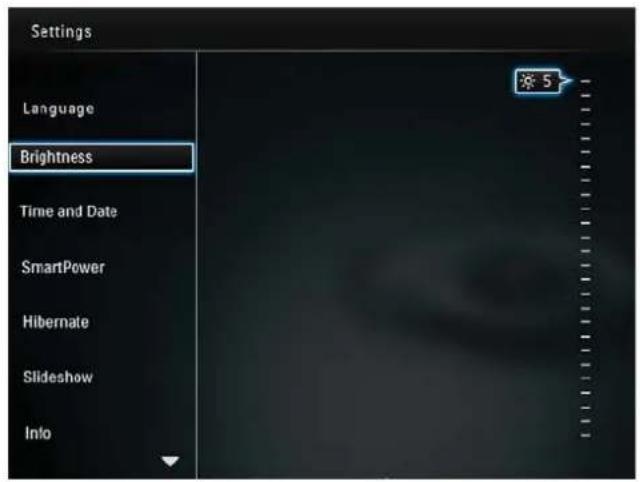
2 Press ▲ to select a brightness level, and then press OK.
Set time and date
1 Select [Time and Date], and then press OK.

2 Select [Set Time], [Set Date], [Select Time Format], or [Select Date Format], and then press OK.
3 Press ▲ /▼/ ◀ to set the value, and then press OK.

Note
- If the PhotoFrame is disconnected from the power supply for a long time, you need to set time and date again after you turn on the PhotoFrame.
Set SmartPower timer
With the SmartPower timer, you can configure the time for the display of the PhotoFrame to turn on or turn off automatically. When the display automatically turns off, the PhotoFrame goes to standby (sleep) mode.

Note
- Make sure that the current time of the PhotoFrame is set correctly.
1 Select [SmartPower], and then press OK.

2 Select [Set On-Time] / [Set Off-Time], and then press OK.
3 Move the joystick up/down/right/left to set time, and then press OK.
- To switch off the SmartPower function, select [Off] and then press OK.

Tip
- When the PhotoFrame is in standby (sleep) mode, you can press ⏻ to wake up the PhotoFrame.
Hibernate the PhotoFrame
1 Select [Hibernate], and then press OK.

2 Select an option, and then press OK. → After the selected period, the PhotoFrame hibernates.
• To disable the hibernation function, select [Never] and then press OK. • To wake up the PhotoFrame, press ⏻.
Slideshow setting
1 Select [Slideshow], and then press OK.
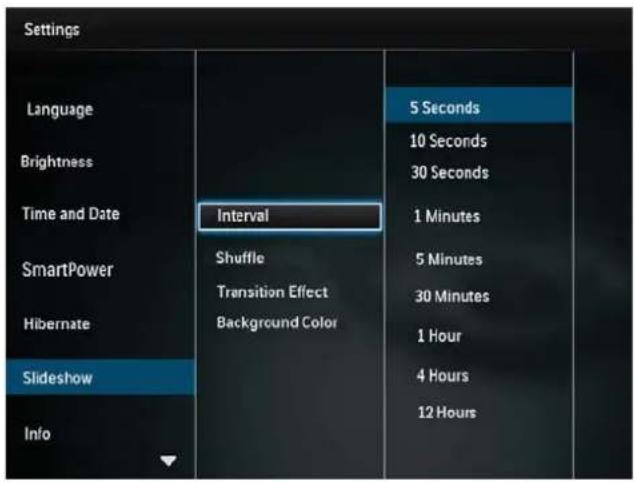
2 Select an item and then press OK.
• [Interval]: Select a time interval for two consecutive photos • [Shuffle]: Display photos randomly • [Transition Effect]: Select a transition effect • [Background Color]: Select a background type for slideshow
3 Select an option, and then press OK.
View the status of the PhotoFrame
Select [Info].
→ The information of the PhotoFrame is displayed on the right of the screen.

Restore factory defaults
1 Select [Default Settings], and then press OK.
A confirmation message is displayed.
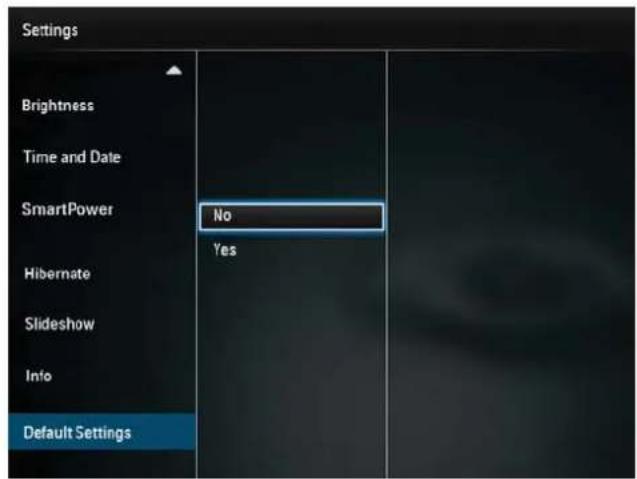
2 Select [Yes], and then press OK.
8 Upgrade the PhotoFrame

Caution
- Do not power off the PhotoFrame during upgrade.
If there is a software update, you can download the latest software from www.philips.com/support to upgrade your PhotoFrame. The earlier software is unavailable on line.
1 Visit www.philips.com/support. 2 Search for your PhotoFrame and go to the software section. 3 Download the latest software onto the root directory of an SD card. 4 Insert the SD card into the PhotoFrame. 5 Turn on the PhotoFrame A confirmation message is displayed.
6 Select [Yes], and then press OK to confirm.
When the upgrade is complete, the PhotoFrame reboots.
9 Product information

Note
- Product information is subject to change without prior notice.
Picture/Display
- Viewing angle: @ C/R > 10, 120° (H)/100° (V) • Lifetime, to 50% brightness: 20000 hr
- Aspect ratio: 4:3 • Panel visible resolution: 800 × 600 • Best-fit photo resolution: 800 × 600 • Brightness (typical): 160 cd/m² • Contrast ratio (typical): 300:1 • Photo format supported:
- Baseline JPEG photo (Up to 20 MB JPEG files, Up to 64 Megapixels)
- Progressive JPEG photo (Up to 800 x 600 pixels)
- BMP photo (Higher than 64 x 64 pixels)
Storage media
• Memory card types:
- Secure Digital (SD)
- Secure Digital (SDHC) • Multimedia Card (MMC)
- Memory Stick (MS) • Memory Stick Pro (MS Pro)
- USB storage device:
- Compatibility: USB 2.0 • Class support: MSC (Mass Storage Class) • Maximum memory: 64 GB
- File system: FAT32 • Maximum number of files: 10,000 • Maximum level of directory: 5
• Built-in memory capacity: 2 GB
Dimensions & Weight
- Set dimensions without stand (W × H × D): 205.5 × 138 × 25 mm
- Set dimensions with stand (W × H × D): 205.5 × 138 × 102.5 mm • Weight without stand: 0.31 kg
Power
• Power mode supported: AC powered • Efficiency level: V • Average consumption (system on): 5 W - Power adaptor: • Model number: AY5808/05 - Input: AC 100-240 V~, 50/60 Hz, 0.45 A • Output: DC 9 V = 1000 mA
Temperature
• Operation: 0°C - 40°C / 32°F - 104°F • Storage: -10°C - 60°C / 14°F - 140°F
10 Frequently asked questions
Is the LCD screen touch-enabled?
The LCD screen is not touch-enabled. Use the buttons on the back to control the PhotoFrame.
Can I switch different slideshow photos by using different memory cards?
Yes. When a memory card is connected to the PhotoFrame, you can play photos on the specific memory card in slideshow mode.
Will the LCD be damaged, if I keep showing the same photo for a long time?
No. The PhotoFrame can display the same photo continuously for 72 hours without any damage to the LCD screen.
Why does my PhotoFrame not show some of my photos?
The PhotoFrame supports only JPEG and BMP photos. Make sure that these photos are not damaged.
Why does my PhotoFrame not show some of my video files?
- The PhotoFrame plays most video clips of a digital still camera in M-JPEG (*.avi/*.mov), MPEG-1 (*.mpg/*.dat/*.avi/*.mov), and MPEG-4 (*.avi/*.mov/*.mp4) format. Some video clips might have compatibility issues when played on your PhotoFrame. Before playing, make sure that these video clips are compatible with your PhotoFrame. (For details, see "Your PhotoFrame" > "playable media" in the User Manual)
- Make sure that the size of the video files are applicable to your PhotoFrame. • Make sure that the video files are not damaged.
Can I use the PhotoFrame during its display auto-off periods?
Yes. You can press and hold to wake up the PhotoFrame.
Why does the PhotoFrame not go into auto-off status after I set it?
Ensure that you set the current time, auto-off time, and auto-on time correctly. The PhotoFrame automatically turns off its display exactly at the auto-off time. If the time has already passed for the day, it starts to enter auto-off status at the specified time from the next day.
Can I increase the memory size to store more pictures on the PhotoFrame?
No. The internal memory of the PhotoFrame is fixed and cannot be expanded. However, you could switch between different photos by using different storage devices on the PhotoFrame.
After I insert a memory card and transfer all content to the PhotoFrame, I find that the folder structure saved on the PhotoFrame is different from the original structure on the memory card. Why?
The PhotoFrame can only read a folder structure up to 3 levels and write on only 1-level folder structure. In that case, photos on a memory card, which are in folders with the same name but in different levels, will be saved in the same folder on the PhotoFrame. For example, photos in folders "\AA", "\01\AA" and "\02\AA" on a memory card will all be copied into the folder named "\AA" on the PhotoFrame.
What is the best resolution of photos to be displayed on the PhotoFrame?
The best resolution is 800 x 600 pixels, or a similar aspect ratio.
Why does the PhotoFrame automatically turn off?
If you enable the SmartPower function, the PhotoFrame automatically turns off at the preset time. For details, see section "Set display auto on/off".
11 Glossary
A
Aspect ratio
Aspect ratio refers to the length to height ratio of TV screens. The ratio of a standard TV is 4:3, while the ratio of a high-definition or wide TV is 16:9. The letter box allows you to enjoy a picture with a wider perspective on a standard 4:3 screen.
J
JPEG
A very common digital still picture format. A still-picture data compression system proposed by the Joint Photographic Expert Group, which features small decrease in image quality in spite of its high compression ratio. Files are recognized by their file extension '.jpg' or '.jpeg.'
K
Kbps
Kilobits per second. A digital-data-rate measurement system which is often used with highly compressed formats such as AAC, DAB, MP3 etc. The higher the amount, the better the quality generally is.
Kensington lock
A Kensington Security Slot (also called a K-Slot or Kensington lock). Part of an anti-theft system. It is a small, metal-reinforced hole found on almost all small or portable computer and electronics equipment, particularly on expensive and/or relatively light ones, such as laptops, computer monitors, desktop computers, gaming consoles, and video projectors. It is used for attaching a lock-and-cable apparatus, in particular those from Kensington.
M
Memory Stick
Memory Stick. A flash memory card for digital storage on cameras, camcorders and other handheld devices.
MMC Card
MultiMedia Card. A flash memory card that provides storage for cellphones, PDAs and other handheld devices. The card uses flash memory for read/write applications or ROM chips (ROM-MMC) for static information, the latter widely used for adding applications to a Palm PDA.
S
SD Card
Secure Digital Memory Card. A flash memory card that provides storage for digital cameras, cellphones and PDAs. SD Cards use the same 32 × 24mm form factor as the MultiMediaCard (MMC), but are slightly thicker (2.1mm vs. 1.4mm), and SD Card readers accept both formats. Cards up to 4GB are available.
T
Thumbnail
A thumbnail is a reduced-size version of a picture that is used to make it easier to recognize and identify it. Thumbnails serve the same role for images as a normal text index does for words.



- USER MANUAL
- PHILIPS
- CONTENTS
- IMPORTANT
- YOUR PHOTOFRAME
- GET STARTED
- DISPLAY PHOTOS
- PLAY VIDEOS
- CLOCK AND CALENDAR
- SETUP
- NEED HELP
- SAFETY
- SAFETY PRECAUTIONS AND MAINTENANCE
- NOTICE
- CE
- BE RESPONSIBLE. RESPECT COPYRIGHTS
- END OF LIFE DISPOSAL
- RECYCLING INFORMATION FOR CUSTOMERS
- RECYCLING
- BANNED SUBSTANCE DECLARATION
- INTRODUCTION
- PLAYABLE MEDIA
- PHOTO
- VIDEO
- WHAT'S IN THE BOX
- OVERVIEW OF YOUR PHOTOFRAME
- ① BACK|POWER
- ② ▲ / ▼/ ◀️
- ③ OK
- ④ MENU
- ⑤ USB SOCKET
- ⑥ DC
- ⑦ SD/MMC/MS/MS PRO
- ⑧ 🔒 KENSINGTON LOCK
- CAUTION
- INSTALL THE STAND
- CONNECT POWER
- NOTE
- TURN ON THE PHOTOFRAME
- TURN OFF THE PHOTOFRAME
- TRANSFER PHOTOS
- QUICK MENU
- MANAGE SLIDESHOW AND PHOTOS
- MANAGE ALBUMS AND MEDIA
- STORAGE DEVICE
- THUMBNAIL
- COPY MEDIA
- DELETE MEDIA
- MANAGE VIDEO FILES
- CLOCK MENU
- SELECT AN ON-SCREEN LANGUAGE
- ADJUST DISPLAY BRIGHTNESS
- SET TIME AND DATE
- SET SMARTPOWER TIMER
- TIP
- HIBERNATE THE PHOTOFRAME
- SLIDESHOW SETTING
- VIEW THE STATUS OF THE PHOTOFRAME
- RESTORE FACTORY DEFAULTS
- UPGRADE THE PHOTOFRAME
- PRODUCT INFORMATION
- PICTURE/DISPLAY
- STORAGE MEDIA
- DIMENSIONS & WEIGHT
- POWER
- TEMPERATURE
- FREQUENTLY ASKED QUESTIONS
- IS THE LCD SCREEN TOUCH-ENABLED
- CAN I SWITCH DIFFERENT SLIDESHOW PHOTOS BY USING DIFFERENT MEMORY CARDS
- WILL THE LCD BE DAMAGED, IF I KEEP SHOWING THE SAME PHOTO FOR A LONG TIME
- WHY DOES MY PHOTOFRAME NOT SHOW SOME OF MY PHOTOS
- WHY DOES MY PHOTOFRAME NOT SHOW SOME OF MY VIDEO FILES
- CAN I USE THE PHOTOFRAME DURING ITS DISPLAY AUTO-OFF PERIODS
- WHY DOES THE PHOTOFRAME NOT GO INTO AUTO-OFF STATUS AFTER I SET IT
- CAN I INCREASE THE MEMORY SIZE TO STORE MORE PICTURES ON THE PHOTOFRAME
- AFTER I INSERT A MEMORY CARD AND TRANSFER ALL CONTENT TO THE PHOTOFRAME, I FIND THAT THE FOLDER STRUCTURE SAVED ON THE PHOTOFRAME IS DIFFERENT FROM THE ORIGINAL STRUCTURE ON THE MEMORY CARD. WHY
- WHAT IS THE BEST RESOLUTION OF PHOTOS TO BE DISPLAYED ON THE PHOTOFRAME
- WHY DOES THE PHOTOFRAME AUTOMATICALLY TURN OFF
- GLOSSARY
- A
- ASPECT RATIO
- J
- JPEG
- K
- KBPS
- KENSINGTON LOCK
- M
- MEMORY STICK
- MMC CARD
- S
- SD CARD
- T
Brand : PHILIPS
Model : SPF1528
Category : Digital photo frame