
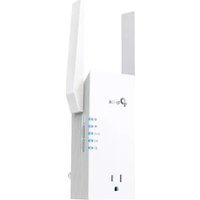
TL-WA750RE - Wi-Fi repeater TP-LINK - Free user manual and instructions
Find the device manual for free TL-WA750RE TP-LINK in PDF.


| Product Type | Wi-Fi Repeater |
| Brand | TP-Link |
| Model | TL-WA750RE |
| Dimensions (L x W x H) | 70 x 40 x 35 mm |
| Weight | 50 g |
| Power Supply | Built-in power plug (100-240 V, 50/60 Hz) |
| Power Consumption | 3 W (max) |
| Wi-Fi Standards | IEEE 802.11 b/g/n (2.4 GHz) |
| Maximum Data Rate | 300 Mbps (theoretical) |
| Buttons | WPS, Reset |
| LED Indicators | Power, Signal, WPS |
| Main Functions | Wi-Fi range extension, access point mode, WPS |
| Security | WPA2-PSK, WPA-PSK, WEP (64/128 bits) |
| Configuration | Via web browser or Tether app (Android/iOS) |
| Maintenance and Cleaning | Unplug before cleaning; use a dry, soft cloth |
| Spare Parts | No detachable parts; sealed unit |
| Repairability | Not user-serviceable; contact customer service |
| Operating Temperature | 0 °C to 40 °C |
| Operating Humidity | 10% to 90% (non-condensing) |
| Package Contents | Repeater, quick installation guide |
Frequently Asked Questions - TL-WA750RE TP-LINK
User questions about TL-WA750RE TP-LINK
0 question about this device. Answer the ones you know or ask your own.
Ask a new question about this device
Download the instructions for your Wi-Fi repeater in PDF format for free! Find your manual TL-WA750RE - TP-LINK and take your electronic device back in hand. On this page are published all the documents necessary for the use of your device. TL-WA750RE by TP-LINK.
USER MANUAL TL-WA750RE TP-LINK
TP-Link Technologies Co., Ltd. South Building(floors 1,3,4,5) and 28(floors 1-4), Central Science & Technology Park, Shennan Rd, Nanshan, Shenzhen, China
TP-Link UK Limited Unit 2 & 3 Riverview (142-144), Cardiff Road, Reading, RG1 8EW
TP-Link France SARL 16-18 avenue Morane Saulnier 78140 Vélizy-Villacoublay France
TP-Link Hellas Ltd. Marathonodromou 77, Marousi 151 24, Greece
Specifications are subject to change without notice. 📋tp-link is a registered trademark of TP-Link Technologies Co., Ltd. Other brands and product names are trademarks or registered trademarks of their respective holders.
No part of the specifications may be reproduced in any form or by any means or used to make any derivative such as translation, transformation, or adaptation without permission from TP-Link Technologies Co., Ltd. Copyright © 2020 TP-Link Technologies Co., Ltd. All rights reserved.

For technical support, the user guide and other information, please visit https://www.tp-link.com/support/, or simply scan the QR code.
7106508577 REV3.0.0

Quick Installation Guide
Wi-Fi Range Extender
*Images may differ from actual products.
Contents
Deutsch----1
English 4
Español 7
Ελληνικά----10
Français----13
Italiano 16
Português 19
Suomi 22
Nederlands 25
Svenska----28
Norsk----31
Dansk 34
1 Einschalten
oder

→

natural_image
Icon of a house with Wi-Fi signal inside, no text or symbols presentMethode 2: Per Webbrowser
natural_image
Line drawing of five electronic devices: monitor, controller, desktop, WiFi, and router (no text or symbols)Plug the extender into an electrical outlet near your router and press the power button if it has one.
2 Connect your computer to the extender
Via Wireless
Disconnect your Ethernet connection from your computer and connect to the extender's network (e.g. TP-Link_Extender or TP-Link_Extender_XXXX).
Via Ethernet Cable (If the extender has an Ethernet port)
Disable the Wi-Fi on your computer. Connect your computer to the extender via an Ethernet cable.
3 Configure
Set up your extender via one of the methods.
Method 1: Via TP-Link Tether App
Get the up-to-date Tether app, and follow the app instructions to complete the setup.

Method 2: Via a Web Browser
1 Launch a web browser and enter http://tplinkrepeater.net or
http://192.168.0.254 in the address bar.
Create a password to log in.
2 Follow the instructions on the web page to complete the initial configuration.
4 Relocate
To achieve better signal quality, plug in the extender halfway between your router and the Wi-Fi dead zone.

flowchart
graph LR
    A["Host Network Extended Network"] --> B["Router"]
    B --> C["Extender"]
    C --> D["Clients"]
    style A fill:#f9f,stroke:#333
    style B fill:#ccf,stroke:#333
    style C fill:#cfc,stroke:#333
    style D fill:#fcc,stroke:#333

Enjoy!
Connect your device to the extender using the extended SSID and Wi-Fi password that you've set during the configuration. The default Wi-Fi password is the same as your host network.
Entertainment Adapter
If your extender has an Ethernet port, it can be used as a wireless adapter to connect any Ethernet-only device such as a Blu-ray player, game console, DVR, or smart TV to your Wi-Fi network.
First, connect the extender to your router, then connect your Ethernet-only device to the extender via an Ethernet cable.

flowchart
graph LR
    A["Smart TV"] --> B["Game Console"]
    B --> C["Desktop"]
    C --> D["Router"]
    style A fill:#f9f,stroke:#333
    style B fill:#ccf,stroke:#333
    style C fill:#cfc,stroke:#333
    style D fill:#fcc,stroke:#333
FAQ (Frequently Asked Questions)
Q1 Why can't I see the login page after entering http://tplinkrepeater.net in the browser?
A1: Make sure your computer is connected to the extender either via the extended SSID or via an Ethernet cable (if the extender has an Ethernet port).
A2: Make sure your computer is set to obtain an IP address automatically.
A3: Use the IP address to access the extender. The default IP is 192.168.0.254. If the extender is connected to the router, you should go to your router's DHCP client list to obtain the extender's current IP address.
A4: Reset the extender and connect to its wireless network, enter http://tplinkrepeater.net or http://192.168.0.254 in a web browser and press Enter.
Q2 How do I reset the extender?
A: With the extender powered on, press the RESET button until the LEDs turn on momentarily, then release the button.
1 Encender
natural_image
Line drawing of five electronic devices connected by a cable, including monitor, controller, tower, router, and network (no text or symbols)Metodo 2: tramite Browser Web
natural_image
Diagram showing five connected devices: monitor, controller, desktop, router, and network switch (no text or labels)Ou

→

natural_image
Icon of a house with Wi-Fi signal inside, no text or symbols presentnatural_image
Line drawing of five electronic devices: monitor, controller, desktop, router, and network switch (no text or symbols)Eller

Eller

→

natural_image
Icon of a house with Wi-Fi signal symbol inside, no text or numbers presentMetode 2: Via a nettleser
- Keep the device away from water, fire, humidity or hot environments.
- Do not attempt to disassemble, repair, or modify the device.
- Do not use the device where wireless devices are not allowed.
- The socket-outlet shall be installed near the equipment and shall be easily accessible.
- For passthrough devices, plug the power strips into the integrated electrical sockets of the devices, but devices of the same or another type not be stacked in normal use.

Please read and follow the above safety information when operating the device. We cannot guarantee that no accidents or damage will occur due to improper use of the device. Please use this product with care and operate at your own risk.
TP-Link Three Years Limited Product Warranty
For TP-Link Branded Products Only.
THIS WARRANTY GIVES YOU SPECIFIC LEGAL RIGHTS, AND YOU MAY HAVE OTHER RIGHTS THAT VARY FROM STATE TO STATE (OR BY COUNTRY OR PROVINCE).
TO THE EXTENT ALLOWED BY LOCAL LAW, THIS WARRANTY AND THE REMEDIES SET FORTH ARE EXCLUSIVE AND IN LIEU OF ALL OTHER WARRANTIES, REMEDIES AND CONDITIONS.
TP-Link warrants the TP-Link branded hardware product contained in the original packaging against defects in materials and workmanship when used normally in according with TP-Link's guidelines for a period of THREE YEARS form the date of original retail purchase by the end-user purchaser.
Español
TP-Link hereby declares that the device is in compliance with the essential requirements and other relevant provisions of directives (EU)2015/863, 2014/53/EU, 2009/125/EC and 2011/65/EU.
The original EU declaration of conformity may be found at http://www.tp-link.com/en/ce.
Español

- Quick Installation Guide
- Contents
- Einschalten
- Methode 2: Per Webbrowser
- Connect your computer to the extender
- Configure
- Relocate
- Enjoy!
- Entertainment Adapter
- FAQ (Frequently Asked Questions)
- Encender
- Metodo 2: tramite Browser Web
- Metode 2: Via a nettleser
- TP-Link Three Years Limited Product Warranty
- Español
Brand : TP-LINK
Model : TL-WA750RE
Category : Wi-Fi repeater