
P-400 - Photo printer OLYMPUS - Free user manual and instructions
Find the device manual for free P-400 OLYMPUS in PDF.


| Product type | Digital photo printer |
| Brand | OLYMPUS |
| Model | P-400 |
| Dimensions (L × D × H) | 422 mm × 275 mm × 311 mm |
| Weight | 24.9 lb (approx 11.3 kg) |
| Power supply | 120 V AC, 50/60 Hz, 180 W |
| Printing method | Dye-sublimation thermal transfer |
| Resolution | 314 dpi |
| Gradation levels | 256 levels per dot |
| Print head | 2400 dots |
| Effective print width | 194 mm |
| Maximum print area | 2400 × 3200 dots (194 × 258 mm) |
| Supported paper sizes | A4, A5 wide, postcard paper (P-A4P), L-size paper (via adapter) |
| Paper tray capacity | 50 sheets |
| Ink cartridge | Capacity 50 sheets, YMC colors + OP protective layer |
| Print time | Approximately 90 seconds for an A4 max photo (excluding transmission) |
| Interfaces | IEEE1284 (Parallel), USB, SmartMedia, PCMCIA Type II |
| Compatible image formats | DCF, JFIF, EXIF, DPOF (selection, quantity, cropping) |
| LCD screen | Monochrome, 128 × 128 pixels, 16 grayscale levels |
| Main functions | Standard printing, card, photo album, index, filter, date, rotation, stamp, background, frame |
| Maintenance | Unplug before cleaning; use a dry cloth; avoid solvents, benzine, thinner |
| Safety | Do not disassemble; do not block ventilation; use a separate outlet; do not touch hot or live internal parts |
| Spare parts and repairability | Ink cartridges, paper trays, ink ribbons available; repair by authorized service; 1-year warranty |
| Operating temperature | 5 to 35 °C |
| Operating humidity | 30 to 85% |
| Power consumption | 180 W |
Frequently Asked Questions - P-400 OLYMPUS
User questions about P-400 OLYMPUS
0 question about this device. Answer the ones you know or ask your own.
Ask a new question about this device
Download the instructions for your Photo printer in PDF format for free! Find your manual P-400 - OLYMPUS and take your electronic device back in hand. On this page are published all the documents necessary for the use of your device. P-400 by OLYMPUS.
USER MANUAL P-400 OLYMPUS
Two Corporate Center Drive, Melville, NY 11747-3157, U.S.A. Tel. 631-844-5000
(Customer support) Tel. 1-888-553-4448
www.olympusamerica.com
distec@olympus.com
OLYMPUS OPTICAL CO.(EUROPA) GMBH.
(Premises/Goods delivery) Wendenstraße 14-16, 20097 Hamburg, Germany. Tel. 040-237730
(Letters) Postfach 10 49 08, 20034 Hamburg, Germany.
www.olympus-europa.com
OLYMPUS OPTICAL CO.(U.K.) LTD.
2-8 Honduras Street, London EC1Y 0TX, United Kingdom. Tel. 0171-253-2772
CAMEDIA
DIGITAL COLOR PRINTER
Thank you for purchasing this OLYMPUS P-400 digital color printer. Read this manual carefully prior to use to ensure correct use of this product.
Notes
This equipment has been tested and found to comply with the limits for a Class B digital device, pursuant to part 15 of the FCC Rules. These limits are designed to provide reasonable protection against harmful interference in a residential installation. This equipment generates, uses and can radiate radio frequency energy and, if not installed and used in accordance with the instructions, may cause harmful interference to radio communications. However, there is no guarantee that interference will not occur in a particular installation. If this equipment does cause harmful interference to radio or television reception, which can be determined by turning the equipment off and on, the user is encouraged to try to correct the interference by one or more of the following measures:
- Reorient or relocate the receiving antenna.
- Increase the separation between the equipment and receiver.
- Connect the equipment into an outlet on a circuit different from that to which the receiver is connected.
- Consult the dealer or an experienced radio/TV technician for help.
Information
This class B digital apparatus complies with Canadian ICES-003.
Notes
- Unauthorized copying or reproduction of any portion of this manual by any means is strictly prohibited.
- All contents of this manual are subject to change without notice.
- Please be aware that the manufacturer does not assume responsibility for circumstances in any from that occur as a result use of this product.
- Please be aware that the manufacturer does not assume responsibility for damage and so forth caused by improper use of the product by the customer, handling of the product not in accordance with the contents of this manual, or repairs or alterations made on the product by a third party other than a representative of OLYMPUS or persons designated by OLYMPUS.
- Please be aware that the manufacturer does not assume responsibility for conditions caused by the installation of options or consumables other than genuine OLYMPUS products or OLYMPUS quality certified products.
This digital color printer comes with four instruction manuals. Please make sure you have a thorough understanding of the contents of these manuals so that you can use them corresponding to the particular situation.
- READ THIS FIRST
This manual provides an explanation of the preparations made for use of this printer. Always make sure to read this manual first.
- INSTALLATION GUIDE
This manual provides an explanation of the procedure for installing the printer driver software.
EASY PRINTING GUIDE (this guide)
This guide provides an explanation of the things you can do with this printer along with the procedures for printing with the printer alone.
- INSTRUCTIONS
This manual provides detailed explanations of the functions and setting procedures of this printer. In addition, it also provides a detailed explanation of the procedure for operating the printer with a personal computer.
Table of Contents
For Safe Use 1
Identifying the Parts 6
Printer Body 6
Operation Panel 7
Paper Cassette 8
Ink Cassette 8
What you can do with the P-400 Digital Color Printer ...... 9
Types of Prints 10
Print Processing 13
Procedure for Printing with a Card 18
From the Start to End of Printing 18
Explanation of the LCD Panel 20
Basic Printing 22
Common Setup 22
STANDARD PRINTING 25
CARD PRINTING 28
PHOTO-ALBUM PRINTING 33
INDEX PRINTING 46
Appendix 50
Introduction to Color Printing 50
DPOF (Digital Print Order Format) 51
Changing Color by Adjusting the Printer 52
Troubleshooting 55
Specifications 63
Service 64
It is dangerous to tamper with the printer because this can cause fire or electric shock possibly resulting in death or serious injury. Before use, read the safety precautions thoroughly and follow them for proper handling.
This manual uses the following icons to indicate hazardous situations.
| Icon | Description |
| WARNING | Indicates a hazardous situation that, if not avoided, may cause fire or electric shock possibly resulting in death or serious injury. |
| CAUTION | Indicates a hazardous situation that, if not avoided, may cause an electric shock or other accidents possibly resulting in injury and/or property damage. |
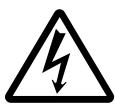
The lightning flash with arrowhead symbol, within an equilateral triangle, is intended to alert the user to the presence of uninsulated "dangerous voltage" within the product's enclosure that may be of sufficient magnitude to constitute a risk of electric shock. Do not open.

The exclamation point within an equilateral triangle is intended to alert the user to the presence of important operating and maintenance (servicing) instructions in the literature accompanying the appliance. See instruction manual.
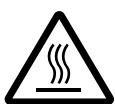
CAUTION: Hot surface. Keep fingers and other body parts away from the hot surface.

NOTE: Electrostatic sensitive devices. Keep fingers and other body parts away from the devices.

WARNING
If anything strange occurs with the printer, unplug the power cord.
If the printer emits smoke, strange smells, or strange sounds, turn off and unplug the printer to prevent fire or electric shock. Then contact your dealer.
Should any liquid or foreign object fall into the printer, unplug the power cord.
Do not allow any liquids, metals, or inflammable objects to get into the printer through the vent. This may cause fire or electric shock. Turn off and unplug the printer, and then contact your dealer.
If the printer cabinet is damaged, unplug the power cord.
Using the printer when the cabinet is damaged may cause fire or electric shock. Turn off and unplug the printer, and then contact your dealer.
If the power cord is damaged, unplug it.
A damaged power cord may result in fire or electric shock. Turn the printer off and unplug the power cord while being careful not to touch the wires in the cord. Then contact your dealer.
Do not damage the power cord.
A damaged power cord may result in fire or electric shock.
To prevent the cord from being damaged, pay attention to the following.
- Do not pull the cord with a jerk.
- Do not bend the cord excessively.
- Do not heat the cord.
- Do not place heavy objects on the cord.
- Do not rewire the cord.
If the power cord is damaged, contact your dealer.
- Do not disassemble or modify the printer.
The printer has both hot and high voltage parts on the inside. To prevent an electric shock or printer malfunction, do not attempt to disassemble or modify the printer. For service or repair, contact your dealer.
Do not place liquids on the printer.
Should any liquid seep into the printer, it may result in fire or electric shock.

WARNING
■ Do not place heavy objects on the printer.
Doing so may deform the printer cabinet, resulting in fire or electric shock. If the printer falls out of place or is dropped, it may be damaged.
- Do not install the printer in the following places.
To prevent fire, electric shock, and printer malfunction do not install the printer in the following places.
- Dusty, humid, or oily places
- Should any dust or liquid get into the printer, it may result in fire or electric shock.
- Extremely hot places
- Do not expose the printer to direct sunlight or extremely high temperature such as near a heater. Doing so may deform the printer cabinet, resulting in fire or electric shock.
Use the printer at the ambient temperature of 41 to 95^ (5 to 35^ ) and humidity of 30 to 85% .
- Do not use the printer with a power supply other than that specified.
Incorrect voltage may damage printer parts, possibly resulting in fire or electric shock.
Connect the power cord correctly.
For example, if the power cord is plugged in loosely, it may cause a fire or electric shock. Push the plug all the way into the outlet.
Make sure that excessive dust and foreign matter do not accumulate on the power cord.
Dust and foreign matter conduct electricity, which can cause fire and electric shock. If excessive dust and foreign matter accumulate on the cord, unplug the cord and clean it.
- Immediately unplug the power cord when an electric storm starts outside.
The induced electricity from storms may cause fire, electric shock, or printer malfunction.
- Do not overload the power outlet.
This printer should be plugged into a separate 120V AC, 50/60Hz circuit. If the printer is on a circuit with other appliances, an overload may cause fire or electric shock.

CAUTION
Do not block the vent.
Doing so may cause the printer to heat up, possibly resulting in fire or electric shock.
- Do not block the top or side vent.
-
Do not put the printer in the following places.
-
Badly-ventilated place
- On a soft surface like a rug or bed
■ Do not put the printer on an unstable surface such as a shaky table.
If the printer falls out of place, it may injure someone. This may also damage the printer or cause the printer to malfunction.
■ Do not touch the non-user-serviceable parts inside the printer.
Doing so may cause injury or burns. This applies especially to children and those unfamiliar with the printer.
■ Do not move the printer when the power cord is taut.
Doing so may damage the cord, possibly resulting in fire or electric shock. When moving the printer, unplug and bundle the power cord.
Do not pull the cord with a jerk.
To unplug the power cord, hold it by the plug.
Pulling on the cord may damage it, possibly resulting in fire or electric shock.
- Do not hold the power cord plug with wet hands.
Doing so may cause an electric shock. Be sure hands are dry before handling.
CAUTION
Unplug the power cord from the power outlet before cleaning the printer.
Accidentally touching a non-user-serviceable part may cause electric shock.
Unplug the printer if it will not be used for an extended period of time, for example while you are on a long trip.
Otherwise, deteriorated insulation or leakage current may cause fire or electric shock.
Beware of moisture condensation.
Moisture condensation means that water vapor in the air becomes liquid and sticks to the printer surface. This phenomenon is caused by the following.
- Rapidly heating the room in which the printer is placed
- Cool air (from an air conditioner, etc.) blown directly at the printer
- Moving the printer from a cold place to a warm place
Moisture in the air will condense on the paper, deteriorating print quality or causing paper jams.
Under conditions where moisture condensation has occurred or may occur, keep the printer turned on and wait until there is no possibility that condensation will occur.
!NOTE
- Do not spray volatile solvent on the printer or allow the printer to be in contact with rubber or plastic products for an extended period of time.
For example, spraying an insecticide on the printer or wiping it with thinner or benzine may deteriorate or discolor the printer cabinet. Such deterioration and discoloring also occurs if the printer is in contact with rubber or plastic products for an extended period of time.
Printer Body
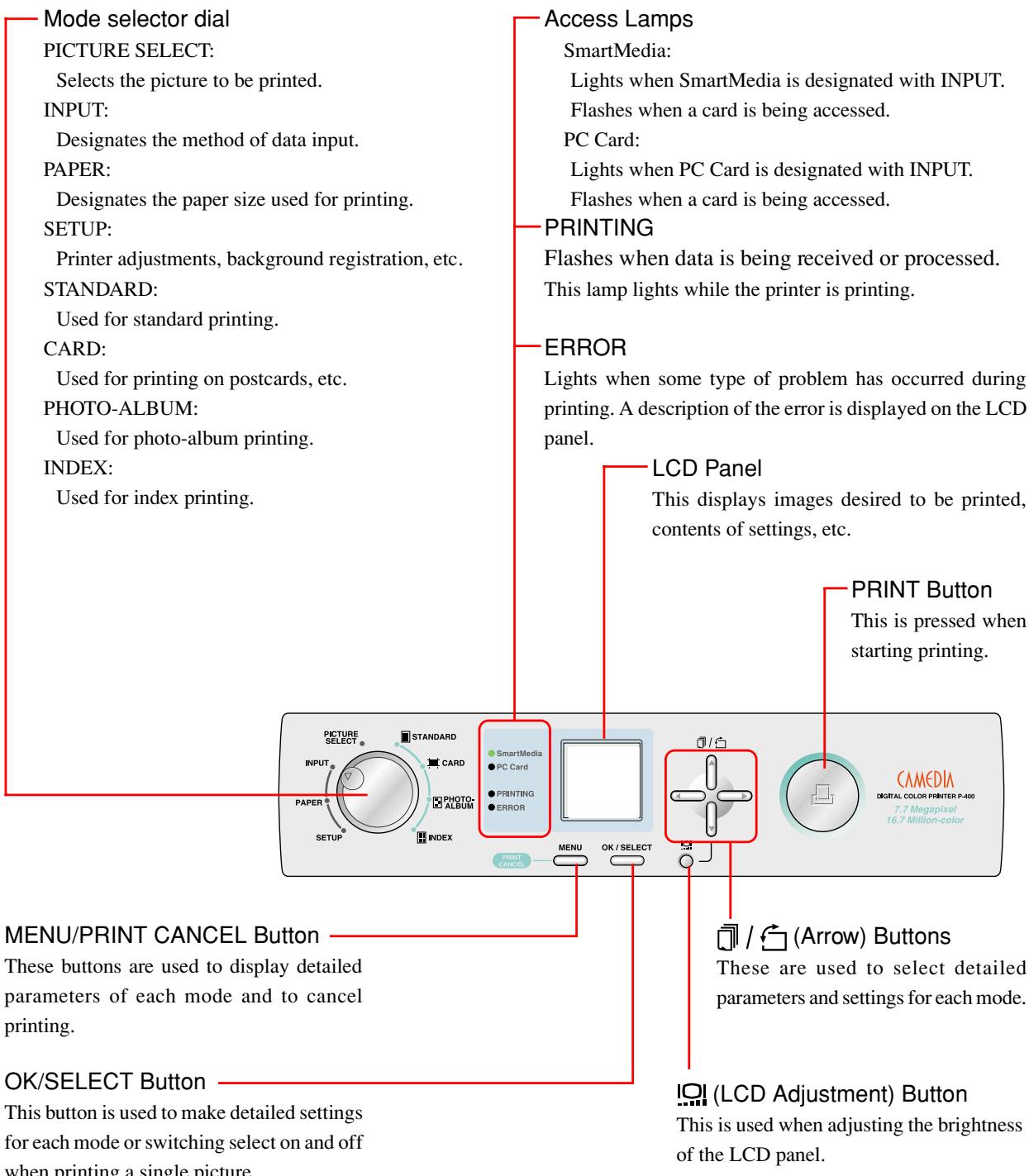
Operation panel
This is used when printing after inserting a card directly into the printer. (Refer to the section on the "Operation Panel" on page 7 for further details.)
Printer cover
This is opened when installing or replacing the ink cassette.
Power (ON/OFF) switch
Paper output tray
This is pulled out when printing.
Paper discharge opening
Paper is discharged from this opening after printing.
Paper cassette compartment lid
Dust Cover
The dust cover is opened when the paper cassette is inserted.
Cover eject lever
SmartMedia slot
SmartMedia containing recorded images is inserted into this slot when printing directly from a SmartMedia.
PC card eject button
This button is pressed to remove the PC card.
PC card slot
This slot is for inserting PC cards complying with PC standard ATA specifications (PCMCIA). Type II PC cards can be used.
Use a PC card adapter or similar device when printing CompactFlash or memory stick data.
USB connector
This connector is used to connect a USB cable from a computer.
Parallel connector
This connector is used to connect a parallel cable from a computer.
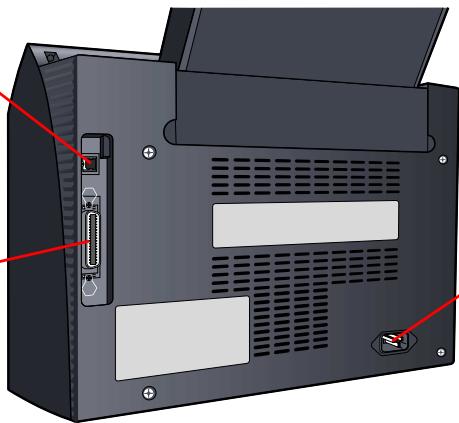
AC power connector
This connector is used to connect the power cord.
Paper Cassette
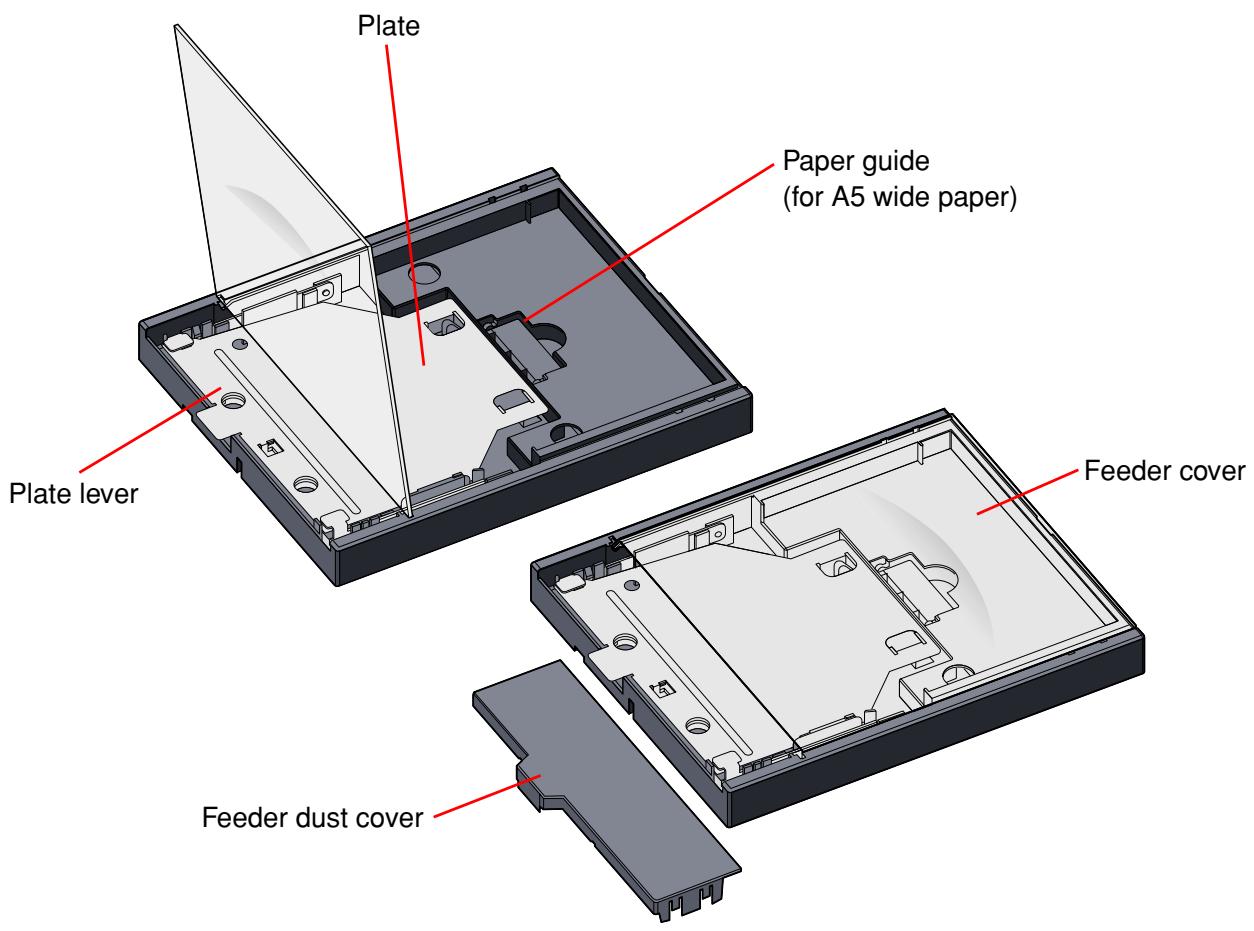

Caution
- A spacer for protection during transport is attached inside the paper cassette when the printer is shipped from the factory. Remove this spacer when using the printer.
- The feeder dust cover is attached to the back of the paper cassette when the printer is shipped from the factory. Do not lose this dust cover since it is used, for example, when not using the printer for an extended period of time.
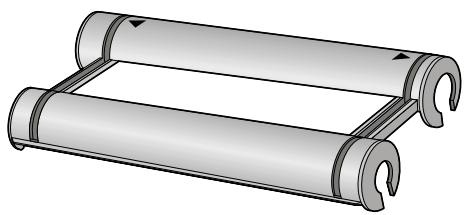
- Ink Cassette
Ink cassette
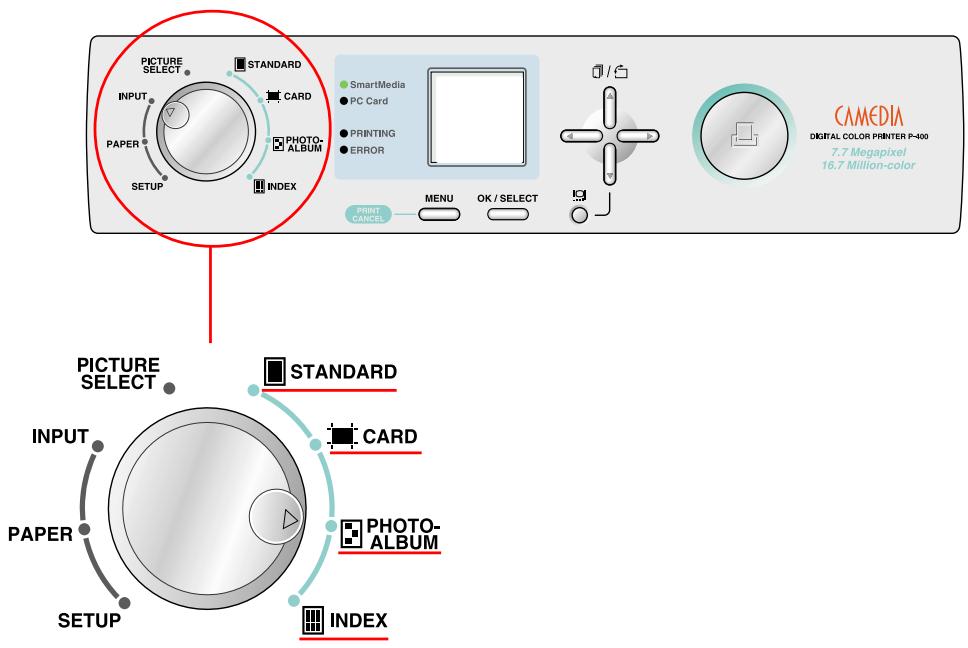
The P-400 Digital Color Printer enables you to print pictures directly without using a personal computer by using SmartMedia or a PC card. The P-400 lets you first designate the printing mode and then designate the method for processing the printed pictures and so forth by operating the mode selector dial, enabling you to produce a wide variety of prints. You can even enjoy creating your own original prints.
Available /× :Not available
| Printing Mode | Print Processing Method | |||||||
| Layout | Date/Time | Paper Vertical/Horizontal | Filter | Frame | Background | Stamp | Trimming | |
| STANDARD | ○ | ○ | × | ○ | × | × | × | ○ |
| CARD | *1 | ○ | × | ○ | × | × | ○ | ○ |
| PHOTO-ALBUM | ○ | ○ | ○ | ○ | ○ | ○ | ○ | ○ |
| INDEX | ○ | *2 | ○ | × | × | × | × | × |
1 It is necessary to perform layout using special-purpose paper.
2 The date and time are printed automatically, and may or may not be printed depending on the size of the index.

Tip
- Please note that the types of processing available for prints varies according to the respective printing mode.
Types of Prints
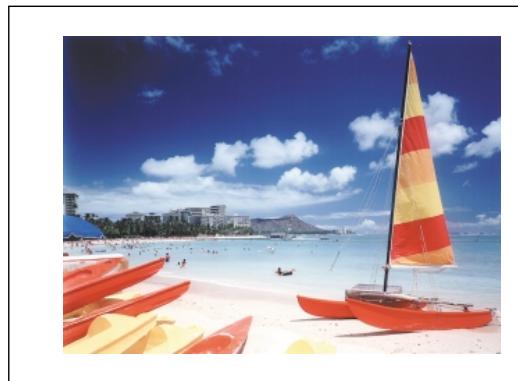
This is selected when you want to print out the picture exactly as it is.
Sample print
Printing Patterns When using A4 paper
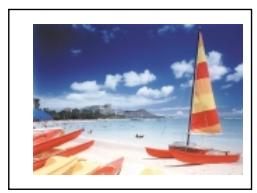
Single picture
2 pictures
3 pictures
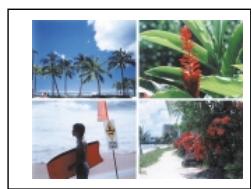
4 pictures
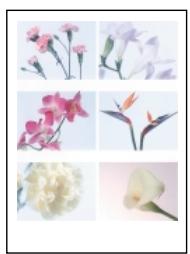
6 pictures
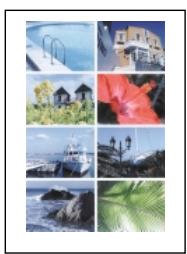
8 pictures
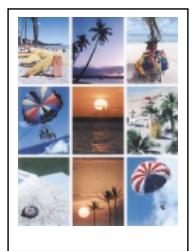
9 pictures
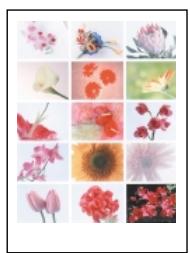
15 pictures
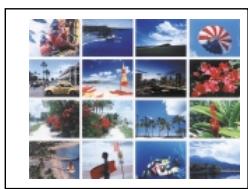
16 pictures
(Use P-A4P or P-A4L paper.)
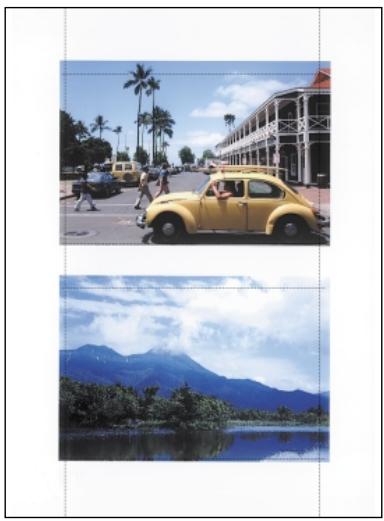
Sample print (When using P-A4P paper)

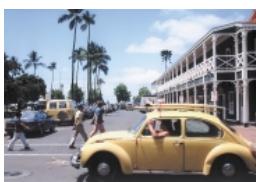

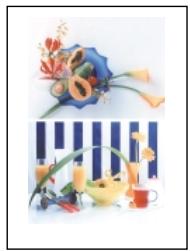
This is selected when you want to create postcards of borderless photographs.
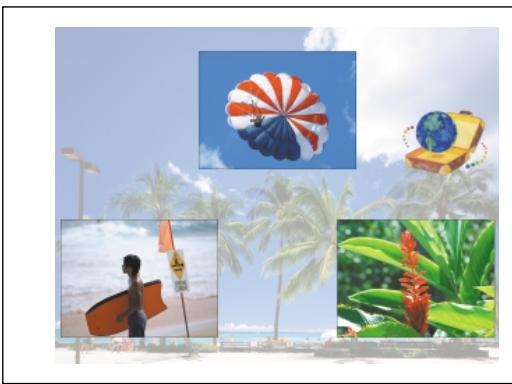
Sample print (using 3 pictures, stamp and background)
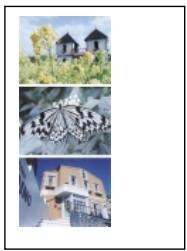
This is selected when you want to enjoy a large number of pictures by placing them in an album. This lets you create prints in a more memorable presentation by decorating pictures with a frame, background or stamp. You can also enjoy pictures in the form of an album simply by filing the prints.
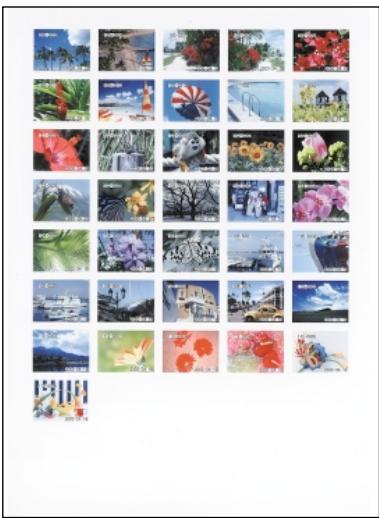
Sample print (45 pictures)
This is selected when you want to view a list of all pictures recorded on SmartMedia or other medium. This function is convenient when you want to view the contents, such as when you have not decided which picture you want to print or when you want to save data.
- Print Processing
This function lets you change the color tone of the picture to sepia or black and white.

Normal

Sepia

B / W
This function enables pictures to be printed by enlarging a certain portion of the picture.
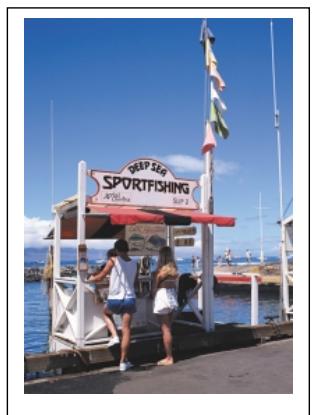
Sample print (normal)

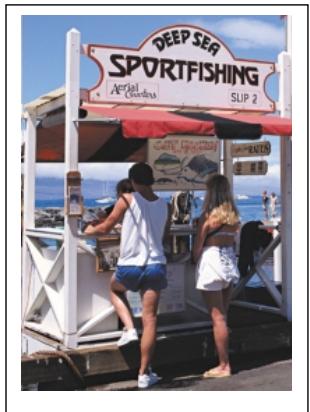
Sample print (trimming) Trimming those portions of the picture that you do not want results in greater emphasis of the persons or objects being photographed.
This function lets you put a frame around a picture in the photo album mode. This results in album prints that create a more memorable impression.
Black line
White frame
Shadow
Shade off
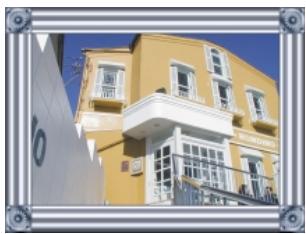
Metal
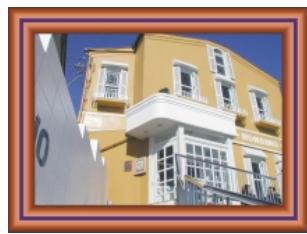
Wood

Caution
- Since the frame overlaps with the picture, the area over which the picture is printed becomes smaller.
You can also incorporate registered pictures or your favorite pictures on a photo background in the PHOTO-ALBUM mode. This results in album prints that create a more memorable impression.
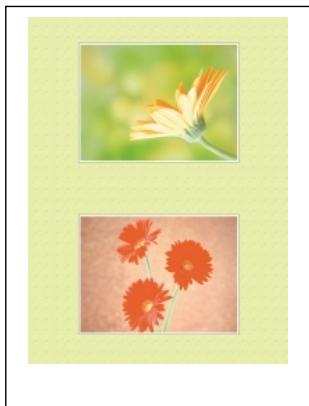
Sample print (Using Tile 1)
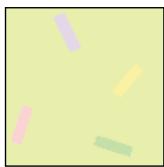
Tile 1
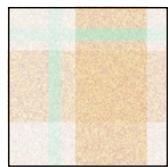
Tile 2
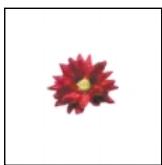
Tile 3
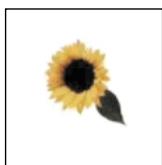
Tile 4
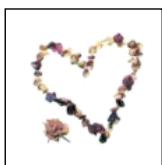
Tile 5
The following background pictures are contained in the CD-ROM. Picture bg002.jpg is also contained in the printer.
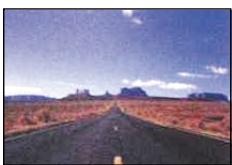
bg001.jpg
bg002.jpg
bg003.jpg
bg004.jpg
bg005.jpg
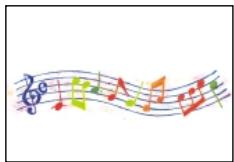
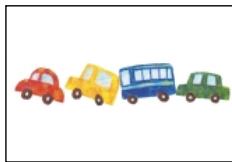
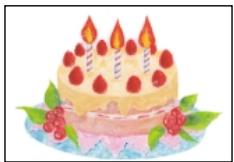
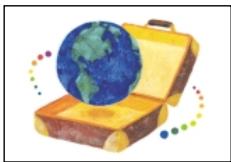
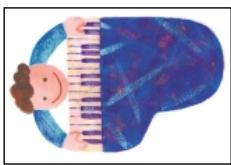
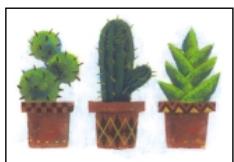
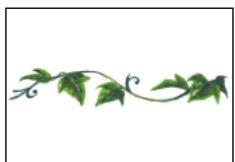
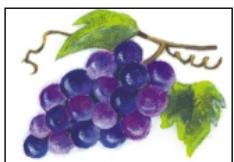
You can decorate your prints with enjoyable stamps in the PHOTO-ALBUM and CARD modes.
The following ten stamps are contained in the printer and CD-ROM.
001.jpg
002.jpg
003.jpg
004.jpg
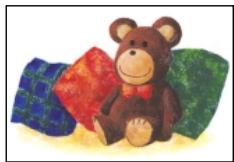
005.jpg
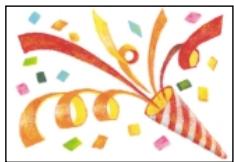
006.jpg
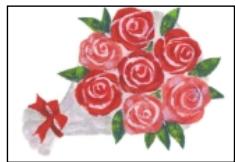
007.jpg
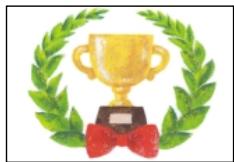
008.jpg
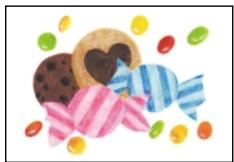
009.jpg
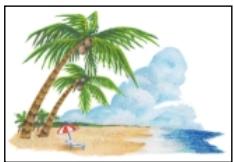
010.jpg
The CD-ROM contains a total of 100 stamp images that can be downloaded to the P-400.
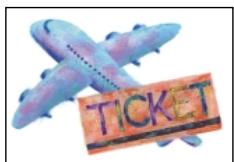
011.jpg
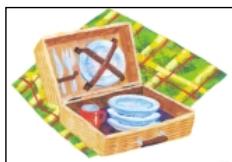
012.jpg

013.jpg
014.jpg
015.jpg
016.jpg
017.jpg

018.jpg
019.jpg

020.jpg
021.jpg
022.jpg
023.jpg
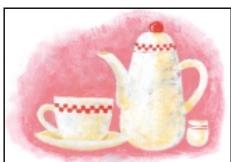
024.jpg
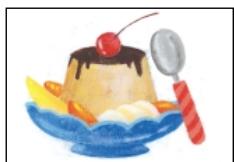
025.jpg
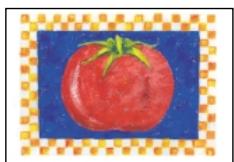
026.jpg
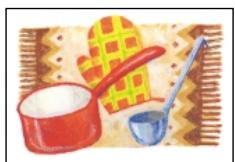
027.jpg
028.jpg
029.jpg
030.jpg
031.jpg
032.jpg

033.jpg
034.jpg
035.jpg
036.jpg
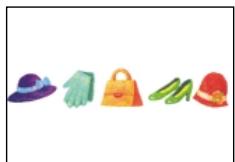
037.jpg
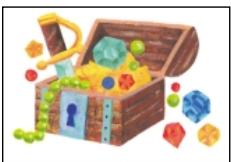
038.jpg
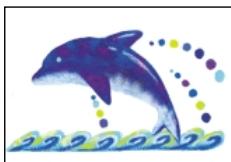
039.jpg
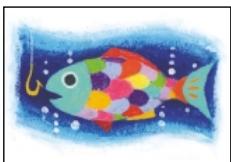
040.jpg
041.jpg
042.jpg
043.jpg
044.jpg
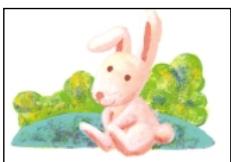
045.jpg
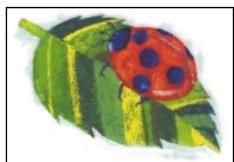
046.jpg
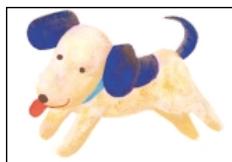
047.jpg
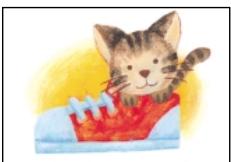
048.jpg
049.jpg

050.jpg

051.jpg

052.jpg
053.jpg
054.jpg

055.jpg

056.jpg

057.jpg

058.jpg
059.jpg
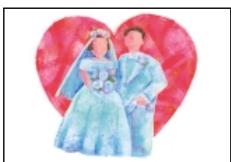
060.jpg
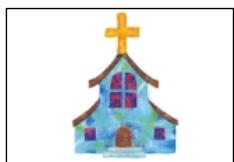
061.jpg
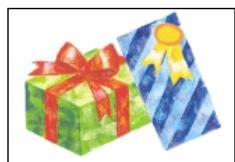
062.jpg
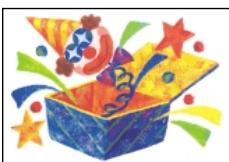
063.jpg
064.jpg

065.jpg
066.jpg
067.jpg

068.jpg
069.jpg
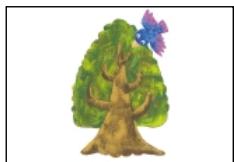
070.jpg

071.jpg
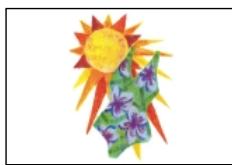
072.jpg
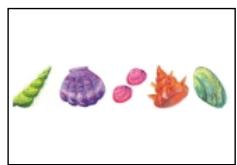
073.jpg
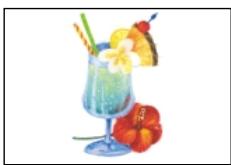
074.jpg
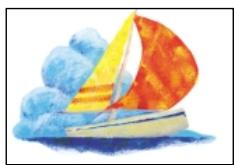
075.jpg
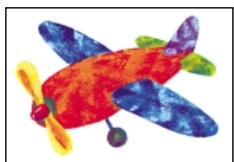
076.jpg
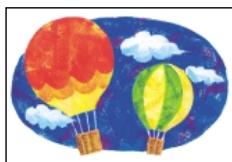
077.jpg
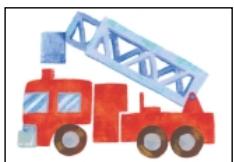
078.jpg

079.jpg
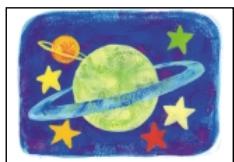
080.jpg
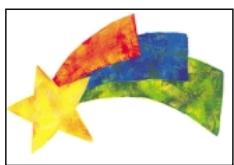
081.jpg
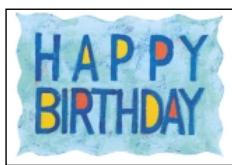
082.jpg
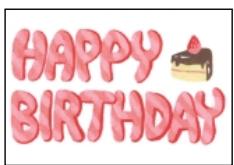
083.jpg
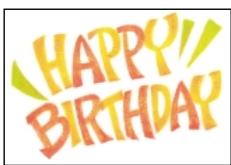
084.jpg
085.jpg
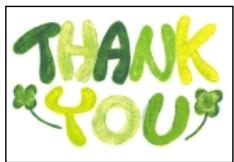
086.jpg

087.jpg
088.jpg

089.jpg

090.jpg

091.jpg
092.jpg
093.jpg
094.jpg

095.jpg
096.jpg
097.jpg
098.jpg
099.jpg
100.jpg
From the Start to End of Printing

Checking, selecting and mode selection for each image is performed while viewing the display monitor. Please make sure you have a complete understanding of the meanings and operation of the display monitor.
1. Input Selection
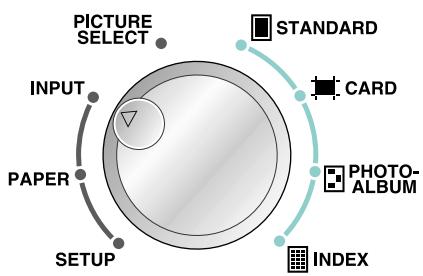
Select the method for input of image data, either by printing directly from a card or printing from a PC.
Image Data Input Methods:
- SmartMedia
- PC Card
- USB interface
- Parallel interface
2. Paper Selection
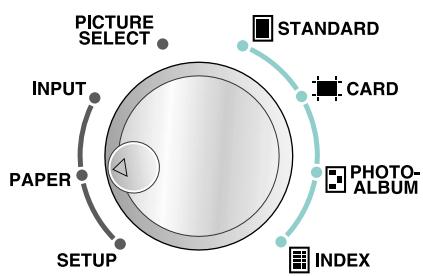
Select the paper type and size.
Caution
- Always check that there is paper in the paper cassette. Place paper of the designated size if it is not present in the paper cassette.
Applicable paper sizes:
A4
A5 wide
3. Picture Selection
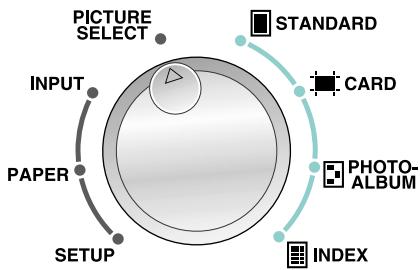
Select the number of images to be printed, vertical or horizontal orientation and trimming.
Caution
- Always make sure to check the vertical and horizontal orientation of each photograph when in the photo album mode.
Types of print designations:
- Single print
- Designated number of prints
- All prints
DPOF (selected with camera)
Setup
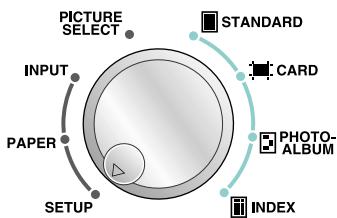
Make fine adjustments in image printing parameters or register and adjust background images.
4. Printing Modes
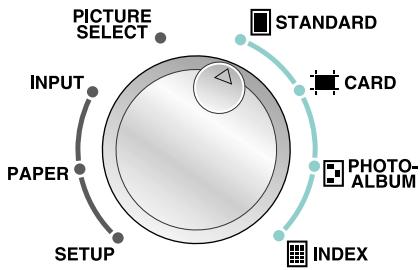
- Select the print mode, such as photo-album or card mode.
Available printing modes:
STANDARD
- CARD
- PHOTO-ALBUM
- INDEX
Go to the
SETUP
mode when
you want to
add a
background
or other
processing.
5. Start Printing
When all settings have been completed, press the PRINT button while checking the preview.
6. End Printing

OFF
You can check and select pictures or select a printing mode while viewing the LCD panel.
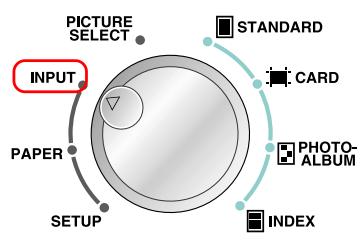
Select SmartMedia, PC Card, USB or Parallel to designate the source from which pictures to be printed are to be read.
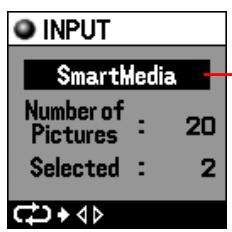
The current image data input method is displayed.
The method for input of image data is selected by pressing the left or right arrow button.

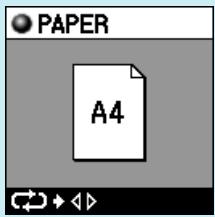
Select whether A4 or A5 wide paper.
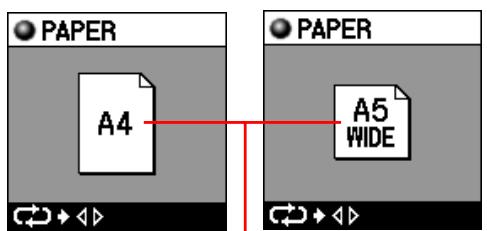
The paper size being used is displayed.
The paper size to be used is selected by pressing the left or right arrow button.
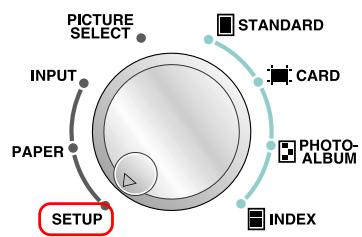
You can make fine adjustments in printed pictures, register background pictures for putting backgrounds on prints, or adjust the display of a background.
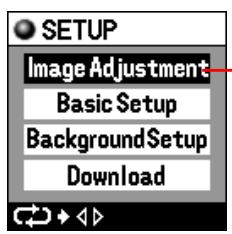
The parameter that can be changed is displayed.
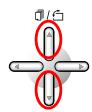
Parameters can be selected by pressing the up or down arrow button.
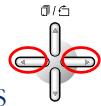
The detailed setting menu of the selected parameter is displayed by pressing the left or right arrow button.
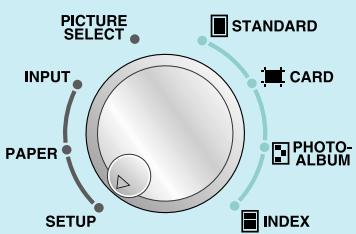
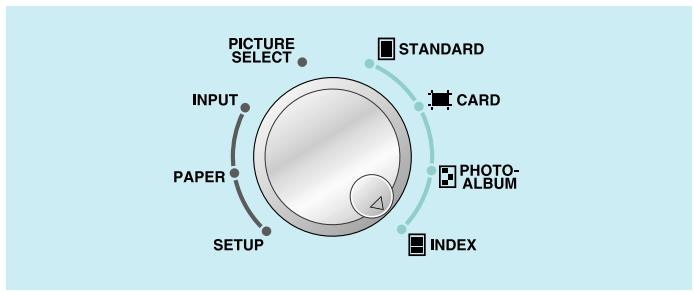
There are four printing modes consisting of STANDARD, CARD, PHOTO-ALBUM and INDEX. You can designate the orientation of pictures on the paper, print the date or arrange pictures according to a filter for each mode.
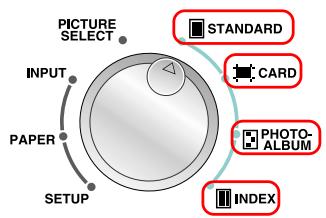
The CARD, PHOTO-ALBUM and INDEX modes can be selected in addition to the STANDARD mode.
Pressing the MENU button displays the detailed settings for each mode.
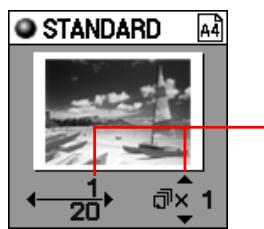
The number of the page displayed and the total number of pages along with the number of prints are displayed.
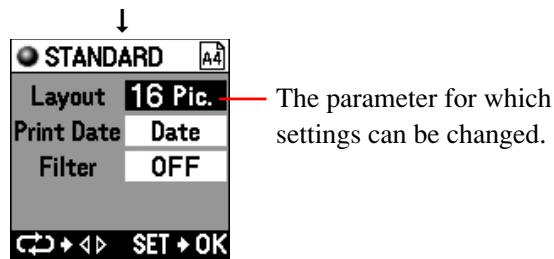
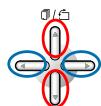
Pages are selected by pressing the left or right arrow button. The number of prints to be printed can be changed by pressing the up or down arrow button.
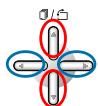
Settings can be changed by pressing the left or right arrow button. Settings can be selected by pressing the up or down arrow button.
Select pictures to be printed while previewing them on the LCD panel.
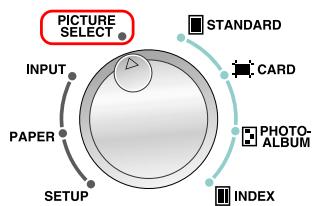
The parameter for which details are to be set is displayed when the button is pressed.
MENU
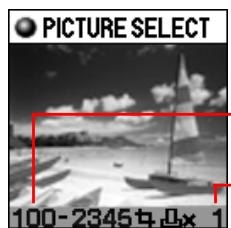
The file name is displayed.
Number of prints
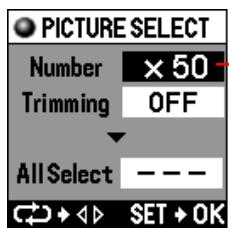
The parameter for which settings can be changed.
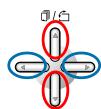
Image data is selected by pressing the left or right arrow button. Pressing the up or down arrow button rotates the photograph when in the photo album mode.
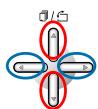
Settings can be changed by pressing the left or right arrow button. Settings can be selected by pressing the up or down arrow button.
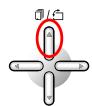
Rotates 90 degrees counter-clockwise
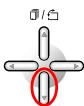
Rotates 90 degrees clockwise
OK/SELECT
Pressing the button returns the display to the currently selected image.

Caution
- A hyphen is displayed instead when the file name contains elements other than numbers.
The explanation here is given with respect to the method for printing the sample pictures shown in "Types of Prints" (page 10). Try printing directly from a SmartMedia, the major feature of this printer.
Common Setup
The setup procedure described in steps 1 through 6 is the same for all modes.
Transferring data to the printer
The explanation here describes the procedure for printing when using SmartMedia.
1
Remove SmartMedia containing recorded images from the digital camera.
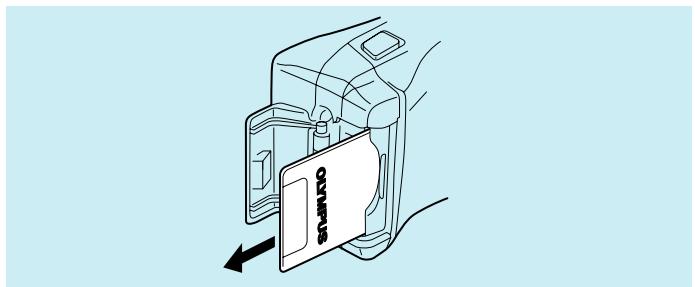
Refer to the instruction manual of the digital camera for the procedure for removing SmartMedia from the digital camera.
2
Insert SmartMedia into the SmartMedia slot of the printer.
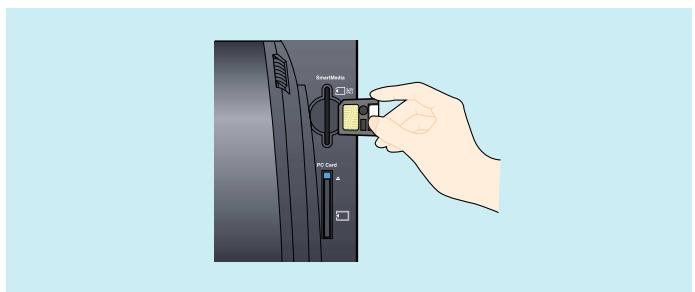
Insert SmartMedia all the way into the printer.

Caution
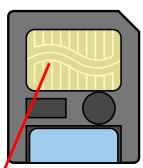
Be careful not to soil the contact of the SmartMedia.
- Do not apply excessive force to the SmartMedia when handling.
- Do not leave SmartMedia out in the open after it has been removed from the digital camera.
Select the data input method
Select the media that contains the data.

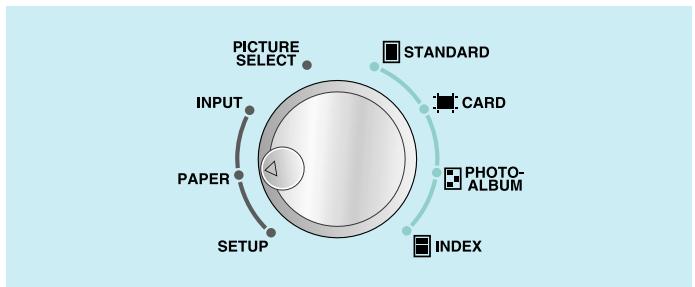
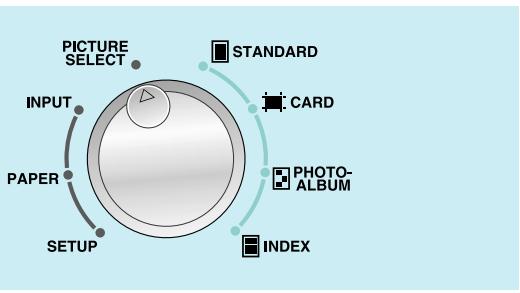
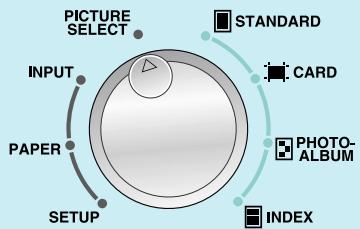
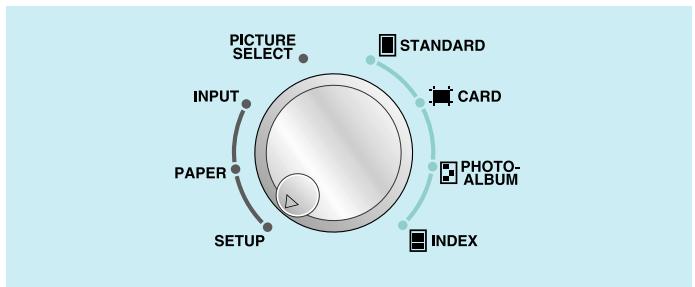
Align the mode selector dial to the "INPUT" position.
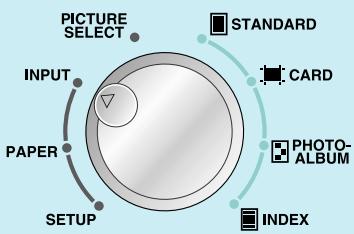
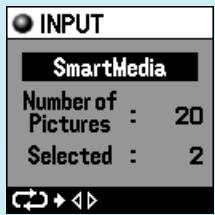
The currently selected input method is displayed on the LCD panel.

Check that "SmartMedia" is displayed. If it is not, press the right arrow button to display "SmartMedia".
Select the type of paper

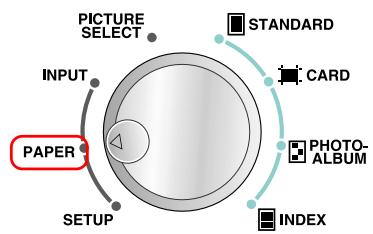
Align the mode selector dial to the "PAPER" position.
The paper setting menu is displayed on the LCD panel.
Press the right arrow button to select the paper size you want to print.

Caution
-
Always make sure that the selected paper size matches the size of paper contained in the paper cassette.
-
When you want to print onto a postcard, use the special card paper (size P-A4P) sold separately.
Once these common settings have been completed, try printing in the STANDARD, CARD, PHOTO-ALBUM or INDEX mode.
STANDARD PRINTING (Refer to page 10 for samples of output prints)
In this mode, one picture is printed onto a single sheet of paper.
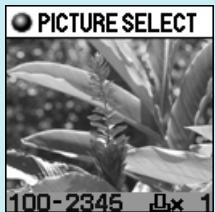
Select the picture to be printed

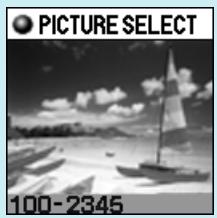
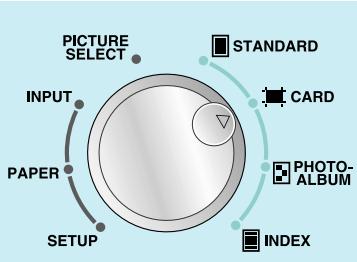
Align the mode selector dial to the "PICTURE SELECT" position.

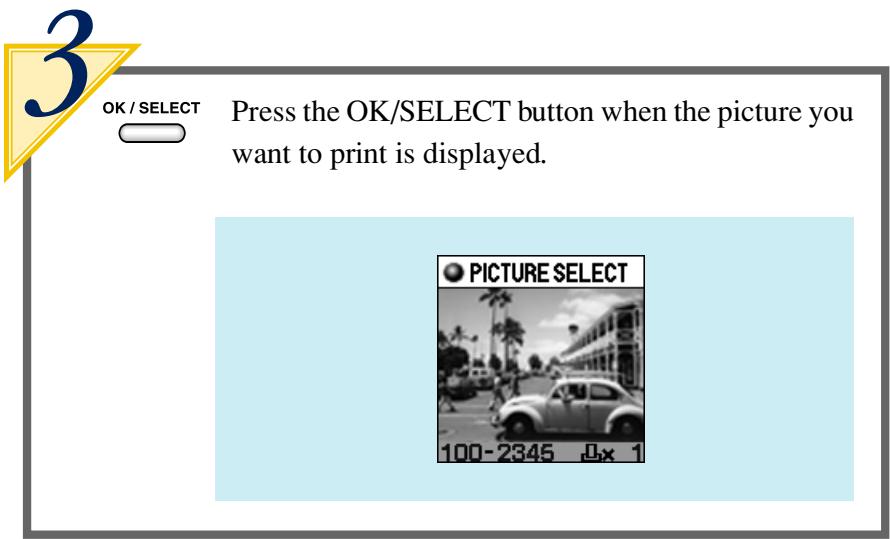
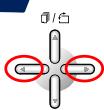
Press the left or right arrow button to select the picture to be printed.

OK/SELECT

Press the OK/SELECT button when the picture you want to print is displayed.
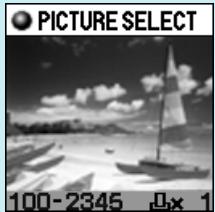
OK/SELECT

Press the OK/SELECT button again to cancel the selection.
Standard Printing

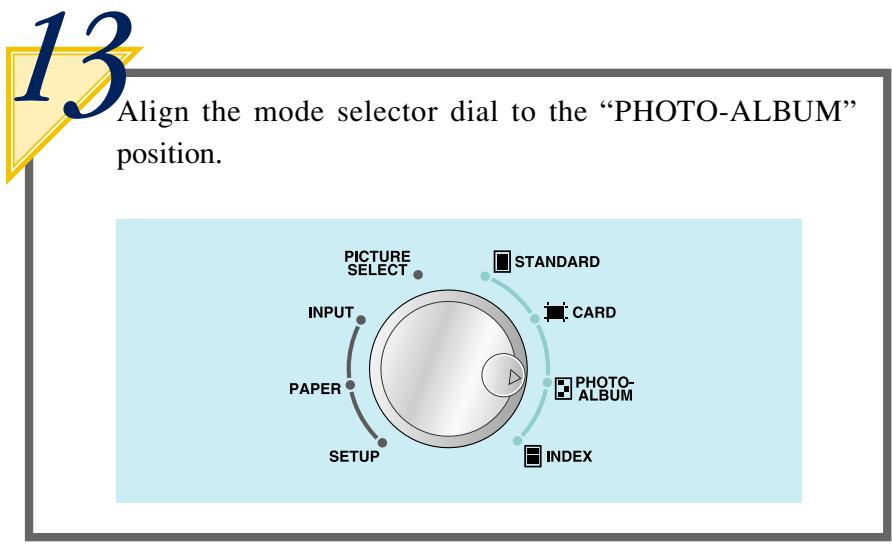
Align the mode selector dial to the "STANDARD" position.
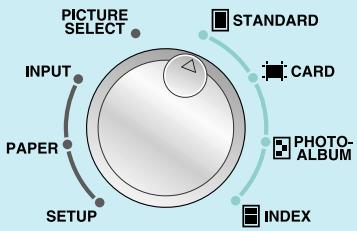
A preview of the selected picture is displayed on the LCD panel.
Tip
- The menu is displayed when the MENU button is pressed.
MENU

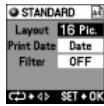
- Layout, Print Date and Filter can be designated when the button is pressed.
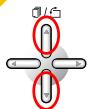
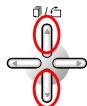
Press the up or down arrow button to select the number of copies to be printed.
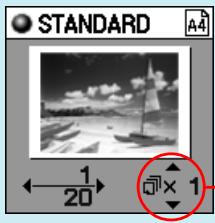
Up to 50 copies can be selected for printing. From 1 to 9 copies can be selected individually while from 10 to 50 copies are selected in units of 10 copies each.
Press the PRINT button.
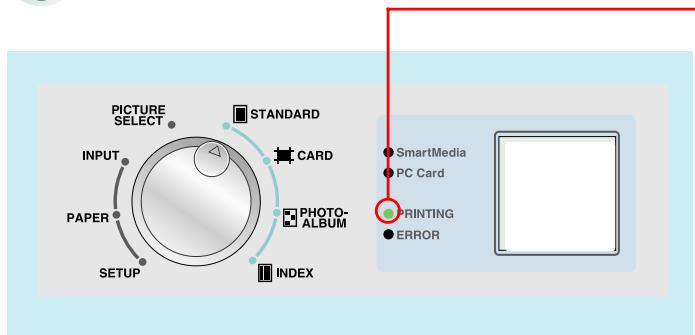
The lamp flashes when the PRINT button is pressed after which printing begins.
Caution
- The PRINT button is only enabled during preview in each mode.
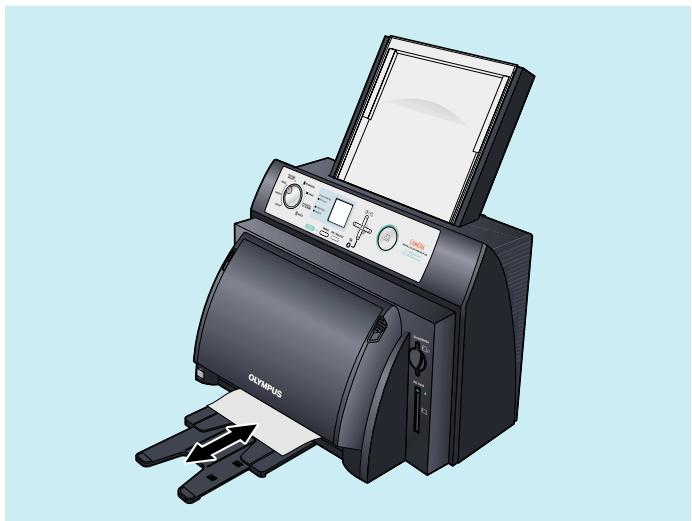
The "PRINTING" lamp lights and the paper moves back and forth through the printer four times after which it exits the printer. Please wait until the paper has completely exited the printer.
Caution
- A certain amount of time may be required for printing depending the printing mode and the images contained on the card.
- Although paper temporarily comes out of the printer during printing, do not attempt to forcibly pull on the paper at this time. In addition, although the movement of the paper may temporarily stop due to printing processing, please wait until it has completely exited the printer.
CARD PRINTING (Refer to page 11 for samples of output prints)
Here, card printing is performed using special card paper (P-A4P). Two pictures are printed out onto a single piece of special card paper to create postcards.

Tip
- Place special postcard paper in the paper cassette.
Select the image to be printed

Align the mode selector dial to the "PICTURE SELECT" position.
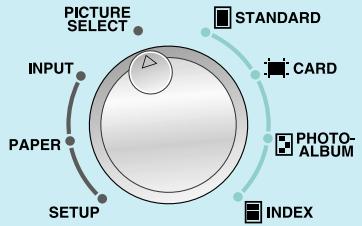

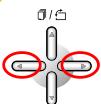
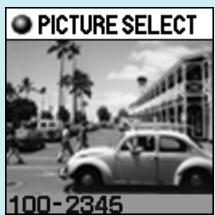
Press the left or right arrow button to select the first image to be printed.
OK/SELECT
Press the OK/SELECT button again to cancel the selection.
Card Printing

Align the mode selector dial to the "CARD" position.
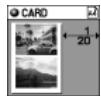
A preview of the two pictures that have been selected are displayed on the LCD panel.

Press the MENU button.
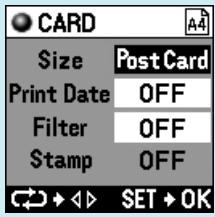
The menu display is displayed.
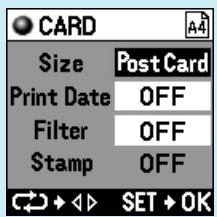
Press the right arrow button to select "Post Card" for the "Size".
Tip
- In addition to Size, Print Date, Filter and Stamp designation can also be performed on the menu display.
Caution
- Stamp is only enabled when only one picture has been selected.
OK/SELECT
Press the OK/SELECT button.
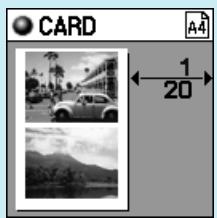
A preview of the selected image is displayed on the LCD panel.
Caution
- The number of copies cannot be set in the Card mode. Set the required number of copies for each picture during picture selection.

Press the PRINT button.
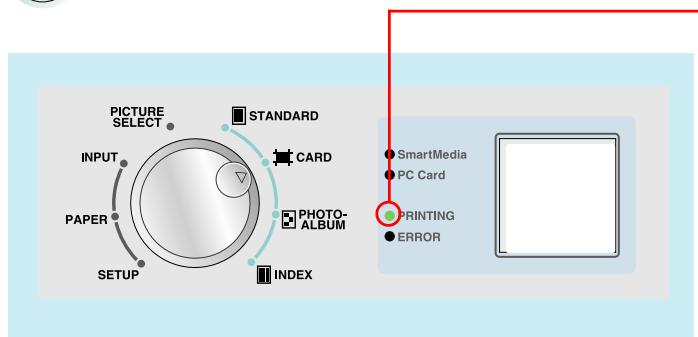
The lamp flashes when the PRINT button is pressed after which printing begins.

Caution
- The PRINT button is only enabled during preview in each mode.

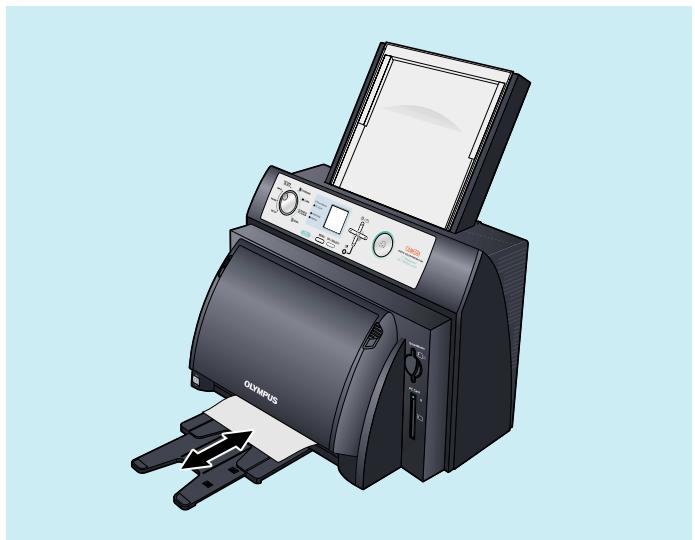
The "PRINTING" lamp lights and the paper moves back and forth through the printer four times after which it exits the printer. Please wait until the paper has completely exited the printer.

Caution
-
A certain amount of time may be required for printing depending on the printing mode and the images contained on the card.
-
Although paper temporarily comes out of the printer during printing, do not attempt to forcibly pull on the paper at this time. In addition, although the movement of the paper may temporarily stop due to printing processing, please wait until it has completely exited the printer.
- PHOTO-ALBUM PRINTING (Refer to page 12 for samples of output prints)
In this mode, three pictures are printed onto a single sheet of A4 paper oriented horizontally. In addition, the photo album can be decorated by arranging a stamp on the print or using a user background. Here, when a background picture is registered by user registration, the background picture registered in the printer is deleted. When using a background picture that has been previously registered, proceed to Step 8 of "Select the picture to be printed" on page 36.
Prepare a background

Align the mode selector dial to the "SETUP" position.
The setup menu is displayed.
Tip
- When the picture you want to use for the background is on a different card, take out the card currently in the printer and insert the card containing the desired background picture.

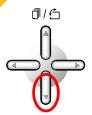
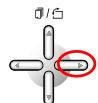
Press the down arrow button to select the "Background Setup", and then press the right arrow button to display the background selection display.
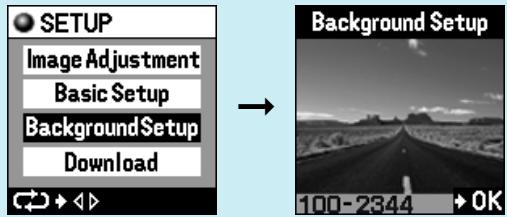
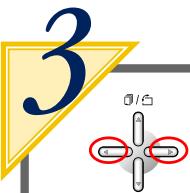
Press the left or right arrow button to select the picture for which the background is to be registered.
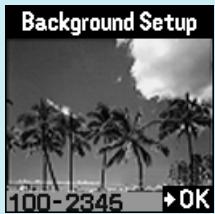
OK/SELECT
Once you have decided on the picture to be used for the background, press the OK/SELECT button.
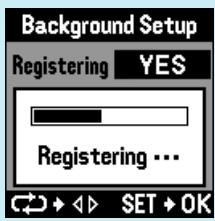
The display on the background registration menu changes.
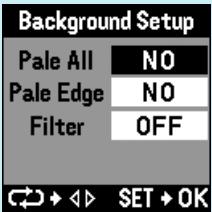
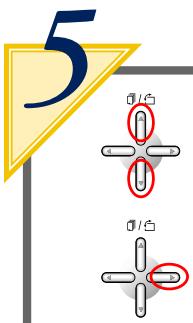
Press the up or down arrow button to select the "Pale All", and then press the right arrow button to select "YES".
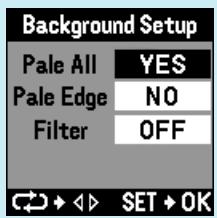
Once settings have been completed, press the OK/ SELECT button.
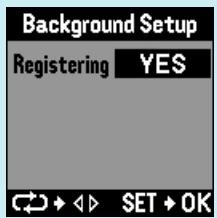

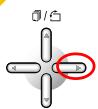
Press the right arrow button to select “YES”, and then press the OK/SELECT button.
Select the picture to be printed

Align the mode selector dial to the "PICTURE SELECT" position.
The background is registered and the display returns to the setup menu.

Caution
- A certain amount of time may be required for registration depending on the number of pixels and compression ratio of the background picture. In addition, some pictures may not be able to be registered.

Tip
- Once a picture is registered for the background, the registered picture is retained in memory even if the power is turned off.
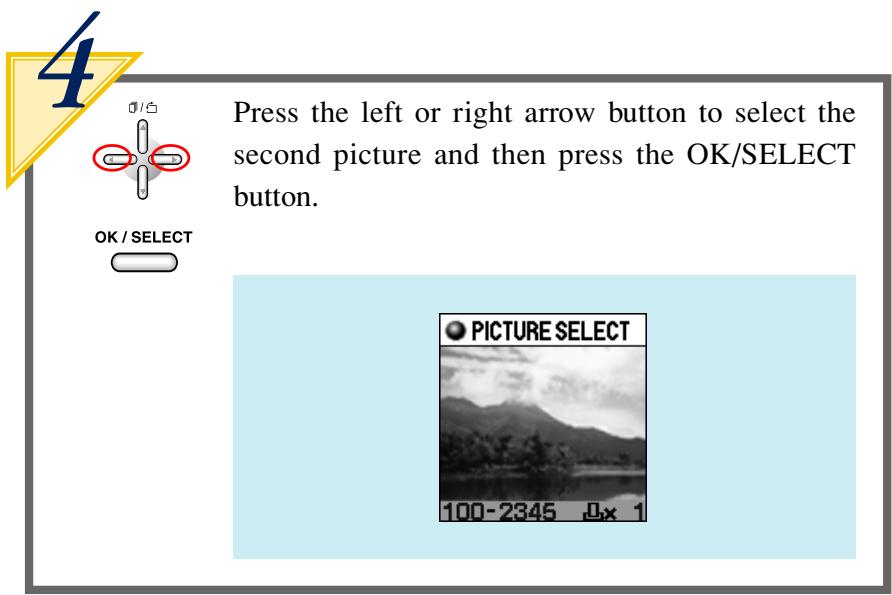
Press the left or right arrow button to select the first image to be printed.
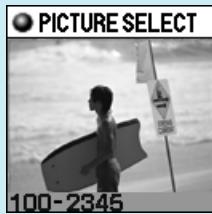
10
OK/SELECT

Press the OK/SELECT button when the picture you want to print is displayed.
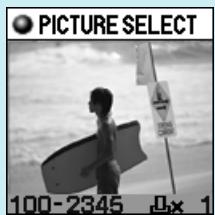
OK/SELECT

Press the OK/SELECT button again to cancel the selection.
11
OK/SELECT
Press the left or right arrow button to select the second picture and then press the OK/SELECT button.
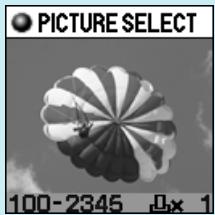
12
OK/SELECT
Press the left or right arrow button to select the third picture to be printed and then press the OK/SELECT button.

Caution
- The order of selected pictures is the same as the order of the file names. This order cannot be changed.
Select a layout
A list of previews is displayed on the LCD panel.
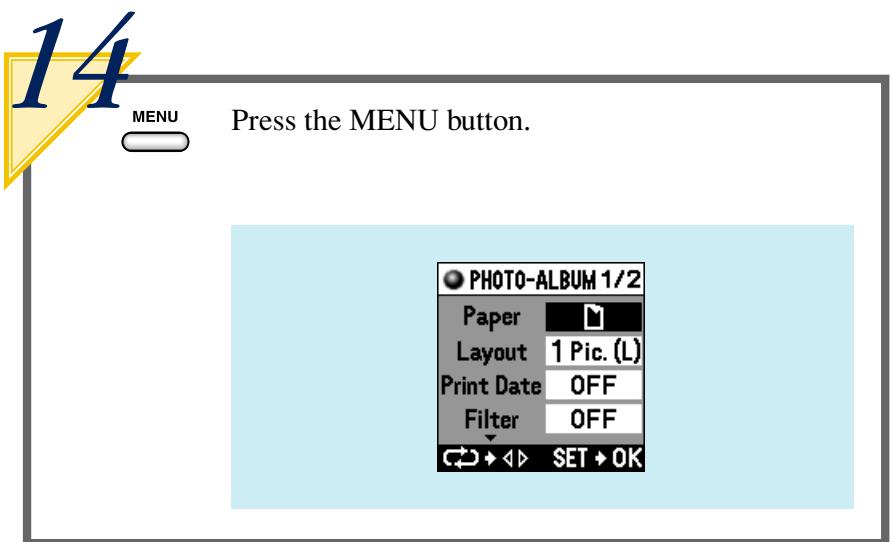
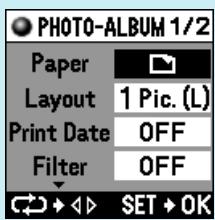
The menu is displayed with the "Paper" parameter selected (highlighted).
15
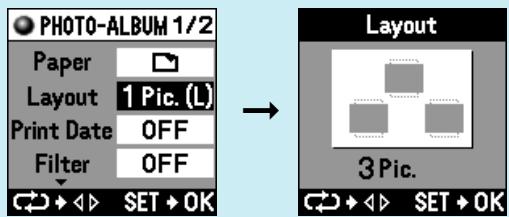
Press the right arrow button to select "□" (Horizontal) for the "Paper" parameter.
16
Press the down arrow button to select "Layout", press the left or right arrow button to designate "3 Pic.", and then press the OK/SELECT button.
OK/SELECT
Selecting a stamp
Proceed to "Select a background" on page 43 when not using a stamp.
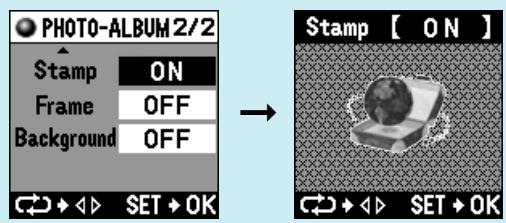
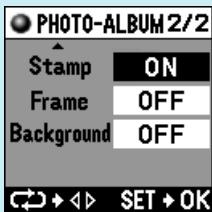
Press the down arrow button to change the display, select "Stamp" and then press the right arrow button to display the stamp selection menu.
18
OK/SELECT
Press the left or right arrow button to select the stamp to be used and then press the OK/SELECT button.
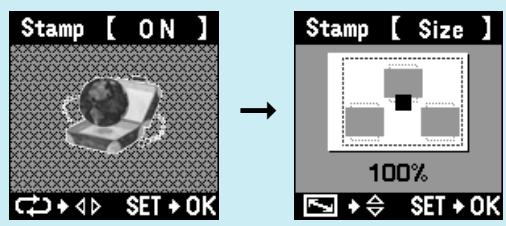
The display changes to the menu for selecting stamp size.

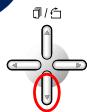
Press the down arrow button to select the size of the stamp and then press the OK/SELECT button.
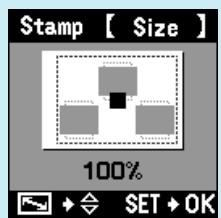

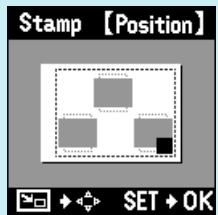
Stamp size is displayed as a percentage.
20
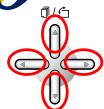

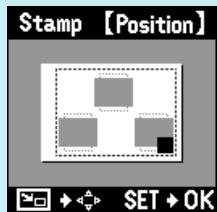
Press any of the arrow buttons to select the location of the stamp and then press the OK/SELECT button.

Select a background
Proceed to "Photo Album Printing" on page 44 when not using a background.
21
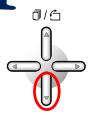
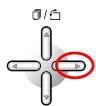
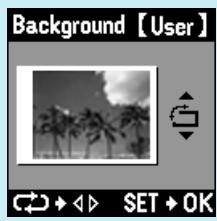
Select "Background" by pressing the down arrow button and then designate "User" by pressing the right arrow button.
22
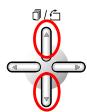
Designate the orientation of the background picture by pressing the up or down arrow button.
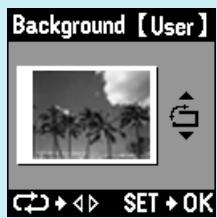
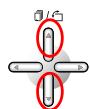
The image is rotated by 90 degrees whenever the up or down arrow button is pressed.

Caution
- The top, bottom or sides of the background picture may be cut off if the picture orientation does not match the paper setting.
23 OK
OK/SELECT Press the OK/SELECT button.
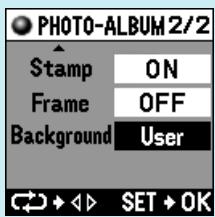
Photo Album printing
24 OK
OK/SELECT Press the OK/SELECT button.
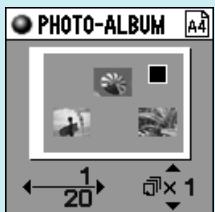
A preview of the selected picture is displayed on the LCD panel.
Tip
- Stamps are displayed in black, while the background is displayed in gray.
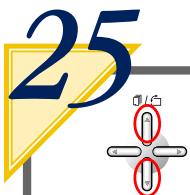
Press the up or down arrow button to select the number of copies to be printed.
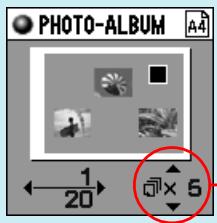
Up to 50 copies can be selected for printing. From 1 to 9 copies can be selected individually while from 10 to 50 copies are selected in units of 10 copies each.

Press the PRINT button.
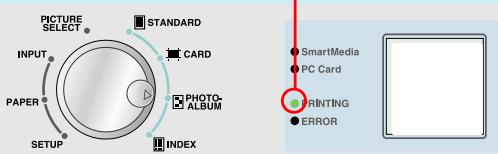
The lamp flashes when the PRINT button is pressed after which printing begins.
Caution
- The PRINT button is only enabled during preview in each mode.
27
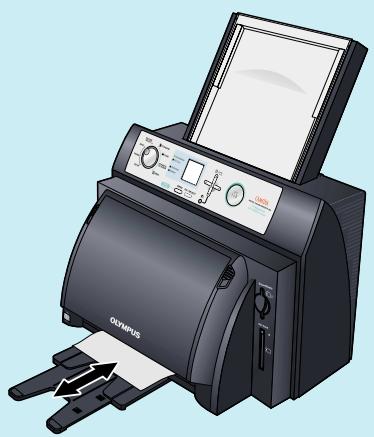
The "PRINTING" lamp lights and the paper moves back and forth through the printer four times after which it exits the printer. Please wait until the paper has completely exited the printer.
Caution
- A certain amount of time may be required for printing depending on the printing mode and the images contained on the card.
- Although paper temporarily comes out of the printer during printing, do not attempt to forcibly pull on the paper at this time. In addition, although the movement of the paper may temporarily stop due to printing processing, please wait until it has completely exited the printer.
- INDEX PRINTING (Refer to page 12 for samples of output prints)
In this mode, an index of all images contained on the SmartMedia card are printed on a single page. Up to 45 images can be printed on a single sheet of A4 paper oriented vertically. The file name is always printed. The date may also print depending on the size of the index.
Select a layout

Align the mode selector dial to the "INDEX" position.
A preview of the picture layout is displayed on the LCD panel.

Tip
- In the case of a large amount of image data resulting in multiple pages, only the last page is displayed.


Press the MENU button.
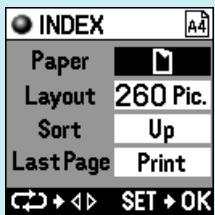
The menu is displayed with the "Paper" parameter selected (highlighted).
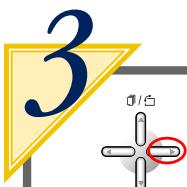
Press the right arrow button to select “D” (Vertical) for “Paper”.
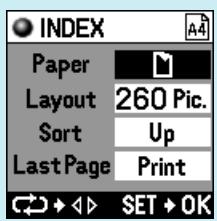
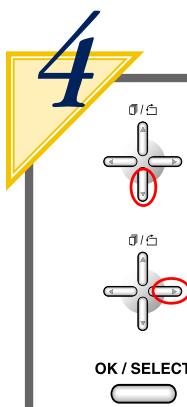
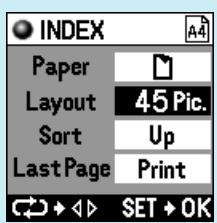
Press the down arrow button to select "Layout", press the right arrow button to designate "45 Pic.", and then press the OK/SELECT button.
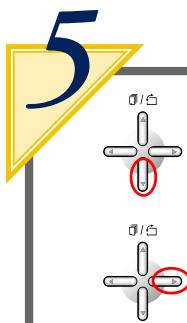
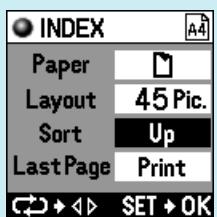
Press the down arrow button to select "Sort" and then press the right arrow button to select "Up".
Tip
- When "Last Page" is selected on the menu display followed by selecting "Don't print", printing of the several pictures assigned to the last page is not performed, making it possible to save on paper.
Index printing

OK/SELECT

Press the OK/SELECT button.
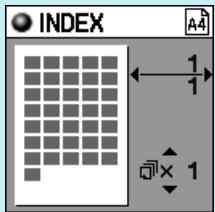
A preview of the index page is displayed on the LCD panel.

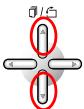
Press the up or down arrow button to select the number of copies to be printed.
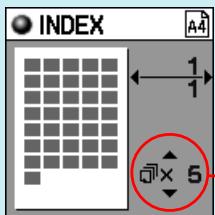
Up to 50 copies can be selected for printing. From 1 to 9 copies can be selected individually while from 10 to 50 copies are selected in units of 10 copies each.


Press the PRINT button.
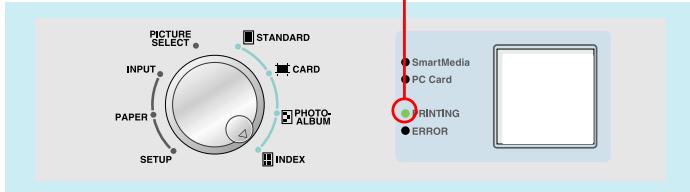
The lamp flashes when the PRINT button is pressed after which printing begins.

Caution
- The PRINT button is only enabled during preview in each mode.

The "PRINTING" lamp lights and the paper moves back and forth through the printer four times after which it exits the printer. Please wait until the paper has completely exited the printer.
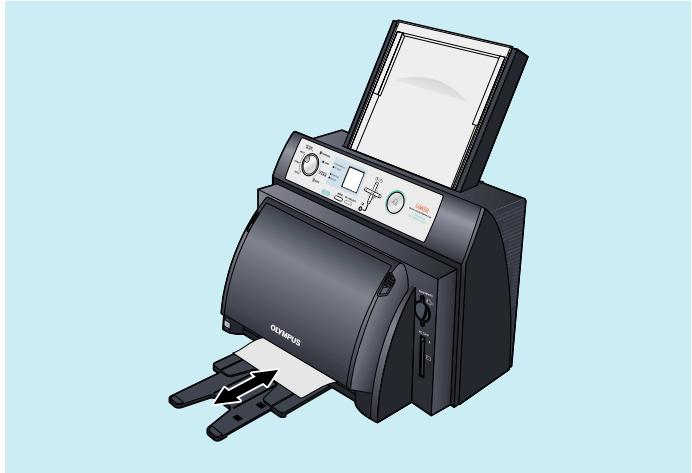
Caution
- Printing in the index mode may take some time depending on the number of prints.
- Although paper temporarily comes out of the printer during printing, do not attempt to forcibly pull on the paper at this time. In addition, although the movement of the paper may temporarily stop due to printing processing, please wait until it has completely exited the printer.
Introduction to Color Printing
Difference Between RGB and CMY
Have you ever tried comparing actual printed images and images displayed on a personal computer? Have you ever noticed the differences in their colors? Could this be a malfunction in the printer? The answer is probably no. This is due to different types of color generation systems used between printers and PCs.
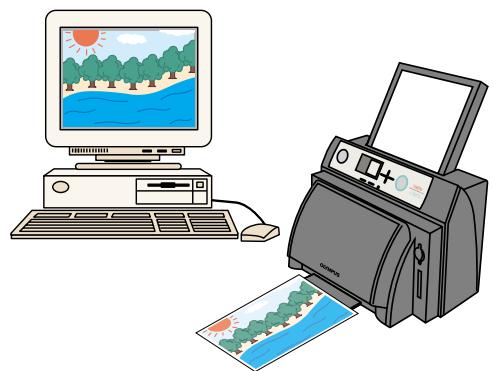
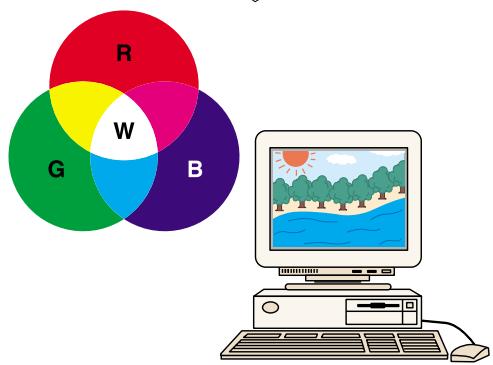
Television and Computer displays express various colors by combining three colors referred to as the three primary colors of light, namely red (R), green (G) and blue (B). Any color can be created with these three colors. In addition, mixing equal amounts of these three colors results in the color white (W).
This method is referred to as the additive color process because it represents any color by adding the primary colors together in different proportions.
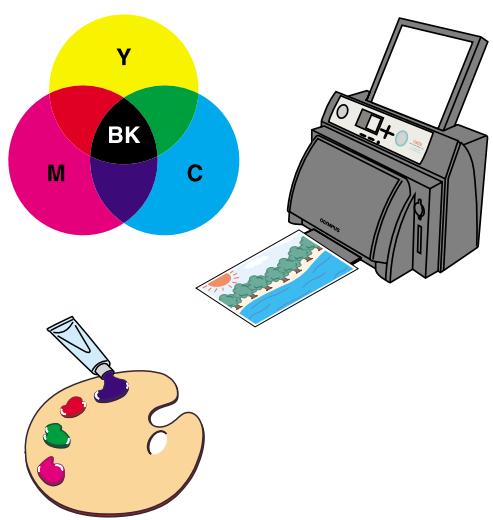
The three basic colors used by printers are magenta, cyan and yellow. Any color can be printed using these three colors. Mixing equal amounts of these three colors results in the color black. This method is referred to as the subtractive color process because various colors are expressed by absorbing a portion of the color white while reflecting the remaining colors.

Tip
- For example, if magenta (M) seems to be a little too strong during printing, this can be compensated for by slightly increasing the green (G) with an adjustment of the printer.
DPOF (Digital Print Order Format)
DPOF refers to a format used by DPOF enabled digital cameras to record on a memory card printing information, such as the images to be printed or the number of prints. DPOF enables those images to be printed, or the number of prints to be designated with a digital camera that supports DPOF function, thereby eliminating the need to make the settings on the printer. Therefore, using a DPOF-compatible printer makes printing easy. The P-400 is compatible with DPOF selection of images, quantity, rotation and trimming. When a SmartMedia or PC card is inserted into the printer, DPOF information is read from the media and image selection is performed automatically. To re-enable DPOF selection, remove the card and then reinsert.
- Changing Color by Adjusting the Printer
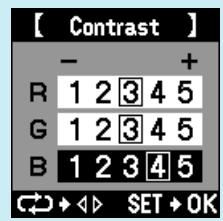
The color tone of prints can be changed using the four parameters of sharpness, gamma, brightness and contrast.
Adjustment Procedure
1
Align the mode selector dial to the "SETUP" position.
2
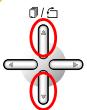
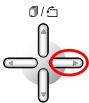
Press the up or down arrow button to select "Image Adjust" and then press the right arrow button.
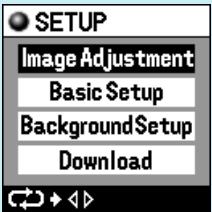
The printer adjustment menu is displayed.
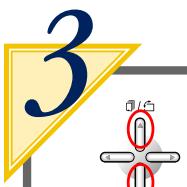
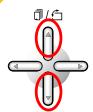
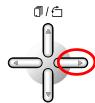
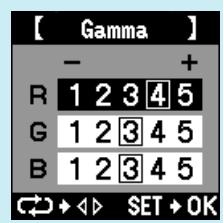
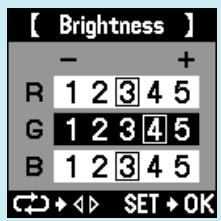
Press the up or down arrow button to select the parameter you want to change among "Sharpness", "Gamma", "Brightness" and "Contrast", and then press the right arrow button.
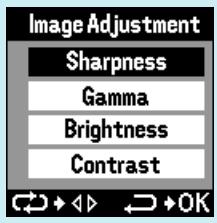
Refer to samples for details regarding color changes.
Once values have been designated with the left or right arrow button, press the OK/SELECT button.
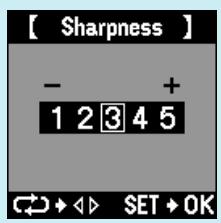
Sharpness
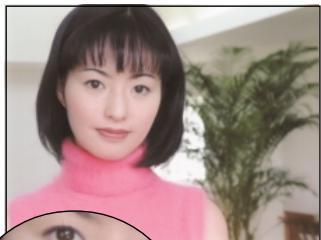
1 (-2)

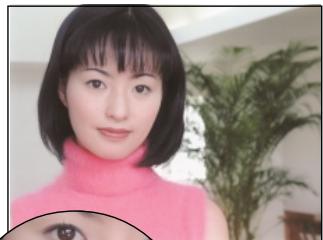
3 (standard)


5 (+2)

Gamma
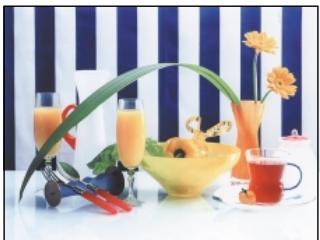
R:1, G:1, B:1 (-2)
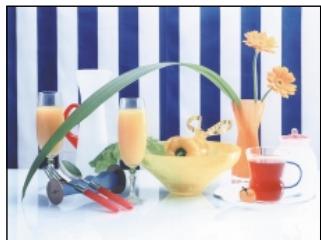
R:3, G:3, B:3 (standard)
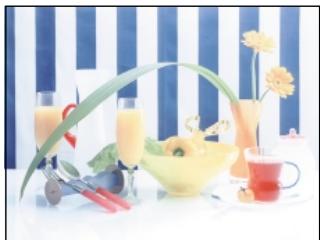
R:5, G:5, B:5 (+2)
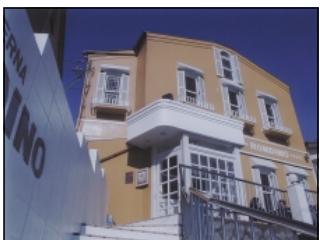
Brightness
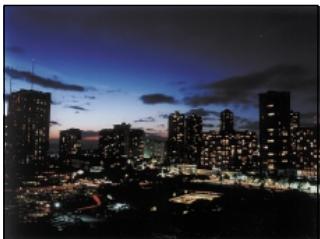
R:1, G:1, B:1 (-2)
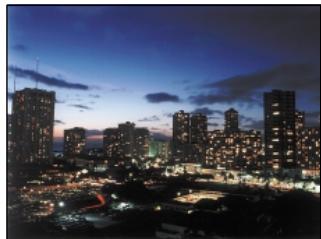
R:3, G:3, B:3 (standard)
R:5, G:5, B:5 (+2)
Contrast
R:1, G:1, B:1 (-2)
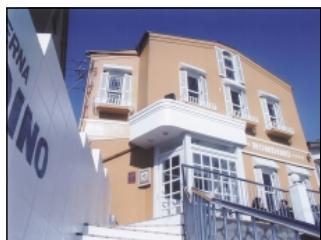
R:3, G:3, B:3 (standard)
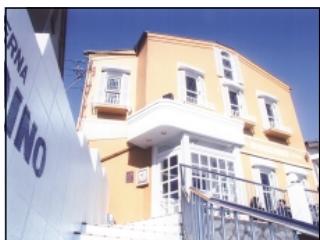
R:5, G:5, B:5 (+2)
Check the following items when the printer does not operate as it should or a problem occurs during operation.
| Problem | Cause | Corrective Action |
| Power does not come on | ·The power cord may not be plugged in. ·There may be a problem with the power outlet. | ·Turn off the printer power and check the plug of the power cord. ·Try plugging in the power cord of another electrical appliance and check if it operates properly when plugged into that power outlet. |
| Unable to print from a card | ·The inserted card may not be able to be read. ·There may be no image data on the card. ·The card may be damaged. | ·Check if the card is inserted properly. ·Check whether the card contains image data. ·Check for soiling of the card contacts and the use of the card. |
| Unable to print from PC | ·The interface cable may be disconnected. ·The specifications of the interface cable may not be correct. ·The input mode may be set incorrectly. ·The printer driver may not be installed or incorrect. | ·Check the connection of the interface cable. ·Check whether a bi-directional parallel cable (Windows) or USB cable (Windows 98, Macintosh) is being used. ·Check the connection method (Parallel, USB) and input mode. ·Check whether the printer driver is installed correctly. Try re-installing as necessary. |
| Unable to print correctly | ·There may be something wrong with the image data. ·The ink ribbon may not be installed properly. ·The cause may be the settings for filter, color tone or paper orientation. ·The printing head may be soiled. | ·Check the image data with a digital camera, PC, etc. ·Check the installation of the ink ribbon and ink cassette. ·Check each setting. ·Clean the printing head. |
| Message | Cause | Corrective Action |
| INPUT SmartMedia !No Card Found | ·The inserted SmartMedia or PC card cannot be read. | ·Take out the card and re-insert it properly. Try using a different card if the pictures can still not be read. |
| PHOTO-ALBUM 1 !Card was Removed | ·The card (SmartMedia or PC Card) has been removed while the printer was operating. | ·Take out the card (SmartMedia or PC Card) and properly re-insert it. |
| PHOTO-ALBUM 1 !Please Insert Card | ·A card (SmartMedia or PC Card) has not been inserted into the printer. | ·Insert a card (SmartMedia or PC Card). |
| PHOTO-ALBUM 1 !Picture Error | ·Unable to read image data. | ·Try re-inserting the card correctly. If image data is still unable to be read, try using a different SmartMedia or PC Card. |
| PHOTO-ALBUM 1 !No Picture Found | ·There is no data recorded on the inserted SmartMedia or PC card. | ·Use a SmartMedia or PC card that contains image data. |
| PHOTO-ALBUM 1 !No Picture Selected | ·Pictures have not been selected. | ·Perform the procedure for selecting pictures. |
| PHOTO-ALBUM ! ! ! Close Cover to Print | ·The printer cover is open. | ·Properly close the printer cover. |
| PHOTO-ALBUM ! ! ! Printer Error | ·The power may have been turned on with the cover open. ·An error has occurred. | ·Turn off the power, close the cover and then turn the power back on again. ·Contact the nearest service department of Olympus. |
| PHOTO-ALBUM ! ! ! Paper Left | ·There is unnecessary paper remaining in the printer. | ·Remove the unnecessary paper. |
| PHOTO-ALBUM ! ! ! Remove Paper-Cassette and Power OFF→ON | ·The power may have been turned off during the previous printing. | ·Remove the paper cassette, turn off the power and then turn it back on again. |
| PHOTO-ALBUM ! ! ! Please Wait | ·The temperature of the thermal head is too high. | ·Wait 30 - 100 seconds until the thermal head cools. ·Printing resumes automatically after the thermal head has cooled. |
| PHOTO-ALBUM ! ! ! Paper Jam | ·Paper has become jammed in the printer. | ·Stop printing and remove the jammed paper. |
| PHOTO-ALBUM A4 ! No Paper (Reprint + ) | ·The printer is out of paper. | ·Add paper. |
| PHOTO-ALBUM A4 ! No Ribbon (Reprint + ) | ·The printer is out of ink ribbon. | ·Replace the ink ribbon. |
| PHOTO-ALBUM A4 ! Incorrect PaperSize (Reprint + ) | ·Paper of a different size that has been set is installed in the printer. | ·Either install paper in the printer that matches the paper setting or change the paper setting to match the paper. |
| CARD A4 ! Card Printing is Not Possible with A5 WIDE Paper | ·Paper has been installed that is different from the paper setting, or the paper setting for card printing is incorrect. | ·Correct the paper setting. |
| USB Mode | ·USB is selected for the input. | ·When printing directly from a card, select SmartMedia or PC Card for INPUT. |
| Parallel Mode | ·Parallel is selected for the input. | ·When printing directly from a card, select SmartMedia or PC Card for INPUT. |
| Background Setup ! Background Not Stored Error 100-2345 OK | ·Background may not be able to be registered depending on the size and compression rate of the number of pixels of the picture. | ·Register a different picture for the background. |
| Background Setup ! Missing Background 100-2345 OK | ·A background has not been registered. | ·Register a background. |
| Download Parallel ! Download Error OK | ·Data has not been downloaded. | ·Turn off the power of the printer and then turn it back on again. ·Try transmitting the data again while making sure to follow the procedure described in this manual. |
Correct the problem by following the procedure below when paper has become jammed in the printer during printing.

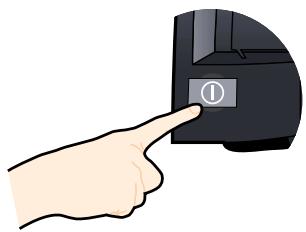
Turn off the power.

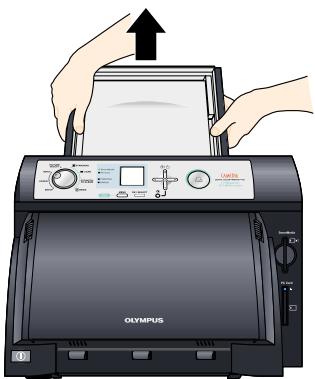
Take out the paper cassette.
If the paper cassette cannot be removed, contact the nearest service department of Olympus.

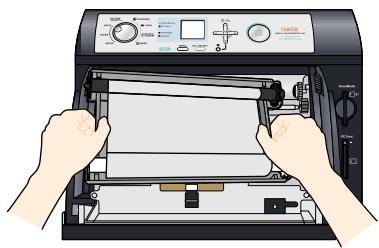
Open the door and take out the ink cassette.
If the ink cassette cannot be removed, contact the nearest service department of Olympus.
When there is paper in the upper portion of the printer:

Close the door since there is the risk of damaging the thermal head.
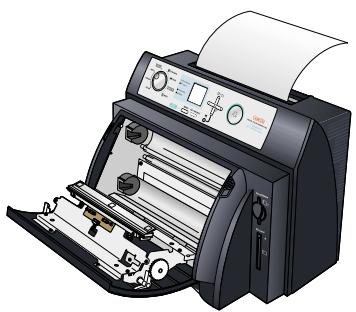
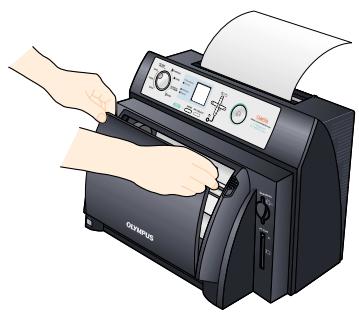

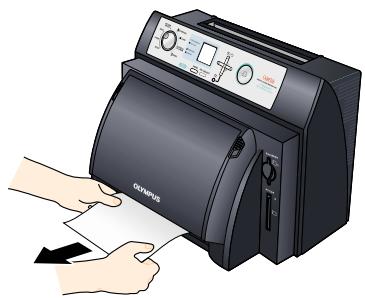
Pull out the paper.
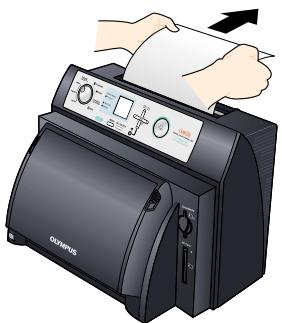
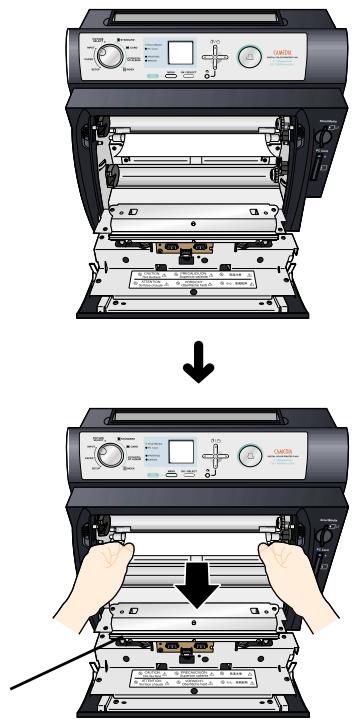
When there is paper inside the printer:

Pull out the paper.
Be careful not to damage the thermal head at this time.
Thermal head
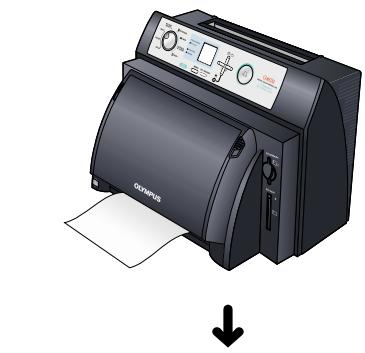
When there is paper in the lower portion of the printer:

Pull out the paper.
Specifications
| Dimensions | D275 mm × W422 mm × H311 mm (including the size of the printer body) |
| Weight | 24.9 lb |
| Power supply | 120 V AC, 50/60 Hz |
| Rated power consumption | 180W 2.3A |
| Printing system | Sublimation dye transfer printing |
| Resolution | 314 dpi |
| Gradations | 256 levels per dot |
| Printing head dots | 2400 dots |
| Effective printing width | 194 mm |
| Maximum printing area | 2400 × 3200 dots (194 × 258 mm) |
| Paper feed system | Cut sheets, paper cassette (capacity: 50 sheets) |
| Ink ribbon | Refillable cartridge (capacity: 50 sheets) |
| Paper output tray | Capacity: 50 sheets |
| Printing colors | 3 colors of Y, M and C, and a light-resistant OP layer (protective layer) |
| Paper types | Standard paper, A4 (297 mm × 210 mm) Standard paper, A5 wide (210 mm × 200 mm) L-size card paper (L-size, 89 mm × 119 mm × 4 sheets) A4 Postcard paper (postcard, 100 mm × 148 mm × 2 sheets) A4 |
| Printing size | A4 194 mm × 258 mm (2400 ×3200 dots) A5 194 mm × 162 mm (2400 × 2000 dots) |
| Printing time | Maximum size A4 picture, 90 seconds (excluding data transmission and developing times) |
| Card inputs | SmartMedia: 3 V (3.3 V), 4, 8, 16, 32, 64M bytes PCMCIA (memory card) Type II |
| Printing layout | Multiprints (Standard) Photo-album prints Index prints Postcard and L-size prints |
| Printing options | Stamp, Background, Frame, Filter, Date and Rotation |
| Compatible image file formats | DCF-compatible, JFIF and EXIF-compatible, DPOF-compatible (picture selection, no. of prints, trimming) |
| Image display LCD panel | Monochromatic, 16 gradations, 128 dots x 128 dots (32 mm x 32 mm) |
| PC interface (Printer-Driver) | IEEE1284 (Parallel) Windows95, 98 (CPU: Pentium or higher) WindowsNT 4.0 (CPU: Pentium or higher, local PC only) Windows2000 (CPU: Pentium or higher, local PC only) USB Windows98 (CPU: Pentium or higher) Windows2000 (CPU: Pentium or higher, local PC only) Macintosh OS8.6/OS9 (New G3, iMac, iBook or later) |
| Operating temperature range | 41-95°F (5-35°C), 30-85% (for guaranteed picture quality) |
Service
- Since the warranty will be presented to you by the store where you purchased the P-400, make sure the name of the store and the date of purchase are written on the warranty. If they are not, immediately request the store to write them on the warranty. Make sure to keep the warranty in a safe place after carefully reading its contents.
- If you have any questions regarding after-sales service for this printer or if a problem should happen to occur with the printer, consult the store where the P-400 was purchased or one our service stations. In the event this product has malfunctioned during the course of proper handling in accordance with the instruction manual, repairs will be performed free of charge based on the conditions of the warranty for period of 1 full years from the date of purchase.
- Repairs and other servicing performed after the warranty period has expired are performed at regular service rates as a general rule. Additional charges for shipping are to be borne by the customer.
- Repair parts relating to performance for this printer will be retained by the manufacturer for a period of 5 years following discontinuation of production. Consequently, repairs will be accepted during this period as a general rule. Furthermore, since there are cases in which repairs can still be performed even after the above period has expired, please inquire at the store where the P-400 was purchased or your nearest service station. (Repair parts relating to performance indicate those parts that are required to maintain the performance of the product.)
- The manufacturer is not responsible for incidental damages caused by this printer (miscellaneous costs required for printing).
OLYMPUS
- OLYMPUS OPTICAL CO.(EUROPA) GMBH.
- OLYMPUS OPTICAL CO.(U.K.) LTD.
- CAMEDIA
- Notes
- Information
- - READ THIS FIRST
- - INSTALLATION GUIDE
- EASY PRINTING GUIDE (this guide)
- - INSTRUCTIONS
- Table of Contents
- For Safe Use 1
- Identifying the Parts 6
- What you can do with the P-400 Digital Color Printer ...... 9
- Procedure for Printing with a Card 18
- Explanation of the LCD Panel 20
- Basic Printing 22
- Appendix 50
- WARNING
- ■ Do not place heavy objects on the printer.
- - Do not install the printer in the following places.
- - Do not use the printer with a power supply other than that specified.
- Connect the power cord correctly.
- Make sure that excessive dust and foreign matter do not accumulate on the power cord.
- - Immediately unplug the power cord when an electric storm starts outside.
- - Do not overload the power outlet.
- CAUTION
- Do not block the vent.
- ■ Do not put the printer on an unstable surface such as a shaky table.
- ■ Do not touch the non-user-serviceable parts inside the printer.
- ■ Do not move the printer when the power cord is taut.
- Do not pull the cord with a jerk.
- - Do not hold the power cord plug with wet hands.
- !NOTE
- Printer Body
- Operation panel
- Printer cover
- Power (ON/OFF) switch
- Paper output tray
- Paper discharge opening
- Paper cassette compartment lid
- Dust Cover
- Cover eject lever
- SmartMedia slot
- PC card eject button
- PC card slot
- USB connector
- Parallel connector
- AC power connector
- Paper Cassette
- - Ink Cassette
- Tip
- Types of Prints
- Printing Patterns When using A4 paper
- (Use P-A4P or P-A4L paper.)
- - Print Processing
- From the Start to End of Printing
- Input Selection
- Paper Selection
- Picture Selection
- Setup
- Printing Modes
- Start Printing
- End Printing
- OFF
- Common Setup
- Transferring data to the printer
- 1
- 2
- Select the data input method
- Select the type of paper
- STANDARD PRINTING (Refer to page 10 for samples of output prints)
- Select the picture to be printed
- Standard Printing
- CARD PRINTING (Refer to page 11 for samples of output prints)
- Select the image to be printed
- Card Printing
- - PHOTO-ALBUM PRINTING (Refer to page 12 for samples of output prints)
- Prepare a background
- OK/SELECT
- 10
- 11
- 12
- Select a layout
- 15
- 16
- Selecting a stamp
- 18
- 20
- Select a background
- 21
- 22
- OK
- Photo Album printing
- OK
- 27
- - INDEX PRINTING (Refer to page 12 for samples of output prints)
- Index printing
- Introduction to Color Printing
- Difference Between RGB and CMY
- DPOF (Digital Print Order Format)
- - Changing Color by Adjusting the Printer
- Adjustment Procedure
- Sharpness
- Gamma
- Brightness
- Contrast
- When there is paper in the upper portion of the printer:
- Specifications
- Service
- OLYMPUS
Brand : OLYMPUS
Model : P-400
Category : Photo printer