RCD263BT - Car stereo CALIBER - Free user manual and instructions
Find the device manual for free RCD263BT CALIBER in PDF.


User questions about RCD263BT CALIBER
0 question about this device. Answer the ones you know or ask your own.
Ask a new question about this device
Download the instructions for your Car stereo in PDF format for free! Find your manual RCD263BT - CALIBER and take your electronic device back in hand. On this page are published all the documents necessary for the use of your device. RCD263BT by CALIBER.
USER MANUAL RCD263BT CALIBER
text_image
CALIBER AUDIO TECHNOLOGY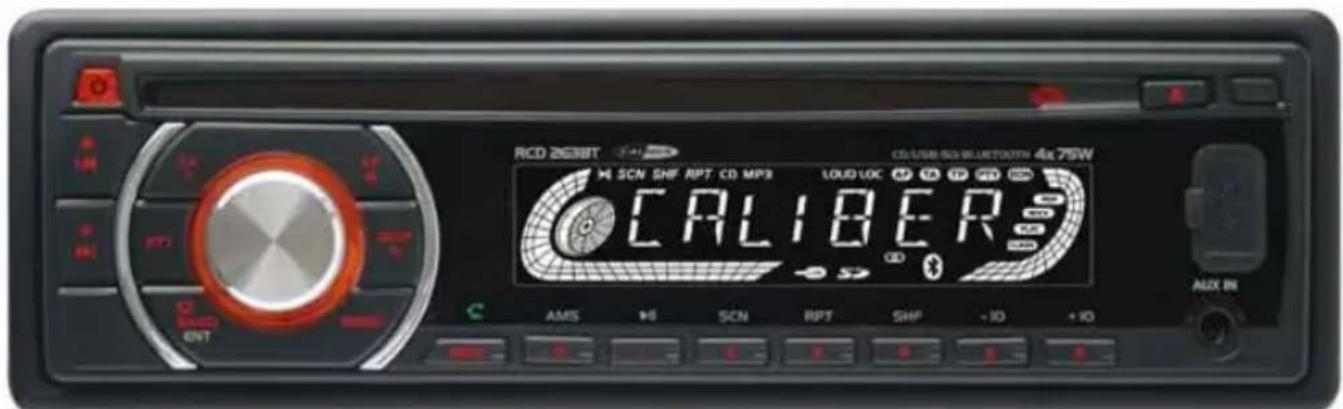
text_image
RCD 2638T CSUSB SN/Bluetooth® 4x 75W SCN SHF RPT CD MP3 CALIBER AMS H S C N RPT SHF -10 +10 AUX IN
natural_image
Close-up of a black plastic connector with a curved cable (no text or symbols visible)RCD 263BT
MANUAL
Page CONTENTS
01 Contents
02 Installation
04 Using the detachable front panel
05 Wiring iagramd
06 Operations
06 Location and function of controls
07 General perations
09Radio perations
10 RDS (Radio Data System) operations
11 /WMA@D/MP3 perations
12Mixedde 6D perations
13USB perations
13 SD/MMC ard pecations
13 AUX in peratiputo
14Bluetooth hands-free unctionf
16 Disc otes n
17 Trouble hooting
18Specifications
Installation
Notes:
- Choose the mounting location where the unit will not interfere with the normal driving function of the driver.
- Before finally installing the unit, connect the wiring temporarily and make sure it is all connected up properly and the unit and the system work properly.
- Use only the parts included with the unit to ensure proper installation. The use of unauthorized parts can cause malfunctions.
- Consult with your nearest dealer if installation requires the drilling of holes or other modifications of the vehicle.
- Install the unit where it does not get in the driver's way and cannot injure the passenger if there is a sudden stop, like an emergency stop.
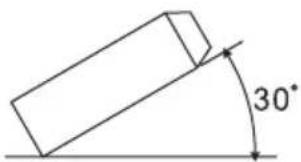
- If installation and e exceeds 30° from horizontal, the unit might not give its optimum performance
text_image
30°- Avoid installing the unit where it would be subject to high temperature, such as from direct sunlight, or from hot air, from the heater, or where it would be subject to dust, dirt or excessive vibration.
Din Front/Rear-Mount
This unit can be properly installed either from 'Front' (conventional DIN Front-mount) or 'Rear' (DIN Rear-mount installation, utilizing threaded screw Holes at the sides of the unit chassis). For details, refer to the following illustrated installation methods.
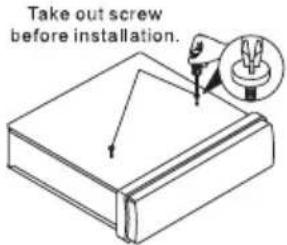
Take Out Screw Before Installation
Before install the unit, please remove the two screws.
text_image
Take out screw before installation.1. DIN FRONT-MOUNT (Method A)
Installation Opening
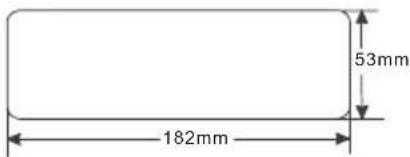
This unit can be installed in any dashboard having an opening as shown below:
text_image
53mm 182mmInstalling the unit
Be sure you test all connections first, and then follow these steps to install the unit.
-
Make sure the ignition is turned off, and then disconnect the cable from the vehicle battery's negative (-) terminal.
-
Disconnect the wire harness and the antenna.
-
Press the button on the front panel and remove the control panel (For details, refer to 'using the detachable front panel').
-
Lift the top of the outer trim ring then pull it out to remove it.
-
The two supplied keys release tabs inside the unit's sleeve so you can remove it. Insert the keys as far as they will go (with the notches facing up) into the appropriate slots at the middle left and right sides of the unit. Then slide the sleeve off the back of the unit.

text_image
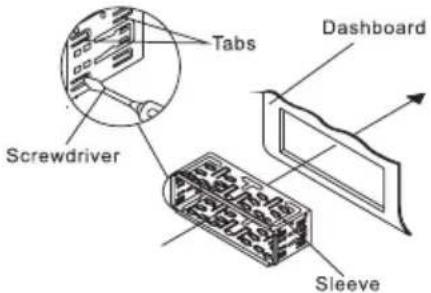
Sleeve key Outer Trim Ring Front Panel key- Mount the sleeve by inserting the sleeve into the opening of the dashboard and bend open the tabs located around the sleeve with a screwdriver. Not all tabs will be able to make contact, so examine which ones will be most effective. Bending open the appropriate tabs behind the dashboard to secure the sleeve in place.
text_image
Screwdriver Tabs Dashboard Sleeve-
Reconnect the wire harness and the antenna and be careful not to pinch any wires or cables.
-
Slide the unit into the sleeve until it locks into place.
-
To further secure the unit, use the supplied metal strap to secure the back of the unit in place. Use the supplied hardware (Hex Nut (M5mm) and Spring Washer) to attach one end of the strap to the mounting bolt on the back of the unit. If necessary, bend the metal strap to fit your vehicle's mounting area. Then use the supplied hardware (Tapping Screw (5x25mm) and Plain Washer) to attach the other end of metal strap to a solid metal part of the vehicle under the dashboard. This strap also helps ensure proper electrical grounding of the unit.
Note: Install the short threading terminal of the mounting bolt to the back of the unit and the other long threading terminal to the dashboard.

text_image
Spring Washer Hex Nut Metal Strap Mounting Bolt Plain Washer Tapping Screw- Reconnect the cable to the vehicle battery's negative (-) terminal. Then replace the outer trim ring and install the unit's front panel (see the steps of 'to install the front panel').
Removing the unit
-
Make sure the ignition is turned off, and then disconnect the cable from the vehicle battery's negative (-) terminal.
-
Remove the metal strap attached the back of the unit (if attached).
-
Press the release button to remove the front panel.
-
Lift the top of the outer trim ring then pull it out to remove it.
-
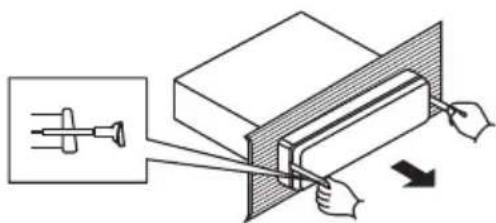
Insert both of the supplied keys into the slots at the middle left and right sides of the unit then pull the unit out of the dashboard.
text_image
Diagram illustrating a mechanical or electrical setup with a tool and directional arrows, likely illustrating a procedure or operation.2. DIN REAR-MOUNT (Method B)
If your vehicle is a Nissan, Toyota, follow this mounting instruction. Use the screw holes marked T (Toyota), N (Nissan) located on both sides of the unit to fasten the unit to the factory radio mounting brackets supplied with your vehicle.

text_image
Side View showing Screw Holes marked T, N Screw Factory Radio Mounting Bracket Screw Dashboard or ConsoleFasten the unit to the factory radio mounting brackets. Align the screw holes on the bracket with the screw holes on the unit, and then tighten the screws (5x5mm) on each side.
Note: the outer trim ring, sleeve and the metal strap are not used for method B installation.
Using the detachable front panel
Removing and protecting detachable front panel
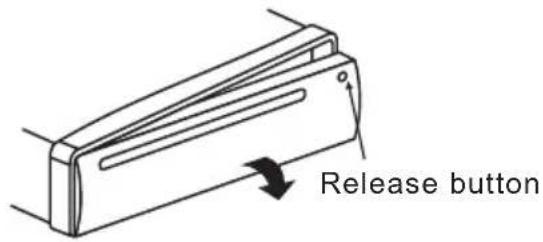
The front panel of the unit may be removed as a theft deterrent. After removing the front panel, use the case provided to keep the front panel from getting damaged.
- Press the Release button (▲ to flip down the front panel.
text_image
Release button2 Pull off the front panel.

natural_image
Line drawing of a hand holding a rectangular object with a downward arrow indicating motion or force (no text or symbols)- Store the front panel in the protective case provided for safekeeping.

text_image
protective case front panelTO ATTACH THE FRONT PANEL
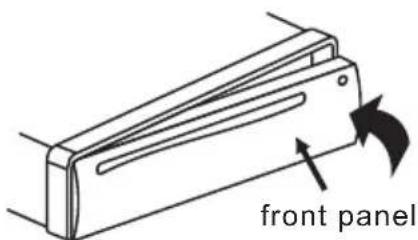
To install the front panel, insert the panel into the housing and make sure the panel is properly installed. Otherwise, abnormality occurs on the display or some keys will not function properly.
text_image
front panelWiring diagram

text_image
Antenna Socket RCA connector to front left output (White) RCA connector to rear left output (White) To External Microphone 15 FUSE 15A RCA connector to rear right output (Red) RCA connector to front right output (Red) ISO CONNECTOR A B 1 2 1 2 3 4 3 4 5 6 5 6 7 8 7 8 TO MEMORY B+ YELLOW GROUND B- BLACK ACC B+ RED FRONT 4 ohm WHITE WHITE / BLACK LEFT SPEAKER VIOLET REAR 4 ohm GREEN / BLACK VIOLET / BLACK BLUE TO ANTENNA GRAY FRONT 4 ohm GRAY / BLACK RIGHT SPEAKER VIOLET REAR 4 ohmISO connector:
Part A:
A1: No Connect
A2: No Connect
A3: No Connect
A4: Battery B+ (Yellow)
A5: Antenna (Blue)
A6: No Connect
A7: Accessory (Red)
A8: Ground B- (Black)
Part B:
B1: Rear Right + (Violet)
B2: Rear Right - (Violet/Black)
B3: Front Right + (Gray)
B4: Front Right - (Gray/Black)
B5: Front Left + (White)
B6: Front Left - (White/Black)
B7: Rear Left + (Green)
B8: Rear Left - (Green/Black)
Operations
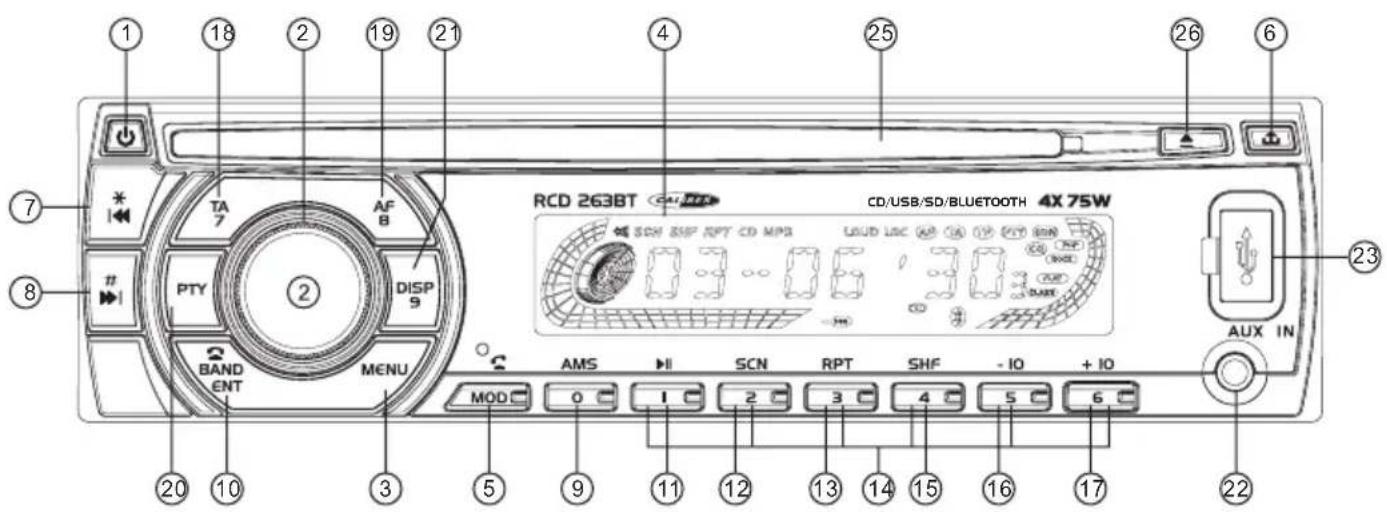
Location and function of controls
Front panel:
text_image
RCD 263BT CD/USB/SD/BLUETOOTH 4X 75W TA 7 AF B PTY DISP 9 BAND ENT MENU MOD AMS I SCN RPT SHF - IO + IO 20 10 3 5 9 11 12 13 14 15 16 17 22 23 25 26 6The car radio after removing the front panel:

text_image
e car radio after removing the front panel. 25 24 RESET 27 28Descriptions of Function Controls
(1) Power on/off Button (☐), Mute Button
(2) Volume Control, Audio/Menu Selector (SEL)
(3) TEL Menu Button (MENU)
(4) LCD display
(5) Mode /Button
(6) Release (Button
(7) DOWN (▶) Button
Tune down, Seek down, previous track, fast reverse
(8) UP (▶)/# Button
Tune up, Seek up, next track, fast forward
(9) AMS(AuBustorage/ Preset memory Scan
Numeric 0 Button, MP3 Search Button
(10) BAND, ENTER Button
(11) Playing/Pausing(▶ Numeric 1 Button
(12) Scan(SCN) Playback, Numeric 2 Button
(13) Repeat(RPT) Playback, Numeric 3 Button
(14) Preset Station (1-6) Buttons
(15) Random(SHF) Playback, Numeric 4 Button
(16) Playing the -10 track, Numeric 5 Button
(17) Playing the + 10 track, Numeric 6 Button
(18) TA(Traffic Announcement), Numeric 7 Button
(19) AF(List of Alternative Frequencies), REG(Regional Program), Numeric 8 Button
(20) PTY(Program Type) Button
(21) DISP(Display), Numeric 9 Button
(22) AUX Input Jack
(23) USB Port
(24) SD/MMC Memory Card Slot
(25) Disc slot
(26) Eject (▲key
(27) Anti-theft LED Indicator
(28) Reset Button
General Operations
Reset the unit
When operating the unit for the first time, after replacing the car battery or changing the connections, you must reset the unit.
-
Turn off the unit power.
-
Press the RE button to remove the front panel, then press the RESET with a ballpoint pen or similar object to restart the unit.
Power on/off
In power off mode, switch on the unit by pressing any button except the REL button. When the system is on, press and hold the POWER on/off button( ⏻) o n t h head unit or remote controfor about 2 seconds to turn off the unit.
Sound adjustment
- Rotate the volume control to adjust volume level.
- Press the SELLton short and repeatedly to select the the sound setting that you would like to adjust: volume, bass, treble, balance and fader.
-
Rotate the volume control to adjust level of the selected sound mode:
-
VOL:00,01 \~ 44,45
-BAS/TRE:-7,-6\~,0,\~+6,+7, - BAL: 7R,6R, \~,0, \~, 6L,7L
-FAD:7R,6R,\~,0,\~,6F,7F - Loudness: LOUD ON / OFF
- Equisier Offode POP, ROCK, CLASSIC, FLAT
Note:
- In each mode, when the unit has not been adjusted for about 2 seconds, the current setting will be saved and it returns to the previous mode.
- When using preset EQ modes, you cannot have access to Bass and Treble settings.
System menu
Press the SELton and hold for more than 2 seconds to access system setup menu mode, then press the SELton momentarily to select the menu items in sequence as follows:
"TA SEEK or TAALARM"→ "PI SOUND or PI MUTE"→ "RETUNE L or RETUNE S"→
"MASK DPI or MASKALL"→ "TAVOL 17" (traffic announcement volume)→ "CLOCK 24 or 12" (Clock format)→ "BEEP ON/OFF" (beep sound on/off)→ EXIT
After selecting the desired menu item, rotate the volume control to select the mode of the selected item.
"TA SEEK or TA ALARM"(search for traffic announcement/traffic announcement alarm)
- TA SEEK mode:
When a newly tuned station does not receive traffic information for 5 seconds, the radio retunes to next station which has a different PI and which broadcasts traffic information.
If, during the chosen retune time (30 seconds for a short retune or 90 seconds for a long retune), the unit can no longer receive the current station which was broadcasting traffic information, it will start to search for the next station that has the same PI.
If no station with the same PI is found after one search cycle, the radio will search for the next station broadcasting traffic announcements.
- TA ALARM mode:
Select this mode to switch off the automatic retune. The radio will bring up a warning message "NO TP, TA" on the LCD display and emit a double beep sound (ALARM). If a newly tuned station does not broadcast any traffic information for 5 seconds, a beep can be heard.
If the unit can no longer receive the current station during the chosen retune time, a beep sound can also be heard.
If a newly tuned station has no RDS signal, the message "PI SEEK" disappears.
Note: TP: Traffic Program.
PI: Program Identification.
"PI SOUND or PI MUTE":
In some regions, there is a possibility of having two different stations with the same frequency but different PI codes.
If "PI SOUND" is selected, radio will switch to the new station with a different PI for a few seconds before switching back to the current station that was broadcast initially. If "PI MUTE" is selected, the radio will not broadcast the new station that is received.
"RETUNE L or RETUNE S"(long/short retune):
This function allows you to set the duration after which the automatic search for traffic information or a station with an identical PI should be carried out.
- RETUNEmatriodearch
will take place after 90 seconds.
- RETUNE S mode: The automatic search will take place after 30 seconds.
"MASK DPI or MASK ALL":
Any alternative frequency (AF) with a different PI or which does not broadcast an RDS signal that is strong enough will normally be masked when the PI is checked while the unit searches for an alternative frequency. The unit will not automatically go to this type of alternative frequency. It is possible that an AF which does not broadcast a strong enough RDS signal is a valid AF, but that the car radio wrongly considers it as a station with a different PI due to interference. For this reason, the unit offers the user an option (MASK DPI) which does not mask the AFs which do not broadcast a strong RDS signal.
- MASK DPI mode:
Only masks the alternative frequencies with a different PI.
- MASK ALL mode:
Masks alternative frequencies with a strong signal that have a different PI or which do not emit a strong enough RDS signal.
"TAVOL 17"(Traffic announcement volume):
This function allows you to define the minimum volume for the traffic announcements. The adjustable range is 0\~45. The defaulted value is 17. Rotate the volume control to adjust the volume of the traffic announcements.
"CLOCK24 or CLOCK(12ck format): This unit is equipped with two types of clock display formats, 24 hours and 12 hours. Rotate the volume control to choose 24 hours format or 12 hours format.
"BEEP ON/OFF" (beep sound on/off):
The car audio device is equipped with confirmation beep tone.
- Beep on: The confirmation beep sound will be heard when any button is pressed.
- Beep off: The confirmation beep sound is
disabled.
Rotate the volume control to select switch on or off the confirmation beep sound
Mute on/off
In power on mode, briefly press the MUTE button (☐) to toggle mute on or off. The muted state will be also released when the Volume control button is used.
To select playback mode
In power on mode, press the MODEn repeatedly to select the different modes as the following sequence: TUNER, DISC(with a CD/MP3/WMA disc inside the disc slot), USB(with USB device inserted), SD/MMC (with SD/MMC card inserted), AUX IN (auxiliary input), BT AUDIO mode.
Last position memory feature
- During disc, USB, SD/MMC card playback, if you turn off the unit and then switch on it, the unit will resume playing from the point that it was interrupted.
-During disc, USB, SD/MMC card playback, if you switch to other mode, and then return the previous mode again, the unit will resume playing from the point that it was interrupted.
Information display
Press the DLSRn repeatedly to display as follows:
- When receiving an RDS station In radio mode:
CT -> FREQUENCY -> PS(Name of the station) -> PTY(Type of program) ->
In CDP/USB/SD/MMC mode:
CT -> FREQUENCY -> PS(Name of the station) -> PTY(Type of program) -> Track or file number and Running time ->
Note:
If the unit does not receive any PTY information, the "PTY NO NE" be shown on the LCD display
- Welceiving a non RDS station:
In radio mode:
CT -> FREQUENCY -> PTY NONE->
In CDP/USB/SD mode:
CT -> FREQUENCY -> PTY NONE -> Track or file number and Running time
Note: The selected information is displayed for 5 seconds, then the radio goes back to the first display mode after 5 seconds.
Clock display and adjustment
- To view the current time
Press the DL8Rn, the current time will be shown on the LCD display for 5 seconds and then revert to the previous display mode.
- To adjust the time:
Press and hold the DISRton until the hour blinks, then rotate the volume knob to adjust the hour; Then press the DISRton briefly, the minute will blink, and rotate the volume knob to adjust minute.
ESP Function
This CD/MP3 car radio has the electronic shockproof feature. So that if the unit skips due to rough road conditions, the playback of the disc will be uninterrupted.
Anti-theft LED Indicator
Designed as a theft deterrent, the red LED will flash when the unit is turned off and face plate removed.
Radio operations
To select a radio band
In radio mode, press the BANDn repeatedly to select a radio broadcasting band you would like to hear. The 3 FM bands will be changed cyclically through the tuning bands: ->FM 1->FM 2 ->FM 3 ->.
Auto/ Manual tuning
- Automatic search mode:
Briefly press the ▶r button, the auto search will start. It will search upward or downward for the strong signal radio station within the current band. In auto tuning, press the ▶r button to stop tuning. Pressing and holding the ▶r button for about 2 seconds until “MANUAL” appears on LCD display, it will change into manual search mode.
- Manual search mode:
Press the ▶ button short and repeatedly to manually search upward or downward step by step for the desired radio station within the current band. In manual search process, if the both buttons haven't been pressed within 5 seconds, it will change into automatic search mode automatically, "AUTO" will be visible on the LCD display.
To store / recall a preset radio stations
You can store up to a total of 18 FM radio stations in the memory, manually or automatically.
- To store a station:
- Select a band (if needed)
- Select a station by▶bottom
- Press and hold a preset button ( - ) which you want to store the station for at least 2 seconds, the current station will be saved into the relevant preset memory bank. When a RDS station is being stored, the relevant PI, PS, AF list are stored.
- To recall a station:
- Select a band (if needed).
- Press a preset button (1-6) briefly to recall the stored station. In case of RDS mode, the strongest AF is selected after AF searching.
Auto store / Preset scan
- Preset scan:
Short pressing the AMSon, the radio searches for each preset station that saved in the memories of the current band. If the field strength level is more than the threshold level, the radio will hold at this preset station for 5 seconds with sound output, then go to next station, finally the radio will play at the preset station where scanning started. Press the AMSin to stop preset scanning.
- Auto store:
Press the AM\$on for more than 2 seconds to start auto store. The radio will scan from the current frequency, and automatically store the 6 strongest stations into the preset memories. When auto store is complete, the radio will start preset scan to the stored 6 station
RDS (Radio Data System) operations
Setting Alternative Frequencies
Press the AEFREG short toggles AF mode on or off. There are 3 state the "AF" icon on the LCD display:
Icon "AF" off: AF switching mode off.
Icon "AF" on: AF switching mode on, and has RDS information.
Icon "AF" blink: AF switching mode on, but RDS information is not received yet.
When AF switching mode is selected, the radio checks the signal strength of the AF all the time. The interval of checking time of each AFs depends on the signal strength of current station, from a few minute for strong station to few seconds for weak station. Every time that new AF is stronger than current station, it switches over to that frequency for very short time. Because the mute time of AF switching or checking time is very short, it is almost inaudible in case of normal program. During FM mode, when AF is on, manual store, Auto store/preset scan function can only receive and save RDS program.
Regional Program Operation
Press the AREG) button for longer 2 seconds to toggle on or off region mode. Some broadcasting stations change their program from normal broadcasting to regional broadcasting for a certain time period.
When regional mode on, the radio accepts RDS stations with regional variants, the current listening program remains unchanged; When regional mode off, the radio ignores regional variants, it allows the reception moved to the regional station
Using PTY to select a program
The PTY function allows you to search for a particular program type.
To select a program type, press the PTY button. "POP M" (pop music) or "NEWS" will appear on the LCD display. You can then select a program type by using the preset buttons 1o . 6
The program types are divided into two groups: the music PTY group and the speech PTY group:
HINT:
When you choose MUSIC PTY GROUP, the preset number buttons 1-6 correspond to the following programs:
Preset Music PTY Group
number
1 POP M, ROCK M
2 EASY M, LIGHT M
3 CLASSICS, OTHER M
4 JAZZ, COUNTRY
5 NATION M (national music), OLDIES
6 F O L K M
When you select the SPEECH PTY GROUP the preset numbered buttons is shared as follows:
Preset Speech PTY Group number
1 NEWS, AFFAIRS, INFO
2 SPORT, EDUCATE, DRAMA
3 CULTURE, SCIENCE, VARIED
4 WEATHER, FINANCE,
CHILDREN
5 SOCIAL, RELIGION, PHONE IN
6 TRAVEL, LEISURE, DOCUMENT
When you select a program type, the radio will search for a station broadcasting this type of program. The radio will stop searching if it finds the relevant program type. If the radio does not find a station broadcasting the type of program selected, the character “PTY NONE” will be shown on the LCD display and the previous station is broadcast.
Listening to Traffic Announcement
It is possible to program the car radio so that it interrupts disc mode, radio mode, AUX mode or the current radio station when a traffic announcement is broadcast.
Briefly press the TButton to switch TA mode on or off.
When Trade is on and a traffic announce -ment is transmitted:
- When the car radio was in CD (MP3/WMA), USB/SD/MMC or AUX IN mode, it will switch temporarily to radio mode.
- Temporary switch over to an EON linked station when EON detects a traffic announcement on that other program.
- If the volume level was under the threshold point, it will be raised to the threshold point.
- When T'ao'dtA's on, segment is turned on.
- When a TP station is received, segment "TP" is turned on.
TA interruption function
The current traffic announcement is cancelled by pressing this key. But the A mode will not be off.
The RDS data are the PI, PS, TP, PTY, TA and AF data.
PI (Program identification):
Code for identifying the radio station.
PS (Program service):
Name of the radio station.
PTY (Program type):
Type of program such as news, Pop music, sports etc.
TP (Traffic program):
Code indicating a station broadcasting traffic information.
TA (Traffic announcement):
Function allowing the broadcasting of traffic information.
AF (Alternative frequencies):
Function allowing an automatic search for the best alternative frequency available.
CD/MP3/WMA disc operations
Loading/Removing a Disc
- Turn the power on.
- If there is no CD/MP3 disc inserted in the player, gently insert a disc into the disc slot with the printed side facing upward, the player will play the disc automatically. If a CD/MP3 disc is already inserted in the player, press MODE to switch to the CD/MP3 mode.
- To eject the disc, press the EJECT ▲ button.
Playing/Pausing
In media (CD/MP3/WMA /USB/SD/MMC or A2DP) playback mode, press the button to interrupt the play back.
Press again to resume the playback.
Playing the previous/ next track
- In media (CD/MP3/WMA /USB/SD/MMC or A2DP) playback mode, briefly press the button to play the next track.
The unit will automatically play the first track on the current disc when the last track of the current disc has been played. - When played time of the current track or file is less than 5 seconds briefly press the button to play the previous track.
- When played time is more than 5 seconds, press the button to play the current track from the beginning of the current track or file.
Playing forward and backward
In CD or MP3/WMA file playback process, press and hold the▶ or ◀ button to fast forward or fast reverse. Release the buttons when the desired location is found, and normal playback starts.
Playing the 10 track up or down
In CD or MP3/WMA file playback process, press the 5-10), (610) button to play the previous or next 10 track or file.
Scanning playback
You can play the beginning of each track or file for 10 seconds in sequence.
In CD or MP3/WMA file playback, briefly press the SCN button to play the first 10 seconds segment of each track of file. The word "SCN" appears on the LCD display.
Press again to stop scanning and play the currently selected track or file.
Repeat playback
In CD or MP3/WMA file playback, briefly press the RPT on to continuously play the current track. The word "RPT" appears on the LCD displayPress again to stop repeat playback and resume normal playback.
Shuffle playback
In CD or MP3/WMA file playback, briefly press the SHF on to play all tracks or files in random sequence. The word "SHF" appears on the LCD display. Press again to cancel random playing.
Select the track or file for playback in MP3 or WMA format
You can access 3 different types of track search modes for MP3/WMA format:
Searching by track or file number→ Searching by folder number→ Searching by track or file name→ Exit
Searching by track or file number:
a) In playback of files with MP3 or WMA format, press the AM\$on once to access the track or file number searching mode which allow you to quickly find a specific MP3 / WMA track or file by its serial number, and the "T001-XXX" will be shown on the LCD display.
b) You can select a track or file directly, after entering track or file number search mode.
Rotate the volume control to select the number of your favorite file with high speed. Finally press BANDER) button to confirm and play the selected file.
Searching by folder number:
The folder search mode will allow you to quickly find an MP3 track or file under a specific group folder, and the "F001 /XXX" will be shown on the LCD display. a) In playback of file with MP3 or WMA format, press the AMiSon twice to access the folder number search mode.
b) Rotate the volume control to change and select your desired folder (If there are no root Folder in the disc, the LCD will display "ROOT")
c) Once the folder has been selected, press the BANDER) button to start play, the first the track or file of the selected folder will be played.
Searching by track or file name:
This track or file name search function requires only the first few character as search keyword, it will allow you to quickly find an MP3 title by its name.
a) To access this feature, press the AMS button three times, the "A**will be shown on the LCD display.
b) Then change the first character (A) by rotating the volume control. The character will be changed from "A" through "Z" and "0" through "9" in the order of A\~Z and 0\~9. Press the \$Eiton to confirm the character entered and advance to the next character.
c) When mached files was found, rotate the volume control or press them button to change and select your desired file among these files with same search keyword, then press the BANDER button to start play the searched file. If the file was not found, "NO MATCH" message will be visible on the display.
ID3 information of MP3 file
In phayback of discs with MP3 format, folder name, file name, title, artist and album information will be scrolling on the LCD display automatically.
Note:
As long as the current playing MP3 music contains relevant ID3 tag information in version 1.0/2.0 format, the 3 items underlined above will be scrolling on the LCD display, otherwise, they will not appear.
Mixed-mode CD operations
If available, the unit can play the mixed-mode CD disc (the disc contains both CD audio tracks and MP3/WMA files).
Under a default mode, the unit will first play all the MP3/WMA formatted songs and than play the CD formatted songs.
USB operations
The unit is equipped with a USB port on the front panel of the unit, you can connect a USB stick through the USB port.
Using the USB stick:
When you insert a USB stick through the port, the unit will search the MP3 files and start to play it automatically. If insert a disc into the disc slot while read the file in the USB device, the unit will playing the disc first. If you want to play the file in the USB device, press the MODE button to switch to USB mode.
Note:
- Use the USB adaptor cable, if necessary.
- The operations of playing MP3/WMA files in the USB is the same as the MP3/WMA operation described in the CD/MP3/WMA disc operations.
- When reading the USB stick, please don't touch or remove it.
- If following the instruction above, the unit can't read the file in the USB stick, please check if the device is in good condition, or take it out then insert it into the USB port once more.
- The main unit can only support the standard USB-memory device.
- USB MP3 player is not a standard which means different brand name or different models have their own standard.
So this product cannot support all MP3 players. - When connecting an MP3 player and there is a normal battery in the player (non rechargeable battery), you should remove the battery from the MP3 player and then connect it to the USB port. Otherwise, it may cause battery burst.
- When reading a USB device, be sure not to remove it from the USB port (change mode beforehand).
SD/MMC card operations
This unit equipped with you a memory card slot.
Using the SD/MMC card:
When you insert a SD/MMC card into the memory card slot, the player will reading the SD/MMC card automatically.
If insert a disc into the disc slot while read the SD/MMC card, the unit will playing the disc. If you want to play the file in the SD/MMC card, press the button to switch to SD/MMC mode.
SD/MMC memory card playing operation is the same with the MP3 operation described.
Note:
- When reading the memory card, please don't touch or take out the card.
- If following the instruction above, the unit can't read the card, please check if the card is in good condition, or take out the card and then insert it into the card slot once more.
Aux input operations
This car radio has an external auxiliary input jack, it is compatible with audio output from an MP3 music player.
So you can listen to sounds and music from external devices, if you have plugged such a player into the AUX IN jack. Press the
MODE AUX button to switch to the mode on or off.
Bluetooth hands-free function
When linking up your mobile phone to this bluetooth hands-free system, you can dial or receive calls via this bluetooth device while driving.
You can also transmit the audio data(music) from a bluetooth mobile phone to the CD/MP3 tuner.
Sound and pictures will automatically be turn off when there is an incoming call. Voice comes from your car speakers and the built-in microphone receives your voice.
You have to active automatic call reception so that the mobile phone accepts incoming calls automatically
(See the menu of the hands-free system) In many countries, this is a prerequisite for legal operation of hands-free equipment while driving.
1. Pairing
1.1 During pairing, please activate your mobile phone and input pairing code0000 and confirm in your mobile phone.
1.2 If pairing succeed, the ⚙ will not flashing on the LCD display. Otherwise, the “ ⚙ will flashing continuously on the LCD display.
NOTE:
After pairing has succeeded, if your phone supports auto-connect then it will connect automatically. If your mobile phone does not support auto-connect then you will have to manually connect.
2. Connect/disconnect
2.1 Connect
The bluetooth module of this car radio will connect to mobile phone automatically after pairing succeed. If connection succeeds, "CONNECT" will be visible on the LCD display, and the ⚙️ will not flashing on the LCD display. Otherwise, if there is a connection problem, the ⚙️ symbol will flash.
2.2 Disconnect
If bluetooth module has connected with your mobile phone, turn off the ACC power of the car or turn off the unit by pressing and holding the POWER to disconnect the bluetooth connect.
3. DIAL CALL
3.1 Dial with the mobile phone directly.
3.2 Diel with the \~ numeric button.
3.2.1 When the phone is paired, press the and hold the MENU to activate the bluetooth mode,
3.2.2 Press the “\~”, or button to input the telephone number. Simultaneously, the number being entered will appear on the LCD display. Press and hold the◀() button to input the symbol “+”.
If a number is incorrectly input, press the MENU button to delete it.
3.2.3 Press the "S" button to start dialing.
3.3 Dial the last number
3.3.1 When the phone is paired, press and hold the "S" button to start redialing.
4. Accept / Reject / End call
4.1 Accept a call
When you receive an incoming call, press the “” button to accept the call.
4.2 Reject a call
When you receive an incoming call, press the “☐” button to reject the call.
4.3 End of call
At the end of a call, press the 🔊" button to hang up the current call.
5. Call Transfer
For privacy, during a phone call, you can transfer the conversation from your car audio to your phone by pressing and holding the “☐” button; press and hold the “☐” button again to return to car audio.
6. Caller ID
When you receive an incoming call, the call's number will be shown on the LCD display.
7. Bluetooth menu wizard
When the phone is paired, press and hold the MENU to access bluetooth menu, then press the MENU repeatedly to view the items in the bluetooth menu. The structure of the menu is as follows:
PRE NUM : Preset phone number list. you can save a total of 10 phone numbers. RECEIVED: List of latest 10 received phone numbers.
DIALED: List of latest 10 outgoing phone numbers.
MISSED: List of the latest 10 missed-call phone numbers.
AUTO ANS(MANU ANS)Switch between auto answer or manual answer.
DEFAULT: Select the "DEFAULT" and confirm it to restore all the bluetooth menu to the original factory default settings.
Press the MEthu to select a item.
Press the SETton to enter the current menu item.
a) Selecting from the preset number list:
You can select the next or previous phone number that saved in the preset number list by rotating the volume control.
b) Edit preset number list:
- Press theSElenter preset number list. You will see NONE(0-9) on the LCD display, if you haven't stored any phone numbers.
- Then press S Efton to enter editing status.
- Press the0\~9 of to edit a phone number on the LCD display.
Simultaneously, the entered number will appear on the LCD display. Press and hold the (◀) button to input the symbol “+”. If a number is wrongly entered, press and hold the (#) button to delete the incorrect number.
- After the entire phone number has been entered, press the SELton to save the phone number.
c) To dial a phone number on the menu list:
While browsing the preset phone number list, received phone number list, dialed phone number list or missed phone number list by rotating the volume control, press the "button to dial any phone number on the lists.
d) Setting auto or manual answer
Select auto answer or manual answer the coming phone by rotating the volume control after entering this menu item.
e) DEFAULT:
Select the "DEFAULT" and press the SEL button to confirm it, the car radio will restore all the bluetooth menu to the original factory default settings.
- Using the A2DP Function
If your mobile phone support A2DP function (Advance Audio Distribution Profile) which is designed for transmitting stereo music to bluetooth devices, you can listen to the music stored in your mobile phone via the car audio.
9.1 The A2DP function is activated automatically when you activate in the mobile phone. Press the MODE to switch to A2DP (BT AUDIO) mode from other source.
9.2 When playing A2DP, you can control playback by using the relevant function controls. Eg.:
- Play/pause by pressing ▶ button.
- Previous/next track by pressing▶◀ button.
Note:
While playing A2DP, if you make outgoing call or receive a incoming call, the A2DP function will be cancelled automatically, and you need to reactivate after phone call.

WARNING:
-
To get the best conversation quality, it is recommended that the distance between the mobile phone and the unit is within 3m. Please don't put any metal object or any other obstacles between the mobile phone and the unit.
-
Phones supported may have some incompatibility issues depending on the type & model. Due to numerous manufacturers and models of mobile handsets and the continual emergence of new mobile phones we are unable to offer an exhaustive list of bluetooth compatible phones.
Disc notes
A. Notes on discs:
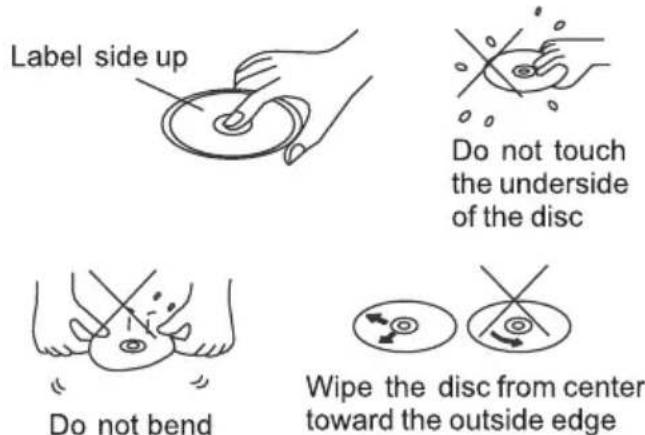
- Attempting to use non-standard shape discs (e.g. square, start, and heart) may damage the unit. Be sure to use round shape CD discs only for this unit.
- Do not stick paper or tape, etc, onto the label side or the recording side of any discs, as it may cause a malfunction.
Dirty, dusty, scratched and warped discs will cause a malfunction.
B. Notes on CD-Rs (recordable CDs)/CD-RWs (rewritable CDs):
- Be sure to use discs with following marks only for the unit to play:



- The unit cannot play a CD-R and CD-RW that is not finalized. (Please refer to the manual of your CD-R/CD-RW recorder or CD-R/CD-RW software for more information on finalization process).
- Depending on the recording status, conditions of the disc and the equipment used for the recording, some CD-Rs/CD-RWs may not be played on this unit (see *1).
*1: To have more reliable play back, please see following recommendations:
a. Use CD-RWs with speed 1x to 4x and write with speed 1x to 2x.
b. Use CD-Rs with speed 1x to 8x and write with speed 1x to 2x.
c. Do not play a CD-RW which has been written more than 5 times.
d. The car radio supports discs which comply with the ISO 9660 level 1 or level 2 format, or the Joliet or Romeo format.
C. Notes on MP3 files
- When naming a MP3 file, be sure the file name extension is 'MP3'.
- For a non-MP3 file, even though the file name extension is 'MP3', the unit cannot recognize it.
D. Handling and Cleaning
- Dirty, dusty, scratched and warped discs will cause malfunctions.
-
Do not place stickers or make scratches on discs.
-
Do not warp discs.
- A disc should always be kept in its case when not in use to prevent from damage.
- Do not place discs in the following places:
- Direct sunlight.
- Dirty, dusty and damp areas.
- Near car heaters.
- On the seats or dashboard.
Disc Cleaning
Use a dry soft cloth to wipe the surface. If the disc is quite dirty, Use a soft cloth slightly moistures with isopropyl (rubbing) alcohol. Never use solvents such as benzene, thinner or conventional record cleaners as they may be a surface of the disc.
Note:
A disc may become somewhat scratched (although not enough to make it unusable) depending on the way it is handled and conditions in the usage environment. Note these scratches are not an indication of any problem with the player.
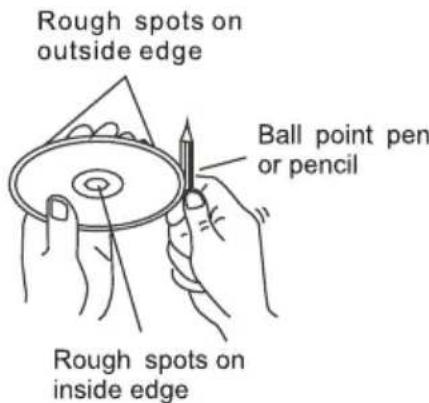
E Precautions when using new discs.
A new disc may have irregularities. It will sometimes be necessary to remove these rough edges in advance by using a ballpoint pen or pencil as shown in the illustration.
Trouble shooting
The following chart will help in solving most problems that may occur. If you still have questions after going through the checklist, please consult your local customer service representative. Before going through this check list, refer the wiring and operating procedures.
| Symptom Cause Solution | ||
| No power | The car ignition switch have not turn on. | If the power supply is connected to the car accessory circuits, but the engine is not moving, switch the ignition key to “ACC”. |
| The fuse has been blown. Replace a new one. | ||
| Disc can not be loaded or ejected. | Presence of CD disc inside the player. | Remove the disc from the player, and insert a new one. |
| Inserting the disc in reverse direction. | Insert the CD with the lab I facing upward. | |
| The surface of CD is extremely dirty or has been scraped. | Clean the disc or try to replace a new one. | |
| Temperature inside the car is too high. | Cool off or until the ambient temperature return to normal. | |
| Condensation | Leave the player off for an hour or so, and then try again. | |
| No sound | Volume is in minimum | Adjust volume to a desired level. |
| The wiring is not properly connected. | Check wiring connection. | |
| Sound skips | The installation angle is more than 30°. | Adjust the installation angle less than 30°. |
| The surface of CD is extremely dirty or has been scraped. | Clean the disc or try to replace a new one. | |
| The operation keys do not work | 1. The built-in microcomputer is not operating properly due to noise. | 1. Press the RESET button to restore the program. |
| 2. The front panel has not properly installed. | 2. Fixed the front panel into its place. | |
| No radio reception. The antenna cable is not connected. | Insert the antenna cable firmly into the antenna socket of this CD player. | |
| In automatic search mode the radio does not stop at a transmitting station. | The transmission signals are too weak. | Select a radio station manually. |
Specifications
1. GENERAL
Power Supply Requirements DC 12 Volts, Negative Ground
Chassis Dimensions 178(W)x160(D)x 50(H) mm
Tone Controls - Bass (at 100 Hz) ± 10 dB - Treble (at 10 kHz) ± 10 dB
Maximum Output Power 4x75 watts
Current Drain 15 Ampere (max.)
2. CD PLAYER
Signal to Noise Ratio
5 5 dB Channel Separation 4 0 dB Frequency Response 20 Hz - 20 K Hz Discs/files played CD-DA, CD-R/RW/MP3/WMA
3. RADIO
FM
Frequency Coverage 87.5 - 108.0 Mhz IF 10.7 MHz Sensitivity (S/N=30dB) 4μV Signal to Noise Ratio 55dB(mono) Stereo Separation 30 dB (65dBu, 1KHz)