MaxNAS - NAS Micronet - Free user manual and instructions
Find the device manual for free MaxNAS Micronet in PDF.


User questions about MaxNAS Micronet
0 question about this device. Answer the ones you know or ask your own.
Ask a new question about this device
Download the instructions for your NAS in PDF format for free! Find your manual MaxNAS - Micronet and take your electronic device back in hand. On this page are published all the documents necessary for the use of your device. MaxNAS by Micronet.
USER MANUAL MaxNAS Micronet
natural_image
Front view of a server rack unit with ventilation grilles and an ESG logo (no readable text or symbols beyond branding)Micronet MaxNAS
Micronet SmartNAS
Owner's Guide
May 2010

MicroNet
Storage you can rely on
www.MicroNet.com
Table of Contents
Table of Contents 2
FCC Compliance Statement 4
Warranty Information 5
Welcome Note 6
Chapter 1- Getting Started .... 7
- Features and Benefits .... 7
- System Requirements and Compatibility 7
- Unpacking the MaxNAS 8
- What's Included 8
- Choosing a place for your MaxNAS.... 8
- The MaxNAS Interface Components....9
- Visual and Audible Indicators 10
- Hot Plug Drive Replacement 10
Chapter 2- Connecting the MaxNAS .... 11
- Connections ...... 11
- Accessing the System Administration for the first time 11
2.1 Wizard Installation and Usage 12
2.2 Launching the GUI, DHCP Environment 13
2.3 Static IP Environment 13
2.4 Logging In 13
- LCD Operation.... 14
3.1 USB Copy.... 14
3.2 Management Mode 14
- Attaching External Disks 15
- USB Target Mode 15
Chapter 3- Administering the MaxNAS .... 16
The Main Configuration Tree 17
1. Status Displays 18
1.1 System Status 18
1.2 System Information 18
1.3 USB Printer Information 18
1.4 Attached UPS Monitor Status 19
1.5 Power Management 19
1.6 About This MaxNAS 19
- Storage Configuration 20
2.1 Disk Info 20
2.2 RAID Menu 20
2.3 Folder (Share) Configuration 24
2.4 File System Check 26
2.5 Stackable iSCSI Host Service 27
2.6 Mounting ISO Disk Images 28
2.7 nSync Backup Service Configuration 29
- Network Configuration 30
3.1 LAN1 Configuration 30
3.2 LAN2 Configuration 32
3.3 Network Services Configuration 32
- Accounts Configuration 34
4.1 Authentication Configuration 34
4.2 Group Administration 35
4.3 Local User Configuration 35
4.4 Batch User Creation 36
Table of Contents
5. System Control Functions 36
5.1 Remote Notification Configuration 37
5.2 Event Logs 37
5.3 System Time 37
5.4 Save/Recover System Settings 38
5.5 Module Management.... 38
5.6 Reset to Factory Default 38
5.7 Update Firmware 38
5.8 Change Administrator Password 39
5.9 Reboot/Shutdown 39
5.10 Scheduled Power On/Off 39
5.11 Log out the Administration Interface 39
5.12 Change the User Interface Language 39
Chapter 4- Connecting Users 40
- SMB/CIFS User Access Configuration 40
1.1 Mapping a Network Drive (Windows) 40
1.2 Mapping a Newtork Drive (OS-X) 41
-
Using Webdisk 42
-
Using iSCSI 44
3.1 Windows 2000 and newer 44
3.2 Mac OS X 46
- Backing up with NSync 48
4.1 Adding a task 48
4.2 Setting up an NSync target 48
4.3 Setting up an FTP target 49
4.4 Designating a MaxNAS or PlatinumRAID NSync Targets 49
- Connecting to a MaxNAS Attached Printer 49
5.1 Windows XP 49
5.2 Windows Vista 50
5.3 Mac OS X 51
Chapter 5- Understanding RAID 52
RAID 52
RAID 0 52
RAID 1 53
RAID 5 53
Hot Swappable Disk Support 53
Hot Spare Drives 54
Hot Swap Disk Rebuild 54
Chapter 6- Troubleshooting 55
Daily Use Tips 55
General Use Precautions 55
Resetting the MaxNAS 56
Frequently Asked Questions 57
Appendix A- Getting Help 59
Appendix B- RAID Level Comparison Table 60
Appendix C- Active Directory 61
Appendix D-Supported UPS List 62
Appendix E-Glossary 65
Appendix F- Product Specifications 72
Appendix G- Licence and Copyrights 74
Federal Communications Commission
Radio Frequency Interference Statement
This equipment has been tested and found to comply with the limits for a Class B digital device, pursuant to part 15 of the FCC Rules. These limits are designed to provide reasonable protection against harmful interference in a residential installation. This equipment generates, uses and can radiate radio frequency energy and, if not installed and used in accordance with the instructions, may cause harmful interference to radio or television reception, which can be determined by turning the equipment off and on. The user is encouraged to try to correct the interference by one or more of the following measures:
- Reorient or relocate the receiving antenna.
- Increase the separation between the equipment and receiver.
- Connect the equipment into an outlet on a circuit different from that to which the receiver is connected.
- Consult the dealer or an experienced radio/TV technician for help.
Changes or modifications not expressly approved by the party responsible for compliance could void the user's authority to operate the equipment.
Only use shielded cables, certified to comply with FCC Class B limits, to attach this equipment. Failure to install this equipment as described in this manual could void the user's authority to operate the equipment.
Canadian Department of Communications Compliance: This equipment does not exceed Class B limits per radio noise emissions for digital apparatus set out in the Radio Interference Regulation of the Canadian Department of Communications. Operation in a residential area may cause unacceptable interference to radio and TV reception requiring the owner or operator to take whatever steps are necessary to correct the interference.
FTZ/BTZ German Postal Service Notice: We hereby certify that the ADV, SB, SBS, SS, SBX, SBT, MO, MS, MR, MT, MD, CPK, CPKT, CPKD, DD and DDW products are in compliance with Postal Regulation 1046/1984 and are RFI supclicked. The marketing and sale of the equipment was reported to the German Postal Service. The right to retest this equipment to verify compliance with the regulation was given to the German Postal Service.
Limitations of Warranty and Liability
MicroNet Technology has tested the hardware described in this manual and reviewed its contents. In no event will MicroNet or its resellers be liable for direct, indirect, incidental, or consequential damage resulting from any defect in the hardware or manual, even if they have been advised of the possibility of such damages. In particular, they shall have no liability for any program or data stored in or used with MicroNet products, including the costs of recovering or reproducing these programs or data.
During the specified warranty period, MicroNet guarantees that the product will perform according to specifications determined by the manufacturer, and will be free of defects. Parts and labor of the received product, and replacement parts and labor are guaranteed during the specified warranty period. The warranty covers defects encountered in normal use of the product, and does not apply when damage occurs due to improper use, abuse, mishandling, accidents, sand, dirt, excessive dust, water damage, or unauthorized service. The product must be packed in its original packing material when shipped, or the warranty will be void. In all cases, proof of purchase must be presented when a warranty claim is being made.
This manual is copyrighted by MicroNet Technology. All rights are reserved. This documentation may not, in whole or part, be copied, photocopied, reproduced, translated, or reduced to any electronic medium or machine readable form without prior consent in writing from MicroNet.
MicroNet and the MicroNet logo are registered trademarks of MicroNet Technology. FireWire, the FireWire logo, Macintosh, and the MacOS Logo are trademarks of Apple Computer Inc. Microsoft Windows and the Windows Logo are registered trademarks of Microsoft Corporation. All other trademarks are the property of their respective owners.
Technical Support Policy
If you have a problem installing your system or suspect it is malfunctioning, please contact the Authorized MicroNet Reseller from whom you purchased the system. If the reseller fails to resolve the problem, call MicroNet's Help Desk for assistance at (310) 320-0772. Please have the model, serial number, date of purchase, and the reseller's name available before calling. If possible, call from a telephone near the system so we can more readily direct you to make any necessary system corrections, should they be required.
Returning Materials
If a reseller or MicroNet Technician finds it necessary to have the system returned for testing or servicing, a Return Materials Authorization (RMA) number will be issued. The RMA number must be placed on the outside of the carton in large, visible letters near the address label. Return the complete system including all cables and software. The system must be packed in the original packing materials and shipped prepaid. MicroNet will repair the system and return it prepaid by similar common carrier and priority. Please record the RMA number and make reference to it when inquiring on the status of the system. A returned unit found to be fault-free will carry a \$65.00 charge for service and repackaging.
Welcome From MicroNet Technology
Thank you for choosing Micronet MaxNAS/SmartNAS. Our systems are designed for speed, reliability, compatibility, and performance. We think you will find the system easy to install, and a productive addition to your computer system.
This manual presumes that you are familiar with standard computer operations; this includes copying files, opening documents, clicking with the mouse, and organizing files or folders within other folders. If you are unfamiliar with these operations, please consult the User's Guide that was supplied with your computer system. Your computer dealer and local user's groups are also good sources of information. After you are comfortable with the operation of your computer, continue reading this manual which describes hardware installation and operation.
Your comments assist us in improving and updating our products. Please feel free to share them with us. Please send comments to:
MicroNet Technology
Attn: Customer Service
20525 Manhattan Place
Torrance, CA 90501
Internet: http://www.MicroNet.com
Chapter 1- Getting Started
Thank you for purchasing The Micronet MaxNAS/SmartNAS storage solution. With speed, high capacity, ease of use, and support for numerous applications, MaxNAS is the ideal solution for all of your data storage needs. MaxNAS refers to Micronet's fully configured Network storage solutions, while SmartNAS refers to our unpopulated storage enclosures. Both products utilize the MaxNAS tried-and-true technology, and for consistency this manual will refer to either unit collectively as "MaxNAS."
Please take advantage of the information contained within this manual to ensure easy setup and configuration. If at any time you require technical assistance, Micronet's Help Desk is available at 310-320-7272 or email us at support@micronet.com
1. Features and Benefits
MaxNAS is a versatile and powerful storage solution, allowing it to be utilized in several different roles:
- As a shared storage device for multiple PCs, Macs, and UNIX/Linux workstations
- As a central, fault tolerant data server for a home or small business network
• As a central backup station - As a central hub for print services, media streaming, and unattended downloading
Benefits:
- Easy-to-use for non-MIS personnel
- SATA (Serial ATA) disk channel interface
• Networked Storage on Gigabit Ethernet - Easy to use Graphical User Interface
Data Reliability Features:
• RAID Level 0, 1, 5, 6, Span
• Multiple LUN support
- RAID Auto Rebuild
- Network Backup
• Hot Swap/Hot Spare disk support
- Disk Roaming
Networking Features:
• 2x 10/100/1000 auto-sensing Ethernet ports
- Ethernet link aggregation with failover and load balancing
• iSCSI services concurrent with NAS
Network Services:
- Windows Client Support with Active Directory integration
- UNIX/Linux Client Support
• Apple OS X Client Support - FTP, Webdisk, Secure Webdisk
• DLNA streaming server - Attach and share USB and eSATA devices
2. System Requirements and Compatibility
The MaxNAS is designed for universal compatibility. It features SMB/CIFS, NFS, FTP, iSCSI, USB direct attachment, as well as Webdisk/Secure Webdisk http-based connectivity for host access. This manual will address Windows XP and newer, and Macintosh OS X 10.4 and newer hosts only but the concepts and connectivity features are available to other operating environments as well.
3. Unpacking the MaxNAS
Please unpack your MaxNAS in a static free environment, carefully making sure not to damage or discard any of the packing material. If the RAID subsystem appears damaged, or if any items of the contents listed below are missing or damaged, please contact your dealer or distributor immediately.
In the unlikely event you may need to return the MaxNAS for repair or upgrade, please use the original packing material to ensure safe transport.
4. What's Included
Your MaxNAS comes with the following items:
1 MaxNAS unit
5 Disk Drive Modules (disk canisters for SmartNAS)
1 Set of disk screws (SmartNAS)
1 Set of drive locking keys
1 MaxNAS Product CD
1 Quick Install Guide
1 power cord
2 Cat5e Gigabit Ethernet cable
5. Choosing a place for your MaxNAS
When selecting a place to set up your Disk Array, be sure to follow these guidelines:
- Place on a flat and stable surface capable of supporting at least 25lbs
- Place the Disk Array close enough to a network jack for the Ethernet cable to reach it.
- Use a grounded wall outlet.
- Avoid an electrical outlet controlled by wall switches or automatic timers. Accidental disruption of the power source may wipe out data in the memory of your computer or Disk Array.
- Keep the entire system away from potential sources of electromagnetic interference, such as loudspeakers, cordless telephones, etc.
- Avoid direct sunlight, excessive heat, moisture, or dust.
6. The MaxNAS interface components
The following figures illustrate the connector locations for the RAID subsystems.
FRONT VIEW
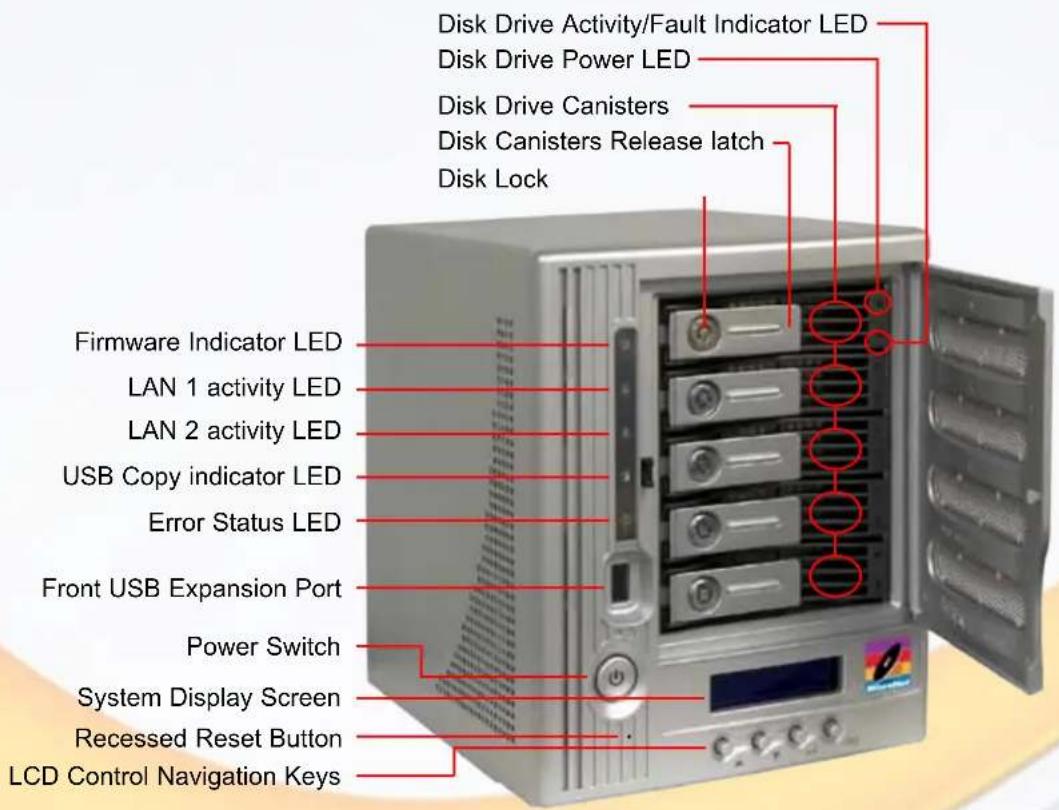
text_image
Disk Drive Activity/Fault Indicator LED Disk Drive Power LED Disk Drive Canisters Disk Canisters Release latch Disk Lock Firmware Indicator LED LAN 1 activity LED LAN 2 activity LED USB Copy indicator LED Error Status LED Front USB Expansion Port Power Switch System Display Screen Recessed Reset Button LCD Control Navigation KeysREAR VIEW

text_image
eSATA Expansion Port USB Expansion Ports (2) USB Target Mode Port Fan Exhaust Vents (DO NOT BLOCK!) UPS Communication Port (serial) LAN 2 RJ45 Connector LAN 1 RJ45 Connector Power Connector Master Power SwitchMaxNAS Owner's Manual
7. Visual and Audible Indicators
The MaxNAS has an LCD panel, LEDs, and a buzzer to inform the user of the overall health and function of the unit. The following chart describes the various conditions indicated:
| Indicator Normal Status Problem Indication | ||
| Firmware LED | Glows amber at boot or firmware update. Dark after. | Dark at boot |
| LAN1 LED | Blinks green when there is network activity on the LAN 1 port. A steady green glow means there is a link but no activity. | LED does not light up (no link) |
| LAN2 LED | Blinks green when there is network activity on the LAN 1 port. A steady green glow means there is a link but no activity | LED does not light up (no link) |
| USB Copy LED | Glows blue during USB copy operation | N/A |
| System Error LED Off | Glows red to indicate system fault. Log into the management GUI for further information | |
| Power Button LED | Glows blue on Power UpBlinks blue on eSATA access | LED does not light up on power |
| Disk drive power LED | Glows blue LED does not light up | |
| Disk Activity/Fault LED | Off/blinks green during hard drive read and write activity | Blinks red to indicate disk drive error |
8. Hot plug Drive Replacement
In the event of a drive failure, the RAID subsystem supports the ability to hot-swap drives without powering down the system. A disk can be disconnected, removed, or replaced with a different disk without taking the system off-line. In a fault tolerant array, the RAID rebuilding will proceed automatically in the background (see chapter 5, “Understanding RAID” for more information.)
A drive failure will illuminate amber the Disk Activity/Fault LED on the affected drive canister. To replace a drive, please follow these steps:
- Make sure the drive locking mechanism (see page 9, "The MaxNAS Interface components") is in the up-down position (use the included key to turn the mechanism.)
- Click down on the drive release latch (see page 9, "The MaxNAS Interface components") to release the drive tray.
- Gently pull out the disk drive tray handle and slide out the drive tray.
- To replace: Slide in the replacement drive tray with the tray handle open. When the tray is slid all the way into the MaxNAS, push the tray handle closed.

IMPORTANT: NEVER remove a drive tray without replacing it. Operating the RAID with a drive tray missing will disrupt airflow and may cause the MaxNAS to fail.
Chapter 2- Connecting the MaxNAS
1. Connect Your MaxNAS
Place on a flat and stable surface capable of supporting at least 25lbs, and close enough to the available network jack to reach with an Ethernet cable.
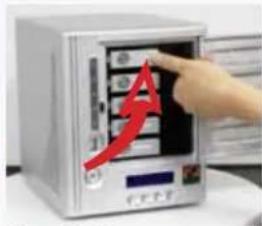
Step 1. Remove the disk canisters from the packing material and carefully insert into the MaxNAS.
Step 2. Secure each canister into position and push the latch until it snaps into place.
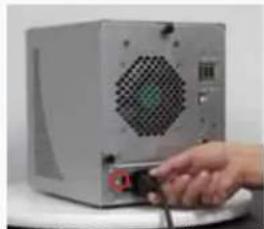
Step 3. Connect the provided power cord into the universal power socket on the back panel. Plug the other end of the cord into a power socket. Make sure the power switch is in the on position (“-”)

natural_image
Hand inserting a computer into a drive bay (no visible text or symbols)Step 1- Insert Canisters
text_image
Image showing a hand pressing a device with a red downward arrow and letter 'A' on the screen, symbolizing a warning or alert.Step 2- Secure Canister Latches
natural_image
Hand inserting a small electronic component into a computer tower (no visible text or labels)Step 3- Connect Power and turn on switch
natural_image
Hand pressing a button on a computer tower (no visible text or symbols)Step 4- Connect Network Cable
natural_image
Hand inserting a drive into a silver rack-mounted server unit (no visible text or labels)Step 5- Press Power Key
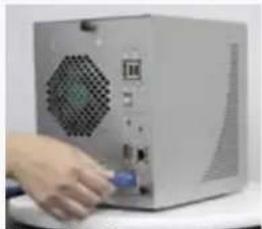
Step 4. Connect an Ethernet cable from your network to LAN1 (DHCP environment) or LAN2 (static IP) port on the back panel.
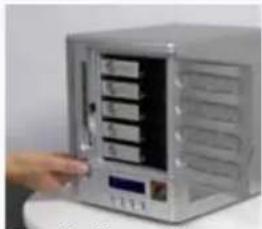
Step 5. Press the power button on the front panel. The MaxNAS will boot. The Power indicator light should glow blue, and the LAN LED corresponding to the connected interface will glow or blink green. All the HDD Power LEDs on each HDD tray should glow blue.

IMPORTANT! If Any LED glows red and the system emits a continuous beeping sound, then the system is reporting fault. Refer to Appendix A: Troubleshooting for further information.
2. Accessing System Administration for the first time
The MaxNAS comes pre-configured with the LAN1 Ethernet port set to DHCP (Dynamic Host Configuration Protocol) and the LAN2 Ethernet port set to a static IP address, 192.168.2.100. The current IP addresses are displayed on the LCD panel. The default WINS (Windows Internet Naming Service) for the MaxNAS is “MaxNAS”. Included with your MaxNAS is a discovery wizard
for Mac and PC, which allows click-and-select simplicity; simply install the wizard software, launch it, and the wizard discovers your MaxNAS for administration.

IMPORTANT! If you are adding a MaxNAS to a network with existing MaxNAS products, please make sure to assign each unit a different name. See Chapter 3, Section 2.3 for more information.
2.1 Wizard Installation and Usage

IMPORTANT! The setup wizard uses TCP port 10000 and UDP ports 11000-11001 For communication. If you are using a software firewall, please make sure to unblock those ports in order for the wizard to get access to the MaxNAS.
2.1.1 Macintosh OS X
The wizard application for Mac OS X is located on your MaxNAS CD in the "wizards" folder. You may launch the wizard directly from the CD, or you can copy it to your Applications directory. Launch the wizard by double clicking the "Setup Wizard" Icon.

Setup Wizard
2.1.2 Microsoft Windows
The wizard installation files for Windows are located on your MaxNAS CD in the "wizards"
folder. Install the wizard by double click the file named "setup.exe" and follow the instructions on the screen. Once complete, you may launch the MicroNet setup wizard by clicking the "Setup Wizard" shortcut (by default the shortcut is installed to "Start-All Programs- MicroNet- MicroNet Setup Wizard- Setup Wizard".)
2.1.3 Using the Wizard
When the wizard is launched, it will briefly display a welcome window followed by the main application Interface (Illustrated right) at the Device Discovery Stage. All discovered MicroNet MaxNAS devices will appear in the main discover windows, inclu

text_image
Setup Wizard Device Discovery Venus: 2.1.93 No Host Name IP MAC G 1 MexNAS 192.16E-20.19700-14-FD-11-EE-64-1E Start Browser Rescan Next ExitIP Address DNS domain
MAC Address LAN port connected
Gateway Firmware revision
Netmask Addressing Mode
(DHCP/Static)
To administer a MaxNAS, select the unit desired in the device discovery window click Start Browser to launch the web administration interface. If the MaxNAS is outside your subnet mask and unreachable, click Next to change the IP address assignment.
2.1.3.1 Logging in- Enter the administrative login (default is "admin") and password (default is "admin") and click Next.
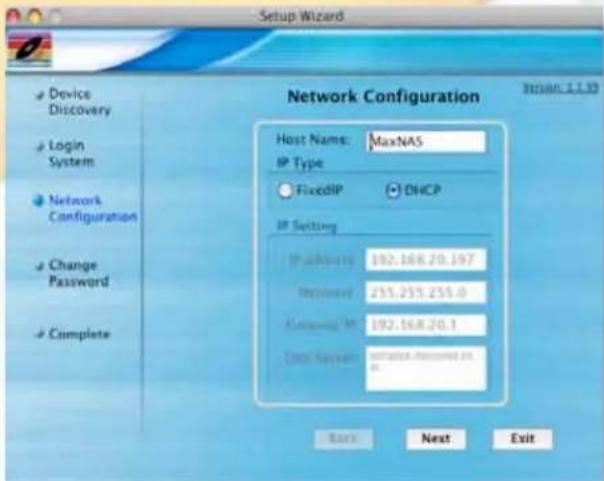
2.1.3.2 In the Network Configuration screen you
may change the hostname, enable/disable DHCP or set static IP addressing. Click "Next" to continue. No changes must be made to continue. For more information regarding Network configuration, please see Chapter 3, Section 3. Click Next to proceed to the Change Password screen or click Exit to end the wizard session.
text_image
Setup Wizard Device Discovery Login System Network Configuration Change Password Complete Network Configuration Host Name: MaxNAS IP Type FixedIP DHCP IP Setting IP address: 192.168.20.197 Retired: 235.255.255.0 Connection IP: 192.168.20.1 Unit Service: network.xtss@min/ Rank Next Exit Runn 1.1.102.1.3.3 You may change the password by entering a new "New Password" field, and re-enter the password (case sensitive) in the "Confirm Password" field. Click End to conclude the wizard session.
2.2 Launching the IP Storage Administration GUI, DHCP Environment

Windows hosts can access the MaxNAS via WINS. Mac OS X and *nix based workstations may not support WINS and would require your network administrator to provide the newly assigned IP address before accessing the MaxNAS.
2.2.1 Make sure your MaxNAS is connected via LAN1 to a hub or a switch that is connected to the DHCP server
2.2.2 (Windows hosts) Point your browser to "http://MaxNAS"
2.2.3 (Windows UPNP enabled hosts) Windows XP and newer support UPNP discovery. To enable UPNP, navigate to "My Network Places" and select "Show icons for networked UPnP devices." Confirm the operation in the confirmation dialog box. Once UPnP is enable, a Remote UPnP device icon should appear. Double Click the UPnP icon for the MaxNAS, and a browser session will automatically launch.
2.3 Launching the IP Storage Administration GUI, Static IP Environment
2.3.1 Make sure your MaxNAS is connected via LAN2 to a hub or a switch that is connected to your workstation
2.3.2 Configure the IP address of your workstation to 192.168.2.101, subnet mask 255.255.255.0. Refer to your operating system's documentation for more information on this procedure.
2.3.3 Point your browser to "http://192.168.2.100"
2.4 Logging In
The default User ID and password on the MaxNAS are:
UserID: admin
Password: admin
Enter the userID and password, and click the "Login" button. You are now ready to administer and customize your MaxNAS.

text_image
My Network Places File Edit View Favorites Tools Help Back Search Folders Add My Network Places Network Tasks Add a network place View network connections Set up a wireless network for a home or small office Show icons for networked USB devices Local Network Andy BA on Mcf anlabel lab on PlatinumNAS2 MaxNAS The Internet Desktop Entire Network My Computer My Documents Printers and Files Other Places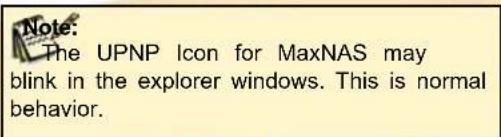
text_image
Note: The UPNP Icon for MaxNAS may blink in the explorer windows. This is normal behavior.
text_image
MaxNAS IP Storage Administrator Login MaskSet Username: Password:3. LCD Operation
The MaxNAS is equipped with an LCD on the front for easy status display and setup. There are four buttons on the front panel to control the LCD functions: Up (▲), Down (▼), Enter (↓) and Escape (ESC) keys. The following table illustrates the keys on the front control panel:
Icon Function Description
▲ Up Button Select the previous configuration settings option.
▼ Down Button Select the next configuration settings option.
Enter Enter the selected menu option, sub-menu, or parameter setting.
ESC Escape Escape and return to the previous menu.
During normal operation, the LCD will be in Display Mode. The following information will rotate every one-two seconds on the LCD display.
Item Description
| Host Name Current host name of the system. | |
| WAN Current WAN IP setting. | |
| LAN Current LAN IP setting. | |
| Link Aggregation Current Link Aggregation status | |
| Disk Info | Current status of disk slot has been installed |
| RAID | Current RAID status. |
| System Fan | Current system fan status. |
| CPU Fan | Current CPU fan status |
| 2008/06/16 12:00 | Current system time. |
3.1 USB Copy
The USB Copy function enables you to copy files stored on USB devices such as USB disks and digital cameras to the MaxNAS with a press of a button. To use USB copy, Plug your USB device into the front USB port, and press the Down Button (▼). The LCD will display
MicroNet MaxNAS USB Copy?
Press Enter (J) to initiate the process. All of data on the external disk will be copied into system share named "USBcopy".
3.2 Management Mode
To enter into front panel management mode, press Enter (⊥). An “Enter Password” prompt will show on the LCD. The default LCD password is “0000”. Enter the system password followed by Enter (⊥).

Note:
You can also change the admin password using the Web Administration Interface ("System" -> "Administrator Password.") For more on the Web Administration Interface, see Chapter 3: System Management.
| Item | Description |
| LAN Setting | IP address and netmask of your LAN1 port. |
| WAN Setting | IP address and netmask of your LAN2 ports. |
| Link Agg. Setting Select Load Balance or Failover. | |
| Change Admin Passwd | Change administrator's password for LCD operation. |
| Reset to Default | Reset system to factory defaults. |
| Exit | Exit Management Mode and return to Display Mode. |
4. Adding External Disks
The MaxNAS has two rear USB ports, one front USB port, and one eSATA port for attaching external storage devices such as the Fantom Drives G-Force Megadisk lines of products, formatted in FAT32 or NTFS. Please note that NTFS volumes will be available in read only mode. The MaxNAS supports up to 6 external storage devices. Attached disks are accessible by
navigating to \[MaxNAS]\usbhdd\sd[x][y]
Where: [MaxNAS] is the netbios name or IP address of the MaxNAS, [x] refers to the port the disk is attached to, and [y] refers to the partition number. See chapter 4, Connecting Users, for more information on accessing shared data.
IMPORTANT: The MaxNAS cannot format external disks. In order to access external disks over the network, make sure your external disk is formatted as FAT32 or NTFS. The MaxNAS can access NTFS partitions for reading only.
5. USB Target Mode
Your MaxNAS can present storage as an external USB disk device, connected via the USB type “A” target mode port on the back of the unit. Space for USB target mode must be allocated in RAID management screen (see chapter 3, Section 2.2.5 for more information), and will be recognized as an unformatted disk when initially connected to a host. Since the space allocated resides on the RAID, it will enjoy all performance and fault tolerance features afforded by the MaxNAS.
Chapter 3- Administering the MaxNAS
This chapter describes the menu and control structure for your MaxNAS. The RAID subsystem configuration utility is firmware-based and its operation is independent of host computer type or operating system.
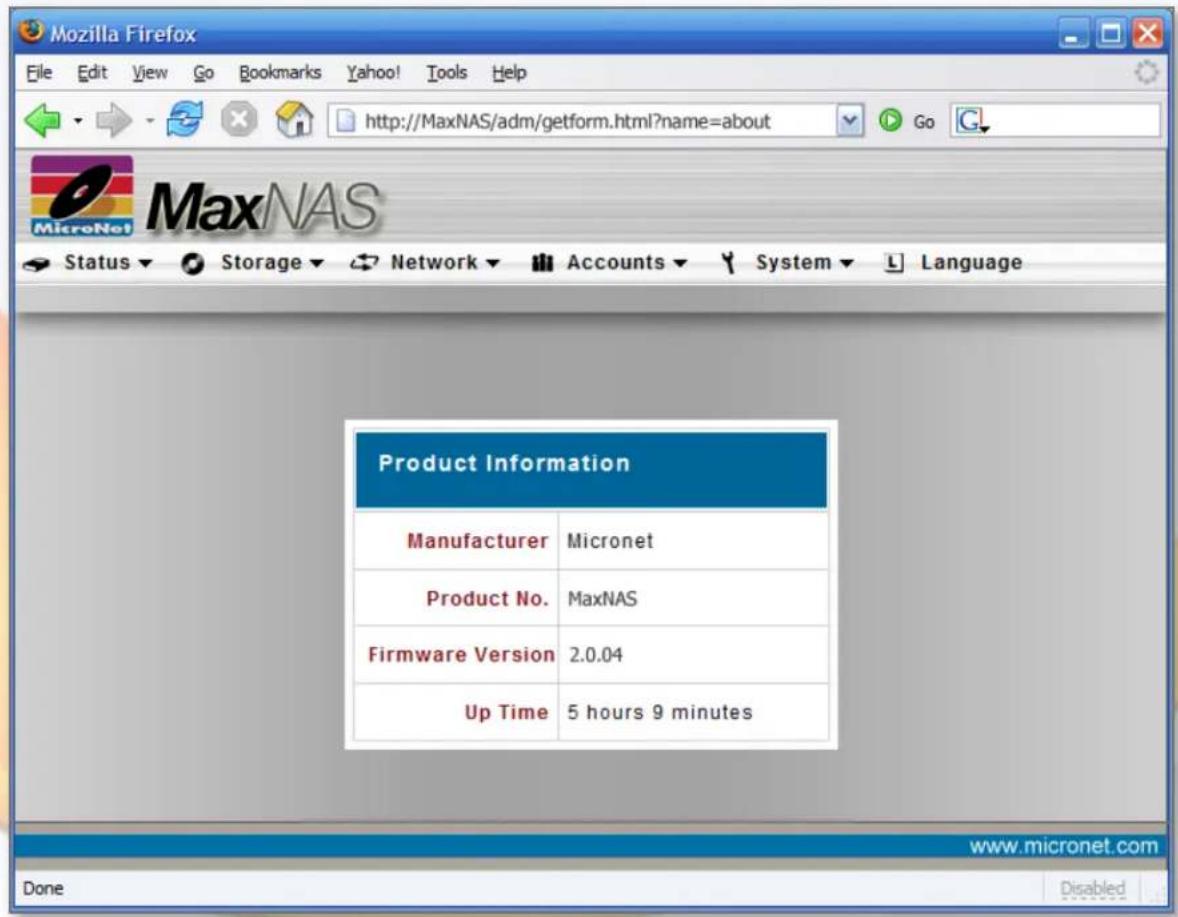
At initial login, the user will be greeted with the Product Information Screen:
text_image
Mozilla Firefox File Edit View Go Bookmarks Yahoo! Tools Help http://MaxNAS/adm/getform.html?name=about Go MicroNet MaxNAS Status Storage Network Accounts System Language Product Information Manufacturer Micronet Product No. MaxNAS Firmware Version 2.0.04 Up Time 5 hours 9 minutes Done www.micronet.com DisabledThe administration user interface utilizes the pulldown menu desktop motif, and is organized as illustrated in the following table:
The Main Menu Configuration Tree
| 1. Status 1.1 System Status Information1.2 USB Printer1.3 Monitored UPS Status1.4 Wake-on-LAN Configuration1.5 Scheduled Power-On Configuration | |
| 1.6 Product Information (About) | |
| 2. Storage Configuration 2.1 Disk Information2.2 RAID Configuration2.3 Folder (Shares) Configuration | Information2.4 Filesystem check2.5 Stackable iSCSI Host Mode2.6 Mount ISO Disk Image |
| 2.7 nSync Synchronization Configuration | |
| 3. Network Configuration 3.1 LAN | 1 Interface setup3.2 LAN 2 Interface setup3.3 Feature and Function Configuration |
| 4. Accounts and Permissions 4.1 Authentication services configuration4.2 Local User Configuration4.3 Local Group Configuration | |
| 4.4 Batch User Creation | |
| 5. System Configuration 5.1 Remote Notification5.2 System Event Logs5.3 System Time5.4 Save/Recover System Configuration5.6 Reset MaxNAS to Factory Default5.7 Update Firmware5.9 Reboot/Shutdown5.11 Interface Language | 5.8 Change Administrator Password5.10 Logout from Administration applet |
1. Status Displays
1.1 System Status
The Status window contains the basic system functionality indicators including current CPU load, uptime, disk information and health, and running services. To view the System Status, select "System" from the Status Menu.
1.2 System Information
This field is the verbose description that will describe this particular MaxNAS. To access the System Information definition field, select "Info" from the Status Menu. In the following screen, enter a descriptive name such as "Accounting Storage Server," that will differentiate it from other storage devices on the network. Click Apply to confirm, or Cancel to abort.
1.3 USB Printer Information
The MaxNAS can act as a print server to an attached USB disk server. To access the printer information page for the attached printer, select "Printer" from the Status menu. The Printer manufacturer and model information will appear as well as the current status (online or offline). You may remove a document from the print queue by clicking Remove. If the Printer service becomes inoperable you may reset the printer host service by clicking Restart.
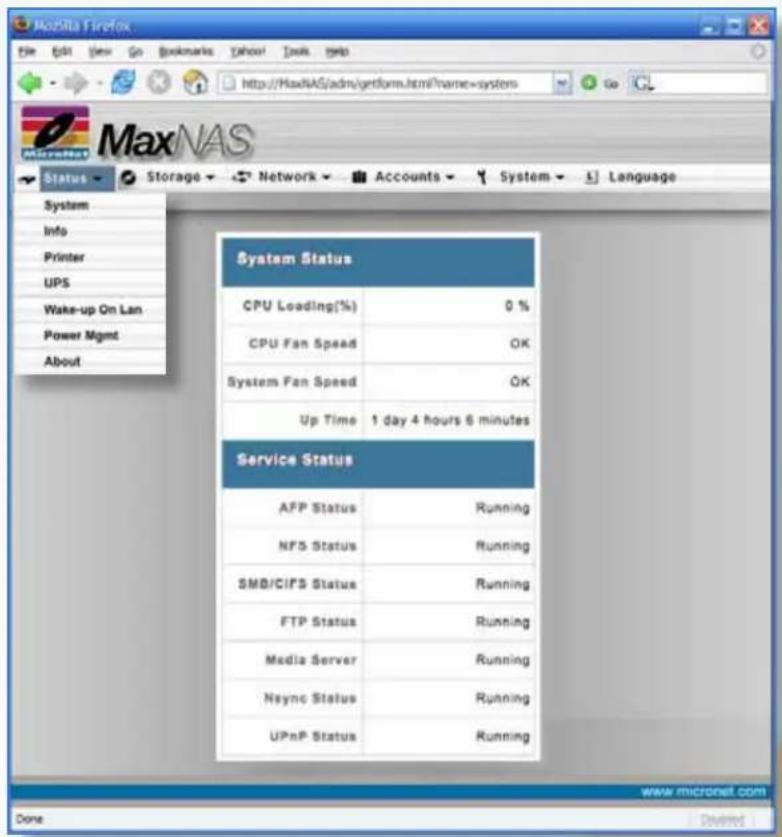
text_image
MaxNAS Status System Info Printer UPS Wake-up On Lan Power Mgmt About System Status CPU Loading(%) 0 % CPU Fan Speed OK System Fan Speed OK Up Time 1 day 4 hours 6 minutes Service Status AFP Status Running NFS Status Running SMB/CIFS Status Running FTP Status Running Media Server Running Nsync Status Running UPnP Status Running www.micronet.com Done| Printer Information | |
| Manufacture | N/A |
| Model | N/A |
| Status | No Printer Detected |
| Remove documentfrom queue | Remove |
| Restart printer service | Restart |
3-Administering the MaxNAS
1.4 Attached UPS Monitor Status
The MaxNAS will monitor and respond to UPS status messages from a compatible attached UPS (for a list of compatible devices, please see appendix D.) To access the UPS monitoring control, select Status -> UPS. The following table describes the options available. To confirm settings, click Apply.

text_image
UPS Setting UPS monitoring Enabled Disabled Manufacture APC Back-UPS Pro Battery Status N/A Power N/A Seconds between power failure and first notification 5 seconds Seconds between subsequence power failure notifications 20 seconds Shutdown the system when the battery charge is less than 5 % Apply| Item Description | |
| UPS Monitoring Enable or disable UPS monitoring. | |
| Manufacturer Choose the UPS manufacturer and model number from the dropdowns. | |
| Battery Status Current status of the UPS battery | |
| Power Current status of the power being supplied to the UPS | |
| Seconds between power failure and first notification | Delay between power failure and first notification in seconds. |
| Seconds between subsequent power failure notifications | Delay between subsequent notifications in seconds. |
| Shutdown the system when the battery charge is less than [n]% | Amount [n] of UPS battery remaining before system should auto-shutdown. |
1.5 Power Management
The MaxNAS can turn itself on and off according to a user preset schedule. To control the power schedule, navigate to "Status" -> "Power Management." To enable the scheduler, check "Enable Timer" as shown right. Enter the desired times to power on and off for each day of the week, and click Apply to activate. In order to access the MaxNAS during its scheduled downtime, the system employs the "Wake on LAN (WOL)" protocol. To enable WOL, navigate to "Status" -> "Wake up on LAN" and enable the service.
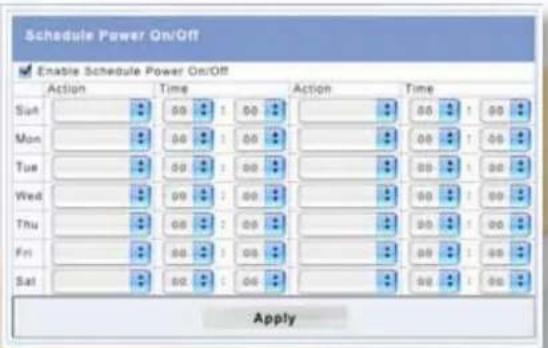
text_image
Schedule Power On/Off Enable Schedule Power On/Off Action Time Action Time Sun 00:00:00 Mon 00:00:00 Tue 00:00:00 Wed 00:00:00 Thu 00:00:00 Fri 00:00:00 Sat 00:00:00 Apply
The MaxNAS will only wake in response to a special network command specific to the Wake on LAN protocol called "Magic Packet." For more information on how to generate a magic packet as well as WOL, consult your operating system documentation or http://en.wikipedia.org/wiki/Wake-on-LAN
1.6 About this MaxNAS (Info)
The About page details the name and firmware revision of the MaxNAS. It is the page that displays upon initial login.
2. Storage Configuration
The storage configuration menu contains the following submenus:
• Disks (Informational)
- RAID
- Folder (Share)
- File System Check
- iSCSI stacked target host control
• ISO disk image mounting service
• nSync Task Configuration
- Advanced Options

text_image
Storage Disks RAID Folder Filesystem Check Stackable ISO Mount Nsync Advance Option2.1 Disks (Info)
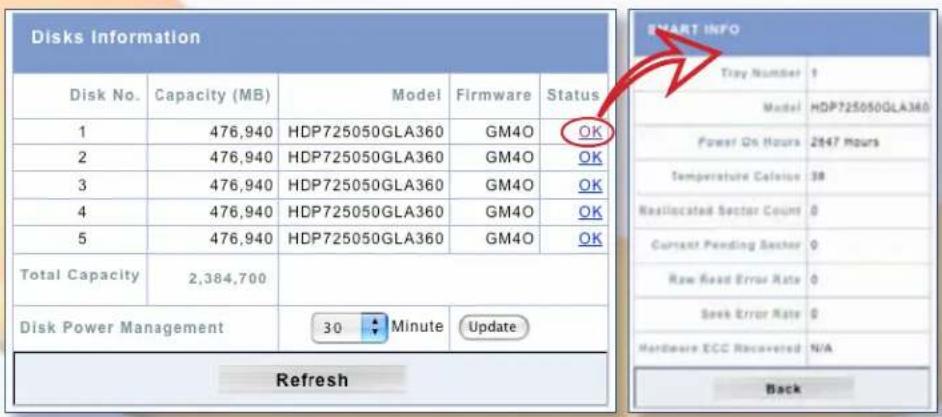
The disks menu displays the current capacity, the disk firmware revision, and current status, including SMART (Self-Monitoring, Analysis, and Reporting Technology) status of each disk drive mechanism. To view the Disk Info screen, navigate to "Storage" -> "Disks". The rightmost column, "Status," will display the most recent SMART reported health status for each disk mechanism. To view the SMART results, click on the smart status indication next to the specified disk mechanism, and the detailed information will appear.
text_image
Disks Information Disk No. Capacity (MB) Model Firmware Status 1 476,940 HDP725050GLA360 GM4O OK 2 476,940 HDP725050GLA360 GM4O OK 3 476,940 HDP725050GLA360 GM4O OK 4 476,940 HDP725050GLA360 GM4O OK 5 476,940 HDP725050GLA360 GM4O OK Total Capacity 2,384,700 Disk Power Management 30 Minute Update Refresh SMART INFO Tiry Number 1 Model HDP725050GLA360 Power On Hours 2847 Hours Temperature Cafeiss 38 Reallocated Sector Count 0 Current Pending Sector 0 Raw Read Error Rate 0 Seek Error Rate 0 Hardware ECG Recovered N/A BackThe MaxNAS can power down the disks when they are not accessed to save power. To enable disk power management, specify the idle time in minutes in the “Disk Power Management” Field and click Update.
2.2 RAID Menu
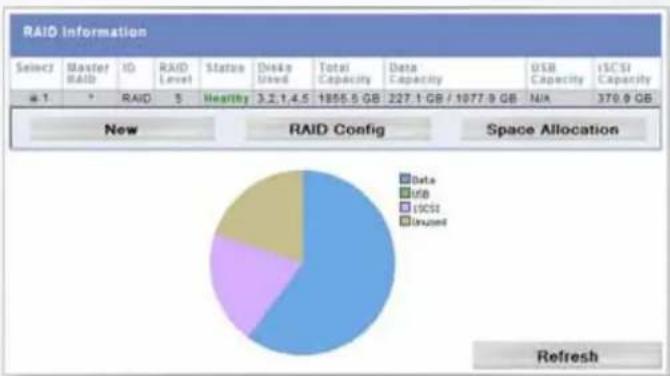
The RAID configuration screen displays the current storage organization of the MaxNAS, including RAID level, usable capacity along with target allocation, health and current operation progress the status of your RAID volumes. To view the RAID status screen, select "RAID" from the Storage Menu. The MaxNAS comes preconfigured
pie
RAID Information | Selection | Master Ratio | ID | RAID Level | Status | Break Used | Total Capacity | Data Capacity | USB Capacity | iSCSI Capacity | |---|---|---|---|---|---|---|---|---|---| | # 1 | * | RAID | 5 | Healthy | 3.2, 1, 4.5 | 1855.5 GB | 227.1 GB / 1077.9 GB | N/A | 370.9 GB | | New RAID Config Space Allocation | Data | USB | ISCS | Unused | Refresh3-Administering the MaxNAS
as a single RAID5 volume (See Chapter 5, Understanding RAID, for more information on RAID and RAID levels.) The following is a description of each information element:
| Item Description | |
| Select Used to select the current RAID volume. | |
| Master RAID The RAID volume currently designated as the Master RAID volume. | |
| ID ID of the current RAID volume. Each volume must have a unique ID | |
| RAID Level Shows the current RAID configuration. | |
| Status Indicates status of the RAID. Can read either Healthy, Degraded, or Damaged. | |
| Disks Used Hard disks used to form the current RAID volume. | |
| Total Capacity Total capacity of the current RAID. | |
| Data Capacity Indicates the used capacity and total capacity used by user data. | |
| USB Capacity Indicates the capacity allocated to USB target mode. | |
| iSCSI Capacity Indicates the capacity allocated to iSCSI. | |
2.2.1 Create RAIDset
To create a new RAIDset, click New on the RAID information screen (see above, section 2.2.) The RAID Creation page will appear.

If clicking New does not activate the RAID creation screen there isn't sufficient space to create a new RAIDset. A RAIDset will have to be removed before a new RAIDset can be defined.
A. Select RAID Level (JBOD, RAID 0,1,5,6 or 10)
B. Check the disk modules to be used for RAID or as hot spare(s)
C. Select the Stripe Size (4K - 4096K, default 64K). Larger stripe size will aid in large file sequential transfers while smaller stripe size will aid in small or random file transfers.
D. Select the percentage of the resulting volume to be used for network access. Remaining space may be allocated for iSCSI or USB target mode.

text_image
RAID Configuration If you have a RAID Sikk, data loss will occur LIBOD.RAID(R) RAID Level JBOD RAID 0 RAID 1 RAID 5 RAID 6 RAID 10 A RAID TO. RAID (Allow 0-9, a-c, A-Z) Master RAID - Take effect after checked box Strike No. Capacity (MIL) Model Status Used Spare 1 476,940 HDP725050GLA360 QK ✓ ✓ ✓ 2 476,940 HDP725050GLA360 QK ✓ ✓ ✓ 3 476,940 HDP725050GLA360 QK ✓ ✓ ✓ 4 476,940 HDP725050GLA360 QK ✓ ✓ ✓ 5 476,940 HDP725050GLA360 QK ✓ ✓ ✓ Strike Size 64 KB C Used Percentage Data Percentage 95 % D *Note: Please go back to RAID Information page to allocate the unused RAID space Create Campy.RAID Back
ster RAID
In a multiple RAID configuration, one RAID volume must be designated as the Master RAID volume. The Master RAID volume will store all installed modules and system settings. If the Master RAID is changed to another location (i.e., assigning HDD 2 to be the Master RAID volume after HDD 1 had been previously assigned), then all modules must be reinstalled. In addition, all system folders that were contained on the Master RAID volume will be invisible. Reassigning this volume to be the Master RAID will make these folders visible again.
When all options have been checked, click Create. The MaxNAS will begin initialization. Please note that the shares cannot be created while RAIDset initialization is in progress.
3-Administering the MaxNAS
2.2.2 Expanding NAS volumes
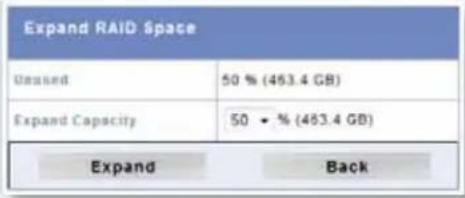
To expand the network accessible space of a RAID set to take over unused space, select the desired RAIDSet and click RAID Config on the RAID information screen (see above, section 2.2.) The RAID Configuration page will appear. Click Expand. The Expand RAID Space screen will appear. Select the new percentage of the resulting volume to be used for network access. Remaining space may be allocated for iSCSI or USB target mode. Click Expand to complete the operation.
text_image
Expand RAID Space Unused 50 % (463.4 GB) Expand Capacity 50 ▼ % (463.4 GB) Expand Back2.2.3 Appending disks to RAIDset
If an existing RAIDset does not use all available disk mechanisms it may be expanded onto the unused disk(s.) To expand an existing RAIDset, Select the desired RAIDSet and click RAID Config on the RAID information screen (see above, section 2.2.) The RAID Configuration page will appear. Select the desired available disk(s) and click Append
2.2.4 Migrating RAIDSet
The MaxNAS allows RAIDsets to migrate on to unused disk modules as well as change the RAID level to fully utilize resources or to afford user flexibility. Online RAID level/stripe size migration can prove helpful during performance tuning activities as well as at the addition of physical disks to the MaxNAS. For example, in a system using two drives in RAID level 1, you could add capacity and retain fault tolerance by adding one drive. With the addition of third disk, you have the option of adding this disk to your existing RAID logical drive by migrating from RAID level 1 to 5. The result would be parity fault tolerance and double the available capacity without taking the system offline. To migrate a RAID 0, RAID 1, or RAID 5 volume, Select the desired RAIDSet and click RAID Config on the RAID information screen (see above, section 2.2.) The RAID Configuration page will appear. Click Migrate RAID. A list of possible RAID migration configurations will be listed. Select the desired migration scheme and click OK The following is a table of possible RAID migrations:

text_image
RAID Configuration If you have a hard disk, data has will current [JBOD.RAID] RAID Level JBOD RAID 0 RAID 1 RAID 5 RAID 6 RAID 10 RAID ID. RAID (Allow 0-9, a=2, A=2) Master RAID - Take effect after checked box Disk No. Capacity (MB) Model Status Used Space 1 476,940 HDP725050GLA360 OK ✓ ✓ 2 476,940 HDP725050GLA360 OK ✓ ✓ 3 476,940 HDP725050GLA360 OK ✓ ✓ 4 476,940 HDP725050GLA360 OK ✓ ✓ 5 476,940 HDP725050GLA360 OK ✓ ✓ Stripe Size 64 KB Dead Percentage Data Percentage 100 % *Note: Please go back to RAID information page to allocate the unused RAID space. Append Remove RAID Back Expand| To→↓ From | RAID 0 RAID 5 | |
| RAID 0 | [RAID 0] HDDx2 to [RAID 0] HDDx3-5[RAID 0] HDDx3 to [RAID 0] HDDx4-5[RAID 0] HDDx4 to [RAID 0] HDDx5 | [RAID 0] HDDx2 to [RAID 5] HDDx3-5[RAID 0] HDDx3 to [RAID 5] HDDx4-5[RAID 0] HDDx4 to [RAID 5] HDDx5 |
| RAID 1 [RAID 1] HDDx2 to [RAID 0] HDDx2-5 [RAID 1] HDDx2 to [RAID 5] HDDx3-5 | ||
| RAID 5 X | [RAID 5] HDDx3 to [RAID 5] HDDx4-5[RAID 5] HDDx4 to [RAID 5] HDDx5 | |
3-Administering the MaxNAS
2.2.5 Delete RAIDSet
To Delete a RAIDset, Select the desired RAIDSet and click RAID Config on the RAID information screen (see above, section 2.2.) The RAID Configuration page will appear. Click on Remove RAID and confirm the operation in the following confirmation dialog.
2.2.6 Space Allocation
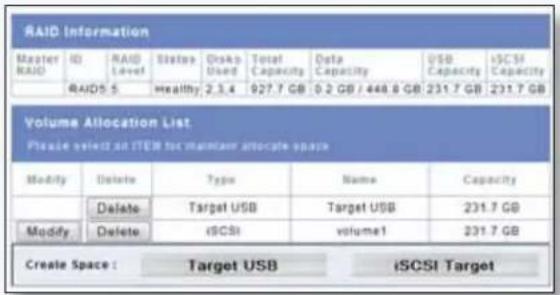
To control space allocation for Target USB and iSCSI volumes, Select the desired RAIDSet and click Space Allocation on the RAID information screen (see above, section 2.2.) The RAID Information and Volume Allocation List windows will appear. The Volume Allocation List displays the space allocated for Target USB and iSCSI volumes on the current RAID volume. Here you may create, modify, and delete target volumes.
text_image
RAID Information Master RAID ID RAID Level Status Display Used Total Capacity Data Capacity USD Capacity iSCSI Capacity RAIDS 5 Healthy 2.3.4 927.7 GB 0.2 GB / 448.8 GB 231.7 GB 231.7 GB Volume Allocation List: Please select an ITEM for maintain allocate space Modify Delete Type Name Capacity Delete Target USB Target USB 231.7 GB Modify Delete iSCSI volume1 231.7 GB Create Space : Target USB iSCSI TargetAllocating Space for Target USB Volume
To allocate space for a Target USB volume on
the current RAID volume, click Target USB. The Create Target USB Volume screen appears. Designate the percentage that should be allocated to the Target USB volume by selecting the appropriate percentage from the Allocation dropdown. Click OK to create the Target USB volume. The Target USB volume will appear to a host connected via the USB type "A" target mode port on the back of the unit, and will be recognize as an unformatted disk when initially connected. Since the space allocated resides on the RAID, it will enjoy all performance and fault tolerance features afforded by the MaxNAS.
Allocating Space for iSCSI Volume
To allocate space for an iSCSI volume on the current RAID volume, click iSCSI Target. The "Create iSCSI Volume" screen appears. Enter the values as listed below, and click OK to confirm.

text_image
Create ISCSI Volume RAID ID. RAID5 ID of curren Unused 25 % (231.7 GB) Percentage Allocation 25 ▼ % (231.7 GB) Percentage ISCSI Target Volume Enable Disable Enable or D Target Name Volume1 Name of the Limit(0-9, a-z) ign_Year 2008 Select the o ign_Month 10 Select the o Authentication None CHAP CHAP secu Username Limit(0-9, a-z, A-Z) CHAP Secu Password Limit(0-9, a-z, A-Z, length between 12-16)Enter a p Password Confirm Reenter t OK Back3-Administering the MaxNAS
2.3 Folder (Share) Configuration
The Folder Screen, accessible through Storage -> Folder, allows you to create and configure folders on the RAID storage volume. The interface windows contains the following elements:

text_image
Mozilla Firefox File Edit View Go Bookmarks Tgb Tools Help http://maxnas/adm/getform.html?name=share MaxNAS Status Storage Network Accounts System Language Disks RAID Folder Filesystem Check Stackable ISO Mount Naync Advance Option Folder RAID ID. Folder Name Description NFS share ACL Edit Remove RAID nsync nsync NFS ACL Edit Del RAID usbhdg usbndd NFS ACL Edit Del RAID usbcopy usbcopy NFS ACL Edit Del Add| RAID ID The RAIDset housing the share folder |
| Folder name Displays the name of the Share folder. |
| Description Provides a description of the Folder. |
| (NFS) Button Click (NFS) to to configure NFS access. |
| (ACL) Button Click (ACL) (Access Control List) to configure user access to this folder. |
| (Edit) Button Click (Edit) to edit and modify the Folder's name and description. |
| (Del) Button Click (Del) to delete the folder. A screen appears asking to confirm deletion. |
| (Add) Button Click this button Add new folders |
2.3.1 Adding Folders (Shares)
New shares can be created by clicking the Add button from the Folder screen. The Add Folder Interface Contains controls for the following elements:
| RAID ID Select | the RAIDSet to use for the share from the pulldown list |
| Folder name Enter the name of the Folder. | |
| Description Provide a description the Folder. | |
| Browseable | Whether the share will be visible when the MaxNAS is viewed through “network browsing”. Yes/No |
| Public | Whether the share will be accessible to all regardless of permissions. Public shares will ignore ACL lists. Yes/No |
| Share size limit | Maximum space available in gigabytes up to the share size. |
Click the Apply button to complete the folder creation or Cancel to abort.

Note:
You must set the ACL for each folder to allow access by specific users and groups; otherwise the folder will not be accessible. Remember to set ACLs whenever a new group or user are added to the MaxNAS.
3-Administering the MaxNAS
2.3.2 Editing Folders (Shares)
Share properties can be modified by clicking the Edit button corresponding to the share. The Edit Folder Interface Contains controls for the following elements:
| RAID ID. | Folder Name | Description | NFS share | ACL | Edit | Remove |
| RAID | nsync | nsync | NFS | ACL | Edit | Del |
| RAID | usbhdd | usbhdd | NFS | ACL | Edit | Del |
| RAID ID Select | the RAIDSet to use for the share from the pulldown list |
| Folder name Enter the name of the Folder. | |
| Description Provide a description the Folder. | |
| Browseable | Whether the share will be visible when the MaxNAS is viewed through “network browsing”. Yes/No |
| Public | Whether the share will be accessible to all regardless of permissions. Public shares will ignore ACL lists. Yes/No |
| Share size limit | Maximum space available in gigabytes up to the share size. |
Click the Apply button to complete the folder creation or Cancel to abort.
2.3.3 NFS Configuration
To access and edit the NFS configuration, click NFS corresponding to the folder required. The NFS configuration screen will appear. In this screen you can add, edit existing or remove mount points for the selected share. to add a new mount point, click Add to launch the new NFS share window, and enter the following values:
- Allowed Host(s) IP address or range
- Privilege level (Read Only/Writable)
- Guest OS (*nix/AIX)
Click Apply to create the NFS mount point, or Back to return to the Configuration screen. To edit an existing mount point, click Edit and all NFS share options will be available for editing. To remove an NFS share, click Remove.

text_image
Folder RAID ID. Folder Name Description NFS share ACL Edit Remove RAID nsync nsync NFS ACL Edit Del RAID usbhdd usbhdd NFS ACL Edit Del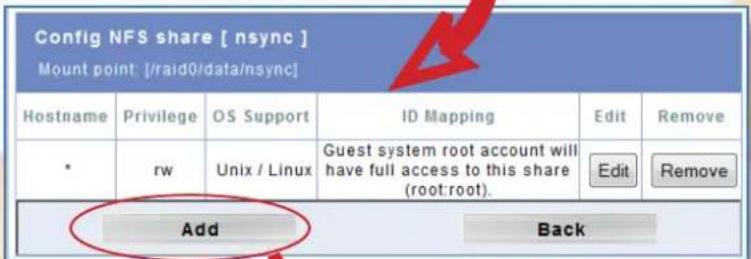
text_image
Config NFS share [ nsync ] Mount point: [/raid0/data/nsync] Hostname Privilege OS Support ID Mapping Edit Remove * rw Unix / Linux Guest system root account will have full access to this share (root:root). Edit Remove Add Back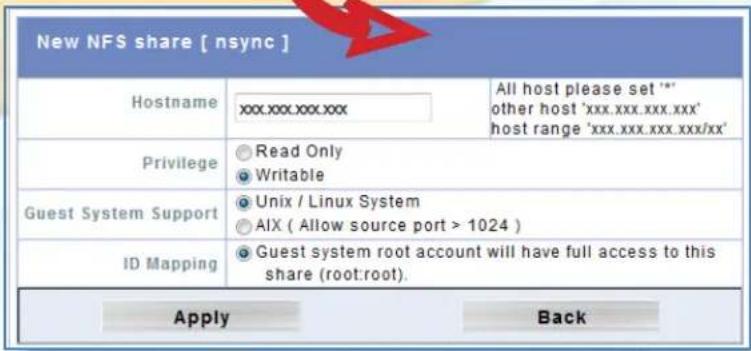
text_image
New NFS share [ nsync ] Hostname xxx.xxx.xxx.xxx All host please set '*' other host 'xxx.xxx.xxx.xxx' host range 'xxx.xxx.xxx.xxx/xx' Privilege Read Only Writable Guest System Support Unix / Linux System AIX ( Allow source port > 1024 ) ID Mapping Guest system root account will have full access to this share (root:root). Apply Back3-Administering the MaxNAS
2.3.4 Access Control Lists
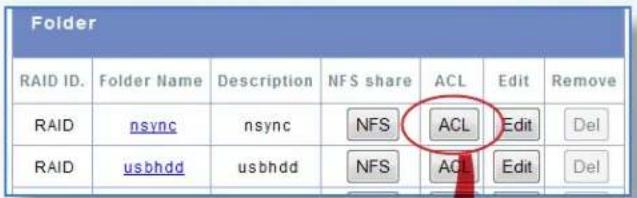
Folder permissions are controlled via ACLs (Access Control Lists.) To access and edit ACLs, click ACL corresponding to the folder required. The Access control screen will appear. This screen allows you to configure access to the selected Folder for the users and groups. Select a user or a group from the left hand column and then click Deny, Read Only, or Writable to configure their access level. To remove a user access or limitation, select the user from the appropriate column and click Remove corresponding above. If your MaxNAS is a member of an Active Directory, you may specify Active Directory users and groups permissions as well (AD users will appear in amber, and AD groups will appear in blue.) Click Apply to complete the ACL modification, or Close Window to abort.
text_image
Folder RAID ID. Folder Name Description NFS share ACL Edit Remove RAID nsync nsync NFS ACL Edit Del RAID_usbhhdd期間數字(NFS ACL Edit Del
text_image
ACI Setting [sync] - Microsoft Access http://181.200-0.132/aderv/ac.jp/760SharesSystForm4 Editor Avies Local Groups Local Users AD Groups All Users Clone Read Only Winable Remove Remove Remove Local Group Search Top 1000 accresd Users and Instructors Available Users and Groups Denied Access Users and Groups Granted Read Only Access Users and Groups Granted Full Access Sync AD account Apply Close Window Done
IMPORTANT: The ACL control Screen is a popup window. Make sure your browser allows popup windows for your MaxNAS session.
2.3.5 Deleting Folders (shares)
Shares can be removed by clicking Del corresponding to the folder required. A confirmation screen will appear. Click ACL to delete the share, or Cancel to abort.

The Del button will be greyed out (unavailable) for system reserved shares.
2.4 Perform file system check
Under normal circumstances it should not be necessary to perform a file system check on the MaxNAS. However, if the unit experienced a power outage or abrupt disconnection, it may be useful to manually perform a file system check. To perform a file system check, navigate to "Storage" -> "Filesystem Check"
3-Administering the MaxNAS
2.5 Stackable iSCSI Host Service
The MaxNAS can aggregate up to 5 iSCSI targets and offer all networking services to those targets, regardless of where the storage is located physically. To access the Stackable Host Service control, navigate to "Storage" -> "Stackable" and the Stack Target List screen will appear. In this screen you can add, edit existing or remove mount points.
2.5.1 Adding a new iSCSI target
To add a new iSCSI Target, click Add to launch the Add new iSCSI Target window, and enter the following values:
A. Target Sevice enable/disable
B. Target IP Address
C. Target IQN (iSCSI Qualified Name). The MaxNAS can detect the IQN for most iSCSI initiators by clicking Discovery.
D. Authorized username (for CHAP enabled iSCSI target)
E. Authorized password (for CHAP enabled iSCSI target)
F. Export share name- the name of the shared folder that will appear for network mounting, limited to lower case and numeral characters.
G. Export share name description
H. Check whether the share is browsable (see section 2.3 for more information)
I. Check whether the share is public. If a share is non public, ACLs will have to be defined in the Stacked Target List window (see section 2.3 for more information)

text_image
Stack Target List Export share name Description IP Capacity (Used/Total) Status iscsipool(my iSCSI stack 192.168.0.112 0 GB / 231.7 GB Enable ign.2000-10.com.MicroNet.RAIDS.lscsi0.vg1.volume1 ACL Edit Del Format Reconnect Add
text_image
Add iSCSI Target (Add Stack Target) Enable iSCSI Target Enable Disable Stackable Target IP 192.168.0.112 : 3260 Discovery iqn iqn.2008-10.com.MicroNet.RAID5.iscsi0.vg1.volume1 Username authorized Password iscsipool Limit : ( 0~9, a~z ) Description my iSCSI stack Browseable Yes No Public Yes No Apply BackTo complete the operation, click Apply or Back to abort. In order for the MaxNAS to share the volume, it will have to be formatted for MaxNAS use.

WARNING: Formatting the iSCSI target will erase all existing data! Exercise caution before proceeding!
To format the stack, click Format corresponding to the iSCSI mount required on the stack list screen.
2.5.2 Set Stackable Share Permissions
Folder permissions are controlled via ACLs (Access Control Lists.) To access and edit ACLs, click _ACL_ corresponding to the iSCSI mount required. The Access control screen will appear. Please refer to section 2.3.4 of this chapter for more information.
2.5.3 Edit Stackable parameters
To modify a Stackable shared iSCSI Target, click ____ to launch the edit iSCSI Target window,
MaxNAS Owner's Manual
Please refer to section 2.5.1 of this chapter for more information.
2.5.4 Delete a Stackable shared iSCSI mount
To delete an stackable shared iSCSI mount, click Delete corresponding to the desired iSCSI mount. A confirmation dialog box will appear. Click OK to remove the mount, or Cancel to abort.

text_image
WARNING: Deleting a Stackable shared iSCSI mount will erase all data on it!2.5.5 Reconnect an offline iSCSI target
In case of lost connectivity between the MaxNAS and the iSCSI target shared, it may be necessary manually reconnect. Please make sure that the iSCSI target device is online and accessible, and click Reconnect corresponding to the desired iSCSI mount. The connection should be re-established.
2.6 Mount and Share ISO disk image
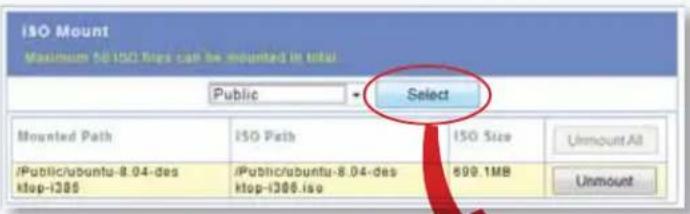
The MaxNAS can mount ISO disk images and present them as networked shares. To access the ISO mount control, navigate to "Storage" -> "ISO Mount" and the ISO Mount List screen will appear. In this screen you can add, edit existing or remove ISO image shares.
text_image
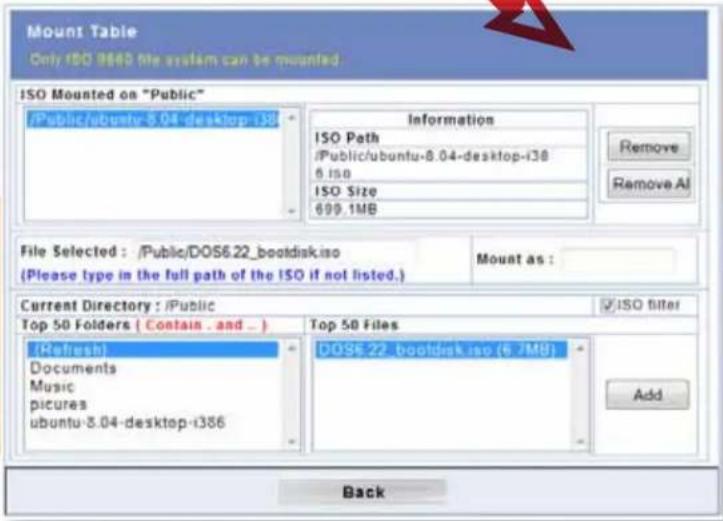
ISO Mount Maximum ISO ISO Files can be mounted in total. Public Select Mounted Path ISO Path ISO Size Unmount All /Public/ubuntu-8.04-des /Public/ubuntu-8.04-des 699.1MB ktop-i386 ktop-i386.iso Unmount2.6.1 Adding a new ISO image share To add a new ISO image share, select the sharepoint where the ISO image resides from the pulldown, and click Select to launch the Mount Table window. You can navigate the chosen share file system on the bottom left window, and a list of allowable disk images will appear on the bottom right pane. Select the image to be mounted from the bottom right pane, and optionally enter a custom mount point in the "Mount As" Entry box above. Click Add to mount the image, and it will be accessible to
text_image
Mount Table Only ISO 9840 file system can be mounted. ISO Mounted on "Public" /Public/ubuntu-5.04-desktop-i38 Information ISO Path /Public/ubuntu-8.04-desktop-i38 6 ISO ISO Size 699.1MB File Selected: /Public/DOS6.22_bootdisk.iso (Please type in the full path of the ISO if not listed.) Mount as: Current Directory : /Public Top 50 Folders ( Contains . and . ) (Refresh) Documents Music pictures ubuntu-8.04-desktop-i386 Top 50 Files DOS6.22_bootdisk.iso (6.7MB) Add Backnetwork clients in the path shown at the top left windowpane. ISO Shares will be accessible according to the parent share access controls.
2.6.2 Removing ISO image shares
To remove ISO image shares, select the desired share from the mounted list windowspane (top left) and click Remove. Alternatively, you may remove all shared ISO images by clicking Remove All. No data will be lost by this operation.
2.6.3 Temporarily unmount ISO image shares
To temporarily unmount ISO image shares, select the desired share from the ISO mount list screen and click Unmount. No data will be lost by this operation.
MaxNAS Owner's Manual
3-Administering the MaxNAS
2.7 nSync Backup Service
nSync is an FTP compatible synchronization method that allows backup and restoration of a share folder to another MaxNAS Target or any FTP server. When using nSync between two MaxNAS units, the synchronization also supports secure encryption. nSync can be scheduled to run once, daily, weekly, or monthly. The available bandwidth for nSync tasks can be limited to reduce impact on network availability. The nSync configuration screen is accessible by selecting “nSync” from the Storage menu.
2.7.1 Create new nSync backup task
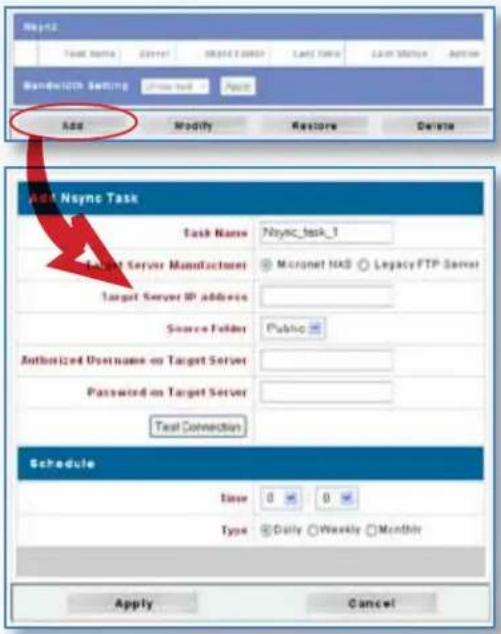
To create a new nSync task, click Add. The Add nSync task control page will appear with the following elements:
| Task Name Enter a name for the nSync scheduled job. | |
| Target Manufacturer | Select whether the target is a MaxNAS or FTP server. |
| Target IP Address The | IP address of your target server |
| Nsync Source Folder | The share folder you want to backup. See section 2.3 for more information |
| AUTH ID The account ID on the target server. | |
| AUTH Password The | password for the AUTH ID on the target server. |
| Scheduled Time The | time when the Nsync task will run. |
| Schedule Type Select | whether to run the Nsync task daily, weekly, or monthly. Day of week and day of month are user selectable. |
text_image
Nsync Task Name ORDER SELECT ORDER LAST NAME LAST SWITCH ANSUM Bandwidth Setting Show hand Apply Add Modify Restore Delete Add Nsync Task Task Name: Nsync_task_1 Last Server Manufacturer: Micronet NAS Legacy FTP Server Target Server IP address: Source Folder: Public Authorized Username on Target Server: Password on Target Server: Text Connection Schedule Time: 0 0 Type: Daily Weekly Monthly Apply CancelIt is recommended the nSync link be tested before it is committed for connectivity and to verify proper credentials. When the nSync task is created and all task fields have been entered, click the (Test Connection) button to verify the address and credentials. Once the task has been verified, enter the scheduled time and frequency, and click Apply to complete set the LAN configuration, or Cancel to abort. See Chapter 4 Section 4 for additional information.
2.7.2 Modify an existing nSync task
To modify an existing nSync task, check the checkbox next to the task name and click Modify Refer to section 2.5.1 for detailed field information. It is recommended the nSync link be tested before it is committed for connectivity and to verify proper credentials. When the modifications to the nSync task are entered, click Test Connection to verify the address and credentials. Once the task has been verified, click Modify to complete set the LAN configuration, or Cancel to abort.
2.7.3 Deleting an existing nSync task
To delete an existing nSync task, check the checkbox next to the task name and click Delete. A confirmation dialog box will appear. Click OK to remove the nSync task, or Cancel to abort.
3-Administering the MaxNAS
2.7.4 Running an nSync backup task
A task will launch automatically as scheduled, but may also be launched manually by checking the checkbox next to the task name to run and clicking Start in the action section. The "Last Status" section will display a button labelled In Progress and will change to Success when the backup is complete. Click either In Progress or Success at any time to launch a window with the log of the task.
2.7.5 Restoring to a previously synchronized state
To restore a previously synchronized state, check the checkbox next to the task name to restore and click Restore. The “Last Status” section will display a button labelled In Progress and will change to Restore Success when the restoration is complete. Click either In Progress or Restore Success at any time to launch a window with the log of the restoration.
2.7.6 Setting transfer speed limits
The nSync process can consume as much or as little of the available network bandwidth as it is allowed to utilize. The more bandwidth that is available, the faster the nSync task can complete, but at a cost of less available user bandwidth. The available nSync bandwidth can be controlled by selecting a value in the bandwidth setting control box (ranging from 256 Kbit/Sec to unlimited) and clicking Apply.
3. Network Configuration
Network Configuration is accessible by selecting the network menu. It consists of setting LAN port specific functions for each interface, and Network services, accessible via submenus (illustrated right.)
3.1 LAN1 Configuration
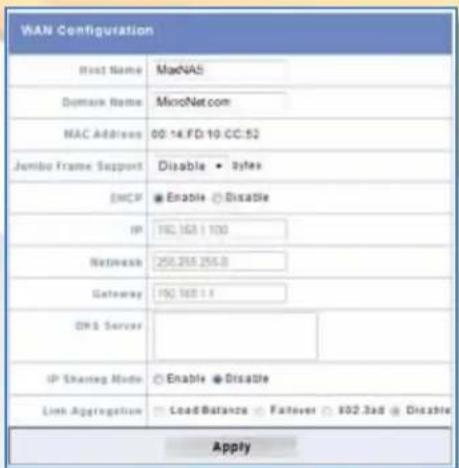
The LAN Configuration screen for the LAN1 Interface allows for the following controls:
text_image
WAN Configuration Host Name MacNAS Domain Name MicroNet.com MAC Address 00:14.FD:10.CC:52 Jumbo Frame Support Disable ▼ bytes EMCF Enable Disable IP 192.168.1 100 Network 258.258.258.0 Gateway 192.168.1.6 DNS Server IP Sharing Mode Enable Disable Link Aggregation Load Balance Failure 802.3ad Disable Apply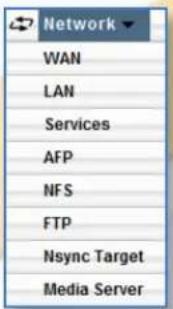
text_image
Network WAN LAN Services AFP NFS FTP Nsync Target Media ServerWhen you are ready to commit changes click Apply.
3.1.1 Host Name
The host name is the WINS name for the MaxNAS, and will be the name shown in your Windows network.
3.1.2 Domain Suffix
The Domain Name refers to your DNS network suffix. This value is necessary for proper DNS or Active Directory network participation. Consult your network administrator for more information regarding this value.
3.1.3 MAC Address
A unique Media Access Control (MAC) address. This value is not modifiable.
3.1.4 Jumbo Frames Support
Jumbo frame support is a feature which allows Ethernet hardware to send, receive, or transport Ethernet frames greater than 1518 bytes in size, which is the standard Ethernet packet size. The MaxNAS supports jumbo frames of 4000 and
WARNING: Make sure all your client devices, hubs, switches, and gateways can support Jumbo frames of the proper size before enabling this feature. Failure to do so may render the network port of your MaxNAS inaccessible!
16000 bytes MTU. Jumbo frames can only function if all the network devices can support the same size jumbo packets, so please verify that all your client devices, hubs, switches, and gateways can support it before you enable jumbo frames.
3.1.5 DHCP
DHCP Allows for dynamic IP address assignment on TCP/IP networks. It is the preferred method to manage IP address assignments and is the default assignment of the LAN1 port on the MaxNAS. You may set a static IP address by disabling DHCP.
3.1.6 Static IP
The IP address, Netmask, Gateway, and DNS Servers are only required if DHCP is disabled. Consult your network administrator for more information on these values as they are unique to your network.
3.1.7 IP Forwarding
The MaxNAS can route IP traffic from LAN2 to LAN1 using IP forwarding. When used in conjunction with DHCP services on LAN2 (see section 3.2.4) the MaxNAS can act as a router within a two subnet environment. To enable IP routing, check the “enabled” checkbox and follow the on screen instructions.
3.1.8 Link Aggregation
The MaxNAS supports IEEE 802.3ad link aggregation, which defines a method for using multiple Ethernet network cables/ports in parallel to increase the link speed beyond the limits of IMPORTANT: 802.3ad link aggregation requires the use of a link aggregation capable router. Consult your router's documentation to assure compatibility and configuration instructions.
any one single cable or port and to increase the redundancy for higher availability. The following modes of operation are available:
- Failover: When one port fails the other one will take over.
- Load Balance: Ethernet traffic will flow along both Ethernet ports.
- 802.3ad: Links two Ethernet ports in parallel to increase throughput.
3.2 LAN2 Configuration
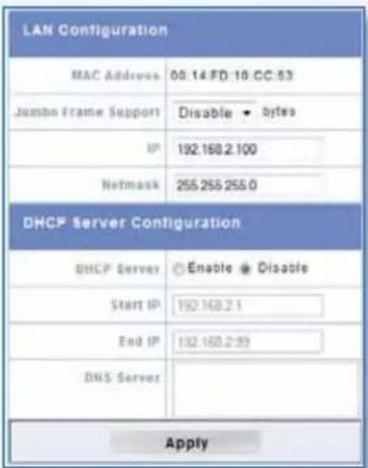
The LAN Configuration screen for the LAN2 Interface allows for the following controls:
Jumbo Frame Support
IP Address
Netmask
DHCP Server
When you are ready to commit changes click Apply.
3.2.1 MAC Address
A unique Media Access Control (MAC) address. This value is not modifiable.
text_image
LAN Configuration MAC Address 00.14 FD 16 CC:53 Jumbo Frame Support Disable bytes IP 192.168.2.100 Netmask 255.255.255.0 DHCP Server Configuration DHCP Server Enable Disable Start IP 192.168.2.1 End IP 192.168.2.39 DNS Server Apply3.2.2 Jumbo Frames Support
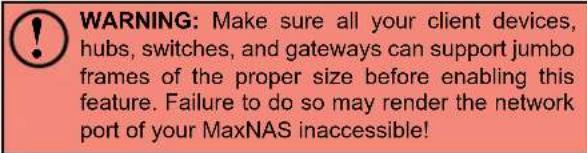
Jumbo frame support is a feature which allows Ethernet hardware to send, receive, or transport Ethernet frames greater than 1518 bytes in size, which is the standard Ethernet packet size. The MaxNAS supports jumbo frames of 4000 and
text_image
WARNING: Make sure all your client devices, hubs, switches, and gateways can support jumbo frames of the proper size before enabling this feature. Failure to do so may render the network port of your MaxNAS inaccessible!16000 bytes. Jumbo frames can only function if all the network devices can support the same size jumbo packets. Please verify that all your client devices, hubs, switches, and gateways can support it before you enable jumbo frames.
3.2.3 Static IP
The LAN configuration for the LAN2 port is similar to the Primary Interface but only allows modification of the IP address and Netmask. The LAN2 Interface does not support DHCP address assignment.
3.2.4 DHCP Server
DHCP allows for dynamic IP address assignment on TCP/IP networks. Your MaxNAS can serve as a DHCP server to a network attached on LAN2. When enabled, it will dynamically assign an available IP address from the range specified between the "Start IP" entry box and the "End IP" entry box as well as DNS server addresses.
3.3 Network Services Configuration
The MaxNAS offers the following network services:
- SMB/CIFS (Server Message Block) or "Windows" Networking
- Webdisk (Web Browser Storage) and Secure Webdisk
- UPNP (Universal Plug and Play) automatic detection and configuration
• Apple File Protocol Service - NFS Service
- FTP Service
- nSync Target Service
- DLNA Streaming
It is recommended that you disable services you will not require for security purposes. See Chapter 4 for details on how to use these technologies in Windows and Macintosh environments.
MaxNAS Owner's Manual
3-Administering the MaxNAS
3.3.1 SMB/CIFS
The Server Message Block network protocol is the most widely used network protocol. It is used by all variants of the Microsoft Windows operating system, Apple Macintosh OS X, and most Unix and Linux variants include support for it even if using a different networking protocol. You may enable or disable SMB/CIFS support by navigating to "Network" -> "Service." Click Apply to complete the operation.

text_image
SMB/CIFS Sharing Enable Disable3.3.2 Webdisk/Secure Webdisk
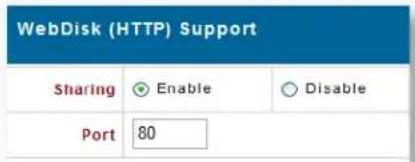
The Webdisk functionality allows your shares to be accessible from any web browser with a path to the MaxNAS. This is a powerful networking option and must be used with care in networks that are externally accessible to the internet. Webdisk and Secure Webdisk must have different TCP ports in order to be used simultaneously. You may enable or disable Webdisk and Secure Webdisk support as well as user definable TCP ports by navigating to "Network" -> "Service." Click Apply to complete the operation.
text_image
WebDisk (HTTP) Support Sharing Enable Disable Port 80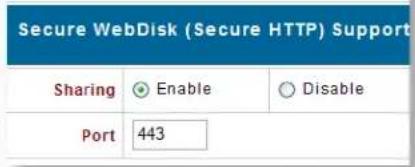
text_image
Secure WebDisk (Secure HTTP) Support Sharing Enable Disable Port 4433.3.3 UPNP Universal Plug and Play
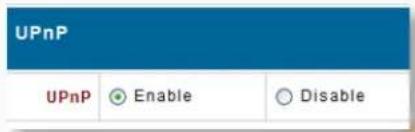
UPNP allows automatic discovery of the MaxNAS Administration Interface by clients that support the protocol. You may enable or disable UPNP support by navigating to "Network" -> "Service." Click Apply to complete the operati
text_image
UPnP UPnP Enable Disable3.3.4 Apple File Protocol Services
The AFP protocol is used by Apple Mac OS 9.x and prior for networking and is supported by all Mac OS-X hosts as well. To enable AFP support navigate to "Network" -> "Apple Network Configuration." You may enable, disable, set the character languageset, and specify zone (optional). Click Apply to complete the operation.

text_image
Apple Network Configuration Apple File Service Enable Disable MAC CHARSET UTF-8 Zone3.3.5 NFS Services
NFS (Network File System) is a network file system protocol originally developed by Sun Microsystems in 1983 allowing a user on a client computer to access files over a network as easily as if the network devices were attached to its local disks. It is most commonly used on Unix and Linux based networks. You may enable or disable NFS server support "NFS." Click Apply to complete the operation.

text_image
NFS Support NFS Enable Disable3.3.6 FTP Services
FTP (File Transfer Protocol) is a commonly used, open standard protocol for exchanging files over any network that supports the TCP/IP protocol (such as the Internet or an intranet). Virtually every computer platform supports the FTP protocol. This allows any computer connected to a TCP/

text_image
FTP FTP Enable Disable FTP ENCODE ISO3-Administering the MaxNAS
IP based network to manipulate files on another computer on that network regardless of which operating systems are involved (if the computers permit FTP access.) There are many existing FTP client and server programs, and many of these are free. You may enable or disable FTP server support as well as supported file character set language by navigating to "Network" -> "FTP." Click Apply to complete the operation.
3.3.7 nSync Target Service
nSync is an FTP compatible synchronization method that allows backup and restoration of a share folder to another MaxNAS Target or any FTP server. When using nSync between two MaxNAS units, the synchronization also enables secure encryption. You may enable or disable nSync target support by navigating to "Network" -> "nSync." Click Apply to complete the operation.

text_image
Nsync Setting Nsync Target Server Enable Disable3.3.8 Mediabolic DLNA Server
The MaxNAS provides media streaming service to standalone networked home media adapters that support the UPnP-AV protocol or are Digital Living Network Alliance (DLNA) standard compliant. This allows shared digital media such as music, pictures, and movies with any compatible device throughout your entire home. For more information and a list of compatible devices please visit www.dlna.org

text_image
Media Manager Settings media server Enable Disable Apply Shared Media Folders webcopy Public Rescan ecssipoolTo configure the media server, navigate to “Network” -> “Media Server” and the Media Manager Settings window will appear. To enable or disable the streaming service, check the radio button corresponding to “enable” or “disable” and click Apply. The service will index and share all compatible media files in the shares checked in the bottom pane. The media server will appear to your compatible DMA (digital media adapter) as “MaxNAS:Mediabolic Server.”
4. Accounts Configuration
Account Configuration allows for users and groups creation and integration into a Microsoft Windows Active Directory or domain. Account Configuration is accessible from the “Accounts” menu.
4.1 Authentication Configuration
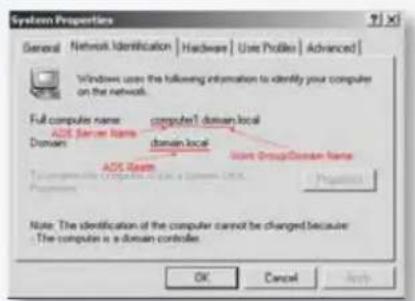
The MaxNAS can authenticate with and use Microsoft server resources such as WINS (Windows Internet Naming Service,) Workgroup or Domain assignment, and ADS. The Microsoft Support configuration screen is accessible from “Accounts” -> “Authentication.” This screen displays the directory support parameters of the system as follows:
- WINS Server: Specifies the WINS server if necessary.
• Workgroup/Domain Name: Specifies the SMB/CIFS Work Group/NT Domain name. - ADS Support: Enabled to join a Microsoft domain/AD or disabled for workgroup support.

text_image
ADS/NT Support WINS Server Work Group/Domain Name MYGROUP ADS/NT Support Enable Disable Authentication Method ADB NT ADS/NT Server Name ADS/NT Realm Administrator ID admin Administrator Password **** Confirm Password Apply3-Administering the MaxNAS
- ADS Server Name: Specifies the AD domain controller or NT PDC.
• ADS Realm: Specifies the fully qualified ADS realm (Domain). - Administrator ID/password: Domain administrator credentials required for permission to join an Active Directory.
Consult your network administrator for assistance with joining the MaxNAS to an Active Directory. When all fields have been entered, click Apply to begin the authentication process. See "Appendix C- Active Directory" for more information.
text_image
System Properties General Network Identification Hardware Use Profiles Advanced Windows uses the following information to identify your computer on the network. Full computer name computer1 domain local DNS Server Name domain local Domain DNS Name More Group Domain Name Note: The identification of the computer cannot be changed. Because: The computer is a domain controller. OK Cancel Apply4.2 Group Administration
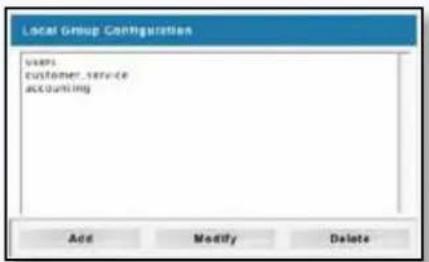
When providing shares to non Active Directory clients, the MaxNAS provides its own user and group administration. The Local Group Administration screen is accessible by selecting “Groups” from the Accounts menu. Permissions and authorization for users and groups are assigned to each folder shared- See section 2.3 of this chapter for more information.
text_image
Local Group Configuration users Customer_service Accounting Add Modify Delete4.2.1 Creating Groups
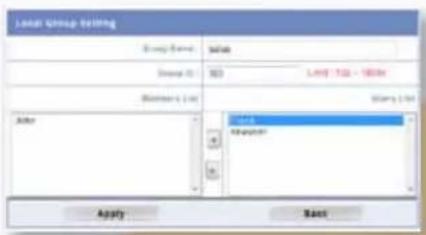
To create a new group, click _Add_ in the Local Group Configuration screen (illustrated above, right.) In the following screen enter the new group name and assign users by selecting the desired users from the "Group List" pane and clicking the "button. Please note that spaces, slashes or commas are not valid for group names. Click _Apply_ to finalize the action or _Back_ to abort.
text_image
Local Group Setting Group Name: S004 Group ID: 163 Status List: Active Show Apply Back4.2.2 Removing Groups
To remove a group, select the group in the Local Group Configuration Screen to remove and click Delete.
4.2.3 Modifying Existing Groups
You may modify any groups' user membership by selecting the group and clicking Modify. The Local Group Setting dialog will appear. To add a user to the group, highlight the desired users in the "Users List" pane and click the button. To remove a group membership from the selected user, highlight the desired users in the "Member List" pane and click the button. When changes to the user's group membership are complete, click Apply to finalize the action.
4.3 Local User Configuration
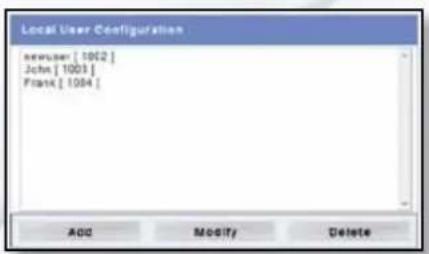
When providing folder access to non Active Directory clients, the MaxNAS provides its own user and group administration. Creating and administering user accounts are accessible by selecting "Users" from the Accounts menu. This screen allows you to configure local user settings and assign or remove group membership. Permissions and authorization for users and groups are assigned to each folder shared- See section 2.3 of this chapter for more information.
text_image
Local User Configuration newuser [ 1002 ] John [ 1003 ] Frank [ 1004 ] ADD Modify Delete4.3.1 Creating Users
To create a new user, click Add in the User Configuration screen. In the following screen (see illustration right) enter the new username, password in the "Password" and "Confirm" fields, and assign group membership by selecting the desired groups from the "Group List" pane and clicking the "button. Please note that spaces, slashes or commas are not valid for user names. Click Apply to finalize the action or Back to abort.

text_image
Loop Layer Setting Input name: 7ac Input ID: 000 Parameters: **** Lockpath: **** Group Settings: Output Apply Next4.3.2 Removing Users
To remove a user, select the group in the Local User Configuration screen to remove and click Delete.
4.3.3 Modifying Existing Users
You may change user passwords and group assignment by clicking the Modify button.
- To change a user password, enter the new password in the "Password" and "Confirm" fields. Click Apply to finalize the action or Back to abort.
- To modify a user's group membership, highlight the desired group in the "Group List" pane and click the "button to add a new group membership. To remove a group membership from the selected user, highlight the desired group in the "Group Member" pane and click the "button. When changes to the user's group membership are complete, click Apply to finalize the action or Back to abort.
4.4 Batch User and Group Creation
The MaxNAS can import lists of users and groups for batch user and group creation. The list must be a comma-separated plain text (*.txt) in this line format:
[USERNAME], [PASSWORD], [GROUP]
To import a user list for batch creation, navigate to "Accounts" -> "Batch Mgmt". Select the text file previously created, or click Edit to create the list manually or edit the loaded file. Click Import to complete the operation.
5. System Control Functions
The system control functions, accessible from the “System” menu, facilitate the following functions via submenus:
- Remote Notification Configuration
- Event Logs
- System Time
- Save/Recover System Setting
- Configure Add-on Modules
- Reset MaxNAS to Factory Default
- Upgrade Firmware • Change Administrator Password
- Reboot/Shutdown
- Schedule On/Off
- Logout from Administration
- Change the user Interface Language
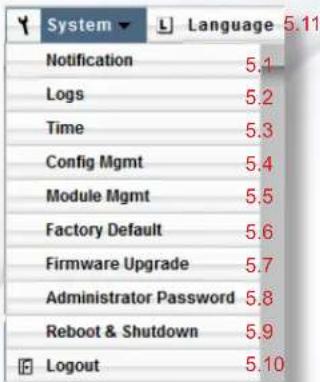
text_image
Y System ▼ L Language 5.11 Notification 5.1 Logs 5.2 Time 5.3 Config Mgmt 5.4 Module Mgmt 5.5 Factory Default 5.6 Firmware Upgrade 5.7 Administrator Password 5.8 Reboot & Shutdown 5.9 E Logout 5.105.1 Remote Notification Configuration
The MaxNAS features an SMTP manager and can send email notifications for various subsystem conditions in addition to the audible buzzer. The following table discuss each attribute's descriptions.
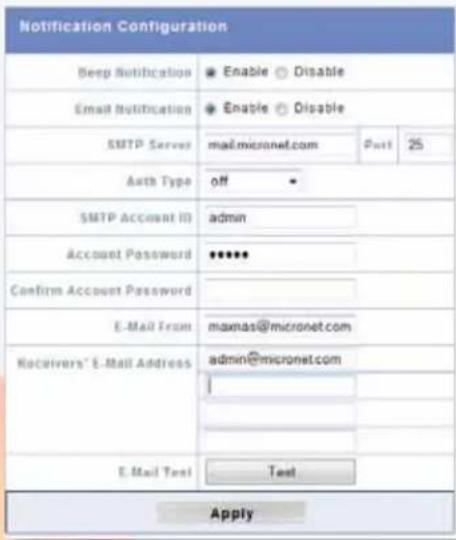
text_image
Notification Configuration Deep Notification Enable Disable Email Notification Enable Disable SMTP Server mail.micronet.com Post 25 Auth Type off SMTP Account ID admin Account Password ****** Confirm Account Password E-Mail From maxmas@micronet.com Receivers® E-Mail Address admin@micronet.com E-Mail Test Test Apply| Enable or Disable system beeper that beeps when a problem occurs. |
| Enable or Disable e-mail notification of system problems. |
| Enter your network's SMTP server's network IP address and port (commonly 25) |
| Set SMTP Authentication type and SMTP account ID and password (in both “Account Password” and “Confirm Account Password” fields.) This may be required to authenticate the MaxNAS to the SMTP server. Some SMTP servers do not require a user ID and password. Consult your network administrator for more information. |
| Set the sender address for the email alert |
| Recipients' (up to 4) e-mail addresses for notification of system events. |
When all desired options are entered click Apply. To verify your SMTP settings and connectivity functionality, click Test to generate a test email.
5.2 Event Logs
From the System menu, choose the Logs item and the System Logs screen appears. This screen lets you configure and manage system logs which provide a history of system usage. A description of each item follows:

text_image
IMPORTANT: The logs will display in a popup window. Make sure your browser allows popup windows for your MaxNAS session.| |<< < > >>| Use these buttons to browse the log pages. | |
| INFO Provides all log information including warning messages and error messages. | |
| WARN Shows all warning messages and error messages only. | |
| ERROR Shows only error messages. | |
| GO Specify the number of lines per page and click Go. | |
| Ascending Shows logs by date in ascending order. | |
| Descending Shows logs by date in descending order. | |
| Download Logs | Download the whole system log in a .tar.gz format. This file can then be forwarded to MicroNet Technical Support for troubleshooting. |
5.3 System Time
To set the system time and date, navigate to "System" -> "Time" and the Time screen appears. Set the desired date, time, and time zone. When all desired options are entered, click Apply
3-Administering the MaxNAS
5.4 Save/Recover System Setting
When all configuration options for the MaxNAS are entered and the unit is functioning correctly, it is recommended that you save your system settings to a settings file for safekeeping. Should the MaxNAS ever have to be reformatted or reset, you will then be able to retrieve all your settings, users, groups, and permissions from this file. To access the Save/Recover System Settings screen, select "System" -> "Config Mgmt."
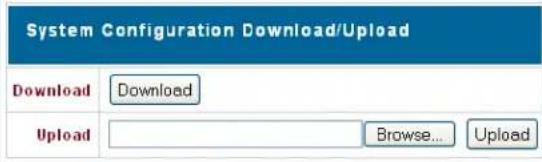
text_image
System Configuration Download/Upload Download Download Upload Browse... Update- To save current settings to a file, click Download. The file will download to your computer.
- To retrieve an existing settings file, click Browse next to the Upload entry box. Navigate and select your saved settings file. Click Upload to retrieve the settings and confirm the operation in the following confirmation dialog.
5.5 Module Management
MicroNet strives to continually improve and from time to time will release additional features, or modules, for the MaxNAS. Modules offer additional functionality without replacing the base operating code or firmware. Modules will either be made available on MicroNet's website or provided by MicroNet Technical Support. To access the module management, navigate to "System" -> "Module Mgmt."

text_image
Module Management Module File Browse... Install Name Version Description Enable (Micronet)DLM 1.0.02 Download Manager Yes (Micronet)PrinterServer 1.0.00 Printer Server Yes Uninstall Enable Disable- To install a new module, click Browse next to the Module file entry box. Navigate and select the module file. Click Install to begin the upload, and confirm the operation in the following confirmation dialog.
- To enable, disable, or uninstall a module, check the checkbox left of the module and click the respective function button Uninstall, Enable, or Disable. Confirm the operation in the following confirmation dialog.
5.6 Reset to Factory Default
Should it become necessary to reset all settings to factory default, access the Reset to Factory Settings screen from "System" -> "Factory Default." Click Apply to reset the unit, and confirm the operation in the following confirmation dialog.

text_image
WARNING: Resetting to factory default will erase all data!5.7 Update Firmware
MicroNet strives to continually improve our products, and from time to time will release firmware updates for the MaxNAS. Firmware will either be made available on MicroNet's website or provided by MicroNet Technical Support. To access the Firmware Upgrade, navigate to "System" -> "Firmware Upgrade." Click Browse next to the

text_image
Firmware Upgrade Firmware Browse... ApplyFirmware entry box. Navigate and select your saved settings file. Click Apply to begin the upload and confirm the operation in the following confirmation dialog.

text_image
IMPORTANT: Make sure all user data and system settings are backed up before updating firmware!3-Administering the MaxNAS
5.8 Change Administrator Password
To change the administrator password or the LCD access password navigate to "System" -> "Administrator Password" and the Administration password screen appears. Enter the new password in the "New Password" field and re-enter the password (case sensitive) in the "Confirm Password" field. When both fields are entered click Apply to confirm.
5.9 Reboot/Shutdown
To cleanly shut down or reboot the MaxNAS navigate to "System" -> "Reboot and Shutdown." In the following screen, click Reboot to restart the unit or Shutdown to turn off the unit.

IMPORTANT: Use the Reboot/Shutdown system functions to turn off the unit cleanly. Shutting down using the power button may result in data loss!
5.10 Log Out of the Administration Interface
To log out of the MaxNAS Administration User Interface navigate to “Log Out” at the right edge of the menu bar. A confirmation dialog will appear. Confirm the operation to log out to the main login page.
5.11 Change the User Interface Language
The MaxNAS supports multiple language user interface, including English, French, German, Italian, and Chinese. To change the user interface language select “Language” from the Menu. In the following screen select the desired interface language. Click Apply to confirm.
Chapter 4- Connecting Users
Once the MaxNAS has been configured with storage, shares, users, groups, and permissions it is ready to accept user connections. The MaxNAS supports SMB/CIFS network services as well as Webdisk/Secure Webdisk user connections. This chapter includes discussion on both of those services and connection methods.
1. SMB/CIFS User Access Configuration
SMB shares are accessible from Windows 95 and newer, OS-X 10.2 and newer, and most Unix/Linux based workstations. Instructions are included for Windows and Macintosh based hosts. *nix users should consult the specific distribution and/or SAMBA documentation for usage instruction.
1.1 Mapping a Network Drive (Windows)
To access the MaxNAS from a Windows based host, open “My Network Places” (Windows XP) or “Network Neighborhood” on Windows 98/2000. The MaxNAS is called “MaxNAS” in workgroup “Workgroup” by default. Double click to see the available shares. Alternatively, you may use Window’s search function to look for computers named “MaxNAS.”
You can map share folders on the MaxNAS so you can access them through the My Computer folder in Windows. Connect to the shared network folders on the MaxNAS as follows:
1.1.1 Double click "My Computer"
1.1.2 In the menu bar select "Tools" -> "Map Network Drive"
1.1.3 The Map Network Drive... window appears.
- Select the desired drive letter in the "Drive" field
- Use the Browse button to find the folder over your network or enter the share manually as “\MaxNAS\sharename” where [MaxNAS] is the name or IP address of the MaxNAS and [sharename] is a specific share being mapped.
- Check the "Reconnect at Logon" checkbox to make the share reconnect on reboot.
- Click Finish. If the share is not public a "Connect As..." window appears. Enter an authorized User name and Password.
text_image
Connect As... By default, you will connect to the network folder as LAPTOPACK files. To connect as another user, write their user name and password folder. Name: Password: OK Cancel- Click OK. The share folder appears as the drive you assigned in your My Computer window. You can now access this folder as though it were a drive on your computer.
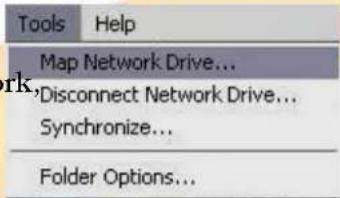
text_image
Tools Help Map Network Drive... Disconnect Network Drive... Synchronize... Folder Options...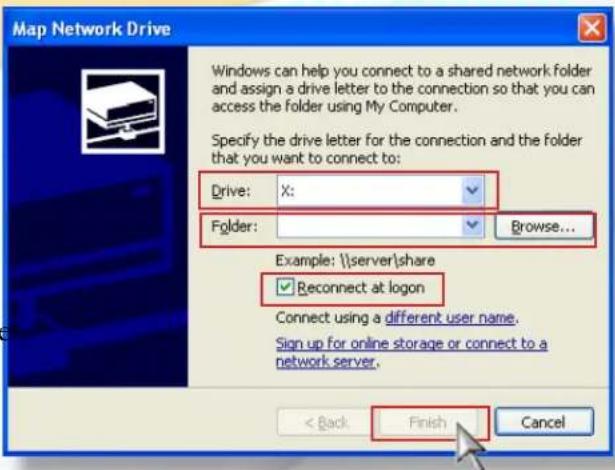
text_image
Map Network Drive Windows can help you connect to a shared network folder and assign a drive letter to the connection so that you can access the folder using My Computer. Specify the drive letter for the connection and the folder that you want to connect to: Drive: X: Folder: Browse... Example: \\server\share Reconnect at logon Connect using a different user name. Sign up for online storage or connect to a network server. < Back Finish Cancel1.2 Mapping a Network Drive (OS-X)
The simplest method to locate and connect your MaxNAS to an OS-X workstation is by using the Finder Network browser.
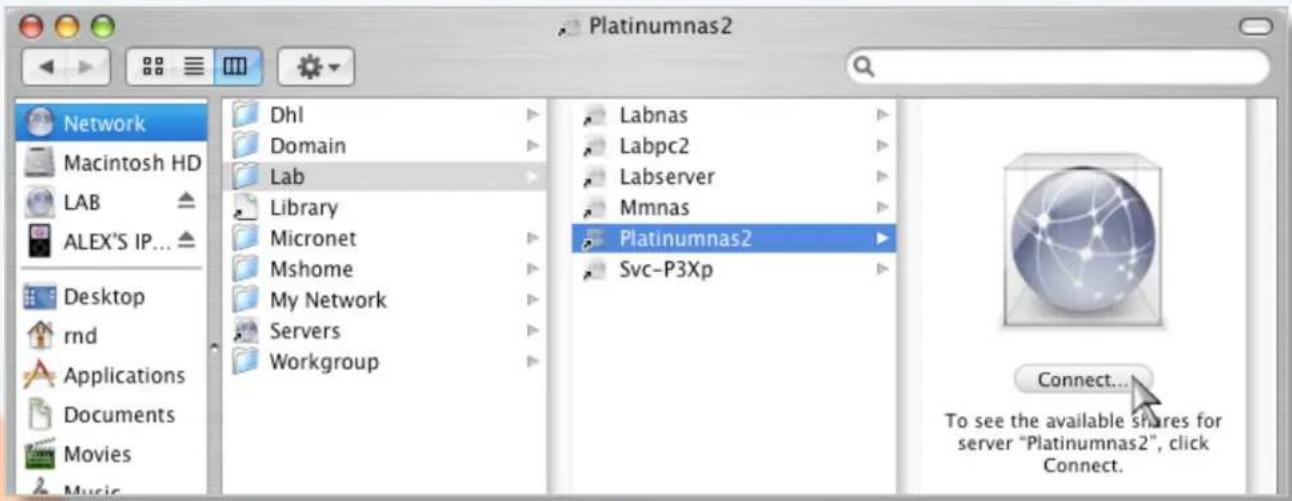
text_image
Platinumnas2 Network Macintosh HD LAB ALEX'S IP... Desktop rnd Applications Documents Movies Music Dhl Domain Lab Library Micronet Mshome My Network Servers Workgroup Labnas Labpc2 Labserver Mmnas Platinumnas2 Svc-P3Xp Connect... To see the available shares for server "Platinumnas2", click Connect.If you can't locate the computer or server within the network browser, you may be able to find it by typing its network address in the Connect to Server dialog, accessible from the "Go" ->
"Connect to Server" Finder menu option. In the server address field, enter "smb://[MaxNAS]/[sharename]" where [MaxNAS] is the name or IP address of the MaxNAS, and [sharename] is a specific share being mapped, and click the "Connect" button.
If the share is not public a "SMB/CIFS File System Authentication" window appears. Enter an authorized User name and Password, and click OK.
Select a share and click OK. The selected share will appear on your desktop.

text_image
Connect to Server Server Address: smb://platinumnas2/lab Favorite Servers: Remove Browse Connect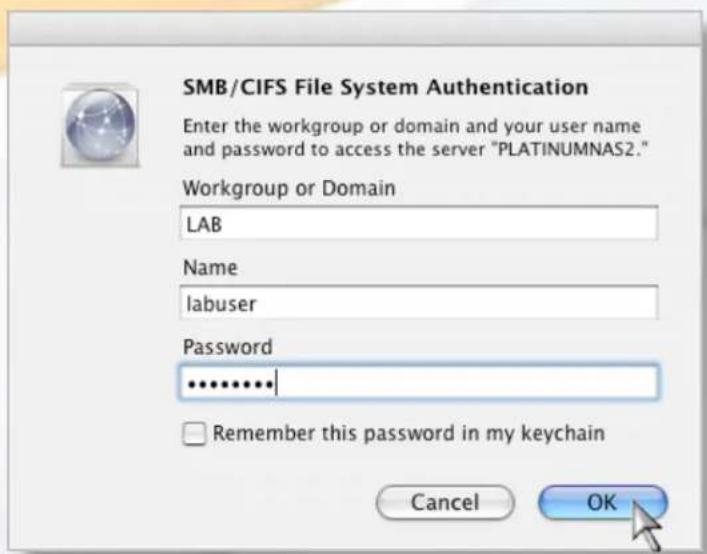
text_image
SMB/CIFS File System Authentication Enter the workgroup or domain and your user name and password to access the server "PLATINUMNAS2." Workgroup or Domain LAB Name labuser Password ****** Remember this password in my keychain Cancel OK2. Using Webdisk
The MaxNAS provides a WebDisk function that allows you to access the system over the Internet from any browser.

IMPORTANT: Make sure that WebDisk Support or Secure WebDisk Support is enabled in the Service Support screen in the system's Network menu. Please see chapter 3, section 3.3.2 for more information
2.1 Logging In
Webdisk can operate normally (unsecured) or in secured mode. To access Webdisk normally, navigate to the MaxNAS home page in your web browser using http://[MaxNAS], where [MaxNAS] is either the WINS name or IP address of your MaxNAS. To access Webdisk securely, navigate to the MaxNAS home page in your web browser using https://[MaxNAS] where [MaxNAS] is either the Netbios name or IP address of your MaxNAS. In the Login page type in the assigned User ID and password previously created.
Note:
The When initially logging in to secure webdisk, you may see this dialog (illustrated right.) Accept the SSL certificate to allow access to the secure Webdisk. Accepting the certificate permanently will prevent this window from appearing in subsequent logins.
The WebDisk page will appear showing folders made currently available to you via the Access Control List (ACL) in the Folder item under Storage menu. Click on a folder name to enter the folder. The folder's page will appear, displaying files and folders.

text_image
Website Certified by an Unknown Authority Unable to verify the identity of www.micronet.com as a trusted site. Possible reasons for this error: - Your browser does not recognize the Certificate Authority that issued the site's certificate. - The site's certificate is incomplete due to a server misconfiguration. - You are connected to a site pretending to be www.micronet.com, possibly to obtain your confidential information. Please notify the site's webmaster about this problem. Before accepting this certificate, you should examine this site's certificate carefully. Are you willing to to accept this certificate for the purpose of identifying the Web site www.micronet.com? Examine Certificate... Accept this certificate permanently Accept this certificate temporarily for this session Do not accept this certificate and do not connect to this Web site OK Cancel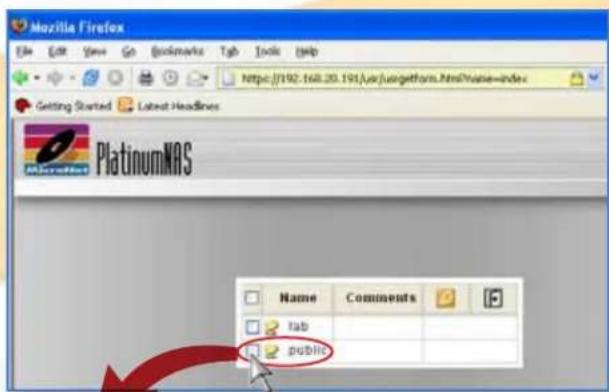
text_image
Mozilla Firefox File Edit View Go Bookmarks Tab Tools Help https://192.168.25.191/user/jusgetforms.html\private=index Getting Started Latest Headlines PlatinumNAS Name Comments tab public
text_image
Name Size Type Modified Date Up New folder New file (upload) Delete selected items File Operations Buttons Audio Books File Folder 12/30/2005 11:01 Backups File Folder 12/08/2005 14:29 Goodman GU2C-3G File Folder 02/22/2006 11:41 HDTV FireWire stuff File Folder 02/09/2006 15:22 Network Trash Folder File Folder 06/03/2005 12:36 QuickBench Test File 2 10 MB File 12/21/2005 13:45 Thumbs.db 5 KB DB File 02/13/2006 10:312.2 The Webdisk control interface
The webdisk interface consists of the following elements:
| Name Displays the names of folders and files. | |
| Size Shows the size of folders and files. | |
| Type Displays the type of folders and files. | |
| Modified Shows the time of most recent modification of folders and files. | |
| Change user password | |
| Logout from the webdisk session. | |
Files are accessible for download by clicking them.
2.3 File Operations
The file operations button bar is located underneath the table header row. Buttons on the folder page allow you to create a new folder, upload files and delete files in the folder.
| Up Up | Goes to the previous folder level. |
| New Folder | Creates a new folder. |
| New File Upload | To upload a file from your computer to the current folder click New File Upload to activate the upload dialog as illustrated:Browse... Ok (Web disk max upload file size: 1 GB)Click Browse and locate the file to upload. Click OK to upload the file to the current folder. |
| Delete Selected | Deletes selected files and folders. To select files for deletion, check the box next to each file to delete. |
3. Using iSCSI
iSCSI allows two devices to negotiate and then exchange SCSI commands using IP networks. iSCSI takes a popular high-performance local storage bus and emulates it over wide-area networks, creating a storage area network (SAN). Unlike some SAN protocols, iSCSI requires no dedicated cabling; it can be run over existing switching and IP infrastructure. As a result, iSCSI is often seen as a low-cost alternative to Fibre Channel which requires dedicated infrastructure.

Note about iSCSI performance
iSCSI performance is completely dependent on the Ethernet hardware (HBAs, switches, routers, and cabling at every hop between the MaxNAS and the initiator) network load, system load, and initiator computing power and load. For optimal results, use a dedicated network for iSCSI with jumbo frames enabled, low latency switches with jumbo frames and 802.3ad support, dual TCP Offload Engine NICs, and qualified gigabit Ethernet cabling throughout. Finally, iSCSI performance can be improved through separation of iSCSI traffic and ordinary Ethernet user traffic. Mixing traffic not only impairs SAN performance, but also creates a potential security risk since storage data is accessible on the user LAN. The most common means of separation is creating a new LAN segment physically separate from your LAN and keeping that segment isolated from other regular Ethernet segments. Alternatively, create a virtual LAN (VLAN) on your switch, limiting iSCSI traffic to the virtual LAN and keeping regular traffic out. Consult your network administrator for more information on best practices for your environment.

SIMULTANEOUS iSCSI VOLUME MAPPING ON MULTIPLE HOSTS
The MaxNAS can accept multiple host initiators simultaneously for clustering and SAN environments. Never attempt to mount the same volume on both channels without proper clustering software.
Mounting the same volume on both channels without proper software can result in data corruption or loss!
3.1 Microsoft Windows 2000 and newer
3.1.1 (Windows 2000/XP) Download and install the iSCSI Initiator from the Microsoft iSCSI technology site at http://www.microsoft.com/windowsserver2003/technologies/storage/iscsi/default.mspx
3.1.2 (All Versions) Start the iSCSI Initiator by double-clicking its icon on the desktop or start menu. The iSCSI Initiator properties window will appear.
3.1.3 Select the Discovery tab. Under Target Portals, click Add. Enter the IP address or the netbios name of the MaxNAS Click OK.

Microsoft ISCSI
Initiator
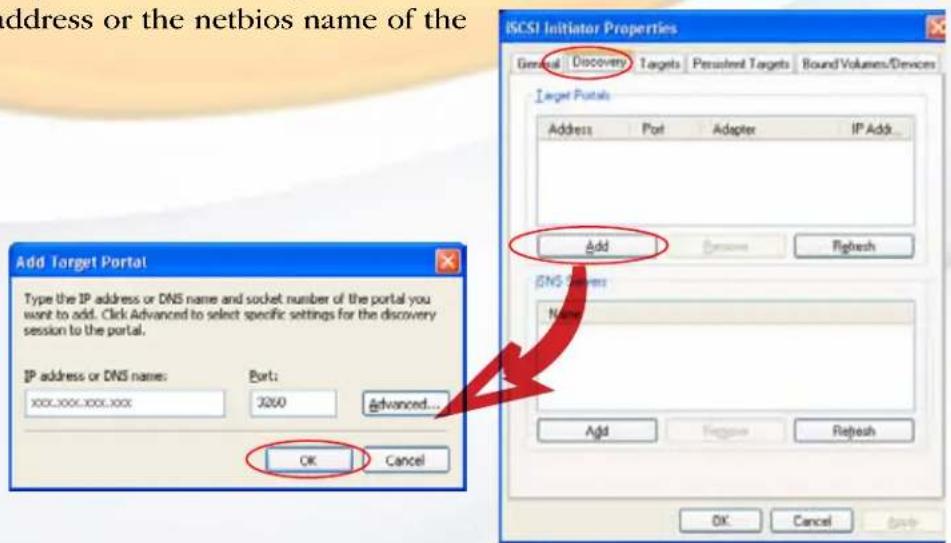
text_image
Address or the netbios name of the Add Target Portal Type the IP address or DNS name and socket number of the portal you want to add. Click Advanced to select specific settings for the discovery session to the portal. IP address or DNS name: xxx.xxx.xxx.xxx Port: 3260 Advanced... OK Cancel ISCSI Initiator Properties General Discovery Targets Persistent Targets Bound Volumes/Devices Target Portals Address Port Adapter IP Add... Add Refresh DNS Servers Name Add Refresh OK Cancel Apply3.1.4 On the iSCSI Initiator Properties window, select the Targets tab. With the iSCSI target highlighted, click Log On. The Log On to Target dialogue will appear. To enable a persistent connection, check the "Automatically restore this connection" checkbox. If you have not enabled CHAP authentication on the MaxNAS click OK. If you have enabled CHAP, click Advanced. Under Advanced Settings check the CHAP login information checkbox and enter your
username and password. Click OK to commit CHAP authentication, and OK on the iSCSI Initiator properties window.
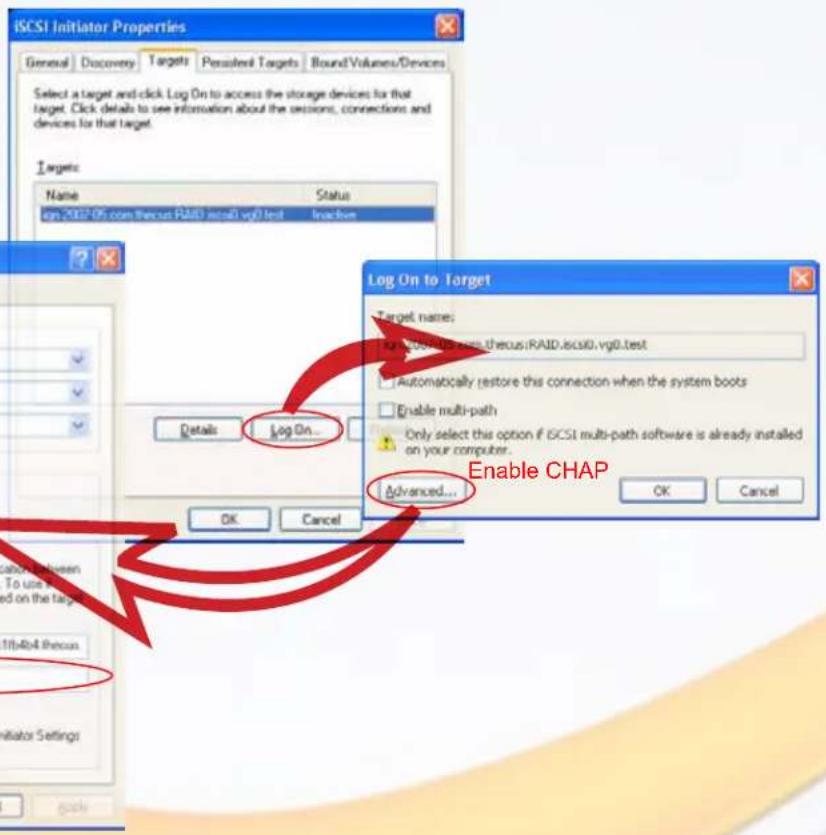
text_image
iSCSI Initiator Properties General Discovery Targets Persistent Targets Bound/Volumes/Devices Select a target and click Log On to access the storage devices for that target. Click details to see information about the sections, connections and devices for that target. Targets: Name Status log-2007-05.com.thecus.RAID.iscsi0.vg0.test Inactive Details Log On... Log On to Target Target name: log-2007-05.com.thecus.RAID.iscsi0.vg0.test Automatically restore this connection when the system boots Enable multi-path Only select this option if iSCSI multi-path software is already installed on your computer. Advanced... OK Cancel OK Cancel Log On to Target Enable CHAP3.1.5. Open the disk management console. A list of the attached drives and their respective volumes will appear. Each Volume set will appear as an individual disk in the management console. Upon the first time the MaxNAS iSCSI volume is connected, an “Initialize and Convert Disk Wizard” should appear when the disk management console is run. You may use the Wizard to set up the volume or follow the next steps for manual configuration.

Note:
The Disk Management Console can be found under \Windows\System32\diskmgmt.msc on your system drive. For an illustrated guide, please see http://www.fantomdrives.com/support/faqs/hdfaqpc.php4#8
3.1.6 Right-click on the iSCSI volume. If it's not initialized a red "No Entry" logo will cover the disk icon. Right click on the disk and select "Initialize Disk." Follow the on-screen instructions.
3.1.7 Right click the initialized volume (The area right of the disk icon.) In the context menu select "New Partition." Follow the on screen instructions. In the File System pop-up menu, select NTFS. The default formatting option is Full format. A Quick format will take just a few minutes but will do less verifying of the drive than a full format. Click Start. Once the format process is complete your iSCSI volume is ready to use.
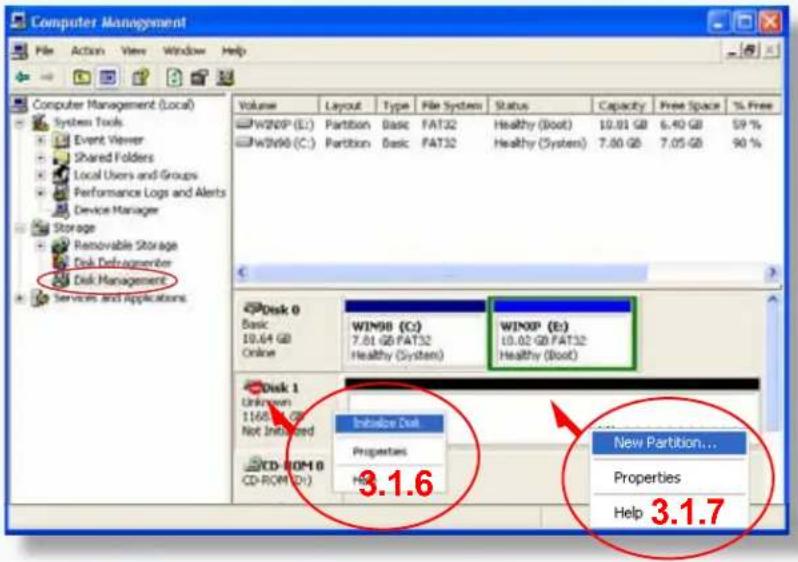
text_image
Computer Management File Action View Window Help Volume Layout Type File System Status Capacity Free Space % Free WINSIP (E:) Partition Basic FAT32 Healthy (Boot) 10.91 GB 6.40 GB 59 % WINSIP (C:) Partition Basic FAT32 Healthy (System) 7.80 GB 7.05 GB 90 % Disk 0 Basic 10.64 GB Online WIN3B (C:) 7.61 GB FAT32 Healthy (System) WINXP (E:) 10.02 GB FAT32 Healthy (Boot) Disk 1 Unknown 1168 GB Not Initiated Initimize Disk Properties Hill New Partition... Properties Help 3.1.7 CD-ROM 0 CD-ROM (D:) 3.1.63.2 OS-X >10.4.10 Host Setup
The MaxNAS has been tested and qualified for use with the GlobalSAN initiator from Studio Network Solutions. It can be obtained from their web site at http://www.studionetworksolutions.com.

Before you begin please make sure you are logged in with administrative privileges. If you are unsure about your privilege level, please consult your Macintosh OS-X user manual or with your system administrator.
3.2.1 Download and install the GlobalSAN initiator. Follow the installation instructions provided on the website.
3.2.2 Launch the globalSAN iSCSI initiator control from the System Preference Pane (/Applications/System Preferences.app)
3.2.3 Click + (illustrated below). In the IP Address entry box enter the IP address of the MaxNAS and the iSCSI Qualified Name (IQN) in the target name field. The IQN is listed in the MaxNAS iSCSI target page (see Chapter 3, section 2.2.6 for more information). Click OK to continue.


text_image
globalSAN.ISCSI Show All Portals Targets Sessions Preferences Target Name Manual SLP Persistent Connected IP Address or DNS Name: Port: 192.168.0.112 $260 Target name: 2008-10.com.MicroNet.RAID5.fscs10.vg1.volume1 Cancel OK + Modify Log On Log Off Refresh globalSAN www.studionstawrisolutions.com3.2.4 Select the MaxNAS IQN from the target list and click Log On. The iSCSI connection screen will appear. If you enabled CHAP, enter your CHAP username and password in the CHAP security area (ss illustrated). Click Connect to complete the operation.
3.2.5 Launch the "Disk Utility" application located under Applications/Utilities folder.
3.2.6 Highlight your new drive and select the "Partition" tab
3.2.7 Select the new partition map type.
3.2.8 Select the desired file system format and volume name for each partition in the volume scheme (optional.)
3.2.9 Click Options. Select "Apple Partition Map" or "GUID" in the dialog box and click OK.
3.2.10 Click Apply . Your MaxNAS iSCSI volume is ready to use!
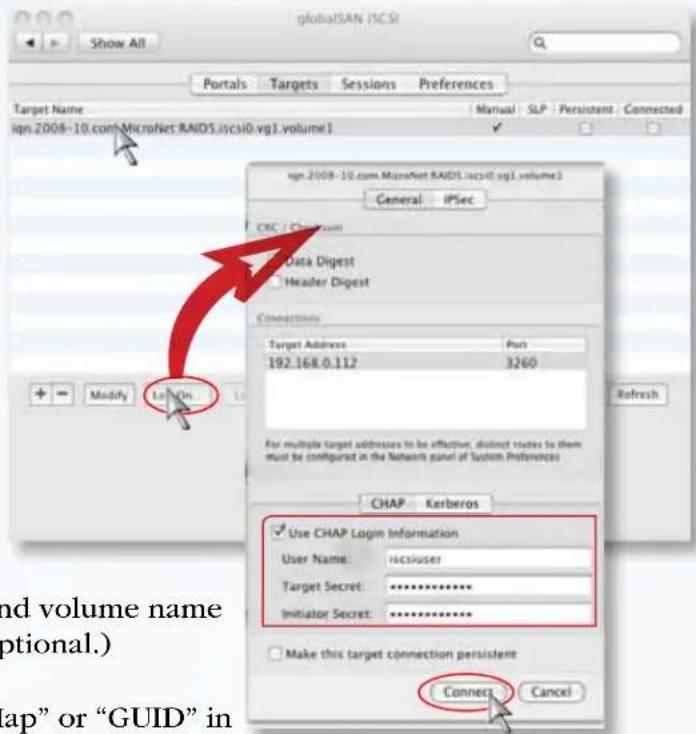
text_image
globalSAN (JCSI) Show All Portals Targets Sessions Preferences Target Name ign.2008-10.com/MicroNet.RAIDS.lscs10.vg1.volume1 General IPSec OSC / Data Data Digest Header Digest Connectivity Target Address Port 192.168.0.112 3260 For multiple target addresses to be effective, distinct routes to them must be configured in the Network's panel of System Preferences CHAP Kerberos Use CHAP Login Information User Name: resc/user Target Secret: ********** Initiator Secret: ********** Make this target connection persistent Connect Cancel and volume name optional.) cap" or "GUID" in
text_image
NAS iSCSI-VDISK Media 3.2.6 Volume Scheme 3.2.7 Volume Information Name: Untitled 1 Format: Mac OS Extended Instruments Size: 231.70 GB To partition the selected disk, choose a volume scheme. Set the name, format, and size for each volume. Then click Apply. A new volume will be Size: 231.7 GB 3.2.8 Choose a partition scheme appropriate for the way you will use this disk: GUID Partition Table To use the disk to start up an email-based Mac, or to use the disk as a non-startup disk with any Mac with Mac OS X version 10.4 or later. Apple Partition Map To use the disk to start up a PowerPC-based Mac, or to use the disk as a non-startup disk with any Mac. Master Bout Record To use the disk to start up iOS and Windows components, or to use with devices that require a DOS-compatible or Windows-compatible partition Refresh Cancel OK Disk Description: NAS iSCSI-VDISK Media Connection Bus: iSCSI Connection Type: External Total Capacity: 231.7 GB (248,789,336,064 Bytes) Write Status: Read/Write S.M.A.R.T. Status: Not Supported Partition Map Scheme: Master Bout Record4. File Backup With nSync
You can backup a share folder to another MaxNAS or MicroNet PlatinumRAID (Nsync target) or any FTP server. When using Nsync between Nsync devices, you have the option to transmit files securely. To backup files regularly, you can set up a scheduled synchronization task to run only once, daily, weekly, or monthly. You can also limit the bandwidth of your Nsync tasks, so other users on the network can share the bandwidth equally. To configure Nsync jobs, navigate to "Network" -> "Nsync." Below is a description of each field:
| Item Description | |
| Task name The name of your Nsync task. | |
| Server The IP address of your target server | |
| Share folder The share folder you would want to backup. | |
| Last Time The time when the last Nsync task was executed. | |
| Last Status The status of your last Nsync task. | |
| Action Administrator can run or stop an Nsync task by pressing the action button. | |
| Bandwidth Setting Bandwidth control on Nsync tasks. | |
| Add Click to add a Nsync task | |
| Modify Click to modify an Nsync task. | |
| Restore Restore share folder from an Nsync target. | |
| Delete | Click to delete an Nsync task. Backup files on Nsync target is also deleted. |
4.1 Adding an Nsync Task
From the Nsync Information screen, click Add to display the Add Nsync Task screen.
| Item | Description |
| Task Name | The name of your Nsync task. |
| Manufacturer | Select whether the target is a Thecus Product (e.g. MaxNAS) or FTP server. |
| Target Server IP Address | The IP address of your target server. |
| Source Folder | The share folder you want to backup. |
| Nsync Task Name | The name of your Nsync task. |
| Authorized Username on Target Server | The account name on the target server. |
| Password on Target Server | The password for the username on the target server. |
| Test Connection | Click to check the connection to the Target Server. |
| Schedule | Schedule backup of your share folders. |
| Time | The time when the Nsync task will run. |
| Type | Select whether to run the Nsync task daily, weekly, or monthly.Daily: input the time of day to execute Nsync task.Weekly: input which day of the week to execute the task.Monthly: decide which day of the month to execute the task. |
| Apply | Click to submit the task. |
4.2 Setting Up an Nsync Target on an Nsync Device
On the Nsync target server, the administrator of that server has to set up a user account with a folder named "nsync" and grant write access.
- On the Nsync server, add a user for Nsync source (ex. nsyncsource1). See Chapter 3, Section 4.2 for detailed instructions.
- On the Nsync server, grant that user (ex. nsyncsource1) write access to the nsync folder. See Chapter 3, Section 2.3 for detailed instructions.
The target server will start accepting Nsync tasks from server using that ID and password.
4.3 Setting Up an Nsync Target on Another Device
If you selected “Other Device” when setting up your Nsync task, the MaxNAS will use the FTP protocol to back up the share folder. On the external storage device, make sure there is a folder named “nsync”, and the Auth ID has writable permission in that folder.
4.4 Designating MaxNAS or PlatinumRAID as an Nsync Target
The MaxNAS can act as an Nsync server, enabling another Nsync-equipped MicroNet NAS at a remote location backup their files to your MaxNAS. From the Network menu, choose the Nsync Target item, and the Nsync Target Server Setting screen appears. Enable the service and click OK.
5. Connecting to MaxNAS Attached Printers
With a USB Printer attached, the MaxNAS can offer central network printing to all your networked computers.

IMPORTANT! Before you begin, please make sure the driver for your printer is properly installed on your computer. Please consult your printer manufacturer for up to date drivers for your host operating system
5.1 Windows XP SP2
To set up the Printer Server in Windows XP SP2, follow the steps below:
- Go to Start > Printers and Faxes.
- Click Add a printer.
- The Add Printer Wizard appears on your screen. Click Next.
- Select "A network printer, or a printer attached to another computer" option.
- Select "Connect to a printer on the Internet or on a home or office network", and enter "http://
:631/printers/usb-printer in the entry box, where is the IP address or Netbios name of the MaxNAS. Click
Next

text_image
Printers and Faces Add AppWizard Add Process: Where 2 Send or Network Passes The world can be able to have any type of packets used. If you want to switch the network packet in the Internet. You can use the network packet in the Internet. If you want to switch the network packet in the Internet. If you want to switch the network packet in the Internet. If you want to switch the network packet in the Internet. If you want to switch the network packet in the Internet. If you want to switch the network packet in the Internet. If you want to switch the network packet in the Internet. If you want to switch the network packet in the Internet. If you want to switch the network packet in the Internet. If you want to switch the network packet. If you want to switch the network packet in the Internet. If you want to switch the network packet in the Internet. If you want to switch the network packet in the Internet. If you want to switch the network packet in the Internet. If you want to switch the network packet in the Internet. If you want to switch the network packet in the Internet. If you want to switch the network packet in the Internet. If you want to switch the network packet in the Internet. If you wanted to switch the network packet in the Internet. If you want to switch the network packet in the Internet. If you want to switch the network packet in the Internet. If you want to switch the network packet in the Internet. If you want to switch the network packet in the Internet. If you want to switch the network packet in the Internet. If you want to switch the network packet in the Internet. If you want to switch the network packet in the Internet. If you want to switch the internet packet in the Internet. If you want to switch the internet packet in the Internet. If you want to switch the internet packet in the Internet. If you want to switch the internet packet in the Internet. If you want to switch the internet packet in the Internet. If you want to switch the internet packet in the Internet. If you want to switch the internet packet in the Internet. If you want to switch the internet packet in the Internet. If you want to switch the internet packet in the internet. If you want to switch the internet packet in the Internet. If you want to switch the internet packet in the Internet. If you want to switch the internet packet in the Internet. If you want to switch the internet packet in the Internet. If you want to switch the internet packet in the Internet. If you want to switch the internet packet in the Internet. If you want to switch the internet packet in the Internet. If you want to switch the internet packet in the Internet. If you wanted to switch the internet packet in the Internet. If you want to switch the internet packet in the Internet. If you want to switch the internet packet in the Internet. If you want to switch the internet packet in the Internet. If you want to switch the internet packet in the Internet. If you want to switch the internet packet in the Internet. If you want to switch the internet packet in the Internet. If you want to switch the internet packet in the Internet. If you want to switch the Internet packet in the Internet. If you want to switch the internet packet in the Internet. If you want to switch the internet packet in the Internet. If you want to switch the internet packet in the Internet. If you want to switch the internet packet in the Internet. If you want to switch the internet packet in the Internet. If you want to switch the internet packet in the Internet. If you want to switch the internet packet in the Internet. If you want to switch the internet packet in theInternet, if you want to switch it, then when it is required, then when it is not required, then when it is required, then when it is not required, then when it is required, then when it is required, then when it is required, then when it is required, then when it is required, then when it is required, then when it is required, then when it is required, then when it is required, then when it is required, then when it is required, then when it is required, then when it is required, then when it is required, then when it is required, then when it is required, then when it is required, thenwhen it is required, then when it is not required, then when it is required, then when it is required, then when it is required, then when it is required, then when it is required, then when it is required, then when it is required, then when it is required, then when it is required, then when it is required, then when it is required, then when it is required, then when it is required, then when it is required, then when it is require, then when it is required, then when it is required, then when it is required, thenwhen it is required, then when it is not required, then when it is required, then when it is required, then when it is required, then when it is required, then when it is required, thenwhen it is required, then when it is not required, then when it is required, then when it is required, thenwhen it is required, then when it is not required, thenwhen it is required, thenwhen it is required, thenwhen it is required, thenwhen it is required, thenwhen it is required, thenwhen it is required, thenwhen it is required, thenwhen it is required, thenwhen it is required, thenwhen it is required, thenwhen it is required, thenwhen it is required, thenwhen it is required, thenwhen it is required, thenwhen it is required, thenwhen it is required, thenwhen it is required, thenWhen it is required, thenWhen it is not required, thenWhen it is needed, thenWhen it is needed, thenWhen it is needed, thenWhen it is needed, thenWhen it is needed, thenWhen it is needed, thenWhen it is needed, thenWhen it is needed, thenWhen it is needed, thenWhen it is needed, thenWhen it is needed, thenWhen it is needed, thenWhen it is needed, thenWhen it is needed, thenWhen it is needed, thenWhen it is needed, thenWhen it is needed, thenWhen its limited version of this version of this version of this version of this version of this version of this version of this version of this version of this version of this version of this version of this version of this version of this version of this version of this version of this version of this version of this version of this version of this version of this version of this version of this version of this version of this version of this version of this version of this version of this version of this version of this version of this version of this versions Add Process: Where 2 Add Process: Where 2 Add Process: Where 2 Add Process: Where 2 Add Process: Where 2 Add Process: Where 2 Add Process: Where 2 Add Process: Where 2 Add Process: Where 2 Add Process: Where 2 Add Process: Where 2 Add Process: Where 2 Add Process: Where 2 Add Process: Where 2 Add Process: Where 2 All other networks are available at all other networks that are available at all other networks that are available at all other networks that are available at all other networks that are available at all other networks that are available at all other networks that are available at all other networks that are available at all other networks that are available at all other networks that are available at all other networks that are available at all other networks that are available at all other networks that are available at all other networks that are available at all other networks that are available at all other networks that are Available at all other networks that are Available at all other networks that are Available at all other networks that are Available at all other networks that are Available at all other networks that are Available at all other networks that are Available at all other networks that are Available at All Other Networks that are Available at All Other Networks that are Available at All Other Networks that are Available at All Other Networks that are Available at All Other Networks that are Available at All Other Networks that are Available at All Other Networks that are Available at All Other Networks that are Available at All Other Networks that are Available at All Other Networks that are Available at All Other Networks that are Available at All Other Networks that are Available at All Other Networks that are Available at All Other Networks that are Available at All Other Networks thatare Available at All Other Networks thatare Available at All Other Networks thatare Available at All Other Networks thatare Available at All Other Networks thatare Available at All Other Networks thatare Available at All Other Networks thatare Available at All Other Networks thatare Available at All Other Networks thatare Available at All Other Networks thatare Available at All Other Networks thatare Available at All Other Networks thatare Available at All Other Networks thatare Available at All Other Networks thatare Available at All Other Networks thatare Availableat All Other Networks thatare Availableat All Other Networks thatare Availableat All Other Networks thatare Availableat All Other Networks thatare Availableat All Other Networks thatare Availableat All Other Networks thatare Availableat All Other Networks thatare Availableat All Other Networks thatare Availableat All Other Networks thatare Availableat All Other Networks thatare Availableat All Other Networks thatare Availableat All Other Networks thatare Availableat All Other Networks thatare Availableat All Other Networks thatare Availableat All Total Number of Times (1) (1) (1) (1) (1) (1) (1) (1) (1) (1) (1) (1) (1) (1) (1) (1) (1) (1) (1) (1) (1) (1) (1) (1) (1) (1) (1) (1) (1) (1) (1) (1) (1) (1)- Your Windows system will ask you to install drivers for your printer. Select correct driver for your printer.
- Your Windows system will ask you if you want to set this printer as "Default Printer". Select Yes and all your print jobs will be submitted to this printer by default. Click Next.
- Click Finish. Your printer is ready to use!
5.2 Windows Vista
To set up the Printer Server in Windows Vista, follow the steps below:
5.2.1 Open Printer Folder from the Control Panel.

text_image
Control Panel Home Command View System and Maintenance Get started with Windows Back up your computer Security Check the system Check this computer (1 security, double Show a program through wireless Forward) Network and Internet View network input and links Set up file sharing Hardware and Sound Play C/C in other media automatically Windows Programs Describe programs Change reporting programs User Accounts and Family Safety Set up personal controls for any unit Add new user accounts Appearance and Personalization Change drinking (background) Change data source scheme Adjust power source Clock, Language, and Region Change update in other input methods Change drive, language Ease of Access Set software suggest settings Operative cloud, Display Additional Options5.2.2 Click

text_image
Hardware and Sound Printers Organise Add a print Name Documents Status Comments Location Model5.2.3 Select Add a network, wireless or Bluetooth printer.
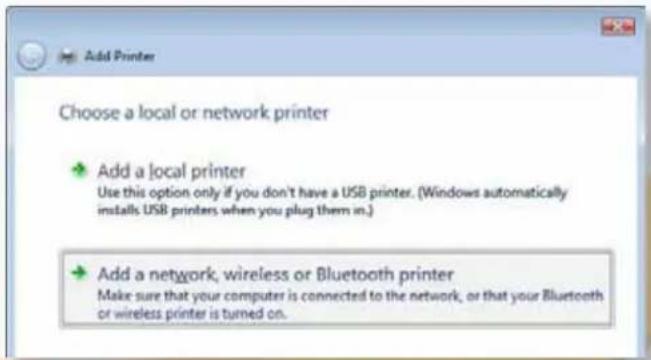
text_image
Add Printer Choose a local or network printer Add a local printer Use this option only if you don't have a USB printer. (Windows automatically installs USB printers when you plug them in.) Add a network; wireless or Bluetooth printer Make sure that your computer is connected to the network, or that your Bluetooth or wireless printer is turned on.5.2.4 Select The printer that I want isn't listed. You can press The printer that I want isn't listed to go into next page without waiting for Searching for available printers to finish.

text_image
Add Printer Searching for available printers... Stop The printer that I want isn't listed Next Cancel5.2.5 Click Select a shared printer by name.
In the address entry box, type http://
5.2.6 Select or install a printer click OK.
You can choose to set this printer as the default printer by checking the Set as the default printer box. Click Next to continue.
Click Finish. Your printer is ready to use!
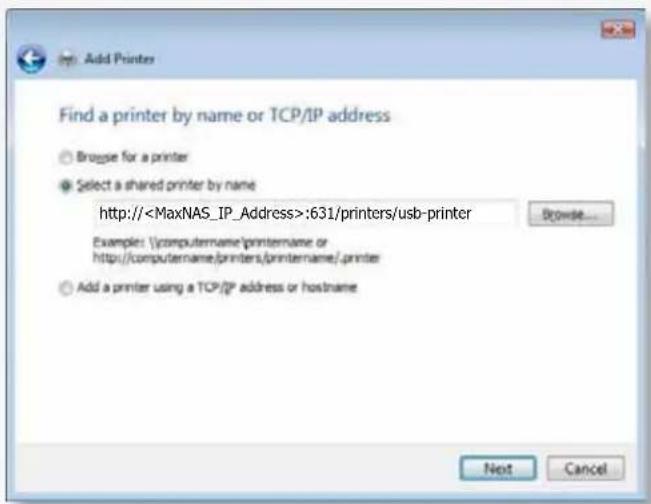
text_image
Find a printer by name or TCP/IP address Browse for a printer Select a shared printer by name http://5.3 MacOS X
The following instructions are based on printer installation on a Mac OS X 10.5 based host. Other Mac OS X hosts are configured similarly.
5.3.1 Access the printer control panel, located in System Preferences.
5.3.2 Click the + in the "Print & Fax" control panel (illustrated right.)
5.3.3 In the Printer Browser that follows, Select the "IP" option (circled in the bottom illustration,) and enter the following values:
| Protocol Internet Printing Protocol - IPP |
| Address [MaxNAS IP Address]:631 |
| Queue /printers/usb-printer |
| Name User defined |
| Location User defined |
| Print Using Select your printer driver |
5.3.4 Click Add to complete the installation. The printer is ready to use.

text_image
user installation DS X hosts are Show All System Preferences Personal Appearance Desktop & Screen Save Dock Expos & Sparks International Security Hardware CDs & Dvdts Display Energe Saver Keyboard & Motion Print & Fax Sound Brother MPC - MX600DN Share this printer Location: Kind: Brother MPC-8600DN CUPS v1.1 Notes: life, Default Open Print Queue Options & Supplies... Default Default Fax Bluetooth Bluetooth AppleTalk Active Printers Protocol Internet Printing Protocol - iPP Address: 192.168.20.182-631 Valid and complete address. Queue: /printers/usb-printer Leave blank for default queue. Name: 192.168.20.182 Location: Support Print Using: Select a driver to use... Q terms Samsung ML-2152W - CUPS+Gutsprint v5.2.0-rc1 Samsung ML-393D Series PS Samsung ML-4600 - CUPS+Gutsprint v5.2.0-rc1 Samsung ML-5000a - CUPS+Gutsprint v5.2.0-rc1 Samsung ML-6000 - CUPS+Gutsprint v5.2.0-rc1 Samsung ML-6100 - CUPS+Gutsprint v5.2.0-rc1 AddChapter 5- Understanding RAID
The MaxNAS controller subsystem is a high-performance SATA drive bus disk array controller. When properly configured, the RAID subsystem can provide non-stop service with a high degree of fault tolerance through the use of RAID technology and advanced array management features.
The RAID subsystem can be configured to RAID levels 0, 1 (0+1), and 5. RAID levels other than 0 are able to tolerate a Hard Disk failure without impact on the existing data, and failed drive data can be reconstructed from the remaining data and parity drives. RAID configuration and monitoring can be done through the LCD front control panel or serial port. The MaxNAS features the following high availability functions:
• RAID Levels 0,1,5,6 and Span support
• Global Online Spare
• Automatic Drive Failure Detection
• Automatic Failed Drive Rebuilding
• Hot Spare Disk Drives
- Instant Availability/Background Initialization.

FYI:
The Berkeley RAID levels are a family of disk array data protection and mapping techniques described by Garth Gibson, Randy Katz, and David Patterson in papers written while they were performing research into I/O subsystems at the University of California at Berkeley. There are six Berkeley RAID Levels, usually referred to by the names RAID Level 1, etc., through RAID Level 6.
This section will help you gain understanding of how these functions can serve your needs best.
RAID
RAID is an acronym for Redundant Array of Independent Disks. It is an array of multiple independent hard disk drives that provide high performance and fault tolerance through support of several levels of the Berkeley RAID techniques. An appropriate RAID level is selected when the volume sets are defined or created, and is based on disk capacity, data availability (fault tolerance or redundancy), and disk performance considerations. The RAID subsystem controller makes the RAID implementation and the disks' physical configuration transparent to the host operating system, which means that the host operating system drivers and software utilities are not affected regardless of the RAID level selected.
RAID 0 (Striping)
This RAID algorithm writes data across multiple disk drives instead of just one disk drive. RAID 0 does not provide any data redundancy, but does offer the best high-speed data throughput. RAID 0 breaks up data into smaller blocks and then writes a block to each drive in the array.
Pros: Disk striping enhances both read and write performance because multiple drives are accessed simultaneously,
Cons: The reliability of RAID Level 0 is less than any of its member disk drives due to its lack of redundancy.
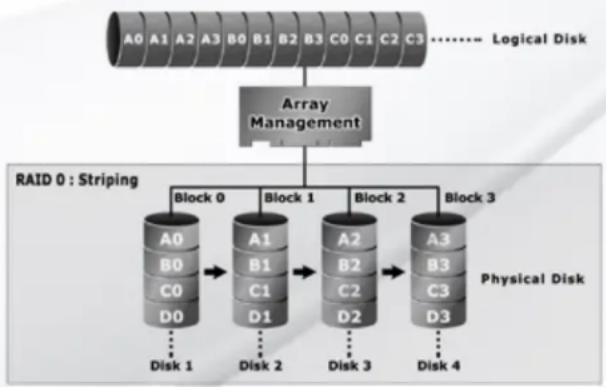
flowchart
graph TD
    A["Logical Disk"] --> B["Array Management"]
    B --> C["RAID 0 : Striping"]
    C --> D1["Block 0: A0, B0, C0, D0"]
    C --> D2["Block 1: A1, B1, C1, D1"]
    C --> D3["Block 2: A2, B2, C2, D2"]
    C --> D4["Block 3: A3, B3, C3, D3"]
    D1 --> E1["Disk 1"]
    D2 --> E2["Disk 2"]
    D3 --> E3["Disk 3"]
    D4 --> E4["Disk 4"]
    style A fill:#f9f,stroke:#333
    style B fill:#ccf,stroke:#333
    style C fill:#cfc,stroke:#333
    style D1 fill:#fcc,stroke:#333
    style D2 fill:#fcc,stroke:#333
    style D3 fill:#fcc,stroke:#333
    style D4 fill:#fcc,stroke:#333
RAID 1, also known as "disk mirroring", distributes duplicate data simultaneously to pairs of disk drives.
Pros: RAID 1 offers extremely high data reliability as all the data is redundant. If one drive fails, all data (and software applications) are preserved on the other drive.
Read performance may be enhanced as the array controller can access both members of a mirrored pair in parallel.
Cons: RAID 1 volume requires double the raw data storage capacity Performance penalty when compared to writing to a single disk.
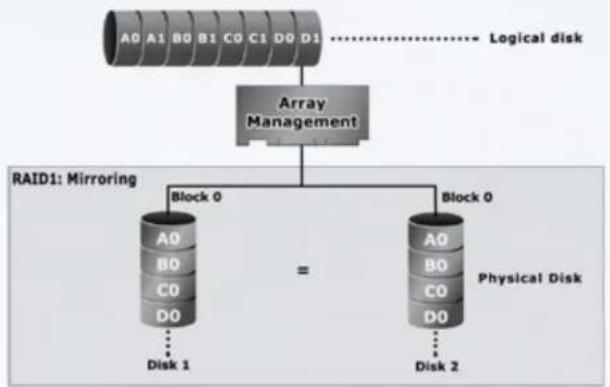
flowchart
graph TD
    A["Array Management"] --> B["RAID1: Mirroring"]
    B --> C["Block 0"]
    B --> D["Block 0"]
    C --> E["A0"]
    C --> F["B0"]
    C --> G["C0"]
    C --> H["D0"]
    D --> I["A0"]
    D --> J["B0"]
    D --> K["C0"]
    D --> L["D0"]
    E --> M["Disk 1"]
    F --> N["Disk 2"]
    G --> O["Disk 1"]
    H --> P["Disk 2"]
    I --> Q["Disk 1"]
    J --> R["Disk 2"]
    style A fill:#f9f,stroke:#333
    style B fill:#ccf,stroke:#333
    style C fill:#cfc,stroke:#333
    style D fill:#cfc,stroke:#333
    style E fill:#fcc,stroke:#333
    style F fill:#fcc,stroke:#333
    style G fill:#fcc,stroke:#333
    style H fill:#fcc,stroke:#333
    style I fill:#fcc,stroke:#333
    style J fill:#fcc,stroke:#333
    style K fill:#fcc,stroke:#333
    style L fill:#fcc,stroke:#333
    style M fill:#ffc,stroke:#333
    style N fill:#ffc,stroke:#333
    style O fill:#ffc,stroke:#333
    style P fill:#ffc,stroke:#333
    style Q fill:#ffc,stroke:#333
RAID 10
RAID 10 is a combination of RAID 0 and RAID 1, combing striping with disk mirroring. RAID Level 10 combines the fast performance of Level 0 with the data redundancy of Level 1. In this configuration, data is distributed across several disk drives, similar to Level 0, which are then duplicated to another set of drive for data protection. RAID 10 provides the highest read/write performance of any of the Hybrid RAID levels, but at the cost of doubling the required data storage capacity.
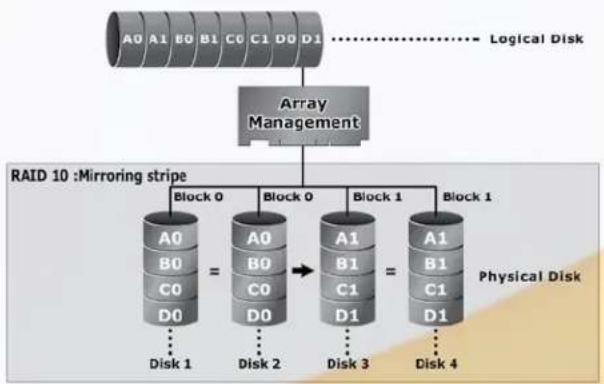
flowchart
graph TD
    A["Array Management"] --> B["RAID 10 : Mirroring stripe"]
    B --> C1["Block 0"]
    B --> C2["Block 0"]
    B --> C3["Block 1"]
    B --> C4["Block 1"]
    C1 --> D1["Disk 3"]
    C2 --> D2["Disk 2"]
    C3 --> D3["Disk 1"]
    C4 --> D4["Disk 4"]
    style A fill:#f9f,stroke:#333
    style B fill:#ccf,stroke:#333
    style C1 fill:#cfc,stroke:#333
    style C2 fill:#cfc,stroke:#333
    style C3 fill:#cfc,stroke:#333
    style C4 fill:#cfc,stroke:#333
Pros: Fastest read/write performance of any of the Hybrid RAID levels High data reliability as all the data is redundant
Cons: Requires double the raw data storage capacity
RAID 5
RAID 5 is sometimes called striping with parity at byte level. In RAID 5, the parity information is written to all of the drives in the subsystems rather than concentrated on a dedicated parity disk. If one drive in the system fails, the parity information can be used to reconstruct the data from that drive. All drives in the array system can be used to seek operation at the same time, greatly increasing the performance of the RAID system. RAID 5 is the most often implemented RAID algorithm in RAID arrays.
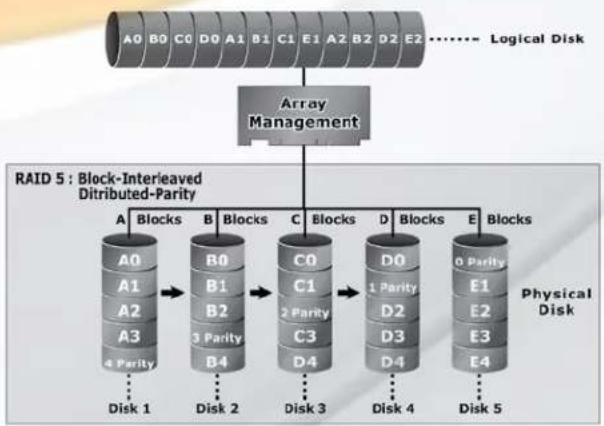
flowchart
graph TD
    A["Logical Disk"] --> B["Array Management"]
    B --> C["RAID 5: Block-Interleaved Distributed-Parity"]
    C --> D1["A Blocks"]
    C --> D2["B Blocks"]
    C --> D3["C Blocks"]
    C --> D4["D Blocks"]
    C --> D5["E Blocks"]
    D1 --> E1["A0"]
    D1 --> E2["A1"]
    D1 --> E3["A2"]
    D1 --> E4["A3"]
    D2 --> E5["B0"]
    D2 --> E6["B1"]
    D2 --> E7["B2"]
    D2 --> E8["B3"]
    D3 --> E9["C0"]
    D3 --> E10["C1"]
    D3 --> E11["2 Parity"]
    D4 --> E12["C3"]
    D4 --> E13["D4"]
    D5 --> E14["D0"]
    D5 --> E15["1 Parity"]
    D5 --> E16["D2"]
    D5 --> E17["D3"]
    D5 --> E18["D4"]
    D5 --> E19["E1"]
    D5 --> E20["E2"]
    D5 --> E21["E3"]
    D5 --> E22["E4"]
    D5 --> E23["E5"]
    D5 --> E24["E6"]
    D5 --> E25["E7"]
    D5 --> E26["E8"]
    D5 --> E27["E9"]
    D5 --> E28["E10"]
    D5 --> E29["E11"]
    D5 --> E2A["4 Parity"]
    D5 --> E3["3 Parity"]
    D5 --> E4["2 Parity"]
    D5 --> E5["1 Parity"]
    D5 --> E6["0 Parity"]
    style A fill:#f9f,stroke:#333
    style B fill:#ccf,stroke:#333
    style C fill:#cfc,stroke:#333
    style D fill:#fcc,stroke:#333
    style E fill:#cff,stroke:#333
    style F fill:#ffc,stroke:#333
    style G fill:#cfc,stroke:#333
    style H fill:#fcc,stroke:#333
Pros: Very good general transfer performance Fault tolerant
Cons: Can be slow at large size file transfers
MaxNAS Owner's Manual
RAID 6
Also known as dual parity, RAID 6 is similar to RAID 5, but offers double the fault tolerance by performing two parity computations on overlapping subsets of the data. RAID 6 offers fault tolerance greater than RAID 1 or RAID 5 but only consumes the capacity of 2 disk drives for distributed parity data. RAID 6 is an extension of RAID 5 that uses a second independent distributed parity scheme. Data is striped on a block level across a set of drives, and then a second set of parity is calculated and written across all of the drives.

flowchart
graph TD
    A["Array Management"] --> B["RAID 6: Block interleaved distributed dual Parity"]
    B --> C1["A0, A1, A2, p3 Parity, q4 Parity"]
    B --> C2["B0, B1, p2 Parity, q3 Parity, B4"]
    B --> C3["C0, c1, c2, c3, D4"]
    B --> C4["D, p0, p1, p2, p3, D3, D4"]
    B --> C5["E, q0, q1, q2, q3, E3, p4 Parity"]
    C1 --> D1["Disk 1"]
    C2 --> D2["Disk 2"]
    C3 --> D3["Disk 3"]
    C4 --> D4["Disk 4"]
    C5 --> D5["Disk 5"]
    style A fill:#f9f,stroke:#333
    style B fill:#ccf,stroke:#333
    style C1 fill:#cfc,stroke:#333
    style C2 fill:#cfc,stroke:#333
    style C3 fill:#cfc,stroke:#333
    style C4 fill:#cfc,stroke:#333
    style C5 fill:#cfc,stroke:#333
Pros: Very good general transfer performance
Fault tolerant
Cons: Can be slow at large size file transfers
Hot Swappable Disk support
Your MaxNAS has a built in protection circuit to support replacement of disk drives without having to shut down or reboot the RAID. In case of drive failure, the failed drive can be removed from the MaxNAS and replaced with a new drive without disrupting dataflow to the host computer.
Hot Spare Drives
A hot spare drive is an unused online available drive, which is ready for replacing a failed disk drive. In a RAID level 1 or 5 RAID set, any unused online available drive installed but not belonging to a RAID set can be defined as a hot spare drive. Hot spares permit you to replace failed drives automatically without powering down your MaxNAS. When your MaxNAS detects a drive failure, the system will automatically and transparently rebuild using any available hot spare drive(s). The RAID set will be reconfigured and rebuilt in background, while the RAID subsystem continues to handle system requests. During the automatic rebuild process, system activity will continue as normal, but system performance and fault tolerance will be affected.
Hot-Swap Disk Rebuild
A Hot-Swap function can be used to rebuild disk drives in arrays with data redundancy such as RAID level 1(0+1), 3, and 5. If a hot spare is not available at time of drive failure, the failed disk drive must be replaced with a new disk drive so that the data on the failed drive can be rebuilt. If a hot spare is available, the rebuild starts automatically when a drive fails. The RAID subsystem automatically and transparently rebuilds failed drives in the background with user-definable rebuild rates. The RAID subsystem will automatically restart the system and the rebuild if the system is shut down or powered off abnormally during a reconstruction procedure condition. Please note that the system may no longer be fault tolerant during degraded operation or the rebuild process- Fault tolerance will be lost until the damaged drive is replaced and the rebuild operation is completed.
Chapter 6- Troubleshooting
Daily Use Tips
- Read this User's Guide carefully. Follow the correct procedure when setting up the device.
- Additional application software may have been included with your drive. Please review the documentation included with this software for information on the operation and support of this software. The documentation can usually be found in an electronic format on the included CD.
• Always operate your drive on a steady, level surface. Do not move the unit while it is turned on. - Plug your drive into a grounded electrical outlet. The use of “ground-defeating” adapters will cause damage not covered by your warranty.
- Do not open your MaxNAS or attempt to disassemble or modify it. Never insert any metallic object into the drive to avoid any risk of electrical shock, fire, short-circuiting or dangerous emissions. If it appears to be malfunctioning, please contact MicroNet Support.
- Do not power off the MaxNAS from the power button, as it may cause data loss.
General Use Precautions
- Do not expose the MaxNAS to temperatures outside the range of 5°C (41°F) to 45°C (104°F). Doing so may damage the drive or disfigure its casing. Avoid placing your drive near a source of heat or exposing it to sunlight (even through a window.)
- Never expose your device to rain, or use it near water, or in damp or wet conditions. Doing so increases the risk of electrical shock, short-circuiting, fire or personal injury.
- Always unplug the hard drive from the electrical outlet if there is a risk of lightning or if it will be unused for an extended period of time.
- Don't place the drive near sources of magnetic interference, such as computer displays, televisions or speakers. Magnetic interference can affect the operation and stability of your MaxNAS.
- Do not place heavy objects on top of the drive or use excessive force on it.
- Never use benzene, paint thinners, detergent or other chemical products to clean the outside of the MaxNAS. Instead, use a soft, dry cloth to wipe the device.
Resetting the MaxNAS
Should the MaxNAS become inaccessible (blinking fault light, forgotten password) or if directed by MicroNet support, please follow the below procedure to reset the MaxNAS to factory default:
- If the unit is functioning, ping the MaxNAS from the host to obtain its IP address. Write down the IP address.
- Shut down the MaxNAS and disconnect the Ethernet cable(s)
- Power on the MaxNAS and immediately press hold the recessed reset button (circled right) with a paper clip.
- Continue to hold the reset button until the MaxNAS emits a loud beep (approximately 2 minutes).
- Plug the Ethernet cable back into LAN port 1.
- Navigate your Explorer or browser window to HTTP://XXX.XXX.XXX.XXX (where the X's represent the MaxNAS's IP address.)
- You will see a simple dialog box that has three options:

natural_image
Front view of a desktop computer tower with multiple drive bays and a red circle highlighting a button (no visible text or labels)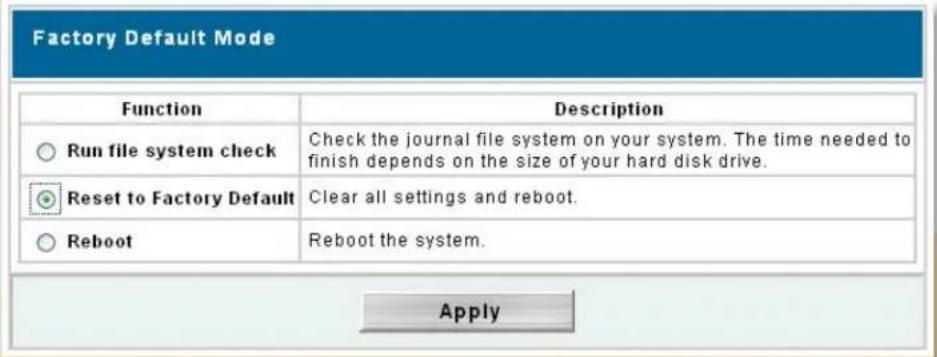
text_image
Factory Default Mode Function Description ○ Run file system check Check the journal file system on your system. The time needed to finish depends on the size of your hard disk drive. ○ Reset to Factory Default Clear all settings and reboot. ○ Reboot Reboot the system. ApplyChoose Reset to Factory Default and click Apply. Click Yes in the confirmation dialog box.
- You should see a confirmation dialog pop up telling you that the MaxNAS is reset. Reboot the MaxNAS to complete the procedure.
Frequently Asked Questions
Q: I Forgot the Login or Password
A: If you forget your network IP address or your password, you can reset the MaxNAS to its default settings. Please see "Resetting your MaxNAS" in the troubleshooting section.
Q: I forgot my IP Address/I can't find the MaxNAS on the network!
A: The current IP Address for both LAN1 and LAN2 will be displayed on the LCD screen. If you do not have physical access to the MaxNAS, you may use the MaxNAS Setup wizard on the MaxNAS product CD. You may also download the wizard from MicroNet's support site at www.micronet.com/support
Q: I'm having trouble map a network share in Windows
A: Windows only allows connection to a network resource using a single set of user credentials. The network resource you are trying to access may have already been accessed using a different
user name and password. To connect using a different user name and password, first disconnect any existing mappings to this network share. To check out existing network connections, open a command prompt and type "net use"; You may then disconnect the sessions by typing
“net use
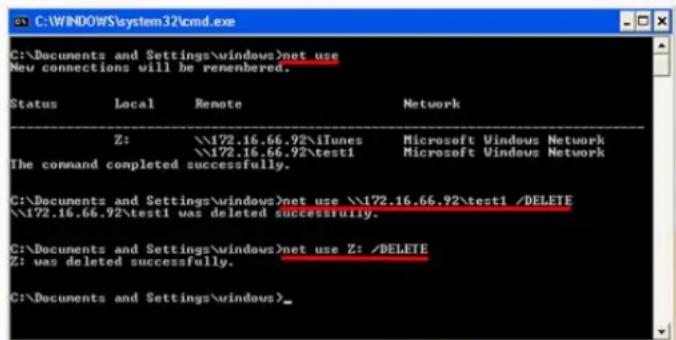
text_image
C:\Documents and Settings\windows>net use New connections will be remenbered. Status Local Remote Network Z: \\172.16.66.92\iTunes Microsoft Windows Network \\172.16.66.92\test1 Microsoft Windows Network The command completed successfully. C:\Documents and Settings\windows>net use \\172.16.66.92\test1 /DELETE \\172.16.66.92\test1 was deleted successfully. C:\Documents and Settings\windows>net use Z: /DELETE Z: was deleted successfully. C:\Documents and Settings\windows>where
above (illustrated right.) Alternatively, the most sure way to clear all existing network connection is to log out and back in to your Windows session.
Q: There is a fault light and/or the buzzer is beeping!
A: Do not turn off or reset the unit! Follow these steps to identify and correct the alarm:
- Refer to Chapter 1, Section 7 to identify the alert., and login to the MaxNAS administration user interface.
- Go to the System menu and choose Logs item.
- The System Log screen appears.
- Click the Error button and all recorded errors appear. The log entries will help you diagnose the problem. If there is a failed hard drive, see Chapter 1, section 8- "Replace Hard Drives"
- If you are unable to solve the problem, please contact MicroNet Support.
Q: Can I increase my MaxNAS's volume capacity?
A: Larger drive modules may be available for your Model. Consult your MicroNet reseller for more information.
Q: Can I have more than one MaxNAS in the network?
A: Yes. Please call MicroNet Help Desk if you have questions about your particular configuration.
Q: What is the warranty period for MaxNAS?
A: MaxNAS standard warranty is One-year limited. Optional extended warranty and overnight exchange programs are available, consult your MicroNet dealer or visit www.MicroNet.com for additional information.
Q: My Stackable Share is empty! Where's my data?
A: The connectivity between the MaxNAS and the iSCSI target shared may have been disrupted, and has not been re-established automatically. Ensure that the target iSCSI device is online and accessible, and perform reconnected as described in Chapter 3, Section 2.5.5.
Q: I have my MaxNAS configured as a RAID5, which means it can sustain a disk failure. This means I don't need to worry about backing up my data, right?
A: Although RAID5 does provide tolerance for disk failure, it does not prevent damage due to fire, flood, or other types of disaster, nor can it prevent virus damage or accidental deletion. ALWAYS BACK UP YOUR DATA.
Appendix A: Getting Help
If you experience problems with your MaxNAS, please contact your Authorized MicroNet Reseller for assistance. If the reseller is unable to resolve your issue, please contact MicroNet's Help Desk for assistance. Please have the model, serial number, date of purchase, and reseller's name available before making contact. If possible, call from a telephone near the system so we can direct you in any necessary system corrections.
How To Contact MicroNet Technology, Inc.
Mail: MicroNet Technology, Inc.
20525 Manhattan Placenus
Torrance, CA 90501
Phone: (310) 320-0772 Help Desk & Customer Service
Web: http://www.MicroNet.com/help
email: support@MicroNet.com
B-RAID Level Comparison Table
Appendix B: RAID Level Comparison Table
| RAID Level | Description Min. | Drives | Max. Drives | Capacity | Data Reliability | Data Transfer Rate | I/O Request Rates |
| Span | Also known as disk spanning. Data is distributed sequentially to all drives. There is no data protection. | 1 4 (N) | Disks | No data protection Same | as a single disk same | as a single disk | |
| 0 Also | known as stripingData distributed across multiple drives in the array simultaneously.There is no data protection | 1 4 (N) | Disks | No data Protection | Very High Very High for | Both Reads and Writes | |
| 1 Also | known as mirroringAll data replicated on N Separated disks. N is always a multiple of 2.This is a high availability Solution,but due to the 100% data duplication,it is also a costly solution. | 2 4 1/(N) | Disks | Lower than RAID 6,Higher than RAID 5 | Reads are higherThan a single disk;Writes similar to a single disk | Reads are twice fasterthan a single disk;Write are similar to a single disk. | |
| 10 Also | known as striped mirroring. Data and parity information is subdivided and distributed across all disks. This is a high availability Solution, but due to the 100% data duplication, it is also a costly solution. | 4 4 1/2 (N) | Disks | Lower than RAID 6,higher than RAID 5 | Reads are similar to RAID 0Writes are similar to single disk | Reads are similar to RAID 0Writes are similar to single disk | |
| 5 Also | known Block-Interleaved distributed Parity. Data and parity information is subdivided and distributed across all disk. Parity must be the equal to the smallest disk capacity in the array. Parity information normally stored on a dedicated parity disk. | 3 5 | (N-1) | Disks | Lower than RAID 1, 10Higher than a single drive | Reads are similar to RAID 0;Writes are slower than RAID 0 | Reads are similar to RAID 0;Writes are slower than a single disk. |
| 6 Also | known as dual parity. Similar to RAID 5, but does two different parity computations or the same computation on overlapping subsets of the data. The RAID 6 can offer fault tolerance greater that RAID 1 or RAID 5 but only consumes the capacity of 2 disk drives for distributed parity data reliability similar to RAID 0. | 4 5 | (N-2 | Disks) | Highest Reliability | Reads are similar to RAID 0;Writes are slower than RAID 5 | Reads are similar to RAID 0;Writes are slower than a single disk. |
Appendix C: Active Directory
With Windows 2000, Microsoft introduced Active Directory (ADS), which is a large database/information store. Prior to Active Directory the Windows OS could not store additional information in its domain database. Active Directory also solved the problem of locating resources; which previously relied on Network Neighborhood, and was slow. Managing users and groups were among other issues Active Directory solved.
What is Active Directory?
Active Directory was built as a scalable, extensible directory service that was designed to meet corporate needs. A repository for storing user information, accounts, passwords, printers, computers, network information and other data, Microsoft calls Active Directory a “namespace” where names can be resolved.
ADS Benefits
ADS lets the MaxNAS easily integrate with the existing ADS in an office environment. This means the MaxNAS is able to recognize your office users and passwords already on the ADS server, and allow the network administrator to seamlessly control the MaxNAS as another network resource. This feature significantly lowers the overhead of the system administrator. For example, corporate security policies and user privileges on an ADS server can be enforced automatically on the MaxNAS.

IMPORTANT: the MaxNAS respects active directory users and groups only for purposes of initial access. User ACLs will only propagate for the writing account.
Appendix D: Supported UPS List
The MaxNAS can support UPS communication with the following UPS communication protocols:
SEC protocol
Generic RUPS model
Generic RUPS 2000 (Megatec M2501 cable)
PhoenixTec protocol
Safenet software
The following Models have been tested and approved for compatibility:
| Brand Series Model Notes | |||
| Ablerex MS-RT | |||
| ActivePower 1400VA | |||
| AEC MiniGuard UPS 700 M2501 cable | |||
| APC | Back-UPS Pro | ||
| Matrix-UPS | |||
| Smart-UPS | |||
| Back-UPS | 940-0095A/C cables, 940-0020B/C cables, 940-0023A cable | ||
| Back-UPS Office | 940-0119A cable | ||
| Masterswitch Not a UPS - 940-0020 cable | |||
| Back-UPS RS 500 custom non-USB cable | |||
| Belkin | Regulator Pro serial | ||
| Resource | |||
| Home Office | F6H350-SER, F6H500-SER, F6H650-SER | ||
| Universal UPS | F6C800-UNV, F6C120-UNV, F6C1100-UNV, F6H500ukUNV | ||
| Best Power | Fortress (newer) | ||
| Fortress Telecom | |||
| Axxium Rackmount | |||
| Patriot Pro | |||
| Patriot Pro II | |||
| Patriot INT51 cable | |||
| Micro-Ferrups | |||
| Fortress/Ferrups f-command support | |||
| Centralion | Blazer | ||
| Clary | ST-800 | ||
| Compaq | T1500h | ||
| Cyber Power Systems | 320AVR, 500AVR, 650AVR, 700AVR, 800AVR850AVR, 900AVR, 1250AVR,. 1500AVR, Power99550SL, 725SL, CPS825VA, 1100AVR, 1500AVR-HO | ||
| Deltec | PowerRite Pro II | ||
| Dynex | 975AVR | ||
| Effekta | MI/MT/MH 2502 cable | ||
| Energy Sistem | (various) | ||
| ETA | mini+UPS WinNT/Upsoft cable | ||
| ETA | mini+UPS PRO UPS Explorer cable | ||
| Ever UPS | NET *-DPC | ||
| AP *-PRO | |||
| Ever-Power | 625/1000 | ||
| Exide | NetUPS SE | ||
| Fenton Technologies | PowerPal P-series | ||
| PowerPal L-series | |||
| PowerOn | |||
| PowerPure | |||
| Fairstone LS25/L625/L750 | |||
| Fideltronik | Ares 700 and larger | ||
| Other Ares models | |||
| Fiskars | PowerRite MAX | ||
| PowerServer 10, 30 | |||
| Gamatronic | All models with alarm interface | ||
| MP110/210 | |||
| MS-T | |||
| MS | |||
| μPS3/1 | |||
| Gemini | UPS625/UPS1000 | ||
| HP | R3000 XR | ||
| R5500 XR | |||
| INELT | Monolith 1000LT | ||
| Infosec | iPEL | 350, 500, 750, 1000 | |
| Ippon | (various) | ||
| Liebert | UPStation GXT2 contact-closure cable | ||
| Masterguard | (various) | ||
| Meta System | HF Line | 1..4 boards, /2 5..8 boards | |
| HF Millennium | 810, 820 | ||
| HF TOP Line | 910, 920, 930, 940, 950, 960, 970, 980 | ||
| ECO Network | 750, M1000, M1050, M1500, M1800M2000, M2100, M2500, M3000 | ||
| ECO | 305, 308, 311, 511, 516, 519, 522 | ||
| ally HF | 800, 1000, 1250, 1600, 2000, 2500 | ||
| Megaline | 1250, 2500, 3750, 5000, 6250, 7500, 8750, 10000 | ||
| MGE UPS SYSTEMS | NOVA AVR 600 Serial | ||
| NOVA AVR 1100 Serial | |||
| Pulsar Ellipse | USBS Serial cable, S, Premium USBS Serial cable, Premium S | ||
| Ellipse Office | 600 Serial cable, 750 Serial cable, 1000 Serial cable, 1500 Serial cable | ||
| Pulsar EXtreme C / EX RT | |||
| Comet EX RT | Serial port, 3:1 Serial port | ||
| Pulsar Esprit | |||
| Evolution S | 1250, 1750, 2500, 3000 | Serial Port | |
| Pulsar M | 2200, 3000, 3000 XL | Serial Port | |
| Pulsar | 700, 1000, 1500, 1000 RT2U, 1500 RT2U, MX 4000 RT, MX 5000 RTEvolution, EXtreme C, ES+, ESV+, SV, ESV, EX, EXL, PSX, SX, Extreme | Serial Port | |
| Comet EXtreme | |||
| Comet / Galaxy (Serial) | Utalk Serial Card (ref 66060), HID COM Serial Card (ref 66066) | ||
| MicroDowell | B.Box BP | 500, 750, 1000, 1500 | |
| Microsol | Solis | 1.0 1000VA, 1.5 1500VA, 2.0 2000VA, 3.0 3000VA | |
| Rhino | 6.0 6000VA, 7.5 7500VA, 10.0 10000VA, 20.0 20000VA | ||
| Mustek | Various | ||
| Powermust | 400VA Plus, 600VA Plus, 800VA Pro1000VA Plus, 1400VA Plus, 2000VA USB | ||
| Nitram | Elite | 500, 2002 | |
| Oneac | EG/ON Series advanced interface | ||
| Online | P-Series | ||
| OnLite | AQUA 50 | ||
| Orvaldi various not 400 or 600 | |||
| Powercom Powercom | SMK-800A | ||
| ULT-1000 | |||
| TrustTrust 425/625 | |||
| BNT-1000AP | |||
| Advice Partner/King Pr750 | |||
| BNT-2000AP | |||
| PowerGuard PG-600 | |||
| PowerKinetics 9001 | |||
| PowerTech | Comp1000 DTR cable power | ||
| Power Walker Line-Interactive VI1000 | |||
| Powerware | 3110, 3115, 5119, 5125, 5119 RM, PW5115PW5125PW9120, PW9125, 9120, 9150, 9305 | ||
| Powerwell | PM525A/-625A/-800A/-1000A/-1250A | ||
| Repotec | RPF525/625/800/1000 | ||
| RPT-800A | |||
| RPT-162A | |||
| SMS (Brazil) Manager III | |||
| SOLA | 325, 520, 610, 620, 330 | ||
| SOLA/BASIC Mexico | various ISBMEX protocol | ||
| Socomec Sicon | Egys 420 VA | ||
| Soltec | Winmate 525/625/800/1000 | ||
| Soyntec | Sekury C | 500, 800 | |
| SquareOne Power | QP1000 | ||
| SuperPower | HP360, Hope-550 | ||
| Sweex | 500/1000 smart - shipped with SafeNet | ||
| 500/1000 contact closure - shipped with UPSmart | |||
| BC100060 800VA | |||
| Sysgration | UPGUARDS Pro650 | ||
| Tecnoware | Easy Power 1200 | ||
| Tripp-Lite | SmartUPS | ||
| SmartOnline | |||
| (various) Lan 2.2 interface - black 73-0844 cable | |||
| Trust | UPS 1000 Management PW-4105 | ||
| UNITEK | Alpha | 500 IC, 1000is, 500 ipE | |
| UPSonic | LAN Saver 600 | ||
| Power Guardian | |||
| Victron/IMV | (various) | ||
| Lite crack cable | |||
Appendix E: Glossary
Active Directory an implementation of LDAP directory services by Microsoft for use in Windows environments. Active Directory allows administrators to assign enterprise wide policies, deploy programs to many computers, and apply critical updates to an entire organization. An Active Directory stores information and settings relating to an organization in a central, organized, accessible database. Active Directory networks can vary from a small installation with a few hundred objects, to a large installation with millions of objects. Active Directory was released first with Windows 2000.
ATA Acronym for “AT Bus Attachment” - a standard interface to IDE hard disks. Western Digital’s IDE disk interface was standardized by ANSI to form the ATA specification using a 16-bit ISA bus.
Cache cache is a fast-access memory bank that serves as an intermediate storage for data that is read from or written to secondary storage. Typically, high-speed caches are implemented in RAM, though they can also be implemented on disk when speed is not a critical requirement. Caches generally improve the efficiency of read operations due to the principles of “spatial and temporal locality of data”. They can also improve the efficiency of write operations. See also: Write Back Cache, Write Through Cache
Common Internet File System (CIFS) a network protocol for sharing files, printers, serial ports, and other communications between computers. CIFS is based on the widely-used SMB protocol.
Degraded Mode All RAID schemes with the exception of RAID 0 are designed to handle disk failures. However, there is limit on the number of hard disks that can fail before the array is rendered inoperative. For instance, this limit value is 1 for RAID 1, 3, and 5. In the case of RAID 10 or 50, the upper bound is equal to the number of parity groups. When the number of disk failures occurring in an array are less than or equal to this upper bound, the array is denoted to be in a degraded state. The failure of the disks does not impair reading from or writing to the array. However, it impairs the efficiency of throughput in all RAID types (with the exception of RAID 1) since data requested by read operations may have to be “reconstructed” using parity. In the case of RAID 1 the throughput of read operations is cut in half if a drive fails. Operating in degraded mode is considered an acceptable alternative only for short durations. Generally this duration should span no more time than that required to inform the user of the failures and to replace the failed disks with suitable spares.
Device Driver A piece of software that controls a hardware device. Typically drivers provide an interface by which applications can use the device in a uniform and hardware-independent manner.
Dirty Data data that has been written to a cache but has not been “flushed,” or written to its final destination, typically some secondary storage device.
Disk Array A Disk Array is a logical disk comprised of multiple physical hard disks. The number of hard disks in an disk array is dictated by the type of the array and the number of spares that may be assigned to it. Furthermore, whether a disk array can be built using part of the space on a disk (as opposed to being forced to use the whole disk) depends upon the implementation. Disk Arrays are typically used to provide data redundancy and/or enhanced I/O performance.
Disk Block Data is stored on disks in blocks that are generally of a predefined size. This size is typically a value such as 512 bytes, 1 KB, 2 KB, etc. When a record is written to a disk, the blocks used for that record are dedicated to storing the data for that record only. In other words two records are not permitted to share a block. Consequently, a block may be only partially used. For instance, assume a disk has a block size of 1 KB and a user record written to it has a size of 3148 bytes. This implies that the user record will be written into 4 blocks, with the contents of one of the blocks being only partially filled with (3148 - 3072) 76 bytes of data.
DNS (Domain Name Server) A system that stores information associated with domain names in a distributed database on networks, such as the Internet. The domain name system (domain name server) associates many types of information with domain names, but most importantly, it provides the IP address associated with the domain name. It also lists mail exchange servers accepting e-mail for each domain. In providing a worldwide keyword-based redirection service, DNS is an essential component of contemporary Internet use.
Dynamic Host Configuration Protocol (DHCP) a client-server networking protocol. A DHCP server provides configuration parameters specific to the DHCP client host requesting, generally, information required by the client host to participate on an IP network. DHCP also provides a mechanism for allocation of IP addresses to client hosts. DHCP emerged as a standard protocol in October 1993.
Ethernet A local-area network standard that is currently the most prevalent with an estimated 80% of desktops connected using this standard. It was developed jointly by Xerox, DEC and Intel and employs a bus or star topology.
File System A file system is a layer between applications and the disks to which their I/O is directed. File systems serve to hide the details of the physical layout of files on the disk, allowing applications to address files as a contiguous logical area on disk accessible by a name regardless of their physical location on the storage device.
FTP (File Transfer Protocol) is a commonly used, open standard protocol for exchanging files over any network that supports the TCP/IP protocol (such as the Internet or an intranet). Virtually every computer platform supports the FTP protocol. This allows any computer connected to a TCP/IP based network to manipulate files on another computer on that network regardless of which operating systems are involved (if the computers permit FTP access.) There are many existing FTP client and server programs, and many of these are free.
Hot Spare One or more disks in a RAID array may fail at any given time. In fact, all RAID types with the exception of RAID 0 provide methods to reconstruct the array in the event of such an occurrence. A commonly used tactic is to earmark a hard disk that is not being used
by any RAID array as a backup. In the event a hard disk in a RAID array fails, this backup is automatically mobilized by the RAID controller to step in place of the failed hard disk. The data in the failed hard disk is “reconstructed” and written into the new hard disk. In the case of a RAID 1, data is reconstructed by simply copying the contents of the surviving disk into the spare. In the case of all other RAID types, reconstruction is performed using parity information in the working hard disks of that RAID array. This backup hard disk is known as a “hot” spare since the fail-over process is performed dynamically on a server within the same session i.e., without the necessity for re-booting or powering down.
IDE Acronym for “Integrated Device Electronics”. A hard disk drive interface standard developed by Western Digital and introduced. Also knows as Parallel ATA.
IEEE 802.3ad Link Aggregation a method for using multiple Ethernet network cables/ports in parallel to increase the link speed beyond the limits of any one single cable or port, and to increase the redundancy for higher availability. The following modes of operation are available:
- Failover: When one port fails, the other one will take over.
- Load Balance: Ethernet traffic will flow along both Ethernet ports.
- 802.3ad: Linkage two Ethernet ports in parallel to increase throughput.
Logical Drive A logical drive is comprised of spaces from one or more physical disks and presented to the operating system as if it were one disk.
iSCSI (“Internet SCSI”) a protocol allowing clients (called initiators) to send SCSI commands (CDBs) to SCSI storage devices (targets) on remote servers. It is a popular Storage Area Network (SAN) protocol.
MAC (Media Access Control) Address In computer networking a Media Access Control address (MAC address) is a unique identifier attached to most forms of networking equipment. All Ethernet devices have unique MAC addresses.
NFS (Network File System) a network file system protocol originally developed by Sun Microsystems in 1983, allowing a user on a client computer to access files over a network as easily as if the network devices were attached to its local disks. NFS, like many other protocols, builds on the Open Network Computing Remote Procedure Call (ONC RPC) system. The Network File System protocol is specified in RFC 1094, RFC 1813, and RFC 3530
Online Capacity Expansion The ability to add space to an existing RAID array within a session while preserving the RAID type and data within the array is known as online capacity expansion. The availability of this feature enables the user to add space to a RAID array as and when required without rebooting, thereby obviating the need for precise forecasts of capacity requirements for the future.
Parity A mathematical function that serves as a method for error verification and correction. In strict technical terms the parity of a group is set to 1 if the number of bits in the group that are set to 1 is odd, and 0 otherwise. For instance, the parity of N bytes of data is obtained by determining the number of ith bits in the N bytes that are set to 1. If that number is odd, then the ith bit of the result is set to 1. This may sound complicated, but in reality the result can
be obtained by simply evaluating the XOR of the N bytes. Parity allows one error in a group (of bytes) to be corrected.
Partition The space contributed to each array on a physical drive is referred to as a partition.
PCI An acronym for “Peripheral Component Interconnect”. It is Intel’s local bus standard that supports up to four plug-in PCI cards per bus. Since PCs can have two or more PCI buses, the number of PCI cards they can support are a multiple of four. The current PCI bus implementation (version 2.2) incorporates two 64-bit slots at 66 MHz. Consequently, the highest throughput achievable using such a bus is 528 MB/sec.
PCI Express (Peripheral Component Interconnect Express) officially abbreviated as PCI-E or PCIe, is a computer host bus interface format introduced by Intel in 2004. PCI Express was designed to replace the general-purpose PCI expansion bus, the high-end PCI-X bus and the AGP graphics card interface. Unlike previous PC expansion interfaces, rather than being a bus it is structured around point-to-point serial links called lanes. Each lane is capable of 250MB/S in each direction (PCIe 1.1) or 500MB/S in each direction (PCIe 2.0)
PCI-X An enhanced version of PCI version 2.2. It supports one PCI slot per bus when running at 133 MHz, two slots when running at 100 MHz and four slots when running at 66 MHz. It is intended to provide throughputs in excess of 1 GB/sec using a 64-bit wide 133 MHz implementation.
Physical Drive A single tangible drive is referred to as a physical drive.
Primary Storage Main memory i.e., RAM is frequently referred to as primary storage.
RAID Abbreviation of Redundant array of independent disks. It is a set of disk array architectures that provides fault-tolerance and improved performance.
RAID Type There are a number of RAID formats that are widely used. Some of the well-known uni-level types are RAID 0, RAID 1, RAID 3, RAID 5 and RAID 6. The prevalent complex types are RAID 10 and RAID 50.
RAID 0 RAID 0 utilizes simple striping, with the data being distributed across two or more disks. No data redundancy is provided. The figure below illustrates a purely hypothetical RAID 0 array comprised of three disks – disks A, B, and C – with four stripes – each uniquely colored – across those disks. Advantage: Striping can improve the I/O throughput by allowing concurrent I/O operations to be performed on multiple disks comprising the RAID 0 array. However, this RAID type does not provide any data redundancy.
RAID 1 An array that uses a single pair of disks. Both disks in the pair contain the same data It provides the best data protection but can't improve system performance. And storage space for the same data capacity should be double than in general cases. Hence storage cost doubles. The capacity of RAID 1 will be the size of the smaller HDD, so we suggest you connect HDDs of the same sizes to save HDD space. Advantage: RAID 1 ensures that if one
of the disks fails, its contents can be retrieved from the duplicate disk. Furthermore, a RAID 1 array can also improve the throughput of read operations by allowing separate reads to be performed concurrently on the two disks.
RAID 5 A RAID 5 array is similar to a RAID 4 array in that, it utilizes a striped set of three or more disks with parity of the strips (or chunks) comprising a stripe being assigned to the disks in the set in a round robin fashion. The figure below illustrates an example of a RAID 5 array comprised of three disks – disks A, B and C. For instance, the strip on disk C marked as P(1A,1B) contains the parity for the strips 1A and 1B. Similarly the strip on disk A marked as P(2B,2C) contains the parity for the strips 2B and 2C. Advantage: RAID 5 ensures that if one of the disks in the striped set fails, its contents can be extracted using the information on the remaining functioning disks. It has a distinct advantage over RAID 4 when writing since (unlike RAID 4 where the parity data is written to a single drive) the parity data is distributed across all drives. Also, a RAID 5 array can improve the throughput of read operations by allowing reads to be performed concurrently on multiple disks in the set.
RAID 10 A RAID 10 array is formed using a two-layer hierarchy of RAID types. At the lowest level of the hierarchy are a set of RAID 1 arrays i.e., mirrored sets. These RAID 1 arrays in turn are then striped to form a RAID 0 array at the upper level of the hierarchy. The collective result is a RAID 10 array. The figure below demonstrates a RAID 10 comprised of two RAID 1 arrays at the lower level of the hierarchy – arrays A and B. These two arrays in turn are striped using 4 stripes (comprised of the strips 1A, 1B, 2A, 2B etc.) to form a RAID 0 at the upper level of the hierarchy. The result is a RAID 10. Advantage: RAID 10 ensures that if one of the disks in any parity group fails, its contents can be extracted using the information on the remaining functioning disks in its parity group. Thus it offers better data redundancy than the simple RAID types such as RAID 1, 3, and 5. Also, a RAID 10 array can improve the throughput of read operations by allowing reads to be performed concurrently on multiple disks in the set.
Read Ahead Motivated by the principle of “spatial locality”, many RAID controllers read blocks of data from secondary storage ahead of time, i.e., before an application actually requests those blocks. The number of data blocks that are read ahead of time is typically governed by some heuristic that observes the pattern of requests. The read-ahead technique is particularly efficient when the spatial distribution of an application’s requests follows a sequential pattern.
RAID Rebuild When a RAID array enters into a degraded mode, it is advisable to rebuild the array and return it to its original configuration (in terms of the number and state of working disks) to ensure against operation in degraded mode
SATA Acronym for "Serial ATA". A hard disk drive interface standard developed to enhance connectivity and speed over the IDE, or Parallel ATA disk interface. Current generation SATAII supports speeds up to 300MB/S.
SCSI This is an acronym for “Small Computer System Interface”. It is a high-speed parallel communication scheme permitting data transfer rates of up to 320 MB/sec using the Ultra320 specification. The current specification supports up to 15 devices per channel with domain validation and CRC error checking on all transferred data.
Secondary Storage Mass storage devices such as hard disks, magneto-optical disks, floppy disks and tapes are frequently referred to as secondary storage.
Secure Sockets Layer (SSL) is a cryptographic protocol which provide secure communications on the Internet. SSL provides endpoint authentication and communications privacy over the Internet using cryptography. In typical use, only the server is authenticated (i.e. its identity is ensured) while the client remains unauthenticated; mutual authentication requires public key infrastructure (or PKI) deployment to clients. The protocols allow client/server applications to communicate in a way designed to prevent eavesdropping, tampering, and message forgery. Secure Webdisk uses SSL. Also known as: Transport Layer Security (TLS)
Server Message Block (SMB) a network protocol mainly applied to share files, printers, serial ports, and miscellaneous communications between nodes on a network. It also provides an authenticated Inter-process communication mechanism. SMB and its successor, CIFS, are the native network protocol used by the Microsoft Windows family, and is also used by Apple MacOS X and is available for virtually every UNIX and Linux operating system.
Stripe A stripe is a logical space that spans across multiple hard disks with each constituent hard disk contributing equal strips (or chunks) of space to the stripe.
Stripe Set A stripe set is a set of stripes that spans across multiple hard disks. In the figure below, the displayed stripe set has 4 stripes, with strip number 1 comprised of the purple strips 1A, 1B and 1C. Stripe number 2 is comprised of the green strips 2A, 2B and 2C etc.
Stripe Size This is the size of the strips that constitute each stripe. This term is a misnomer – though prevalent – since it should appropriately be called strip size or chunk size.
TCP/IP (Transmission Control Protocol/Internet Protocol) A pair of communications protocols that implement the protocol stack on which the Internet and most commercial networks run. TCP is a peer-to-peer connection oriented protocol that guarantees the delivery of data packets in the correct sequence between two peers. IP is the protocol that defines and governs addressing, fragmentation, reassembly and time-to-live parameters for packets.
UPnP AV (UPnP Audio+Video) Networked Device Interoperability Guidelines, part of the UPnP standards supervised by the DLNA (Digital Living Network Alliance), a forum of vendors and manufacturers who work in the home entertainment industry.
Windows Internet Naming Service (WINS) is Microsoft's implementation of NetBIOS Name Server (NBNS) on Windows, a name server and service for NetBIOS computer names. Effectively, it is to NetBIOS names what DNS is to domain names - a central store for information, However the stores of information have always been automatically (e.g. at workstation boot) dynamically updated so that when a client needs to contact a computer on the network it can get its update normally DHCP allocated address. Networks normally have more than one WINS server and each WINS server should be in push pull replication,
the favoured replication model is the HUB and SPOKE, and thus the WINS design is not central but distributed, each WINS server holds a full copy of every other related WINS system records. There is no hierarchy in WINS (unlike DNS) but like DNS its database can be queried for the address to contact rather than broadcasting a request for which address to contact. The system therefore reduces broadcast traffic on the network, however replication traffic can add to WAN / LAN traffic.
Write-back Cache When a cache is operating in write-back mode, data written into the cache is not immediately written out to its destination in secondary storage unless the heuristics governing the flushing of dirty data demands otherwise. This methodology can improve the efficiency of write operations under favorable circumstances. However, its use can potentially lead to incoherencies in a system that is not protected from power fluctuations or failures.
Write-through Cache When a cache is operating in write-through mode, data written into the cache is also written to the destination secondary storage devices. Essentially write completion does not occur until the data is written to secondary storage. Thus the contents of the cache and the secondary storage are always consistent. The advantage is that the possibility of data corruption is greatly reduced. The disadvantage is that write-through operations are more time consuming
Appendix F: Product Specifications
System Architecture
CPU: Ultra Low Voltage Intel® 1.5GHz Celeron® M Processor
System RAM: 512MB DDR
NVRAM: On-board non volatile memory for firmware
Disk Interface: 5 channel SATA2-300 with NCQ drive controller
Network Interface: Dual Gigabit Ethernet host controllers
Expansion Ports: 3x USB 2.0 Type A Ports for external disk and printer hosting
1x eSATA port for external disk hosting
System Displays: LCD Control Panel For basic configurations and status display
5 x LED (DOM, Network Activity x 2, USB Copy, System Busy)
5 x Disk status LED monitors
Disk Mechanisms: 5 hot swappable, 7200 RPM SATA2-300 NCQ enabled disk drives
Network Services
Dual Channel Gigabit Ethernet with multiple subnet support
Fixed/Dynamic IP Assignment
802.3ad based failover and link aggregation
Platforms supported:
Windows 98/ME/NT/2000/XP
Apple OS X
UNIX/Linux/BSD
Any web enabled platform via ftp or webdisk
Services Provided:
SMB/CIFS Common Internet File System
Apple File Protocol (AFP 3.1)
Network File System (NFS v3)
Microsoft NT Domain Controller (PDC) Integration
Microsoft Active Directory Authentication (AD) Integration
iSCSI Target supporting the following initiators:
Microsoft iSCSI Initiator v2.0.4
StarPort Initiator V3.5.2
MAC OS: globalSAN iSCSI initiator version 3.0 (1150)
Linux: open-iscsi 2.0-865
UPNP Universal Plug and Play for easy detection and configuration
Webdisk web storage support
FTP File Transfer Protocol
USB Storage Server
USB Print Server
Nsync Backup and Synchronization service
Disk Quotas per share
System Features
RAID level 0, 1, 5, 6, 10 and Span configurations
Multiple RAID and LUN support
Automatically and transparently rebuilds hot spare drives
Hot swappable disk drives
Disk S.M.A.R.T. status monitoring
Instant availability and background initialization
Disk Roaming
RAID Level Migration
Automatic drive insertion / removal detection and rebuilding
Field-upgradeable firmware in flash ROM
Firmware-embedded management via web browser-based RAID management
UPS monitoring via RS-232 and system shutdown on low battery
Wake-on-LAN and Scheduled Power On/Off
Fault Notification: Email notification
Buzzer notification
LCD
MaxNAS Dimensions:
| Height | 230 | mm/9" | |
| Width | 190 | mm/7.5" | |
| Depth | 230 | mm/9" | |
Weight:
18 lbs with drives.
Power Consumption:
Normal operation: 1.0 AC Amps @ 115 Volts
Spin up (peak): 2.70 AC Amps @ 115 Volts
Power Requirements:
Internal Auto-sensing power supply (90-240vac) (47-62Hz)
Environmental Specifications:
Operating Temperature: 0^ C - 40^ C ( 32^ F - 104^ F)
Humidity: 20% - 85% RH (Non-condensing)
Certifications: CE, FCC, BSMI, C-Tick, RoHS Compliant
Appendix G: Licence and Copyright
This product included copyrighted third-party software licensed under the terms of GNU General Public License. Please see THE GNU General Public License for extra terms and conditions of this license.
Source Code Availability
Micronet has exposed the full source code of the GPL licensed software. For more information on how you can obtain our source code, please visit http://www.micronet.com
Copyrights
- This product includes cryptographic software written by Eric Young (eay@cryptsoft.com).
- This product includes software developed by Mark Murray.
- This product includes software developed by Eric Young (eay@cryptsoft.com).
- This product includes software developed by the OpenSSL Project for use in the OpenSSL Toolkit (http://www.openssl.org/).
- This product includes PHP, freely available from (http://www.php.net/).
- This product includes software developed by the University of California, Berkeley and its contributors.
- This product includes software developed by Winning Strategies, Inc.
- This product includes software developed by the Apache Group for use in the Apache HTTP server project (http://www.apache.org/).
- This product includes software developed by Softweyr LLC, the University of California, Berkeley, and its contributors.
- This product includes software developed by Bodo Moeller.
- This product includes software developed by Greg Roelofs and contributors for the book, "PNG: The Definitive Guide," published by O'Reilly and Associates.
- This product includes software developed by the NetBSD Foundation, Inc. and its contributors.
• This product includes software developed by Yen Yen Lim and North Dakota State University. - This product includes software developed by the Computer Systems Engineering Group at Lawrence Berkeley Laboratory.
- This product includes software developed by the Kungliga Tekniska Högskolan and its contributors.
- This product includes software developed by the Nick Simicich.
- This product includes software written by Tim Hudson (tjh@cryptsoft.com).
- This product includes software developed by Christopher G. Demetriou for the NetBSD Project.
CGIC License Terms
Basic License
CGIC, copyright 1996, 1997, 1998, 1999, 2000, 2001, 2002, 2003, 2004 by Thomas Boutell and Boutell.Com, Inc.
Permission is granted to use CGIC in any application, commercial or noncommercial, at no cost. HOWEVER, this copyright paragraph must appear on a "credits" page accessible in the public online and offline documentation of the program. Modified versions of the CGIC library should not be distributed without the attachment of a clear statement regarding the author of the modifications, and this notice may in no case be removed. Modifications may also be submitted to the author for inclusion in the main CGIC distribution.
GNU General Public License
Version 2, June 1991
Copyright © 1989, 1991 Free Software Foundation, Inc.
51 Franklin St, Fifth Floor, Boston, MA 02110-1301 USA
Everyone is permitted to copy and distribute verbatim copies of this license document, but changing it is not allowed.
PREAMBLE
The licenses for most software are designed to take away your freedom to share and change it. By contrast, the GNU General Public License is intended to guarantee your freedom to share and change free software--to make sure the software is free for all its users. This General Public License applies to most of the Free Software Foundation's software and to any other program whose authors commit to using it. (Some other Free Software Foundation software is covered by the GNU Library General Public License instead.) You can apply it to your programs, too.
When we speak of free software, we are referring to freedom, not price. Our General Public Licenses are designed to make sure that you have the freedom to distribute copies of free software (and charge for this service if you wish), that you receive source code or can get it if you want it, that you can change the software or use pieces of it in new free programs; and that you know you can do these things.
To protect your rights, we need to make restrictions that forbid anyone to deny you these rights or to ask you to surrender the rights. These restrictions translate to certain responsibilities for you if you distribute copies of the software, or if you modify it.
For example, if you distribute copies of such a program, whether gratis or for a fee, you must give the recipients all the rights that you have. You must make sure that they, too, receive or can get the source code. And you must show them these terms so they know their rights.
We protect your rights with two steps: (1) copyright the software, and (2) offer you this license which gives you legal permission to copy, distribute and/or modify the software.
Also, for each author's protection and ours, we want to make certain that everyone understands that there is no warranty for this free software. If the software is modified by someone else and passed on, we want its recipients to know that what they have is not the original, so that any problems introduced by others will not reflect on the original authors' reputations.
Finally, any free program is threatened constantly by software patents. We wish to avoid the danger that redistributors of a free program will individually obtain patent licenses, in effect making the program proprietary. To prevent this, we have made it clear that any patent must be licensed for everyone's free use or not licensed at all.
The precise terms and conditions for copying, distribution and modification follow.
TERMS AND CONDITIONS FOR COPYING, DISTRIBUTION AND MODIFICATION
- This License applies to any program or other work which contains a notice placed by the copyright holder saying it may be distributed under the terms of this General Public License. The "Program", below, refers to any such program or work, and a "work based on the Program" means either the Program or any derivative work under copyright law: that is to say, a work containing the Program or a portion of it, either verbatim or with modifications and/or translated into another language. (Hereinafter, translation is included without limitation in the term "modification".) Each licensee is addressed as "you".
Activities other than copying, distribution and modification are not covered by this License; they are outside its scope. The act of running the Program is not restricted, and the output from the Program is covered only if its
contents constitute a work based on the Program (independent of having been made by running the Program).
Whether that is true depends on what the Program does.
- You may copy and distribute verbatim copies of the Program's source code as you receive it, in any medium, provided that you conspicuously and appropriately publish on each copy an appropriate copyright notice and disclaimer of warranty; keep intact all the notices that refer to this License and to the absence of any warranty; and give any other recipients of the Program a copy of this License along with the Program.
You may charge a fee for the physical act of transferring a copy, and you may at your option offer warranty protection in exchange for a fee.
- You may modify your copy or copies of the Program or any portion of it, thus forming a work based on the Program, and copy and distribute such modifications or work under the terms of Section 1 above, provided that you also meet all of these conditions:
a) You must cause the modified files to carry prominent notices stating that you changed the files and the date of any change.
b) You must cause any work that you distribute or publish, that in whole or in part contains or is derived from the Program or any part thereof, to be licensed as a whole at no charge to all third parties under the terms of this License.
c) If the modified program normally reads commands interactively when run, you must cause it, when started running for such interactive use in the most ordinary way, to print or display an announcement including an appropriate copyright notice and a notice that there is no warranty (or else, saying that you provide a warranty) and that users may redistribute the program under these conditions, and telling the user how to view a copy of this License. (Exception: if the Program itself is interactive but does not normally print such an announcement, your work based on the Program is not required to print an announcement.)
These requirements apply to the modified work as a whole. If identifiable sections of that work are not derived from the Program, and can be reasonably considered independent and separate works in themselves, then this License, and its terms, do not apply to those sections when you distribute them as separate works. But when you distribute the same sections as part of a whole which is a work based on the Program, the distribution of the whole must be on the terms of this License, whose permissions for other licensees extend to the entire whole, and thus to each and every part regardless of who wrote it.
Thus, it is not the intent of this section to claim rights or contest your rights to work written entirely by you; rather, the intent is to exercise the right to control the distribution of derivative or collective works based on the Program.
In addition, mere aggregation of another work not based on the Program with the Program (or with a work based on the Program) on a volume of a storage or distribution medium does not bring the other work under the scope of this License.
- You may copy and distribute the Program (or a work based on it, under Section 2) in object code or executable form under the terms of Sections 1 and 2 above provided that you also do one of the following:
a) Accompany it with the complete corresponding machine-readable source code, which must be distributed under the terms of Sections 1 and 2 above on a medium customarily used for software interchange; or,
b) Accompany it with a written offer, valid for at least three years, to give any third party, for a charge no more than your cost of physically performing source distribution, a complete machine-readable copy of the corresponding source code, to be distributed under the terms of Sections 1 and 2 above on a medium customarily used for software interchange; or,
c) Accompany it with the information you received as to the offer to distribute corresponding source code. (This alternative is allowed only for noncommercial distribution and only if you received the program in object
code or executable form with such an offer, in accord with Subsection b above.)
The source code for a work means the preferred form of the work for making modifications to it. For an executable work, complete source code means all the source code for all modules it contains, plus any associated interface definition files, plus the scripts used to control compilation and installation of the executable. However, as a special exception, the source code distributed need not include anything that is normally distributed (in either source or binary form) with the major components (compiler, kernel, and so on) of the operating system on which the executable runs, unless that component itself accompanies the executable.
If distribution of executable or object code is made by offering access to copy from a designated place, then offering equivalent access to copy the source code from the same place counts as distribution of the source code, even though third parties are not compelled to copy the source along with the object code.
- You may not copy, modify, sublicense, or distribute the Program except as expressly provided under this License. Any attempt otherwise to copy, modify, sublicense or distribute the Program is void, and will automatically terminate your rights under this License. However, parties who have received copies, or rights, from you under this License will not have their licenses terminated so long as such parties remain in full compliance.
- You are not required to accept this License, since you have not signed it. However, nothing else grants you permission to modify or distribute the Program or its derivative works. These actions are prohibited by law if you do not accept this License. Therefore, by modifying or distributing the Program (or any work based on the Program), you indicate your acceptance of this License to do so, and all its terms and conditions for copying, distributing or modifying the Program or works based on it.
- Each time you redistribute the Program (or any work based on the Program), the recipient automatically receives a license from the original licensor to copy, distribute or modify the Program subject to these terms and conditions. You may not impose any further restrictions on the recipients' exercise of the rights granted herein. You are not responsible for enforcing compliance by third parties to this License.
- If, as a consequence of a court judgment or allegation of patent infringement or for any other reason (not limited to patent issues), conditions are imposed on you (whether by court order, agreement or otherwise) that contradict the conditions of this License, they do not excuse you from the conditions of this License. If you cannot distribute so as to satisfy simultaneously your obligations under this License and any other pertinent obligations, then as a consequence you may not distribute the Program at all. For example, if a patent license would not permit royalty-free redistribution of the Program by all those who receive copies directly or indirectly through you, then the only way you could satisfy both it and this License would be to refrain entirely from distribution of the Program.
If any portion of this section is held invalid or unenforceable under any particular circumstance, the balance of the section is intended to apply and the section as a whole is intended to apply in other circumstances.
It is not the purpose of this section to induce you to infringe any patents or other property right claims or to contest validity of any such claims; this section has the sole purpose of protecting the integrity of the free software distribution system, which is implemented by public license practices. Many people have made generous contributions to the wide range of software distributed through that system in reliance on consistent application of that system; it is up to the author/donor to decide if he or she is willing to distribute software through any other system and a licensee cannot impose that choice.
This section is intended to make thoroughly clear what is believed to be a consequence of the rest of this License.
-
If the distribution and/or use of the Program is restricted in certain countries either by patents or by copyrighted interfaces, the original copyright holder who places the Program under this License may add an explicit geographical distribution limitation excluding those countries, so that distribution is permitted only in or among countries not thus excluded. In such case, this License incorporates the limitation as if written in the body of this License.
-
The Free Software Foundation may publish revised and/or new versions of the General Public License from time to time. Such new versions will be similar in spirit to the present version, but may differ in detail to address new problems or concerns.
Each version is given a distinguishing version number. If the Program specifies a version number of this License which applies to it and "any later version", you have the option of following the terms and conditions either of that version or of any later version published by the Free Software Foundation. If the Program does not specify a version number of this License, you may choose any version ever published by the Free Software Foundation.
- If you wish to incorporate parts of the Program into other free programs whose distribution conditions are different, write to the author to ask for permission. For software which is copyrighted by the Free Software Foundation, write to the Free Software Foundation; we sometimes make exceptions for this. Our decision will be guided by the two goals of preserving the free status of all derivatives of our free software and of promoting the sharing and reuse of software generally.
NO WARRANTY
- BECAUSE THE PROGRAM IS LICENSED FREE OF CHARGE, THERE IS NO WARRANTY FOR THE PROGRAM, TO THE EXTENT PERMITTED BY APPLICABLE LAW. EXCEPT WHEN OTHERWISE STATED IN WRITING THE COPYRIGHT HOLDERS AND/OR OTHER PARTIES PROVIDE THE PROGRAM "AS IS" WITHOUT WARRANTY OF ANY KIND, EITHER EXPRESSED OR IMPLIED, INCLUDING, BUT NOT LIMITED TO, THE IMPLIED WARRANTIES OF MERCHANTABILITY AND FITNESS FOR A PARTICULAR PURPOSE. THE ENTIRE RISK AS TO THE QUALITY AND PERFORMANCE OF THE PROGRAM IS WITH YOU. SHOULD THE PROGRAM PROVE DEFECTIVE, YOU ASSUME THE COST OF ALL NECESSARY SERVICING, REPAIR OR CORRECTION.
- IN NO EVENT UNLESS REQUIRED BY APPLICABLE LAW OR AGREED TO IN WRITING WILL ANY COPYRIGHT HOLDER, OR ANY OTHER PARTY WHO MAY MODIFY AND/OR REDISTRIBUTE THE PROGRAM AS PERMITTED ABOVE, BE LIABLE TO YOU FOR DAMAGES, INCLUDING ANY GENERAL, SPECIAL, INCIDENTAL OR CONSEQUENTIAL DAMAGES ARISING OUT OF THE USE OR INABILITY TO USE THE PROGRAM (INCLUDING BUT NOT LIMITED TO LOSS OF DATA OR DATA BEING RENDERED INACCURATE OR LOSSES SUSTAINED BY YOU OR THIRD PARTIES OR A FAILURE OF THE PROGRAM TO OPERATE WITH ANY OTHER PROGRAMS), EVEN IF SUCH HOLDER OR OTHER PARTY HAS BEEN ADVISED OF THE POSSIBILITY OF SUCH DAMAGES.
END OF TERMS AND CONDITIONS

MicroNet
Storage you can rely on
MicroNet Technology 20525 Manhattan Place Torrance, CA 90501
www.MicroNet.com
5-26-2010 Rev 1d
The material in this document is for information only and is subject to change without notice. While reasonable efforts have been made in the preparation of this document to assure its accuracy, MicroNet Technology assumes no liability resulting from errors or omissions in this document, or from the use of the information contained herein. Some definitions and terminology are provided courtesy of Wikipedia contributors from Wikipedia, The Free Encyclopedia.
MicroNet Technology reserves the right to make changes in the product design without reservation and without notification to its users.
MicroNet and the MicroNet logo are registered trademarks of MicroNet Technology. Apple, Macintosh, Mac OS X, and the MacOS Logo are trademarks of Apple Computer Inc. Microsoft Windows and the Windows Logo are registered trademarks of Microsoft Corporation. All other logos and trademarks are the property of their respective owners.
Copyright © 1999, 2010 MicroNet Technology. All rights reserved. This publication may not be reproduced, stored in a retrieval system, or transmitted in any form or by any means, in whole or in part, without the prior written consent of MicroNet Technology, 20525 Manhattan Place., Torrance CA 90501.