MultiModem ZBA - Router Multitech - Free user manual and instructions
Find the device manual for free MultiModem ZBA Multitech in PDF.


User questions about MultiModem ZBA Multitech
0 question about this device. Answer the ones you know or ask your own.
Ask a new question about this device
Download the instructions for your Router in PDF format for free! Find your manual MultiModem ZBA - Multitech and take your electronic device back in hand. On this page are published all the documents necessary for the use of your device. MultiModem ZBA by Multitech.
USER MANUAL MultiModem ZBA Multitech
All rights reserved. This publication may not be reproduced, in whole or in part, without prior expressed written permission from Multi-Tech Systems, Inc.
Copyright © 2009 by Multi-Tech Systems, Inc.
Multi-Tech Systems, Inc. makes no representations or warranties with respect to the contents hereof and specifically disclaims any implied warranties of merchantability or fitness for any particular purpose. Furthermore, Multi-Tech Systems, Inc. reserves the right to revise this publication and to make changes in the content hereof without obligation of Multi-Tech Systems, Inc. to notify any person or organization of such revisions or changes. Check Multi-Tech's Web site for current versions of our product documentation.
Record of Revisions
Revision
Date
Description
C 12/15/08 Updated Windows Drivers and added Windows Server 2008 support.
05/14/09 Added web link for warranty information.
D
09/29/09
Updated
FCC
statement and EMC, added info on when the power LED
comes on, and Thailand approval.
Trademarks
MultiModem, Multi-Tech, and the Multi-Tech logo are registered trademarks of Multi-Tech Systems, Inc.
Windows is a registered trademark of Microsoft Corporation in the United States and/or other countries. Other trademarks and trade names mentioned in this publication belong to their respective owners.
Patents
This device is covered by one or more of the following patents: 6,031,867; 6,012,113; 6,009,082; 5,905,794; 5,864,560;
5,815,567; 5,815,503; 5,812,534; 5,809,068; 5,790,532; 5,764,628; 5,764,627; 5,754,589; D394,250; 5,724,356;
5,673,268; 5,673,257; 5,644,594; 5,628,030; 5,619,508; 5,617,423; 5,600,649; 5,592,586; 5,577,041; 5,574,725;
D374,222; 5,559,793; 5,546,448; 5,546,395; 5,535,204; 5,500,859; 5,471,470; 5,463,616; 5,453,986; 5,452,289;
5,450,425; D361,764; D355,658; D355,653; D353,598; D353,144; 5,355,365; 5,309,562;
5,301,274;7082106;7082141;7092406. Other patents pending.
World Headquarters
Multi-Tech Systems, Inc.
2205 Woodale Drive
Mounds View, MN 55112 U.S.A
Telephone (763) 785-3500 or (800) 328-9717
Fax (763) 785-9874
Internet http://www.multitech.com
Contacting Multi-Tech Support
In order to better serve our customers, manage support requests and shorten resolution times, we have created the online web portal allowing you to submit questions regarding Multi-Tech products directly to our technical support team. Get answers to your most complex questions, ranging from implementation, troubleshooting, product configuration, firmware upgrades and much more.
To create an account and submit a Support Case on the Portal, visit support.multitech.com
Online Web Portal
support.multitech.com
The Knowledge Base provides immediate answers to your questions and gives you access to support resolutions for all Multi-Tech products. Visit our support area on the website for other support services.
Knowledge Base and Support Services
www.multitech.com/en_US/SUPPORT
Technical Support
Business Hours: M-F, 9am to 5pm CST
Country By Email
By Phone
Europe, Middle East, Africa:
support@multitech.co.uk +(44) 118 959 7774
U.S., Canada, all others:
support@multitech.com
(800) 972-2439 or (763) 717-5863
Warranty
To read the warranty statement for your product, please visit:
http://www.multitech.com/en_US/COMPANY/Policies/warranty/
CONTENTS
CHAPTER 1 – DESCRIPTION AND SPECIFICATION......4
Features include: 4
Universal Serial Bus (USB)....4
Package Contents 4
AT Commands Info 4
Technical Specifications....5
CHAPTER 2 – INSTALLATION ...... 6
Safety Warning Telecom....6
Connect the Modem to Your PC 6
Install the Modem Driver 7
Installing the Modem Driver in Windows Vista....7
Country Configuration with Global Wizard....21
CHAPTER 3 - OPERATION....22
Front Panel 22
Connecting to the Internet 22
Internet Connection 23
CHAPTER 4 - REMOTE CONFIGURATION....24
Basic Procedure....24
Setup....24
CHAPTER 5- TROUBLESHOOTING....25
None of the Indicators Light....25
The Modem Does Not Respond to Commands 25
The Modem Dials But Cannot Connect....25
The Modem Disconnects While Online ....26
The Modem Cannot Connect When Answering....26
The Modem Doesn't Work with Caller ID....27
Fax and Data Software Can't Run at the Same Time....27
APPENDIX A – REGULATORY COMPLIANCE....28
FCC Part 68 Telecom 28
FCC Part 15....29
Canadian Limitations Notice....29
Industry Canada....29
International Modem Restrictions 30
EMC, Safety, and R&TTE Directive....30
South African Notice....30
APPENDIX B – WASTE ELECTRICAL AND ELECTRONIC EQUIPMENT ...... 31
APPENDIX C - C-ROHS HT/TS SUBSTANCE CONCENTRATION....32
APPENDIX D - LINUX INSTALLATIONS 33
Introduction 33
Installation in Computers Using the Linux 2.4 Kernel....33
Installation in Computers Using the Linux 2.6 Kernel....38
Installation in Computers Using the Linux 2.6.20 Kernel....42
APPENDIX E – ASCII CONVERSION ...... 44
Index 45
Chapter 1 - Description and Specification
Congratulations on your purchase of the MultiModem ZBA-USB modem. Your MultiModem product data/fax modem supports remote configuration and dial-up connections. It offers V.34/33.6K fax and Error Correction Mode that reduces fax transmission time by more than half when compared to traditional fax modems. In addition, they are globally approved for use in many countries around the world. This means one model can ship virtually anywhere.
This User Guide will help you install, configure, test, and use your modem. Check the Multi-Tech's Web site for current versions of our product documentation.
Features include:
• V.92/56K download speeds and 48K upload speeds when connecting with V.92 servers
• V.44 compression improves data throughput rates
• Class 1.0 and Class 2.1 faxing at speeds to V.34/33.6K bps (Super G3)
- Error Correction Mode (ECM) provides fast and reliable fax transmissions
• Windows Plug-and-Play operation
- Linux compatible
• U.S. Caller ID reporting
- Remote configuration for centralized setup and control
- Globally approved models for use in many countries worldwide
- Small footprint and stackable design
• Self-resetting lightning protection
- Flash memory for easy updates
• USB cable included
- Two-year warranty
Universal Serial Bus (USB)
Universal Serial Bus (USB), defined by a consortium of industry leaders, permits connection of multiple low-speed and medium speed computer peripheral devices such as telephones, modems, printers, keyboards, mice, and scanners; all from a single personal computer port. The specification, based on an open architecture is quickly becoming a standard feature in new desktop and notebook computers.
Package Contents
The MultiModem USB package contains:
• A MultiModem data/fax modem
• A set of four self-adhesive plastic feet
• One Product CD
- One USB cable
• One modular telephone cable
AT Commands Info
The AT Commands for the MultiModem are published in a separate Reference Guide included on your product CD and posted on the Multi-Tech web site.
Technical Specifications
Your MultiModemZBA-USB modem meets the following specifications:
| Trade Name | MultiModem® ZBA |
| Model Number | MT9234ZBA-USB |
| Server-to-Client Data Rates | V.90 speeds when accessing a V.90 or V.92 server (actual speed depends on server capabilities and line conditions) |
| Client-to-Server Data Rates Up to 50Kbps when accessing a V.92 server (actual speed depends on server capabilities and line conditions); otherwise, the same as client-to client data lines. | |
| Client-to-Client Data Rates | 33600, 31200, 28800, 26400, 24000, 21600, 19200, 16800, 14400, 12000, 9600, 7200, 4800, 2400, 1200, 0-300 bps |
| Fax Data Rates | 33600, 31200, 28800, 26400, 24000, 21600, 19200, 16800, 14400, 12000, 9600, 7200, 4800, 2400, 12O0, 0-300 bps |
| Data Format Serial, binary, asynchronous | |
| Modem Compatibility ITU-T V.92, V.90, V.34 enhanced, V.34, V.34bis, V.32, V.32bis, V.22; Bell 212A and 103; ITU-T V.21, V.42, V.42bis, V.44 | |
| Fax Compatibility | ITU-T “Super” Group 3, Class 1.0, 2.0, 2.1, T.4, T.30, V.21, V.27ter, V.29, V.34, V.17; TIA/EIA 578 Class 1, 2, TR29.2 |
| Error Correction | ITU-T V.42 |
| Data Compression ITU-T V.44 (4:1 throughput), V.42bis (4:1 throughput), MNP 5 (2:1 throughput) | |
| Flow Control | XON/XOFF (software), RTS/CTS (har |
| Intelligent Features | Plug and play; fully AT command compatible; autodial, redial, repeat dial; pulse or tone dial; dial pauses; auto answer; caller ID; EIA extended automode; adaptive line probing; automatic symbol and carrier frequency during start-up, retrain, and rate renegotiation; DTMF detection; call status display, auto-parity and data rate selections; keyboard-controlled modem options; non-volatile memory; on-screen displays for modem option parameters; command lines of up to 40 characters each; remote configuration |
| Command Buffer | 40 characters |
| Transmit Level | -12dBm (Euro/NAM) – varies by country/region setting |
| Lightning Protection | FCC Part 68 A/B surge |
| Frequency Stability | ±0.01% |
| Receiver Sensitivity -43 dBm under worst-case conditions | |
| AGC Dynamic Range | 43 dB |
| Connectors | USB connector; two RJ-11 phone jacks |
| Cables | One RJ11 phone cable |
| One USB cable | |
| Note: Any cables connected to the computer should be shielded to reduce interference. | |
| Diagnostics | Power-on self test, local analog loop, local digital loop, remote digital loop. |
| Environmental Temperature range 0°– 50°C (32°–120°F); humidity range 20–90% (non-condensing) | |
| Dimensions | 10.9 cm wide x 14.5 cm long x 2.5 cm high (4.3" x 5.7" x 1.10") |
| Weight 227 g (8 oz) | |
| Limited Warranty | 2 year |
Chapter 2 - Installation
This chapter shows you step-by-step how to set up your Multi-Tech MultiModem product.
Safety Warning Telecom
- Use this product only with UL and cUL listed computers.
• To reduce the risk of fire, use only 26 AWG (.41mm) or larger telephone wiring. - Never install telephone wiring during a lightning storm.
- Never install a telephone jack in wet locations unless the jack is specifically designed for wet locations.
- Never touch uninsulated telephone wires or terminals unless the telephone line has been disconnected at the network interface.
- Use caution when installing or modifying telephone lines.
- Avoid using a telephone during an electrical storm. There is a risk of electrical shock from lightning.
- Do not use a telephone in the vicinity of a gas leak.
- This product must be disconnected from the telephone network interface when servicing.
Connect the Modem to Your PC
Placing the modem in a convenient location, connect it to your computer's USB port, to the telephone line, and, optionally, to your telephone.

flowchart
graph TD
    A["USB"] --> B["RF"]
    B --> C["LIVE"]
    C --> D["Router"]
    D --> E["Phone"]
    E --> F["Computer"]
    F --> G["Desktop Computer"]
USB Connection
Plug one end of the USB cable into the USB connector on the modem, and the other end into a USB port connector on your computer.
Line Connection
Plug one end of the phone cable into the modem's LINE jack and the other end into a phone line wall jack.
Note: The LINE jack is not interchangeable with the PHONE jack. Do not plug the phone into the LINE jack or the line cable into the PHONE jack.
Note: The Federal Communications Commission (FCC), and Industry Canada impose certain restrictions on equipment connected to public telephone systems. See Appendix A for more information.
Phone Connection
For voice-only calls, you can optionally plug a telephone into the modem's PHONE jack.
Install the Modem Driver
Introduction
Compatibility: This MultiModem is compatible with Windows Operating Systems Vista/XP/2003/2008 and Linux.
Windows Drivers: The MultiModem product driver must be installed in your computer's program directory. The Windows drivers are located on the MultiModem product CD in the Drivers\Windows Drivers folder. A complete set of drivers for each operating system is organized into Vista and XP with either 32-bit or 64-bit processor. Most users will select either the 32-bit Vista or 32-bit XP drivers (Windows 2003 also use the XP drivers). Server users can select either 32-bit or 64-bit depending on their application. For server users to determine whether they have a 32-bit or 64-bit operating system, go to Start I All Programs I Accessories I System Tools I Computer and click on the System Properties button. Under System you will see System Type: 64-bit Operating System.
Linux Drivers: Linux Operating System drivers are also located on the CD in the Drivers\Linux Folder. Refer to the Readme file (also in the Linux directory) for the correct driver file and installation guide for your distribution/version of Linux.
Overview of Windows Driver Installation: Two install wizards guide you through the software Installation in this order:
Part A installs the Serial Port.
Part B installs the modem driver.
Installing the Modem Driver in Windows Vista
Preliminaries
- Power up your computer.
- If you have not already done so, connect the modem's USB cable to a USB port on the computer and connect the phone line between the modem and a telephone wall jack.
- Windows will detect that the new modem is present.
Driver Installation of your TUSB3410 Serial Port
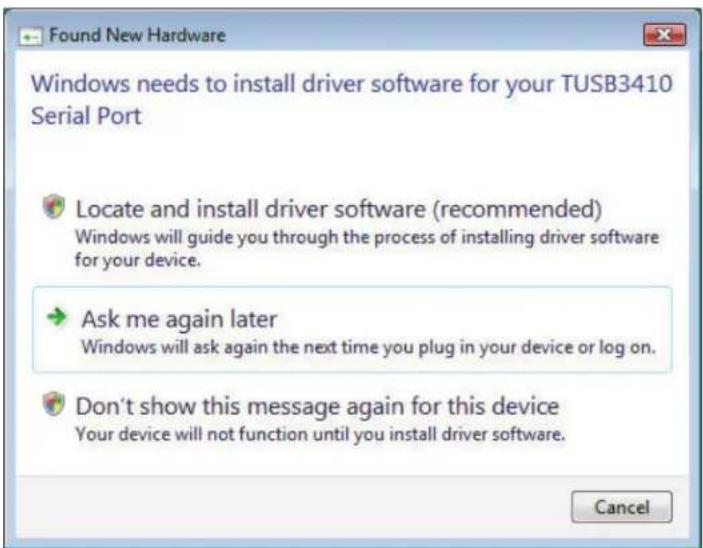
- The Found New Hardware screen appears with Windows needs to install driver software for your TUSB3410 Serial Port.
text_image
Found New Hardware Windows needs to install driver software for your TUSB3410 Serial Port Locate and install driver software (recommended) Windows will guide you through the process of installing driver software for your device. Ask me again later Windows will ask again the next time you plug in your device or log on. Don't show this message again for this device Your device will not function until you install driver software. CancelClick on Locate and install driver software (recommended). Windows will guide you through the process of installing driver software for your device.
- The next screen prompts you to insert the disc that came with your MultiModem product. If you have the disc that came with your device, insert it now. Then, click on I don't have the disc. Show me other options. Windows may prompt you to search online, but this is not necessary.

text_image
Found New Hardware - TUSB3410 Serial Port Insert the disc that came with your TUSB3410 Serial Port If you have the disc that came with your device, insert it now. Windows will automatically search the disc for driver software. I don't have the disc. Show me other options. Next Cancel- Choose Browse my computer for driver software (advanced).
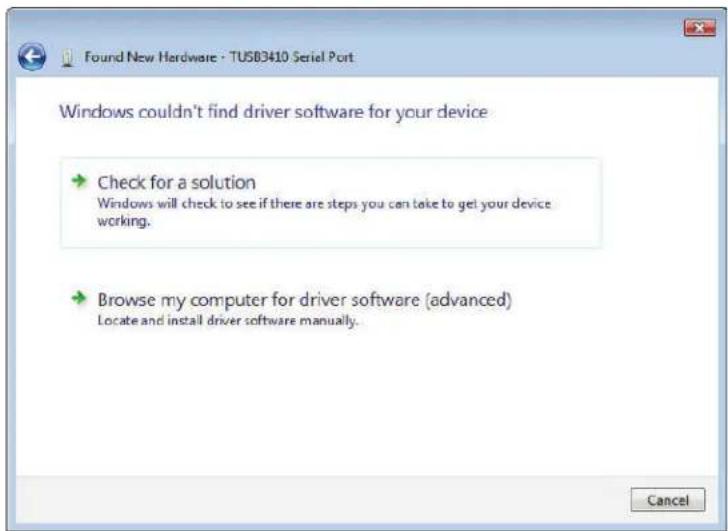
text_image
Found New Hardware - TUSB3410 Serial Port Windows couldn't find driver software for your device → Check for a solution Windows will check to see if there are steps you can take to get your device working. → Browse my computer for driver software (advanced) Locate and install driver software manually. Cancel- At the Browse for driver software on your computer screen.
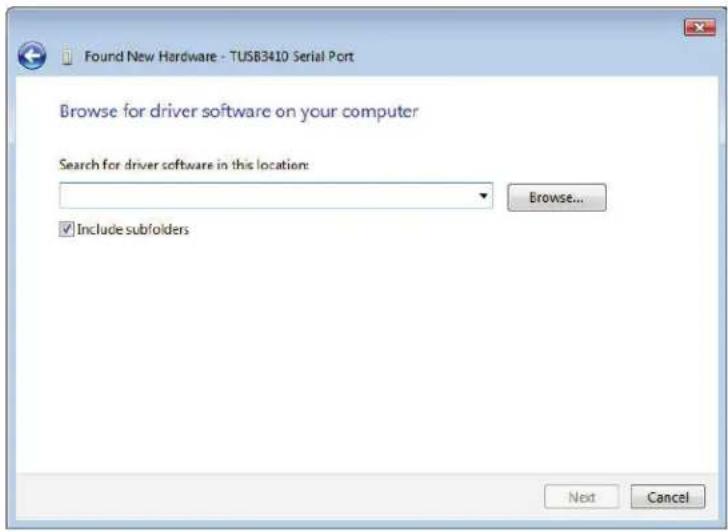
text_image
Found New Hardware - TUSB3410 Serial Port Browse for driver software on your computer Search for driver software in this location: Browse... Include subfolders Next CancelClick the Browse button.
- Browse to the Drivers folder on your MultiModem product CD, then select the Windows_Drivers folder and then the Vista32 folder. If you were installing drivers on a Vista 64-bit Operating System, you would browse to the Vista64 folder. Click OK, then
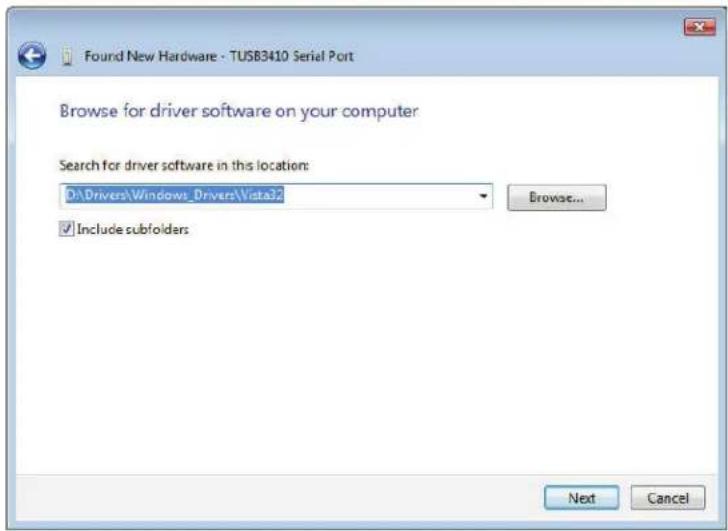
text_image
Found New Hardware - TUSB3410 Serial Port Browse for driver software on your computer Search for driver software in this location: D:\Drivers\Windows_Drivers\Vista32 Include subfolders Next CancelClick Next.
- Would you like to install this device software? screen appears.

text_image
Windows Security Would you like to install this device software? Name: Texas Instruments, Inc Ports (COM & LPT) Publisher: Multi-Tech Systems Incorporated Always trust software from "Multi-Tech Systems Incorporated". You should only install driver software from publishers you trust. How can I decide which device software is safe to install?Click Install.
- Installing driver software... screen appears.

text_image
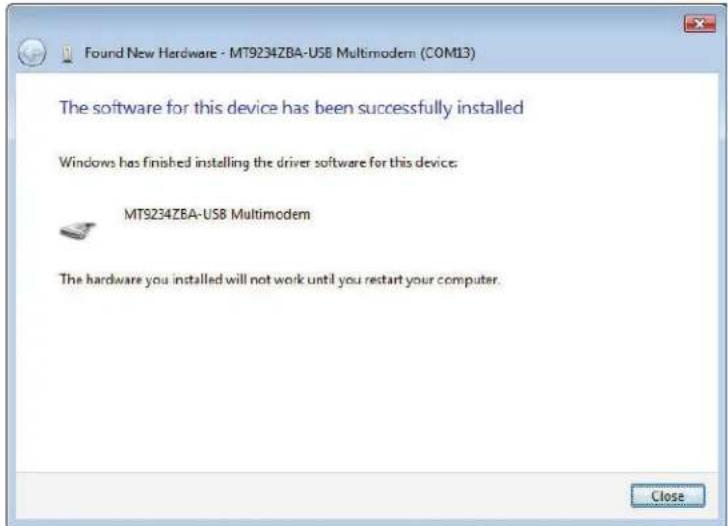
Found New Hardware - TUSB3410 Serial Port Installing driver software...- When the software for this device has been successfully installed screen appears with Windows has finished installing the driver software for this device: MT9234ZBA-USB Multimodem.
text_image
Found New Hardware - MT9234ZBA-US8 Multimodem (COM13) The software for this device has been successfully installed Windows has finished installing the driver software for this device. MT9234ZBA-US8 Multimodem The hardware you installed will not work until you restart your computer. CloseClick Close.
Installation of the Modem
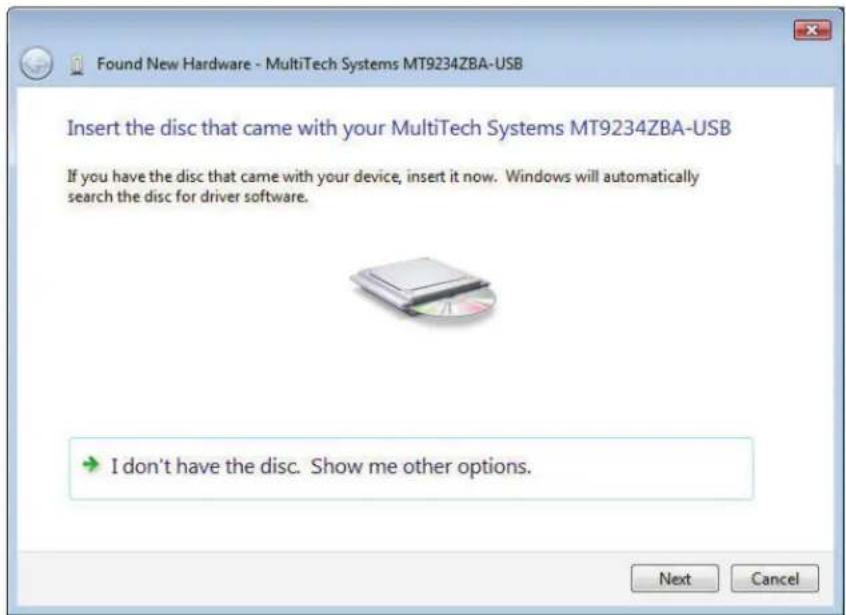
- The Found New Hardware – Multi-Tech Systems MultiModem product screen appears. If you have the disc that came with your device, insert it now.
text_image
Found New Hardware - MultiTech Systems MT9234ZBA-USB Insert the disc that came with your MultiTech Systems MT9234ZBA-USB If you have the disc that came with your device, insert it now. Windows will automatically search the disc for driver software. I don't have the disc. Show me other options. Next CancelThe MultiModem product CD is still in the CD ROM drive. Click Next.
- Would you like to install this device software?

text_image
Windows Security Would you like to install this device software? Name: MultiTech Systems Modems Publisher: Multi-Tech Systems Incorporated Always trust software from "Multi-Tech Systems Incorporated". You should only install driver software from publishers you trust. How can I decide which device software is safe to install?Click Install.
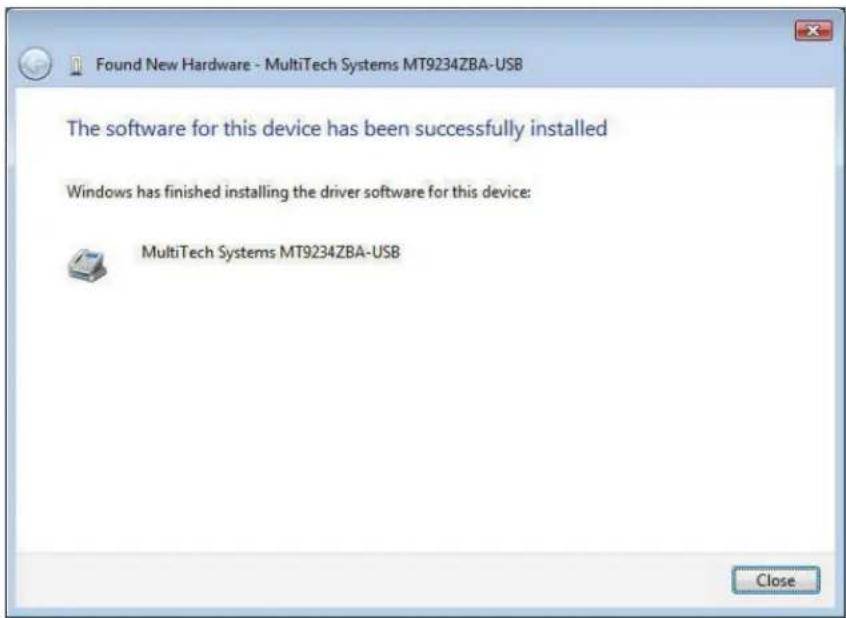
- The software for this device has been successfully installed screen appears. Windows has finished installing the driver software for this device: Multi-Tech Systems MT9234ZBA-USB.
text_image
Found New Hardware - MultiTech Systems MT9234ZBA-USB The software for this device has been successfully installed Windows has finished installing the driver software for this device: MultiTech Systems MT9234ZBA-USB Close- Click Close. The installation of drivers is now complete.
After installation has been completed, you should test the operation of your new MultiModem product by registering it. Key in the URL given below and follow the on-line instructions:
http://www.multitech.com/register
Installing the Modem Driver in Windows Server 2008, XP, 2003
This installation assumes a Windows Server 2008, XP, or 2003 operating system.
Part A for Windows Server 2008, XP, 2003: Installing the Serial Port
- Connect the USB cable between the MultiModem and the PC.
- Insert the MultiModem product CD into your CD-ROM drive. The CD uses the Autorun feature, and after a brief delay, the MULTIMODEM PRODUCT Setup – Welcome screen appears. Close the Welcome screen.
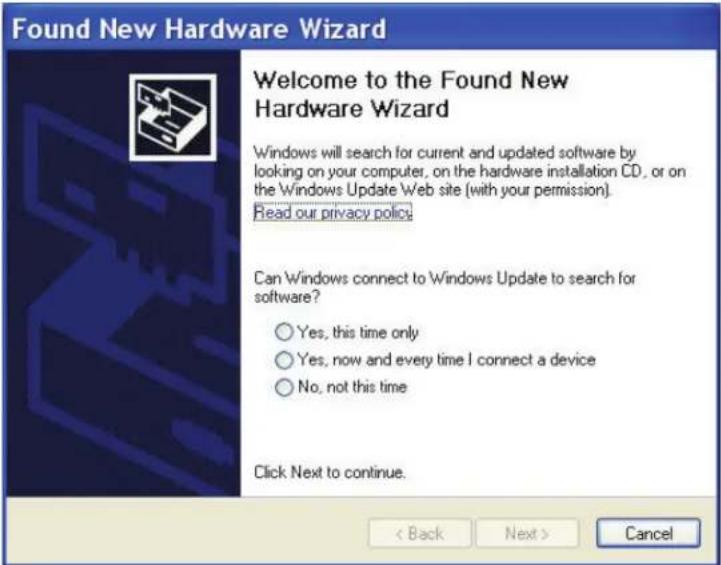
In some situations the operating system will display a Found New Hardware Wizard screen and asks you: Can Windows connect to Windows Update to search for software?
text_image
Found New Hardware Wizard Welcome to the Found New Hardware Wizard Windows will search for current and updated software by looking on your computer, on the hardware installation CD, or on the Windows Update Web site (with your permission). Read our privacy policy. Can Windows connect to Windows Update to search for software? ○ Yes, this time only ○ Yes, now and every time I connect a device ○ No, not this time Click Next to continue. < Back Next > CancelSelect No, not this time. Then click Next.
- The Found New Hardware Wizard screen helps you install software for - TUSB3410 Serial Port.

text_image
Found New Hardware Wizard This wizard helps you install software for: TUSB3410 Serial Port If your hardware came with an installation CD or floppy disk, insert it now. What do you want the wizard to do? • Install the software automatically (Recommended) • Install from a list or specific location (Advanced) Click Next to continue. < Back Next > CancelClick on Install from a list or specific location (Advanced), and then click Next.
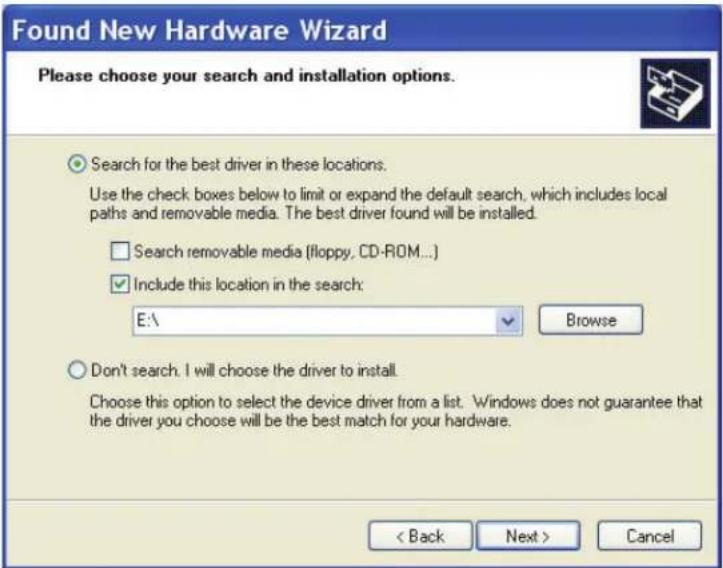
- The Please choose your search and installation options appears.
text_image
Found New Hardware Wizard Please choose your search and installation options. Search for the best driver in these locations. Use the check boxes below to limit or expand the default search, which includes local paths and removable media. The best driver found will be installed. Search removable media (floppy, CD-ROM...) Include this location in the search: E:\ Browse Don't search. I will choose the driver to install. Choose this option to select the device driver from a list. Windows does not guarantee that the driver you choose will be the best match for your hardware. < Back Next > CancelSelect only (floppy, CD-ROM...) ensure that Include this location in the search is selected. Click the Browse button.
- Browse to the Drivers folder on your MultiModem product CD, then select the Windows_Drivers folder and then the XP32 folder. If you are installing drivers on an XP 64-bit Operating System, you would browse to the XP64 folder. Click Next.
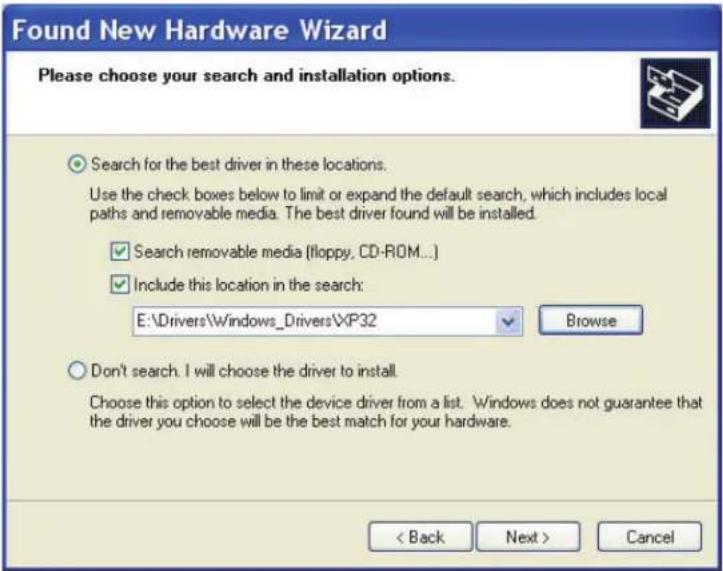
text_image
Found New Hardware Wizard Please choose your search and installation options. Search for the best driver in these locations. Use the check boxes below to limit or expand the default search, which includes local paths and removable media. The best driver found will be installed. ✓ Search removable media (floppy, CD-ROM...) ✓ Include this location in the search: E:\Drivers\Windows_Drivers\XP32 Browse Don't search. I will choose the driver to install. Choose this option to select the device driver from a list. Windows does not guarantee that the driver you choose will be the best match for your hardware. < Back Next > Cancel- Please wait while the wizard searches for the MT9234ZBA-USB MultiModem. This screen only appears briefly.
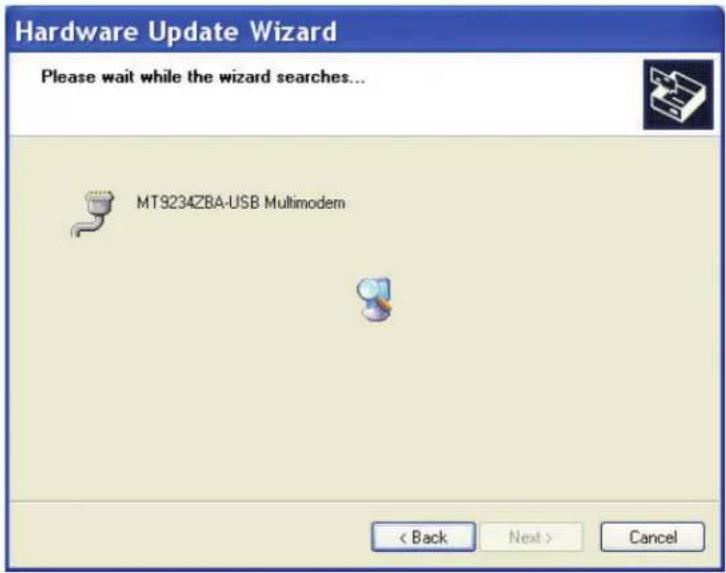
text_image
Hardware Update Wizard Please wait while the wizard searches... MT9234ZBA-USB Multimodem < Back Next > Cancel- Please select the best match for your hardware from the list below.

text_image
Found New Hardware Wizard Please select the best match for your hardware from the list below. MT9234ZBA-USB Multimodem Description Version Manufacturer Location MT9234ZBA-USB Multimodem 6.5.9003.1 Texas Instruments e:\drivers\wind MT9234ZBA-USB Multimodem 6.5.9003.1 Texas Instruments e:\drivers\wind MT9234ZBA-USB Multimodem 6.5.9003.1 Texas Instruments e:\drivers\wind MT9234ZBA-USB Multimodem 6.5.9003.1 Texas Instruments e:\drivers\wind This driver is not digitally signed! Tell me why driver signing is important < Back Next > CancelSelect MT9234ZBA-USB MultiModem.
- A Windows Logo Testing screen appears.

text_image
Hardware Installation The software you are installing for this hardware: MT9234ZBA-USB Multimodem has not passed Windows Logo testing to verify its compatibility with Windows XP. (Tell me why this testing is important.) Continuing your installation of this software may impair or destabilize the correct operation of your system either immediately or in the future. Microsoft strongly recommends that you stop this installation now and contact the hardware vendor for software that has passed Windows Logo testing. Continue Anyway STOP InstallationClick Continue Anyway.
- Please wait while the wizard installs the software.

text_image
Found New Hardware Wizard Please wait while the wizard installs the software... MT9234ZBA-USB Multimodem wdfcoinstaller01005.dll To C:\WINDOWS\system32 < Back Next > Cancel- At the Completing the Found New Hardware Wizard screen,
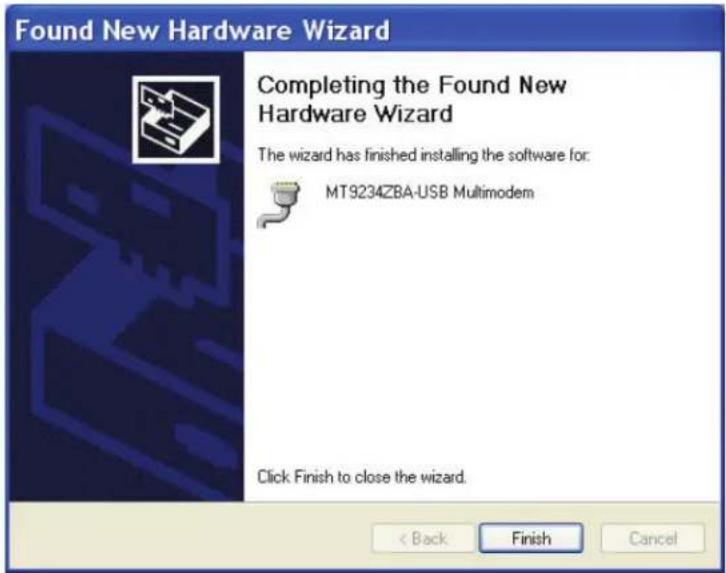
text_image
Found New Hardware Wizard Completing the Found New Hardware Wizard The wizard has finished installing the software for: MT9234ZBA-USB Multimodem Click Finish to close the wizard. < Back Finish Cancelclick Finish. Installation of the Serial Port is now complete.
Part B for Windows Server 2008, XP, 2003: Installing the Modem
- The Welcome to the Found New Hardware Wizard screen – Can Windows connect to Windows update to search for software?
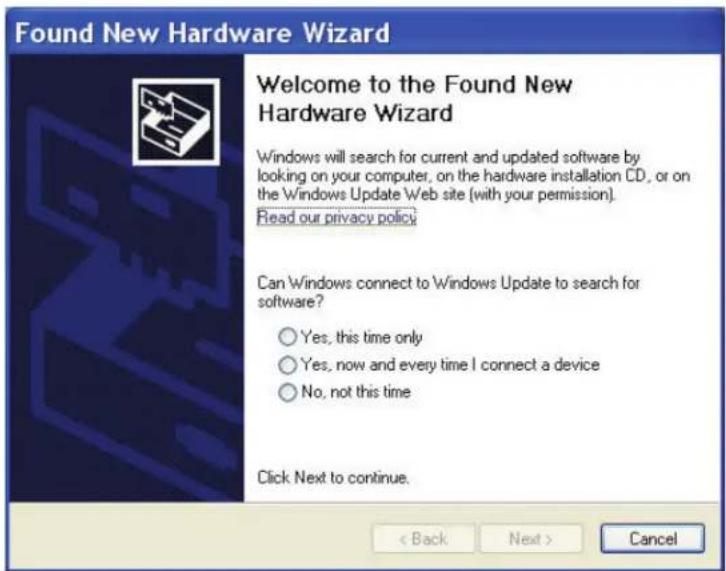
text_image
Found New Hardware Wizard Welcome to the Found New Hardware Wizard Windows will search for current and updated software by looking on your computer, on the hardware installation CD, or on the Windows Update Web site (with your permission). Read our privacy policy. Can Windows connect to Windows Update to search for software? Yes, this time only Yes, now and every time I connect a device No, not this time Click Next to continue. < Back Next > CancelSelect No, not this time. Then click Next.
- This wizard helps you install software for Multi-Tech MT9234ZBA-USB product.
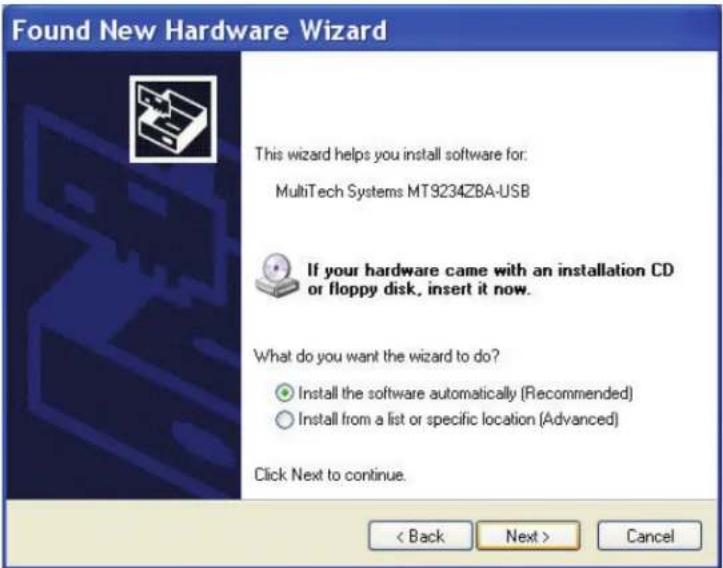
text_image
Found New Hardware Wizard This wizard helps you install software for: MultiTech Systems MT9234ZBA-USB If your hardware came with an installation CD or floppy disk, insert it now. What do you want the wizard to do? • Install the software automatically (Recommended) • Install from a list or specific location (Advanced) Click Next to continue. < Back Next > CancelClick on Install from a list or specific location (Advanced). Then click Next.
- The Please choose your search and installation options screen appears.
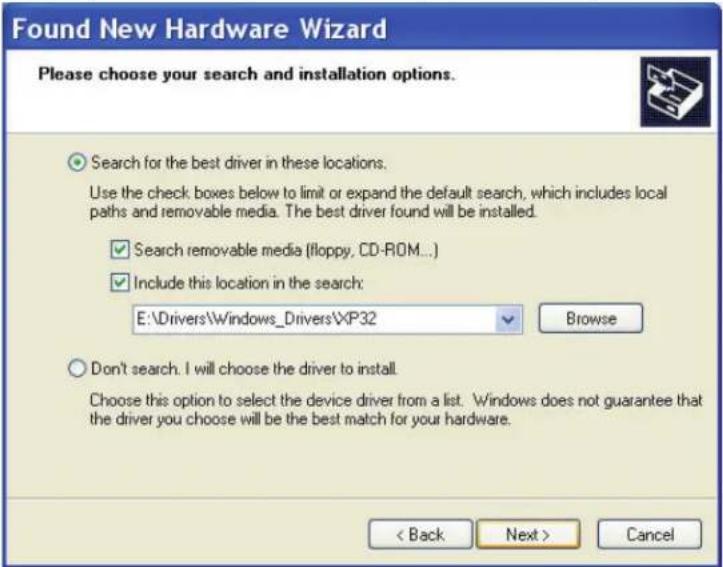
text_image
Found New Hardware Wizard Please choose your search and installation options. Search for the best driver in these locations. Use the check boxes below to limit or expand the default search, which includes local paths and removable media. The best driver found will be installed. ✓ Search removable media (floppy, CD-ROM...) ✓ Include this location in the search: E:\Drivers\Windows_Drivers\XP32 Browse Don't search. I will choose the driver to install. Choose this option to select the device driver from a list. Windows does not guarantee that the driver you choose will be the best match for your hardware. < Back Next > CancelClick Next.
- Please wait while the wizard searches for the MT9234ZBA-USB screen appears. This screen only appears briefly.

text_image
Found New Hardware Wizard Please wait while the wizard searches... MultiTech Systems MT9234ZBA-USB < Back Next > Cancel- Please select the best match for your hardware from the list below.

text_image
Found New Hardware Wizard Please select the best match for your hardware from the list below. MultiTech Systems MT9234ZBA-USB Description Version Manufacturer Loc MultiTech Systems MT9234ZBA-USB 5.12.12.7 MultiTech Systems e:\d MultiTech Systems MT9234ZBA-USB 5.12.12.7 MultiTech Systems e:\d MultiTech Systems MT9234ZBA-USB 5.12.12.7 MultiTech Systems e:\d MultiTech Systems MT9234ZBA-USB 5.12.12.7 MultiTech Systems e:\d This driver is not digitally signed! Tell me why driver signing is important < Back Next > Cancel- The final Windows Logo Testing screen may appear depending on operating system settings. This screen pertains to the creation of a modem entity in the operating system that accommodates the MultiModem product.
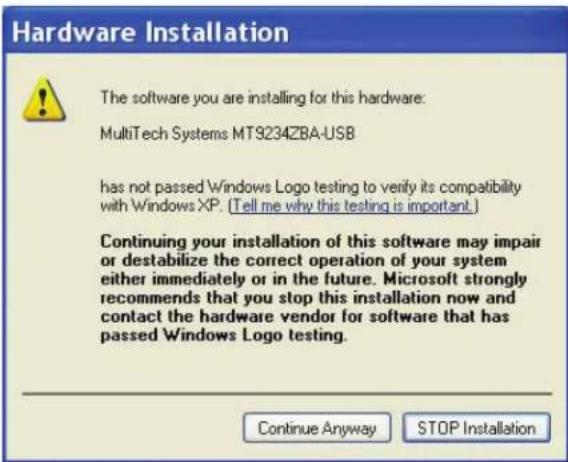
text_image
Hardware Installation The software you are installing for this hardware: MultiTech Systems MT9234ZBA-USB has not passed Windows Logo testing to verify its compatibility with Windows XP. (Tell me why this testing is important.) Continuing your installation of this software may impair or destabilize the correct operation of your system either immediately or in the future. Microsoft strongly recommends that you stop this installation now and contact the hardware vendor for software that has passed Windows Logo testing. Continue Anyway STOP InstallationClick Continue Anyway.
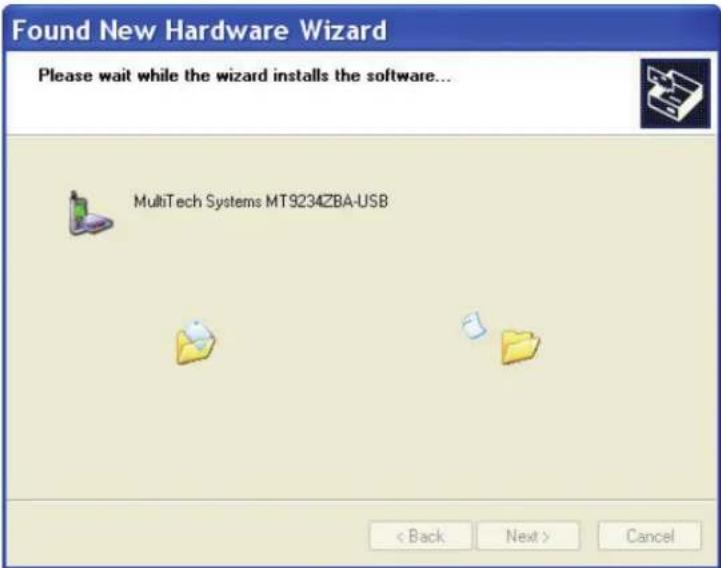
- Please wait while the wizard installs the software.
text_image
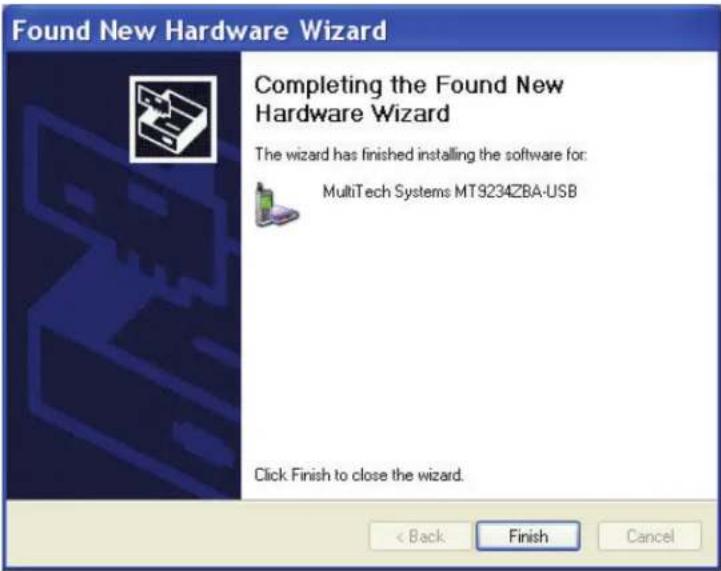
Found New Hardware Wizard Please wait while the wizard installs the software... MultiTech Systems MT9234ZBA-USB < Back Next > Cancel- The Completing the Found New Hardware Wizard screen appears.
text_image
Found New Hardware Wizard Completing the Found New Hardware Wizard The wizard has finished installing the software for: MultiTech Systems MT9234ZBA-USB Click Finish to close the wizard. < Back Finish CancelClick Finish.
With the modem .inf file successfully installed, the entire software installation procedure for the MultiModem product is complete.
After installation has been completed, you should test the operation of your new MultiModem product by registering it. Key in the URL given below and follow the on-line instructions: http://www.multitech.com/register
Country Configuration with Global Wizard
Different countries have different requirements for how modems must function. Therefore, before you use your modem, you must configure it to match the defaults of the country in which you are using it. You can use one of two configuration methods:
• Using the Global Wizard to Configure Your Modem
• Using AT Commands to Configure Your Modem
Using the Global Wizard to Configure Your Modem
The Global Wizard configuration utility is recommended for computers running Windows Server 2008, Vista, XP, and 2003. The Global Wizard can configure your modem for a specific country with just a few mouse clicks.
- Insert the MultiModem USB CD into the CD-ROM drive. The Autorun dialog box appears.
- Click Initial Setup and Country Selection.
- Choose either:
-
Run Global Wizard from CD. This will not load the wizard onto your hard drive, or
• Install Global Wizard on the HD. This will install the wizard onto your hard drive for future use. -
The Global Wizard dialog box appears. Click Next.
-
The Global Wizard searches for your modem and identifies it. Click Next.
- Select the country in which the modem will be used and then click Next.
- Review your choice of country. If it is correct, click Next to configure the modem.
- When Global Wizard announces that the parameters have been set, click Finish to exit.
Using AT Commands to Configure Your Modem
Non-Windows users can configure the modem using AT commands. You must enter these commands in your communication program's terminal window.
- Run your favorite communication program and open the program's terminal window.
- To configure the modem for a specific country, type AT%T19,0,nn, where nn is the country code in hexadecimal format, and then press ENTER. The message OK displays.
- To verify the change, type ATI9, and then press ENTER.
The country/region code displays:
| Example Country/Region AT command Country code (hexadecimal) | (decimal) | ||
| Euro/NAM | AT%T19,0,34 (default) 52 | ||
The complete list of country/region codes can be found on the Multi-Tech Web site at
http://www.multitech.com/en_US/PRODUCTS/Categories/Device_Networking/global_modems/configuration.asp
The Global Modem Country Approvals page displays. On this page you can view approvals, configuration strings and responses by country and product.
Chapter 3 - Operation
Front Panel
The MultiModem product has 6 LED indicators on the front panel that indicate status, configuration, and activity.

text_image
MultiModem® ZBA MultiTech® Systems 70 80 20 30 75 PowerFigure 3-1. Front panel

Transmit Data. The TD LED flashes when the modem is transmitting data to another modem.
Receive Data. The RD LED flashes when the modem is receiving data from another modem.
Carrier Detect. The CD LED lights when the modem detects a valid carrier signal from another modem. It is on when the modem is communicating with the other modem and off when the link is broken.
Off-Hook. The OH LED lights when the modem is off-hook, which occurs when the modem is dialing, online, or answering a call. The LED flashes when the modem pulse-dials.
Terminal Ready. The TR LED lights when a communications program is using the modem. It means the modem is ready for an outgoing or incoming call. It goes off when the communications program disconnects. When it goes off, a connected modem will also disconnect.
Power. The PWR led lights when Windows detects and initializes the modem.
Connecting to the Internet
Your Multi-Tech modem is your gateway to the Internet and the World Wide Web. To access the Internet and Web via your modem, you must establish a dial-up account with an Internet service provider (ISP). To locate an ISP near you, look in a local directory or computer publication. Your ISP should provide you with the following information:
- User name (also called user ID)
- Password
- Access number (the number you call to connect to the server)
- Host name and/or domain name
- Domain Name Server (DNS) server address
If, besides the Web, you use the Internet for e-mail and newsgroups, your ISP should also provide you with the following information:
• E-mail or POP mail address
- POP server address
- Mail or SMTP address
- News or NNT server address
Internet Connection
Before you can connect to the Internet, you must set up a remote-node client program on your computer. Windows XP uses HyperTerminal to establish your connection to the ISP's server, which is the shared computer that manages calls from clients (your computer) to the Internet. Most, if not all, Windows browsers can automatically open this connection. For instructions on how to set up this connection, consult your ISP or your operating system's online help or printed documentation. Many ISPs include with their service a program that will install and configure this connection automatically for you.
Chapter 4 - Remote Configuration
Remote configuration is a network management tool that allows you to configure modems anywhere in your network from one location. With password protected remote configuration, you can issue AT commands to a remote MultiModem product for maintenance or troubleshooting as if you were on site.
Basic Procedure
The following steps are valid regardless of whether the connection is established by the local or the remote Multi-Tech modem.
- Establish a data connection with a remote MultiModem product.
- Send three remote configuration escape characters followed by AT and the setup password, and press ENTER. Example: %%%ATMTSMODEM. You have four tries to enter the correct password before being disconnected. If the password is correct, the remote modem responds with OK.
- You can now send AT commands to configure the remote modem.
- When you have finished configuring the remote modem, save the new configuration by typing AT&W0, and pressing Enter.
- Type ATO and press Enter to exit remote configuration. You can then break the connection in the normal way.
CAUTION: If you hang up while you are in remote configuration mode, it may lock up the remote modem.
Setup
Multi-Tech modems are shipped with a default setup password (MTSMODEM). Because anyone who has an owner's manual knows the default setup password, for security you should change the password and possibly also the remote configuration escape character.
Changing the Setup Password
- Open a data communications program such as Phone Tools or HyperTerminal.
- To change the password, type AT#S=xxxxxxxxx, where xxxxxxxx stands for the password, and press ENTER. The password can include any keyboard character, and must be one to eight characters long. The modem responds with OK.
- The new password is saved automatically. You can now either enter more AT commands or exit the data communications program. The next time you remotely configure the modem you must use the new setup password.
Note: You can only change the setup password locally; you cannot do it remotely. Also, passwords are case sensitive. The next time you enter the password, it must be in the same case as you set it up.
Changing the Remote Escape Character
To increase security, you can change a remote modem's remote configuration escape character. The remote configuration escape character is stored in register S9. The factory default is 37, which is the ASCII code for the percent character (%). For ASCII code characters, refer to Appendix E. Setting S9 to 0 (zero) disables remote configuration entirely—but if you do this remotely, you won't be able to change it back remotely!
- Establish a remote configuration link with the remote modem as described in "Basic Procedure."
- Type ATS9=n, where n is the ASCII code for the new remote configuration escape character, then press ENTER.
- Save the new value by typing AT&W and pressing ENTER.
- Type ATO
to exit remote configuration.
Chapter 5- Troubleshooting
Your modem was thoroughly tested at the factory before it was shipped. If you are unable to make a successful connection, or if you experience data loss or garbled characters during your connection, it is possible that the modem is defective. However, it is more likely that the source of your problem lies elsewhere. The following symptoms are typical of problems you might encounter:
- None of the LEDs light when the modem is on.
- The modem does not respond to commands.
- The modem dials but is unable to make a connection.
- The modem disconnects while online.
- The modem cannot connect when answering.
• Data is being lost. - There are garbage characters on the monitor.
- The modem doesn't work with Caller ID.
- Fax and data software can't run at the same time.
None of the Indicators Light
When you plug in the modem, the operating system detects and configures the modem, and the TR LED should come on.
If the TR LED does not come on, check to see that the driver from the product CD has been installed, refer to Chapter 2, step 2 – Install the Modem Driver.
The Modem Does Not Respond to Commands
- Make sure you are issuing the modem commands from data communication software, either manually in terminal mode or automatically by configuring the software. (You cannot send commands to the modem from the DOS prompt.)
- Make sure you are in terminal mode in your data communication program, then type AT and press ENTER. If you get an OK response from your modem, your connections are good and the problem likely is in the connection setup in your communication software.
- Try resetting your modem by unplugging the USB cable from the modem, and then plugging it back in.
- Try rebooting the computer.
- The modem might have a problem beyond the scope of this user guide. If you have another Multi-Tech modem, try swapping modems. If the problem goes away, the first modem is possibly defective. Contact Technical Support for assistance.
The Modem Dials But Cannot Connect
There can be several reasons the ZBA fails to make a connection. Possibilities include:
- lack of a physical connection to the telephone line.
- a wrong dial tone.
- a busy signal.
- a wrong number.
• no modem at the other end. - a faulty modem, computer, or software at the other end.
- incompatibility between modems.
You can narrow the list of possibilities by using extended result codes. Extended result codes are enabled by default. If they have been disabled, enter ATV1X4 and press ENTER while in terminal mode, or include V1X4 in the modem's initialization string. When you dial again, the modem will report the call's progress.
- If the modem reports NO DIALTONE, check that the modem's telephone line cable is connected to both the modem's LINE jack (not the PHONE jack) and the telephone wall jack. If the cable looks secure, try replacing it. If that doesn't work, the problem might be in your building's telephone installation. To test the building installation, plug a telephone into your modem's telephone wall jack and listen for a dial tone. If you hear a dial tone, your modem might be installed behind a company phone system (PBX) with an
internal dial tone that sounds different from the normal dial tone. In that case, the modem might not recognize the dial tone and might treat it as an error. Check your PBX manual to see if you can change the internal dial tone; if you can't, change your modem's initialization string to replace X4 with X3, which will cause the modem to ignore dial tones (note, however, that X3 is not allowed in some countries, such as France and Spain).
- If the modem reports BUSY, the other number might be busy, in which case you should try again later, or it might indicate that you have failed to add a 9, prefix to the phone number if you must dial 9 for an outside line.
- If you must dial 9 to get an outside line, the easiest way to dial it automatically is to include it in the modem's dial prefix, e.g., ATDT9, Note the comma, which inserts a pause before the number is dialed. By inserting 9, into the dial prefix, you do not have to include it in each directory entry.
- To change the dial prefix in Windows 98 HyperTerminal, select Call from the Call menu, click Dialing Properties, and type 9 in the local and long distance boxes in How I dial from this location.
- If the modem reports NO ANSWER, the other system has failed to go off-hook, or you might have dialed a wrong number. Check the number.
- If the modem reports NO CARRIER, the phone was answered at the other end, but no connection was made. You might have dialed a wrong number, and a person answered instead of a computer, or you might have dialed the correct number, but the other computer or software was turned off or faulty. Check the number and try again, or try calling another system to make sure your modem is working. Also, try calling the number on your telephone. If you hear harsh sounds, then another modem is answering the call, and the modems might be having problems negotiating because of modem incompatibilities or line noise. Try connecting at a lower speed.
The Modem Disconnects While Online
- If you have Call Waiting on the same phone line as your modem, it can interrupt your connection when someone tries to call you. If you have Call Waiting, disable it before each call. In most telephone areas in North America, you can disable Call Waiting by preceding the telephone number with *70 (check with your local telephone company).
- You can automatically disable Call Waiting by including the disabling code in the modem's dial prefix (e.g., ATDT*70,—note the comma, which inserts a pause before the number is dialed). To change the dial prefix in Windows 98 HyperTerminal, select Call from the Call menu, click Dialing Properties, check This location has Call Waiting, and select the correct code for your phone service.
- If you have extension phones on the same line as your modem, you or someone else can interrupt the connection by picking up another phone. If this is a frequent problem, disconnect the extension phones before using the modem, or install another phone line especially for the modem.
- Check for loose connections between the modem and the computer and the telephone jack.
- You might have had a poor connection because of line conditions or the problem might have originated on the other end of the line. Try again.
- If you were online with an online service, it might have hung up on you because of lack of activity on your part or because you exceeded your time limit for the day. Try again.
The Modem Cannot Connect When Answering
- Autoanswer might be disabled. Turn on autoanswer in your data communications program or send the command ATS0=1 (ATS0=2 if you have Caller ID service) to make sure your modem in terminal mode.
The Modem Doesn't Work with Caller ID
- Caller ID information is transmitted between the first and second rings, so if autoanswer is turned off (S0=0) or if the modem is set to answer after only one ring (S0=1), the modem will not receive Caller ID information. Check your initialization string, and if necessary change it to set the modem to answer after the second ring (S0=2).
• Make sure that you have Caller ID service from your telephone company.
Fax and Data Software Can't Run at the Same Time
- Communications devices can be accessed by only one application at a time. In Windows 2003 and higher, you can have data and fax communication applications open at the same time, but they cannot use the same modem at the same time.
Appendix A - Regulatory Compliance
FCC Part 68 Telecom
- This equipment complies with part 68 of the Federal Communications Commission Rules. On the outside surface of this equipment is a label that contains, among other information, the FCC registration number. This information must be provided to the telephone company.
- The suitable USOC jack (Universal Service Order Code connecting arrangement) for this equipment is shown below. If applicable, the facility interface codes (FIC) and service order codes (SOC) are shown.
- An FCC-compliant telephone cord and modular plug is provided with this equipment. This equipment is designed to be connected to the telephone network or premises wiring using a compatible modular jack that is Part 68 compliant. See installation instructions for details.
- The ringer equivalence number (REN) is used to determine the number of devices that may be connected to the telephone line. Excessive RENs on the telephone line may result in the device not ringing in response to an incoming call. In most, but not all, areas the sum of the RENs should not exceed 5.0. To be certain of the number of devices that may be connected to the line, as determined by the total RENs, contact the local telephone company.
- If this equipment causes harm to the telephone network, the telephone company will notify you in advance that temporary discontinuance of service may be required. But if advance notice is not practical, the telephone company will notify you as soon as possible. Also, you will be advised of your right to file a complaint with the FCC if you believe it is necessary.
- The telephone company may make changes in its facilities, equipment, operations, or procedures that could affect the operation of the equipment. If this happens, the telephone company will provide advance notice in order for you to make necessary modifications in order to maintain uninterrupted service.
- If trouble is experienced with this equipment (the model of which is indicated below) please contact Multi-Tech Systems, Inc. at the address shown below for details of how to have repairs made. If the trouble is causing harm to the telephone network, the telephone company may request you remove the equipment from the network until the problem is resolved.
- No repairs are to be made by you. Repairs are to be made only by Multi-Tech Systems or its licensees. Unauthorized repairs void registration and warranty.
- This equipment should not be used on party lines or coin lines.
- If so required, this equipment is hearing aid compatible.
- This product is labeled with the following information:
Manufacturer: MultiTech Systems, Inc.
Trade
Name:
®MLBtAModem
Model
Number:
MT9234ZBA-USB
FCC Registration Number: AU7USA-24713-M5-E
Ren:
0.3B
Modular Jack (USOC):
RJ11
Service Center in USA:
Multi-Tech Systems, Inc.
2205
Woodale
Drive
Mounds
View,
MN
55112
(763)
785-3500
Fax
(763)
785-9874
FCC Part 15 Regulation
This equipment has been tested and found to comply with the limits for a Class B digital device, pursuant to 47 CFR – FCC Part 15 regulations. The stated limits in this regulation are designed to provide reasonable protection against harmful interference in a residential environment. This equipment generates, uses, and can radiate radio frequency energy, and if not installed and used in accordance with the instructions, may cause harmful interference to radio communications. However, there is no guarantee that interference will not occur in a particular installation. If this equipment does cause harmful interference to radio or television reception, which can be determined by turning the equipment off and on, the user is encouraged to try to correct the interference by one or more of the following measures:
- Reorient or relocate the receiving antenna.
- Increase the separation between the equipment and receiver.
- Plug the equipment into an outlet on a circuit different from that to which the receiver is connected.
- Consult the dealer or an experienced radio/TV technician for help.
This device complies with 47 CFR – FCC Part 15 rules. Operation of this device is subject to the following conditions:
- This device may not cause harmful interference, and
- This device must accept any interference that may cause undesired operation.
Warning: Changes or modifications to this unit not expressly approved by the party responsible for compliance could void the user's authority to operate the equipment.
Canadian Limitations Notice
Notice: The ringer equivalence number (REN) assigned to each terminal device provides an indication of the maximum number of terminals allowed to be connected to a telephone interface. The termination on an interface may consist of any combination of devices subject only to the requirement that the sum of the ringer equivalence numbers of all the devices does not exceed 5.
Notice: The Industry Canada label identifies certificated equipment. This certification means that the equipment meets certain telecommunications network protective, operational and safety requirements. The Industry Canada label does not guarantee the equipment will operate to the user's satisfaction.
Before installing this equipment, users should ensure that it is permissible to be connected to the facilities of the local telecommunications company. The equipment must also be installed using an acceptable method of connection. The customer should be aware that compliance with the above conditions may not prevent degradation of service in some situations. Repairs to certified equipment should be made by an authorized Canadian maintenance facility designated by the supplier. Any repairs or alterations made by the user to this equipment or equipment malfunctions may give the telecommunications company cause to request the user to disconnect the equipment.
Users should ensure for their own protection that the electrical ground connections of the power utility, telephone lines and internal metallic water pipe system, if present, are connected together. This precaution may be particularly important in rural areas.
Caution: Users should not attempt to make such connections themselves, but should contact the appropriate electric inspection authority, or electrician, as appropriate.
Industry Canada
This Class B digital apparatus meets all requirements of the Canadian Interference-Causing Equipment Regulations.
International Modem Restrictions
Some dialing and answering defaults and restrictions may vary for international modems. Changing settings may cause a modem to become non-compliant with -national telecom requirements in specific countries. Also note that some software packages may have features or lack restrictions that may cause the modem to become non-compliant.

EMC, Safety, and R&TTE Directive
The CE mark is affixed to this product to confirm compliance with the following -European Community Directives: Council Directive 2004/108/EC of 15 December 2004 on the approximation of the laws of Member States relating to electromagnetic compatibility;
And
Council Directive 2006/95/EC of 12 December 2006 on the harmonization of the laws of Member States relating to electrical equipment designed for use within certain voltage limits;
And
Council Directive 1999/5/EC of 9 March 1999 on radio equipment and telecommunications terminal equipment and the mutual recognition of their conformity.
Thailand Approval
Translation in Thai
"This telecom device and equipment is conform to technical standard no...."
or
"This telecom device and equipment is conform to requirement to NTC"
South African Notice
This modem must be used in conjunction with an approved surge protection device.
Appendix B - Waste Electrical and Electronic Equipment
July, 2005
The WEEE directive places an obligation on EU-based manufacturers, distributors, retailers and importers to take-back electronics products at the end of their useful life. A sister Directive, ROHS (Restriction of Hazardous Substances) complements the WEEE Directive by banning the presence of specific hazardous substances in the products at the design phase. The WEEE Directive covers all Multi-Tech products imported into the EU as of August 13, 2005. EU-based manufacturers, distributors, retailers and importers are obliged to finance the costs of recovery from municipal collection points, reuse, and recycling of specified percentages per the WEEE requirements.
Instructions for Disposal of WEEE by Users in the European Union
The symbol shown below is on the product or on its packaging, which indicates that this product must not be disposed of with other waste. Instead, it is the user's responsibility to dispose of their waste equipment by handing it over to a designated collection point for the recycling of waste electrical and electronic equipment. The separate collection and recycling of your waste equipment at the time of disposal will help to conserve natural resources and ensure that it is recycled in a manner that protects human health and the environment. For more information about where you can drop off your waste equipment for recycling, please contact your local city office, your household waste disposal service or the seller from whom you purchased the product.

natural_image
Symbol of a trash bin crossed with diagonal lines, representing no waste or discharge (no text or labels)Appendix C - C-ROHS HT/TS Substance Concentration
依照中国标准的有毒有害物质信息
The MULTIMODEM PRODUCT supports Linux 2.4 kernel versions (2.4.28 and above), 2.6 kernel versions 2.6.8 through 2.6.10, and, with a special patch, Linux kernel versions 2.6.11 through 2.6.20.4. There are three separate installation procedures for these ranges of kernel versions. When installation is complete, you must use AT commands to configure the modem for the country in which it is operating.
Installation in Computers Using the Linux 2.4 Kernel
1. Introduction
This procedure applies to Linux 2.4 kernel versions 2.4.28 and above.
These tgz and source RPM packages (ti_usb-1.2.tgz and ti_usb-1.2-1.src.rpm) contain a device driver for the MULTIMODEM PRODUCT's TI USB 3410 processor in the Linux 2.4 kernels.
This package is designed for these hardware platforms: a standard PC with i486, Pentium, or compatible CPUs (32 bit x86).
This package has been tested on these Linux distributions:
- Red Hat 8.0
- Red Hat 9.0
- SUSE Linux Standard Server 8.0
Most likely this package will work on many other Linux distributions based on the 2.4 kernels, but this has not yet been tested. Note that different distributions can make custom changes to the Linux kernel, and there is a small chance that these changes might be incompatible with this package.
This package will not work in the Linux 2.6 kernels. Separate packages of the TI USB 3410/5052 driver are available for the Linux 2.6 kernels.
These packages are available from http://www.brimson.com/downloads
The tgz package will be named ti_usb-X.Y.tgz, and the source RPM package will be named ti_usb-X.Y-Z.src.rpm, where X.Y-Z is the version number. See www.brimson.com/downloads/README for a description of the packages available.
If you have questions or problems with this package please contact Texas Instruments technical support or Brimson technical support.
2. Installation Steps
Install the Kernel Sources
To build the TI USB driver you must have the matching kernel sources for your kernel.
To verify that you have matching kernel sources, run "uname -r" to get the version of the running kernel. Then check for the directory /usr/src/linux-
If you do not find the correct kernel source directory, you must find and install the kernel sources from your distribution CDs or other media.
Prepare the Kernel Sources
This step may or may not be necessary, depending on how your Linux distribution installs the kernel sources.
Log in as root and do the following:
| Command | Explanation |
| 1. cd /usr/src/linux-Change to the source directory. | |
| 2. make mrproper Clean up any old files. | |
| 3. Use either of these commands:make oldconfig-OR-make cloneconfig | Make a configuration file to match your running kernel.for Red Hatfor SUSEFor other distributions these same commands might work, or you might need to find a config file in /boot or in a configs directory, copy it to .config, and run "make oldconfig". |
| 4. make dep Create the dependency and version files. | |
If you have built your own kernel, the kernel sources will already be installed and prepared. If you are using a kernel that came with a Linux distribution, it can sometimes be difficult to get the kernel sources correctly installed and prepared, since each Linux distribution handles kernel sources slightly differently.
For example, if you get errors about the wrong kernel version, you may have installed the wrong kernel sources, or you may need to edit the kernel version in the top level Makefile of the kernel sources. If you get compilation errors, perhaps you forgot to run "make oldconfig" and "make dep".
If you have difficulties, look carefully at the error messages when installing the TGZ or RPM packages--those messages should give you an indication of just what the error is.
Build and Install the TI USB Driver from the Source RPM Package
Follow this step if your distribution supports RPM packages; otherwise, follow the next step on installing from a TGZ package.
You will need the TI USB source RPM package for this step. The Introduction section above describes where to find the latest TI USB source RPM.
Log in as root and do the following:
| Command | Explanation |
| 1. | This command builds the driver package for your kernel. |
| rpmbuild --rebuild ti_usb-X.Y-Z.src.rpm | For Red Hat. |
| -- OR -- | For SUSE. |
| rpm --rebuild ti_usb-X.Y-Z.src.rpm | |
| 2. | For Red Hat. |
| cd /usr/src/redhat/RPMS/i386 | For SUSE. |
| -- OR -- | Or use the appropriate path for your Linux distribution. |
| cd /usr/src/packages/RPMS/i386 | |
| 3. rpm -Uvh ti_usb-X.Y-Z.i386.rpm This command installs the driver package. | |
If there are problems in this process, you may need to go back to install and prepare the kernel sources as described above. You may need to remove the RPM package with "rpm -e ti_usb-X.Y-Z" or remove RPM temporary files. Red Hat stores RPM temporary files in /var/tmp and /usr/src/redhat/BUILD; other distributions may store them in other places.
Build and Install the TI USB Driver from the TGZ Package
You will need the TI USB tgz package for this step. The Introduction section above describes where to find the latest TI USB tgz package.
Log in as root and do the following:
| Command | Explanation |
| 1. tar xvzf ti_usb-X.Y.tgz Un-package the files. | |
| 2. cd ti_usb-X.Y | |
| 3. ./configure Configure the package for your distribution and kernel. | |
| 4. make Build the driver. | |
| 5. make install Install the ti_usb driver. |
If there are problems in this process, you may need to go back to install and prepare the kernel sources as described above.
Load the TI USB Driver
The ti_usb driver should be automatically loaded when you plug in the TI USB 3410 device, provided your device uses the default vendor and product ids. If it does not, see the section entitled "VENDOR and PRODUCT IDS" in the Release Notes file for Linux 2.4 kernel installations (on the product CD as file name ti_usb_release_notes-1 2.txt).
The first TI USB 3410 device plugged in will appear as /dev/ttyTIUSB0, the next as /dev/ttyTIUSB1, and so on.
Note that these device names are different from the device names used by the Linux usbserial driver. See the section below entitled "DEVICE FILES" for more information.
If TI USB devices had been in use before installing the new TI USB driver, old versions of the drivers will still be loaded. These old versions must be unloaded before the newly installed driver will be used.
The simplest way to unload the old drivers and load the new is to reboot.
Alternatively, you can close all open TI USB serial ports, disconnect the TI USB serial devices, and then unload the old TI USB serial driver with the command
rmmod ti_usb
Completion. Then reconnect the TI USB serial devices and the new driver will be loaded.
Device Files
Because the TI USB driver does not use usbserial (to avoid known problems with usbserial) it uses its own device file names, /dev/ttyTIUSB0, /dev/ttyTIUSB1, and so on.
The device files are created automatically when the ti_usb driver is loaded. This is done by the module post-install command in /etc/modules.conf, which runs the script /etc/ti_usb/make_devices.
You can change the device names that ti_usb uses. First you should remove the old device files by running
/etc/ti_usb/make_devices remove
Then edit /etc/ti_usb/make_devices. At the top of this file you will find the parameters DEVICE_NAME which determines the basename of the TI USB device files, DEVICE_COUNT which determines the number of device files created, DEVICE_GROUP which determines the group owner of the device files, and DEVICE_PERMISSIONS which determines the device file permissions.
For example, to create 8 TI USB device files named /dev/ttyusb0 through /dev/ttyusb7, owned by the uucp group, and having permissions 0660, change the parameters like this
DEVICE_NAME=/dev/ttyusb
DEVICE_COUNT=8
DEVICE_GROUP=uucp
DEVICE_PERMISSIONS=0660
After editing make_devices, run the script to create the new device files, like this
/etc/ti_usb/make_devices
If you use devfs, the ti_usb devices will be /dev/usb/ti/0, /dev/usb/ti/1, and so on in the order they are plugged in. The ti_usb driver has not been tested with devfs.
Uninstalling the TI USB Driver (for 2.4 kernel versions)
If you installed the TI USB RPM package, you can uninstall it by logging in as root and running the command
rpm -e ti_usb-X.Y-Z
If you installed the TI USB TGZ package, you can uninstall it by logging in as root and running the following commands:
| Command | Explanation |
| cd ti_usb-X.Y You will need to give a full or relative path to the unpacked source file directory. | |
| make uninstall | |
Installation in Computers Using the Linux 2.6 Kernel
1. Introduction
This procedure applies to Linux 2.6 kernel versions 2.6.8 through 2.6.10.
These tgz and source RPM packages (ti_usb_2.6-1.2.tgz and ti_usb_2.6-1.2-1.src.rpm) contain a device driver for the MULTIMODEM PRODUCT 's TI USB 3410 processor in the Linux 2.6 kernels.
These packages have been tested on the Fedora Core 2 Linux distribution.
Most likely these packages will work on many other Linux distributions based on the 2.6 kernels, but this has not yet been tested. Note that different distributions can make custom changes to the Linux kernel, and there is a small chance that these changes might be incompatible with this package.
The TI USB 3410/5052 driver has been tested in the kernel.org kernels 2.6.5 through a pre-release version of 2.6.10, and in the Fedora Core 2 kernels 2.6.5-1.358 and 2.6.9-1.6. There are limitations in kernels before 2.6.8; see the section on Known Limitations in the Release Notes file for kernel 2.6 (the file name is ti_usb_2 6_release_notes-1 2.txt and it is on the product CD).
These packages will not work in the Linux 2.4 kernels (however, installation in the 2.4 kernels is covered earlier in this chapter).
These packages are available from http://www.brimson.com/downloads
The tgz package will be named ti_usb_2.6-X.Y.tgz, and the source RPM package will be named ti_usb_2.6-X.Y-Z.src.rpm, where X.Y-Z is the version number. See www.brimson.com/downloads/README for a description of the packages available.
If you have questions or problems with this package, please contact Texas Instruments technical support or Brimson technical support.
2. Installation Steps
Install the Kernel Sources
To build the TI USB driver you must have the matching kernel sources for your kernel.
In particular, you must have the file usb-serial.h for your kernel sources. Sometimes Linux distributions will include the kernel headers but not the complete kernel sources, and usb-serial.h will be missing. However, the complete kernel sources should still be available as a separate add-on package.
To verify that you have matching kernel sources, run "uname -r" to get the version of the running kernel. Then check for the directory /usr/src/linux-
If you do not find the correct kernel source directory, you must find and install the kernel sources from your distribution CDs or other media.
Prepare the Kernel Sources
This step may or may not be necessary, depending on how your Linux distribution installs the kernel sources.
Log in as root and do the following:
| Command | Explanation |
| 1. cd /usr/src/linux-Change to the source directory. | |
| 2. make mrproper Clean up any old files. | |
| 3. Use either of these commands:make oldconfig-OR-make cloneconfig | Make a configuration file to match your running kernel.for Red Hatfor SUSEFor other distributions these same commands might work, or you might need to find a config file in /boot or in a configs directory, copy it to .config, and run "make oldconfig". |
| 4. make prepare To prepare the kernel sources for your machine. | |
If you have built your own kernel, the kernel sources will already be installed and prepared. If you are using a kernel that came with a Linux distribution, it can sometimes be difficult to get the kernel sources correctly installed and prepared, since each Linux distribution handles kernel sources slightly differently.
For example, if you get errors about the wrong kernel version, you may have installed the wrong kernel sources, or you may need to edit the kernel version in the top level Makefile of the kernel sources. If you get errors about a missing usb-serial.h, you may only have the kernel headers installed. If you have trouble getting the full kernel sources installed and prepared, you can copy the correct version of usb-serial.h to drivers/usb/serial in the kernel headers directory and then the other kernel sources are not needed.
If you have difficulties, look carefully at the error messages when installing the TGZ or RPM packages. Those messages should give you an indication of just what the error is.
Build and Install the TI USB Driver from the Source RPM Package
Follow this step if your distribution supports RPM packages; otherwise, follow the next step on installing from a TGZ package.
You will need the TI USB 3410/5052 source RPM package for this step. The Introduction section above describes where to find the latest TI USB 3410/5052 source RPM.
Log in as root and do the following:
| Command | Explanation |
| 1. | This command builds the driver package for your kernel. |
| rpmbuild --rebuild ti_usb_2.6-X.Y-Z.src.rpm | For Red Hat. |
| -- OR -- | For SUSE. |
| rpm --rebuild ti_usb_2.6-X.Y-Z.src.rpm | |
| 2. | For Red Hat. |
| cd /usr/src/redhat/RPMS/i386 | For SUSE. |
| -- OR -- | Or use the appropriate path for your Linux distribution. |
| cd /usr/src/packages/RPMS/i386 | |
| 3. rpm -Uvh ti_usb_2.6-X.Y-Z.i386.rpm This command installs the driver package. | |
If there are problems in this process, you may need to go back to install and prepare the kernel sources as described above. You may need to remove the RPM package with "rpm -e ti_usb_2.6-X.Y-Z" or remove RPM temporary files. Red Hat stores RPM temporary files in /var/tmp and /usr/src/redhat/BUILD; other distributions may store them in other places.
Build and Install the TI USB Driver from the TGZ Package
Follow this step if your distribution does not support RPM packages; otherwise, follow the previous step on installing from an RPM package.
You will need the TI USB 3410/5052 tgz package for this step. The Introduction section above describes where to find the latest TI USB 3410/5052 tgz package.
Log in as root and do the following:
| Command | Explanation |
| 1. tar xvzf ti_usb_2.6-X.Y.tgz Un-package the files. | |
| 2. cd ti_usb_2.6-X.Y | |
| 3. ./configure Configure the package for your distribution and kernel. | |
| 4. make install Build and install the ti_usb_3410_5052 driver. | |
If there are problems in this process, you may need to go back to install and prepare the kernel sources as described above.
Load the TI USB 3410/5052 Driver
The ti_usb_3410_5052 driver should be automatically loaded when you plug in the TI USB 3410/5052 devices, provided your device uses the default vendor and product ids. If it does not, see the section of the Release Notes file "VENDOR and PRODUCT IDS" (on the product CD as file name ti_usb_2.6_release_notes-1.2.txt).
The first TI USB 3410/5052 device plugged in will appear as /dev/ttyUSB0, then next as /dev/ttyUSB1, and so on. These device names are shared with other USB serial devices.
If TI USB devices had been in use before installing the new TI USB driver, old versions of the drivers will still be loaded. These old versions must be unloaded before the newly installed driver will be used.
The simplest way to unload the old drivers and load the new is to reboot.
Alternatively, you can close all open TI USB serial ports, disconnect the TI USB serial devices, and then unload the old TI USB serial driver with the command
rmmod ti_usb_3410_5052
Completion. Then reconnect the TI USB serial devices and the new driver will be loaded.
Uninstalling the TI USB Driver (for 2.6 kernel versions)
If you installed the TI USB RPM package, you can uninstall it by logging in as root and running the command
rpm -e ti_usb_2.6-X.Y-Z
If you installed the TI USB TGZ package, you can uninstall it by logging in as root and running the following commands:
| Command | Explanation |
| cd ti_usb_2.6-X.Y You will need to give a full or relative path to the unpacked source file directory. | |
| make uninstall | |
Installation in Computers Using the Linux 2.6.20 Kernel
1. Introduction
This procedure applies to Linux 2.6 kernel versions 2.6.11 through 2.6.20 and higher.
This tgz package contains a patch for the Linux kernel version 2.6.20 and later to add support for Multi-Tech modems. The patch was generated from the 2.6.20.4 kernel source. Additional support files like hotplug scripts, udev rules and firmware images are also included.
The TI USB 3410/5052 driver should be included in the official Linux kernel in version 2.6.20 or later. The official Linux kernel does not yet have support for the Multi-Tech modems, however; to add that support you need this package.
This package has been tested on these Linux distributions: (a) Fedora Core 6, and (b) CentOS 5.
Most likely this package will work on many other Linux distributions based on the 2.6 kernels, but this has not yet been tested. Note that different distributions can make custom changes to the Linux kernel, and there is a small chance that these changes might be incompatible with this package.
These packages are available from http://www.brimson.com/downloads
If you have questions or problems with this package, please contact Texas Instruments technical support or Brimson technical support.
2. Installation Steps
Patching and Rebuilding the Kernel
Apply the patch ti_usb_multitech_2.6.20.4.patch. This patch should apply to 2.6.20.4 and later kernels. Then rebuild and reinstall your kernel and/or kernel modules. Be sure the TI USB driver is configured on.
Detailed instructions on patching and building a kernel can be found elsewhere.
Installing the Hotplug Scripts
The ti_usb_3410_5052 driver needs a hotplug script to work correctly. This hotplug script is used to change the device configuration.
Copy ti_usb_3410_5052 to /etc/hotplug/usb/ti_usb_3410_5052. Be sure the script is owned by root:root and has permissions r-xr-xr-x.
If the device configuration is not being set properly, you might need a slightly different hotplug script, depending on your Linux distribution. If this does not work, remove /etc/hotplug/usb/ti_usb_3410_5052 and instead copy /etc/ti_usb/ti_usb_3410_5052.hotplug into /etc/hotplug.d/usb.
Some distribution have deprecated hotplug scripts. If this is the case, you will most likely need a udev rule to perform this function.
Installing udev Rules
The ti_usb_3410_5052 driver needs a udev rule to work correctly. This udev rule is used to change the device configuration.
Copy 25_ti_usb_3410_5052.rule to /etc/udev/rules.d. Be sure the rule is owned by root:root and has permissions r-xr-xr-x.
If the device configuration is not being set properly, you might need a slightly different udev rule, depending on your Linux distribution.
Note: This is only needed if firmware is not built into the driver.
Installing the Firmware Images
Copy ti_mts_fw_cdma, ti_mts_fw_edge, ti_mts_fw_gsm, ti_mts_fw_MULTIMODEM PRODUCT and ti_mts_fw_mt9234zbausb to /usr/lib/hotplug/firmware/ or /lib/firmware depending on your distribution.
Be sure the files are owned by root:root and have permissions r--r--r--.
Load the TI USB 3410/5052 Driver
The ti_usb_3410_5052 driver should be automatically loaded when you plug in the TI USB 3410/5052 devices, provided your device uses the default vendor and product ids. If it does not, see the section below titled "VENDOR and PRODUCT IDS".
The first TI USB 3410/5052 device plugged in will appear as /dev/ttyUSB0, then next as /dev/ttyUSB1, and so on. These device names are shared with other USB serial devices.
If TI USB devices had been in use before installing the new TI USB driver, old versions of the drivers will still be loaded. These old versions must be unloaded before the newly installed driver will be used.
The simplest way to unload the old drivers and load the new is to reboot.
Alternatively, you can close all open TI USB serial ports, disconnect the TI USB serial devices, and then unload the old TI USB serial driver with the command
rmmod ti_usb_3410_5052
Then reconnect the TI USB serial devices and the new driver will be loaded.
Uninstalling the TI USB Driver (for 2.6 kernel versions)
If you installed the TI USB RPM package, you can uninstall it by logging in as root and running the command
rpm -e ti_usb_2.6-X.Y-Z
If you installed the TI USB TGZ package, you can uninstall it by logging in as root and running the following commands:
| Command | Explanation |
| cd ti_usb_2.6-X.Y | You will need to give a full or relative path to the unpacked source file directory. |
| make uninstall |
Appendix E - ASCII Conversion
ASCII Conversion Chart
| CTRL CODE HEX DEC CODE HEX DEC CODE HEX DEC CODE HEX DEC | |||||||||||||||
| @ | NUL | 00 | 0 | SP | 20 | 32 | @ | 40 | 64 | ` | 60 | 96 | |||
| A | SOH | 01 | 1 | ! | 21 | 33 | A | 41 | 65 | a | 61 | 97 | |||
| B | STX | 02 | 2 | " | 22 | 34 | B | 42 | 66 | b | 62 | 98 | |||
| C | ETX | 03 | 3 | # | 23 | 35 | C | 43 | 67 | c | 63 | 99 | |||
| D | EOT | 04 | 4 | $ | 24 | 36 | D | 44 | 68 | d | 64 | 100 | |||
| E | ENQ | 05 | 5 | % | 25 | 37 | E | 45 | 69 | e | 65 | 101 | |||
| F | ACK | 06 | 6 | & | 26 | 38 | F | 46 | 70 | f | 66 | 102 | |||
| G | BEL | 07 | 7 | ' | 27 | 39 | G | 47 | 71 | g | 67 | 103 | |||
| H | BS | 08 | 8 | ( | 28 | 40 | H | 48 | 72 | h | 68 | 104 | |||
| I | HT | 09 | 9 | ) | 29 | 41 | I | 49 | 73 | i | 69 | 105 | |||
| J | LF | 0A | 10 | * | 2A | 42 | J | 4A | 74 | j | 6A | 106 | |||
| K | VT | 0B | 11 | + | 2B | 43 | K | 4B | 75 | k | 6B | 107 | |||
| L | FF | 0C | 12 | , | 2C | 44 | L | 4C | 76 | l | 6C | 108 | |||
| M | CR | 0D | 13 | - | 2D | 45 | M | 4D | 77 | m | 6D | 109 | |||
| N | SO | 0E | 14 | . | 2E | 46 | N | 4E | 78 | n | 6E | 110 | |||
| O | SI | 0F | 15 | / | 2F | 47 | O | 4F | 79 | o | 6F | 111 | |||
| P | DLE | 10 | 16 | 0 | 30 | 48 | P | 50 | 80 | p | 70 | 112 | |||
| Q | DC1 | 11 | 17 | 1 | 31 | 49 | Q | 51 | 81 | q | 71 | 113 | |||
| R | DC2 | 12 | 18 | 2 | 32 | 50 | R | 52 | 82 | r | 72 | 114 | |||
| S | DC3 | 13 | 19 | 3 | 33 | 51 | S | 53 | 83 | s | 73 | 115 | |||
| T | DC4 | 14 | 20 | 4 | 34 | 52 | T | 54 | 84 | t | 74 | 116 | |||
| U | NAK | 15 | 21 | 5 | 35 | 53 | U | 55 | 85 | u | 75 | 117 | |||
| V | SYN | 16 | 22 | 6 | 36 | 54 | V | 56 | 86 | v | 76 | 118 | |||
| W | ETB | 17 | 23 | 7 | 37 | 55 | W | 57 | 87 | w | 77 | 119 | |||
| X | CAN | 18 | 24 | 8 | 38 | 56 | X | 58 | 88 | x | 78 | 120 | |||
| Y | EM | 19 | 25 | 9 | 39 | 57 | Y | 59 | 89 | y | 79 | 121 | |||
| Z | SUB | 1A | 26 | : | 3A | 58 | Z | 5A | 90 | z | 7A | 122 | |||
| [ | ESC | 1B | 27 | ; | 3B | 59 | [ | 5B | 91 | { | 7B | 123 | |||
| \ | FS | 1C | 28 | < | 3C | 60 | \ | 5C | 92 | | | 7C | 124 | |||
| ] | GS | 1D | 29 | = | 3D | 61 | ] | 5D | 93 | } | 7D | 125 | |||
| ^ | RS | 1E | 30 | > | 3E | 62 | ^ | 5E | 94 | ~ | 7E | 126 | |||
| _ | US | 1F | 31 | ? | 3F | 63 | _ | 5F | 95 | DEL | 7F | 127 | |||
| NUL | Null, or all zeros | VT | Vertical Tab | SYN | Sync. | ||||||||||
| SOH | Start of Header | FF | Form Feed | ETB | End Transmission Block | ||||||||||
| STX | Start of Text | CR | Carriage Return | CAN | Cancel | ||||||||||
| ETX | End of Text | SO | Shift Out | EM | End of Medium | ||||||||||
| EOT | End of Transmission | SI | Shift In | SUB | Substitute | ||||||||||
| ENQ | Enquiry | DLE | Data Link Escape | ESC | Escape | ||||||||||
| ACK | Acknowledge | DC1 | Device Control 1 | FS | File Separator | ||||||||||
| BEL | Bell or Alarm | DC2 | Device Control 2 | GS | Group Separator | ||||||||||
| BS | Backspace | DC3 | Device Control 3 | RS | Record Separator | ||||||||||
| HT | Horizontal Tab | DC4 | Device Control 4 | US | Unit Separator | ||||||||||
| LF | Line Feed | NAK | Negative Acknowledge | DEL | Delete | ||||||||||
Index
A
AT Commands 4
autoanswer 26
C
Call Waiting 26
Caller ID 26
Canadian regulations.... 29
connecting the modem 6
D
DOC regulations 29
F
FCC regulations 28
front panel.... 22
G
Global Wizard....21
|
indicators.... 22
initialization strings 25
Install the Modem Driver 7
L
LED indicators.... 22
LED Indicators.... 25
line connection....6
Linux 2.4 installation
2.4.28 and above 33
Linux 2.6 installation
2.6.11 through 2.6.20 and higher....42
2.6.8 through 2.6.10....38
Linux Drivers....7
P
phone connection 6
R
remote configuration 24
escape character 24
remote node operation.... 23
result codes 25
s
Safety Warning Telecom 6
solving problems 25
specifications, technical 5
S-registers
S9 24
T
technical specifications .... 5
telephone line 25
telephone, connecting a.... 6
testing the modem.... 26
troubleshooting.... 25
V
Vista Operating System and Driver Installation.... 7
W
warranty 28
WEEE directive 31
Windows Server 2008, XP, or 2003 operating system. ..... 13
Windows XP & 2003 and the Modem Driver .... 20