XD1000U - Projector MITSUBISHI - Free user manual and instructions
Find the device manual for free XD1000U MITSUBISHI in PDF.


User questions about XD1000U MITSUBISHI
0 question about this device. Answer the ones you know or ask your own.
Ask a new question about this device
Download the instructions for your Projector in PDF format for free! Find your manual XD1000U - MITSUBISHI and take your electronic device back in hand. On this page are published all the documents necessary for the use of your device. XD1000U by MITSUBISHI.
USER MANUAL XD1000U MITSUBISHI
This User Manual is important to you.
Please read it before using your projector.
CAUTION
RISK OF ELECTRIC SHOCK DO NOT OPEN

CAUTION: TO REDUCE THE RISK OF ELECTRIC SHOCK, DO NOT REMOVE COVER (OR BACK)
NO USER-SERVICEABLE PARTS INSIDE REFER SERVICING TO QUALIFIED SERVICE PERSONNEL.
The lightning flash with arrowhead symbol within an equilateral triangle is intended to alert the user to the presence of uninsulated “dangerous voltage” within the product’s enclosure that may be of sufficient magnitude to constitute a risk of electric shock.

The exclamation point within an equilateral triangle is intended to alert the user to the presence of important operating and maintenance (servicing) instructions in the literature accompanying the appliance.
WARNING:
TO PREVENT FIRE OR SHOCK HAZARD, DO NOT EXPOSE THIS APPLIANCE TO RAIN OR MOISTURE.
CAUTION:
TO PREVENT ELECTRIC SHOCK, DO NOT USE THIS (POLARIZED) PLUG WITH AN EXTENSION CORD, RECEPTACLE OR OTHER OUTLET UNLESS THE BLADES CAN BE FULLY INSERTED TO PREVENT BLADE EXPOSURE.
NOTE:
SINCE THIS PROJECTOR IS PLUGGABLE EQUIPMENT, THE SOCKET-OUTLET SHALL BE INSTALLED NEAR THE EQUIPMENT AND SHALL BE EASILY ACCESSIBLE.
WARNING
Use the attached specified power supply cord. If you use another power-supply cord, it may cause interference with radio and television reception.
Use the attached RGB cable and RS-232C cable with this equipment so as to keep interference within the limit of a FCC Class B device.
This apparatus must be grounded.
DO NOT LOOK DIRECTLY INTO THE LENS WHEN THE PROJECTOR IS IN THE POWER ON MODE.
CAUTION
Not for use in a computer room as defined in the Standard for the Protection of Electronic Computer/Data Processing Equipment, ANSI/NFPA 75.
When using the projector in Europe:
COMPLIANCE NOTICE
This Projector complies with the requirements of the EC Directive 89/336/EEC “EMC Directive” as amended by Directive 92/31/EEC and 93/68/EEC, and 73/23/EEC “Low Voltage Directive” as amended by Directive 93/68/EEC.
The electro-magnetic susceptibility has been chosen at a level that gains proper operation in residential areas, on business and light industrial premises and on small-scale enterprises, inside as well as outside of the buildings. All places of operation are characterised by their connection to the public low voltage power supply system.
WARNING
Use the attached RGB cable and RS-232C cable with this equipment so as to keep interference within the limits of an EN55022 Class B device.
Please follow WARNING instructions.
Important safeguards....4
Preparing your projector....6
Using the remote control....9
Setting up your projector....10
Viewing computer images....13
Viewing video images....17
Menu operation....22
Adjusting projected images....25
Advanced features 28
Replacing the lamp 32
Troubleshooting....34
Indicators....37
Specifications....38
Note: This symbol mark is for EU countries only.
This symbol mark is according to the directive 2002/96/EC Article 10
Information for users and Annex IV.
Your MITSUBISHI ELECTRIC product is designed and manufactured with high quality materials and components which can be recycled and reused.
This symbol means that electrical and electronic equipment, at their end-of-life, should be disposed of separately from your household waste.
Please, dispose of this equipment at your local community waste collection/recycling centre.
In the European Union there are separate collection systems for used electrical and electronic product.
Please, help us to conserve the environment we live in!
Declaration of Conformity
Model number: XD2000U/XD1000U
Trade name : MITSUBISHI ELECTRIC
Responsible party : Mitsubishi Digital Electronics America, Inc.
9351 Jeronimo Road, Irvine, CA 92618 U.S.A
Telephone number : +1-(949) 465-6000
This device complies with Part 15 of the FCC Rules. Operation is subject to the following two conditions:
(1) this device may not cause harmful interference, and
(2) this device must accept any interference received, including interference that may cause undesired operation.
Trademark, Registered trademark
- DLP™, Digital Micromirror Device, DMD and BrilliantColor™ are all trademarks of Texas Instruments.
- Microsoft or Windows are either registered trademarks or trademarks of Microsoft Corporation in the United States and/or other countries.
- PJLink is trademark applied for registration or registered trademark of Japan Business Machine and Information System Industries Association in Japan, the United States and other countries.
- Other brand or product names are trademarks or registered trademarks of their respective holders.
Please read all these instructions regarding your projector and retain them for future reference. Follow all warnings and instructions marked on the projector.
- Read instructions
All the safety and operating instructions should be read before the appliance is operated.
- Retain instructions
The safety and operating instructions should be retained for future reference.
- Warnings
All warnings on the appliance and in the operating instructions should be adhered to.
- Instructions
All operating instructions must be followed.
- Cleaning
Unplug this projector from the wall outlet before cleaning it. Do not use liquid aerosol cleaners. Use a damp soft cloth for cleaning.
- Attachments and equipment
Never add any attachments and/or equipment without the approval of the manufacturer as such additions may result in the risk of fire, electric shock or other personal injury.
- Water and moisture
Do not use this projector near water or in contact with water.
- Accessories
Do not place this projector on an unstable cart, stand, tripod, bracket or table. Use only with a cart, stand, tripod bracket, or table recommended by the manufacturer or sold with the projector. Any mounting of the appliance should follow the manufacturer's instructions and should use a mounting accessory recommended by the manufacturer.

natural_image
Symbolic icon of a person climbing a ladder inside a circle (no text or symbols)An appliance and cart combination should be moved with care. Quick stops, excessive force and uneven surfaces may cause the appliance and cart combination to overturn.
- Ventilation
Slots and openings in the cabinet are provided for ventilation, ensuring reliable operation of the projector and to protect it from overheating. Do not block these openings or allow them to be blocked by placing the projector on a bed, sofa, rug, or bookcase. Ensure that there is adequate ventilation and that the manufacturer's instructions have been adhered to.
- Power sources
This projector should be operated only from the type of power source indicated on the marking label. If you are not sure of the type of power, please consult your appliance dealer or local power company.
- Power-cord protection
Power-supply cords should be routed so that they are not likely to be walked on or pinched by items placed upon or against them. Pay particular attention to cords at plugs, convenience receptacles, and points where they exit from the appliance. Do not put the power cord under a carpet.
- Overloading
Do not overload wall outlets and extension cords as this can result in a fire or electric shock.
- Objects and liquids
Never push objects of any kind through openings of this projector as they may touch dangerous voltage points or short-out parts that could result in a fire or electric shock. Never spill liquid of any kind on the projector.
- Servicing
Do not attempt to service this projector by yourself. Refer all servicing to qualified service personnel.
- Damage requiring service
Unplug this projector from the wall outlet and refer servicing to qualified service personnel under the following conditions:
(a) If the power-supply cord or plug is damaged.
(b) If liquid has been spilled, or objects have fallen into the projector.
(c) If the projector does not operate normally after you follow the operating instructions. Adjust only those controls that are covered by the operating instructions. An improper adjustment of other controls may result in damage and may often require extensive work by a qualified technician to restore the projector to its normal operation.
(d) If the projector has been exposed to rain or water.
(e) If the projector has been dropped or the cabinet has been damaged.
(f) If the projector exhibits a distinct change in performance - this indicates a need for service.
- Replacement parts
When replacement parts are required, be sure that the service technician has used replacement parts specified by the manufacturer or parts having the same characteristics as the original part. Unauthorized substitutions may result in fire, electric shock or other hazards.
- Safety check
Upon completion of any service or repair to this projector, ask the service technician to perform safety checks determining that the projector is in a safe operating condition.
WARNING:
Unplug immediately if there is something wrong with your projector.
Do not operate if smoke, strange noise or odor comes out of your projector. It might cause fire or electric shock. In this case, unplug immediately and contact your dealer.
Never remove the cabinet.
This projector contains high voltage circuitry. An inadvertent contact may result in an electric shock. Except as specifically explained in the User Manual do not attempt to service this product by yourself. Please contact your dealer when you want to fix, adjust or inspect the projector.
Do not modify this equipment.
It can lead to fire or electric shock.
Do not keep using the damaged projector.
If the projector is dropped and the cabinet is damaged, unplug the projector and contact your dealer for inspection. It may lead to fire if you keep using the damaged projector.
Do not face the projector lens to the sun.
It can lead to fi re.
Use correct voltage.
If you use incorrect voltage, it can lead to fire.
Do not place the projector on uneven surface.
Place the projection on a leveled and stable surface only. Please do not place equipment on unstable surfaces.
Do not look into the lens when it is operating.
It may hurt your eyes. Never let children look into the lens when it is on.
Do not touch the air outlet grille and bottom plate, which become hot.
Do not touch them or put other equipment in front of the air outlet grille. The air outlet grille and bottom plate, when heated, may cause injury or damage to other equipment. Also, do not set the projector on the desk which is easily affected by heat.
Do not look into the air outlet grille when projector is operating.
Heat, dust, etc. may blow out of it and hurt your eyes.
Do not block the air inlet and outlet grilles.
If they are blocked, heat may be generated inside the projector, causing deterioration in the projector quality and fi re.
Place of installation
For safety's sake, refrain from setting the projector at any place subjected to high temperature and high humidity. Please maintain an operating temperature, humidity, and altitude as specified below.
- Operating temperature: between +41°F (+5°C) and +104°F (+40°C)
- Operating humidity: between 30% and 90%
- Never put any heat-producing device under the projector so that the projector does not overheat.
- Do not attach the projector to a place that is unstable or subjected to vibration.
- Do not install the projector near any equipment that produces a strong magnetic fi eld. Also refrain from installing near the projector any cable carrying a large current.
- Place the projector on a solid, vibration free surface; otherwise it may fall, causing serious injury to a child or adult, and serious damage to the product.
- Do not stand the projector; it may fall, causing serious injury and damage to the projector.
- Slanting the projector more than ± 10^ (right and left) or ± 30^ (front and rear) may cause trouble or explosion of the lamp. When you use the projector in a tilted position, however, secure it to prevent it from slipping down.
- Do not place the projector near air-conditioning unit or heater to avoid hot air to the exhaust and ventilation hole of the projector.
COMPLIANCE NOTICE OF FCC
This equipment has been tested and found to comply with the limits for a Class B digital device, pursuant to Part 15 of the FCC Rules. These limits are designed to provide reasonable protection against harmful interference in a residential installation. This equipment generates, uses and can radiate radio frequency energy and, if not installed and used in accordance with the instructions, may cause harmful interference to radio communications. However, there is no guarantee that interference will not occur in a particular installation. If this equipment does cause harmful interference to radio or television reception, which can be determined by turning the equipment off and on, the user is encouraged to try to correct the interference by one or more of the following measures:
- Reorient or relocate the receiving antenna.
- Increase the separation between the equipment and receiver.
- Connect the equipment into an outlet on a circuit different from that to which the receiver is connected.
- Consult the dealer or an experienced Radio / TV technician for help.
Changes or modifications not expressly approved by Mitsubishi could void the user's authority to operate this equipment.
COMPLIANCE NOTICE OF INDUSTRY CANADA
This Class B digital apparatus complies with Canadian ICES-003.
Checking accessories
The following accessories are provided with this projector. Check to be sure that all of the accessories are packed in the package.
Cables

natural_image
Illustration of a coiled cable or bundle with multiple connectors (no text or symbols)Audio/Video cable (246C381-10)

text_image
USB 4-pin (type B) USB 4-pin (type A)USB cable (246C509-10)

text_image
Mini D-SUB 15-pin Mini D-SUB 15-pinRGB cable for PC (246C521-10)
text_image
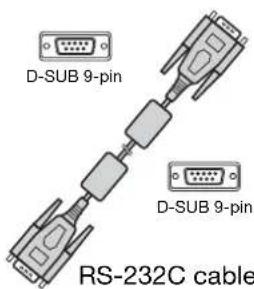
D-SUB 9-pin D-SUB 9-pin RS-232C cable• Used for projector control by computer.
natural_image
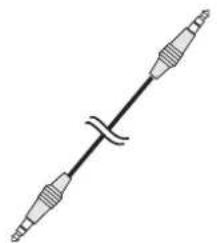
Pure electrical circuit lines without any symbolsRemote control cable (246C424-10)
■Power supply parts Remote control parts

natural_image
Three line drawings of electrical connectors with pins, no text or symbols presentPower cord (two) (246C483-10, 246C383-20)
e control parts

natural_image
Illustration of a remote control with two batteries (no text or symbols on the devices themselves)Remote control (290P136-20)
R6 (size-AA)
battery (two)
Others
- Lens cap (Attached to the projector)
• Terminal cover (750A561-10) - Quick Start up (857D079-10)
• CD-ROM (919C151-10)
• Safety manual (871D468-10)
Important:
- The attached power cords are to be used exclusively for this product. Never use them for other products.
1

3

2
natural_image
Diagram of a remote control device showing battery pack and internal components (no text or labels)Inserting the batteries into the remote control
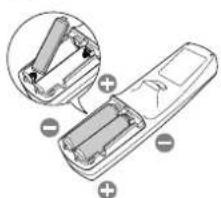
- Remove the rear lid of the remote control.
- Check the polarity (+), (-) of the batteries, and set them correctly, inserting their (-) side first.
- If the battery is inserted from the (+) side fi rst, inserting the (-) side is diffi cult because the coil spring end hits on the battery side. If the battery is forced to insert in this way, the outer label of the battery may get ripped and it may cause a short-circuit and heating.
- Attach the rear lid.
Important:
- Use two size-AA batteries (R6).
- Replace the 2 batteries with new ones when the remote control is slow to operate.
CAUTION:
- Use of a battery of wrong type may cause explosion.
- Only Carbon-Zinc or Alkaline-Manganese Dioxide type batteries should be used.
- Dispose of used batteries according to your local regulations.
- Batteries may explode if misused. Do not recharge, disassemble, or dispose of them in fire.
- Be sure to handle the batteries according to the instructions.
- Load the batteries with its positive (+) and negative (-) sides correctly oriented as indicated on the remote control.
- Keep batteries out of reach of children and pets.
- Remove the batteries, if the remote control is not used for a long time.
- Do not combine a new battery with an old one.
- If the solution of batteries comes in contact with your skin or clothes, rinse with water. If the solution comes in contact with your eyes, rinse them with water and then consult your doctor.
Overview

text_image
1 2 6 3 4 5 7 8Control panel

flowchart
graph TD
    A["Power"] --> B["STATUS"]
    C["AUTO POSITION"] --> D["KEYSTONE"]
    E["COMPUTER"] --> F["ENTER"]
    G["VIDEO"] --> H["VIDEO"]
    I["MENU"] --> J["VOLUME"]
    K["ZOOM/FOCUS"] --> L["LENS SHIFT"]
    M["10"] --> N["11"]
    O["9"] --> P["8"]
    Q["7"] --> R["6"]
1 Speaker
2 Control panel (inside the cover)
3 Air outlet grille
4 Remote control sensor (Front)
5 Air inlet grille
6 Remote control sensor (Rear)
7 Terminal board
8 Air outlet grille
1 POWER button
2 AUTO POSITION ▲ button
3 COMPUTER ↕ button
4 KEYSTONE / ENTER button
5 MENU button
6 ZOOM / FOCUS button
7 LENS SHIFT button
8 VOLUME ▼ button
9 VIDEO ▶ button
10 POWER indicator
11 STATUS indicator
Important:
- While the menu or the screen for the keystone, lens shift and zoom/focus adjustment, or password entry is being displayed, the COMPUTER, VIDEO, AUTO POSITION and VOLUME buttons function as the ◀, ▶, ▲ and ▼ buttons respectively.
- While the menu is on the screen, the KEYSTONE button functions as the ENTER button.
Terminal board

text_image
234567 LAN MAM 8 9 10 11 12 13 1415 16 DC /AT TV (USB) /MAM USB USB USB USB USB USB7 Kensington Security Lock Standard connector
8 Main power switch
O:Off I:ON
9 Power jack
10 USB terminal
11 SERIAL terminal (D-SUB 9-pin)
• Used for projector control by computer. Contact your dealer for details.
12 REMOTE IN / OUT jack
13 MONITOR OUT terminal (Mini D-SUB 15-pin)
14 AUDIO OUT terminal (Mini jack)
15 AUDIO IN-2 terminal (Mini jack)
16 VIDEO IN and AUDIO IN terminals
1 LAN terminal
• Used for projector control by computer.
2 COMPUTER / COMPONENT VIDEO DVI-D (HDCP) terminal (DVI-D 24-pin)
3 COMPUTER / COMPONENT VIDEO IN-2 terminal (R/P R , G/Y, B/P B , H/HV, V) (BNC)
4 COMPUTER / COMPONENT VIDEO IN-1 terminal (Mini D-SUB 15-pin)
5 AUDIO IN-1 terminal (Mini jack)
6 Power terminal for wireless LAN unit (DC OUT 5V 1.5A MAX)
- Do not use the power terminal as a power for other devices than the specified wireless LAN unit. (Wireless LAN unit isn't packaged together with the projector.)
Bottom side
text_image
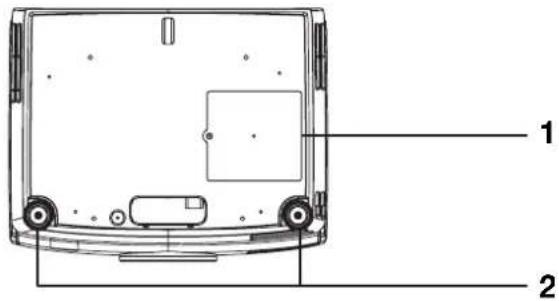
Technical diagram of a device rear view with labeled components 1 and 21 Lamp cover
2 Adjustment feet
Caution:
Do not replace the lamp immediately after using the projector because the lamp would be extremely hot and it may cause burns.
Remote control

text_image
1 2 3 4 5 6 7 8 9 10 11 12 13 14 15 16 17 18 19 20 21 22 23 24 25 26 27 28 29 30 CAUTION UNDERSTRENGTH CHATT STABLE SWITCH MAXI LENGTH OF 200mm MAXI FLIGHT OF 100mm CLASS 3 ASSEMBLATE SWITCH CONJERED ON CHILLING AND COOKING BEVERING ON CHILLING AND COOKING BEVERING ON CHILLING AND COOKING BEVERING ON CHILLING AND COOKING BEVERING ON CHILLING AND COOKING BEVERING ON CHILLING AND COOKING BEVERING ON CHILLING AND COOKING BEVERING ON CHILLING AND COOKING BEVERING ON CHILLING AND COOKING BEVERING ON CHILLINUM AND COOKING BEVERING ON CHILLINUM AND COOKING BEVERING ON CHILLINUM AND COOKING BEVERING ON CHILLINUM AND COOKING BEVERING ON CHILLINUM AND COOKING BEVERING ON CHILLINUM AND COOKING BEVERING ON CHILLINUM AND COOKING BEVERING ON CHILLINUM AND COOKING BEVERING CONJERATION & RECOOLERANCE BEVERING CONJERATION & RECOOLERANCE BEVERING CONJERATION & RECOOLERANCE BEVERING CONJERATION & RECOOLERANCE BEVERING CONJERATION & RECOOLERANCE BEVERING CONJERATION & RECOOLERANCE BEVERING CONJERATION & RECOOLERANCE BEVERING CONJERATION & RECOOLERANCE BEVERING CONJERATION & BEVERING CONJERATION & BEVERING CONJERATION & BEVERING CONJERATION & BEVERING CONJERATION & BEVERING CONJERATION & BEVERING CONJERATION & BEVERING CONJERATION & BEVERING CONJERATION & BEVERING CONJERATION & BEVERING CONJERATION & BEVERING CONJERATION & BEVERING CONJERATION & BEVERING IN CHILLINUM AND COOKING BEVERING IN CHILLINUM AND COOKING BEVERING IN CHILLINUM AND COOKING BEVERING IN CHILLINUM AND COOKING BEVERING IN CHILLINUM AND COOKING BEVERING IN CHILLINUM AND COOKING BEVERING IN CHILLINUM AND COOKING BEVERING IN CHILLINUM AND COOKING BEVERING IN CHILLINUM & COOKING BEVERING IN CHILLINUM & COOKING BEVERING IN CHILLINUM & COOKING BEVERING IN CHILLINUM & COOKING BEVERING IN CHILLINUM & COOKING BEVERING IN CHILLINUM & COOKING1 Laser aperture
2 Transmission window
3 Wired remote control jack
4 Indicator
5 POWER button
6 VIDEO button
7 DVI-D(HDCP) button
8 HOME button
9 END button
10 Mouse pointer
11 LENS SHIFT button
12 MENU button
13 ZOOM/FOCUS button
14 + , - (VOLUME) buttons
15 COLOR ENHANCER (CE) button
16 MUTE button (Audio/Video)
17 EXPAND button
18 STILL button
19 PinP button
20 ASPECT button
21 KEYSTONE button
22 ENTER button
23 R-CLICK button
24 Direction buttons
25 LASER button
26 AUTO POSITION button
27 Page Up/Down buttons
28 S-VIDEO button
29 COMPUTER 1, 2 buttons
30 Left click button
- The + and - buttons are used in the KEYSTONE adjustment and the EXPAND mode in addition to the volume control.
- The direction buttons are also used for keystone and lens shift adjustments. The ◀ and ▶ buttons are also used for adjustment of the sub image display position in the PinP mode and zoom/focus adjustment.
- Pressing the LASER button emits a laser beam. Even when you keep holding down the LASER button, it is emitted only one minute. To keep emitting it longer, press the LASER button again.
- You can disable the LASER button to prevent laser radiation due to misuse of the button.
How to disable the LASER button
While holding the LASER button down, press the ▼ button 3 times.
How to enable the LASER button
While holding the LASER button down, press the ▲ button 3 times.
- Whenever the batteries are replaced, the LASER button is enabled.
About the laser beam
This remote control is a Class 2 laser product. (Max. output : 1 mW, Wavelength : 620-640 nm)
Beam Divergence : 6 m distance about 10.0 mm x 10.0 mm (±6.0 mm)
CAUTION :
- Pressing the LASER button on the remote control emits a laser beam. Do not look into the laser beam directly. Do not point the laser beam at anyone. Looking at the laser beam directly may damage eyesight.
- Use of controls or adjustments or procedures other than those specified herein may result in hazardous radiation exposure.
• This remote controller cannot be repaired.
EN-8
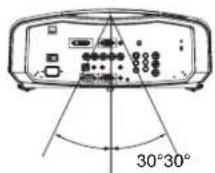
Operational range of the remote control
Front of projector
text_image
30°30°Rear of projector
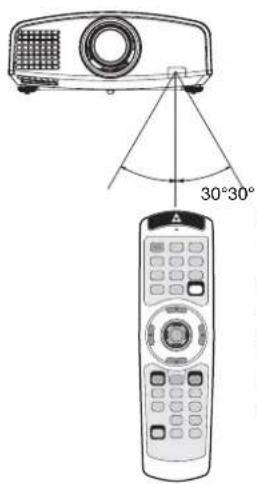
Operate the remote control within a distance of 10 m from the projector, pointing the light beam at the remote control photo-sensor (front or rear) of the projector.

- Keep the remote control photo-sensor out of direct sunlight or fluorescent lamp light.
- Keep the remote control photo-sensor at least 2 m away from fl fluorescent lamps. Otherwise, the remote control may malfunction.
- If there is an inverter-operated fl uorescent lamp near the remote control, the remote control operation may become unstable.
- When you use the remote control too close to the remote control sensor, the remote control may not work correctly.
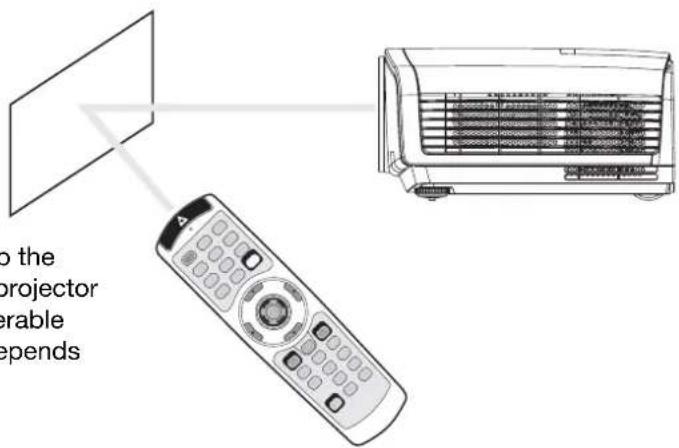
text_image
to the projector reversible dependsWhen operating the remote control, keep the distance from the remote control to the projector via the screen within about 7 m. The operable range of the remote control, however, depends on the characteristics of the screen.
Reception angle
Vertical directions

text_image
20° 5° 20° 5°Vertical directions (ceiling mount)
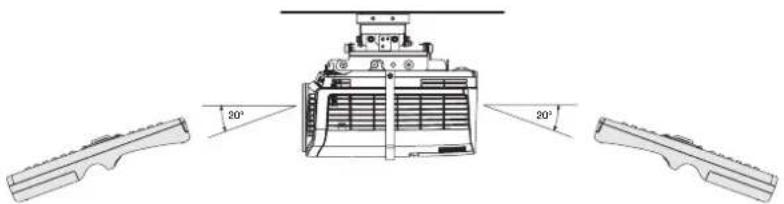
text_image
30° 20°Using the wired remote control
Attached remote control for this projector can be used as a wired remote control with remote control cable. Wired remote control is useful for operating in a distance or outside of the operation area.
- When the remote control is connected with remote control cable, it does not as a wireless remote control.
- When using the wired remote control, the laser beam may be darker. It is normal.
- When REMOTE OUT terminal on this projector is connected to the REMOTE IN terminal on the other projector, the two projectors can be controlled together by using the remote control. (Up to two projectors can be controlled.)
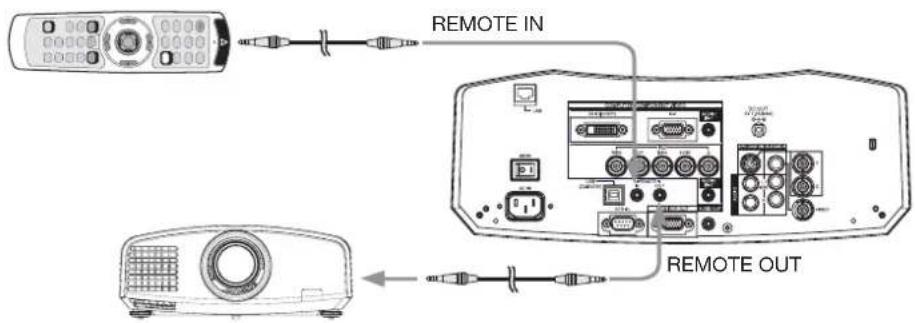
text_image
REMOTE IN REMOTE OUTSetting up the screen
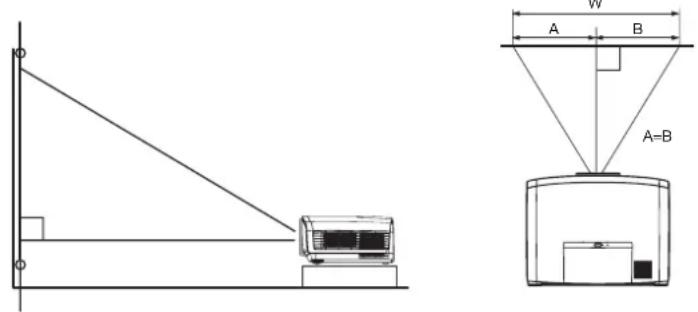
Install the screen perpendicularly to the projector. If the screen can not be installed in such a way, adjust the projection angle of the projector. (See below.)
- Install the screen and projector so that the projector's lens is placed at the same height and horizontal position of the screen center.
- Do not install the screen where it is exposed to direct sunlight or lighting. Light directly reflecting on the screen makes the projected images whitish and hard to view.
Basic setup
Determine the distance from the screen to the projector according to the size of the images to be projected. (See page 12.)
text_image
Technical diagram showing a mechanical setup with a beam and a device, alongside its cross-section view labeled A=B.- Do not place this projector on a carpet or blanket because the exhaust vent and the intake vent on the bottom surface are blocked and the inside of the projector is heated, causing a breakdown or fire.
- Depending on the installation conditions, warm air that is emitted from the exhaust vents may flow into the intake vent, causing the projector to display “TEMPERATURE!!” and then stop projecting images.
Adjusting the projection angle
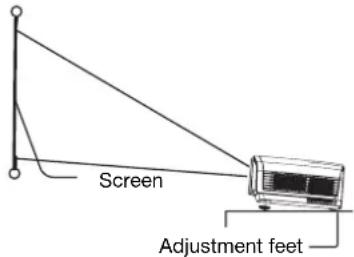
This projector is provided with 2 feet for adjusting the projection angle on the bottom surface. Adjust the projection angle depending on the position of the projector.
Adjustment of the projection angle
For the best projection, project images on a fl at screen installed at 90 degrees to the floor. If necessary, tilt the projector using 2 adjustment feet on the bottom of the projector.
text_image
Screen Adjustment feet- Tilt up the projector to the appropriate angle.
- Rotate the adjustment feet for fine adjustment.
After using the projector:
- Put the adjustment feet back into the projector by rotating the adjustment feet.
- You can adjust the vertical and horizontal position of the displayed image using the LENS SHIFT button. See page 12.
Keystone adjustment
- To correct vertical and horizontal keystone distortion, press the KEYSTONE button on the projector or the remote control to display KEYSTONE, and adjust the image by pressing the ▶, ◀, ▲ or ▼ button (or VOLUME + or - button on the remote control).

Press the ◀ button.

Press the ▶ button.

Press the ▼ (or -) button.

Press the ▲ (or +) button.
- You can correct the vertical and horizontal keystones at the same time. However, their adjustment ranges are limited in such correction.
- When the keystone adjustment is carried out, the adjustment value is indicated. Note that this value doesn't mean a projection angle.
- The allowable range of the adjustment value in the keystone adjustment varies depending on the installation conditions.
- When the keystone adjustment takes effect, the resolution decreases. In addition, stripes may appear or straight lines may bend in images with complicated patterns. They are not due to product malfunctions.
- Noise may appear on the screen during the keystone adjustment because of the type of the video signal being projected and the setting values of the keystone adjustment. In such cases, set the keystone adjustment values in the range where the image is displayed without noise.
- When the keystone adjustment is carried out, the image may not be displayed correctly because of the type of input signal.
- Displayed image may be distorted during keystone adjustment.
- For proper keystone adjustment results, reset the lens to the factory-adjusted position using LENS SHIFT RESET in the INSTALLATION menu before carrying out keystone adjustment. (See page 23.)
Front projection, ceiling mounting
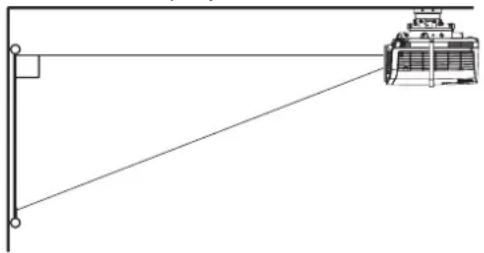
For ceiling mounting, you need the ceiling mount kit designed for this projector. Ask a specialist for installation. For details, consult your dealer.
- The warranty on this projector does not cover any damage caused by use of any non-recommended ceiling mount kit or installation of the ceiling mount kit in an improper location.
natural_image
Simple line drawing of a right-angle mechanical structure with a mounted device (no text or symbols)- When using the projector mounted on the ceiling, set IMAGE REVERSE in the INSTALLATION menu to MIRROR INVERT. See page 23.
- When the projector is mounted on the ceiling, images may appear darker than those projected in the case of tabletop mounting. This isn't a product malfunction.
- Ask your installation specialist to provide a breaker. When you do not use the projector, be sure to shut down the main power by the breaker.
- Do not install the projector where the exhaust vents are exposed to air emitted by an air conditioning. Such installation may cause a breakdown.
- Do not install the projector near a fi re alarm because it emits hot air from its exhaust vents.
Rear projection
Ask a specialist for installation. For details, consult your dealer.

natural_image
Simple line drawing of a right triangle with an object on the ground and a small square at the base (no text or symbols)- For rear projection, set IMAGE REVERSE in the INSTALLATION menu to MIRROR. See page 23.
Caution:
- Placing the projector directly on a carpet impairs ventilation by the fans, causing damage or failure. Put a hard board under the projector to facilitate ventilation.
- Place the projector at least 50 cm (or 20 inches) away from the wall to prevent the air inlet grille and the air outlet grilles that emit hot air from being blocked.
- Do not use the projector in the following locations and manners, which may cause fire or electric shock.
• In a dusty or humid place. - In a sideways or upside-down position.
- Near a heater.
- In an oily, smoky, or damp place such as a kitchen.
• In direct sunlight. - Where the temperature rises high, such as in a closed car.
- Where the temperature is lower than +41°F (or +5°C) or higher than +104°F (or +40°C).
Important:
- We don't recommend using the projector at an altitude of 1500 meters or higher. Use at an altitude of 1500 meters or higher may affect the projector's life.
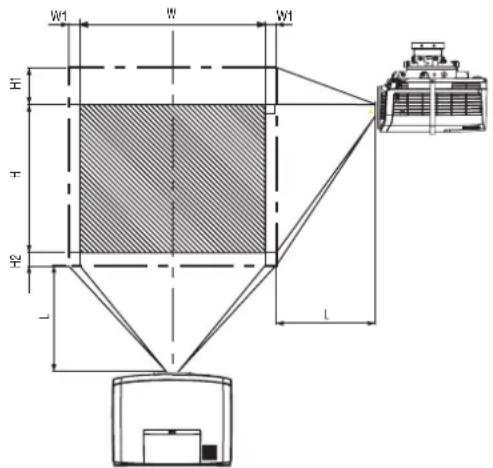
Screen size and projection distance
Refer to the following table to determine the screen size.
Front projection

text_image
W1 W2 H2 H H1 L W1 W2 L LFront projection, ceiling mounting
text_image
W1 W W1 H1 H H2 L LWhen the aspect ratio of the screen is 4:3
| Screen size | Projected distance (L) Lens | movable range | |||||||||||||
| 4:3 Diagonal size | Height (H) | Width (W) | Min. | Max. | (H1) | (H2) | width (W1) | ||||||||
| inch | cm | inch | cm | inch | cm | inch | m | inch | m | inch | cm | inch | cm | inch | cm |
| 40 | 102 | 24 | 61 | 32 | 81 | 54 | 1.4 | 74 | 1.9 | 12 | 30 | 2 | 6 | 3 | 8 |
| 60 | 152 | 36 | 91 | 48 | 122 | 82 | 2.1 | 112 | 2.8 | 18 | 46 | 3 | 9 | 5 | 12 |
| 80 | 203 | 48 | 122 | 64 | 163 | 110 | 2.8 | 150 | 3.8 | 24 | 61 | 4 | 11 | 6 | 16 |
| 100 | 254 | 60 | 152 | 80 | 203 | 138 | 3.5 | 189 | 4.8 | 30 | 76 | 6 | 14 | 8 | 20 |
| 150 | 381 | 90 | 229 | 120 | 305 | 208 | 5.3 | 284 | 7.2 | 45 | 114 | 8 | 21 | 12 | 30 |
| 200 | 508 | 120 | 305 | 160 | 406 | 279 | 7.1 | 380 | 9.7 | 60 | 152 | 11 | 28 | 16 | 41 |
| 250 | 635 | 150 | 381 | 200 | 508 | 349 | 8.9 | 476 | 12.1 | 75 | 191 | 14 | 36 | 20 | 51 |
| 300 | 762 | 180 | 457 | 240 | 610 | 419 | 10.6 | 571 | 14.5 | 90 | 229 | 17 | 43 | 24 | 61 |
- The above figures are approximate and may be slightly different from the actual measurements.
- The lens movable range shows distances from the factory default position.
LENS SHIFT button
To adjust the positions of the projector and the screen, use LENS SHIFT button.
- Press the LENS SHIFT button.
- Press the ▲, ▼,◀ or ▶button to move the image position.
Every time the ▼ button is pressed, the image moves down.
Every time the ▲ button is pressed, the image moves up.
Every time the ▶ button is pressed, the image moves to the right.
Every time the ◀ button is pressed, the image moves to the left.
- When you hold down these buttons for 2 seconds or longer, the displayed image moves fast in the corresponding directions.
- Be careful not to be caught in the opening in the lens while the lens is moving.
A. Connecting the projector to a computer
Preparation:
• Make sure that the power of the projector and that of the computer are turned off.
- When connecting the projector to a desktop computer, disconnect the RGB cable that is connected to the monitor.

text_image
COMPUTER IN/COMPONENT VIDEO IN-1 1 2 to monitor port RGB cable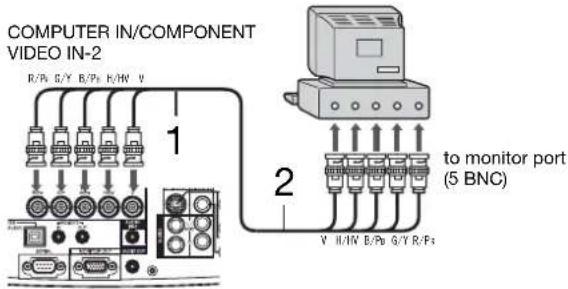
text_image
COMPUTER IN/COMPONENT VIDEO IN-2 R/Ps G/Y B/Ps R/W V 1 2 to monitor port (5 BNC) V H/M B/Ps G/Y R/Ps
text_image
DVI-D (HDCP) 1 2 to DVI DVI cable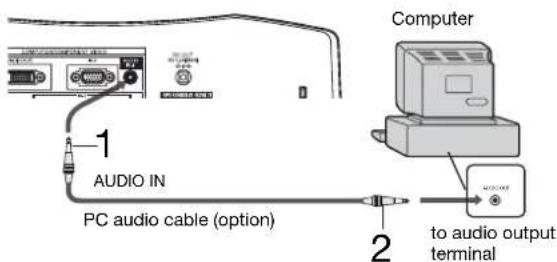
text_image
1 AUDIO IN PC audio cable (option) 2 Computer to audio output terminalFor analog connection:
(For using the COMPUTER/COMPONENT VIDEO IN-1 terminal.)
- Connect one end of the supplied RGB cable to the COMPUTER IN/COMPONENT VIDEO IN-1 terminal of the projector.
- Connect the other end of the RGB cable to the monitor port of the computer.
- When viewing images supplied from an analog-connected computer, press the COMPUTER button on the remote control.
For analog connection:
(For using the COMPUTER/COMPONENT VIDEO IN-2 terminal.)
- Connect one end of a commercially BNC cable to the COMPUTER IN/COMPONENT VIDEO IN-2 terminal of the projector.
- Connect the other end of the BNC cable to the 5 BNC terminals of the monitor port of the computer.
For digital connection:
- Connect one end of a commercially available DVI cable to the DVI-D (HDCP) terminal of the projector.
-
Connect the other end of the DVI cable to the DVI terminal of the computer.
-
When viewing images supplied from a digital-connected computer, press the DVI-D(HDCP) button on the remote control.
- Turn on the main power switch of the projector before starting the computer.
For audio connection:
- Connect one end of a commercially available PC audio cable to the AUDIO IN-1/2 terminal of the projector.
- Connect the other end of the PC audio cable to the audio output terminal of the computer.
- This projector uses stereo pin jack for its audio input. Check the type of the audio output terminal of the connected computer and prepare a proper cable for connection. Some computers don't have the audio output terminal.
- Speaker output is mono.
- Additional devices, such as a conversion connector and an analog RGB output adapter, are required depending on the type of the computer to be connected.
- Use of a long cable may decrease the quality of projected images.
- Images may not be projected correctly, depending on the type of the connected computer.
- When DVI-D signal is input, some signal setting menus are unavailable.
- Also read the instruction manual of the equipment to be connected.
- Contact your dealer for details of connection.

text_image
MONITOR 1 MONITOR OUT RGB cable Monitor 1 AUDIO OUT Audio cable (option) to audio input 2About DDC
The COMPUTER/COMPONENT VIDEO IN-1 terminal of this projector complies with the DDC1/2B standard and the COMPUTER/COMPONENT VIDEO DVI-D (HDCP) terminal complies with the DDC2B standard. When a computer supporting this standard is connected to this terminal, the computer will automatically load the information from this projector and prepare for output of appropriate images.
- When connecting a DDC-supporting computer to the projector, turn on the main power switch of the projector before starting the computer.
B. Plugging the power cord
text_image
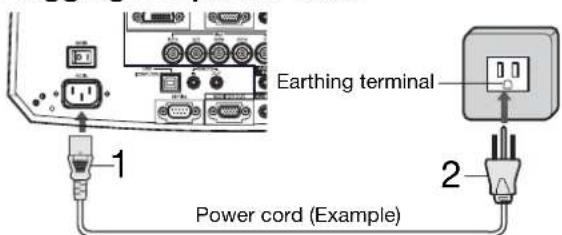
Earthing terminal 1 Power cord (Example) 2- The power cords for use in the U.S. and Europe are included with this projector. Use the appropriate one for your country.
- This projector uses the power plug of 3-pin grounding type. Do not take away the grounding pin from the power plug. If the power plug doesn't fit your wall outlet, ask an electrician to change the wall outlet.
- The provided power cord for the U.S. is rated at 120 V. Never connect this cord to any outlet or power supply using other voltages or frequencies than rated. If you use a power supply using other voltage than rated, prepare an appropriate power cord separately.
- Use 100-240 V AC 50/60 Hz to prevent fire or electric shock.
- Do not place any objects on the power cord or do not place the projector near heat sources to prevent damage to the power cord. If the power cord should be damaged, contact your dealer for replacement because it may cause fire or electric shock.
- Do not modify or alter the power cord. If the power cord is modified or altered, it may cause fire or electric shock.
Caution:
- Plug in the power cord firmly. When unplugging, hold and pull the power plug, not the power cord.
- Do not plug in or out the power cord with your hand wet. It may cause electric shock.
Terminal cover
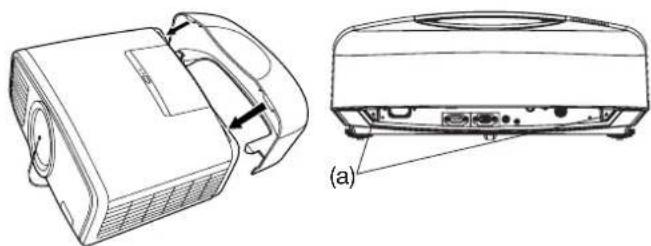
This projector includes a terminal cover. If necessary, install the terminal cover to the projector.
natural_image
Technical line drawing of a projector with labeled component (a), showing front and side views without any text or symbols.EN-14
For monitor connection:
- Connect one end of the RGB cable that is connected to the MONITOR OUT terminal of the projector.
For audio output connection:
- Connect one end of a commercially available audio cable to the audio output terminal of the projector.
- Connect the other end (white and red) of the audio cable to the audio output terminals (L, R) of the audio equipment.
- When the audio cable is connected to the AUDIO OUT terminal, the speaker output is muted.
Install the terminal cover
- Fit two hooks of the terminal cover into the projector.
- Tighten the attachment screws (a) firmly.
- Don't carry the projector by the terminal cover.
C. Projecting images
Preparation:
- Remove the lens cap.
text_image
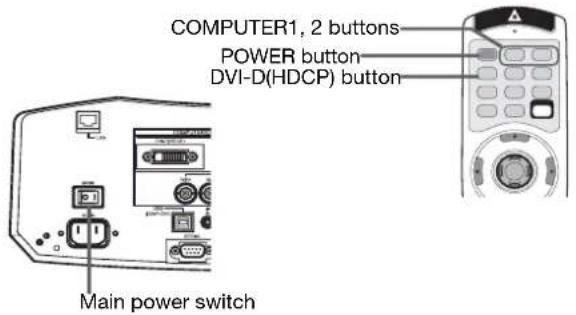
COMPUTER1, 2 buttons POWER button DVI-D(HDCP) button Main power switch
text_image
POWER button POWER CISTATUS COMPUTER button AUTO POSITION KEYSTONE COMPUTER ENTER VIDEO MENU VOLUME ZOOM/FOCUS button ZOOMFOCUS LENS SHIFT LENS SHIFT button- Put the projector into standby mode by pressing the main power switch. The POWER indicator lights up red.
- If the projector was turned off before the lamp was cooled down sufficiently last time, the fan may start rotating and the POWER button may not work after the main power switch is turned ON. (The STATUS indicator blinks green.) After the fan stops rotating, press the POWER button to turn back on the POWER indicator.
-
Turn on the power of the connected computer.
-
Press the POWER button.
- It may take about 1 minute for the lamp to light up.
• The lamp fails to light up on rare occasions. In such a case, wait for a few minutes and then try again.
- Do not cover the lens with the lens cap while the lamp is on. Do not strip off the aluminium sheet inside the lens cap.
- After the POWER button is pressed, the image may fl icker before the lamp becomes stable. This is not a product malfunction.
- Regardless of the setting of LAMP MODE in the INSTALLATION menu, the STANDARD lamp mode is activated by default whenever the projector is turned on. When LAMP MODE has been set to LOW, the lamp mode changes from STANDARD to LOW about 1 minute after turn-on.
- The projector starts warming up when the POWER button is pressed. During the warm-up process, images may appear dark and no commands are accepted.
- By blinking red, the STATUS indicator indicates that the lamp should be replaced soon. Replace the lamp when the STATUS indicator blinks red. (See page 34 and 37.)
-
Press the ZOOM/FOCUS button on the projector or on the remote control to display "FOCUS".
-
Adjust with the◀ or ▶ button to get a fi ne picture.
-
Select an input source.
- Press the COMPUTER button on the projector or the COMPUTER1, COMPUTER2 or DVI-D(HDCP) button on the remote control that is corresponding to the terminal in use.
- The input source is switched from COMPUTER1 to COMPUTER2 to DVI at every press of the COMPUTER button on the projector.
- The projector automatically selects the appropriate signal format. The selected signal format is displayed on the screen.
- The COMPUTER and VIDEO buttons don't function while the menu is being displayed.
- Though it may take some time before an image is displayed on the screen depending on the type of the input signal, such symptom is not a malfunction.
- Images may not be projected in the correct position, depending on the type of the input signal. In such a case, press the AUTO POSITION button. (See page 16.)
- When COMPUTER1 or COMPUTER2 is chosen as the source, images supplied from the computer may flicker. Press the ◀ or ▶ button on the remote control to reduce flicker, if it occurs.
-
Adjust the position of the projector to keep an appropriate projection distance with which images are projected in their specified sizes.
-
Adjust the position of the projector so that the projector and the screen are perpendicular to each other. (See page 10.)
- When the projector cannot be positioned perpendicularly to the screen, adjust the projection angle. (See page 10.)
-
Press the ZOOM/FOCUS button on the projector or on the remote control to display "FOCUS" and then press the button again to display "ZOOM."
-
Adjust with the ◀ or ▶ button to get an approximate size.
-
Press the LENS SHIFT button. "LENS SHIFT" will appear on the display.
-
Press the ▲ or ▼ button to adjust the vertical position and ◀ or ▶ button to adjust the horizontal position of the displayed image.
Repeat steps 4, 5 and 9 to 12, if necessary.
Important :
- Focus, zoom and lens shift adjustment is possible in the normal picture mode only. In PinP or EXPAND mode, the adjustment is prohibited.
- When you press the ZOOM/FOCUS button or LENS SHIFT button while no signal is supplied, a blue background screen is displayed.
- When a 16:9 image is kept displayed for a long time before displaying 4:3 image, the afterimages of the black bars may appear on the 4:3 image screen. Consult your dealer in this case.
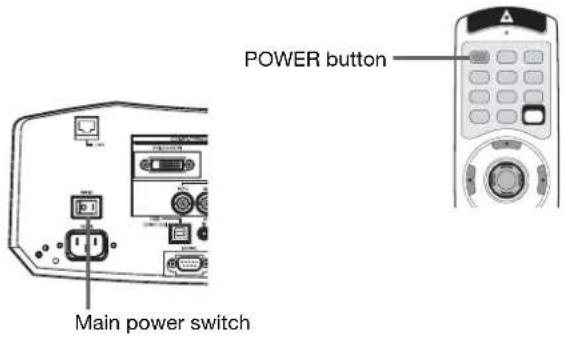
text_image
POWER button Main power switch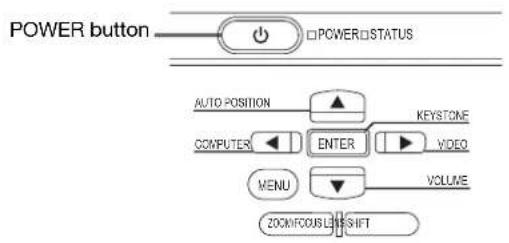
text_image
POWER button POWER STATUS AUTO POSITION COMPUTER ENTER KEYSTONE VIDEO MENU VOLUME ZOOM/COUS LHS/SHIFTTo stop projecting:
- Press the POWER button.
• A confirmation message is displayed.
• To cancel the procedure, leave the projector for a while or press any button except the POWER button.
- Press the POWER button again.
- The lamp goes out and the projector goes into a standby mode. In this standby mode, the STATUS indicator blinks green.
- Wait about 2 minutes for the STATUS indicator to be turned off.
• During this period of 2 minutes in the standby mode, the intake fan and exhaust fan rotate to cool the lamp.
- Turn off the main power switch.
• The POWER indicator will go out.
- Cover the lens with the lens cap to protect it from dust.
- For safety's sake, unplug the power cord from the outlet.
Instant Shut Down
You can turn off this projector just by turning off the power switch or unplugging the power cord without pressing the POWER button.
- Don't shut down the projector while the STATUS indicator is blinking after the lamp lights up because the lamp's life may be shortened.
- Don't turn the projector back on right after shutting it down because the lamp's life may be shortened. (Wait about 10 minutes before turning the projector back on.)
- Before shutting down the projector, be sure to close the menu screen. If you shut down the projector without closing the menu, the setting data of the menu may not be saved.
- If you shut down the projector while controlling the projector using the network function, the application software such as ProjectorView may fail. For details, see "User Guide of LAN Control Utility" contained in the CD-ROM.
AUTO POSITION button
When the image supplied from the computer is displaced, carry out the following procedure.
- Display a bright image (such as a full-screen display of the Recycle Bin window).
- When the screen saver has been enabled, disable it.
- Press the AUTO POSITION button.
The projector automatically makes optimum positional settings for the input signal.
- If the image is not projected in the correct position even after you press the AUTO POSITION button several times, change the settings in the SIGNAL menu to put the image in the correct position. (See page 27.)
- When you carry out this procedure with a dark image, the image may be displaced.
When connecting to a notebook computer:
When the projector is connected to a notebook computer, images may not be projected in some cases. In such cases, set the computer so that it can output signals externally. The setting procedure varies depending on the type of the computer. See the instruction manual of your computer.
Example of the setting procedure for external output
Press the [Fn] key and any of the keys [F1] to [F12] at the same time. (The key to be pressed depends on the type of the computer you use.)
A. Connecting the projector to video equipment
Preparation:
- Make sure that the power of the projector and that of the video equipment are turned off.
Connecting to a video player, etc.
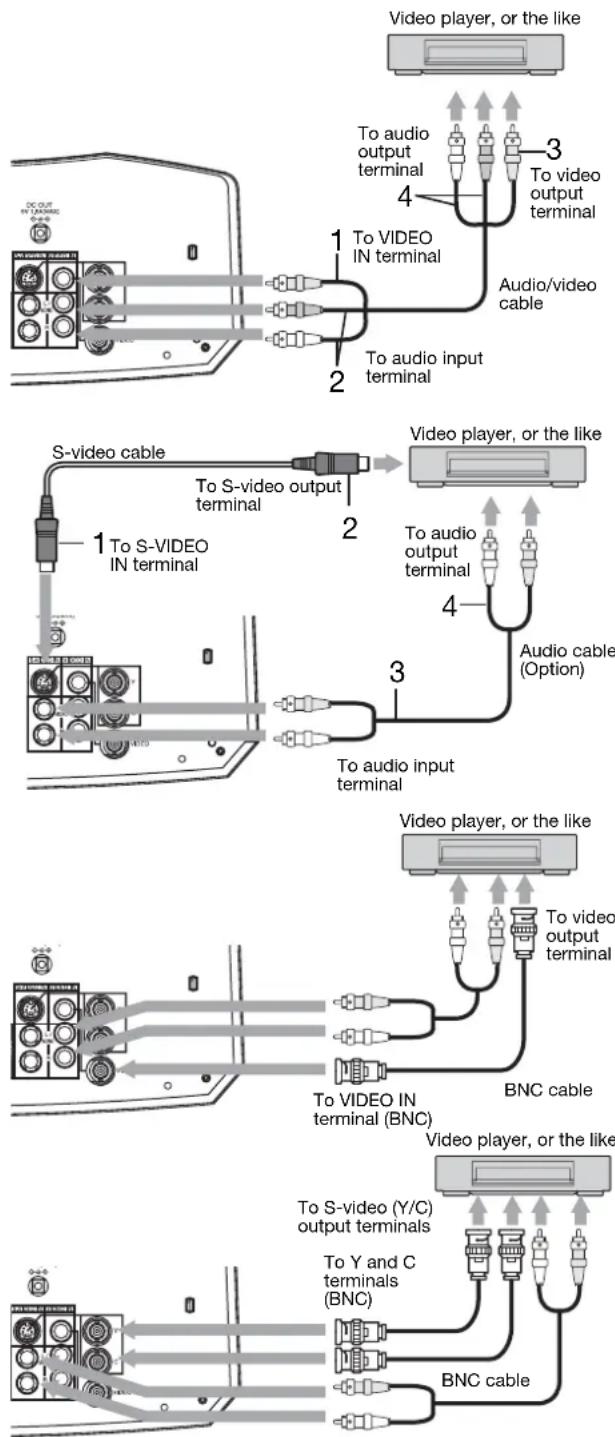
flowchart
graph TD
    A["Video player, or the like"] --> B["To audio output terminal"]
    B --> C["To video output terminal"]
    C --> D["Audio/video cable"]
    D --> E["To audio input terminal"]
    E --> F["S-video cable"]
    F --> G["To S-video IN terminal"]
    G --> H["Video player, or the like"]
    H --> I["To audio output terminal"]
    I --> J["Audio cable (Option)"]
    J --> K["To audio input terminal"]
    K --> L["To video output terminal"]
    L --> M["BNC cable"]
    M --> N["Video player, or the like"]
    N --> O["To video output terminal"]
    O --> P["To video output terminal"]
    P --> Q["To S-video (Y/C) output terminals"]
    Q --> R["To Y and C terminals (BNC)"]
    R --> S["BNC cable"]
- Connect one end (yellow) of the supplied audio/video cable to the VIDEO IN terminal of the projector.
- Connect one end (white and red) of the supplied audio/video cable to the audio input terminals (L/MONO, R) of the projector.
- Connect the other end (yellow) of the audio/video cable to the video output terminal of the video equipment.
- Connect the other end (white and red) of the audio/video cable to the audio output terminals (L, R) of the video equipment.
When the video equipment is equipped with the S-video output terminal, make the connection as follows.
- Connect one end of a commercially available S-video cable to the S-VIDEO IN terminal of the projector.
- Connect the other end of the S-video cable to the S-video output terminal of the video equipment.
- Connect one end (white and red) of the supplied audio/video cable to the audio input terminals (L/MONO, R) of the projector.
- Connect the other end (white and red) of the audio/video cable to the audio output terminals (L, R) of the video equipment.
When using the BNC connector:
(For VIDEO input)
- When the video output terminal of the connected video equipment is BNC type, use the VIDEO IN terminal (BNC type).
- Select VIDEO as the input source.
- When using the VIDEO IN terminal (BNC type) and the VIDEO IN terminal (RCA type) at the same time, the video signal input to the VIDEO IN terminal (RCA type) takes priority.
When using the BNC connector:
(For S-VIDEO input)
- When the video output terminals of the connected video equipment are BNC (Y/C) type, connect Y and C to the S-VIDEO IN terminals (BNC type) respectively.
- Select S-VIDEO as the input source.
-
When using the S-VIDEO IN terminals (BNC type) and the S-VIDEO IN terminal (S type) at the same time, the video signal input to the S-VIDEO IN terminal (S type) takes priority.
-
When connecting a monophonic video device, use the white (L) terminal to connect the audio cable. (The same audio signal is output from the channels L and R of the AUDIO OUT terminal.)
- Also read the instruction manual of the equipment to be connected.
- Contact your dealer for details of connection.
When a TV tuner or VCR is connected:
When you use this projector with a TV tuner or VCR connected, no image may appear or a message of NO SIGNAL may appear on the screen when you change the channel via any channel that is not being received. In such a case, set the channels of the TV tuner or VCR again. To avoid such symptom, use the TV tuner or VCR with its channel skip function (that is a function not to display channels that are not being received) enabled.
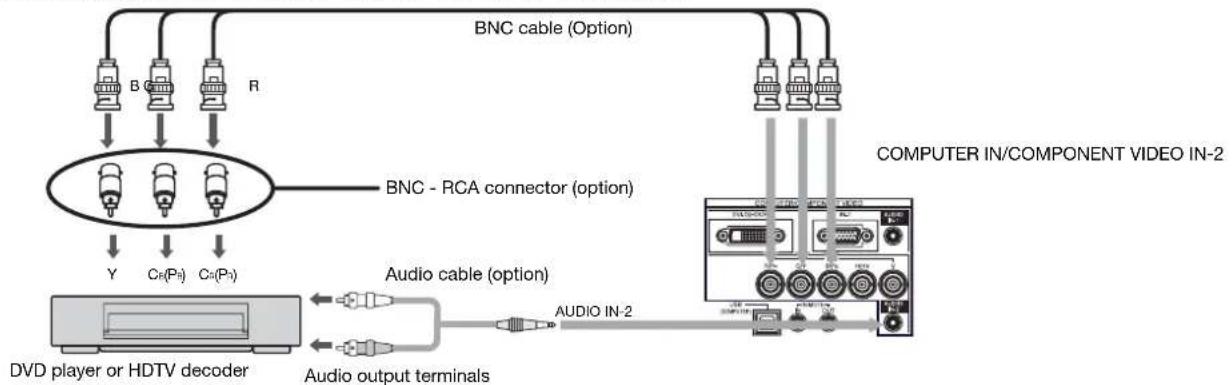
Projector + DVD player or HDTV decoder
Some DVD players have an output connector for 3-line fitting (Y, C_B , C_R ). When connecting such DVD player with this projector, use the COMPUTER/COMPONENT VIDEO IN-2 terminals.
flowchart
graph TD
    A["BC"] --> B["BNC cable (Option)"]
    C["R"] --> B
    D["C#(P1)"] --> E["BNC - RCA connector (option)"]
    F["C#(P1)"] --> E
    G["Y"] --> H["DVD player or HDTV decoder"]
    I["C#(P1)"] --> H
    J["Audio output terminals"] --> K["AUDIO IN-2"]
    L["COMPUTER IN/COMPONENT VIDEO IN-2"] --> M["Computer In-Component Video IN-2"]
- The terminal's names Y, P_B , and P_R are given as examples of when a HDTV decoder is connected.
- The terminal's names vary depending on the connected devices.
- Use BNC cables for connection.
- Image may not be projected correctly with some DVD players.
- If colors aren't displayed correctly when the projector is connected to a high-definition video device having R, G, and B output terminals, set COMPUTER INPUT to RGB in the SIGNAL menu.
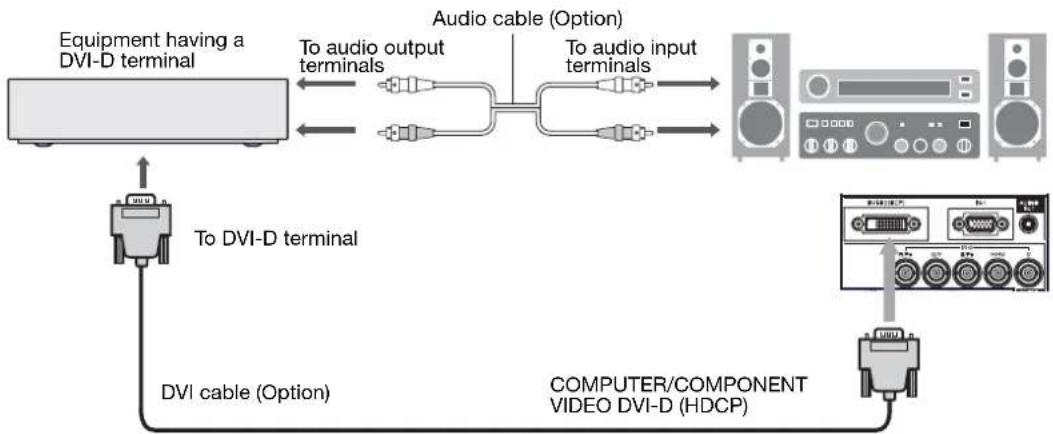
Connecting to video equipment having a DVI-D terminal
You can project high-quality images by connecting the DVI-D terminal of this projector to video equipment having a DVI-D output terminal. In addition, this projector supports HDCP and is able to receive encrypted digital video data that are output from DVD players.
flowchart
graph LR
    A["Equipment having a DVI-D terminal"] -->|To audio output terminals| B["Audio cable (Option)"]
    A -->|To audio input terminals| C["Audio cable (Option)"]
    B --> D["Computer/Component Video DVI-D (HDCP)"]
    C --> D
    E["DVI cable (Option)"] --> A
- Use DVI cable for connection.
- Select DVI as the input source.
- Only RGB signals are supported. Component video signals are not supported.
- HDCP (High-bandwidth Digital Content Protection), developed by Intel Corporation, is a method to encrypt digital video data for the purpose of copy protection.
- When DVI-D signal is input, some signal setting menus are unavailable.
When you connect this projector and a DVI-Digital device (such as a DVD player) via the DVI-D (HDCP) terminal, black color may appear dark and deep, depending on the type of the connected device.
- This depends on the black level setting of the connected device. There are 2 kinds of methods to digitally transfer image data, in which different black level settings are employed respectively. Therefore, the specifications of the signals output from DVD players differ, depending on the type of the digital data transfer method they use.
- Some DVD players are provided with a function to switch the methods to output DVI-Digital signals. When your DVD player is provided with such function, set it as follows.
EXPAND or ENHANCED → NORMAL
• See the users guide of your DVD player for details.
- When your digital device does not have such function, adjust the BRIGHTNESS to +16 and CONTRAST to -17 in the IMAGE menu of this projector, or adjust the black color by viewing the image.
B. Plugging in the power cord
Plug the power cord in the same way as in the case of "Viewing computer images." (See page 14.)
C. Projecting images
Preparation:
- Remove the lens cap.
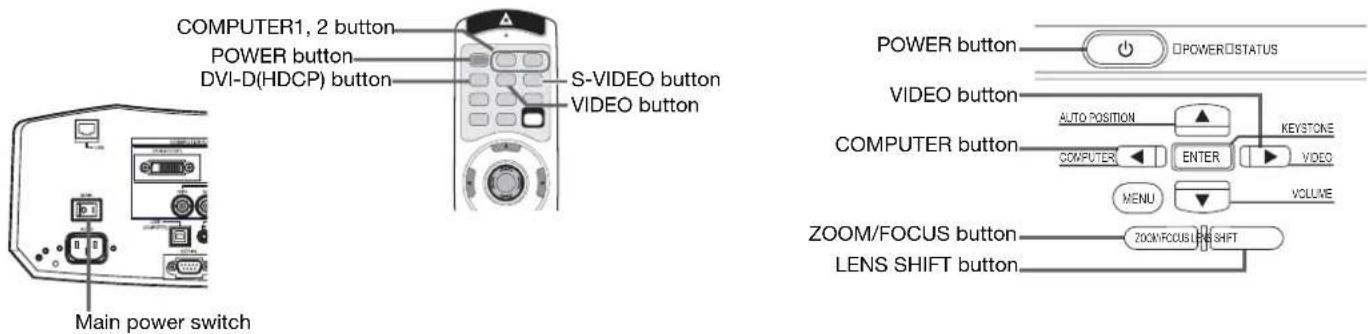
- Put the projector into standby mode by pressing the main power switch. The POWER indicator lights up red.
- If the projector was turned off before the lamp was cooled down sufficiently last time, the fan may start rotating and the POWER button may not work after the main power switch is turned ON. (The STATUS indicator blinks green.) After the fan stops rotating, press the POWER button to turn back on the POWER indicator.
-
Turn on the power of the connected video equipment.
-
Press the POWER button.
-
It may take about 1 minute for the lamp to light up.
• The lamp fails to light up on rare occasions. In such a case, wait for a few minutes and then try again. - Do not cover the lens with the lens cap while the lamp is on. Do not strip off the aluminium sheet inside the lens cap.
- After the POWER button is pressed, the image may fl icker before the lamp becomes stable. This is not a product malfunction.
- Regardless of the setting of LAMP MODE in the INSTALLATION menu, the STANDARD lamp mode is activated by default whenever the projector is turned on. When LAMP MODE has been set to LOW, the lamp mode changes from STANDARD to LOW about 1 minute after turn-on.
- The projector starts warming up when the POWER button is pressed. During the warm-up process, images may appear dark and no commands are accepted.
-
By blinking red, the STATUS indicator indicates that the lamp should be replaced soon. Replace the lamp when the STATUS indicator blinks red. (See page 34 and 37.)
-
Press the ZOOM/FOCUS button on the projector or on the remote control to display "FOCUS".
-
Adjust with the ◀ or ▶ button to get a fine picture.
-
Select an input source.
-
Press the VIDEO button on the projector or the VIDEO or S-VIDEO button on the remote control that is corresponding to the terminal in use.
- The input source is switched between VIDEO and S-VIDEO at every press of the VIDEO button on the projector.
- The VIDEO, S-VIDEO and COMPONENT buttons don't function while the menu is being displayed.
- Though it may take some time before an image is displayed on the screen depending on the type of the input signal, such symptom is not a malfunction.
- Some images become easier to view when the setting of aspect ratio is changed. (See page 21.)
- When projecting images from a DVD player that is connected to the DVI connector, press the COMPUTER button on the projector to select DVI or press the DVI (HDCP) button on the remote control.
-
When projecting images from a DVD player that is connected to the COMPUTER 1 or COMPUTER 2 connector, press the COMPUTER button on the projector or the COMPUTER 1 or COMPUTER 2 button on the remote control.
-
Adjust the position of the projector to keep an appropriate projection distance with which images are projected in their specified sizes.
-
Adjust the position of the projector so that the projector and the screen are perpendicular to each other. (See page 10.)
-
When the projector cannot be positioned perpendicularly to the screen, adjust the projection angle. (See page 10.)
-
Press the ZOOM/FOCUS button on the projector or on the remote control to display "FOCUS" and then press the button again to display "ZOOM."
-
Adjust with the ◀ or ▶ button to get an approximate size.
- Press the LENS SHIFT button. "LENS SHIFT" will appear on the display.
- Press the ▲ or ▼ button to adjust the vertical position and ◀ or ▶ button to adjust the horizontal position of the displayed image.
Repeat steps 4, 5 and 9 to 12, if necessary.
Important :
- Focus, zoom and lens shift adjustment is possible in the normal picture mode only. In PinP or EXPAND mode, the adjustment is prohibited.
- When you press the ZOOM/FOCUS button or LENS SHIFT button while no signal is supplied, a blue background screen is displayed.

text_image
POWER button Main power switch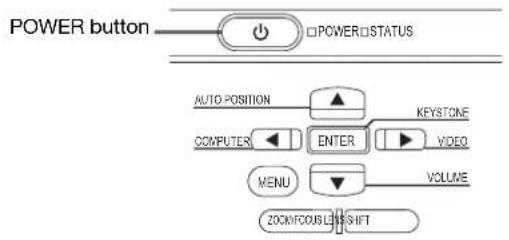
text_image
POWER button POWER□STATUS AUTO POSITION COMPUTER ENTER KEYSTONE VIDEO MENU VOLUME ZOOMFOCUS LHS SHIFTTo stop projecting:
- Press the POWER button.
• A confirmation message is displayed.
• To cancel the procedure, leave the projector for a while or press any button except the POWER button.
- Press the POWER button again.
- The lamp goes out and the projector goes into a standby mode. In this standby mode, the STATUS indicator blinks green.
- Wait about 2 minutes for the STATUS indicator to be turned off.
- During this period of 2 minutes in the standby mode, the intake fan and exhaust fan rotate to cool the lamp.
- Turn off the main power switch.
• The POWER indicator will go out.
- Cover the lens with the lens cap to protect it from dust.
- For safety's sake, unplug the power cord from the outlet.
Instant Shut Down
You can turn off this projector just by turning off the power switch or unplugging the power cord without pressing the POWER button.
- Don't shut down the projector while the STATUS indicator is blinking after the lamp lights up because the lamp's life may be shortened.
- Don't turn the projector back on right after shutting it down because the lamp's life may be shortened. (Wait about 10 minutes before turning the projector back on.)
- Before shutting down the projector, be sure to close the menu screen. If you shut down the projector without closing the menu, the setting data of the menu may not be saved.
- If you shut down the projector while controlling the projector using the network function, the application software such as ProjectorView may fail. For details, see "User Guide of LAN Control Utility" contained in the CD-ROM.
Volume from the speaker
Press the VOLUME + or - button to change the volume from the speaker.
The volume control bar will appear on the screen.
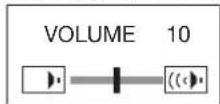
- The volume control bar will disappear about 10 seconds after the VOLUME button is released.
- The VOLUME buttons don't function while the menu selection bar or the menu is being displayed.
- When a high-level audio signal, such as a DVD audio signal, is supplied to the AUDIO IN terminal, the output from the speaker may be distorted.
AV mute
The video and audio signals are temporarily muted when the MUTE button is pressed. To cancel muting, press the MUTE button again.
- It takes several seconds before muting is completely canceled.
Setting the aspect ratio
You can change the aspect ratio of the input video signal (or the ratio of width to height of the image). Change the setting according to the type of the input video signal.
How to change the settings:
With the remote control:
-
Press the ASPECT button.
-
Every time the ASPECT button is pressed, the aspect mode changes from AUTO to 16:9, to REAL, and back to AUTO.
- When the keystone adjustment is applied, the REAL mode can not be selected.
With the FEATURE menu:
(See page 22 for menu setting.)
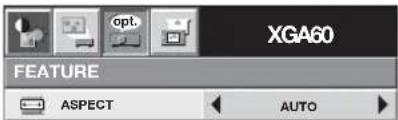
- Display the FEATURE menu.
- Select ASPECT by pressing the ▲ or ▼ button.
- Select your desired aspect ratio by pressing the ◀ or ▶ button.
When 16:9 is selected:
- Press the ENTER button.
- Select your desired position by pressing the ◀ or ▶ button.
To cancel the menu:
- Press the MENU button.
Important :
- When a 16:9 image is kept displayed for a long time before displaying 4:3 image, the afterimages of the black bars may appear on the 4:3 image screen. Consult your dealer in this case.
text_image
XGA60 FEATURE ASPECT AUTO- Menus are not displayed when no signal is supplied to the projector.
flowchart
graph TD
    A["IMAGE"] --> B["COLOR ENHANCER"]
    B --> C["AUTO PRESENTATION STANDARD THEATER sRGB USER □"]
    C --> D["GAMMA MODE BrilliantColor™"]
    D --> E["DYNAMIC, NATURAL, DETAIL 0 - 10 ±30 ±30 ±30 ±30 ±30 ±30"]
    B --> F["CONTRAST BRIGHTNESS COLOR TEMP. *1"]
    F --> G["±30 ±30"]
    G --> H["STANDARD LOW HIGH USER □"]
    H --> I["BRIGHTNESS R BRIGHTNESS G BRIGHTNESS B"]
    A --> J["COLOR *1 *2 TINT *1 *2 SHARPNESS *2"]
    J --> K["±10 ±10 ±5"]

    L["INSTALLATION"] --> M["LAMP MODE AUTO POWER ON AUTO POWER OFF SPLASH SCREEN BACK COLOR IMAGE REVERSE TEST PATTERN ZOOM/FOCUS LOCK LENS SHIFT LOCK LENS SHIFT RESET"]
    M --> N["STANDARD, LOW ON, OFF OFF, 5, 10, 15, 30, 60 min ON, OFF BLUE, BLACK OFF, MIRROR, INVERT, MIRROR INVERT CROSS HATCH □"]
    M --> O["FEATURE ASPECT AUTO 16:9 REAL CENTER, UPPER, LOWER DISPLAY INPUT □, MENU ACCESS □ LOCK UNLOCK OK □ AUTO, NTSC, PAL, SECAM, 4.43NTSC, PAL-M, PAL-N, PAL-60 AUTO, OFF, 3.75%, 7.5% ON, OFF 日本語, English, Español, Deutsch, Français, Italiano, 中文, ヘルオ, PYCCKIN, PORTUGUÉS OK □"]
    M --> P["PASSWORD FUNCTION MENU POSITION CINEMA MODE *3 VIDEO SIGNAL SETUP *2 *7 SCART INPUT LANGUAGE RESET ALL"]
    P --> Q["DISPLAY INPUT □, MENU ACCESS □ LOCK UNLOCK OK □ AUTO, NTSC, PAL, SECAM, 4.43NTSC, PAL-M, PAL-N, PAL-60 AUTO, OFF, 3.75%, 7.5% ON, OFF 日本語, English, Español, Deutsch, Français, Italiano, 中文, ヘルオ, PYCCKIN, PORTUGUÉS OK □"]
    A --> R["SIGNAL HORIZ.POSITION VERT.POSITION FINE SYNC TRACKING COMPUTER INPUT HOLD USER □"]
    R --> S[0 - 999 0 - 999 0 - 31 0 - 9999 0 - 9999 0 - 9999 0 - 9999 0 - 9999 0 - 9999 0 - 9999 0 - 9999 0 - 9999 0 - 9999 0 - 9999 0 - 9999 0 - 9999 0 -<nl>
* 1: Not available when COLOR ENHANCER is set to sRGB.
* 2: Not available with certain signals.
* 3: Available only when the input signal is TV50, TV60, 480i or 576i.
* 4: Available only when the source is a COMPUTER/COMPONENT VIDEO IN-1.
* 5: Setting range differs depending on the input signals.
* 6: Not available when the source is VIDEO IN or S-VIDEO IN.
* 7: Not available when the source is DVI.
* 8: Available only when the input signal is from the VIDEO IN or S-VIDEO IN terminal.
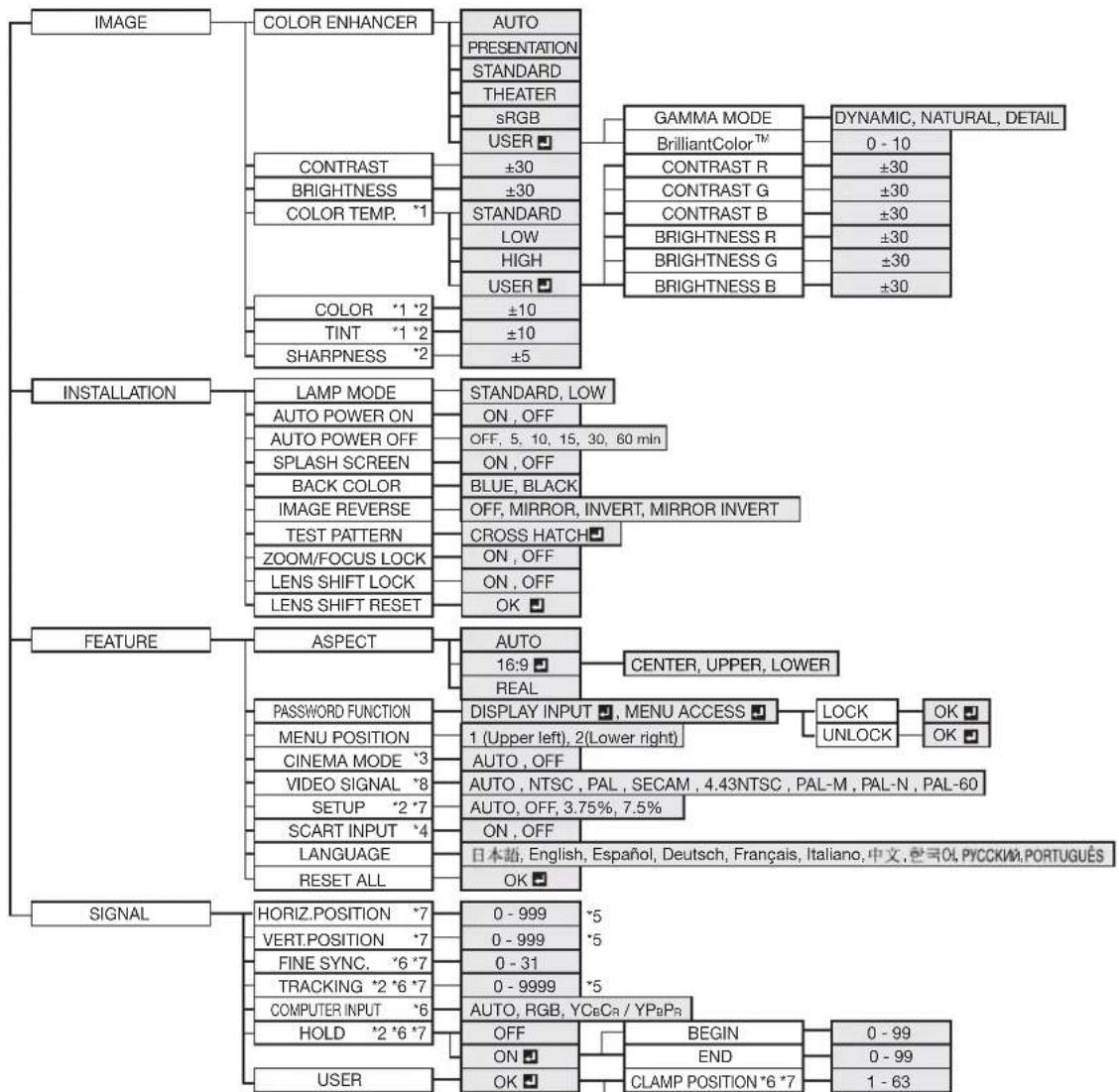
How to set the menus:
Following describe how to set AUTO POWER OFF time.
- Press the MENU button.
- When no signal is input, the menu does not appear.
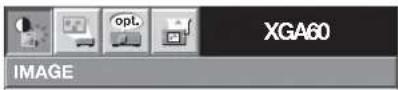
- Press the◀ or ▶ button to select a menu to use.

- Press the ENTER button (or ▼ button).

- Press the▲ or ▼ button to select an item to adjust.

- Set the selected item by pressing the ◀ or ▶ button.

To cancel the menu:
- Press the MENU button several times.
Important:
- If the menu operation is not working, turn off the main power, wait about 10 minutes, and turn on the main power again.
- After selecting the items marked with ☐, press the ENTER button.
Available settings in the menus
Set the following items on their relevant menus.
- IMAGE menu 2. INSTALLATION menu 3. FEATURE menu 4. SIGNAL menu
| XGA60 | |
| IMAGE | |
| COLOR ENHANCER | AUTO |
| CONTRAST | 0 |
| BRIGHTNESS | 0 |
| COLOR TEMP. | STANDARD |
| COLOR | 0 |
| TINT | 0 |
| SHARPNESS | 0 |
| INSTALLATION | |
| LAMP MODE | STANDARD |
| AUTO POWER ON | OFF |
| AUTO POWER OFF | OFF |
| SPLASH SCREEN | ON |
| BACK COLOR | BLUE |
| IMAGE HELVISE | OFF |
| TEST PATTERN | CROSS HATCH |
| ZOOM/FOCUS LOCK | OFF |
| LENS SHIFT LOCK | OFF |
| LENS SHIFT RESET | OK |
| XGA60 | |
| FEATURE | |
| ASPECT | AUTO |
| PASSWORD FUNCTION | DISPLAY INPUT |
| MENU POSITION | 1. |
| CINEMA MODE | AUTO |
| VIDEO SIGNAL | AUTO |
| SET UP | AUTO |
| SCART INPUT | OFF |
| LANGUAGE | English |
| RESET ALL | OK |
| XGA80 | |
| SIGNAL | |
| HORIZ POSITION 0 | |
| VERT POSITION 0 | |
| FINE SYNC. 0 | |
| TRACKING 0 | |
| COMPUTER INPUT | RGB |
| HOLD | OFF |
| USER | OK |
- IMAGE menu
| ITEM | SETTING | FUNCTION |
| COLOR ENHANCER | AUTO | Select to optimize the settings automatically depending on the input signal. (Select this option for normal use.) |
| STANDARD THEATER | PRESENTATION Select to make the displayed image look bright and crisp. Select to make the displayed image look natural. This option, suitable for viewing movies, makes the displayed image look soft and smooth. sRGB | Select to give priority to the color reproducibility. When COLOR ENHANCER is sRGB, COLOR TEMP., COLOR and TINT can't be adjusted. |
| USER | Select to set the gamma curve and BrilliantColorTM as desired. (See page 26.) | |
| CONTRAST BRIGHTNESS | ±30 | Use to adjust the contrast of the projected image. (See page 25.) |
| ±30 | Use to adjust the brightness of the projected image. (See page 25.) | |
| COLOR TEMP. | 4 options | Use to adjust the color temperature. (See page 26.) |
| COLOR TINT | ±10 | Use to adjust the color thickness of the projected image. (See page 25.) |
| ±10 | Use to adjust the color tint of the projected image. (See page 25.) | |
| SHARPNESS | ±5 | When the TV50 (PAL, SECAM) signal is input, TINT can't be adjusted. Use to adjust the sharpness of the projected image. (See page 25.) |
- INSTALLATION menu
| ITEM | SETTING | FUNCTION |
| LAMP MODE | STANDARD LOW | Select this option when you want to view images in a well-lit room.Select to moderate the intensity of the lamp. The operating sound is reduced and the lamp lifetime becomes longer.When the lamp mode is switched, the projected image may flicker. This is not a product malfunction.Frequent switching of the lamp mode may damage the lamp. |
| AUTO POWER ON | ON / OFF | When ON is chosen, the lamp is automatically lit when the power cord is plugged in the wall outlet. Choose ON when using the projector mounted on the ceiling.The projector is in the stand-by mode when the lamp is off. Use the remote control to turn on the lamp. |
| AUTO POWER OFF | OFF / 5 - 60min | Use to set the time elapsed before the projector enters the stand-by mode when there is no signal input from the source. |
| SPLASH SCREEN | ON / OFF | Choose ON to display the splash screen when the power is turned on. |
| BACK COLOR | BLUE / BLACK | Use to change the color of the screen that appears when no signal is supplied. |
| IMAGE REVERSE | OFF Select when viewing images from the front with the projector installed on the floor. | |
| MIRROR | Select when viewing images projected from the behind of the screen with the projector installed on the floor. | |
| INVERT | Select when viewing images projected from the behind of the screen with the projector installed on the ceiling. | |
| MIRROR INVERT | Select when viewing images from the front with the projector installed on the ceiling. | |
| TEST PATTERN | CROSS HATCH | Use to show the test pattern of the crossing hatch. |
| ZOOM/FOCUS LOCK | ON / OFF | Use to enable or cancel the FOCUS LOCK and ZOOM LOCK. |
| LENS SHIFT LOCK | ON / OFF | Use to enable or cancel the LENS SHIFT LOCK. |
| LENS SHIFT RESET | OK | Use to reset the position of the lens to the factory setting. |
-
Regardless of the setting of LAMP MODE in the INSTALLATION menu, the STANDARD lamp mode is activated by default whenever the projector is turned on. When LAMP MODE has been set to LOW, the lamp mode changes from STANDARD to LOW about 1 minute after turn-on.
• To cancel the test pattern, press any button. -
FEATURE menu
| ITEM | SETTING | FUNCTION |
| ASPECT AUTO Select to change the aspect ratio automatically depending on the input signal. (Select this option for normal use.)16:9 This option allows you to select the display position of squeezed (or horizontally compressed) images stored on DVD discs. By pressing the ENTER button, you can select the display position among CENTER, UPPER, and LOWER. | ||
| REAL Select to project images in their original size as input. Not available when the keystone adjustment is applied. | ||
| PASSWORD FUNCTION | Use to enable or cancel the password lock. See page 28 for details. | |
| MENU POSITION 2 options Use to change the position of the menu. | ||
| CINEMA MODE | AUTO | The fi lm mode will be automatically activated when a fi lm source signal is input. |
| OFF | The fi lm mode will not be activated. | |
| VIDEO SIGNAL 8 | options | When AUTO is selected, the appropriate video format is automatically selected depending on the input signal. If the image isn't displayed correctly, select the desired video format manually. |
| SET UP AUTO Select to change the SET UP mode automatically. | ||
| OFF | Select to make black lighter. | |
| 3.75%/7.5% | Select to make black thicker.When 7.5% is chosen, the brightness is decreased by set-up cancel function for U.S. Choose OFF when the image is dark. | |
| SCART INPUT ON / OFF | Choose ON when connecting the projector with a device equipped with the SCART terminal that can output RGB signal. SCART terminal is used mainly in Europe. Choose OFF normally. (Available only for the input signal from the COMPUTER/COMPONENT VIDEO IN terminal.) | |
| LANGUAGE RESET ALL 10 languages | Use to select the language used in the menus. | |
| Use to reset the settings of the menu (excluding PASSWORD FUNCTION and LANGUAGE) to the factory setting values. | ||
| When SCART INPUT is set to ON, nothing is output to the external monitor.When SCART INPUT is set to ON, normal computer signals aren't projected.Use a SCART-BNC (or SCART-Mini D-SUB 15P) cable (option) when connecting this projector with an AV device equipped with the SCART terminal.Some AV devices equipped with the SCART terminal aren't compatible with this projector.It may take a little while to carry out RESET ALL in the FEATURE menu. | ||
- SIGNAL menu
| ITEM | SETTING | FUNCTION |
| HORIZ. POSITION | 0-999 | Use to adjust the horizontal position of the projected image. |
| VERT. POSITION | 0-999 | Use to adjust the vertical position of the projected image. |
| FINE SYNC. | 0-31 | Use to eliminate flickering or blur, if appears, viewing the projected image. |
| TRACKING | 0-9999 | Use to eliminate vertical wide stripes, if appears, viewing the projected image. |
| COMPUTER INPUT | AUTO The proper setting is automatically selected. | |
| RGB | Select this option if colors aren't displayed correctly when a high-definition video device having R, G, and B outputs is connected. | |
| YC_B C_R / YP_B P_R | Select this option if colors aren't displayed correctly when 480p (525p) signal is input from a DVD player having Y, C_B , and C_R component video output terminals or a high-defi nition digital tuner having Y, P_B , and P_R component video output terminals. | |
| HOLD | OFF/ON | Use to adjust the image when flagging occurs near the top of the screen. |
| USER | OK | |
| CLAMP POSITION | 1-63 | Use to correct solid white or solid black in the projected image. |
| CLAMP WIDTH | 1-63 | Use to correct solid black in the projected image. |
| VERT.SYNC | AUTO/OFF | Use to adjust the image when its motion doesn't run smoothly. Select AUTO for normal use. |
| OVER SCAN | 100%-90% | Use to adjust the display area of projected image. |
| LPF | Use to select whether or not to enable the LPF. | |
| SHUTTER (U) | 0-38 | Use to adjust the image when noise appears on the top part of the image. |
| SHUTTER (L) | 0-38 | Use to adjust the image when noise appears on the bottom part of the image. |
| SHUTTER (LS) | 0-63 | Use to adjust the image when noise appears on the left half of the image. |
| SHUTTER (RS) | 0-63 | Use to adjust the image when noise appears on the right half of the image. |
To adjust the brightness (CONTRAST and BRIGHTNESS):
You can make adjustments for the brightness of the projected image using the menu.
(See page 22 for menu setting.)
- Display the IMAGE menu.
- Select CONTRAST or BRIGHTNESS by pressing the ▲ or ▼ button.
- Adjust the selected item by pressing the ◀ or ▶ button.
To cancel the menu:
- Press the MENU button.
CONTRAST
Select to adjust the contrast of the image. Every time the ▶ button is pressed, the image becomes brighter and more defi ned. Every time the ◀ button is pressed, the image becomes darker and less defi ned.
BRIGHTNESS
Every time the ▶ button is pressed, the image becomes brighter. Every time the ◀ button is pressed, the image becomes darker.
To adjust the color (COLOR and TINT):
You can adjust the color of the projected image using the menu.
(See page 22 for menu setting.)
-
Display the IMAGE menu.
-
Select COLOR or TINT by pressing the ▲ or ▼ button.
• COLOR or TINT is not available with certain signals.
- TINT is available only when the NTSC signal is input.
- Adjust the selected item by pressing the ◀ or ▶ button.
To cancel the menu:
- Press the MENU button.
COLOR
Use to adjust the color thickness of the projected image. Every time the ▶ button is pressed, the color becomes thicker. Every time the ◀ button is pressed, the color becomes lighter.
TINT
Use to adjust the tint of the projected image. Every time the ▶ button is pressed, the image appears more greenish. Every time the ◀ button is pressed, the image appears more reddish.
To sharpen or soften the projected image (SHARPNESS):
You can adjust the sharpness of the projected image using the menu.
(See page 22 for menu setting.)
- Display the IMAGE menu.
- Select SHARPNESS by pressing the ▲ or ▼ button.
- SHARPNESS is not available with certain signals.
- Adjust the selected item by pressing the ◀ or ▶ button.
To cancel the menu:
- Press the MENU button.
To adjust the tone of white (COLOR TEMP.):
You can select a preset color temperature (white tone) using the menu.
(See page 22 for menu setting.)
-
Display the IMAGE menu.
-
Select COLOR TEMP. by pressing the ▲ or ▼ button.
-
Select your desired color temperature by pressing the ◀ or ▶ button.
To cancel the menu:
- Press the MENU button.
To adjust the tone of white (To customize the color temperature):
To customize (and store) the color temperature to your preference, carry out the following procedure.
(See page 22 for menu setting.)
- Select COLOR TEMP. in the IMAGE menu.
- Press the ◀ or ▶ button to select USER 📄.
- Press the ENTER button.
- Press the ▲ or ▼ button to select the desired item.
- Press the ◀ or ▶ button to adjust the selected item.
- Repeat steps 4 and 5 for optimum adjustment results.
To cancel the menu:
- Press the MENU button.
To enable the stored color temperature:
- Set COLOR TEMP. to USER in the IMAGE menu.

text_image
COLOR TEMP.-USER CONTRAST R 0 CONTRAST G 0 CONTRAST B 0 BRIGHTNESS R 0 BRIGHTNESS G 0 BRIGHTNESS B 0About color temperature
There are different kinds of white color. Color temperature is a way to show the differences in white. White of which temperature is low appears reddish. When the color temperature rises, white appears bluish. For example, you can change the color temperature using the following procedures.
To raise the color temperature: Increase the CONTRAST B (blue) and decrease the CONTRAST R (red).
To reduce the color temperature: Decrease the CONTRAST B (blue) and increase the CONTRAST R (red).
- If you set all of CONTRAST R, G, and B to negative values, the original brightness of the image can't be obtained even when you maximize CONTRAST in the IMAGE menu.
Color Enhancer
You can set the user-defined balance between the brightness and hue using the menu. (See page 22 for menu setting.)
With the IMAGE menu:
- Display the IMAGE menu.
- Select COLOR ENHANCER by pressing the ▲ or ▼ button.
- Select USER by pressing the ◀ or ▶ button.
- Press the ENTER button.
- Select an item you want to set.
GAMMA mode
Use this item to set the gamma optimally.
DYNAMIC .....Select when viewing images supplied from the computer.
NATURAL .....Select when viewing images supplied from the video device.
DETAIL ......Select when viewing images of which brightness should be kept relatively low, such as movies and music performance.
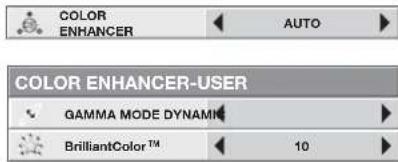
text_image
COLOR ENHANCER AUTO COLOR ENHANCER-USER GAMMA MODE DYNAMI BrilliantColor™ 10BrilliantColor™
Use this item to make the colors having medium brightness such as yellow and skin tone look natural. Press the ◀ button to decrease the value to lessen the effect. Press the ▶ button to increase the value to heighten the effect. (BrilliantColor™ doesn't work at value 0.)
- Select a setting value by pressing the ◀ or ▶ button.
- You can adjust Color Enhancer also by pressing the CE button on the remote control.
- For more enhanced color reproduction, set BrilliantColor ^TM to 0. The white portion of the color wheel will be disabled and you can reproduce true-to-life images.
With the remote control:
- Press the CE button on the remote control.
A window for color enhancer adjustment appears on the upper right of the screen. - Press the◀ or ▶ button to select USER 🔵
- Press the ENTER button.
- Press the ▲ or ▼ button to select GAMMA MODE or BrilliantColor™.
- Press the◀ or ▶ button to adjust the selected item.
This projector automatically and properly projects video signals supplied from the computer. However, some video signals may not be projected, depending on the type of the computer. In such a case, press the AUTO POSITION button. (See page 16.) When the signal is still not projected properly, adjust the projected image using the SIGNAL menu.
How to adjust the image supplied from the computer using the menu:
Carry out the following procedures according to the symptoms.
| Wide strips appear. ...... | Adjust TRACKING in the SIGNAL menu. |
| The projected image fl ickers. | |
| The projected image is blurred. ...... | Adjust FINE SYNC. in the SIGNAL menu. |
| The projected image is displaced horizontally. ...... | Adjust HORIZ.POSITION in the SIGNAL menu. Every time the ◀ button is pressed, the image moves to the right. Every time the ▶ button is pressed, the image moves to the left. |
| The projected image is displaced vertically. ...... | Adjust VERT.POSITION in the SIGNAL menu. Every time the ◀ button is pressed, the image moves down. Every time the ▶ button is pressed, the image moves up. |
| The top part of the image flags. ...... | Change the setting of HOLD in the SIGNAL menu. Select ON ☐, press the ENTER button, and adjust BEGIN or END to minimize the fl agging. |
| Wide strips appear. ...... | Adjust CLAMP POSITION or CLAMP WIDTH in the SIGNAL - USER menu. |
| The motion doesn't run smoothly. ...... | Adjust VERT. SYNC in the SIGNAL - USER menu. Select AUTO for normal use. |
| Noise appears on the right or left half of the image. ... | Adjust SHUTTER (LS) or SHUTTER (RS) in the SIGNAL - USER menu. |
| Noise appears on the top or bottom part of the image. ... | Adjust SHUTTER (U) or SHUTTER (L) in the SIGNAL - USER menu. |
- Display the SIGNAL menu.
- Press the▲ or ▼ button to select an item to adjust.
- Adjust the selected item by pressing the ◀ or ▶ button.
To cancel the menu:
- Press the MENU button.
- Do not change the settings of the SIGNAL menu in normal use.
Simple method to adjust the image position
To adjust the horizontal position:
- Align the left edge of the image with the left side of the screen by adjusting HORIZ.POSITION. Then, align the right edge of the image with the right side of the screen by adjusting TRACKING.
- Repeat step 1 above to complete the adjustment of the horizontal position.
To adjust the vertical position:
- Align the upper edge of the image with the upper side of the screen by adjusting VERT.POSITION.
LPF
You can select whether or not to enable the LPF. This item is set to OFF normally.
Vertical or horizontal streak noise may appear on the projected image, depending on the type of the DVD player or game console you use. In such a case, you can reduce such streak noise by enabling the LPF. However, projected images become softened slightly.
- Display the SIGNAL menu.
- Press the▲ or ▼ button to select USER.
- Press the ENTER button.
- Press the ▲ or ▼ button to select LPF.
- Press the◀ or ▶ button to choose ON or OFF.
To cancel the menu:
- Press the MENU button.

Password function
This projector is equipped with the password function that is designed for prevention of wrong operation by children and restriction on operation by other than specified users.
DISPLAY INPUT ......When the projector is turned on, the startup screen (or splash screen) will appear and stay on the screen until the password is entered. When the password is entered, the startup screen will switch to the regular operation screen.
MENU ACCESS ...... All the buttons except for the POWER button on the projector are disabled. (The buttons on the remote control are enabled.) You can use this mode as a measure of prevention of wrong operation by children and restriction on operation by other than specified users.
To enable the password function:
- Display the FEATURE menu.
-
Press the▲ or ▼ button to select PASSWORD FUNCTION.
-
Press the ◀ or ▶ button to change the mode among DISPLAY INPUT and MENU ACCESS
- When there is a password already set, the password cancel menu is automatically selected. To set a new password, disable the password lock function.
- Press the ENTER button.
- The screen for setting the password function will appear.
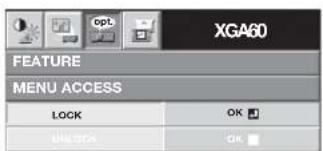
text_image
XGA60 FEATURE MENU ACCESS LOCK OK UH: 100% OK- Press the ENTER button.
- The screen for entering a password will appear.

text_image
PASSWORD CONFIRM O K CANCEL-
Press the▲ or ▼ button to select a number from 0 to 9.
-
Press the▶ button.
- You can set the next digit.
-
Repeat steps 6 and 7 to set a 4-digit password.
-
Enter the password again for confirmation using the same steps.
-
Select OK, and press the ENTER button.
- If the entered passwords don't match, an error message will appear.
- To cancel the procedure, select CANCEL and press the ENTER button.
- You can cancel the procedure by pressing the MENU button alternatively.
- If the entered passwords don't match, an error message will appear. - To cancel the procedure, select CANCEL and press the ENTER button. - You can cancel the procedure by pressing the MENU button alternatively.
To cancel the password function:
-
Display the FEATURE menu.
-
Press the▲ or ▼ button to select PASSWORD FUNCTION.
-
Press the ENTER button.
- The screen for canceling the password function will appear.
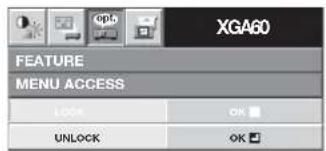
text_image
XGA60 FEATURE MENU ACCESS LOCK OK UNLOCK OK- Press the ENTER button.
- The screen for entering the password will appear.

-
Press the▲ or ▼ button to select a number from 0 to 9.
-
Press the▶ button.
- You can set the next digit.
-
Repeat steps 5 and 6 to enter the four-digit password.
-
Press the▶ button, select OK, and press the ENTER button.
- If you enter a wrong password, an error message will appear.
- To cancel the procedure, press the ▶ button, select CANCEL, and press the ENTER button.
- You can cancel the procedure by pressing the MENU button alternatively.
- If you enter a wrong password, an error message will appear. - To cancel the procedure, press the ▶ button, select CANCEL, and press the ENTER button. - You can cancel the procedure by pressing the MENU button alternatively.
Important:
- Disable the password by pressing the MENU and ENTER buttons on the control panel at the same time.
Expand
By pressing the EXPAND button on the remote control, you can magnify the image to view the details.

To use the EXPAND mode:
-
Press the EXPAND button.
-
You can select the area to be magnified by pressing the ▲, ▼, ◀, or ▶ button on the remote control.
-
You can change the magnifi cation of the selected area by pressing the + or - button.
-
Press the EXPAND button again to exit the EXPAND mode.
- The regular operation screen will appear.
Important:
- In the EXPAND mode, you can't adjust the volume.
- In the EXPAND mode, you can't make signal settings using the menu.
- The EXPAND mode is available only with video signals from the COMPUTER IN (IN-1, IN-2 or DVI-D) connector. It doesn't work with video signals from the VIDEO IN and S-VIDEO IN connectors.
- The EXPAND mode doesn't function with some input signals. For details, see page 39.
- In the EXPAND mode, the SHUTTER and OVER SCAN functions are disabled.
Picture in Picture (PinP)
One of the special features of this projector is the picture-in-picture (PinP) mode. The PinP mode allows you to view the images from different sources at the same time.
To use the PinP mode
-
Press the PinP button on the remote control.
-
When you press the PinP button with the image from the COMPUTER/COMPONENT VIDEO IN (1 or 2) terminal displayed on the screen, the image from the VIDEO IN or S-VIDEO IN terminal is displayed as the sub image.
-
When the image from the VIDEO IN or S-VIDEO IN terminal is displayed, the PinP mode isn't activated.
-
If necessary, select the desired external input source of the sub image by using the VIDEO or S-VIDEO button on the remote control or the VIDEO button on the control panel.
- When the COMPUTER 1 or COMPUTER 2 button on the remote control or the COMPUTER button on the control panel is pressed, the PinP mode will be canceled.
- Press the PinP button on the remote control.
- The PinP mode will be canceled.
To change the position of the sub image:
Press the ◀ or ▶ buttons on the remote control.
- When there is no video signal for sub image, you can't change the display position.
Important:
- In the PinP mode, you can't make signal settings using the menu.
- The PinP mode is automatically disabled when the video signal for the main image is lost.
- The PinP mode isn't available with some input signals. For further information, see page 39.
- The size of the sub image varies depending on the input signal and settings.
- The PinP mode is available only when the ASPECT ratio is set to AUTO.
- In the PinP mode, the SHUTTER and OVER SCAN functions are disabled.
Still
To stop the motion in the image temporarily (or to display a still image):
Press the STILL button on the remote control.
- The image will freeze temporarily.
To resume the motion in the image:
Press the STILL button on the remote control again.
Important:
- Do not display a still picture for a long time because the afterimages may persist on the screen.
Mouse remote control
By connecting to personal computer through the USB port, you can operate your computer with the projector remote control.
Projector + computer with USB connector

text_image
USB USB cable to USB port USB 4-pin (type B) USB 4-pin (type A)- You can use the mouse remote control function with a computer supporting USB only.
- When the lamp is turned ON, the computer connected with the USB cable may not work correctly. In this case, restart the computer.
- The mouse doesn't function for a while after the power is turned on.
Operation
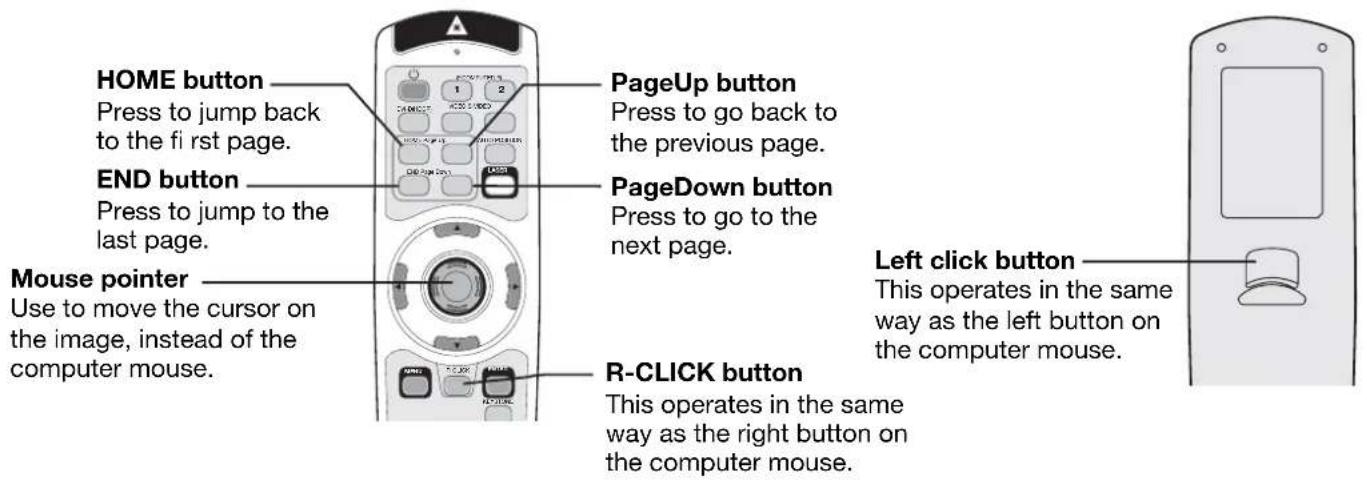
text_image
HOME button Press to jump back to the first page. END button Press to jump to the last page. Mouse pointer Use to move the cursor on the image, instead of the computer mouse. PageUp button Press to go back to the previous page. PageDown button Press to go to the next page. R-CLICK button This operates in the same way as the right button on the computer mouse. Left click button This operates in the same way as the left button on the computer mouse.Supervising and controlling by computer
You can supervise and control the projector's operation using a personal computer via a LAN network.
- To supervise and control the projector, install the software "Mitsubishi Projector Control Device Installer *" contained in the attached CD-ROM. For the installation procedure and usage of the software, see "Operation manual for LAN control utility" contained in the attached CD-ROM.
\*) Functions
- Setting of the projector's IP address
- Setting of password, display language, and LAN control
- PJLink™ certifi cation setting (telnet function)
- Startup of the controlling /supervising tool (ProjectorView) using the Web browser
Major functions
ProjectorView
The controlling /supervising tool using the Web browser
PJLink™
This projector supports standard protocol PJLink™ for projector control and you can control and monitor projector's operations using the same application among projectors of different models and different manufacturers.
About PJLink™
- To use PJLink™ function, the PJLink™ application software is required.
- For the specifications of Link™, access to the Web site of Japan Business Machine and Information System Industries Association (JBMIA).
- This projector is fully compliant to the specifications of JBMIA PJLink™ Class 1. It supports all the commands defined by PJLink™ Class 1, and the compliance has been verified with the PJLink™ standard specifications Version 1.0
Connection

text_image
to LAN terminal LAN cable (option) (100BASE-TX or 10BASE-T should be supported.) LAN cable (option) Computer External HUB- Use a straight-through category-5 cable for LAN connection.
- Don't touch the metal parts of the LAN connector and LAN cable because static electricity may be discharged from your body, causing damage to the projector.
Using the User Manual
The User Manual for LAN control utility is prepared in the Portable Document Format (PDF) in the CD-ROM.
Opening the User Manuals
- Load the CD-ROM into the CD-ROM drive.
- Open CD-ROM "XD2000"
- Double-click on "INDEX_LAN.HTML" within the CD-ROM. A language selection list for the User Manual will be displayed.
- Move the mouse pointer to the desired language and click.
This projector is equipped with a lamp to project images. This lamp is a consumable. It may burn out or its brightness may decrease during use. In such cases, replace the lamp with a new one as soon as possible. Be sure to replace the lamp with a new lamp separately sold that is exclusive to this projector. Contact your dealer for purchase of the lamp.
WARNING:
- Be careful not to drop the lamp fixing screws into the inside of the projector. Don't put a metal piece or flammable object into the projector. Using the projector with any foreign object present inside may result in electric shock or fi re. When you can't remove the foreign object from the inside, contact your dealer for removal.
- Be sure to install the lamp securely. When the lamp isn't installed properly, it won't illuminate. Improper installation may also result in fi re.
- Don't shake the removed lamp or don't lift it above your face. You may be injured in your eye by fl ying or falling glass fragments.
- Don't replace the lamp immediately after use because the lamp cover is very hot. You may get burned. Turn off the power using the POWER button. After the lamp goes out, wait about 2 minutes until the intake and exhaust fans for cooling the lamp stop rotating. Then turn off the main power switch and unplug the power cord, and wait at least 1 hour to allow the lamp to cool down enough to the touch.
- Do not touch the lamp directly. It may break and cause injury or burn.
Interval of lamp replacement
The recommended interval of lamp replacement is about 5000 hours ^1-2 of consecutive use. Such interval differs depending on the operating environment and may be shorter than 5000 hours ^1-2 . Decrease in luminescence and/or color brightness indicates that the lamp needs to be replaced. When the lamp operation time exceeds 3750 hours ^1 , the indicator will blink alternately between green and red (while the lamp is lit; when the lamp is not lit, the indicator will be lit red only) and the lamp replacement message will appear on the screen for 1 minute every time the lamp is turned on. When the lamp has been used for about 4750 hours ^1 , the replacement message (LAMP EXCHANGE) will appear on the screen for 1 minute every 25 hours ^1 thereafter.
When the lamp operation time exceeds 5000 hours ^1*2 , the projector automatically shuts off and can't be used until the lamp is replaced and the lamp operation time is reset.
^1 Duration when LAMP MODE of the INSTALLATION menu is set to LOW. When it is set to STANDARD, this duration will be shorted.
^2 Duration when LAMP MODE is set to STANDARD, this duration will be shorted to 2000 hours.
Caution:
- Don't remove the lamp for any purpose other than replacement. Unnecessary removal of the lamp may result in a breakdown.
- This projector uses a high-pressure mercury lamp as the light source. The high-pressure mercury lamp may explode or fail to illuminate permanently because of an impact, scratch, or deterioration through use. The period of time until explosion or permanent failure to illuminate varies considerably from lamp to lamp, depending on operation conditions. Therefore, the lamp may explode soon after the start of use.
- The possibility of explosion of the lamp increases if you use it beyond its replacement period. When the instruction of lamp replacement appears, replace it with a new one immediately even if the lamp is still lighting normally.
- When the high-pressure mercury lamp explodes, glass fragments will scatter inside or outside the lamp box and the gas charged inside the lamp will diffuse inside or outside the projector. The gas inside the lamp contains mercury. Be careful not to breathe it or avoid it from entering your eye or mouth. If you should breathe it or if it should enter your eye or mouth, see a doctor immediately.
- In the event that the high-pressure mercury lamp exploded, glass fragments may have been scattered inside the projector. Ask your dealer to replace the lamp and to inspect the inside of the projector. When you clean or replace the lamp by yourself, be sure to hold the handle of the lamp. You may get injured by glass fragments.
- Don't replace the lamp while the projector is installed on the ceiling. Glass fragments may fall from the projector, entering your eye or mouth causing injury.
- When placing the projector upside down to replace the lamp or conduct maintenance, ensure that the projector is securely placed before working with it.
To replace the lamp:
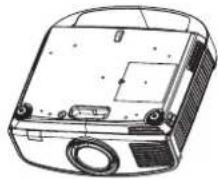
natural_image
Line drawing of a portable electronic device with buttons and ventilation slots (no text or symbols)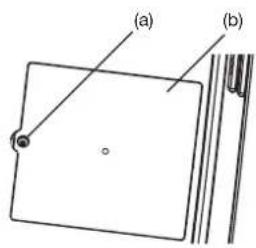
text_image
(a) (b)
natural_image
Technical diagram of a mechanical or electronic component with no visible text, numbers, or symbols
text_image
Handle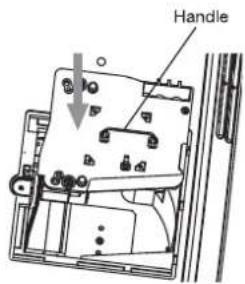
text_image
Handle
natural_image
Technical line drawing of a mechanical component with no visible text or symbols- Reverse the projector gently.
- Loosen the screw (a) using a Phillips screwdriver (+), and remove the lamp cover (b).
- Loosen the screws (c) using a Phillips screwdriver (+).
- Pull up the handle.
-
Pull out the lamp box by the handle while holding the projector.
-
Pull the lamp box out of the projector slowly. If it is pulled out quickly, the lamp may break scattering glass fragments.
-
Do not spill liquid on the removed lamp box or do not place it near any fl ammable object or where children can reach to prevent injury or fire.
-
Load a new lamp box securely into the projector in the right orientation.
- Put the handle back to the original position.
• Make sure that the handle is locked.
- Tighten up the screws (c) using a Phillips screwdriver (+).
- Tighten up the screw (a) using a Phillips screwdriver (+) to secure the lamp cover.
Reset of the lamp operation time
- Plug the power cord into the wall outlet and turn on the main power switch.
- Press the◀, ▶, and POWER button on the control panel at the same time.
Important:
- Unless these 3 buttons are pressed at the same time, the lamp operation time isn't reset.
- Make sure that the STATUS indicator is lit twice and the lamp operation time is reset successfully.
- The projector doesn't turn on if the lamp cover isn't attached securely.
- Be sure to reset the lamp operation time whenever you replace the lamp.
- Do not reset the lamp operation time unless you replace the lamp.
- The lamp is fragile. If it is broken, be careful not to cut yourself with glass fragments.
- Contact your dealer for a new lamp.
- This projector uses a lamp that contains mercury. Disposal of the lamp or the projector with the lamp may be regulated due to environmental considerations. For disposal or recycling information, please contact your local authorities or the Electronic Industries Alliance: www.eiae.org. (For the U.S. only.)
Maintenance
Caution:
Be sure to turn off the lamp and unplug the power cord from the wall outlet before you perform any maintenance on the projector.
Cleaning of the projector and the ventilation slots
Use a soft cloth to clean the projector and the ventilation grilles. When the grilles become dirty, wipe them with a soft cloth dampened with diluted mild detergent, and then wipe them with a dry cloth.
To protect the surface of the projector from fading or deteriorating:
- Do not spray insecticide on or inside the projector.
- Do not use benzine or thinner to clean it.
- Do not let rubber or plastic materials contact with projector.
Cleaning of the lens
Use a standard lens-cleaning brush or a piece of lens tissue dampened with lens cleaning fluid. The lens surface is fragile. Use only recommended, nonabrasive lens-cleaning materials. Do not touch the lens with your fingers.
Before asking for repair of the projector, check the following. If the symptom persists, stop using the projector, be sure to unplug the power plug, and then contact your dealer.
No image appears on the screen.
| Problem | Solution | ||
| Power can not be turned on. | Check whether the indicators are on or off and how they are lightning. | ||
| POWER | STATUS | Solution | |
| ☐Off | ☐Off | Connect the power cord to the projector.Plug the power cord into a wall outlet.Turn on the main power switch. | |
| Steady red | ☐Off | If any objects are blocking the air inlet or outlet grille, remove them and carry out the following.Turn off the main power switch.Make sure that the projector has cooled off.Turn on the main power switch.Press the POWER button. | |
| ☐Blinking orange | If any objects are blocking the air inlet or outlet grille, remove them.Don't expose the air outlet grilles to hot air emitted from a heating appliance. | ||
| ☐Blinking green | After the STATUS indicator stops blinking, press the POWER button.If the main power switch is turned off while the fan is rotating, the lamp may not turn on about 2 minutes when the main power switch is turned on next time.The lamp can't turn on again for 2 minutes after it goes out.Press the POWER button several times. | ||
| Steady red | Replace the lamp. (The lamp is at the end of its life.) | ||
| Blinking red / green | ☐Off | Attach the lamp cover on the bottom. | |
| Steady or Blinking | Unplug the power cord from the wall outlet and contact your dealer. | ||
| No image appears on the screen. | Cancel the AV mute by pressing the MUTE button.Check that the lens cap is removed.It may take about 1 minute for the lamp to light up.The lamp fails to light up on rare occasions. In such a case, wait for a few minutes and then try again.If the projector was turned off before the lamp was cooled down sufficiently last time, the fan may start rotating and the POWER button may not work after the main power switch is turned on. After the fan stops rotating, press the POWER button to turn back on the POWER indicator.Set SCART INPUT in the FEATURE menu to OFF. (See page 24.)Check that the intake vent is clean.Check that the lamp cover is closed. (See page 33.)Check that the cables connected to the external devices are not broken.When an extension cable is being used, replace it with the supplied cable for check.When images are displayed correctly, add an RGB signal amplifier to the extension cable. | ||
| Projected images suddenly disappear. | This problem may occur when the intake vent and/or exhaust vents are blocked. (In such a case, the STATUS indicator brinks orange.)→ Remove the objects blocking the intake vent and/or exhaust vents and then carry out the following procedure.Wait for the intake fan and/or exhaust fan to stop. (Wait until the STATUS indicator goes out.)Turn off the main power switch.Wait about 10 minutes.Turn on the main power switch.Press the POWER button.When the STATUS indicator is steady red, it is indicating that the lamp should be replaced. Replace the lamp in this case. | ||
| The screen for entering the password appears. | PASSWORD FUNCTION in the FEATURE menu has been set to DISPLAY INPUT to enable the password lock.Enter the password or contact the person in charge of management of the projector. (See page 28.) | ||
| "NO SIGNAL" is displayed. | Turn on the power of the connected device, or check whether there is something wrong with the connected device.Check whether the external device output signals. (Check this especially when the external device is a notebook computer.)Check that the cable connected to the external device isn't defective.Check that the projector is connected to the external device using the correct terminals.Check that the connected device is correctly selected as the input source.When an extension cord is being used, replace it with the supplied cable and check whether images are projected correctly. If images are projected correctly, use an RGB signal amplifier along with the extension cord. | ||
Images are not displayed correctly.
| Problem | Solution |
| Projected images are shaking.Projected images are displaced. | Check that the cable connected to the external device isn't intermittent.Connect the cable's plug with the external device's connector firmly.Press the AUTO POSITION button.Some computers output out-of-spec signals on rare occasion. Adjust the SIGNAL menu. (See page 27.) |
| Projected images are distorted. | Adjust the projector and the screen so that they are perpendicular to each other. (See page 12.) |
| Projected images are dark. | Adjust BRIGHTNESS and CONTRAST in the IMAGE menu. (See page 25.)Replace the lamp. (See page 32.) |
| Projected images are blurred. | Adjust the focus. (See pages 15 and 19.)Clean the lens.Press the or button on the remote control to eliminate flicker.Adjust TRACKING and FINE SYNC. in the SIGNAL menu. (See page 27.)Adjust BRIGHTNESS and CONTRAST in the IMAGE menu. (See page 25.)Adjust the projector and the screen so that they are perpendicular to each other. (See page 12.) |
| White dots are seen on projected images.Black dots are seen on projected images. | This symptom is normal for a DLPTM projector and is not a malfunction. (A very small number of pixels may stay lit or out, but such symptom is not a malfunction. Pixels of 99.99% or more are effective.) |
| Rainbow effect is seen on projected images. | This is due to color breaking noise that occurs in a DLPTM system and is not a malfunction. |
| Fine streaks are seen on projected images. | This is due to interference with the screen surface and is not a malfunction. Replace the screen or displace the focus a little.Vertical or horizontal streak noise may appear on the projected image, depending on the type of the DVD player or game console you use. In such a case, you can reduce such streak noise by enabling the LPF. |
| Projected images become wavy. | Connect the plugs of the cables to external devices securely.Keep the projector away from devices that emit interfering radio waves.When the keystone adjustment is carried out, the image may not be displayed correctly depending on the type of input signal. This isn't a product malfunction. In this case, readjust the keystone so that the amount of keystone correction is as small as possible. |
| Hue is not appropriate. | Check that the cables connected to the external devices are not broken. |
| Tint in projected images is incorrect. | Check that COMPUTER INPUT in the SIGNAL menu is correctly set. (See page 24.)Check that the cable connected to the external device isn't broken. |
| Only the motion areas in the images supplied from the computer aren't displayed. | This is caused by the computer being used. Contact the manufacturer of your computer. |
| Projected images are obscured. | Match the output resolution of your computer with the resolution of the projector. For the method to change the output resolution of the computer, contact the manufacturer of your computer. (See page 39.)Some images and texts appear obscured during the keystone adjustment. In such cases, use the projector without applying the keystone adjustment. (See page 10.) |
Others
| Problem | Solution |
| The exhaust vents emit warm air. | This air comes out after cooling the inside of the projector. You may feel hot, but this is not a malfunction. |
| No audio is output. | Check that the volume isn't set to low. |
| The menu can't be used. | The microcomputers inside the projector may be wrongly operating because of noise.→ Turn off the main power, wait about 10 minutes, and turn on the main power again. |
| “TEMPERATURE!!” is displayed. | This indication appears when the ambient temperature rises high. When the ambient temperature stays high, the lamp goes out.→ Eliminate any causes of the rise in the ambient temperature.This indication appears when the air inlet or outlet grille is blocked. When they are kept blocked, the lamp goes out.→ Remove the objects blocking the air inlet or outlet grille. |
| The mark appears. | This mark appears when ineffective operation is carried out. This isn't a product malfunction. |
| The remote control doesn't function easily or at all. | Check that the batteries are loaded in the remote control or the batteries are not weak.(See page 6.)Check that the remote control sensor isn't exposed to direct sunlight or fluorescent light. (See page 9.)Use the remote control within its operation range. (See page 9.)Use the remote control at least 10 cm away from the projector. |
| The buttons on the control panel (except for the POWER button) don't function. | PASSWORD FUNCTION in the FEATURE menu has been set to MENU ACCESS to enable the password lock.→ Cancel the password lock or contact the person in charge of management of the projector. (See page 28.) |
| Abnormal sound is heard. | Because the color wheel spins at a high speed, metallic sounds may be heard in rare occasions. Such symptom is not a malfunction. |
If the following problem occurs after the lamp is replaced, check the following first.
| Problem | Solution |
| The projector does not turn on. | Fit the lamp cover securely. (See pages 32 and 33.)Reset the lamp operating time. (See page 33.) |
| The STATUS indicator blinks. | Reset the lamp operating time. (See page 33.) |
Kensington Lock
This projector has a Kensington Security Standard connector for use with Kensington MicroSaver Security System. Refer to the information that came with the Kensington System for instructions on how to use it to secure the projector. Please contact Kensington Technology Group below.
Kensington Technology Group
2855 Campus Drive
San Mateo, CA 94403, U.S.A.
Phone : +1- (650)572-2700 Fax : +1- (650)572-9675
This projector has 2 indicators, each of which shows the operation condition of the projector.
The following offer solutions to possible problems. If these problems persist, turn the projector off and consult your dealer.
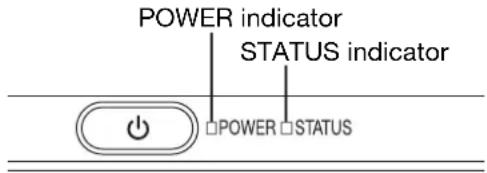
text_image
POWER indicator STATUS indicator POWER STATUSNormal condition
| POWER | STATUS | CONDITION | NOTE |
| Steady red | Off | Stand-by | |
| Steady green | Blinking green | Lamp stand-by | The POWER button cannot be used to switch between on and off. |
| Steady green | Steady green | The power is on. (Normal condition) |
Abnormal condition
| POWER | STATUS | CONDITION | POSSIBLE SOLUTION |
| Steady greenorSteady red | Blinking orange | Abnormal temperatureThe ventilation grilles are clogged with dust or dirt.The room temperature is high. | Clean the ventilation grilles.Relocate the projector to a cooler place. |
| Steady red | Blinking green | The protection circuit is working or the lamp is in an abnormal condition. | Wait until the STATUS indicator goes out, then press the POWER button.If the above solution is not effective, replace the lamp. |
| Steady green | Blinking green/red | Lamp operation time warning. (Total lamp operation time reached 3750 hours ^1 while the power was on.) | Replace the lamp.Change with a new lamp if this problem recurs. |
| Steady red | Blinking red | Lamp operation time warning. (Total lamp operation time reached 3750 hours ^1 while the power was off.) | |
| Steady red | Steady red | Lamp operation time warning. (Total lamp operation time reached 5000 hours ^1 *2 while the power was off.) | |
| Blinking green/red | Off | The lamp cover isn't closed. | Close the cover correctly. |
| Blinking green/red | Steady orBlinking | Abnormal. | Contact your dealer. |
*1 Duration when LAMP MODE of the INSTALLATION menu is set to LOW. When it is set to STANDARD, this duration will be shorted.
*2 Duration when LAMP MODE is set to STANDARD, this duration will be shorted up to 2000 hours.
The specifications and outside appearance of the projector are subject to change without prior notice.
| Type | DLP^TM projector | |
| Model | XD2000U/XD1000U | |
| Display Technology | 0.7-inch Single chip DMDPixel 1024 x 768 = 786432 pixels | |
| Projection lens | F 2.0 - 2.4 f= 24.5 - 33.1 mm | |
| Light-source lamp | 300 W | |
| Image size (Projection distance) | 40" min. to 300" max. (Projection distance 1.4 to 10.6 m) | |
| Maximum resolution | Computer signal | Maximum resolution : 1280 x 1024 dots (Analog) / compressedPanel resolution : 1024 x 768 dots |
| Video signal | NTSC / PAL / SECAM / NTSC 4.43 / PAL-M / PAL-N / PAL-60 | |
| Component signal | 480i, 480p, 576i, 576p, 720p, 1080iPanel resolution : 1024 x 768 dots | |
| Computer/Component video input | [Signal type] [Terminal type] [Line]Analog RGB Mini D-SUB 15-pin 1Analog RGB 5BNC 1Digital RGB DVI 1 | |
| Video input | [Signal type] [Terminal type] [Line]Video input RCA/BNC 1S-Video input S/2BNC 1 | |
| Audio input | [Signal type] [Terminal type] [Line]RGB/Component Stereo mini jack ( ø3.5 ) 2Video RCA (L, R) 1S-video RCA (L, R) 1 | |
| Monitor output | [Signal type] [Terminal type] [Line]Analog RGB Mini D-SUB 15-pin 1 | |
| Audio output | [Signal type] [Terminal type] [Line]RGB/Component Stereo mini jack ( ø3.5 ) 1 | |
| Speaker | 3 W Mono Round type ø5 cm X 1 | |
| Control terminal/Others | RS-232C (D-SUB 9-pin), USB, LAN (RJ-45), REMOTE IN/OUT | |
| Operating temperatures | +41°F (+5°C) to +104°F (+40°C) | |
| Rated voltage | AC100 - 240 V, 50/60 Hz | |
| Power consumption | 4.2 A | |
| Dimensions (Not including protrusion) | 430 mm (W) x 166 mm (H) x 330 mm (D) (Projector only)430 mm (W) x 166 mm (H) x 425 mm (D) (Including the terminal cover) | |
| Weight | 8.5 kg (Projector only) , 8.8 kg (Including the terminal cover) | |
| Others | S-video input | Luminance signal : Vp-p=1.0 V 75 Ω (negative sync)Chrominance signals : Vp-p=0.286 V 75 Ω (burst signal) |
| Video input | Vp-p=1.0 V 75 Ω (negative sync) | |
| Analog input | RGB : Vp-p=0.7 V 75 Ω (negative sync) Y_CBC_R : Vp-p=1.0 V (Y) (negative sync) Vp-p=0.7 V ( C_B , C_R )HD/CS : TTL-level (negative or positive polarity)VD : TTL-level (negative or positive polarity) | |
| Digital input (DVI) | DVI-D interface (TMDS single link) with HDCP | |
| Audio input | 350 mVrms, 10 kΩ or more | |
| DC OUT | 5 V 1.5 A (max) (For wireless LAN unit “1”) | |
^1 : Wireless LAN unit isn't packaged together with the projector.
Replacement part
(Option / Not included in the box)
Spare lamp
(VLT-XD2000LP)
Specification of RGB signals in each computer mode of the projector
| Signal mode | resolution (H x V) | horizontal frequency (kHz) | Vertical frequency (Hz) | Normal mode (H x V) | Real mode (H x V) |
| TV60, 480i(525i) | - 15.73 59.94 1024 x 768 - *1, *3 | ||||
| TV50, 576i(625i) - 15.63 50.00 1024 x 768 - *1, *3 | |||||
| 1080i 60 (1125i 60) - 33.75 60.00 1024 x 576 - *1, *2 | |||||
| 1080i 50 (1125i 50) - 28.13 50.00 1024 x 576 - *1 | |||||
| 1080i 50a (1250i 50) - 31.25 50.00 1024 x 576 - *1 | |||||
| 480p (525p) - 31.47 59.94 1024 x 768 - *1, *2 | |||||
| 576p (625p) - 31.25 50.00 1024 x 768 - *1, *2 | |||||
| 720p 60 (750p 60) - 45.00 60.00 1024 x 576 - *1, *2 | |||||
| 720p 50 (750p 50) - 37.50 50.00 1024 x 576 - *1 | |||||
| PC98 640 x 400 24.82 56.42 1024 x 640 640 x 400 *1 | |||||
| CGA70 | 640 x 400 31.47 70.09 1024 x 640 640 x 400 | ||||
| CGA84 | 640 x 400 37.86 84.13 1024 x 640 640 x 400 | ||||
| CGA85 | 640 x 400 37.86 85.08 1024 x 640 640 x 400 | ||||
| VGA60 | 640 x 480 31.47 59.94 1024 x 768 640 x 480 *2 | ||||
| VGA72 | 640 x 480 37.86 72.81 1024 x 768 640 x 480 | ||||
| VGA75 | 640 x 480 37.50 75.00 1024 x 768 640 x 480 | ||||
| VGA85 | 640 x 480 43.27 85.01 1024 x 768 640 x 480 | ||||
| SVGA56 | 800 x 600 35.16 56.25 1024 x 768 800 x 600 | ||||
| SVGA60 | 800 x 600 37.88 60.32 1024 x 768 800 x 600 *2 | ||||
| SVGA72 | 800 x 600 48.08 72.19 1024 x 768 800 x 600 | ||||
| SVGA75 | 800 x 600 46.88 75.00 1024 x 768 800 x 600 | ||||
| SVGA85 | 800 x 600 53.67 85.06 1024 x 768 800 x 600 | ||||
| SVGA95 | 800 x 600 59.97 94.89 1024 x 768 800 x 600 *1 | ||||
| XGA43i | 1024 x 768 35.52 | 86.96 | 1024 x 768 | 1024 x 768 | *1 |
| XGA60 | 1024 x 768 48.36 | 60.00 | 1024 x 768 | 1024 x 768 | *2 |
| XGA70 | 1024 x 768 56.48 70.07 1024 x 768 1024 x 768 | ||||
| XGA75 | 1024 x 768 60.02 75.03 1024 x 768 1024 x 768 | ||||
| XGA85 | 1024 x 768 68.68 85.00 1024 x 768 1024 x 768 | ||||
| SXGA70a | 1152 x 864 63.85 70.01 1024 x 768 1024 x 768 | ||||
| SXGA75a | 1152 x 864 67.50 75.00 1024 x 768 1024 x 768 | ||||
| SXGA85a | 1152 x 864 77.49 85.06 1024 x 768 1024 x 768 | ||||
| SXGA60b | 1280 x 960 60.00 60.00 1024 x 768 1024 x 768 | ||||
| SXGA75b | 1280 x 960 75.00 75.00 1024 x 768 1024 x 768 | ||||
| SXGA43i | 1280 x 1024 46.43 | 86.87 | 960 x 768 | 1024 x 768 | *1 |
| SXGA60 | 1280 x 1024 63.98 | 60.02 | 960 x 768 | 1024 x 768 | *2, *4 |
| SXGA75 | 1280 x 1024 79.98 | 75.02 | 960 x 768 | 1024 x 768 | *4 |
| MAC13 | 640 x 480 35.00 66.67 1024 x 768 640 x 480 | ||||
| MAC16 | 832 x 624 49.72 74.55 1024 x 768 832 x 624 | ||||
| MAC19 | 1024 x 768 60.24 75.02 1024 x 768 1024 x 768 | ||||
| HP75 | 1024 x 768 62.94 74.92 1024 x 768 1024 x 768 | ||||
| HP72 | 1280 x 1024 78.13 | 72.00 | 960 x 768 | 1024 x 768 | *4 |
| SUN66a | 1152 x 900 61.85 | 66.00 | 984 x 768 | 1024 x 768 | |
| SUN76a | 1152 x 900 71.81 | 76.64 | 984 x 768 | 1024 x 768 | |
| SUN66 | 1280 x 1024 71.68 | 66.68 | 960 x 768 | 1024 x 768 | *4 |
| SUN76 | 1280 x 1024 81.13 | 76.11 | 960 x 768 | 1024 x 768 | *4 |
| SGI72 | 1280 x 1024 76.92 | 72.30 | 960 x 768 | 1024 x 768 | *4 |
| SGI76 | 1280 x 1024 82.01 | 76.00 | 960 x 768 | 1024 x 768 | *4 |
*1 : The EXPAND mode and the PinP mode doesn't function with this signal.
*2 : Available with the signal for DVI-D terminal.
*3 : Available only when the input signal is YC_B C_R .
*4 : The EXPAND mode is not available with certain signals.
- When ASPECT in the FEATURE menu is set to REAL, images are displayed in their original size. In the REAL mode, images are black-framed when the image resolution is lower than 1024 x 768.
Important:
- Some computers aren't compatible with the projector.
- The projector's maximum resolution is 1024 x 768 pixels. It may not display images of higher resolutions than 1024 x 768 correctly.
• Images with SYNC on G (Green) signal may jitter. - Images with SYNC on G (Green) signal may be tinged with green.
- If the resolution and frequency of your computer aren't shown on the table, find the compatible reso-
lution and frequency by changing the resolution of your computer.
- If colors aren't displayed correctly when the projector is connected to a high-definition video device having R, G, and B output terminals, set COMPUTER INPUT to RGB in the SIGNAL menu.
- In the case of SXGA, the right side of the image may not appear. In this case, adjust TRACKING in the SIGNAL menu.
- TV60 and TV50 are equivalent to 480i and 576i respectively. When these signals are supplied to the VIDEO or S-VIDEO signal, the signal mode is indicated as TV60 or TV50. When they are supplied to the COMPONENT terminal, the signal mode is indicated as 480i or 576i.
- Video signals having resolution exceeding the maximum resolution supported by this projector are reduced to the maximum resolution size of the projector even in the REAL mode.
- This projector doesn't support 480i, 576i, and 480p signals from video devices having 5 lines (R, G, B, H, V).
Connectors
SERIAL (D-SUB 9-pin)
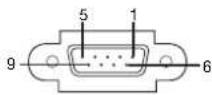
| Pin No. | Name | I/O | |
| 1 | - | - | |
| 2 | TXD | IN | |
| 3 | RXD | OUT | |
| 4 | - | - | |
| 5 | GND | - | |
| 6 | - | - | |
| 7 | - | - | |
| 8 | - | - | |
| 9 | - | - |
COMPUTER IN / COMPONENT VIDEO IN (Mini D-SUB 15-pin)
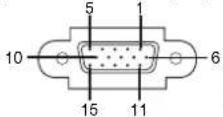
| Pin No. | Spec. |
| 1 | R(RED)/C R |
| 2 | G(GREEN)/Y |
| 3 | B(BLUE)/Ω |
| 4 | GND |
| 5 GND | |
| 6 GND | |
| 7 | GND |
| 8 GND | |
| 9 | DDC 5V |
| 10 | GND |
| 11 | GND |
| 12 | DDC Data |
| 13 | HD/CS |
| 14 | VD |
| 15 | DDC Clock |
DVI-D (HDCP)
(DVI-D 24-pin)

| PIN No. | SPEC | PIN No. | SPEC |
| 1 | DATA 2- | 13 | — |
| 2 | DATA 2+ | 14 | +5V Power |
| 3 | DATA 2 Shield | 15 | Ground |
| 4 | — | 16 | Hot Plug Detect |
| 5 | — | 17 | DATA 0- |
| 6 | DDC Clock | 18 | DATA 0+ |
| 7 | DDC Data | 19 | DATA 0 Shield |
| 8 | — | 20 | — |
| 9 | DATA 1- | 21 | — |
| 10 | DATA 1+ | 22 | Clock Shield |
| 11 | DATA 1 Shield | 23 | Clock+ |
| 12 | — | 24 | Clock- |
Dimension Drawings (unit : mm)
Without terminal cover
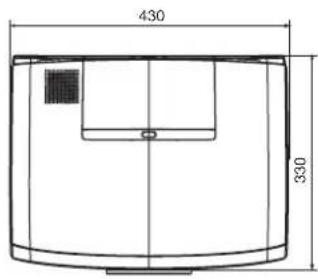
text_image
430 330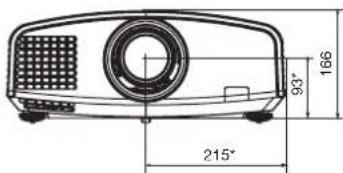
text_image
215° 93° 166* Factory-defaults
With terminal cover

text_image
430 425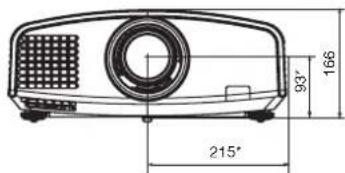
text_image
215° 93° 166* Factory-defaults
MITSUBISHI Projector Contact Information
North America
MESCA (Mitsubishi Electric Sales Canada Inc.)
http://www.mitsubishielectric.ca
Information Technologies Group, 4299 14th Avenue,
Markham, Ontario L3R 0J2, Canada
Sales & Technical Inquires
| Phone | :+1-(800) | 450-6487 |
| Fax | :+1-(905) | 475-7958 |
| :projectors@mitsubishi electric.ca | ||
| Care | ||
| :support@mitsubishi electric.ca | ||
MDEA (Mitsubishi Digital Electronics America, Inc.)
(Warranty Registration)
http://www.mitsubishi-presentations.com/
Presentation Products Division, 9351 Jeronimo Road,
Irvine, CA 92618 U.S.A
Sales & Inquires
| Phone | :+1(888) 307-0349 or +1(949)465-6000 |
| :ppdinfo@mdea.com | |
| Inquires | |
| Phone | :+1-(888) 307-0309 |
| :TSUPPORT@mdea.com | |
Europe
MEU-FRA (Mitsubishi Electric Europe B.V French Branch)
MEU-GER (Mitsubishi Electric Europe B.V. German Branch)
http://www.mitsubishi-evs.de/
Gothaer Strasse 8, 40880 Ratingen, Germany
Sales Inquires
Phone :0049 - 2102 - 486 9250
Fax :0049 - 2102 - 486 7320
Technical Inquires
Phone :0049 - 2102 - 486 1330
Fax :0049 - 2102 - 486 1340
MEU-IR (Mitsubishi Electric Europe B.V. Irish Branch)
http://www.mitsubishi.ie/
Westgate Business Park, Ballymount, Dublin 24, Ireland
Sales Inquiries
| Phone | :+353-1-4198807 |
| Fax | :+353-1-4198890 |
Technical Inquiries
| Phone | :+353-1-4198808 |
| Fax | :+353-1-4198895 |
MEU-IT (Mitsubishi Electric Europe B.V. Italian Branch)
Via Paracelso 12, 20041 Agrate Brianza, Italy
Sales & Technical Inquiries
| Phone | :+39-(0)39-60531 |
| Fax | :+39-(0)39-6053214 |
| :info projector@it. |
MEU-NL (Mitsubishi Electric Europe B.V. Benelux Branch)
http://www.mitsubishi.nl/LCD/ProdFrame.html
Russia (Mitsubishi Electric Europe B.V Moscow
Representative Office)
http://www.mitsubishi-projector.ru/
Moscow Representative Office, 52/5 Kosmodamianskaya
Nab., 115054, Moscow, Russia
Sales & Technical Inquiries
| Phone | :(7095) | 721-2068 |
| Fax | :(7095) | 721-2071 |
MEU-SP (Mitsubishi Electric Europe B.V. Spanish Branch)
http://www.mitsubishielectric.es/
Ctra. de Rubi, 76-80, 08173 Sant Cugat del Valles,
Barcelona, Spain
Sales Inquiries
| Phone | :+34-93.565.31.54 |
| Fax | :+34-93.589.43.88 |
| :mitsubishi.profe |
Technical Inquiries
| Phone | :+34-93.586.27.51 |
| Fax | :+34-93.588.53.87 |
| :mitsubishi.profe |
MEU-SWE (Mitsubishi Electric Europe B.V Scandinavian
Branch)
Hammarbacken 14, Box 750, S-19127, Sollentuna, Sweden
Sales Inquiries
| Phone | :+46-(0)8-6251070 |
| Fax | :+46-(0)8-6251036 |
| Inquiries |
| Phone | :+46-(0)8-6251052 |
| Fax | :+46-(0)8-6251036 |
MEU-UK (Mitsubishi Electric Europe)
http://www.mitsubishi.co.uk/evs/
Visual Information Systems Division, Travellers Lane,
Hatfield, Hertfordshire, AL10 8XB U.K.
Sales Inquiries
| Phone | :+44 | (1707) |
| Fax | :+44 | (1707) |
| :projector.info@meuk.mee.com |
, Technical Inquiries
Phone :+44 (870) 606 5008
| Fax | :+44 | (1506) |
| :projector.info@meuk.mee.com |
Asia
CHINA (Mitsubishi Electric Air-Conditioning & Visual
Information Systems (Shanghai) Ltd.)
26/F., Oriental Center, 699 Nanjing Rd(W), Shanghai,
200041, China
Sales Inquiries
| Phone | :+86(21) |
| Fax | :+86(21) |
Technical Inquiries
| Phone | :+86(21) |
| Fax | :+86(21) |
HONG KONG (Mitsubishi Electric Ryoden Air-Conditioning
& Visual Information Systems (HongKong) Ltd.)
7th Floor, Manulife Tower, 169 Electric Road, North Point,
Hong Kong
Sales Inquiries
| Phone | :+852-2510-1505 |
| Fax | :+852-2510-0463 |
Technical Inquiries
| Phone | :+852-2422-0161 |
| Fax | :+852-2487-0181 |
SINGAPORE (Mitsubishi Electric Asia Pte. Ltd.)
http://www.mitsubishlelectric.com.sg
307, Alexandra Road, #05-01/02 Mitsubishi Electric
Building, Singapore 159943
Sales Inquiries
| Phone | :+65-6473-2308 |
| Fax | :+65-6475-9503 |
| :Peripherals@asia.meap.com |
Technical Inquiries
| Phone | :+65-6470-2666 |
| Fax | :+65-6475-9503 |
INDIA (Mitsubishi Electric Asia Pte. Ltd.)
307, Alexandra Road, #05-01/02 Mitsubishi Electric
Building, Singapore 159943
Sales Inquiries
| Phone | :+65-6473-2308 |
| Fax | :+65-6475-9503 |
| :Peripherals@asia.meap.com |
Technical Inquiries
| Phone | :+65-6470-2666 |
| Fax | :+65-6475-9503 |
INDONESIA (Mitsubishi Electric Asia Pte. Ltd.)
307, Alexandra Road, #05-01/02 Mitsubishi Electric
Building, Singapore 159943
Sales Inquiries
| Phone | :+65-6473-2308 |
| Fax | :+65-6475-9503 |
| :Peripherals@asia.meap.com |
| Inquirie: |
| Phone | :+65-6470-2666 |
| Fax | :+65-6475-9503 |
PHILLIPINES (Mitsubishi Electric Asia Pte. Ltd.)
http://www.mitsubishielectric.com.sg
307, Alexandra Road, #05-01/02 Mitsubishi Electric
Building, Singapore 159943
Sales Inquiries
| Phone | :+65-6473-2308 |
| Fax | :+65-6475-9503 |
| :Peripherals@asia.meap.com |
Technical Inquiries
| Phone | :+65-6470-2666 |
| Fax | :+65-6475-9503 |
VIETNAM (Mitsubishi Electric Asia Pte. Ltd.)
307, Alexandra Road, #05-01/02 Mitsubishi Electric
Building, Singapore 159943
Sales Inquiries
| Phone | :+65-6473-2308 |
| Fax | :+65-6475-9503 |
| :Peripherals@asia.meap.com |
| Inquirie: |
| Phone | :+65-6470-2666 |
| Fax | :+65-6475-9503 |
'STC (Setsuyo Astec Corporation Seoul Branch)
4F, Dongseo Game Channel Bldg, 660-11 Deungchon-Dong,
Kangseo-Ku, Seoul, Korea
Sales & Technical Inquiries
| Phone | :+82-(0)2-2657-9841-3 |
Sales & Technical Inquiries
Phone :+60-(0)3-79552088 (Ext. 203)
| Fax | :+60-(0)3-79563950/+60-(0)3-79582576 |
Technical & Service Inquiries
| Phone | :+60-(0)3-79552088 | (Ext. |
| Fax | :+60-(0)3-79563950/+60-(0)3-79582576 |
ME-TWN (Mitsubishi Electric Taiwan Co., Ltd.)
http://www.mitsubishi-kyw.co.th/
11TH FL., 88 SEC. 6, CHUNG SHAN N. RD., TAIPEI, 111R.
O.C.
Sales & Technical Inquires
| Phone | :+886-2-2832-8255 |
| Fax | :+886-2-2833-9813 |
MKY (Mitsubishi Electric Kang Yong Watana Co., Ltd.)
http://www.mitsubishi-kyw.co.th/
Road, Huamark Bangkapi, Bangkok 10240, Thailand
Sales & Technical Inquiries
| Phone | :+66-2-731-6841 |
| Fax | :+66-2-379-4763 |
Oceania
ME-AUST (Mitsubishi Electric Australia)
http://www.mitsubishi-electric.com.au/prod.asp?prod=proj
348 Victoria Road, Rydalmere, N.S.W. 2116, Australia Sales
& Technical Inquiries
| Phone | :+(612)9684-7777 |
| Fax | :+(612)9684-7208 |
| :diamonddigital@meaust.meap.com |
Technical Inquirie
| Phone | :+(612)9684-7694 |
| Fax | :+(612)9684-7684 |
| :service@meaust.meap.com |
BDT (Black Diamond Technologies Ltd.)
(Warranty Registration) http://www.bdt.co.nz/projectors/
warranty.asp
1 Parliament St, Lower Hutt, Wellington, New Zealand Sales
Inquiries
| Phone | :+64-(0)4-560-9100 |
| :service@bdt.co.nz |
Manufactured by Mitsubishi Electric Corporation
1 Zusho Baba, Nagaokakyo-City, Kyoto Japan

MITSUBISHI ELECTRIC CORPORATION