STLU - Flat screen mount Chief - Free user manual and instructions
Find the device manual for free STLU Chief in PDF.


User questions about STLU Chief
0 question about this device. Answer the ones you know or ask your own.
Ask a new question about this device
Download the instructions for your Flat screen mount in PDF format for free! Find your manual STLU - Chief and take your electronic device back in hand. On this page are published all the documents necessary for the use of your device. STLU by Chief.
USER MANUAL STLU Chief
INSTALLATION INSTRUCTIONS
natural_image
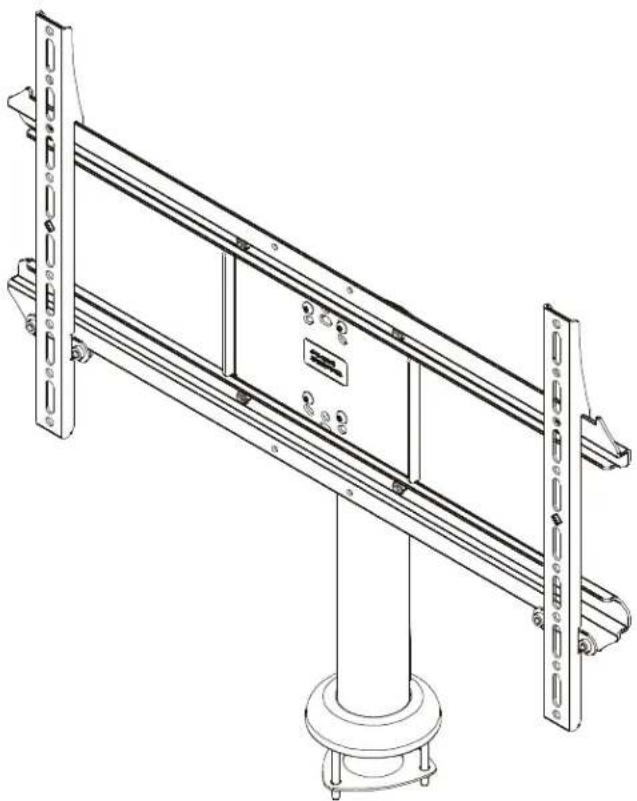
Technical line drawing of a mechanical assembly with mounting feet and structural supports (no text or symbols)Large Hospitality Table Stand
DISCLAIMER
Milestone AV Technologies and its affiliated corporations and subsidiaries (collectively "Milestone"), intend to make this manual accurate and complete. However, Milestone makes no claim that the information contained herein covers all details, conditions or variations, nor does it provide for every possible contingency in connection with the installation or use of this product. The information contained in this document is subject to change without notice or obligation of any kind. Milestone makes no representation of warranty, expressed or implied, regarding the information contained herein. Milestone assumes no responsibility for accuracy, completeness or sufficiency of the information contained in this document.
Chief® is a registered trademark of Milestone AV Technologies. All rights reserved.

IMPORTANT SAFETY INSTRUCTIONS

WARNING: A WARNING alerts you to the possibility of serious injury or death if you do not follow the instructions.

CAUTION: A CAUTION alerts you to the possibility of damage or destruction of equipment if you do not follow the corresponding instructions.

WARNING: Failure to read, thoroughly understand, and follow all instructions can result in serious personal injury, damage to equipment, or voiding of factory warranty! It is the installer's responsibility to make sure all components are properly assembled and installed using the instructions provided.

WARNING: Failure to provide adequate structural strength for this component can result in serious personal injury or damage to equipment! The mounting surface must be a minimum of 3/4" in depth for medium-density fibreboard or particle board. If mounting to another type of surface, make sure surface can hold up to four times the combined weight of all equipment prior to mounting the STLU to surface!

WARNING: Exceeding the weight capacity can result in serious personal injury or damage to equipment! It is the installer's responsibility to make sure the combined weight of all components located between the STLU up to (and including) the display does not exceed 125 lbs (56.7 kg). Use with products heavier than the maximum weight indicated may result in collapse of the mount and its accessories causing possible injury.

WARNING: TO REDUCE THE RISK OF BURNS, FIRE, ELECTRIC SHOCK, OR INJURY TO PERSONS, rotational stop must be in place prior to display installation! If stop is not in place, the cables may be damaged if the display is over-rotated! Always make sure rotational stop is in place before proceeding with installation!

WARNING: Use this mounting system only for its intended use as described in these instructions. Do not use attachments not recommended by the manufacturer.

WARNING: Never operate this mounting system if it is damaged. Return the mounting system to a service center for examination and repair.

WARNING: Do not use this product outdoors.
--SAVE THESE INSTRUCTIONS--
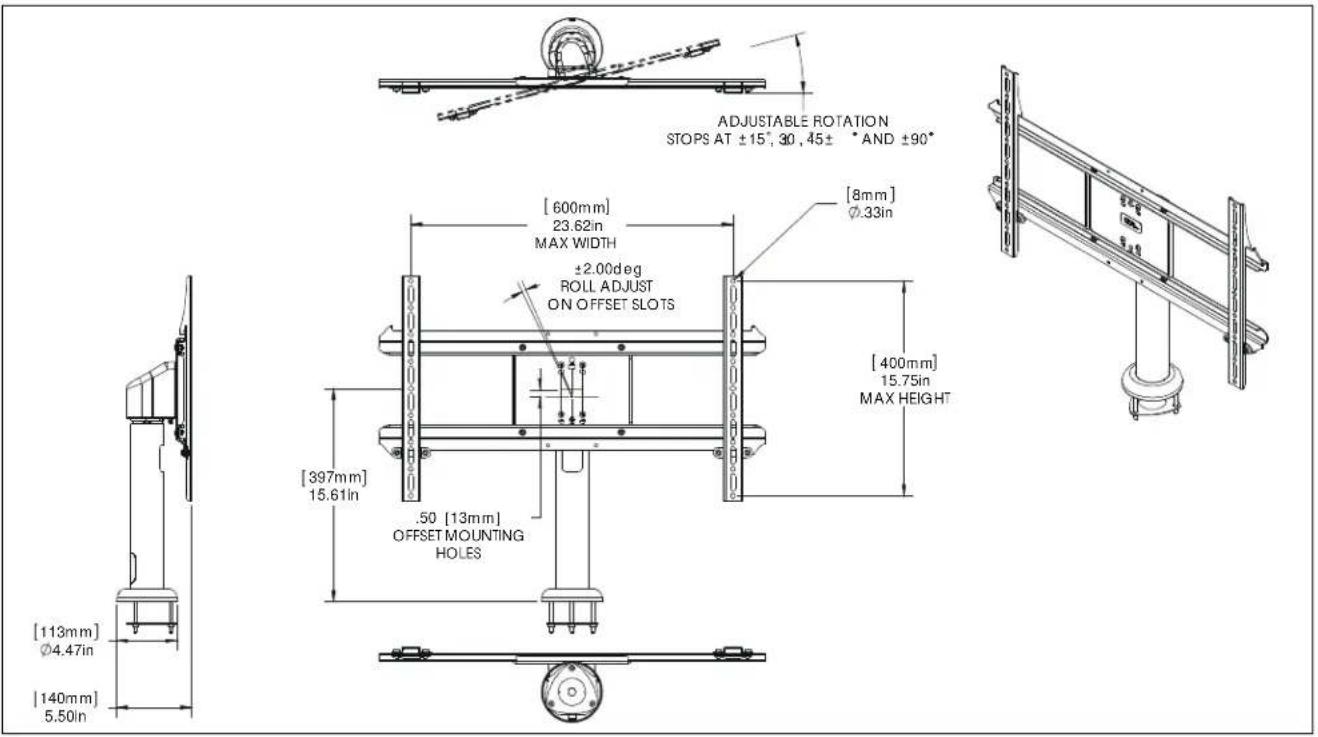
DIMENSIONS
text_image
ADJUSTABLE ROTATION STOPS AT ±15°, 30, 45± • AND ±90° [600mm] 23.62in MAX WIDTH ±2.00deg ROLL ADJUST ON OFFSET SLOTS [8mm] Ø.33in [400mm] 15.75in MAX HEIGHT [397mm] 15.61in .50 [13mm] OFFSET MOUNTING HOLES [113mm] Ø4.47in [140mm] 5.50inLEGEND
 | Tighten Fastener |  | Pencil Mark |
| Apretar elemento de fijación | Marcar con lápiz | ||
| Befestigungsteil festziehen | Stiftmarkierung | ||
| Apertar fixador | Marcar com lápis | ||
| Serrare il fissaggio | Segno a matita | ||
| Bevestiging vastdraaien | Potloodmerkteken | ||
| Serrez les fixations | Marquage au crayon | ||
 | Loosen Fastener |  | Drill Hole |
| Aflojar elemento de fijación | Perforar | ||
| Befestigungsteil lösen | Bohrloch | ||
| Desapertar fixador | Fazer furo | ||
| Allentare il fissaggio | Praticare un foro | ||
| Bevestiging losdraaien | Gat boren | ||
| Desserrez les fixations | Percez un trou | ||
 | Phillips Screwdriver |  | Adjust |
| Destornillador Phillips | Ajustar | ||
| Kreuzschlitzschraubendreher | Einstellen | ||
| Chave de fendas Phillips | Ajustar | ||
| Cacciavite a stella | Regolare | ||
| Kruiskopschroevendraaier | Afstellen | ||
| Tournevis à pointe cruciforme | Ajuster | ||
 | Open-Ended Wrench |  | Remove |
| Llave de boca | Quitar | ||
| Gabelschlüssel | Entfernen | ||
| Chave de bocas | Remover | ||
| Chiave a punte aperte | Rimuovere | ||
| Steeksleutel | Verwijderen | ||
| Clé à fourche | Retirez | ||
 | By Hand |  | Optional |
| A mano | Opcional | ||
| Von Hand | Optional | ||
| Com a mão | Opcional | ||
| A mano | Opzionale | ||
| Met de hand | Optie | ||
| À la main | En option | ||
 | Hex-Head Wrench |  | Security Wrench |
| Llave de cabeza hexagonal | Llave de seguridad | ||
| Sechskantschlüssel | Sicherheitsschlüssel | ||
| Chave de cabeça sextavada | Chave de segurança | ||
| Chiave esagonale | Chiave di sicurezza | ||
| Zeskantsleutel | Veiligheidssleutel | ||
| Clé à tête hexagonale | Clé de sécurité |
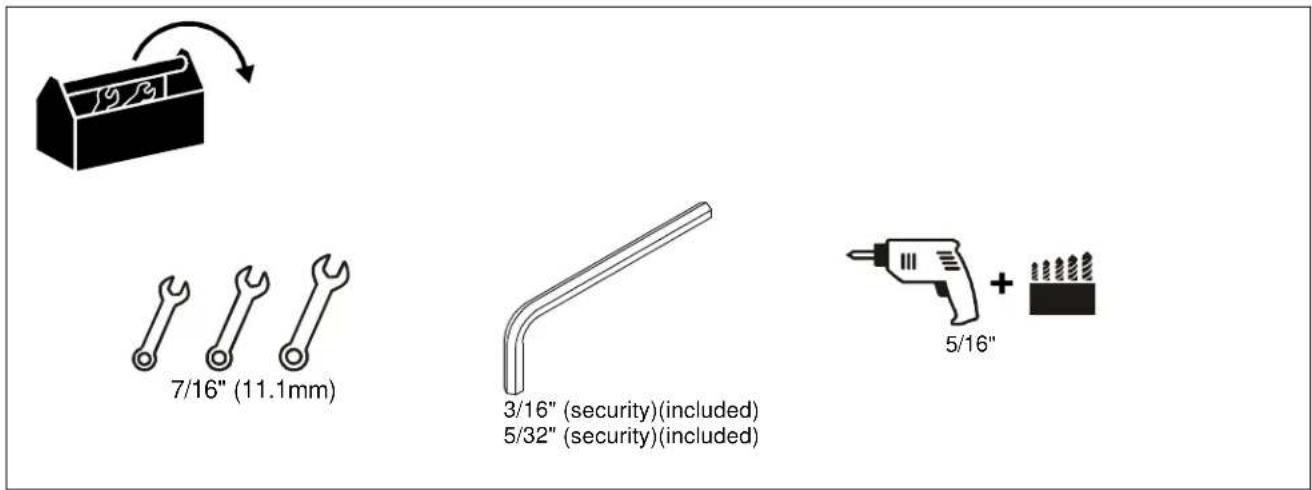
TOOLS REQUIRED FOR INSTALLATION
text_image
7/16" (11.1mm) 3/16" (security)(included) 5/32" (security)(included) 5/16" + screwdriverPARTS
text_image
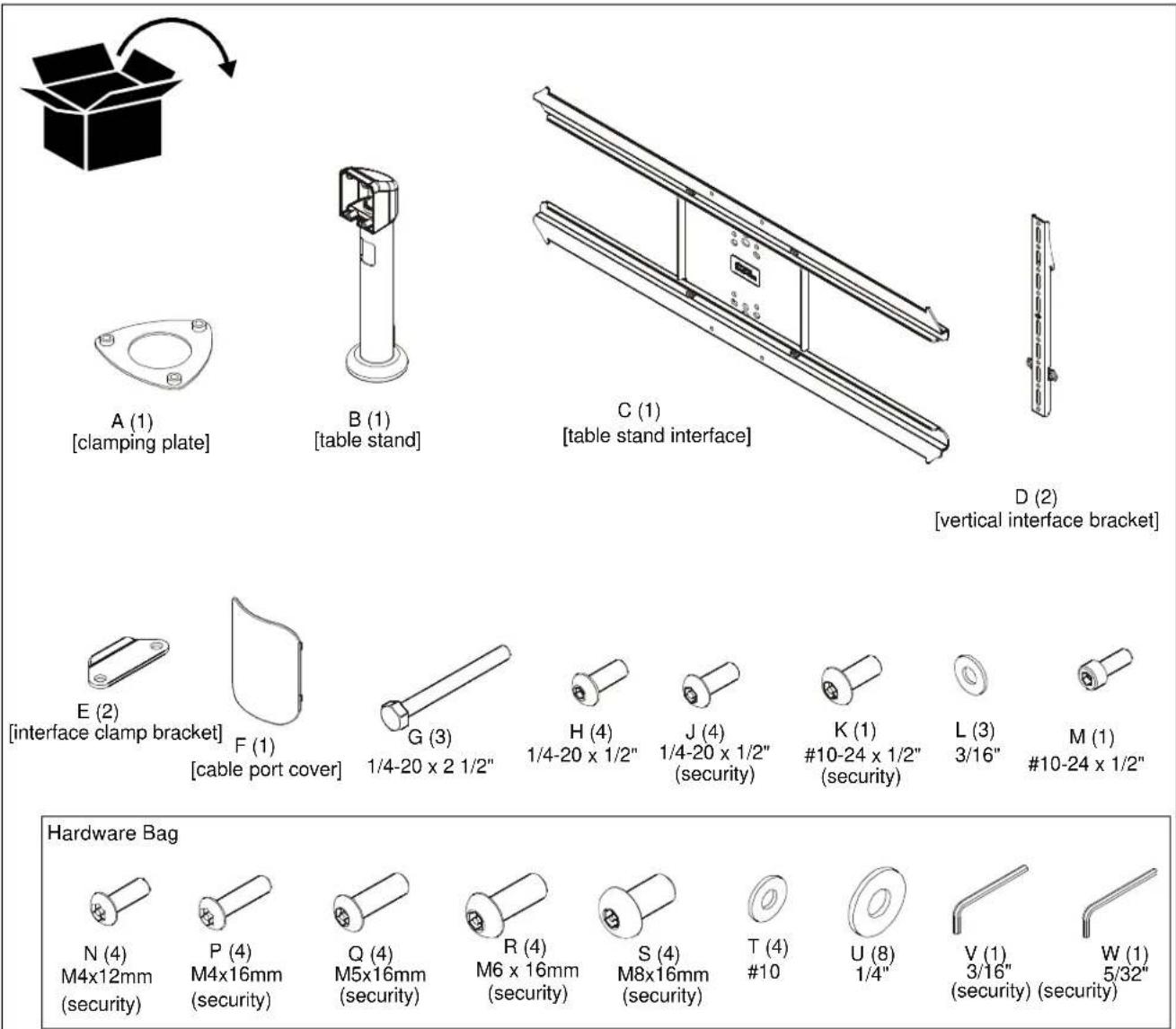
A (1) [clamping plate] B (1) [table stand] C (1) [table stand interface] D (2) [vertical interface bracket] E (2) [interface clamp bracket] F (1) [cable port cover] G (3) 1/4-20 x 2 1/2" H (4) 1/4-20 x 1/2" J (4) 1/4-20 x 1/2" (security) K (1) #10-24 x 1/2" (security) L (3) 3/16" M (1) #10-24 x 1/2" Hardware Bag N (4) M4x12mm (security) P (4) M4x16mm (security) Q (4) M5x16mm (security) R (4) M6 x 16mm (security) S (4) M8x16mm (security) T (4) #10 U (8) 1/4" V (1) 3/16" (security) (security) W (1) 5/32"Assembly to Desk
- Use four 1/4-20 x 1/2" button head caps screws (H) to secure table stand (B) to table stand interface (C). (See Figure 1)
NOTE: If roll adjustment is desired, install through screws through rotational slots rather than the standard slots. (See Figure 1)
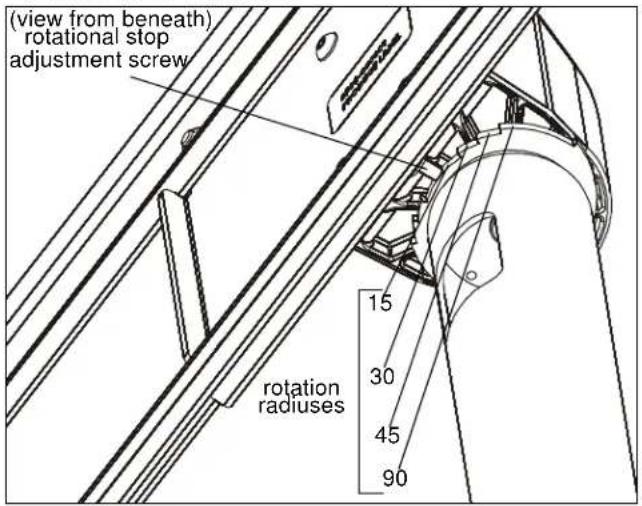
NOTE: In order to achieve a +/- 90° rotation radius while using the rotational slots, the rotational stop adjustment screw must be removed and replaced with #10-24 x 1/2" socket head cap screw (M). (See Figure 1)

text_image
rotational slots (B) (C) rotational stop adjustment screw (H) x 4Figure 1
- Determine mounting location by setting table stand on desk and experimenting with desired rotation capabilities.
NOTE: Rotation radius can be set to be either +/- 15°, 30°, 45°, or 90°. See Dimensions graphic for details.
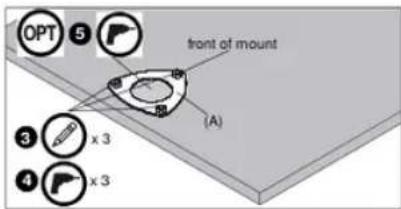
3. Use clamping plate (A) as a template to mark locations for the three holes to be drilled at desired mounting location.
text_image
OPT 5 front of mount (A) 3 x 3 4 x 3Figure 2
- Lift lower cover on table stand to expose holes on lower plate. (See Figure 3)
- Use three 1/4-20 x 2 1/2" hex head cap screws (G) and three 3/16" washers (L) to secure table stand (B) to desk and clamping plate (A). (See Figure 3)

text_image
rotational stop adjustment screw lower cover (G) x 3 (A) (L) x 3 deskNOTE: Prior to installing display, the rotation radius should be adjusted. Once the display is connected, it will no longer be possible to adjust the rotational stop without removing the display from the mount.
- Use the 5/32" security hex key (W) to loosen rotational stop adjustment screw until desired radius is achieved. (See Figure 3) and (See Figure 5)

WARNING: TO REDUCE THE RISK OF BURNS, FIRE, ELECTRIC SHOCK, OR INJURY TO PERSONS, rotational stop must be in place prior to display installation! If stop is not in place, the cables may be damaged if the display is over-rotated! Always make sure rotational stop is in place before proceeding with installation!
text_image
(view from beneath) rotational stop adjustment screw rotation rADIUSes 15 30 45 90Figure 5
Display Installation
- Lay display face down on protective surface.

CAUTION: Using screws of improper diameter may damage your display! Proper screws will easily thread into display mounting holes.
-
Select screw diameter by examining hardware (M-R) (8mm, 6mm, 5mm, or 4mm) and comparing with mounting holes on display. (See Figure 6)
-
Select washers:
• Refer to the Table 1-1 to determine which washers (S and T) to use for display installation.
NOTE: No washers are required with installation using M8 diameter screws.
Table 1-1: Washer Usage
| M4 M5 M6 | |||
| #10 (T) X | |||
| 1/4-20" (U) X X X | |||

CAUTION: Using screws of improper length may damage your display! Proper screws will have adequate thread engagement without contacting bottom of display mounting holes.
-
Select screw length: (for M4 screws only)
-
Using your hand, insert M4x12mm button head security screw (N) through vertical interface bracket (D), washers (T and U), into display mounting hole. Do NOT thread screw into hole at this time.
- Proper screw length requires base of screw head to protrude above flat washer a distance equal to or greater than the screw diameter. If screw length is inadequate, use M4x16mm screw (P). Select shortest screw which will protrude the required distance.
text_image
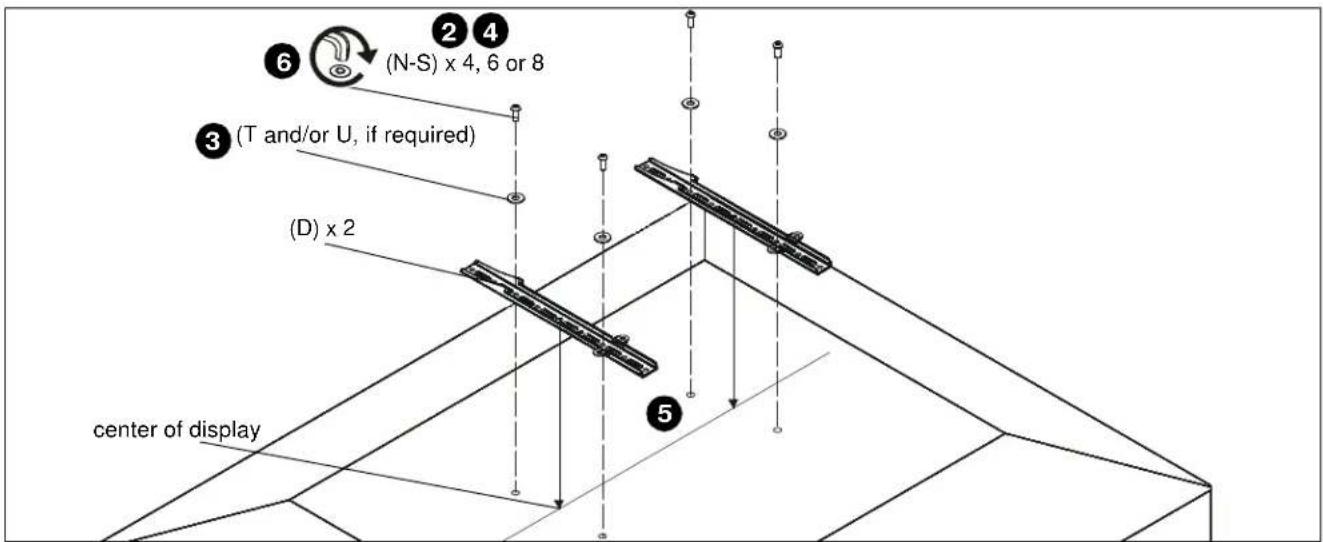
6 (N-S) x 4, 6 or 8 3 (T and/or U, if required) (D) x 2 center of display 2 4 5Figure 6
-
Place vertical interface brackets (D) on display, ensuring: (See Figure 6)
-
Upper hooks are towards top of display.
- Center of brackets (D) are as close to the center of the back of display as possible after being installed. Center of bracket is indicated by the diamond-shaped hole.
- Install selected screws through washers (T and/or U, if required) vertical interface bracket (D) and into display mounting holes. (See Figure 6)
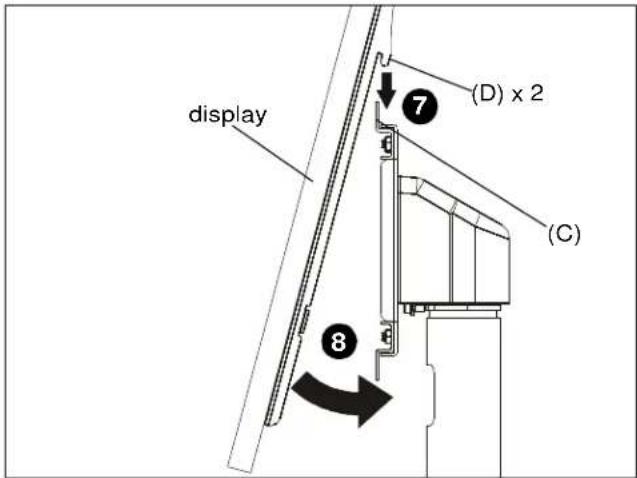
- Hang display onto top rail of table stand interface (C) using hooks on top of vertical interface brackets (D). (See Figure 7)
- Gently set back of display against lower rail of table stand interface. (See Figure 7)
text_image
display (D) x 2 (C) 8Figure 7
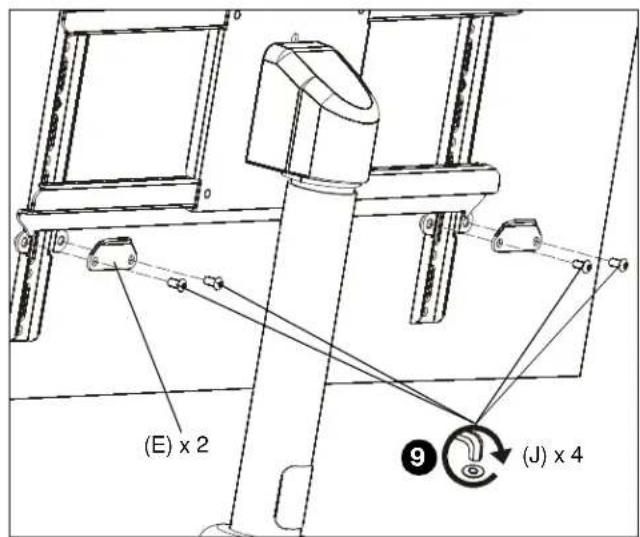
- Use four 1/4-20 x 1/2" button head security cap screws (J) and two interface clamp brackets (E) to secure vertical interface brackets (D) to table stand interface (C). (See Figure 8)
text_image
(E) x 2 (J) x 4Figure 8
Cable Management
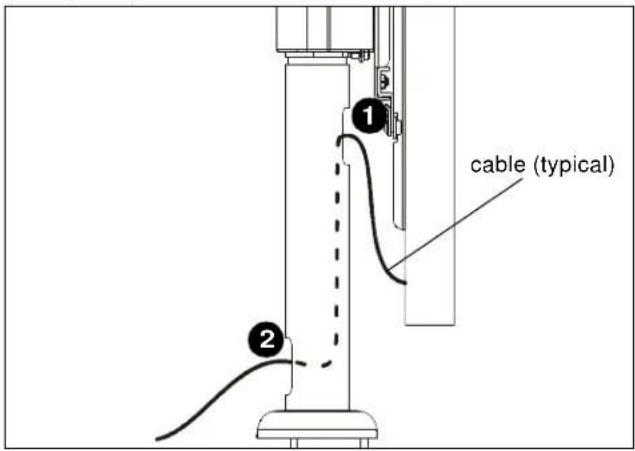
The STLU can be set up for two types of Cable Management. One calls for the cables to be routed strictly through the pole portion of the table stand. The other routes the cables through the pole and through a pre-drilled hole in the desk.
Cable Management (pole only)
- Route cables from display into upper hole on pole portion of table stand (B). (See Figure 9)
- Route cables down the pole and out of lower hole. (See Figure 9)
text_image
① ② cable (typical)Figure 9
Cable Management (through desk)
- Route cables from display into upper hole on pole portion of table stand (B). (See Figure 10)
- Route cables down the pole and through hole drilled in desk during desk installation. (See Figure 10)
- Install cable port cover (F) into lower hole on pole portion of table stand (B). (See Figure 10)

text_image
(F) ① ③ ②Figure 10
Installation Instructions