 ManualGo.com
 KOS-A210 - KENWOOD - Free user manual and instructions
Find the device manual for free KOS-A210 KENWOOD in PDF.


Download the instructions for your in PDF format for free! Find your manual KOS-A210 - KENWOOD and take your electronic device back in hand. On this page are published all the documents necessary for the use of your device. KOS-A210 by KENWOOD.
USER MANUAL KOS-A210 KENWOOD
INSTRUCTION MANUAL Kenwood Corporation
CE Declaration of Conformity with regard to the EMC Directive
2004/108/EC Manufacturer: Ke orporation
shikawa-machi, Hachioji-shi, Tokyo, 192-8525 Japan EU Representative‘
Kenwood Elect eV Amsterdams C UITHOORN, The Ne
Works h L[1 Designed for ho NC ]
© B64-4455-00/00 (EW
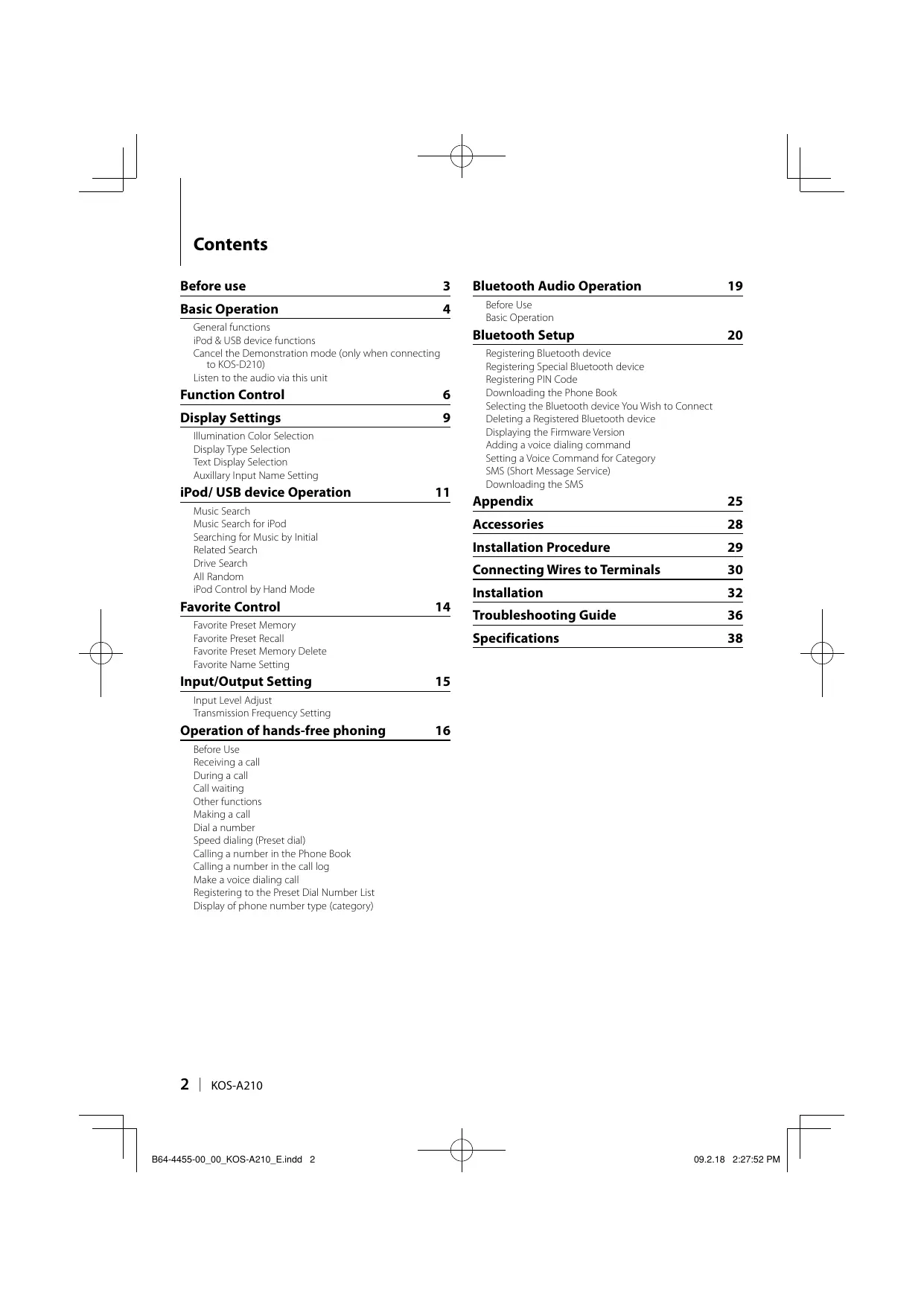
Ÿ 092.18 2:27:51 PM Contents
Before use 3 Bluetooth Audio Operation 19 Basic Operation 4 Before Use = P Basic Operation eneral functions iPod & USB device functions Bluetooth Setup 20 Cancel the Demanstration made (only when connecting ering Bluetooth device to KOS-D210) ering Special Bluetooth device Listen ta the audio via this unit ering PIN Code Function Control 6 Downloading the Phone Book Selecting the Bluetooth device You Wish to Connect Display Settings 9 Deleting a Registered Bluetooth device Illumination Color Selection Displaying the Firmware Version Display Type Selection Adding a voice dialing command ext Display Selection Setting a Voice Command for Category Auxllary Input Name Setting SMS na Nogent) : n : Downloading the SMS iPod/ USB device Operation L ns Appendix 25 Music Search Music Search for iPod Accessories 28 Searching for Music by Initial ; Related Search Installation Procedure 29 Drive Search : n Rand Connecting Wires to Terminals 30 Al Random iPod Cantrol by Hand Mode Installation 32 Favorite Control 14 . Troubleshooting Gi 36 Favorite Preset Memory Favorite Preset Recal Specifications 38 Favorite Preset Memory Delete Favorite Name Setting Input/Output Setting 15 Input Level Adjust Transmission Frequency Setting Operation of hands-free pho: 16
Speed dialing (Preset dial)
Calling a number in the Phone Book Calling a number in the call log
Make a voice dialing cal
Registering to the Preset Dial Number List Display of phone number type (category)
: To prevent a short circuit, never put or leave any metallic objects (such as coins or metal tools) inside the unit.
jury or fire, take the following
Cancel the Demonstration mode to use this unit when connecting to Display unit KOS- D210 (optional accessory)!
This unit is initially set on the Demonstration mode when connecting to KOS-D210.
When using this unit for the first time, cancel the <Cancel the Demonstration mode> (page 5)
Ifthe this unit is stained, wâpe it with a dry soft cloth such as a silicon cloth.
IFthe this unit is stained badly, wipe the stain off with a cloth maistened with neutral cleaner, then wipe it
again with à clean soft dry cloth.
+ AppWing spray cleaner directly to the unit may affect its mechanical parts. Wiping the faceplate with a hard cloth or using a volatile liquid such as thinner or alcohol may scratch the surface or erase printed characters.
To display the information from this unit on your vehicle display, the vehicle audio should support the RDS radio system.
The notation ‘in this manual represents the
displayed messages for Display unit KOS-D210
(optional accessory). The notation (**) represents the
displayed messages for the vehicle audio connected
If you experience problems during installation,
consult your Kenwood dealer.
+ When you purchase optional accessories, check with your Kenwood dealer to make sure that they work with your model and in your area
+ Characters that conform to ISO 8859-1 can be displayed
+ Characters that conform to ISO 8859-5 or ISO 8859-
1 can be displayed. Refer to*MENU"> “Russian of
<Function Control> (page 6).
The illustrations of the display appearing in this
manual are examples used to explain more clearly
how the controls are used. Therefore, what appears on the display in the illustrations may differ
from what appears on the display on the actual
equipment, and some of the illustrations on the
display may be inapplicable.
I B64-4455-00_00_KOS-A210 Eindd 3
This Product is not installed by the manufacturer of à vehicle on the production line, nor by the professional importer of a vehicle into an EU Member State
Information on Disposal of Old Electrical and Electronic Equipment and Batteries {applicable for EU countries that have adopted separate waste collection systems) Products and batteries with the symbol (crossed-out wheeled bin) cannot be disposed as household waste Old electrical and electronic equipment and batteries should be recycled at a facility capable of handling these items and their waste byproducts. Contact your local authority for details in locating a recycle facility nearest to you Proper recycling and waste disposal will Pb help conserve resources whilst preventing detrimental effects on our health and the environment Notice: The sign‘Pb' below the symbol for batteries indicates that this battery contains lead
Power/Source Select button: [SRC]
When the power is ON, select a source:
When connecting to KOS-D210 (Optional Accessory) (SRC Select mode 1): Press the [SRC] button and then turn the Control knob or push it toward up or down. To determine the selected source, press the Control knob.
When not connecting to KOS-D210 (Optional Accessory) (SRC Select mode 2): Pressing this button each time switches between sources.
iPod/ USB device (‘iPod' or “USB"), Auxiliary input {AUX"), and Standby ('STANDBY")
Press at least 1 second to turn offthe power.
To select SRC Select mode 2 when cannecting to KOS- D210,set"MENU" > "SRC Select of <Function Control> (page 6) to?"
When an optional accessory is connected, the source name for each device appears.
When connection ofthe iPod is recognized, the source display changes from"USB" to "iPod"
For the playable audio files, and devices, refer to <About Audio file> (page 25)
Text/Title scroll: Control knob Scrolls the longer audio file text display when pushing toward up for at least 2 seconds
Function Control: [FNC]
Pressing this button allows you to set various functions using the Control knob. Refer to <Function Control> (page 6).
Category HFunction of setup item
FA Enters the Favre Prest Recal mode.
MENU Allows you to set up the environment
AMV EntesstheUSB remove mode
SETUP Alu you to setup the display and color
Br Alows you to setup he Bluetooth function.
— AS you to set up the each source Function
Favorite Control: [FNC]
Pressing the button for at least 1 second allows you to register various functions. The registered function can be executed from the list displayed by pressing this button and then selecting “FAV”. Refer to <Favorite Control> (page 14)
Illumination Control: [ (4 ]
Hold this button and turn the Control knob to change the KOS-D210 (Optional Accessory) and controller illumination colors.
You can select from the 10 colors or to scan all 10 colors, each of which changes every 5 seconds.
+ To make the KOS-D210 illumination color different from the controller, set"OFF"MENU" > “Ilumi SYNC" of <Function Contral> (page 6). You can set the KOS-D210 illumination color in"SETUP" > “Color Select” (page 9) of <Function Control> (page 6)
Switching'llumi SYNC" from "OFF" to "ON: does not synchronize illumination color immediately. The next illumination color change action activates the color synchronize.
Pause and play: Control knob Switches between pause and play each time this button is pressed
Music search: Control knob
Pushing left or right on the control knob forwards or reverses the music. Holding the control knob to the left or right fast-fonwardhs or fast-reverses (inaudible). Folder search: Control knob
Changes the folder containing the audio file when pushing toward up or down
+ For the operation on iPod, see <Music Search for iPod> {page 11) for quick search and control functions.
Search mode: Control knob
After turning control knob, you can quickly search
songs with the Control knob. See <Music Search>
{page 11) for details.
When removing the iPod/ USB device, you must enter
the Remove mode. To enter the Remove mode, press
the [FUN] button and then select *RMV” (‘USB RMV")
For details, refer to <Function Control> (page 6)
+ The iPod/ USB device can be removed during power off
B64-4455-00_00_KOS-A210 Eindd 5
Cancel the Demonstration mode {only when connecting to KOS-D210)
Do not use this unit before canceling Demonstration mode.
1 Turn the power ON Press the [SRC] button.
2 Enter Function Control mode Press the [FNC] button.
3 Select the Menu mode Push the Control knob towards right, left, up and down to select “MENU”, and then press the Control knob.
4 Select the “DEMO Mode” display Turn the Control knob.
5 Set the Demonstration mode Press the Control knob for at least 2 seconds. Pressing this knob for 2 seconds or longer toggles the setting between “ON"and'OFF"
6 Exit Function Control mode Press the [FNC] button twice.
Listen to the audio via this unit
When listening to the audio with the transmitter function Tune the vehicle radio to FM 88.3 MHz, and then set the program service name for the
display. The transmission frequency can be changed with "MENU TransmissionFREQ® (*FREQ") of
<Function Control> (page 6)
When listening to the audio with the LINE OUT function Switch the source of the vehicle audio to “AUX”.
09.218 2:27:52 PM Function Control
Functions in the table below can be set up by using Function Control.
1 Enter Function Control mode Press the [FNC] button.
2 Select a Function group (only when connecting to KOS-D210) Push the Control knob towards right or left. Pushing the Control knob towards left allows you to set the preference items ('MENU' or *SETUP") Pushing the Control knob towards right allows you to set the currently selected source function item ON/OFF.
Select your desired setup item
Operation type Operation
Movement between items Turn the Control knob,
Selection offtem Press the Control knob.
Retum to previous tem Press te [FNC] button. Select”Retum'at the bottom of the item lis.
Repeat selection and determination until your desired setup item is selected KOS-D210 display example:
OC 2e In this manual, the above selection is indicated as Select “MENU” > “Scroll”. Each items "D" will be “/"when the source function is set to ON
Push the Control knob towards up or down.
Press the Control knob to set the source function
+ Some items require you to keep pressing the Control knob for 1 or 2 seconds so that you can make a setting. For these items, the time during which you need to keep pressing the Control knob is displayed in the Ei column in secondés.
+ Areference page number is listed along with the function for a detailed explanation.
5 Exit Function Control mode Press the [FNC] button twice. Press the [FNC] button several times until you return to the desired hierarchy.
B64-4455-00_00_KOS-A210 Eindd 6
Displayed controls and settings are dependent on the currently selected source or mode. Observe the source and mode markings in the condition column.
Can be set in other than standby stat Can be set in standby state.
ES: Can be set while Audio file source of iPod/USB device.
Can be set while Audio ile source of USB device <excluding iPod)
Can be set only during playback of the iPod
Can be set only during playback of the Music Editor media.
Can be set while accessing AUX source.
Can be set while a cel-phone is connected.
Can be set during all sources.
The Control knob is used for entry, but how to use the knob varies depending on the setting items. © : Press the Control knob ta switch the settings.
Push the Control knob towards left or right to switch the settings. Turn the Control knob to switch the set
Press the Control knob for 1 second to en the setting mode.
Press the Control knob for 2 seconds to enter into the setting mode.
Refer to the respective page for information on how to the items with reference page number. Only the items available to the current source are displayed. The connected cell-phone must have the SMS function to use the*SMS" function: This unit supports KENWOOD Music Editor version 3.0 (page 25) or later. IFFILE SCAN'is selected while a media file in KENWOOD Music Editor is playing, media files are played as follows: First 10 seconds or the part picked by Intro Skip. During Intro Skip, turn the control knob left or right to change the song, The scan method depends on the Music E the Music Editor help for details.
09.2.18 2:27:53 PM Source function item
“Factory setting] 1 Function of KOS-A210 with KCA-BT200. #2 Function of KOS-A210 with KOS-D210. 3 Refer to <Menu Glossary> (page 26)
Function Setting JEnty JSettingowerview Condition | Page “Pod Bi HAND''PODMODE) “ON/"OFF" When set to"ON" allows you to operate iPod withthe (D 1 control an the iPod RH = Starts Related search em CPAVNODET AESGN NT When set to ON, plays the intro ofthe music in the ED — When nat connectng SCALE") folder successively 10K0S-D210 FFOLDER RON “O7 0 When set to ON, plays the music in the folder = CRDM:FOLD') randomiy. ALLRANDON “ON7 OT When set to"ON; al songs in iPod are played at E CRDM AL) random FLERPET ON/ OR When set to ON; plays the music repeatedi. CREPLFLET FODRRE “ON/ 0 When set to ON; plays the music in the folder La] CREP-FOLD') repeatedh. Preference item Category item Setting JEntry JSettingowerview Condition | Page EE _ @ Eriers the Favorite Preset Recal mode. — necing 1 KOS-DAN0 1 Changes diplayedinfommetion or MENU TammsnREQ EU) 979-899 etting the transmission frequency. ee : “Moduaton CODE 4 Sting the modulation level oftransmiter ee - SES CSLSD) T7 D Sering the data transmission speed oFRDS Css put vel ADI TNPUTIN 8-0 pen Se put level 5 ass PES SACS ESS PAT AD Site source selection method ee Skip Sea SP] T7 Sets the ratio ofskip performed with <Music Search 3 : “IKSNT foriPode. [Kkme] 0x" FonerONodé FAR TZ Automatically turns the power on when there is an ee - OFF" 2? _ incoming cal during power off “Device Regis ('DVC REG" _ Register a Bluetooth device (pairing). ES SP DIS CSC — Alow registration of a special device that cannotbe @B 2 registered normal “Phone Sector PA = Select a cellphone subject to hands-free connection QD SE — Bluetooth audio player to be connected. — à = Cancel registration ofthe Bluetooth device. ee BTDIC Sans — Display the status of the Bluetooth device. — + CD-STATUS PIN Code TANEDT — Specify the PIN code requied when regsterng sun ŒR 2 using the Bluetooth device. uv nsner CAS FT Answer a call automatically after lapse ofthe preset ee Rs" time interval for automatic answer. SP Seee SAR T AFTAL) Specify the voice output speaker. ee CUT, PRigé ('ACH') GTS ONTUT € Oupurebephommespalerwrensclcomen D Next page > English | 7
B64-4455-00_00_KOS-A210 Eindd 7
09.218 2:27:54PM Function Control Ron of Los Aa with kck sr200 #2 Function of KOS-A210 with KOS-D210. #3 Refer to <Menu Glossary> (page 26).
Category item Setting JEntry JSettingowerview Condition | Page Beep Level (REPLY TS ‘4 Setingthe call beep sound volume. — — Fate (REP TA QD Seringthe becp sound parte. — — ST FU pe CET — ma Die) Me fimuare version andupdste he fra | Œ 2 up" : Tlum SYAC OPUS @ Synchronizes the ilumination color ofthe display with QD that of the controller.
Dane COSP OT F7 ON @ Tums offthe display when no operations perommed MR DSP DIN COINS FO TRIO Sets whether the Ilumination is dimmed in comunction QE * PAT #2 with the light switch ofthe vehicle or i is dimmed
“ANAL constant. Cnrase? TD D Adiusing the display contest ee - DPF POTTE ça Switches the display between posiie or negative 5 rar 2 DSP DPTUT a Mips the display upside-down when Display unit is ES : installed above your eye level. Supreme (SPAM) UFPOT* QD Tuins ONOFF the Supreme function ee : Fame Set CNAMESET) = Sets the display when switched to AUX source. mn Russan FRUS T2 OFTON* ge Selects Russian as the display language E Soolr(SCLMANUT un? An Spcdfies whetherthe text scrolled automatically. DE Mana ? Favorite Delete CFAVDEEP — Deletes Favorite Preset Memory. Css ] FBuitin AUE TAUX OFTONS Sets whether to display AUX during source selection. | QD FANS CFA — — Display the firmware version Css ] “DEMO Node"l'DEMO" “OF7'ON" EN Specifies whether to enable demonstration. —
RUE Enters the USB remove mode. UP Die “pese ONPIVE Sets the display pattern. = Select” IA= 181" SdeSeer types Sete Type À side display _ ETS = D Ses there display. = TS Tab ar 7 Ses the display Mlumnation color. — “or 1"-"or ÉŸ lt can be set when‘lllumi SYNC'is turned'OFF' Ur BT Cockope VU — Call by recognizing the registered voice. E WücegPSiame — Registers voice for voice recognition. æ 2 CUCETAG) NAME "PATpe Et = Regsters voice to select the Phone number category GS 2 CTIPEEDT) in Phonebook. ETS nat — @ Download a short message æ CSS DE) ETS = © PP erecnegshomege æ 7 INBON) Ÿ USE RNA) When nt connecangt KOS-D210. @ Eners the USB remove mode. 8 | kos-A210
B64-4455-00_00_KOS-A210 Eindd 8 09.218 2:27:56 PM Display Settings
Function of KOS-D210 (Optional Accessory) Illumination Color Selection
Function of KOS-D210 (Optional Accessory) Display Type Selection
Selecting the Illumination Color of the display.
1 Enter Illumination color selection mode Select “SETUP" > “Color Select”. For how to select Function Control item, refer to <Function Control> (page 6)
2 Select the Illumination Color Turn the Control knob and push the center when the desired item is displayed. Select the color from “Variable Scan'/"Colort" — "Color 10°/‘User
Creating “User” color You can create your original color during the selection from "Color" —"Color10:
The color you created can be called when you
1. Press the Control knob for at least 1 second. Enter the detail color adjustment mode.
Operation type Operation
select te clor to aus. Push the Control knob towards right {red green, or blue) arleft
oadjust cor Turn the Control Knob or push it {Range:.0 — 9) towards up or dou.
3. Press the Control knob. Exit the detail color adjustment mode
3 Exit Illumination color selection mode Press the [FNC] button.
+_ You can select the illumination color ofthe display when setting'MENU" > ‘Ilumi SYNC" to "OFF: The illumination
color of the display is the same color of the controller when setting it to"ON"
B64-4455-00_00_KOS-A210 Eindd 9
Shown below are examples of display types.
PE" Display 4 lines often PE IE Display a ine often and graphic. 1 Enter Display type selection mode
Select “SETUP" > “Display Select" >“Type Select".
For how to select Function Control item, refer to <Function Control> (page 6).
2 Select the Display type Turn the Control knob.
3 Exit Display type selection mode Press the [FNC] button.
+ For how to switch the text display information, refer to <Text Display Selection> (page 10) When “TYPE [A]'is selected, the icon of the currently selected source and the text information title can be displayed on the left side by the following <Function Control> (page 6) operation. Side display Select'SETUP" > “Display Select">
Function of KOS-D210 (Optional Accessory) Text Display Selection
Changes displayed information on each source following;
In iPod/ USB device source (When connecting to
KOS-D210) Information Display Title ide Auistname se” Album bu Folder name oldername” Fie name FHlerame” Play time Pme Play time bar iPod any} “Time Bar Blank Ban
* Can be displayed only on the battom line of"TYPE [AJ text In iPod/USB device source (When not connecting to KOS-D210)
When connecting to KOS-D210: Select “SETUP" > "Display Select" >
When not connecting to KOS-D210:
For how to select Function Control item, refer to <Function Control> (page 6)
2 Select the text display part (When connecting to KOS-D210) Push the Control knob towards up or down. The selected text display part blinks.
3 Select the text Turn the Control knob.
B64-4455-00_00_KOS-A210 Eindd 10
+ Hfthe selected display item does not have any information, alternative information is displayed
+ Some items cannot be selected depending on the
ingFolder name” while playing with
l be displayed depending on currently
selected browsing iterns. + Hfthe iPod Control by Hand Mode is set to on while playing the iPod, iPod by Hand Mode”is displayed. - Hall characters cannot be displayed while playing with iPod, the file number in the list is displayed
Information Display Music title TITLE*** Folder name ALD***" file name HILE*
Auxillary Input Name Setting
Selects the display when changing to Auxiliary input source.
1 Select the AUX source Press the [SRC] button.
2 Select Auxillary input name setting mode Select “MENU” >“Name Set” (“NAME SET'). For how to select Function Control item, refer to <Function Contral> (page 6).
3 Enter Auxillary input name setting mode Press the Control knob for at least 1 second. The presently selected Auxiliary input display is displayed.
4 Select the Auxillary input name Turn the Control knob. “AUX"/“DVD”/ *PORTABLE"/"GAME"/"VIDEO'/*TV"
5 Exit Auxiliary input display setting mode Press the [FNC] button.
When operation stops for 10 secondé, the name at that time is registered, and the Auxiliary input display setting mode closes.
09.2.18 2:27:58 PM I B64-4455-00_00_KOS-A210_E.indd 11
iPod/ USB device Operation
Function of USB device Music Search
Function of iPod Music Search for iPod
Selecting the music you want to listen to from the device or media being played.
Enter Music Search mode
Turn the Control knob. "SEARCH"is displayed
Displays the current Audio file name.
Operation type Dperation
Movement between umthe Control knob or pushit towards folders/les up ar down.
Skp Search Push the Control Knob tours night or.
Selection offalder/fle Press the Control knob or push towards right.
Push te Control Enob towards ft
Push te Control Knob towarcs ef for at least 1 second
Return to previous older Return t root folder
When connecting to KOS-D210:
or" beside the displayed folder name indicates that this folder is preceded or followed by. another folder.
File name is displayed with" D" indicator.
Cancelling the Music Search mode Press the [FNC] button.
Music Search cannot be performed during Random play. + * Skip Search (Function of Music Editor media):
The number of songs to be skipped is determined
by the ratio of the total number of songs in the list which is selected. Set the ratio with"Skip Search'in <Function Contral> (page 6). Keep pushing Control knob for 3 seconds or longer skips songs at 10% irrespective of the setting
Search for the song (in iPod) you want to play.
1 Enter Music Search mode Turn the Control knob.
Operation type Dperation
Movement between items Tum the Control knob.
Skip Search * Push the Control knob towards right or left. Selection ofitem Press the Control knob.
Return to previous tem Fetum to Top menu
Push the Control knob towards up. Pushthe Control knob towards up rat least 1 second.
Push the Control Knob towards down, Refer tathe ne secton <Searching for Music by nital>
Scroll bar is displayed on the right side ofthe screen
Cancelling the Music Search mode Press the [FNC] button.
+ * Skip Search: The number of songs to be skipped is determined by the ratio of the total number of songs in the list which is selected. Set the ratio with"Skip Search'in <Function Control> (page 6). Keep pushing Control knob for 3 seconds or langer skips songs at 10% respective of the setting
+ Characters that are included in à song name but cannot
be displayed are left blank. f no characters included in a song name can be displayed, the browse item name and digits are displayed
Items Diply lems Display Playlists PPLISTEA#" Podcasts 'POCT***" Artists ARTE Genres GEN***" Albums CALE" Composers COM" Songs PRGM*"
iPod/ USB device Operation
Function of iPod Searching for Music by Initial
Function of iPod Related Search
You can select an alphabetic character from the list in the browse item (artist, album, etc.) selected now.
1 Enter Music Search mode Turn the Control knob.
2 Start the alphabet search Push the Control knob towards down. “ABC …"is displayed.
3 Select the initial to be searched for Operation type Dperation Move to the next character Tum the Control knob ar pushit towards right or ef. Move to he next row. Push te Control Knob towards up ar down.
4 Determine the selected initial Press the Control knob. Start search. When search is completed, the music search mode is selected again at the selected character position
Cancelling the alphabet search Press the [FNC] button.
Alphabetic search time is dependent upon the amount of songs, artist and file structure on the device.
+ When selecting an initial in the alphabet search, entering "+" searches symbols and entering "1" searches chigits.
+ Hfthe fist character string begins with an article “a “an, or”the"in the alphabet search mode, i is searched for by the next word
B64-4455-00_00_KOS-A210 Eindd 12
Browses for music of the same artist or genre as the one being played.
Enter Related Search mode
Select “RELATED SRCH' (‘R-SEARCH").
For how to select Function Control iterns, refer to <Function Control> (page 6).
2 Select browsing item Turn the Control knob to select desired browse item, and then press the Control knob.
Artist ('ARTIST") Displays the album ofthe same artist
Album” CALBUN") Displays musi in the album in which ne one being played included.
Genre (GENRE) Dsplys the artist oftne same genre.
Composer” Displays the album induding music created COMPOSER") the same artist.
Operation type Dperation Movement between items Tum the Control knob. Selection ofitem Press the Control knob.
Retum to previous em Push the Control nob towards up.
Cancelling the Related Search Press the [FNC] button.
hhen the music being played has no information on browsing items or no music was found, "Not Found"is displayed
09.2.18 2:27:58 PM Drive Search Function of iPod Selecting the device inserted in the Multi Card iPod Control by Hand Mode
Reader. Allows you to operate iPod with the control on the iPod.
1 Putthe playback to pause Press the Control knob. Enter iPod Control by Hand Mode Select ‘iPod BY HAND” (‘IPODMODE"). For how to select Function Control items, refer to <Function Contral> (page 6).
3 Restart playback Press the Control knob + iPod will be paused when Hand mode is turned ON : during playback.
+ In the iPod Control by hand mode, iPod cannot be
+ This unit is compliant with Multi Card Readers with a operated using this unit. maximum of 4 slots. + This mode is not compatible with music information
+ fa device is inserted during connection of the Multi display. The display will showiPod by Hand Mode” + iPod can be operated when it conforms to the iPod
2 Select a device Push the Control knob towards up or down. “Drive#"is displayed,
Card Reader it is not recognized. Select the Remove mode with reference to <USB device removing> (page control function. 5), remove the Card Reader, and then insert the memory.
All songs are played at random.
Enter All random mode
Select “ALL RANDOM" (“RDM: ALL').
For how to select Function Control items, refer to <Function Control> (page 6)
+ The time required to turn on the all random function may become longer depending on the number of songs in iPod or the folder structure.
+ Tuming on the all random function changes the iPod browse item to “Songs” This browse item will not change even ifthe all random function is turned off.
Registering the operation procedure to select your favorite broadcast station or iPod Playlists/ Artists, etc.
1 Display a favorite item
Source Registerable items iPod List selection screen for Playlists/ Artists/ Albums, etc.
Hands-free phone Telephone number etre
displayed when the operation procedure can be registered.
iPod setting The desired list in the first hierarchy can be registered
Tsthierarchy |! 2ndhierarchy ! 3rdhicrarchy
2 Enter Favorite Preset Memory mode Press the [FNC] button for at least 1 second.
3 Select the number to put in the memory Turn the Control knob.
4 Put the Favorite Preset in the memory Press the Control knob. “Memory is displayed.
Cancelling the Favorite Preset Memory mode Press the [FNC] button.
+ Registering the operation procedure to an existing number overwrites the existing procedure.
+ Register up to 6 Favorite Preset Memory settings.
+ The same memory storage operation can be used for “MENU'and'SETUP"in the section <Function Control> (page 6)
However, some currently selected sources cannot be recalled. For information on available sources, refer to Condition column in the section <Function Control». Ithe items in the second or lower hierarchy are changed the list in iPod will be changed by adding or deleting songs after the FAVORITE registration. Due to this, the list registered in this unit will be different from the list in iPod. The FAVORITE registration should be performed again after editing the items in iPod.
For how to select Function Control item, refer to <Function Control> (page 6).
2 Select the number to recall in the Favorite memory Turn the Control knob.
3 Recall the Favorite Preset Press the Control knob.
Cancelling the Favorite Preset Recall mode Press the [FNC] button.
Ihen iPod is selected for the source, the list selection
screen for Playlists/ Artists/ Albums, etc. is displayed. Songs will not be automatically played
Favorite Preset Memory Delete \
Deleting an item registered to Favorite.
1 Enter Favorite Preset Memory Delete mode Select“MENU" > ‘Favorite Delete". For how to select Function Control item, refer to <Function Control> (page 6).
2 Enter Favorite Preset Memory Delete mode Press the Control knob for at least 1 second.
3 Select the number you want to delete Turn the Control knob and push the center when the desired number is displayed. “Delete?"is displayed SelectALL'if you want to delete all
4 Turn the Control knob to select “YES’, and then press the Control knob. “Completed”is displayed. Exit Favorite Preset Memory Delete mode.
09.2.18 2:27:58 PM Favorite Name Setting
Giving a name to Preset Memory registered to Favorite.
Enter Favorite Preset Recall mode
For how to select Function Control item, refer to <Function Control> (page 6)
2 Retrieve the Favorite memory to change Turn the Control knob.
3 Enter Favorite Name set mode Press the Control knob for at least 1 second. Select the “FAVORITE NAME SET" display.
Adjusts the USB 1/F and AUX input level.
Select Input Level Adjust mode Select “MENU” > “Input Level ADJ” (“INPUT LV"). For how to select Function Control item, refer to <Function Control> (page 6)
2 Enter Input Level Adjust mode Press the Control knob for at least 1 second.
3 Adjust the Input Level Turn the Control knob.
4 Exit Input Level Adjust mode Press the [FNC] button.
Operation type Operation Move the cusar to the enter Push the Control knob towards right character postion orleft
Transmission Frequency Setting
Select he character type” Press he Control Knob,
Setting the transmission frequency.
Selectihe characters Turn the Control knob or push it
Select Transmission Frequency Setting mode Select “MENU” > “TransmissionFREQ” (*FREQ").
h time you press the knob, the characte: altemates between the types shown in the table below
For how to select Function Control item, refer to <Function Control> (page 6)
Charadertype A Aphabet upper case Aphabetloner case
2 Enter Transmission Frequency Setting mode Press the Control knob for at least 1 second.
Exit Favorite Name Set mode
Cancelling the Favorite Name set Press the [FNC] button.
B64-4455-00_00_KOS-A210 Eindd 15
3 Select the transmission frequency Turn the Control knob.
4 Determine the transmission frequency Press the Control knob for at least 1 second. is displayed on the confirmed transmission
frequency. 5 Exit Transmission Frequency Setting mode Press the [FNC] button. English | 15 Ai
N 09.2.18 2:27:58 PM Function of KCA-BT200 (Optional Accessory)
Operation of hands-free phoning
+ For details on the Bluetooth cel-phone with the hands free function, see <About the Cell-Phone> (page 26).
You need to register your cel-phone before using it with this unit. For more details, see <Registering Bluetooth device> (page 20).
If you have registered two or more cel-phones, you need to select one of them. For more details, see <Selecting the Bluetooth device You Wish to Connect> (page 21).
To use the Phone Book, it must be downloaded to this unit in advance. For details, see <Downloading the Phone Book> (page 21).
BT‘indicator is lit when a cell-phone is connected to this unit.
Answering a Phone Call Press the [f@/1 button. When a vehicle audio source is playing, switch the source to this unit (AUX). When using the transmitter function, tune your tuner frequency to the transmitter frequency set with this unit
+ A phone call cannot be noticed with this unit powered off
Setting"MENU" > “Power Off Mode” ("PUR OFF) of <Function Control> (page 6) to“2 the power will be automatically turned on when there is an incoming call Ha USB device is connected during a call the call will be disconnected
The name of the calling party is displayed if it has already been registered in the Phone Book.
Rejecting an Incoming Call Press the [SRC] button or press the [{{/] button.
Disconnecting a Call Press the [SRC] button or press the [ff] button.
Switching to the Private Mode Press the Control knob for at least 1 second. Switches between Private talk (‘PRIVATE") and Hands-free talk each time this button is pressed
B64-4455-00_00_KOS-A210 Eindd 16
+ Depending on the type of your cell-phone, switching to the private talk mode may select the source that was used before commencing the hands-free connection this happens, the source cannot be switched back to the hands-free talk mode by operating this unit. Operate your cell-phone ta return to the hands-free talk mode.
Answering Another Incoming Call with the Current Call Suspended
1 Press the Control knob.
2 Turn the Control knob or push it towards up or down. Select the “ANSWER" display.
3 Press the Control knob.
Answering another Incoming Call after Terminating the Current Call Press the [SRC] button.
Answering the Waiting Call after Terminating the Current Call Press the [SRC] button. Switching between the Current Call and Wai Call Press the Control knob. Each pressing of this knob switches the calling party.
Clearing the Disconnection Message Press the [SRC] button. “HF Disconnect” (HF D-CON') disappears.
09.2.18 2:27:59 PM Making a call
1 Enter dialing method mode Press the [4/1 button.
2 Select a dialing method Press the Control knob. “DIAL' (N-DIAL') » *INITIAL" (*PB-BOOK1") » "PHONE BOOK" (‘PB-BOOK2") » *OUT-CALL'»"IN-CALL'» “MISSED CALLS" (MIS-CALL') Methods of operations in the above modes are described below.
3 Exit the dialing method mode Press the [ff] button.
3 Enter a phone number
Operation type Operation
Select the characters Turn the Contrl knob or push it
Determine the characters. Push the Control knob t
Delete the character. Push the Control knob te
4 Make a call Press the Control knob for at least 1 second.
+ You can input max 32 digits
Speed dialing (Preset dial)
2 Press the Control knob. Select the*DIAL ('N-DIAI (PB-BOOK' CALLS" (MIS
4 Select the number you want to recall from the memory Turn the Control knob or push it towards up or
B64-4455-00_00_KOS-A210 Eindd 17
down. 5 Press the Control knob. Phone number is displayed.
6 Make a call Press the Control knob for at least 1 second.
+ You need to register the preset dial number. Refer to <Registering to the Preset Dial Number List> (page 18)
Calling a number in the Phone Book
1 Enter dialing method mode Press the [f{f/] button.
2 Select the Phone Book mode Press the Control knob. Select the“INITIAL' (‘PB-BOOK1") display, proceed to step 3. Select thePHONE BOO! proceed to step 4.
3 Select the initial to be searched for
(Operation type Operation
Move ta the next character. lun te Control knob or push towards right or ef,
Move to the next row. Push the Control knob towards up or down.
Determine te selected nil. Press the Control Knob fr at eat 1 second
(Operation type Operation
Move ta the next phone lune Cond knabarpushit
number tovards upor dau.
Move to the next name. Push the Control knob towards right
Switching between Display Modes Press the [FNC] button. Pressing this button each time switches between name and telephone number.
5 Make a call Press the Control knob for at least 1 second.
+ During search, a non-accent character such as "u"is searched for instead of an accent character st
09.2.18 2:27:59 PM Function of KCA-BT200 (Optional Accessory) Operation of hands-free phoning
Calling a number in the call log
1 Enter dialing method mode Press the [4/1 button.
2 Select the call log mode Press the Control knob. Select the*OUT-CALL' (outgoing call), *“IN-CALL" fincoming call), or"MISSED CALLS" (*MIS-CALL') {missed cal) display.
3 Select a name or phone number Turn the Control knob or push it towards up or down.
Switching between Display Modes Press the [FNC] button. Pressing this button each time switches between name and telephone number.
4 Make a call Press the Control knob for at least 1 second.
+ The outgoing call list and the incoming call ist, and the missed call list are the lists of call originated from and received at this unit. They are not the ones stored in the cellphone memory.
Make a voice dialing call
Enter voice recognize mode
Select “BT” >"Voice Recognize” (“V-RECOG").
For how to select Function Control item, refer to
<Function Control> (page 6)
2 Press the Control knob. PB Name?" (PB NAME?) is displayed. When a beep is heard speak the name within 2 second
3 “PN Type?" (“PN TYPE?" is displayed.
When à beep is heard speak the category within 2
4 Make a call Press the Control knob for at least 1 second. + This step is the same as step 3 ofthe procedure in <Calling a number in the Phone Book> (page 17). You can make a call or select à category.
+ Ifyour voice cannot be recognized, a message is displayed. Refer to <Troubleshooting Guide> (page 37] Pressing the Control knob allows you to retry voice input.
B64-4455-00_00_KOS-A210 Eindd 18
+ Both the name and category requires registration of a voice tag. Refer to <Setting a Voice Command for Category> (page 23)
+ Audio sound is not output during voice recognize.
Registering to the Preset Dial Number List
1 Enter the phone number you wish to register Enter the phone number with reference to the following Dial a number/ Calling a number in the call log/ Calling a number in the Phone Book
2 Enter Preset Memory mode Press the [FNC] button.
3 Select the number to put in the memory Turn the Control knob or push it towards up or down.
4 Determine the number to put in the memory Press the Control knob for at least 1 second.
Exit the Preset Memory mode Press the [FNC] button.
Display of phone number type (category)
The category items in the Phone Book are displayed as follows:
Display Information CORALIE" General
FETES Home RETE] Oice NOET TT Mobile CS E Oter
“Function of KOS-D210 (Optional Accessory)
09.2.18 2:27:59 PM Function of KCA-BT200 (Optional Accessory) Bluetooth Audio Operation
+ For details on the Bluetooth Audio player which can be connected, see <About the Bluetooth Audio player> (page 26)
+ You need to register your Bluetooth Audio player before using it with this unit, For more details, see <Registering Bluetooth device> (page 20).
+ You to select the Bluetooth audio player you wish to connect. Refer to <Selecting the Bluetooth device You Wish to Connect> (page 21)
Selecting Bluetooth Audio source Press the [SRC] button. Select the*BT Audio EXT"('BT-A EXT") display. For how to select source item, refer to <Power/ Source Select button> of <Basic Operation> (page 4)
Pause and play Press the Control knob.
Music Search Push the Control knob towards right or left.
+ All or some of the operations above cannot be
performed ifthe Bluetooth audio player is not ready for
remote control (AVRCP)
Switching between Bluetooth audio sources does
not start or stop playback automatically. Perform the
operation for starting or stopping playback
+ Some audio players cannot be controlled remotely or reconnected after Bluetooth disconnection. Operate the main unit of the audio player to connect Bluetooth
I B64-4455-00_00_KOS-A210 Eindd 19 09.2.18 2:27:59 PM Function of KCA-BT200 (Optional Accessory) Bluetooth Setup
Registering Bluetooth device
To make your Bluetooth device (cell-phone) usable with this unit, you need to register it (pairing). You
can register up to five Bluetooth devices to this unit.
When registering from Bluetooth devices
À Turn on the control unit.
2 Start registering a unit by operating the Bluetooth device By operating the Bluetooth device, register the hands-free unit (pairing). Select "KENWOOD BT200 from the list of connected units.
3 Enter a PIN code Input the PIN code registered as mentioned in <Registering PIN Code> (page 20). Check that registration is complete on the Bluetooth device.
4 By operating the Bluetooth device, start hands- free connection.
When registering from this unit
Select Bluetooth device registration mode Select "MENU" > “Device Regist” (“DVS REG"). For how to select Function Control item, refer to <Function Control> (page 6)
2 Enter Bluetooth device registration mode Press the Control knob for at least 1 second. Search for the Bluetooth device.
When search is completed, “Finished” (‘ is displayed.
3 Select the Bluetooth device Turn the Control knob and push the center
when the desired Bluetooth device is displayed.
4 Input the PIN code
Operation type Operation
Select he numbers Tu the Control knob or push it towards up or dou.
Move to he next cg Push he Control En towards right
Delte te last dig. Push the Control Enob towards left.
5 Transmit the PIN code Press the Control knob for at least 1 second. IFPairing Success" (‘PAIR OK‘)is displayed, registration is completed
6 Return to the device list Press the Control knob.
7 Exit Bluetooth device registration mode
B64-4455-00_00_KOS-A210 Eindd 20
Press the [FNC] button.
This unit allows up to eight digits to be input for a PIN code Ifa PIN code cannot be input from this unit, it can be input from the Bluetooth device:
+ Hfthere are 5 or more Bluetooth devices registered, you cannot register a new Bluetooth device
-_Ifthe error message appears even though the PIN code is correct, try <Registering Special Bluetooth device> (page 20)
Registering Special Bluetooth device
Allow registration of a special device that cannot be registered normally (pairing).
1 Select Special device registration mode Select “MENU” > “SPCL DVC Select” (“SDVC SEL").
For how to select Function Control item, refer to <Function Control> (page 6).
2 Enter Special device registration mode Press the Control knob for at least 1 second. A list is displayed
3 Select a device name Turn the Control knob and push the center when the desired device name is displayed. If"Completed"is displayed, registration is completed
4 Go through the procedure of <Registering Bluetooth device> (page 20) and complete the registration (pairing).
Cancelling Special device registration mode Press the [FNC] button.
-_Ifthe device name is not in the list, select"Other Phones’
Registering PIN Code
By operating the Bluetooth device, specify the PIN code necessary for registering this unit.
1 Select PIN code edit mode Select“MENU" > “PIN Code Edit” (“PIN EDIT”). For how to select Function Control item, refer to <Function Control> (page 6).
2 Enter PIN code edit mode
09.2.18 2:27:59 PM Press the Control knob for at least 1 second. The current setting of PIN code is displayed
3 Input the PIN code
Operation type Operation Select the numbers. um the Control knob or push it towards up or down.
Move to the next digit. Push the Control knob towards right.
Delte te last dig. Push the Control Enob towards left.
4 Register a PIN code Press the Control knob for at least 1 second. I“Completed"is displayed, registration is completed
5 Exit PIN code edit mode Press the [FNC] button.
+ By default, "0000"is specified + APIN code can be specified with up to eight digits
Downloading the Phone Book
Download the phone book data from the cell- phone so you can access the phone book from this unit.
To download automatically Ifthe cell-phone supports à phone book synchronization function, the phone book is downloaded automatically after Bluetooth connection.
+ Setting on the cell-phone may be required + Ifno phone book data is found in the unit even after the “Completed" display, your cell phone may not support automatic download of phone book data. In this case try
To download from the cell-phone manually
1 By operating the cell-phone, end the hands-free connection.
2 By operating the cell-phone, send the phone book data to this unit By operating the cell-phone, download the phone book data to this unit. + During downloading; “Downloading" (DOWNLOAD) is displayed. + After completion of downloading “Completed” (‘COMPLETE") is displayed.
B64-4455-00_00_KOS-A210_E.indd 21
3 By operating the cell-phone, start the hands- free connection.
To clear the downloading complet Press any button.
+ Up to 1000 phone numbers can be registered for each registered cell-phone.
+ Up to 32 digits can be registered for each phone number along with up to 50° characters representing a name. € 50: Number of alphabetic alphabetical characters. Fewer characters can be input depending on the type of characters.)
+ To cancel downloading of the phone book data, operate the cell-phone
Selecting the Bluetooth device You Wish to Connect When two or more Bluetooth devices have already
been registered, you need to select the Bluetooth device you wish to use.
Select Bluetooth device selection mode
Cell-phone Select“MENU” > “Phone Selection” (“PHN-SEL'). Audio player
Select“MENU”> ‘Audio Selection” (‘AUD-SEL'). For how to select Function Control item, refer to <Function Control> (page 6)
Enter Bluetooth device selection mode Press the Control knob for at least 1 second. “name)"is displayed.
3 Select the Bluetooth device Turn the Control knob.
4 Set up the Bluetooth device Push the Control knob towards right or left. “kiname)"or“-{name)"is displayed “#':The selected Bluetooth device is busy. "The selected Bluetooth device is on standby. **’ (blank): The Bluetooth device is deselected.
5 Exit Bluetooth device selection mode Press the [FNC] button.
+ a cell-phone is already selected, deselect it, and then select à different one.
+ Hfyou cannot select a device using the audio player, connect the device with the audio player.
09.2.18 2:27:59 PM Function of KCA-BT200 (Optional Accessory) Bluetooth Setup
Deleting a Registered Bluetooth device
You can delete a registered Bluetooth device.
1 Select Bluetooth device deletion mode Select “MENU” > “Device Delete” (“DVC-DEL"). For how to select Function Control item, refer to <Function Control> (page 6)
2 Enter Bluetooth device deletion mode Press the Control knob for at least 1 second. “(name)” is displayed
3 Select the Bluetooth device Turn the Control knob.
4 Delete the selected Bluetooth device
When connecting to KOS-D210:
Press the Control knob.
“Delete?" is displayed!
When not connecting to KOS-D210:
Press the Control knob for at least 1 second. “Delete'is displayed.
5 Turn the Control knob to select “YES', and then press the Control knob. (When connecting to KOS-D210)
Delete”is displayed.
6 Exit Bluetooth device deletion mode Press the [FNC] button.
+ When a registered cell-phone is deleted, its Phone Book log, SMS, and voice tag are also deleted
Displaying the Firmware Version
Display the version ofthe firmware of this unit.
Enter Bluetooth Firmware update mode
Select “MENU” >“BT F/W Update” (*BT FW UP”).
For how to select Function Control item, refer to <Function Control> (page 6)
2 Enter Bluetooth Firmware update mode Press the Control knob for at least 1 second. The firmware version appears
3 Exit Bluetooth Firmware update mode Press the [FNC] button.
+ For how to update the firmware, access our web site. http//wwwkenwood.com/bt/information/
B64-4455-00_00_KOS-A210 Eindd 22
Adding a voice dialing command
Add a voice tag to the phonebook for voice dialing. You can register up to 35 voice tags.
1 Select Phonebook name edit mode Select "BT” >"Voice Tag” (“VOICETAG") > “PB Name Edit” (“NAME EDT”). For how to select Function Control item, refer to <Function Control> (page 6).
2 Enter Phonebook name edit mode Press the Control knob.
3 Search for the name to register Select the name to register with reference to 4 in <Calling a number in the Phone Book> (page 17) Ia voice tag has already been registered for a name, *"is displayed before the name
PB Name Check (NAME CHK)" Play a voice tag.
PB Name Delete” (NAME DEL)" Delete a voice tag Return” (RETURN) Return to step 2
* Displayed only when a name for
been registered is selected.
Select “PB Name Regist” (“NAME REG”) (Regist)
hich a voice tag has
5 Register a voice tag (first) Press the Control knob. ‘Enter Voice 1” (‘ENTER 1')is displayed. When a beep is heard, speak a voice tag within 2 seconds
6 Confirm the voice tag (second) Press the Control knob. ‘Enter Voice 2” (‘ENTER 2°) is displayed When a beep is heard, speak the same voice tag that was spoken in step 5 within 2 seconds. “Completed' (COMPLETE is displayed
Press the Control knob.
Return to step 2. You can register another voice tag continuously.
+ your voice cannot be recognized, a message is displayed. Refer to <Troubleshooting Guide> (page 37) Pressing the Control knob allows you to retry voice input.
09.2.18 2:27:59 PM Select “PB Name Check” (“NAME CHK”) (Play) 5 Press the Control knob.
Play the registered voice and return to step 2 Select “PB Name Delete” (“NAME DEL") (Delete) 5 Delete a voice tag
Press the Control knob.
6 Turn the Control knob to select “YES', and then press the Control knob. (When connecting to KOS-D210)
“Delete'is displayed.
Exit Phonebook name edit mode Press the [FNC] button.
+ Audio sound is not output during voice tag registration
B64-4455-00_00_KOS-A210 Eindd 23
Setting a Voice Command for Category
Add a voice tag to the phone number category {type) for voice calling.
1 Select Phone Number type edit mode Select "BT” >"Voice Tag” (“VOICETAG") >“PN Type Edit” (“TYPE EDT").
For how to select Function Control item, refer to <Function Control> (page 6).
2 Enter Phone Number type edit mode
Press the Control knob.
3 Select the category (type) you wish to set Turn the Control knob and push the center when the desired category name is displayed.
“Home” ('HOME"/ ‘Office
/*Mobile* (‘MOBILE")/ “Other” ('OTHER")
5 Register the category (type) by performing steps 5 to 7 in <Adding a voice dialing command> (page 22).
6 Exit Phone Number type edit mode Press the [FNC] button.
+ Set the voice tag for all the 5 categories. the voice tag is not registered for all the categories, the Phonebook may not be recalled by voice command.
09.2.18 2:27:59 PM Function of KCA-BT200 (Optional Accessory) Bluetooth Setup
SMS (Short Message Service)
Downloading the SMS The SMS arrived at the cell-phone is displayed on the receiver. A newly arrived message is displayed.
+ To prevent car accidents, the driver should not read the SMS while driving. When a new message arrives "SMS Received"is displayed The display disappears with any operations.
Displaying the SMS Select SMS Inbox mode Select “BT" >"SMS" >"SMS Inbox” (‘INBOX").
For how to select Function Control item, refer to <Function Control> (page 6)
2 Enter SMS Inbox mode Press the Control knob. À message list appears.
3 Select a message Turn the Control knob. Each pushing of the Control knob towards right or left switches between telephone number or name and message reception date.
4 Display the text Press the Control knob. Turning the Control knob scrolls the message Pressing the Control knob again returns to the message list screen.
5 Exit SMS Inbox mode Press the [FNC] button.
+ The unopened message is displayed at the beginning ofthe list. Other messages are displayed in the order of reception.
+ The SMS that has arrived when the cell-phone is not linked with Bluetooth cannot be displayed. Download the SMS.
+ The short message cannot be displayed during downloading the SMS.
I B64-4455-00_00_KOS-A210 Eindd 24
Download the short message (SMS) arrived at the cell-phone so that it can be read on this unit.
1 Select SMS download mode Select “BT" >"SMS” >"SMS Download’ (“SMS DL"). For how to select Function Control item, refer to <Function Control> (page 6).
2 Enter SMS download mode Press the Control knob. À message list appears.
3 Start downloading Press the Control knob. “SMS Downloading' (SMS DL') is displayed. When the downloading finishes, “Completed CCOMPLETE") is displayed.
4 Exit SMS download mode Press the [FNC] button.
+ The cell-phone must be able ta transmit the SMS using Bluetooth, Settng on the cell-phone may be required. the cell-phone does not support SMS function, the SMS download item in Function Control mode is not displayed
+ When the SMS is downloaded from the cell-phone, the unopened messages in the cell-phone are opened.
+ The already-read and unread short messages can be respectively downloaded up to 75.
09.2.18 2:27:59 PM Appendix
About Audio file Playable Audio file AAC-LC (m4a), MP3 (mp3), WMA (wma), WAV (wav) Playable USB device USB mass storage class Playable USB data storage device file system FATI6, FAT32 Although the audio files are complied with the standards listed above, the play maybe impossible depending on the types or conditions of media or device. + Playing order of the Audio file In the example of folder/flle tree shown below, the files are played in the order from (D) to (0. uss () C1: Folder Jo À : Audio file
An online manual about audio files is put on the site, wwwkenwood.com/audiofile/. On this online manual, detailed information and notes which are not written in this manual are provided. Make sure to read through the online manual as well
+ In this manual, the word”USB device"is used for data storage device and digital audio players which have USB terminal.
About “KENWOOD Music Editor”
2 This unit supports the PC application "KENWOOD Music Editor version 340" or later.
+ When you use the audio file with database information added by the “KENWOOD Music Editor ver3.0' you can search a file by title, album or artist name using the <Music Search> (page 11).
2 In this manual, ‘Music Editor media’ means the device that contains music data exported with KENWOOD Music Editor.
+ “KENWOOD Music Editor ver3.0"is available from the following web site: www-kenwood.com
+ For further information on "KENWOOD Music Editor ver3.0' refer to the site above or the application help.
I B64-4455-00_00_KOS-A210 Eindd 25
iPod/iPhone that can be connected to this unit Made for + iPod nano (st generation) + iPod nano (2nd generation) + iPod nano (3rd generation) + iPod nano (Ath generation) = iPod with video iPod classic = iPod touch (1st generation) «iPod touch (2nd generation) Works with + iPhone + iPhone 3G
iPhone iPhone 36 4GB 8GB 1668 868 1668
+ Update iPod/iPhone software to the latest version. + The word "iPod" appearing in this manual indicates the iPod or the iPhone connected with the iPod connection cable* (optional accessory). * Not supported model KCA-iP500. Refer to the web site for connectable iPod and iPod connection cable. www.kenwood.com/ipod/kca_ip/
+ IFyou start playback after connecting the iPod, the music that has been played by the iPod is played first.
In this case, *RESUMING"is displayed without displaying a folder name, etc. Changing the browse item will display a correct title, etc.
+ You cannot operate iPod if*KENWOOD" or 7" displayed on iPod!
+ When the USB device is connected to this unit, it can be charged up provided that this unit is powered
+ Install the USB device in the place where it wi not prevent you from driving your vehicle properly.
+ You cannot connect a USB device via a USB hub.
+ Take backups of the audio files used with this unit The files can be erased depending on the operating conditions of the USB device.
We shall have no compensation for any damage arising out of erasure of the stored data.
+ No USB device comes with this unit. You need to purchase a commercially available USB device.
+ When connecting the USB device, usage of the USB cable (accessony) is recommended!
Normal playback is not guaranteed when a cable other than the USB compatible cable is used Connecting a cable whose total length is longer than 5 m can result in abnormal playback
09.2.18 2:27:59 PM Appendix
Bluetooth unit (Optional Accessory) that can be connected to this unit + KCA-BT200
About the Cell-Phone This unit conforms ta the following Bluetooth specifications: Version Bluetooth Standard Ver. 12 Profile HFP (Hands Fee Profle) OPP (Object Push Profile) PBAP (Phonebook Acces Profle) SYNC (Gynchroization Profile)
For the cell-phones verified for compatibility, access the following URL http//wwwkenwood.com/bt/information/
+ The units supporting the Bluetooth function have been certiied for conformity with the Bluetooth Standard following the procedure prescribed by Bluetooth SIG. However, it may be impossible for such units to communicate with your cell-phone depending on its type
+ HFPis a profile used to make a hands-free cal
+ OPP is a profile used to transfer data such as a phone book between units.
About the Bluetooth Audio player
This unit conforms to the following Bluetooth
Version Bluetooth Standard Ver. 1.2
+ ADP is a profile designed to transfer the music from an audio player AVRCP is à profile designed to control playback and selection of music by an audio player.
“OFF": Does not answer the phone call automatically.
0": Automatically answers the phone call at once:
“1s-"99s": Automatically answers the phone call
after lapse of 1 - 99 seconds.
+ Ifthe time set in the cell-phone is shorter than that set in
the unit, the former will be used.
+ This function does not work for call waiting,
You can output a beep from the speaker when a
“OFF”: Beep is canceled
If this unit is not operated at least 5 seconds with
"OFF" selected, the display turns off. During a setup
mode, the display will not turn off even if 5 seconds
Reduces the display Illumination brightness.
AUTO: Dims the illumination in conjunction with the Light switch of the vehicle.
MNALT: Dims the illumination constantly.
MNAL2: Dims the illumination darker than MNA1
OFF: Does not dim the illumination:
DISP N/P Switches the display between positive or negative.
In addition, you can reverse it in conjunction with
POSII : Displays the text in the positive.
POSI2 : When the interior light is off, the text is displayed in the positive; when the interior light is on, the text is displayed in the negative.
NEGAT : Displays the text in the negative.
NEGA2 : When the interior light is off, the text
is displayed in the negative; when the interior light is on, the text is displayed in the positive.
+ BT DVC Status (D-STATUS) + Supreme You can display the connection status, signal Technology to extrapolate and supplement with strength, and battery level. proprietary algorithm, the high-frequency range €a : Battery level of cell-phone. that is cut off when encoding at low bit rate (less Full g8w as ca » Sen € 2 Nearly dead than 128Kbps Sampling frequency is 44.1kH). L upplementing is optimized by compression nimes format (AAC, MP3, and WMA) and processed according to bit rate.
The effect is negligible with music that is encoded Icons are not displayed ifinformation cannot be at high bit rate, variable bit rate or has minimal high
obtained from the cell-phone. frequency range. + Since the number of steps for signal and battery level
may differ on this device compared to your phone you
could experience some inconsistancies. Power Off Mode (PWR OFF) Sets the power-off condition of this unit. “1: Al functions stop during power off. “2':The power is automatically tumed on when
there is an incoming call during power off. However, remember the followings when setting to > The setting should be left“1"ifthe vehicle does not have the ACC position, because setting to"2" will provide a constant current of electricity. Restore the setting to"1"if the seek function cannot be stop when using the tuner. Setting to “2" activates part of the internal circuit and decreases the receiver sensitivity. Russian (RUS) When this is set to ON, the following character strings are displayed in Russian: Folder name/ File name/ Song title/ Artist name/ Album name/ KCA-B1200 (optional accessory) SCL Speed (SCL-SPD) You can set the scroll speed time ofthe vehicle display. Adjust the scroll speed time with this function when the proper view of characters does not appear on the vehicle display. SP Select (SPK) You can specify the voice output speakers. “AI (ALL: Outputs voice from the left and right speakers. “Right” ('RCH”}: Outputs voice from the right speaker.
“Left” (‘LCH"}: Outputs voice from the left speaker.
+ Select the speaker which is further from the microphone in order to prevent howling or echoes.
I B64-4455-00_00_KOS-A210 Eindd 27 09.2.18 2:28:00 PM
Accessories Accessories The following parts are attached to Display © unit KOS-D210 (Optional Accessory). @ es G] : LEXE à
Installation Procedure
Installation for Display Uni:
To prevent a short circuit, remove the key from the ignition and disconnect the © battery.
Make the proper input and output wire connections for each unit
Connect the wiring harness wires in the following order: ground, battery, ignition.
Connect the wiring harness connector to the unit. Install the unit in your car.
6. Reconnect the © battery.
A WARNING If you connect the ignition wire (red) and the battery wire ellow) to the car chassis (ground), you may cause a short circuit, that in turn may start a fire. Always connect those wires to the power source running through the fuse box.
Do not install the contraller and display unit on the surface where your vision is blocked and driving interfered.
Before installation, check that no fuel tank, pipe, nor wire exists at backside of the mounting surface, to prevent screws from penetrating into such component.
Mounting and wiing this product requires skills and experience. For safetys sake, leave the mounting and wiring work to professionals
Make sure ta ground the unit to a negative 12V DC power supply.
Do not install the unit in a spot exposed to direct sunlight or excessive heat or humidity. Also avoid places with too much dust or the possibility of water splashing
Do not use your own screws. Use only the screws provided. I you use the wrang screws, you could damage the unit
the ignition wires to a power source that can be tumed on and off with the ignition key. I you connect the ignition wire to à power source with a constant voltage supply, as with battery wires, the battery may die. + Ifthe fuse blows, first make sure the wires aren't touching to cause a short circuit, then replace the old fuse with one with the same rating] Insulate unconnected wires with vinyl tape or other similar material. To prevent a short circuit, do not remove the caps on the ends of the unconnected wires or the terminal. + After the unit is installed, check whether the brake lamps, blinkers, wipers, etc. on the car are working properl.
I B64-4455-00_00_KOS-A210 Eindd 29
I your cars ignition does not have an ACC position, connect
Installation location and cleaning Select for installation a location where the stand can be placed completely horizontal shown in Figure À. Do not install in locations where the entire support is at a diagonal such as in Figure B or where the display unitis facing down such as in Figure €.
Thoroughly wipe away and dust or grease from the installation location using a cloth which has been soaked in a neutral cleaning agent and wrung out. Attach the stand after allowing the installation location to dry.
Da not attach the double-sided tape more than once or touch the adhesive with your fingers as this will weaken its adhesive strength
Ifthe temperature of the surface of the installation location is low, warm it up using à heater or other means before attaching the stand. Low temperature may weaken the adhesive strength of the tape:
The supplied stand is specially intended for this product. Do not use it with another display.
09.2.18 2:28:01 PM Connecting Wires to Terminals
Hideaway unit (Front side)
Accessory@D Dimmer control wire (Orange
ignition cable (Red) (25 m) ACC To prevent USB cable and Display unit terminals from being unplugged, tie them to the wiring harness (Accessory (D) with the cable clamp (Accessory @)
Display unit KOS-D210 (Optional Accessory)
of the battery even when ing KOS-D210 (Optional Accessory)
Battery cable (Yellow) (2.5 m)
Ground cable (Black © (To car chassis) (1.5 m)
09.2.18 2:28:01 PM ND D 7
Hideaway unit (Rear side)
Connection cable DVD player etc. (Commercially available)
To listen to the audio using the FM Modulation function, connect the FM/ AM antenna input/output cord to the car stereo.
To listen to the audio using the LINE OUT function, connect the cord 50 as to input the”LINE OUT" signal to the AUX input of the car stereo.
B64-4455-00_00_KOS-A210_E.indd 31 Ÿ 09.2.18 2:28:02 PM Installation
Installation of Controller
T According to the installation angle of the controller, install Spacer (Accessory ®) to Bracket (Accessory @) as described below:
When installing on the 0-degree surface
Accessary® (22 X 10, Black)
\g on the 4-degree surface
When installing on the 8-degree surface
+ The direct installation of Bracket (Accessory Spacer (Accessory @) is also possible.
2 From Spacer (Accessory (6), remove the chip in the direction where you want to wire the controller
Break off the spacer chip in the direction where you
want to wire the controller cable.
Drill a hole of 10 mm in diameter on the mounting surface when not using spacer or wiring the cable
behind the mounting surface
3 Install Bracket (Accessory @)
You can also install it using à double-sided tape (Accessory (3)
I B64-4455-00_00_KOS-A210 Eindd 33
+ Install the controller using the screws (Accessor/ti/t@ when it cannot be secured firmly using the double-sided tape
Thoroughly wipe away and dust or grease from the installation location using a cloth which has been soaked in a neutral cleaning agent and wrung out. Attach after allowing the installation location to dry.
+ Do not attach the double-sided tape more than once or touch the adhesive with your fingers as this will weaken its adhesive strength
Ifthe temperature of the surface of the installation location is low, warm it up using à heater or other means before attaching the stand. Low temperature may weaken the adhesive the double-sided tape.
4 Install the controller to bracket (Accessory (6).
+ When you remove the controller from bracket (Accessory turn the controller while pressing the release button
3 Remove the coated paper from the display stand (Accessory (2), and paste it on the mounting surface.
Install the display unit using the screw holes ilustrated above when it cannot be secured firmly using the double-sided tape:
Release coated paper
À Using the display template (Accessory (8), drill a hole on the KOS-D210 installation position. 2 install the display frame (Accessory (9) to the: installation hole made in step 1 3 Install the KOS-D210 to the display frame (Accessory (8) Accessory{
- Use Removal tool (Accessory 6) when you remove the KOS-D210 from the display frame (Accessory (8).
09.2.18 2:28:03 PM L Installation for Hideaway Unit
- Installation using the self-tapping screws
Use screws (Accessoryfd) to fix Hideaway Unit onto an audio board or another.
- Installation using the velcro tapes
r Remove the backing from the Velcro strips à (Accessory{®) and attach it to the bottom oftthe Hideaway Unit. Install the Hideaway Unit on the
I B64-4455-00_00_KOS-A210 Eindd 35 09.2.18 2:28:04 PM Troubleshooting Guide
Some functions of this unit may be disabled by some settings made on this unit.
EX : cannot set up Display.
D <Cancel the Demonstration mode> (page 5) is not turned off.
What might seem to be a malfunction in your unit may just be the result of slight misoperation or miswiring. Before calling service, first check the following table for possible problems.
HE rte sound skips when an Audio file is being played. # The recording condition is bad. sx Record the media again or use another media.
H the unit cannot be turned ON. 4 The unit is malfunctioning for some reason. __sæ._Jumn off the vehicle engine switch and then on. The terminal connection is not appropriate. #æ Check the connection of the controller, etc.
H rhe audio becomes distorted. #_ The modulation level of the transmitter is high.
#æ Adjust "MENU" > ‘ModulationLV" (“MOD LV") of
<Function Control> (page 6).
H he receiver sensitivity of the vehicle radio is bad. #_ The transmitter function of this unit is affecting the radio. Turn off the power of this unit. Set*MENU" > “Power Off Mode” (PWR OFF") of <Function Control> (page 6) to 1" when the setting is "2"
I B64-4455-00_00_KOS-A210 Eindd 36
E No sound is heard from the rear speakers. # You are talking in the hand-free talk mode. # No sound is heard from the rear speakers in the hands-free talk mode.
E no beep is heard at reception of an incoming call. # No beep is heard depending on the type of your cell-phone. sx The"MENU" > “Call Beep" of <Function Control>
(page 6) is set ON H voice v_ The vehicle window is open &_Ifthe surrounding noise is large, voice cannot be
recognized properiy. Close the vehicle windows ce ni
al voice. #æ_ Ifvoice is too small, it cannot be recognized properly. Speak into the microphone a little more …loudiy and naturally. "TRE person speaking the voice tag is not the one who registered it «Only the voice of the person who registered the voice tag can be recognized.
Bluetooth audio source
HE The Bluetooth audio player cannot be regi
(pairing). #7 The PIN code is fixed «When a PIN code is specified in the Instruction Manual for Bluetooth Audio Player, register it with reference to <Registering PIN Code> (page 20) to register the Bluetooth audio player. Ifno PIN code is specified in the Instruction Manual
try 0000" H The sound from the Bluetooth audio player is intermitent. # The distance between this unit and audio player is t00 far.
_sæ. Move the audio player nearer to this unit ing the Bluetooth
other Bluetooth device is aff communication.
&x_ Turn off another Bluetooth device.
«Move another Bluetooth device away from this
is used for communication. «The downloading of the Phone book or the SMS d ts th
09.2.18 2:28:04 PM The messages shown below display your systems condition.
NA FILE. An Audio file is played with a format that this unit can't support.
Copy Protection (COPY PRD}: A copy-protected file is played
Read Error (READ ERR): The file system ofthe connected USB device is broken + Copy the files and folders for the USB device again. If the error message is st displayed, initialize the USB device or use other USB devices.
No Device (NODVICE): The USB device is selected as a source although no USB device is connected. < Change the source to any source other than USB. Connect an USB device, and change the source to USB again
N/A Device (NADVICE: + An unsupported USB device is connected + Connection to the iPod has failed. < Check that the connected iPod is an iPod that is supported, See <About Audio file> (page 25) for information on supported iPods.
No Music Data (NOMUSICVError 15: + The connected USB device contains no playable audio file. + Media was played that does not have data recorded that the unit can play.
USB ERROR (USB ER) Some trouble may have occurred to the connected USB device “ Remove the USB device, then cycle the power switch
to ON. the same display is repeated, use another USB device
iPod Error (POD ERR}: Connection ta the iPod has failed. “ Remove the USB device and then reconnect it. «2 Confirm that the software for the iPod is the latest version.
USB REMOVE (REMOVE): The Remove mode has been selected for the USB device/ iPod You can remove the USB device/iPod safely.
NO Number (NO-NMBER) + The calling party does not notify a caller ID. = There is no phone number data.
No Data (NO DATA}: - There is no outgoing call list There is no incoming call list. There is no missed call list. -There is no phone book list
No Entry (NO ENTER) The cell-phone has not been registered (pairing)
B64-4455-00_00_KOS-A210 Eindd 37
HF Disconnect (HF D-CON: The unit cannot communicate with the cell-phone.
HF Error 07 (HF ERRO?) The memory cannot be accessed <> Turn off the power and on again.
HF Error 68 (HF ERR6B) The unit cannot communicate with the cell-phone. <> Turn off the power and on again.
Un Known (UNKNOWN): The Bluetooth device cannot be detected
Device Full (DVS FULL): 5 Bluetooth device have already been registered. No more Bluetooth device cannot be registered
PIN Code NG (CODE NG): The PIN code is wrong,
Connect NG (CONNECTNG) The unit cannot be connected to the device.
Pairing Failed (PAIR NG) Pairing error.
Err No Matching (NO MATCH}: The voice tag is wrong. Voice cannot be recognized because of an unregistered voice tag, etc.
00 Soft (TOO SOFT}: Voice is too small and cannot be recognized.
00 Loud (TOO LOUD}: Voice is too large to be recognized.
00 Long (TOO LONG}: The word or speech is too long to be recognized
No Phonebook (NO PB} Data is not contained in the phone book
No Message (NO SMS}: No short message in In Box.
No Record (NO REC): The voice tag is not registered in the phanebook.
Memory Full (MEM FULL) The number of voice tags reaches the maximum number to be registered in the phonebook.
Favorite: No Memory: The procedure is not registered to Favorite Preset Memory
NO ACCESS: The procedure preset with Favorite Control cannot be available. The preset content may not be recalled depending on the selected source or mode.
No Voice (NO VOICE): No call
REMO ERROR (REMO ERR) Some trouble may have occurred to the controler. + After checking the connection to the controller, turn off the power and on again.
47kO Line Output Output Maximum Voltage
1200 mV Output Impedance < 6000
The"AAC" logo is trademark of Dolby Laboratories. iTunes is a trademark of Apple Inc.
iPod is a trademark of Apple Inc, registered in the US. and other countries.
iPhone is a trademark of Apple Inc.
“Made for iPod” means that an electronic accessory has been designed to connect specifical} to iPod and has been certiied by the developer to meet Apple performance standards.
“Works with iPhone” means that an electronic accessory has been designed to connect specifically to iPhone and has been certified by the developer to meet Apple performance standards.
Apple is not responsible for the operation of this device orits compliance with safety and regulatory standards.
Specifications subject to change without notice. 38 | kos-a210
I B64-4455-00_00_KOS-A210 Eindd 38 09.2.18 2:28:04 PM ND B64-4455-00_00_KOS-A210 Eindd 39
[2 This symbol mark indicates that Kenwood manufactured this product eco s0as to decrease harmful influence or the environ