W311U+ - Network card / adapter Tenda - Free user manual and instructions
Find the device manual for free W311U+ Tenda in PDF.


User questions about W311U+ Tenda
0 question about this device. Answer the ones you know or ask your own.
Ask a new question about this device
Download the instructions for your Network card / adapter in PDF format for free! Find your manual W311U+ - Tenda and take your electronic device back in hand. On this page are published all the documents necessary for the use of your device. W311U+ by Tenda.
USER MANUAL W311U+ Tenda
Tenda® is the registered trademark of Shenzhen Tenda Technology Co., Ltd. All the products and product names mentioned herein are the trademarks or registered trademarks of their respective holders. Copyright of the whole product as integration, including its accessories and software, belongs to Shenzhen Tenda Technology Co., Ltd. Without the permission of Shenzhen Tenda Technology Co., Ltd, any individual or party is not allowed to copy, plagiarize, reproduce, or translate it into other languages.
All the photos and product specifications mentioned in this guide are for references only. Upgrades of software and hardware may occur, and if there are changes, Tenda is not responsible for notifying in advance. If you would like to know more about our product information, please visit our website at www.tenda.cn.
Contents
Chapter 1 Product Introduction...... 3
1.1 Package Contents .... 3
1.2 LED Indicator Description 3
1.3 Product Features .... 4
1.4 Product Usage 4
1.5 Before Installation 5
1.6 Disable other manufacturers' wireless network adapters ..... 5
1.7 Product Maintenance.... 7
Chapter 2 Installation Guide....8
2.1 Hardware Installation....8
2.1.1 Install the USB network adapter .... 8
2.1.2 Install the PCI network adapter....8
Chapter 3 How to use the Windows Built-in Wireless Configuration .... 13
3.1 Wireless Network Connection under Windows XP...... 13
3.2 Wireless Network Connection under VISTA.... 17
3.3 Wireless Network Connection under Windows 7....20
Chapter 4 Tenda Wireless Utility ...... 22
4.1 Station mode (Client Mode) 23
4.1.1 Site Survey....24
4.1.2 Link Information.... 27
4.1.3 Profile 28
4.1.4 Advanced 39
4.1.5 About.... 40
Tenda®
Tenda Wireless Network Adapter User Guide
4.1.6 Help....41
4.2 AP mode 41
4.2.1 Config AP 43
4.2.2 Advanced 45
4.2.3 Access Control List 46
4.2.4 Associate List.... 48
4.2.5 AP Mode under Windows 7 ...... 49
Appendix 1: Acronyms and Terms....50
Appendix 2: How to Set WPS....52
Appendix 3: FAQ....60
Appendix 4 :Regulatory Information ...... 65
Chapter 1 Product Introduction
Thank you for choosing this Tenda wireless adapter!
The Tenda wireless adapter supports IEEE wireless standards, and is able to quickly process file transfer, video, multi-media and other applications that require higher bandwidth.
This Tenda wireless adapter also integrates wireless configuration program, which makes it easy and quick to set up the wireless client. Besides, Soft AP is supported for fast wireless network establishment, and WPS encryption supported for you to quickly encrypt and secure your wireless network.
All in all, the Tenda wireless adapter is easy-to-use, and of robust signal, long transmitting distance.
1.1 Package Contents
One Wireless network adapter
One Software CD (includes user guide and driver)
The above list is for your reference only, the actual contents may differ according to the product you purchase.
1.2 LED Indicator Description
There is one status LED indicator on the side of the wireless network adapter. It lights up and stays ON when working correctly, and flashes when transferring data.
1.3 Product Features
Supports soft AP feature
➢ Detects wireless network and adjusts transmitting rate automatically
- Provides two working modes: Infrastructure and Ad-Hoc
Supports WEP data encryption and WPA-PSK/WPA2-PSK encryption methods
➢ Supports WPS (Wi-Fi Protected Setup) encryption to secure your wireless network
Complies with Windows 7/XP/ 2000/Vista, Linux, MAC OS, etc.
1.4 Product Usage
This Tenda Wireless Adapter offers a fast, reliable and extendable solution for wireless access.
It is mostly used in the following circumstances:
- Enables staff members who require higher mobility, to have access to the wireless network anywhere inside their company.
- Enables wireless communication for companies or places which are not suitable for wired LAN installation because of budget or building environment restrictions, such as historical buildings, rentals, or places for short-term usage.
- Suitable for Enterprises or individuals requiring to regularly alter the networking topology
- Helps enterprises or individuals who would like to use
wireless to establish wireless network quickly and frees them from the trouble of cable distribution.
1.5 Before Installation
- Please read through the whole user guide before you install and use this product.
- Please close or uninstall the configuration programs of other manufacturers' before you install the configuration programs of Tenda network adapters to avoid possible UI (user interface) conflict.
- To avoid possible network conflicts between this Tenda network adapter and those of other manufactures', we recommend that you first disable the network adapters of other manufacturers before installing the driver.
1.6 Disable other manufacturers' wireless network adapters
- Right click "My Computer" and select "Manage"

text_image
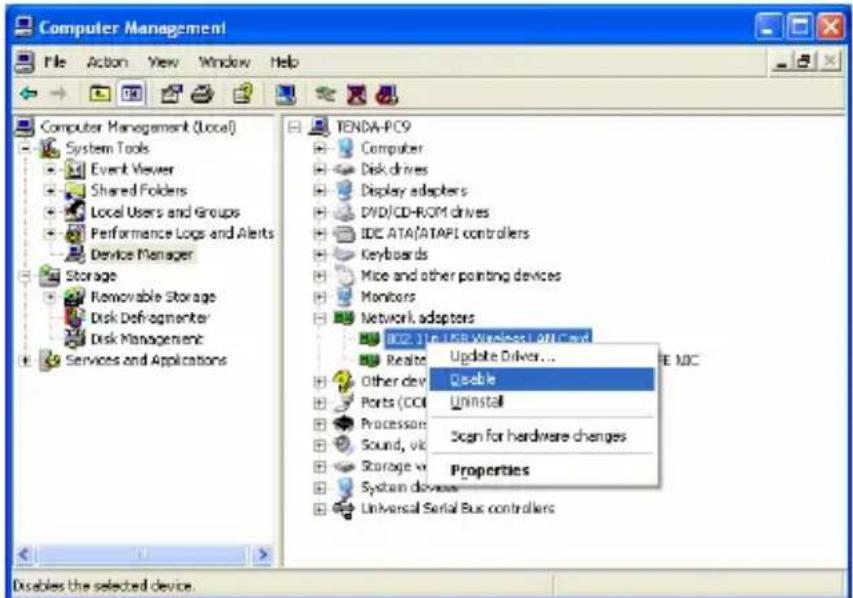
My Com Open Explore Search... Manage Map Network Drive... Disconnect Network Drive... Create Shortcut Delete Rename Properties- On the Computer Management screen, select "Device Manager" — "Network adapters", and right click the network adapter you want to disable and click "Disable"
text_image
Computer Management File Action View Window Help Computer Management (Local) System Tools Event Viewer Shared Folders Local Users and Groups Performance Logs and Alerts Device Manager Storage Removable Storage Disk Defragmenter Disk Management Services and Applications TENDA-PC9 Computer Disk drives Display adapters DVD/CD-ROM drives IDE ATA[ATAPI controllers] Keyboards Mice and other pointing devices Monitors Network adapters B02.1 In USB Wireless LAN Cloud Realise Update Driver... Other dev Q=able Ports (CCI) Uninstall Processor Scan for hardware changes Sound, vdc Storage v Properties System devices Universal Serial Bus controllers Disables the selected device.- Click the "Yes" button on the dialogue box to disable the
network adapter.

text_image
802.11n USB Wireless LAN Card Disabling this device will cause it to stop functioning. Do you really want to disable it? Yes No1.7 Product Maintenance
- Please keep the product away from water and humid environment to guarantee its normal performance
- Protect it against hazardous substances (such as acids, alkalis etc).
- Please don't directly expose the adapter to the sunlight or excessive heat.
- Please contact Tenda tech support if any problems occur.
Chapter 2 Installation Guide
This chapter will guide you through the process of installing the network adapter software package, with the included software CD. The package integrates driver and configuration software. Thus, when you are installing the driver, the configuration software will be installed automatically as well.
The software installation steps and operating guide in this user guide are explained under Windows XP, Installation steps for other operating systems are similar.
2.1 Hardware Installation
2.1.1 Install the USB network adapter
Please insert the Wireless USB Adapter into the USB port of your computer.

text_image
Or2.1.2 Install the PCI network adapter
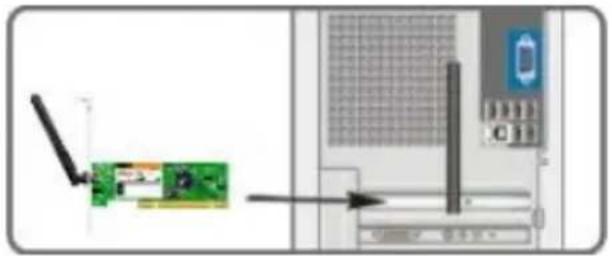
Insert the wireless adapter into the PCI slot of your computer when it is turned off and then start it(Please make sure the PCI
adapter's “gold fingers” are clean. If the PCI adapter can not be identified after being inserted into the mainboard slot, or the adapter can not scan signals after the driver being installed, please shut down your computer and clean the adapter, and then re-install).
text_image
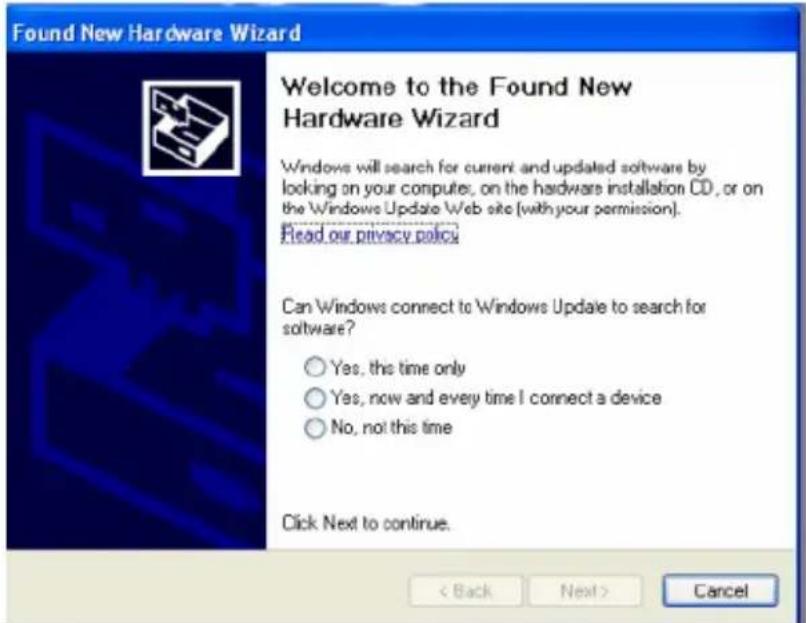
Diagram showing a green circuit board connected to an ATM with a device labeled '111' and '01', alongside a wireless signal line.2.2. When The "Found New Hardware Wizard" system dialogue pops up, we recommend that you select "Cancel" and use the included Setup Wizard software CD for fast installation.
text_image
Found New Hardware Wizard Welcome to the Found New Hardware Wizard Windows will search for current and updated software by looking on your computer, on the hardware installation CD, or on the Windows Update Web site (with your permission). Read our privacy policy Can Windows connect to Windows Update to search for software? Yes, this time only Yes, now and every time I connect a device No, not this time Click Next to continue. < Back Next > Cancel2.3 Put the included software CD into the CD drive of your computer, and the driver should run automatically, a Welcome screen should pop up, just click the "RUN" button. (Double click "Tenda.exe" in the software CD and manually install when it
doesn't auto-run).

text_image
Tenda www.tenda.cn Welcome Thank you for purchasing the wireless adapter from Tenda. The setup wizard will assist you to install the adapter quickly and easily. Please refer to the user guide included in the CD for more information. Wireless NIC USER GUIDE RUN EXIT2.4 Select "I accept the terms of the license agreement" and click "Next".

text_image
Tenda Wireless LAN - InstallShield Wizard License Agreement Please read the following license agreement carefully. Tenda Wireless Utility for Windows 2000/XP MetaWin? Copyright (C) Tenda TECHNOLOGY, CORP. All Rights Reserved. Thank you for purchasing Tenda Wireless product! SOFTWARE PRODUCT LICENSE The SOFTWARE PRODUCT is protected by copyright laws and international copyright rights, as well as other intellectual property laws and treaties. The SOFTWARE PRODUCT is licensed, not sold. 1. GRANT OF LICENSE. This End-User License Agreement grants you the following rights installation and Use. You may install and use an unlimited number of copies of the SOFTWARE PRODUCT. Reproduction and Distribution. You may reproduce and distribute an unlimited number of copies of the SOFTWARE PRODUCT; provided that each copy shall be a true and complete copy, including all copyright and trademark notices, and shall be accompanied by a copy of the EULA. Copies of the SOFTWARE PRODUCT may be distributed as a slender bone product or included with your own product. I accept the items of the license agreement. I do not accept the items of the license agreement.2.5 Two set up types are provided: one is "Install driver
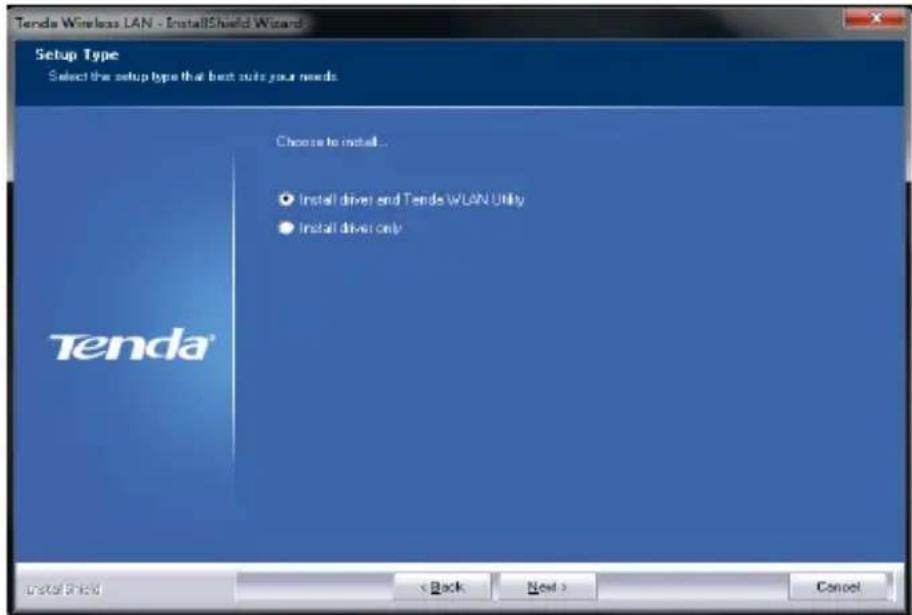
only", the other is "Install driver and Tenda WLAN Config Tool".
text_image
Tenda Wireless LAN - InstallShield Wizard Setup Type Select the setup type that best suits your needs Choose to install... • Install driver and Tenda WLAN Unity • Install driver only Tenda® Install Shield < Back Next > CancelNOTE: you may select the first method when you are accustomed to use the WINDOWS built-in wireless configuration program. However, this program doesn't support AP mode, WPS, and the WPS button on the wireless adapter. To use these advanced features, the second method is recommended.
2.6. Click "Install" to begin the driver installation.
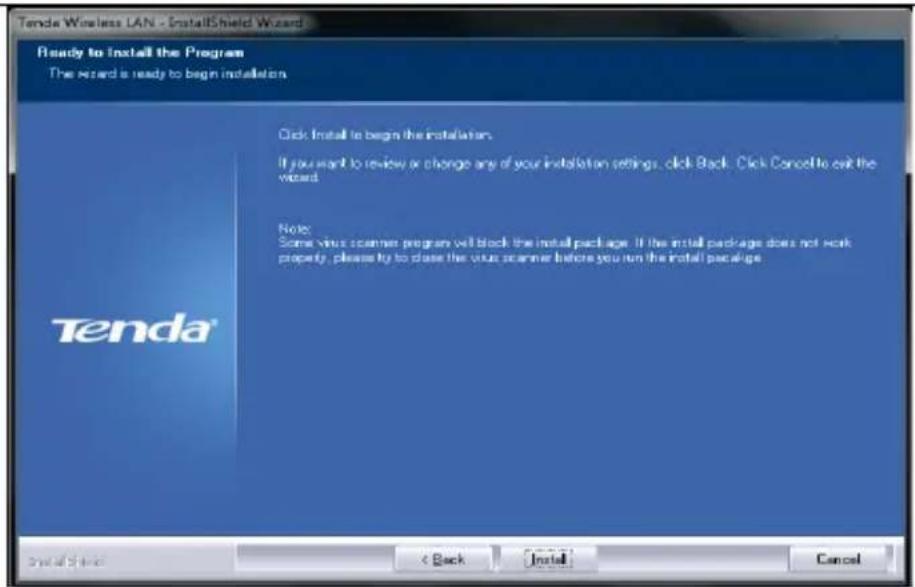
text_image
Tenda Wireless LAN - InstallShield Wizard Ready to install the Program The Wizard is ready to begin installation Click Install to begin the installation. If you want to review or change any of your installation settings, click Back. Click Cancel to exit the widest. Note: Some virus scanner program will block the install package. If the install package does not work property, please try to close the virus scanner before you run the install package.2.7 Click "Finish" to complete the installation.
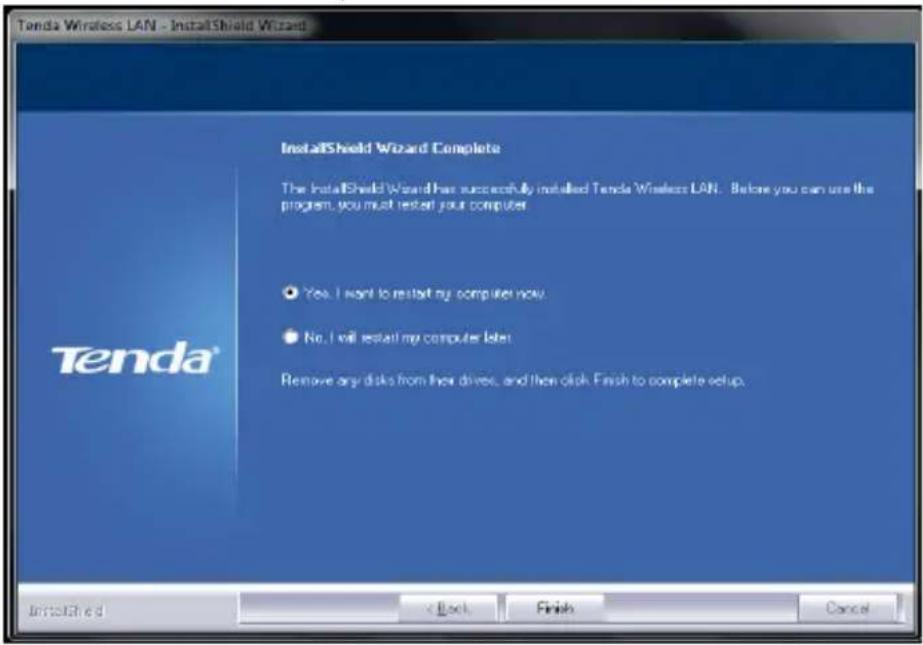
text_image
Tenda Wireless LAN - InstallShield Wizard InstallShield Wizard Complete The InstallShield Wizard has successfully installed Tenda Wireless LAN. Before you can use the program, you must restart your computer Yes. I want to restart my computer now. No. I will restart my computer later Remove any disks from their drives, and then click. Finish to complete setup.Chapter 3 How to use the Windows Built-in Wireless Configuration
This chapter explains to users who don't install Tenda configuration program how to use Windows Built-in Wireless Configuration to connect to the wireless network.
Use of the Windows Built-in Wireless Configuration requires enabling Wireless Zero Configuration service(the default is enabled).
3.1 Wireless Network Connection under Windows XP
- Right click "My Network Places" on the desktop and select "Properties".
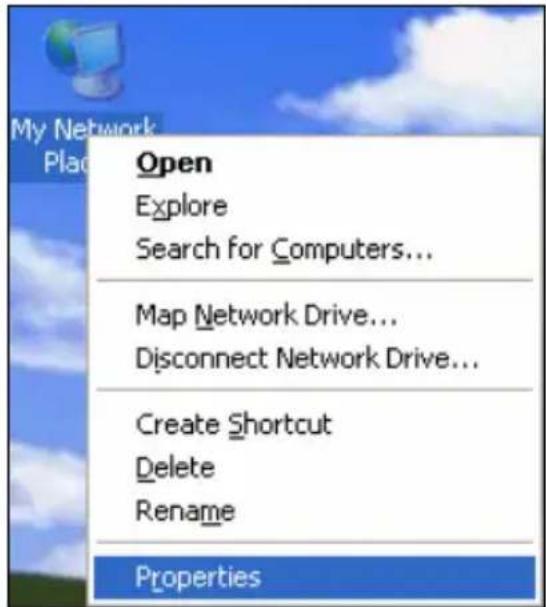
text_image
My Network Plac Open Explore Search for Computers... Map Network Drive... Disconnect Network Drive... Create Shortcut Delete Rename Properties- Open the network connection.Right click "Wireless Network Connection" and select "View Available Wireless Networks" as shown below.
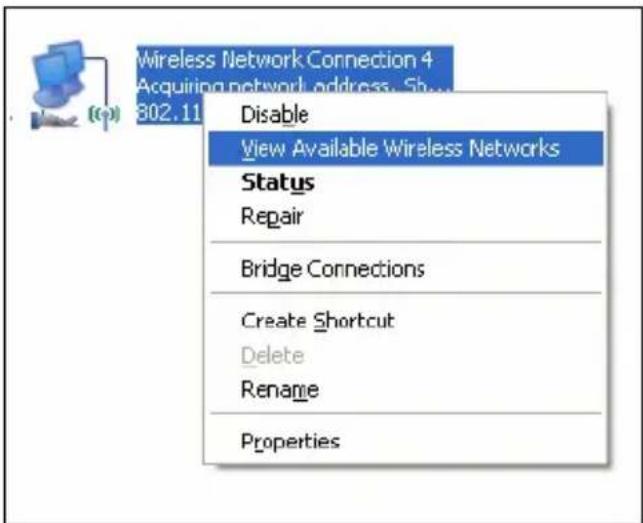
text_image
Wireless Network Connection 4 Acquiring network address: Show 802.11 Disable View Available Wireless Networks Status Repair Bridge Connections Create Shortcut Delete Rename Properties- On the right of the screen displayed are the currently scanned wireless networks. If the one you want to connect has not been scanned, click "Refresh Network List" to update the network list.
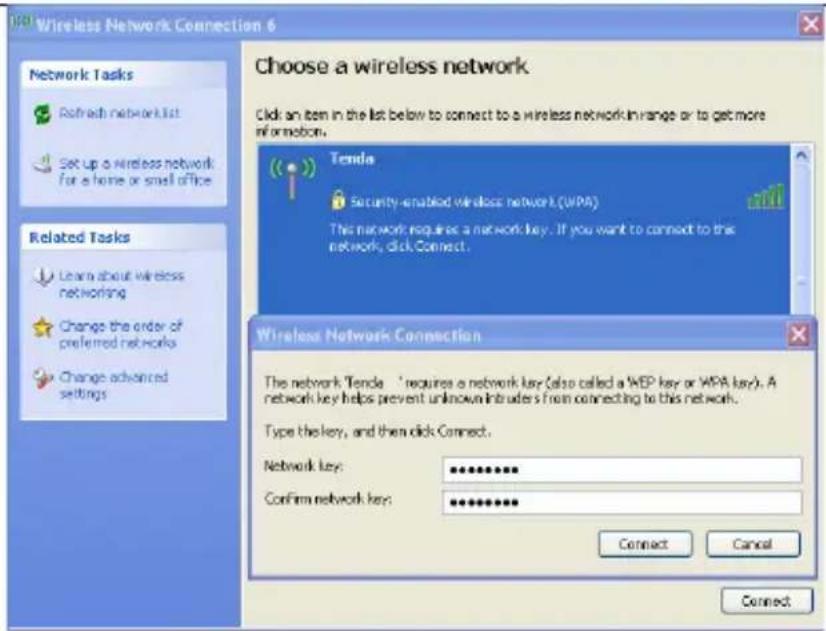
Select the wireless network you want to connect, and click "Connect" or double click this wireless network. Input the key in the key dialogue box (the key input is case-sensitive) then click "Connect".
text_image
Wireless Network Connection 6 Choose a wireless network Click an item in the list below to connect to a wireless network in range or to get more information. Network Tasks Refresh network list Set up a wireless network for a home or small office Related Tasks Learn about wireless networking Change the order of preferred networks Change advanced settings Tenda Security-enabled wireless network (WPA) This network requires a network key. If you want to connect to this network, click Connect. Wireless Network Connection The network Tenda - requires a network key (also called a WEP key or WPA key). A network key helps prevent unknown intruder's from connecting to this network. Type the key, and then click Connect. Network key: ********** Confirm network key: ********** Connect Cancel ConnectNOTE: If the wireless device you are connecting to is not encrypted, the key dialogue box will not pop up.
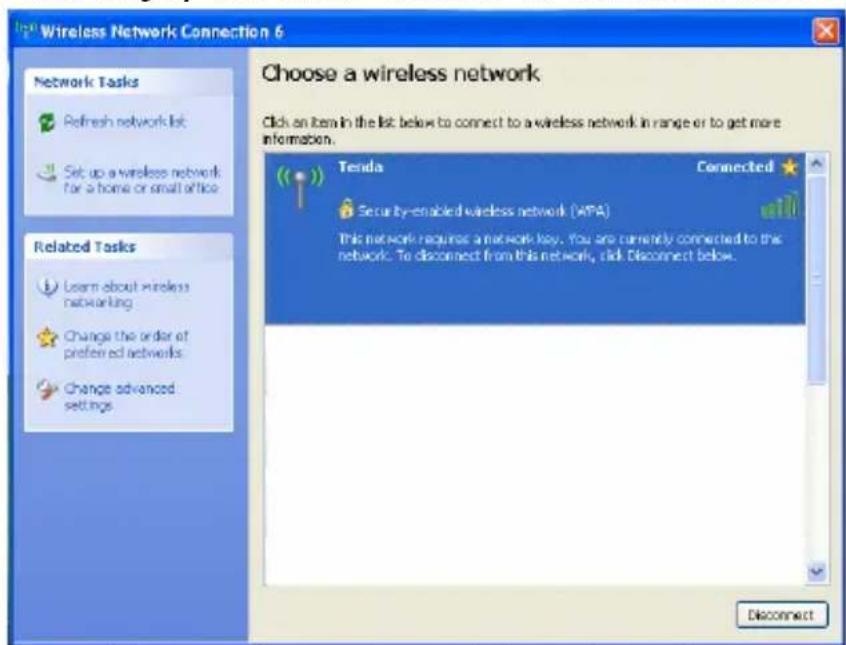
- When it shows "Connected" as the picture below, then you can enjoy wireless access to Internet now.
text_image
Wireless Network Connection 6 Choose a wireless network Click an item in the list below to connect to a wireless network in range or to get more information. Network Tasks Refresh network list Set up a wireless network for a home or small office Related Tasks Learn about wireless networking Change the order of preferred networks Change advanced settings Tenda Connected Security-enabled wireless network (WPA) This network requires a network key. You are currently connected to the network. To disconnect from this network, click Disconnect below. Disconnect- You can modify wireless network key from "Change advanced
settings".

text_image
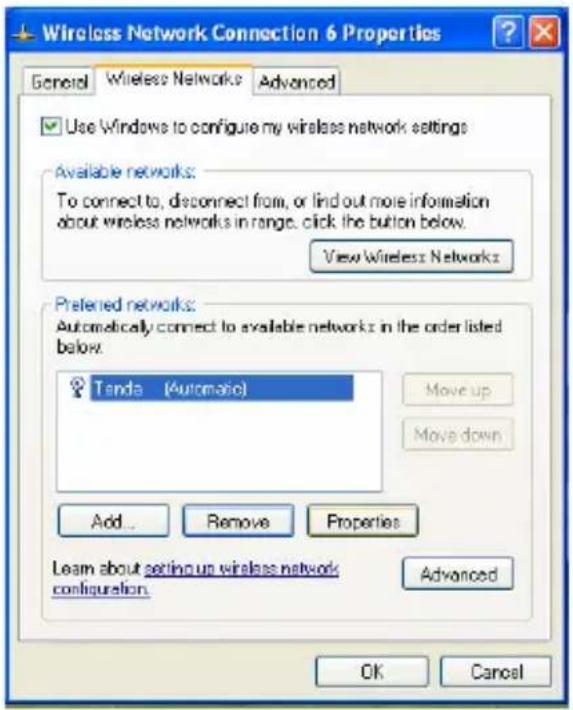
Wireless Network Connection 6 Network Tasks Refresh network list Set up a wireless network for a home or small office Related Tasks Learn about wireless networking Change the order of preferred networks Change advanced settings Choose a wireless network Click an item in the list below to connect to a wireless network in range or to get more information. Tonda Connected Security-enabled wireless network (MPA) This network requires a network key. You are currently connected to this network. To disconnect from this network, click Disconnect below. Disconnect- Select "Wireless Networks" and choose the one you want to modify, and then click "Properties".
text_image
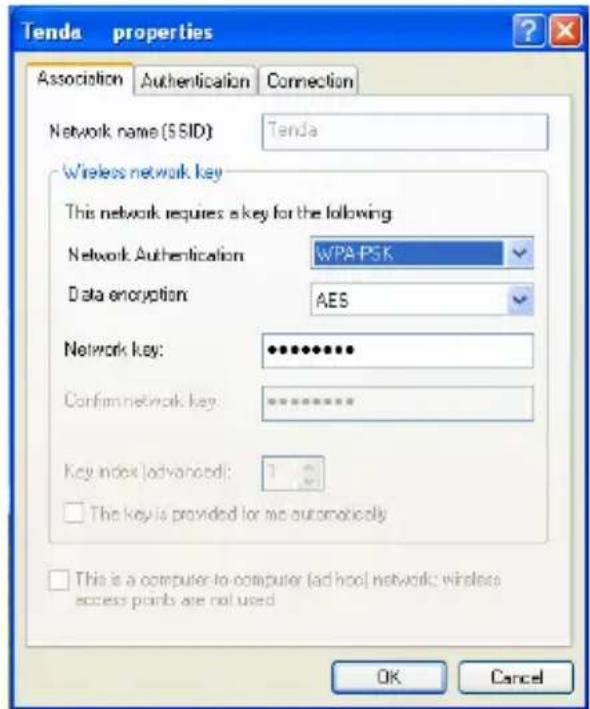
Wireless Network Connection 6 Properties General Wireless Networks Advanced Use Windows to configure my wireless network settings Available networks: To connect to, disconnect from, or find out more information about wireless networks in range. click the button below. View Wireless Networks Preferred networks: Automatically connect to available networks in the order listed below. Tanda (Automatic) Move up Move down Add... Remove Properties Learn about setting up wireless network configuration. Advanced OK Cancel- Modify the key in the appearing dialogue box.
text_image
Tenda properties Association Authentication Connection Network name (SSID) Tenda Wireless network key This network requires a key for the following Network Authentication WPA-PSK Data encryption AES Network key: •••••••••• Confirm network key: •••••••••• Key index (advanced): 1 □ The key is provided for me automatically □ This is a computer-to-computer (ad-hoc) network wireless access points are not used OK Cancel3.2 Wireless Network Connection under VISTA
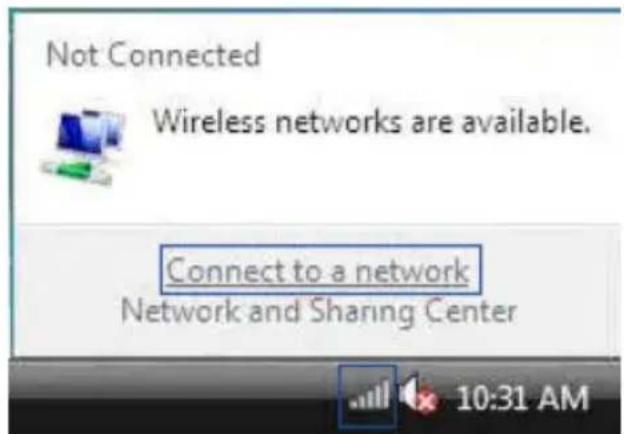
- Click the Wireless Connection icon in the lower right corner of your desktop and select "Connect to a network" as shown below.
text_image
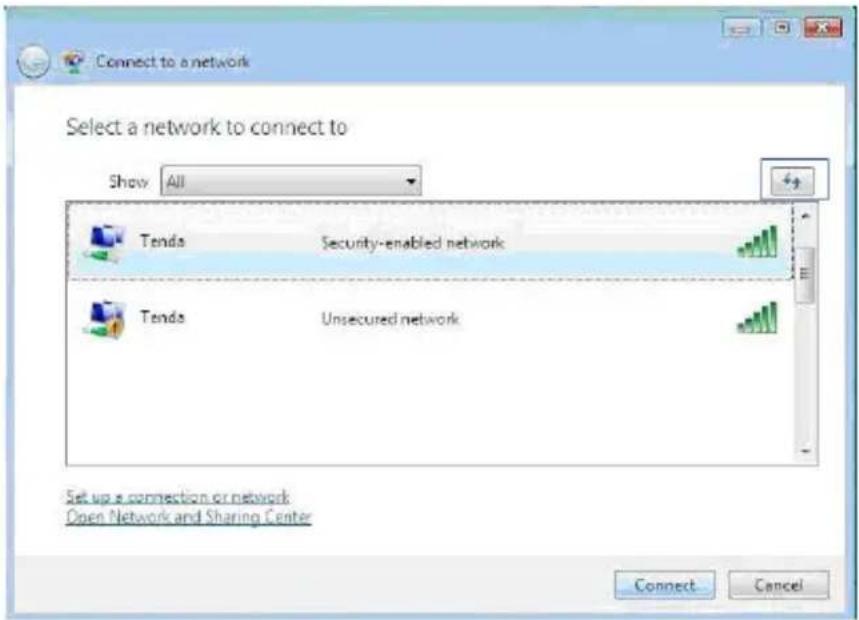
Not Connected Wireless networks are available. Connect to a network Network and Sharing Center 10:31 AM2 Select the wireless network you wish to connect and click "Connect" or double click the wireless network to connect. Click
the Refresh icon in the upper right corner to update the network list if you don't find the specified wireless network.
text_image
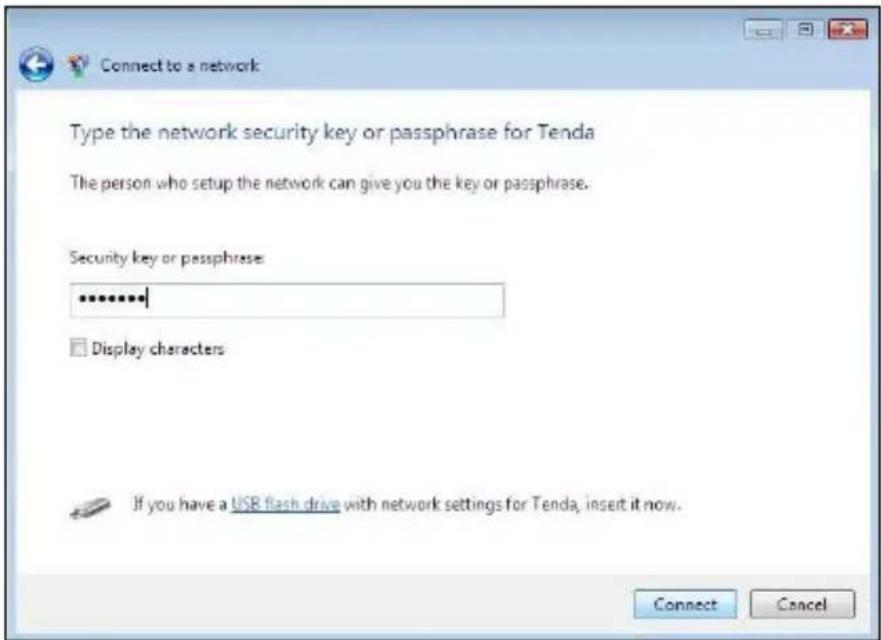
Connect to a network Select a network to connect to Show All Tends Security-enabled network Tends Unsecured network Set up a connection or network Open Network and Sharing Center Connect Cancel- If the wireless network that you are connecting has enabled security mode, you'll be prompted to enter the network key .Click "Connect" after you enter the correct key.
text_image
Connect to a network Type the network security key or passphrase for Tenda The person who setup the network can give you the key or passphrase. Security key or passphrase: ****** Display characters If you have a USB flash drive with network settings for Tenda, insert it now. Connect Cancel- The following screen will appear after successfully
connected to the wireless network.

text_image
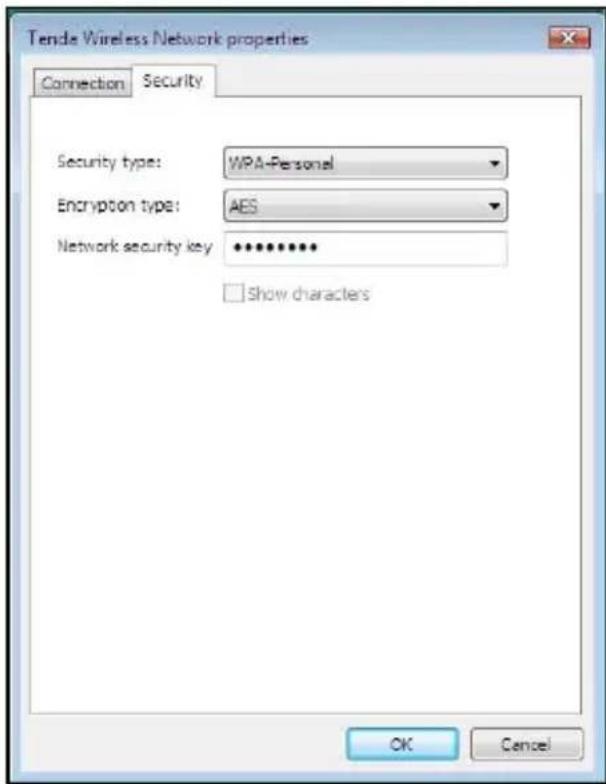
Connect to a network Successfully connected to Tenda ✓ Save this network ✓ Start this connection automatically Close- If you want to change the wireless network key, just right click the wireless network's SSID and then select "Properties".

text_image
Connect to a network Disconnect or connect to another network Show All Tenda Connected Tenda Security-enabled network Tenda Unsecured network Set up a connection or network Open Network and Sharing Center Disconnect Cancel Disconnect Status Properties Diagnose- You can modify the key from the appearing dialogue box.
text_image
Tende Wireless Network properties Connection Security Security type: WPA-Personal Encryption type: AES Network security key •••••••••• Show characters OK Cancel3.3 Wireless Network Connection under Windows 7
- Click the wireless connection in the lower right corner of the computer's desktop to view the available wireless networks. Select the wireless network you wish to connect and click "Connect" or double click the wireless network to connect. If you don't find the specified one, please click the refresh icon in the upper right corner to update the list.

text_image
Not connected Connections are available Wireless Network Connection 3 Tenda Tenda Open Network and Sharing Center2、If the wireless network you are connecting is encrypted, you'll be prompted to enter the key. Click "Ok" after you enter the correct key.

text_image
Connect to a Network Type the network security key Security key: ••••••••• ✓ Hide characters OK Cancel- It shows "Connected" after successfully connected. You can
disconnect it, view its status or modify the wireless network properties by right click the wireless network
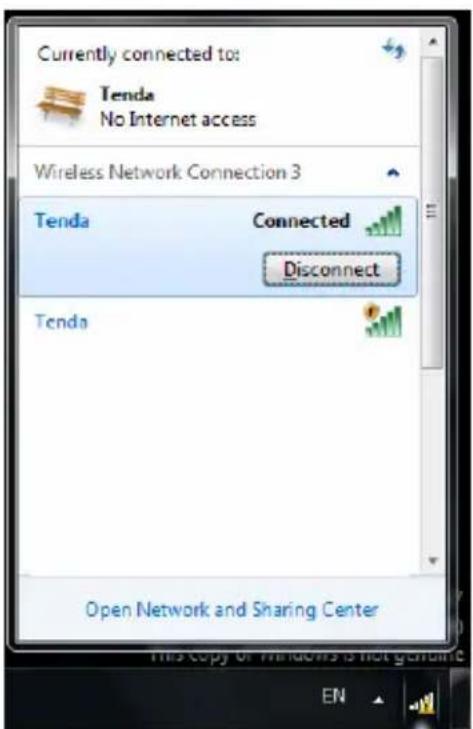
text_image
Currently connected to: Tenda No Internet access Wireless Network Connection 3 Tenda Connected Disconnect Tenda Open Network and Sharing CenterChapter 4 Tenda Wireless Utility
When you are installing the driver, select "Install driver and
Tenda WLAN Config Tool" and the adapter driver and client utility will be installed. All functions of this adapter can be configured via Tenda's utility interface (in the following text it is abbreviated as UI).
Select "Start"—"All Programs"—"Tenda Wireless"— Tenda Wireless Utility", or click the "Tenda Wireless Utility" shortcut on your PC's desktop to start the UI.
4.1 Station mode (Client Mode)
Station mode (Client Mode) Overview
It is a common solution to use the wireless network adapter as a client to receive signals.
Main interface for station mode

text_image
Tenda® Site Survey Turn On RF SSID Rate Channel IP Address MaskThe function buttons on the top(From L to R) are respectively Site Survey, Link Information, Profile, Advanced, About, Help, and MiniSize. While the left column displays Turn On/Off RF, Security /No security, and Signal status.
4.1.1 Site Survey
The "Site Survey" screen displays currently scanned wireless signals and you can click one to connect the signal. Select one and you may view the AP's MAC address, wireless mode (A/B/G/N), authentication type, and encryption type, or WPS authentication and signal strength.
Before you connect to a wireless network, please click the "Rescan" button to update the wireless network list and select the one you wish to connect, then click the "Connect" icon.
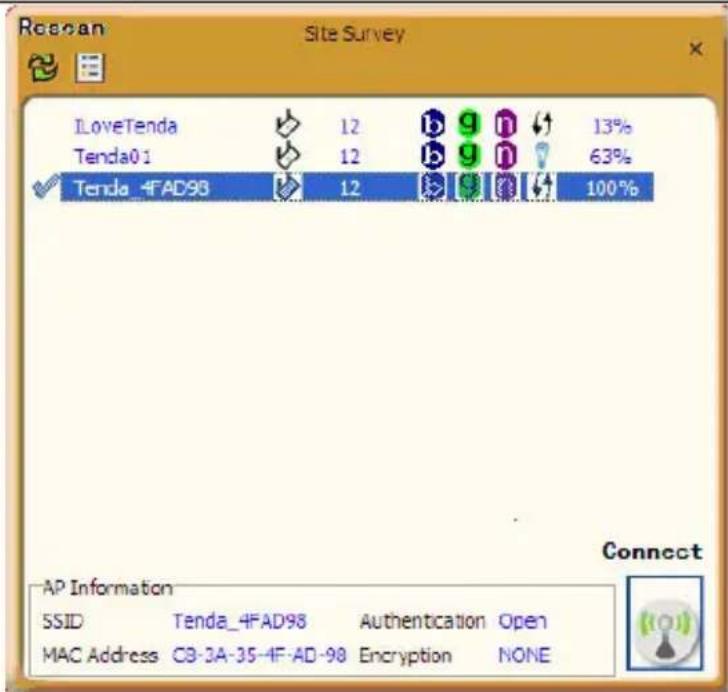
text_image
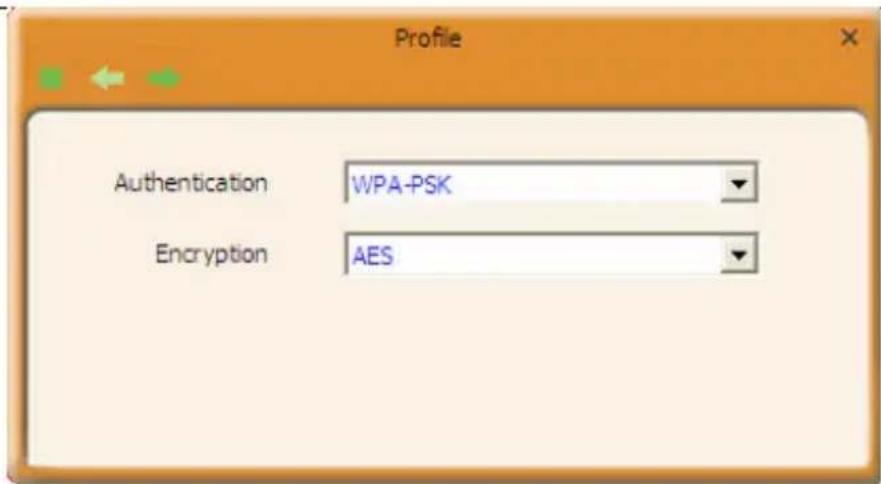
Reason Site Survey ILoveTenda 12 b g n 13% Tenda0.1 12 b y n 63% Tenda_4FAD98 12 100% Connect AP Information SSID Tenda_4FAD98 Authentication Open MAC Address C3-3A-35-4F-AD-98 Encryption NONEFor the networks that are not encrypted, you can directly click "Connect". However, for the encrypted wireless networks, a "Profile" dialog will pop up and you must select the corresponding authentication type and encryption type, and then click the "Next" button to input the correct key. Please note that this type of connection will not create a profile, thus next time connect to this network you still need to select it manually.
text_image
Profile Authentication WPA-PSK Encryption AES
text_image
Profile WPA Preshared Key ****** Show PasswordThe detailed explanations about the authentication and encryption are as follows:
WEP : Supports 10/26-bit Hex characters and 5/13-bit ASCII.
WPA-PSK : Supports 8-63-bit ASCII and 8-64-bit Hex characters.
WPA2-PSK: Supports 8-63-bit ASCII and 8-64-bit Hex characters.
WPA-PSK/WPA2-PSK: Supports 8-63-bit ASCII and 8-64 -bit hex characters.

NOTE:
The Hex characters consist of numbers 0\~9 and letters a-f.
ASCII characters consist of any Arabic digitals/letters and characters.
4.1.2 Link Information
After successfully connected to one wireless network, you can view its detailed information by clicking the "Link Information" on the main interface.
- “Link Status” screen displays the detailed information of the connected AP including its SSID, MAC address, authentication type, encryption type, network type and channel.

text_image
Tenda® Link Information SSID Tenda Rate 300.0 Mbps IP Address 192.168.42.5 Channel 1 (2412 MHz) Mask 255.255.255.0 Link Information Link Status Status Tenda<--> C8-3A-35-AE-08-01 Extra Info Link is Up [Tx Power: 100%] Authentication Open Encryption None Network Type Infrastructure Central Channel 3- "Throughput" screen displays the signal strength of each of the wireless adapter's antennas and the link quality.
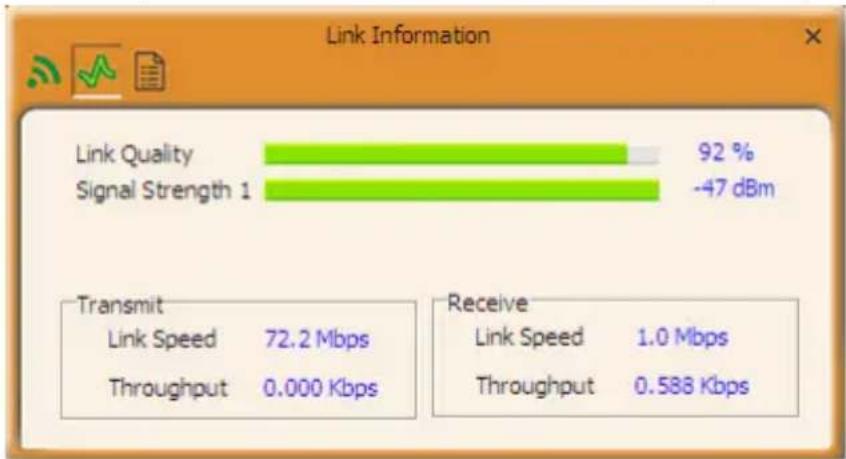
bar
| Metric | Value | | ---------------- | --------- | | Link Quality | 92 % | | Signal Strength 1| -47 dBm | | Transmit | | | Link Speed | 72.2 Mbps | | Throughput | 0.000 Kbps| | Receive | | | Link Speed | 1.0 Mbps | | Throughput | 0.588 Kbps |- "Statistics" screen is used to count the total Rx and Tx data packets, including transmitted, retransmitted and fail to receive ACK after all retries. You can click the "Reset Counter" button to clear the count.

text_image
Link Information Transmit Receive Reset Counter Transmitted Successfully = 66240 Retransmitted Successfully = +26 Fail To Receive ACK After All Retries = 654.1.3 Profile
Except the above common connection type, you can also connect to the wireless network by adding a profile on the "Profile" screen. The Profile screen is used to save the wireless network parameters. When the adapter is successfully connected to a network, the profile name of this network will
automatically be added here, which helps the adapter to quickly connect to the wireless network next time. However, there's one exception that when you have set the hidden SSID, namely the SSID can not be scanned, then you must manually connect by adding the profile name. The main interface is as shown below.

text_image
Profile List PROF1 Tenda_AE0801 PROF2 Tenda01 PROF3 Tenda Profile Information Profile Name PROF1 Authentication WPA-PSK SSID Tenda_AE0801 Encryption AES
Add: create a new profile
Delete: delete the existing profile
Edit: modify the existing profile
Add WPS Profile: WPS setting requires that the connecting wireless device support WPS function. WPS helps you to fulfill wireless encryption fast as well as secure your wireless network. For detailed setting steps, refer to appendix2.
There are two network types for your option when clicking the
"Add" button to add wireless adapter connection: Infrastructure and Ad-Hoc.

text_image
Tenda® SSID Tenda Rate 300.0 Mbps IP Address 192.168.42.5 Channel 1 (2412 MHz) Mask 255.255.255.0 Profile Profile Name PROF 1 SSID Network Type ● Infrastructure - Connect to AP ○ Ad Hoc - Connect to other computersInfrastructure is an application mode that integrates the wired and wireless LAN architectures. It is different from Ad-Hoc in that in this mode the computer installed with the wireless network adapter has to fulfill the wireless communication via AP or wireless router. It can be devided into two modes: "wireless AP + wireless network adapter" and "wireless router + wireless network adapter".
Ad-Hoc is a special wireless mobile network application mode. All nodes in the network are equal.Usually it is used to share
resources by connecting the opposing computer's wireless adapter.
1. Infrastructure Profile Management
When you are connecting the wireless adapter to an AP or a wireless router, please select the Infrastructure mode.
Click the "Add" button and select the network type as"
Infrastructure", and enter the profile name and SSID or you can find the SSID you wish to connect from the drop-down list.

text_image
Tenda® SSID Rate Channel IP Address Mask Profile Profile Name PROF3 SSID Network Type Tenda_AE0801 Tenda01 Ad Hoc - Connect to other computersClick the next button to select the authentication type and encryption type such as WPA—PSK and AES, and then input the key and click next.

text_image
Next Profile Authentication WPA-PSK Encryption AES Profile WPA Preshared Key ********** Show PasswordAfter a profile is successfully added, the profile name can be seen on the profile list, you can edit, import or export the profile, click "Active" to finish the connection, now you can also view the detailed connection status on the "Link Information" screen.
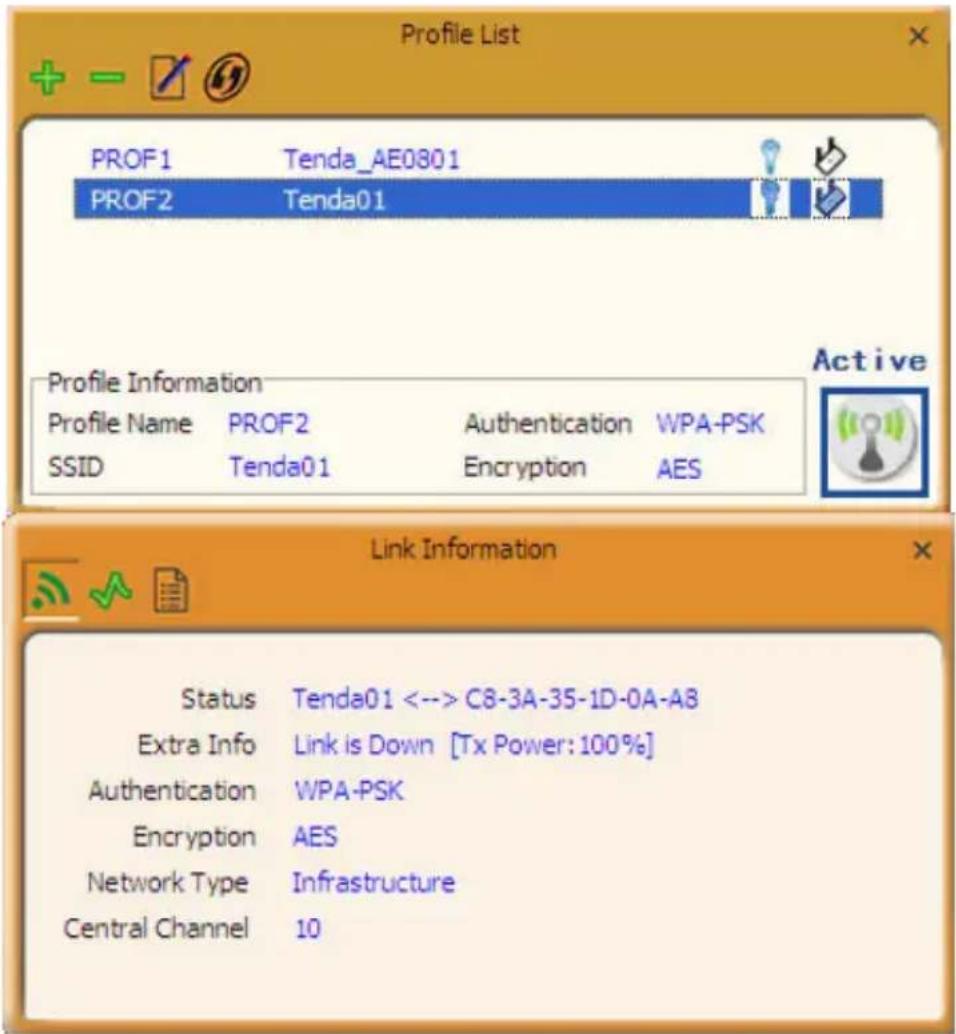
text_image
Profile List PROF1 Tenda_AE0801 PROF2 Tenda01 Profile Information Profile Name PROF2 Authentication WPA-PSK SSID Tenda01 Encryption AES Link Information Status Tenda01 <--> C8-3A-35-1D-0A-A8 Extra Info Link is Down [Tx Power: 100%] Authentication WPA-PSK Encryption AES Network Type Infrastructure Central Channel 10NOTE:
If the SSID broadcast function of the wireless router or AP you wish to connect is disabled, then the wireless adapter can not scan the SSID, thus you need to connect by creating the corresponding profile.
2. Ad-Hoc Profile management
Using the Ad-hoc mode to establish a wireless network requires
that each computer should be equipped with a wireless network adapter. By connecting these wireless adapters, computers are able to share the resources. The detailed setting steps are as follows:
1) Firstly you'll have to allocate a static IP to each wireless adapter to be connected in Ad-hoc mode.
a.Right click "My Network Places" on your computer's desktop and select "Properties".
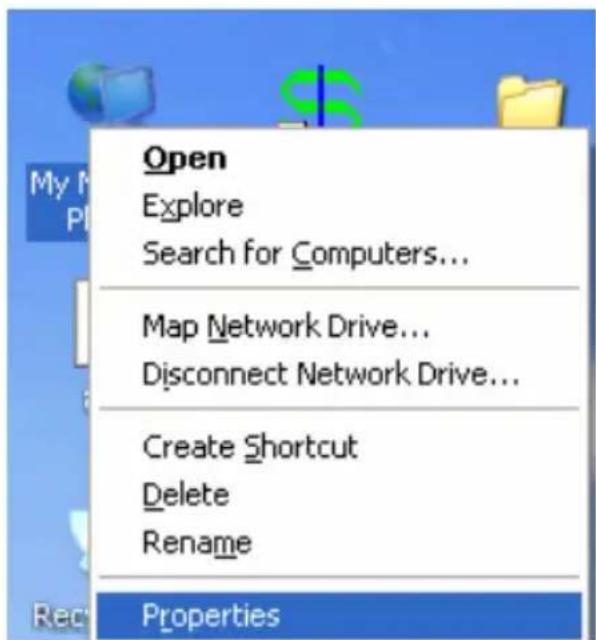
text_image
Open Explore Search for Computers... Map Network Drive... Disconnect Network Drive... Create Shortcut Delete Rename Propertiesb.Right click "Wireless Network Connection", and select "Properties"
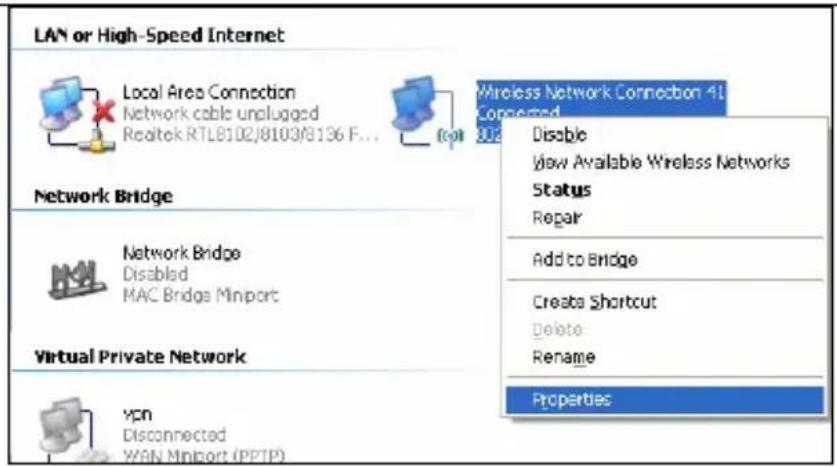
text_image
LAN or High-Speed Internet Local Area Connection Network cable unlugged Realtek RTL8102/8103/8136 F... Network Bridge Network Bridge Disabled MAC Bridge Minport Virtual Private Network Ypn Disconnected WAN Minport (PPTP) Wireless Network Connection 4L Connected Disable View Available Wireless Networks Status Repair Add to Bridge Create Shortcut Delete Rename Propertiesc.Select "Internet Protocol(TCP/IP)" and click "Properties".

text_image
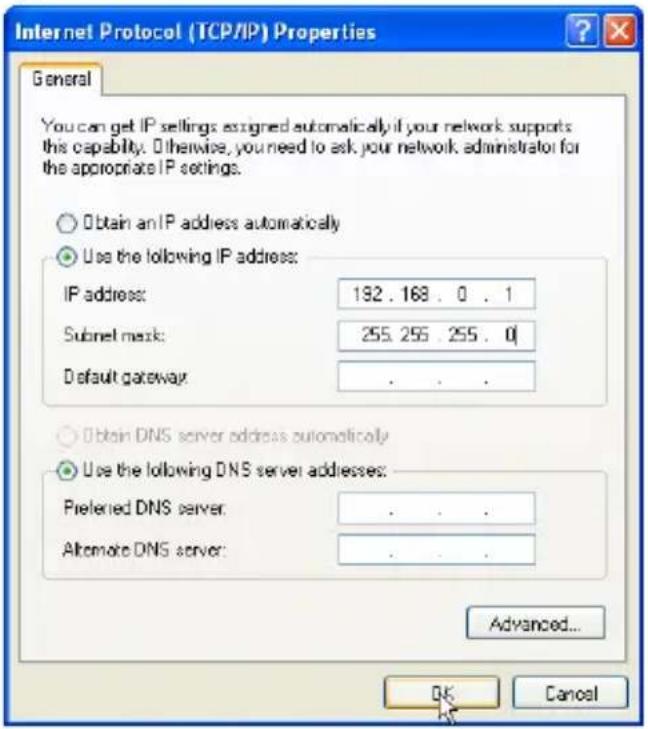
Wireless Network Connection 41 Properties General Wireless Networks Advanced Connect using: 802.11n USB Wireless LAN Cord Configure... This connection uses the following items: ✓ Network Monitor Driver ✓ AEGIS Protocol (IEEE 802.1x) v3.5.3.0 ✓ Internet Protocol (TCP/IP) Install... Uninstall Properties Description Transmission Control Protocol/Internet Protocol. The default wide area network protocol that provides communication across diverse interconnected networks. ✓ Show icon in notification area when connected ✓ Notify me when this connection has limited or no connectivity OK Canceld. Please enter the IP address and subnet mask, and make sure this IP address is not used by other devices in the network. For example: if your wireless adapter's IP address is 192.168.0.1, then set other wireless adapters' IP addresses within the range of
192.168.0.2—192.168.0.254.Click "Ok" to save the settings.
text_image
Internet Protocol (TCP/IP) Properties General You can get IP settings assigned automatically if your network supports this capability. Otherwise, you need to ask your network administrator for the appropriate IP settings. Obtain an IP address automatically Use the following IP address: IP address: 182 . 168 . 0 . 1 Subnet mask: 255.255 255 . 0 Default gateway : . . . Obtain DNS server address automatically Use the following DNS server addresses: Preferred DNS server: . . . Alternate DNS server: . . . Advanced... OK Cancel2) Create a new Ad-hoc profile
Click the "Add" button and enter the network name in the SSID field to identify the wireless network, and select Ad-hoc as the network type and then select the channel.

text_image
Profile Profile Name PROF3 SSID Tenda Network Type ○ Infrastructure - Connect to AP ● Ad Hoc - Connect to other computers Channel 11Click the "Next" button to select the authentication type and encryption type and then input the correct key and click "Next".
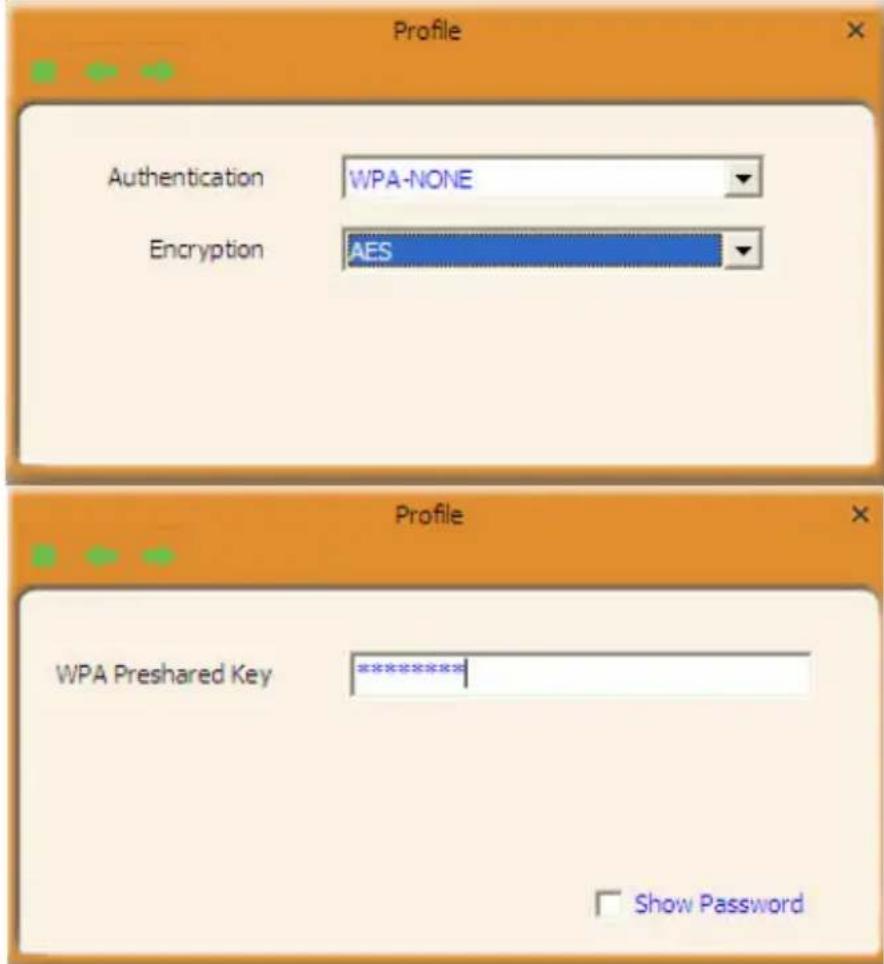
text_image
Profile Authentication WPA-NONE Encryption AES Profile WPA Preshared Key ********** Show PasswordAfter a profile is successfully added, the profile can be seen on the profile list, select it and click the "Active" icon on the lower right corner.

text_image
Profile List PROF1 Tenda_AE0801 PROF2 Tenda01 PROF3 Tenda Profile Information Profile Name PROF3 Authentication WPA-NONE SSID Tenda Encryption AESAnd then search for the wireless network on other clients. Double click the wireless network you have configured and you'll be prompted for the key .After entering the key, click "Connect".
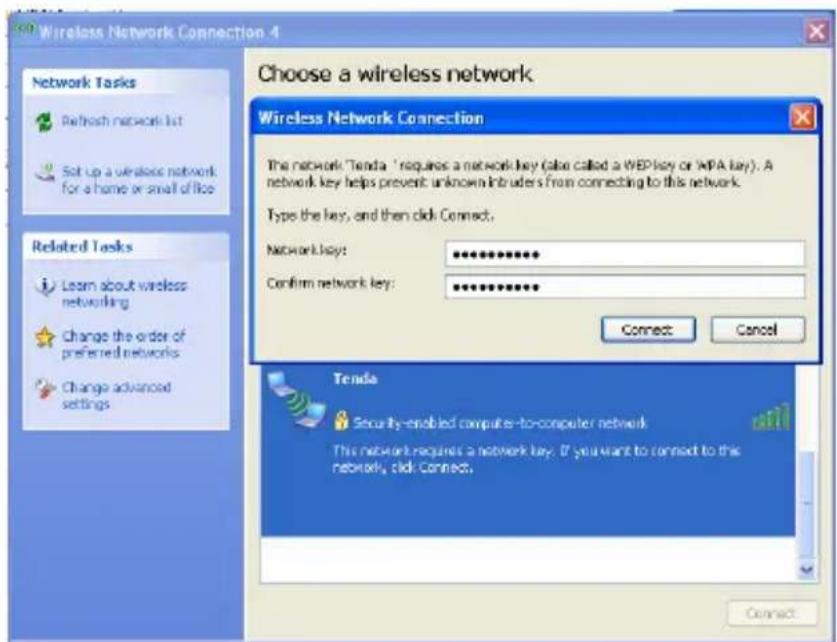
text_image
Wireless Network Connection 4 Choose a wireless network Wireless Network Connection The network "Tenda" requires a network key (also called a WEP key or WPA key). A network key helps prevent unknown intruders from connecting to this network. Type the key, and then click Connect. Network key: ************ Confirm network key: ************ Connect Cancel Tenda Security-enabled computer-to-computer network This network requires a network key. If you want to connect to this network, click Connect. ConnectWhen the highlighted part shows "Connected", it indicates the connection is successful.

text_image
Wireless Network Connection 4 Choose a wireless network Click an item in the list below to connect to a wireless network in range or to get more information. Network Tasks Refresh network list Set up a wireless network for a home or small office Related Tasks Learn about wireless networking Change the order of preferred networks Changes advanced settings Tends Connected Security-enabled computer-to-computer network This network requires a network key. You are currently connected to this networks. To disconnect from this network, click Disconnect below. Disconnect4.1.4 Advanced
This section is used to set the wireless mode and country region code for the current wireless adapter. You have three options to choose from: 2.4G, 5G or 2.4G+5G. The widely used is 2.4G wireless adapter. To use the 5G mode of 802.11a technology, please set it here.
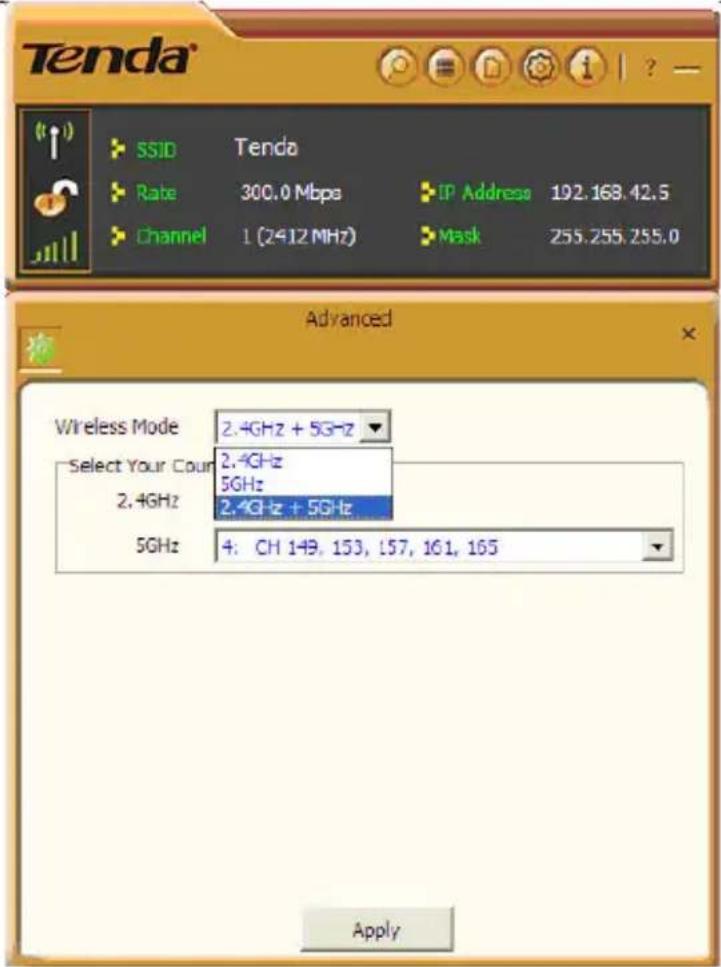
text_image
Tenda SSID Tenda Rate 300.0 Mbps IP Address 192.168.42.5 Channel 1 (2412 MHz) Mask 255.255.255.0 Advanced Wireless Mode 2.4GHz + 5GHz Select Your Count 2.4GHz 5GHz 2.4GHz 2.4GHz + 5GHz 5GHz 4. CH 149, 153, 157, 161, 165 Apply4.1.5 About
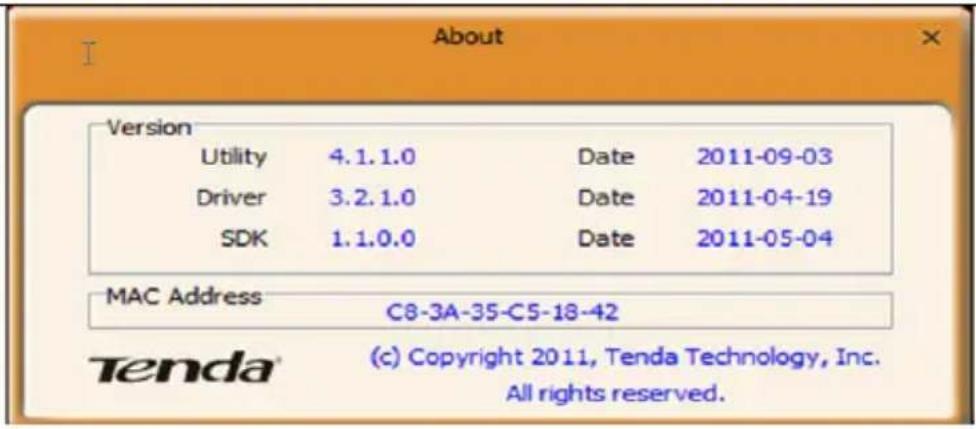
This screen mainly displays the version information of the UI's different programs as well as Tenda's copyright statement.
text_image
About Version Utility 4.1.1.0 Date 2011-09-03 Driver 3.2.1.0 Date 2011-04-19 SDK 1.1.0.0 Date 2011-05-04 MAC Address C8-3A-35-C5-18-42 Tenda® (c) Copyright 2011, Tenda Technology, Inc. All rights reserved.4.1.6 Help
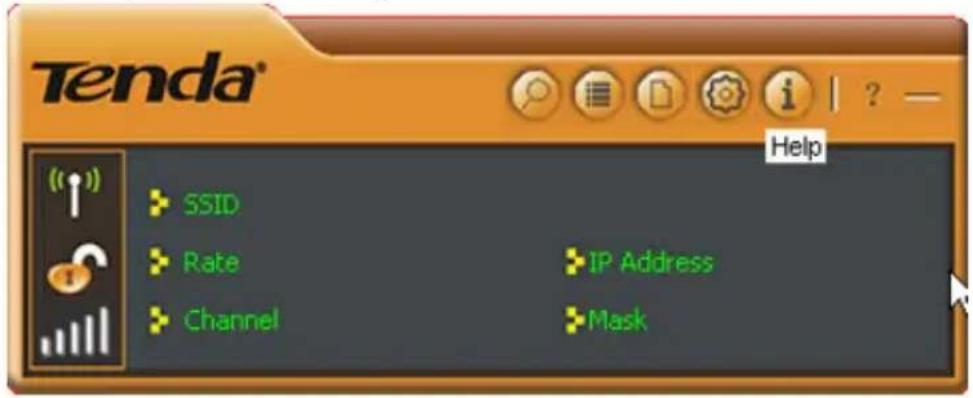
Click the help button to open the user manual.
text_image
Tenda® Help SSID Rate Channel IP Address Mask4.2 AP mode
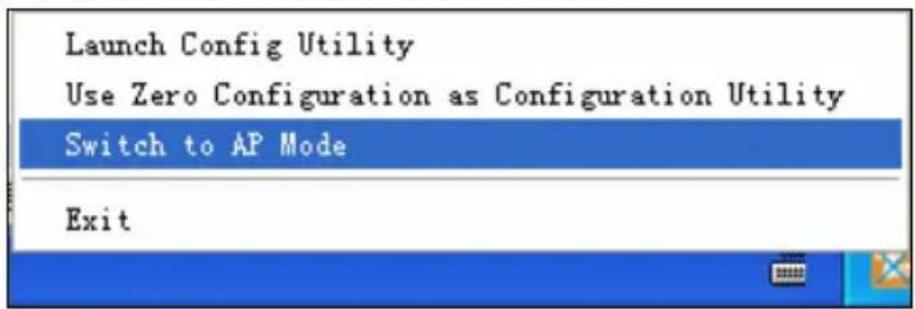
When you want to use the wireless adapter's AP function, please right click the UI icon on the taskbar of your computer desktop and select "Switch to AP Mode".
text_image
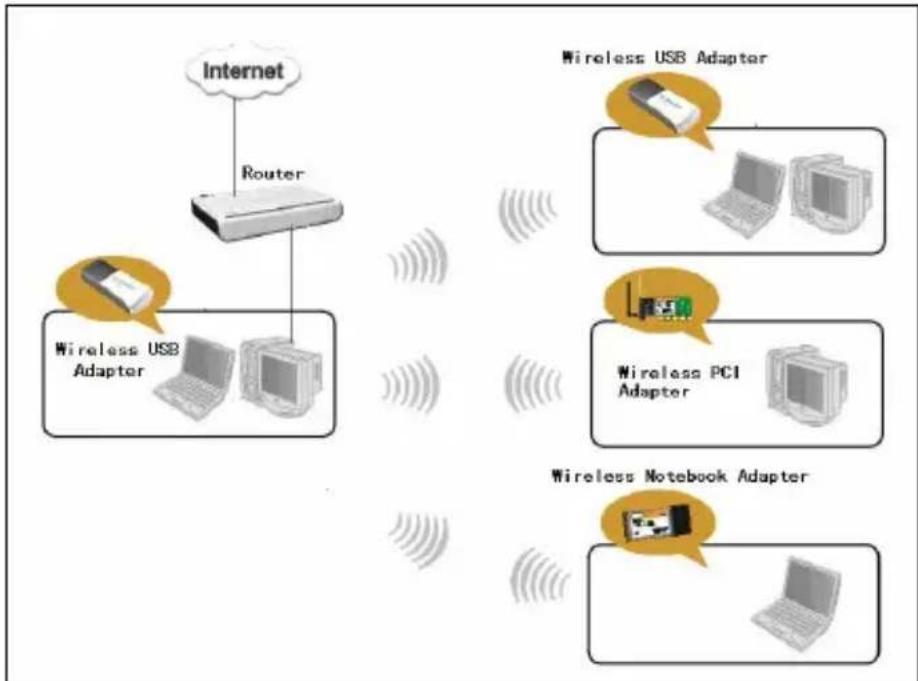
Launch Config Utility Use Zero Configuration as Configuration Utility Switch to AP Mode ExitIn this mode, the wireless adapter acts as an AP to transmit
wireless signal and create a wireless network, while allowing other wireless clients to access this network.
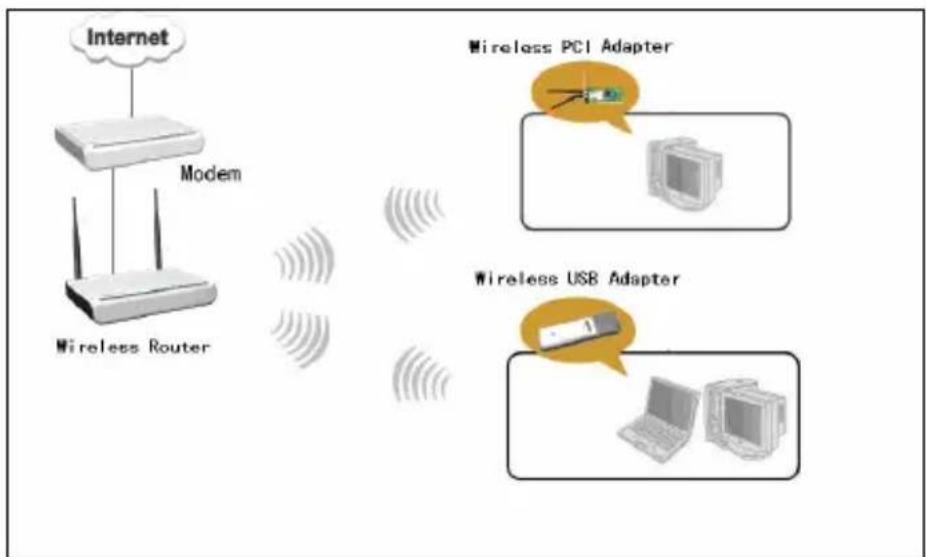
As shown in the diagram below: The PC in the left has already accessed to the Internet by using a wired network adapter, meanwhile, you install a Tenda wireless adapter (take a USB wireless adapter as an example) and its UI on this computer, and set the adapter to AP mode.
By using the wireless adapters to scan the AP'S SSID to connect, the computers in the right can also access to the Internet after successfully connected
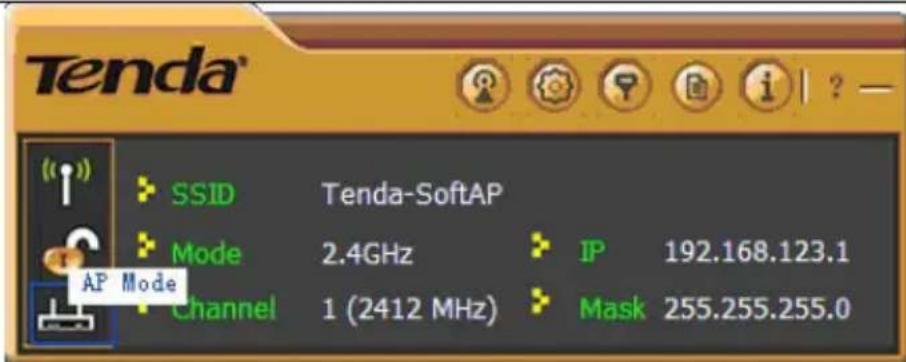
In this mode, the client utility differs from that in station mode, and the main interface is as shown below.
text_image
Tenda® SSID Tenda-SoftAP Mode 2.4GHz IP 192.168.123.1 Channel 1 (2412 MHz) Mask 255.255.255.0 AP ModeWhen it is switched to AP mode, the wireless adapter will automatically set its IP address as 192.168.123.1, and other clients that connected to this AP will automatically obtain the IP addresses of: 192.168.123.X(X is any integer from 2 to 254).The function buttons on the top (From L to R) are respectively Config AP, Advanced, Access Control List, Associate List, About, Help, and MiniSize, while the left column displays Turn On/Off RF, Security /No security, and AP mode icon.
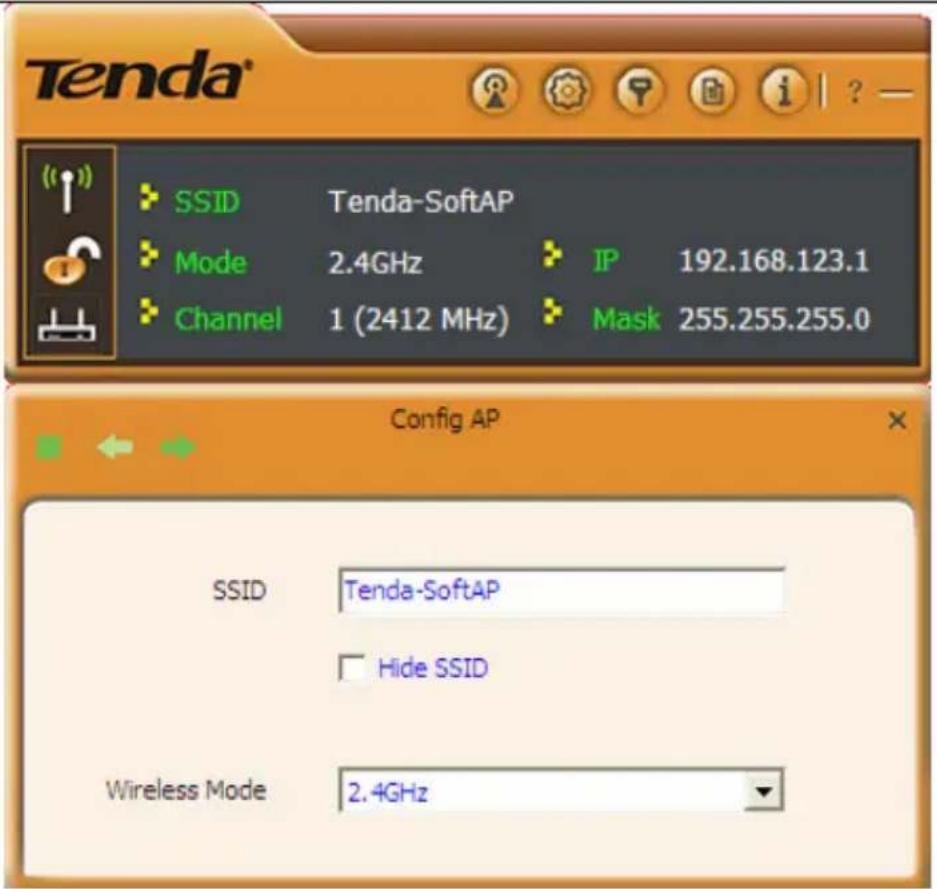
4.2.1 Config AP
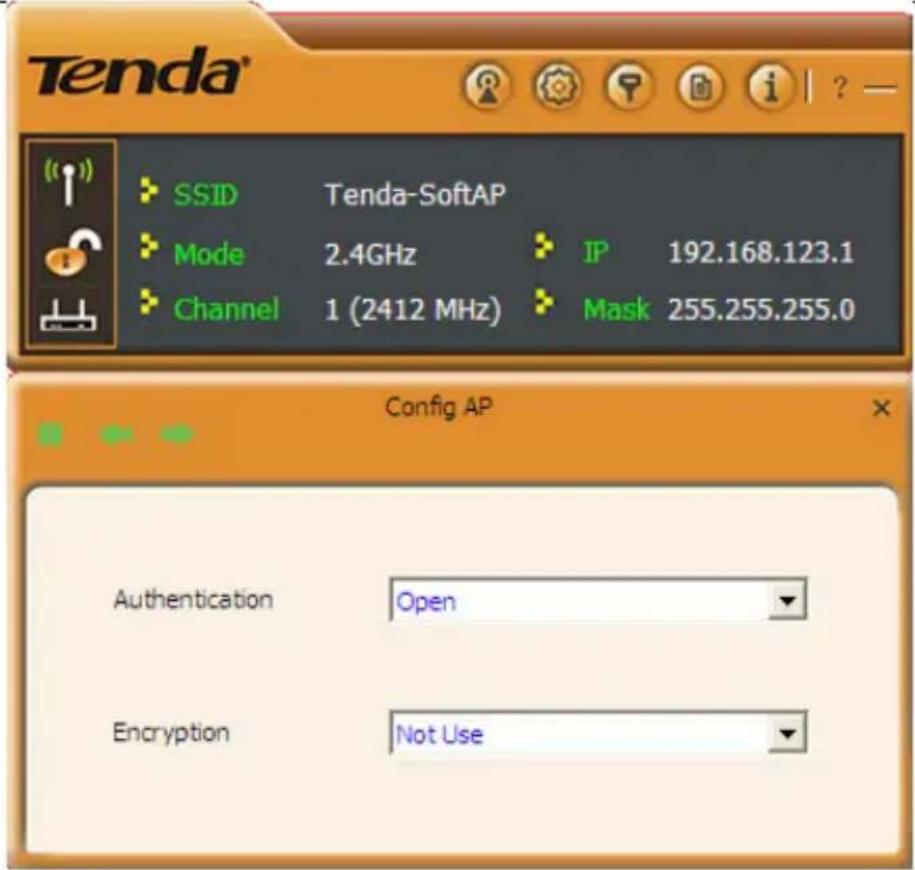
This screen is used to set the AP's general parameters including SSID, wireless mode, channel, authentication type and encryption type, as shown in the picture below.
text_image
Tenda® SSID Tenda-SoftAP Mode 2.4GHz IP 192.168.123.1 Channel 1 (2412 MHz) Mask 255.255.255.0 Config AP SSID Tenda-SoftAP Hide SSID Wireless Mode 2.4GHzHere the authentication type is set as "Open" and the encryption type "Not Use".
text_image
Tenda® SSID Tenda-SoftAP Mode 2.4GHz IP 192.168.123.1 Channel 1 (2412 MHz) Mask 255.255.255.0 Config AP Authentication Open Encryption Not Use4.2.2 Advanced
This screen is used to set the advanced parameters of the wireless adapter when working in AP mode, such as forwarding among wireless clients and TX power.

text_image
Tenda® SSID Tenda-SoftAP Mode 2.4GHz JP 192.168.123.1 Channel 1 (2412 MHz) Mask 255.255.255.0 Advanced ✓ No forwarding among wireless clients Beacon Interval(ms) 100 TX Power 100 % Idle time(60 - 3600)(s) 75 % Low 100 %No forwarding among wireless clients: This feature isolates the communications among the wireless clients that are connected to the wireless adapter in AP mode.
TX power: To adjust the transmit power for the wireless adapter
4.2.3 Access Control List
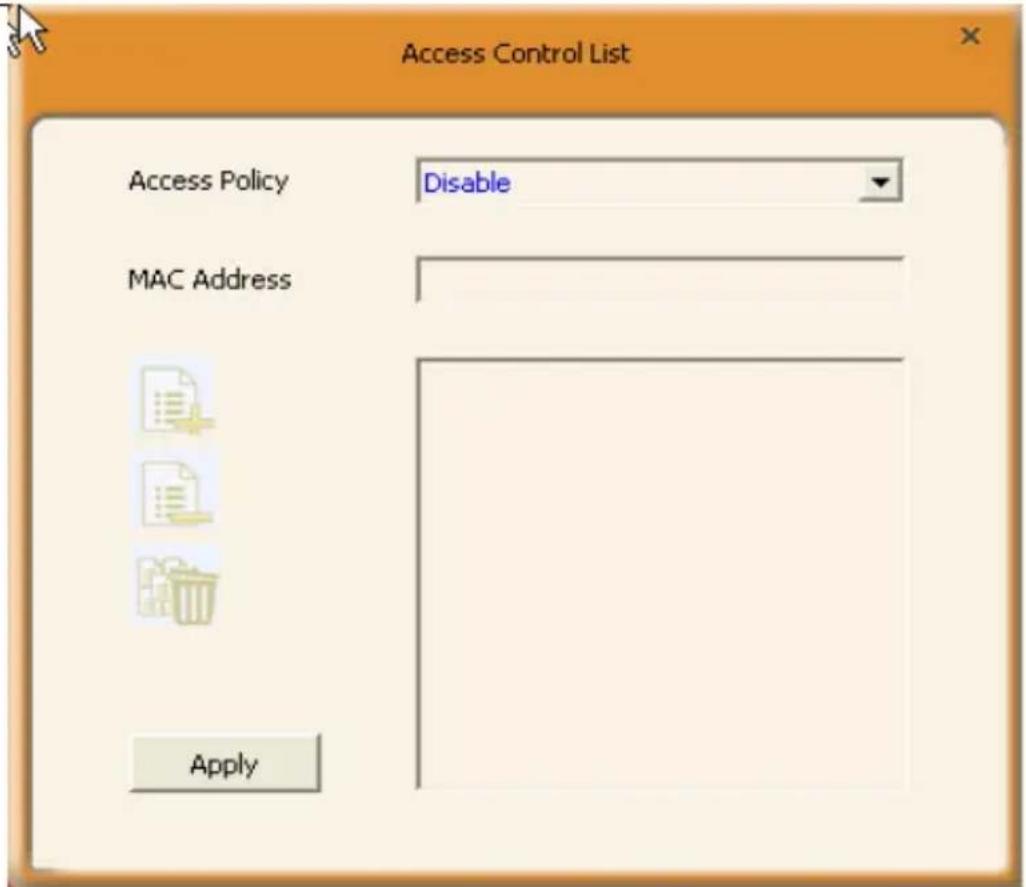
Access Control is based on the wireless adapter' MAC addresses to allow or reject a specified client's access to this wireless network.
text_image
Access Control List Access Policy Disable MAC Address ApplyAccess Policy:
Disable: To disable the filter function.
Allow All: To permit all hosts whose wireless MAC addresses are included in the list to access the wireless network, other hosts whose wireless MAC addresses have not been added to the list will be prohibited by default.
Reject All: To prohibit all hosts whose wireless MAC addresses are included in the list from accessing the wireless network, other hosts whose wireless MAC addresses have not been added to the list will be permitted by default.
MAC Address: To input the client's wireless MAC address you want to filter in the physical address field.

: to add the entered wireless client MAC address to the list.

: to delete an existing MAC address in the list.
: to delete all clients' wireless MAC addresses in the list.
Add the MAC address of the client's wireless network adapter to the list and select "All Allow" in the access policy drop-down list, computers whose wireless MAC addresses are not included in the list will be rejected by default. Select "All reject", and only the host computers whose wireless MAC addresses are included in the list can not access the AP wireless network.
4.2.4 Associate List
When there's client connected to this AP and has successfully obtained the IP address, then the client's MAC address, AID and Status can be seen on the list.

text_image
Associate List MAC Address AID Power S... Status4.2.5 AP Mode under Windows 7
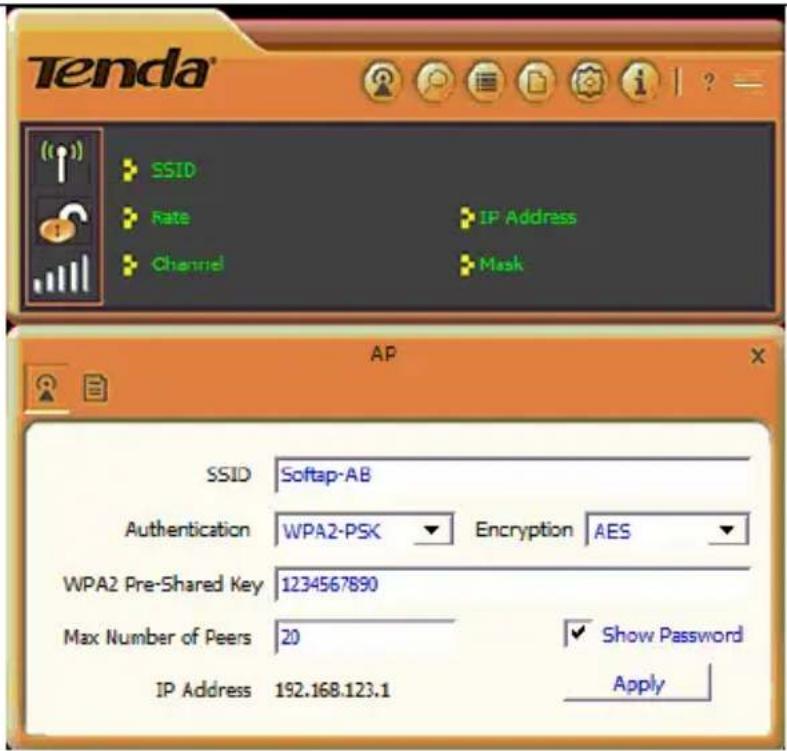
- Under Windows 7, wireless adapters are allowed to work in both STA and AP modes. Here, the wireless adapter acts not only as a client, but also an AP to send wireless signal, which equals to an amplifier. Right click the UI icon on the lower right corner of the computer desktop and select "Switch to STA+AP Mode".

text_image
Launch Config Utility Switch to STA+AP Mode Exit- You can change the SSID on the Config AP screen and control the number of the connected clients by modifying the max number of peers. AP mode has only one encryption method which is WPA2-AES by default and cannot be modified.
text_image
Tenda® SSID Rate Channel IP Address Mask AP SSID Softap-AB Authentication WPA2-PSK Encryption AES WPA2 Pre-Shared Key 1234567890 Max Number of Peers 20 Show Password IP Address 192.168.123.1 ApplyAppendix 1: Acronyms and Terms
WLAN Wireless Local Area Network
802.11 A family of specifications developed by the IEEE for
WLAN technology.
802.11a An extension to 802.11 WLAN standards that provides up to 54 Mbps transmission in the 5 GHz UNI radio band.
802.11b An extension to 802.11 WLAN standard that provides up to 11 Mbps transmission in the 2.4 GHz ISM radio band. 802.11b uses DSSS modulation.
802.11g An extension to 802.11 WLAN standard that provides up to 54 Mbps transmission in the 2.4 GHz ISM radio band. 802.11b uses OFDM modulation and is backwards compatible with 802.11b.
802.11n higher transmission rate, supports Multi-Input Multi-Output(MIMO) technology.
WEP Wired Equivalent Privacy. A security protocol for WLANs defined in the IEEE 802.11 standard.
WPA Wireless Protected Access, adopts rotating keys.
RSN Robust Security Network, A substitute for WPA, and it adopts 802.1x standard and advanced encryption
ICS Microsoft Internet Connection Sharing enables multi-computer to share access to Internet via one PC.
Appendix 2: How to Set WPS
WPS setting supports two modes :PBC and PIN. The detailed setting steps are as follows:
- Wireless Connection in PBC Mode
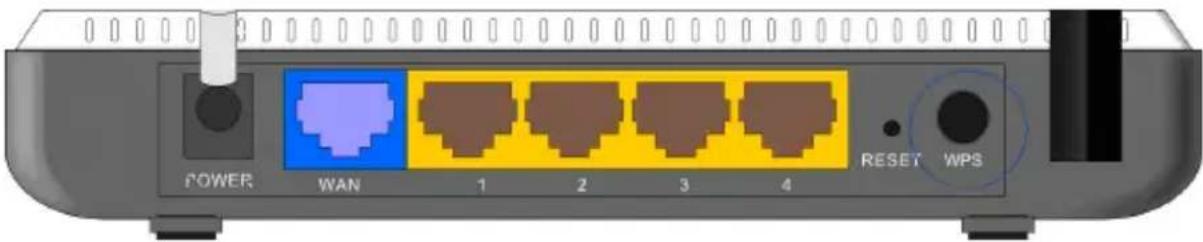
1.1 Enable the router's WPS-PBC feature.
If your router provides WPS button, just press and hold it for about 1 second, then the WPS LED will be flashing for about 2 minutes, which indicates the router's WPS feature has been enabled. Otherwise, you can also log on to the router's web-based utility to enable the PBC mode in WPS settings screen(For detailed settings,please refer to your router's user guide).
text_image
POWER WAN 1 2 3 4 RESET WPS1.2 Perform PBC connection on the UI of the wireless adapter
1) On the main interface of Tenda's UI, click "Profile"—"Add WPS Profile".

text_image
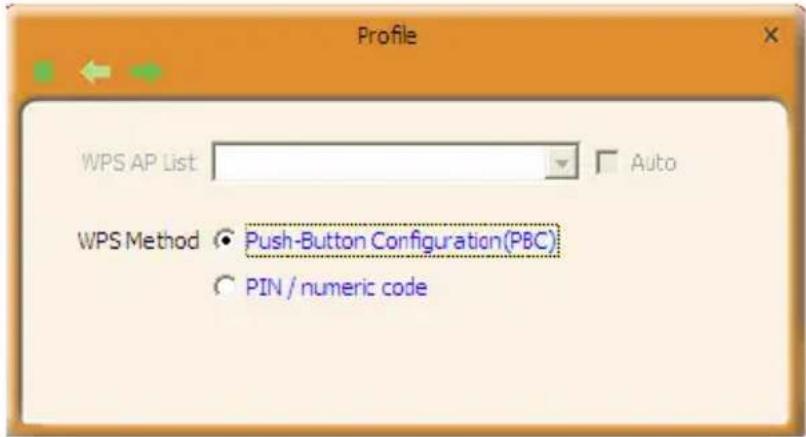
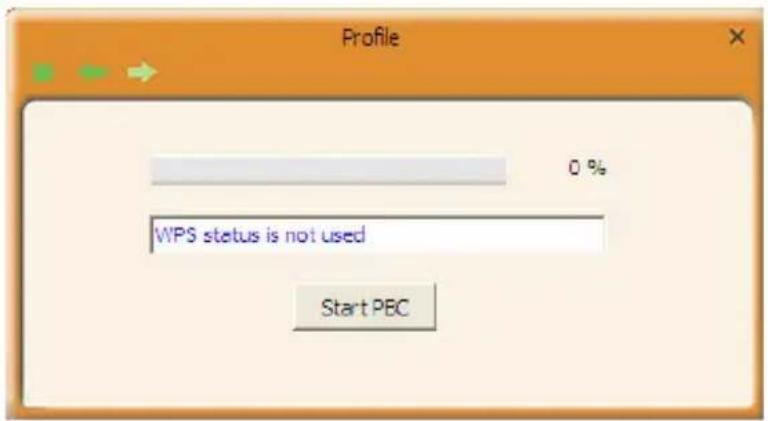
Tenda SSID Safe Chase4 IP Address Nock Profile List Add WPS Profile Profile Information Profile Name Authentication SSID Encryption Site Survey 06 10 b 9 n 100% Broadcom 11 b 9 n 100% ChinaNet-JinXia 3 b 9 n 18% KT3200_eCon_bwt 3 b 9 n 78% Tende 8 b 9 n 100% Tanda 6 b 9 n 100% Tende_340002_340002 8 b 9 n 100% WATOS 8 b 9 n 57% AP Information SSID 66 Authentication WPA-PSK MAC Address C8-3A-35-12-24-78 Encryption AES2) On the Profile screen, select "Push-Button Configuration"(PBC) and then click the "Next" button, select "Start PBC" two minutes after the router enables the WPS function. The connection is established when the negotiating process finishes.
text_image
Profile WPS AP List Auto WPS Method ○ Push-Button Configuration(PBC) ○ PIN / numeric codeStart PBC:
text_image
Profile 0 % WPS status is not used Start PBCNegotiating process:

text_image
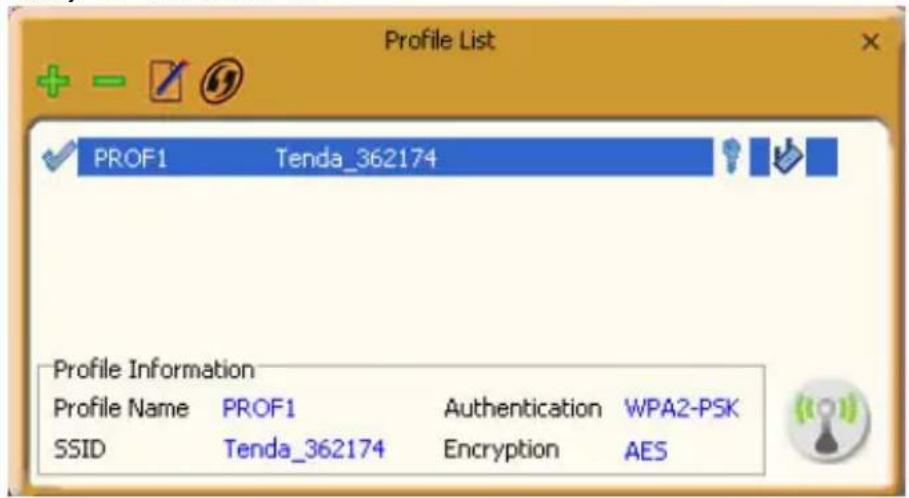
Profile 10 % PBC -Scanning AP FinishA profile forms automatically after the connection is successfully established.
text_image
Profile List PROF1 Tenda_362174 Profile Information Profile Name PROF1 Authentication WPA2-PSK SSID Tenda_362174 Encryption AES1.3 Using the wireless adapter's WPS button to perform PBC connection.
If your wireless adapter provides a WPS button, you may use the button to perform PBC connection.
a).Run the adapter's UI and switch to STATION mode
b). Two minutes after the router's WPS-PBC is enabled, press the adapter's WPS button to connect in PBC mode.
c). You may view the PBC connection process on the UI's PBC screen.
2. Wireless Connections in PIN Mode
On the "Add WPS Profile" screen, select "PIN" as the WPS Method. You may select the wireless AP to be connected in WPS mode on the WPS AP drop-down List, or select "Auto" and then click the next button.

text_image
Profile WPS AP List Tenda_AE0801 Auto WPS Method ○ Push-Button Configuration(PBC) ● PIN / numeric code2.1 Enrollee Mode
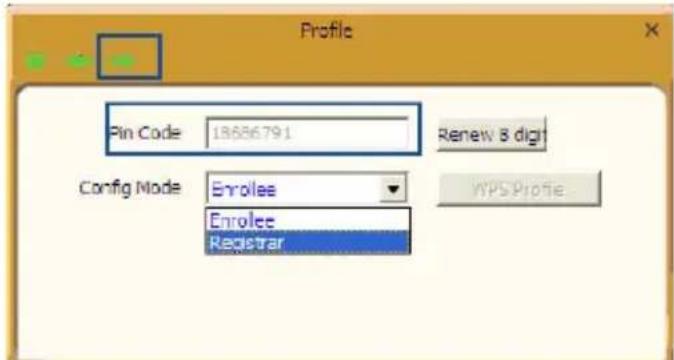
The PIN code field lists the adapter's current PIN code, when you select "Enrollee" as the Config Mode, you need to copy this PIN code and input it in the PIN code field of the router's WPS setting screen.
text_image
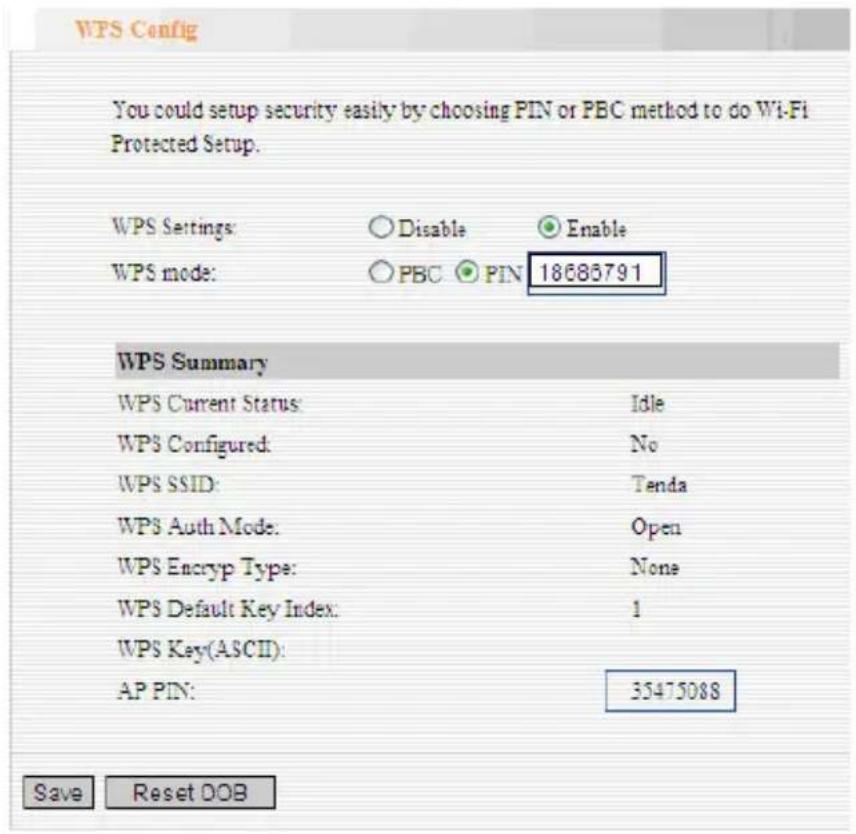
Profile Pin Code 1868679.1 Renew & digit Config Mode Enrollee Enrollee Registrar WPS ProfileHere we take Tenda W311R as an example. First enter its WPS
configuration screen, enable WPS settings and select PIN for WPS mode and then input 18686791 in the PIN code field, and then click the "Save" button. When the WPS indicator of the Router starts flashing, it indicates that WPS feature is enabled.
text_image
WPS Config You could setup security easily by choosing PIN or PBC method to do Wi-Fi Protected Setup. WPS Settings: ○ Disable ● Enable WPS mode: ○ PBC ● PIN 18685791 WPS Summary WPS Current Status: Idle WPS Configured: No WPS SSID: Tenda WPS Auth Mode: Open WPS Encryp Type: None WPS Default Key Index: 1 WPS Key(ASCII): AP PIN: 35475088 Save Reset DOBClick the next button on the Profile screen and click "Start PIN" to start the PIN code negotiation.

text_image
Profile 0 % WPS status is not used Start PIN2.2 Registrar Mode
On the "Add WPS Profile" screen, select the SSID of the AP that need to negotiate in WPS mode instead of selecting "Auto". Then select "PIN" as the WPS method and click the next button to display the following screen:

text_image
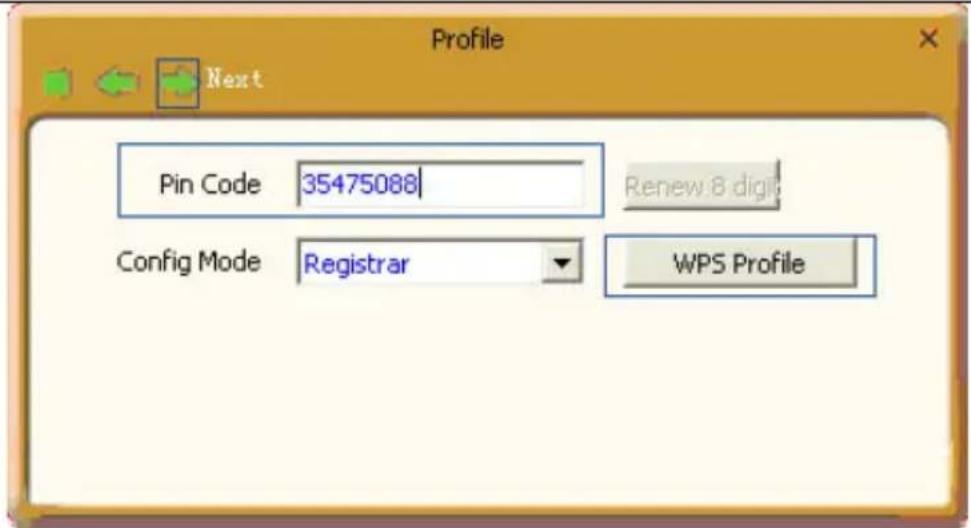
Profile Pin Code 48259255 Renew 8 digit Config Mode Enrollee Enrollee Registrar WPS ProfileSelect "Registrar" as the config mode and enter the router's PIN code, such as 35475088 that displays on the router's WPS screen in section 2.1, in the PIN code field here.
text_image
Profile Pin Code 35475088 Renew:8 digit Config Mode Registrar WPS ProfileNow you can view the SSID ,authenticaiton type,and encryption type that need to be negotiated by the WPS in registrar mode.These values can be modified but we recommend using the default.Here we use the default setting and then click the next buton.

text_image
Profile SSID ExRegNW3243E8 BSSID 00-3A-35-36-21-74 Authentication WPA2-PSK Encryption AESYou can view the negotiation key on the screen below ,but you are not recommended to modify it,just click the next buton.

text_image
Profile WPA Preshared Key 7F6433AEE3D368094BA1E276A38413782 Show PasswordThen click "Start PIN" on the screen below to perform WPS connection.
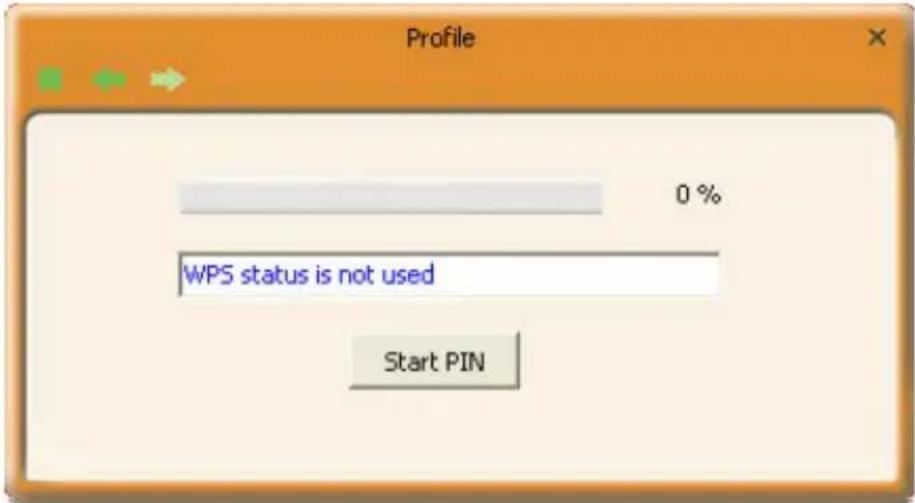
text_image
Profile 0 % WPS status is not used Start PINNOTE:
- Under the WPS connection mode, when multiple routers simultaneously enable the WPS function, it may cause connection failure.
- If the router connect to the adapter using the WPS, only one client can be connected at one time, and so if the router need to connect to multiple clients through WPS, you should repeat the WPS operation.
Appendix 3: FAQ
Q1: Microsoft ICS service is pending.
A1: If ICS service cannot be enabled after a long time, please re-switch from Station Mode to AP Mode, if not successful, please restart the computer.
Q2: ICS is already bound by another network device.
A2: Microsoft ICS service can only combine one group of WAN and LAN. This message indicates ICS may have been enabled by other network adapters. Please manually cancel ICS and re-switch to AP mode.
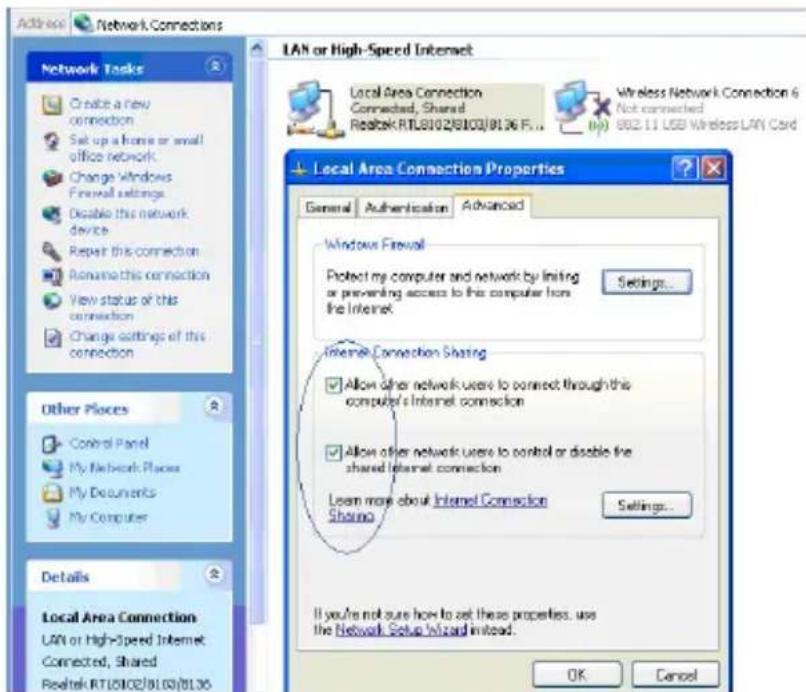
text_image
Address Network Connections LAN or High-Speed Internet Network Tasks Create a new connection Set up a home or small office network. Change Windows Firewall settings Disable this network device Repair this connection Rename this connection View status of this connection Change settings of this connection Other Places Control Panel My Network Places My Documents My Computer Details Local Area Connection LAN or High-Speed Internet Connected, Shared Realtek RTL0102/0103/0136 Local Area Connection Properties General Authentication Advanced Windows Firewall Protect my computer and network by limiting or preventing access to this computer from the Internet Settings... Internet Connection Sharing Allow other network users to connect through this computer's Internet connection Allow other network users to control or disable the shared Internet connection Learn more about Internet Connection Sharing Settings... If you're not sure how to set these properties, use the Network Setup Wizard instead. OK CancelManually enable or cancel ISC.
Q3: Failed to enable ICS.
A3: Microsoft ICS service can only combine one group of WAN and LAN. This message indicates ICS may have been enabled by other network adapters.
-
Please manually cancel or restart and cancel ICS, then re-switch to AP mode.
-
This dialogue box appears because virtual wi-fi miniport adapter can only be used by one wireless network adapter at a time. Please disable any other non-Tenda wireless network adapters and re-switch to AP mode.
Q4: Under Windows 7, when I switch from station mode to AP mode, the screen flashes “Disabling ICS, please wait……” and immediately return to station screen.
A4: This is because you have disabled “Microsoft Virtual WiFi Miniport Adapter”, please re-enable it and then switch to AP mode.
Q5:Client cannot obtain IP when connected to soft AP of the wireless network adapter.
A5: Manually set an IP address at the same net segment as that of the AP and the gateway and DNS at the IP address of AP. Thus, communication can be achieved.
Q6: The SSID is not fully displayed on the wireless network list, what should I do?
A6: Keep the mouse on the displayed SSID for about 2 seconds, as the below picture shows,and you'll see the full SSID on the appearing box.
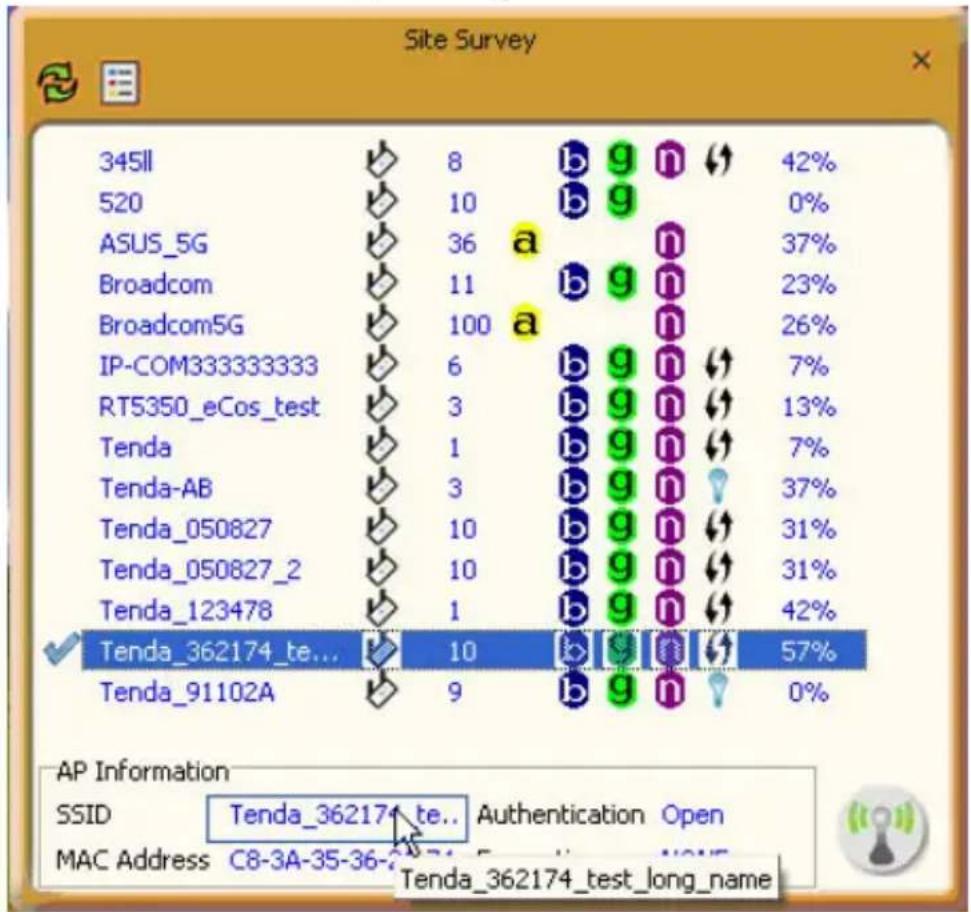
bar
| Category | AP Count | Percentage (%) | | :--- | :--- | :--- | | 345ll | 8 | 42 | | 520 | 10 | 0 | | ASUS_5G | 36 | 37 | | Broadcom | 11 | 23 | | Broadcom5G | 100 | 26 | | IP-COM333333333 | 6 | 7 | | RT5350_eCos_test | 3 | 13 | | Tenda | 1 | 7 | | Tenda-AB | 3 | 37 | | Tenda_050827 | 10 | 31 | | Tenda_050827_2 | 10 | 31 | | Tenda_123478 | 1 | 42 | | Tenda_362174_te... | 10 | 57 | | Tenda_91102A | 9 | 0 | API Information SSID Tenda_362174_te.. Authentication Open MAC Address C8-3A-35-36-2015 Tenda_362174_test_long_nameQ7: Under Windows 2000 system, IP address can not be obtained when it is switched to AP Mode.
A7: Under Windows 2000 system, you have to manually configure sharing and then switch to AP. And an IP address of 192.168.0.1 will be obtained.
If you still have any problem, please contact our customer service or visit our website: http://www.tenda.cn
Q8: Sometimes the UI can not be moved by the mouse and also can not be minisized, why?
A8:when you are performing some configurations or connections, the UI only activates the currently operating window, other windows are locked and can not be operated, but it will restore to normal when you close or finish the current configuration and connection.
Q9: How to exit the UI?
A9: Right click the system tray icon and click "Exit" on the appearing dialog.

text_image
Launch Config Utility Use Zero Configuration as Configuration Utility Switch to AP Mode Exit Adobe Acrobat Pr...Q10: Now that the Tenda W326U wireless adapter's driver can be installed without the Software CD, why it still provide the CD?
A10: Some functions are missing for the drive integrated in the W326U adapter, and also the drive does not support the WPS button and AP mode, however, by installing the drive on the CD, the UI can be installed to fulfill these advanced features.
Q11: Why I can not normally use the Drive integrated in W326U under MAC operating system?
A11:W326U can only integrate the drive under Windows system, to use W326U under MAC system, please insert the W326U to the computer with MAC OS; the system will identify the adapter as a CD, pop this CD out, and then install the MAC drive included in the CD.
Technical Support
Headquarter Shenzhen:
■ Add:Tenda Industrial Zone,No.34-1 Shilong Road,ShiyanTown,BaoanDistrict,Shenzhen,China.
518108
■ Tel:(86)755-27657180
■ Fax: (86)755-27657178
■ Email: sales@tenda.com.cn
■ Technical Support: support@tenda.com.cn
Appendix 4 :Regulatory Information
Eu Declaration or Declaration of Conformity
Hereby, SHENZHEN TENDA TECHNOLOGY CO.,LTD, declares that this Wireless Adapter is in compliance with the essential requirements and other relevant provisions of Directive 1999/5/EC.
FCC Statement
This equipment has been tested and found to comply with the limits for a Class B digital device, pursuant to part 15 of the FCC rules. These limits are designed to provide reasonable protection against harmful interference in a residential installation. This equipment generates, uses and can radiate radio frequency energy and, if not installed and used in accordance with the instructions, may cause harmful interference to radio communications. However, there is no guarantee that interference will not occur in a particular installation. If this equipment does cause harmful interference to radio or television reception, which can be determined by turning the equipment off and on, the user is encouraged to try to correct the interference by one or more of the following measures:
-Reorient or relocate the receiving antenna.
-Increase the separation between the equipment and receiver. -Connect the equipment into an outlet on a circuit different from that to which the receiver is connected.
-Consult the dealer or an experienced radio/TV technician for help.
To assure continued compliance, any changes or modifications not expressly approved by the party responsible for compliance could void the user's authority to operate this equipment. (Example- use only shielded interface cables when connecting to computer or peripheral devices).
"The antenna(s) used for this transmitter must not be co-located or operating in conjunction with any other antenna or transmitter."
FCC Radiation Exposure Statement
This equipment complies with FCC radiation exposure limits set forth for an uncontrolled environment. This equipment should be installed and operated with the minimum distance
of 20 cm. Operation is subject to the following two conditions:
1) This device may not cause interference and
2) This device must accept any interference, including interference that may cause undesired operation of the device.
Caution!
The manufacturer is not responsible for any radio or TV
interference caused by unauthorized modifications to this equipment. Such modifications could void the user authority to operate the equipment.