865DBI - Car stereo BOSS - Free user manual and instructions
Find the device manual for free 865DBI BOSS in PDF.


User questions about 865DBI BOSS
0 question about this device. Answer the ones you know or ask your own.
Ask a new question about this device
Download the instructions for your Car stereo in PDF format for free! Find your manual 865DBI - BOSS and take your electronic device back in hand. On this page are published all the documents necessary for the use of your device. 865DBI by BOSS.
USER MANUAL 865DBI BOSS
WITH BUILT-IN iPod DockING STATION
WITH USB AND SD MEMORY CARD PORTS
AND FRONT PANEL AUX INPUT
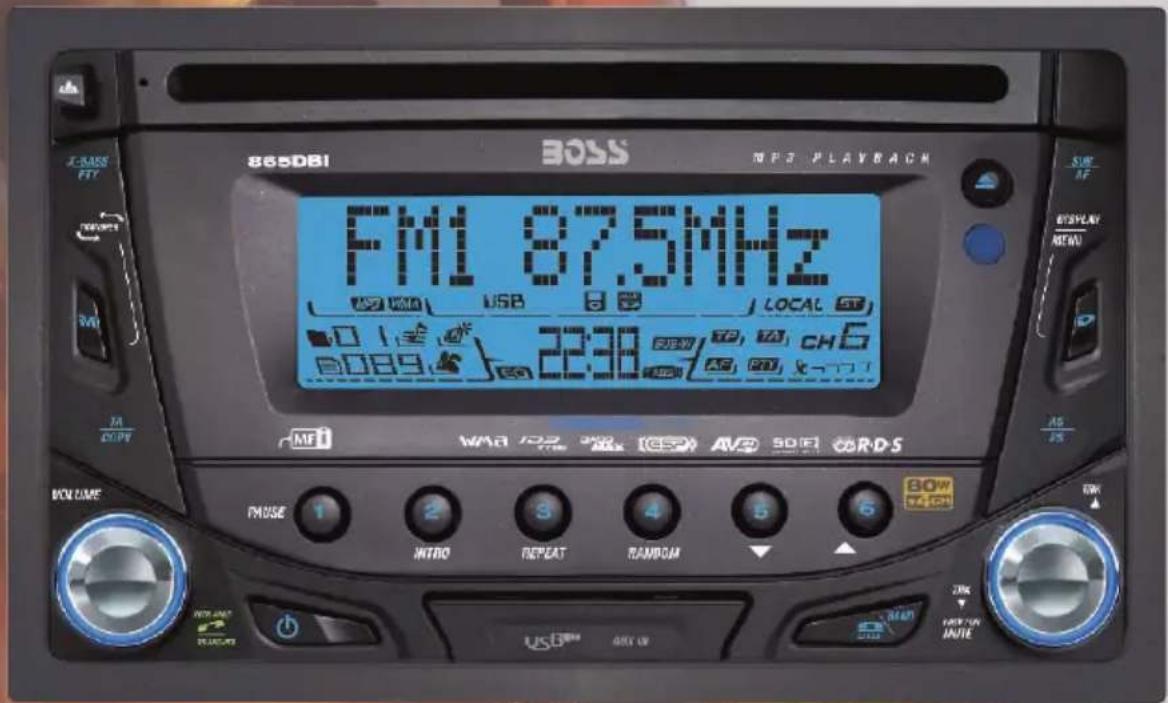
text_image
865DBI BOSS MP3 PLAYBACK FM1 87.5MHz USB LOCAL GT 22:38 NEW TP TA CHG AS 20 -TJ MF1 WMD /C2 ICG AVD SDOF CARS AS VS VOLUME PMUSE 1 2 3 4 5 6 BOW YACH INTRO REPEAT RANDOM USB MAIN LATCH ON INIEBOSS®
AUDIO SYSTEMS
2 ACCESSORY INCLUDED
3 INSTALLATION
4 DETACHABLE CONTROL PANEL
6 WIRING DIAGRAM
7 CONTROL PANEL FUNCTION
8 iPod OPERATION
12 BASIC OPERATIONS
13 MENU OPERATION
14 AUDIO OPERATION
15 TUNER OPERATION
16 RDS OPERATION
17 CD /MP3/WMA OPERATION
20 USB OPERATION
21 MEMORY CARD OPERATION
22 MUSIC FILES COPYING / TRANSFERRING
24 MUSIC FILES ERASING
26 FILES MANAGER
27 BLUETOOTH HAND FREE OPERATION
43 REMOTE FUNCTION
44 SPECIFICATIONS
45 TROUBLE SHOOTING
1. ACCESSORY INCLUDED
When first unpacking your new full detachable DVD head unit, please check first that the package contains all of the items below. If something is missing, contact the store where you purchased the player.
- Owner's Manual
- Warranty Card
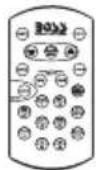
- Remote control
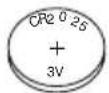
- Lithium Battery
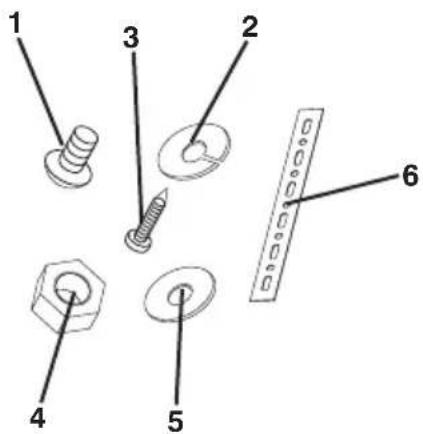
• 1. Machine Screw (5 x 6mm)
- Spring Washer
- Tapping Screw
- Hex Nut
- Plain Washer
- Small metal Strip
text_image
Labeled diagram of a mechanical assembly with numbered parts including bolts, nuts, and a ruler2. INSTALLATION
- Before finally installing the unit, connect the wiring temporarily and make sure it is all connected up properly and the unit and system work properly.
- Use only the parts included with the unit to ensure proper installation. The use of unauthorized parts can cause malfunctions.
- Consult with your nearest dealer if installation requires the drilling of holes or other modifications of the vehicle.
- Install the unit where it does not get in the driver's way and cannot injure the passenger if there is a sudden stop, like an emergency stop.
- If installation angle exceeds 30^ from horizontal, the unit might not give its optimum performance.

- Avoid installing the unit where it would be subject to high temperature, such as from direct sunlight, or from hot air, from heater, or where it would be subject to dust dirt or excessive vibration.
- Be sure to remove the front panel before installing the unit.
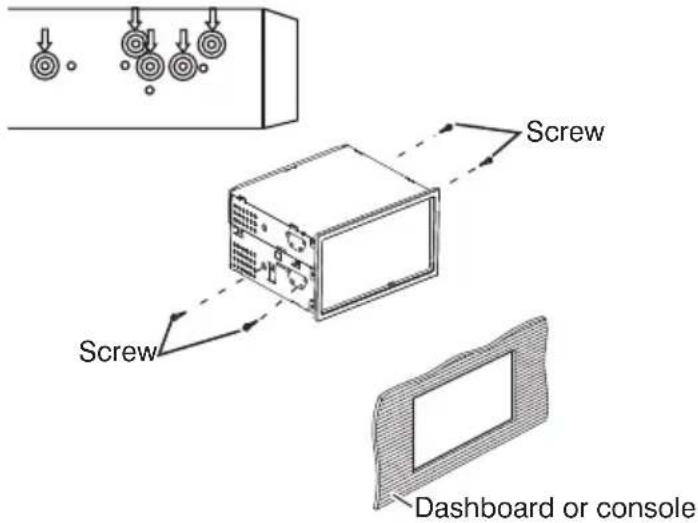
Installation using the screw holes on the side of the unit
Select a position where the screw holes of the bracket and the screw holes of the main unit become aligned (are fitted) and tighten the screws at 2 places on each side.
text_image
Screw Screw Dashboard or console3. DETACHABLE CONTROL PANEL (D.C.P.)
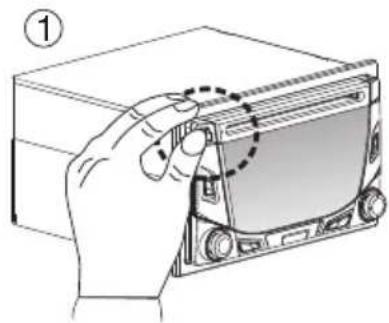
Removing The Detachable Control Panel (D.C.P)
natural_image
Illustration of a hand inserting a device into a box, showing the next panel with a dashed circle indicating rotation (no text or symbols present)Press the panel release button.
text_image
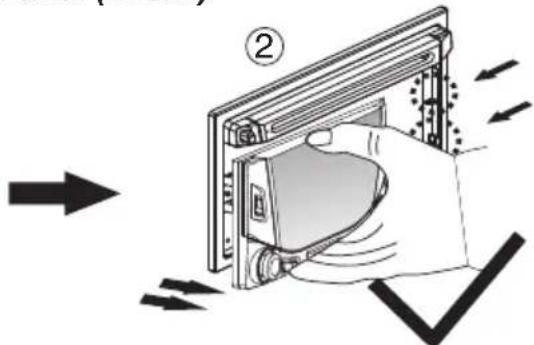
Diagram showing a hand holding a device with directional arrows indicating motion or force, labeled with number ②.Slightly lift up the panel & pull out the panel side way in order to remove the front panel.
WARNING
Do not try to remove the panel by pulling directly towards you.
Correct way to remove the panel should be slightly lift up the panel & pull out the panel side way in order to remove the front panel!

natural_image
Illustration of a hand inserting a device into a computer monitor (no text or symbols visible)Attaching the DCP
text_image
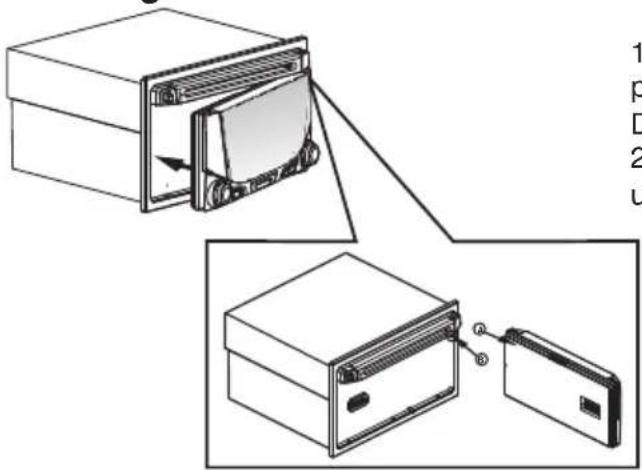
Diagram showing a device with an open lid and its internal structure, alongside a close-up of its internal components.- Attach the panel at the right side first, with point B on the main unit touching point A on the D.C.P. (As shown on the diagram).
- Then press the left side of D.C.P. onto the main unit until a "click" sound is heard.
CAUTION
• DO NOT insert the D.C.P from the left side. Doing so may damage it.
- The D.C.P can easily be damaged by shocks. After removing it, place it in a protective case and be careful not to drop it or subject it to strong shocks.
- When the release button is pressed and the D.C.P is unlocked, the car's vibrations may cause it to fall. To prevent damage to the D.C.P, always store it in a protective case after detaching it.
- The rear connector that connects the main unit and the D.C.P is an extremely important part. Be careful not to damage it by pressing on it with fingernails, pens, screwdrivers, etc.

text_image
SocketNote:
If the D.C.P is dirty, wipe off the dirt with soft, dry cloth only. And use a cotton swab soaked in isopropyl alcohol to clean the socket on the back of the D.C.P.
RESETTING THE UNIT:
- After releasing the front panel, use a pencil or any non-metallic object to press & hold the reset button for five seconds to reset the unit.

natural_image
Technical line drawing of a device rear panel with labeled ports and connectors (no text or symbols)- WIRING DIAGRAM (20 PIN + ISO PLUG)

ISO CONNECTOR WIRING CHART
| PIN | WIRE COLOR | FUNCTION/LABEL |
| A4 | YELLOW | CONSTANT 12 VOLTS |
| A5 | BLUE | POWER ANTENNA/REMOTE TURN ON |
| A7 | RED | IGNITION(ACC) |
| A8 | BLACK | GROUND |
| B1 | VIOLET | RIGHT REAR SPEAKER (+) |
| B2 | VIOLET/BLACK | RIGHT REAR SPEAKER (-) |
| B3 | GREY | RIGHT FRONT SPEAKER (+) |
| B4 | GREY/BLACK | RIGHT FRONT SPEAKER (-) |
| B5 | WHITE | LEFT FRONT SPEAKER (+) |
| B6 | WHITE/BLACK | LEFT FRONT SPEAKER (-) |
| B7 | GREEN | LEFT REAR SPEAKER (+) |
| B8 | GREEN/BLACK | LEFT REAR SPEAKER (-) |
| PIN | WIRE COLOR | FUNCTION/LABEL |
| 1 | GREY/BLACK | RIGHT FRONT SPEAKER (-) |
| 2 | GREY | RIGHT FRONT SPEAKER (+) |
| 3 | VIOLET | RIGHT REAR SPEAKER (+) |
| 4 | VIOLET/BLACK | RIGHT REAR SPEAKER (-) |
| 5 | ||
| 6 | GREEN | LEFT REAR SPEAKER (+) |
| 7 | GREEN/BLACK | LEFT REAR SPEAKER (-) |
| 8 | RED | IGNITION(ACC) |
| 9 | ||
| 10 | ||
| 11 | WHITE | LEFT FRONT SPEAKER (+) |
| 12 | WHITE/BLACK | LEFT FRONT SPEAKER (-) |
| 13 | ||
| 14 | BLUE | POWER ANTENNA/REMOTE TURN ON |
| 15 | YELLOW | CONSTANT 12 VOLTS |
| 16 | BLACK | CHASSIS GROUND |
| 17 | ||
| 18 | ||
| 19 | ||
| 20 |
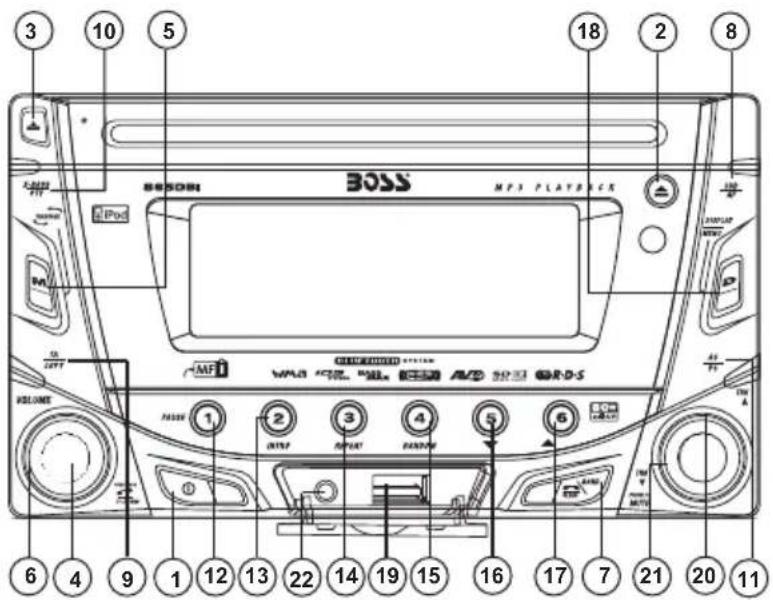
- CONTROL PANEL FUNCTION(RDS+BLUETOOTH+iPod)
text_image
3 10 5 18 2 8 BOSI MP3 PLATRDCS VOLUME 6 4 9 1 12 13 22 14 19 15 16 17 7 21 20 11 M iPod MP3 WWD AVD SPDSOPERATIONS:
| KEY | SYSTEM TUNER CD/MP3/WMA | Bluetooth | iPod | |||||||
| Short Press | Long Press | Short Press | Long Press | Short Press | Long Press | Short Press | Long Press | Short Press | Long Press | |
| 1 | Power | |||||||||
| 2 | Eject | |||||||||
| 3 | Panel release button | |||||||||
| 4 | Audio Menu | Enter | Phone Answer | |||||||
| 5 | Mode | Call Trans fer | ||||||||
| 6 | Enco de r Volume | |||||||||
| 7 | Band | File/Folde r Search | File Erase | Reject Call End Call | iPod Search | |||||
| 8 | Sub- W | AF | ||||||||
| 9 | Copy | TA | ||||||||
| 10 | ix-Ba ss | PTY | ||||||||
| 11 | PS AS | ID3 | iPod information | |||||||
| 12 | M1 | Memory 1 | Pause /Play | Pause /Play | ||||||
| 13 | M2 | Memory 2 | Intro | Folder Intro | ||||||
| 14 | M3 | Memory 3 | Repeat | Folder Repeat | Repeat | Album Repeat | ||||
| 15 | M4 | Memory 4 | Random | Fol der Random | Shuffle | Album Shuffle | ||||
| 16 | M5 | Memory 5 | Folder Down | |||||||
| 17 | M6 | Memory 6 | Folder Up | |||||||
| 18 | Display | Menu | ||||||||
| 19 | USB Cover / Socket | |||||||||
| 20 | Seek Up/ Dn | Tune Up/Dn | Track/File Up/Dn | Fast Forward / Backward | File Up/Dn | Fast Forward / Backward | ||||
| 21 | Mute | |||||||||
| 22 | 3.5mm Aux In Jack | |||||||||
6. iPod OPERATION
INSTALLING iPod INTO THE BUILT-IN iPod DOCKING
Always follow the below steps to install the iPod into the docking station. Incorrect or improper installation may cause permanent damage to the docking or the iPod unit.
Step 1
Press down the button as indicated below to unlock the iPod docking.

text_image
Press downStep 5
Once the stick is completely pulled out, user should
see the iPod connector, and user can connect the iPod to the connector as shown in this step.

text_image
ie stick is completely out, user should nector, Press toward this lock switchStep 2
Pull out the iPod docking as shown belo

text_image
Pull out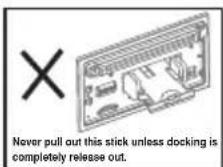
Step 6
Push the stick & the connected iPod inwards until it stops.

text_image
until it stops. Push inwardsStep 3
Press on this button on the left side as indicated below to
unlock the iPod holder.
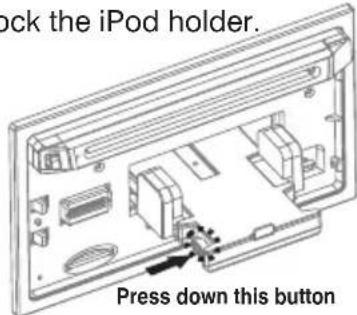
text_image
lock the iPod holder. Press down this buttonStep 7
Press the iPod holder on both sides to hold the iPod firmly in place.

text_image
Press towards the iPod unit to hold the iPod unit firmly in placeStep 4
Pull out the iPod connector as indicated below.

text_image
below. Pull out this stickStep 8
Push the iPod docking inwards into the unit's cabinent until a click sound is heard.

text_image
Push the docking backREMOVE iPod FROM THE BUILT-IN iPod DOCKING
To take out the iPod from the docking station, user can first detach the front panel, and repeat step 1 to step 8 to take out the iPod & return the iPod docking inside the unit's cabinet.
Step 1 Press the button as indicated below to unlock the iPod docking.
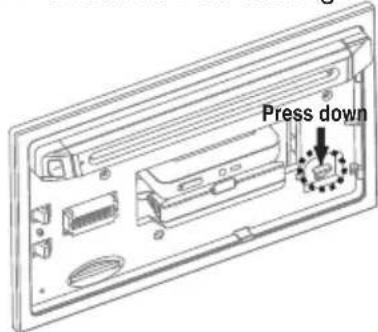
text_image
Press downStep 5 Once the stick with the
connected iPod is out, user should put the locking buttons on the both sides of the iPod connector to release the iPod as indicated in the picture, and remove
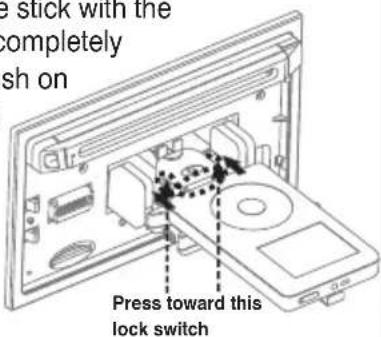
text_image
e stick with the completely sh on Press toward this lock switchStep 2 Pull out the iPod docking as shown below
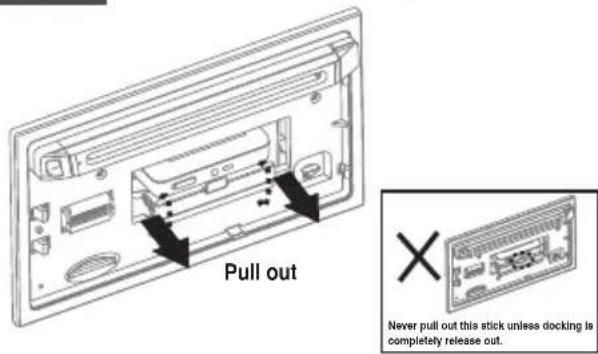
text_image
Pull out Never pull out this stick unless docking is completely release out.Step 6 Once the iPod unit is remove, push the stick backward into the iPod docking
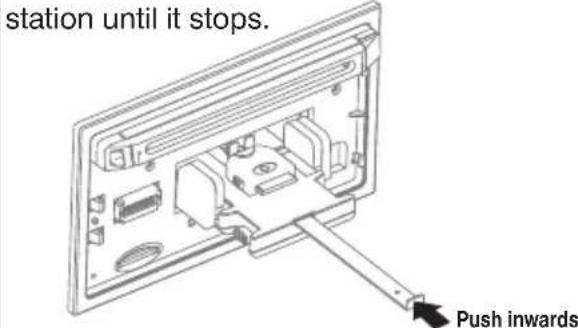
text_image
station until it stops. Push inwardsStep 3 Press on this button on the left side as indicated below to
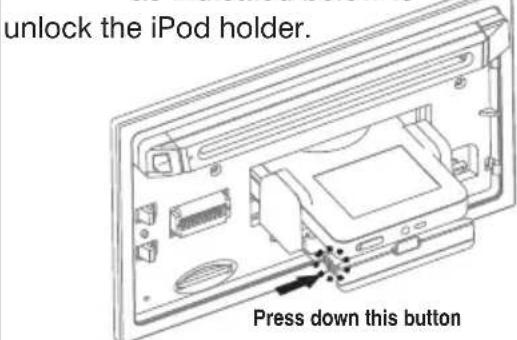
text_image
unlock the iPod holder. Press down this buttonStep 7 Push on the iPod holders on both sides until they stop.

text_image
until they stop. Press towards the iPod unit to hold the iPod unit firmly in placeStep 4 Pull out the iPod connected as indicated below by pulling out the stick.
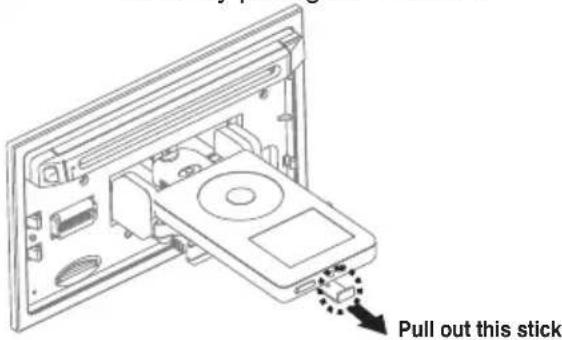
text_image
Pull out this stickStep 8 Push the iPod docking inwards into the unit's cabinet until a click sound is heard.

text_image
Push the docking back to CabinetThis unit is equipped with iPod Ready function which allow end user to have direct control of the iPod on the front panel control button and display iPod song information on the unit's LCD display. Please read below for more details operation.
iPod Compatibility Chart
This unit is support following iPod version
iPod 1G Not Supported
iPod 2G Not Supported
iPod 3G Supported
iPod Mini Supported
iPod 4G Supported
iPod Photo Supported
iPod Nano Supported
iPod 5G(Video) Supported
iPod Touch
Supported
iPhone
Not Supported
iPod Classic
All version
Audio Video File
This unit is NOT ABLE to playback any VIDEO FILE OR VIDEO ALBUM which contained in the iPod Video.
Turning iPod Power On and Off
The iPod power turns on automatically as soon as it is connected to the 30 Pin Connector and as long as the vehicle's ignition is turned ON. The iPod power can be turned OFF by removing the iPod from the 30 Pin Connector or if the vehicle's ignition is turned OFF. Under this condition the iPod will go into pause mode and goes into sleep mode about 2 minutes later

While the iPod is connected, the power cannot be turned on or off from the iPod itself.
Tips

" to disconnect will be shown in the iPod's display while it is connected to the unit .
iPod Battery Charging
While connected to the unit, the iPod will automatically start re-charging as long as the vehicle's ignition key is turn to ACC or ON.
Switch to iPod Mode
When the Head unit is power on and iPod is connected to the 30 pin connector, press the mode button to change to iPod mode and the unit will display iPod for a while then starts Reading the music files contained in the iPod and the playback will automatically start. Press Mode button repeatedly to change to other modes or switch back to iPod mode.
iPod information Display on the Head Unit LCD
This unit can display the Song, Artist, Album name and Elapsed time on the LCD display, these information can be displayed by pressing the AS/PS button repeatedly while a iPod Song file is playing.
Searching a Desire Song
Under iPod playback mode, press BAND to enter into the iPod Searching Mode. Pressing BAND button repeatedly to accesses the different searching methods as below :
Once selected the desire searching method, within 10 second press the AUDIO button as confirm & access into the searching mode, then turn the rotate encode volume knob to navigate thru the Album or Artist or Song contained in the iPod. Press the AUDIO button to confirm & play the selected song. During the searching mode, press AS/PS as quick move back to the last upper level of Album, Playlist, Genre, etc.
Song Select
Press the File UP (>>) or File DOWN (<>) button for less than one second to skip to the next or previous song. Press and Hold File UP (>>) or File DOWN (<>) button for more than 3 seconds to fast forward or fast reverse of the current song.
Song Repeat / Repeat All play :
Pressing the M3 button for more than 3 seconds during iPod playback mode for “REPEAT ALL”. All songs of the current album will be kept on repeat playing until the “Repeat All” function is disabled. To disable current Album “REPEAT ALL” function, long press M3 button more than 3 seconds
Press the M3 button for less than 3 seconds to “REPEAT PLAY” the current song. And keep on repeat playing the current song until the “REPEAT PLAY” function is disabled. To disable current song “REPEAT PLAY”, press the M3 button less than 3 seconds
Shuffle play: / Shuffle Album
Pressing the M4 button for more than 3 seconds during iPod playback mode to activate the "SHUFFLE ALBUM" function. This function allows RANDOM playback of all the albums contained on the iPod. To disable "SHUFFLE ALBUM" function, long press M4 button for more than 3 seconds.
Press the M4 button for less than 3 seconds during iPod playback mode to activate "SHUFFLE PLAY". This function allows the playback of all the songs in the iPod in random sequence. To disable "SHUFFLE PLAY", short press M4 button again for less than 3 seconds.
7. BASIC OPERATIONS
3) PANEL RELEASE BUTTON (REL)
Press this button to remove the control panel.
Press POWER button or any other button on the front of the radio to turn the unit on. Press POWER button again to turn the unit off.
Press the mute button momentarily to mute the audio volume, and "Mute" will flash in the display. Press the mute button again to restore volume to the previous setting.
8) SUBWOOFER (SUB-W)
Pressing the Subwoofer button to activate the Subwoofer function On, and “Subwoofer” will appear on the LCD display for 3 seconds. press the Subwoofer button again to turn off the Subwoofer function.
10) iX-BASS BUTTON (iX-Bass)
Long press the iX-Bass button to turn on the iX-Bass function, and "iX-Bass" will appear in the LCD display for 3 seconds. Press the iX-Bass button again to turn off the iX-Bass function.
5) MODE BUTTON (MODE)
Press MODE button to select a different mode of operation as indicated on the display panel. Available modes include Tuner, USB Host, SD/MMC, iPod and Aux - In.
AUX INPUT
Connect the external signal to AUX in jack located at the front of the panel, then press Mode button to select Aux mode. Press Mode Button again to cancel Aux Mode and return to previous mode.

text_image
AUX IN FRONT CABINET LEFT TRACK RIGHT TRACK GROUND AUX IN6) ENCODER VOLUME BUTTON
To increase the volume, rotate the volume control clockwise. To decrease the volume, rotate the volume control counter clockwise. When volume is adjusted, the volume level will be shown on the display panel as a number ranging from 0 (lowest) to 46 (highest).
8. MENU OPERATION
Press DISPLAY/ MENU for more than 3 seconds to access the menu. will MENU appear in the display momentarily. Navigate the menu by pressing DISPLAY/ MENU momentarily to move forward to the next option. The menu can also be navigated by using the Tuning Up or Tuning Down Button to move to the next or previous option. Once the desired option appears in the display, adjust that option by rotating the volume control within 5 seconds. The following options are adjusted through this menu feature.
Pairing
This feature is used to pairing the unit's Bluetooth system to your mobile phone or other Bluetooth device. Under the MENU “Pairing” mode then press Audio button to start activating the Pairing.
Tips Please refer to BLUETOOTH HAND FREE operation regarding the details operation of "PAIRING".
Re-connection/Dis-connection
This feature is allows to Re-connect or Dis-connect to the paired mobile phone or Bluetooth device by manually. Under the Menu- “RE-CONN” mode, Rotate the encoder to navigate thru “RE-CONN” (re-connection) and “DIS-CONN”(Dis-connection). After selected the mode for connection then press Audio button to start activating the connection mode.
Auto Answer (A ANSWER)
The unit is default of "off" mode. If "On" is selected.. The unit is automatically answer any incoming call without pressing PHONE button if ON is selected..
Contrast
The contrast level of the display is set at "CONTRAST 05" by default. Rotate the volume control To adjust the contrast level from 00 to 10.
Clock Format
This option allows selection of a 12 hour or 24 hour clock format. "CLK FORMAT 12H" is the Default setting. Rotate the volume control to change to the 24 hour clock format.
Time Set
The time on the clock will be set to 12:00 as the default. Program the current time by rotating the volume control clockwise to adjust the minutes and counterclockwise to adjust the hours.
Local / Distance Select
This feature is used to designate the strength of the signals at which the radio will stop during automatic tuning. "Distance" is the default, allowing the radio to stop at a broader range of signals. To set the unit to select only strong local stations during automatic tuning, rotate the volume control until "Local" appears in the display.
Beep Tone
The beep tone feature allows the selection of an audible beep tone to be heard each time a button is pressed on the face of the radio. "BEEP TONE On" is the default display. Rotate the volume control to select the "BEEP TONE Off" option.
9. AUDIO OPERATION
Audio Menu
Pressing “AUDIO” button to access the Audio Menu. User can navigate thru the Audio Menu items by pressing the / “AUDIO” button repeatedly, or by pressing the Tuning Up or Tuning Down Button. Once the desired menu item appears on the display, adjust that option by using the Volume Up or Down button within 5 seconds. The following menu items can be adjusted as described above. The unit will automatically exit the Audio Menu after five seconds of inactivity.
VOLUME (Volume Level)
- User has 5 seconds to use the Volume button to adjust the desire volume level, the volume level will be shown on the LCD display ranging from 00 (lowest) to 46 (highest).
BASS (Bass Level)
- User has 5 seconds to use the Volume Up or Down button to adjust the desired Bass level range from -6 to +6.
TREBLE (Treble Level)
- User has 5 seconds to use the Volume Up or Down button to adjust the desired Treble level range from -6 to +6.
BALANCE
- User has 5 seconds to use the Volume Up or Down button to adjust the Balance between the right and left speakers from R12 (full right) to L12 (full left). "C00" represents an equal balance between the right and left speakers.
FADER
- User has 5 seconds to use Volume Up or Down button to adjust the Fader between the front and rear speakers from R12 (full rear) to F12 (full front). "C00" represents an equal balance between the front and rear speakers.
10. TUNER OPERATION
7) BAND BUTTON (BAND/SEARCH)
Press BAND to change between FM bands and AM(MW) bands.
Turn & Hold the Up Tuning or Down Tuning button for more than 3 seconds to move the radio frequency number up or down one step.
Auto Seek Tuning
Turn & Hold the Up Tuning or Down Tuning button for less than 3 seconds to move to next station automatically.
12-17) PRESET STATIONS BUTTONS
Six numbered preset buttons store and recall stations for each band.
Store a Station
Select a band (if needed), then select a station. Hold a preset button for 3 seconds. The preset number will appear in the display.
Recall a Station
Select a band (if needed). Press a preset button to select the corresponding stored station.
11) AUTOMATICALLY STORE / PRESET SCAN (AS/PS)
Automatically Store
Automatically select 6 strong stations and store them in the current band. Select a band (if needed). Press AS/PS button for more than three seconds. The new stations replace stations already stored in that band.
Preset Scan
Scan stations stored in the current band. Select a band (if needed). Press AS/PS button for less than 3 seconds. The unit will pause for ten seconds at each preset station. Press AS/PS button again to stop scanning when the desired station is reached.
STEREO
The unit will automatically pick up a stereo signal, when available. When in stereo mode, the ST icon appears in the display. When no stereo signal is available, the unit will automatically revert to mono operation, and no icon will be displayed.
IMPORTANT NOTE ON THE EUROPEAN / RDS TUNER SETTING
This unit is default at "U.S.A" frequency. When unit is in U.S.A frequency, all the RDS related function is disabled. Once user change the AREA setting to "EUROPE", unit will change to European frequency, and all the RDS function will be activated as well. So all the RDS related function will only be activated, only if this unit's AREA setting is change to EUROPE".

1) For details operation of the Menu-Tuner Setting, please refer to pag "Menu Operation".
2) For details operation of the RDS system, please refer to page "RDS Operation".
11. RDS OPERATION
RDS functions
The unit is equipped with the following RDS function:
- AF Alternative Frequencies
- CT Clock Time
- EON Enchanced other Network
- PI Program identifications
- PS Program service name
- PTY Program Type
- REG Regional Change
- TA Traffic Announcement
- TP Traffic program
1. AF Function
By pressing AF button < 3 seconds to select AF ON/OFF. "AF ON" or "AF OFF" will show & remain on the LCD segment for 5 seconds.. Under AF "On" mode, if the tuned in station signal is getting weak, the unit will automatically switches to a different frequency on the same network with stronger signal.
Note: Factory Default setting is "AF ON"
2. TA Function
By pressing TA button < 3 seconds, turn switch on TA standby mode. “TA ON” will show & remain on the LCD segment for 5 seconds & the TA icon will light up on the LCD. In the stand by mode, when a traffic announcement broadcast starts, the traffic announcement broadcast will be received as top priority regardless of the function mode. When a traffic announcement starts, “TRAFFIC INFO” will show on the LCD, press the TA button can cancelled the broadcast reception while a traffic announcement broadcast is being received. The unit will go back to the previous mode and TA goes into stand by mode again. When the TP icon is not light up for 60 seconds. A beep Alarm tone is heard and the LCD will show “Lost TP, TA”. TA seek will automatic activate and searches to another TA station.
3. PTY Function
Pressing PTY button < 3 seconds to goes into PTY select mode. "PTY" icon will light up on the LCD. The LED around encoder volume will starts blinking. The user now has 5 seconds to select the desired PTY item by using volume up/down button. Once selected the PTY item, user have 5 seconds to press "SELECT" or "TUNE UP or TUNE DOWN" buttons < 3 seconds to seek for the selected PTY item. The LCD will display "PTY SEEK". If no station with the selected PTY broadcast can be received, the LCD will display "No Match PTY" and blinks for 5 seconds then returns to the previous mode.
User can store his favor PTY into the preset memory M1 to M6. After selected a PTY item, long press any one of the preset memory button can store the selected PTY. To recall the stored PTY item by switching on PTY mode then press preset memory < 3 seconds, the unit will automatically search the stored PTY station in the preset memory
| Music Group | Speech Group |
| POP, ROCK | NEWS, AFFAIRS, INFO |
| EASY, LIGHT | SPORT, EDUCATE, DRAMA |
| CLASSICS, OTHER | CULTURE, SCIENCE, VARIED |
| JAZZ, COUNTRY | WEATHER, FINANCE, CHILDREN |
| NATION, OLDIES | SOCIAL, RELIGION, PHONE IN |
| FOLK | TRAVEL, LEISURE, DOCUMENT |
Note: Factory default stored for PTY preset memory.
M1/News, M2/Information, M3/Pop Music, M4/Sports, M5/Classics, M6/Finance.
Insert a CD label-side up with the unit turned on, and the disc will begin to play. Press the Eject button to stop CD play and eject the CD. The unit does not have to be turned on to eject the CD.
CD-DA OPERATION
12) PAUSE BUTTON
Press the pause button to suspend disc play. Press the pause button again to resume disc Play.
20) TRACK SELECT
Press the Up Tuning or Down Tuning button for less than one second to advance to the next track on the CD, The selected track number will appear on the display. Press and hold the Up Tuning or Down Tuning button for more than one second to fast forward or fast reverse through the disc. CD play starts when the button is released.
14) REPEAT BUTTON (RPT)
Press REPEAT BUTTON (RPT) during disc play to continuously repeat the track. Press REPEAT BUTTON (RPT) again to stop Repeating.
Press RANDOM BUTTON (RDM) during disc play to play all tracks on a CD in random, shuffled order. Press RANDOM BUTTON (RDM) again to stop random play.
13) INTRO SCAN BUTTON (INT)
During disc play, press INTRO SCAN BUTTON (INT) to play the first 10 seconds to each track on the disc. When the desired track is reached, press INTRO SCAN BUTTON (INT) again to end the scan and play the selected track.
MP3/WMA OPERATION
MP3 and WMA (Windows Media Audio) music files are audio compression format. This unit can play MP3/WMA directly from files contained on a CD-R/RW, USB Memory Stick, SD or MMC Memory Card.
Notes on MP3/WMA Play
This unit can play MP3 (MPEG1, 2, 2.5 Audio Layer 3). However, the MP3 recording media and accepted formats are limited. When writing MP3/WMA, pay attention to the following restrictions.
Acceptable Medium Formats
The following formats are available for the media used in this unit. The maximum number of characters used for file name including the delimiter (".") and three-character extension are indicated in parentheses.
• ISO 9660 Level 1 (11 characters)
• ISO 9660 Level 2 (31 characters)
• Joliet (31 characters)
- Romeo (31 characters)
Up to 200 characters can be displayed in the long file name format. For a list of available characters, see the instruction manual of the writing software and the section “Entering File and Folder Names” below. The media reproducible on this unit has the following limitations:
• Maximum number of nested folders: 8
• Maximum number of files per disc: 999
• Maximum number of files per media device: 2000
• Maximum number of folders per disc: 255
MP3/WMA written in the formats other than the above may not be successfully played and their file names or folder names may not be properly displayed.
MP3/WMA Encoder and CD Writer Settings
Use the following settings when compressing audio data in MP3 data with the MP3 encoder.
• Transfer bit rate : 32-320 kbps
• Sampling frequency : 32,44.1,48 kHz(WMA) 16,22.05,24,32,44.1, 48kHz (MP3)
When using a CD writer to record MP3/WMA up to the maximum disc capacity, disable additional writing. For recording on an empty disc up to the maximum capacity at once, check disc at once.
Entering ID3 Tag
This unit supports ID3 tag versions 1.0 and 1.1.
Entering File and Folder Names
Names using the code list characters are the only file names and folder names that can be entered and displayed. Using any other character will cause the file and folder names to be displayed incorrectly. The unit recognizes and plays only files with the MP3/WMA extension.
NOTE A file name entered with characters not on the code list may not play correctly.
Writing Files into a Media
When a media containing MP3/WMA data is loaded, the unit checks all data. If the media contains many folders or non-MP3/WMA files, MP3/WMA play will be delayed, it may take time for the unit to move to the next file, and searches may not be performed smoothly. Loading such a media may produce loud noise and cause damage to the speakers. Do not attempt to play a media containing a non-MP3/WMA file with the MP3/WMA extension or a media containing non MP3/WMA files.
Bit Rates
The unit supports bit rates from 32 - 320 kbps.
Files Playing Order
When selected for play, Folder Search, File Search or Folder Select, files and folders are accessed in the order in which they were written by the PC writer. Because of this, the order in which they are expected to be played may not match the order in which they are actually played. For example, a media with the following folder/file hierarchy is subject to Folder Search, File Search or Folder Select as shown below.
- An outline of a Media with MP3/WMA is shown below. Subfolders are shown as folders in the folder currently selected.

flowchart
graph TD
    A["ROOT"] --> B["01"]
    B --> C["001.MP3"]
    B --> D["002.MP3"]
    B --> E["003.MP3"]
    B --> F["004.MP3"]
    C --> G["04"]
    G --> H["005.MP3"]
    G --> I["010.MP3"]
    G --> J["011.MP3"]
    G --> K["NOT DISPLAY*"]
    K --> L["05"]
    L --> M["012.VMA"]
    L --> N["013.VMA"]
    L --> O["014.VMA"]
    K --> P["06"]
    P --> Q["015.MP3"]
    P --> R["016.MP3"]
    K --> S["07"]
    S --> T["019.MP3"]
    S --> U["020.MP3"]
    K --> V["08"]
    V --> W["017.MP3"]
    V --> X["018.MP3"]
    V --> Y["NOT DISPLAY*"]
    Y --> Z["09"]
    Z --> AA["021.WMA"]
    Z --> AB["022.WMA"]
    Z --> AC["023.WMA"]
    K --> AD["03"]
    AD --> AE["006.MP3"]
    AD --> AF["007.MP3"]
    AD --> AG["008.MP3"]
    AD --> AH["NOT DISPLAY*"]
- The equipment assigns folder numbers. The user can not assign folder numbers.
It is not possible to check folders that do not include MP3/WMA files. (These folders will be skipped without displaying the folder number and name)
FILE/FOLDER PLAY
There are three different play methods as following:
File/Folder Intro play:
- Press M2 button more than 3 seconds during playing MP3/WMA disc for “intro play” all files of the current folder. Intro play should restart from the first song of the current folder, after all files in the current files have been intro-played. To disable current folder “intro play”, long press M2 button more than 3 seconds
- Press M2 button less than 3 seconds is “intro play” all files on the disc. Intro play should re-start at the very first file of the disc after all files in the disc has been intro played. To disable all files “intro play”, press M2 button less than 3 seconds
File/Folder Repeat play :
- Press M3 button more than 3 seconds during playing MP3/WMA disc for “repeat play” all files of the current folder. And keep on repeat playing the current folder until “repeat play” is disabled. To disable current folder “repeat play”, long press M3 button more than 3 seconds
- Press M3 button less than 3 seconds to “repeat play” the current file. And keep on repeat Playing the current file until the “repeat play” is disabled. To disable current file “repeat play”, press M3 button less than 3 seconds
File/Folder Random play:
- Press M4 button more than 3 seconds during playing MP3/WMA disc to “random play” all files of the current folder. To disable current folder “random play”, long press M4 button more than 3 seconds
- Press M4 button less than 3 seconds is “random play” all files on the disc. To disable all file “random play”, press M4 button less than 3 seconds.
Folder Up / Down Play
- Press M5 button less than 3 seconds to One Folder Down - Press M6 button less than 3 seconds to One Folder Up
MP3/WMA File or Folder Search Direct File Number Searching
Press BAND button. The LCD will display "Number", and the illumination around the select knob will blink. Rotate the knob to select the desired track number, then press in on the knob to confirm and play the selected file.
Folder / Files Navigate Searching
Press BAND button twice. The LCD will display "Navigate", and the illumination around the select knob will blink. Rotate the knob to navigate through all folders and sub-folders on the disc. The folder names will be displayed on the LCD. Press the select knob for more than three seconds to play the first file in the folder. Press the select knob for less than three seconds to access the sub-folders or files. Rotate the select knob to navigate, then press the select knob to confirm and begin file play. During navigation search, press AS/PS or rotate the select knob counter-clockwise to move back to the last upper level of a folder.
ID3 INFORMATION DISPLAY
If any MP3/WMA file recording with ID3 Tag information. The ID3 information such like Album title, Track title, Artist Title will be displayed and automatic scrolling through the LCD while the file is playing. User also allows pressing the AS/PS button repeatedly to view the ID3 tag information manually.
NOTE OF ID3 ICONS ON DISPLAY
| ICON DESCRIPTION | ICON DESCRIPTION | ||
 | FOLDER ICON |  | ARTIST ICON |
 | FILE ICON |  | ALBUM ICON |
 | TRACK ICON | ||
13. USB OPERATION
The unit can support USB Host Function. It can playback MP3 and WMA Audio format which are stored into USB Memory Stick or USB interface Music Player. Please read below before you start the operation of USB HOST Function.
Inserting and Removing USB Drive
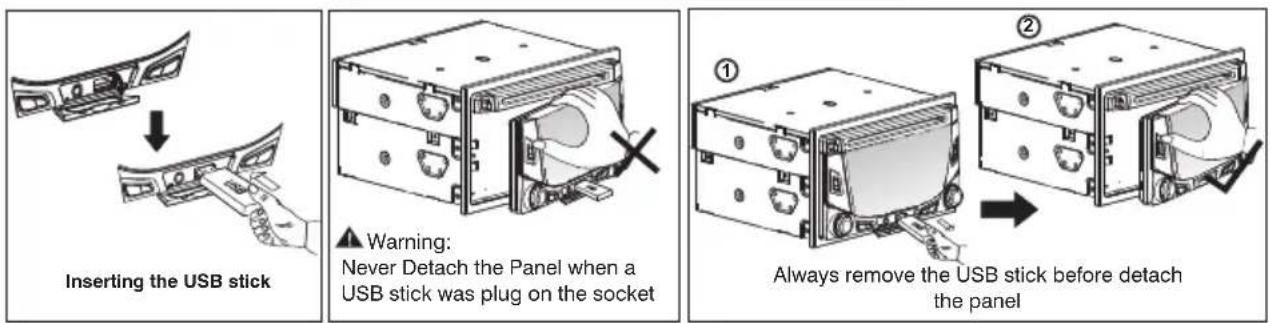
text_image
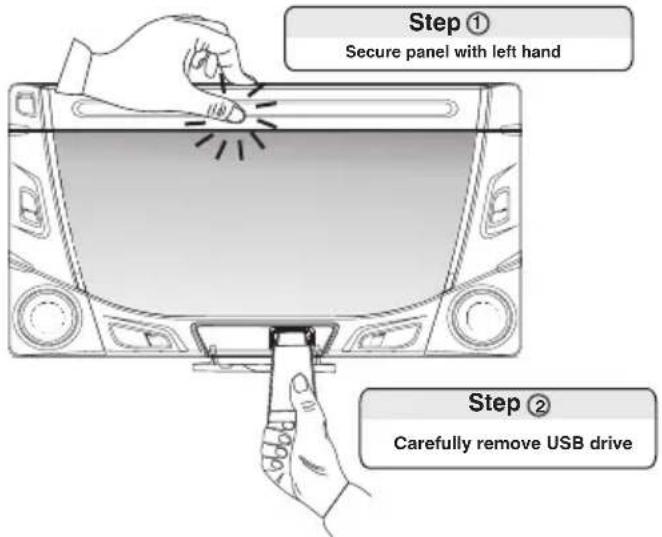
Inserting the USB stick ▲ Warning: Never Detach the Panel when a USB stick was plug on the socket Always remove the USB stick before detach the panelRemoving USB Drive
text_image
Step ① Secure panel with left hand Step ② Carefully remove USB driveMode change to USB HOST
Under any other mode while inserting a USB Stick into the front panel USB plug, the unit will automatically switches from present playing mode to USB Host mode. The unit will display 'USB HOST for a while then starts Reading the files contained on the USB Stick. Once the unit read the USB Stick successfully, the first audio music file on the USB stick Playback will automatically start. Press Mode button repeatedly to change other modes or switch back to USB HOST.
WARNING:
Before remove the USB stick from the Front panel USB plug. Always remember to switch off the unit's power or switch to other mode then remove out the USB Stick. Never try removing the USB Stick while playing music file on the USB stick. It may damage the USB Stick and sometimes will caused the unit system lock up.

The unit can support playback Music Player which have USB Interface. However due to the fast changing decoder technology and different kind of hardware interface. This unit may or may not be compatible to all the Music Player and USB Stick especially those USB Stick / Player which require to install a program driver.

About Music Flash Player with USB Interface, Usually, the unit takes longer time to read this kind of player than normal USB Stick. Especially, if the Flash Player with built-in power battery sometimes takes 20-30 seconds to start up the playback

The unit is not compatible to playing any Portable Hard disk.
Music File Playback Operation
All the USB playback operation function is same as the operation on MP3/WMA. Please refer to 'MP3/WMA Operation' for more details.
The unit can support playback MP3 and WMA Audio format which are stored into SD and MMC Memory Card. Please read below before you start the operation of Memory Card.
Inserting and Removing a SD or MMC card on the main unit
Inserting the SD or MMC card

flowchart
graph LR
    A["① Detach the Front Panel"] --> B["② Insert the Memory Card with Label up side"]
    B --> C["③ Push in till heard a “click”"]
Removing the SD or MMC card

text_image
① ② ③ Detach the Front Panel Push in till heard a "click" Remove the Memory Card ClickMode change to MEMORY CARD
After a SD or MMC card was inserted into the main unit card slot. Press the Mode button to select
SD/MMC mode. The unit will display SD/MMC for a while then starts Reading the files contained on the Memory Card. Once the unit read the MEMORY CARD successfully, the first audio music file on the Memory Card will automatically start playback. Press Mode button repeatedly is allowing changing to other modes or switch back to mode.
NOTE If no any Memory Card is inserted into the main unit card slot. Press mode button will automatically skip SD/MMC mode.
Music File Playback Operation
All the SD or MMC Memory Card playback operation function is same as the operation on MP3/WMA. Please refer to 'MP3/WMA Operation' for more details.
15. MUSIC FILES COPYING / TRANSFERRING
Thanks for the most useful and convenient files transferring function of this unit, user can easily transfer music files between USB Stick, SD or MMC Memory card or Built-In Memory and on the CD Disc. Please read below for the details operation of this function:
TRANSFERABLE MEDIA
Files are transferable within the following media:
- Removable USB Stick
- SD Memory Card
- MMC Memory Card
- File on the CD disc
Built-In Memory
MUSIC FORMAT SUPPORTED BY FILE TRANSFER ARE
MP3 and WMA
TRANSFER MP3 OR WMA MUSIC FILES ON CD DISC
This operation only can be performed during disc playing a MP3 or WMA music file.
- Playback a music file to be transferred and then long press the COPY button to activate the Transfer mode.
- The LCD will display Rec USB as default, Rotate the encoder volume knob to navigate thru Rec USB > Rec CARD for selection of the storage media.
- Once selected the storage media, Press AUDIO button as confirmation to transfer the playing file. If no further button is press within a 10 second time out, the unit will automatically resume to the previous mode.
- If unit detect the selected media memory capacity is used up, Memory Full will be displayed on the LCD for a while then automatically resume to previous mode.
- After pressing AUDIO button to start the transfer, the playing music file will stop and the transferring will start at the same time. (The following step is an example of if selected USB)
- When the transfer is processing, the LCD will display 10 % USB .
- When the file transfer is completed, the LCD will display 100% USB for a while and automatically playback the present music file which have been transferred. The transferred music file is automatically saved as a file into Folder "MY_MP3" or "MY_WMA" by the advance "File Management." system of this unit.
Tips For more details information of File Management system of this unit. Please see "FILE MANAGER".
NOTE Under transferring mode, All the MP3/WMA operation is not functional, like file up / down, Repeat, Random, and Intro etc.
NOTE The audio will remain recording by the unit system even MUTE function is activated
NOTE The Transferring will automatically stop if the storage device memory is less than 2MB
• To Cancel Transferring.
- Long press button COPY again to cancel the recording. The LCD will display Rec ■ USB the music file that has been transferred incompletely will be deleted.

The unit will stop the file transfer automatically under the following operation, the music file that has been transferred incompletely will be deleted.
1) Switch the power to off mode
2) Mode change
3) Inserting a CD Disc
4) Inserting a USB Stick
TRANSFER MP3 OR WMA MUSIC FILES BETWEEN MEDIA DEVICES
Select a device by mode button and playback the music file need to be transfer:
- Long press the COPY button to activate the transfer mode.
- The LCD will display Rec 4USB as default, Rotate the encoder volume knob to navigate thru Rec 4USB > Rec 4CARD for selection of the storage media.
- Once selected the storage media, Press AUDIO button as confirmation to transfer the playing file. If no further button is press within a 10 second time out, the unit will automatically resume to the previous mode.
- If unit detect the selected media memory capacity is used up, Memory Full will be displayed on the LCD for a while then automatically resume to previous mode.
- After pressing AUDIO button to start the transfer, the playing music file will stop and the transferring will start at the same time. (The following step is an example of if selected USB)
- Under the transfer is processing, the LCD will display 40% USB
- When the file transfer is completed, the LCD will display 100% USB for a while and automatically playback the present music file which have been transferred. The transferred music file is automatically saved as a file into Folder "MY_MP3" or "MY_WMA" by the advance "File Management." system of this unit.
Tips For more details information of File Management system of this unit. Please see "FILE MANAGER".
NOTE Under transferring mode, All the MP3/WMA operation is not functional, like file up / down, Repeat, Random, and Intro etc.
NOTE The audio will remain recording by the unit system even MUTE function is activated
NOTE The Transferring will automatically stop if the storage device memory is less than 2MB
WARNING:
1) Never remove the USB Stick while recording or file transferring to USB Stick. It may damage the USB Stick and sometimes will caused the unit system lock up.
2) It is not recommended to insert USB stick while recording is under progress to other storage device. Always remember to stop the recording or after the recording is completed, then insert the USB stick.
3) Do not switching mode of the unit during the File Transferring.
4) Do not turn off the Power of the unit during the File Transferring.
5) Do not switch the ignition key off during the File Transferring
16. MUSIC FILES ERASING
You can erase files from the USB Stick or Memory Card. Please read below for the details operation of this function:
ERASABLE MEDIA
- USB Stick and Memory Card.
ERASING MUSIC FILES ON THE MEDIA
There are THREE different methods for erasing files;
1. Erase while the Music File is playing.
- Long press BAND button to activate the ERASE mode
• The LCD will display ERASE 0010 - Short Press the AUDIO to enter into the ERASE mode.
- Once enter into the erase mode. You can rotate the encoder volume knob to select “” as to confirm the erase or rotate the volume knob to select “” as for cancel the erase mode. If no further button is press within 5 seconds time out. The unit automatically resume to the previous mode.
- Once the “ ✦” is display on the LCD, press the AUDIO button again to final confirm erase the present playback music file.

If want to CANCEL the erase of the present music file, Rotate the encoder volume knob to “✗”. Once the “✗” is displayed on the LCD, press the AUDIO button again to cancel the erase mode.
- After pressing AUDIO button to start the ERASE, the present playing music file will stop and the erasing will start at the same time.
- ERASE ☐ √ Will display on the LCD after the music file erase is successful, and the unit will automatically start playback the next music file.
2. Erase under Files Number Search Mode
User can select the Music file Number want to erase by file Number Search mode.
- After selected the file number want to erase, Long press the BAND button to activate the ERASE mode.
• The LCD will display ERASE B019 - Short Press the AUDIO to enter into the ERASE mode
- Once enter into the erase mode. User can rotate the encoder to select “ ” to confirm the erase or rotate the volume knob to select “ ” to cancel the ERASE mode. If no further button is press within a 5 second time out. The unit automatically resume to the previous mode.
- Once the “◀” is displayed on the LCD, press the AUDIO button to final confirm to erase the selected music file.

If want to CANCEL the erase of the present music file, Rotate the encoder volume knob to “✗”. Once the “✗” is displayed on the LCD, press the AUDIO button again to cancel the erase mode.
- After pressing AUDIO button to start the ERASE, the present playing music file will stop and the erasing will start at the same time.
- ERASE ☐ √ Will display on the LCD after the music file erase is successful, and the unit will automatically start playback the next music file.
3. Erase under Files NAVIGATE search mode
You can select a Music file want to erase by files Navigate Search mode.
- After selected the file number want to erase, Long press the BAND button to activate the ERASE mode.
- The LCD will display ERASE 2010.
-
Short Press the AUDIO to enter into the ERASE mode.
-
Once enter into the erase mode. User can rotate the encoder to select “◀” to confirm the erase or rotate the volume knob to select ✗” to cancel the ERASE mode. If no further button is press within a 5 second time out. The unit automatically resume to the previous mode.
- Once the “◀” is displayed on the LCD, press the AUDIO button to final confirm to erase the selected music file.

If want to CANCEL the erase of the present music file, Rotate the encoder volume knob to “✗”. Once the “✗” is displayed on the LCD, press the AUDIO button again to cancel the erase mode.
- After pressing AUDIO button to start the ERASE, the present playing music file will stop and the erasing will start at the same time.
- ERASE ☐ Will display on the LCD after the music file erase is successful, and the unit will automatically start playback the next music file.
WARNING:
1) Do not switching mode of the unit during the Erasing
2) Do not turn off the Power of the unit during the Erasing
3) Do not switch the Ignition key off during the Erasing
4) Do not detach the front panel during the Erasing
17. FILES MANAGER
The advance “File Management.” System of this unit can help to well you organize all the music files just like a PC. Please read below for details:
FOLDERS MANAGEMENT
This unit will automatically self-create the below default folders onto any USB /SD / MMC media device, once these devices are inserted into the unit.
MY CD: Folder for saving all the music files from CD Disc.
MY_MP3: Folder for saving all the MP3 music files transfer from other device
MY_WMA: Folder for saving all the WMA music files transfer from other device
MY_Aux: Folder for saving all the music files source from Aux In
FILES MANAGEMENT
This unit will automatically self-create the file name following with the Folder Name, for example: Music file which recorded from file, the file name will be automatically created & saved in the respective folder.
User Guide For Bluetooth Operation
- When user use our Bluetooth HEAD UNIT, please make sure the mobile phone you use must / does support Bluetooth functions (Headset or Handsfree profiles or both)
- Before you start to use our Bluetooth HEAD UNIT, please make sure complete pairing with your mobile phone first. Please refer to the user manual, section "PAIRING" for detail "PAIRING" instruction. To ensure the best reception for Pairing or Re-connection, please make sure the Phone Battery is fully charged when making the Pairing or Re-connection.
- Please always try pairing the Mobile Phone with Head unit after a few minutes of the Mobile Phone was Switched On to ensure the best pairing result.
- "BT60" is this unit device model number which is displayed on the mobile phone.
- To achieve the best performance, please always keep the Mobile Phone within 3 meters of the Head unit.
- Please always keep a clear path between the Mobile Phone & the Head unit.
- Never put any metal object or any obstacle between the path of the Mobile Phone & the Head unit.
- Some brand of Mobile Phone like Sony Ericsson may have "Power Saving Mode" selection when Bluetooth mode is switched on. PLEASE DO NOT Switches ON Power saving Mode when operating with this Head Unit, as some abnormal communal behavior will happen occasionally if Power Saving Mode is switched on.
- Before user make Outgoing call or Incoming call, make sure the mobile phone's "Bluetooth function" was switched "ON".
- To ensure the best conversation quality / performance, please always keep talking within 1 meter of the Head Unit.
- If user want to Dis-connect the Head unit with the Mobile Phone, please switch "OFF" Bluetooth connectivity on the Mobile Phone, or go to the system menu, "dis-connect" to disconnect the bluetooth connectivity manually. (please refer to the user manual, section "dis-connection of the bluetooth system for details instruction.)
- Some Mobile Phones can support "IN BAND RING TONE", such as Nokia. In such case, the Incoming Ringing Tone will be same as the original Ring-tone of the Mobile Phone. But some Mobile Phones like Sony Ericsson do not support this feature. The Ring-tone will be using the standard Ring-tone of the Head unit.
- When in telephone mode, during talking, it is highly recommended to set the volume to below "30" in order to achieve the best sound quality. As if the volume is too high, it may create unwanted echo inside the car, and this unwanted echo may feedback into the microphone.
- If the Bluetooth related operation is not performing normally, like cannot make pairing, cannot making an outgoing call, User can try to make a SOFT-RESET of the Bluetooth module by removing / detaching the panel from the main unit and waiting for about 1 min. Then re-attach the panel to the unit & retry the Bluetooth operation again. Or user can RESET the whole unit by pressing the RESET button behind the panel.

By pressing the RESET button all the stored memory will resume to factory default
Bluetooth Mobile Phone Compatibility List
This unit can support Bluetooth specification v1.2 or higher, and compatible with Bluetooth profiles such as handsfree or headset profiles. however the functionality may be limited due to some phones' own dedicated interfacing specification.
This list is only updated to the time this list is being printed. This list gives an example of bluetooth mobile phone available on the market, if your Bluetooth mobile phone is not on the list, please try it out in practice or try your phone at the local dealer or consult with the local dealer in case it is not mentioned in the list.
- APPLE, BlackBerry, DOPOD & HTC
| APPLE | BlackBerry | DOPOD | HTC | ||||
 |  |  |  |  |  | ||
| i-phone | BlackBerry | Pearl 8120 | 818 565 | P3470 | |||
| Caller ID | √ | √ | √ | √ | √ | √ | |
| A2DP/AVRCP | × | × | √ | × | × | √ | |
| Paring | √ | √ | √ | √ | √ | √ | |
| Ringing | In-Band Ring Tone | × | × | × | × | × | √ |
| Talk | √ | √ | √ | √ | √ | √ | |
| Reject | √ | √ | √ | √ | √ | √ | |
| Talking | Audio Transfer | √ | √ | √ | √ | √ | √ |
| Volume up/down | √ | √ | √ | √ | √ | √ | |
| Hang up | √ | √ | √ | √ | √ | √ | |
| Dialing | Audio Transfer | √ | √ | √ | √ | √ | √ |
| Volume up/down | √ | √ | √ | √ | √ | √ | |
| Stereo Control | Stop/Pause/Play | Not Supported this function | √ | Not Supported this function | Not Supported this function | √ | |
| Volume control | √ | √ | |||||
| Forward/Backward | × | × | |||||
| Next/Previous | √ | √ | |||||
- HTC & LG
| HTC | LG | ||||||
 |  |  |  |  |  | ||
| HTC TyTNII | HTC Touch | KS 20 LG | Viewty KG3 | 20 Shine KE | 970 | ||
| Features | |||||||
| Caller ID | √ | √ | √ | √ | √ | √ | |
| A2DP/AVRCP | √ | √ | √ | √ | × | √ | |
| Paring | √ | √ | √ | √ | √ | √ | |
| Ringing | In-Band Ring Tone | × | × | × | × | × | × |
| Talk | √ | √ | √ | √ | √ | √ | |
| Reject | √ | √ | √ | √ | √ | √ | |
| Talking | Audio Transfer | √ | √ | √ | √ | √ | √ |
| Volume up/down | √ | √ | √ | √ | √ | √ | |
| Hang up | √ | √ | √ | √ | √ | √ | |
| Dialing | Audio Transfer | √ | √ | √ | × | √ | √ |
| Volume up/down | √ | √ | √ | √ | √ | √ | |
| Stereo Control | Stop/Pause/Play | √ | √ | √ | √ | Not Supported this function | √ |
| Volume control | √ | √ | √ | √ | × | ||
| Forward/Backward | × | × | × | × | × | ||
| Next/Previous | √ | √ | √ | √ | √ | ||
- MOTOROLA
 |  |  |  |  |  | ||
| V9 E8 | Q9h Z6 | E6 V8 | |||||
| Features | |||||||
| Caller ID | √ | √ | √ | √ | √ | ✕ | |
| A2DP/AVRCP | √ | √ | √ | √ | √ | √ | |
| Paring | Paring | √ | √ | √ | √ | √ | √ |
| Ringing | In-Band Ring Tone | √ | √ | √ | ✕ | ✕ | √ |
| Talk | √ | √ | √ | √ | √ | √ | |
| Reject | √ | √ | √ | √ | √ | √ | |
| Talking | Audio Transfer | √ | √ | √ | √ | √ | √ |
| Volume up/down | √ | √ | √ | √ | √ | √ | |
| Hang up | √ | √ | √ | √ | √ | √ | |
| Dialing | Audio Transfer | √ | √ | √ | √ | √ | √ |
| Volume up/down | √ | √ | √ | √ | √ | √ | |
| Stereo Control | Stop/Pause/Play | √ | √ | √ | √ | √ | √ |
| Volume control | √ | √ | √ | √ | √ | √ | |
| Forward/Backward | √ | √ | ✕ | ✕ | ✕ | ✕ | |
| Next/Previous | √ | √ | √ | √ | √ | √ | |
MOTOROLA
 |  |  |  |  |  | ||
| K1 | 明 (A1200) | V3x V3 | V600 V501 | ||||
| Features | |||||||
| Caller ID | √ | √ | √ | √ | √ | √ | |
| A2DP/AVRCP | √ | √ | √ | × | × | × | |
| Paring | √ | √ | √ | √ | √ | √ | |
| Ringing | In-Band Ring Tone | √ | √ | √ | √ | √ | √ |
| Talk | √ | √ | √ | √ | √ | √ | |
| Reject | √ | √ | √ | √ | √ | √ | |
| Talking | Audio Transfer | √ | √ | √ | √ | √ | √ |
| Volume up/down | √ | √ | √ | √ | √ | √ | |
| Hang up | √ | √ | √ | √ | √ | √ | |
| Dialing | Audio Transfer | √ | √ | √ | √ | √ | √ |
| Volume up/down | √ | √ | √ | √ | √ | √ | |
| Stereo Control | Stop/Pause/Play | √ | √ | √ | Not Supported this function | Not Supported this function | Not Supported this function |
| Volume control | √ | √ | √ | ||||
| Forward/Backward | √ | × | √ | ||||
| Next/Previous | √ | √ | √ | ||||
- NOKIA
 |  |  | [XWST] |  |  | ||
| N95 N81 | 5610 6110 | 6300 5700 | |||||
| Features | |||||||
| Caller ID | √ | √ | √ | √ | √ | √ | |
| A2DP/AVRCP | √ | √ | √ | √ | √ | √ | |
| Paring | √ | √ | √ | √ | √ | √ | |
| Ringing | In-Band Ring Tone | √ | √ | √ | √ | √ | √ |
| Talk | √ | √ | √ | √ | √ | √ | |
| Reject | √ | √ | √ | √ | √ | √ | |
| Talking | Audio Transfer | √ | √ | √ | √ | √ | √ |
| Volume up/down | √ | √ | √ | √ | √ | √ | |
| Hang up | √ | √ | √ | √ | √ | √ | |
| Dialing | Audio Transfer | √ | √ | √ | √ | √ | √ |
| Volume up/down | √ | √ | √ | √ | √ | √ | |
| Stereo Control | Stop/Pause/Play | √ | √ | √ | √ | √ | √ |
| Volume control | √ | √ | √ | √ | √ | √ | |
| Forward/Backward | × | × | × | × | × | × | |
| Next/Previous | √ | √ | √ | √ | √ | √ | |
NOKIA
 |  |  |  |  |  | ||
| 6233 5300 7500 6085 N91 N73 | |||||||
| Features | |||||||
| Caller ID | √ | √ | √ | √ | √ | √ | |
| A2DP/AVRCP | √ | √ | √ | √ | √ | × | |
| Paring | √ | √ | √ | √ | √ | √ | |
| Ringing | In-Band Ring Tone | √ | √ | √ | √ | √ | √ |
| Talk | √ | √ | √ | √ | √ | √ | |
| Reject | √ | √ | √ | √ | √ | √ | |
| Talking | Audio Transfer | √ | √ | √ | √ | √ | √ |
| Volume up/down | √ | √ | √ | √ | √ | √ | |
| Hang up | √ | √ | √ | √ | √ | √ | |
| Dialing | Audio Transfer | √ | √ | √ | √ | √ | √ |
| Volume up/down | √ | √ | √ | √ | √ | √ | |
| Stereo Control | Stop/Pause/Play | √ | √ | √ | √ | Not Supported this function | Not Supported this function |
| Volume control | √ | √ | √ | √ | |||
| Forward/Backward | × | × | × | × | |||
| Next/Previous | √ | √ | √ | √ | |||
NOKIA
 |  |  |  | ||||
| 6111 6270 6600 6230 | |||||||
| Features | |||||||
| Caller ID | ✓ | ✓ | ✓ | ✓ | |||
| A2DP/AVRCP | × | × | × | × | |||
| Paring | ✓ | ✓ | ✓ | ✓ | |||
| Ringing | In-Band Ring Tone | ✓ | ✓ | ✓ | ✓ | ||
| Talk | ✓ | ✓ | ✓ | ✓ | |||
| Reject | ✓ | ✓ | ✓ | ✓ | |||
| Talking | Audio Transfer | ✓ | ✓ | ✓ | ✓ | ||
| Volume up/down | ✓ | ✓ | ✓ | ✓ | |||
| Hang up | ✓ | ✓ | ✓ | ✓ | |||
| Dialing Audio Transfer | ✓ | ✓ | ✓ | ✓ | |||
| Volume up/down | ✓ | ✓ | ✓ | ||||
| Stereo Control | Stop/Pause/Play | Not Supported this function | Not Supported this function | Not Supported this function | Not Supported this function | ||
| Volume control | |||||||
| Forward/Backward | |||||||
| Next/Previous | |||||||
- SAMSUNG
 |  |  |  |  |  | ||
| I458 | F338 | U708 | Z728 | D820 | D528 | ||
| Features | |||||||
| Caller ID | √ | √ | √ | √ | √ | √ | |
| A2DP/AVRCP | √ | √ | √ | √ | √ | √ | |
| Paring | √ | √ | √ | √ | √ | √ | |
| Ringing | In-Band Ring Tone | √ | × | × | × | × | × |
| Talk | √ | √ | √ | √ | √ | √ | |
| Reject | √ | √ | √ | √ | √ | √ | |
| Talking | Audio Transfer | √ | √ | √ | √ | √ | √ |
| Volume up/down | √ | √ | √ | √ | √ | √ | |
| Hang up | √ | √ | √ | √ | √ | √ | |
| Dialing | Audio Transfer | √ | √ | √ | √ | √ | √ |
| Volume up/down | √ | √ | √ | √ | √ | √ | |
| Stereo Control | Stop/Pause/Play | √ | √ | √ | √ | √ | √ |
| Volume control | √ | √ | √ | √ | × | √ | |
| Forward/Backward | × | × | × | × | × | √ | |
| Next/Previous | √ | √ | √ | √ | √ | √ | |
SAMSUNG
| [45wc] |  | ||||||
| E568 D508 | |||||||
| Features | |||||||
| Caller ID | √ | √ | |||||
| A2DP/AVRCP | × | × | |||||
| Paring | √ | √ | |||||
| Ringing | In-Band Ring Tone | × | × | ||||
| Talk | √ | √ | |||||
| Reject | √ | √ | |||||
| Talking | Audio Transfer | √ | √ | ||||
| Volume up/down | √ | √ | |||||
| Hang up | √ | √ | |||||
| Dialing | Audio Transfer | × | √ | ||||
| Volume up/down | √ | √ | |||||
| Stereo Control | Stop/Pause/Play | Not Supported this function | Not Supported this function | ||||
| Volume control | |||||||
| Forward/Backward | |||||||
| Next/Previous | |||||||
- SHARP & SIEMENS
| SHARP | SIEMENS | ||||||
 |  |  |  |  | |||
| WX-T82 | WX-T71 GX-T15 | S55 BenQ | S88 | ||||
| Features | |||||||
| Caller ID | ✓ | ✓ | ✓ | ✓ | ✓ | ||
| A2DP/AVRCP | ✓ | X | X | X | X | ||
| Paring | ✓ | ✓ | ✓ | ✓ | ✓ | ||
| Ringing | In-Band Ring Tone | X | ✓ | ✓ | ✓ | X | |
| Talk | ✓ | ✓ | ✓ | ✓ | ✓ | ||
| Reject | ✓ | ✓ | ✓ | ✓ | ✓ | ||
| Talking | Audio Transfer | ✓ | ✓ | ✓ | ✓ | ✓ | |
| Volume up/down | ✓ | ✓ | ✓ | ✓ | ✓ | ||
| Hang up | ✓ | ✓ | ✓ | ✓ | ✓ | ||
| Dialing | Audio Transfer | ✓ | ✓ | ✓ | ✓ | ✓ | |
| Volume up/down | ✓ | ✓ | ✓ | ✓ | ✓ | ||
| Stereo Control | Stop/Pause/Play | ✓ | Not Supported this function | Not Supported this function | Not Supported this function | Not Supported this function | |
| Volume control | ✓ | ||||||
| Forward/Backward | X | ||||||
| Next/Previous | ✓ | ||||||
- SONYERICSSON
 |  |  |  |  | 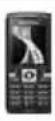 | ||
| C902 Z750i W580i P1i S500i K610i | |||||||
| Features | |||||||
| Caller ID | ✓ | ✓ | ✓ | ✓ | ✓ | ✓ | |
| A2DP/AVRCP | ✓ | ✓ | ✓ | ✓ | ✓ | ✓ | |
| Paring | ✓ | ✓ | ✓ | ✓ | ✓ | ✓ | |
| Ringing | In-Band Ring Tone | × | × | × | × | × | × |
| Talk | ✓ | ✓ | ✓ | ✓ | ✓ | ✓ | |
| Reject | ✓ | ✓ | ✓ | ✓ | ✓ | ✓ | |
| Talking | Audio Transfer | ✓ | ✓ | ✓ | ✓ | ✓ | ✓ |
| Volume up/down | ✓ | ✓ | ✓ | ✓ | ✓ | ✓ | |
| Hang up | ✓ | ✓ | ✓ | ✓ | ✓ | ✓ | |
| Dialing | Audio Transfer | ✓ | ✓ | ✓ | ✓ | ✓ | ✓ |
| Volume up/down | ✓ | ✓ | ✓ | ✓ | ✓ | ✓ | |
| Stereo Control | Stop/Pause/Play | ✓ | ✓ | ✓ | ✓ | ✓ | ✓ |
| Volume control | ✓ | ✓ | ✓ | ✓ | ✓ | ✓ | |
| Forward/Backward | × | × | × | × | ✓ | × | |
| Next/Previous | ✓ | ✓ | ✓ | ✓ | ✓ | ✓ | |
SONYERICSSON
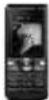 | 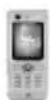 |  |  |  | 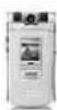 | ||
| K618i | W880i K800i | M600i K700i | Z800i | ||||
| Features | |||||||
| Caller ID | √ | √ | √ | √ | √ | √ | |
| A2DP/AVRCP | √ | √ | √ | √ | × | × | |
| Paring | √ | √ | √ | √ | √ | √ | |
| Ringing | In-Band Ring Tone | × | × | × | × | × | × |
| Talk | √ | √ | √ | √ | √ | √ | |
| Reject | √ | √ | √ | √ | √ | √ | |
| Talking | Audio Transfer | √ | √ | √ | √ | √ | √ |
| Volume up/down | √ | √ | √ | √ | √ | √ | |
| Hang up | √ | √ | √ | √ | √ | √ | |
| Dialing | Audio Transfer | √ | √ | √ | √ | × | × |
| Volume up/down | √ | √ | √ | √ | √ | √ | |
| Stereo Control | Stop/Pause/Play | √ | √ | √ | √ | Not Supported this function | Not Supported this function |
| Volume control | √ | √ | √ | × | |||
| Forward/Backward | × | × | × | × | |||
| Next/Previous | √ | √ | √ | √ | |||
SONYERICSSON
 | [6SYT] |  |  |  |  | ||
| S700i W5 | 50i Z600 T68 | T68i T610 | |||||
| Features | |||||||
| Caller ID | √ | √ | √ | √ | √ | √ | |
| A2DP/AVRCP | × | × | × | × | × | × | |
| Paring | √ | √ | √ | √ | √ | √ | |
| Ringing | In-Band Ring Tone | × | × | × | × | × | × |
| Talk | √ | √ | √ | √ | √ | √ | |
| Reject | √ | √ | √ | √ | √ | √ | |
| Talking | Audio Transfer | √ | √ | √ | √ | √ | √ |
| Volume up/down | √ | √ | √ | √ | √ | √ | |
| Hang up | √ | √ | √ | √ | √ | √ | |
| Dialing Audio Transfer | × | × | √ | √ | √ | √ | |
| Volume up/down | √ | √ | √ | √ | √ | ||
| Stereo Control | Stop/Pause/Play | Not Supported this function | Not Supported this function | Not Supported this function | Not Supported this function | Not Supported this function | Not Supported this function |
| Volume control | |||||||
| Forward/Backward | |||||||
| Next/Previous | |||||||
text_image
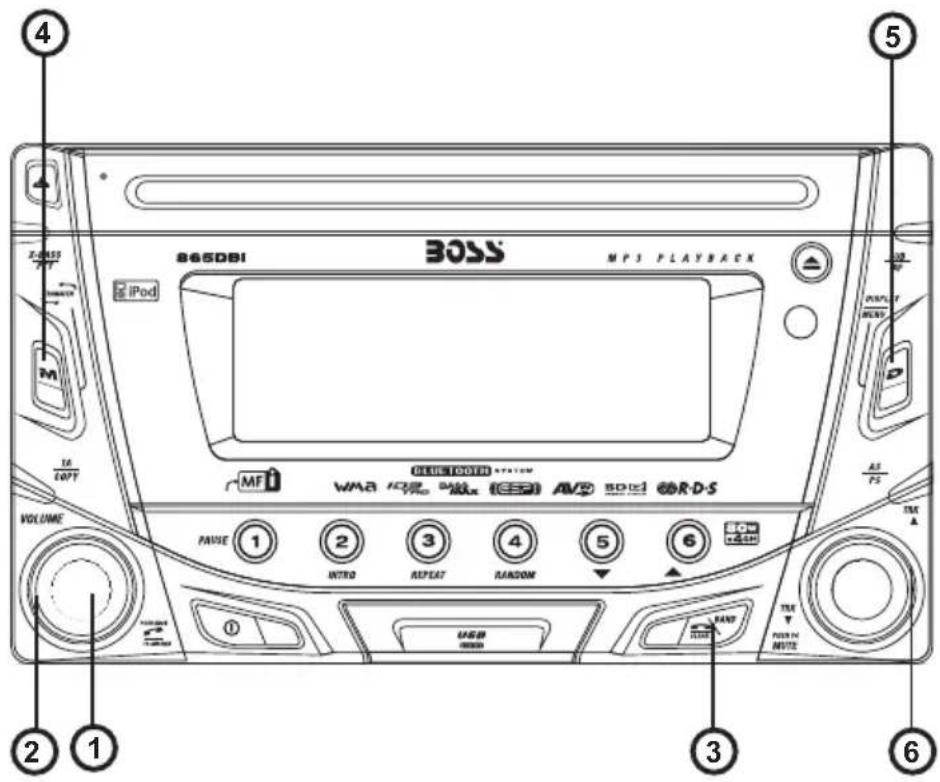
4 T-0015 7 iPod MP3 PLAYBACK 865DBI BOSS VOLUME 12 1 2 1 3 INTRO REPEAT RANDOM 5 6 AVS BOD ORD-S RAN HOLD TEST PICKEN NOTE 5 AS PS 2 1 3 6| Panel Function Button | Blue Tooth Hand Free Function | ||
| 1 | AUDIO | Short Press | Enter Phone number input mode |
| Long Press | Confirm Dialing the input Phone Number | ||
| 2 | Encoder volume Knob | Use for numeric input | |
| 3 | BAND | 1. Reject Incoming call2. Edit Number | |
| 4 | MODE | Short Press | Confirm Dialing the input Phone Number |
| Long Press | Transfer Phone Conversation backward to Mobil Phone | ||
| 5 | MENU | Pairing / Re-Connection etcNote: See Menu operation for more details. | |
| 6 | Tune Up / Down | Move Cursor and Edit Number | |
PAIRING
Pairing The Bluetooth System Between User's Mobile Phone & The Unit
- Access into MENU - PAIRING mode to activates the operation of Pairing.
NOTE Please see MENU Operation for more details of how to access into MENU mode.
- Once the *FATRING:1 is appearing on the LCD Display, press the AUDIO button to activate the Pairing mode.
NOTE Keep the mobile phone within 2 meter from the unit when making the pairing.
- To terminate the pairing, you can press the "CLEAR" button at any time.
- Select the Bluetooth set up on the Mobile Phone.
NOTE Please refer to the instruction manual of your mobile phone on how to enter into the Bluetooth set up and Bluetooth on / off, and Bluetooth pairing.
- "BT60" sBT60"appear in the pairing list on the mobile phone. User need to select and then input the password "1234".
- If the pairing is successful, the display will show *PAIRING and Mobile Phone Name.
- If the pairing failed, “*FAIRING:1 ✗” will be flashing on the Display for 3 seconds. And the unit will switch back to the previous mode automatically.
NOTE During the Pairing, only Power, Clear ,Volume +/- & Mute are functional, other function keys are disabled & non-operational during the pairing mode.
Re-Connection Of The Bluetooth System
The unit is with built -in Auto-Reconnection function. In some conditions, user need to reconnect manually. For example like the following.
- If The Mobile Phone is out of range.(2 meters away from the Head unit) Under the condition of lost connection when the user come back to the unit. At the same time, there is an incoming call or user is under conversation on the Mobile Phone 2 meters away from the Head Unit and come back to Head unit.
- If user wants Audio Transfer back from Mobile Phone to Head unit. It needs to re-connect manually.
The unit can be re-connected by the following methods.
- Access into MENU - RE-CONN mode to activate the manual RE-Connection.
NOTE Please see MENU Operation for more details of how to access into MENU mode.
- Once the ✕RE-CONN:1 is display on the LCD, press the AUDIO button to activate the manual Re-Connect mode.
NOTE 1. Keep the mobile phone within 2 Meter from the unit when making the connection.
NOTE 2. The manual re-connect is only function with the Mobile Phone has already been paired with the unit before.
- The LCD Display will displayed “ *RE-CONN:1 ✗” during the connecting period.
- If the re-connection is successful, the LCD Display will display “\$RE-CONN:1 √”. And the unit will switch back to the previous mode automatically.
- If the re-connection failed, the LCD Display will display “*RE-CONN:1 X”. And the unit will switch back to the previous mode automatically.
The unit will be Auto Re-Connection by following operation.
- Every time turn the ignition key from off to on, the unit will Auto re-connect with the mobile phone one.
- Every time when user long press AUDIO button or short press MODE button confirm dialing a call, the Unit will Auto Re-connect with the Mobile Phone once ( Only if this Mobile Phone has been paired with the unit previously ).
Dis-Connection of the Bluetooth System
The unit have a option function for user to disconnect the Bluetooth system with the unit. The unit can be Dis-connected by the following methods.
- Access into MENU - DIS-CONN mode to activate the manual Dis-Connection.

Please see MENU Operation for more details of how to access into MENU mode.
- Once the “DIS-CONNECT” is displayed on the LCD, press the AUDIO button to activate the manual Dis-Connect mode.
- The LCD Display will displayed “ DIS-CONN:1” during the Dis-connecting period.
- If the Dis-Connection is successful, the LCD Display will display “#DIS-CONN:1√”. And the unit will switch back to the previous mode automatically.
INCOMING CALL
ANSWERING AN INCOMING CALL
- When there is an incoming call, the display will display the Phone Number. If the incoming call has no the Phone Number, the LCD will display “PHONE IN” User can press the “PHONE” button or “MODE” button to answer / accept the call.

Always press the "PHONE" (AUDIO) button or "MODE' button to answer / accept the call after the LCD display the Phone Number or "PHONE IN".

The audio output of the present mode will be muted and the ringing tones will be heard, if an incoming call is not being answered.
- User can use the volume up/down to adjust the volume level.
- To end the conversation, press the "CLEAR" button. The unit will switch back to the previous mode automatically and release the mute of the previous mode at the same time.

An incoming call under stand by mode (Ignition on & Power Off) The system will automatically switch on the head unit.
Rejecting An Incoming Call
- User can press "CLEAR" button to reject the incoming call.

The audio output of the present mode will be muted and the ringing tones will be heard if an incoming call is not being answered. After pressing the “CLEAR”(BAND) button, the mute of the present mode will be released.
OUTGOING CALL
Making An Outgoing Call
- Press the "PHONE" (AUDIO) button to start making an outgoing call. The LCD Display will display 📄 And a cursor will keep blinking while waiting the user to enter the phone number.
- Rotate the encoder knob to navigate thru the numeric 0-9 *, # & + .
- Press the" AUDIO" button as confirm input the selected numeric.
• Use the File up/down button to move the cursor back or forward to the wrong input numeric - Once the phone number has been entered completely, Long press the "PHONE" button again or Short Press the "MODE" button to start dialing the call, the LCD Display will display "
CALLING
Tips Under the Calling mode, if need to input any number, for example Pin Code Input or Service Number Dial Input. Short press the “AUDIO” button to enter the numeric input interface then rotate the encoder knob to navigate the desire input number and press the “AUDIO” button again as confirm input the selected number. To exit the numeric input interface by LONG PRESS the “AUDIO” button again.

The audio output of the present mode will ONLY be muted after pressing the "PHONE" button as a confirmation to dial the outgoing call.
- During the talking mode, the LCD Display will display the duration “PHONE » 00:05 ” of the conversation.
- User can use the volume up/down to adjust the volume level.
- To end the conversation, press the “Clear” button. The unit will switch back to the previous mode automatically. The mute of the previous mode will be released at the same time.
- During the talking mode, if the Ignition is being turned off, the unit will keep the conversation even if the Ignition is Switched off. After finished the conversation, User can press “CLEAR” button to switch off the unit.
CALL TRANSFER
TO AUDIO TRANSFER FROM HEAD UNIT BACK TO THE MOBILE PHONE
- During the talking mode, user can press the “TRANSFER” button to transfer the audio from the unit back to the mobile phone for privacy reason. The LCD Display will display “
TRANSFER←→
" on the LCD for 3 seconds.

After the “Transfer” button is pressed, the mute of the present mode will be released at the same time.

When making an outgoing call, it's not possible to CALL TRANSFER if the call is not being answered yet.. It's only possible to Transfer the call to Mobile phone after the call is being answered.

Depending on different type of Mobile Phone, the time need for activating the CALL TRANSFER mode is different. Like Nokia Mobile Phone usually takes 3-5 seconds after pressed the "TRANSFER" button for audio transfer back or forth through Unit to mobile phone.
DIALED LIST
To Find the Last 10 Dialed Number
The unit can memory up to 10 last dialed number.
- Press the "PHONE" (AUDIO) button, after the LCD appeared display " , then Long press "PHONE" (AUDIO) button.
- The last dialed number as the first number on the list will display on the LC D. Rotate the encoder knob to navigate through the 10 last dialed number.
- User can Long press the "PHONE" (AUDIO) button or Short press "MODE" button to confirm dialing the selected Dialed Number from the list.
- User also can be edit the number in the dialed list. Once the desired edit dialed list appearing on the display, user can short press "PHONE" (AUDIO) button to enter the number edit mode. Use the Track up/down button to move the cursor back or forward to the input numeric which want to edit.

The unit only memorize the dialed numbers which dialed from the unit, it cannot memorize the number dialing from the mobile phone.
HIGHLIGHT FEATURES
• Incoming call ringing volume
Preset the Ringing volume level for any incoming call.

Please see "MENU"- "PHONE VOL" for details operation.
- Auto Answer
Auto Answer any incoming call.

Please see "MENU"- "A ANSWER" for details operation.
BLUETOOTH AUDIO STREAMING A2DP (ADVANCED AUDIO DISTRIBUTION PROFILE)
User can listen to music files on an audio device on this unit if the audio device supports A2DP (Advanced Audio Distribution Profile) of Bluetooth Technology. Please read the below instruction before operating the Bluetooth Audio streaming function on this unit.
Connecting A Bluetooth Audio Device With This Unit
Before using audio device to play music on this unit, the audio device must be paired with this unit first.

a. For the details operation of Pairing with this unit, Please refer to the PAIRING operation for more details. b. How to use the Bluetooth audio device to pair with this unit, please refer to the instruction manual of the Bluetooth device.

If the audio device has both HFP (Hands Free Profile) and A2DP (Advance Audio Distribution Profile), this unit will automatically pairing these two profiles at the same time. For ex, if a mobile phone has both HFP & A2DP profile and this mobile phone is already HFP paired with this unit, in this case A2DP audio device pairing is not necessary. And this paired mobile phone will be added automatically to the list of PAIRED DEVICE – AUDIO of this unit. Please refer to MENU of BT for details of PAIRED DEVICE operation.
Listening To Music From An Audio Device In This Unit
1) Connect this unit with the audio device.

For the details operation of connecting with this unit, Please refer to the CONNECTING operation for more details.
2) Press MODE button repeatedly until "BT AUDIO" appears on the display.
IMPORTANT: To listen Bluetooth audio streaming from the audio device, user MUST change the mode to "BT AUDIO" first. Any other mode of this unit is not able to activate the Bluetooth audio streaming (A2DP) function.

If the audio device is the connected or no audio device is connecting with this unit, after mode changed to BT AUDIO mode, the display will show CONNECT >> If it can find Audio Device, it will display BT AUDIO, and if after a 30 seconds time out still cannot find any audio device for connecting, the unit will display NO DEVICE.
3) Once in the "BT AUDIO" mode, user can use the audio device to start playback the song via Bluetooth wireless with this unit.

When mode change to BT AUDIO mode, some of the audio device may auto playback the music without operate the music playback operation and some of the device like mobile phone may need to first change into the 'Media Player' mode on the mobile phone otherwise the song cannot be direct playback via Bluetooth wireless. If the auto playback is not supported on the audio device then please refer to the instruction manual of the audio device on how to operate music playback via Bluetooth wireless technology.
Operating an audio device with this unit AVRCP (Audio Video Remote Control Profile)
This unit can perform the following operations with the connecting Audio device which supports AVRCP (Audio Video Remote Control Profile) & only if the Audio device does support AVRCP.
1) Start playing-Every time when user change mode into "BT AUDIO" mode, this unit will automatically send a "PLAY" command via AVRCP to the audio device to command the auto start playing song in the audio device.

The PLAY command may differ depending on the Audio device. If the Audio device is not able auto start playing song after changed mode into “BT AUDIO” mode, user may need to operate the PLAY mode on the audio device to start the song playback.
2) Track up / down - by pressing the Track up / down buttons on this unit.
3) Pause / Play – by pressing the Pause / Play button on this unit.
4) Volume up / down - by rotating the encoder knob on this unit.
5) Audio Mute – by pressing the Mute button on this unit.
6) Stop playback – by mode changing mode into any other mode of this unit.

The AVRCP operation may differ depending on the audio device, all the other operation other than those listed above should be performed on the audio device.
Hands-free Phoning While Bluetooth Audio Streaming
If the connecting playback audio device is a mobile phone, all the hands free function is still available under the Bluetooth audio streaming, like the answering incoming call, making an outgoing call, etc.

For some model of mobiles, maybe they cannot make outgoing calls. e.g: Samsung SGH-D528.
Disconnecting An Audio Device With This Unit
User can close the Bluetooth Audio connection by disconnecting with the audio device.

The details operation of disconnecting with this unit, please refer to the DIS-CONNECTION operation for more details.
19 iPod RDS. REMOTE FUNCTION( + )

text_image
BOSS AUDIO SYSTEMS 1 2 3 4 5 6 7 8 9 10 11 12 13 14 15 16 17 18 19 20 21 22 23 24 25 26 27 28 29 30 31 32 33 34 35 36 37 38 39 40 41 42 43 44 45 46 47 48 49 50 51 52 53 54 55 56 57 58 59 60 61 62 63 64 65 66 67 68 69 70 71 72 73 74 75 76 77 78 79 80 81 82 83 84 85 86 87 88 89 90 91 92 93 94 95 96 97 98 99 100OPERATIONS:
| KEY | SYSTEM TUNER MP3/WMA | iPod | ||||||
| Short Press | Long Press | Short Press | Long Press | Short Press | Long Press | Short Press | Long Press | |
| 1 | Power | |||||||
| 2 | ||||||||
| 3 | Display | Menu | ||||||
| 4 | Source | |||||||
| 5 | Mute | |||||||
| 6 | Volume Up | |||||||
| 7 | Volume Down | |||||||
| 8 | Seek Up | Tune Up | Track/File Up | Fast Forward | File Up | Fast Forward | ||
| 9 | Seek Down | Tune Down | Track/File Down | Fast Backwa rd | File Down | Fast Backwa rd | ||
| 10 | Audi o Men u | Enter | Enter | |||||
| 11 | Band | File/Folde r Search | File Erase | iPod Search | ||||
| 12 | M1 | Memory 1 | Pause /Play | Pause /Play | ||||
| 13 | M2 | Memory 2 | Intro | Folder Intro | ||||
| 14 | M3 | Memory 3 | Repeat | Folder Repeat | Repeat | Album Repeat | ||
| 15 | M4 | Memory 4 | Random | Fol der Rando m | Shuffle | Album Shuffle | ||
| 16 | M5 | Memory 5 | Folder Down | |||||
| 17 | M6 | Memory 6 | Folder Up | |||||
| 18 | Sub-W | AF | ||||||
| 19 | PS | AS | ID3 | iPod informati on | ||||
| 20 | Copy | TA | ||||||
| 21 | ix-Ba ss | PTY | ||||||
20. SPECIFICATIONS
CD PLAYER
| System | Compact disc audio system |
| Usable disc | Compact disc |
| Sampling frequency | 44.1KHz |
| No of quantization bits | 1bit |
| Frequency | 5-20,000Hz |
| Number of channels | 2 stereo |
| S/N Ratio | 70dB |
MEDIA SECTION
| USB Host | Host 1.1 compatibles 2.0 |
| Memory Card | |
| Support Type of Memory Card SD and MMC | |
RADIO SECTION
FM
| Frequency Range | 87.5-108 Mhz |
| 87.5-107.9Mhz | |
| Intermediate Frequency | 10.7 MHz |
| Usable Sensitivity | Better than 15dB at S/N 30 dB |
| Stereo Separation | 25 dB at 1KHz |
| S/N Ratio | 50 dB |
AM/MW
| Frequency Range | 522-1620 KHz |
| 530-1720 KHz | |
| Intermediate Frequency | 450KHz |
| Usable Sensitivity | Better than 45dB |
| S/N Ratio | 40 dB |
BLUETOOTH
| Power Consumption | 200mA Max. |
| Output Power | 0 dBm (Class II) |
| Frequency Band | 2.4GHz ~ 2.4835GHz ISM Band |
| Range | 3 meters (free space) |
| Standard | Bluetooth 1.2 specification |
GENERAL
| Power Supply | DC 11 -14V |
| Polarity | Negative Ground |
| Speaker impedance | 4 ohms |
| Power Output | 4 x 80W |
REMARK :
Specifications subject to change without notice.
21. TROUBLE SHOOTING
Before going through the check list, check wiring connection. If any of the problems persist after check list has been made, consult your nearest service dealer.
| Symptom | Cause | Solution |
| No power | The car ignition is not on. | If the power supply is properly connected to the car accessory terminal, switch the ignition key to “ACC” |
| The fuse is blown. | Replace the fuse. | |
| Disc cannot be loaded or ejected | Presence of CD disc inside the player. | Remove the disc in the player, then put a new one. |
| Inserting the disc in reverse direction. | Insert the compact disc with the label facing upward. | |
| Compact disc is extremely dirty or defective disc. | Clean the disc or try to play a new one. | |
| Temperature inside the car is too high. | Cool off or until the ambient temperature returns to normal. | |
| Condensation. | Leave the player to off for an hour or so, then try again. | |
| No sound | Volume is in minimum. | Adjust volume to a desired level. |
| Wiring is not properly connected. | Check wiring connection. | |
| The operation keys do not work | The built-in microcomputer is not operating properly due to noise. | Press the RESET button.Front panel is not properly fixed into its place |
| Sound skips. | The installation angle is more than 30 degrees. | Adjust the installation angle to less than 30 degrees. |
| The disc is extremely dirty or a defective disc. | Clean the compact disc or try to play a new one. | |
| The radio does not work.The radio station automatic selection does not work. | The antenna cable is not connected. | Insert the antenna cable firmly. |
| The signals are too weak. | Select a station manually. | |
| ERROR 1 | Mechanism Error | Press the reset button to correct the problem.If the error code does not disappear, consult your nearest service dealer. |
| Write Error | The Media Device not able to copy by the unit. | Replace the Media Device or |
| Read Error | The Media Device not able to play file by the unit | Replace the Media Device or |
| Memory Full | The media device memory is full not allow to copy | Replace the Media device or erase some un-usage files. |
| No File | No file Format supports for Playback on the disc or Media Device | Replace the disc or Media Device.. |
| Disc Error | Maybe disc dirty / disc scratched /disc upside down. | Replace the disc. |

If at any time in the future you should need to dispose of this product please note that Waste electrical products should not be disposed of with household waste. Please recycle where facilities exist. Check with your Local Authority or retailer for recycling advice.(Waste Electrical and Electronic Equipment Directive)
865DBI
BLUETOOTH®-ENABLED
MP3-COMPATIBLE
DOUBLE-DIN CD RECEIVER
WITH BUILT-IN iPod DockING STATION
WITH USB AND SD MEMORY CARD PORTS
AND FRONT PANEL AUX INPUT
12.2008
iPod is a trademark of Apple Computer, Inc.,
registered in the U.S. and other countries.
tech support: www.bossaudio.com/support

CE

10 R - 02 1397
BOSS®
AUDIO SYSTEMS
BOSS Audio Systems • 3451 Lunar Court • Oxnard, CA 93030
www.bossaudio.com
800.999.1236