TH-A55 - Home Theater System JVC - Free user manual and instructions
Find the device manual for free TH-A55 JVC in PDF.


User questions about TH-A55 JVC
0 question about this device. Answer the ones you know or ask your own.
Ask a new question about this device
Download the instructions for your Home Theater System in PDF format for free! Find your manual TH-A55 - JVC and take your electronic device back in hand. On this page are published all the documents necessary for the use of your device. TH-A55 by JVC.
USER MANUAL TH-A55 JVC
DVD DIGITAL CINEMA SYSTEM
TH-A85
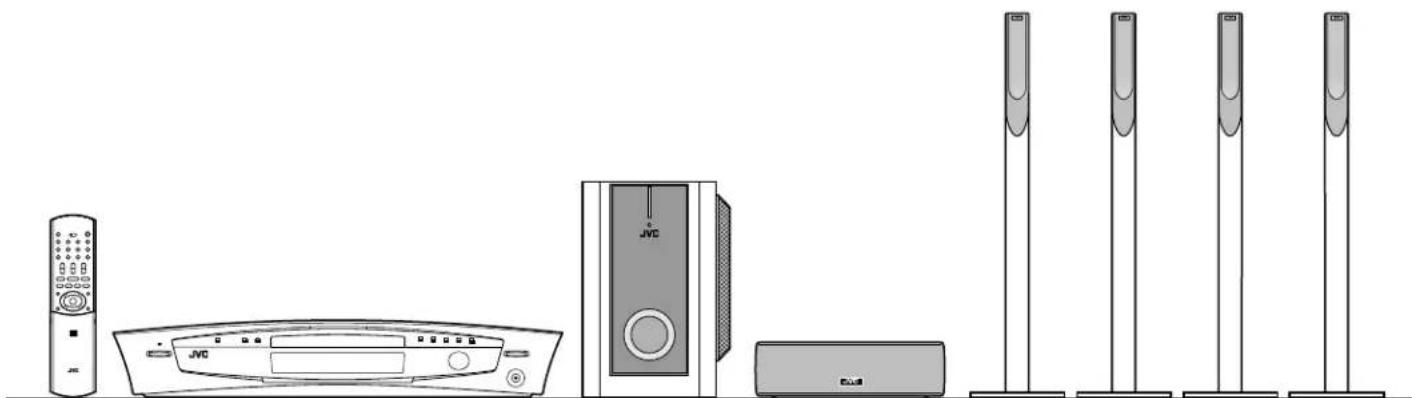
Consists of XV-THA85, SP-PWA85, SP-THA85C and SP-THA85F
natural_image
Line drawing of various household appliances including a JVC, TV, and speakers (no text or symbols)TH-A55
Consists of XV-THA55, SP-PWA55, SP-THA55C, SP-THA55F and SP-THA55S

natural_image
Line drawing of various audio equipment including a JVC, JVC tower, and five speakers (no text or symbols)
R·D·S



INSTRUCTIONS
IMPORTANT for the U.K.
DO NOT cut off the mains plug from this equipment. If the plug fitted is not suitable for the power points in your home or the cable is too short to reach a power point, then obtain an appropriate safety approved extension lead or consult your dealer.
BE SURE to replace the fuse only with an identical approved type, as originally fitted.
If nonetheless the mains plug is cut off ensure to remove the fuse and dispose of the plug immediately, to avoid a possible shock hazard by inadvertent connection to the mains supply.
If this product is not supplied fitted with a mains plug then follow the instructions given below:
IMPORTANT.
DO NOT make any connection to the terminal which is marked with the letter E or by the safety earth symbol or coloured green or green-and-yellow.
The wires in the mains lead on this product are coloured in accordance with the following code:
Blue: Neutral
Brown: Live
As these colours may not correspond with the coloured markings identifying the terminals in your plug proceed as follows:
The wire which is coloured blue must be connected to the terminal which is marked with the letter N or coloured black.
The wire which is coloured brown must be connected to the terminal which is marked with the letter L or coloured red.
IF IN DOUBT - CONSULT A COMPETENT ELECTRICIAN.
CAUTION
To reduce the risk of electrical shocks, fire, etc.:
- Do not remove screws, covers or cabinet.
- Do not expose this appliance to rain or moisture.
CAUTION - ⏻/1 button!
(XV-THA85/XV-THA55)
Disconnect the mains plug to shut the power off completely (the STANDBY lamp goes off).
The / I button in any position does not disconnect the mains line.
- When the system is on standby, the STANDBY lamp lights red.
- When the system is turned on, the STANDBY lamp goes off. The power can be remote controlled.
CAUTION (SP-PWA85/SP-PWA55)
The power supply to the subwoofer is linked to the center unit. The POWER ON lamp on the subwoofer lights green when the power is turned on.
CAUTION
- Do not block the ventilation openings or holes. (If the ventilation openings or holes are blocked by a newspaper or cloth, etc., the heat may not be able to get out.)
- Do not place any naked flame sources, such as lighted candles, on the apparatus.
- When discarding batteries, environmental problems must be considered and local rules or laws governing the disposal of these batteries must be followed strictly.
- Do not expose this apparatus to rain, moisture, dripping or splashing and that no objects filled with liquids, such as vases, shall be placed on the apparatus.
IMPORTANT FOR LASER PRODUCTS
REPRODUCTION OF LABELS
① CLASSIFICATION LABEL, PLACED ON EXTERIOR SURFACE

text_image
CLASS 1 LASER PRODUCT② WARNING LABEL, PLACED INSIDE THE UNIT
| CAUTION : Visible and invisible laser radiation when open and interlock failed or defeated. AVOID DIRECT EXPOSURE TO BEAM. (e) | ADVARSEL : Synlig og usynlig laserstråling när maskinen er åben eller interlocken fejler. Undgå direkte eksponering til stråling. (d) | VARNING : Synlig och osynlig laserstråning när den öppnas och spärren är urkopplad. Betrakta ej strålen. (e) | VARO : Avattaessa ja suojalukitus ohitettuna tai viallisena olet alttiina näkyvälle ja näkymättömälle lasersäteilylle. Välä säteen kohdistumista suoraan itseesi. (f) |
- CLASS 1 LASER PRODUCT
- CAUTION: Visible and invisible laser radiation when open and interlock failed or defeated. Avoid direct exposure to beam.
- CAUTION: Do not open the top cover. There are no user serviceable parts inside the Unit; leave all servicing to qualified service personnel.
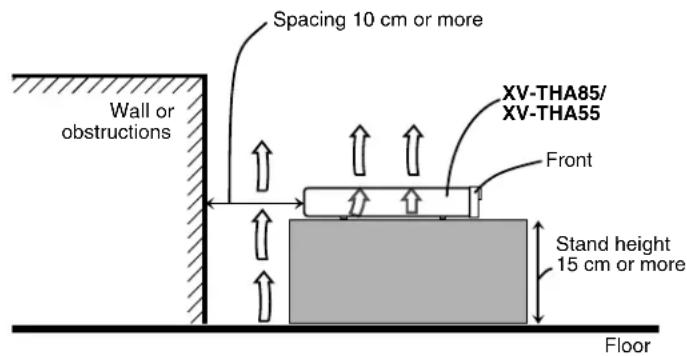
Caution: Proper Ventilation
To avoid risk of electric shock and fire and to protect from damage,
locate the apparatus as follows:
Front: No obstructions open spacing.
Sides: No obstructions in 3 cm from the sides.
Top: No obstructions in 8 cm from the top.
Back: No obstructions in 10 cm from the back.
Bottom: No obstructions, place on the level surface.
In addition, maintain the best possible air circulation as illustrated.
text_image
Spacing 10 cm or more Wall or obstructions XV-THA85/ XV-THA55 Front Stand height 15 cm or more Floor
text_image
Wall or obstructions 15 cm SP-PWA85/ SP-PWA55 Front FloorSAFETY INSTRUCTIONS
"SOME DOS AND DON'TS ON THE SAFE USE OF EQUIPMENT"
This equipment has been designed and manufactured to meet international safety standards but, like any electrical equipment, care must be taken if you are to obtain the best results and safety is to be assured.

Do read the operating instructions before you attempt to use the equipment.
Do ensure that all electrical connections (including the mains plug, extension leads and interconnections between pieces of equipment) are properly made and in accordance with the manufacturer's instructions. Switch off and withdraw the mains plug when making or changing connections.
Do consult your dealer if you are ever in doubt about the installation, operation or safety of your equipment.
Do be careful with glass panels or doors on equipment.

DON'T continue to operate the equipment if you are in any doubt about it working normally, or if it is damaged in any way — switch off, withdraw the mains plug and consult your dealer.
DON'T remove any fixed cover as this may expose dangerous voltages.
DON'T leave equipment switched on when it is unattended unless it is specifically stated that it is designed for unattended operation or has a standby mode.
Switch off using the switch on the equipment and make sure that your family know how to do this.
Special arrangements may need to be made for infirm or handicapped people.
DON'T use equipment such as personal stereos or radios so that you are distracted from the requirements of traffic safety. It is illegal to watch television whilst driving.
DON'T listen to headphones at high volume as such use can permanently damage your hearing.
DON'T obstruct the ventilation of the equipment, for example with curtains or soft furnishings.
Overheating will cause damage and shorten the life of the equipment.
DON'T use makeshift stands and NEVER fix legs with wood screws — to ensure complete safety always fit the manufacturer's approved stand or legs with the fixings provided according to the instructions.
DON'T allow electrical equipment to be exposed to rain or moisture.
ABOVE ALL
— NEVER let anyone, especially children, push anything into holes, slots or any other opening in the case — this could result in a fatal electrical shock.;
— NEVER guess or take chances with electrical equipment of any kind — it is better to be safe than sorry!
Introduction......2
Notes on handling....2
Supplied accessories 2
About discs ....3
Playable disc types ....3
Disc structure 4
Playback Control function (PBC) — VCD and SVCD only .....4
Names of parts and controls .....5
Getting started....8
Connections....8
Using the remote control 16
Basic operations ......19
Turning the system on/off....19
Selecting the source to play....20
Adjusting the volume 20
Listening with headphones 20
Turning off the sound temporarily 20
Adjusting the brightness 21
Using the Sleep Timer....21
Adjusting the output level of the subwoofer....22
Adjusting the bass/treble sound....22
Changing the decode mode 22
Playback....23
Basic playback 23
Playback features....25
Tuner operations......27
Manual tuning....27
Preset tuning 27
Selecting the FM reception mode....28
Reducing the noise of AM (MW) broadcast....28
Using the RDS (Radio Data System) when receiving
FM stations 29
Creating realistic sound fields ..... 33
Using the surround mode....35
Adjusting the sound....36
Advanced operations 37
Using the on-screen bar 37
Playing from a specified position on a disc....38
Using the MP3 control display....40
Using the JPEG control display....41
Selecting a view angle of DVD 42
Selecting the subtitle/audio languages....43
Special picture playback 45
Program Playback....47
Random Playback....48
Repeat Playback 48
Setting DVD preferences ....50
Using the choice menus 50
Menu description....52
Parental Lock....55
System setting 58
References 59
Maintenance 59
Trouble shooting....59
Glossary....62
Index....63
Specifications 64
Notes on handling
■ Important cautions
Installation of the system
- Select a place which is level, dry and neither too hot nor too cold; between 5^ and 35^ .
- Leave sufficient distance between the system and the TV.
- Do not use the system in a place subject to vibration.
Power cord
- Do not handle the power cord with wet hands!
- A small amount of power (1.0 watt) is always consumed while the power cord is connected to the wall outlet (center unit only).
- When unplugging the power cord from the wall outlet, always pull on the plug, not the power cord.
To prevent malfunctions of the system
- There are no user-serviceable parts inside. If anything goes wrong, unplug the power cord and consult your dealer.
- Do not insert any metallic object into the system.
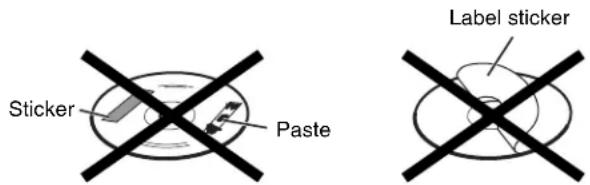
- Do not use any non-standard shape disc (like a heart, flower or credit card, etc.) available on the market, because it may damage the system.
- Do not use a disc with tape, stickers, or paste on it, because it may damage the system.
text_image
Sticker Paste Label stickerNote about copyright laws
Check the copyright laws in your country before recording from DVDs, Super Video CDs (SVCDs), Video CDs (VCDs) and Audio CDs. Recording of copyrighted material may infringe copyright laws.
Note about copyguard system
DVDs are protected by copyguard system. When you connect the system to your VCR directly, the copyguard system activates and the picture may not be played back correctly.
■ Safety precautions
Avoid moisture, water and dust
Do not place the system in moist or dusty places.
Avoid high temperatures
Do not expose the system to direct sunlight and do not place it near a heating device.
When you are away
When away on travel or for other reasons for an extended period of time, disconnect the power cord plug from the wall outlet.
Do not block the vents
Blocking the vents may damage the system.
Care of the cabinet
When cleaning the system, use a soft cloth and follow the relevant instructions on the use of chemically-coated cloths. Do not use benzene, thinner or other organic solvents including disinfectants. These may cause deformation or discoloring.
If water gets inside the system
Turn the system off and disconnect the power cord plug from the wall outlet, then call the store where you made your purchase. Using the system in this condition may cause fire or electrical shock.
Supplied accessories
Check to be sure you have all of the supplied accessories.
The number in parentheses is the quantity of the pieces supplied. If anything is missing, contact your dealer immediately.
- Remote control (1)
- Batteries (2)
• F M a n t e n n a (1)
• AM (MW) loop antenna (1) - Power cord (1)
- System cord (1)
- Speaker cords
5 m: For satellite (front left/right) and center speakers (3) 10 m: For satellite speakers (surround left/right) (2) (Length of speaker cords is approximate.) - Screws (with washer) (TH-A85 only) M4 x 25 mm: For satellite speakers (16)
This product incorporates copyright protection technology that is protected by method claims of certain U.S. patents and other intellectual property rights owned by Macrovision Corporation and other rights owners. Use of this copyright protection technology must be authorized by Macrovision Corporation, and is intended for home and other limited viewing uses only unless otherwise authorized by Macrovision Corporation. Reverse engineering or disassembly is prohibited.
playable disc types
This system has been designed to play back the following discs: DVD Video (DVD), Video CD (VCD), Super Video CD (SVCD), Audio CD, CD-R and CD-RW.
- This system can also play back MP3 and JPEG files recorded on CD-Rs and CD-RWs. (pg. 23)
- This system can also play back finalized DVD-Rs recorded in DVD VIDEO format. However, some discs may not be played back because of their disc characteristics or recording conditions.
Discs you can play:
| Disc Type | Mark (Logo) | Video Format | Region Code Number* |
| DVD PAL |  | ||
| VCD PAL |  | ||
| SVCD PAL |  | ||
| Audio CD |  | — | — |
| CD-R |  | — | — |
| CD-RW |  | — | — |
\* Note on Region Code
DVD players and DVDs have their own Region Code numbers. This system can only play back DVDs recorded with the color system of PAL whose Region Code number includes “2”.
Examples:


If a DVD with an improper Region Code number is loaded, "REGION CODE ERROR!" appears on the TV screen and playback cannot start.
- The following discs cannot be played back: DVD Audio, DVD-ROM, DVD-RAM, DVD-RW, CD-ROM, CD-I (CD-I Ready), Photo CD, etc. Playing back these discs will generate noise and damage the speakers.
- On some DVDs, Video CDs or SVCDs, their actual operation may be different from what is explained in this manual. This is due to the disc programming and disc structure, not a malfunction of this system.
Notes on CD-R and CD-RW
- User-edited CD-Rs (Recordable) and CD-RWs (Rewritable) can be played back only if they are already “finalized”.
- This system can play back CD-Rs or CD-RWs recorded on a personal computer if they have been recorded in the audio CD format.
This system can also play back CD-Rs or CD-RWs if MP3 files or JPEG files are recorded on them.
However, some discs may not be played back because of their disc characteristics, recording conditions, or damage or stain on them.
Especially, the configuration and characteristics of an MP3 disc or a JPEG disc are determined by the writing (encoding) software and hardware used for recording. Therefore, due to the software and hardware used, the following symptoms may occur:
- Some discs may not be played back.
- Some tracks on an MP3 disc may be skipped or may not be played back normally.
-
Some files on a JPEG disc may be played back distortedly.
-
Before playing back CD-Rs or CD-RWs, read their instructions or cautions carefully.
- CD-RWs may require a longer readout time. This is caused by the fact that the reflectance of CD-RWs is lower than that of regular CDs.
About MP3 discs
MP3 is an abbreviation for Motion Picture Experts Group 1 (or MPEG-1) Audio Layer 3. MP3 is simply a compressed data file format. By using MP3 format, one CD-R or CD-RW can contain 10 times as much data as one regular CD.
About JPEG discs
A still-picture data compression system proposed by the Joint Photographic Expert Group, which features small decrease in image quality in spite of its high compression ratio.
Notes on MP3/JPEG discs
- MP3/JPEG discs (either CD-R or CD-RW) require a longer readout time. (It differs due to the complexity of the directory/file configuration.)
- When making an MP3/JPEG disc, select ISO 9660 Level 1 or Level 2 for the disc format.
- This system supports “multi-session” discs (up to 5 sessions).
- This system cannot play "packet write" discs.
- The system can only play MP3/JPEG files with the following file extensions;
MP3: “.MP3”, “.Mp3”, “.mP3” and “.mp3”
JPEG: “.jpg”, “.jpeg”, “.JPG”, “.JPEG” and any uppercase and lowercase combination (such as “.Jpg”)
- If both MP3 files and JPEG files are recorded on a disc, set the MP3/JPEG setting in the PICTURE menu to the appropriate setting for the data to be read ("MP3" or "JPEG"). (ZP pg. 53)
- Some MP3/JPEG discs may not be played back because of their disc characteristics or recording conditions.
Notes on MP3 discs only
- ID3* tags cannot be shown on the display.
* An MP3 file can contain file information called an “ID3 Tag” where its album name, performer, track title, etc. are recorded. There are two versions, ID3v1 (ID3 Tag version 1) and ID3v2 (ID3 Tag version 2). - We recommend to record each piece of material (song) at a sample rate of 44.1 kHz and at a data transfer rate of 128 kbps.
- Some tracks on an MP3 disc may be skipped or may not be played back normally.
Notes on JPEG discs only
- We recommend to record a file at 640 x 480 resolution. (If a file has been recorded at a resolution of more than 640 x 480, it will take a longer time to be displayed.)
- This system can only play baseline JPEG files*. Progressive JPEG files* or lossless JPEG files* cannot be played.
* Baseline JPEG format: Used for digital cameras, web, etc. Progressive JPEG format: Used for web.
Lossless JPEG format: An old type and rarely used now.
- Some files on a JPEG disc may be played back distortedly.
IMPORTANT
Before playing a disc, make sure of the following;
- Check the connection with the TV.
- Turn on your TV and select the correct input mode on the TV to view the pictures or on-screen information on the TV screen.
- For DVD playback, you can change the initial setting to your preference. (12 p g . 50 - 57)
If ⊙ appears on the TV screen when pressing a button;
The disc cannot accept the operation you have tried to do, or the information required for that operation is not recorded on the disc.
NOTICE: In some cases, without showing , operations will not be accepted.
Disc structure
DVD
A DVD consists of "titles" and each title may be divided into "chapters".
For example, if a DVD contains movies, each movie may have its own title number and may be further divided into chapters.

text_image
Title 1 Title 2 Chapter 1 Chapter 2 Chapter 3 Chapter 1 Chapter 2Video CD/SVCD/Audio CD
A Video CD, SVCD, Audio CD consists of "tracks".
In general, each track has its own track number. (On some discs, each track may also be further divided by indexes.)

MP3 discs
On an MP3 disc, each song is recorded as a track (file). Tracks are usually grouped into a group (folder). Groups can also include other groups, creating hierarchical group layers. This system can recognize up to 150 tracks per group and up to 99 groups per disc.
- If there is any type of file other than MP3 files in a group (folder), those files are also counted in the total number of 150.

text_image
Group 1 Group 2 Track 1 Track 2 Group 3 Group 4 Group 5JPEG discs
On a JPEG disc, each still picture is recorded as a file. Files are usually grouped into a group (folder). Groups can also include other groups, creating hierarchical folder layers. This system can recognize up to 150 files per group and up to 99 groups per disc.
- If there is any type of file other than JPEG files in a group (folder), those files are also counted in the total number of 150.

text_image
Group 1 Group 2 File 1 File 2 Group 3 Group 4 Group $Playback Control function (PBC) — VCD and SVCD only
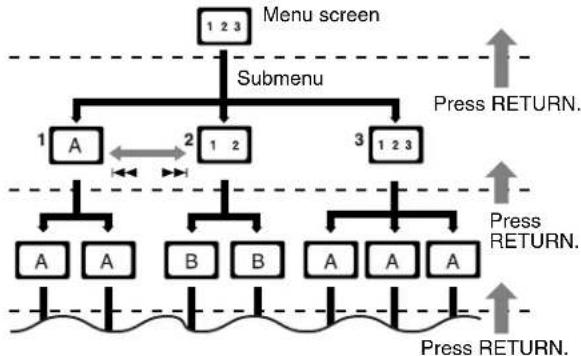
The Playback Control function allows you to enjoy menu-driven operation and high-resolution still images which have a resolution four times greater than moving pictures.
High-resolution still image display
You can display high-quality images which are four times clearer than moving pictures.
Menu-driven playback
A selection menu is displayed when you start playing a Video CD or SVCD with the Playback Control feature. The selection menu shows a list of numbers for selection. Some discs may show moving pictures or a divided screen.
You can interact with the screen using a menu display to select and play an entry.
See example illustration below about basic features of menu-driven playback (for details about the operation through the menu, also see page 39).
flowchart
graph TD
    A["Menu screen"] --> B["Submenu"]
    B --> C1["A"]
    B --> C2["1-2"]
    B --> C3["1-2-3"]
    C1 <--> C2
    C2 <--> C3
    C1 --> D1["A"]
    C2 --> D2["B"]
    C3 --> D3["A"]
    C1 --> D4["A"]
    C2 --> D5["B"]
    C3 --> D6["A"]
    D1 --> E1["Press RETURN."]
    D2 --> E2["Press RETURN."]
    D3 --> E3["Press RETURN."]
    D4 --> E4["Press RETURN."]
    D5 --> E5["Press RETURN."]
    D6 --> E6["Press RETURN."]
A: Moving picture
B: Still picture
NOTE
- When operating a Video CD or SVCD using the menu, some functions such as Repeat Playback may not work.
The illustrations of the center unit and the subwoofer used in this manual are of TH-A85 unless otherwise noted.
Front panel (center unit)

text_image
1 2 3 4 5 6 7 8 9 STANDBY O/I JVC PHONES 10 11 12 13 14 15① Source button (SOURCE) pg. 20
2 Volume buttons (VOLUME +/-) pg. 20
3 Disc tray 17 pg. 23
4 Illumination lamp 📄 pg. 21
5 Stop button (■) pg. 23
6 Play button (▶) pg. 23
7 Pause button (Ⅱ) 17 pg. 23
8 Reverse skip button (◀◀) □ pg. 26
9 Forward skip button (▶▶) ℃7 pg. 26
10 Standby lamp (STANDBY) pg. 19
11 Standby-on button (O/I) 17 pg. 19
12 Display window 17 p g. 6, 24
13 Remote sensor pg. 16
14 Headphones jack (PHONES) pg. 20
15 Open/close button (▲) pg. 23
Rear panel (center unit)

text_image
1 TO SP-PWA85 AUX IN R L DIGITAL IN OPTICAL ANTENNA FM 75Ω COADIAL AM LOOP AM EXT RGB Y/C AV COMPU LINK II OUT VIDEO S-VIDEO AC IN 6 7 8 9① System cord connector pg. 10
② Audio input jacks (AUX IN) pg. 14
3 Digital input jack (DIGITAL IN) 17 pg. 14
4 AV (SCART) connector (AV) pg. 8
5 Video output jacks (OUT VIDEO/S-VIDEO) 8 pg. 8
6 Antenna terminals (ANTENNA) pg. 9
7 Video output signal selector (RGB-Y/C) pg. 8
8 AV COMPU LINK-III jacks (for future use)
9 ∼ AC IN socket 17 pg. 15
Display window (center unit)
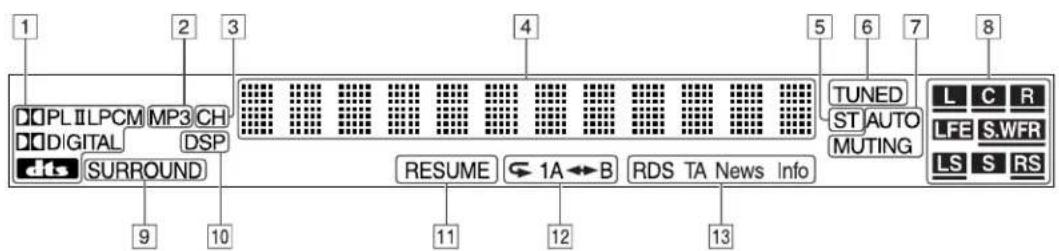
text_image
1 2 3 DQPL ILPCM MP3 CH DQ DIGITAL DSP dts SURROUND 9 10 RESUME ← 1A ↔ B RDS TA News Info 11 12 13 4 5 6 7 TUNED ST AUTO MUTING L C R LFE S.WFR LS S RS1 • Dolby Pro Logic II indicator (□□PLII) □ pg. 33
• Linear PCM indicator (LPCM) pg. 34
• Digital signal format indicators 17 pg. 34
Dolby Digital (☐ DIGITAL), DTS (dts)
2 MP3 indicator 7 pg. 24
3 Channel indicator (CH) pg. 28
4 Main display pg. 24
5 Stereo indicator (ST) pg. 27
6 Tuning indicator (TUNED) pg. 27
7 Auto muting indicator (AUTO MUTING) ☐ pg. 28
8 • Source signal indicators ( L C R LFE LS S RS )
pg. 34
- Subwoofer indicator (■R) □ pg. 34
• Sound reproducing speaker indicator ( _ ) 17 pg. 34
9 Surround indicator (SURROUND) pg. 35
10 DSP indicator p g. 3 3-3 5
11 Resume indicator (RESUME) □ pg. 24
12 Repeat mode indicators 17 pg. 48
13 RDS reception mode indicators 17 pg. 29 – 32
RDS, TA, News, Info
Powered subwoofer

text_image
1 2 3 4 5 CONNECTOR RUMI CONTROLLER LEFT RUBU FRONT SPREADER RUBU CONTROL SPREADER LEFT RUBU SUBSTANDING SPREADERRear

text_image
6 JVCFront
① System cord connector 17 pg. 10
2 Front speaker terminals (FRONT SPEAKERS) pg. 12, 13
3 Center speaker terminals (CENTER SPEAKER) pg. 12, 13
4 Surround speaker terminals (SURROUND SPEAKERS) 17 pg. 12, 13
5 Power cord Ⅱpg. 15
6 Power lamp (POWER ON) pg. 19
Remote control
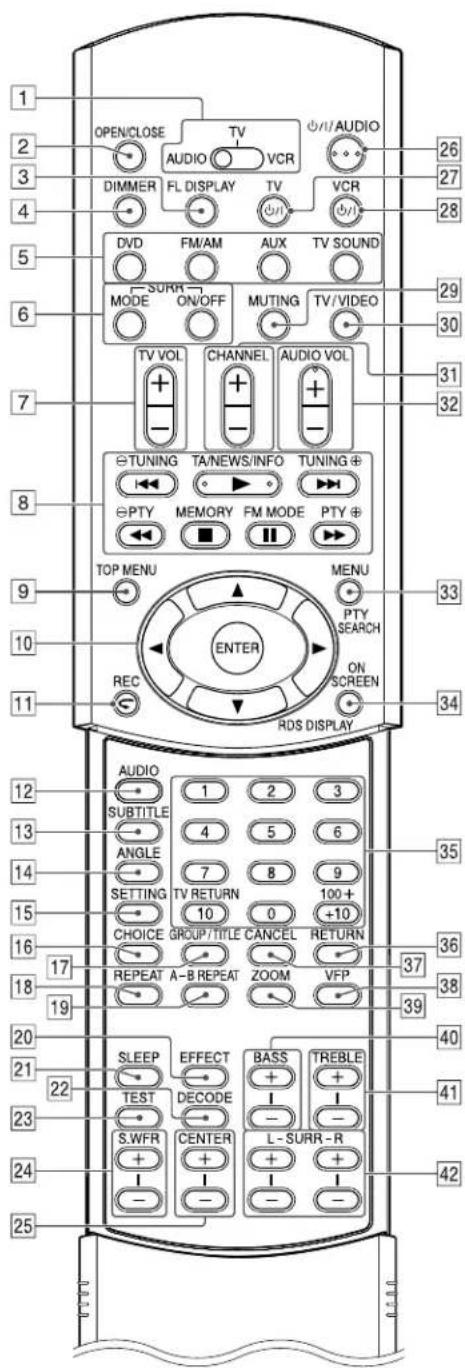
text_image
OPEN/CLOSE AUDIO VCR DINMER FL DISPLAY TV VCR DVD FM/AM AUX TV SOUND SURRE MODE ON/OFF MUTING TV/VIDEO TV VOL CHANNEL AUDIO VOL + - + - + - TUNING TA/NEWS/INFO TUNING + ←→ → → → PTY MEMORY FM MODE PTY + ←← ■ □ □ □ TOP MENU MENU 33 32 10 11 ENTER REC ON SCREEN RDS DISPLAY AUDIO 1 2 3 SUBTITLE 4 5 6 ANGLE 7 8 9 SETTING TV RETURN 10 0 +10 CHOICE GROUP/TITLE CANCEL RETURN 17 REPEAT A-B REPEAT ZOOM VFP 19 20 SLEEP EFFECT BASS TREBLE TEST DECODE - - S.WFR CENTER L-SURR-R - - - - - - 21 22 41 23 24 42 25
text_image
NOTE • To use buttons [12] - [25] and [35] - [42], slide down the remote control cover.① Remote control mode selector ☑ pg. 17 – 58 AUDIO, TV, VCR
② Open/close button (OPEN/CLOSE) 17 pg. 23
3 Display window button (FL DISPLAY) pg. 24
4 Dimmer button (DIMMER) ☐ pg. 21
5 Source selecting buttons ☐ pg. 20 DVD, FM/AM, AUX, TV SOUND
⑥Surround buttons (SURR) Mode (MODE), On/Off (ON/OFF) 📋pg. 35
7 TV volume buttons (TV VOL +/-) pg. 17
8Operating buttons
- Play button (▶) □ pg. 24
- Forward/reverse skip buttons (▶▶|/▶◀◀) □ pg. 26
- Fast-forward/reverse playback buttons (▶▶/◀◀) □ pg. 26
- Stop button (■) □ pg. 23
- Pause button (Ⅱ) ☐ pg. 23
- Tuning buttons (TUNING ⊕, TUNING ⊖) ☐ pg. 27
• Memory button (MEMORY) ☐ pg. 28
• FM reception/Beat Cut mode button (FM MODE) ≈ pg. 28 - Enhanced Other Network operating button (TA/NEWS/INFO)
pg. 31 - PTY selection buttons (PTY ⊕, PTY ⊖) ☐ pg. 30
9 Top menu button (TOP MENU) pg. 38
10 • Cursor buttons (▶/◀/▼/▲) □ pg. 38
- Enter button (ENTER) ☐ pg. 17
11 • One Touch Replay button (◀) □ pg. 25
- Record button (REC) ☐ pg. 18
12 Audio button (AUDIO) ☐ pg. 43, 44
13 Subtitle button (SUBTITLE) pg. 43
14 Angle button (ANGLE) pg. 42
15 Setting button (SETTING) pg. 58
16 Choice menu button (CHOICE) pg. 50
17 Group/title button (GROUP/TITLE) pg. 39
18 Repeat button (REPEAT) ☐ pg. 48
19 A-B repeat button (A-B REPEAT) pg. 49
20 Effect button (EFFECT) 17 pg. 36
21 Sleep button (SLEEP) pg. 21
22 Decode mode button (DECODE) ☐ pg. 22
[23] Test tone button (TEST) pg. 36
24 Subwoofer adjustment buttons (S.WFR +/-) pg. 22
25 Center speaker adjustment buttons (CENTER +/-) pg. 36
26 Standby-on button (O/AUDIO) ☐ pg. 19
27 Standby-on button (O/I TV) 17 pg. 17
28 Standby-on button (O/I VCR) pg. 18
29 Muting button (MUTING) pg. 20
|30| TV/Video mode button (TV/VIDEO) pg. 17
[31] Channel buttons (CHANNEL +/-) 17 pg. 17
32 Volume buttons (AUDIO VOL +/-) pg. 20
33 • Menu button (MENU) ☐ pg. 38
- PTY search button (PTY SEARCH) ☐ pg. 30
[34] • On-screen button (ON SCREEN) 📄 pg. 37
• RDS display button (RDS DISPLAY) ☐ pg. 29
35 • Number buttons ☐ pg. 17, 26, 39
• TV returning button (TV RETURN) pg. 17
36 Return button (RETURN) pg. 4, 39
37 Cancel button (CANCEL) pg. 47
38 VFP setting button 17 pg. 46
39 Zoom button (ZOOM) 17 pg. 45
40 Bass adjustment buttons (BASS +/-) pg. 22
41 Treble adjustment buttons (TREBLE +/-) 7 pg. 22
[42] Surround speaker adjustment buttons (SURR) ☐ pg. 36 Left (L +/-), Right (R +/-)
Connections
- Do not connect the AC power cord until all other connections have been made.
- Since different components often have different terminal names, carefully read the instructions supplied with the components you are going to connect.
Connecting a TV
To view pictures and on-screen displays, connect the TV to the center unit.
- Distortion of picture may occur when connecting to the TV via a VCR, or to a TV with a built-in VCR.
- You need to set "MONITOR TYPE" in the PICTURE menu correctly according to the aspect ratio of your TV. (pg. 53)
■ To connect a TV with the SCART connector
Connect the center unit's AV (SCART) connector with your TV's SCART connector using a SCART cable (not supplied).
- Set the RGB-Y/C selector correctly according to your TV.
- If the TV accommodates the RGB video signal, set the RGB-Y/C selector to "RGB" so that you can enjoy better-quality pictures.
- If the TV accommodates the S-video signal, set the RGB-Y/C selector to "Y/C".
- If the TV accommodates the composite video signal only, set the RGB-Y/C selector to "RGB".

text_image
RGB-Y/C selector To AV (SCART) connector SCART cable (not supplied) Center unit To SCART connector* TV* Some TV's SCART connectors output audio signal. In such a case, you can enjoy the TV sound through this system.
NOTE
- No sound comes out from "AV" (SCART) connector.
■ To connect a TV through the composite or S-video jacks
Connect the TV using the composite video cord (not supplied) or an S-video cord (not supplied).
If your TV has an S-video (Y/C-separation) jack, you can get better picture quality than by using composite video connection.
- Connect the S-video cord by matching the ▼ mark on the plug to the one on the rear of the center unit.
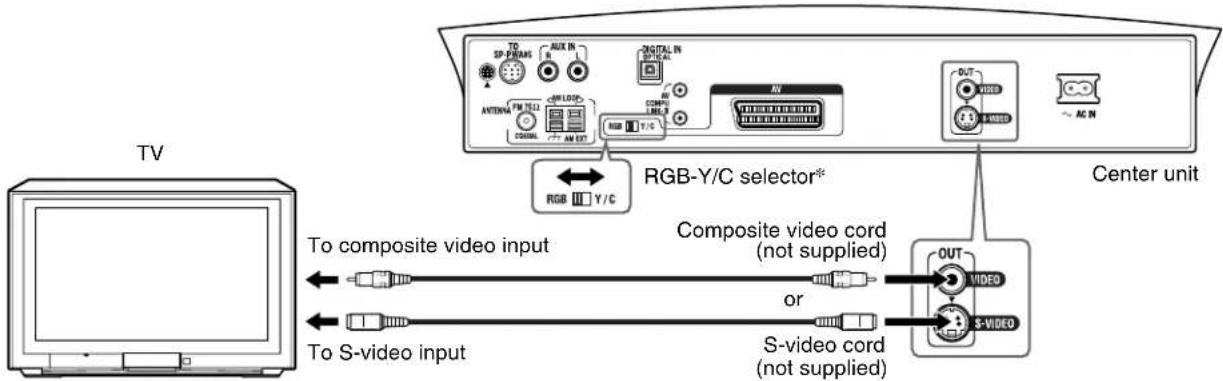
text_image
TV To composite video input To S-video input RGB Y/C selector® Composite video cord (not supplied) or S-video cord (not supplied) RGB Y/C Center unit OUT VIDEO S-VIDEO* When connecting an S-video cord, set the RGB-Y/C selector to "Y/C". When connecting a composite video cord, set the RGB-Y/C selector to "RGB".
NOTE
- When the RGB-Y/C selector is set to "RGB", correct video signal is not output from the S-VIDEO jack on the rear panel.
- Whether the RGB-Y/C selector is set to "RGB" or "Y/C", the composite video signal is always output from the OUT VIDEO jack.
Connecting the FM and AM (MW) antennas
Make sure the antenna conductors do not touch any other terminals, connecting cords and power cords. This could cause poor reception.
■ AM (MW) loop antenna
Setting up supplied AM (MW) loop antenna
Attach the AM (MW) loop to its base by snapping the tabs on the loop into the slot on the base.

text_image
If the antenna cord is covered with the insulation coat, twist and pull the insulation coat off and remove.Connecting AM (MW) loop antenna
Center unit

text_image
Center unit TO SP-PWASS AUX IN R L DIGITAL IN OPTICAL ANTENNA FM 75Ω AM LOOP COMPUT LINE-E RGB Y/C AV1
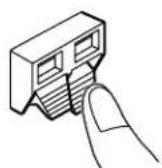
Press and hold down the terminal clamp.
2

Insert the antenna cord.
3

text_image
Release finger from the clan- Turn the loop antenna until you have the best reception.
If reception is poor
Connect an outdoor single vinyl-covered wire antenna (not supplied) to the AM EXT terminal. (Keep the AM (MW) loop antenna connected.)
- Twist together both wires.
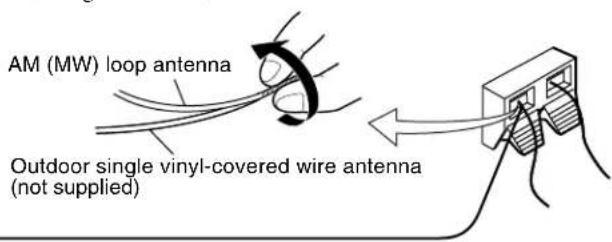
text_image
AM (MW) loop antenna Outdoor single vinyl-covered wire antenna (not supplied)■ FM antenna
Connecting supplied FM antenna
Center unit
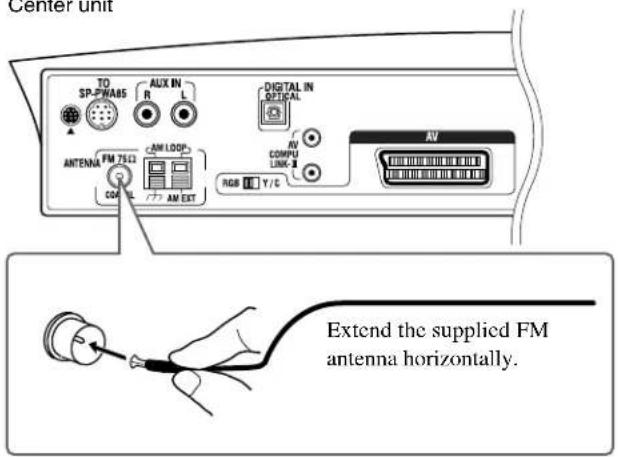
text_image
Center unit TO SP-PWA65 AUX IN R L DIGITAL IN OPTICAL ANTenna FM 75Ω AM LOOP COM U L AM EXT RGB Y/C RV COMPU LINK B AV Extend the supplied FM antenna horizontally.If reception is poor
Connect an outdoor FM antenna with standard type (75Ω coaxial) connector.

text_image
Outdoor FM antenna (not supplied) Outdoor FM antenna cord (not supplied)NOTE
- Disconnect the supplied FM antenna before attaching a 75 Ω coaxial connector (the kind with a round wire going to an outdoor antenna).
- We recommend that you use coaxial cable for the FM antenna as it is well-shielded against interference.
Connecting the powered subwoofer
Connect the supplied powered subwoofer (SP-PWA85/SP-PWA55) using the system cord (supplied).
- Connect the system cord by matching the ▲ marks on the plugs to the ones on the center unit and powered subwoofer.

text_image
TO SP-PWA85 System cord (supplied) Ensure that the ▲ mark on the plug faces down. CONNECTOR FROM XV-THA95/95 POWERED subwoofer Center unitConnecting the satellite speakers
■ Speaker layout
When positioning the speakers, to obtain the best possible sound from this system you need to place all satellite speakers at the same distance from the listening position with the front of each speaker facing toward the listener.
When you cannot place them at the same distance from the listening position, you can make adjustment so that speakers operate as if they are placed at the best position. (15 pg. 54)
- Normally place the powered subwoofer in front of you. (Since bass sound is non-directional, you do not need to place it at the same distance as the other speakers.)
NOTE
- Although the satellite speakers and the powered subwoofer are magnetically shielded, the TV screen may appear mottled. In this case, keep the distance between them to the TV to over 10 cm.
- For safety reasons, always ensure that there is sufficient space behind the powered subwoofer.
- When you position the satellite speakers in a relatively high place, such as the top of your bookshelf, place them on a flat and level surface.
- Speaker grilles are not removable (except SP-THA55C, SP-THA55F, and SP-THA55S). Trying to remove them by force may damage them.
- Be sure to place the powered subwoofer to the TV's right. If you place the powered subwoofer to the TV's left, keep sufficient distance between them to prevent the TV from appearing mottled.

text_image
TH-A85 Center speaker Powered subwoofer Front right Front left Surround left Surround rightNOTE
Only for TH-A85
- Do not lean against the satellite speakers, as the speakers could fall down or break, possibly causing injury. Especially be careful not to let children lean against them.

text_image
TH-A55 Front rightFront left Center speaker Powered subwoofer Surround left Surround right■ Assembling the satellite speakers (TH-A85 only)
Each speaker (except the center speaker) has been divided into two parts for shipment. Before connecting the satellite speakers, first assemble them by following the procedure below.
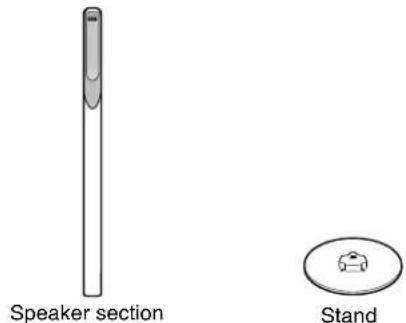
text_image
Speaker section StandBefore assembling —
• Prepare a Phillips screwdriver.
- Take care not to drop the stand while assembling; otherwise, it may cause damage to the floor or injury.
- Ensure enough space exists for assembly and installation.
- Spread a large, thick cloth on the floor where you assemble the speakers, so you can protect the floor and the speaker itself.
1 Connect the speaker connectors to the stand connectors.
- Be sure to connect the speaker connectors by matching their sizes.
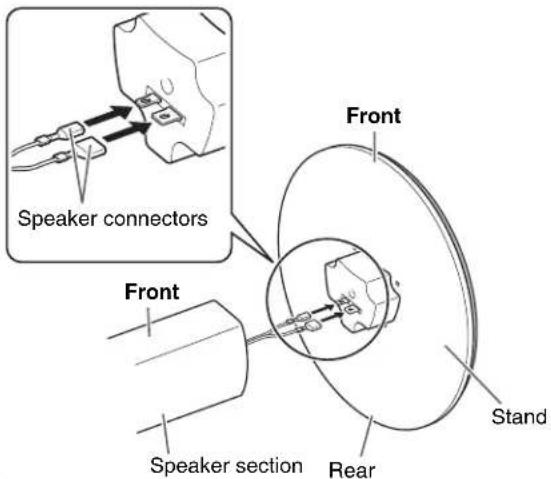
text_image
Speaker connectors Front Speaker section Rear Front Stand2 Join the stand to the speaker section.

text_image
Stand Speaker section3 Fix the stand to the speaker section.
- Be sure to tighten the screws firmly.
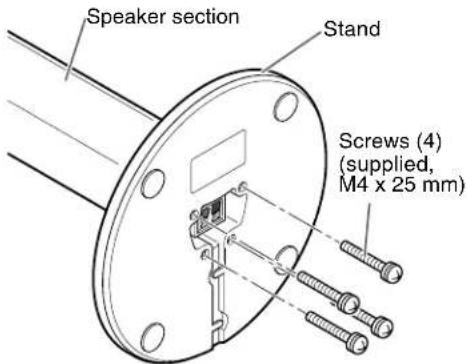
text_image
Speaker section Stand Screws (4) (supplied, M4 x 25 mm)Repeat the procedure from step 1 to assemble the other satellite speakers.
NOTE
- Use the speaker after assembly is fully and correctly done.
- It is recommended to place a cushion under the speaker section. You can tighten the screws easily by placing the speaker section horizontally.
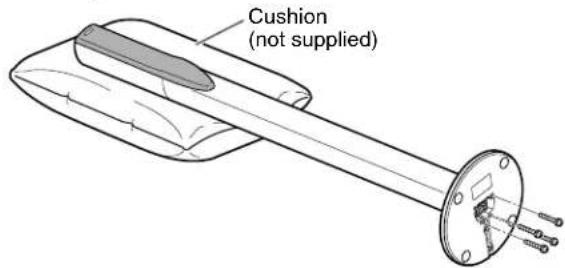
text_image
Cushion (not supplied)■ Connecting the satellite (front, center, surround) speakers (TH-A85)
Each speaker (SP-THA85F) can be used as a front or surround speaker.
CAUTION
- When you connect (larger) speakers other than the supplied ones, only use speakers with the same speaker impedance (SPEAKER IMPEDANCE) as indicated by the speaker terminals on the rear of the powered subwoofer.
- DO NOT connect more than one speaker to one speaker terminal.
Before connecting the speaker cords;

Twist and pull the insulation coat off and remove.
Front speakers (SP-THA85F)
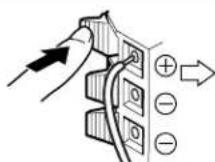
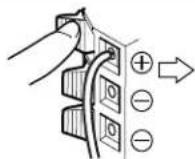
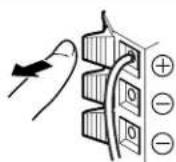
Press and hold the clamp.
Insert the bare end of the speaker cord into the terminal.
Release the clamp.
- Connect the white cords to the red (⊕) terminals and black cords to the black (⊖) terminals.
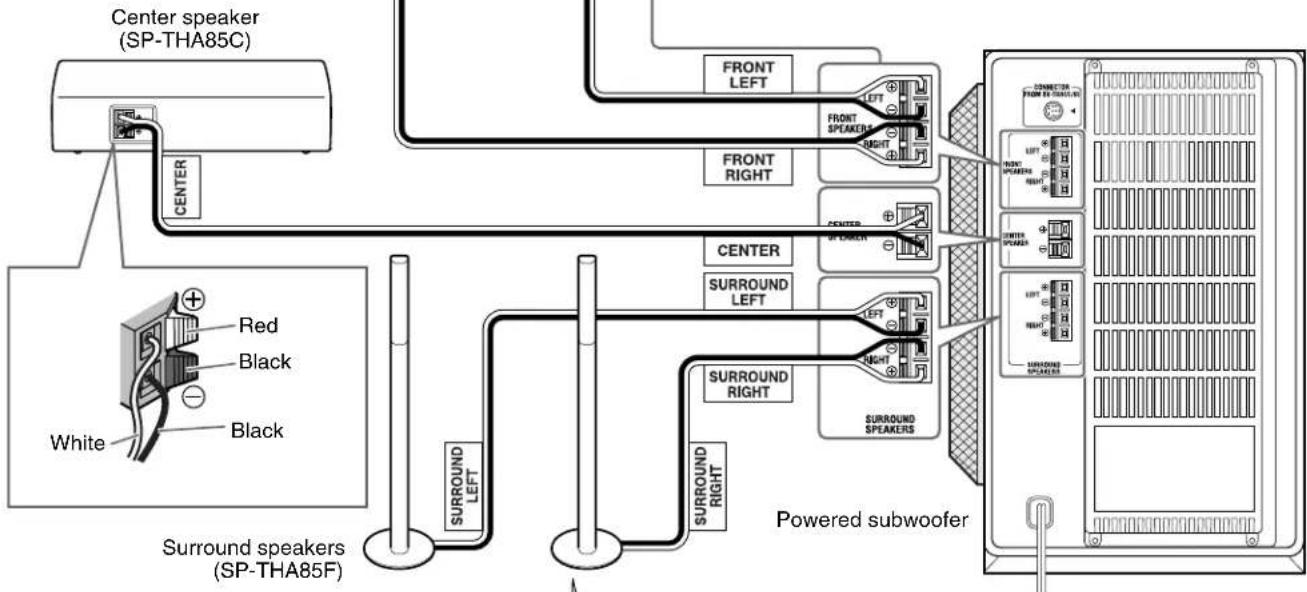
text_image
Center speaker (SP-THA85C) CENTER FRONT LEFT FRONT RIGHT CENTER SP CHICKER CENTER SURROUND LEFT SURROUND RIGHT SURROUND SPKEMERS Powered subwoofer Surround speakers (SP-THA85F) White Red Black Black SURROUND LEFT SURROUND RIGHT
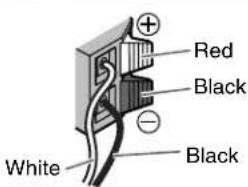
text_image
Red Black White Black
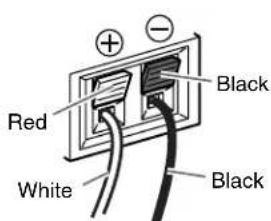
text_image
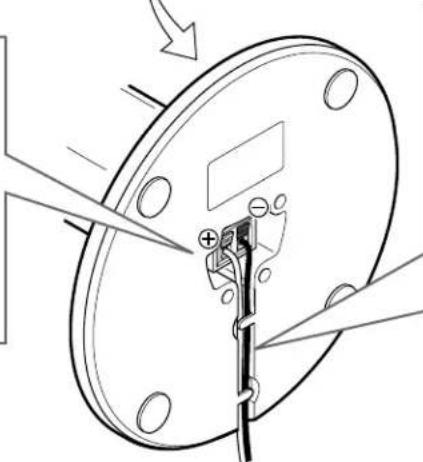
Red White Black BlackInsert the speaker cords into the speaker terminals.
natural_image
Technical line drawing of a mechanical assembly with no visible text or symbols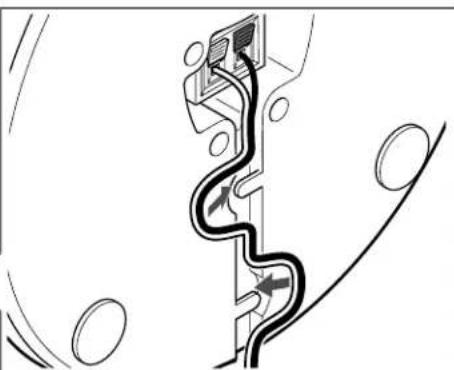
natural_image
Pure electrical circuit lines without any symbolsRoute the speaker cord as shown at right.
- Be sure to remove all slack from the cord so that the speaker cord lies flat.
■ Connecting the satellite (front, center, surround) speakers (TH-A55)
Be sure to identify each speaker (SP-THA55C/SP-THA55F/SP-THA55S) and connect them to the corresponding terminals of the powered subwoofer.
CAUTION
- When you connect (larger) speakers other than the supplied ones, only use speakers with the same speaker impedance (SPEAKER IMPEDANCE) as indicated by the speaker terminals on the rear of the powered subwoofer.
- DO NOT connect more than one speaker to one speaker terminal.
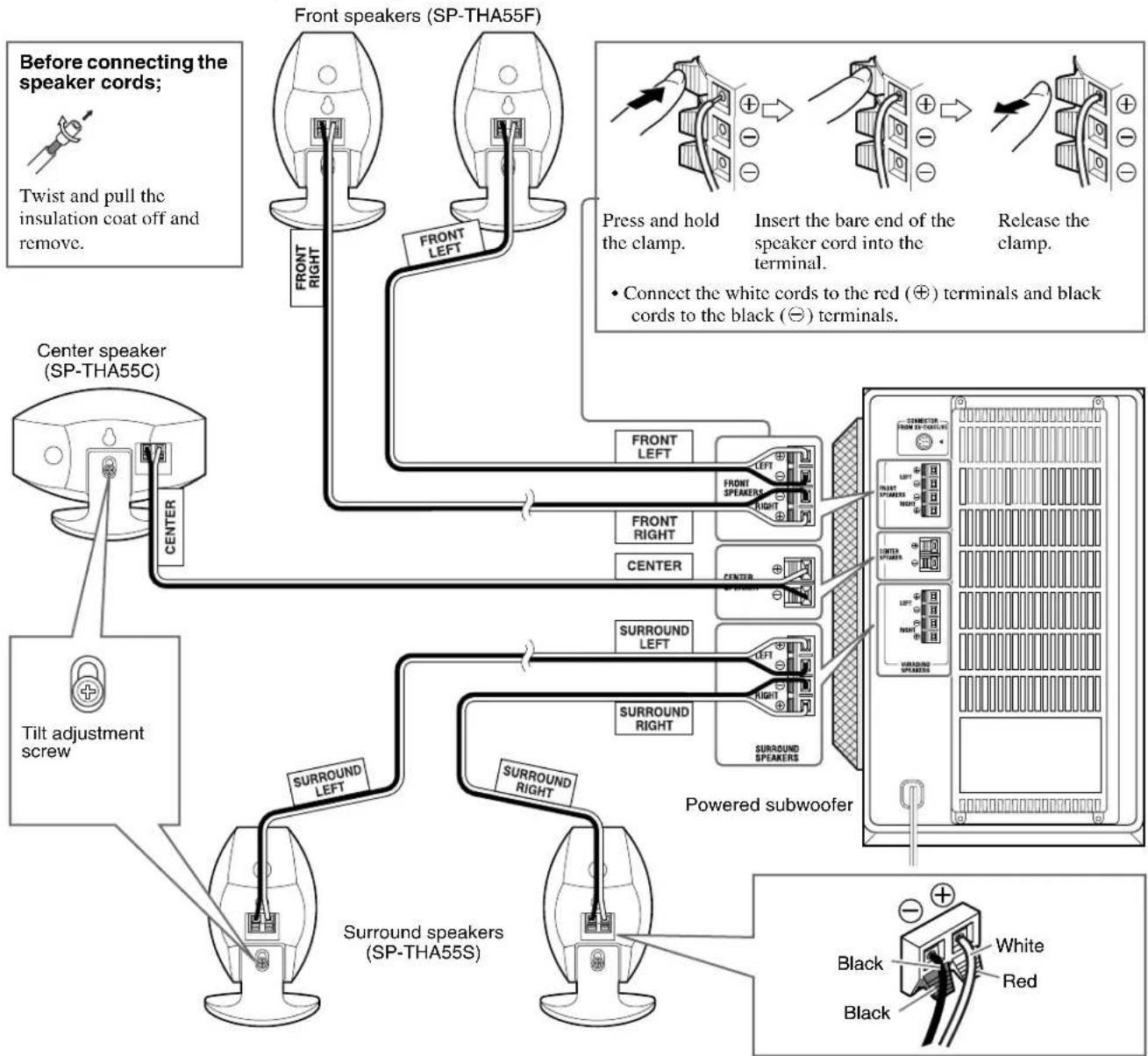
flowchart
graph TD
    A["Before connecting the speaker cords; Twist and pull the insulation coat off and remove."] --> B["Center speaker (SP-THA55C)"]
    B --> C["Tilt adjustment screw"]
    C --> D["Surround speakers (SP-THA55S)"]
    D --> E["Powered subwoofer"]
    E --> F["Black Red Black White"]

    B --> G["Front left"]
    B --> H["Front right"]
    G --> I["Press and hold the clamp. Insert the bare end of the speaker cord into the terminal. Release the clamp."]
    H --> I
    I --> J["Connect the white cords to the red (⊕) terminals and black cords to the black (⊖) terminals."]

    C --> K["SURROUND LEFT"]
    C --> L["SURROUND RIGHT"]

    D --> M["SURROUND SP-THA55F"]
    E --> N["Black White Red Black White Black White Red Black White Black White Black White Black White Black White Black White Black White Black White Black White Black White Black White Black White Black White Black White Black White Black White Black White Black White Black White Black White Black White Black White Black White Black White Black White Black White Black White Black White Black White Black White Black White Black White Black White Black White Black White Black White Black White Black White Black White Black White Black White Black White Black White Black White Black White Black White Black White Black White Black White Black White BlackWhite"]

    style A fill:#f9f,stroke:#333
    style E fill:#ccf,stroke:#333
    style F fill:#cfc,stroke:#333
    style G fill:#fcc,stroke:#333
    style H fill:#cff,stroke:#333
    style I fill:#ffc,stroke:#333
    style J fill:#fcf,stroke:#333
    style K fill:#cff,stroke:#333
    style L fill:#ffc,stroke:#333
    style M fill:#cfc,stroke:#333
    style N fill:#fcc,stroke:#333
    style O fill:#ffc,stroke:#333
    style P fill:#cfc,stroke:#333
    style Q fill:#fcc,stroke:#333
    style R fill:#ffc,stroke:#333
    style S fill:#cfc,stroke:#333
    style T fill:#fcc,stroke:#333
    style U fill:#cfc,stroke:#333
    style V fill:#fcc,stroke:#333
    style W fill:#cfc,stroke:#333
    style X fill:#fcc,stroke:#333
    style Y fill:#cfc,stroke:#333
    style Z fill:#fcc,stroke:#333
CAUTION
When installing the satellite speakers on the wall (TH-A55 only);
- Be sure to have them installed on the wall by a qualified personnel. DO NOT install the satellite speakers on the wall by yourself to avoid unexpected damage from their falling off the wall due to incorrect installation or weakness in wall structure.
- Care must be taken in selecting a location for speaker installation on a wall. Injury to personnel or damage to equipment may result if the speakers installed interfere with daily activities.
- Before installing the satellite speakers on the wall, be sure to detach the speaker stands equipped with the satellite speakers by removing the tilt adjustment screws.
NOTE
- You can attach the satellite speakers to the separately sold TV stand instead of the stands attached to them at your purchase. For assembling the TV stand and speakers, be sure to use the screws supplied with the TV stand. Using the screws attached to the speakers may damage the speakers. For details, refer to the instructions manual supplied with the TV stand.
- You can tilt the satellite speakers and center speaker. Loosen the tilt adjustment screw, adjust the angle, then tighten the screw.
Connecting to an analog component
You can enjoy the sound of an analog component such as a VCR, TV, or Cassette recorder with this system. Use RCA pin plug cords (not supplied) for connection.

text_image
Center unit Cassette recorder TV To audio output RCA pin plug cord (not supplied) Red White Aux IN SP-DRANT AMOUNT ON/OFF OUT S1000 AC IN VCRNOTE
- If you connect a sound-enhancing device such as a graphic equalizer between the source components and this system, the sound output through this system may be distorted.
- When playing a video component such as a VCR;
- To listen to the sound, select "AUX" as the source to play. (13) pg. 20
- To see the picture, connect the video output jack of the component to the video input jack of the TV directly, and select the correct input mode on the TV.
Connecting to a digital component
You can enjoy the sound of a digital component such as a DBS (Direct Broadcast Satellite) tuner or MD recorder with this system. Use digital optical cord (not supplied) for connection.

flowchart
graph TD
    A["Center unit"] --> B["Before connecting a digital optical cord, unplug the protective plug."]
    B --> C["Digital optical cord (not supplied)"]
    C --> D["To digital optical output"]
    D --> E["MD recorder"]
    D --> F["DBS tuner"]
NOTE
When playing a video component such as a DBS tuner;
- To listen to the sound, select "AUX DIGITAL" as the source to play. ( pg. 20 )
- To see the picture, connect the video output jack of the component to the video input jack of the TV directly, and select the correct input mode on the TV.
Connecting the power cord
Make sure that all connections have been completed, before plugging in the power cords of the center unit and powered subwoofer.
1 Firmly insert the supplied power cord into the AC IN socket on the rear of the center unit.
2 Plug both power cords into AC outlets.
Firmly insert the supplied power cord into the AC IN socket on the rear of the center unit.
Plug both power cords into AC outlets.

text_image
CONNECTION FROM STANDING LEFT FRONT SPREADS RAMP CUSTOM SPREADS LEFT RAMP SUBSTANDING SPREADSPowered subwoofer
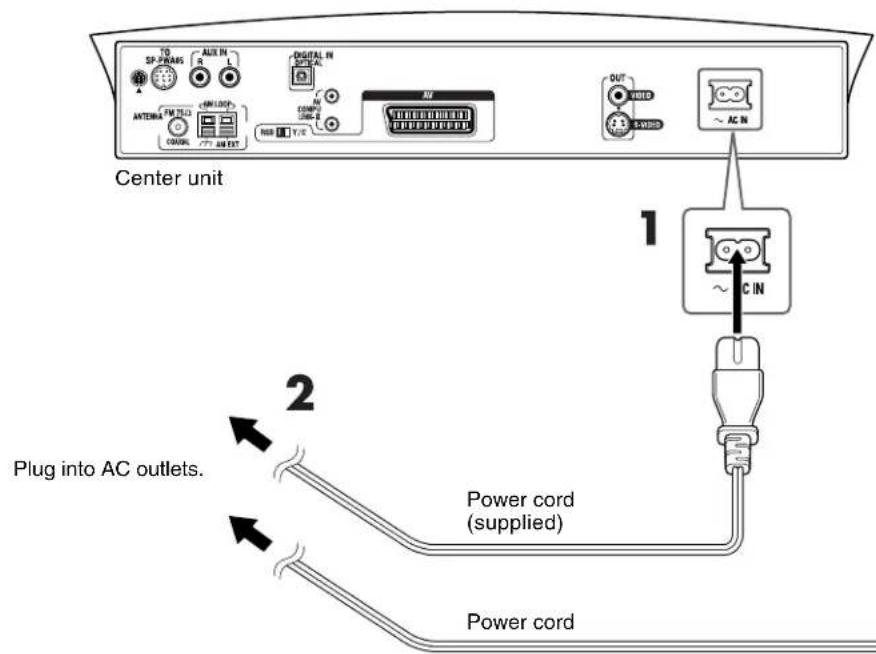
text_image
Center unit 1 2 Plug into AC outlets. Power cord (supplied) Power cordCAUTION
- Disconnect the power cord before cleaning or moving the system.
- Do not touch the power cord with wet hands.
- Do not pull on the power cord to unplug the cord. When unplugging the cord, always grasp and pull the plug so as not to damage the cord.
NOTE
- Keep power cords away from other connected cords. The power cords may cause noise or screen interference.
- Preset settings, such as preset stations and surround mode adjustment, may be erased in a few days in the following cases;
- If you unplug the power cord of the center unit.
• If a power failure occurs. - The speakers will not produce any sound if the power cord of the powered subwoofer is removed from the AC outlet while the center unit is turned on. In this case, press Ⓗ/IAUDIO on the remote control or Ⓗ/1 on the center unit to turn the power off, plug in the powered subwoofer, then press Ⓗ/IAUDIO or Ⓗ/1 again.
Using the remote control
The remote control makes it easy to use many of the system functions from a distance of up to 7 m away.
- You can also use the remote control supplied for this system to operate other manufacturers' TVs (pp. 17) and VCRs (pg. 18).
Putting batteries in the remote control
Before using the remote control, first put in the 2 supplied batteries.
1 Remove the battery cover on the back of the remote control.
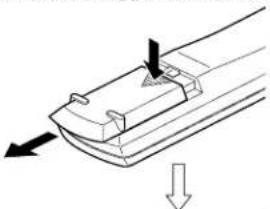
natural_image
Diagram of a mechanical component with arrows indicating direction (no text or symbols)2Insert the batteries.
- Make sure to match polarity: (+) to (+) and (−) to (−).

natural_image
Diagram of a remote control panel with a downward arrow indicating action (no text or symbols present)3Replace the cover.
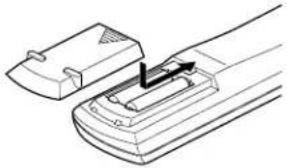
natural_image
Line drawing of a remote control panel with an arrow indicating the handle (no text or symbols present)If the range or effectiveness of the remote control decreases, replace the batteries. Use two R6P (SUM-3)/AA (15F) type dry-cell batteries.
CAUTION
- Follow these precautions to avoid leaking or cracking batteries;
- Use the correct type of batteries. Batteries that look similar may differ in voltage.
• Always replace both batteries at the same time. - Do not expose batteries to heat or flame.
Operating the system from the remote control
Aim the remote control directly at the remote sensor on the center unit.
- To control other components, aim the remote control directly at the remote sensor on each component. Refer also to their instruction manuals.
- To operate the remote control properly, do not hide the remote sensor by placing any obstructions in front of it.

text_image
JVC Remote sensor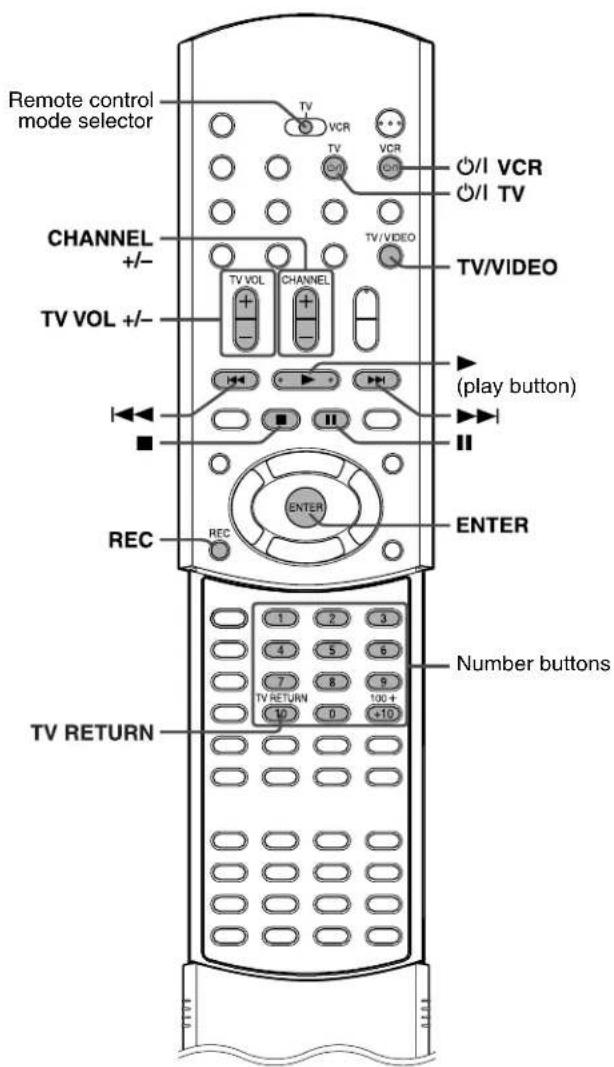
text_image
Remote control mode selector TV VCR TV VCR ○/I VCR ○/I TV CHANNEL +/- TV VOL +/- TV/VIDEO TV/VIDEO play button REC REC ENTER ENTER Number buttons 1 2 3 4 5 6 7 8 9 TV RETURN 100 + 10 0 +10 TV RETURNFor TV operations
You can operate your TV using the remote control supplied with this system.
• Refer also to the instruction manuals supplied with your TV.
■To set the manufacturer's code
You can operate a JVC TV without setting the remote control signal.
1 Slide the remote control mode selector to TV.
2Press and hold ⏻/TV.
Keep the button pressed until step 4 is finished.
3Press ENTER.
4Press number buttons (1-9, 0) to enter the manufacturer's code (2 digits).
Examples:
For a Hitachi TV: Press 0, then 7.
For a Toshiba TV: Press 2, then 9.
| Manufacturer | Code | Manufacturer | Code |
| JVC 01 Nordmende | 13, 14, 18, 26 – 28 | ||
| Akai | 02, 05 | Okano | 09 |
| Blaupunkt | 03 Orion | 15 | |
| Daewoo | 10, 31, 32 | Panasonic | 16, 17 |
| Fenner | 04, 31, 32 | Philips | 10 |
| Fisher | 05 Saba | 13, 14, 18, 26 – 28 | |
| Grundig | 06 Samsung | 10, 19, 32 | |
| Hitachi | 07, 08 | Sanyo | 05 |
| Inno-Hit | 09 Schneider | 02, 05 | |
| Irradio | 02, 05 | Sharp | 20 |
| Magnavox | 10 Sony | 21 – 25 | |
| Mitsubishi | 11, 33 | Telefunken | 13, 14, 18, 26 – 28 |
| Miver | 03 Thomson | 13, 14, 18, 26 – 28, 30 | |
| Nokia | 12, 34 | Toshiba | 29 |
5Release ⏻/ITV.
6Try operating your TV by pressing ⏻/TV.
When your TV turns on or off, you have entered the correct code.
If there is more than one code listed for corresponding brand, try each one until you enter the correct one.
NOTE
- Manufacturers' codes are subject to change without notice. If they are changed, this remote control cannot operate the equipment.
- Set the codes again after replacing the batteries of the remote control.
Operation
IMPORTANT
Before using the remote control to operate a TV;
- Set the remote control mode selector to TV.

The following buttons are available:
O/ITV: Turns TV on and off.
TV VOL +/-: Adjusts the volume.
TV/VIDEO: Selects the input mode (either TV or VIDEO).
CHANNEL +/-: Changes the channels.
1-10, 0, +10 (100+): Selects the channel.
TV RETURN: Alternates between the previously selected channel and the current channel.
For VCR operations
You can operate your VCR using the remote control supplied with this system.
- Refer also to the instruction manuals supplied with your VCR.
■ To set the manufacturer's code
1 Slide the remote control mode selector to VCR.
2Press and hold ⏻/IVCR.
Keep the button pressed until step 4 is finished.
3Press ENTER.
4Press number buttons (1-9, 0) to enter the manufacturer's code (2 digits).
Examples:
For a Panasonic VCR: Press 2, then 1.
For a Philips VCR: Press 0, then 5.
| Manufacturer | Code | Manufacturer | Code |
| JVC | 01 | Nokia | 16 |
| Aiwa | 02, 20 | Nordmende | 17 – 19, 31 |
| Bell+Howell | 03, 16 | Orion | 20 |
| Blaupunkt | 04 | Panasonic 21 | |
| CGM | 03, 05, 16 | Philips | 05, 22 |
| Daewoo | 34 | Phonola | 05 |
| Digital | 05 | Saba | 17 – 19, 23, 31 |
| Fisher | 03, 16 | Samsung | 24, 25 |
| G.E. | 06 | Sanyo | 03, 16 |
| Grundig | 07 | Sharp | 26, 27 |
| Hitachi | 08, 09 | Siemens | 07 |
| Loewe | 05, 10, 11 | Sony | 28 – 30, 35 |
| Magnavox | 04, 05 | Telefunken | 17 – 19, 31, 32 |
| Mitsubishi | 12 – 15 | Toshiba | 33 |
5Release ⏻/IVCR.
6Try operating your VCR by pressing ⏻/IVCR.
When your VCR turns on or off, you have entered the correct code.
If there is more than one cord listed for your brand, try each one until you enter the correct one.
NOTE
Operation
IMPORTANT
Before using the remote control to operate a VCR;
- Set the remote control mode selector to VCR.
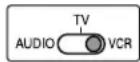
The following buttons are available:
∅/IVCR: Turns VCR on and off.
▶ (play button): Starts playback.
■: Stops operation.
II: Pauses playback.
▶▶: Fast forwards video tape.
◀◀: Rewinds video tape.
REC: Press this button together with ▶ (play button) to start recording or together with Ⅱ to pause recording.
CHANNEL+/-: Changes the TV channels on the VCR.
This section mainly explains operations commonly used when you enjoy this system.
- Turn on your TV and select the correct input mode on the TV.
IMPORTANT
Before using the remote control for the following operation,
- Set the remote control mode selector to AUDIO.
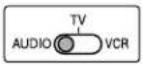

text_image
Remote control mode selector AUDIO DVD FM/AM AUX TV SOUND MUTING AUDIO VOL +/- AUDIO I AUDIO Source selecting buttons MUTING AUDIO VOL +/-
text_image
STANDBY VOLUME JVC I/O SOURCE PHONESTurning the system on/off
■ To turn the power on
On the remote control:
Press ⏻/IAUDIO.
On the center unit:
Press ⏻/1.
The STANDBY lamp goes off.
When DVD is selected as the source (pp. 20), the opening screen* appears on the TV screen.
\* Opening screen
The following messages may appear in the message area depending on the status of this system.
- "OPEN"/"CLOSE": Appears when opening or closing the disc tray.
- "NOW READING": Appears when the system is reading the disc information.
- "REGION CODE ERROR!": Appears when the Region Code of the DVD does not match the code the center unit supports. The DVD cannot be played back.
- “NODISC”: Appears when no disc is loaded to the disc tray.
■ To turn the power off
On the remote control:
Press ⏻/IAUDIO again.
On the center unit:
Press ⏻/1 again.
The STANDBY lamp lights.
NOTE
- The power supply to the subwoofer is linked to the center unit. The POWER ON lamp on the subwoofer lights green when the power is turned on.
- A small amount of the power is consumed even when the power is turned off (center unit only). This is called standby mode and the STANDBY lamp lights in this mode. Unplug the power cord from the AC outlet to turn the power off completely.
- You can also turn on the system by pressing the following buttons;
- OPEN/CLOSE on the remote control or ▲ on the center unit
• One of the source selecting buttons on the remote control
- ▶ on the remote control (except after pressing FM/AM) or on the center unit

text_image
JVC NOW READING Message areaSelecting the source to play
On the remote control:
Press one of the source selecting buttons (DVD, FM/AM, AUX or TV SOUND).
DVD: To play back a disc (DVD, Video CD etc.).
(pg. 23, 25)
FM/AM: To tune in an FM or AM (MW) station. (x̄ pg. 27) Each time you press the button, the band alternates between FM and AM (MW).
AUX: To select the source from a component connected to the AUX IN jacks or DIGITAL IN jack. (☑ pg. 14) Each time you press the button, the source alternates between “AUX” and “AUX DIGITAL”.
TV SOUND: To select the TV (that outputs sound signals) connected to the AV (SCART) connector. (Epg. 8)
On the center unit:
Press SOURCE repeatedly until the source name you want appears on the display window.
Each time you press the button, the source changes as follows;
DVD AM FM AUX AUX DIGITAL TV SOUND (back to the beginning)
The selected source name appears on the display window.
Example: When "AUX" is selected.

NOTE
- When a source except DVD is selected, this system does not output video signals.
Adjusting the volume
CAUTION
- Always set the volume to minimum level before starting any source. If the volume is set at its high level, the sudden blast of sound could permanently damage your hearing and/or blow out the speakers.
You can adjust the volume level within the range from "0" (minimum) to "70" (maximum).
On the remote control:
Press AUDIO VOL + or -.
- Press + to increase volume.
- Press – to decrease volume.
On the center unit:
Press VOLUME + or -.
- Press + to increase volume.
- Press – to decrease volume.
The volume level appears on the display window.
Listening with headphones
CAUTION
Be sure to turn down the volume;
- Before connecting or putting on headphones as high volume may damage both the headphones and your hearing.
- Before disconnecting headphones as high volume may be suddenly output from the speakers.
Connect a pair of headphones to the PHONES jack on the center unit. This cancels the surround mode ( pg. 35) currently selected, deactivates the speakers, turns the subwoofer's power off, and activates the headphone mode. "HEADPHONE" appears on the display window.
HEADPHONE

- Disconnecting a pair of headphones from the PHONES jack cancels the headphone mode and activates the speakers at the previously selected surround mode.
Headphone mode
When using the headphones, the following signals are output regardless of your speaker setting;
- For 2 channel sources, the front left and right channel signals are output directly from the left and right headphones.
- For multi-channel sources, the front left and right, center and surround channel signals are down-mixed and then output from the headphones.
You can enjoy the down-mixed multi-channel sound source using the headphones.
Turning off the sound temporarily
On the remote control:
Press MUTING.
"MUTING" appears on the display window and the sound turns off.
UPCM
MUTING

To restore the sound
Press MUTING again.
- Pressing AUDIO VOL +/- (or VOLUME +/- on the center unit) also restores the sound.
IMPORTANT
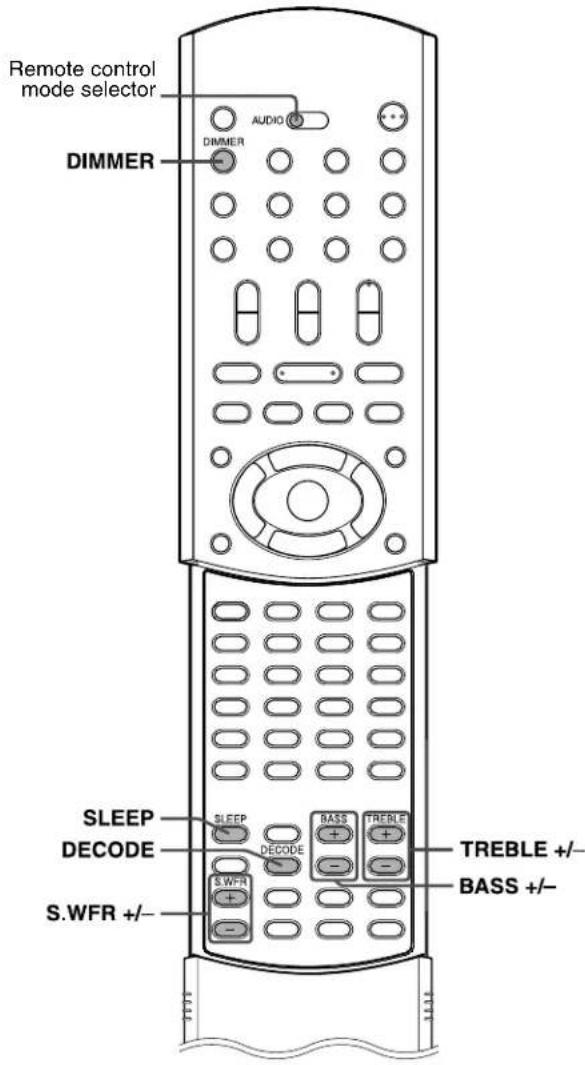
Before using the remote control for the following operation,
- Set the remote control mode selector to AUDIO.

text_image
Remote control mode selector DIMMER AUDIO SLEEP DECODE S.WFR +/-Adjusting the brightness
You can dim the indications on the display window and the illumination lamp level on the center unit.
On the remote control:
Press DIMMER.
Each time you press the button, the brightness level changes as follows;
OFF DIMMER1 DIMMER2 (back to the beginning)
• OFF: Returns to the normal level.
- DIMMER1: Dims the display window and the illumination lamp.
- DIMMER2: Dims the display window more than DIMMER1 and turns off the illumination lamp.
Using the Sleep Timer
Using the Sleep Timer, you can fall asleep while listening to music and know the system will turn off by itself rather than play all night.
On the remote control:
Press SLEEP.
Each time you press the button, the shut-off time changes as follows;
0min (cancelled) 10min (minutes) 20min 30min 60min 90min 120min 150min (back to the beginning)
To check the remaining time until the shut-off time
Press SLEEP once.
- The remaining time until the shut-off time appears on the display window for a while.
To change the remaining time until the shut-off time Press SLEEP repeatedly.
• Each time you press the button, the shut-off time changes.
To cancel the Sleep Timer
Press SLEEP repeatedly until "0min" appears on the display window.
- Turning off the power also cancels the Sleep Timer.
NOTE
- When DVD is selected as the source to play, the system can also turn off automatically if playback is not restarted within the length of time you have specified (Auto Standby function). (r≥ pg. 55)
- When both the Sleep Timer and Auto Standby function are activated, if the shut-off time set by the Auto Standby function comes earlier than the one set by the Sleep Timer, the Auto Standby function controls shut-off time.
Adjusting the output level of the subwoofer
You can adjust the output level within the range from -10 to 10.
On the remote control:
Press S.WFR +/-
NOTE
- You can also make adjustments using the choice menu shown on the TV screen. (15 pg. 54)
- The adjustments on a source take effect for the other sources.
Adjusting the bass/treble sound
You can adjust each enhancement level from the front speakers within the range from -10 to 10.
On the remote control:
Press BASS +/- for bass sound.
Press TREBLE +/- for treble sound.
NOTE
- You can also make adjustments using the choice menu shown on the TV screen. (☐ pg. 53)
- The adjustments on a source take effect for the other sources.
- You can adjust bass/treble enhancement level only for front left/right channel. However, the supplied speakers cannot add the effective change to the bass sound because of their cutoff frequency even if the bass sound adjustment is made. (17 pg. 54)
To change the bass enhancement level more efficiently, adjust the output level of the subwoofer. ( — “Adjusting the output level of the subwoofer”)
(When you change the front speakers to the larger ones and select "LARGE" for the front speakers in the SIZE sub-menu ( pg. 54), the effective adjustment of bass sound is also possible by pressing BASS +/-.)
Changing the decode mode
When you play a disc (or software) encoded with Dolby Digital or DTS Digital Surround, the following symptoms may occur;
- Sound does not come out at the beginning of playback.
- Noise comes out while searching for or skipping chapters or tracks.
In these cases, change the decode mode to “DOLBY D” (for Dolby Digital) or “DTS” (for DTS Digital Surround).
■When DVD or AUX DIGITAL is selected as the source
On the remote control:
Press DECODE to select the decode mode.
The current decode mode appears on the display window.
Example: When "AUTO/PCM" is selected.
| DIGITAL | AUTO/PCM | |
| LCR | ||
| LFE SWFR | ||
| LS RS | ||
Each time you press the button, the decode mode changes as follows;
AUTO/PCM DOLBY D DTS (back to the beginning)
- AUTO/PCM: Normally select this. The system automatically detects the incoming signals.
• DOLBY D: Select this if the symptoms above occur when playing a disc (or software) encoded with Dolby Digital. - DTS: Select this if the symptoms above occur when playing a disc (or software) encoded with DTS Digital Surround.
NOTE
- When “DOLBY D” or “DTS” is selected, if a signal encoded with another digital format comes in, you cannot listen to the sound. (The DIGITAL or dits indicator flashes.)
- Changing the source returns the decode mode to "AUTO/PCM" automatically.
This section explains basic operations of DVD player.
For more details about DVD player operations, see pages 37 to 49.
- SIVCD VCCD SUPER VCCD MPS LIBELises the operation is available for.
- Turn on your TV and select the correct input mode on the TV.
IMPORTANT
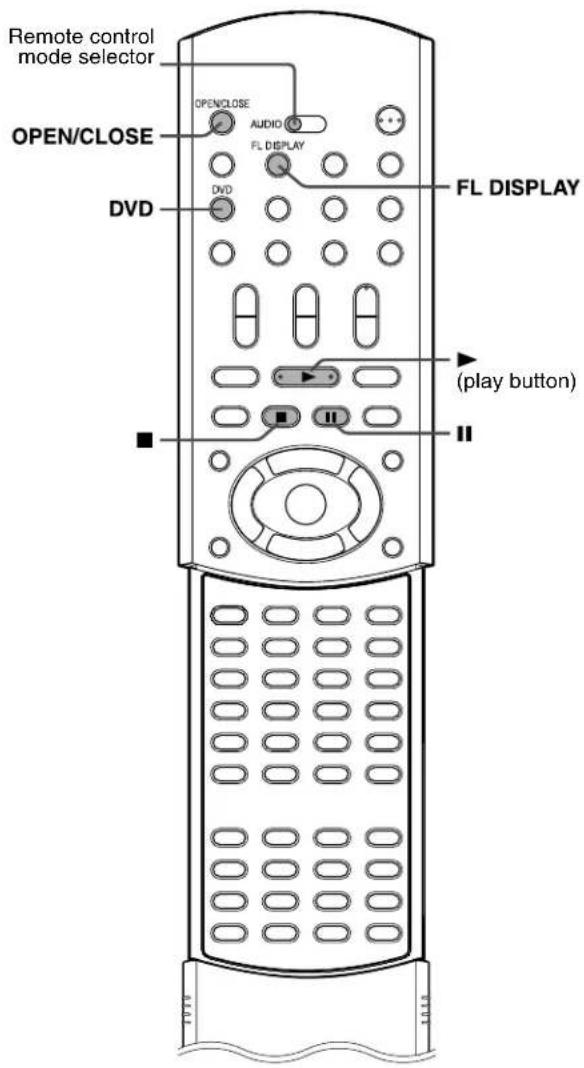
Before using the remote control for the following operation;
1 Set the remote control mode selector to AUDIO.
2 Press DVD.

text_image
Remote control mode selector OPEN/CLOSE DVD AUDIO FL DISPLAY FL DISPLAY (play button)Basic playback
■ To load a disc

1 Press ▲ on the center unit or OPEN/CLOSE on the remote control to open the disc tray.
The system turns on and the disc tray comes out.
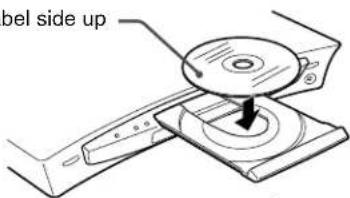
2Place a disc on the disc tray.
With the label side up
text_image
bel side upWhen placing an 8 cm disc

natural_image
Diagram of a CD or DVD disc being inserted into a slot, showing mechanical components without any text or symbols.■ To start playback
3Press ▶ (play button).
The system starts playback after closing the disc tray. You can use the same buttons on the center unit for operations unless otherwise noted.
When loading an MP3 disc
The MP3 control display (☐ pg. 40) appears on the TV screen and playback starts from the first track in the first group after pressing
▶ (play button) in step 3. When all tracks in a group have been played, the system starts playback of tracks in the next group.
When loading a JPEG disc
The slide-show* playback starts from the first file in the first group after pressing ▶ (play button) in step 3. When stopping playback of a JPEG disc, the JPEG control display (≈ pg. 41) appears on the TV screen.
* Slide-show
Each file (still picture) is shown on the TV screen for about 3 seconds, then changed to the next file one after another automatically. When all files in a group have been played, the system starts playback of files in the next group.
■ To pause playback
Press II.
To return to normal playback, press ▶ (play button).
■ To stop playback
Press ■.
To remove a disc
Press ▲ on the center unit or OPEN/CLOSE on the remote control.
NOTE
- You can check playback information on the display window and the TV screen. (I=pg. 37)
- Some tracks on an MP3 disc may be skipped or may not be played back normally.
- When you play back a JPEG disc, press buttons after the whole picture appears on the TV screen. The system cannot accept operations even though you press buttons while showing a picture.
- Some files on a JPEG disc may be played back distortedly.
- If a black screen continuously appears in the slide-show playback, the file currently being played may be a non-baseline JPEG file. In this case, select a playable file (a baseline JPEG file). For example, press or MENU to open the JPEG control display, etc. Note that it may take a long time to select another file.
■Resume Playback (DVD/Video CD/SVCD only)
When Resume Playback is set to "ON" ( pg. 55) and you stop playback by the following operations, the position where playback has been stopped is stored. (The RESUME indicator lights.)
- Turning off the power (pg. 19)
- Pressing
- Changing the source (rpg. 20)
To start playback from the stored position
(The RESUME indicator goes off.)
- Press ▶ (play button) on the remote control or the center unit.
- Select DVD as the source again if you changed the source.
To clear the stored position
Press ■ again or open the disc tray.
- When the stored position has been cleared, playback starts from the beginning of the disc.
■ To prevent screen burn-out with the screen saver
A TV screen may burn out if a static picture is displayed for a long time. To prevent this, the system automatically dims the screen if a static picture is displayed for over 5 minutes (the screen saver function).
- Pressing any button will cancel the screen saver function.
- If you do not want to use the screen saver function, see page 53.
■ On-screen guide icons
During DVD playback, the following guide icons may appear for a while on the TV screen:
• : appears at the beginning of a scene containing multi-subtitle languages.
• : appears at the beginning of a scene containing multi-audio languages.
• : appears at the beginning of a scene containing multi-angle views.
- (Play), (Pause), / (Fast-forward/fast-reverse), / (Slow-motion forward/reverse): appears when you perform each operat
- If “ ” appears on the TV screen when pressing a button, the disc cannot accept an operation you have tried to do or information required for that operation is not recorded to the disc.
NOTE
- In some cases, without showing “ ”, operations will not be accepted.
- If you do not want the on-screen guide icons to appear, see page 55.
■Playback information on the display window
DVD
Example: When a DVD encoded with Dolby Digital 5.1ch is played
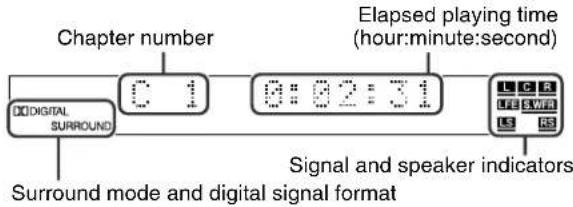
text_image
Chapter number Elapsed playing time (hour:minute:second) Digital SURROUND 0:1 0:02:31 Signal and speaker indicators Surround mode and digital signal format
text_image
Each time FL DISPLAY is pressed, the indications alternate between those shown above and below. Title number Chapter number DVD T 1 C 1 L C R L E S W R L S R Digital SURROUNDVideo CD/SVCD/Audio CD
Example: When a Video CD is played back
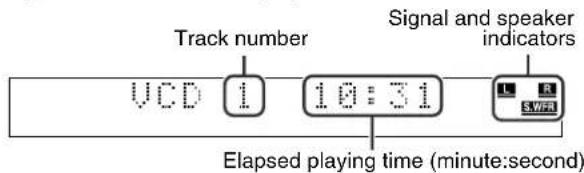
text_image
Track number VCD 1 10:31 Signal and speaker Indicators Elapsed playing time (minute:second)NOTE
- When a Video CD or SVCD with PBC function is played, the elapsed playing time does not appear, but "PBC" appears.
MP3 disc
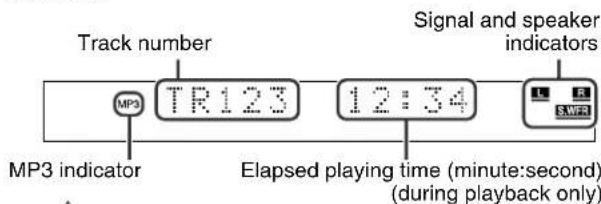
text_image
Track number MP3 TR123 12:34 Signal and speaker indicators MP3 indicator Elapsed playing time (minute:second) (during playback only)
text_image
Each time FL DISPLAY is pressed, the indications alternate between those shown above and below. Group number Track number MP3 MP3 G12 T123 L R SWRJPEG disc
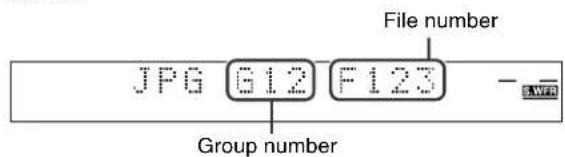
text_image
File number JPG G12 F123 Group number -NOTE
- You can change the time information mode. (LPG. 38)
- You can also check the playback information on the TV screen. (=pg. 37)
■ Tray lock
You can lock the tray and prohibit the unwanted disc ejection by children.
On the center unit ONLY:
While the system is turned off
Press and hold ■, then press ▲.

- The system turns on and "LOCKED" appears on the display window.
- If you try to eject a disc, "LOCKED" appears and indicates that the tray is locked.
To unlock the tray
When the system is turned off, press and hold ■, then press ▲.
- The system turns on and "UNLOCKED" appears on the display window.
Playback features
IMPORTANT
Before using the remote control for the following operation;
1 Set the remote control mode selector to AUDIO.
2 Press DVD.
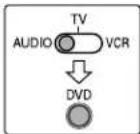
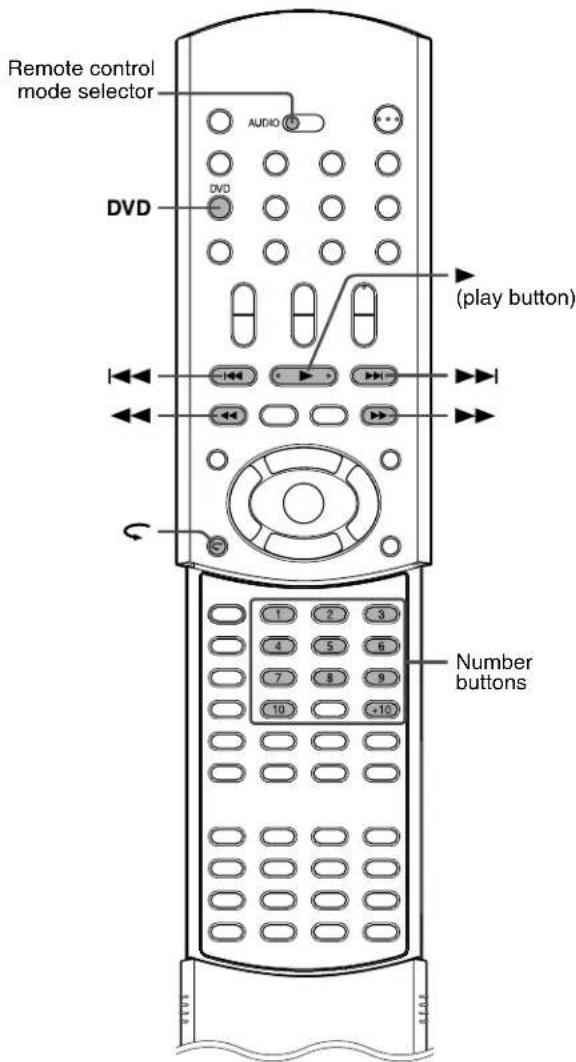
text_image
Remote control mode selector AUDIO DVD ( play button ) Number buttons 1 2 3 4 5 6 7 8 9 10 +10One Touch Replay
You can move back the playback position by 10 seconds from the current position.
DVD
■During playback
On the remote control:
Press ↻.
NOTE
• This function works between chapters in the same title.
• This function may not work for some DVDs.
Fast-forward/fast-reverse search
You can search for a particular point while playing a disc.
■During playback
On the remote control:
Press ▶▶/◀◀.
Each time you press the button, the search speed changes as follows;
Forward:

Reverse:

* and x are only available for DVD.
To return to normal speed playback
Press ▶ (play button).
On the remote control and the center unit:
Press and hold ▶▶|/◀◀.
Continuously pressing ▶▶|/◀◀ increases the fast-forward/reverse search speed as follows;

To return to normal speed playback
Release the button.
NOTE
- When a DVD, Video CD or SVCD is played back, no sound comes out during fast-forward/reverse search.
- When an Audio CD is played back, sound is intermittent and low during fast-forward/reverse search.
- This function may not work for some DVDs.
Locating the beginning of a desired selection
You can locate the beginning of a chapter, track or file.

■For DVD (chapter): During playback For Video CD/SVCD (track): During playback without PBC function For Audio CD/MP3/JPEG (track/file): During playback or while stopped
To skip chapters, tracks or files forward
Press ▶▶| as many times as required.
To skip to the beginning of the current chapter, track or file
Press ◀◀ once.
To skip chapters, tracks or files backward
Press ◀◀ as many times as required.
NOTE
• This function may not work for some DVDs.
- When playing a Video CD or SVCD with the PBC function, ▶▶1 and ◀◀◀ may be used for the operations of menu-driven playback. (zzpg. 4, 39)
- When playing back an MP3/JPEG disc, you can make operations using the MP3/JPEG control display. (27 pg. 40, 41)
Locating a desired selection using number buttons
You can locate the desired title, chapter, track or file by selecting its number.

■For DVD (title, chapter):
While stopped (the title number is selected.) During playback (the chapter number is selected.)
For Video CD/SVCD (track): During playback without PBC function
For Audio CD/MP3/JPEG (track/file): During playback or while stopped
On the remote control:
Press number buttons (1-10, +10) to select the desired title, chapter or track number.
Examples:
To select 3: Press 3.
To select 14: Press +10, then 4.
To select 24: Press +10 twice, then 4.
To select 40: Press +10 three times, then 10.
The specified title, chapter, track or file number appears on the display window and playback begins from that location.
NOTE
- While playing a DVD, if a menu is shown on the TV screen, number buttons may be used for selecting an item in the menu. (C= pg. 38)
- While playing a Video CD or SVCD with the PBC function, if a menu is shown on the TV screen, number buttons are used for selecting an item in the menu. (27pg. 39)
You can browse through all the stations or use the preset function to go immediately to a particular station.
IMPORTANT
Before using the remote control for the following operation;
1 Set the remote control mode selector to AUDIO.
2 Press FM/AM.

text_image
Remote control mode selector AUDIO FM/AM TUNING ⊖ MEMORY TUNING ⊕ TUNING ⊕ MEMORY FM MODE FM MODE Number buttonsManual tuning
On the remote control:
1 Press FM/AM repeatedly to select the band.
Each time you press the button, the band alternates between FM and AM (MW).
The selected band appears on the display window, then the last received station appears.
Example: When AM is selected

text_image
A M TUNED L R SWFR After a few seconds 810 kHz TUNED L R SWFR2 Press TUNING ⊕ or TUNING ⊖ repeatedly until you find the frequency you want.
When you hold down the button until the system starts searching for stations and then release it, the system stops searching automatically when a station of sufficient signal strength is tuned in to.
• TUNING ⊕: Increases frequency.
• TUNING ⊖: Decreases frequency.
NOTE
- When a station of sufficient signal strength is tuned in, the TUNED indicator lights on the display window.
- When an FM stereo program is received, the ST indicator lights on the display window.
Preset tuning
Once a station is assigned to a channel number, the station can be quickly tuned in. You can preset 30 FM and 15 AM (MW) stations.
■ To preset the stations
NOTE
Before you start operation;
- There is a time limit when doing the following steps. If the setting is cancelled before you finish, start from step 2 again.
1 Tune in the station you want to preset.
- For the detailed procedure, see "Manual tuning".
- If you want to store the FM reception mode for an FM station, select the reception mode you want. See “Selecting the FM reception mode” (Lpg. 28).

2 Press MEMORY.
The channel number position starts flashing on the display window for about 5 seconds.

While the channel number position is flashing:
3 Press number button(s) (1-10, +10) to select a channel number.
The channel number and the CH indicator start flashing.
Examples:
For channel number 3: Press 3.
For channel number 14: Press +10, then 4.
(For FM stations only)
For channel number 24: Press +10 twice, then 4.
For channel number 30: Press +10 twice, then 10.

text_image
CH 103.50MHz TUNED ST AUTO MUTING L R SWFRWhile the selected number is flashing:
4 Press MEMORY again.
The selected number stops flashing.
The station is assigned to the selected preset number.
5 Repeat steps 1 to 4 until you store all the stations you want.
To erase a stored preset station
Storing a new station to a used number erases the previously stored one.
■ To tune in to a preset station
On the remote control:
1 Press FM/AM repeatedly to select the band.
Each time you press the button, the band alternates between FM and AM (MW).
2 Press number button(s) (1-10, +10) to select a preset channel number.
Examples:
For channel number 3: Press 3.
For channel number 14: Press +10, then 4.
(For FM stations only)
For channel number 24: Press +10 twice, then 4.
For channel number 30: Press +10 twice, then 10.
Selecting the FM reception mode
When the stereo FM program currently tuned in is noisy, you can change the FM reception mode to improve the reception.
- You can store the FM reception mode for each preset station. See “Preset tuning” (pg. 27).
■ While listening to an FM station
On the remote control:
Press FM MODE.
The FM reception mode appears on the display window.
Each time you press the button, the FM reception mode alternates between "AUTO MUTING" and "MONO".
• AUTO MUTING:
When a program is broadcast in stereo, you will hear stereo sound. (The ST indicator lights on the display window.) When in monaural, you will hear monaural sound. This mode is also useful to suppress static noise between stations. The AUTO MUTING indicator lights on the display window.
• MONO:
Reception will be improved although you will lose the stereo effect. (The ST indicator goes off.) In this mode, you will hear noise until you are tuned in to a station. (The AUTO MUTING indicator also goes off.)
Reducing the noise of AM (MW) broadcast
When listening to an AM (MW) broadcast with a lot of noise interference, you can change the Beat Cut mode to reduce the noise.
■While listening to an AM (MW) station
On the remote control:
Press FM MODE.
The current Beat Cut mode appears on the display window. Each time you press the button, the Beat Cut mode alternates between "BEAT CUT 1" and "BEAT CUT 2".
- Choose “BEAT CUT 1” or “BEAT CUT 2” according to which gives clearer sound.
Using the RDS (Radio Data System) when receiving FM stations
RDS allows FM stations to send an additional signal along with their regular program signals. For example, the stations send their station names, as well as information about what type of program they broadcast, such as sports or music, etc.
When tuned in to an FM station which provides the RDS service, the RDS indicator lights up on the display window.

text_image
103.50MHz TUNED L R ST AUTO MUTING S.WFR RDS RDS indicatorWith the system, you can receive the following types of RDS signals:
PS (Program Service): Shows commonly known station names.
PTY (Program Type): Shows types of broadcast programs.
RT (Radio Text): Shows text messages the station sends.
Enhanced Other Network: See page 31.
NOTE
- RDS is not available for AM (MW) broadcasts.
- RDS may not operate correctly if the station tuned is not transmitting RDS signal properly or if the signal strength is weak.
IMPORTANT
Before using the remote control for the following operation;
1 Set the remote control mode selector to AUDIO.
2 Press FM/AM.
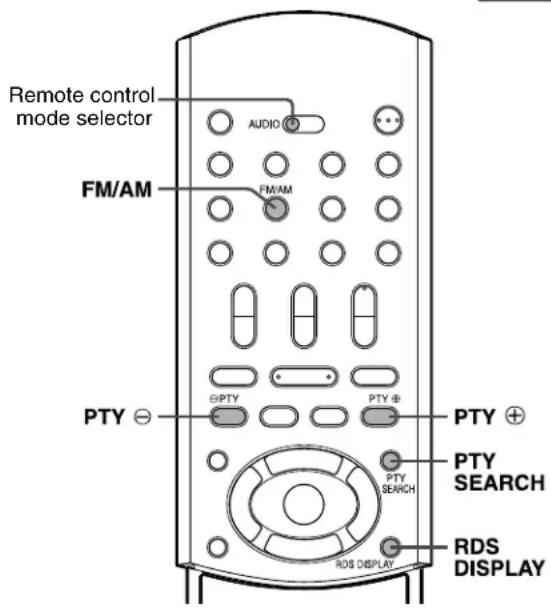
text_image
Remote control mode selector AUDIO FM/AM FTM/AM PTY GPTY PTY PTY PTY PTY SEARCH RDS DISPLAY RDS DISPLAY■ To show the RDS signals information
On the remote control:
Press RDS DISPLAY while listening to an FM station.
Each time you press the button, the indication on the display window changes to show you the following information:
PS PTY RT Frequency (Normal indication) (back to the beginning)
PS (Program Service):
While searching, "PS" appears and then the station names will be displayed. "NO PS" appears if no signal is sent.
PTY (Program Type):
While searching, "PTY" appears and then the type of the broadcast program will be displayed. "NO PTY" appears if no signal is sent. RT (Radio Text):
While searching, "RT" appears and then text messages the station sends will be displayed. "NO RT" appears if no signal is sent.
Frequency:
Station frequency (non-RDS service).
About characters shown on the display window
When PS, PTY, or RT signals appear on the display window, some special characters and marks may not be displayed correctly.
NOTE
- If searching finishes at once, “PS”, “PTY”, and “RT” will not appear on the display window.
Searching for a program by PTY codes
One of the advantages of the RDS service is that you can locate a particular kind of program from the preset channels ( pg. 27) by specifying the PTY codes.
■ To search for a program using the PTY codes
NOTE
Before you start operation;
• The PTY Search is only applicable to preset stations.
- To stop searching any time during the process, press PTY SEARCH while searching.
- There is a time limit in doing the following steps. If the setting is canceled before you finish, start from step 1 again.
On the remote control:
1 Press PTY SEARCH while listening to an FM station.
"PTY SELECT" flashes on the display window.
While "PTY SELECT" is flashing:
2 Press PTY ⊕ or PTY ⊖ until the PTY code you want appears on the display window.
- For details, see "Description of the PTY codes" (pg. 31).
While the PTY code selected in step 2 is still on the display window:
3 Press PTY SEARCH again.
While searching, "SEARCH" and the selected PTY code alternate on the display window.
The system searches 30 preset FM stations, stops when it finds the one you have selected, and tunes in that station.
To continue searching after the first stop
Press PTY SEARCH again while the indications on the display window are flashing.
If no program is found, "NOT FOUND" appears on the display window.
The PTY codes appears on the display window in the order of the table below.

flowchart
graph TD
    A["Alarm !"] --> B["TEST"]
    B --> C["Document"]
    C --> D["Folk M (Music)"]
    D --> E["Oldies"]
    E --> F["Nation M (Music)"]
    F --> G["Country"]
    G --> H["Jazz"]
    H --> I["Leisure"]
    I --> J["Travel"]
    J --> K["Phone In"]
    K --> L["Religion"]
    L --> M["Social"]
    M --> N["Children"]
    N --> O["Finance"]
    O --> P["Weather"]
    P --> Q["News"]
    Q --> R["Affairs"]
    R --> S["Info (Information)"]
    S --> T["Sport"]
    T --> U["Educate (Education)"]
    U --> V["Drama"]
    V --> W["Culture"]
    W --> X["Science"]
    X --> Y["Varied"]
    Y --> Z["Pop M (Music)"]
    Z --> AA["Rock M (Music)"]
    AA --> AB["Easy M (Music)"]
    AB --> AC["Light M (Music)"]
    AC --> AD["Classics"]
    AD --> AE["Other M (Music)"]
    AE --> P
    style A fill:#f9f,stroke:#333
    style Q fill:#f9f,stroke:#333
    style R fill:#f9f,stroke:#333
    style S fill:#f9f,stroke:#333
    style T fill:#f9f,stroke:#333
    style U fill:#f9f,stroke:#333
    style V fill:#f9f,stroke:#333
    style W fill:#f9f,stroke:#333
    style X fill:#f9f,stroke:#333
    style Y fill:#f9f,stroke:#333
    style Z fill:#f9f,stroke:#333
    style AA fill:#f9f,stroke:#333
    style AB fill:#f9f,stroke:#333
    style AC fill:#f9f,stroke:#333
    style AD fill:#f9f,stroke:#333
    style AE fill:#f9f,stroke:#333
Description of the PTY codes
| News: News. | |
| Affairs: Topical program expanding or enlarging upon the news — debate, or analysis. | |
| Info: Programs the purpose of which is to impart advice in the widest sense. | |
| Sport: Programs concerned with any aspect of sports. | |
| Educate: Educational programs. | |
| Drama: All radio plays and serials. | |
| Culture: Programs concerning any aspect of national or regional culture, including language, theater, etc. | |
| Science: Programs about natural sciences and technology. | |
| Varied: Used for mainly speech-based programs such as quizzes, panel games and personality interviews. | |
| Pop M: Commercial music of current popular appeal. | |
| Rock M: Rock music. | |
| Easy M: Current contemporary music considered to be “easy-listening”. | |
| Light M: Instrumental music, and vocal or choral works. | |
| Classics: Performances of major orchestral works, symphonies, chamber music, etc. | |
| Other M: Music not fitting into any of the other categories. | |
| Weather: Weather reports and forecasts. | |
| Finance: Stock Market reports, commerce, trading etc. | |
| Children: Programs targeted at a young audience. | |
| Social: Programs about sociology, history, geography, psychology and society. | |
| Religion: Religious programs. | |
| Phone In: Involving members of the public expressing their views either by phone or at a public forum. | |
| Travel: Travel information. | |
| Leisure: Programs about recreational activities. | |
| Jazz: Jazz music. | |
| Country: Songs which originate from, or continue the musical tradition of the American Southern States. | |
| Nation M: Current popular music of the nation or region in that country’s language. | |
| Oldies: Music from the so-called “golden age” of popular music. | |
| Folk M: Music which has its roots in the musical culture of a particular nation. | |
| Document: Programs concerning factual matters, presented in an investigative style. | |
| TEST: Broadcasts for testing emergency broadcast equipment or unit. | |
| Alarm !: Emergency announcement. | |
| None: No program type, undefined program, or difficult to categorize into particular types. |
NOTE
- Classification of the PTY codes for some FM stations may be different from the above list.
Switching to broadcast program of your choice temporarily
Another convenient RDS service is called "Enhanced Other Network".
This allows the system to switch temporarily to a broadcast program of your choice (TA, News, and/or Info) from a different station except in the following cases:
- When you are listening to non-RDS stations (all AM – MW stations, some FM stations and other sources).
- When the system is in standby mode.
NOTE
Before you start operations;
- The Enhanced Other Network function is only applicable to preset stations.
IMPORTANT
Before using the remote control for the following operation;
1 Set the remote control mode selector to AUDIO.
2 Press FM/AM.


text_image
Remote control mode selector FM/AM AUDIO FM/AM TA/NEWS/INFO TA/NEWS/ INFO RDS DISPLAY RDS DISPLAYPress TA/NEWS/INFO repeatedly until the program type indicator (TA/News/Info) you want appears on the display window.
Each time you press the button, the indicator on the display window changes to show the following:

The program type indicator
TA News Info TA/News TA/Info News/Info
TA/News/Info None (back to the beginning)
TA: Traffic Announcement in your area.
News: News.
Info: Program the purpose of which is to impart advice in the widest sense.
To stop listening to the program selected by Enhanced Other Network
Press TA/NEWS/INFO repeatedly again so that the program type indicator (TA/News/Info) goes off from the display window. The system exits from Enhanced Other Network standby mode and goes back to the previously selected station.
When an emergency broadcast (Alarm! signal) is sent from an FM station
The system automatically tunes in to the station and “Alarm!” appears on the display window while the system receiving the emergency broadcast.
Note that an emergency broadcast cannot be received in the following cases;
- When you are listening to non-RDS stations (all AM — MW stations, some FM stations and other sources).
- When the system is in standby mode.
The TEST signal is used for equipment test — whether it can receive the Alarm signal correctly
The TEST signal makes the system work in the same way as the Alarm signal does. If the TEST signal is received, the system automatically switches to the station broadcasting the TEST signal. While receiving the TEST signal, “TEST” appears on the display window.
■ How the Enhanced Other Network function actually works
Case 1
If there is no station broadcasting the program you have selected
The system continues tuning in to the current station. ↓
When a station starts broadcasting the program you have selected, the system automatically switches to the station. The indicator of received PTY code starts flashing.
↓
When the program is over, the system goes back to the previously tuned station, but the Enhanced Other Network function still remains activated.
Case 2
If the FM station you are listening to is broadcasting the program you have selected
The system continues to receive the station but the indicator of received PTY code starts flashing.
↓
When the program is over, the indicator of received PTY code stops flashing and remains lit, but the Enhanced Other Network function still remains activated.
NOTE
- In Enhanced Other Network standby mode, if you change the source to play, Enhanced Other Network standby mode is canceled temporarily.
If you change the source to FM again, the system returns to Enhanced Other Network standby mode.
- Enhanced Other Network data sent from some stations may not be compatible with this system.
- Enhanced Other Network does not function for some FM stations with RDS service.
- While listening to a program tuned in by the Enhanced Other Network function, the station does not change even if another network station starts broadcasting a program of the same Enhanced Other Network data.
- While listening to a program tuned in by the Enhanced Other Network function, you can only use TA/NEWS/INFO and RDS DISPLAY as the tuner operation buttons.
You can use the following surround modes to reproduce a realistic sound field.
- Dolby Surround
• Dolby Pro Logic II - Dolby Digital
• DTS Digital Surround - DSP modes
- DAP modes
- All Channel Stereo
■ Dolby Surround
Dolby Pro Logic II\*
Dolby Pro Logic II has a newly developed multichannel playback format to decode all 2 channel sources — stereo source and Dolby Surround encoded source — into a 5.1 channel.
The matrix-based encoding/decoding method used by Dolby Pro Logic II makes no limitation for the cutoff frequency of the treble from surround channel and enables stereo surround sound compared to conventional Dolby Pro Logic.
Dolby Pro Logic II enables to reproduce spacious sound from original sound without adding any new sounds and tonal coloration. Dolby Pro Logic II has two modes — Movie mode and Music mode:
• Pro Logic II Movie (PL II MOVIE)
Suitable for reproduction of Dolby Surround encoded sources bearing the mark ☐ you can enjoy soundfield very close to the one created with discrete 5.1 channel sounds.
• Pro Logic II Music (PL II MUSIC)
Suitable for reproduction of any 2 channel stereo music sources.
You can enjoy wide and deep sound by using this mode.
- When Dolby Pro Logic II is activated, the ☐☐PLII indicator lights on the display window.
Dolby Digital\*
Used to reproduce multichannel soundtracks of the software encoded with Dolby Digital (DOLBY DIGITAL)
Dolby Digital 5.1 ch (DOLBY D) encoding method (so-called discrete multichannel digital audio format) records and digitally compresses the front left channel, front right channel, center channel, surround left channel, surround right channel and LFE channel signals.
Since each channel is completely independent from the other channel signals to avoid interference, you can obtain much better sound quality with much stereo and surround effects.
NOTE
- Dolby Digital software can be roughly grouped into two categories-multichannel (up to "5.1" channel) and 2 channel software. To enjoy surround sounds while playing Dolby Digital 2 ch software, you can use Dolby Pro Logic II.
■ DTS Digital Surround\*\*
Used to reproduce multichannel soundtracks of the software encoded with DTS Digital Surround (
DTS Digital Surround (DTS) is another discrete multichannel digital audio format available on CD, LD and DVD software. Compared to Dolby Digital, audio compression ratio is relatively low. This fact allows DTS Digital Surround format to add breadth and depth to the reproduced sounds. As a result, DTS Digital Surround features natural, solid and clear sound.
■ DSP modes
DAP (Digital Acoustic Processor) modes
DAP modes have been designed to create important acoustic surround elements.
The sound heard in a live club, dance club, hall or pavilion consists of direct sound and indirect sound — early reflections and reflections from behind. Direct sounds reach the listener directly without any reflection. On the other hand, indirect sounds are delayed by the distances of the ceiling and walls (see the diagram below).
These indirect sounds are important elements of the acoustic surround effects. The DAP mode can reproduce a realistic sound field by adding these indirect sounds.
The following DAP modes are provided with this system.
| LIVE CLUB | Gives the feeling of a live music club with a low ceiling. |
| DANCE CLUB | Gives a throbbing bass beat. |
| HALL | Gives clear vocal and the feeling of a concert hall. |
| PAVILION | Gives the spacious feeling of a pavilion with a high ceiling. |
These DAP modes can be used to add the acoustic surround effects while reproducing 2 channel stereo source, and can give you a real “being there” feeling.
- When one of the DAP modes is selected, the DSP indicator lights on the display window.
Creating sound field
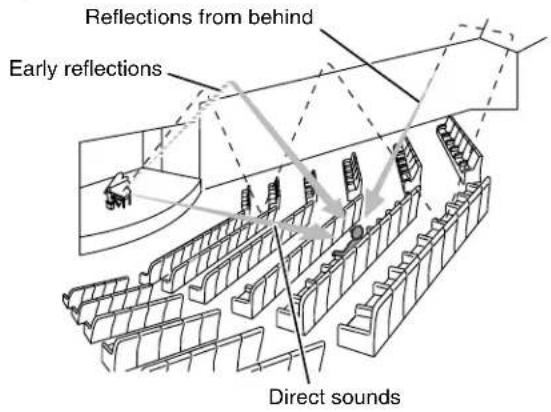
text_image
Reflections from behind Early reflections Direct soundsAll Channel Stereo
All Channel Stereo (ALL CH ST.) mode can reproduce a larger stereo sound field using all the connected (and activated) speakers. All Channel Stereo can be used while reproducing 2 channel stereo source.
- When All Channel Stereo is selected, the DSP indicator lights on the display window.
All Channel Stereo reproduction
Normal stereo sound All Channel Stereo

flowchart
graph TD
    A["Device Layout"] --> B["Wireless Network"]
    B --> C["Arrow pointing to the next setup"]
    C --> D["Wireless Network"]
    D --> E["Device Layout"]
    style A fill:#f9f,stroke:#333
    style B fill:#ccf,stroke:#333
    style C fill:#cfc,stroke:#333
    style D fill:#fcc,stroke:#333
    style E fill:#cff,stroke:#333
■ Indicators on the display window
Digital signal format indicators
LPCM: Lights when Linear PCM signal comes in.
☐ DIGITAL: Lights when Dolby Digital signals come in.
dts: Lights when DTS Digital (Surround) signals come in.
No indication: No digital signal indicator lights when analog signals come in.
Source signal indicators, etc.
Light to indicate the incoming signals.
L: Lights when the left channel signal comes in.
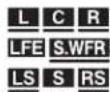
C: Lights when the center channel signal comes in.
R: Lights when the right channel signal comes in.
LFE: Lights when the LFE channel signal comes in.
LS: Lights when the surround left channel signal comes in.
RS: Lights when the surround right channel signal comes in.
S: Lights when the monaural surround channel signal or 2 channel Dolby Surround signal comes in.
R: Always lights.
The channel with “” shows that the corresponding speakers are reproducing the channels’ sound.
If the channels' sound decoded into 5.1 channel is reproduced, only "lights.
Available Surround modes for each input signal
The marks show available surround modes.
| Mode Signal | Surround off (SURR OFF) | Dolby Surround | DTS Digital Surround (DTS) | DSP mode | ||||||
| DAP mode | ALL CH ST.* | |||||||||
| PL II MOVIE* | PL II MUSIC* | Dolby Digital | LIVE CLUB* | DANCE CLUB* | HALL* P | AVILION* | ||||
| Dolby Digital (Multichannel) | √ | — | — | √ | — | — | — | — | — | — |
| Dolby Digital (2 channel) | √ | √ | √ | — | — | — | — | — | — | — |
| DTS Digital Surround (Multichannel) | √ | — | — | — | √ | — | — | — | — | — |
| DTS Digital Surround (2 channel) | √ | √ | √ | — | — | — | — | — | — | — |
| Analog (VCR/FM/AM) or Linear PCM | √ | √ | √ | — | — | √ | √ | √ | √ | √ |
* You can select these modes by pressing SURR-MODE. (☐ pg. 35)
IMPORTANT
Before using the remote control for the following operation;
- Set the remote control mode selector to AUDIO.
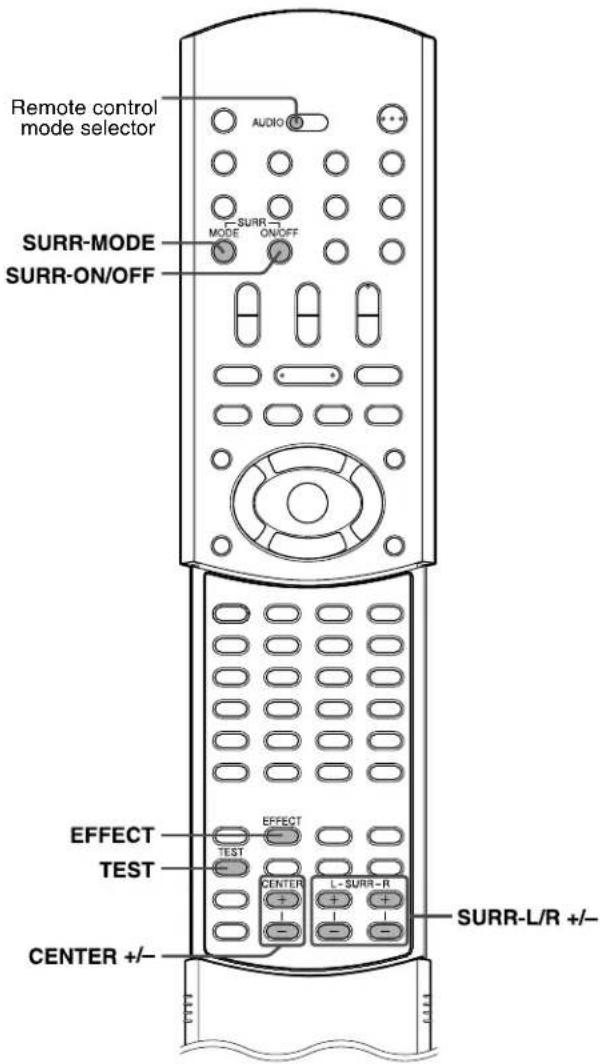
text_image
Remote control mode selector SURR-MODE SURR-ON/OFF AUDIO SURR MODE ON/OFF EFFECT TEST CENTER L - SURR - R EFFECT TEST SURR-L/R +/- CENTER +/-Using the surround mode
The system is set up to automatically select the optimal surround mode for input signal from digital multichannel software.
When playing back 2 channel source, you can select the desired surround mode manually.
On the remote control:
■ When playing back digital multichannel software
The appropriate multichannel surround mode is automatically activated.
"DOLBY D": When a software encoded with Dolby Digital is played back
“DTS”: When a software encoded with DTS Digital Surround is played back
In these cases, you can only turn on or off ("SURR OFF") the surround mode.
■ When playing back 2 channel source
You can select either mode of Dolby Pro Logic II (PL II MOVIE/PL II MUSIC) or one of the DSP modes (LIVE CLUB/DANCE CLUB/HALL/PAVILION/ALL CH ST.).
Press SURR-MODE.
The surround mode is turned on and the current surround mode appears on the display window.
Each time you press the button, the surround mode changes as follows;
PL II MOVIE PL II MUSIC LIVE CLUB DANCE CLUB HALL PAVILION ALL CH ST. (back to the beginning)
For details on each mode, see pages 33 and 34.
To turn off the surround mode
Press SURR-ON/OFF.
Each time you press the button, the surround mode turns on and off alternately.
SURR OFF (surround off) ⊖ current selected mode (surround on)
NOTE
- When selecting "PL II MUSIC", "PL II MOVIE", "DOLBY D" or "DTS" as the surround mode, the SURROUND indicator lights.
- When selecting one of the DSP modes ("LIVE CLUB"/"DANCE CLUB"/"HALL"/"PAVILION"/"ALL CH ST.") as the surround mode, the DSP indicator lights.
- For Dolby Digital 2 channel software, you can select "PL II MUSIC" or "PL II MOVIE".
Storing adjustments — auto memory
This system memorizes the surround mode settings for each source.
- When you turn the power off:
When turning the power on again, the memorized settings for the current source are automatically recalled.
- When you change the source:
The memorized settings for the newly selected source are automatically recalled.
NOTE
- If the source is FM or AM (MW), you can assign a different setting for each band.
Adjusting the sound
On the remote control:
1 Press TEST.
Check if you can hear the sounds through all the speakers at the equal level.
"TEST TONE" and the corresponding signal indicator starts flashing on the display window, and the test tone comes out of the speakers in the following order;

text_image
TEST TONE LFront left speaker (L) Center speaker (C) Front right speaker (R) Surround right speaker (RS) Surround left speaker (LS) (back to the beginning)
2 Adjust the speaker output levels (-10 to +10).
Adjust the center speaker and surround speaker levels as much as the sound from the front speakers. Use one of the following buttons to adjust each speaker level.
- CENTER +/- for the center speaker
- SURR-L +/- for the surround left speaker
- SURR-R +/- for the surround right speaker
3 Press TEST again to stop the test tone.
■ For DAP modes (pg. 33) only
4 Press EFFECT to select the effect level (1 to 5) you want.
Each time you press the button, the effect level changes as follows;
DSP EFFECT 1 DSP EFFECT 2 DSP EFFECT 3 DSP EFFECT 4 DSP EFFECT 5 (back to the beginning)
As the number increases, the selected mode will be more effective. (Normally set the level to "DSP EFFECT 3".)
NOTE
- You cannot adjust the center speaker output level for the DAP modes and the effect level for All Channel Stereo.
- You can output the test tone in any surround mode, or even when surround mode is not activated.
- Speaker output levels whose source signal indicator is lit can be adjusted without pressing TEST.
- When selecting DVD as the source, you can also adjust the speaker output levels using the choice menu. (C) pg. 53)
This section explains advanced operations for disc playback using the remote control.
- SIVS VCD VCD CD MP3 LNEU discs an operation is available for.
- Turn on your TV and select the correct input mode on the TV.
NOTE
- If “ ” appears on the TV screen when pressing a button, the disc cannot accept an operation you have tried to do or information required for that operation is not recorded to the disc.
Using the on-screen bar
You can check disc information while the disc is loaded and you can use some functions using the on-screen bar.
IMPORTANT
Before using the remote control for the following operation;
1 Set the remote control mode selector to AUDIO.
2 Press DVD.
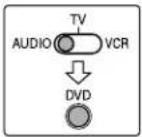

text_image
Cursor (►/◄/▼/▲) /ENTER ENTER ON SCREEN ON SCREENShowing the on-screen bar
■ Whenever a disc is loaded

Press ON SCREEN.
Each time you press the button, the on-screen bar changes as follows on the TV screen.
Example: During DVD playback
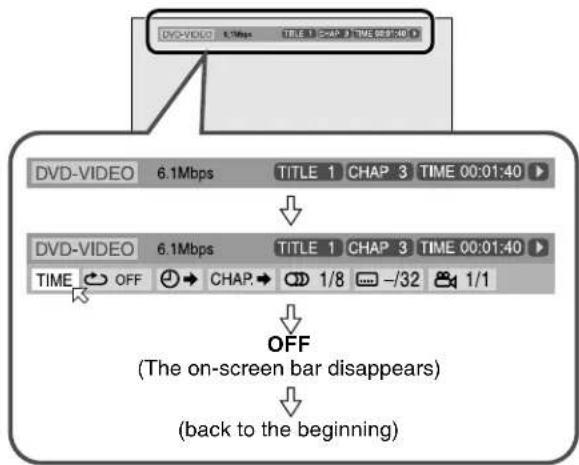
text_image
DVD-VIDEO 6.1Mbps TITLE 1 CHAP 3 TIME 00:01:40 DVD-VIDEO 6.1Mbps TITLE 1 CHAP 3 TIME 00:01:40 TIME OFF CHAP 1/8 -32 1/1 OFF (The on-screen bar disappears) (back to the beginning)■ Contents of the on-screen bar during playback
DVD

text_image
DVD-VIDEO 6.1Mbps TITLE 1 CHAP 3 TIME 00:01:40 TIME OFF CHAP 1/8 -/32 1/1Video CD
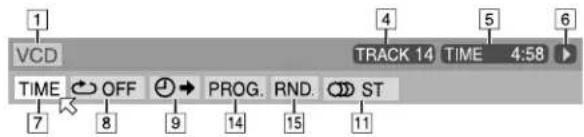
text_image
1 VCD 4 5 6 TRACK 14 TIME 4:58 TIME OFF PROG. RND ST 7 8 9 14 15 11SVCD

text_image
SVCD TRACK 14 TIME 4:58 TIME OFF PROG. RND. ST1 1/4CD
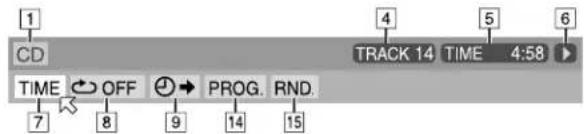
text_image
1 CD 4 5 6 TRACK 14 TIME 4:58 TIME OFF PROG. RND. 7 8 9 14 151Shows disc type.
②Shows current transfer rate (Megabits per second).
3Shows current title (for DVD).
4 Shows current chapter number (for DVD) or track number (for other type of discs).
5 Shows time information. (pg. 38)
6Shows playback status.
: appears during playback.
/ appears during fast forward/reverse.
/ Appears during playback in forward slow-motion/reverse slow-motion.
II: appears when paused.
□: appears when stopped.
7 Select this to change time information (5). (r=pg. 38)
8 Select this for Repeat Playback. (pg. 48)
9 Select this for time search function. (pg. 40)
10 Select this for chapter search function. (r=pg.39)
11 Select this to change audio language or channel. (pg. 43, 44)
12 Select this to change subtitle language. (pg. 43)
13 Select this to change view angle. (pg. 42)
14 Select this for Program Playback. (pg. 47)
15 Select this for Random Playback. (pg. 48)
Basic operation on the on-screen bar
Example: When selecting the Repeat mode of DVD
■ During playback or while stopped
1 Press ON SCREEN twice.
The on-screen bar appears on the TV screen.
• The currently selected item shows green.

text_image
DVD-VIDEO 6.1Mbps TITLE 1 CHAP 3 TIME 00:01:40 TIME OFF CHAP 1/8 -32 1/12 Press Cursor ▶/◀ to move ✉ to ↻
3 Press ENTER.
The pop-up window appears under the selected item.
• The current setting appears.

text_image
DVD-VIDEO 6.1Mbps TITLE 1 CHAP 3 TIME 00:01:40 TIME → ↔ CHAP→ 1/8 -32 1/1 OFF4 Press Cursor ▼/▲ to select the desired option.
Each time you press the button, the options change.

text_image
DVD-VIDEO 6.1Mbps TITLE 1 CHAP 3 TIME 00:01:40 TIME → CHAP.→ 1/8 -32 1/1 TITLE5 Press ENTER.
The setting changes and the pop-up window disappears.

text_image
DVD-VIDEO 6.1Mbps TITLE 1 CHAP 3 TIME 00:01:40 TIME TITLE CHAP. 1/8 -/32 1/1To turn off the on-screen bar Press ON SCREEN.
NOTE
• See the corresponding pages for details on each function.
Changing the time information
You can change the time information in the on-screen bar on the TV screen and the display window of the center unit.

■ During playback or while stopped
1 Press ON SCREEN twice.
The on-screen bar appears on the TV screen.
2 Press Cursor ▶/◀ to move ✉ to TIME
3 Press ENTER.
Each time you press the button, the time information changes as follows;
Example: During DVD playback

⇒ T.REM 0:45:41 ⇒ (back to the beginning)
• TIME: Elapsed playing time of current chapter/track
- REM: Remaining time of current chapter/track
• TOTAL: Elapsed time of disc
• T. REM: Remaining time of disc
To turn off the on-screen bar Press ON SCREEN.
NOTE
- While playing a Video CD, SVCD or Audio CD, the hour digit indication does not appear.
Playing from a specified position on a disc
You can start playing a title, chapter or track you specify. You can also play a disc from specified time.
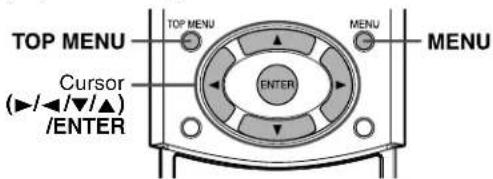
text_image
TOP MENU TOP MENU MENU MENU Cursor (►/◄/▼/▲) /ENTER ENTERLocating a desired scene from the DVD menu
DVDs generally have their own menus which show disc contents. These menus contain various items such as titles of movies, names of songs or artist information, and you can display them on the TV screen. You can locate a desired by using these menus.

■ Whenever a DVD is loaded
1 Press TOP MENU or MENU.
The menu appears on the TV screen.
Example:

text_image
1 2 3Normally, a DVD which contains more than one title will have a "title" menu which lists the titles. Press TOP MENU to show the title menu.
Some DVDs may also have a different menu which is shown by pressing MENU.
See the instructions for each DVD regarding its particular menu.
2 Use Cursor ▶/◄/▼/▲ to select a desired item.
3 Press ENTER.
The system starts playback of the selected item.
- With some discs, you can also select items by entering the corresponding number using number buttons.

text_image
Cursor (►/◄/▼/▲) /ENTER ENTER ON SCREEN ON SCREEN Number buttons GROUP/ TITLE 1 2 3 4 5 6 7 8 9 10 0 +10Locating a desired scene using a Video CD/SVCD menu with PBC
A Video CD or SVCD recorded with PBC has its own menus such as a list of contained songs. You can locate a specific scene by using these menus. (→pg. 4)
■ When the menu appears on the TV screen during playback with PBC function
Press number buttons (1-10, +10) to select the number of the desired item.
The system starts playback from the selected item.
Example:
text_image
1 2 3To select the number
Example:
To select 3: Press 3.
To select 11: Press +10, then 1.
To return to the menu
Press RETURN.
When "NEXT" or "PREVIOUS" is shown on the TV screen:
• To go to the next page, press ▶▶.
• To return to the previous page, press ◀◀◀.
NOTE
- If you want to play a PBC-compatible Video CD/SVCD without using the PBC function, perform any of the following:
- Start playback by pressing number buttons while stopped.
- Press ▶▶▶I repeatedly until the desired track number is displayed, then start playback by pressing ▶ (play button).
The track number appears on the display window instead of "PBC".
- To activate the PBC function when playing a PBC-compatible Video CD/SVCD without using the PBC function, perform any of the following:
- Press TOP MENU or MENU.
- Press ■ twice to stop playback, then press ▶ (play button).
Locating a desired chapter using the on-screen bar
When playing back a DVD, you can locate the chapter number to be played using the on-screen bar.

■During playback
1 Press ON SCREEN twice.
The on-screen bar appears on the TV screen.
2 Press Cursor ▶/◀ to move ✉ to CHAP.→.
3Press ENTER.
The following pop-up window appears under the selected item.

text_image
DVD-VIDEO 6.1Mbps TITLE 1 CHAP 3 TIME 00:01:40 TIME OFF CHAP.→ 1/8 -/32 1/1 CHAPTER4Press number buttons (0-10) to enter the desired chapter number.
Example:
To select 8: Press 8.
To select 10: Press 10.
To select 20: Press 2, then 0.
To select 37: Press 3, then 7.
To correct a misentry
Repeat step 4 until the correct number appears in the pop-up window.
5Press ENTER.
The system starts playback from the selected chapter.
To turn off the on-screen bar
Press ON SCREEN.
NOTE
• The +10 button is not used by this function.
- You can select up to the 99th chapter.
Locating a desired title/group using number buttons
When playing back a disc with more than one title or one group, you can specify a desired title or group to be played using number buttons.

1 Press GROUP/TITLE.
“__” is shown in the title/group display area in the display window.
Example: During DVD playback

2Use number buttons (0-10, +10) to enter the desired title or group number.
The system starts playback from the first chapter/track/file of the selected title/group.
Example:
To select 8: Press 8.
To select 10: Press 10.
Or press +10, then 0.
To select 20: Press +10, then 10.
Or press +10 twice, then 0.
To select 25: Press +10 twice, then 5.
- Specify the number within 5 seconds after pressing GROUP/TITLE (i.e. while the display window shows “_” for the title/group number, instead of the current number).
- You can also specify the desired chapter/track/file by using number button. (☐pg. 26)
NOTE
• This function may not work for some DVDs.
Locating a desired position by specifying the time
You can start playing at your desired position by specifying the elapsed
playing time from the beginning of
the current title (for DVD), or from the beginning of the disc (for Video CD/SVCD/Audio CD).
■For DVD:
During playback
For Video CD/SVCD:
While stopped or during playback without PBC function
For Audio CD:
During playback or while stopped
1 Press ON SCREEN twice.
The on-screen bar appears on the TV screen.
2 Press Cursor ▶/◀ to move ✉ to ⏻→.
3Press ENTER.
The following pop-up window appears under the selected item.

text_image
DVD-VIDEO 6.1Mbps TITLE 1 CHAP 3 TIME 00:01:40 TIME OFF CHAP 1/8 -32 1/1 TIME : : :4Use number buttons (0-9) to enter the time.
Example:
To play back from a point 2 (hours): 34 (minutes): 08
(seconds) elapsed

flowchart
graph TD
    A["TIME ::_:_"] --> B["TIME 2:_:_"]
    B --> C["Press 2 Press 3"]
    D["TIME 2:3:_:_"] --> E["TIME 2:34:__"]
    E --> F["Press 4"]
    G["TIME 2:34:0_"] --> H["TIME 2:34:08"]
    H --> I["Press 8"]
To correct a misentry
Press Cursor ▶ repeatedly until the wrong number is erased, then press number buttons to enter the correct numbers.
5Press ENTER.
The system starts playback from the specified time.
To turn off the on-screen bar
Press ON SCREEN.
NOTE
- You can also use the 10 button to enter "0".
• T h e +10 button is not used by this function. - You can specify time in hours/minutes/seconds for DVD and in minutes/seconds for Video CD/SVCD/Audio CD.
Using the MP3 control display
You can search and play desired groups and tracks using the MP3 control display.
■ MP3 control display
The MP3 control display appears on the TV screen and playback starts when a MP3 disc is selected.
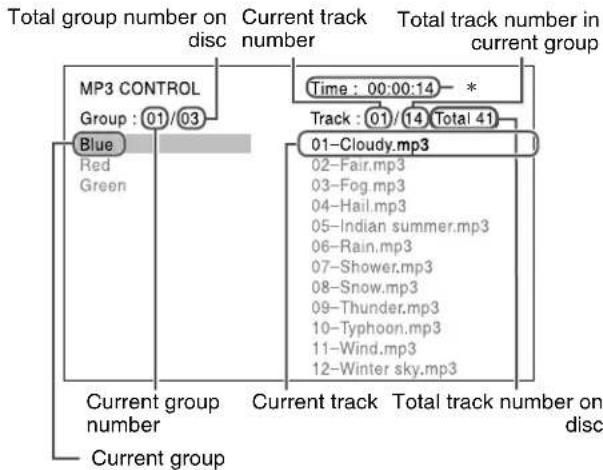
flowchart
graph TD
    A["MP3 CONTROL"] --> B["Blue"]
    A --> C["Red"]
    A --> D["Green"]
    E["Current track number"] --> F["Time: 00:00:14 - *"]
    E --> G["Track: (01/14) Total 41"]
    H["Current track number on disc"] --> I["Current group number"]
    H --> J["Current group"]
    K["Total track number in current group"] --> L["01-Cloudy.mp3"]
    K --> M["02-Fair.mp3"]
    K --> N["03-Fog.mp3"]
    K --> O["04-Hail.mp3"]
    K --> P["05-Indian summer.mp3"]
    K --> Q["06-Rain.mp3"]
    K --> R["07-Shower.mp3"]
    K --> S["08-Snow.mp3"]
    K --> T["09-Thunder.mp3"]
    K --> U["10-Typhoon.mp3"]
    K --> V["11-Wind.mp3"]
    K --> W["12-Winter sky.mp3"]
* Elapsed playing time of current track
Elapsed playing time is only shown during playback.

text_image
plot button) Cursor (►/◄/▼/▲) /ENTER ENTER Number buttons■During playback
1 Press Cursor ▼/▲ to select the desired group.
2 Press Cursor ▶ to select the track list.
3 Press Cursor ▼/▲ to select the desired track.
The playback starts from the selected track.
If you select the track while stopped
Press ENTER or ▶ (play button) to start playback of the selected track.
To select the other group
Press Cursor ◀ to return to the group list, then press Cursor ▼/▲ to select the desired group.
To skip groups/tracks during playback
Press Cursor ▼ repeatedly for forward-skip.
Press Cursor ▲ repeatedly for reverse-skip.
To start playback by specifying the track number Press number buttons (0-10, +10) to enter the track number.
Example:
To select 3: Press 3.
To select 14: Press +10, then 4.
To select 20: Press +10, then 10.
Or press +10 twice, then 0.
To select 24: Press +10 twice, then 4.
To select 110: Press +10 ten times, then 10.
The entered number appears in the track number indication and playback starts from the track you have specified.
NOTE
- You can also check playback information on the display window. (pg. 24)
- Some group and track names may not be displayed correctly depending on recording conditions.
- The order of groups and tracks on an MP3 disc may be displayed differently from the order displayed on your personal computer.
- Up to 12 groups and tracks are displayed at once. Pressing Cursor ▼/▲ repeatedly scrolls the display to show the hidden groups and tracks one by one.
Using the JPEG control display
You can search and show desired groups and files using the JPEG control display.
■ JPEG control display
The JPEG control display appears on the TV screen when stopping playback of a JPEG disc.
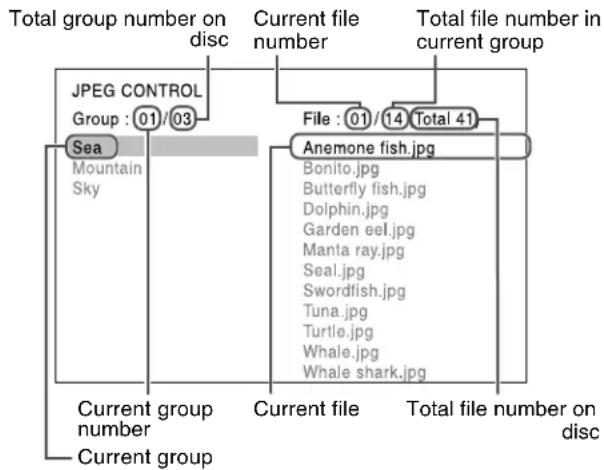
flowchart
graph TD
    A["Total group number on disc"] --> B["Current file number"]
    B --> C["Total file number in current group"]
    D["Anemone fish.jpg"] --> E["File : 01 / 14 Total 41"]
    F["Sea Mountain Sky"] --> G["Current group number"]
    H["JPEG CONTROL Group : 01/03"] --> I["Current file number on disc"]
    J["Current group"] --> K["Current group"]

text_image
plot button) MENU Cursors (►/◄/▼/▲) /ENTER ENTER Number buttons■ While stopped
1 Press Cursor ▼/▲ to select the desired group.
2 Press Cursor ▶ to select the file list.
3 Press Cursor ▼/▲ to select the desired file.
4 Press ▶ (play button) to start the slide-show playback from the selected file.
To show only the selected file
Press ENTER.
- When a still picture is completely shown on the TV screen, you can zoom in on areas in the still picture. (127 pg. 45)
To select the other group
Press Cursor ◀ to return to the group list, then press Cursor ▼/▲ to select the desired group.
To start the slide-show playback by specifying the file number
Press number buttons (0-10, +10) to enter the file number.
Example:
To select 3: Press 3.
To select 14: Press +10, then 4.
To select 20: Press +10, then 10.
Or press+10 twice, then 0.
To select 24: Press +10 twice, then 4.
To select 110: Press+10 ten times, then 10.
The entered number appears in the file number indication and the slide-show playback starts from the file you have specified.
To return to the JPEG control display
Press MENU.
NOTE
- Some group and file names may not be displayed correctly depending on recording conditions.
- The order of groups and files on a JPEG disc may be displayed differently from the order displayed on your personal computer.
- Up to 12 groups and files are displayed at once. Pressing Cursor ▼/▲ repeatedly scrolls the display to show the hidden groups and files one by one.
Selecting a view angle of DVD
While playing back a DVD containing multi-view angles, you can enjoy the same scene at different angles.

text_image
Cursor /ENTER ENTER ON SCREEN ON SCREEN ANGLE ANGLESelecting a view angle
■ During playback
When using the ANGLE button:

1 Press ANGLE.
The following pop-up window appears on the TV screen.
Example: The first view angle is selected out of 3 view angles recorded.
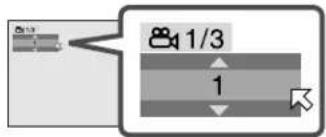
text_image
1/3 12 Press ANGLE repeatedly to select the desired view angle.
Each time you press the button, the angle of the scene changes.
Example:
1/3 2/3 3/3 (back to the beginning)
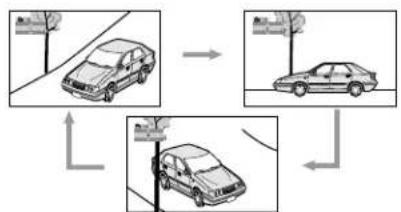
flowchart
graph TD
    A["Car Position 1"] --> B["Car Position 2"]
    B --> C["Car Position 3"]
    C --> A
    style A fill:#f9f,stroke:#333
    style B fill:#f9f,stroke:#333
    style C fill:#f9f,stroke:#333
The pop-up window disappears if no operation is done for about 5 seconds.
When using the on-screen bar:
1 Press ON SCREEN twice.
The on-screen bar appears on the TV screen.
2 Press Cursor ▶/◀ to move ✉ to 📄
3 Press ENTER.
The following pop-up window appears under the selected item.
Example: The first view angle is selected out of 3 view angles recorded.
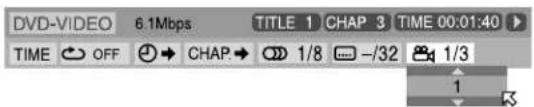
text_image
DVD-VIDEO 6.1Mbps TITLE 1 CHAP 3 TIME 00:01:40 TIME OFF CHAP 1/8 -/32 1/3 14 Press Cursor ▼/▲ repeatedly to select the desired view angle.
Each time you press the button, the angle of the scene changes.
5 Press ENTER.
The pop-up window disappears.
To turn off the on-screen bar Press ON SCREEN.
Selecting the subtitle/audio languages
When playing back a DVD (or SVCD) containing subtitles in several languages, you can select the subtitle language to be displayed on the TV screen.
When a DVD contains audio (sound track) in several languages, you can also select the language (sound track) to listen to.
- You can also select specific audio channel(s) on Video CDs/SVCDs.
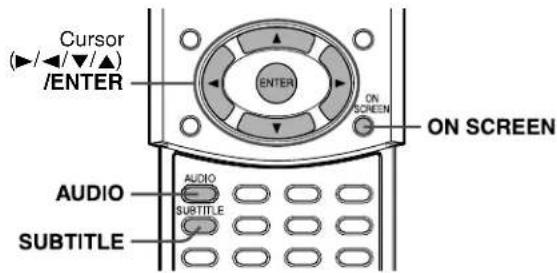
text_image
Cursor (►/◄/▼/▲) /ENTER ENTER ON SCREEN ON SCREEN AUDIO AUDIO SUBTITLE SUBTITLESelecting the subtitle language
■ During playback
When using the SUBTITLE button:
1 Press SUBTITLE.
The following pop-up window appears on the TV screen.
Example (DVD): "ENGLISH" is selected out of 3 subtitle languages recorded.

text_image
1/3 ENGLISH2 Press SUBTITLE repeatedly to select the desired subtitle language.
Each time you press the button, the subtitle language changes.
For SVCD
- An SVCD can contain up to four subtitles. Pressing SUBTITLE changes the subtitles regardless of whether the subtitles are recorded or not. (Subtitles will not change if no subtitle is recorded.)
The pop-up window disappears if no operation is done for about 5 seconds.
NOTE
- Some subtitle languages are abbreviated in the pop-up window. See "The language codes list" (→ pg. 52).
When using the on-screen bar:
1 Press ON SCREEN twice.
The on-screen bar appears on the TV screen.
2 Press Cursor ▶/◀ to move ✉ to 📋
3 Press ENTER.
The following pop-up window appears under the selected item.
Example (DVD): "ENGLISH" is selected out of 3 subtitle languages recorded.

text_image
DVD-VIDEO 6.1Mbps TITLE 1 CHAP 3 TIME 00:01:40 TIME OFF CHAP 1/8 -1/3 1/1 ENGLISH4 Press Cursor ▼/▲ repeatedly to select the desired subtitle language.
Each time you press the button, the subtitle language changes.
5 Press ENTER.
The pop-up window disappears.
To turn off the on-screen bar
Press ON SCREEN.
Selecting the audio language
■ During playback
When using the AUDIO button:

1 Press AUDIO.
The following pop-up window appears on the TV screen.
Example: "ENGLISH" is selected out of 3 audio languages recorded.
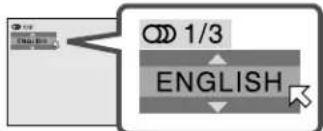
flowchart
graph TD
    A["Start"] --> B["Process Step"]
    B --> C["1/3"]
    C --> D["ENGLISH"]
    D --> E["Arrow to End"]
2 Press AUDIO repeatedly to select the desired audio language.
Each time you press the button, the audio languages change. The pop-up window disappears if no operation is done for about 5 seconds.
NOTE
- Some audio languages are abbreviated in the pop-up window. See "The language codes list" (LFP pg. 52).
When using the on-screen bar:
1 Press ON SCREEN twice.
The on-screen bar appears on the TV screen.
2 Press Cursor ▶/◀ to move ✉ to 📋
3 Press ENTER.
The following pop-up window appears under the selected item.
Example: "ENGLISH" is selected out of 3 audio languages recorded.

text_image
DVD-VIDEO 6.1Mbps TITLE 1 CHAP 3 TIME 00:01:40 TIME OFF CHAP 1/3 -32 1/1 ENGLISH4 Press Cursor ▼/▲ to select the desired audio language.
Each time you press the button, the audio language changes.
5 Press ENTER.
The pop-up window disappears.
To turn off the on-screen bar
Press ON SCREEN.
NOTE
- Some audio languages are abbreviated in the pop-up window. See “The language codes list” (e.g. 52).
Selecting the audio channel
When you play certain karaoke (Video CD/SVCD), you can enjoy karaoke by selecting the audio channel to play.

- The sound of each audio channel depends on the contents of the disc.
■ During playback
When using the AUDIO button:
1 Press AUDIO.
The following pop-up window appears on the TV screen.
Example: "ST" (stereo) is selected out of 3 audio channels recorded.
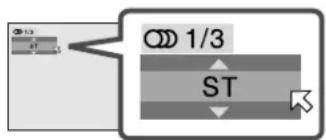
flowchart
graph TD
    A["1/3"] --> B["ST"]
    B --> C["5"]
2 Press AUDIO repeatedly to select the desired audio channel.
Each time you press the button, the audio channel changes.
Example for Video CD:
ST L R (back to the beginning)
• ST: To listen to normal stereo playback.
• L: To listen to L (left) audio channel only.
• R: To listen to R (right) audio channel only.
Example for SVCD:
ST 1 ST 2 L 1 R 1 L 2 R 2 (back to the beginning)
• S T 1 / S T 2 :
To listen to normal stereo playback of ST 1 or 2 channel.
• L 1 / L 2 :
To listen to L (left) 1 or 2 audio channel.
• R 1/R 2:
To listen to R (right) 1 or 2 audio channel.
The pop-up window disappears if no operation is done for about 5 seconds.
When using the on-screen bar:
1 Press ON SCREEN twice.
The on-screen bar appears on the TV screen.
2 Press Cursor ▶/◀ to move ✉ to 📋
3 Press ENTER.
The following pop-up window appears under the selected item.
Example: "ST" (stereo) is selected out of 3 audio channels recorded.

text_image
VCD TRACK 14 TIME 4:58 TIME OFF PROG. RND. 1/3 ST4 Press Cursor ▼/▲ to select the desired audio channel(s).
Each time you press the button, the audio channel changes.
5 Press ENTER.
The pop-up window disappears.
To turn off the on-screen bar
Press ON SCREEN.
Special picture playback
This system provides special picture playback functions including frame-by-frame, slow-motion and zoom.
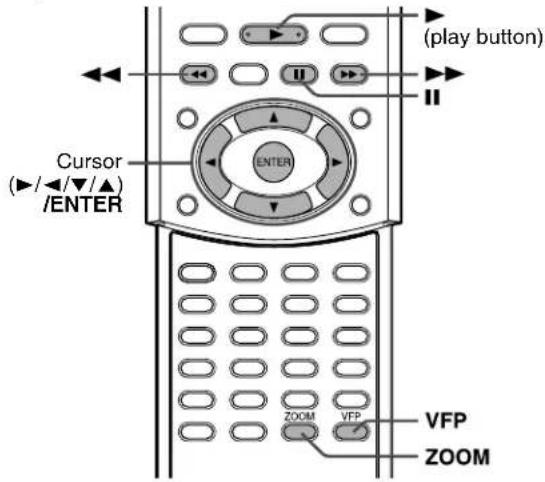
text_image
(play button) Cursor (//▼/▲) /ENTER ENTER ZOOM VFP VFP ZOOMFrame-by-frame playback
■ During playback
Press II repeatedly.
Each time you press the button, the still picture advances by one frame.
To return to normal playback Press ▶ (play button).
NOTE
- You can perform the above operation using the buttons on the center unit.
Playing back in slow-motion
■ During playback
1 Press Ⅱ at the point where you want to start playback in slow-motion from.
The system pauses playback.
2Press ▶▶.
- Playback in forward slow-motion starts.
For DVD only:
• To play back in reverse slow-motion, press ◀◀.
Each time you press the button, the playback speed become faster and on-screen guide icon changes as follows;
Forward:

Reverse:

To pause slow-motion playback
Press II.
To return to normal playback
Press ▶ (play button).
NOTE
• Sound cannot be heard during slow-motion playback.
Zooming in
■During playback or while paused
1 Press ZOOM.

Each time you press ZOOM, scene magnification changes as follows;
x 1 (normal size) x 1.8 x 4 x 8 x 16 x 32 x 64 (back to the beginning)
Example: When x4 zoom is selected.

text_image
Current magnification Zoomed-in area 200M x42 While zoomed in, press Cursor ▶/◄/▼/▲ to move zoom-in area.

natural_image
Simple line drawing of a person holding an umbrella, no text or symbols presentTo return to normal playback Press ENTER.
NOTE
• Picture may look coarse while zoomed in.
Changing the VFP setting
The VFP (Video Fine Processor) function enables you to adjust the picture character according to the type of programming, picture tone or personal preference.

NOTE
Before you start operation;
- The VFP setting screen disappears if no operations are done for more than about 10 seconds. If the setting screen disappears before you finish, start from step 1 again.
■ To select a VFP mode
1 Press VFP during playback.
The current VFP settings appear on the TV screen.
Example: When "NORMAL" is selected.
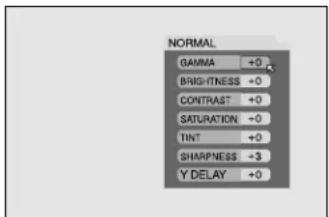
text_image
NORMAL GAMMA +0 BRIGITNESS +0 CONTRAST +0 SATURATION -0 TINT +0 SHARPNESS +3 Y DELAY +02 Press Cursor ▶/◀ repeatedly to select the VFP mode.
Each time you press the button, the VFP mode changes as follows;
NORMAL CINEMA USER 1 USER 2 (back to the beginning)
• NORMAL: Normally select this.
• CINEMA: Suitable for movies.
- USER 1 and USER 2:
You can adjust parameters that affect picture appearance and store settings. Go to step 3.
NOTE
- You cannot adjust the parameters of "NORMAL" and "CINEMA". Press VFP to return to normal screen.
■ To adjust picture appearance manually
3 Press Cursor ▶/◀ repeatedly to select "USER 1" or "USER 2".
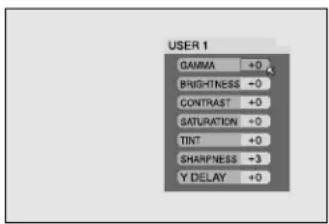
text_image
USER 1 GAMMA +0 BRIGHTNESS -0 CONTRAST +0 SATURATION -0 TINT +0 SHARPNESS -3 Y DELAY +04 Press Cursor ▼/▲ repeatedly to select a parameter you want to adjust.
Adjust gradually and confirm picture appearance results are as preferred.
- GAMMA (-4 to +4) : Controls brightness of neutral tints while maintaining brightness of dark and bright portions.
• BRIGHTNESS (-16 to +16): Controls screen brightness. - CONTRAST (-16 to +16): Controls screen contrast.
- SATURATION (-16 to +16): Controls screen color depth.
- TINT (-16 to +16): Controls screen tint.
- SHARPNESS (+0 to +3): Controls screen sharpness.
- Y DELAY (-2 to +2): Controls screen color gap.
5 Press ENTER.
VFP menu disappears and the following pop-up window appears on the TV screen.

text_image
GAMMA +06 Press Cursor ▼/▲ repeatedly to change the setting.
7 Press ENTER.
The current VFP settings appear again.
8 Repeat steps 4 to 7 to adjust other parameters.
To return to the normal screen
Press VFP.
To activate your setting
Press VFP, then press Cursor▶/◀ repeatedly to select “USER 1” or “USER 2” that you have changed the parameters.
Program Playback
You can play up to 99 tracks in any order. You may program the same track more than once.


text_image
Cursor (//▼/▲) /ENTER ( play button ) ON SCREEN Number buttons CANCEL 1 2 3 4 5 6 7 8 9 10 0 +10 CANCEL■ While stopped
1 Press ON SCREEN twice.
The on-screen bar appears on the TV screen.
2 Press Cursor ▶/◀ to move ✉ to PROG.
3Press ENTER.
The program menu appears on the TV screen.
• 10 orders appear at a time.

text_image
PROGRAM No. 1 2 3 4 5 6 7 8 9 10 Track4Press number buttons (1-10, +10) to specify selections by track.
- At each program order use number buttons to specify track number.
Example:
To specify "track 3": Press 3.
5 Repeat step 4 to program following orders.
Each time you enter a track number in the order at the bottom of the program menu, the program menu scrolls and the following orders appear.
To erase an order
Press Cursor ▼/▲ to move ☒ to the order to be erased, then press CANCEL.
6 Press ▶ (play button) to start Program Playback.
When all of the programmed tracks have been played back, playback stops and the program menu appears again. Note that program setting remains.
When playing back an Audio CD:
The program menu remains on the TV screen during Program Playback.
To check the program contents
During playback, press ■. Playback stops and the program menu appears.
To bring up the menu without stopping playback, carry out steps 1 to 3.
- You can also check playback status in the on-screen bar by pressing ON SCREEN.
To stop Program Playback
Press ■. Note that program setting remains.
To clear the program
While stopped and the program menu is shown on the TV screen, press ■.
All of the programmed tracks are erased. You can also clear the program by turning off the system.
To quit the Program mode
After clearing all programmed tracks, press ▶ (play button). The program menu disappears.
NOTE
- During Program Playback, you cannot edit program contents.
- During Program Playback, pressing ▶▶1 skips to the next program selection. Pressing ◀◀◀ returns playback to the beginning of the current selection.
- The Resume function cannot be used with Program Playback.
• To close the program menu:
Press ON SCREEN. The program menu is closed and the on-screen bar is shown.
• To turn off the on-screen bar:
Press ON SCREEN repeatedly.
- Program Playback function cannot be used during Video CD/SVCD playback with PBC function.
- If you want to repeat the programmed tracks, set the Repeat mode during Program Playback. (≡ pg. 48)
- Program Playback may not work for some discs.
Random Playback
You can play tracks on a disc in random order.
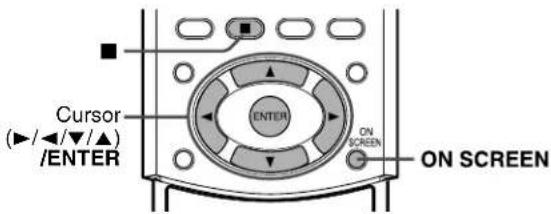
text_image
Cursor (►/◄/▼/▲) /ENTER ENTER ON SCREEN ON SCREEN■ While stopped
1 Press ON SCREEN twice.
The on-screen bar appears on the TV screen.
2 Press Cursor ▶/◀ to move ✉ to RND.
Example: For Audio CD

text_image
CD TIME OFF PROG. RND. TRACK 14 TIME 4:583 Press ENTER.
The system starts Random Playback.
After playing all tracks on the disc, the system stops playback and quits the Random mode.
To stop and quit Random Playback
Press ■
You can also clear the Random mode by turning off the system.
NOTE
- The same track will not be played back more than once during Random Playback.
- To return to normal playback without stopping playback, carry out steps 1 to 3 above.
Repeat Playback
You can repeat playback of the currently selected title or chapter (for DVD), track (for Video CD/SVCD/Audio CD), current group (for MP3/JPEG) or track (for MP3).
You can also repeat playback of a desired part.
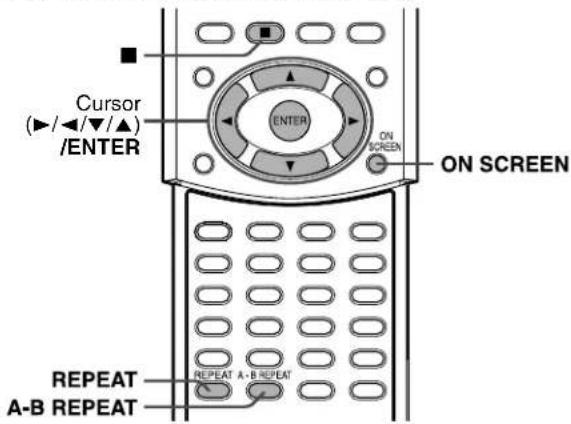
text_image
Cursor (►/◄/▼/▲) /ENTER ENTER ON SCREEN ON SCREEN REPEAT A-B REPEAT REPEAT A-B REPEATRepeating the current selection
■For DVD/Audio CD/MP3/JPEG:
During playback
For Video CD/SVCD:
During playback without PBC function
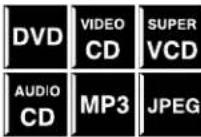
When using the REPEAT button:
1 Press REPEAT.
Each time you press REPEAT, the Repeat mode changes cyclically.
- Repeat mode indicators appear on the display window and a repeat mode indication appears on the TV screen.

text_image
Digital 0 1 1:31:01 Repeat mode indicatorFollowings are the description of indicators on the display window and indications on the TV screen.
| Indicators | Indications Meanings | |
| REPEAT GROUP* | Repeats the current group for MP3/ JPEG disc. | |
| TITLE | Repeats the current title for DVD. | |
| ALL | Repeats all tracks/files for Video CD/SVCD/Audio CD/MP3/ JPEG. | |
| REPEAT ALL* | ||
| 1 Repeats the current track forVideo CD/SVCD/Audio CD/MP3 disc. | ||
| No indication | OFF | Repeat mode is off.The system plays back the disc normally. |
* During playback of a JPEG disc, "REPEAT GROUP" and "REPEAT ALL" do not appear on the TV screen.
To stop Repeat Playback
Press ■
- When a disc except DVD is selected, the system stops playback but does not quit the Repeat mode.
- When a DVD is set, the system stops playback and quits the Repeat mode.
To quit the Repeat mode
Press REPEAT until the Repeat mode indicator goes off from the display window.
- You can also clear the Repeat mode by changing the disc.
NOTE
- If you press REPEAT while stopped, you need to press ▶ (play button) to start Repeat Playback.
- When the Program mode is active with a Video CD, SVCD, Audio CD, the Repeat mode changes in the same manner. Note that, however, in the “” mode the system repeats all the programmed tracks, instead of all tracks on the disc.
- During playback in the Repeat mode of the title/chapter/group/track, if you skip the title/chapter/group/track using ▶▶1/l◀◀, etc., the destination title/chapter/group/track is repeated.
- If appears when pressing REPEAT during DVD playback, you cannot repeat the title or chapter because of disc contents.
When using the on-screen bar (except for MP3/JPEG disc):
1 Press ON SCREEN twice.
The on-screen bar appears on the TV screen.
2 Press Cursor ▶/◀ to move ✉ to ↻.
3 Press ENTER.
The following pop-up window appears under the selected item.
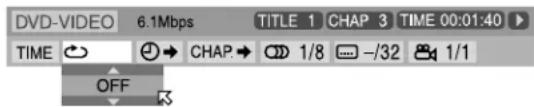
text_image
DVD-VIDEO 6.1Mbps TITLE 1 CHAP 3 TIME 00:01:40 TIME → ↔ CHAP→ 1/8 —/32 1/1 OFF4 Press Cursor ▼/▲ repeatedly to select the Repeat mode.
- You can select the Repeat modes as follows:
For DVD
CHAPTER TITLE A-B OFF (back to the beginning)
For Video CD/SVCD/Audio CD
TRACK ALL A-B OFF (back to the beginning)
5 Press ENTER.
To turn off the on-screen bar
Press ONSCREEN.
To cancel Repeat Playback
Repeat from step 1, select "OFF" in step 4, then press ENTER.
Repeating a desired part
You can repeat playback of a desired part by specifying the beginning (point A) and ending (point B).

■ During playback
When using the A-B REPEAT button:
1 Press A-B REPEAT at the beginning of the part you want to repeat (point A).
The repeat mode indicator "G" appears on the display window.
2 Press A-B REPEAT again at the end of the part you want to repeat (point B).
The repeat mode indicator on the display window changes to "Band A-B Repeat Playback starts. The selected part of the disc (between point A and B) is played repeatedly.

text_image
A BTo cancel A-B Repeat Playback
Press A-BREPEAT during A-B Repeat Playback.
When using the on-screen bar:
1 Press ON SCREEN twice.
The on-screen bar appears on the TV screen.
2 Press Cursor ▶/◀ to move ✉ to ↻.
3 Press ENTER.
The following pop-up window appears under the selected item.

text_image
DVD-VIDEO 6.1Mbps TITLE 1 CHAP 3 TIME 00:01:40 TIME ↔ ⬆ → CHAP.→ 1/8 —/32 1/1 OFF4 Press Cursor ▼/▲ repeatedly to select "A-B".
5 Press ENTER at the beginning of the part you want to repeat (point A).
The following display appears in the on-screen bar.

6 Press ENTER at the end of the part you want to repeat (point B).
A-B Repeat Playback starts. The selected part of the disc (between point A and B) is played repeatedly.
To turn off the on-screen bar
Press ONSCREEN.
To cancel A-B Repeat Playback
Repeat from step 1, select "OFF" in step 4, then press ENTER.
NOTE
- When playing back a DVD, A-B Repeat Playback is possible only within the same title.
- “A-B” cannot be selected during Program and Random Playback.
- “A-B” cannot be selected while stopped.
You can adjust the initial settings for DVD playback according to your preference or needs using 5 choice menus shown on the TV screen.
- Adjustments are possible only when selecting DVD as the source.
Using the choice menus
- Turn on your TV and select the correct input mode on the TV.
- You can only use the remote control for choice menu operations.
- You can change the language used in the choice menus. (pg. 52)
- You cannot show the choice menus when an MP3 disc or a JPEG disc is accessed.
Choice menus

: Language menu (LANGUAGE) (pg. 52)
You can select the initial languages for the disc menu, audio and subtitles.
You can also select the language used on the TV screen while operating this system.

text_image
LANGUAGE MENU LANGUAGE ENGLISH AUDIO LANGUAGE ENGLISH SUBTITLE ENGLISH ON SCREEN LANGUAGE ENGLISH SELECT TO SELECT, USE ENTER TO CONFIRM. ENTER TO EXIT. PRESS CHOICE.
: Picture menu (PICTURE) (pg. 53)
You can select the desired options concerning a picture or monitor screen.
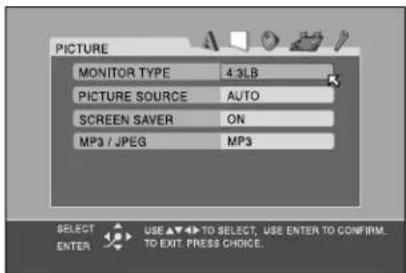
text_image
PICTURE MONITOR TYPE 4-3LB PICTURE SOURCE AUTO SCREEN SAVER ON MP3 / JPEG MP3 SELECT TO SELECT, USE ENTER TO CONFIRM. ENTER TO EXIT PRESS CHOICE.
: Audio menu (AUDIO) (pg. 53)
You can adjust sound settings.

text_image
AUDIO L/R BALANCE CENTER BASS 0 TREBLE 0 LFE ATT. OFF D. RANGE COMPRESSION MID SELECT USE ▲▼▲ TO SELECT. USE ENTER TO CONFIRM. ENTER TO EXIT. PRESS CHOICE.
Speaker setting menu (SPK. SETTING) (pg. 53)
You can make speaker settings according to the size and layout of your speakers.
You can also adjust the output level of the subwoofer, center speaker and surround speakers.

text_image
SPK, SETTING SIZE LEVEL DISTANCE CROSS OVER 150Hz RETURN TO INITIAL SELECT ENTER USE ▼▼ TO SELECT. USE ENTER TO CONFIRM. TO EXIT. PRESS CHOICE.
Other setting menu (OTHERS) (pg. 55)
You can change settings for some of the functions. Also use this menu to set Parental Lock.

text_image
OTHERS RESUME ON ON SCREEN GUIDE ON AUTO STANDBY OFF PARENTAL LOCK SELECT TO SELECT. USE ENTER TO CONFIRM. ENTER TO EXIT, PRESS CHOICE.Basic operation on the choice menus
IMPORTANT
Before using the remote control for the following operation;
1 Set the remote control mode selector to AUDIO.
2 Press DVD.

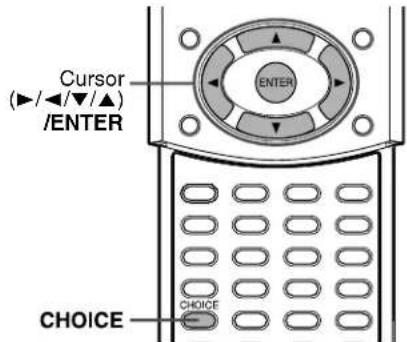
text_image
Cursor (►/◄/▼/▲) /ENTER ENTER CHOICE CHOICE1 Press CHOICE.
The language menu (LANGUAGE) appears on the TV screen.

text_image
LANGUAGE MENU LANGUAGE ENGLISH AUDIO LANGUAGE ENGLISH SUBTITLE ENGLISH ON SCREEN LANGUAGE ENGLISH SELECT ENTER USE AT 40 TO SELECT. USE ENTER TO CONFIRM. TO EXIT. PRESS CHANGE.2 Press Cursor ▶/◀ repeatedly to display one of the choice menus.
Each time you press the button, the choice menus change as follows;
LANGUAGE ☐ PICTURE ☐ AUDIO ☐ SPK. SETTING ☐ OTHERS ☐ (back to the beginning)
Example: When the picture menu (PICTURE) is selected.
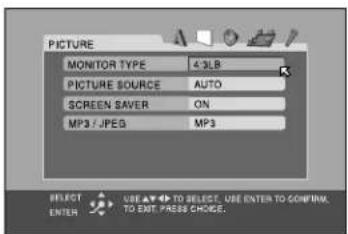
text_image
PICTURE MONITOR TYPE 43LB PICTURE SOURCE AUTO SCREEN SAVER ON MP3 / JPEG MP3 SELECT TO SELECT. USE ENTER TO CONFIRM. TO ENT PRESS CHANGES. ENTER3 Press Cursor ▼/▲ repeatedly to move ✉ to the item you want to set up.
Example: When "PICTURE SOURCE" is selected.
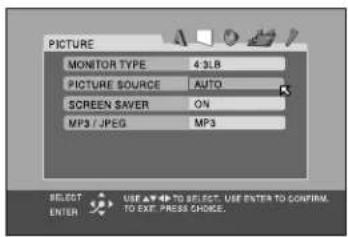
text_image
PICTURE MONITOR TYPE 4.3LB PICTURE SOURCE AUTO SCREEN SAWER ON MP3 / JPEG MP3 SELECT TO SELECT: USE ENTER TO CONFIRM. ENTER TO EXIT PRESS CHOICE.4Press ENTER.
The pop-up window, listing the selectable options, appears on the choice menu.
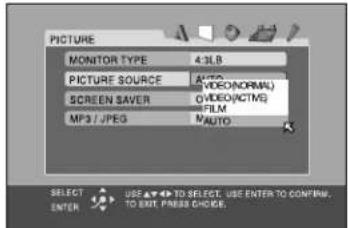
text_image
PICTURE MONITOR TYPE 4.3LB PICTURE SOURCE A:\VIDEO(NORMAL) SCREEN SAVER O\VIDEO(ACTM)\FILM MP3 / JPEG M\AUTO SELECT TO SELECT USE ENTER TO CONFIRM. ENTER TO EXIT PRESS CHICKS.5 Press Cursor ▼/▲ repeatedly to select the desired option.
Example: When "FILM" is selected.
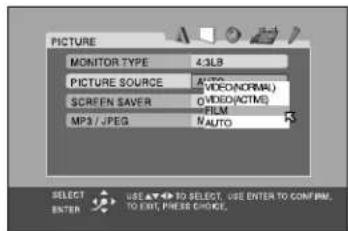
text_image
PICTURE MONITOR TYPE 4:3LB PICTURE SOURCE A:\VIDEO(ON/OFFM) SCREEN SAVER O\VIDEO(ACTM) - FILM MP3 / JPEG N/AUTO SELECT TO SELECT. USE ENTER TO CONFIRM. ENTER TO ENT. PLEASE CHECK.6Press ENTER.
Your choice is stored.
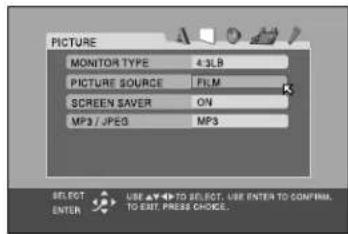
text_image
PICTURE MONITOR TYPE 4:3LB PICTURE SOURCE FILM SCREEN SAVER ON MP3 / JPES MP3 SELECT TO SELECT, USE ENTER TO CONFIRM. ENTER TO EXIT. PRESS CHOICE.To set other items on the same choice menu Repeat steps 3 to 6.
To move to another choice menu
Press Cursor ▶/◀ repeatedly to select a choice menu you want to set up.
To return to the normal screen Press CHOICE.
NOTE
- Some items in the choice menus consist of sub-menus to set up. Selecting these items and pressing ENTER makes its related sub-menu appear on the TV screen. You can set submenus using Cursor ▶/◀/▼/▲ and ENTER (as explained in this basic operation).
Menu description

Language menu (LANGUAGE)
NOTE
- You can select "MENU LANGUAGE", "AUDIO LANGUAGE" and "SUBTITLE" only while playback is stopped.
■ MENU LANGUAGE
Some DVDs have their own menus in multiple languages.
- Select the initial language*.
ENGLISH, SPANISH, FRENCH, CHINESE, GERMAN, ITALIAN, JAPANESE and language codes from AA to ZU (see below)
■ AUDIO LANGUAGE
Some DVDs have multiple audio languages.
- Select the initial audio language*.
ENGLISH, SPANISH, FRENCH, CHINESE, GERMAN, ITALIAN, JAPANESE and language codes from AA to ZU (see below)
SUBTITLE
Some DVDs have multiple subtitle languages.
- Select the initial subtitle language*.
OFF (no indication of subtitles), ENGLISH, SPANISH, FRENCH, CHINESE, GERMAN, ITALIAN, JAPANESE and language codes from AA to ZU (see below)
■ ON SCREEN LANGUAGE
- Select the language shown on the TV screen when operating this system.
ENGLISH, GERMAN and FRENCH
* When the language you have selected is not recorded to a disc, the original language is automatically used as the initial language.
The language codes list
| AA | Afar GL Galician | ||
| AB | Abkhazian GN Guarani | ||
| AF | Afrikaans GU Gujarati | ||
| AM | Ameharic HA Hausa | ||
| AR | Arabic HI Hindi | ||
| AS | Assamesc HR Croatian | ||
| AY | Aymara HU Hungarian | ||
| AZ | Azerbaijani | HY | Armenian |
| BA | Bashkir IA Interlingua | ||
| BE | Byelorussian | IE | Interlingue |
| BG | Bulgarian IK Inupiak | ||
| BH | Bihari | IN | Indonesian |
| BI | Bislama | IS | Icelandic |
| BN | Bengali, Bangla | IW | Hebrew |
| BO | Tibetan | JI | Yiddish |
| BR | Breton JW Javanese | ||
| CA | Catalan | KA | Georgian |
| CO | Corsican | KK | Kazakh |
| CS | Czech | KL | Greenlandic |
| CY | Welsh | KM | Cambodian |
| DA | Danish | KN | Kannada |
| DZ | Bhutani | KO | Korean (KOR) |
| EL | Greek | KS | Kashmiri |
| EO | Esperanto KU Kurdish | ||
| ET | Estonian | KY | Kirghiz |
| EU | Basque | LA | Latin |
| FA | Persian | LN | Lingala |
| FI | Finnish | LO | Laothian |
| FJ | Fiji | LT | Lithuanian |
| FO | Faroese LV Latvian, Lettish | ||
| FY | Frisian | MG | Malagasy |
| GA | Irish MI Maori | ||
| GD | Scots Gaelic | MK | Macedonian |
| ML | Malayalam | SO | Somali |
| MN | Mongolian | SQ | Athanian |
| MO | Moldavian SR Serbian | ||
| MR | Marathi | SS | Siswati |
| MS | Malay (MAY) | ST | Sesotho |
| MT | Maltese | SU | Sundancse |
| MY | Burmese | $V | Swcdish |
| NAN | Nauru | SW | Swahili |
| NE | Nepali TA Tamil | ||
| NL | Dutch | TE | Telugu |
| NO | Norwegian | TG | Tajik |
| OC | Occitan TH Thai | ||
| OM | (Afan) Oromo | TI | Tigrinya |
| OR | Oriya | TK | Turkmen |
| PA | Panjabi | TL | Tagalog |
| PL | Polish | TN | Setswana |
| PS | Pashto, Pushto | TO | Tonga |
| PT | Portuguese | TR | Turkish |
| QU | Quechua | TS | Tsonga |
| RM | Rhaeto-Romance | TT | Tatar |
| RN | Kirundi | TW | Twi |
| RO | Rumanian | UK | Ukrainian |
| RU | Russian | UR | Urdu |
| RW | Kinyarwanda | UZ | Uzbek |
| SA | Sanskrit | VI | Vietnamese |
| SD | Sindhi | VO | Volapuk |
| SG | Sangho | WO | Wolof |
| SH | Serbo-Croatian | XH | Xhosa |
| SI | Singhalese YO Yoruba | ||
| SK | Slovak ZU Zulu | ||
| SL | Slovenian | ||
| SM | Samoan | ||
| SN | Shona | ||

Picture menu (PICTURE)
■ MONITOR TYPE
You can select the monitor type to match your TV when you play DVDs recorded in the picture's height/width ratio of 16:9.
• 16:9 NORMAL (Wide television conversion)
Select this when the aspect ratio of your TV is fixed to 16:9 (wide TV).
The system automatically adjusts the screen width of the output signal correctly when playing back a picture whose aspect ratio is 4:3.
• 16:9 AUTO (Wide television conversion)
Select this when the aspect ratio of your TV is 16:9 (wide TV).
• 4:3 LB (Letter Box conversion)
Select this when the aspect ratio of your TV is 4:3
(conventional TV). While viewing a wide screen picture, the black bars appear on the top and the bottom of the screen.
• 4:3 PS (Pan Scan conversion)
Select this when the aspect ratio of your TV is 4:3
(conventional TV). While viewing a wide screen picture, the black bars do not appear, however, the left and right edges of the pictures will not be shown on the screen.

- Even if "4:3 PS" is selected, the screen size may become "4:3 LB" with some DVDs. This depends on how DVDs are recorded.
- When you select “16:9 NORMAL” for a picture whose aspect ratio is 4:3, the picture slightly changes due to the process for converting the picture width.
■ PICTURE SOURCE
You can obtain optimal picture quality by selecting whether the content on the disc is processed by field (video source) or by frame (film source).
Normally set to "AUTO".
• VIDEO (NORMAL)
Suitable for playing back a video source disc with relatively a few movements.
• VIDEO (ACTIVE)
Suitable for playing back a video source disc with relatively a lot of movements.
• FILM
Suitable for playing back a film source disc.
• AUTO
Used to play a disc containing both video and film source materials.
This system recognizes the source type (video or film) of the current disc according to the disc information.
- If the playback picture is unclear or noisy, or the oblique lines of the picture are rough, try to change to other modes.
■ SCREEN SAVER
You can activate or deactivate the screen saver function. (→ pg. 24)
• ON
The picture on the TV screen becomes dark.
• OFF
Select this to deactivate the function.
■ MP3/JPEG
If both MP3 files and JPEG files are recorded on a disc, you can select which files to play.
• MP3
Select this to play MP3 files.
• JPEG
Select this to play JPEG files.

: Audio menu (AUDIO)
■ L/R BALANCE
You can adjust the balance between the front left and front right speakers.
L-21 to L-1 ⊃ CENTER ⊃ R-1 to R-21 (by 1 step)
• CENTER
The levels of the front left and right speakers are identical.
• L-21 to L-1 and R-1 to R-21
As the number increases, the level from one speaker lowered than that of the other speaker. (When you select “-21”, no sound comes out from the selected (L or R) speaker.)
BASS
You can adjust the enhancement level for bass sound from the front speakers.
Within the range from -10 to +10. (by 2 step)
TREBLE
You can adjust the enhancement level for treble sound from the front speakers.
Within the range from -10 to +10. (by 2 step)
NOTE
- You can adjust bass/treble enhancement level only for front left/right channel. However, the supplied speakers cannot add the effective change to the bass sound because of their cutoff frequency even if the bass sound adjustment is made. (17 pg. 54)
To change the bass enhancement level more efficiently, adjust the output level of the subwoofer. ( pg. 22)
(When you change the front speakers to the larger ones and select "LARGE" for the front speakers in the SIZE sub-menu (☐ pg. 54), the effective adjustment of bass sound is also possible.)
■ LFE ATT.
The Low Frequency Effect attenuater diminishes distortion of the bass sound from the subwoofer when playing back a disc with Dolby Digital or DTS Digital Surround.
• ON
Select this to diminish distortion of the bass sound from the subwoofer.
• OFF
Select this to deactivate the function.
(Dynamic range compression)
You can enjoy low level recorded sound clearly at night even at a low volume when listening to the sound with Dolby Digital.
• MAX
Select this when you want to fully apply the compression effect (useful at midnight).
• MID
Select this when you want to reduce the dynamic range a little.
• OFF
Select this when you want to enjoy surround sound with its full dynamic range (no effect applied).

: Speaker setting menu
(SPK. SETTING)
SIZE
Accesses the SIZE sub-menu (speaker size setting menu). (See following.)
LEVEL
Accesses the LEVEL sub-menu (speaker level setting menu). (See following.)
■ DISTANCE
Accesses the DISTANCE sub-menu (speaker distance setting menu). (See following.)
■ CROSS OVER\*
Small speakers cannot reproduce bass sounds efficiently. If you use a small speaker in any position, this system automatically reallocates the bass sound elements assigned to the small speaker to one of the large speakers.
To use this function properly, set crossover frequency level according to the size of the smallest speaker connected.
• 200 Hz
Select this when the cone speaker unit in the smallest speaker connected is about 4 cm in diameter.
- 150 Hz (Select this when using the supplied speakers.) Select this when the cone speaker unit in the smallest speaker connected is about 6 cm in diameter.
• 120 Hz
Select this when the cone speaker unit in the smallest speaker connected is about 8 cm in diameter.
• 100 Hz
Select this when the cone speaker unit in the smallest speaker connected is about 10 cm in diameter.
• 80 Hz
Select this when the cone speaker unit in the smallest speaker connected is about 12 cm in diameter.
* If you have selected "LARGE" for all speakers in the SIZE menu, this function will not take effect.
■ RETURN TO INITIAL
Resets all speaker settings to the initial settings.
■ Size menu (SIZE)
CAUTION
- When using the supplied speakers, select "SMALL" for each. Selecting "LARGE" may damage the speakers.
NOTE
- When “SMALL” is selected for the front speakers, you cannot select “LARGE” for the center speaker and surround speakers.
Select the speaker size according to the actual size of your speakers.
• LARGE
Select this when the cone speaker unit in the speaker is larger than 12 cm in diameter.
- SMALL (Select this when using the supplied speakers.) Select this when the cone speaker unit in the speaker is smaller than 12 cm in diameter.
SUB WOOFER
USE
This item is fixed to "USE".
RETURN
Returns to the SPK. SETTING menu.
■ Level menu (LEVEL)
Adjust the output level of related speakers.
Within the range from -10 dB to +10 dB.
TEST TONE\*\*
Outputs the test tone.
RETURN
Returns to the SPK. SETTING menu.
* • You cannot select “CENTER SPEAKER” when one of the DAP modes ( I ^7 pg. 33) is selected as the surround mode. ( I ^7 pg. 35)
- You cannot select “CENTER SPEAKER”, “SURROUND LEFT SPEAKER” and “SURROUND RIGHT SPEAKER” when the surround mode is off (stereo). (27 pg. 35)
** The test tone comes out of all of the activated speakers in the following sequence:
→ Front left speaker → Center speaker → Front right speaker → Surround right speaker → Surround left speaker → (back to the beginning)
■ Distance menu (DISTANCE)
Example:

text_image
Center speaker Front left 2.4 m 2.1 m 2.7 m 3.0 m Front right Subwoofer Surround left Surround rightIn this case, set the distance of each speaker as follows;
• Distance of front speakers: 3.0 m
• Distance of center speaker: 2.7 m
• Distance of surround speakers: 2.4 m
Adjust the distance from the listening position to the speakers. Within the range from 0.3 m to 9.0 m. (by 0.3 m)
TEST TONE\*
Outputs the test tone.
RETURN
Returns to the SPK. SETTING menu.
* The test tone comes out of all of the activated speakers in the following sequence:
Front left speaker Center speaker Front right speaker Surround right speaker Surround left speaker (back to the beginning)

: Other setting menu (OTHERS)
NOTE
- You can select "PARENTAL LOCK" only while playback is stopped.
■RESUME
You can activate or deactivate Resume Playback function.
• ON
Select this to activate the function.
• OFF
Select this to deactivate the function.
■ ON SCREEN GUIDE
You can activate or deactivate the on-screen guide icons. ( page 24)
• ON
Select this to activate the function.
• OFF
Select this to deactivate the function.
■AUTO STANDBY\*
When playback ends and does not restart for more than the time you specify, this system turns off by itself.
• 60
This system turns off by itself if playback does not restart within 60 minutes.
• 30
This system turns off by itself if playback does not restart within 30 minutes.
• OFF
Select this to deactivate the function.
* When both the Auto Standby function and the Sleep Timer are activated, if the shut-off time set by the Sleep Timer comes earlier than the one set by the Auto Standby function, the Sleep Timer controls shut-off time.
■PARENTAL LOCK
You can restrict playback of a DVD containing violent scenes that is not suitable for your other family members.
Accesses the PARENTAL LOCK sub-menu. (See following "Parental Lock".)
Parental Lock
Using this function, you can restrict playback of a DVD containing violent scenes or scenes not suitable for your other family members. Nobody can play such a disc unless this function is canceled.
- This setting takes effect only for DVDs containing the Parental Lock level information — Level 1 (most restrictive) to Level 8 (least restrictive).
- You can set the Parental Lock only when playback is stopped.

text_image
Cursor (►/◄/▼/▲) /ENTER ENTER 1 2 3 4 5 6 7 8 9 0 Number buttons CHOICE CHOICESetting Parental Lock
1 Press CHOICE.
2 Press Cursor ▶/◀ to display the OTHERS menu.
3 Press Cursor ▼/▲ repeatedly to move ✉ to "PARENTAL LOCK", then press ENTER.
The PARENTAL LOCK sub-menu appears on the TV screen.
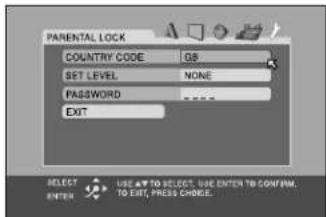
text_image
PARENTAL LOCK COUNTRY CODE 08 SET LEVEL NONE PASSWORD EXIT SELECT ENTER USE AT TO SELECT. USE ENTER TO CONFIRM. TO EXIT. PRESS CHOICE.4 Press Cursor ▼/▲ repeatedly to move ✉ to "COUNTRY CODE", then press ENTER.

text_image
PARENTAL LOCK COUNTRY CODE 03 SET LEVEL NONE PASSWORD EXIT FR FX GA GB SD GE GP SELECT USE ▲ TO SELECT. USE ENTER TO CONFIRM. TO EXIT. PRESS CHOICE. ENTER5 Press Cursor ▼/▲ repeatedly to select the country code, then press ENTER.
See "Country/Area codes list for Parental Lock" (pg. 57). The ☒ moves to "SET LEVEL".
6Press ENTER.
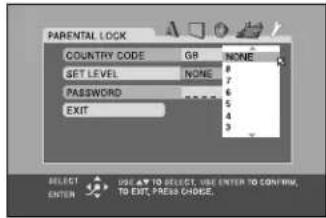
text_image
PARENTAL LOCK COUNTRY CODE GB NONE SET LEVEL NONE PASSWORD EXIT SELECT ENTER USE AT TO SELECT. USE ENTER TO CONFIRM. TO EXIT. PRESS CHINE.7 Press Cursor ▼/▲ repeatedly to select the level of restriction, then press ENTER.
The ☒ moves to "PASSWORD".
- Select "NONE" to cancel this function.

text_image
PARENTAL LOCK COUNTRY CODE GB SET LEVEL 4 PASSWORD EXIT SELECT NEW PASSWORD? → PRESS 8+KEY. TO EXIT. PRESS CHOICE.8Press number buttons (0-9) to enter a four-digit number as your password, then press ENTER.
The ☒ moves to "EXIT".
9Press ENTER.
The OTHERS menu resumes.
To return to the normal screen Press CHOICE.
NOTE
- Remember your password, or make a note of it.
Changing the Parental Lock setting
1 Press CHOICE.
2 Press Cursor ▶/◀ to display the OTHERS menu.
3 Press Cursor ▼/▲ repeatedly to move ☑ to "PARENTAL LOCK", then press ENTER.
The PARENTAL LOCK sub-menu appears on the TV screen.
- You can only move ☑ to "PASSWORD" or to "EXIT" before you enter your password.

text_image
PARENTAL LOCK COUNTRY CODE GR SET LEVEL 4 PASSWORD EXIT SELECT PASSDBUT=PRESS-#INIT. ENTER TO EXE PRESS CHICKS.4Press number buttons (0-9) to enter your password, then press ENTER.
- If you enter a wrong password, "WRONG! RETRY..." appears under the PARENTAL LOCK sub-menu. You cannot go to the next steps before you enter the correct password.
5 Press Cursor ▼/▲ repeatedly to move ✉ to the item you want to change, then press ENTER.
6 Press Cursor ▼/▲ repeatedly to change the setting, then press ENTER.
7 Press number buttons (0-9) to enter your password, then press ENTER.
The new setting is stored.
NOTE
- You cannot set the Parental Lock before you set your password.
- If you go out of the PARENTAL LOCK sub-menu before setting your password in step 6, the new country code and parental lock level will not become effective. The old country code and parental level will remain in effect.
- When you enter wrong passwords more than three times, the ☒ moves to "EXIT" automatically and Cursor ▼/▲ do not work. Press ENTER to exit from the PARENTAL LOCK sub-menu, then repeat from step 1.
- If you forget your password, enter "8888".
Releasing Parental Lock temporarily
When you set a strict parental level, some discs may not be played back at all. When you load such a disc and try to play it, the following display appears on the TV screen. You can temporarily release the Parental Lock.
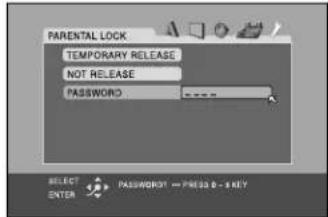
text_image
PARENTAL LOCK TEMPORARY RELEASE NOT RELEASE PASSWORD SELECT ENTER PASSWORD → PRESS 0 - 1 KEY1 Press Cursor ▼/▲ repeatedly to move ✉ to "TEMPORARY RELEASE", then press ENTER.
The ☒ moves to "PASSWORD".
- When selecting "NOT RELEASE", press OPEN/CLOSE on the remote control or ▲ on the center unit to remove the disc.
2Press number buttons (0-9) to enter your password.
Playback starts.
- If you enter a wrong password, "WRONG! RETRY..." appears under the PARENTAL LOCK sub-menu. You cannot play the disc before you enter the correct password.
NOTE
- When you enter wrong passwords more than three times, the ☒ moves to "NOT RELEASE" automatically and Cursor ▼/▲ do not work. Press ▲ on the center unit to remove the disc.
Country/Area codes list for Parental Lock
| AD | Andorra ER Eritrea | LA | Lao People's Democratic Republic | RW | Rwanda | ||
| AE | United Arab Emirates ES Spain SA | Saudi | Arabia | ||||
| AF | Afghanistan ET Ethiopia LB Lcbanon SB | Solomon Islands | |||||
| AG | Antigua and Barbuda | FI | Finland | LC | Saint Lucia | SC | Seychelles |
| AI | Anguilla | FJ | Fiji | LI | Liechtenstein | SD | Sudan |
| AL | Albania | FK | Falkland Islands (Malvinas) | LK | Sri Lanka | SE | Sweden |
| AM | Armenia | FM | Micronesia (Fedelated States of) | LR | Liberia | SG | Singapore |
| AN | Netherlands Antilles | LS | Lesotho | SH | Saint Helena | ||
| AO | Angola | FO | Faroe Islands | LT | Lithuania | SI | Slovenia |
| AQ | Antarctica | FR | France | LU | Luxembourg | SJ | Svalbard and Jan Mayen |
| AR | Argentina | FX | France, Metropolitan | LV | Latvia | SK | Slovakia |
| AS | American Samoa | GA | Gabon | LY | Libyan Arab Jamahiriya | SL | Sierra Leone |
| AT | Austria | GB | United Kingdom | MA | Morocco | SM | San Marino |
| AU | Australia | GD | Grenada | MC | Monaco | SN | Senegal |
| AW | Aruba | GE | Georgia | MD | Moldova, Republic of | SO | Somalia |
| AZ | Azerbaijan | GF | French Guiana | MG | Madagascar | SR | Suriname |
| BA | Bosnia and Herzegovina | GH | Ghana | MH | Marshall Islands | ST | Sao Tome and Principe |
| BB | Barbados | GI | Gibraltar | ML | Mali | SV | El Salvador |
| BD | Bangladesh | GL | Greenland | MM | Myanmar | SY | Syrian Arab Republic |
| BE | Belgium | GM | Gambia | MN | Mongolia | SZ | Swaziland |
| BF | Burkina Faso | GN | Guinea | MO | Macau | TC | Turks and Caicos Islands |
| BG | Bulgaria | GP | Guadeloupe | MP | Northern Mariana Islands | TD | Chad |
| BH | Bahrain | GQ | Equatorial Guinea | MQ | Martinique | TF | French Southern Territories |
| BI | Burundi | GR | Greece | MR | Mauritania | TG | Togo |
| BJ | Benin | GS | South Georgia and the South Sandwich Islands | MS | Montserrat | TH | Thailand Code Language |
| BM | Bermuda | MT | Malta | TJ | Tajikistan | ||
| BN | Brunei Darussalam | GT | Guatemala | MU | Mauritius | TK | Tokelau |
| BO | Bolivia | GU | Guam | MV | Maldives | TM | Turkmenistan |
| BR | Brazil | GW | Guinea-Bissau | MW | Malawi | TN | Tunisia |
| BS | Bahamas | GY | Guyana | MX | Mexico | TO | Tonga |
| BT | Bhutan | HK | Hong Kong | MY | Malaysia | TP | East Timor |
| BV | Bouvet Island | HM | Heard Island and McDonald Islands | MZ | Mozambique | TR | Turkey |
| BW | Botswana | NA | Namibia | TT | Trinidad and Tobago | ||
| BY | Belarus | HN | Honduras | NC | New Caledonia | TV | Tuvalu |
| BZ | Belize | HR | Croatia | NE | Niger | TW | Taiwan |
| CA | Canada | HT | Haiti | NF | Norfolk Island | TZ | Tanzania, United Republic of |
| CC | Cocos (Keeling) Islands | HU | Hungary | NG | Nigeria | UA | Ukraine |
| CF | Central African Republic | ID | Indonesia | NI | Nicaragua | UG | Uganda |
| CG | Congo | IE | Ireland | NL | Netherlands | UM | United States Minor Outlying Islands |
| CH | Switzerland IL | Israel NO Norway | |||||
| CI | Côte d'Ivoire | IN | India | NP | Nepal | US | United States |
| CK | Cook Islands | IO | British Indian Ocean Territory | NR | Nauru | UY | Uruguay |
| CL | Chile | IQ | Iraq | NU | Niue | UZ | Uzbekistan |
| CM | Cameroon | IR | Iran (Islamic Republic of) | NZ | New Zealand | VA | Vatican City State (Holy See) |
| CN | China | IS | Iceland | OM | Oman | VC | Saint Vincent and the Grenadines |
| CO | Colombia | IT | Italy | PA | Panama | ||
| CR | Costa Rica | JM | Jamaica | PE | Peru | VE | Venezuela |
| CU | Cuba | JO | Jordan | PF | French Polynesia | VG | Virgin Islands (British) |
| CV | Cape Verde | JP | Japan | PG | Papua New Guinea | VI | Virgin Islands (U.S.) |
| CX | Christmas Island | KE | Kenya | PH | Philippines | VN | Vietnam |
| CY | Cyprus | KG | Kyrgyzstan | PK | Pakistan | VU | Vanuatu |
| CZ | Czech Republic | KH | Cambodia | PL | Poland | WF | Wallis and Futuna Islands |
| DE | Germany | KI | Kiribati | PM | Saint Pierre and Miquelon | WS | Samoa |
| DJ | Djibouti | KM | Comoros | PN | Pitcairn | YE | Yemen |
| DK | Denmark | KN | Saint Kitts and Nevis | PR | Puerto Rico | YT | Mayotte |
| DM | Dominica | KP | Korea, Democratic People's Republic of | PT | Portugal YU Yugoslavia | ||
| DO | Dominican Republic | PW | Palau | ZA | South Africa | ||
| DZ | Algeria | KR | Korea, Republic of | PY | Paraguay | ZM | Zambia |
| EC | Ecuador KW Kuwait | QA Qatar | ZR Zaire | ||||
| EE | Estonia KY Cayman Islands RE Réunion ZW Zimbabwe | ||||||
| EG | Egypt | KZ | Kazakhstan | RO | Romania | ||
| EH | Western Sahara | RU | Russian Federation | ||||
You can adjust the sound and speaker settings of this system.
- The adjustments on a source take effect for the other sources.
IMPORTANT
Before using the remote control for the following operation;
- Set the remote control mode selector to AUDIO.


text_image
Cursor (▲/▲/▼/▲) SETTINGNOTE
Before you start operation;
- There is a time limit when doing the following steps. If the setting is cancelled before you finish, start from step 1 again.
- When selecting DVD as the source, the settings of the corresponding items in the choice menus also change.
On the remote control:
1 Press SETTING.
The item you last selected appears on the display window.
Example: "BAL" has been selected.
BAL: CENTER

2 Press Cursor ▼/▲ repeatedly to select the item you want to set.
Each time you press the button, the items shown on the display window change as follows:
FRNT SP CNTR SP SURR SP FRNT D CNTR D SURR D CROSS LFE ATT. BAL D. COMP AUDIO POS (back to the beginning)
See the corresponding pages for details on the related adjustments except for "AUDIO POS".
- FRNT SP (front speakers), CNTR SP (center speaker), SURR SP (surround speakers): Select the size of each speaker. (C7 pg. 54)
- FRNT D (front speakers distance), CNTR D (center speaker distance), SURR D (surround speakers distance): Adjust distance from the listening position to the speakers. (i7 pg. 54)
- CROSS: Select the cutoff frequency of the subwoofer. (27 pg. 54)
• L F E A T T . :
Diminish the distortion of the bass sound from the subwoofer while playing back a disc with Dolby Digital or DTS Digital Surround. (L=7 pg. 53)
• B A L :
You can adjust the balance between the front left and front right speakers. (27 pg. 53)
• D. COMP (Dynamic Range Compression):
You can enjoy low level recorded sound clearly at night even at a low volume level when listening to the sound with Dolby Digital. (27 pg. 53)
• AUDIO POS (Audio Position):
Set the audio position of subwoofer so that the subwoofer level can be automatically adjusted properly. (The smaller the number becomes, the more the level decreases automatically when listening in stereo.)
3 Press Cursor ▶/◀ to make an adjustment or selection.
Example:

- FRNT SP, CNTR SP, SURR SP: "SML" (small) "LRG" (large)
• FRNT D, CNTR D, SURR D: Within the range between 0.3 m and 9.0 m. (by 0.3 m step) - CROSS:
“80Hz” “100Hz” “120Hz” “150Hz” “200Hz” (back to the beginning)
• LFEATT.: “ON” 之 “OFF” - B A L: “L-21” to “L-1” 之“CENTER” 之“R-1” to “R-21”
- D. COMP: “MID” “MAX” “OFF” (back to the beginning)
- AUDIO POS: "0" 2 "−2" 2 "−4" 2 "−6" 2 (back to the beginning)
4 Repeat steps 2 and 3 to set other items.
NOTE
- If you selected "SML" for the front speakers, you cannot select "LRG" for the center and surround speakers.
- You can confirm your adjustment of speaker settings by listening to the test tone. To output the test tone, press TEST. (17 pg. 36)
Maintenance
To get the best performance out of this system, keep your discs and mechanism clean.
■ General Notes
In general, you will have the best performance by keeping your discs and the mechanism clean.
- Store discs in their cases and keep them in cabinets or on shelves.
■Handling Discs
- Remove the disc from its case by holding it at the edge while pressing the center hole lightly.
- Do not touch the shiny surface of the disc or bend the disc.
- Put the disc back in its case after use to prevent warping.
- Be careful not to scratch the surface of the disc when placing it back in its case.
- Avoid exposure to direct sunlight, temperature extremes and moisture.
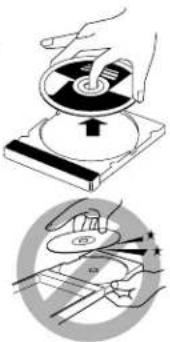
natural_image
Illustration of a hand operating a device with a circular button and a magnified view showing hand positioning (no text or symbols)Trouble shooting
To clean the disc
Wipe the disc with a soft cloth in a straight line from center to edge.
• DO NOT use any solvent — such as conventional record cleaner, spray, thinner or benzine — to clean the disc.
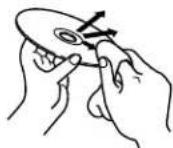
■ Cleaning the system
- Stains on the system should be wiped off with a soft cloth. If the system is heavily stained, wipe it with a cloth soaked in water-diluted neutral detergent and wrung well, then wipe clean with a dry cloth.
- Since the system may deteriorate in quality, become damaged or get its paint peeled off, be careful about the following.
- DO NOT wipe it with a hard cloth.
• DO NOT wipe it strong. - DO NOT wipe it with thinner or benzine.
• DO NOT apply any volatile substance such as insecticides to it. - DO NOT allow any rubber or plastic to remain in contact with it for a long time.
Use this chart to help you solve daily operational problems. If there is any problem you cannot solve, contact your JVC service center.
General
| PROBLEM POSS | BLE CAUSE SOLUTION | |
| Power does not come on. | The power cord is not connected to the center unit or an AC outlet. | Connect the power cord correctly. (pg. 15) |
| Power is not supplied to the powered subwoofer. | The power cord of the subwoofer is not connected to an AC outlet. | Turn off the system, plug the power cord firmly into an AC outlet, and turn on the system again. (pg. 15, 19) |
| The system cord is not connected. | Connect the system cord. (pg. 10) | |
| The system does not work correctly. | Lightning or electronic noise interferes with operation of the microcomputer. | Switch the power off, then disconnect/reconnect the power plug. |
| Immediately after beginning to heat the room, the system was moved to a cold location causing condensation to form inside. | Switch the power off and leave the system a few hours before switching the power on again. | |
| The remote control does not work. | It is too far from the center unit, or is not facing the center unit. | Move closer to the center unit. (Operate the remote control within 7 m of the center unit.) (pg. 16) |
| There is something obstructing the remote sensor. | Remove any obstacles. (pg. 16) | |
| The remote control is not aimed at the remote sensor on the center unit or components. | Aim the remote control at the remote sensor on the equipment you want to operate. (pg. 16) | |
| The remote control mode selector is set at an incorrect position. | Set the selector to the correct position. (pg. 19) | |
| The batteries are exhausted. | Replace the batteries. (pg. 16) | |
| The batteries have been inserted the wrong way round (+/-). | Insert the batteries correctly. (pg. 16) | |
| The remote control is not set to operate the DVD player or tuner (FM/AM – MW). | For the DVD player, press DVD before you perform the operations. (pg. 23)For the tuner, press FM/AM before you perform the operations. (pg. 27) | |
| Sunlight is falling directly on the remote sensor. | Hide the remote sensor from direct sunlight. | |
| The remote control signals are not set correctly. | Enter the correct manufacturer's code. (pg. 17, 18) | |
| PROBLEM POSSIBLE CAUSE SOLUTION | ||
| No sound. The system cord | d and/or speaker cord is not connected. Check the connection. ( pg. 10 – 13) | |
| There is a short in the speaker cord. Reconnect the speaker cord. | ||
| The audio cord is not connected to AUX IN and/or DIGITAL IN correctly. | Connect the cord correctly. ( pg. 14) | |
| An incorrect source has been selected. Select the correct source. ( pg. 20) | ||
| Muting is on. Press | MUTING to cancel muting. ( pg. 20) | |
| The decode mode is not set correctly. Select the proper decode mode. ( pg. 22) | ||
| Sound from one front speaker only. | The speaker cord is not connected correctly. Connect the speaker cord correctly. ( pg. 10) | |
| Left-right balance is not set properly. Adjust the balance properly. ( pg. 53, 58) | ||
| No sound from the center and/or surround speakers. | The speaker setting is incorrect. | Set the speaker setting properly. ( pg. 53, 58) |
| Bass sound is heard reinforced when listening in stereo. | Appropriate bass level for stereo sound is not selected. | Set “AUDIO POS” properly. ( pg. 58) |
DVD Playback
| PROBLEM POSSIBLE CAUSE SOLUTION | ||
| No picture is displayed on the TV screen. | The video cord or SCART cable is not connected correctly. | Connect the cord correctly. (17 pg. 8) |
| The RGB-Y/C selector is not set correctly. | Set the selector properly for the video input format of the connected TV. (17 pg. 8) | |
| TV input selection is incorrect. | Select the correct input on the TV. | |
| The disc is not playable. | Use a playable disc. (17 pg. 3) | |
| A disc cannot be played. | The center unit's and disc's Region Code numbers are incompatible. | Replace the disc. (17 pg. 3) |
| Parental Lock is in use. | Enter password to change the Parental Lock level. (17 pg. 55) | |
| A disc cannot be played and “0:00” is displayed on the display window. | The disc is loaded with its label and data sides inverted. | Load the disc correctly. (17 pg. 23) |
| The unplayable disc is loaded. | Replace the disc. (17 pg. 3) | |
| Video and audio are distorted. | The disc is scratched or dirty. | Replace or clean the disc. (17 pg. 2) |
| A VCR is connected between the center unit and the TV. | Connect the center unit and TV directly. (17 pg. 8) | |
| With some discs, a picture may be blurred when setting “PICTURE SOURCE” to “FILM” or “AUTO”. | Set “PICTURE SOURCE” to “VIDEO (NORMAL)” or “VIDEO (ACTIVE)”. (17 pg. 53) | |
| The picture does not fit the TV screen. | The monitor type is not set correctly. | Set “MONITOR TYPE” properly. (17 pg. 53) |
| The TV is not set correctly. | Set the TV properly. | |
| No subtitle appears on the TV screen though you have selected a certain language as your initial subtitle language. | — | Some DVDs are programmed to always display no subtitle initially. If this happens, press SUBTITLE on the remote control after starting play. (17 pg. 43) |
| Audio language is different from the one you have selected as your initial audio language. | — | Some DVDs are programmed to always use the original language initially. If this happens, press AUDIO on the remote control after starting play. (17 pg. 43) |
MP3 Playback
| PROBLEM POSSIBLE CAUSE SOLUTION | ||
| A disc cannot be played. | No MP3 files are recorded to the disc. Replace the disc. | |
| MP3 files do not have the file extension in their file names. | Add correct file extension (.mp3, .Mp3, .mP3 or .MP3) to their file names. (pg. 3) | |
| MP3 files are not recorded in a format compliant with ISO 9660 Level 1 or 2. | Replace the disc. (Record MP3 files using a compliant application.) | |
| The different types of files are recorded to the disc. The disc which contains the different types of files may not be played because of its disc characteristics or recording conditions. | ||
| Not MP3 files but JPEG files are played. | The MP3/JPEG setting is set to “JPEG”. When both MP3 files and JPEG files are recorded to a disc, set “MP3/JPEG” to “MP3” to play MP3 files. (pg. 53) | |
| The MP3 control display appears on the TV screen, but no operation can be performed. | No MP3 files or JPEG files are recorded to the disc, or the disc is an unplayable disc (such as CD-ROM). | Replace the disc. (pg. 3) |
JPEG Playback
| PROBLEM POSSIBLE CAUSE SOLUTION | ||
| A disc cannot be played. | No JPEG files are recorded to the disc. Replace the disc. | |
| JPEG files do not have the correct file extension in their file names. | Add correct file extension (.jpg, .jpeg, .JPG, .JPEG or any uppercase and lowercase combination such as “.Jpg”) to their file names. (≡ pg. 3) | |
| JPEG files are not recorded in a format compliant with ISO 9660 Level 1 or 2. | Replace the disc. (Record JPEG files using a compliant application.) | |
| Not JPEG files but MP3 files are played. | The MP3/JPEG setting is set to “MP3”. When both MP3 | files and JPEG files are recorded to a disc, set “MP3/JPEG” to “JPEG” to play JPEG files. (≡ pg. 53) |
FM/AM (MW)
| PROBLEM POSSIBLE CAUSE SOLUTION | ||
| Hard to listen to broadcast because of noise. | Antennas are disconnected. Reconnect the antennas correctly and securely. | |
| The AM (MW) loop antenna is too close to the center unit. | Change the position and direction of the AM (MW) loop antenna. | |
| The supplied FM antenna is not properly extended and positioned. | Extend the FM antenna to the best position. | |
| Beat Cut mode is not set properly while listening to an AM (MW) broadcast. | Try to change the Beat Cut mode. (L7 pg. 28) | |
| Continuous static during FM broadcasts. | The received signal is too weak. Connect an external FM antenna ( L7 pg. 9), or contact your dealer. | |
| The station is too far away. Select another station. | ||
Others
| PROBLEM POSSIBLE CAUSE SOLUTION | ||
| The system suddenly turns off by itself. | The Sleep Timer or Auto Standby function is activated. | Turn the functions off. pg. 21, 55) |
NOTE
- Problems may be caused by components connected to the center unit, so also read all manuals for the connected components carefully.
Glossary
Aspect ratio
The ratio of vertical and horizontal sizes of a displayed image. The horizontal vs. vertical ratio of conventional TVs is 4:3, and that of wide-screens is 16:9.
Chapter
Refers to individual chapters included in a title.
Composite video signal
Refers to video signal comprised of three kinds of signals combined: an image signal made up of luminance and chrominance signals using the frequency multiplication technique; burst signal providing the basis for color reproduction; and synchronization signal.
Disc menu
A screen display prepared for allowing selection of images, sounds, subtitles, multiangles, etc. recorded on a DVD.
JPEG
A still-picture data compression system proposed by the Joint Photographic Expert Group, which features small decrease in image quality in spite of its high compression ratio.
Letter box
A method of displaying wide images like movies in the center of a 4:3 TV screen with no part of the image deleted, by placing black bands on the top and bottom of the screen. This name has resulted from the screen form looking literally like a letter box.
Linear PCM (PCM: Pulse Code Modulation)
A system for converting analog sound signal to digital signal for later processing, with no data compression used in conversion.
MP3
A file format with a sound data compression system. "MP3" is the abbreviation of Motion Picture Experts Group 1 (or MPEG-1) Audio Layer 3. By using MP3 format, one CD-R or CD-RW can contain about 10 times as much data volume as a regular CD can.
Multiangle
By recording multiple scenes progressing at the same time in a single title, the user can select view angles. This feature is called the multiangle function.
Multichannel
DVD is specified to have each sound track constitute one sound field. Multichannel refers to a structure of sound tracks having three or more channels.
Multilanguage
When a title is created to cope with multiple languages, it is generally called a multilanguage title.
Parental Lock
A feature of this system to automatically determine whether or not to reproduce particular DVD software by comparing its parental level (a measure of undesirability of scenes, etc. from educational viewpoint) set for the software beforehand with that set on this system by the user; if the software's level is less restrictive than the user-set level, it will be reproduced.
Playback control (PBC)
Refers to the signal recorded on video CDs or SVCDs for controlling reproduction. By using menu screens recorded on a Video CD or SVCD that supports PBC, you can enjoy interactive-type software as well as software having a search function.
Region Code
A system for allowing discs to be played back only in the regions designated beforehand. All the countries in the world are divided into six regions, each region being identified by a specified Region Code (or region number). If the Region Code given to a disc includes a numeral which matches one in the Region Code of a player, the player can play back the disc.
Sampling frequency
Frequency of sampling data when analog data is converted to digital data. Sampling frequency numerically represents how many times the original analog signal is sampled per second.
Surround
A system for creating three-dimensional sound fields full of realism by arranging multiple speakers around the listener.
Transfer rate
The rate of transferring digital data. Usually the measure is in baud per second. The DVD system applies a variable transfer rate system for high efficiency.
Index
A
A-B Repeat Playback 49
All Channel Stereo (ALL CH ST.) 34-36
Angle....42
Audio CD 3,4
Audio language (AUDIO LANGUAGE) 43, 52
Auto standby (AUTO STANDBY) 55
AUTO/PCM 22
B
Bass (BASS) 22,53
Beat cut mode (BEAT CUT) 28
C
CD-R 3
CD-RW 3
Chapter 4
Choice menu 50-56
Audio menu (AUDIO)....53
Distance menu (DISTANCE) 54
Language menu (LANGUAGE)....52
Level menu (LEVEL) 54
Other setting menu (OTHERS) 55
Picture menu (PICTURE)....53
Size menu (SIZE) 54
Speaker setting menu (SPK. SETTING) 53
Composite video 8
Crossover (CROSS OVER) 54, 58
D
DAP (Digital Acoustic Processor) mode 33-36
Dance club (DANCE CLUB) 33-36
Hall (HALL) 33-36
Live club (LIVE CLUB).... 33 - 36
Pavilion (PAVILION) 33-36
Decode mode 22
Dimmer 21
Dolby Digital 33-35
Dolby Pro Logic II 33-35
Pro Logic II Movie (PL II MOVIE) 33-35
Pro Logic II Music (PL II MUSIC) 33-35
DSP mode 33-36
DTS Digital Surround 33-35
DVD Video (DVD).... 3,4
Dynamic range compression
(D.RANGE COMPRESSION) 53, 58
E
Enhanced Other Network (EON).... 31
F
Frame-by-frame playback 45
G
Group 4
J
JPEG 3,4,41
L
Left/Right speaker balance (L/R BALANCE)....53, 58
Low frequency effect attenuater (LFE ATT.)....53, 58
M
Menu language (MENU LANGUAGE) 52
Monitor type (MONITOR TYPE) 53
16:9 AUTO....53
16:9 NORMAL....53
4:3 LB....53
4:3 PS 53
MP3....3,4,40
Muting....20
0
On-screen bar....37
On-screen guide icons (ON SCREEN GUIDE) 24, 55
On-screen language (ON SCREEN LANGUAGE) 52
P
Parental Lock (PARENTAL LOCK)....55
Picture source (PICTURE SOURCE) 53
Playback Control function (PBC) 4, 39
Program Playback (PROGRAM) 47
Program Service (PS) 29-32
Program Type (PTY) 29-32
R
Radio Data System (RDS) 29-32
Radio Text (RT)....29-32
Random Playback 48
Region Code 3,19
Repeat Playback....48
Resume Playback (RESUME) 24, 55
S
Screen saver (SCREEN SAVER) 24, 53
Sleep Timer....21
Slow-motion 45
Subtitle language (SUBTITLE)....43, 52
Super Video CD (SVCD) 3,4
Surround mode....33-36
S-video....8
T
Test tone (TEST TONE)....36, 54
Title....4
Track 4
Tray lock 25
Treble (TREBLE) 22,53
V
Video CD (VCD)....3,4
NOTE: This value is measured at System cord CONNECTOR for reference.
Audio input sensitivity/Impedance (at 1 kHz)
Analog input:
AUX IN: 360 mV/47 kΩ
Digital input*:
DIGITAL IN: -21 dBm to -15 dBm
(OPTICAL) (660 nm ±30 nm)
* Corresponding to Linear PCM, Dolby Digital, and DTS Digital Surround (with sampling frequency — 32 kHz, 44.1 kHz, 48 kHz)
Video section
Color System: PAL
Horizontal Resolution: 500 lines
Signal-to-Noise Ratio: 64 dB
(Composite signal when "RGB" is selected)
Video output level
Composite: 1.0 V(p-p)/75 Ω
S-video-Y: 1.0 V(p-p)/75 Ω
S-video-C: 0.286 V(p-p)/75 Ω
Tuner section
Tuning Range
FM: 87.50 MHz to 108.00 MHz
AM (MW): 522 kHz to 1629 kHz
General
Power Requirements: AC 230 V ∼, 50 Hz
Power Consumption: 20 W (at operation)
2.5 W (in standby mode)
Dimensions (W × H × D): 398 mm × 70 mm × 265 mm
Mass: 2.7 kg
| Front/Center/Surround: | 80 W per channel, RMS at 6 Ω at 1 kHz, with 10 % total harmonic distortion. |
| Subwoofer: | 120 W, RMS at 4 Ω at 100 Hz, with 10 % total harmonic distortion. |
Speaker section
Speaker unit: 20 cm Bass-reflex, Magnetically Shielded
Frequency Range: 25 Hz to 200 Hz
General
Power Requirements: AC 230 V ∼, 50 Hz
Power Consumption: 150 W (at operation)
0 W (in standby mode)
Dimensions (W × H × D): 235 mm × 355 mm × 492 mm
Mass: 13.0 kg
■Satellite Speakers (SP-THA85F)
Speakers: 5.5 cm × 2 Bass-reflex, Magnetically Shielded
Power Handling Capacity: 80 W
Impedance: 6 Ω
Frequency Range: 90 Hz to 20 kHz
Dimensions (W × H × D): 250 mm × 1 103 mm × 250 mm
Mass: 3.77 kg
■ Center Speaker (SP-THA85C)
Speakers: 5.5 cm × 2 Bass-reflex, Magnetically Shielded
Power Handling Capacity: 80 W
Impedance: 6 Ω
Frequency Range: 90 Hz to 20 kHz
Dimensions (W × H × D): 258 mm × 75 mm × 81 mm
Mass: 0.95 kg
■ Front Speakers (SP-THA55F)
Speakers: 8 cm Bass-reflex, Magnetically Shielded
Power Handling Capacity: 80 W
Impedance: 6 Ω
Frequency Range: 80 Hz to 20 kHz
Dimensions (W × H × D): 103 mm × 194 mm × 128 mm
Mass: 0.77 kg
■ Center Speaker (SP-THA55C)
Speakers: 8 cm Bass-reflex, Magnetically Shielded
Power Handling Capacity: 80 W
Impedance: 6 Ω
Frequency Range: 80 Hz to 20 kHz
Dimensions (W × H × D): 165 mm × 130 mm × 128 mm
Mass: 0.77 kg
■ Surround Speakers (SP-THA55S)
Speakers: 8 cm Bass-reflex, Magnetically Shielded
Power Handling Capacity: 80 W
Impedance: 6 Ω
Frequency Range: 80 Hz to 20 kHz
Dimensions (W × H × D): 103 mm × 194 mm × 128 mm
Mass: 0.64 kg
■ Accessories
- Remote control (1)
- Batteries (2)
- FM antenna (1)
• AM (MW) loop antenna (1)
- Power cord (1)
- System cord (1)
- Speaker cords
5 m: For satellite (front left/right) and center speakers (3) 10 m: For satellite speakers (surround left/right) (2) (The length of the above speaker cords are approximate.)
- Screws (with washer) (TH-A85 only)
M4 x 25 mm: For the satellite speakers (16)
Designs & specifications are subject to change without notice.
JVC
VICTOR COMPANY OF JAPAN, LIMITED