GC420t - Label printer ZEBRA - Free user manual and instructions
Find the device manual for free GC420t ZEBRA in PDF.


User questions about GC420t ZEBRA
0 question about this device. Answer the ones you know or ask your own.
Ask a new question about this device
Download the instructions for your Label printer in PDF format for free! Find your manual GC420t - ZEBRA and take your electronic device back in hand. On this page are published all the documents necessary for the use of your device. GC420t by ZEBRA.
USER MANUAL GC420t ZEBRA
natural_image
Abstract black and white geometric pattern with curved white lines on a dark background (no text or symbols)
text_image
Black-and-white photo of a white digital barcode scanner with printed QR codes and logos, showing text and graphics on its body.Zebra® GC420t™
Desktop Thermal Printer
User Guide
ii
©2011 ZIH Corp. GC420, GC420t, ZBI, ZBI 2.0, ZBI-Developer, Uni-Ribbon, ZebraDesigner, ZebraNet, EPL, EPL2, ZPL, ZPL II and all product names and numbers are Zebra trademarks, and Zebra, the Zebra head graphic, ZPL, ZPL II, Element Energy Equalizer circuit, E3 Circuit and, and ZebraNet are registered trademarks of ZIH Corp. All rights reserved. All other trademarks are the property of their respective owners.
This product may contain ZPL®, ZPL II®, and ZebraLink™ programs; Element Energy Equalizer™ Circuit; E³®; and Monotype Imaging fonts. Software ©ZIH corp. All rights reserved worldwide.
All rights reserved worldwide.Monotype®, Intellifont® and UFST® are trademarks of Monotype Imaging, Inc. registered in the United States Patent and Trademark Office and may be registered in certain jurisdictions.
CG Triumvirate is a trademark of Monotype Imaging, Inc. and may be registered in some jurisdictions.
TrueType® is a trademark of Apple Computer, Inc. registered in the United States Patent and Trademark Office and may be registered in certancertain jurisdictions.
Proprietary Statement
This manual contains proprietary information of Zebra Technologies Corporation and its subsidiaries (“Zebra Technologies”). It is intended solely for the information and use of parties operating and maintaining the equipment described herein. Such proprietary information may not be used, reproduced, or disclosed to any other parties for any other purpose without the express written permission of Zebra Technologies.
Product Improvements
Continuous improvement of products is a policy of Zebra Technologies. All specifications and designs are subject to change without notice.
Liability Disclaimer
Zebra Technologies takes steps to ensure that its published Engineering specifications and manuals are correct; however, errors do occur. Zebra Technologies reserves the right to correct any such errors and disclaims liability resulting therefrom.
Limitation of Liability
In no event shall Zebra Technologies or anyone else involved in the creation, production, or delivery of the accompanying product (including hardware and software) be liable for any damages whatsoever (including, without limitation, consequential damages including loss of business profits, business interruption, or loss of business information) arising out of the use of, the results of use of, or inability to use such product, even if Zebra Technologies has been advised of the possibility of such damages. Some jurisdictions do not allow the exclusion or limitation of incidental or consequential damages, so the above limitation or exclusion may not apply to you.
Canadian DOC Compliance Statement
This Class B digital apparatus complies with Canadian ICES-003.
FCC Compliance Statement
This device complies with Part 15 rules. Operation is subject to the following two conditions:
- This device may not cause harmful interference, and
- This device must accept any interference received, including interference that may cause undesired operation.
This equipment has been tested and found to comply with the limits for Class B Digital Devices, pursuant to Part 15 of the FCC Rules. These limits are designed to provide reasonable protection against harmful interference when the equipment is operated in a residential environment. This equipment generates, uses, and can radiate radio frequency energy and, if not installed and used in accordance with the product manuals, may cause harmful interference to radio communications. However, there is no guarantee that interference will not occur in a particular installation. If this equipment does cause harmful interference to radio or television reception, the user is encouraged to do one or more of the following measures:
- Reorient or relocate the receiving antenna.
- Increase the separation between the equipment and receiver.
- Connect the equipment into an outlet on a circuit different from that to which the receiver is connected.
- Consult the dealer or an experienced RF service technician for help.
The user is cautioned that any changes or modifications not expressly approved by Zebra Technologies could void the user's authority to operate the equipment. To ensure compliance, this printer must be used with fully shielded communication cables.

B급 기기
Environmental Management
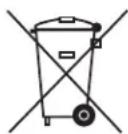
Do not dispose of this product in unsorted municipal waste. This product is recyclable, and should be recycled according to your local standards.
For more information, please see our website at:
Web address: www.zebra.com/environment
About This Document
natural_image
Abstract black and white pattern with curved white and black shapes (no text or symbols)This section provides you with contact information, document structure and organization, and additional reference documents.
Contents
Who Should Use This Document....vi
How This Document Is Organized . . . . . . . . . . . . . . . . . . . . . . . . . . . . . . . . . . . . . . . . . . . . . . . . . . . . . . . . vi
Contacts....vii
Document Conventions ...... viii
Who Should Use This Document
This User Guide is intended for use by any person who needs to operate or to troubleshoot problems with the printer.
How This Document Is Organized
The User Guide is set up as follows:
| Section Description | |
| Introduction on page 1 | This section describes what you get in your shipping box and provides an overview of printer features. This section also has procedures that describe how to open and close the printer and report any problems. |
| Getting Started on page 9 | This section describes how to set up your printer for the first time and use the most common operating procedures for loading media. |
| Print Operations on page 31 | This section provides media and print handling, font and language support, and the set up of less common printer configurations. |
| Printer Options on page 47 | This section covers the common printer options and accessories with brief descriptions and how to get you started using or configuring your printer option or accessory. |
| Maintenance on page 61 | This section provides routine cleaning and maintenance procedures. |
| Troubleshooting on page 73 | This section provides information about printer error reporting that you might need for printer troubleshooting. Assorted diagnostic tests are included. |
| Appendix: Interface Wiring on page 87 | This section provides additional interface information and wiring diagrams to assist with printer to host system integration (typically a PC). |
| Appendix: Dimensions on page 93 | This section provides external printer dimensions for the standard printer and printer with options. |
| Appendix: ZPL Configuration on page 97 | This section briefly covers printer configuration and includes a cross-reference to ZPL printer configuration commands. |
Contacts
Technical Support via the Internet is available 24 hours per day, 365 days per year.
Web Site: www.zebra.com
E-mail Back Technical Library:
E-mail address: emb@zebra.com
Subject line: Emaillist
Self Service Knowledge Base: www.zebra.com/knowledgebase
Online Case Registration: www.zebra.com/techrequest
| Which Department Do You Need? | The Americas | Europe, Middle East, and Africa | Asia Pacific and India |
| Regional Headquarters | Zebra Technologies Corporation475 Half Day Road, Suite 500Lincolnshire, IL 60069 USAT: +1 847 634 6700Toll-free +1 866 230 9494F: +1 847 913 8766 | Zebra Technologies EuropeLimitedDukes MeadowMillboard RoadBourne EndBuckinghamshire, SL8 5XFUnited KingdomT: +44 (0) 1628 556000F: +44 (0) 1628 556001 | Zebra Technologies Asia Pacific Pte. Ltd.120 Robinson Road#06-01 Parakou BuildingSingapore 068913T: +65 6858 0722F: +65 6885 0838 |
| Technical SupportFor questions on the operation of Zebra equipment and software, please call your distributor.For additional assistance, contact us.Please have your model and serial numbers available. | T: +1 877 ASK ZEBRA (275 9327)F: +1 847 913 2578Hardware: ts1@zebra.comSoftware: ts3@zebra.comKiosk printers:T: +1 866 322 5202E: kiosksupport@zebra.com | T: +44 (0) 1628 556039F: +44 (0) 1628 556003E: Tseurope@zebra.com | T: +65 6858 0722F: +65 6885 0838E: China: tschina@zebra.comAll other areas:tsasiapacific@zebra.com |
| Repair Service DepartmentFor back-to-base service and repair. | T: +1 877 ASK ZEBRA (275 9327)F: +1 847 821 1797E: repair@zebra.comTo request a repair in the U.S., go to www.zebra.com/repair. | T: +44 (0) 1772 693069F: +44 (0) 1772 693046New requests: ukrma@zebra.comStatus updates:repairupdate@zebra.com | T: +65 6858 0722F: +65 6885 0838E: China: tschina@zebra.comAll other areas:tsasiapacific@zebra.com |
| Technical Training DepartmentFor Zebra product training courses. | T: +1 847 793 6868T: +1 847 793 6864F: +1 847 913 2578E: ttamerica@zebra.com | T: +44 (0) 1628 556000F: +44 (0) 1628 556001E: Eurtraining@zebra.com | T: +65 6858 0722F: +65 6885 0838E: China: tschina@zebra.comAll other areas:tsasiapacific@zebra.com |
| Inquiry DepartmentFor product literature and distributor and dealer information. | T: +1 877 ASK ZEBRA (275 9327)E: inquiry4@zebra.com | T: +44 (0) 1628 556037F: -44 (0) 1628 556005E: mseurope@zebra.com | E: China:GCmarketing@zebra.comAll other areas:APACChannelmarketing@zebra.com |
| Customer Service Department (US)Internal Sales Department (UK)For printers, parts, media, and ribbon, please call your distributor or contact us. | T: +1 877 ASK ZEBRA (275 9327)E: clientcare@zebra.com | T: +44 (0) 1628 556032F: -44 (0) 1628 556001E: cseurope@zebra.com | T: +65 6858 0722F: +65 6885 0836E: China: order-csr@zebra.comAll other areas:csasiapacific@zebra.com |
Key: T: Telephone
F: Facsimile
E: E-mail
Document Conventions
The following conventions are used throughout this document to convey certain information.
Alternate Color (online only) Cross-references contain hot links to other sections in this guide. If you are viewing this guide online in .pdf format, you can click the cross-reference (blue text) to jump directly to its location.
Command Line Examples Command line examples appear in Courier New font. For example, type ZTools to get to the Post-Install scripts in the bin directory.
Files and Directories File names and directories appear in Courier New font. For example, the Zebra
Icons Used

Caution • Warns you of the potential for electrostatic discharge.

Caution • Warns you of a potential electric shock situation.

Caution • Warns you of a situation where excessive heat could cause a burn.

Caution • Advises you that failure to take or avoid a specific action could result in physical harm to you.
Caution • (No icon) Advises you that failure to take or avoid a specific action could result in physical harm to the hardware.

Important • Advises you of information that is essential to complete a task.

Note • Indicates neutral or positive information that emphasizes or supplements important points of the main text.

Example • Provides an example, often a scenario, to better clarify a section of text.
Contents
natural_image
Abstract black and white pattern with curved white lines on a black background (no text or symbols)- About This Document ...... v
Who Should Use This Document ...... vi
How This Document Is Organized ...... vi
Contacts ...... vii
Document Conventions....viii
- Contents ix
1 • Introduction ...... 1
GC420t™ Thermal Printers 2
What's in the Box? 3
Unpack and Inspect the Printer 3
Your Printer....4
Printer Features 5
Operator Controls 6
2 • Getting Started 9
Attaching Power 10
Loading Roll Media....11
Preparing Media....11
Placing the Roll in the Media Compartment 12
Loading Transfer Ribbon....15
Printing a Test (Printer Configuration) Label 19
Pre-install Windows® Printer Drivers 20
Connecting your Printer to a Computer 22
Interface Cable Requirements 22
After Your Printer is Connected. 28
3 • Print Operations ...... 31
Determining Printer Configuration.... 32
Long Term Printer In-activity or Storage 32
Thermal Printing 32
Modes of Printing 33
Print Media Types 33
Determining Thermal Media Types. 35
Replacing Supplies 35
Adding a New Transfer Ribbon. 35
Replacing a Partially Used Transfer Ribbon 36
Adjusting the Print Width. 36
Adjusting the Print Quality. 36
Media Sensing 37
Ribbon Overview. 38
When to Use Ribbon. 38
Coated Side of Ribbon 38
Printing on Fan-Fold Media. 40
Printing with Externally Mounted Roll Media. 42
Fonts and Your Printer 43
Localizing the Printer with Code Pages 43
Identifying Fonts in Your Printer 44
Stand Alone Printing 45
Sending Files to the Printer.... 46
Print Meter 46
4 • Printer Options 47
Label Dispenser Option 48
Cutter Option.... 51
Loading Media with the Cutter Option 52
ZebraNet® 10/100 Internal (Wired) Print Server Option.... 55
Printer Network Configuration Status Label 56
Zebra® KDU — Printer Accessory 57
KDU Plus™ — Printer Accessory 58
ZBI 2.0™ — Zebra Basic Interpreter 59
5 • Maintenance .... 61
Cleaning 62
Cleaning the Printhead 63
Media Path Considerations.... 64
Platen Cleaning and Replacement 66
Other Printer Maintenance 68
Replacing the Printhead 69
6 • Troubleshooting 73
Status Light Descriptions 74
Status Light Error Resolutions 75
Print Quality Problems 77
Manual Calibration 80
Troubleshooting Tests....81
Printing a Configuration Label 81
Recalibration....81
Resetting the Factory Default Values 82
Communications Diagnostics 82
Feed Button Modes. 84
A • Appendix: Interface Wiring 87
Universal Serial Bus (USB) Interface 88
Parallel Interface 89
Ethernet Interface 90
Serial Port Interface 91
B • Appendix: Dimensions ..... 93
External GC420t™ Printer Dimensions 94
C • Appendix: ZPL Configuration 97
Managing the ZPL Printer Configuration.... 98
ZPL Configuration Status to Command Cross-reference 99
Printer Memory Management and Related Status Reports 102
ZPL Programming for Memory Management 102

Notes •
1
Introduction
natural_image
Abstract black and white pattern with curved white lines on a black background (no text or symbols)This section describes what you get in your shipping box and provides an overview of printer features. This includes procedures that describe how to open and close the printer and report any problems.
Contents
GC420t™ Thermal Printers 2
What's in the Box? 3
Unpack and Inspect the Printer 3
Your Printer 4
Printer Features 5
Operator Controls. 6
GC420t™ Thermal Printers
The Zebra ^® GC420t ^™ model is the best value in a desktop thermal printer. The GC420t ^™ printer provides thermal transfer and direct thermal printing at speeds up to 4 ips (inches per second) at a 203 dpi (dots per inch) print density. The GC420t ^™ supports both ZPL ^™ and EPL ^™ Zebra printer programming languages and a wide variety of interface and feature options.
The GC420 printer features:
- Automatic printer language detection and switching between ZPL and EPL programming and label formats.
- The industry's easiest ribbon loading design.
• Color-coded operator controls and media guides. - Zebra™ Global Printing Solution – supports Microsoft Windows keyboard encoding (and ANSI), Unicode UTF-8 and UTF 16 (Unicode Transformation Formats), XML, ASCII (7 and 8 bit used by legacy programs and systems), basic single and double byte font encoding, Hexadecimal encoding, and custom character maps (DAT table creation, font linking, and character remapping).
- Improved printer performance: faster print speeds and a 32-bit processor.
- A complete suite of free software applications and drivers to configure printer settings, design and print labels and receipts, get printer status, import graphics and fonts, send programming commands, update firmware, and download files. Clone printer settings and send graphics, files, fonts, and firmware (updates) to one or more Zebra® Ethernet and locally connected printers with ZebraNet™ Bridge.
- Maintenance reporting enabled and customizable by the user.
The GC420 printers offer these basic printer options:
- Label Dispense (Peel-Off).
- General Media Cutter
- Internal 10/100 Print Server and Ethernet Interface.
- Zebra® ZBI 2.0™ (Zebra BASIC Interpreter) programming language. ZBI™ allows you to create custom printer operations that can automate processes, use peripherals (i.e. scanners, scales, keyboards, Zebra® KDU or KDU Plus™, etc.) all without being attached to a PC or network.
This users guide provides all the information you need to operate your printer on a daily basis. To create label formats, refer to your programming guides or label design applications such as ZebraDesigner™.
Your printer, when connected to a host computer, functions as a complete system for printing labels and tags.
Note • Many printer settings may also be controlled by your printer's driver or label design software. Refer to the driver or software documentation for more information.
What's in the Box?
Save the carton and all packing materials in case you need to ship or store the printer later. After unpacking, make sure you have all parts. Follow the procedures for inspecting the printer to familiarize yourself with printer parts so you can follow the instructions in this book.
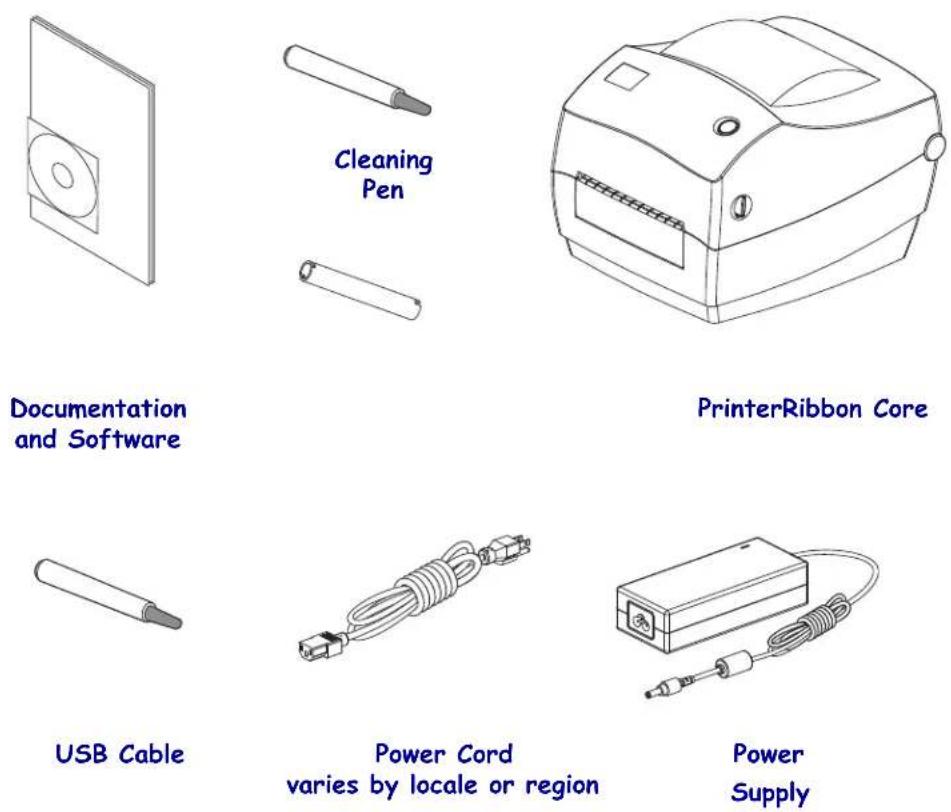
Unpack and Inspect the Printer
When you receive the printer, immediately unpack it and inspect for shipping damage.
- Save all packing materials.
- Check all exterior surfaces for damage.
- Open the printer and inspect the media compartment for damage to components.
If you discover shipping damage upon inspection:
- Immediately notify the shipping company and file a damage report. Zebra Technologies Corporation is not responsible for any damage to the printer incurred during shipment, and will not cover the repair of this damage under its warranty policy.
- Keep all packaging material for shipping company inspection.
- Notify your authorized Zebra ^ reseller.
Your Printer

text_image
Status Light Feed Button Release Latches Fan-Fold Media Entry Slot Release Latches DC Power Switch and Receptacle Interface ConnectorsOpening the printer
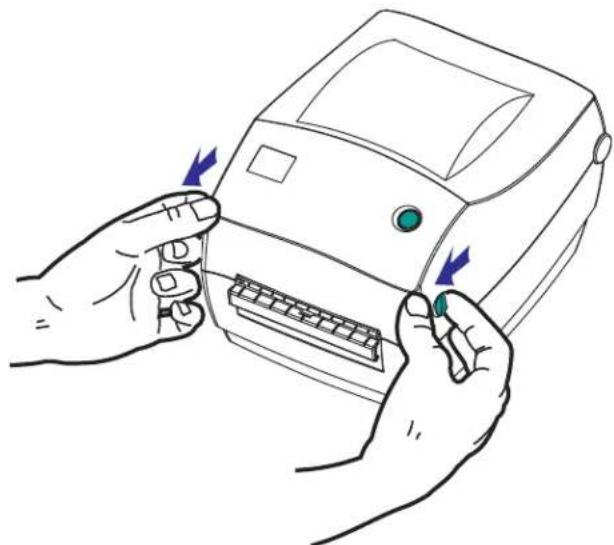
To access the media compartment, you must open the printer. Pull the release latches towards you and lift the cover. Check the media compartment for loose or damaged components.
natural_image
Line drawing of two hands inserting a device into a keyboard (no text or symbols present)
Caution • The discharge of electrostatic energy that accumulates on the surface of the human body or other surfaces can damage or destroy the printhead or electronic components used in this device. You must observe static-safe procedures when working with the printhead or the electronic components under the top cover.
Printer Features

text_image
Ribbon Take-Up Gear Ribbon Roll Holders Supply Spindles Take Up Spindles BlackLine Sensor Head-Up Sensor (inside) Media Guide Adjustment Roll Holders Platen Roller Media Guides Peel Bar Dispenser Door (open) Sensor Pinch Roller Printhead Web (Gap) Sensor Fan-Fold Media Lock (screw) Dispenser OptionOperator Controls
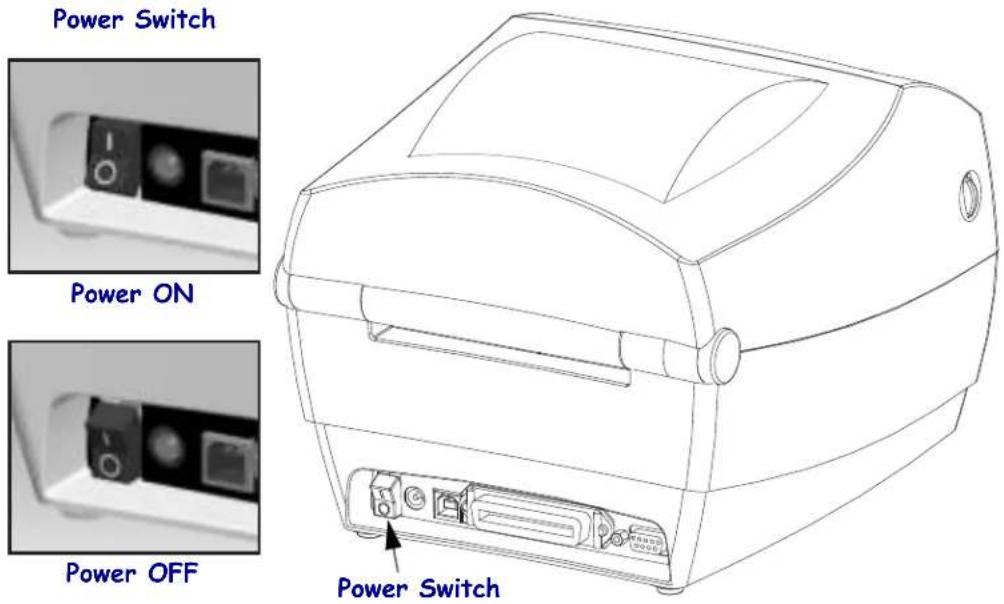
Power Switch
Press up to turn ON or down to turn OFF the printer.

Caution • The printer power should be turned off before connecting or disconnecting the communications and power cables.
text_image
Power Switch Power ON Power OFF Power SwitchFeed Button
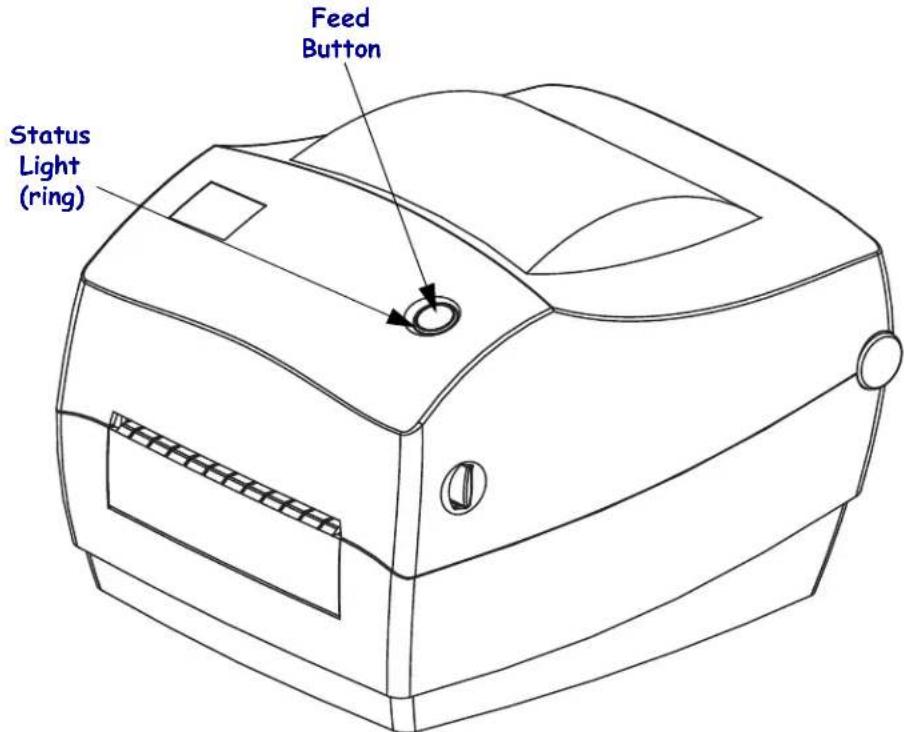
- Tap the Feed button once to force the printer to feed one blank label.
- Press the Feed button to take the printer out of a “pause” condition. The printer is put into “pause” by either a programming command or an error condition. See What the Status Light is Telling You on page 74 in the Troubleshooting chapter.
- Use the Feed button for printer setup and status (see Feed Button Modes on page 84 in the Troubleshooting chapter).
Status Light
Located on the top case next to the feed button, the status light functions as a printer operational indicator (see Status Light Descriptions on page 74).
text_image
Feed Button Status Light (ring)Closing the printer
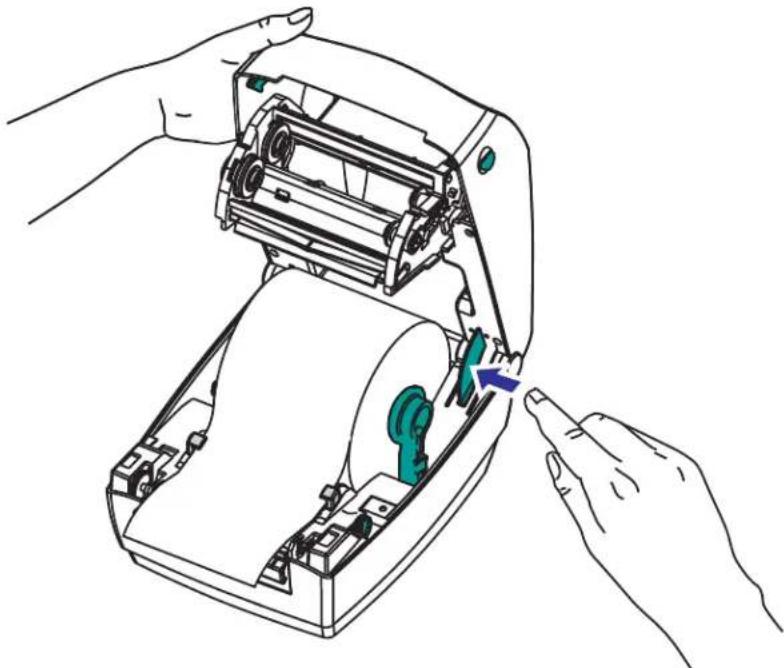
- Hold the top cover and press the "kick-stand" cover lock to release.
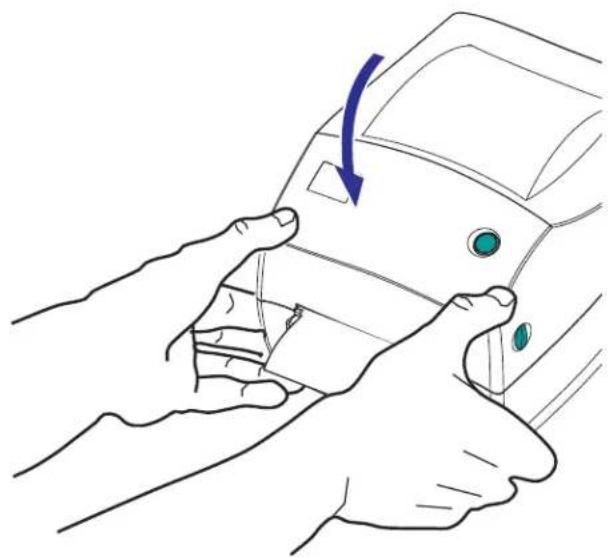
Lower the top cover. The ribbon carriage automatically folds up into place.
natural_image
Line drawing of hands operating a printer with a blue arrow indicating the process (no text or symbols present)- Press down until the cover snaps closed.
natural_image
Line drawing of hands holding a device with a blue arrow indicating rotation (no text or symbols)2
Getting Started
natural_image
Abstract black and white pattern with curved white lines on black background (no text or symbols)This section describes how to set up your printer for the first time and use the most common operating procedures for loading media.
Contents
Attaching Power....10
Loading Roll Media 11
Loading Transfer Ribbon 15
Printing a Test (Printer Configuration) Label 19
Pre-install Windows® Printer Drivers.... 20
Connecting your Printer to a Computer 22
After Your Printer is Connected 28
Attaching Power

Important • Set up your printer so that you can handle the power cord easily if needed. To make certain the printer cannot carry electrical current, you must separate the power cord from the power supply receptacle or AC electrical outlet.

Caution • Never operate the printer and power supply in an area where they can get wet. Serious personal injury could result!
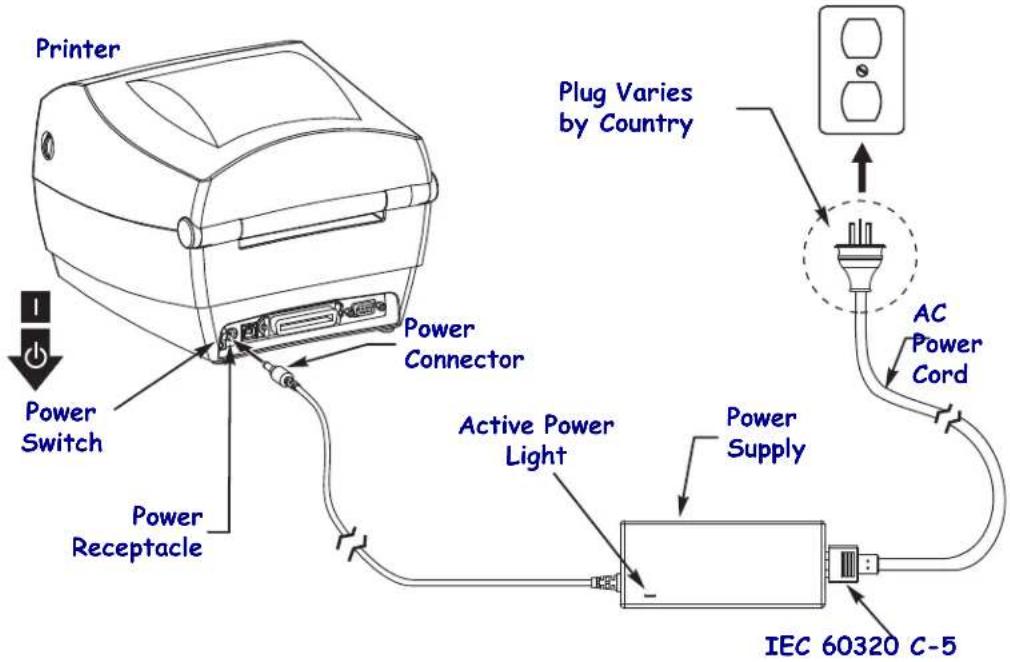
- Make sure the printer's power switch is in the off position (down).
- Insert the AC power cord into the power supply.
- Plug the other end of the cord into an appropriate AC electrical outlet. Note: The active power light will go on if power is on at the AC outlet.
- Insert the power supply's power connector into the printer's power receptacle.
text_image
Printer Power Switch Power Receptacle Power Connector Plug Varies by Country Active Power Light Power Supply IEC 60320 C-5 AC Power Cord
Note • Ensure the appropriate power cord with a three (3) prong plug and an IEC 60320-C5 connector are used at all times. These power cords must bear the relevant certification mark of the country in which the product is being used.
Loading Roll Media
When you load media, you must place the roll onto the media hangers.
You must use the correct media for the type of printing you require.
Preparing Media
Whether your roll media is inside or outside wound, you load it into the printer the same way.
- Remove the outside length of media. During shipment, handling, or storage, the roll may become dirty or dusty. Removing the outside length of media avoids dragging adhesive or dirty media between the printhead and platen.
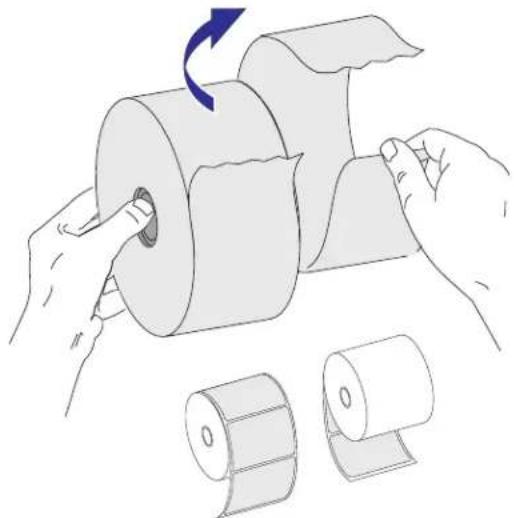
natural_image
Illustration of hands using a roll to spread or print on paper, with no visible text or symbolsPlacing the Roll in the Media Compartment
-
Open the printer. Remember that you need to pull the release latch levers toward the front of the printer.
-
Open the media guides by turning the media guide adjustment knob towards the rear of the printer.
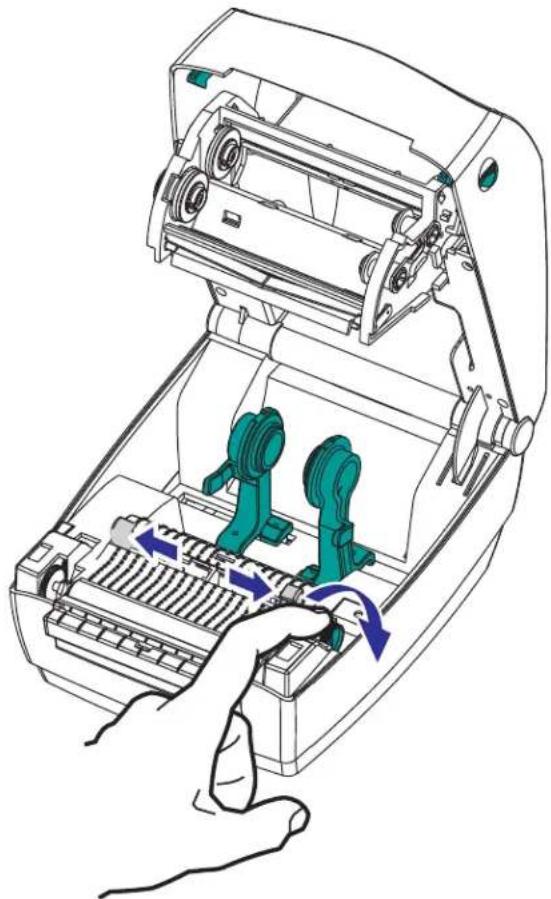
natural_image
Line drawing of a hand operating a device with blue arrows indicating rotation or adjustment (no text or symbols present)- Open the media roll holders. Pull the media guides open with your free hand and place the media roll on the roll holders and release the guides. Orient the media roll so that its printing surface will face up as it passes over the platen (drive) roller.
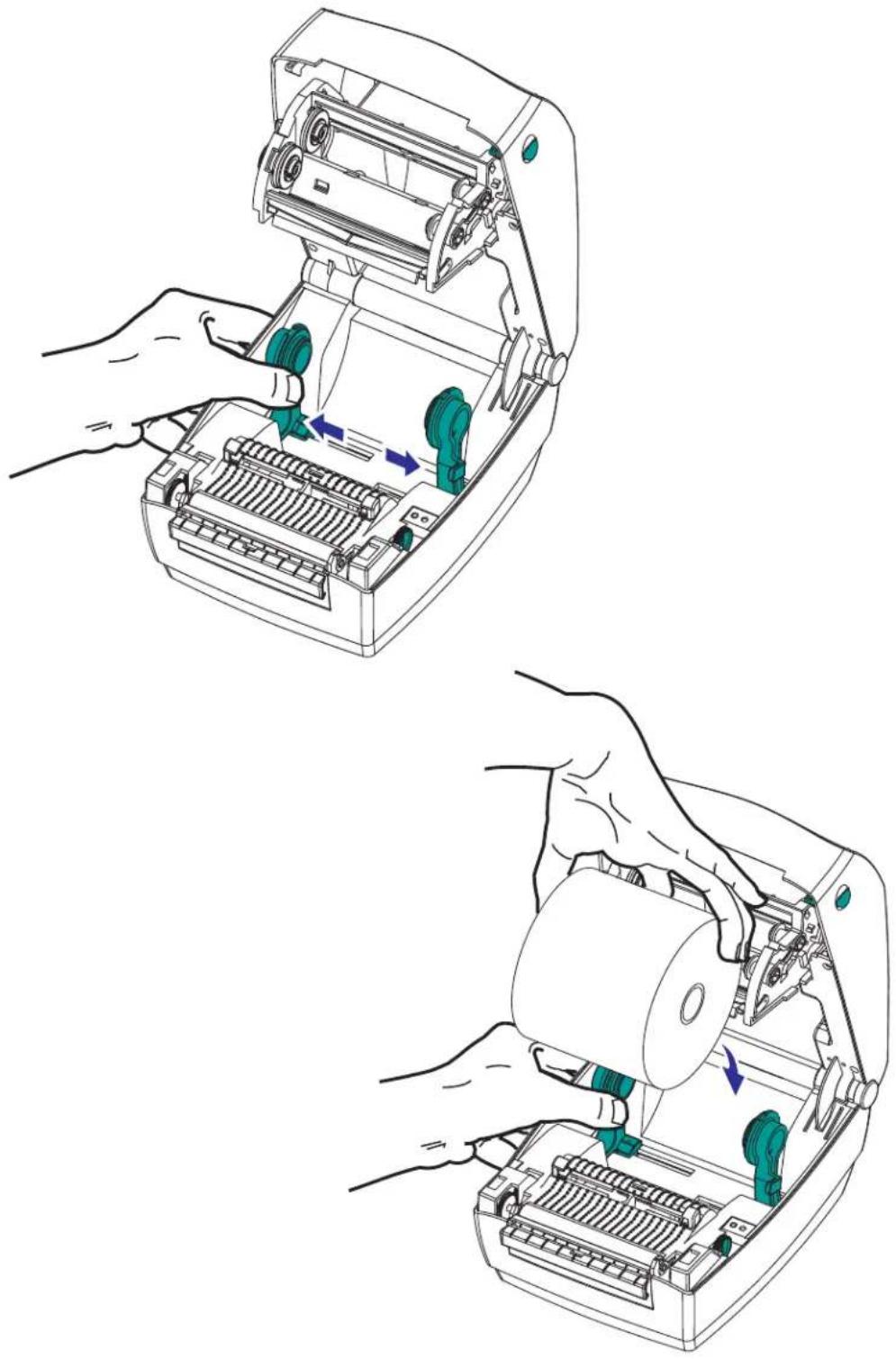
natural_image
Two-step diagram showing hands operating a device with internal components and blue arrows indicating motion (no text or symbols)- Pull the media so that it extends out of the front of the printer. Verify the roll turns freely. The roll must not sit in the bottom of the media compartment. Verify that the media's printing surface is facing up.

natural_image
Technical line drawing of a printer with internal components and a paper output (no text or symbols)- Push the media under both of the media guides. Close the media guides by turning the media guide adjustment knob to the front. The guides should just touch, but not restrict, the edges of the media.

text_image
Under Media Guides-
Unless you need to load transfer ribbon, close the top cover. Remember that you need to release the cover lock, lower the top cover, and press down until the latches snap into place.
-
If printer power is on, press the Feed Button to feed media. Otherwise, wait to turn on the printer and complete the printer 'Getting Started' instructions in this chapter.
Loading Transfer Ribbon
Transfer ribbons come in several varieties and in some cases colors to match your application needs. Genuine Zebra ^® transfer ribbons are specifically designed for your printer and Zebra brand media. Using non-Zebra media or ribbons not approved for use in your Zebra ^® printer may damage your printer or printhead.
- The media and ribbon types should be matched to provide you with optimal print results.
- Always use ribbon that is wider than the media to protect the printhead from wear.
- For direct thermal printing, do not load ribbon in the printer.
Your printer needs to use Zebra ^® Uni-Ribbon ^™ (universal ribbon). Uni-Ribbons have a ribbon out trailer (reflector) to stop printing when empty. Zebra ^® Uni-Ribbon ^™ will work on older model Zebra ^® desktop printers too.
Uni-Ribbons are identified with a color coded leader.
• Blue - Performance Wax (5319)
• Silver - Premium Wax/Resin (3200)
- Gold - Performance Resin (5095) for synthetics (6 ips max. speed) and coated paper (4 ips max. speed)
• Red - Premium Resin (5100) for synthetics (4 ips max. speed)
Before following these steps, prepare the ribbon by removing its wrapping and pulling its adhesive strip free.
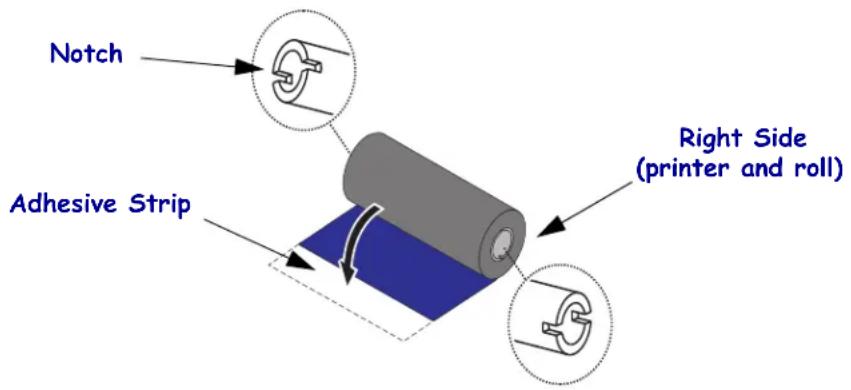
text_image
Notch Adhesive Strip Right Side (printer and roll)See Ribbon Overview on page 38 for more information on ribbon use.

Important • DO NOT USE early model desktop printer ribbon cores! The older ribbon cores can be identified by notches on only one side of the ribbon core. These older cores are too large and will cause take-up spool to bind.
Note • DO NOT USE ribbon cores with damaged notches - rounded, frayed, smashed, etc. The core notches should be square to lock the core on the spindle or the core may slip causing ribbon wrinkle, poor end of ribbon sensing or other intermittent failures.
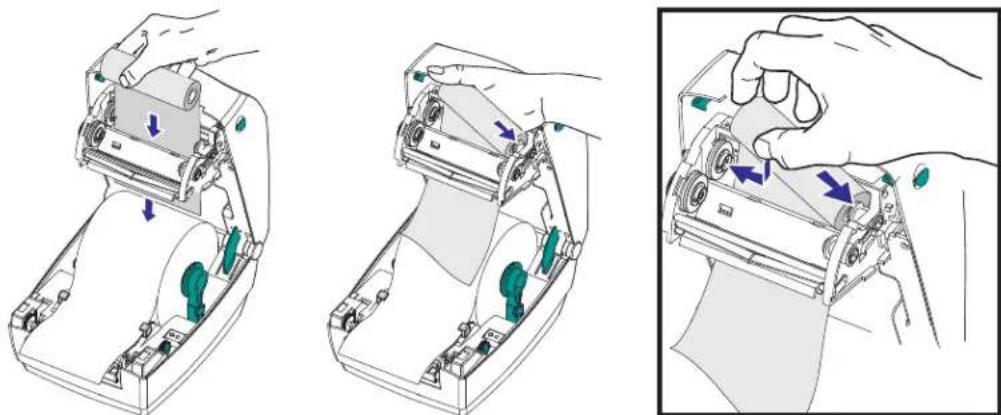
- With the printer open, thread the ribbon through the ribbon carriage. Press the right side onto the spring loaded supply hub. Align the left side of the ribbon core notches to the left supply (spindle) hub spokes. Rotate the roll until the notches align and lock into the left side of the supply hub.
natural_image
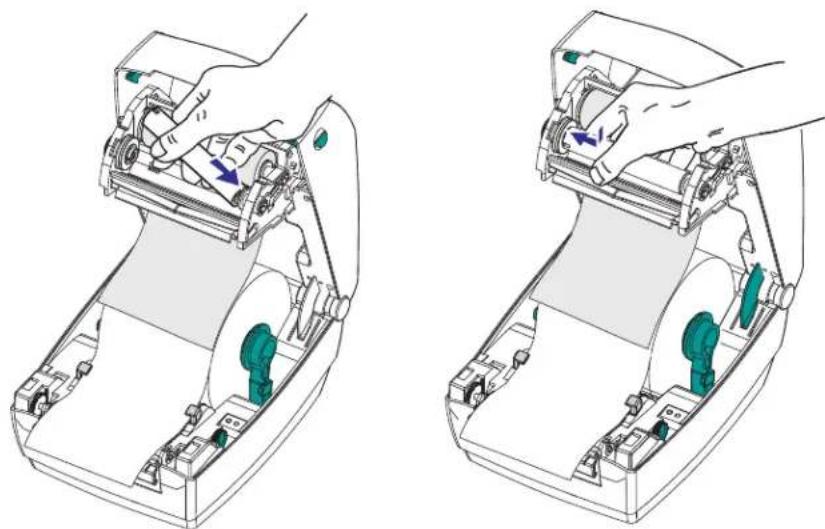
Three-step diagram showing hand operating a device in different states: handling, disassembly, and cleaning (no text or symbols present)- Place an empty ribbon core on printer's take-up spindles. Rotate the ribbon core until the notches align and lock into the left side of the take-up hub.
natural_image
Technical line drawing of a mechanical device with hands operating the lever (no text or symbols present)You can find your first ribbon take-up core in the packing box. Subsequently, use the empty supply core to take up the next roll of ribbon.
- Attach the ribbon to the take up core. Use the adhesive strip on new rolls; otherwise, use tape. You must align the ribbon when you are attaching it to the core, so that it will be taken straight onto the core and align with the supply.

natural_image
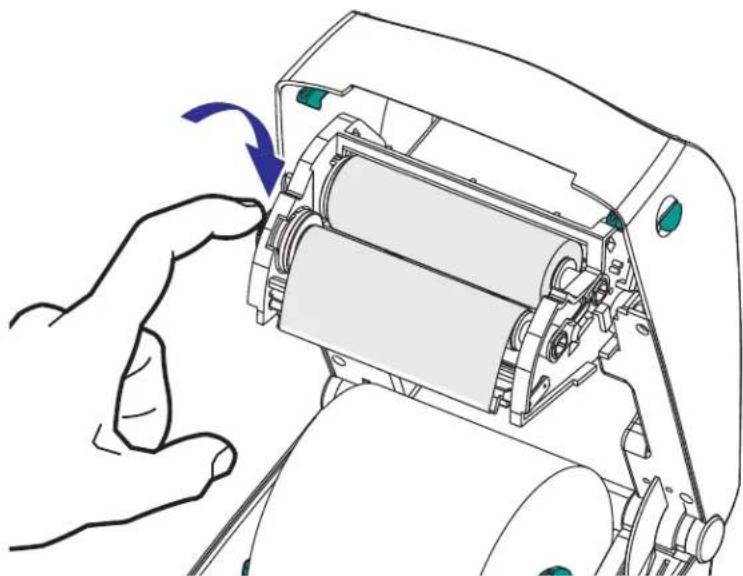
Line drawing of a hand operating a sewing machine with a roller being inserted (no text or symbols)- Turn the ribbon take-up gear counter-clockwise (top moves toward rear) to remove slack from the ribbon.
natural_image
Illustration of a hand inserting a cylindrical device into a mechanical housing (no text or symbols visible)-
Verify that the media is loaded and ready to print and then close the printer cover. Remember that you need to release the cover lock, lower the top cover, and press down until the latches snap into place.
-
If printer power is on, press the Feed button to have the printer feed a minimum of 10 cm (4 inches) of media to remove slack and ribbon wrinkle, and to align the ribbon on the spindles. Otherwise, wait to turn on the printer and complete the printer 'Getting Started' instructions in this chapter.
-
Change the print mode setting from direct thermal printing to thermal transfer to set the printer's temperature profiles for thermal transfer media. This can be done with the printer driver, application software, or printer programming commands.
-
When controlling printer operations with ZPL programming, refer to the Media Type (^MT) ZPL II command (follow the instructions in the ZPL Programming Guide).
-
When controlling printer operations with EPL Page Mode, refer to the Options (O) EPL command (follow the instructions in the EPL Page Mode Programmer's Guide).
-
To verify the mode change from direct thermal printing to thermal transfer printing, use the Printing a Test (Printer Configuration) Label on page 19 to print a configuration label. The 'PRINT METHOD' should read 'THERMAL-TRANS' on the printer configuration status label.
Your printer is now ready to print.
Printing a Test (Printer Configuration) Label
Before you connect the printer to your computer, make sure that the printer is in proper working order.
You can do this by printing a configuration status label.
-
Make sure the media is properly loaded and the top cover of the printer is closed. Then, turn the printer power on if you have not already done so. If the printer initializes with the status light blinking green (pause mode), press the Feed button once to set the printer in Ready (to print) mode. See the Troubleshooting on page 73 if the printer's status light does not turn solid green (Ready).
-
Press the Feed button two to three times to allow the printer to calibrate the printer for the installed media. The printer may feed several labels during this process.
-
When the status light is solid green, press and hold the Feed button until the status light flashes once.
-
Release the Feed button. A configuration label will print. If you cannot get this label to print, refer to Getting Started on page 9.

text_image
PRINTER CONFIGURATION Zoora Technologies 21C BC4201 10.0.... DARKNESS 4 IPE.... PRINT SPEED +030.... TEAR OFF TEAR OFF.... PRINT MODE RAP/NOCH.... MEDIA TYPE LE9.... SENSOR TYPE AUTO.... SENSOR SELECT DIRECT-THERMIL.... PRINT METHOD 832.... PRINT WIDTH 1248.... LABE, LENGTH 59.0IN... MAXIMUM LENGTH CONNECTED.... USB CONT. 6101RECTIONAL.... PARALLEL CONT. 5903.... BAID 8 0115.... DATA BITS NONE.... PARITY CTR & XON/XOFF.... POST HANDSFAKE NONE.... PROTOCOL (<=) 7EH.... CONTROL CHAPR (<=) 6EH.... COMMAND CHAPR (<=) OH.... DELIN CHAPR 2PL IT.... 2PL MODE NO NOTION.... MEDIA POWER UP FEED.... HEAD CLOSE DEFAULT.... BACKFEED +000.... LABEL TOP +0000.... LEFT POSITION NO.... HEXPOFF 048.... LED S. 095.... MEDIA S. 082.... LED GAIN 050.... MARK S. 093.... MARK GAIN 088.... MARK RED B. 093.... MARK MEDIA GAIN 095.... CONT PROTOP S. 097.... CONT MEDIA GAIN 075.... RIGGEN GUI 043.... RIGGEN GAIN 098.... TAKE LABEL 04F.... MODES ENABLED ... ... ROI B/ATI FUL.... MODES DISABLED V71.17.1LZP12P C-... FIRMLARE 1.3.... XL SIDEW V27.00.5L.... NARCLARE ID CUSTOMIZED.... CONFIGURATION 2104K... R: RAT 5832K... ONABORO FLASH NONE.... FORMAT CONVERT DISABLEC... ZBI 2.1.... ZBI VERSION 10.085 IN... LAST O.FANCI 10.085 IN... HEAD USAGE 10.085 IN... TOTAL USAGE 10.085 IN... RESET CONTR1 10.085 IN... RESET CONTR2 ... PRINT OFF... SERIAL NUMBER PRINT OFF... SPARY WARNING 2010-03-22 IN=24-57 TIME STAMP FIRMAIRE IS THIS PRINTER IE COPYRIGHTEDPre-install Windows® Printer Drivers
Zebra is changing the way you install and use your printer with your Windows based PC systems. We recommend that at minimum, the ZebraDesigner™ Windows® driver be pre-installed to take advantage of the advancements in ease of use and simplicity of the Windows operating systems since the release of Windows XP® SP2.
Zebra provides the Zebra Setup Utilities (ZSU); a suite of Zebra® printer drivers, utilities, and communications and installation tools for use with most Windows PC operating systems. Zebra Setup Utilities and Zebra Windows printer drivers are available on the user's CD and the Zebra web site (www.zebra.com) for latest versions.
ZebraDesigner™ Driver and Zebra Setup Utilities (includes the driver): Supports Windows 7®, Windows Vista®, Windows XP®, Windows® 2000®, Windows Server® 2008, and Windows Server® 2003 operating systems. The driver supports 32 bit and 64 bit Windows operating systems and is Microsoft Certified. Zebra Setup Utilities and the ZebraDesigner driver support the following printer communication interfaces: USB, parallel, serial, Wired and Wireless Ethernet and Bluetooth (using a Bluetooth virtual printer port).
Install the Zebra Setup Utilities before applying power to the printer connected to the PC (running a Zebra driver supported Windows operating system). The Zebra Setup Utility will prompt you to apply the printer power. Continue to follow the instructions to complete your printer installation.
Plug'N'Play (PnP) Printer Detection and Windows® operating systems
More recent Windows operating systems automatically detect the printer when it is connected via the USB interface. Depending on the hardware configuration and the Windows version, your printer may be Plug-and-Play (PnP) detected when connecting to the USB, parallel, or serial port interfaces. The printer drivers do not support serial port PnP installation at this time. The printer's PC interface configuration for the parallel port must support and have bidirectional communications for PnP operations.
The operating system automatically starts a “Add new hardware” wizard when connecting the printer for the first time to the PC. If you have pre-loaded the driver suite with the Zebra Setup Utility, then the printer driver will automatically install. Go to your Windows printer directory and right-click and select ‘Properties’. Click on the ‘Print test page’ button to verify a successful installation.
The Windows operating system will detect and re-link a previously installed printer if it is reconnected to the USB interface or if printer power is turned on after the PC has finished its restart of the operating system. Ignore the new device detected warnings and close the Task bar prompts. Wait several seconds for the operating system to match the printer to the driver software. The warnings will quit and the printer now should be ready to begin printing.
Universal Serial Bus (USB) Device Communications
The printer is a terminal device (not a host or hub) when using a USB interface. You can refer to the USB Specification for details regarding this interface.
Scanners, scales or other data input (terminal) devices must use the serial port (not the USB port) to send data to the printer.
Serial Port and Windows® operating systems
The Windows operating system default settings for the serial port communication closely match the printer's defaults settings with one exception; the data Flow Control settings. The Windows default data Flow Control setting is NONE. The printer requires data Flow Control set to Hardware.

Note • The printer does not support Windows ^® Serial Port Plug and Play (PnP) device detection at this time.
Ethernet
This printer option has a variety of methods and utilities to assist with printer connection and configuration of networked Zebra printers on a LAN (local area network) or WAN (wide area network). The Zebra Setup Utility configuration wizards support creating a connection to the printer on a shared network with Windows based systems by using the printer's IP address. The printer includes internal Web pages to provide easy access to printer and network configuration. The web pages are accessible via the printers IP address using any web browser. The free version of ZebraNet™ Bridge software allows you to centrally deploy, manage, and monitor your Zebra® printers with automatic Zebra® printer discovery up to 3 printers from a single PC screen anywhere on your global network. ZebraNet™ Bridge Enterprise is available for purchase to manage larger numbers of Zebra® printers.
Connecting your Printer to a Computer
The Zebra ^® GC420 printers support a variety of interface options and configurations. These include: Universal Serial Bus (USB) interface, RS232 Serial, Parallel (IEEE 1284.4) and 10/100 Ethernet.
- USB, Serial and Parallel
- Optional: USB and Ethernet (Wired)
The Zebra Setup Utility is designed to assist you with installing these interfaces. The cabling and unique parameters for each of these physical printer communication interfaces is discussed in the following pages to assist you with making configuration setup choices prior to and immediately following applying power. The Zebra Setup Utilities configuration wizards will instruct you to turn the printer's power on at the appropriate time to complete the installation of your printer.

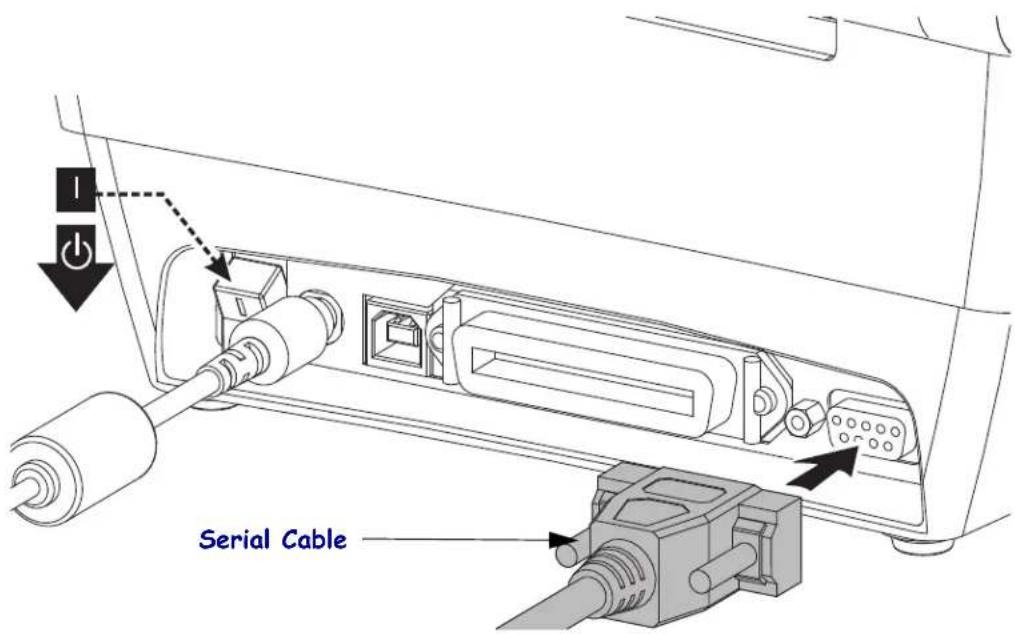
Caution • Keep the power switch in the OFF position when attaching the interface cable. The power cord must be inserted into the power supply and the power receptacle on the back of the printer before connecting or disconnecting the communications cables.
Interface Cable Requirements
Data cables must be of fully shielded construction and fitted with metal or metallized connector shells. Shielded cables and connectors are required to prevent radiation and reception of electrical noise.
To minimize electrical noise pickup in the cable:
- Keep data cables as short as possible (6 foot [1.83 m] recommended).
- Do not tightly bundle the data cables with power cords.
- Do not tie the data cables to power wire conduits.

Important • This printer complies with FCC “Rules and Regulations,” Part 15, for Class B Equipment, using fully shielded data cables. Use of un-shielded cables may increase radiated emissions above the Class B limits.
USB Interface Requirements
Universal Serial Bus (version 2.0 compliant) provides a fast interface that is compatible with your existing PC hardware. USB's "plug and play" design makes installation easy. Multiple printers can share a single USB port/hub.
When using a USB cable (not supplied with your printer), verify that the cable or cable packaging bears the “Certified USB™” mark (see below) to guarantee USB 2.0 compliance.

text_image
USB Cable CERTIFIED USBSerial Communications
The GK888 has a DCE serial communication port for hardware compatibility with legacy 888 printers. The required cable must have a nine-pin “D” type (DB-9P) male connector on one end which plugs into the mating (DB-9S) serial port located on the back of the printer. The other end of this signal interface cable connects to a serial port on the host computer. The cable is a Null-Modem (cross-over signal connections) cable. For pinout information, refer to Appendix A.
The serial port communication settings between the printer and host (typically a PC) must match for reliable communication. The Bits per second (or Baud rate) and Flow control are the most common settings that get changed. The host (typically a Windows PC) needs to have the data Flow control changed to match the printer's default communication method: Hardware and is noted by the Host Handshake setting DTR/Xon/Xoff. This combined hardware (DTR) and software (Xon/Xoff) mode may need to change depending upon use with non-Zebra application software or the serial cable variation in use.
Serial communications between the printer and the host computer can be set by:
• Autobaud synchronization
• ZPL programming ^sc command
• EPL programming Y command
- Resetting the printer to its default printer configuration.
Autobaud
Autobaud synchronization allows the printer to automatically match the communication parameters of the host computer. To autobaud:
- Press and hold the feed button until the green status LED flashes once, twice, and then three times.
- While the status LED flashes, send the ^XA^XZ command sequence to the printer.
- When the printer and host are synchronized, the LED changes to solid green. (No labels will print during autobaud synchronization.)
ZPL ^SC Command
Use the Set Communications (^SC) command to change the communications settings on the printer.
- With the host computer set at the same communications settings as the printer, send the ^SC command to change the printer to the desired settings.
- Change the host computer settings to match the new printer settings.
Refer to the ZPL Programming Guide for more information about this command.
EPL Y Command
Use the serial port setup (Y) command to change the communications settings on the printer.
- With the host computer set at the same communications settings as the printer, send the Y command to change the printer to the desired settings. Note: the Y command does not support setting the data flow control, use the Xon/Xoff setting.
- Change the host computer settings to match the new printer settings.
Refer to the EPL Page Mode Programming Guide for more information about this command.
Resetting the Default Serial Port Parameters
Do the following to reset the communications parameters on the printer to the factory defaults (serial communication settings are: 9600 baud, 8 bit word length, NO parity, 1 stop bit, and DTR/XON/XOFF data flow control).
- Press and hold the feed button until the green status LED flashes once, waits a moment and flashes twice, and then waits again before flashing three times (release immediately).
- While the status LED rapidly flashes amber and green, press the feed button. Serial communications between the printer and the host computer can be set by the ZPL ^SC command or the EPL X command.
Note • Early models of Zebra ^® printers running the EPL programming language had 9600 baud, NO parity, 8 data bits, 1 stop bit and a HARDWARE and SOFTWARE (merged) data control (essentially DTR/Xon/Xoff) as the default serial port settings. The Windows operating system flow control setting was Hardware for most applications.
text_image
I Power Serial CableParallel Port
The required cable must have a 25 pin "D" type (DB-25P) male connector (host) on one end and a Centronics (printer) on the other end (IEEE 1284 A-B parallel interface specification).
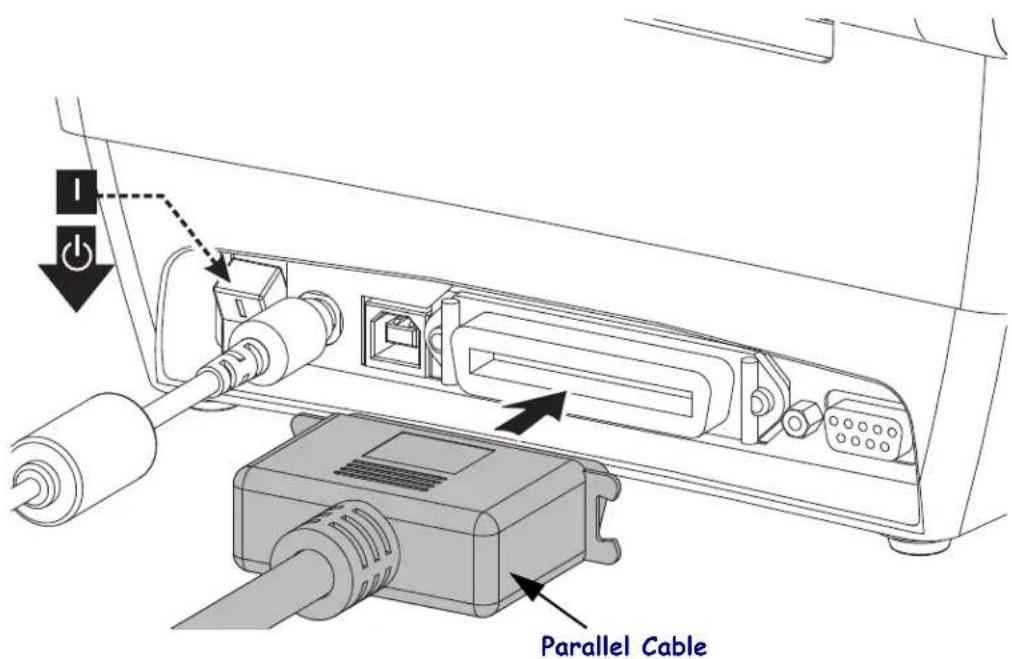
text_image
I Power Parallel CableEthernet
The printer requires UTP RJ45 Ethernet cable rated CAT-5 or better.
For more information on configuring your printer to run on a compatible Ethernet based network, see the ZebraNet® 10/100 Internal Print Server manual. The printer must be configured to run on your LAN (local area network) or WAN (wide area network). The print server on board your printer can be accessed through the printer's Web pages.
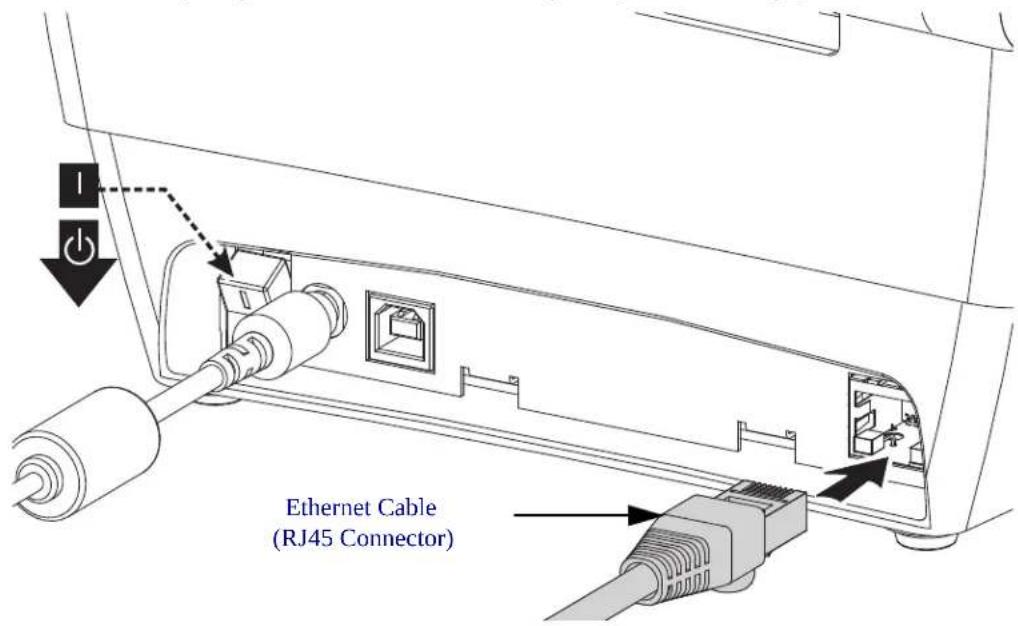
text_image
Ethernet Cable (RJ45 Connector)Ethernet Status/Activity Indicators
| LED Status Description | |
| Both OFF No Ethernet | link detected |
| Green 100 Mbps link | detected |
| Green with the Amber flickering on and off | 100 Mbps link and Ethernet activity detected |
| Amber 10 Mbps link | detected |
| Amber with the Green flickering on and off | 10 Mbps link and Ethernet activity detected |

text_image
Green LED Amber LEDAfter Your Printer is Connected
Now that you have basic communication to your printer, you may want to test printer communications and then install other printer related applications, drivers or utilities.
Testing Communications by Printing
Verifying the print system's operation is a relatively simple process. For Windows operating systems, the Zebra Setup Utility or the Windows 'Printers and Faxes' Control Panel to access and print a test label. For non-Windows operation systems, copying a basic ASCII text file with a single command (\~WC) to print a configuration status label.
Test Printing with Zebra Setup Utility:
- Open the Zebra Setup Utility.
- Click on the newly installed printer's icon to select the printer and activate the printer configuration buttons below it in the window.
- Click the 'Open Printer Tools' button.
- In the 'Print' tab window, click on the 'Print configuration label' line and click on the 'Send' button. The printer should print a configuration status label.
Test Printing with Windows 'Printer and Faxes' menu:
- Click on the Windows 'Start' menu button, to access the 'Printers and Faxes' menu or 'Control Panel' to access the 'Printers and Faxes' menu. Open the menu.
- Select the newly installed printer's icon to select the printer and right-click the mouse to access the printer 'Properties' menu.
- From the printer's 'General' tab window, click on the 'Print Test Page' button. The printer should print a Windows test print page.
Test Print on a Ethernet printer connected to a network (LAN or WAN) with a (MS-DOS) 'Command Prompt' (or 'Run' from the Windows XP Start menu):
- Create a text file with the following ASCII three characters: \~WC
- Save the file as: TEST.ZPL (an arbitrary file name and extension name).
- Read the IP address off the printer's Configuration Status Label's Network Status printout. On a system that is connected to the same LAN or WAN as the printer, type the following in the Web browser window's address bar and enter:
fpt (IP address)
(for IP address 123.45.67.01 it would be: ftp 123.45.67.01)
- Type the word 'put' followed by the file name and enter. For this 'test print' file, it would be: put TEST.ZPL The printer should print a new Print Configuration Status label.
Test Print with a Copied ZPL Command File for Non-Windows Operating Systems:
- Create a text file with the following ASCII three characters: \~WC
- Save the file as: TEST.ZPL (an arbitrary file name and extension name).
- Copy the file to the printer. For DOS, a file sent to a printer connected to the system's parallel port would be as simple as:
COPY TEST.ZPL LPT1
Other interface connection types and operating systems will have different command strings. See your operating system documentation for detailed instructions to copy to the appropriate printer interface for this test.

Notes •
Print Operations

natural_image
Abstract black and white pattern with curved white lines on a black background (no text or symbols)This section provides media and print handling, font and language support, and the setup of less common printer configurations.
Contents
Determining Printer Configuration 32
Long Term Printer In-activity or Storage. 32
Modes of Printing 33
Print Media Types 33
Replacing Supplies 35
Adjusting the Print Width 36
Adjusting the Print Quality 36
Media Sensing 37
Ribbon Overview 38
Printing on Fan-Fold Media 40
Printing with Externally Mounted Roll Media 42
Fonts and Your Printer 43
Stand Alone Printing....45
Sending Files to the Printer 46
Print Meter 46
Determining Printer Configuration
The printer uses a ZPL printer configuration status label to report the printer's configuration status for both EPL and ZPL operations. The ZPL style label provides a more intuitive and functionally descriptive naming conventions than the EPL style printer status label. Operational status (darkness, speed, media type, etc.), installed printer options (network, interface settings, cutter, etc.) and printer description information (serial number, model name, firmware version, etc.) are all includes on the status label. See Printing a Test (Printer Configuration) Label on page 19 to print this label. See Appendix: ZPL Configuration on page 97 for detail on printer configuration and the ZPL commands that control the printer settings listed on the Printer Configuration Status Label.
To get an EPL style printer configuration status label, send the printer the EPL U command. See the EPL programmer's guide for more information on the various EPL U commands and interpreting the settings displayed on these labels.
Long Term Printer In-activity or Storage
Overtime the printhead may stick to the platen (drive) roller. To prevent this, always store the printer with a piece of media (a label or paper) between the printhead and platen roller. Do not ship the printer with a roll of media installed or damage to the printer or media may result.
Thermal Printing

Caution • The printhead becomes hot while printing. To protect from damaging the printhead and risk of personal injury, avoid touching the printhead. Only use the cleaning pen to perform printhead maintenance.

Caution • The discharge of electrostatic energy that accumulates on the surface of the human body or other surfaces can damage or destroy the printhead or electronic components used in this device. You must observe static-safe procedures when working with the printhead or the electronic components under the top cover.
Modes of Printing
You can operate this printer in many different modes and media configurations:
- Direct thermal printing (which uses heat sensitive media to print).
- Thermal transfer printing (which uses ribbon to heat transfer print to the media).
- Standard Tear-Off mode allows you to tear off each label (or batch print a strip of labels) after it is printed.
- Label Dispense Mode: If an optional dispenser is installed, the backing material can be peeled away from the label as it is printed. After this label is removed, the next one is printed.
- Stand-alone: The printer can print without being connected to a computer using the printer's auto running label form feature (programming based) or by using a data input device connected to the printer's serial port. This mode accommodates data input devices, such as scanners, weigh scales, Zebra® KDU Plus™ or Zebra® KDU (Keyboard Display Unit), etc.
- Shared network printing: Printers configured with the Ethernet interface option include an internal print server with ZebraLink™ printer configuration web page and ZebraNet™ Bridge software for managing and monitoring status of Zebra® printers on a network.
Print Media Types

Important • Zebra strongly recommends the use of Zebra-brand supplies for continuous high-quality printing. A wide range of paper, polypropylene, polyester, and vinyl stock has been specifically engineered to enhance the printing capabilities of the printer and to prevent premature printhead wear. To purchase supplies, go to http://www.zebra.com/howtobuy.
Your printer can use various types of media:
- Standard media—Most standard (non-continuous) media uses an adhesive backing that sticks individual labels or a continuous length of labels to a liner.
- Continuous roll media—Most continuous roll media is direct thermal media (similar to FAX paper) and is used for receipt or ticket style printing.
- Linerless media—Linerless labels have an adhesive backing, but they are wound onto a core without a liner. The media typically is perforated and may have black marks on the bottom surface of the media to indicate label separations. The top surface of linerless media labels have a special coating that keeps the labels from sticking to each other. The printer must be equipped with a special Linerless option to be able to use linerless media to keep the media from sticking to the printer.
- Tag stock—Tags are usually made from a heavy paper (up to 0.0075in./0.19mm thick). Tag stock does not have adhesive or a liner, and it is typically perforated between tags.
For more information on basic media types, see Table 1.
The printer typically uses roll media, but you can use fan-fold or other continuous media too. Use the correct media for the type of printing you require. You must use direct thermal media. When printing without a ribbon, you must use direct thermal media. When using ribbon, you must use thermal transfer media.
Table 1 • Types of Media Roll and Fanfold Media
| Media Type How It | Looks Description | |
| Non-Continuous Roll Media |  | Roll media is wound on a core that can be 0.5 to 1.5 in. (12.7 to 38.1 mm) in diameter. Labels have adhesive backing that sticks them to a liner, and they are separated by gaps, holes, notches, or black marks. Tags are separated by perforations. Individual labels are separated by one or more of the following methods:Web media separates labels by gaps, holes, or notches. Black mark media uses pre-printed black marks on the back side of the media to indicate label separations. Black mark media uses pre-printed black marks on the back side of the media to indicate label separations.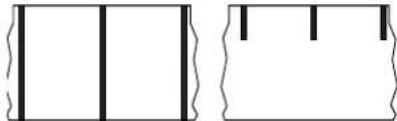 Perforated media has perforations that allow the labels or tags to be separated from each other easily. The media may also have black marks or other separations between labels or tags.[ ] Perforated media has perforations that allow the labels or tags to be separated from each other easily. The media may also have black marks or other separations between labels or tags.[ ] |
| Non-Continuous Fanfold Media | 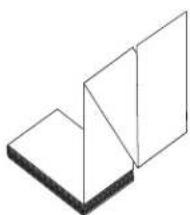 | Fan-Fold media is folded in a zigzag pattern. Fanfold media can have the same label separations as non-continuous roll media. The separations would fall on or near the folds. |
| Continuous Roll Media | 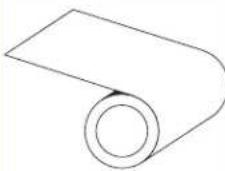 | Roll media is wound on a core that can be 0.5 to 1.5 in. (12.7 to 38.1 mm) in diameter. Continuous roll media does not have gaps, holes, notches, or black marks to indicate label separations. This allows the image to be printed anywhere on the label. A cutter can be used to cut apart individual labels. With continuous media, use the transmissive (gap) sensor so the printer can detect when the media runs out. |
Determining Thermal Media Types
Thermal transfer media requires ribbon for printing while direct thermal media does not. To determine if ribbon must be used with a particular media, perform a media scratch test.
To perform a media scratch test, complete these steps:
-
Scratch the print surface of the media with a finger nail or pen cap. Press firmly and quickly while dragging it across the media surface. Direct thermal media is chemically treated to print (expose) when heat is applied. This test method uses friction heat to expose the media.
-
Did a black mark appear on the media?
| If a black mark... Then the media is... | |
| Does not appear on the media | Thermal transfer. A ribbon is required. |
| Appears on the media | Direct thermal. No ribbon is required. |
Replacing Supplies
If labels or ribbon run out while printing, leave the printer power on while reloading (data loss results if you turn off the printer). After you load a new label or ribbon roll, press the Feed button to restart.
Always use high quality, approved labels, tags and ribbons. If adhesive backed labels are used that don't lay flat on the backing liner, the exposed edges may stick to the label guides and rollers inside the printer, causing the label to peel off from the liner and jam the printer. Permanent damage to the printhead may result if a non-approved ribbon is used as it may be wound incorrectly for the printer or contain chemicals corrosive to the printhead.
Adding a New Transfer Ribbon
If ribbon runs out in the middle of a print job, the indicator lights red and the printer waits for you to add a fresh roll.
- Keep the power on as you change ribbon.
- Open the top cover, then cut the used ribbon so you can remove the cores.
- Load a new ribbon roll and empty ribbon core. If necessary, review the Ribbon Loading steps. Note: Do Not Use ribbon cores with damaged notch. The notches should have square corners.
- Close the top cover.
- Press the Feed button to restart printing.
Replacing a Partially Used Transfer Ribbon
To remove used transfer ribbon, perform the following steps.
- Cut the ribbon from the take-up roll.
- Remove the take-up roll and discard used ribbon.
- Remove the supply roll and tape the end of any fresh ribbon to prevent it from unwrapping. When reinstalling a partially used supply roll, tape the cut end onto the empty take-up roll.
Adjusting the Print Width
Print width must be set when:
- You are using the printer for the first time.
• There is a change in media width.
Print width may be set by:
- The Windows printer driver or application software such as ZebraDesigner™.
- The five-flash sequence in Feed Button Modes on page 84.
- Controlling printer operations with ZPL programming; refer to the Print Width (^PW) command (consult your ZPL Programming Guide).
- Controlling printer operations with EPL Page Mode programming, refer to the Set Label Width (q) command (consult your EPL Programmer's Guide).
Adjusting the Print Quality
Print quality is influenced by the heat (density) setting of the printhead, the print speed, and the media in use. Experiment with these settings to find the optimal mix for your application. Print quality can be set with the Zebra Setup Utility's ‘Configure Print Quality’ routine.

Note • Media manufactures may have specific recommendations for speed settings for your printer and the media. Some media types have lower maximum speeds than your printer's maximum speed.
The relative darkness (or density) setting can be controlled by:
- The six-flash sequence in Feed Button Modes on page 84. This will overwrite any ZPL and EPL programmed darkness/density settings.
- The Set Darkness (\~SD) ZPL command (consult your ZPL Programming Guide).
- The Density (D) EPL command (consult your EPL Programmer's Guide).
If you find that the print speed needs to be adjusted, use:
- The Windows printer driver or application software such as ZebraDesigner™.
- The Print Rate (^PR) command (consult your ZPL Programming Guide).
- The Speed Select (S) command (consult your EPL Programmer's Guide).
Media Sensing
The printer has automatic media sensing capability. The printer is designed to continuously check and adjust media length sensing for minor variations. Once the printer is printing or feeding media, the printer continually checks and adjusts the media sensing to accommodate for minor changes in media parameters from label to label on a roll and from roll to roll of media. The printer will automatically initiate a media length calibration if the expected media length or the label to label gap distance has exceeded the acceptable variation range when starting a print job or feeding media. The automatic media sensing in the printer works the same for printer operations that use EPL and ZPL label formats and programming.
If the printer does not detect labels or black marks (or notches with blackline sensing) after feeding the media the default maximum label length distance of 39 inches (1 meter), then the printer will switch to continuous (receipt) media mode. The printer will keep these settings until changed by software, programming or a manual calibration with different media.
Optionally, the printer can be set to do a short media calibration after printer power up or when closing the printer with power on. The printer will then feed several labels while calibrating.
The printer's media settings can be verified by printing a Printer Configuration label. See the Printing a Test (Printer Configuration) Label on page 19 for more details.
The maximum distance that the automatic media type detection and sensing will check can be reduced by using the ZPL Maximum Label Length command (^ML). It is recommended that this distance be set to no less than two times the longest label being printed. If the largest label being printed was a 4 by 6 inch label, then the maximum label (media) length detection distance can be reduced from the default distance of 39 inches down to 12 inches.
If the printer has difficulty automatically detecting the media type and auto-calibrating, see Manual Calibration on page 80 to perform an extensive calibration. It includes a printed graph of sensor operation for your media. This method disables the printer's automatic media sensing capability until the printer's default parameters are reset to the factory defaults with the four flash Feed button mode. See the Feed Button Modes on page 84 for more details.
The automatic media calibration can be modified, turned on or turned off to meet your needs. Sometimes print job conditions require that the printer use all the media on a roll. The two automatic media conditions, power up with media loaded and closing the printer with power on, can be controlled individually with the ZPL Media Feed command, ^MF. The feed action discussed in the ZPL programmers guide for the ^MF command is primarily for automatic media sensing and calibration. The automatic media calibration that controls the dynamic media (label to label) calibration is the ^XS command. If multiple media types of different lengths, material or detection methods (web/gap, black mark, notches or continuous) are used, you should not change these settings.
The media calibration and detection process can also be refined to match the media type loaded into the printer. Use the ZPL Media Tracking command (^MN) to set the media type. Sometimes the printer can detect preprinted media as the gap between labels or the liner backing with print as a black marks. If the ^MN parameter for continuous media is set, then the print does not preform the automatic calibration. The ^MN command also includes an automatic calibration parameter (^MNA) to return the printer to its default setting to automatically detect all media types.
Ribbon Overview
Ribbon is a thin film that is coated on one side with wax, resin, or wax resin, which is transferred to the media during the thermal transfer process. The media determines whether you need to use ribbon and how wide the ribbon must be. When ribbon is used, it must be as wide as or wider than the media being used. If the ribbon is narrower than the media, areas of the printhead are unprotected and subject to premature wear.
When to Use Ribbon
Thermal transfer media requires ribbon for printing while direct thermal media does not. Direct thermal media should never be used with ribbon. Bar codes and graphics can get distorted. To determine if ribbon must be used with a particular media, perform a media scratch test.
Coated Side of Ribbon
Ribbon can be wound with the coated side on the inside or outside. This printer can only use ribbon that is coated on the outside. If you are unsure which side of a particular roll of ribbon is coated, perform an adhesive test or a ribbon scratch test to determine which side is coated.
Outside Inside
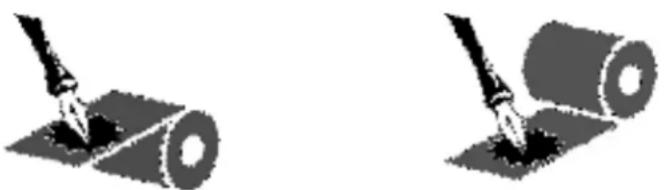
To determine which side of a ribbon is coated, complete these steps:
Ribbon Test with Adhesive
If you have labels available, perform the adhesive test to determine which side of a ribbon is coated. This method works well for ribbon that is already installed.
To perform an adhesive test, complete these steps:
-
Peel a label from its liner.
-
Press a corner of the sticky side of the label to the outer surface of the roll of ribbon.
-
Peel the label off of the ribbon.
-
Observe the results. Did flakes or particles of ink from the ribbon adhere to the label?
| If ink from the ribbon... Then... | |
| Adhered to the label | The ribbon is coated on the outside and can be used with the GC420 printer. |
| Did not adhere to the label | The ribbon is coated on the inside and can not be used in the GC420 printer. |
Ribbon Scratch Test
Perform the ribbon scratch test when labels are unavailable.
To perform a ribbon scratch test, complete these steps:
-
Unroll a short length of ribbon.
-
Place the unrolled section of ribbon on a piece of paper with the outer surface of the ribbon in contact with the paper.
-
Scratch the inner surface of the unrolled ribbon with your fingernail.
-
Lift the ribbon from the paper.
-
Observe the results. Did the ribbon leave a mark on the paper?
| If the ribbon... Then... | |
| Left a mark on the paper | The ribbon is coated on the outside and can be used with the GC420 printer. |
| Did not leave a mark on the paper | The ribbon is coated on the inside and can not be used in the GC420 printer. |
Printing on Fan-Fold Media
Printing on fan-fold media requires you to adjust the media guide's stop position.
- Open the top cover.
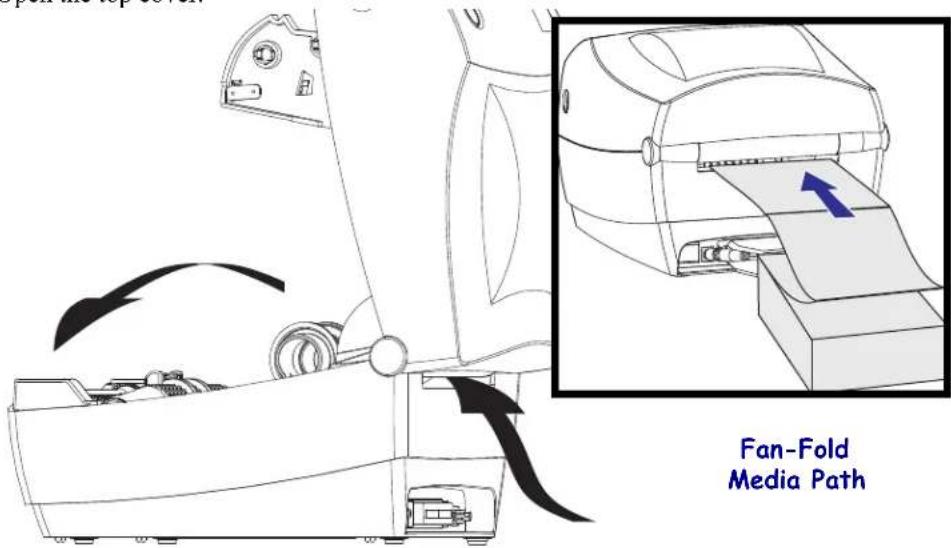
text_image
Fan-Fold Media Path- With a sample of your media, adjust the media roll holders to the width of the media. The hangers should just touch, but not restrict, the edges of the media. Tighten the screw using a small Phillips driver #1.

natural_image
Illustration of hands assembling a device with a magnified inset showing internal components (no text or symbols)- With a sample of your media, adjust the guides to the width of the media. The guides should just touch, but not restrict, the edges of the media.
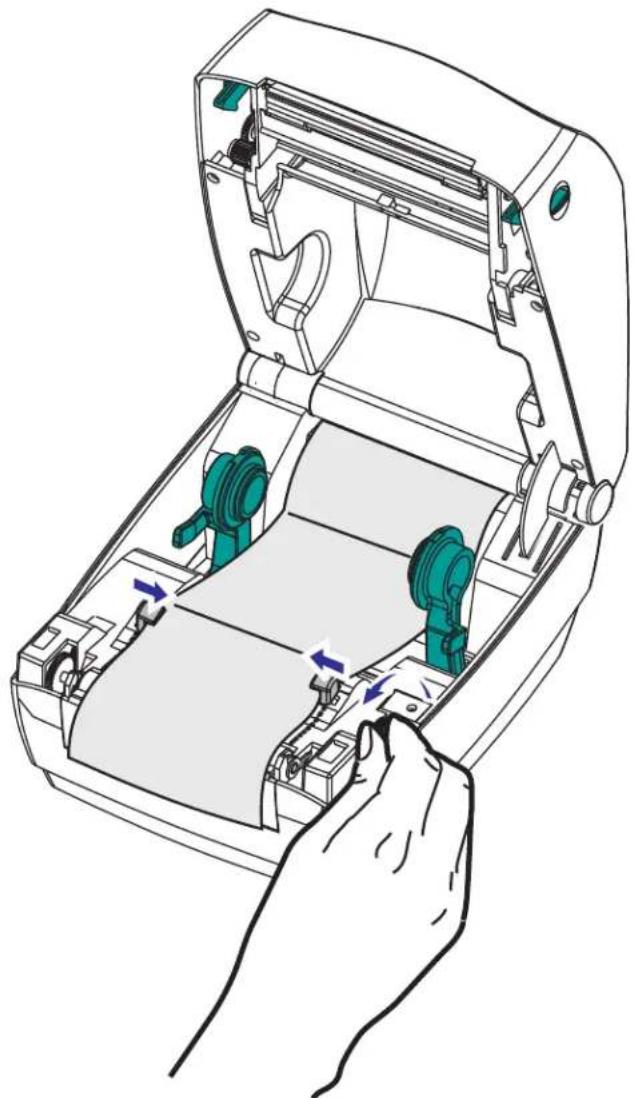
natural_image
Line drawing of a device interior showing internal components and a hand inserting a component (no text or symbols)-
Run the media between the media guide and roll holders.
-
Close the top cover.
After printing or feeding several labels: If the media does not track down the center (moves from side to side) or the sides of the media (liner, tag, paper, etc.) are frayed or damaged when exiting the printer, then the media guides or roll holders may need further adjustment.
Printing with Externally Mounted Roll Media
The GC420 printer accommodates externally mounted roll media similar to the printer's support of fan-fold media. The printer requires the media roll and stand combination to have a low initial inertia to pull the media off the roll.
Zebra at this time does not offer an external media option for the GC420 printer.
Externally Mounted Roll Media Considerations:
- The media ideally should enter the printer directly behind the printer through the fan-fold media slot in the rear of the printer. See Printing on Fan-Fold Media on page 40 for media loading.
- Lower the print speed to decrease the chance of motor stalls. The roll typically has the highest inertia when trying to start the roll moving. Larger media roll diameters require the printer to have more torque applied to get the roll moving.
- The media should move smoothly and freely. The media should not slip, skip, jerk, bind and then move, etc. when mounted on your media stand.
- The printer should not touch the media roll.
- The printer should not slip or lift up off the operating surface.
Fonts and Your Printer
The GC420 printer supports your language and font requirements with a variety of internal fonts, on-board font scaling, international font sets and character code page support, Unicode support, and font download.
The GC420 printer's font capabilities are programming language dependent. The EPL ^TM programming language provides for basic bitmapped fonts and international code pages. The ZPL ^TM programming language provides advanced font mapping and scaling technology to support outline fonts (TrueType ^TM or OpenType ^TM ) and Unicode character mapping as well as basic bitmapped fonts and character code pages. ZPL and EPL programming guides describe and document the fonts, code pages, character access, listing fonts, and limitations for their respective printer programming languages. See the printer programming guides for information on Text, Fonts and Character support.
The GC420 printer includes utilities and application software that support font download into the printer for both printer programming languages.
Localizing the Printer with Code Pages
The GC420 printer supports two sets of language, region and character sets for permanent fonts loaded into the printer for each printer programming language, ZPL and EPL. The printer supports localization with common international character map code pages.
- For ZPL code page support, including Unicode, see the ^CI command in the ZPL programmer's guide.
- For EPL code page support, see the I command in the EPL programmer's guide
Identifying Fonts in Your Printer
Fonts and memory are shared by the programming languages in the printer. Fonts can be loaded in many memory areas in the GC420 printer. ZPL programming can recognize EPL and ZPL fonts. EPL programming can only recognize EPL fonts. See the respective programmer guides for more information on fonts and printer memory.
ZPL Fonts:
- To manage and download fonts for ZPL print operation, use the Zebra Setup utility or ZebraNet™ Bridge.
- To display all of the fonts loaded in your printer, send the printer the ZPL ^WD command. See the ZPL Programmers Guide for details.
- Bitmap fonts in the various printer memory areas are identified by the .FNT file extension in ZPL.
- Scalable fonts are identified with the .TTF, .TTE or .OTF file extensions in ZPL. EPL does not support these fonts.
EPL Fonts:
- To download fonts for EPL print operations, use the Zebra Setup Utility or ZebraNet™ Bridge to send files to the printer.
- To display Soft Fonts (ext.) available to EPL, send the printer the EPL command EI.
- All EPL fonts displayed are bitmap fonts. They do not include the .FNT file extension or the horizontal (H) or vertical (V) designators that are displayed with the ZPL command ^WD as described above in ZPL Fonts.
- To remove non Asian EPL fonts with EPL programming, use the EK command.
- To remove EPL Asian fonts from the printer, use the ZPL ^ID command.
Stand Alone Printing
Your printer can be configured to work without being attached to a computer. The printer has the ability to automatically run a single label form. One or more downloaded label forms can be accessed and run with a terminal or wedge device or a Zebra ^® KDU (keyboard display unit) to call a label form. These methods allow the developer to incorporate data input devices, such as scanners or weight scales, to the printer via the serial port.
Label formats can be developed and stored in the printer to support labels that have:
- No data entry required and print when the Feed button is pressed.
- No data entry required and print when a label is removed from the printer's optional label dispenser.
- One or more data variables to be entered via the terminal or wedge device. The label will print after the last variable data field has been input.
- One or more label formats that are called by scanning bar codes containing programming to run a label form.
- Label forms designed to work as a process chain with each label including a bar code containing the programming to run the next label in the process sequence.
Both printer programming languages support special label forms that will automatically run after a power cycle or reset. The ZPL looks for a file named AUTOEXEC.ZPL and EPL looks for a label form named AUTOFR. If both files are loaded in the GC420 printer, then only the AUTOEXEC.ZPL will run. The EPL AUTOFR form runs until it is disabled. Both files must be deleted from the printer followed by a reset or a power cycle to completely remove the files.

Note • The GC420 EPL AUTOFR command can only be disabled with NULL character (00 hex or ASCII 0). The printer will ignore the other character that normally disables the AUTOFFR form operation in most other EPL printers, the XOFF character (13 hex or ASCII 19).
The printer can source up to 750mA through a 5 volt line shared between the parallel and serial ports. See Appendix A for more information on the printer's serial port interface.
Sending Files to the Printer
Graphics, fonts and programming files can be sent to the printer from the Microsoft Windows operating systems by using the Zebra Setup Utilities (and driver), ZebraNet™ Bridge or Zebra® ZDownloader found on the user's CD or at www.zebra.com. These methods are common for both programming languages and the GC420 printers.
Print Meter
The GC420 printer has the capability to report printhead maintenance alerts. The printer can provide cleaning and early warning of end of calculated printhead life alerts. If the RTC (Real Time Clock) is installed in the printer, the printhead life and history reporting will also include the date. By default, print metering alerts are disabled.
Many of the print meter messages and reports are customize able. See the ZPL or EPL Programming Guides for more information on the Print Meter.
To active the Print Meter Alerts, send one of the following commands to the printer:
- EPL command oLY
• ZPL command ^JH, , , , , E
Printer Options

natural_image
Abstract black and white pattern with curved white lines on a black background (no text or symbols)This section covers the common printer options and accessories with brief descriptions and how to get you started using or configuring your printer option or accessory.
Contents
Label Dispenser Option 48
Cutter Option 51
ZebraNet® 10/100 Internal (Wired) Print Server Option 55
Zebra® KDU — Printer Accessory.... 57
KDU Plus™ — Printer Accessory 58
ZBI 2.0 ^TM — Zebra Basic Interpreter 59
Label Dispenser Option
The factory installed label dispenser option allows you to print a label with backing (liner/web) being removed from the label as it prints, ready for application. When printing multiple labels, removing the dispensed (peeled) label notifies the printer to print and dispense the next label.
To use dispenser-mode correctly, use your printer driver to activate the label (taken) sensor along with these typical label settings which include but are not limited to length, non-continuous (gap), and web (liner). Otherwise, you must send the ZPL or EPL programming commands to the printer.
When programming in ZPL, you can use the following command sequences shown below and refer to your ZPL Programming Guide for more information on ZPL programming.
$$ \begin{array}{c c c} \text {^XA} & \text {^MMP} & \text {^XZ} \ \text {^XA} & \text {^JUS} & \text {^XZ} \end{array} $$
When programming in EPL, send the Options (O) command with the 'P' command parameter (OP) to enable the Label Taken sensor. Other printer option parameters may also be included with the Options command string. Refer to your EPL Programmer's Guide for more information on programming with EPL and the Options (O) command behaviors.
- Load your labels into the printer. Close the printer and press the Feed button until a minimum of 4 inches or 100 millimeters of exposed labels exit the printer. Remove the exposed labels from the liner.

natural_image
Line drawing of two hand-drawn diagrams showing a device being inserted into a paper holder, with no text or symbols present.- Lift the liner over the top of the printer and open the dispenser door.
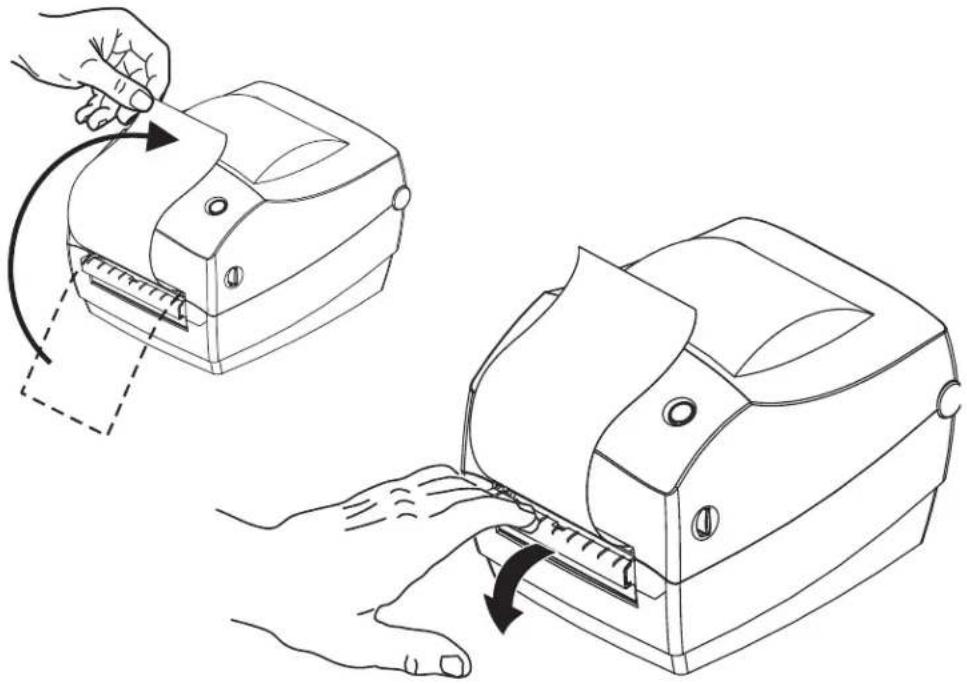
natural_image
Line drawing showing two hands operating a device with a tool, no text or symbols present- Insert the label liner between the dispenser door and the printer body.

natural_image
Technical line drawing of two mechanical components with internal slots and fasteners, showing assembly and disassembly (no text or symbols)- Close the dispenser door.

natural_image
Line drawing of two printer units with paper clips and a scroll, no text or symbols present- Press the Feed button to advance the media.
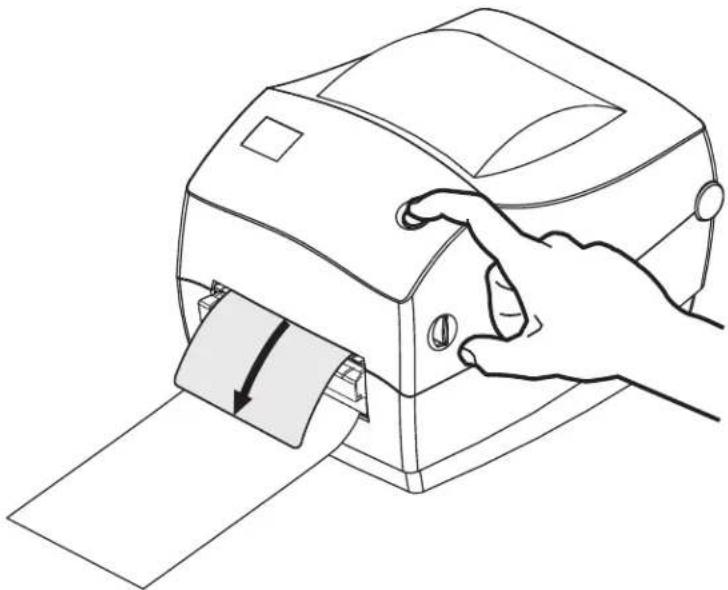
natural_image
Line drawing of a hand pressing down on a printer's paper (no text or symbols)- During the print job, the printer will peel off the backing and present a single label. Take the label from the printer to allow the printer to print the next label. Note: If you did not activate the label taken sensor to detect the removal of the dispensed (peeled) label with software commands, the printer will stack and eject peeled labels.
Cutter Option
The printer supports a factory installed media cutter option for full width cutting of label liner, tag or receipt media. These cutter options are all supported in a single cutter housing design. The type of cutter option installed in your printer can be verified by printing a printer configuration status label. The cutter options are:
• A medium duty cutter for cutting label liner and light tag media (LINER/TAG)
Maximum Paper Weight (thickness): up to 180 g/m2 (0.0077 in.)
Life*: 2 million cuts: 0.5 mil to 5 mil stock (10-120 g/m2)
1 million cuts: 5 mil to 7.5 mil stock (120-180 g/m2)
750,000 cuts: 7.5 mil to 10 mil (180-200 g/m2)
* - Exceeding the maximum media weight (density/hardness) and thickness will shorten the cutters usable life or can cause the cutter to fail (jam or other error).
• Cut Width: 4.25 inches (108 mm) maximum to 0.75 inches (19 mm) minimum
- Minimum distance between cuts (label length): 1 inch (25.4 mm). Cutting shorter media lengths between the cuts may cause the cutter to jam or error.
- By default, the cutter operations include a self cleaning preventive maintenance cleaning cut after every twenty-fifth cut. This feature can be disabled via ZPL or EPL SGD (Set/Get/DO) programming command (cutter.clean_cutter) but is not recommended.

Warning • There are no operator serviceable parts in the cutter unit. Never remove the cutter cover (bezel). Never attempt to insert objects or fingers in to the cutter mechanism.
Important • Tools, cotton swabs, solvents (including alcohol), etc. all may damage or shorten the cutter's usable life or cause the cutter to jam.

text_image
Diagram illustrating a hand using a scanner to remove a tooth, with no-smokers and no tools nearby.Loading Media with the Cutter Option
- Open the printer. Remember that you need to pull the release latch levers toward the front of the printer.
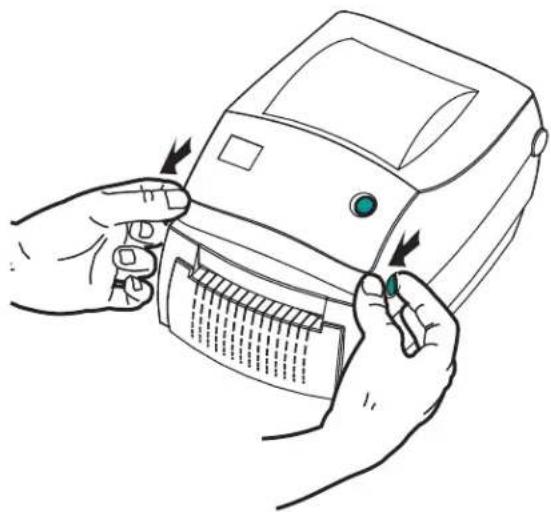
natural_image
Line drawing of hands inserting a digital scanner into a device (no text or symbols present)- Open the media guides by turning the media guide adjustment knob toward the rear of the printer.
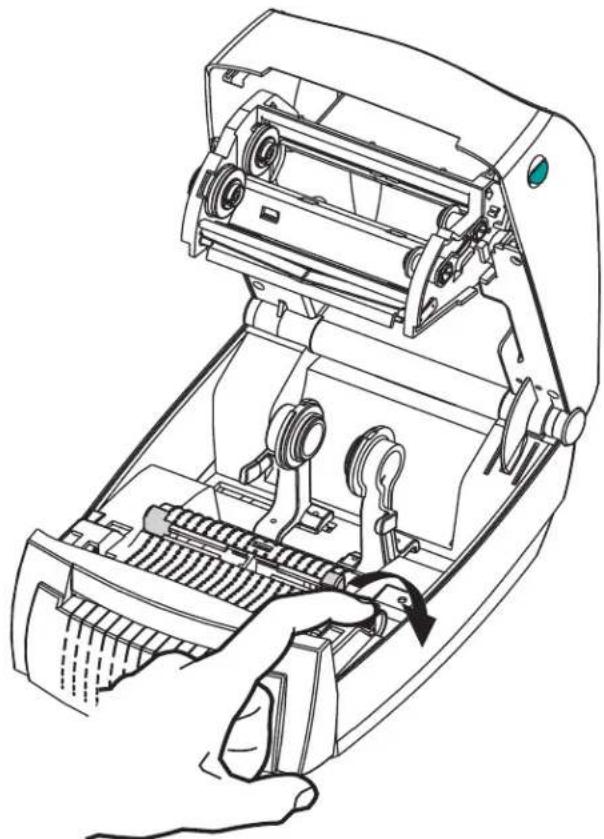
natural_image
Line drawing of a hand operating a device with a handle and internal components (no text or symbols)- Open the media roll holders. Pull the media guides open with your free hand and place the media roll on the roll holders and release the guides. Orient the media roll so that its printing surface will be up as it passes over the platen (drive) roller.
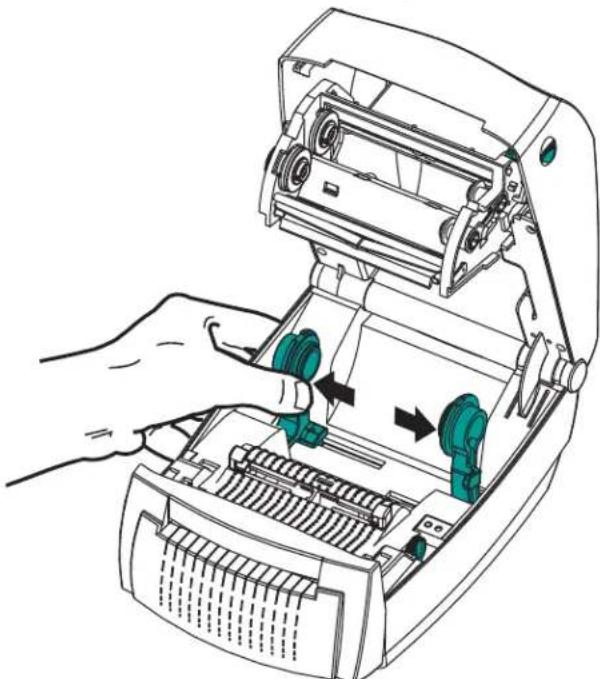
natural_image
Illustration of a hand using a computer to adjust or install a device into a rack (no text or symbols visible)- Thread the media through the cutter's inside slot so that it extends out of the front of the printer. Verify the roll turns freely. The roll must not sit in the bottom of the media compartment. Verify that media's printing surface is facing up.
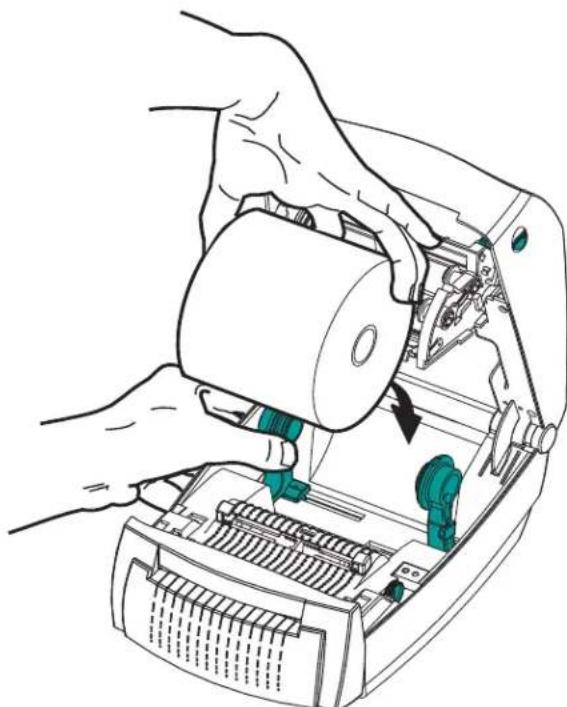
natural_image
Illustration of hands operating a mechanical device with a cylindrical component inserted (no text or symbols visible)- Close the media guides by turning the guide adjuster knob to the front. They should just touch, but not restrict. the edges of the media..
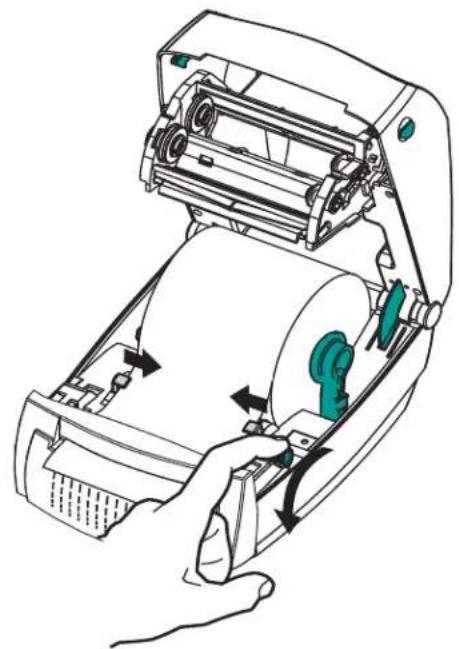
natural_image
Line drawing of a printer's internal mechanism with hand operating the paper (no text or symbols)- Close the printer. Press down until the cover snaps closed.

natural_image
Line drawing of hands installing or adjusting a device component with an arrow indicating the process (no text or symbols present)ZebraNet ^® 10/100 Internal (Wired) Print Server Option
The ZebraNet ^® 10/100 Internal Print Server (PS) is an optional factory installed device that connects the network and your ZebraLink ^TM -enabled printer. The print server provides you with a browser interface for printer and print server settings. If you use the ZebraNet ^TM Bridge Zebra network printer management software, you can easily access the specialized features of a ZebraLink ^TM enabled printer.
Printers with the 10/100 Internal PS provide the following features:
- Print server and printer setup using a browser
- Remote monitoring and configuration capability of the 10/100 Internal PS using a browser
- A l e r t s
- The ability for you to send unsolicited printer status messages via E-mail-enabled devices
ZebraNet ^TM Bridge — ZebraNet ^TM Bridge is a software program that works with the 10/100 Internal PS and enhances the features of ZebraLink resident within ZPL-based printers. The features include the following:
- Z e bTM Bridge allows you to locate printers automatically. ZebraNetTM Bridge searches on parameters such as IP address, subnet, printer model, printer status, and many other user-defined characteristics.
- Remote Configuration — Manage all your Zebra label printers throughout the enterprise without having to travel to remote sites or physically handle any printers. Any Zebra printer connected to the enterprise network can be accessed from the ZebraNet™ Bridge interface and configured remotely through an easy-to-use graphical user interface.
- Printer Alerts, Status, Heartbeat Monitoring and event Notification — ZebraNet ^TM Bridge lets you configure multiple event alerts per device with different alerts directed to different people. Receive alerts and notifications by e-mail, cell phone/pager, or through the ZebraNet ^TM Bridge Events tab. View alerts by printer or group, and filter by date/time, severity, or trigger.
- Configure and Copy Printer Profiles — Copy and paste settings from one printer to another or broadcast them to an entire group. ZebraNet™ Bridge allows you to copy printer settings, printer-resident files (formats, fonts, and graphics), and alerts with a click of the mouse. Create printer profiles — virtual “golden printers” — with desired settings, objects, and alerts, and clone or broadcast them as if they were real printers, providing extensive savings in setup time. Printer profiles are also an excellent way to back up a printer’s configuration for crisis recovery.
Printer Network Configuration Status Label
GC420 printers with the ZebraNet ^® 10/100 Internal Print Server option on-board print an additional printer configuration status label for information needed to establish and trouble shoot network printing. The following printout is printed with the ZPL \~WL command.
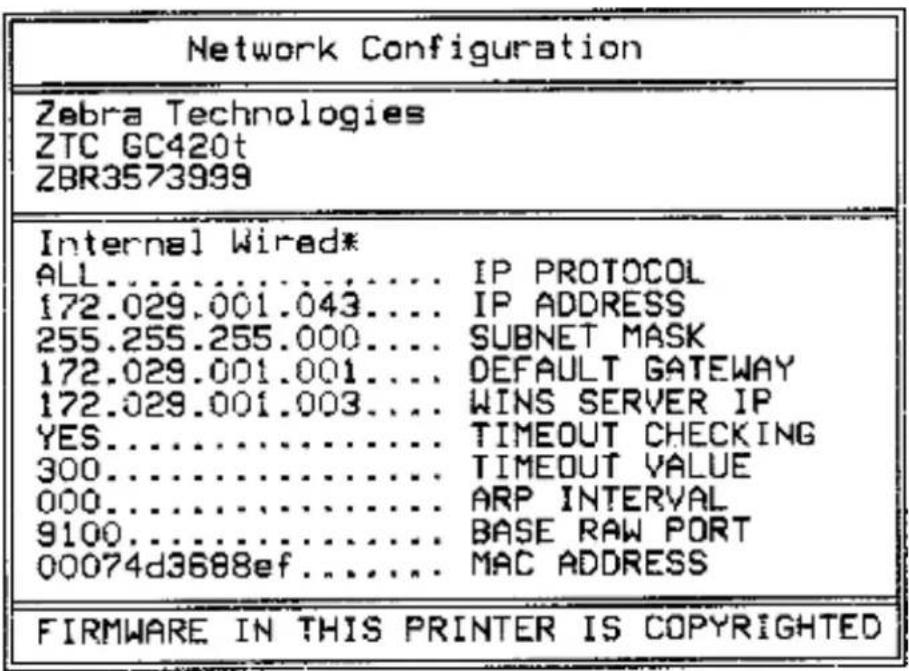
text_image
Network Configuration Zebra Technologies ZTC GC420t ZBR3573999 Internal Wired* ALL....IP PROTOCOL 172.029.001.043....IP ADDRESS 255.255.255.000....SUBNET MASK 172.029.001.001....DEFAULT GATEWAY 172.029.001.003....WINS SERVER IP YES....TIMEOUT CHECKING 300....TIMEOUT VALUE 000....ARP INTERVAL 9100....BASE RAW PORT 00074d3688ef....MAC ADDRESS FIRMWARE IN THIS PRINTER IS COPYRIGHTEDThe regular printout of the configuration status label has some of the printer's network settings such as IP Address, on the lower half of the printout.
The printer's IP address is needed to identify and configure the printer for operations on your network. See the ZebraNet ^ 10/100 Internal Print Server manual for more information.
Zebra® KDU — Printer Accessory
The Zebra ^® KDU (keyboard display unit) is a small terminal unit that interfaces with the printer for accessing EPL label forms stored in the printer.
The KDU is strictly a terminal and does not have the capability to store data or set up parameters. The KDU is used for the following functions:
- List label forms stored in printer
- Retrieve label forms stored in printer
- Input variable data
- Printing labels
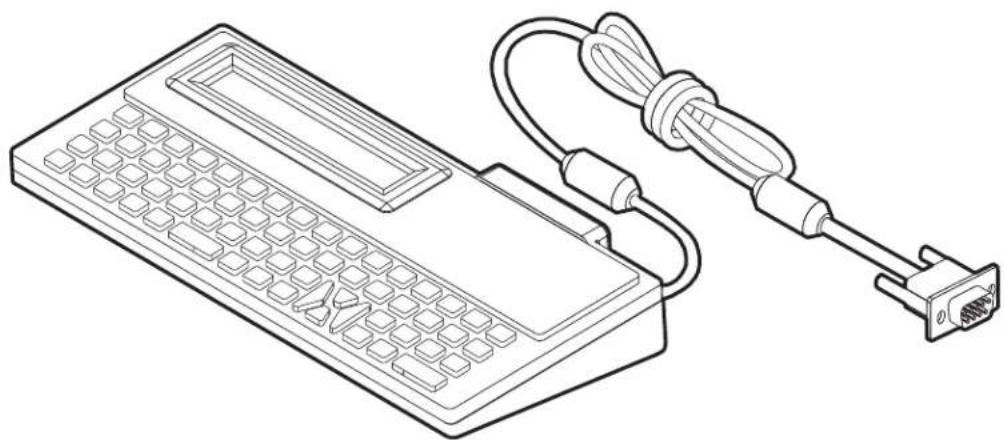
natural_image
Line drawing of a computer control device with a USB connector (no text or symbols)KDU Plus™ — Printer Accessory
The KDU Plus™ is a terminal device with memory for storing files and maintaining one or more remote printers. The KDU Plus has a larger laptop style keyboard than the Zebra's original KDU design.
The KDU Plus is designed for the following functions:
- List label forms stored in printer
- Retrieve label forms stored in printer
- Input variable data
- Printing labels
- File storage and transfer
The KDU Plus is designed to work with ZPL and EPL printers by dynamically detecting and switching the printer's communications configuration (DTE or DCE) to match your Zebra printer. By default, the KDU Plus will start up forms mode. This is compatible with the operation of Zebra's original KDU. The KDU Plus is configurable to work in ZPL or terminal modes too.
The KDU Plus has file transfer and storage capabilities. This is great for maintaining remote and stand alone printers with label forms, logos and smaller font sets.
The KDU Plus has two configurable serial port and a PS/2 port to connect to other data input devices such as scanners, weigh scales, etc..
The +5 volts from the printer's serial (pin 9) provides power for the KDU Plus and any additional input devices attached to the KDU Plus.
Maximum total current draw for the GC420 printer's serial (and parallel) port: 750mA The KDU Plus's current without external input devices attached is: 50mA

text_image
120mA* 25mA* 45mA* Current Draw* - Not real values
50mA
(45mA + 120mA + 25mA) + 50mA < Max. Current

Caution • The KDU Plus's input ports (AUX1, AUX2, and PS/2 style) are not fused. Exceeding the total current draw available could damage an input device, KDU Plus, or the printer.
ZBI 2.0 ^TM — Zebra Basic Interpreter
Customize and enhance your printer with ZBI 2.0 ^™ optional programming language. ZBI 2.0 allows Zebra printers to run applications and take input from scales, scanners and other peripherals—all without a PC or network connection. ZBI 2.0 works with the ZPL printer command language so that printers can understand non-ZPL data streams and convert them into labels. That means the Zebra printer can create bar codes and text from input received, non-ZPL label formats, sensors, keyboards and peripherals. Printers can also be programmed to interact with PC based database applications to retrieve information to be used on printed labels.
ZBI 2.0 can be activated by ordering a ZBI 2.0 Key Kit, or activated by purchasing a key from the ZBI 2.0 store at www.zebrasoftware.com.
Use the ZDownloader utility to apply the key. Zdownloader is available on the users CD or at the Zebra Web site: www.zebra.com.
An intuitive ZBI-Developer™ programming utility is used to create, test and distribute ZBI 2.0 applications is available on the users CD or at the Zebra Web site: www.zebra.com.

Notes •
5
Maintenance

natural_image
Abstract black and white pattern with curved white lines on black background (no text or symbols)This section provides routine cleaning and maintenance procedures.
Contents
Cleaning....62
Cleaning the Printhead 63
Media Path Considerations 64
Platen Cleaning and Replacement 66
Other Printer Maintenance. 68
Replacing the Printhead....69
Cleaning
When you clean the printer, use one of the following supplies that best suits your needs:
| Cleaning Supplies | Order Quantity | Intended Purpose |
| Cleaning pens (105950-035) Set of 12 Clean printhead | ||
| Cleaning swabs (105909-057) Set of 25 Clean media path, guides and sensors | ||
You can obtain cleaning supplies at www.zipzebra.com.
The cleaning process takes just a couple of minutes using the steps outlined below.
| Printer Part Method Interval | ||
| Printhead Let the | printhead to cool for a minute, then use a new cleaning pen to swab the dark line on the printhead cleaning from the center to the outside edges of the printhead.SeeCleaning the Printheadon page 63 | When using ribbon: after every roll of ribbon; when using direct thermal: after every roll of media. |
| Platen roller Remove the platen roller to clean. Clean the roller thoroughly with 90% medical-grade alcohol and a cleaning swab or lint-free cloth.SeePlaten Cleaning and Replacement on page 66 | As needed. | |
| Peel bar Clean it th | thoroughly with 90% medical-grade alcohol and a fiber-free cleaning swab. Let alcohol dissipate and the printer dry completely. | |
| Media path | ||
| Exterior Water-dampened cloth. | ||
| Interior Gently brush out printer. | ||

Caution • Adhesives and media material can over time transfer onto the printer components along the media path including the platen and printhead. This build-up can accumulate dust and debris. Failure to clean the printhead, media path and platen roller could result in inadvertent loss of labels, label jams and possible damage to the printer.

Important • Using too much alcohol can result in contamination of the electronic components requiring a much longer drying time before the printer will function properly.
Cleaning the Printhead
Always use a new cleaning pen on the printhead (an old pen carries contaminants from its previous uses that may damage the printhead).

Caution • The printhead becomes hot while printing. To protect from damaging the printhead and risk of personal injury, avoid touching the printhead. Use only the cleaning pen to perform maintenance.
When you load new media, you can also clean the printhead.
-
Rub the cleaning pen across the dark area of the printhead. Clean from the middle to the outside. This will move adhesive transferred from the edges of media to the printhead outside of media path.
-
Wait one minute before closing the printer.

natural_image
Technical line drawing of a device interior showing internal components and a cylindrical component (no text or symbols)Media Path Considerations
Use a cleaning swab to remove debris, dust or crust that has built-up on the holders, guides and media path surfaces.
-
Use the alcohol in the cleaning swab to soak the debris to break up the adhesive.
-
Wipe the ridges to remove accumulated debris.
-
Wipe the inside edges of both edge guides to remove any built-up residue.
-
Wait one minute before closing the printer.
Discard the cleaning swab after use.
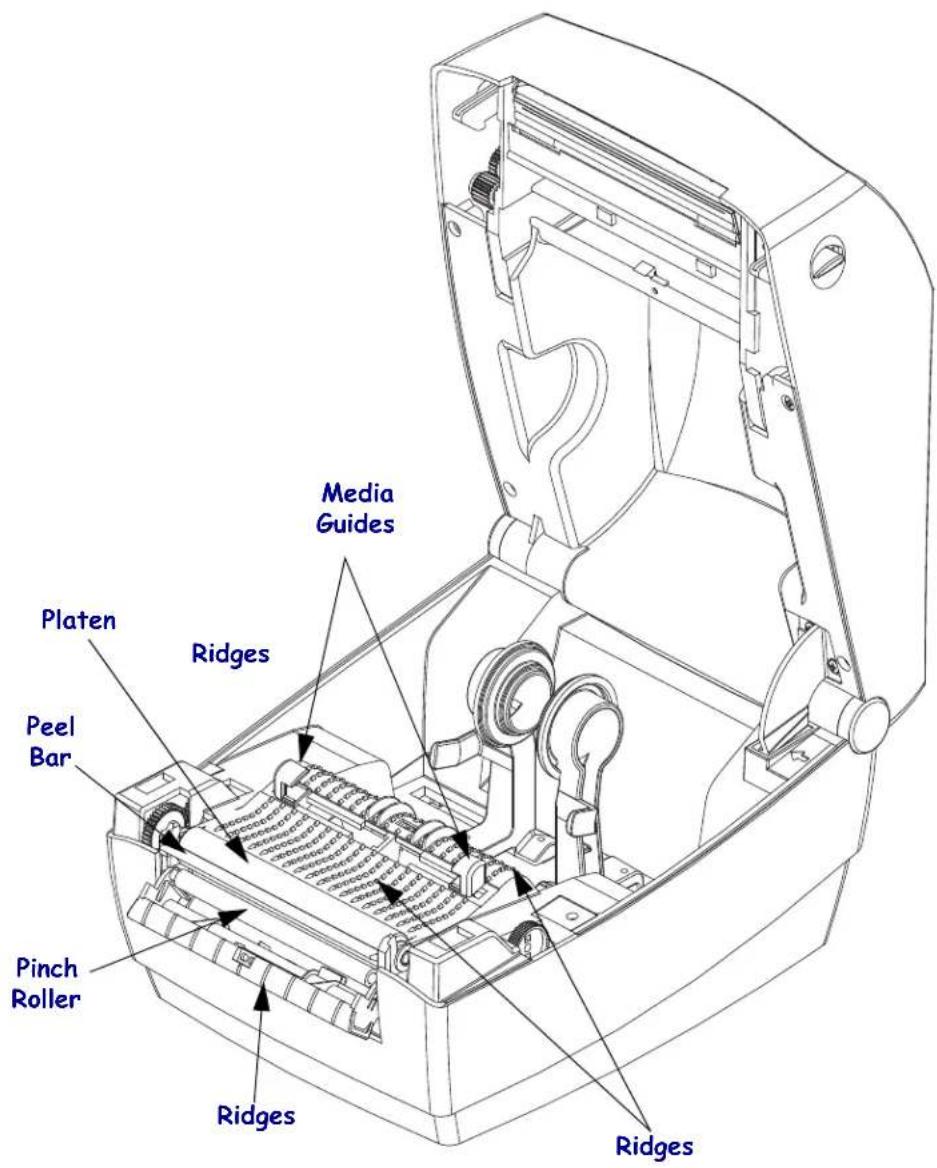
text_image
Platen Peel Bar Pinch Roller Ridges Ridges Media GuidesSensor Cleaning
Dust can accumulate on the media sensors.
-
Gently brush or blow dust away with a can of compressed air. Do not use an air compressor - oil (from the pump) and dirty water will contaminate the printer and printhead. If necessary, use a dry swab to brush away dust. If adhesives or other contaminates remain, use an alcohol moistened swab to break it up.
-
Use a dry swab to remove any residue that may be left from the first cleaning.
-
Repeat steps 1 and 2 as required until all residue and streaks are removed from the sensor.
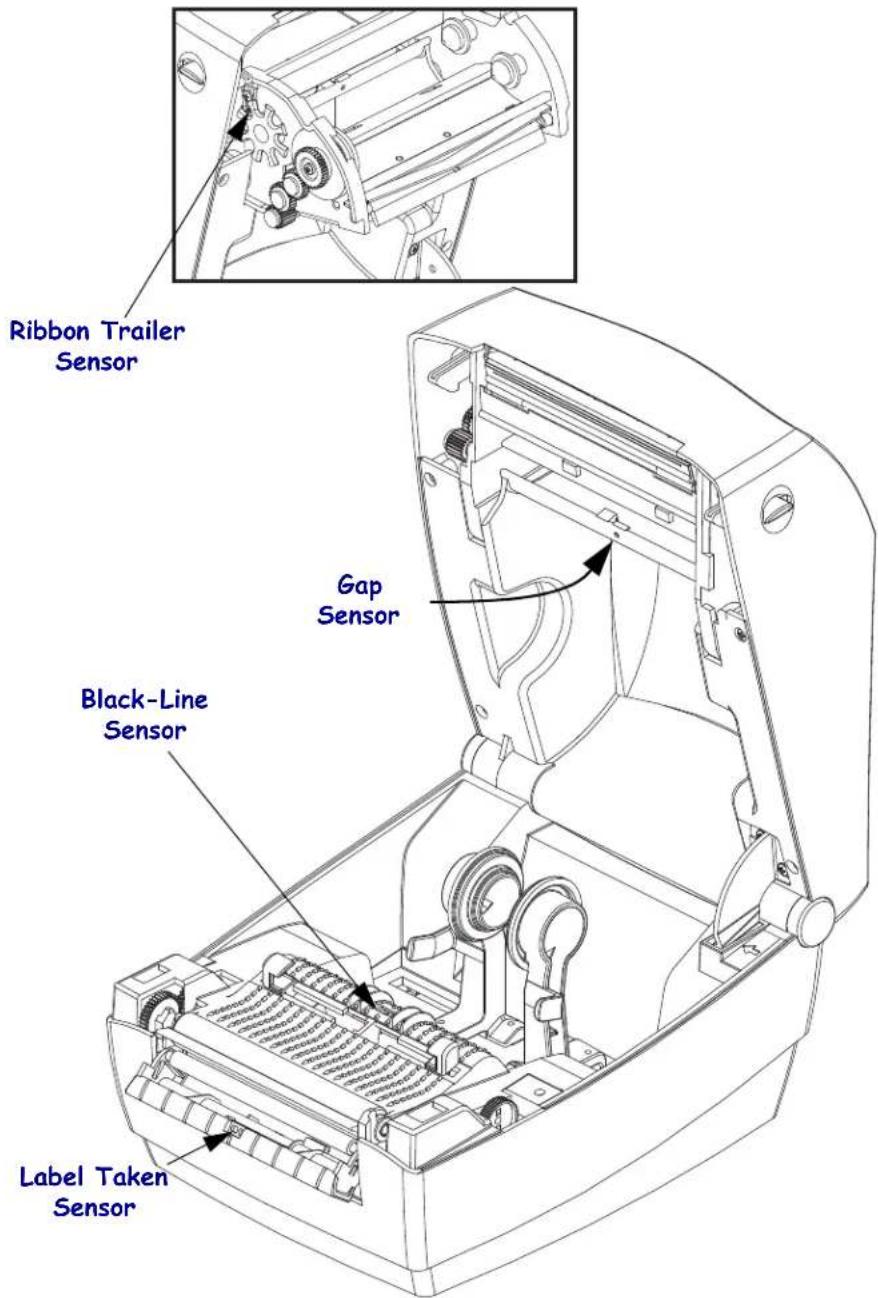
text_image
Ribbon Trailer Sensor Gap Sensor Black-Line Sensor Label Taken SensorPlaten Cleaning and Replacement
The standard platen (drive roller) normally does not require cleaning. Paper and liner dust can accumulate without effecting print operations. Contaminates on the platen roller can damage the printhead or cause the media to slip or stick when printing. Adhesive, dirt, general dust, oils and other contaminates should be cleaned immediately off the platen.
Clean the platen (and media path) whenever the printer has significantly poorer performance, print quality or media handling. The platen is the print surface and drive roller for your media. If sticking or jamming continues even after cleaning, you must replace the platen.
The platen can be cleaned with a fiber-free swab (such as a Texpad swab) or a lint free, clean, damp cloth very lightly moistened with medical grade alcohol (90% pure or better).
- Open the cover (and dispenser door). Remove media from platen area.
- Pull the platen bearing latch release tabs on the right and left sides towards the front of the printer and rotate them up.
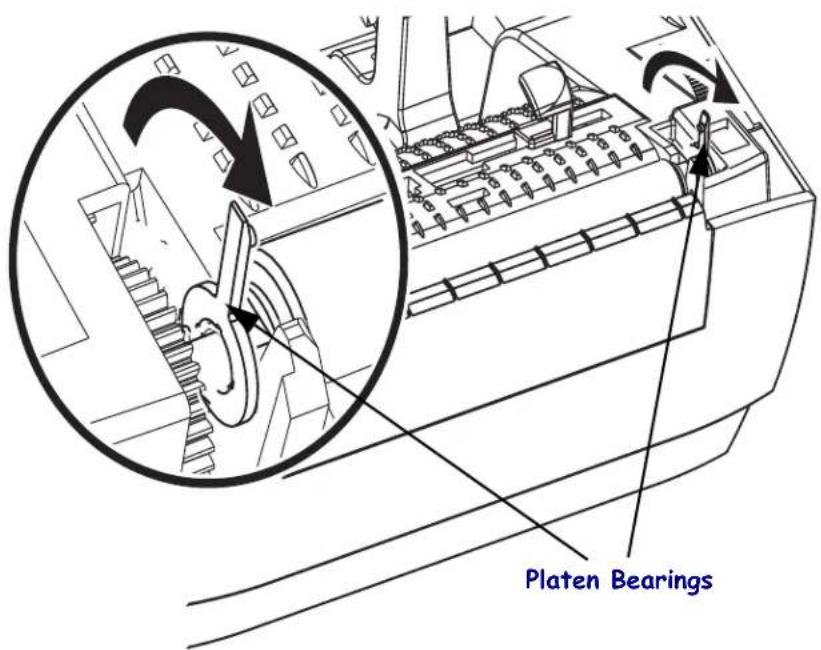
text_image
Platen Bearings- Lift the platen out of the printer's bottom frame.
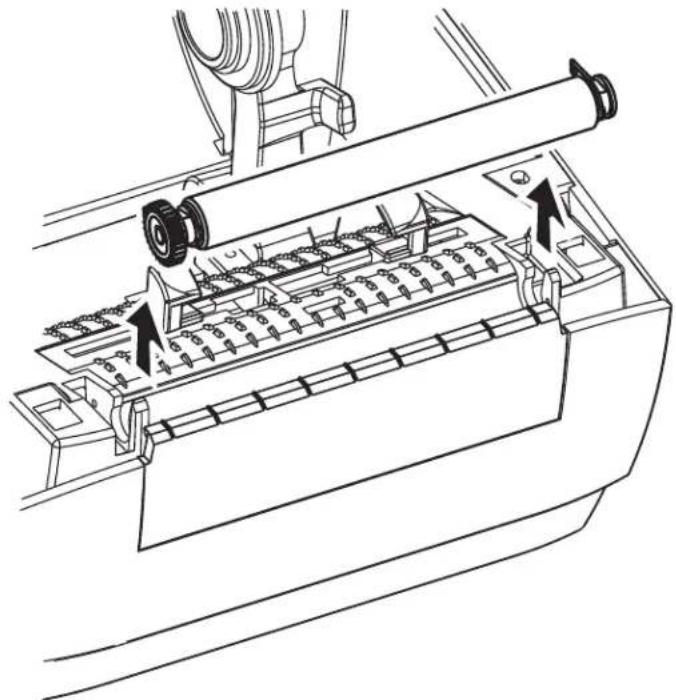
natural_image
Technical line drawing of a mechanical device with rollers and internal components (no text or symbols)-
Clean the platen with the alcohol moistened swab. Clean from the center out. Repeat this process until the all of the roller surface has been cleaned. If there has been heavy adhesive build-up or label jam, repeat with a new swab to remove residual contaminates. Adhesives and oils, for example, may be thinned by the initial cleaning but not completely removed.
-
Install the platen in the printer. Discard the cleaning swabs after use - do not reuse.
-
Make sure the bearings and drive gear are on the shaft of the platen.

natural_image
Technical line drawing of a mechanical assembly with gears and shafts (no text or symbols)- Align the platen with the gear to the left and lower it into the printer's bottom frame.
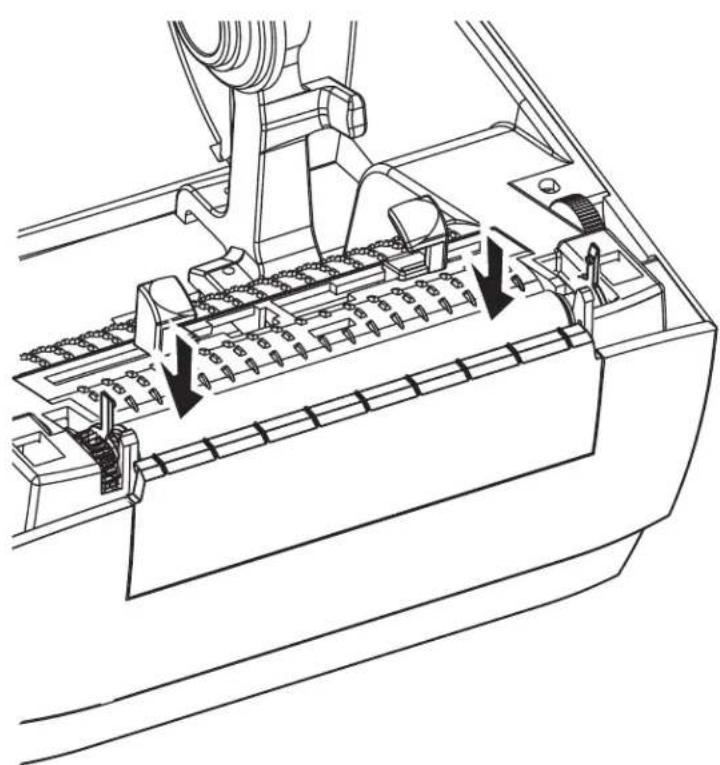
natural_image
Technical line drawing of a mechanical assembly with internal components and directional arrows (no text or symbols)- Rotate the platen bearing latch release tabs down on the right and left sides towards the rear of the printer and snap them into place.
Allow the printer to dry for one minute before closing the dispenser door, media cover or loading labels.
Other Printer Maintenance
There are no user level maintenance procedures beyond those detailed in this section. See the Troubleshooting on page 73 for more information on diagnosing printer and print problems.
Replacing the Printhead
If you need to replace the printhead, read the procedure and review the removal and installation steps before actually replacing the printhead.

Caution • Prepare your work area by protecting against static discharge. Your work area must be static-safe and include a properly grounded conductive cushioned mat to hold the printer and a conductive wrist strap for yourself.

Caution • Turn the printer power off and unplug the power cord before replacing the printhead.
Before following the steps in this procedure, open the printer by pulling the release latches forward then lifting the top cover.
Printhead Removal
- Open the printer. Remove any transfer ribbon from the printer
- .Grasp the print head spring and pull it to the left; then, slide it free of the carriage.
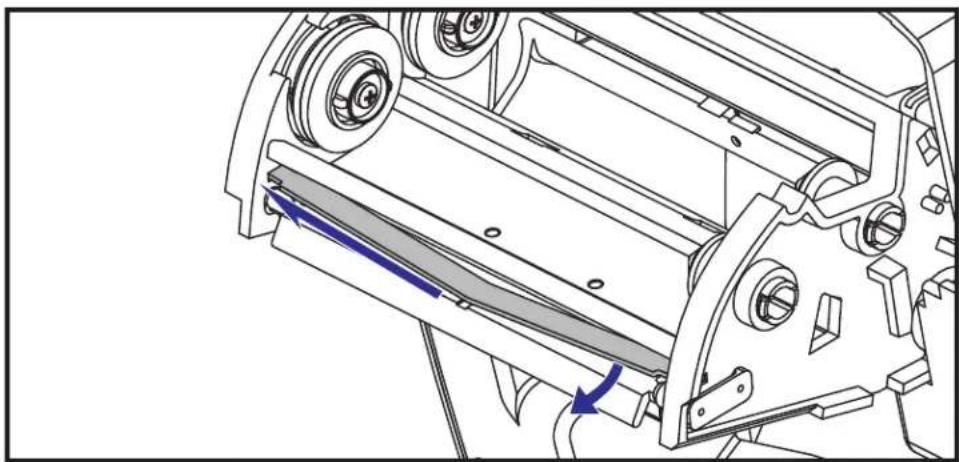
natural_image
Technical line drawing of a mechanical assembly with no visible text or symbols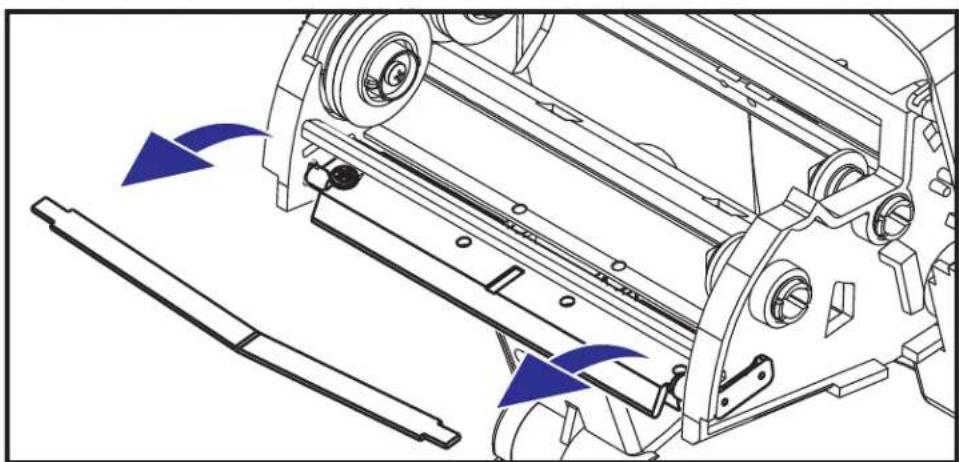
natural_image
Technical line drawing of a mechanical assembly with blue directional arrows indicating motion or movement (no text or symbols present)- Use the spring to pry the printhead clip off the right side of the carriage.

natural_image
Technical line drawing of a mechanical assembly with no visible text or symbols- Pull the printhead and bracket forward.

natural_image
Mechanical assembly diagram showing a blue arrow pointing to a component on a bracket (no text or symbols present)- Use a #2 Phillips driver to remove the screw that holds the ground wire.

natural_image
Mechanical assembly diagram showing a bracket with bolts and a blue arrow indicating a component (no text or symbols present)- Unplug both bundles of printhead wires from their connectors.

natural_image
Mechanical assembly diagram showing two components with blue arrows indicating motion direction (no text or symbols)Replacing the Printhead
The new print head comes with the clip and ground screw attached.
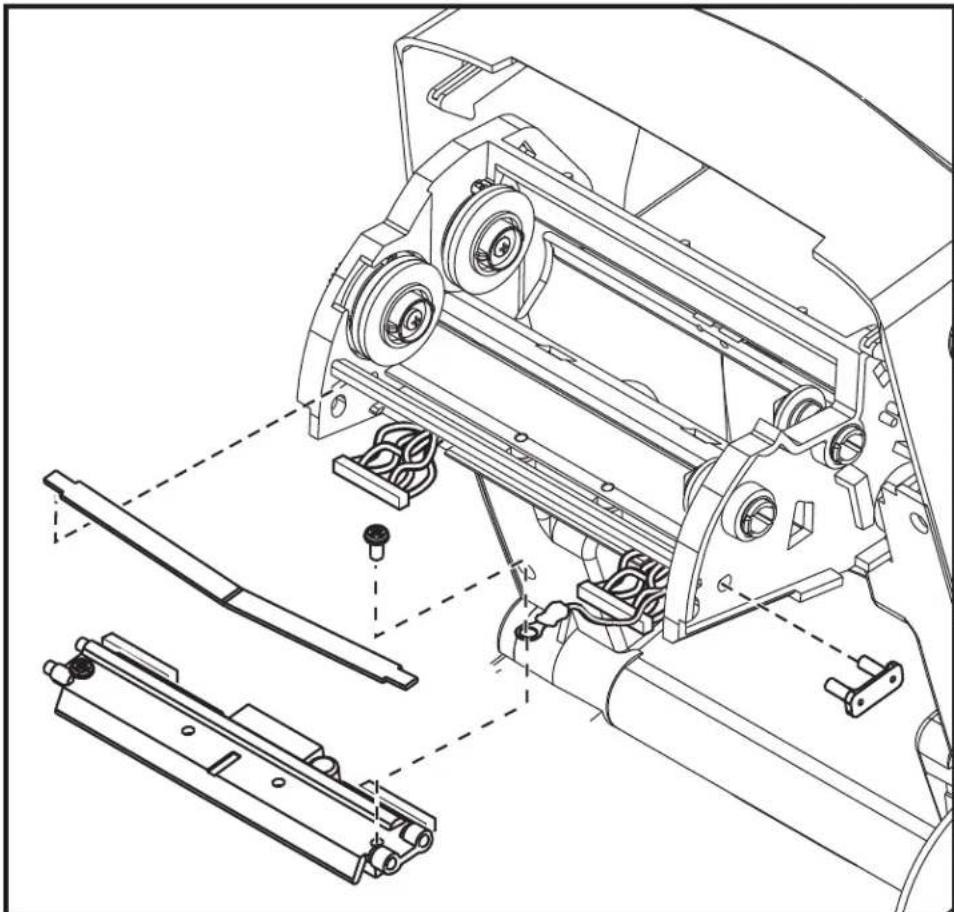
natural_image
Technical line drawing of a mechanical assembly with exploded view and component detail (no text or symbols)-
Align the printhead and bracket to plug the left and right connectors into the black and white wire bundles.
-
Attach the ground wire and secure it with the screw. Use a #2 Phillips driver to tighten it.
- Slip the left end of the printhead spring into the left side of the ribbon carriage; then slide the right end into the other side. The angle of the "V" fits into the indent on top of the printhead bracket.
- Insert the bracket pegs into the left side of the carriage.
- Align the right side of the bracket and insert the printhead clip through the right side of the ribbon carriage into the bracket.
- Verify that the printhead moves up and down freely when pressure is applied and remains locked when released.
- Clean the printhead. Use a new pen to wipe body oils (finger prints) and debris of the printhead. Clean from the center of the printhead to the outside. See Cleaning the Printhead on page 63.
- Reload media. Plug in the power cord, turn on the printer and print a status report to ensure proper function. See Printing a Test (Printer Configuration) Label on page 19.
Troubleshooting
natural_image
Abstract black and white pattern with curved white lines on a black background (no text or symbols)This section provides information about printer error reporting that you might need for printer troubleshooting. Assorted diagnostic tests are included.
Contents
Status Light Descriptions 74
Status Light Error Resolutions 75
Print Quality Problems 77
Manual Calibration 80
Troubleshooting Tests 81
Resetting the Factory Default Values.... 82
Communications Diagnostics....82
Feed Button Modes 84
Status Light Descriptions
| What the Status Light is Telling You | ||
| LED Status and Color Printer Status | For a Resolution, Refer to Number: | |
| Off Off 1 | ||
| Solid Green On 2 | ||
| Solid Amber Stopped 3 | ||
| Flashing Green Normal Operation 4 | ||
| Flashing Red Stopped 5 | ||
| Double Flashing Green Paused 6 | ||
| Flashing Amber | Paused 7 | |
| Alternately Flashing Green and Red | Needs Service | 8 |
| Flashing Red, Red and Green | Needs Service | 9 |
| Flashing Red, Amber Green(* - Do NOT reset or turn off power!) | Memory Dcfragmentation | 10* |
Status Light Error Resolutions
The following Status Error Light Resolution numbers correspond to the Status Light Description table on the previous page. Each error number may have one or more resolution to correct that error listed.
1. The printer is not receiving power.
- Have you turned on the printer power?
- Check power connections from the wall outlet to the power supply, and from the power supply to the printer. See Attaching Power on page 10.
- Disconnect the printer from the wall outlet for 30 seconds and then reconnect the printer to the wall outlet.
2. The printer is on and in an idle state.
No action necessary.
3. The printer has failed its power on self test (POST).
- If this error occurs right after you turn on the printer, contact an authorized reseller for assistance. When the printer is operating normally, the printer status light will be amber for about 10 seconds before turning green (solid or blinking).
There is a memory error.
- If this error occurs after you have been printing, turn the printer power off and on, and then resume printing.
The printhead needs to cool down.
- If this error continues, turn the printer power off for five minutes or more, and then turn on. If the amber light persists, then the printer requires service.
4. The printer is receiving data.
- As soon as all of the data has been received, the status LED will turn green and the printer will automatically resume operation.
5. The media is out.
- Follow the instructions for Loading Roll Media on page 11 in the Getting Started section, and then press the Feed button to resume printing.
The ribbon is out.
- The printer has sensed the end of the ribbon roll. Replace the ribbon.
The printhead is open.
- Close the top cover and then press the Feed button to resume printing.
6. The printer is paused.
- Press the Feed button to resume printing.
7. The printhead is over temperature.
- Printing will stop until the printhead cools to an acceptable printing temperature. When it does, the printer will automatically resume operation.
8. FLASH memory is not programmed.
- Return the printer to an authorized reseller.
9. The printhead or motor has had a critical failure.
- Return the printer to an authorized reseller.
10. The printer is defragmenting memory.
Caution • Do NOT turn off the printer power during defragmentation. Doing so can damage the printer.
- Defragmentation is a normal operation of the printer – necessary to manage the memory space for optimal use. The printer will defragment its memory both after a factory default and when the printer detects that a defragment is required.
When the printer is in this condition, allow it to finish defragmenting. If this warning occurs frequently, check the label formats. Formats that frequently and repeatedly write to and erase from memory my cause the printer to defragment often. Using formats that avoid frequent and repeated memory write/erase event will minimize the need for defragmentation.
- If this warning condition does not go away, contact Technical Support. The printer requires service.
Print Quality Problems
No print on the label.
- The media may not be direct thermal media which is required when printing without ribbon (i.e. thermal transfer). See the test procedure Determining Thermal Media Types on page 35.
- The wrong side of the media is facing up contacting the printhead. The media roll may not be outside wound.
- Transfer ribbon - The outside of the ribbon must be outside wound - the transfer material facing out. See the following ribbon test procedures: Ribbon Test with Adhesive on page 39 and Ribbon Scratch Test on page 39.
- Is the media loaded correctly? Follow the instructions for Loading Roll Media on page 11 in the Getting Started section. For printing using transfer ribbon, see Loading Transfer Ribbon on page 15.
The printed image does not look right.
- The printhead is dirty. Clean the printhead.
• The printhead is under temperature. - Adjust the print darkness and/or print speed.
- Use the ^PR (speed) and \~SD (darkness) commands referenced in the ZPL Programming Guide.
- Use the D (darkness/density) and S (speed) commands in the EPL Programmer's Guide.
- Manually adjust print darkness with the six-flash sequence of Feed Button Modes on page 84.
- The Windows printer driver or application software may change these settings and may require a change to optimize print quality.
- The media being used is incompatible with the printer. Be sure to use the recommended media for your application, and always use Zebra-approved labels and tags.
- The printhead has worn out. The printhead is a consumable item and will wear out due to friction between the media and printhead. Using unapproved media may shorten life or damage your printhead. Replace the printhead.
- The platen may need cleaning or replacement. The platen (driver) roller maybe losing traction due to:
- Foreign objects attached to its surface,
- The rubbery smooth surface has become polished and slippery, or
• There is damage to the normally smooth and flat print surface such as box knife cuts.
There are long tracks of missing print (blank vertical lines) on several labels.
- The printhead is dirty. Clean the printhead.
- The printhead elements are damaged.
The printing does not start at the top of the label or misprinting of one to three labels.
- The media may not be threaded correctly. Follow the instructions for Loading Roll Media on page 11 in the Getting Started section.
- The printer needs to be calibrated. Refer to the two-flash sequence of Feed Button Modes on page 84 in this section.
- ZPL Label Formats - The correct media sensor may not be activated. Manual calibration selects the media sensing method for the labels being used (refer to the ^MN command in the ZPL Programming Guide).
- ZPL Label Formats - Verify that the Label Top (^LT) command is correctly set for your application (consult the ZPL Programming Guide).
- EPL Label Formats - The correct media sensor may not be activated for label dispensing, blackline or notch sensing, or for Gap/Web sensing. Manual calibration selects the media sensing method for the labels being used (refer to the O and Q commands in the EPL Programmer's Guide).
- EPL Label Formats - Verify that the Set Label Length (Q) command is correctly set for your application (consult the EPL Programmer's Guide).
A ZPL label format was sent to, but not recognized by, the printer.
- Is the printer in pause mode? If so, press the Feed button.
- If the status LED is on or flashing, refer to What the Status Light is Telling You on page 74.
- Make sure the data cable is correctly installed.
- A communications problem has occurred. First, make sure that the correct communications port on the computer is selected. Refer to Connecting your Printer to a Computer on page 22 in the Getting Started section.
- Verify the correct Format and Control Prefix on the printer match what you are using in your ZPL programmed label format. The default Format (COMMAND CHAR) is Caret (^) character and the Control (CONTROL CHAR) is a Tilde (\~) character. Verify the characters with the Configuration Status label printout. Refer to the one-flash sequence of Feed Button Modes on page 84 to print this label.
A EPL label format was sent to, but not recognized by, the printer.
- Is the printer in pause mode? If so, press the Feed button.
- If the printer has label dispensing enabled, the printer may be waiting for the label to be removed. The liner/web must be properly threaded through the label dispenser mechanism (peeler) to correctly operate in label dispense mode, refer to Label Dispenser Option on page 48.
- If the status LED is on or flashing, refer to What the Status Light is Telling You on page 74.
- Make sure the data cable is correctly installed.
- A communications problem has occurred. First, make sure that the correct communications port (USB) on the computer is selected. Refer to Connecting your Printer to a Computer on page 22 in the Getting Started section.
Manual Calibration
Manual calibration is recommended whenever you are using pre-printed media or if the printer will not correctly auto calibrate.
- Make sure media is loaded.
- Turn on the printer power.
- Press and hold the Feed button until the green status light flashes once, then twice and then continuing until the flash groups reach the group of seven flashes. Release the Feed button.
- The printer will set the media sensor for the label backing being used. After it is done making this adjustment, the roll will automatically feed until a label is positioned at the printhead. A profile of the media sensor settings (similar to the example below) will print. Upon completion, the printer will save the new settings in memory and the printer is ready for normal operation.
- Press the Feed button. One entire blank label will feed. If this does not happen, try defaulting (refer to the four-flash sequence in "Feed Button Modes" later in this chapter) and recalibrating the printer.

Note • Performing a manual calibration disables the auto calibration function. To return to auto calibration, default the printer (refer to the four-flash sequence in Feed Button Modes on page 84 in this section).

bar
| Category | Media | Web | |---|---|---| | Media | 1400 | 1350 | | Web | 1380 | 1320 |Troubleshooting Tests
Printing a Configuration Label
To print out a listing of the printer's current configuration, refer to the one-flash sequence in Feed Button Modes on page 84 in this section. See Appendix: ZPL Configuration on page 97 to interpret the label.
| PRINTER CONFIGURATION | |
| Zebra Technologies ZTC GC4201 | |
| 10.0. | DARKNESS |
| 4 IPS. | PRINT SPFED |
| +000. | TEAR OFF |
| TEAR CFF. | PRINT MODE |
| CAP/NOTCH. | MEDIA TYPE |
| WES. | SENSOR TYPE |
| AUTO. | SENSOR SELECT |
| DIRECT-THERMAL. | PRINT METHOD |
| B32. | PRINT WIDTH |
| 1248. | LABEL LENGTH |
| 33.0IN 985MM. | MAXIMUM LENGTH |
| CONNECTED. | USB COMM. |
| BIDIRECTIONAL. | PARALLEL COMM. |
| 9500. | BAUD |
| 8 BITS. | DATA BITS |
| NONE. | PARITY |
| DTR & XON/XOFF. | HOST HANDSHAKE |
| NONE. | PROTOCOL |
| (→) 7EN. | CONTROL CHAR |
| (→) 5EN. | COMMAND CHAR |
| (,.) CH. | DO.IM. CHAR |
| ZPL II. | ZPL MODE |
| NO MOTION. | MEDIA POWER UP |
| FEED. | HEAD CLOSE |
| DEFAULT. | BACKFEED |
| HOOC. | LABEL TCP |
| +0000. | LEFT POSITION |
| NO. | HEXDCMP |
| D46. | WEB S. |
| 098. | MEDIA S. |
| D32. | WEB GAIN |
| 050. | MARK S. |
| 000. | MARK GAIN |
| 095. | MARK MED S. |
| 000. | MARK MEDIA GAIN |
| 095. | CONT MEDIA S. |
| 007. | CONT MEDIA GAIN |
| 075. | RIBBON OUT |
| D4D. | RIBBON GAIN |
| D65. | TAKE LABEL |
| DNF. | MODES ENABLED |
| MODES DISABLED | |
| 932 9/YY FULL. | RESOLUTION |
| V91.17.112P12A C- | FIRMWARE |
| I.S. | XML SCHEMA |
| V27.00.DI. | HARDWARE IO |
| CUSTOMIZED. | CONFIGURATION |
| 2104k. R: RAM | |
| 5692k E: UNBOARD FLASH | |
| NONE. | FORMAT CONVERT |
| DISABLED. ZBI | |
| 2 I. ZBI VERSION | |
| 10,665 IN. LAST CLEANED | |
| 10,665 IN. HEAD USAGE | |
| 10,665 IN. TOTAL USAGE | |
| 10,665 IN. RESET CNTRI | |
| 10,665 IN. RESET CNTR2 | |
| SERIAL NUMBER | |
| MAINT.OFF EARLY WARNING | |
| 2010-C9-22 08:24:57 TIME STAMP | |
Recalibration
Recalibrate the printer if it starts to display unusual symptoms, such as skipping labels. Refer to the two-flash sequence in Feed Button Modes on page 84 in this section.
Resetting the Factory Default Values
Sometimes, resetting the printer to the factory defaults may solve some problems. Refer to the four-flash sequence in Feed Button Modes on page 84 in this section.
Communications Diagnostics
If there is a problem transferring data between the computer and printer, try putting the printer in the communications diagnostics mode. The printer will print the ASCII characters and their respective hexadecimal values (a sample is shown below) for any data received from the host computer. To find out how,
There are multiple ways to enter hex data dump mode:
• T h c \~JD ZPL command
• The dump EPL command
- On power up with the Feed button pressed. Refer to the power off mode procedure in Feed Button Modes on page 84 in this section.
The printer will print 'Now in DUMP' (see below) and advance to the top of the next label.

text_image
Now in DUMP Press Feed to exit or send ~JEThe following example of a communications DUMP mode printed out. The printout displays hexadecimal data 00h-FFh (0-255 decimal) with a unique character for each hexadecimal value displayed above the hexadecimal data.

text_image
Scanned image of a musical notation or keyboard layout with multiple numbered musical notation symbols and corresponding text.The blank lines between the lines of data are where serial port and Bluetooth data handling errors get logged. The errors are:
• F = F r a m e E r r o r
• P = Parity Error
• N = N o i s e E r r o r
• O = Data Overrun Error
To exit the diagnostic mode and resume printing, turn off and then turn on the printer. An alternate method for exiting the diagnostic mode is to press the Feed button as many times as it takes to clear the printer's command buffer and print 'Out of DUMP' on the label.

text_image
Out of DUMPFeed Button Modes
| Power Off Modes | |
| With the printer power off, press and hold the Feed button while you turn on the power. | |
| Flash Sequence Action | |
| Amber - Red Flashing | Firmware Download Mode- The printer starts rapidly flashing red to denote entry into the Firmware Download mode. Releasing the Feed button here will start initializing the printer for download. The printer is ready to start downloading firmware when the status light begins to slowly flash between red and green.SeeSending Files to the Printer on page 46for more information on using the Firmware (and File) Download utility available for use with this printer. Firmware updates for your printer, if available, are posted on the Zebra on our web site at:www.zebra.com |
| Amber | Normal Operations Mode- The printer continues into a normal printer initialization. Releasing the Feed button here will allow the printer to start normally without firmware download or operating in communications diagnostics mode. |
| Green | Communications Diagnostic (Dump) Mode- Release the Feed button immediately after the printer status light turns green. The printer will print ‘Now in DUMP’ at the top of the label and then advance to the next label. After printing the first label, the printer will automatically enter into diagnostic mode in which the printer prints out a literal representation of all data subsequently received.To exit the diagnostic mode and resume printing, turn off and then turn on the printer. An alternate method for exiting the diagnostic mode is to press the Feed button as many times as it takes to clear the printer’s command buffer and print ‘Out of DUMP’ on the label. |
| Power On Modes | |
| With the printer power on and top cover closed, press and hold the Feed button for several seconds. The green status LED will flash a number of times in sequence. The explanation at the right (Action) shows what happens when you release the key after the start specific number of flashes and before the next flash sequence starts. | |
| Flash Sequence Action | |
| * | Configuration Status - Prints a detailed printer configuration status label. The label can be used to verify printing, assist printer to computer communication configuration, maintenance, troubleshooting, and help us with customer care communications. |
| ** | Standard Auto Media Calibration - The printer detects and sets media type and media length, and it adjusts the media sensors for optimal performance with the installed media (equivalent ZPL command ~JC). The printer will feed one to four labels while calibrating.Note: Users familiar with the Zebra EPL desktop printer use this Feed mode to replace power-up AutoSensing calibration (equivalent EPL command XA). |
| *** | Serial Port Configuration - Applies only to printers with serial interface ports.To reset the serial port communication parameters, except for Flow Control. Press and release the Feed button while the LED rapidly flashes amber and green.For autobaud synchronization: Send the ^XA^XZ command sequence to the printer while the LED rapidly flashes amber and green. When the printer and host are synchronized, the LED changes to solid green. NOTE: No labels will print during autobaud synchronization. |
| **** | Factory Defaults - Resets the printer to the factory default settings (equivalent to ZPL command ^JUN). See Appendix: ZPL Configuration on page 97 for a description of the primary configuration settings and their associated ZPL commands. Some configuration settings are not returned to their initial 'out of box' settings. Other settings are exclusively set, viewed and controlled by programming are also reset. The printer then performs a standard media calibration followed by .a memory defragmentation routine.Once a network printer has entered the Factory Default mode, the status light will turn amber for three (3) seconds. During that time you may do two things: Do nothing and the printer will reset the factory defaults automatically as described above OR press and hold the feed button to enter a factory default reset modes for printers with a network (Ethernet, Wi-Fi or Bluetooth) printer option (equivalent ZPL command ^JUF). Releasing the button after the first flash resets the network factory options only (equivalent ZPL command ^JUN). Releasing the button after the second flash sequence (two flashes) will reset the printer defaults only. Releasing the button after the third flash sequence (three flashes) will reset both printer and network settings (equivalent ZPL commands ^JUN and ^JUF) |
| **** | Print Width Adjustment - Prints a succession of boxes starting at the minimum print width and ending in the printer's maximum print width in 4mm increments. Press the Feed button once when the printer has reached the desired maximum print width. Note that the printer driver and applications can override this setting. |
| ***** | Print Darkness (Density) Adjustment - Prints a succession of bar code simulation patterns starting at the minimum darkness (print density/heat) and ending in the printer's maximum darkness in increments of four (4) using the ZPL darkness setting range values. Press the Feed button once the pattern is clear and legible. Do not continue to increase the darkness setting or bar code line widths may become distorted reducing readability. Note that the printer driver and applications can override this setting. |
| ***** | Manual Media Calibration - The printer runs extensive tests to detect and set media type and media length, and then it adjusts the media sensors for optimal performance with the installed media (equivalent ZPL command ~JG). Manual calibration is recommended whenever you are using pre-printed media, print on the liner or if the printer will not correctly auto calibrate. A graphical profile of the media sensing will print. See Manual Calibration on page 80 for more details and considerations. |
| ***** | If the Feed button remains pressed after 7th flash sequence cycle finishes, the printer exits the configuration mode when the Feed button is released. |

Notes •
Appendix: Interface Wiring
natural_image
Abstract black and white pattern with curved white lines on black background (no text or symbols)This section provides printer interface connection information.
Contents
Universal Serial Bus (USB) Interface.... 88
Parallel Interface 89
Ethernet Interface....90
Serial Port Interface 91
Universal Serial Bus (USB) Interface
The figure below displays the cable wiring required to use the printer's USB interface.
The printer requires cable or cable packaging that bears the “Certified USB ^TM ” mark to guarantee USB 2.0 compliance.

text_image
2 1 3 4| Pin Signal | |
| 1 | V |
| 2 | D- |
| 3 | D+ |
| 4 | G |
| Shell Shield / Drain Wire | |
For printer supported operating systems and drivers, see the software and documentation CD or visit the Zebra Web site at:
http://www.zebra.com
For information on the USB interface, go to the USB web site at:
http://www.usb.org
Parallel Interface
The printer's parallel interface uses the IEEE 1284-A to 1284-B parallel interface cables. the host connector has a DB-25 pin male connector. The printer connector is a Centronics style connector.
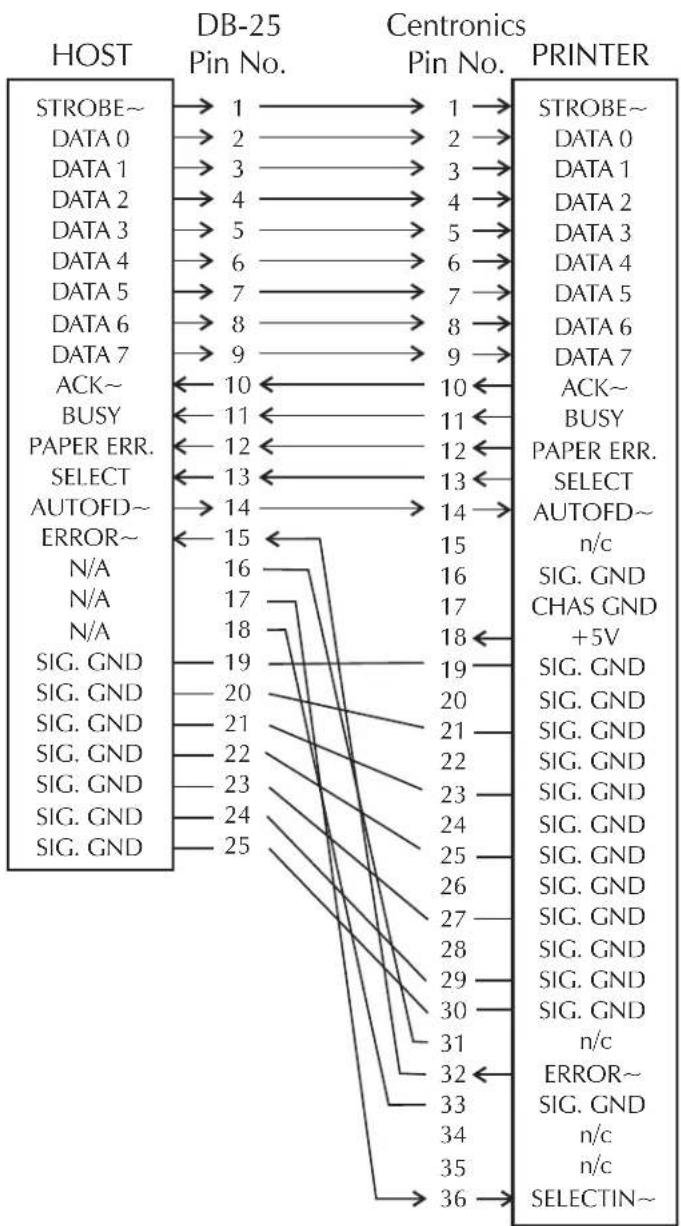
flowchart
graph LR
    A["HOST"] --> B["DB-25 Pin No. 1"]
    A --> C["DB-25 Pin No. 2"]
    A --> D["DB-25 Pin No. 3"]
    A --> E["DB-25 Pin No. 4"]
    A --> F["DB-25 Pin No. 5"]
    A --> G["DB-25 Pin No. 6"]
    A --> H["DB-25 Pin No. 7"]
    A --> I["DB-25 Pin No. 8"]
    A --> J["DB-25 Pin No. 9"]
    A --> K["DB-25 Pin No. 10"]
    A --> L["DB-25 Pin No. 11"]
    A --> M["DB-25 Pin No. 12"]
    A --> N["DB-25 Pin No. 13"]
    A --> O["DB-25 Pin No. 14"]
    A --> P["DB-25 Pin No. 15"]
    A --> Q["DB-25 Pin No. 16"]
    A --> R["DB-25 Pin No. 17"]
    A --> S["DB-25 Pin No. 18"]
    A --> T["DB-25 Pin No. 19"]
    A --> U["DB-25 Pin No. 20"]
    A --> V["DB-25 Pin No. 21"]
    A --> W["DB-25 Pin No. 22"]
    A --> X["DB-25 Pin No. 23"]
    A --> Y["DB-25 Pin No. 24"]
    A --> Z["DB-25 Pin No. 25"]
    C --> AA["Centronics Pin No. 1"]
    C --> AB["Centronics Pin No. 2"]
    C --> AC["Centronics Pin No. 3"]
    C --> AD["Centronics Pin No. 4"]
    C --> AE["Centronics Pin No. 5"]
    C --> AF["Centronics Pin No. 6"]
    C --> AG["Centronics Pin No. 7"]
    C --> AH["Centronics Pin No. 8"]
    C --> AI["Centronics Pin No. 9"]
    C --> AJ["Centronics Pin No. 10"]
    C --> AK["Centronics Pin No. 11"]
    C --> AL["Centronics Pin No. 12"]
    C --> AM["Centronics Pin No. 13"]
    C --> AN["Centronics Pin No. 14"]
    C --> AO["Centronics Pin No. 15"]
    C --> AP["Centronics Pin No. 16"]
    C --> AQ["Centronics Pin No. 17"]
    C --> AR["Centronics Pin No. 18"]
    C --> AS["Centronics Pin No. 19"]
    C --> AT["Centronics Pin No. 20"]
    C --> AU["Centronics Pin No. 21"]
    C --> AV["Centronics Pin No. 22"]
    C --> AW["Centronics Pin No. 23"]
    C --> AX["Centronics Pin No. 24"]
    C --> AY["Centronics Pin No. 25"]
    C --> AZ["Centronics Pin No. 26"]
    C --> BA["Centronics Pin No. 27"]
    C --> BB["Centronics Pin No. 28"]
    C --> BC["Centronics Pin No. 29"]
    C --> BD["Centronics Pin No. 30"]
    C --> BE["Centronics Pin No. 31"]
    C --> BF["Centronics Pin No. 32"]
    C --> BG["Centronics Pin No. 33"]
    C --> BH["Centronics Pin No. 34"]
    C --> BI["Centronics Pin No. 35"]
    C --> BJ["Centronics Pin No. 36"]

    K --> BK["PRINTER"] --> BL["STROBE~ DATA 0 DATA 1 DATA 2 DATA 3 DATA 4 DATA 5 DATA 6 DATA 7 ACK~ BUSY PAPER ERR.<br>SELECT AUTOFD~ n/c SIG.GND CHAS GND +5V SIG.GND SIG.GND SIG.GND SIG.GND SIG.GND SIG.GND SIG.GND SIG.GND SIG.GND SIG.GND SIG.GND SIG.GND SIG.GND SIG.GND SIG.GND SIG.GND SIG.GND SIG.GND SIG.GND SIG.GND SIG.GND SIG.GND SIG.GND SIG.GND SIG.GND SIG.GND SIG.GND SIG.GND SIG.GND SIG.GND SIG.GND SIG.GND SIG.GND SIG.GND Sig.GND SIG.GND SIG.GND SIG.GND SIG.GND SIG.GND SIG.GND SIG.GND SIG.GND SIG.GND SIG.GND SIG.GND SIG.GND SIG.GND SIG.GND SIG.GND SIG.GND SIG.GND SIG.GND SIG.GND SIG.GND SIG.GND SIG.GND SIG.GND SIG.GND SIG.GND SIG.GND SIG.GND SIG.GND SIG.GND SIG.GND SIG.GND SIG.GND SIGG.N/C ERROR~SIG.GND n/c SelectIN~"]
DB-25 to Centronics (Cable)
Ethernet Interface
This interface requires a UTP RJ45 Ethernet cable rated CAT-5 or better.
The table below provides the cable's pinout assignments.
| Signal Pin Pin Signal | |||
| T | x | + | 1 1 T |
| T | x | - | 2 2 T |
| R | x | + | 3 3 R |
| — | 4 | 4 | — |
| — | 5 | 5 | — |
| R | x | - | 6 6 R |
| — | 7 | 7 | — |
| — | 8 | 8 | — |

text_image
1 2 3 4 5 6 7 8Serial Port Interface
| Pin Description |
| 1 Not used |
| 2 RXD (receive data) input to the printer |
| 3 TXD (transmit data) output from the printer |
| 4 DTR (data terminal ready) output from the printer -- controls when the host may send data |
| 5 Chassis ground |
| 6 DSR (data set ready) input to the printer |
| 7 RTS (request to send) output from the printer -- always in the ACTIVE condition when the printer is turned on |
| 8 CTS (clear to send) - Not used by the printer |
| 9 +5 V @ 0.75 A fused |
The maximum current available through the serial and/or parallel port is not to exceed a total of 0.75 Amps.
When XON/XOFF handshaking is selected, data flow is controlled by the ASCII control codes DC1 (XON) and DC3 (XOFF). The DTR control lead will have no effect.
Interconnecting to DCE Devices — When the printer is connected via its RS-232 interface to data communication equipment (DCE) such as a modem, a STANDARD RS-232 (straight-through) interface cable must be used. Figure 32 shows the connections required for this cable.
Connecting to the KDU (Keyboard Display Unit) — The KDU was designed for DCE printer connections and requires a Zebra custom serial port gender changing adapter. The KDU now includes the KDU adapter and the Zebra kit part number for the KDU Adapter is 105934-088.
Connecting the Printer to a DCE Device
DB-25S
Connector
to DCE Device
DB-9P
Connector
to Printer
DB-9S
Connector
to DCE Device
DB-9P
Connector
to Printer
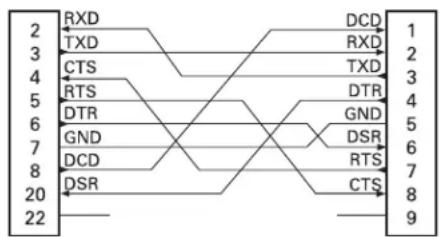
flowchart
graph TD
    A["2"] --> B["RXD"]
    A --> C["TXD"]
    A --> D["CTS"]
    A --> E["RTS"]
    A --> F["DTR"]
    A --> G["GND"]
    A --> H["DCD"]
    A --> I["DSR"]
    J["1"] --> K["DCD"]
    J --> L["RXD"]
    J --> M["TXD"]
    J --> N["DTR"]
    J --> O["GND"]
    J --> P["DSR"]
    J --> Q["RTS"]
    J --> R["CTS"]
    S["2"] --> T["3"]
    S --> U["4"]
    S --> V["5"]
    S --> W["6"]
    S --> X["7"]
    S --> Y["8"]
    S --> Z["9"]
    style A fill:#f9f,stroke:#333
    style J fill:#f9f,stroke:#333
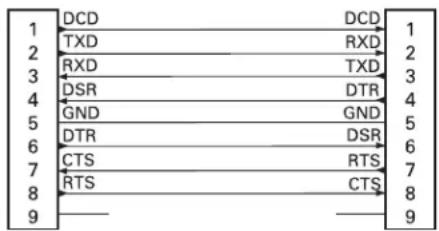
text_image
1 DCD DCD 1 2 TXD RXD 2 3 RXD TXD 3 4 DSR DTR 4 5 GND GND 5 6 DTR DSR 6 7 CTS RTS 7 8 RTS CTS 8 9 — — 9
Notes •
Appendix: Dimensions
This section provides external printer dimensions.
Contents
External GC420t™ Printer Dimensions 94
Optional: Label Dispenser 95
Optional: Cutter 95
External GC420t™ Printer Dimensions

text_image
7.63 6.80 3.18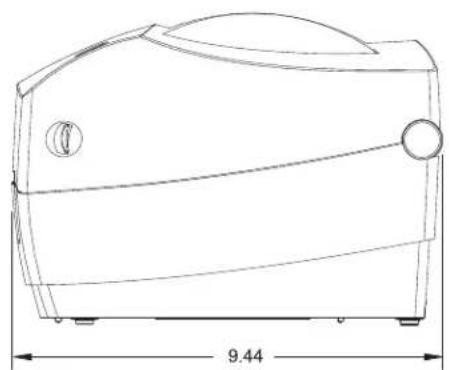
natural_image
Line drawing of a portable device with a circular button and a 9.44mm dimension label (no text or symbols on the device itself)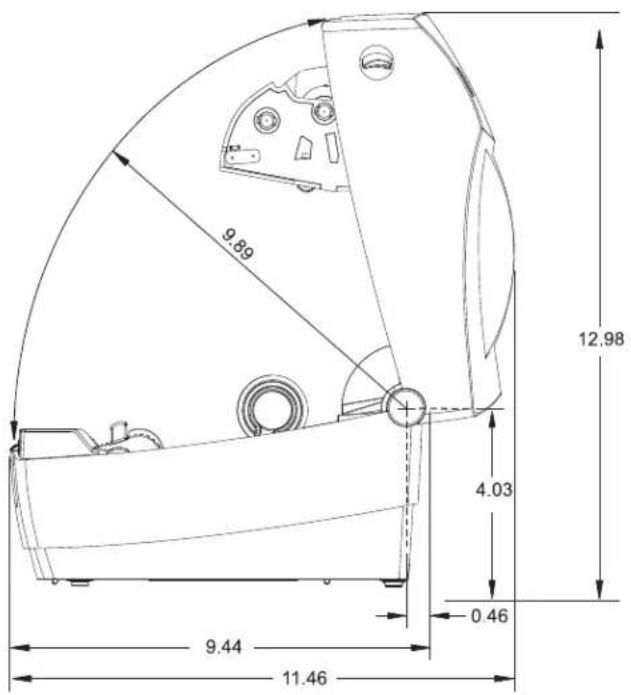
text_image
9.89 12.98 4.03 0.46 9.44 11.46All dimensions are in inches

text_image
6.8 1.23Optional: Label Dispenser

text_image
7.63 6.80 3.24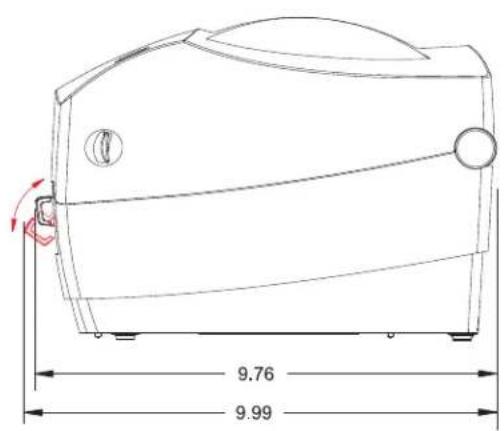
text_image
9.76 9.99Optional: Cutter
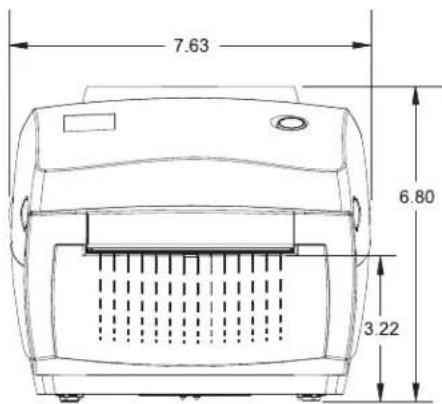
text_image
7.63 6.80 3.22
natural_image
Technical line drawing of a mechanical device with dimension标注 (no text or symbols)
Notes •
Appendix: ZPL Configuration
natural_image
Abstract black and white pattern with curved white lines on black background (no text or symbols)This section provides a basic overview of managing printer configuration, the Configuring Status Printout, and Printer Memory Printouts.
Contents
Managing the ZPL Printer Configuration 98
ZPL Configuration Status to Command Cross-reference....99
Printer Memory Management and Related Status Reports 102
Managing the ZPL Printer Configuration
The ZPL printer is designed to allow you to change printer settings dynamically for fast first label out printing. Printer parameters that are persistent, will be retained for following formats to use. Those settings will remain in effect until they are changed by subsequent commands, the printer is reset, power is cycled, or when you restore a parameter that has a factory default by using the Feed Button Mode four (4) flash routine. The ZPL Configuration Update command (^JU) saves and restores printer configurations to initialize (or re-initialize) the printer with pre-configured settings.
- To keep settings after a power cycle or printer reset, a ^JUS can be sent to the printer to save all current persistent settings.
- The values are recalled with a ^JUR command to restore the last saved values to you printer.
ZPL stores all parameters at once with a single command discussed above. The legacy EPL programming language (supported by this printer) changes and saves individual commands immediately. Most configuration and settings are shared between ZPL and EPL. For example, changing the speed setting with EPL will also change the speed set for ZPL operations. The changed EPL setting will persist even after a power cycle or reset issued by either printer language.
To assist the developer, the printer has a listing of the operating parameters, a Printer Configuration Label. It can be accessed by using the printer's Feed button and the Printing a Test (Printer Configuration) Label on page 19. The Zebra Setup Utility and the ZebraDesigner™ Windows driver also print this label and other printer status labels to help you manage your printer.
ZPL Printer Configuration Format
Managing more than one printer can be done creating a printer configuration programming file to send to one or more printers or ZebraNet™ Bridge can be used to clone a printer's setup. Figure 1 below shows the basic structure of a ZPL programming configuration file.
See the ZPL programmer's guide and the ZPL Configuration Status to Command Cross-reference on page 99 to create a programming file. The Zebra Setup Utility (ZSU) can be used to send programming files to the printer. Windows Notepad (text editor) can be used to create programming files.
Figure 1 • Configuration Parameter Format Structure
^XA — Start Format Command
Format Commands are order sensitive
a) General Print and command settings
b) Media handling and behaviors
c) Media print size
^ JUS command to save
^XZ — End Format Command
ZPL Configuration Status to Command Cross-reference
The Printer Configuration Label, shown below, provides a listing of a majority of the configurations settings that can be set by ZPL command.
Figure 2 • Configuration Label Printout
| PRINTER CONFIGURATION Zebra Technologies ZTC GC420t | |
| 10.0. . . . . . . . . . . . . . . . . . . . . . . . . . . . . . . . . . . . . . . . . . . . . . . . . . . . . . . . . . . . . . . . . . . . . . . . . . . . . . . . . . . . . . . . 4 IPS. . . . . . . . . . . . . . . . . . . . . . . . . . . +000. 7E.H. 7E.H. 7E.H. 7E.H. 7E.H. 7E.H. 7E.H. 7E.H. 7E.H. 7E.H. 7E.H. 7E.H. 7E.H. 7E.H. 7E.H. 7E.H. 7E.H. 7E.H. 7E.H. 7E.H. 7E HLDMS +000. 1248. 1248. 1248. 1248. 1248. 1248. 1248. 1248. 1248. 1248. 1248. 1248. 1248. 1248. 1248. 1248. 1248. 139,0IN S69MM.. MAXIMUM LENGTH CONNECTED.. MAXIMUM LENGTH BIDIRECTIONAL.. MAXIMUM LENGTH S600.. MAXIMUM LENGTH BIDIRECTIONAL.. MAXIMUM LENGTH S600.. MAXIMUM LENGTH BIDIRECTIONAL.. MAXIMUM LENGTH S600.. MAXIMUM LENGTH BIDIRECTIONAL.. MAXIMUM LENGTH S600.. MAXIMUM LENGTH BIDIRECTIONAL.. MAXIMUM LENGTH S600.. MAXIMUM LENGTH BIDIRECTIONAL.. MAXIMUM LENGTH S600.. MAXIMUM LENGTH BIDIRECTIONAL .. MAXIMUM LENGTH S600.. MAXIMUM LENGTH BIDIRECTIONAL .. MAXIMUM LENGTH S600.. MAXIMUM LENGTH BIDIRECTIONAL .. MAXIMUM LENGTH S600.. MAXIMUM LENGTH BIDIRECTIONAL .. MAXIMUM LENGTH S600.. MAXIMUM LENGTH BIDIRECTIONAL .. MAXIMUM LENGTH S600.. MAXIMUM LENGTH BIDIRECTIONAL .. MAXIMUM LENGTH S600..MAXIMUM LENGTH BIDIRECTIONAL .. MAXIMUM LENGTH S600..MAXIMUM LENGTH BIDIRECTIONAL .. MAXIMUM LENGTH S600..MAXIMUM LENGTH BIDIRECTIONAL .. MAXIMUM LENGTH S600..MAXIMUM LENGTH BIDIRECTIONAL .. MAXIMUM LENGTH S600..MAXIMUM LENGTH BIDIRECTIONAL .. MAXIMUM LENGTH S600..MAXIMUM LENGTH BIDIRECTIONAL .. MAXUMUM MLENGTH S600..MAXUMUM MLENGTH BIDIRECTIONAL .. MAXUMUM MLENGTH S600..MAXUMUM MLENGTH BIDIRECTIONAL .. MAXUMUM MLENGTH S600..MAXUMUM MLENGTH BIDIRECTIONAL .. MAXUMUM MLENGTH S600..MAXUMUM MLENGTH BIDIRECTIONAL .. MAXUMUM MLENGTH S600..MAXUMUM MLENGTH BIDIRECTIONAL .. MAXUMUM MLENGTH | |
Table 2 • ZPL Commands and Configuration Receipt Callout Cross-Reference
| Command Listing Name Description | ||
| ~SD | DARKNESS | Default: 10.0 |
| ^PR | PRINT SPEED | Default: 6 IPS / 152.4 mm/s (max.) |
| ~TA | TEAR OFF | Default: +000 |
| ^MN | MEDIA TYPE | Default: GAP/NOTCH |
| SENSOR TYPE Default: WEB | ||
| SENSOR SELECT | Default: AUTO (^MNA - Auto-Detect) | |
| ^MT | PRINT METHOD | THERMAL-TRANS or DIRECT-THERMAL |
| ^PW | PRINT WIDTH | Default: 832 (dots) |
| ^LL | LABEL LENGTH | Default: 1225 (dots) (the value constantly recalibrates with automatic Web-Gap detection for label media) |
| ^ML MAXIMUM LENGTH | Default: 39.0IN 989MM | |
| - | USB COMM. | Connection Status: Connected / Not Connected |
| - | PARALLEL COMM. | Connection Available: BIDIRECTIONAL |
| ^SCa | BAUD | Default: 9600 |
| ^SC,b | DATA BITS | Default: 8 BITS |
| ^SC,,c | PARITY | Default: NONE |
| ^SC,,,,e | HOST HANDSHAKE | Default: DTR & XON/XOFF |
| ^SC,,,,f | PROTOCOL | Default: NONE |
| SER COMM. MODE | Default: AUTO | |
| CUTTER TYPE | Option Present: LINER/TAG FULL (cut) | |
| ^CT / ~CT | CONTROL CHAR | Default: <->7EH |
| ^CC / ~CC | COMMAND CHAR | Default: <^>5EH |
| ^CD / ~CD | DELIM./CHAR | Default: <,>2CH |
| ^SZ | ZPL MODE | Default: ZPL II |
| ^MFa | MEDIA POWER UP | Default: NO MOTION |
| ^MF,b | HEAD CLOSE | Default: FEED |
| ~JS | BACKFEED | Default: DEFAULT |
| ^LT | LABEL TOP | Default: +000 |
| ^LS | LEFT POSITION | Default: +0000 |
| ~JD / ~JE | HEXDUMP | Default: NO (~JE) |
From this point in the Configuration Receipt listing, the printout has sensor settings and values are displayed to troubleshoot sensor and media operations. These are typically used by Zebra Tech Support to diagnose printer problems.
The configuration settings listed here resume after the TAKE LABEL sensor value. These listings contain printer features seldom changed from default or provide status information (e.g. Firmware Version).
Table 3 • ZPL Commands and Configuration Receipt Callout Cross-Reference
| Command Listing Name Description | ||
| ^MP | MODES ENABLED | Default: CWF (See ^MP Command)(CWFM for wireless printers with display) |
| MODES DISABLED Default: (nothing set) | ||
| ^JM | RESOLUTION | Default: 832 8/mm FULL (203 dpi)1280 8/mm FULL (300 dpi) |
| - FIRMWARE Lists ZPL Firmware Version | ||
| - XML | SCHEMA 1.3 | |
| - | HARDWARE ID | Lists Firmware Boot-block Version |
| - | CONFIGURATION | CUSTOMIZED (after first use) |
| - RAM | 2104k...... R: | |
| - | OPTION MEMORY | 65536k......B: (only displays this if installed) |
| - ONBOARD FLASH | 1536k......E: | |
| ^MU FORMAT CONVERT NONE | ||
| ^JI / ~JI | ZBI | DISABLED (Requires key to enable) |
| - ZBI VERSION | 2.1 | |
| ^JH^MA~RO | LAST CLEANED | X,XXX IN |
| HEAD USAGE | X,XXX IN | |
| TOTAL USAGE | X,XXX IN | |
| RESET CNTR1 | X,XXX IN | |
| RESET CNTR1 | X,XXX IN | |
| - SERIAL NUMBER XXXXXXXXXX | ||
| ^JH EARLY WARNING MAINT. OFF | ||
The printer has the ability to set a command or a group of commands once for all receipts (or labels) that follow. Those settings will remain in effect until they are changed by subsequent commands, the printer is reset, or you restore factory defaults.
Printer Memory Management and Related Status Reports
To help you manage printer resources, the printer supports a variety format commands to manage memory, transfer objects (between memory areas, import and export), object naming, and provide various printer operating status reports. They are very similar to the old DOS commands like DIR (directory listing) and DEL (delete file). The most common reports are also part of the Zebra Setup Utility and ZebraDesigner™ Windows driver.
Figure 3 • Memory Management Format Structure
^XA — Start Format Command
A Single Format Command is recommended for purposes of reuse
^XZ — End Format Command
It is recommended that a single command be processed within a this type of format (form). A single command is easily reused as a maintenance and development tool.
Many of the commands that transfer objects, manage and report on memory are control ( ) commands. They do not need the be within a format (form). They will be process immediately upon receipt by the printer whether in a format (form) or not.

Note • To maximize available printer memory, the printer includes an automatic memory defragmentation (defrag). Several factors can trigger a defrag operation. Changing memory by deleting or adding objects to memory can cause a defrag. The printer status light will begin flashing Red, Amber and Green when a memory defrag is in process. Do not turn off the printer's power while the status light is flashing. This operation may take several minutes if memory use and file fragmentation are high.
ZPL Programming for Memory Management
ZPL has various printer memory locations that are used to run the printer, assemble the print image, store formats (forms), graphics, fonts and configuration settings.
- ZPL treats Formats (Forms), Fonts, and Graphics like files; and memory locations like disk drives in the DOS operating system environment:
- Memory Object Naming: Up to sixteen (16) alphanumeric characters followed by a three (3) alphanumeric character file extension: i.e. 123456789ABCDEF.TTF Legacy ZPL printers with V60.13 firmware and earlier can only use the 8.3 file name format verses today's 16.3 file name format.
- Allows moving objects between memory locations and deleting objects.
- Supports DOS directory style file list reports as printouts or status to the host.
- Allows use of 'wild cards' (*) in file access
Table 4 • Object Management and Status Report Commands
| Command Name Description | ||
| ^WD Print Directory Label Prints a list of objects and resident bar codes and fonts in all addressable memory locations | ||
| ~WC Print Configuration Label | Prints a configuration Status Receipt (Label) Same as Feed Button mode one flash routine | |
| ^ID Object Delete Deletes objects from printer memory | ||
| ^TO Transfer Object Used to copy an object or group of objects from one memory area to another. | ||
| ^CM Change Memory Letter Designation | Reassigns a letter designation to a printer memory area. | |
| ^JB Initialize Flash memory | Similar to formatting a disk - erases all objects from the specified memory locations B: or E:. | |
| ~JB Reset Optional Memory | Similar to formatting a disk - erases all objects from the B: memory (factory option). | |
| ~DY Download Objects Downloads and installs wide variety of printer usable programming objects: fonts (OpenType and TrueType), graphics, and other object data types.Recommendation: Use ZebraNetTM Bridge for downloading graphics and fonts in the printer. | ||
| ~DG Download Graphic | Downloads an ASCII Hex representation of a graphic image. This is used by ZebraDesignerTM (label creation application) for graphics. | |
| ^FL Font Linking | Appends secondary TrueType font or fonts to the primary TrueType font to add glyphs (characters). | |
| ^LF List Font Links Prints a list of the linked fonts | ||
| ^CW Font Identifier | Assigns a single alphanumeric character as an alias to a font stored in memory. | |

Important • Some factory installed ZPL fonts in your printer cannot be copied, cloned or restored to your printer by reloading or updating firmware. If these license restricted ZPL fonts are removed by an explicit ZPL object delete command, they must be repurchased and reinstalled via a font activation and installation utility. EPL fonts do not have this restriction.

Notes •