HMX-H220SP - Camcorder SAMSUNG - Free user manual and instructions
Find the device manual for free HMX-H220SP SAMSUNG in PDF.


User questions about HMX-H220SP SAMSUNG
0 question about this device. Answer the ones you know or ask your own.
Ask a new question about this device
Download the instructions for your Camcorder in PDF format for free! Find your manual HMX-H220SP - SAMSUNG and take your electronic device back in hand. On this page are published all the documents necessary for the use of your device. HMX-H220SP by SAMSUNG.
USER MANUAL HMX-H220SP SAMSUNG
High Definition Digital Camcorder
www.samsung.com/register
HMX-H200BN/HMX-H200SN/HMX-H200LN/HMX-H200RN
HMX-H203BN/HMX-H203SN/HMX-H203LN/HMX-H203RN
HMX-H204BN/HMX-H204SN/HMX-H204LN/HMX-H204RN
HMX-H205BN/HMX-H205SN/HMX-H205LN/HMX-H205RN
HMX-H220BN/HMX-H220SN/HMX-H220LN/HMX-H220RN
key features of your full HD camcorder
High Sensitivity BSI CMOS Sensor
Samsung's newly developed BSI CMOS Image Sensor provides double the light sensitivity of normal CMOS sensors and reduces light loss. You'll get superior pictures with much clearer images under low light conditions.

BSI CMOS Normal CMOS

Full HD 1080 Viewing Performance
Your camcorder uses advanced H.264 compression technology to give you the clearest video quality. Its full HD resolution displays your pictures more clearly than normal standard (SD) quality pictures.
High-Definition (Full HD)
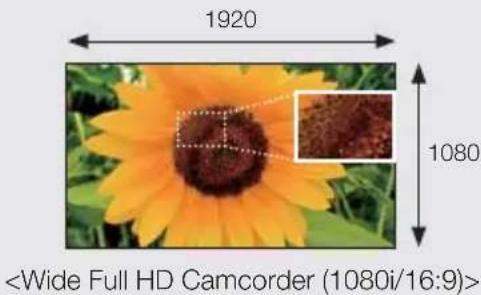
text_image
1920 1080Standard-Definition (SD)
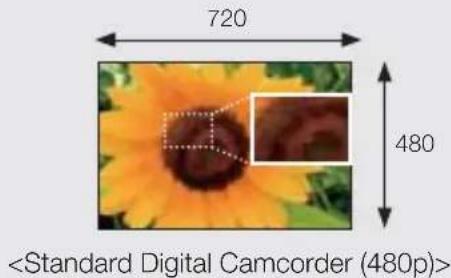
text_image
720 480SSD (Solid State Drive) for Built-in Storage Media (HMX-H203/H204/H205 only)
Your camcorder uses an advanced SSD technology (based on flash memory) for its built-in memory. The SSD helps the camcorder boot, read data, and operate software much faster than normal HDD (Hard Disk Drives). Also, SSD is very stable, durable, and makes less noise while in operation. It is environmentfriendly because low electric power is required.
Touch panel adopted
You can play recorded images and set functions by simply tapping on the LCD screen.
Dual Recording
While recording full HD videos, you can capture still images with the simple push of a button. Capture still images and save them to the storage.
Shooting Custom Scenes
In Scene mode, appropriate options are pre-set for each kind of scene. Select a scene that matches your shot for easy shooting.


Shift over wider range of motion with Smart OIS (Optical Image Stabilization)
Smart OIS improves on existing Optical Image Stabilization by allowing the camcorder lens to shift over wider range of motion in wide/tele zoom position. This allows the camcorder to compensate for greater degrees of camcorder shake and delivers a stunning level of image smoothness.
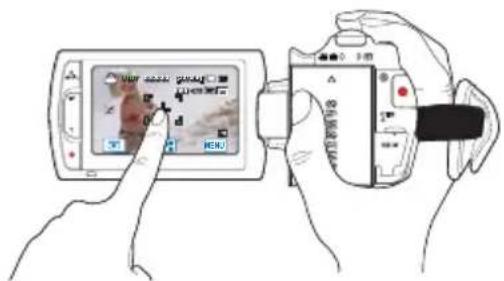
Magic Finger Focus, Magic Finger Shot
To focus on a subject, just touch the screen and shoot. Your camcorder optimizes the focus for the touched point, giving you professional results with one easy operation. You can also focus on your subject and take a photo with a touch of your fi nger.
text_image
Diagram showing hands using a digital camera to interact with a device displaying a photo, with Chinese UI labels and control buttons visible.Smart Auto with Self-Decision on Situation
In Smart Auto mode, your camcorder automatically chooses the appropriate camcorder settings based on the type of scene it detects. Smart Auto mode is helpful if you are not familiar the best camcorder settings for various scenes.
Time Lapse Recording Catches the Moment
Time lapse recording lets you capture the blooming of flowers or the passage of clouds like the pros. Use this function to make UGC (User-Generated Content) videos, artistic recordings, eductational programs or documentary videos.

natural_image
Sequence of black-and-white photos showing a flower pattern, arranged in two rows (no text or symbols)Make All Your Recordings with a Simple VIEW Button!
Press the iView button to preview your storyboards before printing them. It's a quick and easy way to see a digest of what you've recorded without having to view the whole video.

flowchart
graph TD
    A["Filmstrip Film"] --> B["Image Video"]
    B --> C["Smart Video"]
    C --> D["Smart Screen"]
    D --> E["Smart Tablet"]
    E --> F["Smart Camera"]
    F --> G["Smart Home"]
    G --> H["Smart Board"]
    H --> I["Smart Speaker"]
    I --> J["Smart Display"]
    J --> K["Smart Camera"]
    K --> L["Smart Home"]
    L --> M["Smart Board"]
Video digests and storyboard printing
The Digest/Storyboard function captures 16 still images from the video you select and saves the images to the storage media. You get a quick overview of your video - a real help when you want to review a video quickly.
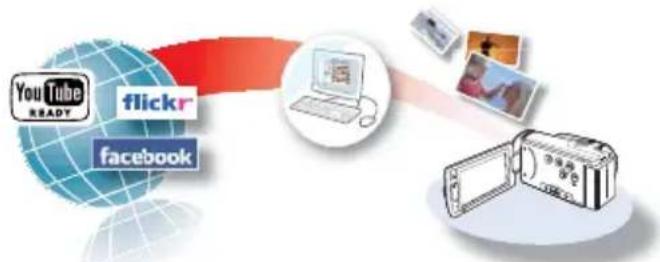
Direct Upload of Your Videos to the Web!
Intelli-studio built-in editing software installs directly from your camcorder to your PC when you connect the camcorder to your PC via USB cable. Using Intelli-studio, you can upload your videos and photos to your PC with ease and upload them directly to YouTube, Flickr or Facebook. Sharing videos with your friends and family is simpler than ever.
flowchart
graph LR
    A["YouTube"] --> B["flickr"]
    C["Facebook"] --> D["Laptop"]
    E["Image"] --> F["Smartphone"]
before reading this user manual
SAFETY WARNINGS
What the icons and signs in this user manual mean;
 WARNING WARNING | Means that there is a potential risk of death or serious injury. |
 CAUTION CAUTION | Means that there is a potential risk of personal injury or damage to the product. |
 CAUTION CAUTION | To reduce the risk of fire, explosion, electric shock, or personal injury when using your camcorder, follow these basic safety precautions. |
| [2020] | Means hints or referential pages that may be helpful when operating the camcorder. |
These warning signs are here to prevent injury to you and others.
Please follow them explicitly. After reading this section, keep it in a safe place for future reference.
PRECAUTIONS
Warning!
- When using the AC power adapter with your camcorder, connect the adapter to an outlet with protective grounding.
- Do not expose the camcorder battery to direct sunlight, heaters, radiators, fire, or any other source of excessive heat.
Caution
If you replace the battery with the wrong battery, you can cause an explosion. Replace only with the same battery or an equivalent type.
If you plug the AC adapter into a 240V AC outlet, be sure to use a suitable plug adapter.
Before using this camcorder
- This camcorder records video in H.264 (MPEG4 part10/AVC) format and in High Definition Video (HD-VIDEO) or Standard Definition Video (SD-VIDEO).
- Please note that this camcorder is not compatible with other digital video formats.
- Before recording important video, make a trial recording.
Play back your trial recording to make sure the video and audio have been recorded properly.
- The recorded contents cannot be compensated for:
- Samsung cannot compensate for any damage caused when a recording cannot be played back because of a defect in the camcorder or memory card. Samsung cannot be responsible for your recorded video and audio.
- Recorded contents may be lost due to a mistake when handling this camcorder or memory card, etc. Samsung shall not be responsible for compensation for damages due to the loss of recorded contents.
- Make a backup of important recorded data.
Protect your important recorded data by copying the files to a PC. We also recommend you to copy it from your PC to other recording media for storage. Refer to the software installation and USB connection guide.
- Copyrights: Please note that this camcorder is intended for individual use only.
Data recorded on the storage media in this camcorder using other digital/analog media or devices is protected by the copyright act and cannot be used without permission of the owner of the copyright, except for personal enjoyment. Even if you record an event such as a show, performance or exhibition for personal enjoyment, it is strongly recommended that you obtain permission beforehand.
About this user manual
Thank you for purchasing this Samsung Camcorder. Please read this user manual carefully before you use the camcorder and keep it handy for future reference. Should your camcorder fail to operate correctly, refer to Troubleshooting.
This User Manual covers HMX-H200, HMX-H220, HMX-H203, HMX-H204, and HMX-H205 models.
- The HMX-H203, HMX-H204, and HMX-H205 have a 8GB, 16GB, and 32GB built-in storage media (SSD) respectively but also use memory cards.
- The HMX-H200/H220 do not have built-in storage media (SSD) and use memory cards. Although some features of HMX-H200/H220 models are different, they operate in the same way.
- Illustrations of model HMX-H200 are used in this user manual.
- The displays in this user manual may not be exactly the same as those you see on the LCD screen.
- Designs and specifications of the camcorder and other accessories are subject to change without any notice.
before reading this user manual
- In this user manual, the icon or symbol in the parenthesis appearing in a description of a submenu item indicates it will appear on the screen when setting the corresponding item.
Ex) Submenu item of "Video Quality" → page 54
- “Super Fine”(): Records in the Super Fine quality. (If set, corresponding icon (☐) will appear on the screen.)
The following terms are used in this manual:
- ‘Scene’ refers to the point where you press the Record Start/Stop button to start recording until you press again to pause the recording.
- The terms ‘photo’ and ‘still image’ are used interchangeably with the same meaning.
For Open Source License information, refer to the "OpenSource-H200.pdf" in the provided CD-ROM.
Notes regarding trademarks
- All the trade names and registered trademarks mentioned in this manual or other documentation provided with your Samsung product are trademarks or registered trademarks of their respective holders.
- The SD logo is a trademark. The SDHC logo is a trademark.
- Microsoft®, Windows®, Windows Vista® and DirectX® are either registered trademarks or trademarks of the Microsoft Corporation in the United States and/or other countries.
- Intel ^® , Core ^™ , and Pentium ^® are the registered trademarks or trademarks of the Intel Corporation in the United States and other countries.
• Macintosh, Mac OS are either registered trademarks or trademarks of Apple Inc. in the United States and/or other countries.
• YouTube is a trademark of Google Inc. - Flickr™ is a trademark of Yahoo.
• Facebook is a trademark of Facebook Inc. - HDMI, the HDMI
HIGH-DEFINITION MULTIMEDIA INTERFACE
logo and High-Definition Multimedia Interface are trademarks or registered trademarks of HDMI Licensing LLC. - Adobe, the Adobe logo, and Adobe Acrobat are either registered trademarks or trademarks of Adobe Systems Incorporated in the United States and/or other countries.
- All the other product names mentioned here in may be the trademark or registered trademarks of their respect companies. Furthermore, “TM” and “®” are not mentioned in each case in this manual.

important safety instructions
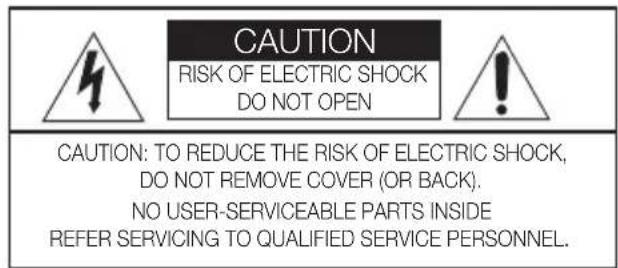
text_image
CAUTION RISK OF ELECTRIC SHOCK DO NOT OPEN CAUTION: TO REDUCE THE RISK OF ELECTRIC SHOCK, DO NOT REMOVE COVER (OR BACK). NO USER-SERVICEABLE PARTS INSIDE REFER SERVICING TO QUALIFIED SERVICE PERSONNEL.
text_image
This symbol indicates that dangerous voltage consisting a risk of electric shock is present within this unit. This symbol indicates that there are important operating and maintenance instructions in the literature accompanying this unit.Warning
To Reduce The Risk Of Fire Or Electric Shock, Do Not Expose This Apparatus To Rain Or Moisture.
Caution
Apparatus shall not be exposed to dripping or splashing and no objects filled with liquids, such as vases, shall be placed on the apparatus.
To disconnect the apparatus from the mains, the plug must be pulled out from the mains socket, therefore the mains plug shall be readily operable.
- Read these instructions.
- Keep these instructions.
- Heed all warnings.
- Follow all instructions.
- Do not use this apparatus near water.
- Clean only with dry cloth.
- Do not block any ventilation openings. Install in accordance with the manufacturer's instructions.
- Do not install near any heat sources such as radiators, heat registers, stoves, or other apparatus (including amplifiers) that produce heat.
-
Do not defeat the safety purpose of the polarized or grounding-type plug. A polarized plug has two blades with one wider than the other. A grounding type plug has two blades and a third grounding prong. The wide blade or the third prong are provided for your safety. If the provided plug does not fit into your outlet, consult an electrician for replacement of the obsolete outlet.
-
Protect the power cord from being walked on or pinched particularly at plugs, convenience receptacles, and the point where they exit from the apparatus.
- Only use attachment/accessories specified by the manufacturer.
- Use only with the cart, stand, tripod, bracket, or table specified by the manufacturer, or sold with the apparatus.
When a cart is used, use caution when moving the cart/apparatus combination to avoid injury from tip-over. - Unplug this apparatus during lightning storms or when unused for long periods of time.
- Refer all servicing to qualified service personnel. Servicing is required when the apparatus has been damaged in any way, such as power-supply cord or plug is damaged, liquid has been spilled or objects have fallen into the apparatus, the apparatus has been exposed to rain or moisture, does not operate normally, or has been dropped.

important safety instructions
- Apparatus shall not be exposed to dripping or splashing and no objects filled with liquids, such as vases, shall be placed on the apparatus.
- VENTILATION:
Slots and openings in the cabinet are provided for ventilation to ensure reliable operation of the CAMCORDER and to protect it from overheating. These openings must not be blocked or covered. Never place your CAMCORDER on a bed, sofa, rug, or other similar surface: on or near a radiator or heat register. This CAMCORDER should not be placed in a built-in installation such as a bookcase or rack unless proper ventilation is provided or the manufacturer's instructions have been adhered to.
- POWER SOURCES:
The CAMCORDER should be operated only from the type of power source indicated on the label. If you are not sure of the type of power supply at your home, consult your appliance dealer or local power company. A CAMCORDER is intended to be operated from battery power, or other sources, refer to the operating instructions.
- GROUNDING OR POLARIZATION:
This CAMCORDER may be equipped with either a polarized 2-wire AC line plug (a plug having one blade wider than the other) or a 3-wire grounding type plug, a plug having a third (grounding) pin. If you are unable to insert the plug fully into the outlet, try reversing the plug. If the plug still fails to fit, contact your electrician to replace your outlet. Do not defeat the safety purpose of the polarized plug.
- POWER-CORD PROTECTION:
Power-supply cords should be routed so that they are not likely to be walked on or pinched by items placed upon or against them, paying particular attention to cords or plugs, convenient receptacles, and the point where they exit from the unit.
- OUTDOOR ANTENNA GROUNDING:
CAMCORDER, be sure the antenna or cable system is grounded to provide some protection against voltage surges and built-up static charges, Section 810 of the National Electrical Code, ANSI/NFPA No. 70-1984, provides information with respect to proper grounding of the mast and supporting structure, grounding of the lead-in wire and supporting structure, grounding of the mast and supporting structure, grounding of the lead-in wire to an antenna discharge unit, size of grounding to conductors, location of antenna-discharge unit, connection to grounding electrodes and requirements for the grounding electrode. See figure below.
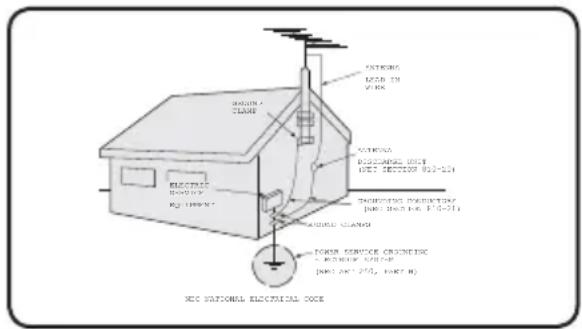
text_image
INTERING HEAD IN WORK CLAMP SUPPORTS DISCIPLANTS UNIT DES. SECTIONS 910-131 SPRINGING CONDITION (JIME: NO. 275, NO. 271) MOUNT CLAMP POWER SERVICE CONDITION JACKET SYSTEM (JIME: NO. 275, NO. NO. SEC NATIONAL ELECTRICAL BOX- LIGHTNING:
For added protection of this CAMCORDER during a lightning storm or when it is left unattended and unused for long periods of time, unplug it from the wall outlet and disconnect the antenna or cable system. This will prevent damage to the CAMCORDER due to lightning and powerline surges.
- POWER LINES:
An outside antenna system should not be located in the vicinity of overhead power lines or other electric light or power circuits where it can fall into such power lines or circuits. When installing an outside antenna system, extreme care should be taken to keep from touching such power lines or circuits as contact with them might be fatal.
23. OVERLOADING:
Do not overload wall outlets and extension cords as this can result in a risk of fire or electric shock.
24. OBJECTS AND LIQUIDS:
Never push objects of any kind into this CAMCORDER through openings as they may touch dangerous voltage points or short out a part that could result in a fire or electric shock. Never spill liquids of any kind onto the CAMCORDER. Should spillage occur, unplug unit and have it checked by a technician before use.
25. SERVICING:
Do not attempt to service this CAMCORDER yourself. Opening or removing covers may expose you to dangerous voltage or other hazards. Refer all servicing to qualified service personnel.
26. DAMAGE REQUIRING SERVICE:
Unplug this CAMCORDER from the wall outlet and refer servicing to qualified service personnel under the following conditions:
a. When the power-supply cord or plug is damaged.
b. If any liquid has been spilled onto, or objects have fallen into the CAMCORDER.
c. If the CAMCORDER has been exposed to rain or water.
d. If the CAMCORDER does not operate normally by following the operating instructions, adjust only those controls that are covered by the operating instructions. Improper adjustment of other controls may result in damage and will often require extensive work by a qualified technician to restore the CAMCORDER to its normal operation.
e. If the CAMCORDER has been dropped or the cabinet has been damaged.
f. When the CAMCORDER exhibits a distinct change in performance, this indicates a need for service.
27. REPLACEMENT PARTS:
When replacement parts are required, be sure the service technician has used replacement parts specified by the manufacturer and having the same characteristics as the original part. Unauthorized substitutions may result in fire, electric shock or other hazards.
28. SAFETY CHECK:
Upon completion of any service or repairs to this CAMCORDER, ask the service technician to perform safety checks to determine that the CAMCORDER is in safe operating order.
-
To prevent damage which may result in fire or shock hazard, do not expose this appliance to rain or moisture.
-
If this power supply is used at 240V ac, a suitable plug adaptor should be used.
important safety instructions
USER INSTALLER CAUTION:
Your authority to operate this FCC certified equipment could be voided if you make changes or modifications not expressly approved by this party responsible for compliance to part 15 FCC rules.
NOTE:

LAMP(S) INSIDE THIS PRODUCT CONTAIN MERCURY AND MUST BE RECYCLED OR DISPOSED OF ACCORDING TO LOCAL, STATE OR FEDERAL LAWS. For details see lamprecycle.org, eiae.org, or call 1-800-Samsung (7267864)
CALIFORNIA USA ONLY
This Perchlorate warning applies only to primary CR (Manganese Dioxide) Lithium coin cells in the product sold or distributed ONLY in California USA
"Perchlorate Material - special handling may apply, See www.dtsc.ca.gov/hazardouswaste/perchlorate."
NOTE:
This equipment has been tested and found to comply with the limits for a Class B digital device, pursuant to part 15 of the FCC Rules.
These limits are designed to provide reasonable protection against harmful interference in a residential installation.
This equipment generates, uses and can radiate radio frequency energy and, if not installed and used in accordance with the instructions, may cause harmful interference to radio communications.
However, there is no guarantee that interference will not occur in a particular installation.
If this equipment does cause harmful interference to radio or television reception, which can be determined by turning the equipment off and on, the user is encouraged to try to correct the interference by one or more of the following measures:
- Reorient or relocate the receiving antenna.
- Increase the separation between the equipment and receiver.
- Connect the equipment into an outlet on a circuit different from that to which the receiver is connected.
- Consult the dealer or an experienced radio/TV technician for help and for additional suggestions. The user may find the following booklet prepared by the Federal Communications Commission helpful: "How to Identify and Resolve Radio-TV Interference Problems." This Booklet is available from the U.S. Government Printing Office, Washington, D.C. 20402, Stock No. 004-000-00345-4.
FCC Warning
The user is cautioned that changes or modifications not expressly approved by the manufacturer could void the user's authority to operate the equipment.
This device complies with Part 15 of FCC Rules.
Operation is subject to the following two conditions;
(1) This device may not cause harmful interference, and
(2) This device must accept any interference received, including interference that may cause undesired operation.
safety information
The safety precautions illustrated below are to prevent personal injury or material damages. Heed all instructions carefully.

WARNING
Means that there is a potential risk of serious personal injury.

CAUTION
Means that there is a potential risk of personal injury or damage to the product

Prohibited action. Do not touch the product.

Do not disassemble the product.

This precaution must be kept.

Unplug from the power supply.

WARNING

natural_image
Cartoon illustration of a distressed elephant with a small figure emerging from it, next to a small boat on a stand (no text or symbols)Do not overload outlets or extension cords as this may result in abnormal heat or fire.

natural_image
Illustration of a distressed apple being exploded by a steaming cup, with a prohibition symbol nearby (no text or symbols on the main subject)Using the camcorder at temperatures over 60^ C(140°F) may result in fire. Keeping the battery at a high temperature may cause an explosion.

natural_image
Cartoon illustration of a broken mouse and a smartphone with a smiling face, no text or symbols presentDo not allow water or metal and inflammable matter to enter the camcorder or AC power adaptor. Doing so may pose a fire hazard.

natural_image
Illustration of two anthropomorphic bones on a surface with a prohibition symbol above (no text or labels)No sand or dust! Fine sand or dust entering the camcorder or AC power adaptor could cause malfunctions or defects.
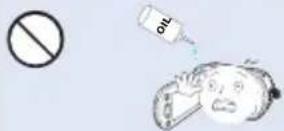
No oil! Oil entering the camcorder or AC power adaptor could cause electric shock, malfunctions or defects.

text_image
Safety warning illustration showing a phone with a blue sun and a warning symbol, indicating no protection or absence of a phone.Do not aim the camcorder directly into the sun. Doing so could cause eye injuries, as well as lead to malfunctioning of internal parts of the product.

Do not bend the powercord or damage the AC power adaptor by pressing on it with a heavy object. There may be a risk of fire or electric shock.
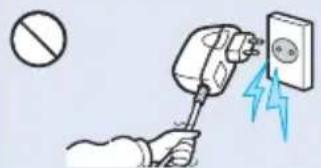
text_image
Safety warning illustration showing a hand using a plug to test electrical shock with a lightning bolt, no text present.Do not disconnect the AC adaptor by pulling on its power-cord, as this could damage the power-cord.

text_image
Safety warning illustration showing a hand holding a cartoon character with a lightning bolt, next to an electrical outlet with a blue lightning bolt.Do not use the AC adaptor if it has damaged, split or broken cords or wires. Doing so may cause fire or electric shock.
safety information


Do not connect the AC adaptor unless the plug can be fully inserted with no part of the blades exposed.

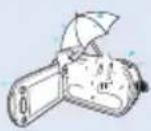
Keep the camcorder away from water when used near the beach or pool or when it rains. There is a risk of malfunction or electric shock.

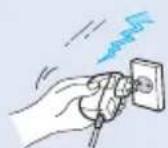
Keep the power-cord unplugged when not in use or during lightning storms. There is a risk of fire.

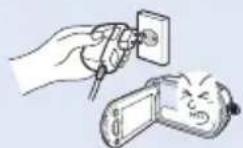
If the camcorder malfunctions, immediately detach the AC adaptor or battery from the camcorder. There is a risk of fire or injury.


text_image
Cartoon illustration showing a water drop character and a stick with motion arrows, likely illustrating water safety or environmental change.Do not dispose of battery in a fire as it may explode.


Keep the used lithium battery or memory card out of the reach of children. If the lithium battery or memory card is swallowed by children, consult physician immediately.


When cleaning the AC adaptor, unplug the power-cord. There is a risk of malfunction or electric shock.


Do not attempt to disassemble, repair, or reform the camcorder or the AC adaptor to avoid a risk of fire or electric shock.


Never use cleaning fluid or similar chemicals. Do not spray cleaners directly on the camcorder.


Do not plug or unplug the power cord with wet hands. There is a risk of electric shock.

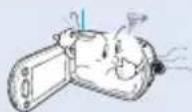
If the camcorder makes an abnormal sound, or smell or smokes, unplug the power-cord immediately and request service from a Samsung service center. There is a risk of fire or personal injury.

CAUTION

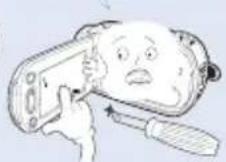
Do not press the surface of the LCD with force, or hit it with a sharp object. If you push the LCD surface, display unevenness may occur.

natural_image
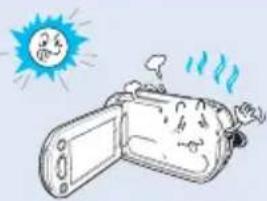
Illustration of a smiling sun emerging from a device with steam rising (no text or symbols)Do not use the camcorder near direct sunlight or heating equipment. This may cause a malfunction or injury.

natural_image
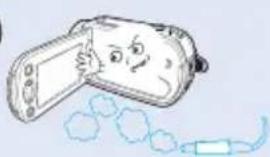
Cartoon illustration of a smiling face with a bandaged mouth, holding a device, with abstract shapes and a small object nearby (no text or symbols)Do not use the camcorder near dense exhaust gas generated by gasoline or diesel engines, or corrosive gas such as hydrogen sulphide. Doing so may corrode the external or internal terminals, disabling normal operation.


natural_image
Cartoon illustration of a smiling phone with open lid and hand gesture (no text or symbols)Do not place the camcorder with the open LCD screen down

natural_image
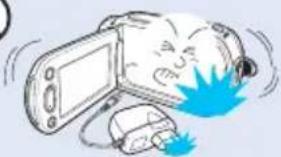
Illustration of a cartoon character with a phone and computer mouse, no text or symbols presentDo not drop or expose the camcorder, battery, AC adaptor or other accessories to severe vibrations or impact. This may cause a malfunction or injury.


natural_image
Cartoon illustration of a car with a surprised face and a sun symbol (no text or symbols)Do not leave the camcorder in a closed vehicle for a long time, where the temperature is very high.


Do not expose the camcorder to insecticide. Insecticide entering the camcorder could fail the product to operate normally. Turn the camcorder off and cover it with vinyl sheet, etc. before using insecticide.

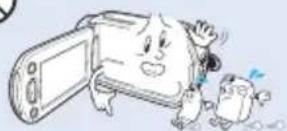
Do not wipe the camcorder body with benzene or thinner. The exterior coating could peel off or the case surface could deteriorate.


natural_image
Simple line drawing of a cartoon-style rocket on a tripod, no text or symbols presentDo not use the camcorder on a tripod (not supplied) in a place where it is subject to severe vibrations or impact.

natural_image
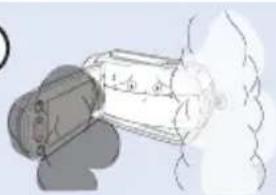
Illustration of a mechanical device emitting smoke or vapor (no text or symbols visible)Do not expose the camcorder to soot or steam. Thick soot or steam could damage the camcorder case or cause a malfunction.

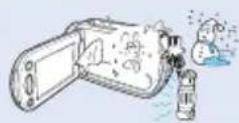
Do not expose the camcorder to sudden changes in temperature or a humid place. There is also a risk of defect or electric shock when using outdoors during lightning storms.


natural_image
Simple line drawing of a smiling digital camera with a face and screen (no text or symbols)Do not leave the LCD screen open when not using the camcorder.
safety information

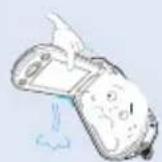
Do not hold the camcorder by the LCD monitor when lifting it. The LCD screen could detach and the camcorder may fall.


natural_image
Illustration of a vintage television, a remote device, and a small phone emitting sound waves (no text or symbols)Do not use the camcorder near TV or radio: This could cause noise on the TV screen or to radio broadcasts.

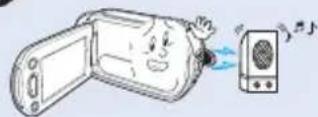
Do not use the camcorder near strong radio waves or magnetism such as speakers and a large motor. Noise could enter video or audio that are being recorded.


Use Samsung-approved accessories only. Using products from other manufacturers may cause overheating, fire, explosion, electric shock or personal injuries caused by abnormal operation.

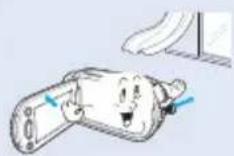
Place the camcorder on a stable surface and a place with ventilation openings.

Keep important data separately. Samsung is not responsible for data loss.


Use the mains plug where it can be readily operable. If any problem occurs with the product, the mains plug must be removed to disconnect power completely. Turning off the power button on the product does not completely disconnect the power.
QUICK START GUIDE
07
GETTING TO KNOW THE CAMCORDER
11
GETTING STARTED
16
11 What's included with your camcorder
12 Location of controls
14 Identifying the screen displays
16 Using the battery
18 Checking the battery state
21 Turning your camcorder on/off
22 Switching to the power saving mode
23 Setting the operation modes
24 Using the display( □ ) button
24 Using the touch panel
25 Setting the time zone and date/time for the first time
26 Selecting the languages
27 Selecting the storage media (HMX-H203/H204/H205 only)
28 Inserting / ejecting a memory card (not supplied)
29 Selecting a suitable memory card (not supplied)
31 Recordable time and capacity
32 Attaching the grip belt
32 Adjusting the LCD screen
33 Basic camcorder positioning
BASIC RECORDING
34
BASIC PLAYBACK
43
ADVANCED RECORDING
49
34 Recording videos
36 Capturing photos during video recording (dual recording)
37 Recording photos
38 Recording with ease for beginners (Smart Auto)
39 Capturing photos while playing back videos
40 Zooming
41 Setting the anti-shake (OIS: Optical Image Stabilizer)
42 Using back light compensation mode
43 Changing the playback mode
44 Playing back videos
46 Viewing photos
47 Viewing a slide show
48 Zooming during photo playback
49 Handling menus and quick menus
50 Menu items
52 Quick menu items
53 i Scene
54 Video Resolution
54 Video Quality
55 Photo Resolution
55 Photo Sharpness
56 White Balance
58 Aperture
59 Shutter
59 EV
60 Focus
61 Digital Effect
62 Fader
63 Tele Macro
63 Cont. Shot
64 Wind Cut
64 Digital Zoom
65 Self Timer
66 Time Lapse REC
68 Quick View
69 Guideline
ADVANCED PLAYBACK
70
SYSTEM SETTING
74
70 Play Option
71 Highlight
72 iVIEW
73 Story-Board Print
73 File Info
74 Storage Type (HMX-H203/H204/H205 only)
74 Storage Info (HMX-H203/H204/H205 only)
74 Card Info (HMX-H200/H220 only)
75 Format
76 File No.
76 Time Zone
77 Date/Time Set
77 Date Type
78 Time Type
78 Date/Time Display
79 LCD Brightness
79 Auto LCD Off
80 Beep Sound
80 Shutter Sound
81 Auto Power Off
82 Quick On STBY
83 PC Software
84 USB Connect
84 HDMI TV Out
85 Analog TV Out
86 TV Connect Guide
87 TV Display
87 Default Set
88 Language
88 Demo
89 Anynet+ (HDMI-CEC)
EDITING VIDEO CLIPS
90
EDITING THE PLAYLIST
92
90 Dividing a video
91 Combining videos
92 Playlist
93 Creating the playlist
94 Arranging videos in the playlist
95 Deleting videos from the playlist.
FILE MANAGEMENT

PRINTING PHOTOS

CONNECTING TO A TV

DUBBING VIDEOS

USING WITH A WINDOWS COMPUTER

TROUBLESHOOTING
MAINTENANCE & ADDITIONAL INFORMATION
SPECIFICATIONS
96 Protection from accidental erasure
97 Deleting files
98 Copying files (HMX-H203/H204/H205 only)
99 DPOF printing setting
100 Direct printing with a pictbridge printer
102 Connecting to a high definition TV
104 Connecting to a regular TV
106 Viewing on a TV screen
107 Dubbing to a VCR or DVD/HDD recorder
108 Checking your computer type
109 What you can do with a windows computer
110 Using the Intelli-studio program
115 Using as a removable storage device
117 Warning indicators and messages
121 Symptoms and solutions
128 Maintenance
129 Additional information
130 Using your camcorder abroad
131 Specifications
quick start guide
This quick start guide introduces the basic operation and features of your camcorder. See the reference pages for more information.
You can record videos in H.264 format!
You can record videos in H.264 format that is convenient to email and share with your friends and family. You can also take photos with your camcorder.
STEP1: Get ready
-
Insert a memory card.
-
You can use commercially available SDHC (SD High Capacity) or SD memory cards with this camcorder.
-
Set the appropriate storage media. →page 27 (HMX-H203/H204/H205 only)
-
Attach the battery to the camcorder. →page 16
- Align the battery with the indicator (▲) on the battery compartment, and then push the battery in the direction of the arrow.
- Charge the battery fully. →page 17
- The battery is fully charged when the CHG (charging) indicator light turns green.

text_image
Label pasting portion
natural_image
Illustration of a printer with a paper clip and cable cover (no text or symbols)STEP2: Record with your camcorder

text_image
Zoom lever PHOTO button MODE button Mode indicator Recording start/stop button LCD screenYour camcorder turns on when you open the LCD screen.
quick start guide
Recording videos with HD (high definition) image quality
Your camcorder uses advanced H.264 compression technology give you the clearest video quality. ➤ page 54
- Open the LCD screen.
- Your camcorder turns on when you open the LCD screen.
- Press the Recording start/stop button.
• To stop recording, press the Recording start/stop button.
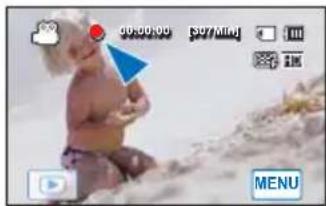
natural_image
Photo of a baby sitting on sandy ground with a play button and menu bar (no readable text or symbols in the scene)Recording photos
- Open the LCD screen.
- Press the PHOTO button lightly to adjust the focus, then press it fully (a shutter click sounds).

natural_image
Illustration of three people interacting with a dog and a bear, holding balloons (no text or symbols)
natural_image
Two people sitting on a sandy beach under a blue sky, no visible text or symbolsTip
Using 'Quick On STBY' by opening/closing the LCD screen. page 82 When you close the LCD screen during standby, your camcorder goes to Quick On STBY mode (power saving mode). You can start recording quickly when you open the LCD screen.

- Your camcorder is compatible with H.264 format “[HD]1080/60i” which provides highly detailed, beautiful images.
- The default setting is "[HD]1080/60i". You can also record with SD (standard definition) video quality.
- You can also take photos while recording videos.→ page 36
STEP3: Play back videos or photos
Viewing videos or photos on the LCD screen
You can find your desired recordings quickly by using the thumbnail index view.
- Touch the Play ( ) tab on the screen in STBY mode.
- Touch the thumbnail (HD / SD / tab, then touch the desired image.
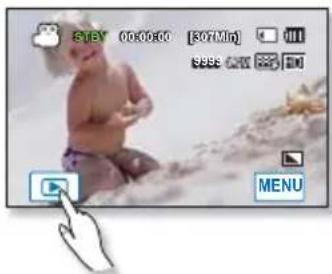
text_image
SLEY 00:00:00 [307Min] S888 CMY MENU
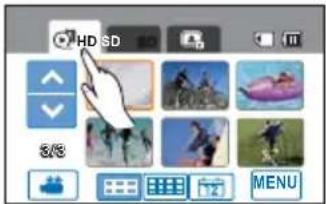
text_image
HD SD 3/8 MENUViewing on a high definition TV
- You can enjoy HD (high definition) videos.→pages 102\~103
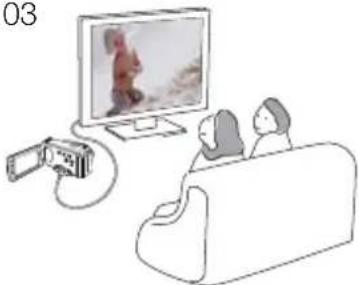
natural_image
Illustration of a person watching TV on a couch with a camera, no text or symbols present
You can also play back videos on a SD (standard definition) image quality TV.
→pages 104\~105
STEP4: Save recorded videos or photos
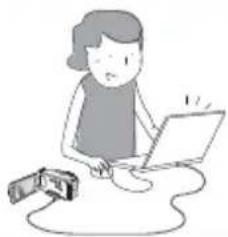
Simple and fun! Enjoy the various features of Intelli-studio on your Windows computer.
Using the Intelli-studio program built into your camcorder, you can import videos/photos into your computer and edit or share the videos/photos with your friends and family. For details, see pages 110\~114.
natural_image
Illustration of a person using a laptop and talking on the phone (no text or symbols present)quick start guide
Importing and viewing videos/photos from the camcorder to your PC
- Launch the Intelli-studio program by connecting the camcorder to your PC via USB cable.
- A new file saving screen appears with the Intelli-studio main window. Click "Yes", the uploading procedure will start.
- The new files are saved to your PC and registered to "Contents Manager" on the Intelli-studio program.
- You can arrange the files by different options such as Date, Location, etc.
- You can double-click on the file you would like to start playback.

text_image
Screenshot of a file explorer window displaying multiple image thumbnails with Chinese labels, likely from an old media or photo editing software interface.Folders directory on your PC
Sharing the videos/photos onto YouTube/Flickr/FaceBook
Share your contents with the world by uploading videos and photos directly to a web site with one click.
Click "Share" → "Upload" tab on the browser. →page 113

The Intelli-studio runs automatically when you connect the camcorder to a Windows computer if you have specified "PC Software: On" in the Settings menu. page 83
STEP5: Delete videos or photos
If the storage media is full, you cannot record new videos or photos. Delete videos or photos that you have saved to a computer from the camcorder's storage media. Then you can record new videos or photos on newly freed up space.
Touch the Play (☐) tab → Menu (.) tab → "Delete" on the LCD screen. →page 97
getting to know the camcorder
Your new camcorder comes with the following accessories. If any of these items is missing from your box, call Samsung's Customer Care Center.
| Model name | Internal memory | Color | Memory card slot | LCD screen | Lens |
| HMX-H200BN/HMX-H200SNHMX-H200LN/HMX-H200RNHMX-H220BN/HMX-H220SNHMX-H220LN/HMX-H220RN | - | Black/ Silver/ Blue/ Red | 1 slot | Color / Touch panel | 20x (Optical)200x (Digital) |
| HMX-H203BN/HMX-H203SNHMX-H203LN/HMX-H203RN | 8GB | ||||
| HMX-H204BN/HMX-H204SNHMX-H204LN/HMX-H204RN | 16GB | ||||
| HMX-H205BN/HMX-H205SNHMX-H205LN/HMX-H205RN | 32GB |
- Although some features of the models are different, they operate in the same way.
Checking your accessories

Battery
(IA-BP210E) (AD43-00196A)

AC power adaptor
(AA-MA9 type) (AD44-00151A)

Component/AV cable
(AD39-00142D)

USB cable
(AD39-00169A)
User manual CD
(AD46-00302A)
Quick start guide
(AD68-04673A)
Optional accessories
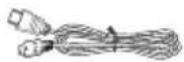
Mini HDMI cable
(AD39-00159A)

Memory card
(1109-001415)

Carrying case
(AD69-00929A)

- The exact appearance of each item may vary by model.
• The contents may vary depending on the sales region. - Parts and accessories are available for purchase at your local Samsung dealer. SAMSUNG is not responsible for reduced battery life time or malfunctions caused by any unauthorized use of accessories such as the AC power adaptor or the batteries.
- A memory card is not included. See page 29 for memory cards compatible with your camcorder.
- Your camcorder includes the user manual CD and printed quick start guide.
getting to know the camcorder
LOCATION OF CONTROLS
Front/Left
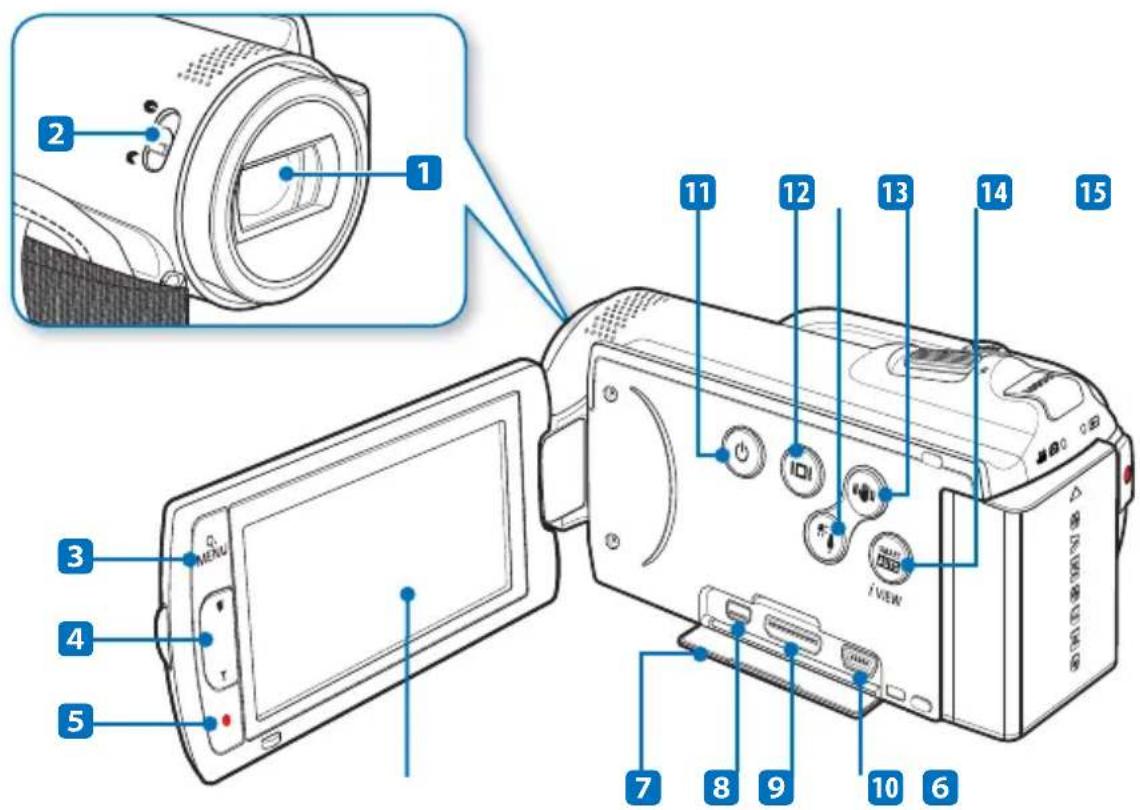
text_image
Diagram of a digital camera with numbered parts and labeled buttons, showing front, side, and top views.① Lens
② Lens open/close switch
③ Q.MENU button
④ Zoom (W/T) button
⑤ Recording start/stop button
⑥ TFT LCD screen (Touch screen)
⑦ Jack cover (AV HDMI 📋)
⑧ Component/AV jack
⑨ HDMI jack
10 USB jack
11 Power (💡) button
12 Display ( ) button
13 Backlight ( ) button
14 Anti-shake (OIS) (button
15 SMART AUTO / VIEW button

During a recording, be careful not to block the internal microphone and lens.

text_image
1 2 3 4 5 13 14 15 SAMSUNG 11 12 6 7 8 9 10① MODE button / Mode indicator
: Record mode (Video/Photo)
: Play mode
② Zoom (W/T) lever
③ PHOTO button
④ Built-in speaker
5 Internal microphone
⑥ Recording start/stop button
⑦ Charging (CHG) indicator
⑧ DC IN jack
9 Jack cover
10 Grip belt
11 Battery release switch
12 Tripod receptacle
13 Memory card slot
14 Memory card cover
15 Grip belt hook
getting to know the camcorder
IDENTIFYING THE SCREEN DISPLAYS
The available functions vary depending on the operation mode you've selected and different indicators appear depending on the setting values.
PRECHECK!
This On Screen Display (OSD) is shown in the record (💡️ 📷) mode only.
- Select the record mode by pressing the MODE button. page 23
Record mode

text_image
1 2 3 5 6 7 STEY 00:00:00 [307 Min] 1Sec/24Hr 99994TM Card Full! JAN/012010 12:00AM MENU 17 16 15 14 13 1 22 SMART AVID 20 S.1/60 141 Record mode (Video/Photo)
2 Operating status (STBY (standby) / (recording)) / Self Timer*
3 Time counter (video recording time)
4 Warning indicators and messages
5 Remaining recordable time
6 Storage media (Memory card or internal memory (HMX-H203/H204/H205 only))
7 Battery info. (remaining battery level)
8 Image counter (total number of recordable photo images), Photo Resolution, Video Quality, Video Resolution
9 Anti-shake (OIS)
10 Tele Macro*, Back light
11 Cont. Shot, Wind cut
12 Analog TV Out (when component/AV cable is connected), Photo sharpness
13 Menu tab
14 Optical zoom / Digital zoom bar
15 Date/Time
16 Time Zone (visit)
17 Play tab
18 EV (Exposure Value)*
19 Manual aperture* / Manual shutter*
20 Manual focus* / Touch Point*
21 White Balance, Fader*
22 i SCENE / Smart Auto, Digital Effect, Time Lapse REC*

- Settings of functions marked with * are not retained when the camcorder is turned off.
- The on-screen indicators are based on an 32GB SDHC memory card capacity.
- The above screen is illustrated for explanation purposes and may differ from the actual display.
- For warning indicators and messages, see pages 117\~120
- The above illustrated items and their positions can be changed without notice for the purpose of better performance.
- The total number of recordable photos is counted based on available space on the storage media.
- The maximum number of recordable photo images on the On Screen Display (OSD) is "9999."
- This camcorder provides one record mode which combines the video and photo record modes. You can easily record videos or photos in the same mode without having to change it.
PRECHECK!
This On Screen Display (OSD) is shown in video play (HD /SD) mode only.
Select the Play (●) tab on the LCD screen to select the play mode. → page 23
Video play mode

text_image
00:00:05/00:00:50 100_0001 JAN/01/2010 12:00AM Card(Full) MENU1 Video play mode
2 Operating status (play/pause)
3 File name (fi le number)
4 Playback time/recorded time
5 Warning indicators and messages/Volume control
6 Storage media (Memory card or internal memory (HMX-H203/H204/H205 only))
7 Battery info. (remaining battery level)
8 Analog TV Out (when component/AV cable is connected), Video Quality, Video Resolution
9 Date/Time
10 Menu tab
11 Playback control tabs (skip/search/play/pause/slow playback)
12 Return tab
13 Volume tab
14 Protect
15 Play Option

- The playback control tabs disappear a few seconds after a video playback. Touch anywhere on the screen to display them again.
- For warning indicators and messages, see pages 117\~120
PRECHECK!
This On Screen Display (OSD) is shown in photo play (☐) mode only.
Select the Play (●) tab on the LCD screen to select the play mode. →page 23
Photo play mode
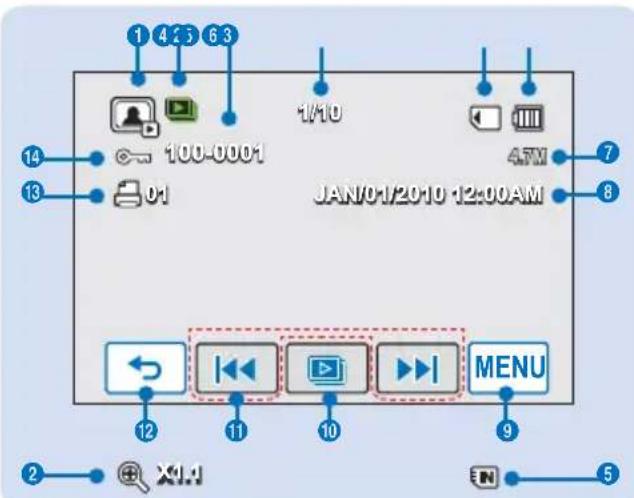
text_image
1 4 5 6 3 100-0001 01 1/10 47M JAN/01/2010 12:00AM 12 | | | | | | | | | | | 11 | | | | | | | | | | | | 10 | | | | | | | | | | | | 9 | | | | | | | | | | | | 12 | | | | | | | | | | | 2 + X1.4 EN 51 Photo play mode
2 Slide show/Playback zoom (X1.1 \~ X8.0)
3 File name (fi le number)
4 Image counter (current image/total number of recorded images)
5 Storage media (Memory card or internal memory (HMX-H203/H204/H205 only))
6 Battery info. (remaining battery level)
7 Photo Resolution
8 Date/time
9 Menu tab
10 Slide show playback tab
11 Previous image, Next image tab
12 Return tab
13 Print Mark
14 Protect
getting started
USING THE BATTERY
Purchase extra batters to allow continuous use of your camcorder.

text_image
Diagram showing two views of a digital camera with blue directional arrows indicating motion or movement, including a zoomed-in inset detail.Attaching the battery
Align the battery with the indicator (▲) on the battery compartment, and then push the battery in the direction of the arrow.
Detaching the battery
Slide the Battery release switch and pull out the battery.
- Gently slide the Battery release switch in the direction as shown in the figure.

- If you use batteries from other manufacturers, there is a danger of overheating, fire, or explosion.
- Samsung is not responsible for problems that are caused by using unapproved batteries.
- Detach the battery from the camcorder with care to prevent it from falling.
Charging the battery with the AC power adaptor

text_image
1 2 3 SAMSUNGPRECHECK!
Before starting the following procedure, make sure that the battery is attached in your camcorder.
-
Press the Power (◎) button to turn off the camcorder and then close the LCD screen. →page 21
-
Open the jack cover and connect the AC power adaptor to the DC IN jack.
-
Connect the AC power adaptor to a wall socket.
- The charging (CHG) indicator lights up and charging starts. After the battery is fully charged, the charging (CHG) indicator turns green.
Charging using the USB jack and a computer
You can also charge the camcorder through its USB jack.
- Press the Power (☐) button to turn off the camcorder and then close the LCD screen.
- The camcorder can be charged through its USB jack only when the camcorder is turned off.
- Connect the included USB cable to the USB jack on the camcorder and to a USB jack on a running PC.
- The charging (CHG) indicator lights up and charging starts. After the battery is fully charged, the charging (CHG) indicator turns green.

- The battery is not charged when in power saving mode, which may keep the mode indicator on or flashing. Start charging the battery after turning off the camcorder by pressing the Power (💡) button. - We recommend you have one or more additional batteries to allow continuous use of your camcorder.
getting started
CHECKING THE BATTERY STATE
You can check the charging state and remaining battery capacity.
To check the charging state
The color of the LED indicates the power or charging state.

text_image
CHG SAMSUNGCharging (CHG) indicator
The color of the charging indicator shows the charging state.
| Charging state | Charge | |||
| Fully discharged | Charging Fully charged | Error | ||
| LED color | (Red) (Orange) | (Green) (Red blink) | ||
Battery level display
The battery level display shows the amount of battery power remaining in the battery.
| Battery level indicator | State Message | |
| Fully charged - | ||
| 25~50% used - | ||
| 50~75% used - | ||
| 75~95% used - | ||
| 95~98% used - | ||
| Exhausted (fl ickers):The device will soon turn off.Change the battery as soon as possible. | - | |
| - | The device will be forced to turn off after 3 seconds. | “Low Battery” |

text_image
STAY 00:00:00 [307/Min] Fm 9556.4K7 2M MENU
- The figures below are based on a fully charged battery at a normal temperature. Low ambient temperature may affect the use time.
- Battery capacity decreases over time and through repeated use. Keep the camcorder turned off while not operating it.
- Store the battery separately when finished charging or when not using it for a long time. This will help extend the life of the battery.
Available running time for the battery
| Battery type IA-BP210E | ||
| Charging time Approx. 180min. | ||
| Video resolution HD SD | ||
| Continuous recording time Approx. | 120 min. Approx. 130 min. | |
| Playback time Approx. 160 min. | Approx. 180 min. | |
(Unit: minutes.)
- Charging time: Approximate time in minutes required to fully charge a completely exhausted battery.
- Recording/Playback time: Approximate time available when you have fully charged the battery. 'HD' stands for high definition image quality and 'SD' stands for standard image quality.
About the battery
- The battery should be recharged in an environment that is between 32°F (0°C) and 104°F (40°C). Exposure to temperatures below 32°F (0°C), reduces the battery's usage time and may cause it to stop working. If this happens, place the battery in your pocket or other warm, protected place for a short time, then re-attach it.
- Do not put the battery near any heat source (i.e. fire or a heater).
- Do not disassemble, apply pressure to, or heat the battery.
- Do not allow battery terminals to be short-circuited. This may cause leakage, generate heat, or cause a fire.
Maintaining the battery
- The recording time is affected by temperature and environmental conditions.
- We recommend using only the battery type that came with your camcorder. This battery type is available from your Samsung retailer. When the battery reaches the end of its life, please contact your local dealer. The batteries must be dealt with as chemical waste.
• Make sure that the battery is fully charged before starting to record.
• To preserve battery power, keep your camcorder turned off when you are not operating it.
- Even when the power is switched off, the battery will still discharge if it is left attached to the camcorder. We recommend that you remove the battery from the camcorder when not using it.
- If the battery is not used for a long time, fully charge the battery, and then use the charge up on your camcorder once per 6 months to keep the battery functioning properly. To store the battery, remove it from your camcorder and put it in a cool, dry place.
getting started
About the battery life
- Battery capacity decreases over time and through repeated use. If decreased usage time between charges becomes significant, it is probably time to replace the battery with a new one.
Each battery's life is affected by storage, operating, and environmental conditions.
About the running time
- Times listed are measured when using the camcorder at 77^ F ( 25^ C). As the environmental temperature and conditions vary, the actual battery time may differ from the approximate times given in the table.
- The recording and playback time may be shorter, depending on the conditions under which you use your camcorder. For example, in actual recording, the battery will discharge 2-3 times faster than listed if you use Record start/stop and Zoom frequently, and use playback to view your recordings. Assume that the recordable time with a fully charged battery is between 1/2 and 1/3 of the time in the table, so have enough batteries to allow for the time you are planning to record on the camcorder.
- The recording and playback time will be shorter when you use your camcorder in low temperatures.
On the battery
- The charging (CHG) indicator blinks during charging, or battery Info will not be correctly displayed under the following conditions:
- The battery is not attached correctly.
- The battery is damaged.
- The battery is worn-out. (For the battery information only)
Using an AC power source
We recommend that you use the AC power adaptor to power the camcorder from a household AC outlet when you set function settings, play back, or edit images, or use it indoors. Make the same connections as you do when charging the battery ➤ page 17
On the AC power adaptor
- Use a nearby wall outlet when using the AC power adaptor. Disconnect the AC power adaptor from the wall outlet immediately if any malfunction occurs while using your camcorder.
- Do not use the AC power adaptor in a narrow space, such as between a wall and furniture.
- Do not short-circuit the DC plug of the AC power adaptor or battery terminals with any metallic objects. This may cause a malfunction.
- Even if your camcorder is turned off, AC power is still supplied to it while connected to the wall outlet via the AC power adaptor.
basic operation of the camcorder
If you need to use camcorder for the extended time, setting the following functions prevents unnecessary energy consumption.
- Open the LCD screen to turn on the camcorder.
- Your camcorder turns on automatically when you open the LCD screen.
- To turn off the camcorder, press the Power (💡) button for about one second.
- Closing the LCD screen will not turn off the camcorder.
- Set the date and time when using your camcorder for the first time. →page 25

text_image
LCD screen Power (°) button
- The camcorder operates the self-diagnosis function when powered on. If a warning message appears, refer to 'warning indicators and messages' (pages 117\~120) and take corrective action.
- If you close the LCD screen when the power is on, the power saving mode activates.
When using this camcorder for the first time
When you use your camcorder for the first time or reset it, the time zone screen appears for the start-up display. Select your geographical location and set the date and time. →page 25 If you do not set the date and time, the time zone screen appears every time you turn on the camcorder.
basic operation of the camcorder
SWITCHING TO THE POWER SAVING MODE
If you need to use camcorder for the extended time, the following functions enable you to prevent unnecessary energy consumption.
Quick On STBY Mode in the STBY mode
- The camcorder switches to "Quick On STBY" mode when the LCD screen is closed. page 82
Sleep Mode in the play mode (includes the thumbnail index view)
- The camcorder switches to the sleep mode when the LCD screen is closed, and then, if idle for more than 20 minutes, the camcorder turns off. However, if "Auto Power Off: 5 Min" is set, the camcorder turns off in 5 minutes.
- If you open the LCD screen or connect a cable to the camcorder during sleep mode, the sleep mode ends and the camcorder returns to the last operation mode used.

flowchart
graph LR
    A["LCD screen is closed"] --> B["<Sleep mode>"]
    B --> C["After 20 minutes"]
    C --> D["<Power off>"]

- The power saving mode does not work in the following situations:
- When the camcorder has a cable connection. (USB, Component/AV, or AC power adaptor, etc.)
- While recording, playback, or the slideshow is being operated.
- When the LCD screen is opened.
- The camcorder consumes less battery power in the power saving mode. However, if you plan to use the camcorder for an extended time, we recommend you turn off the camcorder by pressing the Power (_) button when not using it.
You switch the operating mode in the following order each time you press the MODE button.
Record mode ( ) ↔ Play mode ( )
• Each time the operation mode changes, the respective mode indicator lights turn on.
- Touching the Play (☐) tab in the record mode switches the operation mode to the play mode.
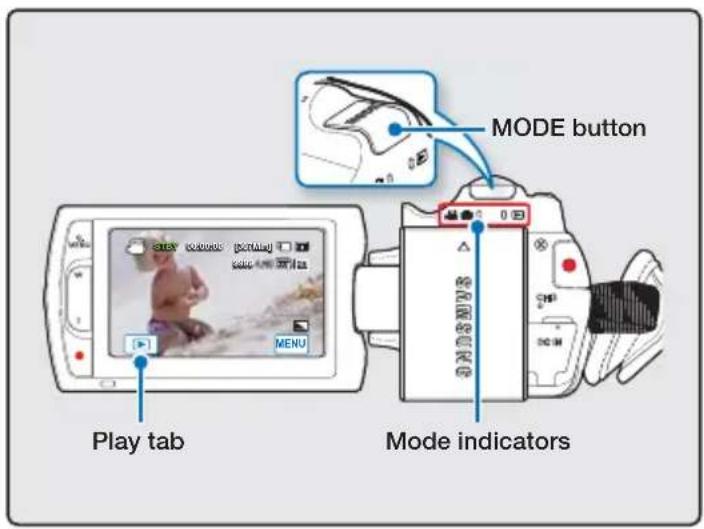
text_image
MODE button Play tab Mode indicators| Mode | Mode indicators | Functions |
| Record mode | To record videos or photos. | |
| Play mode | To play videos or photos, or edit them. |

This camcorder provides one record mode which combines the video and photo record modes. You can easily record videos or photos in the same mode without having to change it.
basic operation of the camcorder
USING THE DISPLAY(1) BUTTON
Switching the information display mode
You can switch the on-screen information display mode. Press the Display(1)_button.
- The full and minimum display modes will alternate.
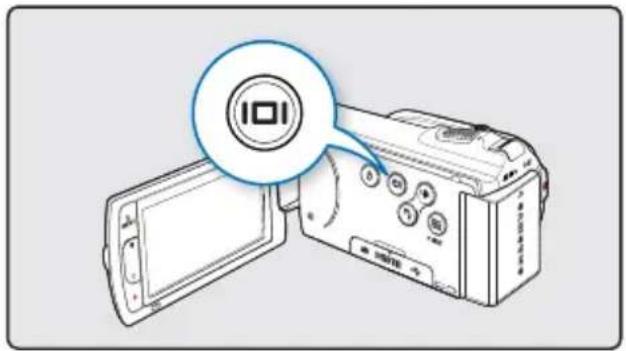
text_image
101
text_image
STEV obeseo [Ctrl+N] sseca com MENU
text_image
STEV
- Warning indicators and messages may appear depending on the recording conditions.
- The Display (☐) button does not work when the menu or quick menu screen are being displayed.
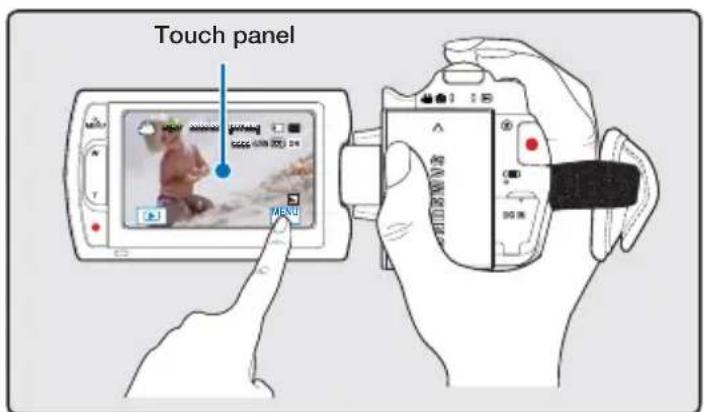
The touch panel allows you to enjoy playback and recording with a simple touch of your finger. Place your hand on the rear side of the LCD screen to support it. Then, touch the icons displayed on the screen to control playback and record.

- Do not place a protective film on the LCD screen.
- If a fi Im is applied for a long time, strong adhesion between the fi Im and the surface of the screen may cause the touch panel to malfunction.

- Be careful not to press the buttons near the LCD panel accidentally while using the touch panel.
- The tabs and indicators that appear on the LCD screen depend on the current recording/playback status of your camcorder.
text_image
Touch panel MILKUfi rst time settings
SETTING THE TIME ZONE AND DATE/TIME FOR THE FIRST TIME
Set the date and time of your local area when you turn on the camcorder for the first time.
-
Open the LCD screen to turn on the camcorder.
-
Your camcorder turns on automatically when you open the LCD screen.
- The time zone ("Home") screen appears displaying settings for Lisbon and London (Greenwich Mean Time).
-
You can also set your current time zone from the "Setting" menu. →page 76
-
Select your local area on the map by touching the left (◀) or right (▶) tab on the LCD screen, then press the (▶) tab.
• The "Date/Time Set" screen appears.
-
Touch the date and time information, and change the setting values by using the up ( ) or down () tabs.
-
Make sure the clock is correctly set, then touch the (OK) tab.
- The message "Date/Time Set" appears.

text_image
Home London, Lisbon [GMT 00:00] JAN/01/2010 12:00AM
text_image
Date/Time Set Month JAN / 91 / 2010 Day 12 : 90 AM OK
text_image
Date/Time Set Date/Time Set JAN10/2010 12:00AM OK
- The year can be set up to 2037, based on "Home" item.
- Set "Date/Time Display" to On. →page 78
- Activating the (💡) icon moves the time forward by 1 hour.
Built-in rechargeable battery
- Your camcorder includes a built-in rechargeable battery that retains the date and time settings even after the power is turned off.
- If the battery is depleted, the current date/time values are reset to the default values. You need to recharge the built-in rechargeable battery (see below), and then re-set the current date and time.
Charging the built-in rechargeable battery
- The built-in battery is always recharged while your camcorder is connected to AC power or while the battery is attached.
- If the camcorder is not used for about 2 weeks without connecting to the AC power or attaching the battery, the built-in battery fully discharges. If this occurs, charge the built-in battery by connecting the camcorder to the supplied AC adaptor for 24 hours.
first time settings
SELECTING THE LANGUAGES
You can select the language in which the camcorder displays the menu screen or messages. The language setting is retained when the camcorder is powered off.
- Touch the Menu (MENU) → Setting (Tab).
- Touch the up (▲)/down ( ) tab until "Language" is displayed.
- Touch "Language," and then touch the desired OSD language.
- Touch the Exit (☒) or Return (☐) tab to complete the setting. • The menu screen and messages are displayed in the selected language.

text_image
Default Set Language Demo Anynet+ HDMI-CEO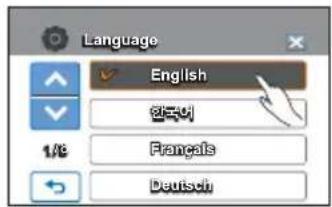
text_image
Language English 1/6 Français DeutschSubmenu items

text_image
"English" → "한국어" → "Français" → "Deutsch" → "Italiano" → "Español" → "Português" → "Nederlands" → "Svenska" → "Suomi" → "Norsk" → "Dansk" → "Polski" → "Čeština" → "Slovensky" → "Magyar" → "Română" → "Български" → "Ελληνικά" → "Srpski" → "Hrvatski" → "Українська" → "Русский" → "中文" → "日本語" → "Інв" → "Türkçe" → "اییرانی" → "العربية" → "ن" →
- "Language" options may be changed without prior notice.
- The camcorder retains the language you select even when not connected to the battery or AC power.
- The date and time format may change depending on the selected language.
getting ready to start recording
SELECTING THE STORAGE MEDIA
(HMX-H203/H204/H205 ONLY)
You can record videos and photos in the built-in memory or a memory card. Select the desired storage media before starting recording or playback.
PRECHECK!
- You can use SD or SDHC cards in your camcorder. However, some cards are not compatible depending on the memory card manufacturer and memory card type.
-
Before inserting or ejecting the memory card, turn the camcorder off.
-
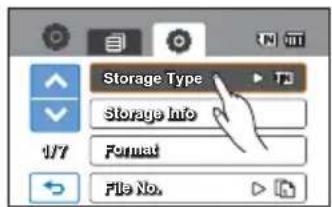
Touch the Menu (MENU) → Setting (Tab).
- Touch the up (▲)/down (.) tab until "Storage Type" is displayed.
- Touch "Storage Type," and then touch the desired storage media.
Submenu items
- Internal Memory (☐): When using the internal memory (SSD, Solid State Drive).
- Card (☐): When using the memory card (SD or SDHC card).
text_image
Storage Type Storage Info Format File No.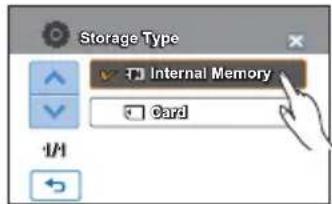
text_image
Storage Type ✓ Internal Memory ✓ Card
- Do not format the built-in memory or any memory card you intend to use in the camcorder on a PC.
- When you insert a memory card, the storage media setup screen appears. Touch "Yes" if you want to use a memory card, or "No" if not.
- Do not remove the power (battery or AC power adaptor) when accessing storage media to record, playback, format, delete, etc. The storage media and its data may be damaged.
- Do not eject a memory card while it is being used in the camcorder. The memory card and its data may be damaged.
- You can also access storage media by using the Q.MENU button.
- SSD based on flash memory has been adopted as internal memory for the camcorder.
getting ready to start recording
INSERTING / EJECTING A MEMORY CARD (NOT SUPPLIED)

text_image
Label pasting portionTo insert a memory card
-
Open the memory card cover.
-
Insert the memory card into the card slot until it softly clicks.
- Make sure that SD/SDHC card logo is facing up and the camcorder is placed as shown in the figure.
- Close the memory card cover.
To eject a memory card
-
Open the memory card cover.
-
Gently push the memory card to eject it.
-
Close the memory card cover.

- To avoid data loss, turn off the camcorder by pressing the Power (💡) button for one second before inserting or ejecting the memory card.
- Be careful not to push the memory card too hard. The memory card may suddenly pop out.

Your camcorder supports only SD (Secure Digital) and SDHC (Secure Digital High Capacity) cards. Card compatibility with the camcorder may vary depending on the manufacturer and the type of memory card.
SELECTING A SUITABLE MEMORY CARD (NOT SUPPLIED)
Compatible memory cards
- This camcorder can be used with SD (Secure Digital) and SDHC (Secure Digital High Capacity) cards.
We recommend you use an SDHC (Secure Digital High Capacity) card.
SD cards up to 2GB are supported with this camcorder. Normal operation is not guaranteed with SD cards bigger than 2GB. - MMC (Multi Media Card) and MMC Plus are not supported.
- Compatible memory card capacity: SD 1 \~ 2GB, SDHC 4 \~ 32GB
- Use compatible memory card brands. Others are not guaranteed to work. A list of compatible brands is below.
- SDHC/SD cards: Panasonic, SanDisk, TOSHIBA
- For video recording, use a memory card that supports faster write speeds (above SDHC Class 6 card).
- SD/SDHC memory cards have a mechanical write-protection switch. Setting the switch prevents accidental erasure of fi les recorded on the card. To enable writing, move the switch up in the direction of the terminals. To set write protection, move the switch down.
Usable memory card (1GB\~32GB)

text_image
Terminals Protection tabSDHC (Secure Digital High Capacity) cards
- SDHC (Secure Digital High Capacity) memory card
- An SDHC card is a higher version (Ver. 2.00) of the SD card and supports capacities above 2GB.
- SDHC cards cannot be used with current SD enabled host devices.
Common cautions for memory cards
- Damaged data may not be recovered. We recommend you make a back-up of important data separately on the hard disk of your PC.
- Turning the power off or removing a memory card during an operation such as formatting, deleting, recording, and playback may cause data loss.
- After you modify the name of a file or folder stored in the memory card using your PC, your camcorder may not recognize the modified file.
Handling a memory card
- We recommend that you power off before inserting or removing the memory card to avoid data loss.
- We can not guaranteed that you can use memory cards formatted by other devices. When you format a card, be sure to format the memory card using this camcorder.
- You must format newly-purchased memory cards, memory cards with data that your camcorder cannot recognize, and cards with data saved by other devices. Note that formatting erases all data on the memory card.
getting ready to start recording
- If you cannot use a memory card that has been used with another device, format it with your camcorder. Note that formatting erases all information on the memory card.
- A memory card has a certain life span. If you cannot record new data, you have to purchase a new memory card.
- Do not bend, drop, or subject a card to strong impacts.
- Do not place foreign substances on the memory card terminals. Use a soft dry cloth to clean the terminals if required.
- Do not paste anything other than the label provided with the card on the label pasting area of the card.
- Be careful to keep the memory card out of the reach of children, who might swallow it.
Notes on use
- Samsung is not responsible for data loss due to misuse.
• We recommend using a memory card case to prevent data loss from motion or static electricity.
- After a period of use, the memory card may get warm. This is normal and is not a malfunction.
The camcorder supports SD and SDHC memory cards, giving you a wider choice of cards!
The data storage speed may differ, depending on the manufacturer and production system.
- SLC (single level cell) system: faster write speed enabled.
- MLC (multi level cell) system: only lower write speed is supported.
For best results, we recommend using a memory card that supports a faster write speed.
Using a lower write speed memory card for recording video may cause diffi culties when storing.
You may even lose your video data during the recording.
In an attempt to preserve every bit of the recorded video, the camcorder forcibly stores the video on the memory card and displays a warning:
"Low speed card. Please record at a lower resolution."
If you are unavoidably using a low speed memory card, the resolution and quality of the recording may be lower than the set value. → page 54
The higher the resolution and quality, the more memory the camcorder uses.

text_image
Illustration showing a hand inserting a device into a battery, with a blue arrow indicating the process and two cartoon characters holding up phones.Recording time available for video
(Unit: Approximate minutes of recording)
Recordable number of photos
| Photo resolution | Storage media (Capacity) | |||||
| 1GB 2GB | 4GB 8GB | 16GB | 32GB | |||
| 2880x1620* 656 | 1251 248 | 2 5014 9999 | 9999 | |||
| 1920x1080 1173 | 2346 465 | 4 9402 9999 | 9999 | |||
(Unit: Approximate number of images)
1GB ≡ 1,000,000,000 bytes. Actual formatted capacity may be less as the internal firmware uses a portion of the memory.

• Actual recording times may differ depending on the recording conditions and the subject.
- The higher the quality and resolution, the more memory is used.
- Lower resolution and quality increases the recording time, but the image quality may suffer.
- The bit rate automatically adjusts to the recording image. Accordingly, the recording time may vary.
• Memory cards bigger than 32GB may not operate normally.
- When a video file exceeds 1.8GB, the next video file is created automatically.
- The maximum number of recordable photo and video files is 9999, respectively.
- The above items marked with * indicate the default setting.
- The recording length of a Time Lapse REC may vary depending on settings.
getting ready to start recording
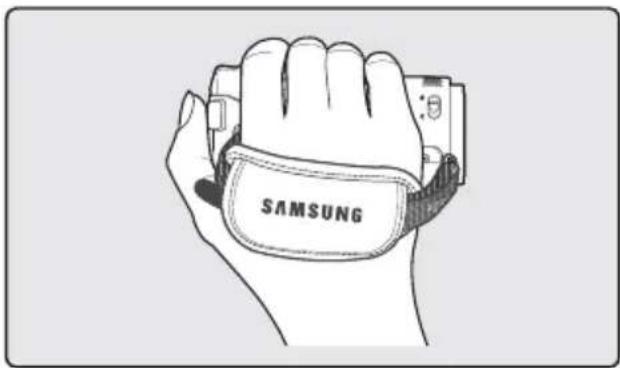
ATTACHING THE GRIP BELT
Adjust the length of grip belt so that the camcorder is stable when you press the Recording start/stop button with your thumb.

text_image
SAMSUNG
If you make the grip belt too tight and use excessive force to insert your hand, the grip belt hook of the camcorder may be damaged.
ADJUSTING THE LCD SCREEN
The wide LCD screen on your camcorder offers high quality image viewing.
- Open the LCD screen with your finger.
• The screen opens up to 90°.
- Rotate the LCD screen towards the lens.
- You can rotate it up to 180° towards the lens and up to 90° backward.
To view recordings more conveniently, rotate the screen by 180° towards the lens, then fold it back to the body.

text_image
180° 90° 90°
Excessive rotation may damage the connective hinge between the screen and the camcorder.

Clean fi ingerprints or dust on the screen with a soft cloth.
BASIC CAMCORDER POSITIONING
Use both hands while taking a video or photo to prevent the camcorder from shaking. Try to avoid any slight movement while shooting.
Adjusting the shooting angle
Aim the camcorder as shown in the illustration.
-
Hold the camcorder with your both hands.
-
Put your hand through the grip belt.
-
Make sure your footing is stable and there is no danger of colliding with another person or object.
-
Aim and focus as shown in the illustration.
text_image
SAMSUNG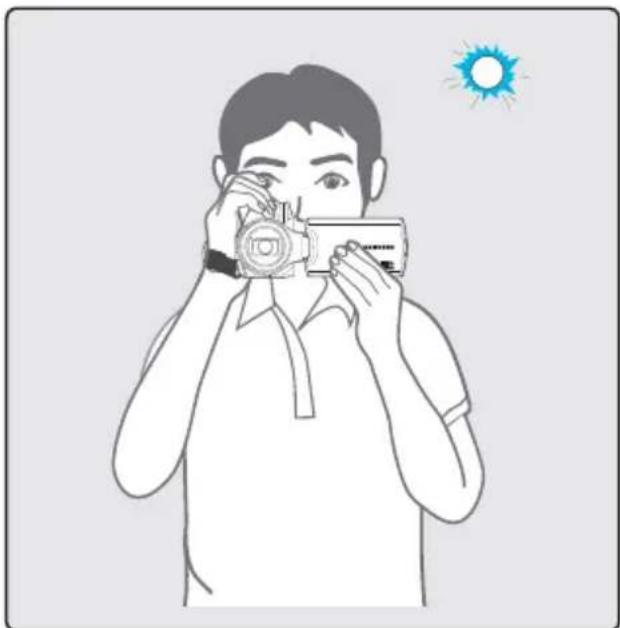
natural_image
Illustration of a person using a camera to observe, with a sun icon in the background (no text or symbols)
We recommended you keep the sun behind you while shooting.
basic recording
RECORDING VIDEOS
- This camcorder supports both High Defi nition (HD) and Standard Defi nition (SD) image resolutions. Set your desired resolution before recording. ➤ page 54
- This camcorder provides one record mode which combines the video and photo record modes. You can easily record videos or photos in the same mode without having to change it.
PRECHECK!
Insert a memory card.
Set the appropriate storage media. (HMX-H203/H204/H205 only) page 27
Open the LCD screen to turn on the camcorder.
Your camcorder turns on automatically when you open the LCD screen.
Set the Lens open/close switch to open (◀). →page 12
-
Select a subject to record.
-
Adjust the LCD panel to the best angle for recording.
-
Use the Zoom lever or Zoom button to adjust the size of the subject. →page 40
-
Press the Recording start/stop button.
• The recording (●) indicator appears, and recording starts.
- To stop recording, press the Recording start/stop button again.
• The Quick View icon appears on the screen.
- Touch the Quick View (▶) icon to view the most recently recorded video.
- After the Quick View is complete, your camcorder returns to the standby mode.

text_image
cscscsc [screen] MENU
text_image
STEV COSO:CO [507.0m] 100 966 470 100 MENUTwo recording start/stop buttons to suit your preference!
This camcorder features two Recording start/stop buttons. One is on the rear side of the camcorder, the other is on the LCD screen. Select the one that works best for you.

text_image
Ordering start/stop buttons. order, the other is on the works best for you.
- If power is interrupted or an error occurs during recording, the video may not be recorded/edited.
- Samsung is not responsible for any damage caused by a failure of normal recording or playback operation because of memory card error.
• Note that damaged data cannot be recovered.

- Videos are compressed in the H.264 (MPEG-4.AVC) format.
- Eject the battery when you have finished recording to prevent unnecessary battery power consumption.
- For the on-screen information display, see page 14.
- For approximate recording time, see page 31.
- Sound is recorded from the internal stereo microphone above the lens. Make sure that the microphone is not blocked.
- Before recording an important video, make sure to test the recording function to see if there are any problems with audio or video recording.
- The brightness of the LCD screen can be adjusted in the menu options. Adjusting the LCD screen does not affect the image being recorded. page 79
- For various functions available during recording, see "Recording menu items." pages 53\~69
- Do not turn off the camcorder or remove the memory card while accessing the storage media. Doing so may damage the storage media or the data in the storage media.
- If the power cable/battery is disconnected or recording is disabled during recording, the system is switched to the data recovery mode. While data is being recovered, no other function is enabled.
- The menu setting tabs shown on the LCD screen do not affect the image being recorded.
- In the record mode, you can set the Quick View menu option. The Quick View icon appears when you have set the Quick View menu option to On.
- Under some low light conditions that may be encountered, the video motion may not be fluid as under normal light conditions.
basic recording
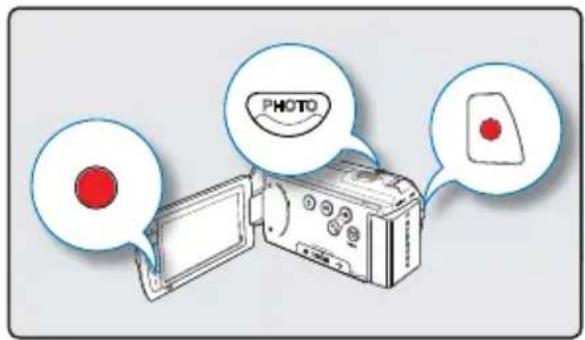
CAPTURING PHOTOS DURING VIDEO RECORDING (DUAL RECORDING)
Your camcorder can capture photos without interrupting video recording.
PRECHECK!
Insert a memory card.
Set the appropriate storage media. •
(HMX-H203/H204/H205 only) →page 27
Open the LCD screen to turn on the camcorder.
Your camcorder turns on automatically when you open • the LCD screen.
Set the Lens open/close switch to open•( ). →page 12
text_image
PHOTO- Press the Recording start/stop button.
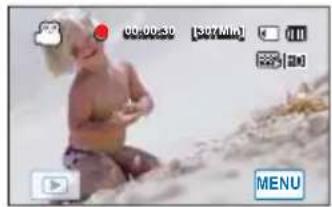
- The recording (●) indicator will display, and recording will start.
-
Press the PHOTO button at the scene you want while recording videos.
-
When the (▶▶▶) indicator disappears, the photo image is recorded without a shutter sound.
• Video keeps recording, even while photos are taken. - To stop recording, press the Recording start/stop button again.
natural_image
Photo of a baby sitting on sandy ground with no visible text or symbols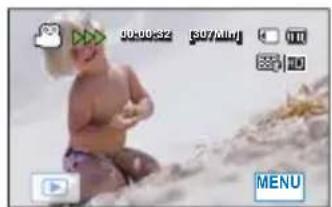
natural_image
Baby sitting on sandy ground with camera interface buttons (no readable text or symbols)
• You cannot capture photos under the following conditions:
- During a time lapse recording.
- Photos are captured in 1920x1080 resolution regardless of the resolution of the video recording.
RECORDING PHOTOS
You can take photos and store them in the storage media. Set the desired resolution before recording. →page 55
PRECHECK!
Insert a memory card.
Set the appropriate storage media. •
(HMX-H203/H204/H205 only) → page 27
Open the LCD screen to turn on the camcorder.
Your camcorder turns on automatically when you open the LCD screen.
Set the Lens open/close switch to open (◀). →page 12

text_image
PHOTO-
Select a subject to record.
-
Adjust the LCD panel to the best angle for recording.
-
Use the Zoom lever or Zoom button to adjust the size of the subject. →page 40
-
Adjust the subject at the center of the LCD screen, and half-press the PHOTO button.
-
Your camcorder adjusts to the ideal aperture and focus automatically (if "Aperture" and "Focus" are set to "Auto" → pages 56, 60).
-
When the subject is in focus, (●) indicator appears green. If it appears red, readjust the focus.
-
Fully press the PHOTO button.
-
The shutter sound is heard. (when "Shutter Sound: On" is set).
- To continue recording, wait until the current photo is completely saved on the storage media.
-
When the photo is recorded on the storage media, the Quick View icon appears on the screen.
-
Touch the Quick View (▶) icon to view the most recently recorded photo.
• To return to the standby mode, touch the Return (→) tab.
natural_image
Baby sitting on sandy beach with camera and phone icons (no readable text or symbols)
natural_image
Baby sitting on sandy beach with scattered stones (no text or symbols visible)
- Recordable number of photos varies depending on the photo resolution.→ page 31
• Audio is not recorded when you take photos. - If focusing is difficult, use the manual focus function.→page 60
- Do not turn off the camcorder or remove the memory card when taking photos as it may damage the storage media or data.
- For the on-screen display information, see page 14.
- Adjust the brightness of the LCD screen using menu items. Adjusting the brightness does not affect the recorded image. ➕page 79
- Photo files conform to the DCF (Design rule for Camera File system) standard, established by JEITA (Japan Electronics and Information Technology Industries Association).
basic recording
RECORDING WITH EASE FOR BEGINNERS (SMART AUTO)
In Smart Auto mode, your camcorder automatically chooses the appropriate settings based on the type of scene it detects (Indoor, Night, etc.). Smart Auto mode is helpful if you are not familiar with the best camcorder settings for various scenes.
PRECHECK!
Select the record mode by pressing the MODE button. →page 23
- Press the SMART AUTO button.
- Smart Auto (SMART) and Anti-shake (LED) on is displayed on the LCD screen.
-
Align your subject in the frame.
-
The camcorder automatically detects the scene when when you align the subject.
- The appropriate scene icon is displayed on the LCD screen.

Appears when recording a very bright scene. (White)

Appears when recording an outdoor scene. (Landscape)

Appears when recording indoors. (Indoor)

Appears when recording at night. (Night)

Appears when recording with a close-up. (Macro)
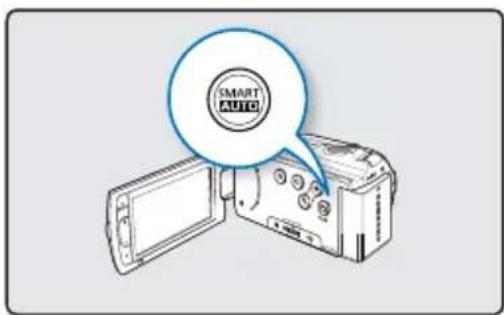
text_image
SMART AUTO
natural_image
Close-up photo of a sunflower with green foliage, showing no visible text or symbols.- Press the Recording start/stop button or PHOTO button.
→pages 34, 36
- To record videos, press the Recording start/stop button. To record photos, press the PHOTO button.
- To cancel Smart Auto mode, press the SMART AUTO button again.

- Buttons unavailable during Smart Auto operation:
Menu 📊() tab / Q.MENU button/ etc. Most settings are automatically adjusted in Smart Auto mode. To set or adjust functions on your own, release the Smart Auto mode fi rst. - You can not access Smart Auto mode while recording. You must set this function before recording.
- If the camcorder fails to identify the recording situation, it records in the basic setting (NCST).
- The camcorder may not select the correct scene depending on shooting conditions, such as camcorder shake, lighting, and distance to the subject.
- If the comacorder detects more than one scenes at the same time, Smart Auto prioritizes as follows: Macro → White → Landscape → Night → Indoor
For example, a) If White and Indoor can be applied at the same time, then White is selected and corresponding icon displays. b) If White and Landscape can be applied at the same time, then White is selected and corresponding icon displays.
CAPTURING PHOTOS WHILE PLAYING BACK VIDEOS
You can capture photos during video playback.
PRECHECK!
Insert a memory card.
Set the appropriate storage media. (HMX-H203/H204/H205 only) →page 27
Touch the Play (▶) tab on the LCD screen to select the play mode. → page 23
- Recorded videos appear in a thumbnail index view.
- Touch the up (/down () tab to move to the previous/next page.
- Touch the video clip you want.
• The selected video is played.
- Press the PHOTO button halfway at the scene you want to capture.
• The playback screen is paused.
- Press the PHOTO button fully down.
• The captured still image is recorded in JPEG format.
- When the photo is recorded in the storage media, touch the Return (☐) tab to view the thumbnail index.
- Touch the Photo (图标) tab to view the recorded photos. →page 46

text_image
PHOTO
text_image
HD SD S/S MENU
text_image
00:00:05/00:00:50 100_001s MENU
natural_image
Baby sitting on a sandy beach with camera interface overlay (no readable text or symbols)
- You cannot capture photos under the following conditions:
- During a time lapse recording.
- Photos are captured in 1920x1088 resolution regardless to the resolution of the video recording.
basic recording
ZOOMING
This camcorder allows you to record using optical 20x power zoom and digital zoom by sliding the Zoom lever or pressing the Zoom button on the LCD panel.
PRECHECK!
Select the record mode by pressing the MODE button. → page 23
To zoom in
Press the T (zoom) button on the LCD panel or slide the zoom lever towards T (telephoto).
- The distant subject is gradually magnified and can be recorded.
To zoom out
Press the W (zoom) button on the LCD panel or slide the zoom lever towards W (wide angle).
• The subject moves further away.

text_image
W T W T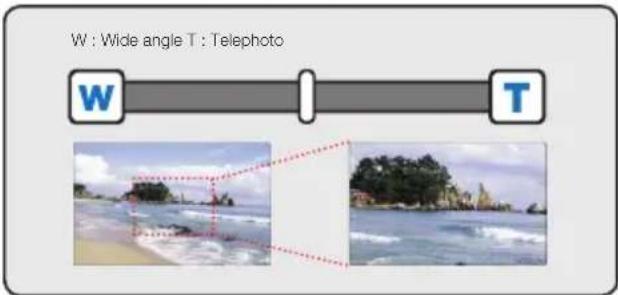
text_image
W : Wide angle T : Telephoto W T
text_image
00:00:00 [507MUN] MENUTip
When using the Zoom (W/T) lever, you can decrease zoom speed by sliding the Zoom (W/T) lever slowly. Sliding it faster increases the zoom speed. However, when using the Zoom (W/T) button on the LCD panel, you cannot adjust the zoom speed.

• Using the optical zoom does not degrade the image quality and clarity.
- Use the digital zoom when you want to zoom more than the optical zoom range. page 64
- Focusing may become unstable when you record with a fast zoom or zoom into a subject standing too far away. In this case, use the manual focus function. page 60
- The minimum possible distance between camcorder and subject while maintaining sharp focus is about 1cm (about 0.4 inches) for wide angle and about 50cm (about 19.7 inches) for telephoto. If you want to shoot the subject close to the lens at a wide angle, use the Tele Macro function.
→ page 63
- When using the zoom function while holding the camcorder with your hand, use Anti-shake (OIS) for stable recording. page 41
- Frequent use of the zoom function consumes more power.
SETTING THE ANTI-SHAKE (OIS: OPTICAL IMAGE STABILIZER)
Use the Anti-shake (OIS: Optical Image Stabilizer) function to compensate for unstable images caused by shaking movements when holding the camcorder.
PRECHECK!
Select the record mode by pressing the MODE button. →page 23
Press the Anti-shake (OIS) (button to toggle the Anti-shake (OIS) mode between On and Off.

natural_image
Illustration of a digital camera with an open screen and a speech bubble containing a button (no text or symbols)
text_image
STBY 00:00:00 [347ml] 10 9999.427 100% 10 MENUTip
Use the Anti-Shake function in the following cases:
- When recording while walking or when recording in a moving car.
- When recording with the zoom function.
- When recording subjects of a small size.
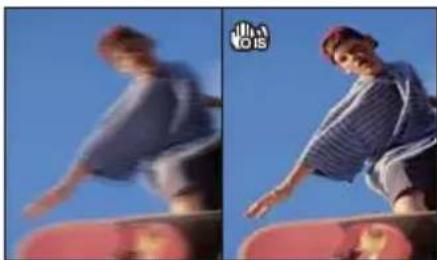
natural_image
Two side-by-side photos of a person in motion, one on a red platform against a clear blue sky, the other with a logo 'ILOIS' in the top-left corner.
- When turned on, the Smart Auto mode automatically sets Anti-shake (OIS) to On.
- Gross camcorder shake may not be entirely corrected even if Anti-shake is set to On. Firmly hold the camcorder with both hands.
- When this function is set to On, the actual movement of the subject and the movement displayed on the screen may be slightly different.
- When recording in dark lighting at high magnification while this function is set to On, after-images may stand out. In this case, we recommend using a tripod (not supplied) and turning Anti-shake to Off.
basic recording
USING BACK LIGHT COMPENSATION MODE
When a subject is lit from behind, this function will compensate for lighting so that the subject is not too dark.
PRECHECK!
Select the record mode by pressing the MODE button. →page 23
Press the Back light (button to toggle the back light mode between On and Off.
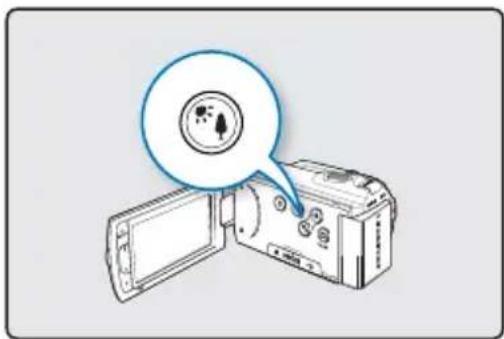
natural_image
Illustration of a digital camera with an open screen and a speech bubble containing a small icon (no text or symbols present)
text_image
SERY cosco.co scrim 3000 470 MENUTip
Back lighting causes the subject to be darker than the background. It typically occurs when:
- The subject is in front of a window.
- The person you want to record is wearing white or shiny clothes and is placed against a bright background. The person's face is too dark to distinguish his/her features.
- The subject is outdoors and the background is overcast.
- The light sources are too bright.
- The subject is in front of a snowy background.

natural_image
Close-up portrait of a smiling woman wearing a white hat (no text or symbols visible)basic playback
CHANGING THE PLAYBACK MODE
- You can set the record mode and the play mode in turn with the MODE button.
- You can also switch the operation mode directly into the playback thumbnail display by touching the Play (☐) tab on the LCD screen. You will find the most recently created file is highlighted in the thumbnail view.
- The thumbnail display options are selected depending on the standby mode that was used the last time. However, you can choose the video (HD or SD) or photo thumbnail view display options by touching the HD (HD), SD (SD), or photo (Lab) on the LCD screen.

Understanding how to change the operation modes
You can easily change the operation modes by touching the LCD screen or using the buttons as shown in the following figures:
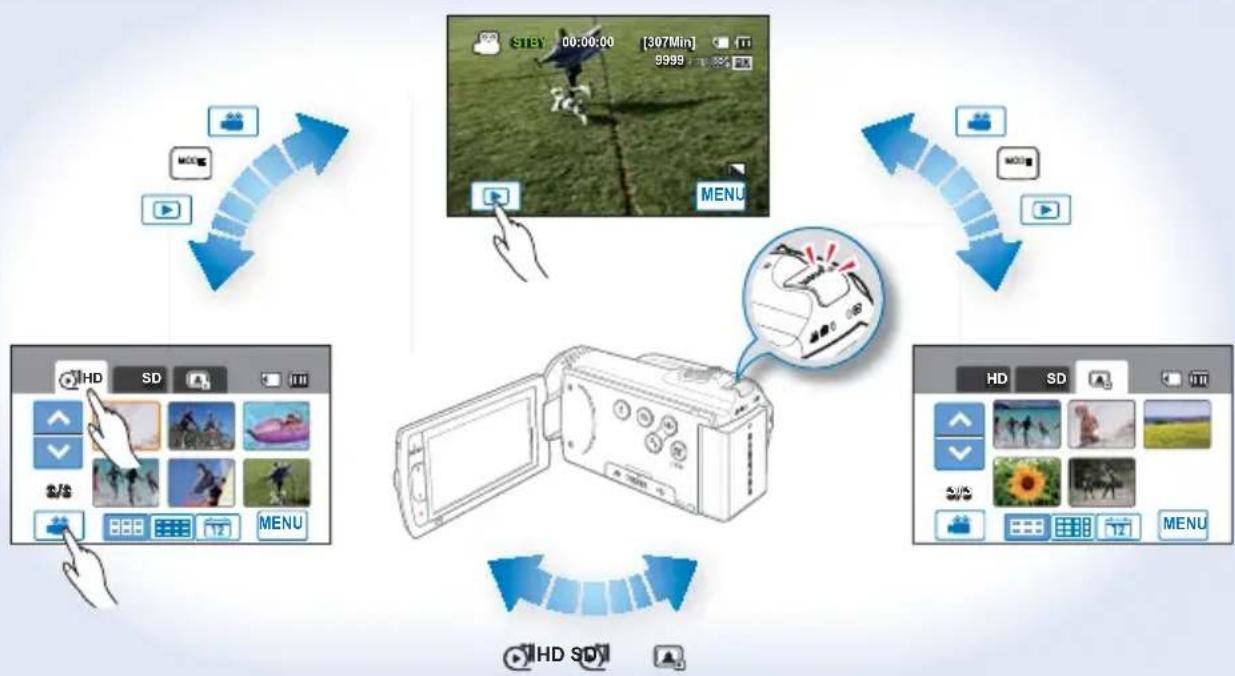
flowchart
graph TD
    A["Input Video"] --> B["Video Display"]
    B --> C["Monitor with Display"]
    C --> D["Display Panel"]
    D --> E["Output Audio"]
    E --> F["Video Panel"]
    F --> G["Display Panel"]
    G --> H["Video Panel"]
    H --> I["Output Audio"]
    I --> J["Video Panel"]
    J --> K["Display Panel"]
    K --> L["Output Audio"]
    L --> M["Video Panel"]
    M --> N["Display Panel"]
    N --> O["Output Audio"]
    O --> P["Video Panel"]
    P --> Q["Display Panel"]
    Q --> R["Output Audio"]
    R --> S["Video Panel"]
    S --> T["Display Panel"]
    T --> U["Output Audio"]
    U --> V["Video Panel"]
    V --> W["Display Panel"]
    W --> X["Output Audio"]
    X --> Y["Video Panel"]
    Y --> Z["Display Panel"]
    Z --> AA["Output Audio"]
    AA --> AB["Video Panel"]
    AB --> AC["Display Panel"]
    AC --> AD["Output Audio"]
    AD --> AE["Video Panel"]
    AE --> AF["Display Panel"]
    AF --> AG["Output Audio"]
    AG --> AH["Video Panel"]
    AH --> AI["Display Panel"]
    AI --> AJ["Output Audio"]
    AJ --> AK["Video Panel"]
    AK --> AL["Display Panel"]
    AL --> AM["Output Audio"]
    AM --> AN["Video Panel"]
    AN --> AO["Display Panel"]
    AO --> AP["Output Audio"]
    AP --> AQ["Video Panel"]
    AQ --> AR["Display Panel"]
    AR --> AS["Output Audio"]
    AS --> AT["Video Panel"]
    AT --> AU["Display Panel"]
    AU --> AV["Output Audio"]
    AV --> AW["Video Panel"]
    AW --> AX["Display Panel"]
    AX --> AY["Output Audio"]
    AY --> AZ["Video Panel"]
    AZ --> BA["Display Panel"]
    BA --> BB["Output Audio"]
    BB --> BC["Video Panel"]
    BC --> BD["Display Panel"]
    BD --> BE["Output Audio"]
    BE --> BF["Video Panel"]
    BF --> BG["Display Panel"]
    BG --> BH["Output Audio"]
    BH --> BI["Video Panel"]
    BI --> BJ["Display Panel"]
    BJ --> BK["Output Audio"]
    BK --> BL["Video Panel"]
    BL --> BM["Display Panel"]
    BM --> BN["Output Audio"]
    BN --> BO["Video Panel"]
    BO --> BP["Display Panel"]
    BP --> BQ["Output Audio"]
    BQ --> BR["Video Panel"]
    BR --> BS["Display Panel"]
    BS --> BT["Output Audio"]
    BT --> BU["Video Panel"]
    BU --> BV["Display Panel"]
    BV --> BW["Output Audio"]
    BW --> BX["Video Panel"]
    BX --> BY["Display Panel"]
    BY --> BZ["Output Audio"]
Tip
You can choose from these thumbnail display options: 3x2 ( ), 4x3 ( ), and Date ( ).

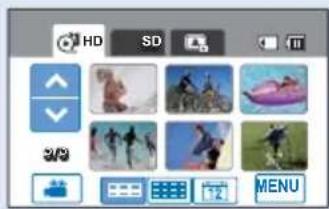
text_image
HD SD 3/2 MENU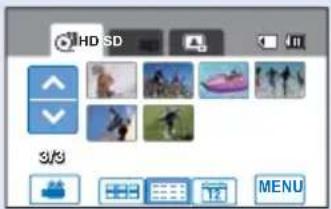
text_image
HD SD 3/3 MENU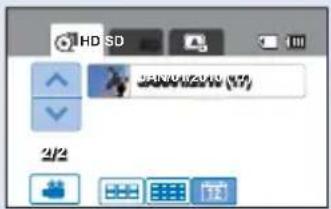
text_image
HD SD 2/00/2010 (7) 2/2basic playback
PLAYING BACK VIDEOS
You can preview recorded videos in the thumbnail index view, find your desired video quickly, and playback directly.
PRECHECK!
Insert a memory card.
Set the appropriate storage media. (HMX-H203/H204/H205 only) page 27
Touch the Play (●) tab on the LCD screen to select the play mode. → page 23
-
Touch the HD (HD) or SD (SD) tab.
-
Video thumbnails corresponding to the selected video resolution appear on the screen.
- To change the current thumbnail view, select the ( ), ( ), or ( ) tab on the screen.
- If you select the thumbnail display by the date ( ), you can sort videos by specific dates.→page 43
-
To change the current thumbnail page, touch the up( ) or down( ) tab.
-
Touch the desired video clip.
-
The selected video is played and playback control tabs appear briefly. They reappear when you touch anywhere on the screen.
- You can set playback settings using the "Play Option" menu. →page 70
- To stop playback and return to the thumbnails, touch the Return (→) tab.
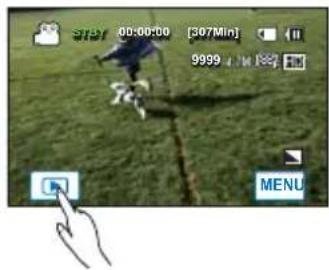
text_image
00:00:00 [307Min] 9999 4 M MENU
text_image
HD SD 3/3 MENU
text_image
00:00:05 / 50:00:50 100.00:13 MENU
- It may take some time to start playback, depending on the size and quality of the selected video.
• The camcorder may not play the following video fi les:
- A video whose name was changed changed on a PC
- A video recorded on another device.
- A video whose file format is not supported by the camcorder
- You can use various play options during the video playback. - page 45
- The recorded videos can be played on a TV or PC.→pages 102, 110
- If you touch the Menu (MENU) tab or Q.MENU button during playback, play is paused and the menu screen appears.
- You can use various play options during the video playback. →page 45 - The recorded videos can be played on a TV or PC. →pages 102, 110 - If you touch the Menu (MENU) tab or Q.MENU button during playback, play is paused and the menu screen appears.
Various playback operations
Playback / Pause / Stop
- Playback and pause alternates when you touch the Play (▶) / Pause ()tab during playback.
- Touch the Return (→) tab to stop playback.
Search playback
During playback, each touch of the Reverse search (◀) / Forward search (▶) tab increases the play speed:
• RPS (Reverse Playback Search) rate: x2 → x4 → x8 → x2
• FPS (Forward Playback Search) rate: x2 → x4 → x8 → x2
Skip playback
Touch the Reverse skip (◀) / Forward skip (▶) tab during playback.
- Touching the Forward skip (▶) tab plays the next video.
- Touching the Reverse skip ( ) plays the beginning of the scene. If reverse skip ( ) is touched within 3 seconds from the start of the file, the previous video is played.
- Place and hold your finger on the Reverse skip (◀◀) / Forward skip (◀) tab to search for a video number quickly. When you lift off your finger, the selected video is played.
Slow playback
When playback is paused, touching the Reverse slow (◀) / Forward slow (▶) tab reduces the playback speed:
- Reverse/forward playback slow rate: x1/2 → x1/4 → x1/8 → x1/2
Frame by frame playback
When playback is paused, touch the Reverse frame advance (◀) / Forward frame advance (▶) to make the video go in reverse or forward one frame at a time.
To adjust the volume
You can hear the recorded sound from the built-in speaker.
You can adjust the sound level between "0\~19." When the level is at "0," you cannot hear sound.
-
Touch the Volume (☐) tab on the LCD screen.
-
Touch the (+)/(−)tab to increase or decrease audio volume.
- If you touch the (☐)/(☐) tab for a long time, the sound level will be adjusted continuously.
basic playback
VIEWING PHOTOS
You can view recorded photos by using various playback functions.
PRECHECK!
Insert a memory card.
- Set the appropriate storage media. (HMX-H203/H204/H205 only) → page 27 Touch the Play (☐) tab on the LCD screen to select the play mode. → page 23
- Touch the Photo (Tab).
• The thumbnail view appears.
- To change the current thumbnail view, select ( ), (), or () tab on the screen.
- If you select the thumbnail display by the date ( )you can sort photos by specifi c dates.→page 43
- To change the current thumbnail page, touch the up (▲) or down (↓) tab.
-
Touch your desired photo to display.
-
The selected photo is displayed in full screen and playback control tabs appear briefly. They reappear when you touch anywhere on the screen.
- Touch previous image (☐) / next image (☐) tab to view the previous and next photo.
-
Place and hold your finger on the previous image ( )/next image ( )/tab to search for a desired photo number quickly. When you lift off your finger, the selected photo is displayed.
-
To return to the thumbnails, touch the Return (→) tab.

text_image
HD SD MENU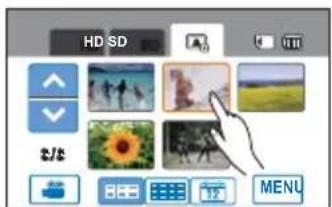
text_image
HD SD MENU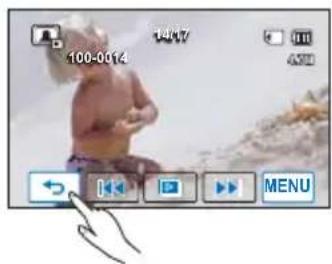
text_image
100-0014 14/17 ADD MENU
- Do not power off or eject the memory card during photo playback. Doing so may damage the recorded data.
- Your camcorder may not playback the following photo files normally:
- A photo whose file name was changed on a PC.
- A photo recorded on another device.
- A photo with a file format not supported by this camcorder. (One that does not conform to DCF standards.)

Loading time may vary depending on the size and quality of the selected photo.
VIEWING A SLIDE SHOW
You can view a photo slide show.
PRECHECK!
Insert a memory card.
- Set the appropriate storage media. (HMX-H203/H204/H205 only) → page 27 Touch the Play (▶) tab on the LCD screen to select the play mode. → page 23
- Touch the Photo (Tab.
• The thumbnail view appears.
- To change the current thumbnail page, touch the up ( ) or down ( ) tab.
-
Touch the Menu (MENU) tab → "Slide Show Start"
-
The ( ) indicator is displayed. The slide show starts from the current selected photo.
- All photos are played back continuously in the set slide show option ("Interval," "Music," "Effect.")
- If you select the thumbnail display by the date ( ), photos only taken on the corresponding date play back in a slide show. →page 43
- You can adjust the background music's volume level using the Volume () tab while playing back the slide show with music.
• To stop the slide show, touch the Return (→) tab.
• Every time you touch the LCD screen, the play related tabs appear on the LCD screen.
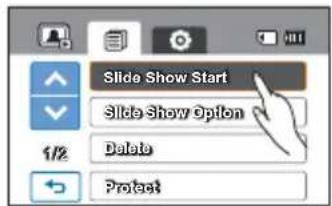
text_image
Slide Show Start Slide Show Option Delete Protect
natural_image
Two people sitting on a beach under blue sky, with camera interface buttons visible (no readable text or symbols)Tip
- To start a slide show during the playback of a single photo, touch the slide show (☐) tab on the LCD screen or touch the Menu (MENU) tab → "Slide Show Start."
- You can also start a slide show from the Quick menu.→page 52
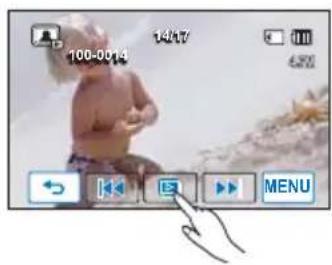
text_image
100-0014 14/17 MENUbasic playback
Using the Slide Show Option
While playing back a slide show, you can use the "Slide Show Option" menus as follows:
Submenu items
- Interval: Photos play back continuously at the interval you select. You can choose 1 sec. or 3 sec.
- Music: You can turn the built-in background music on or off. This camcorder has 7 default background melodies stored in the boot-up flash memory. When music is On, starting a slide show starts the play back of the 7 melodies in shuffle mode.
- Effect: Continuously plays back photos using the fade in / out effect between image transitions.

text_image
Slide Show Start Slide Show Option Delete ProtectZOOMING DURING PHOTO PLAYBACK
You can magnify a playback image. Touch the up (/down()/left()/right() to select the desired area to magnify.
PRECHECK!
Insert a memory card.
Set the appropriate storage media. (HMX-H203/H204/H205 only) page 27
Touch the Play (●) tab on the LCD screen to select the play mode. →page 23
- Touch the Photo ( ) tab.
• The thumbnail view appears.
- To change the current thumbnail page, touch up the ( ) or down ( √ ) tab.
- Touch the photo you want to magnify.
• The selected photo is displayed on the full screen.
- Adjust the magnifi cation with the Zoom (W/T) button or Zoom (W/T) lever.
• Magnifi cation starts from the the center of the photo.
• You can zoom in from x1.1 to x8.0.
- While the playback zoom is in use, other images cannot be selected.
-
Touch the up (▲)/down ( )/left ( )/right ( ) tab to view the area you want on the magnified photo.
-
To cancel, touch the Return (→) tab.

text_image
HD SD MENU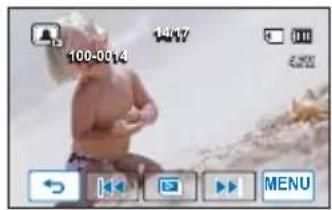
text_image
100-0014 14/17 MENU
natural_image
Baby holding a baby's hand, surrounded by UI icons and buttons (no readable text or symbols)
Photos recorded on other devices or those edited on a PC cannot be magnifi ed.
advanced recording
HANDLING MENUS AND QUICK MENUS
The instructions below are examples of how to access and use menu items using the Menu Tab and the Q.MENU Button. When you access and use other menu items, use these examples as guides.
PRECHECK!
Open the LCD screen to turn on the camcorder.
Your camcorder turns on automatically when you open the • LCD screen.
- Select the record mode by pressing the MODE button.
→ page 23
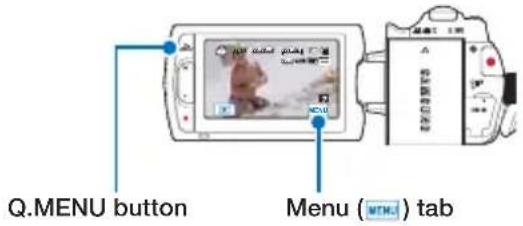
text_image
Q.MENU button Menu (MTN) tabUsing the Menu () tab
- Touch the Menu () tab on the touch panel.
• The menu screen appears.
• To change the current page, touch the up (/down () tab.
-
Touch "Aperture." (The Aperture function is used here as an example.)
-
Touch the desired option.
-
Adjust the setting values accordingly.
- Touch the decrease (◀) or increase (▶) tab to adjust the aperture.
- To exit the menu, touch the Exit (×) or Return () tab.
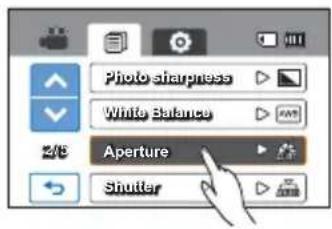
text_image
Photo sharpness White Balance Aperture Shutter
text_image
Aperture Auto Manual 1/1Using the Q.MENU button
- Press the Q.MENU button on your camcorder to see the available menu options.
• The quick menu screen appears.
-
Touch "Focus." (The Focus function is used here as an example.)
-
Touch the desired option.
-
Adjust the setting values.
- To exit the menu, touch the Exit (×) or Return () tab.

text_image
iSCENE Resolution WB EV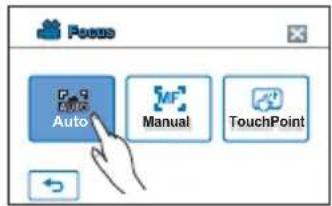
text_image
Press Auto Manual TouchPoint
- When using the Menu (M) or Quick menu items, some menu items can not be used at the same time, or may be grayed out. For more information on this, see Troubleshooting on page 127.
- For easy understanding, the menu setting procedures on this page are explained using the simplest methods. Menu setting methods can differ depending on the menu options you choose.
advanced recording
MENU ITEMS
- Accessible items in the menus vary depending on the operating mode.
- For item operation details, see the page number listed under Page in the table.
Recording menu items
| Items Default value Page | ||
| i SCENE Auto 53 | ||
| Video Resolution [HD]1080/60i | 54 | |
| Video Quality Fine 54 | ||
| Photo Resolution 2880x1620 55 | ||
| Photo Sharpness Normal 55 | ||
| White Balance Auto 56 | ||
| Aperture Auto 58 | ||
| Shutter Auto 59 | ||
| EV 0 59 | ||
| Focus | Auto 60 | |
| Digital Effect Off | 61 | |
| Fader | Off | 62 |
| Tele Macro | Off | 63 |
| Cont. Shot | Off | 63 |
| Wind Cut Off | 64 | |
| Digital Zoom Off | 64 | |
| Self Timer Off | 65 | |
| Time Lapse REC Off | 66 | |
| Quick View | On | 68 |
| Guideline Off | 69 | |
Playback menu items
| Items\Operation mode | Video (Thumbnail) | Video (Single) | Photo(Thumbnail/Single) | Default value | Page | |
| Play Option | ● | ● | X | Play All | 70 | |
| Highlight | ● | ● | X | - | 71 | |
| Playlist | ● | X | X | - | 93 | |
| Delete | ● | ● | ● | - | 97 | |
| Protect | ● | ● | ● | Off (Single) | 96 | |
| Story-Board Print | ● | ● | X | - | 73 | |
| Copy * | ● | ● | ● | - | 98 | |
| Edit | Divide | ● | ● | X | - | 90 |
| Combine | ● | X | X | - | 91 | |
| File Info | ● | ● | ● | - | 73 | |
| Slide Show Start | X | X | ● | - | 47 | |
| Slide Show Option | X | X | ● | - | 48 | |
| Print Mark (DPOF) | X | X | ● | - | 99 | |
● : available, X : not available
Setting menu items
| Items Default value Page | ||
| Storage Type * Internal Memory 74 | ||
| Storage Info * - 74 | ||
| Card Info ** - 74 | ||
| Format - 75 | ||
| File No. Series 76 | ||
| Time Zone Home 76 | ||
| Date/Time Set | JAN/01/2010 12:00 AM(Summer Time : Off) | 77 |
| Date Type JAN/01/2010 77 | ||
| Time Type 12 Hr 78 | ||
| Date/Time Display Off 78 | ||
| LCD Brightness 18 | 79 | |
| Auto LCD Off | Off | 79 |
| Beep Sound | On 80 | |
| Shutter Sound | On 80 | |
| Auto Power Off | 5 Min 81 | |
| Quick On STBY | 5 Min 82 | |
| PC Software | On 83 | |
| USB Connect | Mass Storage | 84 |
| HDMI TV Out | Auto | 84 |
| Analog TV Out | Component 1080i 85 | |
| TV Connect Guide | - 86 | |
| TV Display | On 87 | |
| Default Set | - 87 | |
| Language | - 88 | |
| Demo | On 88 | |
| Anynet+(HDMI-CEC) | On 89 | |

• These Items and Default values may be changed without notice.
- There are some functions you cannot activate simultaneously in the menu. You cannot select the grey menu items.
- Items marked with * are available only with HMX-H203/H204/H205 models.
- Items marked with ** are available only with HMX-H200/H220 models.
- The time type may change depending on the language you selected.
advanced recording
QUICK MENU ITEMS
Your camcorder provides quick menus consisting of the functions used frequently. Pressing the Q.MENU button lets you change settings directly.
Recording menu items
| Items Default value Page | ||
| Storage * Int. Memory 27 | ||
| i SCENE Auto 53 | ||
| Resolution 1080/60i, 2880x1620 54, 55 | ||
| WB Auto 56 | ||
| EV 0 59 | ||
| Focus Auto 60 |
Playback menu items
| Operation mode Item | Video (Thumbnail) | Video (Single) | Photo (Thumbnail/ Single) | Page | |
| Storage * | ● | ● | ● | 27 | |
| Highlight | ● | ● | X | 71 | |
| Playlist | ● | X | X | 93 | |
| Delete | ● | ● | ● | 97 | |
| Protect | X | ● | ● | 96 | |
| Edit | Divide | ● | ● | X | 90 |
| Combine | ● | X | X | 91 | |
| File Info | ● | ● | ● | 73 | |
| Slide Show | X | X | ● | 47 | |
| Print Mark | X | X | ● | 99 | |
● : available, x : not available

Items marked with * are available only with HMX-H203/H204/H205 models.
iSCENE
Using the iScene function, you can select a setting that matches the scene you are shooting (Sports, Portrait, etc.). Based on your selection, the camcorder sets the appropriate shutter speed and aperture automatically for optimal recording.
PRECHECK!
Select the record mode by pressing the MODE button. →page 23
-
Touch the Menu () tab → "iSCENE."
-
Touch the desired submenu item.
- To change the current page, touch the up ( )/down () tab.
- To exit the menu, touch the Exit (☒) or Return (☐) tab.
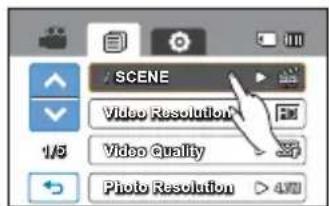
text_image
SCENE Video Resolution 1/5 Video quality Photo Resolution > 4W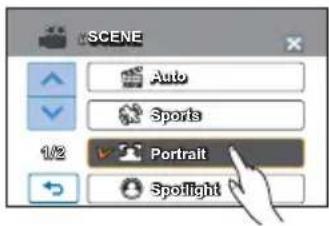
text_image
SCENE Auto Sports 1/2 Portrait SpotlightSubmenu items
• Auto: Under normal conditions, recording naturally.
- Sports (✿): Recording people or objects in motion.
• Portrait (re): Recording skin color naturally.
- Spotlight (●): When strong light strikes the object.
- Beach/Show (☐): Where reflection of light is intense such as a snowfi eld or beach.
• Food (m): To make food more colorful.
- Candle Light (●): Recording in the soft glow of candlelight.
- Indoor (💡): Indoor with artificial light.
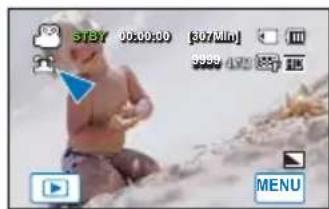
text_image
STBY 00:00:00 [307Min] 1m 9:00 AM 125 MP MENU
When you specify "Aperture:Manual" or "Shutter:Manual," the i SCENE mode is cancelled. (Manual Aperture/Manual Shutter priority)
advanced recording
Video Resolution
You can select the resolution of the video to be recorded.
PRECHECK!
Select the record mode by pressing the MODE button. →page 23
- Touch the Menu ( ) tab → "Video Resolution."
- Touch the desired submenu item.
- To exit the menu, touch the Exit (✗) or Return (✗) tab.
Submenu items
• [HD]1080/60i (☐): Records in the HD (1920x1080/60i) format.
• [HD]720/60p (HD): Records in the HD (1280x720/60p) format.
- [SD]480/60p (SD): Records in the SD (720x480/60p) format.
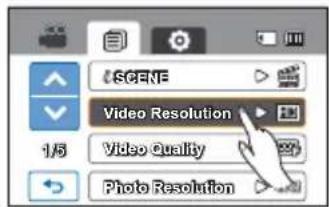
text_image
SCENE Video Resolution 1/5 Video Quality Photo Resolution
text_image
Video Resolution [HD]1080/60i [IHD]720/60p IHD 480/60p
- “60i” indicates the camcorder will record in interlaced scan mode at 60 fi elds per second.
- “60p” indicates the camcorder will record in progressive scan mode at 60 frames per second.
- Recorded fi les are encoded using Variable Bit Rate (VBR). VBR is an encoding system that automatically adjusts the bit rate according to the recording image.
- The available video recording time differs according to the video resolution you select.
Video Quality
You can select the quality of the video to be recorded.
PRECHECK!
Select the record by pressing the MODE button. → page 23
- Touch the Menu (v) tab → "Video Quality."
- Touch the desired submenu item.
- To exit the menu, touch the Exit (☒) or Return (☐) tab.
Submenu items
- Super Fine (Records videos at the super fi ne image quality.
- Fine (☐): Records videos at the fi ne image quality.
- Normal (☐): Records videos at the normal image quality.
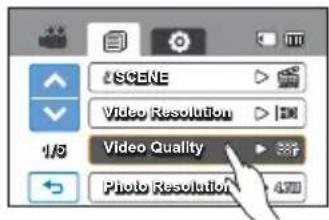
text_image
SCENE Video Resolution 1/5 Video Quality Photo Resolution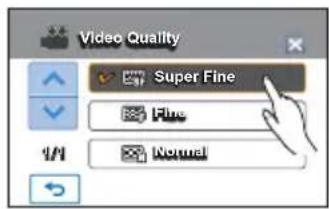
text_image
Video Quality Super Fine Fine Normal
The higher the resolution is, the shorter the available recording time. On the other hand, the lower the resolution, the longer the available recording time.
Photo Resolution
You can select the resolution of the photo to be recorded.
PRECHECK!
Select the record mode by pressing the MODE button. →page 23
- Touch the Menu ( ) tab → "Photo Resolution."
- Touch the desired submenu item.
- To exit the menu, touch the Exit (☒) or Return (☐) tab.
Submenu items
• 2880x1620 (6.57%) : Records in the 2880x1620 resolution.
• 1920x1080 (☐): Records in the 1920x1080 resolution.

text_image
iSCENE Video Resolution 1/6 Video quality Photo Resolution
text_image
Photo Resolution ✓ 2880x1620 1920x1080 1/1
- The number of recordable images differs according to the photo resolution you select.
- Photos that are recorded on your camcorder may not playback properly on other digital devices that do not support these photo sizes.
Photo Sharpness
This function lets you create a sharper or softer image by processing the image after you've recorded the photo.
PRECHECK!
Select the record mode by pressing the MODE button. →page 23
- Touch the Menu ( ) tab → "Photo Sharpness."
- Touch the desired submenu item.
- To exit the menu, touch the Exit (☒) or Return (☐) tab.
Submenu items
- Soft ( ) Smooths the edges of photo images. Makes image softer.
- Normal (☐): The photo images appear with sharp edges and are suitable for printing.
- Sharp (☐): Sharpens the edges in photo images further.
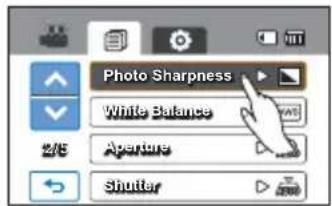
text_image
Photo Sharpness White Balance Aperture Shutter
text_image
Photo Sharpness Soft Normal Sharpadvanced recording
White Balance
Using the White Balance function, you can select a setting that matches the light illuminating the subject you are shooting (Daylight, Fluorescent, etc.). Based on your selection, the camcorder automatically adjusts the color of the subject so the colors in your recording look natural.
PRECHECK!
Select the record by pressing the MODE button. →page 23
-
Touch the Menu () tab → "White Balance."
-
Touch the desired submenu item.
• To set the white balance manually, see page 57.
- To exit the menu, touch the Exit (☒) or Return (☐) tab.
Submenu items
• Auto: Controls the white balance automatically depending on the recording conditions.
- Daylight (☀): Controls the white balance according to the outdoor lighting.
- Cloudy (☐): For recording in the shade or cloudy weather.
- Fluorescent (⇔): For recording under white fluorescent lights.
- Tungsten (♀): For recording under halogen lamps and incandescent lights.
- Custom WB (☐): You can manually adjust the white balance to match the light source or situation.

text_image
Photo Sharpness White Balance Aperture Shutter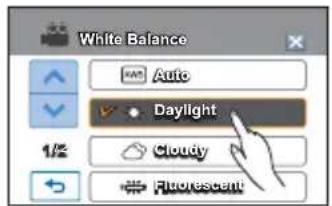
text_image
White Balance Auto Daylight Cloudy FluorescentUnderstanding White Balance
White balance (WB) is the process of removing unrealistic color casts, so that objects which appear white are rendered white in your image. Proper white balance has to take into account the “color temperature” of a light source, which refers to the relative warmth or coolness of white light.
To set the white balance manually
-
Touch the Menu ( ) tab → "White Balance" → "Custom WB." • The "(Set White Balance" indicator is displayed.
-
Fill the screen with a white object, and touch the (OK) tab. • The white balance setting is stored.
-
To exit the menu, touch the Exit (☒) or Return (☐) tab. • The stored white balance setting will be applied the next time you record.

text_image
White Balance Ungsten Custom WB 2/2
text_image
White thick paper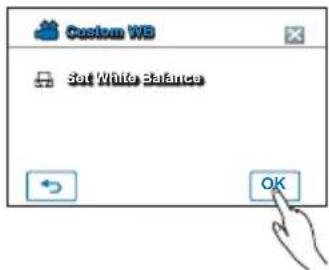
text_image
Custom WB Set White Balance OK
- When setting the white balance manually, the subject must be white, otherwise, your camcorder may not detect an appropriate setting value.
• The adjusted setting remains until you set the white balance again. - During normal outdoor recording, setting White Balance to "Auto" may provide better results.
- Cancel the digital zoom function for clear and precise white balance setting.
- Reset the white balance if light conditions change.
advanced recording
Aperture
The camcorder adjusts the aperture automatically depending on the subject and recording conditions. You can also manually adjust the aperture.
PRECHECK!
Select the record by pressing the MODE button. →page 23
-
Touch the Menu () tab → "Aperture".
-
Touch the desired submenu item.
-
To exit the menu, touch the Exit (☒) or Return (☐) tab.
Submenu items
• Auto: Sets the aperture value automatically.
- Manual (☒ FXX): Touch decrease (→ or increase ( ) tab) to adjust the aperture. You can choose from the following settings:
F1.8, F2, F2.8, F4, F5.6, F8, F11, F16
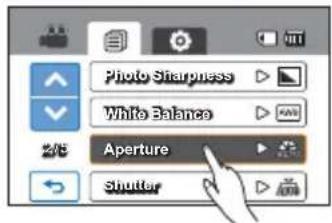
text_image
Photo Sharpness White Balance Aperture Shutter
text_image
Aperture Auto Manual 1/1Understanding Aperture
You can adjust the aperture value to control the amount of light reaching the image sensor.
You need to adjust the aperture value in the following cases:
- When you are shooting against the light or when the background is too bright.
- When you are shooting on a reflective natural background such as at the beach or when skiing.
- When the background is overly dark (for example, scenery at night).

When you specify "Aperture: Manual," the i SCENE mode is cancelled and "Shutter" is set to "Auto" automatically. (Manual Aperture priority)
Shutter
The camcorder automatically sets the shutter speed depending on the scene's brightness. You can also manually adjust the shutter speed.
PRECHECK!
Select the record by pressing the MODE button. →page 23
- Touch the Menu ( ) tab → "Shutter."
- Touch the desired submenu item.
- To exit the menu, touch the Exit (☒) or Return (☐) tab.
Submenu items
- Auto: The camcorder automatically sets the appropriate shutter speed value.
- Manual (1/XX): Touch decrease (or increase ( ) tab to adjust the setting values. You can choose from the following settings: 1/60, 1/100, 1/250, 1/500, 1/1000, 1/2000, 1/4000, or 1/10000.
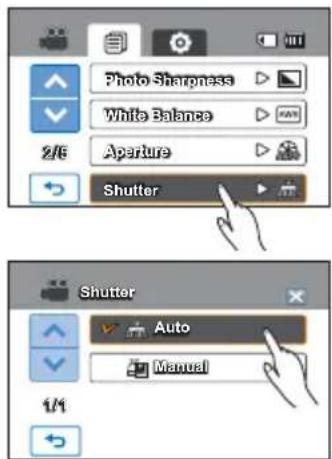
text_image
Photo Sharpness White Balance Aperture 2/6 Shutter Shutter Auto Manual 1/4
- The image may not seem smooth when you set a high shutter speed.
- When recording with a shutter speed of 1/1000 or higher, make sure the sun is not directly shining into the lens.
- When you specify "Shutter: Manual," the iSCENE mode is cancelled and "Aperture" is set to "Auto" automatically. (Manual Shutter priority)
- For photos, the maximum shutter speed is 1/2000.
EV
Using the EV function, you can manually adjust the video and photo image brightness.
PRECHECK!
Select the record mode by pressing the MODE button. →page 23
- Touch the Menu ( ) tab → "EV."
- Touch the decrease (−) or increase (+) tab to adjust the setting values. You can choose from the following settings:
• EV values (☐): -2.0, -1.5, -1.0, -0.5, 0, +0.5, +1.0, +1.5, +2.0 - To exit the menu, touch the Exit (☒) or Return (☐) tab.

text_image
-0.5 +Understanding EV (Exposure Value)
Exposure value is the total amount of light allowed to fall on the photographic medium (Image sensor) during the process of taking photos or videos.
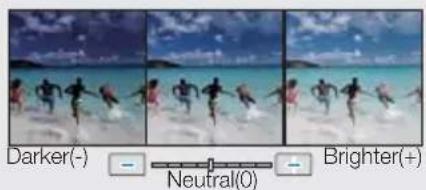
natural_image
Beach scene with dancers in action, labeled with color adjustment controls (Darker(-), Neutral(0), Brighter(+))advanced recording
Focus
The camcorder usually focuses on a subject automatically (auto focus). When you turn the camcorder on, focus is always set to automatic. You can also manually focus a subject.
PRECHECK!
Select the record mode by pressing the MODE button. →page 23
- Touch the Menu ( ) tab → "Focus."
- Touch the desired submenu item.
- To exit the menu, touch the Exit (☒) or Return (I)-tab.
Submenu items
- Auto: In most situations, it is better to use the automatic focus feature, as it enables you to concentrate on the creative side of your recording.
- Manual (38): You may need to focus manually under certain conditions that make automatic focusing difficult or unreliable.
Touch (◀) or (▶) to adjust the focus.
- Touch Point (☐): To focus on a subject shown on the LCD screen, simply touch the subject on the screen.
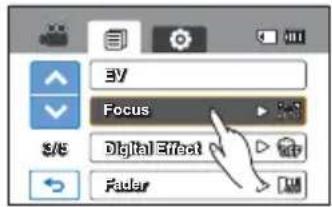
text_image
BY Focus S/E Digital Effect Fader
text_image
Focus Auto Manual 1/1 Touch PointFocusing manually during recording
This camcorder automatically focuses a subject from close-up to infinity. However, the camcorder may not focus correctly, depending on the recording conditions. In this case, use the manual focus mode.
Focusing on a nearer subject
To focus on a nearer subject, touch the nearer subject (◀) tab.
Focusing on a further subject
To focus on a further subject, touch the further subject (☐) tab.
- The nearer or further icon (n/) appears in the center when focus adjustment reaches the end.
- The adjusted value is applied right after touching the (▶) or (▶)tab.


natural_image
Sunflower photo with 30cm measurement overlay and control buttons (no readable text or symbols)Tip
You may obtain better results by adjusting the focus manually when recording the following:
- A picture containing several objects, some close to the camcorder, others further away.
• A person enveloped in fog or surrounded by snow.
• Very shiny or glossy surfaces like a car.
• People or objects moving constantly or quickly like an athlete or a crowd.
Using the touch point
Using the Touch Point function, you can focus on a small section of the picture. Focus on the particular point by touching the desired point.

natural_image
Sunflower with a finger pointing at the center, set against a green field background (no text or symbols visible)Tip
To activate the touch point with a long touch
You can activate the touch point by pressing the same point for about 1 second on the LCD screen.
One-touch photo recording
You can focus on your subject and take a photo with a touch of your finger. When the touch point function is enabled, simply touch the subject shown on the LCD screen that you would like to focus on, then hold for about 3 seconds.

natural_image
Close-up photo of a sunflower with green foliage, captured in an outdoor setting (no visible text or symbols)
- The Auto Focus (AF) setting is useful when you operate the zoom function because you might not be able to keep accurate focus after the zoom ratio has been changed.
- In the manual focus setting menu screen, auto focus is available by using the AF (✗) tab on the screen. You can return to manual focus by touching the manual focusing tabs.
- When the Touch Point function is enabled, you can touch the AF (✗) tab on the LCD screen to set the "Focus" to "Auto."
• To disable the Touch Point function, set "Focus" to "Auto."
Digital Effect
Using the Digital Effect function gives your recording a creative look.
PRECHECK!
Select the record mode by pressing the MODE button. →page 23
- Touch the Menu ( ) tab → "Digital Effect."
- Touch the desired submenu item.
- To exit the menu, touch the Exit () or Return () tab.
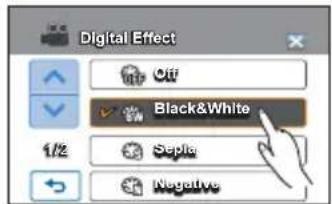
text_image
Digital Effect Cut Black&White 1/2 Septa NegativeExamples of 5 Digital Effect options

Off
Without any Digital Effect, a normal, natural image is displayed during recording or playback.

Negative (
This mode reverses the colors, creating a negative image.

Black & White


Sepia (2)

This mode gives the image a reddish brown look.
This mode helps adjust for facial imperfections.
advanced recording
Fader
You can give your recording a professional look by using special effects such as fade in at the beginning of a sequence or fade out at the end of a sequence.
PRECHECK!
Select the record mode by pressing the MODE button. →page 23
- Touch the Menu ( ) tab → "Fader."
- Touch the desired submenu item.
- To exit the menu, touch the Exit (☒) or Return (☐) tab.
Submenu items
• Off: Disables the function
• In (☐): As soon as you start recording, it will fade in.
• Out (m): When the recording is done, it will fade out.
- In-Out (☐): When you start or stop recording, the fader will be function accordingly.
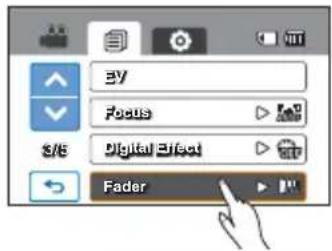
text_image
BY Focus Digital Effect Fader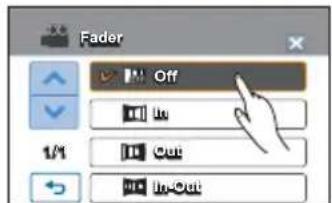
text_image
Fader Off In 1/1 Out In-OutRecording a video with Fade effect
Fade in
Press the Recording start/stop button when "Fader" is set to "In."
Recording starts with a dark screen and then the image and sound are faded in.
Fade out
Press the Recording start/stop button when "Fader" is set to "Out."
Recording stops as the image and sound are faded out.
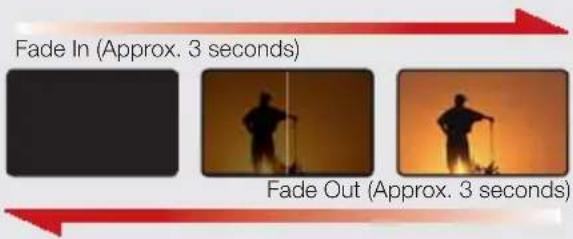
text_image
Fade In (Approx. 3 seconds) Fade Out (Approx. 3 seconds)Fade in-out
Press the Recording start/stop button when "Fader" is set to "In-Out."
Recording starts with a dark screen and then the image and sound are faded in.
Recording stops as the image and sound are faded out.

The camcorder automatically turns the Fader function off after it has been used once. You must reset it each time you want to use it.
Tele Macro
Using the Tele Macro function, you can get close up images which are created by focusing on a small portion of a large object at a wide angle. The effective focal distance in the Tele Macro mode is between 1 to 50 cm. (0.4 to 19.7 inches)
PRECHECK!
Select the record mode by pressing the MODE button. →page 23
- Touch the Menu () tab →"Tele Macro."
- Touch the desired submenu item.
- To exit the menu, touch the Exit ( ) or Return ( ) tab.
Submenu items
• Off: Disable the function.
- On ( ) You can focus on a small portion of a large object at a wide angle.

- When recording in Tele Macro mode, the focus speed may be lowered.
- Use a tripod (not supplied) to prevent camcorder shake in the Tele Macro mode.
- Avoid shadows when recording in the Tele Macro mode.
- As the distance to the subject decreases, focusing area narrows.
- If you can not get proper focus, move the Zoom button or Zoom lever to adjust the focus.

text_image
Tele Macro Cont. Shot Wind Out Digital Zoom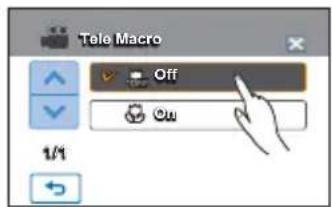
text_image
Tele Macro Off 1/1Cont. Shot
This function allows you to capture photos in succession to give you more photo-taking opportunities when recording moving subjects.
PRECHECK!
Select the record mode by pressing the MODE button. →page 23
- Touch the Menu () tab → "Cont. Shot."
- Touch the desired submenu item.
- To exit the menu, touch the Exit (☒) or Return (☐) tab.
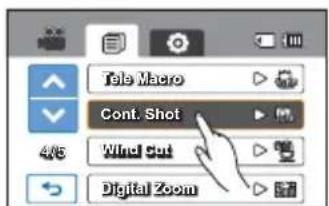
text_image
Tele Macro Cont. Shot Wind Out Digital ZoomSubmenu items
• Off: Records only one photo image.
- On (☐): When pressing the PHOTO button, you can take up to 8 photos in one second.

text_image
Cont. Shot Off On
- When an error occurs (internal memory full, etc.) during continuous shot, the recording stops and an error message is displayed.
- When "Cont. Shot" is set to "On," the photo resolution is fixed at 1920 x 1080.
advanced recording
Wind Cut
Using the Wind Cut function, you can reduce wind noise when recording sound using the built-in microphone.
PRECHECK!
Select the record mode by pressing the MODE button. →page 23
- Touch the Menu ( ) tab → "Wind Cut."
- Touch the desired submenu item.
- To exit the menu, touch the Exit (☒) or Return () tab.
Submenu items
• Off: Disables the function.
- On (☐): Reduces wind noise when recording sound using the built-in microphone.

Using the Wind Cut function also removes some low frequency sound with the wind noise.

text_image
Tate Macro Cont. Shot Wind Cut Digital Zoom Wind Cut Off On 1/1Digital Zoom
The digital zoom enables higher zoom magnifi cation than the optical zoom. Digital zoom can electronically magnify the image created by the optical lense up to 4000 times.
PRECHECK!
Select the record mode by pressing the MODE button. →page 23
- Touch the Menu ( ) tab → "Digital Zoom."
- Touch the desired submenu item.
- To exit the menu, touch the Exit (☒) or Return (☐) tab.
Submenu items
• Off : Disables the function.
- On: Enables digital zoom and higher zoom magnifi cation.

With the digital zoom, the image is digitally processed more than in the optical zoom modes. As a result, the image resolution may deteriorate.
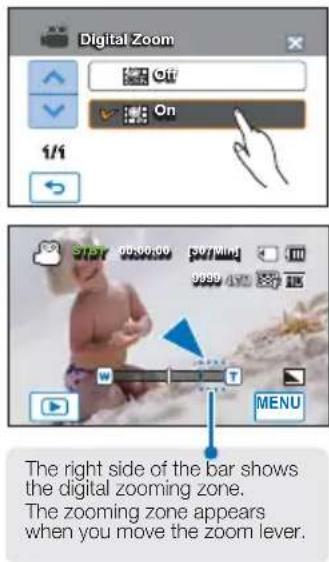
text_image
Digital Zoom Off On 1/1 S757 90500300 907MIM 9899 47% MENU The right side of the bar shows the digital zooming zone. The zooming zone appears when you move the zoom lever.Self Timer
When the self-timer is enabled, there is a time delay between the time you press the Record start/Stop or PHOTO button and the time the camcorder takes the picture or records the video. You can use this function when you want to take a shot of many people including yourself.
PRECHECK!
Select the record mode by pressing the MODE button. →page 23
- Touch the Menu ( ) tab → "Self Timer."
- Touch the desired submenu item.
- To exit the menu, touch the Exit (☒) or Return (☐) tab.
Submenu items
• Off: Disables the function
- 10 Sec ( ): There is a time delay of 10 seconds after you press the Record Start/Stop or PHOTO button.

text_image
Self Timer Time Lapse F quick View Guideline
text_image
Self Timer Off 10 Sec 1/1
The camcorder automatically turns the Self Timer function off after it has been used once. You must turn it on each time you want to use it.
advanced recording
Time Lapse REC
Using the Time Lapse feature, you can program your camcorder to create a time lapse video by recording a series of frames over a set period of time with a set time interval between each frame. The Time Lapse feature lets you create time lapse videos of blooming flowers and similar subjects.
PRECHECK!
Select the record mode by pressing the MODE button. →page 23
To record in the Time Lapse REC mode, you must set the recording interval between frames and the total time the camcorder will record in Time Lapse, using the menu.
- Touch the Meun (MENU) tab. → "Time Lapse REC" → "On."
• The menu screen appears.
-
Touch the desired items (Interval, Rec Limit) and then touch the up (▲) or down (.) tab to set the values.
-
Touch the (OK) tab to finish the setting.
-
To exit the menu, touch the Exit (☒) or Return (☐) tab.
-
After setting the Time Lapse REC mode, press the Recording start/stop button.
-
Then the Time Lapse recording starts.
- Time Lapse REC only supports the [HD]720/60p resolution and Super Fine quality.

text_image
Self Timer Time Lapse REC Quick View Guideline
text_image
Time Lapse REC Off On 1/1
text_image
Time Lapse REC Interval REC limit 1 24 Sec/ HR REC Time : 24Min F:DJ/20/60P SF OKSubmenu items
• Off: Disables Time Lapse REC.
- On (☐):
- Interval ("Sec"): Image of the subject is captured at a set interval. Images are automatically shot a frame at a time at the specified interval and stored in the storage media. 1 → 3 → 5 (seconds).
- REC Limit ("Hr"): Total time camcorder will record in Time Lapse mode. 24 → 48 → 72 (hours).
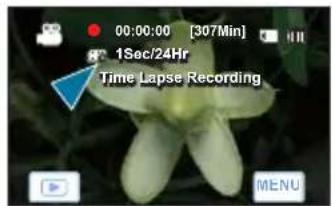
text_image
00:00:00 [307Min] 1Sec/24Hr Time Lapse Recording MENUExample of Time Lapse Recording
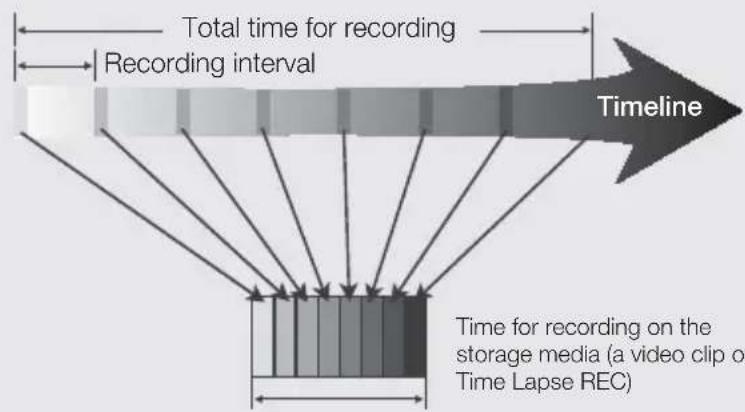
text_image
Total time for recording Recording interval Timeline Time for recording on the storage media (a video clip of Time Lapse REC)The Time Lapse Recording function records image frames at a predefined interval over the total recording time to produce a time-lapse video.
Time Lapse Recording is useful for filming in the following situations:
- Blooming flowers
• A bird building a nest
• Clouds rolling by in the sky

natural_image
Close-up photo of a pale yellow flower with five petals on dark background (no text or symbols visible)→
natural_image
Close-up of a white flower with purple center, no visible text or symbols[Non-Text]

natural_image
Close-up of a purple flower with visible petals and center, captured in a video editing interface (no text or symbols on the flower itself)
- Time lapse recording mode is released once recording has been finished. To start another Time Lapse Recording, repeat steps 1 through 5.
- 60 captured images compose a video of 1 second length. Since the minimum length of a video your camcorder can save is one second, the interval you set defines how long the time lapse recording should be. For example, if you set the interval to "30 Sec," total recording time should be set to at least 1 hour to record a minimum video length of 2 seconds (120 images).
- Once the time lapse recording finishes recording for its total recording time, it switches to the standby mode.
- Press the Recording start/stop button if you want to stop the time lapse recording.
• Audio is not recorded during time lapse recording. - If a video recording fills up 1.8GB of storage memory, a new recording file is automatically started at that point.
- If the battery charge is exhausted during the time lapse recording, the camcorder saves the recording up to that point and switches to standby mode. After some time, it displays a warning message, then turns off automatically.
- If memory runs out during a Time Lapse REC, the camcorder switches to standby mode after saving what was recorded so far.
- During Time Lapse REC, the zoom and focus functions are fixed so that you cannot change the settings. Even if the subject is moved, you cannot change the focus.
- When a time lapse recording starts, the "Time Lapse Recording" message blinks on the screen and it appears that the screen has stopped. This is a normal operation; do not remove the power source or memory card from the camcorder.
• We recommend using the AC power adaptor for a time lapse recording.
advanced recording
Quick View
Using the Quick View function, you can view the most recently recorded video and photo images as soon as the recording is finished.
PRECHECK!
Select the record mode by pressing the MODE button. →page 23
- Touch the Menu ( ) tab → "Quick View."
- Touch the desired submenu item.
- To exit the menu, touch the Exit (☒) or Return (☐) tab.
Submenu items
- Off: Quick View icon does not appear on the screen after you finish the recording.
- On: Quick View icon appears on the screen as soon as you fi nish the recording. Touch the Quick View icon to view the most recent video or photo you have recorded. After the Quick View is completed, your camcorder switches back to the standby mode.
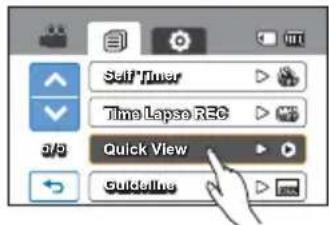
text_image
Self*Timer Time Lapse REG Quick View Guideline
text_image
Quick View Off OnTip If you touch the delete (i) tab during Quick View, the file is deleted.

text_image
00:00:05 100:00:50 100_0013 Quick View
• The Quick View function is not available under the following conditions:
- If the mode has been changed after the recording
- If the USB cable is connected to the camcorder.
- If the camcorder has been restarted after the recording
- After playing Quick View
- For photos recorded with the "Cont. Shot," only the most recent file is played.
Guideline
Guideline displays straight line patterns on the LCD screen that can help you set the image composition when recording images. The camcorder provides 3 types of guidelines.
PRECHECK!
Select the record mode by pressing the MODE button. →page 23
-
Touch the Menu ( ) tab → "Guideline."
-
Touch the desired guideline according to the subject.
- The selected guideline appears on the screen.
- To exit the menu, touch the Exit (☒) or Return (☐) tab.
Submenu items
• Off: Disables the function.
- Placing the subject at the center cross point puts the subject in the middle of the frame.
- Positioning subjects within the Safety Zone rectangle ensures they will be recorded.
• For recording multiple subjects. Putting subjects at or near the grid cross points creates a balanced composition.

text_image
Self Timer Time Lapse REC Quick View Guideline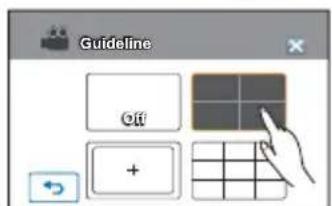
text_image
Guideline Off +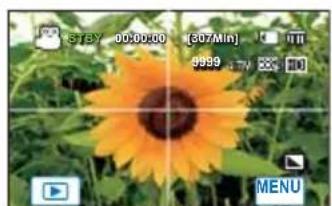
natural_image
Sunflower photo with green foliage and a camera interface overlay (no readable text or symbols in the flower image)
- Positioning a subject at the cross point of a guideline provides a balanced composition.
• Guidelines are not recorded.
advanced playback
Play Option
You can select a specific playback option according to your preference.
PRECHECK!
Touch the Play (▶)→ HD (▶HD ) or SD (▶SD ) tab on the LCD screen. ↘page 43
- Touch the Menu (MENU) tab → "Play Option."
- Touch the desired submenu item.
- To exit the menu, touch the Exit (☒) or Return () tab.
Submenu items
- Play All (A) Plays video clips in succession starting from the selected video to the last one, then returns to the thumbnail index view.
- Play One (1.): Plays the selected video once, and then returns to the thumbnail view.
- Repeat All (☐): Plays all the video clips repeatedly until the Return (☐) tab is touched.
- Repeat One (☐): Plays one selected video repeatedly until the Return (←) tab is touched.
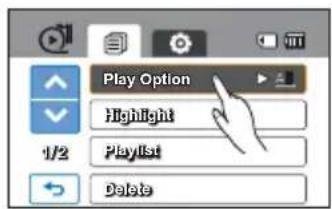
text_image
Play Option Highlight 1/2 Playlist Delete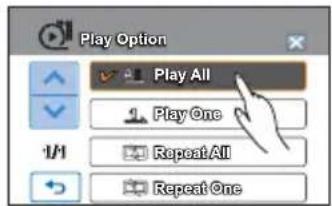
text_image
Play Option Play All Play One Repeat All Repeat OneHighlight
The Highlight function plays a portion of the recorded video or videos at random.
PRECHECK!
Touch the Play (▶)→ HD (▶HD ) or SD (▶SD ) tab on the LCD screen. → page 43
- Touch the Menu () tab. → "Highlight."
- Touch the desired submenu item.
-
To exit the menu, touch the Exit (☒) or Return (☐) tab.
-
When the highlight view is finished, the video thumbnail view appears.
- In the highlight play mode, you can adjust the volume by touching the screen. You can also cancel the playback.
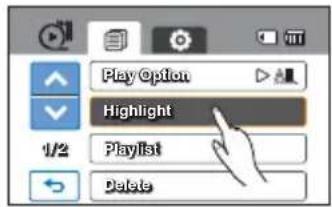
text_image
Play Option Highlight 1/2 PlayList Delete
text_image
Highlight Recent AllSubmenu items
- Recent (R): Shows a portion of the videos that were created within the last 24 hours.
• All (A): Shows a portion of all video files.
Tip
Ratio of Highlight playback time to the recording time for a video
| Time recorded Highlight playback time |
| Less than 5 sec. Full playback |
| 5 to 30 sec. Plays 5 seconds. |
| 30 sec. to 5 min. Plays 5 seconds of each 30 second section. |
| 5 min. to 10 min. Plays 11 seconds of each 2 minute section. |
| Over 10 min. Plays 15 seconds of each 3 minute section. |

If you run the Highlight function in the date thumbnail display, Highlight plays random portions of all the files in the selected date set.
advanced playback
iVIEW
This function provides a preview of a storyboard to be printed, giving you a digest of a recorded video so you don't need to review the entire video.
PRECHECK!
Touch the Play (▶)→ HD (▶HD) or SD (▶sD) tab on the LCD screen. → page 43
-
Press the VIEW button.
-
Touch the desired video.
• 16 i-Frame images appear on the LCD screen.
- The images from the video are selected arbitrarily, and comprise the preview of the storyboard to be printed.
- When you select a thumbnail among 16 i-Frame images, playback starts from the thumbnail.
- To save the storyboard image on the storage media, touch the Story-board print (☐) tab → "Yes."
- You can find the saved storyboard image in the photo thumbnail view.
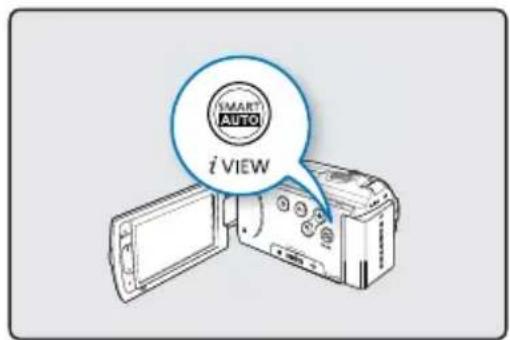
text_image
SMART AUTO i VIEW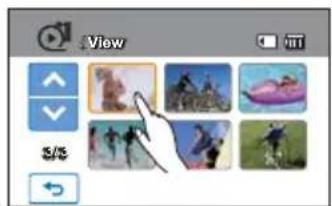
text_image
View S/S
natural_image
Grid of 16 small grayscale images with varying shapes and colors, no visible text or symbols
iView cannot extract 16 i-Frames in the following cases:
- If thumbnails are displayed by date ( ).
- The recorded video is too short. To extract 16 i-Frame thumbnails from a video, its recorded time should be longer than 32 seconds.
Story-Board Print
Using Storyboard Printing, you can make a digest image of a video that summarizes its story. This function captures 16 still images arbitrarily from the selected video and makes up one still image of 16 splits you can save into the storage media. It presents a quick overview of your video, helping you to understand the whole narrative of the video.
PRECHECK!
Touch the Play (▶)→ HD (▶HD ) or SD (▶SD ) tab on the LCD screen. → page 43
-
Touch the Menu ( ) tab → "Story-Board Print."
-
Touch the desired video → "Yes."
-
The printed storyboard image file appears on the LCD screen for a period of time.
- The images are selected arbitrarily, and comprise a storyboard of one still image with 16-split still frames.
- You can also find the saved storyboard image in the photo thumbnail view.

- The Story-Board Print function is not available under the following conditions:
- If free space available on the storage media is insufficient.
- The storyboard printing may not show all 16 i-Frame thumbnails in the following case:
- The recorded video is too short. To extract 16 i-Frame thumbnails from a video, its recorded time should be longer than 32 seconds.

text_image
Protect Story-Board Print 2/2 Edit File Info Story-Board PrintFile Info
You can see the image information for all images.
PRECHECK!
Touch the Play (☐) tab on the LCD screen to select the play mode. →page 23
-
Touch the Menu ( ) tab → "File Info."
-
Select the fi le you want to view the fi le information for.
• The information of the selected file appears.
- To exit the menu, touch the Return (←) tab.

text_image
Protect Story-Board Print 2/2 Edit File Info 100VIDEO HDV_0017.MP4 Date : JAN.01.2010 Duration : 00:00:05 Size : 9.56MB Resolution : HD 1080 60i Fsystem setting
Storage Type (HMX-H203/H204/H205 only)
You can record videos and photos on the internal memory or a memory card. Select the desired storage media before starting recording or playback. →page 27
Storage Info (HMX-H203/H204/H205 only)
This function shows you the storage information of the selected storage media, such as used and available memory space, etc.
PRECHECK!
Insert a memory card in the camcorder before viewing the storage information.
-
Touch the Menu (MENU) → Setting (Tab) → "Storage Info."
-
Touch the desired submenu item.
- Used memory space, available memory space, and recordable time appears. Available space and recordable time depend on the video resolution you've selected.
- To exit the menu, touch the Return (→) tab.
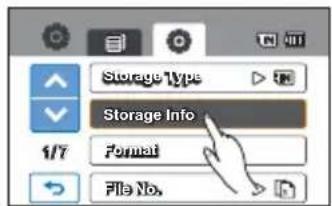
text_image
Storage Type Storage Info Format File No.Submenu items
- Internal Memory: Displays the storage information of the internal memory.
- Card: Displays the storage information of the memory card.
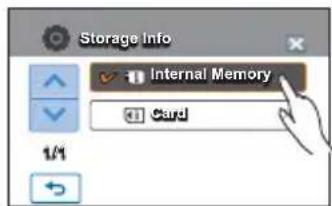
text_image
Storage Info ✓ Internal Memory ✓ Card 1/1Card Info (HMX-H200/H220 only)
This function shows you the storage information of the memory card, such as used and available memory space, etc.
PRECHECK!
Insert the memory card in the camcorder before viewing the storage information.
- Touch the Menu ( ) → Setting ( ) tab → "Card Info."
- Used memory space, available memory space, and recordable time appears. Available space and recordable time depend on the video resolution you've selected.
- To exit the menu, touch the Return (→) tab.

text_image
Card • Used: 40.5MB • Free: 30.8GB [HD]1080/60i Super Fine : 253Min Fine : 307Min Normal : 390MinFormat
Use this function if you want to delete all files completely or to correct problems on the storage media.
PRECHECK!
You can completely delete all fi les and options on the storage media, including protected fi les. This enables stable speeds and operation when accessing the storage media. Be aware that all fi les and data including protected fi les will be erased.
-
Touch the Menu (MENU) → Setting (Tab) → "Format."
-
Touch the desired submenu item. (HMX-H203/H204/H205 only) • A message appears asking about formatting the memory card.
-
Touch "Yes." • The format is executed with a message.

text_image
Card Info Format 1/6 File No. Time ZoneSubmenu item (HMX-H203/H204/H205 only)
- Internal Memory: Formats the internal memory.
• Card: Formats the memory card.

- Do not remove the storage media or perform any other operation (such as turning off the power) during formatting. Also, be sure to use the provided AC power adapter, as the storage media may be corrupted if the battery becomes exhausted during formatting.
- If the storage media becomes corrupted, format it again.

- Do not format the storage media on a PC or other device.
Make sure to format the storage media on this camcorder. - A memory card with the protection tab set to lock cannot be formatted. page 29
- If there is no storage media inserted, it can not be selected and its name will be dimmed on the menu.
- Run memory card format by touching "Format." (HMX-H200/H220 only)
system setting
File No.
File names (numbers) are assigned to recorded images according to the numbering option you select.
- Touch the Menu (MENU) → Setting (Tab) → "File No."
- Touch the desired submenu item.
- To exit the menu, touch the Exit (☒) or Return (☐) tab.
Submenu items
- Series : Assigns file numbers in sequence even after you replace or format the storage media or delete all fi les. Each fi le is given a unique fi le number that allows convenient image management on a PC.
- Reset: Resets the file number to 0001 after formatting or deleting all files or inserting a new memory card.

text_image
Card Info Format 1/6 File No. *Time Zone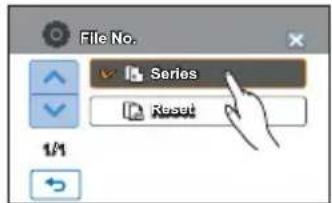
text_image
File No. ✓ Series Reset 1/1
When you set "File No." to "Series." each file is assigned a different number to avoid duplicating file names. It is convenient when you want to manage your files on a computer.
Time Zone
You can easily set the clock to the local time when using your camcorder while traveling.
- Touch the Menu ( ) tab → Setting ( ) tab → "Time Zone" → "Visit."
2 Touch the left (◀) or the right (▶) tab to select the visited area. - Touch the (OK) tab when the time zone setting is completed.
- The time zone set value is not applied if you finish the setting with the (→) tab without touching the (→) tab.
Submenu items
- Home: The clock will be used according to your setting on the Date/Time Set menu. Select it when using this camcorder for the first time or when returning the clock to your hometown date/time setting.
- Visit (✗): When you visit a different time zone, it allows you to use the local time without changing your hometown time setting. The clock will be adjusted in accordance with the time difference between the two locations.

text_image
Card Info Format 1/6 File No. Time Zone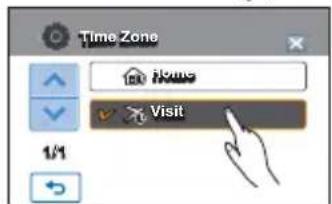
text_image
Time Zone 1/1 Visit
text_image
Visit London, Lisbon [HOME 00:00] JAN/01/2010 12:00AMCities used to set the time zone
| Cities Time zone Cities Time zone | |||
| London, Lisbon +00:00 Adelaide +09:30 | |||
| Rome, Paris, Berlin, Stockholm, Madrid, Frankfurt | +01:00 Guam, Sydney, Brisbane +10:00 | ||
| Athens, Helsinki, Cairo, Ankara +02:00 Solomon Islands +11:00 | |||
| Moskva, Riyadh +03:00 Wellington, Fiji +12:00 | |||
| Teheran +03:30 Samoa, Midway -11:00 | |||
| Abu Dhabi, Muscat | +04:00 | Honolulu, Hawaii, Tahiti | -10:00 |
| Kabul | +04:30 | Alaska | -09:00 |
| Tashkent, Karachi | +05:00 | LA, San Francisco, Vancouver, Seattle | -08:00 |
| Calcutta, New Delhi | +05:30 | Denver, Phoenix, Salt Lake City -07:00 | |
| Kathmandu | +05:45 | Chicago, Dallas, Houston, Mexico City | -06:00 |
| Almaty, Dacca | +06:00 | New York, Miami, Washington D.C., Montreal, Atlanta | -05:00 |
| Yangon | +06:30 | Caracas, Santiago | -04:00 |
| Bangkok | +07:00 | Buenos Aires, Brasilia, Sao Paulo | -03:00 |
| Hong Kong, Beijing, Taipei, Singapore, Manila | +08:00 | Fernando de Noronha | -02:00 |
| Seoul, Tokyo, Pyongyang | +09:00 | Azores, Cape Verde | -01:00 |
Date/Time Set
By setting the date and time, you can display the date and time of the recording during playback. →page 25
Date Type
You can set the display format for the date.
- Touch the Menu (MENU) → Setting (Tab) → "Date Type."
- Touch the desired submenu item.
- To exit the menu, touch the Exit (☒) or Return (☐) tab.
Submenu items
• 2010/01/01 : Displays the date in the year/month (two-digit)/date format.
• JAN/01/2010 : Displays the date month/date/year format.
• 01/JAN/2010 : Displays the date date/month/year format.
- 01/01/2010 : Displays the date in the date/month (two-digit)/year format.
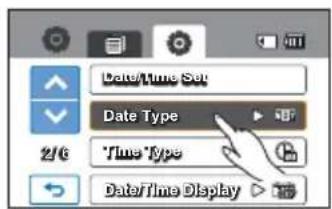
text_image
Date/Time Set Date Type 2/6 *Time Type Date/Time Display
text_image
Date Type 2010/01/01 JAN/01/2010 01/01/2010 01/01/2010
This function depends on the "Date/Time Display" setting.
system setting
Time Type
You can set the display format for the time.
- Touch the Menu (MENU) → Setting (Tab) → "Time Type."
- Touch the desired display option.
- To exit the menu, touch the Exit (☒) or Return (☐) tab.
Submenu items
• 12Hr : Displays the time information in 12 hour units.
• 24Hr : Displays the time information in 24 hour units.

text_image
Date/Time Set Date Type 2/3 Time Type Date/Time Display
text_image
Time Type 12 Hr 24 Hr
This function depends on "Date/Time Display" setting.
Date/Time Display
You can set whether or not the date and/or time are displayed on the LCD screen.
PRECHECK!
Before you use the "Date/Time Display" function, you must set the date and time. →page 78
- Touch the Menu ( ) → Setting ( ) tab → "Date/Time Display."
- Touch the desired submenu item.
- To exit the menu, touch the Exit (☒) or Return () tab.
- The date/time is displayed on the LCD screen according to the selected option.
Submenu items
- Off: Current date/time information is not displayed.
• Date : Displays the current date.
• Time : Displays the current time. - Date & Time: Displays the current date and time.
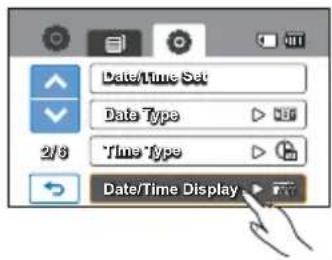
text_image
Date/Time Set Date Type 2/8 Time Type Date/Time Display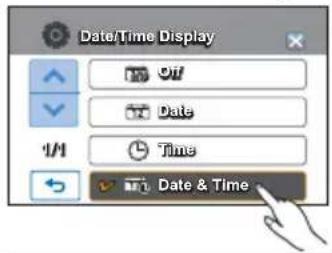
text_image
Date/Time Display Off Date Time Date & Time
text_image
STAY POST POST JANION ZONU YUSUKAM MENU
- The date/time will read "JAN/01/2010 12:00 AM" in the following case:
- When the built-in rechargeable battery is depleted.
- This function depends on "Date Type" and "Time Type" setting.
LCD Brightness
You can adjust the brightness of the LCD screen to compensate for ambient lighting conditions.
-
Touch the Menu (MENU) → Setting (Tab) → "LCD Brightness"
-
Touch the decrease (◀) or increase (▶) tab to adjust the setting values as you want.
• You can set values for LCD brightness between 0 and 35.
- To exit the menu, touch the Exit (☒) or Return (☐) tab.

- If the surrounding is too bright, adjust the brightness of the LCD screen.
- Adjusting the LCD screen does not affect the image being recorded.
- A brighter LCD screen consumes more power.
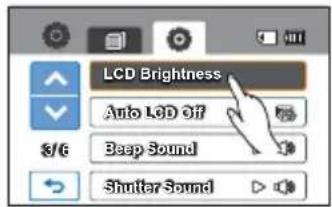
text_image
LCD Brightness Auto LCD Off Beep Sound Shutter Sound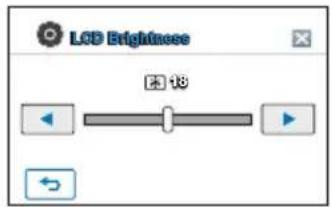
text_image
LCD Brightness 图 18Auto LCD Off
To reduce power consumption, the brightness of the LCD screen is automatically dimmed if the camcorder is idle for more than 2 minutes.
- Touch the Menu (MENU) → Setting (Tab) → "Auto LCD Off."
- Touch the desired submenu item.
- To exit the menu, touch the Exit (✗) or Return (☐) tab.

text_image
LCD Brightness Auto LCD Off Beep Sound Shutter Sound
text_image
Auto LCD Off On On 1/1Submenu items
- Off: Disable the function.
- On: When the camcorder is idle for more than 2 minutes in the STBY mode, or for more than 5 minutes when recording a video, the power saving mode starts by dimming the LCD screen.

< In the STBY mode>
After 2 minutes

After 5 minutes


-
When "Auto LCD Off" function is enabled, you can press any button on the camcorder to return LCD brightness to normal.
• Auto LCD Off will be disabled in the following cases: -
If the AC power adaptor is connected.
- While the Demo function is in operation.
system setting
Beep Sound
The Beep Sound function lets you control whether a beep sounds when you touch certain buttons on the screen.
- Touch the Menu (MENU) → Setting (Tab) → "Beep Sound."
- Touch the desired submenu item.
- To exit, touch the Exit (☒) or Return (☐) tab until the menu disappears.
Submenu items
- Off: Disables the function.
- On: You will hear a beep sound when operating buttons or tabs such as the Power (💡) button or recording start/stop button.
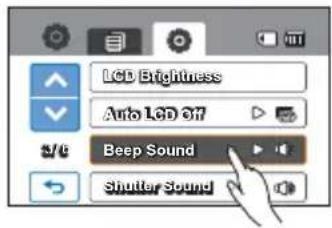
text_image
LCD Brightness Auto LCD Off Beep Sound Shutter Sound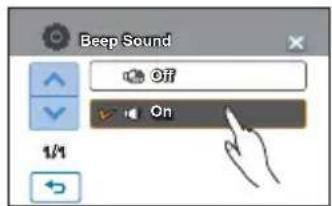
text_image
Beep Sound Off On 1/1
The Beep Sound is canceled in the following cases:
- During recording and playback.
- When the camcorder has a cable connection (component/AV cable, HDMI cable, etc.).
Shutter Sound
The Shutter Sound function lets you turn the shutter sound that plays when you press the PHOTO button on or off.
- Touch the Menu (MENU) → Setting (Tab) → "Shutter Sound."
- Touch the desired submenu item.
- To exit the menu, touch the Exit (☒) or Return (☐) tab.
Submenu items
- Off: Disable the function.
- On: You will hear the shutter sound when you press the PHOTO button.
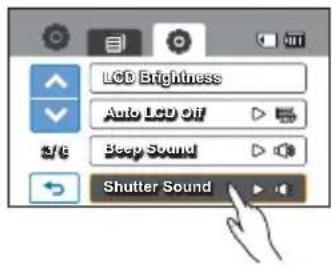
text_image
LCD Brightness Auto LCD Off S/E Beep Sound Shutter Sound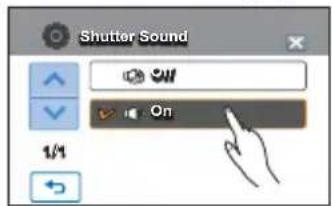
text_image
Shutter Sound ON On 1/1
The Shutter Sound will not play:
- If you press the PHOTO button during video recording.
- When the camcorder has a cable connection (component/AV cable, HDMI cable, etc.).
Auto Power Off
You can set your camcorder to turn off automatically if it is idle for 5 minutes without an operation. This function prevents unnecessary power consumption.
- Touch the Menu (MENU) → Setting (Tab) → "Auto Power Off."
- Touch the desired submenu item.
- To exit the menu, touch the Exit (☒) or Return (☐) tab.
Submenu items
- Off: Disable the function.
- 5 Min: The camcorder turns off if idle for 5 minutes without an operation.
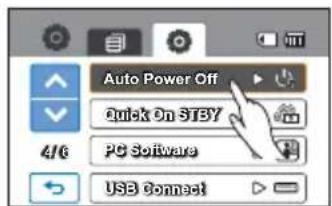
text_image
Auto Power Off Quick On STBY PC Software USB Connect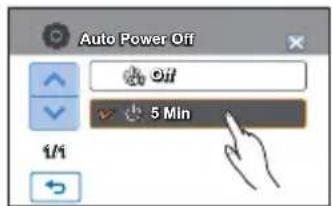
text_image
Auto Power Off Off 5 Min 1/1
• Auto Power Off does not work in the following situations:
- When the camcorder has a cable connection. (HDMI cable, component/AV cable, USB cable, etc.)
- While the Quick On STBY function is in operation.
- While the Demo function is in operation.
- While you are recording, playing (except pause), or running a photo slide show.
- To turn the camcorder on again, press the Power (💡) button.
system setting
Quick On STBY
When you are going to record frequently for an extended time, use the Quick On STBY function. In standby mode, closing the LCD screen starts the Quick On STBY mode to reduce energy consumption. Once you are ready to record again, this function triggers the camcorder to come on quickly from the power saving mode.
-
Touch the Menu (MENU) → Setting (Tab) → "Quick On STBY."
-
Touch the desired submenu item.
-
To exit the menu, touch the Exit (☒) or Return (☐) tab.
- In the standby mode, closing the LCD screen will soon execute the Quick On STBY mode, and then the camcorder turns off after the selected time setting.

text_image
Auto Power Off Quick On STBY PC Software USB ConnectSubmenu items
- Off: In the standby mode, closing the LCD screen turns off the camcorder.
- 5 Min : In the standby mode, closing the LCD screen starts the Quick On STBY mode shortly, and then the camcorder turns off after 5 minutes.
- 10 Min : In the standby mode, closing the LCD screen starts the Quick On STBY mode shortly, and then the camcorder turns off after 10 minutes.
- 20 Min : In the standby mode, closing the LCD screen starts the Quick On STBY mode shortly, and then the camcorder turns off after 20 minutes.

text_image
Quick On STBY Off 5 Min 1/1 19 Min 20 Min
- Turning off the camcorder after use is always recommended to reduce energy consumption. However, as an alternative, you can use the Quick On STBY function under most shooting conditions to reduce energy consumption effectively.
- The mode indicator keeps blinking in the Quick On STBY mode.
• The Quick On STBY mode is not available under the following conditions:
- When the LCD screen is open.
- When a video cable (HDMI, Component/AV) or the USB cable is connected to the camcorder.
- When you operate the buttons on the camcorder.
PC Software
If you set PC Software to On, you can use the PC software built into the camcorder by connecting the camcorder's USB cable to the camcorder and your PC. You can download the stored video and photo images on the camcorder to your PC's hard disk. You can also edit the videos and photos using the PC software.
- Touch the Menu (MENU) → Setting (Tab) → "PC Software."
- Touch the desired submenu item.
- To exit the menu, touch the Exit (☒) or Return ( ) tab.
Submenu items
• Off : Disables the function.
- On: The built-in editing software launches when the camcorder is connected to the PC.
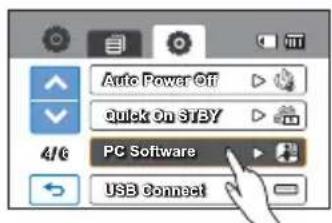
text_image
Auto Power Off quick On STBY 4/6 PC Software USB Connect
text_image
PC Software Off On 1/1
- The PC Software function is not available under the following conditions: - If "USB Connect" is set to "PictBridge"
- To enable the PC Software function, set "USB Connect" to "Mass Storage," in the system setting menu option.
- The PC Software is compatible with the Windows OS only.
system setting
USB Connect
You can transfer data to a PC or print photos directly by establishing the USB connection.
- Touch the Menu (menu) → Setting (tab) → "USB Connect."
- Touch the desired submenu item.
- To exit the menu, touch the Exit (☒) or Return (☐) tab.
Submenu items
- Mass Storage: Connect to a PC to transfer videos or photos. →page 115
- PictBridge : Connect to a PictBridge printer to print photos directly (when using the PictBridge function). →page 100

Before connecting a USB cable, check whether the current USB mode is appropriate for the function you want to use.

text_image
Auto Power Off quick On STBY PG Software USB Connect USB Connect Mass Storage PictBridgeHDMI TV Out
You can set the HDMI video output to match the TV you have connected.
PRECHECK!
Using the HDMI cable (not supplied), connect the camcorder to your TV. →page 102
- Touch the Menu ( ) → Setting ( ) tab → "HDMI TV Out."
- Touch the desired submenu item.
- To exit the menu, touch the Exit (☒) or Return (☐) tab.
Submenu items
- Auto: The video signals are output in the same format as the recorded file. Use this setting only when connecting to an HDTV.
- 480p : The recorded file is output in the 720x480p format. Use this setting only when connecting to a standard, analog TV which supports Standard Definition (SD) progressive scan through its the HDMI jacks.

text_image
HDMI TV Out Analog TV Out *TV Connect Guide *TV Display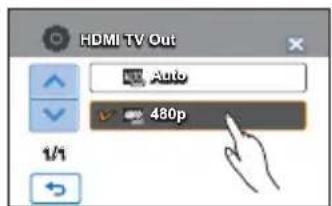
text_image
HDMI TV Out Auto 480p 1/1Analog TV Out
You can set the component or composite video output to match the TV you have connected.
PRECHECK!
- Using the component/AV cable provided with your camcorder, connect the camcorder to your TV. ▶ page 103\~104
-
This camcorder provides a two-in-one component/AV cable that works as both a component and AV cable. When using the component/AV cable, you must select the right camcorder output setting for the TV you have connected on the "Analog TV Out" menu.
-
Touch the Menu ( ) → Setting ( ) tab → "Analog TV Out."
-
Touch the desired submenu item.
- Check the TV type, connection jack, and the resolution of the recorded video before you choose the desired submenu item.
- To exit the menu, touch the Exit (☒) or Return (☐) tab.
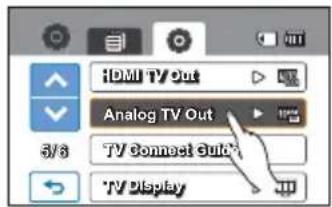
text_image
iDMI TV Out Analog TV Out 3/8 TV Connect Guide *TV DisplaySubmenu items
- Component 1080i (HDB): The recorded file is output in the 1920x1080i format. Use this setting only when connecting to an HDTV by using the component (Y/PB/PR and Audio) jacks.
- Component 480p(1): The recorded file is output in the 720x480p format. Use this setting only when connecting to a standard, analog TV which supports Standard Defi nition (SD) progressive scan through its component (Y/R/P_R and Audio) jacks.
- Component 480i: The recorded file is output in the 720x480i format. Use this setting only when connecting to a standard, analog TV which only supports interlaced SD (Standard Definition) resolution through its component (Y/R/PR and Audio) jacks.
- Composite(≡): The composite video signals are output via the component/AV cable (blue). Use this setting only when connecting to a regular, analog TV that has no component video jacks.

- The Analog TV Out indicator is displayed only when the camcorder is connected to a TV.
- For details on TV specification, refer to the user manual of the connected TV.
system setting
TV Connect Guide
You can view the TV Connect Guide before you connect the camcorder to your TV set.
-
Touch the Menu () tab → Setting (☑tab → "TV Connect Guide."
-
Touch the desired submenu item.
-
TV Connect Guide appears depending on the selected submenu items.
-
Refer to the TV Connect Guide when you connect your camcorder to a TV.
-
To exit the menu, touch the Exit (☒) or Return (☐) tab.

text_image
HDTV Camcorder COMPONENT IN AUDIO IN Y Pb Pr L R Signal flow Component/AV cable
text_image
IDMI TV/Out Analog TV Out S/O TV Connect Guide *TV Display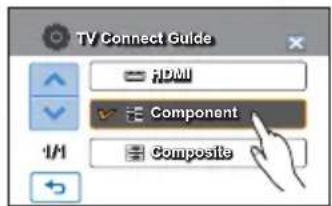
text_image
TV Connect Guide = HDMI ✓ Component 1/1 Composite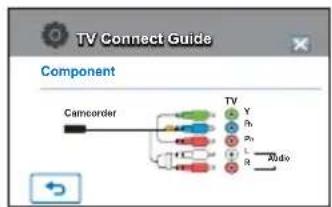
flowchart
graph TD
    A["Camcorder"] --> B["TV"]
    B --> C["Y"]
    B --> D["R"]
    B --> E["P1"]
    B --> F["L"]
    B --> G["R"]
    B --> H["Audio"]
Component
TV Display
You can enable or disable the On Screen Display (OSD) that appears on the TV screen when you connect your camcorder to a TV.
- Touch the Menu (MENU) → Setting (Tab) → "TV Display."
- Touch the desired submenu item.
- To exit the menu, touch the Exit (☒) or Return (☐) tab.
Submenu items
- Off: The OSD (On Screen Display) menus are only shown on the LCD screen.
- On: The OSD menus are shown on the LCD screen and the TV screen as well.

text_image
RDMI TV Out Analog TV Out TV Connect Guide TV Display TV Display Off On 1/1
The thumbnail display and demo screens are shown on the TV even if you set "TV Display" to "Off."
Default Set
You can restore all menu settings to their default settings.
- Touch the Menu (MENU) → Setting (Tab) → "Default Set."
• A message appears asking for your confirmation.
- Touch "Yes" if you want all the settings returned to the default.
- The Time Zone screen appears after all settings return to their defaults.
- Set the date and time again. →page 25

text_image
Default Set Language Demo Anyat+ (HDMI-SEC)
- Do not turn off the power while using this function.
- Initializing the camcorder settings to factory defaults does not affect recorded images.
system setting
Language
You can select a language in which to display the menu and messages. →page 26
Demo
Demo mode automatically shows you the major functions that are included with your camcorder so that you may use them more easily.
- Touch the Menu (MENU) → Setting (Tab) → "Demo."
- Touch the desired submenu item.
- To exit the menu, touch the Exit (☒) or Return (☐) tab.
Submenu items
• Off : Disable the Demo function.
- On: Enables the Demo function.
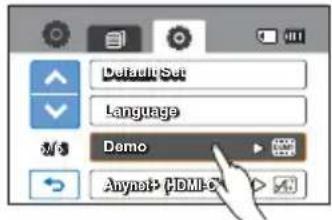
text_image
DefaultSet Language Demo Anyot+ HDMI-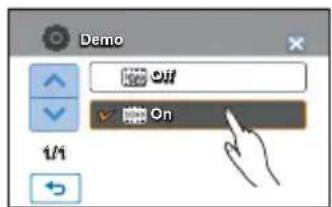
text_image
Demo Off On i/iUsing the Demo function
The Demo mode is canceled in the following cases:
- If the LCD screen is touched.
- If any button is pressed (Recording start/stop, Q.MENU, Display (☐), SMART AUTO, MODE, PHOTO, etc.).
However, the camcorder will enter the Demo mode automatically after 5 minutes in STBY mode if it is idle for 5 minutes without an operation. If you don't want the Demo function to start, set "Demo" to "Off".

The Demo function does not operate in the following case:
- If "Auto Power Off" is set to "5 Min" and your are using the battery as the main power, the Auto Power Off function will turn the camcorder off before Demo can run.
Anynet+ (HDMI-CEC)
This camcorder supports Anynet+. Anynet+ is an AV network system that lets you control all connected Samsung AV devices with an Anynet+ supported Samsung TV remote control.
-
Touch the Menu (MENU) → Setting (tab → "Anynet+ (HDMI-CEC)."
-
Touch the desired submenu item.
-
To exit the menu, touch the Exit (☒) or Return () tab.
- When the camcorder is connected to the Anynet+ supported TV, you can operate some functions of the camcorder using the TV's remote control.
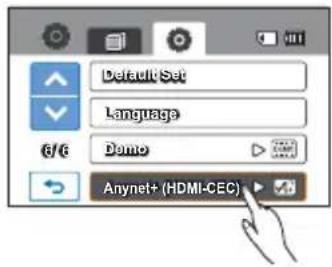
text_image
Default Set Language Demo Anynet+ (HDMI-CEC)Submenu items
• Off: Disable the function.
- On: The Anynet+ function is enabled.

text_image
Anynet+ (HDMI-CEC) Off On 1/1
- When you turn on the camcorder that is connected to an Anynet+ supporting TV with an HDMI cable, the TV (Anynet+ supported) is automatically turned on. If you do not want to use the Anynet+ function, set the "Anynet+ (HDMI-CEC)" to "Off."
- For details on the Anynet+ (HDMI-CEC) function, refer to the user manual of Samsung's Anynet+ supported TV.
editing video clips
DIVIDING A VIDEO
You can divide a video into two, and easily delete a section you no longer need. As this function edits the original file, make sure to back up important recordings separately.
PRECHECK!
Insert a memory card.
Set the appropriate storage media. (HMX-H203/H204/H205 only) page 27
Touch the Play (●) → HD (●HD) or SD (●SD) tab on the LCD screen.
→ page 43
-
Touch the Menu () tab → "Edit" → "Divide."
-
Touch the desired video to edit.
- The selected video is displayed as paused.
- Search for the point of division by touching the playback control tabs.
- Playback control tabs: ////
- Touch the pause () tab at the point of division, then touch the Cutting () tab.
• A message appears asking for your confirmation.
- Touch "Yes."
• The selected video is divided into two video clips.
- The second clip of the divided video is displayed as the last thumbnail.
- After the division, you can partially delete an unnecessary section or combine it with other videos.
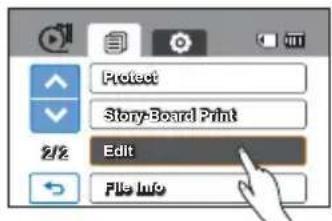
text_image
Protect Story-Board Print 2/2 Edit File Info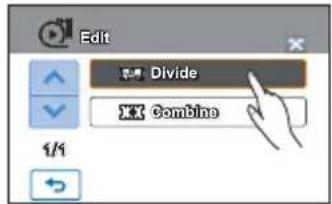
text_image
Edit Divide Combine 1/1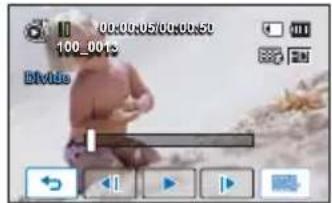
text_image
00:00:05/00:00:50 100_001s Divide
Do not eject a memory card or power off while editing a video recorded on the storage media. Doing so may damage the storage media or data.

- You can not divide files that are protected(a). Cancel the protect function first. page 96
-
The divided video may drift before or after the division point by approx. 2 seconds.
• The Divide function is not available under the following conditions: -
If the total recorded time of the video is less than 6 seconds.
- If you try to divide sections without leaving 3 seconds at the beginning and the end.
- If the video file is recorded in the Time Lapse REC mode.
- If the remaining memory space is less than 15MB.
- If the video was recorded or edited by other devices.
• Photos cannot be divided.
- The division function does not work if available memory space in storage is insufficient. Delete unnecessary videos.
- When the video is divided into two, only the first video clip is stored in the playlist again.
COMBINING VIDEOS
You can combine two different videos. As this function edits the original file, make sure to back up important recordings separately.
PRECHECK!
Insert a memory card.
Set the appropriate storage media. (HMX-H203/H204/H205 only) page 27
Touch the Play (●) → HD (○HD) or SD (○SD) tab on the LCD screen.
→ page 43
-
Touch the Menu ( ) tab → "Edit" → "Combine."
-
Touch the video thumbnails to be combined.
- The (☑) indicator and the order number are displayed on the selected videos. Touching the video thumbnail toggles the image between being selected (☐) or not selected.
- The ( ) indicator does not appear if the video files have different resolutions.
- Touch the (OK) tab.
• A message appears asking for your confirmation.
- Touch "Yes."
- The selected video files are combined in the chosen order and stored as one video.
- The thumbnail of the first video will appear as the thumbnail of the combined video.
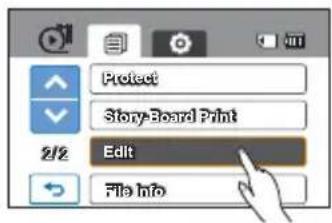
text_image
Protect Story-Board Print 2/2 Edit File Info
text_image
Edit Divide Combine 1/1
text_image
Combine S/S OK
Do not eject a memory card or power off while editing a video recorded on the memory card. Doing so may damage the storage media or data.

- You can not combine files that are protected( ). Cancel the protect function first. page 96
• The original video will not be preserved. - The combine function is not available under the following conditions:
- The Videos are in different resolution formats (for example, videos recorded at "Video Resolution: [HD]1080/60i" and "Video Resolution: [HD]720/60p") cannot be combined.
- The file size of the combined videos exceeds 1.8 GB.
- One or both video files are recorded in the Time Lapse REC mode.
- If the remaining section of the memory space is less than 15MB.
- The videos were recorded or edited by other devices.
• Photos cannot be combined.
editing the playlist
PLAYLIST
What's a "Playlist?"
You can create a playlist on the same storage media by gathering your favorite scenes from the recorded videos. Adding or deleting videos from a playlist does not affect the original video images.
Example: You have recorded a few scenes on the storage media. You want to save the original recording, but you also want to create a digest by putting your favorite scenes together. In this case, you can create a playlist by selecting your favorite scenes, leaving the original recording as it is.
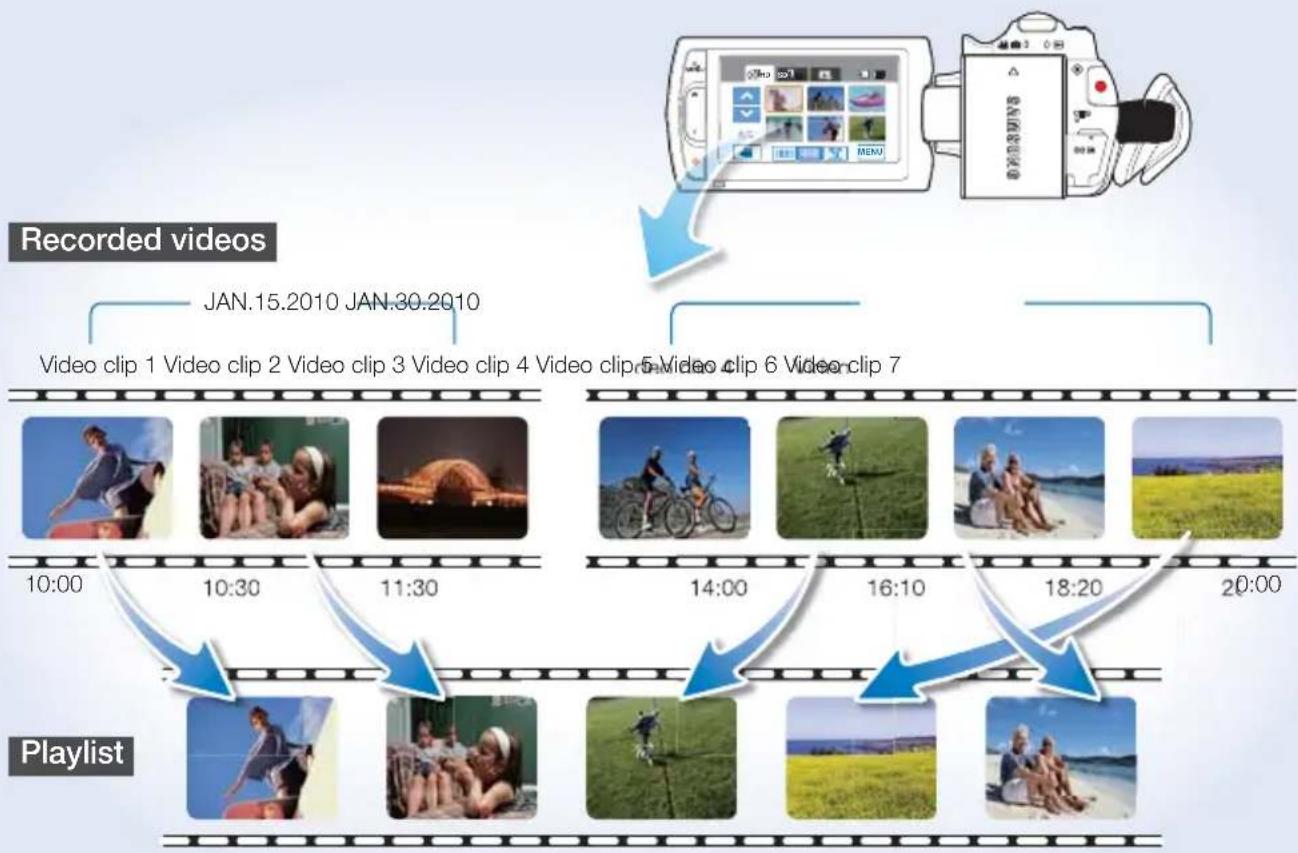
flowchart
graph TD
    A["Recorded videos"] --> B["10:00"]
    B --> C["10:30"]
    C --> D["11:30"]
    D --> E["14:00"]
    E --> F["16:10"]
    F --> G["18:20"]
    G --> H["20:00"]
    I["Playlist"] --> J["Video clip 1"]
    I --> K["Video clip 2"]
    I --> L["Video clip 3"]
    I --> M["Video clip 4"]
    I --> N["Video clip 5"]
    I --> O["Video clip 6"]
    I --> P["Video clip 7"]
    Q["JAN.15.2010 JAN.30.2010"] --> R["Camera icon"]
    S["JAN.30.2010"] --> T["Camera icon"]
    U["JAN.30.2010"] --> V["Camera icon"]
    W["JAN.30.2010"] --> X["Camera icon"]
    Y["JAN.30.2010"] --> Z["Camera icon"]

- One playlist can be created per each resolution set, "HD (High definition)" and "SD (Standard Definition)."
- The maximum number of videos on the playlist: 9999 videos.
- If original videos are deleted, scenes on the playlist created with these videos are also deleted.
CREATING THE PLAYLIST
You can create a playlist by gathering your desired videos from the recorded videos.
PRECHECK!
Insert a memory card.
Set the appropriate storage media. (HMX-H203/H204/H205 only) → page 27
Touch the Play (▶) tab on the LCD screen to select the play mode. → page 23
- Touch the Menu ( ) tab → "Playlist."
• The video resolution selection window appears.
- Touch "HD" or "SD."
- The thumbnail display appears according to resolution you selected.
- Touch the Menu (MENU) tab, then touch "Add."
- Video thumbnails corresponding to the selected video resolution appear on the screen.
- Touch the videos you want added to the playlist.
- The (✓) indicator is displayed on the selected video. Touching the video toggles the image between being selected ( ) and not selected.
- Touch the (ok) tab.
• A message appears asking for your confirmation.
- Touch "Yes."
- The playlist is created. - You can play the playlist in the same manner as you play a video.
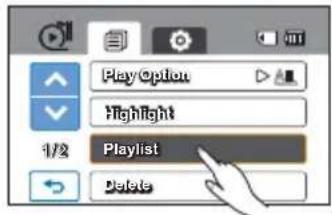
text_image
PlayOption Highlight 1/2 Playlist Delete
text_image
Playlist HD SD
text_image
Add Arrange Matlab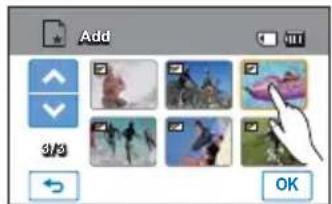
text_image
Add 9/9 OK
While editing the playlist, do not eject the memory card or power off the camcorder. Doing so may damage the storage media or data.

- If available space on the storage is insufficient, you can not create or add a playlist. Delete unnecessary videos.
- You cannot select two different resolution images for placement in the playlist.
editing the playlist
ARRANGING VIDEOS IN THE PLAYLIST
You can change the order of videos on the playlist.
PRECHECK!
Insert a memory card.
Set the appropriate storage media. (HMX-H203/H204/H205 only) →page 27
Touch the Play (●) tab in the LCD screen to select the play mode. →page 23
-
Touch the Menu ( ) tab → "Playlist."
-
Touch "HD" or "SD."
- Video thumbnails corresponding to the selected video quality appear on the screen.
- Touch the Menu (MENU) tab, then touch "Arrange."
• The playlist appears.
- Touch the video you want to move.
- The (✓) indicator and the selection bar appear on the selected video. Touching the video toggles the image between being selected (✓) and not selected.
- Touch the previous (◀)/ next (▶) tab to move the bar to the position you want, then touch the (▶) tab.
• A message appears asking for your confirmation.
- Touch "Yes."
• The video moves to the selected position.

text_image
Play Option Highlight 1/2 Playlist Delete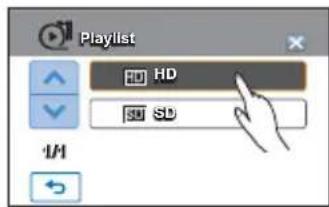
text_image
Playlist HD SD SD 1/H
text_image
Add Arrange Delete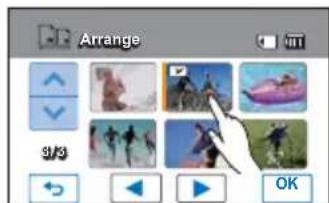
text_image
Arrange 9/3 OK
While editing the playlist, do not eject the memory card or power off the camcorder. Doing so may damage the storage media or data.
DELETING VIDEOS FROM THE PLAYLIST
You can delete videos from the playlist.
PRECHECK!
Insert a memory card.
Set the appropriate storage media. (HMX-H203/H204/H205 only) →page 27
Touch the Play (▶) tab in the LCD screen to select the play mode. →page 23
-
Touch the Menu () tab → "Playlist."
-
Touch "HD" or "SD."
- Video thumbnails corresponding to the selected video quality appear on the screen.
- Touch the Menu (MENU) tab, then touch "Delete."
• The playlist appears.
- Touch the video you want to delete.
- The ( 🔊 ) icon and the selection bar appear on the selected video. Touching the video toggles the image between being selected ( 🔊 ) and not selected.
- Touch the (OK) tab.
• A message appears asking for your confirmation.
- Touch "Yes."
- The selected videos are deleted from the playlist.
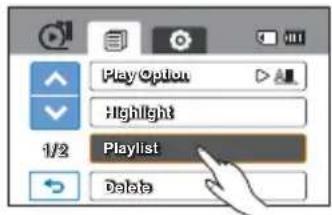
text_image
PlayOption Highlight 1/2 Playlist Delete
text_image
Playlist HD HD SB SB 1M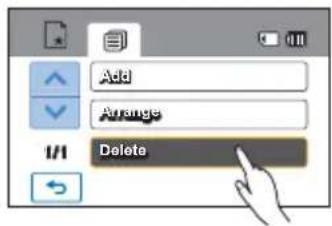
text_image
Add Arrange Delete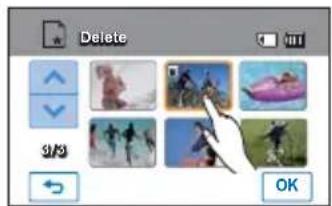
text_image
Delete 9/9 OK
While editing the playlist, do not eject the memory card or power off the camcorder. Doing so may damage the storage media or data.
file management
PROTECTION FROM ACCIDENTAL ERASURE
You can protect important recordings from accidental erasure. The protected videos and photos can not be deleted unless you format the memory card or cancel the protection.
PRECHECK!
Insert a memory card.
Set the appropriate storage media. (HMX-H203/H204/H205 only) page 27
Touch the Play (●) tab on the LCD screen to select the play mode. → page 23
- Touch the HD (HD), SD (SD) or Photo (Tab).
• Videos or photos appear as thumbnails.
-
Touch the Menu (MENU) tab → "Protect."
-
Touch the desired submenu item.
- The message that corresponds to the selected option appears.
- Touch "Yes."
• The protection is set to on or off.
- The ( ≈ ) indicator appears on or disappears from the protected file.
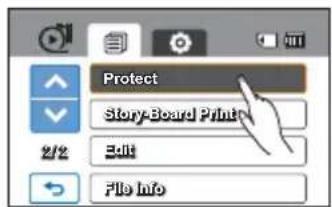
text_image
Protect Story-Board Print 2/2 Edit File Info
text_image
Protect Select Files All On All OffSubmenu items
- Select Files: Protects individual images.
Touch the images to protect from erasure.
The (≡) indicator is displayed on the selected images.
Touching the thumbnail image toggles the image between being selected (←) or not selected.
Touch the (OK) tab.
• All On: Protects all images.
- All Off: Releases the protected images all at once.
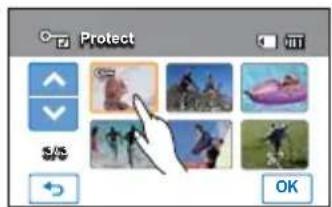
text_image
Protect OK
- You can also operate this function in the full and single image display mode.
- If the write protection tab on the memory card is set to lock, you cannot set this function.
→ page 29
DELETING FILES
You can erase your recordings one by one, all at once.
PRECHECK!
Insert a memory card.
Set the appropriate storage media. (HMX-H203/H204/H205 only) → page 27
Touch the Play (▶) tab on the LCD screen to select the play mode. → page 23
- Touch the HD (HD), SD (SD) or Photo (Tab).
• Videos or photos appear as thumbnails.
-
Touch the Menu (MENU) tab → "Delete."
-
Touch the desired submenu item.
-
The message that corresponds to the selected option appears. Touch "Yes."
• The selected image is deleted.
Submenu items
- Select Files: Deletes individual images.
Touch the images you want to delete.
The (iii) indicator is displayed on the selected images.
Touching the thumbnail image toggles the image between being selected (Ⅲ) or not selected.
Touch the (OK) tab.
- All Files: Deletes all images.
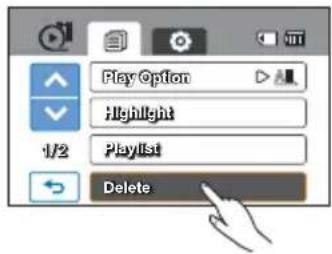
text_image
Play Option Highlight 1/2 Playlist Delete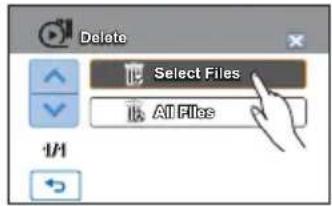
text_image
Delete Select Files All Files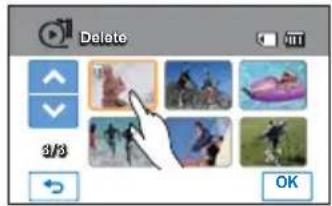
text_image
Delete 3/3 OK
- Deleted images cannot be recovered.
- Do not eject a memory card or power off while deleting videos recorded on the storage media. Doing so may damage the storage media or data.

- To protect important images from accidental erasure, activate the image protection function in advance. ➔ page 96
- You can not delete protected fi les. Cancel the protect function fi rst.
- If the write protection tab on the memory card is set to lock, you cannot delete the images. → page 29
- You can also operate this function in the full and single image display mode.
- The delete function does not work if the battery charge is insufficient. We recommend you use the AC adapter to ensure the camera has power continuous power when deleting.
file management
COPYING FILES (HMX-H203/H204/H205 ONLY)
Videos and photos stored in the internal memory can be copied to the external flash memory card. Copying to the memory card does not delete the originals in the internal memory.
PRECHECK!
Insert the memory card in your camcorder.
- Touch the Play (☐) tab on the LCD screen to select the play mode. → page 23
- Touch the HD (HD), SD (SD) or Photo (Tab).
• Videos or photos appear as thumbnails.
-
Touch the Menu (MENU) tab → "Copy."
-
Touch the desired submenu item.
-
The message that corresponds to the selected option appears. Touch "Yes."
• The selected images are copied.
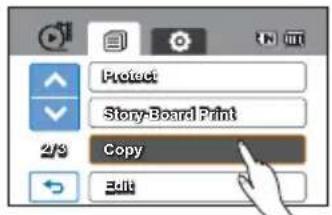
text_image
Protect Story-Board Print 2/3 Copy Edit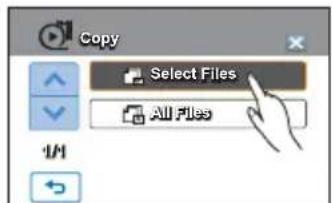
text_image
Copy Select Files All FilesSubmenu items
- Select Files: Copy individual images.
Touch the images you want to copy.
The (☐) indicator is displayed on the selected images.
Touching the thumbnail image toggles the image between being selected (☐) or not selected.
Touch the (OK) tab.
• All Files: Copy all images.
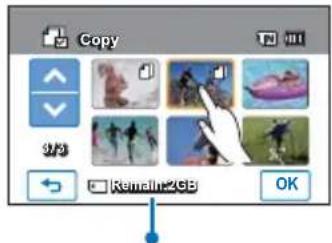
text_image
Copy 1/3 Remain2GB OKRemaining free space in the destination memory card

- You can also operate this function in the full and single image display mode.
- If the write protection tab on the memory card is set to lock, you cannot copy the images.
→ page 29 - You can not copy a file if the memory card has insufficient free space. Remove unnecessary files before proceeding. →page 97
- The copy function does not work if the battery charge is insufficient. We recommend you use the AC adapter to ensure the camera has continuous power when copying.
printing photos
DPOF PRINTING SETTING
DPOF (Digital Print Order Format) lets you select still pictures from the camcorder's memory card to print and set the number of copies to be printed. Your camcorder uses this saved information when you connect it to a DPOF compatible printer to print the pictures.
PRECHECK!
Insert a memory card in your camcorder.
Touch the Play (●) tab on the LCD screen to select the play mode. → page 23
- Touch the Photo ( ) tab.
• The photo thumbnails are displayed.
-
Touch the Menu (MENU) tab → "Print Mark (DPOF)."
-
Touch the desired submenu item.
-
The message that corresponds to the selected option appears. Touch "Yes."
• The print mark is selected or removed.
• The (☐ 01) indicator appears on the print-marked photos.
Submenu items
- Select Files: Print-marks individual images. The print marks indicator is displayed on the selected images. Touching the thumbnail image toggles the image between being selected (☐) or not selected. Touch the (OK) tab.
- Set All: Print-marks all images.
- Reset All: Removes all the print-marks.
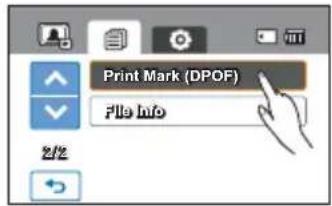
text_image
Print Mark (DPOF) File Info 2/2
text_image
Print Mark (DPOF) Select Files Set All Reset All 1/1
text_image
Print Mark (DPOF) 0.1 S/S OKUnderstanding DPOF
DPOF (Digital Print Order Format) lets you select still images on the memory card to print and set the number of copies to be printed.
Tip
In single display mode, you can set the number of prints by using the decrease () or increase () tab.
- Touch the Menu (MEN) tab → "Print Mark (DPOF)" → decrease () or increase () tab.
- You can set the number of prints from 0 to 99 for each image.

- When you select the "Set All" option, the number of copies to be printed is set to 01.
- Selecting the "Set All" or "Reset All" options may take a long time depending on the number of the selected copies.
printing photos
DIRECT PRINTING WITH A PICTBRIDGE PRINTER
You can print photos directly by connecting this camcorder to a PictBridge printer (sold separately) and a USB cable.
- Touch the Menu (MENU) → Setting (Tab → "USB Connect" → "PictBridge."
- Use a USB cable to connect your camcorder to the printer.
- Turn your printer power on.
• The photo thumbnails appear. - Touch the photos to be print, then touch the Print (☐) tab.
• The selected photo is printed.

text_image
Camcorder Printer (Compatible with PictBridge) USB
text_image
Auto Power Off Quick On STBY 4/6 PC Software USB Connect USB Connect Mass Storage PictBridge 1/1 100-00/14 14/17 MENUTo set the number of prints
Touch the decrease ( ) increase ( ) tab to set the number of copies to print.
• The number of copies is set.
To cancel the print setting
Touch the Return () tab on the LCD screen.
To stop printing after printing starts
Touch "Cancel" on the screen.

- If the camcorder is connected to a printer while "USB Connect" is set to "Mass Storage," the message "Fail USB Connecting Change 'USB Connect'" appears. Set the "USB Connect" to the "PictBridge", and then connect the USB cable again.
• Use the supplied USB cable.
To set the date/time imprint
- In the printer mode, touch the Menu ( ) tab.
• The print options appear on the screen. - Touch "Date/Time."
- Touch the desired submenu item.
• The selected date and time display option is set. - To exit the menu, touch the Exit (☒) or Return (☐) tab.
- The selected date and time will be printed on the photos.

text_image
JAN01/2010 12:00 USB
text_image
100-0014 1417 91 + - ← |← | | MENU
text_image
Date/Time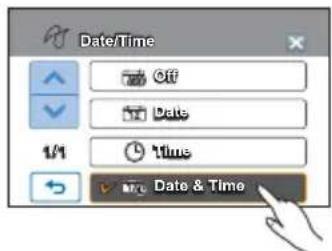
text_image
Date/Time Off Date Time Date & Time
- The date/time imprint option may not be supported by all printers. Check with your printer manufacturer. The "Date/Time" menu cannot be setup if the printer does not support this option.
- PictBridge™ is a registered trademark of CIPA (Camera & Imaging Products Association), an image transfer standard developed by Canon, Fuji, HP, Olympus, Seiko Epson, and Sony.
- Use the AC power adaptor to power your camcorder during PictBridge direct printing. Turning the camcorder off during printing might damage data on the storage media.
• Video images cannot be printed.
• Photos recorded on other devices cannot be printed. - Various printing options are available depending on the printer. Refer to the printer's user manual for details.
connecting to a TV
CONNECTING TO A HIGH DEFINITION TV
You can enjoy High Definition (HD) quality videos, recorded in “[HD]1080/60i” or “[HD]720/60p” resolution using an HDTV. The connection methods and quality of the image viewed on the TV screen can differ depending on the type of TV you’ve connected, and the connectors used. To playback high quality videos from your camcorder, check if your TV set supports the “[HD]1080/60i” resolution. This HD camcorder supports HDMI and component output. Both can deliver high-definition video.
PRECHECK!
- Select the HDMI or the component jacks on your TV. For more information about the connectors and the connection methods, refer to the TV's user manual.
- This HD camcorder provides a two-in-one component/AV cable that functions as a component and AV cable. When using the component/AV cable, you must select the right video output for your TV on the "Analog TV Out" menu. →page 85
Understanding the HDMI cable
HDMI (High Definition Multimedia Interface) is a compact audio/video interface for transmitting uncompressed digital data.
What is Anynet+ function?
You can use the same remote control for devices that support the Anynet + function. You can use the Anynet + function if the camcorder is connected with an HDMI cable to an Anynet+ supported TV. For more information, refer to the Anynet+ support TV's user manual.
- Turn on the camcorder and connect a Mini HDMI cable (optional) to the HDMI jack on your TV and the HDMI jack on your camcorder.
- When connecting via HDMI, the connected device may not be recognized if the camcorder is turned off.
- Turn on your TV and set the TV's input selector to the Input your camcorder is connected to. Refer to the TV's instruction manual to see how to select the TV input.
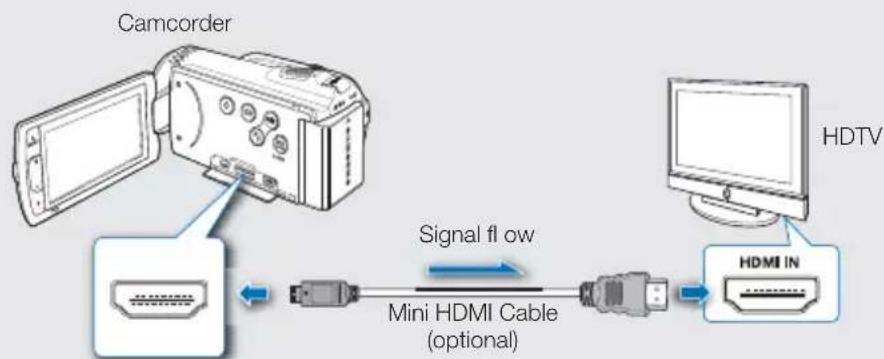
flowchart
graph LR
    A["Camcorder"] --> B["Mini HDMI Cable (optional)"]
    B --> C["HDMI IN"]
    D["HDTV"] --> C
    E["Signal flow"] --> B
Using a component/AV cable
- Connect the provided component/AV cable to the camcorder and the Y-PB-PR (Video) and L-R (Audio) jacks on your TV. Match the colors of the plugs to the colors of the jacks.
• After the connection is complete, set "Analog TV Out" to "Component 1080i."
→ page 85
- Turn on your TV and set the TV's input selector to the Input your camcorder is connected to. Refer to the TV's instruction manual to see how to select the TV input or source.

text_image
Camcorder Signal flow Component/AV cable (component connection) HDTV COMPONENT IN AUDIO IN Y Pk Pk L R
If the P_B , P_R , or Y jack is not connected correctly, the TV screen may appear red or blue.

- When connecting to a TV using the component/AV cable, match the colors between the cables and the corresponding jacks.
- Videos recorded using the HD camcorder will playback on an HDTV in the original resolution you set in the camcorder. Videos recorded in SD quality cannot playback on an HDTV in the HD quality. For example, videos recorded in HD quality (resolution of “[HD]1080/60i” or “[HD]720/60p”) playback in HD quality while the videos recorded in SD quality (resolution of “[SD]480/60p”) playback in the SD quality.
- This camcorder comes with the "TV Connect Guide" menu which contains TV connection information. If you try to connect the camcorder to a TV (without using the user manual), use the "TV Connect Guide" menu function.
→ page 86 - You must use the provided component/AV cable. Do not use cables from other manufacturers.
- Only a C to A type Mini HDMI cable can be used with this camcorder.
- The HDMI jack on the camcorder can be used for output only.
- If an Anynet+ supported TV is connected to the camcorder, turning on the camcorder may turn the TV's power on. (Anynet+ function) If you don't want this function, set "Anynet+ (HDMI-CEC)" to "Off." → page 89
- Use only the HDMI 1.3 cable when connecting to the HDMI jack of this camcorder. If the camcorder is connected with other HDMI cables, the screen display may not work.
connecting to a TV
CONNECTING TO A REGULAR TV
You can enjoy images recorded with your HD camcorder on a regular TV that supports standard definition. Images recorded with HD (high definition) image quality (i.e. resolution of “[HD]1080/60i” or “[HD]720/60p”) are played back with SD (Standard Definition) image quality.
The connection methods and quality of the image viewed on the TV screen can differ depending on the type of TV you've connected, and the connectors used. This HD camcorder supports both component and composite output for standard definition video transfer.
PRECHECK!
- Check your TV connection jacks and select the connection method your TV supports. For more information about connection jacks and connection methods, refer to the TV user manual.
- This HD camcorder provides a two-in-one component/AV cable that functions as a component and AV (composite) cable. When using the component/AV cable, you must select the right video output for your TV on the "Analog TV Out" menu. page 85
Connecting a component/AV cable for component output
- Connect the provided component/AV cable to the camcorder and the Y-PB-PR (Video) and L-R (Audio) jacks on your TV. Match the colors of the plugs to the colors of the jacks.
- After the connection is complete, set "Analog TV Out" to "Component 480p or Component 480i." →page 85
- Turn on your TV and set the TV's input selector to the Input your camcorder is connected to. Refer to the TV's instruction manual to see how to select the TV input.
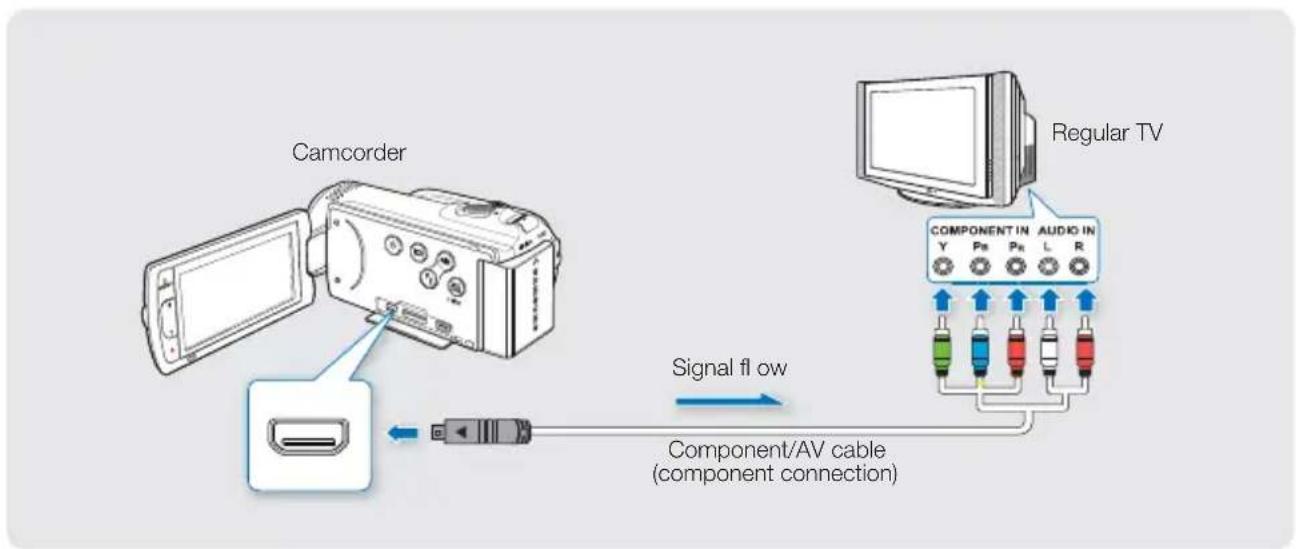
text_image
Camcorder Signal flow Component/AV cable (component connection) Regular TV COMPONENT IN AUDIO IN Y Pn Pn L RConnecting a component/AV cable for composite output
-
Connect the provided component/AV cable to the camcorder and the Video and L-R (Audio) on TV. Use the blue plug with the yellow label to connect to the Video input on your TV. • After the connection is complete, set "Analog TV Out" to "Composite." →page 85
-
Turn on your TV and set the TV's input selector to the Input your camcorder is connected to.
• This is often referred to as "line."
- Refer to the TV's instruction manual to see how to select the TV input.

text_image
Camcorder Signal flow Component/AV cable (composite connection) Regular TV VIDEO IN AUDIO IN L R
If the P_B , P_R , or Y jack is connected incorrectly, the TV screen may appear red or blue.

- Check the connection status between the HD camcorder and TV, the TV screen may not deliver the right video information if connected incorrectly.
- When the camcorder is connected to a TV with more than one cable, the output signal is displayed in this order of priority: HDMI → component/AV output.
- Do not use excessive force when connecting the cables.
- For more information about the TV connection jacks and the connecting methods, refer to the TV user manual.
- On some TVs. the Y component input jack also serves as the composite VIDEO jack. If this is the case, follow the directions for composite VIDEO connections in your TV users manual.
connecting to a TV
VIEWING ON A TV SCREEN
You can enjoy the enjoy widescreen videos on a HDTV (or a regular TV) after recording videos using the camcorder.
-
You see video from the camcorder on your TV if the connection status is set correctly. pages 102\~105
-
If the TV jacks are connected with the right cables.
- If you used component/AV cable, you've set "Analog TV Out" correctly.
-
If the Input source list is correctly set to view the playback from the camcorder.
-
Select the playback mode on your camcorder and start to playback videos. →page 44

natural_image
Illustration of a person watching TV on a couch with a camera connected to screen (no text or symbols)
- Adjust the volume to a moderate level. If the volume is too high, the video information may include noise.
- If the "TV Display" is set "Off," the TV screen does not include the OSD (On Screen Display) menus. page 87
- You will only hear audio from the camcorder on your TV in the video play mode.
Playback on a TV
| Recording ratio Wide (16:9) TV 4:3 TV | ||
| Images recorded in a 16:9 ratioVideo imagesPhoto imagesPhoto capture images |  |  |
dubbing videos
DUBBING TO A VCR OR DVD/HDD RECORDER
You can dub images played back on you camcorder to other recording devices, such as VCRs or DVD/HDD recorders. Be sure to connect your camcorder to the wall outlet using the supplied AC power adaptor for this function.
PRECHECK!
Dubbing transfers analog video data through a component or composite connection. You must use the supplied component/AV cable.

text_image
Camcorder VCR or DVD/HDD recorder VIDEO IN AUDIO IN L R Signal flow Component/AV cable- Turn on your camcorder and touch the play () tab.
- Set the camcorder's output signal to component or composite using the "Analog TV Out" function. page 85
- Insert the recording media in the recording device.
- If your recording device has an input selector, set it to the input mode.
- Connect your camcorder to the recording device (VCR or DVD/HDD recorder) with the supplied component/AV cable (composite connection).
- Connect your camcorder to the input jacks of the recording device.
- Start the playback on your camcorder, and record it on the recording device.
• Refer to the instruction manuals supplied with your recording device for details.
- When dubbing is finished, stop the recording device and then your camcorder.

- You can dub videos recorded on this camcorder by connecting the supplied component/AV cable to a VCR or DVD/HDD recorder. All the recorded videos will be dubbed with SD (standard definition) image quality, regardless of the recording resolution (HD/SD).
- You cannot dub to a recorder with an HDMI cable.
- To copy an HD quality video in HD (high definition) image quality, use the built-in software of your camcorder, and copy the video to your computer.
- Since dubbing is performed via analog data transfer, the image quality may deteriorate.
- To hide the screen indicators (such as a counter, etc.) on the screen of the connected monitor device connected, set "TV Display: Off." page 87
- When you are connecting your camcorder to a monaural device, connect the blue plug of the component/AV cable to the video input jack, and the red (right channel) or the white (left channel) plug to the audio input jack on the device.
using with a Windows computer
CHECKING YOUR COMPUTER TYPE
This chapter explains how to connect the camcorder to a computer using the supplied USB cable and how to upload, view, and edit videos and pictures using the built-in Intelli-studio software.
Check the type of computer you have before connecting the camcorder!!
To be sure you can view your recordings on your computer, you need to check your computer type first. Then, read the section below that pertains to your type of computer.
| If you have a Windows PC | 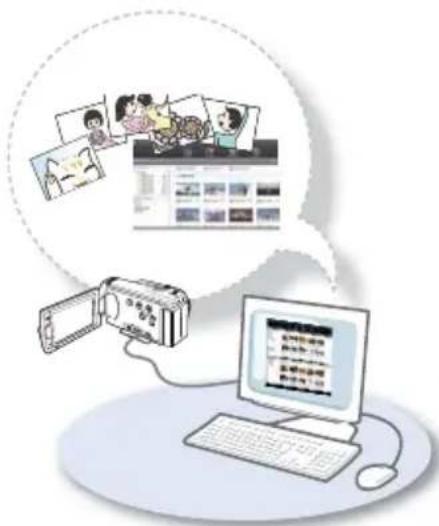 | If you have a Macintosh |
| Connect your camcorder to the computer using the USB cable.·The built-in editing software, Intelli-studio runs on the PC automatically once the camcorder is connected to Windows computer. (When you've set "PC Software: On").→page 83 | ·The built-in software on your camcorder, 'Intelli-studio' is not Macintosh compliant. | |
| Play back or edit your recordings on the computer using the built-in Intelli-studio application.→page 112 | ||
| You can also upload your recordings to YouTube or other web sites using Intelli-studio.→page 113 |

text_image
Diagram showing USB connection between computer and monitor via device, with three labeled views (view, switch, no switch) highlighting the device's internal structure.WHAT YOU CAN DO WITH A WINDOWS COMPUTER
You can perform the following functions by connecting your camcorder to your Windows computer with the USB cable and using the Intelli-studio editing software built into your camcorder.
Main functions
• Intelli-studio editing software main functions:
- Playing back recorded videos or photos. →page 112
- Editing recorded videos or photos. → page 112
- Uploading the recorded videos and photos to YouTube, Flickr, Facebook, etc. →page 113
- You can transfer or copy the files (videos and photos) saved on your storage media to your computer. (the mass storage function) → page 115
System requirements
The following requirements must be satisfied to use the built-in editing software (Intelli-studio):
| Items Requirement | |
| OS Microsoft Windows XP SP2, Vista, or Windows 7 | |
| CPU Intel | ® Core 2 Duo® 1.66 GHz or higher is recommendedAMD AthlonTM X2 Dual-Core 2.2 GHz or higher is recommended(Notebook: Intel Core2 Duo 2.2GHz or AMD Athlon X2 Dual-Core 2.6GHz or higher recommended) |
| RAM 1 GB and above recommended | |
| Video Card nVIDIA | Geforce 7600GT or higher Ati X1600 series or higher |
| Display 1024 x 768, | 16-bit color or higher (1280 x 1024, 32-bit color recommended) |
| USB USB 2.0 | |
| Direct X DirectX 9.0c or higher | |

- System requirements listed above are minimum requirements. Even on a system that satisfies the requirements, Intelli-studio may not operate optimally.
- On a slower than recommended computer, video playback may skip frames or operate erratically.
- If the version of DirectX on your computer is lower than 9.0c, install DirectX 9.0c or higher.
- We recommend transferring the recorded video data to a PC before playing back or editing the video data.
- To run Intelli-studio, a laptop computer requires higher system requirements than a desktop PC.
using with a Windows computer
USING THE Intelli-studio PROGRAM
Using the Intelli-studio program built into your camcorder, you can transfer video and photo fi les to your PC using a simple USB cable and edit them on your computer screen. Intelli-studio offers the most convenient way for you to manage your video and photo fi les.
Step 1. Connecting the USB cable
- Set "USB Connect: Mass Storage" and "PC Software: On."
• These are the default menu settings.
-
Connect the camcorder to the PC with the USB cable.
-
A new file saving screen appears with the Intelli-studio main window.
-
The removable disk window also appears.
-
Click "Yes". The video/photo uploading procedure starts.
Click "Yes" to confirm.
- If you do not want to save a new file, select "No."
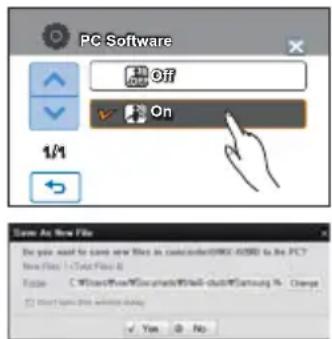
text_image
PC Software Off On 1/4 Save As New File Do you want to save new files in command(000-0500) to the PC? New Files: 1/Total Files: 6 Focus: C:\Users\Files\Documents\Windows\chat\Samsung % Change Direct type: DSS configuration delay Yes NoTo disconnect the USB cable
To disconnect the USB cable after completing the file transfer, you must follow these steps:
- Click the "Safely Remove Hardware icon" icon on the taskbar.
- Select "USB Mass Storage Device," and then click "Stop."
- If the "Stop a Hardware device" window appears, click "OK."
- Disconnect the USB cable from the camcorder and PC.
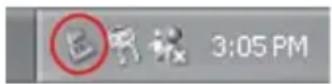

• Use the provided USB cable.
- Don't apply excessive force when inserting or extracting the USB cable into/from a USB jack.
• Make sure you insert the USB plug into the USB jack with the plug facing in the correct direction.
- Use the AC power adaptor to power the camcorder when transferring fi les to your computer.
- When the USB cable is connected, turning the camcorder on or off may cause the PC to malfunction
- If you disconnect the USB cable from the PC or the camcorder while transferring, the data transmission will stop and the data may be damaged.
- If you connect the USB cable to a PC via a USB HUB or simultaneously connect the USB cable along with other USB devices, the camcorder may not work properly. If this occurs, remove all USB devices from the PC and reconnect the camcorder.
- Intelli-studio program may not automatically run. If this occurs, access My Computer or Windows Explorer, open the drive that corresponds to your camcorder, and then run IStudio.exe.
Step 2. About the Intelli-studio main window
When the Intelli-studio starts up, thumbnails of videos and photos are displayed in the main window.

text_image
1 2 3 4 5 6 7 8 9 10 11 12 1 2 3 4 5 6 7 8 9 Longmail Manager Folder Date Color Location RGB Studio Speed F-Number 2019-01-01 SAP_001.JPG SAP_001_2.JPG SAP_002.JPG SAP_002_2.JPG SAP_003.JPG My Computer Download My Documents C: Connected Device GB+MDI+D00 DCM MSC WBO 100P6070 SAP_002.JPG SAP_003.JPG SAP_004.JPG SAP_005.JPG SAP_006.JPG Save New File-
Menu items
-
Shortcut icons
Navigates files (previous and next).
Prints selected photo(s).
Views location of selected photo(s) with GPS information.
Registers to Contents Manager.
-
Shows directories of Contents Manager and My Computer
-
Contents Manager: You can classify and manage videos and photos on your computer.
-
My Computer: You can view videos and photos saved in the selected directory of your computer.
-
Switches to Library of the computer and connected camcorder.
-
Switches to Photo Edit mode.
-
Switches to Movie Edit mode.
-
Switches to Share mode.
-
Changes the size of thumbnails.
-
Displays all files (videos and photos).
Displays video files only.
Displays photo files only.
Displays voice files only.
-
Selects the connected device.
-
Displays videos and photos in various ways.
-
Thumbnails: Displays video and photo thumbnails
-
Global Map: Displays the location of shooting place with a map.
-
Minimizes the connected device screen.

Intelli-studio is a program commonly used in Samsung camcorders or digital cameras. Some functions may not work depending on the product you purchased.
using with a Windows computer
Step 3. Playing back the videos (or photos)
You can play back the recordings conveniently using the Intelli-studio application.
-
Run the Intelli-studio program. → page 110
-
Click the desired folder to display your recordings.
• Video (or photo) thumbnails appear on the screen, according to the selected source.
- Choose the video (or photo) that you want to play.
- You can check the file information by moving the mouse pointer over the file.
- Clicking on a video thumbnail once will show the video playback inside the thumbnail frame, allowing you to search for a desired video with ease.
- Once you select the desired video (or photo), double-click to play back.
- Playback starts and playback controls appear.
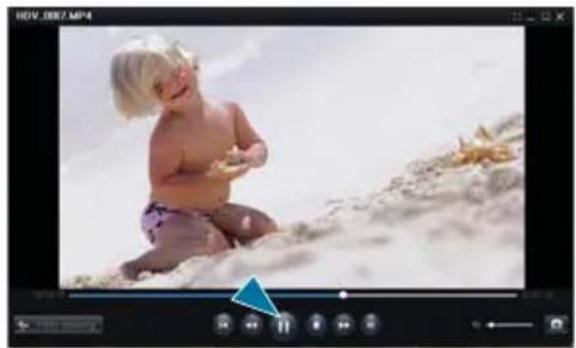
natural_image
Baby sitting on a sandy beach with a starfish nearby (no text or symbols visible)
The following file formats are supported in Intelli-studio:
- Video formats: MP4 (Video: H.264, Audio: AAC), WMV (WMV 7/8/9)
- Photo formats: JPG, GIF, BMP, PNG, TIFF
Step 4. Editing the videos (or photos)
With Intelli-studio, you can edit the videos or photos in various ways.
(Change Size, Fine-Tuning, Image Effect, Insert Frame, etc.)
- To edit a file using the Intelli-studio, make sure you use a copy of the desired file you've saved on your computer before clicking on the "Movie Edit" or "Photo Edit" icon.

text_image
File Edit View Insert Tools Help Add effects Make the effect Make the effect Make the effect Make the effect Make the effect Make the effect Make the effect Make the effect Make the effect Make the effect Make the effect Make the effect Make the effect Make the effect Make the effect Make the effect Make the effect Make the effect Make the effect Make the effect Make the effect Make the effect Make the effect Make the effect Make the effect Make the impact Make the impact Make the impact Make the impact Make the impact Make the impact Make the impact Make the impact Make the impact Make the impact Make the impact Make the impact Make the impact Make the impact Make the impact Make the impact Make the impact Make the impact Make the impact Make the impact Make the impact Make the impact Make the impact Make the impact Make the impact Make the effect Make the effect Make the effect Make the effect Make the effect Make the effect Make the effect Make the effect Make the effect Make the effect Make the effect Make the effect Make the effect Make the effect Make the effect Make the effect Make the effect Make the effect Make the effect Make the effect Make the effect Make the effect Make the effect Make the effect Make the error. Make the error. Make the error. Make the error. Make the error. Make the error. Make the error. Make the error. Make the error. Make the error. Make the error. Make the error. Make the error. Make the error. Make the error. Make the error. Make the error. Make the error. Make the error. Make the error. Make the error. Make the error. Make the error. Make the error. Make the error. Make the error.Step 5. Sharing the videos/photos online
Share your contents with the world by uploading photos and videos directly to a web site with one click.
-
Select the desired videos or photos to share.
-
Click "Share" on the Intelli-studio browser.
- The selected file appears in the sharing window.
- Click the web site you would like to upload files to.
- You can choose "YouTube," "Fickr," "Facebook," or the website you specified for your uploading management.
- Click "Upload" to start uploading.
- A pop up window appears asking for your ID and password.
- Enter your ID and password to access.
- Access to the web site contents can be limited depending on your web access environment.
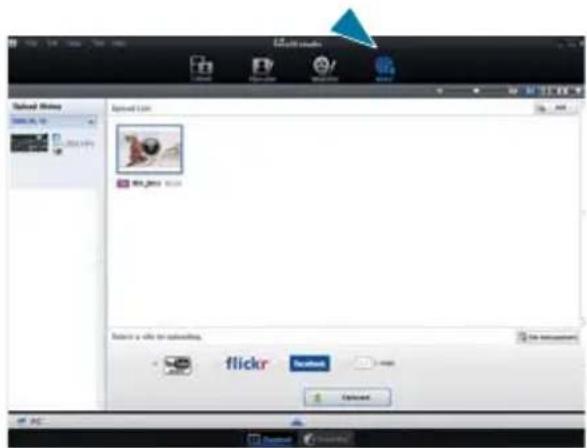
text_image
Download History www.flickr.org Download History www.flickr.org flickr Download Download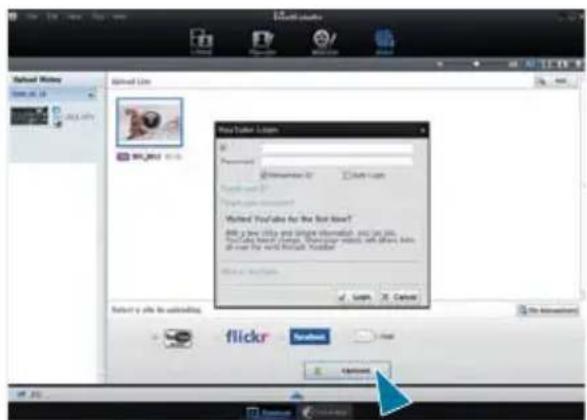
text_image
New York Search List New York Search List Search List Search List Search List Search List Search List Search List Search List Search List Search List Search List Search List Search List Search List Search List Search List Search List Search List Search List Search List Search List Search List Search List Search List Search List Search List Search List Search List Search List Search List Search List Search List Search List Search List Search Locus Search Locus Search Locus Search Locus Search Locus Search Locus Search Locus Search Locus Search Locus Search Locus Search Locus Search Locus Search Locus Search Locus Search Locus Search Locus Search Locus Search Locus Search Locus Search Locus Search Locus Search Locus Search Locus Search Locus Search Locus Search Lbox Search Lbox Search Lbox Search Lbox Search Lbox Search Lbox Search Lbox Search Lbox Search Lbox Search Lbox Search Lbox Search Lbox Search Lbox Search Lbox Search Lbox Search Lbox Search Lbox Search Lbox Search Lbox Search Lbox Search Lbox Search Lbox Search Lbox Search Lbox Search Lbox Search LBox Search LBox Search LBox Search LBox Search LBox Search LBox Search LBox Search LBox Search LBox Search LBox Search LBox Search LBox Search LBox Search LBox Search LBox Search LBox Search LBox Search LBox Search LBox Search LBox Search LBox Search LBox Search LBox Search LBox Search LBox Search Lbox Search Lbox Search Lbox Search Lbox Search Lbox Search Lbox Search Lbox Search Lbox Search Lbox Search Lbox Search Lbox
For more information about Intelli-studio use, see the Help Guide by clicking "Help."
flickr
- Flickr is an image and video hosting website, web services suite, and online community platform. In addition to being a popular website for users to share personal photographs, the service is widely used by bloggers as a photo repository.
- http://www.fl ickr.com/
- Facebook is a global social networking website that is operated and privately owned by Facebook, Inc. Users can add friends and send messages, and update their personal profiles to notify friends about themselves. Additionally, users can join networks organized by city, workplace, school, and region.
- http://www.facebook.com/

- YouTube is a video sharing website. Users can upload, view, and share personalized video clips. The San Bruno-based service uses Adobe Flash technology to display a wide variety of users-generated contents including video clips, TV clips and music videos, as well as amateur contents such as video blogging and short original videos.
- http://www.youtube.com/
using with a Windows computer
Installing Intelli-studio application on a Windows computer
- When the Intelli-studio application is installed on a Windows computer, it will run faster. Also, the application can be updated automatically.
- Follow these directions to install Intelli-studio onto your Windows computer: Click "Tool" → "Install Intelli-studio on PC" on the Intelli-studio screen, then follow the steps below.
1
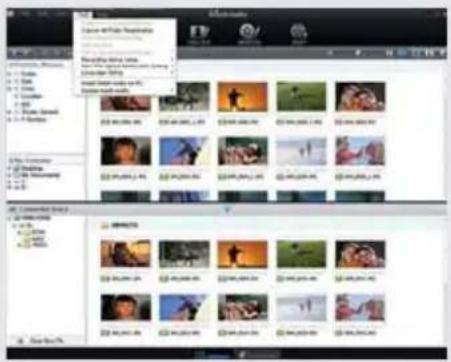
text_image
Adobe Name of Pina Resources Adobe 2.1.0 Adobe 2.1.0 Adobe 2.1.0 Adobe 2.1.0 Adobe 2.1.0 Adobe 2.1.0 Adobe 2.1.0 Adobe 2.1.0 Adobe 2.1.0 Adobe 2.1.0 Adobe 2.1.0 Adobe 2.1.0 Adobe 2.1.0 Adobe 1.9.0 Adobe 1.9.0 Adobe 1.9.0 Adobe 1.9.0 Adobe 1.9.0 Adobe 1.9.0 Adobe 1.9.0 Adobe 1.9.0 Adobe 1.9.0 Adobe 1.9.0 Adobe 1.9.0 Adobe 1.9.0 Adobe 1.9.0 Adobe 1.8.0 Adobe 1.8.0 Adobe 1.8.0 Adobe 1.8.0 Adobe 1.8.0 Adobe 1.8.0 Adobe 1.8.0 Adobe 1.8.0 Adobe 1.8.0 Adobe 1.8.0 Adobe 1.8.0 Adobe 1.8.0 Adobe 1.8.0 Adobe 1.7.0 Adobe 1.7.0 Adobe 1.7.0 Adobe 1.7.0 Adobe 1.7.0 Adobe 1.7.0 Adobe 1.7.0 Adobe 1.7.0 Adobe 1.7.0 Adobe 1.7.0 Adobe 1.7.0 Adobe 1.6.0 Adobe 1.6.0 Adobe 1.6.0 Adobe 1.6.0 Adobe 1.6.0 Adobe 1.6.0 Adobe 1.6.0 Adobe 1.6.0 Adobe 1.6.0 Adobe 1.5.0 Adobe 1.5.0 Adobe 1.5.0 Adobe 1.5.0 Adobe 1.5.0 Adobe 1.5.0 Adobe 1.5.0 Adobe 1.5.0 Adobe 1.4.0 Adobe 1.4.0 Adobe 1.4.0 Adobe 1.4.0 Adobe 1.4.0 Adobe 1.4.0 Adobe 1.4.0 Adobe 1.4.0 Adobe 1.3.0 Adobe 1.3.0 Adobe 1.3.0 Adobe 1.3.0 Adobe 1.3.0 Adobe 1.3.0 Adobe 1.3.0 Adobe 1.3.0 Adobe 1.2.0 Adobe 1.2.0 Adobe 1.2.0 Adobe 1.2.0 Adobe 1.2.0 Adobe 1.2.0 Adobe 1.2.0 Adobe 1.2.0 Adobe 1.2
2
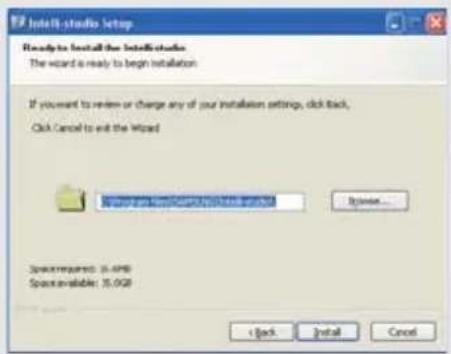
text_image
Install Studio Setup Ready to install the Install Studio The wizard is ready to begin installation If you want to review or change any of your installation settings, click back, Click Cancel to exit the Wizard Spaces required: 35.000 Spaces available: 35.000 < Back Install Cancel
4
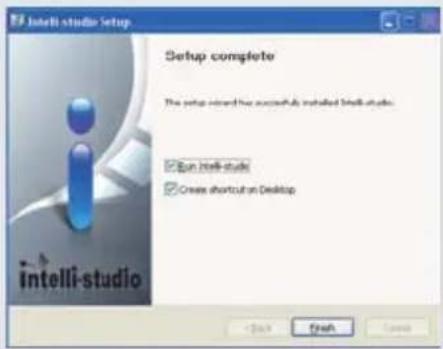
text_image
Intelli studio Setup Setup complete The setup intended to have successfully installed Intelli-stude. Run Intelli-stude Create shortcut on Desktop < Back Finish Cancel
3

text_image
InterX studio Setup Setup Status InterX studio Setup program is performing the requested operations. Copy to C:\Program Files\SPSSING\InterX studio\Fibers Show details + Back Next > CancelUSING AS A REMOVABLE STORAGE DEVICE
You can copy video or photo files recorded by the camcorder to a Windows computer by connecting the USB cable to the camcorder.
Viewing the contents of storage media
- Set "USB Connect" to "Mass Storage". →page 84
- Set "PC Software" to "Off". → page 83
- Select the storage media, if necessary. → page 27
-
Connect the camcorder to the PC with the USB cable. →page 110
-
The "Removable Disk" or "Samsung" window appears on the PC's screen after a moment.
- The removable disk appears when connecting a USB.
-
Select "Open folders to view fi les using Windows Explorer" and then click "OK."
-
The folders in the storage media appear.
- Different file types are stored in different folders.
- Select the desired folder (or files) to copy, then drag and drop it into the destination folder.
- The folder (or files) is copied from the storage media to the PC.

- If the "Removable Disk" window does not appear, confirm the connection page 110 or perform steps 1 and 4 again.
- If the removable disk does not appear automatically, open the removable disk folder in My Computer.
- If the connected camcorder's disk drive does not open or the context menu that appears when right clicking your mouse (open or browse) appears broken, your computer may be infected by Autorun virus.
Please update your anti-virus software to its latest version and scan your disk drives.

text_image
Removable Disk (G:) Windows can perform the same action each time you insert a disk or connect a device with this kind of file. Pictures What do you want Windows to do? using Photo Printing Wizard View a slideshow of the images using Windows Picture and Fax Viewer Copy pictures to a folder on my computer using Microsoft Scanner and Camera Wizard Browse picture files using MediaShow Open folder to view files using Windows Explorer Always do the selected action. OK Cancel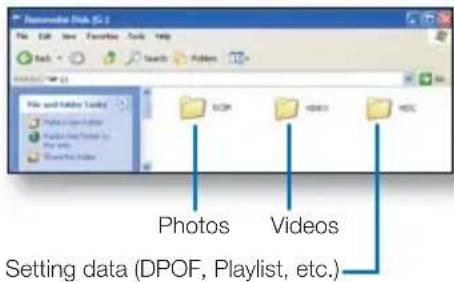
text_image
Photos Videos Setting data (DPOF, Playlist, etc.)
text_image
Automatic Disk (C:) File Edit View Favorites Tools Help Back Search Favorites Edit [FPT] File and Folder Tools ABCP PDFS HESC File and Folder Tools HESC HESC HESC HESC HESC HESC HESC HESC HESC HESC HESC HESC HESC HESC HESC HESC HESC HESC HESC HESC HESC HESC HESC HESC HESC HESC HESC HESC HESC HESC HESC HESC HESC HESCusing with a Windows computer
Structure of folders and fi les on the storage media
- The folder and file structure for storage media is as follows:
- File naming follows DCF (Design rule for Camera File System) rules.
Video fi le (H.264)①
- The HD-quality video file names have an HDV_####.MP4 format.
- The SD-quality videos file names have an SDV_####.MP4 format.
- The file number automatically increases when a new video file is created.
- A new folder is created when the number of files in a folder exceeds 999\~1,000.
- The folder names are given the following order: 100VIDEO, 101VIDEO, etc. The maximum number of the folders is 999.
- The camcorder can create a maximum of 9,999 files in any storage media.
Photo fi le②
- As with video fi les, the fi le number automatically increases when a new photo fi le is created.
• The photos have a SAM_###.JPG format. - A new folder is created when the number of files in a folder exceeds 999\~1,000.
- The folder names are given the following order: 100PHOTO, 101PHOTO, etc. The maximum number of the folders is 999.
- The camcorder can create a maximum of 9,999 fi les in any storage media.

flowchart
graph TD
    A["MISC"] --> B["100VIDEO"]
    C["VIDEO"] --> D["100PHOTO"]
    E["DCIM"] --> F["100PHOTO"]
    B --> G["SDV_0001.MP4"]
    B --> H["SDV_0002.MP4"]
    D --> I["SAM_0001.JPG"]
    D --> J["SAM_0002.JPG"]
    style A fill:#FFD700,stroke:#333
    style C fill:#FFD700,stroke:#333
    style E fill:#FFD700,stroke:#333
    style B fill:#FFD700,stroke:#333
    style D fill:#FFD700,stroke:#333
    style F fill:#FFD700,stroke:#333
    style G fill:#FFD700,stroke:#333
    style H fill:#FFD700,stroke:#333
    style I fill:#FFD700,stroke:#333
    style J fill:#FFD700,stroke:#333
File format
Video fi les
- Video fi les are compressed in H.264 format. The fi le extension is ".MP4."
• Refer to page 54 for the video resolution.
Photo fi les
- Photo images are compressed in JPEG (Joint Photographic Experts Group) format. The file extension is “.JPG.”
• Refer to page 55 for the photo resolution.

The name of a video fi le recorded by the camcorder should not be modified, since proper playback by the camcorder requires original folder and fi le naming convention.
troubleshooting
Before contacting a Samsung authorized service center, perform the following simple checks. They may save you the time and expense of an unnecessary call.
WARNING INDICATORS AND MESSAGES
Problems may occur because of the following reasons. Check the information and take corrective action.
Battery
| Message Icon Informs that... | Action | |
| Low Battery - | The battery is almost discharged. | |
| Check the authenticity of this battery | - | The battery can not pass authenticity check. |
Storage media
| Message Icon Informs that ... | Action | ||
| Internal Memory Full |  | There is not enough space to record in the internal memory. | Delete unnecessary files in the internal memory.Back-up files to your PC or another storage media and delete files.Use a memory card. |
| Insert card |  | There is no memory card inserted in the memory card slot. | Insert a memory card. |
| Card Full |  | There is not enough space to record in the memory card. | Delete unnecessary files from the memory card.Back-up files to PC or another storage media and delete files.Change memory card to another one has enough free space. |
| Card Locked |  | The write protection tab on an SD or SDHC card has been set to lock. | Release write protection tab. |
troubleshooting
| Message Icon Informs that ... | Action | ||
| Card Error |  | The memory card has some problem and can not be recognized. | · Change memory card with another one. |
| Not Formatted |  | The memory card is not formatted. | · Format the memory card using the menu. |
| Not Supported Format |  | The memory card may have been formatted by another device and may still have existing images on it. | · The image format is not supported. Check the supported file format.· Format the memory card using menu item. |
| Not Supported Card |  | The memory card is not supported in this camcorder. | · Change the memory card with the one recommended. |
| Low speed card. Please record at a lower resolution. | - | The memory card does not have enough speed to record at this resolution. | · Record video at a lower quality.· Change memory card with a one. |
Recording
| Message Icon Informs that ... | Action | |
| Write Error - | Some problem occurred while writing data to storage media. | |
| Release the Smart Auto | - | You can not operate some functions manually when Smart Auto is activated. |
| Recovering Data... Don't power off and keep card inside. | - | The file was not created normally. |
| The number of video files is full. Cannot record video. | - | The number of video files that can be stored is 9,999. |
Recording
| Message Icon Informs that ... Action | |||
| The number of photo files is full.Cannot take a photo. | - | The number of photo files that can be stored is 9,999. | Delete unnecessary files from the storage media.Back up files to your PC or another storage media and delete files.Change to another card which has enough free space. |
| File number is fullCannot record video. | - | Folder and file number have reached maximum number and you can not record. | Set “File No.” to “Reset” and format the storage media. |
| File number is full.Cannot take a photo. | - | Folder and file number have reached maximum number and you can not record. | Set “File No.” to “Reset” and format the storage media. |
| Check the lens cover | [wzwx] | Lens cover is closed.• Open | the lens cover. |
Playback
| Message Icon Informs that ... Action | |||
| Total file size is over 1.8GB. | - | Total file size that can be combined is limited to 1.8GB. | Combined files must be less than 1.8GB. |
| Select 2 files for combine. | - | You can not combine more than 2 different videos into one. | You can only combine 2 different videos into one. Select 2 files only. |
| Cannot select different resolution | - | The files you want to combine have different resolutions. | You can not combine the files that have different resolutions. |
| Read Error - | Some problems occurred when reading data from the storage media. | Format the storage media using the menu after backing up important files to a PC or another storage device. | |
| Corrupted file - This file can not be read. | Format the storage media using the menu after back up important files to a PC or another storage device. | ||
| Not enough free space in Internal Memory | - | File editing functions can not be performed because there is not enough free space in the internal memory. | Delete unnecessary files from the storage media.Back up files to a PC or another storage media and delete files. |
| Not enough free space in Card | - | File editing functions can not be performed because there is not enough free space in the memory card. | Delete unnecessary files from the storage media.Back up files to a PC or another storage media and delete files. |
troubleshooting
USB
| Message Icon Informs that... | Action | |
| Fail Printer Connecting Change 'USB Connect' | - | A problem occurred when connecting the camcorder via USB to a printer. |
| Fail USB Connecting Change 'USB Connect' | - | A problem occurred when connecting the camcorder via USB to a PC. |
| Ink Error - | There is a problem with the ink cartridge. | |
| Paper Error - | There is a problem with the paper. | |
| File Error - | There is a problem with the file. | |
| Printer Error - | There is a problem with the printer. | |
| Print Error - | A problem occurred during printing. |

When there is dew condensation, put the camcorder aside for a while before using
• ?What is dew condensation?
Dew condensation happens when a camcorder is moved to a location where there is a significant temperature difference from the previous location. The dew condenses on the external or internal parts of the camcorder, and on the reflection lens. If there is dew on or in your camcorder, it may cause the camcorder to malfunction or damage the camcorder when you turn the power on.
- ?Exactly when does dew condensation occur?
When you move the camera to a location with a higher temperature than the previous location, or when you move it to a hot area suddenly. Examples:
- You record outside in cold weather during the winter and then move the camera in indoors. - You record outside in hot weather after being indoors or inside a car where the A/C was running.
- ?What can I do?
Turn the power off, detach the battery, and leave the camcorder in a dry area for 1\~2 hours before using it.
SYMPTOMS AND SOLUTIONS
If these instructions do not solve your problem, contact your nearest Samsung authorized service center.
Power
| Symptom Explanation/Solution | |
| The camcorder does not turn on. | ?The battery may not be installed in your camcorder. Insert the battery to the camcorder.?The inserted battery may be discharged.Charge the battery or replace it with a charged one.?If you use the AC power adaptor, make sure it is properly connected to a wall outlet. |
| The power turns off automatically. | Is “Auto Power Off” set to “5 Min”? If no button is pressed for about 5 minutes, the camcorder is automatically turned off (“Auto Power Off”). To disable this option, change the setting of “Auto Power Off” to “Off.” →page 81?The battery is almost exhausted. Charge the battery or replace it with a charged one. |
| Power cannot be turned off. | ?Remove the battery or unplug the AC power adaptor, and connect the power supply to the camcorder again before turning it on. |
| The battery is quickly discharged. | ?The ambient, external temperature is too low.?The battery is not fully charged. Charge the battery again.?The battery has reached the end of its lifespan and cannot be recharged. Use another battery. |
Display
| Symptom Explanation/Solution | |
| The TV screen or LCD display has distorted images or has stripes at the top/bottom or on the left/right. | ?This can occur when recording or viewing a 16:9-ratio image on a 4:3-ratio TV, or vice versa. For more details, see the display specification. →page 106 |
| Unknown image appears on the LCD screen. | ?The camcorder is in Demo mode. If you do not want to see Demo images, change the setting “Demo” to “Off.” →page 88 |
| Unknown indicator appears on the screen. | ?A warning indicator or message appears on the screen.→pages 117~120 |
| The afterimage remains on the LCD screen. | ?This occurs if you disconnect the AC power adaptor or remove the battery before turning the power off. |
| The image on the LCD screen looks dark. | ?Ambient light too bright. Adjust the brightness and angle of LCD. |
troubleshooting
Recording
| Symptom Explanation/Solution | |
| Pressing the Recording start/stop button does not start recording. | Press the MODE button to set the record mode.→page 23There is not enough free space to record on the storage media.Check if memory card is not inserted or write-protect tab is set to lock. |
| The actual recording time is less than the estimated recording time. | The estimated recording time may vary depending on content and features used.When you record an object that moves fast, the actual recording time may be shortened. |
| The recording stops automatically. | There is no more free space for recording on the storage media. Back up important files to your PC and format the storage media or delete the unnecessary files.If you make recordings or delete files frequently, the performance of the storage media deteriorates. Format the storage media again.If you use a memory card with low writing speed, the camcorder automatically stops recording the videos and the corresponding message appears on the LCD screen. |
| When recording a subject illuminated by bright light, a vertical line appears. | This is not a malfunction. |
| When the screen is exposed to direct sunlight during recording, the screen becomes red or black for an instant. | This is not a malfunction. |
| During recording, the date/time does not display. | “Date/Time Display” is set to “Off.” Set the “Date/Time Display” to On.→page 78 |
| You cannot record a photo image. | Set your camcorder to the record mode.→page 23Release the lock on the write-protection tab of the memory card if any.The storage media is full. Use a new memory card or format the storage media.→page 75 Or remove unnecessary images.→page 97 |
| You don’t hear the shutter sound when you record a photo image. | Set “Shutter Sound” to “On.”During dual recording, the Shutter Sound is off. |
| You don’t hear the beep sound. | Set “Beep Sound” to “On.”Beep sound is temporally off while recording videos. |
Recording
| Symptom Explanation/Solution | |
| There is a time difference between the point where you press the Recording start/stop button and the point where the recorded video starts/stops. | On your camcorder, there may be a slight time delay between the point when you press the Recording start/stop button and the actual point where the recorded video starts/stops. This is not an error. |
| Horizontal stripes appear on the images. | This occurs when recording images under a fluorescent lamp, sodium lamp, or mercury lamp. This is not a malfunction. |
Storage Media
| Symptom Explanation/Solution | |
| Memory card functions do not operate. | Insert a memory card into your camcorder properly.→page 28If you use a memory card formatted on a computer, format it again directly on your camcorder.→page 75 |
| Image cannot be moved or deleted. | Release the lock on the write-protect tab of the memory card (SDHC/SD memory card), if any.→page 29You cannot move or delete protected images. Release the protection of the image on the storage media.→page 96 |
| You cannot format the memory card. | Release the lock on the write-protect tab of the memory card (SDHC/SD memory card), if any.→page 29The memory card is not supported on your camcorder or the card has some problems. |
| The data file name is not indicated correctly. | The file may be corrupted.The file format is not supported by your camcorder.Only the file name is displayed if the directory structure complies with the international standard. |
troubleshooting
Adjusting the image during recording
| Symptom Explanation/Solution | |
| Focus does not adjust automatically. | Set “Focus” to “Auto.” →page 60The recording conditions are not suitable for auto focus. Adjust the focus manually. →page 60The lens is dusty on the surface. Clear the lens and check the focus.Recording is being made in a dark location.Use a light to brighten the area. |
| The image appears too bright, flickers, or changes color. | This may occur when you make a recording under a fluorescent sodium, or mercury lamp.Cancel “i SCENE” to avoid or minimize this phenomenon.→page 53 |
| Image’s color balance is not natural. | White balance adjustment is required. Adjust to the proper “White Balance.” →page 56 |
| A subject passing rapidly through a scene appears distorted. | This is called the focal plane phenomenon. This is not a malfunction. Because of the way the image device (CMOS sensor) reads out video signals, the subject passing through the frame rapidly may appear to bend, depending on the recording condition. |
Playback on your camcorder
| Symptom Explanation/Solution | |
| Playback (play/pause) function does not work. | Image files recorded using another device may not be played on your camcorder.Check the the memory card compatibility. ➔page 29 |
| Photo images stored on a storage media are not displayed in the actual size. | Photo images recorded on other devices may not appear in their actual size. This is not an error. |
| Playback is interrupted unexpectedly. | Check if the AC power adaptor or battery back is properly connected and secure. |
Playback on other devices (TV, etc.)
| Symptom Explanation/Solution | |
| You cannot view the image or hear the sound from the connected device. | Connect the audio of the component/AV cable to your camcorder or connected device (TV, HD recorder, etc.). (Red color- right, White color- left)The connection cable (component/AV cable) is not connected properly. Make sure that the connection cable is connected to the proper jack.→pages 103~104When you are using the component/AV cable, make sure the red and white plugs of your component/AV cable are connected.→pages 103~104This camcorder does not support the audio output signal when the camcorder is connected with TV in the record mode. The audio output signal is supported only if the camcorder is connected in the video playback mode. This is not an error. |
| The image appears distorted on a TV. | This phenomenon is caused by connecting to a TV with 4:3 aspect ratio. |
| You cannot view the image or hear the sound from a TV connected using the HDMI cable. | Images will not be output from the HDMI jack if the material is copyright protected. |
Connecting/Dubbing with other devices (Recorder, PC, Printer, etc.)
| Symptom Explanation/Solution | |
| You cannot dub correctly using the HDMI cable. | · You cannot dub images using the HDMI cable. |
| You cannot dub correctly using the component/AV cable. | · The component/AV cable is not connected properly. Make sure that the component/AV cable is connected to the proper jack, i.e. to the input jack of the device used for dubbing images from your camcorder. ➔page 107 |
| Your PictBridge printer can not print images from your camcorder. | · Your printer may not print images edited on a computer or recorded using other devices. This is not an error. |
troubleshooting
Connecting to a computer
| Symptom Explanation/Solution | |
| Your computer does not recognize your camcorder. | · Disconnect the USB cable from the computer and camcorder, restart the computer, then connect it again correctly. |
| Cannot play a video file properly on a PC. | · A video codec is needed to play the file recorded on your camcorder. Install the software provided with your camcorder. →page 114· Make sure you insert the connector in the correct direction, and connect the USB cable to the USB jack on your camcorder firmly.· Disconnect the cable from the computer and camcorder. Then, restart the computer. Connect it again properly.· To play back an HD video file, a computer with better specifications is required.View the recommended specification. →page 109 |
| Intelli-studio does not function properly. | · Exit the Intelli-studio application, and restart the Windows computer. |
| Intelli-studio does not start. | · Set PC Software to On in the Settings menu or install Intelli-studio in the computer. →pages 83, 114 |
| Your computer is not playing videos, images, or sound located on your camcorder properly. | · Video playback or sound may stop temporarily depending on your computer. The video or sound copied to your computer is not affected.· If your camcorder is connected to a computer that does not support Hi-speed USB (USB2.0), the image or sound may not be played correctly. The images and sound copied to your computer are not affected. |
| The playback screen is paused or distorted. | · Check the system requirements to play a video.· Exit all other applications running on the current computer.· If a recorded video is played on your camcorder connected to a computer, the image may not play smoothly, depending on the transfer speed. Please copy the file to your PC, and then play it back. |
Overall operations
| Symptom Explanation/Solution | |
| The date and time are incorrect. | • ?Has the camcorder been left unused for a long period of time? The backup built-in rechargeable battery may be discharged.→page 25 |
Menu items that cannot be used at the same time
| Symptom Cannot use Because of the following settings | ||
| Menu items are grayed out | “i SCENE” “Aperture : Manual,” “Shutter : Manual” | |
| “Aperture: Manual” “Shutter : Manual,” “i SCENE” | ||
| “Shutter: Manual” “Aperture : Manual,” “i SCENE” | ||
| “Video Resolution,” “Video Quality,” “Fader” | “Time Lapse REC” | |
| “Photo Resolution” “Cont. Shot” | ||
- ?You cannot select grayed menu items in the current recording/playback mode.
- ?There are some functions you cannot activate simultaneously.
The list shown above shows examples of unworkable combinations of functions and menu items.
- ?Menu and Quick menu cannot be used in Smart Auto mode.
• ?The following functions cannot be used during video recording:
"Video Resolution," "Video Quality," "Photo Resolution," "Photo Sharpness," "Fader," "Cont.Shot," "Digital Zoom," "Self Timer," "Time Lapse REC."
- The following functions are automatically set to Off or Auto mode in the Smart Auto mode: "iSCENE", "Shutter", "Digital Effect", "Tele Macro", etc.
- ?In the Smart Auto mode, your camcorder automatically chooses the appropriate camcorder settings based on a detected type of scene. Most settings are automatically adjusted in Smart Auto mode. To set or adjust functions on your own, release the Smart Auto mode first.
maintenance & additional information
MAINTENANCE
Your camcorder is a product of superior design and craftsmanship and should be treated with care.
The suggestions below will help you fulfill any warranty obligations and allow you to enjoy this product for many years.
- For safekeeping of the camcorder, turn off the camcorder.
- Remove the battery and AC power adaptor. → pages 16, 20
- Remove the memory card. → page 28
Cautions when storing
- Do not leave the camcorder in a place where the temperature is very high for a long period of time:
The temperature inside a closed vehicle or trunk can become very high in a hot weather. If you leave the camcorder in such a place, it could malfunction or the case could be damaged. Do not expose the camcorder to a direct sunlight or place it near a heater.
- Do not store the camcorder in a place where the humidity is high or in a dusty place:
Dust entering the camcorder could cause a malfunction. If humidity is high, the lens could become moldy, and the camcorder could become inoperative. It is recommended that you put the camcorder in a box together with a small silica bag when storing it in a closet, etc.
- Do not store the camcorder in a place subject to strong magnetism or intense vibration:
This could cause malfunctions.
- Detach the battery from the camcorder and store it in a cool place:
Leaving the battery attached or storing it at a high temperature could shorten its life.
Cleaning the camcorder
Before cleaning, turn off the camcorder and remove the battery and AC power adaptor.
• To clean the exterior
- Wipe gently with a soft dry cloth. Do not apply excessive for ce when cleaning. Gently rub the surface.
- Do not use benzene or thinner to clean the camcorder. The exterior coating could peel off or the case could deteriorate.
• To clean the LCD screen
Wipe very gently with a soft dry cloth. Be careful not to damage the screen.
• To clean the lens
Use an optional air blower to blow out dirt and other small objects. Do not wipe the lens with cloth or your fingers.
If necessary, wipe gently with lens paper or tissue.
- Mold may form if the lens is left dirty.
- If the lens looks dim, turn off the camcorder and leave it off for about 1 hour.
Storage media
- Be sure to follow the guidelines below to prevent corruption or damage to your recorded data.
- Do not bend or dr op the storage media, or subject it to strong pressure, jolts or vibrations.
- Do not splash the storage media with water.
- Do not use, place or store the storage media in locations that are exposed to a strong static electricity or electrical noise.
- Do not turn off the camcorder power or remove the battery or AC power adaptor during recording, playback, or when accessing the storage media.
- Do not bring the storage media near to objects that have a strong magnetic field or that emit strong electromagnetic waves.
- Do not store the storage media in locations with high temperature or high humidity.
- Do not touch the metal parts.
- Copy the recorded files to your PC. Samsung is not responsible for any lost data. (We recommend that you copy the data from your PC to other media for storage.)
- A malfunction may cause the storage media to operate improperly. Samsung will not provide any compensation for any lost contents.
LCD screen
Before cleaning, turn off the camcorder and remove the battery and AC power adaptor.
• To maintain the LCD Screen:
- Do not press the screen hard, strike it, or knock it on anything.
- Do not set the camcorder down with the LCD screen facing the bottom.
• To prolong its service life, do not rub the LCD screen with a coarse cloth.
- Be aware of the following LCD screen phenomena. They are not malfunctions.
- When you use the camcorder, the surface around the LCD screen may heat up.
- If you leave the power on for a long time, the surface around the LCD screen becomes hot.
maintenance & additional information
• Each country or region has its own electrical and color systems.
- Before using your camcorder abroad, check the following items.
Power sources
The provided AC adaptor features automatic AC 100 V to 240 V voltage selection. You can power your camcorder in any country or region using the supplied AC power adaptor if that country or region provides 100 V to 240 V, 50 or 60 Hz electrical current. Use a commercially available AC plug adaptor, if necessary, depending on the design of the wall outlet.
Viewing videos recorded with HD (high definition) image quality on a TV
To view the images with the same HD (high definition) image quality as that of the recorded images on a TV, you need an NTSC-based, 1080/60i compatible TV (or monitor) with an HDMI or component/AV cable connected.
Viewing videos recorded with SD (standard definition) image quality on a TV
To view images recorded in SD (standard definition) image resolution, you need an NTSC based TV with audio/video or component input jacks and a component/AV cable connected.
On TV color systems
Your camcorder is an NTSC-system-based camcorder. If you want to view your recordings on a TV or to copy them to an external device, you must have an NTSC-based TV or external device with the appropriate Audio/Video jacks. If you do not have an NTSC-based TV or device, you may need to use a separate video format transcoder (NTSC to PAL format converter).

The format transcoder is not provided by Samsung.
NTSC-compatible countries/regions
Bahamas, Canada, Central America, Japan, Korea, Mexico, Philippines, Taiwan, United States of America, etc.
PAL-compatible countries/regions
Australia, Austria, Belgium, Bulgaria, China, CIS, Czech Republic, Denmark, Egypt, Finland, France, Germany, Greece, Great Britain, Holland, Hong Kong, Hungary, India, Iran, Iraq, Kuwait, Libya, Malaysia, Mauritius, Norway, Romania, Saudi Arabia, Singapore, Slovak Republic, Spain, Sweden, Switzerland, Syria, Thailand, Tunisia, etc.

You can make recordings with your camcorder and view pictures on the LCD screen anywhere in the world.
specifications
| Model name | HMX-H200BN/HMX-H200SN/HMX-H200LN/HMX-H200RNHMX-H203BN/HMX-H203SN/HMX-H203LN/HMX-H203RNHMX-H204BN/HMX-H204SN/HMX-H204LN/HMX-H204RNHMX-H205BN/HMX-H205SN/HMX-H205LN/HMX-H205RNHMX-H220BN/HMX-H220SN/HMX-H220LN/HMX-H220RN |
| System | Video signalPicture compression formatAudio compression formatImage deviceLensFocal lengthFilter diameter | NTSCH.264 (MPEG-4.AVC)AAC (Advanced Audio Coding)1/4.1", 3.32M Pixel CMOSF1.8 ~ F3.7, 20x optical zoom,200x digital zoom3.2mm ~ 64mm∅ 34 |
| LCD screen | Size/dot numberLCD screen method | 2.7" Wide Touch LCD (960x240) / 230kTFT LCD |
| Connectors | Composite outputComponent outputHDMI outputAudio outputUSB output | 1Vp-p (75 Ω terminated)Y: 1 Vp-p, 75 ΩPB/PR: 0.350Vp-p, 75 ΩC type connector-7.5 dBs (600 Ω terminated)mini USB-B type (USB2.0 High Speed) |
| General | Power sourcePower source typePower consumption(Recording)Operating temperatureStorage temperatureStorage mediaExternal dimensions(WxHxD)WeightInternal MIC | DC 5 V, Lithium Ion battery pack 3.7 VLithium Ion battery pack, Power supply(100 V ~ 240 V) 50/60 Hz3.2W (LCD on)0 °C ~ 40 °C (32 °F~104 °F)-20 °C ~ 60 °C (-4 °F ~ 140 °F)Internal memory (SSD)(HMX-H203/H204/H205 only),Memory card (SD/SDHC) (optional)Approx. 58.5 mm (2.3 inches) x 59.3 mm(2.33 inches) x 111.65 mm (4.4 inches)Approx. 283 g (0.62 lb, 9.98 oz) (Except for Lithium Ion battery)Omni-directional stereo microphone |
※ The technical specifications and design may be changed without notice.
SAMSUNG LIMITED WARRANTY
SAMSUNG Electronics America Inc. (SEA), warrants that this product is free from defective material and workmanship.
SEA further warrants that if product fails to operate properly within the specified warranty period and the failure is due to improper workmanship or defective material, SEA will repair or replace the product at its option.
All warranty repairs must be performed by a SEA authorized service center. The name and address of the location nearest you can be obtained by calling toll free: 1-800 SAMSUNG (1-800-726-7864).
Labor
90 days carry-in
Parts
1 year
On carry-in models, transportation to and from the service center is the customer's responsibility.
The original dated sales receipt must be retained by the customer and is the only acceptable proof of purchase.
It must be presented to the authorized service center.
EXCLUSIONS (WHAT IS NOT COVERED)
This warranty does not cover damage due to accident, fire, flood and/or other acts of
God; misuse, incorrect line voltage, improper installation, improper or unauthorized repairs, commercial use, or damage that occurs in shipping.
Exterior and interior finish, lamps, and glass are not covered under this warranty.
Customer adjustments which are explained in the instruction manual are not covered under the terms of this warranty.
This warranty will automatically be voided for any unit found with a missing or altered serial number. This warranty is valid only on products purchased in the United States and Puerto Rico.
Some States do not allow the exclusions or limitations of incidental or consequential damages, or allow limitations on how long an implied warranty lasts, so the above limitations or exclusions may not apply to you.
This warranty gives you specific legal rights, and you may also have other rights which vary from State to State.

text_image
SAMSUNG| COUNTRY CALL OR VISIT US ONLINE AT WRITE | |||
| IN THE US | 1-800-SAMSUNG(726-7864) | www.samsung.com | Samsung Electronics America, Inc.85 Challenger Road Ridgefield Park,NJ 07660-2112 |

RoHS compliant
Our product complies with “The Restriction Of the use of certain Hazardous Substances in electrical and electronic equipment”, and we do not use the 6 hazardous materials- Cadmium(Cd), Lead (Pb), Mercury (Hg), Hexavalent Chromium (Cr +6), Poly Brominated Biphenyls (PBBs), Poly Brominated Diphenyl Ethers(PBDEs)- in our products.