AVR200 - Receiver ARCAM - Free user manual and instructions
Find the device manual for free AVR200 ARCAM in PDF.


User questions about AVR200 ARCAM
0 question about this device. Answer the ones you know or ask your own.
Ask a new question about this device
Download the instructions for your Receiver in PDF format for free! Find your manual AVR200 - ARCAM and take your electronic device back in hand. On this page are published all the documents necessary for the use of your device. AVR200 by ARCAM.
USER MANUAL AVR200 ARCAM
This product is designed and manufactured to meet strict quality and safety standards. However, you should be aware of the following installation and operation precautions:
1. Take heed of warnings and instructions
You should read all the safety and operating instructions before operating this appliance. Retain this handbook for future reference and adhere to all warnings in the handbook or on the appliance.
2. Water and moisture
The presence of electricity near water can be dangerous. Do not use the appliance near water – for example next to a bathtub, washbowl, kitchen sink, in a wet basement or near a swimming pool, etc.
3. Object or liquid entry
Take care that objects do not fall and liquids are not spilled into the enclosure through any openings. Liquid fi lled objects such as vases should not be placed on the equipment.
4. Ventilation
Do not place the equipment on a bed, sofa, rug or similar soft surface, or in an enclosed bookcase or cabinet, since ventilation may be impeded. We recommend a minimum distance of 50mm (2 inches) around the sides and top of the appliance to provide adequate ventilation.
5. Heat
Locate the appliance away from naked flames or heat producing equipment such as radiators, stoves or other appliances (including other amplifiers) that produce heat.
6. Climate
The appliance has been designed for use in moderate climates.
7. Racks and stands
Only use a rack or stand that is recommended for use with audio equipment. If the equipment is on a portable rack it should be moved with great care, to avoid overturning the combination.
8. Cleaning
Unplug the unit from the mains supply before cleaning.
The case should normally only require a wipe with a soft, damp, lint-free cloth. Do not use paint thinners or other chemical solvents for cleaning.
We do not advise the use of furniture cleaning sprays or polishes as they can cause indelible white marks if the unit is subsequently wiped with a damp cloth.
9. Power sources
Only connect the appliance to a power supply of the type described in the operating instructions or as marked on the appliance.
10. Power-cord protection
Power supply cords should be routed so that they are not likely to be walked on or pinched by items placed upon or against them, paying particular attention to cords and plugs, and the point where they exit from the appliance.
11. Grounding
Ensure that the grounding means of the appliance is not defeated.
12. Power lines
Locate any outdoor antenna/aerial away from power lines.
13. Non-use periods
If the unit has a stand by function, a small amount of current will continue to flow into the equipment in this mode. Unplug the power cord of the appliance from the outlet if left unused for a long period of time.
14. Abnormal smell
If an abnormal smell or smoke is detected from the appliance, turn the power off immediately and unplug the unit from the wall outlet. Contact your dealer immediately.
15. Servicing
You should not attempt to service the appliance beyond that described in this handbook. All other servicing should be referred to qualified service personnel.
16. Damage requiring service
The appliance should be serviced by qualified service personnel when:
A. the power-supply cord or the plug has been damaged, or
B. objects have fallen, or liquid has spilled into the appliance, or
C. the appliance has been exposed to rain, or
D. the appliance does not appear to operate normally or exhibits a marked change in performance, or
E. the appliance has been dropped or the enclosure damaged.
Safety compliance
This product has been designed to meet the EN60065 international electrical safety standard.
Using this handbook
This handbook has been designed to give you all the information you need to install, connect, set up and use the Arcam AVR200 surround sound receiver. The remote control handset supplied with the equipment is also described.
It may be that the AVR200 has been installed and set up as part of your system installation by a qualified Arcam dealer. In this case, you may wish to skip the sections of this handbook dealing with installation and setting up the unit. Use the Contents list (on this page) to guide you to the relevant sections.
Safety
Safety guidelines are set out on the inside front cover of this handbook.
Many of these items are common sense precautions, but for your own safety, and to ensure that you do not damage the unit, we strongly recommend that you read them.
Contents
Safety guidelines 2
Safety instructions 2
Safety compliance 2
Using this handbook 3
Safety 3
Installation
Positioning the unit 4
Setting up the aerials 4
Connecting inputs 5
AVR200 back panel connections 5
Interconnect cables 5
Connecting outputs 7
Connecting to other equipment 7
Connecting to a power supply 7
Setting up
8
Using the On Screen Display (OSD) 8
Setup page 8
Input settings page 8
Channel balance page 9
Channel delays page 9
Speaker settings page 10
Using the AVR200
2
Front panel controls
Input selection 12
Using the tuner
Tuning to a station 14
Storing a preset 14
Deleting an unused preset 14
RDS: Radio Data System 14
FM Mute/Mono 14
Using the remote control
CR-340 remote control 15
Reference
6
Bi-wiring and bi-amping loudspeakers
Before you start 16
Bi-wiring your loudspeakers 16
Bi-amping your system 16
Troubleshooting
7
Technical specifications
8
Guarantee
9
On line registration 19
Manufactured under licence from Dolby Laboratories, Inc.
'Dolby', 'Pro Logic', 'Pro Logic II' and the double-D symbol are trademarks of Dolby Laboratories.
Copyright © 1992–1999 Dolby Laboratories, Inc. All rights reserved.
Manufactured under licence from Digital Theater Systems, Inc.
US Patent Number 5,451,942 and other world-wide patents issued and pending. 'DTS' and 'DTS Digital Surround', are trademarks of Digital Theater Systems, Inc.
Copyright © 1996 Digital Theater Systems, Inc. All rights reserved.
Installation
Installation starts with positioning the unit where it can operate effectively. To use the radio receiver, you will need to install an FM and/or an AM aerial.
Other input signals – from CD, MD, tape, DAT, VCR, DVD, games console or satellite receiver – will need to be connected to sockets on the AVR200's back panel.
Output signals – TV, monitor, projector, preamplifier, loudspeakers, headphones or other audio or digital outputs – also need to be connected to sockets on the back panel.
Positioning the unit
Place your AVR200 on a level, fi rm surface.
Avoid placing the unit in direct sunlight or near sources of heat or damp.
Ensure adequate ventilation. Do not place the unit in an enclosed space such as a bookcase or cabinet as both of these will impede air flow through the ventilation slots.
Setting up the aerials
FM aerial
An FM aerial is required to receive VHF radio signals. An external FM ribbon aerial is supplied as an accessory with the AVR200.
For optimal FM radio reception a roof or loft mounted aerial is advised. For your own safety it is recommended that a roof top aerial is fitted by an experienced contractor. Your Arcam dealer should be able to put you in contact with an aerial installer.
A contractor will be able to tune your aerial to the nearest FM transmitter. In an apartment building an aerial system my already be installed. If this is the case you should have sockets in your home marked FM or VHF (do not use those marked TV).
The 'T' shaped wire aerial (dipole design) supplied should give reasonably good reception. Mount this aerial as high up as possible on a wall with the elements positioned horizontally. Try each usable wall of the room to see which gives best reception. Use tacks or adhesive tape to secure the aerial in a T shape. The tacks should not come into contact with the internal wire of the aerial.
Whether you decide to get an aerial professionally installed or opt to use the supplied aerial it should be connected to the FM Antenna input on the rear of the unit.
AM aerial
An AM aerial is required to receive AM/Medium Wave radio signals.
An external AM loop aerial is supplied as an accessory with the AVR200. This should be attached to the AM Antenna inputs with one end connected to AM and the other to Ground. It does not matter which way round this aerial is fitted. Rotate the aerial to discover which position gives the best reception.
In areas of weak reception or when the receiver is used inside a steel framed building (such as an apartment building) you can use a wire between 3 and 5 metres long to strengthen reception. Mount this high up outside the building, if possible, and connect one end of this wire to the AM antenna input as well as the loop aerial supplied. DO NOT DISCONNECT THE LOOP AERIAL.
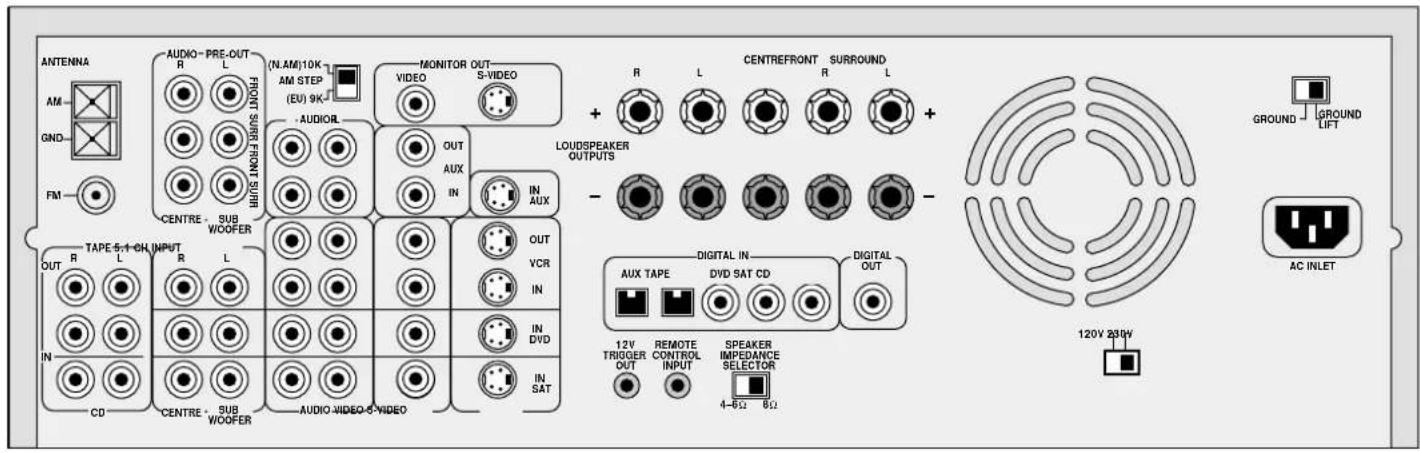
The AM tuning 'step size' needs to be set according to your location. This is done using the switch on the rear panel: set it to 10kHz if you are in North America or 9kHz anywhere else.
Connecting inputs
text_image
ANTENNA AM GND FM AUDIO-PRE-OUT R L (N.AM)10K AM STEP (EU) 9K HOT FOUNT SUBS VOUT SUB VOUT IN SUBVOUT AudiOR MONITOR OUT VIDEO S-VIDEO OUT AUX IN AUX TAPE 5+1+CH INPUT R L IN CD CENTRE SUB WOOFER AUDIO VIDEO-S-VIDEO N. AM 10K AM STEP EUV 9K CERRE LE L OUT VCR IN IN DVD IN SAT AUDIO LE L OUT VCR IN IN DVD AUDIO LE L AUX TAPE DVD SAT CD DIGITAL IN DIGITAL OUT 12V TRIGGER OUT REMOTE CONTROL INPUT SPEAKER IMPEDANCE SELECTOR 4-6Ω 8Ω CENTREFRONT SURROUND R L R L + LOUDSPEAKER OUTPUTS - DIGITAL IN DVR SAT CD 120V 230V GROUND GROUND LIFT AC INLETInterconnect cables
The use of high quality interconnect cables to and from your AVR200 is recommended to ensure the best sound and picture quality. Ask your Arcam dealer's advice on cable selection.
This product does not feature a Phono input stage. If you wish to connect a turntable to your AVR200 you will need to use an in-line phono pre-amp. All line level inputs have the same sensitivity so may be used with any line level source equipment, even components other than those labelled. If you need to do so, your Arcam dealer can give you further advice on this.
CD input
Use audio interconnects to attach the left and right audio outputs from your CD player to the CD IN inputs on the AVR200. If your CD player has digital output, connect it to the CD DIGITAL IN socket on the AVR200.
TAPE loop
This input can be used to connect one of many different recording devices, for example, a tape deck, Mini-Disc or CD-R. Use audio interconnects to attach the left and right audio outputs from your recorder to the corresponding TAPE inputs on the AVR200. If your tape source has digital output, connect it to the TAPE DIGITAL IN socket on the AVR200.
To complete the record loop, attach the left and right TAPE outputs from the AVR200 to the corresponding record inputs on your recorder.
5.1 channel input
This multi-channel input takes up to six (i.e. five channels plus one sub-woofer) discrete channels of audio from a DVD audio player or a DVD player with an integrated decoder. Use audio interconnects to attach the DVD's outputs to the appropriate 5.1 CH INPUT inputs on the AVR200.
For optimum performance from DVD video, however, it is usually better to use a digital connection to the AVR200's own internal digital surround decoder instead.
SAT input
Use audio interconnects to attach the left and right audio outputs from your satellite or cable receiver (or digibox) to the corresponding SAT inputs on the AVR200.
Using either the composite or the S-video output from your satellite receiver, connect it to the corresponding VIDEO or S-VIDEO input on the AVR200.
If your satellite receiver provides a coaxial digital output, attach it via the SAT digital input.
DVD input
In most cases you will achieve the best audio performance from your DVD player by connecting its digital output to the DVD digital input of the AVR200, using a suitable 75Ω digital cable. Connect either the composite or S-video output from your DVD player to the corresponding VIDEO or S-VIDEO inputs on the AVR200.
If you are also using your DVD player to play CDs and prefer to use the stereo audio outputs, connect these to the CD inputs of the AVR200.
VCR loop
Use audio interconnects to attach the left and right audio outputs from your video cassette recorder to the VCR inputs on the AVR200. For the video signal, use either the composite or the S-video output from your VCR and attach to the corresponding input on the AVR200. If the VCR has a digital output, connect it to the VCR digital input on the AVR200.
To complete the record loop, attach the left and right VCR audio outputs from the AVR200 to the corresponding record inputs on your VCR. Using the same type of video connection as for the input, connect the VCR picture output from the AVR200 to the corresponding input on your VCR.
AUX input and record loop
Use audio interconnects to attach the left and right audio outputs from your auxiliary source (another item of audio equipment or a games console) to the corresponding AUX inputs on the AVR200.
Using either the composite or the S-video output from your auxiliary source, connect it to the corresponding VIDEO or S-VIDEO input of the AVR200.
If your auxiliary source has a digital output, connect it to the AUX digital input on the AVR200.
GROUND LIFT switch
If your system only takes audio sources from CD or DVD, set this switch to 'GROUND'. In more complex setups which involve satellite inputs or radio aerials, grounding the unit may actually increase the level of background hum or buzz in the loudspeakers, in which case set the switch to 'GROUND LIFT'.
REMOTE CONTROL INPUT
This input is connected to the output of an infrared receiver. The remote control input is usually used in custom installations. Ask your dealer or custom installer for further details.
Connecting outputs
Connecting to other equipment
MONITOR OUT
Both composite and S-video monitor outputs are provided for connection to the 'Video line in' of your TV, monitor, or projector. If you have both Composite and S-video inputs connected to your AVR200 you need only connect the S-VIDEO Monitor Output to your TV (provided that your TV accepts an S-video input).
LOUDSPEAKER OUTPUTS
Before connecting loudspeakers to your AVR200 you must set the Impedance switch on the rear to the correct position.
WARNING: Never adjust this switch with the power on or you will damage the AVR200.
If your loudspeakers are rated at 6Ω or lower set the switch to the 4–6Ω position. If your loudspeakers are rated higher than 6Ω, set the switch to the 8Ω position.
WARNING: This unit should only be used with loudspeakers with an impedance rating between 4Ω and 8Ω.
WARNING: When connecting loudspeakers, ensure that no stray strands of wire are allowed to touch other cables or the AVR200's casing as this can cause a short circuit and damage the amplifier.
Bi-wiring and Bi-amping loudspeakers
Notes on these techniques are given in the Reference section of this handbook.
Preamplifi er outputs
If you wish to upgrade your system by adding a power amplifier, always specify an Arcam unit to ensure matching gain.
The AVR200 has six line-level pre-amp outputs that can be connected to Arcam external power amplifiers to bi-amplify ('bi-amp') any of the channels. Alternatively, the AVR200 can be used solely as a preamplifier.
Depending on how your system is configured, the subwoofer AUDIO PRE-OUT should be connected using a line level interconnect, to either:
■ an active subwoofer, or
■ a power amplifier used to drive a passive subwoofer.
DIGITAL OUT
Use this socket to connect to the input of a suitable digital recorder (e.g. a CD-R or minidisc). When using a coaxial digital input, the signal is passed through the AVR200 with no changes. An optical input is restricted to a maximum frequency of 48kHz.
12V TRIGGER OUT
This connection is normally used only with multi-room installations. If you are bi-amping with a power amplifier and wish to power both units on or off simultaneously, see page 15.
PHONES (Headphone output)
A 6.3mm stereo jack socket is provided on the front panel for headphone listening. Inserting the jack automatically mutes (i.e. cuts off) the loudspeakers, and AUDIO PRE-OUT outputs. Surround mode settings are ignored: headphone output is in stereo.
Connecting to a power supply
Wrong plug?
Check that the plug supplied with the unit fits your supply and that your mains supply voltage agrees with the voltage setting (120V or 230V) indicated on the rear panel of the unit.
If your mains supply voltage or mains plug is different, consult your Arcam dealer or Arcam Customer Support on +44 (0)1223 203203.
Mains lead
The appliance is normally supplied with a moulded mains plug already fitted to the lead. If for any reason the plug needs to be removed, it must be disposed of immediately and securely, as it is a potential shock hazard when inserted into the mains socket. Should you require a new mains lead, contact your Arcam dealer.
Plugging in
Push the plug (IEC line socket) of the power cable supplied with the unit into the socket (AC INLET) in the back of the unit. Make sure it is pushed in firmly.
Put the plug on the other end of the cable into your power supply socket and switch the socket on.
Non-use periods
If the unit is to be left unused for an extended period, we recommend that you switch the unit off from the front panel button, rather than use 'stand by' mode with the remote control.
Setting up
Using the On Screen Display (OSD)
The easiest way to set up the AVR200's multi-channel audio and video options is through its On Screen Display (OSD).
To enter the OSD, ensure that you have a TV connected and press any of the arrows on the remote control's cursor pad.
To navigate from the first (i.e. Setup) page, use the ▼ and ▲ arrows to highlight a line. To enter a highlighted page, press OK. To leave the OSD, highlight 'EXIT' and press OK.
Once on a page, use the ▼ and ▲ arrows to move to a line and the ▶ and ▶ arrows to change an option. Once you are happy with the settings, highlight 'SAVE AND EXIT' and press OK to keep them in memory. If you are unsure about the changes, or you have entered the page accidentally, highlight 'DO NOT SAVE AND EXIT' and press OK and any changes on that page are ignored.
Setup page
The Setup page forms the index to the OSD. To navigate from here, use the cursor pad on your remote control.
NOTE: In some cases you may find that the OSD is not still or that it 'rolls over' your screen. (You may also notice this effect when the volume bar is shown on screen.) If this is the case, you will need to switch the video system being used by the AVR200.
To do this, fi rst exit the OSD by highlightingEXIT and press OK. Press and hold the STORE button on the front panel of the AVR200 then toggle between the systems shown in the display area by pressing the SAT button – NTSC (used in North America) or PAL (used in most of Europe) – until the correct system is selected.
Input settings page
AUDIO Identifies the active audio source (e.g. CD)
VIDEO Identifies the active video source (e.g. DVD)
MODE Identifies the surround mode associated with the current input (Dolby Digital, DTS, Dolby Pro Logic II Movie, Dolby Pro Logic II Music, Dolby Pro Logic II Panorama, Dolby Pro Logic II Matrix, Dolby Pro Logic, Hall effect or Stereo)
DYNAMIC RANGE A compressed dynamic range is useful for low level (night time) listening. For Dolby Digital sources, the dynamic range has options of 100%, 75%, 50% or 25%
CENTRE WIDTH (Dolby Pro Logic II Music Mode only) Allows centre-channel sounds to be positioned between the centre speaker and the left/right speakers over a range of eight steps. Step '3' uses a combination of all three front speakers to give the best vocal imaging and most seamless soundstage and is recommended for most recordings. Step '0' places all centre sound in the centre speaker. Step '7' places all centre sound equally in the left/right speakers, as in conventional stereo.

flowchart
graph TD
    A["1 INPUT SETTINGS\n2 CHANNEL BALANCE\n3 CHANNEL DELAYS\n4 SPEAKER SETTINGS\n5 EXIT"] --> B["INPUT SETTINGS\nAUDIO = DVD\nVIDEO = DVD\nMODE = DOLBY DIGITAL\nDYNAMIC RANGE = N/A\nCENTRE WIDTH = 3\nDIMENSION = 0\nDO NOT SAVE AND EXIT\nSAVE AND EXIT"]
    C["1 INPUT SETTINGS\n2 CHANNEL BALANCE\n3 CHANNEL DELAYS\n4 SPEAKER SETTINGS\n5 EXIT"] --> B

text_image
front left centre front right 69.8° 62° 54° 36° 28° 20.8° 20.8° 28° 36° 28° 54° 69.8° 62°DIMENSION (Dolby Pro Logic II Music Mode only) Allows the gradual adjustment of the soundfi eld either towards the front or the rear. This can help achieve the desired balance from all the speakers with certain recordings that may contain either too much or too little spatial effect. Step '0' is the recommended setting, which has no effect on the sound. Steps '+1', '+2' and '+3' gradually move the sound forward, and steps '-1', '-2' and '-3' move the sound towards the surrounds.
Channel balance page
From the Channel balance page, you can trim the level of each individual loudspeaker connected to the AVR200. Due to the different performance characteristics or positioning of each loudspeaker they may need to be set to different levels to provide a balanced sound from the listening position. To help set this balance, the AVR200 can generate a test tone that plays an identical signal through each channel in turn. Trim the balance of each speaker in turn until they all appear to produce the same volume.
Once the channel balance page is shown in the OSD, press the TEST button on the remote control to start the test tone. Make sure that either Dolby Digital, Dolby Pro Logic or Dolby Pro Logic II is selected, and that the volume on the AVR200 is set sufficiently high for the tone to be heard. The test tone automatically cycles through each speaker channel until the TEST button is pressed a second time.
Each loudspeaker can be trimmed between +10dB and -10dB.
You can return to the Channel balance page at any time (without first entering the OSD) by pressing the TEST button on the remote control. Press TEST again to exit this page.
Channel delays page
For best results in a surround sound system, the sound from all loudspeakers should reach the listener at the same time. To help achieve this the AVR200 can add slight delays to certain channels when in Dolby Digital or Dolby Pro Logic modes.
When playing a Dolby Digital source you can set a delay for the centre channel of between 0 and 5ms and a delay for the rear channels of between 0 and 15ms.
The method of calculating these delay times is described overleaf.
NOTE: It is not necessary to adjust delay times separately for a DTS (Digital Theater Systems) source.
Setting options for DIMENSIONS
| DISPLAY | EFFECT |
| -3 MAX SURR | Most surround |
| -2 | |
| -1 | |
| 0 | Neutral |
| +1 | |
| +2 | |
| +3 MAX CENTRE | Most centre |

flowchart
graph TD
    A["1 INPUT SETTINGS\n2 CHANNEL BALANCE\n3 CHANNEL DELAYS\n4 SPEAKER SETTINGS\n5 EXIT"] --> B["CHANNEL BALANCE\nLEFT: 0dB\nCENTER: 0dB\nRIGHT: 0dB\nREAR L: 0dB\nREAR R: 0dB\nSUB: 0dB\nDO NOT SAVE AND EXIT\nSAVE AND EXIT"]
NOTE: The test tone generates a noise which may not be heard through a subwoofer. To set your sub to a suitable level, turn off the test tone and experiment with the trim while playing a piece of music or a movie you are familiar with. There is no right or wrong level for the sub: simply find the balance that is best for you.

flowchart
graph LR
    A["1 INPUT SETTINGS\n2 CHANNEL BALANCE\n3 CHANNEL DELAYS\n4 SPEAKER SETTINGS\n5 EXIT"] --> B["CHANNEL DELAYS\nCENTER 0ms\nREAR 0ms\nDO NOT SAVE AND EXIT\nSAVE AND EXIT"]
text_image
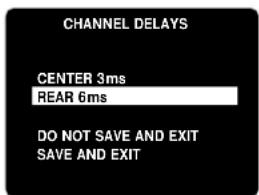
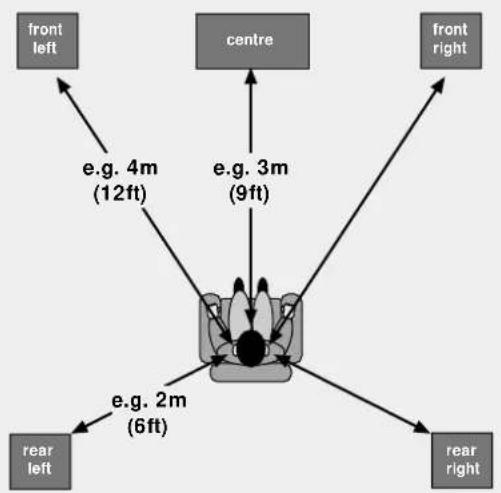
CHANNEL DELAYS CENTER 3ms REAR 6ms DO NOT SAVE AND EXIT SAVE AND EXITTo calculate these delay times, first measure (or estimate) the distances from the listening position to the front, centre and rear speakers. Keep a record of these distances by entering them under the heading 'Your measurement' in the table provided.
The centre channel delay is calculated by subtracting the centre channel distance from the front left (or right) distance. The difference represents the CENTRE delay time.
The rear channels' delay time is calculated by subtracting the rear left (or right) distance from the front left (or right) distance. The difference represents the REAR delay time. Note that if your rear loudspeakers are further from the listening position than the front loudspeakers, you should set this delay to 0ms.
flowchart
graph TD
    A["front left"] --> B["e.g. 4m (12ft)"]
    C["centre"] --> D["e.g. 3m (9ft)"]
    E["front right"] --> F["e.g. 2m (6ft)"]
    G["rear left"] --> H["e.g. 2m (6ft)"]
    I["rear right"] --> J["e.g. 2m (6ft)"]
If you have made your measurements in feet, one foot approximates to one millisecond (1ms) delay. If you have made your measurements in metres, one metre approximates to three milliseconds (3ms) delay.
Distance to listening position e.g. Your
Front left or right 4m or 12ft ----
Centre 3m or 9ft
Rear left or right 2m or 6ft ____
Difference
e.g.
CENTRE delay (4 - 3m) or (12 - 9ft)
= 1m or 3ft 3 milliseconds
REAR delay (4 - 2m) or (12 - 6ft)
= 2m or 6ft 6 milliseconds
Delay
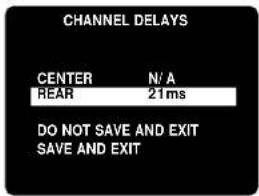
When playing a Dolby Pro Logic or Dolby Pro Logic II source you can set a time delay (in milliseconds) for the rear channels. There is no delay setting for the centre channel.
The rear channel delay in Dolby Pro Logic is calculated by adding 15ms to the rear channel delay calculated for Dolby Digital. In our example, this is 15ms + 6ms = 21ms .
text_image
CHANNEL DELAYS CENTER N/A REAR 21ms DO NOT SAVE AND EXIT SAVE AND EXITSpeaker settings page
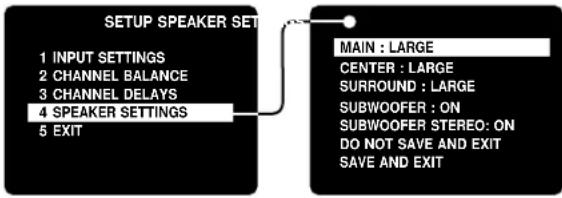
The size and number of loudspeakers are defined on this page of the OSD.
- A 'LARGE' speaker is one that is capable of handling a full range signal (i.e. 20Hz–20kHz).
- A 'SMALL' speaker is one that is not capable of reproducing a deep bass signal (i.e. below 100Hz), for example a satellite speaker.
- 'ON' is used when a speaker is present and active and receives the intended audio information.
- 'OFF' is used when a speaker is absent or inactive. Audio signals intended for speakers set to OFF are redirected to the main speakers.
Recommended speaker settings for different systems
To configure a 'Sub/Sat' system (i.e. a set of small speakers with a subwoofer), your speaker settings should be 'SMALL' for all speakers, with Subwoofer turned 'ON'.
Some small but high performance speakers are capable of handling a signal below 100Hz: in this instance, set them to 'LARGE' (despite their small physical size). If in doubt, please check the specifications in your speaker's handbook or ask your dealer.
If you don't have a centre speaker, set CENTER to 'OFF'. This directs the centre speaker information to the front left and right speakers, ensuring that dialogue is clearly reproduced.
The SUBWOOFER STEREO setting is only relevant for music reproduction and does not affect sound reproduction for movies. If you have small speakers on the front, set SUBWOOFER STEREO to 'ON' to give the extra bass reinforcement required for music. If your front speakers are large, or of high quality and performance, you may find music is reproduced more accurately with the Subwoofer turned 'OFF'.
flowchart
graph TD
    A["1 INPUT SETTINGS\n2 CHANNEL BALANCE\n3 CHANNEL DELAYS\n4 SPEAKER SETTINGS\n5 EXIT"] --> B["MAIN : LARGE\nCENTER : LARGE\nSURROUND : LARGE\nSUBWOOFER : ON\nSUBWOOFER STEREO: ON\nDO NOT SAVE AND EXIT\nSAVE AND EXIT"]
Using the AVR200 Front panel controls
text_image
ARCAM AVR200 VOLUME A/V SUBROUND SOUND RECEIVER FM MUTE MOND STORE PRESET: TUNE DOWN ON C-DR-D-S DOLEBY PL II SPEAKERS FM MUTE > TUNED 5M STEREO PRESET MUSIC VIDEO FM 8845 MHz 06 PHONES SAT DVD PCR AUX EXT 5.1 SURROUND TAPE MODE MONITOR CD FM AM BASS TREBLE DIRECT POWERPOWER
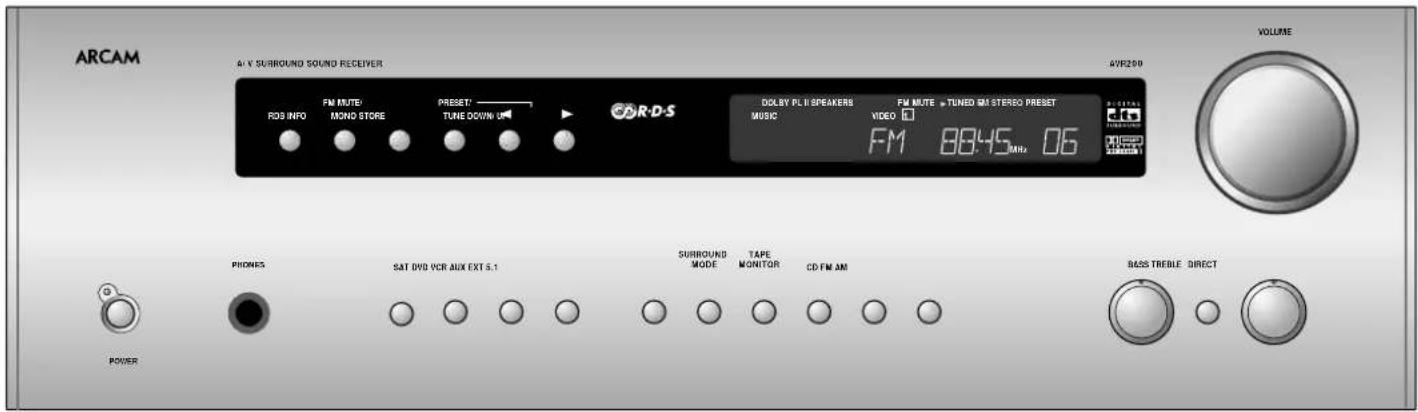
Press the POWER button to turn the AVR200 on. The status LED changes to green on powering up and the display shows the active input. Pressing the POWER button again turns the unit and the status LED off.
A red status LED indicates that the AVR200 is in stand by and can be switched on by the remote handset.
Input selection
The input selection buttons are labelled to correspond with the audio and video inputs on the rear panel of the AVR200. To select an input, press the appropriate button on the front panel. The audio signal for that source will then be routed to the speakers. Any picture signal associated with that input is switched to the monitor output.
The name of the selected input is shown in the display: SAT, DVD, VCR or AUX, EXT 5.1, TAPE MONITOR, CD, FM and AM.
EXT 5.1
To select the source connected to the 5.1 channel input, press EXT 5.1. When this input is selected, none of the alternative surround modes are available.
SURROUND MODE
When a selected digital input carries a Dolby Digital or DTS signal, the AVR200 automatically detects it and processes the signal accordingly.
For an analogue input or when no Dolby Digital or DTS signal is detected, pressing the SURROUND MODE button cycles through the available surround sound modes: STEREO, PRO LOGIC II MOVIE, PRO LOGIC II MUSIC, PRO LOGIC II PANORAMA, PRO LOGIC II MATRIX, PRO LOGIC and HALL.
The selected mode is displayed in the main section of the display for three seconds, before reverting to show the active input. The surround mode continues to be shown in the left hand side of the display. In the case of Dolby Pro Logic II, only 'MUSIC' and 'MOVIE' modes are illuminated.
Dolby Digital, DTS
Both of these formats feature six independent audio channels: Left, Centre, Right, Surround Left, Surround Right and a 'Low Frequency Effects' (LFE) or subwoofer channel.
Dolby Pro Logic
This format decodes the centre and surround sound signals encoded in Dolby Surround or Dolby Stereo movie soundtracks.
Dolby Pro Logic II
This format is the next generation in Dolby Surround decoding. It was designed specifically to decode all existing Dolby Surround programs with improved spatiality and directionality. Dolby Pro Logic II Movie is enhanced over Dolby Pro Logic by having stereo surround channels and no frequency filter on the speaker signal.
Dolby Pro Logic II Music is specifically for listening to music, not to movies.
Dolby Pro Logic II Panorama mode extends the front stereo image to include the surround speakers for an exciting 'wraparound' effect with side wall imaging. Dolby Pro Logic II Matrix is the same as 'Music' mode, except that mono signals are enhanced to make them seem 'larger'.
Hall effect
This format decodes a normal stereo signal to simulate the ambience of a concert hall.
TAPE MONITOR
The TAPE MONITOR button selects the audio output from a cassette deck connected to the TAPE IN phono sockets of the AVR200. It also enables you to monitor a recording being made on a 3-head cassette deck. Tape monitor status is shown in red on the display.
When the tape monitor is selected, pressing other source buttons changes the signal sent to the recorder.
NOTE: TAPE MONITOR is a latching button: you will need to press it again before selecting another source for listening.
CD
The CD button selects the source connected to the CD phono sockets.
FM, AM
To select the integrated tuner function of the AVR200, press the FM or AM button. See the section 'Using the tuner'.
VOLUME control
To adjust the volume level of the loudspeakers, pre-amp outputs and headphones use the VOLUME control. The volume level is shown in the display while it is being adjusted. Three seconds after the volume is adjusted, the display reverts to show the selected input.
Note that different sources may require different settings of the VOLUME control to achieve the same perceived volume level.
The volume can be controlled from 0dB over 80 steps.
BASS and TREBLE controls
Turn the bass and treble controls clockwise to boost response or anticlockwise to cut response. For a flat response leave the controls in the 12 o'clock 'notched' position.
Pressing the DIRECT button bypasses the bass and treble controls and gives a small improvement to sound quality. If you do not wish to alter the bass or treble controls, we recommended that you select DIRECT.
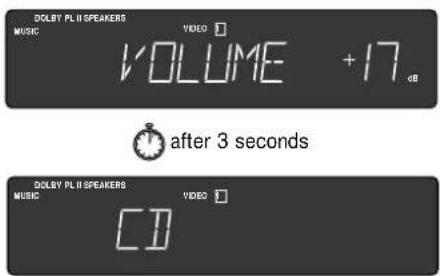
The AVR200's radio tuner can be controlled from the upper row of front panel buttons (see diagram, below) or from the remote control handset (see 'Using the remote control').

text_image
RDS INFO FM MUTE/ MONO STORE PRESET: TUNE DOWN/ U ▶ DR-D-S DOLBY PL II SPEAKERS MUSIC FM MUTE ▶ TUNED 6M STEREO PRESET VIDEO 1 FM 88:45 MHz 06 FREITAL dts SINEMA GNDTuning to a station
Pressing the PRESET/TUNE button toggles between the two tuning modes of the unit – 'Preset' or 'Tune'. The selected mode is briefly shown in the display.
Preset mode
In Preset mode, press the ◀ and ► buttons on the front panel (or P- or P+ on the remote control handset) to cycle up and down the preset stations.
See 'Storing a preset' and 'Deleting unused presets', below.
Tune mode
In Tune mode:
Press the and buttons on the front panel (or P- or P+ on the remote control handset) for longer than half-a-second to engage automatic tuning. The tuner searches for a radio station signal of sufficient strength and stops. To skip to the next station, press one of the buttons again. Automatic tuning is available for both the FM and AM bands.
Tapping the◀ and ▶ buttons engages manual tuning. This can be used for tuning to a specific frequency. It is also useful if you are trying to select a station that is too weak for the auto search mode.
Regardless of the mode used to tune your AVR200, when it is accurately tuned to a station 'TUNED' lights up in the display.
Storing a preset
To store a preset, tune to the radio station you wish to store. Press the STORE button: this causes 'MEMORY' to flash in the display. Now select the preset number you wish to assign to the station using the ◀ and ► buttons on the front panel (or P- or P+ on the remote control handset). Press the STORE button again.
Once the preset is stored, the display reverts to show the station name (if RDS information is transmitted) or its frequency.
To quit the memory function without storing a preset, leave the tuner controls untouched for ten seconds. It is also possible to overwrite a stored station by saving another in its place. There are thirty presets available for FM use and ten for AM use.
Your presets are retained for several weeks (but not indefinitely), when the AVR200 is disconnected from the mains supply.
Deleting an unused preset
Press the STORE button, then select the preset number you want to delete using the ▶ and ▶ buttons (or P- or P+ on the remote control handset), followed by the FM MUTE/MONO button.
The display briefly shows 'DELETED' and '-' is shown in place of the preset number. You can reactivate a deleted preset number by storing a station in the normal way.
RDS: Radio Data System
The Arcam AVR200 supports RDS Programme Service and RDS Radio Text on FM broadcasts.
When a station carrying RDS information is selected 'RDS' lights up in the display and shortly afterwards the station's RDS name (e.g. 'BBC R3') is shown.
Press the RDS INFO button to view any RDS text information (if a station is not transmitting text information, the display briefly indicates 'NO TEXT' and reverts to show the station name).
Press RDS INFO again to display the station's frequency.
Pressing RDS INFO a third time returns you to a display of the station name.
If the RDS INFO button is pressed while tuned to a non RDS station, the display shows 'NO NAME' for three seconds before reverting to the default display.
FM Mute/ Mono
The AVR200's tuner has an auto-muting circuit that, when engaged, mutes any signal that is of insufficient strength for listening. To engage this circuit press the FM MUTE/MONO button on the front panel: 'FM MUTE' is shown in the display. If a signal is muted you will hear no sound through the loudspeakers.
Should you wish to listen to a station that is 'auto muted' press the FM MUTE/MONO button again to disengage the muting circuit. The tuner now switches to monoaural reception, cancelling much of the background hiss. 'FM MUTE' is no longer displayed and you are able to continue listening.
Radio interference
All Arcam products have been designed to very high standards of electromagnetic compatibility.
However, both CD players and DACs generate, and can radiate RF (radio frequency) energy. In some cases this can cause interference with FM and AM radio reception. If this is the case, switch the CD player off or keep the CD player and its connecting cables as far from the tuner and its aerials as possible. Connecting the CD player and the tuner/amplifier to different mains sockets can also help to reduce interference.
EC COUNTRIES — These products have been designed to comply with directive 89/336/EEC.
USA – These products comply with FCC requirements.
Using the remote control
CR-340 Remote Control
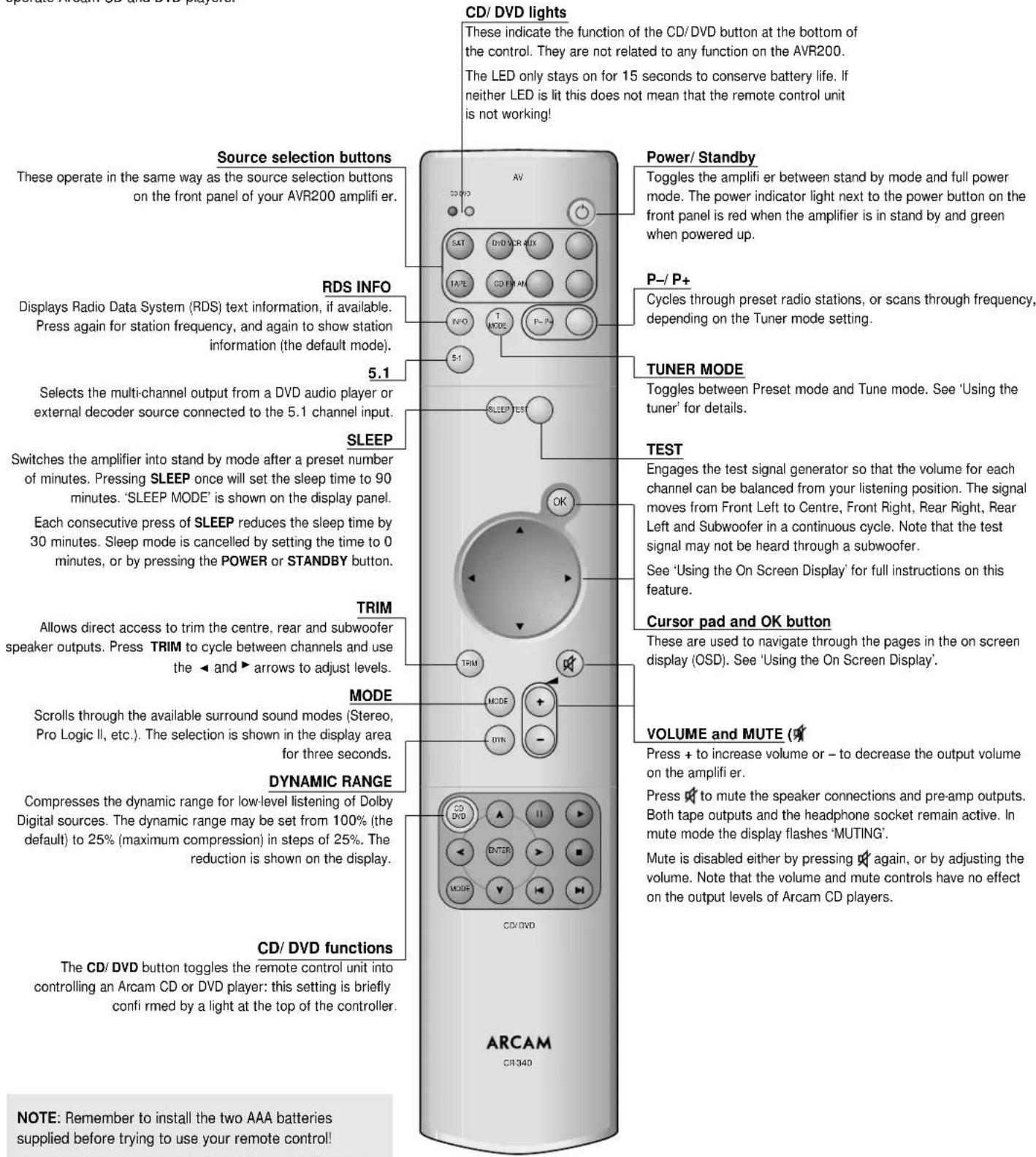
The CR-340 remote control gives access to all functions available on the front panel, plus some additional functions only available from the remote. It also has controls to operate Arcam CD and DVD players.
text_image
CD/ DVD lights These indicate the function of the CD/DVD button at the bottom of the control. They are not related to any function on the AVR200. The LED only stays on for 15 seconds to conserve battery life. If neither LED is lit this does not mean that the remote control unit is not working! Source selection buttons These operate in the same way as the source selection buttons on the front panel of your AVR200 amplifier er. RDS INFO Displays Radio Data System (RDS) text information, if available. Press again for station frequency, and again to show station information (the default mode). 5.1 Selects the multi-channel output from a DVD audio player or external decoder source connected to the 5.1 channel input. SLEEP Switches the amplifier into stand by mode after a preset number of minutes. Pressing SLEEP once will set the sleep time to 90 minutes. 'SLEEP MODE' is shown on the display panel. Each consecutive press of SLEEP reduces the sleep time by 30 minutes. Sleep mode is cancelled by setting the time to 0 minutes, or by pressing the POWER or STANDBY button. TRIM Allows direct access to trim the centre, rear and subwoofer speaker outputs. Press TRIM to cycle between channels and use the ▲ and ▶ arrows to adjust levels. MODE Scrolls through the available surround sound modes (Stereo, Pro Logic II, etc.). The selection is shown in the display area for three seconds. DYNAMIC RANGE Compresses the dynamic range for low-level listening of Dolby Digital sources. The dynamic range may be set from 100% (the default) to 25% (maximum compression) in steps of 25%. The reduction is shown on the display. CD/ DVD functions The CD/ DVD button toggles the remote control unit into controlling an Arcam CD or DVD player: this setting is briefly confirmed by a light at the top of the controller. ARCAM CR340 Power/ Standby Toggles the amplifier er between stand by mode and full power mode. The power indicator light next to the power button on the front panel is red when the amplifier is in stand by and green when powered up. P-/ P+ Cycles through preset radio stations, or scans through frequency, depending on the Tuner mode setting. TUNER MODE Toggles between Preset mode and Tune mode. See 'Using the tuner' for details. TEST Engages the test signal generator so that the volume for each channel can be balanced from your listening position. The signal moves from Front Left to Centre, Front Right, Rear Right, Rear Left and Subwoofer in a continuous cycle. Note that the test signal may not be heard through a subwoofer. See 'Using the On Screen Display' for full instructions on this feature. Cursor pad and OK button These are used to navigate through the pages in the on screen display (OSD). See 'Using the On Screen Display'. VOLUME and MUTE (9) Press + to increase volume or - to decrease the output volume on the amplifier er. Press ⬆ to mute the speaker connections and pre-amp outputs. Both tape outputs and the headphone socket remain active. In mute mode the display flashes 'MUTING'. Mute is disabled either by pressing ⬆ again, or by adjusting the volume. Note that the volume and mute controls have no effect on the output levels of Arcam CD players. NOTE: Remember to install the two AAA batteries supplied before trying to use your remote control!Reference
Bi-wiring and bi-amping loudspeakers
Before you start
WARNING: Do not make any connections to your amplifi er while it is switched on or connected to the mains supply.
Before switching on please check all connections thoroughly, making sure bare wires or cables are not touching the amplifier in the wrong places (which could cause short circuits) and you have connected positive (+) to positive and negative (-) to negative.
Always ensure that the volume control on your amplifi er is set to minimum before starting these procedures.
Bi-wiring your loudspeakers
Bi-wiring improves the sound of your system because it divides the high and low frequency signal currents into separate speaker cables. This avoids signal distortions arising from the high and low frequency currents interacting with one another within a single cable, as in conventionally wired systems.
You will need:
Speakers – with four input terminals each: these will be marked HF (High Frequency) and LF (Low Frequency).
Loudspeaker cables – two pairs of cables per loudspeaker (which may be joined at the amplifier end if your amplifier has only one pair of output terminals per channel). Or, a suitably terminated cable set (a loom, probably prepared by your dealer and capable of being used for bi-wiring in one length).
How to bi-wire loudspeakers
- Remove the terminal links on the rear of your loudspeakers
WARNING: This step is essential or damage to your amplifi er may result which is not covered under warranty.
- Connect the cables as shown in the diagram below, ensuring correct polarity at all times.

flowchart
graph TD
    A["Arcam AVR200 receiver"] --> B["R"]
    A --> C["L"]
    B --> D["+ HF Left speaker"]
    B --> E["+ LF Left speaker"]
    C --> F["+ HF Left speaker"]
    C --> G["+ LF Left speaker"]
Bi-wiring using one set of connections on amplifier
Bi-amping your system
The performance of your system can be further enhanced over that achieved with bi-wiring, by extending the principle one stage further to include separate amplification for the low and high frequency drive units in each loudspeaker enclosure.
Connect the AVR200 to the high frequency (HF) terminals and connect your power amplifier to the low frequency (LF) terminals.
You will need:
Speakers – with four input terminals each (as with bi-wiring): these will be marked HF (High Frequency) and LF (Low Frequency).
Two amplifiers - one of these would be the AVR200 and the other an Arcam power amplifier (e.g. an P75 or P85).
Loudspeaker cables – one pair of cables per loudspeaker or a suitably terminated cable set (a loom, probably prepared by your dealer and capable of being used for bi-amping in one length).
Interconnect cables – one pair of high quality interconnect cables.
How to set up a bi-amped system
- Remove the terminal links on the rear of your loudspeakers.
WARNING: This step is essential or damage to your amplifi er may result which is not covered under warranty.
- Connect the cables as shown in the diagram below, ensuring correct polarity at all times.
- Use the interconnect cables to connect the AUDIO PRE-OUT sockets of the AVR200 to the corresponding PWR AMP IN sockets of the power amplifier.
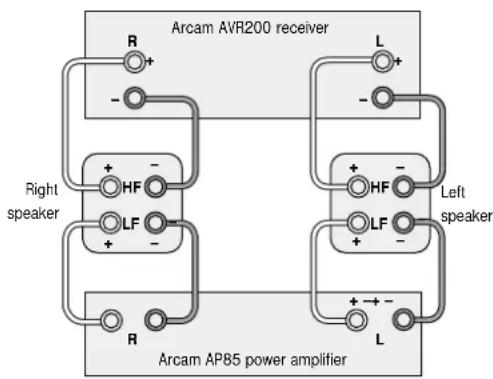
flowchart
graph TD
    A["Arcam AVR200 receiver"] --> B["Right speaker"]
    A --> C["Left speaker"]
    B --> D["R"]
    B --> E["HF"]
    B --> F["LF"]
    C --> G["L"]
    C --> H["Left speaker"]
    D --> I["R"]
    D --> J["HF"]
    D --> K["LF"]
    E --> L["L"]
    E --> M["Left speaker"]
    F --> N["L"]
    F --> O["Left speaker"]
    G --> P["L"]
    G --> Q["Left speaker"]
    H --> R["L"]
    H --> S["Left speaker"]
    I --> T["R"]
    I --> U["HF"]
    I --> V["LF"]
    J --> W["L"]
    J --> X["Left speaker"]
    K --> Y["L"]
    K --> Z["Left speaker"]
    L --> AA["L"]
    L --> AB["Left speaker"]
    M --> AC["L"]
Recommended bi-amping configuration
The following table should help you diagnose most problems that may arise when using the AVR200.
| Problem | Cause | Solution |
| No audio | 1. Power Lead unplugged or not switched on2. In stand by mode3. Mute on4. Tape monitor selected | 1. Check mains lead is connected to AVR200 and that the wall switch is on2. Press the POWER/ STANDBY button on remote handset3. Switch mute off4. Press the TAPE MONITOR button |
| No sound on one channel | 1. Loudspeaker not connected or not connected properly2. Input not connected or not connected properly3. Speaker described as 'OFF' in set up page4. Channel level set too low | 1. Check connections to AVR200 and to loudspeaker2. Check connections to AVR200 and at source3. Re-assign speaker settings in on-screen display4. Re-assign channel balance in on-screen display |
| Dolby Digital or DTS not auto detected | Digital input not connected | Connect digital output of source to appropriate input on AVR200 |
| Lack of bass or poor stereo image | 1. Speakers wired out of phase (i.e. + connected to -, or red to black in error - a polarity error in one speaker)2. Speakers set as 'SMALL' | 1. Check all connections to AVR200 and to loudspeakers2. Re-select preset speaker settings in on-screen display |
| No sound from tuner | 1. Aerial not connected properly2. Weak signal muted by FM Mute | 1. Check aerial connections to AVR200's back panel2. Switch FM MUTE/ MONO off or re-tune station |
| Remote control not working | 1. Batteries in handset fitted the wrong way round or flat2. IR receiver window on AVR200 is obscured3. IR receiver window fl ooded with light | 1. Check orientation of batteries/ replace discharged batteries2. Remove obstruction3. Move AVR200 away from light source or shade from intense light source |
| Picture scrolls around screen, or picture is only in black and white | Wrong video system selected | To toggle between PAL and NTSC video systems, press and hold the STORE button and click the SAT button. |
| No picture on monitor when video source is selected | 1. Source is not playing2. Video connection between the source and AVR200 is not been made | 1. Check and play source2. Check system wiring: ensure connection between source |
| Sound and picture come from different sources | System connections made to wrong inputs of AVR200 | Check system wiring: ensure all connections are made to correct input on AVR200 |
| AVR200 switches itself to stand by mode | Circuits have overheated and unit has been switched into protection mode. This may be because airfl ow around the unit is restricted. | Switch unit off. Remove any restrictions to good airflow. Allow unit to cool down before switching on again. |
| The red status LED fl ashes and the AVR200 appears not to work. | The AVR200 has gone into protection mode. This is probably caused by an overload or short circuit on the loudspeaker outputs. | 1. Turn the AVR200 off and disconnect the mains cable.2. Check all the wiring, making sure that no bare loudspeaker cables are touching each other or the chassis.3. Reconnect the mains cable and switch back on.If this does not cure the problem or the problem persists contact your Arcam dealer. |
Technical specifications
AMPLIFIER SPECIFICATION
Output power (20Hz–20kHz at 0.5%THD)
8Ω, five channels 70W
8Ω, two channels 90W
8Ω, single channel 100W
Harmonic distortion, 1W, 8Ω at 1kHz 0.02% typical
Left/right crosstalk 60dB at 1kHz
Frequency response ±1.0dB 20Hz to 20kHz
Inputs
| Line inputs | ||
| sensitivity | 200mV | |
| input | impedance | >10kΩ |
| overload | margin | >20dB |
Power amplifi er input sensitivity 740mV (normal gain)
Outputs
| Preamplifi er | |
| nominal output level 200mV | |
| maximum output level | 3V |
Headphones
| output | impedance | 390Ω |
Physical
| Dimensions W x D x H | 430 x 450 x 150mm |
| Weight net | 11.9kg |
| Weight packed | 14.1kg |
| Mains voltage | 230V ±12% |
| 120V ±12% | |
| Power consumption (maximum) 500VA | |
Accessories supplied
| Mains lead |
| CR-340 remote control |
| 2 x AAA batteries |
| AM loop aerial |
| FM ribbon aerial |
NOTE: All specification values are typical unless otherwise stated.
RADIO SPECIFICATION
FM section
| 30 preset stations available |
| RDS Station Identifi cation, Radio Data Display |
| FM tuning range | 87.5 to 108MHz |
| FM sensitivity | < 6μV |
| THD | ||
| mono | < 0.25% | |
| stereo | < 0.35% | |
| Signal/noise ratio | ||
| mono | > | 72dB |
| stereo | > | 66dB |
| Pilot tone suppression | >60dB |
| Alternate channel selectivity IHF | >60dB |
| Capture ratio | <3dB |
AM section
| 10 preset stations available |
| AM tuning range | |
| 10kHz step | 530 to 1710kHz |
| 9kHz step | 531 to 1602kHz |
| Usable sensitivity | < 30μV |
| IF rejection | >36dB |
| Signal/ noise ratio, 5mV input >38dB | |
| THD, 5mV input | < 3% |
E&OE
Continual improvement policy
Arcam has a policy of continual improvement for its products. This means that designs and specifications are subject to change without notice.
Guarantee
Worldwide Guarantee
This entitles you to have the unit repaired free of charge, during the first two years after purchase, at any authorised Arcam distributor provided that it was originally purchased from an authorised Arcam dealer or distributor. The manufacturer can take no responsibility for defects arising from accident, misuse, abuse, wear and tear, neglect or through unauthorised adjustment and/or repair, neither can they accept responsibility for damage or loss occurring during transit to or from the person claiming under the guarantee.
The warranty covers:
Parts and labour costs for two years from the purchase date. After two years you must pay for both parts and labour costs. The warranty does not cover transportation costs at any time.
Claims under guarantee
This equipment should be packed in the original packing and returned to the dealer from whom it was purchased, or failing this, directly to the Arcam distributor in the country of residence. It should be sent carriage prepaid by a reputable carrier — NOT by post. No responsibility can be accepted for the unit whilst in transit to the dealer or distributor and customers are therefore advised to insure the unit against loss or damage whilst in transit.
For further details contact Arcam at:
Arcam Customer Support Department, Pembroke Avenue, Waterbeach, CAMBRIDGE CB5 9PB, England.
Telephone: +44 (0)1223 203203
Fax: +44 (0)1223 863384
Email: support@arcam.co.uk
Problems?
If your dealer is unable to answer any query regarding this or any other Arcam product please contact Arcam Customer Support on +44 (0) 1223 203203 or write to us at the above address and we will do our best to help you.
On line registration
You can register your Arcam product on line at:
www.arcam.co.uk/ reg