Color LaserJet 4700dn - Printer HP - Free user manual and instructions
Find the device manual for free Color LaserJet 4700dn HP in PDF.


User questions about Color LaserJet 4700dn HP
0 question about this device. Answer the ones you know or ask your own.
Ask a new question about this device
Download the instructions for your Printer in PDF format for free! Find your manual Color LaserJet 4700dn - HP and take your electronic device back in hand. On this page are published all the documents necessary for the use of your device. Color LaserJet 4700dn by HP.
USER MANUAL Color LaserJet 4700dn HP
HP Color LaserJet 4700
User Guide

text_image
+hp
natural_image
Line drawing of a HP industrial machine with control panel and door (no text or symbols)HP Color LaserJet 4700 Series Printer
User Guide
Copyright and License
© 2005 Copyright Hewlett-Packard Development Company, L.P.
Reproduction, adaptation, or translation without prior written permission is prohibited, except as allowed under the copyright laws.
The information contained herein is subject to change without notice.
The only warranties for HP products and services are set forth in the express warranty statements accompanying such products and services. Nothing herein should be construed as constituting an additional warranty. HP shall not be liable for technical errors or omissions contained herein.
Part number: Q7491-90953
Edition 1: 11/2005
Trademark Credits
Adobe® is a trademark of Adobe Systems Incorporated.
Corel® and CorelDRAW™ are trademarks or registered trademarks of Corel Corporation or Corel Corporation Limited.
Energy Star® and the Energy Star logo® are U.S. registered marks of the United States Environmental Protection Agency.
Microsoft® is a U.S. registered trademark of the Microsoft Corporation.
Netscape Navigator is a U.S. trademark of Netscape Communications.
PANTONE® Colors generated may not match PANTONE-identified standards. Consult current PANTONE Publications for accurate color. PANTONE® and other Pantone, Inc. trademarks are the property of Pantone, Inc. © Pantone, Inc., 2000.
PostScript® is a trademark of Adobe Systems.
TrueType™ is a U.S. trademark of Apple Computer, Inc.
UNIX® is a registered trademark of The Open Group.
Windows®, MS Windows®, and Windows NT® are U.S. registered trademarks of Microsoft Corporation.
HP customer care
Online services
For 24-hour access to information using a modem or Internet connection:
World Wide Web URL: for the HP Color LaserJet 4700 series printers, updated HP printer software, product and support information, and printer drivers in several languages can be obtained from http://www.hp.com/support/clj4700. (Sites are in English.)
Visit: http://www.hp.com/support/net_printing for information about network printing using HP Jetdirect print servers.
HP Instant Support Professional Edition (ISPE) is a suite of Web-based troubleshooting tools for desktop computing and printing products. ISPE helps you quickly identify, diagnose, and resolve computing and printing problems. The ISPE tools may be accessed from http://instantsupport.hp.com.
Telephone support
HP provides free telephone support during the warranty period. When you call, you will be connected to a responsive team waiting to help you. For the telephone number for your country/region, see the flyer that shipped in the box with the product. You can also visit http://www.hp.com, and then click Contact HP, and then click Contact HP Worldwide. Before calling HP, have the following information ready: product name and serial number, date of purchase, and description of the problem.
You can also find support on the Internet at http://www.hp.com. Click the support & drivers block.
Software utilities, drivers, and electronic information
Visit: http://www.hp.com/go/clj4700_software for the HP Color LaserJet 4700 series printer. The Web page for the drivers might be in English, but you can download the drivers themselves in several languages.
Call: See the flyer that shipped in the box with the printer.
HP direct ordering for accessories or supplies
In the United States, supplies can be ordered from http://www.hp.com/sbso/product/supplies. In Canada, supplies can be ordered from http://www.hp.ca/catalog/supplies. In Europe, supplies can be ordered from http://www.hp.com/supplies. In Asia-Pacific, supplies can be ordered from http://www.hp.com/paper/.
Accessories can be ordered from http://www.hp.com/go/accessories.
Call: 1-800-538-8787 (U.S.) or 1-800-387-3154 (Canada).
HP service information
To locate HP-Authorized Dealers, call 1-800-243-9816 (U.S.) or 1-800-387-3867 (Canada). For service for your product, call the customer support number for your country/region. See the flyer that shipped in the box with the printer.
HP service agreements
Call: 1-800-835-4747 (U.S.) or 1-800-268-1221 (Canada).
Extended Service: 1-800-446-0522
HP support and information for Macintosh computers
Visit: http://www.hp.com/go/macosx for Macintosh OS X support information and HP subscription service for driver updates.
Visit: http://www.hp.com/go/mac-connect for products designed specifically for the Macintosh user.
Table of contents
1 Printer basics
Quick access to printer information ....2
World Wide Web links 2
User guide links 2
Where to look for more information ....2
Setting up the printer ....2
Using the printer ....3
Printer configurations 4
HP Color LaserJet 4700 (product number Q7491A) 4
HP Color LaserJet 4700n (product number Q7492A) ....4
HP Color LaserJet 4700dn (product number Q7493A) ....5
HP Color LaserJet 4700dtn (product number Q7494A) 6
HP Color LaserJet 4700ph+ (product number Q7495A) ......6
Printer features 7
Walk around 10
Printer software 12
Software 12
Software features ......12
Driver Autoconfiguration ....12
Update Now 12
HP Driver Preconfiguration ....12
Installing the printing system software ....13
Installing Windows printing system software for direct connections ....13
Installing Windows printing system software for networks 14
Setting up a Windows computer to use the network printer with Windows-sharing ....15
Installing the software after the parallel or USB cable has been connected ....15
Uninstalling the software 15
Removing software from Windows operating systems ....16
Software for networks 16
HP Web Jetadmin 16
UNIX 17
Utilities 17
HP Easy Printer Care Software 17
Embedded Web server ....17
Features ....18
Other components and utilities ....18
Printer drivers ....19
Supported printer drivers ....19
Additional drivers 19
Select the correct printer driver ....20
Printer-driver Help (Windows) 20
Gaining access to the printer drivers ....20
Printer drivers for Macintosh computers ....22
Supported printer drivers ....22
Gaining access to the printer drivers ....22
Software for Macintosh computers ....24
Installing Macintosh printing system software for networks 24
Installing Macintosh printing system software for direct connections (USB) 25
To remove software from Macintosh operating systems ....26
Using the HP Printer Utility for Macintosh 27
Opening the HP Printer Utility 27
Printing a cleaning page 27
Printing a configuration page 27
Viewing supplies status 28
Ordering supplies online and using other support features 28
Uploading a file to the printer 28
Uploading fonts to the printer 29
Updating the firmware 29
Activating the two-sided printing (duplexing) mode .....29
Activating the Economode printing mode ....29
Changing the toner density 30
Changing the resolution settings ....30
Locking or unlocking printer storage devices 30
Saving or printing stored jobs 30
Configuring trays 31
Changing network settings ....31
Opening the embedded Web server ....31
Setting up e-mail alerts ....32
Print media specifications ....33
Supported media weights and sizes ....33
2 Control panel
Introduction 38
Display 38
Accessing the control panel from a computer ....40
Control panel buttons 41
Interpreting control panel indicator lights 42
Interpreting stapler/stacker indicator light codes 43
Control panel menus 45
Getting started basics ....45
Menu hierarchy 46
To enter the menus ....46
Retrieve job menu ....46
Information menu 46
Paper handling menu ....47
Configure device menu ....47
Diagnostics menu ....49
Retrieve job menu ....50
Information menu ....51
Paper handling menu 52
Configure device menu 53
Printing menu 53
Print quality menu 54
System setup menu 56
Stapler/stacker menu 59
I/O menu 60
Resets menu 62
Diagnostics menu 63
Changing printer control panel configuration settings 64
Job storage limit 64
Setting the job storage limit 64
Job held timeout 64
Setting the job held timeout 64
Show IP address 65
Showing the IP address 65
Color/black mix 65
Setting the color/black mix 65
Tray behavior options 66
Setting the printer to use the requested tray 66
Setting manually feed prompt 67
Setting the printer default for PS defer media 67
Setting the printer to use size/type prompt 68
Setting the printer to use another tray 68
Setting the printer to duplex blank pages 68
Setting the printer to rotate images 69
Sleep delay 69
Setting sleep delay 69
Disabling/enabling sleep mode 70
Wake time 70
Setting the wake time 70
Display brightness 71
Setting the display brightness 71
Personality 72
Setting the personality 72
Clearable warnings 72
Setting the clearable warnings 72
Auto continue 73
Setting auto continue ....73
Replace supplies 73
Setting replace supplies response 74
Order at 74
Setting order at response 74
Color supply out 74
Setting color supply out response 75
Jam recovery 75
Setting jam recovery response 75
RAM disk 76
Changing RAM disk behavior 76
Language 76
Selecting the language 76
Selecting the language if the display is in a language you do not understand ...77
Using the printer control panel in shared environments 78
3 I/O configuration
Network configuration 80
Configuring TCP/IP parameters 80
Manually configuring TCP/IP parameters from the printer control panel .....80
Setting an IP address 80
Setting the subnet mask 81
Setting the default gateway 82
Disabling network protocols (optional) 82
Disabling IPX/SPX 83
Disabling DLC/LLC 83
Disabling AppleTalk 84
Parallel configuration 85
USB configuration 86
Auxiliary connection configuration 87
HP Jetdirect print servers 88
Available software solutions 88
Wireless printing 89
IEEE 802.11 standard 89
Bluetooth 89
4 Printing tasks
Controlling print jobs 92
Source 92
Type and size 92
Print setting priorities 92
Selecting print media 94
Media to avoid 94
Paper that can damage the printer 94
Automatic media type sensing (auto sense mode) 95
Tray 1 sensing 95
Tray 2–N sensing ....96
Configuring input trays 97
Configuring trays when the printer gives a prompt 97
Configuring a tray when loading paper 97
Configuring a tray to match print job settings 98
Configuring trays using the paper handling menu 98
Configuring Tray 2 and optional trays for a custom paper size ....99
Printing from Tray 1 (multipurpose tray) ....100
Loading Tray 1 ....100
Printing envelopes from Tray 1 ....101
Loading envelopes into Tray 1 ....101
Printing envelopes 102
Printing from Tray 2 or the optional trays ....102
Loading detectable standard-sized media into Tray 2 and optional trays ....103
Loading undetectable standard-sized media into Tray 2 and optional trays ....105
Loading custom-sized media into Tray 2 and optional trays ....107
Printing on special media 109
Transparencies 109
Glossy paper 109
Colored paper 110
Envelopes 110
Labels 110
Heavy paper 110
HP LaserJet Tough paper 111
Preprinted forms and letterhead ......111
Recycled paper 112
Using features in the printer driver 113
Creating and using quick sets 113
Creating and using watermarks 114
Resizing documents 114
Setting a custom paper size from the printer driver 115
Using different paper/covers 115
Printing a blank first page 115
Printing multiple pages on one sheet of paper 115
Printing on both sides of the paper 116
To print on both sides by using the duplex-printing accessory 116
To print on both sides manually ....117
Layout options for printing on both sides 117
Setting the stapling options 118
Setting the color options 118
Using the HP Digital Imaging Options dialog box ....119
Using the Services tab 119
Using features in the Macintosh printer driver 121
Creating and using presets in Mac OS X 121
Printing a cover page 121
Printing multiple pages on one sheet of paper 122
Printing on both sides of the paper 122
Setting the color options 123
Two-sided (duplex) printing 125
Control panel settings for automatic two-sided printing ....126
To enable or disable two-sided printing from the printer control panel .....126
Options for binding two-sided printing jobs 127
Manual two-sided printing 127
Printing booklets 128
Using the stapler/stacker 129
Configuring the printer driver to recognize the stapler/stacker 129
Selecting the printer behavior at staples out ....130
Printing to the stapler/stacker 130
Selecting the stapler in an application 130
Selecting the stapler at the control panel 131
Job offset 131
Paper orientation when a stapler/stacker is installed 132
Special printing situations 133
Printing a different first page 133
Printing a blank back cover 133
Printing on custom-size media 133
Stopping a print request 134
Stopping the current print job from the printer control panel ....134
Stopping the current print job from a software application ....134
Job storage features ....135
Proofing and holding a job 135
Printing stored jobs 135
Deleting stored jobs 136
Private jobs 136
Printing a private job 136
Deleting a private job ....137
Mopier mode 137
Storing a print job 138
Quick-copying a job 138
Managing memory 140
5 Managing the printer
Printer information pages 142
Menu map 142
Configuration page 142
Supplies status page 143
Usage page 143
Demo page 144
Print CMYK samples 144
Print RGB samples 144
File directory 145
PCL or PS font list ....145
Event log 145
Using the embedded Web server 146
Accessing the embedded Web server 146
Information tab 147
Settings tab 147
Setting the real-time clock 148
Networking tab 148
Other links 148
Using the HP Easy Printer Care Software 149
Supported operating systems ....149
To use the HP Easy Printer Care Software 149
HP Easy Printer Care Software sections 149
6 Color
Using color 152
HP ImageREt 3600 ....152
Paper selection 152
Color options 152
sRGB 152
Printing in four colors — CMYK 153
CMYK ink set emulation (PostScript only) 153
Color matching 154
PANTONE® color matching 154
Sample book color matching ....154
Printing color samples 155
Managing printer color options on Windows computers 156
Print in grayscale 156
RGB Color (Color Themes) 156
Automatic or manual color adjustment 156
Manual color options ....157
Restricting color printing 158
Managing printer color options on Macintosh computers 159
Print Color as Gray 159
Advanced color options for text, graphics, and photographs 159
Halftone options ....159
Neutral Grays 159
RGB Color 160
Edge Control 160
7 Maintenance
Managing print cartridges ....162
HP print cartridges ....162
Non-HP print cartridges ....162
Print cartridge authentication ....162
HP fraud hotline 162
Print cartridge storage ....163
Print cartridge life expectancy ....163
Checking the print cartridge life ....163
Using the printer control panel 163
Using the embedded Web server 163
Using HP Easy Printer Care Software 163
Using HP Web Jetadmin ....163
Changing print cartridges ....164
Replacing a print cartridge ....164
To replace the print cartridge ....164
Replacing supplies 167
Locating supplies 167
Supply replacement guidelines ....167
Making room around the printer for replacing supplies 167
Approximate replacement intervals for supplies 168
Replacing the stapler cartridge ....168
Using the cleaning page 172
Configuring alerts ....175
8 Problem solving
Basic troubleshooting checklist ....178
Factors affecting printer performance ....179
Troubleshooting information pages 180
Configuration page 180
Paper path test page ....180
Registration page 181
Event log 181
Control panel message types ....183
Status messages ....183
Warning messages 183
Error messages 183
Critical error messages ....183
Control panel messages ....184
Message listing 184
Paper jams 210
Paper jam recovery 210
To disable paper jam recovery ....211
Common causes of paper jams 212
Paper jams 212
Clearing jams 213
Jam in Tray 1 ....213
Jam in Tray 2 or optional trays ....214
Jams in top cover area 215
Clearing a jam in the top cover area ....216
Clearing other jams 218
Jams in the stapler/stacker 220
Staple jams 227
Media-handling problems ....230
Multiple sheets 230
Stapler/stacker 230
Incorrect page size ....231
Incorrect tray 231
Automatic feed error 232
Tray 2 or optional tray feed error ....232
Special media feed error 233
Envelope printing error 233
Output quality 234
Duplexing error 234
Printer response problems ....235
Control panel display is blank 235
Printer does not print 235
Printer not receiving data 236
Printer selection 237
Printer control panel problems ....238
Control panel setting 238
Selecting optional trays 238
Incorrect printer output 239
Incorrect fonts 239
Symbol sets 239
Drifting text 239
Output errors 239
Partial printout ....240
Guidelines for printing with different fonts 240
Software application problems 241
System selection through software 241
Font selection from software 241
Color selection from software 241
Optional trays and duplexer recognition ....241
Troubleshooting common Macintosh problems ......243
Solving problems with Mac OS 9.x ....243
Solving problems with Mac OS X ....245
Color printing problems 249
Printout color error ....249
Incorrect shade 249
Missing color 249
Cartridge error 250
Color match error ....250
Print quality troubleshooting ....251
Print quality problems associated with media 251
Overhead transparency defects ....251
Print quality problems associated with the environment ....252
Print quality problems associated with jams 252
Print quality troubleshooting pages ......252
Print quality troubleshooting tool 252
Calibrating the printer 253
Repetitive defect ruler 253
Print quality defect chart 254
Appendix A Working with memory and print server cards
Printer memory and fonts 260
Installing a hard disk, memory, and fonts ....261
Installing a hard drive 261
Installing DDR memory DIMMs ....263
Installing a flash memory card ....268
Enabling memory 272
To enable memory for Windows 98 and Me ....272
To enable memory for Windows 2000 and XP ....272
Installing an HP Jetdirect print server card 273
To install an HP Jetdirect print server card ....273
Appendix B Supplies and accessories
Ordering directly through the embedded Web server (for printers with network connections) .....278
Part numbers 279
Appendix C Service and Support
Hewlett-Packard limited warranty statement 284
Print cartridge limited warranty statement 285
Fuser and transfer unit limited warranty statement 286
HP maintenance agreements ....287
On-site service agreements 287
Priority on-site service ....287
Next-day on-site service ....287
Weekly (volume) on-site service 287
Appendix D Printer specifications
Physical dimensions 290
Electrical specifications 291
Acoustic emissions 292
Environmental specifications 293
Appendix E Regulatory information
FCC regulations 296
FCC regulations 296
Environmental product stewardship program 297
Protecting the environment 297
Power consumption 297
Paper use 297
Plastics 297
HP LaserJet printing supplies 297
HP Printing Supplies Returns and Recycling Program Information ....297
Recycled paper 298
Material restrictions 298
Disposal of waste equipment by users in private households in the European
Union 299
Material Safety Data Sheet (MSDS) 299
For more information 299
Declaration of Conformity 300
Safety statements ....301
Laser safety 301
Canadian DOC regulations ....301
EMI statement (Korea) 301
VCCI statement (Japan) 301
AC cordset statement (Japan) 301
Laser Statement for Finland 302
Glossary 303
Index 307
1 Printer basics
This chapter contains information on setting up your printer and becoming familiar with its features. The following topics are covered:
• Quick access to printer information
• Printer configurations
Printer features
Walk around
Printer software
Printer drivers
• Printer drivers for Macintosh computers
• Software for Macintosh computers
• Using the HP Printer Utility for Macintosh
• Print media specifications
Quick access to printer information
World Wide Web links
Printer drivers, updated HP printer software, and product information and support may be obtained from the following URLs:
http://www.hp.com/support/clj4700
Printer drivers may be obtained from the following sites:
• In China: ftp://www.hp.com.cn/support/clj4700
• In Japan: ftp://www.jpn.hp.com/support/clj4700
• In Korea: http://www.hp.co.kr/support/clj4700
- In Taiwan: http://www.hp.com.tw/support/clj4700, or the local driver Web site: http://www.dds.com.tw
To order supplies:
United States: http://www.hp.com/go/ljsupplies
• Worldwide: http://www.hp.com/ghp/buyonline.html
To order accessories:
http://www.hp.com/go/accessories
User guide links
For the latest version of the HP Color LaserJet 4700 series printer user guide, go to http://www.hp.com/support/clj4700.
Where to look for more information
Several references are available for use with this printer. See http://www.hp.com/support/clj4700.
Setting up the printer
Start Guide
Provides step-by-step instructions for installing and setting up the printer.

text_image
+ hpHP Driver Pre-Configuration Guide
For detailed information about configuring printer drivers, go to http://www.hp.com/go/hpdpc_sw.
HP Embedded Web Server User Guide
Information about using the embedded Web server is available on the CD-ROM that came with the printer.

text_image
Illustration of a desktop computer with visible screen, keyboard, and mouse, showing text and icons.Accessory and Consumable Installation Guides
Provides step-by-step instructions for installing the printer's accessories and consumables. Supplied with the printer's optional accessories and consumables.
Using the printer
CD-ROM User Guide
Provides detailed information on using and troubleshooting the printer. Available on the CD-ROM included with the printer.

text_image
Illustration of a desktop computer with a CD, mouse, and monitor displaying a file dialog box in Chinese.Online Help
Provides information on printer options that are available from within printer drivers. To view a Help file, access the online Help through the printer driver.

text_image
Illustration of a vintage desktop computer with visible screen, keyboard, and mouse, showing text and interface elements.Printer configurations
Thank you for purchasing the HP Color LaserJet 4700 series printer. This printer is available in the configurations described below.
HP Color LaserJet 4700 (product number Q7491A)

natural_image
Line drawing of a portable electronic device with control panel and buttons (no text or symbols)The HP Color LaserJet 4700 printer is a four-color laser printer that prints up to 31 pages per minute (ppm) for letter-sized paper and up to 30 ppm for A4-size paper.
Trays. The printer comes with a multipurpose tray (Tray 1) that holds up to 100 sheets of various print media or 20 envelopes. A standard 500-sheet paper feeder (Tray 2) supports letter, legal, executive, 8.5 x 13, JIS B5, executive (JIS), 16K, A4, and A5, and custom media. The printer can support up to four optional 500-sheet paper feeders (Trays 3, 4, 5, and 6).
Connectivity. The printer provides parallel, network, and auxiliary ports for connectivity. Two enhanced input/output (EIO) slots, wireless connectivity capability with optional print server, auxiliary port, universal serial bus (USB) and accessory connections, and bidirectional parallel cable interface (IEEE-1284-C compliant) are standard.
- Memory. 160 megabytes (MB) of memory: 128 MB of dual data-rate (DDR) synchronous dynamic random access memory (SDRAM), 32 MB of memory on the formatter board, and one open dual inline memory module (DIMM) slot.

NOTE To allow memory expansion, the printer has an available 200-pin small outline dual inline memory module (SODIMM) slot that accepts 128 or 256 MB RAM. The printer can support up to 544 MB of memory: 512 MB of memory in SODIMMs, plus 32 MB additional memory on the formatter board. An optional hard disk drive is also available.
HP Color LaserJet 4700n (product number Q7492A)

natural_image
Line drawing of a printer or scanner device with control panel and buttons (no text or symbols)The HP Color LaserJet 4700n printer includes the features of the 4700, plus the HP Jetdirect embedded print server (RJ-45 port) for network connectivity.
HP Color LaserJet 4700dn (product number Q7493A)

natural_image
Line drawing of a printer with front panel and control buttons (no text or symbols)The HP Color LaserJet 4700dn printer includes the features of the 4700n, plus a duplexer for automatic two-sided printing, and an additional 128 MB of memory for a total of 288 MB of memory (256 MB of DDR SDRAM and 32 MB of memory on the formatter board).
HP Color LaserJet 4700dtn (product number Q7494A)
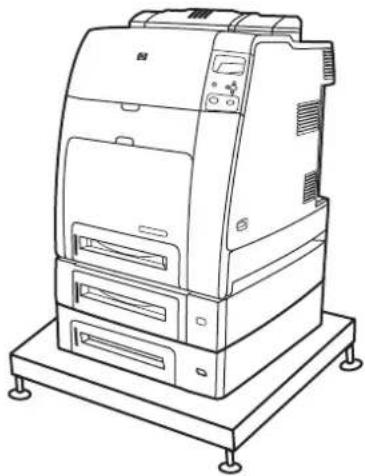
natural_image
Line drawing of a desktop computer with control panel and drive unit (no text or symbols)The HP Color LaserJet 4700dtn includes all the features of the 4700dn, two additional 500-sheet paper feeders (Trays 3 and 4), and a printer stand.
HP Color LaserJet 4700ph+ (product number Q7495A)
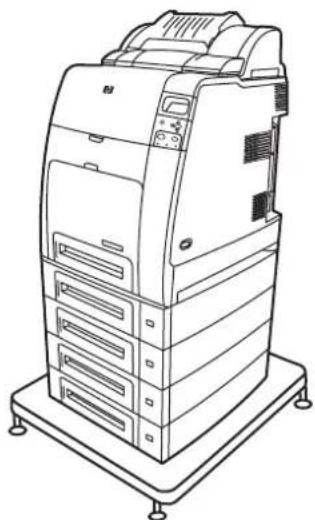
natural_image
Line drawing of a server rack with multiple units and control panel (no text or symbols)The HP Color LaserJet 4700ph+ includes the features of the 4700dtn, two additional 500-sheet paper feeders (Trays 5 and 6), a high-capacity stapler/stacker, a printer stand, a hard disk, and an additional 256 MB of memory.

NOTE 544 MB of SDRAM: 512 MB of DDR, plus 32 MB of additional memory on the formatter board and an additional DIMM slot. This printer has two 200-pin small outline dual inline memory module (SODIMM) slots that accept 128 or 256 MB of RAM each.
Printer features
This printer combines the quality and reliability of Hewlett-Packard printing with the new features and standard capabilities listed below. For more information on printer features, see the Hewlett-Packard Web site at http://www.hp.com/support/clj4700.
Table 1-1 Features
| Performance | Prints up to 31 pages per minute (ppm) for letter-sized paper and up to 30 ppm for A4-sized paper.First page prints in 10 seconds or less from the Ready prompt. The printer can be set to wake from sleep mode at a specific time each day. |
| Memory | 160 MB of memory for the HP Color LaserJet 4700 and 4700n, 288 MB for the HP Color LaserJet 4700dn and HP Color LaserJet 4700dtn, and 544 MB for the HP Color LaserJet 4700ph+. NOTE Memory specification: HP Color LaserJet 4700 series printers use 200-pin small outline dual inline memory modules (SODIMM) that support 128 or 256 MB of RAM.Two open EIO slots.Can be expanded to 544 MB: 512 MB of DDR memory plus 32 MB of memory on the formatter board.Optional hard disk drive can be added via an EIO slot (an internal hard disk drive is included with the HP Color LaserJet 4700ph+ printer). NOTE Memory specification: HP Color LaserJet 4700 series printers use 200-pin small outline dual inline memory modules (SODIMM) that support 128 or 256 MB of RAM.Two open EIO slots.Can be expanded to 544 MB: 512 MB of DDR memory plus 32 MB of memory on the formatter board.Optional hard disk drive can be added via an EIO slot (an internal hard disk drive is included with the HP Color LaserJet 4700ph+ printer). |
| User interface | Four-line graphic display on control panel.Enhanced Help with animated graphics.Embedded Web server to access support and order supplies (network-connected printers).HP Easy Printer Care Software (a Web-based status and troubleshooting tool). |
| Supported printer personalities | HP PCL 6.HP PCL 5c.PostScript 3 emulation.Portable document format (PDF). |
| Job storage features | Full job storage features.Proof and hold.Private jobs.Quick copy.Mopier mode.Job storage.Personal identification number (PIN) printing.Fonts and forms. |
| Environmental features | Sleep mode setting.High content of recyclable components and materials.Energy Star compliant. |
| Fonts | 80 internal fonts available for both PCL and PostScript emulation.80 printer-matching screen fonts in TrueTypeTM format available with the software solution.Supports forms and fonts on the disk using HP Web Jetadmin. |
| Paper handling | Prints on media from 77 mm x 127 mm (3 inches x 5 inches) up to 216 mm x 356 mm (8.5 inches x 14 inches) (legal size). For ordering information, see Part numbers.Tray 1 can process heavy media from 60 g/m ^2 to 220 g/m ^2 (16 lb to 60 lb), as well as standard 80 lb cover stock. For ordering information, see Part numbers.Tray 2 and optional trays can process media from 60 g/m ^2 to 120 g/m ^2 (16 lb to 32 lb).Prints on a wide range of media types, including HP laser photo media, glossy papers, and transparencies, as well as heavy stock, labels, and envelopes.Prints multiple gloss levels.Standard 100-sheet multi-purpose paper tray (Tray 1) supports letter, legal, executive, 8.5 X 13, JIS B5, executive (JIS), 16K, A4, A5, and custom media.Standard 500-sheet paper feeder (Tray 2) that supports letter, legal, executive, 8.5 X 13, JIS B5, executive (JIS), 16K, A4, A5, and custom media.Up to four additional 500-sheet paper feeders (Trays 3, 4, 5, and 6) support letter, legal, executive, 8.5 X 13, JIS B5, executive (JIS), 16K, A4, A5, and custom media.Standard 500-sheet face-down output bin.Duplexer for automatic two-sided printing (duplexing) standard on the HP Color LaserJet 4700dn, HP Color LaserJet 4700dtn, and HP Color LaserJet 4700ph+ printers.Automatic duplexing of 120 g/m ^2 (32 lb) paper at full speed - 30 sides (15 sheets) per minute.Stapler/stacker prints up to 750 sheets with job offset and staples up to 30 sheets; standard on the HP Color LaserJet 4700ph+. |
| Accessories | Printer hard disk, which provides storage for fonts and macros as well as additional features for Job Storage; standard on HP Color LaserJet 4700ph+ printer.Small outline dual inline memory modules (SODIMMs).Flash memory slots for additional fonts and firmware upgrades.Printer stand.Stapler/stacker; standard on the HP Color LaserJet 4700ph+. NOTE Optional as an accessory for the HP Color LaserJet 4700dn and HP Color LaserJet 4700dtn. The stapler/stacker can be installed only on printers that are equipped with the automatic duplexer.Up to four additional 500-sheet paper feeders (Trays 3, 4, 5, and 6). NOTE Optional as an accessory for the HP Color LaserJet 4700dn and HP Color LaserJet 4700dtn. The stapler/stacker can be installed only on printers that are equipped with the automatic duplexer.Up to four additional 500-sheet paper feeders (Trays 3, 4, 5, and 6). |
| Connectivity | Enhanced input/output (EIO) card slots for optional connectivity. (Network connection using an HP Jetdirect embedded print server is standard on HP Color LaserJet 4700n, HP Color LaserJet 4700dn, HP Color LaserJet 4700dtn, and HP Color LaserJet 4700ph+ printers.)USB 2.0 connection.HP Jetdirect embedded print server to enable network connectivity without requiring use of an EIO slot.Standard bidirectional parallel cable interface (IEEE 1284-C compliant).Auxiliary connector.Both USB and parallel connections are supported, but cannot be used at the same time. |
| Supplies | Supplies status page contains information on toner level, page count, and estimated pages remaining.High-capacity no-shake cartridge with automatic toner seal removal feature.Printer checks for authentic HP print cartridges at cartridge installation.High-capacity (5,000) staple cartridge with staples-low and staples-out messaging capability.Internet-enabled supply-ordering capabilities through the embedded Web server.Internet-enabled supply-ordering capabilities through the HP Easy Printer Care Software. For more information, see http://www.hp.com/go/easyprintercare. |
Walk around
The following illustrations identify the locations and names of key components of this printer.
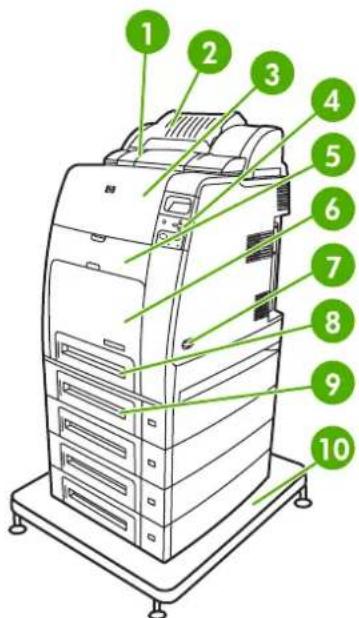
text_image
Diagram of a printer with numbered parts labeled 1 to 10, showing internal structure and base station.Front view (HP Color LaserJet 4700ph+ shown)
| 1 Duplexer | |
| 2 Stapler/stacker | |
| 3 Top cover | |
| 4 Control panel | |
| 5 Front cover (access to print cartridges, transfer unit, and fuser) | |
| 6 Tray 1 | |
| 7 On/off switch | |
| 8 Tray 2 | |
| 9 | Optional paper tray (three additional optional paper trays also shown) |
| 10 Printer stand | |

text_image
Technical diagram of a server rack with numbered components and a magnified view showing internal structure.Back/side view (HP Color LaserJet 4700ph+ shown)
| 1 Output tray | |
| 2 Formatter board | |
| 3 Upper formatter board tab | |
| 4 USB connection | |
| 5 ACC connection | |
| 6 EIO connection | |
| 7 Parallel port | |
| 8 EIO connection | |
| 9 Network port (RJ-45 connector) | |
| 10 Lower formatter board tab | |
| 11 Auxiliary port | |
| 12 Power cord connection |
Printer software
Included with the printer is a CD-ROM containing the printing system software. The software components and printer drivers on this CD-ROM help you use the printer to its fullest potential. See the Getting Started Guide for installation instructions.

NOTE For the latest information about the printing system software components, refer to the readme file on the Web at http://www.hp.com/support/clj4700. For information about installing the printer software, view the Install Notes on the CD-ROM included with the printer.
This section summarizes the software included on the CD-ROM. The printing system includes software for end users and network administrators operating in the following operating environments:
• Microsoft Windows 98 and Windows Me
• Microsoft Windows 2000, XP (32-bit), and Server 2003 (32-bit)
• Apple Mac OS 9.1 and 9.2, and Mac OS X v10.2.8 and v10.3

NOTE For a list of the network environments supported by the network administrator software components, see Network configuration.
NOTE For a list of printer drivers, updated HP printer software, and product support information, go to http://www.hp.com/support/clj4700.
Software
Software features
Automatic Configuration, Update Now, and Preconfiguration features are available with the HP Color LaserJet 4700 series printer.
Driver Autoconfiguration
The HP LaserJet PCL 6 and PCL 5c drivers for Windows and the PS drivers for Windows 2000 and Windows XP feature automatic discovery and driver configuration for printer accessories at the time of installation. Some accessories that Driver Autoconfiguration supports are the duplexing unit, optional paper trays, and dual inline memory modules (DIMMs). If the environment supports bidirectional communication, the installer presents Driver Autoconfiguration as an installable component by default for a Typical Installation and for a Custom Installation.
Update Now
If you have modified the configuration of the HP Color LaserJet 4700 printer since installation, the driver can be automatically updated with the new configuration in environments that support bidirectional communication. Click the Update Now button to automatically reflect the new configuration in the driver.

NOTE The Update Now feature is not supported in environments where shared Windows 2000 or Windows XP clients are connected to Windows 2000 or Windows XP hosts.
HP Driver Preconfiguration
HP Driver Preconfiguration is a software architecture and set of tools that allows HP software to be customized and distributed in managed corporate printing environments. Using HP Driver
Preconfiguration, information technology (IT) administrators can preconfigure the printing and device defaults for HP printer drivers before installing the drivers in the network environment. For more information, see the HP Driver Preconfiguration Support Guide, which is available at http://www.hp.com/support/clj4700.
Installing the printing system software
The following sections contain instructions for installing the printing system software.
The printer comes with printing system software and printer drivers on a CD-ROM. The printing system software on the CD-ROM must be installed to take full advantage of the printer features.
If you do not have access to a CD-ROM drive, you can download the printing system software from the Internet at http://www.hp.com/support/clj4700.

NOTE You can obtain Model Scripts for UNIX® and Linux by downloading them from the Internet or by requesting them from an HP-authorized service or support provider. For Linux support see http://www.hp.com/go/linux. For UNIX support see http://www.hp.com/go/jetdirectunix_software.
You can download the latest software free of charge at http://www.hp.com/support/clj4700.
Installing Windows printing system software for direct connections
This section explains how to install the printing system software for Microsoft Windows 98, Windows Me, Windows 2000, and Windows XP.
When installing the printing software in a direct-connect environment, always install the software before connecting the parallel or USB cable. If the parallel or USB cable was connected before the software installation, see Installing the software after the parallel or USB cable has been connected.
Either a parallel or USB cable can be used for the direct connection. However, you cannot connect parallel and USB cables at the same time. Use an IEEE 1284-compatible cable or a standard 2-meter USB cable.
Installing the printing system software
- Close all software programs that are open or running.
- Insert the printer CD-ROM into the CD-ROM drive.
If the welcome screen does not open, start it by using the following procedure:
• On the Start menu, click Run.
- Type the following: X:\setup (where X is the letter of the CD-ROM drive).
- Click OK.
- When prompted, click Install Printer and follow the instructions on the computer screen.
- Click Finish when the installation has completed.
- You might need to restart the computer.
- Print a Test Page or a page from any software program to make sure that the software is correctly installed.
If installation fails, reinstall the software. If this fails, check the installation notes and readme files on the printer CD-ROM or the flyer that came in the printer box, or go to http://www.hp.com/support/clj4700 for help or more information.
Installing Windows printing system software for networks
The software on the printer CD-ROM supports network installation with a Microsoft network. For network installation on other operating systems, go to http://www.hp.com/support/clj4700.
The HP Jetdirect embedded print server in the HP Color LaserJet 4700n, HP Color LaserJet 4700dn printer, or HP Color LaserJet 4700dtn printer includes a 10/100 Base-TX network port. For other available HP Jetdirect print servers, see Supplies and accessories or go to http://www.hp.com/support/clj4700.
The installer does not support printer installation or printer object creation on Novell servers. It supports only direct-mode network installations between Windows computers and a printer. To install your printer and create objects on a Novell server, use an HP utility (such as HP Web Jetadmin) or a Novell utility (such as NWAdmin).
Installing the printing system software
- If you are installing the software on Windows 2000 or Windows XP, make sure that you have administrator privileges.
- Make sure that the HP Jetdirect print server and printer are properly connected to the network. Print a configuration page (see Printer information pages). On the second page of the configuration page, locate the IP address that is currently configured. You might need this address to initially identify the printer on your network and complete the installation.
- Close all software programs that are open or running.
- Insert the printer CD-ROM into the CD-ROM drive.
If the welcome screen does not open, start it by using the following procedure:
• On the Start menu, click Run.
- Type the following: X:\setup (where X is the letter of the CD-ROM drive).
- Click OK.
-
When prompted, click Install Printer and follow the instructions on the computer screen.
-
Click Finish when installation has completed.
-
You might need to restart the computer.
-
Print a Test Page or a page from any software program to make sure that the software is correctly installed.
If installation fails, reinstall the software. If this fails, check the installation notes and readme files on the printer CD-ROM or the flyer that came in the printer box, or go to http://www.hp.com/support/clj4700 for help or more information.
Setting up a Windows computer to use the network printer with Windows-sharing
If the computer will print directly to the printer, you can share the printer on the network so that other network users can print to it.
See your Windows documentation to enable Windows-sharing. After the printer is shared, install the printer software on all computers that share the printer.
Installing the software after the parallel or USB cable has been connected
If you have already connected a parallel or USB cable to a Windows computer, the New Hardware Found dialog box appears when you turn on the computer.
Installing the software for Windows 98 or Windows Me
- In the New Hardware Found dialog box, click Search CD-ROM drive.
- Click Next.
- Follow the instructions on the computer screen.
- Print a Test Page or a page from any software program to make sure that the software is correctly installed.
If installation fails, reinstall the software. If this fails, check the installation notes and readme files on the printer CD-ROM or the flyer that came in the printer box, or go to http://www.hp.com/support/clj4700 for help or more information.
Installing the software for Windows 2000 or Windows XP
- In the New Hardware Found dialog box, click Search.
- On the Locate Driver Files screen, select the Specify a Location check box, clear all other check boxes, and then click Next.
- Type the letter for the root directory. For example, X:\ (where "X:" is the letter of the root directory on the CD-ROM drive).
- Click Next.
- Follow the instructions on the computer screen.
- Click Finish when installation has completed.
- Select a language and follow the instructions on the computer screen.
- Print a Test Page or a page from any software program to make sure that the software is correctly installed.
If installation fails, reinstall the software. If this fails, check the installation notes and readme files on the printer CD-ROM or the flyer that came in the printer box, or go to http://www.hp.com/support/clj4700 for help or more information.
Uninstalling the software
This section explains how to uninstall the printing system software.
Removing software from Windows operating systems
Use the Uninstaller in the HP Color LaserJet 4700/Tools program group to select and remove any or all of the Windows HP printing system components.
- Click Start and then click Programs.
- Point to HP Color LaserJet 4700 and then click Tools.
- Click Uninstaller.
- Click Next.
- Select the HP printing system components you want to uninstall.
-
Click OK.
-
Follow the instructions on the computer screen to complete the uninstallation.
Software for networks
For a summary of available HP network installation and configuration software solutions, see the HP Jetdirect Print Server Administrator's Guide. You can find this guide on the CD-ROM included with the printer.
HP Web Jetadmin
HP Web Jetadmin allows you to manage HP Jetdirect-connected printers within your intranet using a Web browser. HP Web Jetadmin is a browser-based management tool, and should be installed only on a single network administration server. It can be installed and run on these systems:
• Fedora Core and SuSe Linux
• Windows 2000 Professional, Server, and Advanced Server
• Windows XP Professional Service Pack 1
• Windows Server 2003
When installed on a host server, HP Web Jetadmin can be accessed by any client through a supported web browser, such as Microsoft Internet Explorer 5.5 and 6.0 or Netscape Navigator 7.0.
HP Web Jetadmin has the following features:
- Task-oriented user interface provides configurable views, saving network managers significant time.
- Customizable user profiles let network administrators include only the function viewed or used.
- Instant e-mail notification of hardware failure, low supplies, and other printer problems now route to different people.
• Remote installation and management from anywhere using only a standard Web browser. -
Advanced autodiscovery locates peripherals on the network, without manually entering each printer into a database.
• Simple integration into enterprise management packages. -
Ability to quickly find peripherals based on parameters such as IP address, color capability, and model name.
- Ability to easily organize peripherals into logical groups, with virtual office maps for easy navigation.
- Ability to manage and configure multiple printers at once.
To download a current version of HP Web Jetadmin and to see the latest list of supported host systems, visit HP Customer Care Online at http://www.hp.com/go/webjetadmin.
UNIX
The HP Jetdirect Printer Installer for UNIX is a simple printer installation utility for HP-UX and Solaris networks. It is available for download from HP Customer Care Online at http://www.hp.com/go/jetdirectunix_software.
Utilities
The HP Color LaserJet 4700 series printer is equipped with several utilities, which make it easy to monitor and manage the printer on a network.
HP Easy Printer Care Software
The HP Easy Printer Care Software is a software program that you can use for the following tasks:
• Viewing color usage information
- Checking the printer status
- Checking the supplies status
- Setting up alerts
• Viewing printer documentation
• Gaining access to troubleshooting and maintenance tools
You can view the HP Easy Printer Care Software when the printer is directly connected to your computer or when it is connected to a network. Perform a complete software installation in order to use the HP Easy Printer Care Software. For more information, see http://www.hp.com/go/easyprintercare.
Embedded Web server
This printer is equipped with an embedded Web server, which allows access to information about printer and network activities. A Web server provides an environment in which web programs may run, much in the same way that an operating system, such as Windows, provides an environment for programs to run on your computer. The output from these programs can then be displayed by a Web browser, such as Microsoft Internet Explorer or Netscape Navigator.
When a Web server is "embedded", that means it resides on a hardware device (such as a printer) or in firmware, rather than as software that is loaded on a network server.
The advantage of an embedded Web server is that it provides an interface to the printer that anyone can access with a network-connected computer or a standard Web browser. There is no special software to install or configure. For more information about the HP embedded Web server, see the Embedded Web Server User Guide. You can find this guide on the CD-ROM included with the printer.
Features
The HP embedded Web server allows you to view printer and network card status and manage printing functions from your computer. With the HP embedded Web server, you can do the following:
• View printer status information.
• Determine the remaining life on all supplies and order new ones.
• View and change tray configurations.
• View and change the printer control panel menu configuration.
• View and print internal pages.
• Receive notification of printer and supplies events.
- Add or customize links to other Web sites.
- Select the language in which to display the embedded Web server pages.
• View and change network configuration.
For a complete explanation of the features and functionality of the embedded Web server, see Using the embedded Web server.
Other components and utilities
Several software applications are available for Windows and Mac OS users, as well as for network administrators.
Windows Mac OS Network administrator
| Software installer — automates the printing system installationOnline Web registration | PostScript Printer Description files (PPDs) — for use with the Apple PostScript drivers that comes with the Mac OSHP LaserJet Utility (available from the Internet) — a printer management utility for Mac OS users | HP Web Jetadmin — a browser-based system management tool.Seehttp://www.hp.com/go/webjetadminfor the latest HP Web Jetadmin softwareHP Jetdirect Printer Installer for UNIX — available for downloadfromhttp://www.hp.com/support/net_printing |
Printer drivers
The product comes with software that allows the computer to communicate with the product (by using a printer language). This software is called a printer driver. Printer drivers provide access to product features, such as printing on custom-sized paper, resizing documents, and inserting watermarks.
Supported printer drivers
The following printer drivers are provided for the product. If the printer driver that you want is not on the product CD-ROM or is not available on www.hp.com, contact the manufacturer or distributor of the program that you are using, and request a driver for the product.

NOTE The most recent drivers are available at www.hp.com. Depending on the configuration of Windows-based computers, the installation program for the product software automatically checks the computer for Internet access in order to obtain the latest drivers.
NOTE For Windows 2000, Windows XP, and Windows Server 2003, the HP Color LaserJet 4700 Series printers include a monochrome PCL 6 driver that can be installed for users who will be printing only black-and-white print jobs.
| Operating system ^1 | PCL 6 printer driver ^2 | PCL 5 printer driver | PS printer driver PPD ^3 printer driver |
| Microsoft Windows 98 | X | X | X |
| Windows Millennium (Me) | X | X | X |
| Windows 2000 | X | X | X |
| Windows XP | X | X | X |
| Windows Server 2003 | X | X | X |
| Mac OS 9.1 and 9.2 | X X | ||
| Mac OS X v10.2.8 and v10.3 | X X |
1 Not all product features are available from all drivers or operating systems. See the context-sensitive help in the printer driver for available features.
2 For Windows 2000, Windows XP, and Windows Server 2003, the HP Color LaserJet 4700 Series printers include a monochrome PCL 6 driver that can be installed for users who will be printing only black-and-white print jobs.
3 PostScript (PS) Printer Description files (PPDs)
Additional drivers
The following drivers are not included on the CD-ROM, but are available from the Internet.
OS/2 PCL printer driver
OS/2 PS printer driver.
- UNIX model scripts.
Linux drivers.
HP OpenVMS drivers.

NOTE The OS/2 drivers are available from IBM.
You can obtain Model Scripts for UNIX® and Linux by downloading them from the Internet or by requesting them from an HP-authorized service or support provider. For Linux support see www.hp.com/go/linux. For UNIX support see www.hp.com/go/jetdirectunix_software.
Select the correct printer driver
Select a printer driver based on the operating system that you are using and the way that you use the product. See the printer-driver Help for the features that are available. For information about gaining access to the printer-driver Help, see Printer-driver Help.
- The PCL 6 printer driver can provide the best overall performance and access to your printer features.
• The PCL 5 printer driver is recommended for general office monochrome and color printing.
Use the PostScript (PS) driver if you are printing primarily from PostScript-based programs such as Adobe PhotoShop® and CorelDRAW®, for compatibility with PostScript Level 3 needs, or for PS flash font support.

NOTE The product automatically switches between PS and PCL printer languages.
Printer-driver Help (Windows)
Printer-driver Help is separate from program Help. The printer-driver help provides explanations for the buttons, checkboxes, and drop-down lists that are in the printer driver. It also includes instructions for performing common printing tasks, such as printing on both sides, printing multiple pages on one sheet, and printing the first page or covers on different paper.
Activate the printer-driver Help screens in one of the following ways:
- Click the Help button.
• Press the F1 key on the computer keyboard. - Click the question-mark symbol in the upper-right corner of the printer driver.
• Right-click on any item in the driver, and then click What's This?
Gaining access to the printer drivers
Use one of the following methods to open the printer drivers from your computer:
| Operating System To change the settings for all print jobs until the software program is closed | To change the print job default settings (for example, turn on Print on Both Sides by default) | To change the configuration settings (for example, add a tray or enable/disable Manual Duplexing) | |
| Windows 98 and Windows Millennium (Me) | 1. On the File menu in the software program, click Print.2. Select the HP Color LaserJet 4700, and then click Properties.The steps can vary; this procedure is most common. | 1. Click Start, click Settings, and then click Printers.2. Right-click the HP Color LaserJet 4700 icon, and then select Properties (Windows 98 and Me) or Document Defaults (Windows NT 4.0). | 1. Click Start, click Settings, and then click Printers.2. Right-click the HP Color LaserJet 4700 icon, and then select Properties.3. Click the Configure tab. |
| Windows 2000, XP, and Server 2003 | 1. On the File menu in the software program, click Print.2. Select the HP Color LaserJet 4700, and then click Properties or Preferences.The steps can vary; this procedure is most common. | 1. Click Start, click Settings, and then click Printers or Printers and Faxes.2. Right-click the HP Color LaserJet 4700 icon, and then select Printing Preferences. | 1. Click Start, click Settings, and then click Printers or Printers and Faxes.2. Right-click the HP Color LaserJet 4700 icon, and then select Properties.3. Click the Device Settings tab. |
| Mac OS 9.1 and 9.2 | 1. On the File menu, click Print.2. Change the settings that you want on the various pop-up menus. | 1. On the File menu, click Print.2. As you change settings on the pop-up menu, click Save Settings. | 1. Click the desktop printer icon.2. From the Printing menu, click Change Setup. |
| Mac OS X v10.2.8 | 1. On the File menu, click Print.2. Change the settings that you want on the various pop-up menus. | 1. On the File menu, click Print.2. Change the settings that you want on the various pop-up menus.3. On the Presets pop-up menu, click Save as and type a name for the preset.These settings are saved in the Presets menu. To use the new settings, you must select the saved preset option every time you open a program and print. | 1. In the Finder, on the Go menu, click Applications.2. Open Utilities, and then open Print Center.3. Click on the print queue.4. On the Printers menu, click Show Info.5. Click the Installable Options menu. |
| NOTE Configuration settings might not be available in Classic mode. | |||
| Mac OS X v10.3 | 1. On the File menu, click Print.2. Change the settings that you want on the various pop-up menus. | 1. On the File menu, click Print.2. Change the settings that you want on the various pop-up menus.3. On the Presets pop-up menu, click Save as and type a name for the preset.These settings are saved in the Presets menu. To use the new settings, you must select the saved preset option every time you Open a program and print. | 1. Open Printer Setup Utility by selecting the hard drive, clicking Applications, clicking Utilities, then double-clicking Printer Setup Utility.2. Click on the print queue.3. On the Printers menu, click Show Info.4. Click the Installable Options menu. |
Printer drivers for Macintosh computers
The printer comes with printer-driver software that uses a printer language to communicate with the printer. Printer drivers provide access to printer features, such as printing on custom-sized paper, resizing documents, and inserting watermarks.
Supported printer drivers
A Macintosh printer driver and the necessary PPD files are included with the printer. If the printer driver that you want is not on the printer CD, check the installation notes and the late-breaking readme files to see if the printer driver is supported. If it is not supported, contact the manufacturer or distributor of the software program that you are using, and request a driver for the printer.

NOTE The most recent drivers are available at www.hp.com.
Gaining access to the printer drivers
Use one of the following methods to open the printer drivers from your computer.
| Operating System To change the settings for all print jobs until the software program is closed | To change the print job default settings (for example, turn on Print on Both Sides by default) | To change the configuration settings (for example, add a physical option such as a tray, or turn on or off a driver feature such as Allow Manual Duplexing) | |
| Mac OS 9.1 and 9.2 | 1. On the File menu, click Print. | 1. On the File menu, click Print. | 1. Click the desktop printer icon. |
| 2. Change any settings that you want to on the various pop-up menus. | 2. As you change settings on the pop-up menu, click Save Settings. | 2. From the Printing menu, click Change Setup. | |
| Mac OS X v10.2.8 | 1. On the File menu, click Print. | 1. On the File menu, click Print. | 1. In the Finder, on the Go menu, click Applications. |
| 2. Change any settings that you want to on the various pop-up menus. | 2. Change the settings that you want on the various pop-up menus, and then, on the Presets pop-up menu, click Save as and type a name for the preset. | 2. Open Utilities, and then open Print Center. | |
| 3. Click on the print queue. | |||
| 4. On the Printers menu, click Show Info. | |||
| These settings are saved in the Presets menu. To use the new settings, you must select the saved preset option every time you open a program and print. | 5. Click the Installable Options menu. | ||
 NOTE Configuration settings might not be available in Classic mode. NOTE Configuration settings might not be available in Classic mode. | |||
| Mac OS X v10.3 | 1. On the File menu, click Print. | 1. On the File menu, click Print. | 1. Open Printer Setup Utility by selecting the hard drive, clicking Applications, clicking Utilities, and then double-clicking Printer Setup Utility. |
| 2. Change any settings that you want to on the various pop-up menus. | 2. Change the settings that you want on the various pop-up menus, and then, on the Presets pop-up menu, click Save as and type a name for the preset. | 2. Click on the print queue. | |
| 3. On the Printers menu, click Show Info. | |||
| These settings are saved in the Presets menu. To use the new settings, you must select the saved preset option every time you open a program and print. | 4. Click the Installable Options menu. | ||
Software for Macintosh computers
The HP installer provides PostScript® Printer Description (PPD) files, Printer Dialog Extensions (PDEs), and the HP Printer Utility for use with Macintosh computers.
If both the printer and the Macintosh computer are connected to a network, use the printer embedded Web server (EWS) to configure the printer. For more information, see Using the embedded Web server.
Installing Macintosh printing system software for networks
This section describes how to install Macintosh printing system software. The printing system software supports Mac OS 9.1 and 9.2, and Mac OS X v10.2.8 and v10.3.
The printing system software includes the following components:
• PostScript Printer Description (PPD) files
The PPDs, in combination with the Apple PostScript printer drivers, provide access to printer features. An installation program for the PPDs and other software is provided on the compact disc (CD) that came with the printer. Use the Apple PostScript printer driver that comes with the computer.
HP Printer Utility
The HP Printer Utility provides access to features that are not available in the printer driver. Use the illustrated screens to select printer features and complete the following tasks with the printer:
- Name the printer.
- Assign the printer to a zone on the network.
- Assign an internet protocol (IP) address to the printer.
- Download files and fonts.
- Configure and set the printer for IP or AppleTalk printing.
You can use the HP Printer Utility when your printer uses a universal serial bus (USB) or is connected to a TCP/IP-based network.

NOTE The HP Printer Utility is supported for Mac OS X v10.2.8 and v10.3.
For more information about using the HP Printer Utility, see Using the HP Printer Utility for Macintosh.
To install printer drivers for Mac OS 9.1 and 9.2
- Connect the network cable between the HP Jetdirect print server and a network port.
- Insert the CD into the CD-ROM drive. The CD menu runs automatically. If the CD menu does not run automatically, double-click the CD icon on the desktop.
- Double-click the Installer icon in the HP LaserJet Installer folder.
- Follow the instructions on the computer screen.
-
On the computer hard drive, open Applications, open Utilities, and then open Desktop Printer Utility.
-
Double-click Printer (AppleTalk).
- Next to AppleTalk Printer Selection, click Change.
- Select the printer, click Auto Setup, and then click Create.

NOTE The icon on the desktop looks generic. All of the print panels appear in the print dialog box with each software program.
To install printer drivers for Mac OS X v10.2.8 and v10.3
- Connect the network cable between the HP Jetdirect print server and a network port.
- Insert the CD into the CD-ROM drive.
The CD menu runs automatically. If the CD menu does not run automatically, double-click the CD icon on the desktop. - Double-click the Installer icon in the HP LaserJet Installer folder.
- Follow the instructions on the computer screen.
- On the computer hard drive, open Applications, open Utilities, and then open Print Center or Printer Setup Utility.

NOTE If you are using Mac OS X v10.3, then the Printer Setup Utility has replaced the Print Center.
-
Click Add Printer.
-
Select Rendezvous as the connection type.
-
Select your printer from the list.
-
Click Add Printer.
-
Close the Print Center or the Printer Setup Utility by clicking the close button in the upper-left corner.
Installing Macintosh printing system software for direct connections (USB)

NOTE Macintosh computers do not support parallel port connections.
This section explains how to install the printing system software for Mac OS 9.1 and 9.2, and Mac OS X v10.2.8 and v10.3.
The Apple PostScript driver must be installed in order to use the PPD files. Use the Apple PostScript driver that came with your Macintosh computer.
To install the printing system software
- Connect a USB cable between the USB port on the printer and the USB port on the computer. Use a standard 2-meter (6.56-foot) USB cable.
- Insert the printer CD into the CD-ROM drive and run the installer.
The CD menu runs automatically. If the CD menu does not run automatically, double-click the CD icon on the desktop.
- Double-click the Installer icon in the HP LaserJet Installer folder.
- Follow the instructions on the computer screen.
- For Mac OS 9.1 and 9.2:
a. On the computer hard drive, open Applications, open Utilities, and then open Print Center.
b. Double-click Printer (USB), and then click OK.
c. Next to USB Printer Selection, click Change.
d. Select the printer, and then click OK.
e. Next to Postscript Printer Description (PPD) File, click Auto Setup, and then click Create.
f. On the Printing menu, click Set Default Printer.
For Mac OS X v10.2.8 and v10.3: USB queues are created automatically when the printer is attached to the computer. However, the queue will use a generic PPD if the installer has not been run before the USB cable is connected. To change the queue PPD, open the Print Center or Printer Setup Utility, select the correct printer queue, and then click Show Info to open the Printer Info dialog box. In the pop-up menu, select Printer Model, and then, in the pop-up menu in which Generic is selected, select the correct PPD for the printer.
- Print a test page or a page from any software program to make sure that the software is correctly installed.
If installation fails, reinstall the software. If this fails, see the installation notes or late-breaking readme files on the printer CD or the flyer that came in the printer box, or go to http://www.hp.com/support/clj4700 for help or more information.

NOTE The icon on the Mac OS 9.x desktop looks generic. All of the print panels appear in the Print dialog box with each software program.
To remove software from Macintosh operating systems
To remove the software from a Macintosh computer, drag the PPD files to the trash can.
Using the HP Printer Utility for Macintosh
Use the HP Printer Utility to configure and maintain a printer from a Mac OS X v10.2.8 or v10.3 computer. This section describes several functions that you can perform through the HP Printer Utility.
Opening the HP Printer Utility
The process that you use to start the HP Printer Utility depends on the Macintosh operating system that you are using.
To open the HP Printer Utility in Mac OS X v10.2.8
- Open the Finder, and then click Applications.
- Click Library, and then click Printers.
- Click hp, and then click Utilities.
- Double-click HP Printer Selector to open the HP Printer Selector.
- Select the printer that you want to configure, and then click Utility.
To open the HP Printer Utility in Mac OS X v10.3
- In the Dock, click the Printer Setup Utility icon.

NOTE If the Printer Setup Utility icon does not appear in the Dock, open the Finder, click Applications, click Utilities, and then double-click Printer Setup Utility.
- Select the printer that you want to configure, and then click Utility.
Printing a cleaning page
Print a cleaning page if the printer is not printing jobs at the expected quality level.
- Open the HP Printer Utility.
- In the Configuration Settings list, select Color Cleaning.
- Click Print Cleaning Page to print the cleaning page.
Printing a configuration page
Print a configuration page to view the printer settings. For more information about the configuration page, see Configuration page.
- Open the HP Printer Utility.
- In the Configuration Settings list, select Configuration Page.
- Click Print Configuration Page to print the configuration page.
Viewing supplies status
View the status of the printer supplies (such as print cartridges, imaging drum, or print media) from a computer.
- Open the HP Printer Utility.
- In the Configuration Settings list, select Supplies Status.
-
Click the Supplies tab to view the status of various replaceable supplies, and click the Media tab to view the status of print media.
-
To view a more detailed status list, click Detailed Supplies Information. The Supplies Information dialog box appears.
- To order supplies online, click Order HP Supplies. You must have Internet access in order to use the online ordering Web page. For more information about online ordering, see Ordering supplies online and using other support features.
Ordering supplies online and using other support features
Use the HP Web site to order printer supplies, register the printer, get customer support, or learn about recycling printer supplies. You must have Internet access in order to use the supplies and support Web pages.
- Open the HP Printer Utility.
- In the Configuration Settings list, select HP Support.
-
Click one of the following buttons:
-
Instant Support: Opens a Web page that you can use to seek technical assistance.
• Order Supplies Online: Opens a Web page that you can use to order printer supplies.
• Online Registration: Opens a Web page that you can use to register the printer. - Return & Recycle: Opens a Web page that you can use to find information about recycling used supplies.
Uploading a file to the printer
Send a file from the computer to the printer. The action that the printer takes depends on the type of file that you send to it. For example, when you send a print-ready file (such as a .PS or .PCL file), the printer prints the file.
- Open the HP Printer Utility.
- In the Configuration Settings list, select File Upload.
- Click Choose, navigate to the file that you want to upload, and then click OK.
- Click Upload to load the file.
Uploading fonts to the printer
Add fonts from the computer to the printer.
- Open the HP Printer Utility.
- In the Configuration Settings list, select Upload Fonts.
- In the Fonts in printer's pop-up menu, select where you want the fonts to be stored on the printer. The fonts in that storage device appear in the list that appears below the pop-up menu.
- Click Add and navigate to the font file that you want to upload to the printer.
- Click Upload to upload the font to the printer.

NOTE To remove a font from the printer, open the HP Printer Utility, select Upload Fonts, select the correct storage device in the pop-up menu, select the font that you want to delete, and then click Remove.
Updating the firmware
Update the printer firmware by loading the new firmware file from the computer. You can find new firmware files for your printer at www.hp.com.
- Open the HP Printer Utility.
- In the Configuration Settings list, select Firmware Update.
- Click Choose, navigate to the firmware file that you want to upload, and then click OK.
- Click Upload to load the firmware file.
Activating the two-sided printing (duplexing) mode
Turn on the two-sided printing feature on printers equipped with automatic duplexers.
- Open the HP Printer Utility.
- In the Configuration Settings list, select Duplex Mode.
- Select Enable Duplex Mode to activate the two-sided printing mode, and then click Apply Now.
Activating the Economode printing mode
Use the Economode setting to conserve printer supplies.
- Open the HP Printer Utility.
- In the Configuration Settings list, select Economode Toner Density.
- Select Turn Economode on, and then click Apply Now.
Changing the toner density
Conserve print-cartridge toner by changing the toner-density level. The lower toner-density levels conserve the most toner.
- Open the HP Printer Utility.
- In the Configuration Settings list, select Economode Toner Density.
- On the Toner Density popup menu, select the toner density level, and then click Apply Now.
Changing the resolution settings
Change the resolution settings from the computer. You also can change the Resolution Enhancement Technology (REt) setting.
- Open the HP Printer Utility.
- In the Configuration Settings list, select Resolution.
- On the Resolution pop-up menu, select the resolution level, and then click Apply Now.

NOTE To change the REt setting, repeat step 3 in the REt Level pop-up menu.
Locking or unlocking printer storage devices
Manage access to printer storage devices from the computer.
- Open the HP Printer Utility.
- In the Configuration Settings list, select Lock Resources.
- On the Control Panel Access Level pop-up menu, select the access level that you want to set for the printer control panel.
-
Select the devices that you want to lock, and clear any devices that you want to unlock.
-
Click Apply Now.
Saving or printing stored jobs
Turn on the printer job-storing function, or print a stored job from the computer. You also can delete a stored print job.
- Open the HP Printer Utility.
- In the Configuration Settings list, select Stored Jobs.
-
Perform any of the following tasks:
-
To turn on the job-storing function, select Enable Job Storing, and then click Apply Now.
- To print a stored job, select a stored job in the list, type the necessary personal identification number (PIN) in the Enter Secure Job PIN box, type the number of copies that you want in the Copies to Print box, and then click Print.
• To delete a stored job, select a stored job in the list, and then click Delete.
Configuring trays
Change the default printer tray settings from the computer.
- Open the HP Printer Utility.
- In the Configuration Settings list, select Trays Configuration.
- In the Trays list, select the tray to be configured.

NOTE To make the selected tray the default tray for printing, click Make Default.
- In the Default Media Size pop-up menu, select the default media size for the tray.
- In the Default Media Type pop-up menu, select the default media type for the tray.
- Click Apply Now.
Changing network settings
Change the network internet protocol (IP) settings from the computer. You also can open the embedded Web server to change additional settings. For more information about the embedded Web server, see Using the embedded Web server.
- Open the HP Printer Utility.
- In the Configuration Settings list, select IP Settings.
-
Change any of the settings in the following pop-up menus or fields:
-
Configuration
- Host Name
IP Address - Subnet Mask
- Default Gateway
If you want to change more settings in the embedded Web server, click Additional Network Settings. The embedded Web server opens with the Networking tab selected.
- Click Apply Now.
Opening the embedded Web server
Open the embedded Web server through the HP Printer Utility. For more information about the embedded Web server, see Using the embedded Web server.
- Open the HP Printer Utility.
- In the Configuration Settings list, select Additional Settings.
- Click Open Embedded Web Server.
Setting up e-mail alerts
Set up e-mail messages that alert you to certain events that occur with the printer, such as a low toner level in a print cartridge.
- Open the HP Printer Utility.
- In the Configuration Settings list, select E-mail Alerts.
- Click the Server tab, and, in the SMTP server box, type the server name.
- Click the Destinations tab, click the add (+) button, and then type the e-mail addresses, mobile device numbers, or Web site URLs to which you want the e-mail alerts sent.

NOTE If your printer supports e-mail lists, you can make alerts lists for specific events the same way that you added e-mail addresses.
- Click the Events tab, and, in the list, define the events for which an e-mail alert should be sent.
-
To test the alerts setup, click the Server tab, and then click Test. A sample message is sent to the defined e-mail addresses if the configuration is correct.
-
Click Apply Now.
Print media specifications
For optimum results, use conventional 75g / m^2 (20 lb) photocopy paper. Verify that the paper is of good quality and is free of cuts, nicks, tears, spots, loose particles, dust, wrinkles, curls, or bent edges.
• To order supplies in the U.S., go to http://www.hp.com/go/jsupplies.
• To order supplies worldwide, go to http://www.hp.com/ghp/buyonline.html.
• To order accessories, go to http://www.hp.com/go/accessories.

NOTE Test any media, particularly custom media, before purchasing large quantities to ensure that it will perform satisfactorily.
Supported media weights and sizes
Table 1-2 Tray 1 media sizes
| Tray 1 | Dimensions | Weight or thickness | Capacity | |
| Paper and cardstock, standard sizes (letter/A4, legal, executive, JIS B5, A5);custom sizes | Range:76 x 127 mm (3 x 5 in) to 216 x 356 mm (8.5 x 14 in) | Range:60 g/m2(16 lb) bond to 220 g/ m2(60 lb) bond | Maximum stack height: 10 mm (0.6 in)Equivalent to 100 sheets of 75 g/m2(20 lb) bond | |
Glossy paper (letter/A4, legal, executive, JIS B5, A5) | NOTE Do not use inkjet papers in this printer. | Range:76 x 127 mm (3 x 5 in) to 216 x 356 mm (8.5 x 14 in) | Range:75 g/m2(20 lb) bond to 220 g/ m2(60 lb) bond | Maximum stack height: 10 mm (0.6 in) |
| Transparencies (letter/A4), suitable for use in laser printers | Letter: 215.9 x 279.4 mm (8.5 x 11 in)A4: 210 x 297 mm (8.27 x 11.7 in) | Minimum 0.13 mm (0.005 in) thick | Maximum stack height: 10 mm (0.6 in) | |
| HP Tough paper (letter/A4) Letter: 215.9 x 279.4 mm (8.5 x 11 in)A4: 210 x 297 mm (8.27 x 11.7 in) | 0.13 mm (0.005 in) thick Maximum stack height: 10 mm (0.6 in) | |||
HP Color Laser Glossy Photo Paper (letter/A4) | NOTE Do not use inkjet papers in this printer. | Letter: 215.9 x 279.4 mm (8.5 x 11 in)A4: 210 x 297 mm (8.27 x 11.7 in) | 220 g/m2(60 lb) bond | Maximum stack height: 10 mm (0.6 in) |
| Envelopes (Com 10, Monarch, C5, DL, B5) | Range: | 60 g/m2(16 lb) bond to 90 g/ m2(24 lb)bond | 20 envelopes | |
| Labels (letter/A4, legal, executive, JIS B5, A5), | Range:76 x 127 mm (3 x 5 in) to 216 x 356 mm (8.5 x 14 in) | Maximum 0.23 mm (0.009 in) thick | Maximum stack height: 10 mm (0.6 in) | |
Table 1-2 Tray 1 media sizes (continued)
| Tray 1 Dimensions Weight or thickness Capacity |
| suitable for use in laser printers |
Table 1-3 Tray 2 and optional Trays 3 through 6 media sizes ^1
| Tray 2 and optional trays | Dimensions | Weight or thickness | Capacity | |
| Paper, standard sizes (letter/A4, legal, executive, JIS B5, A5); custom sizes | Range:148 x 210 mm (5.83 x 8.27 in) to 216 x 356 mm (8.5 x 14 in) | Range:60 g/m2(16 lb) bond to 120 g/m2(32 lb) bond | Maximum stack height: 56 mm (2.2 in)Equivalent to 530 sheets of 75 g/m2(20 lb) bond | |
Glossy paper (letter/A4, legal, executive, JIS B5, A5) | NOTE Do not use inkjet papers in this printer. | Range:148 x 210 mm (5.83 x 8.27 in) to 216 x 356 mm (8.5 x 14 in) | Range:75 g/m2(20 lb) bond to 120 g/m2(32 lb) bond | Maximum stack height: 56 mm (2.2 in) |
HP Color Laser Glossy Photo & Imaging Paper (letter/A4) | NOTE Do not use inkjet papers in this printer. | Letter: 215.9 x 279.4 mm (8.5 x 11 in)A4: 210 x 297 mm (8.27 x 11.7 in) | 120 g/m2(32 lb) bond | Maximum stack height: 56 mm (2.2 in) |
| Transparencies (letter/A4), suitable for use in laser printers | Letter: 215.9 x 279.4 mm (8.5 x 11 in)A4: 210 x 297 mm (8.27 x 11.7 in) | Minimum:0.13 mm (0.005 in) thick | Maximum stack height: 56 mm (2.2 in) | |
| HP Tough Paper (letter/A4) Letter: 215.9 x 279.4 mm (8.5 x 11 in)A4: 210 x 297 mm (8.27 x 11.7 in) | Maximum:0.13 mm (0.005 in) thick | Maximum stack height: 56 mm (2.2 in) | ||
| Labels (letter/A4 and custom sizes), suitable for use in laser printers | Range:148 x 210 mm (5.83 x 8.27 in) to 216 x 356 mm (8.5 x 14 in) | Maximum:0.13 mm (0.005 in) thick | Maximum stack height: 56 mm (2.2 in) | |
Tray 2 and optional trays use custom sizes specifically for B5 ISO. These trays do not support the range of custom sizes that can be used in Tray 1.
Table 1-4 Automatic duplex printing (two-sided printing)
| Automatic duplex printing | Dimensions | Weight or thickness | |
| Paper Standard sizes: | Range: | ||
| Letter: 215.9 x 279.4 mm (8.5 x 11 in) | 60 g/m ^2 (16 lb) bond to 120 g/ m ^2 (32 lb) bond | ||
| A4: 210 x 297 mm (8.27 x 11.7 in) | |||
| 8.5 x 13: 215.9 x 330.2 mm (8.5 x 13 in) | |||
| Legal: 215.9 x 355.6 mm (8.5 x 14 in) | |||
| Executive: 184.2 x 266.7 mm (7.25 x 10.5 in) | |||
| JIS B5: 182 x 257 mm (7.17 x 10.12 in) | |||
| Glossy paper (A4/letter, 13 x 8.5 in, legal, executive, JIS B5) | See above for standard sizes supported | Range:75 g/m2(20 lb) bond to 120 g/m2(32 lb) bond | |
 | NOTE Do not use inkjet papers in this printer. | ||
| HP Color Laser Glossy Photo & Imaging Paper (A4/ letter) | Standard sizes:Letter: 215.9 x 279.4 mm (8.5 x 11 in) | 120 g/m2(32 lb) bond | |
 | NOTE Do not use inkjet papers in this printer. | A4: 210 x 297 mm (8.27 x 11.7 in) | |
Table 1-5 Stapler/stacker
| Stapler/stacker Dimensions Weight or thickness Capacity | ||||
| Stacking with offset | Printing from Tray 1: | Range: | ||
 | NOTE Media types: paper and cardstock, glossy paper, transparencies, photo paper | 76 x 127 mm (3 x 5 in) to 216 x 356 mm (8.5 x 14 in) | 60 g/m2(16 lb) bond to 120 g/m2(32 lb) bond | NOTE The stapler/ stacker bin has a capacity of 750 sheets of 75 g/m2(20 lb) bond. |
| Printing from Tray 2 and optional trays: | ||||
| 148 x 210 mm (5.83 x 8.27 in) | ||||
| 216 x 356 mm to (8.5 x 14 in) | ||||
| Stacking without offset | Printing from Tray 1: | Range: | ||
 | NOTE See above for supported media types. | 76 x 127 mm (3 x 5 in) to 216 x 356 mm (8.5 x 14 in) | 75 g/m2(20 lb) bond to 120 g/m2(32 lb) bond | |
| Printing from Tray 2 and optional trays: | ||||
| 148 x 210 mm (5.83 x 8.27 in) to 216 x 356 mm (8.5 x 14 in) | ||||
| Stapling (30 sheets) |  | NOTE See above for supported trays and media sizes. | 60 g/m2(16 lb) to 160 g/m2(43 lb) | |
| [TYS3] | NOTE Media types: paper and cardstock, glossy paper, transparencies, photo paper | |||
| Stapling (20 sheets) |  | NOTE See above for supported trays and media sizes. | 60 g/m2(16 lb) to 220 g/m2(53 lb) | |
 | NOTE See above for supported media types. | |||
2 Control panel
This chapter contains information on the printer control panel, which provides control of printer functions and communicates information about the printer and print jobs. The following topics are covered:
Introduction
• Control panel buttons
• Interpreting control panel indicator lights
• Interpreting stapler/stacker indicator light codes
• Control panel menus
- Menu hierarchy
- Retrieve job menu
• Information menu
• Paper handling menu
- Configure device menu
• Diagnostics menu
• Changing printer control panel configuration settings
• Using the printer control panel in shared environments
Introduction
The control panel provides control of printer functions and communicates information about the printer and print jobs. Its display provides graphic information about printer and supplies status, making it easy to identify and correct problems.

text_image
Diagram of an electrical outlet with numbered labels pointing to internal componentsFigure 2-1 Control panel buttons and lights
| 1 Display | |
| 2 Up arrow ( ) button | ▲ |
| 3 Select ( ) button | √ |
| 4 Down arrow ( ) button | ▼ |
| 5 Stop button | |
| 6 Attention light | |
| 7 Data light | |
| 8 Ready light | |
| 9 Menu button | |
| 10 Back/Exit ( ) button | ⇨ |
| 11 | Help ( ) button |
The printer communicates via the display and the lights on the lower left side of the control panel. The Ready, Data, and Attention lights provide at-a-glance information about the state of the printer and alert you to printing problems. The display shows more complete status information as well as menus, help information, animations, and error messages.
Display
The four-line control panel display gives you complete, timely information about the printer and print jobs. Graphics illustrate levels of supplies, the locations of paper jams, and job status. Menus give access to printer functions and detailed status information.
The top-level screen on the display has two areas:
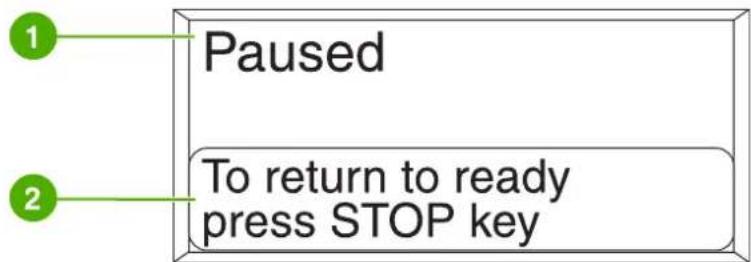
text_image
1 Paused 2 To return to ready press STOP keyFigure 2-2 Printer display
| 1 Message area | |
| 2 Prompt area |

text_image
Ready 1 2 3Figure 2-3 Printer display
| 1 Message area | |
| 2 Supplies gauge | |
| 3 | Print cartridge colors are indicated from left to right: black, magenta, cyan, and yellow |
The message and prompt areas of the display alert you to the state of the printer and tell you how to respond.
The supplies gauge shows the consumption levels of print cartridges (black, magenta, cyan, and yellow). A ? appears instead of the consumption level when the level is not known. This can occur in the following circumstances:
- Missing cartridges
• Incorrectly placed cartridges - Cartridges with an error
• Some non-HP cartridges
The supplies gauge appears whenever the printer shows the Ready state with no warnings. It will also appear when the printer shows a warning or error message concerning a print cartridge or multiple supplies.
Accessing the control panel from a computer
You can also access the printer control panel from a computer by using the Settings page of the embedded Web server.
The computer shows the same information that the control panel shows. From your computer, you can also perform control panel functions such as checking supplies status, viewing messages, or changing tray configuration. For more information, see Using the embedded Web server.
Control panel buttons
Use the buttons on the control panel to perform printer functions and to navigate and respond to menus and messages in the display.
| Button name Function | |
| ✓ Select | Makes selections and resumes printing after recovery errors. |
| ▲ Up arrow | Navigates menus and text, and increases or decreases the values of numerical items in the display. |
| ▼ Down arrow | |
| ⇨ Back/exit arrow | Navigates backward in nested menus, or quits menus or help. |
| Menu Accesses and exits the menus. | |
| Stop | Pauses the current job and provides options to resume printing or to cancel the current job. |
| ? Help | Provides animated graphics and detailed information on printer messages or menus. |
Interpreting control panel indicator lights
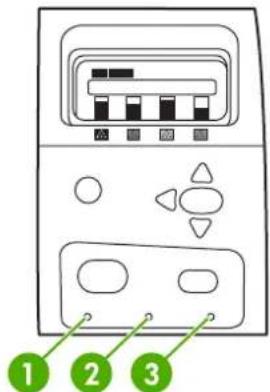
text_image
1 2 3Figure 2-4 Control panel indicator lights
| 1 Ready | |
| 2 Data | |
| 3 Attention |
| Indicator | On Off Flashing | ||
| Ready(green) | Printer is online (able to accept and process data). | Printer is offline or is turned off. | Printer is attempting to stop printing and go offline. |
| Data(green) | Processed data is present in the printer, but more data is needed to complete the job. | Printer is not processing or receiving data. | Printer is processing and receiving data. |
| Attention(amber) | A critical error has occurred.Printer requires attention. | No conditions exist that require attention. | An error has occurred. Printer requires attention. |
Interpreting stapler/stacker indicator light codes
The following table lists errors that can occur in the stapler/stacker unit that are reported by the accessory light and on the printer control panel display.

natural_image
Line drawing of a server rack with a green circle highlighting a point of interest (no text or symbols present)Indicator Solid Blinking Off
| Green | The accessory is ready and is functioning properly. Fewer than 20 staples remain in the stapler cartridge.STAPLER LOW ON STAPLES appears on the printer control panel display. Order and replace the stapler cartridge.The number of pages in the job exceeds the 30-page limit for stapling.TOO MANY PAGES IN JOB TO STAPLE appears on the printer control panel display. For jobs larger than 30 pages, staple the pages manually.The job contains different paper sizes. The stapler cannot align the paper for stapling. If stapling is required, print the job on same-size | N/A | The stapler/stacker is in sleep mode, the printer is turned off, or the stapler/stacker is not installed properly. |
| Indicator Solid Blinking Off | |||
| paper, or staple the job manually. MIXED PAPER SIZES IN JOB TO STAPLE appears on the printer control panel display. | |||
| Amber | The accessory is experiencing a hardware malfunction.For more information, see Control panel messages. | The device requires user intervention. The bin could be full, there could be a stapler jam, or the stapler cartridge could require replacement. For more information, see Control panel messages.If the message CORRUPT FIRMWARE IN EXTERNAL ACCESSORY appears, download the firmware again.There is a paper jam, or a sheet needs to be removed from the unit, even if the sheet is not jammed. For more information, see Jams in the stapler/stacker.The bin is full. Empty the bin before continuing.There are fewer than 30 staples remaining in the stapler cartridge. To avoid jams, these staples should not be used. Order and install a new stapler cartridge before continuing.The bin is in the up position. Lower the bin before continuing.The jam access door is open. Close the door before continuing.The stapler unit is open. Close the unit before continuing. | N/A |
Control panel menus
You can perform most routine printing tasks from the computer through the printer driver or software application. This is the most convenient way to control the printer, and will override the printer control panel settings. See the help files associated with the software, or for more information on accessing the printer driver, see Printer software.
You can also control the printer by changing settings in the printer's control panel. Use the control panel to access printer features not supported by the printer driver or software application. Use the control panel to configure trays for paper size and type.
Getting started basics
- Enter the menus and activate any selection by pressing the Menu button.
- Use the Up or Down arrows (▲▼) to navigate through the menus. In addition to menu navigation, the Up and Down arrows can increase and decrease numerical value selections. Hold down the Up or Down arrows to scroll faster.
- The Back button (5) allows you to move back in menu selections as well as select numerical values when configuring the printer.
- Exit all menus by pressing Menu.
• If no key is pressed for 60 seconds, the printer will return to the Ready state. - A lock symbol next to a menu item means a PIN number is needed to use that item. Typically, this number is obtained from your network administrator.
Menu hierarchy
The following tables list the hierarchies of each menu.
To enter the menus
Press Menu to enter MENUS.
Press ▲ or ▼ to navigate the listings.
Press √ to select the appropriate option.
MENUS RETRIEVE JOB
| INFORMATION |
| PAPER HANDLING |
| CONFIGURE DEVICE |
| DIAGNOSTICS |
| SERVICE |
Retrieve job menu
See Retrieve job menu for more information.
RETRIEVE JOB PRINT STORED JOB LIST
| USER NAME |
| ALL PRIVATE JOBS |
| COPIES |
| DELETE |
Information menu
See Information menu for more information.
INFORMATION PRINT MENU MAP
| PRINT CONFIGURATION |
| PRINT SUPPLIES STATUS PAGE |
| SUPPLIES STATUS |
| PRINT USAGE PAGE |
| PRINT DEMO |
| PRINT RGB SAMPLES |
PRINT CMYK SAMPLES
PRINT FILE DIRECTORY
PRINT PCL FONT LIST
PRINT PS FONT LIST
Paper handling menu
See Paper handling menu for more information.
PAPER HANDLING TRAY 1 SIZE
TRAY 1 TYPE
TRAY
N = 2, 3, 4, 5, or 6
TRAY
N = 2, 3, 4, 5, or 6
Configure device menu
See Configure device menu and Changing printer control panel configuration settings for more information.
CONFIGURE DEVICE PRINTING COPIES
DEFAULT PAPER SIZE
DEFAULT CUSTOM PAPER SIZE
DUPLEX
DUPLEX BINDING
OVERRIDE A4/LETTER
MANUAL FEED
COURIER FONT
WIDE A4
PRINT PS ERRORS
PRINT PDF ERRORS
PCL
PRINT QUALITY ADJUST COLOR
SET REGISTRATION
AUTO SENSE MODE
PRINT MODES
| OPTIMIZE | |
| QUICK CALIBRATE NOW | |
| FULL CALIBRATE NOW | |
| COLOR RET | |
| CREATE CLEANING PAGE | |
| PROCESS CLEANING PAGE | |
| AUTO CLEANING | |
| CLEANING INTERVAL | |
| SYSTEM SETUP DATE/TIME | |
| JOB STORAGE LIMIT | |
| JOB HELD TIMEOUT | |
| SHOW ADDRESS | |
| RESTRICT COLOR USE | |
| COLOR/BLACK MIX | |
| TRAY BEHAVIOR | |
| SLEEP DELAY | |
| WAKE TIME | |
| DISPLAY BRIGHTNESS | |
| PERSONALITY | |
| CLEARABLE WARNINGS | |
| AUTO CONTINUE | |
| REPLACE SUPPLIES | |
| ORDER AT | |
| COLOR SUPPLY OUT | |
| JAM RECOVERY | |
| RAM DISK | |
| LANGUAGE | |
| STAPLER STACKER | |
| STAPLES | |
| This menu appears if a stapler/stacker is installed | |
| STAPLES OUT | |
| OFFSET | |
| I/O I/O TIMEOUT | |
| PARALLEL INPUT | |
| EMBEDDED JETDIRECT | |
| EIO X JETDIRECT | |
(Where X = 1 or 2)
RESETS RESTORE FACTORY SETTINGS
SLEEP MODE
Diagnostics menu
See Diagnostics menu for more information.
DIAGNOSTICS PRINT EVENT LOG
SHOW EVENT LOG
PQ TROUBLESHOOTING
PRINT DIAGNOSTICS PAGE
DISABLE CARTRIDGE CHECK
PAPER PATH SENSORS
PAPER PATH TEST
MANUAL SENSOR TEST
MANUAL SENSOR TEST 2
COMPONENT TEST
PRINT/STOP TEST
COLOR BAND TEST
Retrieve job menu
The retrieve job menu allows you to view listings of all stored jobs.
| Menu item Description | |
| PRINT STORED JOB LIST Prints a page that lists all jobs stored on the printer. | |
| Each person who has jobs stored on the printer is listed. The number in parentheses indicates how many jobs that person has stored. | |
| NO STORED JOBS If there are no stored jobs, this message appears in place of the list. | |
| USER NAME | Each user who has stored jobs is listed by name. Select the appropriate user name to see a list of stored jobs. |
| ALL PRIVATE JOBS | This message is displayed if a user has stored jobs that require a PIN. |
| PRINT When printing a private job, the user is prompted to enter a PIN. | |
| COPIES The number of copies of the job to be printed. The default is 1. | |
| DELETE When deleting a private job, the user is prompted to enter a PIN. | |
Information menu
Use the information menu to access and print specific printer information.
| Menu item Description | |
| PRINT MENU MAP Prints the control panel menu map, which shows the layout and current settings of the control panel menu items. See Printer information pages. | |
| PRINT CONFIGURATION Prints the printer configuration page. | |
| PRINT SUPPLIES STATUS PAGE | Prints the estimated remaining life for the supplies; reports statistics on total number of pages and jobs processed, print cartridge manufacture date, serial number, page counts, and maintenance information. |
| SUPPLIES STATUS | Displays the status of the print cartridges, fuser kit, and transfer kit in a scrollable list. |
| PRINT USAGE PAGE | Prints a count of all media sizes that have passed through the printer; lists whether they were simplex, duplex, monochrome, or color; and reports the page count. |
| PRINT DEMO Prints a demonstration page. | |
| PRINT RGB SAMPLES | Prints color samples for different RGB values. The samples act as a guide for color matching on the HP Color LaserJet 4700. |
| PRINT CMYK SAMPLES | Prints color samples for different CMYK values. The samples act as a guide for color matching on the HP Color LaserJet 4700. |
| PRINT FILE DIRECTORY | Prints the name and directory of files stored in the printer on an optional hard disk. |
| PRINT PCL FONT LIST Prints the available PCL fonts. | |
| PRINT PS FONT LIST Prints the available PS (emulated PostScript) fonts. | |
Paper handling menu
The paper handling menu allows you to configure input trays by size and type. It is important to correctly configure the trays with this menu before you print for the first time.

NOTE If you have used other HP LaserJet printer models, you might be accustomed to configuring Tray 1 to First mode or Cassette mode. On HP Color LaserJet 4700 series printers, setting Tray 1 size and type to ANY SIZE is equivalent to First mode. Setting size or type for Tray 1 to a setting other than ANY SIZE is equivalent to Cassette mode.
| Menu item Value Description | ||
| TRAY 1 SIZE | A list of available sizes appears. | Allows you to configure the media size for Tray 1. The default is ANY SIZE. See Supported media weights and sizes for a complete list of available sizes. |
| TRAY 1 TYPE | A list of available types appears. | Allows you to configure the media type for Tray 1. The default is ANY TYPE. See Supported media weights and sizes for a complete list of available types. |
| TRAYSIZE | A list of available sizes appears. Allows you to configure the media size for Trays 2, 3, 4, 5, or 6. The default is Letter. The media size is detected by the guides in the tray. See Supported media weights and sizes for a complete list of available sizes. | |
| N = 2, 3, 4, 5, or 6 | ||
| TRAYTYPE | A list of available types appears. Allows you to configure the media type for Trays 2, 3, 4, 5, or 6. The default is PLAIN. See Supported media weights and sizes for a complete list of available types. | |
| N = 2, 3, 4, 5, or 6 | ||
Configure device menu
The CONFIGURE DEVICE menu allows you to change the default printing settings, adjust the print quality, change the system configuration and I/O options, and reset the default settings.
Printing menu
These settings affect only jobs without identified properties. Most jobs identify all of the properties and override the values set from this menu. This menu can also be used to set default media size and type.
| Menu item Values Description | ||
| COPIES 1-32000 Allows you to set the default number of copies. The default number is 1. | ||
| DEFAULT PAPER SIZE | A list of available sizes appears. | Allows you to set the default media size. |
| DEFAULT CUSTOM PAPER SIZE UNIT OF MEASURE | Allows you to set the default size for any job without dimensions. The default unit of measurement is MILLIMETER. | |
| X DIMENSION | ||
| Y DIMENSION | ||
| DUPLEX OFF | Allows you to enable or disable the duplex function on models with duplexing capability. The default is OFF. | |
| ON | ||
| DUPLEX BINDING LONG EDGE | Allows you to specify which edge of the sheet is to be bound when printing duplex jobs. The default is LONG EDGE. | |
| SHORT EDGE | ||
| OVERRIDE A4/LETTER NO | Allows you to set the printer to print an A4 job on letter-size paper when no A4 paper is loaded. The default is YES. | |
| YES | ||
| MANUAL FEED OFF | Allows you to manually feed media. The default is OFF. | |
| ON | ||
| COURIER FONT REGULAR | Allows you to select a version of the Courier font. The default is REGULAR. | |
| DARK | ||
| WIDE A4 NO | Allows you to change the printable area of A4 paper so that eighty 10-pitch characters may be printed on a single line. The default is NO. | |
| YES | ||
| PRINT PS ERRORS OFF | Allows you to select to print PS error pages. The default is OFF. | |
| ON | ||
| PRINT PDF ERRORS | OFF | Allows you to select to print PDF error pages. The default is OFF. |
| ON | ||
| PCL | FORM LENGTH | FORM LENGTH: Sets vertical spacing from 5 to 128 lines for default paper size. |
| ORIENTATION | ||
| FONT SOURCE | ORIENTATION: Allows you to select default page orientation to portrait or landscape. | |
| FONT NUMBER | ||
| FONT PITCH | FONT SOURCE: Allows you to select the font source as internal, card slot 1, 2, or 3, internal disk, or EIO disk. | |
| FONT POINT SIZE | ||
| SYMBOL SET | FONT NUMBER: The printer assigns a number to each font and lists the numbers on the PCL font list. The range is 0 to 999. | |
| APPEND CR TO LF | ||
| SUPPRESS BLANK PAGES | FONT PITCH: Selects the font pitch. This item might not appear, depending on the font selected. The range is 0.44 to 99.99. | |
| MEDIA SOURCE MAPPING | FONT POINT SIZE: Selects the font point size. This appears only if a font with a scalable point size is selected as the default font. The range is 4.00 to 999.75. | |
| SYMBOL SET: Selects any one of several available symbol sets at the printer control panel. A symbol set is a unique grouping of all the characters in a font. PC-8 or PC-850 is recommended for line-draw characters. | ||
| APPEND CR TO LF: Select Yes to append a carriage return to each line feed encountered in backward-compatible PCL jobs (pure text, no job control). Some environments, such as UNIX, indicate a new line using only the line feed control code. This option allows you to append the required carriage return to each line feed. | ||
| SUPPRESS BLANK PAGES: When generating your own PCL, extra form feeds are included that would cause a blank page to be printed. Select Yes for form feeds to be ignored if the page is blank. | ||
| The PCL5 MEDIA SOURCE MAPPING command selects an input tray by a number that maps to the various available trays and feeders. | ||
Print quality menu
This menu allows you to adjust all aspects of print quality, including calibration, registration, and color halftone settings.
| Menu item Values Description | ||
| ADJUST COLOR HIGHLIGHTS | Allows you to modify the half tone settings for each color. The default for each color is 0. | |
| MIDTONES | ||
| SHADOWS | ||
| RESTORE COLOR VALUES | ||
| SET REGISTRATION PRINT TEST PAGE Shifts the margin alignment to center the image on the page from top to bottom, and left to right. You can also align the image | ||
| SOURCEADJUST TRAY [N] | that is printed on the front with the image that is printed on the back.PRINT TEST PAGE:Prints a test page that shows the current registration settings.SOURCE:Allows you to select the tray for which you want to print the test page. If installed, optional trays appear as selections, where [N] is the number of the tray.ADJUST TRAY [N]:Sets the registration fro the specified tray, where [N] is the number of the tray. A selection appears for each tray that is installed, and registration must be set for each tray.X1 SHIFT:Registration of the image on the paper from side to side, as the paper lies in the tray. For duplexing, this side is the second side (back) of the paper.X2 SHIFT:Registration of the image on the paper from side to side, as the paper lies in the tray, for the first side (front) of a duplexed page. This item appears only if a duplexer is installed and enabled. Set the X1 SHIFT first.Y SHIFT:Registration of the image on the paper from top to bottom, as the paper lies in the tray. | |
| AUTO SENSE MODE TRAY 1 SENSING | TRAY 2-N SENSING | Allows you to set trays to automatically sense the type of paper loaded. For more information, see the section entitled Automatic media type sensing (auto sense mode). |
| PRINT MODES | A list of available modes appears. | Allows you to associate each media type with a specific print mode. |
| OPTIMIZE A list of available parameters | appears.BELT CONTACTCACO3 PAPERTALC PAPERBACKGROUND 1BACKGROUND 2TRANSPARENCYMEDIA TYPEREGISTRATIONLONG PAPERPRE-ROTATION | Allows you to optimize certain parameters for all jobs rather than optimizing by media type. |
| RE-TRANSFER | ||
| FUSER TEMP | ||
| TRAY 1 | ||
| RESTORE OPTIMIZE | ||
| QUICK CALIBRATE NOW | Performs partial printer calibrations. | |
| For more information, see Calibrating the printer. | ||
| FULL CALIBRATE NOW | Performs all printer calibrations. | |
| For more information, see Calibrating the printer. | ||
| COLOR RET OFF | ON | The COLOR RET menu item allows you to turn on or turn off the printer REt (Resolution Enhancement Technology) setting. The default is ON. |
| CLEANING INTERVAL 1000 | 2000 | Select CLEANING INTERVAL to set the interval for automatic cleaning. The intervals correspond to the number of pages that the printer has printed. The default is 1000. |
| 5000 | ||
| 10000 | See Using the cleaning page for more information. | |
| 20000 | ||
| AUTO CLEANING Off | On | Select AUTO CLEANING to turn automatic cleaning on or off. The default is Off. |
| See Using the cleaning page for more information. | ||
| CREATE CLEANING PAGE | No value to select. | Select CREATE CLEANING PAGE to create a cleaning page for the HP Color LaserJet 4700 and HP Color LaserJet 4700n printers. Printers equipped with an external duplexer generate a cleaning page automatically when PROCESS CLEANING PAGE is selected. |
| See Using the cleaning page for more information. | ||
| PROCESS CLEANING PAGE | No value to select. | Select PROCESS CLEANING PAGE to process the cleaning page. |
| See Using the cleaning page for more information. | ||
System setup menu
The system setup menu allows you to make changes to general printer configuration default settings such as sleep mode, printer personality (language), and jam recovery.
See Changing printer control panel configuration settings for more information.
| Menu item Values Description | ||
| DATE/TIME DATE | DATE FORMAT | Allows you to set various configurations for the date format when setting the date and select a 12-hour or 24-hour clock when setting time. |
| TIME | ||
| TIME FORMAT | ||
| JOB STORAGE LIMIT | 1-100 | Sets the limit for the maximum number of jobs stored on the hard disk at the printer. The default is 32. |
| JOB HELD TIMEOUT OFF | 1 HOUR | Sets the period of time that the system keeps files in job storage before deleting them from the queue. The default is OFF. |
| 4 HOURS | ||
| 1 DAY | ||
| 1 WEEK | ||
| SHOW ADDRESS AUTO | OFF | This item determines whether the printer's IP address is shown on the display with the Ready message. If more than one EIO card is installed, the IP address of the card in the first slot is shown. The default is OFF. |
| RESTRICT COLOR USE DISABLE COLOR | ENABLE COLOR | Disables or restricts color use. The default is ENABLE COLOR. To use the COLOR IF ALLOWED setting, set up user permissions by using the embedded Web server. See Using the embedded Web server. |
| COLOR IF ALLOWED | ||
| COLOR/BLACK MIX AUTO | MOSTLY COLOR PAGES | This menu item establishes how the printer switches from color to monochrome (black and white) mode for maximum performance and print cartridge life. |
| MOSTLY BLACK PAGES | AUTO will reset the printer to the factory default setting. The default is AUTO. | |
| Select MOSTLY COLOR PAGES if nearly all of your print jobs are color with high page coverage. | ||
| Select MOSTLY BLACK PAGES if you print mostly monochrome print jobs, or a combination of color and monochrome print jobs. | ||
| TRAY BEHAVIOR USE REQUESTED TRAY | MANUALLY FEED PROMPT | Allows you to specify settings for the tray selection behavior. (This setting allows you to configure the trays to behave like trays in some previous HP printers and to configure two-sided printing behavior for pre-printed paper.) |
| PS DEFER MEDIA | ||
| SIZE/TYPE PROMPT | ||
| USE ANOTHER TRAY | The default for USE REQUESTED TRAY is EXCLUSIVELY. | |
| DUPLEX BLANK PAGES | The default for USE ANOTHER TRAY is ENABLED. | |
| IMAGE ROTATION | The default for MANUALLY FEED PROMPT is ALWAYS. | |
| PS DEFER MEDIA affects how paper is handled when printing from an Adobe PS print driver. ENABLED uses HP's paper handling. DISABLED uses the Adobe PS paper handling. The default is ENABLED. | ||
| The default for DUPLEX BLANK PAGES is AUTO. | ||
| The default for IMAGE ROTATION is Standard. | ||
| See Changing printer control panel configuration settings for more information. | ||
| SLEEP DELAY 1 Minute | Reduces power consumption when the printer has been inactive for the selected period. The default is 30 MINUTES. | |
| 15 MINUTES | ||
| 30 MINUTES | ||
| 45 MINUTES | ||
| 60 MINUTES | ||
| 90 MINUTES | ||
| 2 HOURS | ||
| 4 HOURS | ||
| WAKE TIME A list of day and hour variables appears. | The default is DAILY at 7:30 AM. This menu item opens a wizard that can be used to set the printer wake time. | |
| DISPLAY BRIGHTNESS Range is 1 through 10. Sets the brightness of the control panel display. The default is 5. | ||
| PERSONALITY AUTO | Sets the default personality to automatic switching, PCL, PDF, or PostScript emulation modes. The default is AUTO. | |
| PCL | ||
| PS | ||
| CLEARABLE WARNINGS JOB | Sets whether a warning is cleared on the control panel or when another job is sent. The default is JOB. | |
| ON | ||
| AUTO CONTINUE OFF | Determines printer behavior when the system generates an Auto Continuable error. The default is ON. | |
| ON | ||
| REPLACE SUPPLIES STOP AT OUT | Sets printer behavior when a cartridge is low. The default is STOP AT OUT. This option allows the printer to continue printing until a color supply is exhausted. When the printer is set to STOP AT LOW, printing | |
| STOP AT LOW | ||
| OVERRIDE AT OUT | ||
| pauses until the color supply is replaced.OVERRIDE AT OUT allows printing to continue when a color supply is out, but displays a warning that override is in use and that the supply must be replaced. | ||
| ORDER AT | RANGE=0-100 | The user can set the percent remaining at which the ORDER AT message is displayed. The default is 15. |
| COLOR SUPPLY OUT STOP | AUTOCONTINUE BLACK | Sets the COLOR SUPPLY OUT printer behavior when a color supply is empty.When the printer is set to AUTOCONTINUE BLACK, the printer will continue printing using black toner only.The default is STOP. |
| JAM RECOVERY AUTO | OFFON | Sets whether the printer will attempt to reprint pages after a jam. The default is AUTO. |
| RAM DISK AUTO | OFF | Allows you to specify how the RAM disk is configured. When set to AUTO, the printer determines the optimal RAM disk size based on the amount of available memory.The default is AUTO. This message displays in models that do not have a hard disk installed. |
| LANGUAGE A listing of available languages appears. | Sets the default language. The default language is ENGLISH. | |
Stapler/stacker menu
This menu is available if a stapler/stacker is installed on the printer.
| Menu item Values Description | ||
| STAPLES NONE | 1-EDGE | The STAPLES menu defines how the stapler/stacker processes a job that has no stapling instructions. The device can be configured to staple the job (1-EDGE) or to not staple the job (NONE). The default is NONE.Only supported paper sizes can be stapled. |
| STAPLES OUT CONTINUE | STOP | The STAPLES OUT menu defines the action that the stapler/stacker takes when it runs out of staples. It can instruct the printer to stop and wait until the stapler cartridge is replaced, or it can allow printing to continue without stapling. If the device is configured to stop when the cartridge is empty, up to two jobs might be processed without stapling before the printer stops. The default is CONTINUE. |
| OFFSET ENABLED | DISABLED | The OFFSET menu stipulates whether the job should be offset. When this configuration is set at the control panel, it is applied to all subsequent jobs. It cannot be applied on a job-by-job basis. The default is ENABLED.Only supported paper sizes can be offset. |
I/O menu
This menu allows you to configure the printer's I/O options.
See Network configuration.
| Menu item Values Description | ||
| I/O TIMEOUT 15 SECONDS | Range:5 - 300 | Allows you to set the printer I/O timeout in seconds. |
| PARALLEL INPUT HIGH SPEED | ADVANCED FUNCTIONS | Allows you to select the speed at which the parallel port communicates with the host and to enable or disable the bi-directional parallel communication.The default for HIGH SPEED is YES. The default for ADVANCED FUNCTIONS is ON. |
| EMBEDDED JETDIRECT MENU The values may vary. Possible values may include: | TCP/IP | TCP/IP: Select whether the TCP/IP protocol stack is enabled or disabled. You can set several parameters.Select the TCP/IP CONFIGURE METHOD to configure the EIO card. For the MANUAL option, select the values for IP ADDRESS, SUBNET MASK, LOCAL GATEWAY, and DEFAULT GATEWAY. |
| TCP/IP | ||
| IPX/SPX | ||
| APPLETALK | ||
| DLC/LLC | ||
| SECURE WEB | IPX/SPX: Select whether the IPX/SPX protocol stack (in Novell NetWare networks, for example) is enabled or disabled. | |
| DIAGNOSTICS | ||
| RESET SECURITY | APPLETALK: Enable or disable an AppleTalk network. | |
| LINK SPEED | ||
| DLC/LLC: Select whether the DLC/LLC protocol stack is enabled or disabled. | ||
| SECURE WEB: Specify whether the embedded Web server accepts communications by using only secure HTTP (HTTPS) or by using both HTTP and HTTPS. | ||
| DIAGNOSTICS: Provides tests to help diagnose network hardware or TCP/IP network connection problems. | ||
| RESET SECURITY: Specifies whether the current security settings on the print server are saved or reset to factory defaults. | ||
| LINK SPEED: Selects the network link speed and communication mode for the 10/100T print server. To ensure proper communication, the Jetdirect settings must match those of the network. | ||
| EIO X(Where X=1 or 2) | The values may vary. Possible values may include: | TCP/IP: Select whether the TCP/IP protocol stack is enabled or disabled. You can set several parameters. |
| TCP/IP | Select the TCP/IP CONFIGURE METHOD to configure the EIO card. For the MANUAL option, select the values for IP ADDRESS, SUBNET MASK, LOCAL GATEWAY, and DEFAULT GATEWAY. | |
| IPX/SPX | ||
| APPLETALK | ||
| DLC/LLC | IPX/SPX: Select whether the IPX/SPX protocol stack (in Novell NetWare networks, for example) is enabled or disabled. | |
| SECURE WEB | ||
| RESET SECURITY | ||
| LINK SPEED | APPLETALK: Enable or disable an AppleTalk network. | |
| DLC/LLC: Select whether the DLC/LLC protocol stack is enabled or disabled. | ||
| SECURE WEB: Specify whether the embedded Web server accepts communications by using only secure HTTP (HTTPS) or by using both HTTP and HTTPS. | ||
| DIAGNOSTICS: Provides tests to help diagnose network hardware or TCP/IP network connection problems. | ||
| RESET SECURITY: Specifies whether the current security settings on the print server are saved or reset to factory defaults.: | ||
| LINK SPEED: Selects the network link speed and communication mode for the 10/100T print server. To ensure proper | ||
Menu item Values Description
communication, the Jetdirect settings must match those of the network.
Resets menu
The resets menu allows you to reset factory settings, disable and enable sleep mode, and update the printer after new supplies are installed.
Menu item Values Description
| RESTORE FACTORY SETTINGS | None. | Allows you to clear the page buffer, remove all perishable personality data, reset the printing environment, and return all default settings to factory defaults. |
| SLEEP MODE | Values are ON and OFF. | Allows you to enable and disable sleep mode. The default is ON. |
Diagnostics menu
The diagnostics menu allows you to run tests that can help you identify and solve problems with the printer.
| Menu item Description | |
| PRINT EVENT LOG | This item will print an event log that will display the last 50 entries in the printer's event log, starting with the most recent. |
| SHOW EVENT LOG | This item displays the last 50 events on the control panel display, starting with the most recent. |
| PQ TROUBLESHOOTING | This item prints a series of 8 pages that include instructions, pages for each color, demo page, and configuration page. These pages can help isolate print quality problems. |
| PRINT DIAGNOSTICS PAGE | This item allows you to print a page that can assist in diagnosing printer problems. |
| DISABLE CARTRIDGE CHECK | This item allows you to remove a print cartridge to help determine which cartridge is the source of a problem. |
| Paper Path | This item performs a test on each of the printer's sensors to determine if they are working correctly and displays the status of each sensor. |
| SENSOR TEST | |
| PAPER PATH TEST | This item is useful for testing the paper handling features of the printer, such as the configuration of the trays. |
| MANUAL SENSOR TEST | This item performs tests to determine whether the paper path sensors are operating correctly. |
| MANUAL SENSOR TEST 2 | This item performs tests to determine whether the paper path sensors are operating correctly. |
| COMPONENT TEST | This item will activate individual parts independently to isolate noise, leaking, and other hardware issues. |
| PRINT/STOP TEST | This item isolates print quality faults more accurately by stopping the printer in mid-print cycle. Stopping the printer in mid-print cycle allows you to see where the image begins to degrade. Stopping the printer in mid-print cycle will cause a jam that may need to be manually removed. A service representative should perform this test. |
| COLOR BAND TEST | Use this page to print a color band test page that is used to identify arcing in the high-voltage power supply. |
Changing printer control panel configuration settings
By using the printer control panel, you can make changes to general printer configuration default settings such as tray size and type, sleep mode, printer personality (language), and jam recovery.
The printer control panel can also be accessed from a computer by using the Settings page of the embedded Web server. The computer shows the same information that the control panel shows. For more information, see Using the embedded Web server.

CAUTION Configuration settings seldom need to be changed. Hewlett-Packard recommends that only the system administrator change configuration settings.
Job storage limit
This option sets the limit for the maximum number of jobs stored on the hard disk at the printer. The maximum number allowed is 100, and the default value is 32.
Setting the job storage limit
- Press Menu to enter the MENUS.
- Press ▼ to highlight CONFIGURE DEVICE.
- Press √ to select CONFIGURE DEVICE.
- Press ▼ to highlight SYSTEM SETUP.
- Press √ to select SYSTEM SETUP.
- Press ▼ to highlight JOB STORAGE LIMIT.
- Press √ to select JOB STORAGE LIMIT.
- Press ▲ or ▼ to change the value.
- Press √ to set the value.
- Press Menu.
Job held timeout
This option sets the period of time that the system keeps files in job storage before deleting them from the queue. The default setting for this option is OFF; the other available settings are 1 HOUR, 4 HOURS, 1 DAY, and 1 WEEK.
Setting the job held timeout
- Press Menu to enter the MENUS.
- Press ▼ to highlight CONFIGURE DEVICE.
- Press √ to select CONFIGURE DEVICE.
- Press ▼ to highlight SYSTEM SETUP.
- Press √ to select SYSTEM SETUP.
-
Press ▼ to highlight JOB HELD TIMEOUT.
-
Press ▼ to select JOB HELD TIMEOUT.
- Press ▲ or ▼ to select the appropriate time period.
- Press √ to set the time period.
- Press Menu.
Show IP address
This item determines whether the printer IP address is shown on the display with the Ready message. Options are AUTO and OFF. The default setting for this option is OFF. If more than one EIO card is installed, the IP address of the card installed in the first slot appears.
Showing the IP address
- Press Menu to enter the MENUS.
- Press ▼ to highlight CONFIGURE DEVICE.
- Press √ to select CONFIGURE DEVICE.
- Press ▼ to highlight SYSTEM SETUP.
- Press √ to select SYSTEM SETUP.
- Press ▼ to highlight SHOW ADDRESS.
- Press √ to select SHOW ADDRESS.
- Press ▲ or ▼ to select the desired option.
- Press √ to select the option.
- Press Menu.
Color/black mix
This item allows you to configure printer settings to optimize printer and cartridge performance for the printing environment. If the printer is primarily used for black printing (over two-thirds of the pages are black only), change the printer settings to MOSTLY BLACK PAGES. If the printer is primarily used for color printing, change the printer settings to MOSTLY COLOR PAGES. If the printer is used for a mix of black-only and color print jobs, it is recommended that you use the printer default of AUTO. To determine the percentage of color pages, print a configuration page. See Printer information pages to learn how to print a configuration page. The configuration page shows the total number of pages printed and the number of color pages printed. To determine the percentage of color pages printed, divide the color page count by the total page count.
Setting the color/black mix
- Press Menu to enter the MENUS.
- Press ▼ to highlight CONFIGURE DEVICE.
- Press √ to select CONFIGURE DEVICE.
- Press ▼ to highlight SYSTEM SETUP.
-
Press √ to select SYSTEM SETUP.
-
Press ▼ to highlight COLOR/BLACK MIX.
- Press √ to select COLOR/BLACK MIX.
- Press ▲ or ▼ to select the desired option.
- Press √ to select the option.
- Press Menu.
Tray behavior options
Tray behavior allows seven user-defined options:
- USE REQUESTED TRAY. Selecting EXCLUSIVELY ensures that the printer will not automatically select another tray when you indicate that a specific tray should be used. Selecting FIRST allows the printer to pull from a second tray if the specified tray is empty or does not match the settings specified for the print job. EXCLUSIVELY is the default setting.
MANUALLY FEED PROMPT. If you select ALWAYS (the default value), the system always displays a prompt before pulling from Tray 1 (multipurpose tray). If you select UNLESS LOADED, the system will only display the prompt if Tray 1 is empty. - PS DEFER MEDIA. This setting affects how non-HP PostScript drivers will behave with the device. There is no need to change this setting if using the drivers supplied by HP. If set to ENABLED, non-HP PostScript drivers will use the HP tray selection method as the HP drivers do. If set to DISABLED, some non-HP PostScript drivers will use the PostScript tray selection method instead of the HP method.
- SIZE/TYPE PROMPT. This option allows you to control whether or not the tray configuration message, and corresponding prompt to change type or size is shown when a tray transitions from opened to closed. Values for this option are Display and DO NOT DISPLAY.
- USE ANOTHER TRAY. This menu item allows you to enable or disable the prompt to select another tray. Values for this option are ENABLED and DISABLED. ENABLED is the default.
- DUPLEX BLANK PAGES. This item allows you to determine how a job is to be duplexed. The available values are AUTO, which is the default value, and YES. If AUTO is selected, blank pages within the print job are not duplexed. If YES is selected, any blank pages within the job are duplexed.
- IMAGE ROTATION. This menu item is available only if an output accessory, such as the stapler/stacker, is not installed. The printer applies a 180° rotation to all pages if this menu item is not available or if STANDARD is selected. This option lets you place paper in the input tray in the same orientation, regardless of the output accessory.
Setting the printer to use the requested tray
- Press Menu to enter the MENUS.
- Press ▼ to highlight CONFIGURE DEVICE.
- Press √ to select CONFIGURE DEVICE.
- Press ▼ to highlight SYSTEM SETUP.
- Press √ to select SYSTEM SETUP.
-
Press ▼ to highlight TRAY BEHAVIOR.
-
Press √ to select TRAY BEHAVIOR.
- Press √ to select USE REQUESTED TRAY.
- Press ▲ or ▼ to select EXCLUSIVELY or FIRST.
- Press √ to set the behavior.
- Press Menu.
Setting manually feed prompt
- Press Menu to enter the MENUS.
- Press ▼ to highlight CONFIGURE DEVICE.
- Press √ to select CONFIGURE DEVICE.
- Press ▼ to highlight SYSTEM SETUP.
- Press √ to select SYSTEM SETUP.
- Press ▼ to highlight TRAY BEHAVIOR.
- Press √ to select TRAY BEHAVIOR.
- Press ▼ to highlight MANUALLY FEED PROMPT.
- Press √ to select MANUALLY FEED PROMPT.
- Press ▲ or ▼ to select ALWAYS or UNLESS LOADED.
- Press √ to set the behavior.
- Press Menu.
Setting the printer default for PS defer media
- Press Menu to enter the MENUS.
- Press ▼ to highlight CONFIGURE DEVICE.
- Press √ to select CONFIGURE DEVICE.
- Press ▼ to highlight SYSTEM SETUP.
- Press √ to select SYSTEM SETUP.
- Press ▼ to highlight TRAY BEHAVIOR.
- Press √ to select TRAY BEHAVIOR.
- Press ▼ to highlight PS DEFER MEDIA.
- Press √ to select PS DEFER MEDIA.
- Press √ to select ENABLED or DISABLED.
- Press √ to set the behavior.
- Press Menu.
Setting the printer to use size/type prompt
- Press Menu to enter the MENUS.
- Press ▼ to highlight CONFIGURE DEVICE.
- Press √ to select CONFIGURE DEVICE.
- Press ▼ to highlight SYSTEM SETUP.
- Press √ to select SYSTEM SETUP.
- Press ▼ to highlight TRAY BEHAVIOR.
- Press √ to select TRAY BEHAVIOR.
- Press ▼ to highlight SIZE/TYPE PROMPT.
- Press ▲ or ▼ to select DISPLAY or DO NOT DISPLAY.
- Press √ to set the behavior.
- Press Menu.
Setting the printer to use another tray
- Press Menu to enter the MENUS
- Press ▼ to highlight CONFIGURE DEVICE.
- Press √ to select CONFIGURE DEVICE.
- Press ▼ to highlight SYSTEM SETUP.
- Press √ to select SYSTEM SETUP.
- Press ▼ to highlight TRAY BEHAVIOR.
- Press √ to select TRAY BEHAVIOR.
- Press ▼ to highlight USE ANOTHER TRAY.
- Press ▲ or ▼ to select ENABLED or DISABLED.
- Press √ to set the behavior.
- Press Menu.
Setting the printer to duplex blank pages
- Press Menu to enter the MENUS.
- Press ▼ to highlight CONFIGURE DEVICE.
- Press √ to select CONFIGURE DEVICE.
- Press ▼ to highlight SYSTEM SETUP.
- Press √ to select SYSTEM SETUP.
-
Press ▼ to highlight TRAY BEHAVIOR.
-
Press √ to select TRAY BEHAVIOR.
- Press ▼ to highlight DUPLEX BLANK PAGES.
- Press ▲ or ▼ to select AUTO or YES.
- Press √ to set the behavior.
- Press Menu.
Setting the printer to rotate images
- Press Menu to enter the MENUS.
- Press ▼ to highlight CONFIGURE DEVICE.
- Press √ to select CONFIGURE DEVICE.
- Press ▼ to highlight SYSTEM SETUP.
- Press √ to select SYSTEM SETUP.
- Press ▼ to highlight TRAY BEHAVIOR.
- Press √ to select TRAY BEHAVIOR.
- Press ▼ to highlight IMAGE ROTATION.
- Press ▲ or ▼ to select STANDARD or ALTERNATE.
- Press √ to set the behavior.
- Press Menu.
Sleep delay
The adjustable sleep mode feature reduces power consumption when the printer has been inactive for an extended period. You can set the length of time before the printer enters sleep mode to 1 MINUTE, 15 MINUTES, 30 MINUTES, 45 MINUTES, 60 MINUTES, 90 MINUTES, 2 HOURS, or 4 HOURS. The default setting is 30 MINUTES.

NOTE The printer display dims when the printer is in sleep mode. This mode does not affect printer warm-up time.
Setting sleep delay
- Press Menu to enter the MENUS.
- Press ▼ to highlight CONFIGURE DEVICE.
- Press √ to select CONFIGURE DEVICE.
- Press ▼ to highlight SYSTEM SETUP.
- Press √ to select SYSTEM SETUP.
- Press ▼ to highlight SLEEP DELAY.
-
Press √ to select SLEEP DELAY.
-
Press ▲ or ▼ to select the appropriate time period.
- Press √ to set the time period.
- Press Menu.

CAUTION If paper is loaded in Trays 3 through 6 when the printer is in sleep mode, the new paper will not be sensed when the printer comes out of sleep mode. This could cause the wrong paper to be used for a print job. Be sure to wake the printer before loading paper in these trays.
Disabling/enabling sleep mode
- Press Menu to enter the MENUS.
- Press ▼ to highlight CONFIGURE DEVICE.
- Press √ to select CONFIGURE DEVICE.
- Press ▼ to highlight RESETS.
- Press √ to select RESETS.
- Press ▼ to highlight SLEEP MODE.
- Press √ to select SLEEP MODE.
- Press ▲ or ▼ to select ON or OFF.
- Press √ to set the selection.
- Press Menu.
Wake time
The wake time feature allows you to instruct the printer to wake at a certain time on selected days, to eliminate waiting for the warm-up and calibration periods. You must have SLEEP MODE on to set the wake time.
To set or change the wake time, use the following steps:
Setting the wake time
- Press Menu to enter the MENUS.
- Press ▼ to highlight CONFIGURE DEVICE.
- Press √ to select CONFIGURE DEVICE.
- Press ▼ to highlight SYSTEM SETUP.
- Press √ to select SYSTEM SETUP.
- Press ▼ to highlight WAKE TIME.
- Press √ to select WAKE TIME.
-
Press ▲ or ▼ to select the day of the week.
-
Press to accept the selection.
- Press ▲ or ▼ to select CUSTOM or Off.
- Press √ to accept the selection.
- Press ▲ or ▼ to select the hour.
- Press √ to accept the selection.
- Press ▲ or ▼ to select the minutes.
- Press √ to accept the selection.
- Press ▲ or ▼ to select AM or PM.
- Press √ to accept the selection.
- Press √ to enter APPLY TO ALL DAYS.
- Press ▲ or ▼ to select YES or NO.
- Press √ to accept the selection.
- Press ▲ or ▼ to select the days of the week to which WAKE TIME applies.
- Press √ to accept each selection.
- Press Menu.
Display brightness
The display brightness feature allows you to set the level of brightness for the control panel display. The allowable range of values is 1 through 10. The default for this feature is 5.
To change or set the display brightness, use the following steps:
Setting the display brightness
- Press Menu to enter the MENUS.
- Press ▼ to highlight CONFIGURE DEVICE.
- Press √ to select CONFIGURE DEVICE.
- Press ▼ to highlight SYSTEM SETUP.
- Press √ to select SYSTEM SETUP.
- Press ▼ to highlight DISPLAY BRIGHTNESS.
- Press √ to select DISPLAY BRIGHTNESS.
- Press ▲ or ▼ to highlight the desired value.
- Press √ to accept the selection.
- Press Menu.
Personality
This printer features automatic personality (printer language) switching. AUTO is the default value.
- AUTO configures the printer to automatically detect the type of print job and configure its personality to accommodate that job.
• PCL configures the printer to use Printer Control Language.
• PDF configures the printer to print PDF files.
• PS configures the printer to use PostScript emulation.
Setting the personality
- Press Menu to enter the MENUS.
- Press ▼ to highlight CONFIGURE DEVICE.
- Press √ to select CONFIGURE DEVICE.
- Press ▼ to highlight SYSTEM SETUP.
- Press √ to select SYSTEM SETUP.
- Press ▼ to highlight PERSONALITY.
- Press √ to select PERSONALITY.
- Press ▲ or ▼ to select the appropriate personality (AUTO, PCL, PDF, or PS).
- Press √ to set the personality.
- Press Menu.
Clearable warnings
You can determine the display time of control panel clearable warnings with this option by selecting ON or JOB. The default value is JOB.
• ON displays clearable warnings until you press √.
• JOB displays clearable warnings until the end of the job in which it was generated.
Setting the clearable warnings
- Press Menu to enter the MENUS.
- Press ▼ to highlight CONFIGURE DEVICE.
- Press √ to select CONFIGURE DEVICE.
- Press ▼ to highlight SYSTEM SETUP.
- Press √ to select SYSTEM SETUP.
- Press ▼ to highlight CLEARABLE WARNINGS.
-
Press √ to select CLEARABLE WARNINGS.
-
Press ▲ or ▼ to select the appropriate setting.
- Press √ to set the selection.
- Press Menu.
Auto continue
You can determine printer behavior when the system generates an Auto Continuable error. ON is the default setting.
• ON displays an error message for ten seconds before automatically continuing to print.
• OFF pauses printing any time the printer displays an error message and until you press √.
Setting auto continue
- Press Menu to enter the MENUS.
- Press ▼ to highlight CONFIGURE DEVICE.
- Press √ to select CONFIGURE DEVICE.
- Press ▼ to highlight SYSTEM SETUP.
- Press √ to select SYSTEM SETUP.
- Press ▼ to highlight AUTO CONTINUE.
- Press √ to select AUTO CONTINUE.
- Press ▲ or ▼ to select the appropriate setting.
- Press √ to set the selection.
- Press Menu.
Replace supplies
The printer allows three options for handling the printer when a color cartridge is low and should be replaced. STOP AT OUT is the default value.
- STOP AT LOW pauses printing until the color supply is replaced. The control panel displays a warning that the supply is low and should be replaced.
- STOP AT OUT allows the printer to continue printing until the color supply is exhausted. The control panel displays a warning that the supply is out and should be replaced.
- OVERRIDE AT OUT allows printing to continue when a color supply is out, but displays a warning that override is in use and that the supply must be replaced.

NOTE Using the Override mode may result in unsatisfactory print quality. HP recommends replacing the supply when the REPLACE SUPPLY message is displayed. HP Supplies Premium Protection Warranty coverage ends when a supply is used in Override mode.
Setting replace supplies response
- Press Menu to enter the MENUS.
- Press ▼ to highlight CONFIGURE DEVICE.
- Press √ to select CONFIGURE DEVICE.
- Press ▼ to highlight SYSTEM SETUP.
- Press √ to select SYSTEM SETUP.
- Press ▼ to highlight REPLACE SUPPLIES.
- Press √ to select REPLACE SUPPLIES.
- Press ▲ or ▼ to select the appropriate setting.
- Press √ to set the selection.
- Press Menu.
Order at
This menu option allows you to set the point at which you are reminded to order new supplies. The point is measured in terms of percent remaining. The allowable range is 0-100. The default is 15.
Setting order at response
- Press Menu to enter the MENUS.
- Press ▼ to highlight CONFIGURE DEVICE.
- Press √ to select CONFIGURE DEVICE.
- Press ▼ to highlight SYSTEM SETUP.
- Press √ to select SYSTEM SETUP.
- Press ▼ to highlight ORDER AT.
- Press √ to select ORDER AT.
- Press ▲ or ▼ to select the appropriate setting.
- Press √ to set the selection.
- Press Menu.
Color supply out
There are two options for this menu item. The default is STOP.
- STOP causes the printer to stop printing until the empty color supply is replaced.
- AUTOCONTINUE BLACK allows the printer to continue printing using black toner only when a color supply is empty. A warning message displays on the control panel when the printer is in this mode. Printing in this mode is allowed only for a specific number of pages. After that, the printer will pause printing until you replace the empty color supply.
Setting color supply out response
- Press Menu to enter the MENUS.
- Press ▼ to highlight CONFIGURE DEVICE.
- Press √ to select CONFIGURE DEVICE.
- Press ▼ to highlight SYSTEM SETUP.
- Press √ to select SYSTEM SETUP.
- Press ▼ to highlight COLOR SUPPLY OUT.
- Press √ to select COLOR SUPPLY OUT.
- Press ▲ or ▼ to select the appropriate setting.
- Press √ to set the selection.
- Press Menu.
Jam recovery
This option allows you to configure the printer response to paper jams, including how it handles the pages involved. AUTO is the default value.
• AUTO — the printer automatically turns jam recovery on when sufficient memory is available.
- OFF — the printer will not reprint any page that was involved in a paper jam. Since no memory is used to store the most recent pages, performance may be optimal.
- ON — the printer reprints any page involved in a paper jam. Additional memory is allocated to store the last few pages printed, and this might cause overall printer performance to suffer.
Setting jam recovery response
- Press Menu to enter the MENUS.
- Press ▼ to highlight CONFIGURE DEVICE.
- Press √ to select CONFIGURE DEVICE.
- Press ▼ to highlight SYSTEM SETUP.
- Press √ to select SYSTEM SETUP.
- Press ▼ to highlight JAM RECOVERY.
- Press √ to select JAM RECOVERY.
- Press ▲ or ▼ to select the appropriate setting.
- Press √ to set the selection.
- Press Menu.
RAM disk
This option allows you to specify how the RAM disk is configured. Options are AUTO and OFF. When set to AUTO, the printer determines the optimal RAM size based on the amount of available memory. The message displays only in printer models that do not have a hard disk installed. The default is AUTO.
Changing RAM disk behavior
You can change this behavior at any time by following these steps:
- Press Menu to enter the MENUS.
- Press ▼ to highlight CONFIGURE DEVICE.
- Press √ to select CONFIGURE DEVICE.
- Press ▼ to highlight SYSTEM SETUP.
- Press √ to select SYSTEM SETUP.
- Press ▼ to highlight RAM DISK.
- Press √ to select RAM DISK.
- Press ▲ or ▼ to select AUTO or OFF.
- Press √ to set the selection.
- Press Menu.
Language
On some products, the option to set the default language appears when the printer is first initialized. Use the ▲ or ▼ arrow to scroll through the available options. When the desired language is highlighted, press the √ to set the default language. The default language is ENGLISH.
You may also change the language at any time by following these steps:
Selecting the language
- Press Menu to enter the MENUS.
- Press ▼ to highlight CONFIGURE DEVICE.
- Press √ to select CONFIGURE DEVICE.
- Press ▼ to highlight SYSTEM SETUP.
- Press √ to select SYSTEM SETUP.
- Press ▼ to highlight LANGUAGE.
- Press √ to select LANGUAGE.
- Press ▲ or ▼ to select the appropriate language.
- Press √ to set the selection.
- Press Menu.
Selecting the language if the display is in a language you do not understand
- Turn the printer power off.
- Hold down the √ key while turning the printer power on until all three lights stay on.
- Press √ again.
- Press ▲ or ▼ to scroll through the available languages.
- Press √ to save the desired language as the new default.
Using the printer control panel in shared environments
Because your printer is shared with other users, adhere to the following guidelines to ensure successful printer operation:
- Consult your system administrator before making changes to control panel settings. Changing control panel settings could affect other print jobs.
- Coordinate with other users before changing the default printer font or downloading soft fonts. Coordinating these operations conserves memory and avoids unexpected printer output.
- Be aware that switching printer personalities, such as Emulated PostScript or PCL, affects the printed output of other users.

NOTE Your network operating system may automatically protect each user's print job from the effects of other print jobs. Consult your system administrator for more information.
3 I/O configuration
This chapter describes how to configure certain network parameters on the printer. The following topics are covered:
• Network configuration
• Parallel configuration
USB configuration
• Auxiliary connection configuration
• HP Jetdirect print servers
- Wireless printing
Network configuration
You might need to configure certain network parameters on the printer. You can configure these parameters from installation software, the printer control panel, the embedded Web server, or management software, such as HP Web Jetadmin or the HP LaserJet Utility for Macintosh.

NOTE For more information about using the embedded Web server, see Using the embedded Web server.
For more information about supported networks and network configuration tools, see the HP Jetdirect Print Server Administrator's Guide. The guide comes with printers in which an HP Jetdirect print server is installed.
This section contains the following instructions for configuring network parameters from the printer control panel:
- Configuring TCP/IP parameters.
• Disabling unused network protocols.
Configuring TCP/IP parameters
You can use the printer control panel to configure these TCP/IP parameters:
• IP address (4 bytes)
- Subnet mask (4 bytes)
• Default gateway (4 bytes)
Manually configuring TCP/IP parameters from the printer control panel
Use manual configuration to set an IP address, subnet mask, and default gateway.
Setting an IP address
- Press Menu to enter the MENUS.
- Press ▼ to highlight CONFIGURE DEVICE.
- Press √ to select CONFIGURE DEVICE.
- Press ▼ to highlight I/O.
- Press √ to select I/O.
- Press ▼ to highlight the JETDIRECT menu.
- Press √ to select the JETDIRECT menu.
- Press ▼ to highlight TCP/IP.
- Press √ to select TCP/IP.
- Press ▼ to highlight MANUAL SETTINGS.
-
Press √ to select MANUAL SETTINGS.
-
Press ▼ to highlight MANUAL.
- Press ▼ to highlight IP ADDRESS.
- Press √ to select IP ADDRESS.

NOTE The first of three sets of numbers is highlighted. If a number is not highlighted, a highlighted empty underscore appears.
- Press ▲ or ▼ to increase or decrease the number for configuring the IP address.
- Press √ to move to the next set of numbers.
- Repeat steps 15 and 16 until the correct IP address is entered.
- Press the Menu button to return to the Ready state.
Setting the subnet mask
- Press Menu to enter the MENUS.
- Press ▼ to highlight CONFIGURE DEVICE.
- Press √ to select CONFIGURE DEVICE.
- Press ▼ to highlight I/O.
- Press √ to select I/O.
- Press ▼ to highlight the JETDIRECT menu.
- Press √ to select the JETDIRECT menu.
- Press ▼ to highlight the TCP/IP menu.
- Press √ to select TCP/IP.
- Press ▼ to highlight MANUAL SETTINGS.
- Press √ to select MANUAL SETTINGS.
- Press ▼ to highlight SUBNET MASK.
- Press √ to select SUBNET MASK.

NOTE The first of three sets of numbers is highlighted.
- Press ▲ or ▼ to increase or decrease the number for configuring the subnet mask.
- Press √ to move to the next set of numbers.
- Repeat steps 14 and 15 until the correct subnet mask is entered.
- Press the Menu button to return to the Ready state.
Setting the default gateway
- Press Menu to enter the MENUS.
- Press ▼ to highlight CONFIGURE DEVICE.
- Press √ to select CONFIGURE DEVICE.
- Press ▼ to highlight I/O.
- Press √ to select I/O.
- Press ▼ to highlight the JETDIRECT menu.
- Press √ to select the JETDIRECT menu.
- Press ▼ to highlight TCP/IP.
- Press √ to select TCP/IP.
- Press ▼ to highlight MANUAL SETTINGS.
- Press √ to select MANUAL SETTINGS.
- Press ▼ to highlight DEFAULT GATEWAY.
- Press √ to select DEFAULT GATEWAY.

NOTE The first set of the three sets of numbers shows the default settings. If there is not a number highlighted, a highlighted empty underscore appears.
- Press ▲ or ▼ to increase or decrease the number for configuring DEFAULT GATEWAY.
- Press √ to move to the next set of numbers.
- Repeat steps 15 and 16 until the correct subnet mask is entered.
- Press the Menu button to return to the Ready state.
Disabling network protocols (optional)
By factory default, all supported network protocols are enabled. Disabling unused protocols has the following benefits:
• Decreases printer-generated network traffic.
• Prevents unauthorized users from printing to the printer.
- Provides only pertinent information on the configuration page.
- Allows the printer control panel to display protocol-specific error and warning messages.

NOTE TCP/IP configuration cannot be disabled on the HP Color LaserJet 4700 series printer.
Disabling IPX/SPX

NOTE Do not disable this protocol if Windows 95/98, Windows NT, Me, 2000, and XP users will be printing to the printer using direct-mode IPX/SPX.
- Press Menu to enter the MENUS.
- Press ▼ to highlight CONFIGURE DEVICE.
- Press √ to select CONFIGURE DEVICE.
- Press ▼ to highlight I/O.
- Press √ to select I/O.
- Press ▼ to highlight the JETDIRECT menu.
- Press √ to select the JETDIRECT menu.
- Press ▼ to highlight IPX/SPX.
- Press √ to select IPX/SPX.
- Press ▼ to highlight ENABLE.
- Press √ to select ENABLE.
- Press ▼ to highlight ON or OFF.
- Press √ to select ON or OFF.
- Press the Menu button to return to the Ready state.
Disabling DLC/LLC
- Press Menu to enter the MENUS.
- Press ▼ to highlight CONFIGURE DEVICE.
- Press √ to select CONFIGURE DEVICE.
- Press ▼ to highlight I/O.
- Press √ to select I/O.
- Press ▼ to highlight the JETDIRECT menu.
- Press √ to select the JETDIRECT menu.
- Press ▼ to highlight DLC/LLC.
- Press √ to select DLC/LLC.
- Press ▼ to highlight ENABLE.
- Press √ to select ENABLE.
-
Press ▼ to highlight ON or OFF.
-
Press √ to select ON or OFF.
- Press the Menu button to return to the Ready state.
Disabling AppleTalk
- Press Menu to enter the MENUS.
- Press ▼ to highlight CONFIGURE DEVICE.
- Press √ to select CONFIGURE DEVICE.
- Press ▼ to highlight I/O.
- Press √ to select I/O.
- Press ▼ to highlight the JETDIRECT menu.
- Press √ to select JETDIRECT.
- Press ▼ to highlight APPLETALK.
- Press √ to select APPLETALK.
- Press ▼ to highlight ENABLE.
- Press √ to select ENABLE.
- Press ▼ to highlight ON or OFF.
- Press √ to select ON or OFF.
- Press the Menu button to return to the Ready state.
Parallel configuration
The HP Color LaserJet 4700 printer supports network and parallel connections at the same time. A parallel connection is made by connecting the printer to the computer using a bidirectional parallel cable (IEEE-1284-C compliant) with a C-connector plugged into the printer parallel port. The cable can be a maximum of 10 meters (30 feet) long.
When used to describe a parallel interface, the term bidirectional indicates that the printer is able to both receive data from the computer and send data to the computer through the parallel port.
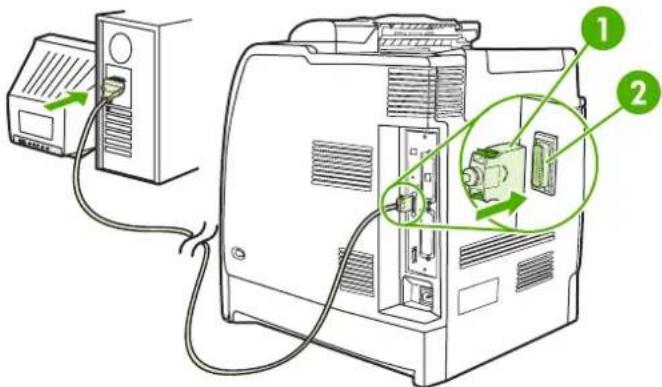
text_image
Diagram showing computer setup with labeled components, including a monitor, cable, and internal components with green arrows indicating movement or assembly.Figure 3-1 Parallel port configuration
1 C-connector
2 Parallel port

NOTE To use the enhanced capabilities of the bidirectional parallel interface such as bidirectional communication between the computer and printer, faster transfer of data, and automatic configuration of printer drivers, ensure that the most recent printer driver is installed. For more information, see Printer drivers or Printer drivers for Macintosh computers.
NOTE Factory settings support automatic switching between the parallel port and one or more network connections on the printer. If you are experiencing problems, see Network configuration.
USB configuration
This printer supports a USB 2.0 connection. The USB port is located on the back of the printer, as shown in the figure below. You must use an A-to-B type USB cable.
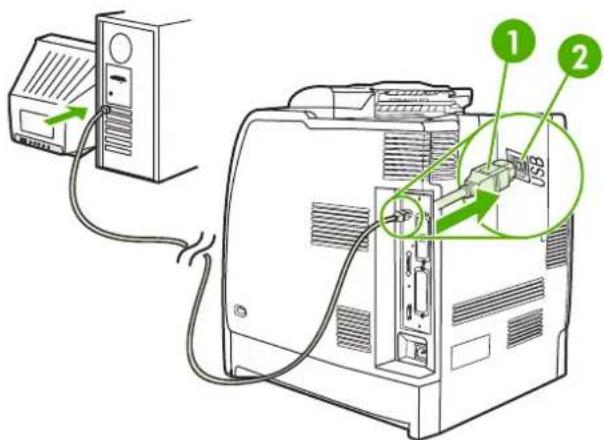
text_image
Diagram showing connection between a computer tower and an electronic device with labeled ports and connectorsFigure 3-2 USB configuration
1 USB connector
2 USB port
This printer also includes a third-party accessory (ACC) port that uses USB host protocol, shown in the figure below.

text_image
1 US ACC1 ACC accessory port
Auxiliary connection configuration
This printer supports an auxiliary connection for paper handling input devices. The port is located on the back of the printer, as shown in the figure below.
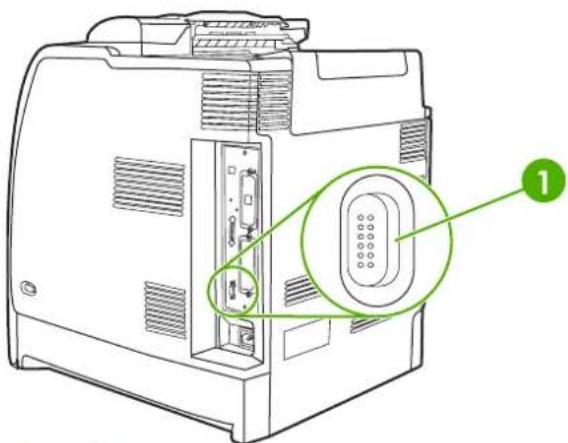
text_image
Technical diagram of an electronic device showing internal components and a labeled component '1'Figure 3-3 Auxiliary connection configuration
1 Auxiliary connector
HP Jetdirect print servers
The HP Jetdirect print servers facilitate network management by allowing you to connect a printer directly to your network at any location. They support multiple network protocols and operating systems. HP Jetdirect print servers also support the Simple Network Management Protocol (SNMP), which provides network managers with remote printer management and troubleshooting through HP Web Jetadmin software.
The HP Color LaserJet 4700n, 4700dn, 4700dtn, and 4700ph+ printers are equipped with embedded HP Jetdirect print servers. These servers support Ethernet 10/100T networking for peripherals. An HP Jetdirect EIO print server can also be installed in one of the HP Color LaserJet 4700 printer's EIO slots to allow network connection.

NOTE Installation of an EIO print server and network configuration should be performed by a network administrator. Configure the card either through the control panel or with HP Web Jetadmin software.
Available software solutions
For a summary of available software solutions, refer to the HP Jetdirect Print Server Administrator's Guide, or visit http://www.hp.com/support/net_printing.
Wireless printing
Wireless networks offer a safe, secure, and cost-effective alternative to traditional wired network connections. See Supplies and accessories for a list of available wireless print servers.
IEEE 802.11 standard
Optional HP Jetdirect wireless print servers support connection to an 802.11 network. This wireless technology provides a high-quality printing solution without the physical constraints of wiring.
Peripherals can be conveniently placed anywhere in an office or home and can be easily moved without changing network cables. Installation is easy with the HP Install Network Printer Wizard.

NOTE HP Jetdirect 802.11 print servers are available for USB connections.
Bluetooth
Bluetooth wireless technology is a low-power, short-range radio technology that can be used to wirelessly connect computers, printers, personal digital assistants (PDAs), cell phones, and other devices.
Unlike infrared technology, Bluetooth's reliance on radio signals means that devices do not have to be in the same room, office, or cubicle with an unobstructed line of sight in order to communicate. This wireless technology increases portability and efficiency within business network applications.
The HP Color LaserJet 4700 series printer uses a Bluetooth adapter (HP bt1300) to incorporate Bluetooth wireless technology. The adapter is available for either USB or parallel connections. The adapter has a 10-meter line-of-sight operation range in the 2.5 GHz ISM band and can achieve data transfer rates up to 723 Kbps. The device supports the following Bluetooth profiles:
• Hardcopy Cable Replacement Profile (HCRP)
• Serial Port Profile (SPP)
• Object Push Profile (OPP)
• Basic Imaging Profile (BIP)
• Basic Printing Profile (BPP) with XHTML-Print
4 Printing tasks
This chapter describes how to perform basic printing tasks. The following topics are covered:
• Controlling print jobs
- Selecting print media
• Automatic media type sensing (auto sense mode)
- Configuring input trays
• Printing on special media
• Using features in the printer driver
• Using features in the Macintosh printer driver
• Two-sided (duplex) printing
• Using the stapler/stacker
• Special printing situations
• Job storage features
• Managing memory
Controlling print jobs
In the Microsoft Windows operating system, three settings affect how the printer driver tries to pull paper when you send a print job. The Source, Type, and Size settings appear in the Page Setup, Print, or Print Properties dialog boxes in most software programs. If you do not change these settings, the printer automatically selects a tray using the default printer settings.
Source
Printing by Source means that you choose a specific tray from which you want the printer to pull paper. The printer tries to print from this tray, no matter what type or size is loaded. If you choose a tray that is configured for a type or size that does not match your print job, the printer does not print automatically. Instead, it waits for you to load the tray you chose with the type or size of print media for your print job. If you load the tray, the printer begins printing. If you press √, the printer displays options to print from another tray.
Type and size
Printing by Type or Size means that you want the printer to pull paper or print media from the appropriate tray loaded with the correct type and size. Selecting media by type rather than source is similar to locking out trays and helps protect special media from accidental use. For example, if a tray is configured for letterhead and you specify the driver to print on plain paper, the printer will not pull the letterhead from that tray. Instead, it will pull paper from a tray that has plain paper loaded and is configured for plain paper on the printer control panel. Selecting media by Type and Size results in significantly better print quality for heavy paper, glossy paper, and transparencies. Using the wrong setting might result in unsatisfactory print quality. Always print by Type for special print media, such as labels or heavy media. Print by Size for envelopes, if possible.
- If you want to print by Type or Size, select the type or size from the Page Setup dialog box, the Print dialog box, or the Print Properties dialog box, depending on the application.
- If you often print on a certain type or size of media, the printer administrator (for a network printer) or you (for a local printer) can configure a tray for that type or size. Then, when you choose that type or size as you print a job, the printer pulls media from the tray configured for that type or size.
Print setting priorities
Changes made to print settings are prioritized according to where the changes are made as follows:

NOTE The names of commands and dialog boxes may vary depending on your program.
- Page Setup dialog box. This dialog box opens when you click Page Setup or a similar command on the File menu of the program you are working in. Settings changed here override settings changed anywhere else.
-
Print dialog box. This dialog box opens when you click Print, Print Setup, or a similar command on the File menu of the program you are working in. Settings changed in the Print dialog box have a lower priority and do not override changes made in the Page Setup dialog box.
-
Printer Properties dialog box (printer driver). The printer driver opens when you click Properties in the Print dialog box. Settings changed in the Printer Properties dialog box do not override settings available anywhere else.
-
Default printer settings. The default printer settings determine settings used in all print jobs, unless settings are changed in the Page Setup, Print, or Printer Properties dialog boxes, as described above. There are two ways to change the default printer settings:
-
Click Start, Settings, Printers, and then right-click the printer icon, and click Properties.
-
Click Start, Control Panel, and then select the Printers folder, right-click the printer icon, and click Properties.
For more information, see Printer drivers or Printer drivers for Macintosh computers.

CAUTION To avoid affecting print jobs of other users, make printer setup changes through the software application or the printer driver whenever possible. Printer setup changes made through the control panel become default settings for subsequent jobs. Changes made through an application or the printer driver affect only that specific job.
Selecting print media
You can use many types of paper and other print media with this printer. This section provides guidelines and specifications for selecting and using different print media. For more information about supported print media, see Print media specifications.
It is possible that media could meet all of the guidelines in this chapter and still not print satisfactorily. This may be due to abnormal characteristics of the printing environment or to other variables over which Hewlett-Packard has no control (for example, extremes in temperature and humidity).
Hewlett-Packard recommends testing any media before buying it in large quantities.

CAUTION Using media that does not conform to the specifications listed here or in the paper specification guide can cause problems that require service. This service is not covered by the Hewlett-Packard warranty or service agreements.
Media to avoid
This printer can handle many types of media. Use of media outside the printer's specifications will cause a loss of print quality and increase the chance of paper jams.
• Do not use paper that is too rough.
- Do not use paper with cutouts or perforations other than standard 3-hole punched paper.
• Do not use multipart forms.
- Do not use paper that has already been printed on or that has been fed through a photocopier.
- Do not use paper with a watermark if you are printing solid patterns.
Paper that can damage the printer
In rare circumstances, paper can damage the printer. Avoid the following paper to prevent possible damage to the printer:
• Do not use paper with staples attached.
- Do not use transparencies designed for inkjet printers or other low-temperature printers, or transparencies designed for monochrome printing. Use only transparencies that are specified for use with HP Color LaserJet printers.
• Do not use glossy or photo papers intended for inkjet printers.
- Do not use paper that is embossed or coated and is not designed for the temperatures of the image fuser. Select media that can tolerate temperatures of 190^ (374°F) for 0.1 second.
- Do not use letterhead paper with low-temperature dyes or thermography. Preprinted forms or letterhead must use inks that can tolerate temperatures of 190^ (374°F) for 0.1 second.
- Do not use any media that produces undesirable emissions, or that melts, offsets, or discolors when exposed to 190°C (374°F) for 0.1 second.
To order HP Color LaserJet printing supplies, go to http://www.hp.com/go/ljsupplies in the United States or to http://www.hp.com/ghp/buyonline.html worldwide.
Automatic media type sensing (auto sense mode)
The HP Color LaserJet 4700 series printers can automatically classify media into one of the following categories:
- Plain
- Transparency
Glossy
• Extra-heavy glossy
Glossy film - Heavy
Light
The automatic media type sensor functions only when that tray is configured to Any Type Plain. Configuring a tray to any other type, such as Bond or Glossy, deactivates the media sensor in that tray.

NOTE Get optimal performance with the automatic media sensing feature when using original HP media designed for use in HP color LaserJet printers.
Tray 1 sensing
Full sensing (default)
• The printer stops at each page to sense media type.
• This is the best mode for using mixed media in a single print job.
Expanded sensing
• Each time the printer begins a print job, it stops the first page to sense the type.
- The printer assumes that the second and all subsequent pages are of the same media type as the first page.
This is the second-fastest mode, and is useful for using stacks of the same media type.
Transparency
- The printer does not stop any pages for sensing but distinguishes between transparencies (Transparency mode) and paper (Normal mode).
This is the fastest mode and is useful for high-volume printing in Normal mode.
Tray 2–N sensing
Expanded sensing
- The printer stops the first five pages fed from each paper tray to sense the type and averages the five results.
- The printer assumes that the sixth and all subsequent pages are of the same media type, until the printer is turned off or goes into sleep mode, or until the tray is opened.
Transparency only (default)
- The printer does not stop any pages for sensing but distinguishes between transparencies (Transparency mode) and paper (Normal mode).
This is the fastest mode and is useful for high-volume printing in Normal mode.
Configuring input trays
The printer allows you to configure input trays by type and size. You can load different media in the printer's input trays and then request media by type or size using the control panel.

NOTE If you have used other HP LaserJet printer models, you might be accustomed to configuring Tray 1 to First mode or Cassette mode. On HP Color LaserJet 4700 series printers, setting Tray 1 size and type to ANY SIZE is equivalent to First mode. Setting size or type for Tray 1 to a setting other than ANY SIZE is equivalent to Cassette mode.
NOTE If you are duplex printing, be sure that the media loaded meets the specifications for duplex printing. (See Supported media weights and sizes.)
NOTE The instructions below are to configure the trays at the printer control panel. You can also configure the trays from your computer by accessing the embedded Web server. See Using the embedded Web server.
Configuring trays when the printer gives a prompt
In the following situations, the printer automatically prompts you to configure the tray for type and size:
- When you load paper into the tray
- When you specify a particular tray or media type for a print job through the printer driver or a software application and the tray is not configured to match the print job settings
The control panel displays the message LOAD TRAY XX: [TYPE] [SIZE], To change type press √. The instructions below explain how to configure the tray after the prompt appears.

NOTE The prompt does not appear if you are printing from Tray 1 and if Tray 1 is configured for ANY SIZE and ANY TYPE.
Configuring a tray when loading paper

CAUTION If paper is loaded in Trays 3 through 6 when the printer is in sleep mode, the new paper will not be sensed when the printer comes out of sleep mode. This could cause the wrong paper to be used for a print job. Be sure to wake the printer before loading paper in these trays.
- Load paper in the tray. (Close the tray if you are using Tray 2 or one of the optional trays.)
- The printer displays the tray configuration message To change size press √.
- Press √ to display the TRAY X SIZE= menu.
- To change 3 mm (42) the size, press ▼ or ▲ to highlight the correct size.
- Press √ to select the size.
A Setting saved message appears, and then a prompt appears to configure the paper type.
- To change the type, press ▼ or ▲ to highlight the correct paper type.
- Press √ to select the paper type.
A Setting saved message appears, and then the current type and size settings are displayed.
- If size and type are now correct, press to clear the message.
Configuring a tray to match print job settings
- In the software application, specify the source tray, the paper size, and the paper type.
- Send the job to the printer.
If the tray needs to be configured, the LOAD TRAY X: message appears.
- Load the tray with the correct paper. When the tray is closed, the TRAY X SIZE= appears.
- If the highlighted size is not correct, press ▼ or ▲ to highlight the correct size.
- Press √ to select the correct size.
A Setting saved message appears, and then a prompt appears to configure the paper type.
- If the highlighted paper type is not correct, press ▼ or ▲ to highlight the desired paper type.
- Press √ to select the paper type.
A Setting saved message appears, and then the current type and size settings are displayed.
Configuring trays using the paper handling menu
You can also configure the trays for type and size without a prompt from the printer. Use the PAPER HANDLING menu to configure the trays as follows.
Configuring the paper size
-
Press Menu to enter the MENUS.
-
Press ▼ to highlight PAPER HANDLING.
- Press √ to select PAPER HANDLING.
- Press ▼ to highlight TRAY
SIZE. (N represents the number of the tray you are configuring.) - Press √ to select TRAY
SIZE. - Press ▼ or ▲ to highlight the correct size.
- Press √ to select the correct size.
Configuring the paper type
- Press Menu to enter the MENUS.
- Press ▼ to highlight PAPER HANDLING.
- Press √ to select PAPER HANDLING.
- Press ▼ to highlight TRAY
TYPE. (N represents the number of the tray you are configuring.) -
Press √ to select TRAY
TYPE. -
Press ▼ or ▲ to highlight the correct paper type.
-
Press √ to select the correct paper type.
A Setting saved message appears, and then the current type and size settings are displayed.
Configuring Tray 2 and optional trays for a custom paper size
The printer automatically detects many sizes of paper, but you can also configure trays for custom paper sizes. You must specify the following parameters:
• Unit of measure (millimeters or inches)
• X dimension (the width of the page as it feeds into the printer)
• Y dimension (the length of the page as it feeds into the printer)
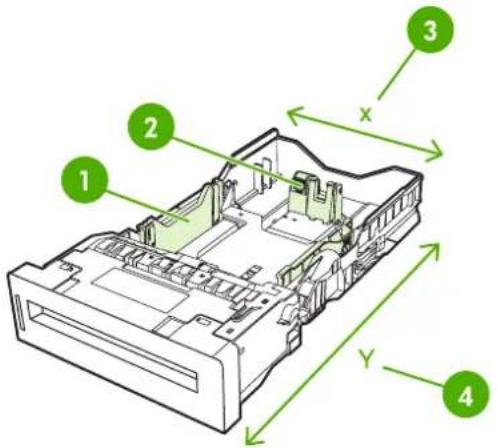
text_image
1 2 3 x Y 41 Media width guides
2 Media length guides
3 Page width (X dimension)
4 Page length (Y dimension)
Use the following procedure to configure a tray for a custom size. Once a custom size is set for a tray, it will be retained until the media length guides are reset.
Setting a custom size in Tray 2 or an optional tray
- Open the tray and place the media face-up in the tray.
-
Set the media length guides to the appropriate non-standard position and close the tray.
-
When the tray configuration message appears, press √.
-
Press ▲ to change ANY CUSTOM to CUSTOM.
-
Press √ to select CUSTOM.
-
Press ▲ or ▼ to highlight the correct unit (either millimeters or inches).
-
Press to select the value.
After the unit of measure is set properly, set the X dimension as follows:
-
Press ▲ or ▼ to highlight the correct value.
-
Press √ to select the value. If the value entered is outside the valid range, Invalid value will appear for two seconds. The display prompts you to enter another value.
After the X dimension is set properly, set the Y dimension as follows:
-
Press ▲ or ▼ to highlight the correct value.
-
Press √ to select the value. If the value entered is outside the valid range, Invalid value will appear for two seconds. The display prompts you to enter another value. The printer displays a message indicating the dimensions for the custom size.
Printing from Tray 1 (multipurpose tray)
Tray 1 is a multipurpose tray that holds up to 100 sheets of 75g / m^2 (20 lb) paper or 20 envelopes. It provides a convenient way to print envelopes, transparencies, custom-size paper, media heavier than 32 lb, or other types of media without having to unload the other trays.
Loading Tray 1

CAUTION To avoid jams, never add or remove paper from Tray 1 during printing.
- Open Tray 1.

natural_image
Line drawing of a printer with a green arrow indicating the open lid (no text or symbols present)-
Set the side guides to the desired width.
-
Load paper in the tray with the side to be printed facing down and the top of the page facing you.

NOTE Tray 1 can hold approximately 100 sheets of standard 75 g/m ^2 (20 lb) office paper.
NOTE If you are duplex printing, see Two-sided (duplex) printing for loading instructions.
- Adjust the side guides so that they lightly touch the paper stack but do not bend the paper.
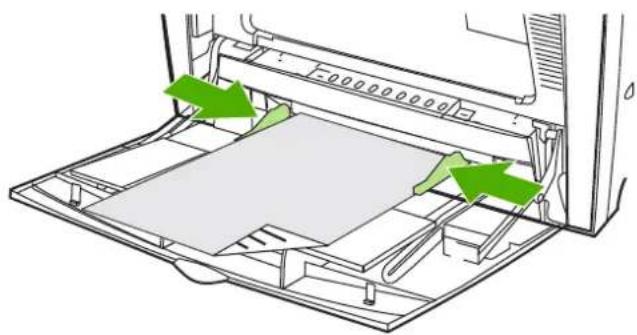
natural_image
Diagram of a printer's internal structure showing paper placement and green arrows indicating parts (no text or symbols present)
NOTE Make sure the paper fits under the tabs on the guides and not above the load level indicators.
Printing envelopes from Tray 1
Many types of envelopes can be printed from Tray 1. Up to 20 envelopes can be stacked in the tray. Printing performance depends on the construction of the envelope.
In the software, set margins at least 15 mm (0.6 inches) from the edge of the envelope.

CAUTION Envelopes with clasps, snaps, windows, coated linings, exposed self-stick adhesives, or other synthetic materials can severely damage the printer. To avoid jams and possible printer damage, never try to print on both sides of an envelope. Before you load envelopes, make sure they are flat, undamaged, and not stuck together. Do not use envelopes with pressure-sensitive adhesive.
Loading envelopes into Tray 1

CAUTION To avoid jams, do not remove or insert envelopes during printing.
- Open Tray 1.

natural_image
Line drawing of a printer with a green arrow indicating the process (no text or symbols present)- Load up to 20 envelopes in the center of Tray 1 with the side to be printed facing down and the postage end toward the printer. Slide the envelopes into the printer as far as they will go without forcing them.

natural_image
Technical line drawing of a printer internal structure with no visible text or symbols- Adjust the guides to touch the envelope stack without bending the envelopes. Make sure the envelopes fit under the tabs on the guides.

natural_image
Diagram of a printer's internal structure showing green arrows indicating flow or movement (no text or symbols present)Printing envelopes
-
Specify Tray 1 or select the media source by size in the printer driver.
-
If your software does not automatically format an envelope, specify Landscape for page orientation in your software application or printer driver. Use the following guidelines to set margins for return and destination addresses on Commercial #10 or DL envelopes.
Address type Left margin Top margin
Return 5 mm (0.2 inches) 5 mm (0.2 inches)
Destination 102 mm (4 inches) 51 mm (2 inches)

NOTE For envelopes of other sizes, adjust the margin settings appropriately.
- Select Print from the software application or printer driver.
Printing from Tray 2 or the optional trays
Tray 2 and the optional paper trays each hold up to 500 sheets of standard paper or a 50.8 mm (2 in) stack of labels. Tray 2 stacks above the optional 500-sheet trays, and, when properly installed, the printer detects the optional trays and shows them as options in the control panel CONFIGURE DEVICE menu. The trays adjust for detectable media sizes; letter, legal, A4, A5, JIS B5, and executive; and undetectable
media sizes: 8.5 x 13 and Executive (JIS), double Japan postcard, and custom. The printer automatically detects the media size in these trays based on the tray's paper guide configuration. (See Supported media weights and sizes.)

CAUTION The paper path for the optional trays passes through Tray 2. If Tray 2 is partially pulled out or removed, paper from Tray 3 cannot feed into the printer. The printer will stop and generate a message that Tray 2 must be installed. Similarly, all trays installed above the tray that is being used must be closed for paper to feed into the printer.
Loading detectable standard-sized media into Tray 2 and optional trays

CAUTION If paper is loaded in Trays 3 through 6 when the printer is in sleep mode, the new paper will not be sensed when the printer comes out of sleep mode. This could cause the wrong paper to be used for a print job. Be sure to wake the printer before loading paper in these trays.
The following detectable standard-sized media is supported in Tray 2 and the optional trays: letter, legal, executive, A4, A5, and (JIS) B5.

CAUTION Do not print cardstock, envelopes, heavy or extra heavy paper, or unsupported sizes of media from the 500-sheet trays. Print on these types of media only from Tray 1. Do not overfill the input tray or open it while it is in use. Doing so can cause jams in the printer.
- Remove the tray from the printer.
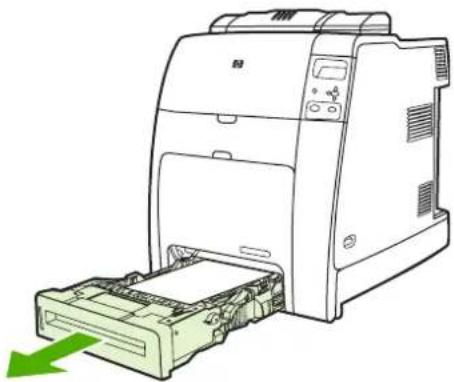
natural_image
Line drawing of a printer with a green arrow indicating compression or disassembly (no text or symbols present)
NOTE After sliding the tray out, lift the tray up slightly to remove it.
- Adjust the rear media-length guide by squeezing the guide adjustment latch and sliding the back of the tray to the length of the media being used.
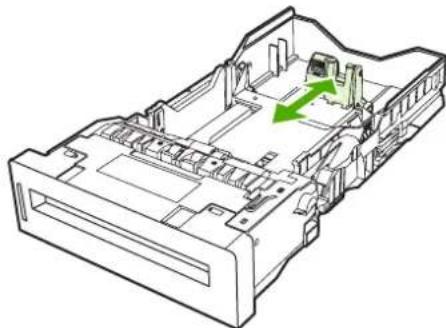
natural_image
Technical line drawing of a mechanical assembly with green directional arrows indicating movement or force (no text or symbols)- Slide the media-width guides open to the size for the media you are using.
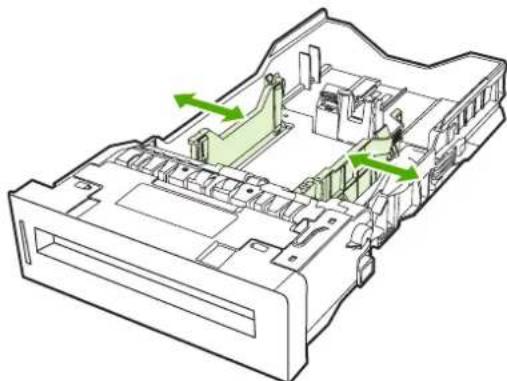
natural_image
Technical line drawing of a mechanical assembly with green directional arrows indicating movement or flow (no text or symbols present)- Load media into the tray face up.

NOTE For best performance, load the tray completely full without splitting or fanning the ream of paper. Splitting or fanning the ream might cause a multi-feed problem, which could result in a paper jam. The capacity of the paper tray can vary. For example, if you are using 75 ~g / m^2 (20 lb) paper, the tray holds a full ream of 500 sheets. If the media is heavier than 75 ~g / m^2 (20 lb), the tray will not hold a full ream, and you must reduce the number of sheets accordingly. Do not overfill the tray because the printer might not pick up the paper.
NOTE If the tray is not properly adjusted, the printer might display an error message or the media might jam.
NOTE If you are duplex printing, see Two-sided (duplex) printing for loading instructions.
- Insert the tray into the printer. The printer will display the tray's media type and size. If the configuration is not correct, press the √ key when the printer prompts you to configure the tray for type and size. (For more information see Configuring a tray when loading paper.)

natural_image
Line drawing of a printer with a green arrow indicating the printer's internal structure (no text or symbols present)- If the configuration is correct, press to clear the message.
Loading undetectable standard-sized media into Tray 2 and optional trays

CAUTION If paper is loaded in Trays 3 through 6 when the printer is in sleep mode, the new paper will not be sensed when the printer comes out of sleep mode. This could cause the wrong paper to be used for a print job. Be sure to wake the printer before loading paper in these trays.
Undetectable standard-sized media sizes are not marked in the tray, but are listed in the Size menu for the tray.
The following undetectable standard-sized media is supported in the 500-sheet trays: executive (JIS), 8.5 x 13, double Japan postcard, and 16K.

CAUTION Do not print cardstock, envelopes, heavy or extra heavy paper, or unsupported sizes of media from the 500-sheet trays. Print on these types of media only from Tray 1. Do not overfill the input tray or open it while it is in use. Doing so can cause paper jams.
- Remove the tray from the printer.

natural_image
Illustration of a printer with a green arrow indicating compression or disassembly (no text or symbols present)- Adjust the rear media-length guide by squeezing the guide adjustment latch and sliding the back of the tray to the length of the media being used.

natural_image
Technical line drawing of a mechanical assembly with green directional arrows indicating movement or force (no text or symbols)- Slide the media-width guides open to the size for the media you are using.
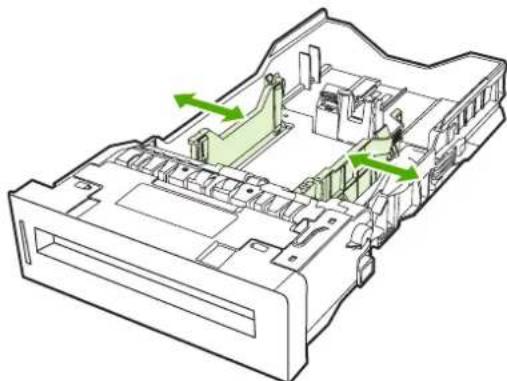
natural_image
Technical line drawing of a mechanical assembly with green directional arrows indicating movement or flow (no text or symbols present)- Load media into the tray face up.

NOTE For best performance, load the tray completely full without splitting or fanning the ream of paper. Splitting or fanning the ream might cause a multi-feed problem, which could result in a paper jam. The capacity of the paper tray can vary. For example, if you are using 75 ~g / m^2 (20 lb) paper, the tray holds a full ream of 500 sheets. If the media is heavier than 75 ~g / m^2 (20 lb), the tray will not hold a full ream, and you must reduce the number of sheets accordingly. Do not overfill the tray because the printer might not pick up the paper.
NOTE If the tray is not properly adjusted, the printer might display an error message or the media might jam.
NOTE If you are duplex printing, see Two-sided (duplex) printing for loading instructions.
- Insert the tray into the printer. The printer will display the tray's media type and size. If the configuration is not correct, press the √ key when the printer prompts you to configure the tray for type and size. (For more information, see Configuring a tray when loading paper.)

natural_image
Line drawing of a printer with a green arrow indicating the printer's internal structure (no text or symbols present)- If the configuration is correct, press to clear the message.
Loading custom-sized media into Tray 2 and optional trays
To use custom media, you must change the size setting on the control panel to CUSTOM and set the unit of measure, X dimension, and Y dimension. See Configuring a tray to match print job settings for more information.
- Remove tray from the printer.

natural_image
Illustration of a printer with a green arrow indicating compression or disassembly (no text or symbols present)- Slide the media width guides all the way open and adjust the rear media-length guide to the length of the paper being used.
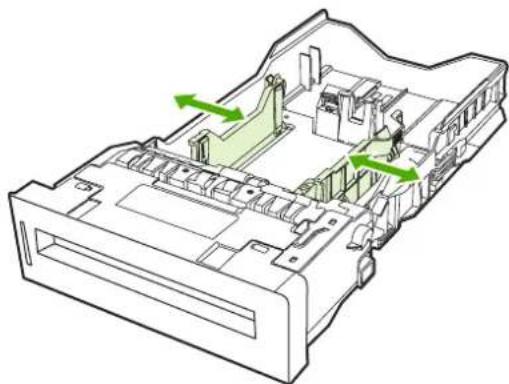
natural_image
Technical line drawing of a mechanical assembly with green directional arrows indicating movement or force (no text or symbols present)- Load media into the tray face up.

NOTE For best performance, load the tray completely full without splitting or fanning the ream of paper. Splitting or fanning the ream might cause a multi-feed problem, which could result in a paper jam. The capacity of the paper tray can vary. For example, if you are using 75 g/m^2 (20 lb) paper, the tray holds a full ream of 500 sheets. If the media is heavier than 75 g/m^2 (20 lb), the tray will not hold a full ream, and you must reduce the number of sheets accordingly. Do not overfill the tray because the printer might not pick up the paper.
NOTE If you are duplex printing, see Two-sided (duplex) printing for loading instructions.
-
Slide the media width guides in making sure that they gently touch the paper. Insert the tray into the printer.
-
Insert the tray into the printer. The printer will display the tray's type and size configuration. To specify custom dimensions, or if the type is not correct, press √ and follow the prompts. To enter specific dimensions or change the size selection from ANY CUSTOM to CUSTOM, see Configuring a tray to match print job settings.
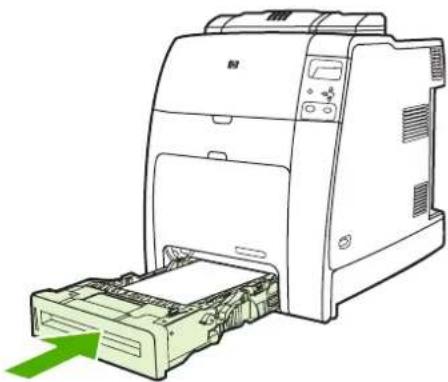
natural_image
Line drawing of a printer with a green arrow pointing to the internal structure (no text or symbols)- If the configuration is correct, press to clear the message.
Printing on special media
Use these guidelines when printing on special types of media.

NOTE Special media such as envelopes, transparencies, custom-size paper, or heavy media greater than 120 g/m^2 is used in Tray 1.
To print on any special media, use the following procedure:
- Load the media in the paper tray.
- When the printer prompts you for the paper type, select the correct media type for the paper loaded in the tray. For example, select GLOSSY when loading HP Color Laser Glossy Photo Paper.
- In the software application or the printer driver, set the media type to match the media type that is loaded in the paper tray.

NOTE For the best print quality, always verify that the media type selected on the printer control panel and the media type selected in the application or printer driver match the type of media loaded in the tray.
Transparencies
When printing on transparencies, use the following guidelines:
- Handle transparencies using the edges. Oils from your fingers deposited on the transparency can cause print quality problems.
- Use only overhead transparencies recommended for use in this printer. Hewlett-Packard recommends using HP Color Laser Transparencies. HP products are designed to work together for optimum printing results.
- In either the software application or the driver, select TRANSPARENCY as the media type, or print from a tray that is configured for transparencies.
For more information, see Printer drivers or Printer drivers for Macintosh computers.

CAUTION Transparencies not designed for LaserJet printing might melt in the printer or wrap around the fuser, causing damage to the printer.
Glossy paper
In either the software application or the driver, select GLOSSY, HEAVY GLOSSY, or EXTRA HEAVY GLOSSY as the media type, or print from a tray that is configured for glossy paper.
• Use the control panel to set the media type to GLOSSY for the input tray being used.
- Because this affects all print jobs, it is important to return the printer to its original settings once the job has printed. See Configuring input trays for more information.

NOTE Hewlett-Packard recommends using HP Color Laser Glossy Photo Paper and soft glossy papers designed for use in HP color laser printers. HP products are designed to work together for optimum printing results. If other types of glossy media are used, print quality could be compromised.
Colored paper
Colored paper should be of the same high quality as white xerographic paper.
- Pigments used in colored media must be able to withstand the printer's fusing temperature of 190°C (374°F) for 0.1 second without deterioration.
- The printer creates colors by printing patterns of dots, overlaying and varying their spacing to produce various colors. Varying the shade or color of the paper will affect the shades of the printed colors.
Envelopes

NOTE Envelopes can be printed only from Tray 1. Set the tray's media size to the specific envelope size. See Printing envelopes from Tray 1.
Adhering to the following guidelines will help ensure proper printing on envelopes and help prevent printer jams:
• Do not load more than 20 envelopes into Tray 1.
• The weight rating of envelopes should not exceed 90 g/m ^2 (24 lb bond).
• Envelopes should be flat.
• Do not use envelopes with windows or clasps.
• Envelopes must not be wrinkled, nicked, or otherwise damaged.
- Envelopes with peel-off adhesive strips must use adhesives that can withstand the heat and pressures of the printer's fusing process.
• Envelopes should be loaded face-down and with the postage end feeding into the printer first.
Labels

NOTE For printing labels, set the tray's media type to LABELS in the printer control panel. See Configuring input trays. When printing labels, use the following guidelines:
- Verify that the labels' adhesive material can tolerate temperatures of 190^ (374°F) for 0.1 second.
- Verify that there is no exposed adhesive material between the labels. Exposed areas can cause labels to peel off during printing, which can cause printer jams. Exposed adhesive can also cause damage to printer components.
• Do not re-feed a sheet of labels.
• Verify that the labels lie flat. - Do not use labels that are wrinkled, bubbled, or otherwise damaged.
Heavy paper
The following heavy paper types can be used with the HP Color LaserJet 4700 series printer.
| Paper type Paper weight | |
| Heavy and extra-heavy stock | 105-163 g/m2 |
| 28-43 lb | |
| Cardstock | 164-220 g/m2 |
| 43-58 lb | |
| Intermediate | 90-105 g/m2 |
| 24-28 lb | |
| HP Tough paper 5 mil | |
When printing on heavy paper types, use the following guidelines:
• Use Tray 1 for paper that is heavier than 120 g/m^2 (32 lb).
- For optimum results when printing on heavy paper, use the printer control panel to set the media type for the tray to HEAVY.
- In either the software application or the driver, select Heavy as the media type, or print from a tray that is configured for heavy paper.
- Because this setting affects all print jobs, it is important to return the printer back to its original settings once the job has printed. See Configuring input trays.

CAUTION In general, do not use paper that is heavier than the media specification recommended for this printer. Doing so can cause misfeeds, paper jams, reduced print quality, and excessive mechanical wear.
HP LaserJet Tough paper
When printing on HP LaserJet Tough paper, use the following guidelines:
- Handle HP LaserJet Tough paper only by the edges. Oils from your fingers deposited on HP LaserJet Tough paper can cause print quality problems.
- Use only HP LaserJet Tough paper with this printer. HP products are designed to work together for optimum printing results.
- In either the software application or the driver, select TOUGH PAPER as the media type, or print from a tray that is configured for HP LaserJet Tough paper.
Preprinted forms and letterhead
Observe the following guidelines for best results with preprinted forms and letterhead:
- Forms and letterhead must be printed with heat-resistant inks that will not melt, vaporize, or release undesirable emissions when subjected to the printer's fusing temperature of approximately 190°C (374°F) for 0.1 second.
-
Inks must be non-flammable and should not adversely affect any printer rollers.
-
Forms and letterhead should be sealed in a moisture-proof wrapping to prevent changes during storage.
- Before loading preprinted paper such as forms and letterhead, verify that the ink on the paper is dry. During the fusing process, wet ink can come off of preprinted paper.
- To load pre-printed forms and letterhead into Tray 1, load them face down with the top edge of the page facing toward you.
- To load pre-printed forms and letterhead into Tray 2 or an optional tray, load them face up with the top edge of the page facing away from you.
- When duplex printing, load pre-printed forms and letterhead into Tray 2 or an optional 500-sheet tray face down with the top edge of the page towards you.
Recycled paper
This printer supports the use of recycled paper. Recycled paper must meet the same specifications as standard paper. Hewlett-Packard recommends that recycled paper contain no more than 5% ground wood.
Using features in the printer driver
When you print from a software program, many of the product features are available from the printer driver. For complete information about the features that are available in the printer driver, see the printer-driver Help. The following features are described in this section:
- Creating and using quick sets
- Creating and using watermarks
• Resizing documents - Setting a custom paper size from the printer driver
• Using different paper/covers
• Printing a blank first page
• Printing multiple pages on one sheet of paper
• Printing on both sides of the paper
• Setting the stapling options - Setting the color options
• Using the HP Digital Imaging Options dialog box
• Using the Services tab

NOTE Settings in the printer driver and software program generally override control-panel settings. Software-program settings generally override printer-driver settings.
Creating and using quick sets
Use quick sets to save the current driver settings for reuse. For example, you can save the page orientation, print on both sides, and paper source settings in a quick set. Quick sets are available on most printer-driver tabs. You can save up to 25 Print Task Quick Sets.

NOTE The printer driver might report that 25 Print Task Quick Sets have been defined when fewer than 25 are visible. Some predefined Print Task Quick Sets, which do not apply to your product, might be included and are counted in the total number.
To create a quick set
-
Open the printer driver (see Gaining access to the printer drivers).
-
Select the print settings that you want to use.
-
In the Print Task Quick Sets box, type a name for the selected settings (for example "Quarterly Report" or "My Project Status").
-
Click Save.
To use quick sets
- Open the printer driver (see Gaining access to the printer drivers).
- Select the quick set that you want to use from the Print Task Quick Sets drop-down list.
- Click OK. The product is now set to print according to the saved settings in the quick set.

NOTE To restore printer-driver default settings, select Default Print Settings from the Print Task Quick Sets drop-down list.
Creating and using watermarks
A watermark is a notice, such as "Confidential," that is printed in the background of each page of a document.
To use an existing watermark
- Open the printer driver (see Gaining access to the printer drivers).
- From the Effects tab, click the Watermarks drop-down list.
- Click the watermark that you want to use.
- If you want the watermark to appear only on the first page of the document, click First Page Only.
- Click OK. The product is now set to print the watermark that you have selected.
To remove the watermark, click (none) in the Watermarks drop-down list.
Resizing documents
Use the document resizing options to scale a document to a percentage of its normal size. You can also choose to print a document on a different size paper, with or without scaling.
To reduce or enlarge a document
- Open the printer driver (see Gaining access to the printer drivers).
- On the Effects tab, type the percentage by which you want to reduce or enlarge your document. You can also use the scroll bar to adjust the reduce or enlarge percentage.
- Click OK. The product is now set to scale the document to the reduce or enlarge percentage that you selected.
To print a document onto a different paper size
- Open the printer driver (see Gaining access to the printer drivers).
- On the Effects tab, click Print Document On.
- Select the target paper size to print on.
- To print the document on the target paper size without scaling it to fit, make sure that the Scale to Fit option is not selected.
- Click OK. The product is now set to print the document as you specified.
Setting a custom paper size from the printer driver
To set a custom paper size
- Open the printer driver (see Gaining access to the printer drivers).
- On the Paper or Paper/Quality tab, click Custom.
- On the Custom Paper Size window, type the name of the custom paper size.
- Type the paper-size length and width. If you type a size that is too small or too large, the driver automatically adjusts the size to the minimum or maximum size that is allowed.
- If necessary, click the button to change the unit of measure between millimeters and inches.
- Click Save.
- Click Close. The product is now set to print the document on the custom-size paper that you selected. The name that you saved appears in the paper-size list for future use.
Using different paper/covers
Follow these instructions for printing a first page that is different from other pages in the print job.
- Open the printer driver (see Gaining access to the printer drivers).
- On the Paper or Paper/Quality tab, select the appropriate paper for the first page of the print job.
- Click Use Different Paper/Covers.
- In the list box, click the pages or covers that you want to print on different paper.
- To print front or back covers, you must also select Add Blank or Preprinted Cover.
- Select the appropriate paper type or source for the other pages of the print job. The product is now set to print the document on the paper that you selected.

NOTE The paper size must be the same for all pages of the print job.
Printing a blank first page
To print a blank first page
- Open the printer driver (see Gaining access to the printer drivers).
- On the Paper or Paper/Quality tab, click Use Different Paper/Covers.
- In the list box, click Front Cover.
- Click Add Blank or Preprinted Cover.
Printing multiple pages on one sheet of paper
You can print more than one page on a single sheet of paper. This feature is available in some drivers and provides a cost-effective way to print draft pages.
To print more than one page on a sheet of paper, look for a layout or pages-per-sheet option in the driver. (This is sometimes called 2-up, 4-up, or n-up printing.)
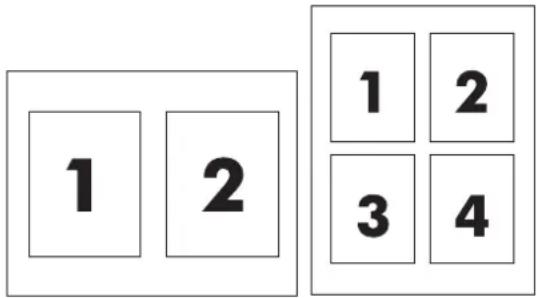
text_image
1 2 1 2 3 4To print multiple pages on one sheet of paper
- Open the printer driver (see Gaining access to the printer drivers).
- Click the Finishing tab.
- In the section for Document Options, select the number of pages that you want to print on each sheet (1, 2, 4, 6, 9, or 16).
-
If the number of pages is greater than 1, select the correct options for Print Page Borders and Page Order.
-
Click Print Page Borders if you want to print a border around each page on the sheet.
-
Click Page Order to select the order and placement of the pages on the sheet.
-
Click OK. The product is now set to print the number of pages per sheet that you have selected.
Printing on both sides of the paper
When a duplex printing accessory is installed, you can automatically print on both sides of a page. If a duplex printing accessory is not installed, you can manually print on both sides of a page by feeding the paper through the product a second time.

NOTE In the printer driver, Print on Both Sides (manually) is available only when no duplex printing accessory is installed in the product or when the duplex printing accessory does not support the type of print media being used.
To print on both sides by using the duplex-printing accessory
-
Insert enough paper into one of the trays to accommodate the print job. If you are loading special paper such as letterhead, load it in one of the following ways:
-
For tray 1, load the letterhead paper with the front side up, bottom-edge first.
- For all other trays, load the letterhead paper with front side down, and the top edge at the back of the tray.

CAUTION Do not load paper that is heavier than 105 g/m ^-2 (28 lb bond). This could lead to a Paper Jam in the printer.
-
Open the printer driver (see Gaining access to the printer drivers).
-
For Windows, on the Finishing tab, click Print on Both Sides.
- Click OK. The product is now ready to print on both sides of the paper.
To print on both sides manually
-
Insert enough paper into one of the trays to accommodate the print job. If you are loading special paper such as letterhead, load it in one of the following ways:
-
For tray 1, load the letterhead paper with the front side up, bottom-edge first.
- For all other trays, load letterhead paper with front side down, and the top edge at the back of the tray.

CAUTION Do not load paper that is heavier than 105 g/m ^2 (28 lb bond). Jamming could result.
- Open the printer driver (see Gaining access to the printer drivers).
- On the Finishing tab, select Print on Both Sides (manually).
- Click OK.
- Send the print job to the product.
- Go to the product. Remove any blank paper that is in tray 1. Insert the printed stack with the printed side up, and the bottom-edge feeding into the product first. You must print the second side from tray 1. Follow the instructions in the pop-up window that appears before feeding the output stack back into Tray 1 for printing the second half.
- A prompt might appear on the control-panel display that instructs you to press a button to continue.
Layout options for printing on both sides
The four duplex orientation options are shown below. To select option 1 or 4, select Flip Pages Up in the printer driver.

text_image
Illustration showing four sequential steps of a document reading process, from initial text to final image.- Long-edge landscape This layout is often used in accounting, data processing, and
spreadsheet programs. Every other printed image is oriented upside-down. Facing pages are read continuously from top to bottom.
| 2. Short-edge landscape | Each printed image is oriented right-side-up. Facing pages are read from top to bottom on the left page, then from top to bottom on the right page. |
| 3. Long-edge portrait This is the default setting, and the most common layout used, with every printed image oriented right-side-up. Facing pages are read from top to bottom on the first page, then from top to bottom on the second page. | |
| 4. Short-edge portrait This layout is often used with clipboards. Every other printed image is oriented upside-down. Facing pages are read continuously from top to bottom. | |
Setting the stapling options
You can select whether a job is stapled by using the printer driver.
To set the stapling options
- Open the printer-driver properties, and click the Configure tab. (The Configure tab is not available from within software programs.)

NOTE The procedure to open the printer-driver properties depends on the operating system that you are using. For information about opening the printer-driver properties for your operating system, see Gaining access to the printer drivers. Look for the column titled "To change the configuration settings".
- In the area for configuring additional output devices, select the stapler/stacker, and then click OK.
- Open the printer driver (see Gaining access to the printer drivers).
- Click the Output tab.
- In the Staple box, select the stapling option that you want to use for the print job.
- Click OK. The product is now set to use the stapling option that you selected.
Setting the color options
Options on the Color tab control how colors are interpreted and printed from software programs. You can choose either Automatic or Manual color options. For more information, see Managing printer color options on Windows computers.
- Select Automatic to optimize the color and halftone used for each element in a document (such as text, graphics, and photographs). The Automatic setting provides additional color options for applications and operating systems that support color-management systems. This setting is recommended for printing all color documents.
- Select Manual to manually adjust the color and halftone modes for text, graphics, and photographs. If you are using a PCL driver, you can adjust the RGB data. If you are using the PS driver, you can adjust RGB or CMYK data.
To set the color options
- Open the printer driver (see Gaining access to the printer drivers).
- Select the Color tab.
- In the Color Options area, select the option that you want to use.
- If you selected Manual, click Settings to open the Color Settings dialog box. Adjust the individual settings for text, graphics, and photographs. You can also adjust the general printing settings. Click OK.
- In the Color Themes area, select the RGB Color option that you want to use.
- Click OK. The product is now set to use the color options that you selected.
Using the HP Digital Imaging Options dialog box
HP Digital Imaging Options make it easy for you to get better photos and images.

NOTE HP Digital Imaging Options are available for Windows 2000, Windows XP, and Windows Server 2003.
The following options are available on the HP Digital Imaging Options dialog box:
- Contrast Enhancement: Automatically enhance colors and contrast for washed-out photos. Click Automatic to allow the printer software to intelligently brighten your photo, focusing only on areas that need adjustment.
- Digital Flash: Adjust the exposure in dark areas of photos to bring out detail. Click Automatic to allow the printer software to balance lightness and darkness automatically.
- SmartFocus: Enhance the image quality and clarity of low resolution images such as those downloaded from the Internet. Click On to allow the printer software to sharpen details in the image automatically.
- Sharpness: Adjust the image sharpness to your preference. Click Automatic to allow the printer software to set the level of sharpening for the image automatically.
- Smoothing: Soften an image. Click Automatic to allow the printer software to set the level of smoothing for the image automatically.
Opening the HP Digital Imaging Options dialog box
- Open the Printer Properties dialog box.
- Click the Paper/Quality tab, and then click the HP Digital Imaging button.

NOTE If you installed the HP Image Zone software, you can use it to edit and further enhance digital photos.
Using the Services tab

NOTE The Services tab is available for Windows XP.
If the product is connected to a network, use the Services tab to obtain product and supply-status information. Click the Device and Supplies status icon to open the Device Status page of the HP Embedded Web Server. This page shows the current status of the product, the percentage of life remaining for each supply, and information for ordering supplies.
Using features in the Macintosh printer driver
When you print from a software program, many of the printer features are available from the printer driver. For complete information about the features that are available in the printer driver, see the printer-driver Help. The following features are described in this section:
- Creating and using presets in Mac OS X
• Printing a cover page
• Printing multiple pages on one sheet of paper
• Printing on both sides of the paper - Setting the color options

NOTE Settings in the printer driver and software program generally override control-panel settings. Software-program settings generally override printer-driver settings.
Creating and using presets in Mac OS X
Use presets to save the current driver settings for reuse. For example, you can save the page orientation, print-on-both-sides feature, and paper-type settings in a preset.
To create a preset
- Open the printer driver (see Gaining access to the printer drivers).
- Select the print settings that you want to use.
- In the Presets box, click Save As..., and type a name for the preset (for example "Quarterly Report" or "My Project Status").
- Click OK.
To use presets
- Open the printer driver (see Gaining access to the printer drivers).
- In the Presets menu, select the preset that you want to use.

NOTE To restore printer-driver default settings, select Standard from the Presets pop-up menu.
Printing a cover page
If you want to, you can print a separate cover page for your document that includes a message (such as "Confidential").
To print a cover page
- Open the printer driver (see Gaining access to the printer drivers).
- On the Cover Page or Paper/Quality pop-up menu, select whether to print the cover page Before Document or After Document.
- If you are using Mac OS X, in the Cover Page Type pop-up menu, select the message that you want to print on the cover page.

NOTE To print a blank cover page, select Standard as the Cover Page Type.
Printing multiple pages on one sheet of paper
You can print more than one page on a single sheet of paper. This feature provides a cost-effective way to print draft pages.

text_image
1 2 1 2 3 4To print multiple pages on one sheet of paper
- Open the printer driver (see Gaining access to the printer drivers).
- Click the Layout pop-up menu.
- Next to Pages per Sheet, select the number of pages that you want to print on each sheet (1, 2, 4, 6, 9, or 16).
- If the number of pages is greater than 1, next to Layout Direction, select the order and placement of the pages on the sheet.
- Next to Borders, select the type of border to print around each page on the sheet.
Printing on both sides of the paper
When a duplex printing accessory is installed, you can automatically print on both sides of a page. If a duplex printing accessory is not installed, you can manually print on both sides of a page by feeding the paper through the printer a second time.
To print on both sides by using the duplex-printing accessory
-
Insert enough paper into one of the trays to accommodate the print job. If you are loading special paper such as letterhead, load it in one of the following ways:
-
For tray 1, load the letterhead paper with the front side up and the bottom-edge feeding into the printer first.
- For all other trays, load the letterhead paper with the front side down and the top edge at the back of the tray.

CAUTION Do not load paper that is heavier than 105 g/m ^2 (28-lb bond). Jamming might result.
- Open the printer driver (see Gaining access to the printer drivers).
- Open the Layout pop-up menu.
- Next to Two Sided Printing, select either Long-Edge Binding or Short-Edge Binding.
- Click Print.
To print on both sides manually
-
Insert enough paper into one of the trays to accommodate the print job. If you are loading special paper such as letterhead, load it in one of the following ways:
-
For tray 1, load the letterhead paper with the front side up and the bottom-edge feeding into the printer first.
- For all other trays, load the letterhead paper with the front side down, and the top edge at the back of the tray.

CAUTION Do not load paper that is heavier than 105 g/m ^-2 (28-lb bond). Jamming might result.
- Open the printer driver (see Gaining access to the printer drivers).
- On the Finishing pop-up menu, select the Manual Duplex option.

NOTE If the Manual Duplex option is not enabled, select Manually Print on 2nd Side.
- Click Print.
- Go to the printer. Remove any blank paper that is in tray 1. Insert the printed stack with the printed side up and the bottom-edge feeding into the printer first. You must print the second side from tray 1. Follow the instructions in the pop-up window that appears before replacing the output stack in tray 1 for printing the second half.
- If a prompt appears on the control-panel display, press a control-panel button to continue.
Setting the color options
Use the Color Options pop-up menu to control how colors are interpreted and printed from software programs.
To set the color options
- Open the printer driver (see Gaining access to the printer drivers).
- Open the Color Options pop-up menu.
- If you are using Mac OS X, click Show Advanced Options.
- Manually adjust the individual settings for text, graphics, and photographs.
Two-sided (duplex) printing
Some printer models are capable of duplex printing (printing on both sides of a page). To find out which models support automatic duplexing, see Printer basics. All printer models support manual duplexing.

NOTE You must specify two-sided printing options in your software application or in the printer driver in order to print on both sides of the page. If this option is not visible in the software application or printer driver, use the following information to make duplex printing options available.
To use two-sided printing:
- Verify that the printer driver is configured to show the two-sided printing options: automatic and/or manual. For instructions, see the online Help for the printer driver. For more information, see Printer drivers or Printer drivers for Macintosh computers.
- Once the two-sided printing option is shown, select the appropriate two-sided printing options in the printer driver software. Two-sided printing options include page and binding orientation. For more information about options for binding two-sided printing jobs, see Options for binding two-sided printing jobs.
• Automatic two-sided printing is not supported for certain media types, including transparencies, envelopes, labels, heavy, extra heavy, cardstock, and HP Tough paper. (The maximum weight paper for automatic duplex printing is 120 g/m^2 (32 lb) bond.)
• Automatic two-sided printing supports letter, A4, 8.5 x 13, legal, executive, and JIS B5 paper sizes. - Manual two-sided printing can support all sizes and more types of media. (Transparencies, envelopes, and labels are not supported.)
- If both automatic and manual two-sided printing are enabled, the printer will automatically print on two sides if the size and type are supported by the duplexer. Otherwise, it will manually duplex.
- For best results, avoid two-sided printing with rough-textured, heavy-weight media.
- To load pre-printed forms and letterhead into Tray 1, load them face up with the top edge of the page facing away from you.
- When duplex printing, load pre-printed forms and letterhead into Tray 2 or an optional 500-sheet tray face down with the top edge of the page towards you.

NOTE Loading paper for duplexing is different than loading for one-sided printing.

natural_image
Technical line drawing of two printer or printer compartments with internal components, no text or symbols presentControl panel settings for automatic two-sided printing
Many software applications allow you to change two-sided print settings. If your software application or printer driver does not allow you to adjust two-sided printing settings, you can adjust these settings through the control panel. The factory default setting is OFF.

CAUTION Do not use two-sided printing when printing on labels. Serious damage could result.
To enable or disable two-sided printing from the printer control panel

NOTE Changing settings for two-sided printing through the printer control panel affects all print jobs. Whenever possible, change settings for two-sided printing through your software application or printer driver.
NOTE Any changes made in the printer driver will override settings made using the printer control panel.
- Press Menu to enter the MENUS.
- Press ▼ to highlight CONFIGURE DEVICE.
- Press √ to select CONFIGURE DEVICE.
- Press √ to select PRINTING.
- Press ▼ to highlight DUPLEX.
- Press √ to select DUPLEX.
- Press ▲ or ▼ to select ON to enable two-sided printing or OFF to disable automatic two-sided printing.
- Press √ to set the value.
- Press Menu.
- Select two-sided printing from your software application or printer driver, if possible.
Options for binding two-sided printing jobs
Before printing a two-sided document, use the printer driver to choose the edge on which you will bind your finished document. Long-edge or book binding is the conventional layout used in book binding. Short-edge or tablet binding is the typical calendar binding.

NOTE The default binding setting is to bind on the long edge when the page is set up for portrait orientation. To change to long-edge binding, click the Flip Pages Up check box.
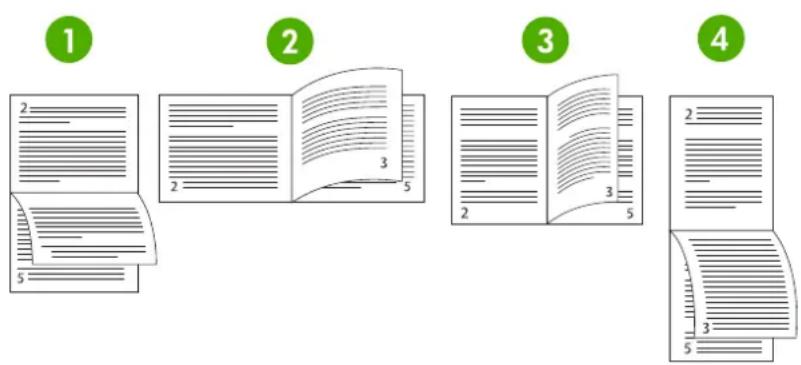
text_image
Illustration showing four sequential steps of a document editing or writing process, with numbered circles indicating each step.| 1 | Long-edge landscape ^1 | This layout is often used in accounting, data processing, and spreadsheet programs. Every other printed image is oriented upside-down. Facing pages are read continuously from top to bottom. |
| 2 | Short-edge landscape | Each printed image is oriented right-side-up. Facing pages are read from top to bottom on the left page, then from top to bottom on the right page. |
| 3 | Long-edge portrait | This is the default printer setting, and the most common layout used, with every printed image oriented right-side-up. Facing pages are read from top to bottom on the left page, then from top to bottom on the right page. |
| 4 | Short-edge portrait ^1 | This layout is often used with clipboards. Every other printed image is oriented upside-down. Facing pages are read continuously from top to bottom. |
^1 When using Windows drivers, select Flip Pages to see the designated binding options.
Manual two-sided printing
If you want to print on two sides (duplex) on paper other than the supported sizes or weights (for example, paper heavier than 120 g/m^2 (32 lb) or very thin paper), you will have to go to the printer and reinsert the paper manually after the first side has printed.

NOTE Damaged or previously used paper can cause paper jams and should not be used.
NOTE Manual two-sided printing is not supported for Windows 98 and systems that use the PS driver.
To manually print on two sides (duplex)
- Ensure that the printer driver is configured to allow manual duplexing. For more information, see Printer drivers or Printer drivers for Macintosh computers. In the printer driver, select Allow Manual Duplex.
- From the application, open the printer driver.
- Select the appropriate size and type.
- On the Finishing tab, click Print on Both Sides or Print on Both Sides (Manually).
- The default binding option is to bind on the long edge of the paper in portrait layout. To change the setting, click the Finishing tab, and select the Flip pages up checkbox.
- Click OK. The Print on Both Sides instructions will appear. Follow the instructions to finish printing your document.

NOTE If the total number of sheets to be duplexed exceeds the Tray 1 capacity for manual duplex jobs, feed the top 100 sheets and press √. When prompted, feed the next 100 sheets and press √. Repeat as necessary until all the sheets from the output stack have been loaded into Tray 1.
For more information, see Printer drivers or Printer drivers for Macintosh computers.
Printing booklets
Some versions of the printer driver let you control the printing of booklets when duplexing. You can select binding on the left or right side on letter, legal, or A4 paper size. Windows 2000 and XP supports booklet printing for all paper sizes.
See the printer driver online Help for more information about the printing booklets feature.
Using the stapler/stacker
The optional stapler/stacker incorporates an inline stapler and stacker that provides automatic job separation with job offset capability.
The stapler/stacker can handle paper ranging in weight from 60 to 220 g/m ^2 (16 to 58 lb). The stapler/stacker output bin can hold up to 750 sheets of 75 g/m ^2 (20 lb) paper with job offset. Standard and custom paper sizes are accepted, but only letter, A4, JIS B5, 215.9 x 330 mm (8.5 x 13 in), and legal size paper can be stapled. For more information about supported paper, see Supported media weights and sizes.

NOTE Actual stapler/stacker capacity might vary depending on the media type and weight, environmental conditions, and other factors.
The maximum number of sheets that can be stapled in a single job varies according to the weight and type of the paper that is used.
- Jobs containing up to 30 sheets of paper weighing from 60 to 160g / m^2 (16 to 42 lb) can be stapled.
- Jobs containing up to 20 sheets of paper weighing from 160 to 220g / m^2 (42 to 58 lb) can be stapled.
- Jobs containing up to 20 sheets of heavy papers, such as HP Tough Paper and HP High-Gloss laser paper, can be stapled.
- If a job consists of only one sheet or more than 30 sheets, the job is printed to the output bin, but is not stapled.

NOTE The stapler supports paper only. Do not try to staple other media, such as envelopes, transparencies, or labels.
To staple a print job, select the stapler in the application. You can usually select the stapler in the application or printer driver, although some options might be available only in the printer driver. You might need to configure the printer driver to recognize the stapler/stacker. You need to set this setting only once.
If you cannot select the stapler in the program or printer driver, select the stapler at the printer control panel.
Configuring the printer driver to recognize the stapler/stacker
Windows
- Open the Printers folder.
- Select HP Color LaserJet 4700.
- On the File menu, click on Properties.
-
Select the Device Settings tab.
-
Use either of the following methods to select the stapler/stacker:
-
Scroll down to Automatic Configuration, select Update Now, and click Apply.
- Scroll down to Accessory Output Bin, select HP 750–Sheet Stapler/Stacker, and click Apply.
Macintosh
- Open the Printer Center utility.
- Select HP Color LaserJet 4700.
- On the File menu, click on Show Info (X + I).
- Select the Installable Options tab.
- Scroll to Accessory Output Bins and select HP 750-Sheet Stapler/Stacker.
- Click on Apply Changes.
Selecting the printer behavior at staples out
When the stapler cartridge runs out of staples, jobs will print to the stapler/stacker if the stapler is configured to CONTINUE. If the stapler is configured to STOP when the stapler cartridge is empty, the printer stops printing any jobs until the cartridge is replaced. For more information, see Stapler/stacker menu.
- Press Menu to enter the menus.
- Press ▼ to highlight CONFIGURE DEVICE, and then press ▼
- Press ▼ to highlight STAPLER STACKER, and then press √.
- Press ▼ to highlight STAPLES OUT, and then press ▼.
- Press ▼ to highlight STOP or CONTINUE, and then press √.
Printing to the stapler/stacker
The stapler/stacker can hold up to 750 sheets of 75 g/m^2 (20 lb) paper with job offset. Standard and custom paper sizes are accepted, but only letter, A4, JIS Exec, 215.9 x 330 mm (8.5 x 13 in), and legal size paper can be stapled. For more information about supported paper and general information about stapling, see Supported media weights and sizes and Using the stapler/stacker.

NOTE Actual stapler/stacker capacity might vary depending on the media type and weight, environmental conditions, and other factors.
To print to the stapler/stacker, select the option in the software application or in the printer driver, or at the printer control panel.

NOTE Using media that does not meet HP specifications might cause problems that could require repair. This repair is not covered by your printer warranty or service agreements.
Selecting the stapler in an application
Windows
- On the File menu, click Print, and then click Properties
- On the Output tab, click the drop-down list under Staple, and click One Staple.
Macintosh
- On the File menu, click Print (Command + P).
- Select the Finishing option.
- For the Output destination, select Stapler.
- In the Finishing option, select 1 Staple.
Selecting the stapler at the control panel
- Press Menu to enter the menus.
- Press ▼ to highlight CONFIGURE DEVICE, and then press √.
- Press ▼ to highlight STAPLER STACKER, and then press √.
- Press ▼ to highlight STAPLES, and then press ▼.
- Press ▼ to highlight 1-EDGE, and then press √.

NOTE Selecting the stapler at the printer control panel changes the default setting to STAPLE. It is possible that all print jobs might be stapled. However, settings that are changed in the printer driver override settings that are changed at the control panel.
NOTE When configuring to STAPLES = 1-EDGE, the OFFSET menu is set to DISABLED. Jobs cannot be both stapled and offset.
Job offset
When the job offset feature is enabled, the stapler/stacker offsets each print job for easy identification. Letter, A4, JIS B5, 215.9 x 330 mm (8.5 x 13 in), and legal size paper can be offset.
The job offset option is configured only from the printer control panel. It cannot be activated through the printer driver. Once this feature is configured, all subsequent print jobs are offset.

NOTE A print job can be either stapled or offset. If job offset is configured at the control panel but not in the printer driver, the job is offset. If offset is configured at the control panel but the printer driver is configured to staple the job, the printed document is stapled, and the offset feature is overridden.
Configuring job offset at the control panel
- Press Menu to enter the menus.
- Press ▼ to highlight CONFIGURE DEVICE, and then press √.
- Press ▼ to highlight STAPLER STACKER, and then press √.
- Press ▼ to highlight OFFSET, and then press √.
- Press ▼ to highlight ENABLED, and then press ▼.
Paper orientation when a stapler/stacker is installed
When the stapler/stacker is installed, the printer automatically rotates printed images 180^ on all paper sizes, regardless of whether the job is stapled or not. If you are printing on paper that requires a specific orientation, such as letterhead, preprinted or prepunched paper, or paper with watermarks, make sure that the paper is loaded correctly in the tray.
For single-sided printing and stapling from Tray 1, load the paper face down with the logo toward you. For single-sided printing and stapling from all other trays, load the paper face up with the logo toward the rear of the printer.
For duplex printing and stapling from Tray 1, load the paper face up with the logo toward the rear of the printer. For duplex printing and stapling from all other trays, load the paper face down with the logo toward you.
Special printing situations
Use these guidelines when printing on special types of media.
Printing a different first page
Use the following procedure to print the first page of a document on a different media type than the rest of the document, for example, to print the first page of a document on letterhead paper and the rest on plain paper.
- From your application or printer driver, specify a tray for the first page and another tray for the remaining pages.
For more information, see Printer drivers or Printer drivers for Macintosh computers.
- Load the special media into the tray that you specified in step 1.
- Load the media for the remaining pages of the document into another tray.
You can also print on different media by using the printer control panel or printer driver to set the types of media that are loaded in the trays and then selecting the first and remaining pages by media type.
Printing a blank back cover
Use the following procedure to print a blank back cover. You can also select an alternate paper source or print on a different media type than the rest of the document.
- On the printer driver's Paper tab, select Use different paper, then from the drop-down list, select Back Cover, check Add a blank back cover, and then click OK.
- For more information, see Printer drivers or Printer drivers for Macintosh computers.
You can also select an alternate paper source or print a blank back cover on a different media type than the rest of the document. If desired, select a different source and type from the drop-down lists.
Printing on custom-size media
The printer supports single-sided printing on custom-size media. Tray 1 supports media sizes from 76 x 127 mm (3 x 5 inches) to 216 x 356 mm (8.5 x 14 inches). Tray 2 and the optional 500-sheet trays support media sizes from 148 x 210 mm (5.83 x 8.27 inches) (A5 size) to 216 x 356 mm (8.5 x 14 inches).
When printing on custom-size media, if Tray 1 is configured in the printer control panel as TRAY X TYPE= ANY TYPE and TRAY X SIZE= ANY SIZE, the printer will print on whatever media is loaded in the tray. When printing on custom-size media from Tray 2 or any of the optional paper trays, adjust the switch on the tray to the CUSTOM position, and from the control panel, set the media size to CUSTOM or ANY CUSTOM.
Some software applications and printer drivers allow you to specify custom paper-size dimensions. You can configure custom paper sizes from the printer driver's Paper tab or Forms tab (Windows 2000 and XP). Be sure to set the correct paper size in both the page setup and print dialog boxes.
For more information about how to access the printer drivers, see Printer drivers or Printer drivers for Macintosh computers.
If your software application requires you to calculate margins for custom-size paper, see the online Help for that application.
Stopping a print request
You can stop a print request either from the printer control panel or from your software application. To stop a print request from a computer on a network, see the online Help for the specific network software.

NOTE It may take some time for all printing to clear after you have canceled a print job.
Stopping the current print job from the printer control panel
- Press Stop on the printer control panel to pause the job that is currently printing. The control panel menu provides the option to resume printing or to cancel the current job.
- Press Menu to exit the menu and resume printing.
- Press √ to cancel the job.
Pressing Stop does not affect subsequent print jobs that are stored in the printer buffer.
Stopping the current print job from a software application
A dialog box will appear briefly on the control panel display, giving you the option to cancel the print job.
If several requests have been sent to the printer through an application, the print jobs might be waiting in a print queue (for example, in Windows Print Manager). See the application documentation for specific instructions on canceling a print request from the computer.
If a print job is waiting in a print queue (computer memory) or print spooler (Windows 98, 2000, XP, or Me), delete the print job there.
For Windows 98, 2000, XP, or Me, go to Start, Settings, and then Printers. Double-click the HP Color LaserJet 4700 series printer icon to open the print spooler. Select the print job you want to cancel, and then press Delete. If the print job is not cancelled, you might need to shut down and restart the computer.
Job storage features
The HP Color LaserJet 4700 series printer lets you store a job in the printer's memory for printing at a later time. The job storage features use memory from both the hard disk and random access memory (RAM). These job storage features are described below.
To support job storage features for complex jobs, or if you often print complex graphics, print PostScript (PS) documents, or use many downloaded fonts, HP recommends that you install additional memory. Added memory also gives you more flexibility in supporting job-storage features, such as quick copying.

NOTE To use the Private Job, Proof and Hold, and Mopy features, the printer must have a minimum of 256 MB DDR plus 32 MB of additional memory on the formatter board. To use the quick copy and stored jobs features you must install an optional hard disk in the printer (HP Color LaserJet 4700, 4700n, 4700dn, 4700dtn models) and properly configure the drivers.

CAUTION Make sure to uniquely identify jobs in the printer driver before printing. Using default names may override previous jobs with the same default name or cause the job to be deleted. For more information, see Printer drivers or Printer drivers for Macintosh computers.
Proofing and holding a job
The proof and hold feature provides a quick and easy way to print and proof one copy of a job and then print additional copies. This option stores the print job on the printer hard disk or in printer RAM memory, and prints only the first copy of the job, allowing you to check the first copy. If the document prints correctly, you can print the remaining copies of the print job from the printer control panel. The number of proof-and-hold print jobs that can be stored in the printer is set from the printer control panel.
To permanently store the job and prevent the printer from deleting it, select the Stored Job option in the driver.
Printing stored jobs
- Press Menu to enter MENUS.
RETRIEVE JOB is highlighted.
- Press √ to select RETRIEVE JOB.
- Press ▼ to highlight your USER NAME.
- Press √ to select your USER NAME.
- Press ▼ to highlight a JOB NAME.
- Press √ to select the JOB NAME.
PRINT is highlighted.
- Press √ to select PRINT.
- Press ▲ or ▼ to select the number of copies.
- Press √ to print the job.
Deleting stored jobs
When you send a stored job, the printer overwrites any previous jobs with the same user and job name. If there is not a job already stored under the same user and job name, and the printer needs additional space, the printer may delete other stored jobs starting with the oldest. The default number of jobs that can be stored is 32. You can change the number of jobs that can be stored from the control panel. For more information about setting the job storage limit, see Configure device menu.
A job can be deleted from the control panel, from the embedded Web server, or from HP Web Jetadmin. To delete a job from the control panel, use the following procedure:
- Press Menu to enter MENUS.
RETRIEVE JOB is highlighted.
- Press √ to select RETRIEVE JOB.
- Press ▼ to highlight your USER NAME.
- Press √ to select your USER NAME.
- Press ▼ to highlight a JOB NAME.
- Press √ to select the JOB NAME.
- Press ▼ to highlight DELETE.
- Press √ to select DELETE.
- Press √ to delete the job.
Private jobs
This option allows you to send a print job directly to the printer memory. Selection of Private Job activates the PIN field. The print job can be printed only after you type a PIN in the printer control panel. After the job is printed, the printer removes the job from the printer memory. This feature is useful when you are printing sensitive or confidential documents that you do not want to leave in an output bin after printing. Private Job stores the print job on the hard disk or in printer RAM memory. After it is released for printing, the private job is immediately deleted from the printer. If more copies are needed, you have to reprint the job from the program. If you send a second private job to the printer with the same user name and job name as an existing private job (and you have not released the original job for printing), the job will overwrite the existing job, regardless of the PIN. Private jobs are deleted if power to the printer is turned off.

NOTE A lock symbol next to a job name indicates that the job is private.
Specify that a job is private from the driver. Select the Private Job option and type a four-digit PIN. To avoid overwriting jobs with the same name, also specify a username and job name.
Printing a private job
- Press Menu to enter MENUS.
RETRIEVE JOB is highlighted.
- Press √ to select RETRIEVE JOB.
-
Press ▼ to highlight your USER NAME.
-
Press √ to select your USER NAME.
- Press ▼ to highlight a JOB NAME.
- Press √ to select the JOB NAME.
PRINT is highlighted.
- Press √ to select PRINT.
- Press ▲ or ▼ to select the first digit of the PIN.
- Press √ to select the digit. The number changes to an asterisk.
- Repeat steps 8 and 9 to enter the remaining three digits of the PIN.
- Press √ when finished entering the PIN.
- Press ▲ or ▼ to select the number of copies.
- Press √ to print the job.
Deleting a private job
A private job can be deleted from the printer control panel. You can delete a job without printing it, or it will be automatically deleted after it is printed.
- Press Menu to enter MENUS.
RETRIEVE JOB is highlighted.
- Press √ to select RETRIEVE JOB.
- Press ▼ to highlight your USER NAME.
- Press √ to select your USER NAME.
- Press ▼ to highlight a JOB NAME.
- Press √ to select the JOB NAME.
- Press ▼ to highlight DELETE.
- Press √ to select DELETE.
- Press ▲ or ▼ to select the first digit of the PIN.
- Press √ to select the digit. The number changes to an asterisk.
- Repeat steps 9 and 10 to enter the remaining three digits of the PIN.
- Press √ when finished entering the PIN.
- Press √ to delete the job.
Mopier mode
When Mopier mode is enabled, the printer produces multiple, collated copies from a single print job. Multiple-original printing (mopying) increases printer performance and reduces network traffic by sending the job to the printer once, then storing it in the printer's RAM. The remainder of the copies are
printed at the printer's fastest speed. Documents can be created, controlled, managed, and finished from the desktop, which eliminates the extra step of using a photocopier.
The HP Color LaserJet 4700 series printers support mopying provided they have enough total memory (160 MB DDR plus 32 MB on the formatter board). The mopying feature is enabled by default if the Mopier Mode setting is Enabled in the Device Settings tab.
Storing a print job
You can download a print job to the printer without printing it. You can then print the job at any time through the printer control panel. For example, you might want to download a personnel form, calendar, time sheet, or accounting form that other users can access and print.
To store a print job permanently, select the Stored Job option in the driver when printing the job.
- Press Menu to enter MENUS.
- RETRIEVE JOB is highlighted.
- Press √ to select RETRIEVE JOB.
- Press ▼ to highlight your USER NAME.
- Press √ to select your USER NAME.
- Press ▼ to highlight a JOB NAME.
- Press √ to select the JOB NAME.
PRINT is highlighted.
- Press √ to select PRINT.
- Press ▲ or ▼ to select the number of copies needed.
- Press √ to print the job.
Quick-copying a job
Quick Copy stores a copy of a printed job on the hard disk, and allows you to print additional copies of a print job using the control panel. The number of quick-copy print jobs that can be stored in the printer is set from the printer control panel.
This feature can be turned on or off from the driver.
- Press Menu to enter MENUS.
- RETRIEVE JOB is highlighted.
- Press √ to select RETRIEVE JOB.
- Press ▼ to highlight your USER NAME.
- Press √ to select your USER NAME.
- Press ▼ to highlight a JOB NAME.
- Press √ to select the JOB NAME.
PRINT is highlighted.
- Press √ to select PRINT.
- Press ▲ or ▼ to select the number of copies.
- Press √ to print the job.
Managing memory
This printer supports up to 544 MB of memory: 512 MB DDR plus 32 MB of additional memory on the formatter board. You can add additional memory by installing dual data-rate (DDR) memory. To allow for memory expansion, the printer has two DDR slots, which accept 128 or 256 MB of RAM each. For information about installing memory, see Working with memory and print server cards.

NOTE Memory specification: HP Color LaserJet 4700 series printers use 200-pin small outline dual inline memory modules (SODIMM) that support 128 or 256 MB of RAM.
The printer features Memory Enhancement Technology (MEt), which automatically compresses page data to provide the most efficient use of the printer's RAM.
The printer uses DDR SODIMM. Extended data output (EDO) DIMMs are not supported.

NOTE If memory problems occur when you are printing complex graphics, you can make more memory available by removing downloaded fonts, style sheets, and macros from printer memory. Reducing the complexity of a print job from within an application can help avoid memory problems.
5 Managing the printer
This chapter describes how to manage the printer. The following topics are covered:
• Printer information pages
• Using the embedded Web server
• Using the HP Easy Printer Care Software
Printer information pages
From the printer control panel, you can print pages that give details about the printer and its current configuration. The procedures for printing the following information pages are described here:
- Menu map
- Configuration page
• Supplies status page
• Usage page
• Demo page
• Print RGB samples
• Print CMYK samples - File directory
PCL or PS font list
Event log
Menu map
To see the current settings for the menus and items available in the control panel, print a control panel menu map.
- Press Menu to enter the MENUS.
- Press ▼ to highlight INFORMATION.
- Press √ to select INFORMATION.
-
Press ▼ to select PRINT MENU MAP.
-
If PRINT MENU MAP is not highlighted, press ▲ or ▼ until it is highlighted.
The message Printing... MENU MAP appears on the display until the printer finishes printing the menu map. The printer returns to the Ready state after printing the menu map.
You might want to store the menu map near the printer for reference. The content of the menu map varies, depending on the options currently installed in the printer. (Many of these values can be overridden from the printer driver or software application.)
For a complete list of control panel menus and possible values, see Menu hierarchy.
Configuration page
Use the configuration page to view current printer settings, to help troubleshoot printer problems, or to verify installation of optional accessories, such as memory (DIMMs), paper trays, and printer languages.
- Press Menu to enter the MENUS.
- Press ▼ to highlight INFORMATION.
-
Press √ to select INFORMATION.
-
Press ▼ to highlight PRINT CONFIGURATION.
- Press √ to select PRINT CONFIGURATION.
The message Printing... CONFIGURATION appears on the display until the printer finishes printing the configuration page. The printer returns to the Ready state after printing the configuration page.

NOTE If the printer is configured with an HP Jetdirect print server or a stapler/stacker, an additional configuration page will print that provides information about those devices.
Supplies status page
The supplies status page illustrates the remaining life for the following printer supplies:
• Print cartridges (all colors)
Transfer unit
Fuser
To print the supplies status page:
- Press Menu to enter the MENUS.
- Press ▼ to highlight INFORMATION.
- Press √ to select INFORMATION.
- Press ▼ to highlight PRINT SUPPLIES STATUS PAGE.
- Press √ to select PRINT SUPPLIES STATUS PAGE.
The message Printing... SUPPLIES STATUS appears on the display until the printer finishes printing the supplies status page. The printer returns to the Ready state after printing the supplies status page.

NOTE If you are using non-HP supplies, the supplies status page will not show the remaining life for those supplies. For more information, see Non-HP print cartridges.
Usage page
The usage page lists a page count for each size of media that has passed through the printer. This page count includes the number of pages that were printed on one side, the number that were printed on two sides (duplexed), and totals of the two printing methods for each media size. It also lists the average percentage of page coverage for each color.
- Press Menu to enter the MENUS.
- Press ▼ to highlight INFORMATION.
- Press √ to select INFORMATION.
- Press ▼ to highlight PRINT USAGE PAGE.
- Press √ to select PRINT USAGE PAGE.
The message Printing... USAGE PAGE appears on the display until the printer finishes printing the usage page. The printer returns to the Ready state after printing the usage page.
Demo page
A demo page is a representation of a color photograph that demonstrates print quality.
- Press Menu to enter the MENUS.
- Press ▼ to highlight INFORMATION.
- Press √ to select INFORMATION.
- Press ▼ to highlight PRINT DEMO.
- Press √ to select PRINT DEMO.
The message Printing... DEMO PAGE appears on the display until the printer finishes printing the demo page. The printer returns to the Ready state after printing the demo page.
Print CMYK samples
Use the PRINT CMYK SAMPLES page to print CMYK color samples to match the color values in your application.
- Press Menu to enter the MENUS.
- Press ▼ to highlight INFORMATION.
- Press √ to select INFORMATION.
- Press ▼ to highlight PRINT CMYK SAMPLES.
- Press √ to select PRINT CMYK SAMPLES.
The message Printing... CMYK Samples appears on the display until the printer finishes printing the sample pages. The printer returns to the Ready state after printing the pages.
Print RGB samples
Use the PRINT RGB SAMPLES page to print RGB color samples to match the color values in your application.
- Press Menu to enter the MENUS.
- Press ▼ to highlight INFORMATION.
- Press √ to select INFORMATION.
- Press ▼ to highlight PRINT RGB SAMPLES.
- Press ▼ to select PRINT RGB SAMPLES.
The message Printing... RGB Samples appears on the display until the printer finishes printing the sample pages. The printer returns to the Ready state after printing the pages.
File directory
The file directory page contains information for all installed mass storage devices. This option does not appear if no mass storage devices are installed.
- Press Menu to enter the MENUS.
- Press ▼ to highlight INFORMATION.
- Press √ to select INFORMATION.
- Press ▼ to highlight PRINT FILE DIRECTORY.
- Press ▼ to select PRINT FILE DIRECTORY.
The message Printing... FILE DIRECTORY appears on the display until the printer finishes printing the file directory page. The printer returns to the Ready state after printing the file directory page.
PCL or PS font list
Use the font lists to see which fonts are currently installed in the printer. (The font lists also show which fonts are resident on an optional hard disk accessory or flash DIMM.)
- Press Menu to enter the MENUS.
- Press ▼ to highlight INFORMATION.
- Press √ to select INFORMATION.
- Press ▼ to highlight PRINT PCL FONT LIST or PRINT PS FONT LIST.
- Press √ to select PRINT PCL FONT LIST or PRINT PS FONT LIST.
The message Printing... FONT LIST appears on the display until the printer finishes printing the font list page. The printer returns to the Ready state after printing the font list page.
Event log
The event log lists the printer events, including printer jams, service errors, and other printer conditions.
- Press Menu to enter the MENUS.
- Press ▼ to highlight DIAGNOSTICS.
- Press √ to select DIAGNOSTICS.
- Press ▼ to highlight PRINT EVENT LOG.
- Press √ to select PRINT EVENT LOG.
The message Printing... EVENT LOG appears on the display until the printer finishes printing the event log. The printer returns to the Ready state after printing the event log.
Using the embedded Web server

NOTE When the printer is directly connected to a computer, use the HP Easy Printer Care Software to view the printer status.
When the printer is directly connected to a computer, the embedded Web server is supported for Windows 98 and later.
When the printer is connected to the network, the embedded Web server is automatically available. You can access the embedded Web server from Windows 98 and later, or through the Apple Safari browser.
The embedded Web server allows you to view printer and network status and to manage printing functions from your computer instead of from the printer control panel. Below are examples of what you can do using the embedded Web server:
• View printer control status information.
- Set the type of paper loaded in each tray.
• Determine the remaining life on all supplies and order new ones.
• View and change tray configurations.
• View and change the printer control panel menu configuration.
• View and print internal pages.
• Receive notification of printer and supplies events.
• View and change network configuration.
- Restrict access to color printing. (See http://www.hp.com/go/coloraccess for setup instructions.)
To use the embedded Web server, you must have Microsoft Internet Explorer 6.0 or later, or Netscape Navigator 6.2 or later. The embedded Web server works when the printer is connected to an IP-based network. The embedded Web server does not support IPX-based printer connections. You do not have to have Internet access to open and use the embedded Web server. For more information about the HP embedded Web server, see the HP Embedded Web Server User Guide. You can find this guide on the CD-ROM included with the printer.
Accessing the embedded Web server
In a supported Web browser on your computer, type the IP address for the printer. (To find the IP address, print a configuration page. For more information about printing a configuration page, see Printer information pages.)

NOTE Once you open the URL, you can bookmark it so that you can return to it quickly in the future.
- The embedded Web server has three tabs that contain settings and information about the printer: the Information tab, the Settings tab, and the Networking tab. Click the tab that you want to view.
- See the following sections for more information about each tab.
Information tab
The Information pages group consists of the following pages.
- Device Status. This page displays the printer status and shows the life remaining of HP supplies, with 0% representing that a supply is empty. The page also shows the type and size of print media set for each tray. To change the default settings, click Change Settings.
- Configuration page. This page shows the information found on the printer configuration page.
- Supplies Status. This page shows the life remaining of HP supplies, with 0% representing that a supply is empty. This page also provides supplies part numbers. To order new supplies, click Order Supplies in the Other Links area on the left side of the window. To visit any Web site, you must have Internet access.
• Event log. This page shows a list of all printer events and errors. - Usage page. This page shows a summary of the number of pages the printer has printed, grouped by size and type.
• Device Information. This page also shows the printer network name, address, and model information. To change these entries, click Device Information on the Settings tab. - Control panel. This page shows an image of the text currently appearing on the printer's control panel display.
Settings tab
This tab allows you to configure the printer from your computer. The Settings tab can be password protected. If this printer is networked, always consult with the printer administrator before changing settings on this tab.
The Settings tab contains the following pages.
- Configure Device. Configure all printer settings from this page. This page contains the traditional menus found on printers using a control panel display. These menus include Information, Paper Handling, and Configure Device.
- Alerts. Network only. Set up to receive e-mail alerts for various printer and supplies events. Alerts may also be sent to a URL.
- E-mail. Network only. Used in conjunction with the Alerts page to set up incoming and outgoing e-mail, as well as to set e-mail alerts.
• Security. Set a password that must be entered to gain access to the Settings and Networking tabs. Enable and disable certain features of the embedded Web server. - Other Links. Add or customize a link to another Web site. This link is displayed in the Other Links area on all embedded Web server pages. These permanent links always appear in the Other Links area: HP Instant Support™, Order Supplies, and Product Support.
• Device Information. Name the printer and assign an asset number to it. Enter the name and e-mail address for the primary contact who will receive information about the printer.
• Language. Determine the language in which to display the embedded Web server information.
Time Services. Configure the printer's time settings.
- Restrict Color. Set user color print job restrictions. For more information on restricting and reporting color usage, see http://www.hp.com/go/coloraccess.
Setting the real-time clock
Use the real-time clock feature to set the date and time settings. The date and time information is attached to stored print jobs, so that you can identify the most recent versions of stored print jobs.
When setting the clock, you can set the date format, date, time format, and time.
Networking tab
This tab allows the network administrator to control network-related settings for the printer when it is connected to an IP-based network. This tab will not appear if the printer is directly connected to a computer, or if the printer is connected to a network using anything other than an HP Jetdirect print server.
Click Help on the Networking tab pages for more information on network settings.
Other links
This section contains links that connect you to the Internet to order supplies or obtain product support. You must have Internet access to use any of these links. If you use a dial-up connection and did not connect when you first opened the embedded Web server, you must connect before you can visit these Web sites. Connecting might require that you close the embedded Web server and reopen it.
HP Instant Support™. Connects you to the HP Web site to help you find solutions. This service analyzes your printer error log and configuration information to provide diagnostic and support information specific to your printer.
- Order Supplies. Click this link to connect to the HP Web site and order genuine HP supplies, such as print cartridges and paper.
- Product Support. Connects to the support site for the HP Color LaserJet 4700 printer. Then, you can search for help regarding general topics.
Using the HP Easy Printer Care Software
The HP Easy Printer Care Software is an application that you can use for the following tasks:
• View color usage information.
- Check the printer status.
- Check supplies status.
- Set up alerts.
• Gain access to troubleshooting and maintenance tools.
You can use the HP Easy Printer Care Software when the printer is directly connected to your computer or when it is connected to a network. You must perform a complete software installation to use the HP Easy Printer Care Software. For more information, see http://www.hp.com/go/easyprintercare.

NOTE You do not have to have Internet access to open and use the HP Easy Printer Care Software. However, if you click a Web-based link, you must have Internet access to go to the site associated with the link.
Supported operating systems
The HP Easy Printer Care Software is supported for Windows 2000, Windows XP, and Windows 2003 server.
To use the HP Easy Printer Care Software
Use one of the following methods to open HP Easy Printer Care Software:
- On the Start menu, select Programs, select HP Easy Printer Care, and then select Start HP Easy Printer Care.
- In the Windows system tray/taskbar (in the lower righthand corner of the desktop), double-click the HP Easy Printer Care Software icon.
• Double-click the desktop icon.
HP Easy Printer Care Software sections
The HP Easy Printer Care Software contains the sections described in the table below.
Section Description
| Overview tabContains basic status information for the printer. | Device list: Shows the printers that you can select.Device Status section: Shows printer status information. This section will indicate printer alert conditions, such as an empty print cartridge. It also shows device-identification information, control-panel messages, and print-cartridge levels. After you correct a problem with the printer, click thebutton to update the section.Supplies Status section: Shows detailed supplies status, such as the percentage of toner remaining in the print cartridges and the status of the media that is loaded in each tray.Supplies Details link: Opens the supplies status page to view more detailed information about printer supplies, ordering information, and recycling information. |
| Section Description | ||
| Support tabProvides help information and links. | Printer usage reportsSoftware updates, including automatic updates for HP driversOnline diagnosticsOnline user documentationOnline support | NOTE If you use a dial-up connection and did not connect to the Internet when you first opened the HP Easy Printer Care Software, you must connect before you can visit these Web sites. |
| Supplies Ordering windowProvides access to online or e-mail supplies ordering. | Ordering list: Shows the supplies that you can order for each printer. If you want to order a certain item, click the Order check box for that item in the supplies list.Shop Online for Supplies button: Opens the HP supplies Web site in a new browser window. If you have checked the Order check box for any items, the information about those items can be transferred to the Web site.Print Shopping List button: Prints the information for the supplies that have the Order check box selected.Email Shopping List button: Creates a text list of items that have the Order check box selected. The list can be copied into an e-mail message that you send to your supplier. | |
| Alert Settings windowAllows you to configure the printer to automatically notify you of printer issues. | Alerts on or off: Activates or deactivates the alerts feature for a certain printer.When alerts appear: Sets when you want alerts to appear—either when you are printing to that particular printer, or anytime there is a printer event.Alert event type: Sets whether you want alerts for only critical errors, or for any error, including continuable errors.Notification type: Sets what type of alert should appear (pop-up message or system tray alert, and e-mail message). | |
| Device List tabShows information about each printer in the Devices list. | Printer information, including printer name, make, and modelAn icon (if the View as drop-down box is set to Tiles, which is the default setting)Any current alerts for the printerIf you click a printer in the list, the HP Easy Printer Care Software opens the Overview tab for that printer.Device List tab information includes the following: | |
| Find Other Printers windowAllows you to add more printers to your printer list. | Clicking the Find Other Printers link in the Devices list opens the Find Other Printers window. The Find Other Printers window provides a utility that detects other network printers so that you can add them to the Devices list and then monitor those printers from your computer. | |
6 Color
This chapter describes how the HP Color LaserJet 4700 series printer provides great color printing. This chapter also describes ways to produce the best possible color prints. The following topics are covered:
• Using color
• Color matching
• Managing printer color options on Windows computers
• Managing printer color options on Macintosh computers
Using color
The HP Color LaserJet 4700 series printer offers great color printing as soon as you set up the printer. It provides a combination of automatic color features to generate excellent color results for the general office user, plus sophisticated tools for the professional who is experienced with color use.
The HP Color LaserJet 4700 series printer provides carefully designed and tested color tables to provide a smooth, accurate color rendition of all printable colors.
HP ImageREt 3600
HP ImageREt 3600 print technology is a system of innovative technologies developed exclusively by HP to deliver superior print quality. The HP ImageREt system sets itself apart from the industry by integrating technology advancements and optimizing each element of the print system. Several categories of HP ImageREt have been developed for a variety of user needs.
The system's foundation is composed of key color laser technologies, including image enhancements, smart supplies, and high-resolution imaging. As the level or category of ImageREt increases, these core technologies are refined for more advanced system usage, and additional technologies are integrated. HP offers superior image enhancements for general office documents and marketing collateral. Optimized for printing on HP color laser high-gloss papers, HP Image REt 3600 provides superior results on all supported media, and under a variety of environmental conditions.
Paper selection
For the best color and image quality, it is important to select the appropriate media type from the printer menu or from the front panel. See Selecting print media.
Color options
Color options enable optimal color output automatically for diverse types of documents.
Color options use object tagging, which allows optimal color and halftone settings to be used for different objects (text, graphics, and photos) on a page. The printer driver determines which objects are used on a page and uses halftone and color settings that provide the best print quality for each object. Object tagging, combined with optimized default settings, produces great color out of the box.
In the Windows environment, the Automatic and Manual color options are on the Color tab in the printer driver.
For more information, see Printer drivers or Printer drivers for Macintosh computers.
sRGB
Standard red-green-blue (sRGB) is a world-wide color standard originally developed by HP and Microsoft as a common color language for monitors, input devices (scanners, digital cameras), and output devices (printers, plotters). It is the default color space used for HP products, Microsoft operating systems, the Web, and most office software sold today. sRGB is representative of the typical Windows computer monitor today and the convergence standard for high-definition television.

NOTE Factors such as the type of monitor you use and the room's lighting can affect the appearance of colors on your screen. For more information, see Color matching.
The latest versions of Adobe PhotoShop, CorelDRAW™, Microsoft Office, and many other applications use sRGB to communicate color. Most importantly, as the default color space in Microsoft operating
systems, sRGB has gained broad adoption as a means to exchange color information between applications and devices using a common definition that assures typical users will experience greatly improved color matching. sRGB improves your ability to match colors between the printer, the computer monitor and other input devices (scanner, digital camera) automatically, without the need to become a color expert.
Printing in four colors — CMYK
Cyan, magenta, yellow, and black (CMYK) are the inks used by a printing press. The process is often called four-color printing. CMYK data files are typically used by and originate from graphic arts (printing and publishing) environments. The printer will accept CMYK colors through the PS printer driver. The printer color-rendering of CMYK is designed to provide rich, saturated colors for text and graphics.
CMYK ink set emulation (PostScript only)
The printer color rendering of CMYK can be made to emulate several standard offset press ink sets. In some situations, the CMYK color values in an image or document might not be suited to the printer. For example, a document might be optimized for another printer. For best results, the CMYK values should be adapted to the HP Color LaserJet 4700. Select the appropriate color input profile from the printer driver.
Default CMYK+. HP CMYK+ technology produces optimal printing results for most printing jobs.
- SWOP (Specification for Web Offset Publications). Common ink standard in the United States and other countries/regions.
- Euroscale (also known as Euro Standard). Common ink standard in Europe and other countries/regions.
• DIC (Dainippon Ink and Chemical). Common ink standard in Japan and other countries/regions.
- Custom profile. Select this option to use a custom input profile to accurately control color output, for example, to emulate another HP color LaserJet printer. Color profiles can be downloaded from http://www.hp.com.
Color matching
The process of matching printer output color to your computer screen is quite complex because printers and computer monitors use different methods of producing color. Monitors display colors by light pixels using an RGB (red, green, blue) color process, but printers print colors using a CMYK (cyan, magenta, yellow, and black) process.
Several factors can influence your ability to match printed colors to those on your monitor. These factors include:
- Print media
• Printer colorants (inks or toners for example)
• Printing process (inkjet, press, or laser technology for example)
• Overhead lighting
• Personal differences in perception of color
• Software applications
Printer drivers
• Computer operating system
Monitors
• Video cards and drivers
• Operating environment (humidity for example)
Keep the above factors in mind when colors on your screen do not perfectly match your printed colors.
For most users, the best method for matching colors on your screen to your printer is to print sRGB colors.
PANTONE® color matching
PANTONE® has multiple color matching systems. PANTONE® Matching System is very popular and uses solid inks to generate a wide range of color hues and tints. See http://www.hp.com/support/clj4700 for details on how to use PANTONE® Matching System with this printer.

NOTE PANTONE® Colors generated may not match PANTONE-identified standards. Consult current PANTONE Publications for accurate color. PANTONE® and other Pantone, Inc. trademarks are the property of Pantone, Inc. © Pantone, Inc., 2000.
Sample book color matching
The process for matching printer output to preprinted sample books and standard color references is complex. In general, you can obtain a reasonably good match to a sample book if the inks used to create the sample book are cyan, magenta, yellow, and black. These are usually referred to as process color sample books.
Some sample books are created from spot colors. Spot colors are specially created colorants. Many of these spot colors are outside of the range of the printer. Most spot color sample books have companion process sample books that provide CMYK approximations to the spot color.
Most process sample books will state which process standards were used to print the sample book. In most cases they will be SWOP, EURO, or DIC. To get optimal color matching to the process sample book, select the corresponding ink emulation from the printer menu. If you cannot identify the process standard, use SWOP ink emulation.
Printing color samples
To use the color samples, select the color sample that is the closest match to the desired color. Use the sample's color value in your application to describe the object you wish to match. Colors may vary depending on paper type and the software application used. For more details on how to use the color samples, go to http://www.hp.com/support/clj4700.
Use the following procedure to print color samples at the printer using the control panel:
- Press Menu to enter the MENUS.
- Press ▼ to highlight INFORMATION.
- Press √ to select INFORMATION.
- Press ▼ to highlight PRINT CMYK SAMPLES or PRINT RGB SAMPLES.
- Press √ to select PRINT CMYK SAMPLES or PRINT RGB SAMPLES.
Managing printer color options on Windows computers
Setting color options to Automatic typically produces the best possible print quality for the most common printing requirements. However, for some documents, setting the color options manually can enhance the way the document appears. Examples of these documents include marketing brochures that contain many images or documents that are printed on a media type that is not listed in the printer driver.
For Windows, you can print in grayscale or change the color options by using settings found on the Color tab in the printer driver.
For more information about how to access the printer drivers, see Gaining access to the printer drivers.
Print in grayscale
Select the Print in Grayscale option from the printer driver to print a document in black and white.
RGB Color (Color Themes)
Five values are available for the RGB Color setting:
- Select Default (sRGB) for most printing needs. This setting instructs the printer to interpret RGB color as sRGB, which is the accepted standard of Microsoft and the World Wide Web Organization (www).
- Select Image optimization (sRGB) to enhance documents in which the content is mainly bitmap images, such as .GIF or .JPEG files. This setting instructs the printer to use the best color matching for rendering sRGB, bitmap images. This setting has no effect on text or vector-based graphics. Using glossy media in combination with this setting provides the maximum enhancement.
- Select AdobeRGB for documents that use the AdobeRGB color space rather than sRGB. For example, some digital cameras capture images in AdobeRBG, and documents that are produced with Adobe PhotoShop use the AdobeRGB color space. When printing from a professional software program that uses AdobeRGB, it is important that you turn off the color management in the software program and allow the printer software to manage the color space.
- Select None to instruct the printer to print RGB data in raw device mode. To render documents properly when this option is selected, you must manage color in the program in which you are working or in the operating system.

CAUTION Use this option only if you are familiar with the procedures for managing color in the software program or in the operating system.
- Select Custom Profile when you want to duplicate the printed output from other printers or for using special effects, such as sepia tones. This setting instructs the printer to use a custom input profile to more accurately predict and control color output. You can download custom profiles from www.hp.com.
Automatic or manual color adjustment
The Automatic color adjustment option optimizes the neutral gray color treatment, halftones, and edge enhancements that are used for each element in a document. For more information, see your printer driver online Help.

NOTE Automatic is the default setting and is recommended for printing most color documents.
The Manual color adjustment option allows you to adjust the neutral gray color treatment, halftones, and edge enhancements for text, graphics, and photographs. To access the Manual color options, from the Color tab, select Manual, then Settings.
Manual color options
You can manually adjust color options for Edge Control, Halftones, and Neutral Grays.
Edge Control
The Edge Control setting determines how edges are rendered. Edge control has three components: adaptive halftoning, REt, and trapping. Adaptive halftoning increases the edge sharpness. Trapping reduces the effect of incorrect color alignment by slightly overlapping the edges of adjacent objects. The color REt option smooths the edges.

NOTE If you notice white gaps between objects, or if you notice areas that have a slight shadow of cyan, magenta, or yellow at the edge, choose an edge-control setting that increases the trapping level.
Four levels of edge control are available:
- Maximum is the most aggressive trapping setting. Adaptive halftoning and color REt settings are on.
- Normal is the default trapping setting. Trapping is at a medium level. Adaptive halftoning and color REt settings are on.
• Light sets trapping at a minimal level. Adaptive halftoning and color REt settings are on.
• Off turns off trapping, adaptive halftoning, and color REt.
Halftone options
Halftone options affect the resolution and clarity of your color output. You can select halftone settings for text, graphics, and photographs independently. The two halftone options are Smooth and Detail.
- The Smooth option provides better results for large, solid-filled print areas. It also enhances photographs by smoothing out fine color gradations. Choose this option when uniform and smooth area fills are top priority.
- The Detail option is useful for text and graphics that require sharp distinctions among lines or colors, or for images that contain a pattern or a high level of detail. Choose this option when sharp edges and details are top priority.

NOTE Some applications convert text or graphics to bitmap images. In these cases, setting the color options for Photographs also affects how text and graphics appear.
Neutral Grays
The Neutral Grays setting determines the method used for creating gray colors that are used in text, graphics, and photographs.
Two values are available for the Neutral Grays setting:
- Black Only generates neutral colors (grays and black) using only black toner. This guarantees neutral colors without a color cast.
- 4-Color generates neutral colors (grays and black) by combining all four toner colors. This method produces smoother gradients and transitions to non-neutral colors, and it produces the darkest black.

NOTE Some applications convert text or graphics to raster images. In these cases, setting the color options for Photographs also affects how text and graphics appear.
Restricting color printing
The HP Color LaserJet 4700 Series printers include a RESTRICT COLOR USE setting for networked printers. A network administrator can use the setting to restrict user access to the color printing features in order to conserve color toner. If you are unable to print in color, see your network administrator.
- Press Menu.
- Press ▼ to select PRINT QUALITY, and then press ▼.
- Press ▼ to select SYSTEM SETUP, and then press ▼.
- Press ▼ to select RESTRICT COLOR USE, and then press √.
- Press ▼ to select one of the following options:
- DISABLE COLOR: This setting denies the printer color capabilities to all users.
- ENABLE COLOR: This is the default setting, which allows all users to use the printer color capabilities.
- COLOR IF ALLOWED: This setting allows the network administrator to allow color use for select users. Use the embedded Web server to designate users who can print in color.
- Press √ to save the setting.
The network administrator can monitor color usage for a specific HP Color LaserJet 4700 series printer by printing a color usage job log. See Printer information pages for more information.
For more information on restricting and reporting color usage, go to http://www.hp.com/go/coloraccess.
Managing printer color options on Macintosh computers
Setting the color options to Automatic typically produces the best possible print quality for the most common printing requirements. However, for some documents, setting the color options manually can enhance the way the document appears. Examples of these documents include marketing brochures that contain many images or documents that are printed on a media type that is not listed in the printer driver.
Print color as gray or change the color options by using the Color Options pop-up menu in the Print dialog box.
For more information about how to gain access to the printer drivers, see Gaining access to the printer drivers.
Print Color as Gray
Selecting the Print Color as Gray option from the printer driver prints a document in black and shades of gray. This option is useful for previewing preliminary copies of slides and hardcopy output, or for printing color documents that will be photocopied or faxed.
Advanced color options for text, graphics, and photographs
Use manual color adjustment to adjust the Color (or Color Map) and Halftoning options for a print job.
Halftone options
Halftone options affect the resolution and clarity of your color output. You can select halftone settings independently for text, graphics, and photographs. The two halftone options are Smooth and Detail.
- The Smooth option provides better results for large, solid-filled print areas. It also enhances photographs by smoothing out fine color gradations. Select this option when uniform and smooth area fills are the top priority.
- The Detail option is useful for text and graphics that require sharp distinctions among lines or colors, or for images that contain a pattern or a high level of detail. Select this option when sharp edges and details are the top priority.

NOTE Some software programs convert text or graphics to raster images. In these cases, the Photographs settings also control text and graphics.
Neutral Grays
The Neutral Grays setting determines the method that the printer uses to create gray colors in text, graphics, and photographs.
Two values are available for the Neutral Grays setting:
- Black Only generates neutral colors (grays and black) by using only black toner. This guarantees neutral colors that do not have a color cast.
4-Color generates neutral colors (grays and black) by combining all four toner colors. This method produces smoother gradients and transitions to non-neutral colors, and it produces the darkest black.
RGB Color
Five values are available for the RGB Color setting:
- Select Default (sRGB) for most printing needs. This setting instructs the printer to interpret RGB color as sRGB, which is the accepted standard of Microsoft and the World Wide Web Organization (www).
- Select Image optimization (sRGB) to enhance documents in which the content is mainly bitmap images, such as .GIF or .JPEG files. This setting instructs the printer to use the best color matching for rendering sRGB, bitmap images. This setting has no effect on text or vector-based graphics. Using glossy media in combination with this setting provides the maximum enhancement.
- Select AdobeRGB for documents that use the AdobeRGB color space rather than sRGB. For example, some digital cameras capture images in AdobeRGB, and documents that are produced with Adobe PhotoShop use the AdobeRGB color space. When printing from a professional software program that uses AdobeRGB, it is important that you turn off the color management in the software program and allow the printer software to manage the color space.
- Select None to instruct the printer to print RGB data in raw device mode. To render documents properly when this option is selected, you must manage color in the program that you are using or in the operating system.

CAUTION Use this option only if you are familiar with the procedures for managing color in the software program or in the operating system.
- Select Custom Profile when you want to duplicate the printed output from other printers or for using special effects, such as sepia tones. This setting instructs the printer to use a custom input profile to more accurately predict and control color output. You can download custom profiles from www.hp.com.
Edge Control
The Edge Control setting determines how edges are rendered. Edge control has three components: adaptive halftoning, Resolution Enhancement Technology (REt), and trapping. Adaptive halftoning increases the edge sharpness. Trapping reduces the effect of incorrect color alignment by slightly overlapping the edges of adjacent objects. The color REt option smooths the edges.

NOTE If you notice white gaps between objects, or if you notice areas that have a slight shadow of cyan, magenta, or yellow at the edge, choose an edge-control setting that increases the trapping level.
Four levels of edge control are available:
• Maximum is the most aggressive trapping setting. Adaptive halftoning and color REt settings are on.
- Normal is the default trapping setting. Trapping is at a medium level. Adaptive halftoning and color REt settings are on.
• Light sets trapping at a minimal level. Adaptive halftoning and color REt settings are on.
• Off turns off trapping, adaptive halftoning, and color REt.
7 Maintenance
This chapter describes ways to maintain your printer. The following topics are covered:
• Managing print cartridges
• Changing print cartridges
• Replacing supplies
• Using the cleaning page
- Configuring alerts
Managing print cartridges
Be sure to use genuine HP print cartridges for the best printing results. This section provides information on proper use and storage of HP print cartridges. It also provides information about using non-HP print cartridges.
HP print cartridges
When you use a genuine new HP print cartridge, you can obtain the following supplies information:
• Percentage of supplies remaining
• Estimated number of pages remaining
• Number of pages printed

NOTE See Part numbers for cartridge ordering information.
Non-HP print cartridges
Hewlett-Packard Company cannot recommend use of non-HP print cartridges, either new or remanufactured. Because they are not genuine HP products, HP cannot influence their design or control their quality. Service or repair required as a result of using a non-HP print cartridge will not be covered under the printer warranty.
When you use a non-HP print cartridge, certain features, such as remaining toner volume data may not be available as a result of using this non-HP supply.
If the non-HP print cartridge was sold to you as a genuine HP product, see HP fraud hotline.
Print cartridge authentication
The HP Color LaserJet 4700 series printer automatically authenticates the print cartridges when the cartridges are inserted into the printer. During authentication, the printer will let you know if a cartridge is a genuine HP print cartridge.
If the printer control panel message states that this is not a genuine HP print cartridge and you believe you purchased an HP print cartridge, call the HP fraud hotline.
To override a non-HP print cartridge error message, press the √ button.
HP fraud hotline
Call the HP fraud hotline (1-877-219-3183, toll-free in North America) when you install an HP print cartridge and the printer message says the cartridge is non-HP. HP will help determine if the product is genuine and take steps to resolve the problem.
Your print cartridge might not be a genuine HP print cartridge if you notice the following:
• You are experiencing a high number of problems with the print cartridge.
- The cartridge does not look like it usually does (for example, the packaging differs from HP packaging).
Print cartridge storage
Do not remove the print cartridge from its package until you are ready to use it.

CAUTION To prevent damage to the print cartridge, do not expose it to light for more than a few minutes.
Print cartridge life expectancy
The life of the print cartridge depends on usage patterns and the amount of toner that print jobs require. An HP color print cartridge lasts an average of 10,000 pages and an HP black print cartridge lasts an average of 11,000 pages when printing on letter or A4-size paper at 5% coverage for each print cartridge. Usage conditions and print patterns could cause actual results to vary.
At any time, you can verify the life expectancy by checking the toner level, as described below.
Checking the print cartridge life
You can check the print cartridge life using the printer control panel, the embedded Web server, printer software, HP Easy Printer Care Software, or HP Web Jetadmin software.
Using the printer control panel
- Press Menu to enter the MENUS.
- Press ▼ to highlight INFORMATION.
- Press √ to select INFORMATION.
- Press ▼ to highlight PRINT SUPPLIES STATUS PAGE.
- Press √ to print the supplies status page.
Using the embedded Web server
- In your browser, enter the IP address for the printer home page. This takes you to the printer status page. See Using the embedded Web server.
- On the left side of the screen, click Supplies Status. This takes you to the supplies status page, which provides print cartridge information.
Using HP Easy Printer Care Software
In the Overview tab, in the Supplies Status section, click Supplies Details to open the supplies status page.
For more information on HP Easy Printer Care software, go to http://www.hp.com/go/easyprintercare.
Using HP Web Jetadmin
In HP Web Jetadmin, select the printer device. The device status page shows print cartridge information.
Changing print cartridges
When a print cartridge approaches the end of its useful life, the control panel displays a message recommending that you order a replacement. The printer can continue to print using the current print cartridge until the control panel displays a message instructing you to replace the cartridge.
The printer uses four colors and has a different print cartridge for each color: black (K), magenta (M), cyan (C), and yellow (Y).
Replace a print cartridge when the printer control panel displays a REPLACE
Replacing a print cartridge

CAUTION If toner gets on clothing, wipe it off with a dry cloth and wash the clothes in cold water. Hot water sets toner into fabric.

NOTE For information about recycling used print cartridges, see HP Printing Supplies Returns and Recycling Program Information, or visit the HP LaserJet Supplies Web site at http://www.hp.com/go/recycle.
To replace the print cartridge
- Lift the top cover of the printer.
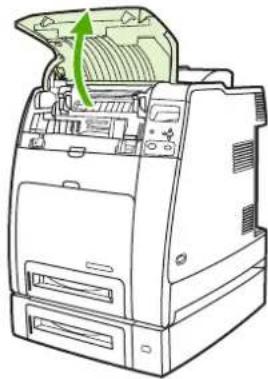
natural_image
Line drawing of a printer with a green arrow indicating the paper's edge, showing internal components and casing (no text or symbols)
CAUTION The fuser might be hot.
- Pull down the front cover and transfer unit.

natural_image
Technical line drawing of an open industrial machine with internal components (no text or symbols)
CAUTION Do not place any item on the transfer unit while it is open. If the transfer unit is punctured, print quality problems could result.
- Remove the used print cartridge from the printer.

natural_image
Diagram of a printer internal structure showing internal components and green directional arrows indicating motion (no text or symbols)- Remove the new print cartridge from the bag. Place the used print cartridge in the bag for recycling.

natural_image
3D diagram of a mechanical component with a green arrow indicating direction (no text or symbols)- Align the print cartridge with the tracks inside the printer and insert the cartridge until it is completely seated.
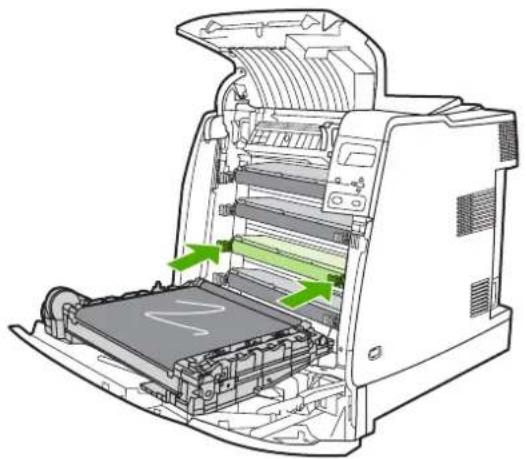
natural_image
Diagram of a printer internal structure showing internal components and green arrows indicating motion or flow (no text or symbols present)
NOTE The print cartridge tape seal is removed automatically when the print cartridge is installed in the printer.
NOTE If a cartridge is in the wrong slot, the control panel will display the message INCORRECT [COLOR] CARTRIDGE.
- Close the front cover and then close the top cover. After a short while, the control panel should display Ready.
- Installation is complete. Place the used print cartridge in the box in which the new cartridge arrived. See the enclosed recycling guide for recycling instructions.
- If you are using a non-HP print cartridge, check the control panel for further instructions.
For additional help, go to http://www.hp.com/support/clj4700.
Replacing supplies
When you use genuine HP supplies, the printer automatically notifies you when supplies are nearly depleted. The notification to order supplies allows ample time to order new supplies before they need to be replaced.
Locating supplies
Supplies are identified by their labeling and their blue plastic handles.
The following figure illustrates the location of each supply item.

text_image
Diagram of a printer internal structure with numbered parts labeled 1, 2, and 3Figure 7-1 Supply item locations
| 1 Fuser | |
| 2 Print cartridges | |
| 3 Transfer unit |
Supply replacement guidelines
To facilitate the replacement of supplies, keep the following guidelines in mind when setting up the printer.
- Allow sufficient space above and in the front of the printer for removing supplies.
• The printer should be located on a flat, sturdy surface.
For instructions on installing supplies, see the installation guides provided with each supply item or see more information at http://www.hp.com/support/clj4700. When you connect, select Solve a Problem.

CAUTION Hewlett-Packard recommends the use of genuine HP products in this printer. Use of non-HP products may cause problems requiring service that is not covered by the Hewlett-Packard extended warranty or service agreements.
Making room around the printer for replacing supplies
The following illustration shows the clearance necessary in front of, above, and to the side of the printer for replacing supplies.
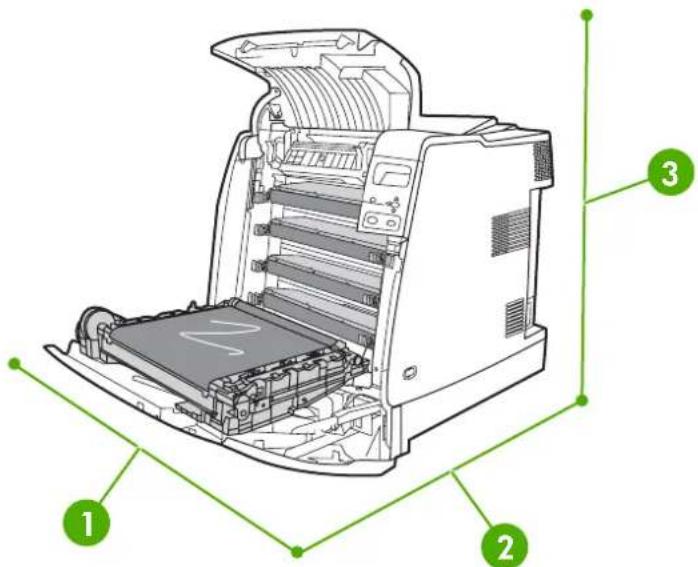
text_image
Diagram of an HP scanner with labeled parts, showing internal components and green annotations for labeling.Figure 7-2 Supplies replacement clearance diagram
1 530 mm (20.9 inches)
2 1294 mm (50 inches)
3 804 mm (31.7 inches)
Approximate replacement intervals for supplies
The following table lists the estimated replacement intervals for supplies and the control panel messages that prompt when to replace each item. Usage conditions and print patterns can cause results to vary.
| Item | Printer message | Page count | Approximate time period ^2 |
| Black cartridges REPLACE BLACK CARTRIDGE | 11,000 pages ^1 | 3 months | |
| Color cartridges REPLACECARTRIDGE | 10,000 pages ^1 | 2.7 months | |
| Image transfer kit | REPLACE TRANSFER KIT | 120,000 pages | 40 months |
| Image fuser kit REPLACE FUSER KIT 150,000 pages | ^3 | 50 months | |
1 Approximate average A4-/letter-size page count based on 5% coverage of individual colors.
2 Approximate life is based on 3,000 pages per month.
3 Approximate life is estimated at 150,000 pages when printing in 4-page intermittent mode.
You can use the embedded Web server to order supplies. For more information, see Using the embedded Web server.
Replacing the stapler cartridge
The stapler cartridge contains 5,000 staples. Replace the entire cartridge when it is empty.
Replace the stapler cartridge if the printer control panel display prompts you with a STAPLER LOW ON STAPLES message (at this point, the stapler cartridge has 20 to 50 staples left) or a REPLACE
STAPLER CARTRIDGE message. If the stapler runs out of staples and the stapler/stacker is configured to CONTINUE, jobs continue to print to the stapler/stacker, but they are not stapled. If the stapler/stacker is configured to stop, printing stops until a new stapler cartridge is loaded.

NOTE HP recommends that you replace the stapler cartridge as soon as the REPLACE STAPLER CARTRIDGE message is displayed. Although some usable staples remain in the cartridge, they could fall into the stapler mechanism and cause product failure.
Loading a new stapler cartridge
- On the left side of the stapler/stacker, open the stapler cartridge cover by gently pulling it.

natural_image
Line drawing of a multi-tiered printer with a green circular arrow indicating rotation (no text or symbols)
NOTE For information on ordering a new stapler cartridge (part number C8091A), see Supplies and accessories.
- Grasp the stapler cartridge handle and pull up gently.

natural_image
Technical line drawing of a mechanical device with internal components and a magnified inset showing a green circular detail (no text or symbols)- Twist the stapler cartridge gently in a counter-clockwise direction and pull it out.

natural_image
Technical line drawing of a mechanical device with an inset showing a component detail (no text or symbols present)- Insert the new stapler cartridge and push it down until it snaps into place.

natural_image
Technical line drawing of a mechanical device with an inset close-up showing internal components (no text or symbols)
NOTE To obtain a new stapler cartridge, order part number C8091A.
- Close the stapler cartridge door.
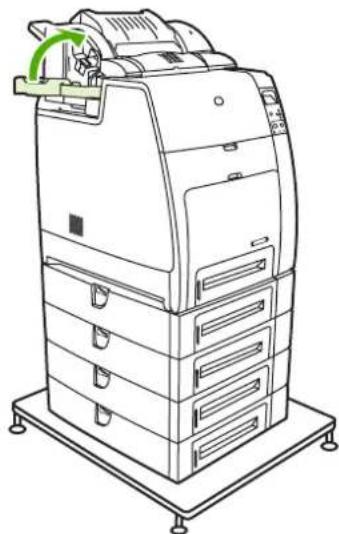
natural_image
Line drawing of a printer with a green circular arrow indicating rotation (no text or symbols)Using the cleaning page
During printing, toner and dust particles can accumulate inside the printer. Over time, this buildup can cause print quality problems, such as toner specks or smearing. This printer has a cleaning mode that can correct and prevent these problems.

text_image
AaBbCc AaBbCc AaBbCc AaBbCc AaBbCc
text_image
AaBbCc AaBbCc AaBbCc AaBbCc AaBbCcCleaning the HP Color LaserJet 4700 and HP Color LaserJet 4700n printers at the control panel
- Press Menu to enter the MENUS.
- Press ▼ to highlight CONFIGURE DEVICE.
- Press √ to select CONFIGURE DEVICE.
- Press ▼ to highlight PRINT QUALITY.
- Press √ to select PRINT QUALITY.
- Press ▼ to highlight CREATE CLEANING PAGE.
- Press √ to select CREATE CLEANING PAGE.

NOTE The printer prints a cleaning page with a pattern. The PROCESS CLEANING PAGE option is not available for these printers until the cleaning page has been created.
- Press Menu to enter the MENUS.
- Press ▼ to highlight CONFIGURE DEVICE.
- Press √ to select CONFIGURE DEVICE.
- Press ▼ to highlight PRINT QUALITY.
-
Press √ to select PRINT QUALITY.
-
Press ▼ to highlight PROCESS CLEANING PAGE.
- Press √ to select PROCESS CLEANING PAGE.
Cleaning the HP Color LaserJet 4700dn, HP Color LaserJet 4700dtn, and HP Color LaserJet 4700ph+ printers at the control panel
- Press Menu to enter the MENUS.
- Press ▼ to highlight CONFIGURE DEVICE.
- Press √ to select CONFIGURE DEVICE.
- Press ▼ to highlight PRINT QUALITY.
- Press √ to select PRINT QUALITY.
- Press ▼ to highlight PROCESS CLEANING PAGE.
- Press √ to select PROCESS CLEANING PAGE.
A page with a pattern prints.
Setting auto cleaning
The AUTO CLEANING menu option allows you to turn auto cleaning on or off. When auto cleaning is turned on, the printer prints a cleaning page when the page count reaches the value set in the cleaning interval. If auto cleaning is set to Off, the cleaning interval is not shown. The default value for auto cleaning is Off.
- Press Menu to enter the MENUS.
- Press ▼ to highlight CONFIGURE DEVICE.
- Press √ to select CONFIGURE DEVICE.
- Press ▼ to highlight PRINT QUALITY.
- Press √ to select PRINT QUALITY.
- Press ▼ to highlight AUTO CLEANING.
- Press √ to select AUTO CLEANING.
- Press ▼ to highlight the desired value.
- Press √ to select the desired value.
Setting the cleaning interval
The CLEANING INTERVAL menu option allows you to set the interval at which the auto cleaning is due for the printer. The cleaning interval can be set anywhere from 1,000 to 20,000 pages.
- Press Menu to enter the MENUS.
- Press ▼ to highlight CONFIGURE DEVICE.
- Press √ to select CONFIGURE DEVICE.
-
Press ▼ to highlight PRINT QUALITY.
-
Press √ to select PRINT QUALITY.
- Press ▼ to highlight CLEANING INTERVAL.
- Press √ to select CLEANING INTERVAL.
- Press ▼ to highlight the desired value.
- Press √ to select the desired value.
Configuring alerts
You can use HP Web Jetadmin or the printer's embedded Web server to configure the system to alert you of problems with the printer. The alerts take the form of e-mail messages to the e-mail account or accounts that you specify.
You can configure the following:
• The printer(s) you want to monitor
- What alerts are to be received (for example, alerts for paper jams, paper out, supplies status, and cover open)
• The e-mail account to which the alerts should be forwarded
| Software Information location | |
| HP Web Jetadmin | See HP Web Jetadmin for general information about HP Web Jetadmin.See the HP Web Jetadmin Help system for details on alerts and how to set them up. |
| Embedded Web server | See Using the embedded Web server for general information about the embedded Web server.See the embedded Web server Help system for details on alerts and how to set them up. |
8 Problem solving
This chapter describes what to do if problems arise with your printer. The following topics are covered:
• Basic troubleshooting checklist
• Factors affecting printer performance
• Troubleshooting information pages
• Control panel message types
• Control panel messages
Paper jams
• Common causes of paper jams
- Clearing jams
• Media-handling problems
• Printer response problems
• Printer control panel problems
- Incorrect printer output
• Software application problems
• Troubleshooting common Macintosh problems
• Color printing problems
• Print quality troubleshooting
Basic troubleshooting checklist
If you are experiencing problems with the printer, this checklist can help identify the cause of the problem.
• Is the printer connected to power?
• Is the printer in the Ready state?
• Are all necessary cables connected?
• Are any messages displayed on the control panel?
• Was a genuine HP supply installed?
• Were recently replaced print cartridges installed correctly?
• Is the on/off switch in the on position?
• Were recently installed supplies (image fuser kit, image transfer kit) installed correctly?
If you cannot find solutions to printer problems in this guide, see http://www.hp.com/supplies/clj4700.
For additional information on installation and setup of the printer, see the getting started guide for this printer.
Factors affecting printer performance
Several factors affect the time it takes to print a job. Among these is maximum printer speed, measured in pages per minute (ppm). Other factors that affect printing speed include the use of special media (such as transparencies, glossy media, heavy media, and custom-size media), printer processing time, and download time.
The time required to download a print job from the computer and to process the job depends on the following variables:
• The complexity and size of graphics
The printer's I/O configuration (network versus parallel)
• The speed of the computer you are using
• The amount of printer memory installed
• The network operating system and configuration (if applicable)
• Printer personality (PCL or PostScript 3 emulation)

NOTE Adding additional printer memory might resolve memory problems, improve how the printer handles complex graphics, and improve download times, but it will not increase maximum printer speed (ppm rating).
Troubleshooting information pages
From the printer control panel, you can print pages that can help diagnose printer problems. The procedures for printing the following information pages are described here:
- Configuration page

NOTE It is recommended that you print a configuration page before beginning any printer diagnostics.
• Paper path test page
- Registration page
Event log
Configuration page
Use the configuration page to view or restore current printer settings, to help troubleshoot printer problems, or to verify installation of optional accessories, such as DIMMs, paper handling accessories, trays, and printer languages.
- Press Menu to enter the MENUS.
- Press ▼ to highlight INFORMATION.
- Press √ to select INFORMATION.
- Press ▼ to highlight PRINT CONFIGURATION.
- Press √ to select PRINT CONFIGURATION.
The message Printing... CONFIGURATION appears on the display until the printer finishes printing the configuration page. The printer returns to the Ready state after printing.

NOTE If the printer is configured with an HP Jetdirect print server, duplexer, or stapler/stacker, an additional configuration page will print that provides information about those devices.
Paper path test page
The paper path test page is useful for testing the paper handling features of the printer. You can define the paper path you want to test by selecting the source, destination, and other options available on the printer.
- Press Menu to enter the MENUS.
- Press ▼ to highlight DIAGNOSTICS.
- Press √ to select DIAGNOSTICS.
- Press ▼ to highlight PAPER PATH TEST.
- Press √ to select PAPER PATH TEST.
The message Performing... PAPER PATH TEST appears on the display until the printer finishes the paper path test. The printer returns to the Ready state after printing the paper path test page.
Registration page
The registration page prints a horizontal arrow and a vertical arrow that shows how far from center an image can be printed on the page. You can set registration values for a tray so that an image on the back and front of a page is centered. Setting the registration also allows edge-to-edge printing to be set to within approximately 2 mm (0.08 inch) of all edges of the paper. Image placement varies slightly for each tray. Perform the registration procedure for each tray.
- Press Menu to enter the MENUS.
- Press ▼ to highlight CONFIGURE DEVICE.
- Press √ to select CONFIGURE DEVICE.
- Press ▼ to highlight PRINT QUALITY.
- Press √ to select PRINT QUALITY.
- Press ▼ to highlight SET REGISTRATION.
- Press √ to select SET REGISTRATION.

NOTE You can select a tray by specifying a SOURCE. The default SOURCE is Tray 2. To set the registration for Tray 2, go to step 12. Otherwise, proceed to the next step.
- Press ▼ to highlight SOURCE.
- Press √ to select SOURCE.
- Press ▼ or ▲ to highlight a tray.
- Press √ to select the tray.
After selecting the tray, the printer control panel returns to the SET REGISTRATION menu.
-
Press ▼ to highlight PRINT TEST PAGE.
-
Press √ to select PRINT TEST PAGE.
-
Follow the instructions on the printed page.
The message Printing... REGISTRATION PAGE appears on the display until the printer finishes printing the registration page. The printer returns to the Ready state after printing the registration page.
Event log
The event log lists the printer events, including printer jams, service errors, and other printer conditions.
- Press Menu to enter the MENUS.
- Press ▼ to highlight DIAGNOSTICS.
- Press √ to select DIAGNOSTICS.
- Press ▼ to highlight PRINT EVENT LOG.
- Press √ to select PRINT EVENT LOG.
The message Printing... EVENT LOG appears on the display until the printer finishes printing the event log. The printer returns to the Ready state after printing the event log.
Control panel message types
Control panel messages are divided into three types, depending on their severity.
- Status messages
- Warning messages
Error messages
Within the error message category, some messages are ranked as Critical error messages. This section explains the differences between the control panel message types.
Status messages
Status messages reflect the current state of the printer. They inform you of normal printer operation and require no interaction to clear them. They change as the state of the printer changes. Whenever the printer is ready, not busy, and has no pending warning messages, the status message Ready is displayed if the printer is online.
Warning messages
Warning messages inform you of data and print errors. These messages typically alternate with the Ready or Status messages and remain displayed until the √ button is pressed. If CLEARABLE WARNINGS is set to JOB in the printer's configuration menu, these messages are cleared by the next print job.
Error messages
Error messages communicate that some action must be performed, such as adding paper or clearing a paper jam.
Some error messages are auto-continuable; if AUTO CONTINUE=ON the printer will continue normal operation after displaying an auto-continuable error message for 10 seconds.

NOTE Any button pressed during the 10-second display of an auto-continuable error message will override the auto-continue feature and the function of the button pressed will take precedence. For example, pressing the Menu button will display the main menu.
Critical error messages
Critical error messages inform you of a device failure. Some of these messages can be cleared by turning the printer off and then on. These messages are not affected by the AUTO CONTINUE setting. If a critical error persists, service is required.
The following table lists and describes control panel messages, in alphabetical order.
Control panel messages
Message listing
Control panel message Description Recommended action
| 10.90.XY REPLACECOLOR CARTRIDGEalternates withFor help press ? | A color cartridge is out of toner and needs to be replaced. | Replace the color cartridge. |
| 10.92.YY CARTRIDGESNOT ENGAGED | The print cartridge is not seated properly in the printer. | Remove and reinstall the print cartridge. |
| 10.XX.YY SUPPLYMEMORY ERRORalternates withFor help press ?The supplies gauge will display the consumption levels of print cartridges. | The printer cannot read or write to at least one print cartridge memory tag or at least one memory tag is missing.The following control panel messages correspond to the color of the print cartridge:10.00.00 = black print cartridge10.00.01 = cyan print cartridge10.00.02 = magenta print cartridge10.00.03 = yellow print cartridge | 1. Turn the printer off then on.2. Press ? for more information.3. If the error persists, contact HP Support at http://www.hp.com/support/cij4700. |
| 11.X INTERNAL CLOCK ERRORTo continue press √ | This message is displayed when there is a problem with the real-time clock on the formatter board.XX=01 Dead clock batteryXX=02 Dead real-time clock | Press √to continue. If this error occurs, the printer will continue to track the time and date using the processor clock until the printer is turned off. Unless the error is corrected, you will be prompted to reset the date and time whenever the printer is turned off then on. |
| 13.XX.YY EXTERNAL OUTPUTDEVICE PAPER JAM | There is a jam in the stapler/stacker. 1. | Press ? for detailed information about clearing the jam.2. Press ▲ and ▼ to step through the instructions.3. For more information about clearing jams, see Jams in the stapler/stacker.4. If the message persists after clearing all pages, contact HP Support at http://www.hp.com/support/clj4700. |
| 13.XX.YY JAM IN DUPLEX PATHFor help press ? | There is a jam in the duplex path. 1. | Press ? for detailed information about clearing the jam.2. Press ▲ and ▼ to step through the instructions. |
| Control panel message Description Recommended action | ||
| 3. for more information, see Clearing jams.4. If the message persists after clearing all pages, contact HP Support at http://www.hp.com/support/clj4700. | ||
| 13.XX.YY JAM IN OUTPUT DEVICE alternates with For help press ? | Paper is jammed in an external paper handling device. The amber light on the stacker/stapler is blinking. | Check the duplexer or the stapler/stacker for jammed paper. For more information, see Jams in the stapler/stacker.1. Press ? for detailed information about clearing the jam.2. Press ▲ and ▼ to step through the instructions.3. If the message persists after clearing all pages, contact HP Support at http://www.hp.com/support/clj4700. |
| 13.XX.YY JAM IN PAPER PATH For help press ? | There is a jam in the paper path. 1. | Press ? for detailed information about clearing the jam.2. Press ▲ and ▼ to step through the instructions.3. for more information, see Clearing jams.4. If the message persists after clearing all pages, contact HP Support at http://www.hp.com/support/clj4700. |
| 13.XX.YY JAM IN STAPLER For help press ? | A staple is jammed in the stapler. Check the stapler/stacker for jammed staples. | 1. Press ? for detailed information about clearing the jam.2. Press ▲ and ▼ to step through the instructions.3. For more information on clearing jams, see Jams in the stapler/stacker.4. If the message persists after clearing all pages, contact HP Support at http://www.hp.com/support/clj4700. |
| 13.XX.YY JAM IN TRAY 1 Clear jam then press √ | Paper is jammed in Tray 1. 1. | Press ? for detailed information about clearing the jam.2. Press ▼ to see step by step information.3. for more information, see Clearing jams.4. If the message persists after clearing all pages, contact HP Support at http://www.hp.com/support/clj4700. |
| 13.XX.YY JAM IN TRAY X For help press ? | A page is jammed in Tray 2 or in one or more of the optional trays. | 1. Press ? for detailed information about clearing the jam.2. Press ▲ and ▼ to step through the instructions. |
| 13.XX.YY JAM IN TOPCOVER OR DUPLEX AREAFor help press ? | There is a jam in the top cover area. 1. | Press ? for detailed information about clearing the jam.2. Press ▲ and ▼ to step through the instructions.3. for more information, see Clearing jams.4. If the message persists after clearing all pages, contact HP Support at http://www.hp.com/support/clj4700. |
| 13.XX.YY JAM INSIDEDUPLEXERFor help press ? | Paper is jammed in the duplexer. Check the device for jammed paper. | 1. Press ? for detailed information about clearing the jam.2. Press ▲ and ▼ to step through the instructions.3. for more information, see Clearing jams.4. If the message persists after clearing all pages, contact HP Support at http://www.hp.com/support/clj4700. |
| 13.XX.YY MULTIPLEJAMS IN DUPLEX PATHFor help press ? | There are multiple jams in the duplex path. This includes the top cover area. | 1. Press ? for detailed information about clearing the jam.2. Press ▲ and ▼ to step through the instructions.3. for more information, see Clearing jams.4. If the message persists after clearing all pages, contact HP Support at http://www.hp.com/support/clj4700. |
| 13.XX.YY MULTIPLEJAMS IN PAPER PATHFor help press ? | There are multiple jams in the paper path. This includes the top cover area. | 1. Press ? for detailed information about clearing the jam.2. Press ▲ and ▼ to step through the instructions.3. for more information, see Clearing jams.4. If the message persists after clearing all pages, contact HP Support at http://www.hp.com/support/clj4700. |
| 20 INSUFFICIENT MEMORYFor help press ?alternates with20 INSUFFICIENT MEMORYTo continue press √ | The printer has received more data from the computer than fits in available memory. | 1. Press to continue printing.[IMAGE]NOTE A loss of data will occur.2. Reduce the complexity of the print job to avoid this error in the future.3. Adding memory to the printer may allow printing of more complex pages. |
| 22 EIO X | The EIO card in card slot X has overflowed its I/O buffer during a busy state. | 1. Press to continue printing. |
| BUFFER OVERFLOW | [w6c2] NOTE A loss of data will occur. | |
| To continue press ✓ | 2. If the message persists, contact HP Support at http://www.hp.com/support/clj4700. | |
| 22 EMBEDDED I/O | The embedded JetDirect print server has overflowed. | Press to continue. When this error occurs, data might be lost. If necessary, resend the job to the printer. |
| BUFFER OVERFLOW | ||
| alternates with | ||
| To continue press ✓ | ||
| 22 PARALLEL I/O | The parallel buffer has overflowed during a busy state. | 1. Press to resume printing. |
| BUFFER OVERFLOW | [yDDD] NOTE A loss of data will occur. | |
| For help press ? | ||
| alternates with | 2. If the message persists, disconnect the parallel cable at both ends and reconnect. | |
| 22 PARALLEL I/O | ||
| BUFFER OVERFLOW | 3. If the message still persists, contact HP Support at http://www.hp.com/support/clj4700. | |
| To continue press ✓ | ||
| 22 USB I/O | The USB buffer has overflowed during a busy state. | 1. Press to continue printing. |
| BUFFER OVERFLOW | [WKZH] NOTE A loss of data will occur. | |
| To continue press ✓ | 2. If the message persists, contact HP Support at http://www.hp.com/support/clj4700. | |
| 40 EIO X BAD | A connection with the card in EIO slot X has been broken. | 1. Press to continue printing. |
| TRANSMISSION | [w6wt] NOTE A loss of data will occur. | |
| To continue press ✓ | 2. If the message persists, contact HP Support at http://www.hp.com/support/clj4700. | |
| 40 EMBEDDED I/O BAD | A connection with the embedded JetDirect print server has been broken. | Turn the printer off then on. Press ? for more information. |
| TRANSMISSION | ||
| alternates with | If the message persists, contact HP Support at http://www.hp.com/support/clj4700. | |
| To continue press ✓ | ||
| 41.3 UNEXPECTED SIZE IN TRAY X For help press ? alternates with LOAD TRAY XX [TYPE] [SIZE] To use another tray press √ | Media is loaded that is longer or shorter in the feed direction than the size configured for the tray. | 1. If the incorrect size was selected, cancel the job or press ? to access help.OR2. Press √ to select another tray.3. Press ▲ and ▼ to step through the instructions. |
| 41.5 UNEXPECTED TYPE IN TRAY X For help press ? alternates with LOAD TRAY XX [TYPE] [SIZE] To use another tray press √ | The printer senses a different media type in the media path than configured in the tray. | 1. If the incorrect type was selected, cancel the job or press ? to access help.OR2. Press √ to select another tray.3. Press ▲ and ▼ to step through the instructions. |
| 44.1 USB ACCESSORY ERROR For help press ? | This message appears when a connected USB accessory draws too much power.When this happens, the ACC port is disabled and printing stops. | Press ▼ to see step by step information. |
| 49.XXXX PRINTER ERROR To continue turn off then on | A critical firmware error has occurred. | 1. Turn the printer off then on.2. If the message persists, contact HP Support at http://www.hp.com/support/clj4700. |
| 50.X FUSER ERROR For help press ? | A fuser error has occurred.The following are specific fuser errors:50.1: A low fuser temperature error has occurred in the main thermistor.50.2: A fuser warm-up service error has occurred.50.3: A high fuser temperature error has occurred in the main thermistor.50.6: An open fuser error has occurred.50.7: A fuser pressure release mechanism failure has occurred.The error might be due to an inadequate power supply, inadequate line voltage, or a problem with the fuser. | 1. Turn the printer off then on.2. Press ▲ and ▼ to step through the instructions.3. If the message persists, contact HP Support at http://www.hp.com/support/clj4700. |
| 50.X FUSER ERROR | A fuser error has occurred. Turn the printer off then on. | |
| To continue | ||
| turn off then on | ||
| 51.2Y | Either a laser beam detects an error, or a laser error has occurred. | 1. Turn the printer off then on. |
| PRINTER ERROR | The values of Y are: | 2. If the problem persists, contact HP Support at http://www.hp.com/support/clj4700. |
| For help press ? | Y Description | |
| alternates with | 0 - Black | |
| 51.2Y | 1 - Cyan | |
| PRINTER ERROR | 2 - Magenta | |
| To continue | 3 - Yellow | |
| turn off then on | ||
| 52.XY PRINTER ERROR | A printer error has occurred. | Turn the printer off then on. Press for more information. |
| alternates with | ||
| To continue | If the message persists, contact HP Support at http://www.hp.com/support/clj4700. | |
| turn off then on | ||
| 53.XY.ZZ CHECK RAM | A memory error has occurred. | If prompted to do so, press to continue. The printer should come to the Ready state, but will not make full use of all memory installed. |
| DIMM SLOT X | Otherwise: | |
| 1. Turn the printer off. | ||
| 2. Verify that all DDR SDRAM meets specifications and is correctly seated. | ||
| 3. Turn the printer on. | ||
| 4. If the problem persists, contact HP Support at http://www.hp.com/support/clj4700. | ||
| 54.01 PRINTER | Printing cannot continue. The humidity environmental sensor is abnormal. | 1. Turn the printer off then on. |
| ERROR | 2. If the problem persists, contact HP Support at http://www.hp.com/support/clj4700. | |
| To continue | ||
| turn off then on | ||
| 54.X PRINTER | Printing cannot continue. There is a sensor malfunction. | 1. Turn the printer off then on. |
| ERROR | Values of X are: | 2. If the problem persists, contact HP Support at http://www.hp.com/support/clj4700. |
| To continue | 01 - Humidity sensor | |
| turn off then on | 15 - Yellow | |
| 16 - Magenta | ||
| 17 - Cyan | ||
| 18 - Black | ||
| 55.0X.YY DC | A printer command error has occurred. | 1. Turn the printer off then on. |
| CONTROLLER ERROR | 2. If the problem persists, contact HP Support at http://www.hp.com/support/clj4700. | |
| For help press ? | ||
| alternates with | ||
| 55.0X.YY | ||
| PRINTER ERROR | ||
| To continue | ||
| turn off then on | ||
| 56.XX | A printer error has occurred. | 1. Turn the printer off then on. |
| PRINTER ERROR | 2. If the problem persists, contact HP Support at http://www.hp.com/support/clj4700. | |
| To continue | ||
| turn off then on | ||
| 57.0X | A printer fan error has occurred. | 1. Turn the printer off then on. |
| PRINTER ERROR | 2. If the problem persists, contact HP Support at http://www.hp.com/support/clj4700. | |
| To continue | ||
| turn off then on | ||
| 58.0X | A memory tag error was detected. | 1. Turn the printer off then on. |
| PRINTER ERROR | 2. If the problem persists, contact HP Support at http://www.hp.com/support/clj4700. | |
| For help press ? | ||
| alternates with | ||
| 58.0X | ||
| PRINTER ERROR | ||
| To continue | ||
| turn off then on | ||
| 59.XY | A printer motor error has occurred. | 1. Turn the printer off then on. |
| PRINTER ERROR | 2. If the problem persists, contact HP Support at http://www.hp.com/support/clj4700. | |
| For help press ? | ||
| alternates with | Note: This message might also appear if the transfer unit is missing or incorrectly installed. Ensure that the transfer unit is correctly installed. | |
| 59.XY | ||
| PRINTER ERROR | ||
| To continue | ||
| turn off then on | ||
| 60.X | A tray lifting error has occurred, where XX is the number of the tray. | 1. Press to see step by step information. |
| PRINTER ERROR | 2. If the error reappears, turn the printer off then on. | |
| alternates with | 3. If the error does not clear, record the message and contact HP Support at http://www.hp.com/support/clj4700. | |
| To continue | ||
| turn off then on | ||
| 62 NO SYSTEM | No system was found. 1. Turn the printer off then on. | |
| To continue | 2. If the problem persists, contact HP Support at http://www.hp.com/support/clj4700. | |
| turn off then on | ||
| 65.X.X OUTPUT | An external output device has a condition that needs attention before printing can resume. The amber light on the stapler/stacker is blinking. | Remove any jammed paper and open and then close the top cover. If necessary, re-seat the output device. |
| DEVICE CONDITION | ||
| 65.X.X OUTPUT | Communication between the printer and the device has been broken. The device could be disconnected. | Turn the printer off. Replace the stapler/ stacker on the printer. Turn the printer on. |
| DEVICE DISCONNECTED | If the error does not clear, record the message and contact HP Support at http://www.hp.com/support/clj4700. | |
| 66.XX.X OUTPUT | The stapler/stacker has failed. The amber light on the stapler/stacker is solid. | 1. Turn the printer off. |
| DEVICE FAILURE | 2. Check the stapling bed for jammed paper or staples. Verify that the stapler cartridge is intact. | |
| 3. Check that nothing is obstructing the movement of the stapler/stacker. | ||
| 4. Check that the output tray is properly installed. | ||
| 5. Turn the printer on. | ||
| 68.X PERMANENT | A non-volatile storage device is full. Pressing the button should clear the message. | 1. Press to continue. |
| STORAGE FULL | Printing can continue, but there may be unexpected behavior. | 2. For 68.0 errors, turn the printer off then on. |
| For help press? | X Description | 3. If a 68.0 error persists, contact HP Support. |
| alternates with | 0 for onboard NVRAM | 4. For 68.1 errors, use the HP Web Jetadmin software to delete files from the disk drive. |
| 68.X PERMANENT | 1 for removable disk (flash or hard) | |
| STORAGE FULL | 5. For 68.1 errors that persist, contact HP Support. | |
| To continue press | ||
| 68.X PERMANENT | A non-volatile storage device is full. Pressing the √ button should clear the message. | 1. Press to continue. |
| STORAGE WRITE FAIL | Printing can continue, but there may be unexpected behavior. | 2. If the message persists, turn the printer off then on. |
| To continue press √ | X Description | 3. If the problem persists, contact HP Support at http://www.hp.com/support/clj4700. |
| 0 for onboard NVRAM | ||
| 1 for removable disk (flash or hard) | ||
| 68.X STORAGE ERROR | One or more printer settings saved in the non-volatile storage device is invalid and has been reset to its factory default. Pressing the √ button should clear the message. Printing can continue, but there may be unexpected behavior. | 1. Press to continue. |
| SETTINGS CHANGED | 2. If the message persists, turn the printer off then on. | |
| For help press ? | 3. If the problem persists, contact HP Support at http://www.hp.com/support/clj4700. | |
| alternates with | ||
| 68.X STORAGE ERROR | ||
| SETTINGS CHANGED | ||
| To continue press √ | ||
| 69.X PRINTER ERROR | A printer error has occurred. | Turn the printer off then on. Press for more information. |
| For help press ? | ||
| alternates with | ||
| 69.X PRINTER ERROR | ||
| To continue | ||
| turn off then on | ||
| 79.XXXX | A critical hardware error has occurred. | 1. Turn the printer off then on. |
| PRINTER ERROR | 2. If the problem persists, contact HP Support at http://www.hp.com/support/clj4700. | |
| To continue | ||
| turn off then on | ||
| 8X.YYYY | The I/O accessory card in slot X has encountered a critical error. | 1. Turn the printer off then on. |
| EIO X ERROR | X Description | 2. If the problem persists, contact HP Support at http://www.hp.com/support/clj4700. |
| 1: error in slot 1 | ||
| 2: error in slot 2 | ||
| 8X.YYYY EMBEDDED | This message is generated by a failure of the embedded JetDirect print server. | Turn the printer off then on. Press for more information. |
| JETDIRECT ERROR | If the message persists, contact HP Support at http://www.hp.com/support/clj4700. | |
| [FS] DEVICE | A device failure has occurred on the specified drive. Printing can continue for jobs that do not require the Flash DIMM. | 1. To clear the message, press the key. |
| FAILURE | 2. If the message persists, remove and re-install the EIO disk drive. | |
| To clear press √ | ||
| alternates with | 3. Turn the printer back on. | |
| Ready | 4. If the message still persists, replace the Flash DIMM. | |
| [FS] DEVICE | The file system device is protected and no new files can be written to it. | 1. To enable writing to the Flash Memory, turn off write protection, using HP Web Jetadmin. |
| WRITE PROTECTED | ||
| To clear press √ | 2. To clear the message, press the √ key. | |
| alternates with | 3. If the message persists, turn the printer off then on. | |
| Ready | ||
| [FS] FILE | The printer received a PJL file system command that attempted to perform an illogical operation (for example, to download a file to a non-existent directory). | 1. To clear the message, press the key. |
| OPERATION FAILED | 2. If the message persists, turn the printer off then on. | |
| To clear press √ | 3. If the message reappears, there may be a problem with the software application. | |
| alternates with | ||
| Ready | ||
| [FS] FILE | The printer received a PJL file system command that attempted to store something on the file system but was unsuccessful because the file system is full. | 1. Use HP Web Jetadmin software to delete files from the Flash Memory and try again. |
| SYSTEM IS FULL | ||
| To clear press √ | 2. To clear the message, press the √ key. | |
| alternates with | 3. If the message persists, turn the printer off then on. | |
| Ready | ||
| [FS] NOT | The device has not been initialized. You can use Web JetAdmin to initialize the device. | |
| INITIALIZED | ||
| ABCDEFGHIJ | This message is displayed when a paper path sensor test or a paper path test is run. The alphabetical value indicates which sensor is being checked. | No action necessary. |
| 0110000000 | ||
| alternates with | ||
| To exit press Stop | ||
| Access Denied | An attempt has been made to modify a menu item while the control panel security mechanism is enabled by the printer administrator. The message will disappear shortly, and the printer will return to Ready state. | Contact the printer administrator to change settings. |
| MENUS LOCKED | ||
| BAD DUPLEXER | The duplexer is not connected properly and must be reinserted before printing can continue. | Turn the printer off. |
| CONNECTION | Press √ to see step by step information. | |
| alternates with | ||
| For help press ? | ||
| BAD OPTIONAL TRAY | The 500-sheet input tray is not making proper connection with the printer. | 1. Verify that the printer is on a level surface. |
| CONNECTION | 2. Turn the printer off. | |
Control panel message Description Recommended action
| 3. Reseat the printer on the 500-sheet input tray.4. Turn the printer on after reseating the 500-sheet input tray. | ||
| Calibrating... | The printer is calibrating. | No action necessary. |
| Canceling... The printer is in the process of canceling a job. The message will continue to be displayed while the job is stopped, the paper path flushed, and any remaining incoming data on the active data channel is received and discarded. | No action necessary. | |
| CARD SLOT X NOT FUNCTIONAL | The flash card in slot X is not working correctly. | 1. Turn the printer off.2. Remove the card from the slot indicated and replace with a new card. |
| Checking paper path The engine is turning its rollers to check for possible paper jams. | No action necessary. | |
| Checking printer | The engine is doing an internal test. | No action necessary. |
| CHOSEN PERSONALITY NOT AVAILABLE To continue press▼ alternates with CHOSEN PERSONALITY NOT AVAILABLE For help press? | PJL encountered a request for a personality that did not exist in the printer. The job is aborted and no pages will be printed. | 1. Press ? for detailed information.2. Press ▲ and ▼ to step through the instructions.3. Reprint using the correct driver for the device. |
| CLEANING DISK X% COMPLETE A storage device is being cleaned. Do not turn the printer off. When the process is complete, the printer will automatically restart. | No action necessary. | |
| Cleaning... | A cleaning page is being processed. | No action necessary. |
| Clearing event log This message is displayed while the event log is cleared. The printer will exit the MENUS once the event log has been cleared. | No action necessary. | |
| Clearing paper path The printer jammed or detected misplaced paper when turned on. The printer is attempting to eject jammed pages automatically. | No action necessary. | |
| CLOSE FRONT COVERS For help press? | The top cover needs to be closed. | Close front covers. |
| NOTE This message might also appear if the fuser is missing or incorrectly installed. Ensure that the fuser is correctly installed. | ||
| Close top cover. | The top cover of the printer is open. | Close the top cover. |
| Control panel message Description Recommended action | ||
| Creating... CLEANING PAGE This message is displayed while a cleaning page is being generated. When the page is complete, the control panel display backs up one screen to the PRINT QUALITY menu. | No action necessary.When the page is printed, follow the instructions printed on the cleaning page to process the page. | |
| DATA RECEIVEDTo print last page press▼alternates withReadyTo print last page press√ | The printer received data and is waiting for a form feed. When the printer receives another file, the message should disappear. | Press √to continue printing. |
| DATE/TIME Prompt for setting the printer date and time.Default format is [YYYY]/[MMM]/[DD] [HH]-[MM]. | To change, press √and follow the time and date prompts. | |
| DELETING PRIVATE JOBS The printer is deleting a private stored job. APIN is required to delete a private job. | No action necessary. | |
| Deleting... | The printer is currently deleting the stored job. | No action necessary. |
| DISK DEVICEFAILURETo clear press▼alternates withReady | A device failure has occurred on the specified drive. Printing may continue for jobs that do not require access to the disk drive. | 1. To clear the message, press the key.2. If the message persists, remove and re-install the EIO disk drive.3. Turn the printer back on.4. If the message still persists, replace the EIO disk drive. |
| DISK FILEOPERATION FAILEDTo clear press▼alternates withReady | The printer received a PJL file system command that attempted to perform an illogical operation (for example, to download a file to a non-existent directory). Printing may continue. | 1. To clear the message, press the key.2. If the message persists, turn the printer off then on.3. If the message reappears, there may be a problem with the software application. |
| DISK FILESYSTEM IS FULLTo clear press▼alternates withReady | The printer received a PJL file system command that attempted to store something on the file system but was unsuccessful because the file system is full. | 1. Use the HP Web Jetadmin software to delete files from the EIO disk drive, or delete the stored job from the printer control panel.2. To clear the message, press the √key.3. If the message persists, turn the printer off then on. |
| DISK ISWRITE PROTECTEDTo clear press▼alternates withReady | The file system device is protected and no new files can be written to it. | 1. To enable writing to the disk, turn off write protection, using HP Web Jetadmin.2. To clear the message, press the √key.3. If the message persists, turn the printer off and then on. |
| EIO DISK X | The EIO disk in slot X is not working correctly. | 1. Turn the printer off. |
| NOT FUNCTIONAL | 2. Remove the EIO disk from the slot indicated and replace with a new EIO disk drive. | |
| For help press ? | ||
| EIO X disk | The EIO disk device in slot X is initializing. No action necessary. | |
| initializing | ||
| EIO X disk | The EIO disk device in slot X is spinning up its platter. | No action necessary. |
| spinning up | ||
| Event Log Empty SHOW EVENT LOG was selected from the control panel, and the event log is empty. | No action necessary. | |
| Genuine HP supplies installed A new HP cartridge has been installed. The printer returns to the Ready state after approximately 10 seconds. | No action necessary. | |
| INCORRECT [COLOR] | A cartridge is installed in the wrong slot and the cover is closed. | 1. Open the top and front covers. |
| CARTRIDGE | CAUTION The image transfer unit can be easily damaged. | |
| alternates with | ||
| For help press ? | 2. Open the image transfer unit. | |
| The supplies gauge will display the consumption levels of print cartridges. | 3. Remove the incorrect print cartridge. | |
| 4. Install the correct print cartridge. | ||
| 5. Close image transfer unit and then close the top and front covers. | ||
| Incorrect PIN The wrong PIN was entered. After three incorrect PIN entries, the printer will return to Ready. | Re-enter PIN correctly. | |
| INCORRECT SUPPLIES | At least one supply item is incorrectly positioned in the printer and another supply item is missing, incorrectly placed, out, or low. | 1. Press to access the SUPPLIES STATUS menu. |
| For status press √ | 2. Press ▲ and ▼ to highlight the specific supply that has a problem. | |
| The supplies gauge will display the consumption levels of print cartridges. | 3. Press ? to view help for the supply. | |
| 4. Press ▲ and ▼ to step through the instructions. | ||
| Initializing | Displayed when the printer is turned on to show that permanent storage is being initialized. | No action necessary. |
| permanent storage | ||
| Initializing... This message is displayed when the printer is turned on, as soon as the individual tasks begin initialization. | No action necessary. | |
| INSERT OR CLOSE | Tray XX must be inserted or closed before the current job can be printed. | Close the tray indicated. |
| TRAY X | ||
| For help press ? | ||
| INSTALL FUSER The fuser is not installed or is not installed correctly. | Confirm that the fuser is installed in the printer and is fully seated.Press ▼ to see step by step information. | |
| INSTALL SUPPLIESFor status press √The supplies gauge will display the consumption levels of print cartridges. | At least one supply item is missing or is not correctly seated in the printer and another supply item is missing, incorrectly placed, out, or low. Insert the supply item or make sure the installed supply item is fully seated. | 1. Press to access the SUPPLIES STATUS menu.2. Press ▲ and ▼ to highlight the specific supply that has a problem.3. Press ? to view help for the supply.4. Press ▲ and ▼ to step through the instructions. |
| INSTALL TRANSFER UNIT The transfer unit is not installed or is not installed correctly. | 1. Press to access the SUPPLIES STATUS menu.2. Press ▼ to highlight the transfer unit.3. Press ? to view help.4. Press ▲ and ▼ to step through the instructions. | |
| INSUFFICIENT MEMORYTO LOAD FONTS/DATAFor help press ?alternates withDeviceTo continue press √ | The device does not have enough memory to load the data, such as fonts or macros from the location specified.Device can be one of the following:INTERNAL = ROM directly on the formatter boardCARD SLOT X = font card in slot XDIMMSEIO X DISK = removable hard disk installed in EIO slot X | 1. To use the device without the data, press √.2. To solve the problem, add more memory to the device. DDR SDRAM Memory: 128MB, (Q2630A) or 256MB (Q2631A). |
| Internal disk initializing | The internal disk device is initializing. | No action necessary. |
| INTERNAL DISK NOT FUNCTIONAL | The internal disk is not working correctly. | Turn the printer off then on. If the error persists, contact HP Support at http://www.hp.com/support/clj4700. |
| Internal disk spinning up The internal disk is spinning up. This message generally appears for approximately 15 seconds when the printer emerges from sleep mode. Jobs can still print, but jobs that require disk access, such as stored jobs, must wait until the disk is initialized. | No action necessary. | |
| LOAD TRAY 1: | This message appears when Tray 1 is selected but is not loaded, and no other paper trays are available for use. | Load the correct paper in Tray 1 and press √ to continue. |
| For help press ? | If prompted, confirm the size and type of paper loaded. | |
| LOAD TRAY 1:To continue press √alternates withLOAD TRAY 1:<SIZE>For help press ? | Tray 1 is loaded and configured for a type and size other than the one specified in the job. | 1. If the correct paper is loaded, press . √2. Otherwise, remove the incorrect paper and load Tray 1 with the specified paper.3. If prompted, confirm the size and type of paper loaded.4. Confirm that the media guides are in the correct position.5. To use another tray, remove paper from Tray 1 and then press √. |
| LOAD TRAY 1:<TYPE><SIZE>To use another tray press √Alternates withLOAD TRAY 1:<TYPE><SIZE>For help press ? | This message appears when Tray 1 is selected but is not loaded, and other paper trays are available for use. | 1. Load the correct paper in the tray.2. If prompted, confirm the size and type of paper loaded.3. Otherwise, select another tray. |
| LOAD TRAY XX[TYPE] [SIZE]For help press ? | This message appears when Tray XX is selected but is not loaded, and no other paper trays are available for use. | Load the correct paper in the tray and press √ to continue. |
| LOAD TRAY XX[TYPE] [SIZE]To use another tray press √alternates withLOAD TRAY XX[TYPE] [SIZE]For help press ? | Tray XX is either empty or configured for a type and size other than specified in the job, and another paper tray is available. | 1. Load the paper tray with the specified media.2. Confirm that the media guides are in the correct position.3. If prompted, confirm the size and type of paper loaded.4. To use another tray, press √. |
| Loadingprogram XDO NOT POWER OFF | Programs and fonts can be stored on the printer's file system and are loaded into RAM when the printer is turned on. The number XX specifies a sequence number indicating the current program being loaded. | No action necessary. Do not turn the printer off. |
| MANUALLY FEED<TYPE><SIZE>alternates withTo use another tray press √ | The job specifies manual feed, but Tray 1 is empty. Another tray is available. | Add paper to Tray 1 or press √ to select another tray. |
| MANUALLY FEED | A job was sent specifying MANUAL FEED and Tray 1 is empty. | 1. Load Tray 1 with the correct paper and press √ to continue. |
| [TYPE] [SIZE] | ||
| To continue press √ | No other tray is available. | 2. If prompted, confirm the size and type paper loaded. |
| MANUALLY FEED | The job specifies MANUAL FEED, but Tray 1 is already loaded and configured for a type or size other than that specified in the job. | 1. Load the correct paper in Tray 1. |
| [TYPE] [SIZE] | 2. If prompted, confirm the size and type of paper loaded. | |
| To continue press √ | 3. Otherwise, press √ to select another tray. | |
| alternates with | ||
| MANUALLY FEED | ||
| [TYPE] [SIZE] | ||
| For help press ? | ||
| MANUALLY FEED | A job was sent that specified MANUAL FEED and Tray 1 is empty. Another tray is available. | 1. Load Tray 1 with the correct paper. |
| [TYPE] [SIZE] | 2. If prompted, confirm the size and type of paper loaded. | |
| To use another tray press √ | 3. Otherwise, press √ to select another tray. | |
| alternates with | ||
| MANUALLY FEED | ||
| [TYPE] [SIZE] | ||
| For help press ? | ||
| MANUALLY FEED | The even-numbered pages of a manual two-sided document have been printed and the printer is waiting for the output stack to be inserted for the odd-numbered pages to be printed. | Follow the instructions on the Print on Both Sides instruction dialog box at the computer. OR Press ? for help at the printer. |
| OUTPUT STACK | ||
| alternates with | ||
| Then press √ to print second sides | ||
| MIXED PAPER SIZES IN | The job contains different paper sizes and cannot be stapled. The status light is solid green. | Use a uniform paper size when sending jobs to the stapler. |
| JOB TO STAPLE | ||
| Moving solenoid | The printer is executing a component test and the component selected is a solenoid. | No action necessary. |
| To exit press Stop | ||
| Moving solenoid and motor | The printer is executing a component test and the components selected are the solenoid and the motor. | No action necessary. |
| To exit press Stop | ||
| No job to cancel There are no stored jobs that can be cancelled. | No action necessary. | |
| NO STORED JOBS No jobs stored on the EIO disk. This message is displayed when the user enters the RETRIEVE JOB menu and there are no jobs to retrieve. | No action necessary. | |
Control panel message Description Recommended action
| NON HP SUPPLYIN USEalternates withReadyThe supplies gauge will display the consumption levels of print cartridges, but the level of any refilled cartridge will not be shown. | The printer has detected that a non-HP print cartridge is currently installed. | If you believe you purchased an HP cartridge, please call the HP fraud hotline (1–877–219–3183, toll-free in North America).[GGGB]CAUTIONAny printer repair required as a result of using non-HP cartridges is not covered under HP warranty. |
| ORDER [COLOR]CARTRIDGEThe supplies gauge will display the consumption levels of print cartridges.alternates withReadyThe supplies gauge will display the consumption levels of print cartridges. | The identified print cartridge is nearing the end of its useful life. The printer is ready and will continue for the estimated number of pages indicated. Estimated pages remaining is based upon the historical page coverage of this printer.Printing will continue until a supply needs to be replaced. | 1.Press?to view help for the message.2. Obtain the part number for the print cartridge indicated.3. Order a print cartridge NOTESupplies ordering information is also available from the embedded Web server. SeeUsingthe embedded Web serverfor more information. NOTESupplies ordering information is also available from the embedded Web server. SeeUsingthe embedded Web serverfor more information. |
| ORDER FUSER KITLESS THAN XXX PAGESFor help press?alternates withReady | The fuser is near the end of its life. The printer is ready and will continue for the estimated number of pages indicated.Printing will continue until a supply needs to be replaced. | 1.Press?to view help for the message.2. Obtain the part number for the fuser kit.3. Order the fuser kit. NOTESupplies ordering information is also available from the embedded Web server. SeeUsingthe embedded Web serverfor more information. NOTESupplies ordering information is also available from the embedded Web server. SeeUsingthe embedded Web serverfor more information. |
| ORDER SUPPLIESalternates withReadyFor help press?The supplies gauge will display the consumption levels of print cartridges. | More than one supply item is low.Printing will continue until a supply needs to be replaced. | 1.Press Menuto access the menus.2.Press▲or▼to highlight INFORMATION, and then press▼.3.Press▲or▼to highlight SUPPLIES STATUS, and then press▼.4.Press▲or▼to highlight a supply that needs to be ordered.5.Press?to access help for the supply.6. Obtain a part number from help.7. Order the supply.8.Repeat the previous steps as necessary for each supply that needs to be ordered.9. Supplies ordering information is also available from the embedded Web server. SeeUsingthe embedded Web serverfor more information. |
| Control panel message Description Recommended action | ||
| ORDER TRANSFER KIT | The transfer unit is near end of life. Printing can continue. | 1. Press ? to view help for the message. |
| LESS THAN XXX PAGES | 2. Obtain the transfer kit part number from help. | |
| For help press ? | 3. Order the transfer kit. | |
| alternates with | ||
| Ready |  NOTE Supplies ordering information is also available from the embedded Web server. SeeUsingthe embedded Web serverfor more information. NOTE Supplies ordering information is also available from the embedded Web server. SeeUsingthe embedded Web serverfor more information. | |
| Paused | The printer is paused, and there are no error messages pending at the display. The I/O continues receiving data until memory is full. | Press theStopkey. |
| To return to Ready | ||
| press RESUME key | ||
| Performing | The printer is performing a print/stop test. No action necessary. | |
| PRINT/STOP TEST | ||
| Performing upgrade | A firmware upgrade is in process. Do not turn the printer off until the printer returns toReady. | |
| Performing... | The printer is performing a paper path test. No action necessary. | |
| PAPER PATH TEST | ||
| Please wait | The printer is in the process of clearing data. | No action necessary. |
| PRINTING STOPPED | This message is displayed when a Print/Stop Test is run and time expires. | Press √to continue printing. |
| To continue press √ | ||
| Printing... | This message displays while the printer CMYK samples page is being generated. | No action necessary. |
| CMYK Samples | ||
| Printing... | The printer is generating the configuration page. The printer will return to the onlineReadystate when the page is completed. | No action necessary. |
| CONFIGURATION | ||
| Printing... | The printer is generating the demo page. The printer will return to the onlineReadystate when the page is completed. | No action necessary. |
| DEMO PAGE | ||
| Printing... | The printer is generating the diagnostics page. The printer will return to the onlineReadystate when the page is completed. | No action necessary. |
| DIAGNOSTICS PAGE | ||
| Printing... | The printer is generating the engine test page. The printer will return to the onlineReadystate when the page is completed. | No action necessary. |
| ENGINE TEST | ||
| Printing... | The printer is generating the event log page. The printer will return to the onlineReadystate when the page is completed. | No action necessary. |
| Event Log | ||
| Printing... | The printer is generating the mass storage directory page. The printer will return to theReadystate when the page is completed. | No action necessary. |
| FILE DIRECTORY | ||
| Printing... | The printer is generating either the PCL or PS personality typeface list. The printer will return to the Ready state when the page is completed. | No action necessary. |
| FONT LIST | ||
| Printing... | The printer is generating the printer menu map. The printer will return to the Ready state when the page is completed. | No action necessary. |
| MENU MAP | ||
| Printing... | The printer is generating the print quality troubleshooting pages. The printer will return to the Ready state when the pages are printed. | Follow the instructions on the printed pages. |
| PQ TROUBLESHOOTING | ||
| Printing... | The printer is generating the registration page. The printer will return to the SET REGISTRATION menu when the page is completed. | Follow the instructions on the printed pages. |
| REGISTRATION PAGE | ||
| Printing... | This message displays while the printer RGB samples page is being generated. | No action necessary. |
| RGB Samples | ||
| Printing... | The printer is generating the supplies status page. The printer will return to the online Ready state when the page is completed. | No action necessary. |
| SUPPLIES STATUS | ||
| Printing... | The printer is generating the usage page. The printer will return to the online Ready state when the page is completed. | No action necessary. |
| Usage Page | ||
| Processing duplex | Paper temporarily comes into the output bin while printing a duplex job. Do not attempt to remove the pages until the job is complete. | Do not grab paper as it temporarily comes into the output bin. The message will disappear when the job is finished. |
| job | ||
| Do not grab paperuntil job completes | ||
| Processing... The printer is currently processing a job but is not yet picking pages. When paper motion begins, this message will be replaced by a message that indicates which tray the job is being printed from. | No action necessary. | |
| Processing...copyof | The printer is currently processing or printing collated copies. The message indicates that copy X of Y total copies is currently being processed. | No action necessary. |
| Processing...from tray xx | The printer is actively processing a job from the designated tray. | No action necessary. |
| Processing...INTERMITTENT MODE | This message might be displayed during periods of heavy usage if the printer becomes overheated. If this occurs, the printer enters a mode in which it prints for one minute and pauses for one minute. This cycle continues until the operating temperature stabilizes. | Press ▼ to see step by step information. |
| For help press? | ||
| RAM DISK | The printer received a PJL file system command that attempted to store something on the file system but was unsuccessful because the file system is full. | To clear the message, press the √ key.If the message persists, turn the printer off then on. |
| SYSTEM IS FULL | ||
| To clear press✓alternates withReady | [7w35] | NOTE This will also delete any files saved in RAM. |
| RAM DISK DEVICEFAILURETo clear press✓alternates withReady | A device failure has occurred on the specified drive. | 1. To clear the message, press the key.2. If the message persists, turn the printer off then on.3. If the message still persists, contact HP Support at http://www.hp.com/support/clj4700. |
| RAM DISK FILEOPERATION FAILEDTo clear press✓alternates withReady | The printer received a PJL file system command that attempted to perform an illogical operation (for example, to download a file to a non-existent directory).Printing may continue. | 1. To clear the message, press the key.2. If the message persists, turn the printer off then on.3. If the message reappears, there may be a problem with the software application. |
| RAM DISK ISWRITE PROTECTEDTo clear press✓alternates withReady | The file system device is protected and no new files can be written to it. | 1. To enable writing to the RAM disk, turn off write protection, using HP Web Jetadmin software.2. To clear the message, press the key.3. If the message persists, turn the printer off then on. |
| ReadyThe supplies gauge will display the consumption levels of print cartridges. | The printer is online and ready for data. No status or device attendance messages are pending at the display. | No action necessary. |
| ReadyDiagnostics modeTo exit press Stop | The printer is in a special diagnostics mode. | Press the Stop key to exit the special diagnostics mode.ORNo action is necessary. |
| ReadyIP Address: | The printer is online and ready. No action necessary. | |
| Receivingupgrade | A firmware upgrade is in progress. Do not turn the printer off until the printer returns to Ready. | |
| REINSERT DUPLEXER | The duplexer has been removed. | Press to see step by step information. |
| REMOVE ALLPRINT CARTRIDGESTo exit press Stop | The printer is executing a component test and the component selected is Belt Only. | Remove all print cartridges. |
| Remove at least oneprint cartridge.To exit press Stop | The printer is executing a disable cartridge check or component test where the component selected is the cartridge motor. | Remove one print cartridge. |
| REPLACECARTRIDGEThe supplies gauge will display the consumption levels of print cartridges.alternates withTo continue pressThe supplies gauge will display the consumption levels of print cartridges. | The identified print cartridge has reached the end of life and the COLOR SUPPLY OUT setting in the SYSTEM SETUP menu is set to STOP AT LOW. Printing can continue. | 1. Order the appropriate print cartridge.2. To continue, press✓.3. Open the front and top covers and then open the image transfer unit. CAUTION The image transfer unit can be easily damaged.4. Remove the identified print cartridge.5. Install a new print cartridge.6. Close the image transfer unit and the top and front covers.7. Supplies ordering information is also available from the embedded Web server. See Using the embedded Web server for more information. CAUTION The image transfer unit can be easily damaged.4. Remove the identified print cartridge.5. Install a new print cartridge.6. Close the image transfer unit and the top and front covers.7. Supplies ordering information is also available from the embedded Web server. See Using the embedded Web server for more information. |
| REPLACE FUSER KITFor help press? | The fuser kit has reached the end of its life. Replace the fuser kit. Printing can continue although print quality might be reduced. | 1. Open the top cover.2. Grasp the purple handles on the fuser unit.3. Remove the old fuser unit from the printer.4. Install a new fuser unit and secure with thumb screws.5. Close the top cover.6. Supplies ordering information is also available from the embedded Web server. See Using the embedded Web server for more information. |
| REPLACE FUSER KITFor help press?alternates withREPLACE FUSER KITTo continue press | The fuser is nearing the end of its useful life and the REPLACE SUPPLIES setting in the SYSTEM SETUP menu is set to STOP AT LOW. Printing can continue. | 1. Order the fuser kit.2. To continue printing, press✓.3. To replace the fuser kit, perform the following steps:Open the top cover.Grasp the purple handles on the fuser unit.Remove the old fuser unit from the printer.Install the new fuser unit.Close the top cover.Supplies ordering information is also available from the embedded Web server. SeeUsing the embedded Web serverfor more information. |
| REPLACE STAPLERCARTRIDGE | The stapler cartridge contains fewer than 30 staples and should not be used. The stapler cartridge needs to be replaced.There is no stapler cartridge installed. | Replace the stapler cartridge. For more information, seeReplacing the stapler cartridge.Install a stapler cartridge. |
| REPLACE SUPPLIESFor status press √The supplies gauge will display the consumption levels of print cartridges. | Multiple supplies are at the end of their useful life. If the supplies affected are cartridges only, printing has stopped because the REPLACE SUPPLIES setting in the SYSTEM SETUP menu is set to STOP AT OUT. If the affected supplies are cartridges only, printing will not continue. | Press √ to access the SUPPLIES STATUS menu.Press ▲ and ▼ to highlight the specific supply that has a problem.Press ? to view help for the supply.Press ▲ and ▼ to step through the instructions.Supplies ordering information is also available from the embedded Web server. SeeUsing the embedded Web serverfor more information. |
| REPLACE SUPPLIESOverride in usealternates with<Current status message> | The printer is set to continue printing even though a print cartridge has reached end of life.△CAUTION Using the Override mode may result in unsatisfactory print quality. HP recommends replacing the supply when the REPLACE SUPPLY message is displayed. HP Supplies Premium Protection Warranty coverage ends when a supply is used in Override mode. | Press ▼ to see step by step information. |
| REPLACE SUPPLIESTo continue press √The supplies gauge will display the consumption levels of print cartridges. | Multiple supplies are at the end of their useful life and the REPLACE SUPPLIES setting in the SYSTEM SETUP menu is set to STOP AT LOW. | Press √ to access the SUPPLIES STATUS menu.Press ▲ and ▼ to highlight the specific supply that has a problem.Press ? to view help for the supply.Press ▲ and ▼ to step through the instructions.Supplies ordering information is also available from the embedded Web server. SeeUsing the embedded Web serverfor more information. |
| REPLACE SUPPLIES This message is generated when a print cartridge (or print cartridges) has reached the | Press ▼ to see step by step information. | |
Control panel message Description Recommended action
| Using black onlyalternates with<Current status message> | out condition and the printer is set to AUTOCONTINUE BLACK. | |
| REPLACE TRANSFER KITFor help press ? | The transfer unit is at end of life. Printing can continue but print quality might be reduced. | 1. Open the top and front cover.2. Lower the transfer unit by pulling the green handle at the top of the unit downward.3. Depress the small blue latches located on either side of the bottom of the transfer unit and lift the unit out of the printer.4. Install the new transfer unit.5. Close the front and top covers.6. Supplies ordering information is also available from the embedded Web server. See Using the embedded Web server for more information. |
| REPLACE TRANSFER KITFor help press ?alternates withREPLACE TRANSFER KITTo continue press √ | The transfer unit is nearing the end of its useful life and the REPLACE SUPPLIES setting in the SYSTEM SETUP menu is set to STOP AT LOW. | 1. Order the transfer kit.2. To continue printing, press √.3. To replace the transfer kit, perform the following steps:Open the top and front cover.Lower the transfer unit by pulling the green handle at the top of the unit downward.Depress the small blue latches located on either side of the bottom of the transfer unit and lift the unit out of the printer.Install the new transfer unit.Close the front and top covers.Supplies ordering information is also available from the embedded Web server. See Using the embedded Web server for more information. |
| Request acceptedplease wait | The printer has accepted a request to print an internal page, but the current job must finish printing before the internal page will print. | No action necessary. |
| Resendupgrade | The firmware upgrade was not completed successfully. | Attempt upgrade again. |
| Restoring...[accessory #] | The printer is restoring external accessory settings in response to a user request. | No action necessary. |
| Control panel message Description Recommended action | ||
| Restoring... The printer is restoring settings. Thismessage is displayed during the execution ofa restore action, such as RESTORE COLORVALUES. | No action necessary. | |
| Restoring...factory settings | The printer is restoring factory settings. No action necessary. | |
| RESTRICTED FROM PRINTING IN COLORalternates withReady | The printer is set to COLOR IF ALLOWEDand you or your software program are notauthorized to print in color. | Get your network administrator to set the useror program permissions that will allow you toprint in color. |
| RotatingmotorTo exit press Stop | A component test is in progress; thecomponent selected is the cartridgemotor. | Press Stop when ready to stop this test. |
| Rotating motorTo exit press Stop | The printer is executing a component test andthe component selected is a motor. | Press Stop when ready to stop this test. |
| SANITIZING DISK X% COMPLETEDO NOT POWER OFF | A storage device is being sanitized. Do notturn the printer off. When the process iscomplete, the printer will automaticallyrestart. | No action necessary. |
| Setting saved | A menu selection has been saved. | No action necessary. |
| SIZE MISMATCHTRAY XX=[SIZE]For help press?alternates withReady | The tray is loaded with media longer orshorter in the feed direction than the sizeconfigured for the tray. | 1. Adjust the side and rear media guidesagainst the paper.2. If necessary, press √ after the tray isclosed to change the paper size or typeconfiguration to match the size or typein the tray. |
| SLEEP MODE ON The printer is in sleep mode. A button press,receipt of printable data, or an error conditionwill clear this message. | No action necessary. | |
| STACKER BIN FULL The stapler/stacker output bin is full. Theamber light on the stapler/stacker is blinking. | Remove paper from the stapler/stackeroutput bin. | |
| STACKER TOP COVER OPEN The jam access door is open. The stapler/stacker cannot operate in this condition. Theamber light on the stapler/stacker is blinking. | Close the jam access door. | |
| STACKER TOP COVER OPEN The top cover of the stacker unit is open. Theunit cannot function. | Close the top cover and resend the job. | |
| STAPLER DOOR OPEN The stapler cartridge door is open. Thestapler/stacker cannot operate in thiscondition. The amber light on the stapler/stacker is blinking. | Close the stapler cartridge door. | |
| STAPLER DOOR OPEN The top cover of the stapler unit is open. Theunit cannot function. | Close the top cover and resend the job. | |
| STAPLER LOWON STAPLES | Fewer than 20 usable staples remain in the stapler cartridge. The status light is solid green. | Order and install a new stapler cartridge. For information about replacing the stapler cartridge, seeReplacing the stapler cartridge. |
| TOO MANY PAGESIN JOB TO STAPLE | The job contains more than the specified number of sheets for the media type being used, and cannot be stapled. When the maximum number of sheets for a specific media type is reached, the job is ejected and handled as a stacked job. | To ensure that documents are properly stapled, ensure that the job does not exceed the specified number of sheets for the selected media. |
| Transfer unit canbe easily damaged.alternates withFor help press ?The supplies gauge will display the consumption levels of print cartridges. | The cartridge is either not installed or not correctly installed in the printer. | 1. Open the top and front covers.[DSDY]CAUTIONThe image transfer unit can be easily damaged. |
| 2. Open the image transfer unit.3. Insert the print cartridge and make sure that it is fully seated.4. Close the image transfer unit and then close the top and front covers.5. If the error persists, contact HP support athttp://www.hp.com/support/clj4700. | ||
| TRAY X EMPTY[TYPE] [SIZE]alternates withReady | The specified tray is empty and the current job does not need this tray to print. | Refill the tray at a convenient time. |
| TRAY X OPENFor help press ?alternates withReady | The specified tray is open or not closed completely. | Close the tray. |
| TRAY XX SIZE=Setting saved | The size selected from the menu has been saved. | No action is necessary. |
| TYPE MISMATCHTRAY XX=[TYPE]For help press ?alternates withReady | The media type loaded in the tray does not match the media type configured for the tray. | 1. Adjust the side and rear guides against the paper.2. If necessary, press✓ after the tray is closed to change the paper size or type to match the paper loaded in the tray. |
| Unable to mopy jobalternates withProcessing... | The print job cannot be mopied because of a memory, disk, or configuration problem. Only one copy will be produced. | Install additional memory in the printer or install a disk drive in the printer. |
| Unable to Store Job | A job cannot be stored because of a memory, disk, or configuration problem. | Install additional memory in the printer, or install a disk drive into the printer. If a disk drive is installed, delete previously stored print jobs. |
| JOB NAME | ||
| alternates with | ||
| Processing... | ||
| USE TRAY XX | The printer is offering a selection of alternate media to use for the print job. | 1. View tray configurations (type and size) using ▲ and ▼ |
| [TYPE] [SIZE] | ||
| To change press ▲/▼ | 2. Press √ to select a tray to use. | |
| To use press √ | 3. To return to the previous message, press Back. | |
| Wait for printer to reinitialize | RAM disk settings have been changed before the printer automatically restarts, or external device modes have changed or the printer is coming out of the diagnostics mode and will automatically restart. | No action necessary. |
| Waiting for tray X to lift | The printer is waiting for Tray 2 or an optional tray to lift. | No action necessary. |
| Warming up The printer is coming out of sleep mode.Printing will continue as soon as warmup is completed. | No action necessary. | |
Paper jams
Use this illustration to troubleshoot paper jams in the printer. For instructions on clearing paper jams, see Clearing jams.

NOTE All areas of the printer that might need to be opened to clear jams are equipped with green handles for rapid identification.

text_image
Technical diagram of a vehicle's rearview and side view with numbered annotations indicating components like air traffic and engine flow.1 Top cover area
2 Duplex path
3 Paper path
4 Input path
5 Paper trays
Paper jam recovery
This printer automatically provides paper jam recovery, a feature that allows you to set whether the printer should attempt to automatically reprint jammed pages. The options are:
• AUTO — Printer will automatically attempt to reprint jammed pages. This is the default.
• OFF — Printer will not attempt to reprint jammed pages.
• On — Printer will attempt to reprint jammed pages.
To disable paper jam recovery
-
Press Menu to enter the MENUS.
-
Press ▼ to highlight CONFIGURE DEVICE.
-
Press √ to select CONFIGURE DEVICE.
-
Press ▼ to highlight SYSTEM SETUP.
-
Press √ to select SYSTEM SETUP.
-
Press ▼ to highlight JAM RECOVERY.
-
Press √ to select JAM RECOVERY.
-
Press ▼ to highlight OFF.
-
Press √ to select OFF.
-
Press the Menu button to return to the Ready state.
To improve print speed and increase memory resources, you might want to disable paper jam recovery. If paper jam recovery is disabled, the pages involved in a jam will not be reprinted.
Common causes of paper jams
The following table lists common causes of paper jams and suggested solutions for resolving them.
Paper jams
Cause and solution
| Cause Solution | |
| When the printer is first installed, the protective insert does not eject properly. | SeeJam in Tray 1. |
| Print media does not meet HP-recommended media specifications. | Use only media that meets HP specifications. SeeSupported media weights and sizes. |
| A supply item is installed incorrectly, causing repeated jams. | Verify that all print cartridges, the transfer unit, and the fuser are correctly installed. |
| You are reloading paper that has already passed through a printer or copier. | Do not use media that has been previously printed on or copied. |
| An input tray is loaded incorrectly. | Remove media from the input tray and replace the media within the tray. Adjust the media width guide to hold the media firmly in place without bending it. SeeConfiguring input trays. |
| Print media is skewed. Input tray guides are not adjusted correctly. Adjust input tray guides so they hold media firmly in place without bending it. If media heavier than 105 g/m^2 (28 lb) is loaded into Tray 2 and optional trays, the media might skew. | |
| Print media is binding or sticking together. | Remove media, flex it, rotate it 180 degrees, or flip it over. Reload media into the input tray. Do not fan media. |
| Print media is removed before it settles into the output bin. | Reset the printer. Wait until the page completely settles in the output bin before removing it. |
| When duplexing, the print media is removed before the second side of the document is printed. | Reset the printer and print the document again. Wait until the page completely settles in the output bin before removing it. |
| Print media is in poor condition. Replace the print media. | |
| Print media is not picked up by the internal rollers from Tray 2 or an optional tray. | Remove the top sheet of media. If the media is heavier than 105 g/m^2 (28 lb), it might not be picked from the tray. |
| Print media has rough or jagged edges. Replace the media. | |
| Print media is perforated or embossed. This media does not separate easily. You might need to feed single sheets from Tray 1. | |
| Printer supply items have reached the end of their useful life. | Check the printer control panel for messages prompting you to replace supplies, or print a supplies status page to verify the remaining life of the supplies. SeeReplacing suppliesfor more information. |
| Media was not stored correctly. | Replace the print media. Media should be stored in the original packaging in a controlled environment. |
| NOTEIf the printer continues to jam, contact HP Customer Support or your authorized HP service provider. For more information, seehttp://www.hp.com/support/clj4700. | |
Clearing jams
Each section below corresponds with a jam message that might appear on the control panel. Use these procedures to clear the jam.
Jam in Tray 1
- Open Tray 1.
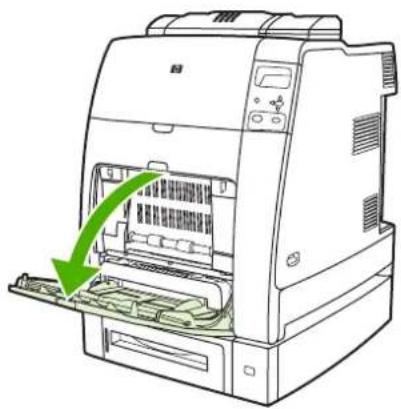
natural_image
Illustration of a printer with green arrows indicating the process, showing internal components and a closed lid (no text or symbols present)-
Remove loaded paper from Tray 1.
-
Reload paper in Tray 1 and check to make sure the media is loaded correctly.

NOTE Do not load media above the fill tabs.
- Confirm that the guides are in the correct position.

natural_image
Diagram of a printer's internal structure showing green arrows indicating parts of the paper sheet (no text or symbols present)- To continue printing, press, and then press.
Jam in Tray 2 or optional trays
- Pull out the tray indicated and place it on a flat surface. Make sure that the paper guides are in the correct position.

natural_image
Line drawing of a printer with green paper inside, showing internal components and a green arrow indicating motion (no text or symbols)- Remove any partially fed media. Grasp the media by both corners and pull down.

NOTE Use Tray 1 to avoid jams with heavier paper.
- Inspect the media path to ensure that it is clear.
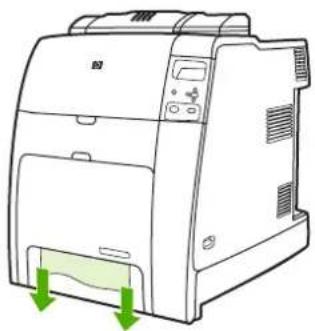
natural_image
Line drawing of a printer with green arrows indicating download or exit points (no text or symbols)
NOTE If the media tears, make sure that all media fragments are removed from the paper path before resuming printing.
-
For jams that occur in an optional tray, check the trays above for jams as well. For example, if the jam occurs in Tray 4, also open Tray 2 and Tray 3 and remove any jammed paper.
-
Check to make sure the media is loaded correctly. Insert the tray into the printer. Make sure all trays are completely closed.

natural_image
Illustration of a printer with a green arrow indicating the process (no text or symbols present)Jams in top cover area
Jams in the top cover occur in of the areas indicated in the figures below. Use the procedures in this section to clear a jam in this area.

text_image
Technical diagram showing two views of a mechanical assembly with labeled components and green arrows indicating motion or force directions.1 Jammed paper
2 Crumpled paper in the fuser
Clearing a jam in the top cover area

WARNING! Do not touch the fuser. It is hot and could cause burns! The fuser's operating temperature is 190^ (374°F). Wait ten minutes to allow the fuser to cool before touching the fuser.
- Open the top and front covers.

natural_image
Cross-sectional diagram of a computer monitor showing internal components and green directional arrows indicating movement (no text or symbols)- Grasp any visible media by both corners and pull to remove it.
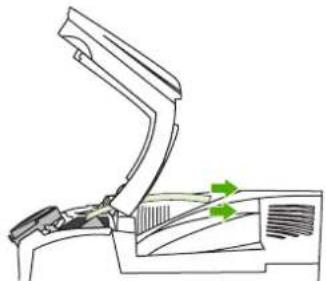
natural_image
Technical line drawing of a mechanical component with green arrows indicating motion or force (no text or symbols)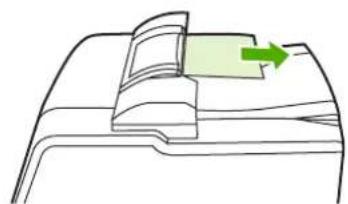
natural_image
Diagram of a mechanical component with a green arrow indicating direction (no text or symbols)- Grasp the green handle on the transfer unit and pull down.
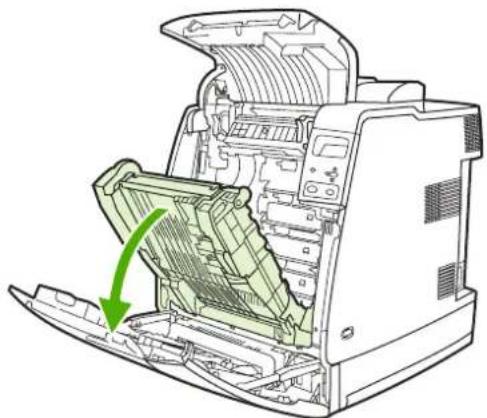
natural_image
Technical line drawing of a mechanical device with internal components and a green arrow indicating a specific part (no text or symbols present)- Grasp the media by both corners and pull down.
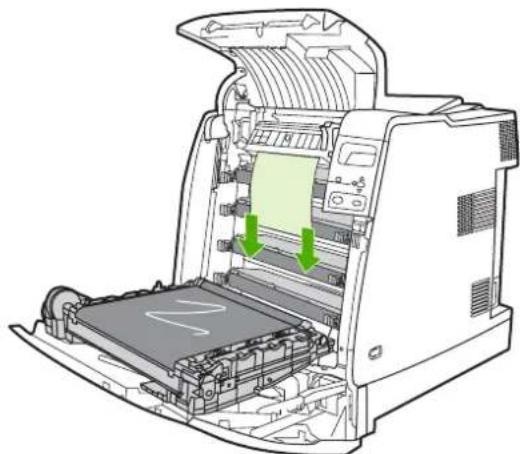
natural_image
Diagram of a printer internal structure showing internal components and green arrows indicating flow or movement (no text or symbols present)- Close the transfer unit.
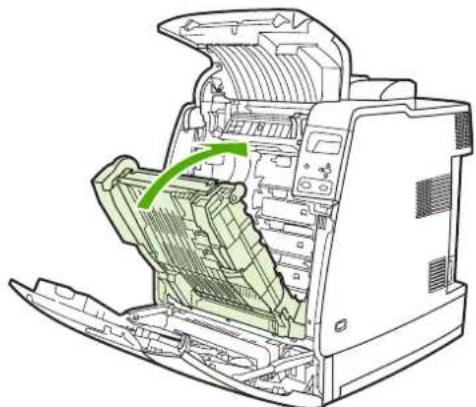
natural_image
Technical line drawing of a mechanical device with internal components and a green arrow indicating a specific part (no text or symbols present)- Close the top and front covers.
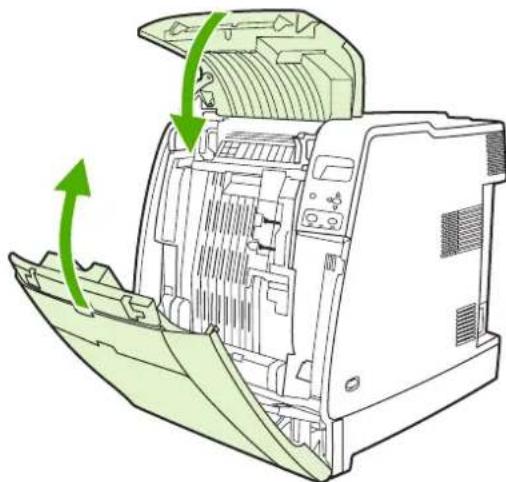
natural_image
Diagram of a computer motherboard showing internal components and green directional arrows indicating rotation (no text or labels)Clearing other jams
- Using the handles, open the top and front covers.
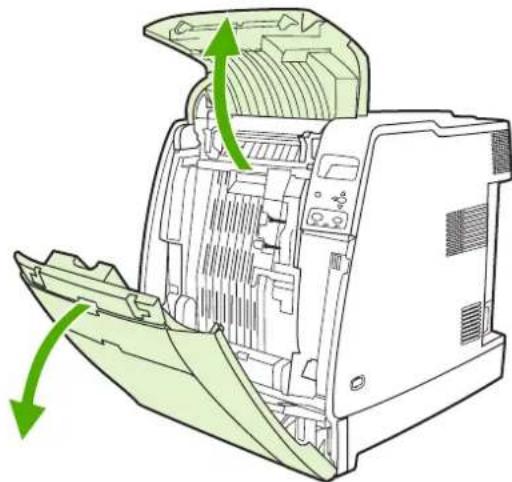
natural_image
Diagram of a computer case with green arrows indicating airflow or movement, showing internal components and structural details (no text or symbols)- If media is present, grasp the media by both corners and pull down.

natural_image
Technical line drawing of a printer internal structure with green arrows indicating ports or components (no text or symbols present)- If media is present, grasp the media by both corners and pull up.
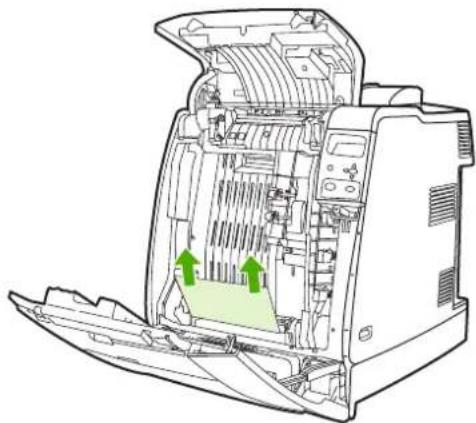
natural_image
Technical line drawing of an open industrial machine with internal components and green arrows indicating flow or movement (no text or symbols)
NOTE If no media is present at these locations, continue to the next step.
- Grasp the green handle on the transfer unit and pull down.
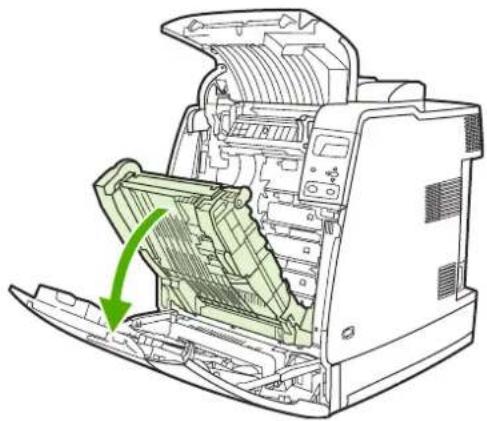
natural_image
Diagram of a mechanical device with internal components and a green arrow indicating a specific part (no text or symbols present)- If media is present, grasp the media by both corners and pull down.
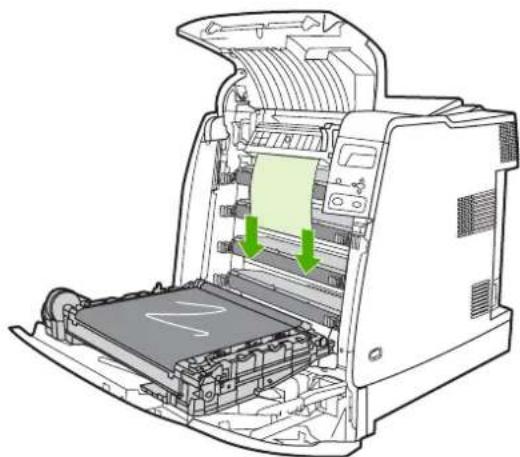
natural_image
Diagram of a printer internal structure showing internal components and green arrows indicating flow or movement (no text or symbols present)- If media is present, grasp the media by both corners and pull up.
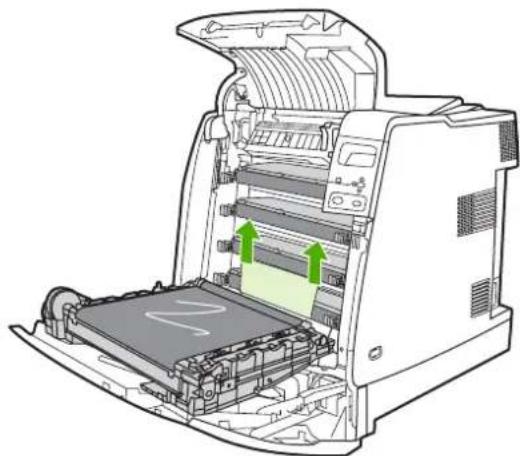
natural_image
Diagram of an open printer with internal components and green arrows indicating motion or movement (no text or symbols)- Close the transfer unit.

natural_image
Technical line drawing of an open industrial machine with green highlighted internal components (no text or symbols)- Close the top and front covers.

natural_image
Technical illustration of a computer motherboard with green arrows indicating directional movement (no text or symbols)Jams in the stapler/stacker

NOTE After resolving any stapler/stacker jams, check that there are no jams in the printer itself. For more information, see Clearing jams.
Clearing jams in the paper path
- Remove any exposed jammed sheets.

natural_image
Line drawing of a printer with a green arrow indicating paper feed (no text or symbols)- Grasp the stapler/stacker unit by its handles and lift it off the body of the printer.

CAUTION The stapler/stacker unit weighs 9 kg (19.8 lb). For greater safety, you might wish to remove the stapler/stacker while standing at the rear of the printer.

natural_image
Line drawing of a printer with green arrows indicating top and bottom ports (no text or symbols)- Set the stapler/stacker aside on a flat surface.
- Remove any jammed sheets under the front cover of the duplexer.
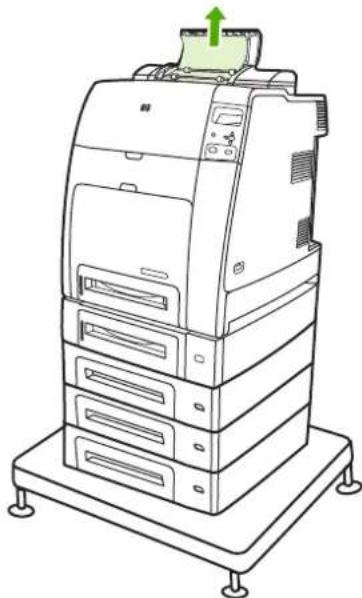
natural_image
Line drawing of a multi-tiered printer or scanner with a green arrow indicating top view (no text or symbols present)- Remove any jammed sheets from the rear of the duplexer.
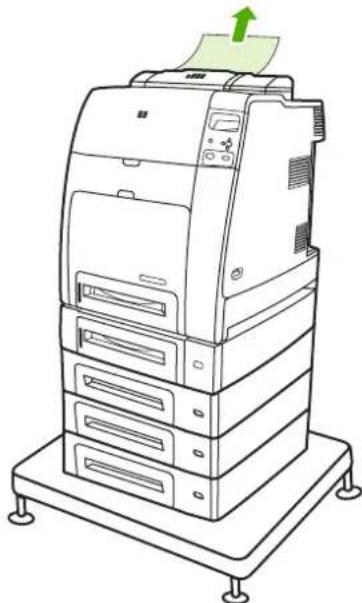
natural_image
Line drawing of a multi-tiered printer with a green arrow indicating paper direction (no text or symbols present)- Place the stapler/stacker unit onto the printer.

natural_image
Line drawing of a server rack with green arrows indicating compression or disassembly process (no text or symbols)
NOTE The output bin must be pushed down into the lowest position for printing to continue.
Clearing jams inside the stapler/stacker
- Open the top cover of the stapler/stacker unit by the handles.

natural_image
Line drawing of a desktop computer with a green handle and control panel (no text or symbols)- If jammed paper can be seen, pull it from the stapler/stacker. Close the stapler/stacker cover.
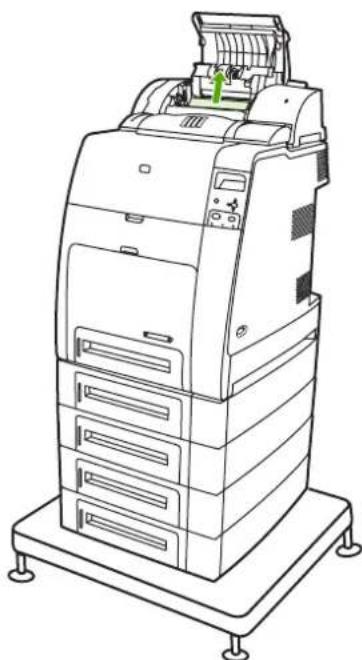
natural_image
Line drawing of a desktop computer with multiple drive bays and a green arrow indicating a component (no text or symbols present)- If a jammed page is only partially visible and cannot easily be removed, grasp the stapler/stacker unit by its handles and lift it off the body of the printer.

CAUTION The stapler/stacker unit weighs 9 kg (19.8 lb). For greater safety, you might wish to remove the stapler/stacker from the rear of the printer.

natural_image
Line drawing of a printer with green arrows indicating top and bottom ports (no text or symbols)-
Set the stapler/stacker aside on a flat surface.
-
Remove any visible paper from the stapler/stacker.
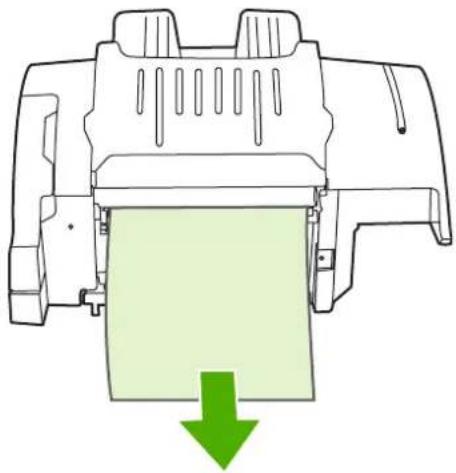
natural_image
Diagram of a mechanical component with a green arrow indicating downward motion (no text or symbols present)- Place the stapler/stacker unit onto the printer.
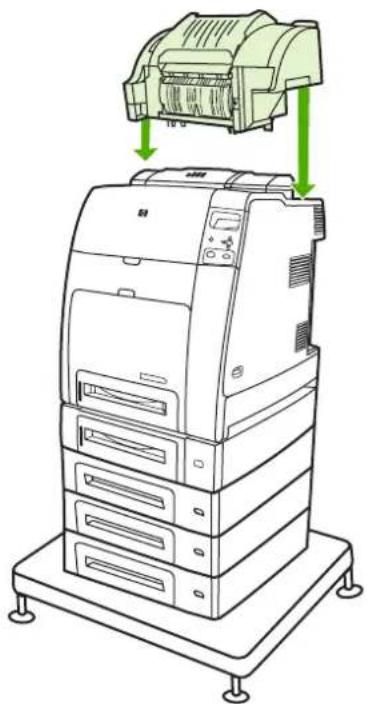
natural_image
Line drawing of a server rack with green arrows indicating compression or disassembly process (no text or symbols)Jams at the output bin
Remove any jammed paper at the output bin.
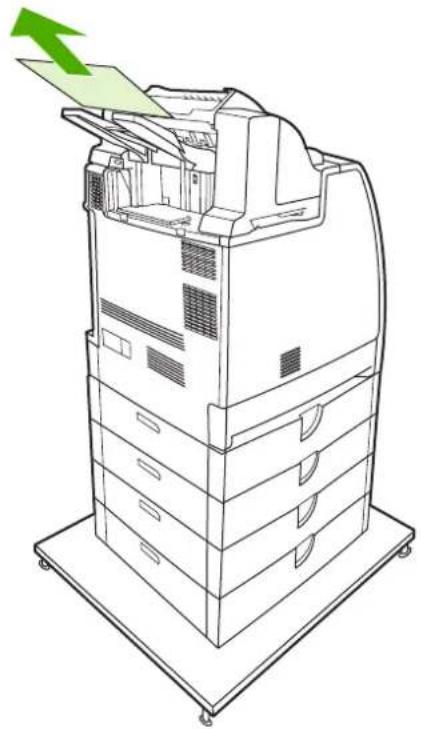
natural_image
Line drawing of a server rack with a green arrow indicating compression or status (no text or symbols present)
NOTE On all stapler/stacker jams, be sure that there is no jammed media in the duplexer path or inside the stapler/stacker or printer. See the other jam recovery procedures included in this section for assistance.
Staple jams

NOTE Clear staple jams when the message 13.XX.X JAM IN STAPLER appears on the control panel display.
- On the left side of the stapler/stacker, open the stapler cartridge cover by gently pulling it.
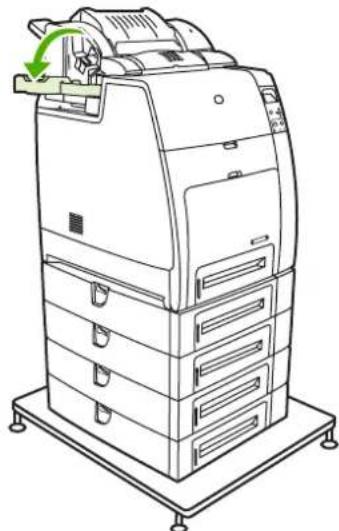
natural_image
Line drawing of a multi-tiered printer with a green circular arrow indicating rotation (no text or symbols)- Grasp the stapler cartridge handle and pull up gently.
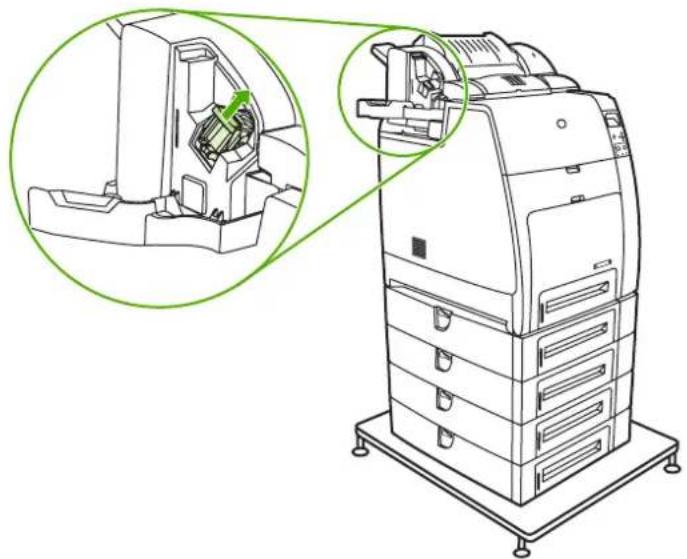
natural_image
Technical line drawing of a mechanical device with internal components and a magnified inset showing a green circular detail (no text or symbols)- Twist the stapler cartridge gently in a counter-clockwise direction and pull it out.

natural_image
Technical line drawing of a mechanical device with an inset close-up showing internal components (no text or symbols)- Lift the cover at the tip of the cartridge.
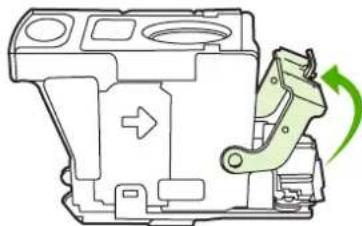
natural_image
Technical line drawing of a mechanical component with directional arrow and green rotation arrow (no text or symbols)- Remove the visible staple and close the cartridge cover.

natural_image
Technical line drawing of a mechanical component with directional arrows indicating movement (no text or symbols)- Place the stapler cartridge in the stapler unit. Press it down until it snaps into place.
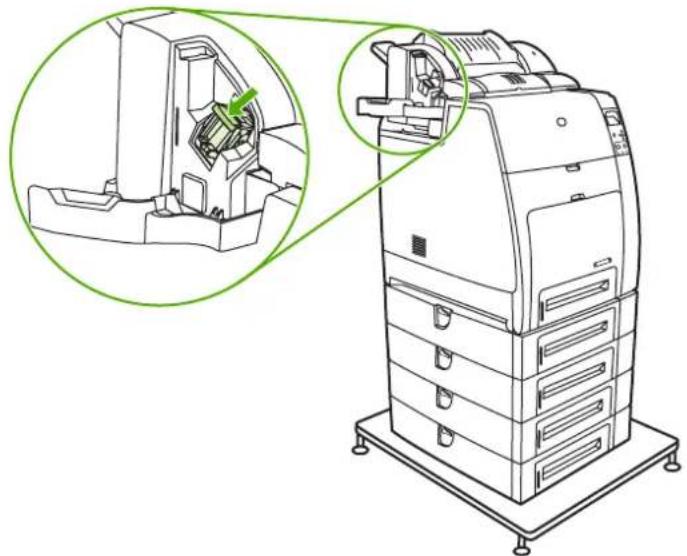
natural_image
Technical line drawing of a mechanical device with internal components and a magnified inset showing a green arrow indicating a specific section (no text or symbols present)- Close the stapler cartridge cover.
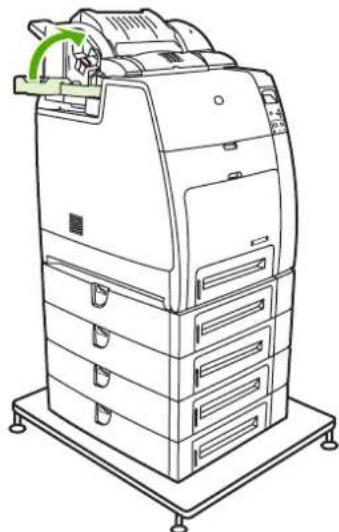
natural_image
Line drawing of a multi-tiered printer with a green circular arrow indicating rotation (no text or symbols)
NOTE The stapler needs to reload after clearing a staple jam, so the first few documents (up to five) might not be stapled. The stapler/stacker might make a noise as the stapler reloads staples. The noise will stop after a few documents are stapled. If a print job is sent and the stapler is jammed or out of staples, the job will still print as long as the path to the stacker bin is not blocked.
Media-handling problems
Use only media that meets HP specifications. For paper specifications for this printer, see Supported media weights and sizes.
For media ordering information, see Supplies and accessories.
Multiple sheets
Table 8-1 Printer feeds multiple sheets
| Cause and solution | |
| Cause Solution | |
| The input tray is overfilled. Remove excess media from the input tray. | |
| Print media is sticking together. | Remove media, flex it, rotate it 180 degrees or flip it over, and then reload it into the tray. |
| NOTE Do not fan media. Fanning can cause static electricity, which can cause media to stick together. | |
| Media does not meet the specifications for this printer. | Use only media that meets HP media specifications for this printer. See Supported media weights and sizes. |
| Trays are not properly adjusted. Make sure that the rear media-length guide indicates the length of media being used. | |
Stapler/stacker
Table 8-2 Resolving common stapler/stacker issues
| Cause and solution | |
| Cause | Solution |
| The stapler/stacker does not turn on.The stapler/stacker is not stapling jobs.The printer does not recognize the stapler/stacker.The LED light on the stapler/stacker is off. | The printer might be in sleep mode. Press any control panel button to wake the printer.Ensure that the stapler/stacker is firmly seated on the printer.Turn the printer off, check all cable connections, then turn the printer on.Ensure that the stapler/stacker has been configured in the printer driver.Print a configuration page to verify that the device is configured properly.If the printer still fails to recognize the stapler/stacker, contact http://www.hp.com/support/clj4700. |
| The printer has stopped printing. | The output bin is full. Remove some or all of the media in the bin.The stapler/stacker is configured to stop when it is out of staples. To continue printing, replace the stapler |
| Cause Solution | |
| cartridge. For more information, seeSelecting the printer behavior at staples out. | |
| The print media jams.Repeated jams occur. | Check that you are using media that is supported for the printer. For more information, seeSupported media weights and sizes. |
 NOTE Using media that is outside of HP specifications might cause problems that could require repair. This repair is not covered by the Hewlett-Packard warranty or service agreements. NOTE Using media that is outside of HP specifications might cause problems that could require repair. This repair is not covered by the Hewlett-Packard warranty or service agreements. | |
Incorrect page size
Table 8-3 Printer feeds incorrect page size
Cause and solution
| Cause | Solution |
| The correct size media is not loaded in the input tray. Load the correct size media in the input tray. | |
| The correct size media is not selected in the software application or printer driver. | Confirm that the settings in the application and printer driver are appropriate, since the application settings override the printer driver and control panel settings, and the printer driver settings override the control panel settings. For more information, see Printer drivers or Printer drivers for Macintosh computers. |
| The correct size media for Tray 1 is not selected in the printer control panel. | From the control panel, select the correct size media for Tray 1. |
| The media size is not configured correctly for the input tray. | Print a configuration page or use the control panel to determine the media size for which the tray is configured. |
| The guides in the tray are not against the paper. Verify that the rear and width media guides are touching the paper. | |
Incorrect tray
Table 8-4 Printer pulls from incorrect tray
Cause and solution
| Cause | Solution |
| You are using a driver for a different printer. For more information, see Printer drivers or Printer drivers for Macintosh computers. | Use a driver for this printer. |
| The specified tray is empty. Load media in the specified tray. | |
| Tray behavior for the requested tray is set to FIRST in the SYSTEM SETUP submenu of the CONFIGURE DEVICE menu. | Change the setting to EXCLUSIVELY. |
| Cause Solution | |
| The media size is not configured correctly for the input tray. | Print a configuration page or use the control panel to determine the media size for which the tray is configured. |
| The guides in the tray are not against the paper. | Verify that the guides are touching the paper. |
Automatic feed error
Table 8-5 Media does not feed automatically
Cause and solution
| Cause | Solution |
| Manual feed is selected in the software application. | Load Tray 1 with media, or, if the media is loaded, press √. |
| The correct size media is not loaded. Load the correct size media. | |
| The input tray is empty. Load media into the input tray. | |
| Media from a previous jam has not been completely removed. | Open the printer and remove any media in the paper path.Closely inspect the fuser area for jams. See Paper jams. |
| The media size is not configured correctly for the input tray. | Print a configuration page or use the control panel to determine the media size for which the tray is configured. |
| The guides in the tray are not against the paper. Verify that therear and width media guides are touching the paper. | |
Tray 2 or optional tray feed error
Table 8-6 Media does not feed from Tray 2 or optional trays
Cause and solution
| Cause Solution | |
| Manual feed is selected in the software application. | Load Tray 1 with media, or, if the media is loaded, press √. |
| The correct size media is not loaded. Load the correct size media. | |
| The input tray is empty. Load media in the input tray. | |
| The correct media type for the input tray is not selected in the printer control panel. | From the printer control panel, select the correct media type for the input tray. |
| Media from a previous jam has not been completely removed. | Open the printer and remove any media in the paper path.Closely inspect the fuser area for jams. See Paper jams. |
| None of the optional trays appear as input tray options. | The optional trays only display as available if they are installed.Verify that any optional trays are correctly installed. Verify that the printer driver has been configured to recognize the optional trays. For more information, see Printer drivers or Printer drivers for Macintosh computers. |
| An optional tray is incorrectly installed. Print a configuration page to confirm that the optional tray is installed. If not, verify that the tray is correctly attached to the printer. | |
| The media size is not configured correctly for the input tray. | Print a configuration page or use the control panel to determine the media size for which the tray is configured. |
| The guides in the tray are not against the paper. Verify that the guides are touching the paper. | |
Special media feed error
Table 8-7 Transparencies or glossy paper will not feed
Cause and solution
| Cause | Solution |
| The correct media type is not specified in the software or printer driver. | Verify that the correct media type is selected in the software or printer driver. |
| The input tray is overfilled. Remove excess media from the input tray. Do not load more than 200 sheets of glossy paper or glossy film, or more than 100 transparencies in Tray 2 and optional trays. Do not exceed the maximum stack height for Tray 1. | |
| Media in another input tray is the same size as the transparencies, and the printer is defaulting to the other tray. | Make sure that the input tray containing the transparencies or glossy paper is selected in the software application or printer driver. For more information, see Printer drivers or Printer drivers for Macintosh computers. Use the printer control panel to configure the tray to the media type loaded. |
| The tray containing the transparencies or glossy paper is not configured correctly for type. | Make sure that the input tray containing the transparencies or glossy paper is selected in the software application or printer driver. For more information, see Printer drivers or Printer drivers for Macintosh computers. Use the printer control panel to configure the tray to the media type loaded. See Configuring input trays. |
| Transparencies or glossy paper might not meet supported media specifications. | Use only media that meets the HP media specifications for this printer. See Supported media weights and sizes. |
Envelope printing error
Table 8-8 Envelopes jam or will not feed in the printer
Cause and solution
| Cause | Solution |
| Envelopes are loaded in an unsupported tray. Only Tray 1 can feed envelopes. | Load envelopes into Tray 1. |
| Envelopes are curled or damaged. | Try using different envelopes. Store envelopes in a controlled environment. |
| Envelopes are sealing because the moisture content is too high. | Try using different envelopes. Store envelopes in a controlled environment. |
| Envelope orientation is incorrect. | Verify that the envelope is loaded correctly. See Configuring input trays. |
| Cause and solution | |
| Cause Solution | |
| This printer does not support the envelopes being used. | See Supported media weights and sizes. |
| Tray 1 is configured for a size other than envelopes. Configure Tray 1 size for envelopes. | |
Output quality
Table 8-9 Output is curled or wrinkled
Cause and solution
| Cause | Solution |
| Media does not meet the specifications for this printer. | Use only media that meets the HP media specifications for this printer. See Supported media weights and sizes. |
| Media is damaged or in poor condition. | Remove media from the input tray and load media that is in good condition. |
| Printer is operating in an excessively humid environment. | Verify that the printing environment is within humidity specifications. See Printer specifications. |
| You are printing large, solid-filled areas. | Large, solid-filled areas can cause excessive curl. Try using a different pattern. |
| Media used was not stored correctly and might have absorbed moisture. | Remove media and replace it with media from a fresh, unopened package. |
| Media has poorly cut edges. | Remove media, flex it, rotate it 180 degrees or turn it over, and then reload it into the input tray. Do not fan media. If the problem persists, replace the media. |
| The specific media type was not configured for the tray or selected in the software. | Configure the software for the media (see the software documentation). Configure the tray for the media, see Configuring input trays. |
Duplexing error
Table 8-10 Printer will not duplex or duplexes incorrectly
Cause and solution
| Cause | Solution |
| You are trying to duplex on unsupported media. | Verify that the media is supported for duplex printing. See Supported media weights and sizes. |
| The printer driver is not set up for duplex printing. | Set up the printer driver to enable duplex printing. |
| The first page is printing on the back of preprinted forms or letterhead. | Load preprinted forms and letterhead in Tray 1 with the letterhead or printed side up and the bottom of the page feeding into the printer. For Tray 2 and optional trays, load these media printed side down with the top of the page toward the back of the printer. |
Printer response problems
Control panel display is blank
Table 8-11 No display message
Cause and solution
| Cause Solution | |
| The printer's on/off button is in the standby position. | Verify that the printer is on. Fans might run while the printer is in standby mode (off). |
| The printer's memory DIMMs are defective or installed incorrectly. | Verify that the printer's memory DIMMs are correctly installed and are not defective. |
| The power cord is not firmly plugged into both the printer and the power receptacle. | Turn off the printer and then disconnect and reconnect the power cord. Turn the printer back on. |
| The line voltage is incorrect for the printer power configuration. | Connect the printer to a proper voltage source, as specified on the Power Rating Label on the back of the printer. |
| The power cord is damaged or excessively worn. Replace the power cord. | |
| The power source receptacle is not working correctly. | Connect the printer to a different power receptacle. |
Printer does not print
Table 8-12 Printer is on, but nothing prints
Cause and solution
| Cause Solution | |
| The printer's Ready indicator light is not lit. | Press Stop to return the printer to the Ready state. |
| The top cover is not closed properly. Close the top cover firmly. | |
| The Data indicator light is flashing. | The printer is probably still receiving data. Wait for the Data indicator to stop flashing. |
| REPLACECARTRIDGE appears on the printer display. | Replace the print cartridge specified on the printer display. |
| A printer message other than Ready appears on the printer control panel. | See Control panel messages. |
| The output bin is full. Remove some or all of the media in the output bin. | |
| The stapler cartridge is empty and the printer is configured to stop printing when the cartridge is empty. | Replace the stapler cartridge. |
| The parallel port might have a DOS timeout error. | Add a MODE command to the AUTOEXEC.BAT file. See the DOS manual for additional information. |
| The PS (PostScript Emulation) personality is not selected. | Select PS or AUTO for the printer language. For more information, see Changing printer control panel configuration settings. |
| The correct driver is not selected in the software application or printer driver. | Select the driver for PostScript Emulation for this printer in the software application or printer driver. For more information, see Printer drivers or Printer drivers for Macintosh computers. |
| The printer is not properly configured. | SeeChanging printer control panel configuration settings. |
| The computer port is not configured or is not working properly. | Run another peripheral connected to this port to verify that the port is working properly. |
| The printer has not been correctly named for the network or for a Macintosh computer. | Use the appropriate utility to name the printer on the network. For Macintosh OS 9.x computers, select the printer from within the Chooser. For Macintosh OS 10.2 and later, open the Print Center Application, select the connection type, and then select the printer. |
Printer not receiving data
Table 8-13 Printer is on, but is not receiving data
Cause and solution
| Cause | Solution |
| The printer's Ready indicator light is not lit. | Press Stop to return the printer to the Ready state. |
| The top cover is not closed properly. Close the top cover firmly. | |
| A printer message other than Ready appears on the printer control panel. | See Control panel messages. |
| The interface cable is not correct for this configuration. | Select the correct interface cable for your configuration. See Parallel configuration, HP Jetdirect print servers, or USB configuration. |
| The interface cable is not securely connected to both the printer and the computer. | Disconnect and reconnect the interface cable. For Jetdirect network connections, verify that the Link LED is on. The Link LED indicates that a proper network connection is established. |
| The printer is not configured correctly. | See Changing printer control panel configuration settings for configuration information. |
| The interface configurations on the printer's configuration page do not match the configurations on the host computer. | Configure the printer to match the computer configuration. |
| The computer is not working properly. | Try using an application that you know works properly to check the computer, or, in DOS, type Dir>Prn at the DOS prompt. |
| The computer port that the printer is connected to is not configured or is not working properly. | Run another peripheral connected to this port to verify that the port is working properly. |
| The printer has not been correctly named for the network or Macintosh computer. | Use the appropriate utility to name the printer on the network. For Macintosh OS 9.x computers, select the printer from within the Chooser. For Macintosh OS 10.2 and later, open the Print Center Application, select the connection type, and select the printer. |
Printer selection
Table 8-14 Unable to select the printer from the computer
Cause and solution
| Cause | Solution |
| If you are using a switch box, the printer might not be selected for the computer. | Select the correct printer through the switch box. |
| The printer's Ready indicator light is not lit. | Press Stop to return the printer to the Ready state. |
| A printer message other than Ready appears on the printer control panel. | See Control panel messages. |
| The correct printer driver is not installed in the computer. | Install the correct printer driver. For more information, see Printer drivers or Printer drivers for Macintosh computers. |
| The correct printer and port are not selected on the computer. | Select the correct printer and port. |
| The network is not configured properly for this printer. | Use the network software to verify the printer's network configuration, or consult with the network administrator. |
| The power source receptacle is not working correctly. | Connect the printer to a different power receptacle. |
Printer control panel problems
Control panel setting
Table 8-15 Control panel settings work incorrectly
Cause and solution
| Cause Solution | |
| The printer control panel display is blank or is not lit, even when the fan is running. | Fans might run while the printer is in standby mode (off). Press the printer's on/off button to turn the printer on. |
| Printer settings in the printing software application or printer driver differ from the printer control panel settings. | Confirm that the settings in the application and printer driver are appropriate, since the application settings override the printer driver and control panel settings, and the printer driver settings override the control panel settings. For more information, see Printer drivers or Printer drivers for Macintosh computers. |
| Control panel settings were not correctly saved after they were changed. | Reselect the control panel settings and then press √An asterisk (*) should appear to the right of the setting. |
| The Data indicator light is lit, and there are no pages printing. | Buffered data exists in the printer. Press √to print the buffered data using current control panel settings and activate the new control panel settings. |
| If the printer is on a network, another user might have changed printer control panel settings. | Consult the network administrator to coordinate changes to printer control panel settings. |
Selecting optional trays
Table 8-16 Unable to select optional trays
Cause and solution
| Cause | Solution |
| The optional trays do not appear as an option on the configuration page or on the control panel. | The optional trays are displayed as available only if they are installed. Verify that the trays are correctly installed. |
| The optional trays do not appear as available in the printer driver. | Verify that the printer driver configuration recognizes the optional tray. For more information, see Printer drivers or Printer drivers for Macintosh computers. |
Incorrect printer output
Incorrect fonts
Table 8-17 Incorrect fonts are printed
| Cause and solution | |
| Cause Solution | |
| The font has not been correctly selected in the software application. | Re-select the font in the software application. |
| The font is not available to the printer. | Download the font to the printer or use another font. (In Windows, the driver does this automatically.) |
| The correct printer driver is not selected. Select the correct printer driver. For more information, see Printer drivers or Printer drivers for Macintosh computers. | |
Symbol sets
Table 8-18 Unable to print all characters in a symbol set
| Cause and solution | |
| Cause Solution | |
| The correct font is not selected. Select the correct font. | |
| The correct symbol set is not selected. Select the correct symbol set. | |
| The selected character or symbol is not supported by the software application. | Use a font that supports the selected character or symbol. |
Drifting text
Table 8-19 Drifting text between printouts
| Cause and solution | |
| Cause | Solution |
| Your software application is not resetting the printer to the top of the page. | See the documentation for the software or the PCL/PJL Technical Reference Package for specific information. |
Output errors
Table 8-20 Erratic, missing characters or interrupted printout
| Cause and solution | |
| Cause Solution | |
| The interface cable is of poor quality. | Try using a different, higher-quality, IEEE-compliant cable.Parallel cables can be no longer than 10 meters (30 feet). |
| The interface cable is loose. | Disconnect and reconnect the interface cable. |
| The interface cable is damaged or bad. Try using a different interface cable. | |
| The power cable is loose. Disconnect and reconnect the power cable. | |
| You are attempting to print a PCL job with the printer configured for PostScript Emulation. | From the printer control panel, select the correct printer personality, and then resend the print job. |
| You are attempting to print a PostScript job with the printer configured for PCL. | From the printer control panel, select the correct printer personality, and then resend the print job. |
Partial printout
Table 8-21 Partial printout
| Cause and solution | |
| Cause | Solution |
| A memory error message appears on the printer control panel. | 1. Free up printer memory by deleting unneeded downloaded fonts, style sheets, and macros from printer memory; or2. Add more memory to the printer. |
| The file you are printing contains errors. Check the software application verify that the file does not contain errors. To do so: | 1. Print another file that you know is error-free from within the same application; or2. Print the file from another application. |
Guidelines for printing with different fonts
The 80 internal fonts are available in PostScript Emulation (PS) and PCL mode.
• To conserve printer memory, download only those fonts that are needed.
• If you require several downloaded fonts, consider installing additional printer memory.
Some software applications automatically download fonts at the beginning of each print job. It might be possible to configure those applications to download only soft fonts that are not already resident in the printer.
Software application problems
System selection through software
Table 8-22 Unable to change system selections through software
| Cause and solution | |
| Cause Solution | |
| System software changes are locked out by the printer control panel. | Consult with your network administrator. |
| The software application does not support system changes. | See the software application documentation. |
| The correct printer driver is not loaded. | Load the correct printer driver. For more information, see Printer drivers or Printer drivers for Macintosh computers. |
| The correct application driver is not loaded. Load the correct application driver. | |
Font selection from software
Table 8-23 Unable to select a font from the software
| Cause and solution |
| Cause Solution |
| The font is not available to the software application. See the software application documentation. |
Color selection from software
Table 8-24 Unable to select colors from the software
| Cause and solution | |
| Cause | Solution |
| The software application does not support color. | See the documentation for the software application. |
| Color mode is not selected in the software application or printer driver. | Select Color mode instead of grayscale or monochrome mode. |
| The correct printer driver is not loaded. Load the correct printer driver. | |
Optional trays and duplexer recognition
Table 8-25 Printer driver does not recognize the optional trays or the duplexer
| Cause and solution | |
| Cause | Solution |
| The printer driver has not been configured to recognize the optional trays or the duplexer. | See the printer driver's online Help for instructions on how to configure the driver to recognize printer accessories. For more |
| Cause Solution | |
| information, see Printer drivers or Printer drivers for Macintosh computers. | |
| The accessory might not be installed. Verify that the accessory is properly installed. | |
Troubleshooting common Macintosh problems
This section lists problems that can occur when using Mac OS 9.x or Mac OS X.
Solving problems with Mac OS 9.x

NOTE Setup for USB and IP printing is performed through the Desktop Printer Utility. The printer will not appear in the Chooser.
Table 8-26 Problems with Mac OS 9.x
The printer name or IP address does not appear in the Desktop Printer Utility.
| Cause | Solution |
| The printer might not be ready. | Make sure that the cables are connected correctly, the printer is on, and the Ready light is on. If you are connecting through a USB or Ethernet hub, try connecting directly to the computer or use a different port. |
| The wrong connection type might be selected. | Make sure that Printer (USB) or Printer (LPR) is selected in the Desktop Printer Utility, depending on the type of connection that exists between the printer and the computer. |
| The wrong printer name or IP address is being used. | In order to check the printer name or IP address, print a configuration page. Verify that the printer name or IP address on the configuration page matches the printer name or IP address in the Desktop Printer Utility. |
| The interface cable might be defective or of poor quality. | Replace the interface cable. Make sure to use a high-quality cable. |
The PostScript Printer Description (PPD) file for the printer does not appear as a selection in the Desktop Printer Utility.
| Cause Solution | |
| The printer software might not have been installed or was installed incorrectly. | Make sure that the LaserJet 4700 PPD is in the following hard-drive folder: System Folder/Extensions/Printer Descriptions. If necessary, reinstall the software. See the getting started guide for instructions. |
| The PostScript Printer Description (PPD) file is corrupt. | Delete the PPD file from the following hard drive folder: System Folder/Extensions/Printer Descriptions. Reinstall the software. See the getting started guide for instructions. |
A print job was not sent to the printer that you wanted.
| Cause | Solution |
| The print queue might be stopped. | Restart the print queue. Select the desktop printer icon, open the Printing menu in the top menu bar, and then click Start Print Queue. |
| The wrong printer name or IP address is being used. Another printer that has the same or a similar name or IP address might have received your print job. | Print a configuration page in order to check the printer name or IP address. Verify that the printer name or IP address on the configuration page matches the printer name or IP address in the Desktop Printer Utility. |
| The printer might not be ready. Make sure that the cables are connected correctly, the printer is on, and the Ready light is on. If you are connecting through a USB or | |
| Cause Solution | |
| Ethernet hub, try connecting directly to the computer or use a different port. | |
| The interface cable might be defective or of poor quality. | Replace the interface cable. Make sure to use a high-quality cable. |
| You cannot use the computer while the printer is printing. | |
| Cause Solution | |
| Background Printing has not been selected. | For LaserWriter 8.6 and later: Turn on background printing by selecting Print Desktop on the File menu and then clicking Background Printing in the pop-up menu. |
| An encapsulated PostScript (EPS) file does not print with the correct fonts. | |
| Cause | Solution |
| This problem occurs with some programs. | Send the file in ASCII format instead of binary encoding.Try downloading the fonts that are contained in the EPS file to the printer before printing. |
| Your document is not printing with New York, Geneva, or Monaco fonts. | |
| Cause Solution | |
| The printer might be substituting fonts. | Click Options in the Page Setup dialog box to clear substituted fonts. |
| You are unable to print from a third-party USB card. | |
| Cause | Solution |
| This error occurs when the software for USB printers is not installed. | When adding a third-party USB card, you might need the Apple USB Adapter Card Support software. The most current version of this software is available from the Apple Web site. |
| Cause | Solution |
| This problem is caused by either a software or hardware component. | Software troubleshootingCheck that your Macintosh supports USB.Verify that your Macintosh operating system is Mac OS 9.1 or 9.2.Ensure that your Macintosh has the appropriate USB software from Apple. |
| NOTE The iMac and Blue G3 desktop Macintosh systems meet all of the requirements to connect to a USB device. | |
| Hardware troubleshootingCheck that the printer is turned on.Verify that the USB cable is connected correctly.Check that you are using the appropriate high-speed USB cable.Ensure that you do not have too many USB devices drawing power from the chain. Disconnect all of the devices from the chain and connect the cable directly to the USB port on the host computer.Check to see if more than two nonpowered USB hubs are connected in a row on the chain. Disconnect all of the devices from the chain and connect the cable directly to the USB port on the host computer. | |
| NOTE The iMac keyboard is a nonpowered USB hub. | |
Solving problems with Mac OS X
Table 8-27 Problems with Mac OS X
The printer driver is not listed in the Print Center or Printer Setup Utility.
| Cause | Solution |
| The printer software might not have been installed or was installed incorrectly. | Make sure that the printer PPD is in the following hard-drive folder: Library/Printers/PPDs/Contents/Resources/.lproj, whereis the two-letter language code for the language that you are using. If necessary, reinstall the software. See the getting started guide for instructions. |
| The Postscript Printer Description (PPD) file is corrupt. | Delete the PPD file from the following hard-drive folder: Library/Printers/PPDs/Contents/Resources/.lproj, whereis the two-letter language code for the language that you are using. Reinstall the software. See the getting started guide for instructions. |
| The printer might not be ready. | Make sure that the cables are connected correctly, the printer is on, and the ready light is on. If you are connecting through a USB or Ethernet hub, try connecting directly to the computer or use a different port. |
| The wrong connection type might be selected. Make sure that USB, IP Printing, or Rendezvous is selected, depending on the type of connection that exists between the printer and the computer. | |
| The wrong printer name, IP address, or Rendezvous host name is being used. | Print a configuration page in order to check the printer name, IP address, or Rendezvous host name. Verify that the name, IP address, or Rendezvous host name on the configuration page matches the printer name, IP address, or Rendezvous host name in the Print Center or Printer Setup Utility. |
| The interface cable might be defective or of poor quality. | Replace the interface cable. Make sure to use a high-quality cable. |
The printer driver does not automatically set up your selected printer in the Print Center or Printer Setup Utility.
| Cause | Solution |
| The printer might not be ready. | Make sure that the cables are connected correctly, the printer is on, and the ready light is on. If you are connecting through a USB or Ethernet hub, try connecting directly to the computer or use a different port. |
| The printer software might not have been installed or was installed incorrectly. | Make sure that the printer PPD is in the following hard-drive folder: Library/Printers/PPDs/Contents/Resources/.lproj, whereis the two-letter language code for the language that you are using. If necessary, reinstall the software. See the getting started guide for instructions. |
| The Postscript Printer Description (PPD) file is corrupt. | Delete the PPD file from the following hard-drive folder: Library/ Printers/PPDs/Contents/Resources/.lproj, whereis the two-letter language code for the language that you are using. Reinstall the software. See the getting started guide for instructions. |
| The printer might not be ready. | Make sure that the cables are connected correctly, the printer is on, and the ready light is on. If you are connecting through a USB or Ethernet hub, try connecting directly to the computer or use a different port. |
| The interface cable might be defective or of poor quality. | Replace the interface cable. Make sure to use a high-quality cable. |
A print job was not sent to the printer that you wanted.
| Cause | Solution |
| The print queue might be stopped. | Restart the print queue. Open print monitor and select Start Jobs. |
| The wrong printer name or IP address is being used. Another printer with the same or similar name, IP address, or Rendezvous host name might have received your print job. | Print a configuration page in order to check the printer name, IP address, or Rendezvous host name. Verify that the name, IP address, or Rendezvous host name on the configuration page matches the |
| Cause Solution | |
| printer name, IP address, or Rendezvous host name in the Print Center or Printer Setup Utility. | |
An encapsulated PostScript (EPS) file does not print with the correct fonts.
| Cause | Solution |
| This problem occurs with some programs. | Try downloading the fonts that are contained in the EPS file to the printer before printing.Send the file in ASCII format instead of binary encoding. |
You are unable to print from a third-party USB card.
| Cause | Solution |
| This error occurs when the software for USB printers is not installed. | When adding a third-party USB card, you might need the Apple USB Adapter Card Support software. The most current version of this software is available from the Apple Web site. |
When connected with a USB cable, the printer does not appear in the Print Center or Printer Setup Utility after the driver is selected.
| Cause | Solution |
| This problem is caused by either a software or a hardware component. | Software troubleshootingCheck that your Macintosh supports USB.Verify that your Macintosh operating system is Mac OS X v10.1, v10.2.8, or v10.3.Ensure that your Macintosh has the appropriate USB software from Apple.Hardware troubleshootingCheck that the printer is turned on.Verify that the USB cable is connected correctly.Check that you are using the appropriate high-speed USB cable.Ensure that you do not have too many USB devices drawing power from the chain. Disconnect all of the devices from the chain, and connect the cable directly to the USB port on the host computer.Check to see if more than two nonpowered USB hubs are connected in a row on the chain. Disconnect all of the devices from the chain and connect the cable directly to the USB port on the host computer. |
Table 8-27 Problems with Mac OS X (continued)
When connected with a USB cable, the printer does not appear in the Print Center or Printer Setup Utility after the driver is selected.
Cause Solution

NOTE The iMac keyboard is a nonpowered USB hub.
Color printing problems
Printout color error
Table 8-28 Printing black instead of color
Cause and solution
| Cause Solution | |
| Color mode is not selected in the software application or printer driver. | Select Color mode instead of grayscale or monochrome mode in the software application or printer driver, see Printer information pages to learn how to print a configuration page. |
| The correct printer driver is not selected in your software application. | Select the correct printer driver. |
| No color appears on the configuration page. Consult your service representative. | |
| The control-panel setting for COLOR SUPPLY OUT is set to AUTOCONTINUE BLACK, and one of the color print cartridges is out. The printer continues to print in black only. | Replace the color print cartridge. |
| The control-panel setting for RESTRICT COLOR USE is set to DISABLE COLOR, or it is set to COLOR IF ALLOWED and you do not have permission to print in color. | Change the control-panel setting to ENABLE COLOR. |
Incorrect shade
Table 8-29 Incorrect shade
Cause and solution
| Cause | Solution |
| The media does not meet the specifications for this printer. | For information on media specifications, see Supported media weights and sizes |
| You are operating the printer in excessively humid conditions. | Verify that the printer's environment is within humidity specifications. See Environmental specifications. |
| NOTE For more information about color quality problems, see Print quality troubleshooting. |
Missing color
Table 8-30 Missing color
Cause and solution
| Cause | Solution |
| Defective HP print cartridge. Replace the cartridge. | |
| A non-HP cartridge might be installed. Ensure that you are using a genuine HP print cartridge. | |
Cartridge error
Table 8-31 Inconsistent colors after installing a print cartridge
Cause and solution
| Cause | Solution |
| Another print cartridge might be low. | Check the supplies gauge on the control panel or print a supplies status page. See Printer information pages. |
| Print cartridges might be improperly installed. | Verify that each print cartridge is installed properly. |
| A non-HP cartridge might be installed. Ensure that you are using a genuine HP print cartridge. | |
Color match error
Table 8-32 Printed colors do not match screen colors
Cause and solution
| Cause | Solution | |
| Extremely light screen colors are not being printed. | The software application might interpret extremely light colors as white. If so, avoid using extremely light colors. | |
| Extremely dark screen colors are being printed in black. | The software application might interpret extremely dark colors as black. If so, avoid using extremely dark colors. | |
| The colors on the computer screen differ from the printer output. | On the printer driver'sColor Controltab, there are several options that affect color matching between the screen and the printed page, such asColor ThemesandColor Options. For more information, seeColor matching. | |
 | NOTESeveral factors can influence your ability to match printed colors to those on your screen. These factors include print media, overhead lighting, software applications, operating system palettes, monitors, and video cards and drivers. | |
Print quality troubleshooting
When occasional print quality problems occur, use the information in this section to help solve the problem.
Print quality problems associated with media
Some print quality problems arise from use of inappropriate media.
• Use paper that meets HP paper specifications. See Supported media weights and sizes.
- The surface of the media is too smooth. Use media that meets HP paper specifications. See Supported media weights and sizes.
- The print driver setting might be incorrect. Be sure that you have selected the correct driver setting for the paper that you are using.
- The print mode might be set incorrectly, or the paper might not meet recommended specifications. For more information, see Supported media weights and sizes.
- The transparencies you are using are not designed for proper toner adhesion. Use only transparencies designed for HP Color LaserJet printers.
- The moisture content of the paper is uneven, too high, or too low. Use paper from a different source or from an unopened ream of paper.
- Some areas of the paper reject toner. Use paper from a different source or from an unopened ream of paper.
- The letterhead you are using is printed on rough paper. Use a smoother, xerographic paper. If this solves your problem, consult with the printer of your letterhead to verify that the paper used meets the specifications for this printer. See Supported media weights and sizes.
• The paper is excessively rough. Use a smoother, xerographic paper.
Overhead transparency defects
Overhead transparencies might display any of the image quality problems that any other type of media could display, as well as defects specific to transparencies. In addition, because transparencies are pliable while in the print path, they are subject to being marked by the media-handling components.

NOTE Allow transparencies to cool at least 30 seconds before handling them.
- On the printer driver's Paper tab, select Transparency as the media type. Also, make sure that the tray is correctly configured for transparencies.
- Check that the transparencies meet the specifications for this printer. See Supported media weights and sizes.
For ordering information, see Part numbers.
- Handle transparencies by the edges. Skin oil on the surface of transparencies can cause spots and smudges.
- Small, random dark areas on the trailing edge of solid fill pages might be caused by transparencies sticking together in the output bin. Try printing the job in smaller batches.
- The selected colors are undesirable when printed. Select different colors in the software application or printer driver.
• If you are using a reflective overhead projector, use a standard overhead projector instead.
Print quality problems associated with the environment
The printer is operating in excessively humid or dry conditions. Verify that the printing environment is within specifications. See Environmental specifications.
Print quality problems associated with jams
• Make sure that all media is cleared from the paper path. See Paper jam recovery.
The printer recently jammed. Print two to three pages to clean the printer.
- The media does not pass through the fuser causing image defects to appear on subsequent documents. Print two to three pages to clean the printer. However, if the problem persists see the next section.
Print quality troubleshooting pages
The print quality troubleshooting pages provide information on aspects of the printer that affect print quality.
- Press Menu to enter the MENUS.
- Press ▼ to highlight DIAGNOSTICS.
- Press √ to select DIAGNOSTICS.
- Press ▼ to highlight PQ TROUBLESHOOTING.
- Press √ to select PQ TROUBLESHOOTING.
The message Printing... PQ troubleshooting appears on the display until the printer finishes printing the print quality troubleshooting information. The printer returns to the Ready state after printing the print quality troubleshooting information.
The print quality troubleshooting information includes one page for each color (black, magenta, cyan, and yellow), printer statistics related to print quality, instructions on interpreting the information, and procedures to solve print quality problems.
If following the procedures recommended by the print quality troubleshooting pages do not improve print quality, go to http://www.hp.com/support/clj4700.
Print quality troubleshooting tool
The print quality troubleshooting tool helps you identify and troubleshoot print quality issues for the HP Color LaserJet 4700 printer. The tool includes solutions for many print quality issues, using standard images to provide a common diagnostic environment. It is designed to provide intuitive, step-by-step directions for printing troubleshooting pages that are used to isolate print quality problems and provide possible solutions.
To find the print quality troubleshooting tool, go to the following URL: http://www.hp.com/go/printquality/clj4700.
Calibrating the printer
The HP Color LaserJet 4700 printer automatically calibrates and cleans at various times to maintain the highest level of print quality. The user might also request the printer to calibrate via the printer's control panel, using QUICK CALIBRATE NOW or FULL CALIBRATE NOW located in the CALIBRATION and PRINT QUALITY menu. QUICK CALIBRATE NOW is used for color tone calibration and takes about 65 seconds. If color density or tone seems wrong, Quick Calibration can be run. Full Calibration includes the Quick Calibrate routines and adds Drum Phase Calibration and Color Plane Registration (CPR). This takes about 4 minutes and 20 seconds. If color layers (black, magenta, cyan, and yellow) on the printed page seem to be shifted from one another, FULL CALIBRATE NOW should be run.
The HP Color LaserJet 4700 printer incorporates a new feature to skip calibration when appropriate, thereby making the printer available more quickly. For example, if the printer is powered off and on quickly (within 20 seconds), calibration is not needed and will be skipped. In this case, the printer will reach the Ready state approximately one minute sooner.
While the printer is calibrating and cleaning, the printer will pause printing for the amount of time it takes to complete the calibration or cleaning. For most calibrations and cleaning, the printer will not interrupt a print job, but will wait for the job to complete before calibrating or cleaning.
- Press Menu to enter the MENUS.
- Press ▼ to highlight CONFIGURE DEVICE.
- Press √ to select CONFIGURE DEVICE.
- Press ▼ to highlight PRINT QUALITY.
- Press √ to select PRINT QUALITY.
- Press ▼ to highlight QUICK CALIBRATE NOW.
- Press √ to select QUICK CALIBRATE NOW.
OR
To perform a full calibration, use FULL CALIBRATE NOW instead of QUICK CALIBRATE NOW in steps 6 and 7.
Repetitive defect ruler
If defects repeat at regular intervals on the page, use this ruler to identify the cause of the defect. Place the top of the ruler at the first defect. The marking that is beside the next occurrence of the defect indicates which component needs to be replaced.

flowchart
graph TD
    A["1"] --> B["2"]
    B --> C["3"]
    C --> D["4"]
    D --> E["5"]
    E --> F["6"]
    F --> G["7"]
    G --> H["8"]
| 1 | First occurrence of the defect (the distance from the top of the page to the defect might vary. |
| 2 Print cartridge (34.3 mm (1.35 inches)) | |
| 3 | Print cartridge or transfer roller (if the defect occurs in only one color, the defective part is the print cartridge; if the defect occurs in all colors, the defective part is the ETB) (37.7 mm (1.48 inches)) |
| 4 Print cartridge (42.7 mm (1.68 inches)) | |
| 5 ETB (75 mm (2.95 inches)) | |
| 6 Fuser (76.0 mm (2.99 inches)) | |
| 7 Fuser (81.0 mm (3.19 inches)) | |
| 8 Print cartridge (94.2 mm (3.71 inches)) | |
To confirm that a print cartridge is the problem, insert a print cartridge from another HP Color LaserJet 4700 printer, if one is available, before ordering a new print cartridge.
If the defect repeats at 94.0 mm (3.75 inch) intervals, try replacing the print cartridge before replacing the fuser.
Print quality defect chart
Use the examples in the print quality defect chart to determine which print-quality problem you are experiencing, and then see the corresponding pages to find information that can help you troubleshoot
the problem. For the latest information and problem-solving procedures, go to http://www.hp.com/support/clj4700.

NOTE The print-quality defect chart assumes the use of letter- or A4-size media that has moved through the printer short-edge first (portrait orientation).
An image with no defects

natural_image
Illustration of a pink house with a tree and sun in the sky (no text or symbols)
natural_image
Illustration of a pink house with a tree and sun in the sky (no text or symbols)Horizontal lines or streaks
• Make sure that the operation and location requirements of the printer are met.
• Print the Print Quality Troubleshooting Pages (see Print quality troubleshooting) and follow the diagnostic procedure listed on the first page to help isolate the defect to a particular component.
Vertical lines
- Print the Print Quality Troubleshooting Pages (see Print quality troubleshooting) and follow the diagnostic procedure listed on the first page to help isolate the defect to a particular component.

natural_image
Illustration of a pink house with a tree and sun in the sky (no text or symbols)
natural_image
Illustration of a pink house with a tree and sun in the sky (no text or symbols)Misaligned colors
Calibrate the printer.
Repetitive defects
• Make sure that the operation and location requirements of the printer are met.
- Print the Print Quality Troubleshooting Pages (see Print quality troubleshooting) and follow the diagnostic procedure listed on the first page to help isolate the defect to a particular component.

natural_image
Illustration of a pink house with a brown roof, green trees, and a large yellow sun in the sky (no text or symbols)
natural_image
Illustration of a pink house with a brown roof, green doors, and a large yellow sun in the sky (no text or symbols)Color fade in all colors
• Make sure that the operation and location requirements of the printer are met.
Calibrate the printer.

natural_image
Illustration of a pink house with a brown roof, green shrubs, and a large yellow sun in the sky (no text or symbols)Color fade in one color
• Make sure that the operation and location requirements of the printer are met.
Calibrate the printer.
- Print the Print Quality Troubleshooting Pages (see Print quality troubleshooting) and follow the diagnostic procedure listed on the first page to help isolate the defect to a particular component.

natural_image
Illustration of a pink house with a green door, tree, and large sun in the sky (no text or symbols)Fingerprints and media dents
• Make sure to use supported media.
• Make sure that the media you are using does not have any wrinkles or dents from handling, and that the media is not contaminated with visible fingerprints or other foreign substances.
- Print the Print Quality Troubleshooting Pages (see Print quality troubleshooting) and follow the diagnostic procedure listed on the first page to help isolate the defect to a particular component.

natural_image
Illustration of a hand drawing a tree with a house under a bright sun (no text or symbols)Loose toner
• Make sure that the operation and location requirements of the printer are met.
• Make sure to use supported media.
• Make sure that the media type and size for the tray are set correctly in the control panel for the media that you are using.
• Make sure that the media is loaded correctly and that the size guides are touching the edges of the stack of media.
Make sure that the media you are using does not have any wrinkles or dents from handling, and that the media is not contaminated with visible fingerprints or other foreign substances.

natural_image
Illustration of a pink house with a tree and sun in the sky (no text or symbols)Smeared toner
• Make sure to use supported media.

natural_image
Illustration of a pink house with a tree and sun in the sky (no text or symbols)White areas (dropouts) on page
• Make sure that the operation and location requirements of the printer are met.
• Make sure to use supported media.
• Make sure that the media you are using does not have any wrinkles or dents from handling, and that the media is not contaminated with visible fingerprints or other foreign substances.
• Make sure that the media type and size for the tray are set correctly in the control panel for the media that you are using.
Calibrate the printer.
- Print the Print Quality Troubleshooting Pages (see Print quality troubleshooting) and follow the diagnostic procedure listed on the first page to help isolate the defect to a particular component.

natural_image
Illustration of a pink house with a tree and a large yellow sun in the background (no text or symbols)Media damage (wrinkles, curl, creases, tears)
• Make sure that the operation and location requirements of the printer are met.
• Make sure to use supported media.
• Make sure that the media is loaded correctly.
• Make sure that the media type and size for the tray are set correctly in the control panel for the media that you are using.
• Make sure that the media you are using does not have any

natural_image
Illustration of a pink house with a green door, tree, and full moon in the sky (no text or symbols)Specks or stray toner
• Make sure that the operation and location requirements of the printer are met.
• Make sure to use supported media.
Make sure that the media type and size for the tray are set correctly in the control panel for the media that you are using.
Calibrate the printer.
• Print the Print Quality Troubleshooting Pages (see Print quality troubleshooting) and follow the diagnostic procedure listed on the

natural_image
Illustration of a pink house with greenery under a large yellow sun (no text or symbols)wrinkles or dents from handling, and that the media is not contaminated with visible fingerprints or other foreign substances.
• Make sure that the following supplies are seated correctly:
- fuser
- transfer belt
- Inspect the jam areas and remove any undetected jammed or torn media.
Skewed, stretched, or off-center page
• Make sure that the operation and location requirements of the printer are met.
• Make sure to use supported media.
• Make sure that the media is loaded correctly.
• For problems with page skew, turn over the stack of media and rotate the stack 180 degrees.
• Make sure that the following supplies are seated correctly:
- fuser
- transfer belt
- Inspect the jam areas and remove any undetected jammed or torn media.
first page to help isolate the defect to a particular component.
A Working with memory and print server cards
Printer memory and fonts
The printer has two 200-pin DDR SDRAM slots. One slot is available for adding memory to the printer. DDR SDRAM memory is available in 128 and 256 MB modules.

NOTE Memory specification: HP Color LaserJet 4700 series printers use 200-pin small outline dual inline memory modules (SODIMM) that support 128 or 256 MB of RAM.
The printer also has three flash memory card slots for printer firmware, fonts, and other solutions.
- The first flash memory card is reserved for printer firmware.

NOTE Use the first flash memory card slot for firmware only. The slot is marked "Firmware Slot".
- The two additional flash memory card slots enable the user to add fonts and third-party solutions, such as signatures and personalities. The slots are marked "Slot 2" and "Slot 3". For more information about types of solutions available, go to http://www.hp.com/go/gsc.

NOTE Flash memory cards adhere to Compact Flash specifications and size.

CAUTION Do not insert a flash memory card that is designed for use with a digital camera into the printer. The printer does not support photo printing directly from a flash memory card. If you install a camera-type flash memory card, the control panel displays a message asking if you want to reformat the flash memory card. If you choose to reformat the card, all data on the card will be lost.
You might want to add more memory to the printer if you often print complex graphics or PS documents, or use many downloaded fonts. Additional memory also allows the printer to print multiple, collated copies at the maximum speed.

NOTE Single inline memory modules (SIMMs) / dual in-line memory modules (DIMMs) used on previous HP LaserJet printers are not compatible with this printer.
NOTE To order SODIMMs, see Supplies and accessories.
Before ordering additional memory, see how much memory is currently installed by printing a configuration page.
Printing a configuration page
- Press Menu to enter the MENUS.
- Press ▼ to highlight INFORMATION.
- Press √ to select INFORMATION.
- Press ▼ to highlight PRINT CONFIGURATION.
- Press √ to print the configuration page.
Installing a hard disk, memory, and fonts
You can install more memory for the printer, and you can also install a font card to allow the printer to print characters for languages such as Chinese or the Cyrillic alphabet.

CAUTION Static electricity can damage DIMMs. When handling DIMMs, either wear an antistatic wrist strap, or frequently touch the surface of the DIMM antistatic package and then touch bare metal on the printer.
Installing a hard drive
- Turn the printer off.

text_image
Diagram of a printer with a green circular annotation showing a rotating blade and directional arrow, indicating rotation or movement.- Disconnect all power and interface cables.
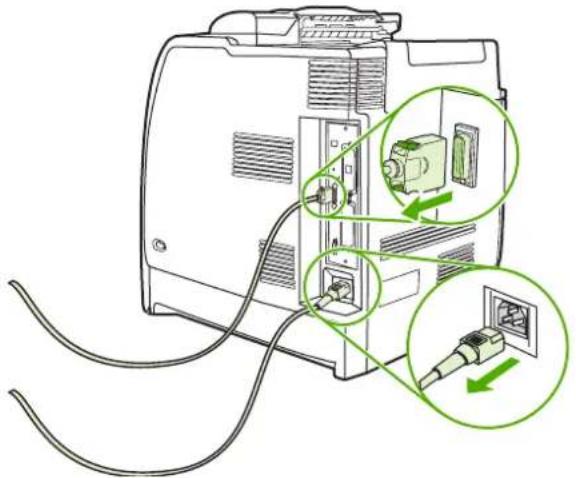
text_image
Diagram showing cable connection to a device with labeled components and directional arrows indicating installation or repair steps.- Locate the formatter board in the rear of the printer.
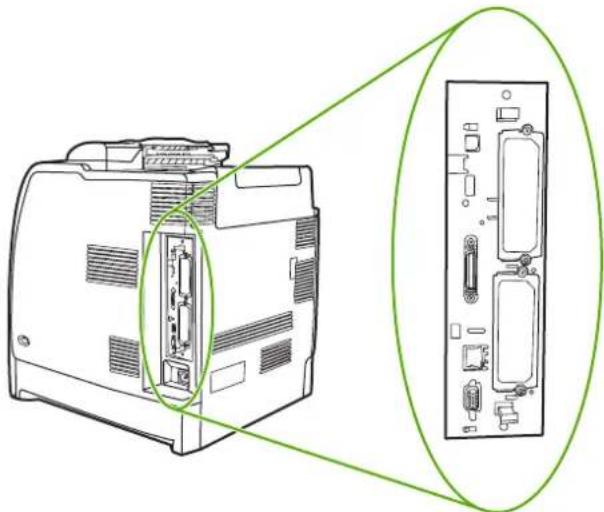
natural_image
Diagram of a computer chassis with an inset showing internal components (no text or labels)- Locate an open EIO slot. Loosen and remove the two retaining screws holding the cover for the EIO slot, and then remove the cover. You will not need these screws and the cover again. They can be discarded.
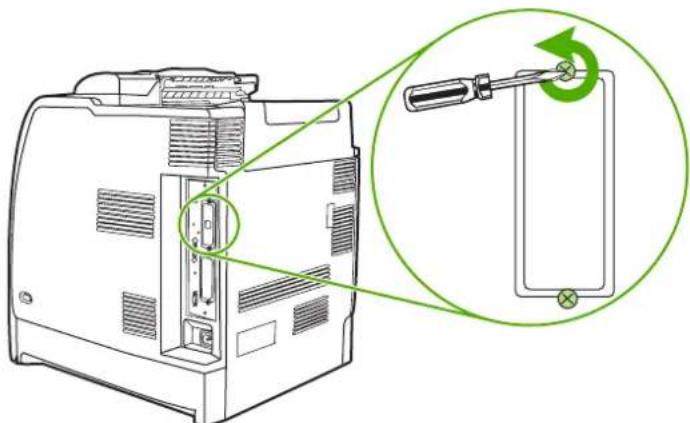
natural_image
Technical line drawing of a computer case with an inset showing a mechanical component being adjusted (no text or symbols present)- Firmly insert the hard disk into the EIO slot.

natural_image
Line drawing of a device casing with internal components and ventilation slots (no text or symbols)- Insert and tighten the retaining screws that came with the hard disk.

text_image
Technical diagram showing a computer case with a screwdriver inserted, highlighting the internal component and green circular annotation indicating rotation.- Connect the cables and power cord, and turn the printer on.
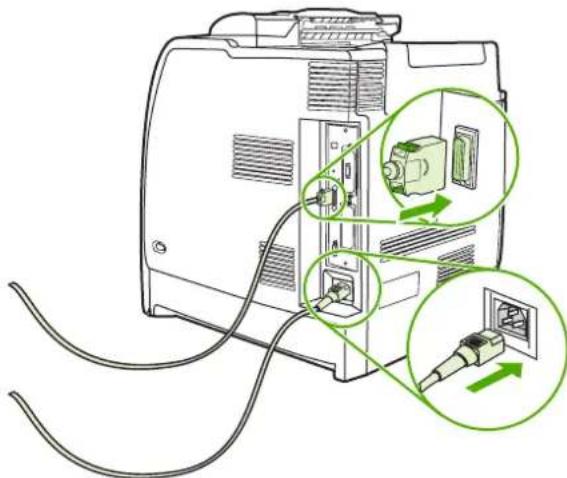
text_image
Diagram showing cable connection to a device with labeled components and green arrows indicating directional changes.Installing DDR memory DIMMs
- Turn the printer off.
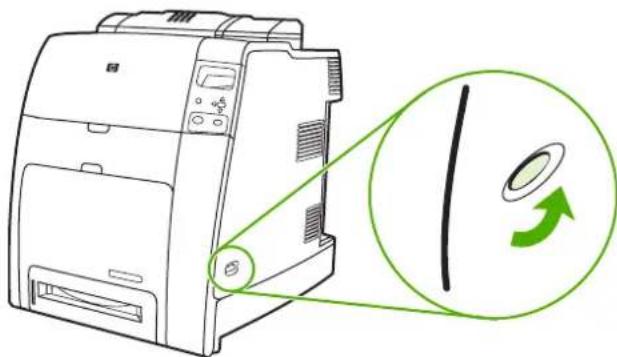
text_image
Diagram showing a printer with a green circular annotation highlighting the blade and arrow, indicating mechanical or optical alignment.- Disconnect all power and interface cables.
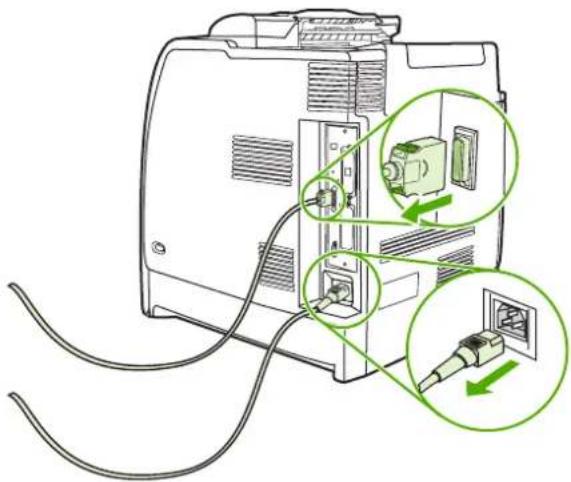
text_image
Diagram showing cable connection to a device with two green arrows indicating internal components, likely illustrating a power or installation process.- Locate the formatter board in the rear of the printer.

natural_image
Diagram of a computer chassis showing internal components and an external view of the internal circuit board (no text or labels)- Grasp the black tabs situated near the top and bottom of the formatter board.
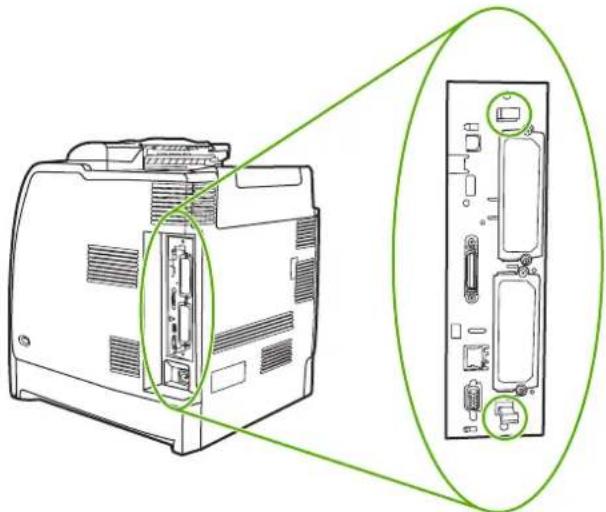
natural_image
Diagram of a computer tower with internal components and an inset view showing internal structure (no text or symbols)- Gently pull on the black tabs to pull the formatter board from the printer. Place the formatter board on a clean, flat, grounded surface.
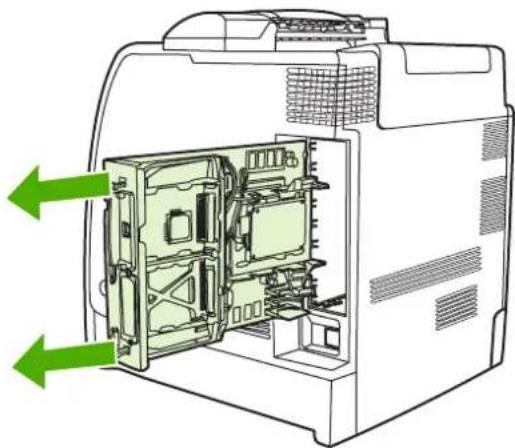
natural_image
Diagram of an open computer case showing internal components and green directional arrows indicating movement (no text or symbols present)- To replace a DDR DIMM that is currently installed, spread the latches apart on each side of the DIMM slot, lift the DDR DIMM up at an angle, and pull it out.
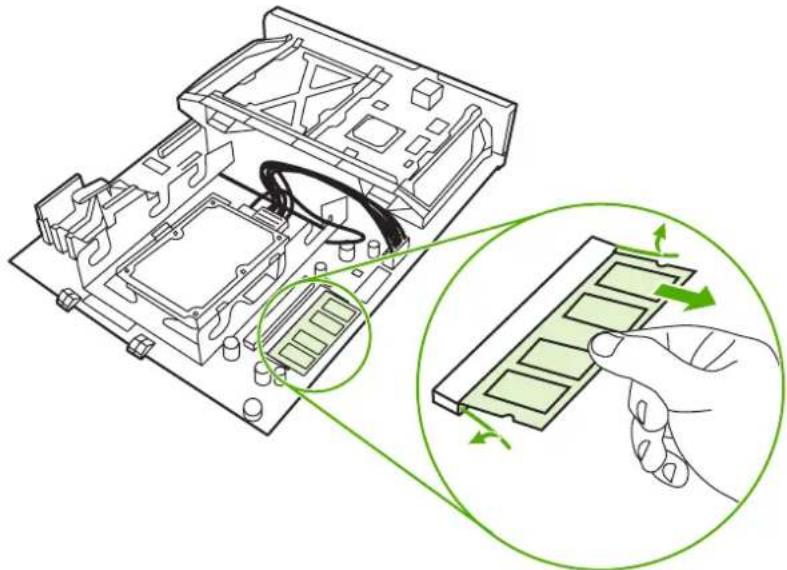
natural_image
Diagram of a computer motherboard with an inset showing a hand interacting with a green-labeled component (no text or symbols present)- Remove the new DIMM from the antistatic package. Locate the alignment notch on the bottom edge of the DIMM.
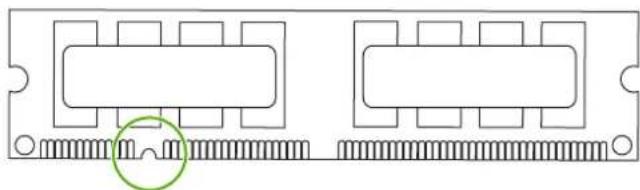
natural_image
Pure electrical connector diagram without any text, numbers, or symbols- Holding the DIMM by the edges, align the notch on the DIMM with the bar in the DIMM slot at an angle and firmly press the DIMM into the slot until it is fully seated. When installed correctly, the metal contacts are not visible.
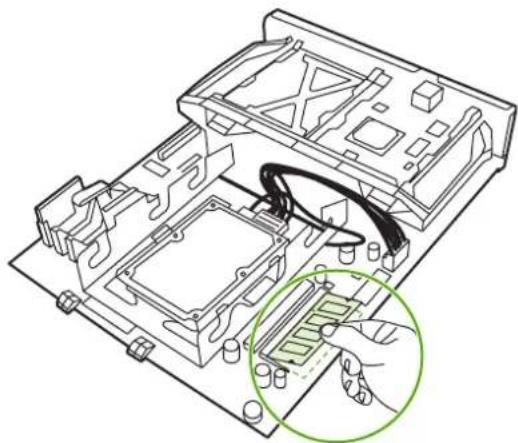
natural_image
Technical line drawing of an electronic device chassis with a magnified inset showing internal components (no text or symbols)- Push down on the DIMM until both latches engage the DIMM.

natural_image
Technical diagram of an electronic device showing internal components and a highlighted green arrow indicating a process or connection (no text or symbols present)
NOTE If you have difficulty inserting the DIMM, make sure the notch on the bottom of the DIMM is aligned with the bar in the slot. If the DIMM still does not go in, make sure you are using the correct type of DIMM.
- Align the formatter board in the tracks at the top and bottom of the slot, and then slide the board back into the printer.

natural_image
Technical diagram of an open computer case with internal components and a magnified inset showing internal components (no text or symbols)- Reconnect the power cable and interface cables, and turn the printer on.
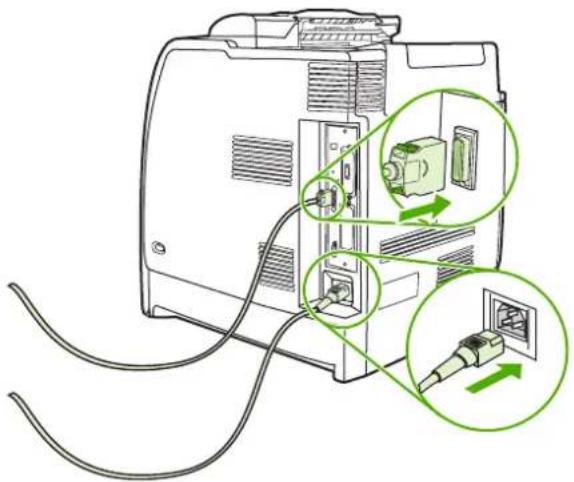
natural_image
Diagram of an electronic device with cable and socket, showing internal components and green arrows indicating connection points (no text or symbols present)- If you installed a memory DIMM, go to Enabling memory.
Installing a flash memory card

CAUTION Do not insert a flash memory card that is designed for use with a digital camera into the printer. The printer does not support photo printing directly from a flash memory card. If you install a camera-type flash memory card, the control panel displays a message asking if you want to reformat the flash memory card. If you choose to reformat the card, all data on the card will be lost.
- Turn the printer off.

text_image
Diagram showing a printer with a green circular annotation highlighting the blade and arrow, indicating rotation or processing direction.- Disconnect all power and interface cables.

text_image
Diagram showing cable connection to a device with labeled components and directional arrows indicating installation or disassembly.- Locate the formatter board in the rear of the printer.
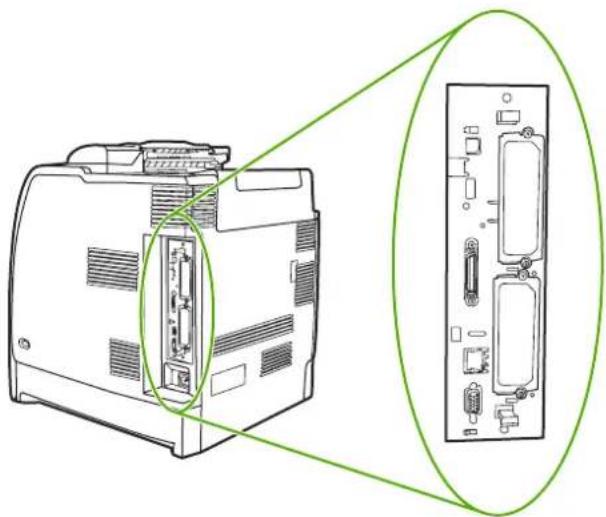
natural_image
Diagram of a computer chassis showing internal components and an external view (no text or labels)- Grasp the black tabs situated near the top and bottom of the formatter board.
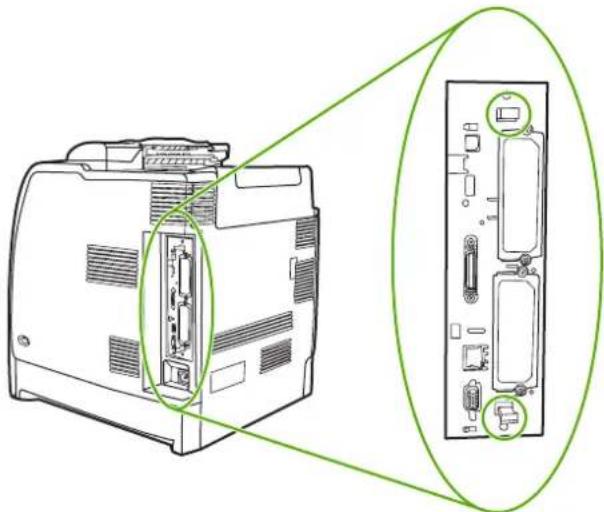
natural_image
Diagram of a computer chassis showing internal components and a close-up view of the internal structure (no text or symbols present)- Gently pull on the black tabs to pull the formatter board from the printer. Place the formatter board on a clean, flat, grounded surface.
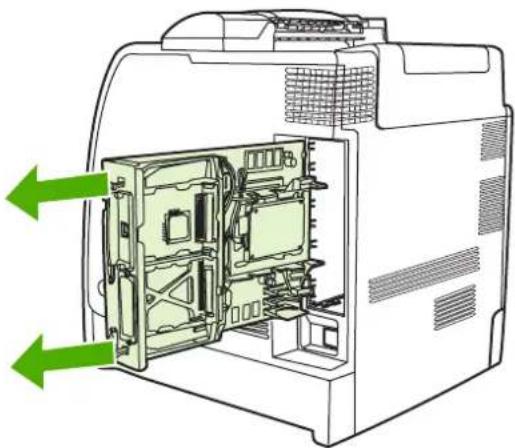
natural_image
Diagram of an internal computer case with green arrows indicating ports or components (no text or symbols present)- Align the groove on the side of the flash memory card with the notches in the connector and push it in the slot until it is fully seated.

natural_image
Technical line drawing of an electronic device chassis with internal components and wiring (no text or symbols)
CAUTION Do not insert the flash memory card at an angle.

NOTE The first flash memory slot marked "Firmware Slot" is reserved for firmware only. Slots 2 and 3 should be used for all other solutions.
- Align the formatter board in the tracks at the top and bottom of the slot, and then slide the board back into the printer.

natural_image
Technical line drawing of an internal device with green annotations highlighting internal components (no text or symbols present)- Reconnect the power cable and interface cables, and turn the printer on.

natural_image
Diagram of an electronic device with cable and socket, showing internal components and green circular annotations indicating connection directions (no text or symbols present)Enabling memory
If you installed a memory DIMM, set the printer driver to recognize the newly added memory.
To enable memory for Windows 98 and Me
- On the Start menu, point to Settings, and click Printers.
- Right-click the printer and select Properties.
- On the Configure tab, click More.
- In the Total Memory field, type or select the total amount of memory that is now installed.
- Click OK.
To enable memory for Windows 2000 and XP
- On the Start menu, point to Settings, and click Printers or Printers and Faxes.
- Right-click the printer and select Properties.
- On the Device Settings tab, click Printer Memory (in the Installable Options section).
- Select the total amount of memory that is now installed.
- Click OK.
Installing an HP Jetdirect print server card
You can install an HP Jetdirect print server in an open EIO slot.
To install an HP Jetdirect print server card
- Turn the printer off.
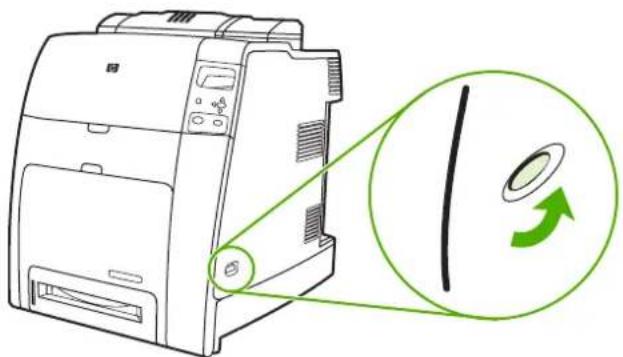
text_image
Diagram showing a printer with a green circular annotation highlighting the blade and rotation direction.- Disconnect all power and interface cables.

text_image
Diagram showing cable connection to a device with labeled components and directional arrows indicating installation or disassembly.- Locate the formatter board in the rear of the printer.

natural_image
Diagram of a computer chassis with an inset showing internal components (no text or labels)- Locate an open EIO slot. Loosen and remove the two retaining screws holding the cover for the EIO slot, and then remove the cover. You will not need these screws and the cover again. They can be discarded.

natural_image
Technical line drawing of a computer case with a magnified inset showing the internal structure (no text or symbols)- Firmly insert the HP Jetdirect print server card into the EIO slot.

natural_image
Line drawing of a device casing with internal components and ventilation slots (no text or symbols)- Insert and tighten the retaining screws that came with the print server card.

text_image
Technical diagram showing a computer case with a close-up of the internal component being adjusted for a screwdriver, annotated with green circular arrows indicating rotation.- Connect the network cable.
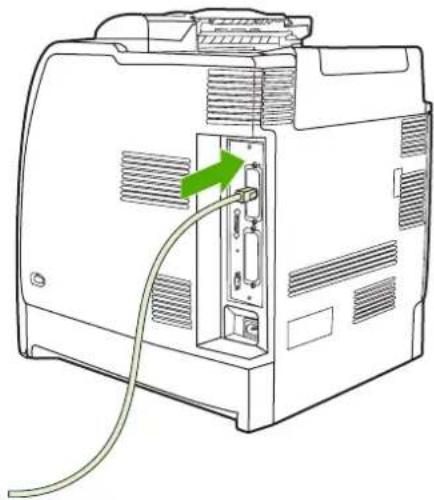
natural_image
Line drawing of a computer case with a cable inserted, showing internal components and a green arrow indicating a connection point (no text or symbols present)- Reconnect the power cable, and turn the printer on.
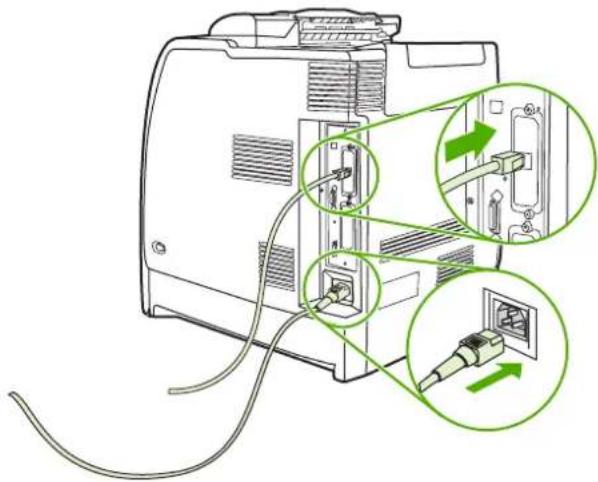
text_image
Diagram showing cable installation and connection to a device with labeled components and green arrows indicating direction of connection.- Print a configuration page (see Configuration page). In addition to a printer configuration page and a Supplies Status page, an HP Jetdirect configuration page that contains network configuration and status information should also print.
If the printer does not print, uninstall and reinstall the print server card to ensure that it is completely seated in the slot.
-
Perform one of these steps:
-
Choose the correct port. See the computer or operating system documentation for instructions.
- Run the printer installation software again, choosing the network installation this time.
B Supplies and accessories
To order supplies in the US, contact http://www.hp.com/go/ljsupplies. To order supplies worldwide, see http://www.hp.com/ghp/buyonline.html. To order accessories, see http://www.hp.com/go/accessories.
Ordering directly through the embedded Web server (for printers with network connections)
Use the following steps to order printing supplies directly through the embedded Web server (see Using the embedded Web server.)
- In the Web browser on the computer, enter the IP address for the printer. The printer status window appears. Or, go to the URL provided in the alert e-mail.
- Click Other Links.
- Click Order Supplies. The browser opens to a page in which you can choose to send information about the printer to HP. You also have the option to order supplies without sending the printer's information to HP.
- Select the part numbers you want to order and follow the instructions on the screen.
Part numbers
To order supplies through the embedded Web server, select the part numbers you want to order and follow the instructions on the screen.
Supplies, accessories, and part numbers
| Part Part number Type/size | ||
| Memory J6073A EIO printer hard disk | ||
| Q7721A DIMM 128-MB DDR 200-pin SDRAM | ||
| Q7722A DIMM 256-MB DDR 200-pin SDRAM | ||
| Q7723A DIMM 512-MB DDR 200-pin SDRAM | ||
| Accessories J7934A HP Jetdirect 620n fast Ethernet print | server | |
| J7960A HP Jetdirect 625n Gigabit Ethernet print | server | |
| J7951A HP Jetdirect ew2400 wired/wireless print | server (external) | |
| Q7501A Printer stand | ||
| Q7499A Optional 500-sheet paper feeder (Tray 3, | 4, 5, or 6) | |
| Q7003A Stapler/stacker | ||
 | NOTE A stapler/stacker can be added to models that are equipped with an external duplexer. | |
| Printer supplies C8091A | Stapler cartridge refill (5,000 staples) | |
| Q5950A Black print cartridge | ||
| Q5951A Cyan print cartridge | ||
| Q5952A Yellow print cartridge | ||
| Q5953A Magenta print cartridge | ||
| Q7504A Image transfer (ETB) kit | ||
| Q7502A Image fuser kit (110 volt) | ||
| Q7503A Image fuser kit (220 volt) | ||
| Cables C2946A IEEE 1284-C compliant parallel cable, | 3 meters (approximately 10 feet) long, with 25-pin male/micro 36-pin male (C size) connector | |
| C2947A 10-meter parallel cable | ||
| C6518A HP USB 2.0 printer cable a-b, 2 meter (6 feet) | ||
| Part Part number Type/size | |
| Media Q6541A HP Color Laser Soft Gloss Presentation | Paper (letter), 200 sheets |
| Q6542A HP Professional 120 Soft Gloss Laser | Paper (A4), 200 sheets |
| Q1298A HP LaserJet Tough Paper (letter) | |
| Q1298B HP Superior 165 Satin Matt Laser Paper | (A4) |
| HPU1132 HP Premium Choice LaserJet Paper | (letter) |
| CHP410 HP Premium Choice LaserJet Paper | (A4) |
| HPJ1124 HP LaserJet Paper (letter) | |
| CHP310 HP LaserJet Paper (A4) | |
| Q2413A HP Premium Cover Paper (letter), 100 | sheets |
| Q6545A HP Laser Gloss Photo/Image Paper | (letter) |
| Q6547A HP Professional 120 Glossy Laser Paper | (A4) |
| Q6607A HP Color Laser Glossy Photo Paper | (letter), 200 sheets |
| Q6614A HP Photo 220 Glossy Laser Paper (A4), | 100 sheets |
| Q6610A HP Color Laser Brochure Paper (letter), | 250 sheets |
| Q6616A HP Superior 160 Glossy Laser Paper | (A4), 150 sheets |
| C2934A HP Color Laser Transparencies (letter), | 50 sheets |
| C2936A HP Color Laser Transparencies (A4), 50 | sheets |
| Reference materials Q7491-90953 | HP Color LaserJet 4700 User GuideFor downloadable versions, go tohttp://www.hp.com/support/cji4700.When connected, selectManuals. |
| Q7491-90943 HP Color LaserJet 4700 Getting Started | Install GuideFor downloadable versions, go tohttp://www.hp.com/support/cji4700.When connected, selectManuals. |
| Q7499-90901 | HP Color LaserJet 4700 500-sheet InputTray Install GuideFor downloadable versions, go to http://www.hp.com/support/clj4700. When connected, select Manuals. |
| Q7501-90902 HP Color LaserJet 4700 Printer Stand | Install Guide |
| For downloadable versions, go to http://www.hp.com/support/clj4700. When connected, select Manuals. | |
| Q7504-90902 HP Color LaserJet 4700 ETB Kit Install | Guide |
| For downloadable versions, go to http://www.hp.com/support/clj4700. When connected, select Manuals. | |
| Q7502-90902 HP Color LaserJet 4700 110V/220V | Fuser Install Guide |
| For downloadable versions, go to http://www.hp.com/support/clj4700. When connected, select Manuals. | |
| Q7003-90903 HP Color LaserJet 4700 Stapler/Stacker | Install Guide |
| For downloadable versions, go to http://www.hp.com/support/clj4700. When connected, select Manuals. | |
| Q7491-90951 HP Color LaserJet 4700 Formatter Install | Guide |
| For downloadable versions, go to http://www.hp.com/support/clj4700. When connected, select Manuals. | |
| 5851-2562 HP Color LaserJet 4700 Paper Feeder | Install Guide |
| For downloadable versions, go to http://www.hp.com/support/clj4700. When connected, select Manuals. | |
| Q7491-90941 HP Color LaserJet 4700 Help Guide | For downloadable versions, go to http://www.hp.com/support/clj4700. When connected, select Manuals. |
| Q7491-90009 HP Color LaserJet 4700 Roller Kit Install | Guide |
| For downloadable versions, go to http://www.hp.com/support/clj4700. When connected, select Manuals. | |
| Q7491-90949 | HP Color LaserJet 4700 Ro |
| For downloadable versions, go to http://www.hp.com/support/clj4700. When connected, select Manuals. | |
C Service and Support
Hewlett-Packard limited warranty statement
HP PRODUCT DURATION OF LIMITED WARRANTY
HP Color LaserJet 4700, 4700n, 4700dn, 4700dtn, and 4700ph+ printer
One-year limited warranty
HP warrants to you, the end-user customer, that HP hardware and accessories will be free from defects in materials and workmanship after the date of purchase, for the period specified above. If HP receives notice of such defects during the warranty period, HP will, at its option, either repair or replace products which prove to be defective. Replacement products may be either new or equivalent in performance to new.
HP warrants to you that HP software will not fail to execute its programming instructions after the date of purchase, for the period specified above, due to defects in material and workmanship when properly installed and used. If HP receives notice of such defects during the warranty period, HP will replace software which does not execute its programming instructions due to such defects.
HP does not warrant that the operation of HP products will be uninterrupted or error free. If HP is unable, within a reasonable time, to repair or replace any product to a condition as warranted, you will be entitled to a refund of the purchase price upon prompt return of the product.
HP products may contain remanufactured parts equivalent to new in performance or may have been subject to incidental use.
Warranty does not apply to defects resulting from (a) improper or inadequate maintenance or calibration, (b) software, interfacing, parts or supplies not supplied by HP, (c) unauthorized modification or misuse, (d) operation outside of the published environmental specifications for the product, or (e) improper site preparation or maintenance.
HP's limited warranty is valid in any country/region or locality where HP has a support presence for this product and where HP has marketed this product. The level of warranty service you receive may vary according to local standards. HP will not alter form, fit or function of the product to make it operate in a country/region for which it was never intended to function for legal or regulatory reasons. TO THE EXTENT ALLOWED BY LOCAL LAW, THE ABOVE WARRANTIES ARE EXCLUSIVE AND NO OTHER WARRANTY OR CONDITION, WHETHER WRITTEN OR ORAL, IS EXPRESSED OR IMPLIED AND HP SPECIFICALLY DISCLAIMS ANY IMPLIED WARRANTIES OR CONDITIONS OF MERCHANTABILITY, SATISFACTORY QUALITY, AND FITNESS FOR A PARTICULAR PURPOSE. Some countries/regions, states or provinces do not allow limitations on the duration of an implied warranty, so the above limitation or exclusion might not apply to you. This warranty gives you specific legal rights and you might also have other rights that vary from country/region to country/region, state to state, or province to province.
TO THE EXTENT ALLOWED BY LOCAL LAW, THE REMEDIES IN THIS WARRANTY STATEMENT ARE YOUR SOLE AND EXCLUSIVE REMEDIES. EXCEPT AS INDICATED ABOVE, IN NO EVENT WILL HP OR ITS SUPPLIERS BE LIABLE FOR LOSS OF DATA OR FOR DIRECT, SPECIAL, INCIDENTAL, CONSEQUENTIAL (INCLUDING LOST PROFIT OR DATA), OR OTHER DAMAGE, WHETHER BASED IN CONTRACT, TORT, OR OTHERWISE. Some countries/regions, states or provinces do not allow the exclusion or limitation of incidental or consequential damages, so the above limitation or exclusion may not apply to you.
THE WARRANTY TERMS CONTAINED IN THIS STATEMENT, EXCEPT TO THE EXTENT LAWFULLY PERMITTED, DO NOT EXCLUDE, RESTRICT OR MODIFY AND ARE IN ADDITION TO THE MANDATORY STATUTORY RIGHTS APPLICABLE TO THE SALE OF THIS PRODUCT TO YOU.
Print cartridge limited warranty statement
This HP Print Cartridge is warranted to be free from defects in materials and workmanship.
This warranty does not apply to print cartridges that (a) have been refilled, refurbished, remanufactured or tampered with in any way, (b) experience problems resulting from misuse, improper storage, or operation outside of the published environmental specifications for the printer product or (c) exhibit wear from ordinary use.
To obtain warranty service, please return the product to place of purchase (with a written description of the problem and print samples) or contact HP customer support. At HP's option, HP will either replace products that prove to be defective or refund your purchase price.
TO THE EXTENT ALLOWED BY LOCAL LAW, THE ABOVE WARRANTY IS EXCLUSIVE AND NO OTHER WARRANTY OR CONDITION, WHETHER WRITTEN OR ORAL, IS EXPRESSED OR IMPLIED AND HP SPECIFICALLY DISCLAIMS ANY IMPLIED WARRANTIES OR CONDITIONS OF MERCHANTABILITY, SATISFACTORY QUALITY, AND FITNESS FOR A PARTICULAR PURPOSE.
TO THE EXTENT ALLOWED BY LOCAL LAW, IN NO EVENT WILL HP OR ITS SUPPLIERS BE LIABLE FOR DIRECT, SPECIAL, INCIDENTAL, CONSEQUENTIAL (INCLUDING LOST PROFIT OR DATA), OR OTHER DAMAGE, WHETHER BASED IN CONTRACT, TORT, OR OTHERWISE.
THE WARRANTY TERMS CONTAINED IN THIS STATEMENT, EXCEPT TO THE EXTENT LAWFULLY PERMITTED, DO NOT EXCLUDE, RESTRICT OR MODIFY AND ARE IN ADDITION TO THE MANDATORY STATUTORY RIGHTS APPLICABLE TO THE SALE OF THIS PRODUCT TO YOU.
Fuser and transfer unit limited warranty statement
This HP product is warranted to be free from defects in materials and workmanship until the printer provides a low-life indicator on the control panel.
This warranty does not apply to products that (a) have been refurbished, remanufactured or tampered with in any way, (b) experience problems resulting from misuse, improper storage, or operation outside of the published environmental specifications for the printer product or (c) exhibit wear from ordinary use.
To obtain warranty service, please return the product to place of purchase (with a written description of the problem) or contact HP customer support. At HP's option, HP will either replace products that prove to be defective or refund your purchase price.
TO THE EXTENT ALLOWED BY LOCAL LAW, THE ABOVE WARRANTY IS EXCLUSIVE AND NO OTHER WARRANTY OR CONDITION, WHETHER WRITTEN OR ORAL, IS EXPRESSED OR IMPLIED AND HP SPECIFICALLY DISCLAIMS ANY IMPLIED WARRANTIES OR CONDITIONS OF MERCHANTABILITY, SATISFACTORY QUALITY, AND FITNESS FOR A PARTICULAR PURPOSE.
TO THE EXTENT ALLOWED BY LOCAL LAW, IN NO EVENT WILL HP OR ITS SUPPLIERS BE LIABLE FOR DIRECT, SPECIAL, INCIDENTAL, CONSEQUENTIAL (INCLUDING LOST PROFIT OR DATA), OR OTHER DAMAGE, WHETHER BASED IN CONTRACT, TORT, OR OTHERWISE.
THE WARRANTY TERMS CONTAINED IN THIS STATEMENT, EXCEPT TO THE EXTENT LAWFULLY PERMITTED, DO NOT EXCLUDE, RESTRICT OR MODIFY AND ARE IN ADDITION TO THE MANDATORY STATUTORY RIGHTS APPLICABLE TO THE SALE OF THIS PRODUCT TO YOU.
HP maintenance agreements
HP has several types of maintenance agreements that meet a wide range of support needs. Maintenance agreements are not part of the standard warranty. Support services may vary by area. Check with your local HP dealer to determine the services available to you.
On-site service agreements
To provide you with the level of support best suited to your needs, HP has on-site service agreements with three response times:
Priority on-site service
This agreement provides 4-hour service response to your site for calls made during normal HP business hours.
Next-day on-site service
This agreement provides support by the next working day following a service request. Extended coverage hours and extended travel beyond HP's designated service zones are available on most on-site agreements (for additional charges).
Weekly (volume) on-site service
This agreement provides scheduled weekly on-site visits for organizations with many HP products. This agreement is designated for sites using 25 or more workstation products, including printers, plotters, computers, and disk drives.
D Printer specifications
Physical dimensions
Table D-1 Physical dimensions
| Product Height Depth Width Weight | ||||
| HP Color LaserJet 4700 and HP Color LaserJet 4700n | 582 mm (22.9 in.) | 598 mm (23.5 in.) | 521 mm (20.5 in.) | 47.7 kg (105.1 lb.) |
| HP Color LaserJet 4700dn with duplexer | 628.6 mm (24.7 in.) | 598 mm (23.5 in.) | 521 mm (20.5 in.) | 48.9 kg (107.8 lb.) |
| HP Color LaserJet 4700dtn with Trays 3 and 4, duplexer, and stand | 1010.6 mm (39.8 in.) | 715 mm (28.2 in.) | 630 mm (24.8 in.) | 104.3 kg (230 lb.) |
| HP Color LaserJet 4700ph+ with Trays 3, 4, 5, and 6, duplexer, stapler/stacker, and stand | 1375.5 mm (54.2 in.) | 715 mm (28.2 in.) | 630 mm (24.8 in.) | 130.5 kg (287.7 lb.) |
| 750 sheet stapler/ stacker | 305 mm (12 in.) | 476 mm (18.7 in.) | 500 mm (19.7 in.) | 8.4 kg (18.5 lb.) |
| Optional paper tray | 117 mm (4.6 in.) | 578 mm (22.8 in.) | 514 mm (20.25 in.) | 8.9 kg (19.6 lb.) |
| Printer stand 148 mm (5.8 in.) | 715 mm (28.2 in.) | 630 mm (24.8 in.) | 37.6 kg (83 lb.) | |
Electrical specifications
| 110-Volt models 220-Volt models | ||
| Power requirements 100-127V (+/- 10%) | 220-240V (+/- 10%) | |
| 50/60 Hz (+/- 2 Hz) | 50/60 Hz (+/- 2 Hz) | |
| Rated current 8 Amps 4 Amps | ||
Table D-2 Power consumption (average, in watts) ^1
| Power consumption (average, in watts) | ||||
| Product model Printing (31 ppm letter) ^2 | Ready ^3,4 | Sleep ^5 | Off | |
| HP Color LaserJet 4700 | 567 55 17 0.3 | |||
| HP Color LaserJet 4700n | 567 55 17 0.3 | |||
| HP Color LaserJet 4700dn | 567 55 17 0.3 | |||
| HP Color LaserJet 4700dtn | 591 63 18 0.3 | |||
| HP Color LaserJet 4700ph+ | 623 66 18 0.3 | |||

NOTE 1 Values are subject to change. See http://www.hp.cpm/support/clj4700 for current information.
^2 Power reported is the highest value measured using all standard voltages.
^3 Maximum heat dissipation for all models in Ready mode is 225 BTU/hour.
^4 Default time from Ready mode to Sleep mode is 30 minutes.
^5 Recovery time from Sleep mode to start of printing is less than 15 seconds.
Acoustic emissions
Sound Power Level Declared Per ISO 9296
| Printing (31 ppm letter) ^1,2,3 | L_WAd=6.7 Bels (A) [67 dB (A)] |
| Ready | L_WAd=4.7 Bels (A) [47 dB (A)] |
Sound Pressure Level - Bystander Position Declared Per ISO 9296
| Printing (31 ppm letter)1,2,3 | L_pAm = 50 dB (A) |
| Ready | L_pAm = 31 dB (A) |

NOTE 1 Values are subject to change. See http://www.hp.com/support/clj4700 for current information.
^2 Configuration tested: Base printer, simplex printing on A4 paper.
^3 HP Color LaserJet 4700 speed: 31 ppm letter and 30 ppm A4 paper.
Environmental specifications
Specification Recommended Allowed
Temperature 17 to 25°C (62.6 to 77°F) 15 to 30°C (59 to 86°F)
Humidity 30 to 70% relative humidity (RH) 10 to 80% RH
Altitude N/A 0 to 2600 m (0 to 8530 ft)
E Regulatory information
FCC regulations
FCC regulations
This equipment has been tested and found to comply with the limits for a Class B digital device, pursuant to Part 15 of the FCC rules. These limits are designed to provide reasonable protection against harmful interference in a residential installation. This equipment generates, uses, and can radiate radio frequency energy. If this equipment is not installed and used in accordance with the instructions, it may cause harmful interference to radio communications. However, there is no guarantee that interference will not occur in a particular installation. If this equipment does cause harmful interference to radio or television reception, which can be determined by turning the equipment off and on, the user is encouraged to try to correct the interference by one or more of the following measures:
• Reorient or relocate the receiving antenna.
- Increase separation between equipment and receiver.
- Connect equipment to an outlet on a circuit different from that to which the receiver is located.
- Consult your dealer or an experienced radio/TV technician.

NOTE Any changes or modifications to the printer that are not expressly approved by HP could void the user's authority to operate this equipment.
Use of a shielded interface cable is required to comply with the Class B limits of Part 15 of FCC rules. Hewlett-Packard shall not be liable for any direct, indirect, incidental, consequential, or other damage alleged in connection with the furnishing or use of this information.
Environmental product stewardship program
Protecting the environment
Hewlett-Packard Company is committed to providing quality products in an environmentally sound manner. This product has been designed with several attributes to minimize impacts on our environment.
Ozone production
This product generates no appreciable ozone gas ( O_3 ).
Power consumption
Power usage drops significantly while in Sleep mode, which saves natural resources and saves money without affecting the high performance of this printer. This product qualifies for ENERGY STAR® (Version 3.0), which is a voluntary program to encourage the development of energy-efficient office products.

ENERGY STAR® is a U.S. registered service mark of the U.S. Environmental Protection Agency. As an ENERGY STAR® partner, Hewlett-Packard Company has determined that this product meets ENERGY STAR® Guidelines for energy efficiency. For more information, see http://www.energystar.gov/.
Paper use
This product's optional, automatic, duplex feature (two-sided printing, see Two-sided (duplex) printing) and N-up printing (multiple pages printed on one page) capability can reduce paper usage and the resulting demands on natural resources.
Plastics
Plastic parts over 25 grams have markings according to international standards that enhance the ability to identify plastics for recycling purposes at the end of the product's life.
HP LaserJet printing supplies
In many countries/regions, this product's printing supplies (print cartridges, fuser, and transfer unit) can be returned to HP through the HP Printing Supplies Returns and Recycling Program. An easy-to-use and free takeback program is available in over 30 countries/regions. Multilingual program information and instructions are included in every new HP LaserJet print cartridge and supplies package.
HP Printing Supplies Returns and Recycling Program Information
Since 1992, the HP Printing Supplies Returns and Recycling Program has collected millions of used LaserJet print cartridges that otherwise might have been discarded in the world's landfills. The HP LaserJet print cartridges and supplies are collected and bulk-shipped to our resource and recovery
partners, who disassemble the cartridges. After a thorough quality inspection, selected parts are reclaimed for use in new cartridges. Remaining materials are separated and converted into raw materials for use by other industries to make a variety of useful products.
U.S. returns—For a more environmentally responsible return of used cartridges and supplies, HP encourages the use of bulk returns. Simply bundle two or more cartridges together and use the single, pre-paid, and pre-addressed UPS label that is supplied in the package. For more information in the U.S., call 1-800-340-2445 or visit the HP LaserJet Supplies Web site at http://www.hp.com/go/recycle.
- Non-U.S. recycling returns—Non-U.S. customers should visit the http://www.hp.com/go/recycle Web site for further information regarding availability of the HP Supplies Returns and Recycling Program.
Recycled paper
This product is capable of using recycled papers according to EN 12281:2002. HP recommends the use of recycled papers that contain not more than 5% ground wood, such as HP Office Recycled paper.
Material restrictions
This HP product contains a battery that may require special handling at end-of-life. The battery contained in this product includes:
• Type: Carbon monofluoride lithium battery
• Weight: 0.8 grams
• Location: Formatter board
- User removable: No


廢電池請回收
This product does not contain added mercury.
For recycling information, contact http://www.hp.com/go/recycle, contact your local authorities, or go to the Electronics Industries Alliance Web site at http://www.eiae.org.
Disposal of waste equipment by users in private households in the European Union
This symbol on the product or on its packaging indicates that this product must not be disposed of with your other household waste. Instead, it is your responsibility to dispose of your waste equipment by handing it over to a designated collection point for the recycling of waste electrical and electronic equipment. The separate collection and recycling of your waste equipment at the time of disposal will help to conserve natural resources and ensure that it is recycled in a manner that protects human health and the environment. For more information about where you can drop off your waste equipment for recycling, please contact your local city office, your household waste disposal service or the shop where you purchased the product.

natural_image
Symbol of a trash bin crossed with no text or numbers, representing waste sorting or restriction (no text present)Material Safety Data Sheet (MSDS)
Material Safety Data Sheets (MSDS) can be obtained by contacting the HP LaserJet Supplies Web site at http://www.hp.com/hpinfo/community/environment/productinfo/safety.htm.
For more information
On HP's environmental programs, including:
• Product environmental profile sheet for this and many related HP products
HP's commitment to the environment
HP's environmental management system
HP's end-of-life product return and recycling program
• Material Safety Data Sheets (MSDS)
See http://www.hp.com/go/environment or http://www.hp.com/hpinfo/community/environment.
Declaration of Conformity
Declaration of Conformity
according to ISO/IEC Guide 22 and EN 45014
Manufacturer's Name: Hewlett-Packard Company
Manufacturer's Address: 11311 Chinden Boulevard,
Boise, Idaho 83714-1021, USA
declares, that the product
Product Name: HP Color LaserJet 4700, 4700n, 4700dn, 4700dtn, 4700ph+
Product numbers: Q7491A, Q7492A, Q7493A, Q7494A, Q7495A
including accessories: Q7499A, Q7033A, Q7505A
Regulatory Model Number ^4 :
BOISB-0404-00
Product Options: All
Toner Cartridge: Q5950A, Q5951A, Q5952A, Q5953A
conforms to the following Product Specifications:
Safety: IEC 60950-1:2001 / EN60950-1:2001
IEC 60825-1:1993 + A1 + A2 / EN 60825-1:1994 + A11 + A2 (Class 1 Laser/LED Product) GB4943-2001
EMC: CISPR 22:1997 / EN 55022:1998 Class B ^1,3
EN 61000-3-2:2000
EN 61000-3-3:1995 + A1:2001
EN 55024:1998+A1 amendment
FCC Title 47 CFR, Part 15 Class B / ICES-003, Issue 4
GB9254-1998
Supplementary Information:
The product herewith complies with the requirements of the EMC Directive 89/336/EEC, the Low Voltage Directive 73/23/EEC, the R&TTE Directive 1999/5/EC (Annex II) and carries the CE-Marking accordingly.
^1 The product was tested in a typical configuration with Hewlett-Packard Personal Computer Systems.
^2 This Device complies with Part 15 of the FCC Rules. Operation is subject to the following two Conditions: (1) this device may not cause harmful interference, and (2) this device must accept any interference received, including interference that may cause undesired operation.
^3 Except clause 9.5 which is not yet in effect.
^4 For regulatory purposes, this product is assigned a Regulatory model number. This number should not be confused with the product name or the product number(s).
Boise, Idaho 83714-1021, USA
05 January, 2005
For regulatory topics only:
Australia Contact: Product Regulations Manager, Hewlett-Packard Australia, Ltd., 31-41 Joseph Street, Blackburn, Victoria 3130, Australia
European Contact: Your Local Hewlett-Packard Sales and Service Office or Hewlett-Packard GmbH, Department HQ-TRE/Standards Europe, Herrenberger Straße 140, D-71034 Böblingen, Germany, (FAX: +49-7031-14-3143)
USA Contact: Product Relations Manager, Hewlett-Packard Company, PO Box 15, Mail Stop 160, Boise, Idaho 83707-0015, USA, (Phone: 208-396-6000)
Safety statements
Laser safety
The Center for Devices and Radiological Health (CDRH) of the U.S. Food and Drug Administration has implemented regulations for laser products manufactured since August 1, 1976. Compliance is mandatory for products marketed in the United States. The printer is certified as a "Class 1" laser product under the U.S. Department of Health and Human Services (DHHS) Radiation Performance Standard according to the Radiation Control for Health and Safety Act of 1968. Since radiation emitted inside the printer is completely confined within protective housings and external covers, the laser beam cannot escape during any phase of normal user operation.

WARNING! Using controls, making adjustments, or performing procedures other than those specified in this user guide could result in exposure to hazardous radiation.
Canadian DOC regulations
Complies with Canadian EMC Class B requirements.
EMI statement (Korea)
B급 기기 (가정용 정보통신기기)
VCCI statement (Japan)
AC cordset statement (Japan)
Laser Statement for Finland
Luokan 1 laserlaite
Klass 1 Laser Apparat
bidirectional communication Two-way data transmission.
bin A receptacle for holding printed pages.
BOOTP Abbreviation for "Bootstrap Protocol," an Internet protocol that allows a networked computer or peripheral to automatically obtain its IP configuration from a BOOTP server.
chooser A Macintosh accessory that allows you to select a device.
CMYK An acronym for colors "cyan, magenta, yellow, and black."
control panel The area on the printer that contains buttons and a display screen. Use the control panel to set printer settings and to get information about the printer's status.
DDR Acronym for double data-rate.
default The normal or standard setting for hardware or software.
DHCP An acronym for "dynamic host configuration protocol." DHCP enables individual computers or peripherals connected to a network to automatically obtain their IP configuration from a DHCP server.
DIMM An acronym for "dual in-line memory module." A small circuit board that holds memory chips.
duplex A feature that allows printing on both sides of a sheet of paper.
EIO An acronym for "Enhanced Input/Output." A hardware interface used for adding an internal print server, network adaptor, hard disk, and other plug-in functionality for HP printers.
embedded Web server A server that is completely contained within a device. Embedded Web servers provide management information about the device. They are helpful for managing single devices on a small network. By using a Web browser to access an embedded Web server, network users can obtain network printer status updates, perform simple troubleshooting operations, change device configuration settings, and link to online customer support. When you need to manage many network devices, it is more effective to use an integrated Web server management tool, such as HP Web Jetadmin.
Emulated PostScript Software that emulates Adobe PostScript, a programming language that describes the appearance of the printed page.
firmware Programming instructions that are stored in a read-only memory unit inside the printer.
Flash memory card A small-sized, high-quality, removable memory card.
font A complete set of letters, numerals, and symbols in a typeface.
fuser The assembly that uses heat to fuse the toner onto the paper or other media.
grayscale Various shades of gray.
halftone pattern A halftone pattern uses differing sizes of ink dots to produce a continuous-tone image such as a photograph.
HP Jetdirect HP product for network printing.
HP Web Jetadmin HP trademarked device management software that lets you manage a single printer or multiple printers using a Web browser.
I/O An acronym for "input/output" and refers to computer port settings.
IP address The unique number assigned to a computer device connected to a network.
IPX/SPX An acronym for "internetwork packet exchange/sequenced packet exchange."
macro A single keystroke or command that results in a series of actions or instructions.
media The paper, labels, transparencies, or other material on which the printer prints the image.
memory tag A memory partition with a specific address.
MIME An acronym for Multipurpose Internet Mail Extensions.
monochrome Black and white. Devoid of color.
mopy The HP term for "multiple original prints" capability.
network A system of computers interconnected by telephone wires or other means in order to share information.
network administrator A person who manages a network.
page buffer Temporary printer memory used to hold page data while the printer creates an image of the page.
parallel cable A type of computer cable often used to connect printers directly to a computer rather than to a network.
parallel port A connection point for a device connected with a parallel cable.
PCL An acronym for "Printer Control Language."
PDF An acronym for Portable Document Format. The native file format for Adobe Systems Incorporated Acrobat. PDF is the file format for representing documents in a manner that is independent of the original application software, hardware, and operating system used to create those documents.
peripheral An auxiliary device, such as a printer, modem, or storage system, that works in conjunction with a computer.
personality Distinctive features or characteristics of a printer or printer language.
pixel Abbreviation for "picture element," which is the smallest unit of area in an image displayed on a screen.
PJL An acronym for "Printer Job Language."
PostScript A trademarked page description language.
PPD An acronym for "PostScript Printer Description."
Print Task Quick Set A feature of the printer driver that allows you to save the current printer driver settings (for example: page orientation, two-sided printing, and paper sources) for reuse.
printer driver Software program that allows a computer to access printer features.
RAM An acronym for "random access memory," a type of computer memory used to store data that may change.
RARP An acronym for "Reverse Address Resolution Protocol," a protocol that enables a computer or peripheral to determine its own IP address.
raster image An image composed of dots.
render The process of outputting text or graphics.
RGB An acronym for colors red, green, and blue.
ROM An acronym for "read-only memory," a type of computer memory used to store data that should not be changed.
supplies Materials used by the printer that are used up and must be replaced. Supply items for the HP Color LaserJet 4700 printer are the four print cartridges, the transfer belt, and the fuser.
TCP/IP An internet protocol (developed by the U.S. Department of Defense) that has become the global standard for communications.
toner The fine black or colored powder that forms the image on the printed media.
transfer unit The black plastic belt that transports the media inside the printer and transfers the toner from the print cartridges onto the media.
tray A receptacle for holding blank media.
xerographic paper General term for paper intended for photocopy or laser printer use.
XHTML An acronym for extensible hypertext markup language.
Index
Symbols/Numerics
2-sided printing 125
A
accessories
hard disk 8
ordering 277
accessory port 86
address, printer
Macintosh, troubleshooting 243, 246
alerts
configuring 175
e-mail 147
auto continue 73
autocontinue black 249
automatic media sensing 95
auxiliary connection configuration 87
B
background printing, troubleshooting 244
Bluetooth 89
booklets
printing 128
both sides, printing on 116, 122
C
canceling print job 134
cleaning page using 172
clearable warnings setting display time 72
clearing jams 216, 218, 220
clock
setting 148
CMYK samples printing 144
color
adjusting 156
CMYK ink set emulation 153
edge control 157, 160
four-color printing 153
halftone options 157, 159
HP ImageREt 3600 152
managing options 156, 159
matching 154
neutral grays 158, 159
options 152
Pantone® matching 154
printed vs. monitor 154
printing color samples 155
printing in grayscale 156, 159
sample book matching 154
sRGB 152
using 152
color options
configuring 65
color supply out
reporting 74
solution for 249
Color tab settings 118, 123
color/black mix 65
configuration page
printing 142, 180
viewing with embedded Web server 147
configure device menu 47, 53
configuring
alerts 175
configuring trays
custom paper size 99
from paper handling menu 98
control panel
accessing from computer 40
blank display 235
buttons 38, 41
configuring 64
display 38
lights 38, 42
menus 45, 46
overview 37, 38
printer personalities 72
problems 238
using in shared environments 78
control panel display
options 71
control panel messages 184
controlling print jobs 92
cover pages 115, 121
covers 121
custom paper sizes
driver settings 115
D
Declaration of Conformity 300
demo page
printing 144
Desktop Printer Utility,
troubleshooting 243
diagnostics menu 63
DIMMs (dual inline memory modules)
installing 261
display brightness
setting 71
double-sided printing 116, 117, 122, 123, 125
driver autoconfiguration 12
drivers
accessing 20, 22
Help 20
Macintosh, troubleshooting 245
presets 121
quick sets 113
selecting 20
duplex printing
binding options 127
control panel settings 126
manual 127
duplex-printing accessory
loading 116, 122
duplexing 116, 122
E
e-mail alerts 147
embedded Web server
checking toner level 163
description 17
ordering supplies 278
using 146
using to configure alerts 175
enlarging documents 114
envelopes
jams 233
loading in Tray 1 101
printing 101
environmental features 8
EPS files, troubleshooting 244, 247
errors
auto continue 73
event log
printing 145
viewing 147
F
FCC regulations 296
file directory page
printing 145
first page
blank 115
use different paper 115
first page, use different paper 121
flash memory card
installing 268
font list
printing 145
fonts
EPS files, troubleshooting 244, 247
Macintosh, troubleshooting 244
G
grayscale printing 156, 159
H
Help, printer-driver 20
host USB 86
HP customer care iii
HP Easy Printer Care Software checking toner level 163 using 17, 149
HP fraud hotline 162
HP Jetdirect print servers configuring 147 installing 273
HP OpenVMS drivers 19
HP Web Jetadmin checking toner level 163 using to configure alerts 175
|
I/O (input/output) menu 60
I/O configuration network configuration 80
IBM OS/2 drivers 19
IEEE 802.11b standard 89
information menu 51
information pages CMYK samples page 144 configuration page 142
demo page 144
event log 145
file directory 145
menu map 142
PCL font list 145
PS font list 145
RGB samples 144
supplies status page 143
usage page 143
input trays
capacities 33
configuring 52, 66, 97
internal clock 148
IP address
displaying 65
Macintosh, troubleshooting 243, 246
J
jam recovery
setting 75
jams
common causes 212
configuring alerts 175
envelopes 233
locations 210
recovery 210
stapler/stacker 220
stapler/stacker duplex path 221
staples 227
top cover area 216
Jetdirect print servers configuring 147
job held timeout 64
job offset 129, 131
job storage 7, 135
job storage limit 64
L
language
changing 76
embedded Web server 147
selecting 76
lights 42, 43
links
information 2
Linux drivers 19
M
Macintosh
background printing 244
drivers, accessing 21, 22
drivers, troubleshooting 245
fonts, troubleshooting 244
problems, troubleshooting 243
USB card, troubleshooting 244, 247
maintenance
agreements 287
media
automatic sensing 95
custom sizes, setting 115
document size, selecting 114
firs page 121
first page 115
loading Tray 2 and optional trays 103, 105, 107
maximum size 8
pages per sheet 115, 122
type 8
weight 8
memory
adding 140, 259
enabling 272
managing 140
menu map
description 51
printing 142
menus
configure device 53
diagnostics 63
hierarchy 46
I/O (input/output) 60
information 51
paper handling 52
print quality 54
printing 53
resets 62
retrieve job 50
stapler/stacker 59
system setup 56
message types 183
messages
critical 183
error 183
status 183
warning 183
mopier mode 137
multiple pages per sheet 115, 122
N
n-up printing 115, 122
networks
administrative tools 18
configuring 80
configuring with embedded Web server 148
default gateway 82
disabling DLC/LLC 83
disabling IPX/SPX 83
disabling protocols 82
IP address 80
software 16
subnet mask 81
TCP/IP parameters 80
0
order at
supplies 74
OS/2 drivers 19
P
pages per sheet 115, 122
paper
custom sizes, setting 115
document size, selecting 114
first page 115, 121
pages per sheet 115, 122
paper handling 8
paper handling menu 52
paper orientation
stapler/stacker 132
paper path test page
printing 180
paper specifications 33
parallel configuration 85
passwords
network 147
PCL drivers
selecting 20
PCL font list 145
personality
setting 72
PIN (personal identification
number)
private jobs 136
ports
troubleshooting Macintosh 244, 247
PostScript Printer Description (PPD) files
troubleshooting 243
PPDs
troubleshooting 243
preconfiguration 12
presets 121
print cartridge
authentication 162
checking toner levels 163
genuine HP 162
life expectancy 163
managing 162
non-HP 162
replacing 164
storing 163
Print Document On 114
print media
colored paper 110
envelopes 110
for color printing 152
glossy paper 109
heavy paper 110
labels 110
letterhead 111
media to avoid 94
preprinted forms 111
printing from Tray 1 100
recycled paper 112
selecting 94
specifications 33
supported sizes 33
supported types 33
supported weights 33
Tough paper 111
transparencies 109
print quality
diagnosing problems 254
print quality defects 254
repetitive defect ruler 253
print quality menu 54
print server card
installing 273
print servers
configuring 147
Printer 8
printer
accessories 8
connectivity 9
drivers 19, 22
fonts 8
maintenance 161
managing 141
performance 7
personalities 7
printer basics 1
printer components
locating 10
printer configurations 4, 64
printer driver
Services tab 119
printer features
walk around 10
printer information
access 2
printer information pages
troubleshooting 180
printer personalities 72
printer settings
configure 53
printer software 12
printer supplies 9
printing
booklets 128
canceling 134
special media 109
special situations 133
printing envelopes 101
printing from optional trays 102
printing from Tray 2 102
printing menu 53
printing tasks 91
private jobs
deleting 137
printing 136
problem solving 177
product stewardship 297
PS drivers
selecting 20
Q
quick sets 113
R
RAM (random access memory) 7
RAM disk
setting behavior 76
recycling
print cartridge 297
reducing documents 114
registration page
printing 181
regulations
FCC 296
replace color supplies
reporting 73
resets menu 62
resizing documents 114
restricting color printing 148, 158, 249
retrieve job menu 50
RGB samples
printing 144
S
safety statements
AC cordset (Japan) 301
Canadian DOC 301
Japanese VCCI 301
Korean EMI 301
laser safety 301
laser safety for Finland 302
scaling documents 114
security page 147
servers
configuring 147
service
agreements 287
Services tab 119
settings
driver presets 121
embedded Web server 147
quick sets 113
show address 65
sleep delay
changing settings 69
disabling 70
enabling 70
time 69
sleep mode 69
software
applications 18
HP Easy Printer Care 17
installing 13
macintosh 24
networks 16
uninstalling 15
utilities 17
special media
printing 109
special situations
blank back cover 133
custom-sized media 133
different first page 133
printing 133
specifications
acoustic 292
dimensions 290
electrical 291
humidity 293
temperature 293
stapler
jams 227
selecting at control panel 131
selecting from application 130
stapler cartridge
replacing 168
stapler/stacker
configuring 129
indicator lights 43
jams 220, 221
job offset 131
menu 59
paper orientation 132
printing to 130
stapling 129
stapling
in applications 130
stapling options 118
status
e-mail alerts 147
stopping a print request 134
storing jobs
deleting 136
printing 135
private jobs 136
proof and hold jobs 135
quick-copying 138
storing 138
subnet mask 81
supplies
locating 167
ordering 277
replacement intervals 168
replacing 167
status 147
status page 147
supplies low
configuring alerts 175
ordering reminder 74
supplies out
configuring alerts 175
supplies status page
description 51
printing 143
system setup menu 56
T
tray 1 117, 123
tray behavior 66
trays
double-sided printing 117, 123
troubleshooting
checklist 178
color printing problems 249
control panel problems 238
duplexing 234
EPS files 244, 247
incorrect printer output 239
jams 210
Macintosh problems 243
media handling problems 230
overhead transparencies 251
print quality 251
printer response 235
software applications 241
transparencies 233
two-sided printing
control panel settings 126
manual 127
U
UNIX drivers 19
Update Now 12
usage page
description 51
printing 143
USB configuration 86
USB port
troubleshooting Macintosh
244, 247
Use Different Paper/Covers 115
user interface 7
W
Wake time
changing 70
wake time
setting 70
warranty
print cartridge 285
product 283, 284
transfer unit 286
watermarks
cover page 121
Windows
drivers, accessing 20
wireless printing
802.11b standard 89
Bluetooth 89
wrong printer, sending to 243
© 2005 Hewlett-Packard Development Company, L.P.
www.hp.com

invent
* Q7491 - 90953 *
* Q7 4 9 1 - 9 0 9 5 3 *
Q7491-90953