DP-5000 - Printer OKI - Free user manual and instructions
Find the device manual for free DP-5000 OKI in PDF.


User questions about DP-5000 OKI
0 question about this device. Answer the ones you know or ask your own.
Ask a new question about this device
Download the instructions for your Printer in PDF format for free! Find your manual DP-5000 - OKI and take your electronic device back in hand. On this page are published all the documents necessary for the use of your device. DP-5000 by OKI.
USER MANUAL DP-5000 OKI
DP-5000 Metallic and Colour Desktop Printer

natural_image
Technical line drawing of a mechanical device with mounting brackets and internal components (no text or symbols)User's Guide
Preface
Every effort has been made to ensure that the information in this document is complete, accurate, and up-to-date. Oki assumes no responsibility for the results of errors beyond its control. Oki also cannot guarantee that changes in software and equipment made by other manufacturers and referred to in this guide will not affect the applicability of the information in it. Mention of software products manufactured by other companies does not necessarily constitute endorsement by Oki.
Copyright 1999 by Oki. All rights reserved.
Oki is a registered trademark of Oki Electric Industry Company Ltd.
Energy Star is a trademark of the United States Environmental Protection Agency.
Microsoft, MS-DOS and Windows are registered trademarks of Microsoft Corporation.
Apple, Macintosh, Mac, MacOS and True Type are registered trademarks of Apple Computer Corporation.
EEC compatibility

This product complies with the requirements of the Council Directives 89/336/EEC and 73/23/EEC amended by 93/68/EEC on the approximation of the laws relating to electromagnetic compatibility and low voltage.
Energy Star

As an Energy Star Partner, Oki has determined that this product meets the Energy Star guidelines for energy efficiency.
Safety instructions
This printer has been carefully designed to give years of safe, reliable performance. As with all electrical equipment, however, there are a few basic precautions that should be taken to avoid personal injury or damaging the printer:
- Read this setup guide carefully and save it for future reference.
- Read and follow all warning and instruction labels on the printer itself.
- Disconnect the printer before cleaning. Use only a damp cloth. Do not use liquid or aerosol cleaners to clean the printer.
- Place the printer on a firm, solid surface. If the printer is placed on something unsteady, it may fall and become damaged or injure someone. If the printer is placed on a soft surface, such as a rug, sofa, or bed, the vents may become blocked causing the printer to overheat.
- Do not put the printer on or near a heat source, such as a radiator or heat register. Keep it out of direct sunlight. Allow enough room around the printer for adequate ventilation and easy access.
English
- Do not use the printer near water, or spill liquid of any kind into it.
- Make sure that the power source matches the rating listed on the back of the printer. If you are not sure, check with your dealer or with your local power company.
- This printer has an earthed plug as a safety feature and will only connect to an earthed outlet. If this plug cannot be connected to a power outlet, then it is possible that the power outlet is of the older, non-earthed type. Contact an electrician to have the power outlet replaced. Do not use an adapter to defeat the earthing.
- To avoid damaging the power cable, do not put anything on it or place it where it will be walked on. If the cable becomes damaged or frayed, replace it immediately.
- If an extension cable or power strip is being used with the printer, make sure that the total of the amperage rating required by all the equipment is less than the rating of the extension cable or power strip. The total ratings of all equipment
plugged into the outlet should not exceed 13 amperes.
- The power outlet into which the printer is connected must remain accessible at all times.
- Opening any cover may expose hot surfaces. These are clearly labelled. Do NOT touch them.
- Do not insert anything into the ventilation slots on the printer; you could get a shock or cause a fire.
- Aside from the routine maintenance described in the user's guide, do not try to service the printer yourself. Opening a cover may expose you to shocks or other hazards.
- Do not make any adjustments other than those outlined in the user's guide as damage may be caused to the printer.
If anything happens that indicates that the printer is not working properly or has been damaged, disconnect the printer from the power source and contact your dealer. These are some of the things to look for:
- The power cable or plug is frayed or damaged.
- Liquid has been spilled into the printer, or it has been exposed to water.
- The printer has been dropped, or the cabinet is damaged.
- The printer does not function normally when following the operating instructions.
Table of contents
Preface .... ii
EEC compatibility .... ii
Energy Star.... ii
Safety instructions .... iii
Table of contents .....v
Chapter 1 - Introduction
Introduction 1
Features. 2
Preparing your printer....3
Removing package contents ....3
Opening front cover 3
Closing front cover ....4
Locating printer. 4
Installing output paper tray....5
Printer functions 6
Front view of printer....6
Rear view of printer....7
Rear view of printer with Macintosh interface
module 7
Inside the printer....8
Paper feed switch....9
Control panel. 9
Indicator lights summary .....10
English
Chapter 2 - Initial Setup
Connecting cables for Windows ..... 11
Connecting the printer to your computer.....11
Connecting the printer to a power supply ..... 11
Ink cartridges....13
Identifying ink cartridge and paper types ..... 13
Installing ink cartridges ..... 14
Replacing or changing ink cartridges ..... 16
Loading paper 17
Paper types and available feeding modes ..... 17
Notes and precautions about paper....17
Loading paper in automatic feed mode ..... 18
Loading high grade/plain/laser paper and transparencies....19
Loading paper in manual feed mode ..... 20
Chapter 3 - Installation and Operation, Windows
Installing the printer driver 23
Purpose of the printer driver 23
Turning on the power....23
System requirements 23
Installing printer software from CD....24
Installing printer software using Plug & Play .... 24
Port monitor setup 24
Select the I/O port speed 25
Port speed error 25
Configure LPT port ..... 25
Printing operations....26
Printing in monochrome 26
Requirements 26
Placing an ink cartridge in your printer ..... 26
Setting up the printer driver for monochrome printing....27
Printing in colour....28
Requirements 28
Placing ink cartridges in your printer.....28
Setting up the printer driver for colour printing29
Printing on reverse side 29
Setting up the printer driver for printing on reverse side 29
Turning off the power 30
Chapter 4 - Installation and Operation, Macintosh
Installing the printer driver 31
Purpose of the printer driver 31
Preparing for installation 31
Turn on the power 31
System requirements 31
Contents of the installation disk. 32
Installing the printer driver software ..... 32
Using balloon help. 32
Selecting the correct driver....33
Testing the printer....33
Page setup dialogue box ....34
Print dialogue box ....34
Print preview....34
Printing operations ....35
Printing in monochrome 35
Requirements. 35
Placing an ink cartridge in your printer.....35
Setting up the printer driver for monocrome printing ....36
Printing in colour 36
Requirements. 36
Placing ink cartridges in your printer .....37
Setting up the printer driver for colour printing37
Setting up colour matching option .....38
Printing on reverse side. . . . . . . . . . . . . . . . . . . . . . . . . . . . . . . . . . . . . . . . 39
Setting up the printer driver for printing on reverse side ....39
Chapter 5 - Specialised Printing Operations
VPhoto colour printing. . . . . . . . . . . . . . . . . . . . . . . . . . . . . . . . . . . . . . . . . . . . . . 41
Colour printing on VPhoto print film .....41
Requirements. 41
Prepare the image to be printed....41
Install ink cartridges .....41
Load VPhoto print film in your printer.....41
Set up the printer driver for printing .....42
Colour printing on plain paper .....42
Requirement 42
Prepare the image to be printed....43
Install ink cartridges .....43
Load the paper in your printer....43
Set up the printer driver for printing .....43
Printing in foil colour ....45
Single foil colour printing. 45
Requirements. 46
Prepare the image to be printed. . . . . . . . . . . . . . . . 46
Install ink cartridges .....46
Load the paper in your printer....46
Set up the printer driver for printing .....46
Multi foil colour printings....47
Requirements. 47
Prepare the image to be printed. . . . . . . . . . . . . . . . . 47
Install ink cartridges .....48
Load the paper in your printer....48
Set up the printer driver for printing .....48
Simultaneous full colour and foil colour printing. .49
Requirements. 49
Prepare the image to be printed....50
Install ink cartridges....51
Load the paper in your printer....51
Set up the printer driver for printing .....51
Printing on overhead transparencies....53
Requirements....53
Prepare the image to be printed .....53
English
Install ink cartridges....53
Load the overhead transparencies ..... 53
Setting up transparency separators....54
Set up the printer driver for printing ..... 54
Undercoating with VPhoto primer ink cartridge.....56
Requirements 56
Prepare the image to be undercoated ..... 56
Install ink cartridge 56
Load the paper in your printer 56
Set up the printer driver for printing ..... 56
Printing on undercoat....57
Chapter 6 - Maintenance
Cleaning the printer....59
Cleaning the main unit....59
Cleaning the print head 60
Cleaning the platen 60
Cleaning the feed roller 61
Changing dye sub cleaning pads 62
Chapter 7 - Troubleshooting
Troubleshooting - general 65
Power failure while printing 65
Printer errors 65
Ready/insert button functions 66
Paper feed. 66
Paper eject....66
Cancelling an alarm 66
Forced printing and clearing data. 66
Clearing paper jams 66
Troubleshooting - Windows 68
Troubleshooting - Macintosh 80
Chapter 8 - Specifications & Settings
Options. 94
DIP switches 94
Printable area 95
Using cardboard or thick paper ..... 95
Available supplies 96
Ink cartridges 96
Print media 96
Options....96
Appendix A - Optional Devices
USB interface kit....97
System requirements 97
Installation for iMac....97
Using the OKI USB printer ..... 99
Installing for Windows 98 .... 100
Deleting the OKI printer driver ..... 100
Installing the USB printer driver ..... 100
Troubleshooting for USB interface kit ..... 101
iMac 101
Windows 98....102
Dye sublimation upgrade kit 104
Installing the upgrade. 104
Installing the printer software....105
Installing the port monitor for Windows 95/98 . .105
Installing the printer driver for Macintosh .....106
Connecting SCSI interface for Macintosh .....107
Connecting the Macintosh SCSI interface module107
Removing the SCSI interface module.....108
Connecting the printer to your computer .....108
Checking the SCSI device number....109
Power supply connection .....109
Index
Chapter 1 - Introduction
Introduction
Thank you for your purchase of the OKI DP-5000 Photo Quality Colour Printer. This printer represents the most recent advances in printing quality and technology. Whether you need a printer for your Windows PC, your Macintosh or the new iMac computer, this printer is the solution you have been looking for. In addition to the standard features listed in this Chapter we can offer a number of optional devices which expand machine functions and further support your communication needs. The available options include:
• Macintosh SCSI Interface Module
- USB Interface Kit for iMac and PC with Windows 98
- Dye Sublimation Upgrade Kit (for photographic printing)
Features
The following is a summarised list of the many standard features offered by your new printer:
- Variable-dot 2400 dots-per-inch printing resolution.
- Seven-colour ink capacity, the most challenging printing tasks are easily accomplished.
- Fully compatible with all of the standard inks and foil colours.
- Fade-proof, smear-proof, and waterproof printing.
- Ability to print on any paper using our VPhoto Primer cartridge.
- Our Econo Black cartridge can be used again and again, for the lowest-cost black and white printing.
- Reversible finish cartridge enabling the cartridge to have a more extended life.
- Option to add dye sublimation printing. With a simple upgrade kit, you can have true continuous-tone photographic-quality printing at your fingertips.
Preparing your printer
Removing package contents
- Lift the printer out of its container box. Remove the packing materials from inside and outside the printer.
Caution
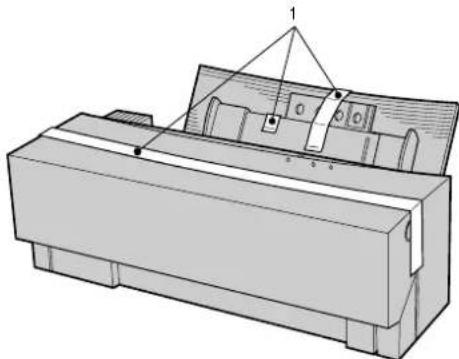
The printer is shipped with tape, spacers, and other packing materials to prevent delicate parts from being damaged while in transit. Remove these packing materials before using the printer. Damage to the printer or malfunction may occur if the printer is used while these packing materials are still present.
natural_image
Technical line drawing of a mechanical device with labeled components (no readable text or symbols)English
- Remove the three pieces of tape (1) from the outside of the printer before using.
Opening front cover
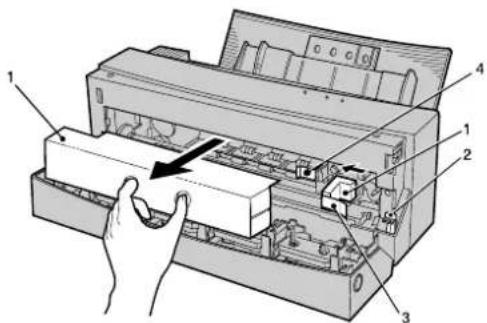
- Open the front cover to remove the inside packing material.

text_image
Diagram showing two hands operating a device with labeled components and an arrow indicating rotation or movement.-
To open the front cover (1), push the front cover release button (2) to release the internal lock. Gently lower the front cover with your hand.
-
Remove the two pieces of carriage packing material (1) from inside the printer.
-
Press down on the release lever (2).
-
Remove the tape (3) from the metal frame, and move the smaller packing piece (1) to the left.
-
Remove the other tape (3) from the carriage
Caution:
Operating the printer without first removing the packing materials may damage the printer.
text_image
Technical diagram of a printer with numbered parts and an arrow indicating process directionCaution:
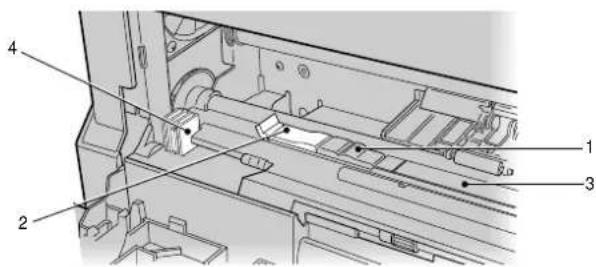
Do not remove the white pad (1) or the cleaning pad (2) at the left end of the platen (3). They are there to clean the print head. Removing them can cause the printer to malfunction. The cleaning pad can be replaced when it gets dirty. Do not touch the cover open sensor (4), which is located on the left side of the printer.
text_image
Technical diagram of a mechanical assembly with numbered components labeled 1, 2, and 3.Closing front cover
Close the front cover after removing the carriage packing material.
Caution:
When closing the front cover, never slam it shut. The ink cartridges can become dislodged and damage to the printer may result.
Locating printer
After removing the packing material and reading the safety precautions (see page iii), choose a location which offers a stable, firm surface for your printer. Try to avoid places which are subject to extremes of heat, cold, sunlight and damp. Also, choose a location from
which you can run the power cables safely to suitable nearby connection points.
Installing output paper tray
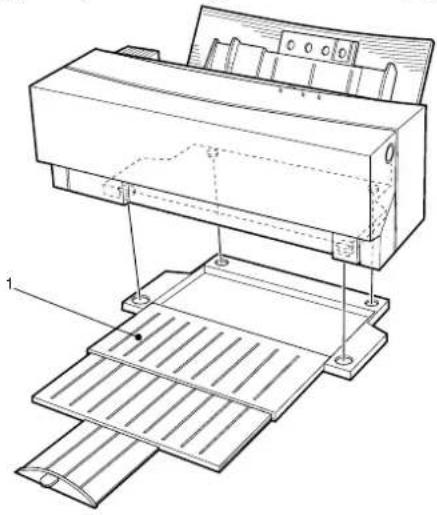
Place the printer on the output paper tray (1) as shown below. During printing, extend the paper tray. The output paper tray will hold up to 100 sheets of paper.
natural_image
Technical line drawing of a printer or printer assembly with labeled parts (no text or symbols present)English
Printer functions
The following paragraphs explain the name and function of each part of the printer.
Front view of printer
- Sheet feeder - Paper can fed into the printer either automatically or manually. Place a stack of not more than 100 sheets (plain laser paper) for automatic feed. In manual feed, insert a single sheet at a time.

text_image
Technical diagram of a printer with numbered parts labeled 1, 2, 3, and 4- Front cover release button - Pressing this button opens the front cover. The front cover will need to be opened when there is a paper jam or when
changing ink cartridges. Open the front cover gently, using both hands.
-
Front cover - The front cover protects the internal mechanisms of the printer. The cover is always closed during printing.
-
Paper output slot - Paper exits the printer through this slot.
Caution:
Never reach inside the printer while it is operating. Injury may result. Do not open the front cover while the printer is running.

text_image
Technical diagram of a device with numbered components and an upward arrow indicating motion or assembly- Paper stopper - This stopper prevents the paper from rising when the small size media is set vertically for printing.
- Paper support - The paper support holds the loaded paper upright. To extend the paper support, pull up on the top edge.
- Paper feed guide - This guide feeds the paper into the printer. Set the adjustable guide on the left to match the paper size being used.
Rear view of printer
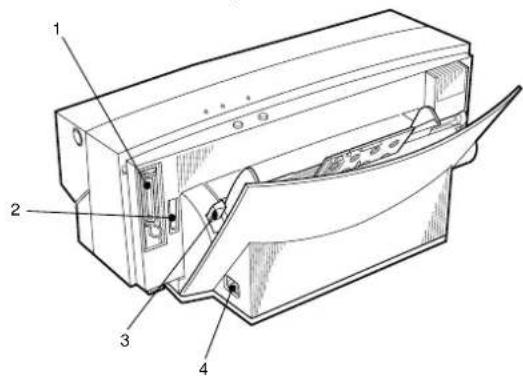
- Parallel interface connector - The printer cable is connected to the parallel interface connector.
text_image
Technical diagram of a mechanical device with numbered components labeled 1 to 4English
- Accessory connector - This connector is used to connect an optional dye sublimation key or Macintosh interface module to the printer. Make sure you remove the rectangular plastic connector cover before connecting either of these options.
- Paper feed switch - This switch sets the paper feeding method to automatic feed mode or manual feed mode.
- Power socket - The power cable connects to the power socket.
Rear view of printer with Macintosh interface module
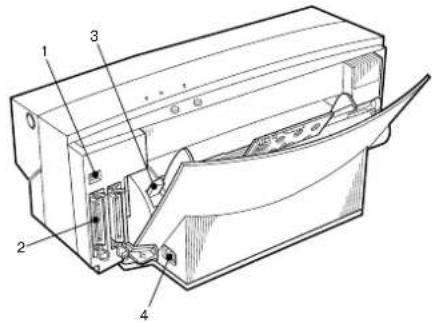
- DIP switches - The DIP switches are used to set the SCSI device number for the printer.
text_image
Technical diagram of a mechanical device with numbered components for identification- SCSI connector - The SCSI connectors are used for connecting to the Macintosh computer and/or other SCSI devices.
- Paper feed switch - This switch sets the paper feeding method to automatic feed mode or manual feed mode.
- Power socket - The power cable connects to the power socket.
Inside the printer
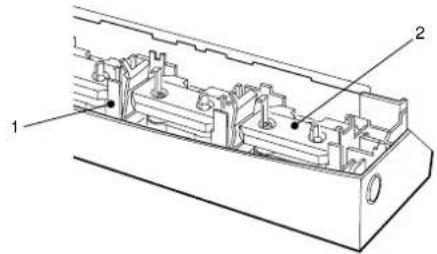
- Marking sticker - The marking sticker confirms that the carriage is in the standard position. Try not to smear the face of the sticker. If it gets dirty, gently clean it with a dry cotton swab. As you do so, be careful not to peel it off.
text_image
Technical diagram of a mechanical assembly with labeled parts 1 and 2- Ink cartridge holder plate - There are four holder plates which hold the two ink cartridges each
needed for a particular printing job. A maximum of seven ink cartridges is allowed.
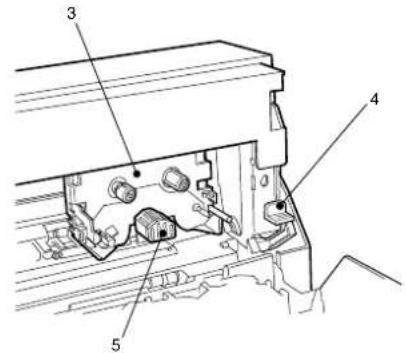
- Carriage - The carriage automatically picks up the specific ink cartridge needed for printing and moves it to the printing location. The carriage also contains the print head.
text_image
Technical diagram of a mechanical assembly with numbered components labeled 3, 4, and 5-
Release lever - This lever, located to the right of the carriage and platen, is used to clear paper jams. Press the release lever down to remove the jammed paper. When you close the front cover, the lever will automatically go back to its original position.
-
Print head - The print head prints the characters. Take care not touch the underside of the head.
Caution:
Mishandling the print head or carriage can cause damage to the printer. Also, never load an ink cartridge directly into the carriage. Malfunction or damage to the printer may result.
Paper feed switch
Caution:
Do not move the paper feed switch while paper is being fed, otherwise the paper may feed in incorrectly. Move the paper feed switch until it clicks into position “M” or “A”. Paper will not feed properly unless the switch is correctly set to either “M” or “A”.
For continuous printing using automatic feeding, set the paper feed switch to position “A”. To manually feed paper, set the paper feed switch to position “M”.

natural_image
Technical line drawing of a mechanical component with an arrow indicating a step (no text or symbols present)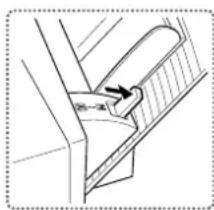
natural_image
Diagram of a mechanical component with an arrow indicating a force or movement (no text or symbols present)English
Paper feed switch set to position “A” Paper feed switch set to position “M”
Control panel
The top area of the printer has two buttons and three LED indicator lights. This area of the printer is called the control panel.
- Power button - Use the power button to turn the printer on and off.

text_image
power ready / insert power ready error-
Ready / Insert button - Use the ready / insert button to load and eject paper. When the paper feed switch is set in position "M", this button is used to feed or eject paper. The button is not functional when the paper feed switch is in position "A". Pressing the ready / insert button for three seconds or more causes the printer to print a sample page.
-
Error light - This light blinks when a printer error has occurred.
-
Ready light - This light illuminates when the printer is ready to print. The light blinks slowly while printing and goes out when printing has paused or stopped.
- Power light - Indicates whether the printer is on or off. The light illuminates when the printer is on. When the light is off, the internal functions of the printer still retain power. To completely shut off power to the printer, unplug the power cable from the socket.
For a full description of the indicator lights refer to ‘Indicator Lights Summary’
Indicator lights summary
| Light Light status Printer status | |
| power | On Ready for operation |
| Fast blinking Printing sample page | |
| Off Printer not ready | |
| ready | On Select mode (ready to print) |
| Fast blinking Deselect mode (not ready) | |
| Slow blinking Receiving or processing data | |
| error | Fast blinking Printer error detected |
| Off Normal | |
| Error Status | Light Status | Description | ||
| power | ready error | |||
| Hardware error | Blink | Blink Blink | An electrical circuit error has occurred. | |
| Nonvolatile error | Contents of printer memory have been lost. | |||
| Out of paper | On Off | Blink | Printer is out of paper or de-selected during paper feed | |
| Paper jam | Paper jam detected. | |||
| Ribbon end | Ink cartridge ribbon needs replacement. | |||
| Cartridge change error | Error detected during ink cartridge change, or eight cartridges installed plus one on carriage. | |||
| Mechanism error | Printer mechanical error. | |||
| Front cover open | Front cover left open. | |||
| Necessary ribbon not installed. | Necessary ink cartridge not installed or used up. Forced printing still possible. | |||
Chapter 2 - Initial Setup
Connecting cables for Windows
When your printer has been positioned in a suitable location, you can connect it to your Windows PC with a printer cable and to a suitable AC power source with the power cable.
Connecting the printer to your computer
Caution
Power to the printer and computer must be turned off and the power cables unplugged before connecting or disconnecting the printer cable. Otherwise damage or malfunction may result.
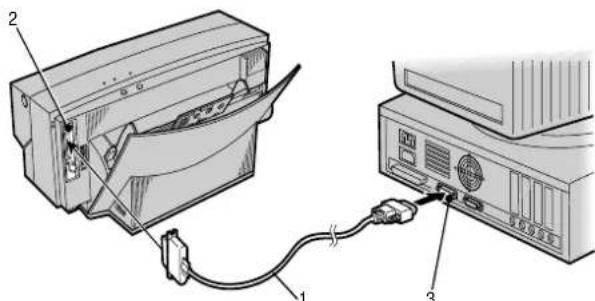
Connect the printer to the computer with a bi-directional printer cable. Secure the printer cable (1) to the connectors on the printer (2) and on the computer (3).
Note
When using your printer with a Macintosh computer, connect the printer to the Macintosh using a SCSI
text_image
Diagram showing cable connection between a computer drive and a server, with labeled components 1, 2, and 3.interface module, see 'Connecting SCSI interface for Macintosh' in Appendix A.
Connecting the printer to a power supply
-
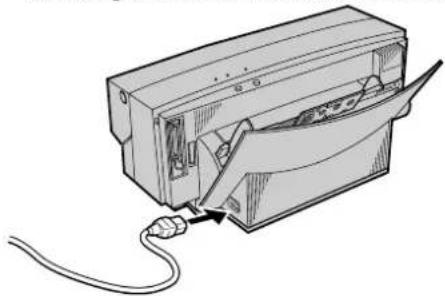
Plug the power cable into the power socket on the printer. Make sure that the power cable is securely seated in the socket.
-
Plug the free end of the power cable into a suitable AC power source (such as a wall socket).
natural_image
Diagram of an electronic device with cable inserted, showing internal components and a cable outlet (no text or symbols)Caution:
Power to the printer is completely cut off only when the cable is unplugged. Place the printer where you can easily unplug it from the wall socket. Also, pull the plug and not the cable when unplugging the printer.
Ink cartridges
The following describes how to identify the different types of ink cartridge and how to install and remove the cartridges from the printer.
Identifying ink cartridge and paper types
The ink cartridge type is indicated on the surface of each cartridge.
| Printing type | Ink cartridge type | Part number | Matching paper type |
| Black text Econo | Black 41067605 | Plain paperLaser paperHigh grade paperOverhead projector transparency film | |
| Standard colour printing 600 dpi | Black 41067604 | Plain paper | Laser paperHigh grade paper |
| Yellow 41067603 | |||
| Magenta 41067602 | |||
| Cyan 41067601 |
English
| Printing type | Ink cartridge type | Part number | Matching paper type |
| VPhoto printing (fine) on plain paper 2400 dpi | Black 41067604 | Plain paperLaser paperHigh grade paper | |
| Yellow 41067603 | |||
| Magenta 41067602 | |||
| VPhoto primer *1 | 41067606 | ||
| Cyan 41067601 | |||
| Finish II 41067607 | |||
| VPhoto printing on VPhoto film 2400 dpi | Black 41067604 | VPhoto print film | |
| Yellow 41067603 | |||
| Magenta 41067602 | |||
| Cyan 41067601 | |||
| Finish II 41067607 | |||
| Spot colour printing | Gold foil 41067608 | Plain paper | Laser paperHigh grade paperOverhead projector transparency film |
| Silver foil 41067609 | |||
| White 41067610 | |||
| Dye sublimation | Photo cyan 41067612 | Dye Sub paper (A4) | |
| Photo magenta | 41067613 | ||
| Photo yellow | 41067614 | ||
| Photo overcoat | 41067611 |
*1 Use VPhoto primer for any plain papers.
Caution 1
The manufacturer only recommends printing with the cartridge-paper combinations listed in Table 1.
Caution 2
Printing with an inappropriate ink cartridge-paper combination can damage the cartridge ribbon.
Caution 3
Printing outside the printable paper area can damage the cartridge ribbon. Always print within the printable area. See 'Printable Area' in Specifications and Settings.
Installing ink cartridges
Install ink cartridges by following the steps below.
natural_image
Cross-sectional diagram of a mechanical component with labeled parts (no readable text or symbols)-
The cartridge has a stopper (1) to prevent slack in the ribbon (see below). Remove this stopper from the ink cartridge.
-
Insert a pencil from the side marked "B" and turn the pencil slowly to take up any slack in the ribbon (1).

natural_image
Illustration of hands using a tool to adjust or install a mechanical component (no text or symbols visible)-
Open the front cover by pushing the front cover release button to release the internal lock. Gently lower the front cover with your hand.
-
Hold the ink cartridge with your thumb and index finger so that the side with the letter "B" and the manufacturer's logo faces upward.
-
Insert the left end of the ink cartridge into the ink cartridge holder, while pushing the left side latch of the holder slightly to the left along with the cartridge.
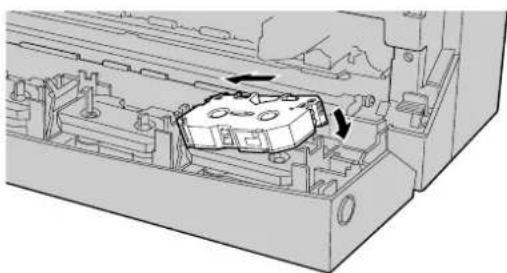
natural_image
Technical diagram of a mechanical assembly with internal components and directional arrows (no text or symbols)Note
The printer carriage located inside the printer can select and pick up the necessary ink cartridge from any holder. You can place up to 7 cartridges of the same colour in the holders to reduce the need to change ink cartridges.
Caution
The ink cartridges may be put in any holder but DO NOT put ink cartridges directly into the carriage. Doing so may result in damage to the printer.
- Push down the right side of the ink cartridge. Make sure that the ink cartridge is securely locked into the holder, and that there is no slack in the ribbon.
English

natural_image
Technical diagram of a mechanical assembly with two circular annotations highlighting internal components (no text or symbols present)- Place the second ink cartridge on top of the ink cartridge already installed. Gently push down the centre of the ink cartridges.
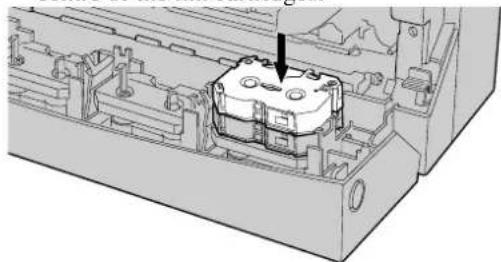
natural_image
3D technical illustration of a mechanical assembly with internal components and a highlighted section (no text or symbols)Caution 1:
Place the side marked "B" face up. If the ink cartridge is installed upside down, the printer will not know it has been installed. Only the Econo Black and Finish Cartridges are reversible.
Caution 2:
You must leave at least one cartridge holder empty for the printer to operate properly. Do not install more than 7 ink cartridges.
Replacing or changing ink cartridges
When you want to change ink cartridges or replace a cartridge whose ribbon has been used up, remove the cartridges by the following steps.
Note 1:
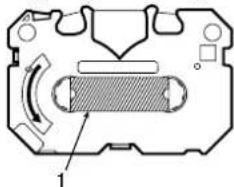
When an ink cartridge has been used up, black and silver stripes will be visible on the ribbon.
Note 2:
To reverse a Finish II or Econo Black ink cartridge, flip the cartridge over and manually advance the ribbon until the black and silver stripes (1) disappear.
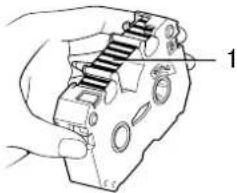
natural_image
Hand holding a mechanical device with a spring-like component, labeled with number 1 (no text or symbols on the device itself)-
Open the front cover by pushing the front cover release button.
-
Removing an ink cartridge is similar to installing it. Hold the centre of the cartridge with your thumb and index finger. Push the left latch on the ink cartridge holder slightly to the left with the cartridge.
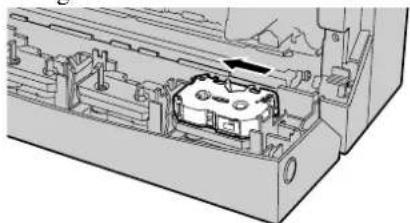
natural_image
Technical diagram of a mechanical assembly with internal components and a highlighted part (no text or symbols)- Lift up the right side of the cartridge, and then remove the entire ink cartridge. Insert a new ink cartridge by following the steps described earlier.

natural_image
Technical line drawing of a mechanical assembly with no visible text or symbolsLoading paper
The following paragraphs explain how to load paper into the printer.
Paper types and available feeding modes
The table below shows information on switching between automatic and manual feeds, and on setting the paper feed switch (“A” or “M”).
| Media type | Automatic feed mode | Manual feed mode |
| Plain paper (for plain paper copiers) | A | M |
| Laser paper / High Grade Paper A | M | |
| VPhoto Print Film (A4) | A^*1 | M |
| Overhead Projector Transparency Film | A | M |
| Other media (thick paper, etc.) x M | ||
| Dye Sub Paper (A4) | A^*2 | M |
*1 For VPhoto Print Film, use single sheet and manual feed.
*2 To continuously print Dye Sub Paper, always use the guide sheet (included in the supplies).
English
Caution:
Do not print on the following; thermal paper, paper exclusively for use in ink jet printers, glossy paper (paper whose surface has been specially treated), and envelopes. Doing so may damage the printer.
Note 1:
Loading too many sheets into the sheet feeder may cause paper jams or misfeeding.
Note 2:
Be aware that when using automatic feed mode, the last sheet will occasionally feed incorrectly depending on the paper type.
Notes and precautions about paper
The printer's sheet feeder can feed paper to the printer automatically, which is the most convenient method of printing. The sheet feeder holds up to 100 sheets of plain paper (or 30 transparencies) at once.
Thick paper and other kinds of special printing media should be used in manual feed mode. The approximate thicknesses of paper that can be used in manual feed mode or automatic feed mode are as follows:
| Feed Mode Min. Max. | |
| Automatic 0.07mm (0.003") 0.10mm (0.004") | |
| Manual 0.07mm (0.003") 0.23mm (0.01") | |
Caution:
Never use paper in the sheet feeder with thickness outside the range 0.07 mm - 0.10 mm (0.003" - 0.004") in automatic feed mode. In manual feed mode, never use paper whose thickness is outside the range 0.07 mm - 0.23 mm (0.003" - 0.01"). Doing so may cause paper jams or damage to the printer.
Paper jams can be caused by feeding in paper that is extremely smooth or shiny, too rough, or paper that easily picks up static electricity. Paper jams and other paper feed problems can tear the ribbons in ink cartridges.
To avoid such problems, please note the following precautions:
- Always use the recommended paper types, and be sure to set the printer's paper options properly. Settings that are not appropriate for the paper being used can cause paper jams.
- When printing on Dye Sublimation Paper, use only Dye Sublimation ink cartridges. Be sure to confine your printing to the glossy printable area only. If you print outside this area, you may damage the ink cartridge.
- When printing on a thick sheet, or an irregular postcard-size sheet allow a 1/2 inch (12 mm) margin on the left and right side to prevent printing over the paper edge, this could result in tearing the ink cartridge ribbon.
- When printing on used sheets (already printed on the same side), use manual feed only. Automatic feed may not feed used sheets properly. When using manual feed, avoid repeatedly inserting and removing the same sheet.
Loading paper in automatic feed mode
Use automatic feed mode for continuous printing. There are two methods for loading paper, depending on the media.
Loading high grade/plain/laser paper and transparencies
- Pull the paper support upwards.
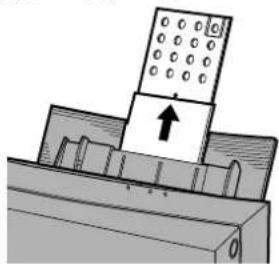
natural_image
Diagram of a mechanical assembly with a component being inserted, showing no text or symbols.- Select the paper feed mode by switching the paper feed switch to position "A".

natural_image
Technical illustration showing a mechanical component being inserted into a housing, with no visible text or symbols.- Place the paper in the sheet feeder.
English
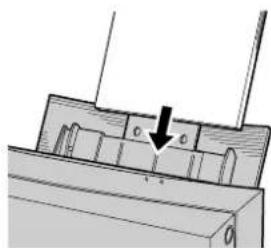
natural_image
Technical diagram of a mechanical assembly with no visible text or symbols- Adjust the paper feed guide to the paper size.

natural_image
Diagram of a printer with paper feed and paper roll, showing paper movement (no text or symbols)Note 1:
Do not use creased or curled paper, this can cause the paper to misfeed.
Note 2:
Fan the paper once before placing it in the sheet feeder. This will prevent the paper sticking and printer feeding a number of sheets together.
Note 3:
Use only one type of paper at a time.
Note 4:
Pushing the paper feed guide too hard against the paper can bend the paper. Adjust the position of the paper feed guide so that it just touches the paper.
Loading paper in manual feed mode
Use manual feed mode when printing on thick paper, cards and other kinds of special printing media. In manual feed mode you should load only one sheet at a time.
- Switch the paper feed switch to position "M".

natural_image
Technical illustration of a mechanical component with a close-up view showing a slot and assembly (no text or symbols)- Remove any paper from the sheet feeder.

natural_image
Technical diagram of a mechanical assembly with no visible text or symbols- Make sure that the paper stopper is not lifted.
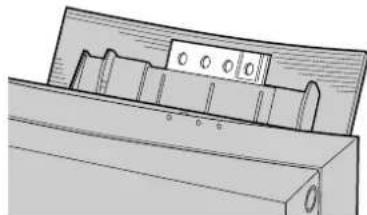
natural_image
Technical line drawing of a mechanical component with no visible text or symbols- Insert the sheet of paper straight into the sheet feeder.
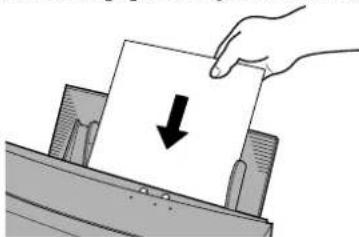
natural_image
Hand placing a paper with a downward arrow into a folder (no text or symbols visible)Note 1:
Paper that is creased or curled may print incorrectly.
Note 2:
Make sure that you insert the paper straight. Inserting it at a slant can cause a paper jam.
- Adjust the paper feed guide to the paper size.

natural_image
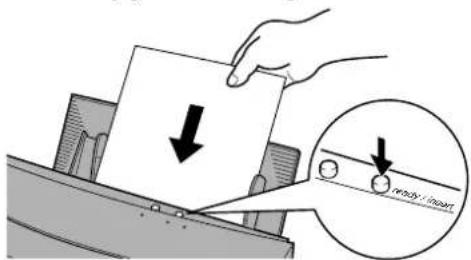
Diagram of a printer with paper and paper roll, showing paper feeding into a printer (no text or symbols)- Press the ready/ insert button. The paper is automatically pulled into the printer.
text_image
Diagram illustrating a hand using a tool to cut a sheet, with an inset showing the cutting edge labeled 'w/oxy / mixl'.English
Chapter 3 - Installation and Operation, Windows
Installing the printer driver
Before you can use your printer, you need to install the correct printer driver software into your computer so that it can operate with the printer. The following paragraphs describe how to install the printer driver.
Purpose of the printer driver
The printer driver software helps to control the printing process, so the driver you select must match the printer you are using. When printing from an application in Windows, always use the printer driver specifically designed for your printer model.
To take full advantage of the many features of your printer, always create your documents after you have selected the correct printer driver. If you have a different printer driver selected when you print a document, then only the print settings that match functions of your printer will be valid.
Turning on the power
Turn your printer and computer on or off in the following order;
- Push the power button on the printer to turn it on.
- Turn on your computer.
System requirements
The system requirements for the supplied printer driver are as follows:
| Computer: IBM PC-AT or compatible |
| Windows: Microsoft Windows 95/98 |
| Total RAM: 16 MB or more (32 MB or more is recommended) |
Disk space required during printing is as follows:
| Monochrome image Colour image | ||
| VPhoto Colour Printing 20M | B 80MB | |
Note 1:
The figures in Table 2 are approximations of the total disc space required when printing at VPhoto Colour mode.
Note 2:
The working disk space needed during printing is automatically erased after printing is completed.
Installing printer software from CD
The printer driver is included on the supplied installation disc. To install the printer driver software for Windows 95/98 ^® follow these steps.
- Insert the OKI DP-5000 installation disk into your CD-ROM drive. If a window does not appear automatically, double-click the OKI installation disc to open it, and then double-click the 'setup.exe' file.
- In the window that appears, choose Install Driver.
- Choose the language of the printer driver that you wish to install.
- Follow the instructions on-screen to complete the installation
Installing printer software using Plug & Play
When you are installing the printer driver software using Plug & Play or the Add Printer Wizard, Windows will ask you to choose the printer driver to install. When prompted, insert the installation disc into your CD-ROM drive and click OK. Follow the instructions on the screen to complete the installation.
Port monitor setup
The Port Monitor provides DMA/ECP and ECP parallel port settings that allow you to print at higher speed. Your computer must meet the following system requirements to use the high speed printing function.
| DMA Access | ECP capable parallel port and DMA supported |
| Faster ECP capable parallel port | |
| Standard Any | IBM compatible computer |
Note:
The Installer will automatically set the I/O Port Speed to Faster, if your computer has the ECP capable parallel port. Refer to your computer's reference manual for details.
Select the I/O port speed
- Choose Settings from the Start menu, and then select Printers. In the Printers window that appears, right-click the DP-5000 printer icon. Then select Properties.
- Click the Details tab, and then click the Port Settings.button.
- In the Configure LPT Port window that appears, select an option. Then click OK.
Note 1:
To use DMA access your computer must be able to support this, and you must ensure that your parallel port is set to use DMA in the computer's BIOS settings. Refer to your computer's reference manual for details.
Note 2:
To use the “Faster” option your computer must be able and set to support ECP mode in the BIOS settings. Refer to your computer's reference manual for details.
- Click OK to close the Properties window
English
Port speed error
If the 'I/O Port Speed Error' message appears, you must set the parallel port configuration to ECP mode in the BIOS settings for the parallel port to use the DMA. Refer to your computer's reference manual for details.
Configure LPT port
If your computer has additional parallel ports, you can use the Resources dialogue box to select the IRQ and DMA Channel.
Please ensure that there is no conflict in the address assignments. The PC can support up to three parallel ports as long as there are no conflicts for each port.
Printing operations
When you have connected the cables to your printer and have installed the printer driver, you are ready to use your printer. This section describes step by step operations for monochrome and colour printing.
Printing in monochrome
The following paragraphs explain how to perform monochrome printing on plain paper.
Requirements
You need the following items for monochrome printing;
- Ink cartridge
a Black ink cartridge or Econo Black ink cartridge.
- Media
a High Grade Paper
b Laser paper or plain paper
c VPhoto Print Film.
Note:
Our VPhoto Primer will help make many plain papers suitable for printing. See Chapter 5, 'Specialized Printing Operations' for details.
- Printing data for monochrome printing
a Printing data consisting of text and/or graphics created by an application.
Placing an ink cartridge in your printer
Make sure at least one black or Econo Black ink cartridge is installed in the ink cartridge holders.
Caution:
Do not place an ink cartridge directly into the carriage. Doing so may damage the printer.
Note 1:
If at least one of the ink cartridges in the four ink cartridge holders can be used in the selected printing mode, the carriage will automatically pick up that ink cartridge.
Note 2:
Refer to Installing Ink Cartridges' in Chapter 2 for directions on installing ink cartridges.
Note 3:
Installing multiple ink cartridges of the same colour allows you to print more pages without stopping to replace spent ink cartridges.
Note 4:
Econo Black cartridges can be reversed up to 20 times.
Load the paper into your printer.
Setting up the printer driver for monochrome printing
- In the application you want to print from, select Print from the File menu to open the Print dialogue box.
Note:
Please note that the procedure for opening the dialogue box of the driver may differ slightly from one application to another.
- In the Print dialogue box click Properties.
- In the Document Quality tab click either Greyscale or Monochrome Text from the Document Type menu.
English
- Select a paper type from the Media Type menu.
- Select either Standard Colour or Economy Black from the Print Mode menu.
a If you have installed a black ink cartridge, select Standard Colour.
b If you have installed an Econo Black ink cartridge, select Economy Black.
- Click the More Settings button on Document Quality tab. If you selected Standard Colour for the Print Mode, you can now select either Fine or Standard in the Print Quality menu.
Note 1:
To print black in Fine, select Grayscale or Monochrome Text from the Document Type menu and Plain Paper or Laser Paper from the Media Type menu in the Document/Quality tab. Then set to Fine in the More Settings dialogue box.
Note 2:
Checking the Eject Paper Quicker in the Printing Option setting shortens the printing time. This option is only available when you have selected to print in either Monochrome or Greyscale.
-
In the Properties window of the Print dialogue box select Paper tab.
-
Set the Paper Size, Orientation, and number of Copies as required.
- When you have completed all the setup, click OK to close the printer driver Properties dialogue box.
- Click OK in the Print dialogue box to start printing.
Printing in colour
The following paragraphs describe how to print standard colour images on plain paper.
Requirements
You need the following items for standard colour printing;
- Ink cartridges
a Black ink cartridge
b Cyan ink cartridge
c Magenta ink cartridge
d Yellow ink cartridge
- Media
a High grade paper
b Laser paper or plain paper
c VPhoto Print Film
- Printing data for colour printing
a Printing data consisting of text and/or graphics created by an application.
Note:
Using our VPhoto Primer will help make many plain papers suitable for full-colour printing. See Chapter 5, 'Specialized Printing Operations' for details.
Placing ink cartridges in your printer
Make sure the ink cartridges listed above are installed. The ink cartridges may be installed in any order.
Caution:
Do not place an ink cartridge directly into the carriage. Doing so may damage the printer.
Load the paper into your printer.
Setting up the printer driver for colour printing
- In the application you want to print from, select Print from the File menu to open the Print dialogue box.
Note:
Please note that the procedure for opening the dialogue box of the DP-5000 driver may differ slightly from one application to another.
-
In the Print dialogue box click Properties.
-
Select Automatic, Photographs or Graphics/Text from the Document type menu on the Document/Quality tab. When you select Automatic in the Document Type, the black printing data will be printed in black, and the colour printing data will be printed in full colour.
-
Select a paper type from the Media Type menu.
-
Select Standard Colour, Glossy Finish or VPhoto Colour from the Print Mode menu.
-
Click the More Settings button on Document Quality tab. Select the desired quality from the Print Quality menu.
English
-
When you have completed all the setup, click OK to close the printer driver Properties dialogue box.
-
Click OK in the Print dialogue box to start printing.
Printing on reverse side
The DP-5000 printer has a special option for printing on the reverse side of paper. The Print On Reverse Side option skips the paper curl reforming process for best printing results.
Setting up the printer driver for printing on reverse side
-
In the application you want to print from, select Print from the File menu to open the Print dialogue box.
-
In the Print dialogue box click Properties.
-
In the application you want to print with, select Print from the File menu to open the Print dialogue box.
-
Click Properties. The printer Properties dialogue box appears.
-
In the Document/Quality tab click Print On Reverse Side option.
Note:
Note that when you select certain media types the Print on Reverse Side option will not be available.
- Select Automatic, Photographs, or Graphics/Text from the Document Type menu. When you select Automatic here, the black & white printing data will be printed in black & white, and the colour printing data will be printed in full colour.
- Select a paper type from the Media Type menu.
- Select Standard Colour, Glossy Finish, or VPhoto Colour from the Print Mode menu.
- When you complete the setup, click OK to close the printer driver Properties dialogue box.
- Click OK in the Print dialogue box to start printing.
Caution:
When printing on the reverse side of paper, the printer needs periodic maintenance for cleaning. See ‘Cleaning the Feed Roller’ and ‘Cleaning the Platen’ in Chapter 6 to ensure best results when printing.
Turning off the power
When you finished printing, turn off your printing devices in the following order;
- Quit Windows, and then turn off your computer.
- Push the power button on the printer to turn it off.
Chapter 4 - Installation and Operation, Macintosh
Installing the printer driver
Before you can use your printer, you need to install the correct printer driver software so that your computer can work with the printer.
This chapter describes how to install the supplied printer driver for an Apple Macintosh. These directions assume that you are familiar with normal Macintosh operations, such as using the mouse and menus. Please refer to the User's Guide that came with your Macintosh if you need information about general Macintosh operations.
Purpose of the printer driver
The printer driver is software that enables your computer to control the printer. When printing from any application, you must select a printer driver that matches the printer being used in order to ensure accurate printing results. To take advantage of the many features of this printer, select the correct printer driver before creating your documents.
Preparing for installation
Before installing the printer driver, check your hard disk with the Disk First Aid utility to make sure that it has no serious problems. Refer to the Macintosh User Guide for information about using Disk First Aid.
Turn on the power
Turn your printer and computer on or off in the following order;
- Push the power button on the printer to turn it on.
- Turn on your computer.
System requirements
The system and disk space requirements for the DP-5000 printer driver are as follows:
| Computer: Apple Macintosh computer or compatible | |
| Operating system: System 7.1 or later | |
| Total RAM: 16 MB or more (32 MB or more is recommended) |
| VPhoto Printing 20MB | Monochrome image Colour | image |
| 80MB |
Note 1:
The figures in Table 2 are approximations of the total disk space required when printing at VPhoto Colour mode.
Note 2:
The working disk space needed during printing is automatically erased after printing is completed.
Contents of the installation disk
The files shown below are contained on the supplied CD-ROM installation disc. The installer will install the following files:
- Printer Driver
- Queue Monitor (background printing application)
- Queue Watcher (background printing extension)
- ColorSync
Installing the printer driver software
The CD-ROM includes the printer driver software. To install the printer driver software onto your Macintosh, follow these steps:
- Insert the OKI DP-5000 installation disk into your CD-ROM drive.
- Open the ‘English’ folder, and then double-click on the Install OKI DP-5000 icon.
- Follow the instructions on-screen to complete the installation.
Using balloon help
Balloon Help works on all versions of MacOS from 7.1 upwards. By displaying Balloon Help, you can get a simple explanation of each function. Follow the steps below to use Balloon Help.
- Select Show Balloons from the Help menu (found on the menu bar, at the upper right corner of the screen).
- Move the cursor over the button or box to be explained.
- To hide Balloon Help, select the Help menu. Hide Balloons from
Selecting the correct driver
Before creating any documents in your application you should select the DP-5000 printer driver which you installed from the CD-ROM. If you want to print documents created when this printer driver was not selected, first select the DP-5000 printer in the Chooser menu, then choose Page Setup from your application's File menu. Finally change the application's page format and other settings if needed.
Follow the steps below to select the correct printer driver.
- From the Apple menu, select the Chooser.
- Click on the DP-5000 printer driver icon on the left side of the screen. The box on the right displays the SCSI device number of the printer.
Note:
Make sure the device number in the Select a SCSI port box is highlighted. If it is not, your printer is not being recognised. Click on the device number a few times. If it is still not highlighted, it is possible that the Finder has insufficient memory. In this case, close the Chooser, run any one of your application programs, and select the printer from the Chooser again.
English
- If you have several identical printers connected, click on the SCSI device number of the printer you will use. The factory device setting is #6. To change SCSI device numbers, see 'Specifications and Settings' in Chapter 8.
Note 1:
If you have more than one SCSI bus in your Macintosh, "SCSI #6 BUS #1" or similar will be displayed.
Note 2:
Immediately following installation, background printing is turned off. Click on the On button to enable background printing. Background printing will not be available if you did not install the Queue Kit software.
-
Click on the Close box to close the Chooser.
-
When the selected printer driver is changed from a previous printer driver, a dialogue box will appear to inform you that a different printer has been selected. Click on the OK button to close the dialogue box.
Testing the printer
To make sure the printer is functioning correctly, use the Print Desktop command in the Finder. Before using Print Desktop check the following:
- The printer is connected to the computer and is turned on.
- The system folder window is open (if not, double-click the folder on the startup disk).
- There is paper in the printer.
Page setup dialogue box
- Select Page Setup from the File menu. The Page Setup dialogue box opens.
- Make sure the paper type and size settings match the paper loaded in the printer, (factory settings are Laser Paper, A4). If the paper type does not match, select the appropriate settings.
- Close the Page Setup box by clicking OK.
Print dialogue box
- Select Print Desktop from the File menu. The Print dialog box opens.
- Select required settings and click Print to begin printing.
Print preview
You can preview your printed job by clicking the Preview button in the Print dialogue box, the desktop will appear on screen. To print the desktop, click Print Page. Printing begins.
When you finished printing, turn off your printing devices in the following order;
- Shut down (and, if needed) turn off your computer.
- Push the power button on the printer to turn it off.
Printing operations
When you have connected the cables to your printer and have installed the printer driver, you are ready to use your printer. The following describes step by step operations for monochrome and colour printing.
Printing in monochrome
The following paragraphs explain how to perform monochrome printing on plain paper.
Requirements
You need the following items for monochrome printing:
- Ink cartridge
a Black ink cartridge or Econo Black ink cartridge.
- Media
a High Grade Paper
b Laser paper or plain paper
c VPhoto Print Film.
English
Note:
Our VPhoto Primer will help make many plain papers suitable for printing. See Chapter 5, 'Specialized Printing Operations' for details.
- Printing data
a Printing data consisting of text and/or graphics created in your application.
Placing an ink cartridge in your printer
Make sure at least one black or Econo Black ink cartridge is installed in the ink cartridge holders.
Caution:
Do not place an ink cartridge directly into the carriage. Doing so may damage the printer.
Note 1:
If at least one of the ink cartridges in the four ink cartridge holders can be used in the selected printing mode, the carriage will automatically pick up that ink cartridge.
Note 2:
Refer to 'Installing Ink Cartridges in Chapter 2 for directions on installing ink cartridges.
Note 3:
Installing multiple ink cartridges of the same colour allows you to print more pages without stopping to replace spent ink cartridges.
Note 4:
Econo Black cartridges can be reversed up to 20 times.
Load the paper into your printer, for reference see Chapter 2, 'Loading Paper.
Setting up the printer driver for monocrome printing
- In the application you want to print from, select Page Setup from the File menu to open the Page Setup dialogue box.
- Make any necessary changes to the settings in the Page Setup dialogue box.
- Set the Media to Plain Paper or Laser Paper and the Size to A4. When using a different type or size of paper, change the setup accordingly.
-
Click OK to close the Page Setup dialogue box.
-
Select Print from the File menu.
-
Make any necessary changes to the settings in the Print dialogue box.
a Select either Greyscale or Black & White from the Type menu.
b When you install a black ink cartridge, select Standard Colour from the Mode menu.
c When you install an Econo Black ink cartridge, select Economy Black from the Mode menu.
- After completing your changes, click Print to start printing.
Printing in colour
The following paragraphs describe how to print standard colour images on plain paper.
Requirements
You need the following items for standard colour printing:
- Ink cartridges
a Black ink cartridge
b Cyan ink cartridge
c Magenta ink cartridge
d Yellow ink cartridge
2. Media
a High grade paper
b Laser paper or plain paper
c VPhoto Print Film
3. Printing data
a Printing data consisting of text and/or graphics created in your application.
Note:
Using our VPhoto Primer will help make many plain papers suitable for full-colour printing. See Chapter 5, 'Specialized Printing Operations' for details.
Placing ink cartridges in your printer
Make sure the ink cartridges listed above installed. The ink cartridges may be installed in any order.
Caution:
Do not place an ink cartridge directly into the carriage. Doing so may damage the printer.
English
Load the paper into your printer, for reference see Chapter 2, 'Loading Paper.
Setting up the printer driver for colour printing
- Follow steps 1 to 4 in 'Setting up the printer driver for monochrome printing'.
- In the Print dialogue box select either Automatic, Photographs, or Graphics & Text from the Type menu.
Note 1:
When you select Photographs from the Type menu, Darker Black is automatically selected in the Colour Matching section of the Image Settings dialogue.
Note 2:
If the Type menu is set to Greyscale or Black & White the coloured image will be printed in monochrome or in greyscale.
- Click the Image button in the Print dialogue box.
- Make colour matching selections as required. For selection information see “Setting up colour matching option”.
-
After the settings have been completed, click OK.
-
When you have completed your settings, click Print in the Print dialogue box. The printer prints cyan, magenta, yellow, and black in that order as the print head moves back and forth over the paper.
Note 1:
If the four ink cartridges (cyan, magenta, yellow, and black) are not installed, the error light will flash, and the printer will not print.
Note 2:
See Chapter 2, 'Initial Setup', for information on installing ink cartridges.
Setting up colour matching option
The printer has the following colour-matching options:
- OKI DP-5000 Driver mode - This mode provides unique OKI colour matching. It is the default mode for colour printing.
- ColorSync mode - When ColorSync is selected, the printer performs colour management using ColorSync™, which is part of the Macintosh system software.
Note:
A printer cannot exactly reproduce the colours shown
on a monitor because the printer uses inks to create colours while the monitor uses light. However, the printer will try to match the monitor colours as closely as possible.
- No Colour Matching - The colour information for print data is output directly to the printer.
To use ColorSync, follow these steps.
-
Open the ColorSync™ System Profile in the Apple Control Panels and click Set Profile...
-
Select DP-5000 Monitor-D50 from the list displayed, and then click Select.
Note:
The D50 in the profile indicates the colour temperature of the monitor. Most monitors are set to a colour temperature of D93 (9300K). However, CIE sets a colour temperature of D50 (5000K) as a reference for colour reproduction based on the human colour sense under a standard light source. The ColorSync™ profile of this printer conforms to this standard.
- Set the Monitor's Colour Temperature. Since the ColorSync profile is set to DP-5000 Monitor-D50, the printer and monitor colours will not match unless the colour temperature of your monitor is set at D50. To set the monitor's colour tem-
perature see your computer's reference manual for details.
Note 1:
Some monitors do not allow the colour temperature to be changed. In this case, open Monitor & Sound in Control Panels and set the Gamma option to Page-White Gamma, which provides a colour temperature similar to D50.
Note 2:
Once you have completed steps 1 through 3, you should not need to repeat them unless you wish to change the settings.
- Prepare print data and set up the paper for printing. Select Print from the File menu.
Note:
The contents of the Print dialogue box depend on the application software. If the colour setting options RGB, CMYK, or others are available in the dialogue box, select the RGB option. If you select the CMY option, the printed output will differ from the colours displayed on the monitor.
- To enable the ColorSync function during printing. Click the Image.. button in the Print dialogue box to display the Colours dialogue box. Select
English
ColorSync from the Colour Matching options. After the settings have been completed, click OK.
Note:
When printing a photograph, it is advisable to turn on the Darker Black option. The darkness graduation will then be smoothed because black will be expressed by all four colours.
- After returning to the Print dialogue box, click Print to start printing.
Printing on reverse side
The DP-5000 printer has a special option for printing on the reverse side of paper. The Print On Reverse Side option skips the paper curl reforming process for best printing results.
Setting up the printer driver for printing on reverse side
-
In the application you want to print with, select Page Setup from the File menu to open the Page Setup dialogue box.
-
Make any necessary changes to the settings in the Page Setup dialogue box.
-
Set the Media to Plain Paper or Laser Paper, and the Size to A4. When using a different type or size of paper, change the setup accordingly.
- After making any changes required, click OK to close the Page Setup dialogue box.
- Select Print from the File menu to display the Print dialogue box.
- Select either Automatic, Photographs or Graphics & Text from the Type: menu.
Note 1:
When you select Photographs from the Type menu, Darker Black is automatically selected in the Colour Matching section of the Image... settings dialogue.
Note 2:
If the Type menu is set to Greyscale or Black & White the coloured image will be printed in monochrome or in greyscale.
-
Click Image... in the Print dialogue box.
-
Make colour matching selections as required. After the settings have been completed, click OK.
-
In the Print dialogue box select Print On Reverse Side option.
Caution:
When printing on the reverse side of paper, the printer needs periodic maintenance for cleaning to ensure best results. See ‘Cleaning the Feed Roller’ and ‘Cleaning the Platen’ in Chapter 5
Note:
When you select certain media types this option will not be available.
- Click OK in the Print dialogue box to start printing.
Chapter 5 - Specialised Printing Operations
VPhoto colour printing
Colour printing on VPhoto print film
The following describes how to print colour images on VPhoto print film. Photographic-like quality can be achieved by printing images on VPhoto print film with standard inks. This is very effective when printing multicolored images such as computer graphics.
Requirements
You need the following items for colour printing on VPhoto print film.
- Media
a VPhoto Print Film (A4)
- Ink Cartridges
a Cyan ink cartridge
b Magenta ink cartridge
c Yellow ink cartridge
d Black ink cartridge
e Finish II ink cartridge
Prepare the image to be printed
Create the image or document you want to print by arranging text, graphic objects, photographs, etc. in your application.
Install ink cartridges
Install the five ink cartridges listed above into the ink cartridge holders. The ink cartridges may be installed in any order. For details on installation refer to ‘Installing Ink Cartridges’ in Chapter 2.
Load VPhoto print film in your printer
You may use either automatic feed mode (position 'M') or manual feed mode (position 'A') when loading the film into your printer.
Note:
VPhoto Print Film is very adhesive. When loading the multiple sheets, fan them thoroughly before loading to make sure that they do not adhere to one another. Store unused sheets in the package. For best results, use single sheet and manual feed.
Set up the printer driver for printing
- Select Print from the File menu to open the Print dialog box, then click Properties.
- Click the Document/Quality tab to bring to the front.
- Select Automatic, Photographs or Graphics/Text from the Document Type depending on the document to be printed.
- Select VPhoto Print Film from the Media Type setting.
- Make any other necessary changes to the settings.
- When you complete the setup, click OK to close the dialog box.
Note:
When VPhoto Print Film is selected from the Media Type, Glossy Finish is automatically set. We recommend that Glossy Finish is normally set. If you do not want this setting, click the More Settings button, then uncheck the Glossy Finish check box.
- Click OK in the Print dialog box to start printing.
Colour printing on plain paper
The following describes how to print colour images on plain paper. As with VPhoto print film, photogravure-like quality can be achieved by printing colour images on plain paper.
Requirement
You need the following items for colour printing on plain paper.
- Media
a High Grade Paper or Plain Paper (A4)
- Ink Cartridges
a Cyan ink cartridge
b Magenta ink cartridge
c Yellow ink cartridge
d Black ink cartridge
e Finish II ink cartridge
f VPhoto Primer ink cartridge
Note:
To print the photo quality images on plain paper, use VPhoto Primer ink. VPhoto Primer ink fills any unevenness on the paper surface, so that a similar print quality as on VPhoto Print Film can be achieved.
Prepare the image to be printed
Create the image or document you want to print by arranging text, graphic objects, photographs, etc. in your application.
Install ink cartridges
Install the ink cartridges listed above into the ink cartridge holders. The ink cartridges may be installed in any order. For details on installation refer to 'Installing Ink Cartridges' in Chapter 2.
Load the paper in your printer
You may use either automatic feed mode (position 'M') or manual feed mode (position 'A') when loading the film into your printer.
English
Set up the printer driver for printing
- Select Print from the File menu to open the Print dialog box, then click Properties.
- Click the Document/Quality tab to bring to the front.
- Select Automatic, Photographs, or Graphics/Text from the Document Type depending on the document to be printed.
- Select Plain Paper or Laser Paper for high grade paper from the Media Type setting.
- Set Print Mode to VPhoto Colour.
Note 1:
When Laser Paper and VPhoto Colour are selected from the Media Type and Print Mode, respectively, Glossy Finish is automatically set. We recommend that Glossy Finish is normally set. If you do not want this setting, click the More Settings button, then uncheck the Glossy Finish check box.
Note 2:
When Plain Paper and VPhoto Colour are selected from the Media Type and Print Mode, respectively, VPhoto Primer (Undercoat) and Glossy Finish are automatically set. VPhoto Primer (Undercoat) is set when Auto-
matic, Photographs, or Graphics/Text is selected from Document Type.
- Make any other necessary changes to the settings.
- When you complete the setup, click OK to close the dialog box.
- Click OK in the Print dialog box to start printing.
Printing in foil colour
Foil colour printing is one of the unique features of the OKI DP-5000 printer. The printer driver allows you to select specific colours or colour components that will be replaced by foil colours and black ink when printing.
You can print with up to two foil colours, (or two foil colours plus black) from most applications that allow colour specification. Moreover, because foil inks are opaque, foil colour printing is unaffected by the colour of the underlying paper. As a result, you can print on coloured plain paper.
Note 1:
Special colour ink is used for foil colour printing. Therefore, undercoat must be applied using cyan, magenta, yellow, and black inks before printing Foil Colour.
Note 2:
Depending on the font type, size or paper type, foil colour ink may not always be well applied.
The following types of foil colour printing are possible depending on the number of ink cartridges used.
English
- Single foil colour printing (without halftone) - Foil colour printing using a single colour (gold or silver).
- Multi foil colour printing - Foil colour printing using two colours (gold and silver).
- Full colour plus foil colour printing - Simultaneous full colour and foil colour printing.
Single foil colour printing
Single foil colour printing uses just one foil colour. Only the foil colour to be used is installed in the printer. This method of printing is used when an entire image (including grayscale images) or document is going to be printed in a single foil colour. Single foil colour printing can be used even when the application you are using does not allow designation of colour components.
Requirements
For single foil colour printing you will need the following.
- Media
a Plain paper, laser paper, postcards, etc. can be used as with normal colour printing.
- Ink cartridges
Use either one of the following ink cartridges.
a Gold Foil ink cartridge
b Silver Foil ink cartridge
The following ink cartridges are also necessary for undercoating.
a Cyan ink cartridge
b Magenta ink cartridge
c Yellow ink cartridge
d Black ink cartridge
Prepare the image to be printed
Use any application to create the image or document you want to print, and prepare it as you would for normal printing.
Note:
It is not necessary to select a colour in the application that matches the colour of the ink cartridge in the printer. Leaving the characters and images in black is acceptable.
Install ink cartridges
Install the desired foil colour (gold or silver) plus the undercoat inks, cyan, magenta, yellow, and black into the ink cartridge holders. The ink cartridges may be installed in any order.
Load the paper in your printer
The method used for loading paper depends on the paper type. Use manual feed mode for cardboard (thick paper) and greeting cards. For plain paper or laser paper, you may also use automatic feed mode.
Set up the printer driver for printing
-
Select Print from the File menu to open the Print dialog box, then click Properties.
-
Click the Document/Quality tab to bring to the front.
-
Set Document Type to an option appropriate to the document to be printed.
-
Set Media Type depending on the paper to be used.
- In Print Settings click the Use Spot Colours check box so that the Spot Colours dialog box is displayed.
- In the Spot Colour Settings click the Use Foil Colour(s) radio button.
- Set Print Using to Single Ink.
- Enabled ink cartridges among those installed in the printer are displayed in Select Ink Cartridge(s). Click the radio button(s) of the ink cartridge(s) to be used.
If bidirectional communication is not possible, all the usable ink cartridges are displayed. - When you complete the setup, click OK to close the dialog box.
- Click OK in the Print dialog box to start printing.
Note:
Multi foil colour printing
Use the steps outlined below for foil colour printing using two foil colour ink cartridges. By associating each foil colour with a colour (or colour component) in your
English
application, you can print with two foil colours or two foil colours plus black. You can use this method with most applications that support colour.
Requirements
The media and ink cartridge requirements for multi foil colour printing are the same as in the single foil colour printing. The only difference being that both gold and silver foil ink cartridges must be used.
Prepare the image to be printed
Use any application to create the image or document you want to print. Then set the colours corresponding to each foil colour you want to use. For example, set the parts of the image that you want to print in gold foil to yellow and those of the image that you want to print in silver foil to grey. When you want to print foil colours and black simultaneously, you must also specify the area you want to print in black.
Note 1:
Since all of the colour and grayscale data is binarized in multi colour printing, gradation cannot be represented.
Note 2:
White portions of data (R=G=B=100%) are not printed.
In multi foil colour printing, indicate foil colours by selecting colours in the application that most closely resemble the foil colours. Try to select colours that resemble the colours listed in the tables below. In applications that do not have many colour choices, such as word processors, closely related colours can be used.
| Foil Colour | Application colour used to indicate the foil colour |
| Gold Foil Yellow (or yellow/orange) | |
| Silver Foil Grey | |
| Black (normal) Normal black (R=G=B=0 or C=M=Y=0, K=100) | |
• Colour compositions using RGB settings (n/255)
| Foil Colour R G B | |||
| Gold Foil 225 160 0 | |||
| Silver Foil 189 193 197 | |||
- Colour compositions using RGB settings (n/100%)
| Foil Colour R G B | |||
| Gold Foil 88 | 63 | 0 | |
| Silver Foil 74 | 76 | 77 | |
Note:
For instructions on changing colour component settings within an application, refer to your software application User manual. Depending on the application, a foil colour may not print correctly even though the colour settings were properly set in the application. Check the Preview window before printing, and try increasing or decreasing the setting to get the correct foil colour to print.
Install ink cartridges
Install the gold and silver foil colour ink cartridges plus the undercoat ink cartridges listed in Requirements. The ink cartridges can be installed in any order.
Load the paper in your printer
Use manual feed mode for cardboard (thick paper). For plain paper or laser paper, you can use automatic feed mode.
Set up the printer driver for printing
-
Select Print from the File menu to open the Print dialog box, then click Properties.
-
Click the Document/Quality tab to bring to the front.
-
Set Document Type to an option appropriate to the document to be printed.
- Set Media Type depending on the paper used.
- In Print Settings click Use Spot Colours check box so that the Spot Colours dialog box is displayed.
- In the Spot Colour Settings click the Use Foil Colour(s) radio button.
- Set Print Using to Multiple Inks.
- Enabled ink cartridges among those installed in the printer are displayed in Select Ink Cartridge(s). Click the radio button(s) of the ink cartridge(s) to be used.
If bidirectional communication is not possible, all the usable cartridges are displayed.
Even though you have set the colour of an area to a desired colour in your application, the area will not be printed if the corresponding ink cartridge has not selected. - When you complete the setup, click OK to close the dialog box.
Note 1:
Note 2:
English
- Click OK in the Print dialog box to start printing.
Simultaneous full colour and foil colour printing
The following paragraphs describe how to print full colour and foil colour simultaneously. This printing method differentiates between foil colour and full colour areas depending on their colour component. For this reason, it is necessary to assign the correct colour to each area. This printing method is used with applications that allow the user to accurately specify colour components.
Requirements
For simultaneous full colour and foil colour printing you will need the following.
1. Media
a Plain paper, laser paper, postcards, etc. can be used as with normal colour printing.
2. Ink cartridges
The following ink cartridges can be used for simultaneous full colour and foil colour printing. a Gold Foil ink cartridge
b Silver Foil ink cartridge
c Cyan ink cartridge
d Magenta ink cartridge
e Yellow ink cartridge
f Black ink cartridge
g Finish II ink cartridge
h VPhoto Primer ink cartridge
Note:
Only a maximum of seven ink cartridges can be installed in the printer at any one time. Cyan, Magenta, Yellow and Black cartridges must always be installed. The Foil, Finish II and VPhoto Primer cartridges are optional.
Prepare the image to be printed
Create the data you want to print, then set the image areas to be printed in foil colours to colours that correspond to the foil colours you want to use. For the colours (and colour components) that correspond to each foil colour, refer to the tables on page 5-12.
Note:
There are a small range of colour component values that will be interpreted by the printer as indicating foil colours. Because of this, photographs and other data with many different colours may have areas that match the foil colour designations and print only partially in foil colour. When printing images that contain data such as photographs, it is best to print full colour plus foil colour using Overlay mode
In simultaneous full colour plus foil colour printing, indicate the gold and silver foil colours by selecting the corresponding colour component. For characters of 32 points or more, select the following approximate colours.
| Foil Colour | Application colour used to indicate the foil colour |
| Gold Foil Yellow (or yellow/orange) | |
| Silver Foil Grey | |
- Colour compositions using RGB settings (n/255)
| Foil Colour R G B | |||
| Gold Foil 225 160 0 | |||
| Silver Foil 189 193 197 |
- Colour compositions using RGB settings (n/100%)
| Foil Colour | R | G | B |
| Gold Foil | 88 | 63 | 0 |
| Silver Foil | 74 | 76 | 77 |
Note 1:
Some applications make internal adjustment to produce the displayed colour components. In such cases, the colour components cannot be restricted and therefore foil colours cannot be used. When using such an application, use the Overlay mode.
Note 2:
There are a small range of colour component values which are close to a foil colour. These colours will be interpreted by the printer as indicating foil colours and will be printed in the respective foil colour.
Install ink cartridges
Install all the ink cartridges specified in Requirements into the ink cartridge holders, including VPhoto Primer ink for undercoating. Simultaneous full colour plus foil colour printing is possible by exchanging ink cartridges when the corresponding message is displayed.
Load the paper in your printer
The method used for loading paper depends on the paper type used.
English
Set up the printer driver for printing
- Select Print from the File menu to open the Print dialog box, then click Properties.
- Click the Document/Quality tab to bring to the front.
- Select Automatic, Photographs, or Graphics/Text from the Document Type.
- Set Media Type depending on the paper used.
- Make any other necessary changes to the settings.
- In Print Settings click Use Spot Colours check box so that the Spot Colours dialog box is displayed.
- In Spot Colour Settings click the Use Foil Colour(s) radio button.
- Set Print Using to Metallics & CMYK Inks.
- Enabled ink cartridges among those installed in the printer are displayed in Select Ink Cartridge(s). Click the radio button(s) of the ink cartridge(s) to be used.
Note 1:
Even though you have set the colour of an area to your desired colour in your application, the area will not be
printed if the corresponding ink cartridge has not been selected.
Note 2:
If a selected foil colour ink cartridge is not installed, a warning message will be displayed. In this case, exchange ink cartridges as indicated in the message.
- When you complete the setup, click OK to close the dialog box.
- Click OK in the Print dialog box to start printing.
Printing on overhead transparencies
English
The following paragraphs describe how to print full colour graphic images and text on overhead transparencies for presentations.
Requirements
For printing on overhead transparencies, you will need the following.
- Media
a DP-5000 Overhead Projector Transparency Film (A4).
- Ink cartridges
The following ink cartridges can be used.
a Cyan ink cartridge
b Magenta ink cartridge
c Yellow ink cartridge
d Black ink cartridge
e White ink cartridge
Caution:
When printing on overhead transparencies, use only OKI DP-5000 transparency film. Using other transparency films may cause damage to the printer.
Prepare the image to be printed
Create the text and graphics to be printed in your application. Take care to lay them out within the printing area of an overhead transparency film.
Install ink cartridges
Install the ink cartridges listed above into the ink cartridge holders. The ink cartridges may be installed in any order.
Load the overhead transparencies
-
Fan the sheets before loading them into the printer to ensure they do not stick together.
-
Load the sheets into the auto sheet feeder or manual feed slot in the correct orientation. The cut corner at the end of the sheet should be first
located into the left side of the printer (when viewed from the front).
- To prevent jams remove the sheets immediately after printing.
- If the last sheet of film will not feed from the auto sheet feeder, place a sheet of paper underneath it.
Setting up transparency separators
Occasionally electrostatic build up may cause a sheet of transparency film to attach itself to another. To prevent this separator cards must be placed inside the transparency film box. To set up the transparency separators:
- Cut along the two inner dotted lines (see Figure 1, number 1) on the separator card. Discard the middle portion of the card.
- Fold the two cards along the dotted line (2). The folded angle should be less than 90 degrees.
- Take the inner box of the transparency film and insert it into the box cover (3).
-
Insert the separators into each side of the box between outer cover and inner box (4). Make sure the folded angle remains at less than 90 degrees.
-
Place the box with the installed separators into the printer paper tray and align the edge of the box with the centre cover (5) on the printer.
- When the transparencies are printing they will ride on top of the separators, preventing them from picking up any completed transparencies lying below. When a transparency is completed it will drop through the separators by the time the next sheet begins printing.
Set up the printer driver for printing
- Select Print from the File menu of your application. When the dialog box appears, click Properties.
- Click the Document/Quality tab to bring to the front.
- Set the Document Type to the appropriate option.
- Set the Media Type to Transparency Film.
- In Print Mode select the required colour option.
- When you complete the setup, click OK to close the dialog box.
- Click OK in the Print dialog box to start printing.
English
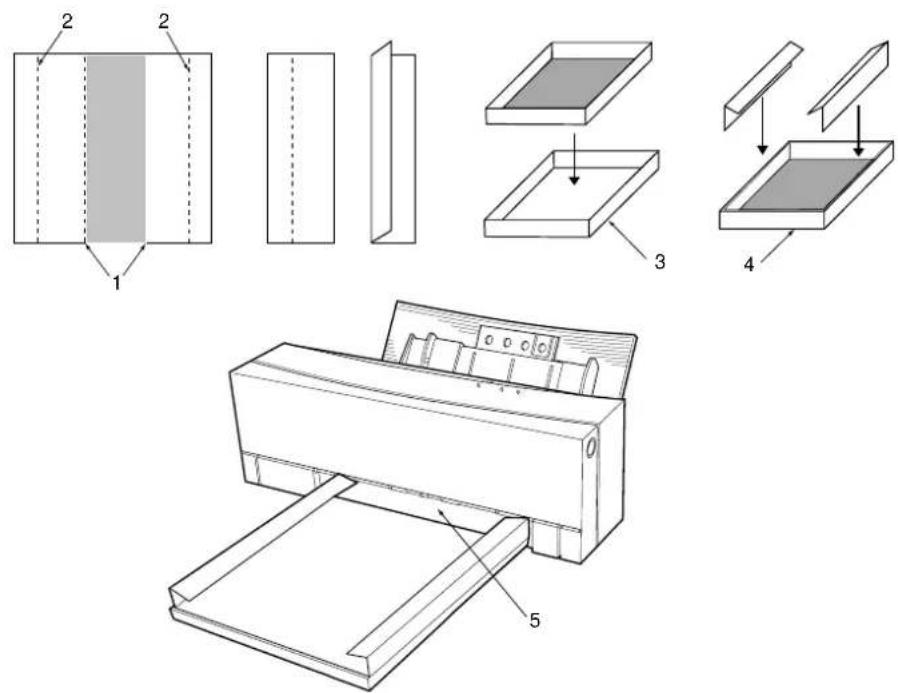
Undercoating with VPhoto primer ink cartridge
The VPhoto Primer ink cartridge is used to print an undercoat on paper prior to the main printing process. Undercoat fills any unevenness on the paper surface making plain paper suitable for high quality colour printing.
Requirements
For undercoating, you will need the following.
- Media
Any plain photocopier paper can be used.
- Ink cartridges
VPhoto Primer ink cartridge
Caution:
Overhead projector transparencies cannot be undercoated with VPhoto Primer ink.
Prepare the image to be undercoated
Use any application to create the image or document. Highlight the area to be undercoated in grayscale. White portions of data (R=G=B=100%) are not under-coated.
Install ink cartridge
Make sure at least one VPhoto Primer ink cartridge is installed in the ink cartridge holders. The ink cartridge can be installed in any holder.
Load the paper in your printer
Load the paper into your printer and set up the feed mode to either automatic or manual.
Set up the printer driver for printing
-
Select Print from the File menu to open the Print dialog box, then click Properties.
-
Click the Document/Quality tab to bring to the front.
-
Set Document Type to an appropriate option.
-
Set Media Type depending on the paper being used.
-
In Print Settings click Use Spot Colours check box so that the Spot Colours dialog box is displayed.
-
In Spot Colour Settings click the Use Spot Colour(s) radio button.
- Set Print Using to VPhoto Primer (Undercoat).
- Click OK to close the dialog box.
- Click the Paper tab to bring to the front, make all necessary adjustments then click the Overlay check box.
- When you complete the setup, click OK to close the dialog box.
- Click OK in the Print dialog box to start printing. Your document will be printed using VPhoto Primer ink.
Note:
The Overlay function lets you leave a sheet in the printer after a printing pass is complete, allowing you can change cartridges and print additional colours on the same page.
Printing on undercoat
After the printing process is complete, you can then print your document onto the undercoated paper.
Chapter 6 - Maintenance
Cleaning the printer
We recommend that this printer be cleaned periodically to ensure satisfactory long term operation.
WARNING
Make sure you unplug the printer before cleaning it.
Cleaning the main unit
Follow the cleaning steps described below.
- Use a soft cloth to wipe the outside of the printer to avoid dust and dirt build-up.
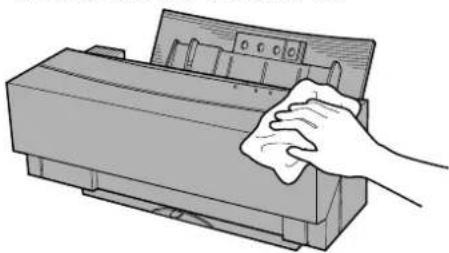
natural_image
Illustration of a hand cleaning a printer with a cloth (no text or symbols)- Push the front cover release button and gently lower the front cover.

natural_image
Illustration of hands operating a printer with a paper roll, no text or symbols present- Clean the inside of the printer using a soft brush to brush away dirt and dust.
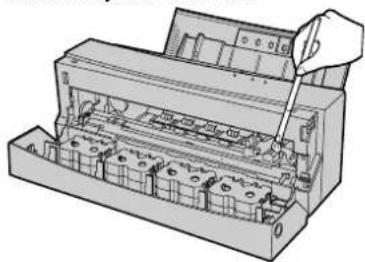
natural_image
Technical line drawing of a mechanical device with a hand inserting a component (no text or symbols visible)Caution:
Brush very gently around electrical components, and be careful not to leave any brush hairs on or near these components.
Cleaning the print head
Follow the steps below, using isopropyl alcohol and a cotton swab.
Caution 1:
Do not use benzene, thinner, or other volatile materials, as they may damage the printer components.
Caution 2:
Do not get the inside of the printer wet.
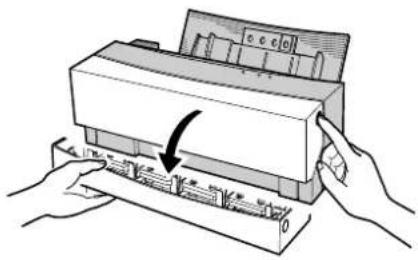
natural_image
Illustration of hands inserting a printer into a slot (no text or symbols visible)-
Push the front cover release button and gently lower the front cover.
-
Wipe the print head (1) with a cotton swab dipped in isopropyl alcohol. The print head may not come clean in one wipe so repeat several times.
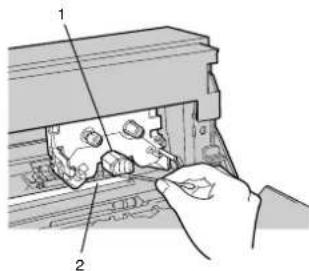
text_image
Technical diagram showing a hand operating a mechanical device with labeled parts 1 and 2Caution:
Avoid getting alcohol on the platen (2). Wait until the alcohol dries before printing.
Cleaning the platen
Use cellophane tape to clean the platen as described below.
- Press the front cover release button and gently lower the front cover.

natural_image
Illustration of hands operating a printer with a paper roll, no text or symbols present- Gently apply the tape (1) to dirty spots on the platen (2), and rub your finger over the tape.

text_image
Technical diagram of a mechanical device with numbered components and a hand interacting with the component.Caution:
Do not touch or remove the white pad (3) on the left side of the platen. Doing so may damage the printer.
English
-
Slowly peel off the tape.
-
Repeat as necessary to remove dirt from the platen.
Cleaning the feed roller
Use isopropyl alcohol and a cotton swab to clean the feed roller as described below.
Caution 1:
Do not use benzene, thinner, or other volatile materials, as they may damage the printer components.
Caution 2:
Do not get the inside of the printer wet.
- The printer must be initialised for cleaning the feed roller. To initialise turn off the printer first, then press the power button to turn the printer on again.
- Push the front cover eject button and gently lower the front cover.
-
Press the ready/insert button to move the carriage to a safe position.
-
Wipe the feed roller (metal shaft roller) with a cotton swab dipped in isopropyl alcohol. The feed roller may not come clean in one wipe, so repeat several times.
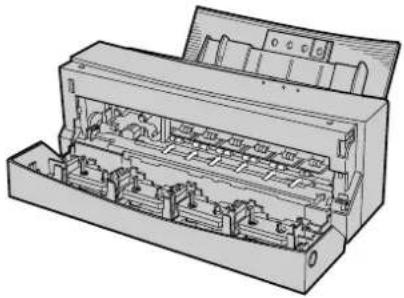
natural_image
Technical line drawing of an electronic device internal structure (no text or symbols visible)Caution:
Avoid getting alcohol on the platen. Wait until the alcohol dries before printing.
-
Press the ready/insert button to turn the feed roller and wipe the roller with a cotton swab until clean.
-
Close the front cover after you have finished cleaning the feed roller.
-
The printer will be ready for printing.
Changing dye sub cleaning pads
In order to maintain good print quality, replace the orange-coloured cleaning pad after printing 20 sheets of paper. A cleaning pad is enclosed in each new package of Dye Sub paper.
- To remove the cleaning pad, open the front cover, and pull on the left end of the cleaning pad while holding the right side of the pad, as shown in the figure.

natural_image
Illustration of hands installing or adjusting a mechanical component (no text or symbols visible)Caution:
The white pad (next to the cleaning pad) is not removable.
- To fit a new cleaning pad, mount the pad on the platen by locating the two lugs on the underside of the pad into the holes on the platen. Push the pad onto the platen to make sure it sits flat.
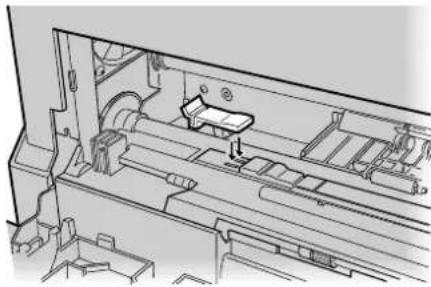
natural_image
Technical line drawing of a mechanical assembly with no visible text or symbolsCaution:
Always fit a cleaning pad in the printer. Failure to do so can cause the printer to malfunction.
English
Chapter 7 - Troubleshooting
Troubleshooting - general
Power failure while printing
With the front cover closed, turn the printer on. The printer will initialise and eject the partially printed page.
When the front cover has been opened before the printer is turned back on, perform the following.

text_image
Diagram showing a hand pressing a component into a machine, labeled with parts 1 and 2- If an ink cartridge (1) is on the carriage (2), press on the middle of the cartridge, as shown below, to ensure it is properly seated. Also, check that the cartridges in the holders are correctly installed.
See 'Installing Ink Cartridges' in Chapter 2 - Initial Setup.
- Close the front cover. The printer will now be able to resume operation.
Printer errors
When a printer error occurs, the error light flashes and the error message dialogue box appears on your computer's screen. To rectify printer errors;
- Check the error message on your computer's screen. For a list of Error messages see Indicator Lights Summary in Chapter 1 - Introduction.
Caution:
The error message dialogue box cannot be displayed if your computer is not capable of bi-directional printing.
- Fix the error to continue printing, or terminate printing. For more information on fixing printer errors see the rest of this Chapter.
Ready/insert button functions
The ready/insert button is used for a number of functions, depending on the printer status. The functions during normal printing are described below.
Paper feed
To feed a single sheet, set the paper feed switch to position "M" while no data is being received from the computer (i.e. ready light is on), load one sheet of paper into the sheet feeder, and then press the ready/insert button.
Paper eject
If paper is already in the printer and no data is being received (ready light is on), press the ready/insert button to eject the paper.
Cancelling an alarm
To cancel an alarm for anything other than a hardware or mechanism error, press the ready/insert button after the removing the cause of the alarm.
Forced printing and clearing data
When the data transfer from the computer stops for more than about 30 seconds, and the ready light is blinking quickly, press the ready/insert button to force the printer to print the data it has received so far.
Clearing paper jams
Follow these steps to clear a paper jam.
-
First, press the power button to shut off the power.
-
Press the front cover release button and gently open the front cover.
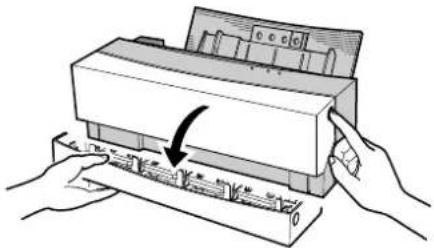
natural_image
Illustration of hands operating a printer with a ruler and paper strip (no text or symbols)- Press down on the release lever (1) and gently pull out the jammed paper.

natural_image
Technical line drawing of a mechanical assembly with no visible text or symbolsPaper jams can be caused by a dirty platen. For information on cleaning see 'Cleaning the Platen' in Chapter 6 - Maintaining the Printer.
-
Close the front cover.
-
Press the power button to turn on the power.
English
Troubleshooting - Windows
When problems occur during operation of the printer, please check the following troubleshooting tips before returning the printer for repair.
Power does not come on
1 Is the power cable disconnected?
Make sure the power cable is plugged into an outlet as well as connected to the printer. After checking the power cable, press the power button to turn on the printer.
2 Is the printer plugged into an extension block or power strip?
After turning on the extension block or power strip, press the power button to turn on the printer.
Check computer and printer communications
1 Are you using the proper printer cable?
To fully take advantage of the features of your DP-5000 printer, you will need a bi-directional printer port and a bi-directional printer cable.
With AT compatible computers, most typical cables will work.
It is possible to use a one-way interface with the printer if the spooler is set for one-way interfacing.
2 Does your computer have a bi-directional port? Is the cable bi-directional?
Windows 95/98 Plug & Play installation and bi-directional interfacing with the printer are only possible if your computer supports bi-directional parallel ports and you are using a bi-directional cable.
3 Is your computer a DOS machine?
All DOS machines (AT compatibles) can use the bi-directional communication used with this printer.
4 What are the limitations of using one-way communication with this printer?
a Printer errors cannot be detected by the printer driver.
b The printer driver cannot tell which ink cartridge is in which holder.
c To store all the print output, an enormous amount of spool data (held in a temporary file for printing) is generated during colour multipage printing. As a result, the number of sheets of paper that can be continuously printed will be limited if there is insufficient free space on the hard disk.
Printer does not print or stops while printing
1 Is the printer turned on?
Before printing make sure the printer is turned on.
2 Is the front cover closed properly?
Make sure that the front cover is firmly closed.
3 Is the ‘ ready’ light off?
Press the ready/insert button and make sure the ready light comes on.
4 Is the interface cable correctly connected?
After connecting the cable tighten the fastening screws and clamps to secure the cable, and make sure no pressure is on the cable.
English
5 Is there a paper jam?
Remove the paper. If the paper is caught in the rollers, open the front cover, push down on the release lever, and gently remove the paper. Make sure there are no pieces of the paper left in the printer.
6 Are the settings in the application correct?
Recheck the printer settings in the application.
7 Is the printer driver correctly installed?
Install the DP-5000 printer driver from the Installation Disc.
8 Is the cable disconnected?
When one of the followings occurs, it is possible that the cable is broken or disconnected.
a The gauge in the Print dialogue box does not progress.
b The “Out of Paper” message appears repeatedly.
c Replace the cable with a new one.
9 Are you using a printer selection switch or a printer buffer?
With bi-directional interfaces, operation is sometimes unreliable when using printer switching boxes or printer buffers. If you are using a printer selection switching box or printer buffer, use one-way communication.
10 Is your cable too long?
Do not use a cable that is longer than you need. The signals become more unstable as the cable gets longer.
11 Are you using the wrong ink cartridges?
Use only the recommended ink cartridges. Do not use ink cartridges from other manufacturers.
12 Are the ink cartridges correctly installed?
Insert ink cartridges in the carriage with the identification markings (B side) face up. This applies to all ink cartridges except the reversible types: Econo Black and Finish II.
13 Is the ribbon on an ink cartridges used up?
When the ribbon in an ink cartridge has been used up, black and silver stripes will be visible on the ribbon. When these appear install a new ink
cartridge. After replacing the ink cartridge, printing will continue from where it left off.
14 Do you have enough hard disk space?
The DP-5000 requires work space on the hard disk when it prints. Keep enough space open on the disk for the printer to operate (after printing, the work space is released.)
15 Does the hard disk have areas where reading or writing are unreliable?
If there are areas on the hard disk where reading or writing are unreliable, sometimes a printing error will occur and printing will stop. Periodically use a utility like SCANDISK that comes with MS-DOS 6.0 (or later) or Windows 95/98 to prevent these problems.
Printing is light, distorted, or has gaps
1 Has one of ribbons separated from the head?
Stop the printing and reinstall all the ink cartridges. Take up any slack in the ribbons. If a particular ink cartridge repeatedly causes problems, try a different ink cartridge.
2 Is the ink cartridge head dirty?
Clean the cartridge head by referring to Chapter 5, Maintaining the Printer. The platen often gets dirty at the same time as the head, so it is recommended to also clean the platen.
3 Is the platen dirty?
Clean the platen by referring to Chapter 5, Maintaining the Printer. If cleaning the head and the platen does not work, contact the supplier from where you purchased the printer.
4 Are you using the correct ink cartridge for the chosen printing medium?
Use only OKI ink cartridges for the DP-5000 printer. When printing in colour on the glossy side of a greeting card, use only metallic ink cartridges.
5 Are you printing on a rough or special surface (such as overhead transparency film)?
Rough or specially treated surfaces may not allow the ink to adhere well, resulting in gaps or distortions. In such a case, use a halftone setting appropriate for the image.
English
6 Are you printing images with sudden colour variations or very bright colours?
In these situations, the overlap of different colours of ink can degrade the quality of the image. Reducing the amount of halftoning can reduce this effect. Use a halftone option appropriate for the image.
7 Are you printing on envelopes, thermal paper, or picture cards?
Printing is unreliable on envelopes and other surfaces which have a non-uniform thickness. Printing and feeding of thermal paper is unreliable. The paper side of picture cards may be printed on if the surface is smooth and the card thickness is 0.23 mm (0.01") or less, but printing on the photo side is unreliable.
8 Are you printing on the wrong side of the paper?
With both VPhoto Print Film and Dye Sublimation Paper, printing should take place on the glossy side. Take care not to print on back of the paper, particularly with Dye Sublimation paper, while using the Dye Sub ink cartridges as the ribbons in the cartridges may break.
Colour printing is not working or is extremely slow
1 Are the ink cartridges for colour printing installed?
Only the following ink cartridges are suitable for colour printing:
a Yellow, cyan, magenta, and black ink cartridges
b Yellow, cyan, magenta, black, VPhoto Primer and Finish II ink cartridges
2 Are the settings correct?
Colour printing is selected if Automatic, Photographs, or Graphics/Text is selected in Document Type.
3 Do you have enough disk space?
Make sure there is enough space on your hard disk, (the working space is released once printing is finished.)
4 Is the application set for colour printing? Does the application support colour printing?
Some applications have colour printing enable/disable settings. Some applications do not support colour printing. Refer to your computer User
manual for information and check the colour settings.
5 Are you using many applications at one time?
When little memory is available for print processing, printing may take a long time or fail. Close as many applications as possible and try again.
6 Do you have enough memory?
Handling colour images requires a lot of memory for the application and for the data. Sometimes there is insufficient memory left for printing. Make sure your computer has enough memory to print the size of images you are using.
7 General protection fault errors occur.
These errors can occur when there is insufficient memory for colour printing or when part of the hard disk has become corrupted. After decreasing the size of the print data or scanning the hard disk, try printing again.
8 Is the free space on the hard disk fragmented?
The time required for printing can increase dramatically if the free space on the disk drive is extremely fragmented. Clean up your files and defragment the disk by periodically running a
utility like DEFRAG that comes with MS-DOS 6.0 (or later) or Windows 95/98.
Paper is not feeding correctly or not ejecting correctly from the sheet feeder
1 Are you using paper which is thicker or thinner than recommended?
Use paper within the range 0.07 mm - 0.23 mm (0.003" - 0.01"). For auto feeding use paper in the range 0.07 mm - 0.1 mm (0.003" - 0.004").
2 Are you using poor quality paper?
Paper that is folded, ripped or has holes, such as loose leaf binder or refill paper, can cause paper jams and should not be used.
3 Are you using curled paper?
This will cause paper jams. The paper should be curled the opposite way to flatten it out before it is used.
4 Are you using paper with folded or cut corners?
This can cause problems since the paper position sensor and paper length sensor do not work properly. Sheets with corner cuts, such as transparencies and back print film, will work fine if the
English
corner cut end is placed at the top of the paper guide.
5 Is there a paper jam?
Clear the paper jam. Sometimes a small piece of the jammed page will tear off and remain in the printer so that sheets will continue to jam after the page is removed. Remove any small remaining pieces of paper.
6 Is the paper feed guide too narrow for the paper?
The paper feed guide should hold the paper loosely enough so that it can feed easily.
7 Is there too much paper in the sheet feeder?
The sheet feeder can hold up to 100 sheets of plain paper, any more than this may cause a paper jam.
8 Is the paper feed switch positioned correctly for the paper feed method?
To print on plain paper using automatic feed mode, set the paper feed switch to position "A"; to print in manual feed mode, set it to position "M".
9 Is the cut corner in the correct position (for transparencies and back print film)?
When these sheets are inserted with the cut corner incorrectly positioned, they may not feed correctly. Follow the instructions and insert the sheets correctly.
10 Are you printing on envelopes, thermal paper, or picture cards?
Correct printing and feeding of envelopes and thermal paper cannot be guaranteed. The paper side of picture cards can be used if the card is less than 0.23 mm (0.01") thick and manual feed mode is used. Printing on the photo side is unreliable.
11 Are you using home-made cards or thick cards?
Cards with thickness within the range of 0.07 mm - 0.23 mm (0.003" - 0.01") can only be used in manual feed mode.
12 Is there anything blocking the paper output slot (such as a large pile of printed sheets)?
This can cause ejection or feed problems, remove the blocking paper.
13 Have you loosened the paper sufficiently prior to loading it into the sheet feeder?
Paper must be riffled several times prior to being loaded into the sheet feeder. If not, sheets of paper may stick to one another and cause multiple sheets to feed into the printer at the same time, or other forms of misfeed.
Printer emits unusual noises when the power is turned on, and the error lights blink
1 Has the carriage packing material been removed?
Refer to Chapter 1, Introduction for details on removing packing material.
2 Has the packing tape on the case been removed?
There are two pieces of tape on the front of the printer that help protect the printer during shipping. These must be removed before using the printer.
3 Has an ink cartridge become dislodged from the carriage?
Open the front cover and make sure the ink cartridges are correctly installed.
4 Is there paper caught between the platen and the print head?
Remove the paper (for reference see ‘Cleaning the Printer’, Chapter 5).
5 "Missing ink cartridges" message appears. Are all the necessary colours of ink cartridge installed in the printer?
Colour printing requires that four colours of ink cartridge (yellow, magenta, cyan, and black) are installed with the OKI logo (B side) facing up.
6 Are you generating monochrome printing in Automatic mode?
If Automatic is selected in Document Type, colour ink cartridges must be installed even when printing monochrome. If you want to print using only black ink, select Greyscale or Monochrome Text.
Mechanism or cartridge change error
1 Are the ink cartridges correctly installed?
If an ink cartridge has become dislodged from the holder, an ink cartridge change error will occur. Open the front cover and reinstall the ink cartridge.
English
2 Are you using the printer on a level surface?
The printer will not operate correctly on a slanted surface. Place it on a level, stable surface.
3 Is the printer in a place where it is subject to movement?
Various movements such as bumps and vibrations can cause mechanical problems. Place the printer in an environment where it will not be subject to movement.
4 Is the front cover properly closed?
The printer will not operate correctly if the front cover is not closed properly. Close the front cover correctly.
5 Are items stacked on top of the printer?
The printer may malfunction if items are stacked on top or to the side of the printer. Remove any obstruction on top or to the side of the printer.
Ink cartridges are not correctly recognised
1 Is the bar code on the ink cartridge dirty?
Clean the bar code.
2 Is the ink cartridge installed in the holder with the (A) side up?
Make sure the ink cartridges are placed in the holder with the identification markings (B side) facing up.
3 Has an ink cartridge for a different printer been installed?
Ink cartridges made by other manufacturers will not work. Use only ink cartridges recommended by OKI.
Printing quality, hue, and resolution queries
1 Can all four colours of the colour inks be combined for black and white printing?
If Darker Black is set in colour printing or if the brightness and contrast settings are correct, 4-colour black is possible. To print only with black, turn off Darker Black, and return the Image setting under Image Settings to default.
For monochrome printing, select Greyscale under Document Type.
2 Black is printed with black ink, but grey portions are printed using four colours.
In colour printing, greyscale intermediate colours (such as grey) are printed using four colours. If you want to print only in black ink, set the Document Type setting in the Document/Quality tab in the Print dialogue box to Greyscale.
3 I would like to adjust the image quality of photographs without reducing character resolution.
Characters always print at the currently selected resolution (if an outline font is used). The image quality of photographs can be adjusted independently using the Halftone setting in the More Settings dialogue box.
4 There seems to be no difference between photographic output using monochrome printing at 'Fine' and images obtained by monochrome printing at 'Standard'.
When monochrome printing in Fine, only the characters can be printed at 1200 dpi. This is done by smoothing the 600 dpi images. The quality of photographs, however, differs little from that of images obtained by monochrome printing at Standard.
5 When plain or other coarse-surfaced paper is printed in colour, ink is missing from a number of points on the image.
When paper with a coarse surface is used for full colour printing, ink will be missing from certain points where it was difficult to deposit. To correct this, you can attempt the following.
a Set the Halftone setting in the More Settings dialogue box to Standard Dither for printing. The image will be coarse, but the ink will transfer to the paper more reliably.
b If you have VPhoto Primer ink, the image quality may be improved by providing an undercoat.
6 When coloured paper is used for full colour printing, the colours are not reproduced correctly.
Colour printing is based on the colours reproduced when ink is printed on white paper, so correct colours cannot be reproduced on coloured paper. DP printers, however, can provide the following forms of printing even on coloured paper:
a On light-coloured paper, DP printers provide a white undercoat prior to colour printing. This allows colours to be reproduced in
English
tones close to those obtained by printing on white paper.
b On dark-coloured paper, impressive finishing may be obtained by using monochrome printing with white ink.
7 Colour images in the same document look different.
Make sure that you select the same media type and print mode. The media type presets the most suitable settings for your document. If you change the media type or print mode, it will affect the printed results.
Ink and paper
1 How should I use white ink?
White ink can be used as follows:
a As with foil ink, white ink is effective for spot colour printing on dark-coloured paper.
b White ink can provide an undercoat for full colour printing on light-coloured or coarse-surfaced paper. The white undercoat will improve image quality and colour reproduction.
2 How should I use VPhoto Primer ink?
The VPhoto Primer ink prints an undercoat and improves the print quality on most plain papers by allowing you to print photo quality images at 2400 dpi using variable dots.
3 Is it OK to print using white ink on top of a full colour image?
This can cause unsatisfactory results. Print the white ink before using other ink colours.
4 For full colour printing and glossy finish, may I use any type of paper?
We suggest using High Grade Paper for full colour printing and glossy finish. Using other types of paper can produce a poor image. Although using our VPhoto Primer can help make many plain papers suitable for full-colour printing.
5 Must I use the special sheets when printing transparencies?
Yes, OKI recommended inks do not adhere well to normal transparency sheets.
6 Can I print on regular greeting cards?
Yes, using manual feed mode.
7 Can I use the Photo Overcoat cartridge for photo realistic finishing?
No. Always use the Finish II cartridge.
Connection method
1 I would like to use a printer switcher.
Since your printer switcher may not support bidirectional communication, use a uni-directional interface setting.
2 I would like to use multiple printer ports for connections.
If the computer is AT-compatible, up to three ports (LPT1 to LPT3) can be used, as long as they are parallel ports.
3 Can I use the printer on a network?
Yes, the printer can be used on a network, but only with a unidirectional interface and when set for unidirectional communication.
Other operational queries
1 How do I delete the printer driver?
For Windows 95/98, refer to 'Installing the Printer Driver' in Chapter 3 for details.
2 When my display is set for 64,000 or 16,700,000 colours, I run out of memory when printing.
Windows runs out of memory when there are too many display colours. Change to 256 colours when printing. Changing the display mode does not change the print results.
3 When I print from Notepad in Windows, the left edge does not print.
This happens whenever you print from Notepad at 600 dpi or more. Switch to 300 dpi or use a different application.
4 When I print many sheets continuously, small vertical lines appear on the right side of the page.
When printing for long periods of time, the print head retains heat, and ink can attach to the paper in places other than just the printing area. After printing 30 sheets of Letter/A4 sized pages in monochrome or 8 Letter/A4 sheets in colour, let the printer cool down before continuing printing.
5 How can I reduce or enlarge my document?
The printer driver software allows you to scale printing. Specify your scaling factor (25 - 400%) in the Reduce or Enlarge option of your printer driver software.
English
6 Why can I not print correctly with page layout settings?
There are application programs that allow you to format a document composed of both orientations of portrait and landscape. When printing such document with layout (more than 2 pages per sheet), it may not print properly.
7 Why can I not print spot colour using the Metallics & CMYK option?
You cannot print text larger than 32pt in spot colour. In some application programs, you cannot print in spot colour if the text is rotated or reshaped.
Troubleshooting - Macintosh
When problems occur during printer operation, please check the following troubleshooting tips before returning the printer for repair.
Power does not come on
1 Is the power cord disconnected?
Make sure the power cord is plugged into an outlet as well as connected to the printer. After checking the power cable, push the power button to turn on the printer.
2 Is the printer plugged into an extension block or power strip?
After turning on the extension block or power strip, press the power button on the printer.
During installation a "File not found" error occurs or the installer is not found
1 Is At Ease installed?
If you are using At Ease when you place the Installation Disc in the CD-ROM drive, (some of the Performa series start up in At Ease), the following things may happen.
a The alert dialogue box appears.
b The installer is not displayed.
In these cases the following methods can be used to install the printer driver:
a F r Special menu, select Switch To Finder. Double-click on the installer icon to install the printer driver.
b I f Switch To Finder function is not available on the Special menu, select Switch To At Ease and check the Off checkbox in At Ease settings. Restart your computer and install the printer driver.
The icon does not appear in the Chooser
1 Is QuickDraw GX enabled?
If QuickDraw GX is installed, disable it by following these steps:
a Select "Control Panel" from the Apple menu.
b O p Extensions Manager. e
c Deselect QuickDraw GX in the list of items.
d Close the Extensions Manager, and restart your Macintosh.
2 Is the printer driver installed?
Install the DP-5000 printer driver from the Installation Disc (CD-ROM).
The DP-5000 printer cannot be selected in Chooser
1 Are the SCSI cable and terminator correctly connected?
Correctly connect the SCSI cable and terminator. Make sure that the cable is not bent excessively. Excessive bending of the cable may break the wires inside.
2 Is the SCSI cable loose?
Make sure the SCSI cable connectors are firmly attached at both ends using the fastening screws or clasps.
3 Is the SCSI device number set correctly?
Make sure the SCSI device number for the printer is not the same as that used by any other SCSI device attached to the computer. Each SCSI
English
device must have a unique device number. (If the computer has more than one SCSI bus, then the device number must only be unique for the bus that the printer is attached to.)
4 Are you using a high impedance cable?
Use a high impedance cable for each device in the SCSI chain.
5 Is the cable too long?
Do not use a cable that is longer than you need. The signals become more unstable as the cable gets longer.
6 Is the printer turned on?
Make sure the printer is turned on before using the Chooser to select the printer.
7 Were the printer and computer turned on in the wrong order?
Turn the printer on before turning on the computer.
8 Is the front cover closed correctly?
Make sure that the front cover is closed correctly.
9 Is the ready light off?
Press the ready/insert button and make sure that the ready light comes on.
10 Are you using the wrong cartridges?
Use only OKI recommended cartridges in the DP-5000 printer. Do not use cartridges from other manufacturers.
11 Are the cartridges installed correctly?
Insert the cartridges in the holders with the identification markings (B side) face up.
12 Is the ribbon in one of the cartridges used up?
When the ribbon in a cartridge has been used up, black and silver stripes will be visible on the ribbon. Install a new cartridge. After replacing the cartridge printing will continue from where it left off.
13 Is the SCSI cable correctly connected?
Make sure the cable is not bent excessively, and secure it firmly at both ends with the fastening screws or clasps.
14 Is the device number set correctly?
Make sure the SCSI device number of the printer is not the same as that used by any other SCSI device attached to the computer. Each SCSI device must have a unique device number. (If the computer has more than one SCSI bus, then the device number must only be unique for the bus that the printer is attached to.)
15 Is the terminator connected?
Make sure there is a terminator connected to the last peripheral in the SCSI chain. If you are using a device with an internal terminator, make it the last peripheral in the SCSI chain.
16 Is there a paper jam?
Remove the paper. If the paper is caught in the rollers, open the front cover, push down on the release lever, and gently remove the paper. Make sure there are no pieces of paper left in the printer.
17 Are the settings in the application correct?
Recheck the printer settings in the application.
18 Is the printer driver correctly installed?
Install the DP-5000 printer driver from the Installation Disc (CD-ROM).
19 Has the printer been selected using the Chooser?
From the Apple menu, select the Chooser and make sure the printer and device number appear correctly. Click on the printer name and SCSI#. (The printer may not be selected correctly if you do not click on the printer name.)
20 Do you have enough hard drive space?
The DP-5000 requires work space on the hard disk when it prints. Keep enough space open on the disk for the printer to operate. (After printing, the work space is released.)
21 Does the hard disk have areas where reading or writing are unreliable?
If there are areas on the hard disk where reading or writing are unreliable, sometimes a printing error will occur and printing will stop. Periodically use the Disk First Aid utility that comes with your system software (or other commercial disk checking utility) to prevent these problems.
English
Colour printing is not working or is extremely slow
1 Are the ink cartridges for colour printing installed?
The following ink cartridges are required for colour printing:
a Yellow, cyan, magenta, and black ink cartridges
b Yellow, cyan, magenta, black, VPhoto Primer, and Finish II ink cartridges
2 Are the print settings correct?
In the Print dialogue box, select Automatic, Photographs or Graphics & Text from the Type menu.
3 Is the free space on the hard disk fragmented?
The time required for printing can increase dramatically if the free space on the disk is extremely fragmented. Clean up your files and defragment the disk by periodically using a defragment utility.
4 Is enough memory allocated?
Colour printing may not be possible if the memory allocated to the application is insufficient. Allocate more memory to the application.
5 Are you using memory management tools or virtual memory?
When you are using memory management tools such as RAM Doubler or virtual memory, memory may not be correctly recognised for colour printing.
If colour printing is not working, try disabling these utilities and try again.
6 Do you have enough disk space?
Make sure there is enough empty space on your hard disk. (The working space is released once printing is finished.)
When there is just barely enough working space left on the disk, printing may take much longer than normal.
7 Is the application set for colour printing? Does the application support colour printing?
Some applications have colour printing enable/disable settings. Some applications do not sup-
port colour printing. Read the manual for the application and check the colour settings.
8 Are you using many applications at one time?
When very little memory is available for print processing, printing may take a long time or fail. Close as many applications as possible and try again.
Printing is light, distorted, or has gaps
1 Has one of the ribbons separated from the head?
Stop the printing and reinstall all the cartridges. Take up any slack in the ribbons. If a particular cartridge repeatedly causes problems, try a different cartridge.
2 Is the head dirty or is there an obstruction on the print head?
Clean the head by following the directions in Chapter 5. If anything is stuck to the print head, remove it, being careful not to damage the head. The platen often gets dirty at the same time as the head, so it is recommended that you clean the platen after cleaning the head.
3 Is the platen dirty or is there an obstruction on the platen?
Clean the platen by following the directions in Chapter 5. If anything is stuck to the platen, remove it, being careful not to damage the platen.
If cleaning the head and the platen does not work, contact the supplier from where you purchased the printer.
4 Are you using the correct cartridges for the chosen printing medium?
Use only OKI cartridges for the DP-5000 printer. When printing transparencies, use only recommended Overhead Projector Transparency Film (A4).
5 Are you printing images with many sudden colour variations or very bright colours?
In these situations, the overlap of different colours of ink can degrade the quality of the image. Try changing the Halftone option in the Image Settings dialogue box from Fine to Standard. Use a Blends option appropriate for the image.
English
6 Are you printing on envelopes, thermal paper, or picture postcards?
Printing is unreliable on envelopes and other surfaces which have a non-uniform thickness. Printing and feeding of thermal paper is unreliable. The back side of picture postcards may be printed on if the surface is smooth and the card thickness is 0.23 mm (0.01") or less, but printing on the photo side is unreliable.
7 Are you printing in colour on the glossy side of a greeting card?
The glossy side of a greeting card can only be printed on using metallic cartridges.
8 Are you printing on the wrong side of the paper?
With both VPhoto Print Film and Dye Sub Paper, printing should take place on the glossy side. Particularly with Dye Sub Paper, take care not to print on back of the sheet while using Dye Sub ink cartridges. The ribbons in the cartridges may break.
Paper is not feeding or ejecting correctly from the sheet feeder
1 Are you using paper which is thicker or thinner than recommended?
Use paper within the range 0.07 mm - 0.23 mm (0.003" - 0.01"). For auto feeding use paper in the range 0.07 mm - 0.1 mm (0.003" - 0.004").
2 Are you using poor quality paper?
Paper that is folded, ripped or has holes, such as loose leaf binder or refill paper, can cause paper jams and should not be used.
3 Are you using curled paper?
This will cause paper jams. The paper should be curled the opposite way to flatten it out before it is used.
4 Are you using paper with folded or cut corners?
This can cause problems since the paper position sensor and paper length sensor do not work properly. Sheets with corner cuts, such as transparencies and back print film, will work fine if the corner cut end is placed at the top of the paper guide.
5 Is the cut corner in the correct position?
When these sheets are inserted with the cut corner incorrectly positioned, they may not feed correctly.
6 Is the paper feed guide too narrow for the paper?
The paper feed guide should hold the paper loosely enough so that it can feed easily.
7 Is there too much paper in the sheet feeder?
The sheet feeder can hold up to 100 sheets of plain paper, or 30 transparencies, any more than this may cause a paper jam.
8 Is the paper feed switch positioned correctly for the paper feed method?
To print on plain paper using automatic feed mode, set the paper feed switch to position "A"; to print in manual feed mode, set it to position "M".
9 Are you printing on envelopes, thermal paper, or picture postcards?
Correct printing and feeding of envelopes and thermal paper cannot be guaranteed. The back side of picture postcards can be used if the card is less than 0.23 mm (0.01") thick and manual feed
mode is used. Printing on the photo side is unreliable.
10 Are you using home-made cards or thick cards?
Cards with thickness within the range of 0.07 mm - 0.23 mm (0.003" - 0.01") can be used in manual feed mode.
11 Are there pages piled up near the output slot or in the output paper tray?
When printed material obstructs the paper output slot, the paper feed and paper output may not work correctly.
12 Have you loosened the paper sufficiently prior to loading it into the sheet feeder?
Paper must be riffled several times prior to being loaded into the sheet feeder. If not, sheets of paper may stick to one another and cause multiple sheets to feed into the printer at the same time, or other forms of misfeed.
English
The printer emits unusual noises when the power is turned on, and the error lights blink
1 Has the carriage packing material been removed?
Refer to Chapter 1, Introduction for details on removing packing material.
2 Has the packing tape been removed?
There are two pieces of tape on the front of the printer that help protect the printer during shipping. Gently remove the tape before using the printer.
3 Has a cartridge become dislodged from the cartridge holder?
Open the front cover and make sure the cartridges are correctly installed.
4 Is there a paper jam?
Clear a paper jam by referring to ‘Clearing Paper Jams’ in this Chapter. Occasionally a small piece of paper will tear off and remain in the printer. If this happens, hold the release lever down and use a thick piece of paper to remove the small piece of paper.
A mechanism or cartridge change error occurred
1 Are the cartridges installed correctly?
If a cartridge has become dislodged from its holder, a cartridge change error will occur. Open the front cover and reinstall the cartridge.
2 Are you using the printer on a level surface?
The printer will not operate correctly on a slanted surface. Place it on a level, stable surface.
3 Is the printer in a place where it is subject to movement?
Various movements such as bumps and vibrations can cause mechanical problems. Place the printer in an environment where it will not be subject to movement.
4 Is the front cover properly closed?
The printer will not operate correctly if the front cover is not closed properly. Close the front cover all the way.
5 Are items stacked on top of the printer?
The printer may malfunction if items are stacked on top or to the side of the printer. Remove any obstruction on top or to the side of the printer.
6 Is there an obstruction in front of the paper output slot?
If the paper output slot is obstructed, paper ejected from the printer can fold or bend and cause the printer to malfunction. When printing, make sure that the paper output slot is unobstructed and that there is room for paper to be ejected.
Ink cartridges are not correctly recognised
1 Is the bar code on the cartridge dirty?
Clean the bar code.
2 Is the cartridge installed in the holder with the (A) side up?
Make sure the cartridges are placed in the holder with the identification markings (B side) facing up.
3 Has an ink cartridge for a different printer been installed?
Cartridges made by other manufacturers will not work. Use only OKI recommended cartridges.
Printing quality, hue, and resolution queries
1 Can all four colours of the colour inks be combined for black and white printing?
In colour printing mode, greyscale portions are printed using a four-colour greyscale. Black characters are also printed using a mixture of the four colours, if brightness is adjusted. To print monochrome portions in black only, adjust the brightness to 0%. To subject the overall image to monochrome printing, set the Type Settings to Black & White.
2 Black is printed with black ink, but grey portions are printed using four colours.
In colour printing, greyscale intermediate colours (such as grey) are printed using four colours. If you want to print only in black ink, set the Type setting in the Print dialogue box to Greyscale.
3 I would like to adjust the image quality of photographs without reducing character resolution.
Characters always print at the currently selected resolution (if an outline font is used). The image quality of photographs can be adjusted independently using the Halftone setting in the Image Setting dialogue box.
English
4 There seems to be no difference between photographic output using monochrome printing set to Fine and images obtained by monochrome printing set to Standard.
With monochrome printing set to Fine, only the characters can be printed at Fine. This is done by smoothing the Standard images. The quality of photographs, however, differs little from that of images obtained by monochrome printing set to Standard.
5 When plain or other coarse-surfaced paper is printed in colour, ink is missing from a number of points on the image.
When paper with a coarse surface is used for full colour printing, ink will be missing from certain points where it was difficult to deposit. To correct this, you can attempt the following:
a Set the Halftone setting in the Image Setting dialogue to Standard for printing. The image will be coarse, but the ink will transfer to the paper more reliably.
b If you have VPhoto Primer ink, the image quality may be improved by providing an undercoat.
6 When coloured paper is used for full colour printing, the colours are not reproduced correctly.
Colour printing is based upon the ink being printed on a white background, so correct colours cannot be reproduced on coloured paper. DP printers, however, can provide the following forms of printing even on coloured paper.
a On light-coloured paper, DP printers provide a white undercoat prior to colour printing. This allows colours to be reproduced in tones close to those obtained by printing on white paper.
b On dark-coloured paper, impressive finishing may be obtained by using monochrome printing with white ink.
Ink and paper
1 How should I use white ink?
White ink can be used as follows:
a As with foil ink, white ink is effective for spot colour printing on dark-coloured paper.
b White ink can provide an undercoat for full colour printing on light-coloured or coarse-surfaced paper. The white undercoat will
improve image quality and colour reproduction.
2 Can I print on overhead transparencies using foil cartridges?
Printing is possible, but the foil ink is not transparent.
3 Can I use the Dye Sub Overcoat cartridge for Glossy finishing?
No. Always use the Finish II cartridge.
4 Is it OK to print using the white ink on top of a full colour image?
This can cause unsatisfactory results. Print the white ink before using other ink colours.
5 For full colour printing and glossy finishing, may I use any type of paper?
We suggest using High Grade Paper for full colour printing. Using other types of paper can produce a poor image. Using our VPhoto Primer will help make many plain papers suitable for full-colour printing.
Connection method
1 Can I connect multiple DP printers to a single computer?
If different SCSI device numbers are used, multiple printers can be connected to a single Macintosh. Of course, simultaneous printing is not possible.
2 Can I connect a single DP printer to multiple computers?
No, the printer is not designed for this.
Other operational problems
1 Is this printer compatible with PostScript?
The DP-5000 printer uses QuickDraw. It is not compatible with PostScript.
2 EPS files cannot be output clearly.
Since EPS files are data files for PostScript printers, images at 72 dpi may be output from QuickDraw depending on the application.
3 Are enlargements and reductions possible?
Set either the enlargement or the reduction rate in the Reduce or Enlarge setting in the Page Setup
English
dialogue box. This value may be specified between 25 and 400.
4 The preview doesn't change even though I change the reduction or enlargement in the Page Setup dialogue box.
The preview will not change size with different reduction or enlargement settings. Check the size after printing to see that the changes took effect.
5 How do I uninstall the printer driver?
Remove the DP-5000 printer driver from the Extensions folder in the System Folder, and remove the DP-5000 Preferences file from the Preferences folder. If you have installed the Queue Kit software, and you are not going to use it with other applications, remove the Queue Monitor and Queue Watcher files from the Extensions folder. Restart your computer.
6 Can this printer be connected to Windows and Macintosh computers simultaneously?
No, the parallel port and the SCSI port cannot be used at the same time. Connect a Macintosh computer to the printer using the Macintosh interface module, and connect a Windows computer without the module.
7 Why can I not print correctly with page layout settings?
There are application programs that allow you to format a document composed of both orientations of portrait and landscape. When printing such document with layout (more than 2 pages per sheet), it may not print properly.
Chapter 8 - Specifications & Settings
Table 1 details the general specifications for the OKI DP-5000 printer.
| Name OKI | DP-5000 Photo Quality Colour Printer | |
| Print head 240 dot | ||
| Printing speed | Plain paper: Equivalent to 240 cps (100 cps x 2.4 lines) (When printing 10-cpi text) | |
| Resolution Photo-Quality: 2400 dpi colour and greyscale | ||
| Standard: | 1200 dpi greyscale / black & white; 600 dpi colour / black & white / greyscale | |
| Dye Sub: | Continuous-tone colour 600 dpi (optional) | |
| Printing area 330mm x 215mm (8.5" x 13") maximum | ||
| Paper feed method | Friction feed | |
| Paper width 99mm - 224mm (3.9" - 8.82") | ||
| Paper thickness | 0.67mm - 0.23mm (0.003" - 0.01") | |
| Print media | Photo-Quality: | VPhoto print film and paper (2400 dpi) |
| Standard: | Standard paper, laser-print paper, overhead transparencies, (600 dpi) | |
| Dye Sublimation: | Optional | |
| Name OKI | DP-5000 Photo Quality Colour Printer | |
| Dimensions | 46.2cm (width) x 30cm (depth) x 19.1cm (height)18.2" x 11.8" x 7.5" (approximate dimensions) | |
| Weight 5.2 kg (11lbs. 8 oz.) | ||
| Power supply 220-240 Vac 50/60Hz | ||
| Interface Parallel, SCSI (optional), USB (optional) | ||
| Head life 250 million pulses/dots | ||
| Machine life printing; 10,000 cycles | ||
| Noise 51 dB Maximum | ||
| Agency approvals | FCC Class B, UL, CSA and CE | |
| Operating environment | Temperature: | 10°C to 30°C (50° to 86°F) (for monochrome on plain paper), otherwise 15°C to 30°C. (59° to 86°F). |
| Humidity: | 30% to 70% (without condensation or freezing) | |
| Storage environment | Temperature:Humidity: | 0°C to 35°C (32° to 95°)50% to 70% (without condensation or freezing) |
Options
• SCSI Interface for Macintosh (Part No. 41065001)
- USB Interface Kit for iMac & Window 95/98 (Part No. 41065101)
- Dye Sublimation Upgrade Kit (enables dye sublimation printing capability) (Part No. 41064901)
DIP switches
DIP switches are used to set the SCSI ID number.

ON OFF
The following summarises the settings for each SCSI device number.
| 1 2 3 | 4 SCSI No. | ||||
| OFF OFF | OFF OFF | No. 0 | |||
| ON OFF | OFF OFF | No. 1 | |||
| OFF ON | OFF OFF | No. 2 | |||
| ON ON | OFF OFF | No. 3 | |||
| OFF OFF | ON OFF | No. 4 | |||
| 1 2 3 | 4 SCSI No. | ||||
| ON OFF | ON OFF No. 5 | ||||
| O F | F | O | N | O N | O F |
| ON ON | ON OFF No. 7 (note 2) | ||||
F N o
Note 1:
Factory default setting is No.6.
Note 2:
SCSI device number 7 is reserved for the Macintosh itself. Device number 0 is normally assigned to the internal hard disk drive, if there is one. To be safe, use only device numbers 1 through 6.
Printable area
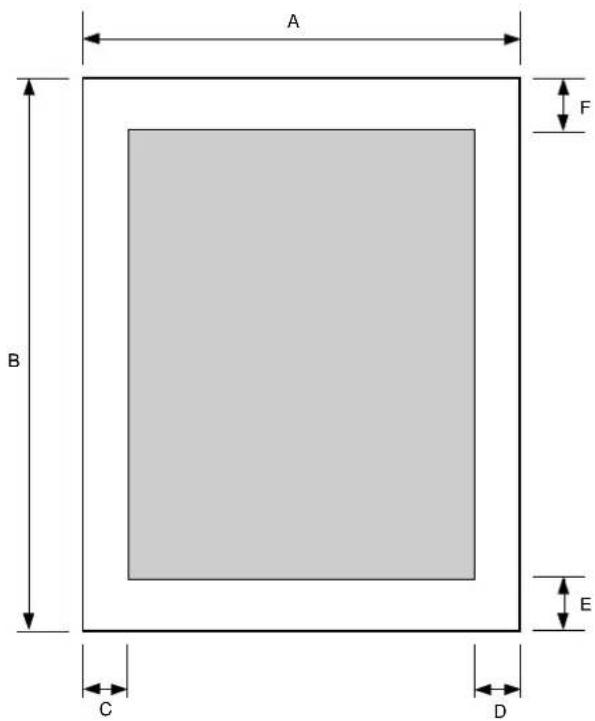
text_image
A B C D E FEnglish
| A B C D E F | ||||||
| A4 | 210mm(8.5") | 297mm(11") | 3.5mm(0.134") | 3.5mm(0.134") | 15.2mm(0.6"min) | 12mm(0.47"min) |
Using cardboard or thick paper
Print within the recommended range shown in Table 4 below. Depending on the printing media, printing outside the recommended area may cause malfunctions such as the ink cartridge ribbon getting caught and breaking.
| CDEF | |||
| 12mm (0.47") | 12mm (0.47") | 15.2mm (0.6"min) | 12mm (0.47") |
Available supplies
Ink cartridges
| Ink Cartridges Part Number | |
| Black ink cartridge 41067604 | |
| Yellow ink cartridge 41067603 | |
| Magenta ink cartridge 41067602 | |
| Cyan ink cartridge 41067601 | |
| Econo Black ink cartridge 41067605 | |
| Gold Foil ink cartridge 41067608 | |
| Silver Foil ink cartridge 41067609 | |
| White ink cartridge 41067610 | |
| VPhoto Primer cartridge 41067606 | |
| Finish II cartridge 41067607 | |
| Dye Sub Yellow ink cartridge * 41067614 | |
| Dye Sub Magenta ink cartridge * | 41067613 |
| Dye Sub Cyan ink cartridge * | 41067612 |
| Dye Sub Overcoat ink cartridge * | 41067611 |
* When Dye Sublimation Upgrade kit is installed.
Print media
| Print media | Part Number |
| High Grade Paper (100 sheets, A4+) 41067706 | |
| VPhoto Print Film (20 sheets, A4) | 41067701 |
| Overhead Projector Transparency Film (30 sheets, A4) | 41067703 |
| Dye Sublimation Paper (20 sheets, A4) * | 41067705 |
* When Dye Sublimation Upgrade kit is installed.
Options
| Available options | Part Number |
| SCSI Interface for Macintosh | 41065001 |
| USB Interface Kit for iMac and Windows 98* | 41065101 |
| Dye Sublimation Upgrade Kit | 41064901 |
Appendix A - Optional Devices
USB interface kit
The OKI USB Interface Kit enables you to use your OKI DP-5000 Series printer with an Apple® iMac™ or with a Windows 95/98® computer that has a USB port.
Important Note 1:
DO NOT unplug the USB interface cable while printing. If you do so you must restart your computer before re-commencing printing.
Important Note 2:
The OKI USB interface cable works only with the designated OKI DP-5000 printer.
Important Note 3:
If your iMac computer is running Mac OS 8.1 you must install the iMac update 1.0 software. This upgrade is not included on the OKI CD-ROM but can be downloaded, free of charge, from the Apple Web site. Please note that you do not need to install this update with Mac OS 8.5 or greater.
System requirements
- Apple iMac computer, Mac OS 8.1 with iMac Update 1.0 or later.
- PC compatible computer with USB port, Windows 98.
Installation for iMac
To install the OKI USB Interface Kit to enable you to operate your DP-5000 printer with an Apple iMac, follow these steps:
Caution:
Make sure the computer and printer are turned off before you connect the USB printer cable.
- Connect the USB interface cable (1) to the parallel connector (2) on the printer.

text_image
Technical diagram of a mechanical assembly with labeled parts 1, 2, and 3Connect directly to your iMac
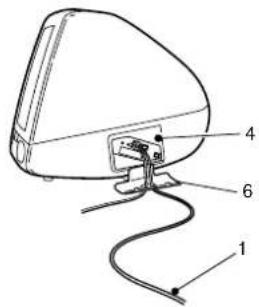
text_image
Diagram of a computer monitor with labeled parts 1, 4, and 6 pointing to the cable or connector.Connect to your iMac via USB hub
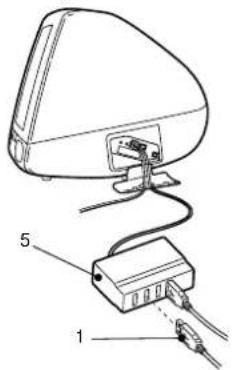
text_image
Diagram of an electronic device with labeled parts, showing connections between a device and cables.- Connect the other end of the USB cable (3) to an available USB port (4) on the side of the iMac, or on a USB hub (5).
a To connect the USB cable directly to the iMac, open the port door (6) on the side of the iMac, and with the three-pronged USB icon facing up, plug the cable into the USB port.
b To connect the USB cable to a USB hub, plug the cable into the hub as shown below. The USB hub itself can be connected to a free USB port on the side of the iMac or on the iMac keyboard.
Caution:
Do not plug the USB cable directly into the iMac keyboard. The USB port on the keyboard does not supply its own power, so the combined current drain of the printer and the keyboard might exceed USB specifications.
- Turn on the printer (and the USB hub, if connected), and then turn on the iMac computer.
- Open the ‘English’ folder, and then double-click on the Install OKI DP-5000 icon.
- Follow the instructions on-screen to complete the installation.
English
Using the OKI USB printer
Make sure that the USB interface cable is properly connected and your printer is turned on.
- Select Chooser from the menu and click the DP-5000 Series icon.
- Go to Select a USB printer and select printer required.
Note:
When more than one OKI printer is connected to the USB port, each printer will be assigned a separate USB port number (USB #1, USB #2, and so on).
-
If you installed the Queue Kit software, you can use Background Printing. Select the On button to enable Background Printing.
-
Close the Chooser. Click OK to confirm you have changed your current printer.
-
Now you are ready for printing. Refer to your User's Guide on the OKI Installation Disc for the printer driver settings.
Installing for Windows 98
To install the OKI USB Interface Kit to enable you to operate your DP-5000 printer with a Windows 98 computer, follow these steps:
Note:
You must delete any previously installed OKI DP Series printer driver prior to installing the USB printer driver. The new OKI printer driver enables you to print using the USB interface cable, as well as the parallel printer cable.
Deleting the OKI printer driver
- Choose Settings from the Start menu, and then select Printers.
- In the Printers window that appears, right-click the OKI DP-5000 Series printer icon and then select Delete from the menu. Click Yes to delete the printer driver.
Installing the USB printer driver
- If you haven't already set up your printer, please do so by following the instructions included with the printer.
WARNING
Make sure the computer and printer are turned off before you connect the USB interface cable.
- Connect the USB interface cable (1) to the parallel connector (2) on the printer.

text_image
Technical diagram showing a device with labeled parts 1 and 2, likely illustrating a cable or connector assembly.- Connect the other end of the USB cable to an available USB port on your computer. Be sure to orient the connector on the USB cable to match the connector on your computer.
- Now turn on the printer, and then turn on the computer.
-
Windows will inform you that it has detected new hardware (USB Cable) and the Add New Hardware Wizard will appear on screen.
-
Place the OKI USB Setup Disc in your CD-ROM drive, and click Next. In the next window that appears, click Next to continue.
- Select CD-ROM drive and Specify a location from the Add New Hardware Wizard, and then click Browse... button to select the folder D:\Drivers\USB\English on the OKI Setup disc (Where D: is the letter of your CDROM drive). Click Next to continue.
- In the next window that appears, click Next to continue.
- When the installation is complete, Windows prompts you that it has finished installing the software for the DF USB to LPT Cable. Click Finish.
- Windows will now inform you that it has detected new hardware (OKI DP-5000 printer) and the Add New Hardware Wizard will appear. Click Next.
- In the next window that appears, click Next to continue.
- Select CD-ROM drive and Specify a location from the Add New Hardware Wizard, and then click Browse... button to select the CDROM Drive where the OKI installation CD is located.
English
This will launch an installation program for the printer driver. Follow the instructions onscreen to complete the installation
- If Windows prompts you to restart your computer, click Yes.
Troubleshooting for USB interface kit
iMac
Q1 The USB printer cannot be selected in the Chooser
Please check the following:
- Make sure that the USB interface cable is properly connected to the printer and iMac computer, and the printer is turned on. Then restart your iMac.
- Make sure that you have installed the iMac Update 1.0, if your iMac was running Mac OS 8.1.
Windows 98
Q1 The Add New Hardware Wizard (USB Printer) does not appear when the USB interface cable is connected.
Please check the following:
- Make sure that the USB interface cable is properly connected to your printer and to your PC, and the printer is turned on.
- Make sure that the ‘Unknown Devices’ is not listed in the Device Manager section of System Properties. To check this, follow these steps:
a Right-click My Computer and select Properties.
b I n SystemhProperties window that appears, select the Device Manager tab.
c Click View devices by type to display all installed devices.
d If 'Other devices' exists, you need to delete it.
e Double-click Other devices to view details, click Unknown Device, and then click Remove button.
f Click OK to remove the Unknown Device from your system, and then insert the USB interface cable to your computer.
- If for some reason your first installation attempt is unsuccessful, try the following procedure.
a Unplug the USB interface cable from your computer.
b Place the OKI DP-5000 Setup Disc in your CD-ROM drive. From the Windows Start menu, choose Run. In the dialog box that appears, type the following: D:\drivers\usb\English\MDULPTUN.EXE (Where D: is the letter of your CDROM drive)
c T Confirm Uninstall window will appear. Click Yes to uninstall the USB port monitor.
d When the Windows prompts you to restart your computer, click Yes.
e Now proceed from Step 4 of the ‘Installing the USB Printer Driver’ section.
Q2 The Add New Hardware Wizard (OKI printer) does not appear, after the MD USB to LPT Cable software installation is complete
You can continue to install the OKI USB printer driver. Follow these steps:
- Make sure that the USB interface cable is properly connected to the printer's parallel connection, and the printer is turned on.
- If you are installing the standard printer driver, please refer to the installation instructions in Chapter 3, page 3-2 "Installing printer software from CD".
If you are installing the Dye Sublimation printer driver, please refer to the installation instructions in page A-8 of this Appendix.
Q3 The 'Printer to the following port:' in Printer's Properties displays 'MDULPT1: (USB Port Not Connected)' or 'MDULPT1: (Unknown USB Printer)'.
- Check that the USB interface cable is properly connected to the parallel connector of your printer and your computer's USB port, also check the printer is turned on. Then restart your computer.
English
Q4 How do I delete the USB printer driver?
If you want to remove the OKI USB printer driver, follow the these steps:
- Refer to 'Deleting the OKI printer driver' on page A-3 and follow steps 1 to 4.
- Place the OKI DP-5000 Setup Disc in your CD-ROM drive. From the Windows Start menu, choose Run. In the dialog box that appears, type the following: D:\drivers\usb\English\MDULP-TUN.EXE (where D is the letter of your CDROM drive)
- Place the OKI DP-5000 Setup Disc in your CD-ROM drive, and double-click the USB_Setup CD-ROM drive to open it, then double-click the MDULPTUN.EXE icon.
- The Confirm Uninstall window will appear. Click Yes to uninstall the USB port monitor.
- When the Windows prompts you to restart your computer, click Yes.
Dye sublimation upgrade kit
The Dye Sublimation Upgrade Kit enables your OKI DP-5000 to print true continuous-tone images, without dots, through the magic of dye sublimation technology. The upgrade itself is as simple as plugging in the special electronic key and pressing a button. At the same time, you lose none of the other features of the DP-5000, and you can still print with other DP-5000 supply inks anytime you want.
Installing the upgrade
To install the DP-5000 Dye Sublimation Upgrade Kit for a Windows PC (parallel port connection), an Apple iMac (USB port connection) or a Macintosh (SCSI interface module) follow these steps:
- Turn off the computer and printer, and then disconnect the printer cable (or SCSI cable for the Macintosh) and power cord from the printer.
-
Remove the rectangular plastic connector cover located to the right of the printer connector on the back of the printer. Locate the black tab at the bottom of the connector cover, pull it up and twist it until it breaks free, revealing the accessory connector beneath.
-
If using Apple Macintosh remove SCSI interface module from the back of the printer to reveal the accessory connector just to the right of the printer connector.
- Plug the electronic key (1) from the Upgrade Kit into the accessory connector (2) with the notched corner of the key on top, as shown below. The connector only fits one way.

text_image
Technical diagram showing a mechanical component with labeled parts and directional arrows indicating motion or movement.-
Reconnect the printer cable.
-
Load the printer with standard ink cartridges (cyan, magenta, yellow, and black). DO NOT load the special dye sublimation ink cartridges at this time.
-
Turn on the printer.
-
Press and hold the ready/insert button until the printer lights begin to flash (about three seconds), and then release the button. The printer now prints a test page that gives the product name as DP-5000P and includes "Dye-Sublimation Printing" on the printed list of features.
- Turn off the printer. If using an Apple Macintosh reinstall the SCSI interface module, and reconnect the SCSI cable.
Installing the printer software
There are 2 steps to be made before installing the Dye Sublimation printer software for Windows 95/98:
- The Dye Sublimation Printer Driver must be installed.
- The Port Monitor must be installed.
Note:
The installation of the Port Monitor is only necessary if you have not already installed the standard DP-5000 driver. If you have already installed the driver, then the Port Monitor will automatically be installed.
- Insert the OKI DP-5000 installation disk into your CD-ROM drive. If a driver installation window appears on screen, close it.
English
- Double click on My Computer and open the Printers folder.
- Double-click on the Add Printer icon. This starts the Add Printer Wizard window.
- When requested to choose the manufacturer and make of your printer, click Have Disk..and navigate to the CD-ROM drive. In the CD-ROM directory select 'D:\driver\dyesub\English' folder, and then double-click the win95.inf file.
- Follow the instructions onscreen to complete the installation of the driver.
Installing the port monitor for Windows 95/98
Note:
This installation applies only to users who have not already installed the standard DP-5000 driver.
If you have purchased the USB upgrade kit, and have not installed the USB cable software, then please refer to 'Installing the USB Printer Driver', steps 1 to 9 on page A-4.
To install the Port Monitor:
- In Windows 95/98, choose menu.
Run... from the Start
- In the window that appears type; D:\Drivers\Monitor\English\Monitor.exe
- Click OK.
- The Port Monitor Installer window appears. Click Install.
- In Windows 95/98, choose Settings from the Start menu. Then select Printers.
- In the Printers window that appears, right-click the OKI DP-5000 icon. Select Properties.
- Click on the Details tab.
- Select OKI_LPTx (OKI DP-5000 Printer Port) in the Print to the following port: menu. (Where x is the LPT port number you selected.)
- Click OK to close the Properties window.
Installing the printer driver for Macintosh
To install the printer driver software for Macintosh, follow these steps:
Note:
If you have already installed the printer driver software for your OKI DP-5000 printer (without Dye Sublimation Upgrade), you do not need to install any additional software.
- Insert the OKI DP-5000 installation disk into your CD-ROM drive.
- Open the ' English' folder, and then double-click on the Install OKI DP-5000 icon.
- Follow the instructions on-screen to complete the installation.
Connecting SCSI interface for Macintosh
When your printer has been positioned in a suitable location, you can connect it to your Macintosh computer with a SCSI interface and to a suitable AC power source with the power cable.
Connecting the Macintosh SCSI interface module
When using your printer with a Macintosh computer, the printer must be connected to the computer via a SCSI interface module. To install the SCSI interface module on your printer, follow these steps:
- Before connecting the SCSI interface module turn off the computer and printer, and disconnect the printer power cord.
Note:
The SCSI interface module cannot be connected or disconnected until the printer power cord has been removed.
- Remove the rectangular plastic connector cover (1) located to the right of the printer port on the back of the printer. To remove the cover locate the
English
black tab on the bottom of the cover, pull it up, and twist it until it breaks free.
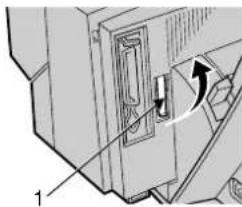
natural_image
Mechanical component diagram showing a door mechanism with directional arrows (no text or symbols)- Angle the SCSI interface module (1) so that the tab on top of the module slips under the top edge of the computer printer cable slot. The top edge of the module should rest against the frame of the printer.
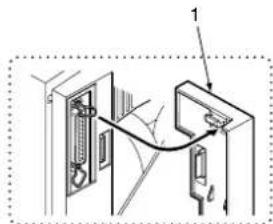
text_image
Diagram showing electrical connections with labeled components and directional arrows- Gently press the bottom of the module until it clicks into place.
Removing the SCSI interface module
-
Turn off the power to your printer, computer, and all SCSI devices connected. Remove the power cable from the wall socket and the printer.
-
To disconnect the SCSI interface module (1) gently pull the plastic handle (2) at the bottom of the module to release the catch and lift the module away from the printer.
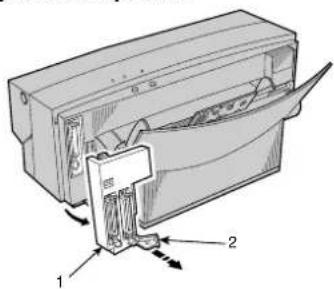
text_image
Technical diagram of a device with labeled parts and directional arrows indicating assembly or movementConnecting the printer to your computer
Caution 1:
Power to the printer and computer must be turned off and the power cables unplugged before connecting or disconnecting the printer cable. Otherwise damage or malfunction may result.
Caution 2:
For best results use a high-impedance SCSI cable and an active terminator.
Caution 3:
Using other types of cables can cause the printer to malfunction.
Connect the SCSI cable (1) to the printer and to the computer (2). Secure the printer cable to the connectors on the printer and on the computer.

text_image
Diagram showing cable connection between a computer tower and an external monitor, labeled with components 1, 2, 3, and 4.Note:
Always attach a terminator (3) to the printer if the printer is the last peripheral on the SCSI chain.
Checking the SCSI device number
Make sure the device number for the printer is set correctly, the printer device number is set to 6 at the factory. Each SCSI device connected to the computer must have a unique SCSI device number. If two devices have the same device number, they will not work properly.
To change the device number, move the DIP switches (4) next to the connector. For information on DIP switch settings, refer to 'Specifications and Settings' in Chapter 8.
Power supply connection
Connect your printer to a power supply as described in Chapter 2, Initial Setup.
English
Index
A
Agency approvals....93
C
Cancelling an alarm....66
Carriage 8
Cleaning
Feed roller....61
Main unit. 59
Platen 60
Print head....60
Cleaning pads
Fitting....63
Removing....62
Clearing data....66
Clearing paper jams....66
Colour matching option
Color syncTM mode .....38
DP-5000 driver mode .....38
Colour printing
Plain paper 42
Set up the printer driver .....43
Colour temperature 38
Connecting cables
Printer to a power supply....11
Printer to your computer .....11, 108
SCSI for Macintosh 107
Control panel....9
Error light....9
Power button 9
Power light. 10
Ready light. 10
Ready/insert button 9
D
Dimensions 93
DIP switches 94
F
Foil colour
Set up the printer driver ..... 51
Simultaneous full colour and foil colour printing . 49
Foil colour printing 45
Multi foil 47
Setting up the printer driver....46
Single foil. 45
Forced printing 66
Front cover closing 4
Front cover opening....3
H
Head life 93
Holder plate ink cartridge 8
1
I/O port speed selection....25
Indicator lights. 10
Installing printer driver
Macintosh....31
Windows 23
Introduction....1
L
Locating the printer 4
LPT port configuration 25
M
Machine life. 93
Macintosh interface module 7
Connecting....107
DIP switches....7
Removing....108
SCSI connector....8
Margin 95
Marking sticker....8
N
Noise....93
0
Operating environment....93
Options 94
Output paper tray installation....5
Overhead transparencies
Loading....53
Printing 53
Setting up the printer driver ....54
Setting up transparency separators ....54
P
Package contents....3
Page setup dialogue box ....34
Paper eject. 66
Paper feed 66
Paper feed method....93
Paper feed switch....9
Paper jams....18
Paper thickness....93
Paper width....93
Port monitor setup 24
Port speed error....25
Power supply 93
Preparing your printer....3
Print dialogue box....34
Print head....8
Print preview ....34
Printable area....95
Printer driver, Macintosh
Installing the software.....32
Preparing....31
Purpose....31
Selecting the correct driver....33
System requirements....31
Using balloon help 32
Printer driver, Windows
Installing software from CD....24
Installing software using Plug & Play .....24
Purpose....23
System requirements....23
Printer front view....6
Printer functions .6
Accessory connector....7
Front cover release button. . . . . . . . . . . . . . . . . . . . . . . . . . . . . . . . . . . . . . . . . 6
Paper feed guide 7
Paper feed switch 7
English
Paper output slot 6
Paper stopper 7
Paper support 7
Parallel interface connector 7
Power socket 7
Sheet feeder 6
Printing head 93
Printing media 93
Printing operations Colour ....28, 36
Monocrome 26
Printing on reverse side 29
Requirements 35
Reverse side 39
Setting up colour matching 38
Setting up for monocrome 36
Setting up the printer driver for colour ..... 37
Printing speed 93
Printing width 93
R
Ready/insert button 66
Release lever....8,66
Resolution 93
Reverse side printing, setting up 29
S
SCSI device number 109
Storage environment 93
Supplies available 96
T
Testing the printer 33
Troubleshooting, general
Power failure while printing 65
Printer errors 65
Troubleshooting, Macintosh
Colour printing not working 83
Colour variations or bright colours ..... 85
Connecting simultaneously to Windows and
Macintosh....91
Connection method....91
Enlarging and reducing 91
EPS file output. 91
Error lights blinking....87
File not found error 80
Icon does not appear in Chooser 80
Incorrect feed or ejection 86
Ink and paper queries....90
Ink cartridges not recognised. 88
Mechanism or cartridge change error ..... 88
No power 80
PostScript compatibility....91
Printer not selected in Chooser .....81
Printing light, distorted or gaps. . . . . . . . . . . . . . . . . . . . . . . . . . . . . . . 84
Printing on coarse-surfaced paper....89
Printing on coloured paper . . . . . . . . . . . . . . . . . . . . . . . . . . . . . . . . . . . . . . . . . . . . . 90
Printing quality, hue, and resolution....89
SCSI cable....81
SCSI device number 81
Uninstalling the printer driver. . . . . . . . . . . . . . . . . . . . . . . . . . . . . . . . . 91
Unusual noises 87
Troubleshooting, Windows
Cartridge change error 75
Check computer and printer communications ....68
Colour printing not working .....72
Connection method. 78
Does not print or stops while printing....69
Error lights blinking....74
Incorrect paper feed 73
Ink and paper queries .....77
Ink cartridges not recognised .....75
Light, distorted, or gaps in printing .....70
Mechanism error....75
No power. 68
Operational queries....78
Printing quality, hue, and resolution queries .....76
Unusual noises 74
U
Undercoating
Overlay function .....57
Setting up the printer driver....56
Undercoating with Vphoto primer .....56
USB interface kit....97
iMac installation....99
Installation for iMac .....97
Installing for Windows 98 .....100
System requirements....97
V
VPhoto colour printing....41
VPhoto print film
Loading....41
Set up printer driver .....42
W
Weight 93
English
OKI SYSTEMS COMPANIES
Oki Systems (UK) Limited
550 Dundee Road, Slough Trading Estate
Slough, Berks SL1 4LE
Tel: +44 (0) 1753 819 819
Fax: +44 (0) 1753 819 899
http://www.oki.co.uk
Oki Systems (Ireland) Limited
The Square Industrial Complex
Tallaght, Dublin 24
Tel: +353 (01) 459 8666
Fax: +353 (01) 459 8840
http://www.oki.ie
Hawthorn Business Centre
Adelaide Industrial Estate
Falcon Road, Belfast BT12 6HP
Tel: +44 (01232) 572 355
Fax: +44 (01232) 572 350
http://www.oki.ie