 ManualGo.com
 KMR-700U - Car stereo KENWOOD - Free user manual and instructions
Find the device manual for free KMR-700U KENWOOD in PDF.


Download the instructions for your Car stereo in PDF format for free! Find your manual KMR-700U - KENWOOD and take your electronic device back in hand. On this page are published all the documents necessary for the use of your device. KMR-700U by KENWOOD.
USER MANUAL KMR-700U KENWOOD
KENWOOD Marine iPod/USB Receiver
KMR-700U INSTRUCTION MANUAL Kenwood Corporation
lade for Works with Pod 0 iPhone
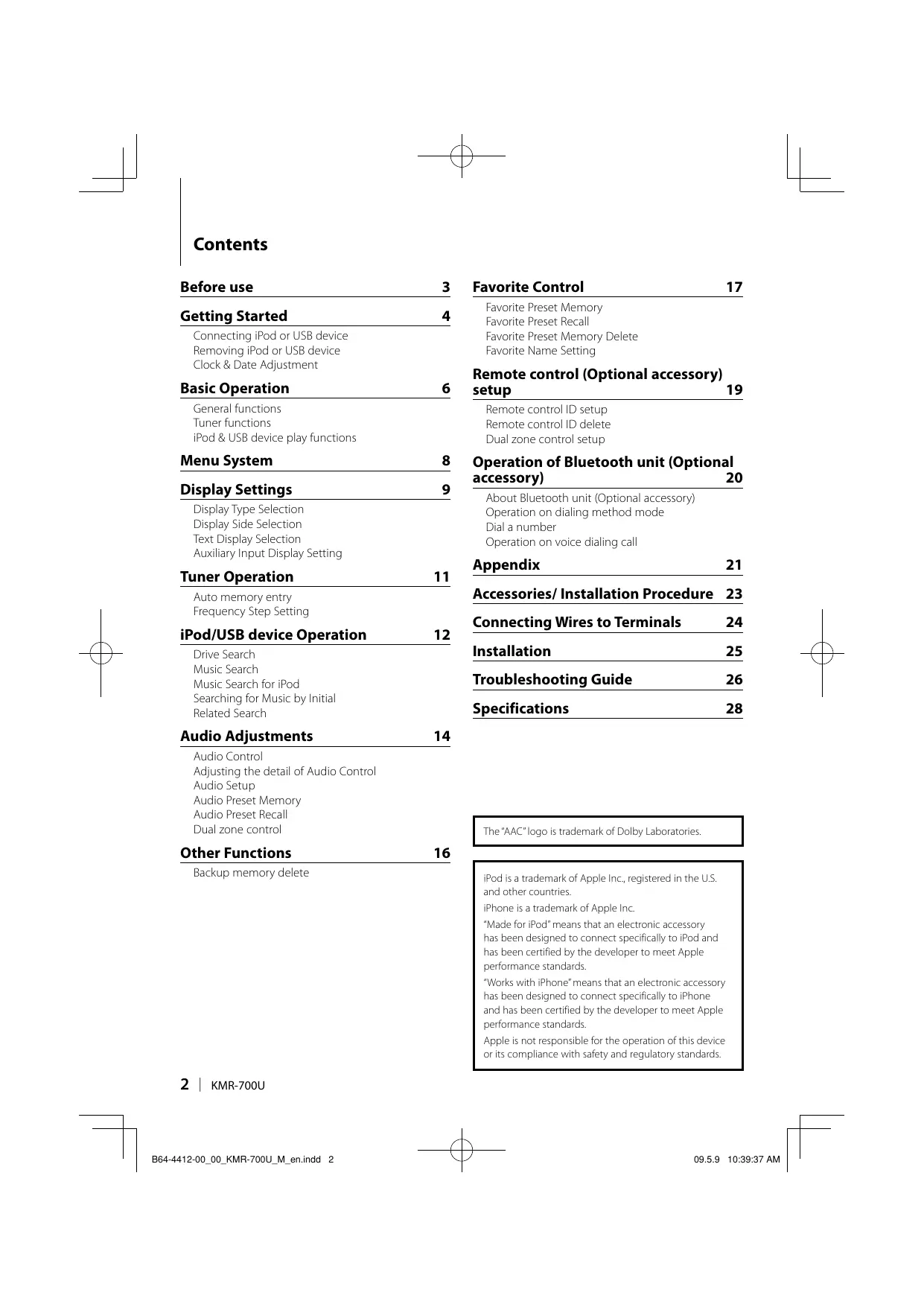
Connecting iPod or USB device Favorite Preset Memory Delete
Removing iPod or USB device Favorite Name Setting
Clock & Date Adjustment :
Remote control (Optional accessory)
Basic Operation 6 setup 19
General functions Remote control ID setup
Tuner functions Remote control ID delete
iPod & USB device play functions Dual zone control setup Menu System 8 Operation of Bluetooth unit (Optional Display Seti 9 accessory) 20
isplay Settings About Bluetooth unit (Optional accessory)
Display Type Selection Operation on dialing method mode
Display Side Selection Dial à number
Text Display Selection Operation on voice dialing call
Auto memory entry Accessories/ Installation Procedure 23
Frequency Step Setting : u
: . Connecting Wires to Terminals 24
Pod/USB device Operation 12
Drive Search Installation 25
Music Search for iPod Troubleshooting Guide 26
Searching for Music by Initial Le
Related Search Specifications 28 Audio Adjustments 14
Adjusting the detail of Audio Control
Dual zone control The*AAC" logo is trademark of Dolby Laboratories. Other Functions 16
Backup memory delete
B64-4412-00_00_KMR-700U_M_en.ndd 2
Pod is a trademark of Apple Inc, registered in and other countries.
Phone is a trademark of Apple Inc.
“Made for iPod” means that an electronic accessory
has been designed to connect speciically to iPod and has been certified by the developer to meet Apple performance standards.
rks with iPhone” means that an electronic accessory has been designed to connect specificall to iPhone and has been certiied by the developer to meet Apple performance standards.
Apple is not responsible for the operation of this device or its compliance with safety and regulatory standards.
09.59 10:39:37 AM Before use
: To prevent a short circuit, never put or leave any metallic objects (such as coins or metal tools) inside the unit.
jury or fire, take the following
+ This unit, except for the panel, and Hideaway Unit are not provided with waterproof feature. Install this unit, except for the panel, and the hideaway unit to the water-free place. Water may get inside the unit when the panel is open. Take caution to avoid water from getting inside the unit, when connecting or replacing Pod or USB device. Water inside may damage this unit, generate smoke or fre, or cause electrical shock
How to reset your unit + IFthis unit or the connected unit fails to operate properly, press the Reset button.
Ifthe faceplate of this unit is stained, wipe it with a dry soft cloth such as a silicon cloth
Ifthe faceplate is stained badly, wipe the stain off with à cloth moistened with neutral cleaner, then wipe it again with a clean soft dry cloth
+ AppWing spray cleaner directly to the unit may affect its mechanical parts. Wiping the faceplate with a hard cloth or using a volatile liquid such as thinner or alcohol may scratch the surface or erase printed characters.
About remote controls
Maximum of 3 remote controls (KCA-RC107MR; optional accessonÿ) can be connected to this unit. For details on how to use the remote control, refer to the operation manual attached to it
When connecting the remote control to this unit, you should register the remote control ID. For details, refer to <Remote control ID setup> (page 19)
I B64-4412-00_00_KMR-700U_M_en.ndd 3
If you experience problems during installation, consult your Kenwood dealer.
When you purchase optional accessories, check with your Kenwood dealer to make sure that they work with your model and in your area
Characters that conform to ISO 8859-1 can be displayed.
In this document, the description indicator will light means a status is displayed. Refer to <Display Type Selection> (page 9) for the details ofthe status display.
The illustrations of the display and the panel appearing in this manual are examples used to explain more clearly how the controls are used. Therefore, what appears on the display in the illustrations may differ from what appears on the display on the actual equipment, and some of the illustrations on the display may be inapplicable.
Do not disassemble the product. The faceplate of the main unit has à water resistant rating of IPX5.If the facepanel is disassembled the integrity of the IPX5 can be comprimised.
Use this unit with the faceplate closed, except when connecting iPod or USB device. IPX5 waterproof feature is only provided when the faceplate is closed
Pull the faceplate open, while supporting it with your hand!
2 Remove the terminal cover.
3 Pull out the terminal to be used, and then replace the terminal cover.
5 Insert the connected iPod and USB device into the cushion bag (accessory), and place it on the terminal cover.
4 | KMR-70oU B64-4412-00_00_KMR-700U_M_en.ndd 4
+ Be sure to use the cushion bag which protects iPod or USB device against shock.
+ Do not overload the opened faceplate. If you do so, the faceplate may be damaged.
6 Close the faceplate.
1 Enter Remove mode Press the [iPod] button for at least 2 second. “REMOVE"is displayed
2 Select the device to be removed Select the device to be removed by tuning the [VOL] knob, and press the [ENTER] button.
3 Turn the [VOL] knob to select “YES’, and then press the [ENTER] button.
4 Press the Release button. Pull the faceplate open, while supporting it with your hand!
5 Remove the device. Only the device selected in step 2 can be removed. + Keep the unused terminal in the terminal cover to
avoid being damaged.
Cancelling the Remove mode
Press the [iPod] button for at least 1 second.
09.59 10:39:37 AM D 7
Clock & Date Adjustment
1 Turn the power ON Press the [ ()] button.
Press the [ Q ] button for at least 1 second. *MENU"is displayed
3 Select the “Clock Adjust” display Turn the [VOL] knob.
4 Enter Clock adjustment mode
Press the [ENTER] button for at least 1 second.
The clock display blinks.
Operation Press the { €] or [>] button.
6 Exit Clock adjustment mode Press the [ Q ] button.
7 Select the “Date Adjust” display Turn the [VOL] knob.
8 Enter Date adjustment mode
Press the [ENTER] button for at least 1 second.
The date display blinks. 9 Adjusting Date
Operation type Selecting the item {month da, or year) Ajust each item
Operation Press the | €] or [> button.
10 Exit Date adjustment mode Press the [ Q ] button.
I B64-4412-00_00_KMR-700U_M_en.ndd 5
11 Select the “Date Mode” display Turn the [VOL] knob.
12 Enter Date format mode Press the [ENTER] button for at least 1 second. The date is displayed
13 Select Date format Turn the [VOL] knob. Select from 7 types. 14 Exit Menu mode Press the [ Q ] button twice.
+ The clock and date adjustment is defaulted when
power supply cable is removed from the battery
General functions Text/Title scroll: [DISP]
=== Scrolls the text display when pressed for at least 1 Power button: [@] second.
Power turns ON and OFF each time this button is
Ex Drop open the faceplate: Release
Volume control: [VOL] knob
Turn the knob to adjust the volume.
Volume returns to the original level, when this button is pressed again.
Plays music from iPod or USB device: [iPod] Switches the playing source to iPod or USB device each time this button is pressed
Tuner radio reception: [TUN] Switches to the Tuner.
Switching to AUX source: [AUX]
Switches the source to the device connected to AUX IN Dual Zone control: [2ZONE]
Output different sounds to front and rear channels from different sources. For further details, refer to <Dual zone control> (page 16)
Subwoofer output: [V1
Switches between ON (SUBWOOFER ON) and OFF (SUBWOOFER OFF") each time this button is pressed for at least 2 seconds.
Menu System Set up the following functions.
Item Setting Entry _[Setting overview
“Skip Search 0.59"*/"106"} the ratio of skip performed with <Music Search for iPod. 5%"/"10%6 DFE TON Setting the operation check sound (beep sound) ON/OFF.
ets the date. Sets the date display format.
LM Diner Au" 7 Manual Sets whetherthe key flumination is dimmed in conjunction wath : the light switch of the vessel or is dimmed constant. "LM Eee OFF T'ON Sets whether the Key ilumination brightness is changed in — conjunction with the key operation. “DISP Dimmer” Auto" Manual"? Sets whether the display illumination is dimmed in conjunction x OFF" with the light switch of the vessel or is dimmed constantiy. “Contrast”" 7-10" Adjusting the display contrast. = — "DSP NP" POST "2" Switches the panel display between positive or negative. ur L'NEGA 1/2" OFF T'ON Tums onoffthe built-in amplifier. = “Supreme "OFF'L'ON"* Tumns ON/OFF the Supreme function. [ss "seek Mode” AuoP AUOT Selects the tuning mode of the radio. Fun]
Manual ro Memory” — Memorzes six stations with good reception automaticalh run] OFF TON" witches to Monaural to decrease noise when reception is POOr.
Sets the display when switched to AUX source. eciies whether the text is scrolled autom
ticaly — — Deleres Favore Preset Memory. — GFFTON Sets whether to display AUX during source selection. — — Registering the value setup by Audio Control — — nitiales the settings of MENU etc. — PSYS ENIVER — Display the firmware version and update the firmware. —
#* Refer to <Menu Glossary> (page 22).
1 Enter menu mode Press the [ Q ] button for at least 1 second. *MENU"is displayed.
Displayed item is depending on currently selected source or mode. The mark in Condition column shows the condition to which the item is displayed CB: Can be set during USB source.
Can be set on during playback ofthe iPod source. 2 Select the menu item
Can be set during Tuner source. EDG be set during FM reception.
Can be set while accessing AUX source. — _ : Can be set during all sources,
Refer to the respective page for information on how to set the items with reference page number.
Only the items available to the current source are displayed
Strong electrical fields (such as from pawrer lines) may cause unstable sound quality when CRSC is tumed ON. In such a situation, turn it OFF.
B64-4412-00_00_KMR-700U_M_en.ndd 8
Tune the [VOL] knob.
3 Setthe menuitem Press the [ Ç1or[ 1 button. Usually, menu items are set by pressing the [1 or [Ÿ 1 button. Some items, however, requires that the [ENTER] button being pressed for at least 1 or 2 seconds, before the settings can be made.
or icon is displayed in the Entry" column for such an item.
4 Exit menu mode Press the [ Q ] button.
09.59 10:39:44 AM Display Settings
Display Type Selection Display Side Selection Shown below are examples of display types. Setup the left side of the display. Display Display Type 1 Enter Display setup mode
“TVPE AY Displays 4 lines fte. Press the (DISP] button. TPE (T Display nes oftet and te status CON/OFF indicator for each function) 2 Select the Display side select item "TPEIQ" Displays 3 lines after Tune the [VOL] knob.
TPE" Display Zines oftet and te status CON/OFF Select the "Side Select' display. indicator for each function)
3 Enter Display side select mode 1 Enter Display setup mode Press the [ENTER] button.
Press the [DISP] button. 4 Select the Display side
2 Select the Display type select item Tune the [VOL] knob. Tune the [VOL] knob. You can select among the title of the displayed Select the “Type Select" display text, icon for the source being played, and none. 3 Enter Display type select mode 5 Exit Display side select mode
Press the [ENTER] button. Press the [DISP] button. To exit the display setup mode, press the [DISP]
4 Select the Display type button for at least 1 second
Tune the [VOL] knob.
5 Exit Display type select mode Press the [DISP] button. To exit the display setup mode, press the [DISP] button for at least 1 second
+ The source icon and th display can be changed
+ To change the text to be displayed refer to <Text Display Selection> (page 10)
itle at left side of the
B64-4412-00_00_KMR-700U_M_en.ndd 9 09.59 10:39:45 AM Display Settings
The following display text appears differently depending on display type setting:
5 Select the Display text Tune the [VOL] knob.
6 Exit Display text select mode Press the [DISP] button. To exit the display setup mode, press the [DISP] button for at least 1 second
+ Ifthe selected display item does not have any formation, alternative information is displayed. + When selecting”Folder Name” while playing an iPod,
B64-4412-00_00_KMR-700U_M_en.ndd 10
names will be displayed depending on currently selected browsing iterns.
+ Ifall characters cannot be displayed while playing an iPod, the ile number in the list is displayed
Information Display Musictitle TE“ Folder name FD File name FLE Auxiliary Input Display Setting
Selecting the display when changing to Auxiliary input source.
1 Select Auxiliary input source Press the [AUX] button.
2 Select Name set item Select the“Name Set” display. For how to select Menu items, refer to <Menu System> (page 8)
Press the [ENTER] button for at least 1 second. The presently selected Auxiliary input display is displayed.
4 Select the Auxiliary input display Turn the [VOL] knob. “AUX"/“DVD”/ *PORTABLE"/"GAME"/"VIDEO'/*TV"
5 Exit Name set mode Press the [ Q ] button.
+ When operation stops for 10 seconds, the name at that time is registered, and the Auxiliary input display setting mode closes.
09.59 10:39:45 AM Tuner Operation
Auto memory entry Frequency Step Setting Putting stations with good reception in the memory Changing the tuning frequency step. automatically. The original setting is FM band 50 KHz, and AM band 9 kHz. 1 Select Auto memory item Select the ‘Auto Memory” display. 1 Turn the power OFF For how to select Menu items, refer to <Menu Press the [ () ] button. System> (page 8). 2 Switch the frequency step 2 Execute Auto Memory Entry While pressing the [1] and [5] buttons, press the Press the [ENTER] button for at least 2 seconds. [ ] button. When 6 stations that can be received are put in the Release your fingers from the button after the memory, auto memory entry closes. display appears.
The frequency step changes to FM band 200 kHz, and AM band 10 KHz.
+ When the same operation is repeated, the frequency step returns to the original setting,
+ When the frequency step is changed, the frequencies in the memory are deleted
B64-4412-00_00_KMR-70OU_M_enindd 11 09.59 10:39:45 AM
iPod/USB device Operation
Selecting the device inserted in the Multi Card Reader.
1 Putthe playback to pause Press the [1] button.
2 Select a device Press the [/\] or [V1 button.
3 Restart playback Press the [1] button.
+ This unit is compliant with Multi Card Readers with a maximum of 4 slots,
Ha device is inserted during connection of the Multi Card Reader it is not recognized. Select the Remove mode with reference to <Removing iPod or USB devic> {page 4), remove the Card Reader, and then insert the memory.
When Dual zone control function is on, <Drive Search> function can be used only for Front channel
Function of USB source Music Search
Selecting the music you want to listen to from the device or media being played.
2 Enter Music search mode Turn the [VOL] knob. Displays the current Audio file name.
Operation type Operation Movement beteen Tu the [VOL Knob. folders/fles
Selection offolder/fle Press the [ENTER] button.
etum do previous oder Press the | &] button.
Return to rot flder Press the [ &] button for at least 1
*<'or'D>" beside the displayed folder name indicates that this folder is preceded or followed by. another folder.
A file name is displayed with“D"indicator.
A folder name is displayed with" indicator.
Cancelling the Search mode Press the [ Q ] button twice.
B64-4412-00_00_KMR-700U_M_en.ndd 12
+ Music Search cannot be performed during Random play:
Function of iPod source Music Search for iPod
Search for the song (in iPod) you want to play.
1 Enter Search mode Press the [ Q ] button. *SEARCH/FAVORITE"is displayed
2 Enter Music search mode Turn the [VOL] knob. Displays the current muisc name 3 Search for music Operation type Operation Movement between items _ Tum the [VOL] knob, Skip Search Press the [ Cor [DD button. Selection oftem Pres the [ENTER button, Fetum to previous tem Pressthe [NX] button Retum tolopmenu — Pressthel button foratleast! second Press the [ Q ] button for at least
1 second. Reer ta the next section “<Searchingfor Music by nitial>.
Scroll bar is displayed on the right side ofthe screen
Cancelling the Search mode Press the [ Q ] button twice.
+ Skip Search: The number of songs to be skipped is determined by the ratio of the total number of songs in the list which is selected, Set the ith "Skip Search” in <Menu System> (page 8). Keep pushing Control knob for 3 seconds or longer skips sangs at 10% regardless of the setting
+ Hfno characters included in a song name can be displayed, the browse item name and digits are
Tems Diphy Îems Display Playlists “PLIST***" Podcasts “PDCT**#" Artists PART Genres PGENA*" Albums 'ALB*** Composers 'COM***" Songs 'PRGM**"
09.59 10:39:45 AM Function of iPod source Searching for Music by Initial
Function of iPod source Related Search
You can select an alphabetic character from the list in the browse item (artist, album, etc.) selected now.
1 Enter Search mode Press the [ Q ] button.
2 Enter Music search mode Turn the [VOL] knob. Displays the current music name.
3 Start the alphabet search Press the [ Q ] button for at least 1 second. "ABC ..."is displayed
4 Select the initial to be searched for
Browses for music of the same artist or genre as the one being played.
1 Enter Related Search mode Press the [5] button.
2 Select browsing item Turn the [VOL] knob and press the [ENTER] button when the desired browse item is selected.
Displys the album ofthe same artist
Displays music in re album in which the one being played included.
Operation type Operation
Browse Genre” Displys the artist of the same genre.
Move to ne next character. Move to te next
um the [VOL] knob. Press the [2] or [NZ] button.
5 Determine the selected initial Press the [ENTER] button. Start search. When search is completed, the music search mode will start again at the last selected character position
Cancelling the alphabet search Press the [ Q ] button.
+ The time of search by alphabet may become long depending on the number of songs in iPod or the folder structure.
When selecting an initial in the alphabet search, entering "+" searches symbols and entering "1" searches dhigits.
Hthe first character sting begins with an article “a "an, or”the"in the alphabet search mode, i is searched for by the next word
B64-4412-00_00_KMR-70OU_M_en.ndd 13
Browse Composer” Dsplys the album induding music created by te same arts.
Operation type Operation
Movement between items Turn the [VOL] knob.
Selection oftem Press the [ENTER] button.
Return to previous em Pressthe [2 button
Cancelling the Related Search Press the [5] button.
+ Related search cannot be performed while playing a Podcast
Ihen the music being played has no information on browsing items or no music was found, "Not Found"is displayed
09.59 10:39:45 AM Audio Adjustments
ser sering, Rock, Pops, sy Top 40, lez,
+ Source tone memory: You can set Bass, Middle, and Treble for each source. + “User”: The ranges selected lastly for Bass level, Middle level, and Treble level are recalled automatically. 1 Select the source to adjust Press the [TUNI, [iPod], or [AUX] button. 2 Enter Audio Control mode Press the [ENTER] button.
4 Adjust the Audio item Press the [ €] or [ Ÿ ] button.
5 Exit Audio Control mode Press the [ENTER] button.
Adjusting the detail of Audio Control
You can adjust the following Basic Audio Items in detail: Bass level, Middle level, and Treble leval.
Bass Extend Bass EXT" OFF, ON Middle level
2 Enter Detail adjustment mode of Audio Control Press the [ENTER] button for at least 1 second.
3 Select the Detail Audio item to adjust Turn the [VOL] knob.
4 Adjust the Detail Audio item Press the [ €] or [>] button.
5 Exit the Detail Audio Control mode Press the [ENTER] button for at least 1 second. Mode returns to Audio Control mode: + When you set the Bass Extend to ON, low frequency respanse is extended by 20%
You can set up the Sound system with the below adjustments;
Adjustmentitem Display Front High Pass Hilter * “HPF Front”
Fear High Pass Fier “HPFRear Through,
Low Pass Fier TPESW Subwoofer Phase "SW Phase” erse (180°), Normal (0°)
Volume offset “Volume Offer PUX-8— +3)
Speaker Setting "SPSEL OFF 5/4inch, 69/6inch,
OEM Loudness FLoudness”_ ON,0F
+ Volume offset: Sets each sources volume in relation to the main volume.
1 Select the source to adjust Press the [TUNI, [iPod], or [AUX] button.
2 Enter Audio Setup mode Press the [ENTER] button for at least 1 second.
3 Select the Audio Setup item to adjust Turn the [VOL] knob.
1 Select the source For how to select source item, refer to <General function> of <Basic Operation> (page 6)
Audio Preset Memory 2 Select Audio Preset item
Registering the values setup within Sound Controls. Select the ‘Audio Preset' display.
These settings cannot be erased by the Reset For how to select Menu items, refer to <Menu button. System> (page 8)
1 Setup Sound Control 3 Enter Audio Preset mode
Refer to the following operations to setup the Press the [ENTER] button for at least 1 second.
For how to select Menu items, refer to <Menu
6 Recall the Audio Preset System> (page 8)
Turn the [VOL] knob to select “YES’, and then
3 Enter Audio Preset mode press the [ENTER] button. Press the [ENTER] button for at least 1 second. “Recall Completed'"is displayed. “Recall'is displayed 7 Exit Audio Preset mode
4 Select the Audio Preset Memory Press the [ Q ] button. Turn the [VOL] knob. Select the’Memory" display. + The User memory of"System Q'in <Audio Control>
5 Determine whether to put the Audio Preset in page 14) is changed to the value which was recalled. the memory + The source tone memory item of <Audio Control> (page Press the [ENTER] button. 4) is changed to the value which was recalled by the
"Memory?" is displayed selected source 6 Put the Audio Preset in the memory Turn the [VOL] knob to select “YES", and then press the [ENTER] button. "Memory Completed"is displayed.
7 Exit Audio Preset mode Press the [ Q ] button.
+ The memory only holds one audio setting and not settings for each source.
+ The following items cannot be registered Volume, Balance, Fader Loudness, Volume offset, Dual Zone System, Rear Volume
B64-4412-00_00_KMR-70OU_M_en.ndd 15 09.59 10:39:45 AM Audio Adjustments Other Functions
Dual zone control Backup memory delete Outputs sounds from different sources to the front Initializes the settings of"MENU/, etc. and rear channels. Also sets the source for each channel. 1 Enter Menu mode Press the [ Q ] button for at least 1 second. 1 Enter Dual zone control mode *MENU"is displayed.
Press the [2ZONE] button. 2 Select Backup memory delete item
2 Switch Dual Zone ON/OFF Select the "Backup MEM DEL' display. Turn the [VOL] knob. For how to select Menu items, refer to <Menu To switch the dual zone function to ON, select System> (page 8) 2Z0NE: ON 3 Enter Backup memory delete mode 3 Select the channel to set the source Press the [ENTER] button for at least 1 second. Press [V”] button, and then press [@] or [D] “Backup MEM DEL?"is displayed. button.
4 Delete the Backup memory
Turn the [VOL] knob to select “YES", and then 4 Select the source press the [ENTER] button.
Turn the [VOL] knob. Reboot"is displayed and the unit reboots.
Select the channel with [KI or LI button
5 Exit Dual zone control mode Press the [2ZONE] button.
+ Adjust the volume of Front channel by [VOL] knob.
+ Adjustthe volume of Rear channel by <Audio Control> (page 14)
+ The Audio Controls have no effect on the rear source.
+ When iPod or USB source is selected for the frant channel only the same selection is available for the rear channel For example, when iPod is selected for the front channel only iPod can be selected for the rear channel, and not the USB.
+ When the dual zone function is set to ON, you can control the front channel by using the remote control KCA. RC107MR (optional accessory)
You can also allow the rear channel to be controlled by remote control.
B64-4412-00_00_KMR-700U_M_en.ndd 16 09.59 10:39:45 AM Favorite Control
Registering the operation procedure to select your favorite broadcast station or iPod Playlists/ Artists, etc.
The desired list in the first hierarchy can be registered.
2nd hierarchy !{ 3rdhierarchy
2 Enter Favorite mode Press the [ Q ] button. Registered favorite items are displayed
3 Select the number to put in the memory Turn the [VOL] knob.
4 Put the Favorite Preset in the memory Press the [ENTER] button for at least 1 second.
Cancelling the Favorite mode Press the [ Q ] button.
+ Registering the operation procedure to an existing preset number overwrites the existing procedure.
+ Register up to 6 Favorite Preset Memory settings.
The memory cannot be erased by the Reset button.
+ The <Audio control> (page 14) and <Operation of Bluetooth unit> (page 20) items can also be registered using the same steps
+ Ifthe items in the second or lower hierarchy are changed, the list in iPod will be changed by adding or deleting songs after the FAVORITE registration. Due to this, the list registered in this unit will be different from the list in iPod. The FAVORITE registration should be performed again after editing the items in iPod.
1 Enter Search mode (In iPod/USB source only) Press the [ Q ] button. *SEARCH/FAVORITE"is displayed
2 Enter Favorite mode Press the [ Q ] button. Registered favorite items are displayed
3 Select the number to recall in the Favorite memory Turn the [VOL] knob.
4 Recall the Favorite Preset Press the [ENTER] button.
Cancelling the Favorite mode Press the [ Q ] button.
+ When iPod is selected for the source, the list selection screen for Playlists/ Artists/ Albums, etc. is displayed. Songs will not be automatically played
+ When Dual zone control function is on, <Favorite Preset Recall> function can call only <Audio control> and <Operation of Bluetooth unit> items.
Favorite Preset Memory Delete
Deleting an item registered to Favorite.
1 Select Favorite delete item Select the “Favorite Delete’ display. For how to select Menu items, refer to <Menu System> (page 8)
2 Enter Favorite delete mode
Press the [ENTER] button for at least 1 second. Registered favorite items are displayed
3 Select the number you want to delete Turn the [VOL] knob. Select'ALL'if you want to delete all 4 Delete the selected Favorite Preset Press the [ENTER] button. “Delete?"is displayed 5 Turn the [VOL] knob to select “YES’, and then press the [ENTER] button. “Completed"is displayed! Exit Favorite Preset Memory Delete mode.
09.59 10:39:45 AM Favorite Control
Giving a name to Preset Memory registered to Favorite.
1 Enter Search mode (In iPod/USB source only) Press the [ Q ] button. ARCH/FAVORITE"is displayed
2 Enter Favorite mode Press the [ Q ] button. Registered favorite items are displayed
3 Select the number you want to Name set Turn the [VOL] knob.
4 Enter Favorite name set mode Press the [DISP] button for at least 1 second. Select the*FAVORITE NAME SET" display.
Operation type Operation
Movethe cursartothe enter Pressthe[ Lo [>] button. character position
Selectthe character type* Press the [ENTER] button. Select ihe characters Turn the [VOL Knob.
ch time you press the [ type alternates between t
belor Charadertype A Aphabet upper case
Aphabetloner case Aumbers and symbols
R] button, the character jpes shourn in the table
Remote control (Optional accessory) setup
Remote control ID setup
Remote control ID delete
When connecting the remote control KCA-RC107MR {Optional accessory) to this unit, you should register the ID for KCA-RC107MR.
1 Enter Remote control setup mode Press the [2ZONE] button for at least 1 second.
2 Select the Remote control ID setup item Turn the [VOL] knob to select “Remote ID Set”, and then press the [ENTER] button. Remote control ID list is displayed. “Yes"indicates that this ID is already registered. "No'indicates that this ID is available.
3 Enable Remote control ID registration Press the [ENTER] button. “Registering." is displayed
4 Register Remote control ID For KCA-RC107MR, press the [ENTER], [SRC], or IDISP] button.
Button Remote control ID ENTER) ID is registered IRC] 1D2 registered DSP] ID3 1 registered
“ID# Setup Completed"is displayed
5 End Remote control setup mode Press the [2ZONE] button.
Cancelling Remote control ID setup Press the [2ZONE] button for at least 1 second.
hhen removing KCA-RC107MR, del remote control ID, as de: delete> (page 19)
ed in <Remote control ID Delete the ID registered for the remote control KCA- RC107MR (optional accessory).
1 Enter Remote control setup mode Press the [2ZONE] button for at least 1 second.
2 Select the Remote control ID delete item Turn the [VOL] knob to select “Remote ID Delete’, and then press the [ENTER] button. List ofthe IDs registered for remote controls is displayed.
3 Select the remote control ID to be deleted Turn the [VOL] knob.
4 Delete the Remote control ID Press the [ENTER] button. “Remote ID# Delete?"is displayed.
5 Turn the [VOL] knob to select “YES’, and then press the [ENTER] button. “ID# Delete Completed'"is displayed
6 End Remote control setup mode Press the [2ZONE] button.
Cancelling Remote control ID delete Press the [2ZONE] button for at least 1 second.
Dual zone control setup
When the dual zone function is set to ON, select the channel, either front or rear, to be controlled by the remote control KCA-RC107MR (optional accessory).
1 Enter Remote control setup mode Press the [2ZONE] button for at least 1 second.
2 Select the Dual zone control setup item Turn the [VOL] knob to select “Remote Zone Select”, and then press the [ENTER] button. Current settings are displayed for the registered remote control IDs.
3 Select the target remote control ID Press the [\] or [V/] button. 4 Select the target channel Press the [ €] or [>] button. Display! Controlled channel during dual zone mode
Font Front channel is controlled. Rear Rear channels controlled.
5 End Remote control setup mode Press the [2ZONE] button.
09.59 10:39:46 AM Operation of Bluetooth unit (Optional accessory)
About Bluetooth unit (Optional accessory)
Connecting Bluetooth unit KCA-BT200 (optional accessory) to this unit allows you to make a call with hands-free phone or control audio devices via Bluetooth communication.
For procedural steps, refer to the description in the Model-C group of the operation manual attached to Bluetooth unit KCA-BT200.
Except that the following steps are different from those in the Bluetooth unit KCA-BT200 operation manual.
+ You cannot use the“Continuing the Current Call”function of Call waiting"
Operation on dialing method mode
1 Enter Bluetooth menu mode Press the [MUTE] button for at least 1 second. 2 Select the di item Turn the [VOL] knob. Select the “Dialing Mode’ display
ing method selection mode
3 Enter dialing method selection mode Press the [ENTER] button.
4 Select a dialing method Press the [ENTER] button. Pressing the [ENTER] button swsitches a dialing method as follows: "DIAL,'INITIAL, *P-BOOK’ OUT-CALL"INCALL'MIS- CALL'
5 Exit the dialing method selection mode Press the [MUTE] button for at least 1 second. For procedural steps of each dialing method, refer to the instruction manualof KCA-BT200 Refer to the following correspondence table for the operation of buttons and knobs that are not exist
Notation usedintheKCA-BT200 Operation
Press the [DISP] button.
During a call Suitching to the Private Mode Press the button.
Press the [1] button for at least 1 second.
Deleing a Registered Bluetooïh device
4 Delete the selected Bluetooth device Press the [Be HA] button (Control knob} for a east 1 second
Press the [ENTER] button
Setng à Voice Command for Gtegory 1 Entry the voice tag mode
Press the [BH] button for at least 1 second
Press the [ENTER] button
Cancelling Bluetooth menu mode Turn the [VOL] knob to select ‘Return’, and then
press the [ENTER] button.
1 Enter Bluetooth menu mode Press the [MUTE] button for at
2 Select the dialing method selection mode
item Turn the [VOL] knob. Select the "Dialing Mode* display.
3 Enter dialing method selection mode
Press the [ENTER] button.
4 Select a dialing method Press the [ENTER] button. Select the"DIAL' display.
5 Enter a phone number
on this unit though there are descriptions in the Operation type Operation
instruction manual of KCA-BT200. Select te characters um te [VOL] knob.
Notation usedinthe KG 81200 Operation Determine he characters. Presse [3 Jbutton. Instruction Manual Delete the characters Pres the | Ç] button
IATT] button ÉMUTE] buton
CODE ENTER] buton 6 Make a call
IRC button TUN, Pod], or TAUX] Press the [ENTER] button for at least 1 second. ISE] button DISP] button
+ You can input max 32 digits.
09.59 10:39:46 AM Operation on voice dialing call
1 Enter Bluetooth menu mode Press the [MUTE] button for at least 1 second.
2 Select the voice dialing call mode item Turn the [VOL] knob. Select the “Voice Recognize' display.
3 Enter voice dialing call mode Press the [ENTER] button. “Ready?” is displayed
4 Make voice recognition for the name Press the [ENTER] button and then utter the name. PB Name?” is displayed When a beep is heard, utter the name within 2 seconds.
5 recognition for the name. Press the [1] button and then utter the category. *PN Type?" is displayed When a beep is heard, utter the category within 2 seconds.
6 Make a call Press the [ENTER] button for at least 1 second.
7 Exit the voice dialing call mode Press the [MUTE] button for at least 1 second.
Cancelling Bluetooth menu mode Turn the [VOL] knob to select Return’, and then press the [ENTER] button.
B64-4412-00_00_KMR-70OU_M_enindd 21
About Audio file Playable Audio file AAC-LC (m4a), MP3 (mp3), WMA (wma), WAV (wav) Playable USB device USB mass storage class Playable USB device file system FATI6, FAT32 Afhough the audio files are complied with the standards listed above, the play maybe impossible depending on the types or conditions of media or device. + Playing order of the Audio file In the example of folder/file tree shown below, the files are played in the order from (D to (0.
De Poe On : Cie al è® © jo PO]
An online manual about audio files is put on the site, wwwkenwood.com/audiofile/. On this online manual, detailed information and notes which are not written in this manual are provided. Make sure to read through the online manual as well
+ Inthis manual the word”USB device’ is used for flash memories and digital audio players which have USB terminal.
09.59 10:39:46 AM Appendix
iPod/iPhone that can be connected to this unit Made for + iPod nano (1st generation) + iPod nano (2nd generation) = iPod nano (3rd generation) + iPod nano [Ath generation) + iPod with video + iPod classic - iPod touch (1st generation) «iPod touch (2nd generation) Works with + iPhone + iPhone 3G
iPhone iPhone 3G 4GB 8GB 1668 868 1668
+ Update iPod/iPhone software to the latest version.
+ IF you start playback after connecting the iPod, the music that has been played by the iPod is played first.
In this case," RESUMING'is displayed without displaying a folder name, etc. Changing the browse item will display a correct title, etc.
+ You cannot operate iPod if*KENWOOD'or“/" displayed on iPod
+ When the USB device is connected to this unit, it can be charged up provided that this unit is powered.
+ You cannot connect a USB device via a USB hub.
+ Take backups ofthe audio files used with this unit. The files can be erased depending on the operating conditions of the USB device We shall have no compensation for any damage or loss of stored data
+ No USB device comes with this unit. You need to purchase à commercially available USB device.
About KENWOOD “Music Editor” of PC
+ “Music Editor is recorded in the CD-ROM attached to this unit.
+ Refer to the users manual recorded in the installation CD-ROM and Help of“Music Editor” for the operation method of’Music Editor“
+ The unit can play USB device created by"Music Editor’
+ Information about ‘Music Editor upgrade is put on the site, www.kenwood.com/cs/ce/.
I B64-4412-00_00_KMR-70OU_M_en.ndd 22
AMP Selecting OFF" turns off the built-in amplifier. Turning off the built-in amplifier improves the quality of the sound from Preout. ILM Dimmer Reduces the key Illumination brightness. Auto: Dims the illumination in conjunction with the Light switch of the vehicle. Manual: Dims the illumination constantiy. OFF: Does not dim the illumination. DISP Dimmer Reduces the display Illumination brightness. Auto: Dims the illumination in conjunction with the Light switch of the vehicle. Manual: Dims the illumination constantiy. OFF: Does not dim the illumination. DISP N/P Switches the panel display between positive or negative. In addition, you can reverse it in conjunction with the interior light. POSIT : Displays the text in the positive POSI2 : When the interior light is off, the text is displayed in the positive; when the interior light is on, the text is displayed in the negative. NEGAT : Displays the text in the negative. NEGA2 : When the interior light is off, the text is displayed in the negative: when the interior light is on, the text is displayed in the positive. Seek Mode Select a tuning mode of the radio
Tuningmode Display | Operation
Auto seek “Autol" _ Automatic search for à station.
Preset station seek “Auto?” Search in order ofthe stations in the Preset memory.
Manual Manual Normal manual tuning onto
Technology to extrapolate and supplement with proprietary algorithm, the high-frequency range that is cut off when encoding at low bit rate (less than 128Kbps, Sampling frequency is 44.1kHz). Supplementing is optimized by compression format (AAC, MP3 or WMA) and processed according to bit rate.
The effect is negligible with music that is encoded at high bit rate, Variable bit rate or has minimal high frequency range.
09.59 10:39:46 AM Accessories
To prevent a short circuit, remove the key from the ignition and disconnect the © battery.
Make the proper input and output wire connections for each unit.
Connect the speaker wires ofthe wiring harness. Connect the wiring harness wires in the following order: ground, battery, ignition.
Connect the wiring harness connector to the unit. Install the unit in your vessel.
Reconnect the © battery.
8. Press the reset button.
I B64-4412-00_00_KMR-70OU_M_en.ndd 23
Accessories/ Installation Procedure
A WARNING I you connect the ignition wire (rec) and the battery wire fellow) to the negative ground point, you may cause a short circuit, that in turn may start a fire. Always connect those wires to the power source running through the use box.
+ Mounting and wiring this product requires skills and experience. Far safetys sake, leave the mounting and wiring work to professionals.
+ Make sure to ground the unit to a negative 12V DC power
Do not install the unit in a spot exposed to direct sunlight
or excessive heat or humidit.
Do not use your own screws. Use only the screws provided.
I you use the wrong screws, you could damage the unit.
+ Ifthe power is not tumed ON (Protect”is displayed, the
speaker wire may have a short-circuit or touched the
chassis of the vehicle and the protection function may have been activated. Therefore, the speaker wire should be checked
I your vessel ignition does not have an ACC position,
connect the ignition wire to a power source that can be
turned on and of with the key ar other control switch. f
the receiver is left on for an extended period of time the
Ithe fuse blows, first make sure the wires aren't touching
to cause a short circuit, then replace the old fuse with one
with the same rating.
Insulate unconnected wires with vinyl tape or other similar
material. To prevent a short circuit, da not remove the caps
on the ends of the unconnected wvires ar the terminals.
Connect the speaker wires correctly to the terminal to
which they correspond. The unit may be damaged or fail to
work if ou share the © wires or ground them to any metal part in the vessel
When only two speakers are being connected to the
system, connect the connectors either to bath the front
output terminals or to both the rear output terminals (do not mix front and rear). For example, if you connect the ® cannector of the left speaker ta a front autput terminal, do not connect the © connectar to a rear output terminal.
After instaling the unit, check to make sure that electrical
equipment such as the signal lamps and gauges operate
+ Mount the unit so that the mounting angle is 30° or less.
09.59 10:39:46 AM Connecting Wires to Terminals
Clamper VF cable (Accessory®) (Accessary®)
“Terminals are provided with covers. Remove the cover fram the terminal before connecting K to
control the cable SEXY EL KCA-RC107MR : —_—— (Optional accessory; > ch Maximum of 3 remote controls) =
KENWOOD Secure the l/F cable [Accessory @hwith a clamper. FWAI
To front left speaker 8
To front right speaker 8
To rear left speaker 8
To rear right speaker & 7 Purple/Bact
In connections are made, do not let the wire come out from the tab. ]
\/ Power control/Motor antenna control wire Fae conte Connect either to the power control terminal when (Blue/White)
using the optional power ample or to tre antenne À [RON] control terminal in the vehicle.
Dimmer control wire (Orange / White)
To car light control switch Qu
ACC à wire (Red) Le laniion vire Red)
Ground wire (Black) © (To car chassis)
Viing harness (Accessory(D)
09.59 10:39:46 AM Installation
Main unit Installation
Hideaway unit Installation
À Attach the template (accessory ®) at the installation position
2 Tap holes (main unit mounting hole x 1, screw holes x 7) on the mounting surface based on the template (accessory ©)
ecide the size of screw holes according to the mounting surface material.
4 Install the main unit
+ Install the main unit together with the Waterproof feature is only provided rubber attached
terproof rubber. e waterproof
B64-4412-00_00_KMR-70OU_M_en.ndd 25
Tapping screw (p4 x 16 mm) (Accessory@)
+ Install the hideaway unit in a place free from water exposure.
+ Before installation, check that no fuel tank, pipe, nor wire exists at backside of the mounting surface, to prevent screws from penetrating into such component.
09.59 10:39:47 AM Troubleshooting Guide
Some functions of this unit may be disabled by some settings made on this unit.
EX : cannot set up the subwoofer. + Cannot set up the low pass filter. + No output from the subwoofer. <Subwoofer autput> of <Basic Operation> (page 6) is not set to On.
+ Cannot set up the subwoofer. + Cannot set up the High Pass Filter.
+ Cannot set up the Fader.
El : cannot select the output destination of the subsource in the Dual zone. + Cannot adjust the volume of the rear speakers. D The Dual zone function is disabled. ex <Basic Operation> (page 6)
B64-4412-00_00_KMR-70OU_M_en.ndd 26
What might seem to be a malfunction in your unit may just be the result of slight misoperation or miswiring. Before calling service, first check the following table for possible problems.
E the Touch Sensor Tone does not sound. W_ The preout jack is being used. ur The Touch Sensor Tone cannot be output from the preout jack
Tuner source E radio recepti
poor. #7 The car antenna is not extended
e antenna out al the way.
H the sound skips when an Audio file is being played. #_ The recording condition is bad!
09.59 10:39:47 AM The messages shown below display your systems condition.
Protect (Blink}: The speaker wire has a short-circuit or touches the chassis ofthe vehicle, and then the protection function is activated + Wire or insulate the speaker cable properly
and press the reset button. IFthe “Protect” code does not disappear, consult your nearest service center.
Unsupported File: An Audio file is played with a format that this unit can't support.
Copy protection: A copy-protected file is played.
Read Error. The file system ofthe connected USB device is broken.
+ Copy the files and folders for the USB device again. I the error message is still displayed, initialize the USB device or use other USB devices.
No Device: The USB device is selected as a source although no USB device is connected + Change the source to any source other than USB. Connect an USB device, and change the source to USB again.
N/A Device: - An unsupported USB device is connected. - Connection to the iPod has failed. + Check that the connected iPod is an iPod that is supported, See <About Audio file> (page 21) for information on supported iPod.
No Music Data: +The connected USB device contains no playable audio fil. + Media was played that does not have data recorded that the unit can play.
USB Error: Some trouble may have occurred to the connected USB device. + Remove the USB device, then cycle the power switch to ON. the same display is repeated, use another USB device.
iPod Error: + Connection to the iPod has failed
+ Remove the iPod and then reconnect it
+ Confirm that the software for the iPod is the latest version.
+ Some trouble may have occurred to the
+ Remove the iPod, then cycle the power switch to ON. the same display is repeated, use another iPod.
I B64-4412-00_00_KMR-70OU_M_en.ndd 27
REMO ERROR: Some trouble may have occurred to the connected Remoto control <b Remove the Remoto control and then reconnect it.
USB REMOVE (Blink) The Remove mode has been selected for the USB device. You can remove the USB device safehy
iPod REMOVE (Blinkj The Remove mode has been selected for the iPod. You can remove the iPod safely.
Favorite: No Memory The procedure is not registered to Favorite Preset Memory
No Access: The procedure preset with Favorite Control cannot be available. The preset content may. not be recalled depending on the selected source or mode.
Quieting Sensitivity (S/N = 50dB) 15.2dBf (1.6 uV/75 Q)
Frequency response (43 dB) 30 Hz 15 kHz
Signal to Noise ratio (MONO) 70 dB Selectivity (+400 kHz)
2 80 dB Stereo separation (1 kHz)
< 600 Q Auxiliary input Frequency response (+1 dB) 20 Hz- 20 kHz
1200 mV Input Impedance
USB Standard USB1.1/ 2.0 (Full speed)
Maximum Supply current
500 mA D/A Converter 24 Bit
Frequency response (+1 dB) 10 Hz 20 kHz
Total harmonic distortion (1 kHz) 0.010 %
Signal to Noise ratio (1 kHz)
105 dB Dynamic range 93 d8 File System FATI6/ 32 MP3 decode Compliant with MPEG-1/2 Audio Layer-3 WMA decode Compliant with Windows Media Audio AAC decode AAC-LC “maa files WAV signal Linear-PCM
Installation Size (W x H x D)
Hideaway unit: 0.97 kg
Specifications subject to change without notice.
This symbol mark indicates that Kenwood manufactured this product
ese s0as to decrease harmful influence on the environment.