
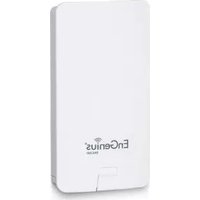
ERB9250 - Wi-Fi repeater ENGENIUS - Free user manual and instructions
Find the device manual for free ERB9250 ENGENIUS in PDF.


| Product Type | 2.4GHz 802.11b/g/n 300Mbps Range Extender / Client Bridge |
| Wireless Standard | IEEE 802.11b/g/n |
| Frequency Band | 2.4 GHz |
| Max Data Rate | 300 Mbps |
| Interfaces | 1x 10/100 Ethernet LAN port |
| Antenna | 2x 2dBi SMA detachable antennas |
| LED Indicators | Power/Status, WLAN, LAN |
| Wireless Security | WEP, WPA, WPA2 (TKIP/AES) |
| Operation Modes | Universal Repeater (Range Extender), Client Bridge |
| WPS Support | Yes (One-Touch Setup) |
| DHCP | Built-in DHCP server (in Client Bridge Router mode) |
| Firewall | SPI, DoS protection, MAC/IP/URL filtering |
| QoS | Priority Queue and Bandwidth Allocation |
| Management | Web interface (HTTP), Telnet |
| Power Supply | 100-240V AC power adapter (included) |
| Mounting | Desk or wall mount (screws included) |
| Package Contents | Range Extender, Power Adapter, 2 Antennas, Quick Install Guide, CD with Manual |
| Firmware Upgrade | Via web interface |
| Default IP | 192.168.1.2 |
| Default Login | Username: admin, Password: admin |
Frequently Asked Questions - ERB9250 ENGENIUS
User questions about ERB9250 ENGENIUS
0 question about this device. Answer the ones you know or ask your own.
Ask a new question about this device
Download the instructions for your Wi-Fi repeater in PDF format for free! Find your manual ERB9250 - ENGENIUS and take your electronic device back in hand. On this page are published all the documents necessary for the use of your device. ERB9250 by ENGENIUS.
USER MANUAL ERB9250 ENGENIUS
natural_image
White EnGenius wireless router with two antennas and ports (no visible text or symbols on body)User Manual
Version: 1.0
TABLE OF CONTENTS
1. INTRODUCTION......4
1.1. PACKAGE CONTENTS 4
1.2. PRODUCT LAYOUT....5
1.3. SYSTEM REQUIREMENTS....6
2. INSTALLATION....7
2.1. PC NETWORK ADAPTER SETUP (WINDOWS XP) 7
2.2. BRING UP ERB9250....9
3. QUICK SETUP RANGE EXTENDER....10
3.1. ONE-TOUCH SETUP EXTENDER 10
3.2. MANUAL CONFIGURATION 11
4. ERB9250 PLACEMENT ....14
4.1. PLACEMENT.... 14
4.2. WALL MOUNTING 14
5. SMART WIZARD ....16
6. INITIAL SETUP ERB9250 ....18
7. SYSTEM 20
7.1. OPERATION MODE....20
7.2. STATUS 20
7.3. EVENT LOG 21
7.4. MONITOR 22
7.5. DHCP (CR MODE) 22
7.6. SCHEDULE (CR MODE) 23
8. WIRELESS....25
8.1. STATUS 25
8.2. BASIC 25
8.3. ADVANCED 27
8.4. SECURITY....28
8.4.1. WEP ENCRYPTION 29
8.4.2. WPA PRE-SHARED KEY ENCRYPTION 30
8.5. FILTER 31
8.6. CLIENT LIST 32
8.7. WPS 32
8.8. AP PROFILE (CB/ CR MODE) 32
9. NETWORK....33
9.1. STATUS 33
9.2. LAN 34
10. FIREWALL (CR MODE) 34
10.1. ENABLE 34
10.2. DMZ (DEMILITARIZED ZONE) 35
10.3. DoS (DENIAL OF SERVICE) 36
10.4. MAC FILTER.... 36
10.5. IP FILTER 38
10.6. URL FILTER 39
11. ADVANCED (CR MODE)....40
11.1. NAT 40
11.2. PORT MAPPING....40
11.3. PORT FORWARDING 42
11.4. PORT TRIGGERING 43
11.5. ALG 45
11.6. UPNP 45
11.7. QoS....46
11.8. STATIC ROUTING....49
11.9. DYNAMIC ROUTING....50
11.10. ROUTING TABLE 50
12. MANAGEMENT ....50
12.1. ADMIN 50
12.2. FIRMWARE....51
12.3. CONFIGURE 51
12.4. RESET 52
13. TOOLS....52
13.1. TIME SETTING 52
13.2. DDNS (CR MODE) 54
13.3. DIAGNOSIS 55
14. LOGOUT....56
APPENDIX A – FCC INTERFERENCE STATEMENT ....57
APPENDIX B – IC INTERFERENCE STATEMENT....58
1. Introduction
ERB9250 is a 2.4GHz 802.11b/g/n 300Mbps Repeater & Client Bridge (Range Booster / Extender). Range Extender solves the signal attenuation (limited coverage) problem by literally repeating / extending AP radio signal to dead-spots. While repeater clones AP and serves as a subsidiary entity to its clients, client bride offers an extension of wired network to the AP.
At 300 Mbps wireless transmission rate, Access Point built into the Router uses advanced MIMO (Multi-Input, Multi-Output) technology to transmit multiple steams of data in a single wireless channel giving you seamless access to multimedia content. Robust RF signal travels farther, eliminates dead spots and extends network range. For data protection and privacy, ERB9250 encodes all wireless transmissions with WEP, WPA, and WPA2 encryption.
1.1. Package Contents
Open the package carefully, and make sure that none of the items listed below are missing. Do not discard the packing materials, in case of return; the unit must be shipped back in its original package.
● 802.11n SOHO Range Extender
● 100V\~240V Power Adapter
● 2dBi 2.4GHz SMA Upgradable Antennas x 2 pcs
- Quick Install Guide
- CD (User's Manual)
1.2. Product Layout
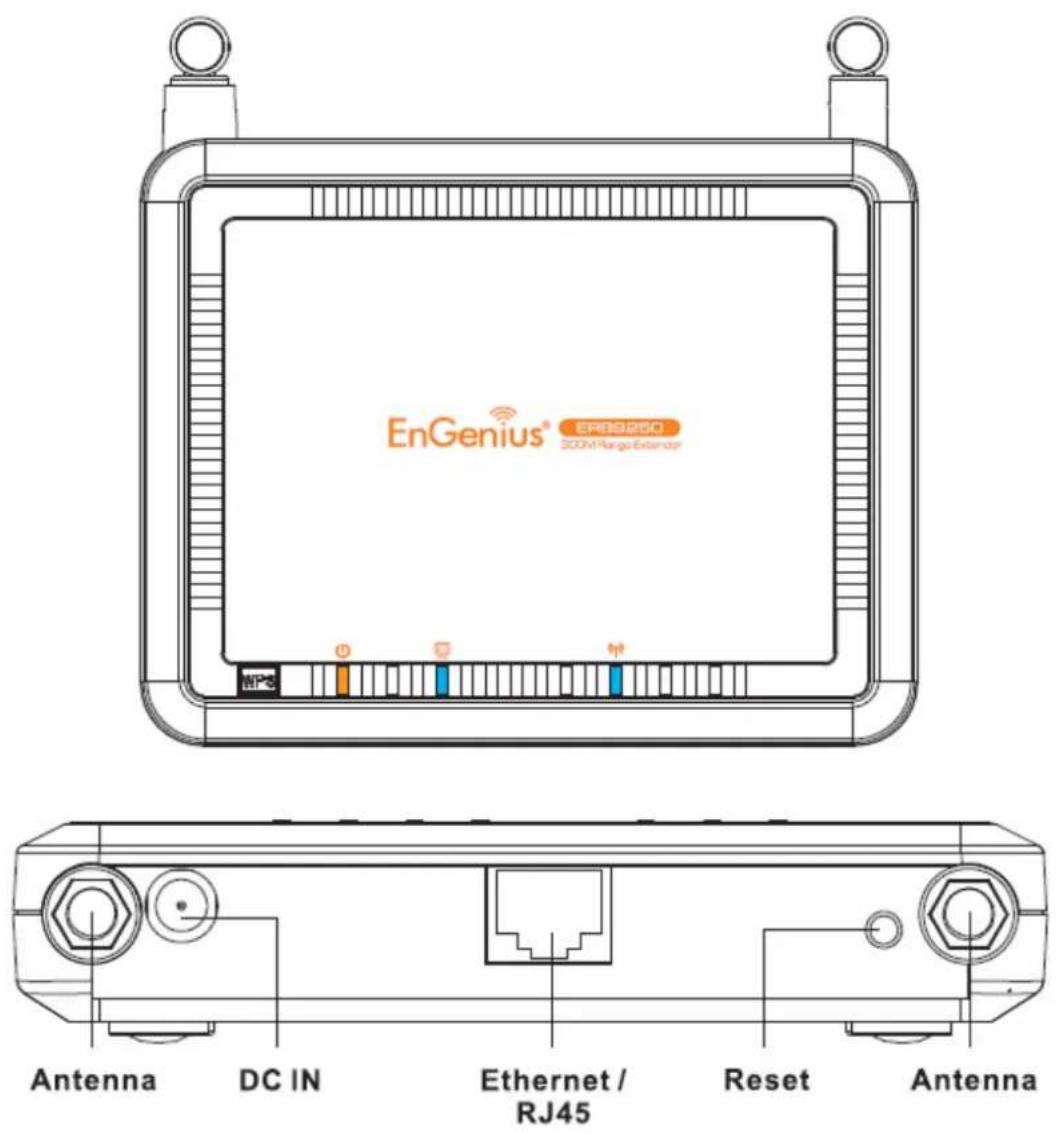
| LED Description | |
| LAN 1 ( Link-> blue on, traffic->blink) | |
| WLAN 1 ( Link-> blue on, traffic->blink) | |
| Power/Status 1 ( On-> red Test/reset default->blink) | |
1.3. System Requirements
To begin using the ERB9250, make sure you meet the following as minimum requirements:
▶ Existing AP / Router
▶ PC/Notebook.
▶ Operating System – Microsoft Windows 98SE/ME/XP/2000/VISTA
▶ 1 Free Ethernet port.
▶ WiFi card/USB dongle (802.11b/g/n) – optional.
▶ External xDSL (ADSL) or Cable modem with an Ethernet port (RJ-45).
PC with a Web-Browser (Internet Explorer, Safari, Firefox, Opera etc.)
▶ Few Ethernet compatible CAT5 cables.
2. Installation
Please configure your PC / Notebook Ethernet card IP address before device configuration.
2.1. PC Network Adapter setup (Windows XP)
- Enter [Start Menu] → select [Control panel] → select [Network].
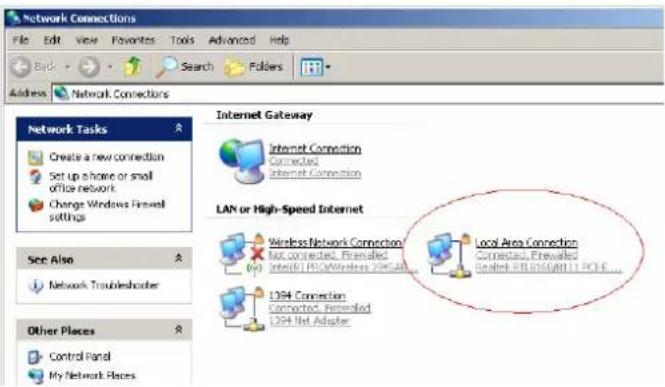
- Select [Local Area Connection]) icon=>select [properties]
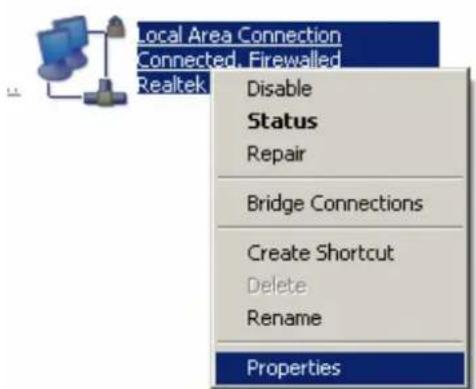
- Select [Internet Protocol (TCP/IP)] =>Click [Properties].

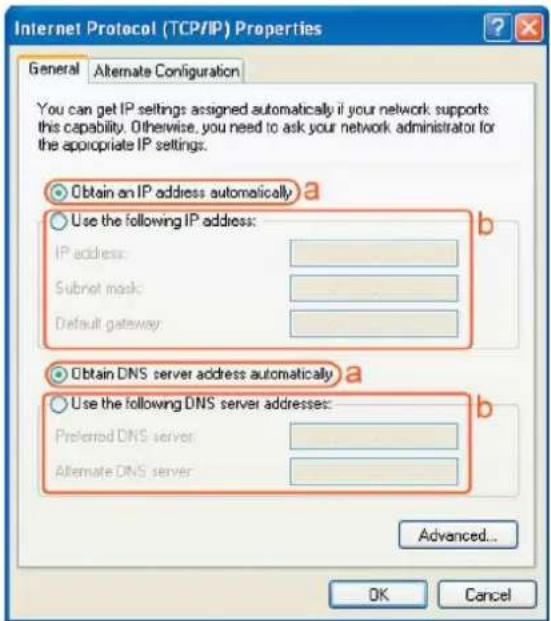
- Select the [General] tab.
- ERB9250 supports [DHCP] function, please select both [Obtain an IP address automatically] and [Obtain DNS server address automatically].
2.2. Bring up ERB9250
Connect the supplied power-adapter to the power inlet port and connect it to a wall outlet. Then, ERB9250 automatically enters the self-test phase. Once WLAN LED is on and blinking randomly to indicate that it is in normal operation.
3. Quick Setup Range Extender
Prerequisite:
Before we start, please make sure the extender is within the coverage of your existing AP. We suggest you place your extender right next to your AP for the initial setup. We can move the extender to further location after configuration is completed.
ERB9250 default IP address is 192.168.1.2, please ensure it is not occupied by any other devices.
Power On:
Connect the supplied power-adapter to the power inlet port and connect it to a wall outlet. Then, ERB9250 automatically enters the self-test phase. Once WLAN LED is on and blinking randomly to indicate that it is in normal operation.
3.1. One-Touch Setup Extender
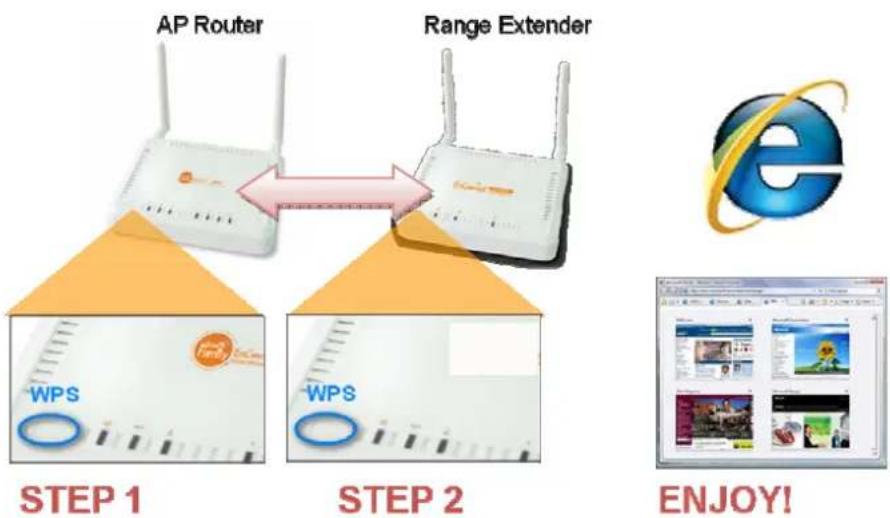
- Make sure your AP/Router WPS function is enabled (some router may require you to press WPS button and hold for a few second to enable WPS).
- Press the button on ERB9250 once. You will see Orange WLAN LED blinking.
-
Wait for a few seconds.
-
Once the orange WLAN LED stop blinking and staying on, the setup is then completed.
-
If the LED does not stay on, this means the configuration is not successful.
- In case you do not have the extender right next to your AP, please move your extender closer and make sure the antennas are properly screwed firmly on the devices. Repeat steps 1\~4 again.
- If the configuration fails again, this probably means your AP does not support one-touch setup function. Please configure your extender manually.
3.2. Manual Configuration
- It is advised to configure your extender through Ethernet cable. You may need to disconnect other network connections to avoid confusion.
- Connect your Ethernet port to the extender RJ45/Ethernet port with the cable included in the package.
- Configure your computer network interface to IP address 192.168.1.10.
- Open your Web Browser and type in 192.168.1.2 (the device default IP address).
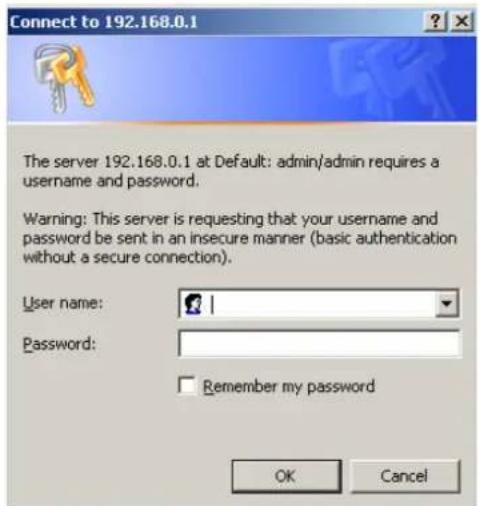
- Type in admin for both user name and password.
- Once get accessed, you will see the administration page
-
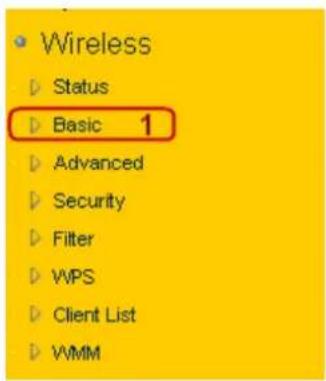
Click [Basic] under section Wireless.
-
Click on [Site Survey] to search the existing AP.
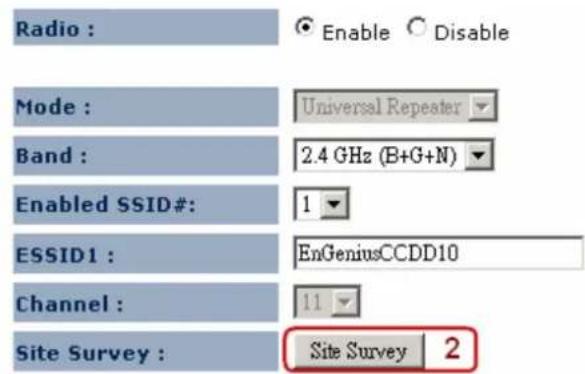
- Few seconds later, a window will pop up a list of available APs.
- Select your target AP and click on [Connect].
Site Survey
| NO. | Select | Channel | SSID | BSSID | Encryption | Authentication | Signal(%) | Mode |
| 1 | 2 | EnGenius5A6C34 | 00:02:6F:5A:6C:34 | AES | WPA2PSK | 20 | 11b/g/n | |
| 2 | 7 | EnGeniusCC002C | 00:AA:BB:CC:00:2C | NONE | OPEN | 10 | 11b/g/n | |
| Refresh | Connect | |||||||
- Enter the access key for the target AP and click on [Save].
AP Profile Settings
| Network Name (SSID) : | EnGenius5A6C34 |
| Encryption : | WPA pre-shared key |
| Authentication Type : | WPA2(AES) |
| Pre-shared Key : | 12345678 |
- Pop-up box showing the connection established between AP and the extender.
Connected to EnGenius5A6C34 successfully.
Close
- On the extender status page, you should see AP security information being cloned here.
WLAN Repeater Information
| Connection Status | Successful |
| Channel | 2 |
| ESSID | EnGenius5A6C34 |
| Security | WPA2 pre-shared key |
| BSSID | 00:02:6F:5A:6C:34 |
| Frequency | 2.417 GHz |
| Data Rate | 150 Mbps |
WLAN Settings
| Channel | 2 |
SSID_1
| ESSID | EnGenius5A6C34 |
| Security | WPA2 pre-shared key |
| BSSID | 00:AA:BB:CC:DD:10 |
4. ERB9250 Placement
4.1. Placement
Please note that there may be various interferences and obstacles in the environment that can impact wireless network performance. Most of the wireless driver utility provides signal strength visualization. You can make use of it to measure the signal strength of your AP.
You may need to experiment a few times to find out the best location for the range extender. Generally, placing extender at where the AP signal strength greater than 30% considered suitable.
You can place ERB9250 on a desk or other flat surface, or you can mount it on a wall. For optimal performance, place your extender within the coverage of your existing AP from which the signal you would like to extend. Like any other wireless device, it must be away from any potential source of interference, such as a metal wall or microwave oven. This location must be close to a power connection. If the antennas are not screwed properly, performance loss can occur.
4.2. Wall Mounting
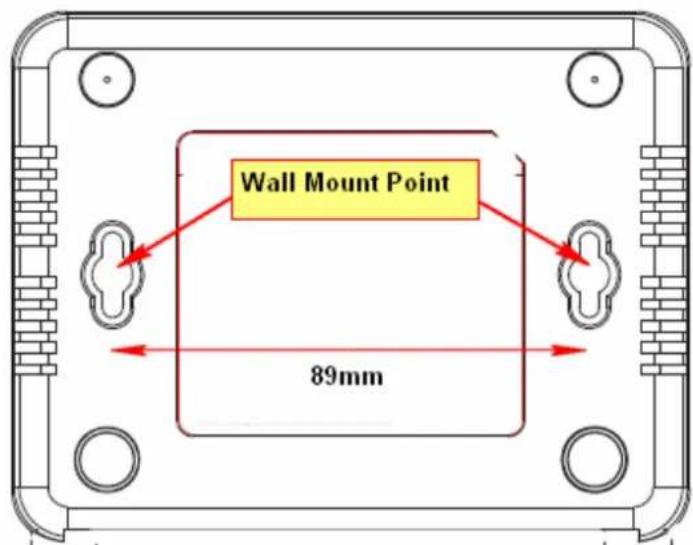
You can mount the device on the wall. There are two mounting points on the bottom of the device. Please find a proper spot where two nails can be applied. The distance
between the two nails is 89mm. Finally, carefully mount the device onto the wall and make sure the nails are firmly locked on the mount points.
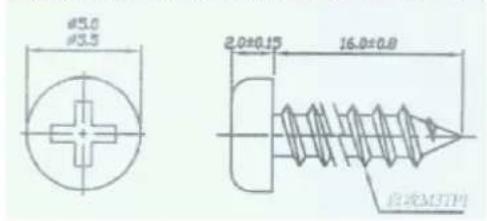
Recommended Screw Dimension: 18mm x 5mm
5. Smart Wizard
EnGenius
ERB9250
300Mbps Wireless N Range Extender
Smart Wizard
Quick Setup
Manaul Setup
User Manual
Adobe Reader
natural_image
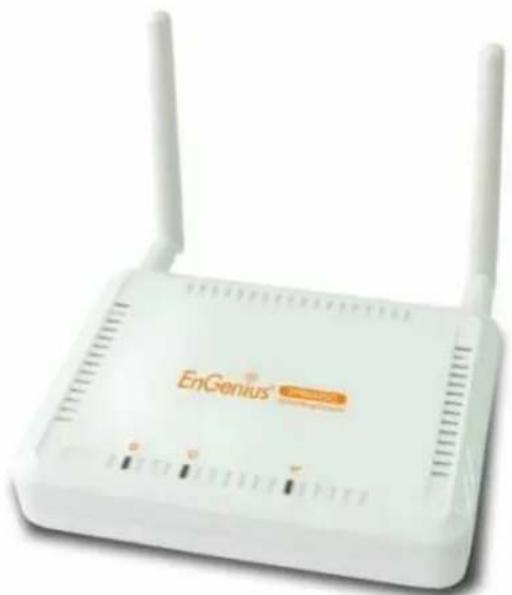
Exterior view of a white EnGenius wireless router with two antennas and ports (no visible text or symbols beyond branding)- Please insert the Wizard CD into your CD-ROM driver.
- If you are using MacOS or other operation system, please browse your CD and click on index.html to start Smart Wizard.
Smart Wizard
Quick Setup
Manaul Setup
User Manual
Adobe Reader
- Click on [Quick Setup] if you would like go for Quick Setup.
- Click on [Manual Setup] if your AP does not support WPS button or Quick Setup does not work on your AP.
- Click [User Manual] to view user manual
- Click on [Adobe Reader] to install PDF reader
Please follow the instructions given on the screen to proceed.
6. Initial Setup ERB9250
ERB9250 uses web-interface for configuration to be accessed through your web browser, such as Internet Explorer or Firefox.
- OPEN your browser (e.g. Internet Explorer).
● Type http://192.168.1.2 in address bar and hit [Enter] button on your keyboard.
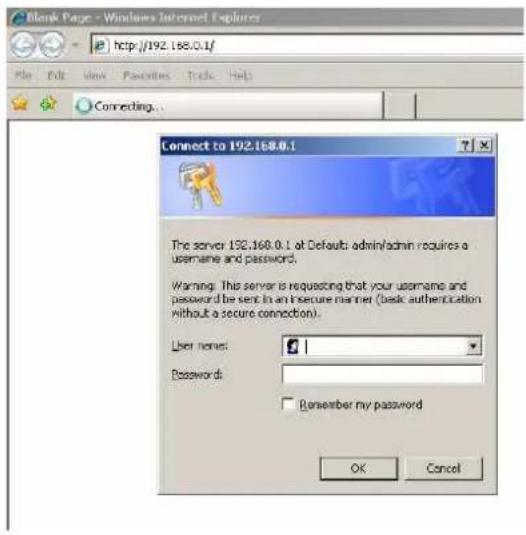
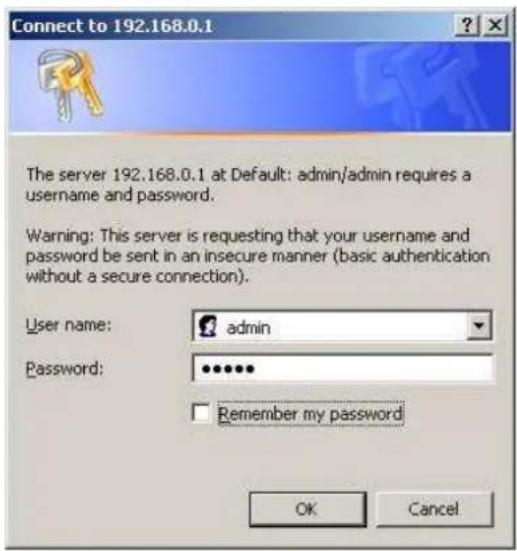
- Click
to navigate into ERB9250 configuration home page. - You will see the home page of ERB9250 as follows.
EnGenius®
11N Wireless Range Extender
Universal Repeater Mode
System
- Wireless
Network
- Management
- Tools
Logout
You can use the Status page to monitor the connection status for WLAN/LAN interfaces, firmware and hardware version numbers.
System
Operation Mode Universal Repeater
System Time 2009/01/01 00:06:04
System Up Time 6 min 3 sec
Hardware Version 0.0.1
Serial Number 000000001
Kernel Version 0.0.1
Application Version 1.0.0
WLAN Repeater Information
Connection Status Fail
Channel ---
ESSID ---
Security ....
BSSID ---
7. System
7.1. Operation Mode
This page allows you to change device operation mode. ERB9250 supports Universal Repeater (Range Extender) and Client Bridge mode. By default it is configured as an Universal Repeater (also known as Extender).
Operation Mode

If you are not sure what Client Bridge is, please do not use this mode. Client Bridge is not an AP extender but an “Ethernet Wireless Extender”. CB serves as a bridge between wired network and wireless network. Once enabled, you can only access the device through Ethernet cable.
For Client Bridge mode, you can choose whether to enable router mode. Router mode will enable NAT and DHCP server. Please disable router mode if you are not familiar with these terms.
Operation Mode

7.2. Status
This page allows you to monitor the current status of your router.
System
Operation Mode Universal Repeater
System Time 2009/01/01 00:14:06
System Up Time 6 min 3 sec
Hardware Version 0.0.1
Serial Number 000000001
Kernel Version 0.0.1
Application Version 1.0.0
WLAN Repeater Information
Connection Status Fail
Channel ---
ESSID ---
Security ---
BSSID ---
WLAN Settings
Channel 2
SSID\_1
ESSID EnGenius5A6C34
7.3. Event Log
View operation event log. This page shows the current system log of the Broadband router. It displays any event occurred after system start up.
At the bottom of the page, the system log can be saved
View the system operation information.
day 1 00:00:03 [SYSTEM]: WLAN, start LLTD
day 1 00:00:03 [SYSTEM]: TELNETD, start Telnet-cli Server
day 1 00:00:03 [SYSTEM]: HTTP, start
day 1 00:00:02 [SYSTEM]: NET, Firewall Disabled
day 1 00:00:02 [SYSTEM]: NET, NAT Disabled
day 1 00:00:02 [SYSTEM]: SCHEDULE, stop Power Save
day 1 00:00:02 [SYSTEM]: NTP, start NTP Client
day 1 00:00:01 [SYSTEM]: LAN, IP address=192.168.1.2
day 1 00:00:01 [SYSTEM]: LAN, start
day 1 00:00:01 [SYSTEM]: BR, start
day 1 00:00:01 [SYSTEM]: SYS, Kernel Version: 0.0.1
day 1 00:00:01 [SYSTEM]: SYS, Application Version: 1.0.0
day 1 00:00:01 [SYSTEM]: Start Log Message Service!
Save
Clear
Refresh
7.4. Monitor
Show histogram for network connection on WAN, LAN & WLAN. Auto refresh keeps information updated frequently.
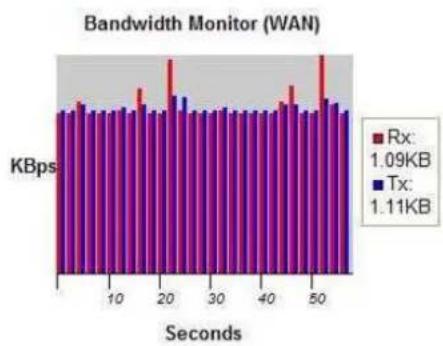
bar
| Seconds | Rx (KBps) | Tx (KBps) | | ------- | --------- | --------- | | 0 | 1.09 | 1.11 | | 10 | 1.09 | 1.11 | | 20 | 1.09 | 1.11 | | 30 | 1.09 | 1.11 | | 40 | 1.09 | 1.11 | | 50 | 1.09 | 1.11 |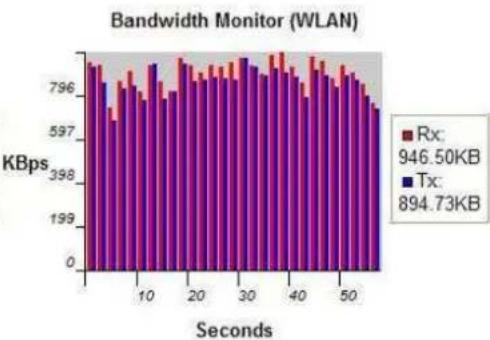
bar
| Seconds | Rx (KBps) | Tx (KBps) | | ------- | --------- | --------- | | 0 | 946.50 | 894.73 |7.5. DHCP (CR Mode)
View the current LAN clients which are assigned with an IP Address by the DHCP-server. This page shows all DHCP clients (LAN PCs) currently connected to your
network. The table shows the assigned IP address, MAC address and expiration time for each DHCP leased client. Use the
You can check "Enable Static DHCP IP". It is possible to add more static DHCP IPs. They are listed in the table "Current Static DHCP Table". IP address can be deleted at will from the table.
Click
DHCP Client Table :
This DHCP Client Table shows client IP address assigned by the DHCP Server
| IP Address | MAC Address | Expiration Time |
| 192.168.1.22 | 00:3C:1B:35:2A:1C | 0 day 07:59:52 |
You can assign an IP address to the specific MAC address
Enable Static DHCP IP

Current Static DHCP Table :

7.6. Schedule (CR Mode)
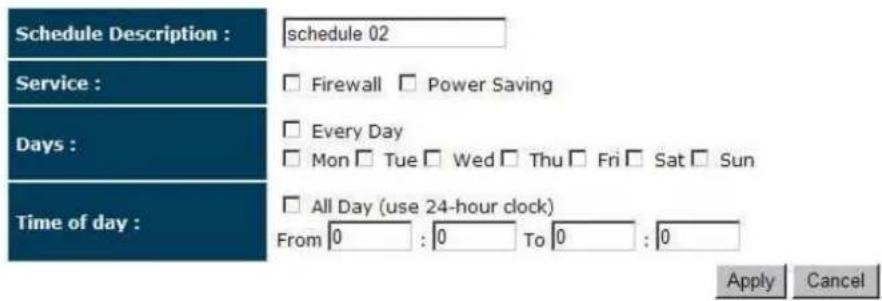
This page allows users to set up schedule function for Firewall and Power Saving
You can use the Schedule page to Start/Stop the Services regularly. The Schedule will start to run, when it get GMT Time from Time Server. Please set up the Time Server correctly in Toolbox. The services will start at the time in the following Schedule Table or it will stop.
☐ Enabled Schedule Table (up to 8)
| NO. | Description | Service | Schedule | Select | |
| 1 | schedule 01 | Firewall | All Time---Mon, Tue, Wed,Thu, Fri, Sat, Sun | ||
| Add | Edit | Delete Selected | Delete All | ||
Edit schedule options to allow configuration of firewall and power savings services. Fill in the schedule and select type of service. Click
You can use the Schedule page to Start/Stop the Services regularly. The services will start at the time in the following Schedule Table or it will stop.
8. Wireless
8.1. Status
| WLAN Repeater Information | |
| Connection Status | Successful |
| ESSID | EnGenius5A6C34 |
| Security | WPA2 pre-shared key |
| BSSID | 00:02:6F:5A:6C:34 |
| Channel | 2 |
| Frequency | 2.417 GHz |
| Data Rate | 150 Mbps |
| WLAN Settings | |
| Channel | 2 |
| SSID_1 | |
| ESSID | EnGenius5A6C34 |
| Security | WPA2 pre-shared key |
| BSSID | 00:AA:BB:CC:DD:10 |
8.2. Basic
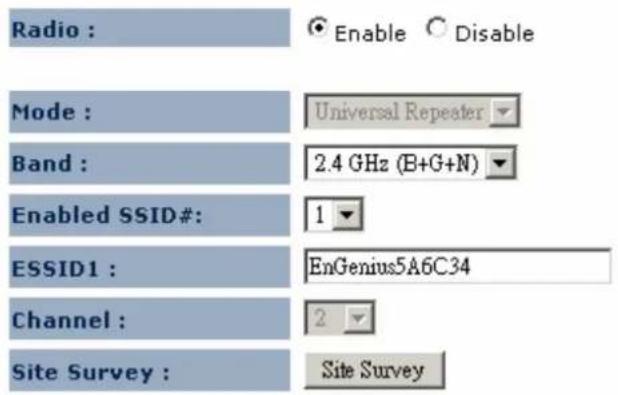
- Radio: You can turn on/off wireless radio. If wireless Radio is off, you cannot associate with AP through wireless.
- Mode: In this device, we support three operation modes which are AP router and AP route with WDS. If you choose AP Router Mode, you can select AP or WDS function in the drop-down menu.
- Band: You can select the wireless standards running on your network environment.
2.4 GHz(B): If all your clients are 802.11b, select this one.
2.4 GHz(N): If all your clients are 802.11n, select this one.
2.4 GHz(B+G): Either 802.11b or 802.11g wireless devices are in your environment.
2.4 GHz(G): If all your clients are 802.11g, select this one.
2.4 GHz(B+G+N): Either 802.11b, 802.11g, or 802.11n wireless devices are in your environment.
● Channel: Shows current target AP wireless channel
- Site Survey: scan for current existing APs
Site Survey
| NO. | Select | Channel | SSID | BSSID | Encryption | Authentication | Signal(%) | Mode |
| 1 | ○ | 1 | SENAOWL | 00:02:6F:52:8C:D3 | WEP | AUTOWEP | 60 | 11b/g |
| 2 | ○ | 1 | SENAOWL | 00:02:6F:36:9C:9A | WEP | AUTOWEP | 55 | 11b |
| 3 | ◎ | 1 | SENAOVIP | 00:02:6F:E0:02:12 | NONE | OPEN | 34 | 11b/g |
| 4 | ○ | 1 | SENAOWL | 00:02:6F:48:0D:8B | WEP | AUTOWEP | 10 | 11b/g |
| 5 | ○ | 1 | SENAOWL | 00:02:6F:36:9C:71 | WEP | AUTOWEP | 39 | 11b |
| 6 | ○ | 1 | SENAOWL | 00:02:6F:48:0D:87 | WEP | AUTOWEP | 65 | 11b/g |
| 7 | ○ | 1 | SENAOWL | 00:02:6F:53:0C:9B | WEP | AUTOWEP | 65 | 11b/g |
| 8 | ○ | 4 | sqa183 | 00:02:6F:59:3D:76 | AES | WPA2PSK | 55 | 11b/g/n |
To connect to the chosen AP, click on the AP radio button and then click [Connect]. See Chapter 6 or 11.4 for more security detail.
8.3. Advanced
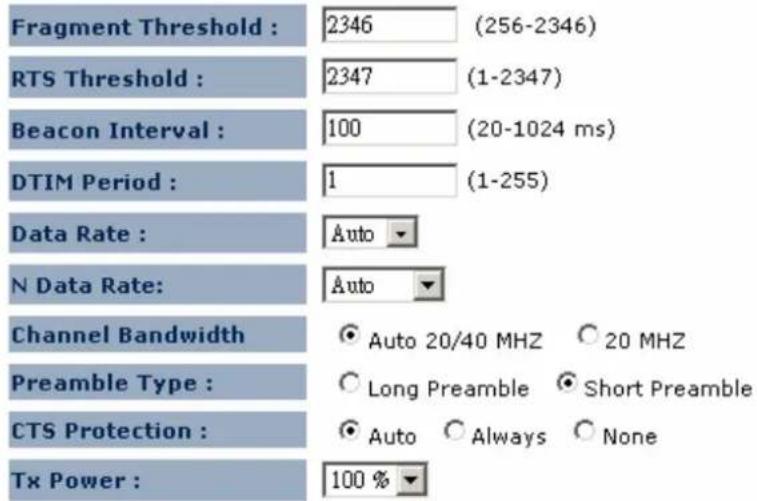
Fragment Threshold: This specifies the maximum size of a packet during the fragmentation of data to be transmitted. If you set this value too low, it will result in bad performance.
RTS Threshold: When the packet size is smaller than the RTS threshold, the wireless router will not use the RTS/CTS mechanism to send this packet.
Beacon Interval: This is the interval of time that this wireless router broadcasts a beacon. A Beacon is used to synchronize the wireless network.
DTIM Period: Enter a value between 1 and 255 for the Delivery Traffic Indication Message (DTIM). A DTIM is a countdown informing clients of the next window for listening to broadcast and multicast messages.
Data Rate: The "Data Rate" is the rate that this access point uses to transmit data packets. The access point will use the highest possible selected transmission rate to transmit the data packets.
N Data Rate: The "Data Rate" is the rate that this access point uses to transmit data packets for N compliant wireless nodes. Highest to lowest data rate can be fixed.
Channel Bandwidth: This is the range of frequencies that will be used.
Preamble Type: The "Long Preamble" can provide better wireless LAN compatibility while the "Short Preamble" can provide better wireless LAN performance.
CTS Protection: It is recommended to enable the protection mechanism. This mechanism can decrease the rate of data collision between 802.11b and 802.11g wireless stations. When the protection mode is enabled, the throughput of the AP will be a little lower due to a lot of frame-network that is transmitted.
TX Power: This can be set to a bare minimum or maximum power.
8.4. Security
This Access Point provides complete wireless LAN security functions, included are WEP, IEEE 802.1x, IEEE 802.1x with WEP, WPA with pre-shared key and WPA with RADIUS. With these security functions, you can prevent your wireless LAN from illegal access. Please make sure your wireless stations use the same security function, and are setup with the same security key.
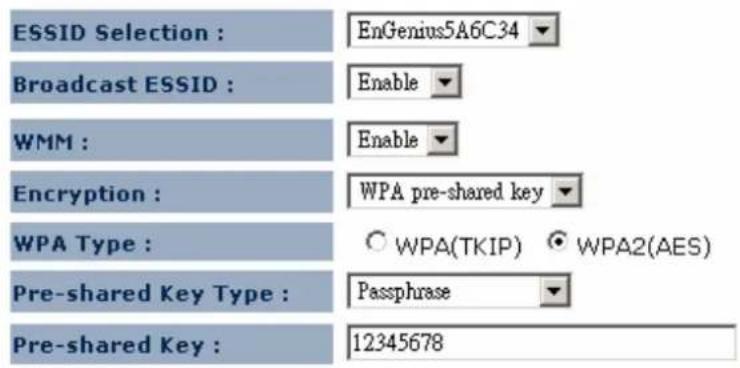
- ESSID Selection: This broadband router support multiple ESSID, you could select and set up the wanted ESSID.
- Broadcast ESSID: If you enabled “Broadcast ESSID”, every wireless station located within the coverage of this AP can discover this AP easily. If you are building a public wireless network, enabling this feature is recommended. Disabling “Broadcast ESSID” can provide better security.
- WMM: Wi-Fi MultiMedia if enabled supports QoS for experiencing better audio, video and voice in applications.
- Encryption: When you choose to disable encryption, it is very insecure to operate ERB9250.
8.4.1. WEP Encryption
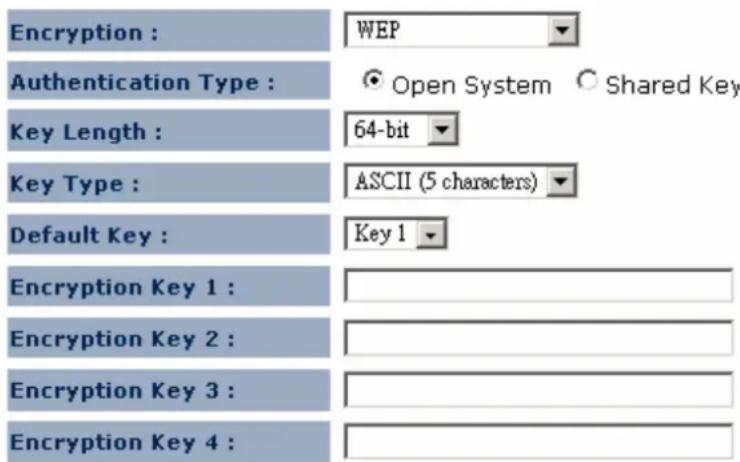
When you select 64-bit or 128-bit WEP key, you have to enter WEP keys to encrypt data. You can generate the key by yourself and enter it. You can enter four WEP keys and select one of them as a default key. Then AP can receive any packet encrypted by one of the four keys.
- Authentication Type: There are two authentication types: "Open System" and "Shared Key". Both AP and wireless client must be configured with the same authentication type.
● Key Length: You can select the WEP key length for encryption, 64-bit or 128-bit. The larger the key will be the higher level of security is used, but the throughput will be lower.
●
● Key Type: You may select ASCII Characters (alphanumeric format) or Hexadecimal Digits (in the "A-F", "a-f" and "0-9" range) to be the WEP Key.
- Default Key: It's the key used to encrypt data.
● Key1 - Key4: The WEP keys are used to encrypt data transmitted in the wireless network. Use the following rules to setup a WEP key on the device.
- 64-bit WEP: input 10-digits Hex values (in the "A-F", "a-f" and "0-9" range) or 5-digit ASCII character as the encryption keys.
- 128-bit WEP: input 26-digit Hex values (in the "A-F", "a-f" and "0-9" range) or 13-digit ASCII characters as the encryption keys.
- Click
8.4.2. WPA Pre-Shared Key Encryption
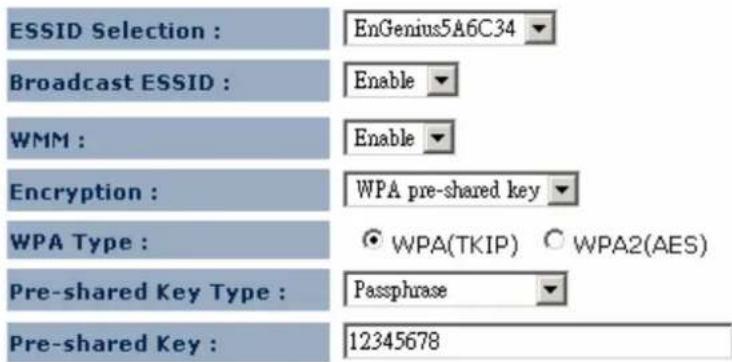
- Wi-Fi Protected Access (WPA) is an advanced security standard. You can use a pre-shared key to authenticate wireless stations and encrypt data during communication. It uses TKIP or CCMP (AES) to change the encryption key
frequently. So the encryption key is not easy to be cracked by hackers. This is the best security available.
8.5.Filter
This wireless router supports MAC Address Control, which prevents unauthorized clients from accessing your wireless network.

Enable Wireless MAC Filtering

Only the following MAC Addresses can use network:


Enable wireless access control: Enable the wireless access control function
Adding an address into the list
Enter the "MAC Address" and "Description" of the wireless station to be added and then click
Remove an address from the list
If you want to remove a MAC address from the "MAC Address Filtering Table", select the MAC address that you want to remove in the list and then click "Delete Selected". If you want to remove all the MAC addresses from the list, just click the
Click
8.6. Client List
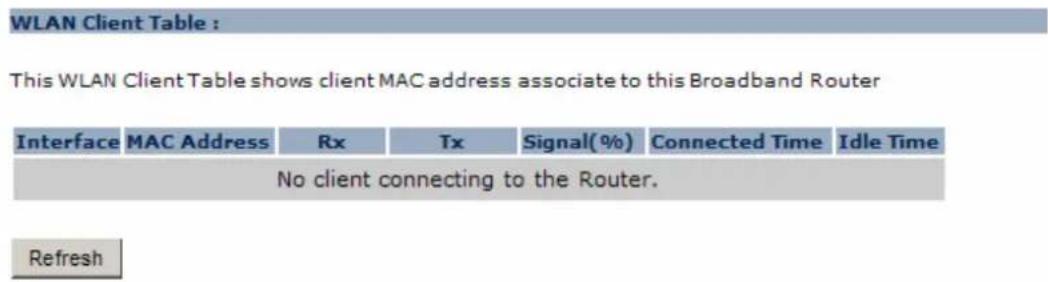
This page shows all the connected current wireless client users.
Click on [Refresh] to get the latest user list and information update.
8.7. WPS
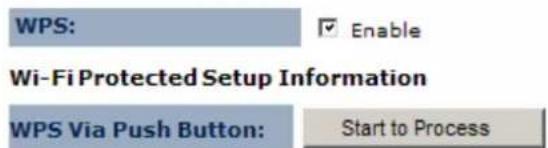
This interface allows you to activate client WPS and synchronize with other AP. Click [Start to Process] to initiate WPS process. It serves the same purpose as the WPS button on the device.
8.8. AP Profile (CB/ CR Mode)
AP Profile Table
| NO. | SSID | MAC | Authentication | Encryption | Select |
| 1 | EnGenius | 00:00:00:00:00:00 | Open System | NONE | |
| Add | Edit | Move Up | Move Down | Delete Selected | Delete All Connect |
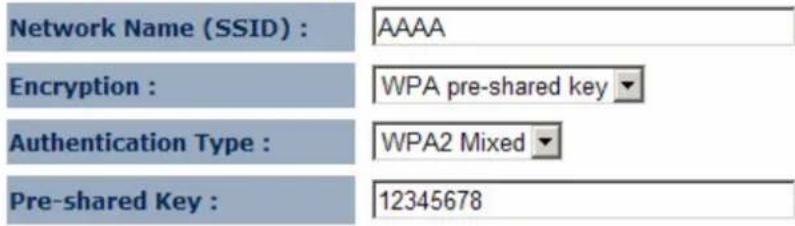
This page allows you to edit your AP profiles. ERB9250 allows you to keep multiple AP candidates. AP on the top of the list has higher precedence than those on the bottom.
Click [Add] to create new profile.
Click [Edit] to create new profile.
AP Profile Settings
Save
SSID: enter the SSID of the target AP
Encryption: select the Encryption method
Authentication Type: select authentication type
Pre-shared key: enter the key of for security setting.
Click [Move Up] to move the record up
Click [Move Down] to move the record down
Click [Delete Selected] to remove the chosen profile
Click [Delete All] to remove all profiles.
Click [Connect] to activate the chosen AP profile
9. Network
9.1. Status
LAN Settings
IP Address 192.168.1.2
Subnet Mask 255.255.255.0
MAC Address 00:AA:BB:CC:DD:11
IP address: current IP address of the device
IP Subnet Mask: 255.255.255.0.
MAC Address: MAC address of the device Ethernet port
9.2. LAN
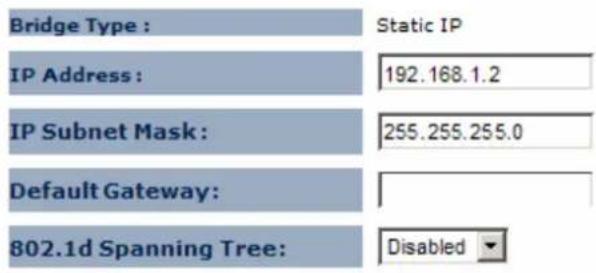
IP address: 192.168.0.1. It is the router's LAN IP address (the "Default Gateway" IP address of your LAN clients). It can be changed based on your own choice.
IP Subnet Mask: 255.255.255.0 Specify a Subnet Mask for your LAN segment.
Default Gateway: please specify gateway IP if any. Leave it blank if you are unsure of this setting.
802.1d Spanning Tree: This is disabled by default. If 802.1d Spanning Tree function is enabled, this router will use the spanning tree protocol to prevent network loops.
10. Firewall (CR Mode)
10.1. Enable
The Broadband router provides extensive firewall protection by restricting connection parameters, thus limiting the risk of hacker attacks, and defending against a wide array of common Internet attacks. However, for applications that require unrestricted access to the Internet, you can configure a specific client/server as a Demilitarized Zone (DMZ).
Firewall automatically detects and blocks Denial of Service (DoS) attacks. URL blocking, packet filtering and SPI (Stateful Packet Inspection) are also supported. The hackers attack will be recorded associated with timestamp in the security logging area.
Firewall : ☑ Enable ○ Disable
Apply
10.2. DMZ (Demilitarized Zone)
If you have a client PC that cannot run an Internet application (e.g. Games) properly from behind the NAT firewall, then you can open up the firewall restrictions to unrestricted two-way Internet access by defining a DMZ Host. The DMZ function allows you to re-direct all packets going to your WAN port IP address to a particular IP address in your LAN. The difference between the virtual server and the DMZ function is that the virtual server re-directs a particular service/Internet application (e.g. FTP, websites) to a particular LAN client/server, whereas DMZ re-directs all packets (regardless of services) from your WAN IP address to a particular server or client.
If you have a local client PC that cannot run an Internet application properly from behind the NAT firewall, you can open unrestricted two-way Internet access for this client by defining a Virtual DMZ Host.
Enable DMZ
Local IP Address :

Apply Cancel
Enable DMZ: Enable/disable DMZ
LAN IP Address: Fill-in the IP address of a particular host in your LAN Network or select a PC from the list on the right that will receive all the packets originally from the WAN port/Public IP address.
Click
10.3. DoS (Denial of Service)
The Broadband router's firewall can block common hacker attacks, including Denial of Service, Ping of Death, Port Scan and Sync Flood. If Internet attacks occur the router can log the events.
The Firewall can detect and block DOS attacks, DOS (Denial of Service) attacks can flood your Internet Connection with invalid packets and connection requests, using so much bandwidth and so many resources that Internet access becomes unavailable.
Block DoS : ☑ Enable ☑ Disable
Apply Cancel
Ping of Death: Protections from Ping of Death attack.
Discard Ping From WAN: The router's WAN port will not respond to any Ping requests
Port Scan: Protects the router from Port Scans.
Sync Flood: Protects the router from Sync Flood attack.
10.4. MAC Filter
If you want to restrict users from accessing certain Internet applications / services (e.g. Internet websites, email, FTP etc.), and then this is the place to set that configuration. MAC Filter allows users to define the traffic type permitted in your LAN. You can control which PC client can have access to these services.
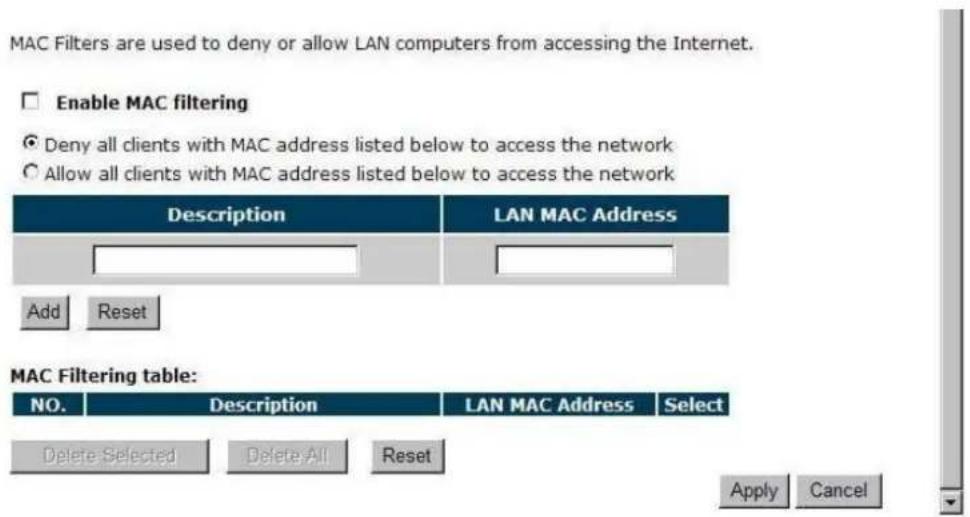
Enable MAC Filtering: Check to enable or disable MAC Filtering.
Deny: If you select "Deny" then all clients will be allowed to access Internet except the clients in the list below.
Allow: If you select "Allow" then all clients will be denied to access Internet except the PCs in the list below.
Add PC MAC Address
Fill in "LAN MAC Address" and
Remove PC MAC Address
If you want to remove some PC from the "MAC Filtering Table", select the PC you want to remove in the table and then click
Click
10.5. IP Filter
IP Filters are used to deny or allow LAN computers from accessing the Internet.
Enable IP Filtering Table
- Deny all clients with IP address listed below to access the network - Allow all clients with IP address listed below to access the network
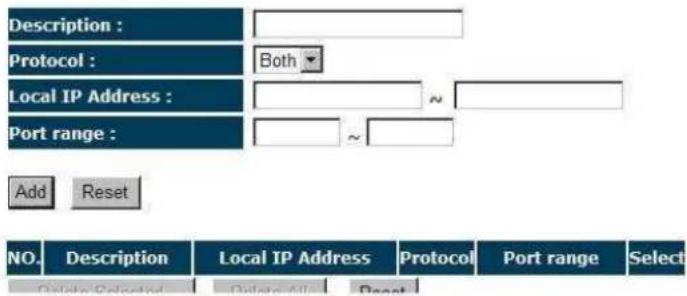

Enable IP Filtering: Check to enable or uncheck to disable IP Filtering.
Deny: If you select "Deny" then all clients will be allowed to access Internet except for the clients in the list below.
Allow: If you select "Allow" then all clients will be denied to access Internet except for the PCs in the list below.
Add PC IP Address
You can click
Remove PC IP Address
If you want to remove some PC IP from the
Click
10.6. URL Filter
You can block access to certain Web sites for a particular PC by entering either a full URL address or just a keyword of the Web site
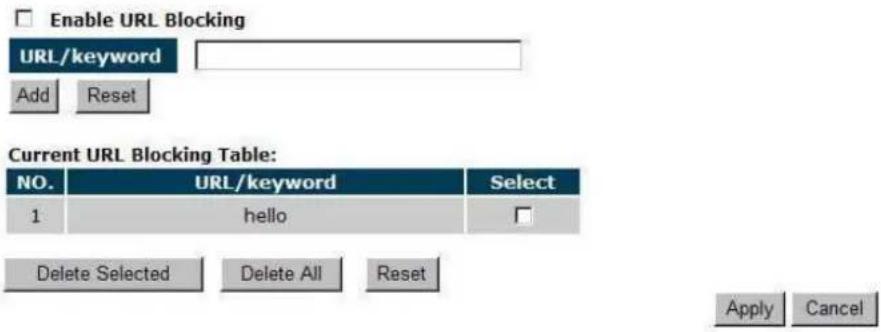
Enable URL Blocking: Enable or disable URL Blocking
Add URL Keyword
Fill in "URL/Keyword" and then click
Remove URL Keyword
If you want to remove some URL keywords from the "Current URL Blocking Table", select the URL keyword you want to remove in the table and then click
If you want remove all URL keywords from the table, click
11. Advanced (CR Mode)
11.1. NAT
Network Address Translation (NAT)
Network Address Translation (NAT) allows multiple users at your local site to access the Internet through a single Public IP Address or multiple Public IP Addresses. NAT provides Firewall protection from hacker attacks and has the flexibility to allow you to map Private IP Addresses to Public IP Addresses for key services such as Websites and FTP. Select Disable to disable the NAT function.
NAT(Network Address Translation) involves re-writing the source and/or destination addresses of IP packets as they pass though a Router or firewall, NAT enable multiple hosts on a private network to access the Internet using a single public IP address.
NAT: ☑ Enable ○ Disable
Apply
11.2. Port Mapping
Port Mapping allows you to re-direct a particular range of service port numbers (from the Internet / WAN Port) to a particular LAN IP address. It helps you to host servers behind the router NAT firewall.
Entries in this table allow you to automatically redirect common network services to a specific PC behind the NAT firewall. These settings are only necessary if you wish to host some sort of server like a web server or mail server on the local network.
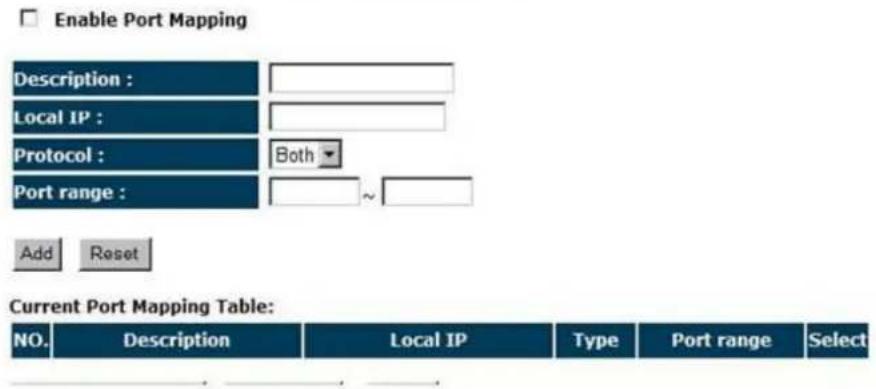

Enable Port Mapping: Enable or disable port mapping function.
Description: description of this setting.
Local IP: This is the local IP of the server behind the NAT firewall.
Protocol: This is the protocol type to be forwarded. You can choose to forward "TCP" or "UDP" packets only, or select "BOTH" to forward both "TCP" and "UDP" packets.
Port Range: The range of ports to be forward to the private IP.
Add Port Mapping
Fill in the "Local IP", "Protocol", "Port Range" and "Description" of the setting to be added and then click "Add". Then this Port Mapping setting will be added into the "Current Port Mapping Table" below. If you find any typo before adding it and want to retype again, just click
Remove Port Mapping
If you want to remove a Port Mapping setting from the "Current Port Mapping Table", select the Port Mapping setting that you want to remove in the table and then
click D
Click
11.3. Port Forwarding
Use the Port Forwarding (Virtual Server) function when you want different servers/clients in your LAN to handle different service/Internet application type (e.g. Email, FTP, Web server etc.) from the Internet. Computers use numbers called port numbers to recognize a particular service/Internet application type. The Virtual Server allows you to re-direct a particular service port number (from the Internet/WAN Port) to a particular LAN private IP address (See Glossary for an explanation on Port number).
You can configure the router as a Virtual Server allowing remote users to access services such as Web or FTP at your local PC. Depending on the requested service (TCP/UDP) port number, the router will redirect the external service request to the appropriate internal server (located at one of your local PCs).
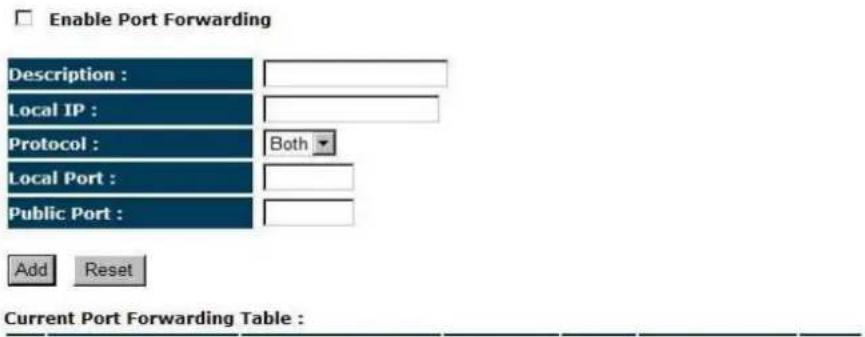
Enable Port Forwarding: Enable or disable Port Forwarding.
Description: The description of this setting.
Local IP / Local Port: This is the LAN Client/Host IP address and Port number that the Public Port number packet will be sent to.
Protocol: Select the port number protocol type (TCP, UDP or both). If you are unsure, then leave it to the default "both" setting. Public Port enters the service
(service/Internet application) port number from the Internet that will be re-directed to the above Private IP address host in your LAN Network.
Public Port: Port number will be changed to Local Port when the packet enters your LAN Network.
Add Port Forwarding
Fill in the "Description", "Local IP", "Local Port", "Protocol" and "Public Port" of the setting to be added and then click
Remove Port Forwarding
If you want to remove Port Forwarding settings from the "Current Port Forwarding Table", select the Port Forwarding settings you want to remove in the table and then click "Delete Selected". If you want to remove all Port Forwarding settings from the table, just click the
Click
11.4. Port Triggering
Some applications require multiple connections, such as Internet games, video Conferencing, Internet telephony and others. In this section you can configure the router to support multiple connections for these types of applications.
Port Triggering, also called Special Applications allows you to use Internet applications which normally do not function when used behind a firewall.
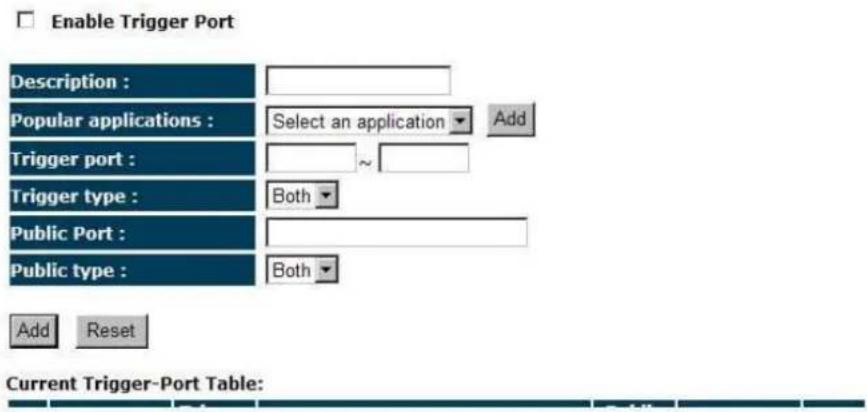
Enable Trigger Port: Enable or disable the Port Trigger function.
Trigger Port: This is the outgoing (Outbound) range of port numbers for this particular application.
Trigger Type: Select whether the outbound port protocol is "TCP", "UDP" or "BOTH".
Public Port: Enter the In-coming (Inbound) port or port range for this type of application (e.g. 2300-2400, 47624)
Public Type: Select the Inbound port protocol type: "TCP", "UDP" or "BOTH"
Popular Applications: This section lists the more popular applications that require multiple connections. Select an application from the Popular Applications selection. Once you have selected an application, select a location (1-5) in the "Add" selection box and then click the
Add Port Triggering
Fill in the "Trigger Port", "Trigger Type", "Public Port", "Public Type", "Public Port" and "Description" of the setting to be added and then Click
Triggering setting will be added into the "Current Trigger-Port Table" below. If you happen to make a mistake, just click
Remove Port Triggering
If you want to remove Special Application settings from the "Current Trigger-Port Table", select the Port Triggering settings you want to remove in the table and then click
11.5. ALG
Application Layer Gateway (ALG)
You can select applications that need ALG support. The router will let the selected application to correctly pass through the NAT gateway.
The ALG (Application Layer Gateway) serves the purpose of a window between correspondent application processes so that they may exchange information on the open environment.
| Description | Select |
| H323 | |
| MMS | |
| TFTP | |
| Egg | |
| IRC | |
| Amanda | |
| Quake3 | |
| Talk | |
| IPsec |
11.6. UPnP
With UPnP, all PCs in you Intranet will discover this router automatically. So, you don't have to configure your PC and it can easily access the Internet through this router.
Universal Plug and Play is designed to support zero-configuration, "invisible" networking, and automatic discovery for a range of device from a wide range of vendors. With UPnP, a device can dynamically join a network, obtain an IP address and learn about the presence and capabilities of other devices all automatically. Devices can subsequently communicate with each other directly.
Enable/Disable UPnP: You can enable or Disable the UPnP feature here. After you enable the UPnP feature, all client systems that support UPnP, like Windows XP, can discover this router automatically and access the Internet through this router without having to configure anything. The NAT Traversal function provided by UPnP can let applications that support UPnP connect to the internet without having to configure the virtual server sections.
11.7. QoS
QoS can let you classify Internet application traffic by source/destination IP address and port number. You can assign priority for each type of application and reserve bandwidth for it. The packets of applications with higher priority will always go first. Lower priority applications will get bandwidth after higher priority applications get enough bandwidth. This can let you have a better experience in using critical real time services like Internet phone, video conference ...etc. All the applications not specified by you are classified as rule “Others”.
Priority Queue
This can put the packets of specific protocols in High/Low Queue. The packets in High Queue will process first.
Quality of Service (QoS) refers to the capability of a network to provide better service to selected network traffic. The primary goal of QoS is to provide priority including dedicated bandwidth, controlled jitter and latency (required by some real-time and interactive traffic), and improved loss characteristics. Also important is making sure that providing priority for one or more flows does not make other flows fail.
QoS :
Priority Queue Bandwidth Allocation Disabled
Unlimited Priority Queue
| Local IP Address | Description |
| The IP address will not be bounded in the QoS limitation |
High/Low Priority Queue
| Protocol | High Priority | Low Priority | Specific Port |
| FTP | 20,21 |
Unlimited Priority Queue: The LAN IP address will not be bounded in the QoS limitation.
High/Low Priority Queue: This can put the packets in the protocol and port range to High/Low QoS Queue.
Bandwidth Allocation:
This can reserve / limit the throughput of specific protocols and port range. You can set the upper bound and Lower bound.
Quality of Service (QoS) refers to the capability of a network to provide better service to selected network traffic. The primary goal of QoS is to provide priority including dedicated bandwidth, controlled jitter and latency (required by some real-time and interactive traffic), and improved loss characteristics. Also important is making sure that providing priority for one or more flows does not make other flows fail.
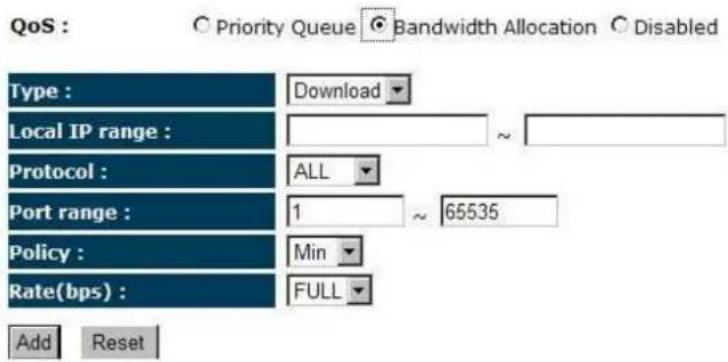
Type: Specify the direction of packets. Upload, download or both.
IP range: Specify the IP address range. You could also fill one IP address
Protocol: Specify the packet type. The default ALL will put all packets in the QoS priority Queue.
Port range: Specify the Port range. You could also fill one Port.
Policy: Specify the policy the QoS, Min option will reserve the selected data rate in QoS queue. Max option will limit the selected data rate in QoS queue.
Rate: The data rate of QoS queue.
Disabled: This could turn off QoS feature.
Quality of Service (QoS) refers to the capability of a network to provide better service to selected network traffic. The primary goal of QoS is to provide priority including dedicated bandwidth, controlled jitter and latency (required by some real-time and interactive traffic), and improved loss characteristics. Also important is making sure that providing priority for one or more flows does not make other flows fail.
QoS :
○ Priority Queue ○ Bandwidth Allocation ● Disabled
Apply Cancel
11.8. Static Routing
You can set enable Static Routing to let the router forward packets by your routing policy.
You can enable Static Routing to turn off the NAT function of the router and let the router forward packets by your routing policy.
To take Static Route effect, please disable NAT function.
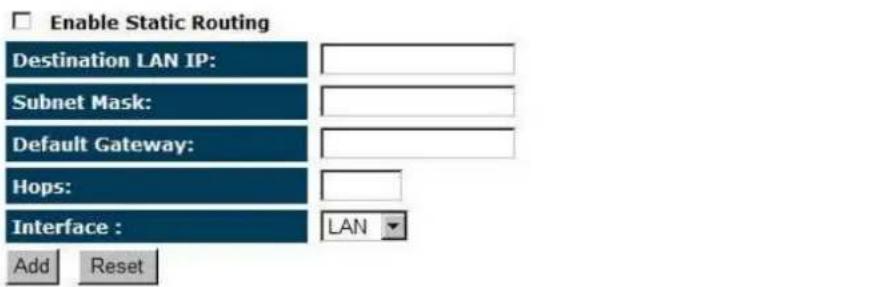
Current Static Routing Table:
NO. Destination LAN IP Subnet Mask Default Gateway Hops Interface Select
Destination LAN IP: Specify the destination LAN IP address of static routing rule.
Subnet Mask: Specify the Subnet Mask of static routing rule.
Default Gateway: Specify the default gateway of static routing rule.
Hops: Specify the Max Hops number of static routing rule.
Interface: Specify the Interface of static routing rule.
11.9. Dynamic Routing
The Router supports the Routing Information Protocol (RIP). RIP allows you to set up routing information on one RIP enabled device, and have that routing information replicated to all RIP enabled devices on the network.
☑ Dynamic Routing

This page allows you to configure Dynamic Routing.
11.10. Routing Table
Current Routing Table
| Destination LAN IP | Subnet Mask | Default Gateway |
| 192.168.1.0 | 255.255.255.0 | 0.0.0.0 |
Refresh
The page shows the device routing table.
12. Management
12.1. Admin
You can change the password required to log into the broadband router's system web-based management. By default, the password is: admin. Passwords can contain 0 to 12 alphanumeric characters, and are case sensitive.
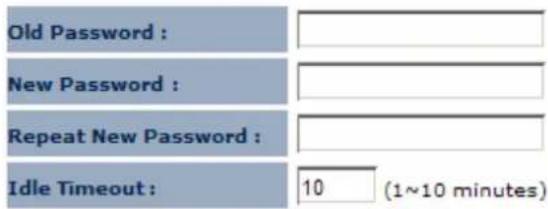
Old Password: Fill in the current password to allow changing to a new password.
New Password: Enter your new password and type it again in Repeat New Password for verification purposes
Idle Timeout: enter Administration Page timeout.
12.2. Firmware
This page allows you to upgrade the router's firmware. To upgrade the firmware of your Broadband router, you need to download the firmware file to your local hard disk, and enter that file name and path in the appropriate field on this page. You can also use the Browse button to find the firmware file on your PC.
You can upgrade the firmware of the router in this page. Ensure, the firmware you want to use is on the local hard drive of your computer. Click on Browse to browse and locate the firmware to be used for your update.

Once you've selected the new firmware file, click
12.3. Configure
The current system settings can be saved as a file onto the local hard drive. The saved file can be loaded back on the Broadband Router. To reload a system settings file, click on BROWSE to locate the system file to be used. You may also reset the Broad Router back to factory default settings by clicking RESET

This page allows you to save the current router configurations. When you save the configurations, you also can re-load the saved configurations into the router through the Restore Settings. If extreme problems occur you can use the Restore to Factory Defaults to set all configurations to its original default settings.
12.4. Reset
In the event the system stops responding correctly or stops functioning, you can perform a reset. Your settings will not be changed. To perform the reset, click on the APPLY button. You will be asked to confirm your decision. The reset will be completed when the LED Power light stops blinking.
Click on [Apply] to reset to default.
13. Tools
13.1. Time Setting
The Time Zone allows your router to reference or base its time on the settings configured here, which will affect functions such as Log entries and Firewall settings.
Time Setup:
Synchronize with the NTP server
The Router reads the correct time from NTP servers on the Internet and sets its system clock accordingly. The Daylight Savings option merely advances the system clock by one hour. The time zone setting is used by the system clock when displaying the correct time in schedule and the log files.
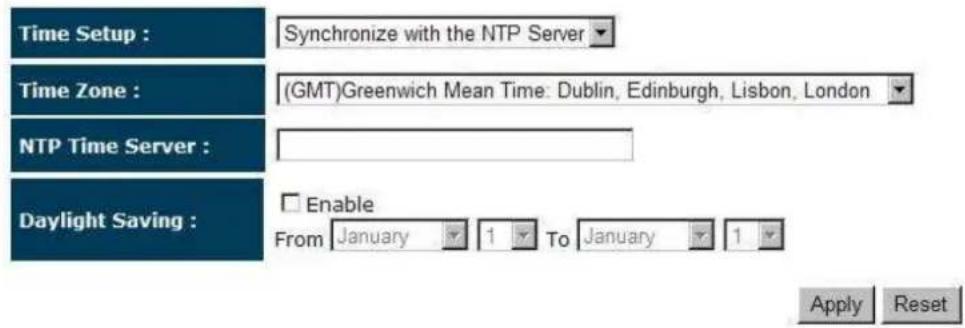
Time Zone: Select the time zone of the country you are currently in. The router will set its time based on your selection.
NTP Time Server: The router can set up external NTP Time Server.
Daylight Savings: The router can also take Daylight Savings into account. If you wish to use this function, you must select the Daylight Savings Time period and check/tick the enable box to enable your daylight saving configuration.
Click
Synchronize with PC
You could synchronize timer with your Local PC time.
The Router reads the correct time from NTP servers on the Internet and sets its system clock accordingly. The Daylight Savings option merely advances the system clock by one hour. The time zone setting is used by the system clock when displaying the correct time in schedule and the log files.
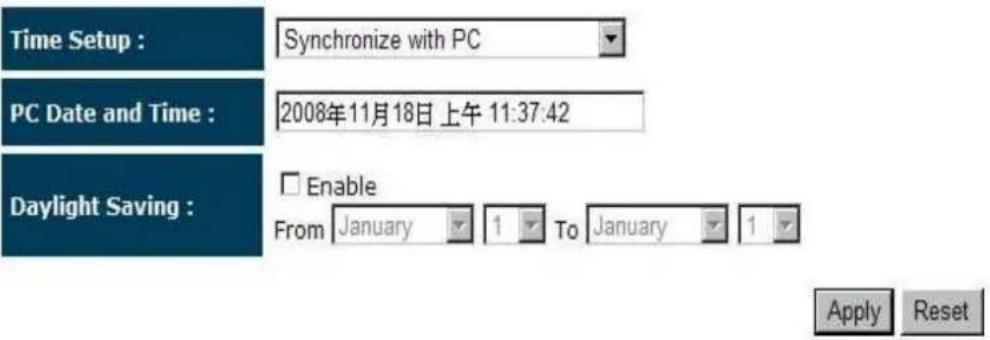
PC Date and Time: This field would display the PC date and time.
Daylight Savings: The router can also take Daylight Savings into account. If you wish to use this function, you must select the Daylight Savings Time period and check/tick the enable box to enable your daylight saving configuration.
Click
13.2. DDNS (CR Mode)
DDNS allows you to map the static domain name to a dynamic IP address. You must get an account, password and your static domain name from the DDNS service providers. This router supports DynDNS, TZO and other common DDNS service providers.
DDNS allows users to map a static domain name to a dynamic IP address. You must get an account, password and your static domain name from the DDNS service provider..
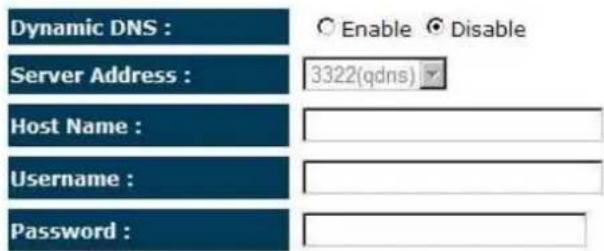
Enable/Disable DDNS: Enable or disable the DDNS function of this router
Server Address: Select a DDNS service provider
Host Name: Fill in your static domain name that uses DDNS.
Username: The account that your DDNS service provider assigned to you.
Password: The password you set for the DDNS service account above
Click
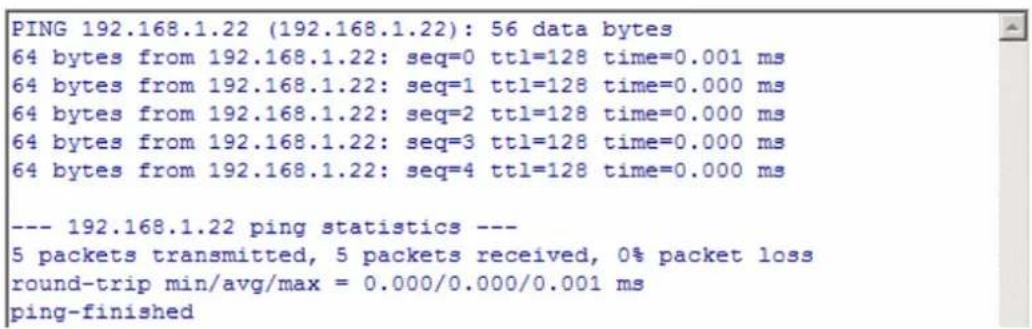
13.3. Diagnosis
This page allows you to test your network. Type in the address for diagnosis.

14. Logout
Click on [Logout] button to logout.
This page is used to logout this device.
Logout
Appendix A – FCC Interference Statement
Federal Communication Commission Interference Statement
This equipment has been tested and found to comply with the limits for a Class B digital device, pursuant to Part 15 of the FCC Rules. These limits are designed to provide reasonable protection against harmful interference in a residential installation. This equipment generates, uses and can radiate radio frequency energy and, if not installed and used in accordance with the instructions, may cause harmful interference to radio communications. However, there is no guarantee that interference will not occur in a particular installation. If this equipment does cause harmful interference to radio or television reception, which can be determined by turning the equipment off and on, the user is encouraged to try to correct the interference by one of the following measures:
● Reorient or relocate the receiving antenna.
- Increase the separation between the equipment and receiver.
- Connect the equipment into an outlet on a circuit different from that to which the receiver is connected.
- Consult the dealer or an experienced radio/TV technician for help.
This device complies with Part 15 of the FCC Rules. Operation is subject to the following two conditions: (1) This device may not cause harmful interference, and (2) this device must accept any interference received, including interference that may cause undesired operation.
FCC Caution: Any changes or modifications not expressly approved by the party responsible for compliance could void the user's authority to operate this equipment.
IMPORTANT NOTE:
FCC Radiation Exposure Statement:
This equipment complies with FCC radiation exposure limits set forth for an uncontrolled environment. This equipment should be installed and operated with minimum distance 20cm between the radiator & your body.
We declare that the product is limited in CH1\~CH11 by specified firmware controlled in the USA. This transmitter must not be co-located or operating in conjunction with any other antenna or transmitter.
Appendix B – IC Interference Statement
Industry Canada statement:
This device complies with RSS-210 of the Industry Canada Rules. Operation is subject to the following two conditions:
(1) This device may not cause harmful interference, and (2) this device must accept any interference received, including interference that may cause undesired operation.
IMPORTANT NOTE:
Radiation Exposure Statement:
This equipment complies with IC radiation exposure limits set forth for an uncontrolled environment.
This equipment should be installed and operated with minimum distance 20cm between the radiator & your body.
This device has been designed to operate with an antenna having a maximum gain of 2 dBi. Antenna having a higher gain is strictly prohibited per regulations of Industry Canada. The required antenna impedance is 50 ohms.


- TABLE OF CONTENTS
- INTRODUCTION......4
- INSTALLATION....7
- QUICK SETUP RANGE EXTENDER....10
- ERB9250 PLACEMENT ....14
- SMART WIZARD ....16
- INITIAL SETUP ERB9250 ....18
- SYSTEM 20
- WIRELESS....25
- NETWORK....33
- FIREWALL (CR MODE) 34
- ADVANCED (CR MODE)....40
- MANAGEMENT ....50
- TOOLS....52
- LOGOUT....56
- APPENDIX A – FCC INTERFERENCE STATEMENT ....57
- APPENDIX B – IC INTERFERENCE STATEMENT....58
- Introduction
- Package Contents
- System Requirements
- Installation
- PC Network Adapter setup (Windows XP)
- Bring up ERB9250
- Quick Setup Range Extender
- Prerequisite:
- Power On:
- One-Touch Setup Extender
- Manual Configuration
- ERB9250 Placement
- Placement
- Wall Mounting
- Smart Wizard
- EnGenius
- Smart Wizard
- Initial Setup ERB9250
- EnGenius®
- 11N Wireless Range Extender
- Universal Repeater Mode
- System
- WLAN Repeater Information
- System
- Operation Mode
- Operation Mode
- Status
- WLAN Settings
- SSID\_1
- Event Log
- Monitor
- DHCP (CR Mode)
- DHCP Client Table :
- Enable Static DHCP IP
- Current Static DHCP Table :
- Schedule (CR Mode)
- Wireless
- Status
- Basic
- Advanced
- Security
- WEP Encryption
- WPA Pre-Shared Key Encryption
- 8.5.Filter
- Enable Wireless MAC Filtering
- Only the following MAC Addresses can use network:
- Adding an address into the list
- Remove an address from the list
- Client List
- WPS
- AP Profile (CB/ CR Mode)
- AP Profile Settings
- Network
- Status
- LAN Settings
- LAN
- Firewall (CR Mode)
- Enable
- DMZ (Demilitarized Zone)
- Enable DMZ: Enable/disable DMZ
- DoS (Denial of Service)
- MAC Filter
- Add PC MAC Address
- Remove PC MAC Address
- IP Filter
- Add PC IP Address
- Remove PC IP Address
- URL Filter
- Add URL Keyword
- Remove URL Keyword
- Advanced (CR Mode)
- NAT
- Network Address Translation (NAT)
- Port Mapping
- Add Port Mapping
- Remove Port Mapping
- Port Forwarding
- Add Port Forwarding
- Remove Port Forwarding
- Port Triggering
- Add Port Triggering
- Remove Port Triggering
- ALG
- Application Layer Gateway (ALG)
- UPnP
- QoS
- Priority Queue
- Bandwidth Allocation:
- Static Routing
- Dynamic Routing
- Routing Table
- Management
- Admin
- Firmware
- Configure
- Reset
- Tools
- Time Setting
- Time Setup:
- Synchronize with PC
- DDNS (CR Mode)
- Diagnosis
- Logout
- Appendix A – FCC Interference Statement
- Federal Communication Commission Interference Statement
- IMPORTANT NOTE:
- FCC Radiation Exposure Statement:
- Appendix B – IC Interference Statement
- Industry Canada statement:
- Radiation Exposure Statement:
Brand : ENGENIUS
Model : ERB9250
Category : Wi-Fi repeater