Pixma MX520 - Printer CANON - Free user manual and instructions
Find the device manual for free Pixma MX520 CANON in PDF.


User questions about Pixma MX520 CANON
0 question about this device. Answer the ones you know or ask your own.
Ask a new question about this device
Download the instructions for your Printer in PDF format for free! Find your manual Pixma MX520 - CANON and take your electronic device back in hand. On this page are published all the documents necessary for the use of your device. Pixma MX520 by CANON.
USER MANUAL Pixma MX520 CANON
This guide provides information for setting up a network connection for the printer.
Network Connection
Wireless Connection
Preparation for Connection Printer Setup Setup Procedure Selection Push Button Method Standard setup WPS Other setup (Advanced setup) Disable WEP WPA/WPA2
Wired Connection
Preparation for Connection Cable Connection Printer Setup
Character Entry
Troubleshooting
Wireless Connection
① Preparation for Connection
Before Starting Wireless Connection Setup
- Make sure that the printer is turned on. If the power is on, a button on the Operation Panel (A) is lit.

natural_image
Illustration of a printer with a control panel and indicator light (no text or symbols)Notes on Wireless Connection
- Make sure that the computer is connected to the access point (A) (or wireless network router) you want to connect your printer to. For details on how to check the settings, refer to the manual supplied with the router or contact its manufacturer.

text_image
Diagram illustrating satellite communication with a satellite, wireless device, and two laptops connected via signal lines- The configuration, router functions, setup procedures and security settings of the network device vary depending on your system environment. For details, refer to the manual of your network device or contact its manufacturer.
- Check if your device supports IEEE802.11n (2.4 GHz), IEEE802.11g or IEEE802.11b.
- If your device is set to the "IEEE802.11n only" mode, WEP or TKIP cannot be used as a security protocol. Change the security protocol for your device to something other than WEP and TKIP or change the setting to something other than "IEEE802.11n only."
- For offi ce use, consult your network administrator.
- Take added care when connecting to a network that is not protected with security measures, as there is a risk of disclosing data such as your personal information to a third party.
- This printer cannot be used over wireless and wired connections at the same time.
- An "Ad-hoc connection," which establishes a direct connection to the computer over a wireless connection without an access point, is not supported. Be sure to prepare an access point.
② Printer Setup
- Press the MENU button (A) on the printer.
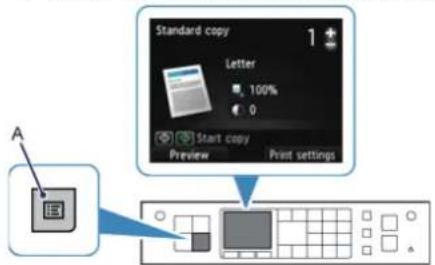
flowchart
graph TD
    A["Standard copy"] --> B["Letter: 100%, 0"]
    B --> C["Start copy"]
    C --> D["Preview"]
    D --> E["Print settings"]
- Use the ▲▼buttons (A) to select the WLAN setup icon.

flowchart
graph TD
    A["Photos"] --> B["Web Service"]
    C["Telephone print"] --> D["Windows setup"]
    E["Photos"] --> F["Web Service"]
    G["Telephone print"] --> H["Windows setup"]
    I["A"] --> J["Grid with 10x10 grid"]
    K["B"] --> L["Printer with 10x10 grid"]
    M["C"] --> N["Printer with 10x10 grid"]
- Press the OK button (B).
The (blue) Wi-Fi lamp (C) lights up when wireless connection is enabled.
③ Setup Procedure Selection
The printer will automatically search for access points supporting WPS.
* If the Push Button Method screen is displayed on the printer
When you are unsure if your access point or router supports this technology, press the Stop button.
Proceed to the screen for Standard setup.
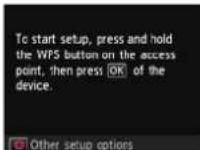
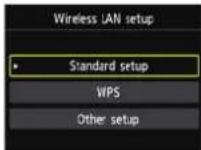
Push Button Method → 4-A Select the most suitable connection method from the following.
- Standard setup → 4-B
Connect to Access Point by entering the Network Password
- WPS → 4-C
Connect to WPS-compatible Access Point
- Other setup (Advanced setup) → 4-D
Connecting to the Network by Entering the Access Point's Settings Directly on the Printer
When using WEP key number 2, 3 or 4, select "Advanced setup".
4 Connection Using WPS
- Press and hold the WPS button on the access point.
For details on pressing the WPS button, refer to the access point manual.
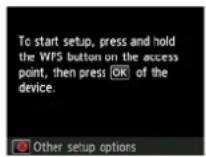
- Press the OK button on the printer within 2 minutes.
The (blue) Wi-Fi lamp on the printer flashes while searching for or connecting to the access point.
- When the left screen appears, press the OK button.

flowchart
graph TD
    A["Connected to the access point."] --> B["Photo"]
    A --> C["Template print"]
    A --> D["Web service"]
    A --> E["WLAN setup"]
    F["Select OK"] --> A
- When the screen shown on the right appears, press the COPY button (A).
The network connection setup is now complete.
4 Connection via Standard setup
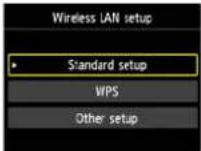
- Select Standard setup.
-
Press the OK button.
-
Select your access point, then press the OK button.
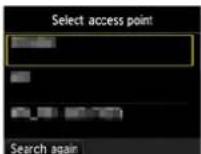
- One of the screens below will be displayed on the printer.
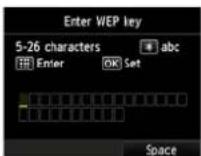
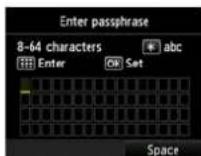
- Enter the network password (WEP key or passphrase). Character entry is case-sensitive.
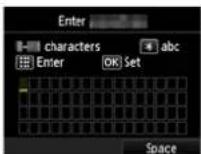


-
Press the OK button.
-
Make sure that the network password is correct. Character entry is case-sensitive.
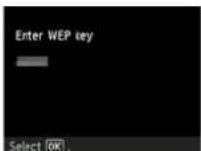
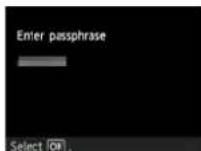
-
Press the OK button.
-
When the left screen appears, press the OK button.
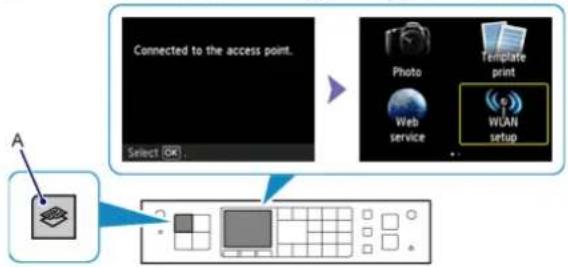
flowchart
graph TD
    A["Connected to the access point."] --> B["Photo"]
    B --> C["Template print"]
    C --> D["Web service"]
    C --> E["WLAN setup"]
    F["Select OK"] --> A
- When the screen shown on the right appears, press the COPY button (A).
The network connection setup is now complete.
4 Connection Using WPS
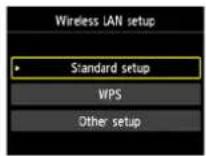
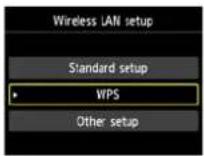
- Select WPS.

-
Press the OK button.
-
Select Push button method.

-
Press the OK button.
-
Press the OK button.
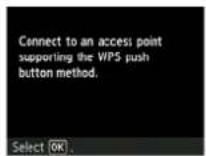
- Press and hold the WPS button on the access point.
For details on pressing the WPS button, refer to the access point manual.
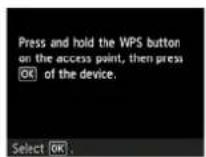
- Press the OK button on the printer within 2 minutes.
The (blue) Wi-Fi lamp on the printer flashes while searching for or connecting to the access point.
- When the left screen appears, press the OK button.

flowchart
graph TD
    A["Connected to the access point."] --> B["Photo"]
    A --> C["Template print"]
    A --> D["Web service"]
    A --> E["WLAN setup"]
    F["Select OK"] --> A
- When the screen shown on the right appears, press the COPY button (A).
The network connection setup is now complete.
④-D Other setup (Advanced setup)
4 Connection via Advanced setup
- Select Other setup.


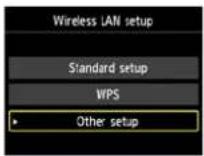
-
Press the OK button.
-
Select Advanced setup.
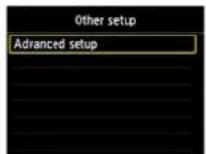
-
Press the OK button.
-
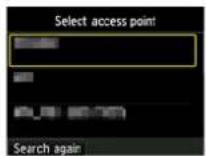
Select your access point, then press the OK button.
- Select the security protocol used by the access point, then press the OK button.
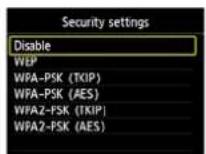

Disable
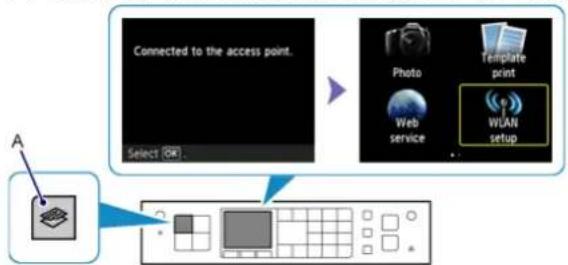
- When the left screen appears, press the OK button.
flowchart
graph TD
    A["Connected to the access point."] --> B["Photo"]
    A --> C["Template print"]
    A --> D["Web service"]
    A --> E["WLAN setup"]
    F["User Interface"] --> G["User Interface"]
- When the screen shown on the right appears, press the COPY button (A).
The network connection setup is now complete.

WEP
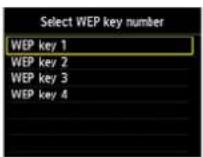
- Select the WEP key number you want to use.
-
Press the OK button.
-
Enter the WEP key.
Character entry is case-sensitive.
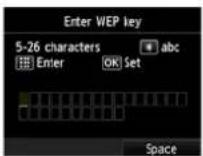


- Press the OK button.
- Make sure that the WEP key is correct.
- Press the OK button.
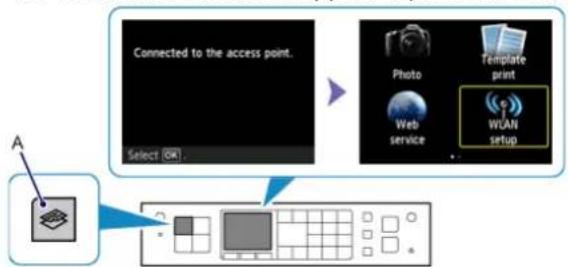
- When the left screen appears, press the OK button.
flowchart
graph TD
    A["Connected to the access point."] --> B["Photo"]
    B --> C["Template print"]
    C --> D["Web service"]
    C --> E["WLAN setup"]
    F["Select OK"] --> A
- When the screen shown on the right appears, press the COPY button (A).
The network connection setup is now complete.

WPA/WPA2
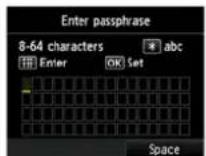
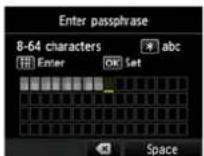
- Enter the passphrase.
Character entry is case-sensitive.

-
Press the OK button.
-
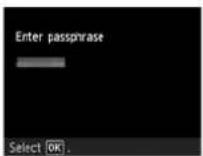
Make sure that the passphrase is correct.
-
Press the OK button.
-
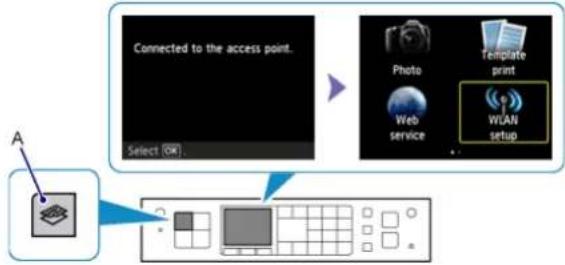
When the left screen appears, press the OK button.
flowchart
graph TD
    A["Connected to the access point."] --> B["Photo"]
    A --> C["Template print"]
    A --> D["Web service"]
    A --> E["WLAN setup"]
    F["Select OK"] --> A
- When the screen shown on the right appears, press the COPY button (A).
The network connection setup is now complete.
Wired Connection
① Preparation for Connection
Before Starting Wired Connection Setup
- Make sure that the printer is turned on.
If the power is on, a button on the Operation Panel (A) is lit.
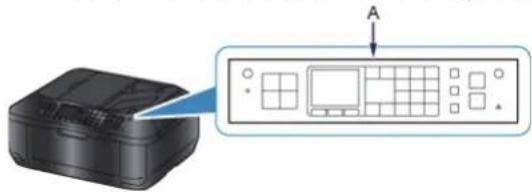
natural_image
Illustration of a printer with a control panel and indicator light (no text or symbols)Notes on Wired Connection
- Make sure that the computer and router (A) are connected. For details on how to check the settings, refer to the manual supplied with the router or contact its manufacturer.

text_image
Diagram showing satellite communication with a central device and two laptops, illustrating wireless signal transmission.- The configuration, router functions, setup procedures and security settings of the network device vary depending on your system environment. For details, refer to the manual of your network device or contact its manufacturer.
- For offi ce use, consult your network administrator.
- Take added care when connecting to a network that is not protected with security measures, as there is a risk of disclosing data such as your personal information to a third party.
- This printer cannot be used over wireless and wired connections at the same time.
- When using a router, connect the printer and computer to the LAN side (same network segment).
② Cable Connection
You will need an Ethernet cable (sold separately).
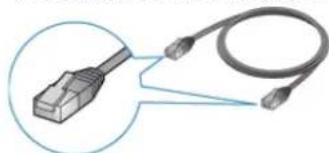
natural_image
Diagram showing a USB cable connected to a connector (no text or symbols present)- Remove the Cap (A) of the second port from the top located on the left side at the back of the printer.

natural_image
3D diagram showing a device with labeled component A and directional arrow, no readable text or symbols present- Connect the printer and a network device (router, etc.) with an Ethernet cable (A). Do not connect it to the USB port.

natural_image
3D mechanical assembly diagram showing a component with a blue arrow indicating direction and a small inset view of a component (no text or symbols present)③ Printer Setup
- Press the MENU button (A) on the printer.
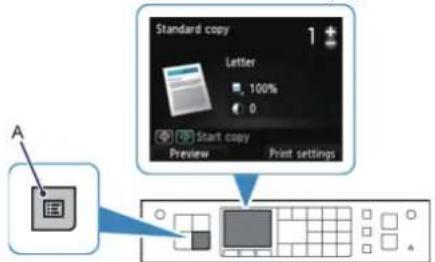
flowchart
graph TD
    A["Standard copy"] --> B["Letter: 100%, 0"]
    B --> C["Start copy"]
    C --> D["Preview"]
    C --> E["Print settings"]
- Use the ▲▼buttons (A) to select Setup in the next screen.
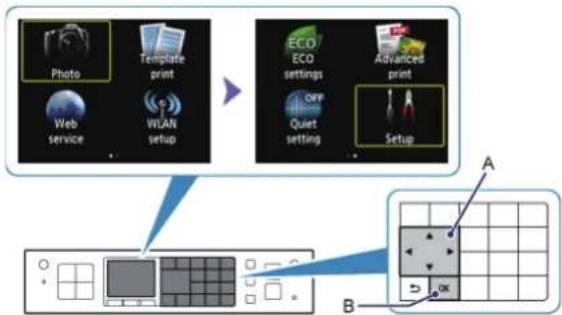
flowchart
graph TD
    A["Photo"] --> B["Template print"]
    B --> C["Web service"]
    B --> D["WLAN setup"]
    C --> E["ECO settings"]
    E --> F["Advanced print"]
    F --> G["Quiet setting"]
    G --> H["Setup"]
    I["Controller"] --> J["Grid with 3x4 grid"]
    J --> K["OK"]
- Press the OK button (B).
- Select Device settings.
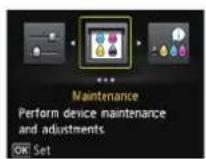


- Press the OK button.
- Select LAN settings.
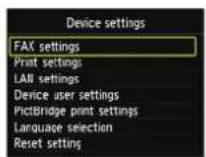

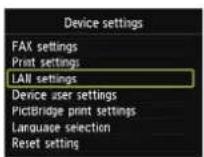
-
Press the OK button.
-
Select Change wireless/wired.

- Press the OK button.
- Select Wired LAN active.
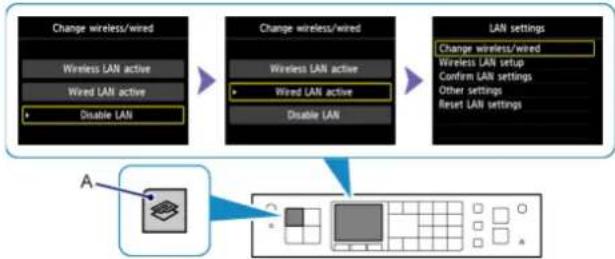
flowchart
graph TD
    A["Change wireless/wired\nWireless LAN active\nWired LAN active\nDisable LAN"] --> B["Change wireless/wired\nWireless LAN active\nWired LAN active\nDisable LAN"]
    B --> C["LAN settings\nChange wireless/wired\nWireless LAN setup\nConfirm LAN settings\nOther settings\nReset LAN settings"]
    C --> D["Device icon with grid layout"]
- Press the OK button.
- When the screen shown on the right appears, press the COPY button (A).
The network connection setup is now complete.
Character Entry
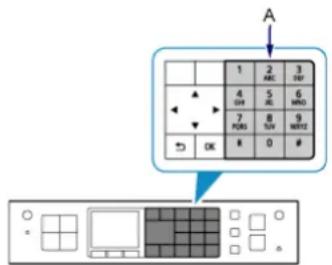
You can enter characters on this printer when the Numeric buttons (A) on the Operation Panel are lit. Follow the procedure below.
text_image
A 1 2 3 AMC EMF 4 5 6 GVA WARS 7 FORS 8 TUV 9 WARS OK 0 #- You can enter characters when the Numeric buttons are lit.
Password entry is case sensitive so press the x button accordingly to switch between lower case, upper case and numeric characters.
- Enter characters using the Numeric buttons.
- Repeat 1 and 2 to enter more characters.
| Button Lower case | mode "abc" Upper case mode | "ABC" Numeric mode "123" | |
| 1 | 1 | ||
| 2 abc ABC 2 | |||
| 3 def DEF 3 | |||
| 4 ghi GHI 4 | |||
| 5 jkl | JKL | 5 | |
| 6 mno | MNO | 6 | |
| 7 pqrs | PQRS | 7 | |
| 8 tuv TUV 8 | |||
| 9 wxyz | WXYZ | 9 | |
| 0 | 0 | ||
| #-. SP *#!",;:^`_=/|' | ? $ @ % & + ( ) [ ] { } <> \~ | ||
| ※ | Each time you press this button, the entry mode changes between lower case mode "abc", upper case mode "ABC" and numeric mode "123". | ||
SP: Indicates a single space.
Standard setup
■ The Target Access Point is Not Detected
- Is the network device (router, etc.) turned on? If the network device is already turned on, turn it off, then turn it back on.
- Check the access point name/network name and network password of your access point or router.
- Are the computer and network device configured?
- Are the access point and printer installed in an open space where wireless communications are possible?
- Is the access point operating in IEEE802.11n (2.4 GHz), IEEE802.11g or IEEE802.11b?
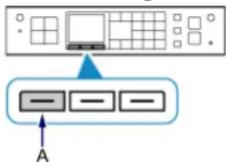
After checking the above points, press the left Function button (A) on the printer to search for the access point again.
If the problem is not resolved, there may be other causes.
See also the sections below:
- If SSID broadcast (connection via "ANY" SSID, etc.) is disabled or the stealth mode is enabled on the access point, enable SSID broadcast (connection via "ANY" SSID, etc.) or disable the stealth mode, then press the left Function button on the printer to search for the access point again.
- Select Directly enter the access point name in the Select access point screen. Wireless connection settings of the access point can be entered on the printer directly.
- If "WPA/WPA2 Enterprise" is set as the security protocol (encryption standard) on the access point, change the security protocol (encryption standard) and configure wireless connection settings again. "WPA/WPA2 Enterprise" is not supported on this printer.
- For details on how to change the security protocol (encryption standard) for the access point, refer to the manual supplied with the access point or contact its manufacturer.
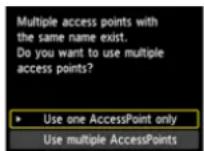
■ Multiple access points with the same name exist. Do you want to use multiple access points?
The message appears when multiple access points with the same name are found.
When you have only one access point:
Select Use one AccessPoint only, then press the OK button. Select the MAC address of the target access point on the displayed screen, then press the OK button.
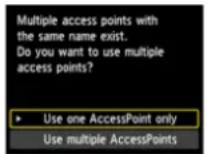

For details on how to check the MAC address of the access point, refer to the manual supplied with the access point or contact its manufacturer.
When using multiple access points:
Select Use multiple AccessPoints, then press the OK button.

■ An Unknown Access Point is Displayed
Access points in use nearby may also be detected.
■ The Access Point Name is Not Displayed Properly
Access point names with double-byte characters are not displayed properly. However, they can be selected.
The Access Point Name is Not Displayed Automatically
Refer to the manual supplied with the access point or contact its manufacturer.
The Network Password is Not Displayed Automatically
Refer to the manual supplied with the access point or contact its manufacturer.

WEP
■ Failed to connect to the access point.
Make sure that the WEP key entered for the access point is correct. In addition, when using WEP key number 2, 3 or 4 of the access point, set to use WEP key number 1, or select a WEP key number by entering wireless connection settings of the printer directly.
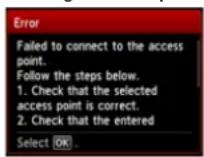
For details on how to change the WEP key number of the access point, refer to the manual supplied with the access point or contact its manufacturer.
If the problem is not resolved, there may be other causes.
See also the sections below:
- If the DHCP function of the access point is inactive, enable the DHCP function and configure wireless connection settings again.
- For details on how to check or change the settings of the access point, refer to the manual supplied with the access point or contact its manufacturer.
- If using an access point that automatically creates WEP keys, check the WEP key (hexadecimal) created automatically on the access point, then enter it on the printer.
- For details on how to check the specifications of the access point, refer to the manual supplied with the access point or contact its manufacturer.
■ WLAN setting list
If the MAC address filtering is enabled on the access point, change settings so that the MAC address of the printer will be accepted.
Follow the procedure below to check the MAC address of the printer.
- Press the MENU button.
- Select Setup in the next screen, then press the OK button.
- Select Device settings, then press the OK button.
- Select LAN settings > Confirm LAN settings > WLAN setting list to check MAC address.
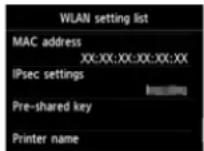
For details on how to change the settings of the access point, refer to the manual supplied with the access point or contact its manufacturer.
■ To perform Standard setup again
- Press the MENU button (A).

flowchart
graph TD
    A["Device Panel A"] --> B["Wireless LAN setup"]
    B --> C["Standard setup"]
    B --> D["WPS"]
    B --> E["Other setup"]
    C --> F["Panel B"]
    D --> F
    E --> F
- Use the ▲ buttons (B) to select WLAN setup, then press the OK button.
WPA/WPA2
■ Failed to connect to the access point.
Make sure that the passphrase entered for the access point is correct.
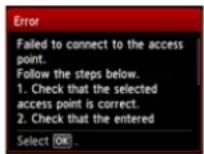
If the problem is not resolved, there may be other causes.
See also the sections below:
- If the DHCP function of the access point is inactive, enable the DHCP function and configure wireless connection settings again.
- For details on how to check or change the settings of the access point, refer to the manual supplied with the access point or contact its manufacturer.
■ WLAN setting list
If the MAC address filtering is enabled on the access point, change settings so that the MAC address of the printer will be accepted.
Follow the procedure below to check the MAC address of the printer.
- Press the MENU button.
- Select Setup in the next screen, then press the OK button.
- Select Device settings, then press the OK button.
- Select LAN settings > Confirm LAN settings > WLAN setting list to check MAC address.
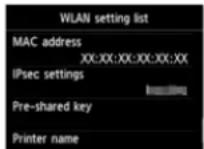
For details on how to change the settings of the access point, refer to the manual supplied with the access point or contact its manufacturer.
If the problem is not resolved, there may be other causes.
See also the sections below:
- If the access point is configured to communicate using IEEE802.11n standard only and encryption is set to TKIP, change the encryption to something other than TKIP or change the communication standard to something other than IEEE802.11n, then configure wireless connection settings again.
- If encryption is set to TKIP, IEEE802.11n cannot be used as the communication standard.
- For details on how to change the settings of the access point, refer to the manual supplied with the access point or contact its manufacturer.
■ To perform Standard setup again
- Press the MENU button (A).
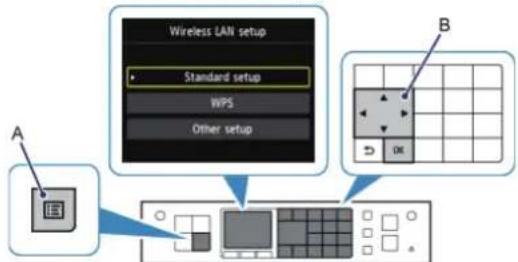
flowchart
graph TD
    A["Device Panel A"] --> B["Wireless LAN setup"]
    B --> C["Standard setup"]
    B --> D["WPS"]
    B --> E["Other setup"]
    C --> F["Panel B"]
    D --> F
    E --> F
- Use the ▲ buttons (B) to select WLAN setup, then press the OK button.
- Cannot connect. Connections are being attempted from multiple access points simultaneously.
The screen appears when connections are being attempted from multiple access points simultaneously. Wait for a while, then configure WPS settings again. Press the WPS button on only one access point.

■ Failed to connect.
The screen appears when an error occurs.
Check the access point settings, then configure WPS settings again.
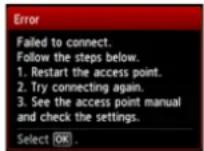
For details on how to check the settings of the access point, refer to the manual supplied with the access point or contact its manufacturer.
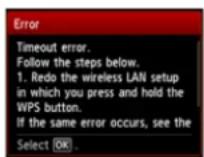
Timeout error.
The screen appears when WPS setup was not completed within a specified time.
- Is the network device (router, etc.) turned on? If the network device is already turned on, turn it off, then turn it back on.
■ The Target Access Point is Not Detected
- Is the network device (router, etc.) turned on? If the network device is already turned on, turn it off, then turn it back on.
- Check the access point name/network name and network password of your access point or router.
- Are the computer and network device configured?
- Are the access point and printer installed in an open space where wireless communications are possible?
- Is the access point operating in IEEE802.11n (2.4 GHz), IEEE802.11g or IEEE802.11b?
After checking the above points, press the left Function button (A) on the printer to search for the access point again.
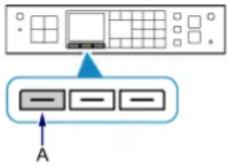
If the problem is not resolved, there may be other causes.
See also the sections below:
- If SSID broadcast (connection via "ANY" SSID, etc.) is disabled or the stealth mode is enabled on the access point, enable SSID broadcast (connection via "ANY" SSID, etc.) or disable the stealth mode, then press the left Function button on the printer to search for the access point again.
- Select Directly enter the access point name in the Select access point screen. Wireless connection settings of the access point can be entered on the printer directly.
- If "WPA/WPA2 Enterprise" is set as the security protocol (encryption standard) on the access point, change the security protocol (encryption standard) and configure wireless connection settings again. "WPA/WPA2 Enterprise" is not supported on this printer.
- For details on how to change the security protocol (encryption standard) for the access point, refer to the manual supplied with the access point or contact its manufacturer.
■ Multiple access points with the same name exist. Do you want to use multiple access points?
The message appears when multiple access points with the same name are found.
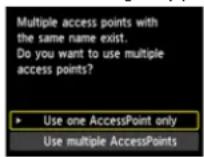
When you have only one access point:
Select Use one AccessPoint only, then press the OK button. Select the MAC address of the target access point on the displayed screen, then press the OK button.


For details on how to check the MAC address of the access point, refer to the manual supplied with the access point or contact its manufacturer.
When using multiple access points:
Select Use multiple AccessPoints, then press the OK button.

An Unknown Access Point is Displayed
Access points in use nearby may also be detected.
■ The Access Point Name is Not Displayed Properly
Access point names with double-byte characters are not displayed properly. However, they can be selected.
The Access Point Name is Not Displayed Automatically
Refer to the manual supplied with the access point or contact its manufacturer.
Disable
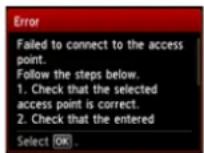
■ Failed to connect to the access point.
- Is the network device (router, etc.) turned on? If the network device is already turned on, turn it off, then turn it back on.

WEP
■ The WEP Key is Not Displayed Automatically
Refer to the manual supplied with the access point or contact its manufacturer.
■ Failed to connect to the access point.
Make sure that the WEP key entered for the access point is correct. In addition, when using WEP key number 2, 3 or 4 of the access point, set to use WEP key number 1, or select a WEP key number by entering wireless connection settings of the printer directly.

For details on how to change the WEP key number of the access point, refer to the manual supplied with the access point or contact its manufacturer.
If the problem is not resolved, there may be other causes.
See also the sections below:
- If the DHCP function of the access point is inactive, enable the DHCP function and configure wireless connection settings again.
- For details on how to check or change the settings of the access point, refer to the manual supplied with the access point or contact its manufacturer.
- If using an access point that automatically creates WEP keys, check the WEP key (hexadecimal) created automatically on the access point, then enter it on the printer.
- For details on how to check the specifications of the access point, refer to the manual supplied with the access point or contact its manufacturer.
■ WLAN setting list
If the MAC address filtering is enabled on the access point, change settings so that the MAC address of the printer will be accepted.
Follow the procedure below to check the MAC address of the printer.
- Press the MENU button.
- Select Setup in the next screen, then press the OK button.
- Select Device settings, then press the OK button.
- Select LAN settings > Confirm LAN settings > WLAN setting list to check MAC address.

For details on how to change the settings of the access point, refer to the manual supplied with the access point or contact its manufacturer.
The device may not be able to connect to the network in the following cases:
If the DHCP function of the access point is inactive, enable the DHCP function or specify the IP address (IPv4 only) of the printer and confi gure wireless connection settings again. In addition, make sure that the selected WEP key number and entered WEP key are correct.
For details on how to check or change the settings of the access point, refer to the manual supplied with the access point or contact its manufacturer.
To specify the IP address of the printer, follow the procedure below.
- Press the MENU button.
- Select Setup in the next screen, then press the OK button.
- Select Device settings, then press the OK button.
- Select LAN settings, then press the OK button.
- Select Other settings, then press the OK button.
- Select TCP/IP settings, then press the OK button.
- Select IPv4, then press the OK button.
- Select Yes, then press the OK button.
- Select IP address, then press the OK button.
- Select Manual setup, then press the OK button.
Follow the on-screen instructions to proceed with settings.
When the setup is complete, press the MENU button.
■ To perform Advanced setup again
- Press the MENU button (A).

flowchart
graph TD
    A["User"] --> B["Control Panel"]
    B --> C["Wireless LAN setup"]
    C --> D["Standard setup"]
    C --> E["WPS"]
    C --> F["Other setup"]
    B --> G["OK"]
- Use the ▲ buttons (B) to select WLAN setup, then press the OK button.
WPA/WPA2
■ The Passphrase is Not Displayed Automatically
Refer to the manual supplied with the access point or contact its manufacturer.
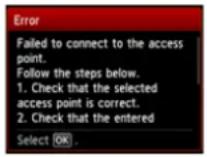
■ Failed to connect to the access point.
Make sure that the passphrase entered for the access point is correct.
If the problem is not resolved, there may be other causes.
See also the sections below:
- If the DHCP function of the access point is inactive, enable the DHCP function and configure wireless connection settings again.
- For details on how to check or change the settings of the access point, refer to the manual supplied with the access point or contact its manufacturer.
■ WLAN setting list
If the MAC address filtering is enabled on the access point, change settings so that the MAC address of the printer will be accepted.
Follow the procedure below to check the MAC address of the printer.
- Press the MENU button.
- Select Setup in the next screen, then press the OK button.
- Select Device settings, then press the OK button.
- Select LAN settings > Confirm LAN settings > WLAN setting list to check MAC address.

For details on how to change the settings of the access point, refer to the manual supplied with the access point or contact its manufacturer.
If the problem is not resolved, there may be other causes.
See also the sections below:
- If the access point is configured to communicate using IEEE802.11n standard only and TKIP is set as the encryption standard, change the encryption standard to something other than TKIP or change the communication standard to something other than IEEE802.11n, then configure wireless connection settings again.
- If the encryption standard is set to TKIP, IEEE802.11n cannot be used as the communication standard.
- For details on how to change the settings of the access point, refer to the manual supplied with the access point or contact its manufacturer.
■ To perform Advanced setup again
- Press the MENU button (A).

flowchart
graph TD
    A["Device Panel A"] --> B["Wireless LAN setup"]
    B --> C["Standard setup"]
    B --> D["WPS"]
    B --> E["Other setup"]
    C --> F["Panel B"]
    D --> F
    E --> F
- Use the ▲ buttons (B) to select WLAN setup, then press the OK button.