
Sansa Fuze+ - Mp3 player SANDISK - Free user manual and instructions
Find the device manual for free Sansa Fuze+ SANDISK in PDF.


| Product Type | Portable Digital Audio/Video Player |
| Brand | SanDisk |
| Model | Sansa Fuze+ |
| Display | 2.4-inch QVGA LCD (320x240 pixels) |
| Storage Capacity | 4GB, 8GB, or 16GB internal; expandable via microSDHC up to 40GB total |
| Supported Audio Formats (native) | MP3, WMA, secure WMA, FLAC, AAC/M4A (DRM-free), WAV, OGG-Vorbis, Audible |
| Supported Video Formats (native) | H.264, MPEG4, WMV (320x240); more via Sansa Media Converter |
| Supported Photo Formats (native) | JPEG, BMP; more via Sansa Media Converter |
| FM Radio | Yes, with up to 40 presets and recording capability |
| Voice Recording | Yes, built-in microphone |
| MicroSD Card Slot | Yes, microSD/microSDHC up to 32GB |
| Battery Life (Audio) | Up to 24 hours (128kbps MP3) |
| Battery Life (Video) | Up to 5 hours (MPEG4 512kbps) |
| Connectivity | micro-USB 2.0 for charging and data transfer |
| USB Modes | MTP (default) and MSC (drag-and-drop) |
| File Transfer Methods | Drag-and-drop or Windows Media Player synchronization |
| Navigation | Capacitive touch pad with tap and swipe gestures |
| Lock Function | Yes, press and hold Play/Pause for 3 seconds |
| Firmware Update | Via Sansa Updater software (www.sandisk.com/smc) |
| Equalizer | Yes, multiple presets (Normal, Rock, Pop, Jazz, Classical, etc.) |
| Power Source | Internal rechargeable battery (not replaceable); charged via USB or 5V AC adapter |
| Safety Features | Hearing safety guidelines; default max volume at 80 dB(A) |
Frequently Asked Questions - Sansa Fuze+ SANDISK
User questions about Sansa Fuze+ SANDISK
0 question about this device. Answer the ones you know or ask your own.
Ask a new question about this device
Download the instructions for your Mp3 player in PDF format for free! Find your manual Sansa Fuze+ - SANDISK and take your electronic device back in hand. On this page are published all the documents necessary for the use of your device. Sansa Fuze+ by SANDISK.
USER MANUAL Sansa Fuze+ SANDISK
USER'S MANUAL
SanDisk® sansq fuze™+
MP3 Player
Table of Contents
Chapter 1: SAFE USE GUIDELINES....5
1.1. Usage Instructions....5
1.2. Important Hearing Safety Information....6
Chapter 2: Sansa® Fuze™+ Overview 8
2.1. Features....8
2.2. Minimum System Requirements 9
2.3. What Comes in the Box 9
2.4. Sansa Fuze+ MP3 Player at-a-Glance 10
2.5. Device Inputs & Outputs Overview.... 10
2.6. Product Capacities & Playback 11
Chapter 3: Basic Usage.... 13
3.1. Charging the Device/Connecting to the Computer.... 13
3.1.1. Connecting to a Computer 13
3.1.2. Removing the player from your computer 15
3.2. Power Switch 16
3.3. Navigation Overview 16
3.4. Eight Core Functions Overview.... 18
3.5. Lock Function 21
3.6. Updating the Firmware/Sansa Media Converter 21
3.6.1. Formatting the Player.... 24
Chapter 4: Loading Content.... 25
4.1. Loading Audio Files (Music, Podcasts, Audiobooks) 25
4.1.1. MSC Mode: Drag and Drop 26
4.1.2. Mac®: MSC Mode: Drag and Drop 26
4.1.3. Windows® MTP Mode: Windows Media Player™ 27
4.2. Loading Photos and Videos.... 30
4.3. Deleting Content.... 32
Chapter 5: Playing Your Media .... 33
5.1. Playing Music 33
5.1.1. Recently Played Mode 34
5.1.2. Shuffle (Play) All Mode 34
5.1.3. Options Menu – Music 35
5.1.4. Music Content Groupings 35
5.1.5. Music Go List 36
5.1.6. Playing Music from a Preloaded microSD ^TM /microSDHC ^TM ...... 37
5.2. Playing slotRadio™ cards 37
Playing Podcasts & Audiobooks.... 39
5.3....39
5.3.1. Instructions to Play a Podcast 39
5.3.2. Modifying Podcast Play Mode 39
5.3.3. Playing Audiobooks.... 40
5.4. Watching Videos 40
5.4.1 Video Playback Instructions 40
5.4.2 Video Play Options 41
5.5. Viewing Photos & Slideshows.... 41
5.5.1 Photo Browsing Instructions.... 41
5.5.2 Photo Viewing Options 41
Chapter 6: FM Radio Listening.... 44
6.1. Listening to FM Radio 44
6.2. Programming FM Presets 45
6.3. Radio Options/Recording 45
Chapter 7: Voice Recording 47
7.1 Voice Recording.... 47
7.1.1 Recording a File.... 47
7.1.2 Playing Back a Recording 47
Chapter 8: Settings 49
8.1. Settings 49
8.2 Basic Settings 49
8.2.1 Background Settings 50
8.2.2 Backlight 50
8.2.3 Brightness 50
8.2.4 Customize 50
8.2.5 Equalizer 50
8.2.6 Info 50
8.2.7 Power Saver 50
8.2.8 Sleep 51
8.2.9 USB Mode 51
8.2.10 Replay Gain 51
8.2.11 Volume 51
8.2.12 Language 52
8.2.13 Date 52
8.2.14 Time....52
8.2.15 Reset Factory Settings 52
8.2.16 Format 52
Chapter 9: Tips & Troubleshooting....53
9.1 Tips & Troubleshooting.... 53
Chapter 10: Learn More, Service & Warranty Information.... 55
10.1. Getting Technical Support.... 55
10.2. SanDisk Limited Warranty.... 55
10.3. End User License Agreement 56
10.4. FCC Regulation.... 58
© 2010 SanDisk Corporation. All rights reserved. SanDisk, the SanDisk logo and Sansa are trademarks of SanDisk Corporation. Sansa Fuze, slotRadio and Your Music Your Way are trademarks of SanDisk Corporation. microSD and micrSDHC marks and logo are trademarks of SD-3C, LLC. Flip is a registered trademark of Cisco Systems. Other brand names mentioned herein are for identification purposes only and may be the trademarks of their respective holder(s).
CHAPTER 1: Safe Use Guidelines
This chapter provides important device usage suggestions, general care instructions, and hearing guidelines for safe enjoyment of your Sansa® Fuze™+ MP3 player.
Chapter 1: SAFE USE GUIDELINES
1.1. Usage Instructions
PLEASE READ THESE SAFETY INSTRUCTIONS CAREFULLY BEFORE USING YOUR SANSA MP3 PLAYER!
- Read this entire manual to ensure proper usage.
- Keep this User Manual for future reference.
- Do not use headphones/earphones while driving, cycling, or operating any motorized vehicle. This may create a traffic hazard and may be illegal in some areas. It can also be dangerous to play your music with headphones/earphones at high volume while walking, or engaged in other activities. You should exercise extreme caution and discontinue use in potentially hazardous situations.
- Avoid using headphones/ earphones at high volume. Hearing experts advise against continuous loud and extended music play. Keep the volume at a moderate level, so that you are better able to hear outside sound and to be considerate of the people around you.
- Keep your player away from sinks, drinks, bathtubs, showers, rain, and other sources of moisture. Moisture can cause electric shocks with any electronic device.
-
Follow these tips to keep your player working well for a long time:
-
Clean your player with a soft lint-free cloth.
- Do not allow young children to use your player unsupervised.
- Never force any connector into the ports of your player or your computer. Make sure your connectors are the identical shape and size before you connect.
- Do not disassemble, crush, short-circuit or incinerate the battery as it may cause fire, injury, burns or other hazards.
Used Device Disposal Instructions
Do not dispose of this device with unsorted waste. Improper disposal may be harmful to the environment and human health. Please refer to your local waste authority for information on the return and collection systems in your area for used electronics goods.

For Home and Personal Use Only!
This product is intended to be used for recording and playback for your home and personal enjoyment. Copying or commercial use of copyrighted material without permission of the copyright owner may be prohibited by law. Use of your MP3 player, in compliance with all copyright and applicable intellectual property laws, remains the responsibility of the user of the product.
1.2. Important Hearing Safety Information

PLEASE READ THESE HEARING SAFETY GUIDELINES BEFORE USING YOUR SANSA PLAYER!
Congratulations on the purchase of your Sansa Fuze+ MP3 player!
Your MP3 player is equipped with a variety of features. To help you maximize your listening pleasure, SanDisk would like to advise you that it is important to use your headphones with your MP3 player at a safe hearing level.
- Exposure or repeated exposure for an extended period of time to music and other sounds that are too loud can cause damage to your hearing resulting in temporary or even permanent “noise induced hearing loss”. [According to the European Commission / Studies show that] safe use depends on exposure time and volume levels. At 80 dB(A), exposure should be limited to 40 hours/week. At 89 dB(A) exposure should not exceed 5 hours/week.
- The default setting of the maximum volume of your MP3 player is set at 80 dB(A), based on use of the original headphones that come with this product. If the original set of headphones is replaced with another type, this may cause higher unsafe sound levels.
- For certain uses of this MP3 player, such as with certain replacement headphones and for use in relation with other devices, it is possible to override the standard device setting of 80 db(A). SanDisk strongly advises you to always make sure that the actual volume is at a safe level.
- Symptoms of hearing loss increase gradually with prolonged exposure at high levels of loudness.
- Initially, you may not even be aware of the loss unless detected with a hearing test.
- Your hearing may adapt to higher volumes of sound. In order to prevent any harmful impact to your hearing, you must control the sound from your headphones and set the Sansa MP3 player's volume to a low setting where you can hear it clearly and comfortably.
- Listen to your Sansa MP3 player at such a level that you can still hear conversation and other people in your environment without shouting when you attempt to converse.
- It can also be dangerous to play your music with headphones/earphones at high volume while walking or engaged in other activities. You should exercise extreme caution and discontinue use in potentially hazardous situations.
- Do not use headphones or earphones while driving, cycling, or operating any motorized vehicle. This may create a traffic hazard and may be illegal some areas.
Hearing levels
To help you understand what may be considered a safe hearing level, the following examples are included for your reference.
Examples of Typical Approximate Sound Level:
| Sound Level (dB) | |
| Refrigerator humming 40 | |
| Normal conversation 60 | |
| City traffic 80 | |
| Motorcycles and lawnmowers 90 # | |
| Rock concerts 110-120 # |
* A decibel (dB) is a unit of relative measurement of the strength of sound wave. In decibels (dB), a measured signal level doubles with every additional 3 dB.
# These sound decibel levels are considered harmful with extended exposure.
Information courtesy of the National Institute of Deafness & Other Communication Disorders (NIDCD) http://www.nidcd.nih.gov/health/hearing/noise.asp.

For your safety!
Your hearing may adapt to higher volumes of sound. In order to prevent any harmful impact to your hearing, you must control the sound emanating from your headphones and set the MP3 player volume to a low setting where you can hear it clearly and comfortably.
Studies, including one from NIDCD indicate that sounds of less than 80 decibels, even after long exposure, are unlikely to cause a hearing loss. Listen to your MP3 player at such a level that you can still hear conversation and other people in your environment without shouting when you attempt to converse.
It can also be dangerous to play your music with headphones/earphones at high volume while walking or engaged in other activities. You should exercise extreme caution and discontinue use in potentially hazardous situations.
Do not use headphones/earphones while driving, cycling, or operating any motorized vehicle. This may create a traffic hazard and may be illegal in some areas.
CHAPTER 2: Product Overview
This chapter will familiarize you with the features and functionality of your Sansa® Fuze™+ player.
Chapter 2: Sansa® Fuze™+ Overview
Congratulations on your purchase of a Sansa Fuze+ MP3 player!
Sansa Fuze+ MP3 player is a high performance portable digital audio/video player with a large and vibrant 2.4" color screen, a digital FM tuner, a built-in microphone, and a microSDHC card slot. You can listen to and record FM radio broadcasts and make voice recordings. Additionally, you can use the microSDHC card slot to expand your storage capacity and/or read digital media files via microSD/microSDHC cards.
2.1. Features
- Vibrant 2.4" QVGA LCD screen (320x240) for brilliant views of your videos, photos, and album art.
- Capacitive touch control pad provides easy navigation through the bright graphical user interface menus.
- Supports the following music file formats: MP3, WMA, secure WMA, FLAC, AAC/M4A (DRM-free iTunes® music files), WAV, and OGG-Vorbis. In addition, the device supports Audible and audiobook formats.
- Displays embedded album art and other song metadata.
- Native video file support of H.264, MPEG4, and WMV file types (320 x 240). Additional file formats including 3gp/3gpp2, ASF, AVI, DAT, DivX(ver 6.0), DVR-MS, MOV, MP4, MPEG 1, MPEG 2, MJPEG, FLV, and Flip® file formats can be added to the player easily using the optional free downloadable Sansa Media Converter (SMC) software available via the Sansa Updater. See www.sandisk.com/smc for more information. This application can also be used to optimize viewing of native file types on the Sansa Fuze+ screen (i.e., aspect ratios, frame rate, bit rate, and resolution).
- Native photo file support of JPG and BMP file formats. Additional file formats including TIFF, GIF, PCX, TGA, and PNG can be added to the player easily using the optional free downloadable Sansa Media Converter software available via the Sansa Updater. See www.sandisk.com/smc for more information. This application can also be used to optimize viewing of native file type on the Sansa Fuze+ screen (i.e., aspect ratios and resolution).
- Includes an integrated FM radio for listening to and recording of live-broadcast FM radio stations with up to 40 pre-set channels. Enables pausing of FM radio broadcasts during recording, for instance to filter out commercials or other unwanted portions of a broadcast.
• Supports voice recording function with a built-in microphone. - microSD/microSDHC card slot supports additional higher capacities, up to 40GB* of total device content including internal memory (e.g., 8GB player with a 32GB card).
- Allows users to read data directly from the card on the player (in the supported music, photo, and video formats detailed above) which are stored on a microSD/microSDHC card in the card slot (card not included).
- Rechargeable battery lasts up to 24 hours of audio playback or 5 hours of video playback**.
* 1 gigabyte (GB) = 1 billion bytes. Some capacity not available for data storage. The device holds approximately 10,000 songs at its maximum capacity.
** Based on continuous audio playback at 128 kbps MP3; video playback at QVGA 512kbps MPEG4; battery life and performance may vary depending upon usage and settings; battery not replaceable.
2.2. Minimum System Requirements
- Windows ^ XP SP2, Mac ^ OS X10.3, or Linux
- Windows Media® Player 10 (for playlist creation and synchronizing library and device)
- Internet access (for downloading content, receiving firmware updates or the optional Sansa Media Converter software from SanDisk)
• CD-ROM drive (for installation of bundled applications; Americas only)
- USB port (for battery charging and file transfers; high-speed transfers require a USB 2.0 port)
2.3. What Comes in the Box
• Sansa Fuze+ MP3 player
- micro-USB charge/transfer cable for connecting to a computer
- Earphones
- Quick Start Guide
- eMusic ^® free trial offer insert (Americas only)
- Rhapsody ^ free trial offer insert, including software CD (Americas only)
2.4. Sansa Fuze+ MP3 Player at-a-Glance

2.5. Device Inputs & Outputs Overview
1. On/ Off Power Button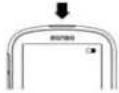 | Press and hold for 2 seconds to turn on/turn off the player.Press and hold for 20 seconds to reset your player (this should be used extremely rarely). |
2. Touch Pad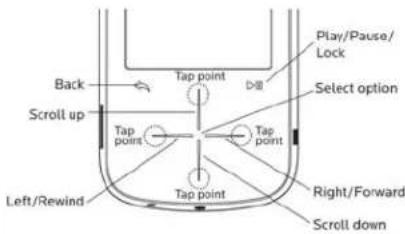 | Navigate through screens, photos and menus by sliding or tapping desired direction.Tap center of cross markings to make a selection (“select option”).Tapping the select option (center of touchpad) at “Now playing” mode will bring up additional feature options. |
3. Play/ Pause | Toggle between Play and Pause/Stop.To lock the device to temporarily disable the input buttons, hold down the play/pause button for 3 seconds. Locking the device disables all button actions. To unlock, slide your finger vertically on the touch pad. |
4. Back | Tap Back button to return to a previous screen level. The back button works in the same way that a back button works on a web browser such as Internet Explorer®.Press and hold down the Back button for 2 seconds to return to the main menu level no matter where you are in the user interface. |
5. microSD/ microSDHC Card Slot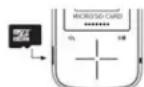 | Located on the left side of the device, this slot is for inserting a microSD/microSDHC memory card (to expand capacity, or to read media files you might have stored on it) or listen to a slotRadioTM card (both sold separately). |
| 6. Micro-USB Connection | Connect the included micro-USB cable here to your computer. This cable both charges the device and also enables data transfer between the computer and the player. |
| 7. Volume Control | Pressing up/down increases or decreases the volume level. |
| 8. Headphone Jack | Insert included headphones here. |
| 9. Microphone | The voice recording microphone is located at the base of the player just to the left of the headphone jack. There is a very tiny gap between top and bottom lids where the microphone receives its audio input. |
| 10. Display Screen | Displays the status of the MP3 player, including user interface functional section, play mode (e.g., shuffle), power level (battery), time, and view guide (dots on the bottom of the screen). |
2.6. Product Capacities & Playback
The Sansa Fuze+ comes in 3 different capacities: 4 GB, 8 GB, and 16 GB. The Fuze+ also has a microSDHC card slot* for expanding your storage possibilities, enabling up to approximately 40 GB of total data storage capacity (including the storage built into the device, e.g., 8 GB capacity can take up to a 32 GB microSDHC card) which is approximately equal to 10,000 songs!
Rechargeable battery lasts up to 24 hours for audio playback and 5 hours of video playback ^† .
The number of songs and photos that the device holds varies by capacity, (amongst other factors) as summarized below:
| GB** 16 GB** | |||
| Number of Songstt(3.5 min) | Up to 1,000 Up | to 2,000 Up to 4,000 | |
| Number of Photosftt(5 MP) | Up to 2,400 Up | to 4,800 Up to 9,600 | |
| Videosftt(MPEG-4 video@ 512 Kbps) | Up to 12 Up to 24 Up to 48 | ||
Notes:
* Card(s) sold separately.
** 1 gigabyte (GB) = 1 billion bytes. Some capacity is not available for data storage.
Based on continuous audio playback at 128 kbps MP3; video playback at 512 kbps/MPEG-4, battery life and performance may vary depending upon usage and settings; battery not replaceable.
Approximations: results will vary based on file size, resolution, compression, bit rate, content, host device, pre-loaded files and other factors. See www.sandisk.com.
CHAPTER 3: Basic Usage
This chapter provides you the basic usage instructions for your Sansa® Fuze™+ MP3 player.
Chapter 3: Basic Usage

Quick Tips:
- Ensure your player is fully charged before operating for the first time.
- Updating the player's firmware is highly recommended. The Sansa Updater will inform you if the firmware is in need of updating via auto-detention of the player, but you can also check manually. Visit www.sandisk.com/smc to download the Sansa Updater.
This chapter provides more information on charging the device, updating the firmware, and much, much more!
3.1. Charging the Device/ Connecting to the Computer
The Sansa Fuze+ MP3 player connects to a computer via an included micro-USB cable, which is used both for charging the device and also for transferring data back and forth, such as for loading music, videos, or photo files.
Your player comes with an internal rechargeable battery. The battery is not replaceable. Before using the player for the very first time, fully charge the battery. To charge the battery, you need to connect the device to a computer using the included USB cable.
3.1.1. Connecting to a Computer
- Connect the smaller end of the micro-USB cable to the Sansa Fuze+ MP3 player.
- Connect the larger end of the micro-USB cable into an available USB port on the computer (usually found on the side or back of the computer).
- The computer must be turned on for the USB port to be able to charge the battery. When connected, the player will show the word "connected" and will display a USB icon. In addition, the battery icon charging indicator will appear and the battery level indicator will blink while charging. Note that you will not be able to play music, watch videos, or view photos while the player is connected to the computer.
- On a computer running Windows®, your player will appear under My Computer as a Portable Media Player
- To stop recharging, simply disconnect the USB cable.
If you have a PC running Windows®, and the player is not recognized by your computer, make sure you have Windows Media™ Player version 10 or higher installed. You can also change the USB Mode to MSC (“Mass Storage Class”) mode by going to “Settings”, selecting “USB Mode”, and then selecting “MSC”. See Settings in Chapter 8 for more details. For a Mac® operating system computer, ensure that USB Mode is set to Auto Detect or MSC mode.
Auto Detect or MTP ("Media Transfer Protocol") mode
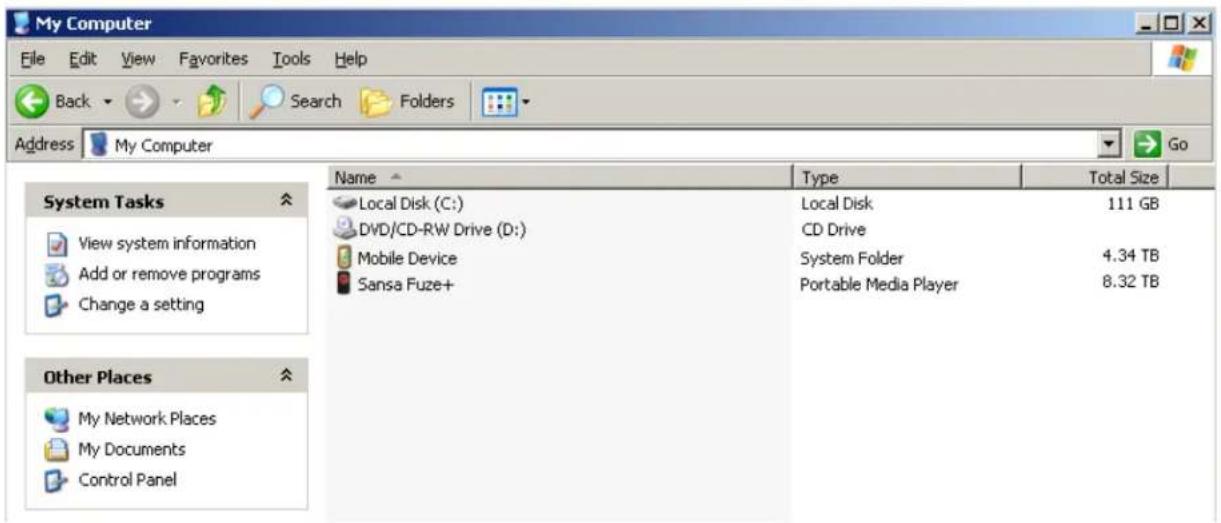
MSC ("Mass Storage Class") mode

Battery Level Indicator
The battery level indicator is located at the top-left corner of the screen.

Battery Full
Battery Low
You can charge your player using the USB port on your computer using the included micro-USB cable. You can also use any micro-USB charger rated to 5V DC output (not included). When connected properly to the computer for charging or transferring data, an icon which looks like USB cable will appear on the screen of the device, with the word "Connected". If this icon does not appear in 3-5 seconds, then the USB connection has not been made successfully.

natural_image
White USB connector icon on red background with 'Connected' text label (no other symbols or text)
Quick Tips:
- If the device does not charge, ensure that your cable is fully inserted firmly into both the device port and the USB port.
- Some low-power USB ports may not provide enough power to charge the Sansa Fuze+ MP3 player. If you are still having problems, use a different USB port.
- The battery can also be charged using an AC-to-DC 5 Volt (or lower rated) adapter (not included) or a 5 Volt car adapter (not included), which are available at most consumer electronics stores. When charging using an AC-to-DC adaptor, it will be possible to listen to the device while charging, unlike charging while connected to the computer.
3.1.2. Removing the player from your computer
Windows® - Simply disconnect the micro-USB cable from the player after you have finished charging, transferring, firmware upgrading, or synchronizing files.
Mac® – Eject the "removable disk" appearing on your screen by dragging the icon to the Trash, and then disconnect the micro-USB cable.

Caution!
Do not disconnect the player while it's transferring data. Disconnecting the player from the computer while data are being transferred may cause a loss of data or possible damage to the player.
3.2. Power Switch
The power switch is used to turn the player on or off as well as resetting it.
Power On/ Power Off
Press and hold the Power button on the top of the player for approximately 2 seconds to power it on or turn it off.
Reset
To reset your player, press and hold the Power button for approximately 20 seconds. You should not have to reset the player except in the rare occurrence when the player does not respond.
3.3. Navigation Overview
The Sansa Fuze+ MP3 player utilizes a unique graphical user interface which works in conjunction with the capacitive touch pad interface. Instead of using a traditional “home” screen, the device's interface is organized in a way that can be thought of as either a film strip or as a digital book shelf, with the various features organized in a horizontal manner as shown below:

Each of the 8 basic features always appears in the order as shown:
- Music
- Videos
- Photos
- Radio
- Podcasts (also contains audiobooks)
- Voice recording
- Card (for directly accessing what's on a card or playing a slotRadio card)
- Settings
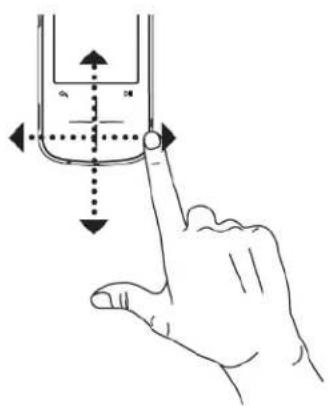
The user interface is navigated by swiping left-to-right to select the feature of interest, or by swiping top-to-bottom within features. The interface can also be navigated for the most part by simply tapping on the end points of the markings on the device, much like ends of a compass (East, West, North, South). For example, tapping on the right side of the touch pad will advance the screen from Music → Videos → Photos, and so forth. Pressing and holding the touch pad compass points is equivalent to multiple taps. Upon reaching the “ends of the bookcase” (Music on the left, Settings on the right), the device will show a bounce back, indicating that it isn’t possible to go any further (there is no looping around). Thus we speak of the device as having a “home level” instead of a home button, per se, which consists of this level of 8 features.
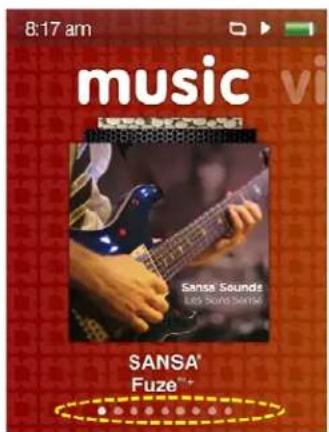
At any time, the number of sub-menus can be determined by counting the number of dots that appear on the bottom of the screen. These can be thought of as a quick reference to the number of "pages in the book" for that particular section of the digital library. For example, on the main menu you can see that there are 8 dots on the bottom of the screen, corresponding to the 8 main features as detailed above, with the current mode highlighted. Swiping or tapping the touch pad to navigate from right to left will advance the currently highlighted dot, indicating where you are at any time.
Similarly, within all of the 8 functions except for "Settings", you will find a view guide of dots at the bottom of the screen.
From the home level, you can quickly access any content showing on the screen by pressing the play button. Alternatively, to select files or functions within any of these 8 categories, tap or press the select option (center of touchpad) and the device will display the sub-menus associated with that function.

Quick Tips:
-
When on the home level menu, swiping vertically will give a preview of the content contained in that area. For example, the Music section will display the album art for the 10 most recent songs played. Videos, photos, and podcasts will also display the thumbnails for the 10 most recently played files in those categories.
-
No matter where you are in the user interface, pressing and holding the back button on the upper left corner of the touchpad area will return the device to the home level.
3.4. Eight Core Functions Overview
Sansa Fuze+ MP3 player's unique graphical user interface has a dedicated home menu for each of the 8 functional categories.
- Music
- Videos
- Photos
- Radio
- Podcasts (note: also contains audiobooks)
- Voice Recording
- Card
- Settings
The dots bar view guide at the bottom of every screen indicates your location within the home menu level or within functional sub-menus.

Music – allows you to browse and listen to music according to your taste by: Artist, Album, Songs, Genre, or Playlist.
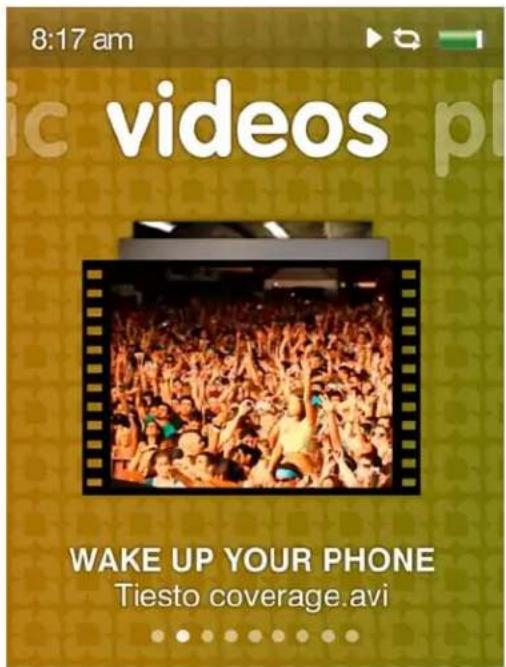
Video – allows you to browse and watch videos according to your taste by: A-Z (alphabetical order), or Duration.

Photo – displays photos according to your taste by: A-Z (alphabetical order) or by Date. Also enables slide shows (with or without music).
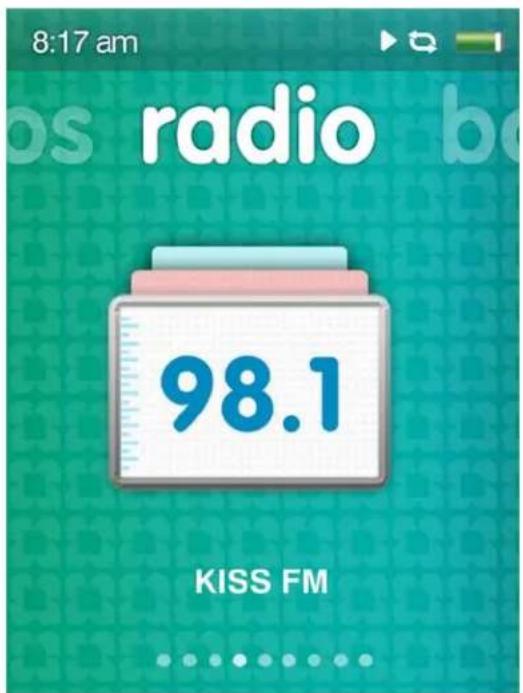
Radio – allows you to listen to and record live FM broadcast radio, pause radio recordings, and save up to 40 presets.

Voice – allows you to do voice recording using the built-in microphone found at the base of the device next to the headphone jack.

Podcasts – allows you to listen to podcasts and audiobooks.

Card – allows you to access content on a microSD/microSDHC memory card or slotRadio card (both sold separately).
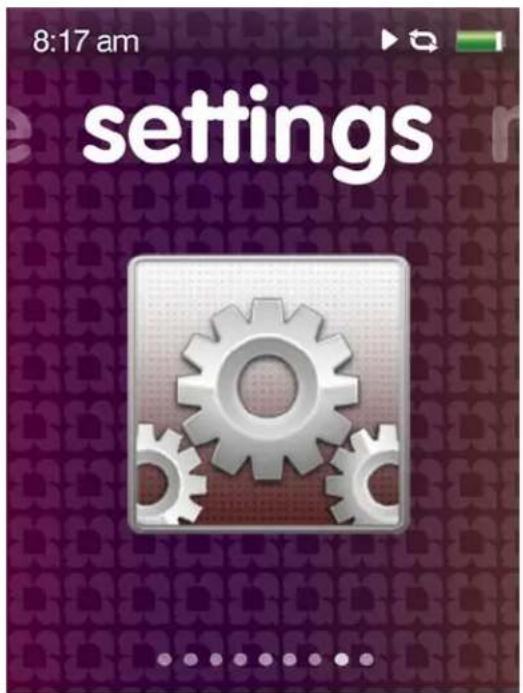
Settings – allows you to view, set or customize the Sansa MP3 player features such as time, brightness, volume levels, equalizer, etc.

Quick Tips: Screen Icons
The screen displays icons to assist you in knowing the present mode of the device. The following industry standard icons are used:

Indicates that the device is in "play" mode, either with audio or video content.

Indicates the device is paused/stopped, or muted (FM Radio).

Indicates shuffle mode, where all music files are played in random order.

Indicates continuous play mode for a number of songs.

Indicates continues play mode for a single song.
3.5. Lock Function
Sometimes you want to be able to lock the device's inputs, for instance if listening to music and carrying the player in your pocket, to avoid unwanted inputs. It is possible to lock the Sansa Fuze+ MP3 player's touch pad.
To lock the device, press and hold the Play/Pause button ▶ for 3 seconds. All the function keys will be disabled once lock is engaged. Please note that the Lock function only works when the player is turned on.
The following image will appear on the display screen if any button is pressed while the device is in the locked mode. The music should continue to play even if the device is locked.

To unlock the player, slide your finger up on the touch pad as indicated by the arrow.

Quick Tips:
- Locking the device is quick and easy. Simply press and hold the Play/Pause button ▶ for 3 seconds. We highly recommend that when the device is playing in your pocket or is susceptible to receiving unwanted inputs while you are enjoying your listening, that you lock the device.
3.6. Updating the Firmware/ Sansa Media Converter
Firmware is the software operating system for the Sansa Fuze+ MP3 player. SanDisk occasionally releases firmware updates, which may include new features and performance enhancements. In addition, the free downloadable Sansa Media Converter (SMC) enables users to expand the video and photo capabilities of their player by increasing the number of file types which the player can access/play. To ensure your Sansa Fuze+ MP3 player has the latest firmware, please visit www.sandisk.com/smc and download our free Sansa Updater and Sansa Media Converter (SMC). It is easy to download, install, and use immediately!
Downloading the Applications
STEP 1 - Download and install Sansa Firmware Updater
Connect your player to your computer. The Sansa Firmware Updater should launch automatically.
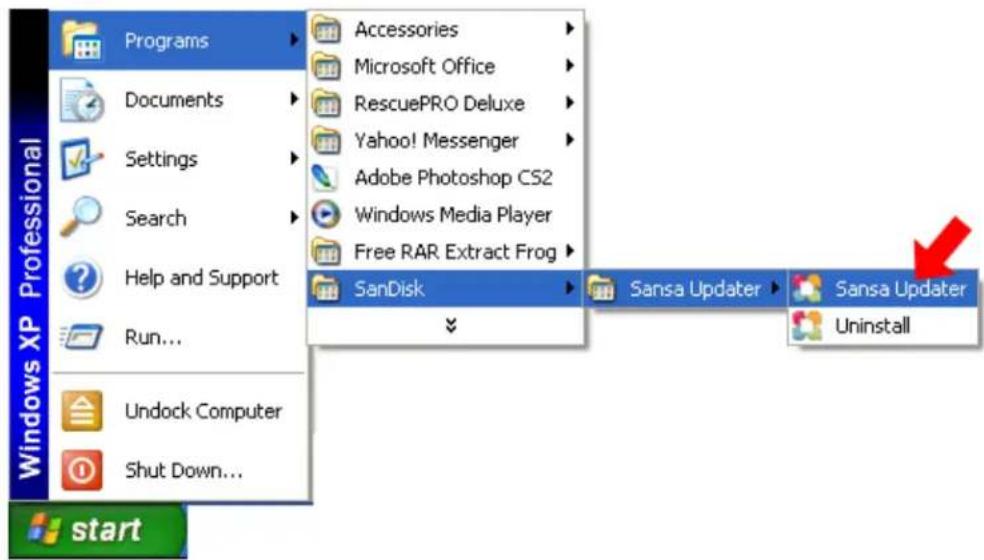
1a. ALTERNATIVELY: On a Windows® PC, Click Start then go to Programs > SanDisk > Sansa Updater > Sansa Updater to run the installer manually.
STEP 2 - Download and install the Sansa Media Converter application
Click to select the Sansa Media Converter check box, and then click Download Now.
![sansa.updater SanDisk creation Downloads Available Version Data Size ✓ Firmware [More Info] 1.27.02 09/02/2010 33.0 MB Download Now Cancel Copyright (c) 2006 - 2009 SanDisk Corporation. Terms of Use Privacy Statement](/content/2026/06/1243686/images/0c47e447fe2a9ae521b012e4465245e1db080f3dddc6b46396bb713d55640d01.jpg)
- Click Finish.

STEP 3 - Launch the Sansa Media Converter application
Click Start then go to Programs > SanDisk > Sansa Updater > Sansa Media Converter

3.6.1. Formatting the Player
To delete all content from the internal memory, you can format the device.
- From the main menu, scroll to Settings and click select.
- Select Settings.
- Select Format.
- Choose to format: Internal Memory, External Memory or All
- Select Yes to start formatting.

Caution!
Ensure you back up all of the media files you use with your Sansa Fuze+ MP3 player before formatting the device as it will cause the files you have stored on the device to be deleted. You will have to re-transfer your content to the device after you have formatted it.
CHAPTER 4: Transferring Media
This chapter shows you how to transfer music files, photos, and videos from your computer to your Sansa® Fuze™+ player.
Chapter 4: Loading Content
Your Sansa Fuze+ player comes with an open file platform, enabling you to load it how you like best. Whether it's ripping music from your CDs collection, purchasing MP3 songs online, or downloading DRM-free tracks from iTunes®, it's Your Media, Your Way!™ In general, there are three ways to load content: transfer your own files using a computer; obtain music files from one of the supported media subscription services (Rhapsody®, eMusic®, or Napster®, all sold separately), or side-load content to the Sansa Fuze+ player using a microSD/microSDHC memory card or slotRadio™ card (both sold separately).
4.1. Loading Audio Files (Music, Podcasts, Audiobooks)
You can transfer music, playlists, podcasts, or audiobooks from your computer to the player using the drag-and-drop method or using music management software such as Windows® Media Player. Specific audiobook files from Audible.com require Audible Manager to transfer to your player.
As explained in Chapter 3, there are two primary modes for connecting your Sansa Fuze+ player to your computer for file transfers: MSC (“Mass Storage Class”) mode, and MTP mode (“Media Transfer Protocol”). MSC is also known as “drag and drop”, because the device will appear as a Removable Disk to the computer. Windows® supports both MSC and MTP modes. On a Mac® OS system, MSC is the only transfer mode available. Some Linux systems support MTP mode in addition to MSC mode.
4.1.1. MSC Mode: Drag and Drop
- Connect your player to your Windows® PC.
- Open the My Computer icon on your desktop by double-clicking on it.
- Double-click on the Sansa player icon which will appear there.
- Double-click Internal Memory or Media (may vary by Windows® version).
- Drag and drop music files from your computer to the Sansa player's MUSIC folder.
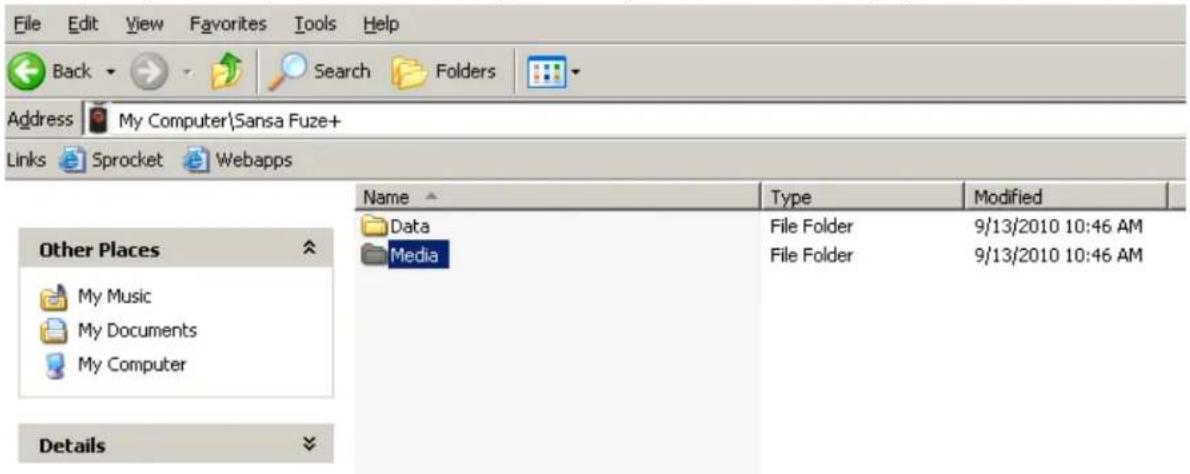
You can also drag and drop files to a microSD card inside your player by going to My Computer > Sansa Fuze+ > External uSD Card. You can only drag and drop files to the card if you have write permissions for the card.
4.1.2. Mac®: MSC Mode: Drag and Drop
- Connect your Sansa player to your MAC computer.
- Double-click on the removable disk named SANSA FUZE+ that appears on your desktop.
- Double-click on the Music folder.
- Drag and drop music files from your computer to the player's Music folder.
You can also drag and drop files to a microSD card inside your player by double-clicking the second removable disk that appears when you connect your player.

On a Mac® OS computer, remember to eject the removable disk before dissecting your player to avoid any data corruption or possible damage to your player.

Quick Tips:
On either a Windows® or Mac OS® computer, the second removable disk folder, which only appears when a microSD card is loaded inside your player, will display with the card's name, just as if you connected it via a card reader. Please be aware that you can only drag and drop files to the card if you have write permissions for the card.
4.1.3. Windows® MTP Mode: Windows Media Player™
MTP or "Media Transfer Protocol" mode is the default setting in your Sansa Fuze+ player if you live in North America (it is MSC mode for other geographies). MTP mode enables synchronizing your player with Windows Media Player™, which comes standard as a part of the Windows® operating system.
However, before you can create a playlist and transfer (or synchronize) it to your player, you need to show Windows Media Player™ where your songs are located.
4.1.3.1. Adding Music Files to Your Library
- Click the arrow below the Library tab.

- Make sure Music is selected then click Add to Library.
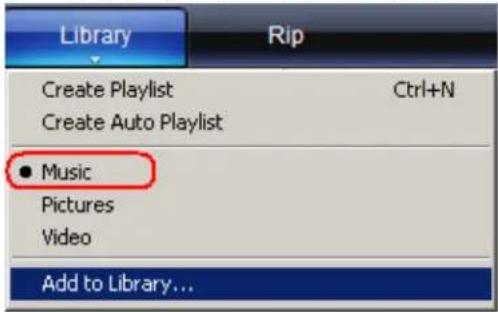
- In Add to Library dialog box, click one of the following options, and then click OK.
My personal folders:
- Use this option to monitor the digital media files stored in your personal Music folder as well as any files stored in the public Music folder that anyone who uses your computer has access to.
My folders and those of others that I can access:
- Use this option to monitor the digital media files stored in your personal Music folder, the files stored in the public Music folder, as well as any files stored in the personal Music folder that belong to other users on your computer.
4.1.3.2. Creating Playlists
-
Launch Windows Media Player™.
-
Clear the List pane by clicking the Clear List pane button.
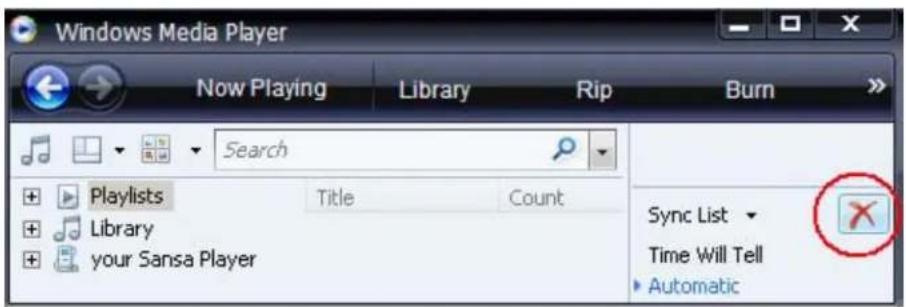
3. Click the arrow below the Library Tab then select Create Playlist.

4. Type in the name of your Playlist.

5. Click Songs from Library then drag these to the List Pane.

-
To rearrange the songs, drag them up or down in the List pane.
-
Click Save Playlist.

4.1.3.3. Transferring Playlists to Your Player
- Connect your Sansa player to the computer.
- Select Sync digital media files to this devices using Windows Media Player on initial connection.
- Right-click on Your Sansa Player, then select Set Up Sync.

- Click to select the Sync this device automatically check box.
- To have the device automatically start Windows Media Player™ and synchronize when you connect it to your computer, then select the following options when you connect to your computer
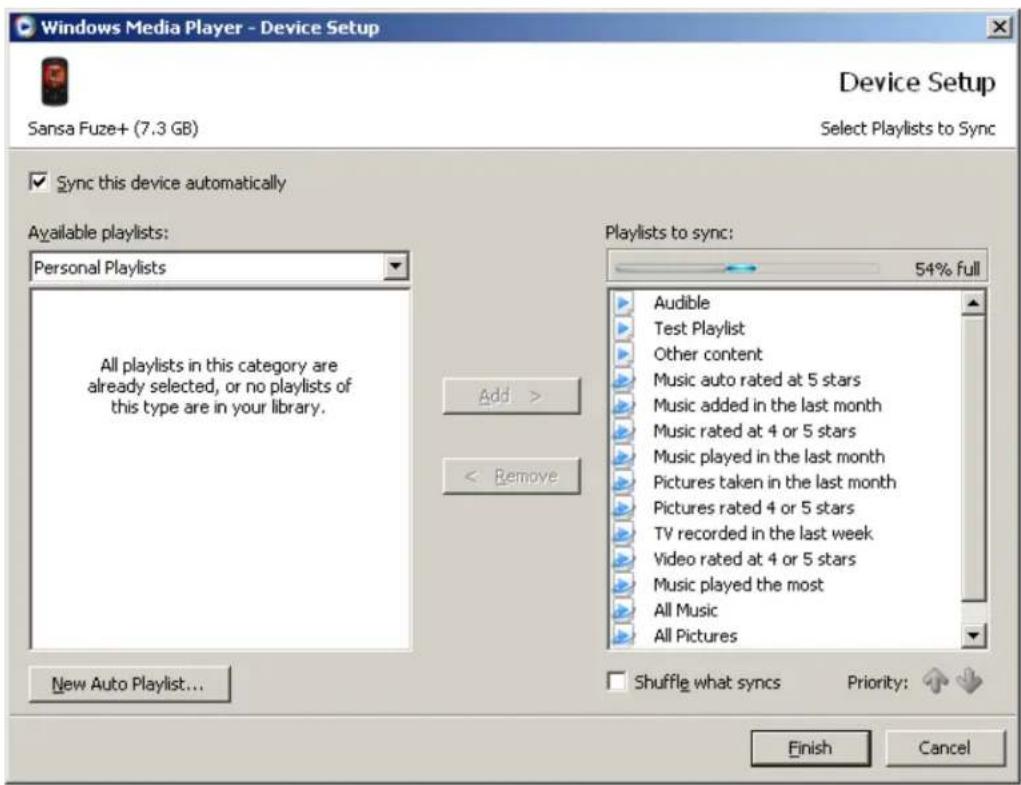
- Select Personal Playlists from the drop down menu on the left pane.
- Highlight the playlists you want to transfer to your player, click Add, then Finish.
- Synchronization will start as soon as you click Finish. To see the Sync status, click on the Sansa Fuze+ MP3 player, and then click on Sync Results.
4.2. Loading Photos and Videos
The optional free downloadable Sansa Media Converter (SMC) software lets you convert photos and videos as appropriate, and then transfer these to your player with ease. SMC does essentially two functions: (1) it enables transcoding of file formats which are not native to the device; and (2) it modifies files as necessary for an optimal viewing experience on the Sansa Fuze+ MP3 player's screen (e.g., for video files SMC can modify aspect ratio, frame rate, bit rate, or resolution; for photos SMC can perform rotating and resizing). Sansa Media Converter can be used for transferring video or photo files to either your player or a microSD card. To download the Sansa Media Converter software or to obtain more information about its capabilities, please see www.sandisk.com/smc.

Do not select both videos and photos to convert/transfer at the same time. Select media type (photos or video) and complete the conversion/transfer process before ting the second media type to convert/transfer.
Instructions for Loading Photo/ Video Content
- Connect the Sansa player to the computer.
-
Select Sansa Media Converter using Sansa Media Converter on initial connection.
-
Click Add Media Add Media to select video or photo files to be converted.
-
To edit a picture, select it and follow these steps:
a. To rotate:
i. To rotate left, click Rotate Left.
ii. To rotate photo to right, click Rotate Right.
iii. To resize for optimal viewing, Select Best Fit.


- To view to original photo setting, click Reset.
- Click Apply Apply after you have completed editing.
- The converted files are stored in My Album by default. To place them in a different folder, follow these steps:
then type in the new Name.
b. Click on Sansa player or the microSD card from the information pane to select a Save location.
- Click Convert to start.
- Disconnect your player after the files have been transferred to the device.

4.3. Deleting Content
Deleting content can be done either from the device within the sub-functions, or through your media manager. Please be aware that deleting content from the device will not permanently delete the content if at the next synchronization these files are still on your computer for transferring back to the player.
CHAPTER 5: Playing Your Media
This chapter shows you how to play music and audiobooks, watch videos, and view photos on your Sansa® Fuze™+ MP3 player.
Chapter 5: Playing Your Media
5.1. Playing Music
Sansa Fuze+ player comes with the versatile capability to play an array of different audio/music file formats, including MP3, WMA, secure WMA, FLAC, AAC/M4A (DRM-free iTunes® songs), WAV, OGG-Vorbis, and Audiobooks formats.
Your player is equipped to read the associated digital information which comes with most audio files (called "ID3 tag" metadata) to automatically associate album art, artist, album, and genre. This enables your Sansa Fuze+ player to sort your music automatically so you can enjoy it with ease. Under the "Music" category on your device, this includes featuring your music sorted by:
- Artist – presented in alphabetical order (note: ignores any “the” in front of an artist’s name)
- Album
- Song
- Genre
- Playlist – either downloaded from your computer or generated on the device
It is also possible to listen to your music via “recently played” (Top-10 most recently played songs); “Shuffle” mode, which plays all of the songs in your device in random order; individually by song; or via playlists that you can either create on your computer, or which you can dynamically create on the fly in a “Music Go List”.
5.1.1. Recently Played Mode
The Sansa Fuze+ MP3 player enables quick access to play your most recently played 10 songs.
- Press and hold the Back button to return to the home level of the user interface.
- Tap/swipe to the Music home menu (as shown at right).
- At the music home menu you can vertically swipe/tap your 10 recent played tracks. Press Play ▶ to start playing. In this mode, all 10 songs will play in a row.
- At this mode you can tap back in order to get to the "now playing" song, which will appear as album art for the song taking up most of the screen.
- From the "now playing" mode you can always tap/swipe to skip or rewind a song, enabling quick navigation through the 10 most recently played songs.
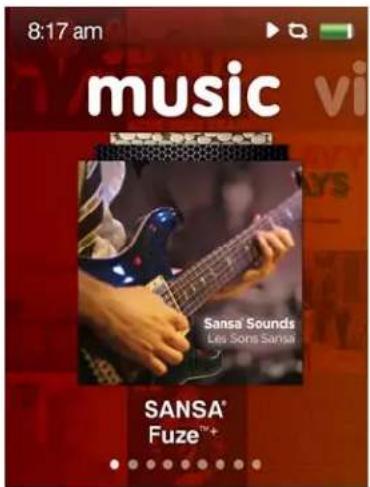
The “now playing” song will appear with enlarged album art, taking up most of the screen. From this screen, you can swipe/tap either right or left to forward/rewind. You can also hit select (hit center of touchpad) to go to Options (see Section 5.1.3), or hit the back button ↗ to jump back to the main menu level, from where it’s possible to go to another function like viewing photos while having the music still playing.

5.1.2.Shuffle(Play)All Mode
- On the Music home screen, press select (tap the center of the touchpad).
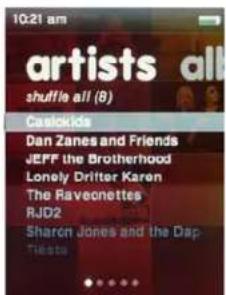
- There are 5 sub-menus under Music, as demonstrated by the five dots to the view guide on the bottom of the screen. From any of these sub-menus, at the top you will see the option, shuffle all, followed by a number in parentheses corresponding to the number of options available in that sub-menu (e.g., number of artists, number of albums, number of songs, number of genres, number of playlists). If you select shuffle all in any of these sub-menus, the device will play all of your songs in random order.
-
Tap/swipe to the right to skip to the next song, or press-and-hold to fast forward within the current track.
-
Tap/swipe to the left to skip to the previous played song or press-and-hold to fast rewind to current track.
- Use the volume control buttons on the left side of the player to adjust the volume level during playback.
- To turn off the shuffle all mode, on any song which is playing, tap back in order to get to the "now playing" song (you'll know because the album art for that song will be enlarged to occupy most of the screen), then hit select (tap the center of the touchpad), and you'll see an Options menu. Select "Shuffle" and toggle it from "on" to "off" by tapping the center of the touchpad. Alternatively, if the device is displaying the shuffle all icon but nothing is currently playing, go to the Settings menu, then select "Music Settings", go to "Shuffle", and toggle it from "on" to "off".

Quick Tips:
This icon will appear on the upper right hand corner of the screen next to the battery indicator when the device is in shuffle mode (play all songs in random order). In addition, the shuffle all option at the top of the five sub-menus within music will display an asterisk reminding you that this has been selected: * shuffle all
5.1.3. Options Menu - Music
When listening to a song, the Sansa Fuze+ offers four options for changing your listening experience:
- Rate Song – A five star rating system can be used if you subscribe to the Rhapsody® music service for generating playlists of your highest rated songs.
- Shuffle ∞ – for toggling the listening mode.
- Repeat - for enabling continuous play of music songs.
- Add Song to Playlist – adds the currently playing song to the Music Go List found under "Playlists" (the fifth sub-option) under the Music menu.

5.1.4. Music Content Groupings
Your Sansa Fuze+ player automatically organizes your music according to Artist, Album, Song, or Genre to enable you to sort through your songs as you like. Simply swipe/tap from left to right to toggle between these options (the dot view guide on the bottom of the screen will show five options in total, which includes Playlists), which are laid out like pages in a book. Swipe/tap up/down to select between content within these sub-sections.
5.1.5. Music Go List
In addition to being able to add playlists to your Sansa Fuze+ player, which will be listed under the "Playlist" sub-menu under "Music" (the fifth "page" in the "Music" book), the device enables you to create a dynamic "Music Go List" which you can create on the fly. This appears as a permanent playlist on your device with this name, whether it has content in it or not!
To create this Music Go List, with any song you are currently listening to, simply press and hold Select (center of the touchpad) for approximately two seconds, and a dialogue box saying “{ Your Song Name} has been added to the playlist” will appear. To delete this song from the Music Go List, simply repeat the process and then a dialogue box saying “{ Your Song Name} has been deleted from the playlist” will appear.
To clear the Music Go List, go to Playlist, select "Music Go List", and the option, "Clear Music Go List" will be available once you've added content to this list. Simply select and it will be reset as an empty container.

Quick Tips:
Clearing the Music Go List does not delete the actual songs from your player. It merely clears the playlist you've saved locally on the device.
5.1.6. Playing Music from a Preloaded microSD™/ microSDHC™
Card Instructions
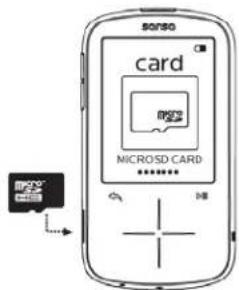
- Insert a microSD card with content into the microSD card slot. The player will display the message: "Loading card."
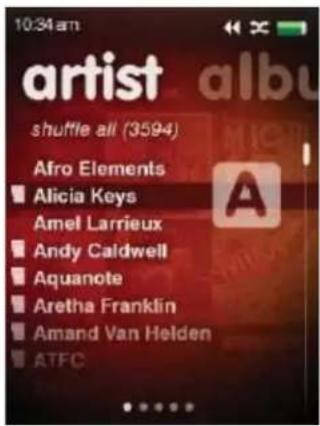
- The card content will automatically be pulled into the various menu categories based on the file types you have loaded on the car (e.g., music files into "Music", photos into "Photos", etc.). Individual songs or other content will display with a card icon (in the left margin) to indicate they are stored on the external microSD card.
- You can choose to play the card from the card home menu or from each of the categories (Music, Video, etc.).



Quick Tip:
The maximum amount of digital content that can be played on a Sansa Fuze+ player, inclusive of internal capacity, is approximately 10,000 songs*. Be aware, however, that updating the device registry with this much content can take an hour or longer to fully load into the device! The device will have to start reading a card from scratch once removed also.
* Approximations: results will vary based on file size, resolution, compression, bit rate, content, host device, pre-loaded files and other factors. See www.sandisk.com.
5.2. Playing slotRadio™ cards
A slotRadio card is a product sold separately by SanDisk which consists of hand-crafted, premium content, pre-loaded playlists of music, making it easy to enjoy your content with no downloads, no playlist generation, no subscriptions, and no hassle. These cards provide
commercial free music from the leading music labels, and enable skipping of songs you do not care to hear. They are an ideal solution for those people seeking quality music at reasonable value, enjoy discovering new songs, and don't enjoy managing their own content directly. Sansa Fuze+ player is optimized for use with slotRadio cards, displaying vibrant, high quality album art, artist name, and song title accompanying each song.
Instructions
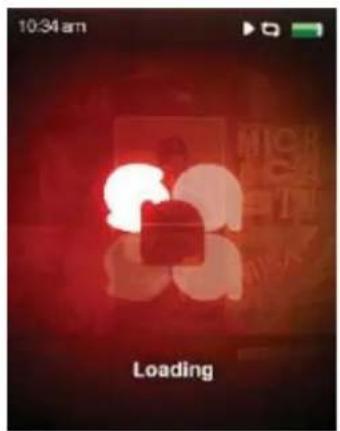
- Insert a slotRadio card into the card slot. The player will display the message: "Loading card."
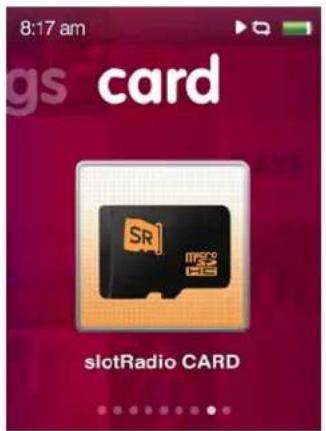
- Once loaded, the card screen logo will change and indicate that there is a slotRadio card in the device.
- Press Select to see the card's channels, which are unique genres.
- Tap/swipe vertically to choose your genre. Either select or press play to listen to your selected genre.
- Tap/swipe horizontally to view next song. Press Select/ Play to skip to this song.
- While listening to a song, you can tap/swipe vertically to change genre without going to main menu.


Quick Tip:
With a slotRadio card, you cannot rewind a song. Also, you can only skip one song at a time.
5.3. Playing Podcasts & Audiobooks
5.3.1. Instructions to Play a Podcast
- From the main menu, select Podcast.
- Browse your latest 10 podcasts by swiping up/down, and tap play to start enjoying your podcast quickly.
- To view all your podcasts, from the home level menu press select and browse your podcast albums. Press play to start enjoying your podcast.
- Tap/swipe to the right or press-and-hold the right side of the arrow to fast forward.
- Tap/swipe to the left to go back to the previous chapter or press-and-hold to the left to rewind.
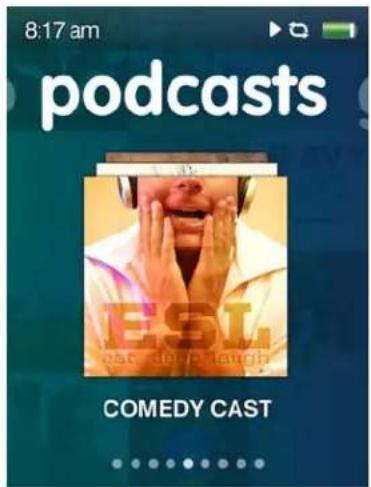
5.3.2. Modifying Podcast Play Mode
While a podcast is at "Now playing" mode (recall, as with Music files, simply press the back button when playing to switch to this mode, where the podcast thumbnail art will take up most of the device screen), press Select to view your options:
Playback speed
- Select playback speed.
- Use touchpad to choose the playback speed:
- Normal; Fast or Slow
Press Select to change playback speed.
Chapter Skip
- Select Chapter skip.
- Use touchpad to choose on/off to allow or nor allow songs skipping.
Press Select to change chapter skipping.
5.3.3. Playing Audiobooks
On your Sansa Fuze+ player audiobooks can be found as the second "page of the book" under the "Podcast" menu.
- From the main menu, select Podcast.
- Scroll to the right and select Audiobooks.
- Select an audiobook.
- Tap/swipe to the right or press-and-hold the right side of the arrow to fast forward.
- Tap/swipe to the left to go back to the previous chapter or press-and-hold to the left to rewind.
- Use the volume control buttons on the left side of the player to adjust the volume level.
- The following options are available during audiobook playback by pressing the Select button (but not during slotRadio™ card playback, which permits skipping but not repeating of songs).

Quick Tip:
If an audiobook is a MP3 format file and the genre setting in the ID3 tag information doesn't identify it as being an audiobook or podcast file, then your Sansa Fuze+ player will not be able to differentiate this file from a music file, and so it will put the file under the "Music" menu.
5.4. Watching Videos
Your Sansa Fuze+ player is a video-enabled device which is able to play back files natively in MPEG-4, H.264, and WMV file formats. Chapter 4 details how to load video files onto the device most effectively and also expand the number of file types supported.
5.4.1 Video Playback Instructions
- From the main menu, select Video.
- Use the touchpad to highlight and select Videos A-Z to display the videos alphabetically, or slide to the right to display videos by duration.
- Highlight the desired video and press the Select button to play.
- Press the Play/Pause button ▶ to pause or resume video playback.
- Tap or slide your finger to the right or left to skip forward or backward within the video.
- Press and hold the right or left arrows to scan forward or backward within the video.
- Adjust volume using the volume buttons on the side of the player.

5.4.2 Video Play Options
To adjust the Video Options, press the Select button during video playback.
Adjusting Video Brightness
- Select Brightness.
- Slide your finger or tap the touchpad either right or left to increase or decrease the brightness level.
- Press the Select button to accept.
Selecting Video Orientation
- Select Orientation.
- Tap Select to alternate between Landscape and Portrait views.
5.5. Viewing Photos & Slideshows
Your Sansa Fuze+ player is a photo-enabled device which is able to play back files natively in JPEG, and BMP file formats. Chapter 4 details how to load photo files onto the device most effectively and also expand the number of file types supported.
5.5.1 Photo Browsing Instructions
- From the main menu, select Photo.
- Browse your latest 10 photos by swiping up/down, and tap play to view an individual photo quickly. From here you can tap/swipe left/right to view all the latest 10 photos.
- To view all your photos, from the home level menu press select (center of touchpad) on the Photo menu.
- There are two sub-menus to Photo: A-Z (alphabetical listing) and By Date.
- After selecting a photo collection, hit play/pause to browse through photos. Tap/swipe left/right to view all.


Quick Tip:
For minimum capacity use by any photos you load onto your player, it's advised to have your photos loaded using the Sansa Media Converter (see Chapter 4.)
5.5.2 Photo Viewing Options
There are many options available for viewing your photos on the Sansa Fuze+ player. You can view photos as a slide show ("shuffle slideshow photos"), repeat a slideshow, specify slide viewing duration, and even add music to a slideshow. You can also change the photo viewing mode from landscape (default) to portrait if you desire.
Single Photo Viewing
- From the main menu, scroll to and select Photo.
- Use the touchpad to highlight and select the photo you want to view.
- When a photo is in "Now Playing" mode, which is when it takes up the entire screen, simply select (tap the center of the touchpad) to open the photo Options screen.
- Under Options you will find the following parameters which can be changed: Slide Time; Shuffle; Repeat; Add to Background; Slide Show Music; Orientation.
- Hit the back button ↗ to return to your photo, with the new settings in effect.
Slideshow Viewing
To view a slideshow of all photos, follow these steps:
- From the main menu, select Photo.
- There are two sub-menus to Photo: A-Z (alphabetical listing) and By Date. Tap/swipe left/right to select how you want to view your photos.
- Select the album of interest (tap the center of the touchpad).
- A grid of all photos in the album you selected will appear. If you selected the wrong album, hit the back button ↩ to select the correct album.
- Select any photo to get into the "Now Playing" mode, which is when it takes up the entire screen, then simply select (tap the center of the touchpad) to open the photo Options screen.
- Under Options, select "Shuffle" and toggle to "On". You can also add music to the slideshow as well as wshown under "Slide Show Music".
- Press the Play button ▶ to start the slideshow. Press again to pause.
- Use the volume control buttons to adjust the volume if music is added to the slideshow.
The following options are available during slideshow by pressing the Select button.
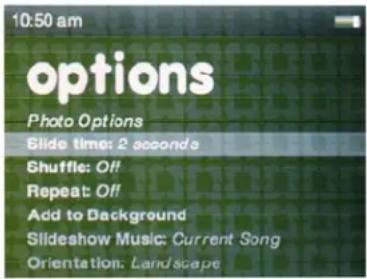
Slide Time
- Select Slide Time.
- Use the touchpad to select 2/4/6/8/10/15 or 30 seconds and select the desired duration.
- Tap the back button ↗.
Shuffling Photos
- Select Shuffle.
-
Use the touchpad to select Shuffle On or Off.
-
Tap the back button ↗.
Repeating Photos
- Select Repeat.
- Press the Select button to turn Repeat On or Off.
Adding photo to Background
- Highlight and select Add to Background.
Selecting Slideshow Music
- Select Slideshow Music.
- Select Current Song (if a song is currently playing) or one of your Playlists.
- Tap the back button ↗.
Selecting Photo Orientation
- Select Orientation.
- Tap Select to alternate between Landscape and Portrait views.
CHAPTER 6: FM Radio
This chapter provides instructions on how to listen to the FM broadcast radio and to program the preset stations on your Sansa® Fuze™+ MP3 player.
Chapter 6: FM Radio Listening
Your Sansa Fuze+ player includes an integrated FM radio for listening to live broadcast FM stations. Please note that FM radio broadcasts might not be available or have limited availability in your geographic region.
6.1. Listening to FM Radio
Instructions
- Tap/swipe to get to the Radio home menu.
- If you have pre-set channels, then your latest 10 stations will appear. Swipe/tap vertically to browse.
- Press play ▶ to listen to the radio station displayed.
- Press select (center of touchpad) to browse for other stations.
- A radio frequency menu will appear. Slide your finger or tap up or down on the touchpad to navigate through radio frequencies.
- For fast search, press and hold the Up or Down arrows on the touchpad, or sweep vertically in broad strokes. The radio will automatically stop on the next station broadcasting with sufficient signal strength.
- Use the volume control buttons to adjust the volume level.


Quick Tips:
- Your headphones are the antenna for your device. For best reception or maximizing the number of presets your device can find, extend the headphone chord as much as possible to maximize the antenna length.
- The Sansa Fuze+ MP3 player is able to display the station name, the current song playing, provided that this information is broadcast by the radio station. If this information isn't transmitted, then it will not show up on the device.
- Hitting the play/pause button ▶ during a radio broadcast is the equivalent of mute. There is no dynamic live pausing capability on the Sansa Fuze+ MP3 player.
6.2. Programming FM Presets
You can program up 40 preset stations. There are two ways to program presets:
Manually - Presets
- From the main menu, select Radio.
- Slide your finger or tap up or down on the touchpad to select desired frequency.
- Press and hold Select button while listening.
- A frequency that been defined as preset will be marked with a small star next to it.
Automatically - Presets
- From the main menu, select Radio.
- Anywhere on the radio dial, hit Select again (tap center of navigation pad) to open the radio Options screen.
- Scroll down and select "Auto Scanning for Presets". The device will seek out, find, and bookmark up to 40 of the strongest signal strength stations in your area.
- A frequency that been defined as preset will be marked with a small star next to it.
To access your presets quickly, select Radio, then swipe to the second "page of the book" under this menu to see the pre-sets you currently have programmed.
6.3. Radio Options/ Recording
Your Sansa Fuze+ player options include adding/deleting presets, recording a program, pausing a program while recording it, and deleting a recorded program.

Press the Select button while listening to radio to enter the Radio Options menu. The following options are available:
- Delete Preset
- Record Radio
- Play Recordings
- Auto-scanning for Presets
- Seek Mode - can be toggled on/off
- Delete All Presets
- Delete All Radio Recordings

Quick Tips: Recording a FM Station
- Your Sansa Fuze+ player can record a FM radio broadcast until one of two events occurs: (1) the available memory on the device is exhausted; (2) the battery is drained. However, the device will take a very, very long recording and break it into individual files of approximately two hours in length.
- While recording a FM broadcast, hit the play/pause button to filter out unwanted content within a single file, such as commercials, for example. You will still be able to hear the broadcast when doing this.
CHAPTER 7: Voice Recording
This chapter shows you how to use your Sansa® Fuze™+ MP3 player's built-in microphone to do voice recordings.
Chapter 7: Voice Recording
Your Sansa Fuze+ player includes voice recording capability and is able to store multiple independent recordings.
7.1 Voice Recording
7.1.1 Recording a File
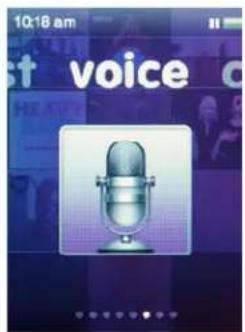
- From the main menu, select Voice.
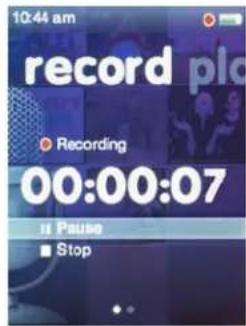
- To begin recording, select Start Recording.
- To pause the recording, select Pause using the option on the screen (not the button!).
- To stop the recording, select Stop using the option on the screen (not the button!).
- When prompted, select Yes to save the recording.
7.1.2 Playing Back a Recording
- From the main menu, select Voice.
- Tap/scroll to the right to the second "page in the Voice book" to the screen, Play.
- Tap/scroll vertically to select the file you want to play back. Selecting (tapping the center of the touchpad) or hitting the play/pause button will initiate playback.

Quick Tips: Voice Recording
- Your Sansa Fuze+ player can do a voice recording until one of two events occurs: (1) the available memory on the device is exhausted; (2) the battery is drained. However, the device will take a very, very long recording and break it into individual files of approximately two hours in length.
- The minimum length of time for a voice recording is five seconds. Anything duration less than this length will not be recorded.

This product is intended to be used for recording and playback for your life and personal enjoyment only. Copying and commercial use of copyrighted material without permission of the copyright owner may be prohibited by law. of your MP3 player, in compliance with all copyright and applicable Intellectual property laws, remains the responsibility of the user of the product.
CHAPTER 8: Settings
This chapter shows you how to customize your Sansa® Fuze™+ MP3 player's settings.
Chapter 8: Settings
Your Sansa Fuze+ player comes with a rich Settings menu for customizing your device to your particular needs.
8.1. Settings
You can personalize your device by selecting Settings from the main menu level. On the main menu level, tap/swipe to Settings and tap the Select button to access the many settings options available.
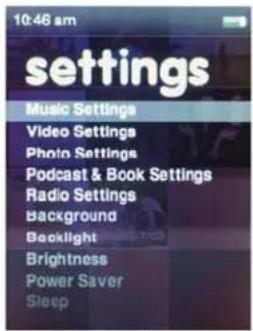
8.2 Basic Settings
Personalize your Music, Video, Photo, Podcast & Book Settings.
- Select Music Settings, Video Settings, Photo Settings or Podcast & Book Settings.
- Selecting any of these options will allow you to personalize the Shuffle, Repeat, Orientation, Brightness, Slideshow, Playback speed, etc., of your device depending on which option you choose.
- When you are finished personalizing your settings, press and hold the Back button to return to the main menu. Your changes will be saved automatically.

Quick Tip:
Many basic settings can also be set in the individual function menus as well. For example, Shuffle play ✗ mode can be set in both the Music and Photo menus directly. The device can only have one setting at a time, so whether you change the settings under the "Settings" menu or elsewhere, is a matter of personal preference.
8.2.1 Background Settings
The Background settings allow you to change the background color and image.
- Select Color.
- Use Select button to scroll to the color you like.
- Select Image to scroll to the photo you would like as your background.
8.2.2 Backlight
After idling for predefined seconds, the player will trigger the timer automatically and cease the backlight. You can press any button to wake the backlight up. The shorter your backlight time, the more battery power you will consume, reducing your time between required battery charges.
- Select Backlight.
- Use touchpad to highlight backlight timer (from 5 sec. to 90 sec.).
- Press the Select button.
8.2.3 Brightness
- Select Brightness.
- Use touchpad to adjust the Brightness level (Right= Brighter, Left= Less Bright).
- Press the Select button to accept the changes.
8.2.4 Customize
- Select Customize.
- Remove home features menus if you wish by changing them to off.
- Tap the return ↩ button.
8.2.5 Equalizer
Depending on which type of music you listen to frequently, you can choose a genre that enhances the sound of certain music types. Scroll through the options and decide to leave the equalizer on Normal or find a custom genre.
8.2.6 Info
This displays information regarding your Sansa Fuze+ MP3 player (such as firmware version, available/free memory, number of contents loaded in the player, and the battery status).
8.2.7 Power Saver
You can set the timer under Power Saver to automatically turn off the player when the music is paused or when there is no activity.
- Select Power Saver.
- Use touchpad to highlight desired timer (from none to 120 minutes).
- Press the Select button.
8.2.8 Sleep
You can set the timer under Sleep to automatically turn off the player once it reaches the setting time.
- Select Sleep.
- Use touchpad to select desired timer (from none to 120 minutes).
- Press the Select button.
8.2.9 USB Mode
- Select USB Mode.
- Use the touchpad to select a USB mode:
a. Auto detect:
b. MTP ("Media Transfer Protocol"): Microsoft Windows® will recognize the device and will present it as the Sansa Fuze+.
c. MSC ("Mass Storage Class"): turns the device effectively into a USB drive and will be seen like any other drive on the computer. This is the only option for certain Apple® OS computers!
- Press Select to change to USB Mode.
8.2.10 Replay Gain
Replay Gain is a method for keeping the perceived volume level constant during playback of diverse content. Typically, music albums are mixed and targeted to differing average volume levels. During playback in shuffle mode there can be wide differences in the track output volume, causing the user to make frequent corrections to the volume level.
- Select Replay Gain.
- Highlight Mode and tap the select button to choose between Songs, Albums, or Off.
- Highlight Pre-Gain and tap the select button to choose how many decibels(dB) you wish to adjust the overall Playback Volume level upward to compensate for the "average" level of your library's track adjustment.
For more information, please visit: http://kb.sandisk.com/app/answers/detail/a_id/430
8.2.11 Volume
- Select Volume.
- Use touchpad to select Normal or High.

WARNING: Read Safety Instructions Before Making Volume Changes
Safe use depends on exposure time and volume levels. At 80 dB(A), exposure should be limited to 40 hours/week. At 89 dB(A), exposure should not exceed 5 hours/week. For more details, carefully review the Important Safety Instructions in Chapter 1.
8.2.12 Language
- Select Language.
- Use touchpad to highlight the desired language.
- Press the Select button.
8.2.13 Date
- Select Date.
- Use touchpad to highlight the desired setting – Month, Date, or Year.
- Use touchpad to adjust the selected setting then press the Select button.
8.2.14 Time
- Select Time.
- Use touchpad to highlight the desired setting - Hour, Minute, or am/ pm.
- Use touchpad to adjust the selected setting then press the Select button.
8.2.15 Reset Factory Settings
This will restore the player to its original factory settings.
- Select Restore.
- Use touchpad to highlight Yes then press the Select button.
8.2.16 Format
- Scroll down to Format and select it.
- Choose the formatting options: Internal Memory, External Memory or All
- Select Yes to format or Cancel to exit.

Caution!
Ensure you back up all of the media files you use with your Sansa Fuze+ MP3 player before re-formatting the device, as this will DELETE all content you have on the device.
CHAPTER 9: Tips & Troubleshooting
This chapter helps you get the most from your Sansa® Fuze™+ MP3 player with tips and troubleshooting.
Chapter 9: Tips & Troubleshooting
The following is a partial list of likely questions you might have. For a more complete and more up-to-date list, with full knowledge-base algorithmic online search capabilities, please visit us at www.kb.sandisk.com.
9.1 Tips & Troubleshooting
Why isn't my Sansa Fuze+ MP3 player being charged or detected by my computer when I connect it?
Verify that you are using Windows Media® Player version 10 or higher, reset your Sansa player, and try again.
How do I drag music files to my Sansa Fuze+ MP3 player?
Drag and drop your files into the Music folder. Please see Chapter 4 for more information.
Which bit rates will the Sansa Fuze+ MP3 player support?
The Sansa Fuze+ MP3 player will support 32-320Kbps for MP3 and 32-256Kbps for WMA.
How do I format my Sansa Fuze+ MP3 player?
You can use the device Format command under Settings→Format or using a computer. Please see Chapter 3 for more information.
Why should I update the firmware?
You should always update the player to the latest firmware to ensure that it functions correctly and has all the latest features. Please download the Sansa Updater application from the Sansa Support Website (see www.sandisk.com/smc).
How do I transfer videos and photos to my Sansa Fuze+ MP3 player?
You should install the Sansa Media Converter software (see www.sandisk.com/smc). This software will convert your video and photo files then transfer them to the player. Refer to the Sansa Media Converter software for details on file formats supported.
What music file formats does the Sansa Fuze+ support?
The Sansa Fuze+ MP3 player supports MP3, WAV, WMA, secure WMA, FLAC, AAC/M4A (DRM-free iTunes® music files), Ogg-Vorbis, and Audiobook formats.
Is the player compatible with podcasts?
As long as the podcasts are in any of the supported audio formats and an appropriate bit rate (32-320 kbps), then the player should be capable of playing the files. Any MP3 files with podcast as a genre in the ID3 tag will appear under Podcasts. Any MP3 files stored in the Podcasts folder will appear under Podcasts submenu regardless of the genre setting.
Why does my player say unknown artist/album?
Normally this is because the ID3 tags or WMA metadata information are missing. On the computer, right-click the song, choose Properties, Summary tab then Advanced. Then you can input the data such as Artist, Album, Song Title, Track Number, Genre, and Year.
Can the Sansa Fuze+ MP3 player read high capacity microSD cards?
Yes, the Sansa Fuze+ MP3 player can read and write to both microSD and microSDHC cards.
How do I power reset my Sansa Fuze+ MP3 player?
To reset your Sansa Fuze+ MP3 player, press and hold the power button for approximately 20 seconds.
Why won't my Sansa Fuze+ MP3 player play music?
Check to verify if the audio file type is supported. If the file type is supported, make sure that the file is not corrupted and that its license is up to date.
CHAPTER 10: Learn More, Service, & Warranty Information
This chapter provides information to help you get service and support for your Sansa® Fuze™+ MP3 player.
Chapter 10: Learn More, Service & Warranty Information
10.1. Getting Technical Support
Before you contact Technical Support, we encourage you to read the Tips & Troubleshooting section to see if your question is covered there.
If you have questions about the use or features of your Sansa player as well as other SanDisk products, please visit our Knowledgebase at www.kb.sandisk.com or use our “ask a question links” at:
USA: www.sandisk.com/ask
USA: www.sandisk.com/chat
Worldwide: www.sandisk.com/sandisk-support/contact-us
10.2. SanDisk Limited Warranty
SanDisk warrants to the end user, that this product, excluding content and or software supplied with or on the product, will be free from material defects in manufacture, will conform to SanDisk's published product specifications and be fit for normal use during the Warranty Period specified in the table commencing on the date of purchase provided that the product is legally placed on the market.
To make a warranty claim, please go to www.sandisk.com/ask or www.sandisk.com/chat for US and kb.sandisk.com for Worldwide, simply select your language preference at the upper right of the page within the Warranty Period. In addition, provide proof of purchase (showing date, place of purchase and name of reseller), product name, type and number. You may return the product after first obtaining a Return Material Authorization number and following any other guidelines listed. For further information see www.sandisk.com and select "support".
SanDisk may at its option repair this product or provide you with an equivalent product; and if unable to repair or replace the product, will refund the purchase price. SanDisk will not be liable for indirect or consequential damage (including loss of data), or for damage caused by improper use (including use in an incompatible device and use not in accordance with the instructions), or by improper installation, unprofessional repair, modification or accident. This constitutes SanDisk's entire liability which will never exceed the price you paid for it, plus the necessary costs you made for the warranty claim. SanDisk products must not be used in applications where failure could threaten injury or life, such as life support systems. SANDISK DISCLAIMS ALL EXPRESS AND IMPLIED WARRANTIES TO THE FULLEST EXTENT PERMITTED BY LAW. IF SANDISK CANNOT DISCLAIM IMPLIED WARRANTIES UNDER
APPLICABLE LAW, THEN TO THE EXTENT POSSIBLE, SUCH IMPLIED WARRANTIES ARE LIMITED TO THE DURATION OF THE EXPRESS WARRANTY. THE WARRANTY DURATION ON ANY REPLACED PRODUCT WILL BE THAT PORTION OF THE WARRANTY PERIOD REMAINING ON YOUR ORIGINAL PRODUCT.
National, state and local laws may grant you other rights that are not affected by this warranty.
| Audio Visual Players | |
| Sansa® Clip / Sansa® Clip+ Player 1 U.S | |
| Sansa® View Player 1 U.S. | |
| Sansa® FuzeTM / Sansa® FuzeTM+ Player 1 U.S. | |
| slotMusicTM Player 90 (days) U.S. | |
| slotRadioTM Player 1 U.S. | |
10.3. End User License Agreement
SANDISK CORPORATION
END USER LICENSE AGREEMENT
DO NOT DOWNLOAD, INSTALL OR USE THE SOFTWARE UNTIL YOU HAVE CAREFULLY READ THE TERMS OF THIS END USER LICENSE AGREEMENT ("AGREEMENT"). BY DOWNLOADING, USING OR INSTALLING THE SOFTWARE, YOU AGREE TO ALL OF THE TERMS OF THIS AGREEMENT. IF YOU DO NOT AGREE TO ALL OF THE TERMS, DO NOT DOWNLOAD, INSTALL OR USE THE SOFTWARE AND, IF APPLICABLE, PROMPTLY RETURN IT TO YOUR PLACE OF PURCHASE FOR A REFUND. IF THE SOFTWARE WAS INCLUDED WITH YOUR PURCHASE OF HARDWARE, YOU MUST RETURN THE ENTIRE HARDWARE/SOFTWARE PACKAGE IN ORDER TO OBTAIN A REFUND. IF THE SOFTWARE WAS ACCESSED ELECTRONICALLY, CLICK "NOT ACCEPT" TO STOP THE DOWNLOAD PROCESS.
The firmware, computer programs, device drivers, data or information (“Software”) is provided to each person who downloads, uses or installs the Software (“you” or “your”) under the terms of this Agreement between you and SanDisk Corporation (“SanDisk,” “we,” or “us”), and may be subject to additional terms and conditions in an agreement between you and SanDisk’s third party licensors (“Licensors”). The Software is owned by SanDisk or its Licensors. The Software is protected by copyright laws and international copyright treaties, as well as other intellectual property laws and treaties.
-
Software License ____. Subject to the terms and conditions contained herein, SanDisk grants to you a limited, non-exclusive, non-sub licensable, transferable in accordance with these terms, royalty-free license under SanDisk's intellectual property rights to use the Software in executable form solely for your personal use only with a SanDisk product and only on a single computer or other hardware device at any given time (the "License"). The Software is "in use" when it is either downloaded, copied, loaded into RAM or installed into the hard disk or other permanent memory of a computer or other hardware device.
-
Restrictions ____. SanDisk and its Licensors retain all rights in the Software not expressly granted to you. You may not modify, adapt, translate or create derivative works (new versions) of the Software. No source code is provided under this Agreement. You may not reverse engineer, disassemble, decompile, rent, lease, or encumber the Software, or recreate or discover the source code of the Software. You may not embed or combine the Software within any other software product or device. The Software contains proprietary and confidential information of SanDisk and its Licensors, which you agree not to discover or reveal to others. Any and all permitted copies of the Software that you make or distribute must be unmodified, must contain all of the original Software's proprietary notices, and must include or be accompanied by this Agreement. You may not separate the Software into component parts for sublicense, distribution or transfer to a third party.
-
DISCLAIMER OF WARRANTIES. TO THE MAXIMUM EXTENT PERMITTED BY APPLICABLE LAW, THE SOFTWARE IS PROVIDED "AS IS" AND "AS AVAILABLE" WITH NO WARRANTIES AND NEITHER SANDISK NOR ITS LICENSORS MAKE ANY REPRESENTATION OR WARRANTY, STATUTORY OR OTHERWISE, IN LAW OR FROM THE COURSE OF DEALING OR USAGE OF TRADE, EXPRESS OR IMPLIED, INCLUDING WITHOUT LIMITATION, ANY WARRANTIES OF MERCHANTABILITY, FITNESS FOR A PARTICULAR PURPOSE, NON-INTERFERENCE, OR NON-INFRINGEMENT OF ANY THIRD PARTY INTELLECTUAL PROPERTY RIGHTS, OR EQUIVALENTS UNDER THE LAWS OF ANY JURISDICTION. YOU ASSUME THE ENTIRE RISK AS TO THE QUALITY AND PERFORMANCE OF THE SOFTWARE. SHOULD THE SOFTWARE PROVE DEFECTIVE, YOU, AND NOT SANDISK, ITS LICENSORS OR RESELLERS, ASSUME THE ENTIRE COST OF NECESSARY SERVICING, REPAIR, OR CORRECTION.
-
LIMITATION OF LIABILITY____. TO THE EXTENT NOT PROHIBITED BY LAW, IN NO EVENT WILL SANDISK OR ITS LICENSORS, OR THEIR RESPECTIVE DIRECTORS, OFFICERS, EMPLOYEES, CONSULTANTS, LICENSORS, LICENSEES OR AFFILIATES, BE LIABLE FOR ANY INDIRECT, INCIDENTAL, SPECIAL, CONSEQUENTIAL, OR EXEMPLARY DAMAGES, ARISING OUT OF OR IN CONNECTION WITH THE DOWNLOAD, DISTRIBUTION, USE OR PERFORMANCE OR NON-PERFORMANCE OF THE SOFTWARE, EVEN IF SANDISK HAS BEEN ADVISED OF THE POSSIBILITY OF SUCH DAMAGES. THE FOREGOING LIMITATIONS OF LIABILITY SHALL APPLY NOTWITHSTANDING ANY FAILURE OF ANY REMEDY PROVIDED FOR HEREUNDER IN ITS ESSENTIAL PURPOSE. IN NO EVENT WILL SANDISK'S OR ITS LICENSORS' TOTAL LIABILITY TO YOU EXCEED THE AMOUNT YOU PAID TO US FOR THE USE OF THE SOFTWARE.
-
The Software is provided with “RESTRICTED RIGHTS.” Use, duplication or disclosure by the Government is subject to restrictions as set forth in FAR 52.227-14 and DFARS 252.227-7013 et seq. Use of the Software by the Government constitutes acknowledgement of SanDisk’s proprietary rights therein. Contractor or Manufacturer is SanDisk Corporation, 601 McCarthy Blvd, Milpitas, CA 95035.
-
Transfer ____. If you sell or otherwise transfer the SanDisk product that incorporates the Software as a whole, you may transfer the Software as fully integrated into such product provided that you also supply this Agreement to the purchaser or recipient of the product, at which time all of your rights under this Agreement will immediately cease. Except as stated above, you may not assign or transfer this Agreement in part or in whole, and any attempt to do so shall be void.
-
Termination ____. We may terminate this Agreement and the license immediately and without notice if you breach it. Upon termination of this Agreement, you must delete or destroy all copies of the Software.
-
High Risk Activities ____. The Software is not fault-tolerant and is not designed or intended for use in hazardous environments requiring fail-safe performance, or any other application in which the failure of the Software could lead directly to death, personal injury, or severe physical or property damage (collectively, "High Risk Activities"). SANDISK AND ITS LICENSORS DISCLAIM ANY EXPRESS OR IMPLIED WARRANTY OF FITNESS FOR HIGH RISK ACTIVITIES AND SHALL NOT BE LIABLE FOR ANY LIABILITIES OR DAMAGES ARISING FROM SUCH USE.
General. This Agreement contains the entire understanding between the parties with respect to your use of the Software. If any part of this Agreement is found void and unenforceable, it will not affect the validity of the balance of this Agreement, which shall remain valid and enforceable according to its terms. This Agreement is governed by and construed under the laws of the State of California and controlling U.S. federal law without regard to conflicts of laws provisions thereof. The U.N. Convention on Contracts for the International Sale of Goods shall not apply to this Agreement. Any action or proceeding arising from or relating to this Agreement shall be adjudicated in the state or federal courts of Santa Clara County, California, and the parties hereby agree to the exclusive jurisdiction and venue of such courts. You will not remove or export from the United States or re-export from anywhere any part of the Software or any direct product thereof to any country in violation of U.S. Export Administration Regulations, or a successor thereto, except in compliance with and with all licenses and approvals required under applicable export laws and regulations including, without limitation, those of the U.S. Department of Commerce. Any waivers or amendments of this Agreement shall be effective only if made in writing and signed by an authorized representative of each party. You agree that the Licensors are third party beneficiaries of this Agreement to enforce your performance of the terms and conditions of this Agreement. The provisions of Sections 2, 3, 4, 5, 6, 7, 8 and 9 shall survive the termination or expiration of this Agreement.
10.4. FCC Regulation
This device complies with part 15 of the FCC Rules. Operation is subject to the following two conditions:
- This device may not cause harmful interference, and
- This device must accept any interference received, including interference that may cause undesired operation.
This equipment has been tested and found to comply with the limits for a Class B digital device, pursuant to Part 15 of the FCC Rules. These limits are designed to provide reasonable protection against harmful interference in a residential installation. This equipment generates, uses, and can radiate radio frequency energy and, if not installed and used in accordance with the instructions, may cause harmful interference to radio communications. However, there is no guarantee that interference will not occur in a particular installation. If this equipment does cause interference to radio or television reception, which can be determined by turning the equipment off and then on, the user is encouraged to try to correct the interference by one or more of the following measures:
- Increase the separation between the equipment and receiver.
- Correct the equipment to a different outlet so that the equipment and receiver are on different branch circuits.
- Consult the dealer or an experienced radio / TV technician for help.

- USER'S MANUAL
- SanDisk® sansq fuze™+
- Table of Contents
- Chapter 1: SAFE USE GUIDELINES....5
- Chapter 2: Sansa® Fuze™+ Overview 8
- Chapter 3: Basic Usage.... 13
- Chapter 4: Loading Content.... 25
- Chapter 5: Playing Your Media .... 33
- Chapter 6: FM Radio Listening.... 44
- Chapter 7: Voice Recording 47
- Chapter 8: Settings 49
- Chapter 9: Tips & Troubleshooting....53
- Chapter 10: Learn More, Service & Warranty Information.... 55
- CHAPTER 1: Safe Use Guidelines
- Usage Instructions
- PLEASE READ THESE SAFETY INSTRUCTIONS CAREFULLY BEFORE USING YOUR SANSA MP3 PLAYER!
- Used Device Disposal Instructions
- For Home and Personal Use Only!
- Important Hearing Safety Information
- PLEASE READ THESE HEARING SAFETY GUIDELINES BEFORE USING YOUR SANSA PLAYER!
- Hearing levels
- For your safety!
- CHAPTER 2: Product Overview
- Chapter 2: Sansa® Fuze™+ Overview
- Features
- Minimum System Requirements
- What Comes in the Box
- Product Capacities & Playback
- Notes:
- CHAPTER 3: Basic Usage
- Quick Tips:
- Charging the Device/ Connecting to the Computer
- Connecting to a Computer
- Auto Detect or MTP ("Media Transfer Protocol") mode
- MSC ("Mass Storage Class") mode
- Battery Level Indicator
- Removing the player from your computer
- Caution!
- Power Switch
- Power On/ Power Off
- Reset
- Navigation Overview
- Eight Core Functions Overview
- Quick Tips: Screen Icons
- Lock Function
- Updating the Firmware/ Sansa Media Converter
- Downloading the Applications
- STEP 1 - Download and install Sansa Firmware Updater
- STEP 2 - Download and install the Sansa Media Converter application
- STEP 3 - Launch the Sansa Media Converter application
- Formatting the Player
- CHAPTER 4: Transferring Media
- Chapter 4: Loading Content
- Loading Audio Files (Music, Podcasts, Audiobooks)
- MSC Mode: Drag and Drop
- Mac®: MSC Mode: Drag and Drop
- Windows® MTP Mode: Windows Media Player™
- Adding Music Files to Your Library
- My personal folders:
- My folders and those of others that I can access:
- Creating Playlists
- Click the arrow below the Library Tab then select Create Playlist.
- Type in the name of your Playlist.
- Click Songs from Library then drag these to the List Pane.
- Transferring Playlists to Your Player
- Loading Photos and Videos
- Instructions for Loading Photo/ Video Content
- Deleting Content
- CHAPTER 5: Playing Your Media
- Playing Music
- Recently Played Mode
- 5.1.2.Shuffle(Play)All Mode
- Options Menu - Music
- Music Content Groupings
- Music Go List
- Playing Music from a Preloaded microSD™/ microSDHC™
- Card Instructions
- Quick Tip:
- Playing slotRadio™ cards
- Instructions
- Playing Podcasts & Audiobooks
- Instructions to Play a Podcast
- Modifying Podcast Play Mode
- Playback speed
- Chapter Skip
- Playing Audiobooks
- Watching Videos
- Video Playback Instructions
- Video Play Options
- Adjusting Video Brightness
- Selecting Video Orientation
- Viewing Photos & Slideshows
- Photo Browsing Instructions
- Photo Viewing Options
- Single Photo Viewing
- Slideshow Viewing
- Slide Time
- Shuffling Photos
- Repeating Photos
- Adding photo to Background
- Selecting Slideshow Music
- Selecting Photo Orientation
- CHAPTER 6: FM Radio
- Chapter 6: FM Radio Listening
- Listening to FM Radio
- Programming FM Presets
- Manually - Presets
- Automatically - Presets
- Radio Options/ Recording
- Quick Tips: Recording a FM Station
- CHAPTER 7: Voice Recording
- Voice Recording
- Recording a File
- Playing Back a Recording
- Quick Tips: Voice Recording
- CHAPTER 8: Settings
- Settings
- Basic Settings
- Background Settings
- Backlight
- Brightness
- Customize
- Equalizer
- Info
- Power Saver
- Sleep
- USB Mode
- Replay Gain
- Volume
- WARNING: Read Safety Instructions Before Making Volume Changes
- Language
- Date
- Time
- Reset Factory Settings
- Format
- CHAPTER 9: Tips & Troubleshooting
- Tips & Troubleshooting
- Is the player compatible with podcasts?
- Why does my player say unknown artist/album?
- Can the Sansa Fuze+ MP3 player read high capacity microSD cards?
- How do I power reset my Sansa Fuze+ MP3 player?
- Why won't my Sansa Fuze+ MP3 player play music?
- CHAPTER 10: Learn More, Service, & Warranty Information
- Chapter 10: Learn More, Service & Warranty Information
- Getting Technical Support
- SanDisk Limited Warranty
- End User License Agreement
- FCC Regulation
Brand : SANDISK
Model : Sansa Fuze+
Category : Mp3 player