VSX-818V - Receiver PIONEER - Free user manual and instructions
Find the device manual for free VSX-818V PIONEER in PDF.


User questions about VSX-818V PIONEER
0 question about this device. Answer the ones you know or ask your own.
Ask a new question about this device
Download the instructions for your Receiver in PDF format for free! Find your manual VSX-818V - PIONEER and take your electronic device back in hand. On this page are published all the documents necessary for the use of your device. VSX-818V by PIONEER.
USER MANUAL VSX-818V PIONEER
Register your product at www.pioneerelectronics.com (US) www.pioneerelectronics.ca (Canada)
- Protect your new investment
The details of your purchase will be on file for reference in the event of an insurance claim such as loss or theft. - Receive free tips, updates and service bulletins on your new product
- Improve product development
Your input helps us continue to design products that meet your needs. - Receive a free Pioneer newsletter
Registered customers can opt in to receive a monthly newsletter.
WARNING
This equipment is not waterproof. To prevent a fire or shock hazard, do not place any container filled with liquid near this equipment (such as a vase or flower pot) or expose it to dripping, splashing, rain or moisture. D3-4-2-1-3_B_En
WARNING
Before plugging in for the first time, read the following section carefully.
The voltage of the available power supply differs according to country or region. Be sure that the power supply voltage of the area where this unit will be used meets the required voltage (e.g., 230 V or 120 V) written on the rear panel. D3-4-2-1-4_A_En
This product contains mercury. Disposal of this material may be regulated due to environmental considerations. For disposal or recycling information, please contact your local authorities or the Electronics Industries Alliance : www.eiae.org. K057_En
If the AC plug of this unit does not match the AC outlet you want to use, the plug must be removed and appropriate one fitted. Replacement and mounting of an AC plug on the power supply cord of this unit should be performed only by qualified service personnel. If connected to an AC outlet, the cut-off plug can cause severe electrical shock. Make sure it is properly disposed of after removal. The equipment should be disconnected by removing the mains plug from the wall socket when left unused for a long period of time (for example, when on vacation). D3-4-2-2-1a_A_En
WARNING: Handling the cord on this product or cords associated with accessories sold with the product will expose you to chemicals listed on proposition 65 known to the State of California and other governmental entities to cause cancer and birth defect or other reproductive harm.
Wash hands after handling
D36-P4_A_En
IMPORTANT NOTICE – THE SERIAL NUMBER FOR THIS EQUIPMENT IS LOCATED IN THE REAR. PLEASE WRITE THIS SERIAL NUMBER ON YOUR ENCLOSED WARRANTY CARD AND KEEP IN A SECURE AREA. THIS IS FOR YOUR SECURITY. D1-4-2-6-1_En
NOTE: This equipment has been tested and found to comply with the limits for a Class B digital device, pursuant to Part 15 of the FCC Rules. These limits are designed to provide reasonable protection against harmful interference in a residential installation. This equipment generates, uses, and can radiate radio frequency energy and, if not installed and used in accordance with the instructions, may cause harmful interference to radio communications. However, there is no guarantee that interference will not occur in a particular installation. If this equipment does cause harmful interference to radio or television reception, which can be determined by turning the equipment off and on, the user is encouraged to try to correct the interference by one or more of the following measures:
– Reorient or relocate the receiving antenna.
– Increase the separation between the equipment and receiver.
- Connect the equipment into an outlet on a circuit different from that to which the receiver is connected.
- Consult the dealer or an experienced radio/TV technician for help.
D8-10-1-2 En
This Class B digital apparatus complies with Canadian ICES-003.
Alteration or modifications carried out without appropriate authorization may invalidate the user's right to operate the equipment. D8-10-2_En
CAUTION: This product satisfies FCC regulations when shielded cables and connectors are used to connect the unit to other equipment. To prevent electromagnetic interference with electric appliances such as radios and televisions, use shielded cables and connectors for connections. D8-10-3a_En
FEDERAL COMMUNICATIONS COMMISSION DECLARATION OF CONFORMITY
This device complies with part 15 of the FCC Rules. Operation is subject to the following two conditions: (1) This device may not cause harmful interference, and (2) this device must accept any interference received, including interference that may cause undesired operation.
Product Name: AUDIO/VIDEO MULTI-CHANNEL RECEIVER
Model Number: VSX-918V-K, VSX-918V-S, VSX-818V-K, VSX-818V-S
Responsible Party Name: PIONEER ELECTRONICS SERVICE INC.
Address: 1925 E. DOMINGUEZ ST. LONG BEACH, CA 90801-1760, USA
Phone: 1-800-421-1404
IMPORTANT

The lightning flash with arrowhead symbol, within an equilateral triangle, is intended to alert the user to the presence of uninsulated "dangerous voltage" within the product's enclosure that may be of sufficient magnitude to constitute a risk of electric shock to persons.
CAUTION
RISK OF ELECTRIC SHOCK DO NOT OPEN
CAUTION:
TO PREVENT THE RISK OF ELECTRIC SHOCK, DO NOT REMOVE COVER (OR BACK). NO USER-SERVICEABLE PARTS INSIDE. REFER SERVICING TO QUALIFIED SERVICE PERSONNEL.

The exclamation point within an equilateral triangle is intended to alert the user to the presence of important operating and maintenance (servicing) instructions in the literature accompanying the appliance.
D3-4-2-1-1_En-A
IMPORTANT SAFETY INSTRUCTIONS
1) Read these instructions.
2) Keep these instructions.
3) Heed all warnings.
4) Follow all instructions.
5) Do not use this apparatus near water.
6) Clean only with dry cloth.
7) Do not block any ventilation openings. Install in accordance with the manufacturer's instructions.
8) Do not install near any heat sources such as radiators, heat registers, stoves, or other apparatus (including amplifiers) that produce heat.
9) Do not defeat the safety purpose of the polarized or grounding-type plug. A polarized plug has two blades with one wider than the other. A grounding type plug has two blades and a third grounding prong. The wide blade or the third prong are provided for your safety. If the provided plug does not fit into your outlet, consult an electrician for replacement of the obsolete outlet.
10) Protect the power cord from being walked on or pinched particularly at plugs, convenience receptacles, and the point where they exit from the apparatus.
11) Only use attachments/accessories specified by the manufacturer.
12) Use only with the cart, stand, tripod, bracket, or table specified by the manufacturer, or sold with the apparatus. When a cart is used, use caution when moving the cart/apparatus combination to avoid injury from tip-over.

13) Unplug this apparatus during lightning storms or when unused for long periods of time.
14) Refer all servicing to qualified service personnel. Servicing is required when the apparatus has been damaged in any way, such as power-supply cord or plug is damaged, liquid has been spilled or objects have fallen into the apparatus, the apparatus has been exposed to rain or moisture, does not operate normally, or has been dropped.
P1-4-2-2 En
Important information about this unit's AC outlets Switched total 100 W, 0.8 A MAX
Power supplied through these outlets is turned on and off by this unit's STANDBY/ON switch. Total electrical power consumption of connected equipment should not exceed 100 W, 0.8 A.
CAUTION
- Do not connect a TV set, monitor, heater or similar appliance to this unit's AC outlet.
- Do not connect appliances with high power consumption to the AC outlet in order to avoid overheating and fire risk. This can cause this unit to malfunction. D3-4-2-2-1b_B
VENTILATION CAUTION
When installing this unit, make sure to leave space around the unit for ventilation to improve heat radiation (at least 20 cm at top, 10 cm at rear, and 30 cm at each side).
WARNING
Slots and openings in the cabinet are provided for ventilation to ensure reliable operation of the product, and to protect it from overheating. To prevent fire hazard, the openings should never be blocked or covered with items (such as newspapers, table-cloths, curtains) or by operating the equipment on thick carpet or a bed. D3-4-2-1-7b A En
CAUTION
To prevent fire hazard, the Class 2 Wiring Cable should be used for connection with speaker, and should be routed away from hazards to avoid damage to the insulation of the cable.
WARNING
To prevent a fire hazard, do not place any naked flame sources (such as a lighted candle) on the equipment. D3-4-2-1-7a
D3-4-2-1-7a_A_En
Operating Environment
Operating environment temperature and humidity: +5 °C to +35 °C (+41 °F to +95 °F); less than 85 %RH (cooling vents not blocked) Do not install this unit in a poorly ventilated area, or in locations exposed to high humidity or direct sunlight (or strong artificial light) D3-4-2-1-7c_A_En
CAUTION
The STANDBY/ON switch on this unit will not completely shut off all power from the AC outlet. Since the power cord serves as the main disconnect device for the unit, you will need to unplug it from the AC outlet to shut down all power. Therefore, make sure the unit has been installed so that the power cord can be easily unplugged from the AC outlet in case of an accident. To avoid fire hazard, the power cord should also be unplugged from the AC outlet when left unused for a long period of time (for example, when on vacation). D3-4-2-2-2a_A_En
D3-4-2-2-2a_A_En
Thank you for buying this Pioneer product. Please read through these operating instructions so you will know how to operate your model properly. After you have finished reading the instructions, put them away in a safe place for future reference.
Contents
01 Before you start
Checking what's in the box....6
Loading the batteries 6
Installing the receiver 6
Ventilation 6
02 5 minute guide
Introduction to home theater 7
Listening to Surround Sound 7
Automatically setting up for surround sound (MCACC) 8
Other problems when using the Auto MCACC Setup 10
Better sound using Phase Control ..... 10
03 Connecting up
Making cable connections 11
Analog audio cables....11
Digital audio cables 11
Video cables....11
Connecting a DVD player and TV 12
Connecting the multichannel analog outputs....13
Connecting a satellite receiver or other digital set-top box....13
Connecting other audio components ..... 14
About the WMA9 Pro decoder 14
Connecting an HDD/DVD recorder, VCR and other video sources .... 15
Using the component video jacks ..... 16
Connecting using HDMI 16
About HDMI 17
Connecting to the front panel audio mini jack....18
Connecting to the front panel video terminal 18
AC outlet....18
Connecting antennas 19
Using external antennas....19
Connecting the speakers 20
Hints on speaker placement....21
Speaker placement diagrams....22
Switching the speaker system ..... 22
04 Controls and displays
Front panel 23
Display 24
Remote control 26
Operating range of remote control ..... 29
05 Listening to your system
Auto playback 30
Listening in surround sound 30
Using the Advanced surround effects ..... 31
Listening in stereo 31
Using Front Stage Surround Advance ..... 32
Using Stream Direct 32
Using the Sound Retriever 32
Listening with Acoustic Calibration EQ ..... 33
Using Virtual Surround Back (VSB) ..... 33
Setting the AV options 34
Playing other sources 36
Choosing the input signal 36
Selecting the multichannel analog inputs ... 36
Selecting the front audio inputs ..... 36
06 The System Setup menu
Using the System Setup menu 37
Manual MCACC speaker setup .... 37
Fine Channel Level 38
Fine Speaker Distance 39
Acoustic Calibration EQ 40
Manual speaker setup 42
Speaker Setting 42
Crossover Network 43
Channel Level 44
Speaker Distance 45
07 Using the tuner
Listening to the radio....46
Improving FM stereo sound 46
Tuning directly to a station 46
Saving station presets 47
Naming station presets....47
Listening to station presets....47
08 Making recordings
Making an audio or a video recording ..... 48
09 Controlling the rest of your system
Operating other Pioneer components ..... 49
Setting the remote to control other components 49
Selecting preset codes directly ..... 50
Direct function 50
Clearing all the remote control settings.....50
Controls for TVs....51
Controls for other components ..... 52
Preset Code List 54
10 Other connections
Connecting an iPod....55
Connecting your iPod to the receiver ..... 55
iPod playback 56
Using XM Radio 57
Connecting your XM Radio receiver ..... 57
Listening to XM Radio....58
Using XM HD Surround 58
Saving channel presets....58
Using the XM Menu 59
About Neural Surround™ 59
About XM 59
Using SIRIUS Radio 60
Connecting your SIRIUS Connect Tuner...60
Listening to SIRIUS Radio....61
Saving channel presets....61
Using the SIRIUS Menu 62
Using this receiver with a Pioneer flat panel TV....62
Using the SR+ mode with a Pioneer flat panel TV 63
11 Other Settings
The Input Assign menu 64
The Other Setup menu 66
SR+ Setup for Pioneer flat panel TVs ..... 66
12 Additional information
Troubleshooting 67
HDMI 68
Important information regarding the HDMI connection....69
iPod messages....70
XM radio messages 70
SIRIUS radio messages 71
Resetting the main unit 72
Switching the speaker impedance....72
Specifications 72
Power cord caution....74
Cleaning the unit....74
Manufactured under license from Dolby Laboratories. "Dolby", "Pro Logic" and the double-D symbol are trademarks of Dolby Laboratories.
"DTS" is a registered trademark of DTS, Inc. and "DTS 96/24" is a trademark of DTS, Inc.
For U.S. and Australia Model

text_image
energyENERGY STAR
C67-7-3_En
Chapter 1:
Before you start
Checking what's in the box
Please check that you've received the following supplied accessories:
- Setup microphone
- Remote control unit
• Dry cell batteries (AA size IEC R6) x2 - AM loop antenna
- FM wire antenna
• These operating instructions
Loading the batteries
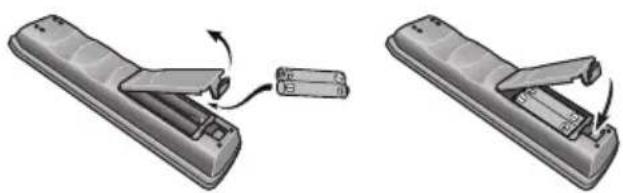
natural_image
Illustration of a remote control switch being inserted into a battery (no text or symbols present)
Caution
Incorrect use of batteries may result in such hazards as leakage and bursting. Observe the following precautions:
- Never use new and old batteries together.
- Insert the plus and minus sides of the batteries properly according to the marks in the battery case.
- Batteries with the same shape may have different voltages. Do not use different batteries together.
- When disposing of used batteries, please comply with governmental regulations or environmental public instruction's rules that apply in your country or area.
- Do not use or store batteries in direct sunlight or other excessively hot place, such as inside a car or near a heater. This can cause batteries to leak, overheat, explode or catch fire. It can also reduce the life or performance of batteries.
Installing the receiver
- When installing this unit, make sure to put it on a level and stable surface.
Don't install it on the following places:
-on a color TV (the screen may distort)
- near a cassette deck (or close to a device that gives off a magnetic field). This may interfere with the sound.
-in direct sunlight
- in damp or wet areas
– in extremely hot or cold areas
– in places where there is vibration or other movement
– in places that are very dusty
– in places that have hot fumes or oils (such as a kitchen)
Ventilation
When installing this unit, make sure to leave space around the unit for ventilation to improve heat dispersal (at least 20 cm (8 in.) at the top). If not enough space is provided between the unit and walls or other equipment, heat will build up inside, interfering with performance and/or causing malfunctions.
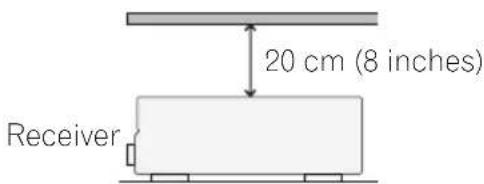
text_image
20 cm (8 inches) ReceiverSlot and openings in the cabinet are provided for ventilation and to protect the equipment from overheating. To prevent fire hazard, do not place anything directly on top of the unit, make sure the openings are never blocked or covered with items (such as newspapers, table-cloths and curtains), and do not operate the equipment on thick carpet or a bed.
Chapter 2: 5 minute guide
Introduction to home theater
Home theater refers to the use of multiple audio tracks to create a surround sound effect, making you feel like you're in the middle of the action or concert. The surround sound you get from a home theater system depends not only on your speaker setup, but also on the source and the sound settings of the receiver.
This receiver will automatically decode multichannel Dolby Digital, DTS, or Dolby Surround sources according to your speaker setup. In most cases, you won't have to make changes for realistic surround sound, but other possibilities (like listening to a CD with multichannel surround sound) are explained in Listening to your system on page 30.
Listening to Surround Sound
With the following quick setup guide, you should have your system hooked up for surround sound in no time at all. In most cases, you can simply leave the receiver in the default settings.
- Be sure to complete all connections before connecting to an AC power source.
1 Connect your DVD player and TV.
See Connecting a DVD player and TV on page 12 to do this. For surround sound, you'll want to hook up using a digital connection from the DVD player to the receiver.
2 Connect your speakers and place them for optimal surround sound.
See Connecting the speakers on page 20.
Where you place the speakers will have a big effect on the sound. Place your speakers as shown below for the best surround sound effect. Also see Hints on speaker placement on page 21 for more on this.
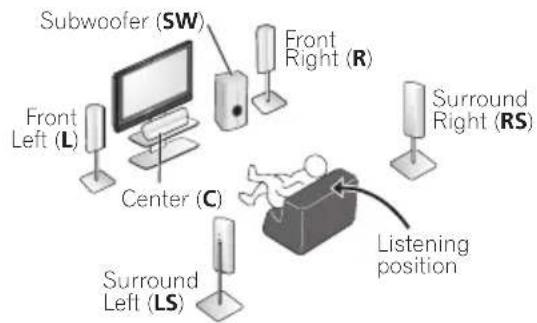
flowchart
graph TD
    A["Subwoofer (SW)"] --> B["Computer"]
    C["Front Left (L)"] --> B
    D["Front Right (R)"] --> B
    E["Surround Left (LS)"] --> F["Central (C)"]
    G["Surround Right (RS)"] --> H["User"]
    I["Listening position"] --> H
    style A fill:#f9f,stroke:#333
    style C fill:#f9f,stroke:#333
    style E fill:#f9f,stroke:#333
    style G fill:#f9f,stroke:#333
    style I fill:#ccf,stroke:#333
3 Plug in and switch on the receiver, followed by your DVD player, subwoofer and TV.
Make sure you've set the video input on your TV to this receiver. Check the manual that came with the TV if you don't know how to do this.
4 Use the on-screen automatic MCACC setup to set up your system.
See Automatically setting up for surround sound (MCACC) on page 8 for more on this.
5 Play a DVD, and adjust the volume.
Make sure that DVD/BD is showing in the receiver's display. If it isn't, press DVD on the remote to set the receiver to the DVD input. ^1
There are several other sound options you can select. See Listening to your system on page 30 for more on this. ^2
Note
1 You may need to set your DVD player to output Dolby Digital, DTS and 88.2 kHz/96 kHz PCM (2 channel) audio (see your DVD player's manual for more on this).
2 Depending on your DVD player or source disc, you may only get 2 channel sound. In this case, the listening mode must be set to STANDARD (see Listening in surround sound on page 30 if you need to do this) if you want multichannel surround sound.
Automatically setting up for surround sound (MCACC)
The Auto Multi-Channel Acoustic Calibration (MCACC) setup measures the acoustic characteristics of your listening area, taking into account ambient noise, speaker size and distance, and tests for both channel delay and channel level. After you have set up the microphone provided with your system, the receiver uses the information from a series of test tones to optimize the speaker settings and equalization for your particular room.

Important
- The Auto MCACC Setup will overwrite any existing speaker settings you've made.
• Make sure the headphones are unplugged.

Caution
- The test tones used in the Auto MCACC Setup are output at high volume.

text_image
RECEIVER INPUT SELECT SOURCE MULTI CONTROL DVD TV DVTR BORTABLE CD-R XM SERIALS CD FM AM RECEMBER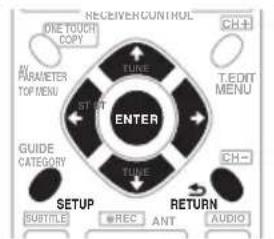
flowchart
graph TD
    A["ENTER"] --> B["TUBE"]
    A --> C["T-EDIT MENU"]
    A --> D["CH-"]
    A --> E["SETUP"]
    A --> F["RETURN"]
    A --> G["AUDIO"]
    A --> H["SUBTITLE"]
    A --> I["REC"]
    A --> J["ANT"]
    A --> K["CH-"]
    style A fill:#f9f,stroke:#333
    style B fill:#ccf,stroke:#333
    style C fill:#ccf,stroke:#333
    style D fill:#ccf,stroke:#333
    style E fill:#ccf,stroke:#333
    style F fill:#ccf,stroke:#333
    style G fill:#ccf,stroke:#333
    style H fill:#ccf,stroke:#333
    style I fill:#ccf,stroke:#333
    style J fill:#ccf,stroke:#333
    style K fill:#ccf,stroke:#333
    style L fill:#ccf,stroke:#333
    style M fill:#ccf,stroke:#333
    style N fill:#ccf,stroke:#333
    style O fill:#ccf,stroke:#333
    style P fill:#ccf,stroke:#333
    style Q fill:#ccf,stroke:#333
    style R fill:#ccf,stroke:#333
    style S fill:#ccf,stroke:#333
    style T fill:#ccf,stroke:#333
    style U fill:#ccf,stroke:#333
    style V fill:#ccf,stroke:#333
    style W fill:#ccf,stroke:#333
    style X fill:#ccf,stroke:#333
    style Y fill:#ccf,stroke:#333
    style Z fill:#ccf,stroke:#333
    style AA fill:#ccf,stroke:#333
    style AB fill:#ccf,stroke:#333
    style AC fill:#ccf,stroke:#333
    style AD fill:#ccf,stroke:#333
    style AE fill:#ccf,stroke:#333
    style AF fill:#ccf,stroke:#333
    style AG fill:#ccf,stroke:#333
    style AH fill:#ccf,stroke:#333
    style AI fill:#ccf,stroke:#333
    style AJ fill:#ccf,stroke:#333
    style AK fill:#ccf,stroke:#333
    style AL fill:#ccf,stroke:#333
    style AM fill:#ccf,stroke:#333
    style AN fill:#ccf,stroke:#333
    style AO fill:#ccf,stroke:#333
    style AP fill:#ccf,stroke:#333
    style AQ fill:#ccf,stroke:#333
    style AR fill:#ccf,stroke:#333
    style AS fill:#ccf,stroke:#333
    style AT fill:#ccf,stroke:#333
    style AU fill:#ccf,stroke:#333
    style AV fill:#ccf,stroke:#333
    style AW fill:#ccf,stroke:#333
1 Switch on the receiver and your TV.
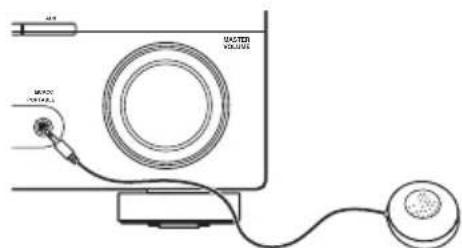
2 Connect the microphone to the MCACC PORTABLE jack on the front panel.
Make sure there are no obstacles between the speakers and the microphone.
text_image
MOSS VOLUMEIf you have a tripod, use it to place the microphone so that it's about ear level at your normal listening position. Otherwise, place the microphone at ear level using a table or a chair.
3 Press RECEIVER on the remote control, then press the SETUP button.
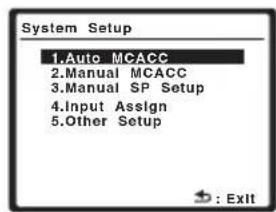
An on-screen display (OSD) appears on your TV. Use ↑/↓/←/→ and ENTER on the remote control to navigate through the screens and select menu items. Press RETURN to exit the current menu.
- Press SETUP at any time to exit the System Setup menu. ^1
4 Select 'Auto MCACC' from the System Setup menu then press ENTER.
text_image
System Setup 1.Auto MCACC 2.Manual MCACC 3.Manual SP Setup 4.Input Assign 5.Other Setup
text_image
System Setup 1.Auto MCACC 2.Manual MCACC 3.Manual SP Setup 4.Input Assign : ExitAbove: VSX-918V (left) and VSX-818V (right)
Try to be as quiet as possible after pressing ENTER. The system outputs a series of test tones to establish the ambient noise level.

Note
1 • The screensaver automatically starts after three minutes of inactivity. If you cancel the Auto MCACC Setup at any time, the receiver automatically exits and no settings will be made.
- The OSD will not appear if you have connected using the HDMI output to your TV. Use component or composite connections for system setup.
5 Follow the instructions on-screen.
• Make sure the microphone is connected.
- If you're using a subwoofer, it is automatically detected every time you switch on the system. Make sure it is on and the volume is turned up.
• See below for notes regarding background noise and other possible interference.
6 Wait for the test tones to finish.
A progress report is displayed on-screen while the receiver outputs test tones to determine the speakers present in your setup. Try to be as quiet as possible while it's doing this.

text_image
1.Auto MCACC Now Analyzing Environment Check Ambient Noise [OK] Microphone [ ] OK ►Speaker YES/NO [ ]OK →:Cancel- For correct speaker settings, do not adjust the volume during the test tones.
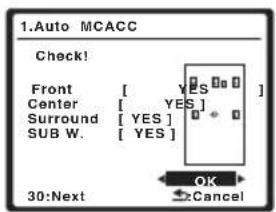
7 Confirm the speaker configuration.
The configuration shown on-screen should reflect the actual speakers you have.
text_image
1.Auto MCACC Check! Front [ YES ] Center [ YES ] Surround [ YES ] SUB W. [ YES ] 30:Next OK CancelIf the speaker configuration displayed isn't correct, use ↑/↓ to select the speaker and
←/→ to change the setting. When you're finished, go to the next step.
If you see an error message (ERR) in the right side column, there may be a problem with the speaker connection. If selecting RETRY doesn't fix the problem, turn off the power and check the speaker connections.
8 Make sure 'OK' is selected, then press ENTER.
If the screen in step 7 is left untouched for 30 seconds and the ENTER button is not pressed in step 8, the Auto MCACC setup will start automatically as shown below.
A progress report is displayed on-screen while the receiver outputs more test tones to determine the optimum receiver settings for channel level, speaker distance, and Acoustic Calibration EQ.

text_image
1. Auto MCACC Now Analyzing Surround Analyzing ► Speaker System [ ] Speaker Distance [ ] Channel Level [ ] Acoustic Cal EQ [ ]Again, try to be as quiet as possible while this is happening. It may take 3 to 8 minutes.
9 The Auto MCACC Setup has finished! Select 'SKIP' to go back to the System Setup menu.
The MCACC indicator on the front panel will light to show the setup is complete.
The settings made in the Auto MCACC Setup should give you excellent surround sound from your system, but it is also possible to adjust these settings manually using the System Setup menu (starting on page 37). ^1
Note
- Depending on the characteristics of your room, sometimes identical speakers with cone sizes of around 12 cm (5 inches) will end up with different size settings. You can correct the setting manually using the Speaker Setting on page 42.
- The subwoofer distance setting may be farther than the actual distance from the listening position. This setting should be accurate (taking delay and room characteristics into account) and generally does not need to be changed.
You can also choose to view the settings by selecting individual parameters from the Analyzed Data Check screen:
- Speaker Setting – The size and number of speakers you've connected (see page 42 for more on this)
- Speaker Distance – The distance of your speakers from the listening position (see page 45 for more on this)
- Channel Level – The overall balance of your speaker system (see page 44 for more on this)
- Acoustic Cal EQ – Adjustments to the frequency balance of your speaker system based on the acoustic characteristics of your room (see page 40 for more on this)
Press RETURN after you have finished checking each screen. When you're finished, select SKIP to go back to the System Setup menu.
Other problems when using the Auto MCACC Setup
If the room environment is not optimal for the Auto MCACC Setup (too much background noise, echo off the walls, obstacles blocking the speakers from the microphone) the final settings may be incorrect. Check for household appliances (air conditioner, fridge, fan, etc.), that may be affecting the environment and switch them off if necessary. If there are any instructions showing in the front panel display, please follow them.
- Some older TVs may interfere with the operation of the microphone. If this seems to be happening, switch off the TV when doing the Auto MCACC Setup.
Better sound using Phase Control
This receiver's Phase Control feature uses phase correction measures to make sure your sound source arrives at the listening position in phase, preventing unwanted distortion and/or coloring of the sound (see illustration below).

Phase Control technology provides coherent sound reproduction through the use of phase matching ^1 for an optimal sound image at your listening position. The default setting is on and we recommend leaving Phase Control switched on for all sound sources.
- Press PHASE (PHASE CONTROL) to switch on phase correction.

Note
1 Phase matching is a very important factor in achieving proper sound reproduction. If two waveforms are 'in phase', they crest and trough together, resulting in increased amplitude, clarity and presence of the sound signal. If a crest of a wave meets a trough (as shown in the upper section of the diagram above) then the sound will be 'out of phase' and an unreliable sound image will be produced.
Chapter 3:
Connecting up
Making cable connections
Make sure not to bend the cables over the top of this unit (as shown in the illustration). If this happens, the magnetic field produced by the transformers in this unit may cause a humming noise from the speakers.

natural_image
Line drawing of a rectangular electronic device with a curved cable and internal components (no text or symbols)
Important
- Before making or changing connections, switch off the power and disconnect the power cord from the AC outlet.
- Before unplugging the power cord, switch the power into standby.
Analog audio cables
Use stereo RCA phono cables to connect analog audio components. These cables are typically red and white, and you should connect the red plugs to R (right) terminals and white plugs to L (left) terminals.
Analog audio cables
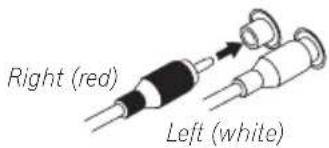
text_image
Right (red) Left (white)Digital audio cables
Commercially available coaxial digital audio cables or optical cables should be used to connect digital components to this receiver. ^1
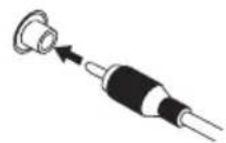
Coaxial digital audio cable

Optical cable
Video cables
Standard RCA video cables
These cables are the most common type of video connection and are used to connect to the composite video terminals. The yellow plugs distinguish them from cables for audio.

Standard RCA video cable
Component video cables
Use component video cables to get the best possible color reproduction of your video source. The color signal of the TV is divided into the luminance (Y) signal and the color ( P_B and P_R ) signals and then output. In this way, interference between the signals is avoided.
Component video cables
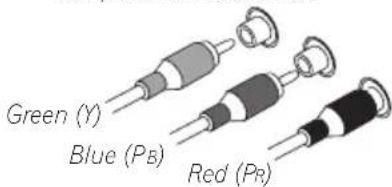
text_image
Green (Y) Blue (Pb) Red (Pr)Note
1 • When connecting optical cables, be careful when inserting the plug not to damage the shutter protecting the optical socket.
- When storing optical cable, coil loosely. The cable may be damaged if bent around sharp corners.
- You can also use a standard RCA video cable for coaxial digital connections.
Connecting a DVD player and TV
This page shows you how to connect your DVD player and TV to the receiver.
1 Connect a coaxial digital audio output on your DVD player to the DIGITAL COAX 1 (DVD/BD) input on this receiver.
Use a coaxial digital audio cable for the connection. ^1
2 Connect the composite video output and the stereo analog audio outputs ^2 on your DVD player to the DVD/BD inputs on this receiver.
Use a standard RCA video cable ^3 and a stereo RCA phono cable for the connection.
- If your DVD player has multichannel analog outputs, see Connecting the multichannel analog outputs on page 13 for how to connect it.
3 Connect the analog audio outputs from your TV to the TV/SAT inputs on this receiver.
This will allow you to play the sound from the TV's built-in tuner. Use a stereo RCA phono cable to do this.
- If your TV has a built-in digital decoder, you can also connect an optical digital audio output from your TV to the DIGITAL OPT 2 (TV/SAT) input on this receiver. Use an optical cable for the connection.
4 Connect the MONITOR OUT video jack on this receiver to a video input on your TV.
Use a standard RCA video cable to connect to the composite video jack. ^4

flowchart
graph TD
    A["TV"] --> B["Analog Audio Out"]
    B --> C["Analog Audio OUT"]
    C --> D["Video Out"]
    D --> E["Digital Audio Out"]
    E --> F["VD/ED"]
    style A fill:#f9f,stroke:#333
    style B fill:#ccf,stroke:#333
    style C fill:#cfc,stroke:#333
    style D fill:#fcc,stroke:#333
    style E fill:#cff,stroke:#333
    style F fill:#ffc,stroke:#333
The illustration shows the VSX-918V, but connections for the VSX-818V are the same.
Note
1 If your DVD player only has an optical digital output, you can connect it to the optical input on this receiver using an optical cable. When you set up the receiver you'll need to tell the receiver which input you connected the player to (see The Input Assign menu on page 64).
2 This connection will allow you to make analog recordings from your DVD player.
3 If your player also has a component video output, you can connect this too. See Using the component video jacks on page 16 for more on this.
4 See Using the component video jacks on page 16 if you want to use the component video outputs to connect this receiver to your TV.
Connecting the multichannel analog outputs
For DVD Audio and SACD playback, your DVD player may have 5.1 channel analog outputs. In this case, you can connect them to the multichannel analog outputs to the multichannel inputs of this receiver as shown below. ^1
VSX-918V
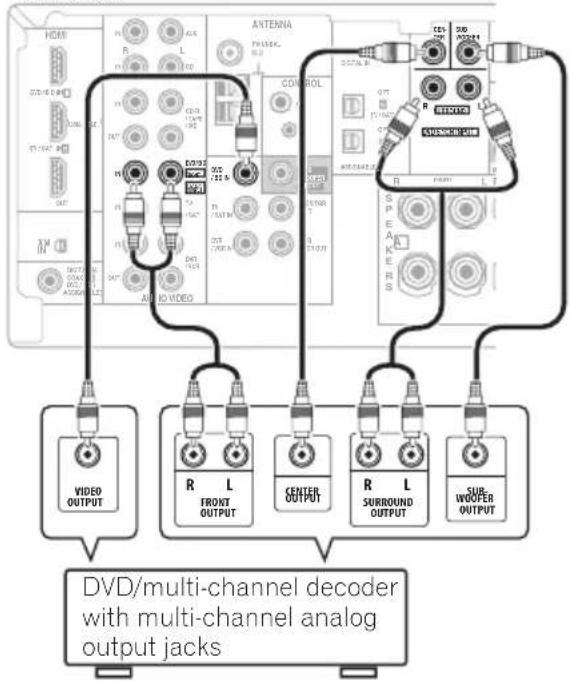
text_image
HDMI R L C D R L C D R L C D R L C D R L C D R L C D R L C D R L C D R L C D R L C D R L C D R L C D R L C D R M A20000000000000000000000000000000000000000000000000000000000000000000000000000000000000000000000000000 ANTenna CONTROL R L C D R L C D R L C D R L C D R L C D R L C D R L C D R L C D R L C D R L C D R L C D R L C D R S E A12345678888888888888888888888888888888888888888888888888888888888888888888888888888888888888888888888888888B DVD/multi-channel decoder with multi-channel analog output jacksThe illustration shows the VSX-918V, but connections for the VSX-818V are the same.
Connecting a satellite receiver or other digital set-top box
Satellite and cable receivers, and terrestrial digital TV tuners are all examples of so-called 'set-top boxes'.
1 Connect a set of audio/video outputs on the set-top box component to the TV/SAT AUDIO and VIDEO inputs on this receiver. ^2
Use a stereo RCA phono cable for the audio connection and a standard RCA video cable for the video connection. ^3
2 If your set-top box has a digital output, connect it to a digital input on this receiver.
The example shows an optical connection to the DIGITAL OPT 2 (TV/SAT) input. ^4

text_image
HDMI DVD/ BD IN ASSORDABLE TV/SAT IN OUT XM IN DIGITAL IN CDAX DVD/ BD > ASSORDABLE ANTenna PO UNBAL R L IN IN IN OUT CO-R /TAPE / S/O DVU/ ED FROST DVD S/R PREDISH MONITOR OUT DUR / VCR IN DUR / VCR OUT AV OUT VISX-918V DIGITAL OUT OPT TV/SAT ) OPT ASSISH R 2 DIGITAL COAUXIL DIGITAL OUTSTB
The illustration shows the VSX-918V, but connections for the VSX-818V are the same.
Note
1 The multichannel input can only be used when DVD 5.1ch is selected (see page 36).
2 If you've already connected your TV to the TV/SAT inputs, simply choose another input. However, to receive a signal, you'll need to press the input select button for the input you connected the set-top box to.
3 See Using the component video jacks on page 16 if your set-top box also has a component video output.
4 If your set-top box only has a coaxial digital output, you can connect it to the coaxial input on this receiver using a coaxial digital audio cable. When you set up the receiver you'll need to tell the receiver which input you connected the set-top box to (see The Input Assign menu on page 64).
Connecting other audio components
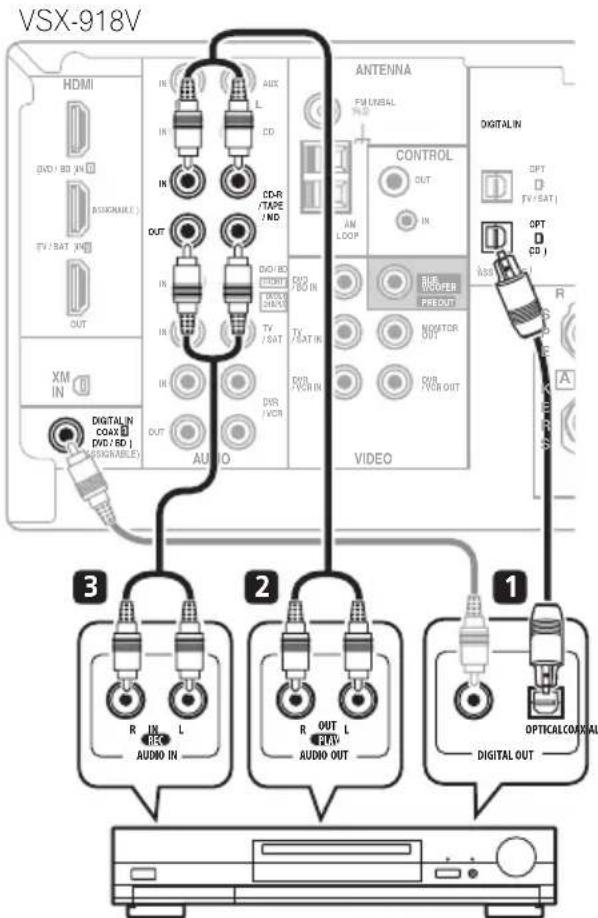
The number and kind of connections depends on the kind of component you're connecting. ^1 Follow the steps below to connect a CD-R, MD, DAT, tape recorder or other audio component.
1 If your component has a digital output, connect this to a digital input on the receiver as shown.
The example shows an optical connection to the DIGITAL OPT 1 (CD) input.
2 If necessary, connect the analog audio outputs of the component to a set of spare audio inputs on this receiver.
You'll need to make this connection for components without a digital output, or if you want to record from a digital component. Use a stereo RCA phono cable as shown.
3 If you're connecting a recorder, connect the analog audio outputs to the analog audio inputs on the recorder.
The example shows an analog connection to the CD-R/TAPE/MD analog output jack using a stereo RCA phono cable.
text_image
VSX-918V HDMI DVD/BD IN DOSKAREL TV/SAT IN OUT XM IN DIGITALIN COAT (DVD/BD ) (LOGNABLE) AUDIO ANTENNA FM UNISEAL CDR /TAPE /ND IN IN IN IN IN IN IN IN IN IN IN IN IN IN IN IN IN IN IN IN IN IN IN IN IN IN IN IN IN IN IN IN IN IN IN IN IN IN IN IN IN IN IN IN IN IN IN IN IN IN OUT OUT OUT OUT OUT OUT OUT OUT OUT OUT OUT OUT OUT OUT OUT OUT OUT OUT OUT OUT OUT OUT OUT OUT OUT OUT OUT OUT OUT OUT OUT OUT OUT OUT OUT OUT OUT OUT OUT OUT OUT OUT OUT OUT OUT OUT OUT OUT OUT OUT 2 R IN L 3 R OUT L 1 OPTICALCOMPVAL DIGITAL OUTCD-R, MD, DAT, Tape recorder, etc.
The illustration shows the VSX-918V, but connections for the VSX-818V are the same.
About the WMA9 Pro decoder
This unit has an on-board Windows Media® Audio 9 Professional (WMA9 Pro) decoder, so it is possible to playback WMA9 Pro-encoded audio using a coaxial or optical digital connection when connected to a WMA9 Pro-compatible player.
However, the connected DVD player, set-top box, etc. must be able to output WMA9 Pro format audio signals through a coaxial or optical digital output.

Note
1 Note that you must connect digital components to analog audio jacks if you want to record to/from digital components (like an MD) to/from analog components.

Windows Media and the Windows logo are trademarks or registered trademarks of Microsoft Corporation in the United States and/or other countries.
Connecting an HDD/DVD recorder, VCR and other video sources
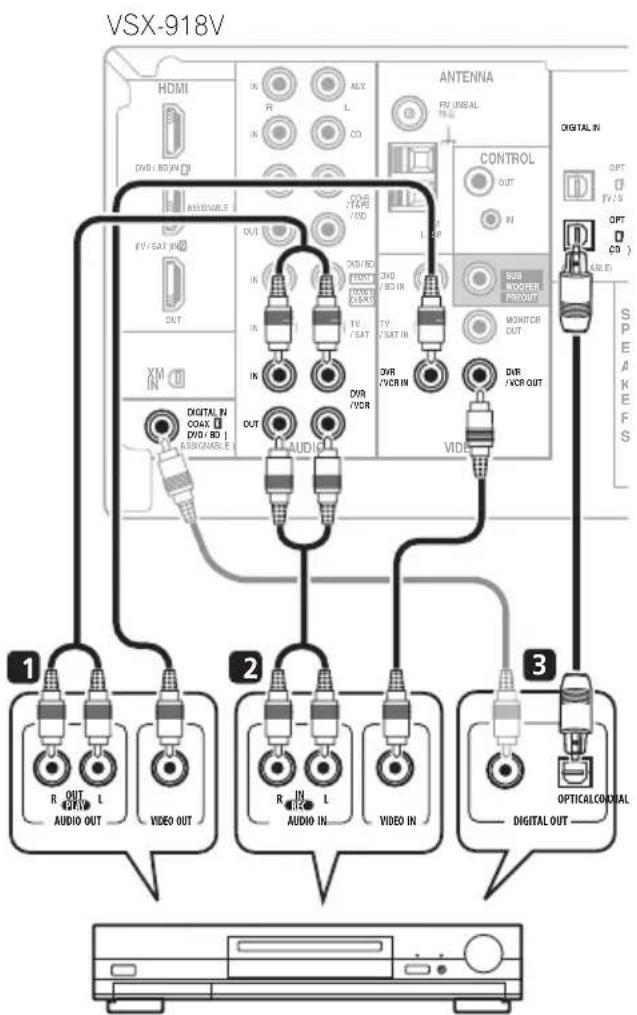
This receiver has audio/video inputs and outputs suitable for connecting analog or digital video recorders, including VCRs and HDD/DVD recorders.
1 Connect a set of audio/video outputs on the recorder to the DVR/VCR AUDIO and VIDEO inputs on this receiver.
Use a stereo RCA phono cable for the audio connection and a standard RCA video cable for the video connection. ^1
2 Connect a set of audio/video inputs on the recorder to the DVR/VCR AUDIO and VIDEO outputs on this receiver.
Use a stereo RCA phono cable for the audio connection and a standard RCA video cable for the video connection.
3 If your video component has a digital audio output, connect it to a digital input on this receiver.
The example shows a recorder connected to the DIGITAL OPT 1 (CD) input. ^2
text_image
VSX-918V HDMI IN R L ALX CO DIGITAL IN DVD / DVD OUT INTENNA FU UNSAL CONTROL OUT VI DVD / VCR IN DVD / VCR IN TV / SAT DVD / VCR IN DVD / VCR IN DIGITAL IN COAX DVD / BD ASSIGNABLE DIGITAL OUT R OUT L AUDIO OUT VIDEO OUT 2 R IN L AUDIO IN VIDEO IN 3 OPTICALCOAL DIGITAL OUT SPEAKESDVR, VCR, LD player, etc.
The illustration shows the VSX-918V, but connections for the VSX-818V are the same.
Note
1 If your video component also has a component video output, you can connect this too. See Using the component video jacks on page 16 for more on this.
2 In this case, you'll need to tell the receiver which digital input you connected the component to (see The Input Assign menu on page 64).
Using the component video jacks
Component video should deliver superior picture quality when compared to composite video. A further advantage (if your source and TV are both compatible) is progressive-scan video, which delivers a very stable, flicker-free picture. See the manuals that came with your TV and source component to check whether they are compatible with progressive-scan video.

Important
- If you connect any source component to the receiver using a component video input, you must also have your TV connected to this receiver's COMPONENT VIDEO MONITOR OUT jacks.
1 Connect the component video outputs of your source to a set of component video inputs on this receiver.
Use a three-way component video cable for the connection.
2 If necessary, assign the component video inputs to the input source you've connected.
This only needs to be done if you didn't connect according to the following defaults:
- Component 1 – DVD
- Component 2 – TV
- Component 3 – DVR
See Assigning the component video inputs on page 65 for more on this.
3 Connect the COMPONENT VIDEO MONITOR OUT jacks on this receiver to the component video inputs on your TV or monitor.
Use a three-way component video cable.
Connecting using HDMI
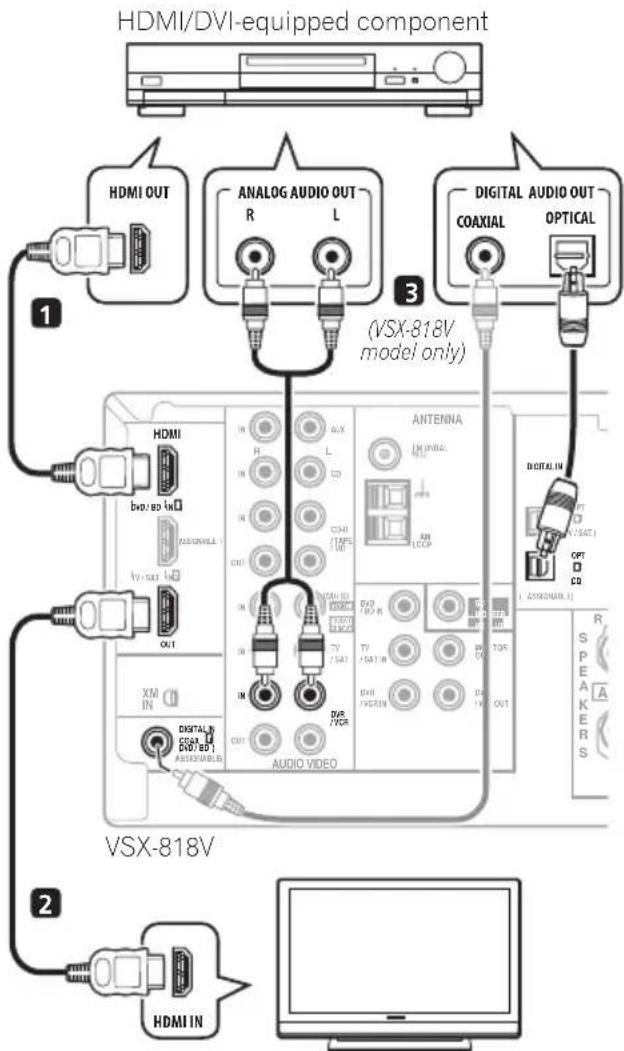
If you have an HDMI or DVI (with HDCP) equipped component, you can connect it to this receiver using a commercially available HDMI cable.
The HDMI connection transfers uncompressed digital video, as well as almost every kind of digital audio that the connected component is compatible with, including DVD-Video, DVD-Audio (see below for limitations), Video CD/ Super VCD, CD and MP3.
text_image
HDMI/DVI-equipped component HDMI OUT ANALOG AUDIO OUT R L 3 (VSX-818V model only) DIGITAL AUDIO OUT COAXIAL OPTICAL 1 HDMI DVO/BO IN SUSONIBLE TV/SAT IN OUT XM IN DIGITAL N DCOAL DVD/BOY AUDIO VIDEO ANTENNA IN MIRAGE L CD COM TARE OUT AR LOOP DIGITAL IN PT N/SAT I OPT CO (ASSIGNABLE) R SPEAKERS 2 HDMI IN VSX-818VHDMI/DVI-compatible monitor or flat panel TV
The illustration shows the VSX-818V, but connections for the VSX-918V are the same.
1 Use an HDMI cable to connect the HDMI IN 1/2 interconnect on this receiver to an HDMI output on your HDMI component.
2 Use an HDMI cable to connect the HDMI OUT interconnect on this receiver to an HDMI interconnect on a HDMI-compatible monitor.
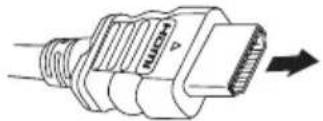
- The arrow on the cable connector body should be facing left for correct alignment with the connector on the player.
3 VSX-818V model only: To hear audio from your HDMI component through this system, make analog and/or digital connections as necessary.
On the rear panel, you must connect to the audio jacks from a set of audio/video inputs (for example, DVR/VCR as shown in the illustration).
- Without this connection, HDMI audio will still be output from your TV or flat panel TV (though no sound will be heard from this receiver).
4 Assign the HDMI input(s) you connected to the corresponding input source.
After connecting, you must specify which input(s) you are using for your HDMI component in Assigning the HDMI inputs on page 65.
5 Use the input source buttons to select the input source you assigned in the previous step, then press SIGNAL SEL (SIGNAL SELECT) after press RECEIVER button to select the audio input signal.
You can also use the front panel controls to do this (see Choosing the input signal on page 36).
- VSX-918V model only: Set the HDMI parameter in Setting the AV options on page 35 to THRU (THROUGH) if you want to hear HDMI audio output from your TV or flat panel TV (no sound will be heard from this receiver).
- If the video signal does not appear on your TV or flat panel TV, try adjusting the resolution settings on your component or display. Note that some components (such as video game units) have resolutions that may not be displayed. In this case, use a (analog) composite connection.
- The signals input from the analog (composite and component) video inputs of this unit will not be output from the HDMI OUT.
About HDMI
HDMI (High Definition Multimedia Interface) supports both video and audio on a single digital connection for use with DVD players, DTV, set-top boxes, and other AV devices. HDMI was developed to provide the technologies of High Bandwidth Digital Content Protection (HDCP) as well as Digital Visual Interface (DVI) in one specification. HDCP is used to protect digital content transmitted and received by DVI-compliant displays.
HDMI has the capability to support standard, enhanced, or high-definition video plus standard to multi-channel surround-sound audio. HDMI features include uncompressed digital video, a bandwidth of up to 2.2 gigabytes per second (with HDTV signals), one connector (instead of several cables and connectors), and communication between the AV source and AV devices such as DTVs.
HDMI, the HDMI logo and High-Definition Multimedia Interface are trademarks or registered trademarks of HDMI Licensing LLC.
Connecting to the front panel audio mini jack
Front audio connections are accessed via the front panel using the VIDEO/PORTABLE button. Press VIDEO/PORTABLE and select PORTABLE input. Use a stereo mini-jack cable to connect a digital audio player, etc.

text_image
This receiver MAGTOR PULLAWAY MAGSO PULLAWAY AUDIO OUT Digital audio player, etc.Connecting to the front panel video terminal
Front video connections are accessed via the front panel using the VIDEO/PORTABLE button. Press VIDEO/PORTABLE and select VIDEO input. There are standard audio/video jacks. Hook them up the same way you made the rear panel connections.
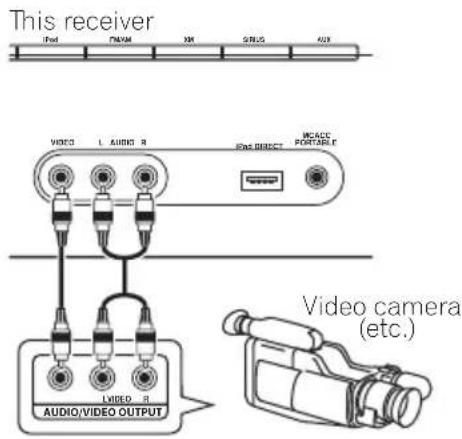
text_image
This receiver Iod TNSM XM SRUS AUX VIDEO L AUDIO R EAG DIRECT MCACC PORTABLE LVIDED R AUDIO/VIDEO OUTPUT Video camera (etc.)AC outlet
Power supplied through this outlet is turned on and off by the receiver's power switch. Total electrical power consumption of connected equipment should not exceed 100 W (0.8 A).
- This unit should be disconnected by removing the power plug from the wall socket when not in regular use (ex. when on vacation).


Caution
- Do not connect a TV set, monitor, heater, or similar appliance to this unit's AC outlet.
- Do not connect appliances with high power consumption to the AC outlet in order to avoid overheating and fire risk. This can also cause the receiver to malfunction.
- Since a subwoofer or power amplifier can exceed the 100 W maximum when playing sources at a high volume, this type of equipment should not be connected to the AC outlet.
Connecting antennas
Connect the AM loop antenna and the FM wire antenna as shown below. To improve reception and sound quality, connect external antennas (see Using external antennas below).
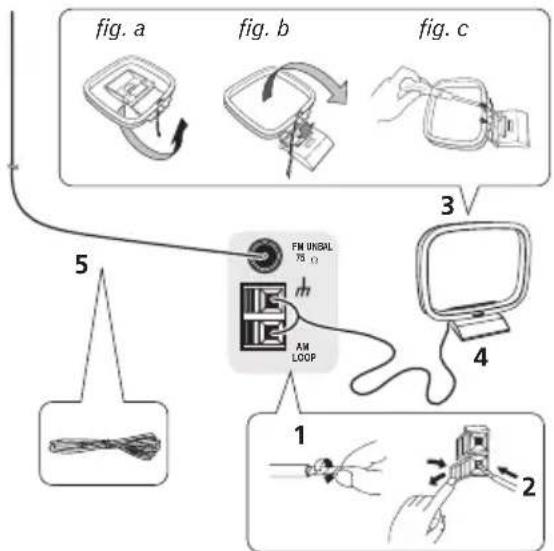
flowchart
graph TD
    A["Line Cable"] --> B["Switch 75 Ω"]
    B --> C["Computer Monitor"]
    D["Line Cable"] --> E["Switch 75 Ω"]
    E --> F["Switch 75 Ω"]
    G["Line Cable"] --> H["Switch 75 Ω"]
    H --> I["Switch 75 Ω"]
    J["Line Cable"] --> K["Switch 75 Ω"]
    K --> L["Switch 75 Ω"]
    M["Line Cable"] --> N["Switch 75 Ω"]
    N --> O["Switch 75 Ω"]
    P["Line Cable"] --> Q["Switch 75 Ω"]
    Q --> R["Switch 75 Ω"]
    S["Line Cable"] --> T["Switch 75 Ω"]
    T --> U["Switch 75 Ω"]
    V["Line Cable"] --> W["Switch 75 Ω"]
    W --> X["Switch 75 Ω"]
    Y["Line Cable"] --> Z["Switch 75 Ω"]
    Z --> AA["Switch 75 Ω"]
1 Pull off the protective shields of both AM antenna wires.
2 Push open the tabs, then insert one wire fully into each terminal, then release the tabs to secure the AM antenna wires.
3 Fix the AM loop antenna to the attached stand.
To fix the stand to the antenna, bend in the direction indicated by the arrow (fig. a) then clip the loop onto the stand (fig. b).
- If you plan to mount the AM antenna to a wall or other surface, secure the stand with screws (fig. c) before clipping the loop to the stand. Make sure the reception is clear.
4 Place the AM antenna on a flat surface and in a direction giving the best reception.
5 Connect the FM wire antenna in the same way as the AM loop antenna.
For best results, extend the FM antenna fully and fix to a wall or door frame. Don't drape loosely or leave coiled up.
Using external antennas
To improve FM reception
Use an F connector to connect an external FM antenna.
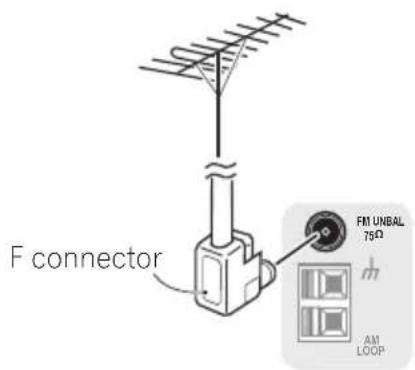
text_image
F connector FM UNBAL 75Ω AM LOOPTo improve AM reception
Connect a 5 m to 6 m (15 ft. to 18 ft.) length of vinyl-coated wire to the AM antenna terminal without disconnecting the supplied AM loop antenna.
For the best possible reception, suspend horizontally outdoors.

text_image
FM UNBAL 75 Ω AM LOOP Outdoor antenna 5 m to 6 m (15 ft. to 18 ft.) Indoor antenna (vinyl-coated wire)Connecting the speakers
A complete setup of six speakers (including the subwoofer) is shown here but everyone's home setup will vary. Simply connect the speakers you have in the manner shown below. The receiver will work with just two stereo speakers (the front speakers in the diagram) but using at least three speakers is recommended, and a complete setup is best for surround sound. If you're not using a subwoofer, change the front speaker setting (see Speaker Setting on page 42) to LARGE.
Make sure you connect the speaker on the right to the right terminal and the speaker on the left to the left terminal. Also make sure the positive and negative (+/-) terminals on the receiver match those on the speakers. You can use speakers with a nominal impedance between 6 Ω to 16 Ω (please see Switching the speaker impedance on page 72 if you plan to use speakers with an impedance of less than 8 Ω).
You can use the speakers connected to the B speaker terminals to listen to stereo playback in another room. Make sure to review Hints on speaker placement on page 21 when placing the speakers in another room. See Switching the speaker system on page 22 for the listening options with this setup.
Be sure to complete all connections before connecting this unit to the AC power source.
VSX-918V
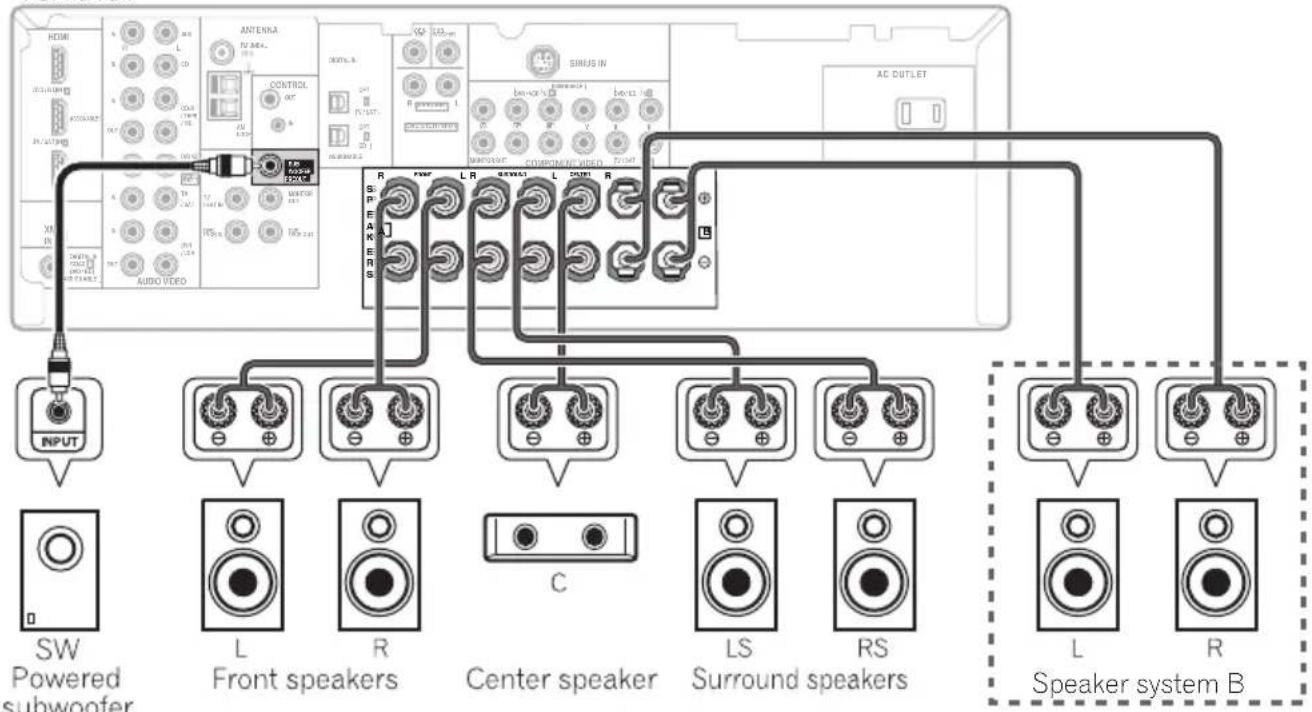
flowchart
graph TD
    A["Input"] --> B["SW Powered subwoofer"]
    B --> C["L Front speakers"]
    C --> D["R Center speaker"]
    D --> E["C BSURD Speaker"]
    E --> F["LS Surround speakers"]
    F --> G["RS"]
    G --> H["L Speaker System B"]
    H --> I["L Speaker System B"]
    style A fill:#f9f,stroke:#333
    style B fill:#ccf,stroke:#333
    style C fill:#cfc,stroke:#333
    style D fill:#fcc,stroke:#333
    style E fill:#cff,stroke:#333
    style F fill:#ffc,stroke:#333
    style G fill:#cfc,stroke:#333
    style H fill:#fcc,stroke:#333
    style I fill:#cfc,stroke:#333
The illustration shows the VSX-918V, but connections for the VSX-818V are the same.
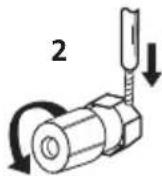
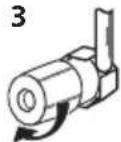
Bare wire connections
A-Speaker terminals:
1 Twist exposed wire strands together.
2 Loosen terminal and insert exposed wire.
3 Tighten terminal.
1

2
3
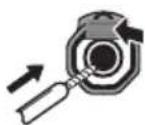
B-Speaker terminals:
1 Twist exposed wire strands together.
2 Push open the tabs and insert exposed wire.
3 Release the tabs.
1

2
3


Caution
• These speaker terminals carry HAZARDOUS LIVE voltage. To prevent the risk of electric shock when connecting or disconnecting the speaker cables, disconnect the power cord before touching any uninsulated parts.
- Make sure that all the bare speaker wire is twisted together and inserted fully into the speaker terminal. If any of the bare speaker wire touches the back panel it may cause the power to cut off as a safety measure.
Hints on speaker placement
Speakers are usually designed with a particular placement in mind. Some are designed to be floorstanding, while others should be placed on stands to sound their best. Some should be placed near a wall; others should be placed away from walls. We have provided a few tips on getting the best sound from your speakers (following), but you should also follow the guidelines on placement that the speaker manufacturer provided with your particular speakers to get the most out of them.
- Place the front left and right speakers at equal distances from the TV.
- When placing speakers near the TV, we recommend using magnetically shielded speakers to prevent possible interference, such as discoloration of the picture when the TV is switched on. If you do not have magnetically shielded speakers and notice discoloration of the TV picture, move the speakers farther away from the TV.
- If you're using a center speaker, place the front speakers at a wider angle. If not, place them at a narrower angle.
- Place the center speaker above or below the TV so that the sound of the center channel is localized at the TV screen.
- It is best to angle the speakers towards the listening position. The angle depends on the size of the room. Use less of an angle for bigger rooms.
- Surround speakers should be positioned 60 cm to 90 cm (a foot-and-a-half to three feet) higher than your ears and titled slightly downward. Make sure the speakers don't face each other.
• To achieve the best possible surround sound, install your speakers as shown next page. Be sure all speakers are installed securely to prevent accidents and improve sound quality.

Caution
- If you choose to install the center speaker on top of the TV, be sure to secure it with putty, or by other suitable means, to reduce the risk of damage or injury resulting from the speaker falling from the TV in the event of external shocks such as earthquakes.
- Make sure no exposed speaker wire is touching the rear panel, this may cause the receiver to turn off automatically.
Speaker placement diagrams
The following illustrations show 5.1 channel speaker setups.
3-D view of 5.1 channel speaker setup

natural_image
Interior view of a modern audio workstation with multiple speakers and a monitor (no text or symbols visible)Overhead view of speaker setup
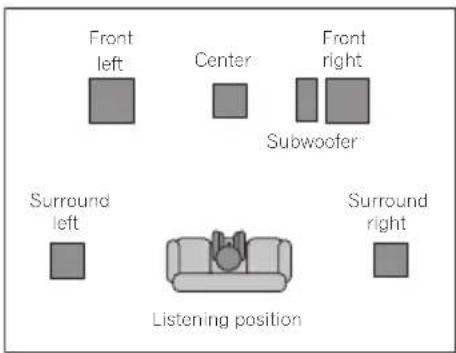
text_image
Front left Center Front right Subwoofer Surround left Surround right Listening positionSwitching the speaker system
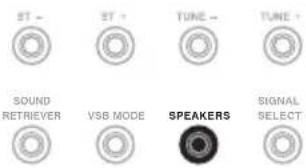
Three speaker system settings are possible using the SPEAKERS button.
- Use the SPEAKERS button on the front panel to select a speaker system setting. ^1
text_image
ST - ST - TUNE - TUNE + SOUND RETRIEVER VSB MODE SPEAKERS SIGNAL SELECTPress repeatedly to choose a speaker system option:
- SP▶A – Sound is output from the speakers connected to the A speaker terminals (multichannel playback is possible).
- SP▶B – Sound is output from the two speakers connected to speaker system B (only stereo playback is possible).
- SP▶AB – Sound is output from speaker system A (no sound is output from the Center and the Surround speaker), the two speakers in speaker system B, and the subwoofer. Multichannel sources are downmixed for stereo output from speaker systems A and B.

Note
1 • The subwoofer output depends on the settings you made in Speaker Setting on page 42. However, if SP▶ B is selected above, no sound is heard from the subwoofer (the LFE channel is not downmixed).
- All speaker systems (except speaker system B connections) are switched off when headphones are connected.
Chapter 4:
Controls and displays
Front panel
Illustration shows the VSX-918V model

text_image
1 2 3 4 6 57 Pioneer STANDEYON PHRIN CONTROL DIGITAL PRECISION PROCESSING AUDIO/AUDIO MULTI-CHANNEL RECEIVER/VSX-S18V PION CONTROL ACQUISIC EQ AUTO SURR STREAM DIRECT STRAWA/ALC STANDARD OUTRUNS MAX INPUT SELECTOR Dance Energy Power Amplifier PHONES ST- ST+ TUNE - TUNE + 14 15 16 17 VIDEO AUDIO BL IPM DIRECT MACOSC PORTABLE 8 9 10 MASTER VOLUME 11 12 13 18 19 20 PHONES ST - ST + TUNE - TUNE + SOUND RETRIEVER VSB MODE SPEAKERS SIGNAL SELECT 14 15 16 17 PHASE CONTROL ACQUISIC EQ AUTO SURR /STREAM DIRECT STEREO/A.L.C. STANDARD ADVANCED SURROUND1 ⏻ STANDBY/ON
2 INPUT SELECTOR dial
Selects an input source.
3 Input select buttons
Selects an input source.
4 Digital Precision Processing indicator
(VSX-918V model only)
Lights to indicate digital processing.
5 Character display
See Display on page 24.
6 MCACC indicator
Lights when Acoustic Calibration EQ (page 33) is on (Acoustic Calibration EQ is automatically set to ALL CH ADJUST after the Auto MCACC Setup (page 8) or EQ Auto Setup (page 40)).
7 MASTER VOLUME dial
8 AUDIO/VIDEO input
See Connecting to the front panel video terminal on page 18.
9 iPod DIRECT terminal
Use to connect your Apple iPod as an audio source (page 55).
Controls and displays
10 MCACC PORTABLE jack
Use to connect a microphone when performing Auto MCACC setup, or connect an auxiliary component using a stereo mini-jack cable (page 18).
11 PHONES jack
Use to connect headphones (when connected, there is no sound output from the speakers (except speaker system B connections)).
12 ST +/-
Use to select preset radio stations (page 47).
13 TUNE +/-
Used to find radio frequencies (page 46).
14 SOUND RETRIEVER
Press to restore CD quality sound to compressed audio sources (page 32).
15 VSB MODE
Press to switch on/off Virtual Surround Back (VSB) mode (page 33).
16 SPEAKERS
Use to change the speaker system (page 22) and the impedance setting (page 72).
17 SIGNAL SELECT
Selects an input signal (page 36).
18 PHASE CONTROL
Press to switch on/off Phase Control (page 10).
19 ACOUSTIC EQ
Press to select an Acoustic Calibration EQ setting (page 33).
20 Listening mode buttons
AUTO SURR/STREAM DIRECT
Switches between Auto surround mode (Auto playback on page 30) and Stream Direct playback. Stream Direct playback bypasses the tone controls for the most accurate reproduction of a source (page 32).
STEREO/A.L.C.
Switches between stereo playback, Auto level control stereo mode (page 31) and Front Stage Surround Advance modes (page 32).
STANDARD
Press for Standard decoding and to switch between the various ☐☐ Pro Logic II options (page 30).
ADVANCED SURROUND
Switches between the various surround modes (page 31).
Display
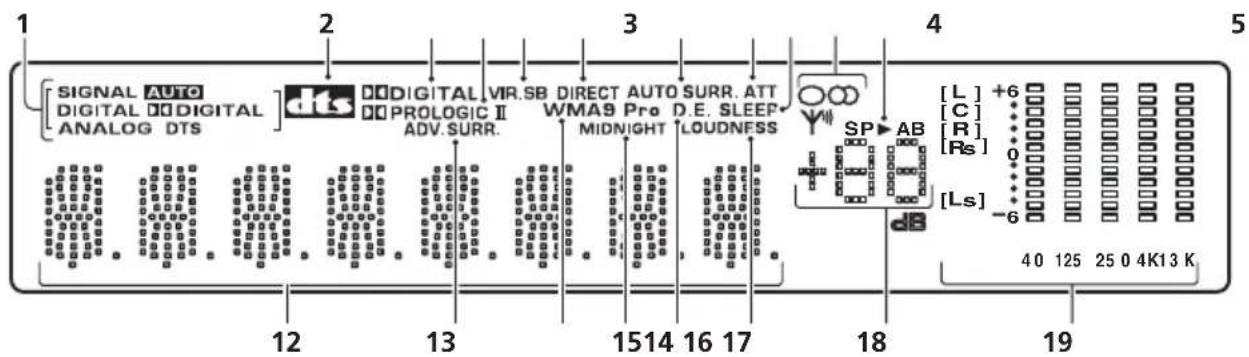
text_image
1 2 3 4 5 [SIGNAL AUTO DIGITAL DIGITAL ANALOG DTS] dLS DIGITAL VIR.SB DIRECT AUTO SURR. ATT PROLOGIC II WMA9 Pro D.E. SLEEP ADV.SURR. MIDNIGHT LOUDNESS SP AB [L] +6 [C] [R] [Rs] [ls] -6 40 125 25 0 4K13 K1 SIGNAL indicators
Lights to indicate the type of input signal:
AUTO
Lights when AUTO signal select is on.
DIGITAL
Lights when a digital audio signal is detected.
DIGITAL
Lights when a Dolby Digital encoded signal is detected.
ANALOG
Lights when an analog signal is detected.
DTS
Lights when a source with DTS encoded audio signals is detected.
2 dts
Lights to indicate decoding of a DTS multichannel signal.
3 DIGITAL
Lights to indicate decoding of a Dolby Digital multichannel signal.
4 PRO LOGIC II
Lights to indicate Pro Logic II decoding (see Listening in surround sound on page 30).
5 VIR. SB
Lights during Virtual surround back processing (page 33).
6 DIRECT
Lights when source Stream Direct playback is in use. Direct playback bypasses the tone controls for the most accurate reproduction of a source.
7 AUTO SURR.
Lights when Auto Surround (see Auto playback on page 30) or XM HD Surround (page 58) is on.
8 ATT
Lights when ANALOG ATT is used to attenuate (reduce) the level of the analog input signal (page 28).
9 SLEEP
Lights when the sleep mode is active (page 28).
10 Tuner indicators
O/MONO
Lights when the mono mode is set using the MPX button.
∞ / STEREO
Lights when a stereo FM broadcast is being received in auto stereo mode.
Υ® / TUNED
Lights when a broadcast is being received.
11 Speaker indicators
Lights to indicate the current speaker system, A and/or B (page 22).
12 Character display
13 ADV.SURR. (Advanced Surround)
Lights when one of the Advanced Surround modes has been selected.
14 WMA9 Pro
Lights to indicate decoding of a WMA9 Pro signal.
15 MIDNIGHT
Lights during Midnight listening (page 34).
16 D.E.
Lights when Dialog Enhancement is switched on (page 35).
17 LOUDNESS
Lights during Loudness listening (page 34).
18 Master volume level
Shows the overall volume level.
19 MCACC channel EQ / Sound Retriever / HDMI indicators
These indicators show the EQ balance for each channel in Checking your Acoustic Calibration EQ settings on page 42. Also, L and R light when the Sound Retriever is active (page 32).
In addition, the HDMI connection state is displayed as shown below.
Blinks when connecting an HDMI-equipped component: lights when the component is connected (page 16).

text_image
[L]+6 [C] [R] [P6] [LS]-6 HDMI indicatorRemote control
Illustration shows the VSX-918V model
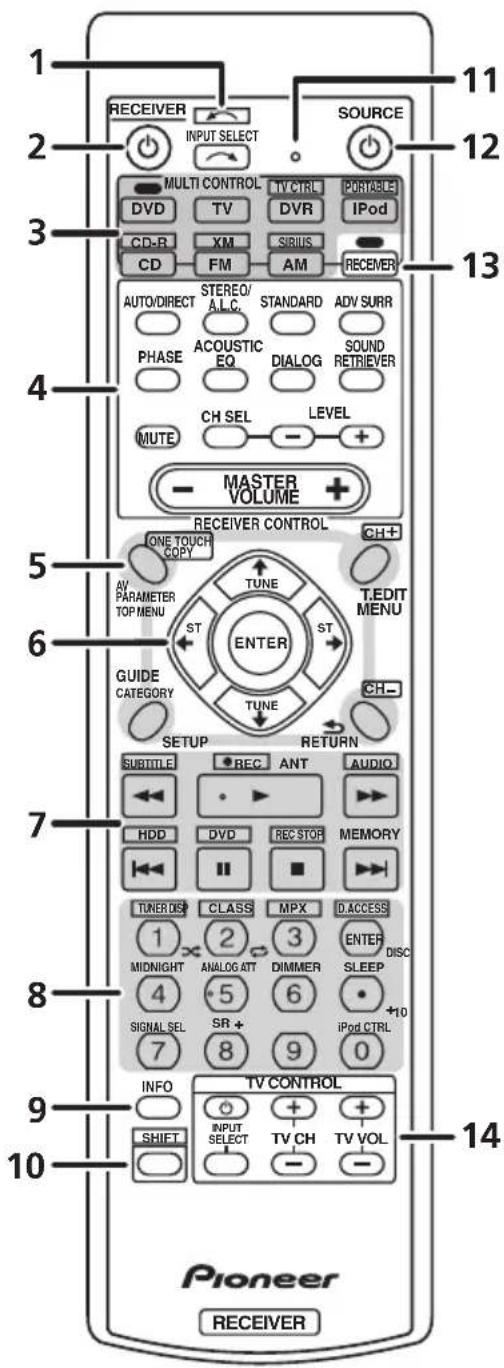
text_image
1 2 3 4 5 6 7 8 9 10 11 12 13 SOURCE INPUT SELECT MULTI CONTROL DVD TV TV CTRL DVR PORTABLE IPod CD-R XM SIRIUS CD FM AM RECEIVER AUTO/DIRECT STEREO/ A.L.C. STANDARD ADV SURR PHASE ACOUSTIC EQ DIALOG SOUND RETRIEVER MUTE CH SEL LEVEL - - + - MASTER VOLUME + RECEIVER CONTROL ONE TOUCH COPY TUNE CH+ AV PARAMETER TOP MENU T.EDIT MENU ST ENTER ST GUIDE CATEGORY TUNE CH- SETUP RETURN SUBTITLE REC ANT AUDIO HDD DVD REC STOP MEMORY TUNER DIS CLASS MPX D.ACCESS 1 2 3 ENTER DISC MIDNIGHT ANALOG ATT DIMMER SLEEP +10 4 5 6 iPod CTRL SIGNAL SEL SR + 7 8 9 0 INFO TV CONTROL SHIFT INPUT SELECT TV CH TV VOL Pioneer RECEIVER1 INPUT SELECT
Use to select the input source (use SHIFT for INPUT SELECT ☐).
2 📍 RECEIVER
Switches the receiver between standby and on.
3 MULTI CONTROL buttons
Press to select control of other components (see Controlling the rest of your system on page 49).
TV CTRL, PORTABLE, CD-R, XM and SIRIUS buttons can be used with SHIFT button.
4 RECEIVER CONTROL buttons
AUTO/DIRECT
Switches between Auto surround mode (Auto playback on page 30) and Stream Direct playback. Direct playback bypasses the tone controls for the most accurate reproduction of a source (page 32).
STEREO/A.L.C.
Switches between stereo playback, Auto level control stereo mode (page 31) and Front Stage Surround Advance modes (page 32).
STANDARD
Press for Standard decoding and to switch between ☐☐ Pro Logic II options (page 30).
ADV SURR
Switches between the various surround modes (page 31).
PHASE
Press to switch on/off Phase Control (page 10).
ACOUSTIC EQ
Press to select an Acoustic Calibration EQ setting (page 33).
DIALOG
Use to make dialog stand out when watching TV or a movie (page 35).
SOUND RETRIEVER
Press to restore CD quality sound to compressed audio sources (page 32).
MUTE
Mutes/unmutes the sound.
CH SEL
Press repeatedly to select a channel, then use LEVEL +/- to adjust the level (page 44).
LEVEL +/-
Use to adjust the channel levels.
MASTER VOLUME +/-
Use to set the listening volume.
5 System Setup and Component control buttons
The following button controls can be accessed after you have selected the corresponding MULTI CONTROL button (DVD, DVR, RECEIVER, etc.).
AV PARAMETER
Use to access the AV options.
TOP MENU
Displays the disc 'top' menu of a DVD.
ONE TOUCH COPY\*
Copies the currently playing title from DVD to HDD or vice-versa.
GUIDE
Displays/changes the subtitles on multilingual DVDs.
CATEGORY
Press to browse digital radio broadcasts.
SETUP
Press to access the System Setup menu (page 37). Also functions as the SETUP button for DVD/DVR units.
T.EDIT
Memorizes/names stations for recall (page 47).
MENU
Displays the disc menu of DVD-Video discs.
RETURN
Confirm and exit the current menu screen.
CH +/-*
Use to select channels for DVD/DVR units.
6 ↑↓←→ (TUNE↑/↓, ST←/→), ENTER
Use the arrow buttons when setting up your surround sound system (page 37). Also used to control DVD menus/options.
Use the TUNE ↑/↓ buttons can be used to find radio frequencies (page 46) and the ST←/→ buttons can be used to select preset radio stations (page 47).
7 Component control buttons
The main buttons (▶, ■, etc.) are used to control a component after you have selected it using the MULTI CONTROL buttons.
The controls above these buttons can be accessed after you have selected the corresponding MULTI CONTROL button (for example DVD, DVR or TV (when connected to a DTV)).
SUBTITLE\*
Displays/changes the subtitles included in multilingual DVD-Video discs.
- REC\*
Start recording.
AUDIO\*
Changes the audio language or channel on DVD discs.
HDD\*, DVD\*
These buttons switch between the hard disk and DVD controls for HDD/DVD recorders.
REC STOP\*
Stops recording.
ANT
Use to select the VHF/UHF antennas or Cable TV.
MEMORY
Use to register a song title you are currently listening to.
8 Number buttons and other component controls
Use the number buttons to directly select a radio frequency (page 46) or the tracks on a CD, DVD, etc. There are other buttons that can be accessed after the RECEIVER button is pressed. (For example MIDNIGHT, etc.)
Controls and displays
TUNER DISP\*
Switches between named station presets and radio frequencies (page 47).
CLASS\*
Switches between the three banks (classes) of radio station presets (page 47).
MPX\*
Switches between stereo and mono reception of FM broadcasts. If the signal is weak then switching to mono will improve the sound quality (page 46).
D.ACCESS\*
After pressing, you can access a radio station directly using the number buttons (page 46).
MIDNIGHT
Switches to Midnight or Loudness listening (page 34).
ANALOG ATT
Attenuates (lowers) the level of an analog input signal to prevent distortion.
DIMMER
Dims or brightens the display.
SLEEP
Press to change the amount of time before the receiver switches into standby (30 min – 60 min – 90 min – Off). You can check the remaining sleep time at any time by pressing SLEEP once.
SIGNAL SEL
Use to select an input signal (page 36).
$$ \mathbf {S R} + (\text { V S X - 9 1 8 V m o d e l o n l y }) $$
Switches the SR+ mode on/off (page 63).
iPod CTRL
Switches between the iPod controls and the receiver controls (page 57).
DISC (ENTER)
Use to enter commands for TV or DTV, and also use to select a disc in a multi-CD player.
9 INFO
Use to bring up information screens on a digital TV.
10 SHIFT
Press to access the 'boxed' commands (above the buttons) on the remote. These buttons are marked with an asterisk (*) in this section.
11 Remote control LED
Lights when a command is sent from the remote control.
12 ⏻ SOURCE
Press to turn on/off other components connected to the receiver (see page 52 for more on this).
13 RECEIVER
Switches the remote to control the receiver (used to select the green commands above the number buttons (SETUP, etc)). Also use this button to set up surround sound (page 37).
14 TV CONTROL buttons
These buttons are dedicated to control the TV assigned to the TV CTRL button. Thus if you only have one TV to hook up to this system assign it to the TV CTRL MULTI CONTROL button. If you have two TVs, assign the main TV to the TV CTRL button (see page 51 for more on this).
[Non-Text]
Use to turn on/off the power of the TV.
INPUT SELECT
Use to select the TV input signal.
TV CH +/-
Use to select channels.
TV VOL +/-
Use to adjust the volume on your TV.
Operating range of remote control
The remote control may not work properly if:
- There are obstacles between the remote control and the receiver's remote sensor.
- Direct sunlight or fluorescent light is shining onto the remote sensor.
- The receiver is located near a device that is emitting infrared rays.
- The receiver is operated simultaneously with another infrared remote control unit.

text_image
30° 30° 7 m (23 ft.)Chapter 5:
Listening to your system

Important
- Certain features explained in this section will not be possible depending on the source (for example, PCM 88.2 kHz/96 kHz, DTS 96 kHz (24 bit) or WMA9 Pro sources).
Auto playback
The simplest, most direct listening option is the Auto Surround feature. With this, the receiver automatically detects what kind of source you're playing and selects multichannel or stereo playback as necessary. ^1
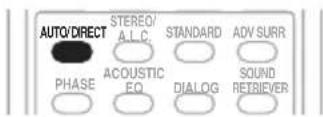
- While listening to a source, press AUTO/DIRECT ^2 for auto playback of a source.
Press repeatedly until AUTOSURR. shows briefly in the display (it will then show the decoding or playback format). Check the digital format indicators in the display to see how the source is being processed.
- When listening to XM Radio, AUTO/DIRECT selects the XM HD Surround feature (page 58).
Listening in surround sound
Using this receiver, you can listen to any source in surround sound. However, the options available will depend on your speaker setup and the type of source you're listening to.
• While listening to a source, press STANDARD.
If the source is Dolby Digital, DTS, or Dolby Surround encoded, the proper decoding format will automatically be selected and shows in the display.
With two channel sources, press STANDARD repeatedly to select from:
- Pro Logic II MOVIE – Up to 5.1 channel sound, especially suited to movie sources
- Pro Logic II MUSIC ^3 – Up to 5.1 channel sound, especially suited to music sources
- Pro Logic II GAME – Up to 5.1 channel sound, especially suited for video games
- PRO LOGIC – 4.1 channel surround sound
Note
1 • Stereo surround (matrix) formats are decoded accordingly using ☐ Pro Logic II MOVIE (see Listening in surround sound above for more on these decoding formats).
- The Auto Surround feature is canceled if you connect headphones or select the multichannel analog inputs.
2 For more options using this button, see Using Stream Direct on page 32.
3 When listening to 2-channel sources in Dolby Pro Logic II Music mode, there are three further parameters you can adjust: Center Width, Dimension, and Panorama. See Setting the AV options on page 34 to adjust them.
Using the Advanced surround effects
The Advanced surround feature creates a variety of surround effects. Try different modes with various soundtracks to see which you like. ^1

- Press ADV SURR repeatedly to select a listening mode.
- ACTION – Designed for action movies with dynamic soundtracks.
- DRAMA – Designed for movies with lots of dialog.
- MONOFILM – Creates surround sound from mono soundtracks.
- ENT.SHOW – Suitable for musical sources.
- EXPANDED – Creates an extra wide stereo field. ^2
- TV SURR. – Provides surround sound for both mono and stereo TV sources.
- ADV.GAME – Suitable for video games.
• SPORTS – Suitable for sports programs. - ROCK/POP – Creates a live concert sound for rock and/or pop music.
- UNPLUGED – Suitable for acoustic music sources.
- X-STEREO – Gives multichannel sound to a stereo source, using all of your speakers.
- PHONESUR. – Creates the effect of overall surround with headphones.
Listening in stereo
When you select STEREO you will hear the source through just the front left and right speakers (and possibly your subwoofer depending on your speaker settings). Dolby Digital and DTS multichannel sources are downmixed to stereo.
In the Auto level control stereo mode (A.L.C.), this unit equalizes playback sound levels if each sound level varies with the music source recorded in a portable audio player.

- While listening to a source, press STEREO/A.L.C. for stereo playback.
Press repeatedly to switch between:
- STEREO – The audio is heard with your surround settings and you can still use the Midnight, Loudness, and Tone functions.
• A.L.C. – Listening in Auto level control stereo mode. - F.S.S.FOCUS – See Using Front Stage Surround Advance on page 32 for more on this.
- F.S.S. WIDE – See Using Front Stage Surround Advance on page 32 for more on this.
Note
1 • If you press ADV SURR with the headphones connected, PHONESUR. will automatically be selected.
- When an Advanced Surround listening mode is selected, the effect level can be adjusted using the EFFECT parameter in Setting the AV options on page 34.
2 Use with Dolby Pro Logic for a stereo surround effect (stereo field is wider than Standard modes with Dolby Digital sources).
Using Front Stage Surround Advance
The Front Stage Surround Advance function allows you to create natural surround sound effects using just the front speakers and the subwoofer.

- While listening to a source, press STEREO/A.L.C. to select Front Stage Surround Advance modes.
- STEREO – See Listening in stereo on page 31 for more on this.
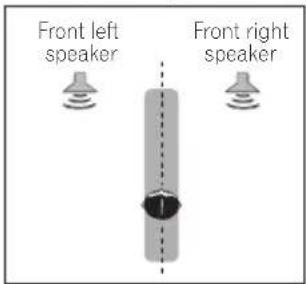
• A.L.C. – See Listening in stereo on page 31 for more on this. - F.S.S.FOCUS – Use to provide a rich surround sound effect directed to the center of where the front left and right speakers sound projection area converges.
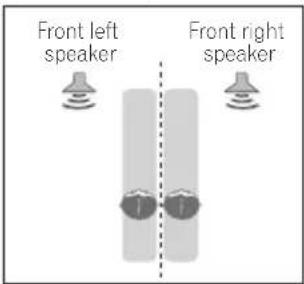
- F.S.S. WIDE – Use to provide a surround sound effect to a wider area than FOCUS mode. ^1
FOCUS position (Recommend)
text_image
Front left speaker Front right speakerWIDE position
text_image
Front left speaker Front right speakerUsing Stream Direct
Use the Stream Direct modes when you want to hear the truest possible reproduction of a source. All unnecessary signal processing is bypassed.
- While listening to a source, press AUTO/DIRECT to select Stream Direct mode.
- AUTOSURR. – See Auto playback on page 30.
- DIRECT – Sources are heard according to the settings made in the Surround Setup (speaker setting, channel level, speaker distance), as well as with dual mono settings. You will hear sources according to the number of channels in the signal. For analog sources, only Channel Level can be set. All other digital processing can not be set.
Using the Sound Retriever
When audio data is removed during the compression process, sound quality often suffers from an uneven sound image. The Sound Retriever feature employs new DSP technology that helps bring CD quality sound back to compressed 2-channel audio by restoring sound pressure and smoothing jagged artifacts left over after compression. ^2

- Press SOUND RETRIEVER to switch the sound retriever on or off.

Note
1 When using F.S.S. WIDE, a better effect can be obtained if Auto MCACC Setup is performed. For more on this, refer to Automatically setting up for surround sound (MCACC) on page 8.
2 The Sound Retriever is only applicable to 2-channel sources.
Listening with Acoustic Calibration EQ
- Default setting: OFF / ALL CH (after the Auto MCACC Setup or EQ Auto Setting)
You can listen to sources using the Acoustic Calibration Equalization set in Automatically setting up for surround sound (MCACC) on page 8 or Acoustic Calibration EQ on page 40. Refer to these pages for more on Acoustic Calibration Equalization.
text_image
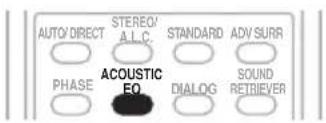
AUTO/DIRECT STEREO/ A.L.C. STANDARD ADV/SURR PHASE ACOUSTIC EQ. DIALOG SOUND RETRIEVER- While listening to a source, press ACOUSTIC EQ.
Press repeatedly to select between:
- ALL CH – No special weighting is given to any one channel.
- F. ALIGN – All speakers are heard in accordance with the front speaker settings.
- CUSTOM 1/2 – Custom settings
- EQ OFF – Switches Acoustic Calibration EQ off.
The MCACC indicator on the front panel lights when Acoustic Calibration EQ is active. ^1
Using Virtual Surround Back (VSB)
Selecting this mode allows you to hear a virtual surround back channel through your surround speakers. For example, you can choose to listen to sources with no surround back channel information (for example, 5.1 encoded material) with emulated 6.1 encoding (VSB ON). Sometimes the material may sound better in the 5.1 format for which it was originally encoded. In this case you can simply switch it off (VSB OFF). ^2
Depending on the input signal and the Listening Mode, the Virtual Surround Back mode may not be effective.

text_image
Pioneer STANDARD INPUT SOLUTION CONTROL UNITED STATES PROGRESS SELECTING OPEN CONTROL CONTROL CONTROL- Press VSB MODE (front panel) to select a virtual surround back channel option.
Each press cycles through the options as follows:
- VSB ON – Virtual Surround Back is always used (for example, on 5.1 encoded material)
- VSB OFF – Virtual Surround Back mode is switched off
Note
1 You can't use Acoustic Calibration EQ with DVD 5.1ch, Stream Direct mode, WMA9 Pro or XM HD Surround, and it has no effect with headphones.
2 The Virtual Surround Back mode is not effective when using headphones, Stream Direct, Stereo, Auto level control stereo mode, Front Stage Surround Advance mode. It is also unavailable if the surround speaker is set to NO in Speaker Setting on page 42.
Setting the AV options
There are a number of additional sound settings you can make using the AV Parameter menu. The defaults, if not stated, are listed in bold.

Important
- The AV Parameter menu is not available with DVD 5.1ch selected by SIGNAL SEL (SIGNAL SELECT) (see Choosing the input signal on page 36).
- Note that if a setting doesn't appear in the AV Parameter menu, it is unavailable due to the current source, settings and status of the receiver.
text_image
RECEIVER INPUT SELECT SOURCE MULTI CONTROL TV DVR CD-R CD XM FM SIRUS AM iPod/DVD RECEIVER AUTO DIRECT STEREO/ A.L.C. STANDARD ADV SURR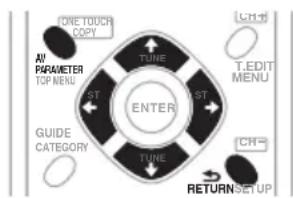
flowchart
graph TD
    A["ONE TOUCH COPY"] --> B["TIME"]
    C["All PARAMETER TCP MENU"] --> B
    D["GUIDE CATEGORY"] --> B
    E["TIME"] --> B
    F["ST"] --> B
    G["ST"] --> B
    H["ST"] --> B
    I["CHT"] --> B
    J["C11-4"] --> K["T.EDIT MENU"]
    L["RETURN SETUP"] --> M["CHT"]
1 Press RECEIVER on the remote control, then press AV PARAMETER button.
2 Use ↑/↓ to select the setting you want to adjust.
Depending on the current status/mode of the receiver, certain options may not be able to be selected. Check the table below for notes on this.
3 Use ←/→ to set it as necessary.
See the table below for the options available for each setting.
4 Press RETURN to confirm and exit the menu.
| Setting | What it does Option(s) | |
| MIDNIGHT^a | Allows you to hear effective surround sound of movies at low volumes. | M/L OFF |
| MIDNIGHT | ||
| LOUDNESS^a | Used to get good bass and treble from music sources at low volumes. | LOUDNESS |
| BASS^b | Depending on what you are listening to, you may want to adjust the bass or treble. | -6 to +6 (dB)Default:0 (dB) |
| TREBLE^b | -6 to +6 (dB)Default:0 (dB) | |
| CENTER WIDTH^c (Applicable only when using a center speaker) | Spreads the center channel between the front right and left speakers, making it sound wider (higher settings) or narrower (lower settings). | 0 to 7Default:3 |
| DIMENSION^c | Adjusts the surround sound balance from front to back, making the sound more distant (minus settings), or more forward (positive settings). | -3 to +3Default:0 |
| PANORAMAC^c | Extends the front stereo image to include surround speakers for a ‘wraparound’ effect. | OFF |
| ON | ||
| EFFECT | Sets the effect level for the currently selected Advanced Surround mode (each mode can be set separately). | 10 to 90 |
| Setting | What it does Option(s) | |
| DUAL MONO^d | Specifies how dual mono encoded Dolby Digital soundtracks should be played. | ch1 –Channel 1 is heard only |
| ch2 –Channel 2 is heard only | ||
| Lch1.Rch2 –Both channels heard from front speakers | ||
| DRC (Dynamic Range Control) | Adjusts the level of dynamic range for movie soundtracks optimized for Dolby Digital and DTS (you may need to use this feature when listening to surround sound at low volumes). | OFF |
| MAX | ||
| MID | ||
| Dialog Enhancement^e | Localizes dialog in the center channel to make it stand out from other background sounds in a TV or movie soundtrack. | OFF |
| ON | ||
| Sound Delay (VSX-918V model only) | Some monitors have a slight delay when showing video, so the soundtrack will be slightly out of sync with the picture. By adding a bit of delay, you can adjust the sound to match the presentation of the video. | 0.0 to 6.0 (frames)1 second = 30 frames (NTSC) |
| LFE ATT (LFE Attenuate) | Some Dolby Digital and DTS audio sources include ultra-low bass tones. Set the LFE attenuator as necessary to prevent the ultra-low bass tones from distorting the sound from the speakers.The LFE is not limited when set to 0 dB, which is the recommended value. When set to -10 dB, the LFE is limited by the respective degree. When OFF is selected, no sound is output from the LFE channel. | LFEATT 0 (0 dB) |
| LFEATT 10 (-10 dB)/LFEATT ** (OFF) | ||
| HDMI (VSX-918V model only) | Specifies the routing of the HDMI audio signal out of this receiver (amp) or through to a TV or flat panel TV. | AMP |
| THRU (Through) | ||
a. You can change the MIDNIGHT/LOUDNESS options at any time by using MIDNIGHT button.
b. The tone controls are only available when Stereo, Auto level control stereo mode or Front Stage Surround Advance mode are selected (except when STEREO is selected using AUTOSURR.).
c. Only available with 2-channel sources in Dolby Pro Logic II Music mode.
d. This setting works only with dual mono encoded Dolby Digital and DTS soundtracks.
e. You can change the Dialog Enhancement options at any time by using DIALOG button.
Playing other sources
1 Turn on the power of the playback component.
2 Turn on the power of the receiver.
3 Select the source you want to playback. Use the MULTI CONTROL buttons (INPUT SELECTOR).
4 Start playback of the component you selected in step 1.
Choosing the input signal
- Default setting: AUTO
You need to hook up a component to both analog and digital inputs on the rear of the receiver to select between input signals. ^1
1 Press RECEIVER on the remote control.
2 Press SIGNAL SEL (SIGNAL SELECT) to select the input signal corresponding to the source component.
Each press cycles through the following:
- AUTO – The input signal is automatically selected from the HDMI (VSX-918V model only), DIGITAL and ANALOG in this order.
- HDMI (VSX-918V model only) – Selects an HDMI signal. ^2
- DVD 5.1ch – See Selecting the multichannel analog inputs below.
• ANALOG – Selects the analog inputs.
• DIGITAL – Selects the digital input.
When set to DIGITAL or AUTO, ☐ DIGITAL lights when a Dolby Digital signal is input, and DTS lights when a DTS signal is input.
VSX-918V model only: When the HDMI is selected, the ANALOG and DIGITAL indicators are off (see page 24).
Selecting the multichannel analog inputs
If you have connected a decoder or a DVD player with multichannel analog outputs to this receiver (page 13), you must select the analog multichannel inputs for surround sound. ^3
1 Make sure you have set the playback source to the proper output setting.
For example, you might need to set your DVD player to output multichannel analog audio.
2 Press DVD.
3 Press RECEIVER on the remote control, then press SIGNAL SEL to select the multichannel analog inputs.
DVD 5.1ch shows in the display and the ANALOG indicator lights.
Selecting the front audio inputs
When playing back a component connected to the MCACC PORTABLE jack on the front panel, set the source to PORTABLE on the receiver.
1 Press PORTABLE (SHIFT+iPod) on the remote control.
You can also select the source by pressing VIDEO/PORTABLE on the front panel.
2 Playback the connected component.

Note
1 • This receiver can only playback Dolby Digital, PCM (32 kHz to 96 kHz), DTS and WMA9 Pro digital signal formats. With other digital signal formats, set to ANALOG.
- You may get digital noise when a LD or CD player compatible with DTS is playing an analog signal. To prevent noise, make the proper digital connections (page 12) and set the signal input to DIGITAL.
- Some DVD players don't output DTS signals. For more details, refer to the instruction manual supplied with your DVD player.
2 When the HDMI option in Setting the AV options on page 34 is set to THRU (THROUGH), the sound will be heard through your TV, not from this receiver.
3 During playback from the multichannel inputs, you can't use any of the sound features/modes and only the volume and channel levels can be set.
Chapter 6:
The System Setup menu
Using the System Setup menu
The following section shows you how to make detailed settings to specify how you're using the receiver, and also explains how to fine-tune individual speaker system settings to your liking.
text_image
RECEIVER INPUT SELECT SOURCE MULTI CONTROL DVD TV TV CTR CD-R XM DVR CD FM BIOSU AM FORSTABLE iPod RECEVER
flowchart
graph TD
    A["ENTER"] --> B["TYPE"]
    A --> C["TIME"]
    A --> D["TIME"]
    A --> E["TIME"]
    A --> F["GUIDE CATEGORY"]
    A --> G["CHANGE"]
    A --> H["SETUP"]
    A --> I["RETURN"]
    A --> J["RECHANT AUDIO"]
    A --> K["ONE TOUCH COPY"]
    A --> L["CRT+"]
    A --> M["PARAMETER TOP MENU"]
    A --> N["T.EDIT MENU"]
1 Switch on the receiver and your TV. Use the ⏻ RECEIVER button to switch on. ^1
2 Press RECEIVER on the remote control, then press the SETUP button. ^2
An on-screen display (OSD) appears on your TV. Use ↑/↓/←/→ and ENTER on the remote control to navigate through the screens and select menu items. Press RETURN to confirm and exit the current menu.
3 Select the setting you want to adjust.
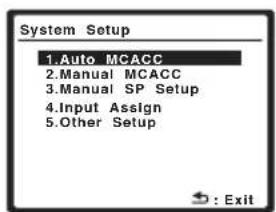
text_image
System Setup 1. Auto MCACC 2. Manual MCACC 3. Manual SP Setup 4. Input Assign 5. Other Setup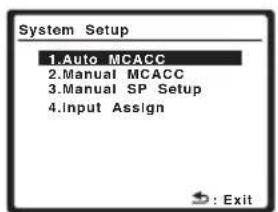
text_image
System Setup 1.Auto MCACC 2.Manual MCACC 3.Manual SP Setup 4.Input Assign : ExitAbove: VSX-918V (left) and VSX-818V (right)
- Auto MCACC – This is a quick and effective automatic surround setup (see Automatically setting up for surround sound (MCACC) on page 8).
- Manual MCACC – Fine tune your speaker settings and customize the Acoustic Calibration EQ (see Manual MCACC speaker setup below).
- Manual SP Setup – Specify the size, number, distance and overall balance of the speakers you've connected (see Manual speaker setup on page 42).
- Input Assign – Specify what you've connected to the digital, component video and HDMI inputs (see The Input Assign menu on page 64).
- Other Setup (VSX-918V model only) – Make customized settings to reflect how you are using the receiver (see The Other Setup menu on page 66).
Manual MCACC speaker setup
You can use the settings in the Manual MCACC setup menu to make detailed adjustments when you're more familiar with the system. Before making these settings, you should have already completed Automatically setting up for surround sound (MCACC) on page 8.
You only need to make these settings once (unless you change the placement of your current speaker system or add new speakers).
Note
1 If headphones are connected to the receiver, disconnect them.
2 • You can't use the System Setup menu when the iPod, XM Radio, SIRIUS Radio or PORTABLE input is selected.
- Press SETUP at any time to exit the System Setup menu.
- The OSD will not appear if you have connected using the HDMI output to your TV. Use component or composite connections for system setup.

Important
- For some of the settings below, you'll have to connect the setup microphone to the front panel and place it about ear level at your normal listening position. See Automatically setting up for surround sound (MCACC) on page 8 if you're unsure how to do this. Also see Other problems when using the Auto MCACC Setup on page 10 for notes regarding background noise and other possible interference.
- If you're using a subwoofer, switch it on and turn up the volume as necessary.
1 Select 'Manual MCACC' from the System Setup menu.
See Using the System Setup menu on page 37 if you're not already at this screen.

text_image
System Setup 1.Auto MCACC 2.Manual MCACC 3.Manual SP Setup 4.Input Assign 5.Other Setup : Exit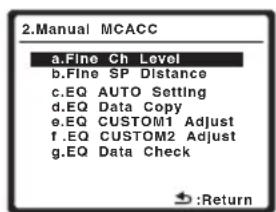
text_image
2.Manual MCACC a.Fine Ch Level b.Fine SP Distance c.EQ AUTO Setting d.EQ Data Copy e.EQ CUSTOM1 Adjust f.EQ CUSTOM2 Adjust g.EQ Data Check :Return2 Select the setting you want to adjust.
If you're doing this for the first time, you might want to make these settings in order.
- Fine Ch Level – Make fine adjustments to the overall balance of your speaker system (see Fine Channel Level below).
- Fine SP Distance – Make precise delay settings for your speaker system (see Fine Speaker Distance on page 39).
The last five settings are specifically for customizing the parameters explained in Acoustic Calibration EQ below:
- EQ AUTO Setting – Measure the acoustic characteristics of your room and automatically adjust the frequency balance of your speaker system (see Setting the Acoustic Calibration EQ automatically on page 40).
- EQ Data Copy – Copy Acoustic Calibration EQ settings for manual adjustment (see Copying your Acoustic Calibration EQ settings on page 40).
- EQ CUSTOM1/2 Adjust – Make detailed manual adjustments to your custom Acoustic Calibration EQ settings (see Setting the Acoustic Calibration EQ manually on page 41).
- EQ Data Check – Check the ALL CH ADJUST, FRONT ALIGN and custom settings using the on-screen display (see Checking your Acoustic Calibration EQ settings on page 42).
Fine Channel Level
- Default setting: 0dB (all channels)
You can achieve better surround sound by properly adjusting the overall balance of your speaker system. The following setting can help you make detailed adjustments that you may not achieve using the Manual speaker setup on page 42.
1 Select 'Fine Ch Level' from the Manual MCACC setup menu.
You'll hear test tones from each speaker in turn. Since the left speaker is the main reference speaker, the level is fixed.

Caution
- The test tones used in the System Setup are output at high volume (the volume increases to -13dB automatically).
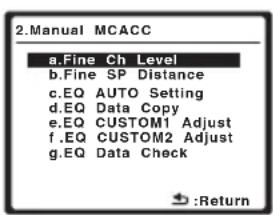
text_image
2.Manual MCACC a.Fine Ch Level b.Fine SP Distance c.EQ AUTO Setting d.EQ Data Copy e.EQ CUSTOM1 Adjust f.EQ CUSTOM2 Adjust g.EQ Data Check :Return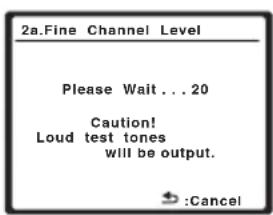
text_image
2a.Fine Channel Level Please Wait...20 Caution! Loud test tones will be output. :Cancel2 Select each channel in turn and adjust the levels (+/- 10dB) as necessary.
Use / to adjust the volume of the speaker you selected to match the reference speaker.
When it sounds like both tones are the same volume, press ENTER to confirm and continue to the next channel.

text_image
2a.Fine Channel Level L 0.0dB (Reference) R [ 0.0dB ] C LS [ -3.0dB ] RS [ +10.0dB ] SW [ -1.5dB ] :Finish- For comparison purposes, the reference speaker will change depending on which speaker you select.
- If you want to go back and adjust a channel, simply use ↑/↓ to select it.
3 When you're finished, press RETURN.
You return to the Manual MCACC setup menu.
Fine Speaker Distance
- Default setting: 10.0ft (all channels)
For proper sound depth and separation with your system, it is necessary to add a slight bit of delay to some speakers so that all sounds will arrive at the listening position at the same time. The following setting can help you make detailed adjustments that you may not achieve using the Manual speaker setup on page 42.
1 Select 'Fine SP Distance' from the Manual MCACC setup menu.
The volume increases to the reference level.
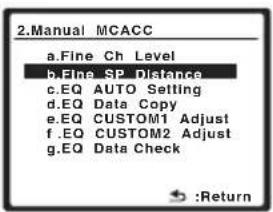
text_image
2.Manual MCACC a.Fine Ch Level b.Fine SP Distance c.EQ AUTO Setting d.EQ Data Copy e.EQ CUSTOM1 Adjust f.EQ CUSTOM2 Adjust g.EQ Data Check :Return2 Adjust the distance of the left channel from the listening position.
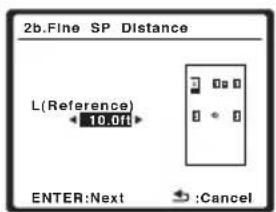
text_image
2b.Fine SP Distance L(Reference) 10.0ft ENTER:Next :CancelAfter pressing ENTER, test tones will be output.
3 Select each channel in turn and adjust the distance as necessary.
Use / to adjust the delay of the speaker you selected to match the reference speaker. The delay is measured in terms of speaker distance from 0.5 feet to 45.0 feet (0.1 m to 13 m).
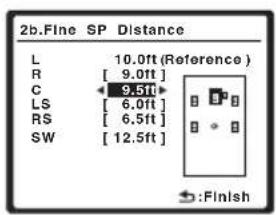
text_image
2b.Fine SP Distance L 10.0ft (Reference ) R [9.0ft] C 9.5ft LS [6.0ft] RS [6.5ft] SW [12.5ft] :FinishListen to the reference speaker and use it to measure the target channel. From the listening position, face the two speakers with your arms outstretched pointing at each speaker. Try to make the two tones sound as if they are arriving simultaneously at a position slightly in front of you and between your arm span.
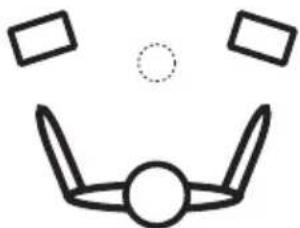
natural_image
Simple line drawing of a bow with a central circle and three rectangular shapes above it (no text or symbols)When it sounds like the delay settings are matched up, press ENTER to confirm and continue to the next channel.
- For comparison purposes, the reference speaker will change depending on which speaker you select.
- If you want to go back and adjust a channel, simply use / to select it.
4 When you're finished, press RETURN.
You return to the Manual MCACC setup menu.
Acoustic Calibration EQ
Acoustic Calibration Equalization is a kind of room equalizer for your speakers (excluding the subwoofer). It works by measuring the acoustic characteristics of your room and neutralizing the ambient characteristics that can color the original source material. This provides a 'flat' equalization setting. If you're not satisfied with the automatic adjustment, you can also adjust these settings manually to get a frequency balance that suits your tastes.
Setting the Acoustic Calibration EQ automatically
If you have already completed Automatically setting up for surround sound (MCACC) on page 8, ALL CH ADJUST and FRONT ALIGN (below) should already be set. Therefore, if you want to adjust your settings manually, you can skip to Setting the Acoustic Calibration EQ manually on page 41.
1 Select 'EQ AUTO Setting' from the Manual MCACC setup menu.

text_image
2.Manual MCACC a.Fine Ch Level b.Fine SP Distance c.EQ AUTO Setting d.EQ Data Copy e.EQ CUSTOM1 Adjust f.EQ CUSTOM2 Adjust g.EQ Data Check :Return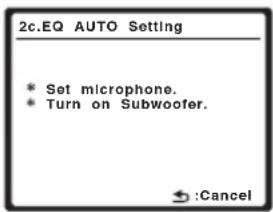
text_image
2c.EQ AUTO Setting * Set microphone. * Turn on Subwoofer. →:Cancel- Make sure the microphone is connected.
- If you're using a subwoofer, it is automatically detected every time you switch on the system. Make sure it is on and the volume is at the middle position.
- See Other problems when using the Auto MCACC Setup on page 10 for notes regarding high background noise levels and other possible interference.
2 Wait for the EQ AUTO Setting to finish.
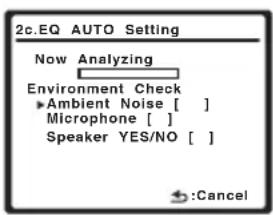
text_image
2c.EQ AUTO Setting Now Analyzing Environment Check ►Ambient Noise [ ] Microphone [ ] Speaker YES/NO [ ] :Cancel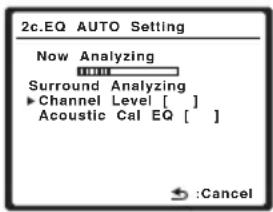
text_image
2c.EQ AUTO Setting Now Analyzing Surround Analyzing ► Channel Level [ ] Acoustic Cal EQ [ ] :CancelAs the receiver outputs test tones, the frequency balance is adjusted automatically for the following settings:
- ALL CH ADJUST – A 'flat' setting where all the speakers are set individually so no special weighting is given to any one channel.
- FRONT ALIGN – All speakers are set in accordance with the front speaker settings (no equalization is applied to the front left and right channels).
You return to the Acoustic Cal EQ setup menu after the Acoustic Calibration Equalization is set.
Copying your Acoustic Calibration EQ settings
If you want to manually adjust the Acoustic Calibration EQ (see Setting the Acoustic Calibration EQ manually on page 41), we recommend copying the ALL CH ADJUST or the FRONT ALIGN settings from the EQ AUTO setup above (or from Automatically setting up for surround sound (MCACC) on page 8) to one of the custom settings. Instead of just a flat EQ curve, this will give you a reference point from which to start.
1 Select 'EQ Data Copy' from the Manual MCACC setup menu.
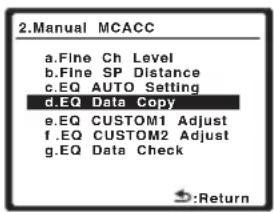
text_image
2.Manual MCACC a.Fine Ch Level b.Fine SP Distance c.EQ AUTO Setting d.EQ Data Copy e.EQ CUSTOM1 Adjust f.EQ CUSTOM2 Adjust g.EQ Data Check :Return2 Select CUSTOM1 or CUSTOM2 then use / to select the setting you want to copy.
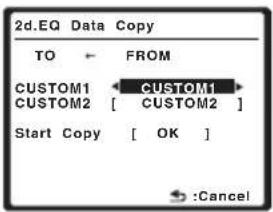
text_image
2d.EQ Data Copy TO ← FROM CUSTOM1 CUSTOM1 CUSTOM2 [ CUSTOM2 ] Start Copy [ OK ] :Cancel
text_image
2d.EQ Data Copy TO ← FROM CUSTOM1 ALL_CH_ADJ CUSTOM2 [ CUSTOM2 ] Start Copy [ OK ] :Cancel- You can also copy from one custom setting to another. For more on the ALL CH ADJUST and FRONT ALIGN settings, see Setting the Acoustic Calibration EQ automatically on page 40.
3 Select 'OK' to copy and confirm.
Setting the Acoustic Calibration EQ manually
Before manually adjusting the Acoustic Calibration EQ, we recommend copying the ALL CH ADJUST or the FRONT ALIGN settings from the auto setup above (or from Automatically setting up for surround sound (MCACC) on page 8) to one of the custom settings. Instead of just a flat EQ curve, this will give you a reference point from which to start (see Copying your Acoustic Calibration EQ settings on page 40 for how to do this).
1 Select 'EQ CUSTOM1 Adjust' or 'EQ CUSTOM2 Adjust' from the Manual MCACC setup menu.
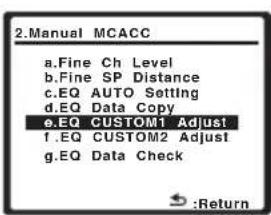
text_image
2.Manual MCACC a.Fine Ch Level b.Fine SP Distance c.EQ AUTO Setting d.EQ Data Copy e.EQ CUSTOM1 Adjust f.EQ CUSTOM2 Adjust g.EQ Data Check :Return
text_image
2e.EQ CUSTOM1 Adjust Test Tone Type CH ADJUST ENTER:Next Cancel2 Select which method you would like to use to adjust the overall frequency balance.
It is best to choose whichever one you copied to the custom setting in Copying your Acoustic Calibration EQ settings on page 40.
- ALL CH ADJUST – All the speakers can be set independently so no special weighting is given to any one channel. When adjusting, test tones will sound for each individual channel.
- FRONT ALIGN – Speakers are set in accordance with the front speaker settings. The sound of the test tone will alternate between the left front (reference) speaker and the target speaker.
3 Select the channel(s) you want and adjust to your liking.
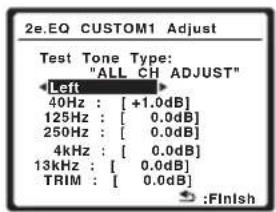
text_image
2e.EQ CUSTOM1 Adjust Test Tone Type: "ALL CH ADJUST" Left 40Hz : [ +1.0dB ] 125Hz : [ 0.0dB ] 250Hz : [ 0.0dB ] 4kHz : [ 0.0dB ] 13kHz : [ 0.0dB ] TRIM : [ 0.0dB ] :Finish
text_image
2e. EQ CUSTOM1 Adjust Test Tone Type: "ALL CH ADJUST" [ Left ] 40Hz : +1.0dB 125Hz : [ 0.0dB] 250Hz : [ 0.0dB] 4kHz : [ 0.0dB] 13kHz : [ 0.0dB] TRIM : [ 0.0dB] :FinishUse ←/→ to select the channel.
Use ↑/↓ to select the frequency and ←/→ to boost or cut the EQ. When you're finished, go back to the top of the screen and use ←/→ to select the next channel.
- The front speakers can't be adjusted if you selected FRONT ALIGN.
- The OVER indicator shows in the display if the frequency adjustment is too drastic and might distort. If this happens, bring the level down until OVER disappears from the display.

Tip
- Changing the frequency curve of one channel too drastically will affect the overall balance. If the speaker balance seems uneven, you can raise or lower channel levels using test tones with the TRIM feature. Use ↑/↓ to select TRIM then use ←/→ to raise or lower the channel level for the current speaker.
4 When you're finished, press RETURN.
You return to the Manual MCACC setup menu.
Checking your Acoustic Calibration EQ settings
After you have completed an automatic or manual Acoustic Calibration EQ adjustment, you can check the ALL CH ADJUST, FRONT ALIGN and custom settings using the on-screen display.
1 Select 'EQ Data Check' from the Manual MCACC setup menu.
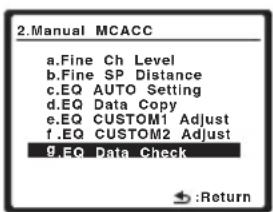
text_image
2.Manual MCACC a.Fine Ch Level b.Fine SP Distance c.EQ AUTO Setting d.EQ Data Copy e.EQ CUSTOM1 Adjust f.EQ CUSTOM2 Adjust 9.EQ Data Check :Return
text_image
2g.EQ Data Check ALL_CH_ADJUST [ Left ] 40Hz : +1.0dB 125Hz : 0.0dB 250Hz : 0.0dB 4kHz : 0.0dB 13kHz : 0.0dB TRIM : 0.0dB :Return2 Select the setting you want to check.
- It is useful to do this while a source is playing so you can compare the different settings.
3 Select the channels you want, pressing ENTER when you're finished checking each one.
4 When you're finished, press RETURN.
You return to the Manual MCACC setup menu.
Manual speaker setup
This receiver allows you to make detailed settings to optimize the surround sound performance. You only need to make these settings once (unless you change the placement of your current speaker system or add new speakers).
These settings are designed to fine-tune your system, but if you're satisfied with the settings made in Automatically setting up for surround sound (MCACC) on page 8, it isn't necessary to make all of these settings.

Caution
- The test tones used in the System Setup are output at high volume (the volume increases to -13dB automatically).
1 Select 'Manual SP Setup' then press ENTER.
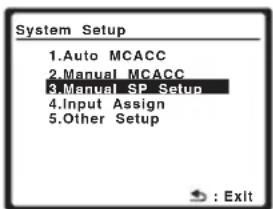
text_image
System Setup 1.Auto MCACC 2.Manual MCACC 3.Manual SP Setup 4.Input Assign 5.Other Setup : Exit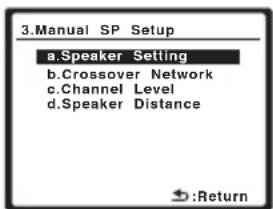
text_image
3.Manual SP Setup a.Speaker Setting b.Crossover Network c.Channel Level d.Speaker Distance :Return2 Select the setting you want to adjust.
If you are doing this for the first time, you may want to adjust these settings in order:
- Speaker Setting – Specify the size and number of speakers you’ve connected (see below).
- Crossover Network– Specify which frequencies will be sent to the subwoofer (page 43).
- Channel Level – Adjust the overall balance of your speaker system (page 44).
- Speaker Distance – Specify the distance of your speakers from the listening position (page 45).
3 Make the adjustments necessary for each setting, pressing RETURN to confirm after each screen.
Speaker Setting
Use this setting to specify your speaker configuration (size, number of speakers). It is a good idea to make sure that the settings made in Automatically setting up for surround sound (MCACC) on page 8 are correct.
1 Select 'Speaker Setting' from the Manual SP Setup menu.

text_image
3.Manual SP Setup a.Speaker Setting b.Crossover Network c.Channel Level d.Speaker Distance Return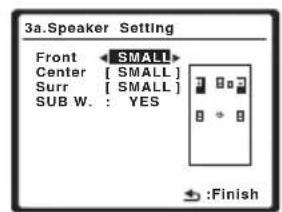
text_image
3a.Speaker Setting Front SMALL Center [SMALL] Surr [SMALL] SUB W.: YES :Finish2 Choose the set of speakers that you want to set then select a speaker size.
Use / to select the size (and number) of each of the following speakers:
- Front – Select LARGE if your front speakers reproduce bass frequencies effectively, or if you didn't connect a subwoofer. Select SMALL to send the bass frequencies to the subwoofer. ^1
- Center – Select LARGE if your center speaker reproduces bass frequencies effectively, or select SMALL to send bass frequencies to the other speakers or subwoofer. If you didn't connect a center speaker, choose NO (the center channel is sent to the other speakers).
- Surr – Select LARGE if your surround speakers reproduce bass frequencies effectively. Select SMALL to send bass frequencies to the other speakers or subwoofer. If you didn't connect surround speakers choose NO (the sound of the surround channels is sent to the other speakers).
- SUB W. – LFE signals and bass frequencies of channels set to SMALL are output from the subwoofer when YES is selected (see notes below). Choose the PLUS setting if you want the subwoofer to output bass sound continuously or you want deeper bass (the bass frequencies that would normally come out the front and
center speakers are also routed to the subwoofer). If you did not connect a subwoofer choose NO (the bass frequencies are output from other speakers).
3 When you're finished, press RETURN. You return to the Manual SP Setup menu.

Tip
- If you have a subwoofer and like lots of bass, it may seem logical to select LARGE for your front speakers and PLUS for the subwoofer. This may not, however, yield the best bass results. Depending on the speaker placement of your room you may actually experience a decrease in the amount of bass due to low frequency cancellations. In this case, try changing the position or direction of speakers. If you can't get good results, listen to the bass response with it set to PLUS and YES or the front speakers set to LARGE and SMALL alternatively and let your ears judge which sounds best. If you're having problems, the easiest option is to route all the bass sounds to the subwoofer by selecting SMALL for the front speakers.
Crossover Network
- Default setting: 100Hz
This setting decides the cutoff between bass sounds playing back from the speakers selected as LARGE, or the subwoofer, and bass sounds playing back from those selected as SMALL. It also decides where the cutoff will be for bass sounds in the LFE channel. ^2
Note
1 If you select SMALL for the front speakers, the subwoofer will automatically be fixed to YES. Also, the center and surround speakers can't be set to LARGE if the front speakers are set to SMALL. In this case, all bass frequencies are sent to the subwoofer.
2 For more on selecting the speaker sizes, see Speaker Setting above.
The System Setup menu
1 Select 'Crossover Network' from the Manual SP Setup menu.
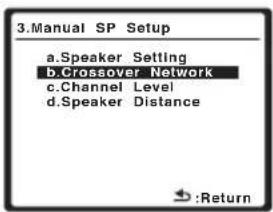
text_image
3.Manual SP Setup a.Speaker Setting b.Crossover Network c.Channel Level d.Speaker Distance :Return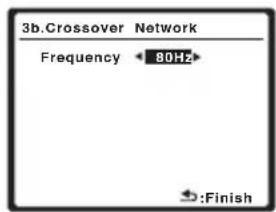
text_image
3b.Crossover Network Frequency ← 80Hz :Finish2 Choose the frequency cutoff point.
Frequencies below the cutoff point will be sent to the subwoofer (or LARGE speakers).
3 When you're finished, press RETURN.
You return to the Manual SP Setup menu.
Channel Level
Using the channel level settings, you can adjust the overall balance of your speaker system, an important factor when setting up a home theater system.
1 Select 'Channel Level' from the Manual SP Setup menu.
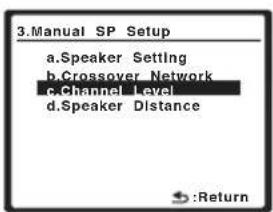
text_image
3.Manual SP Setup a.Speaker Setting b.Crossover Network c.Channel Level d.Speaker Distance :Return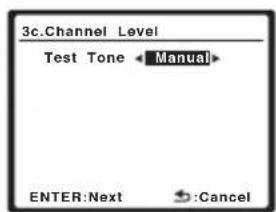
text_image
3c.Channel Level Test Tone ← Manual ENTER:Next Cancel2 Select a setup option.
- Manual – Move the test tone manually from speaker to speaker and adjust individual channel levels.
- Auto – Adjust channel levels as the test tone moves from speaker to speaker automatically.
3 Confirm your selected setup option.
The test tones will start after you press ENTER. After the volume increases to the reference level, test tones will be output.
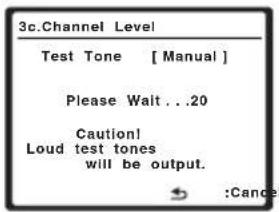
text_image
3c.Channel Level Test Tone [ Manual ] Please Wait . . .20 Caution! Loud test tones will be output. :Cancel4 Adjust the level of each channel using

If you selected Manual, use ↑/↓ to switch speakers. The Auto setup will output test tones in the order shown on-screen:
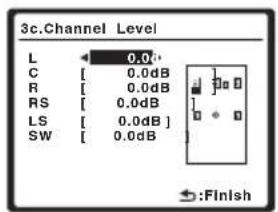
text_image
3c.Channel Level L 0.0d C [ 0.0dB R [ 0.0dB RS [ 0.0dB LS [ 0.0dB ] SW [ 0.0dB :FinishAdjust the level of each speaker as the test tone is emitted. ^1
5 When you're finished, press RETURN.
You return to the Manual SP Setup menu.

Tip
- You can change the channel levels at any time by using CH SEL and LEVEL +/- on the remote control. You can set two channel levels: one for DVD 5.1CH and one for the listening modes.

Note
1 • If you are using a Sound Pressure Level (SPL) meter, take the readings from your main listening position and adjust the level of each speaker to 75 dB SPL (C-weighting/slow reading).
- The subwoofer test tone is output at low volumes. You may need to adjust the level after testing with an actual soundtrack.
Speaker Distance
For good sound depth and separation from your system, you need to specify the distance of your speakers from the listening position. The receiver can then add the proper delay needed for effective surround sound.
1 Select 'Speaker Distance' from the Manual SP Setup menu.

text_image
3.Manual SP Setup a.Speaker Setting b.Crossover Network c.Channel Level d.Speaker Distance Return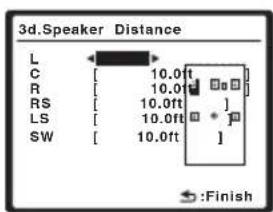
text_image
3d.Speaker Distance L C [ 10.0ft ] R [ 10.0ft ] RS [ 10.0ft ] LS [ 10.0ft ] SW [ 10.0ft ] :Finish2 Adjust the distance of each speaker using / .
You can adjust the distance of each speaker in 0.5 feet increments.
3 When you're finished, press RETURN.
You return to the Manual SP Setup menu.
Chapter 7:
Using the tuner
Listening to the radio
The following steps show you how to tune in to FM and AM radio broadcasts using the automatic (search) and manual (step) tuning functions. If you already know the frequency of the station you want, see Tuning directly to a station below. Once you are tuned to a station you can memorize the frequency for recall later—see Saving station presets on page 47 for more on how to do this.
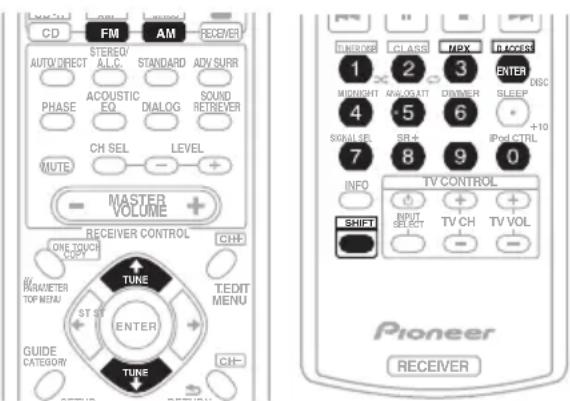
text_image
CD FM AM RECEIVER AUTO DIRECT STEREO/ ALLC STANDARD ADV SURR PHASE ACOUSTIC EQ DIALOG SOUND RETREVER MUTE CH SEL LEVEL + - MASTER VOLUME RECEIVER CONTROL ONE TOUCH OFF TUNE PARAMETER TOP MENU ST ST ENTER GUIDE CATEGORY TUNE TEDIT MENU CH- PIONEER RECEIVER 1 2 3 4 5 6 7 8 9 0 MIXNIGHT AWA-OTT DIMMER SLEEP +10 SIGNAL SET SR+ iPod CTRL INFO TV CONTROL SHIFT INPUT SELECT TV CH TV VOL Pioneer RECEIVER1 Press FM or AM to select the band.
2 Tune to a station.
There are three ways to do this:
Automatic tuning
To search for stations in the currently selected band, press and hold TUNE↑/↓ for about a second. The receiver will start searching for the next station, stopping when it has found one. Repeat to search for other stations.
Manual tuning
To change the frequency one step at a time, press TUNE↑/↓.
High speed tuning
Press and hold TUNE↑/↓ for high speed tuning. Release the button at the frequency you want.
Improving FM stereo sound
If the tuned) or (stereo) indicators don't light when tuning to an FM station because the signal is weak, press the MPX (SHIFT+3) button to switch the receiver into mono reception mode. This should improve the sound quality and allow you to enjoy the broadcast.
Tuning directly to a station
Sometimes, you'll already know the frequency of the station you want to listen to. In this case, you can simply enter the frequency directly using the number buttons on the remote control.
1 Press FM or AM to select the band.
2 Press D.ACCESS (SHIFT+ENTER).
3 Use the number buttons to enter the frequency of the radio station.
For example, to tune to 106.00 (FM), press 1, 0, 6, 0, 0.
If you make a mistake halfway through, press D.ACCESS twice to cancel the frequency and start over.
Saving station presets
If you often listen to a particular radio station, it's convenient to have the receiver store the frequency for easy recall whenever you want to listen to that station. This saves the effort of manually tuning in each time. This unit can memorize up to 30 stations, stored in three banks, or classes, (A, B and C) of 10 stations each. When saving an FM frequency, the MPX setting (see Improving FM stereo sound on page 46) is also stored. ^1
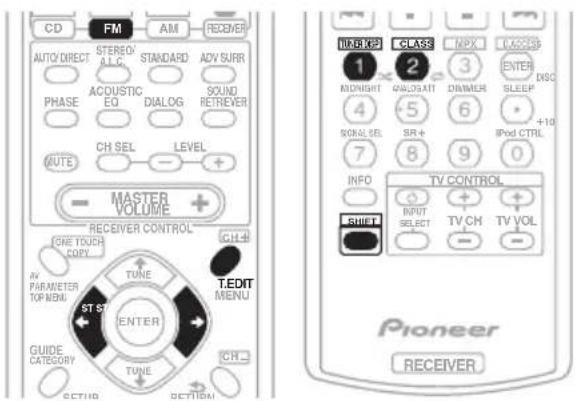
text_image
CD FM AM RECEIVER AUTO/DIRECT STERED A.L.C. STANDARD ADV SURR PHASE ACQUOSTIC EQ DIALOG SOUND RETRIEVER CH SEL LEVEL MUTE - + MASTER VOLUME + RECEIVER CONTROL GNE TOUCH COPY AV PARAMETER TOP MENU TUNE ST ST ENTER GUIDE CATEGORY TUNE CH ECTUB ECTUBI T.EDIT MENU CH-4 1 2 3 4 5 6 7 8 9 0 INFO TV CONTROL INPUT SELECT TV CH TV VOL SHIFT Pioneer RECEIVER1 Tune to a station you want to memorize.
See Listening to the radio on page 46 for more on this.
2 Press T.EDIT (TUNER EDIT).
The display shows ST. MEMORY, then a blinking memory class.
3 Press CLASS (SHIFT+2) to select one of the three classes then press ST←/→ to select the station preset you want.
You can also use the number buttons.
4 Press ENTER.
After pressing ENTER, the preset class and number stop blinking and the receiver stores the station.
Naming station presets
For easier identification, you can name your station presets.
1 Choose the station preset you want to name.
See Listening to station presets below for how to do this.
2 Press T. EDIT (TUNER EDIT).
The display shows ST. NAME, then a blinking cursor at the first character position.
3 Input the name you want.
Choose a name up to four characters long.
- Use the ST←/→ buttons to select characters.
- Press ENTER to confirm a character. If no character is input, a space is input.
- The name is stored when ENTER is pressed after choosing the fourth character.

Tip
• To erase a station name, simply repeat steps 1 to 3 and input four spaces instead of a name.
- Once you have named a station preset, you can press TUNER DISP (SHIFT+1) when listening to a station to switch the display between name and frequency.
Listening to station presets
You will need to have some presets stored to do this. See Saving station presets above if you haven't done this already.
1 Press FM, then press CLASS (SHIFT+2) to select the class in which the station is stored.
Press repeatedly to cycle through classes A, B and C.
2 Press ST←/→ to select the station preset you want.
- You can also use the number buttons on the remote control to recall the station preset.
Note
Chapter 8:
Making recordings
Making an audio or a video recording
You can make an audio or a video recording from the built-in tuner, or from an audio or video source connected to the receiver (such as a CD player or TV).
Keep in mind you can't make a digital recording from an analog source or vice-versa, so make sure the components you are recording to/from are hooked up in the same way (see Connecting up on page 11 for more on connections).
If you want to record a video source, you also need to use the same type of connection for the source as for the recorder. For example, you can't record a component hooked up to composite video jacks with a recorder hooked up to the component video outputs (see page 15 for more on video connections).

text_image
RECEIVER INPUT SELECT SOURCE MULTI CONTROL DVD TV DVRI IPD CD-R XM SBUS CD FM AM RECEIVER
text_image
1 × 2 × 3 MIDNIGHT ANALOGATT DIMMER SLEEP ENTER DISC 4 5 6 + SIGNAL SEL SR+ iPod CTRL +10 8 9 0 INFO TV CONTROL SHIFT INPUT SELECT TV CH TV VOL + -1 Select the source you want to record.
Use the MULTI CONTROL buttons (or INPUT SELECT).
2 Select the input signal (if necessary).
Press the RECEIVER button then press SIGNAL SEL to select the input signal corresponding to the source component (see page 36 for more on this).
3 Prepare the source you want to record.
Tune to the radio station, load the CD, video, DVD etc.
4 Prepare the recorder.
Insert a blank tape, MD, video etc. into the recording device and set the recording levels.
Refer to the instructions that came with the recorder if you are unsure how to do this. Most video recorders set the audio recording level automatically—check the component's instruction manual if you're unsure.
5 Start recording, then start playback of the source component. ^1

Note
• The receiver's volume, balance, tone (bass, treble, loudness), and surround effects have no effect on the recorded signal.
- Some digital sources are copy-protected, and can only be recorded in analog.
- Some video sources are copy-protected. These cannot be recorded.
- Recording from XM Radio is not possible.
Chapter 9:
Controlling the rest of your system
Operating other Pioneer components
VSX-918V model only
Many Pioneer components have SR CONTROL jacks which can be used to link components together so that you can use just the remote sensor of one component. When you use a remote control, the control signal is passed along the chain to the appropriate component. ^1
Note that if you use this feature, make sure that you also have at least one set of analog audio or video jacks connected to another component for grounding purposes.
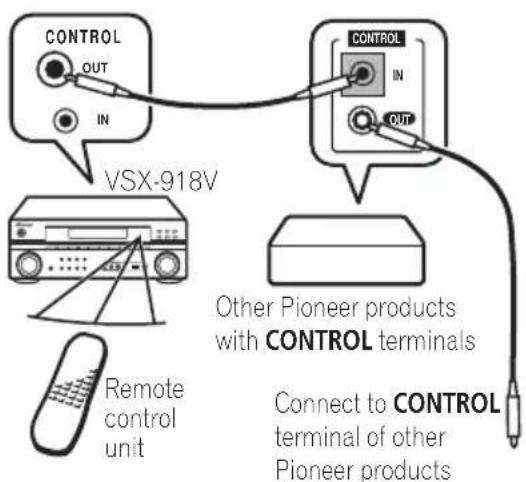
text_image
CONTROL OUT IN VSX-918V CONTROL IN OUT Other Pioneer products with CONTROL terminals Remote control unit Connect to CONTROL terminal of other Pioneer productsSetting the remote to control other components
Most components can be assigned to one of the MULTI CONTROL buttons using the component's manufacturer preset code stored in the remote.
However, please note that there are cases where only certain functions may be controllable after assigning the proper preset code, or the codes for the manufacturer in the remote control will not work for the model that you are using. ^2

Note
- You can cancel or exit any of the steps by pressing RECEIVER. To go back a step, press RETURN.
• After one minute of inactivity, the remote automatically exits the operation.
Note
- If you want to control all your components using this receiver's remote control, refer to Setting the remote to control other components below.
- If you have connected a remote control to the CONTROL IN jack (using a mini-plug cable), you won't be able to control this unit using the remote sensor.
2 TV codes (for example, codes for TV, CATV, Satellite TV or DTV) can only be assigned to the TV or TV CTRL button.
Selecting preset codes directly
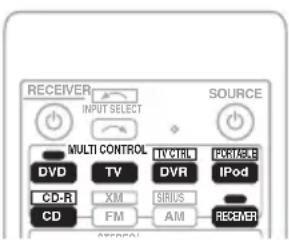
text_image
RECEIVER INPUT SELECT SOURCE MULTI CONTROL DVD TV TV/RIN DVRA FROUSE IPod CD-R XM SIRUS CD FM AM RECEVER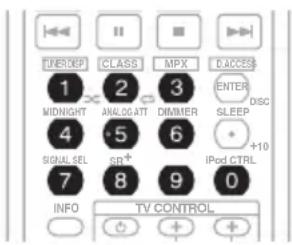
text_image
TUNEREP CLASS MPX DACCESS 1 2 3 ENTER DISC MIDNIGHT ANALOGATT DIMMER SLEEP 4 5 6 +10 SIGNAL SEL SP+ 7 8 9 iPod CTRL INFO TV CONTROL1 While pressing the RECEIVER button, press and hold the '1' button.
The LED blinks.
2 Press the MULTI CONTROL button for the component you want to control.
The LED lights on continuously.
3 Use the number buttons to enter the preset code.
You can find the preset codes on page 54.
The LED blinks again after you enter the code. If the correct code has been input the power of the component being input will turn on or off.
The power of the component being input will only turn on or off if that component is able to be turned on directly by remote control.
- You can only input a code for the component type written on each MULTI CONTROL button. ^1
- Even if you don't input a preset code for the TV (TV MULTI CONTROL button) you will be able to control your TV using the dedicated TV CONTROL on the remote if you have assigned it to the TV CTRL button.
4 Repeat steps 2 through 3 to try a different code, or to enter a code for another component you want to control.
5 When you're done, press RECEIVER.
Direct function
- Default setting: ON
You can use the direct function feature to control one component using the remote control while at the same time, using your receiver to playback a different component. This could let you, for example, use the remote control to set up and listen to a CD on the receiver and then use the remote control to rewind a tape in your VCR while you continue to listen to your CD player.
When direct function is on, any component you select (using the MULTI CONTROL buttons) will be selected by both the receiver and the remote control. When you turn direct function off, you can operate the remote control without affecting the receiver. ^2
1 While pressing the RECEIVER button, press and hold the '4' button.
The LED blinks.
2 Press the MULTI CONTROL button for the component you want to control.
The LED lights on continuously.
3 Use the number buttons to enter either '1' (direct on) or '2' (direct off).
The LED blinks again.
4 Repeat steps 2 through 3 for the other components you want to control.
5 When you're done, press RECEIVER.
Clearing all the remote control settings
You can clear all presets and restore the factory default settings.
- While pressing the RECEIVER button, press and hold the '0' button for three seconds.
The LED blinks three times indicating the settings have been restored to the factory presets.

Note
1 • TV codes (for example, codes for TV, CATV, Satellite TV or DTV) can only be assigned to the TV or TV CTRL button.
- You can't assign the FM / AM or RECEIVER buttons.
2 You can't use direct function with the FM/ AM and TV CTRL functions.
Controls for TVs
This remote control can control components after entering the proper codes or teaching the receiver the commands (see Controlling the rest of your system on page 49 for more on this). Use the MULTI CONTROL buttons to select the component
- The TV CONTROL buttons on the remote control are dedicated to control the TV assigned to the TV CTRL button. If you have two TVs, assign the main TV to the TV CTRL button.
| Button(s) | Function Components | |
| TV | Switches the DTV on or off. | DTV |
| Switches the TV or CATV between standby and on. | Cable TV/Satellite TV/TV | |
| INPUT SELECT | Switches the TV input. (Not possible with all models.) | TV |
| TV CH +/- | Selects channels. | Cable TV/Satellite TV/TV/DTV |
| TV VOL +/- | Adjust the TV volume. | Cable TV/Satellite TV/TV/DTV |
| SOURCE | Press to switch the component assigned to the TV CTRL button on or off. | Cable TV/Satellite TV/TV/DTV |
| ▶ | Switches the DTV on or off. | DTV |
| INFO | Press to get information on DTV programs. | DTV |
| (SHIFT +) 7 | Use to choose the BLUE commands on a DTV menu. | DTV |
| (SHIFT +) 8 | Use to choose the GREEN commands on a DTV menu. | DTV |
| (SHIFT +) 9 | Use to choose the RED commands on a DTV menu. | DTV |
| (SHIFT +) 0 | Use to choose the YELLOW commands on a DTV menu. | DTV |
| AUDIO | Use to switch DTV audio tracks. | DTV |
| TOP MENU | Press to display the DTV menu. | DTV |
| GUIDE | Use as the GUIDE button for navigating. | Cable TV/Satellite TV/TV/DTV |
| RETURN | Use to select closed captioning with DTV. | DTV |
| Number buttons | Use to select a specific TV channel. | Cable TV/Satellite TV/TV/DTV |
| +10 button | Use to add a decimal points when selecting TV channels. | DTV |
| ENTER/DISC | Use to enter a channel. | Cable TV/Satellite TV/TV/DTV |
| MENU | Select different menus from the DTV functions. | DTV |
| Select the menu screen. | Cable TV/Satellite TV/TV | |
| ←→↓↑ & ENTER | Press to select or adjust and navigate items on the menu screen. | Cable TV/Satellite TV/TV/DTV |
Controls for other components
This remote control can control these components after entering the proper codes or teaching the receiver the commands (see Controlling the rest of your system on page 49 for more on this). Use the MULTI CONTROL buttons to select the component.
| Button(s) | Function Components | |
| SOURCE | Press to switch the component between standby and on. CD/MD/CD-R/VCR/DVD/LD/DVR player/Cassette deck | |
| ◀◀ | Press to return to the start of the current track.Repeated presses skips to the start of previous tracks. | CD/MD/CD-R/DVD/DVR/LDplayer |
| Go back channels (channel -). VCR | ||
| ▶▶I | Press to advance to the start of the next track.Repeated presses skips to the start of following tracks. | CD/MD/CD-R/DVD/DVR/LDplayer |
| Go forward channels (channel +). VCR | ||
| II | Pause playback or recording. CD/MD/CD-R/VCR/DVD/LD/ | DVR player/Cassette deck |
| ▶ | Start playback. CD/MD/CD-R/VCR/DVD/LD/ | DVR player/Cassette deck |
| ▶▶ | Hold down for fast forward playback. CD/MD/CD-R/VCR/DVD/LD/ | DVR player/Cassette deck |
| ◀◀ | Hold down for fast reverse playback. CD/MD/CD-R/VCR/DVD/LD/ | DVR player/Cassette deck |
| ■ | Stops playback (on some models, pressing this when the disc is already stopped will cause the disc tray to open). | CD/MD/CD-R/VCR/DVD/LD/DVR player/Cassette deck |
| ● REC(SHIFT+▶) | Starts recording. To prevent accidental recording, this button must be pressed twice to take effect. | MD/CD-R/VCR/DVR player/Cassette deck |
| REC STOP(SHIFT+■) | Stops recording. DVR player | |
| Number buttons | Directly access tracks on a program source. CD/MD/CD-R/VCR/LDplayer | |
| Use to enter a title/chapter/track number. DVD/DVR player | ||
| +10 button | Selects tracks higher than 10. (For example, press +10 then 3 to select track 13.) | CD/MD/CD-R/VCR/LDplayer |
| Button(s) | Function | Components |
| ENTER/DISC | Chooses the disc. Multiple CD player | |
| Ejects the disc. MD player | ||
| Use as the ENTER button. DVD player | ||
| Displays the setup screen for DVR players. DVR player | ||
| Changes sides of the LD. LD player | ||
| TOP MENU | Displays the disc ‘top’ menu of a DVD player. DVD/DVR player | |
| MENU | Displays menus for the current DVD or DVR you are using. DVD/DVR player | |
| ↑ | Pauses the tape. Cassette deck | |
| ↓ | Stops the tape. Cassette deck | |
| ENTER | Starts playback. Cassette deck | |
| ←/→ | Fast rewinds/fast forwards the tape. Cassette deck | |
| ←→↓↑, ENTER & RETURN | Navigates DVD menu/options. DVD/DVR player | |
| ONE TOUCH COPY (SHIFT+ TOP MENU) | Copies the currently playing title from DVD to HDD or vice-versa. | DVR player |
| GUIDE | Displays/changes the subtitles on multilingual DVDs. | DVD/DVR player |
| CH +/- (SHIFT+ T.EDIT/ SHIFT+ RETURN) | Selects channels. VCR/DVD/DVR player | |
| SUBTITLE (SHIFT + ◀◀) | Displays/changes the subtitles included in multilingual DVD-Video discs. | DVD/DVR player |
| AUDIO (SHIFT+▶▶) | Changes the audio language, channel or track. | DVD/DVR/LD/CD player |
| HDD (SHIFT+|◀◀) | Switches to the hard disk controls when using an HDD/ DVD recorder. | DVR player |
| DVD (SHIFT+ II) | Switches to the DVD controls when using an HDD/DVD recorder. | DVR player |
| SHIFT+ ▶▶ | Switches to the Jukebox feature. | DVR player |
| INFO | Displays additional EPG information. | DVR player |
Preset Code List
You should have no problem controlling a component if you find the manufacturer in this list, but please note that there are cases where codes for the manufacturer in the list will not work for the model that you are using. There are also cases where only certain functions may be controllable after assigning the proper preset code.
DVD
Manufacturer Code
TOSHIBA 001
SONY 002
PANASONIC 003, 019
JVC 004
SAMSUNG 005
SHARP 006
AKAI 007
RCA 008, 011
DENON 010
HITACHI 012
PHILIPS 013
ZENITH 014
THOMSON 015
SONY 016 (video game)
MICROSOFT 017
(video game)
PIONEER 000, 009, 018, 020, 021
LD
Manufacturer Code
SONY 101
PANASONIC 105, 106
PHILIPS 104
KENWOOD 103
RCA 107
PIONEER 100, 111
TV
Manufacturer Code
RCA 601, 615, 616, 617, 618
ZENITH 603, 620
MAGNAVOX 612, 629
GE 611, 628
GENERAL 666
PHILIPS 607
SONY 604
PANASONIC 608, 622, 671
TOSHIBA 605, 626, 663
SHARP 602, 619, 627, 662
HITACHI 606, 624, 625, 664
SANYO 614, 621
MITSUBISHI 609
GOLDSTAR 610, 623
JVC 613, 665
FUNAI 658
AIWA 660
NEC 659
GRANDIENTE 630
PIONEER 600, 667, 668, 669, 670, 631, 632, 633, 634, 635, 636, 637, 638, 639
STB (SATELLITE/ CATV)
Manufacturer Code
AICHI DENSHI 734
DX ANTENNA 732, 733
FUJITSU 722, 723, 724
HITACHI 721
MASPRO 729
NEC 720
PANASONIC 725, 726, 728
SUMITOMO 730
TOSHIBA 719
JERROLD 701, 702, 703, 704, 711, 712, 713, 714, 715, 716
SA 705, 706, 708, 709, 731
ZENITH 707, 710, 717
PIONEER 700, 718
On digital STB
Manufacturer Code
RCA 201, 203, 209
SONY 202.557
ECHOSTAR 205
PRIMESTAR 206
BELL 208
TOSHIBA 555
SHARP 554
AIWA 562, 563, 564
HITACHI 556
JVC 551, 552, 553
MASPRO 559, 560, 561
PANASONIC 558
PIONEER 200, 210
DTV
Manufacturer Code
PANASONIC 226, 230
JVC 227
TOSHIBA 228
PIONEER 207, 229, 231, 232, 234, 253
VCR
Manufacturer Code
RCA 401, 413, 415
ZENITH 403
MAGNAVOX 414
FISHER 412, 426, 427
PANASONIC 408, 432, 433, 462, 463, 473
TOSHIBA 405, 464, 474
JVC 407, 428, 429, 430, 431
HITACHI 406, 434, 436, 465, 472
SONY 404, 416, 417, 457, 458, 459, 460, 461, 475, 476, 477, 478
MITSUBISHI 409, 420, 421, 422, 423, 424, 466, 467, 470
SANYO 410, 425, 435, 468
SHARP 402, 418, 419, 469, 471
GOLDSTAR 411
GRADIENTE 441
PIONEER 400, 437, 438, 439
DVD Recorder
Manufacturer Code
TOSHIBA 485
PANASONIC 486, 491, 492
SONY 490
PIONEER 456, 480, 481, 482, 483, 484, 487, 488, 489, 493
TAPE
Manufacturer Code
DENON 810
FISHER 813
JVC 802
PANASONIC 803
KENWOOD 804, 807
ONKYO 808, 809
SONY 801, 806
TEAC 805
YAMAHA 811, 812
PIONEER 800, 814
CD
Manufacturer Code
DENON 309
JVC 303
PANASONIC 304, 326
KENWOOD 310, 311, 321
MARANTZ 323
ONKYO 307, 308, 320
PHILIPS 312, 322
SANYO 313
RCA 302, 319
SONY 301, 316, 317, 318
TEAC 305, 306, 324, 325, 327
YAMAHA 314, 315, 328
PIONEER 300
CD-R
Manufacturer Code
PHILIPS 346
YAMAHA 347
PIONEER 345
MD
Manufacturer Code
SONY 901
KENWOOD 903
SHARP 902
TEAC 904
ONKYO 905
DENON 906
PIONEER 900, 908
DAT
Manufacturer Code
PIONEER 907
Chapter 10:
Other connections

Caution
- Before making or changing the connections, switch off the power and disconnect the power cord from the power outlet.
Plugging in components should be the last connection you make with your system. - Do not allow any contact between speaker wires from different terminals.
- You can use speakers with a nominal impedance between 6 Ω to 16 Ω (please see Switching the speaker impedance on page 72 if you plan to use speakers with an impedance of less than 8 Ω).
Connecting an iPod
This receiver has a dedicated iPod terminal that will allow you to control playback of audio content from your iPod using the controls of this receiver. ^1

text_image
USB cable (for iPod connection) This receiver iPodConnecting your iPod to the receiver
1 Set this receiver to the standby mode, and then use the USB cable (for iPod connection) to connect your iPod to the iPod DIRECT terminal on the front panel of this receiver.
For the cable connection, refer to also the operating instructions for iPod.
2 Switch the receiver on and press the iPod input source button to switch the receiver to the iPod.
The front panel display shows Loading while the receiver verifies the connection and retrieves data from the iPod.
3 Use the TOP MENU button to display iPod Top menu.
When the display shows Top Menu you're ready to play music from the iPod. ^2
- If after pressing iPod the display shows No Connection, try switching off the receiver and reconnecting the iPod to the receiver.

Note
1 • This system is compatible with the audio of an iPod and iPod nano portable device (fifth generation and above). However, that some of the functions may be restricted for some models. Note, however, compatibility may vary depending on the software version of your iPod. Please be sure to use the latest available software version.
- iPod is licensed for reproduction of non-copyrighted materials or materials the user is legally permitted to reproduce.
- Features such as the equalizer cannot be controlled using this receiver, and we recommend switching the equalizer off before connecting.
- Pioneer cannot under any circumstances accept responsibility for any direct or indirect loss arising from any inconvenience or loss of recorded material resulting from the iPod failure.
2 The controls of your iPod will be inoperable when connected to this receiver (Pioneer shows in the iPod display).
iPod playback
To navigate songs on your iPod, you can take advantage of the OSD of your TV connected to this receiver. ^1 You can also control all operations for music in the front panel display of this receiver.
Finding what you want to play
When your iPod is connected to this receiver, you can browse songs stored on your iPod by playlist, artist, album name, song name, genre or composer, similar to using your iPod directly.

text_image
IPod Top [Playlists] [Artists] [Albums] [Songs] [Podcasts] [Genres] [Composers] [Audiobooks] [Shuffle Songs] Enter1 Use the ↑/↓ buttons to select a category then press ENTER to browse that category.
- To return to the previous level any time, press RETURN.
2 Use the ↑/↓ buttons to browse the selected category (e.g., albums).
- Use / to move to previous/next levels.
3 Continue browsing until you arrive at what you want to play, then press ▶ to start playback. ^2
Navigation through categories on your iPod looks like this:
| Playlists → Songs |
| Artists → Albums → Songs |
| Albums → Songs |
| Songs |
| Podcasts |
| Genres → Artists → Albums → Songs |
| Composers → Albums → Songs |
| Audiobooks |
| Shuffle Songs |

Tip
- You can play all of the songs in a particular category by selecting the All item at the top of each category list. For example, you can play all the songs by a particular artist.
Basic playback controls
The following table shows the basic playback controls for your iPod:
| Button | What it does |
| ▶ | Press to start playback.If you start playback when something other than a song is selected, all the songs that fall into that category will play. |
| II | Pauses playback, or restarts playback when paused. |
| ◀◀/▶▶ | Press and hold during playback to start scanning. |
| |◀◀/▶▶| | Press to skip to previous/next track. |
| ↔ | Press repeatedly to switch between Repeat One, Repeat All and Repeat Off. |
| ✕ | Press repeatedly to switch between Shuffle Songs, Shuffle Albums and Shuffle Off. |
| TUNER DISP (SHIFT+✕) | Press repeatedly to change the song playback information displayed in the front panel display. |
| ←/→ | When browsing, press to move to previous/next levels. |
| ↑/↓ | During Audiobook playback, press to switch the playback speed: Faster ↔ Normal ↔ Slower |
| TOP MENU | Press to return to the iPod Top menu screen. |
| RETURN | Press to return to the previous level. |

Note
1 • Note that non-roman characters in the title are displayed as #.
- This feature is not available for photos or video clips on your iPod.
2 If you're in the song category, you can also press ENTER to start playback.
Switching the iPod controls ^1
You can switch over the iPod controls between the iPod and the receiver.
1 Press iPod CTRL to switch the iPod controls. ^2
This enables operation and display on your iPod, and this receiver's remote control and OSD become inactive.
2 Press iPod CTRL again to switch back to the receiver controls.
iPod® is a trademark of Apple Inc., registered in the U.S. and other countries.
Using XM Radio
XM Satellite Radio offers an extraordinary variety of commercial-free music, plus the best in sports, news, talk and entertainment. XM is broadcast in superior digital audio from coast to coast. From rock to reggae, from classical to hip hop, XM has something for every music fan. XM's dedication to playing the richest selection of music is matched by its passion for live sporting events, talk radio, up-to-the-minute news, standup comedy, children's programming, and much more. For U.S. customers, information about XM Satellite Radio is available online at www.xmradio.com. For Canadian customers, information about XM Canada is online at www.xmradio.ca.
For more information see About XM on page 59.
Connecting your XM Radio receiver
After purchasing an XM Mini-Tuner (sold separately), you will also need to activate the XM Radio digital radio service to receive broadcasts.

text_image
VSX-918V SATELURE BACKXM Mini-Tuner
1 Connect an XM Mini-Tuner to the XM IN jack on the rear of this receiver.
You will also need to activate the XM Radio service.
2 Press XM (SHIFT+FM) to switch to the XM Radio input.
For best reception, you may need to move the XM Mini-Tuner antenna near a window (the southernmost window should produce the best results).
- If after pressing XM the display shows Check XM Tuner, try disconnecting the receiver and tuner connections and then plugging them back in. If the display shows Upgrade XM Tuner, try disconnecting the tuner and connecting the XM Mini-Tuner. If the display shows Check Antenna, try disconnecting the tuner and antenna connections and then plugging them back in. ^3
Note
Listening to XM Radio
After connecting, you will be able to use this receiver to select channels and navigate categories using the on-screen display. ^1 The information displayed is as follows:
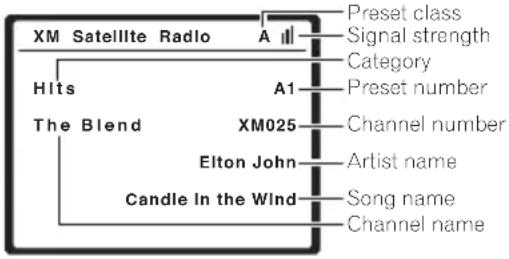
text_image
XM Satellite Radio Hits The Blend XM025 Elton John Candle In the Wind A1 Preset class Signal strength Category Preset number Channel number Artist name Song name Channel nameSelecting channels and browsing by genre
From the XM Channel Guide, you can browse XM Radio channels in the order that they appear, or you can narrow your channel search by genre. ^2

text_image
XM Satellite Radio A Hits A1 The Blend XM025 Elton John Candle in the Wind
text_image
XM Channel Guide ▲UP 000 RADIO ID 001 XM Preview 004 The 40s [005 The 50s] 006 The 60s 007 The 70s 008 The 80s ▼DOWN : Exit- Use the ↑/↓ buttons to select a channel then press ENTER to listen to the XM radio broadcast.
- To browse by genre, first press CATEGORY, use ↑/↓ to select a genre then press ENTER.
- To cancel and exit any time, press RETURN.

Tip
- You can select channels directly by pressing D.ACCESS (SHIFT+ENTER) then the three-digit channel number.
- You can press TUNER DISP (SHIFT+1) to change XM Radio information in the front panel display.
- The currently selected channel is automatically chosen (without pressing ENTER) after 10 seconds.
Using XM HD Surround
XM HD Surround uses Neural Surround™ technology to achieve optimal surround sound from XM radio.
- While listening to XM Radio, press AUTO/DIRECT for XM HD Surround listening.
See About Neural Surround ^™ on page 59 for more on this.
Saving channel presets
This receiver can memorize up to 30 channels, stored in three banks, or classes, (A, B and C) of 10 channels each.
1 Select the channel you want to memorize.
See Selecting channels and browsing by genre above.
2 Press T.EDIT.
The display shows a blinking memory class.
3 Press CLASS (SHIFT+2) to select one of the three classes then press / to select the channel preset you want.
You can also use the number buttons to select a preset.
- The default for all presets is XM001.
4 Press ENTER.
After pressing ENTER, the preset class and number stop blinking and the receiver stores the XM channel.

Tip
- You can also press MEMORY during reception display to save the information of up to 5 songs. See Using the XM Menu below to recall this information.

Note
1 It's easiest if you have your TV switched on to take advantage of the OSDs. You can, however, use just the front panel display to do everything if you prefer.
2 Select XM000 (RADIO ID) from the on-screen display to check the Radio ID of the XM Mini-Tuner.
Listening to channel presets
You will need to have some presets stored to do this.
1 Press CLASS (SHIFT+2) to select the class in which the channel is stored.
Press repeatedly to cycle through classes A, B and C.
2 Press / to select the channel preset you want.
You can also use the number buttons on the remote control to recall the channel preset.
Using the XM Menu
The XM Menu provides additional XM Radio features.
1 Press TOP MENU.
2 Use ↑/↓ to select a menu item then press ENTER.
Choose between the following menu items:
- Memory Recall – Use ↑/↓ to browse your saved song information (See Tip above)
- Channel Skip/Add – Use ↑/↓ and ENTER to select channels you would like to remove/restore from/to the channel guide.
- Antenna Aiming – Check the strength of satellite and terrestrial reception.
3 When you're finished press TOP MENU to return to the reception display.
About Neural Surround™
Neural Surround™ represents the latest advancement in surround technology and has been adopted by XM Satellite Radio for digital radio broadcasts of surround recordings and live events.
Neural Surround™ employs psychoacoustic frequency domain processing which allows delivery of a more detailed sound stage with superior localization of surround elements. System playback is scalable from stereo up to state-of-the-art multichannel surround.
Neural Surround™ is trademark owned by Neural Audio Corporation.
About XM
About XM Radio
XM Radio offers an extraordinary variety of commercial-free music, plus the best in premier sports, news, talk radio, stand-up comedy, children's and entertainment programming. XM is broadcast in superior digital audio quality from coast to coast. From rock to reggae, from classical to hip hop, XM has something for every music fan. For U.S. customers, information about XM Radio is available online at www.xmradio.com. For Canadian customers, information about XM Canada is online at www.xmradio.ca.
XM Ready® legal
XM monthly service subscription sold separately. XM Mini-Tuner and Home Dock required (each sold separately) to receive XM service. It is prohibited to copy, decompile, disassemble, reverse engineer, hack, manipulate, or otherwise make available any technology or software incorporated in receivers compatible with the XM Satellite Radio System. Installation costs and other fees and taxes, including a one-time activation fee may apply. All fees and programming subject to change. Channels with frequent explicit language are indicated with an XL. Channel blocking is available for XM radio receivers by calling 1-800-XMRADIO (US residents) and 1-877-GETXMSR (Canadian residents). For a full listing of the XM commercial-free channels and advertising-supported channels, visit lineup.xmradio.com (US residents) or xmradio.ca (Canadian residents).
Subscriptions subject to Customer Agreement available at xmradio.com (US residents) and xmradio.ca (Canadian residents). Only available in the 48 contiguous United States and Canada. ©2007 XM Satellite Radio Inc. All rights reserved. All other trademarks are the property of their respective owners.
XM Ready® subscriptions
Once you have installed the XM Mini-Tuner Dock, inserted the XM Mini-Tuner, connected the XM Dock to your XM Ready® home audio system, and installed the antenna, you are ready to subscribe and begin receiving XM
programming. There are three places to find your eight character XM Radio ID: On the XM Mini-Tuner, on the XM Mini-Tuner package, and on XM Channel 0. Record the Radio ID in the following eight squares for reference.

natural_image
Row of eight empty square boxes with no text or symbolsNote: The XM Radio ID does not use the letters "I", "O", "S" or "F". Activate your XM Satellite Radio service in the U.S. online at http://activate.xmradio.com or call 1-800-XM-RADIO (1-800-967-2346). Activate your XM Satellite Radio service in Canada online at https://activate.xmradio.ca or call 1-877-GET-XMSR (1-877-438-9677). You will need a major credit card. XM will send a signal from the satellites to activate the full channel lineup. Activation normally takes 10 to 15 minutes, but during peak busy periods you may need to keep your XM Ready home audio system on for up to an hour. When you can access the full lineup on your XM Ready home audio system you are done.
Using SIRIUS Radio
SIRIUS Satellite Radio provides over 120 channels of the best entertainment and completely commercial-free music for your car, home or office. Only SIRIUS has more than 65 original music channels, from today's hits to R&B oldies to classical masterpieces. From authentic country and real bluegrass to cool jazz, hot latin, reggae, rock and many more. Best of all, it's completely commercial-free. SIRIUS also has more than 55 channels of world-class sports, news and entertainment. Included as part of your subscription, you get up to 16 NFL games a week, up to 40 NBA games a week and up to 40 NHL games a week. (Games are broadcast during their respective seasons.) Coupled with great sports news from ESPN, the SIRIUS sports offering is unrivaled. And don't
forget a host of other great news and entertainment, like NPR, CNBC, Fox News, Radio Disney and E! Entertainment Radio. For more information, visit www.sirius.com.
Connecting your SIRIUS Connect Tuner
To receive SIRIUS Satellite Radio broadcasts, you will need to activate your SIRIUS Connect tuner. ^1

text_image
VSX-918V Antenna SIRIUS SiriusConnect™ HOME tuner AC adapter1 Connect a SIRIUS Connect tuner to the SIRIUS IN jack on the rear of this receiver.
You will also need to connect the antenna and AC adapter to the Sirius Connect tuner.
2 Press SIRIUS (SHIFT+AM) to switch to the SIRIUS input.
For best reception, you may need to move the SIRIUS Connect tuner antenna near a window (the southernmost window should produce the best results).
Note
1 In order to activate your radio subscription, you will need the SIRIUS ID (SID) which uniquely identifies your tuner. The SID may be found on a sticker located on the packaging, or on the bottom of the tuner itself. The label will have a printed 12-digit SID number. When you have located the SID, write it down in the space provided near the end of this manual. Connect SIRIUS on the internet at: https://activate.siriusradio.com Follow the prompts to activate your subscription, or you can also call SIRIUS toll-free at 1-888-539-SIRIUS (1-888-539-7474).
- If after pressing SIRIUS the display shows Antenna Error, try disconnecting the antenna and reconnecting. ^1 If the display shows Check Sirius Tuner, check the connection of the AC adapter and this receiver to the Sirius Connect tuner.
Listening to SIRIUS Radio
After connecting, you will be able to use this receiver to select channels and navigate categories using the on-screen display. ^2 The information displayed is as follows:

text_image
SIRIUS Decades The '50s A Preset class Signal strength Category A0 Preset number SR005 Channel number Chuck Berry Artist name Johnny B. Good Song name Chuck Berry Composer name Channel nameSelecting channels and browsing by genre
From the SIRIUS Channel Guide, you can browse SIRIUS Radio channels in the order that they appear, or you can narrow your channel search by genre.

text_image
SIRIUS A Decades A0 The '50s SR005 Chuck Berry Johnny B. Good Chuck Berry
text_image
SIRIUS CH Guide ▲ UP 000 Sirius ID 001 Top 40 Hits 002 Lite Pop [003 Love Songs] 004 Easy Listening 005 The '50s 006 The '60s ▼ DOWN ENTER : Exit- Press ↑/↓ to enter the SIRIUS Channel Guide, then navigate through the channels one at time with the ↑/↓ buttons, then press ENTER to listen to the SIRIUS radio broadcast.
- To browse by genre, first press CATEGORY, use /// to select a genre then press ENTER. ^3
• To cancel and exit any time, press RETURN.

Tip
- You can select channels directly by pressing D.ACCESS (SHIFT+ENTER) then the three-digit channel number.
- You can press TUNER DISP (SHIFT+1) to change SIRIUS Radio information in the front panel display.
• The currently selected channel is automatically chosen (without pressing ENTER) after 10 seconds.
Saving channel presets
This receiver can memorize up to 30 channels, stored in three banks, or classes, (A, B and C) of 10 channels each.
1 Select the channel you want to memorize.
See Selecting channels and browsing by genre above.
2 Press T.EDIT.
The display shows a blinking memory class.
3 Press CLASS (SHIFT+2) to select one of the three classes then press ←/→ to select the channel preset you want.
You can also use the number buttons to select a preset.
4 Press ENTER.
After pressing ENTER, the preset class and number stop blinking and the receiver stores the SIRIUS channel.

Tip
- You can also press MEMORY during reception display to save the information of up to 5 songs. See Using the SIRIUS Menu below to recall this information.
Listening to channel presets
You will need to have some presets stored to do this.
Note
1 You can check the strength of reception in Using the SIRIUS Menu on page 62.
2 It's easiest if you have your TV switched on to take advantage of the OSDs. You can, however, use just the front panel display to do everything if you prefer.
3 Select SR000 (SIRIUS ID) from the on-screen display to check the Radio ID of the SIRIUS Connect tuner.
1 Press CLASS (SHIFT+2) to select the class in which the channel is stored.
Press repeatedly to cycle through classes A, B and C.
2 Press ←/→ to select the channel preset you want.
- You can also use the number buttons on the remote control to recall the channel preset.
Using the SIRIUS Menu
The SIRIUS Menu provides additional SIRIUS Radio features.
1 Press TOP MENU.
2 Use ↑/↓ to select a menu item then press ENTER.
Choose between the following menu items:
- Memory Recall – Use ↑/↓ to browse your saved song information (see Tip above)
- Channel Skip/Add – Use ↑/↓ and ENTER to select channels you would like to remove/restore from/to the channel guide.
- Parental Lock – Use ↑/↓ and ENTER to select channels you would like to place under parental lock. Channels put under parental lock are not displayed in the Channel Guide, but may be accessed by directly inputting their channel number and providing the parental lock password.
- Antenna Aiming – Check the strength of satellite and terrestrial reception.
- Password Set – Set the parental lock password.
3 When you're finished press TOP MENU to return to the reception display.

Tip
- You can reset the channel presets, Memory Recall, Channel Skip/Add and Password Set in Resetting the main unit on page 72.
Using this receiver with a Pioneer flat panel TV
(VSX-918V model only)
If you have a Pioneer flat panel TV ^1 , you can use an SR+ cable to connect it to this unit and take advantage of various convenient features, such as automatic video input switching of the flat panel TV when the input is changed.

text_image
Pioneer flat panel TV HDMI SINCE CNTM KONOMICS TV/LEAT W OUT XM R AUDIO OUTPUT R AUX L CC OUT R VOUT VOUT R VOUT R VOUT R VOUT R VOUT R VOUT R ANTENNA FM LEB AL W2 R2 CONTROL OUT R2 R2 CONTROL OUT R2 R2 R2 R2 R2 R2 R2 R2 R2 R2 R2 R2 R2 R2 R2 R2 R2 R2 R2 R2 R2 R2 R2 R2 R2 R2 R2 R2 R2 R2 R2 R2 R2 R2VSX-918V

Note
1 This receiver is compatible with all Pioneer flat panel TVs from 2003 onward.
- Use a 3-ringed miniplug SR+ cable ^1 to connect the CONTROL IN jack of this receiver with the CONTROL OUT of your flat panel TV.
Before you can use the extra SR+ features, you need to make a few settings in the receiver. See SR+ Setup for Pioneer flat panel TVs on page 66 for detailed instructions.

flowchart
graph TD
    A["Pioneer flat panel TV"] -->|VIDEO INPUT 1| B["DVD player"]
    A -->|VIDEO INPUT 2| C["Satellite receiver, etc"]
    B --> D["VSX-918V"]
    C --> D
    D -->|DVD/BD AUDIO IN| B
    D -->|TV/SAT AUDIO IN| C
To make the most of the SR+ features, you should connect your source components (DVD player, etc.) in a slightly different way to that described in this chapter. For each component, connect the video output directly to the flat panel TV, and just connect the audio (analog and/or digital) to this receiver.
Using the SR+ mode with a Pioneer flat panel TV
When connected using an SR+ cable, a number of features become available to make using this receiver with your Pioneer flat panel TV even easier. These features include:
- On-screen volume display.
- On-screen display of listening mode.
• Automatic video input switching on the flat panel TV.
• Automatic volume muting on the flat panel TV. ^2
See also SR+ Setup for Pioneer flat panel TVs on page 66 for more on setting up the receiver.
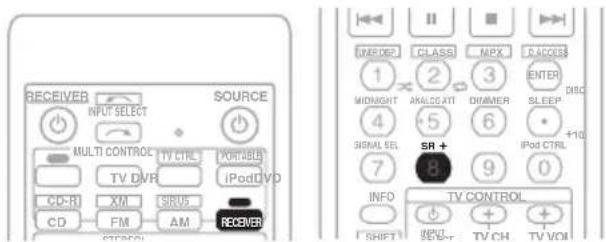
text_image
RECEIVER INPUT SELECT SOURCE MULTI CONTROL TV CTRL PORTABLE iPod DVD CD-R1 XM CSIUS - CD FM AM RECEIVER I SHIPT COMPRESS INRIDGE CLASS MPX ACCESS 1 2 3 ENTER MIDNIGHT ANALGATT DIMMER SLEEP 4 5 6 +10 SIGNAL SEL SR+ 7 8 9 0 INFO TV CONTROL + + + - TEN-CTV CH TV VCM1 Make sure that the flat panel TV and this receiver are switched on and that they are connected with the SR+ cable.
See Using this receiver with a Pioneer flat panel TV above for more on this.
2 To switch SR+ mode on/off, press RECEIVER, then the SR+ button.
The front panel display shows SR+ ON or OFF.
Note
1 • The 3-ringed SR+ cable from Pioneer is commercially available under the part number ADE7095. Contact the Pioneer Customer Support division for more information on obtaining an SR+ cable (you can also use a commercially available 3-ringed mini phone plug for the connection).
- If you connect to a Pioneer flat panel TV using an SR+ cable, you will need to point the remote control at the flat panel TV remote sensor to control the receiver. In this case, you won't be able to control the receiver using the remote control if you switch the flat panel TV off.
2 The automatic volume muting feature is enabled separately; see SR+ Setup for Pioneer flat panel TVs on page 66.
Chapter 11:
Other Settings
The Input Assign menu
You only need to make settings in the Input Assign menu if you didn't hook up your digital equipment according to the default settings for the digital inputs, or if you have connected equipment using component video cables.
1 Press RECEIVER on the remote control, then press the SETUP button.
An on-screen display (OSD) appears on your TV. Use ↑/↓/←/→ and ENTER on the remote control to navigate through the screens and select menu items. Press RETURN to confirm and exit the current menu.
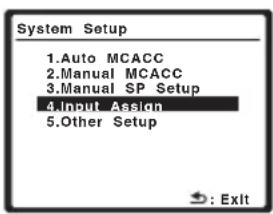
text_image
System Setup 1.Auto MCACC 2.Manual MCACC 3.Manual SP Setup 4.Input Assign 5.Other Setup : ExitAbove: VSX-918V (left) and VSX-818V (right)
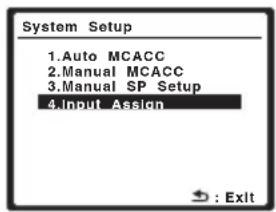
text_image
System Setup 1.Auto MCACC 2.Manual MCACC 3.Manual SP Setup 4.Input Assign → : Exit2 Select 'Input Assign' from the System Setup menu.
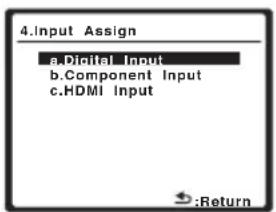
text_image
4.Input Assign a.Digital Input b.Component Input c.HDMI Input :ReturnAssigning the digital inputs
- Default settings:
Coaxial – DVD
Optical - 1 - CD
Optical - 2 - TV
You only need to do this if you didn't hook up your digital equipment according to the default settings for the digital inputs (see above). This setting tells the receiver what digital equipment is hooked up to which terminal so the buttons on the remote correspond to what you have hooked up.
1 Select 'Digital Input' from the Input Assign menu.

text_image
4.Input Assign a.Digital Input b.Component Input c.HDMI Input :Return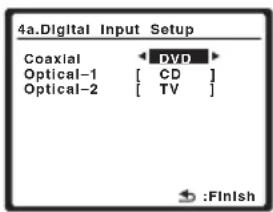
text_image
4a.Digital Input Setup Coaxial Optical-1 [ CD ] Optical-2 [ TV ] DVD :Finish2 Select the number of the digital input to which you've connected the digital component.
The numbers correspond with the numbers beside the inputs on the rear of the receiver.
3 Select the component that corresponds with the one you connected to that input.
Select between DVD, TV, CD, CDR, DVR, SIRIUS or OFF.
- Use / and ENTER to do this.
- If you assign a digital input to a certain function (for example, DVD/BD), any digital inputs previously assigned to that function will automatically be switched off.
4 When you're finished, press RETURN.
You return to the Input Assign menu.
Assigning the component video inputs
- Default settings:
Component 1 - DVD
Component 2 - TV
Component 3 - DVR
If you used component video cords to connect your video equipment you must tell the receiver which device it is, or else you may see the composite video input instead of the component video signal. For more on this, see Using the component video jacks on page 16.
1 Select 'Component Input' from the Input Assign menu.
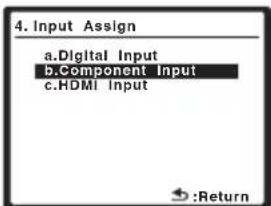
text_image
4. Input Assign a.Digital Input b.Component Input c.HDMI Input :Return
text_image
4b.Component Input Component-1 DVD Component-2 [ TV ] Component-3 [ DVR ] :Finish2 Select the number of the component video input to which you've connected your video component.
The numbers correspond with the numbers beside the inputs on the rear of the receiver.
3 Select the component that corresponds with the one you connected to that input.
Select between DVD, TV, DVR or OFF.
- Use and ENTER to do this.
- If you assign a component input to a certain function, any component inputs previously assigned to that function will automatically be switched off.
- Make sure you have connected the audio from the component to the corresponding inputs on the rear of the receiver.
- If you connect any source component to the receiver using a component video input, you should also have your TV connected to this receiver's component video MONITOR output (down converting component video is not possible after assigning an input).
4 When you're finished, press RETURN.
You return to the Input Assign menu.
Assigning the HDMI inputs
- Default settings:
HDMI - 1 - DVD
HDMI - 2 - TV
If you used HDMI to connect your video equipment, you must tell the receiver which input terminal(s) you have used, so that you see the proper video signal when you select the input source.
1 Select 'HDMI Input' from the Input Assign menu.

text_image
4. Input Assign a.Digital Input b.Component Input c.HDMI Input :Return2 Select the number of the HDMI input to which you've connected your video component.
The numbers correspond with the numbers beside the inputs on the rear of the receiver.
3 Select the component that corresponds with the one you connected to that input.
Select between DVD, TV, DVR or OFF.
- Use / and ENTER to do this.
- If you assign an HDMI input(s) to a certain function, any HDMI inputs previously assigned to that function will automatically be switched off
- VSX-818V model only: To hear audio from your HDMI component (through this system), you must also make separate audio connections to the corresponding inputs on the rear of the receiver. For more on this, see Connecting using HDMI on page 16.
- If you connect any video component to the receiver using HDMI, you should also have your TV connected to this receiver's HDMI output.
4 When you're finished, press RETURN.
You return to the Input Assign menu.
The Other Setup menu
(VSX-918V model only)
SR+ Setup for Pioneer flat panel TVs
Make the following settings if you have connected a Pioneer flat panel TV to this receiver using an SR+ cable. Note that the number of settings available will depend on the flat panel TV you've connected.
See also Using this receiver with a Pioneer flat panel TV on page 62.
1 Press RECEIVER on the remote control, then press the SETUP button.
An on-screen display (OSD) appears on your TV. Use ↑/↓/↔/→ and ENTER on the remote control to navigate through the screens and select menu items. Press RETURN to confirm and exit the current menu.
2 Select 'Other Setup' then press ENTER.

text_image
System Setup 1.Auto MCACC 2.Manual MCACC 3.Manual SP Setup 4.Input Assign 5.Other Setup3 Make sure 'SR+ Setup' is selected from the Other Setup menu and then press ENTER.
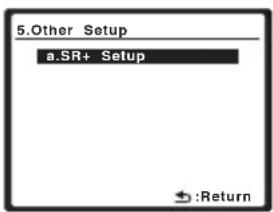
text_image
5. Other Setup a.SR+ Setup →:Return
text_image
5a.SR+ Setup PDP Volume Control OFF PDP Input Select DVD/BD [Input-1] TV/SAT [Input-2] DVR [Input-3] VIDEO [TV] Monitor Out Connect [ OFF ] :Finish4 Select the 'PDP Volume Control' setting you want.
- OFF – The receiver does not control the volume of the flat panel TV.
- ON – When the receiver is switched to one of the inputs that use the flat panel TV (DVD/BD, or another function below), the volume on the flat panel TV is muted so only sound from the receiver is heard.
5 Assign any input source connected to the flat panel TV to the corresponding input number.
This matches the receiver's input source with a numbered video input on the flat panel TV. For example, assign DVD/BD to input-2 if you have connected your DVD video output to video input 2 on the flat panel TV.
- The Monitor Out Connect should be set to the input that you've used to connect this receiver to your flat panel TV.
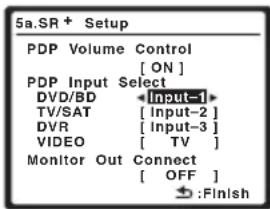
text_image
5a.SR + Setup PDP Volume Control [ ON ] PDP Input Select DVD/BD [ Input-1 ] TV/SAT [ Input-2 ] DVR [ Input-3 ] VIDEO [ TV ] Monitor Out Connect [ OFF ] :Finish
text_image
5a.SR® Setup PDP Volume Control [ ON ] PDP Input Select DVD/BD Input-2 TV/SAT [ OFF ] DVR [ Input-3 ] VIDEO [ TV ] Monitor Out Connect [ OFF ] :Finish6 When you're finished, press RETURN.
You return to the Other Setup menu.
Chapter 12:
Additional information
Troubleshooting
Incorrect operations are often mistaken for trouble and malfunctions. If you think that there is something wrong with this component, check the points below. Take a look at the other components and electrical appliances being used, because sometimes the problem may lie there. If the trouble isn't sorted out even after going through the checks below, ask your nearest Pioneer authorized independent service company to carry out repair work.
- If the unit does not operate normally due to external effects such as static electricity disconnect the power plug from the outlet and insert again to return to normal operating conditions.
| Problem | Remedy |
| The power does not turn on. • Disconnect the power plug from the outlet, and insert again.• Make sure there are no loose strands of speaker wire touching the rear panel. This could cause the receiver to shut off automatically. | |
| The receiver suddenly switches off and the power indicator blinks. | • After about a minute (you won't be able to switch the unit on during this time), switch the receiver back on. If the message persists, call a Pioneer authorized independent service company. |
| No sound is output when a function is selected. | • Make sure the component is connected correctly (refer to Connecting up on page 11).• Press MUTE on the remote control to turn muting off.• Press SPEAKERS to select the proper speaker set (see Switching the speaker system on page 22).• Press SIGNAL SELECT to select the proper input signal (see Choosing the input signal on page 36). |
| No image is output when a function is selected. | • Make sure the component is connected correctly (refer to Connecting up on page 11).• Select the correct component (use the input select buttons).• Check Assigning the component video inputs on page 65 to make sure you're assigned the correct input.• The video input selected on the TV monitor is incorrect. Refer to the instruction manual supplied with the TV. |
| No sound from subwoofer. • Make sure the subwoofer is switched on.• If the subwoofer has a volume knob, make sure it's turned up.• The Dolby Digital or DTS source you are listening to may not have an LFE channel.• Switch the subwoofer setting in Speaker Setting on page 42 to YES or PLUS,• Switch the LFE ATT (LFE Attenuate) on page 35 to LFEATT 0 or LFEATT 10. | |
| No sound from surround or center speakers. | • Connect the speakers properly (refer to page 20).• Refer to Speaker Setting on page 42 to check the speaker settings.• Refer to Channel Level on page 44 to check the speaker levels. |
| The PHASE CONTROL feature doesn't seem to have an audible effect. | • If applicable, check that the lowpass filter switch on your subwoofer is off, or the lowpass cutoff is set to the highest frequency setting. If there is a PHASE setting on your subwoofer, set it to 0^ (or depending on the subwoofer, the setting where you think it has the best overall effect on the sound).• Make sure the speaker distance setting is correct for all speakers (see Speaker Distance on page 45). |
Additional information
| Problem | Remedy |
| Considerable noise in radio broadcasts. | Connect the antenna (page 19) and adjust the position for best reception.Route any loose cables away from the antenna terminals and wires.Fully extend the FM wire antenna, position for best reception, and secure to a wall (or connect an outdoor FM antenna).Connect an additional internal or external AM antenna (page 19).Turn off equipment causing interference or move it away from the receiver (or move antennas farther away from equipment causing noise). |
| Broadcast stations cannot be selected automatically. | Connect an outdoor antenna (refer to page 19). |
| Noise during playback of a cassette deck. | Move the cassette deck away from your receiver, until the noise disappears. |
| Sound is produced from other components, but not from LD or DVD player. | Set the SIGNAL SELECT to AUTO. DIGITAL or ANALOG according to the type of connections made (refer to page 36).Set the digital input settings correctly (refer to page 64).Make digital connections (refer to page 12) and set the SIGNAL SELECT to DIGITAL (refer to page 36).Refer to the instruction manual supplied with the DVD player. |
| No sound is output or a noise is output when software with DTS is played back. | Set the digital volume level of the player to full, or to the neutral position.Make sure the player's settings are correct and/or the DTS signal out is on. Refer to the instruction manual supplied with the DVD player.Set the input signal type to DIGITAL (see Choosing the input signal on page 36). |
| During a playback search, noise is output from a DTS compatible CD player. | This is not a malfunction, but be sure to turn the volume down to prevent the output of loud noise from your speakers. |
| Everything seems to be set up correctly, but the playback sound is odd. | Check that the positive/negative speaker terminals on the receiver are matched with the corresponding terminals on the speakers (see Connecting the speakers on page 20). |
| There seems to be a time lag between the speakers and the output of the subwoofer. | See Automatically setting up for surround sound (MCACC) on page 8 to set up your system again using MCACC (this will automatically compensate for a delay in the subwoofer output). |
| After using the Auto MCACC Setup, the speaker size setting (LARGE or SMALL) is incorrect. | Low-frequency noise could have been caused by an air conditioner or motor.Switch off all appliances in the room and rerun the Auto MCACC Setup. |
| Can't operate the remote control. | Replace the batteries (refer to page 6).Operate within 7 m (23 ft.), 30° of the remote sensor (refer to page 29).Remove the obstacle or operate from another position.Avoid exposing the remote sensor on the front panel to direct light.VSX-918V model only: Unplug anything connected to the CONTROL IN jack and use remote normally (see Operating other Pioneer components on page 49). |
| VSX-918V model only: The SR cable is connected, but the connected components can't be operated with the remote. | Reinsert the SR cable, making sure it's connected to the right jack (see Using this receiver with a Pioneer flat panel TV on page 62).Make sure an analog connection has been made between the units.This feature only works with Pioneer products. |
| The display is dark or off. Press DIMMER on the control repeatedly to return to the default. | |
HDMI
| Symptom | Remedy |
| No picture or sound. | • If the problem still persists when connecting your HDMI component directly to your monitor, please consult the component or monitor manual or contact the manufacturer for support. |
| No picture. | ·Depending in the output settings of the source component, it may be outputting a video format that can't be displayed. Change the output settings of the source, or connect using the component or composite jacks.·VSX-918V model only:– This receiver is HDCP-compatible. Check that the components you are connecting are also HDCP-compatible. If they are not, please connect them using the component or composite video jacks.– Depending on the connected source component, it's possible that it will not work with this receiver (even if it is HDCP-compatible). In this case, connect using the component or composite video jacks between source and receiver.– If video images do not appear on your TV or flat panel TV, try adjusting the resolution, DeepColor or other setting for your component.– If 'NOT SPT' (NOT SUPPORT) appears in the receiver's display, try adjusting the resolution, DeepColor or other setting for your component. |
| OSD does not appear. | ·The OSD will not appear if you have connected using the HDMI output to your TV. Use component or composite connections when setting up the system. |
| No sound, or sound suddenly ceases. | ·If you've made separate connections for audio, make sure you have assigned the analog/digital jack(s) to the corresponding HDMI input for the component. See Assigning the HDMI inputs on page 65 to do this.·Check the audio output settings of the source component.·VSX-918V model only:– Check that the AV Parameter setting is set to HDMI AMP/THRU (refer to page 35).– If the component is a DVI device, use a separate connection for the audio.·VSX-818V model only: Since the HDMI audio signal is sent through this receiver to your TV, you need to make separate connections for audio if you want to hear your HDMI component through this system. See Connecting using HDMI on page 16 for more on this. |
| VSX-918V model only: HDCP ERR shows in the display. | ·Check whether or not the connected component is compatible with HDCP. If it is not compatible with HDCP, reconnect the source device using a different type of connection (component or composite). Some components that are compatible with HDCP still cause this message to be displayed, but so long as there is no problem with displaying video this is not a malfunction. |
Important information regarding the HDMI connection
VSX-918V model only
There are cases where you may not be able to route HDMI signals through this receiver (this depends on the HDMI equipped component you are connecting-check with the manufacturer for HDMI compatibility information).
If you aren't receiving HDMI signals properly through this receiver (from your component), please try the following configuration when connecting up.
Configuration ^1
Connect your HDMI-equipped component directly to the display using an HDMI cable. Then use the most convenient connection (digital is recommended) for sending audio to the receiver. See the operating instructions for more on audio connections. Set the display volume to minimum when using this configuration.
Note
1 • If your display only has one HDMI terminal, you can only receive HDMI video from the connected component.
- Depending on the component, audio output may be limited to the number of channels available from the connected display unit (for example audio output is reduced to 2 channels for a monitor with stereo audio limitations).
- If you want to switch the input source, you'll have to switch functions on both the receiver and your display unit.
- Since the sound is muted on the display when using the HDMI connection, you must adjust the volume on the display every time you switch input sources.
iPod messages
| Symptom | Cause Action | |
| Error I1 | There is a problem with the signal path from the iPod to the amplifier. | Switch off the amplifier and reconnect the iPod to the amplifier. If this doesn't seem to work, try resetting your iPod. |
| Error I2 | The software version being used with the iPod needs to be updated. | Update the software being used with the iPod (please use the latest iPod software versions later than the iPod updater 2004-10-20). |
| Error I3 | The iPod that is not supported is connected. Check whether the iPod was supported by this receiver (page 55). | |
| When the iPod software version is too old. Update the iPod software to the latest version. | ||
| Error I4 | When there is no response from the iPod. Update the iPod software to the latest version. | |
| No Music Track | There are no playable songs currently stored in the iPod. | Input some music files compatible with iPod playback. |
| No Track | When there are no tracks in the category selected on the iPod. | Select a different category. |
XM radio messages
| Symptom | Cause Action | |
| Check XM Tuner | The XM Mini-Tuner is not installed in the XM Mini-Tuner Dock or the XM Mini-Tuner dock is not connected to this receiver. | Confirm the XM Mini-Tuner is fully seated in the dock and check the XM Mini-Tuner dock cable is connected to this receiver. |
| Check Antenna | The XM antenna is not connected to the XM Mini-Tuner Dock or the XM antenna cable has become damaged. | Check that the XM antenna is securely connected to the XM Mini-Tuner Dock and check the antenna cable for damage. Replace the XM antenna if the cable is damaged. |
| Loading | The XM Mini-Tuner is acquiring audio or program information from the XM satellite signal. This message can also occur in weak XM signal conditions. | This message should disappear in a few seconds in good signal conditions. If you see this message often, reposition the XM antenna to get better signal reception. |
| No Signal | The XM Mini-Tuner is not receiving the XM satellite signal. Something may be blocking the XM antenna's view of the satellites or the antenna is not properly aimed. | Check for antenna obstructions and reposition the XM antenna to get better signal reception. See instructions supplied with the XM Mini-Tuner and Dock for antenna installation information. |
| Off Air | The XM channel you selected is not currently broadcasting. | Check back at a later time; in the mean time, select another channel. |
| CH Unauthorized | You may be attempting to tune to an XM channel that is blocked or that you cannot receive with your XM subscription package. | Consult the latest channel guide at www.xmradio.com for the current list of channels. For information on receiving this channel, visit www.xmradio.com or contact XM Satellite Radio at 1-800-967-2346. |
| CH Unavailable | The selected channel is not available. The channel may have been reassigned to a different channel number. This message may occur initially with a new radio or a radio that has not received XM's signal for an extended period. | Consult the latest channel guide at www.xmradio.com for the current list of channels. For cases of a new radio or a radio that has not received XM's signal for an extended period, allow the radio to receive the XM satellite signal for at least 5 minutes and then try to select the channel again. |
| Symptom | Cause Action | |
| -------- | No artist name or song title is available for this selection. | No action required. |
| Upgrade XM Tuner | The connected XM CNP-1000 is incompatible. This receiver features advanced technology that is designed for use with the XM Mini-Tuner. | Contact XM Listener Care (1-800-967-2346) and ask about upgrading your XM CNP-1000 to an XM Mini-Tuner.Have the receiver model name and CNP-1000 XM Radio ID number ready beforehand, and explain that the receiver is displaying the message “Upgrade XM Tuner.”If you already have an XM Mini-Tuner connected and you see this message, turn off the receiver, make sure the XM Mini-Tuner is properly seated in the Mini-Tuner Dock, and then turn the receiver On again. If the message reappears, contact XM Listener Care and explain the issue that you’re experiencing and the corrective actions you’ve tried. |
| XM Power Error | A short-circuit occurring in the antenna or surrounding antenna cable. | Make sure that there is nothing unusual with the antenna or antenna cable. Switch the power off, then back on again. |
SIRIUS radio messages
| Symptom Cause Action | |
| Antenna Error | Antenna is not properly connected. Check that the antenna cable is attached securely. |
| Check Sirius Tuner | SIRIUS Connect tuner is not properly connected Check that the 8 pin mini DIN cable and AC Adapter are attached securely. |
| Acquiring Signal | The SIRIUS signal is too weak at the current location. n/a |
| Subscription Updating | Unit is updating subscription. Wait until the encryption code has been updated. |
| Updating Channels | Unit is updating channels. Wait until the encryption code has been updated. |
| Invalid Channel | Selected channel is not available/does not exist. Select another channel. |
Resetting the main unit
Use this procedure to reset all the receiver's settings to the factory default. Use the front panel controls to do this.
1 Switch the receiver into standby.
2 While holding down the ADVANCED SURROUND button, press and hold the ⏻ STANDBY/ON button for about three seconds.
3 When you see RESET? appear in the display, press 'ST –'.
OK? shows in the display.
4 Press SOUND RETRIEVER to confirm.
OK appears in the display to indicate that the receiver has been reset to the factory settings.
Switching the speaker impedance
We recommend using speakers of 8 with this system, but it is possible to switch the impedance setting if you plan to use speakers with a 6 impedance rating.
- With the receiver in standby, press ⏻ STANDBY/ON while holding down the SPEAKERS button.
Each time you do this, you switch between the impedance settings:
- SP 6 OHM – Use this setting if your speakers are rated at 6 Ω.
- SP 8 OHM – Use this setting if your speakers are rated at 8 Ω or more.
Specifications
Amplifier section
• Continuous power output (stereo)
Front . . .95 W (20 Hz to 20 kHz, THD 0.2 %, 8 Ω) ^1
- Rated power output (surround / 20 Hz to 20 kHz, THD 0.06 %, 8 Ω)
Front....95 W per channel Center....95 W Surround....95 W per channel
- Rated power output (surround / 1 kHz, THD 0.05 %, 8 Ω)
Front....120 W per channel Center....120 W Surround....120 W per channel
Audio section
- Input (Sensitivity/Impedance)
AUX, CD, CD-R/TAPE/MD, DVD/BD, TV/SAT, DVR/VCR .....335 mV/47 kΩ
• Frequency response
AUX, CD, CD-R/TAPE/MD, DVD/BD, TV/SAT, DVR/VCR . . . .5 Hz to 100 000 Hz dB
• Output (Level/Impedance)
CD-R/TAPE/MD, DVR/VCR ..... 335 mV/2.2 kΩ
- Tone control
Bass ....± 6 dB (100 Hz) Treble ....± 6 dB (10 kHz) Loudness ....+10 dB/+5 dB (100 Hz/10 kHz) (at volume level -50 dB)
- Signal-to-Noise Ratio (IHF, short circuited, A network)
AUX, CD, CD-R/TAPE/MD, DVD/BD, TV/SAT, DVR/VCR .....96 dB
• Signal-to Noise Ratio [EIA, at 1 W (1 kHz)]
AUX, CD, CD-R/TAPE/MD, DVD/BD, TV/SAT, DVR/VCR 79 dB

Note
1 Continuous average power output of 95 watts* per channel, min., at 8 ohms, from 20 Hz to 20 000 Hz with no more than 0.2 %** total harmonic distortion (front).
* Measured pursuant to the Federal Trade Commission's Trade Regulation rule on Power Output Claims for Amplifiers.
** Measured by Audio Spectrum Analyzer.
Video Section
- Input (Sensitivity/Impedance)
DVR/VCR, DVD/BD, TV/SAT ..... 1 Vp-p/75 Ω
• Output (Level/Impedance)
DVR/VCR, MONITOR OUT ..... 1 Vp-p/75 Ω
• Frequency response
DVR/VCR, DVD/BD,
TV/SAT ⇔ MONITOR ..... 5 Hz to 7 MHz +dB
Signal-to-Noise Ratio..... 55 dB
Crosstalk.... 50 dB
Component video section
- Input (Sensitivity)
DVD/BD, TV/SAT, DVR/VCR ..... 1 Vp-p/75 Ω
• Output (Level/Impedance)
MONITOR OUT.... 1 Vp-p/75 Ω
• Frequency response
DVD/BD, TV/SAT,
DVR/VCR MONITOR .. 5 Hz to 40 MHz dB
Signal-to-Noise Ratio.... 60 dB
FM Tuner Section
Frequency Range.....87.5 MHz to 108 MHz
Usable Sensitivity .... Mono:13.2 dBf, IHF (1.3 μV/75 Ω)
50 dB Quieting Sensitivity..... Mono: 20.2 dBf Stereo: 38.6 dBf
Signal-to-Noise Ratio. . . Mono: 73 dB (at 85 dBf) Stereo: 70 dB (at 85 dBf)
Distortion .... Stereo: 0.5 % (1 kHz)
Alternate Channel Selectivity .... 60 dB (400 kHz)
Stereo Separation ..... 40 dB (1 kHz)
Frequency Response.....30 Hz to 15 kHz (±1 dB)
Antenna Input (DIN) .....75 Ω unbalanced
AM Tuner Section
Frequency Range ..... 530 kHz to 1700 kHz
Sensitivity (IHF, Loop antenna) ..... 350 μV/m
Signal-to-Noise Ratio 50 dB
Antenna.... Loop antenna
Other Input/Output Section
HDMI terminal
Input 19 pin x2
Output....19 pin (5 V, 55 mA)
XM connector ..... 4 pin (5 V, 370 mA)
SIRIUS connector....8 pin
Miscellaneous
Power requirements. . . . . . . . AC 120 V/60 Hz
Power consumption ....300 W
In standby 0.5 W
Dimensions
Weight (without package) .... 8.1 kg (17 lb 9 oz)
Furnished Parts
Microphone (for Auto MCACC setup).....1
Remote control 1
Dry cell batteries (AA size IEC R6).....2
AM loop antenna 1
FM wire antenna....1
These operating instructions

Note
- Specifications and the design are subject to possible modifications without notice, due to improvements.
This product is for general household purposes. Any failure due to use for other than household purposes (such as long-term use for business purposes in a restaurant or use in a car or ship) and which requires repair will be charged for even during the warranty period. K041 En

Dear Customer:
Selecting fine audio equipment such as the unit you've just purchased is only the start of your musical enjoyment. Now it's time to consider how you can maximize the fun and excitement your equipment offers. This manufacturer and the Electronic Industries Association's Consumer Electronics Group want you to get the most out of your equipment by playing it at a safe level. One that lets the sound come through loud and clear without annoying blaring or distortion-and, most importantly, without affecting your sensitive hearing.
Sound can be deceiving. Over time your hearing "comfort level" adapts to higher volumes of sound. So what sounds "normal" can actually be loud and harmful to your hearing. Guard against this by setting your equipment at a safe level BEFORE your hearing adapts.
To establish a safe level:
- Start your volume control at a low setting.
- Slowly increase the sound until you can hear it comfortably and clearly, and without distortion.
Once you have established a comfortable sound level:
- Set the dial and leave it there.
Taking a minute to do this now will help to prevent hearing damage or loss in the future. After all, we want you listening for a lifetime.
We Want You Listening For A Lifetime
Used wisely, your new sound equipment will provide a lifetime of fun and enjoyment. Since hearing damage from loud noise is often undetectable until it is too late, this manufacturer and the Electronic Industries Association's Consumer Electronics Group recommend you avoid prolonged exposure to excessive noise. This list of sound levels is included for your protection.
Decibel
Level Example
30 Quiet library, soft whispers
40 Living room, refrigerator, bedroom away from traffic
50 Light traffic, normal conversation, quiet office
60 Air conditioner at 20 feet, sewing machine
70 Vacuum cleaner, hair dryer, noisy restaurant
80 Average city traffic, garbage disposals, alarm clock at two feet.
THE FOLLOWING NOISES CAN BE DANGEROUS UNDER CONSTANT EXPOSURE
90 Subway, motorcycle, truck traffic, lawn mower
100 Garbage truck, chain saw, pneumatic drill
120 Rock band concert in front of speakers.
140 Gunshot blast, jet plane
180 Rocket launching pad
thunderclap
Information courtesy of the Deafness Research Foundation.


S001 En
Power cord caution
Handle the power cord by the plug. Do not pull out the plug by tugging the cord and never touch the power cord when your hands are wet as this could cause a short circuit or an electric shock. Do not place the unit, a piece of furniture, etc., on the power cord, or pinch the cord. Never make a knot in the cord or tie it with other cords. The power cords should be routed such that they are not likely to be stepped on. A damaged power cord can cause a fire or give you an electrical shock. Check the power cord once in a while. When you find it damaged, ask your nearest Pioneer authorized service center or your dealer for a replacement.
Cleaning the unit
- Use a polishing cloth or dry cloth to wipe off dust and dirt.
- When the surface is dirty, wipe with a soft cloth dipped in some neutral cleanser diluted five or six times with water, and wrung out well, and then wipe again with a dry cloth. Do not use furniture wax or cleansers.
- Never use thinners, benzine, insecticide sprays or other chemicals on or near this unit, since these will corrode the surface.
Pioneer
PIONEER ELECTRONICS (USA) INC.
PIONEER ELECTRONICS OF CANADA, INC.
LIMITED WARRANTY
WARRANTY VALID ONLY IN COUNTRY OF PRODUCT PURCHASE
WARRANTY
Pioneer Electronics (USA) Inc. (PUSA), and Pioneer Electronics Of Canada, Inc. (POC), warrant that products distributed by PUSA in the U.S.A., and by POC in Canada that fail to function properly under normal use due to a manufacturing defect when installed and operated according to the owner's manual enclosed with the unit will be repaired or replaced with a unit of comparable value, at the option of PUSA or POC, without charge to you for parts or actual repair work. Parts supplied under this warranty may be new or rebuilt at the option of PUSA or POC.
THIS LIMITED WARRANTY APPLIES TO THE ORIGINAL OR ANY SUBSEQUENT OWNER OF THIS PIONEER PRODUCT DURING THE WARRANTY PERIOD PROVIDED THE PRODUCT WAS PURCHASED FROM AN AUTHORIZED PIONEER DISTRIBUTOR/DEALER IN THE U.S.A. OR CANADA. YOU WILL BE REQUIRED TO PROVIDE A SALES RECEIPT OR OTHER VALID PROOF OF PURCHASE SHOWING THE DATE OF ORIGINAL PURCHASE OR, IF RENTED, YOUR RENTAL CONTRACT SHOWING THE PLACE AND DATE OF FIRST RENTAL. IN THE EVENT SERVICE IS REQUIRED, THE PRODUCT MUST BE DELIVERED WITHIN THE WARRANTY PERIOD, TRANSPORTATION PREPAID, ONLY FROM WITHIN THE COUNTRY OF PURCHASE AS EXPLAINED IN THIS DOCUMENT. YOU WILL BE RESPONSIBLE FOR REMOVAL AND INSTALLATION OF THE PRODUCT. PUSA OR POC, AS APPROPRIATE, WILL PAY TO RETURN THE REPAIRED OR REPLACEMENT PRODUCT TO YOU WITHIN THE COUNTRY OF PURCHASE.
PRODUCT WARRANTY PERIOD
Home Audio and Video
Microphones, Headphones, Phono Cartridges and Styluses
Parts Labor
1 Year 1 Year
90 Days 90 Days
Shorter limited warranty periods apply to some models. Please refer to the limited warranty document enclosed with the product for a definitive statement of the warranty period. The warranty period for retail customers who rent the product commences upon the date product is first put into use (a) during the rental period or (b) retail sale, whichever occurs first.
WHAT IS NOT COVERED
IF THIS PRODUCT WAS PURCHASED FROM AN UNAUTHORIZED DISTRIBUTOR, THERE ARE NO WARRANTIES, EXPRESS OR IMPLIED, INCLUDING THE IMPLIED WARRANTY OF MERCHANTABILITY AND THE IMPLIED WARRANTY OF FITNESS FOR A PARTICULAR PURPOSE AND THIS PRODUCT IS SOLD STRICTLY "AS IS" AND "WITH ALL FAULTS".
PIONEER SHALL NOT BE LIABLE FOR ANY CONSEQUENTIAL AND/OR INCIDENTAL DAMAGES.
PIONEER DOES NOT WARRANT ANY PRODUCT LISTED ABOVE WHEN IT IS USED IN A TRADE OR BUSINESS OR IN ANY INDUSTRIAL OR COMMERCIAL APPLICATION. THIS WARRANTY DOES NOT APPLY IF THE PRODUCT HAS BEEN SUBJECTED TO POWER IN EXCESS OF ITS PUBLISHED POWER RATING.
THIS WARRANTY DOES NOT COVER TELEVISION OR DISPLAY SCREENS DAMAGED BY STATIC, NON-MOVING, IMAGES APPLIED FOR LENGTHY PERIODS (BURN-IN).
THIS WARRANTY DOES NOT COVER THE CABINET OR ANY APPEARANCE ITEM, USER ATTACHED ANTENNA, ANY DAMAGE TO RECORDS OR RECORDING TAPES OR DISCS, ANY DAMAGE TO THE PRODUCT RESULTING FROM ALTERATIONS, MODIFICATIONS NOT AUTHORIZED IN WRITING BY PIONEER, ACCIDENT, MISUSE OR ABUSE, DAMAGE DUE TO LIGHTNING OR TO POWERSURGES, SUBSEQUENT DAMAGE FROM LEAKING, DAMAGE FROM INOPERATIVE BATTERIES, OR THE USE OF BATTERIES NOT CONFORMING TO THOSE SPECIFIED IN THE OWNER'S MANUAL.
THIS WARRANTY DOES NOT COVER THE COST OF PARTS OR LABOR WHICH WOULD BE OTHERWISE PROVIDED WITHOUT CHARGE UNDER THIS WARRANTY OBTAINED FROM ANY SOURCE OTHER THAN APIONEERAUTORIZED SERVICE COMPANY OR OTHERDESIGNATED LOCATION. THIS WARRANTY DOES NOT COVER DEFECTS OR DAMAGE CAUSED BY THE USE OF UNAUTHORIZED PARTS OR LABOR OR FROM IMPROPER MAINTENANCE.
ALTERED, DEFACED, OR REMOVED SERIAL NUMBERS VOID THIS ENTIRE WARRANTY
NO OTHER WARRANTIES
IN THE U.S.A. - PIONEER LIMITS ITS OBLIGATIONS UNDER ANY IMPLIED WARRANTIES INCLUDING, BUT NOT LIMITED TO, THE IMPLIED WARRANTIES OF MERCHANTABILITY AND FITNESS FOR A PARTICULAR PURPOSE, TO A PERIOD NOT TO EXCEED THE WARRANTY PERIOD. NO WARRANTIES SHALL APPLY AFTER THE WARRANTY PERIOD. SOME STATES DO NOT ALLOW LIMITATIONS ON HOW LONG AN IMPLIED WARRANTY LASTS AND SOME STATES DO NOT ALLOW THE EXCLUSIONS OR LIMITATIONS OF INCIDENTAL OR CONSEQUENTIAL DAMAGES, SO THE ABOVE LIMITATIONS OR EXCLUSIONS MAY NOT APPLY TO YOU. THIS WARRANTY GIVES YOU SPECIFIC LEGAL RIGHTS AND YOU MAY HAVE OTHER RIGHTS WHICH MAY VARY FROM STATE TO STATE.
IN CANADA - EXCEPT AS EXPRESSLY PROVIDED HEREIN, THERE ARE NO REPRESENTATIONS, WARRANTIES, OBLIGATIONS OR CONDITIONS, IMPLIED, STATUTORY OR OTHERWISE, APPLICABLE TO THIS PRODUCT.
TO OBTAIN SERVICE
PUSA and POC have appointed a number of Authorized Service Companies throughout the U.S.A. and Canada should your product require service. To receive warranty service you need to present your sales receipt or, if rented, your rental contract showing place and date of original owner's transaction. If shipping the unit you will need to package it carefully and send it, transportation prepaid by a traceable, insured method, to an Authorized Service Company. Package the product using adequate padding material to prevent damage in transit. The original container is ideal for this purpose. Include your name, address and telephone number where you can be reached during business hours.
On all complaints and concerns in the U.S.A. call Customer Support at 1-800-421-1404, or, in Canada, call Customer Satisfaction at 1-877-283-5901.
INTHEU.S.A.
For hook-up and operation of your unit or to locate an Authorized Service Company, please call or write:
PIONEER ELECTRONICS SERVICE, INC.
P.O. BOX 1760
LONG BEACH, CALIFORNIA 90801
1-800-421-1404
http://www.pioneerelectronics.com
IN CANADA
For additional information on this warranty.
please call or write:
CUSTOMER SATISFACTION GROUP
PIONEER ELECTRONICS OF CANADA, INC.
300 ALLSTATE PARKWAY
MARKHAM, ON L3R 0P2
(905) 479-4411
1-877-283-5901
http://www.pioneerelectronics.ca
DISPUTE RESOLUTION
IN THE U.S.A. - Following our response to any initial request to Customer Support, should a dispute arise between you and Pioneer, Pioneer makes available its Complaint Resolution Program to resolve the dispute. The Complaint Resolution Program is available to you without charge. You are required to use the Complaint Resolution Program before you exercise any rights under, or seek any remedies, created by Title I of the Magnuson-Moss Warranty-Federal Trade Commission Improvement Act, 15 U.S.C. 2301 at seq. To use the Complaint Resolution Program call 1-800-421-1404 and explain to the customer service representative the problem you are experiencing, steps you have taken to have the product repaired during the warranty period and the name of the authorized Distributor/Dealer from whom the Pioneer product was purchased. After the complaint has been explained to the representative, a resolution number will be issued. Within 40 days of receiving your complaint, Pioneer will investigate the dispute and will either: (1) respond to your complaint in writing informing you what action Pioneer will take, and in what time period, to resolve the dispute; or (2) respond to your complaint in writing informing you why it will not take any action.
IN CANADA - Call the Customer Satisfaction Manager at (905) 946-7446 to discuss your complaint and to obtain a prompt resolution.
RECORD THE PLACE AND DATE OF PURCHASE FOR FUTURE REFERENCE
Model No.
Serial No.
Purchase Date
Purchased From
Should this product require service in the U.S.A. and you wish to locate the nearest Pioneer Authorized Independent Service Company, or if you wish to purchase replacement parts, operating instructions, service manuals, or accessories, please call the number shown below.
$$ 1 - 8 0 0 - 4 2 1 - 1 4 0 4 $$
Please do not ship your product to Pioneer without first calling the Customer Support at the above listed number for assistance.
Pioneer Electronics Service, Inc.
PO. BOX 1760, Long Beach,
For warranty information please see the Limited Warranty sheet included with your product.
Should this product require service in Canada, please contact a Pioneer Canadian
Authorized Dealer to locate the nearest Pioneer Authorized Service Company in Canada.
Alternatively, please contact the Customer Satisfaction Department at the following address:
Pioneer Electronics of Canada, Inc.
Customer Satisfaction Department
300 Allstate Parkway, Markham, Ontario L3R 0P2
1-877-283-5901
905-479-4411
For warranty information please see the Limited Warranty sheet included with your product.
300, Allstate Parkway, Markham, Ontario L3R 0P2
1-877-283-5901
905-479-4411
Published by Pioneer Corporation.
Copyright © 2008 Pioneer Corporation.
All rights reserved.
PIONEER CORPORATION
4-1, Meguro 1-Chome, Meguro-ku, Tokyo 153-8654, Japan
PIONEER ELECTRONICS (USA) INC.
P.O. BOX 1540, Long Beach, California 90801-1540, U.S.A. TEL: (800) 421-1404
PIONEER ELECTRONICS OF CANADA, INC.
300 Allstate Parkway, Markham, Ontario L3R 0P2, Canada TEL: 1-877-283-5901, 905-479-4411
PIONEER EUROPE NV
Haven 1087, Keetberglaan 1, B-9120 Melsele, Belgium TEL: 03/570.05.11
PIONEER ELECTRONICS ASIACENTRE PTE. LTD.
253 Alexandra Road, #04-01, Singapore 159936 TEL: 65-6472-7555
PIONEER ELECTRONICS AUSTRALIA PTY. LTD.
178-184 Boundary Road, Braeside, Victoria 3195, Australia, TEL: (03) 9586-6300
PIONEER ELECTRONICS DE MEXICO S.A. DE C.V.
Blvd.Manuel Avila Camacho 138 10 piso Col.Lomas de Chapultepec, Mexico,D.F. 11000 TEL: 55-9178-4270
K002_B_En