RC9500 - Remote control MARANTZ - Free user manual and instructions
Find the device manual for free RC9500 MARANTZ in PDF.


User questions about RC9500 MARANTZ
0 question about this device. Answer the ones you know or ask your own.
Ask a new question about this device
Download the instructions for your Remote control in PDF format for free! Find your manual RC9500 - MARANTZ and take your electronic device back in hand. On this page are published all the documents necessary for the use of your device. RC9500 by MARANTZ.
USER MANUAL RC9500 MARANTZ
This equipment has been tested and found to comply with the limits for a Class B digital device, pursuant to part 15 of the FCC rule. These limits are designed to provide reasonable protection against harmful interference in residential installation. This equipment generates, uses, and can radiate radio frequency energy and, if not installed and used in accordance with the instructions, may cause harmful interference to radio communications. However, there is not guarantee that interference will not occur in a particular installation. If this equipment does cause harmful interference to radio or television reception, which can be determined by turning the equipment off and on, the user is encouraged to try to correct the interference by one or more of the following measures:
■ Reorient or relocate the RX-77 RF Extender.
■ Increase the separation between the equipment and receiver.
■ Connect the equipment into an outlet on a different circuit from the receiver.
■ Consult the dealer or an experienced radio/TV technician for help.
CAUTION:
The user changes or modifications not expressly approved by the party responsible for compliance could void the user's authority to operate the equipment.
For Europe
Declaration of Conformity N° V04ECRC9500:
We, Marantz Europe B.V., PO Box 8744, 5605 LS Eindhoven, The Netherlands declare under our responsibility that the Marantz product described in this user guide is in compliance with the corresponding technical standards such as EN301 489-1 of 2002-08, EN301 489-3 of 2002-08, EN300 220-1 of 2002-09 and IEC60950 of Edition 2001.
Eihdhoven, The Netherland
Bert Kiggen
Marketing manager of Marantz Europe B.V.
This device can be used in:
| AT √ | BE √ | CH √ | DE √ | DK √ | GR √ | ES √ | FI √ |
| FR √ | IRE √ | IT √ | LU √ | NL √ | PT √ | SE √ | UK √ |
CE0682①
Dear customer,
Please be informed that this carton only contains a copy of the user manual in English. For German, French, Dutch, Spanish and Italian please visit our website www.marantz.com and check the download section (touch screen remotes).
The information in this manual is copyright-protected. No part of this user guide may be copied or reproduced in any form without prior written consent from Marantz.
MARANTZ SHALL NOT BE LIABLE FOR OMISSIONS OR FOR TECHNICAL OR EDITORIAL ERRORS CONTAINED IN THIS USER GUIDE. MARANTZ SHALL NOT BE HELD LIABLE FOR INCIDENTAL OR CONSEQUENTIAL DAMAGES RESULTING FROM THE SUPPLYING OR USE OF THIS INFORMATION. MARANTZ SHALL NOT BE HELD LIABLE FOR INCIDENTAL OR CONSEQUENTIAL DAMAGES RESULTING FROM THE PERFORMANCE OR USE OF THE MATERIALS DESCRIBED IN THIS USER GUIDE.
The information in this user guide may be subject to change without prior notice. All other brand or product names are trademarks or registered trademarks of their respective companies or organizations.
Table of Contents
Introduction 2
- The Marantz RC9500 2
- The Battery 3
Getting Started 6
- Activating the RC9500 6
- Navigating the RC9500 7
- Operating a Device 11
- Check Battery Life - The Information Page 12
5 The Setup Pages 12 - Setting Time and Date 14
- The Mode Menus 16
- Adjusting the Touch Screen Brightness 17
Customizing Your RC9500 18
- Introduction
- Cloning All Your Existing Remotes 18
3 Complex Operation? Macros or Help... 20 - Programming Help Lists 22
- Macro/Page Jump Capabilities 23
- Programming Macros & page Jumps 25
Reference 28
- Learning IR Commands 28
2.Labeling Buttons, Pages and Devices 32 - Adding Devices 35
- Deleting Buttons and Devices 39
- Moving Devices 41
- Programming Macros 42
- Creating and Editing Timers 46
- Using the Remote Control with RF (Radio Frequency) 54
- Wizz.it 9 Software 56
Maintaining the RC9500 58
Troubleshooting 59
Frequently Asked Questions 62
Overview of Symbols 64
Specifications 66
Index 67
Service and Support 72
Introduction
1. The Marantz RC600z.9
The RC9500 is designed to control most devices that understand infrared (IR) remote control signals. Its Easy-to-Use Touch Screen and its Intuitive Interface makes it a perfect remote control for every user. The RC9500 is completely customizable and programmable. You can add devices and functions, re-label buttons, record macros and animate your macros. Although the RC9500 is pre-programmed for Marantz components, a vast collection of built-in tab guided panels with pre-arranged button art enables you to easily choose the perfect interface for any non-Marantz component. The RC9500 easily "learns" commands from the vast majority of manufacturers' remote controls.

text_image
Learning / Sending Infrared (IR) Eyes (page 28) marantz USB Port (page 57) Page +/- buttons (page 9) Backlight button (page 6) VOLUME Up/Down buttons (page 11) CHANNEL Up/Down buttons (page 11) MUTE button (page 11) Touch Screen Control POWER OFF ON No IR No IR Left Function button (page 8) M MENU button (page 11) M EXIT ENTER button (page 11) HOME button (page 7) 4-Way Cursor buttons (page 9) EXIT button (page 11)Introduction
The Touch Screen

text_image
DEVICE OVERVIEW button (page 8) INFO button (page 3) PAGE OVERVIEW button (page 9) DEVICE SCROLL button (page 9) PAGE SCROLL button (page 9) Upper TOOL BAR Front May 21 8:19pm Main EFX Mode Extra DVD SACD DSS D-VHS CD-R Tuner VCR 2 Tape TV LD AUX1 AUX2 Off 7.1ch In On USER CONTROL AREA OFF POWER ON LOWER TOOL BAR Back Ahead CURSOR NAVIGATION button (page 9) MODE icon (page 7)2. The Battery
When you use the RC9500 for the first time, you will have to:
• Install the battery pack.
- Place the RC9500 in the docking station (DS9500) and charge the RC9500.
- Tap the INFO button on the UPPER TOOL BAR to check battery life.
Warning Use the docking station only with supplied NiMH rechargeable battery pack.
We strongly advise you NOT to plug other appliances (like mobile phones, PDA's) into the docking station. This will damage both the docking station and the appliance.
User Guide
Introduction
Installing the Battery Pack
1 Press the latch on the battery cover and remove the battery cover from the RC9500.

natural_image
Hand inserting a device into a black electronic device (no visible text or symbols)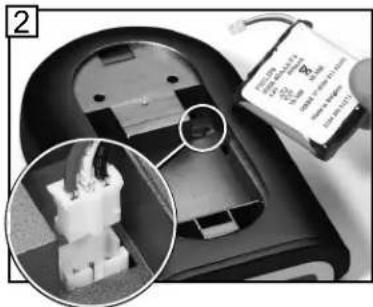
natural_image
Close-up of a device's internal components with a magnified inset showing a small component (no visible text or symbols)2 Plug the cable of the battery pack in the connector as illustrated.
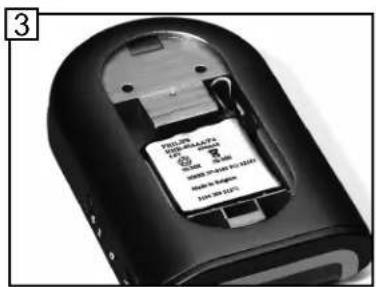
3 Place the battery pack in the battery compartment.
text_image
3 PUBS-200 1985-04-2017 PUBS-200 1985-04-2017 PUBS-200 1985-04-2017 PUBS-200 1985-04-2017 PUBS-200 1985-04-2017 PUBS-200 1985-06-2017 PUBS-200 1985-06-2017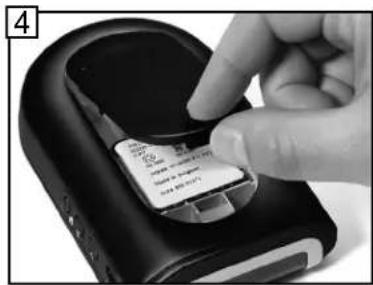
natural_image
Close-up of a hand inserting a small electronic device into a black device (no visible text or symbols)4 Place the battery cover back on.
Note Make sure the cable of the battery pack does not get stuck between the molded interior and the battery cover.
After a few seconds, the RC9500 starts up automatically and an introduction screen appears. The RC9500 beeps twice to indicate that it has finished starting up.
Because the battery pack of the RC9500 is not fully pre-charged, you will have to charge it as described in the next page.
Introduction
Charging the RC9500
For charging the RC9500, you use the docking station DS9500.
1 Connect the power adapter to the docking station and plug it into a wall outlet.
Note Use only the supplied power adapter with the docking station.
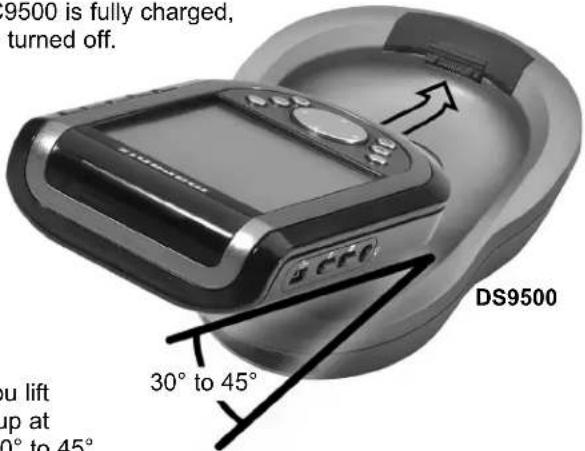
2 Slide the RC9500 into the docking station until it clicks. Charging starts immediately. The blue charging LEDs on the front of the docking station indicate charging takes place.
When the RC9500 is fully charged, the LEDs are turned off.
text_image
DS9500 is fully charged, turned off. 30° to 45° you lift up at 0° to 45°Make sure you lift
the RC9500 up at
an angle of 30^ to 45^
when you take the RC9500 out from the docking station.
Note Normal charging time is 2 to 3 hours, depending on the condition of the battery pack.
You can operate the RC9500 while it is being charged.
The battery pack does not have to be entirely empty before recharging.
You can place the RC9500 in the docking station at any time.
When the battery is running low, the Low Battery icon appears.
Recharge the RC9500 as soon as possible to ensure the perfect performance.
Note The RC9500 retains all settings when the battery is completely empty. You will only have to adjust the clock.

Low Battery icon
Getting Started
1. Activating the RC9500
Turning on the Touch Screen
Tap the Touch Screen gently with your finger or a blunt, soft object like a pencil eraser, press the hard buttons or pick the RC9500 up. The display is activated and you will see the Home page.
Notes · If the display stays blank or becomes black, adjust the brightness using the buttons on the left side. (see page 17)
- If another panel is displayed, press the HOME button.
- The RC9500 shuts down automatically after being left alone for a few seconds (you can adjust the time out period in the Setup pages).

HOME
Using the Backlight
RC9500's backlight can be activated in three different ways,
Pressing the BACKLIGHT button
By pressing the BACKLIGHT button on the left side of the RC9500, the backlight for the screen and keys is turned on.
Picking up the RC9500
The RC9500 has the Pickup sensor in it. By picking your RC9500 up from the docking station and tilting more than 50^ , the backlight is turned on.
Note To enable this function, the "Pickup sensor" setting in the Setup has to be set to "On". (see page 13)
Tapping the Touch Screen
By tapping the Touch Screen, the backlight is turned on.
Note If the "Auto button light" setting is set to "Off", button backlight will not be turned on automatically. (see page 13)
The backlight shuts off after the preset time to save power. (see page 13) Note The backlight will not turn on at the certain low battery level but the remote will still function.
Getting Started
Modes
The RC9500 has different "Modes". When you activate the RC9500 for the first time, it starts up in USE mode allowing you to immediately operate your devices. In USE mode, the center of the LOWER TOOL BAR displays the MODE icon .Tap and hold the MODE icon more than 3 seconds. The Mode Menu page will appear. If the center of the LOWER TOOL BAR shows another icon, like ,tapnit to reveal the Mode Menu and press the Left Function button labeled "Exit" to return to USE mode.
Note If you do not see the Mode icon; it has been inactivated via the Setup. To enable this function, the "Mode menu" setting in the Setup has to be set to "On". (see page 13)
2. Navigating the RC9500
Your RC9500 is capable of displaying hundreds of different control pages. RC9500 presents you various ways to navigate easily to the specific device and page.
Navigating the Devices
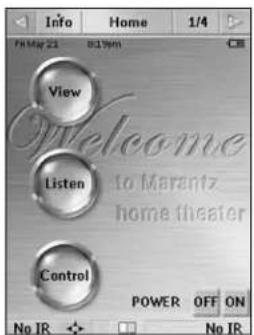
Home — The Home Page displays convenient instant jump buttons that navigate you to the main category pages (View, Listen, Control).
Each category page has the buttons that link to the most frequently used devices in the home theater. You can jump to the main control page of your device by tapping the button in the page.
Access the Home page by pressing the HOME button at the bottom left of the remote.

text_image
Info Home 1/4 Fri May 21 83.9pm View Welcome to Marantz home theater Listen Control POWER OFF ON No IR No IRNote When you jump to a Device by tapping the device button in the Category pages (except the Control), the RC9500 will change the input of your home theater receiver/preamp.
User Guide
Getting Started
Device Overview
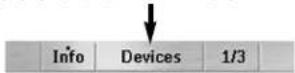
— The Device Overview page displays a list of all the devices you can control. You can jump to the main control page of your device by tapping the device button in the list.
Access the Device Overview page by tapping the DEVICE OVERVIEW button at the middle of the UPPER TOOL BAR.

text_image
Info Devices 1/3 Wed Jun 25 13002am A/V Amp Tuner DVD SACD D-VHS DSS TV Device Overview No IR No IRWhen you jump to a Device by tapping the device button in the Device Overview pages, the RC9500 will change the input of your home theater receiver/preamp.
Note The commands assigned to the device button are called the Device Actions.
If you have more than seven devices, scroll arrows allow you to navigate to the next Device Overview page.
● Using Device Overview without Changing Input (No IR) If you don't want to change the input for your receiver/preamp, you can only jump to a Device without changing the input by the following steps;
- Display the Device Overview page, by tapping the DEVICE OVERVIEW button.
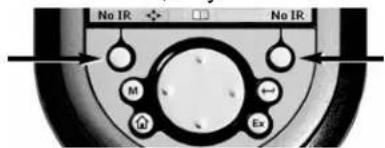
- Look at the label for the Left and Right Function buttons. At this moment, they are labeled "No IR".
text_image
No IR M A Ex No IR- Press and hold either one of the Left and Right Function buttons, then tap the device you would like to jump to. No "input select" commands will be sent to your receiver/preamp.
Getting Started
Device Scroll — You can also navigate the devices by tapping the DEVICE SCROLL buttons on the left and right side of the UPPER TOOL BAR. Tap the Right arrow button to navigate to the next device. Tap the Left arrow button to navigate to the previous device.

Note This function is not able to use in the Device Overview page.
Cursor Navigation — This function enables you to navigate to the devices by pressing the Left and Right direction of the 4-way Cursor button.
Note This function is inactivated by the default setting. You can activate it in the Setup pages. (see page 13)
To activate this function, tap the button in the LOWER TOOL BAR. When this function was activated, the button is changed into the button and icon is displayed in the UPPER TOOL BAR where the left device scroll arrow button was displayed. To inactivate this function, tap the button in the LOWER TOOL BAR again.

text_image
Info A/V Amp 1/4 Back AheadNavigating the Pages
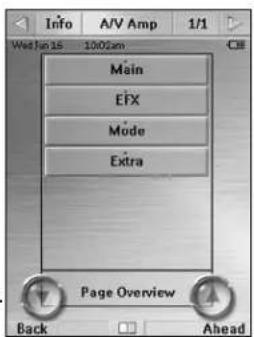
Page Overview
— The Page Overview page displays a list of all the pages for one device. You can jump immediately to another control page in one device by tapping the page buttons in the list.
Access the Page Overview page by tapping the PAGE OVERVIEW button (Page number) in the UPPER TOOL BAR.
text_image
Info A/V Amp 1/1 Wed Fri 15 10:00am C8 Main EFX Mode Extra Page Overview Back Ahead
User Guide
Getting Started
Page Scroll — You can navigate through the pages by pressing the Page + and Page - buttons on the left side of RC9500.
Cursor Navigation — This function allows you to navigate through the different pages as well as through the devices by pressing the Up and Down direction of the 4-way Cursor button.
Note This function is deactivated by the default setting.
You can activate it in the Setup pages. (see page 13)
To activate this function, tap the button in the LOWER TOOL BAR. When this function is activated, the button is changed into the button and icon is displayed in the UPPER TOOL BAR where the left arrow button was displayed. To inactivate this function, tap the button in the LOWER TOOL BAR again.
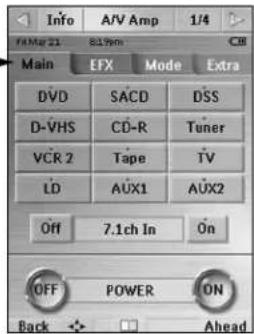
Tab Buttons — All of your devices have been programmed with "one-touch" jump buttons called Tab buttons. By tapping the Tab button, you can jump to the appropriate page of your operation device.
text_image
Info A/V Amp 1/4 Main EFX Mode Extra DVD SACD DSS D-VHS CD-R Tuner VCR 2 Tape TV LD AUX1 AUX2 Off 7.1ch In On OFF POWER ON Back AheadOther Navigation
Ahead and Back Function buttons — Press the Left Function button labeled "Back" to navigate through the last ten pages you've viewed. Use the Right Function button labeled "Ahead" to navigate in the other direction.

text_image
Back Ahead M ExGetting Started
3. Operating a Device
You can operate the devices using two type of buttons:
Soft buttons - Virtual buttons on the Touch Screen.
Hard buttons - Ten buttons below the screen and five buttons next right to the screen.
Using the Soft Buttons
By tapping the Soft buttons on the Touch Screen you send Infrared (IR) / Radio frequency (RF) commands to the device you have selected. The name of the device you are controlling is always displayed on the DEVICE OVERVIEW button.
Sending commands
IR and RF commands are invisible. Therefore, during the duration of sending IR/RF commands, an icon appears in the INFO button at the UPPER TOOL BAR indicating that an IR/RF command is being sent.
IR/RF sending icon
Using the Hard Buttons
The functionality of the hard buttons can be changed depending on which device is active (learn commands to the specific device).
For example: Since VOLUME Up, VOLUME Down and MUTE are typically receiver/preamp commands in most home theaters, these direct access buttons have been pre-programmed to always operate a Marantz receiver/preamp as the default. Should you own another brand, see the programming instructions on page 28-29. MENU, ENTER, EXIT, 4-Way Cursor, CHANNEL Up and Down are typically programmed to change with the device selected. So when you are operating your DVD player, you use them to navigate through DVD menus and change chapters. While you are watching TV, the MENU button operates the TV menus and the CHANNEL buttons change channels.
Note Five hard buttons on the right side of the screen are always operational, even without turning on the Touch Screen.
User Guide
Getting Started
4. Check Battery Life - The Information Page
Access the Information page by tapping the INFO button in the UPPER TOOL BAR.
You can check:

The battery life.

The percentage of the free memory available for new programming.

Software version information installed on to your RC9500.
To exit the Information page,
Tap the INFO button again or press the Left Function button labeled "Exit".

text_image
Information Battery Free Memory: 75 % Boot V3.63 App. 3.2.10 maraantz Setup Exit5. The Setup Pages
Most of the RC9500's features can be set to your own needs.
1 Tap the INFO button in the UPPER TOOL BAR. The Information page appears.
2 Tap the "SETUP" button in the Information page. The first Setup page appears. You can display the second and third Setup page by using the Page + and Page - buttons.
3 Tap the button of the setting you want to adjust. The color of the button will be changed.
4 Tap the button again or and buttons to adjust the setting.
5 Press the Left Function button labeled "Exit" to store the settings and exit from the Setup.

text_image
Info Setup 1/3 AM/PM 10:02am 16 Jun 2004 - Adjust + Pickup sensor-On Screen 10 sec + - Button 5 sec + ExitUser Guide
Getting Started
First Setup page
| Setting Function Adjusting | ||
| Time mode Sets the time display mode. Tap the Time Mode button(AM/PM, 24H, No Time) Repeatedly. | ||
| Time, Day, Month Sets the Time, Day, Month Tap each label, and then adjustand Year and Year separately. by tapping + and - buttons. | ||
| Pickup sensor Turns the Pickup Sensor On/Off. Tap the "Pickup sensor" button | ||
| Screen timeout Sets the timeout of the TouchScreen. Tap the + and - buttons on both sides of the "Screen" label. | ||
| Button timeout | Sets the timeout of the Buttonsbacklight. | Tap the + and - buttons on both sides of the "Button" label. |
Second Setup page
| Setting Function Adjusting | ||
| Brightness | Sets the Brightness of the TouchScreen. | Tap the + and - buttons on both side of the “Brightness” label. |
| Auto button light | Turns the Auto Button Light On/Off. | Tap the “Auto button light” button |
| Cursor navigation | Turns the Cursor navigation mode On/Off. | Tap the “Cursor navigation” button repeatedly. |
| Animation | Selects the Animation mode (Full, Page, Mode, None). repeatedly. | Tap the “Animation” button. |
| Screen (beep) | Selects the beep volume (Off, 1,2,3) for Touchscreen | Tap the “Screen” button repeatedly. |
| Button (beep) | Selects the beep volume (Off, 1,2,3) for Hard buttons. | Tap the “Button” button repeatedly. |
Third Setup page
| Setting Function Adjusting | ||
| Mode menu | On - Normal. Anyone can access.Off - Hide the MODE icon. | Tap the “Mode menu” button repeatedly |
| SPECIAL NOTE | Good when children are tech-savvy. | |
| Device overview | On- The Device Overview active.Off - The Device Overview inactive. | Tap the “Device overview” repeatedly. |
| Page overview | On- The Page Overview active.Off - The Page Overview inactive. | Tap the “Page overview” repeatedly. |
| Calibration | Calibrates the Touchscreen. Tap the “Calibration” buttonSee page 63 for more detail. | |
| Revert* | Reverts the RC9500 to the last downloaded configuration. | Tap the “Revert” button and follow the on-screen instruction |
| * When you revert the RC9500, all customized items on the remote (macros, learned IR commands,...) are lost permanently. Only the setting items in the Setup remain. | ||
User Guide
Getting started
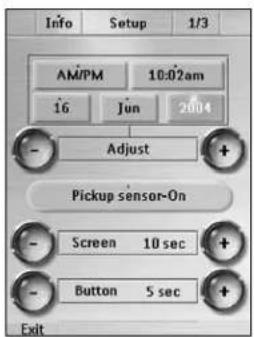
6. Setting Time and Date
When you have installed the battery pack and turned on RC9500, you have to set the current time.
Note Every time you reset your RC9500 you will have to set the time again.
Changing the Time Format
1 Tap the INFO button in the UPPER TOOL BAR.
The Information page appears.
2 Tap the "SETUP" button in the Information page. The first Setup page appears.
3 Tap the Time Format button to toggle between the three time formats:
■ 12 hour (AM/PM): This is the default format
24 hour
No time
4 Tap the Left Function button labeled "Exit" to save your changes and exit the Setup page.
text_image
Info Setup 1/3 AM/PM 10:02am 16 Jun 2004 - Adjust + Pickup sensor-On Screen 10 sec + Button 5 sec + ExitChanging the Time
1 Tap the INFO button in the UPPER TOOL BAR. The Information page appears.
2 Tap the "SETUP" button in the Information page. The first Setup page appears.
3 Tap the Time button in the first Setup page. The color of the Time button is changed.
4 Tap the and buttons to adjust the time.
5 Tap the Time button again. The new time is set.
Getting Started
6 Tap the Left Function button labeled "Exit" to exit the Setup page.
Changing the Date
1 Tap the INFO button in the UPPER TOOL BAR. The Information page appears.
2 Tap the "SETUP" button in the Information page. The first Setup page appears.
■ To Change the Day
-
Tap the Day button in the first Setup page. The color of the Day button is changed.
-
Tap the and buttons to adjust the day.
-
Tap the Day button again. The new day is set.
■ To Change the Month
-
Tap the Month button in the first Settings Page. The color of the Month button is changed.
-
Tap the and buttons to adjust the month.
-
Tap the Month button again. The new month is set.
■ To Change the Year
-
Tap the Year button in the first Setup page. The color of the Year button is changed.
-
Tap the and buttons to adjust the year.
-
Tap the Year button again. The new year is set.
3 Tap the Left Function button labeled "Exit" to exit the Setup page.
Getting Started
7. The Mode Menu
RC9500 provides different modes. For customizing your RC9500 you have to switch to the appropriate mode via the Mode Menu page.
The mode menus are utilized as follows:
1 Tap and hold the MODE icon more than 3 seconds in the LOWER TOOL BAR. The Mode Menu page will appear.
2 Select the mode you wish to use to customize your RC9500 by tapping the appropriate button on the Mode Menu.
When you operate your devices, RC9500 is in USE mode.
For actions other than operating
(like learning IR commands, recording macros, adding devices, and so on), you have to switch to the appropriate mode:

text_image
Info Mode Menu Wed Jun 16 10:00am Learn IR/RF Label Add Macro Delete Move Timer ExitFor learning IR commands from other remotes. (Page 28)
Label For labeling buttons, pages and devices. (Page 32)
Add For adding new devices and copying existing devices. (Page 35)
Delete For deleting buttons and devices. (Page 39)
Move For changing the order of devices in the device overview. (Page 41)
IR/RF For selecting the commands sending mode IR or RF. (Page 54)
Macro For recording and editing macros. (page 42)
Timer For creating and editing timers. (Page 46)
User Guide
Getting Started
To switch to another mode
1 Tap the label of the mode (i.e.) than you are using in the LOWER TOOL BAR. The Mode Menu page appears.
2 Tap the appropriate mode button you want to use. The label of the active mode appears in the LOWER TOOL BAR. You can now work in the selected mode.
Note RC9500 will not return automatically to the USE mode. To return to the USE mode, you have to go back to the Mode Menu page and press "Exit" (Left Function button) or press "Cancel" (Right Function button).
8. Adjusting the Touch Screen Brightness
You can adjust the brightness level of the Touch Screen using the buttons on the left side of the RC9500.
To adjust the Touch Screen brightness;
1 Press and hold the BACKLIGHT button on the left side of the RC9500.
2 While still holding the BACKLIGHT button, press Page + button once to increase the brightness one level up (getting brighter). Or, press Page - button once to decrease the brightness one level down (getting darker).
3 Release the BACKLIGHT button when the brightness is satisfactory. The brightness can be adjusted 4 levels and Off.
Note To adjust the brightness multiple levels, you have to press the Page + or - button multiple times. When you press and hold the Page + or - button, the brightness will only change one level.
Tip In the Setup, you can also adjust the brightness and confirm the brightness level which you selected.
User Guide
Customizing your RC9500
1. Introduction
It is best to proceed with customizing in several stages. The first stage is to teach all your existing remote codes to the RC9500. The second stage is to practice using your home theater system with the RC9500. As you gain familiarity with your system, you'll notice that many operations in a home theater require several steps. In the third stage of customization, you will record multiple step operations as either a "Macro" that you can play back with one button push or as a list of numbered steps recorded in a "Help List" device.
In the next few pages you'll find step by step guidelines on each of the three stages. If a more detailed explanation exists in the Reference section, the page number is indicated..
2. Cloning All Your Existing Remotes
1 Gather all of your remote controls in front of you.
2 Play with all of the example devices. Compare the devices with your existing remote controls. Can you use any as templates for non-Marantz components?
3 Use DELETE mode to delete all of the devices that you don't use. (see page 39)
4 Use ADD mode to add devices for each Marantz products. (see page 37)
When you are prompted to add with or without RC codes, choose "Create with RC codes".
5 Use ADD mode to add devices for each non-Marantz products. (see page 37) Choose "Create without RC codes".
6 Switch to USE Mode or LEARN Mode to evaluate the page layouts of the new devices.
Customizing your RC9500
7 Switch back to DELETE mode and delete the device if it is not a good match to your component. Repeat steps 4 through 7 until all of your remote controls have matching devices.
8 Switch to LABEL mode to relabel each device. (see page 32)
9 Switch to MOVE mode to re-order your devices, so that your Device Overview page is arranged the way you want. (see page 41)
10 Switch to LABEL mode to relabel any buttons as needed to match your existing remote controls. Check all of your devices.
12 Switch to LEARN mode and learn all of your non-Marantz components' RC Codes to the RC9500. (see page 28)
13 Switching back and forth between USE and LEARN modes, test all codes and reteach as necessary.
Note Be very careful to NEVER delete the
Jump tabs; they can only be restored with the editor software using a PC. (see page 56)
14 Switch back to LEARN mode. Learn the appropriate Preamp/Receiver Input (source switching) IR command to each Device as the Device Action. (see page 30)
Congratulations!
You have completed the first stage of customization. Take a well deserved break.
Customizing Your RC9500
3. Complex Operation? Macro or Help...
If your entire system is new to you, practice using the RC9500 manually for a few days before programming any macros. You'll find that your home theater requires many operations that require multiple steps to do. You have to decide whether to use a:
Macro - The entire operation happens in an automated sequence when you touch one button.
Help List - The operation happens manually but is prompted by large sequentially numbered buttons with friendly labels on one sequence of pages linked together.
Some multiple step operations require you to make decisions before you proceed. An example is turning on a non-Marantz home theater system. Many components turn on and off with a single "Power" button. Before you press a "Power" button, the manufacturer expects you to look at the component to see whether it is on or off. If you want it on and it's off, you press the "Power" button. If you forget to look, and it is already on, you will turn it off when you press the "Power" button. The Remote cannot "look" at your components to see if they are on or off. So, if you recorded a macro intended to power up a non-Marantz home theater, it wouldn't be very reliable.
Here's an example:
Your spouse goes out to the local video store and rents a video tape. When he/she gets home, they pop the tape in the VCR (most VCR's automatically turn on when a tape is inserted). Your spouse touches the macro button you programmed to power up the system. The recorded sequence of "power" buttons is played back. Unfortunately, since the VCR was already on, it is now off and everything else is on. Your spouse sees no picture, assumes the macro didn't work, so he/she touches the button again. This time, the macro turns the VCR on and every thing else off. Frustrating!
Marantz builds components that are "macro-friendly". Instead of a single "power" button, the remote controls have a discrete "On" and a discrete "Off" button. With a Marantz system, you can record a Macro that is very reliable from a series of "On" commands. Take a look at the example ALL ON and ALL OFF macros preprogrammed in the default configuration.
Customizing Your RC9500
The problems don't stop with powering up a system. Often, you will want to construct a macro to watch or listen to a specific source. This may require that both the Television and the Surround Receiver be set to new inputs. Some components have "discrete" commands to select sources (meaning the command will only have one effect on the components, like the CD input on most receivers). Other components have "toggle" commands (these are commands that require you to look at the component, evaluate its state and sometimes issue the command over and over again). An example of a "toggle" command is the Input or TV/VCR button found on many television remote controls. You have to look at the TV, decide that it is on the wrong input, then toggle or scroll through the inputs to select the one you want.
Evaluate each of the multiple step operations you would like to record as macros. If all of the commands in the process are "discrete", the macro will work reliably. If even one command is a "toggle" command, you should program a help list for the operation instead of a macro.
Tip Sometimes there is a reliable way to use toggle type commands in macros.
Unfortunately, it will not be written down in your component's instruction manual. You will have to find it through experimentation and imagination.
What you are looking for is an "anchor" command that will put your component in a known state. Once it is in a known state, you can use toggle commands in your macro.
An example for Powering Up DVD Players:
Most DVD players will turn on when they receive a Play command.
Thus a discrete On command is two steps,
1) DVD Play
2) DVD Stop
A discrete off command is constructed by:
1) DVD Play
2) DVD Power
An example for Selecting Source on a TV:
Many televisions will return to a particular input with either a channel up or down command or by selecting a particular channel.
Thus, to construct a macro that selects the EXT1 input:
1) Channel Up (selects the Antenna A input)
2) Input (toggles to the Antenna B input)
3) Input (toggles to the EXT 1 input)
User Guide
Customizing Your RC9500
4. Programming Help List
1 Write a list of all of the operation you want to record.
2 Gather all of the remote controls you will need for the operation.
3 Select ADD from the Mode menu. Choose "Copy existing device" when prompted. (see page 35)
In the device list, there is a device labeled "Help".
Tap it to add the "Help" device and "Select" button.
4 Tap "Copy without RC codes" when it prompted. (see page 35)
5 Switch to LABEL mode. Relabel the new device currently labeled "Help 1". (for details on relabeling devices, see page 32) Try to use a descriptive title like POWER, RECORD, etc.
6 Go back to the Mode Menu page and re-enter to LABEL mode. Relabel as many of the buttons on the five pages as you need. (see page 32)
Tip Do not relabel the buttons labeled "Press for More ...." unless the button is the last step in the operation.
7 Switch to LEARN mode. Learn the appropriate command to each button.
8 Switch to MOVE mode. Move the new device to the appropriate position in the device list (remember, this determines the Device button position on Device Overview page).
9 Return to USE mode and test out your new list.
10 You can make as many Help lists as you like. Simply repeat steps 1 through 8 for each operation you would like to program a help list.
Customizing Your RC9500
5. Macro/Page Jump Capability
Macros allow you to send a sequence of commands, jumps, delays and beeps with up to 250 steps using one single touch.
Basically, you can assign any button as a macro button. However, it is recommended that you use the macro buttons in the reserved macro device.
In order to plan your macros, you should understand the capabilities as follows,
Any Button Performs Macros/Jumps
You can program a macro to be played back when a button is selected on a device page or Home page. (see page 43)
You can program a macro to be played back when a device is selected via the Device Overview page. (see page 44)
Macros Perform Jumps to Any Device
The RC9500 has the unique capability of jumping to any device page during a macro.
You can make any or all of the 250 steps a jump to any devices. This provides you with the opportunity to give some feedback to the end user while a macro is being played back. For example: You can reveal the CD device panel to show the user that commands are being sent to the CD player, then jump to an A/V Amp panel to show the user that commands are being sent to the amp. (see page 43)
You can Add/Create a Status device (located in new devices in the division named OTHER) and custom label each page to give the end user more specific feedback as to what the macro is doing. You can then program jumps to each Status page to occur during the macro. (see page 44)
You cannot jump to the Device Overview and the Page Overview page. You are allowed to jump to each page of the devices.
Customizing Your RC9500
Macros Send Commands To Your System
You can make any or all of the 250 steps send a remote control command to your system. The step is actually just a recording of the location of any button on any device page. To record an Remote Control (RC) command, you simply navigate to the panel and button you want, then touch it. Thus, all RC commands in a Macro must first be learned to a button location. (see page 43)
You can record a "Device Action". A Device Action executes the device action list of the selected device button in the Device Overview. (see page 44)
Macros Can Contain Delay and Beep Between Steps
You can program a Delay/Beep as any or all of the 250 steps of a macro. (see page 43)
You can adjust that delay in 1/10th of a second intervals between 0.1 and 10.0 seconds. (see page 43)
Customizing Your RC9500
6. Programming Macros & Page Jumps
You will do all of your Macro/Jump programming within a screen that will appear after you press the Macro button on the Mode menu page. Before proceeding with programming, make sure that you understand how to move around in the MACRO mode and how to read the RC9500's shorthand notation for each macro step. (see page 42)
1 Write a list of all of the actions in the operation you want to record.
2 Play with all of the example Macro buttons in MACRO device. Are any of these examples adaptable to your purposes?
3 Use DELETE mode to delete all of the macro devices that you don't like. (see page 40)
4 Use ADD mode to add a new macro device empty of any programming from the device list. (see page 37)
5 Switch to LABEL mode to re-label your macro devices. (see page 34)
6 Switch to MOVE mode to re-order your macro devices, so that the most commonly used Macro devices are near the top. (see page 41)
7 Switch to LABEL mode and navigate to your new macro device. Relabel the macro buttons with an appropriate name. The buttons are large so try to imagine a descriptive name even if it requires a few words.
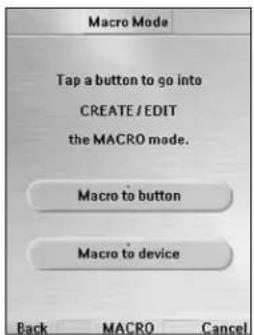
8 Switch to MACRO mode. Tap the "Macro to button" to proceed.
Note If you like to create a macro to the Device button, tap the "Macro to device" button instead of the "Macro to button" button.
Customizing Your RC9500
9 Navigate to your new macro device and press your newly named macro button to enter the MACRO edit page. The MACRO edit page will appear. If you had any previously programmed commands in this button, they will appear for you to edit.
10 Working from your written list, navigate through the desired device and page to program all of the steps in the Macro. (see page 43)
Commands - When you tap a button, you will record an RC command step. (see page 43)
Jumps - When you select a device from the Device Overview while holding down the Left Function button (now labeled "Jump"), you will record a page jump to the first page of that device. (see page 44)
Device Action - When you select a device from the Device Overview while holding down the Right Function button (now labeled "Action"), you will record a Device Action of that device. (see page 44)
Delays - When you select a "Delay", use the "+" and "-" buttons to set the length of delay. (see page 43)
Beeps - When you select a "Beep", you will record a beep. (see page 43)
Note Use the Page + / - buttons, Device Overview or Page Overview to navigate through pages; the Tab buttons will work as a Jump. If you accidentally record a Tab button as a macro step, it is better to delete it.
11 Once all steps have been programmed, test your macro by tapping the "Test" button on the page.
Customizing Your RC9500
12 Typically you will need to adjust the timing of the macro. Simply putting in lots of delays will make the macro work, but it may make the macro unnecessarily long.
Try moving commands, so that a TV command alternates with another component command before another TV command is issued. To move a command, simply select it and use the 🔒 and buttons to reposition it within the Macro action list.
When a delay is added to the macro, the default timing is 0.5 seconds. If the macro works with a 0.5 second delay, try a smaller delay to shorten the macro.
When programming Channel number macros, use 0.1 second delays between different digits and 0.5 second delays between identical digits.
13 Once you are happy with the macro, press the "Done" button on the screen to save it.
14 Continue to program macros until you have recorded all that you plan.
Congratulations!
You are now a Home Theater Automator!
Reference
1. Learning IR command
You program the Remote Control (RC) commands by transmitting IR (infrared) signals from your existing remote controls to the RC9500's learning IR eye.
To do this, place the RC9500 and the device's remote control on a flat surface, 1 to 10cm (0.5 to 3.6 inches) apart. For each new remote control, you have to find the correct learning of

natural_image
Black remote control device with keyboard and buttons (no visible text or symbols)1 to 10 cm apart (0.5 to 3.6 inches)
It is best to be systematic and teach all of the buttons from one remote control before proceeding to the next. Start with the remotes close together; if you receive a "Failed" message, move them farther apart in one inch increments. Although rare, some component remotes require a very large distance between the sending IR eye LED and the RC9500's learning IR eye.

natural_image
Illustration of a handheld electronic device with a screen and control buttons (no visible text or symbols)Test the first command from any new remote control to find the correct learning distance.
Once you have found the correct learning distance, do not change it for any other button on that particular remote control.
Most commands learn correctly when you press and hold them until the "OK" indicator appears. However, sometimes the RC9500 will say "OK", yet the command will not operate the component properly. If this occurs, try re-learning the command with a brief tap. After a short delay the "OK" indicator will appear. Test the code. If this improves operation, continue to use the "tap" technique for all other buttons on the remote.
The commands that change the states continuously (example: Vol. +/-, Ch. +/-) have to be learned using the "press and hold" technique.
The following buttons can be programmed: Hard and Soft buttons (buttons in the devices and the Device Overview pages).
Reference
You cannot program the buttons in the Device Overview page directly. You have to program them using "Learn device action" function. (see page 30)
The RC9500 also offers empty (non-command programmed) control buttons which you can program and label as existing buttons. They are visible in USE mode as grayed-out.

Normal Button
(Command programmed)

Grayed-out Button
(Non-command programmed)
Programming Touch Screen Buttons
1 Tap and hold the MODE icon in the LOWER TOOL BAR more than 3 seconds. Mode Menu page appears.
2 Tap the "LEARN" button to switch to the LEARN mode.
3 Select the "Learn button" button and then navigate to the device page which contains the button you want to program.
4 Point the device's original remote control to the RC9500's learning eye as shown on page 28.
5 Tap the button you want to program on the RC9500.
"Learning" will be displayed on the DEVICE OVERVIEW button and the button's color is reversed.
6 Press and hold the corresponding button on your device's original remote control.
If the RC9500 has learned the command successfully, "OK" appears on the Device Overview button. You can release the button you're holding. If the RC9500 has not learned successfully, you hear a short buzz and "Failed" appears.
7 Program all other buttons you want and relabel them if necessary. (see page 32)

text_image
Learn Mode Learn button Learn device action Back LEARN CancelUser Guide
Reference
8 Return to the Mode Menu page by tapping label in the LOWER TOOL BAR.
9 Return to USE mode by pressing the Left Function button labeled "Exit" via the Mode Menu page.
Programming The Device Buttons (Device Action)
Note When you teach a command as a Device Action, this command will be sent when you select the Device from the Device Overview page. Remember, the only way to NOT issue this command is to reveal the Device Overview page, press and hold the Left or Right Function buttons (now labeled "No IR") and select the device.
1 Tap and hold the MODE icon in the LOWER TOOL BAR more than 3 seconds. Mode Menu page appears.
2 Tap the "LEARN" button to switch to the LEARN mode.
3 Select the "Learn device action" button. The Device Overview page appears.
4 Complete steps 4 to 9 in "Programming Touch Screen buttons" on page 29. Instead of tapping a button on the Touch Screen, press the Device button you want to program.
Programming the Hard Buttons per Device
The Hard buttons are defined as the five hard buttons next right to the Touch Screen (Channel Up/Down, Volume Up/Down, Mute) and the ten buttons below the Touch Screen (Cursor Up, Down, Right, Left, Menu, Enter, Exit, HOME, Left and Right Function buttons).
Reference
Notes
It is possible to teach commands to the LEFT (labeled "Back") and RIGHT (labeled "Ahead") Function buttons on the remote. But those commands can be re-programmed only via a PC using the editor software.
It is not possible to teach commands to the HOME button on the remote. Unless those commands were re-programmed via a PC using the editor software.
- When the Cursor Navigation is active, the 4-way cursor buttons cannot be learned.
Hard buttons can be programmed for a device specific command for a particular device on the remote (Programming locally).
1 Switch to the device for which you want to program the button.
2 Complete steps 1 to 9 in the programming Touch Screen buttons on page 29. Instead of tapping a button on the Touch Screen, press the hard button you want to program.
Note Only via PC, hard buttons can be programmed with a global function for all devices (Programming globally).
When a command is learned to a hard button to a device page, it will only be issued when that device is active, even if a command has been programmed globally. Local learning overrides global programming.
For example:
One could program the CH+ & CH- buttons as the Chapter +/- command when the DVD is active. Now, if you program the TV channel +/- globally (and any device other than the DVD is selected) the TV channel +/- commands will be issued.
Reference
2. Labeling Buttons, Pages and Devices
The following elements can be labeled: Buttons on a device page and Home page, Page (the name that appears on the Page Overview page), and Device (the name that appears on the Device Overview button and Device Overview page).
Labeling a Button
1 Tap and hold the MODE icon in the LOWER TOOL BAR more than 3 seconds. Mode Menu page appears.
2 Tap the "LABEL" button to switch to the LABEL mode.
3 Tap the "Label button" button on the page. The last visited page in USE mode appears.
4 Navigate to the page that contains the button you want to label.
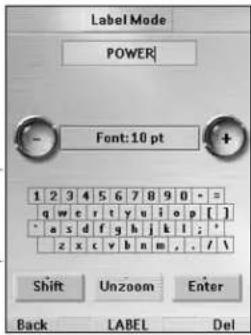
5 Tap the button you want to label. The virtual "auto-zooming" mini-keyboard shows up. The button you want to label is displayed above the keyboard.

text_image
Label Mode Label button Label device Label page Back LABEL CancelNote The frames (texts with non-button function) cannot be labeled on the RC9500.
Reference
6 Edit the label.
To delete a character, press the Right Function button labeled "Del".
To change the font size, Tap the "+" or "-" buttons beside the "Font" label on the page.
Note If the font size does not fit in the button, the font size cannot increase.
text_image
Label Mode POWER Font:10 pt 1 2 3 4 5 6 7 8 9 0 - = q w e r t y u i o p [ ] -a x d f g h j k l ; * z x c v b n m , . / \ Shift Unzoom Enter Back LABEL Del■ To enter a character, tap the keyboard near the character you
want to use. The keyboard is zoomed in, allowing you to tap exactly the character you need.
After you have tapped the character, the keyboard is zoomed out. Repeat this action for every character.
Note You can zoom out again without tapping a character by tapping the "Unzoom" button.
For capital characters and symbols, tap the "Shift" button repeatedly to display the keyboard you want.
Note If you type a longer word than fits in the button, the font size will automatically get smaller.
7 Tap "Enter" button to save the changes. You will be redirected to the previous page.
-or-
Press the Left Function button labeled "Back" to return to the page you were at without saving changes.
8 When you are finished labeling, you can return to the Mode Menu page by tapping label in the LOWER TOOL BAR.
9 Return to USE mode by pressing the Left Function button labeled "Exit".
Note You cannot label buttons on the Device Overview page directly. You have to label them using "Label device" function in the LABEL mode. (see page 34)
Reference
Labeling a Device
You can label all devices which are displayed in the Device Overview page.
1 Tap and hold the MODE icon in the LOWER TOOL BAR more than 3 seconds. Mode Menu page appears.
2 Tap the "LABEL" button to switch to the LABEL mode.
3 Tap the "Label device" button on the page. The Device Overview page appears.
4 Tap the device button which you want to label.
5 Complete steps 6 to 9 in "Labeling a Button" on page 33.
Labeling a Page
You can label all pages which are displayed in the Page Overview page.
1 Tap and hold the MODE icon in the LOWER TOOL BAR more than 3 seconds. Mode Menu page appears.
2 Tap the "LABEL" button to switch to the LABEL mode.
3 Tap the "Label page" button on the page.
The Page Overview page appears.
You can navigate to other device by tapping the DEVICE SCROLL buttons.
4 Tap the page button which you want to label.
5 Complete steps 6 to 9 in "Labeling a Button" on page 32-33.
Note The font size cannot be set for devices and pages, in contrary to buttons.
Reference
3. Adding Devices
If you have a device that is not provided in the Device Overview page, you can add it to the RC9500.
There are two possible ways to add a device:
■ Create New Device
■ Copy Existing Device
In the following sections we'll discuss what these options offer you.
Description for the Device Template
You will be able to choose from a list of preprogrammed templates "with" or "without" Marantz RC codes.
The Device list box will appear. As you scroll down the list using the Down arrow button, you will notice Device Type Dividers and Devices you can add. Only select the Device to ADD. Although it is possible to ADD the Device Type Divider as a Device, it is not useful. Should you accidentally Add a divider to your device list, delete it.

text_image
Device Type Divider This is not a device template to add; it is simply an indication of the type of device. Add Mode Select the Device to Create Other Status TV Ch. Amp SR-14/18/1 SR8400/7400 Am SR8400/7400 Mult Select Back ADD Cancel Device Template When you add this for a Marantz component, you should add "with RC codes". When you plan to teach codes from an existing remote control, addWith the and arrows, you can scroll through the complete device list.
User Guide
Reference
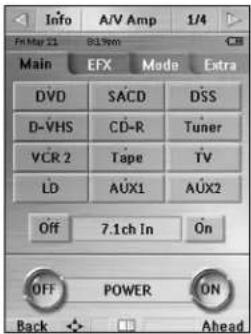
Receivers are both A/V Amps and Tuners - Since you typically use the two sections of your Marantz receiver at different times, we have separated them into two devices. You will find the amp section in Amp and the Tuner section in Tuner.
text_image
Info A/V Amp 1/4 Main EFX Mode Extra DVD SÁCD DSS D-VHS CD-R Tuner VCR 2 Tape TV LD AUX1 AUX2 Off 7.1ch In On OFF POWER ON Back AheadThe Marantz SR9300 Receiver has actually two templates: The SR9300 AMP template for all Preamp/Surround functions and the SR9300 Tuner template for all Radio functions.

text_image
Info Tuner 1/2 Ft Mar 21 B200m Tuning # Pad AM LW FM Preset Tuning Display RDS PTY Preset Scan Preset Info. OFF POWER ON Back AheadAll of the devices display Marantz model names with the exception of the first device type divider, called "Other." Below the "Other" device type divider are two device templates that are meant for other purposes.
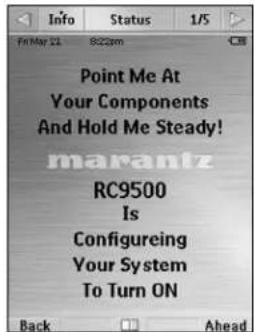
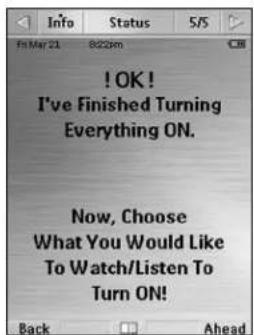
STATUS - This template is used to provide status screens you can jump to during a macro. Five pages are created with the device name "Status." If you add additional Status devices, they will be named Status1, Status2, Status3 and so on. Each page is named according to its numbered position (1/5, etc.), so that if you are editing/playing a macro, you will know which panel you have jumped to.
text_image
Point Me At Your Components And Hold Me Steady! marantz RC9500 Is Configureing Your System To Turn ON Back AheadStatus panels help your family hold the remote steady during long complex macros.
text_image
! OK! I've Finished Turning Everything ON. Now, Choose What You Would Like To Watch/Listen To Turn ON!User Guide
Reference
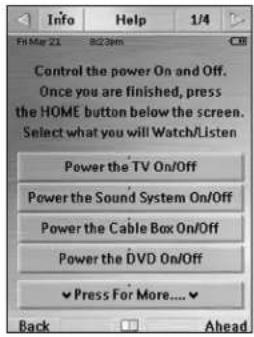
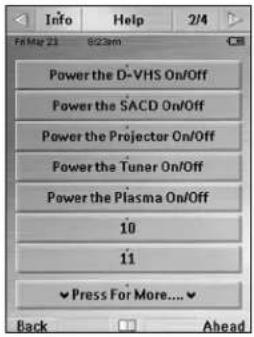
HELP - This template is used to create a Help List that will help users through a multiple step process that cannot be reliably programmed as a macro. See page 22 for more information about help lists.
text_image
Control the power On and Off. Once you are finished, press the HOME button below the screen. Select what you will Watch/Listen Power the TV On/Off Power the Sound System On/Off Power the Cable Box On/Off Power the DVD On/Off Press For More.... Back AheadHelp List panels are a good way to help casual users through a long operation with lots of steps.
text_image
Info Help 2/4 Fid May 23 8:23pm Power the D-VHS On/Off Power the SACD On/Off Power the Projector On/Off Power the Tuner On/Off Power the Plasma On/Off 10 11 Press For More.... Back AheadDSS - Since Marantz does not make a DSS receiver, we included a template. Simply teach the RC9500 from your original remote.
Creating a New Device Step by Step
1 Tap and hold the MODE icon in the LOWER TOOL BAR more than 3 seconds. Mode Menu page appears.
2 Tap the "ADD" button to switch to ADD mode.
The RC9500 displays the following choices:
■ Create New DEVICE
■ Copy Existing DEVICE
3 Tap the "Create new device" button on the screen.
4 Tap the device you want to add from the device list box and tap "Select" button.

text_image
Add Mode Create new device Copy existing device Back ADD CancelReference
5 You can add the device with or without RC codes.
■ Create with RC codes: Choose this option if you have the exact Marantz component listed. The new device is added with operational buttons.
■ Create without RC codes: If you choose this option, the new device is added with grayed-out buttons. Program them using LEARN and LABEL mode.
Note When you add a device without RC codes, all buttons are visible as grayed-out. (see page 29)
By experimentally adding devices and inspecting them in USE mode, you can decide which is the best match to your component and delete the ones not used.
Tap the button of your choice. The new device will be automatically added in the Device Overview when you return to USE mode.
5 Add all other devices you want and return to the Mode Menu page by tapping label in the LOWER TOOL BAR.
6 Return to USE mode by pressing the Left Function button labeled "Exit".
Copy Existing Device
Tap the "Copy existing device" button in the ADD mode page to copy a device that is already active.
Tip It is often useful to have two almost identical devices for your Television. The only difference between the two is one would have the Vol+ and Vol- Direct Access buttons programmed locally with the televisions internal volume + and - commands. Label this device TV Only (for use late at night without Surround Sound). The other TV device has no programming in its Direct Access buttons; as a result, the surround receiver's Vol+ and Vol- (programmed globally on the Home panel) is issued when the TV device is selected.
Reference
4. Deleting Buttons and Devices
You can delete the Buttons in device pages and the Device itself.
Note Left, Right Function buttons, Home button, Pages and Frames (texts with non-button function) can not be deleted.
Deleting a Button
1 Tap and hold the MODE icon in the LOWER TOOL BAR more than 3 seconds. Mode Menu page appears.
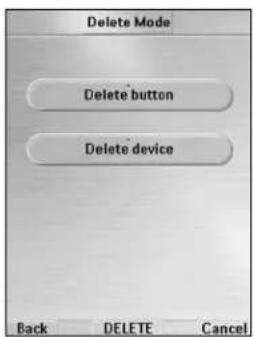
2 Tap the "DELETE" button to switch to the DELETE mode.
3 Tap the "Delete button" button.
4 Navigate to the page that contains the button you want to delete.
5 Tap the button you want to delete.
6 Tap "Yes" to delete or "No" to cancel. The label "Undo" appears above the Right Function button when you
Note By pressing the "Undo" function button, the button you just deleted is restored.
text_image
Delete Mode Delete button Delete device Back DELETE CancelThe result depends on the element you are deleting:
■ Soft buttons (Touch Screen button): The button disappears from the display.
- Hard buttons: Not applicable. You cannot delete.
7 Delete all the buttons you want and return to the Mode Menu page by tapping tabet in the LOWER TOOL BAR.
8 Return to USE mode by pressing the Left Function button labeled "Exit".
User Guide
Reference
Deleting a Device
1 Tap and hold the MODE icon in the LOWER TOOL BAR more than 3 seconds. Mode Menu page appears.
2 Tap the "DELETE" button to switch to DELETE mode.
3 Tap the "Delete device" button. The Device Overview page appears.
4 Tap the device name you want to delete.
5 Tap "Yes" to delete or "No" to cancel.
The label "Undo" appears above the Right Function button when you have deleted the device.
Note By pressing the "Undo" function button, the device you just deleted is restored.
6 Delete all the devices you want and return to the Mode Menu page by tapping tablet in the LOWER TOOL BAR.
7 Return to USE mode by pressing the Left Function button labeled "Exit".
Reference
5. Moving Devices
You can change the order of device buttons in the Device Overview pages.
1 Tap and hold the MODE icon in the LOWER TOOL BAR more than 3 seconds. Mode Menu page appears.
2 Tap the "MOVE" button to switch to the MOVE mode.
The RC9500 displays the Device list box.
3 Tap the device name of your choice. The check box next to the selected device name is highlighted.
4 Tap the Move and buttons below the Device list box to move the device up or down.
5 Tap the "Done" button to save the changes. You return to Mode Menu page.

text_image
Move Mode Select the Device to Move A/V Amp Tuner DVD SACD Move Done Back MOVE CancelReference
6. Programming Macros
Macro Page Notation
Before you begin to program a Macro, study the notation used in the MACRO mode. Each type of action has its own notation.
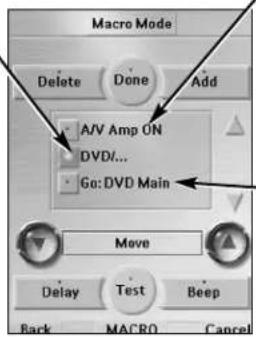
DVD/..
- When the device name with “/...” is listed, the macro step will be a Device Action (the action that occurs when the Device is selected, which is typically the receiver/preamp's source selection or input command).
text_image
Macro Mode Delete Done Add A/V Amp ON DVD... Go: DVD Main Move Delay Test Beep Back MACRO CancelA/V Amp ON - When a device name and a button name are listed, that particular button's IR command will be issued.
GO: DVD Main
- A Go command indicates a panel jump. In this case, "DVD" means a jump to the DVD device and Main is the name for the particular panel (sometimes panels just have numbers, not names).
DVD
- A device name and the Stop symbol means that this particular button's IR command will be issued. The symbol list can be found on page 54.

text_image
Macro Mode Delete Done Add DVD ■ Delay 0.5 Beep Move Delay Test Beep Back MACRO CancelAdjusting Delays
- When a delay is "Selected," you can adjust the delay with the + and - buttons.
Delay 0.5
- A delay counts as one of the 250 macro steps. Delays can be adjusted in 0.1 second intervals to be any value between 0.1 second to 10.0 seconds.
Beep - A beep counts as one of the 250 macro steps. Useful to notify when the macro execution is finished
User Guide
Reference
Recording a Macro to a Operation Button Step By Step
1 Tap and hold the MODE icon in the LOWER TOOL BAR more than 3 seconds. Mode Menu page appears.
2 Tap the "MACRO" button to switch to MACRO mode. The RC9500 displays first Macro mode page.
3 Tap the "Macro to BUTTON" button to proceed to the next step.
4 Navigate to the device and the page that contains the button for which you want to create a macro.
5 Tap the button you want to create a macro.
If the selected button cannot be used for a macro, you hear a beep which signifies a failure.
6 Tap the "Add" button to enter the sequence of commands in a macro. You can navigate to whatever control page you want, just as you do in USE mode except using Tab buttons. When you have selected the sequence, the RC9500 will go back to the Macro edit page.
7 Tap the "Delay" button to enter the delay in a macro. The delay is added in the macro list. You can adjust the delay time by pressing "+" and "-" buttons beside the list box.
8 Tap the "Beep" to enter the beep in a macro. The Beep is added in the macro list.
9 Tap the "Test" button to try if the macro performs properly.
10 Tap the "Done" button to finish the macro if it executed properly. By pressing the Right Function button labeled "Cancel", you can cancel creating a macro.
text_image
Macro Mode Tap a button to go into CREATE / EDIT the MACRO mode. Macro to button Macro to device Back MACRO CancelReference
There are two extra commands you can record as any step in a macro;
Recording a Device Action (Source or Input Switching)
To record a Device Action containing a source switching command, open the Device Overview page, hold down the Right Function button (labeled "Action") and tap the device you want to record the device action. This action places the entire Device Action in the Macro.
Note If a Device action has been programmed as macro, you can include all of the commands which were programmed in that device action as a single step in another Macro, effectively nesting one macro inside another.
Recording a Jump to a Device page
To jump to any device, open the Device Overview page or Page Overview page, hold down the Left Function button (labeled "Jump") and tap the device/page you want to jump to. This action places the jump to the selected device's page in the Macro.
Recording a Macro to a Device Button (as the Device Action) Step By Step
1 Tap and hold the MODE icon in the LOWER TOOL BAR more than 3 seconds. Mode Menu page appears.
2 Tap the "MACRO" button to switch to MACRO mode. The RC9500 displays first Macro mode page.
2 Tap the "Macro to DEVICE" button to proceed to the next step. The Device Overview page appears.
3 Tap the device you want to program a macro.
4 Complete steps 6 to 10 in "Recording a Macro to an Operation Button" on page 43.
Reference
Editing Macros
You can edit any macro you have recorded.
1 Tap and hold the MODE icon in the LOWER TOOL BAR more than 3 seconds. Mode Menu page appears.
2 Tap the "MACRO" button to switch to MACRO mode. The RC9500 displays first Macro mode page.
3 Tap the "Macro to button" button if you want to edit the macro for the operation button, or "Macro to device" button for the device to proceed to the next step.
4 Navigate to the device and the page that contains the button you want to edit a macro.
5 Tap the button which holds the macro you want to edit. The "Macro edit" page appears.
6 You can Move or Delete the listed commands, or you can Add new commands.
Tap "Add"
■ Browse to the page, choose button
■ Use the arrow buttons and to move the command to the right place
7 You can also add delays and beeps to the macro (for example, to insert a short pause between turning on a device and sending commands to it, allowing the device to warm up).
The length of a delay can be adjusted:
Tap a delay.
Tap or buttons beside the list box to decrease or increase the length of the delay.
8 Press the "Test" button to check if edited macro performs properly.
9 Tap "Done" to store and finish editing.
Reference
7. Creating and Editing Timers
With the Timer Mode, you can define actions to be carried out at predefined times. For instance, you can switch on the lights or program your VCR to record your favourite daily TV-show.
Note When a timer is executed, you will hear a beep and a Timer message appears on screen. If RC9500 is performing another task (sending out IR codes, testing a macro, ...) when a timer is due to be executed, RC9500 first continues performing the current task.
Adding a Timer
1 Tap and hold the MODE icon in the LOWER TOOL BAR more than 3 seconds. Mode Menu page appears.
2 Tap the "TIMER" button to switch to the TIMER mode.
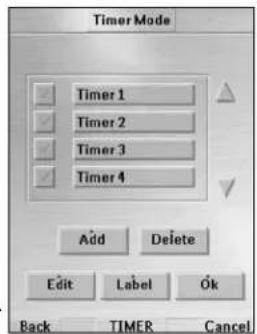
3 Tap "Go" button to proceed to the next step. The Timer List page appears.
4 Tap "Add" button to add a new timer to the list.
A new timer is added to the Timers list.
By default, a new timer is labelled Timer and a number.
It has no start and stop actions defined.
5 To label the timer, tap "Label" button, as described in 'Labeling a Timer' on page 48.
6 To define the Start action and Stop action for the timer, tap "Edit" button, as described in 'Editing a Timer' on page 49.
7 Tap "OK" button In the Timer list page or label in the LOWER TOOL BAR.
The Timer List page closes and the Mode menu page appears again. The new timer is added.
-or-
Press the Left Function button labeled "Back" to return the Mode Menu page without adding the timer.
text_image
Timer Mode Timer 1 Timer 2 Timer 3 Timer 4 Add Delete Edit Label Ok Back TIMER CancelUser Guide
Reference
8 Return to USE mode by pressing the Left Function button labeled "Exit".
Activating Timers
1 Tap and hold the MODE icon in the LOWER TOOL BAR more than 3 seconds. Mode Menu page appears.
2 Tap the "TIMER" button to switch to the TIMER mode.
3 Tap "Go" button to proceed to the next step.
The Timer List page appears.
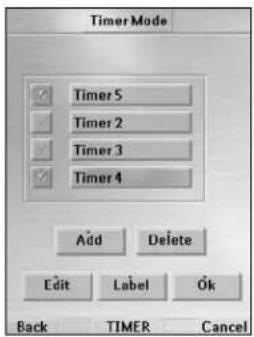
4 Tap the check box in front of the timer that you want to activate.
The color of the check box is changed and the timer is activated.
5 Tap "OK" button In the Timer list page or label in the LOWER TOOL BAR.
The Timer List page closes and the Mode Menu page appears again. The Timer icon appears next to the time indication.
-or-
Press the Left Function button labeled "Back" to return the Mode Menu page without activating the timer.
6 Return to USE mode by pressing the Left Function button labeled "Exit".
Note In the Timers list, activated timers are displayed first, followed by the not activated timers. Both activated and not-activated timers are listed chronologically.
text_image
Timer Mode Timer 5 Timer 2 Timer 3 Timer 4 Add Delete Edit Label Ok Back TIMER CancelReference
Deleting a Timer
1 Tap and hold the MODE icon in the LOWER TOOL BAR more than 3 seconds. Mode Menu page appears.
2 Tap the "TIMER" button to switch to the TIMER mode.
3 Tap "Go" button to proceed to the next step. The Timer List page appears.
4 Tap the label of the timer you want to delete. The color of the selected timer is changed.
5 Tap "Delete" button in the Timer List page. The delete confirmation page appears.
6 If you really want to delete, tap "Yes" button in the Message page.
The timer is deleted from the list.
7 Tap "OK" button In the Timer list page or label in the LOWER TOOL BAR.
The Timer List page closes and the Mode menu page appears again. The timer is deleted.
-or-
Press the Left Function button labeled "Back" to return the Mode Menu page without deleting the timer.
8 Return to USE mode by pressing the Left Function button labeled "Exit".
Labeling a Timer
The default name for a timer is 'Timer' followed by a number, for example Timer 5.
1 Tap and hold the MODE icon in the LOWER TOOL BAR more than 3 seconds. Mode Menu page appears.
2 Tap the "TIMER" button to switch to the TIMER mode.
Reference
3 Tap "Go" button to proceed to the next step. The Timer List page appears.
4 Tap the label of the timer you want to label. The color of selected timer is changed.
5 Tap "Label" button in the Timer List page. The Labelling page appears.
6 Label the timer as described in "Labeling buttons, Pages and Devices" on page 32.
7 When you finish labeling, tap "Enter" button in the Labeling page.
The Timer List page appears again and the timer is relabeled.
8 Tap "OK" button In the Timer list page or label in the LOWER TOOL BAR. The Mode Menu page appears again.
Editing a Timer
1 Tap and hold the MODE icon in the LOWER TOOL BAR more than 3 seconds. Mode Menu page appears.
2 Tap the "TIMER" button to switch to the TIMER mode.
3 Tap "Go" button to proceed to the next step. The Timer List page appears.
4 Tap the label of the timer you want to edit.
The color of selected timer is changed.
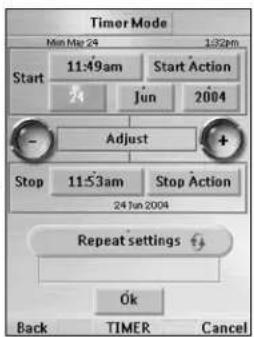
5 Tap "Edit" button in the Timer List page. The Editing Timer page appears.
text_image
Timer Mode Min Mar 24 1:32pm Start 11:49am Start Action Jun 2004 - Adjust + Stop 11:53am Stop Action 24 Jun 2004 Repeat settings Ok Back TIMER CancelReference
6 To edit the timer, execute the following steps:
-
Set the Start Date. See 'Setting the Start Date' on page 51 for more information.
-
Set the Start Time. See 'Setting the Start Time or Stop Time' on page 51 for more information.
-
Define the Start Action. See 'Defining the Start Action or Stop Action' on page 52 for more details.
-
Set the Stop Time. See 'Setting the Start Time or Stop Time' on page 51 for more information.
-
Define the Stop Action. See 'Defining the Start Action or Stop Action' on page 52 for more details.
-
Define the Repeat Settings. See 'Defining the Repeat Settings' on page 52 for more information.
7 Tap "OK" button in the Editing Timer page. The timer settings are defined. The Timer List page appears again.
8 Tap "OK" button In the Timer list page or label in the LOWER TOOL BAR. The Mode Menu page appears again.
Reference
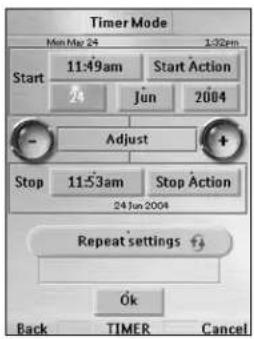
Setting the Start Date
When you add a new timer, the Start Date is the current date by default. The Stop Date is calculated automatically based on the Start Date, the Start Time and the Stop Time.
To change the Start Date:
1 Tap the Day button in the Editing Timer page.
The color of Day button is changed.
2 Tap the and buttons to adjust the day.
3 Tap Day button again.
The Day is set.
4 Repeat step 1 to 3 for Month and Year buttons. The Start Date is set.
text_image
Timer Mode Min:Mar 24 1:32pm Start 11:49am Start Action Jún 2004 - Adjust + Stop 11:53am Stop Action 24Jun 2004 Repeat settings fj Ok Back TIMER CancelSetting the Start Time or Stop Time
1 Tap the "Start Time" button or "Stop Time" button in the Editing Timer page.
The color of the Start Time button or Stop Time button is changed.
2 Tap the and buttons to adjust the time.
3 Tap the Time button again.
The new Start Time or Stop Time is set.
Notes · If the Stop Time lies before the Start Time, the Stop Date automatically jumps to the next day. using the editor software. · The Stop Time cannot be edited if no start actions are defined.
Reference
Defining the Start Action or Stop Action
RC9500 uses a similar procedure to define the Action List for the Start Action or the Stop Action of the selected timer as in the Macro Tool. See 'Programming Macros' on page 42 for more information.
Example Some examples of timer actions are: switching on and off your lights at a specific time
1 Tap the "Start Action" button or "Stop Action" button in the Editing Timer page.
The Macro edit page appears.
2 Tap "Add" button in the Macro Edit page.
The last visited page appears again.
3 Navigate to the Device and the Page that contains the button you want to add to the macro.
4 Tap the button you want to add to the action list of the timer.
The Macro Edit page appears.
The action of the selected button is added at the bottom of the Action List.
5 Tap "OK" button in the Macro Edit page.
The Start Action or Stop Action is defined.
The Editing Timer page appears again.

text_image
Timer Mode Delete Done Add A/V Amp ON Delay 0.5 Plasma ON Move Delay Test Beep Back TIMER CancelNotes The Stop Action cannot be edited if no start actions are defined.
Defining the Repeat Setting
If you want the timer to repeat itself on more than one occasion, you can use the repeat settings.
1 Tap "Repeat Settings" button in the Editing Timer page.
The Repeat Settings page appears.
Reference
2 Tap the repeat toggle button.
By default 'No' is selected.
The Repeat button toggles between the three settings:
■ No: This is the default setting
Daily
Weekly
- To change the setting to "Daily", tap the button again. Every day of the week is automatically selected.
- If you want to set an end date for the repeating timer, select the End Date check box. The End Date is enabled.
- Define the End Date, as described in 'Setting the Start Date' on page 51. The End Date is defined.
-or-

text_image
Timer Mode Repeat Weekly Mon Tun Wed Thu Fri Sat Sun End May 2004 Adjust + Ok Back TIMER Cancel- To change the setting to "Weekly", tap the button again. The current day is selected.
- Select or deselect the different days of the week on which the timer has to be executed.
- If you want to set an end date for the repeating timer, select the End Date check box. The End Date is enabled.
- Define the End Date, as described in 'Setting the Start Date' on page 51. The End Date is defined.
-or-
- To change the setting to "No", tap the button again. The timer will not be repeated.
3 Tap "OK" button in the Repeat Settings page.
The Editing Timer page appears again. Feedback about the repeat settings is provided below the "Repeat Settings" button.
Reference
8. Using the RC9500 with Radio Frequency
Warning To use the Remote Control with Radio Frequency (RF) you need a Marantz RX-77 RF Extender. This is an optional accessory for the RC9500.
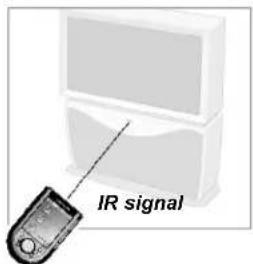
By default, the RC9500 uses infrared (IR) signals to operate devices. This means that you have to point the RC9500's IR sending eye towards the devices you're operating. IR signals have an operating distance of approximately 10 meters (33 feet).
text_image
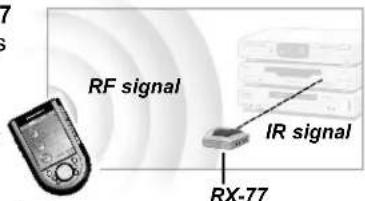
IR signalYou can choose to operate devices using Radio Frequency (RF) signals instead of IR signals. RF signals can, unlike IR signals, go through obstacles like furniture or walls.
The RF signals sent out by the RC9500 are picked up by the RX-77 RF Extender. The RX-77 translates the RF signals in IR signals and sends the IR signals to the appropriate devices. Therefore, the RX-77 has to be placed near the devices you're operating with the RX-77's sending eye pointed to the
text_image
RF signal IR signal RX-77Your devices will always receive IR signals either directly from the RC9500 or from the RX-77.
Changing the IR / RF Settings
All devices are set up by default to work with IR signals. To be able to operate one or more devices with RF signals, you have to change the RC9500's IR/RF settings for those devices.
1 Tap and hold the MODE icon in the LOWER TOOL BAR more than 3 seconds. Mode Menu page appears.
2 Tap the "IR / RF" button to switch to IR/RF Setting mode. The RC9500 displays the device list box.
User Guide
Reference
3 Select the device for which you want to change the IR / RF settings. The IR / RF setting page appears. The reversed color button labeled "IR" indicates that the selected device is currently operated with IR signals.
4 Tap "RF" button. The IR/RF settings for the selected device are changed from IR to RF.
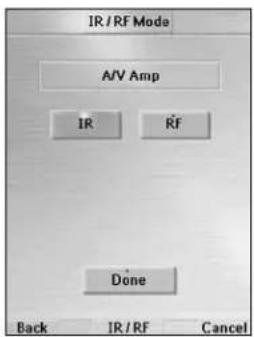
text_image
IR / RF Mode A/V Amp IR RF Done Back IR / RF CancelWhen you have several RX-77s to operate Back IR/RF Cancel devices, you have to assign the correct Extender ID to the selected device. Continue with Step 5. -or-
When you have only one RX-77, you can accept the default settings for the Extender ID and the Channel. Skip to step 6.
Note The ID on the RF Extender has to match the Extender ID on the Remote Control.
5


buttons
besi
Extender ID label to change the Extender ID number. The RC9500 offers 16 Extender IDs.
6 Tap "Done" to save the IR/RF settings for the selected device or Press the Right Function button labeled "Cancel" to return without changing the IR/RF settings for the selected device.
7 Repeat instructions 1 to 3 for all devices for which you want to change the IR/RF

text_image
IR / RF Mode de the A/V Amp IR RF Extender ID: 0 + Channel: 0 + Done Back IR / RF Cancel8 Tap IABR to return to the Mode Menu page. The RC9500 is configured to operate the devices you have set with RF signals.
9 Return to USE mode by pressing the Left Function button labeled "Exit" and try out the devices for which you just changed the IR/RF settings.
Note It is possible that a device does not respond properly when operated with RF signals. In that case, you have to reconfigure the Remote Control to operate the device with IR signals again.
Reference
Choosing Another Channel
When you notice RF interference or unreliable operation you should try choosing another channel to operate your devices.
Note All devices you want to operate with RF signals use the same channel. If you choose another channel for one device, the Remote Control will automatically change the channel for all devices that work with RF signals.
1 Switch back to IR / RF mode. The Device list box appears.
2 Select a device that is set with RF signals. The IR / RF setting page appears.
3 Tap the "+" and "-" buttons beside the Channel label to change the Channel number.
The RC9500 offers 4 RF Channels.
Note The Channel (CH) on the RF Extender has to match the Channel on the Remote Control.
4 Tap the "Done" button to finish.
9. Software
If you want to personalize your RC9500 even more, beyond its standard programming features, Wizz.it 9 is the tool for you to use.
Wizz.it 9 is the RC9500's companion software that you can download from the following internet address;
http://www.marantz.com
With Wizz.it 9, you can;
Add, delete, move and modify control pages, devices and commands anywhere on the touch screen.
Save, duplicate and share configuration files, codes or devices with other RC9500 remotes.
Preview new configuration files on Wizz.it 9 Simulator. This way you can check how the RC9500's interface will look like.
User Guide
Reference
Upload and download new configurations to and from your RC9500. You do this with the supplied USB cable connected to the USB port on the left side of the RC9500.
Connect the USB cable to the USB port above the Page + button

text_image
marantz Welcome Marantz Forma Newland Control POWER OFF ON No 10 No 20Convert the RC9200/5200/5000's CCF files and RC5400 PCF file for your RC9500.
Import new graphics to create new buttons and designs.
Personalize configuration files to optimize the use of your RC9500.
Programming macros easily.
Customize the system area and make the whole Touch Screen to your operation area.
Share your work with other enthusiasts on the internet.
Create animated slide shows using your own photos or art.
Internet Fun
A community of enthusiasts helping each other to learn how to use PC's to configure their remote controls exists at;
www.remotecentral.com
PC Requirements
■ Windows 98SE/ME/2000/XP
64 MB of RAM
■ 75 MB of free hard disk space
■ Free USB port
User Guide
Maintaining Your RC9500
Important Notice
Take care not to scratch the Touch Screen
Use your finger to tap the Touch Screen or use plastic-tipped pens intended for use with other touch screen products.
Never use an actual pen, pencil or other sharp object on the Touch Screen.
Protect the RC9500 from extreme temperatures
Keep the RC9500 away from heaters and other heat sources.
Operating temperature for the RC9500 is in between 41°F to 113°F (5°C to 45°C). (page 66)
RC9500 is NOT waterproof
RC9500 should not be exposed to rain or moisture. Do not store or use the RC9500 in any location that is extremely damp or wet. When you have spilled water on the RC9500, you have to take out the batteries and let the RC9500 dry for 48 hours before you place the batteries back. When you have spilled other liquids like coffee on the RC9500, you can clean it with distilled water.
IMPORTANT: Make sure no water gets into the housing.
The Touch Screen of the RC9500 contains a glass element
Do not drop the RC9500 or subject it to any strong impact.
Cleaning the RC9500
Use a clean, soft and damp cloth to clean the RC9500.
If the Touch Screen is soiled, clean it with soft cloth moistened with diluted window-cleaning solution. Do not use a corrosive detergent or an abrasive sponge. Avoid the use of abundant water.
Troubleshooting
General Problems
The display is blank
■ Tap the screen to make sure the RC9500 is turned on.
■ Adjust the screen brightness using the buttons on the left side. (page 17)
■ Make sure the battery pack is properly installed. (page 4)
■ Recharge the battery pack using the docking station. (page 5)
The display is too light or too dark
■ Adjust the screen brightness using the buttons on the left side. (page 17)
The RC9500 shuts itself off
This is a feature of the RC9500 to save power. You can change the length the RC9500 stays on in the Setup. (page 13)
Devices do not respond to commands from the RC9500
■ Make sure the RC9500 is in USE mode. (page 7)
■ Make sure the RC9500's IR sending eye is pointed towards the device you're operating.
- Check if the Low Battery icon appears. If so, recharge the battery pack using the docking station. (page 5)
- Check if the button you are trying to use is programmed properly. (page 18)
- Check if your device understands these particular Marantz infrared codes. Re-add the device with the correct model number. (page 35)
Troubleshooting
Programming Problems
Hard buttons are not sending the correct commands
- Check whether the button is programmed per device or globally. (page 30) The MACRO mode is useful to confirm the programmed commands for buttons. (page 45)
Macros or Tab Style Jump buttons do not work
■ Make sure the RC9500's IR sending eye is pointed towards the device the entire time the macro is being executed.
■ Insert delays to allow devices to start up properly. (page 45)
- Check that you have included grayed-out buttons in your macro.
- Check that you haven't reprogrammed the buttons. Macros do not store commands, they store button locations. If you reteach a button, the macro will execute the newly learned code, not the code that you taught to the original button.
The RC9500 won't learn, edit, label or delete commands
■ Make sure your devices are positioned as shown on page 28. Avoid programming the RC9500 under bright fluorescent light, it might affect the infrared signals.
If the buttons in the Mode menu page do not respond, the configuration file might be protected to prevent unwanted changes. You cannot modify or delete commands for on the RC9500. the protection for the configuration file has to be released by using Wizz.it 9 software.
■ Make sure the button you want to edit has a border. Frames cannot be programmed with commands.
The RC9500 won't switch the modes
- When the batteries are low, the RC9500 prevents you from switching to customizing modes so that no customization can get lost. Recharge the battery pack. (page 5)
The RC9500 is low on memory
The RC9500 displays a message to clean up the memory. Please delete unnecessary devices, macros and learned commands as many as possible manually.
Tip When you download and upload your configuration file, the size of the file is reduced. If you download this configuration again, you will have more free memory available.
Troubleshooting
The TV goes blank or the input source changes
The buttons in the Device Overview page might be programmed to switch the input source. Select the device without issuing IR codes using the "No IR" function. (page 8)
The configuration file is corrupted
- When this very unlikely event occurs, you can use Wizz.it 9 to download a new configuration file. Taken into account that all your customized commands, devices, and macros will be lost and you will have to reprogram your RC9500. The "Revert" function on the third Setup page is also available to get back the last downloaded configuration file.
Error messages
If one of the following error messages occurs, please try to update the firmware. The firmware updater can be found at www.marantz.com.
- Can't open configuration file
- Configuration file error
• No configuration file found - Invalid configuration file version
Tip The bulletin boards and friendly users at www.remotecentral.com can often give you help with problems.
Recharging Problems
The batteries won't recharge
■ Make sure you are using the rechargeable battery pack, the docking station (DS9500) and the power adaptor supplied with your RC9500.
■ Make sure the battery pack is installed properly in your RC9500. (see page 4)
The indicator LEDs on the docking station flashe
- Check if the contacts on the docking station are clean and free of obstructions.
■ Make sure the RC9500 lies properly on the docking station.
■ Make sure the battery pack is properly installed. (see page 4)
Frequently Asked Questions
Can I program a device button to execute more than one command?
Yes, you can. You can program a macro to the device button in the MACRO mode. (see page 42)
How do I program source switching?
See "Programming The Device Buttons ..." on page 30.
How can I edit macros that are programmed in the button of the Device Overview?
You can do this using "Macro to device" function via the MACRO mode. (page 45)
How can I label buttons on Device Overview pages?
You can do this using "Label device" function via the LABEL mode. All changes you make to these items are automatically updated in the Device Overview page. (page 34)
How can I delete buttons on Device Overview pages?
You can do this using "Delete device" function via the DELETE mode. All changes you make to these items are automatically updated in the Device Overview pages. (page 40)
How do I reset the RC9500?
Normally, you never have to reset the RC9500. However, if the RC9500's display freezes or if you notice unusual behavior, you might need to reset the RC9500. You will not lose any saved programmed commands or macros.
Carefully press the reset button near the battery connector inside the battery compartment of the RC9500 with a paperclip or sharp pencil. The RC9500 restarts and beeps to indicate it is ready for use.
Can I revert to the original configuration?
Yes. By using Wizz.it 9 with Windows PC, you can get the factory default configuration. Using Wizz.it 9, once the program is installed, open a configuration file named "RC9500_default" in C:\Program Files\Marantz\Wizzit_9\Samples. Downloading this configuration will restore your RC9500 to its factory state except the setup items. By using the "Revert" function in the Setup, you can get the last downloaded configuration.
Frequently Asked Questions
How do I calibrate the Touch Screen?
The RC9500 is calibrated when it leaves the factory, so normally you do not have to calibrate it yourself. It is possible that the RC9500 displays a message to calibrate the Touch Screen. If this message appears do the following.
1 Tap the INFO button in the Upper Tool Bar. The information page will appear.
2 Tap the "SETUP" button in the Information page.
The first Setup page appears.
Navigate to third Setup page by using the Page + and Page - buttons.
3 Tap the "Calibration" button.
4 You will see the instruction "Tap TOP LEFT corner".
Tap as close as possible the marker in the top-left corner using a blunt tip of a pencil.
5 You will see the instruction "Tap BOTTOM RIGHT corner". Tap as close as possible the marker in the bottem-right corner using a blunt tip of a pencil.
6 You will see the instruction "Tap TOP RIGHT corner".
Tap as close as possible the marker in the top-right corner using a blunt tip of a pencil.
7 You will see the instruction "Tap BOTTOM LEFT corner". Tap as close as possible the marker in the bottom-left corner using a blunt tip of a pencil.
8 You will see the message "Calibration succeeded".
9 Return to USE mode by tapping the INFO button again or press the Left Function button labeled "Exit".
Overview of Symbols
II Pause
■ Stop
▶ Play, Normal Run, Normal Speed
Reverse Play, Normal Run, Normal Speed
Fast Forward, Scan Forwards, Fast Run, Fast Speed
Rewind, Scan Backwards, Fast Run, Fast Speed
▶ Slow Motion Forwards, Slow Run, Slow Speed
Slow Motion Backwards, Slow Run, Slow Speed
▲ Eject, Open/Close
Record, General
Key, Lock
<>^▼ Navigate in the direction of the arrow
Still Mode, Freeze Frame
Autoreverse, Tape Running Direction
▶ Next Track, Next Chapter, Next Song
Previous Track, Previous Chapter, Previous Song
Fast Forward to Index
Rewind to Index
Frame by Frame, General
Frame by Frame, General
Subtitle
Cancel Picture
Picture-In-Picture Mode
Menu
Picture-In-Picture Shift
Picture-In-Picture Swap
Multi-Picture Display
Picture-In-Picture Select
Teletext Mode
User Guide
Overview of Symbols
Page Number Up
Page Number Down
Page Enlargement
TV and Text Mixed
I-II 1st or 2nd Language
P◀ P Last View, Previous Program
Power, Stand-By
Zone Focus: Long Distance
Zone Focus: Very Short Distance
-/- Single or Multi-Digit Selection
Brightness, Brilliance
Contrast
Brightness / Contrast
Color Saturation
Lamp, Lighting, Illumination
Split Screen Freeze / Double Screen Freeze
Split Screen Swap / Double Screen Swap
12 Split Screen / Double Screen
Movie Expand
Personal Preference
Picture-In-Picture Freeze
Main Index Page
Picture Freeze
Programmable Timer, General
Tracking
? Application Assistance
Actual Time On Screen
EPG / Electronic Program Guide
Video Output
User Guide
Specifications
| Display 64k color 3.8" TFT touch screen LCD320x240 pixels (QVGA) resolutionWhite LED backlighting for LCD and Blue LED for hard buttons | |
| Interface USB 1.1-port for PC connection | |
| Infrared Sending LED (x4) and learning LED (x1)(IR) Operating distance of approximately 10m (33 ft)Learns from the vast majority of remotes with a carrier frequency of up to 78 KHz and 455 KHz(Most of the Bang & Olufsen commands can be learned.) | |
| Radio Operating distance of approximately 20m (66ft) in open-air condition frequency Carrier frequency: 418 MHz (for US), 434MHz (for Europe)(RF) *The distance may vary depending on the surrounding conditions. | |
| Memory 16MB non-volatile flash memory (software upgradeable to 48MB) | |
| Batteries NiMH rechargeable battery pack | |
| Software Dynamic, animated interfaceEditable macros (up to 250 commands per macro)Built-in Marantz components codesTotal number of devices and macros limited only by the memory | |
| Power Power On: By tapping the Touch Screen, by pressing buttons,management by picking up the RC9500Power Off: Auto shut off by adjustable timer | |
| Dimensions 6inch x 3.5inch x 1.2inch (153mm x 90mm x 33.5mm) | |
| Operating 41°F to 113°Ftemperature (5°C to 45°C) | |
| Accessories USB cable for PC connectionNiMH 4.8V Rechargeable battery packDS9500 Recharging docking stationAC to DC power adapter for docking stationOption RX-77 RF Extender | |
| User Guide | The specifications and design of this product are subject to change without notice. |
Index
A
Activating 6
Adding
Device 35
Macro 43
Timer 47
ADD mode 35
Copy Existing Device 37
Create New Device 37
Device Template 35
Device Type Divide 35
Help 37
Status 36
With RC Codes 38
Without RC Codes 38
Adjusting
Brightness 17
Delay 24,40
Animation 13
Auto Button Light 6,13
B
Backlight Button 2,6
Button Timeout 13
Battery 3
Battery Compartment 4
Battery Cover 4
Battery Pack 3
Charging 5
Docking Station 3,5
Low Battery Icon 5
Beep
Button 13
Macro 24,40
Screen 13
Brightness 17
Backlight 2,6
CHANNEL 2,11
Cursor Navigation 3
Device Overview 3
Device Scroll 3
ENTER 2,11
EXIT 2,11
Function 2
Hard Buttons 11
HOME 2,11
INFO 3
MENU 2.11
MODE icon 3,7
MUTE 2,11
Page + 2,9
Page - 2,9
Page Overview 3
Soft buttons 11
VOLUME 2,11
C
Calibrate 63
Calibration 13
CHANNEL Buttons 2,11
Charging 5
Choosing Channel 56
Cleaning 58
Cloning 18
Command 26,42
Configuration File 56
Copy Existing Device 37
Create New Device 37
Cursor Navigation 9, 10, 13
Cursor Navigation Button 3,9
User Guide
Button 2
4-Way Cursor 2,11
67
Index
D
Day 13, 15
Delay 24,42
Deleting
Button 39
Device 40
Macro 45
Timer 48
DELETE Mode 39
Button 39
Device 40
Undo 39
Device Action 8,30,44
Device Menu 13
Device Overview Button 3
Device Overview Page 8
Device Scroll 9
Device Scroll Buttons 3
Device Template 35
Device Type Divider 35
Discrete Command 20
Docking Station 3,5
Download 57
DSS 37
E
Edit Software 56
Editing
Macro 45
Timer 49
ENTER Button 2,11
Error Message 61
EXIT Button 2,11
Extender ID 55
Error Message 61
F
FAQ
Calibrate 63
Original Configuration 62
Reset 62
Font Size 32
Frame 32
Free Memory 12
Function Buttons 2
G
General Problem 59
Globally 31
GO 42
H
Hard Button 11
Help 37
Help List 20, 22
HOME Button 2,6,11
Home Page 7
|
Import Graphics 57
Important Notice 58
INFO Button 3
Information 12
Battery Life 12
Free Memory 12
Software Version 12
Infrared 2
Infrared Eyes 2
IR 2
Internet Address 56
Internet Fun 57
IR 2
IR / RF Mode 54
Choosing Channel 56
Extender ID 55
Optional Accessory 54
Radio Frequency 54
RF 54
RF Extender 54
RX-77 54
IR Command 11,28
User Guide
Index
J
Jump 44
L
LABEL Mode 32
Button 32
Device 34
Font Size 33
Page 34
Symbols 33
LEARN Mode 29
Button 29
Device 30
Globally 31
Locally 31
Learning 28
Tap Technique 28
Locally 31
Lower Tool Bar 3
Low Battery Icon 5
M
Macro-Friendly 20
MACRO Mode 43
Add 43
Adjusting Delay 24, 43
Anchor Command 21
Beep 24,42
Button 43
Command 26,43
Delay 24,42
Delete 45
Device 44
Device Action 26,44
Discrete Command 20
Editing 45
GO 42
Jump 12,44
Macro-Friendly 20
Move 45
Multiple Step 20
Page Notation 42
RC Command 24
Status Device 23
Test 26,43
Toggle Command 21
Maintaining 58
Cleaning 58
Important Notice 58
Memory 12,66
MENU Button 2,11
Modes 7
MODE Icon 3,7
Mode Menu 16
ADD 16,35
DELETE 16,39
IR / RF 16, 54
LABEL 16,32
LEARN 16,28
MACRO 16,42
MOVE 16,41
Setup 12
Switch Modes 16
TIMER 16,46
USE 7
Month 13, 15
MOVE Mode 41
Device 41
Multiple Step Operation 20
MUTE Button 2,11
N
Navigating 7
Cursor Navigation 9
Device Overview page 8
Device Scroll 9
Home Page 7
Devices 7
Pages 9
Page Overview Page 9
Tab Button 10
No IR 8
User Guide
Index
0
Operating 11
Device 11
Hard Button 11
IR Command 11
RF Command 11
Soft Button 11
Optional Accessory 54
Original Configuration 62
P
Page +, - Button 2, 9
Page Jump 23, 26
Page Menu 13
Page Notation 42
Page Overview Button 3
Page Overview Page 9
Pickup Sensor 6, 13
Programming 22
Command 26
Device Action 26
Help List 22
Macro 26
Page Jump 26
Programming Problem 60
R
Radio Frequency 11, 54
RC Command 29
Receivers 36
Recharging Problem 61
Remote Central 57
Repeat Setting 50, 53
Reset 62
Revert 13,61
RF 11,54
RF Command 11
RF Extender 54, 66
RX-77 54,66
s
Screen Timeout 13
Setting IR / RF 54
Service & Support 72
Updates 72
Setup 12
Animation 13
Auto Button Light 6,13
Button Timeout 13
Button (Beep) 13
Calibration 13
Cursor Navigation 13
Day 13
Device Menu 13
Mode Menu 13
Month 13
Page Menu 13
Pickup Sensor 13
Revert 13
Scree Timeout 13
Screen (Beep) 13
Setup Button 12
Time 13
Time Mode 13
Year 13
Setup Page 12
Simulator 56
Soft Button 11
Software 56
Software Version 12
Specification 66
Memory 66
Option 66
Start Action 50, 52
Start Date/Time 50, 51
Stop Action 50, 51
Stop Date/Time 50, 51, 53
Switch Modes 16
Symbols 33, 64
System Requirement 57
Index
T
Tab Button 10
Tap Technique 28
Teach 19
Test 26,43
Time 13
Time Mode 13
TIMER Mode 46
Add 47
Delete 48
Edit 49
Start Action 50, 52
Start date 50, 51
Start Time 50,51
Stop Action 50, 51
Stop Date 50, 51, 53
Stop Time 50, 51
Repeat Setting 50, 53
Toggle Command 21
Touch Screen 2,3
Brightness 17
Lower Tool Bar 3
Upper Tool Bar 3
User Control Area 3
Troubleshooting 59
Error Message 61
General Problem 59
Programming Problem 60
Recharging Problem 61
Revert 61
Tuner 36
Turning On 6
User Control Area 3
v
VOLUME Buttons 2,11
W
With RC Codes 18, 38
Without RC Codes 18, 38
Wizz.it 9 56
.ccf 57
Configuration file 56
Download 57
Import Graphics 57
Internet Address 56
Internet Fun 57
Remote Central 57
Simulator 56
Software 56
System Requirement 57
Upload 57
USB cable 57
Y
Year 13
Other
.ccf 57
4-Way Cursor 2, 9, 10
User Guide
Service and Support
Service and Support
For service and support, please contact your Marantz authorized dealer or Marantz customer service. On the Marantz internet site you can find more contact details. When you contact Marantz customer service, you will be asked for the technical information listed on the Information page.
To view this information, follow these steps.
1 Tap the INFO icon to display the Information page.

2 When you wish to return to USE mode, tap the INFO icon again or press the Left Function button labeled "Exit".
Updates and New Products
For news about updates and new products, please visit us on the World Wide Web at;
http://www.marantz.com
DFU RC9500 Ver1_2.qxd 5/28/2004 10:34 AM Page 77
Memo
User Guide
DFU RC9500 Ver1_2.qxd 5/28/2004 10:34 AM Page 78
www.marantz.com
You can find your nearest Marantz authorized dealer or distributor on our website.
JAPAN Marantz Japan, Inc. 7-35-1 Sagami Ohno, Sagamihara-shi, Kanagawa 228-8505, Japan
U.S.A Marantz America, Inc. 1100 Maplewood Drive, Itasca, IL 60143, U.S.A
EUROPE Marantz Europe B.V. P.O. Box 8744, 5605 LS Eindhoven, The Netherlands
marantz
is a registered trademark.
