MC6500 Professional - Sewing machine JANOME - Free user manual and instructions
Find the device manual for free MC6500 Professional JANOME in PDF.


User questions about MC6500 Professional JANOME
0 question about this device. Answer the ones you know or ask your own.
Ask a new question about this device
Download the instructions for your Sewing machine in PDF format for free! Find your manual MC6500 Professional - JANOME and take your electronic device back in hand. On this page are published all the documents necessary for the use of your device. MC6500 Professional by JANOME.
USER MANUAL MC6500 Professional JANOME
natural_image
Illustration of a sewing machine with control panel and digital display (no text or symbols)IMPORTANT SAFETY INSTRUCTIONS
When using an electrical appliance, basic safety precautions should always be followed, including the followings:
Read all instructions before using this appliance.
DANGER—
To reduce the risk of electric shock:
- An appliance should never be left unattended when plugged in. Always unplug this sewing machine from the electric outlet immediately after using and before cleaning.
- Always unplug before replacing a sewing machine bulb. Replace bulb with same type rated 12 Volts, 5 Watts.
WARNING
To reduce the risk of burns, fire, electric shock, or injury to persons:
- Do not allow to be used as a toy. Close attention is necessary when this sewing machine is used by or near children.
- Use this appliance only for its intended use as described in this owner's manual.
Use only attachments recommended by the manufacturer as contained in this owner's manual.
- Never operate this sewing machine if it has a damaged cord or plug, if it is not working properly, if it has been dropped or damaged, or dropped into water.
Return this sewing machine to the nearest authorized dealers or service center for examination, repair, electrical or mechanical adjustment. - Never operate the appliance with any air opening blocked. Keep ventilation openings of this sewing machine and foot controller free from accumulation of lint, dust and loose cloth.
- Never drop or insert any object into any opening.
- Do not use outdoors.
- Do not operate where aerosol (spray) products are being used or where oxygen is being administered.
- To disconnect, turn all controls to the off ("O") position, then remove plug from outlet.
- Do not unplug by pulling on cord. To unplug, grasp the plug, not the cord.
- Keep fingers away from all moving parts. Special care is required around the sewing machine needle.
- Always use the proper needle plate. The wrong plate can cause the needle to break.
- Do not use bent needles.
- Do not pull or push fabric while stitching. It may deflect the needle causing it to break.
- Switch this sewing machine off ("O") when making any adjustment in the needle area, such as threading the needle, changing the needle, threading the bobbin or changing the presser foot, and the like.
- Always unplug this sewing machine from the electrical outlet when removing covers, lubricating, or when making any other adjustments mentioned in this owner's manual.
SAVE THESE INSTRUCTIONS
The design and specifications are subject to change without a prior notice.
TABLE OF CONTENTS
KNOW YOUR MACHINE.... 3
Name of Parts.... 3
Standard Accessories 4
GETTING READY TO SEW 5
Connecting the Power Supply 5
Controlling Sewing Speed 5
Speed control lever 5
Foot control 5
Function Buttons....6
Pattern selection buttons 8
Raising and Lowering the Presser Foot 9
Attaching the Knee Lifter 9
Changing the Presser Foot.... 10
Detaching and Attaching the Foot Holder...... 10
Variety of Presser Feet and Their Uses.... 11
Winding the Bobbin 12
Removing the bobbin 12
Setting the spool of thread 12
Winding the bobbin 13
Inserting the bobbin 14
Threading the Machine 15
Automatic Needle Threader.... 17
Drawing Up the Bobbin Thread 18
Changing Needles 19
Thread and Needle Chart 19
Balancing Thread Tension 20
Adjusting the tension 20
Adjusting the Foot Pressure 21
Dropping the Feed Dog 21
Selecting the Sewing Mode 22
The Help Button.... 23
Selecting the Pattern 23
Customizing Machine Settings 24
Resumption setting 24
Sound setting 24
Language selection 24
BASIC STITCHES (Mode 1)....25
Straight Stitch.... 25
To sew 25
To sew from the edge of thick fabric 25
Securing seam 25
Changing sewing direction 26
Using the cloth guide 26
Using the seam guide lines 26
Adjusting the needle drop position 27
Adjusting the stitch length 27
Variety of the straight stitches 28
Basting 29
Zigzag Stitch 30
Adjusting the stitch width 30
Adjusting the stitch length 30
Variety of Overcasting Stitches (Modes 1 and 3) ..... 31
Overcasting with zigzag stitch.... 31
Overcasting stitch 31
Multiple zigzag stitch (Tricot stitch) 31
Knit stitch 32
Double overedge stitch 32
Overlock stitch 32
Zipper Sewing 33
Fabric preparation 33
To sew 34
Rolled Hem 36
PATCHWORK AND QUILTING (Mode 2) ...... 37
Patchwork ....37
Angle scale on the needle plate 37
Seaming patchwork pieces 37
Patchwork stitches 37
Stitch in the ditch with the even feed foot.... 38
Quilting 38
Quilting bar for the even feed foot.... 38
Quilting bar for the zigzag foot 39
Clasp stitch 40
Applique 40
Programming French Knots 41
UTILITY STITCHES AND
DECORATIVE STITCHES (Mode 3) 42
Buttonholes 42
Sensor buttonholes 43
To sew 43
Double layer buttonhole 46
Corded buttonhole 46
Changing buttonhole width 47
Changing buttonhole stitch density 47
Automatic buttonhole 48
Button Sewing 50
Darning....51
To sew a shorter darning.... 52
To adjust the evenness of darning 52
Tacking 53
To sew a shorter tack 53
Eyelet 54
Adjusting the shape of an eyelet 54
Blind Hem....55
To sew 55
Changing needle drop position 56
To make the straight stitches in blind hem stitch longer .... 56
Shell Tucking....57
Scallop Stitch 57
Cording....57
Twin Needle Sewing....58
Programming a Pattern Combination....60
One cycle sewing with the auto-lock stitch 60
Pattern combination with auto thread cutting ..... 61
Elongation Sewing 62
Programming pattern combination with a mirror Image.... 62
Sewing the pattern combination from the beginning 63
Sewing the current pattern from the beginning ..... 63
Making a copy and a mirror Image of programmed patterns.... 63
Editing Program 64
Unified needle drop position 64
Custom stitch adjustment (Mode 2 and 3 only)...... 65
Storing and recalling the pattern combination.... 65
MONOGRAMMING (Mode 4) 66
Selecting a Letter Style 66
Programming a Monogram 67
Editing a Monogram 68
Inserting a letter (character) 68
Deleting a letter (character) 68
CARE AND MAINTENANCE.... 69
Correcting Distorted Stitch Patterns....69
Cleaning the Hook Race and Feed Dog .....70
Replacing the Light Bulb 71
Problems And Warning Signals....72
Troubleshooting 74
text_image
Technical diagram of a sewing machine with numbered parts for identification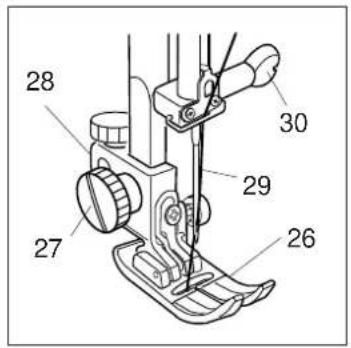
text_image
28 30 29 27 26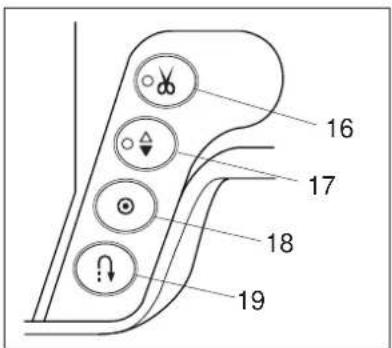
text_image
16 17 18 19
text_image
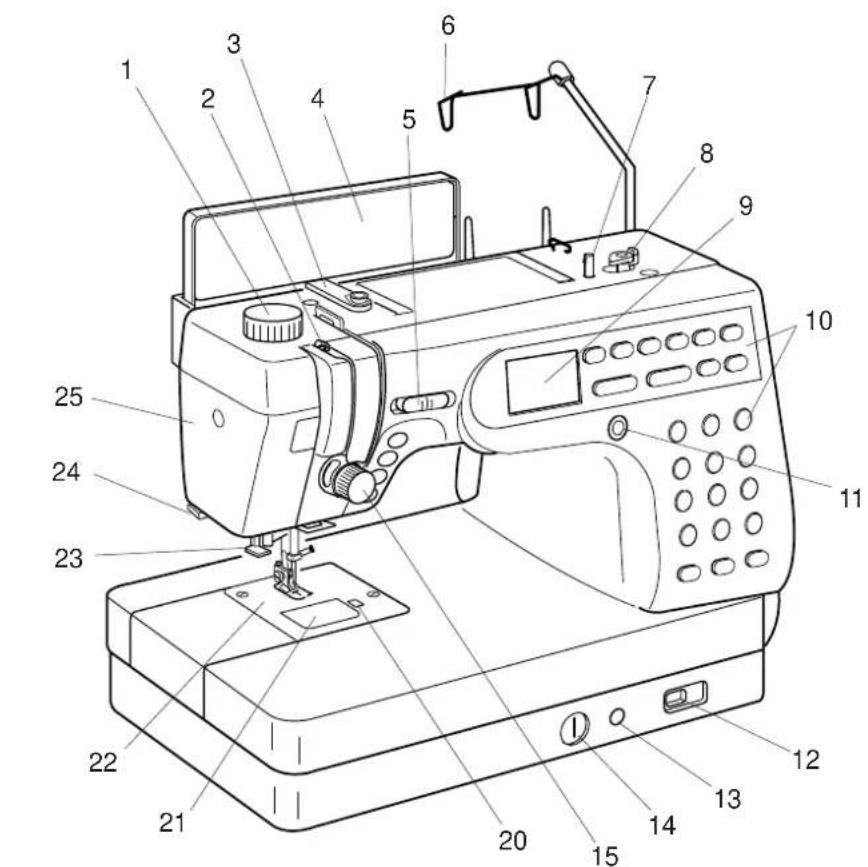
Technical diagram of a sewing machine with numbered parts labeled for identification.KNOW YOUR MACHINE
Name of Parts
- Foot Pressure Dial
- Thread Take-up Lever
- Thread Guide
- Quick Reference Board
- Speed Control Lever
- Retractable Thread Guide
- Bobbin Winder Spindle
- Bobbin Winder Stopper
- LCD Screen
- Function Buttons
- LCD Contrast Adjusting Dial
- Drop Feed Lever
- Knee Lifter Socket
- Stitch Balance Adjusting Dial
- Tension Regulating Dial
- Thread Cutter Button
- Up/Down Needle Button
- Auto-Lock Button
- Reverse Button
- Hook Cover Plate Release Button
- Hook Cover Plate
- Needle Plate
- Needle Threader
- Thread Cutter
- Face Plate
- Zigzag Foot A
- Thumb Screw
- Foot Holder
- Needle
- Needle Clamp Screw
- Carrying Handle
- Presser Foot Lifter
- Buttonhole Lever
- Spool Pins
- Machine Sockets
- Power Switch
- Handwheel
- Thread Guide
- Bobbin Winding Tension Disk
text_image
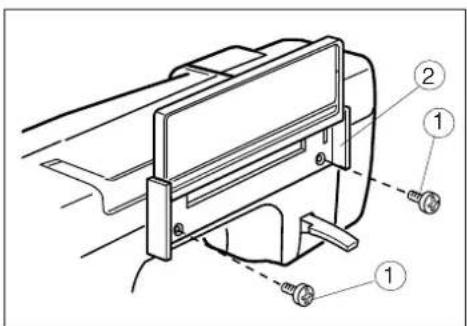
Technical diagram of a mechanical clamp or bracket assembly with numbered parts labeled 1, 2, and 3.Attaching the quick reference board
The quick reference board and setscrews are included in the standard accessories.
Fix the quick reference board on the backside of the machine with the two setscrews.
Tighten the screws firmly with a screwdriver.
① Setscrews
② Quick Reference Board
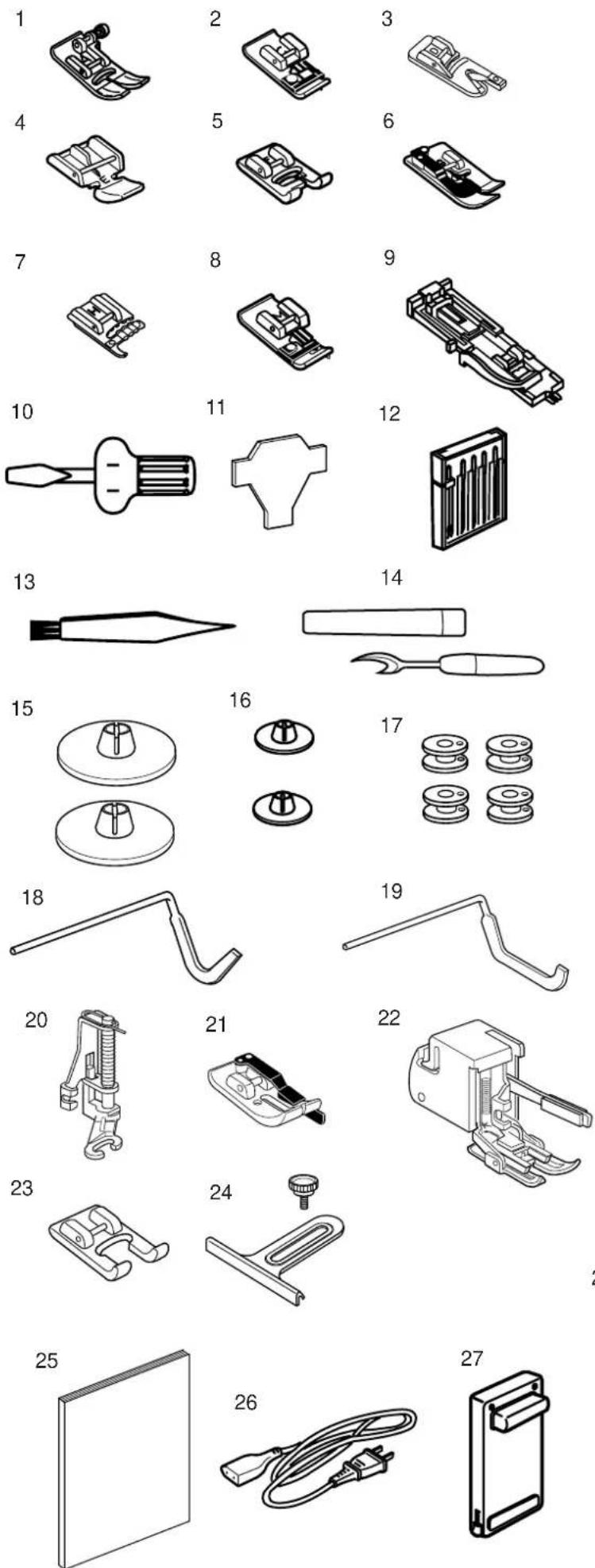
Standard Accessories
- Zigzag Foot A (comes attached to the machine)
- Overedge Foot C
- Rolled Hem Foot D
- Zipper Foot E
- Satin Stitch Foot F
- Blind Hem Foot G
- Cording Foot H
- Overcasting Foot M
- Automatic Buttonhole Foot R
- Screwdriver
- Screwdriver
- Set of Needles
- Lint Brush
- Seam Ripper
- Spool Holder (Large)
- Spool Holder (Small)
- Bobbins
- Quilting Bar
- Quilting Bar for Even Feed Foot
- Basting/Darning Foot P-2
- 1/4" Seam Foot O
- Even Feed Foot
- Open Toe Satin Stitch Foot F-2
- Cloth Guide with Screw
- Instruction Book
- Power Supply Cord
- Foot Control
- Accessory Box
- Foot Storage Compartment (marked with letters corresponding to the presser feet.)
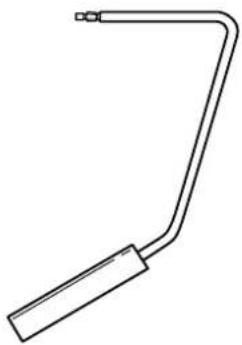
- Knee Lifter

natural_image
Line drawing of a closed toolbox with labeled parts (28 and 29), no text or symbols present.30
natural_image
Simple line drawing of a curved tool or bracket with a rectangular handle (no text or symbols)
text_image
Diagram showing electrical connection with labeled components including switch, power plug, and meterGETTING READY TO SEW
Connecting the Power Supply
Turn off the power switch.
Insert the foot control plug into the machine socket.
Insert the machine plug into the machine socket.
Insert the power supply plug into the wall outlet.
Turn on the power switch.
1 Power Switch
2 Foot Control Plug
3 M achine Socket
4 Machine Plug
5 Power Supply Plug
6 W all Outlet
NOTE:
If you turn off the power switch, wait for 5 seconds before turning it on again.
For Your Safety:
While in operation, always keep your eyes on the sewing area, and do not touch any moving parts such as the thread take-up lever, handwheel or needle.
Always turn off the power switch and unplug from the power supply:
- when leaving the machine unattended.
- when attaching or removing parts.
- when cleaning the machine.
Do not place anything on the foot control, otherwise the machine will run intermittently.
Operating Instructions:
The symbol "O" of a switch indicates the "off" position of a switch.
For appliances with a polarized plug (one blade wider than the other). To reduce the risk of electric shock, this plug is intended to fit in a polarized outlet only one way. If it does not fit fully in the outlet, reverse the plug. If it still does not fit, contact a qualified electrician to install the proper outlet. Do not modify the plug in any way.
natural_image
Technical line drawing showing a hand pressing a button on a device, with no visible text or symbols.Controlling Sewing Speed
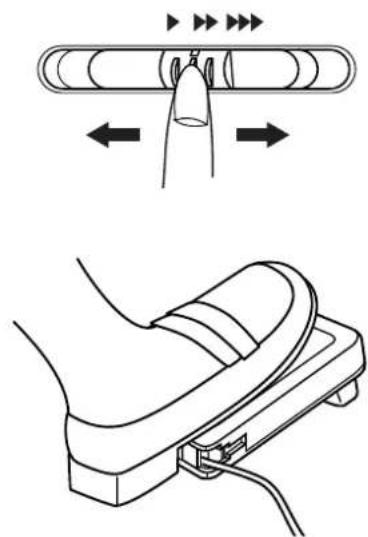
Speed control lever
You can limit the maximum sewing speed by the speed control lever according to your sewing needs.
To increase sewing speed, slide the lever to the right.
To decrease sewing speed, slide the lever to the left.
Foot control
Pressing on the foot control can vary sewing speed. The harder you press the foot control, the faster the machine runs.
NOTES:
The machine runs at the maximum speed set by the speed control lever when the foot control is being fully depressed.
Keep the foot control free from accumulation of lint, dust and loose cloth.
Do not place anything on the foot control.
Operating Instructions:
Foot controller Model 21371 is for use with sewing machine model MC6500.
text_image
1 5 2 6 3 4Function Buttons
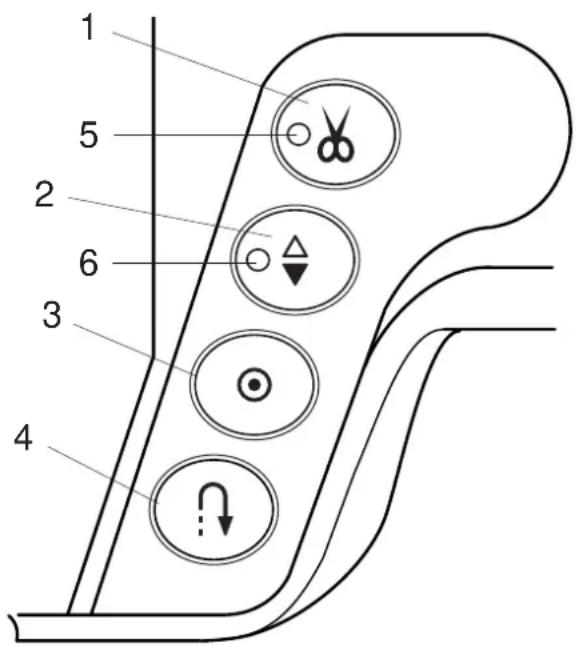
1 Thread cutter button
Press this button after finishing sewing and the machine will trim the threads.
The LED signal blinks while cutting the threads.
5 Thread Cutter Signal
NOTES:
The auto thread cutter will work well with normal sewing threads #30 or finer.
Use the thread cutter on the face plate to cut the specialized or thick threads if the auto thread cutter does not work well.
When starting the next seam, pull the needle thread to pick the bobbin thread up and draw them to the back and under the foot.
Clean the auto thread cutter mechanism regularly to avoid malfunction due to built up lint. (See page 70.)
Avoid using a paper spool when it begins to empty since it will not unwind smoothly. It may cause the thread to bunch or slip when using the auto thread cutter.
2 Up/Down needle button
Press this button to bring the needle bar up or down. The LED signal will turn on when the needle is down.
The LED signal will turn off when the needle is up.
The machine will stop with the needle up or down depending on the needle position determined by this button.
The machine will always stop with the needle up after auto thread cutting or buttonhole stitching.
6 LED signal
3 Auto-Lock button

When stitch pattern 01, 02, 08 or 09 has been selected, the machine will immediately sew locking stitches and automatically stop when the auto-lock button is pressed.
When sewing all other stitches, the machine will sew locking stitches at the end of the pattern being sewn and automatically stop.
4 Reverse button

When stitch pattern 01, 02, 08 or 09 has been selected, the machine will sew in reverse while the reverse button is pressed.
If you press the reverse button when sewing all other stitches, the machine will immediately sew locking stitches and automatically stop.
text_image
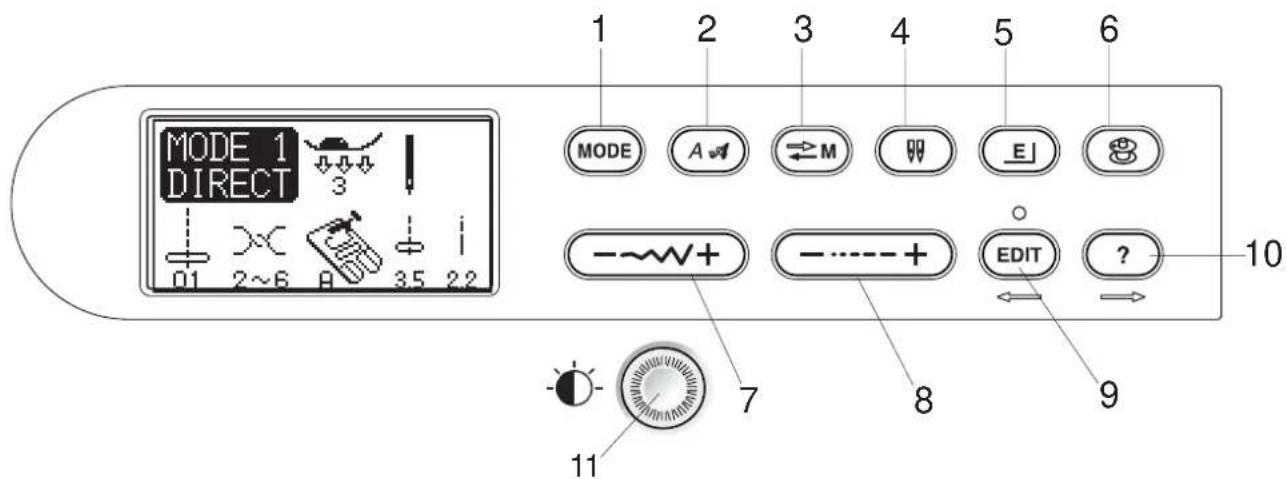
MODE 1 DIRECT 01 2~6 A 3.5 2.2 1 2 3 4 5 6 MODE A M E - + - EDIT ? 10 7 8 9 11| 1 |  | Mode button:Press this button to select the desired mode. |
| 2 |  | Letter style button:Press this button to change the letter style of monogram. |
| 3 |  | Memory/recall button:Press this button to register or recall programmed pattern combinations.The previous pattern combination will be replaced by the new combination when pressing this button after programming. The registered pattern combination will be recalled when pressing this button on the initial screen of the selected mode. |
| 4 |  | Twin needle button:Press this button when sewing with a twin needle. |
| 5 |  | Elongation button:Press this button to elongate satin stitch patterns. |
| 6 |  | Bobbin winding button:Press this button to wind the bobbin. |
| 7 |  | Stitch width adjusting button:Press this button to alter the stitch width. |
| 8 |  | Stitch length adjusting button:Press this button to alter the stitch length. |
| 9 |  | Editing button:Press this button to edit the programmed patterns.In the editing mode this button is used to shift the cursor to the left. |
| 10 |  | Help button:Press this button to view alternative applications of certain stitches.In the editing mode this button is used to shift the cursor to the right. |
| 11 | 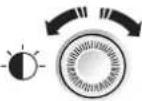 | LCD contrast adjusting dial:Turn this dial to adjust contrast of the LCD Screen. |
text_image
12 01 1 2 3 04 4 5 6 07 7 8 9 13 M 10 0 M 17 C TOM M 14 15 1612 Pattern selection buttons
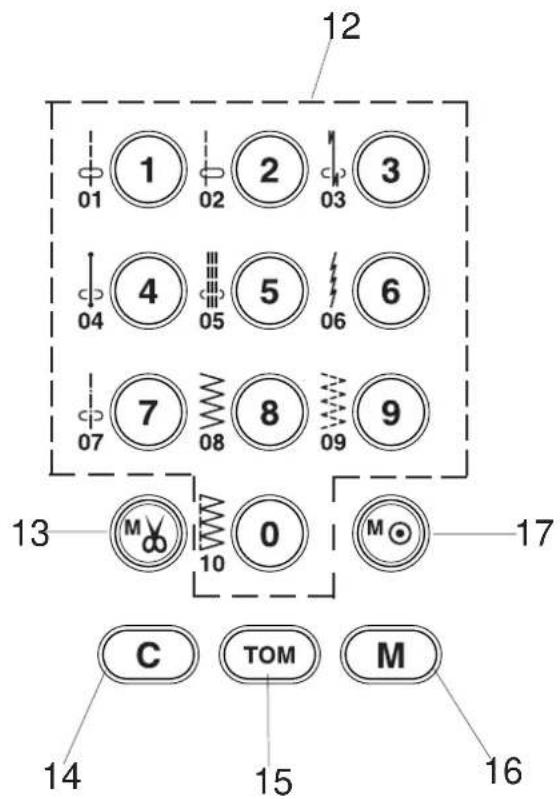
Press these buttons to select the desired pattern. In the direct selection mode (Mode 1), patterns number 01 to 10 can be directly selected by pressing the corresponding button.
In other modes, enter the two-digit pattern number with the numeral buttons.
| 13 |  | Auto thread cutter button:Press this button after the last memorized pattern and the machine will automatically trim the threads when sewing is finished. |
| 14 |  | Clear button:Press this button to delete a pattern from programmed pattern combination. Pressing this button after sewing or pressing and holding for a few seconds will delete entire pattern combination and the LCD screen will return to the initial display of the selected mode. |
| 15 |  | Turnover memory button:Press this button to memorize a pattern in mirror image. In the monogram mode, pressing this button will reduce the letter to 2/3 of the original size. |
| 16 |  | Memory button:Press this button to memorize the desired patterns. Up to 50 patterns can be memorized. |
| 17 |  | Locking stitch button:Press this button after memorizing the last pattern and the machine will sew the pattern combination and lock the stitch off then stop automatically when sewing is finished. |
text_image
Technical diagram of a sewing machine with labeled parts and directional arrows indicating movement or operation.Raising and Lowering the Presser Foot
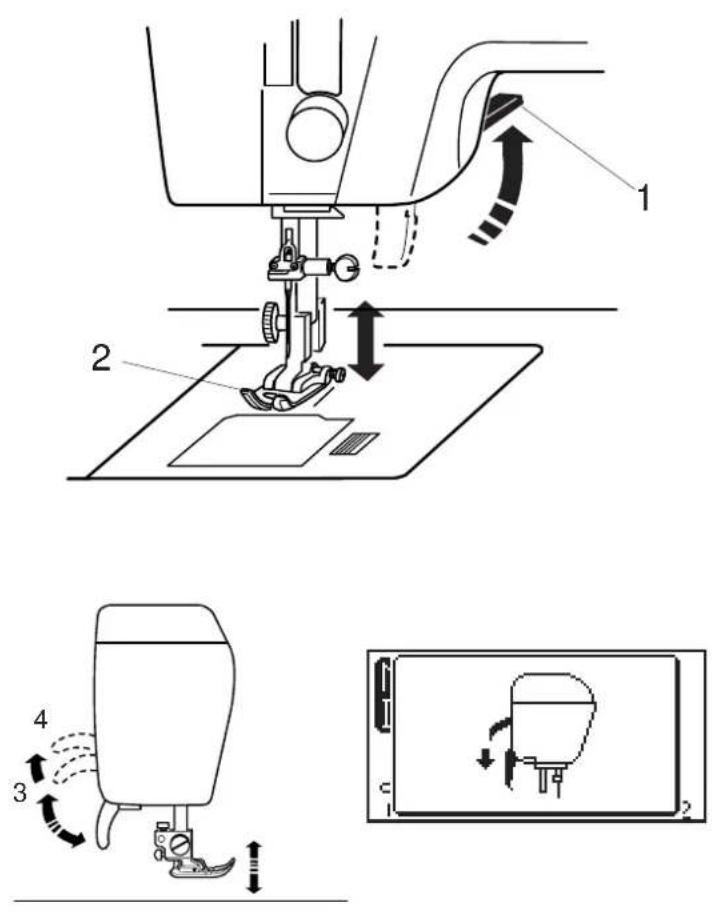
The presser foot lifter raises and lowers the presser foot. You can raise the presser foot about 6 mm (1/4") higher than the normal up position by exerting more pressure when lifting the presser foot lifter. This allows for easy removal of the presser foot and helps you to place thick fabrics under it.
1 Presser Foot Lifter
2 Presser Foot
3 Up Position
4 Extra Lift
NOTE:
If you start the machine with the presser foot up, the LCD screen will advise you to lower the foot. Lower the foot then restart the machine.
Attaching the Knee Lifter
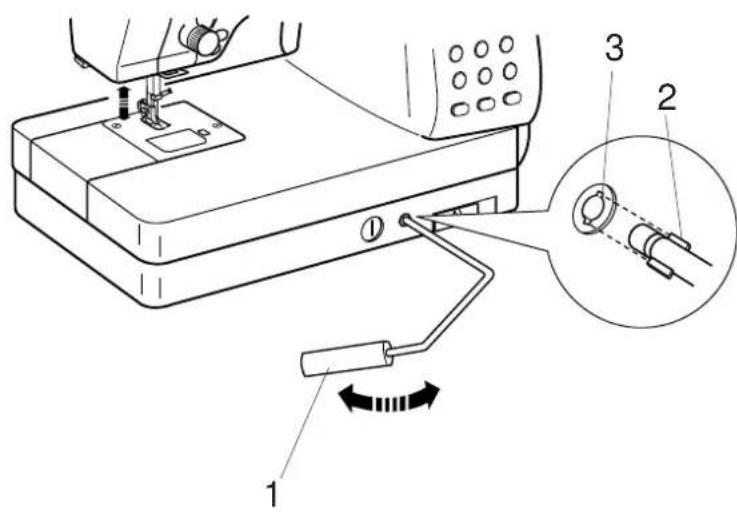
The Knee Lifter is extremely helpful when sewing applique, patchwork and quilting since it allows you to handle the fabric while your knee controls the presser foot.
Match the ribs on the knee lifter with the notches in the knee lifter socket and insert the knee lifter.
1 Knee Lifter
2 Ribs
3 Notches
Push the knee lifter with your knee to raise and lower the presser foot.
NOTE:
Do not touch the knee lifter while sewing, otherwise the fabric will not be fed smoothly.

text_image
Technical diagram showing six-step sewing process for fabric or sewing machine tool, labeled 1 to 6.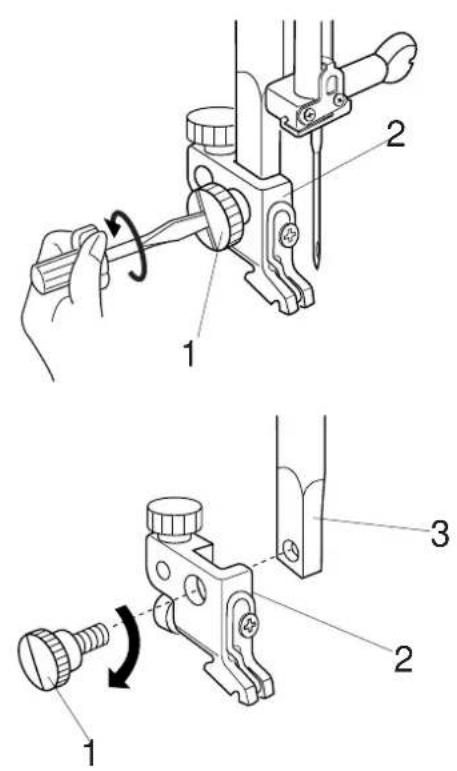
text_image
Technical diagram showing three-step mechanical assembly steps with labeled parts 1, 2, and 3Changing the Presser Foot
CAUTION:
Turn OFF the power switch before changing the foot.
Always use the proper foot for the selected pattern. Wrong foot can cause the needle to break.
To snap off:
Raise the needle and presser foot.
Press the red button on the back of the foot holder and the foot will drop.
1 Red Button
2 Foot Holder
3 P resser Foot
To snap on:
Place the presser foot so the pin on the foot lies just under the groove of the foot holder.
Lower the foot holder to lock the foot in place.
Each foot is marked with a letter for identification.
4 Groove
5 Pin
6 Identification Letter
Detaching and Attaching the Foot Holder
WARNING:
Turn OFF the power switch before detaching or attaching the foot holder.
To detach:
Raise the presser bar and turn the thumbscrew counterclockwise to remove the foot holder.
1 Thumbscrew
2 Foot holder
To attach:
Align the hole in the foot holder with the threaded hole in the presser bar and insert the thumbscrew through the hole.
Tighten the thumbscrew by turning it clockwise.
3 Presser Bar
1
2

3
4

5

6
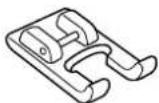
7

8
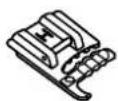
9
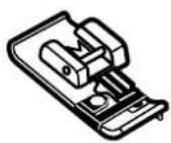
10
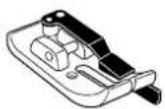
11
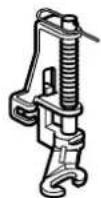
12
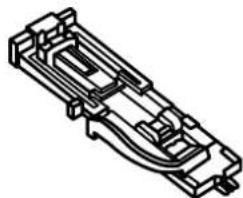
natural_image
Isometric line drawing of a mechanical component with no visible text or symbols13
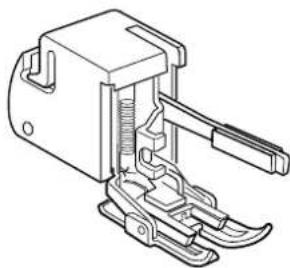
natural_image
Technical line drawing of a mechanical clamp or lever assembly (no text or symbols)Variety of Presser Feet and Their Uses
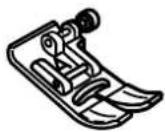
1 Zigzag foot A:
This is the most versatile foot. It can be used for various stitches including straight stitches and zigzag stitches. It is designed to achieve firm and neat seam results.
2 Overedge foot C:
This foot is exclusively for overedging. The brush on the foot effectively prevents skipped stitches on the raw edge of fabrics.
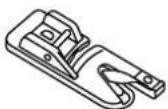
3 Rolled hem foot D:
This special foot is for sewing a rolled hem. The curl of the foot helps to form a hem at a constant width.
4 Zipper foot E:
This foot is for sewing zippers. The zipper teeth are guided through the grooves on the bottom of the foot.
5 Satin stitch foot F:
This clear plastic foot is ideal for satin stitches and decorative stitches. The center groove on the bottom of the foot ensures smooth feeding of dense stitches.
6 Craft foot F-2:
This is an open toe satin stitch foot for patchwork and appliqué.
7 Blind hem foot G:
This foot is specially designed for blind hemming. The guide on the foot helps feed the fabric and sew a straight and nearly invisible blind-hem.
8 Cording foot:
This foot is specially designed to hold one or three strands of cording to create braiding.
9 Overcasting Foot M:
This foot is specially designed to simulate professional style overlocking. The wires on the foot effectively prevent the fabric edge from puckering or rolling.
10 1/4" seam foot O:
This foot is useful for patchwork piecing. The guide on the foot maintains an exact 1/4" (0.7 cm) seam allowance.
11 Basting/darning foot P-2:
This is a special foot for basting. It holds the fabric while taking a stitch, synchronizing with the needle bar movement. This foot can also be used for freemotion embroidery or quilting.
12 Automatic buttonhole foot R:
This foot is for buttonholes and for darning. Place a button in the button holder on the rear of the foot. This automatically sets the buttonhole size.
13 Even feed foot:
This is a special attachment for hard-to-feed materials. This foot effectively prevents fabrics from shifting and puckering. It is great for quilting and matching plaids.

text_image
Diagram of a sewing machine with labeled parts, showing hand operating the base and cutting tool.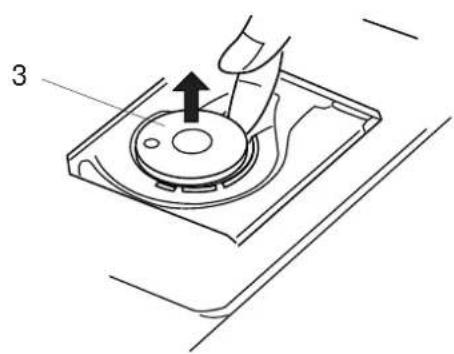
natural_image
Technical line drawing of a mechanical component with a hand holding a tool, showing a circular base and an arrow indicating direction (no text or symbols)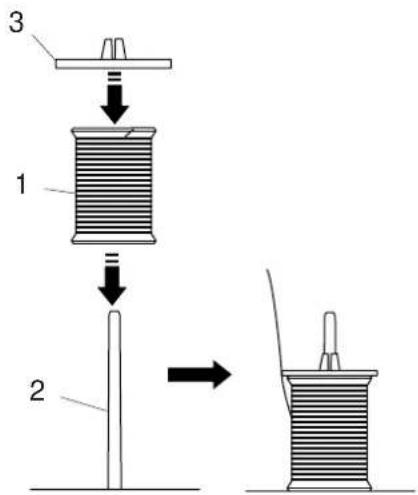
text_image
3 1 2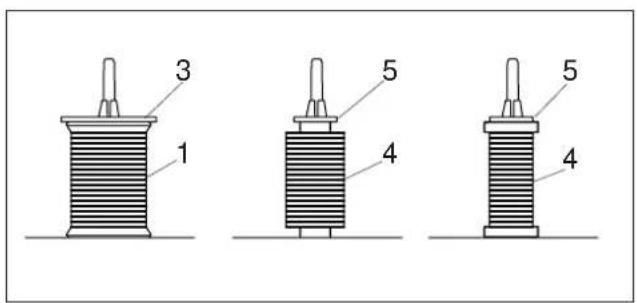
text_image
1 3 5 4 5 4Winding the Bobbin
Removing the bobbin
Slide the hook cover plate release button to the right, and remove the hook cover plate.
Lift out the bobbin from the bobbin holder.
1 Hook Cover Plate Release Button
2 Hook Cover Plate
3 Bobbin
NOTES:
Avoid using a bobbin when it begins to empty since it may cause thread bunching.
Always use the correct bobbin. Using a wrong bobbin may cause malfunctions.
Setting the spool of thread
Place the spool of thread on the spool pin with the thread coming off the spool as shown. Attach the spool holder, and press it firmly against the spool of thread.
1 Spool of Thread
2 Spool Pin
3 Spool Holder
NOTES:
Avoid using a paper spool when it begins to empty since it will not unwind smoothly. It may cause the thread to bunch or slip when using the auto thread cutter.
Use the large spool holder for ordinary spools, while the small spool holder for small spools.
4 Small Spool
5 Small Spool Holder

text_image
Technical diagram of a mechanical device with labeled parts and an inset showing a rotating component.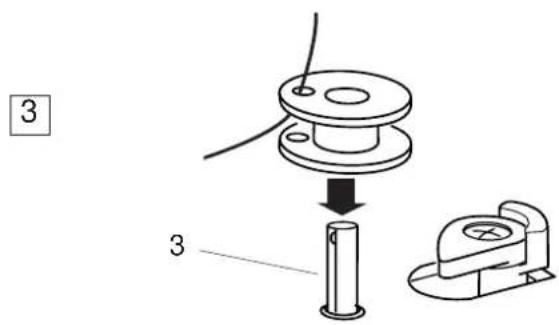
text_image
3 3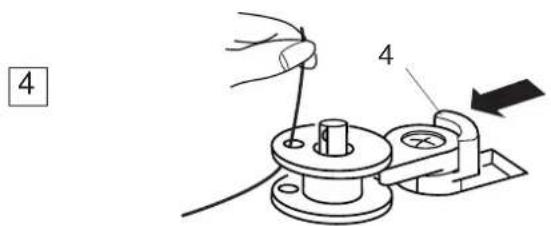
text_image
4 4
text_image
5 6 5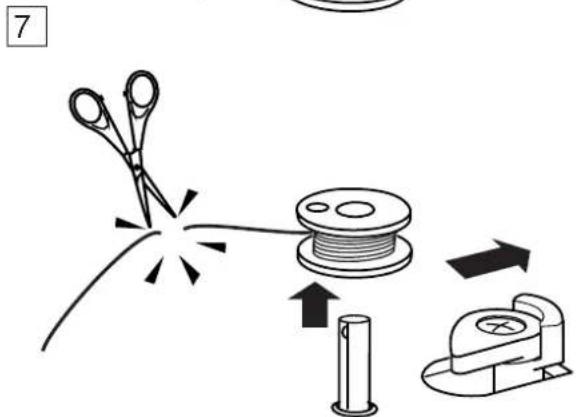
text_image
7Winding the bobbin
1 Pass the thread through the guide on the thread guide post from behind.
1 Thread Guide Post
② Pass the thread under the bobbin winding tension disk.
2 Bobbin Winding Tension Disk
3 Thread through the hole in the bobbin from the inside to the outside.
3 Bobbin Winder Spindle
4 Put the bobbin on the bobbin winder spindle. Push the bobbin winder stopper to the left.
4 Bobbin Winder Stopper
⑤ ⑥ Hold the free end of the thread in your hand and press the bobbin winding button.
Press the bobbin winding button again to stop the bobbin when it has made several turns, and cut the thread close to the hole in the bobbin.
5 Bobbin Winding Button
7 Press the bobbin winding button again. When the bobbin is fully wound, the machine will stop automatically.
Return the bobbin winder stopper to its original position, and cut the thread.
NOTE:
The Memory Craft 6500 has an exclusive motor for bobbin winding, which allows you to wind the bobbin while stitching.
1

text_image
Technical diagram showing a mechanical assembly with labeled parts 1 and 2, including a threaded component and directional arrows.2
natural_image
Mechanical assembly diagram showing a rotating component with a directional arrow, labeled (A), no text or symbols present.3

text_image
(B)4
text_image
(B)5
text_image
3 1/8 3/8 5/8 10Inserting the bobbin
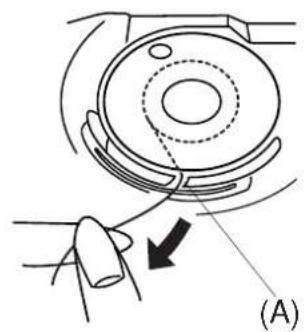
1 P lace the bobbin in the bobbin holder with the thread running off counterclockwise.
1 Thread
2 Bobbin Holder
②Guide the thread into notch (A) on the front of the bobbin holder.
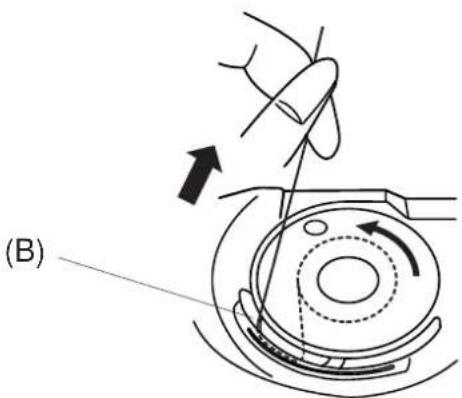
3 D raw the thread to the left, sliding it between the tension spring blades.
4 C continue to draw the thread lightly until the thread slips into side notch (B). The bobbin should turn counterclockwise when pulling the bobbin thread. If not, reverse the bobbin and re-thread.
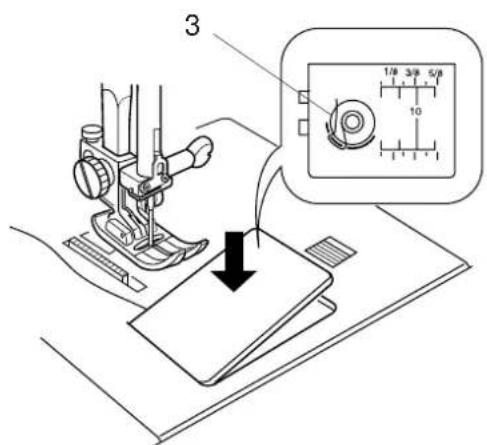
5 Pull out about 10 cm (4") of thread to the rear. Refer to the threading chart shown on the hook cover plate.
Reattach the hook cover plate.
3 Threading Chart

text_image
Technical diagram of a mechanical assembly with numbered components for identificationThreading the Machine
Raise the presser foot lifter. Press the up/down needle button twice to raise the needle to its highest position.
1 Pass the thread through the guide on the thread guide bar from behind. 1 Thread Guide Bar
② Pass the thread through the right thread guide. 2 Right Thread Guide
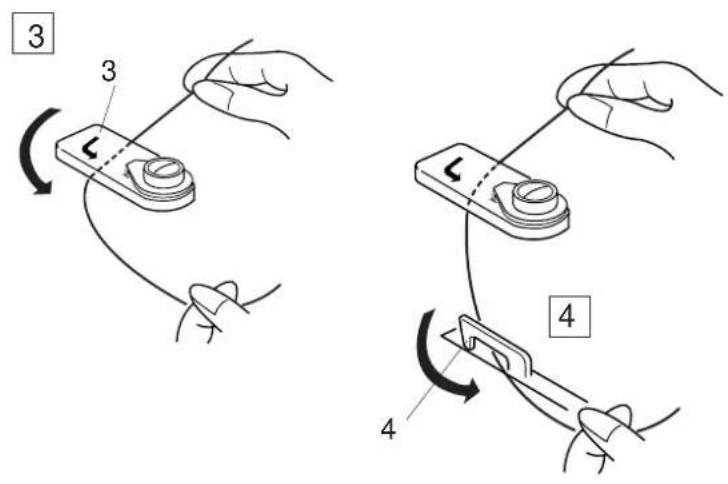
text_image
Diagram illustrating four-step mechanical or electrical assembly steps with labeled components and directional arrows③ Hold the upper thread with both hands as shown and slip it under the thread guide plate. 3 Thread Guide Plate
4Draw the thread toward you and pass it into the left thread guide. Draw the thread along the right channel. 4 Left Thread Guide
NOTE:
Be sure to use the spool holder to secure the spool in place.

text_image
6 8 9 7 5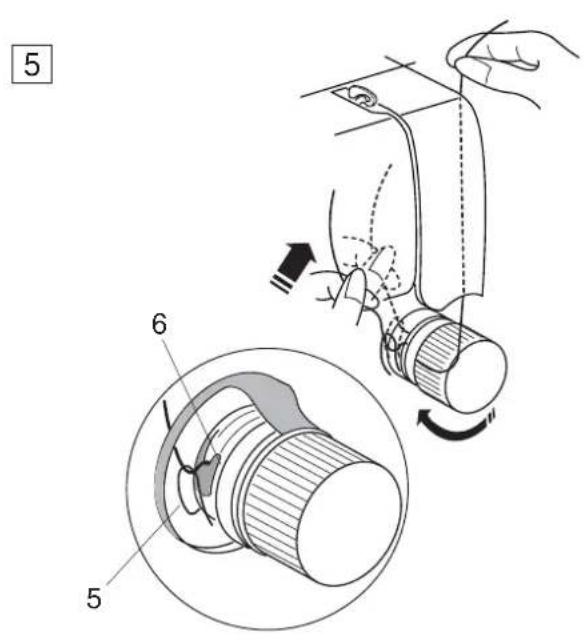
text_image
5 6 5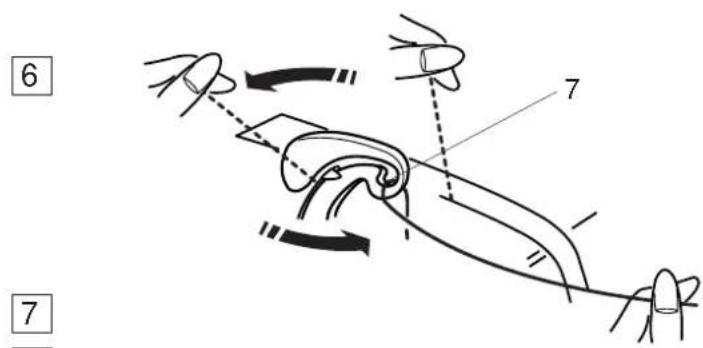
text_image
Diagram illustrating a hand manipulation or folding process with labeled parts 6 and 7, showing hand positioning and movement arrows.
text_image
Technical diagram of a sewing machine with numbered parts and directional arrows indicating motion or assembly.Threading the Machine (continued)
5 D raw the thread down and around the tension dial from the right to the left. Pull the thread up to insert it between the tension disks and under the loop of the check spring.
Be sure that the thread is coming out from notch of the disk.
5 Check Spring
6 Notch
6 F firmly draw the thread up to the take-up lever and down into its eye from the right to the left, while holding the thread at the spool.
7 Eye of the Thread Take-up Lever
7 D raw the thread down through the lower thread guide from the right.
8 Lower Thread Guide
⑧Slip the thread behind the needle bar thread guide on the left.
9 N eedle Bar Thread Guide
⑨ Thread the needle from front to back by hand or use the automatic needle threader.

Automatic Needle Threader
1 R raise the needle to its highest position by pressing the up/down needle button twice.
2 T urn the power switch off.
3 Lower the presser foot.
1 Up/Down Needle Button
4 Depress the needle threader knob as far as it will go. The hook comes out through the needle eye from behind.
2 Needle Threader Knob
3 Hook
5Draw the thread down around the threader guide and under the hook.
4 Threader Guide
6 R lease the threader knob slowly while holding the thread end with your hand. A loop of the thread is pulled up through the needle eye.
5 Loop of Thread
7 Remove the loop from the threader and pull out the thread end from the needle eye.
NOTES:
The automatic threader works well with the threads #50-100 and needles #11-16, including the blue tipped needle.
The automatic needle threader cannot be used for threading the twin needle.
If the hook fails to pull a loop of the thread, check the needle and its setting.

text_image
Technical diagram of a sewing machine with labeled parts and component indicators2
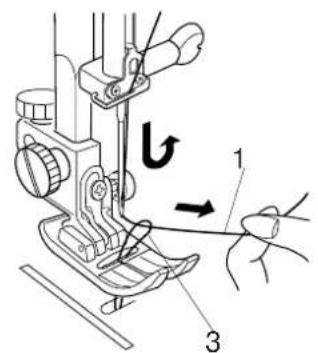
text_image
Technical diagram of a sewing machine with labeled parts and directional arrow indicating motion3

text_image
Technical diagram of a sewing machine with labeled parts 1 and 3, showing needle insertion and adjustment mechanism.Drawing Up the Bobbin Thread
1 R aise the Presser Foot Lifter. Hold the needle thread with your finger and press the up/down needle button twice to pick up the bobbin thread.
1 Needle Thread
2 Needle Up/Down Button
②Draw up the needle thread to bring up a loop of the bobbin thread.
3 Bobbin Thread
③Slide 10 cm (4") of both threads to the back under the presser foot.
text_image
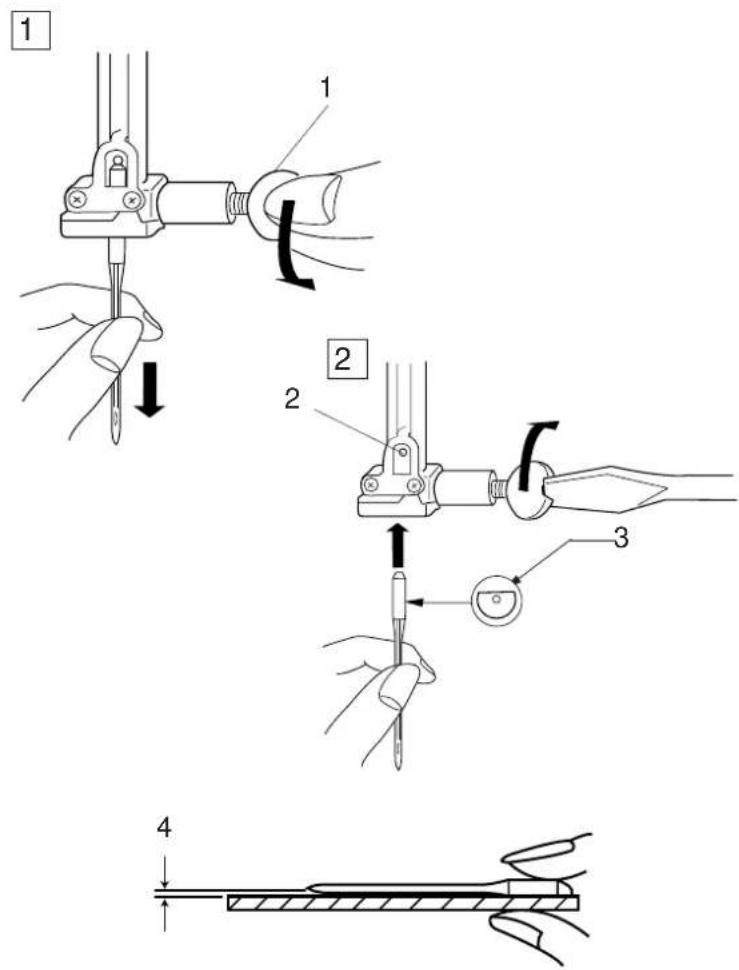
Technical diagram illustrating four-step mechanical assembly steps with labeled components and directional arrowsChanging Needles
Raise the needle by pressing the up/down needle button and lower the presser foot. Turn off the power switch.
1 L oosen the needle clamp screw by turning it counterclockwise.
Remove the needle from the clamp.
1 Needle Clamp Screw
② Insert a new needle into the needle clamp with the flat side of the needle to the rear. When inserting the needle into the needle clamp, push it up against the stopper pin and tighten the needle clamp screw firmly.
2 Stopper Pin
3 F lat Side
To check needle straightness, place the flat side of the needle onto something flat (a needle plate, glass etc.) The gap between the needle and the flat surface should be consistent.
Never use a blunt needle.
4 Gap
CAUTION:
Always make sure to turn the power switch off and disconnect the machine from power supply before changing the needle.
Thread and Needle Chart
| WEIGHT | FABRIC | TYPE of NEEDLE | NEEDLE SIZE |
| Very Light | Chiffon, Georgette, Fine Lace, OrgandyNet, Tulle | UniversalBall Point | 9 (65)9 (65) |
| Light | Batiste, Voile, Lawn, Pure Silk, Crepe de Chine, Sheer Crepe, Chambray, Handkerchief Linen, Gingham, Challis, Percale, Wool Crepe, Peau de Soie, Taffeta, Satin, Silk Surah, Satin-backed Crepe, Qiana | Blue Tipped NeedleUniversal | 11 (75)11 (75)12 (80) |
| Single Knits, Jersey, Swim wear, and Tricot | Blue Tipped NeedleBall Point | 11 (75)11 (75) | |
| Leather Suede | Wedge PointLeather Needle | 11 (75) | |
| Medium | Flannel, Velour, Velvet, Muslin, Velveteen, Poplin, Corduroy, Broadcloth, Linen, Chintz, Gabardine, Felt, Terry, Burlap, Quilted Fabrics | Universal | 14 (90) |
| Double Knits, (synthetic and natural) Stretch Velour, Stretch Terry, Sweater Knits | Ball Point | 14 (90) | |
| Leather, Vinyl, Suede | Wedge PointLeather Needle | 14 (90) | |
| Heavy | Denim, Sailcloth, Ticking | Denim Needle | 16 (100) |
| Double Faced Wool, Heavy Coating, Fake Fur, Drapery Fabrics | Universal | 16 (100) | |
| Leather, Suede | Wedge PointLeather Needle | 16 (100)18 (110) | |
| Very Heavy | Canvas, Duck, Upholstery Fabrics | Universal | 16 (100) |
| Topstitching for Special Finish | Topstitching Needle | 14 (90) | |

text_image
Diagram of a sewing machine tool with labeled parts including spool, thread, and fabric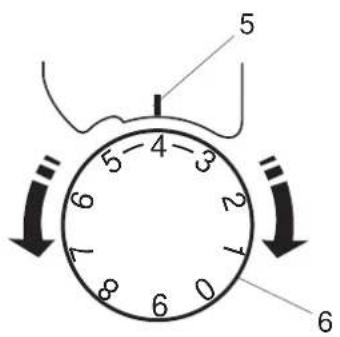
text_image
5 4 3 2 1 0 8 7 6 5 6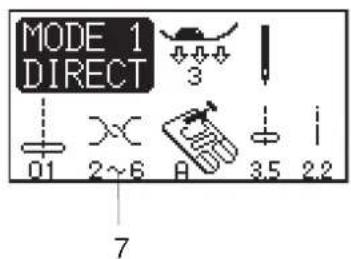
text_image
MODE 1 DIRECT 01 2~6 A 3.5 2.2 7
text_image
1 2 3 4
text_image
1 2 3 4Balancing Thread Tension
Correct tension:
The ideal straight stitch has threads locked between two layers of fabric.
For an ideal zigzag stitch, the bobbin thread does notshow on the right side of the fabric, and the needlethread shows slightly on the wrong side of the fabric.
1 Needle Thread
2 Right Side of the Fabric
3 W rong Side of the Fabric
4 Bobbin Thread
Adjusting the tension
Tension adjustment may be needed depending on the sewing materials, layers of fabric and other sewing conditions.
Turn the tension control dial to set the desired number at the setting mark.
Consult information on the LCD screen for the recommended tension setting.
5 Setting Mark
6 Tension Control Dial
7 Recommended Tension Setting
Needle thread tension is too tight:
The bobbin thread will appear on the right side of the fabric.
Loosen the needle thread tension by moving the dial to a lower number.
Needle thread tension is too loose:
The needle thread will appear on the wrong side of the fabric.
Tighten the needle thread tension by moving the dial to a higher number.

text_image
1 0 1 2 3 2
text_image
MODE 1 DIRECT 01 2~6 A 3.5 i 2.2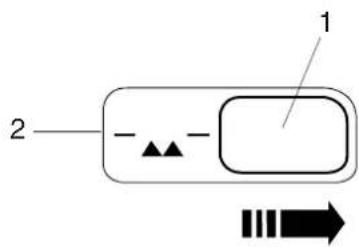
text_image
1 2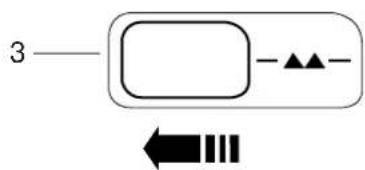
flowchart
graph TD
    A["3"] --> B["Process Step"]
    B --> C["▲"]
    B --> D["▼"]
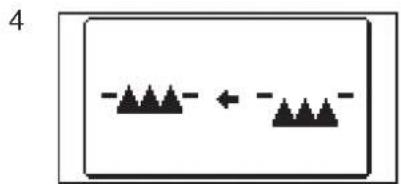
flowchart
graph LR
    A[" "] --> B[" "]
    B --> C[" "]
    style A fill:#000,stroke:#000
    style C fill:#000,stroke:#000
Adjusting the Foot Pressure
The foot pressure dial should be set at "3" for regular sewing.
Reduce the pressure for appliqué, sewing on fine synthetics and elastic fabrics.
Set the dial at "1" when sewing extra fine fabrics.
1 Foot Pressure Dial
2 Setting mark
NOTE:
Do not reduce the foot pressure lower than "0".
Dropping the Feed Dog
The feed dog can be lowered by the drop feed lever for sewing on buttons, freemotion embroidery etc.
Shift the drop feed lever to the right to lower the feed dog.
Shift the lever to the left to raise the feed dog, it will return to the up position when starting the machine.
1 Drop Feed Lever
2 Down position
3 Up position
NOTE:
The feed dog should be in up position for normal sewing. A message will show on the LCD screen when starting the machine with the feed dog dropped.
The machine will run with the feed dog dropped when pattern 01, 02, 08, 09 (Mode 1), 25, 28, 53 or 57 to 60 (Mode 2) has been selected. The machine will not sew with the feed dog dropped when other patterns have been selected.
4 Message on the LCD screen

text_image
MODE 1 DIRECT 01 2~6 A 3.5 2.2 1 2 3 4 5Selecting the Sewing Mode
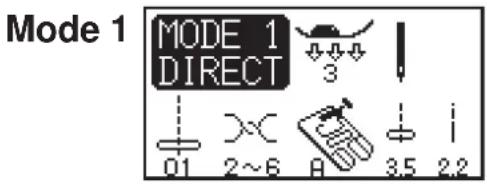
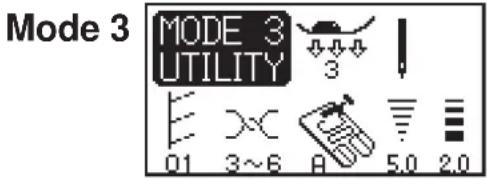
On the LCD screen, the mode number and the following information are displayed:
1 Stitch Pattern
2 Recommended Thread Tension
3 Recommended Foot
4 Stitch Width
5 Stitch Length
6 Recommended Foot Pressure
7 S ingle or Twin Needle Setting
The following 4 sewing modes are available:
text_image
Mode 1 MODE 1 DIRECT 01 2~6 A 3.5 2.2Mode 1 (Direct):
The 10 most commonly used stitches can be selected directly.

text_image
Mode 2 MODE 2 QUILT 1 11 2~6 A 3.5 2.5Mode 2 (Quilting):
The patterns for patchwork quilting are available.
text_image
Mode 3 MODE 3 UTILITY 01 3~6 A 5.0 2.0Mode 3 (Utility):
The buttonholes, utility and decorative stitches are available.
text_image
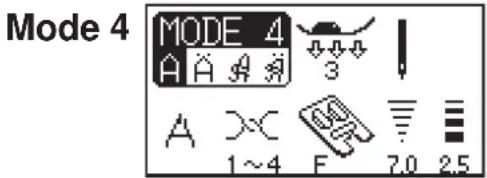
Mode 4 MODE 4 A A A 3 A X C 1~4 F 7.0 2.5Mode 4 (Monogram):
Monogramming in Block and Script styles can be programmed.

text_image
MODE 1 DIRECT 01 2~6 A 3.5 2.21
text_image
A L2

natural_image
Simple line drawing of a rectangular device with two labeled components (no text or symbols)3
natural_image
Simple line drawing of a device casing with internal components and a labeled component E (no text or symbols beyond labels)The Help Button
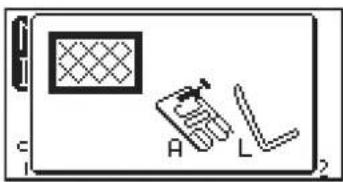
Pressing this button will show alternative applications of the selected pattern when the pattern 01, 08, 09, 10 (Mode 1), or 01, 02, 03, 04, 05 or 22 (Mode 3) has been selected.
Example: When the pattern 01 has been selected.
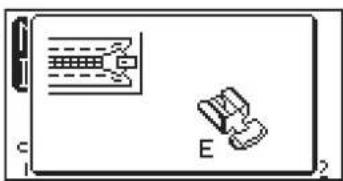
Each time you press the help button, the LCD will show as follows:
1 The zigzag foot and quilting bar for quilting will be shown.
2 The rolled hem foot for rolled hem will be shown.
3 The zipper foot for zipper sewing will be shown.

text_image
1 01 1 2 3 02 03 4 5 6 04 05 06 7 8 9 07 08 09 102
text_image
MO UT 23 01 5°6 H° 3.0 2.03

text_image
MO UT 01 3~6 H° 2.04
text_image
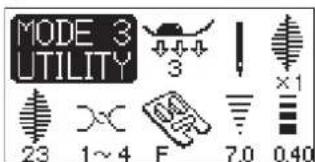
MODE 3 UTILITY 23 1~4 F 7.0 0.40Selecting the Pattern
Mode 1: Press one of the numeral buttons corresponding to the desired pattern.
NOTE:
Pressing the "0" button will select the pattern 10.
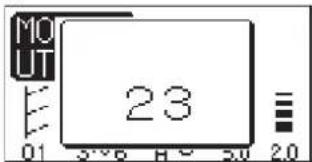
Other Modes: Enter the 2-digit pattern number by pressing the numeral buttons.
The LCD screen will show the pattern number, stitch image then main display for the selected pattern.
1 Pattern Selection Button
2 Pattern Number Display
3 Stitch Image Display
4 Main Display

text_image
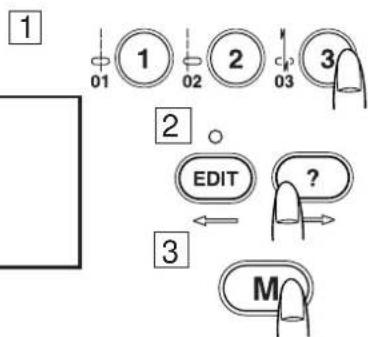
M 1 2 3 ON OFF ① MP → MP ② ③Customizing Machine Settings
You can customize the machine settings to your preference.
Turn the power switch on while pressing the memory button and the LCD screen will show the machine setting window.
1 Memory button
2 P power Switch
3 M machine Setting Window

text_image
1 01 1 02 2 03 3
text_image
Normal set Resumption set

text_image
Sound on Sound off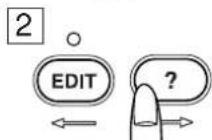
flowchart
graph TD
    A["1"] --> B["01"]
    B --> C["1"]
    C --> D["02"]
    D --> E["2"]
    E --> F["03"]
    F --> G["3"]
    G --> H["?"]
    H --> I["EDIT"]
    I --> J["←"]
    J --> K["3"]
    K --> L["M"]
Resumption setting
The last pattern sewnbefore turning the power off will be recalled when turning the power on again.
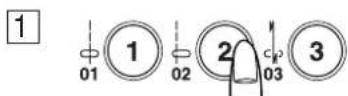
1 Press the button number 1 and the LCD screen shows normal/resumption setting display.
② Press the editing or help button to select either Normal or Resumption setting.
3 Press the memory button to confirm your selection.
Sound setting
You can mute a buzzer in normal operation.
1 Press the button number 2 and the LCD screen shows sound setting display.
② Press editing or help button to select sound setting either on or off.
3 Press the memory button to confirm your selection.
Language selection
You can choose one of 10 languages for screen display.
1 Press the button number 3 and the LCD screen shows language selection display.
② P press editing or help button to select a language.
③ Press the memory button to confirm your selection.

text_image
MODE 1 DIRECT 01 2~6 A 3.5 2.2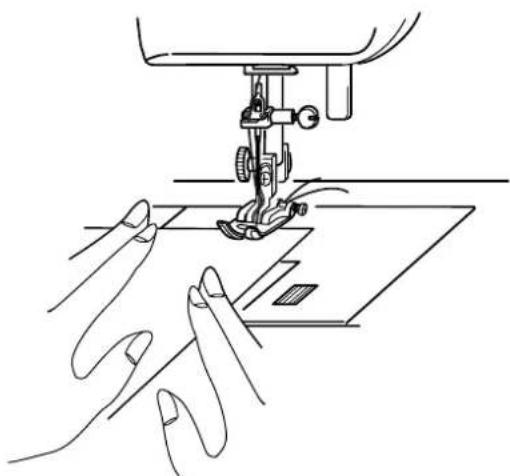
natural_image
Line drawing of a sewing machine needle stitching fabric, with hands operating the work (no text or symbols)
text_image
Technical diagram showing two views of a sewing machine with labeled parts and an arrow indicating motion direction.
text_image
Technical diagram of a sewing machine with labeled control panel and component number 3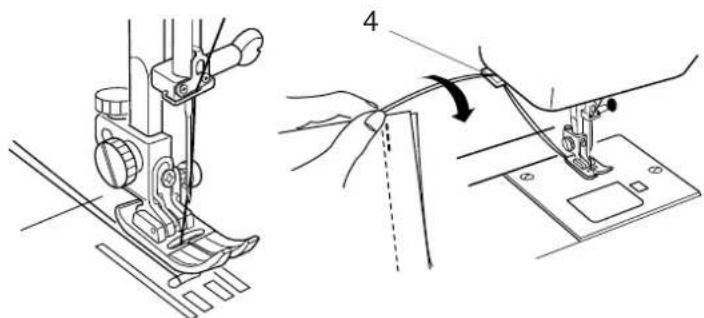
natural_image
Technical line drawing of a sewing machine and fabric being adjusted, showing the mechanism with no text or symbols.BASIC STITCHES (Mode 1)
Straight Stitch
Machine Setting
Pattern: 01
Thread tension:2-6
Presser foot: Zigzag foot A
Foot pressure: 3
To sew
Raise the presser foot and position the fabric next to a seam guide line on the needle plate. Lower the needle to the point where you wish to start.
Pull the needle and bobbin threads toward the rear. Lower the presser foot.
Depress the foot control to start sewing. Gently guide the fabric along the seam guide line letting the fabric feed naturally.
To sew from the edge of thick fabric
The black button on the zigzag foot locks the foot in the horizontal position.
This is helpful when starting sewing from extreme edge of thick fabrics or sewing across a hem.
Lower the needle into the fabric at the point where you wish to start sewing.
Lower the foot while pushing the black button in. The foot is locked in the horizontal position to avoid slipping.
1 Thick Fabrics
2 Black Button
Securing seam
For fastening the ends of seams, press the reverse button and sew several reverse stitches.
The machine sews in reverse as long as you press and hold the reverse button.
Press the reverse button once when sewing the Lock-a-Matic stitch (pattern 03) or locking stitch (pattern 04) so the machine will lock the stitch off and stop automatically.
After finishing sewing, press the thread cutter button to cut the threads.
3 Thread Cutter Button
NOTE:
Avoid trimming the threads with the needle in up position, as a needle mark can be distinct.
To start the next seam, it is recommended to bring the bobbin thread up and pull both needle and bobbin threads to the back under the presser foot.
NOTE:
Use the thread cutter on the face plate to cut the specialized or thick threads if the auto thread cutter does not work well.
4 Thread Cutter
text_image
Technical diagram showing three steps of sewing machine tooling process with numbered components and directional arrows indicating rotation.
text_image
Technical diagram of a sewing machine with labeled parts including needle, base, and cutting screenChanging sewing direction:
Stop the machine a few stitches before the end of a seam. Press the up/down needle button a few times until the needle falls on the end of the seam.
Raise the presser foot.
Pivot the fabric around the needle to change the sewing direction as desired.
Lower the presser foot and start sewing in a new direction.
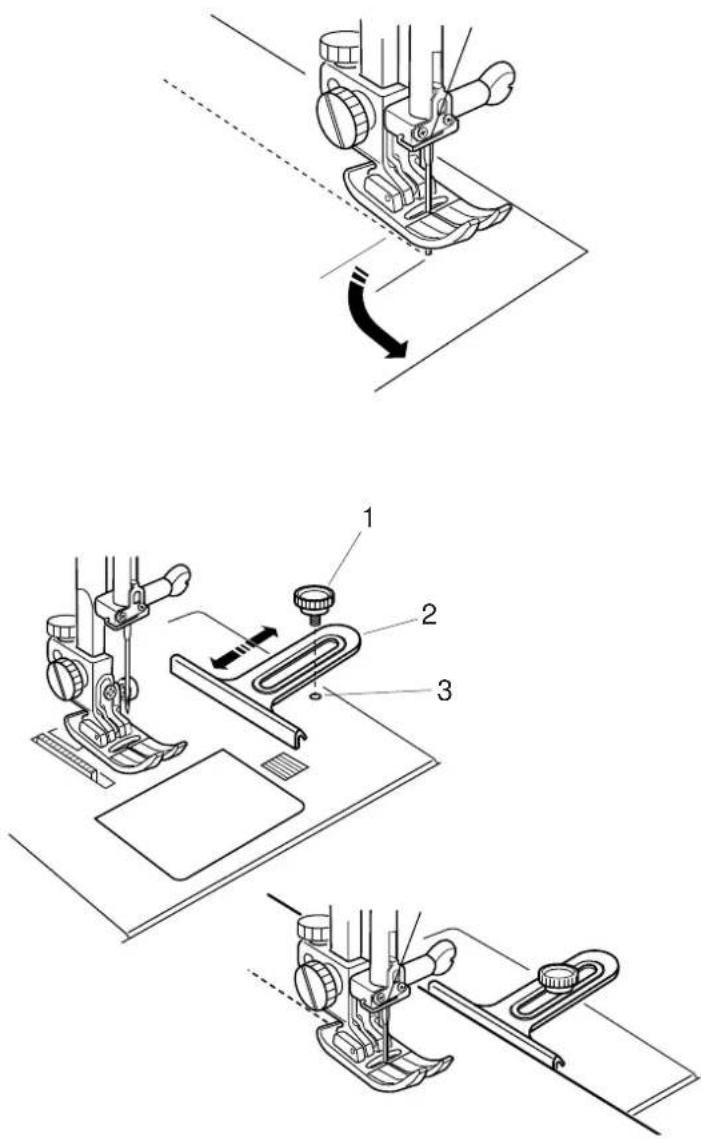
Using the cloth guide:
Attach the cloth guide on the needle plate with a screw. Adjust the position of the cloth guide and tighten the screw.
Place the fabric with its edge against the cloth guide and sew.
1 Screw
2 Cloth Guide
3 Threaded Hole
Using the seam guide lines:
The seam guides on the needle plate and hook cover help you to measure seam allowance.
NOTE:
The numbers on the needle plate indicate the distance from the center needle position in millimeters and inches.
1 Center Needle Position
2 Edge of the Fabric
3 Guide Lines
text_image
MODE 1 DIRECT 01 2~6 A 3.5 2.2
text_image
3.5 2.2 -~W+
text_image
0.0 7.03.5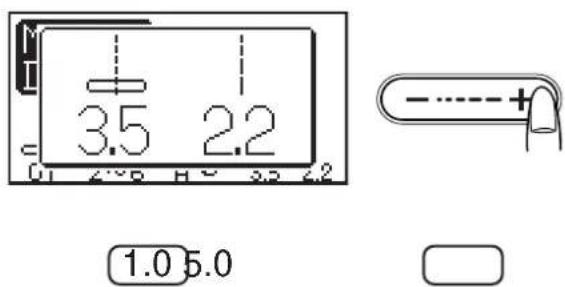
text_image
3.5 2.2 1.0 5.0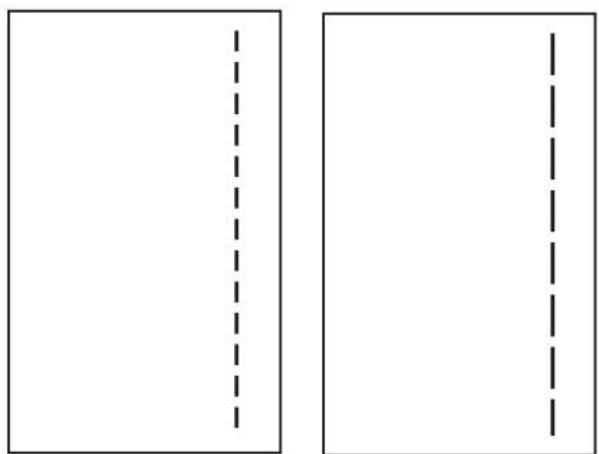
natural_image
Two empty rectangular panels with dashed vertical lines, no text or symbols presentAdjusting the needle drop position
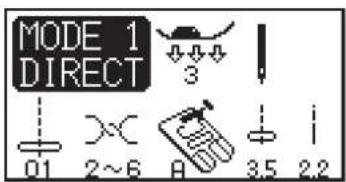
The needle drop position can be altered by pressing the stitch width adjusting button.
Press the right side of the button (+ sign) to move the needle bar to the right.
Press the left side of the button (- sign) to move the needle bar to the left.
Adjusting the stitch length
The stitch length can be altered by pressing the stitch length adjusting button.
The stitch length indication will change as pressing the button.
Press the right side of the button (+ sign) to increase the stitch length.
Press the left side of the button (- sign) to decrease the stitch length.

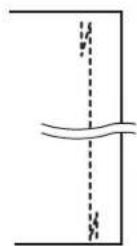
Variety of the straight stitches
02 Straight stitch with left needle position
Use this stitch to seam the edge of fabrics.
03 Lock-a-Matic stitch
Use this stitch to secure the beginning and the end of a seam with backstitching.
When you reach the end of the seam, press the reverse button once.
The machine will sew four reverse stitches, four forward stitches, and then stop sewing automatically.
04 Locking stitch
This unique stitch is used where an invisible locking stitch is needed.
Lower the needle close to the front edge of the fabric. The machine will sew several locking stitches in place and continue sewing forward.
When you press the reverse button at the end of the seam, the machine will sew several locking stitches in place, then stop sewing automatically.
05 Triple stretch stitch
This strong, durable stitch is recommended for areas where both elasticity and strength are needed to ensure comfort and durability.
Use it to reinforce areas such as crotch and armhole seams.
Also use it when constructing items such as backpacks for extra strength.
06 Stretch stitch
This is a narrow stretch stitch designed to eliminate puckering on knit fabrics and bias seams, while permitting the seam to be pressed completely open flat.

text_image
MODE 1 DIRECT 07 1~3 P 3.5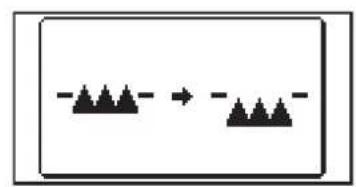
flowchart
graph LR
    A[" "] --> B[" "]
    style A fill:#000,stroke:#000
    style B fill:#000,stroke:#000
text_image
Technical diagram of a mechanical device with numbered components and labeled parts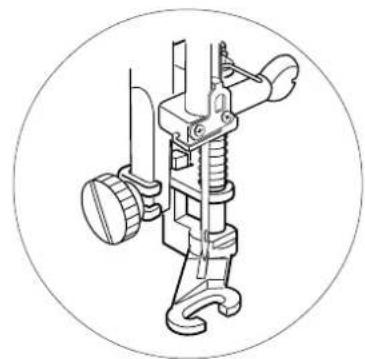
natural_image
Technical line drawing of a mechanical clamp or spring assembly (no text or symbols)
natural_image
Line drawing of a sewing machine with hands operating it (no text or symbols)Basting
Machine Setting
Pattern: 07
Thread tension:1-3
Presser foot: Darning foot P-2
Foot pressure: 1
Feed dog: Dropped
The basting stitch is used to hold fabric layers together during fitting.
Lower the feed dog
Set the foot pressure dial at "1".
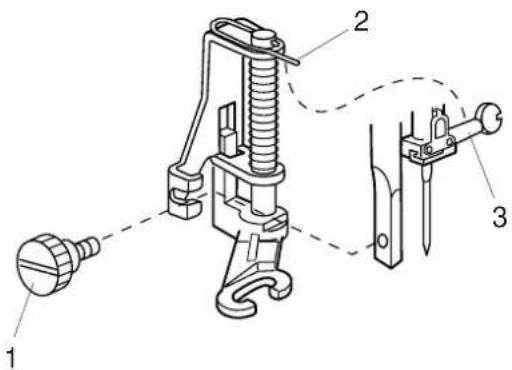
Attaching the darning foot P-2
Loosen the thumbscrew and remove the foot holder.
Attach the darning foot P-2 to the presser bar putting the pin on the needle clamp screw.
Tighten the thumbscrew firmly with the screwdriver.
1 Thumbscrew
2 Pin
3 Needle Clamp Screw
To sew:
Draw the both needle and bobbin thread to the back.
Depress the foot control. The machine will take one stitch and stop automatically.
Release the foot control.
Hold the fabric taut and slide it to a place where you want the next stitch.
CAUTION:
Do not pull the fabric while stitching. It may deflect the needle causing it to break.
text_image
MODE 1 DIRECT 08 3~7 A 5.0 1.5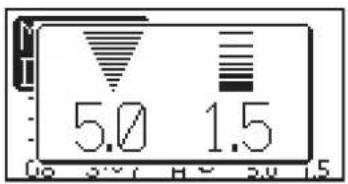
text_image
5.0 1.5
2.0

natural_image
Simple line drawing of a zigzag line inside a square frame (no text or symbols)7.0

natural_image
Simple line drawing of a spring attached to a rectangular frame, with no text or symbols present.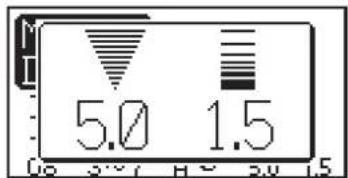
text_image
5.0 1.5
1.05.0

natural_image
Pure diagram of a spring with no text, numbers, or symbols[Figure]

natural_image
Pure electrical circuit lines without any symbolsZigzag Stitch
Machine Setting
Pattern: 08
Thread tension:3-7
Presser foot: Zigzag foot A
Foot pressure: 3
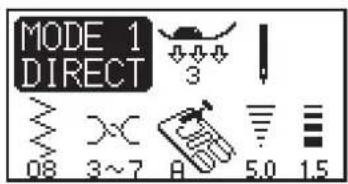
Zigzag stitch is used for various sewing needs including overcasting. It can be used on most woven fabrics.
A dense zigzag stitch can also be used for appliqué.
Adjusting the stitch width
Press the right side of the button (+ sign) to increase the stitch width.
Press the left side of the button (- sign) to decrease the stitch width.
1 Stitch Width
Adjusting the stitch length
Press the right side of the button (+ sign) to increase the stitch length.
Press the left side of the button (- sign) to decrease the stitch length.
2 Stitch Length
NOTE:
The stitch length and width can be altered while stitching.

text_image
MODE 1 DIRECT 3 0.8 3~7 A 5.0 1.5 C 3 2 1
text_image
MODE 1 DIRECT 3 10 3~7 C 5.0 2.5 C 3 2 1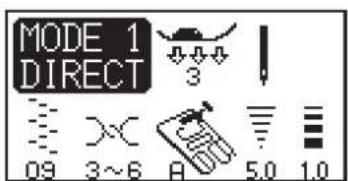
text_image
MODE 1 DIRECT 09 3~6 A 5.0 1.0
natural_image
Simple line drawing of scissors cutting through a zigzag pattern (no text or symbols)Variety of Overcasting Stitches (Modes 1 and 3)
Overcasting with zigzag stitch
Machine Setting
Pattern: 08
Thread tension:3-7
Presser foot: Overedge foot C
Foot pressure: 3
Place the fabric edge next to the guide of the foot and then sew.
| 1 | E | dge of Fabrics | ||
| 2 | G | u | i | d |
3 Wires on Foot
CAUTION:
When you use the overedge foot C, you must set the zigzag width at 5.0 or wider to prevent the needle from hitting the wires on the foot.
Overcasting stitch
Machine Setting
Pattern: 10
Thread tension:3-7
Presser foot: Overedge foot C
Foot pressure: 3
This stitch can be used to simultaneously seam and overcast edges of fabrics.
Use this stitch when you do not need to open seams flat.
Place the fabric edge next to the guide of the foot and then sew.
| 1 | E | dge of Fabrics | ||
| 2 | G | u | i | d |
3 Wires on Foot
CAUTION:
When you use the overedge foot C, you must set the zigzag width at 5.0 or wider to prevent the needle from hitting the wires on the foot.
Multiple zigzag stitch (Tricot stitch)
Machine Setting
Pattern: 09
Thread tension:3-7
Presser foot: Zigzag foot A
Foot pressure: 3
This stitch is used to finish a raw edge of synthetics and other stretch fabrics that tend to pucker.
Sew along the fabric edge leaving an adequate seam allowance.
After sewing, trim the seam allowance close to the stitches.
text_image
MODE 3 UTILITY 01 3~6 A 5.0 2.0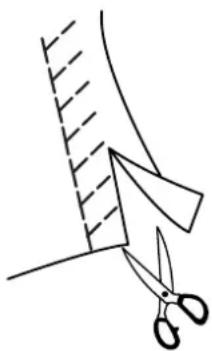
natural_image
Simple line drawing of scissors cutting a curved surface with dashed lines indicating hidden edges (no text or symbols)
text_image
MODE 3 UTILITY 02 3~7 C 5.0 2.5
natural_image
Pure geometric line pattern with triangular and zigzag elements, no text or symbols present
text_image
MODE 3 UTILITY 03 6~8 M 7.0 2.0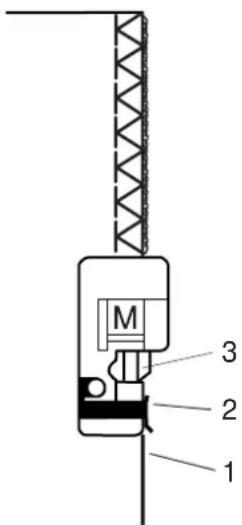
text_image
M 3 2 1Variety of Overcasting Stitches (continued)
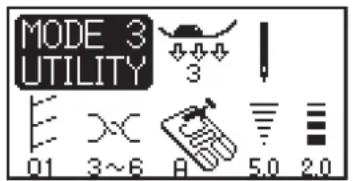
Knit stitch
Machine Setting
Pattern: 01 (Mode 3)
Thread tension:3-7
Presser foot: Zigzag foot A
Foot pressure: 3
This stitch is recommended for sewing such fabrics as synthetic knits and stretch velour as it provides the greatest amount of elasticity and strength.
Sew along the fabric edge leaving an adequate seam allowance.
After sewing, trim the seam allowance close to the stitches.
Double overedge stitch
Machine Setting
Pattern: 02 (Mode 3)
Thread tension:3-7
Presser foot: Overedge foot C
Foot pressure: 3
This is an excellent stitch for fabrics that tend to fray extensively such as linens and gabardines.
Two rows of zigzag stitches are simultaneously sewn over the edge to insure that fabric will not ravel.
Place the fabric edge next to the guide of the foot and then sew.
CAUTION:
When you use the overedge foot C, you must set the zigzag width at 5.0 or wider to prevent the needle from hitting the wires on the foot.
Overlock stitch
Machine Setting
Pattern: 03 (Mode 3)
Thread tension:6-8
Presser foot: Overcasting foot M
Foot pressure: 3
This stitch finishes the edges of fabric similar to a commercial overlocking machine for a professional look.
Place the fabric edge next to the guide of the foot and then sew.
Note:
The stitch width of this pattern cannot be changed.
CAUTION:
When you use the overedge foot C or overcasting foot M, you must set the zigzag width at 5.0 or wider to prevent the needle from hitting the wires on the foot.
1 Edge of Fabrics
2 G u i d e
3 Wires on Foot

text_image
MODE 1 DIRECT 01 2~6 A 3.5 2.2 1 2 3 4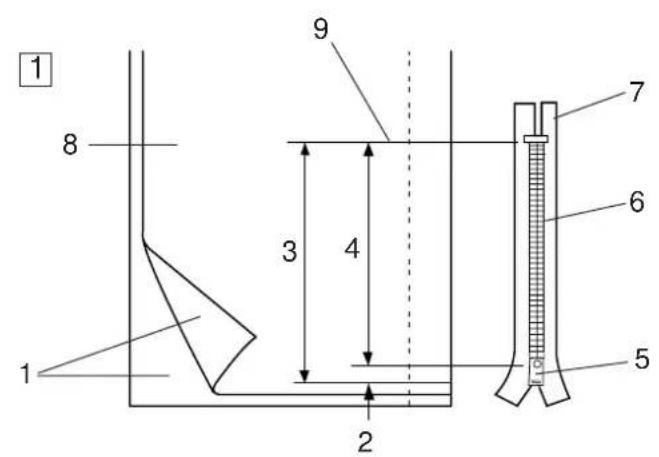
text_image
1 8 9 3 4 2 7 6 5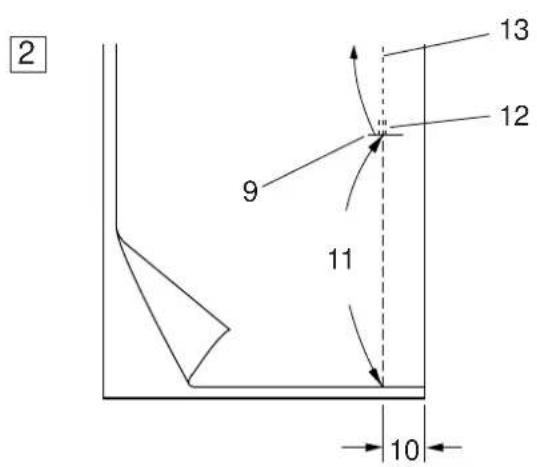
text_image
2 9 11 10 12 13Zipper Sewing
Machine Setting
Pattern: 01 (Mode 1)
Thread tension:2-6
Presser foot: Zipper foot E
Foot pressure: 3
To attach the zipper foot E
Fit the pin on zipper foot E to the groove on the foot holder.
1 Groove
2 Pin
3 T o sew the left side of the zipper, attach zipper foot E with the pin on the right-hand side.
4 T o sew the right side of the zipper, attach zipper foot E with the pin on the left-hand side.
Fabric preparation
1 Add 1 cm (3/8") to the zipper size. This is the overall opening size.
1 Right Sides of the Fabric
2 1 cm (3/8")
3 O pening Size
4 Zipper Size
5 Slider
6 Zipper Teeth
7 Z ipper Tape
8 W rong Side of the Fabric
9 End of the Zipper Opening
2 P lace the right sides of the fabric together and sew to the end of the opening with a 2 cm (13/16") seam allowance.
Reverse Stitch to lock the seams.
Manually increase the stitch length to 5.0 and baste the zipper opening with the thread tension loosened.
10 2 cm (13/16") Seam Allowance
11 Basting
12 Reverse Stitches
13 Seam Stitches
3

text_image
1 2 3 4 5 6 7 84

text_image
Technical diagram of a sewing machine with labeled parts and directional arrows indicating movement or assembly.5
text_image
9 10To sew
3 Fold back the left seam allowance. Turn the right seam allowance under to form a 0.2 to 0.3 cm (1/8") fold. place the zipper teeth next to the fold and pin it in place. Set the stitch length and thread tension back to the original setting.
1 Lower Fabric
2 End of the Opening
3 Zipper Teeth
4 0 . 2 to 0.3 cm (1/8") Fold
5 R ight Side of the Upper Fabric
6 O pening Size
7 Fold
8 Basting Stitches
4 A ttach zipper foot E with the pin on the right hand side.
Lower the foot onto the topside at the bottom of the zipper so that the needle pierces the fabric next to the fold and the zipper tape.
Sew along the zipper guiding the zipper teeth along the bottom edge of the foot.
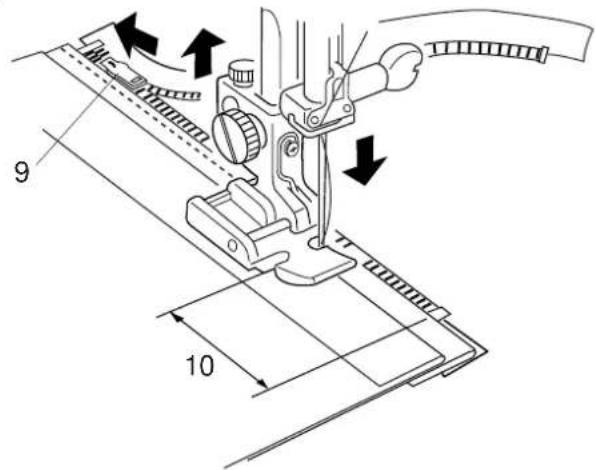
5 Sew through all layers next to the fold. Stop 5 cm (2") before zipper foot E reaches the slider on the zipper tape. Lower the needle slightly into the fabric. Raise the foot and open the zipper. Lower the foot and stitch the remainder of the seam.
9 Slider
10 5 cm (2")
6

text_image
Technical diagram showing mechanical assembly with labeled parts 11 and 12, including directional arrows and structural details.6 Close the zipper and spread the fabric open flat with the right side facing up. Baste the opened fabric and zipper tape together. 11 Basting 12 Zipper Tap
7

text_image
14 15 137 Re-attach the zipper foot E with the left pin. Backstitch across the end of opening to 0.7 – 1 cm (3/8“). Stitch through the garment and zipper tape, guiding the zipper teeth along the bottom edge on the foot. Stop about 5 cm (2”) from the top of the zipper. Unfasten the basting stitches. 13 Basting Stitches 14 End of Opening 15 0.7 – 1 cm (3/8”)
8

natural_image
Line drawing of a sewing machine needle and fabric (no text or symbols)8 Lower the needle into the fabric, raise the foot, and open the zipper. Lower the foot and stitch the remainder of the seam, making sure the fold is even. Remove the basting threads after seaming.
text_image
MODE 1 DIRECT 01 2~6 A 3.5 2.2
text_image
Technical diagram of a sewing machine with labeled parts and an inset showing measurement dimensions for mechanical part 3.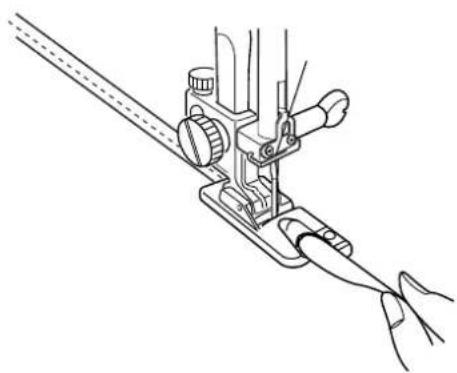
natural_image
Line drawing of a sewing machine needle being inserted into a hand (no text or symbols)Rolled Hem
Machine Setting
Pattern: 01 (Mode 1)
Thread tension:2-6
Presser foot: Rolled hem foot D
Foot pressure: 3
To sew:
Fold the edge of the fabric twice, 6 cm (2 3/8") in length and 0.3 cm (1/8") in width.
Trim the corner 0.5 cm (3/16") by 0.8 cm (1/4") for easier insertion of the hem into the foot.
1 W rong Side of the Fabric
2 0.5 cm (3/16")
3 0.8 cm (1/4")
4 Curl of the Foot
Place the fabric aligning the edge of hem with the guide on the foot.
Lower the foot and sew to 1-2 cm (1/2"-1") while pulling both thread to the back.
Stop the machine and lower the needle into the fabric.
Raise the foot and insert the folded portion of the fabric into the curl of the foot.
Lower the foot, and then sew by lifting up the edge of the fabric to keep it feeding smoothly and evenly.

text_image
120 90 60 45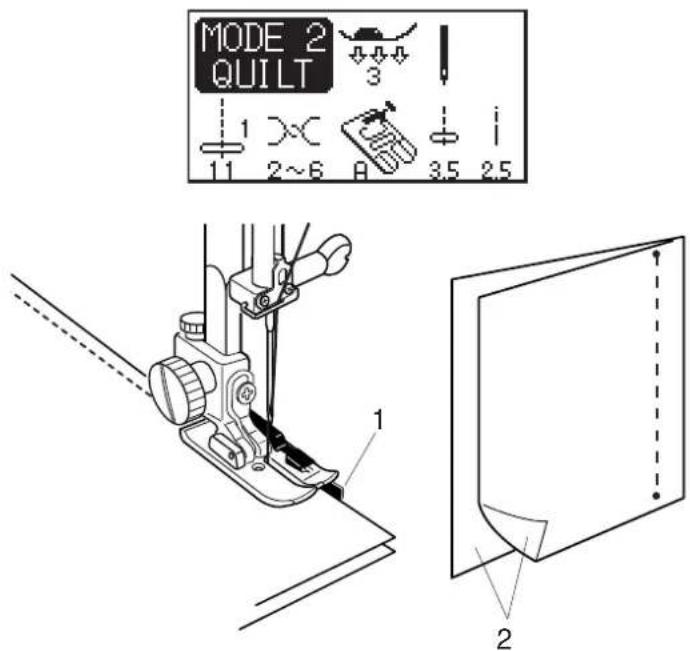
text_image
MODE 2 QUILT 1 2~6 3 4 3.5 2.5 1 2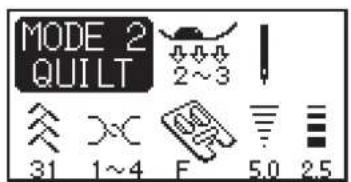
text_image
MODE 2 QUILT 31 1~4 F 5.0 2.5
natural_image
Pure diagram of a vertical structure with diagonal lines and a base, no text or symbols presentPATCHWORK AND QUILTING (Mode 2)
Patchwork
Angle scale on the needle plate
You can easily seam patchwork pieces at the desired angles without marking, by using the unique angle scales on the needle plate.
The angle scales are marked at 45, 60, 90 and 120 degrees.
Seaming patchwork pieces
Machine Setting
Pattern: 11 (Mode 2)
Thread tension:2-6
Presser foot: 1/4" Seam foot O
Foot pressure: 3
Lock-a-Matic stitch (pattern 03) and auto lock stitch (pattern 04) in the Mode 1 are ideal for seaming patchwork pieces together.
Place the patchwork pieces right sides together. Sew while guiding the edge of the fabric along the guide on the foot to keep a precise 1/4" seam allowance.
1 G u i d e
2 Right Sides of the Fabric
Patchwork stitches
Machine Setting
Pattern: See below.
Thread tension:1-4
Presser foot: Satin stitch foot F
Foot pressure: 2-3
The patterns 28-32, 38-42 and 61-68 in the Mode 2 can be used as patchwork stitches.
Open seam flat with the right side up and sew patchwork stitch along the seam line.
text_image
Technical diagram of sewing machine components with numbered parts and labeled parts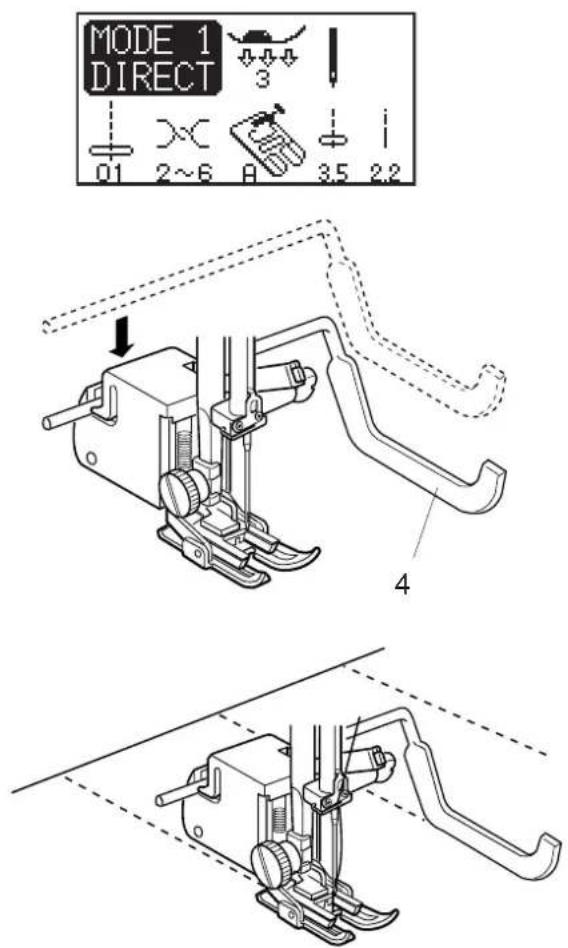
text_image
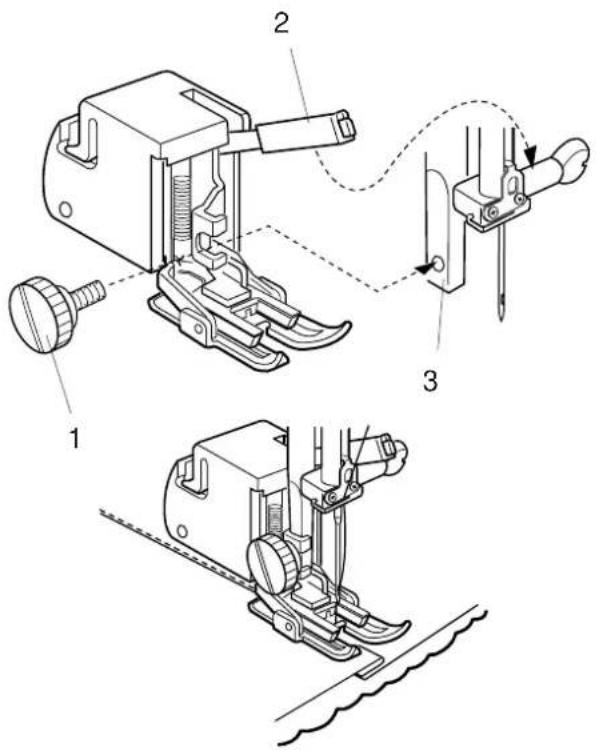
MODE 1 DIRECT 01 2~6 A 3.5 2.2 4Stitch in the ditch with even feed foot
The even feed foot is extremely effective when stitching in the ditch on patchwork quilts.
To attach
Remove the foot holder.
Attach the even feed foot to the presser bar with the lever over the needle clamp screw and secure it with the thumb screw.
1 Thumb screw
2 Lever
3 Presser Bar
To sew
Sew at a low to medium speed.
Sew a line of straight stitch as close to the seam line as possible.
Quilting
Machine Setting
Pattern: 01 (Mode 1)
Thread tension:2-6
Presser foot: Even feed foot and quilting bar
Foot pressure: 3
Quilting bar for the even feed foot
The quilting bar is helpful when sewing parallel, evenly spaced rows of seams.
To attach
Push the quilting bar down into the slot on the plastic cover of the even feed foot.
Shift the quilting bar to set the width at the space of the seams you desire.
4 Quilting Bar for Even Feed Foot
To sew
Sew while tracing the previous seam with the quilting bar.
text_image
MODE 1 DIRECT 01 2~6 A 3.5 2.2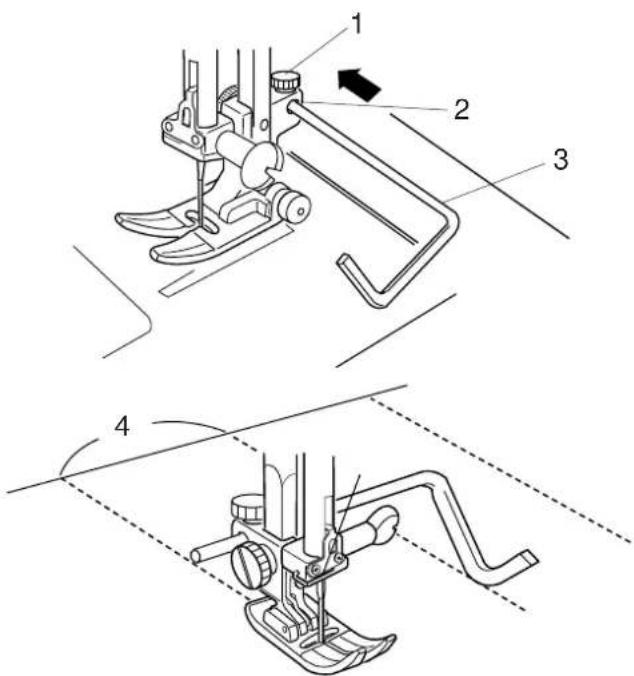
text_image
Technical diagram of a sewing machine with numbered parts and directional arrows indicating motion or assembly.
text_image
MODE 2 QUILT 1 11 ×× 2~6 P 3.5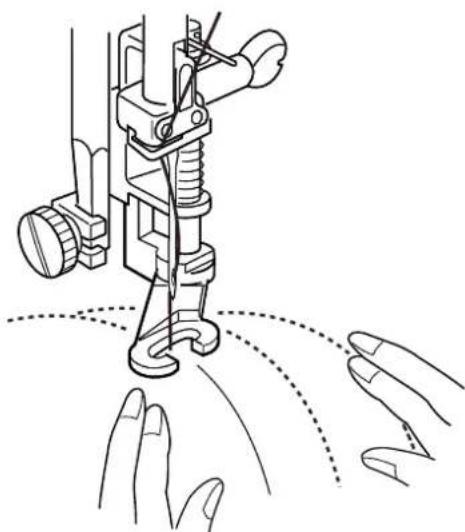
natural_image
Line drawing of a sewing machine needle stitching a pair of hands (no text or symbols)Quilting bar for the zigzag foot
Machine Setting
Pattern: 01 (Mode 1)
Thread tension:2-6
Presser foot: Zigzag foot A
Foot pressure: 2
Reduce the foot pressure to "2" for better maneuverability of bulky material.
To attach
Loosen the screw on the back of the foot holder.
Insert the quilting bar into the opening and slide the quilting bar to set the width at the space of the seams you desire.
Tighten the screw.
1 Screw
2 Opening on the Foot Holder
3 Quilting Bar
4 S pace of the Seams
To sew
Sew while tracing the previous seam with the quilting bar.
Freemotion quilting
Machine Setting
Pattern: 11 (Mode 2)
Thread tension:2-6
Presser foot: Darning foot P-2
Foot pressure: 1
Feed dog: Dropped
Attach the darning/embroidery foot P-2 (refer to page 29 for how to attach it).
Baste or pin the quilt layers. Draw a quilt design on the top fabric with a washable maker.
Move the quilt layers slowly and evenly while stitching on the marked design.
CAUTION:
Do not pull the fabric while stitching. This may deflect the needle causing it to break.
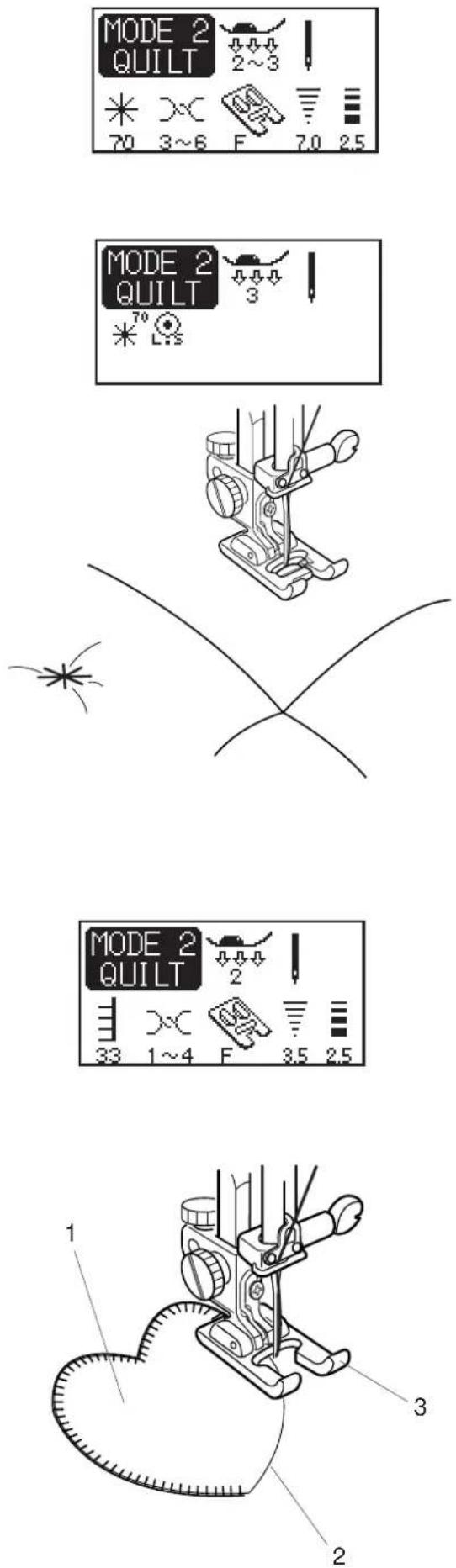
Clasp stitch
Machine Setting
Pattern: 70 (Mode 2)
Thread tension:3-6
Presser foot: Satin stitch foot F
Foot pressure: 2-3
You can bind the thick quilt layers together with the clasp stitch.
Select the pattern 70 and press the memory button M.
Press the locking stitch button.
Lower the presser foot and start sewing. The machine will automatically stop after sewing one unit of the pattern.
Raise the presser foot and move the fabric to the next position.
Applique
Machine Setting
Pattern: 33 (Mode 2)
Thread tension:1-4
Presser foot: Satin stitch foot F
Foot pressure: 2
The open toe satin stitch foot F-2 can also be used.
Quilts can be more attractive and artistic by adding applique.
Place an applique on the fabric and baste it in place or use a fusible web to secure the applique in place.
Guide the applique fabric, so that the needle falls off the edge of the applique when the needle swings to the right.
1 Applique
2 Edge of the Applique
3 Open Toe Satin Stitch Foot
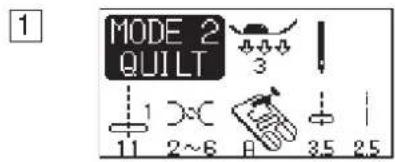
Programming French Knots
Example: Combination of the patterns 19 and 12.
text_image
MODE 2 QUILT 1 2~6 3.5 2.5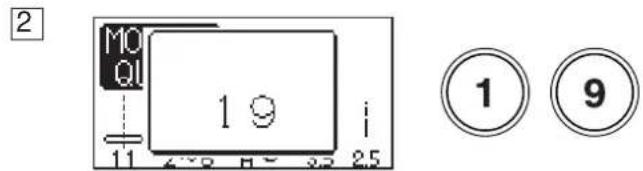
text_image
2 MO QI 1 9 i 11 470 52 32 25 ① ⑨
text_image
MO QI 11 25 M MODE 2 QUILT 3 19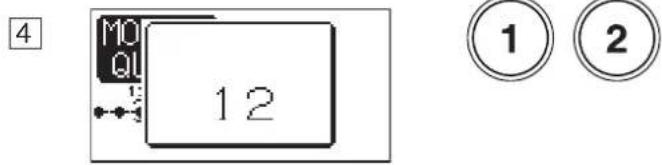
text_image
MO 12 ① ②
text_image
MO QIL 3 MODE 2 QUILT 3 19 12 0
text_image
6 1 2①Select the Mode 2.
②Select the pattern 19.
③Press the memory button.
④ Select the pattern 12
5Press the memory button.
Machine Setting
Thread tension:5-8
Presser foot: Satin stitch foot F or Open toe satin stitch foot F-2
Foot pressure: 2-3
6 Lower the foot and start sewing.
1 Pattern 19
2 Pattern 12
NOTE:
The sewing speed is limited to the maximum speed of the pattern with the lowest speed in the combination.
UTILITY STITCHES AND DECORATIVE STITCHES (Mode 3)
Buttonholes
Variety of buttonholes
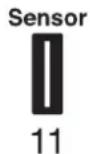
11 Sensor (Square) BH
This square buttonhole is widely used on medium to heavy weight fabrics.
The buttonhole size is automatically determined by placing a button in the foot.

12 Automatic (Square) BH
This is also a square buttonhole similar to the sensor square buttonhole, but you can manually set and memorize the buttonhole size to sew buttonholes of the same size.
This buttonhole is useful for bulky fabrics or when sewing on un-even layers.
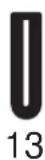
13 Round End BH
This buttonhole is used on fine to medium weight fabrics especially for blouses and children's clothes.

14 Fine Fabric BH
This buttonhole is rounded at both ends and is used on fine, delicate fabrics such as fine silk.

15 Keyhole BH
The Keyhole Buttonhole is widely used on medium to heavy weight fabrics. It is also suitable for larger and thicker buttons.

16 Stretch BH
This buttonhole can be used on stretch fabrics. It can also be used as a decorative buttonhole.

17 Knit BH
This buttonhole is suitable for knit fabrics.
It can also be used as a decorative buttonhole.
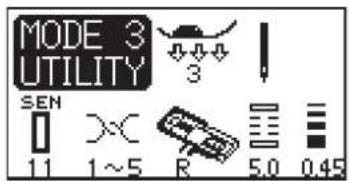
text_image
MODE 3 UTILITY SEN 11 1~5 R 5.0 0.45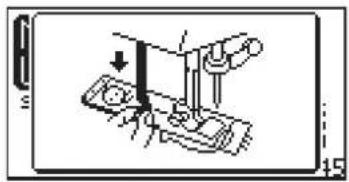
natural_image
Illustration of a sewing machine needle stitching fabric (no text or symbols)1
text_image
Technical diagram of a mechanical component with labeled parts 1 and 2, showing internal structure and assembly.2
text_image
Technical diagram showing mechanical assembly with labeled parts and directional arrows indicating motion or forceSensor buttonholes
Machine Setting
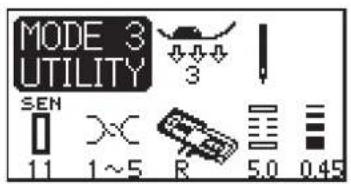
Pattern: 11 (Mode 3)
Thread tension:1-5
Presser foot: Automatic buttonhole foot R
Foot pressure: 3
NOTES:
Buttonholes 11 and 13 to 17 are sensor buttonholes.
The size of a buttonhole is automatically set by placing a button in the rear of automatic buttonhole foot R.
The button holder of the foot takes a button size of 0.5 cm (3/16") to 2.5 cm (1") in diameter.
It is sometimes necessary to change buttonhole size to match certain heavy or specific fabrics and threads.
Make a test buttonhole on an extra piece of the fabric to check your settings.
The preset width of the buttonhole is suited for ordinary buttons.
Apply an interfacing to stretch or fine fabrics.
To sew
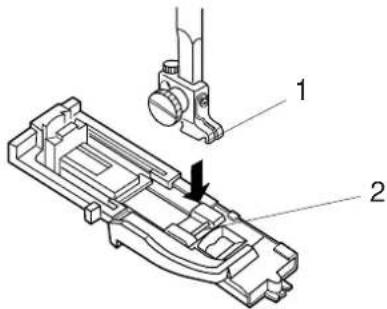
1 P ress the up/down needle button to raise the needle. Attach the automatic buttonhole foot R snapping the pin into the groove of the foot holder.
1 Groove
2 Pin
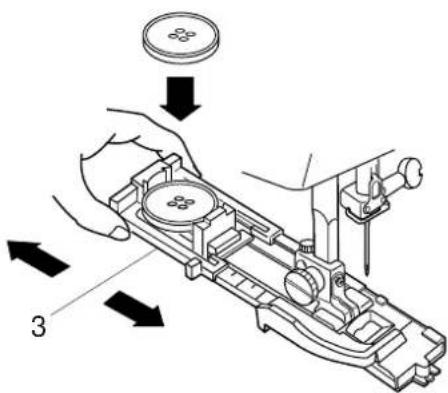
2 Pull the button holder to the back, and place the button in it. Push it together tightly on the button.
NOTE:
If the button is extremely thick, make a test buttonhole on an extra piece of the fabric.
If it is difficult to fit the button through the test buttonhole, you can lengthen the buttonhole by pulling the button holder back a little. The length of the buttonhole will be increased.
3 Button Holder
3
text_image
Technical diagram of a mechanical assembly with labeled component 1 and directional arrow indicating motion or force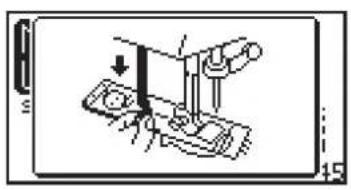
natural_image
Diagram of a sewing machine needle insertion into a base, showing mechanical components and a downward arrow (no text or labels)

text_image
LED Signal4
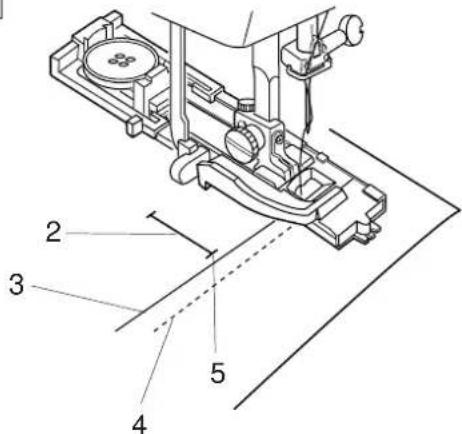
text_image
Technical diagram of a sewing machine with numbered components labeled 2, 3, 4, and 5
text_image
6 7
text_image
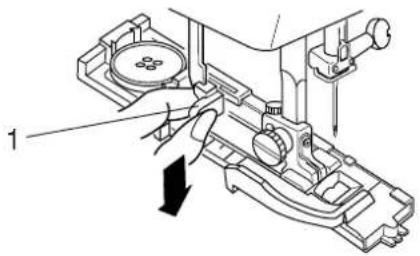
83 Pull the buttonhole lever down as far as it will go. 1 Buttonhole Lever
NOTE:
If you start sewing without pulling down the buttonhole lever, the LCD screen will show a warning and the machine will stop after a few stitches. Pull the buttonhole lever down and restart the machine.
Auto thread cutter
If you press the auto thread cutter button after selecting a buttonhole, the LED signal will turn on. The machine will stop automatically and trim the threads when the buttonhole is completed.
4 Insert the corner of the fabric under the foot. Press the up/down needle button twice.
Remove the fabric to the left to draw the needle thread through the hole of the foot.
Place the garment under the foot, and lower the needle at the starting point of the buttonhole mark. Then lower the automatic buttonhole foot R.
2 Buttonhole Mark
3 Needle Thread
4 Bobbin Thread
5 Starting Point
NOTE:
Make sure there is no gap between the slider and spring holder, otherwise the left and right length will be different.
6 S l i d e r
7 Spring Holder
8 Sewing Gap
5
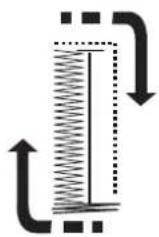
Step 1

Step 2
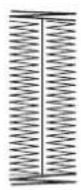
Step 3
6
natural_image
Technical line drawing of a mechanical assembly with hands and a black arrow indicating a specific component (no text or symbols present)7

natural_image
Technical line drawing of a mechanical tool with zigzag spring and handle (no text or symbols)
text_image
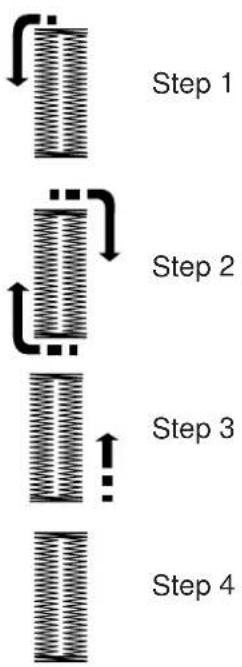
105 Start the machine to sew the buttonhole. The buttonhole will be automatically sewn.
Step 1: The machine will sew the front bartack and the left row first.
Then it goes back to the starting point with straight stitch.
Step 2: The machine will sew the right row.
Step 3: The machine will sew the back bartack, and the machine will stop automatically.
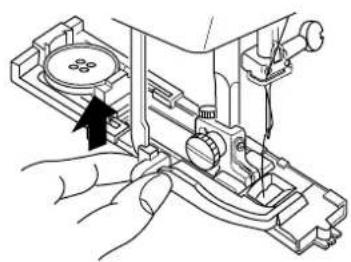
To sew another buttonhole, press the thread cutter button and raise the presser foot. Move the fabric to where the next buttonhole to be sewn, then lower the foot and start the machine.
6 When buttonhole sewing is finished, push the buttonhole lever upward as far as it will go.
7 Remove the fabric and place a pin just below the bartack at each end to prevent accidentally cutting stitches. Cut the opening with the seam ripper. Use an Eyelet puncher to open a keyhole buttonhole. 9 Seam Ripper 10 Eyelet Puncher
flowchart
graph TD
    A["Step 1"] --> B["Step 2"]
    B --> C["Step 3"]
    C --> D["Step 4"]
Double layer buttonhole
To make a solid and sturdy buttonhole, sew another layer of buttonhole over the previous stitches.
After the buttonhole is finished, simply start the machine again.
Do not raise the foot or buttonhole lever.
The machine will sew another buttonhole in the following order and stop automatically when it is completed:
Step 1: Straight stitching in reverse to go back to the starting point
Step 2: Front bartack and left row
Step 3: Right row
Step 4: Back bartack and locking stitches at the end
text_image
MODE 3 UTILITY SEN 11 1~5 R 5.0 0.45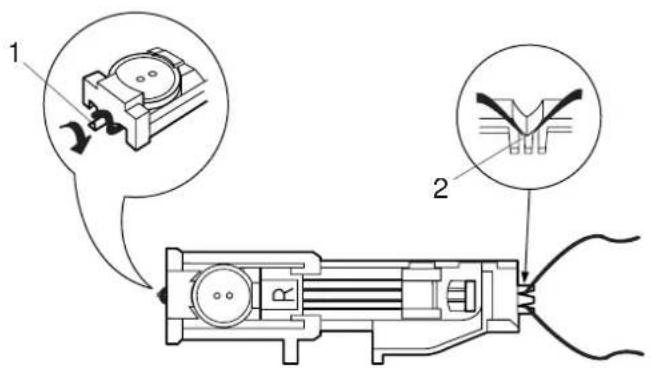
text_image
Technical diagram of a mechanical device with labeled components and two circular insets showing internal components.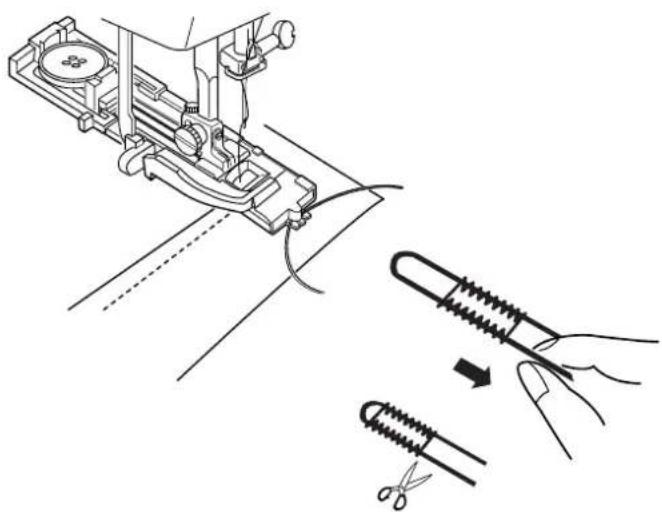
natural_image
Technical illustration of a sewing machine being adjusted with a screwdriver (no text or symbols present)Corded buttonhole
To sew a corded buttonhole, follow the same procedure as a sensor buttonhole.
1 With the automatic buttonhole foot R raised, hook the filler cord on the spur at the back of the buttonhole foot.
2 Bring the ends of cord toward you under the buttonhole foot clearing the front end.
3 Hook the ends of the filler cord into the forks on the front of buttonhole foot to hold them tight.
1 Spur
2 Forks
4 Lower the needle into the garment where the buttonhole will start and lower the foot.
5 Lower the buttonhole lever and buttonhole foot. Start the machine and sew the buttonhole over the filler cord. The machine stops automatically when finished.
6 Remove the fabric from the machine and cut the sewing threads.
7 Pull the left end of the filler cord to tighten it. Thread the end of the cord through a darning needle and draw it to the wrong side of the fabric and cut.
NOTES:
Set the stitch width in accordance with the thickness of the filler cord used.
To cut the buttonhole opening, refer to page 45.
text_image
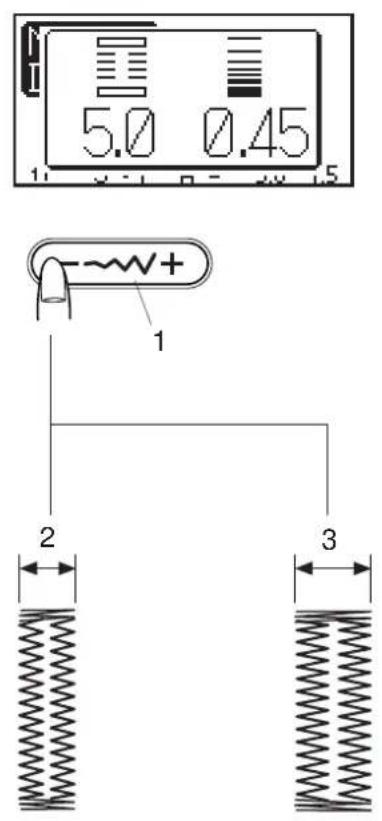
5.0 0.45 1 2 3Changing buttonhole width
Press the stitch width adjusting button and the adjusting window opens.
Press on "+" to increase the buttonhole width.
Press on “—” to decrease the buttonhole width.
1 S titch Width Adjusting Button
2 Narrower Buttonhole
3 Wider Buttonhole

text_image
5.0 0.45 1 2 3 4 5 6Changing buttonhole stitch density
Press the stitch length adjusting button, the adjusting window opens.
Press on "+" to make the buttonhole stitch coarser.
Press on “—” to make the buttonhole stitch denser.
4 Stitch Length Adjusting Button
5 Denser Buttonhole
6 Coarser Buttonhole
NOTES:
To alter the buttonhole width and density while sewing a test buttonhole, stop the machine at the left or right row of the buttonhole then adjust the stitch width and density to find the appropriate settings.
Press the memory button so that you can sew a buttonhole with the new settings.
The setting will return to the default when turning the power switch off or selecting another stitch.

text_image
MODE 3 UTILITY AUTO 12 1~5 R 5.0 0.49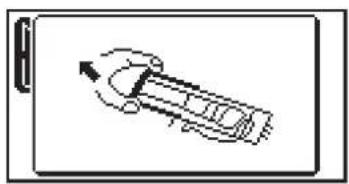
natural_image
Simple line drawing of a car with an arrow indicating motion (no text or symbols)
text_image
Technical diagram of a sewing machine with labeled parts and directional arrow indicating movementAutomatic buttonhole
Machine Setting
Pattern: 12 (Mode 3)
Thread tension:1-5
Presser foot: Automatic buttonhole foot R
Foot pressure: 3
Pull the button holder of the buttonhole foot all the way out.
Insert the fabric under the foot. Press the up/down needle button twice.
Remove the fabric to the left to draw the needle thread through the hole of the foot.
Insert the garment under the foot, and lower the needle at the starting point.
Then lower the automatic buttonhole foot R.
1 Button Holder
2 Needle Thread
3 Bobbin Thread
NOTES:
You do not need to pull down the buttonhole lever.
If you wish to change the buttonhole width and density press the stitch width and length buttons.
If there is a difference in stitch density between the right and left rows of the buttonhole, refer to page 69 for correction.
If you wish to sew a buttonhole longer than the size permitted by the automatic buttonhole foot R, use satin stitch foot F or buttonhole foot B (optional item).
To sew
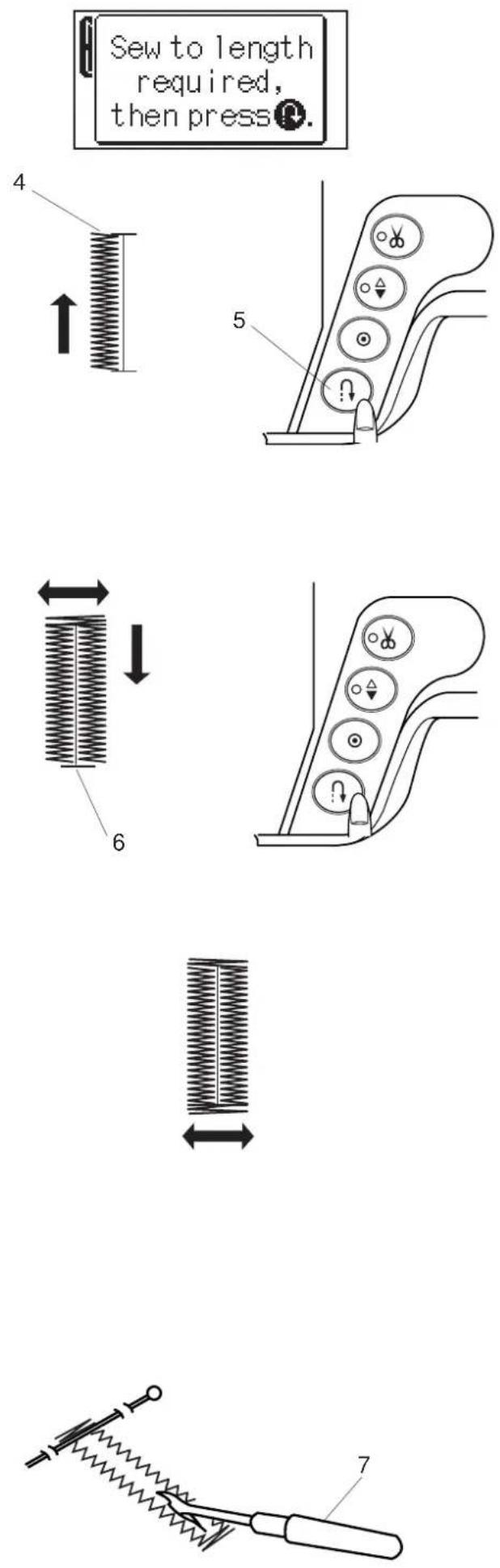
Depress the foot control to sew the left side up to the required length of the buttonhole.
Stop the machine and press the reverse button.
4 Required Length
5 Reverse Button
Start the machine again. The machine will automatically tack and sew down the right side of the buttonhole.
Stop the machine when you are directly opposite the starting point.
Press the reverse button.
6 Starting Point
Keep the foot control depressed. The machine will sew a bartack, lock the stitches and automatically stop when the buttonhole is completed.
To make the next buttonhole, position the fabric and step down on the foot control.
To sew the next buttonhole at a different size, press the memory button M to memorize a new size and start sewing from the beginning.
NOTES:
The machine will sew the buttonholes identical to the first one.
The stitch density of the memorized buttonhole cannot be altered.
Cut the buttonhole opening with the seam ripper. (Refer to page 45.)
7 Seam Ripper
text_image
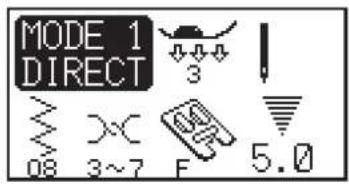
MODE 1 DIRECT 3 08 3~7 F 5.0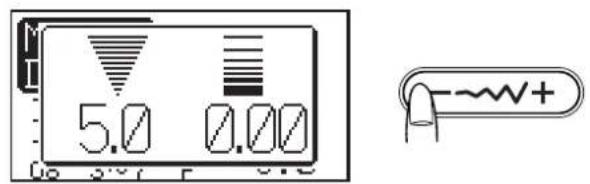
text_image
5.0 0.00 -~W+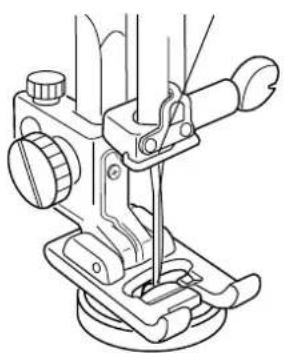
natural_image
Line drawing of a mechanical device with no visible text or symbols
text_image
Diagram illustrating three stages of a mechanical or electrical process with labeled components and directional arrowsButton Sewing
Machine Setting
Pattern: 08 (Mode 1)
Thread tension:3-7
Presser foot: Satin stitch foot F
Foot pressure: 3
Feed dog: Dropped
Unthread the needle thread.
Adjust the stitch width so that the needle enters both holes in the button.
Place a button on the fabric and lower the needle by turning the handwheel, so that the needle enters into the left hole in the button.
Align the holes in the button with the slot on the foot and lower it to hold the button in place.
Turn the handwheel to lower the needle into the right hole in the button.
Adjust the stitch width if necessary.
Rethread the machine and sew about 10 stitches.
NOTE:
The LCD screen shows a warning to raise the feed dog, but depress the foot control again to start sewing.
Raise the presser foot and remove the fabric.
Trim both needle and bobbin threads at the beginning. Cut both threads leaving 20 cm (8") tails.
Pull the bobbin thread to bring the needle thread to the wrong side of the fabric then knot the threads.
1 Needle Thread at the Beginning
2 Bobbin Thread
3 Needle Thread
text_image
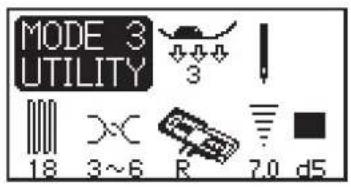
MODE 3 UTILITY 18 3~6 R 7.0 d5
natural_image
Simple line drawing of a car with an arrow indicating motion (no text or symbols)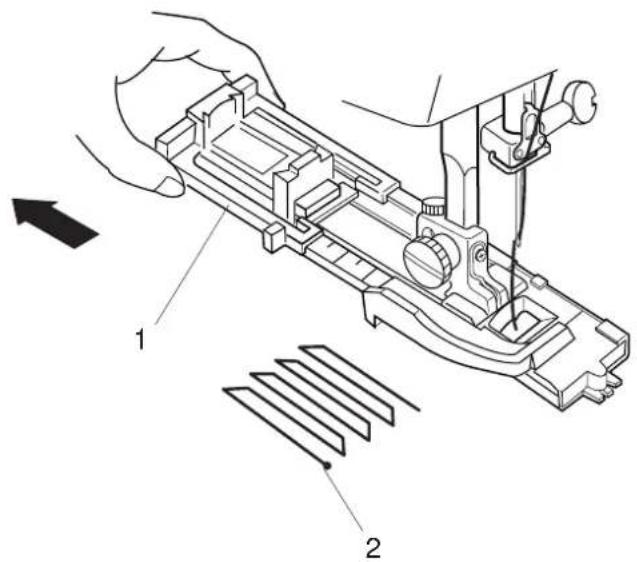
text_image
Technical diagram of a sewing machine with labeled parts and directional arrow indicating motion
natural_image
Abstract geometric pattern with repeating vertical lines and dots, no text or symbols present
4
Darning
Machine Setting
Pattern: 18 (Mode 3)
Thread tension:3-6
Presser foot: Automatic buttonhole foot R
Foot pressure: 3
Pull the button holder to the rear.
Place the garment under the foot.
Press the up/down needle button twice. Remove the fabric to the left to draw both threads under the foot and place the fabric back under the foot.
Lower the needle at the starting point then lower the foot.
1 Button Holder
2 Starting Point
Depress the foot control and the machine will sew a darning 2 cm (3/4") long and stop automatically.
Repeat sewing in the different direction until the darning covers the rip or hole.
NOTE:
The maximum size of darning is 2 cm (3/4") long and 0.7 cm (1/4") wide.
3 Maximum Length 2 cm (3/4")
4 Maximum Width 0.7 cm (1/4")
To sew a shorter darning
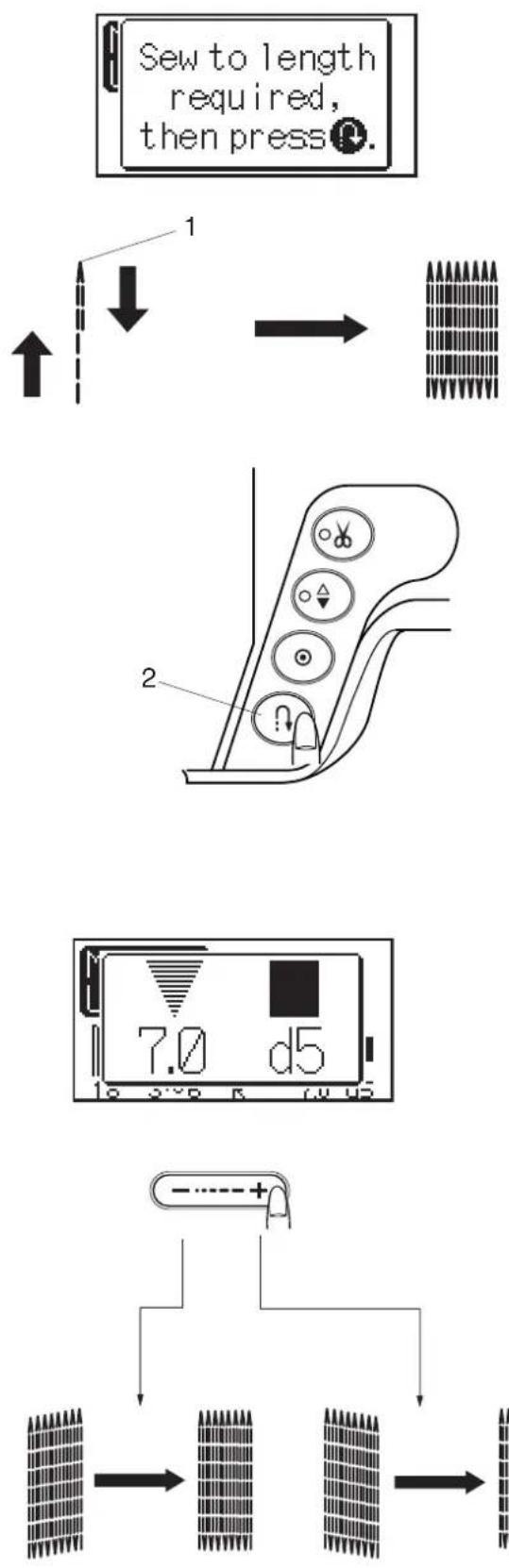
To sew a darning shorter than 2 cm (3/4"), first stop the machine after sewing the required length, then press the reverse button.
The required length has been determined.
Restart the machine and continue sewing until the machine stops automatically.
1 Required Length
2 Reverse Button
To sew the same size darning
Simply restart the machine to sew another darning at the same size.
To sew the darning at a different size
Press the memory button and start sewing from the beginning.
To adjust the evenness of darning
The evenness of darning may vary depending on the sewing condition, such as type of fabrics, number of layers etc. You can correct the unevenness of darning with the stitch length adjusting button.
If the left corner is lower than the right side, press on “—” to correct it.
If the right corner is lower than the left side, press on "+" to correct it.
NOTE:
The evenness can be adjusted within d1 to d9 (default setting is d5).

text_image
MODE 3 UTILITY 19 3~6 F 2.0 1.5
text_image
Technical diagram illustrating mechanical assembly with spring components and dimensional annotationsTacking
Machine Setting
Pattern: 19 (Mode 3)
Thread tension:3-6
Presser foot: Satin stitch foot F
Foot pressure: 3
Tacking is used to reinforce pockets, crotches and belt carriers where extra strength is needed.
To sew
Depress the foot control until the machine stops automatically.
The machine will sew a tacking 1.5 cm (9/16") long automatically.
1 1.5 cm (9/16 ")
To sew a shorter tack
To sew a tack shorter than 1.5 cm (9/16"), first stop the machine after sewing the required length, and then press the reverse button.
The required length has been determined.
Restart the machine and continue sewing until the machine stops automatically.
2 Required Length
3 Reverse Button
4 T ack Length
To sew the same size tack
To sew another tack at the same size, simply restart the machine and it will stop automatically when finishing sewing.
To sew the tack at a different size
To sew the next tack at a different size, press the memory button to memorize a new size and start sewing from the beginning.

text_image
MODE 3 UTILITY 20 1~4 F 7.0 L2
natural_image
Line drawing of a sewing machine with a circular spool and blade, no text or symbols present
text_image
7.0 L2
Eyelet
Machine Setting
Pattern: 20 (Mode 3)
Thread tension:3-6
Presser foot: Satin stitch foot F
Foot pressure: 3
The eyelet is used for belt holes etc.
To sew
Depress the foot control to sew.
The machine will sew an eyelet and stop automatically when completed.
Open the eyelet with an awl, punch or pointed scissors.
Adjusting the shape of an eyelet
Correct the shape of the eyelet as follows:
If the eyelet gap opens, press “—” on the stitch length adjusting button.
If the eyelet overlaps, press "+" on the stitch length adjusting button.
NOTE:
The shape can be adjusted within L1 to L3 (default setting is L2).
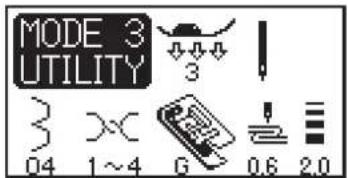
text_image
MODE 3 UTILITY 3 04 1~4 6 0.6 2.0
text_image
1 5 3 4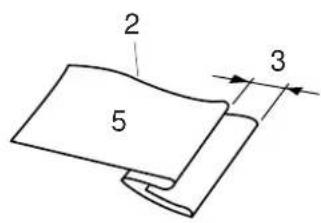
text_image
2 5 3
text_image
Technical diagram of a sewing machine with labeled parts 4 and 5
natural_image
Simple line drawing of a folded paper or sheet with a dotted line and the number 6 labeled (no text or symbols beyond the label)Blind Hem
Machine Setting
Pattern: 04 or 05 (Mode 3)
Thread tension:1-4
Presser foot: Blind hem foot G
Foot pressure: 3
Select the pattern 04 for woven fabrics or pattern 05 for elastic fabrics.
NOTE:
The stitch width of the patterns 04 and 05 cannot be changed, but the needle drop position will move.
How to fold the fabric
Fold the fabric to make a hem as shown.
1 Heavy Fabric
2 Fine to Medium Fabric
3 0.4 -0.7 cm (3/16"-1/4")
4 Overcasted Edge of Fabric
5 W rong Side of Fabric
To sew
Position the fabric so that the fold comes to the left side of the guide on the foot.
Lower the presser foot.
Adjust the position of the needle swing with the stitch width adjusting button so that the needle just pierces the folded edge of the fabric when the needle comes over to the left side.
Sew guiding the fold along the guide.
4 G uide on the Foot
5 Fold
Open the fabric with the right side up.
The stitches on the right side of the fabric is almost invisible.
6 Right Side of the Fabric

text_image
0.6 2.0
text_image
Diagram illustrating a mechanical or electrical process with labeled components and connections, including a spring symbol and dashed lines.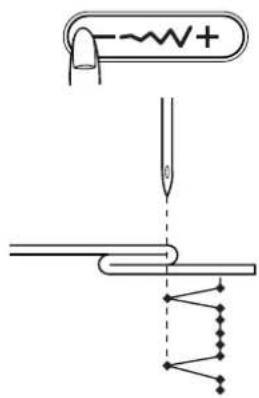
text_image
Diagram illustrating a process with a spring symbol, a pencil tip, and a multi-scale network of nodes connected by lines.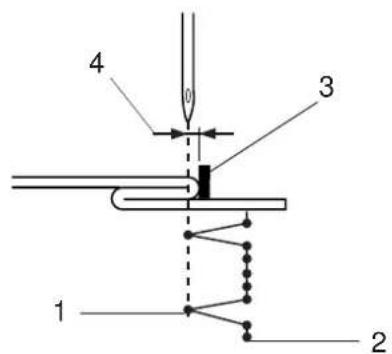
text_image
1 2 3 4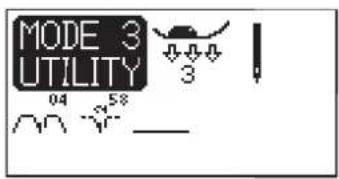
text_image
MODE 3 UTILITY 04 58 —
flowchart
graph TD
    A["1"] --> B["2"]
    B --> C["1"]
    C --> D["2"]
    D --> E["1"]
    E --> F["2"]
    F --> G["1"]
    G --> H["2"]
    H --> I["1"]
    I --> J["2"]
    J --> K["1"]
    K --> L["2"]
    L --> M["1"]
    M --> N["2"]
    N --> O["1"]
    O --> P["2"]
    P --> Q["1"]
    Q --> R["2"]
    R --> S["1"]
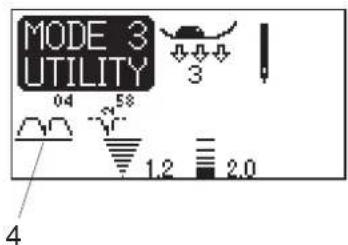
text_image
MODE 3 UTILITY 04 58 3 1.2 2.0 4Changing needle drop position
Press the stitch width adjusting button.
The LCD screen shows the left needle position from the guide in millimeters.
Press on “—” to move the needle to the right.
Press on “+” to move the needle to the left.
1 Left Needle Drop Position
2 Right Needle Drop Position
3 Guide on Foot
4 Distance between the Left Needle Position and the Guide
To make the straight stitches in blind hem stitch longer
Program a combination of the pattern 04 and pattern 58 or 59 in the Mode 3.
Two straight stitches will be added to the blind hem stitch when combining with the pattern 58.
Four stitches will be added with the pattern 59.
1 Pattern 04
2 Pattern 58
NOTE:
To alter the needle drop position of the programmed pattern combination, shift the cursor under the pattern 04 and press the stitch width adjusting button.
It is not necessary to adjust the needle drop position of the pattern 58 or 59 as it will synchronously change.
4 Cursor
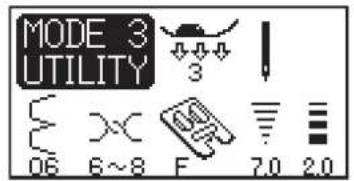
text_image
MODE 3 UTILITY 06 6~8 F 7.0 2.0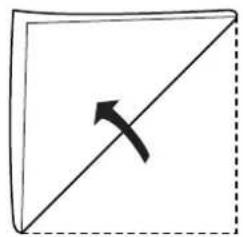
natural_image
Simple geometric diagram with a diagonal line and a curved arrow inside a square (no text or symbols)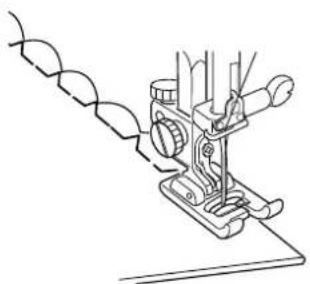
natural_image
Line drawing of a sewing machine needle stitching a thread (no text or symbols)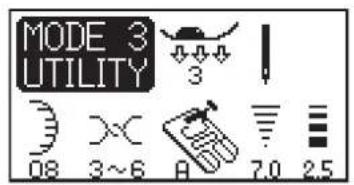
text_image
MODE 3 UTILITY 08 3~6 A 7.0 2.5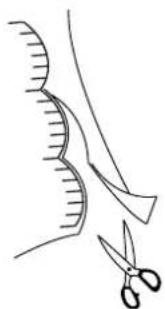
natural_image
Illustration of a surgical procedure showing scissors cutting a curved blade (no text or symbols)
text_image
MODE 3 UTILITY 22 1~4 F 7.0 0.40
text_image
Technical diagram showing three steps of fabric sewing machine tooling, with labeled component '1' and assembly instructions.Shell Tucking
Machine Setting
Pattern: 06 (Mode 3)
Thread tension:6-8
Presser foot: Satin stitch foot F
Foot pressure: 3
Increase the needle thread tension to "6-8".
Fold and stitch on the bias.
Place the folded edge of the fabric along the slit of the foot so that the right swing of the needle falls off the edge of the fabric to form tucks.
Scallop Stitch
Machine Setting
Pattern: 08 (Mode 3)
Thread tension:3-6
Presser foot: Zigzag foot A
Foot pressure: 3
The pattern 24 can also be used.
Sew along the row edge leaving a 1 cm (3/8") seam allowance.
After sewing, trim the fabric edge close to stitching, taking care not to cut stitches.
Cording
Machine Setting
Pattern: 22 (Mode 3)
Thread tension:1-4
Presser foot: Cording foot H
Foot pressure: 3
Attach the cording foot H.
3-strand cording
Insert 3 strands of cording under the spring of the foot and draw them under the foot to the rear.
Hold the three strands parallel for even sewing and be sure to sew over the strands.
Stitch slowly and smoothly, guiding the fabric as you sew. 1 Spring
Single strand cording
Use the center slot on the foot to hold the cording.
Select the pattern 08 in the Mode 1 and adjust the stitch width to match the thickness of the cord.

text_image
Technical diagram of a sewing machine with numbered parts and exploded views showing internal components and assembly steps.Twin Needle Sewing
NOTES:
When you sew patterns with the twin needle, press the twin needle button ⓦ and test the stitches first before you begin to sew.
Use the zigzag foot A or satin stitch foot F for twin needle sewing.
Turn off the machine before changing the needle. Use #60 or finer threads for twin needle sewing.
Threading the machine for twin needle
Place two spools of thread on the spool stand.
Draw both threads from the spools and pass them through the points from 1 to 7.
Make sure that the two strands of thread do not get tangled.
Slip one of the threads in the needle bar thread guide on the left, and the other on the right.
1 N eedle Bar Thread Guide
Thread the needles from the front to back with your hand.
2 Thread the Needles.
NOTES:
Threading from 1 to 7 is the same as for single needle.
The automatic needle threader cannot be used for the twin needle.
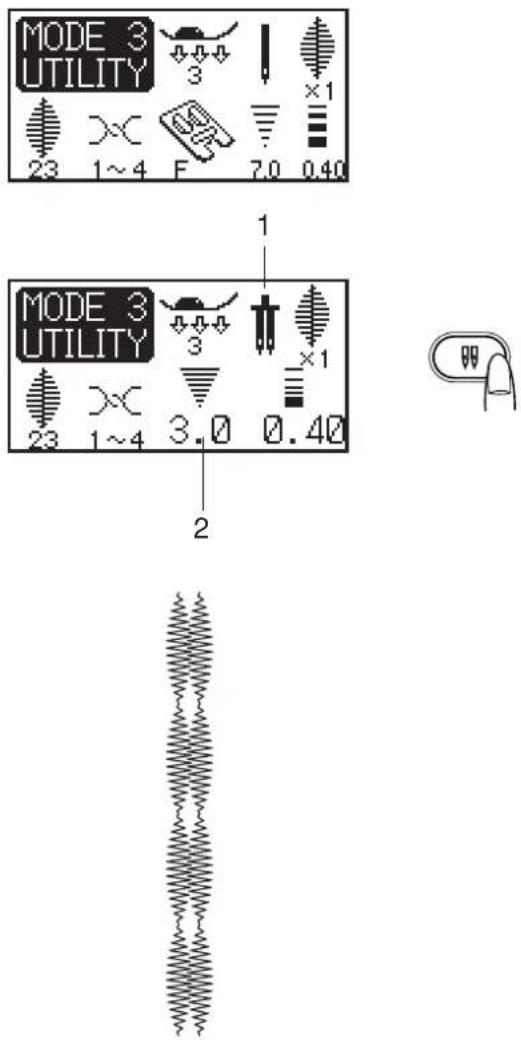
text_image
MODE 3 UTILITY 23 1~4 F 7.0 0.40 MODE 3 UTILITY 23 1~4 3.0 0.40 2
text_image
This button can't be used.To sew
Select a pattern.
Press the twin needle button 📌.
The LCD screen shows a twin needle icon and the maximum permissible stitch width is restricted to 3.0 mm.
1 T win Needle Icon
2 Maximum Width (3.0)
NOTE:
The maximum permissible stitch width is based on a 2 mm wide twin needle.
Sew at a medium speed.
When changing the sewing direction, raise the needle from the fabric.
NOTES:
If the selected pattern is not suitable for twin needle sewing, a warning message will be displayed on the LCD screen.
Twin needle sewing is not available in the Mode 4.
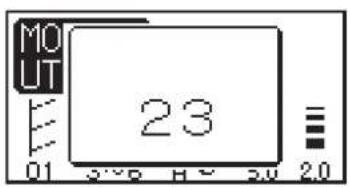
text_image
MOUT 23 01 3:50 H 2.0
Programming a Pattern Combination
One cycle sewing with the auto-lock stitch
Select the desired pattern.

text_image
MO UT 01 3:50 H~ 50 2.0
Press the memory button.
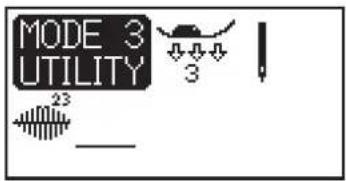
text_image
MODE 3 UTILITY 23 3
Press the locking stitch button.
NOTE:
No further patterns can be memorized after pressing the auto-lock button.
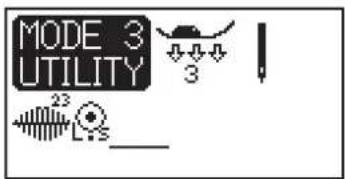
text_image
MODE 3 UTILITY 23 L/S__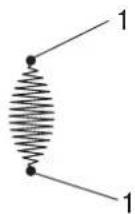
Depress the foot control to sew.
The machine will lock the stitch and sew single unit of the pattern, then stop automatically after locking off the stitch. 1 Locking Stitch
LED Signal
text_image
Diagram showing three circular icons with symbols: scissors, triangle, and inverted triangle inside a curved boundaryAuto thread cutter
Press the auto thread cutter button ^M after selecting a stitch pattern. The LED signal will turn on.
Press the auto-lock button at the end of sewing.
The machine will lock the stitch off then stop automatically and trim the threads.

Pattern combination
Example: Programming the patterns 23 and 25.
Select the pattern 23 in the Mode 3.
Press memory button.
Select the pattern 25.
Press memory button.
NOTE:
Set the thread tension at 1-4, foot pressure at 3 and use the satin stitch foot F when sewing the programmed pattern combination.
Start to sew. The machine will sew the pattern combination repeatedly.
NOTE:
If you press the auto-lock button in the middle of a programmed pattern, the machine will stop automatically after the current pattern is completed.
1 Auto-Lock Button
Pattern combination with auto thread cutting
Select the pattern 23 in the Mode 3.
Press the memory button.
Select the pattern 25.
Press memory button.
Press the auto thread cutter button.
Start the machine.
The machine will sew one unit each of the patterns 23 and 25 then stop automatically and trim the threads.

text_image
MODE 3 UTILITY 23 1~4 F 7.0 0.40 E X 1 X 2 X 3 X 4 X 5Elongation Sewing
Patterns number 21-28 in the Mode 3 can be elongated.
Example: Pattern 23
Select the pattern 23.
Press the elongation button.
Elongation ratio is indicated in multiples of the original pattern length.
Start to sew.
NOTE:
If you press the auto-lock button in the middle of the pattern, the machine will stop automatically after the current pattern is completed.
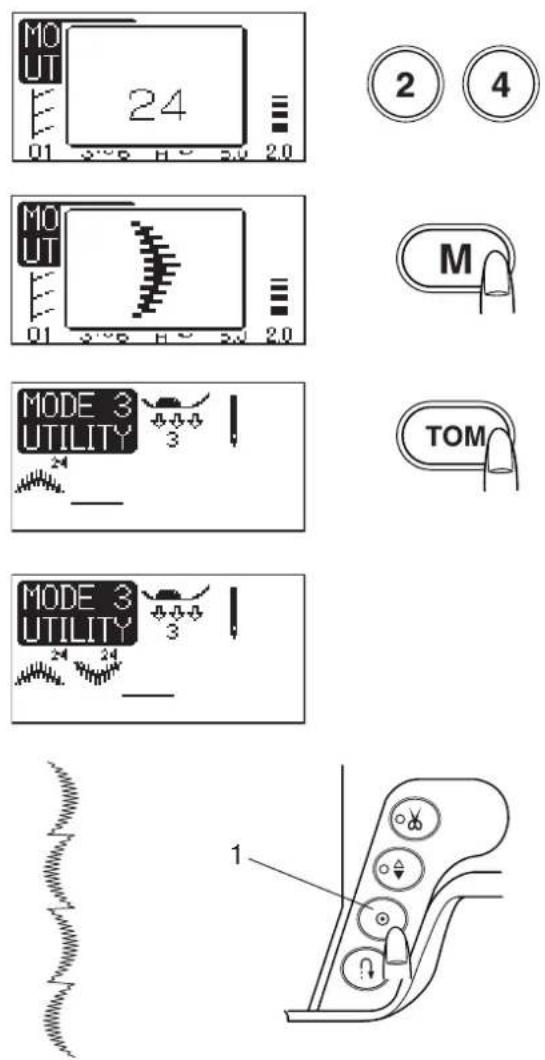
text_image
MO UT 24 01 3° 5 H 2.0 MO UT 01 3° 5 H 2.0 MODE 3 UTILITY 3 MODE 3 UTILITY 3 1 ② ④ M TOM 1Programming pattern combination with a mirror Image
Example: Programming the pattern 24 and its mirror image.
Select the pattern 24 in the Mode 3.
Press the memory button.
Press the turnover memory button.
Start to sew. The machine will sew the pattern combination repeatedly.
NOTE:
If you press the Auto-lock button in the middle of a programmed pattern the machine will stop automatically after the current pattern is completed.
1 Auto-Lock Button
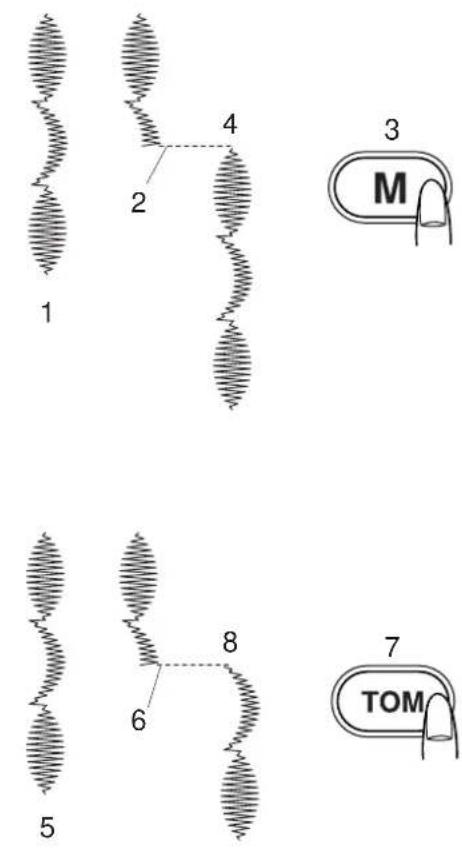
Sewing the pattern combination from the beginning
If you have to stop sewing the pattern combination and wish to sew it over again, press the memory button to sew the pattern combination from the beginning.
1 Programmed Pattern Combination
2 Stop sewing.
3 Press the memory button.
4 Machine sews the pattern combination from the beginning.
Sewing the current pattern from the beginning
If you have to stop sewing the pattern combination and wish to sew from the incomplete pattern, press the turn over memory button to sew from the beginning of the pattern last sewn.
5 Programmed Pattern Combination
6 Stop sewing.
7 P press the turnover memory button.
8 Machine sews the pattern combination from the beginning of the current pattern.
Making a copy and a mirror Image of programmed patterns
Example: Combination of the patterns 24 and 27.
text_image
MODE 3 UTILITY 24 27 3
text_image
MODE 3 UTILITY 24 27 3 1 ×1
text_image
MODE 3 UTILITY 24 24 27 0.0.0 3 1 x 1
text_image
MODE 3 UTILITY 24 24 27 3 ×1
text_image
MODE 3 UTILITY 24 24 27 27 3 ×1


Press the edit button to shift the cursor under the pattern 24.
Press the memory button and a copy of the pattern 24 will be memorized.
Press the help button to shift the cursor under the pattern 27.
Press the Turnover memory button and a mirror image of the pattern 27 will be memorized.

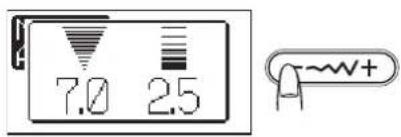
text_image
7.0 2.5 ~W+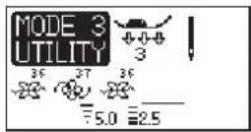

text_image
1 2(1)
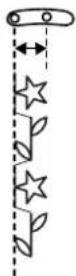
(2)

(3) (4)


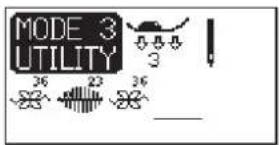
text_image
MODE 3 UTILITY 36 23 36 _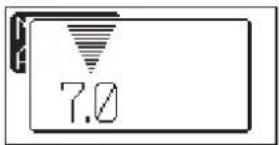
text_image
7.0

text_image
MODE 3 UTILITY 36 23 36 5.0Editing Program
Uniform stitch adjustment (Modes 2 and 3 only)
The stitch width and length of the programmed stitch patterns can be uniformly altered.
Example 1: To alter the stitch width of the programmed patterns 36, 37 and 36 in the Mode 3.
Shift the cursor to the right of the last programmed pattern.
Press the stitch width adjusting button to alter the stitch width.
NOTE:
Stitch length can be uniformly altered when patterns of the same category (satin stitches or stretch stitches) have been programmed.
Start sewing. The programmed patterns will be sewn in the uniform width.
1 Default Width
2 Uniformly Altered Width
Unified needle drop position:
The needle drop position of the programmed patterns will vary depending on the combination:
(1) Unified to the left when combining the patterns with the left needle position and the center needle position.
(2) Unified to the right when combining the patterns with the right needle position and the center needle position.
(3) Unified to the center when combining the patterns with the left needle position and the right needle position.
(4) Unified to the center when combining the patterns with the left, right and center needle positions.
Example 2: To alter the stitch width of the programmed patterns 36, 23 and 36.
Shift the cursor to the right of the last programmed pattern.
Press the stitch width adjusting button to alter the stitch width. The LCD screen will show the stitch width only.
Start sewing. The programmed patterns will be sewn in the uniform width.
NOTE:
Only the stitch width can be altered when satin stitches and stretch stitches have been combined.
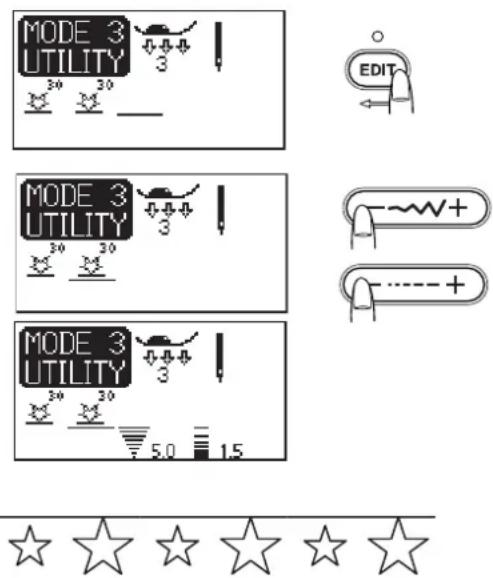

Custom stitch adjustment (Mode 2 and 3 only)
The stitch width and length can be individually altered for each pattern in the programmed combination.
Example: To alter the stitch width and length of a single pattern in the combination
Press the Edit button to shift the cursor under the pattern you wish to alter.
Press the stitch width adjusting button to reduce the width to "5.0".
Press the stitch length adjusting button to reduce the length to "1.5".
NOTES:
To view the stitch setting of each pattern, shift the cursor under the desired pattern then press the stitch width or length adjusting button. The settings will be displayed at the bottom center of the LCD screen.
If you press the stitch width or length adjusting button when the cursor is on the right of the last programmed pattern, a custom adjustment will be canceled and uniform adjustment will be applied.
Storing and recalling the pattern combination
A pattern combination will be kept in the memory for future use even after turning the machine off.
The stored pattern combination can be recalled by pressing the memory/recall button.
NOTES:
If you store a new pattern combination, the previously stored combination will be deleted.
One pattern combination can be stored in each mode.
To store a pattern combination
Program a pattern combination.
Press the memory/recall button. An hourglass will appear for a while and the pattern combination will be stored.
Turn the machine off.
1 Stored Pattern Combination
To recall the stored pattern combination
Turn the machine on.
Select the mode in which you have stored the pattern combination.
Press the memory/recall button and the stored combination will appear on the LCD screen.
2 R ecalled Pattern Combination
MONOGRAMMING (Mode 4)

text_image
(1) MODE 4 A A A 3 A X C 1~4 F 7.0 2.5 1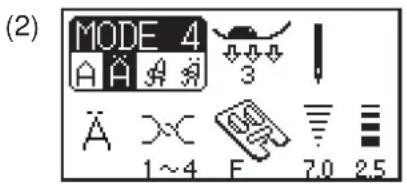
text_image
(2) MODE 4 A A A 3 A X C 1~4 F 7.0 2.5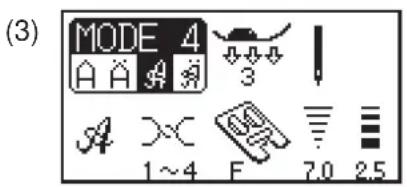
text_image
(3) MODE 4 A A A 3 A X 1~4 F 7.0 2.5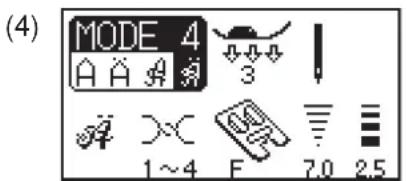
text_image
(4) MODE 4 A A A 3 1~4 F 7.0 2.5Selecting a Letter Style
You can select Block and script Style letters.
Press the letter style button to choose one of the following:
(1) Block
(2) Block (European accented letters)
(3) Script
(4) Script (European accented letters)
1 Letter Style Button
To select a letter, enter the 2-digit pattern number.

text_image
MODE 4 A A A 3 A 1~4 F 7.0 2.5
text_image
MO Af A 28 1.04 F 1.0 2.5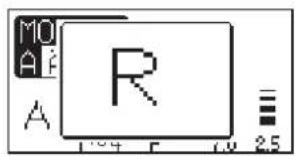
text_image
MO A R 1.04 F 1.0 2.5
text_image
MODE 4 A A A R_
text_image
MO Af R_ 64
text_image
MO R_ & R_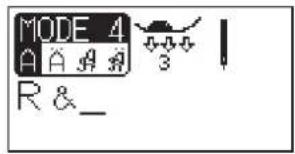
text_image
MODE 4 A A A R R & 3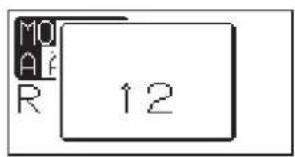
text_image
MO Af R 12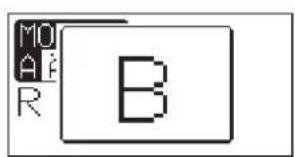
text_image
MO AF R B
text_image
MODE 4 A A A R R & B_




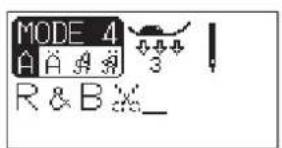
text_image
MODE 4 A A A 3 R & B x_
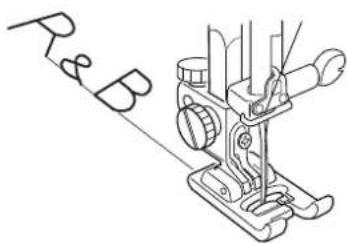
text_image
R&BProgramming a Monogram
Example: To program "R&B"
Select the Mode 4.
Select the letter "R" (pattern 28).
Press the memory button.
The letter "R" will be memorized.
Select the pattern “&” (pattern 64).
Press the turnover memory button.
The letter size will be reduced to 2/3 of the original size. The reduced pattern “&” will be memorized.
Select the letter "B" (pattern 12).
Press the memory button.
"R&B" will be memorized.
Press the auto thread cutter button after programming a monogram. The LED signal will turn on and the cutter mark will appear after the monogram.
To sew
Depress the foot control to sew. The machine will sew a monogram then stop automatically and trim the threads.

text_image
MODE 4 A A A 3 I J K_
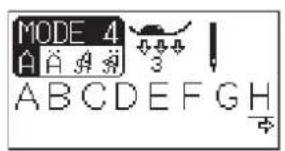
text_image
MODE 4 A A A 3 A B C D E F G H
Viewing a Long Text
The LCD screen only shows 8 characters of a monogram at a time.
If the entire text is not displayed, press the edit button or help button to scroll the text.
Pressing the edit button shifts the cursor and scrolls the text to the left.
Pressing the help button shifts the cursor and scrolls the text to the right.
NOTE:
Arrow marks ✦ ✦ under the character indicates that there are remaining characters in that direction.
Editing a Monogram
Inserting a letter (character)
Example: To insert a space in "ABCD".
Press the Edit button to shift the cursor under the letter "C".
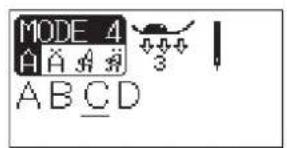
text_image
MODE 4 A A A A 3 A B C D
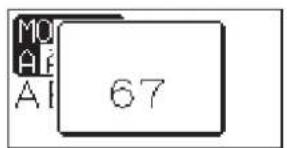
text_image
MO AI AI 67
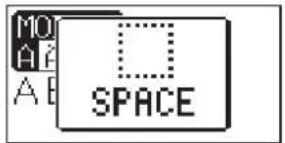
text_image
MO AI A B SPACE
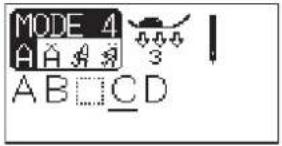
text_image
MODE 4 A A A A B C D 3Select pattern 67 (blank space).
Press the memory button and a space will be inserted before the letter "C".
NOTE:
The program can be edited when the LED signal lights up.
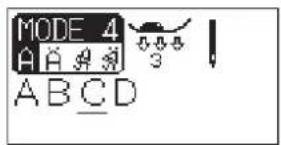
text_image
MODE 4 A A A ABCD
Deleting a letter (character)
Example: To delete "C" from "ABCD"
Press the edit button to shift the cursor under the letter "C".
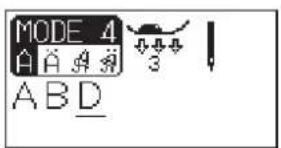
text_image
MODE 4 A A A AB D 3
Press the clear button. The letter "C" will be deleted.
NOTE:
Pressing the clear button for a while will delete the entire program and the LCD screen will return to the initial display of the selected mode.

text_image
Diagram of a device control panel with labeled buttons and directional indicators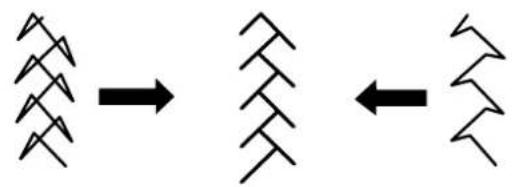
flowchart
graph TD
    A["Tree"] --> B["Leaf"]
    B --> C["Leaf"]
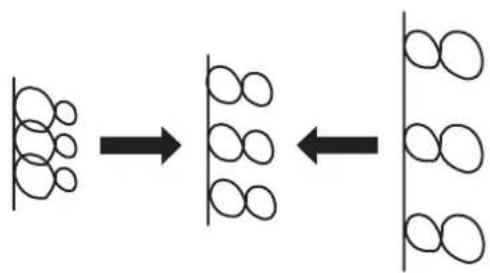
flowchart
graph LR
    A["Top row: 5 molecules"] --> B["Middle row: 8 molecules"]
    B --> C["Final structure with 8 circles"]

natural_image
Diagram showing three stages of spring deformation with arrows indicating direction (no text or symbols)CARE AND MAINTENANCE
Correcting Distorted Stitch Patterns
The sewing results of the stitch patterns may vary depending upon the sewing conditions, such as sewing speed, type of the fabric, number of layers etc.
Always test sew on a scrap piece of the fabric that you wish to use.
If stretch stitch patterns, letters, numbers or the auto buttonhole stitch are distorted, correct it with the feed balancing dial.
1 Feed Balancing Dial
2 Neutral Position
3 Setting Mark
Stretch stitch pattern
Example: Pattern 31 in the Mode 2
If the pattern is compressed, turn the feed balancing dial in the direction of “+”.
If the pattern is drawn out, turn the feed balancing dial in the direction of “—”.
Letters and numbers
Example: Pattern 08 in the Mode 4
If the pattern is compressed, turn the feed balancing dial in the direction of “+”.
If the pattern is drawn out, turn the feed balancing dial in the direction of “—”.
Stitch balance of the auto buttonhole
The stitch balance of the right and left rows on the auto buttonhole may vary depending on conditions of sewing. If the right row is denser, turn the dial in the direction of “+”. If the left row is denser, turn the dial in the direction of “—”.
NOTE:
Return the feed balancing dial to its neutral position when the sewing is finished.
Cleaning the Hook Race and Feed Dog
WARNING:
Turn the power switch off and unplug the machine before cleaning.
NOTE:
Do not dismantle the machine in any way other than what is explained on this page.
1

text_image
Diagram showing a hand inserting a plug into a device with labeled parts 1, 2, and 3.2
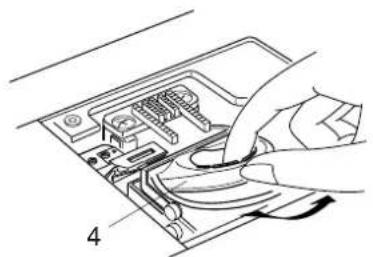
natural_image
Line drawing of a hand inserting cables into an electronic device (no text or symbols)3
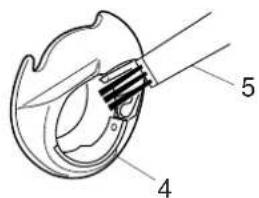
text_image
Technical diagram of a mechanical component with labeled parts 4 and 54

text_image
Technical diagram of a device with numbered components, likely for assembly or maintenance instructions.5
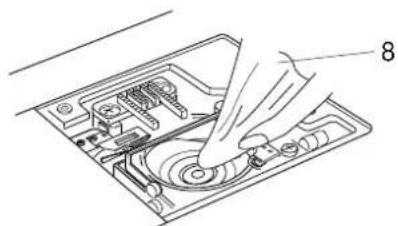
natural_image
Diagram of a hand inserting a component into an electronic device (no text or symbols visible)① Remove the needle and presser foot. Remove the setscrews and remove the needle plate.
②Take out the bobbin. Lift up the bobbin holder and remove it.
③ Clean the bobbin holder with a lint brush and soft dry cloth.
4 C lean the feed dog, auto thread cutter mechanism and hook race with the lint brush.
5 Clean the hook race with a dry cloth. (You may also use a vacuum cleaner.)
1 Screwdriver
2 Setscrew
3 Needle Plate
4 Bobbin Holder
5 Lint Brush
6 Feed Dog
7 Hook Race
8 Soft Dry Cloth
9 Auto Thread Cutter Mechanism
Assemble the hook race

natural_image
Line drawing of a hand inserting a component into a device (no text or symbols visible)1
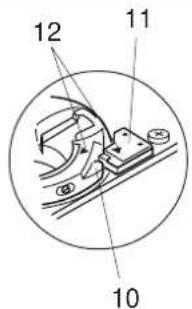
text_image
12 11 102

natural_image
Line drawing of a hand using a tool to press or install electronic components on a flat surface (no text or symbols)1 Insert the bobbin holder. The knob of the bobbin holder should fit next to the stopper on the hook race. Be sure to align the red triangle marks on the bobbin holder and stopper.
② Reattach the needle plate and tighten the screws.
10 Knob
11 Stopper
12 Triangle Marks
NOTE:
After cleaning the machine, attach the needle and presser foot.
Replacing the Light Bulb
WARNING:
Turn the power off before replacing the light bulb. The bulb could be HOT, wait until it has cooled down before touching it.
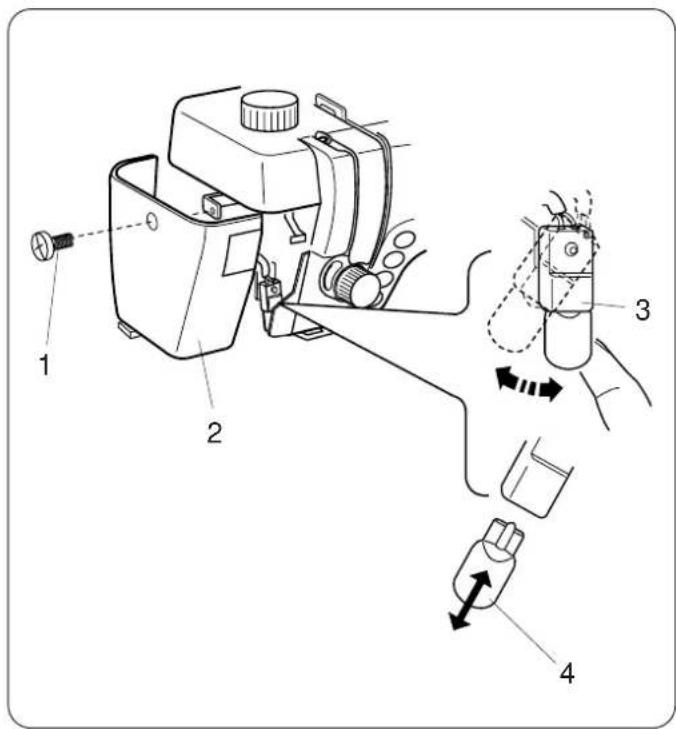
text_image
Technical diagram of a mechanical device with numbered components and directional arrows indicating assembly or movement.To remove:
Remove the setscrew.
Remove the faceplate.
Swing the lamp socket to the left and pull out the bulb.
To replace:
Insert a new bulb into the opening of the socket.
Return the lamp socket to the original position.
Attach the faceplate with the setscrew.
1 Setscrew
2 Faceplate
3 Lamp Socket
4 Light Bulb
Replace a bulb with the same type, rated 12 V, 5 W.
Problems And Warning Signals
If a buzzer sounds and the LCD screen shows a warning sign, follow the guidance below.
| Warning Sign | Cause | Try this |
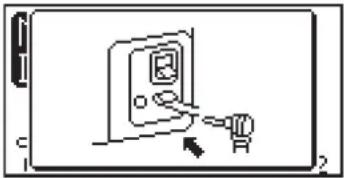 | The power is turned on without the foot control being connected.The foot control is disconnected while sewing. | Connect the foot control and restart the machine. |
 | The power is turned on while depressing the foot control. | Release the foot control. |
 | The power is turned on with the needle in the down position. | Press the up/down needle button to raise the needle. |
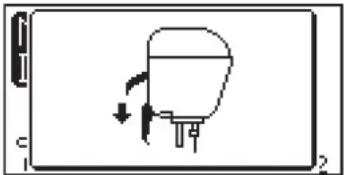 | The machine is started without lowering the presser foot.The thread cutter button is pressed with the presser foot raised.The machine will stop if the presser foot is raised while sewing. | Lower the presser foot and restart the machine.Lower the presser foot and press the thread cutter button again. |
 | The machine will stop if the buttonhole is sewn without lowering the buttonhole lever. | Lower the buttonhole lever and restart the machine. |
 | The foot control is released while sewing a locking stitch. | Depress the foot control again to let the machine stop automatically. |
 | The auto thread cutter button is pressed when the machine is still initializing after turning the power on.Pressing the thread cutter button 4 times in a row | Press the thread cutter button after the machine stops. |
 | The twin needle button is pressed when a pattern unsuitable for twin needle sewing has been selected. | Sew with a single needle. |
 | The elongation button is pressed when a pattern that cannot be elongated has been selected. | Elongation is applicable only to satin stitches. |
 | The power is turned on again after auto thread cutting has been interrupted.The presser foot is raised before auto thread cutting is completed. | Press the Thread cutter button to finish auto thread cutting. |
 | The machine is started when it halts due to the overload.The feed dog is dropped while sewing.The bobbin winder spindle is locked while winding a bobbin. | Wait for at least 15 seconds to restart. Remove tangled threads around hook race and auto thread cutting device.Do not drop or raise the feed dog while the machine is running.Turn off the power and remove tangled threads. |
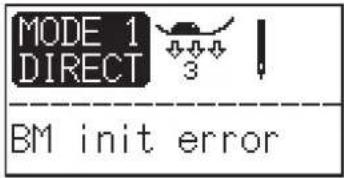 | The machine is out of order due to a problem in the item indicated.(Example: “BM init error” means error in initialization of stepping motor.) | Contact the service center or the store from whom the machine was purchased. |
| The LCD screen shows an abnormal display. | Turn the power off and turn it on again. | |
| Audible Signal | The Buzzer Sounds when: |
| pip Normal operation | |
| pip-pip-pip Invalid operation or malfunction |
Troubleshooting
| Condition | Cause | Reference |
| The needle thread breaks. | 1. The needle thread is not threaded properly.2. The needle thread tension is too tight.3. The needle is bent or blunt.4. The needle is incorrectly inserted.5. The needle thread and the bobbin thread are not set under the presser foot when start sewing.6. The threads were not drawn to the rear after sewing.7. The thread is too heavy or too fine for the needle.8. The thread is tangled around a spool. | Page 15Page 20Page 19Page 19Page 25Page 25Page 19Page 12 |
| The bobbin thread breaks. | 1. The bobbin thread is not threaded properly in the bobbin holder.2. Lint has collected in the bobbin holder.3. The bobbin is damaged and does not turn smoothly. | Page 14Page 70Change the bobbin. |
| The needle breaks. | 1. The needle is incorrectly inserted.2. The needle clamp screw is loose.3. The threads were not drawn to the rear after sewing.4. The needle is too fine for the fabric being used.5. A wrong presser foot is used. | Page 19Page 19Page 25Page 19Use the correct foot. |
| Skipped stitches | 1. The needle is incorrectly inserted, bent or blunt.2. The needle and/or threads are not suitable for the work being sewn.3. The blue tipped needle is not being used for sewing stretch, very fine fabrics and synthetics.4. The needle thread is not threaded properly.5. The poor quality needle is used. | Page 19Page 19Page 19Page 15Change the needle. |
| Seam puckering | 1. The needle thread tension is too tight.2. The needle thread is not threaded properly.3. The needle is too heavy for the fabric being sewn.4. The stitch length is too long for the fabric.5. The foot pressure is not adjusted properly.A stabilizer is not used when sewing very fine fabrics. | Page 20Page 15Page 19Make stitch shorter.Page 21Apply a stabilizer. |
| The cloth is not feeding smoothly. | 1. The feed dog is packed with lint.2. The stitches are too fine.3. The feed dog is not raised after "drop feed" sewing. | Page 70Make stitch longer.Page 21 |
| Loops on the seams | 1. The needle thread tension is too loose.2. The needle is too thick or too fine for the fabric. | Page 20Page 19 |
| The machine does not work. | 1. The machine is not plugged in or foot control is not connected.2. Thread has been caught in the hook race.3. The presser foot is not lowered. | Page 5Page 70Page 72 |
| Buttonhole sewing is not sewn properly. | 1. The stitch density is not suitable for the fabric being sewn.2. The interfacing has not been used for the stretch or synthetic fabric.3. The buttonhole lever is not lowered | Page 47Apply an interfacing.Page 43 |
| The machine is noisy. | 1. Thread has been caught in the hook race.2. Lint has built up in the hook race or bobbin holder. | Page 70Page 70 |
| Layers shift. | 1. The foot pressure is not suitable for fabrics being sewn. | Page 21 |
| Thread cutter LED blinks. | 1. The presser foot is raised before auto thread cutting is complete.2. Threads have been caught in the tread cutter mechanism. | Lower the presser foot.Page 70 |
It is not abnormal that a faint humming sound is coming out from the internal motors.
The pattern selection key area may get warm when the machine has been used for hours.
SUPPLEMENTARY INSTRUCTIONS
The stitch numbers 17 and 18 in the MODE 2 and 58 and 59 in the MODE 3 are extender stitches, they are not blind hem stitches. When one of these stitches is memorized after a stitch, straight stitches will be inserted after the memorized stitch so that the base line of the stitch can be lengthened.
The extender stitches are indicated as “<” on the reference chart and the LCD screen.
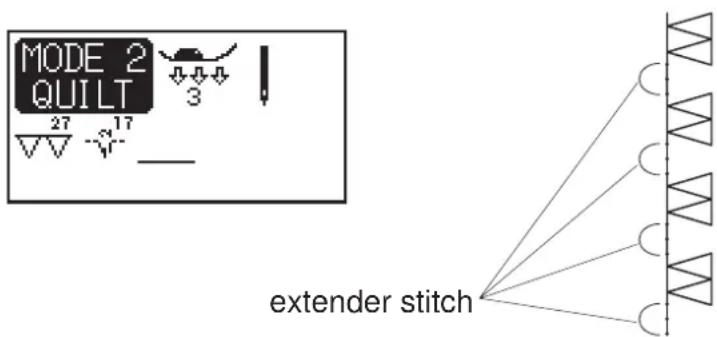
text_image
MODE 2 QUILT 27 17 3 extender stitchJANOME SEWING MACHINE CO., LTD