V100 WL2X - Counter Vetta - Free user manual and instructions
Find the device manual for free V100 WL2X Vetta in PDF.


User questions about V100 WL2X Vetta
0 question about this device. Answer the ones you know or ask your own.
Ask a new question about this device
Download the instructions for your Counter in PDF format for free! Find your manual V100 WL2X - Vetta and take your electronic device back in hand. On this page are published all the documents necessary for the use of your device. V100 WL2X by Vetta.
USER MANUAL V100 WL2X Vetta
Speed, Trip Distance, Ride Time, Total Time....10
Average Speed, Maximum Speed, Speed*, Cadence* 11
LOWER SCREEN MODES
Clock, Odometer, Speed, Temperature....12
Stopwatch, Intermediate Distance, Dual Bike Memory ....13
- V100 SECONDARY FUNCTIONS & FEATURES
Maximum & Minimum Temperature, Service Timer 14
Average Cadence*, Maximum Cadence*, Low Battery Alert, Speed Comparator 15
Freeze Frame Memory 16
AUTO START....16
SLEEP MODE 17
RIDE DATA RESET 17
ALL CLEAR TOTAL RESET 17
8. BATTERY INSTALLATION
HEAD UNIT 18
WL WIRELESS SPEED TRANSMITTER 19
9. SETUP MODE & PROGRAMMING 20
10. INSTALLATION
WIRED MODEL INSTALLATION
Speed Sensor & Magnet 27
Mounting Bracket 31
Head Unit 32
WIRELESS MODEL INSTALLATION
Speed Transmitter & Magnet 33
Active Mount 36
Head Unit 38
INSTALLATION TESTS 39
11. TROUBLESHOOTING
PROBLEM/ITEMS TO CHECK/SOLUTION 39
12. TECHNICAL SPECIFICATIONS 41
13. WARRANTY POLICY
REQUIREMENTS FOR WARRANTY SERVICING 43
ITEMS TO BE INCLUDED IN RETURNS 44
INTRODUCTION
Thank you for purchasing a Vetta V100 cycle computer. The V100 series computers represent the latest evolution in Vetta's computer line and are designed for cycling enthusiasts and competitive cyclists alike. In particular, the V100 model offers a wide range of unique features and functions such as Temperature, Dual Bike Memory, Intermediate Distance and Stopwatch readings and a Service Timer. Please take the time to familiarize yourself with all the functions of the V100 model so that you may take full advantage of its programs. And don't forget to store this manual in a safe place for future reference!
WARNINGS & CAUTIONS
- Vetta cycle computers are sophisticated electronic instruments. Vetta recommends that this product be installed only by a qualified bicycle retailer. Failure to read these instructions and/or improper installation of this device may void the warranty. If in doubt about any aspect of the installation or operation of this product, consult your local bicycle retailer for clarification.
- The head unit is water resistant and sealed to withstand wet weather conditions. However, do not deliberately place it in water.
- Avoid leaving the head unit exposed to extremely hot weather conditions.
- Vetta encourages you to ride safely. Wear a helmet every time you ride, use front and rear lights at night, and always keep your eyes on the road ahead of you.
HEAD UNIT: FRONT

text_image
VETTA A 100 2 3 B D C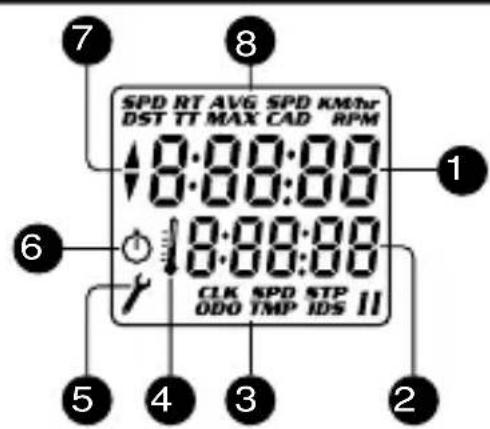
text_image
7 8 SPD RT AVG SPD KM/hr DST TT MAX CAD RPM 0:00:00 1 6 CLK SPD STP ODO TMP IDS II 5 4 3 2A Main Display
1 Upper Display
2 Lower Display
3 Lower Screen Symbols
4 Temperature Icon
5 Service Timer Icon
6 Stopwatch Icon
7 Speed Comparator Symbol
8 Upper Screen Symbols
B Button #1 (Left)
C Button #2 (Right)
D Button #3 (Center)
HEAD UNIT: REAR
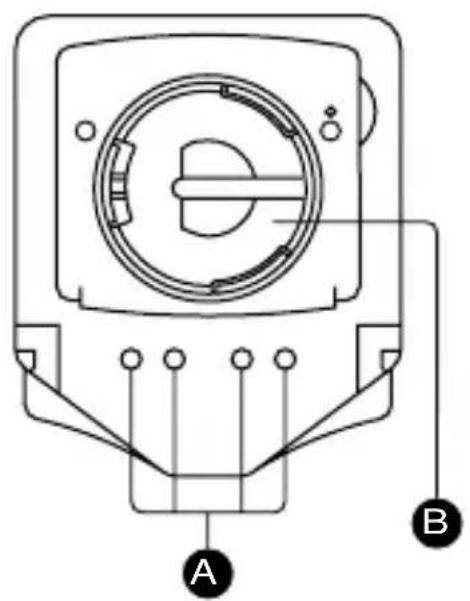
text_image
Technical diagram of a mechanical or electrical component with labeled parts A and B
text_image
OPEN CLOSE VETTA CR203.2 CA Contact Pins
B Battery Compartment
C Battery Cover
COMPONENT ILLUSTRATIONS
natural_image
Simple line drawing of a vehicle with a circular symbol labeled 'A' (no text or symbols present)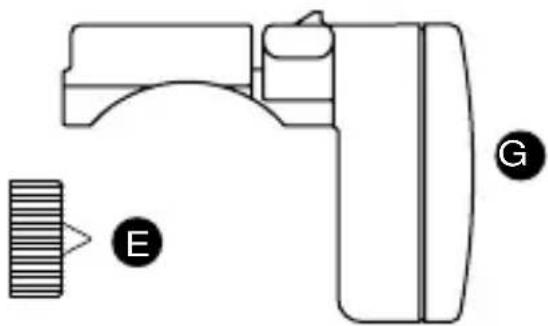
text_image
Technical diagram of a mechanical component with labeled parts E and G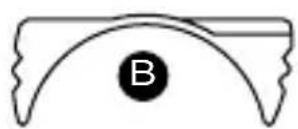
natural_image
Technical line drawings of mechanical components (no text or symbols)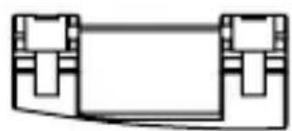
C
H

natural_image
Line drawing of a VETTK branded container with spiral design (no text or symbols beyond branding)
natural_image
Abstract geometric line drawing resembling a stylized leaf or abstract shape with a vertical rod (no text or symbols)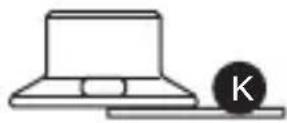

text_image
CR2032 + 3VOLT 4 THUM CELL

natural_image
Three parallel horizontal lines with rounded ends, no text or symbols presentM
text_image
VETTA VETTA VETTAN
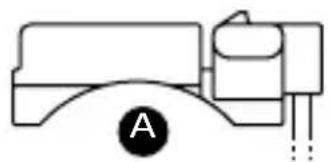
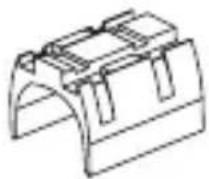
A Wired Mounting Bracket
B Mounting Bracket Pad
C Riser Handle Bar Bracket Pad (You may choose B or C according to the style of your bicycle handlebar.)
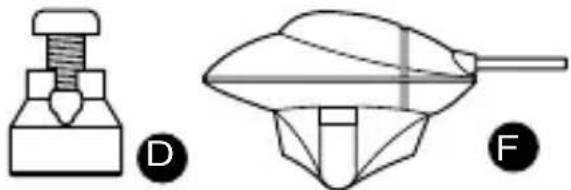
D Spoke Magnet
E Spacer
F Wired Speed Sensor
G Wireless Active Mount
H WL Wireless Speed Transmitter
I Transmitter Mounting Pad
J Wired Cadence Sensor*
K Cadence Magnet*
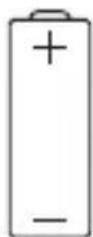
L CR2032 3V Battery
M Zip Ties
N Wire Securing Tape
O A23 12V Battery
P WL2X Wireless Cadence Transmitter*
*(optional)
0

text_image
VETTKP
1
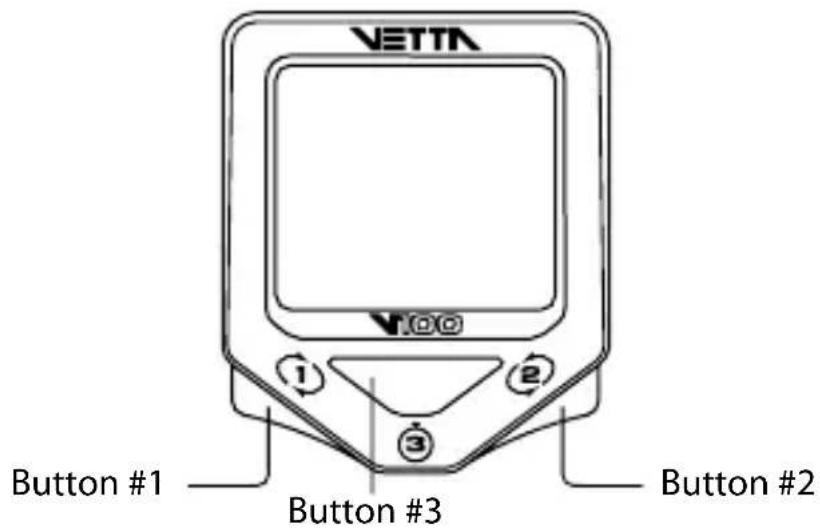
BUTTON FUNCTIONS
text_image
VETTA 1 2 3 Button #1 Button #3 Button #2SETUP MODE
| Button #1 | Sets digits or units and advances to the next item or screen. |
| Button #2 | Advances digits and toggles through units. Hold for fast advance. |
| Button #3 | Has no function in Initial Setup. |
OPERATING MODE
| Button #1 | Scrolls through lower level screen symbols and Freeze Frame display screens. Hold 2 seconds in Temperature mode (SPD/TMP) to display Maximum and Minimum Temperature. Hold 2 seconds in SPD/CAD* screen to display Average and Maximum Cadence.*(optional) |
| Button #2 | Scrolls through upper level screen symbols. Press and hold 2 seconds in any primary screen mode to activate Freeze Frame memory. Resets RT to zero for Service Timer. |
Button #3
Starts and stops the timers and Stopwatch and is used to reset timers and other ride data to zero. Exits Normal Operating Mode (NOM) Setup and advances to NOM System Check and SPD/DST screen mode.
Note: To enter Setup in the Normal Operating Mode: 1. Make sure the timers are turned off. 2. Go to SPD/DST screen mode. 3. Press and hold Buttons #1 and #2 simultaneously for 2 seconds.
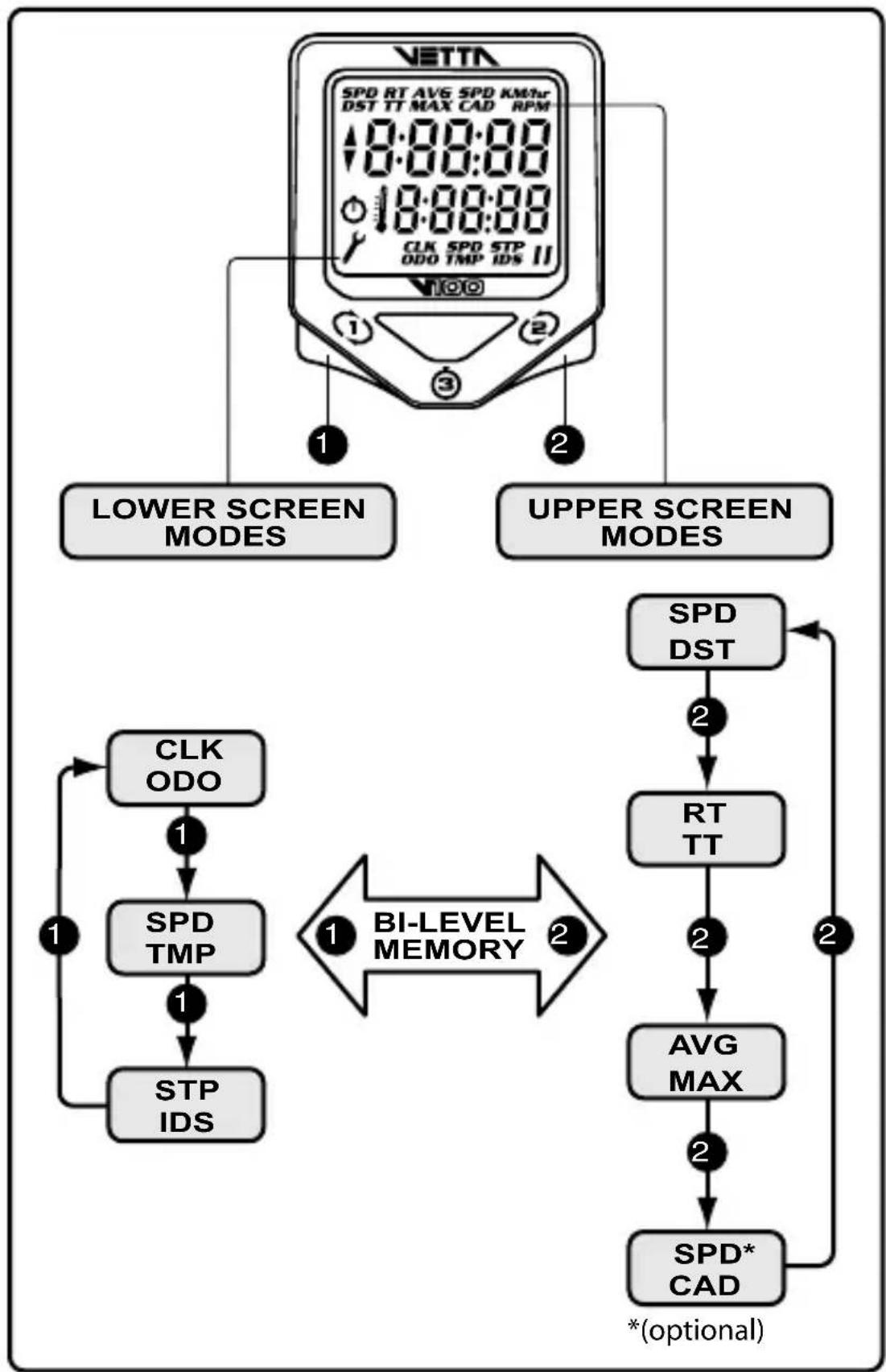
V100 SCREEN DISPLAY SEQUENCE: BI-LEVEL MEMORY
The V100 series computers are programmed with a Bi-Level Memory which returns to the last screen function accessed between the upper and lower screen modes. See illustration for this sequence and how to advance from one screen to the next.
flowchart
graph TD
    A["VETTA"] -->|1| B["LOWER SCREEN MODES"]
    A -->|2| C["UPPER SCREEN MODES"]
    D["CLK ODO"] -->|1| E["SPD TMP"]
    E -->|1| F["STP IDS"]
    G["SPD DST"] -->|2| H["RT TT"]
    H -->|2| I["AVG MAX"]
    I -->|2| J["SPD* CAD"]
    J --> K["(optional)"]
    L["BI-LEVEL MEMORY"] <--> M["SPD TMP"]
    M --> N["STP IDS"]
    style A fill:#f9f,stroke:#333
    style B fill:#ccf,stroke:#333
    style C fill:#ccf,stroke:#333
    style D fill:#cfc,stroke:#333
    style E fill:#fcc,stroke:#333
    style F fill:#fcc,stroke:#333
    style G fill:#fcc,stroke:#333
    style H fill:#fcc,stroke:#333
    style I fill:#fcc,stroke:#333
    style J fill:#fcc,stroke:#333
    style K fill:#fcc,stroke:#333
V100 PRIMARY FUNCTIONS
UPPER SCREEN MODES
text_image
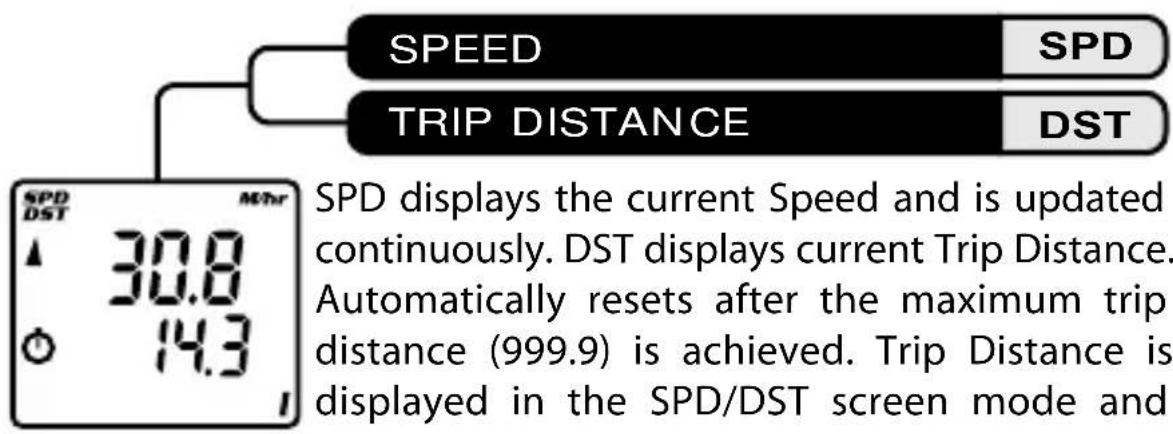
SPEED SPD TRIP DISTANCE DST SPD displays the current Speed and is updated continuously. DST displays current Trip Distance. Automatically resets after the maximum trip distance (999.9) is achieved. Trip Distance is displayed in the SPD/DST screen mode and 30.8 14.3SPD displays the current Speed and is updated continuously. DST displays current Trip Distance. Automatically resets after the maximum trip distance (999.9) is achieved. Trip Distance is displayed in the SPD/DST screen mode and starts automatically when the wheel rotates and TT timer is active. Reset DST to zero by pressing Button #3 for 2 seconds with the timers turned off in any screen mode except STP/IDS.

text_image
RIDE TIME RT TOTAL TIME TT 0:40:02 0:54:46 Ride Time and Total Time are shown simul-taneously. Ride Time (RT) measures actual riding time and starts automatically when the timers are set to "0:00:00" and the wheel rotates. If not, TT timer must be active for RT timer toRide Time and Total Time are shown simul-taneously. Ride Time (RT) measures actual riding time and starts automatically when the timers are set to "0:00:00" and the wheel rotates. If not, TT timer must be active for RT timer to operate. Total Time (TT) shows the total elapsed trip time from start to finish. Like RT, TT starts automatically when the wheel rotates ONLY when the timers are set to "0:00:00", or it can be started manually by pressing Button #3 in the RT/TT screen mode ONLY. TT can only be stopped manually by momentarily pressing Button #3 in RT/TT screen mode at the end of a ride. To reset both RT and TT to zero, turn timers off and press Button #3 for at least 2 seconds.
Note: Whenever TT is activated, the stopwatch icon appears; otherwise, it does not display.
CAUTION: If RT and TT timers are not 0:00:00 and you have stopped them manually, then they MUST be restarted manually by pressing Button #3 in RT/TT mode. If not, the computer will not record speed or other ride data.
RIDING TIP: If the bike is in motion and Button #3 is held down in the RT/TT screen mode with the timers deactivated, the ride timers reset to 0:00:00. When Button #3 is released, both RT and TT will start with the next wheel input. This is a good way to begin timing a race or training ride with a rolling start.

flowchart
graph TD
    A["AVERAGE SPEED"] --> B["MAXIMUM SPEED"]
    C["AVG"] --> D["MAX"]
    E["MAX"] --> F["MAX"]
text_image
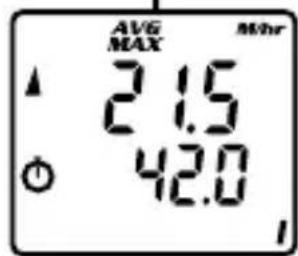
AVG MAX M/hr 2.15 42.0Average and Maximum Speed readings are displayed simultaneously in the AVG/MAX screen mode. Average Speed is updated every 0.1 miles or Km traveled. Reset both to zero by pressing Button #3 for 2 seconds with timers turned off in any screen mode except STP/IDS.

flowchart
graph TD
    A["SPEED*"] --> B["CADENCE*"]
    C["SPD"] --> B
    B --> D["CAD"]
When installed, the Cadence kit Measures and displays pedal Cadence in Revolutions Per Minute (RPM). The SPD/CAD screen function letters appear ONLY when the Cadence hardware is installed and a Cadence signal received by the head unit. After a current ride data reset, the function letters will go away but will come back with next Cadence input. Note: RT and TT timers MUST be activated in order for Speed and Cadence to function. *(Optional)
LOWER SCREEN MODES

text_image
CLOCK CLK ODOMETER ODO The time is displayed in the CLK/ODO screen mode and features a user selectable 12 or 24 hour format. The Odometer displays cumulative distance until an All Clear Total Reset is performed, the battery is changed*, orThe time is displayed in the CLK/ODO screen mode and features a user selectable 12 or 24 hour format. The Odometer displays cumulative distance until an All Clear Total Reset is performed, the battery is changed*, or the ride distance exceeds the maximum limit, after which the Odometer will automatically reset to zero. *Note: Odometer reading can be reinstalled by user after a battery change.
text_image
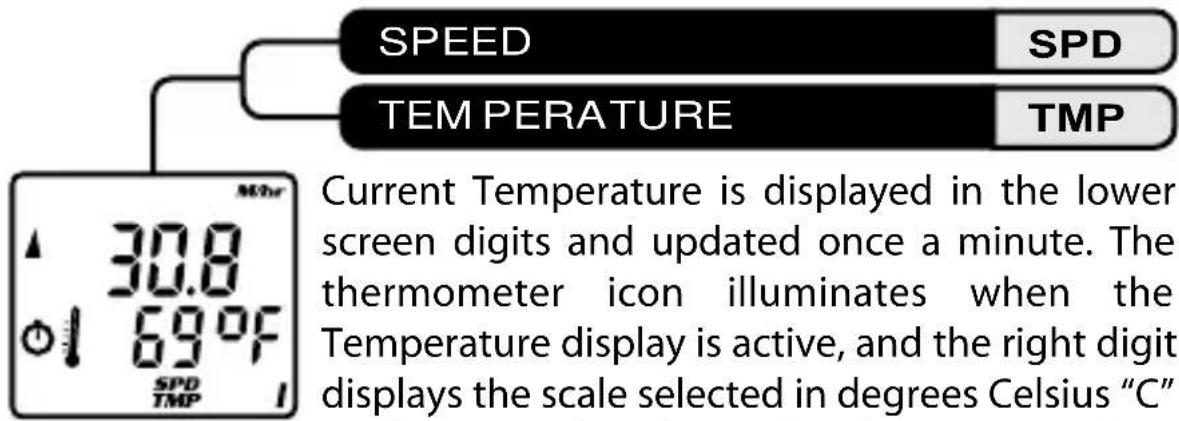
SPEED SPD TEMPERATURE TMP 30.8 69.0F SPD TMP Current Temperature is displayed in the lower screen digits and updated once a minute. The thermometer icon illuminates when the Temperature display is active, and the right digit displays the scale selected in degrees Celsius "C"Current Temperature is displayed in the lower screen digits and updated once a minute. The thermometer icon illuminates when the Temperature display is active, and the right digit displays the scale selected in degrees Celsius "C" or degrees Fahrenheit "F". Below zero readings are indicated by a minus sign (-). Note: A secondary screen displays Maximum and Minimum Temperatures on the upper and lower lines respectively. Press and hold Button #1 for 2 seconds to access the Max/Min TMP screen. Press Button #1 again to return to the SPD/TMP primary screen.
Note: The temperature reading can sometimes vary due to the computer head unit being heated by direct sunlight; which can heat the case hotter than the actual air temperature.

text_image
STOPWATCH STP INTERM EDIATE DISTANCE IDS The independent Stopwatch is operated by Button #3 in the STP/IDS screen mode. STP operates in conjunction with the RT/TT timers ( icon must be visible) and can be started or stopped by pressing Button #3. TheThe independent Stopwatch is operated by Button #3 in the STP/IDS screen mode. STP operates in conjunction with the RT/TT timers (icon must be visible) and can be started or stopped by pressing Button #3. The Intermediate Distance function tracks an intermediate distance within a ride. IDS does not affect overall Trip Distance or current ride data, but it operates the same as the DST function. In the STP/IDS screen mode with timers active, press Button #3 to start Stopwatch and IDS functions; press Button #3 again to stop functions and freeze data for review. Reset both Stopwatch and IDS to zero by pressing Button #3 for 2 seconds.
text_image
SPD DST Mthr 30.8 14.3DUAL BIKE MEMORY
1 11
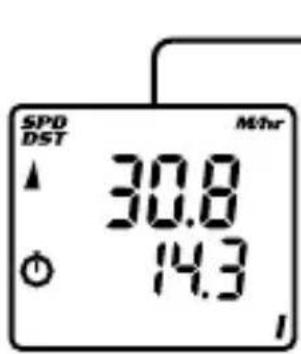
The V100 can be calibrated for two bicycles. It will store separate Wheel Size and Service Timer settings, Odometer settings and formats selected for Time, Temperature, Speed and Distance. The current bike number (I or II) is always displayed in the lower right corner of the screen. To switch the computer quickly from Bike I to Bike II, go to the first screen in the Setup program. (See SETUP section below for details.)
V100 SECONDARY FUNCTIONS & FEATURES

text_image
72°F 50°F TMPMAXIMUM & MINIMUM TEMPERATURE
To display both the Maximum and Minimum Temperature readings, press and hold Button #1 for 2 seconds in the Temperature SPD/TMP screen mode. To return to the primary SPD/TMP screen mode, press Button #1 again. When ride data is reset by holding Button #3 with the timers stopped, both Maximum and Minimum Temperatures reset to the current Temperature.
text_image
SPD DST M/hr 30.8 14.3 ISERVICE TIMER
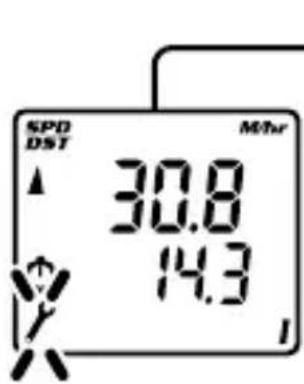
Alerts rider when Ride Time reaches a preset limit for a maintenance check on the bike or any main component. Suspension forks, rear shocks, chains, etc. require service at specific time intervals set by manufacturers. Vetta's Service Timer allows the rider to preset an exact number of riding hours during Setup, then signals (slow, flashing wrench icon) when the service time limit has been reached. (See SETUP section below for details.)

text_image
AVERAGE CADENCE* AVG CAD MAXIMUM CADENCE* MAX CAD The V100 displays both Average and Maximum Cadence in a secondary screen. Press and hold Button #1 in the SPD/CAD screen mode for 2 seconds. Average and Maximum Cadence appear on the upper and lower lines respectively. Press Button #1 again to return to the primary SPD/CAD screen. *(optional)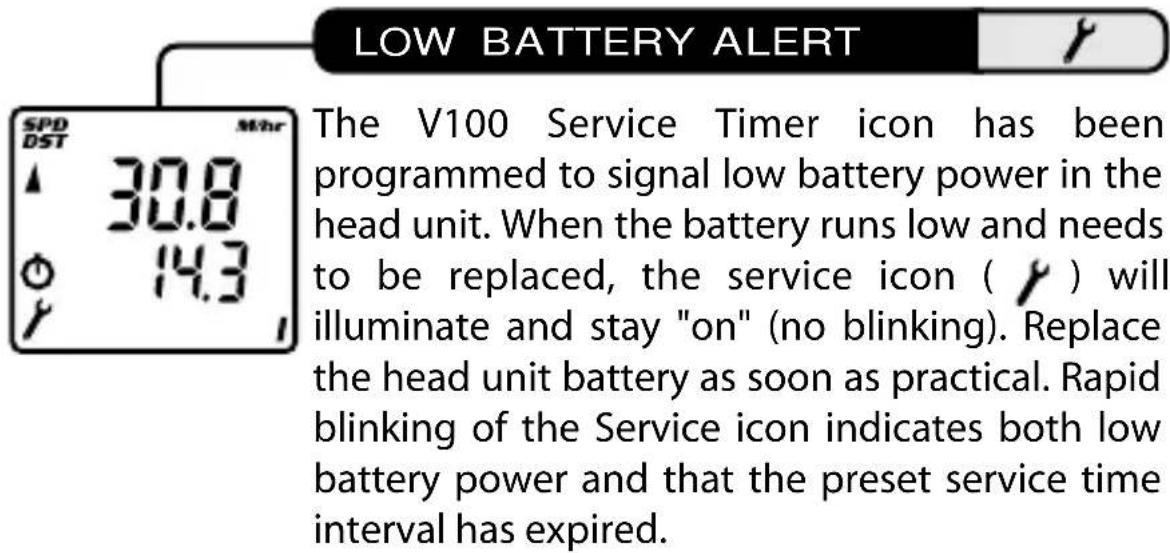
text_image
LOW BATTERY ALERT The V100 Service Timer icon has been programmed to signal low battery power in the head unit. When the battery runs low and needs to be replaced, the service icon ( ) will illuminate and stay "on" (no blinking). Replace the head unit battery as soon as practical. Rapid blinking of the Service icon indicates both low battery power and that the preset service time interval has expired.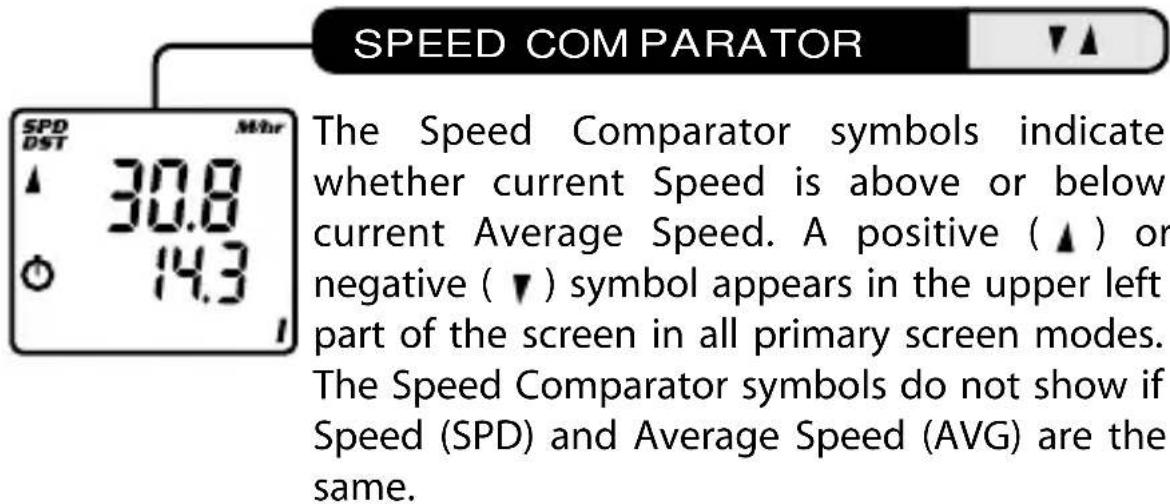
text_image
SPEED COM PARATOR The Speed Comparator symbols indicate whether current Speed is above or below current Average Speed. A positive (▲) or negative (▼) symbol appears in the upper left part of the screen in all primary screen modes. The Speed Comparator symbols do not show if Speed (SPD) and Average Speed (AVG) are the same.
flowchart
graph TD
    A["SPD/DST"] -->|2| B["SPD/DST"]
    B -->|1| C["RT/TT"]
    C -->|1| D["AVG/MAX"]
    D -->|2| E["SPD/DST"]
    E --> F["End"]
    C -->|1| D
FREEZE FRAME MEMORY
Freezes ride data from 3 primary screens for review at any point during a race or training ride. To activate Freeze Frame, press and hold Button #2 for 2 seconds in any primary screen mode. The screen will flash to indicate it has been frozen. The computer will continue to record ride data. Advance through the frozen screens by pressing Button #1 repeatedly. Press Button #2 to cancel Freeze Frame and return to the previous screen mode.
Note: If Ride Time/Total Time (RT/TT) is not running at the time Freeze Frame is activated (Button #2 for 2 seconds), previously frozen ride data will be displayed. At the end of the ride, user can view both "end-of-ride" data (by stopping the timers and toggling through the primary screens) and the last Freeze Frame data screens recorded (by activating Freeze Frame with the RT/TT timers turned off).
AUTO START
If the RT/TT timers read zero (0:00:00), the Vetta V100 computer automatically starts as soon as it receives input from the wheel. The RT and TT timers are activated and other ride data begins to accumulate (SPD, DST, AVG & MAX SPD, CAD*, AVG & MAX CAD*, ODO).
Note: Any time the timers are stopped manually and they are not cleared, RT and TT must be restarted manually by pushing Button #3 in the RT/TT screen mode.
*(optional)
SLEEP MODE
text_image
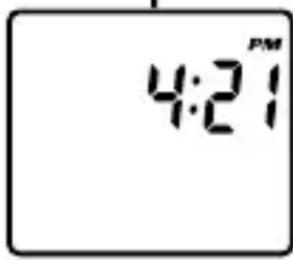
4:21 PMTo conserve battery life, the V100 computer is programmed to enter a Sleep Mode after receiving no input from buttons, wheel motion or cadence for 5 minutes. In this mode, the V100 screen displays only the time of day. The computer exits Sleep Mode automatically when it receives input from buttons or wheel/crank motion* and then returns to the screen last displayed. Clock, Stopwatch and Total Time (for the ride) continue to run during the Sleep Mode.
*(wired version only)
RIDE DATA RESET
To reset current ride data (DST, RT, TT, AVG & MAX SPD, AVG/MAX CAD*, MAX/MIN TMP, STP, IDS), make sure the timers (RT/TT) are turned off and press Button #3 for 2 seconds in any primary screen mode except STP/IDS.
*(optional)
ALL CLEAR TOTAL RESET
All data entered in Setup, as well as all accumulated ride data, can be cleared by performing an All Clear Total Reset. To clear the computer, press all three buttons simultaneously and hold for 5 seconds in any screen mode. When the computer is reset, the master screen will appear and show all LCD segments for 3 seconds. The computer will then automatically enter Initial Setup mode to be reprogrammed.
BATTERY INSTALLATION
HEAD UNIT
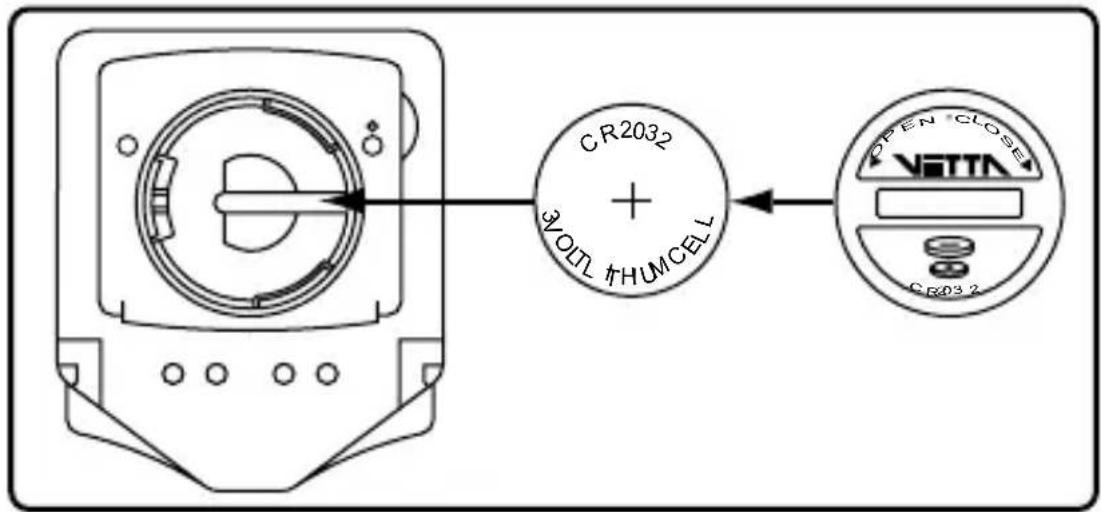
The V100 head unit uses a CR2032 3V lithium button cell battery.
IMPORTANT: Most cycle computer problems are caused by weak or dead batteries. See the Troubleshooting section near the end of this manual for details.
text_image
CR2032 3V/THMCELL OPEN CLOSE VETTA CR03 2Step 1: Remove the battery cover from the bottom of the computer using a coin. Remove the old battery.
Step 2: Install a new battery as shown with the positive (+) side facing out. Do not touch or bend any of the battery contacts during installation.
Step 3: Screw the battery cap firmly into place making sure the o-ring seal does not get pinched or distorted.
CAUTION: To avoid damage to the battery cap, do not over tighten.
WL WIRELESS SPEED TRANSMITTER
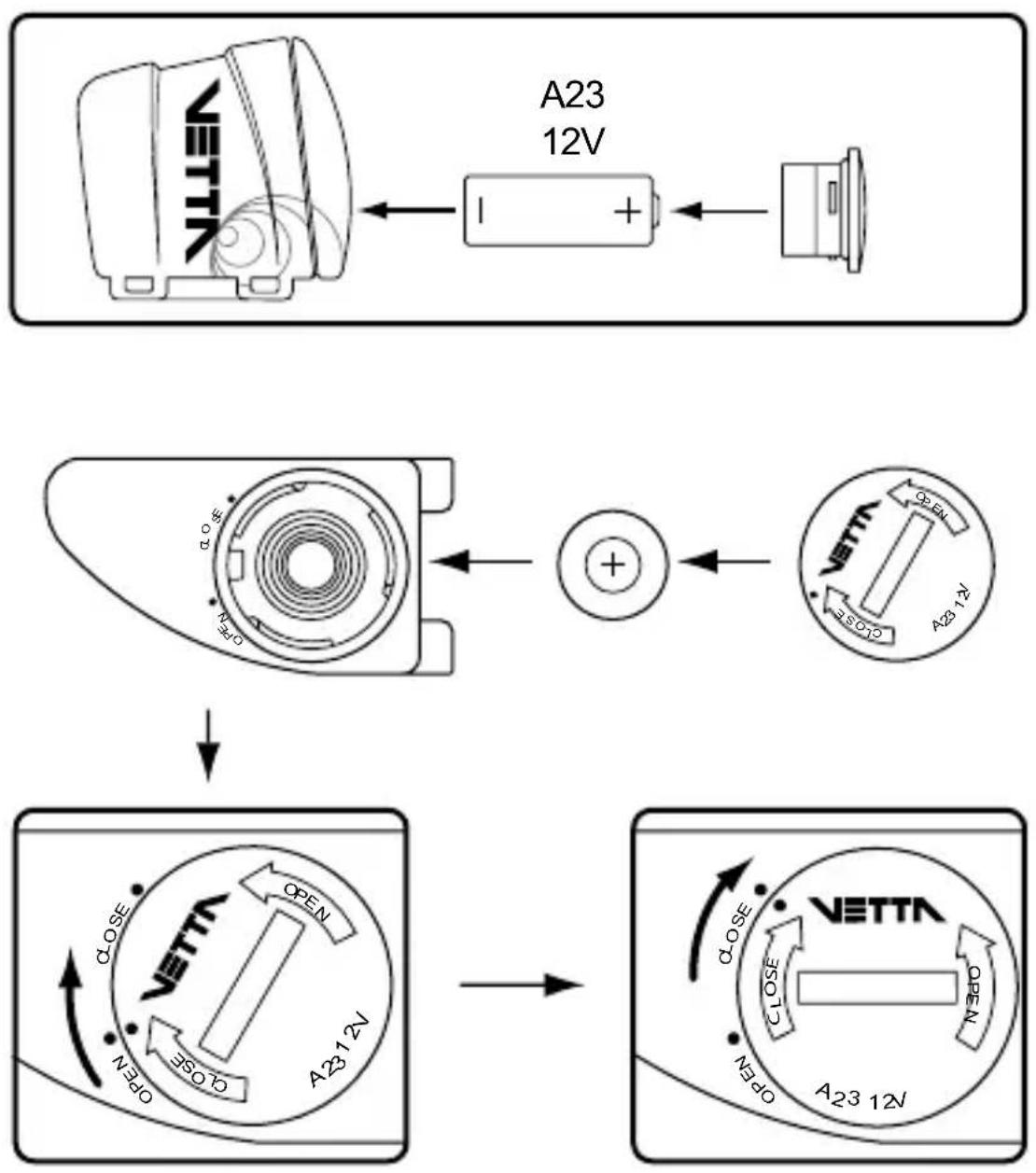
The V100 WL wireless speed transmitter uses an A23 12V battery. Remove cap, install battery with positive (+) side up, replace battery cap.
flowchart
graph TD
    A["A23 12V"] --> B["Capacitor"]
    B --> C["Motor"]
    D["Open"] --> E["Capacitor"]
    E --> F["Close"]
    G["Open"] --> H["Capacitor"]
    H --> I["Close"]
    J["Open"] --> K["Capacitor"]
    K --> L["Close"]
    M["Open"] --> N["Capacitor"]
    N --> O["Close"]
    P["Open"] --> Q["Capacitor"]
    Q --> R["Close"]
    S["Open"] --> T["Capacitor"]
    T --> U["Close"]
INTRODUCTION
After battery installation, the master screen will appear briefly and the computer will automatically go into the Initial Setup program mode. Note: To enter Setup when in the Normal Operating Mode (NOM), go to the SPD/DST screen mode and press Buttons #1 and #2 simultaneously for 2 seconds with the RT/TT timers off. Exit NOM Setup by pressing Button #3.
The Setup mode allows the rider to select operational units and values for the computer function displays. All the steps in the Initial Setup mode have been preprogrammed. If an entry error is made, complete the Initial Setup program and then re-enter Setup in the Normal Operating Mode as described above to revise the setting.
In Setup, press Button #2 to toggle between possible unit settings, such as M/hr and KM/hr. Press Button #1 to select a unit or value and advance to the next digit or screen. Button #3 can be used at any time to exit NOM Setup and go directly to System Check. Note: If no buttons are pressed for approximately 5 minutes during Setup, the computer will automatically enter Sleep Mode and return to the screen last displayed when reactivated.
SETUP: BIKE I & BIKE II

text_image
b,c no b,c noThe screen displays the letters "bic no" in the Initial Setup mode with Bike I as the default setting. To toggle between Bike I and Bike II settings, press Button #2. With Bike "I" icon flashing, press Button #1 to select it and advance to the next Setup screen. Note: When programming a second bike in Setup, scroll to "II", select it, and advance as instructed above. The V100 computer will retain the values and settings entered for Bike II independently of Bike I.
WHEEL SIZE CALCULATION
The circumference of the wheel is measured and entered in millimeters. Bike I and II wheel sizes are set independently, and both default to 2074mm (700c x 20 or 26 x 2.0). The following chart lists the circumference measurements for the most common wheel sizes. To use this chart, find your tire size and record the corresponding circumference measurement.
| TIRE SIZE CIRC | TIRE SIZE CIRC | ||
| 700c x 38mm | 2180 | 27" x 1-1/4" | 2161 |
| 700c x 35mm | 2168 | 27" x 1-1/8" | 2155 |
| 700c x 32mm | 2155 | 26" x 2.25" | 2115 |
| 700c x 30mm | 2145 | 26" x 2.1" | 2095 |
| 700c x 28mm | 2136 | 26" x 2.0" | 2074 |
| 700c x 25mm | 2124 | 26" x 1.9" | 2055 |
| 700c x 23mm | 2105 | 26" x 1.75" | 2035 |
| 700c x 20mm | 2074 | 26" x 1.5" | 1985 |
| 700c Tubular | 2130 | 26" x 1.25" | 1953 |
| 650c x 23mm | 1990 | 26" x 1.0" | 1913 |
| 650c x 20mm | 1945 | 20" x 1-1/4" | 1618 |
If your wheel size is not on the chart, or if you want a more precise calibration, wheel circumference may be calculated as follows:
Step 1: Measure the distance from the center of the front wheel axle to the ground in millimeters. (1 inch = 25.4mm)
Step 2: Multiply this distance by 6.2832 (2 ) and enter the result as the wheel size setting into the computer.
OR... Mark the tire and a spot on the floor. Roll the wheel forward one complete revolution until the tire mark touches the floor again and mark that spot. Measure the distance between the marks on the floor in millimeters and enter the result into the computer.
SETUP: WHEEL CIRCUMFERENCE
text_image
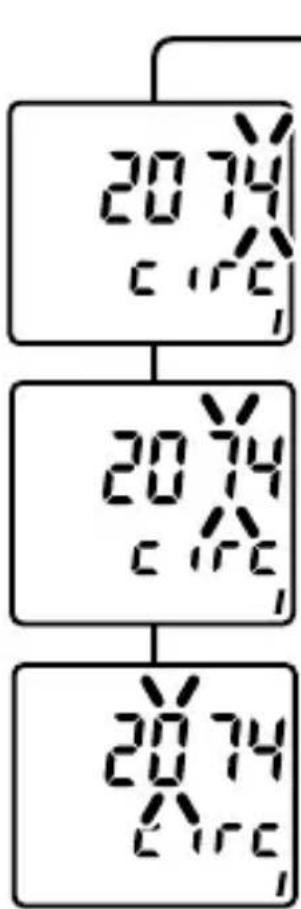
20 74 c / r/c 20 74 c / r/c 20 74 c / r/cAfter the bike number is selected and the display advances to the Wheel Size Setup screen, "circ" appears in small letters on the lower level and the default numbers 2074 appear on the upper level with the right digit "4" flashing.
Step 1: To enter a specific wheel size, press Button #2 to advance the flashing digit to the desired number.
Step 2: When the correct number is reached, select it by pressing Button #1. The next digit to the left will start flashing.
Step 3: Press Button #2 to advance the flashing digit to the next desired number in the sequence and press Button #1 once again to select it and advance. Repeat this procedure until all four digits are selected. The computer will automatically advance to the Service Timer Setup screen.
SETUP: SERVICE TIMER
text_image
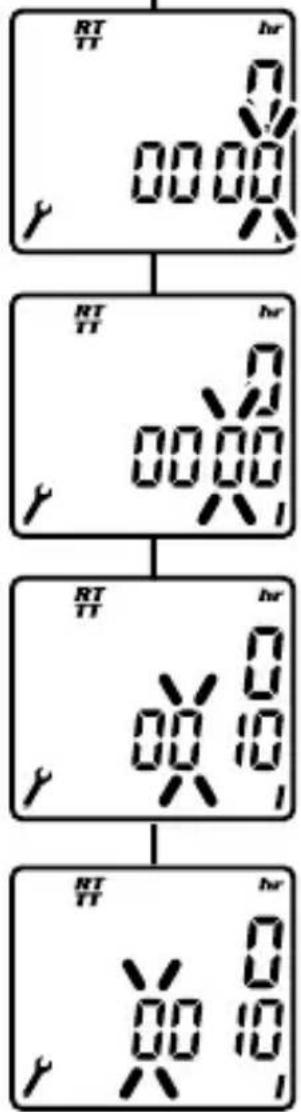
RT TT 0000 RT TT 0000 RT TT 0010 RT TT 0010 RT TT 0010The Service Timers, one for each bike, may be programmed with a select number of ride time hours as the interval for servicing the bicycle or any component on it, such as a front or rear shock. Accumulated Ride Time is displayed on the upper line and the Service Time interval is set and displayed on the lower line. In the Service Timer mode, the hour digits appear on the lower level with the right hand digit flashing. Note: The default setting for the Service Timer is "0000" hours, which means the Service Timer is turned off.
Step 1: To set a service interval (in hours only) scroll to the number you want to set using Button #2 and select it by pressing Button #1. Note: The Service Timer sets and displays whole hours only. It does not display minutes.
Step 2: Proceed until all the digits for the service interval have been selected, then press Button #1 again. (1999 hours = maximum)
SERVICE TIMER NOTES
- Accumulated Ride Time (upper line) operates in conjunction with the other timers and starts as soon as the wheel turns. It stops automatically when the computer receives no input from the wheel for 3 seconds.
-
The Service Timer screen can be viewed in both the Setup mode and in the System Check screen sequence. Access Setup through the SPD/DST screen mode by pressing Buttons #1 and #2 simultaneously for 2 seconds with RT/TT timers off.
-
To stop the Service Timer icon from flashing: A) Reset the accumulated Ride Time hours (upper line) to zero "0" through the NOM Setup sequence. The Service Timer interval may also be reprogrammed at this point. B) Change TT setting to a number larger than accumulated RT. C) Set TT to zero "0000" (disable the Service Timer).
- The Service Timer option can be disabled in Initial or NOM Setup mode by entering and selecting a value of zero "0000" hours as the service time interval (lower line).
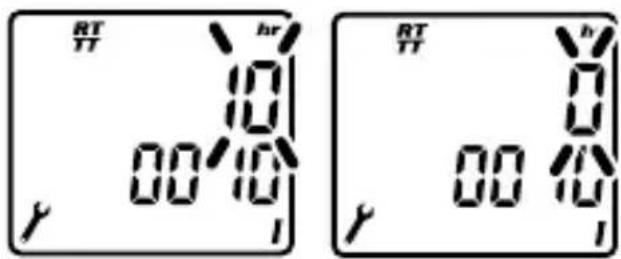
• After user sets or resets the TT Service Timer interval in NOM Setup, accumulated Ride Time digits (upper level) will start blinking (as shown in illustration below). Press Button #2 for 2 seconds to reset RT digits to zero. Press Button #3 to exit to the NOM System Check. Press Button #3 again to return to the SPD/DST primary screen.
text_image
RT TT hr 10 00/10 / I RT TT hr 0 00/10 / ISETUP: SPEED UNITS
flowchart
graph TD
    A["SPD"] --> B["M/hr"]
    A --> C["KM/hr"]
    A --> D["I"]
    E["SPD"] --> F["I"]
    E --> G["KM/hr"]
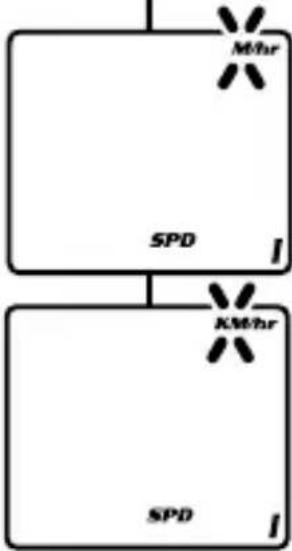
The icon "M/hr" will appear on the screen with the letters "M" flashing. To select miles per hour as the unit of speed, press Button #1. To scroll to kilometers per hour, press Button #2 and "KM/hr" will appear with the letters "KM" flashing. Press Button #1 to select and advance.
SETUP: TEMPERATURE UNITS
text_image
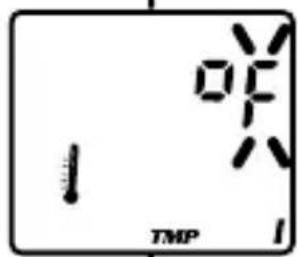
TMP OFA highlighted thermometer icon indicates that the computer is in the Temperature Setup screen mode. The flashing "F" indicates Fahrenheit. To choose temperature readings that are displayed in the Fahrenheit scale, press Button #1 to select it and advance. To select the Celsius scale, press Button #2 to scroll to a flashing "C". Then press Button #1 to select and advance.
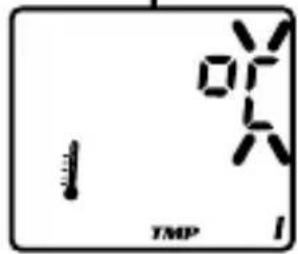
text_image
TMPSETUP: CLOCK

text_image
12Hr CLK IThe V100 clock displays time in either a 12 or 24 hour format. A "PM" indicator appears only in the 12hr format. To select a format and set the current time, proceed as follows:
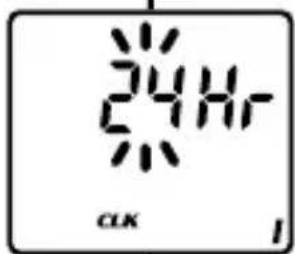
text_image
24Hr CLK IStep 1: Use Button #2 to toggle between the two time formats (the numbers will flash).
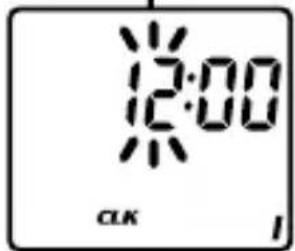
text_image
12:00 CLK 1Step 2: Press Button #1 to select the desired time format and advance to the Clock Setup screen with the left hours digits flashing.

text_image
12:00 CLKStep 3: To set the current time, press Button #2 to advance the flashing digit, then press Button #1 to select it and advance to the next flashing digit.
Step 4: Repeat this procedure for each digit until the correct time is set in hours and minutes, then press Button #1 again to select and advance. Note: Although there is only one clock time, either time format-12 or 24 hour-can be set for bikes I and II.
SETUP: ODOMETER

text_image
0.0000 ODO I 0.0000 ODO I 0.0000 ODO IBike I and Bike II have separate odometers. On a new computer the Odometer screen should read "00000" for both. To confirm this initial zero setting, simply press Button #1 successively to select each flashing digit and advance to System Check. To reenter mileage achieved after a battery change, follow these steps:
Step 1: When the far right digit begins to flash, press Button #2 to scroll to the desired number.
Step 2: Press Button #1 to select this number and advance to the next flashing digit.
Step 3: Repeat this procedure for each digit until the correct mileage figure is displayed (99999 = maximum). When Button #1 is pressed to select the final digit in the sequence, the Odometer setting is completed and the computer automatically advances to the System Check screen.
SETUP: SYSTEM CHECK
After the Programmable Odometer is set, both the Initial and Normal Operating Mode Setup programs will automatically advance to the System Check screen sequence. System Check displays all value and unit settings chosen during Setup in a 4 screen sequence. Each screen appears for 5 seconds and will blink. When the review is complete, the computer automatically exits Setup and enters the SPD/DST screen mode. To correct any value or unit errors, reenter the NOM Setup program.
Note: System Check is activated in two ways: 1) By pressing Button #3 any time during NOM Setup and 2) Automatically at the end of either Initial or NOM Setup. To exit NOM System Check manually and enter Normal Operating Mode, press Button #3 to return to the SPD/DST primary screen mode.

flowchart
graph TD
    A["1:185 c Circ"] --> B["RT/TT hr 0:11:1"]
    B --> C["0.0/6.9°F"]
    C --> D["SPD/TMP"]
    D --> E["M 2:02"]
    E --> F["SPD DST 0.0"]
    F --> G["M/hr"]
    E --> H["CLK ODO"]
INSTALLATION
WIRED MODEL INSTALLATION
SPEED SENSOR & MAGNET
NOTE: Wired cadence is optional. Please refer to WIRED SPEED AND CADENCE/WL2X DOUBLE WIRELESS SPEED AND
Step 1: Use the zip-tie supplied to hold loosely the wired speed sensor and mounting pad to the inside of either fork leg. We recommend mounting it as high up on the fork leg as possible to protect it from being hit by rocks, branches or other objects while riding. (Fig. 1)
Step 2: Tighten the spoke magnet to any spoke on the "sensor side" of the front wheel so that it passes over the
alignment mark on the sensor. (Fig. 1, 2)
Step 3: Attach the alignment setup spacer to the magnet temporarily. (Fig. 3)
Step 4: Slide and rotate the sensor until the alignment mark just touches the spacer tip on the magnet. (Fig. 4)
Step 5: Route the sensor wire up the fork blade and secure it with the tape. Wrap excess wire around the front brake cable housing, leaving enough slack to attach the mounting bracket easily to the handlebar and allow for movement of the bar and stem. CAUTION: When installing the speed sensor on a suspension fork, make sure that the fork is fully extended to ensure there is enough wire to reach the mounting bracket properly. Excess sensor wire should be taped down or wrapped around the brake cable housing for safety.
Snug the zip tie down to hold the sensor in its final
Step 6: position.
Remove the spacer and verify that the magnet and
Step 7: sensor spacing stayed the same. (Fig. 5)
Note: Do not use a zip-tie tightening tool or a third hand tool when doing the final tensioning of the zip-ties. This can tear and damage the sensor or transmitter.

natural_image
Line drawing of a bicycle's front wheel and side seat assembly (no text or symbols)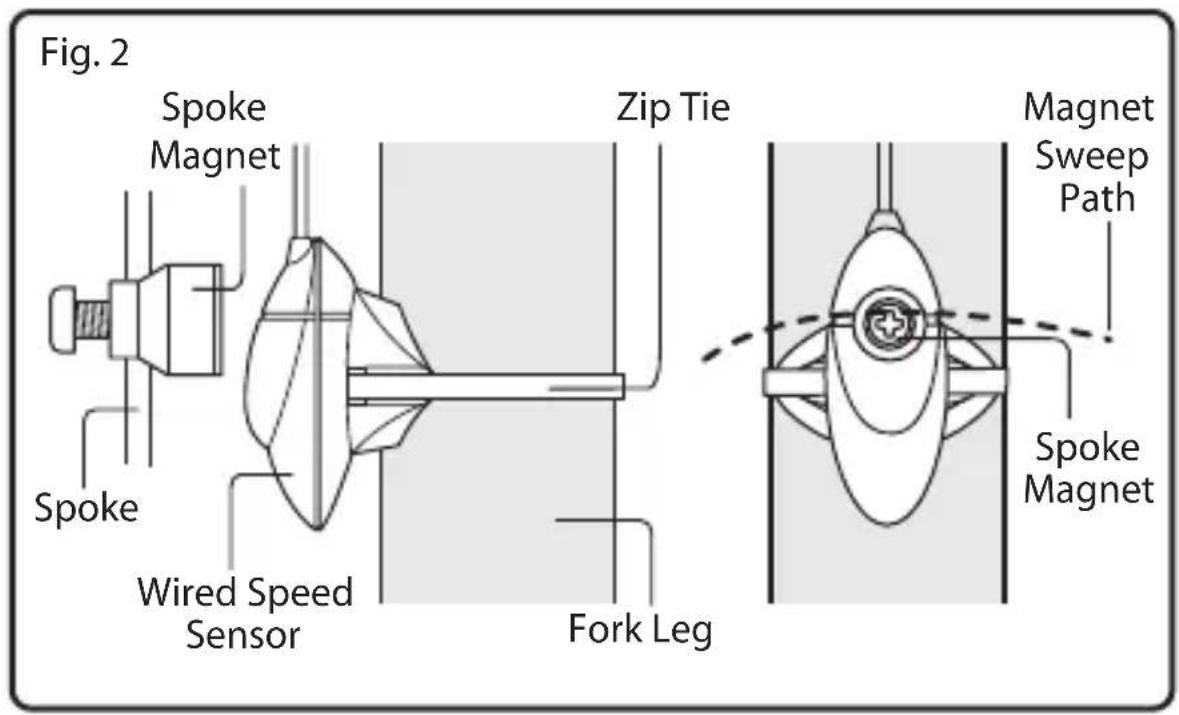
text_image
Fig. 2 Spoke Magnet Spoke Wired Speed Sensor Fork Leg Zip Tie Magnet Sweep Path Spoke Magnet

text_image
Head Unit Wired Mounting Bracket Zip Tie Mounting Pad Handlebar Fig. 6Step 1: Install mounting pad and wired mounting bracket to the handlebar using the 2 zip ties provided. (Fig. 6)
Step 2: Tighten the zip ties so that the mounting bracket holds its position on the bars yet can be easily adjusted. (Fig. 7) Trim excess. CAUTION: Do not use zip ties but tapes provided to hold wires to the frame, fork, bars or stem to avoid damaging or cutting the wires accidentally. CAUTION: Do not over-tighten the mounting bracket zip ties because this can bend the mounting bracket, which can affect the operation of the computer itself as well as the security of the head unit in the mount.

text_image
Fig. 7 Head Unit Wired Mounting Bracket Mounting Pad Handlebar Zip TieHEAD UNIT
The V100 head unit is designed to slide into the mounting bracket from the front to the back and lock into position. You should hear an audible “CLICK” when the head unit has been properly locked into position. This indicates proper alignment between the computer head pins and the mounting bracket contacts. To remove the computer head from the bracket, gently pinch the two locking tabs inward and slide the head unit forward and out of the bracket. (Fig. 8)

text_image
Fig. 8 OUT IN VETTA Head Unit Locking Tab UNLOCK UNLOCK Locking Tab Wired Mounting BracketWIRELESS MODEL INSTALLATION
SPEED TRANSMITTER & MAGNET
NOTE: WL2X Double wireless Speed & Cadence is optional. Please refer to WIRED SPEED AND CADENCE/WL2X DOUBLE
The V100 is designed to operate as a wireless unit with the installation of a special active mount and WL wireless speed transmitter.
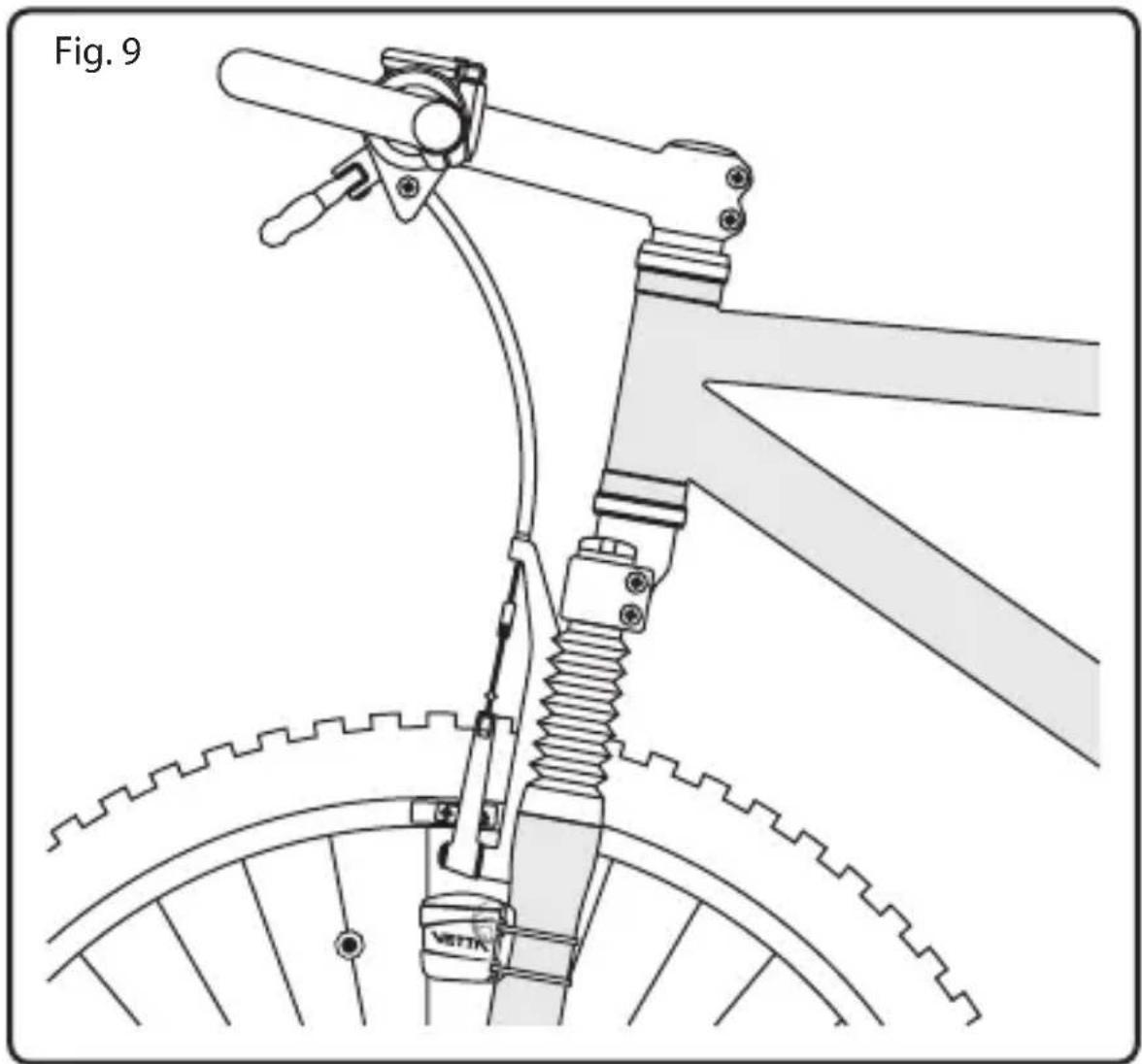
Step 1: Use the zip-ties supplied to hold loosely the WL wireless speed transmitter and mounting pad to the left fork leg. Note: To maximize signal reception, position the transmitter as high up on the fork leg as possible. (Fig.
Step 2: 9) Tighten the spoke magnet to any spoke on the "transmitter side" of the front wheel so that it passes
Step 3: over the alignment mark on the transmitter. (Fig. 9, 10) Attach the alignment setup spacer to the magnet
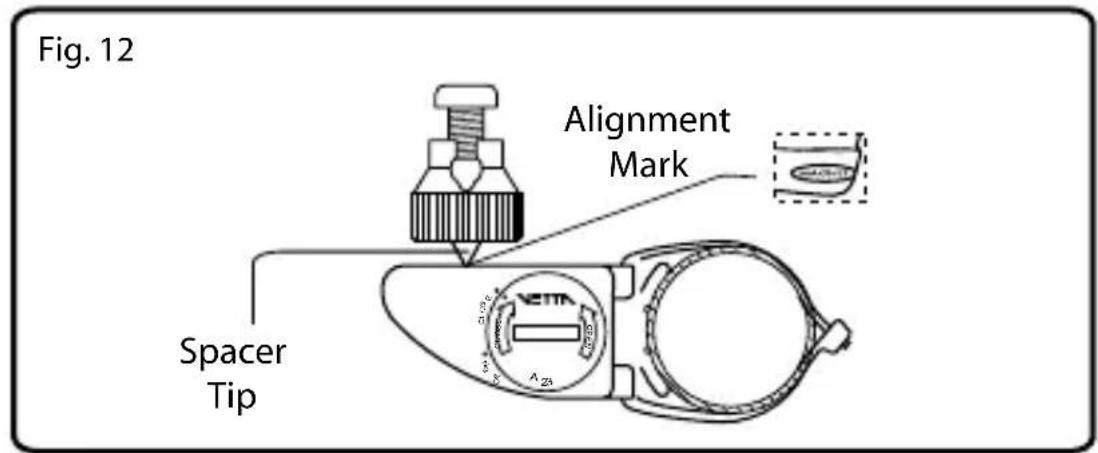
Step 4: temporarily. (Fig. 11) Slide and rotate the transmitter until the alignment mark
Step 5: just touches the spacer tip on the magnet. (Fig. 12) Snug the zip ties down to hold the transmitter in its final
Step 6: position. Remove the spacer and verify that the magnet and
natural_image
Technical line drawing of a bicycle frame with suspension and mounting bracket (no text or symbols)
text_image
Fig. 10 Spoke Magnet Spoke Zip Ties Magnet Sweep Path UP Fork Leg Spoke Magnet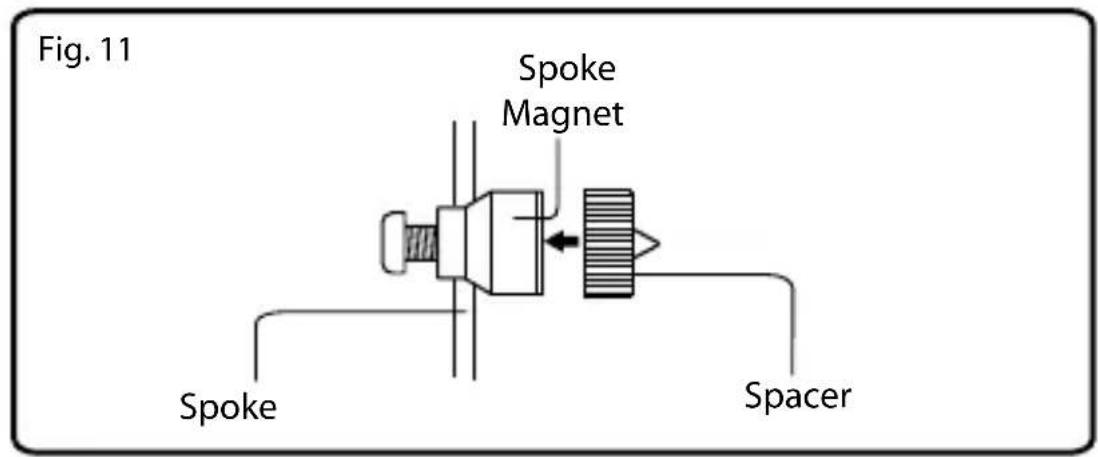
text_image
Fig. 11 Spoke Magnet Spoke Spacer
text_image
Fig. 12 Alignment Mark Spacer Tip

text_image
Fig. 13 Spoke Magnet WL Wireless Speed TransmitterACTIVE MOUNT
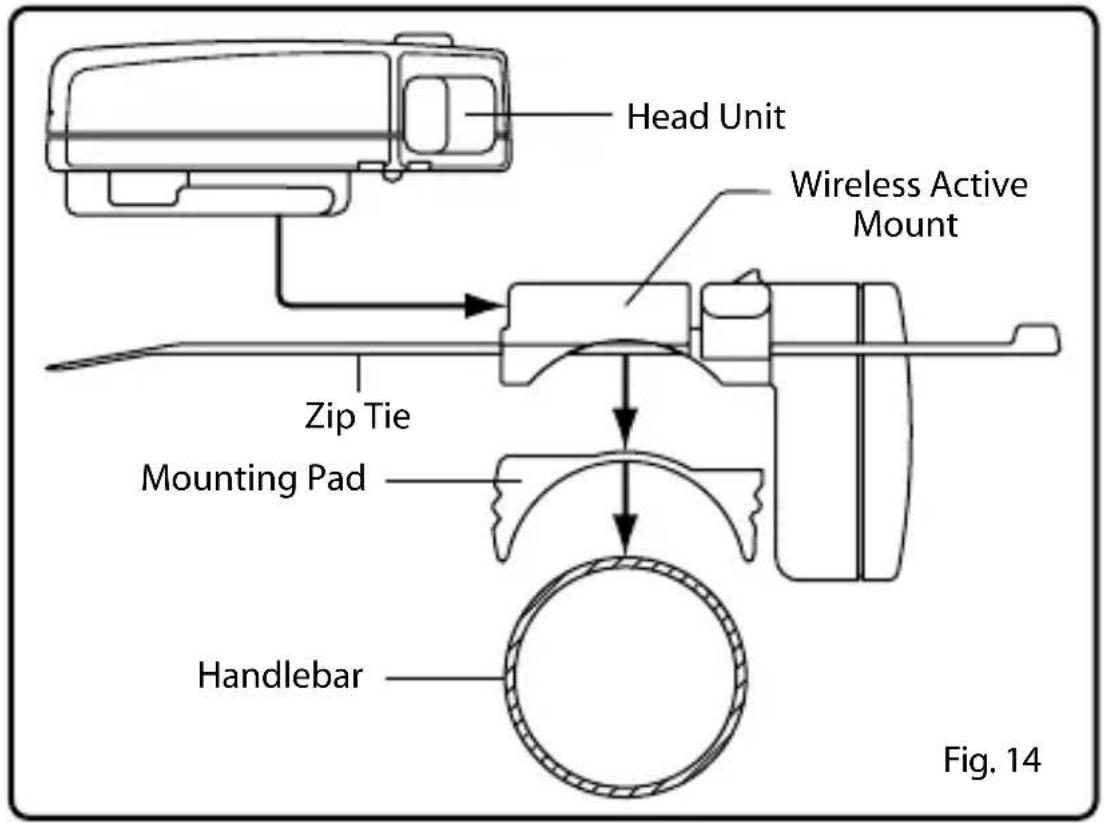
Attach the active mount and mounting pad to the handlebar. Adjust its position to your liking and tighten the zip ties.
CAUTION: Do not over tighten the zip ties on the active mount because this may bend the bracket and affect the operation of the computer. (Fig. 14, 15)
text_image
Head Unit Wireless Active Mount Zip Tie Mounting Pad Handlebar Fig. 14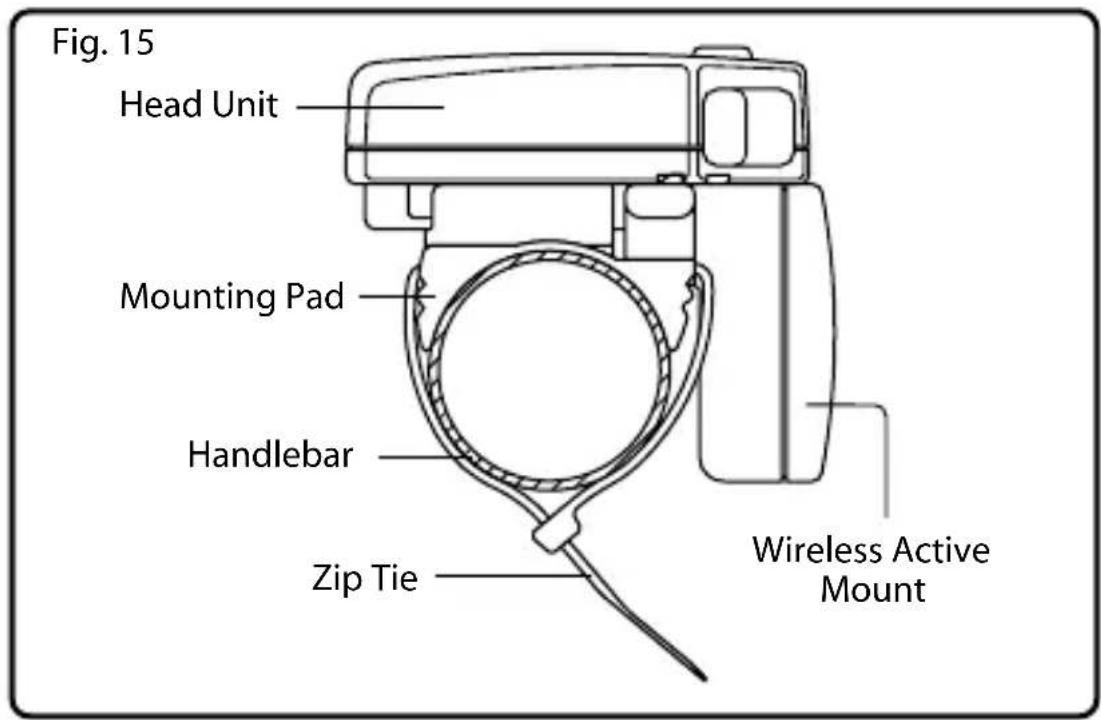
text_image
Fig. 15 Head Unit Mounting Pad Handlebar Zip Tie Wireless Active MountHEAD UNIT
The head unit is designed to slide into the wireless active mount from the front to the back and lock into position. You should hear an audible “CLICK” when the head unit has been properly locked into position. This indicates proper alignment between the computer head pins and the active mount contacts. To remove the computer head from the mount, gently pinch the two locking tabs inward and slide the head unit forward and out of the mount. (Fig. 16)
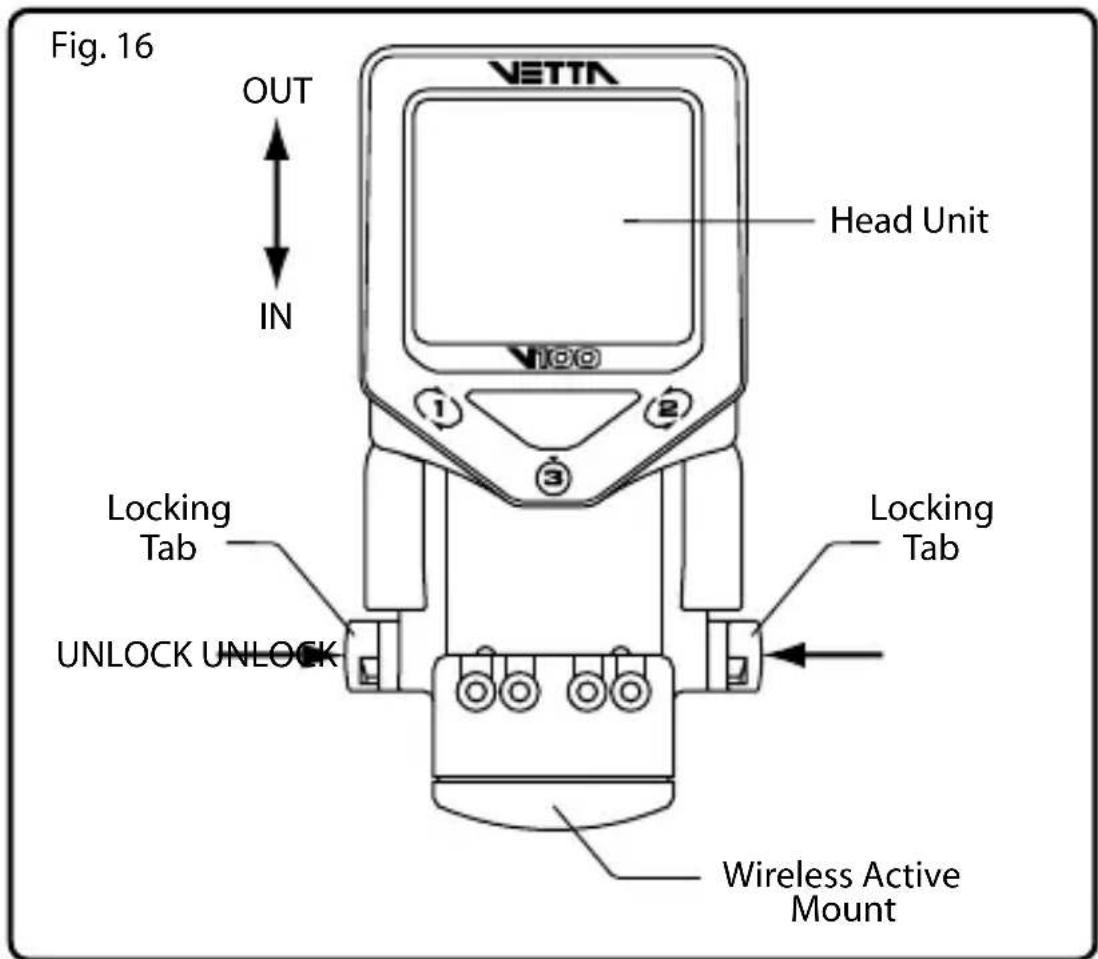
text_image
Fig. 16 OUT IN VETTA Head Unit Locking Tab Unlock UNLOCK Locking Tab Wireless Active MountINSTALLATION TESTS
Once installation is complete, the computer should be tested to make sure it is working properly.
Step 1: Advance the computer to the SPD/DST screen mode using Button #2.
Step 2: Pick up the front of the bicycle and spin the front wheel. The computer should display a speed reading within 2-3 seconds.
If there is no speed reading, make sure the timers (RT/TT) are running, check the alignment and spacing between the magnet and sensor/transmitter and make sure that the head unit is completely snapped into position. If these checks do not solve the problem, talk to an Authorized Vetta Retailer or connect to www.vetta.com.
IMPORTANT: Following the installation tests above, make sure that the spoke magnet locking screw and all zip ties are properly tightened.
Tips: Rotating the angle of the transmitters or the handlebar receiver (slightly), can sometimes improve the signals being sent and received. Some bicycles have unusual frame tubes and angles, so by adjusting the components, can aid in trouble shooting by aligning the misdirected signals.
TROUBLESHOOTING
PROBLEM/ITEMS TO CHECK/SOLUTION
- Current speed reading is erratic or does not appear.
Check the alignment of the spoke magnet and sensor, and the distance between the two components. Realign the magnet and sensor with the spacer. Check to be sure RT and TT are activated.
- Current speed reading is erratic or does not appear.
Inspect the wiring for any breaks or kinks. Replace the mounting bracket and sensor as needed.
- Incorrect data appears on screen during operation.
Accuracy of the Setup data may be a problem (wheel circumference setting, bike #, etc.). Review data in System Check mode and revise as needed.
• Data display is extremely slow.
Computer LCD does not operate well in extremely low temperatures. Operating range is: 0°C to 50°C or 32°F to 122°F. Return computer to warmer climate.
- Screen is dark and display characters look "strange".
Computer screens are adversely affected if left in direct sunlight for extended periods of time. Move the computer into the shade until the screen recovers. No effect on data.
- Screen reading is weak or fading.
Symptom of interference or a weak battery. Replace the battery.
- Screen readings are erratic and read too high or too low.
Symptom of a weak battery. Replace the battery.
- Screen "frozen", no response to buttons.
Symptom of a weak battery. Replace the battery.
- No display whatsoever.
Battery is completely dead, or not installed. Replace or install the battery.
TECHNICAL SPECIFICATIONS
Current Speed (SPD)
0.0\~120.0 KM/hr; 0.0\~75.0 Mi/hr; +/-0.1 KM/hr or Mi/hr. Updated once per second.
Average Speed (AVG)
0.0\~120.0 KM/hr; 0.0\~75.0 Mi/hr; +/-0.1 KM/hr or Mi/hr. Updated once every 0.1 Miles or Km traveled.
Maximum Speed (MAX)
Limit: 120.0 KM/hr; 75.0 Mi/hr.
Odometer (ODO)
0\~99999 km or miles.
Trip Distance (DST)
0.0\~999.9 km or miles; +/- 0.1 km or mi.
Temperature (TMP)
Range: 0°C\~49°C or 32°F\~120°F; +/- 1°C or °F.
Clock (CLK)
12 or 24 hour format, hours and minutes displayed.
Service Timer
Limit: 1\~1999 hrs. max; +/-1 hr.
Stopwatch
Limit: 9:59:59 (10 hrs.); +/-1.0 seconds.
Intermediate Distance (IDS)
Range: 999.9 km or miles.
Ride/Total Time (RT/TT)
Limit: 9:59:59 (10 hours) displayed in hr/min/sec. After 9:59:59, display restarts at "0:00:00".
Cadence (RPM) (optional)
Range: 15\~255 RPM; +/-1 RPM.
Power Supply
Head Unit: CR2032 3 volt battery.
WL Wireless Speed Transmitter: A23 12 volt battery.
Battery Life
Head Unit:
Wired: 300 days
Wireless: 160 days
WL Wireless Speed Transmitter:
180 days
(1 hour training/day)
WARRANTY POLICY
ACUMEN INC. WARRANTS ALL VETTA (The Company) PRODUCTS AGAINST MANUFACTURER DEFECTS FOR A PERIOD OF 3 YEARS. Subject to the following limitations, terms and conditions, components will be free of manufacturing defects in materials and workmanship. The 3 year limited warranty is conditioned upon the components being used and operated in normal riding conditions. This warranty does not cover normal wear and tear (i.e. battery replacement, broken wire...), rider abuse, acts of God, improper installation or product alteration. This warranty is void if the components were not purchased (new) from or through an authorized VETTA retailer or dealer; examples of unauthorized dealers are online auction sites or online retailers that do not offer service.
ACUMEN INC. at its sole discretion will repair or replace items at its own cost. Users are responsible for all return freight shipping charges; when returning items for warranty service.
ACUMEN INC. will pay freight when returning serviced items, via USPS or UPS to consumers or dealers; once the item(s) has been repaired or replaced.
REQUIREMENTS FOR WARRANTY SERVICING
- Prior to shipping an item back, you must first obtain a Return Authorization Number (s) (RA#). Each item being returned must have an individual RA#.
- To obtain an RA #, you must either contact the retailer where the product was originally purchased from, or contact VETTA directly at customerservice@vetta.com.
- For trouble shooting purposes, we request that the complete unit with packaging be returned to ACUMEN INC. unless otherwise stated by VETTA representative.
TEMS TO BE INCLUDED IN RETURNS
- The defective product(s)
- A letter clearly stating the problem(s) with the returned item(s).
- Copy of the original sales receipt showing proof of purchase date.
- The Company is not responsible for loss or additional damages while in transit to ACUMEN INC.
- Clearly mark the RA# on the outside of the return packaging.
All items without an RA # will be refused and returned to the return address on the package.
The Company shall not be held responsible to replace items with new items for greater than the amount of the original item purchase price. This limited warranty does provide the original owner with certain legal rights and recourse. The original owner may possess other rights or recourse, depending on the state or country. Please check the web to help answer any question and service manual.
Acumen Inc.
101A Executive Dr., Suite 100,
Sterling, VA 20166, USA.
E-Mail: customerservice@vetta.com
Website: www.vetta.com