335i xDrive Sedan (2010) - Car BMW - Free user manual and instructions
Find the device manual for free 335i xDrive Sedan (2010) BMW in PDF.


User questions about 335i xDrive Sedan (2010) BMW
0 question about this device. Answer the ones you know or ask your own.
Ask a new question about this device
Download the instructions for your Car in PDF format for free! Find your manual 335i xDrive Sedan (2010) - BMW and take your electronic device back in hand. On this page are published all the documents necessary for the use of your device. 335i xDrive Sedan (2010) by BMW.
USER MANUAL 335i xDrive Sedan (2010) BMW
Owner's Manual for Vehicle

The Ultimate Driving Machine
Contents A - Z
323i
328i
328i xDrive
335i
335i xDrive
M3
335d
Owner's Manual for Vehicle
Congratulations, and thank you for choosing a BMW.
Thorough familiarity with your vehicle will provide you with enhanced control and security when you drive it. We therefore have this request:
Please take the time to read this Owner's Manual and familiarize yourself with the information that we have compiled for you before starting off in your new vehicle. It contains important data and instructions intended to assist you in gaining maximum use and satisfaction from your BMW's unique range of technical features. The manual also contains information on maintenance designed to enhance operating safety and contribute to maintaining the value of your BMW throughout an extended service life.
This manual is supplemented by a Service and Warranty Information Booklet for US models or a Warranty and Service Guide Booklet for Canadian models.
We wish you an enjoyable driving experience.
BMW Group
Reprinting, including excerpts, only with the
written consent of BMW AG, Munich.
US English VIII/09, 09 09 500
Printed on environmentally friendly paper,
bleached without chlorine, suitable for recycling.
Contents
The fastest way to find information on a particular topic or item is by using the index, refer to page 254.
Using this Owner's Manual
4 Notes
6 Reporting safety defects
At a glance
10 Cockpit
16 iDrive
21 Letters and numbers
22 Voice activation system
Controls
26 Opening and closing
41 Adjustments
50 Transporting children safely
54 Driving
69 Controls overview
81 Technology for driving comfort and safety
92 Lamps
97 Climate
102 Practical interior accessories
Driving tips
116 Things to remember when driving
Navigation
124 Navigation system
125 Destination entry
134 Destination guidance
140 What to do if ...
Entertainment
144 On/off and tone
147 Radio
150 Satellite radio
155 CD/DVD player and CD changer
162 Music collection
167 External devices
Communications
174 Telephone
186 Contacts
188 BMW Assist
Mobility
196 Refueling
201 Wheels and tires
218 Under the hood
223 Maintenance
225 Care
229 Replacing components
237 Giving and receiving assistance
Reference
244 Technical data
249 Short commands for the voice activation system
254 Everything from A-Z
Notes
Using this Owner's Manual
We have tried to make all the information in this Owner's Manual easy to find. The fastest way to find specific topics is to refer to the detailed index at the back of the manual. If you wish to gain an initial overview of your vehicle, you will find this in the first chapter.
Should you sell your BMW some day, please remember to hand over the Owner's Manual as well; it is an important component of your vehicle.
Additional sources of information
Should you have any other questions, your BMW center will be glad to advise you at any time.
Information on BMW, e.g. on technical aspects, can also be found on the Internet at www.bmwusa.com.
Symbols used

Indicates precautions that must be followed precisely in order to avoid the possibility of personal injury and serious damage to the vehicle.

Indicates information that will assist you in gaining the optimum benefit from your vehicle and enable you to care more effectively for your vehicle.

Refers to measures that can be taken to help protect the environment.
Marks the end of a specific item of information.
* Indicates special equipment, country-specific equipment and optional accessories, as well as equipment and functions not yet available at the time of printing.
"..." Identifies Control Display texts used to select individual functions.
...< Verbal instructions to use with the voice activation system.
)....Identifies the answers generated by the voice activation system.
Symbols on vehicle components

Indicates that you should consult the relevant section of this Owner's Manual for information on a particular part or assembly.
The individual vehicle
When you ordered your BMW, you chose various items of equipment. This Owner's Manual describes the entire array of options and equipment available with a specific BMW model.
Please bear in mind that the manual may contain information on accessories and equipment that you have not specified for your own vehicle. Sections describing options and special equipment are marked by asterisks * to assist you in identifying possible differences between the descriptions in this manual and your own vehicle's equipment.
If equipment in your BMW is not described in this Owner's Manual, please refer to the accompanying Supplementary Owner's Manuals.
Editorial notice
BMW pursues a policy of continuous, ongoing development that is conceived to ensure that our vehicles continue to embody the highest quality and safety standards combined with advanced, state-of-the-art technology. For this reason, it is possible in exceptional cases that features described in this Owner's Manual could differ from those on your vehicle.
For your own safety
Maintenance and repair

Advanced technology, e.g. the use of modern materials and powerful electronics, requires specially adapted maintenance and repair methods. You should therefore have the corresponding work on your vehicle performed only by your BMW center or at a workshop that works according to BMW repair procedures with correspondingly trained personnel. If this work is not carried out properly, there is a danger of subsequent damage and related safety hazards.
Parts and accessories

For your own safety, use genuine parts and accessories approved by BMW.
When you purchase accessories tested and approved by BMW and Original BMW Parts, you simultaneously acquire the assurance that they have been thoroughly tested by BMW to ensure optimum performance when installed on your vehicle.
BMW warrants these parts to be free from defects in material and workmanship.
BMW will not accept any liability for damage resulting from installation of parts and accessories not approved by BMW.
BMW cannot test every product made by other manufacturers to verify if it can be used on a BMW safely and without risk to either the vehicle, its operation, or its occupants.
Original BMW Parts, BMW Accessories and other products approved by BMW, together with professional advice on using these items, are available from all BMW centers.
Installation and operation of accessories not approved by BMW, such as alarms, radios, amplifiers, radar detectors, wheels, suspension components, brake dust shields, telephones, including operation of any mobile phone from within the vehicle without using an externally mounted antenna, or transceiver equipment, for instance, CBs, walkie-talkies, ham radio or similar accessories, may cause extensive damage to the vehicle, compromise its safety, interfere with the vehicle's electrical system or affect the validity of the BMW Limited Warranty. See your BMW center for additional information.

Maintenance, replacement, or repair of the emission control devices and sys- may be performed by any automotive r establishment or individual using any cer- automotive part.
California Proposition 65 warning
California law requires us to issue the following warning:

Engine exhaust and a wide variety of automobile components and parts,
including components found in the interior furnishings in a vehicle, contain or emit chemicals known to the State of California to cause cancer and birth defects and reproductive harm. In addition, certain fluids contained in vehicles and certain products of component wear contain or emit chemicals known to the State of California to cause cancer and birth defects or other reproductive harm.
Battery posts, terminals and related accessories contain lead and lead compounds. Wash your hands after handling.
Used engine oil contains chemicals that have caused cancer in laboratory animals. Always protect your skin by washing thoroughly with soap and water.
Service and warranty
We recommend that you read this publication thoroughly.
Your BMW is covered by the following warranties:
▶ New Vehicle Limited Warranty
Rust Perforation Limited Warranty
▶ Federal Emissions System Defect Warranty
▶ Federal Emissions Performance Warranty
California Emission Control System Limited Warranty
Detailed information about these warranties is listed in the Service and Warranty Information Booklet for US models or in the Warranty and Service Guide Booklet for Canadian models.
Your vehicle has been specifically adapted and designed to meet the particular operating conditions and homologation requirements in your country and continental region in order to deliver the full driving pleasure while the vehicle is operated under those conditions. If you wish to operate your vehicle in another country or region, you may be required to adapt your vehicle to meet different prevailing operating conditions and homologation requirements. You should also be aware of any applicable warranty limitations or exclusions for such country or region. In such case, please contact Customer Relations for further information.
Reporting safety defects
For US customers
The following only applies to vehicles owned and operated in the US.
If you believe that your vehicle has a defect which could cause a crash or could cause injury or death, you should immediately inform the National Highway Traffic Safety Administration, NHTSA, in addition to notifying BMW of North America, LLC, P.O. Box 1227, Westwood, New Jersey 07675-1227, Telephone 1-800-831-1117.
If NHTSA receives similar complaints, it may open an investigation, and if it finds that a safety defect exists in a group of vehicles, it may order a recall and remedy campaign. However, NHTSA cannot become involved in individual problems between you, your center, or BMW of North America, LLC.
To contact NHTSA, you may call the Vehicle Safety Hotline toll-free at 1-888-327-4236 (TTY: 1-800-424-9153); go to http://www.safercar.gov; or write to: Administrator, NHTSA, 400 Seventh Street, SW., Washington, DC 20590. You can also obtain other information about motor vehicle safety from http://www.safercar.gov
For Canadian customers
Canadian customers who wish to report a safety-related defect to Transport Canada, Defect Investigations and Recalls, may call 1-800-333-0510 toll-free from anywhere in Canada or 1-613-993-9851 from the Ottawa region and from other countries, or contact Transport Canada by mail at: Transport Canada, ASFAD, Place de Ville, Tower C, 330 Sparks Street, Ottawa, ON, K1A 0N5.
You can also obtain other information about motor vehicle safety from http://www.tc.gc.ca
natural_image
Interior view of a modern car exhibition hall with curved architecture and parked cars (no visible text or signage)
text_image
At a glance This overview of buttons, switches and displays is intended to familiarize you with your vehicle's operating environment. The section will also assist you in becoming acquainted with the control concepts and options available for operating the various systems. Online Edition for Part no. 01 41 2 603 048 - © 08/09 BMW AGAt a glance
This overview of buttons, switches and displays is intended to familiarize you with your vehicle's operating environment. The section will also assist you in becoming acquainted with the control concepts and options available for operating the various systems.
Cockpit
Around the steering wheel: controls and displays

text_image
Diagram of a BMW car interior with numbered parts for identification and assembly reference.1

Safety switch for electric rear windows 36
2

Opening and closing windows 36
3 Folding exterior mirrors in and out * 47
4 Adjusting exterior mirrors, automatic curb monitor* 47
5

Parking lamps 92

Low beams 92

Automatic headlamp control* 92 Adaptive light control* 93
High-beam assistant* 94
6

Fog lamps 95
7

Turn signals 58

High beams, headlamp flasher 94

High-beam assistant* 94

Roadside parking lamps* 94

Computer 71

Settings and information about the

vehicle 72
8 Instrument cluster 12
9

Windshield wipers 59

Rain sensor* 59

Sports Wagon:
Rear window wiper 60
10

Switching the ignition on/off and starting/stopping the engine 54
11 Ignition lock 54
12 Buttons on the steering wheel

Telephone*:
Accepting and ending a call; dialing* the selected phone number; redialing if no phone number is selected

Volume


Activating/deactivating voice activation system* 22

Changing the radio station Interrupting a traffic bulletin
Selecting a music track Scrolling through the redial list


Next entertainment source

Recirculated-air mode 99
13

Steering wheel heating* 49
14 Horn, entire surface
15 Adjusting the steering wheel 48
16

Cruise control* 61

Active cruise control* 62
17 Releasing the hood 218
18 Opening the tailgate/trunk lid 30
Instrument cluster

text_image
1 2 3 4 5 BRAKE BRUCE INSIDE ICON ABS DTC +74 °F 11:15 am- M3 032050 • 123.8 1/min x 1000 10 9 8 7 61 Speedometer
2 Indicator lamps for turn signals
3 Indicator and warning lamps 13
4 Displays for active cruise control * 62
5 Tachometer 69
6 Engine oil temperature * 70
Energy Control* 70
7 Display for
Clock 69
Outside temperature 69
Indicator and warning lamps 77
8 Display for
Position of automatic transmission* 56
Computer 71
Date of next scheduled service, and remaining distance to be driven 73
▶ Odometer and trip odometer 69
High-beam assistant* 94
▶ Checking engine oil level* 219
▶ Settings and information 72
There is a Check Control message 77
9 Fuel gauge 70
10 Resetting the trip odometer 69
Indicator and warning lamps
The concept

natural_image
Front view of a car dashboard with dual gauges and a central touchscreen display (no visible text or symbols)Indicator and warning lamps can light up in a variety of combinations and colors.
Several of the lamps are checked for proper functioning and light up temporarily when the engine is started or the ignition is switched on.
Text messages
text_image
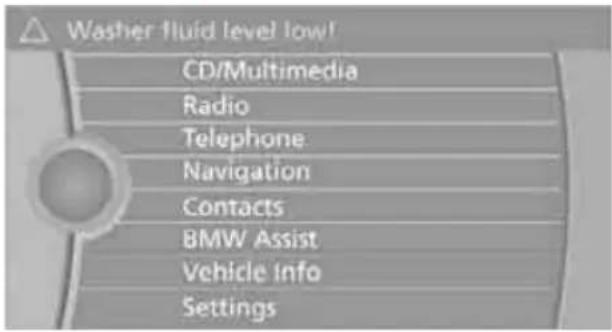
Washer fluid level low! CD/Multimedia Radio Telephone Navigation Contacts BMW Assist Vehicle info SettingsText messages at the top edge of the Control Display describe the meanings of the indicator and warning lamps.
Supplementary text messages
text_image
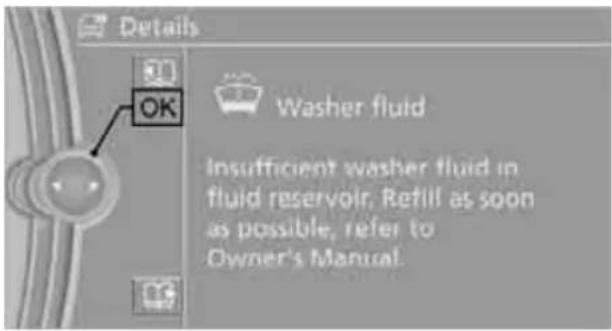
Details OK Washer fluid Insufficient washer fluid in fluid reservoir. Refill as soon as possible, refer to Owner's Manual.You can call up more information on the Control Display, e.g. on the cause of a malfunction and on how to respond, via Check Control, refer to page 77.
In urgent cases, this information will be shown as soon as the corresponding lamp comes on.
Indicator lamps without text messages
The following indicator lamps notify you that certain functions are active:

High beams/headlamp flasher 94

Fog lamps 95

Lamp flashes:
DSC or DTC is regulating the propulsive forces in order to maintain driving stability 83

Parking brake applied 56

Canada: parking brake applied 56

Engine malfunction with adverse effect on emissions 224

Canada: engine malfunction with adverse effect on emissions 224
Around the center console: controls and displays
text_image
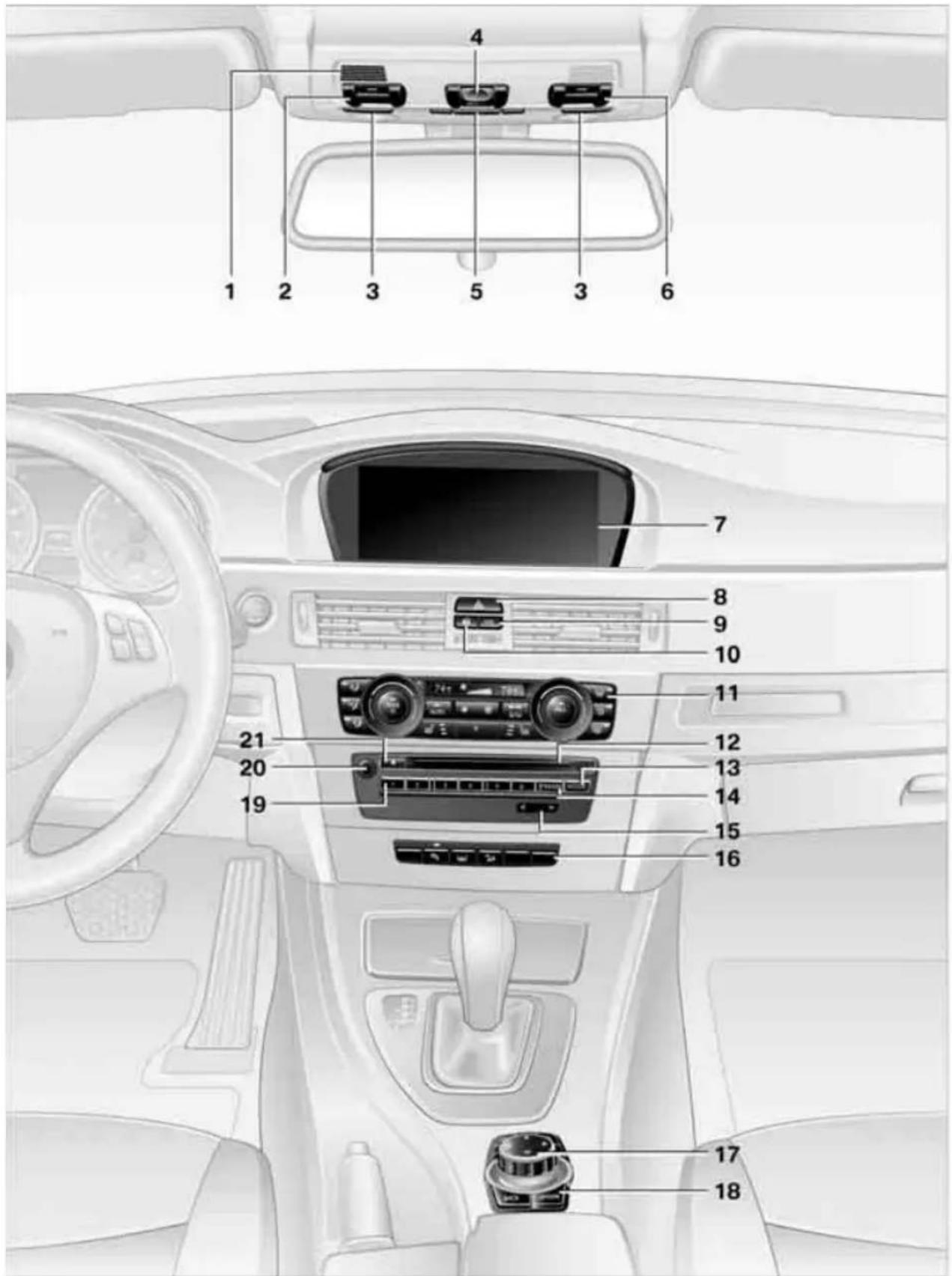
1 2 3 4 5 3 6 7 8 9 10 11 21 20 19 12 13 14 15 16 17 181 Microphone for voice activation system * and for telephone* in hands-free mode
2 SOS: initiating an Emergency Request call* 237
3 Reading lamps 96
4 Glass roof/panorama glass roof * 37
5 Interior lamps 96
6 Passenger airbag status lamp * 91
7 Control Display 16
8 Hazard warning flashers
9 Dynamic Traction Control DTC 82
10 Central locking system 30
11 Automatic climate control

Air distribution to the windshield 98

Air distribution to the upper body area 98

Air distribution to the footwell 98
AUTO
Automatic air distribution and flow rate 98

Cooling function 99

Automatic recirculated-air control AUC and recirculated-air mode 99

Maximum cooling 98
ALL
ALL program 99

Air volume 98

Defrosting windows 99

Rear window defroster 99

Heated seats* 45
12 CD/DVD drive * 155
13 Changing the audio and entertainment sources
14 Selecting AM or FM waveband
15 Changing
Radio station 147
Track 155
16

Park Distance Control PDC* 81

Sedan: Roller sun blind * 105

Hill Descent Control HDC* 83
17 Controller 16
Can be turned, pressed, or moved in four directions
18 Buttons on the controller 16 Selecting menus directly
19 Programmable memory keys 20
20 Switching entertainment audio sources on/off and adjusting volume 144
21 Ejecting a CD/DVD * 155
iDrive
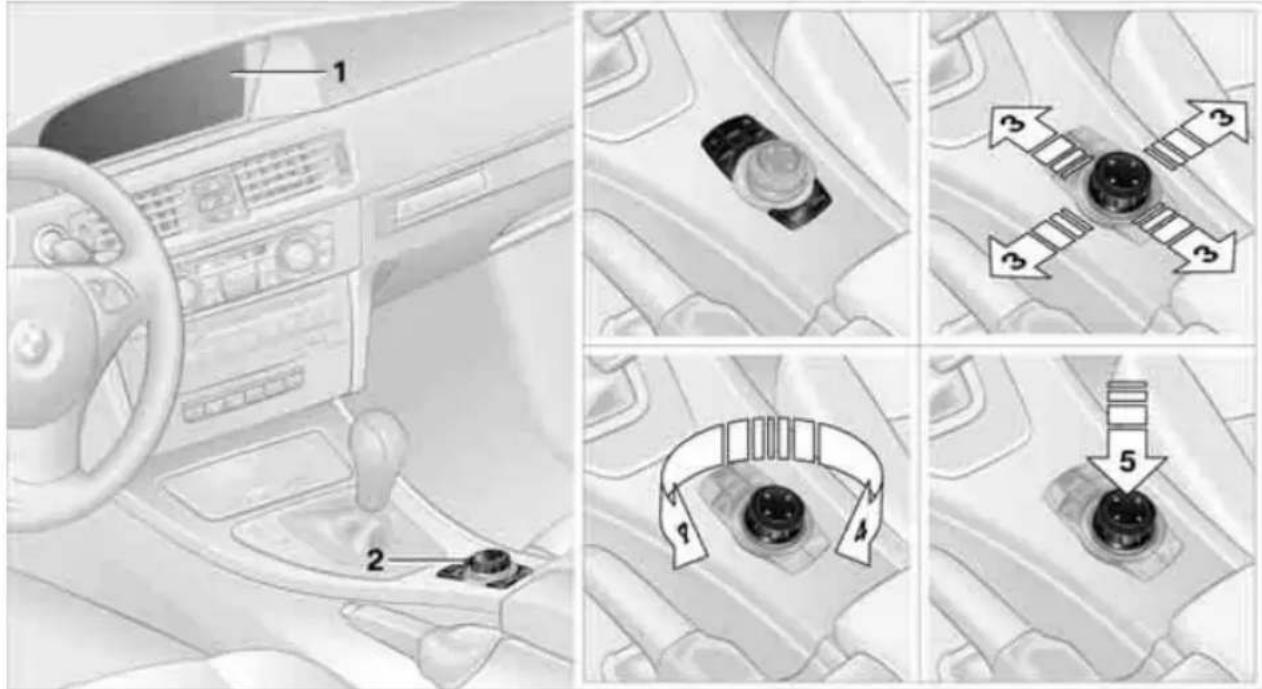
iDrive integrates the functions of a large number of switches. This allows these functions to be operated from a single central position. The following section provides an introduction to
basic menu navigation. The control of the individual functions is described in connection with the relevant equipment.
Controls
text_image
Diagram showing car interior control panel with numbered steps and directional arrows indicating movement or adjustment.1 Control Display
2 Controller with buttons
You can use the buttons to open the menus directly. The controller can be used to select the menu items and create settings.
Move in four directions, arrow 3
Turn, arrow 4
▶ Push, arrow 5

Operate the controller only when traffic and road conditions allow this, to avoid
endangering the car's occupants and other road users by being distracted.
Buttons on the controller
| Button Function | |
| MENU Open the main menu | |
| RADIO Open the Radio menu | |
| CD Open the CD/Multimedia menu | |
| NAV Open the Navigation menu | |
| TEL Open the Telephone menu | |
| BACK Display the previous menu | |
| OPTION | Open the Options menu |
Operating principle
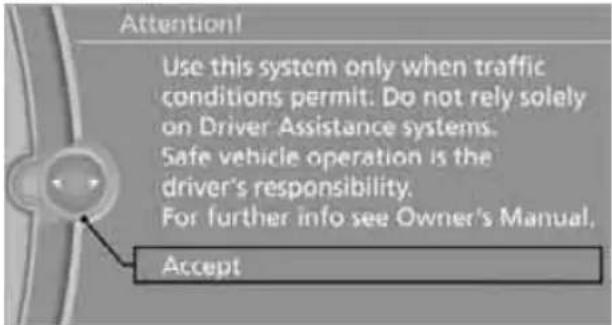
With the ignition at radio readiness or beyond, refer to page 54, the following message is displayed on the Control Display:
text_image
Attention! Use this system only when traffic conditions permit. Do not rely solely on Driver Assistance systems. Safe vehicle operation is the driver's responsibility. For further info see Owner's Manual. AcceptTo hide the message:
Press the controller.
The main menu is displayed.
The message is automatically hidden after approx. 10 seconds.
Opening the main menu
Press the MENU button.
The main menu is displayed.

text_image
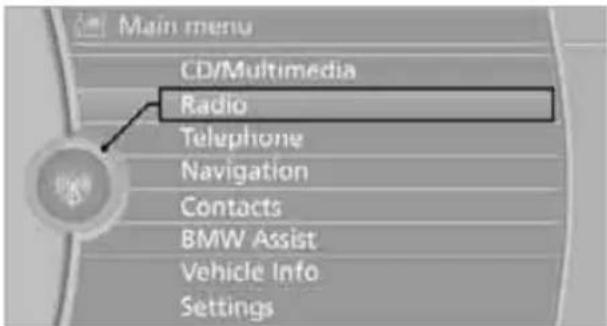
Main menu CD/Multimedia Radio Telephone Navigation Contacts BMW Assist Vehicle Info SettingsAll iDrive functions can be called up via the main menu.
Selecting a menu item
The menu items shown in white can be selected.
- Turn the controller until the desired menu item is highlighted.
text_image
Main menu CD/Multimedia Radio Telephone Navigation Contacts BMW Assist Vehicle Info Settings- Press the controller.
A new menu is displayed or the function is executed.
Menu items in the Owner's Manual
In the Owner's Manual, menu items that can be selected are set in quotation marks, e.g. "Settings".
Changing between panels
After selecting a menu item, e.g. "Radio", a new menu is displayed on a panel. The panels can overlap.
Move the controller to the left or right to change between the panels.

text_image
FM Manual CARIVARI ENERGY GONG96.3 KLASSIK 100.0 MHz 101.3 MHzWhite arrows pointing to the left or right indicate that additional panels can be opened.
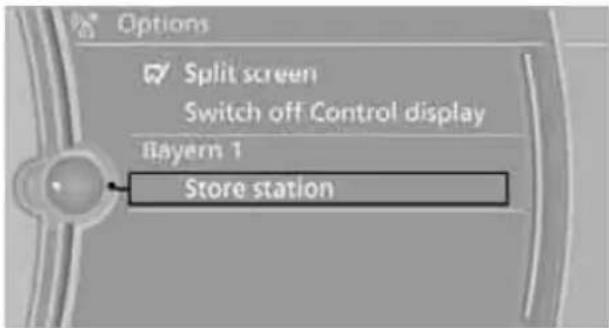
Opening the Options menu
Press the OPTION button.
The "Options" menu is displayed.
text_image
Options Split screen Switch off Control display Bayern 1 Store stationAnother possibility: move the controller to the right repeatedly until the "Options" menu appears.
The "Options" menu contains the following:
Screen settings, refer to page 19.
▶ Control options for the selected menu.
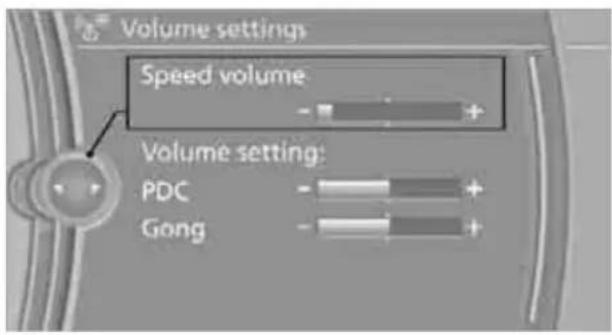
Adjusting settings
- Select a field.
- Turn the controller until the desired setting is displayed.
text_image
Volume settings Speed volume Volume setting: PDC Gong- Press the controller to confirm the setting.
The scroll bar on the right side indicates whether additional menu items or settings can be selected that are currently not visible.
Example: setting the clock
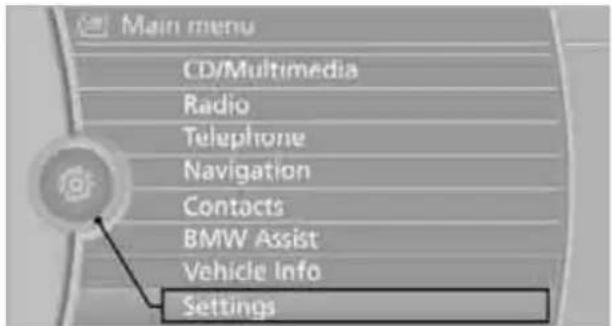
- Press the MENU button. The main menu is displayed.
- Turn the controller until "Settings" is highlighted, and then press the controller.
text_image
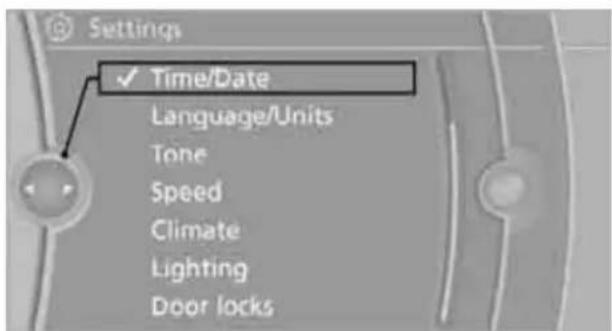
Main menu CD/Multimedia Radio Telephone Navigation Contacts BMW Assist Vehicle Info Settings- Turn the controller until "Time/Date" is highlighted, and then press the controller.
text_image
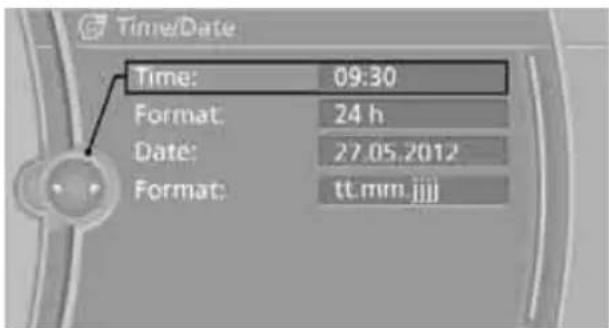
Settings ✓ Time/Date Language/Units Tone Speed Climate Lighting Door locks- Turn the controller until "Time:" is highlighted, and then press the controller.
text_image
Time/Date Time: 09:30 Format: 24 h Date: 27.05.2012 Format: tt.mm.jjjj-
Turn the controller to set the hours and press the controller.
-
Turn the controller to set the minutes and press the controller.
Status information
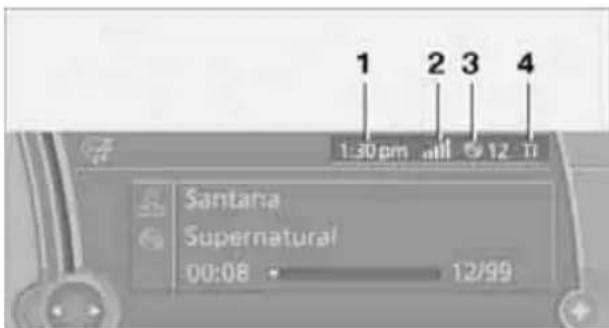
text_image
1 2 3 4 1:30 pm all 12 Ti Santana Supernatural 00:08 12/991 Time
2 Display for:
▶ Reception strength of the wireless network, depends on the mobile phone
▶ Incoming, outgoing or missed call
▶ SMS* received
3 Display for:
Entertainment: Radio, CD/DVD, external devices
Telephone:
Name of the mobile phone paired with the vehicle
4 Sound output is switched off or display for traffic bulletins*:
▶ "TI": Traffic bulletins are switched on.
No display:
Traffic bulletins are switched off.
Other displays:
Status information is temporarily hidden during Check Control message displays or entries via the voice activation system*.
Switching the Control Display off/on
- Press the OPTION button.
- "Switch off Control display"

text_image
Options Split screen Switch off Control displayPress the controller to switch on.
Professional navigation system: split screen
Additional information, e.g. from the computer, can be displayed on the right side of the split screen.
On the split screen, this information remains visible even when you change to another menu.
Switching the split screen on and off
- Press the OPTION button.
- "Split screen"
The split screen is activated.
Selecting the display for the split screen content
When the split screen is switched on, you can select the content displayed on the screen.
- Move the controller to the right repeatedly until the split screen content is selected.
- Select the display.
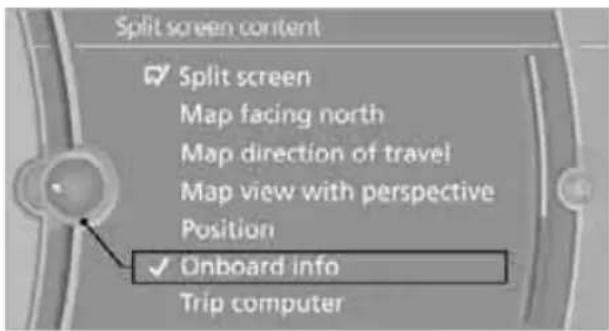
text_image
Split screen content ✓ Split screen Map facing north Map direction of travel Map view with perspective Position ✓ Onboard info Trip computerProgrammable memory keys
Certain iDrive functions can be stored on the programmable memory keys and called up directly, e.g. radio stations, navigation destinations, phone numbers and entry points into the menu.
Storing functions
- Highlight the function via the iDrive.
- ... Press the desired key for longer than two seconds.
Example for programmable memory keys
Switch the voice instructions for the navigation on/off.
- "Navigation"
- "Map"
- Select the symbol using the controller.
- ... Press the desired key for longer than two seconds.
Executing a function
1 ... Press the button.
The function is executed immediately. This means, for example, that the number is dialed when a phone number is selected.
Displaying memory key assignments
Touch the button with a finger. Do not wear gloves or use objects.
Displaying brief information
1 ... Touch the button.
The key assignment is displayed at the top edge of the screen.

text_image
CD/Multimedia Radio Telephone Navigation BMW Assist Vehicle info SettingsDisplaying detailed information
1 ... Touch the button for an extended period.
Letters and numbers
Entering letters and numbers
- Turn the controller: select the letters or numbers.
- Select additional letters or numbers if needed.
- "OK": confirm the entry.
| Symbol Function | |
| ← | Press the controller: delete one letter or number |
| ← | Press the controller for an extended period: delete all letters or numbers |
| └ | Enter a blank space |
Switching between letters and numbers
Depending on the menu, you can switch between entering letters and numbers:
| Symbol Function | |
| A^BC | Entering letters |
| 1^2_3 | Entering numbers |
Wordmatch concept during navigation
Entry of names and addresses: the selection is narrowed down every time a letter is entered and letters may be added automatically.
Destination search: the entries are continuously compared to the data stored in the vehicle.
The only letters offered for entering addresses are those for which data are available.
Town/city names can be entered with the spelling used in any of the languages available on the Control Display.
Voice activation system\*
The concept
The voice activation system allows you to control operation of various vehicle systems without removing your hands from the steering wheel.
Individual menu items on the Control Display can be spoken as commands. It is not necessary to use the controller.
The voice activation system transforms your oral commands into control signals for the selected systems and provides support in the form of instructions or questions.
The voice activation system uses a special microphone located in the area of the interior rearview mirror, refer to page 14.
Precondition
Via iDrive, select the language in which the voice activation system is operating, so that the spoken commands can be identified. Selecting the language for iDrive, refer to page 79.
Symbols in the Owner's Manual

... Say the specified commands word for word.
»...« Indicates responses of the voice activation system.
Saying commands
Activating voice activation system
- Press the button on the steering wheel.
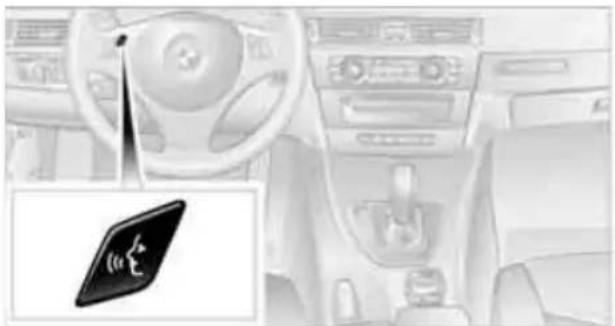
natural_image
Interior view of a car dashboard with steering wheel and passenger seat (no visible text or symbols)This symbol on the Control Display and an acoustic signal indicate that the voice activation system is ready to receive spoken commands.
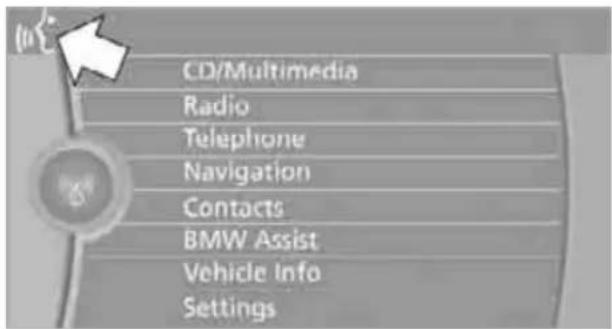
text_image
CD/Multimedia Radio Telephone Navigation Contacts BMW Assist Vehicle Info Settings2. Say the command.
The command appears on the Control Display.
This symbol appears on the Control Display when you can enter additional commands. If no further commands are possible, continue by operating the item of equipment via iDrive.
Terminating or canceling voice activation system
Press the button on the steering wheel or

Cancel
In dialogs that call for a text of your choice, the procedure can only be canceled using the button on the steering wheel.
Possible commands
The commands available in each case depend on the menu item selected on the Control Display.
To have the available commands read aloud:

Voice commands
For example, if "CD/DVD" is selected, the commands for operating CD/Multimedia are read aloud.
Calling up functions immediately via short commands
Short commands enable you to perform certain functions immediately, irrespective of which menu item is selected, refer to page 249.
Example: selecting the track of a CD
- If necessary, switch on entertainment audio output.
- Press the button on the steering wheel.

- Select the music track, e.g.:
C D track 4
System says:
Track 4<<
Setting the voice dialog
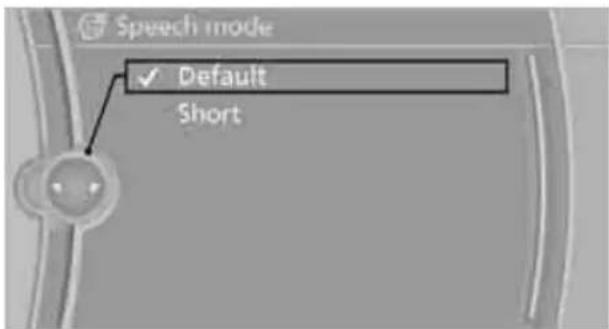
You can set whether the system should use the standard dialog or a shorter variant. In the shorter variant of the voice dialog, the prompts and responses from the system are abbreviated.
- "Settings"
- "Language/Units"
- "Speech mode:"
text_image
Speech mode ✓ Default Short- To select the setting:
"Default"
"Short"
Notes

To operate the phone by voice, refer to page 181.
For voice commands, bear in mind the following:
Do not use the voice activation system to initiate an Emergency Request. In stressful situations, the voice and vocal pitch can change. This can unnecessarily delay the establishment of a telephone connection.
▶ Pronounce the commands and digits smoothly and at normal volume, avoiding excessive emphases and pauses. This also applies when spelling out and saying a full word during destination entry.
When selecting a radio station, use the standard pronunciation of the station name.
For entries in the voice-activated phone book, only use names in the language of the voice activation system and no abbreviations.
Keep the doors, windows and glass roof/panorama glass roof closed to prevent interference from outside noise.
Avoid ambient noise in the vehicle while speaking.

text_image
START STOP ENGINE Online Edition for Part no. 01 41 2 603 048 - © 08/09 BMW AG
natural_image
Gradient background with no visible text, symbols, or identifiable objectsControls
This chapter is intended to provide you with information for complete control of your vehicle.
All features and accessories that are useful for driving and your safety, comfort and convenience, are described here.
Opening and closing
Remote control

natural_image
Two black automotive sensor speakers with circular headsets and front-mounted buttons (no visible text or symbols)Each remote control contains a rechargeable battery that is automatically recharged when it is in the ignition lock while the car is being driven. Use each remote control at least twice a year for longer road trips in order to maintain the batteries' charge status. In cars with Comfort Access*, the remote control contains a replaceable battery, refer to page 35.
The settings called up and implemented when the car is unlocked depend on which remote control is used to unlock the car, refer to Personal Profile, next column.
In addition, information about service requirements is stored in the remote control, refer to Service data in the remote control, page 223.
Integrated key

natural_image
Diagram of a car plug with labeled component (no text or symbols present)Press button 1 to release the key.
The integrated key fits the following locks:
Glove compartment, refer to page 105
Driver's door, refer to page 29
New remote controls
Your BMW center can supply new remote controls with integrated keys as additional units or as replacements in the event of loss.
Personal Profile
The concept
You can set many of your BMW's functions to suit your personal needs and preferences. Without any action on your part, Personal Profile ensures that most of these settings are stored for the remote control currently in use. When you unlock the car, the remote control used for the purpose is recognized and the settings stored for it are called up and implemented.
This means that your personal settings will be activated for you, even if in the meantime your car was used by someone else with another remote control and the corresponding settings. The individual settings are stored for a maximum of four remote controls. They are stored for two remote controls if Comfort Access * is in use.
Personal Profile settings
For more information on specific settings, refer to the specified pages.
Assignment of programmable memory keys, refer to page 20
Response of the central locking system when the car is unlocked, refer to page 27
▶ Automatic locking of the vehicle, refer to page 30
▶ Automatic call-up* of the driver's seat position, refer to page 45
Triple turn signal activation, refer to page 59
▶ Settings for the display on the Control Display and in the instrument cluster:
12h/24h format of the clock, refer to page 76
Date format, refer to page 77
Brightness of the Control Display, refer to page 80
Language on the Control Display, refer to page 79
Units of measure, refer to page 73
Show visual warning for Park Distance Control PDC*, refer to page 81
Light settings:
▶ Welcome lamps, refer to page 92
▶ Pathway lighting, refer to page 93
Daytime running lights, refer to page 93
▶ High-beam assistant, refer to page 94
Automatic climate control: activating/deactivating AUTO program, cooling function and automatic recirculated-air control, setting temperature, air volume and distribution, refer to page 98 ff
Entertainment:
▶ Tone control, refer to page 144
▶ Speed-dependent volume control, refer to page 145
Central locking system
The concept
The central locking system functions when the driver's door is closed.
The system simultaneously engages and releases the locks on the following:
Doors
Trunk lid/tailgate
▶ Fuel filler flap
Operating from outside
▶ Via the remote control
Via the door lock*
In cars with Comfort Access*, via the handles on the driver's and front passenger doors
In addition, if the remote control is used, the interior lamps and the door's courtesy lamps* are also switched on or off. The alarm system* is also armed or disarmed.
For further details of the alarm system, refer to page 33.
Operating from inside
By means of the button for central locking, refer to page 30.
In the event of a sufficiently severe accident, the central locking system unlocks automatically. In addition, the hazard warning flashers and interior lamps come on.
Opening and closing: Using the remote control

Persons or animals in a parked vehicle could lock the doors from the inside. You
should therefore take the remote control with you when you leave the vehicle so that the latter can be opened from outside.
Unlocking
Press the button.
The interior lamps, the courtesy lamps* and the welcome lamps come on.
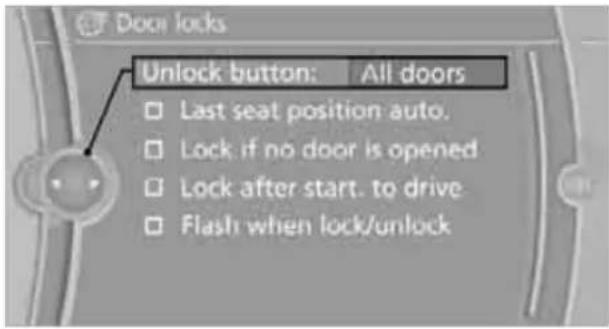
Setting unlocking characteristics
You can set whether only the driver's door or the entire vehicle is to be unlocked when the button is pressed for the first time.
- "Settings"
- "Door locks"
3. "Unlock button"
text_image
Door locks Unlock button: All doors □ Last seat position auto. □ Lock if no door is opened □ Lock after start. to drive □ Flash when lock/unlock4. Select a menu item:
All doors"
Press the button once to unlock the entire vehicle.
"Driver's door only"
Pressing the button once unlocks the driver's door and fuel filler flap. Press the button twice to unlock the entire vehicle.
5. Press the controller.
Convenient opening
Hold the button down.
The windows and the glass roof*/panorama glass roof* are opened.
Locking
Press the button.
Switching on interior lamps
While the car is locked:
Press the button.
You can also use this function to locate your vehicle in parking garages etc.
Sedan:
Unlocking the trunk lid
Press the button for approx. 1 second.
The trunk lid opens a short distance, regardless of whether it was locked or unlocked.

The trunk lid swings back and up when opened. Ensure that there is sufficient clearance. To avoid locking yourself out by accident, do not place the remote control in the cargo area. A previously locked trunk lid is
locked again after closing.
Before and after each trip, check that the trunk lid has not been inadvertently unlocked.
Sports Wagon:
Unlocking the tailgate
Press the button for approx. 1 second.
The tailgate opens a short distance, regardless of whether it was locked or unlocked.

The tailgate swings back and up when opened. Ensure that there is sufficient clearance. To avoid locking yourself out by accident, do not place the remote control in the cargo area. A previously locked tailgate is locked again after closing.
Before and after each trip, check that the tailgate has not been inadvertently unlocked.
Confirmation signals
You can activate or deactivate the confirmation signals.
- "Settings"
- "Door locks"
- "Flash when lock/unlock"

text_image
Door locks Unlock button: All doors Last seat position auto. Lock if no door is opened Lock after start. to drive Flash when lock/unlock4. Press the controller.
RV Flashing when locking/unlocking the vehicle is switched on.
Malfunctions
The remote control may malfunction due to local radio waves. If this occurs, unlock and lock the car at the door lock with the integrated key. In vehicles without an alarm system* or Comfort Access*, only the driver's door can be unlocked and locked using the integrated key in the door lock.
If the car can no longer be locked with a remote control, the battery in the remote control is discharged. Use the remote control on an extended trip to recharge the battery, refer to page 26. The remote control for Comfort Access* contains a battery that may have to be changed, refer to page 35.
For US owners only
The transmitter and receiver units comply with part 15 of the FCC/Federal Communications Commission regulations. Operation is governed by the following:
FCC ID:
LX8766S
LX8766E
LX8CAS
Compliance statement:
This device complies with part 15 of the FCC Rules. Operation is subject to the following two conditions:
This device must not cause harmful interference, and
this device must accept any interference received, including interference that may cause undesired operation.

Any unauthorized modifications or changes to these devices could void the
user's authority to operate this equipment.
Opening and closing: Using the door lock

natural_image
Diagram showing a curved arrow pointing downward from a central point, with no text or symbols present.You can set the way in which the car is unlocked, refer to page 27.
In vehicles without an alarm system* or Comfort Access*, only the driver's door can be locked via the door lock.
To lock all doors, the fuel filler flap and the trunk lid at once:
- With the doors closed, lock the vehicle using the button for the central locking system in the interior, refer to page 30.
- Unlock and open the driver's or front passenger door, refer to page 30.
- Lock the vehicle.
Lock the driver's door using the integrated key in the door lock, or
press down the lock button of the front passenger door and close the door from the outside.
Convenient operation
If the vehicle is equipped with an alarm system* or Comfort Access*, you can also operate the windows and the glass roof*/panorama glass roof* via the door lock.
Hold the key in the position for unlocking or locking.

Watch during the closing process to ensure that no one is injured. Releasing
the key stops the operation.
Manual operation
In the event of an electrical malfunction, you can lock and unlock the driver's door by turning the integrated key to the corresponding limit positions in the door lock.
Opening and closing: From inside
natural_image
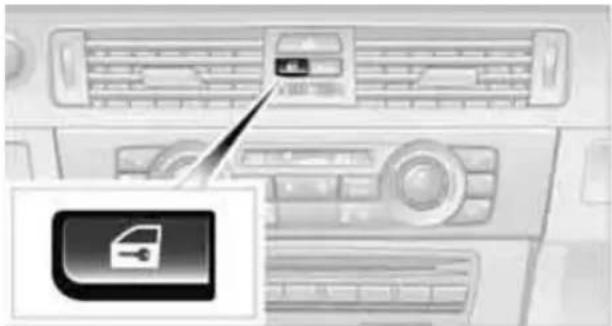
Interior view of a car dashboard with a close-up of a file icon (no text or symbols visible)This button serves to unlock or lock doors and the trunk lid/tailgate, but does not activate the anti-theft system. The fuel filler flap remains unlocked.
Automatic locking
You can also set the situations in which the car locks:
- "Settings"
- "Door locks"
- Select the desired function:
"Lock if no door is opened"
The central locking system locks the vehicle after a short time, unless a door has been opened.
"Lock after start. to drive"
The central locking system locks the vehicle when you drive away.
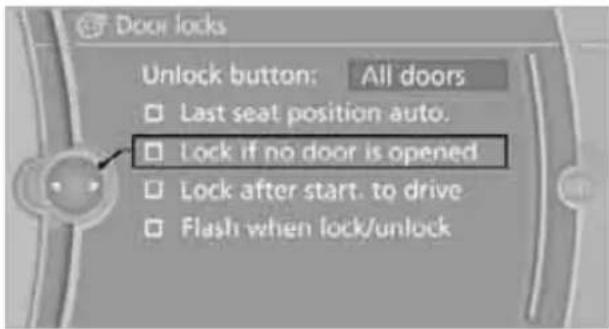
text_image
Door locks Unlock button: All doors □ Last seat position auto. □ Lock if no door is opened □ Lock after start. to drive □ Flash when lock/unlockThe function is switched on and is stored for the remote control currently in use.
Unlocking and opening doors
Either unlock the doors together using the button for the central locking system and
then pull the door handle above the armrest or
pull on the door handle of each door twice: the first time unlocks the door, the second time opens it.
Locking
Use the central locking button to lock all of the doors simultaneously, or
press down the safety lock button of a door. To prevent you from being locked out, the open driver's door cannot be locked using the lock button.
Persons or animals in a parked vehicle could lock the doors from the inside. You should therefore take the remote control with you when you leave the vehicle so that the latter can be opened from outside.
Trunk lid/tailgate
In order to avoid damage, make sure there is sufficient clearance before opening the trunk lid/tailgate.
Opening from inside

natural_image
Interior view of a car showing the seatbelt and a car icon (no text or symbols)Press the button: the trunk lid/tailgate opens unless it has been locked.
Opening from outside
Sedan

natural_image
Side view of a car's rear bumper with a hand placing a small object on the side (no text or symbols visible)Press the button, see arrow, or the button on the remote control for a longer period. The trunk lid will open slightly. It can now be swung upwards.

In the event of a malfunction, please contact your BMW center or a workshop that
works according to BMW repair procedures with correspondingly trained personnel.
Sports Wagon
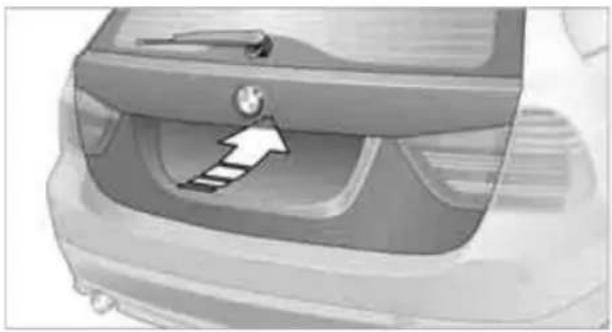
natural_image
Side view of a car's front bumper with a white arrow pointing to the grille (no text or symbols visible)Press the button, see arrow, or the button on the remote control for a longer period. The tailgate will open slightly. It can now be swung upwards.

When the button on the roller cover is pressed, refer to page 110, the roller
cover is raised. Before closing the tailgate, press the roller cover downward until it engages.
Opening manually
Sports Wagon
In the event of an electrical malfunction:
- From the cargo area, swing the cover on the tailgate upward.
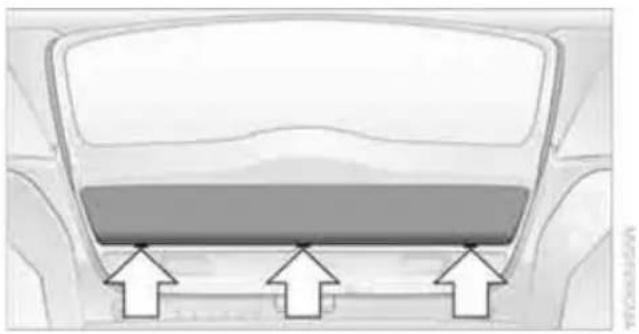
natural_image
Top-down view of a car's front dashboard with three white arrows pointing upward (no text or symbols)- Pull the ring upward. The tailgate is unlocked.

natural_image
Interior view of a car showing the dashboard and seat area with a tool inserted (no text or symbols visible)- Open the tailgate and close the cover again. The tailgate is locked as soon as it is pressed shut.
Locking or unlocking separately
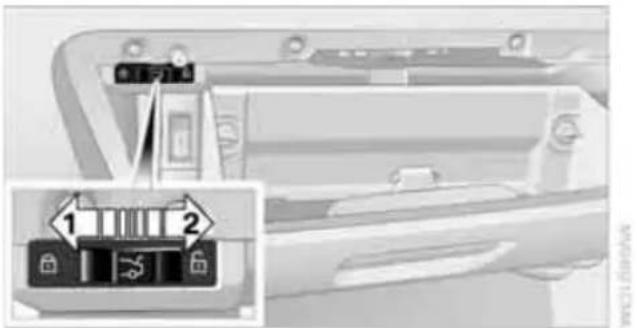
text_image
Diagram showing a car door panel with labeled buttons and a zoomed-in view highlighting two key components.The switch is located in the glove compartment.
1 Locking the trunk lid
2 Unlocking the trunk lid
Locking separately
Push the switch in the direction of arrow 1. The trunk lid is locked and cannot be unlocked using the central locking system.
If you give the remote control without the inte-
grated key to someone else while the glove compartment is locked, the trunk lid cannot be opened. This is an advantage when valet parking, for example. Locking the glove compartment, refer to page 106.
Unlocking separately
Push the switch in the direction of arrow 2.
Emergency release
natural_image
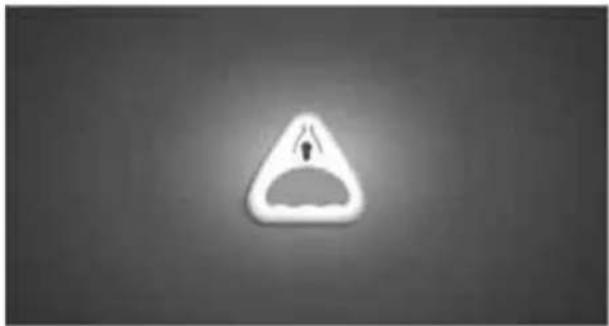
Simple triangular warning symbol with a downward arrow inside, no text or labels present.Pull the lever in the cargo area. The trunk lid is unlocked.
Closing
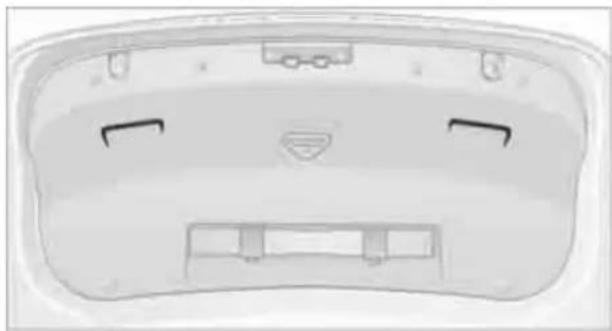
The handle recesses on the interior trim of the trunk lid/tailgate make it easier to pull down.

Make sure that the closing path of the trunk lid/tailgate is clear; otherwise, injuries may result.
Sedan
natural_image
Top-down view of a white car rear bumper with visible door, seat, and logo (no text or symbols)Sports Wagon

natural_image
Top-down view of a white plastic bed with two vent slots and a small inset image (no text or symbols)Sports Wagon: opening and closing the rear window
Small items can be loaded and unloaded quickly when the rear window is opened separately.

When the button on the roller cover is pressed, refer to page 110, the roller cover is raised. Before closing the rear window, press the roller cover downward until it engages.
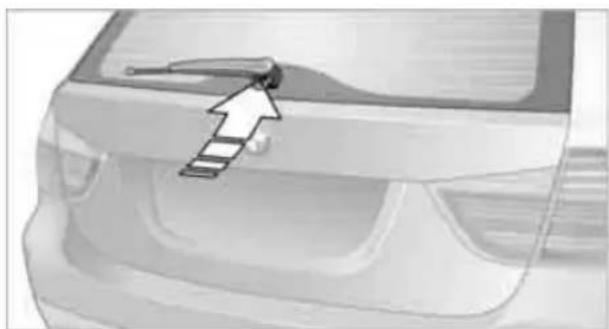
natural_image
Front view of a car's rear bumper with a tool pointing to the grille (no text or symbols visible)Press the button: the rear window opens slightly. It can now be swung upwards.
Press the window shut to close it.

Make sure that the corners of any pointed or sharp-edged cargo are padded if they
could bump against the rear window while the vehicle is in motion; otherwise, the heating elements of the rear window could be damaged.
Alarm system\*
The concept
The vehicle alarm system responds:
When a door, the hood or the trunk lid/tail-gate is opened
To movements inside the vehicle: Interior motion sensor, refer to page 33
When the car's inclination changes, for instance if an attempt is made to jack it up and steal the wheels or to raise it prior to towing away
When there has been an interruption of power supply from the battery
The alarm system signals unauthorized entry attempts for a short time by means of:
An acoustic alarm
▶ Switching on the hazard warning flashers
▶ Flashing the high beams
Arming and disarming
When you lock or unlock the vehicle, either with the remote control or at the door lock, the alarm system is armed or disarmed at the same time.
You can open the trunk lid/tailgate even when the alarm system is armed, by pressing the button on the remote control, refer to page 28. The lid is locked and monitored again as soon as you close it.
Panic mode\*
You can trigger the alarm system if you find yourself in a dangerous situation:
Press the button for at least three seconds.
To switch off the alarm: press any button.
Switching off an alarm
▷ Unlock the car with the remote control, refer to page 27.
Insert the remote control all the way into the ignition lock.
Indicator lamp displays

natural_image
Line drawing of a car frontview mirror with no text or symbolsThe indicator lamp under the inside rearview mirror flashes continuously: the system is armed.
The indicator lamp flashes after locking: doors, hood, trunk lid/tailgate or rear window are not properly closed. Even if you do not close the alerted area, the system begins to monitor the remaining areas, and the indicator lamp flashes continuously after approx. 10 seconds. The interior motion sensor and the tilt alarm sensor are not activated.
The indicator lamp goes out after unlocking: your vehicle has not been disturbed while you were away.
If the indicator lamp flashes after unlocking until the remote control is inserted in the ignition, but for no longer than approx. 5 minutes: your vehicle has been disturbed while you were away.
Tilt alarm sensor
The tilt of the vehicle is monitored. The alarm system reacts, e.g. to attempts to steal a wheel or tow the vehicle.
Interior motion sensor
In order for the interior motion sensor to function properly, the windows and glass roof must be completely closed *.
Avoiding unintentional alarms
The tilt alarm sensor and interior motion sensor may be switched off at the same time. This prevents unintentional alarms, e.g. in the following situations:
In duplex garages
During transport on car-carrying trains, boats/ships or on a trailer
When animals are to remain in the vehicle
Switching off tilt alarm sensor and interior motion sensor
Press the button on the remote control again as soon as the vehicle is locked.
The indicator lamp lights up briefly and then flashes continuously. The tilt alarm sensor and the interior motion sensor are switched off until the next time the vehicle is unlocked and subsequently locked again.
Comfort Access\*
Comfort Access enables you to enter your vehicle without needing to hold the remote control in your hand. All you need to do is wear the remote control close to your body, e.g. in your jacket pocket. The vehicle detects the corresponding remote control within the immediate vicinity or in the passenger compartment.
Comfort Access supports the following functions:
▶ Unlocking/locking the vehicle
▶ Unlocking the trunk lid/tailgate separately
Engine starting
▶ Convenient closing
Functional requirement
The vehicle or the trunk lid/tailgate can only be locked when the vehicle detects that the remote control currently in use is outside of the vehicle.
The vehicle cannot be locked or unlocked again until after approx. 2 seconds.
The engine can only be started when the vehicle detects that the remote control currently in use is inside the vehicle.
Comparison to the standard remote control
In general, there is no difference between using Comfort Access or pressing the buttons on the remote control to carry out the functions mentioned above. You should therefore first familiarize yourself with the instructions on opening and closing starting on page 26.
Special features regarding the use of Comfort Access are described below.
If you notice a brief delay while opening or closing windows or the glass roof/panorama glass roof, the system is checking whether a remote control is inside the vehicle. Please repeat the opening or closing procedure, if necessary.
Unlocking

natural_image
Close-up of a car's side panel with two arrows pointing to the front wheel (no text or symbols)Grasp the handle on the driver's or front passenger door completely, arrow 1. This corresponds to pressing the button.
Locking
Touch the surface, arrow 2, with your finger for approx. 1 second. This corresponds to pressing the ⚙ LOCK button.
To preserve the battery, please make sure that the ignition and all electrical consumers are switched off before locking the vehicle.
Convenient closing
For Convenient closing, keep your finger on the surface, arrow 2.
Unlocking the trunk lid/tailgate separately
Press the button on the outside of the trunk lid/tailgate. This corresponds to pressing the button.

If the vehicle detects that a remote control has been accidentally left inside the locked vehicle's cargo area after the trunk lid/tailgate or rear window is closed, the lid will reopen. The hazard warning flashers flash and an acoustic signal* sounds.
Switching on radio readiness
Radio readiness is switched on by pressing the start/stop button, refer to page 54.

Do not depress the brake or the clutch; otherwise, the engine will start.
Starting the engine
You can start the engine or switch on the ignition when a remote control is inside the vehicle. It is not necessary to insert a remote control into the ignition lock, refer to page 54.
Switching off the engine in cars with automatic transmission
The engine can only be switched off when the selector lever is in position P, refer to page 55. To switch the engine off when the selector lever is in position N, the remote control must be in the ignition lock.
Malfunction
Comfort Access may malfunction due to local radio waves. If this happens, open or close the vehicle via the buttons on the remote control or using the integrated key. To start the engine afterward, insert the remote control into the ignition lock.
Warning lamps

The warning lamp in the instrument cluster lights up when you attempt to start the engine: the engine cannot be started. The remote control is not inside the vehicle or is malfunctioning.
Take the remote control with you inside the vehicle or have it checked. If necessary, insert another remote control into the ignition lock.

The warning lamp in the instrument cluster lights up while the engine is running: the remote control is no
longer inside the vehicle. After the engine is switched off, the engine can only be restarted within approx. 10 seconds.

The indicator lamp in the instrument cluster comes on and a message appears on the Control Display:
replace the battery in the remote control.
Replacing the battery
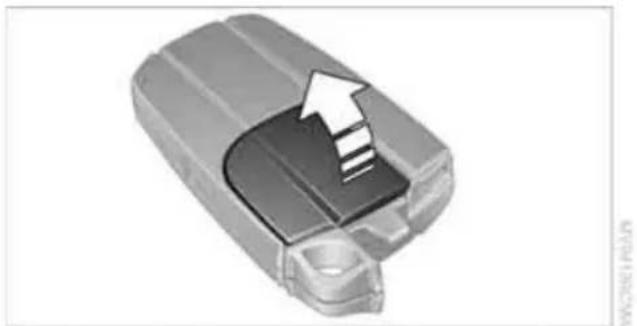
The remote control for Comfort Access contains a battery that will need to be replaced from time to time.
- Take the integrated key out of the remote control, refer to page 26.
natural_image
3D illustration of a mechanical component with an arrow indicating a process or movement (no text or symbols present)-
Remove the cover.
-
Insert the new battery with the plus side facing up.
-
Press the cover on to close.

Take the old battery to a battery collection point or to your BMW center.
Windows

To prevent injuries, watch the windows while closing them.
Take the remote control with you when you leave the car; otherwise, children could operate the electric windows and possibly injure themselves.
Opening, closing
natural_image
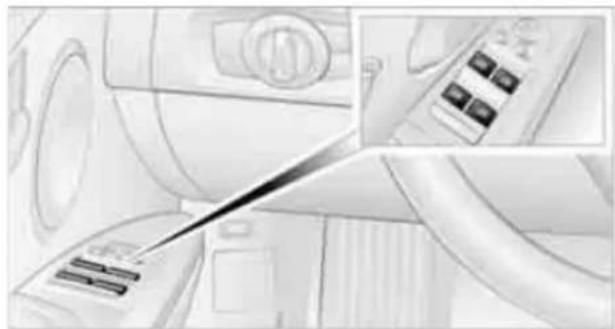
Illustration of a washing machine with a hand inserting a screwdriver into the air gap (no text or symbols visible)Press the switch to the resistance point: The window opens as long as you press the switch.
Press the switch beyond the resistance point:
The window opens automatically. Press the switch again to stop the opening movement.
You can close the windows in the same manner by pulling the switch.
There are separate switches in the rear seat armrests.
After switching off the ignition
When the remote control is removed or the ignition is switched off, you can still operate the windows for approx. 1 minute as long as no door is opened.
Convenient operation
For information on Convenient operation via the remote control or the door lock, refer to page 27 or 29. For information on Convenient closing with Comfort Access, refer to Locking on page 28.
Pinch protection system
If the closing force exceeds a specific value as a window closes, the closing action is interrupted and the window reopens slightly.

Despite the pinch protection system check and clear the window's travel path prior to closing it; otherwise, the safety system might fail to detect certain kinds of obstructions, such as thin objects, and the window would continue closing.
Do not install any accessories that might interfere with window movement. Otherwise, the pinch protection system could be impaired.
Closing without pinch protection
If there is an external danger, or if ice on the windows, etc., prevents you from closing the windows normally, proceed as follows:
- Pull the switch past the resistance point and hold it there. Pinch protection is limited and the window reopens slightly if the closing force exceeds a certain value.
- Pull the switch again past the resistance point within approx. 4 seconds and hold it there. The window closes without pinch protection.
Safety switch
natural_image
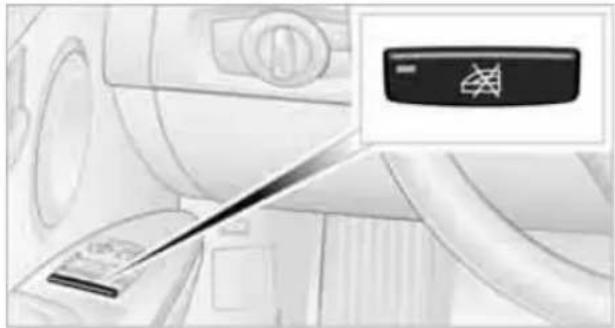
Interior view of a washing machine with a hand holding a tool, showing no visible text or symbols.With the safety switch, you can prevent the rear windows from being opened or closed via the switches in the rear passenger area, by children, for example. When the safety function is switched on, the LED comes on.

Always press the safety switch when children ride in the rear; otherwise,
unchecked closing of the windows could lead to injuries.
Sedan: glass roof\*, electric

To prevent injuries, watch the glass roof while closing it.
Take the remote control with you when you leave the car; otherwise, children could operate the roof and possibly injure themselves.
natural_image
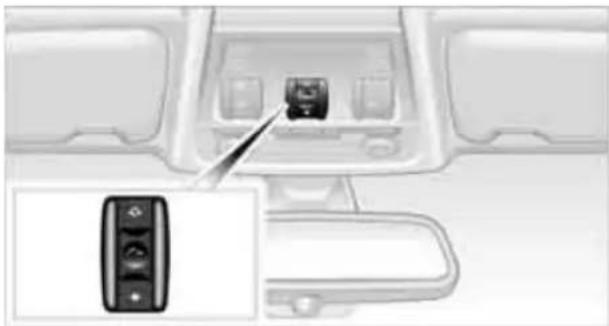
Interior view of a vehicle dashboard with a black control panel and a close-up of the left side showing a brush (no text or symbols visible)Raising
Press the switch.
The closed glass roof is raised and the sliding visor opens slightly.
The open glass roof automatically travels into the raised position. The sliding visor remains completely open.
Opening, closing
Press the switch backwards to the resistance point.
The glass roof and the sliding visor open together as long as you hold the switch in this position.
Press the switch backwards past the resistance point.
The glass roof and the sliding visor open automatically. Briefly press the switch again to stop the opening movement.
You can close the glass roof in a similar manner by pressing the switch forwards. The sliding visor remains open and can be closed by hand.
For information on Convenient operation via the remote control or door lock, refer to page 27 or 29.
After switching off the ignition
When the remote control is removed or the ignition is switched off, you can still operate the roof for approx. 1 minute as long as no door has been opened.
Pinch protection system
If the glass roof encounters an obstruction during closing from approximately the middle of the opening in the roof, or during closing from the raised position, the closing movement is interrupted and the glass roof is opened again slightly.

Despite the pinch protection system check and clear the roof's travel path prior
to closing it; otherwise, the safety system might fail to detect certain kinds of obstructions, such as very thin objects, and the roof would continue closing.
Closing without pinch protection
If there is an external danger, press the switch forward past the resistance point. The roof closes without pinch protection.
Following interruptions in electrical power supply
After a power failure, there is a possibility that the glass roof can only be raised. The system must be initialized. BMW recommends having this work done by your BMW center.
Closing manually\*
In the event of an electrical malfunction, you can move the glass roof manually:
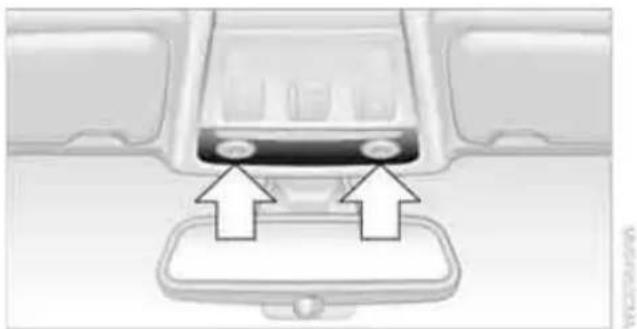
- Unclip the front of the cover of the interior lamps using the screwdriver from the onboard vehicle tool kit, refer to page 229.
natural_image
Interior view of a car showing the front and side compartments with two white arrows pointing to a central panel (no text or symbols)- Insert the screwdriver into the openings on each side to press the clips.

natural_image
Interior view of a car airway with a screwdriver inserted into the intake tray (no visible text or symbols)- Remove the control unit.
- Unplug the motor. Considerably less effort will be required for manual operation.

natural_image
Close-up of a mechanical component with a magnified inset showing a close-up of a connector detail (no visible text or symbols)- Insert the Allen wrench * supplied with the onboard vehicle tool kit, refer to page 229, into the opening provided. Move the glass roof in the desired direction.

natural_image
Close-up of a mechanical bracket with a metal rod inserted, mounted on a vehicle (no visible text or symbols)- Reinstall the control unit and reattach the lamp cover.
Sports Wagon: Panorama glass roof\*

To prevent injuries, exercise care when closing the panorama glass roof and keep it in your field of vision until it is shut. Take the remote control with you when you leave the car; otherwise, children could operate the roof and possibly injure themselves.
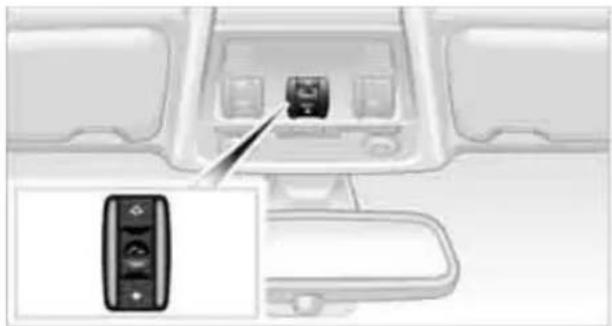
natural_image
Interior view of a car dashboard with a black control panel and a close-up of the left side showing a button (no text or symbols visible)Raising
Press the switch.
The closed roof is raised and the sliding visor opens slightly.

Do not close the sliding visor forcibly with the roof in the raised position, as this damage the mechanism.
Opening, closing
Sliding visor
The sliding visor can be opened or closed separately when the roof is in the closed or raised position.
Press the switch backwards to the resistance point.
The sliding visor opens as long as you keep the switch in this position.
Tap the switch backwards past the resistance point.
The sliding visor opens automatically. Tapping the switch again stops the operation.
You can close the sliding visor in a similar manner by pressing the switch forwards.
Panorama glass roof
When the sliding visor is open, proceed as described under Sliding visor.
For information on Convenient operation via the remote control or door lock, refer to page 28 or 29.
Opening and closing the roof and sliding visor at the same time
Tap the switch twice in quick succession beyond the resistance point. Tapping the switch again stops the operation.
Convenience functions
With the roof open, press the switch twice: The roof is raised.
With the roof open, tap the switch twice in the direction for opening:
The roof is opened fully.
Comfort position
In the comfort position, the roof is not completely open, thus reducing wind noise in the passenger compartment.
Each time the panorama glass roof is opened or closed completely, it stops in the comfort position. If desired, continue the movement by pressing the switch.
After switching off the ignition
When the remote control is removed or the ignition is switched off, you can still operate the roof for approx. 1 minute as long as no door has been opened.
Pinch protection system
If the panorama glass roof or the sliding visor encounters an obstruction while closing from a position about two-thirds closed, or during closing from the raised position, the closing movement is interrupted and the panorama glass roof and the sliding visor are opened again slightly.

Despite the pinch protection system check and clear the roof's travel path prior to closing it; otherwise, the safety system might fail to detect certain kinds of obstructions, such as very thin objects, and the roof would continue closing.
Closing without pinch protection
If there is an external danger, press the switch forward past the resistance point and hold it there. The roof closes without pinch protection.
Following interruptions in electrical power supply
After a power failure, there is a possibility that the panorama glass roof can only be raised. The system must be initialized. BMW recommends having this work done by your BMW center.
Closing manually\*
In the event of an electrical malfunction, you can move the panorama glass roof manually:
- Unclip the front of the cover of the interior lamps using the screwdriver from the onboard vehicle tool kit, refer to page 229.

natural_image
Interior view of a car showing the front and side compartments with two directional arrows pointing to a central display area (no text or symbols present)- Insert the screwdriver into the openings on each side to press the clips.
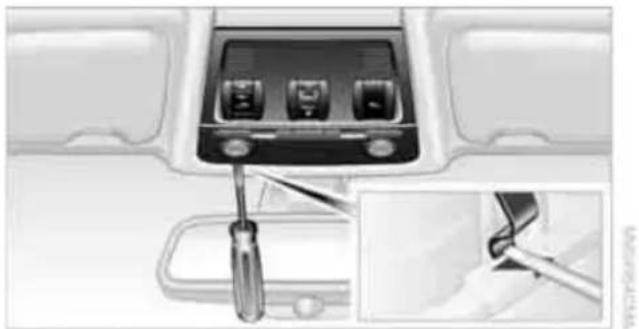
natural_image
Interior view of a car airway with a screwdriver inserted, showing the dashboard and side panel (no text or symbols visible)-
Remove the control unit.
-
Unplug the motor. Considerably less effort will be required for manual operation.
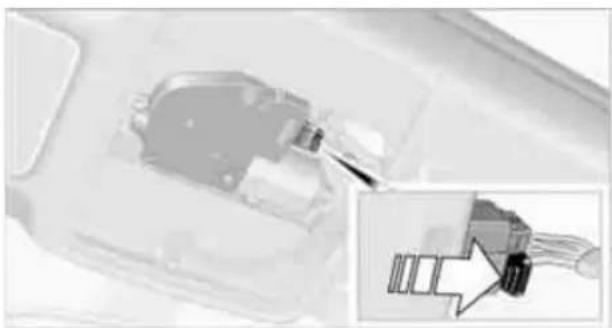
natural_image
Close-up of a mechanical component with an inset showing a close-up of a connector (no visible text or symbols)- Insert the Allen wrench * supplied with the onboard vehicle tool kit, refer to page 229, into the opening provided. Move the panorama glass roof in the desired direction.

natural_image
Close-up of a mechanical component with a black bracket and metallic rod (no visible text or symbols)- Reinstall the control unit and reattach the lamp cover.
Adjustments
Sitting safely
The ideal sitting position can make a vital contribution to relaxed, fatigue-free driving. In conjunction with the safety belts, the head restraints and the airbags, the seated position has a major influence on your safety in the event of an accident. To ensure that the safety systems operate with optimal efficiency, we strongly urge you to observe the instructions contained in the following section.
For additional information on transporting children safely, refer to page 50.
Airbags

Always maintain an adequate distance between yourself and the airbags. Always grip the steering wheel on the rim, with your hands in the 3 o'clock and 9 o'clock positions, to minimize the risk of injury to the hands or arms in the event of the airbag being triggered off.
No one and nothing should come between the airbags and the seat occupant.
Do not use the cover of the front airbag on the front passenger side as a storage area. Make sure that the front passenger is sitting correctly, e.g. not resting feet or legs on the dashboard; otherwise, leg injuries can occur if the front airbag deploys.
Make sure that passengers keep their heads away from the side airbag and do not lean against the cover of the head airbag; otherwise, serious injuries can result if the airbag deploys.
Even if you follow all the instructions, injuries resulting from contact with airbags cannot be fully excluded, depending on the circumstances. The ignition and inflation noise may provoke a mild hearing loss in extremely sensitive individuals. This effect is usually only temporary.
For airbag locations and additional information on airbags, refer to page 90.
Head restraint
A correctly adjusted head restraint reduces the risk of neck injury in the event of an accident.

Adjust the head restraint in such a way that its center is at approx. ear level. Othe, there is an increased risk of injury in the t of an accident.
Head restraints, refer to page 43.
Safety belt
Before every drive, make sure that all occupants wear their safety belts. Airbags complement the safety belt as an additional safety device, but they do not represent a substitute.
Your vehicle has five seats, each of which is equipped with a safety belt.

Never allow more than one person to wear a single safety belt. Never allow
infants or small children to ride in a passenger's lap. Make sure that the belt in the lap area sits low across the hips and does not press against the abdomen.
The safety belt must not rest against the throat, run across sharp edges, pass over hard or fragile objects or be pinched. Fasten the safety belt so that it sits as snugly as possible against the lap and shoulder without being twisted. Otherwise, the belt could slide over your hips and injure your abdomen in the event of a frontal collision.
Avoid wearing bulky clothing and regularly pull the belt in the upper-body area taut; otherwise, its restraining effect could be impaired.
Sports Wagon: if the rear center safety belt is used, the wider backrest must be locked in place, refer to page 110. Otherwise, the safety belt will have no restraining effect.
Safety belts, refer to page 46.
Seats
Note before adjusting

Never attempt to adjust your seat while the vehicle is moving. The seat could respond with unexpected movement, and the ensuing loss of vehicle control could lead to an accident.
On the front passenger seat as well, do not incline the backrest too far to the rear while the vehicle is being driven; otherwise, there is a danger in the event of an accident of sliding under the safety belt, eliminating the protection normally provided by the belt.
Comply with the instructions on head restraint height on page 43, and on damaged safety belts on page 46.
Manual adjustment

Observe the adjustment instructions on page 42 to ensure the best possible per-protection.

text_image
Diagram showing car interior with directional arrows and labeled parts, likely illustrating vehicle movement or motion.Longitudinal direction
Pull lever 1 and slide the seat to the desired position.
After releasing the lever, move the seat gently forward or back to make sure it engages properly.
Height
Pull lever 2 and apply your weight to the seat or lift it off, as necessary.
Backrest

text_image
Diagram showing a car interior with labeled parts and directional arrows indicating flow or movement, including number 3.Pull lever 3 and apply your weight to the back-rest or lift it off, as necessary.
Tilt*
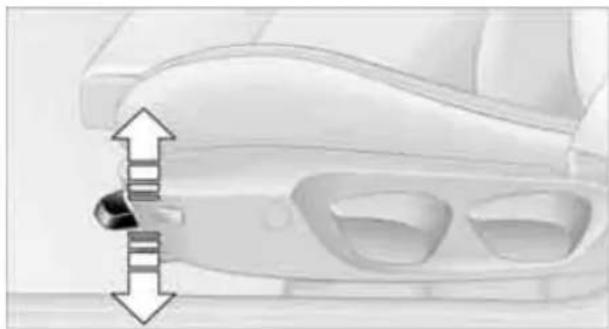
natural_image
Diagram of a car's side profile showing a key inserted into the dashboard and a vertical double-headed arrow indicating left side (no text or symbols present)Pull the lever and apply your weight to the seat or lift it off, as necessary.
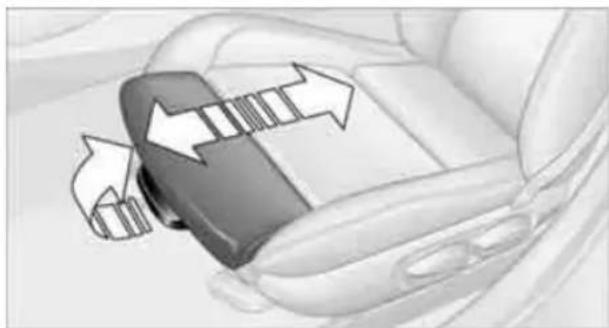
Thigh support*
natural_image
Close-up of a car seatbelt buckle with directional arrows indicating movement (no text or symbols)Pull the lever and move the thigh support forward or back.
Electrical adjustment

Observe the adjustment instructions on page 42 to ensure the best possible per-protection.

text_image
1 2 3 1 21 Longitudinal direction
2 Height
3 Angle

natural_image
Close-up of a car's side panel with a black screwdriver inserted, showing no text or symbols on the interior surface.4 Backrest
The head restraints are adjusted manually, refer to Head restraints below.
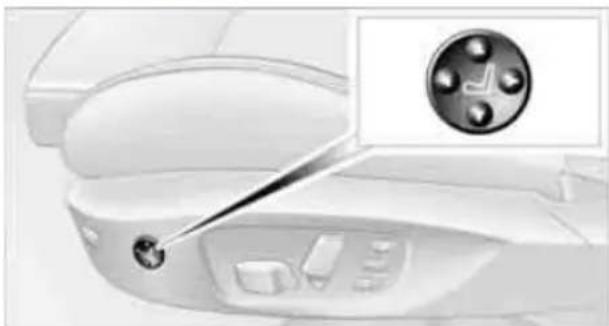
Lumbar support*
natural_image
Close-up of a car interior panel with a close-up inset showing a plug (no text or symbols visible)You can also adjust the contour of the backrest to obtain additional support in the lumbar region.
The upper hips and spinal column receive supplementary support to help you maintain a relaxed, upright sitting position.
Increase or decrease curvature: press the switch at the front or rear, respectively.
Shift curvature up or down: press the switch at the top or bottom, respectively.
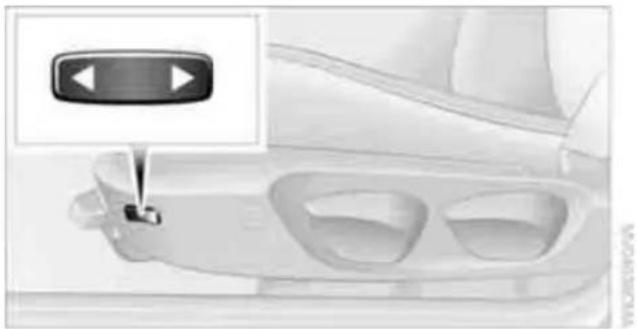
Backrest width*
natural_image
Interior view of a car showing the left side of the door and a control panel with an arrow icon (no text or symbols)You can change the width of the backrest to suit your individual preferences by adjusting the lateral-support pads.
Press the front or rear end of the switch. Backrest width decreases or increases accordingly.
Head restraints
Correctly adjusted head restraint
A correctly adjusted head restraint reduces the risk of neck injury in the event of an accident.
Adjust the head restraint in such a way that its center is at approx. ear level. Otherwise, there is an increased risk of injury in the event of an accident. Only remove a head restraint if no one will be sitting on the seat in question. Reinstall the head restraint before transporting anyone on that seat. Otherwise, the passenger will be without protection from the head restraint.
Height
Adjust the head restraint so that its center is approximately at ear level.
Distance
Adjust the distance so that the head restraint is as close as possible to the back of the head.
Front active head restraints
In a rear collision of a sufficient strength, the active head restraint reduces the distance to the head.

Do not use seat or head restraint covers that could impair the function of the active head restraint. Otherwise, the protective function of the active head restraint will not be ensured and its full potential in reducing the risk of injury in the event of a rear collision may not be realized.
In the event of malfunctions, deactivation or triggering of the active head restraints, have the testing, repair and removal executed only by a BMW center or a workshop that works according to repair procedures of BMW with correspondingly trained personnel and that has the required explosives licenses. Unprofessional attempts to work on the system could lead to failure in an emergency or to undesired airbag activation, either of which could result in personal injury.

For technical reasons, the head restraint cannot be removed.
Front seats
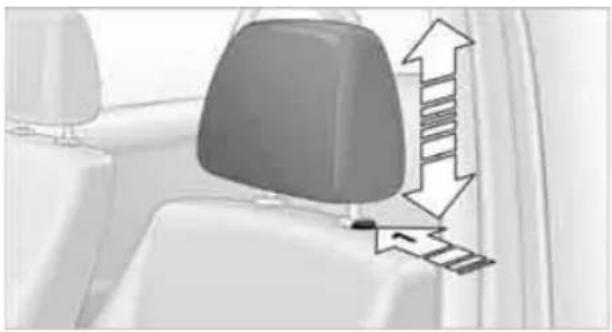
Height adjustment
natural_image
Interior view of a car seatbelt with directional arrows indicating movement (no text or symbols)To raise: pull up.
To lower: press the button, arrow 1, and slide the head restraint down.
Rear seats
Height adjustment

natural_image
Diagram of a mechanical component with directional arrows indicating motion or force (no text or symbols)To raise: pull up.
To lower: press the button, arrow 1, and slide the head restraint down.
The center head restraint is not height-adjustable.
Removing
Sedan:
Only with through-loading system:
-
Pull up as far as it will go.
-
Press the button, arrow 1, tilt the rear seat backrest slightly forward and pull the head restraint all the way out.

Only remove the head restraints if no passengers will be sitting in the rear. Reinstall
head restraints before transporting passengers in the rear.
Folding head restraints down and back up
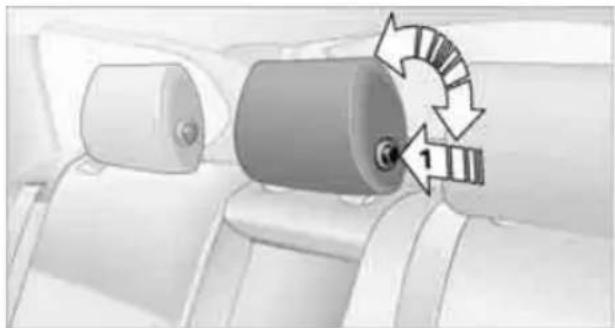
natural_image
Interior view of a car showing a car seatbelt with a circular arrow indicating clockwise motion (no text or symbols)Folding down:
Press the button, arrow 1.
Folding up:
Pull the head restraint.
Depending on the equipment version, it may be possible to fold down the outer rear head restraints as well.

Only fold the head restraints down if no passengers will be sitting in the rear. Fold up the head restraints before transporting passengers in the rear.
Heated seats\*
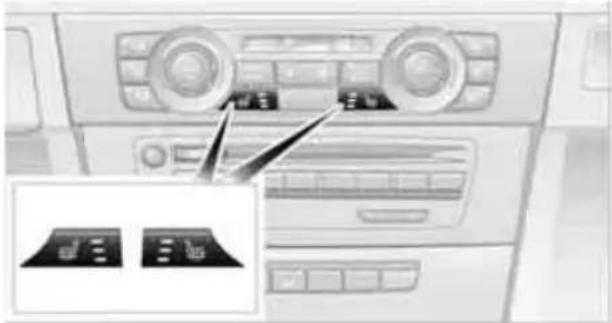
natural_image
Interior view of a car dashboard with control panels and indicator lights (no visible text or symbols)Press the button once per temperature level. Three LEDs indicate the highest temperature.
To switch off:
Press button longer.
If you continue driving within approx. the next 15 minutes, the seat heating is automatically activated at the previously set temperature.
The temperature is lowered or the heating is switched off entirely to save on battery power. The LEDs stay lit.
Seat and mirror memory\*
You can store and call up two different combinations of driver's seat and exterior mirror positions.
Settings for the backrest width and lumbar support are not stored in memory.
Storing
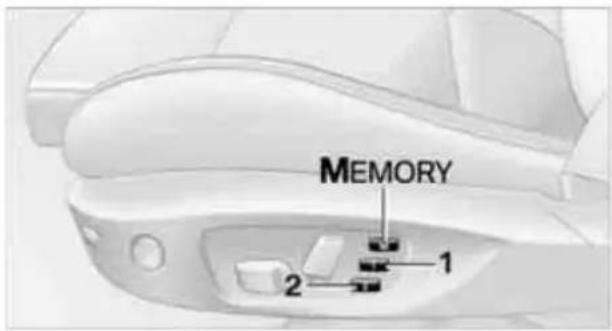
text_image
MEMORY 1 2-
Switch on radio readiness or the ignition, refer to page 54.
-
Adjust the seat and exterior mirrors to the desired positions.
-
Press the button.
The LED in the button lights up.
- Press the desired memory button 1 or 2: the LED goes out.
The driver's seat and exterior mirror positions are stored for the remote control currently in use.
Call-up

Do not call up the memory while you are driving; otherwise, unexpected seat movement could result in an accident.
Comfort function
- Unlock and open the driver's door or switch on radio readiness, refer to page 54.
- Briefly press the desired memory button 1 or 2.
The adjusting procedure is halted immediately when you touch a seat adjustment switch or one of the memory buttons.
Safety feature
- Close the driver's door and switch the ignition on or off, refer to page 54.
- Press the desired memory button 1 or 2 and keep it pressed until the adjustment process has been completed.
If the button was pressed accidentally: Press the button again; the LED goes out.
Call-up with the remote control
The driver's seat position last set is stored for the remote control currently in use.
You can select whether or not the seat is reset to that position automatically.

When this Personal Profile function is used, first make sure that the footwell behind the driver's seat is free of obstacles.
Failure to do so could cause injury to persons or damage to objects as a result of a rearward movement of the seat.
The adjusting procedure is halted immediately when you touch a seat adjustment switch or one of the memory buttons.
Selecting automatic call-up
- "Settings"
- "Door locks"
- "Last seat position auto."
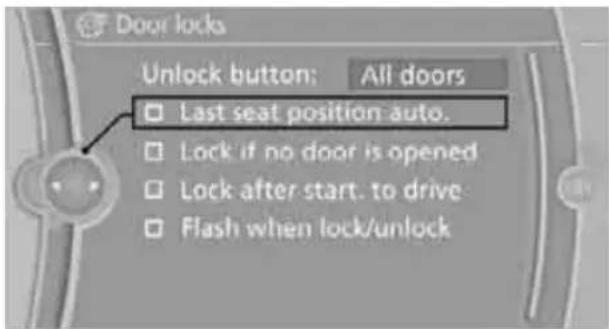
text_image
Door locks Unlock button: All doors □ Last seat position auto. □ Lock if no door is opened □ Lock after start. to drive □ Flash when lock/unlockThe function for automatically calling up the last seat position is switched on and is stored for the remote control currently in use.
Switching off automatic call-up
Deactivate "Last seat position automatic".
Safety belts

Observe the adjustment instructions on page 42 to ensure the best possible per-protection.
Before every drive, make sure that all occupants wear their safety belts. Airbags complement the safety belt as an additional safety device, but they do not represent a substitute. On the rear seats, the center belt buckle marked with the letters CENTER is solely intended for the center passenger.
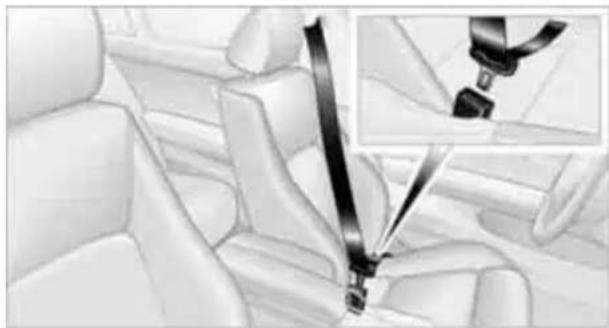
natural_image
Interior view of a car seatbelt with a close-up inset showing the clasp detail (no text or symbols visible)Closing
Make sure you hear the latch plate engage in the belt buckle.
The upper belt anchor is suitable for adults of any stature as long as the seat is adjusted properly, refer to page 42.
Opening
- Grasp the belt firmly.
- Press the red button in the buckle.
- Guide the belt into its reel.
"Fasten safety belts" reminder for driver's and front passenger seat
The indicator lamps light up and an acoustic signal sounds. In addition, a message appears on the Control Display. Check whether the safety belt fastened correctly.
The "Fasten safety belts" reminder is issued as long as the driver's safety belt has not been fastened. The "Fasten safety belts" reminder is also activated at road speeds above approx. 5 mph or 8 km/h if the front passenger safety belt is not fastened, if objects are placed on the front passenger seat, or if driver or front passenger unfasten their safety belts.
Damage to safety belts

If the safety belts are damaged or stressed in an accident: have the belt sys-including any belt tensioners or child saint systems, replaced and the belt
anchors checked. Have this work done only by your BMW center or at a workshop that works according to BMW repair procedures with correspondingly trained personnel. Otherwise, it is not guaranteed that the safety devices will function properly.
Rear center safety belt
With through-loading system*:
Before using the center rear seat, release the latch plate from the fixture on the rear window shelf and insert it into the belt lock of the center safety belt. Make sure you hear the latch plate engage.
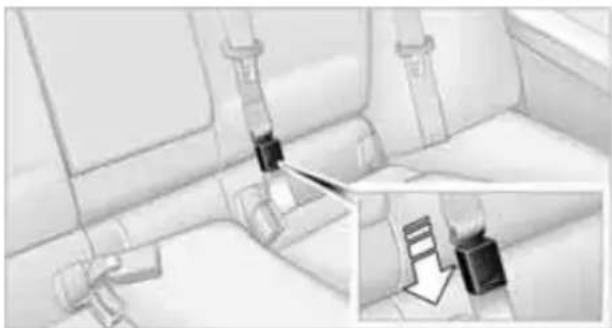
natural_image
Interior view of a vehicle showing seatbelt fastening mechanism with magnified inset (no text or symbols)Mirrors
Exterior mirrors

The front passenger's mirror is more convex than the driver's mirror. The objects seen in the mirror are closer than they appear. Do not gauge your distance from traffic behind you on the basis of what you see in the mirror; otherwise, there is an increased risk of an accident.
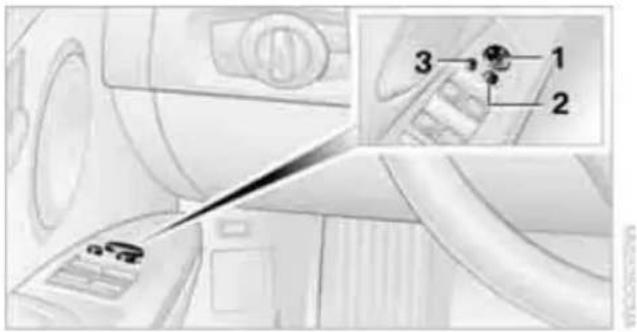
text_image
Diagram showing a device with labeled parts and an inset view of a component with numbered annotations.1 Adjustments
2 Switching to the other mirror or automatic curb monitor*
3 Folding mirrors in and out *
The setting for the exterior mirrors is stored for the remote control currently in use*. The stored position is called up automatically when the vehicle is unlocked.
Manual adjustment
The mirrors can also be adjusted manually: press the edge of the glass.
Folding mirrors in and out\*
At driving speeds up to approx. 12 mph/20 km/h, you can fold the mirrors in and out by pressing button 3. This can be beneficial in narrow streets, for example, or for moving mirrors that were folded in by hand back out into their correct positions. Mirrors that were folded in are folded out automatically at a speed of approx. 25 mph/40 km/h.

Before entering an automatic car wash, fold in the exterior mirrors manually or button 3 to prevent them from being dam-, depending on the width of the vehicle.
Automatic heating\*
Depending on the outside temperature, both exterior mirrors are heated automatically when the engine is running or the ignition is switched on.
Passenger side mirror tilt function – automatic curb monitor\*
Activating
- Push the switch to the position for the driver's side mirror, arrow 1.
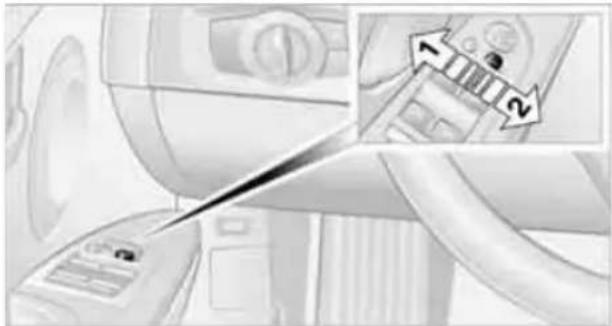
natural_image
Illustration of a washing machine with a tool interacting with the door, showing two directional arrows (no text or symbols present)- Engage reverse gear or move the selector lever to position R.
The glass of the mirror on the passenger side tilts slightly down. This allows the driver to see the area immediately adjacent to the vehicle, e.g. a curb, when backing into a parking space.
Deactivating
Push the switch to the position for the passenger side mirror, arrow 2.
Interior rearview mirror

natural_image
Diagram of a car interior showing a mirror and directional arrows indicating movement or flow (no text or symbols)Turn the knob to reduce glare from the head-lamps of cars behind you when driving at night.
Interior and exterior mirrors, automatic dimming feature\*
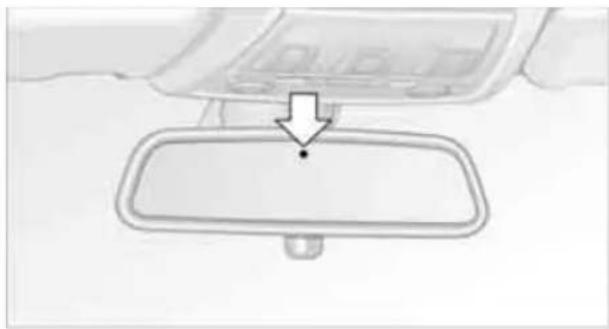
natural_image
Simple line drawing of a car interior panel with a downward arrow pointing to a dot (no text or symbols)The automatic dimming feature of the interior and exterior mirrors* is controlled by two photo cells in the interior rearview mirror. One photo cell is in the mirror frame, see arrow; the other is on the back of the mirror.
In order to ensure that the system functions correctly, keep the photo cells clean, do not cover the area between the interior rearview mirror and windshield, and do not affix adhesive labels or stickers of any kind to the windshield directly in front of the mirror.
Steering wheel
Adjustments
Do not adjust the steering wheel position while the car is in motion; otherwise, there is a risk of an accident due to unexpected movement.
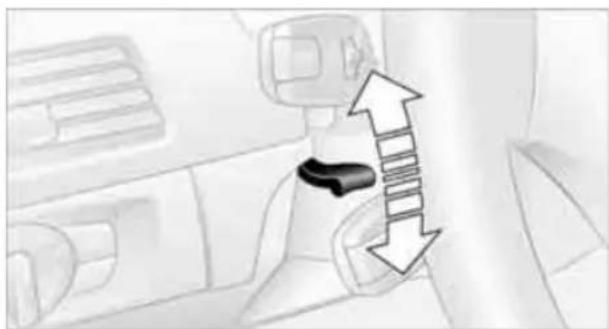
natural_image
Interior view of a car dashboard with directional arrows indicating movement or flow (no text or symbols)- Fold the lever down.
- Move the steering wheel to the preferred height and angle to suit your seated position.
- Swing the lever back up.

Do not use force to swing the lever back up; otherwise, the mechanism
will be damaged.
Steering wheel heating*
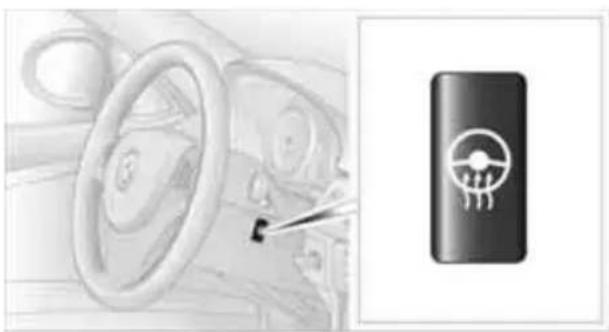
natural_image
Interior view of a car showing steering wheel and steering wheel (no text or symbols visible)Press the button.
The LED in the button lights up when the steering wheel heating is switched on.
Transporting children safely
The right place for children

Do not leave children unattended in the vehicle; otherwise, they could endanger themselves and/or other persons by opening the doors, for example.
The rear center seat is not suitable for installing child restraint systems for all age groups, approved for the age group in question.
Children always in the rear
Accident research has shown that the safest place for children is on the rear seat.

Children under the age of 13 or smaller than 5 ft/150 cm may be transported only in the rear in suitable child restraint systems appropriate for their age, weight and size. Otherwise, there is an increased risk of injury in the event of an accident.
Children 13 years of age or older must be buckled in with a safety belt as soon as there no longer is any child restraint system that is appropriate for their age, size and weight.
Exception for front passenger seat

Should it be necessary to use a child restraint system on the front passenger seat, the front and side airbags for the front passenger must be deactivated. Otherwise, a child traveling on that seat will face a significant risk of injury if the airbags are triggered off, even with a child restraint system.
For more information on automatic deactivation of the front passenger airbags refer to page 90.
Installing child restraint systems

Observe the child restraint system manufacturer's instructions when selecting, installing and using child restraint systems.
Otherwise, the protective effect may be diminished.
Standard child restraint systems are designed to be secured with a lap belt or with the lap-belt section of a lap-and-shoulder belt. Incorrectly or improperly installed child restraint systems can increase the risk of injury to children. Always follow the installation instructions for the system with the greatest care.
On the front passenger seat

After installing a child restraint system on the front passenger seat, make sure that the front and side airbags for the front passenger are deactivated; otherwise, there is an increased risk of injury if the airbags deploy.
Seat position
Before installing a child restraint system, move the front passenger seat as far back and up as possible to obtain the best possible position for the belt. Do not change the seat position after this.
Backrest width\*

The backrest width of the front passenger seat must be at its widest possible setting. Do not change the setting after installing the child seat. Otherwise, the child seat's stability on the front passenger seat is limited.
-
Adjust the backrest width to its widest setting, refer to page 43.
-
Install the child seat.
Child seat security

natural_image
Interior view of a car showing passenger seat, driver seat, and dashboard (no text or symbols visible)The rear safety belts and the front passenger safety belt can be prevented from being pulled out in order to fasten child restraint systems.
To lock the safety belt
- Secure the child restraint system with the belt.
- Pull the belt strap all the way out.
- Allow the belt strap to retract and pull it taut against the child restraint system.
The safety belt is locked.
To unlock the safety belt
- Open the belt buckle.
- Remove the child restraint system.
- Allow the safety belt strap to retract all the way.
LATCH child restraint fixing system
LATCH: Lower Anchors and Tethers for Children.
To install and use the LATCH child restraint system, follow the operating and safety instructions provided by the manufacturer of the system; otherwise, the protective function of the seat may be compromised.
Before installing the child seat, pull the belt out of the area for the child restraint fixing system.
Ensure that both lower LATCH anchors are correctly engaged and that the child restraint system is resting firmly against the
backrest; otherwise, the protective function of the seat may be compromised.
Rear seats with through-loading system

natural_image
Medical procedure image showing a patient undergoing CT scan with catheter placement (no text or symbols visible)The anchor points for the lower LATCH anchors are located behind the labeled protective caps.
Rear seats without through-loading system
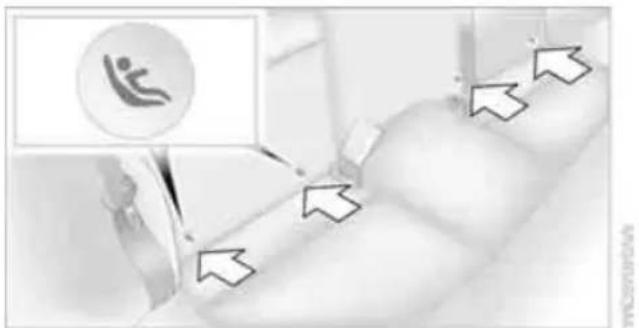
text_image
Medical or healthcare image showing a person in a wheelchair with directional arrows and a circular icon containing a figure symbol.The anchor points for the lower LATCH anchors are located at the positions indicated by arrows, in the gap between the seat and the backrest.
Child restraint system with tether strap
Use the top tether anchors to secure child restraint systems only; otherwise, the anchors could be damaged.
Sedan
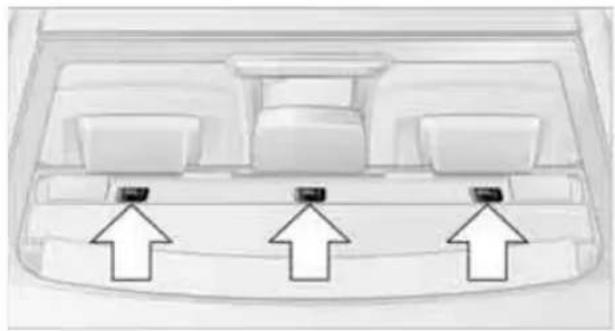
natural_image
Top-down view of a vehicle rearview with three directional arrows pointing to the front panel (no text or symbols)There are three additional anchors for child restraint systems with tether straps, see arrows.
Sports Wagon
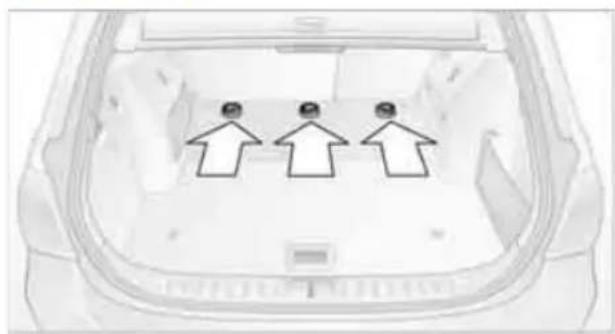
natural_image
Top-down view of a car trunk with three upward-pointing arrows indicating traffic or movement (no text or symbols present)There are three additional anchors under a cover for child restraint systems with tether straps, see arrows.
Placement of the tether strap

Make sure the upper retaining strap does not run over sharp edges and is not twisted as it passes to the top anchor. Otherwise, the strap will not properly secure the child restraint system in the event of an accident.
Sedan
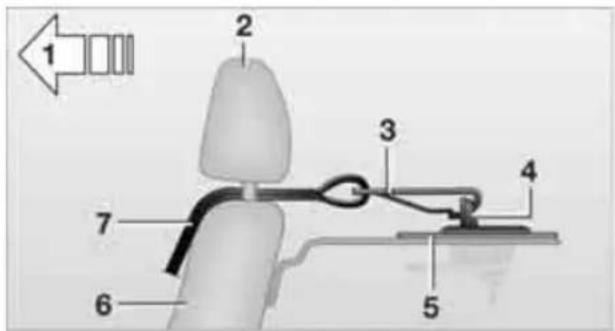
text_image
1 2 3 4 5 6 7Sports Wagon
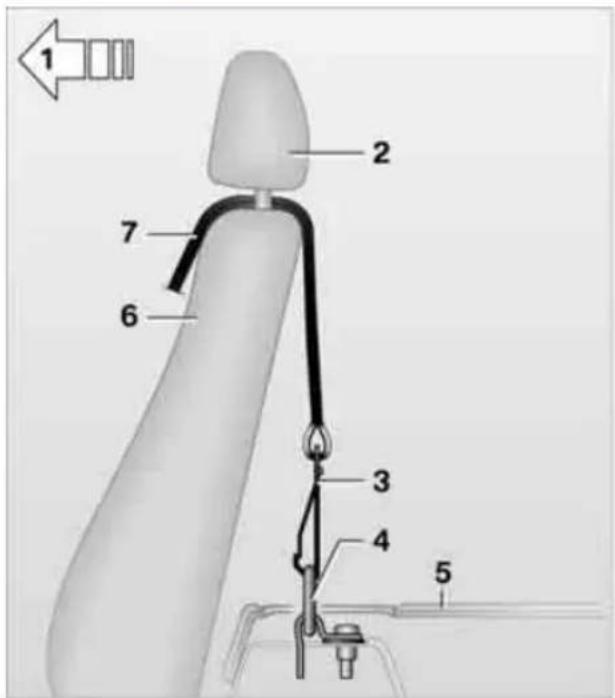
text_image
1 2 7 6 3 4 51 Direction of travel
2 Head restraint
3 Hook for upper retaining strap
4 Anchor
5 Rear window shelf/cargo area floor
6 Seat backrest
7 Upper retaining strap of child restraint system
Fold the anchors and, if necessary, the head restraints* upward before use.
- Push the head restraint upward.
-
Guide the upper retaining strap between the head restraint holders.
-
Use the hook to clip the retaining strap to the anchor.
- Push the head restraint into its lowermost position.
- Pull the retaining strap taut.
On journeys
Child safety locks for rear doors

natural_image
Diagram of a car interior showing the side panel and side view with an inset showing a mechanical component (no text or symbols present)Slide down the safety lever on the rear door:
The door can now be opened from the outside only.
Safety switch for power windows
Press the safety switch for the power windows, refer to page 36, if children are traveling on the rear seat.
Driving
Ignition lock
Insert the remote control into the ignition lock
natural_image
Close-up of a car interior showing a cable connector and dashboard (no visible text or symbols)Insert the remote control all the way into the ignition lock.
Radio readiness is switched on. Individual electrical consumers can operate.
Comfort Access\*
If the car is equipped with Comfort Access, only insert the remote control into the ignition lock under special circumstances, refer to page 34.
Removing the remote control from the ignition lock

Do not forcibly pull the remote control out of the ignition lock as this may cause damage.
Before removing the remote control, push it all the way in to release the locking mechanism.
The ignition is switched off if it was on.
Automatic transmission
You cannot take out the remote control unless the selector lever is in the P position: interlock.
Start/stop button

natural_image
Interior view of a car dashboard with a camera lens and control panel (no visible text or symbols)Pressing the start/stop button switches radio readiness or the ignition on or off.

Manual transmission: the engine is started when you press the start/stop button and depress the clutch.
Automatic transmission: the engine is started when you press the start/stop button and depress the brake.
Radio readiness
Individual electrical consumers can operate.
The time and the outside temperature are displayed in the instrument cluster.
Radio readiness is switched off automatically:
When the remote control is removed from the ignition lock
In cars with Comfort Access*, by touching the surface above the door lock, refer to Locking on page 34
Ignition on
All electrical consumers can operate. The odometer and trip odometer are displayed in the instrument cluster.

When the engine is off, please switch off the ignition and any unnecessary electrical consumers in order to preserve the battery.
Radio readiness and ignition off
All indicator and warning lamps as well as displays in the instrument cluster go out.
Starting the engine

Do not run the engine in enclosed areas; otherwise, the inhalation of toxic exhaust gases can cause loss of consciousness and death. The exhaust gases contain carbon monoxide, an odorless and colorless, but highly toxic gas. Never leave an unattended vehicle with the engine running; otherwise, such a vehicle represents a potential safety hazard. Before leaving the car with the engine running, place the transmission in neutral or move the selector lever to position P and forcefully apply the parking brake to prevent the car from moving.

Avoid frequent starting in quick succession as well as repeated start attempts in which the engine does not start. Otherwise, the fuel is not burned or incompletely burned and there is a danger of overheating and damaging the catalytic converter.
Do not wait for the engine to warm up while the vehicle remains stationary. Start driving right away, but at moderate engine speeds.
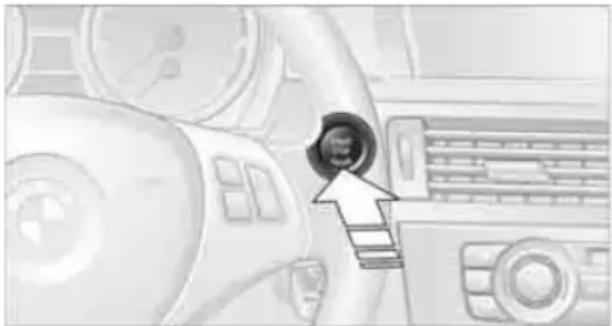
natural_image
Interior view of a car dashboard with a circular connector and control panel (no visible text or symbols)Manual transmission
Remote control in the ignition lock or, with Comfort Access, inside the vehicle, refer to page 34.
- Depress the brake.
- Depress the clutch and shift to neutral position.
- Press the start/stop button.
The starter operates automatically for a certain time, and stops automatically as soon as the engine has started.
Automatic transmission
Remote control in the ignition lock or, with Comfort Access, inside the vehicle, refer to page 34.
- Depress the brake.
- Move the selector lever to position P.
- Press the start/stop button.
The starter operates automatically for a certain time, and stops automatically as soon as the engine has started.
Diesel engine
When the engine is cold and temperatures are below approx. 32 °F/0 °C , the starting process may take a little more time due to automatic preheating. The preheating indicator lamp in the instrument cluster comes on; at the same time a message appears on the Control Display.
Switching off the engine

Always take the remote control with you when you leave the vehicle.
When parking, apply the parking brake forcefully; otherwise, the vehicle could begin to roll.
Manual transmission
- With the car at a standstill, press the start/stop button.
- Shift into first gear or reverse.
- Forcefully apply the parking brake.
- Removing the remote control from the ignition lock, refer to page 54.
Automatic transmission
- With the car at a standstill, move the selector lever to position P.
- Press the start/stop button.
-
Forcefully apply the parking brake.
-
Removing the remote control from the ignition lock, refer to page 54.
Parking brake
The parking brake is primarily intended to prevent the vehicle from rolling while parked; it brakes the rear wheels.
Indicator lamp

The indicator lamp is lit, and when you drive off an acoustic signal sounds in addition. The parking brake is still applied.

Indicator lamp for Canadian models.
Applying
The lever locks in position automatically.
Releasing

natural_image
Interior view of a car dashboard with a hand tool and gear shift (no visible text or symbols)Pull slightly upwards, press the button and lower the lever.

In exceptional cases, if the parking brake has to be used to slow or stop the car, do not pull the lever up too hard. In doing so, continuously press the button of the parking brake lever.
Otherwise, excessive force on the parking brake can lock up the rear wheels and cause the rear of the car to swerve.

To prevent corrosion and one-sided braking action, occasionally apply the parking brake lightly when the vehicle is slowly coming to a stop if the traffic conditions are suitable.
The brake lamps do not light up when the parking brake is applied.
Manual transmission

text_image
R 1 3 5 2 4 6
When shifting into 5th or 6th gear, press the gearshift lever to the right. Otherwise, the engine could be damaged if you inadvertently shift into 3rd or 4th gear.
Reverse gear
Select this only when the vehicle is stationary. When the gearshift lever is pressed to the left, a slight resistance has to be overcome.
Automatic transmission with Steptronic\*
In addition to fully automatic operation, you can also manually shift with the Steptronic, refer to page 57.
Vehicle parking

To prevent the vehicle from rolling, always select position P and apply the parking brake before leaving the vehicle with the engine running.
Disengaging the remote control
In order to remove the remote control from the ignition lock, you must first move the selector lever to position P and switch off the engine: interlock. Removing the remote control from the ignition lock, refer to page 54.
Selector lever positions
PRNDM/S+-
Displays in the instrument cluster
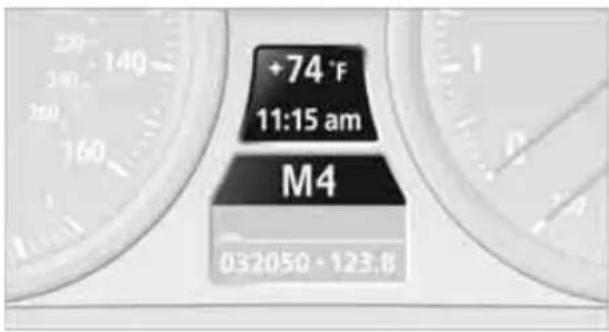
text_image
+74 °F 11:15 am M4 032050 - 123.8P R N D DS M1 to M6
The selector lever position is displayed, or the current gear in the manual mode.
Changing selector lever positions
With the ignition switched on or the engine running, the selector lever can be moved out of position P.
Before moving the lever away from P or N with the vehicle stationary, first depress the brake; otherwise, the selector lever will refuse to move: shiftlock.

To prevent the vehicle from creeping after you select a driving position, depress the brake until you are ready to start.
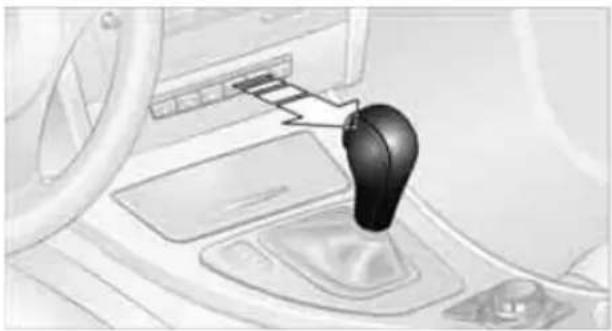
natural_image
Interior view of a car showing a black gear shift lever with a control panel and steering wheel (no text or symbols visible)A lock prevents you from inadvertently engaging selector lever positions R and P. To cancel the lock, press the button on the front of the selector lever, see arrow.
P Park
Select this only when the vehicle is stationary. The rear wheels are locked.
R Reverse
Select this only when the vehicle is stationary.
N Neutral
You can select this in a car wash, for example. The vehicle can roll.
D Drive, automatic position
Position for normal vehicle operation. All forward gears are selected automatically.
Under normal operating conditions, fuel consumption is lowest when you are driving in position D.
Kickdown
Kickdown enables you to achieve maximum performance.
Press the accelerator pedal beyond the full-throttle resistance point.
Sport program and manual operation M/S
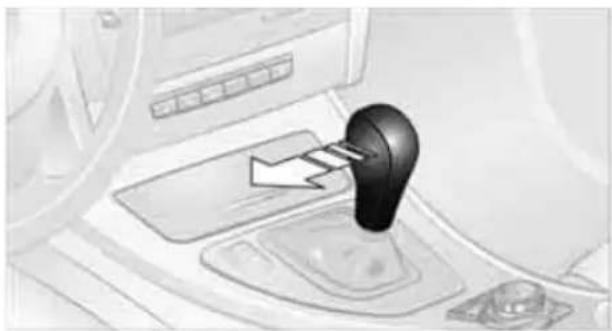
natural_image
Interior view of a car showing a black lever handle and control panel (no text or symbols visible)Move selector lever from position D toward the left into the M/S shifting slot:
The sport program is activated and DS is displayed on the instrument cluster. This position is recommended for a performance-oriented driving style.
To deactivate the sport program or manual mode M/S, move the selector lever to the right into position D.
Shifting gears via the selector lever
Move selector lever from position D toward the left into the M/S shifting slot:
When you press the selector lever forwards or backwards, the manual mode is activated and Steptronic changes gear. M1 through M6 are displayed on the instrument cluster.
Upshifts and downshifts are executed only when they will result in a plausible combination of engine and vehicle speed; thus, for example, a downshift that would cause the engine to overrev will not be executed by the system. The gear selected is briefly displayed in the instrument cluster, followed by the gear actually in use.
Shifting gears via shift paddles\* on the steering wheel
The shift paddles allow you to shift gears quickly since both hands can remain on the steering wheel.
When you use the shift paddles on the steering wheel to shift gears in automatic mode, the transmission switches to manual mode.
If you do not accelerate or shift gears using the shift paddles for a certain amount of time, the transmission switches back to automatic mode.

If the selector lever is in the M/S gear plane, manual mode remains active.

natural_image
Interior view of a car dashboard with three directional arrows indicating clockwise or clockwise motion (no text or symbols)To shift up: pull one of the shift paddles.
To shift down: press one of the shift paddles.
Upshifts and downshifts are executed only when they will result in a plausible combination of engine and vehicle speed; thus, for example, a downshift that would cause the engine to overrev will not be executed by the system. The gear selected is briefly displayed in the instrument cluster, followed by the gear actually in use.
Overriding selector lever lock
Should the selector lever refuse to move out of position P even though the ignition is switched on, the brake is depressed and the button on the selector lever is pressed, the selector lever lock can be overridden:
- Unclip the sleeve of the selector lever.
- Pull the sleeve up over the selector lever until the sleeve is inside out.
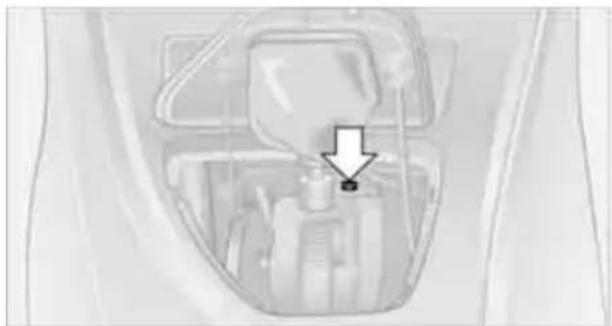
natural_image
Close-up of a mechanical component with a white arrow pointing to a specific part (no visible text or symbols)- Using the screwdriver from the onboard vehicle tool kit, refer to page 229, press the red lever while moving the selector lever to the desired position.
Turn signals/headlamp flasher
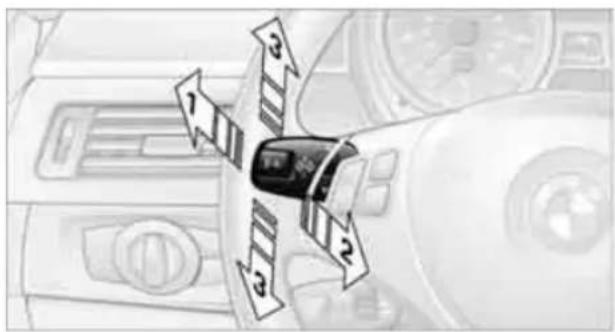
text_image
Diagram showing car interior with directional arrows and numbered labels around a central vehicle1 High beams
2 Headlamp flasher
3 Turn signals
Using turn signals
Press the lever beyond the resistance point. To turn off manually, press the lever to the resistance point.

Unusually rapid flashing of the indicator lamp indicates that a turn signal indicator
has failed.
Indicating a turn briefly
Press the lever as far as the resistance point for as long as you wish to indicate a turn.
Triple turn signal activation
Press the lever as far as the resistance point. The turn signals flash three times.
You can activate or deactivate this function.
- "Settings"
- "Lighting"
- "Triple turn signal"
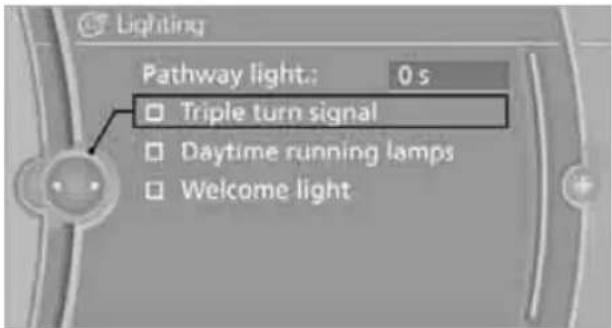
text_image
Lighting Pathway light: 0 s Triple turn signal Daytime running lamps Welcome lightRV Triple turn signal activation is activated and is stored for the remote control currently in use.
Wiper system

text_image
Diagram showing a car interior with numbered directional arrows indicating movement or movement paths around a vehicle's head.1 Switching on wipers
2 Switching off wipers or brief wipe
3 Activating/deactivating intermittent wipe or rain sensor*
4 Cleaning windshield and headlamps *
5 Setting speed for intermittent wipe, or sensitivity of the rain sensor
Switching on wipers
Press the lever upward, arrow 1.
The lever automatically returns to its initial position when released.
Normal wiper speed
Press once.
The system switches to operation in the intermittent mode when the vehicle is stationary.
Fast wiper speed
Press twice or press beyond the resistance point.
The system switches to normal speed when the vehicle is stationary.
Intermittent wipe or rain sensor\*
If the car is not equipped with a rain sensor, the intermittent-wipe time is a preset.
If the car is equipped with a rain sensor, the time between wipes is controlled automatically and depends on the intensity of the rainfall. The rain sensor is mounted on the windshield, directly in front of the interior rearview mirror.
Activating intermittent wipe or rain sensor

text_image
5 3Press the button, arrow 3. The LED in the button lights up.
Setting speed for intermittent wipe or sensitivity of the rain sensor
Turn thumbwheel 5 up or down.
Deactivating intermittent wipe or rain sensor
Press the button again, arrow 3.
The LED goes out.

Deactivate the rain sensor before entering an automatic car wash. Failure to do so could result in damage caused by undesired wiper activation.
Cleaning windshield and headlamps\*
Pull the lever, arrow 4.
Washer fluid is sprayed onto the windshield and the wipers are operated for a short time.
When the vehicle lighting system is switched on, the headlamps are cleaned at regular and appropriate intervals.

Do not use the washers if there is any danger that the fluid will freeze on the windshield. If you do, your vision could be obscured. Antifreeze should therefore be added to the fluid, refer to Washer fluid.
Do not use the washers when the washer fluid reservoir is empty; otherwise, you will damage the washer pump.
Windshield washer nozzles
The windshield washer nozzles are heated automatically* while the engine is running or the ignition is switched on.
Sports Wagon: rear window wiper
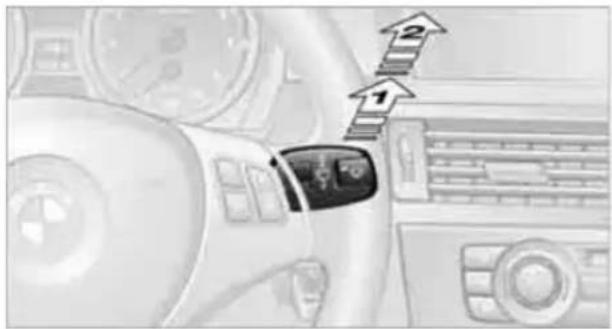
text_image
Diagram showing car interior with labeled directional arrows and component labels1 Intermittent operation. When reverse gear is engaged, the system switches to continuous operation.
2 Cleaning the rear window
The rear window wiper does not move if the lever is in position 1 before the ignition is switched on.
To switch on the rear window wiper:
-
Move the lever to its home position.
-
Reselect the desired position.

Do not use the washers when the washer fluid reservoir is empty; otherwise, you will damage the washer pump.
Washer fluid

Washer fluid antifreeze is flammable. Therefore, keep it away from ignition sources and only store it in the closed original container that is kept out of reach of children; otherwise, there is a risk of personal injury. Comply with the instructions on the container.
Washer fluid filler neck

Only refill washer fluid when the engine is cool to avoid contact with hot engine parts. Otherwise, fluid spills constitute a fire hazard and a risk to personal safety.
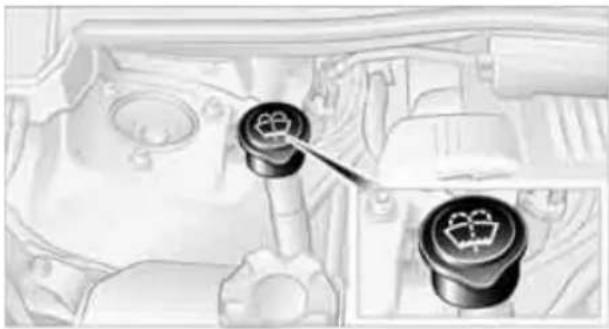
natural_image
Interior view of a vehicle engine bay with two circular components and a tool inserted (no visible text or symbols)All washer nozzles are supplied with washer fluid by the same reservoir.
Fill with water and, if required, with a washer antifreeze, according to manufacturer's recommendations.

Mix the water and antifreeze before filling the washer fluid reservoir to make sure the correct concentration is maintained.
Capacity
Approx. 6.3 US quarts/6 liters.
Cruise control\*
The concept
Cruise control is available for use at speeds of approx. 20 mph or 30 km/h. The car then stores and maintains the speed that you specify using the lever on the steering column. In order to maintain the specified speed, the system brakes the vehicle when the engine braking effect is insufficient on downhill gradients.

Do not use cruise control when driving at constant speed is prevented by adverse conditions, e.g. winding roads, dense traffic or poor road conditions due to, e.g., snow, rain, ice or loose surfaces. Otherwise, you could lose control of the vehicle and cause an accident as a result.
Manual transmission
You can shift gears while cruise control is activated. The system is deactivated when you drive at very low engine speeds for an extended period.
One lever for all functions
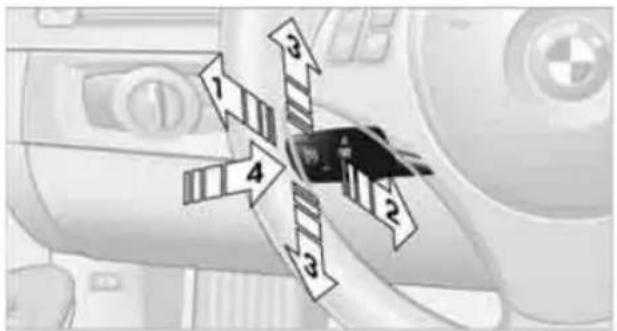
text_image
Diagram showing directional arrows labeled 1 to 4 around a central vehicle, likely indicating movement or flow directions.1 Storing and maintaining speed or accelerating
2 Storing and maintaining speed or decelerating
3 Deactivating cruise control
4 Resuming a speed stored beforehand
Maintaining current speed
Tap the lever, arrow 1, or pull it briefly, arrow 2. The car's current speed is stored and maintained. It is displayed on the speedometer and briefly in the instrument cluster.
On uphill gradients, it may prove impossible to maintain the set speed if current engine power output is insufficient. If the engine braking effect is insufficient on downhill slopes, the system will brake the vehicle slightly.
Increasing desired speed
Repeatedly press the lever to the resistance point or beyond, arrow 1, until the desired speed is reached.
Each time the lever is pressed to the resistance point, the desired speed is increased by approx. 1 mph or 1 km/h.
Each time the lever is pressed beyond the resistance point, the desired speed is increased by up to 5 mph or 10 km/h.
The system stores and maintains the speed.
Accelerating using the lever
Accelerating slightly:
Press the lever to the resistance point, arrow 1, until the desired speed is reached.
Accelerating significantly:
Press the lever beyond the resistance point, arrow 1, until the desired speed is reached.
The vehicle accelerates without pressure on the accelerator pedal. The system stores and maintains the speed.
Decreasing speed
Repeatedly pull the lever to the resistance point or beyond, arrow 2, until the desired speed is displayed.
Each time the lever is pulled to the resistance point, the desired speed is decreased by approx. 1 mph or 1 km/h.
Each time the lever is pulled beyond the resistance point, the desired speed is reduced by up to 5 mph or 10 km/h until the minimum speed of 20 mph or 30 km/h is achieved.
The system stores and maintains the speed.
Deactivating cruise control
Tap the lever upwards or downwards, arrow 3. The displays on the speedometer disappear.
In addition, the system is automatically deactivated:
When you brake the vehicle
When you switch gears very slowly or shift to neutral in cars with manual transmission
When you select the automatic transmission's neutral position N
When you activate DTC or deactivate DSC
When DSC or ABS is intervening
Cruise control is not deactivated by depressing the accelerator pedal. Once the accelerator pedal is released, the stored speed is achieved again and maintained.
Warning lamp
The warning lamp lights up when cruise control is deactivated due to control intervention by the DSC, for example. A message appears on the Control Display.
Resuming a speed stored beforehand
Press the button, arrow 4. The last stored speed is resumed and maintained.
In the following instances, the stored speed is deleted and can no longer be resumed:
When driving stability control systems are intervening
In cars with manual transmission: when you shift gears very slowly or shift to neutral
In cars with automatic transmission: when you engage selector lever position N
When the ignition is switched off
Displays in the instrument cluster
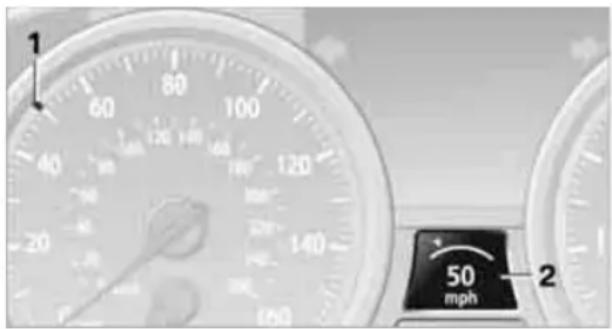
text_image
1 60 80 100 120 140 160 180 20 22 24 26 28 30 32 34 36 38 40 42 44 46 48 50 mph 21 Stored speed
2 Selected speed is displayed briefly
If --- mph or --- km/h temporarily appears in the instrument cluster display, it is possible that the system prerequisites for operation are currently not met.
Calling up Check Control messages, refer to page 78.
Malfunction
The warning lamp comes on when the system has failed. A message appears on the Control Display. More information can be found beginning on page 77.
Active cruise control\*
The concept
With active cruise control, you can select a desired speed which is not only automatically
maintained when driving on open roadways, but also varied to maintain a selected distance setting as slower traffic is encountered.
Active cruise control is a technological advance over the familiar cruise control and is a welcome relief from the constant adjustment of speed that can accompany driving in traffic on highways or other high-speed thoroughfares. Especially on longer trips, the system can reduce fatigue and tension, while increasing your enjoyment of driving. Please use it safely and responsibly.
Within the limits of its capability, the system automatically adapts the car's speed to that of a slower vehicle in front of you. You can specify the distance to be maintained from the vehicle in front in four stages. For safety reasons, the distance is speed-dependent. Based on your selected distance setting, the system automatically decreases the throttle setting and lightly applies the brakes if necessary. The vehicle brake lamps will automatically illuminate to signal a following driver to take action. In addition, it may be necessary for the vehicle or the driver to downshift, depending on the kind of transmission your vehicle is equipped with, to maintain the distance setting selected. If the vehicle ahead speeds up or when the lane ahead becomes clear, your vehicle will accelerate to the speed you have selected by increasing the throttle setting and shifting gears automatically or by the driver as needed. Your selected speed will be held when driving downhill, too.
Since this active cruise control system is a new technology and operates differently from conventional cruise control systems which you may be accustomed to, you are strongly urged to read all of the pages relating to this system before use. Pay special attention to the System limitations section beginning on page 66.
Braking sensation
If you step on the brake pedal while the system is braking, pedal sensation will be slightly different from the usual.
Possible noises during automatic braking are normal.
Manual transmission
You can shift gears while cruise control is activated. The system is deactivated when you drive at very low engine speeds for an extended period.
Range of applications
The minimum desired speed is 20 mph or 30 km/h, the maximum desired speed is 110 mph or 180 km/h.

As with conventional cruise control systems, active cruise control in no way diminishes or substitutes for the driver's own personal responsibility, alertness and awareness in adjusting speed, braking or otherwise controlling the vehicle. The driver should decide when to use the system on the basis of road, traffic, visibility, and weather conditions. Active cruise control is intended for use on highway-type roadways where traffic is moving relatively smoothly. Do not use this system in city driving; heavy traffic such as during rush hour; on curvy, winding roads, slippery roads or roads with sharp curves such as highway off-ramps; during inclement weather such as snow, strong rain or fog; or when entering inter-changes, service/parking areas or toll booths. It is also important to regulate your vehicle's speed and distance setting within applicable legal limits. Always be ready to take action or apply the brakes if necessary, especially when the system is actively following a vehicle in front of you. Otherwise, driving situations could result that pose the risk of accidents.
One lever for all functions

text_image
1 2 3 4 51 Store and increase desired speed
2 Store and decrease desired speed
3 Deactivate system, refer to page 65
4 Resume stored desired speed and distance, refer to page 65
5 Select distance to vehicle driving ahead, refer to page 64
Storing current speed
Briefly press the lever, arrow 1, or briefly pull it, arrow 2, at a driving speed of more than approx. 20 mph or 30 km/h.
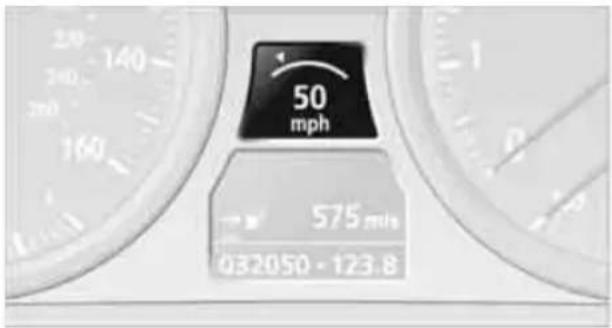
text_image
50 mph 575 m/s 032050 - 123.8The car's current speed is stored. It is displayed on the speedometer and briefly in the instrument cluster.
Increasing desired speed
Press or tap the lever to the resistance point or beyond, arrow 1, until the desired speed is displayed.
Each time the lever is tapped to the resistance point, the desired speed is increased by approx. 1 mph or 1 km/h.
Each time the lever is tapped beyond the resistance point, the desired speed is increased by up to 5 mph or 10 km/h until the maximum speed of 110 mph or 180 km/h is achieved.
The speed then displayed is stored and achieved on a clear road.
Decreasing desired speed
Pull the lever, arrow 2, until the desired speed is displayed.
The other functions work analogously to those described under Increasing desired speed.
Selecting distance

natural_image
Interior view of a car dashboard with steering wheel and BMW logo (no visible text or symbols)Press downward: Increase distance.
Press upward: Decrease distance.
The selected distance is displayed in the instrument cluster.
Distance 1

Distance 2
Distance 3

Distance 4 This is always the preset distance when you use the system for the first time after starting the engine.
Use good judgment to select the appropriate following distance given road conditions, traffic, applicable laws and driving recommendations for safe following distance. Otherwise, an accident risk could result.
Deactivating cruise control

text_image
Diagram of a car air intake system with numbered components and directional arrows indicating flow or movement.Press the lever upward or downward, arrow 3. The displays on the speedometer disappear.
In addition, the system is automatically deactivated:
When you brake the vehicle
When the speed is reduced to below 20 mph or 30 km/h due to a traffic situation
When you switch gears very slowly or shift to neutral in cars with manual transmission
When you select the automatic transmission's neutral position N
When you activate the Dynamic Traction Control DTC
When you deactivate the Dynamic Stability Control DSC
When DSC or ABS is intervening
When the system does not recognize any objects for a longer period of time, e.g. on infrequently traveled roads without a shoulder or guard rails, or if the radar sensor is covered with dirt, refer to page 66
When you apply the parking brake

When the system is deactivated, you must brake the vehicle yourself and/or maneuver as necessary; otherwise, there is a risk of accidents.
Warning lamp
The warning lamp comes on when active cruise control has been automatically deactivated, for example due to a driving speed below 20 mph or 30 km/h or a DSC intervention. A message appears on the Control Display.
Resuming stored desired speed and distance
Briefly press the button, arrow 4.
The stored speed and distance are regained and maintained.
In the following instances, the stored speed is deleted and can no longer be resumed:
When driving stability control systems are intervening
In cars with manual transmission: when you shift gears very slowly or shift to neutral
In cars with automatic transmission: when you engage selector lever position N
When the ignition is switched off
Displays in the instrument cluster

text_image
1 2 3 4 50 mph1 Stored desired speed
2 Shows yellow: vehicle detected ahead
Flashes in red: system cannot maintain distance; driver must brake the vehicle
Flashes in yellow: driving stability control systems are intervening; cruise control is deactivated
3 Selected distance to vehicle ahead The indicator lights up as soon as the system is activated.
4 Selected desired speed is temporarily displayed
If --- mph or --- km/h temporarily appears in the instrument cluster display, it is possible that the system prerequisites for operation
are currently not met. Calling up Check Control messages, refer to page 78.
Warning lamps

The indicator 2 flashes in red; a signal sounds.
The system indicates that you must brake and/or maneuver the vehicle yourself. Active cruise con-
trol cannot automatically restore the distance to the vehicle ahead.
This indicator does not release you from your responsibility to adapt your desired speed and driving style to prevailing driving conditions.
The indicator 2 flashes in yellow. The prerequisites for operating active cruise control are not met, e.g. as a result of ABS or DSC interventions. Active cruise control
is deactivated. You can reactivate the system, if desired, by tapping or pulling the lever when road and traffic conditions permit. It is not possible to resume a stored speed.
Radar sensor
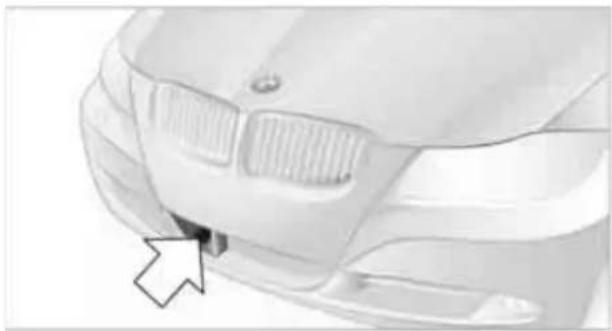
natural_image
Front view of a car's head and grille (no visible text or symbols)The sensor's ability to detect vehicles ahead may be restricted as a result of heavy rain, dirt, snow or ice. If necessary, clean the radar sensor located in the front bumper, see arrow. Be sure to use particular care when removing any layers of snow or ice from the sensor.
The system cannot be activated if the sensor is incorrectly aligned.
For US owners only
The transmitter and receiver units comply with part 15 of the FCC/Federal Communications Commission regulations. Operation is governed by the following:
FCC ID:
NF3 ACC2SCU 003YK04001 0000
Compliance statement:
This device complies with part 15 of the FCC Rules. Operation is subject to the following two conditions:
This device must not cause harmful interference, and
this device must accept any interference received, including interference that may cause undesired operation.

Any unauthorized modifications or changes to these devices could void the authority to operate this equipment.
Malfunction

The warning lamp comes on when the system has failed. A message appears on the Control Display. More
information can be found beginning on page 77.
System limitations

natural_image
Top-down diagram of three cars with a triangular light source, no text or symbols presentAlways remember that the range and ability of the system does have physical limitations. It will not apply the brakes or decelerate your vehicle when there is a slow-moving vehicle, stopped vehicle or stationary object ahead of you, as for example, at a traffic light or a parked vehicle. Also, the system does not react to oncoming traffic, pedestrians or other types of potential traffic such as a rider on horseback. It is also possible that the system may not detect smaller moving objects such as motorcycles or bicycles. Be especially alert when encountering any of these situations as the system will neither automatically brake, nor provide a warning to you. Also, be aware that every decrease in the distance setting allows your vehicle to come closer to a vehicle in front of you and requires a heightened amount of alertness.
Active cruise control is not and must not be used as a collision avoidance/warning system.
If while your vehicle is actively following a vehicle in front of you and the vehicle ahead speeds up or the lane ahead becomes clear, then your vehicle will accelerate to the speed you have selected. Be aware that changing to a clear, unobstructed lane will also result in your vehicle accelerating.
Be certain to deactivate the system when you pull into an exit lane for a highway off-ramp.
Also, vehicles traveling in a staggered manner on a highway may cause a delay in the system's reaction to a vehicle in front of you or may cause the system to react to a vehicle actually in the lane next to you. Always be ready to take action or apply the brakes if necessary.
While active cruise control is capable of braking your vehicle automatically when you approach a slower vehicle ahead, it is important to be aware that the ability of the system to apply the brakes is also limited, e.g. when you reduce your desired speed sharply. The system cannot stop your vehicle. It uses only a portion of braking system capacity and does not utilize the full capacity of the vehicle
braking system. Therefore, the system cannot decrease your speed for large differences in speed between your vehicle and the vehicle ahead. Examples: when you approach a vehicle traveling at a much lower speed than your own speed such as approaching a toll booth or when a much slower vehicle cuts in front of you at close range.
Active cruise control can only decelerate the vehicle to approx. 20 mph or 30 km/h.
Swerving vehicles

natural_image
Top-down diagram of two cars with a curved arrow indicating direction, no text or symbols presentWhen a vehicle moves from an adjacent lane into your lane, active cruise control will not recognize this vehicle until it is fully in your lane ahead of your vehicle.
When a vehicle ahead suddenly swerves into your lane, the system may not be able to maintain the selected distance automatically. This also applies to great differences in speed between you and vehicles ahead, e.g. when quickly approaching a truck. There is a risk of collision. Once the system has established that a vehicle is indeed in front of you, it will indicate that you must brake and/or maneuver the vehicle yourself. Take action yourself; otherwise, there is a risk of an accident.
Behavior in curves
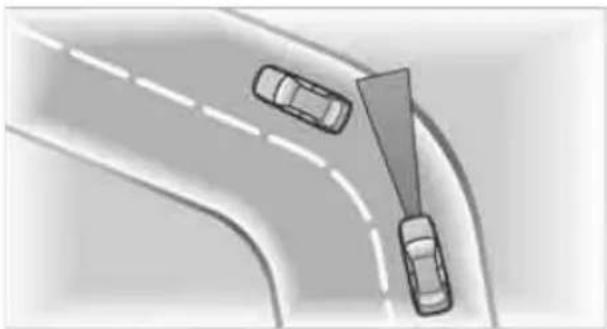
natural_image
Top-down view of a highway with two cars driving, one pointing downward (no text or symbols visible)Because of the limited range of the system, it is possible that in curves or on the peaks and valleys of hilly roads, a vehicle ahead may be recognized late, or not at all. Therefore, it is up to the driver to select a speed that is prudent in view of the curves and terrain of the roadway.

natural_image
Top-down view of a car climbing a curved road with dashed lane markings (no text or symbols)In approaching a curve, it is possible that active cruise control would react briefly to a vehicle in the adjacent lane. In addition, the system can sense if your vehicle is in a curve and may not accelerate. If your vehicle decelerates in either case, you can choose to overcome the deceleration by briefly pressing the accelerator pedal.
Your responsibility
Your actions have priority at all times. When you press the accelerator pedal while driving with active cruise control, the automatic braking function will be temporarily interrupted. Once you release the accelerator pedal, the desired speed or the selected distance to the vehicle ahead is achieved again.

Do not leave your foot on the accelerator pedal and make sure that no objects such as floor mats are lying on the accelerator pedal. Otherwise, the system may not be able to brake the vehicle.
Controls overview
Odometer, outside temperature display, clock

text_image
+74 °F 11:15 am 575 m/s 032050 - 123.81 Knob in the instrument cluster
2 Outside temperature display and clock
3 Odometer and trip odometer
Knob in the instrument cluster
To reset the trip odometer while the ignition is switched on
To display the time, outside temperature and odometer briefly while the ignition is switched off
Units of measure
To select the respective units of measure, miles or km for the odometer as well as ^ F or ^ C for the outside temperature, refer to page 73.
The setting is stored for the remote control currently in use.
Time, outside temperature display
Setting the time, refer to page 75.
Outside temperature warning
When the displayed temperature sinks to approx. +37 °F/+3 °C, a signal sounds and a warning lamp lights up. There is an increased risk of black ice.

Black ice can also form at temperatures above +37 °F/+3 °C. You should there-
fore drive carefully on bridges and shaded
roads, for example; otherwise, there is an increased risk of an accident.
Odometer and trip odometer
Resetting the trip odometer:
With the ignition switched on, press button 1 in the instrument cluster.
When the vehicle is parked
If you still want to view the time, outside temperature and odometer reading briefly after the remote control has been taken out of the ignition lock:
Press button 1 in the instrument cluster.
Tachometer
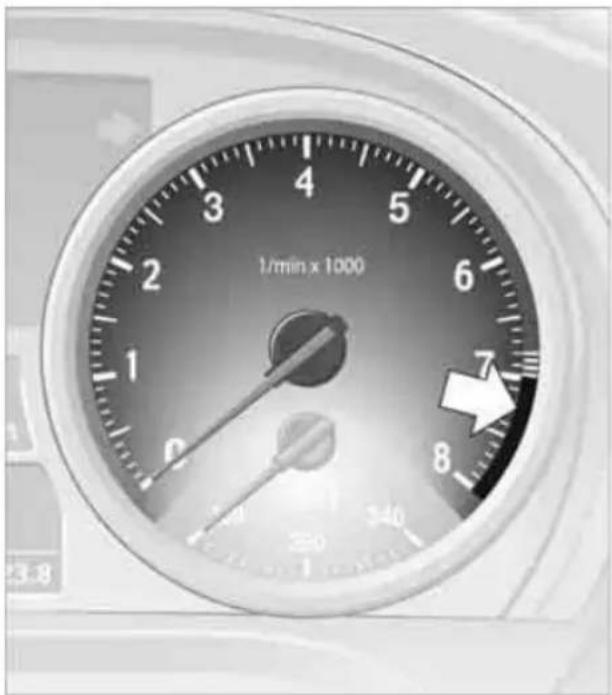
text_image
1/min x 1000 2 3 4 5 6 7 8 9 10 11 12 13 14 15 16 17 18 19 20 21 22 23 24 25 26 27 28 29 30 31 32 33 34 35 36 37 38 39 40 41 42 43 44 45 46 47 48 49 50 51 52 53 54 55 56 57 58 59 60 61 62 63 64 65 66 67 68 69 70 71 72 73 74 75 76 77 78 79 80Never force the engine speed up into the red warning field, see arrow. In this range, the fuel supply is interrupted to protect the engine.
Coolant temperature
A warning lamp will come on if the coolant, and therefore the engine, becomes too hot. In addition, a message will appear on the Control Display.
Check coolant level, refer to page 222.
Energy Control\*
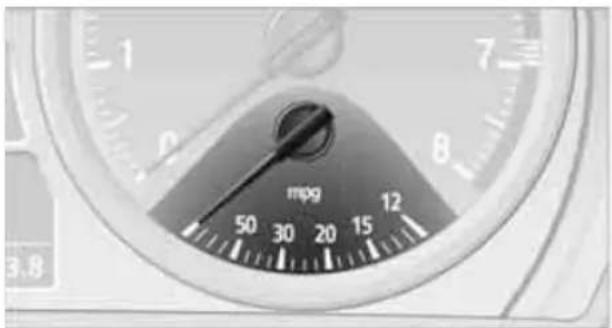
text_image
mpg 50 30 20 15 12 3.8Displays the current fuel consumption. This allows you to see whether your current driving style is conducive to fuel economy with minimum exhaust emissions.
Engine oil temperature\*
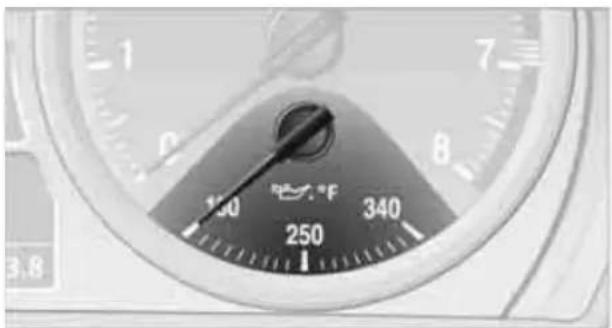
text_image
1 7 6 5 4 3 2 1 340 250 150 3.8When the engine is at normal operating temperature, the engine oil temperature is between approx. 210 °F/100°C and approx. 300 °F/150°C.
If the engine oil temperature is too high, a message appears on the Control Display.
Fuel gauge

natural_image
Close-up of a mechanical gauge or dial with a central knob and scale markings (no readable text or symbols beyond measurement labels)Fuel tank capacity: approx. 16.1 gallons/61 liters.
You can find information on refueling on page 197.
If the tilt of the vehicle varies for a longer period, when you are driving in mountainous areas, for example, the indicator may fluctuate slightly.
Reserve
Once the fuel level has fallen to the reserve zone, a message briefly appears on the Control Display and the cruising range for the remaining amount of fuel is displayed on the computer. Under a cruising range of approx. 30 miles/50 km, the message remains in the Control Display.

Refuel as soon as possible once your cruising range falls below 30 miles/
50 km; otherwise, engine functions are not ensured and damage can occur.
Computer
Displays in the instrument cluster
Calling up information
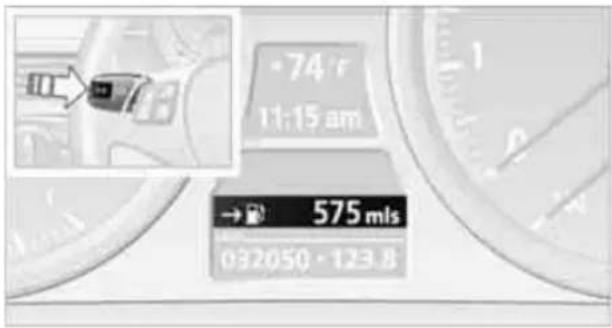
text_image
74 r 11:15 am → 575 mls 032050 · 123.8Press the button in the turn indicator lever.
The following items of information are displayed in the order listed:
Cruising range
Average speed
Average fuel consumption
Current fuel consumption*
No information
To set the corresponding units of measure, refer to Units of measure on page 73.
Cruising range
Displays the estimated cruising range available with the remaining fuel. The range is calculated on the basis of the way the car has been driven over the last 18 miles/30 km and the amount of fuel currently in the tank.

Refuel as soon as possible once your cruising range falls below 30 miles/
50 km; otherwise, engine functions are not ensured and damage can occur.
Average speed
Periods with the vehicle parked and the engine switched off are not included in the calculations of average speed.
With the trip computer, refer to page 72, you can have the average speed for another trip displayed.
To reset average speed: press the button in the turn indicator lever for approx. 2 seconds.
Average fuel consumption
The average fuel consumption is calculated for the time during which the engine is running.
You can have the average consumption for another trip displayed, refer to Displays on the Control Display below.
To reset average fuel consumption: press the button in the turn indicator lever for approx. 2 seconds.
Current fuel consumption\*
Displays the current fuel consumption. This allows you to see whether your current driving style is conducive to fuel economy with minimum exhaust emissions.
Displays on the Control Display
The computer can also be opened via iDrive.
- "Vehicle Info"
- "Onboard info" or "Trip computer"

text_image
Vehicle Info Onboard info ✓ Trip computer Vehicle statusDisplays on the "Onboard info":

text_image
Onboard info 450 km Range 230 km To dest. 02:15 Arrival! 10.5 l/100 km Cons. 75.0 km/h SpeedCruising range
Distance from destination
▶ Estimated time of arrival if:
A distance was manually entered in the computer, refer to the information below.
A destination was entered in the navigation system*, refer to page 125.
Displays on the "Trip computer":

text_image
Trip computer 09:30 Depart. 01:20 hr Duration 140 km Distance 10.5 l/100 km Cons. 095.5 km/h Speed ResetDeparture time
Trip duration
Trip distance
Both displays show:
The average speed and
the average fuel consumption.
Resetting the fuel consumption and speed
You can reset the values for average speed and average consumption:
- Select the respective menu item and press the controller.
- Press the controller again to confirm your selection.
Resetting the Trip computer
You can reset all values:
- "Vehicle Info"
- "Trip computer"
- "Reset"
Settings and information
Operating principle
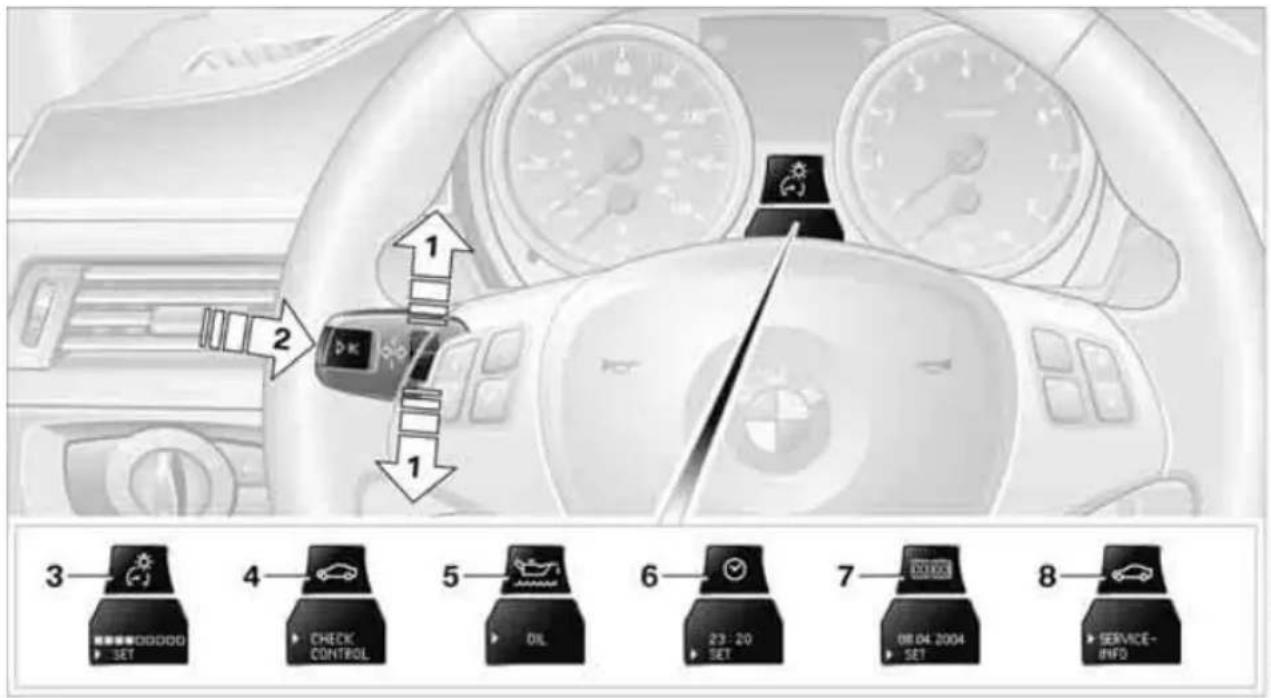
text_image
1 2 3 4 5 6 7 8 SET CHECK CONTROL OIL 23:20 SET 08.04.2004 SET SERVICE INFO1 Button for:
Selecting display
Setting values
2 Button for:
▶ Confirming selected display or set values
▶ Calling up computer information 71
3 When the lights are on: instrument lighting brightness 95
Exiting displays
The outside temperature reading and the time reappear when you press button 2 or if you make no entries within approx. 15 seconds. If required, complete the current setting first.
Units of measure
Setting the units of measure
You can change the units for fuel consumption, route/distance, temperature and pressure.
-
"Settings"
-
"Language/Units"
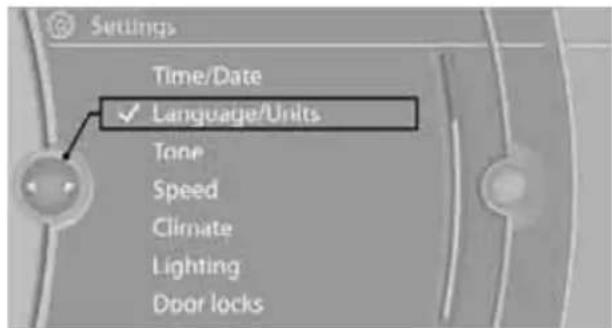
text_image
Settings Time/Date ✓ Language/Units Tone Speed Climate Lighting Door locks-
Select the desired menu item.
-
Select the desired unit.
The settings are stored for the remote control currently in use.
4 Calling up Check Control 77
5 Checking engine oil level 219
6 Setting the time 75
7 Setting the date 76
8 Viewing service requirement display 73
Service requirements

text_image
SERVICE mis 10000 12/2009The remaining driving distance and the date of the next scheduled service are displayed briefly immediately after you start the engine or switch on the ignition.
The extent of service work required can be read out from the remote control by your BMW Service Advisor.
For certain maintenance operations, you can view the respective distance remaining or due date individually in the instrument cluster.
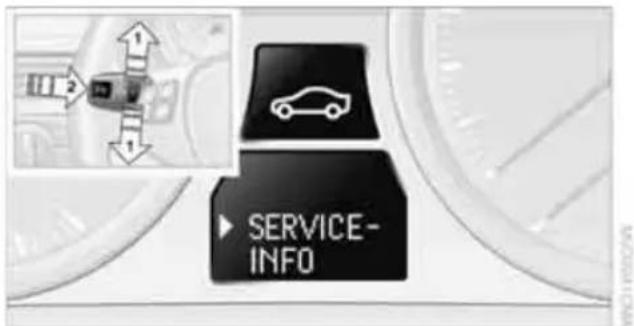
text_image
SERVICE INFO- Switch on the ignition, refer to page 54.
- Push button 1 in the turn indicator lever up or down repeatedly until the appropriate symbol appears in the display, accompanied by the words "SERVICE-INFO".
-
Press button 2.
-
Use button 1 to scroll through the individual service items.
Possible displays

text_image
Diagram showing car dashboard control with seven labeled switches and directional arrows, including a speedometer display.1 Button for selecting functions
2 Service requirements
3 Engine oil
4 Roadworthiness test *
5 Front brake pads
6 Rear brake pads
7 Brake fluid
The sequence of displayed service items may vary. The data for the next service appointment is shown first.
More information
Detailed information on service requirements
You can call up additional information on the maintenance regimen on the Control Display.
- "Vehicle Info"
- "Vehicle status"

text_image
Vehicle Info Onboard info ✓ Trip computer Vehicle status3. "Service required"
Required maintenance procedures and legally mandated inspections are displayed.
You can request more detailed information on every entry:
Select the entry and press the controller.
To exit from the menu:
Move the controller to the left.
Symbols

No service is currently required.

The deadline for service or a legally mandated inspection is approaching. Please rule a service appointment.

The service deadline has already passed.
Entering deadlines for legally required inspections\*
Make sure the date on the Control Display is set correctly, refer to page 76; otherwise, the effectiveness of CBS Condition Based Service is not ensured.
- "Vehicle Info"
- "Vehicle status"
- "Service required"

text_image
Vehicle status Service required- "§ Vehicle inspection"
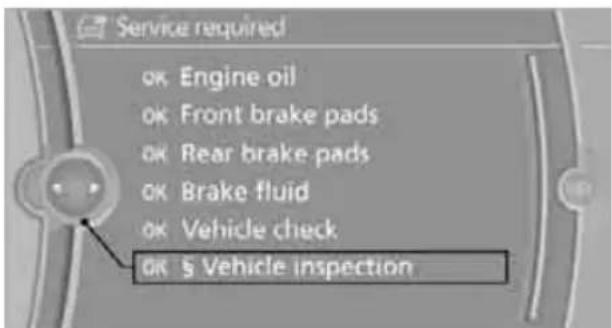
text_image
Service required OK Engine oil OK Front brake pads OK Rear brake pads OK Brake fluid OK Vehicle check OK s Vehicle inspection- Open the menu for entering the deadline.
- "Date:"
- Create the settings.
- Press the controller to apply the setting. The year is highlighted.
-
Turn the controller to make the adjustment.
-
Press the controller to apply the setting. The date entry is stored.
To exit from the menu:
Move the controller to the left.
More information on the BMW Maintenance System can be found on page 223.
Automatic Service Request\*
Data regarding the maintenance status or legally mandated inspections of the vehicle are automatically transmitted to your BMW center prior to a service due date.
You can check when your BMW center was notified.
- "Vehicle Info"
- "Vehicle status"
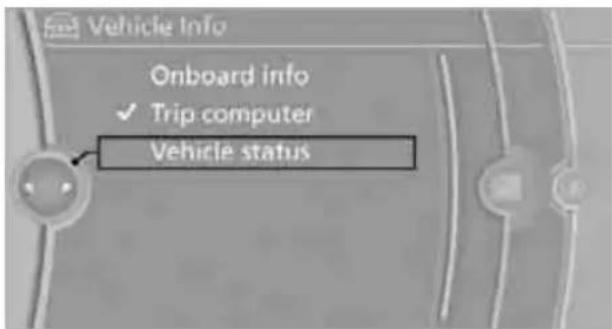
text_image
Vehicle Info Onboard info ✓ Trip computer Vehicle status- "Options"
- "Last Service Request"
Clock
The settings are stored for the remote control currently in use, refer also to Personal Profile on page 26.
Setting the time
In the instrument cluster
To set the 12h/24h mode, refer to Setting the time format below.
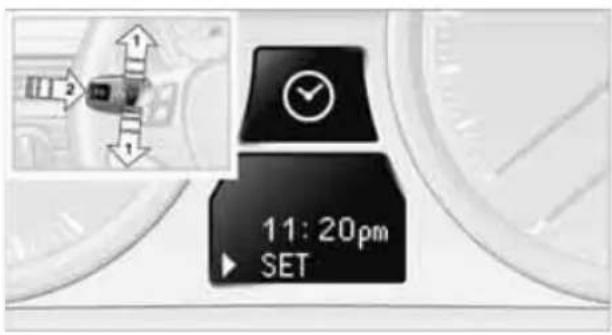
text_image
11:20pm SET- Push button 1 in the turn indicator lever up or down repeatedly until the appropriate symbol appears in the display, accompanied by the time and the word "SET".
- Press button 2.
- Use button 1 to set the hours.
- Press button 2 to confirm the entry.
- Use button 1 to set the minutes.
- Press button 2 to confirm the entry.
- Press button 2.
The system accepts the new time.
Via iDrive
- Press the MENU button. The main menu is displayed.

text_image
Main menu CD/Multimedia Radio Telephone Navigation Contacts BMW Assist Vehicle Info Settings- "Settings"

text_image
Main menu CD/Multimedia Radio Telephone Navigation Contacts BMW Assist Vehicle Info SettingsSetting the time
- "Settings"
- "Time/Date"
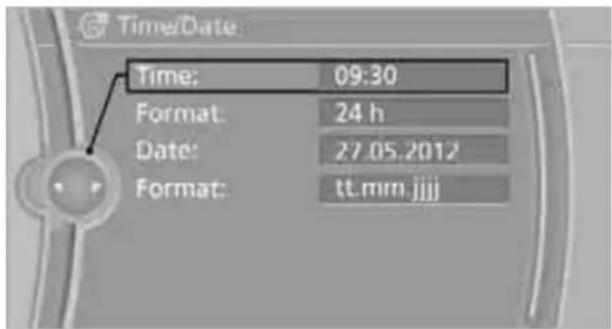
text_image
Time/Date Time: 09:30 Format: 24 h Date: 27.05.2012 Format: tt.mrn.jjjj- "Time:"
- Turn the controller until the desired hours are displayed, and then press the controller.
- Turn the controller until the desired minutes are displayed, and then press the controller.
The time is stored.
Setting the time format
- "Settings"
- "Time/Date"
- "Format:"
- Select the desired format and press the controller.
The time format is stored.
Date
Setting the date
In the instrument cluster
To set the dd/mm or mm/dd date format, refer to Setting the date format below.

text_image
12.12.2009 SET- Push button 1 in the turn indicator lever up or down repeatedly until the appropriate symbol appears in the display, accompanied by the date and the word "SET".
- Press button 2.
- Use button 1 to set the day of the month.
- Press button 2 to confirm the entry.
- Set the month and the year in the same way.
- Press button 2.
The system stores the new date.
Via iDrive
- "Settings"
- "Time/Date"
- "Date:"
- Turn the controller until the desired day is displayed, and press the controller.
- Create the necessary settings for the month and year.
The date is stored.
Setting the date format
- "Settings"
- "Time/Date"
- "Format:"
text_image
Date format ✓ dd.mm.yyyy mm/dd/yyyy- Select the desired format.
The date format is stored.
Check Control
The concept
The Check Control monitors vehicle functions and alerts you to any malfunctions in the systems monitored. This type of Check Control message includes indicator and warning lamps in the instrument cluster and, in some cases, an acoustic signal and text messages at the top of the Control Display.
Indicator and warning lamps

natural_image
Front view of a car dashboard with dual gauges and a central touchscreen display (no visible text or symbols)Indicator and warning lamps can light up in a variety of combinations and colors.
Several of the lamps are checked for proper functioning and light up temporarily when the engine is started or the ignition is switched on.

text_image
032050 - 1.256 A⚠ indicates that Check Control messages have been stored. These Check Control messages can be viewed again later, refer to page 78.
Text messages
Text messages at the upper edge of the Control Display explain the meaning of the displayed indicator and warning lamps.
Supplementary text messages
You can call up more information on the Control Display, e.g. on the cause of a malfunction and on how to respond, via Check Control.
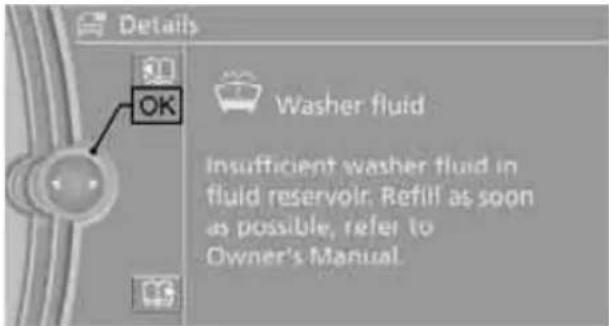
text_image
Details OK Washer fluid Insufficient washer fluid in fluid reservoir. Refill as soon as possible, refer to Owner's Manual.The text of urgent messages is displayed automatically.
To exit the display:
Select "OK" and press the controller.
Hiding Check Control messages
natural_image
Interior view of a car showing the steering wheel and dashboard with a close-up of the seatbelt (no text or symbols visible)Press the button on the turn indicator lever.
Some Check Control messages are displayed continuously and remain visible until the malfunction has been rectified. If several malfunctions occur at once, the messages are displayed consecutively. These messages can be hidden for approx. 8 seconds. After this, they are displayed again automatically.

They are marked with the symbol shown here.
Other Check Control messages are hidden automatically after approx. 20 seconds. They are stored and can be displayed again later.

They are marked with the symbol shown here.
Displaying stored Check Control messages
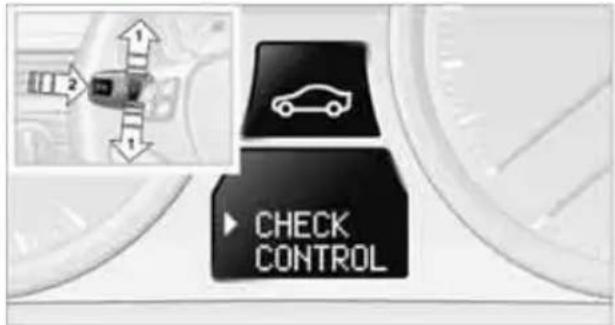
text_image
CHECK CONTROL- Push button 1 in the turn indicator lever up or down repeatedly until the appropriate symbol appears in the display, accompanied by the words "CHECK CONTROL".
- Press button 2.
"CHECK OK" appears if there are no Check Control messages.
If a Check Control message has been stored, the corresponding lamp comes on. It is accompanied by a text message on the Control Display.
- Push button 1 to check for other messages.
- Press button 2.
The display again shows the outside temperature and the time.
Via iDrive
- "Vehicle Info"
- "Vehicle status"
3. "Check Control"

text_image
Vehicle status Check Control- Select the text message.
Speed limit
You can enter a speed, and a Check Control message will indicate when you reach this speed. This enables you, for example, to receive warnings if you exceed a speed limit in an urban area.
You are only warned of reaching this speed a second time if your vehicle speed falls below it again by at least 3 mph or 5 km/h.
Displaying, setting or changing the limit
- "Settings"
- "Speed"
- "Warning at:"
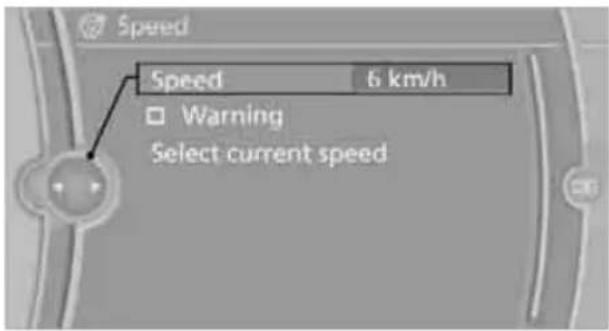
text_image
Speed Speed 6 km/h Warning Select current speed- Turn the controller until the desired speed is displayed.
- Press the controller.
The speed limit is stored.
Applying your current speed as the limit
- "Settings"
- "Speed"
- "Select current speed"
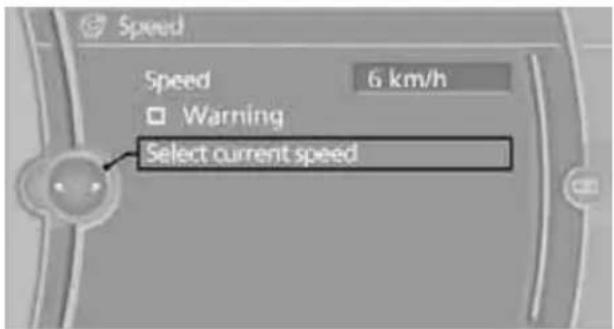
text_image
Speed Speed 6 km/h Warning Select current speed- Press the controller.
The system adopts your current speed as the limit.
Activating/deactivating the limit
- "Settings"
- "Speed"
- "Warning"

text_image
Speed Speed 6 km/h Warning Select current speed- Press the controller.
The limit warning is switched on.
Settings on the Control Display
Language on the Control Display
Setting the language
- "Settings"
- "Language/Units"
3. "Language:"

text_image
Language/Units Language: Deutsch Speech mode: Default Consumption: l/100 km Distance: km Temperature: °C- Select the desired language.
The setting is stored for the remote control currently in use.
Setting the voice dialog
Switch between a standard dialog and a short dialog.
- "Settings"
- "Language/Units"
- "Speech mode:"
- Select the desired dialog.

text_image
Speech mode ✓ Default ShortThe setting is stored for the remote control currently in use.
Brightness of the Control Display
The brightness is automatically adapted to the ambient lighting conditions. However, you can change the basic setting.
- "Settings"
- "Control display"
3. "Brightness"
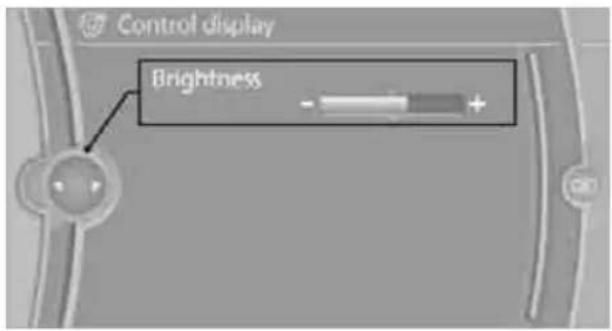
text_image
Control display Brightness- Turn the controller until the desired setting is selected.
- Press the controller.
The setting is stored for the remote control currently in use. In bright conditions, for example, the brightness control may not be clearly visible.
Technology for driving comfort and safety
Park Distance Control PDC\*
The concept
The PDC assists you with maneuvering in tight parking spaces. Acoustic signals and a visual indicator warn you of the presence of an object behind your vehicle. To measure the distance, there are four ultrasonic sensors in either bumper.
These sensors have a range of approx. 6.5 ft/2 m. However, an acoustic warning does not sound until an object is approx. 2 ft/60 cm from the corner sensors, or approx. 5 ft/1.50 m from the center sensors.

PDC is a parking aid that can indicate objects when they are approached slowly, as is usually the case when parking.
Avoid approaching an object at high speed; otherwise, physical circumstances may lead to the system warning being issued too late.
Switching on automatically
With the engine running or the ignition switched on, the system is activated after approx. 1 second when you engage reverse gear or move the automatic transmission selector lever to position R. Wait this short period before driving.
Switching off automatically
After approx. 55 yd/50 m of driving or above approx. 20 mph/approx. 30 km/h, the system switches off and the LED goes out.
Signal tones
When nearing an object, its position is indicated correspondingly by an interval tone. As the distance between vehicle and object decreases, the intervals between the tones become shorter. If the distance to the nearest object falls to below roughly 1 ft/30 cm, then a continuous tone sounds.
An interval tone is interrupted after approx. 3 seconds
If you remain in front of an object that has been detected by only one of the corner sensors
▶ If you are driving parallel to a wall.
Malfunction

The indicator lamp in the instrument cluster comes on. PDC is malfunctioning. A message appears on the Control Display. Have the system checked.
To avoid this problem, keep the sensors clean and free of ice or snow in order to ensure that they will continue to operate effectively. When using a high-pressure cleaner, do not spray the sensors for extended periods of time and only from a distance of at least 1 ft/30 cm.
PDC with visual warning
The approach of the vehicle to an object is shown on the Control Display. Objects that are farther away are displayed on the Control Display before a signal tone sounds. The display appears on the Control Display as soon as PDC is activated.
System limitations

Even with PDC, final responsibility for estimating the distance between the vehicle and any obstructions always remains with the driver. Even when sensors are provided, there is a blind spot in which objects can no longer be detected. The system is also subject to the physical limits that apply to all forms of ultrasonic measurement, such as those encountered with trailer towbars and hitches, thin or wedge-shaped objects, etc. Low objects that have already been displayed, e.g. curbs, can disappear again from the detection area of the sensors before or after a continuous tone sounds. Higher, protruding objects, e.g. ledges, cannot be detected. Therefore, always drive cautiously; otherwise, there is a risk of personal injury or property damage.
Loud sound sources outside or inside the car
can drown out the PDC signal. Therefore, always drive cautiously; otherwise, there is a risk of personal injury or property damage.
Driving stability control systems
Your BMW has a number of systems that help to maintain the vehicle's stability even in adverse driving conditions.
Antilock Brake System ABS
ABS prevents locking of the wheels during braking. Safe steering response is maintained even during full braking. Active safety is thus increased.
The ABS is operational every time you start the engine. Braking safely, refer to page 118.
Electronic brake-force distribution EBV
The system controls the brake pressure in the rear wheels to ensure stable braking behavior.
Dynamic Brake Control DBC
When you apply the brakes rapidly, this system automatically produces the maximum braking force boost and thus helps to achieve the shortest possible braking distance during full braking. This system exploits all of the benefits provided by ABS.
Do not reduce the pressure on the brake for the duration of the full braking application.
Dynamic Stability Control DSC
DSC prevents the driving wheels from losing traction when you pull away from rest or accelerate. The system also recognizes unstable driving conditions, for example if the rear of the car is about to swerve or if momentum is acting at an angle past the front wheels. In these cases, DSC helps the vehicle maintain a safe course within physical limits by reducing engine output and through braking actions at the individual wheels.
The laws of physics cannot be repealed, even with DSC. An appropriate driving style always remains the responsibility of the driver. Therefore, do not reduce the additional safety margin again by taking risks, as this could result in an accident.
Deactivating DSC
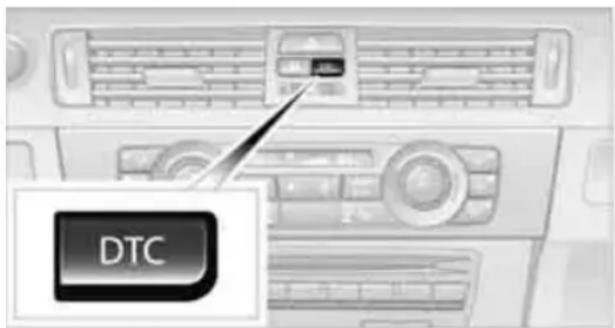
text_image
DTCPress the button for at least 3 seconds; the indicator lamps for DSC in the instrument cluster light up. Dynamic Traction Control DTC and DSC have been simultaneously deactivated. Stabilizing and drive-output promoting actions are no longer executed.
In the same way as with a differential interlock*, even if DSC is deactivated, brake actions are still performed to enhance drive output if the drive wheels experience a significant loss of traction.
To increase vehicle stability, activate DSC again as soon as possible.
Activating DSC
Press the button again; the indicator lamps in the instrument cluster go out.
For better control

If the indicator lamp flashes:
DSC is regulating the drive and braking forces.

If the indicator lamps are on:
DSC is deactivated.
Dynamic Traction Control DTC
DTC is a version of DSC in which the drive output is optimized for particular road conditions,
e.g. unplowed snow-covered roads. The system assures the maximal drive output, but with reduced driving stability. It is therefore necessary to drive with appropriate caution.
You may find it useful to briefly activate DTC under the following special circumstances:
When driving uphill on snow-covered roads, in slush or on unplowed, snow-covered roads
When rocking a stuck vehicle free or starting off in deep snow or on loose ground
When driving with snow chains
Activating DTC

text_image
DTCPress the button; the indicator lamps for DTC in the instrument cluster come on.
For better control

If the indicator lamp flashes:
DTC is regulating the drive and braking forces.

If the indicator lamps are on:
DTC has been activated.
Deactivating DTC
Press the button again; the DTC indicator lamps in the instrument cluster go out.
xDrive\*
xDrive is your BMW's four-wheel-drive system. The combined efforts of xDrive and DSC help to further optimize traction and driving dynamics. The xDrive four-wheel-drive system distributes driving power variably to the front and rear axles depending on the driving situation and road conditions.
Hill Descent Control HDC\*
HDC is a downhill driving assistant that controls your speed on steep downhill gradients and makes it even easier to control your BMW's handling under these conditions. The vehicle then moves slightly faster than double walking speed without the driver needing to intervene.
HDC can be activated as long as you are driving under approx. 20 mph or 35 km/h. When driving downhill at a speed of under approx. 20 mph or 35 km/h, the vehicle's speed is automatically reduced to slightly more than double walking speed and maintained.
Increasing or decreasing speed
By accelerating or braking you can change this speed within a range from approx. 3 to 15 mph, approx. 5 to 25 km/h.
You can specify a target speed within the same range using the cruise control* lever on the steering column.
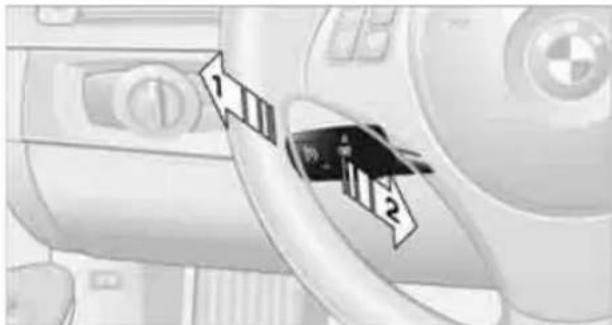
text_image
Diagram showing a device with labeled components and arrows indicating flow or connection points1 To increase speed
2 To decrease speed
Activating HDC

natural_image
Interior view of a car air conditioner unit with a control panel and a small icon showing a car (no text or symbols visible)Press the button; the LED lights up.
When the vehicle is being braked automatically, the LED flashes.
Deactivating HDC
Press the button again; the LED goes out.
HDC is automatically deactivated at speeds greater than approx. 35 mph/60 km/h.
Using HDC
In cars with manual transmission:
Use HDC in lower gears and in reverse gear.
With automatic transmission:
You can use HDC in any drive position.
Displays in the instrument cluster\*
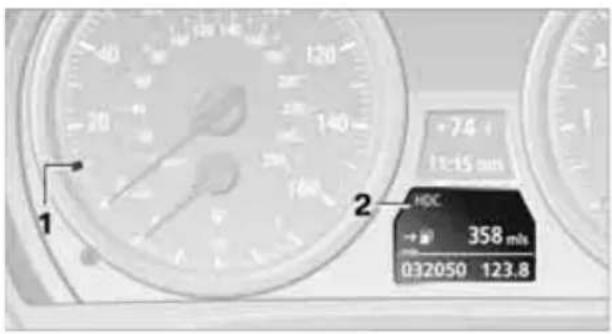
text_image
1 2 HDC → 358 m/s 032050 123.81 Display for target speed
2 HDC display
Malfunction
The HDC display disappears during HDC operation, or does not appear:
HDC is temporarily unavailable due to excessive brake temperature, or DSC has failed.
Drive-off assistant
The drive-off assistant enables you to drive off smoothly on uphill gradients. It is not necessary to use the parking brake for this.
- Hold the car in place by depressing the brake.
- Release the brake and drive off without delay.
The drive-off assistant holds the car in place for approx. 2 seconds after the brake is released. Drive off without delay after releasing the brake. Otherwise, the drive-off assistant will no longer hold the car in place after approx. 2 seconds and the car will start to roll backwards.
Flat Tire Monitor FTM\*
The concept
The Flat Tire Monitor detects pressure loss in a tire by comparing the rotating speeds of the individual tires while moving.
In the event of pressure loss, the rolling circumference changes and, thus, the rotating speed of the affected wheel. This change is detected and is reported as a flat tire.
Functional requirement
In order to assure the reliable reporting of a flat tire, the system must be initialized for the correct tire inflation pressure.
The system must be reinitialized each time a tire inflation pressure has been corrected or a wheel or tire has been changed.
System limitations
The Flat Tire Monitor is unable to warn the driver of sudden, severe tire damage caused by external factors, nor can it identify the gradual loss of pressure that will inevitably occur in all four tires over a lengthy period of time.
In the following situations, the system could be delayed or malfunction:
▷ System has not been initialized
▶ Driving on snowy or slippery road surface
Performance-oriented style of driving: slip in the drive wheels, high lateral acceleration
Snow chains are attached
Initializing the system

The initialization is completed during driving, which can be interrupted at any time.
When driving resumes, the initialization is continued automatically.
Do not initialize the system while snow chains are attached.
- "Vehicle Info"
- "Vehicle status"
- "Reset"

text_image
Vehicle status Reset- Start the engine – do not drive away.
- Start the initialization using "Reset".
- Start driving.
The initialization is completed during the trip. "Status: Flat Tire Monitor active" is displayed again on the Control Display.
Indication of a flat tire
The warning lamps come on in yellow and red. A message appears on the Control Display. In addition, an acoustic signal sounds. There is a flat tire or substantial loss of tire pressure.
- Cautiously reduce speed to below 50 mph or 80 km/h. Avoid sudden braking and steering maneuvers. Do not exceed a speed of 50 mph or 80 km/h.

If the car is not equipped with run-flat tires, refer to page 216, the standard
equipment by design, do not continue driving. Otherwise, a severe accident could result if you continue driving.
- At the next opportunity, check the air pressure in all four tires.

If all four tires are inflated to the correct pressures, the Flat Tire Monitor not have been initialized. The system then be initialized.
- In the event of complete tire pressure loss, 0 psi/0 kPa, you can estimate the possible distance for continued driving on the basis of the following guidelines:
With a light load:
1 to 2 persons without luggage:
Approx. 155 miles/250 km
With a medium load:
2 persons, cargo area full, or 4 persons without luggage:
Approx. 90 miles/150 km
With a full load:
4 or more persons, cargo area full:
Approx. 30 miles/50 km

Drive cautiously and do not exceed a speed of 50 mph or 80 km/h; otherwise, there is a risk of an accident. In the event of pressure loss, vehicle handling changes. This includes reduced tracking stability in braking, extended braking distance and altered natural steering characteristics.
If unusual vibration or loud noises occur during the journey, this may be an indication that the damaged tire has finally failed. Reduce your speed and pull over as soon as possible at a suitable location. Otherwise, parts of the tire could come loose, resulting in an accident. Do not continue driving. Instead, contact your BMW center.
Status display
The current status of the Flat Tire Monitor can be displayed on the Control Display, e.g. whether or not the FTM is active.
- "Vehicle Info"
- "Vehicle status"
3. "Flat Tire Monitor"
text_image
Vehicle status Flat Tire Monitor Status: Flat Tire Monitor activeThe status is displayed.
Tire Pressure Monitor TPM\*
The concept
RDC monitors the tire inflation pressure in the four mounted tires during a trip. The system notifies you if there is a significant loss of pressure in one or more tires.
Functional requirement
In order to assure the reliable reporting of a flat tire, the system must be reset while all tire inflation pressures are correct.
Always use wheels with TPM electronics. Otherwise, the system may malfunction.

Each time a tire inflation pressure has been corrected or a wheel or tire has been changed, reset the system.
System limitations

TPM cannot warn you in advance of sudden severe tire damage caused by out-influences.
The system does not work correctly if it has not been reset; for example, a flat tire may be indicated even though the tire inflation pressures are correct.
The system is inactive and cannot indicate a flat tire if a wheel without TPM electronics, such as a compact spare wheel, has been mounted, or if TPM is temporarily malfunctioning due to other systems or devices using the same radio frequency.
Status indicator on the Control Display
The color of the tires represents the status of the tires and the system.
TPM takes into account that tire pressures change while the vehicle is being driven. The tire pressures do not need to be corrected unless the TPM instructs you to do so by means of color indicators.
Green
The tire inflation pressure corresponds to the established target value.
"TPM active" appears on the Control Display.
One wheel yellow
There is a flat tire or substantial loss of tire pressure in the indicated tire. A message appears on the Control Display.
All wheels yellow
There is a flat tire or substantial loss of tire pressure in several tires. A message appears on the Control Display.
Gray
The system cannot detect a puncture.
Possible reasons for this:
TPM is being reset
Temporary malfunction caused by systems or devices using the same radio frequency
Malfunction
Resetting the system

Each time a tire inflation pressure has been corrected or a wheel or tire has been changed, reset the system.
- "Vehicle Info"
- "Vehicle status"
3. "Reset TPM"
text_image
Vehicle status Reset TPM- Start the engine – do not drive away.
- Start the initialization using "Reset TPM".
- Start driving.
The tires are shown in gray and "Resetting TPM..." is displayed.
After driving a few minutes, the set inflation pressures in the tires are accepted as the target values to be monitored. The system reset is completed during your drive, and can be interrupted at any time. When the trip is resumed, the reset is continued automatically. On the Control Display, the tires are shown in green and "Status: TPM active" is displayed again.

If a flat tire is detected while the system is resetting and determining the inflation
pressures, all tires on the Control Display are displayed in yellow. The message "Low tire!" is shown.
Message for low tire inflation pressure

The warning lamps come on in yellow and red. A message appears on the Control Display. In addition, a signal sounds. There is a flat tire or substantial loss of tire pressure.
- Cautiously reduce speed to below 50 mph/80 km/h. Avoid sudden braking and steering maneuvers. Do not exceed a speed of 50 mph/80 km/h.

If the car is not equipped with run-flat tires, refer to page 216, the standard equipment by design, do not continue driving. Otherwise, a severe accident could result after a tire puncture if you continue driving.
- In the event of complete pressure loss, 0 psi/0 kPa, you can estimate the possible distance for continued driving on the basis of the following guidelines:
With a light load:
1 to 2 persons without luggage:
Approx. 155 miles/250 km
With a medium load:
2 persons, cargo area full, or 4 persons without luggage:
Approx. 95 miles/150 km
With a full load:
4 or more persons, cargo area full:
Approx. 30 miles/50 km
Drive cautiously and do not exceed a speed of 50 mph/80 km/h. In the event of
pressure loss, vehicle handling changes. This includes reduced tracking stability in braking, extended braking distance and altered natural steering characteristics.
If unusual vibration or loud noises occur during the journey, this may be an indication that the damaged tire has finally failed. Reduce your speed and pull over as soon as possible at a suitable location. Otherwise, parts of the tire could come loose, resulting in an accident. Do not continue driving. Instead, contact your BMW center.
Status display
The current status of the TPM Tire Pressure Monitor can be displayed on the Control Display, e.g. whether or not the TPM is active.
- "Vehicle Info"
- "Vehicle status"
- "Tire Pressure Monitor - TPM"
text_image
Vehicle status Tire Pressure Monitor - TPM Status: TPM activeThe status is displayed.
Malfunction
(1)

The small warning lamp flashes in yellow and then lights up continuously; the large warning lamp comes on in yellow. On the Control Display, the tires are shown in gray and a message appears. No punctures can be detected.
This type of message is shown in the following situations:
If there is a malfunction Have the system checked.
If a wheel without TPM electronics has been mounted
If TPM is temporarily malfunctioning due to other systems or devices using the same radio frequency.
Message for unsuccessful system reset

The warning lamp lights up yellow. A message appears on the Control Display. The system is not reset, e.g. after a wheel change.
Check the tire inflation pressure and reset the system, refer to page 86.
Declaration according to NHTSA/FMVSS 138
Tire Pressure Monitoring Systems
Each tire should be checked monthly when cold and inflated to the inflation pressure recommended by the vehicle manufacturer on the vehicle placard or tire inflation pressure label. If your vehicle has tires of a different size than the size indicated on the vehicle placard or tire inflation pressure label, you should determine the proper tire inflation pressure for those tires. As an added safety feature, your vehicle has been equipped with a tire pressure monitoring system, TPMS, that illuminates a low tire pressure telltale when one or more of your tires are significantly underinflated. Accordingly, when the low tire pressure telltale illuminates, you should stop and check your tires as soon as possible, and inflate them to the proper pressure. Driving on a significantly underinflated tire causes the tire to overheat and can lead to tire failure. Underinflation also reduces fuel efficiency and tire tread life, and may affect the vehicle's handling and stopping ability. Please note that the TPMS is not a substitute for proper tire maintenance, and it is the driver's responsibility to maintain correct tire pressure, even if underinflation has not reached the level at which the TPMS low tire pressure telltale illuminates.
The TPMS malfunction indicator is combined with the low tire pressure telltale. When the system detects a malfunction, the telltale will flash for approximately one minute and then remain continuously lit. This sequence will continue upon subsequent vehicle startups as long as the malfunction exists. When the malfunction indicator is illuminated, the system may not be able to detect or signal low tire pressure as intended. TPMS malfunctions may occur for a variety of reasons, including the installation of replacement or alternate tires or wheels on the vehicle that prevent the TPMS from functioning properly. Always check the TPMS malfunction telltale after replacing one or more tires or wheels on your vehicle to ensure that the replacement or alternate tires and wheels allow the TPMS to continue to function properly.
Active steering\*
The concept
Active steering varies the turning angle of the front wheels in relation to steering wheel movements. It also varies the steering force required to turn the wheels depending on the speed at which you are driving.
When you are driving in the low road speed range, e.g. in a town or when parking, the steering angle is increased, i.e. steering becomes very direct and less effort is required to turn the wheels. In the higher speed range, on the other hand, the steering angle is reduced as the speed increases. This improves the handling of your BMW over the entire speed range.
In critical situations, the system can make targeted corrections to the steering angle provided by the driver and thus stabilize the vehicle before the driver intervenes. This stabilizing intervention is simultaneously deactivated when DSC is switched off, refer to page 82.
Malfunction
The warning lamps light up and a message is displayed on the Control Display. Active steering is malfunctioning or is temporarily deactivated.
At low speeds, greater steering wheel movements are required, whereas at higher speeds the vehicle reacts more sensitively to steering wheel movements. The stability-enhancing feature may also be deactivated. Drive cautiously and think well ahead.
Deactivation
Active steering is deactivated to perform an initialization. A message indicates that the feature is deactivated. Initialization may take several minutes.
If the message does not disappear during the current trip, have the system checked.
Defect
If there is a defect, a corresponding text message appears. Have the system checked.
Servotronic\*
The concept
The Servotronic varies the steering force required to turn the wheels relative to the vehicle speed.
At low speeds, the steering force is strongly assisted, i.e. less force is needed for steering. As the vehicle speed increases, the steering assisting power is reduced.
Malfunction
Malfunctions are displayed via Check Control, refer to page 77.
Brake Force Display

natural_image
Two identical car side profiles showing a dark, curved lens or corneal on the left and a lighter, segmented lens or corneal on the right (no text or symbols visible)On the left: normal braking.
On the right: sharp braking.
Airbags

text_image
Diagram of a car interior with labeled parts including steering wheel, dashboard, and seatbeltWHO 投资部
The following airbags are located under the marked covers:
1 Front airbags
2 Head airbags
3 Side airbags in the seat backrests
Protective action

Observe the adjustment instructions on page 41 to ensure the best possible per-protection.
The front airbags help protect the driver and front passenger by responding to frontal impacts in which safety belts alone cannot provide adequate restraint. When needed, the head and side airbags help provide protection in the event of side impact. The relevant side airbag supports the side upper body area. The head air bag supports the head.
The airbags have been designed to not be triggered in every collision situation, e.g. not in minor accidents or rear-end collisions.

Do not apply adhesive materials to the cover panels of the airbags, cover them or by them in any other way.
Keep the dashboard and windows on the front passenger side clear, i.e. do not cover with adhesive labels or coverings, and do not attach holders such as for navigation instruments or mobile phones.
Do not attach seat covers, cushions or other objects not specifically approved for seats with integral side airbags to the front seats. Do not hang items of clothing such as coats or jackets over the backrests. Do not attempt to remove
the airbag retention system from the vehicle. Do not modify the individual components of the system or its wiring in any way. This includes the upholstered covers on the steering wheel, instrument panel, seats and roof posts, as well as the sides of the roof lining. Do not attempt to remove or dismantle the steering wheel.
Do not touch the individual components immediately after the system has been triggered, because there is a danger of burns.
In the event of malfunctions, deactivation or triggering of the airbag restraint system, have the testing, repair, removal and disposal of airbag generators executed only by a BMW center or a workshop that works according to repair procedures of BMW with correspondingly trained personnel and that has the required explosives licenses. Unprofessional attempts to work on the system could lead to failure in an emergency or to undesired airbag activation, either of which could result in personal injury.
Warning notices and information about the air bags can also be found on the sun visors.
Automatic deactivation of the front passenger airbags
An analysis of the impression in the front passenger seat cushion determines whether and how the seat is occupied. The front and side air bags for the front passenger are activated or deactivated by the system accordingly.

The indicator lamp above the interior rearview mirror shows the current status of the front passenger airbags, deactivated or
activated, refer to Status of front passenger airbags below.

Before transporting a child on the front passenger seat, read the safety precaution and handling instructions under Trans- ing children safely, refer to page 50.
The front and side airbags can also be deactivated by adolescents and adults sitting in certain positions; the indicator lamp for the front passenger airbags comes on. In such cases, the passenger should change his or her sitting position so that the front passenger airbags are activated and the indicator lamp goes out. If the desired airbag status cannot be achieved by changing the sitting position, transport the relevant passenger on a rear seat. Do not attach seat covers, seat cushion padding, ball mats or other items to the front passenger seat unless they are specifically recommended by BMW. Do not place any items under the seat which could press against the seat from below. Otherwise, a correct analysis of the seat cushion is not ensured.
Status of front passenger airbags
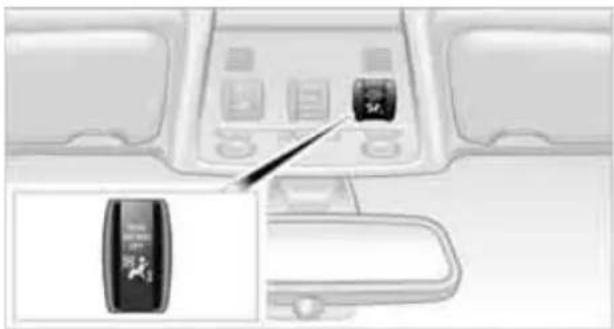
natural_image
Interior view of a vehicle dashboard with control panels and a highlighted touchscreen device (no text or symbols visible)The indicator lamp for the front passenger airbags shows the functional status of the front passenger front and side airbags in accordance with whether and how the front passenger seat is occupied. The indicator lamp shows whether the front passenger airbags are activated or deactivated.
The indicator lamp lights up when a child in a specially designated child restraint system is detected, as intended, on the seat. The front and side airbags for the front passenger are not activated.

Most child seats are detected by the system, especially child seats
required by the NHTSA at the time of vehicle production. After mounting a child seat, ensure that the indicator lamp for the front passenger airbag is lit. It indicates that the child seat has been detected and that the front passenger airbags are deactivated.
The indicator lamp does not come on as long as a person of sufficient size and in a correct sitting position is detected on the seat.
The front and side airbags for the front passenger are activated.
The indicator lamp does not come on if the seat is empty.
The front and side airbags for the front passenger are not activated.
Operational readiness of airbag system
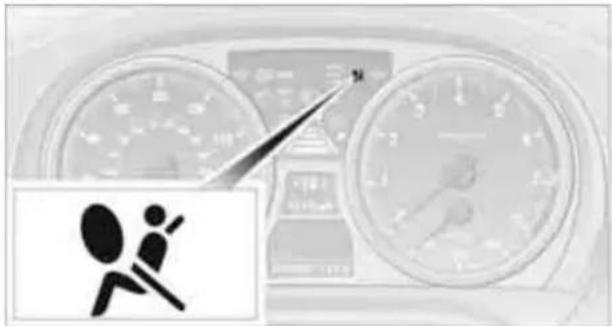
natural_image
Interior view of a car dashboard with two circular gauges and a speedometer, showing a person walking (no text or symbols visible)As of radio readiness, refer to page 54, the warning lamp comes on briefly to indicate that the entire airbag system and the belt tensioners are operational.
Airbag system malfunction
Warning lamp does not light up at radio readiness or beyond.
Warning lamp remains permanently on.
In the event of a fault in the airbag system, have it checked without delay; otherwise, there is the risk that the system will not function as intended even if a sufficiently severe accident occurs.
Lamps
Parking lamps/low beams

text_image
0 1 3 20 Lamps off, daytime running lights
1 Parking lamps and daytime running lights
2 Low-beam headlamps and welcome lamps
3 Automatic headlamp control *, daytime running lights, welcome lamps, high-beam assistant* and adaptive light control*
When you open the driver's door with the ignition switched off, the exterior lighting is automatically switched off if the light switch is in position 0, 2 or 3.
Switch on the parking lamps if necessary, switch position 1.
Parking lamps
In switch position 1, the front, rear and side vehicle lighting is switched on. You can use the parking lamps for parking.
When the ignition is switched off and the switch is in position 1, only the outside sections of the rear lamps are illuminated, refer to page 232.
The parking lamps will discharge the battery. Therefore, do not leave them on for unduly long periods of time; otherwise, the battery might not have enough power to start the engine. It is preferable to switch on the left-hand or right-hand roadside parking lamps, refer to page 94.
Low beams
The low beams light up when the light switch is in position 2 and the ignition is on.
Automatic headlamp control\*
When the switch is in position 3, the low beams are switched on and off automatically depending on ambient light conditions, e.g. in a tunnel, in twilight, or if there is precipitation. The adaptive light control* is active. The LED next to the symbol is illuminated when the low beams are on. You can also activate the daytime running lights, refer to page 93. In the situations described above, the lamps then automatically switch from daytime running lights to low beams.
The headlamps may also come on when the sun is sitting low on a blue sky.
The low beams remain switched on regardless of the ambient lighting conditions when you switch on the fog lamps.
The automatic headlamp control cannot serve as a substitute for your personal judgment in determining when the lamps should be switched on in response to ambient lighting conditions. For example, the system cannot detect fog or hazy weather. To avoid safety risks, you should always switch on the low-beam headlamps manually under these conditions.
Welcome lamps
If you leave the light switch in position 2 or 3 when you park the car, the parking lamps and the interior lamps light up briefly when you unlock the vehicle.
Activating/deactivating welcome lamps
- "Settings"
- "Lighting"
3. "Welcome light"
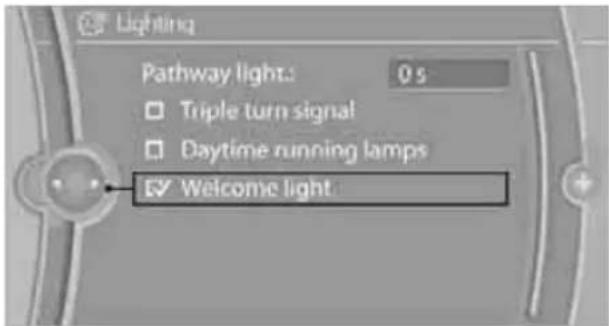
text_image
Lighting Pathway light: 0 s □ Triple turn signal □ Daytime running lamps ✓ Welcome light.Welcome lamps are activated and are stored for the remote control currently in use.
Pathway lighting
If you activate the headlamp flasher after switching off the ignition with the lamps switched off, the low beams come on and remain on for a certain time.
Setting the duration or deactivating
- "Settings"
- "Lighting"
- "Pathway light."
- Set a time of duration, or 0 s to deactivate the function.
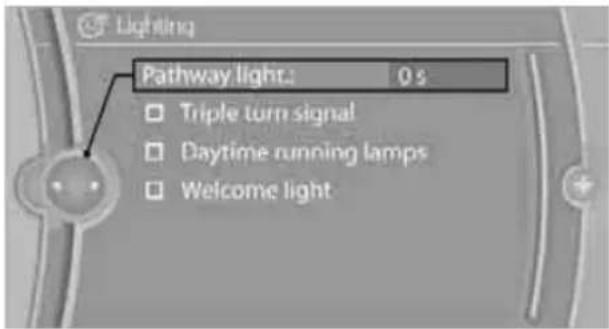
text_image
Lighting Pathway light: 0 s Triple turn signal Daytime running lamps Welcome lightThe setting is stored for the remote control currently in use.
Daytime running lights
The daytime running lights light up in switch positions 0, 1 and 3.
Activating/deactivating daytime running lights
- "Settings"
- "Lighting"
- "Daytime running lamps"
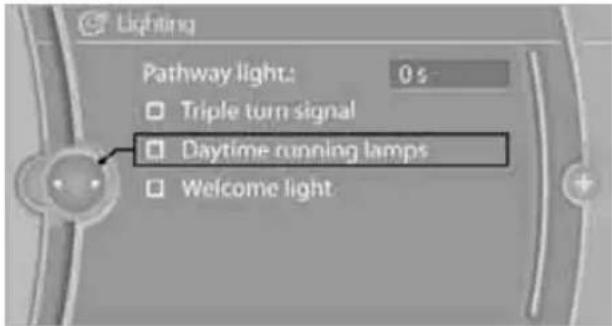
text_image
Lighting Pathway light: 0 s Triple turn signal Daytime running lamps Welcome lightDaytime running lights are activated and are stored for the remote control currently in use.
Adaptive light control\*
The concept
Adaptive light control is a variable headlamp control system that enables better illumination of the road surface. Depending on the steering angle and other parameters, the light from the headlamp follows the course of the road.
Activating Adaptive Light Control
With the ignition switched on, turn the light switch to position 3, refer to page 92.
Standstill function*: to avoid blinding oncoming traffic, the adaptive light control directs light towards the front passenger side when the vehicle is at a standstill.
Adaptive light control is not active when reversing.
Malfunction
The LED next to the symbol for automatic head-lamp control flashes. Adaptive light control is malfunctioning or has failed. Have the system checked as soon as possible.
High beams/roadside parking lamps
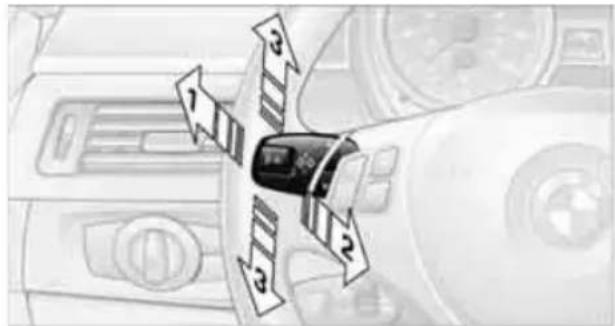
text_image
Diagram showing car air condition indicators with numbered arrows pointing to a central vehicle, likely indicating airflow or status change.1 High beams
2 Headlamp flasher
3 Roadside parking lamps *
Roadside parking lamps, left or right\*
There is an additional option of switching on the lamps on the side of the car facing the road when parked.
Switching on
After parking the vehicle, press the lever up or down beyond the pressure point for a longer period, arrow 3.
The roadside parking lamps drain the battery. Therefore, do not leave them on for unduly long periods of time; otherwise, the battery might not have enough power to start the engine.
Switching off
Press the lever in the opposite direction to the pressure point, arrow 3.
High-beam assistant\*
The concept
This system automatically switches the high beams on and off. The procedure is controlled by a sensor on the front of the interior rearview mirror. The assistant ensures that the high beams are switched on whenever the traffic situation allows. It handles this task for you and gives you the benefit of the best possible view. You can intervene at any time and switch the high beams on and off as usual.
Activating the system
- Turn the light switch to position 3, refer to page 92.
- With the low beams switched on, briefly push the turn indicator lever in the direction of the high beam.

The indicator lamp in the instrument cluster lights up when the high beams are activated. The system automatically switches from high beams to low beams and vice versa in response to oncoming traffic, traffic ahead of you, and adequate ambient lighting, e.g. on city streets.
Switching the high beams on and off manually
Whenever you wish, or when the situation requires, you can intervene:
If the high-beam assistant switches on the high beams, but you would like to drive with the low beams, simply switch off the high beams using the turn indicator lever. This deactivates the high-beam assistant. To reactivate the system, briefly push the turn indicator lever toward the high beams again.
If the high-beam assistant switches on the low beams, but you would like to drive with the high beams, switch on the high beams as usual. This deactivates the system and the high beams need to be switched off manually, if necessary.
To reactivate the system, briefly push the turn indicator lever toward the high beams again.
Use the headlamp flasher as usual with the low beams switched on.
System limitations

The high-beam assistant cannot serve as a substitute for the driver's personal judgment of when to use the high beams. Therefore, manually switch off the high beams in situations where this is required to avoid a safety risk.
The system is not fully functional in situations such as the following, and driver intervention may be necessary:
In very unfavorable weather conditions, such as fog or heavy precipitation
In detecting poorly-lit road users, such as pedestrians, cyclists, horseback riders and wagons; when driving close to train or ship traffic; and at animal crossings
In tight curves, on hilltops or in depressions, in cross traffic or half-obscured oncoming traffic on highways
In poorly lit towns and cities and in the presence of highly reflective signs
At low speeds
When the windshield in front of the interior rearview mirror is fogged over, dirty or covered with stickers, etc.
If the sensor is dirty. Clean the sensor on the front of the interior rearview mirror using a cloth moistened with a small amount of glass cleaner.
Switching off via iDrive
- "Settings"
- "Lighting"
- "High beam assistant"
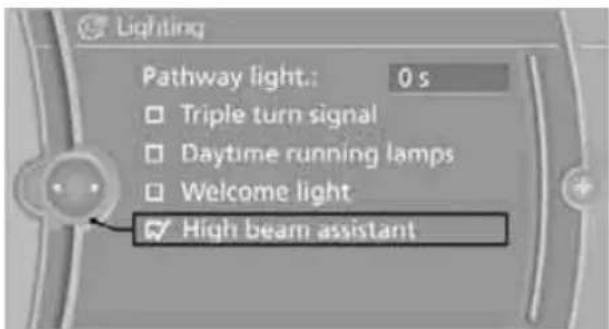
text_image
Lighting Pathway light.: 0 s Triple turn signal Daytime running lamps Welcome light ✓ High beam assistantThe high-beam assistant is activated and is stored for the remote control currently in use.
Fog lamps
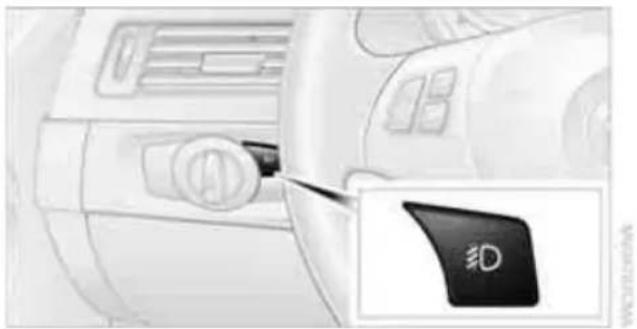
natural_image
Close-up of a car dashboard with a black pad labeled '3D' and a close-up of the control panel (no readable text or symbols beyond the label)The parking lamps or low beams must be switched on for the fog lamps to operate. The green indicator lamp in the instrument cluster lights up whenever the fog lamps are on.
The fog lamps are switched off while you activate the headlamp flasher or switch on the high beams.
If the automatic headlamp control is activated, the low beams will come on automatically when you switch on the fog lamps.
Instrument lighting
You can adjust the brightness of the instrument lighting only when the parking lamps or the low beams are switched on.

text_image
Diagram showing car control panel with icons for setting, weather, and display settings- Push button 1 up or down repeatedly until the appropriate symbol appears in the display, accompanied by the brightness setting and scale the word "SET".
- Press button 2.
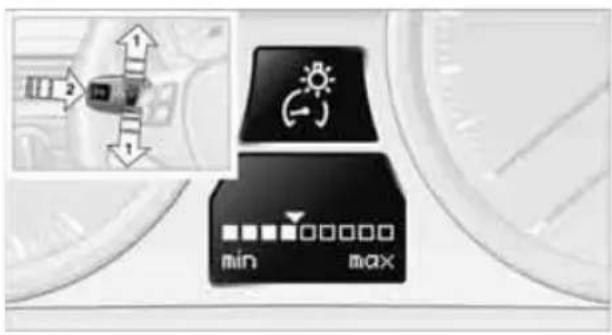
text_image
Diagram showing car control buttons with icons for minimum and maximum settings, alongside a vehicle diagram with directional arrows.- Push button 1 up or down to select the desired brightness level.
- Press button 2. The display again shows the outside temperature and the time.
Interior lamps
The interior lamps, the footwell lamps *, entry lamps*, cargo area lamp and courtesy lamps* are controlled automatically.
The LEDs for the courtesy lamps are set in the door handles and illuminate the ground in front of the doors.

To avoid draining the battery, all lamps inside the car are switched off about
8 minutes after the ignition is switched off, refer to Start/stop button on page 54.
Switching interior lamps on/off manually

natural_image
Interior view of a vehicle dashboard with a black button and directional arrow pointing to a component (no text or symbols visible)Interior lamps, front and rear*: To switch on and off, press the button.
To switch off the interior lamps, footwell lamps*, entry lamps* and courtesy lamps* permanently, press the button for the front interior lamps for about 3 seconds.
Reading lamps

natural_image
Interior view of a vehicle rear panel showing two directional arrows pointing to internal compartments (no text or symbols)There are reading lamps at the front and rear*, next to the interior lamps. To switch on and off, press the button.
Climate
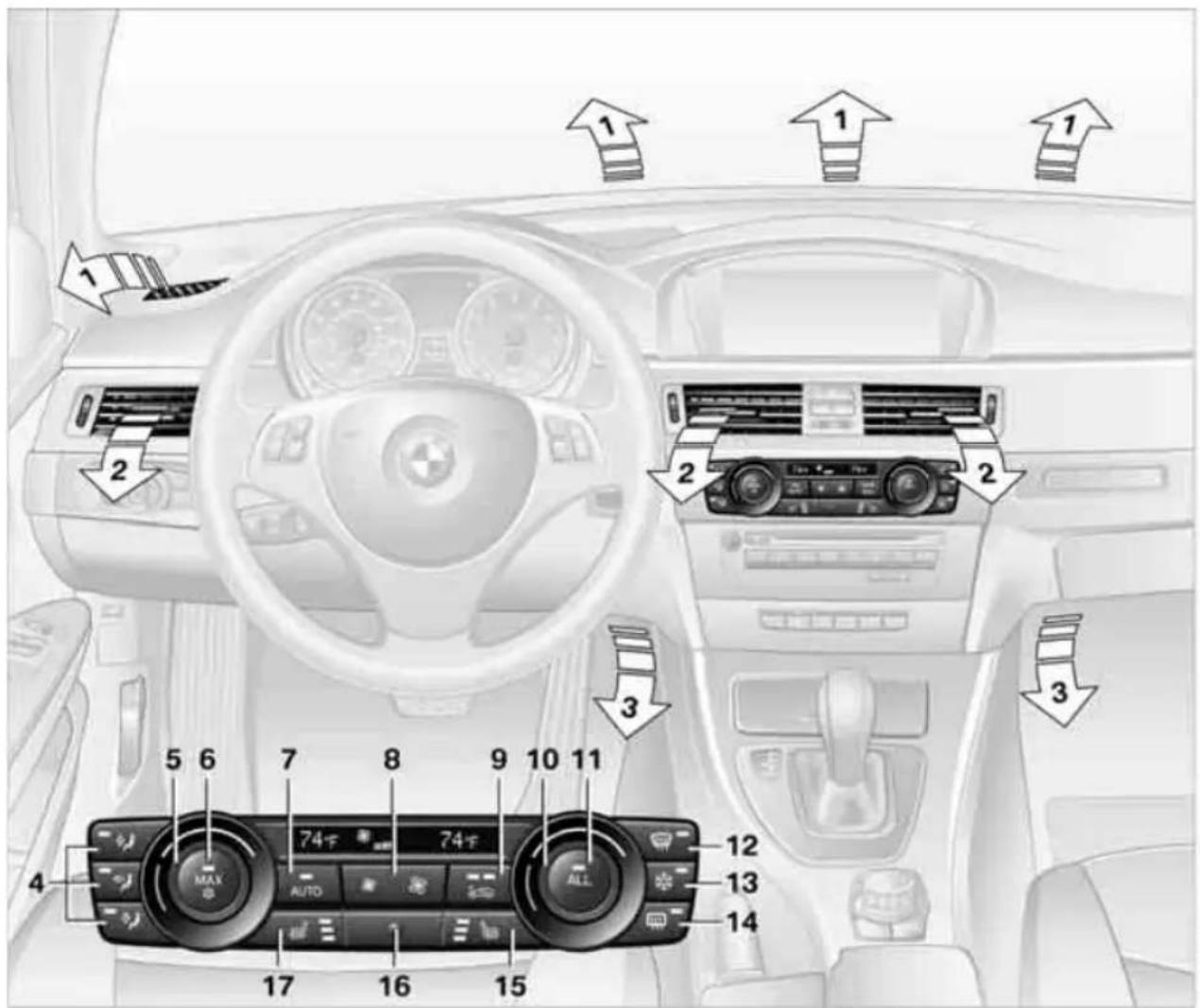
text_image
1 2 3 4 5 6 7 8 9 10 11 MAX AUTO ALL 12 13 14 17 16 151 Airflow directed toward the windshield and side windows
2 Air to the upper body area
Draft-free ventilation 100
3 Air to the footwell
4 Air distribution, manual
5 Setting the temperature, left side
6 Maximum cooling
7 AUTO program
8 Air volume, manual adjustment; AUTO intensity
9 Automatic recirculated-air control AUC/Recirculated-air mode
10 Setting the temperature, right side
11 ALL program
12 Defrosting windows and removing condensation
13 Switching cooling function on/off manually
14 Rear window defroster
15 Seat heating *, right side 45
16 Interior temperature sensor, please keep clear
17 Seat heating *, left side 45
Automatic climate control
Comfortable interior climate
AUTO program 7 offers the ideal air distribution and air volume for almost all conditions, refer to AUTO program below. All you need to do is select an interior temperature which is comfortable for you.
The following sections inform you in detail about how to adjust the settings.
Most settings are stored for the remote control currently in use, refer also to Personal Profile settings on page 26.
Adjusting air distribution manually

The air distribution can be switched on and off manually. The air is directed to the windshield, to the upper body area and to the
footwell.
The automatic air distribution can be switched back on by pressing the AUTO button. The cooling function is switched on automatically and the manual air distribution setting is cleared.
Temperature
Turn to set the desired temperature.
The automatic climate control achieves this temperature as
quickly as possible regardless of the season, using maximum cooling or heating power if necessary, and then maintains it.
Avoid rapid switching between different temperature settings. The automatic climate control will not have sufficient time to adjust the set temperature.
Maximum heating power can be obtained with the highest setting, regardless of the outside temperature.
The system cools steadily in the lowest setting, regardless of the outside temperature.
Maximum cooling

Press the button.
The system is set to the lowest temperature, maximum air volume and recirculated-air mode.
Air flows out of the vent outlets for the upper body region. Open them for this purpose.
Air is cooled as quickly as possible:
Above an outside temperature of approx. 32 °F/0 °C
When the engine is running
AUTO program
Press the button.
Air volume, air distribution and temperature are controlled auto-
matically.
Depending on the selected temperature, AUTO intensity and outside influences, the air is directed toward the windshield, the side windows, the upper body and the footwell.
Pressing the AUTO button automatically switches on the cooling function.
At the same time, a condensation sensor controls the program so as to prevent window condensation as much as possible.
The program is switched off when the air distribution is set manually or the button is pressed again.
Intensity of the AUTO program
With the AUTO program switched on, automatic control of the air volume and air distribution can be adjusted:
Press the left side of the button to reduce the intensity. Press the right side of the button to increase
it.
The selected intensity is shown on the display of the automatic climate control.
Adjusting air volume manually
To be able to manually adjust the air volume, switch off the AUTO program first.

Press the left side of the button to reduce the air volume. Press the right side of the button to increase
it.
The air volume may be reduced or the blower may be switched off entirely to save on battery power. The display remains the same.
Automatic recirculated-air control AUC/Recirculated-air mode
You can respond to unpleasant odors or pollutants in the immediate environment by temporarily suspending the supply of outside air. The system then recirculates the air currently within the vehicle.
Press the button repeatedly to select an operating mode:
▶ LED off: outside air flows in continuously.
Left-hand LED on, AUC mode: a sensor detects pollutants in the outside air and controls the shut-off automatically.
Right-hand LED on, recirculated-air mode: the supply of outside air is permanently shut off. If the windows fog over, switch off recirculated-air mode and increase the air volume, if necessary. Make sure that air can flow onto the windshield.

The recirculated-air mode should not be used over an extended period of time; otherwise, the air quality inside the car will deteriorate continuously.
Via the button on the steering wheel
You can switch quickly between the recirculated-air mode and the previous mode using a button on the steering wheel, refer to page 11.
ALL program
Press the button.
The current temperature setting on the driver's side is transferred to the front passenger side.
If the temperature setting on the driver's side is changed, the temperature on the front passenger side is changed as well.
The program is switched off when the setting is adjusted on the front passenger side or the button is pressed again.
Defrosting windows and removing condensation

Press the button.
Quickly removes ice and condensation from the windshield and
front side windows.
For this purpose, also switch on the cooling function.
Switching cooling function on/off
The passenger compartment can only be cooled while the engine is running.
Press the button.
The air is cooled and dehumidified and – depending on the tempera-
ture setting – warmed again.
Depending on the weather, the windshield may fog up briefly when the engine is started.
Pressing the AUTO button automatically switches on the cooling function.
Rear window defroster

Press the button.
The defroster is switched off automatically after a certain time.
Depending on your vehicle's equipment, the upper wires serve as an antenna and are not part of the rear window defroster.
Switching the system on/off
Switching off

With the blower at its lowest setting, press the left side of the button to switch off the automatic cli-
mate control.
All displays are cleared except for the rear window defroster if it is switched on.

The outside air supply is blocked when the automatic climate control is switched the air quality deteriorates or the window
fogs over, switch the system back on and increase the air volume.
Switching on
Press any button except the ALL or the rear window defroster button to reactivate the automatic climate control.
Ventilation
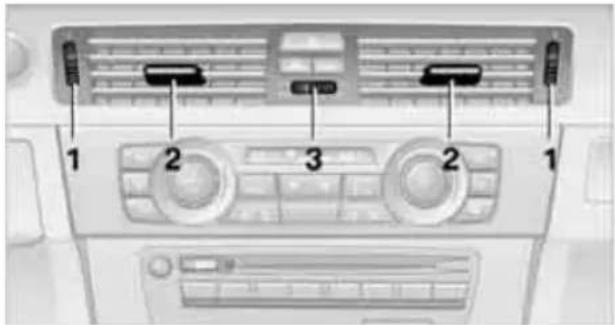
text_image
1 2 3 2 11 Use the thumbwheels to smoothly open and close the air vents
2 Use the lever to change the direction of the airflow
3 Thumbwheel for more or less cool air from the vents for the upper body area
Ventilation for cooling
Adjust the vent outlets to direct the flow of cool air in your direction, for instance if it has become too hot in the car.
Draft-free ventilation
Set the vent outlets so that the air flows past you and not straight at you.
Ventilation in the rear
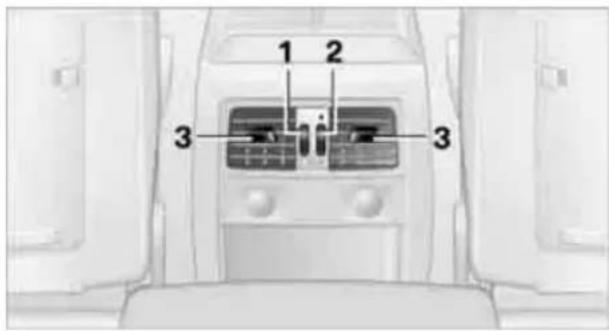
text_image
1 2 3 31 Use the thumbwheel to smoothly open and close the air vents
2 Use the thumbwheel to adjust the temperature:
Turn toward blue: colder
Turn toward red: warmer
3 Use the lever to change the direction of the airflow
Microfilter/activated-charcoal filter
The microfilter traps dust and pollen in the incoming air. The activated-charcoal filter provides additional protection by filtering gaseous pollutants from the outside air. Your BMW center replaces this combined filter during routine maintenance.
Parked car ventilation
The concept
The parked car ventilation provides ventilation to the passenger compartment and lowers its temperature, if necessary. It is ready for use at any outside temperature, as of radio readiness.
The parked car ventilation remains switched on for approx. 30 minutes. Two different switch-on times can be preselected. The system can also be switched on and off directly.
Due to its high power consumption, it should not be switched on twice in a row without driving in between to allow the battery to recharge.
The air emerges from the air vents for the upper body area in the instrument panel. The air vents must therefore be open.
The parked car ventilation system is operated via iDrive.
Switching on/off directly
- "Settings"
- "Climate"
- "Activate parked-car vent."

text_image
Climate Activate parked-car vent. Activate Timer 1 Timer 1: Activate Timer 2 Timer 2:The parked car ventilation is switched on. The symbol on the automatic climate Control Display flashes.
Preselecting switch-on times
- "Settings"
- "Climate"
- "Activate Timer 1" or "Activate Timer 2"
- "Timer 1:" or "Timer 2:"
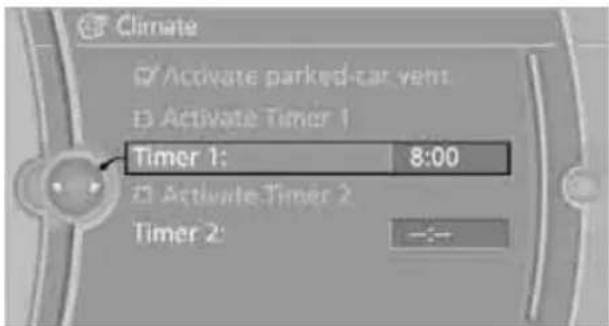
text_image
Climate ✓ Activate parked-car vent: ✓ Activate Timer 1 Timer 1: 8:00 ✓ Activate Timer 2 Timer 2: -- Turn the controller: set the hours.
- Press the controller: the setting is accepted.
- Turn the controller: set the minutes.
- Press the controller: the setting is accepted.
The switch-on time is activated.
The symbol on the automatic climate Control Display lights up.
The symbol on the automatic climate Control Display flashes when the system has switched on.
The respective system is switched on within the next 24 hours only. After these have elapsed, it must be reactivated.
Practical interior accessories
Integrated universal remote control\*
The concept
The integrated universal remote control can replace as many as three hand-held transmitters for various remote-controlled devices, such as garage doors and gates or lighting systems. The integrated universal remote control registers and stores signals from the original hand-held transmitters.
The signal of an original hand-held transmitter can be programmed on one of the three memory buttons 1. After this, the programmed memory button 1 will operate the system in question. The LED 2 flashes to confirm transmission of the signal.
Should you sell your vehicle one day, be sure to delete the stored programs beforehand for your safety, refer to page 103.

To prevent possible damage or injury, before programming or using the integrated universal remote control, always inspect the immediate area to make certain that no people, animals or objects are within the pivoting or travel range of the device being operated. Comply also with the safety instructions supplied with the original hand-held transmitter.
Checking compatibility

If this symbol appears on the package or in the instructions supplied with the original hand-held transmitter, you can assume that the radio remote control device will be compatible with the integrated universal remote control.
For additional information, please contact your BMW center or call: 1-800-355-3515.
You can also obtain information on the Internet at:
www.bmwusa.com or
www.homelink.com.
HomeLink is a registered trademark of Johnson Controls, Inc.
Programming

text_image
2 1网址咨询
1 Memory buttons
2 LED
Fixed-code hand-held transmitters
- Switch on the ignition, refer to page 54.
- When starting operation for the first time: press the left and right memory buttons 1 for approx. 20 seconds until the LED 2 flashes rapidly. The three memory buttons are cleared.
- Hold the original hand-held transmitter at a distance of approx. 4 to 12 in/10 to 30 cm from the memory buttons 1.

The required distance between the hand-held transmitter and the mem-uttons 1 depends on the system of the active original hand-held transmitter
-
Simultaneously press the transmit key on the original hand-held transmitter and the desired memory button 1 on the integrated universal remote control. The LED 2 flashes slowly at first. As soon as the LED 2 flashes rapidly, release both buttons. If the LED 2 does not flash rapidly after approx. 15 seconds, alter the distance and repeat this step.
-
To program other original hand-held transmitters, repeat steps 3 and 4.
The corresponding memory button 1 is now programmed with the signal of the original hand-held transmitter.
You can operate the device while the ignition is switched on.

If the device fails to function even after repeated programming, check whether the original hand-held transmitter uses an alternating-code system. To do so, either read the instructions for the original hand-held transmitter or hold down the programmed memory button 1 of the integrated universal remote control. If the LED 2 on the integrated universal remote control flashes rapidly and then remains lit for about two seconds, the original hand-held transmitter uses an alternating-code system. If it uses an alternating-code system, program the memory buttons 1 as described under Alternating-code hand-held transmitters.
Alternating-code hand-held transmitters
To program the integrated universal remote control, consult the operating instructions for the device to be set. You will find information there on the possibilities for synchronization. When programming hand-held transmitters that employ an alternating code, please observe the following supplementary instructions:

Programming will be easier with the aid of a second person.
- Park your vehicle within the range of the remote-controlled device.
- Program the integrated universal remote control as described above in the section Fixed-code hand-held transmitters.
- Locate the button on the receiver of the device to be set, e.g. on the drive unit.
- Press the button on the receiver of the device to be set. After step 4, you have approx. 30 seconds for step 5.
- Press the programmed memory button 1 of the integrated universal remote control three times.
The corresponding memory button 1 is now programmed with the signal of the original hand-held transmitter.

If you have any questions, please contact your BMW center.
Deleting all stored programs
Press the left and right memory buttons 1 for approx. 20 seconds until the LED 2 flashes rapidly: all stored programs are deleted.
Reassigning individual programs
- Hold the original hand-held transmitter at a distance of approx. 4 to 12 in/10 to 30 cm from the memory buttons 1.
The required distance between the hand-held transmitter and the mem- buttons 1 depends on the system of the effective original hand-held transmitter - Press the desired memory button 1 of the integrated universal remote control.
- If the LED 2 flashes slowly after approx. 20 seconds, press the transmit key of the original hand-held transmitter. Release both buttons as soon as the LED 2 flashes rapidly. If the LED 2 does not flash rapidly after approx. 15 seconds, alter the distance and repeat this step.

Digital compass\*

text_image
2—5ω 11 Adjustment button
2 Display
The display shows you the main or secondary compass direction in which you are driving.
Operating principle
You can call up various functions by pressing the adjustment button with a pointed object such as a pen or similar item. The following adjustment options are displayed one after the other, depending on how long you keep the adjustment button pressed:
▶ Press briefly: switch display on/off
3 to 6 seconds: set compass zone
6 to 9 seconds: calibrate compass
9 to 12 seconds: set left-hand/right-hand steering
12 to 15 seconds: set the language
Setting compass zones
Set the compass zone corresponding to your vehicle's geographic location so that the compass can function correctly; refer to the world map with compass zones.
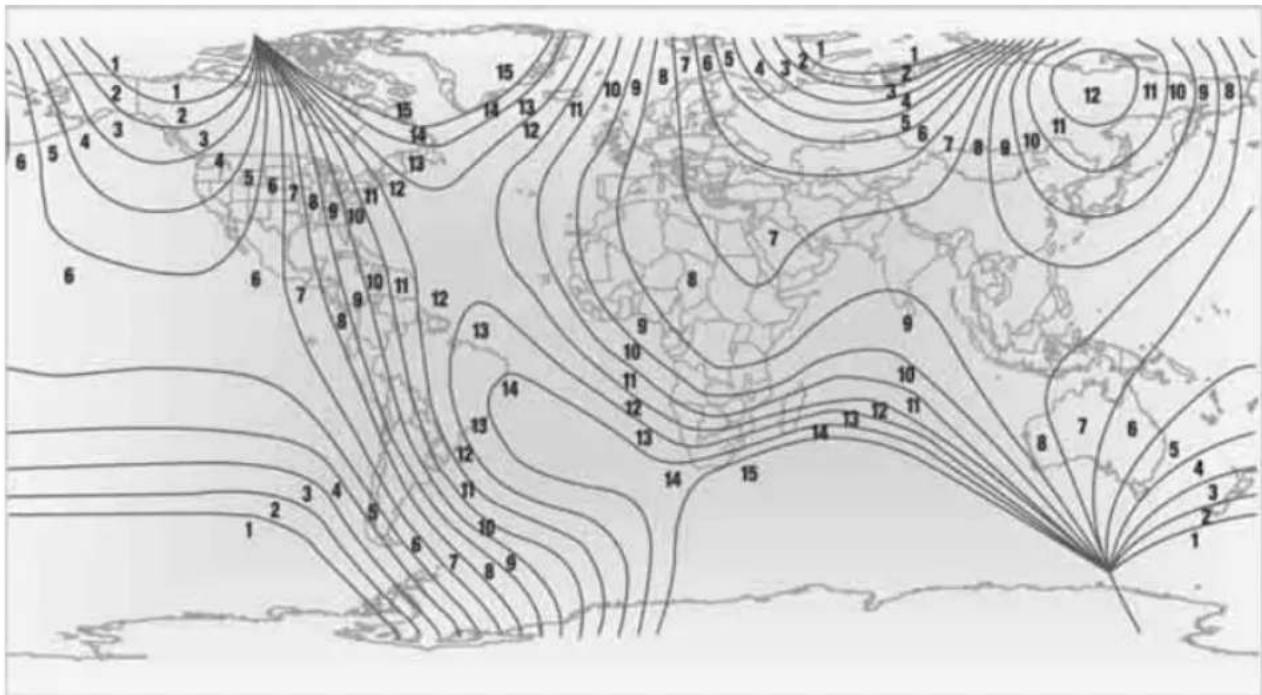
contour
| Region | Value | |--------|-------| | North America | 1 | | Europe | 2 | | Asia | 3 | | South America | 4 | | Africa | 5 | | Australia | 6 | | Antarctica | 7 | | Central America | 8 | | Southern Europe | 9 | | Middle East | 10 | | Southeast Asia | 11 | | Eastern Europe | 12 | | Western Europe | 13 | | Northern Europe | 14 | | Southern Ocean | 15 | | Indian Ocean | 16 | | Arctic Ocean | 17 | | Antarctic | 18 | | Pacific Ocean | 19 | | Southern Ocean | 20 | | Indian Ocean | 21 | | Arctic Ocean | 22 | | Antarctic | 23 | | Pacific Ocean | 24 | | Southern Ocean | 25 | | Indian Ocean | 26 | | Arctic Ocean | 27 | | Antarctic | 28 | | Pacific Ocean | 29 | | Southern Ocean | 30 | | Indian Ocean | 31 | | Arctic Ocean | 32 | | Antarctic | 33 | | Pacific Ocean | 34 | | Southern Ocean | 35 | | Indian Ocean | 36 | | Arctic Ocean | 37 | | Antarctic | 38 | | Pacific Ocean | 39 | | Southern Ocean | 40 | | Indian Ocean | 41 | | Arctic Ocean | 42 | | Antarctic | 43 | | Pacific Ocean | 44 | | Southern Ocean | 45 | | Indian Ocean | 46 | | Arctic Ocean | 47 | | Antarctic | 48 | | Pacific Ocean | 49 | | Southern Ocean | 50 | | Indian Ocean | 51 | | Arctic Ocean | 52 | | Antarctic | 53 | | Pacific Ocean | 54 | | Southern Ocean | 55 | | Indian Ocean | 56 | | Arctic Ocean | 57 | | Antarctic | 58 | | Pacific Ocean | 59 | | Southern Ocean | 60 | | Indian Ocean | 61 | | Arctic Ocean | 62 | | Antarctic | 63 | | Pacific Ocean | 64 | | Southern Ocean | 65 | | Indian Ocean | 66 | | Arctic Ocean | 67 | | Antarctic | 68 | | Pacific Ocean | 69 | | Southern Ocean | 70 | | Indian Ocean | 71 | | Arctic Ocean | 72 | | Antarctic | 73 | | Pacific Ocean | 74 | | Southern Ocean | 75 | | Indian Ocean | 76 | | Arctic Ocean | 77 | | Antarctic | 78 | | Pacific Ocean | 79 | | Southern Ocean | 80 | | Indian Ocean | 81 | | Arctic Ocean | 82 | | Antarctic | 83 | | Pacific Ocean | 84 | | Southern Ocean | 85 | | Indian Ocean | 86 | | Arctic Ocean | 87 | | Antarctic | 88 | | Pacific Ocean | 89 | | Southern Ocean | 90 | | Indian Ocean | 91 | | Arctic Ocean | 92 | | Antarctic | 93 | | Pacific Ocean | 94 | | Southern Ocean | 95 | | Indian Ocean | 96 | | Arctic Ocean | 97 | | Antarctic | 98 | | Pacific Ocean | 99 | |Southern Ocean | 100 | | Indian Ocean | 101 | | Arctic Ocean | 102 | | Antarctic | 103 | | Pacific Ocean | 104 | |Southern Ocean | 105 | | Indian Ocean | 106 | | Arctic Ocean | 107 | | Antarctic | 108 | | Pacific Ocean | 109 | |Southern Ocean | 110 | | Indian Ocean | 111 | | Arctic Ocean | 112 | | Antarctic | 113 | | Pacific Ocean | 114 | |Southern Ocean | 115 | | Indian Ocean | 116 | | Arctic Ocean | 117 | | Antarctic | 118 | | Pacific Ocean | 119 | |Southern Ocean | 120 | | Indian Ocean | 121 | | Arctic Ocean | 122 | | Antarctic | 123 | | Pacific Ocean | 124 | |Southern Ocean | 125 | | Indian Ocean | 126 | | Arctic Ocean | 127 | | Antarctic | 128 | | Pacific Ocean | 129 | |Southern Ocean | 130 | | Indian Ocean | 131 | | Arctic Ocean | 132 | | Antarctic | 133 | | Pacific Ocean | 134 | |Southern Ocean | 135 | | Indian Ocean | 136 | | Arctic Ocean | 137 | | Antarctic | 138 | | Pacific Ocean | 139 | |Southern Ocean | 140 | | Indian Ocean | 141 | | Arctic Ocean | 142 | | Antarctic | 143 | | Pacific Ocean | 144 | |Southern Ocean | 145 | | Indian Ocean | 146 | | Arctic Ocean | 147 | | Antarctic | 148 | | Pacific Ocean | 149 | |Southern Ocean | 150 | | Indian Ocean | 151 | | Arctic Ocean | 152 | | Antarctic | 153 | | Pacific Ocean | 154 | |Southern Ocean | 155 | | Indian Ocean | 156 | | Arctic Ocean | 157 | | Antarctic | 158 | | Pacific Ocean | 159 | |Southern Ocean | 160 | | Indian Ocean | 161 | | Arctic Ocean | 162 | | Antarctic | 163 | | Pacific Ocean | 164 | |Southern Ocean | 165 | | Indian Ocean | 166 | | Arctic Ocean | 167 | | Antarctic | 168 | | Pacific Ocean | 169 | |Southern Ocean | 170 | | Indian Ocean | 171 | | Arctic Ocean | 172 | | Antarctic | 173 | | Pacific Ocean | 174 | |Southern Ocean | 175 | | Indian Ocean | 176 | | Arctic Ocean | 177 | | Antarctic | 178 | | Pacific Ocean | 179 | |Southern Ocean | 180 | | | Indian Ocean | 181 | | | Arctic Ocean |To set the compass zone, press the adjustment button for approx. 3-4 seconds. The number of the compass zone set is shown in the display.
To change the zone setting, briefly press the adjustment button repeatedly until the display shows the number of the compass zone corresponding to your current location. The compass is operational again after approx. 10 seconds.
Calibrating the digital compass
The digital compass must be calibrated in the following situations:
An incorrect compass direction is shown.
The compass direction shown does not change although the direction of travel does.
Not all compass directions are shown.
Procedure
- Make sure that no large metal objects or overhead power lines are in the vicinity of your vehicle and that you have enough space to drive in a circle.
- Set the currently valid compass zone.
- Press the adjustment button for approx. 6-7 seconds to call up C. Then drive in at least one full circle at a speed of no more than 4 mph or 7 km/h. If calibration is successful, the display changes from C to a compass direction.
Setting right-hand/left-hand steering
Your digital compass is factory-set to right-hand or left-hand steering, in accordance with your vehicle.
Set the language
You can set the language of the display:
Press the adjustment button for approx. 12-13 seconds. Briefly press the adjustment button again to switch between English, "E", and German, "O".
The setting is automatically saved after approx. 10 seconds.
Roller sun blinds\*
Rear window blind

text_image
Diagram of car air conditioner panel with Chinese UI element pointing to the control panelTap the button in the center console to raise or lower the roller sun blind.
Roller sun blinds for rear side windows
Pull loop of roller sun blind and hook onto bracket.
Do not open the window when the roller sun blind has been pulled up; otherwise, there is a risk of damage at high speeds that may result in personal injury.
Glove compartment
Opening

natural_image
Interior view of a car showing the dashboard and air conditioner unit with a downward arrow indicating airflow or movement (no text or symbols present)Pull the handle.
The light in the glove compartment comes on.
To prevent injury in the event of an accident while the vehicle is being driven, close the glove compartment immediately after use.
Closing
Fold the cover up.
Locking
To lock the glove compartment, use the integrated key of the remote control, refer to page 26.
USB interface for data transmission
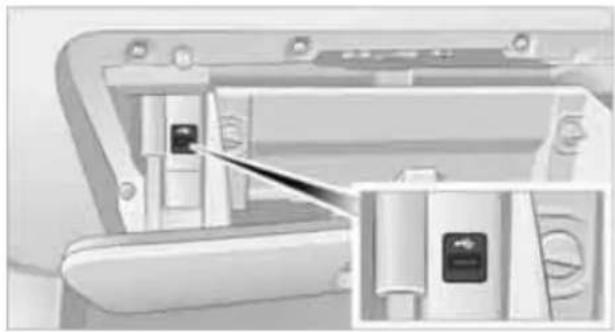
natural_image
Close-up of a mechanical component with a highlighted section showing a small black square and a magnified inset (no text or symbols visible)Port for importing and exporting data on USB devices, e.g. music collections, refer to page 166.
Observe the following when connecting:
Do not use force when plugging the connector into the USB audio interface.
Do not connect devices such as fans or lamps to the USB audio interface.
Do not connect USB hard drives.
Do not use the USB interface to recharge external devices.
Center armrest
Storage compartment
The center armrest between the front seats contains either a compartment or the cover for the snap-in adapter*, depending on the equipment version.
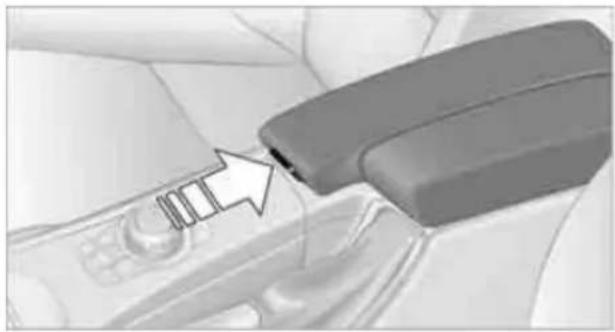
natural_image
Close-up of a car headrest lever with a white arrow pointing to the lever (no text or symbols visible)Opening
Press the button, see arrow.
Settings\*
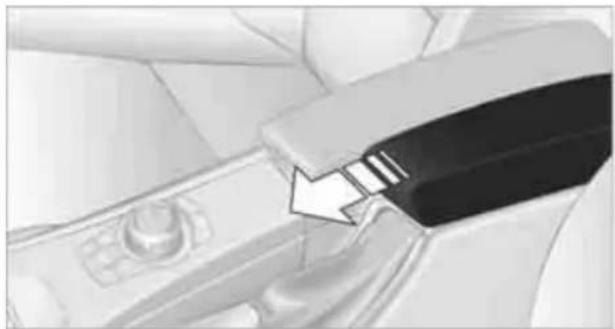
natural_image
Close-up of a car seatbelt mechanism with a white arrow pointing to the grip (no text or symbols visible)Slide the center armrest on the driver's side into the desired position.
Connection for external audio device
You can connect an external audio device such as a CD or MP3 player and play audio tracks over the car's loudspeaker system:
AUX-IN port, refer to page 167
USB audio interface*/additional connection of the music player in the mobile phone*, refer to page 167
Storage compartments inside the vehicle
Depending on your vehicle's equipment, you will find compartments beside the steering column*, in the front doors and in the center console*.
There are nets* on the front-seat backrests.
Clothes hooks
There are clothes hooks on the grab handles in the rear passenger compartment.

Items of clothing hung from the hooks must not obstruct the driver's view. Do not hang heavy objects from the hooks; otherwise, they could endanger the car's occupants, e.g. in case of heavy braking or sudden swerving.
Cupholders

Use lightweight and shatterproof containers and do not transport hot beverages; otherwise, there is an increased risk of injury in the event of the accident. Do not force containers that are too large into the cupholders; otherwise, damage could result.
Front

natural_image
Interior view of a car showing two directional arrows pointing to the back panel (no text or symbols visible)Opening
Briefly press the center of the cover.
Closing
Briefly press the cover in the center and push in the cupholder.
Rear
There are two additional cupholders in the rear center armrest.

natural_image
Interior view of a car seatbelt with a closed rear seat and open lid (no visible text or symbols)Press the front of the armrest.
Ashtray\*
Opening
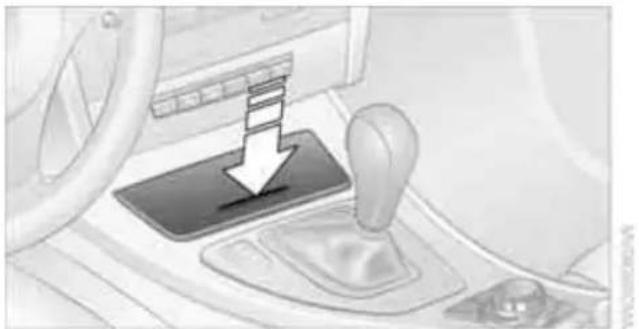
natural_image
Interior view of a car showing a hand shift lever with a downward arrow (no text or symbols visible)Push the ridge on the cover.
Emptying

natural_image
Interior view of a car gear shift lever with a directional arrow indicating motion (no text or symbols)Lift out the insert.
Lighter
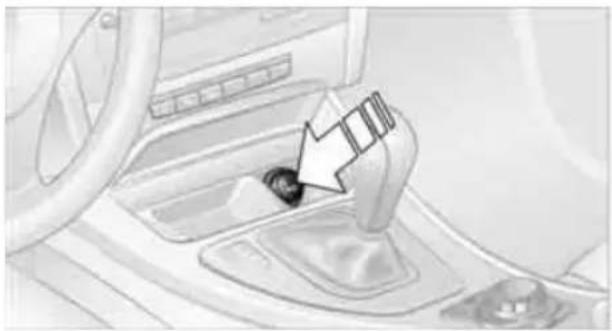
natural_image
Interior view of a car showing a car's gear shift lever and wheel (no text or symbols visible)With the engine running or the ignition switched on, press in the cigarette lighter.
The lighter can be pulled out as soon as it pops back out.

Hold or touch the hot cigarette lighter by the knob only. Holding or touching it in areas could result in burns.
When leaving the car, always remove the remote control so that children cannot operate the cigarette lighter and burn themselves.
Connecting electrical appliances
In your BMW, when the engine is running or the ignition is switched on, you can use electrical devices such as a hand lamp, car vacuum cleaner, etc., up to approx. 200 watts at 12 volts, as long as one of the following sockets is available. Avoid damaging the sockets by attempting to insert plugs of unsuitable shape or size.
Cigarette lighter socket\*
To access the socket: take the cigarette lighter out of the socket.
Socket\* in the front passenger footwell
A socket is located under the glove compartment on the left.
Socket in the center armrest
External audio device, refer to page 106.
Sockets in the rear center console\*
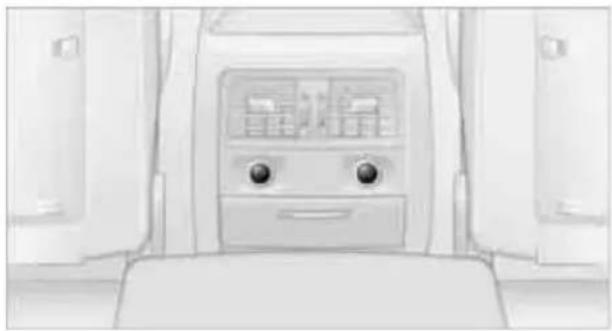
natural_image
Front view of a car air conditioner unit with two circular buttons and a smiling face (no text or symbols visible)Remove corresponding cover.
Socket in the cargo area\*
Sedan

natural_image
Close-up of a car rear door with a small inset showing a close-up of the door (no text or symbols visible)Sports Wagon

natural_image
Interior view of a vehicle showing a camera and a touchscreen button (no text or symbols visible)Open the cap.
Sedan: Through-loading system\*
Opening
- Open the belt lock of the rear center safety belt. To do so, press the red button in the belt lock 2 using the latch plate 1.

natural_image
Technical illustration of a mechanical assembly with labeled parts (1, 2), showing no readable text or symbols.- Insert the latch plate at the end of the belt into the specially designated fixture on the rear window shelf.

natural_image
Close-up of a black ribbon buckle with a white arrow pointing to it, against a plain background (no text or symbols)-
Push the corresponding head restraint down as far as it will go, refer to page 44.
-
To release the rear seat backrest, pull the corresponding lever in the cargo area.

natural_image
Interior view of a car showing two side-mounted sensors with directional arrows indicating movement (no text or symbols)- The unlocked rear seat backrest moves forward slightly. Fold the backrest forward by the head restraint.
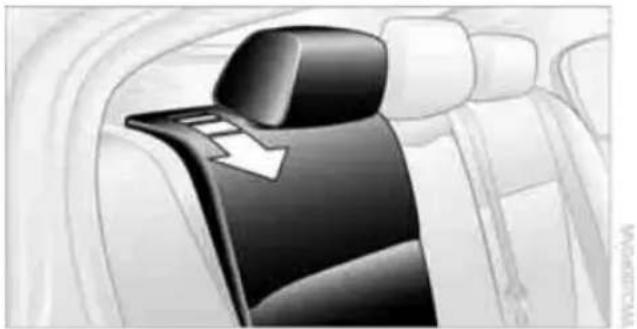
natural_image
Interior view of a car showing the backrest seat and side seats (no text or symbols visible)Closing
- Return the rear seat backrest to its upright position and engage it.
When returning the backrest to its seating position, make sure that the seat's locking mechanism engages properly. Otherwise, cargo could be thrown around in the event of sharp braking or swerving and endanger the occupants.
- Release the latch plate from the fixture on the rear window shelf and insert it into the belt lock of the center safety belt. Make sure you hear the latch plate engage in the belt buckle.

natural_image
Interior view of a car seatbelt with a close-up inset showing the seatbelt insertion (no text or symbols visible)The lashing eyes in the cargo area provide you with a way to attach cargo area nets* or draw straps for securing suitcases and luggage, refer to page 120.
Sports Wagon: Cargo area
Roller cover

natural_image
Diagram of a mechanical component with a downward arrow indicating force or direction (no text or symbols present)Pull out the cover and hook it into the retaining fixtures.

Do not place objects on the cover; otherwise, they could endanger the car's occupants, e.g. in the case of braking or sudden swerving.
Do not let the cover retract; otherwise, it could be damaged.
Raising the roller cover

natural_image
Top-down view of a car showing the roof and side panel with a downward arrow indicating a component (no text or symbols present)Press the button: the roller cover is raised.
Before closing the rear window or tailgate, press the roller cover downward until it engages.
Expanding the cargo area
The rear seat backrest is divided. You can fold down either division in order to expand the cargo area.
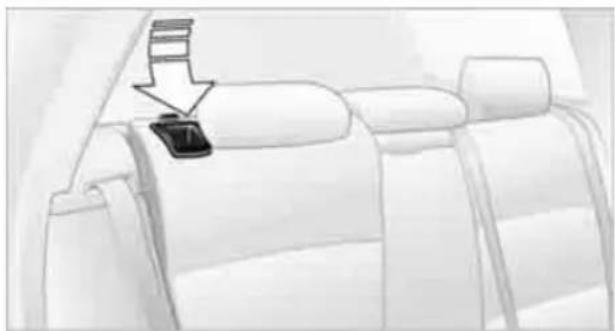
natural_image
Interior view of a car seatbelt with a black button labeled '7' and an arrow pointing to it (no text or symbols beyond the label)Reach into the recess and pull forwards.

When folding the backrest back up, make sure that the catch engages properly. If you cannot see a red warning area in the recess, the catch is properly engaged. Otherwise, cargo can be thrown around inside the passenger compartment and endanger the car's occupants, e.g. in the case of braking or sudden swerving.

Observe the instructions concerning the safety belt on page 41 to ensure the best possible personal protection.
Partition net
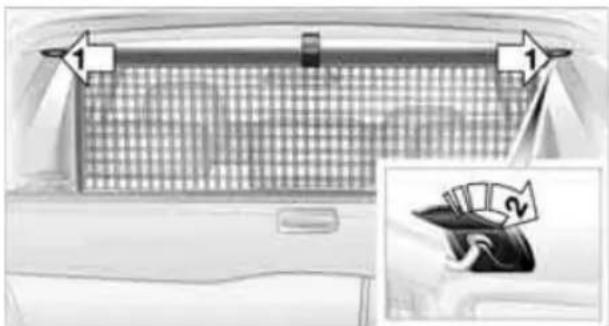
natural_image
Interior view of a car with a checkered grille and a rose, showing a close-up of a money bag (no text or symbols visible)
Do not let the partition net retract; otherwise, there is a risk of danger and the partition net could be damaged.
Use the loop strap to pull the partition net out of the casing. Grip the bar on both ends and insert it into the retaining fixtures, arrow 1. This can best be done from the rear seat.
When you no longer require the partition net, grip both ends of the bar and take it out of the retaining fixtures, arrow 2. Let the partition net slide into the casing slowly.
With cargo area expanded
- Fold down both rear seat backrests, refer to Expanding the cargo area.
- Use the buttons to unlatch the casing on both sides, arrow 1.
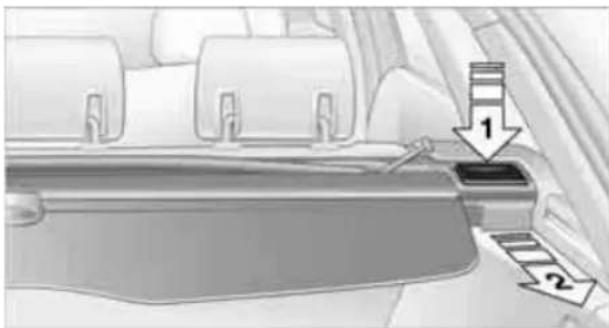
text_image
Diagram of a car interior showing seat, trunk, and directional arrows with labels 1 and 2- Pull the casing out backwards, arrow 2, without tilting it.

natural_image
Interior view of a vehicle showing a lever mechanism and a close-up of the device (no text or symbols visible)- Slide the casing into the guides on the backs of the seat backrests.
- Carefully pull out the partition net and insert it into the front retaining fixtures, refer to Partition net above. This can best be done from the front seat.
Follow the same steps in reverse order to return the partition net and seats to their original positions. Finally, slide the casing into both retaining fixtures on the sides until it engages. Tug on the casing to check if it is properly locked in place.
Storage compartments inside the cargo area
Sedan
Depending on your vehicle's equipment, the following storage spaces can be found in the cargo area:
Left storage compartment, e.g. for storing a box of cleaning tissues or up to 12 CD jackets, depending on vehicle equipment version
Net* for securing smaller objects, to be attached to the fixtures on the floor panel
Hooks for hanging up, e.g., shopping bags or tote bags
Rubber strap on the left trim panel for securing small objects such as a folding umbrella
Net for small objects on the right trim panel of the cargo area
Folding, removable box* under the floor panel, e.g. for wet or dirty items
Stowage compartment under the floor panel
Insertable dividers* and removable storage tray for the storage compartment under the floor panel
Sports Wagon
The following storage spaces can be found in the cargo area:
▶ Umbrella holder* on the bottom of the partition net casing
natural_image
Top-down view of a car trunk with visible rear seats and roof (no text or symbols)Rubber strap on the left* and right trim panel for securing small objects such as a folding umbrella
Hooks for hanging up shopping bags or tote bags, for example, on the left and right sides of the cargo area
Net for small objects on the right trim panel of the cargo area
Stowage compartment under the floor panel
Depending on your vehicle's equipment, other storage spaces can be found in the cargo area:
Net* for securing smaller objects, to be attached to the fixtures on the floor panel
Net* on the left side trim of the cargo area instead of the rubber strap
▶ Reversible floor panel with integrated plastic cover* for cargo area or bumper
Folding, removable box* under the floor panel, e.g. for wet or dirty items
Insertable dividers* and removable storage tray for the storage compartment under the floor panel
Folding up the floor panel
Do not exceed the maximum permissible load of 55 lbs/25 kg for the storage compartment under the floor panel; otherwise, damage could result.
Sedan
Press the floor panel against the ceiling of the cargo area; a locking device holds the floor panel in place. To detach the floor panel, pull it out of the locking device.
Sports Wagon
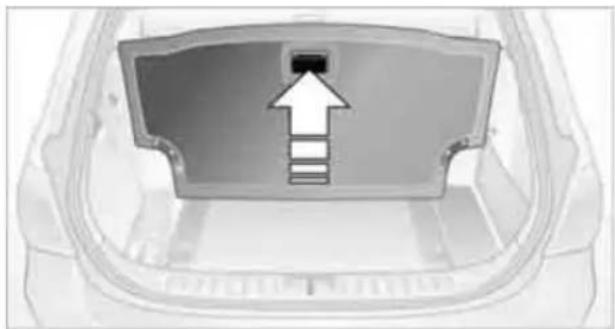
natural_image
Top-down view of a car trunk with an arrow pointing to the front panel (no text or symbols)Fold up the floor panel and take it out or lean it forward.
Lashing eyes
You will find lashing eyelets in the cargo area for securing luggage items with nets or tensioning straps, refer to page 120.
Ski bag\*
The ski bag is designed for safe, clean transport of up to 4 pairs of standard skis or up to 2 snowboards.
With the ski bag you can stow skis with a length of up to 6 ft 10 in/2.10 m. When skis of 6 ft 10 in/2.10 m length are loaded, the overall capacity of the ski bag is reduced due to its tapered design.
Loading
- Fold down the center armrest.
- Press the button, reach into the recess and fold down the cover.
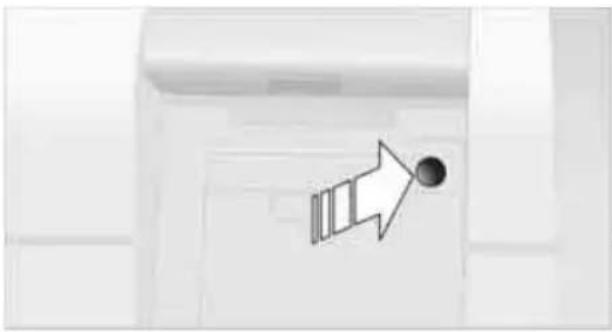
natural_image
Pure electrical circuit lines without any symbols-
Open the Velcro fastener, spread the ski bag between the front seats and insert the skis or snowboards.
The zip fastener makes objects in the ski bag easier to reach. -
Insert the latch plate of the ski bag's retaining strap in the center belt buckle.

natural_image
Black-and-white illustration of a hand holding a device, with no visible text or symbolsOnly place clean skis in the ski bag. Wrap sharp edges to prevent damage.
Securing cargo
natural_image
Close-up of a wrist strap with a black strap, shown in grayscale (no text or symbols visible)After loading, secure the ski bag and its contents. Tighten the retaining strap on the tensioning buckle for this purpose.
Secure the ski bag in the manner described; otherwise, it could endanger the car's occupants, e.g. in case of heavy braking or sudden swerving.
To store the ski bag, perform the steps described for loading in reverse order.
Removing the ski bag
The ski bag can be completely removed, e.g. for faster drying or to allow you to use other inserts.
- Fold down the center panel in the rear seat backrest.
- Pull the handle, arrow 1.
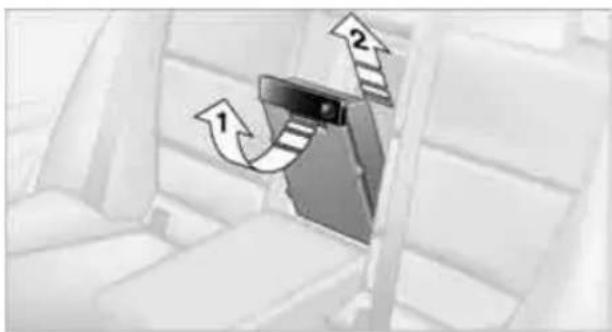
natural_image
Interior view of a car seatbelt with directional arrows indicating movement (no text or symbols)- Pull out the insert, arrow 2.
For more information on the various inserts available, contact your BMW center.

text_image
Online Edition for Part no. 01 41 2 603 048 - © 08/09 BMW AGDriving tips
This section provides you with information useful in dealing with specific driving and operating conditions.
Things to remember when driving
Break-in period
Moving parts need breaking-in time to adjust to each other. Please follow the instructions below in order to achieve the optimal service life and economy of operation for your vehicle.
Engine and differential
Always obey all official speed limits.
Up to 1,200 miles/2,000 km
Drive at varying engine and road speeds but do not exceed:
Gasoline engine
4,500 rpm or 100 mph/160 km/h
▶ Diesel engine
3,500 rpm or 93 mph/150 km/h
Avoid full-throttle operation and use of the transmission's kickdown mode.
After driving 1,200 miles/2,000 km
Engine and vehicle speeds can be gradually increased.
Tires
Due to technical factors associated with their manufacture, tires do not achieve their full traction potential until after an initial break-in period. Therefore, drive cautiously during the first 200 miles/300 km.
Brake system
Brakes require an initial break-in period of approx. 300 miles/500 km to achieve optimized contact and wear patterns between brake pads and rotors. Drive cautiously during this break-in period.
Clutch
The function of the clutch reaches its optimal level only after a distance driven of approx. 300 miles/500 km. During this break-in period, engage the clutch gently.
Following part replacement
The same break-in procedures should be observed if any of the components mentioned above have to be renewed in the course of the vehicle's operating life.
Saving fuel
The fuel consumption of your vehicle depends on several factors. You can lower fuel consumption and the environmental impact by taking certain measures, adjusting your driving style and having the vehicle serviced regularly.
Remove any unneeded cargo
Additional weight increases fuel consumption.
Remove any mounted parts after you have finished using them
Remove unneeded additional mirrors, the roof rack and the rear luggage rack after use. Mounted parts affect the vehicle's aerodynamics and increase fuel consumption.
Close the windows and glass roof
An open glass roof or window causes higher air resistance and thus increases fuel consumption.
Check tire inflation pressure regularly
Check the tire inflation pressure at least twice a month and before embarking on a long journey, and correct it if necessary.
Low tire inflation pressure causes higher rolling resistance and thus increases fuel consumption and tire wear.
Set off immediately
Do not let the engine warm up while the car is still standing, but set off immediately at moderate engine speed. This is the fastest way for the cold engine to reach its operating temperature.
Drive defensively
Avoid unnecessary acceleration and braking maneuvers. To do so, keep an adequate distance between you and the vehicle in front of you. A defensive and smooth driving style keeps fuel consumption down.
Avoid high engine speeds
Only use first gear when setting off. In second and higher gears, accelerate without hesitation or pauses. When accelerating, shift up before reaching high engine speeds.
When you reach the desired speed, shift into the highest applicable gear and drive with the engine speed as low as possible and at a constant speed.
As a rule: driving at low engine speeds lowers fuel consumption and reduces wear.
Coasting
When approaching a red light, take your foot off the accelerator and coast to a stop in the highest applicable gear.
On a downhill slope, take your foot off the accelerator and coast in a suitable gear.
The fuel supply is interrupted when coasting.
Switch off the engine during lengthy stops
Switch off the engine when stopping for lengthy periods, e.g. at traffic lights, railroad crossings or in traffic congestions. You achieve fuel savings even if standing time is as short as approx. 4 seconds.
Switch off functions you do not need at the moment
Functions such as the air conditioner, seat heating or rear window defroster draw large amounts of power and consume additional fuel. Especially in city traffic and in stop and go driving they have a considerable impact. Therefore, switch these functions off when they are not really needed.
Have the vehicle serviced
Have the vehicle serviced regularly to achieve good economy and a long vehicle life. BMW recommends having the vehicle serviced at a BMW center. Also note the BMW service system, refer to page 223.
General driving notes
Close the trunk lid/tailgate

Operate the vehicle only when the trunk lid/tailgate and rear window are closed.
Otherwise, exhaust fumes could enter the interior of the vehicle.
If the vehicle must be driven with the trunk lid/tailgate open:
-
Close all windows and the glass roof.
-
Greatly increase the air volume of the automatic climate control system, refer to page 98.
Hot exhaust system

In all vehicles, extremely high temperatures are generated in the exhaust systems. Do not remove the heat shields installed from various sections of the exhaust systems and never apply undercoating to them. In driving, standing at idle and while park- take care to avoid possible contact between the hot exhaust system and any highly suitable materials such as hay, leaves, grass, such contact could lead to a fire, with the lack of serious personal injuries and property damage. Do not touch hot exhaust tail pipes. Otherwise, there is a risk of burns.
Diesel particulate filter\*
The diesel particulate filter collects soot particles and burns them periodically at high temperatures. This cleaning process takes several minutes. During cleaning, you may notice that the engine temporarily runs less smoothly and that a somewhat higher engine speed is necessary to achieve the accustomed performance. Also, noises may be heard and a slight amount of smoke may emerge from the exhaust, even
for a short period after the engine is switched off.
Hydroplaning

When driving on wet or slushy roads, reduce road speed. If you do not, a we of water can form between tires and road surface. This situation, known as hydroplaning, means that the tire can completely lose contact with the road surface, so that neither the car can be steered nor the brake be properly applied.
The risk of hydroplaning increases with declining tread depth on the tires, refer also to Minimum tread depth on page 215.
Driving through water

Drive through water on the road only if it is not deeper than 1 ft/30 cm, and then only lking speed at the most. Otherwise, the le's engine, the electrical systems and the mission may be damaged.
Use the parking brake on inclines

On inclines, do not hold the vehicle for a lengthy period using the clutch; use the long brake instead. Otherwise, greater in wear will result.
For more information about the drive-off assistant, refer to page 84.
Braking safely
Your BMW is equipped with ABS as a standard feature. Applying the brakes fully is the most effective way of braking in situations in which this is necessary. Since the vehicle maintains steering responsiveness, you can still avoid possible obstacles with a minimum of steering effort.
Pulsation of the brake pedal, combined with sounds from the hydraulic circuits, indicate that ABS is in its active mode.
Driving in wet conditions
When roads are wet or there is heavy rain, briefly exert gentle pressure on the brake pedal every few miles. Monitor traffic conditions to ensure that this maneuver does not endanger other road users. The heat generated in this process helps dry the pads and rotors to ensure that full braking efficiency will then be available when you need it.
Hills

To prevent overheating and the resulting reduced efficiency of the brake system, drive long or steep downhill gradients in the gear in which the least braking is required. Even light but consistent brake pressure can lead to high temperatures, brake wear and possibly even brake failure.
You can increase the engine's braking effect by shifting down, all the way to first gear if necessary. This strategy helps you avoid placing excessive loads on the brake system. Downshifting in manual mode of the automatic transmission, refer to page 57.

Never drive with the clutch held down, with the transmission in neutral or with the engine switched off; otherwise, engine braking action will not be present or there will be no power assistance to the brakes or steering. Never allow floor mats, carpets or any other objects to protrude into the area around the pedals; otherwise, pedal function could be impaired.
Corrosion on brake rotors
When the vehicle is driven only occasionally, during extended periods when the vehicle is not used at all, and in operating conditions where brake applications are less frequent, there is an increased tendency for corrosion to form on rotors, while contaminants accumulate on the brake pads. This occurs because the minimum pressure which must be exerted by the pads during brake applications to clean the rotors is not reached.
Should corrosion form on the brake rotors, the brakes will tend to respond with a pulsating effect that even extended application will fail to cure.
When the vehicle is parked
Condensation forms while the automatic climate control is in operation, and then exits under the vehicle. Traces of condensed water under the vehicle are therefore normal.
Cargo loading

To avoid loading the tires beyond their approved carrying capacity, never overload the vehicle. Overloading can lead to overheating and increases the rate at which damage develops inside the tires. This can ultimately result in a sudden blowout.

Make sure that no liquids are spilled or leak from their containers in the cargo area, as this could result in damage to the vehicle.
Determining loading limit
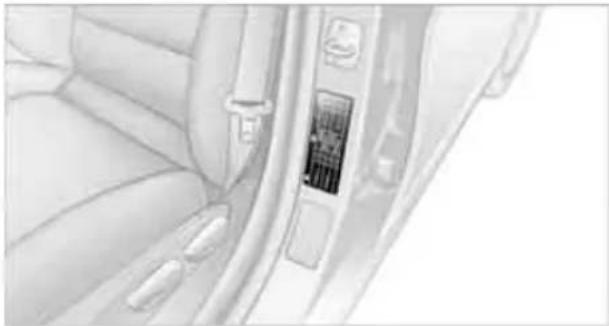
natural_image
Interior view of a car showing the door, seatbelt, and window (no text or symbols visible)- Locate the following statement on your vehicle's placard*:

The combined weight of occupants and cargo should never exceed XXX kg or YYY lbs. Otherwise, overloading can result in damage to the vehicle and unstable driving conditions.
-
Determine the combined weight of the driver and passengers that will be riding in your vehicle.
-
Subtract the combined weight of the driver and passengers from XXX kilograms or YYY pounds.
-
The resulting figure equals the available amount of cargo and luggage load capacity. For example, if the YYY amount equals
1,400 lbs. and there will be five 150-lb. passengers in your vehicle, the amount of available cargo and luggage load capacity is 650 lbs:
1,400 lbs. minus 750 lbs. = 650 lbs.
- Determine the combined weight of luggage and cargo being loaded on the vehicle. That weight may not safely exceed the available cargo and luggage load capacity calculated in step 4.
- If your vehicle will be towing a trailer, part of the load from your trailer will be transferred to your vehicle. Consult the manual for transporting a trailer to determine how this may reduce the available cargo and luggage load capacity of your vehicle.
Load
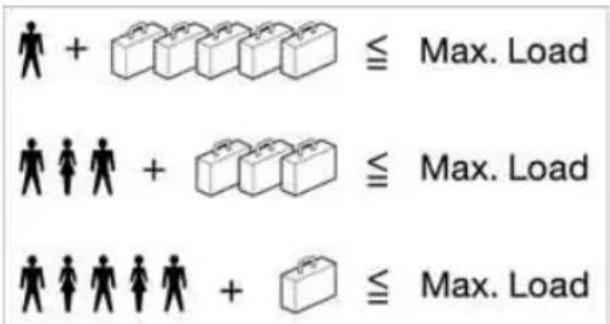
text_image
+ ≦ Max. Load + ≦ Max. Load + ≦ Max. LoadThe permissible load is the total of the weight of occupants and cargo/luggage. The greater the weight of the occupants, the less cargo/luggage can be transported.
Stowing cargo
Position heavy objects as low and as far forward as possible, ideally directly behind the respective seat backrests.
▶ Cover sharp edges and corners.
For very heavy cargo when the rear seat is not occupied, secure each safety belt in the opposite buckle.
Sedan
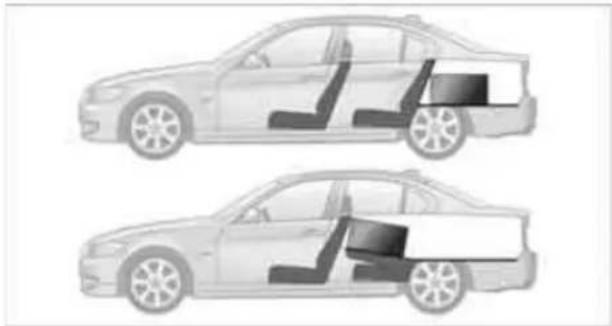
natural_image
Two side-by-side illustrations of a sedan showing internal components (no text or symbols)Sports Wagon

natural_image
Two grayscale illustrations of a car showing side and top views of the front and rear sections of the vehicle (no text or symbols)Use the partition net to protect passengers, refer to page 111. Make sure that objects cannot penetrate the partition net.
Do not stack cargo higher than the upper edge of the backrests.
Place protective material around any objects which could bump against the rear window while the vehicle is in motion.
Securing cargo
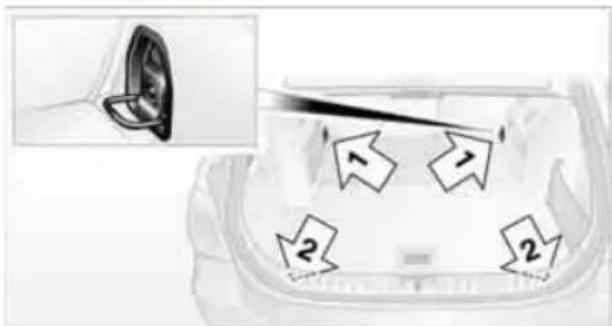
text_image
Medical or laboratory procedure image showing a device with labeled directional arrows and numbered parts, including an inset of a magnified view.Secure smaller and lighter items using retaining straps, a cargo area net* or draw straps*.
Heavy-duty cargo straps* for securing larger and heavier objects are available at your BMW center. Four* lashing eyes are
provided for attaching the cargo straps.
Two are located on the cargo area sidewalls 1, two more are on the rear cargo area panel 2.
Please comply with the information supplied with the cargo straps.

Always position and secure the cargo as described above, so that it cannot endanger the car's occupants, for example if sudden braking or swerving is necessary.
Never exceed either the approved gross vehicle weight or either of the approved axle loads, refer to page 247, as excessive loads can pose a safety hazard, and may also place you in violation of traffic safety laws.
Heavy or hard objects should not be carried loose inside the car, since they could be thrown around, for example as a result of heavy braking, sudden swerves, etc., and endanger the occupants.
Only attach the cargo straps using the lashing eyes shown in the illustration. Do not secure cargo with the anchors for tether straps, refer to page 51; otherwise, these could be damaged.
Roof-mounted luggage rack\*
A special rack system is available as an option for your BMW. Comply with the directions given in the installation instructions.
Mounting points

natural_image
Side view of a car with directional arrows indicating flow or movement (no text or symbols)The mounting points are located in the roof/ along the roof rails*.
Loading roof-mounted luggage rack
Because roof racks raise the vehicle's center of gravity when loaded, they have a major effect on vehicle handling and steering response.
You should therefore always remember not to exceed the approved roof load capacity, the approved gross vehicle weight or the axle loads when loading the rack.
You can find the applicable data under Weights on page 247.
The roof load must be distributed uniformly and should not be too large in area. Heavy items should always be placed at the bottom. Be sure that adequate clearance is maintained for raising the glass roof, and that objects do not project into the opening path of the trunk lid/tailgate.
Fasten roof-mounted cargo correctly and securely to prevent it from shifting or falling off during the trip.
Drive smoothly. Avoid sudden acceleration and braking maneuvers. Take corners gently.
text_image
Online Edition for Part no. 01 41 2 603 048 - © 08/09 BMW AG
text_image
Navigation This chapter describes how you can enter destinations and specify your route so that your navigation system guides you reliably to your destination. Online Edition for Part no. 01 41 2 603 048 - © 08/09 BMW AGNavigation
This chapter describes how you can enter destinations and specify your route so that your navigation system guides you reliably to your destination.
Navigation system\*
General information
With the help of satellites, the navigation system is able to ascertain the precise position of the vehicle and guide you reliably to any destination you enter.

Enter data only when the vehicle is stationary, and always give priority to the applicable traffic regulations in the event of any contradiction between traffic and road conditions and the instructions issued by the navigation system. Failure to take to this precaution can place you in violation of the law and put vehicle occupants and other road users in danger.
Navigation data
General information
Navigation data are stored in the vehicle and can be updated.
Navigation data and authorization codes are available from your BMW center.
Depending on the data volume, a data update may take several hours.
The data are updated while you are driving.
The update is resumed automatically when a trip is continued after an interruption.
All functions are available during the trip.
The data are stored in the vehicle.
▶ After the update, the system restarts.
The medium that holds the navigation data can be removed after the update is completed.
Updating the navigation data
Inserting navigation DVD
- Insert the navigation DVD into the DVD player with the labeled side facing up.
-
Follow the instructions on the Control Display.
-
Enter the authorization code of the navigation DVD and change the DVD if needed.
Removing navigation DVD
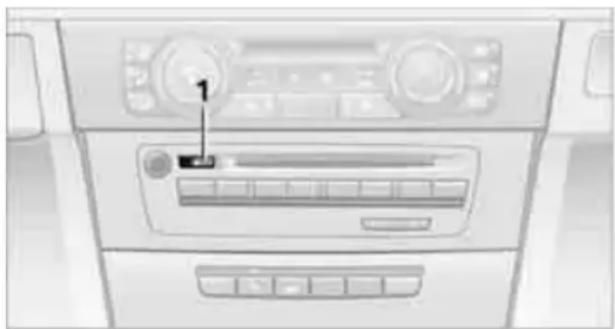
natural_image
Interior view of a car dashboard with air vent and control panel (no visible text or symbols)-
Press button 1.
The DVD emerges slightly from the drive. -
Remove the DVD.
Displaying information on the version
- "Navigation"
- Open "Options".
- "Navigation system version": Information on the data version is displayed.
Destination entry
In entering your destination you can select from the following options:
Entering a destination manually, see below
Selecting destination from address book, refer to page 127
Last destinations, refer to page 128
▶ Special destinations, refer to page 128
Entering a destination on the map, refer to page 130
▶ Selecting home address, refer to page 128
Entering a destination by voice commands*, refer to page 131
Destination entry via BMW Assist*, refer to page 129
You can also store a navigation destination on the programmable memory keys, refer to page 20.

Enter data only when the vehicle is stationary, and always give priority to the applicable traffic regulations in the event of any contradiction between traffic and road conditions and the instructions issued by the navigation system. Otherwise, vehicle occupants and other road users may be endangered.
Entering a destination manually
The system's word-matching principle makes it easier for you to enter the names of streets or towns, refer to page 133. This allows you to enter different spellings and completes your entry automatically, so that stored names can be called up quickly.
- Press the MENU button.
-
"Navigation"
-
"Enter address"
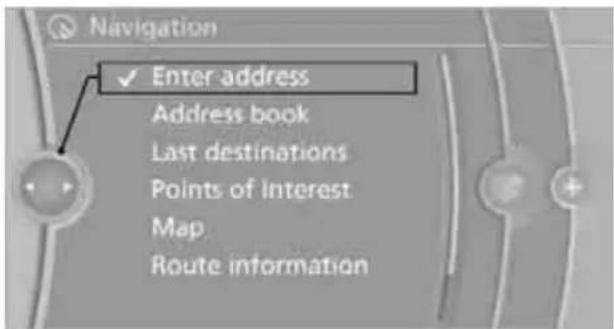
text_image
Navigation ✓ Enter address Address book Last destinations Points of Interest Map Route informationThe system also supports you with the following features:
If you do not enter a street, the system will guide you to the downtown area of a town or city.
You can skip the entry of state/province and town/city if the current entries should be retained for your new destination.
Entering a state/province
- "Navigation"
- "Enter address"
- Select "State/Province" or the displayed state/province.
Entering a town/city
- Select "Town/City/Postal Code" or the displayed town/city.
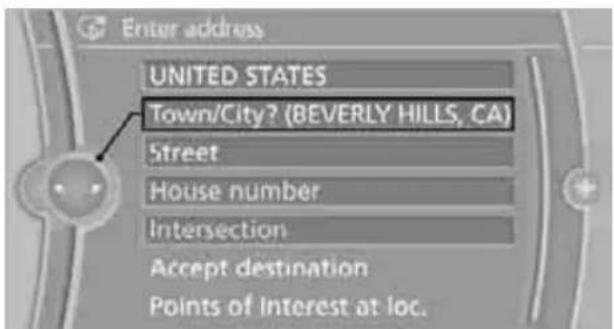
text_image
Enter address UNITED STATES Town/City? (BEVERLY HILLS, CA) Street House number Intersection Accept destination Points of interest at loc.- Select letters, if necessary.
To delete letters:
To delete individual letters: Turn the controller to select |, and then press the controller.
To delete all letters: Turn the controller to select I, and then press the controller for an extended period.
To enter spaces:
Select the symbol.
The list gradually grows smaller each time you enter a new letter.
- Move the controller to the right.
- Select the name of the town/city from the list.
If there are several towns/cities with the same name:
- Change to the list of town/city names.
- Highlight the town/city: a preview map is displayed.
- Select the town/city.
Entering the postal code
- Select "Town/City/Postal Code" or the displayed town/city.
- Select the symbol.
- Select the digits.
- Change to the list of postal codes and towns/cities.
- Highlight the postal code: a preview map is displayed.
- Select the postal code.
Entering street and intersection
- Select "Street" or the displayed street.
- Enter a street and intersection as you would the town/city.
After the street you can also enter the intersection or the house number.
If there are several streets with the same name:
- Change to the list of street names.
- Highlight the street: a preview map is displayed.
- Select the street.
Entering a street without a destination town/city
You can also enter a street without specifying a town/city. In this case, all streets of the same name in the designated state/province are offered. The corresponding town/city is displayed after the street name.
If a town/city has already been entered, you can negate this entry. This could be helpful in instances where the desired street does not exist in the entered town/city because it belongs to another suburb, for example.
- "Navigation"
- "Enter address"
- Select "Street" or the displayed street.
- Change to the list of street names.
- Select "In" with the state/province currently displayed.

text_image
in BEVERLY HILLS, CA In UNITED STATES MUSÄUSSTRASSE MUSENBERGSTRASSE MUSEUMSINSEL MUSPELHEIMSTRASSE MUSPILLISTRASSE- Select the letters.
- Change to the list of street names.
- Highlight the street: a preview map is displayed.
- Select the street.
Entering a house number
You can enter any house number stored in the navigation data for the street.
- "House number"
-
Select the digits.
-
Change to the list of house numbers.
- Select a house number or range of house numbers.
Starting destination guidance after entering the destination
- "Accept destination"
- "Start guidance" or "Add as another dest.".
Set your "Route preference", refer to page 134.
▶ Search for "Points of Interest at loc.", refer to page 128.
Address book
To create contacts, refer to page 186.
Selecting a destination from the address book
- "Navigation"
- "Address book"
Contacts with addresses are displayed if these have been checked as destinations.
If the contacts with addresses from the mobile phone are not displayed, they first need to be checked as destinations, refer to page 187.

text_image
Navigation Enter address ✓ Address book Last destinations Points of interest Map Route information- Select a contact from the list or, if necessary, using "A-Z search".
- If necessary, select "Business address" or "Home address".
Storing a destination in the address book
Store the destination in the address book after entering the destination.
- Open "Options".
- "Store as new contact" or "Add to existing contact".
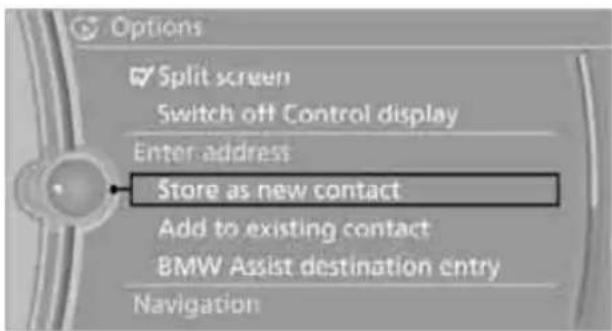
text_image
Options Split screen Switch off Control display Enter address Store as new contact Add to existing contact BMW Assist destination entry Navigation- Select an existing contact, if available.
- Select "Business address" or "Home address".
- Enter "Last name" and, if necessary, "First name".
- "Store in vehicle"
Storing the position
Your current position can be stored in the address book.
- "Navigation"
- Open "Options".
- "Store position as contact" or "Add position to contact".

text_image
Options Split screen Switch off Control display Navigation Store position as contact Add position to contact Receive Traffic Info Dynamic guidance- Depending on the selection, select an existing contact from the list or the type of address and enter the last and first name.
- "Store in vehicle"
Editing or deleting an address
- "Navigation"
- "Address book"
- Highlight the entry.
- Open "Options".
- "Edit in Contacts" or "Delete entry".
Using the home address as a destination
The home address must be stored as a destination. Refer to Specifying a contact as the home address, page 186.
- "Navigation"
- "Address book"
- "Home"

text_image
Address book Check My contacts address Home Andreas Angela Hans-Juergen Marcus- "Start guidance"
Last destinations
The last destinations are stored automatically. These destinations can be called up and used as a destination for destination guidance.
Opening the last destinations
- "Navigation"
- "Last destinations"

text_image
Navigation Enter address Address book ✓ Last destinations Points of interest Map Route information- Select the destination.
- "Start guidance"
Editing a destination
Destinations can be edited, for example, to change the house number of an existing entry.
- "Navigation"
- "Last destinations"
- Highlight the destination.
- Open "Options".
- "Edit destination"
Deleting the last destinations
- "Navigation"
- "Last destinations"
- Highlight the destination.
- Open "Options".
- "Delete entry" or "Delete all last destinations".
Special destinations
You can search for a special destination, e.g. a hotel or place of interest, and start destination guidance to the corresponding location.
The search can be narrowed by entering the location and type of special destination.

The scope of information provided depends on the particular set of naviga-
tion data you are using.
Opening the search for special destinations
- "Navigation"
- "Points of Interest"
Special destination location
Search for a special destination according to its location relative to a locality or route.
- "Search area"
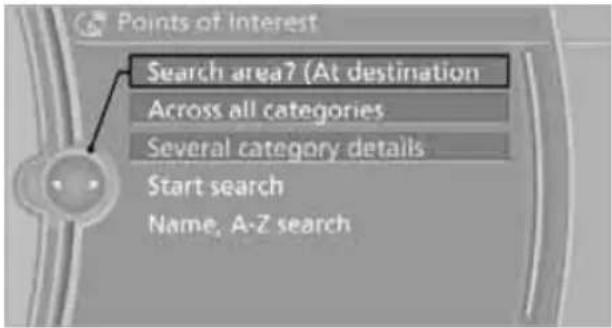
text_image
Points of Interest Search area? (At destination Across all categories Several category details Start search Name, A-Z search- Select the location where the system is to search for the special destination:
▶ "At current location"
▶ "At destination"
"At a different destination"
▶ "Along route"
Special destination category
- "Category"
- Select "All" or a specific category, e.g. hotels or restaurants.
Category details
For some special destinations, additional details can be displayed that are available in the navigation data, e.g. Italian-style restaurant.
"Category details"
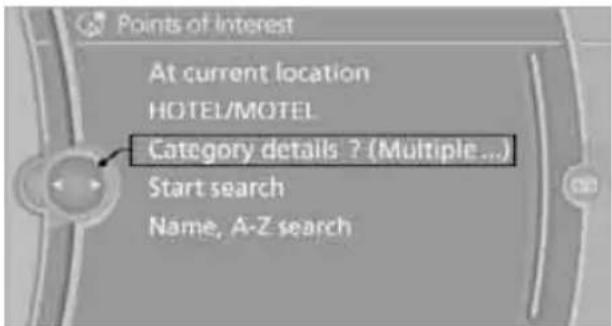
text_image
Points of Interest At current location HOTEL/MOTEL Category details ? (Multiple ...) Start search Name, A-Z searchStarting the search for special destinations
- "Start search"
- A list of the special destinations is displayed.
▶ "At current location"
Special destinations are listed according to their distance from the current location and are displayed with a directional arrow pointing to the destination.
"At destination", "At a different destination", "Along route"
Special destinations are listed according to their distance from the location where the search is being performed.
Destinations of the selected category are displayed in the map view as symbols. The display depends on the map scale and the category.
- Highlight a special destination: the destination is displayed in the preview map.
- Select the special destination.
- Select the symbol.
- "Start guidance" or "Add as another dest.". If a phone number is available, a connection can be established, if desired.
Destination entry via BMW Assist\*
A connection is established to the BMW Concierge service, refer to page 189.
- "Navigation"
- "Enter address"
- Open "Options".
- "BMW Assist dest. entry"
Entering special destinations by name
- "Navigation"
- "Points of Interest"
- "Name, A-Z search"
- Enter the letters.
Depending on the distance, the search may take some time. The list can contain a maximum of 100 entries.
- Change to the list of special destinations.
- Highlight a special destination: the destination is displayed in the preview map.
- Select the special destination.
- Select the symbol.
- "Start guidance" or "Add as another dest.".
Displaying special destinations in the map
To display symbols of the special destinations in the map:
- "Navigation"
- "Map"
- Open "Options".
- "Display Points of Interest"
text_image
Options Split screen Switch off Control display Map Settings Display Points of Interest Traffic Info categories Navigation- Select the settings.
Entering the destination via the map
If you only know the location of the town or street, you can enter the destination using the map.
Opening the map
- "Navigation"
- "Map"
A map section is displayed on the Control Display. The map shows the current position of the vehicle.
Selecting the destination
- Select the symbol. The interactive map is started.
text_image
12:54 interactive map 800 ft.- Select the destination with the cross-hairs.
To change the scale: turn the controller.
To shift the map: move the controller in the required direction.
To shift the map diagonally: move the controller in the required direction and turn it.
- Press the controller to display additional menu items.
Select the symbol: "Start guidance" or "Add as another dest.".
"Return": return to the map view.
"Find points of interest": the search for special destinations is started.
Specifying the street
If the system cannot recognize a street, it displays a street name in the vicinity or the coordinates of the destination.
Interactive map
In the interactive map, the scale can be adjusted and the visible map section can be shifted. In addition, pressing the controller makes further functions available:

text_image
Selected position 48°08'10"O 11°34'36"N Exit interactive map View in northern direction Display destination Display current location Find points of interestSelect a symbol and "Start guidance", if necessary.
"Exit interactive map"
▶ Map view
"Display destination"
The map section around the destination is displayed.
"Display current location"
The map section around your current
location is displayed.
"Find points of interest", refer to page 128.
Entering a destination by voice commands\*
General information
You can enter a desired destination via the voice activation system. During the destination input, you can switch between voice entry and entry via iDrive at any time. To do so, reactivate the voice activation system if necessary.

You can have the possible commands read aloud via 'Voice commands'.
Saying the entries
Countries, towns and cities, streets and intersections can be said as whole words or spelled in the system language, refer to page 79.
Example: to enter a destination in a US state as a complete word, the system language must be English.
The town/city, street and house number can be said as a single sentence.*
▶ Spell the entry if the language region and the system language differ.
Say the letters smoothly, and avoid exaggerating the pronunciation and inserting lengthy pauses between the letters.
Entering an address\*
- Press the button on the steering wheel.

-
Enter address<
-
Wait for a request from the system.
- Say the town or city, street and house number in a single sentence.
- Continue making the entry as prompted by the system.
- If necessary, individually name the separate components of the address, e.g. the town/city.
Entering a town/city
The town/city can be spelled or entered as a complete word*.

The methods of entry depend on the navigation data in use and the country and image settings.

-
City< or >Spell city<
-
Wait for the system to prompt you for the town/city.
- Say the name of the town/city, or name at least the first three letters.
Depending on the entry, up to 20 towns/cities may be suggested.

- Select a location:
To select a recommended town/city:
Yes<
To select other town/city: 'New entry'
To select an entry: e.g. >Entry 2
To spell an entry: >Spell city

Identical-sounding towns/cities that cannot be distinguished by the system are
compiled in a separate list and shown as a town/city followed by three dots.
If necessary, select this entry with >Yes#. Then select the desired town/city from that list.
The town/city can also be selected from the list via iDrive: turn the controller until the town/city is selected and press the controller.
Entering a street or intersection
The street or intersection is entered in the same manner as the town/city.
Entering a house number
You can enter house numbers up to 999:

-
House number
- Say the house number.
-
Yes< to confirm the house number.
-
Accept destination
Starting destination guidance

Start guidance<
Destination guidance starts immediately.
Adding further intermediate destinations

Add as another destination
Further intermediate destinations can be added.
Storing destinations
The destination is automatically added to the list of last destinations.
Planning a trip
New trip
Various intermediate destinations can be entered for a trip.
- "Navigation"
- "Map"
- Move the controller to the left, if necessary.
- Select the symbol.
-
"Enter new destination"
-
Select the type of destination entry and enter the intermediate destination.
text_image
New destination Enter address using: Enter address Address book Last destinations Points of Interest Interactive mapEntering further intermediate destinations
A maximum of 30 intermediate destinations can be entered for one trip.
- "Enter new destination"
- Select the type of destination entry and enter the intermediate destination.

text_image
New destination Enter address using: Enter address Address book Last destinations Points of Interest Interactive map-
Select "Add as another dest.".
-
Select the location where the intermediate destination is to be inserted.
Starting the trip
After all intermediate destinations have been entered:
"Start guidance"
Storing a trip
Up to 30 created trips can be stored in the trip list.
- Open "Options".
- "Store trip"
- Enter the letters.
- "OK"
The trip is stored in the trip list under the entered name.
Starting a stored trip
- "Navigation"
- "Stored trips"
- Select the desired trip.
- "Start guidance"
Changing trips
Changing the trip direction
Intermediate destinations can be displayed in reverse order after destination guidance is started.
- "Map"
- "Guidance"
- Open "Options".
- "Reverse order of trip dest."
Rearranging the intermediate destinations
- "Map"
- "Guidance"
- "Display all trip dest."
- Select an intermediate destination.
- "Reposition dest. in the trip"
Deleting an intermediate destination
- "Map"
- "Guidance"
- "Display all trip dest."
- Select an intermediate destination.
- "Delete dest. in the trip"
Deleting a trip
- "Navigation"
- "Stored trips"
- Select the desired trip.
- Open "Options".
- "Delete all trips" or "Delete trip".
Word-matching principle
The system's word-matching principle makes it easier for you to enter the names of towns or streets. The system runs ongoing checks, comparing your destination entries with the data stored in the vehicle as the basis for instant response. The benefits for you include:
Names of towns entered may differ from the official versions if you are using a spelling that is customary in another country.
Example:
Instead of the German spelling "München" you can also enter the English spelling "Munich" or the Italian spelling "Monaco".
When you are entering the names of towns and streets the system will complete them automatically as soon as enough letters are available to ensure unambiguous identification.
The system offers only those letters for selection of name entries that are stored in the vehicle. Thus, entry of erroneous or unregistered names is impossible.
Destination guidance
Starting destination guidance
- "Navigation"
- "Enter address"
- Select the destination.
- "Accept destination"
- "Start guidance"
The route is displayed on the Control Display after it is calculated.
Terminating destination guidance
- "Navigation"
- "Map"
- Select the symbol.
- "Stop guidance"
Continuing destination guidance
If the destination was not reached during the last trip, destination guidance can be resumed. "Resume guidance"
Route criteria
General information
You can influence the calculated route by choosing certain route criteria. You can change the route criteria as often as you like during destination entry or during destination guidance.
The route is planned according to fixed rules. The type of road is taken into account, e.g. whether it is a highway or a winding road. As a result, the routes recommended by the navigation system may not always be the same ones that you would choose based on personal experience.
The settings are stored for the remote control currently in use.
Changing route criteria
- "Navigation"
- "Map"
- "Route preference"
- Selecting a criterion:
"Fast route": time-optimized route, which is a combination of the shortest possible route and the fastest roads
"Efficient route": optimized combination of the fastest and shortest roads
"Short route": short distance, irrespective of how fast or slow progress will be
"Alternative routes": other suggested alternative routes while destination guidance is active

text_image
Route preference ✓ Fast route Efficient route Short route 10:17 44 km Alternative routes 10:24 36 km 10:27 50 km- Select additional route criteria, if desired. Where possible, the selected criteria will be avoided on the route.
Avoid highways where possible: "Avoid highways"
Avoid toll roads where possible: "Avoid toll roads"
Avoid ferries where possible: "Avoid ferries"
The setting applies to the current route and to the planning of future routes.
Dynamic destination guidance
"Dynamic guidance" is switched on:
The route is automatically changed in the event of traffic obstructions. The system does not point out traffic obstructions along the original route.
Depending on the type of road and the nature and length of the traffic obstruction, the route can also be calculated so that you travel through the traffic obstruction.
- "Navigation"
- Open "Options".
- "Dynamic guidance"

If the "Avoid highways", "Avoid toll roads" or "Avoid ferries" route criteria are selected, route calculation may take considerably longer.
Route
General information
Depending on the equipment in your vehicle, various views of the route are available during destination guidance.
List of streets and towns/cities
▶ Map view, refer to page 136
Displaying a list of the streets or towns/cities on the route
When destination guidance is started, a list of the streets and towns/cities on the route is displayed. The driving distances and traffic bulletins are displayed for each route section.
- "Navigation"
- "Route information"
- Highlight a section.
The section is displayed in the preview map.
Bypassing a section of the route
During destination guidance, you can revise the navigation system's route recommendations to avoid particular stretches of road. Enter the number of miles/kilometers that you want to travel before returning to the original route.
- "Navigation"
- "Route information"
- "New route for:"
text_image
Route information New route for MAX-VON-GRU ... 0.1 km PARZIVALSTRA ... 0.3 km PARZIVALPLATZ 0.1 km LEOPOLDSTRA ... 0.8 km EDUARD-SCHE ... 0.4 km TOROUATO TA ... 0.0 km- Turn the controller: enter the desired number of miles.
- Press the controller.
Resuming the original route
If the route section should no longer be bypassed:
- "Navigation"
- "Route information"
- "Remove blocking"
Gas station recommendations
The remaining range is calculated and gas stations along the route are recommended.
- "Navigation"
- "Route information"
- "Recommended refuel" A list of gas stations is displayed.
- Select a gas station.
- Select the symbol.
- "Start guidance" or "Add as another dest.".
Destination guidance through voice instructions
Switching voice instructions on/off
Voice instructions can be switched on or off during destination guidance.
- "Navigation"
- "Map"
- Select the symbol.
Symbol Meaning
| Voice instructions are switched on | |
| Voice instructions are switched off |
For rapid access, the feature can be stored on a programmable memory key, refer to page 20.
Repeating a voice instruction
- "Navigation"
- "Map"
- Highlight the symbol.
- Press the controller twice.
Adjusting the volume of voice instructions\*
The volume can be adjusted only while a voice instruction is being issued.
- Have the last voice instruction repeated, if necessary.
- Turn the button during the voice instruction to select the desired volume.
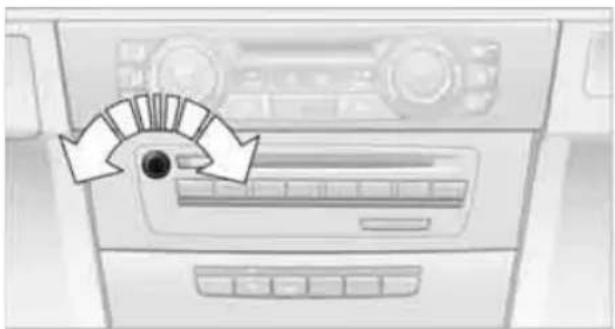
natural_image
Interior view of a car dashboard with airflow arrows indicating airflow direction (no text or symbols)The setting is stored for the remote control currently in use.
Map view
Displaying the map view
You can have your current position displayed on a map. After starting the destination guidance, the planned route is shown on the map.
- "Navigation"
- "Map"
The following functions are directly available in the map view:
Symbol Function
| Starting/stopping destination guidance | |
| Switching voice instructions on/off | |
| Changing route criteria or selecting route alternatives | |
| Special destinations | |
| Displaying traffic bulletins | |
| Interactive map | |
| Map view settings | |
| Changing scale |
Information in the map view:
Time, entertainment source, sound output, map orientation
Distance from destination, estimated time of arrival, if destination guidance is active.
Any traffic obstructions are highlighted in color.
To show/hide information on the map: Press the controller.
Viewing the map
-
Select the symbol.
-
Select a setting:
"View facing north"
"View in dir. of travel"
"Perspective view"
"Arrow display"
- Press the controller.
Changing the map section
⊕ Select the interactive map.
To shift the map: move the controller in the required direction.
To shift the map diagonally: move the controller in the required direction and turn it.
Changing scale
- Select the symbol.
- Turn the controller to adjust the scale.
Automatic scaling of the map
In the map view facing north, turn the controller in any direction until AUTO is displayed as the map scale.
The map shows the entire range from your location to the destination.
Settings for the map view
The map is shown on the Control Display.
- Open "Options".
- "Settings"
- Set the optimized map view.
"Day/night mode"
Select and create the necessary settings depending on the light conditions. When the traffic bulletin map is activated, this setting is disregarded.
"Satellite images"
Satellite images * are displayed depending on availability and resolution.
"Perspective view in 3D"
Displays a spatial view. Prominent areas that are contained in the navigation data are displayed on the map in 3D.
"Traffic Info map"
The map is optimized for displaying traffic bulletins. Symbols for the special destinations are no longer displayed.
Map view for the split screen display
The map view for the split screen can be selected separately from the main screen.
- Open "Options".
- "Split screen"
The split screen is switched on. - Move the controller to the right repeatedly until the split screen content is selected.
- Select the map view:
"Arrow display"
"Map facing north"
"Map direction of travel"
"Map view with perspective"
"Exit ramp view"
Changing scale
-
Move the controller to the right until the split screen is selected.
-
Turn the controller.
Traffic bulletins\*
You can display the traffic bulletins from radio stations that broadcast the TMC (Traffic Message Channel) of a traffic information service. This information from the traffic information service is continuously updated on the basis of measurement data from traffic control centers and information on traffic congestion. During destination guidance, traffic bulletins that are relevant to areas along the route are automatically displayed and taken into account in the route planning. You can open all traffic bulletins manually via iDrive.
The traffic bulletins are shown in the map view.
Real Time Traffic Information End-User Provisions
Certain BMW models equipped with navigation have the capability to display real-time traffic information. If your system has this capability the following additional terms and conditions apply:
An End-User shall no longer have the right to use the Traffic Data in the event that the End-User is in material breach of the terms and conditions contained herein.
A. Total Traffic Network, a division of Clear Channel Broadcasting, Inc. ("Total Traffic Network") holds the rights to the traffic incident data and RDS-TMC network through which it is delivered. You may not modify, copy, scan or use any other method to reproduce, duplicate, republish, transmit or distribute in any way any portion of traffic incident data. You agree to indemnify, defend and hold harmless BMW of North America, LLC. ("BMW NA") and Total Traffic Network, Inrix, Inc (and their affiliates) against any and all claims, damages, costs or other expenses that arise directly or indirectly out of (a) your unauthorized use of the traffic incident data or the RDS-TMC network, (b) your violation of this directive and/or (c) any unauthorized or unlawful activities by you in connection herewith.
B. Total Traffic Network traffic data is informational only. User assumes all risk of use. Total Traffic Network, BMW NA, and their suppliers make no representations about content, traffic and road conditions, route usability, or speed.
C. The licensed material is provided to license "as is," and "where is". Total Traffic Network, including, but not limited to, any and all third party providers of any of the licensed material, expressly disclaims, to the fullest extent permitted by law, all warranties or representations with respect to the licensed material (including, without limitation, that the licensed material will be error-free, will operate without interruption or that the traffic data will be accurate), express, implied or statutory, including, without limitation, the implied warranties of merchantability, non-infringement fitness for a particular purpose, or those arising from a course of dealing or usage of trade.
D. Neither Total Traffic Network, Inrix, Inc. nor BMW NA will be liable to you for any indirect, special, consequential, exemplary, or incidental damages (including, without limitation, lost revenues, anticipated revenues, or profits relating to the same) arising from any claim relating directly or indirectly to use of the traffic data, and even if Total Traffic Network, Inrix, Inc., or BMW NA are aware of the possibility of such damages. These limitations apply to all claims,
including, without limitation, claims in contract and tort (such as negligence, product liability and strict liability). Some states do not allow the exclusion or limitation of incidental or consequential damages, so those particular limitations may not apply to you.
Activating/deactivating reception
- "Navigation"
- Open "Options".
- Activate/deactivate "Receive Traffic Info". In many metropolitan areas you can receive traffic information broadcast by radio stations. The traffic conditions are monitored by traffic control centers and the traffic information is updated periodically.
During destination guidance, the traffic bulletins relevant to your planned route are automatically shown. Whether destination guidance is active or not, you can have the traffic bulletins displayed in the map view or in the traffic info list.
Traffic bulletins in a list
A list of the traffic bulletins can be opened via the menu or map view.
Opening traffic bulletins
- "Navigation"
- "Map"
- Move the controller to the left, if necessary.
-
Select the symbol: "Traffic Info" First, the traffic bulletins on the planned route are displayed. The traffic bulletins are sorted in the order of their distance from the current vehicle position.
-
Select a traffic bulletin.
Additional information can be displayed for some traffic bulletins:
- Select the symbol.
- Additional information is displayed.
- To exit from the menu: Move the controller to the left.
Traffic bulletins in the map
When the traffic bulletin map is activated, the Control Display changes to a grayscale display. This enables a better view of the traffic bulletins. The day/night mode is disregarded in this setting. The symbols for the special destinations are no longer displayed.
- "Navigation"
- "Map"
- Open "Options".
- "Settings"
- "Traffic Info map"
Symbols in the map view
Depending on the scale of the map and the location of the traffic obstruction along the route, the symbols for the traffic obstructions are displayed.
Additional information in the map view
Depending on the map scale, a traffic obstruction's length, direction and impact are displayed on the map using triangles or gray bars along the calculated route.
Filtering of traffic bulletins
You can filter which traffic bulletins are to be displayed by the system:
- "Navigation"
- "Map"
- Open "Options".
- "Traffic Info categories"
- Select the desired categories.

text_image
Categories ✓ Traffic forecasts ✓ Roadwork ✓ Closed roads ✓ Traffic disruptionsTraffic bulletins of the selected categories are displayed.
Traffic bulletins on incidents along the route are always displayed.
For your own safety, traffic bulletins that notify you of potentially dangerous situations, such as wrong-way drivers, cannot be hidden.
Traffic bulletins during destination guidance
System response will vary depending on whether or not "Dynamic guidance" is selected, refer to page 135.
During destination guidance, traffic obstructions on the route are taken into consideration.
Information on sources of great danger, such as wrong-way drivers, is displayed regardless of the setting.
Displaying traffic obstructions
When the navigation system receives a traffic obstruction message and "Dynamic guidance" is not selected, you will be shown certain information, such as the length of the traffic congestion, when you are approx. 30 miles/50 km away from the traffic obstruction.
The last possible detour exit is indicated just before you reach it.
This information is displayed even if you have called up another application on the Control Display.
Selecting a detour
Select the symbol: "Detour".
"Dynamic guidance" is activated for the current destination guidance.
Dynamic route planning
When "Dynamic guidance" is selected, the route will be changed automatically in the event of a traffic obstruction. The system will not point out traffic obstructions on the original route. Depending on the road type and the kind and extent of the traffic obstruction, the newly calculated route may lead through the traffic obstruction.
What to do if ...
What to do if ...
The current position cannot be displayed? The position is in an unrecognized region, in a poor reception area, or the system is in the process of determining the position. Reception is generally available when you are in the open.
The destination guidance does not accept an address without the street name?
A downtown area cannot be determined for the town or city that has been entered. Input any street in the selected town/city and start destination guidance.
The destination guidance does not accept a destination?
The destination data is not contained in the navigation data. Choose a destination as close as possible to the original one.
The letters for a destination cannot be selected during destination entry?
The stored data do not contain the data of the destination. Select a destination that is as close as possible to the original.
The map view is displayed in grayscale?
When the traffic bulletin map is activated, the Control Display changes to a grayscale display. This enables a better view of the traffic bulletins.
Voice instructions are no longer issued before intersections during destination guidance?
The area has not been fully recorded yet, or you have left the recommended route and the system requires a few seconds to calculate a new route suggestion.
natural_image
Black-and-white photo of hands playing piano keys, no visible text or symbols on the keys or background
text_image
Entertainment Operation of the radio, CD equipment and external audio devices as well as their tone settings are described in this chapter. Online Edition for Part no. 01 41 2 603 048 - © 08/09 BMW AGEntertainment
Operation of the radio, CD equipment and external audio devices as well as their tone settings are described in this chapter.
On/off and tone
The following audio and video sources share the same control elements and adjustments:
Radio
CD/DVD player
CD changer*
Video*
External devices, e.g. MP3 player
Controls
The audio and video sources can be controlled using the:
▶ Buttons near the CD/DVD player
iDrive
▶ Buttons on the steering wheel, refer to page 10
Programmable memory keys, refer to page 20
Voice activation system
Buttons in the area of the CD/DVD player
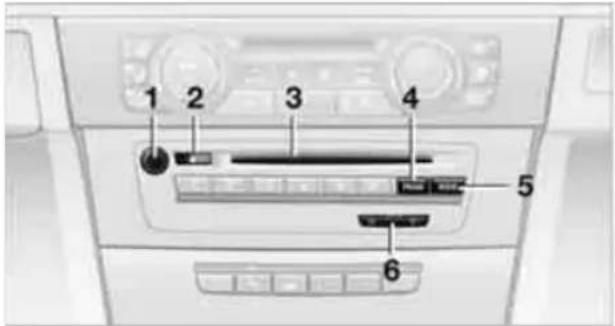
text_image
1 2 3 4 5 61 Sound output for entertainment on/off, volume
Press: switch on/off
When you switch on the unit, the last set radio station or track is played.
Turn: adjusting the volume
2 Eject the CD/DVD
3 CD/DVD drive *
4 F M / A M : change the radio station wave-band
5 M O D E : change the audio and video sources
6 Station scan/track search
Change the radio station
Select the track for the CD/DVD player, CD changer and certain multimedia devices
Switching on/off
To switch the entertainment audio output on or off:
Press button 1 next to the CD/DVD player.
This symbol on the Control Display indicates that sound output is switched off.
The sound output is available for approx.
20 minutes after the ignition was switched off.
For sound output, switch the unit back on.
Adjusting volume
Turn button 1 next to the CD/DVD player until the desired volume is obtained.
You can also adjust the volume with buttons on the steering wheel, refer to page 10.
Tone control
You can alter various tone settings, e.g. treble and bass or the speed-dependent volume increase.
The tone settings are applied to all audio sources.
The settings are stored for the remote control currently in use.
Treble, bass, balance, fader
▶ "Balance": left/right volume distribution
▶ "Fader": front/rear volume distribution
Adjustments
- "CD/Multimedia", "Radio" or "Settings".
- "Tone"

text_image
Radio FM AM Satellite radio Presets ✓ Tone- Select the desired tone setting.

text_image
Tone Treble - mmmm + + Bass - + + Balance L R Fader F R Equalizer L7 Surround Volume settings- To adjust: turn the controller.
- To store: press the controller.
Equalizer\*
You can set individual sound frequency ranges.
- "CD/Multimedia", "Radio" or "Settings".
- "Tone"
- "Equalizer"
- Select the desired setting.

text_image
Equalizer 100 Hz - + + 200 Hz - + + 500 Hz - + + 1 kHz - + + 2 kHz - + + 5 kHz - + + 10 kHz - + +-
To adjust: turn the controller.
-
To store: press the controller.
Multi-channel playback, surround\*
You can choose between stereo and multi-channel playback, surround.
- "CD/Multimedia", "Radio" or "Settings".
- "Tone"
- "L7 Surround"

text_image
Tone Treble - + Bass - + Balance L R Fader F R Equalizer L7 Surround Volume settingsMulti-channel playback, surround, is simulated when playing back an audio track in stereo.
Surround is automatically activated or deactivated, depending on the audio track selected.
LOGIC7 and the LOGIC7 logo are registered trade marks of Lexicon, Inc., a company of the Harman International Group.
Volume
"Speed volume": adjustment of the output volume depending on the driving speed
"PDC": volume of the PDC signal tone relative to the entertainment sound output
"Gong": volume of the signal tone, e.g. for the "Fasten safety belts" reminder, relative to the entertainment sound output
Adjustments
- "CD/Multimedia", "Radio" or "Settings".
- "Tone"
-
"Volume settings"
-
Select the desired volume setting.
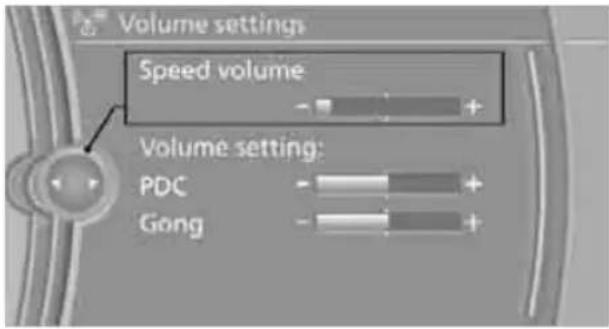
text_image
Volume settings Speed volume Volume setting: PDC Gong- To adjust: turn the controller.
- To store: press the controller.
Resetting tone settings
You can reset all tone settings to the default setting.
- "CD/Multimedia", "Radio" or "Settings".
- "Tone"
- "Reset"
Radio
Your radio is designed for reception of the following stations:
FM and AM
HD Radio*
Satellite radio*
Selecting a station

natural_image
Interior view of a car dashboard with a cursor pointing to the back panel (no visible text or symbols)Press the button if the sound output is switched off.
- "Radio"
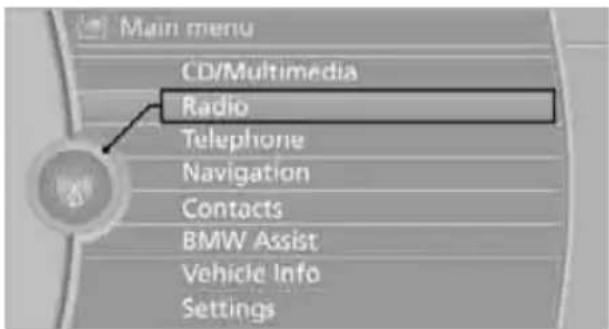
text_image
Main menu CD/Multimedia Radio Telephone Navigation Contacts BMW Assist Vehicle Info Settings- "FM" or "AM"
- Select the desired station.

text_image
FM Manual CARIVARI ENERGY GONG96.3 ✓ KLASSIK 100.0 MHz 101.3 MHzThe selected station is stored for the remote control currently in use.
Changing stations
Turn the controller and press it
or
press the button for the corresponding direction
or
press the buttons on the steering wheel, refer to page 10.
Selecting a station manually
Station selection using the frequency.
- "Radio"
- "FM" or "AM"
- "Manual"
- Select the frequency: turn the controller.
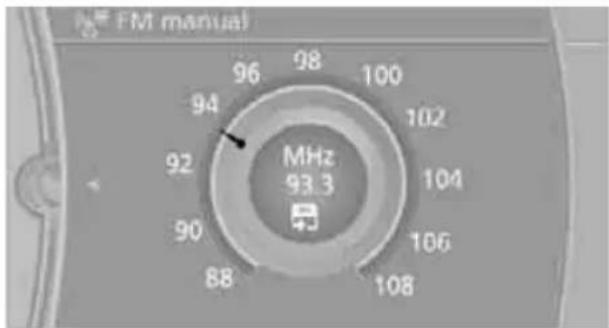
text_image
FM manual 96 98 100 94 102 92 MHz 104 90 106 88 108To store the station: press the controller for an extended period.
Storing stations
Via iDrive
- "Radio"
-
"FM" or "AM"
-
Select the desired station.
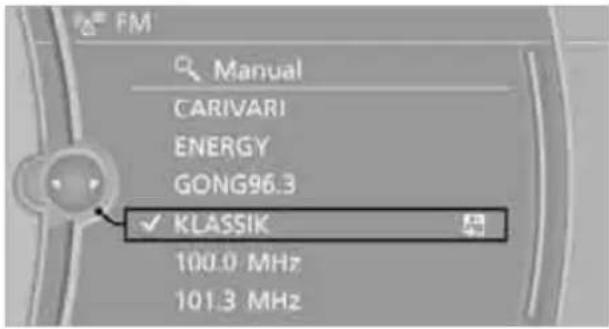
text_image
FM Manual CARIVARI ENERGY GONG96.3 ✓ Klassik 100.0 MHz 101.3 MHz- Press the controller for an extended period.
- Select the desired memory location.
The stations are stored for the remote control currently in use.
Via programmable memory keys
You can store a station on the programmable memory keys, refer to page 20.
- Select a station.
- ... Press the desired button for a longer period.
Radio Data System RDS\*
In the FM waveband, additional information is transmitted via RDS. If the reception conditions are good, the station names are shown on the Control Display. Where reception is poor or in the event of interference, it may take some time before the station names appear in the display.
Switching the RDS on/off
- "Radio"
- "FM"
-
Open "Options".
-
"RDS"
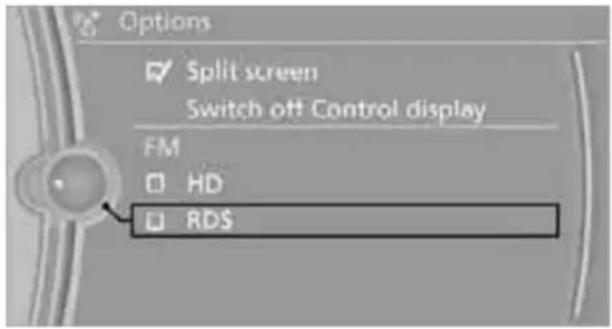
text_image
Options Split screen Switch off Control display FM HD RDSThe setting is stored for the remote control currently in use.
HD Radio\*
Many stations broadcast both analog and digital signals. If a digital radio network is available, these stations can be received digitally and thus with better sound quality.
License conditions
HD Radio™ technology is manufactured under license from iBiquity Digital Corp. U.S. and Foreign Patents. HD Radio™ and the HD and HD Radio logos are proprietary trademarks of iBiquity Digital Corp.
Switching digital radio reception on/off
- "Radio"
- "FM" or "AM"
- Open "Options".
- "HD Radio"
The setting is stored for the remote control currently in use.
H) This symbol is displayed when a station is received digitally.
In areas in which the station is not continuously received in digital mode, playback switches between analog and digital reception. Any time shift between these two broadcasts can lead to repetitions or interruptions in the output. In this case, switch off digital radio reception.
Displaying additional information
Some stations broadcast additional information on the current track, such as the name of the artist.
- Select the desired station.
- Open "Options".
- "Station info"
Selecting a substation
- Select the desired station.
- Press the controller.
- Select the substation.
Presets
It is possible to store up to 40 stations.
Calling up a station
- "Radio"
- "Presets"
- Select the desired station.
Storing a station
The station currently selected is stored.
- "Radio"
- "Presets"
- "Store station"
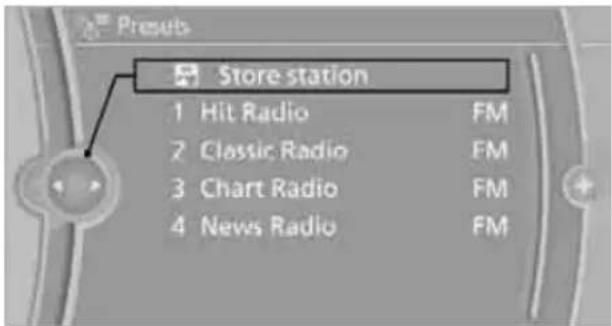
text_image
Presets Store station 1 Hit Radio FM 2 Classic Radio FM 3 Chart Radio FM 4 News Radio FM- Select the desired memory location.
The list of stored stations is stored for the remote control currently in use.
You can also store the stations on the programmable memory keys, refer to page 20.
Deleting a station
- "Radio"
- "Presets"
- Select the desired station.
- Open "Options".
- "Delete entry"
Satellite radio\*
General information
The channels are offered in predefined packages. The packages must be enabled by telephone.
Navigation bar overview
Symbol Function
| Changing the list view |
| Selecting a category |
| Direct channel entry |
| Timeshift |
| Opening the favorites, opening the My Favorites category |
| Managing the favorites |
| Traffic Jump |
The functions of the navigation bar symbols can also be stored on the programmable memory buttons, refer to page 20.
Managing a subscription
To be able to enable or unsubscribe from the channels, you must have reception. It is usually at its best when you have an unobstructed view of the sky. The channel name is displayed in the status line.
Enabling the channels
The Unsubscribed Channels category contains all disabled channels.
- "Radio"
-
"Satellite radio"
-
"Categories"

text_image
Satellite radio Categories Snow Patrol Chasing Cars All Channels 001 Sirius Hits 1 ✓ 002 StarLite 003 Sirius Love 004 Movin EZ- Select the Unsubscribed Channels category.
- Select the desired channel. The phone number and an electronic serial number, ESN, are displayed.
- Select the phone number to have the channel enabled.
text_image
Subscr to Sirius Call Sirius to subscribe. ESN: 020-373-171 411 1-888-559 SIRIUSYou can also unsubscribe from the channels via this phone number.
Unsubscribing from channels
- "Radio"
- "Satellite radio"
- Open "Options".
4. "Manage subscription"
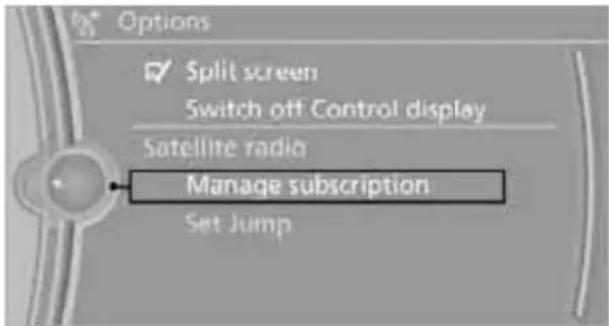
text_image
Options Split screen Switch off Control display Satellite radio Manage subscription Set JumpThe phone number and an electronic serial number, ESN, are displayed.
- Call Sirius to unsubscribe from the channels.
Selecting a channel
You can only listen to enabled channels.
The selected channel is stored for the remote control currently in use.
Via iDrive
- "Radio"
- "Satellite radio"
- Select "All Channels" or the desired category.
- Select the desired channel.

text_image
Satellite radio Snow Patrol Chasing Cars All Channels 001 Sirius Hits 1 ✓ 002 StarLite 003 Sirius Love 004 Movin EZVia the button in the area of the CD/DVD player
Press the button for the corresponding direction.
The next channel is selected.
Via direct channel entry
- "Radio"
- "Satellite radio"
- "Select channel"
- Turn the controller until the desired channel is reached and press the controller.
Storing a channel
- "Radio"
- "Satellite radio"
- If necessary, open "All Channels" or the desired category.
- Select the desired channel.
- Press the controller again.
- Press the controller again to confirm the highlighted channel.
text_image
Store Store in Presets 001 Sirius Hits 1 Store in favorites The Fray; Over My Head (Cable...- Select the desired memory location.
The channels are stored for the remote control currently in use.
You can also store the channels on the programmable memory keys, refer to page 20.
Changing the list view
The list view changes every time the first symbol on the navigation bar is pressed.
Information on the channel is displayed.
Symbol Function
| Channel name | |
| Artist | |
| Track |
Selecting a category
- "Radio"
- "Satellite radio"
- "Categories"
- Select the desired category.
Timeshift
Approx. one hour of the program being broadcast on the channel currently being listened to is stored in a buffer. The signal must be available. The stored audio track can be played with a delay following the live broadcast. When the buffer is full, the older tracks are overwritten. The buffer is cleared when a new channel is selected.
Opening the timeshift function
- "Radio"
- "Satellite radio"
- Open "Options".
- "Replay - Time Shift" A new panel opens.
text_image
Replay - Time Shift Snow Patrol Chasing Cars 4:07The red arrow shows the current playback position.
The time difference to the live broadcast is displayed next to the buffer bar.
If playback is live, "live" is displayed next to the buffer bar.
Timeshift menu
Symbol Function
| Go to the live broadcast | |
| ▷II | Playback/pause |
| ▷I | Next track |
| ◀ | Previous track |
| ▷ | Fast forward |
| ◀ | Reverse |
Storing favorites
Up to 30 favorites can be stored in the favorites list. Available favorites are artist, track, game, league and team.
Storing the artist, track or game
It is only possible to store favorites that are currently being broadcast. The channel information must be available.
- "Radio"
- "Satellite radio"
- Select the desired channel.
- Press the controller again.
-
Select the artist, track or game.
-
If necessary, select "All Channels" or the desired category.
Storing the league or team
Leagues or teams can be added to the favorites from a selection list.
- "Radio"
- "Satellite radio"
-
"Manage favorites"
-
"Add sports information"

text_image
Favorites ✓ Activate alertArtists
✓ The Fray;Title
✓ Proud Mary (1969) ✓ Livin' On A Prayer (1987) Add sports information-
Select the desired league.
-
Select "Add all teams" or the desired team.
Opening the favorites
When an activated favorite is playing, the following message appears for approx. 20 seconds: "Playing favorite!".
☆* Select "Favorites" while the message is being displayed.
text_image
Satellite radio Playing favorite! Proud Mary (1969) All Channels 001 Sirius Hits 1 002 StarLite 003 Sirius Love 004 Movin EZThe displayed favorite is played.
If there is no message, the system changes to the My Favorites category. All favorites currently being broadcast can be selected from a list.
Managing the favorites
Activating/deactivating the favorites
Favorites can be activated and deactivated globally and individually.
-
"Satellite radio"
-
"Manage favorites"
-
Select "Activate alert" or the desired favorite.
The setting is stored for the remote control currently in use.
Deleting favorites
- "Satellite radio"
- "Manage favorites"
- Highlight the desired favorite.
- Open "Options".
- "Delete entry"
Traffic Jump
Traffic and weather information for a selected region is broadcast every few minutes.
Selecting a region
- "Radio"
- "Satellite radio"
- Open "Options".
- "Set Jump"
- Select the desired region.
The region is stored for the remote control currently in use.
Activating/deactivating the jump
- "Radio"
- "Satellite radio"
- "Jump to:"
Information for the selected region is broadcast as soon as it is available.
A new panel opens.
Canceling the Traffic Jump: "Cancel".
Symbol Meaning

Information will be broadcast shortly.

Information is currently being broadcast.
Select one of the symbols to deactivate Traffic Jump.
Automatic update
About twice a year, Sirius performs an update of the channel names and positions. The update takes place automatically and may take several minutes.
Notes
▶ Reception may not be available in some situations, such as under certain environmental or topographic conditions. The satellite radio cannot influence this.
The signal may not be available in tunnels or underground garages, next to tall buildings or near trees, mountains or other powerful sources of radio interference.
CD/DVD player and CD changer\*
CD/DVD playback

natural_image
Interior view of a car dashboard with air filters and control panel (no visible text or symbols)Inserting a CD/DVD
Insert the CD/DVD into the drive with the labeled side facing up. The CD/DVD is drawn in automatically.
Playback starts automatically if the sound output is on. For CDs/DVDs with compressed audio files, it can take several minutes to read in the data, depending on the directory structure.
playable formats
CD/DVD player
DVD: DVD-ROM, DVD-R, DVD+R, DVD-RW, DVD+RW, DVD-R DL, DVD+R DL, DVD audio (video part only), DVD video
CD: CD-ROM, CD-R, CD-RW, CD-DA, VCD, SVCD
Compressed audio files: MP3, WMA, AAC CD changer*
CD: CD-ROM, CD-R, CD-RW, CD-DA
Starting playback
Via iDrive
Fill the CD/DVD magazine and insert it, refer to page 159.
To start playback if a CD is already located in the player or changer:
- "CD/Multimedia"
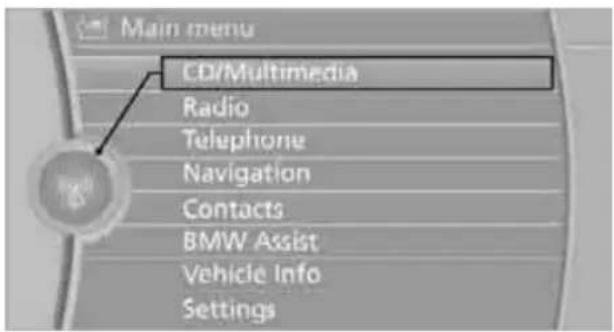
text_image
Main menu CD/Multimedia Radio Telephone Navigation Contacts BMW Assist Vehicle Info Settings- "CD/DVD"
- Select the desired CD or DVD:

text_image
CD/DVD ✓ Best off Brothers in arms CD-Rom Mezzanine Reloved Beautiful Black Market MusicEjecting a CD/DVD
Press the button next to the CD/DVD player. The CD/DVD emerges slightly from the drive.
Symbol Function

CD/DVD player

CD changer
Audio playback
Selecting a track using the button
Press the button for the appropriate direction as often as necessary until the desired track is reached.
Selecting a track using iDrive
Audio CDs
- "CD/Multimedia"
- "CD/DVD"
- Select the desired CD or DVD.
- Select the desired track to begin playback.

text_image
Audio CD Bruce Springsteen Magic D0:28 D1/14 Store in vehicle Nowhere You'll Be Comin' Down Living In The FutureCDs/DVDs with compressed audio files\*
Depending on the data, some letters and numbers of the CD/DVD may not be displayed correctly.
- "CD/Multimedia"
- "CD/DVD"
- Select the desired CD or DVD.
- Select the directory, if necessary. To change to a higher level directory: move the controller to the left.

text_image
Sanitana Supernatural 00:38 223/249 Prince ✓ Santana Sportfreunde Stiller Tom Jones- Select a track and press the controller.
text_image
Sanmina Supernatural 00:08 • 223/249 Store in vehicle (Da Le) Yaleo ✓ Africa Bamba Corazon Espinado (Fe...Displaying information about the track\*
If information about a track has been stored, it is displayed automatically:
text_image
Santana Supernatural 00:38 223/249 Prince ✓ Santana Sportfreunde Stiller Tom JonesArtist
Album title
Number of tracks on the CD/DVD
Track file name
Random play sequence
The tracks on the current CD/DVD are played once in random sequence.
- "CD/Multimedia"
- "CD/DVD"
- Select the desired CD or DVD.
- Open "Options".
5. "Random"

text_image
Options Split screen Switch off Control display CD/Multimedia Random Music data import/exportCDs/DVDs with compressed audio files: the directories and the tracks contained therein are played back in random sequence.
Random mode is switched off when the audio source is changed or the ignition is switched off.
Fast forward/reverse

Press and hold the button for the corre- ding direction.
Automatic repeat\*
Selected tracks, directories or CDs/DVDs are repeated automatically.
Video playback\*
Country codes
Only DVDs with the code of the home region can be played back; also refer to the information on your DVD.
Code Region
| 1 | U | S | A | , |
| 2 Japan, Europe, Middle East, South Africa | ||||
| 3 | S | o | u | t |
| 4 Australia, Central and South America, New Zealand | ||||
| 5 | N | o | r | t |
| 6 | C | h | i | n |
| 0 | A | l | l | r |
Starting playback
For your own safety, the video image is only displayed up to approx. 2 mph/3 km/h, and in some market-specific versions only with the parking brake applied.
DVD video
- "CD/Multimedia"
- "CD/DVD"
- Select a DVD with video content.
- "DVD menu"

text_image
DVD menu- Start the DVD via the DVD menu.
VCD/SVCD
- "CD/Multimedia"
- "CD/DVD"
- Select a CD/DVD with video content.
- "Select track"

text_image
Select track a n a d h e s t- Select the desired track.
The CD/DVD is started.
| h | w | e | s | t |
| a | ||||
| e | g | i | o | n |
Video menu
To open the Video menu:
- Turn the controller during playback.
- Press the controller when "Back" is displayed.
The Video menu is displayed:
Symbol Function
| DVD | Open the DVD menu* |
| ▷ | Starting playback |
| II | Pause |
| □ | Stop |
| ▷ | Next chapter/next track |
| ◀ | Previous chapter/previous track |
| ▷ | Fast forward |
| ◀ | Reverse |
In fast forward/reverse: the speed increases every time the controller is pressed. To stop, start playback.
DVD menu
- If necessary, turn the controller to open the Video menu.
- "DVD menu"
The DVD menu is displayed. The display depends on the contents of the DVD.
To select menu items: move and press the controller.
To change to the Video menu: turn the controller and select "Back".
DVD/VCD settings
For some DVDs, settings can only be made via the DVD menu; refer also to the information on your DVD.
Language\*
- Turn the controller during playback.
-
Open "Options".
-
"Audio/language"
text_image
Switch off Control display DVD video Audio/language Subtitles Display settings Additional options CD/Multimedia- Select the desired language.
The languages that are available depend on the DVD.
Subtitles\*
Subtitles can be selected if they are contained on the DVD.
- Turn the controller during playback.
- Open "Options".
- "Subtitles"
- Select the desired language or "Do not display subtitles".

text_image
Subtitles Do not display subtitles ✓ German EnglishBrightness, contrast, color
- Turn the controller during playback.
- Open "Options".
- "Display settings"
text_image
Display settings Brightness Contrast Color- Turn the controller until the desired setting is displayed, and then press the controller.
Zoom
Display the video image on the full screen.
- Turn the controller during playback.
- Open "Options".
- "Additional options"
- "Zoom mode"

text_image
Options Zoom mode Select title Viewing angle Main menu BackSelecting track
DVD video:
- Turn the controller during playback.
- Open "Options".
- "Additional options"
- "Select title"
- Select the desired track.
VCD/SVCD:
- "Select track"
- Select the desired track.
Camera angle\*
The camera angle depends on the DVD.
- Turn the controller during playback.
- Open "Options".
- "Additional options"
- "Viewing angle"
- Select the desired camera angle.
Opening the main menu, back
These functions are not contained on every DVD. Therefore, they may not be available for use.
CD changer\*
The BMW CD changer for six CDs is behind the left side panel in the cargo area.
Sedan

natural_image
Diagram showing a device being inserted into a car's door, with an inset close-up highlighting the component (no text or symbols present)Sports Wagon
natural_image
Close-up of a device's internal panel with a black arrow pointing to a component, showing no visible text or symbols.Removing the CD magazine
To insert or remove CDs from the CD magazine, you must first remove it from the CD changer:

natural_image
Two views of a black cylindrical device with a close-up inset showing internal components (no text or symbols visible)-
Push the cover to one side, arrow 1.
-
Press the button, arrow 2.
The CD magazine is ejected.
Push the magazine back in after at least 2 seconds have passed so that the inserted CDs can be read in again.
Inserting/removing CDs from the CD magazine

natural_image
Illustration of a compact CD or DVD drive with an open disc and a paper clip, no text or symbols present.When loading CDs into or removing them from the CD magazine, hold them at their edges and do not touch the reflective signal-sensing area.
Inserting CDs:
Insert one CD per compartment with the labeled side up.
Removing CDs:
Pull out the desired compartment and take out the CD.
Inserting the CD magazine

text_image
INSERT IN THIS DIRECTION 2 1Insert the CD magazine all the way in the direction of arrow 1 and close the cover, arrow 2.
The CD changer automatically reads in the loaded CDs and is then ready for operation.
Notes
BMW CD/DVD players and changers are officially designated Class 1 laser products. Do not operate if the cover is damaged; otherwise, severe eye damage can result.
Do not use self-recorded CDs/DVDs with labels applied as these can become detached during playback due to heat build-up and can cause irreparable damage to the device.
Only use round CDs/DVDs with a standard diameter of 4.7 in/12 cm and do not play CDs/DVDs with an adapter, e.g. CD singles; otherwise, the CDs or the adapter might jam and no longer eject.
Do not use a combined CD/DVD, e.g. DVD ^Plus ; otherwise, the CD/DVD can jam and will no longer eject.
General malfunctions
BMW CD/DVD changers and players have been optimized for performance in vehicles. In some instances they may be more sensitive to faulty CDs/DVDs than stationary devices would be.
If a CD/DVD cannot be played, first check if it has been inserted correctly.
Humidity
High levels of humidity can lead to condensation on the CD/DVD or the laser's scan lens and temporarily prevent playback.
Malfunctions with individual CDs/DVDs
If malfunctions occur only with particular CDs/DVDs, this may be due to one of the following reasons.
Self-recorded CDs/DVDs
Possible reasons for malfunctions with self-recorded CDs/DVDs are, for example, inconsistent data-creation or recording processes, or poor quality or old age of the CD/DVD blank.
Only label CDs/DVDs on the top, with a pen designed for this purpose.
Damage
Avoid leaving fingerprints, as well as dust, scratches or moisture on the CDs/DVDs. Keep CDs/DVDs in protective sleeves or cases. Do not subject CDs/DVDs to temperatures above 122 °F /50 °C, nor to high humidity levels or direct sunlight.
CDs/DVDs with copy protection
CDs/DVDs are often copy-protected by the manufacturer. This can mean that some CDs/DVDs cannot be played or can only be played to a limited extent.
MACROVISION
This product contains copyrighted technology that is based on multiple registered U.S. patents and the intellectual property of the Macrovision Corporation and other manufacturers. The use of this copy protection must be approved by Macrovision. Unless otherwise agreed with Macrovision, media with this protection may only be used for private purposes. Copying of this technology is prohibited.
Music collection
Storing music
The music tracks from CDs, DVDs and USB devices can be stored in the music collection in the vehicle and played from there.
Audio CD: tracks are converted into a compressed audio format when they are stored. If available, information on the album, such as the artist, is stored as well.
CD/DVD or USB device with compressed audio files: the entire content of the CD/DVD or the USB device is stored in the vehicle as an album. After storing, the tracks and directories can be deleted individually. Files are only stored in the WMA, MP3, and AAC formats.
Tracks with DRM copy protection can be stored in the vehicle but cannot be played back.

Regularly back up the music data; otherwise, it could be lost if there is a fault on award drive.

Music recognition technology and related data are provided by
Gracenote®. Gracenote® is the industry standard in music recognition technology and related content delivery. For more information, please visit www.gracenote.com.
CD and music-related data from Gracenote, Inc., copyright © 2000-2009 Gracenote. Gracenote Software, copyright © 2000-2009 Gracenote. This product and service may practice one or more of the following U.S. Patents: #5,987,525; #6,061,680; #6,154,773; #6,161,132; #6,230,192; #6,230,207; #6,240,459; #6,330,593; and other patents issued or pending. Some services supplied under license from Open Globe, Inc. for U.S. Patent: #6,304,523.
Gracenote and CDDB are registered trademarks of Gracenote. The Gracenote logo and logotype, and the "Powered by Gracenote" logo are trademarks of Gracenote.
Storing files from CDs/DVDs
CDs/DVDs can only be stored from the CD/DVD player.
- Insert a CD/DVD into the CD/DVD player.
- "CD/Multimedia"
- "CD/DVD"
- Select the symbol for the CD/DVD player.
- "Store in vehicle"
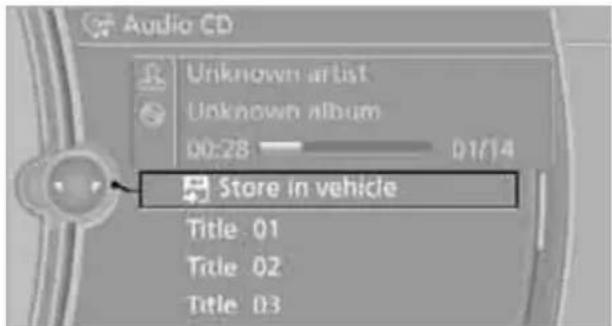
text_image
Audio CD Unknown artist Unknown album 00:28 01/14 Store in vehicle Title 01 Title 02 Title 03The music collection is displayed.
The tracks are stored and played back in sequence from the music collection.
Observe the following during the storage process:
Do not switch back to the CD/DVD player and do not remove the CD/DVD from the CD/DVD player; otherwise, the storage process will be interrupted.
You can switch to the other audio sources without interrupting the storage process. Tracks from the current CD/DVD can also be called up, if they have been stored already.
Interrupting storage
-
"CD/Multimedia"
-
"CD/DVD"
-
"Storing..."
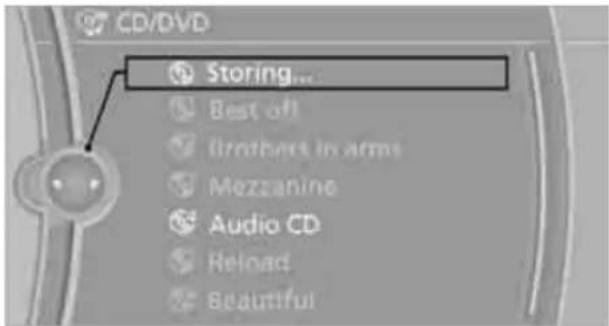
text_image
CD/DVD Storing... Best off Brothers in arms Mezzanine Audio CD Reload Beautiful- "Cancel storing"
The storage process is interrupted and can be continued at any time.
Continuing the storage process
- "CD/Multimedia"
- "CD/DVD"
- Select the symbol for the CD/DVD player.
- "Continue storing"
Storage of the CD continues at the beginning of the track at which storage was interrupted.
Album information
During storage, information such as the name of the artist is stored with the track, if this information is available in the vehicle database or on the CD.
To update the database, contact your service center.
Storing from a USB device
To store music, a suitable device must be connected to the USB interface in the glove compartment.
Suitable devices: USB mass storage devices, such as USB flash drives or MP3 players with a USB interface.
Unsuitable devices: USB hard drive, USB hubs, USB memory card readers with multiple inserts, Apple iPod/iPhone.

Music from a USB device can be stored only via the USB interface in the glove compartment.
- Connect the USB device to the USB interface in the glove compartment.
- "CD/Multimedia"
- "Music collection"
- Open "Options".
- "Music data import/export"
- "Import music (USB)"
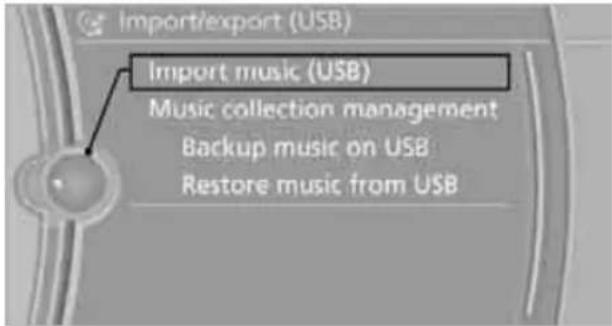
text_image
Import/export (USB) Import music (USB) Music collection management Backup music on USB Restore music from USBPlaying music
Music search
All tracks for which additional information has been stored can be accessed by the music search. Tracks without additional information can be called up via the corresponding album.
- "CD/Multimedia"
- "Music collection"
- "Music search"
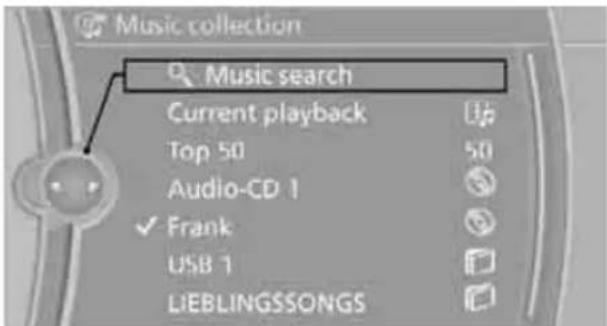
text_image
Music collection Music search Current playback Top 50 Audio-CD 1 Frank USB 1 LIEBLINGSSONGS- Select the desired category.

text_image
Music search Genre? (All genres) All artists All albums All titles Start play New search- To select the desired entry:
Open "A-Z search" and enter the desired entry.
or
▶ Select the desired entry from the list.
- Select additional categories if desired.
The tracks found are listed in alphabetical order.
Not all categories need to be selected. For example, to search for all tracks by a certain artist, call up that artist only. All of the tracks by that artist are then displayed.
- "Start play"
Restarting the music search
"New search"
Music search by voice\*
For instructions on the voice activation system, refer to page 22.
- Press the button on the steering wheel.

-
Music search
- Open the desired category, e.g. 'Select artist'.
- Say the desired entry in the list.
- Select additional categories if desired.
To select a track directly:

Title ...
Say the voice command and the name of the desired track in one sentence.
Current playback
The list of tracks that was generated last by the music search or the album selected last.
- "Current playback"
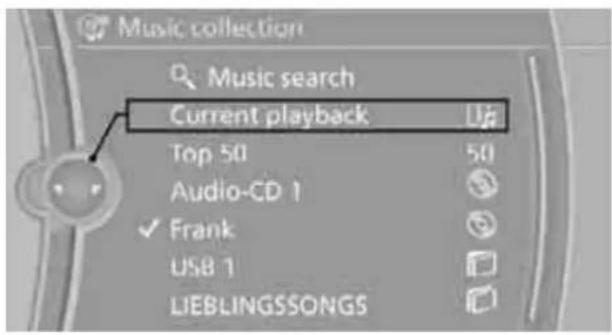
text_image
Music collection Music search Current playback Top 50 Audio-CD 1 Frank USB 1 LIEBLINGSSONGS- Select the desired track, if necessary.
Top 50
List of the 50 most frequently played tracks.
- "CD/Multimedia"
- "Music collection"
- "Top 50"
- Select the desired track, if necessary.
Albums
All stored albums, listed in order of their storage dates. Symbols indicate the format.
Symbol Format

Audio CD

Compressed audio files
- "CD/Multimedia"
- "Music collection"
- Select the desired album.

text_image
Music collection Music search Current playback Top 50 Audio-CD 1 Hits Frank LIEBLINGSSONGSDepending on the album, the tracks or the subdirectories of the album are displayed. The first track is played automatically, if possible.
- To select tracks, change directories if needed. To go up one level in the directory, move the controller to the left.
Random play sequence
All tracks of the selection are played back in random order.
- "CD/Multimedia"
- "Music collection"
- Open "Options".
- "Random"
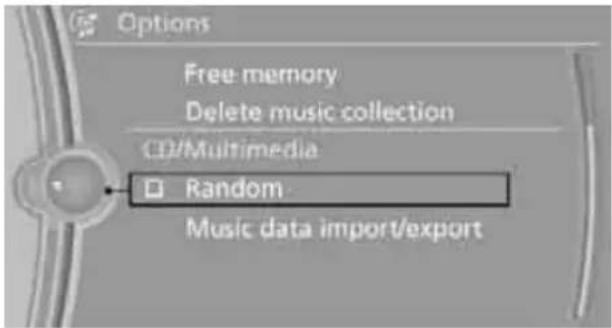
text_image
Options Free memory Delete music collection CD/Multimedia Random Music data import/exportManaging music
Albums
Renaming an album
The name of the album, if available, is automatically entered when the album is stored. If the name is unknown, it can be changed later.
An album cannot be renamed while a track from that album is being played.
- "CD/Multimedia"
- "Music collection"
- Highlight the album.
-
Open "Options".
-
"Rename album"

text_image
Options Audio-CD 1 Rename album Delete album Music collection Music data import/export Free memory Delete music collection- Select the letters individually.
Deleting an album
An album cannot be deleted while a track from that album is being played.
- "CD/Multimedia"
- "Music collection"
- Highlight the album.
- Open "Options".
- "Delete album"
Deleting a track or directory
A track cannot be deleted while it is being played back.
A directory cannot be deleted while a track from that directory is being played back.
- "CD/Multimedia"
- "Music collection"
- Highlight the directory or track.
- Open "Options".
- "Delete folder" or "Delete track".
Free memory capacity
Display the free memory capacity in the music collection.
- "CD/Multimedia"
- "Music collection"
- Open "Options".
- "Free memory"
Music collection
Backing up the music collection
The entire music collection can be stored on a USB medium. Make sure there is enough free memory capacity on the USB device.
Depending on the number of tracks, backing up the music collection may take several hours.
Therefore, it is best to perform the backup during a long trip.
- Start the engine.
- Connect the USB device to the USB interface in the glove compartment.
- "CD/Multimedia"
- "Music collection"
- Open "Options".
- "Music data import/export"

text_image
Options Free memory Delete music collection CD/Multimedia Random Music data import/export- "Backup music on USB"
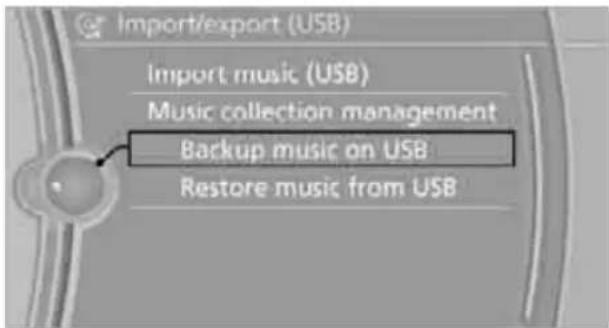
text_image
Import/export (USB) Import music (USB) Music collection management Backup music on USB Restore music from USBRestoring the music collection in the vehicle

When storing from the USB device, the music collection existing in the vehicle is
replaced.
- "CD/Multimedia"
-
"Music collection"
-
Open "Options".
- "Music data import/export"
- "Restore music from USB"
Deleting the music collection
- "CD/Multimedia"
- "Music collection"
- Open "Options".
- "Delete music collection"
External devices
AUX-IN port
You can connect an external audio device, for instance an MP3 player, and play audio tracks over the car's loudspeaker system. You can adjust the tone using iDrive.
Connecting
Lift up the center armrest.
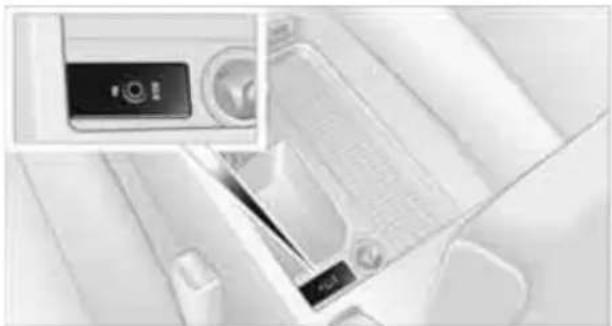
natural_image
Close-up of a car interior showing a camera module and a digital camera (no visible text or symbols)Connection for audio playback:
TRS connector 1/8 in/3.5 mm
To play audio tracks over the car's loudspeaker system, connect the headset or line-out port of the external device to the AUX-IN port.
Starting audio playback
Connect the audio device, switch it on and select a track. Operate the system on the audio device.
Via iDrive
- "CD/Multimedia"
- If applicable, "External devices"
- "AUX front"
Adjusting the volume
The volume of the sound output depends on the audio device. If this volume differs markedly from the volume of the other audio sources, it is advisable to adjust the volumes.
- "CD/Multimedia"
-
If applicable, "External devices"
-
"AUX front"
- "Volume"

text_image
AUX front AUX active Volume - +- To adjust: turn the controller.
- To store: press the controller.
USB audio interface\*/ extended connectivity of the music player in the mobile phone\*
It is possible to connect external audio devices/mobile phones. They can be operated via iDrive. Sound is output on the vehicle loudspeakers.
Options for connecting external devices
Connection via USB audio interface: Apple iPod/iPhone, USB devices, e.g. MP3 player, USB flash drive, or mobile phones that are supported by the USB audio interface.
Connection via snap-in adapter*, refer to page 184, when equipped with additional connection of music player in the mobile phone: Apple iPhone/mobile phones. Play-back is possible only if no audio device/mobile phone is connected to the USB audio interface.
Due to the large number of different audio devices/mobile phones available on the market, it cannot be ensured that every audio device/mobile phone is operable on the vehicle.
Ask about suitable audio devices/mobile phones at your BMW center.
Audio files
Standard audio formats, e.g. MP3, WMA, WAV (PCM) and AAC, and playlists in the M3U format can be played.
Connecting via USB audio interface
Lift up the center armrest.
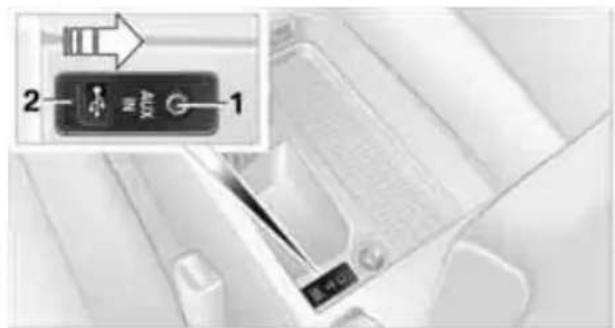
text_image
2 1 安全1 AUX-IN port for audio playback: TRS connector 1/8 in/3.5 mm
2 USB interface
Apple iPod/iPhone
To connect the device, use the special cable adapter for the Apple iPod/iPhone, available from your BMW center. The cable adapter is required for a flawless connection.
Connect the Apple iPod/iPhone with the AUX-IN port and USB interface 1 using the cable adapter for the Apple iPod/iPhone.
The Apple iPod/iPhone menu structure is supported by the USB audio interface.
USB device

When connecting the device use a flexible adapter cable, to protect the USB
interface and your USB device against physical damage.
Connect the USB device to connector 2, using a flexible adapter cable.
After the device is connected for the first time, the information on all tracks (e.g. artist, type of music) and the playlists are transferred from the USB device to the vehicle. This procedure may take some time. The duration depends on the USB device and the number of tracks.
During transmission, the tracks can be called up via the file directory.
Information from up to four USB devices can be stored in the vehicle, or a total of about 16,000 tracks.
If a fifth USB device is connected or if more than 16,000 tracks are stored, information on existing tracks may be deleted.

Music tracks with integrated Digital Rights Management (DRM) cannot be
played.
Starting audio playback
If the audio device has a device name, the name is displayed.
- "CD/Multimedia"
- "External devices"
- Select the symbol.
The name of the audio device may appear.
text_image
External devices JUKEBOX Not activePlayback begins with the first track. When an Apple iPhone is connected via the snap-in adapter and an audio device is connected to the AUX-IN port at the same time, the audio signal of the AUX-IN port is played.
Information about the track
If information about a track has been stored, it is displayed automatically:
Artist
Album title
Number of tracks
Track file name
Track search
You can call up the tracks using the playlists and information. With USB devices you can also call up tracks using the file directory.
Selection is possible via:
▶ Playback lists
Information: type of music, artist, album, title
Additionally for USB devices: file directory, composer
Track titles are displayed if they have been stored in the Latin alphabet.
Starting the track search
- "CD/Multimedia"
- "External devices"
- Select the symbol.
The name of the audio device may appear. - Select the desired category, "Genre", "Artist".

text_image
USB audio: JUKEBOX Browse directory Genre? (All genres) All artists All composers All albums All tracks Start playAll entries are displayed in a list. The "A-Z search" can be used to find specific entries.
Open "A-Z search" and enter the desired entry.
Select the desired entry from the list.
- Select additional categories if desired.
The tracks found are listed. Not all categories need to be selected. For example, to search for all tracks by a certain artist, call up that artist only. All of the tracks by that artist are then displayed.
- "Start play"
Restarting a track search
"New search"
Playback lists
To open playback lists.
- "CD/Multimedia"
- "External devices"
- Select the symbol.
- "Playlists"
Current playback
List of tracks currently being played.
- "CD/Multimedia"
- "External devices"
- Select the symbol.
- "Current playback"
Random play sequence
You can play the tracks in the selected list in random order, e.g. all tracks of a single artist.
- "CD/Multimedia"
- "External devices"
- Open "Options".
- "Random"
Fast forward/reverse
Press and hold the button for the corresponding direction.
Notes
Do not expose the audio device to extreme environmental conditions, e.g. very high temperatures, refer to the operating instructions of the audio device. Otherwise, the audio device may become damaged, which could compromise safety while driving.
Depending on the configuration of the audio files, e.g. bit rates greater than 256 KBit/s, the files may not play back correctly in every case.
Notes on connecting
The connected audio device is supplied with a maximum current of 500 mA, if the
device supports this. Therefore, do not connect the device to the power socket in the vehicle.
Do not forcibly connect the plug to the USB interface.
Do not connect devices such as fans or lamps to the USB audio interface.
Do not connect USB hard drives.
Do not use the USB audio interface to charge external devices.

text_image
TELEPHONE TELEPHONE Online Edition for Part no. 01 41 2 603 048 - © 08/09 BMW AGCommunications
This chapter describes how to use the telephone, BMW Assist and TeleService.
Telephone\*
The concept
Your BMW is equipped with a full preparation package mobile phone. After pairing a suitable mobile phone with the vehicle once, you can operate the mobile phone via the iDrive, the buttons on the steering wheel or using voice commands*.
Once a mobile phone has been paired with your vehicle, it is automatically recognized as soon as it is inside the vehicle while the engine is running or the ignition is switched on. You can store the pairing data for up to four mobile phones simultaneously. If several mobile phones are detected at the same time, the mobile phone last paired can be operated via the vehicle.
Using the telephone inside the vehicle
Using the snap-in adapter\*
The so-called snap-in adapter, a holder for mobile phones, allows you to charge the mobile phone's battery and connect the mobile phone to your vehicle's outside antenna. This ensures better network reception and consistent reproduction quality. Please contact your BMW center to find out for which mobile phones there are snap-in adapters available.
For your safety
A car phone makes life more convenient in many ways, and can even save lives in an emergency. While you should consult your mobile phone's separate operating instructions for a detailed description of safety precautions and information, we request that you direct your particular attention to the following:

Only make entries when the traffic situation allows you to do so. Do not hold the mobile phone in your hand while you are driving; use the hands-free system instead. If you do
not observe this precaution, your being distracted can endanger vehicle occupants and other road users.
Suitable mobile phones
Please ask your BMW center which mobile phones with Bluetooth interface are supported by the mobile phone preparation package and which mobile phones are compatible with the snap-in adapter. By virtue of their particular software versions, these mobile phones support the functions described in this Owner's Manual. Malfunctions may occur with other mobile phones.
Operating options
You can operate the mobile phone using:
▶ Buttons on the steering wheel, refer to page 10
iDrive, refer to page 16
▶ Voice commands*, refer to page 181
Programmable memory keys, refer to page 20
Avoid operating a mobile phone recognized by the vehicle via the mobile phone's keypad; otherwise, malfunctions may result.
Start-up
Pairing the mobile phone with the vehicle
The following prerequisites must be met:
Compatible mobile phone: the mobile phone is supported by the full preparation package mobile phone. You can obtain information on the Internet at: www.bmw.com/bluetooth
The mobile phone is ready to operate.
Bluetooth has been activated in the vehicle, refer to page 176, and on the mobile phone.
Depending on the mobile phone, certain settings may be necessary on the mobile phone, e.g. via the following menu items:
Bluetooth switched on
▶ Connection must be allowed without requiring further confirmation
Reconnection
Depending on the mobile phone type, the power-saving mode setting, for example, may result in a paired mobile phone not being detected by the vehicle.
For pairing purposes, define any 4 to 16-digit number as a Bluetooth passkey, e.g. 25081107. A long and complex number offers the best protection against unauthorized access. This Bluetooth passkey is no longer required after pairing is successful.
The ignition is switched on.
Pair the mobile phone with the vehicle only when the car is stationary, to avoid endangering the car's occupants and other road users by being distracted.
Switch on ignition
- Insert remote control all the way into the ignition lock.
- Switch on ignition without operating the brake or clutch or pressing the start/stop button.
Preparation via iDrive
- "Telephone"
- "Bluetooth"
- "Add new phone"
text_image
Bluetooth Please use phones recommended by BMW. Add new phone Connected: Handy 1 Paired: Handy 2 Handy 3The Bluetooth name of the vehicle is displayed.
Preparation via the mobile phone
- Further steps must be carried out with the mobile phone and vary depending on the model. Please refer to your mobile phone's operating instructions, e.g. under the topics of Searching for a Bluetooth device, Linking or Pairing. The Bluetooth name of the vehicle appears on the mobile phone display.
- Select the Bluetooth name of the vehicle on the mobile phone display.
Pairing
Depending on your mobile phone, you will see messages, first on the mobile phone display or on the iDrive, requesting you to enter the same Bluetooth passkey previously determined by you.
- Enter the Bluetooth passkey. Depending on the mobile phone, you will have approx. 30 seconds to enter your Bluetooth passkey on the mobile phone and the Control Display.
text_image
Enter same passkey for vehicle and Bluetooths phone.If the pairing was successful, the mobile phone appears at the top of the list of mobile phones.
Following the initial pairing
The mobile phone is detected/connected in the vehicle within 2 minutes if the engine is running or the ignition is switched on.
As soon as a mobile phone is detected by the vehicle, the phone book entries stored on the SIM card or on your mobile phone are transmitted to the vehicle. This transmis-
sion is dependent on your mobile phone, refer to the operating instructions of the mobile phone if necessary, and can take several minutes.
Four mobile phones can be paired.
▶ Specific settings may be necessary in some mobile phones, e.g. authorization or a secure connection, refer to the mobile phone operating instructions.
If not all phone book entries are displayed:
Transfer all phone book entries from the SIM card to the mobile phone, if necessary.
Phone book entries with special characters may not be displayed.
Checks to perform if pairing is unsuccessful
Is the mobile phone supported by the mobile phone preparation package? You can obtain information on the Internet at: www.bmw.com/bluetooth
Do the Bluetooth passkeys on the mobile phone and vehicle match? The same Bluetooth passkey must be entered on the mobile phone's display and via iDrive.
Did it take you more than 30 seconds to enter the Bluetooth passkey? Then repeat the pairing procedure.
Are too many Bluetooth devices connected to the mobile phone? If so, delete the connections with other devices on the mobile phone.
Is the mobile phone no longer responding? Switch the mobile phone off and on or briefly disconnect the power supply.
Repeat the pairing procedure.
If all items on the list have been checked and the mobile phone still cannot be paired, please contact Customer Relations.
Connecting a particular mobile phone
If more than one mobile phone is detected by the vehicle, the mobile phone at the top of the list is connected. A different mobile phone can be connected by selecting it.
- "Telephone"
- "Bluetooth"
- Select the desired mobile phone.

text_image
Bluetooth Please use phones recommended by BMW. Add new phone Connected: Handy 1 Paired: Handy 2 Handy 3Unpairing the mobile phone from the vehicle
- "Telephone"
- "Bluetooth"
- Highlight the mobile phone that is to be unpaired.
- Open "Options".
- "Remove phone from list"
text_image
Options Split screen Switch off Control display Handy 2 Remove phone from list Telephone Bluetooth Bluetooth InfoThe unpaired mobile phone is deleted from the list.
The phone book entries and the lists of stored phone numbers are deleted as well.
Activating/deactivating the Bluetooth link
The use of Bluetooth technology is not permitted in all countries. Observe all applicable local regulations. Temporarily deactivate the Bluetooth link between the vehicle and the mobile phone, if necessary.
If the Bluetooth link is deactivated, you can no longer operate the mobile phone via the vehicle, and other devices with a Bluetooth interface
can be used in combination with the mobile phone, e.g. a laptop.
To temporarily deactivate the Bluetooth link between the vehicle and your mobile phone:
- "Telephone"
- Open "Options".
- "Bluetooth"

text_image
Options Split screen Switch off Control display Telephone Bluetooth Bluetooth InfoAdjusting the volume
natural_image
Interior view of a car dashboard with directional arrows indicating airflow or airflow direction (no text or symbols)Turn the knob during a call to select the desired volume.
This volume for the hands-free system is maintained, even if the other audio sources are set to minimum volume.
The setting is stored for the remote control currently in use.
Operation via iDrive
You can operate the following functions using iDrive:
Accepting/rejecting calls
Dialing phone numbers
Selecting phone numbers from the phone book
Selecting stored phone numbers, e.g. from the list of received calls
Ending a call
When the ignition is switched off or in radio readiness, e.g. after taking the remote control out of the ignition lock, you can continue an ongoing call via the hands-free system for several minutes.
Voice quality
If the person you are talking to is having difficulties understanding you, this may be due to excessive background noise. The full preparation package mobile phone can compensate for these noises to a certain extent. To optimize voice quality during a call, we recommend that you:
Reduce background noise, e.g. by closing the windows, reducing air flow from the automatic climate control or pointing the open front air vents downward.
Reduce the volume of the hands-free system.
Requirements
The mobile phone's pairing data are stored by the vehicle and the mobile phone is operational.
The engine is running or the ignition is switched on.
The mobile phone is recognized by the vehicle.
Receiving calls
If you have the phone number of the caller stored in the phone book and the phone number has been transmitted, the name of the entry is displayed.
Accepting a call
Press the button on the steering wheel
or
"Accept"
text_image
Incoming call 08912345678 Accept RejectRejecting a call
"Reject"
The caller is diverted to your mailbox if the mailbox was activated.
Ending a call
Press the button on the steering wheel or
- "Telephone"
- "Active calls"
- Select an active call.
text_image
Active-calls ✓ 08912345678 00:10 Hold Keypad dialing Conferente callDialing phone numbers
- "Telephone"
- "Dial number"
-
Select the digits individually.
-
Select this symbol to establish the connection

text_image
08912or
press the button on the steering wheel.
The phone number can also be entered using voice commands*, refer to page 181.
For your phone number to be displayed to the person you are talking to, the display of phone numbers must be enabled by your provider.
Calls with multiple parties
You can switch between calls and combine two calls to a single conference call. These functions must be supported by the mobile phone and the service provider.
Accepting a call while speaking to another party
This function may need to be enabled by the service provider, and the mobile phone may have to be set up accordingly.
If a second call comes in during an active call, you will hear a call waiting signal.
"Accept"
The call is accepted and the existing call is put on hold.
Establishing a second call
Establish another call during an active call.
- "Telephone"
- "Active calls"
3. "Hold"
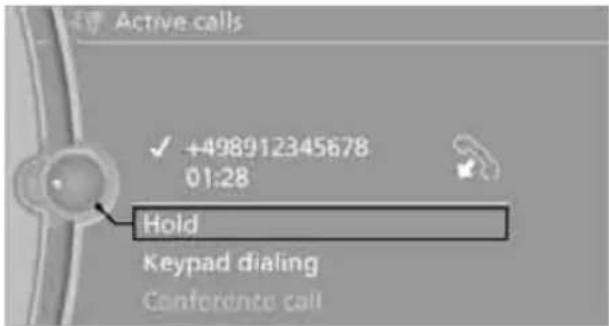
text_image
Active calls ✓ +498912345678 01:28 Hold Keypad dialing Conference callThe existing call is put on hold.
- Dial the new phone number or select it from a list.
Switching between two calls, toggling
Active call: indicated by a red handset
▶ Call on hold: indicated by a green handset
To switch to the call on hold, select this hand-
set.
Establishing a conference call
Two calls can be connected to a single telephone conference call.
- Establish two calls.
- "Conference call"
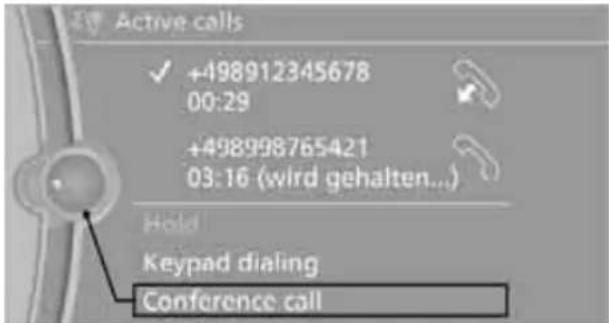
text_image
Active calls ✓ +498912345678 00:29 +498998765421 03:16 (wird gehalten...) Hold Keypad dialing Conference callWhen terminating a conference call, both calls are ended.
Phone book
The phone book accesses the contacts* and shows all contacts for which a phone number has been stored. The entries can be selected to make a call.
- "Telephone"
- "Phone book"
All contacts with a phone number are displayed. A symbol indicates the storage location of the contacts.
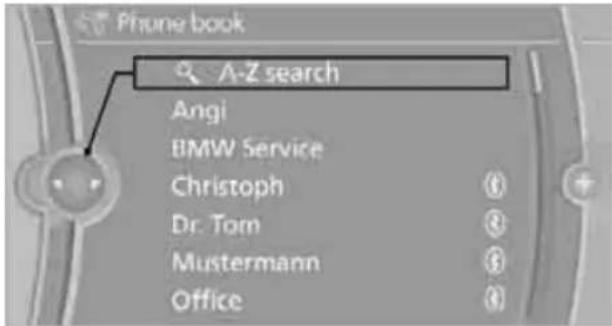
text_image
Phone book A-Z search Angi BMW Service Christoph Dr. Tom Mustermann OfficeSymbol Storage location
No symbol In the vehicle; the address
has not been checked as a destination.

In the vehicle; the address has been checked as a destination.

Mobile phone
Calling a contact
-
Select the desired contact.
A connection is established immediately if calling contacts with one phone number.
For contacts with several phone numbers: -
Select the desired phone number.
The connection is established.
Editing a contact
The entries in the contacts can be changed. When a contact from the mobile phone is changed, the changes are not stored on the mobile phone. A copy of the entry is stored in the vehicle.
- Highlight the contact.
- Open "Options".
- "Edit entry"
The contact can be edited.
Redialing
The eight phone numbers dialed last are stored.
Dialing the number via iDrive
- "Telephone"
- "Redial"
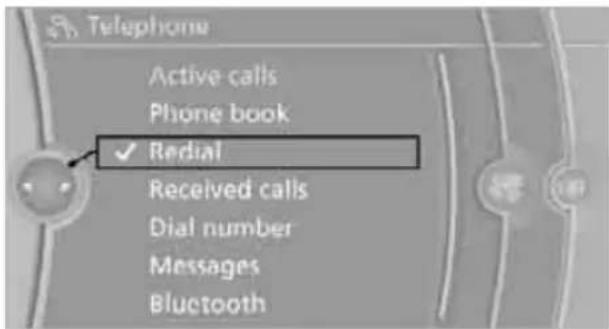
text_image
Telephone Active calls Phone book ✓ Radial Received calls Dial number Messages Bluetooth- Select the desired entry. The connection is established.
Deleting entries
- Highlight an entry.
- Open "Options".
- "Delete entry" or "Delete list".
Saving an entry in the contacts
- Highlight an entry.
- Open "Options".
- "Store as new contact" or "Add to existing contact".
- Select the type of number: "Home", "Business", "Mobile" or "Other".
- Complete the entries if necessary.
- "Store in vehicle"
Received calls
The 20 calls that were last received are displayed.
- "Telephone"
- "Received calls"
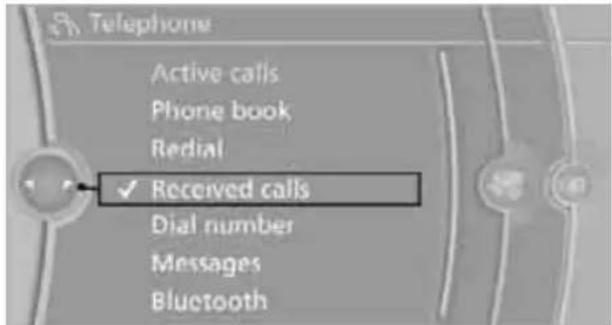
text_image
Telephone Active calls Phone book Redial ✓ Received calls Dial number Messages BluetoothDialing a number
Select an entry.
The connection is established.
Deleting entries
- Highlight an entry.
- Open "Options".
- "Delete entry" or "Delete list".
Saving an entry in the contacts
- Highlight an entry.
- Open "Options".
- "Store as new contact" or "Add to existing contact".
- Select the type of number: "Home", "Business", "Mobile" or "Other".
- Complete the entries if necessary.
- "Store contact"
Messages
Various types of messages can be displayed:
My Info messages from the BMW Assist portal
Messages from the BMW Concierge service
Displaying messages
- "Telephone"
- "Messages"
- Select the desired message.
My Info
To start destination guidance:
- Select the message that contains the desired destination.
- "Start guidance" or "Add as another dest.".
To dial the number in the message:
-
Select the message that contains the desired number.
-
"Call"
Messages from the concierge service
To use the address in destination guidance*:
- Select the message.
- "Start guidance" or "Add as another dest.".

text_image
Conciere 442km Start guidance Deutschland 80788 München Petuelring 130 08912345678- Start destination guidance, if necessary.
To dial a phone number:
- Select the message.
- "Call"
To save an address:
- Select the message.
- Open "Options".
- "Store contact in vehicle"
Deleting messages
- Select the message to be deleted.
- Open "Options".
- "Delete message"
Switching between mobile phone and hands-free system
From mobile phone to hands-free system\*
You can continue ongoing calls outside of the vehicle's Bluetooth range via the hands-free system as long as the engine is running or the ignition is switched on. Depending on your mobile phone, the system automatically switches to hands-free mode.
With mobile phones that do not automatically switch to hands-free mode:
Depending on the type of mobile phone you are using, it may be possible to continue the conversation via the hands-free system. Refer to the display on your mobile phone and/or your mobile phone's operating instructions.
From hands-free system to mobile phone
If you are making a call via the hands-free system, it may be possible to continue the call via the mobile phone, depending on your mobile phone model. Refer to the display on your mobile phone and/or your mobile phone's operating instructions.
Alternatively, you can deactivate the Bluetooth link, refer to page 176.
Depending on the type of mobile phone you are using, it may occur that calls are switched from the hands-free system to the mobile phone if reception of the wireless network is poor.
Operation by voice commands\*
The concept
You can operate your mobile phone without having to take a hand off the steering wheel.
Most menu items on the Control Display can be voiced as commands. The voice activation system supports you by making announcements and asking questions.
...< Verbal instructions to use with the voice activation system.
Requirements
The same prerequisites apply as for operation via iDrive, refer to page 177.
Saying commands
Activating voice activation system
-
Briefly press the button on the steering wheel.
A sound signal indicates that you can say commands. -
Say the command.
Ending/canceling operation by voice commands
Briefly press the button on the steering wheel or

Cancel<.
In dialogs not involving voice commands, i.e. when you are speaking only text, e.g. a name, canceling is possible only via the button on the steering wheel.
Having the possible commands read aloud
The system recognizes specific commands that must be pronounced exactly word for word. You can have the possible commands for any function read aloud to you:

Help<.
Digits from zero to nine are recognized.
You can say each digit individually or group them into a sequence to accelerate the input.
Using alternative commands
Often there is more than a single command to run a function, e.g.:

Dial name< or >Name<.
Example: dialing phone numbers
To start the dialog:
Press the button on the steering wheel.
You say Voice command response
| >Dial number< | >>Please say the number<< |
| e.g. >123 456 7890< | Depending on your equipment version: >>123 456 7890. Continue ?<< |
| >Dial< | >>Dialing number<< |
Adjusting the volume of the instructions
You can adjust the volume for the instructions from the system:
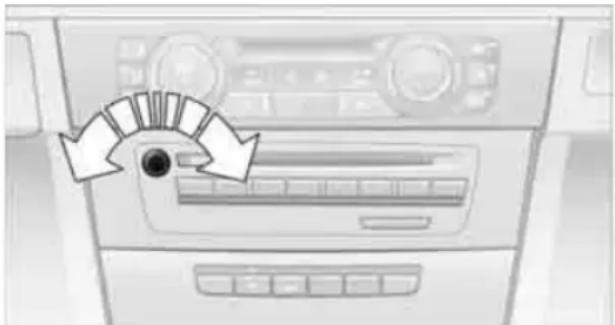
natural_image
Interior view of a car dashboard with directional arrows indicating airflow or flow direction (no text or symbols)Turn the button during an instruction.
This volume for the instructions is maintained, even if the other audio sources are set to minimum volume.
The setting is stored for the remote control currently in use.
Calling
Dialing phone numbers

-
Dial number<.
- Say the phone number. For telephone calls abroad, say 'Plus' and then the country code.
-
Dial<.
The connection to the desired subscriber is established.
Correcting phone numbers
After the last spoken sequence of digits has been repeated by the system, you can delete this sequence of digits.

Correct number<.
The digits are deleted.
The command >Correct number can be repeated as often as you like.
Deleting phone numbers

'Delete'.
All digits entered up to this point are deleted.
Redialing
To redial the phone number dialed last:

Redial<.
Voice phone book
A separate voice phone book is needed for operation using voice commands.
The entries must be entered using voice commands and are separate from the memory in the mobile phone. In this case, phone numbers stored on the mobile phone cannot be called up or saved there using voice commands. Up to 50 entries can be set up. An entry always consists of a name and a phone number.
Creating and editing a voice phone book
To store an entry:
An entry always consists of a name and a phone number.

-
Save name<.
- Say the name. Saying the name for the voice phone book should not take longer than approx. 2 seconds.
- Say the phone number after being prompted to do so by the system.
- To save the phone number:
Save>.
To delete an entry:
You can delete any entry from the voice phone book.

- Delete name. The dialog for deleting an entry opens.
- Say the name when prompted.
- Confirm the query with >Yes<.
To delete all entries:
'Delete phonebook' deletes all entries in the phone book.

- Delete phonebook. The dialog for deleting the phone book opens.
- Confirm the query with >Yes<.
- Confirm the query again with >Yes>.
To listen to and select the entries:
You can have all entries in your voice phone book read aloud in the order in which they were entered and select a specific entry to establish a connection:

-
Read phonebook<. The dialog for reading the phone book opens.
- Say 'Dial number' when the desired entry is read.
Selecting an entry
The connection to the phone number of the selected entry is established.

-
Dial name<.
The dialog for selecting an entry is opened. - Say the name when prompted.
- Confirm the query with >Yes<.
Notes
Notes on Emergency Requests
Do not use the voice activation system to initiate an Emergency Request. In stressful situations, the voice and vocal pitch can change. This can unnecessarily delay the establishment of a telephone connection. Use the SOS button* instead, refer to page 237.
Important for voice commands
For voice commands, bear in mind the following:
Say the commands, numbers and letters smoothly and with normal volume, emphasis and speed.
Always say commands in the language of the voice activation system.
Keep the doors, windows and glass roof*/ panorama glass roof* closed to prevent interference from outside noise.
Avoid ambient noise in the vehicle while speaking.
Inserting/removing the snap-in adapter\*
- Press button 1 and remove the cover.

natural_image
Diagram of a mechanical or fluidic component with directional arrows and a labeled dimension '1' (no text or symbols beyond basic labels)- Insert the snap-in adapter in the front and press it downward until it engages.

natural_image
3D illustration of a black box with directional arrows indicating movement or force (no text or symbols)To remove the snap-in adapter: Press button 1.
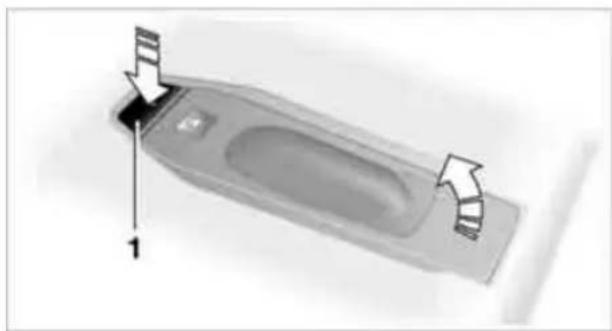
natural_image
3D diagram of a vehicle or container with directional arrows indicating movement or force (no text or symbols)Inserting mobile phone
-
If applicable, remove the protective cap from the mobile phone's antenna connector so that the mobile phone can engage in the snap-in adapter.
-
With its buttons facing upward, slide the mobile phone up towards the electrical con-
tact points and press it downward until it engages.
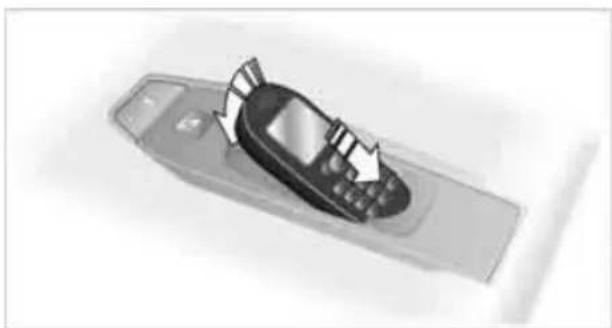
natural_image
Top-down view of a mobile phone with a black and white design, showing its screen and keypad (no text or symbols visible)The mobile phone's battery is charged as soon as the vehicle is in radio readiness or the steering is unlocked.

To conserve vehicle battery power, you should avoid using the mobile phone
when the ignition is switched off.
Removing mobile phone
natural_image
Close-up of a mobile phone control panel with a black button and a white arrow pointing to it (no visible text or symbols)Press the button.
VOCORI 2014
Contacts\*
You can create and edit contacts. The contacts from the mobile phone* are displayed as well if this function is supported by the mobile phone. The addresses can be used as destinations for navigation and the phone numbers can be dialed.
New contact
- "Contacts"
- "New contact"

text_image
Contacts ✓ New contact My contacts- If the entry fields are still filled with the previous entries, select "Delete input fields".
- To fill in the entry fields: Select the symbol next to the entry field.
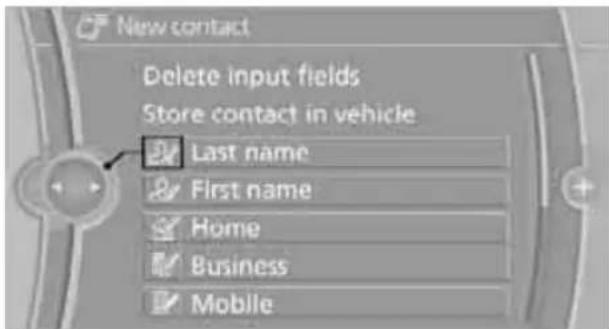
text_image
New contact Delete input fields Store contact in vehicle Last name First name Home Business Mobile- Enter the text.
If the vehicle is equipped with a navigation system, it is only possible to enter addresses that are contained in the navigation data in the vehicle. This ensures that destination guidance is possible for all addresses.
- If applicable, "Store"
- "Store contact in vehicle"
Specifying a contact as the home address
A contact can be stored as a home address. It is placed at the top of "My contacts".
- Create a new contact.
- Open "Options".
- "Store as home address"

text_image
Options Split screen Switch off Control display New contact Store as home address Contacts Bluetooth Bluetooth InfoWhen the home address is deleted, only the content of the home address entry is deleted and not the entry itself.
My contacts
A list of all contacts in the vehicle and on the mobile phone*.
Displaying contacts
"My contacts"
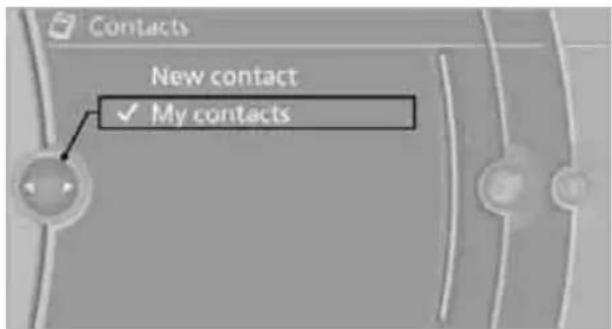
text_image
Contacts New contact ✓ My contactsAll contacts are listed in alphabetical order. Depending on the number of contacts, an A-Z
search is offered. A symbol indicates the storage location of the contacts:
Symbol Storage location
No symbol In the vehicle; the address
has not been checked as a destination.

In the vehicle; the address has been checked as a destination.

Mobile phone*
Displaying the detailed view\*
Select the desired contact.
All fields that have been filled in for that contact are displayed.
Selecting a contact as the navigation destination
- "My contacts"
- Select the desired contact.
- Select the desired address.
Contacts from the mobile phone* may contain addresses that do not match the navigation data contained in the vehicle and thus cannot be used for destination guidance. In this case: Manually correct the address.
Checking the address as a destination\*
An address that is to be used for destination guidance must match the navigation data contained in the vehicle. An address that is stored on the mobile phone can be matched to the navigation data.
- Select the desired contact and highlight the address.
- Open "Options".
- "Check as destination"
- Correct and store the address, if necessary.
After an address has been corrected, the contact can be stored in the vehicle. The address is not changed on the mobile phone.
Dialing a phone number\*
- "My contacts"
- Select the desired contact.
- Select the desired phone number.
The connection is established.
Editing a contact
- "My contacts"
- Select the desired contact.
- "Edit contact"
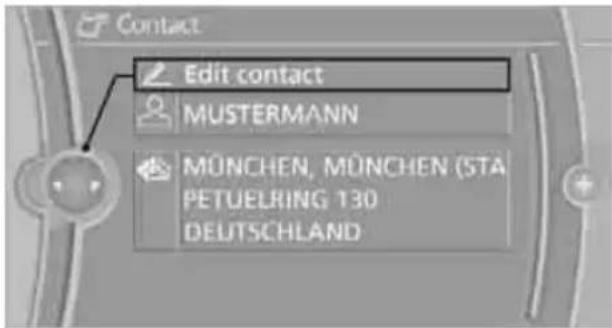
text_image
Contact Edit contact MUSTERMANN MÜNCHEN, MÜNCHEN (STA PETUELRING 130 DEUTSCHLAND-
Change the entries.
-
Move the controller to the left.
-
"Yes"
If a contact from the mobile phone* is edited, the changes are not stored on the mobile phone. A copy of the entry is stored in the vehicle, and only this copy is displayed.
Deleting contacts
Only contacts that are stored in the vehicle are deleted. The contacts on the mobile phone* cannot be deleted.
- "My contacts"
- Highlight the contact.
- Open "Options".
- "Delete contact" or "Delete all contacts".
BMW Assist\*
BMW Assist\*
BMW Assist provides a number of different services. For example, the position data of the vehicle can be transmitted to the BMW Assist Response Center when an Emergency Request* is sent.
Many BMW Assist services depend on the contract individually agreed upon.
After your contract has expired, the BMW Assist system will be deactivated by the BMW Assist Response Center without you having to visit a BMW center. After the BMW Assist system has been deactivated, no BMW Assist services will be available. The BMW Assist system can be reactivated by a BMW center after a new contract has been signed.
Requirements
The installed BMW Assist system is logged in to a wireless communications network. This network must be capable of transmitting the services.
To transmit position data, the vehicle must be able to determine its current position.
To activate and update BMW Assist, a GPS signal must be available.
The BMW Assist service contract was signed with your BMW center or with the BMW Assist Response Center. The service must have been fully enabled.
BMW Assist is activated.
Services offered
Emergency Request: when you press the SOS button, a connection to the BMW Assist Response Center is established. The BMW Assist Response Center then speaks with you and takes further steps to help you.
▶ Automatic Collision Notification: under certain conditions, a connection to the BMW Assist Response Center is established after a serious accident. If possible, the BMW
Assist Response Center then speaks with you and takes further steps to help you.
Enhanced Roadside Assistance: BMW Roadside Assistance* can be contacted if assistance is needed in the event of a breakdown. If possible, the vehicle data and position data are transmitted during this call.
▶ Customer Relations: connection to Customer Relations for information on all aspects of your vehicle.
TeleService: data on your vehicle's service status or required inspections are transmitted to your BMW center, either automatically before a service due date or when you request a BMW service appointment.
Remote Door Unlock: the BMW Assist Response Center provides assistance if, for example, the remote control is not available and the vehicle needs to be opened.
Stolen Vehicle Recovery: after you report to the police that your vehicle was stolen, the BMW Assist Response Center can determine its position.
In addition, the optional Convenience Plan offers a concierge service and information on route planning, the traffic situation and weather. Using Critical Calling, a limited number of calls can be made via the BMW Assist Response Center, for example if the mobile phone is not available or discharged. Press the SOS button to contact the BMW Assist Response Center.
TeleService\*
TeleService supports communication with your BMW center.
Data on the vehicle's service requirements can be sent directly to the BMW center. In this way, the BMW center can plan its work
in advance. This shortens the duration of the service appointment.
In the event of a breakdown, data on the vehicle's condition can be sent directly to Roadside Assistance*.
The service varies by country.
▶ Connection may incur charges.
Services may be restricted abroad.
Requirements
BMW Assist is activated.
▶ Wireless reception is available.
The engine is running.
Concierge service\*
When you call the BMW Assist Concierge service, you can obtain information about, for example, restaurants, emergency pharmacy services, gas stations or hotels, as well as receive the corresponding telephone numbers and addresses.
You can then dial a phone number directly or use an address for destination guidance *.
Starting the concierge service
- "BMW Assist"
- "Concierge"
text_image
BMW Assist ✓ Concierge Messages Roadside Assistance BMW Search Customer Relations Service Request Service status3. "Start service"
A voice connection is established to the BMW Concierge service.
You are connected to an employee of the BMW Concierge service to obtain the required information. You can then have the phone number and address sent to you and, for example, use it
for destination guidance in the navigation system. Many hotels can be booked directly through the BMW Assist Concierge service. When an information message is received, a list of the received messages is displayed automatically. Open the message via the message list, refer to page 180.
Roadside Assistance
You can call BMW Roadside Assistance * should you require help in the event of a break-down.
Starting Roadside Assistance
Vehicle not equipped with BMW Assist or BMW TeleService
- "BMW Assist"
- "Roadside Assistance"
text_image
BMW Assist Concierge Messages ✓ Roadside Assistance BMW Search Customer Relations Service Request Service statusThe Roadside Assistance number is displayed.
- Select the number. If a mobile phone * is paired, a connection is established to BMW Roadside Assistance.
Vehicle equipped with BMW Assist or BMW TeleService
- "BMW Assist"
- "Roadside Assistance"
3. "Start service"
text_image
Rouchide Assistance Start service Service readyTeleService Diagnosis\*
TeleService Diagnosis enables the wireless transmission of detailed vehicle data that are important for vehicle diagnosis. TeleService Diagnosis can be started after a prompt by Roadside Assistance and termination of the voice connection.
TeleService Help\*
TeleService Help enables an in-depth diagnosis of the vehicle by Roadside Assistance via wireless transmission. TeleService Help can be started after a prompt by Roadside Assistance and termination of the voice connection.
Starting TeleService Help
- Park the vehicle in a safe place.
- Set the parking brake.
- The engine is running.
- "TeleService Help"
After completion of TeleService Help, a voice connection is established to Roadside Assistance.
Activating BMW Assist\*
If the services included in a valid BMW Assist subscription are not displayed, they may need to be activated.
-
Make sure that the vehicle can determine its current position. Reception is usually best when you have an unobstructed view to the sky.
-
Switch on the ignition.
3. "Activate BMW Assist"
Activation may take several minutes. If another menu is opened, activation continues running in the background.
BMW Search\*
BMW Search is an online portal that makes certain services available for use in your vehicle, e.g. information on restaurants along your route.
License conditions:
This product contains NetFront Browser software of ACCESS Co., Ltd. Copyright © 2007 ACCESS Co., Ltd. All rights reserved. NetFront is a trademark or registered trademark of ACCESS Co., Ltd., in Japan and other countries.
This software is based in part on the work of the Independent JPEG Group.
Requirements
Subscription to the optional Convenience Plan.
The vehicle is located within wireless network coverage.
The date setting on the Control Display is current.
Starting BMW Search
- "BMW Assist"
- "BMW Search"
text_image
BMW Assist Concierge Messages Roadside Assistance ✓ BMW Search Customer Relations Service Request Service status- Select "OK", if necessary.
The BMW Search start page is displayed.
Using BMW Search
To select and display content:
Turn the controller to highlight an element.
▶ Press the controller to display an element.
Opening the start page
- Open "Options".
- "Home"
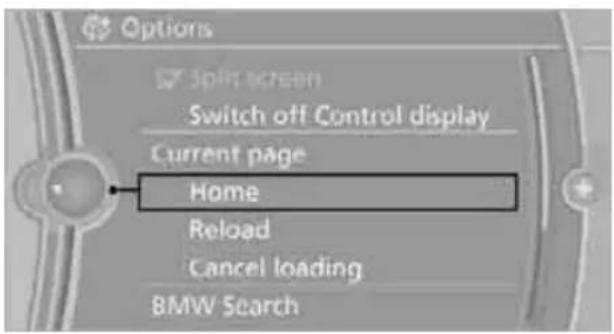
text_image
Options Split screen Switch off Control display Current page Home Reload Cancel loading BMW SearchLoading a new page
- Open "Options".
- "Reload"
Canceling
- Open "Options".
- "Cancel loading"
Customer Relations
At a glance
Contact Customer Relations for information on all aspects of your vehicle.
Calling Customer Relations
Vehicle equipped with BMW Assist or BMW TeleService
- "BMW Assist"
- "Customer Relations"
- "Start service"
A voice connection is established to Customer Relations.
Vehicle not equipped with BMW Assist or BMW TeleService
- "BMW Assist"
- "Customer Relations"
The Customer Relations phone number is displayed. If the vehicle is equipped with the mobile phone preparation package, a voice connection is established.
text_image
Customer Relations Please call this number: 08912345678Service Request\*
At a glance
You can send a request to your BMW center to arrange a service appointment. The TeleService data is transmitted during a Service Request. If possible, your BMW center will establish contact with you.
Starting a Service Request
- "BMW Assist"
- "Service Request"
- "Start service"
text_image
Service Request Start service Service readyAutomatic Service Request\*
The TeleService data necessary for servicing the vehicle are automatically sent to your BMW center prior to the service deadline. If possible, the center will contact you and a service appointment can be arranged.
You can check when the BMW center was notified.
- "Vehicle Info"
- "Vehicle status"
text_image
Vehicle Info Onboard info Trip computer ✓ Vehicle status- Open "Options".
- "Last Service Request"
Data transfer\*
The status of the data transfer is displayed.
- "BMW Assist"
- Open "Options".
- "Data transfer"
Service status\*
Displaying available services
Display of all services available in the vehicle. This function can be called up via "Options".
- "BMW Assist"
- Open any menu.
- Open "Options".
- "Service status"
- "Available services"
Activating BMW Assist
If the services included in a BMW Assist subscription are not displayed, they may need to be activated.
natural_image
Close-up of a glass pipette dispensing liquid into a circular container (no visible text or symbols)Mobility
This section helps you maintain your car's mobility by supplying important information on vital topics including fuels and lubricants, wheels and tires, service, maintenance and roadside assistance.
Refueling

Always switch off the engine before refueling; otherwise, fuel cannot be added to ink and a message will be displayed.

Take all precautionary measures and observe all applicable regulations when ing fuel. Do not carry any spare fuel con- s in your vehicle. They can develop a leak cause an explosion or cause a fire in the of an accident.
Fuel filler flap
Opening

natural_image
Diagram showing a car interior with a vehicle and a directional arrow pointing to a device (no text or symbols present)- Open the fuel filler flap. To do so, lightly press the rear edge.
- Turn the gas cap counterclockwise.
- Place the gas cap in the bracket attached to the fuel filler flap.
Closing
Fit the cap and turn it clockwise until you clearly hear a click.

Do not pinch the band attached to the cap; otherwise, the cap cannot be closed by and fuel vapors can escape. A mes-will be displayed if the gas cap is loose or wing.
Manually releasing the fuel filler flap
In the event of a malfunction, you can release the fuel filler flap manually:
Sedan
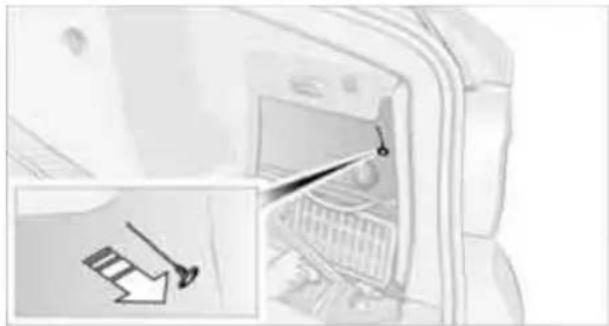
natural_image
Diagram showing a computer interior with an open device and a magnified inset highlighting a component (no text or symbols present)- Remove the cover from the right-hand sidewall of the cargo area.
- Pull the knob with the fuel pump symbol. The fuel filler flap is released.
Sports Wagon
- Fold up the cargo area floor panel.
- Remove the cover from the right-hand sidewall of the cargo area. To do so, turn the screws, arrows 1, 90° and take out the cover, arrow 2.
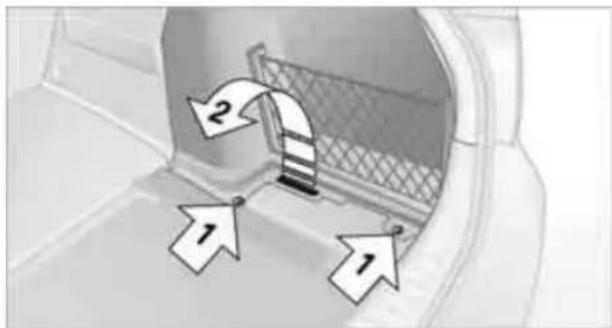
text_image
Diagram showing a car interior with directional arrows labeled 1 and 2 indicating movement or flow direction.- Pull the knob with the fuel pump symbol. The fuel filler flap is released.
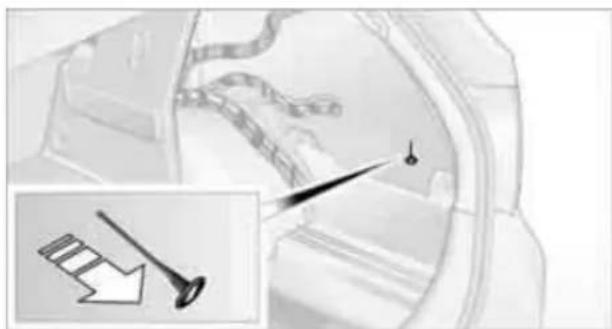
natural_image
Close-up of a mechanical component with a magnified inset showing a downward arrow and a small droplet (no text or symbols visible)Observe the following when refueling

When handling fuels, follow the safety instructions provided at filling stations; otherwise, there is a risk of personal injury or property damage.
When refueling, insert the filler nozzle completely into the filler pipe. Avoid lifting the filler nozzle while filling the tank, as that would lead to
▶ Premature pump shutoff
▶ Reduced efficiency of the fuel-vapor recovery system.
The fuel tank is full when the filler nozzle clicks off the first time.
Fuel tank capacity

Refuel as soon as possible once your cruising range falls below 30 miles/
50 km; otherwise, engine functions are not ensured and damage can occur.
Gasoline engine
Approx. 16.1 US gallons/61 liters, including the reserve capacity of 2.1 US gallons/8 liters.
Diesel engine
Approx. 16.1 US gallons/61 liters, including the reserve capacity of 1.7 US gallons/6.5 liters.
Fuel specifications
Gasoline engine: required fuel

Do not refuel with leaded fuel; otherwise, the catalytic converter will be damaged.
Do not fill the tank with E85, i.e. fuel containing 85% ethanol, nor with FlexFuel. Otherwise, the engine and fuel supply system will be damaged.
Super Premium Gasoline/AKI 91
This gasoline is highly recommended.
However, you may also use gasoline with less AKI. The minimum AKI Rating is:
323i, 328i/xDrive: 87
335i/xDrive: 89.
If you use gasoline with this minimum AKI Rating, the engine may produce knocking sounds when starting at high outside temperatures. This has no effect on the engine life.

Do not use any gasoline below the specified minimum fuel grade. Otherwise, the one could be damaged.
Use high-quality brands
Field experience has indicated significant differences in fuel quality: volatility, composition, additives, etc., among gasolines offered for sale in the United States and Canada. Fuels containing up to and including 10% ethanol or other oxygenates with up to 2.8% oxygen by weight, that is, 15% MTBE or 3% methanol plus an equivalent amount of cosolvent, will not void the applicable warranties with respect to defects in materials or workmanship.

The use of poor-quality fuels may result in drivability, starting and stalling problems cially under certain environmental condi-such as high ambient temperature and altitude.
Should you encounter drivability problems which you suspect could be related to the fuel you are using, we recommend that you respond by switching to a recognized high-quality brand such as gasoline that is advertised as Top Tier Detergent Gasoline.
Failure to comply with these recommendations may also result in unscheduled maintenance.
BMW Advanced Diesel: required fuel
Ultra-low sulfur diesel
The engine of your BMW is designed for diesel with low sulfur content:
Ultra-low sulfur diesel ASTM D 975-07a.

Refuel with ultra-low sulfur diesel only. The percentage of biodiesel in the fuel must not exceed 5%; this type of fuel is referred to as B5. Do not refuel with gasoline. If you have accidentally refueled with the wrong fuel, e.g. with gasoline, do not start the engine; otherwise, engine damage may occur.
If you have refueled with the wrong fuel, contact your BMW center.

The filler neck is designed for refueling at diesel fuel pumps.
If the filler nozzle cannot be inserted into your BMW's filler pipe, please ensure that you are refueling at a diesel fuel pump and that it is equipped with a diesel filler nozzle.

In the event the Ultra-Low Sulfur Diesel fuel cannot be fully inserted into the fuel filler neck, please contact BMW Roadside Assistance for instructions on how to add fuel. For more information on BMW Roadside Assistance, refer to page 237.
Winter diesel
To ensure that the diesel engine remains operational in the winter, please use winter diesel, which is available at gas stations during winter months. The fuel filter heating system, included as a standard feature, prevents disruption of the fuel supply while driving.

Do not add additives, including gasoline; otherwise, engine damage may occur.
BMW recommends BP fuels

BMW Advanced Diesel
The concept
BMW Advanced Diesel reduces nitrogen oxide in the diesel emissions of your vehicle by means of a mechanism that injects diesel exhaust fluid, a reduction agent, into the exhaust tract. A chemical reaction occurs in the catalytic converter that minimizes the nitrogen oxide content.
To be able to start the engine as usual, a sufficient amount of diesel exhaust fluid must be present in a separate reservoir.
Warming the system
To warm the system to its operating temperature after starting with a cold engine, the automatic transmission delays shifting to the next higher gear, if necessary.
Reserve display
A display in the instrument cluster informs you about the remaining distance you can drive with the fluid remaining in the reservoir.
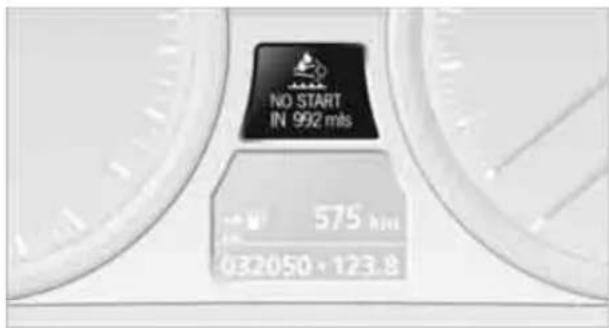
text_image
NO START IN 992 m/s 575 km/h 032050·123.8The reserve display appears beginning at approx. 1,000 miles/1,600 km before the supply is used up.

When this reserve display appears in the instrument cluster, have diesel exhaust refilled to avoid not being able to start the time.
Diesel exhaust fluid at the minimum level
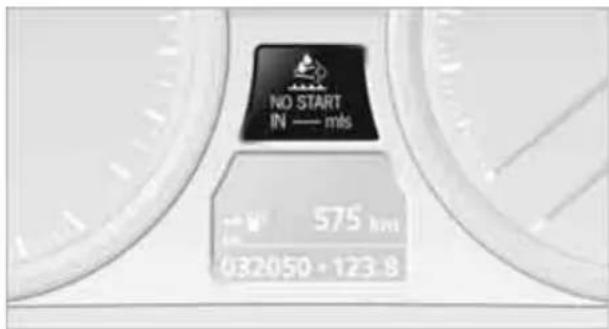
text_image
NO START IN — mls 575 km/h 432050 · 123.8Even if the display indicates -- mls, the engine continues running if it is not switched off and if all other requirements continue to be met, e.g. a sufficient supply of fuel.

Do not drive to the end of the indicated distance. Otherwise, it will not be possible
to start the engine again after switching it off.
Wrong fluid

A warning lamp lights up: The wrong fluid was filled into the reservoir.
Please contact your BMW center.
Having the diesel exhaust fluid refilled
Diesel exhaust fluid is refilled by your BMW center during regular service. If the service intervals are adhered to, it generally does not need to be refilled between service appointments.
Under certain conditions, e.g. especially frequent accelerations or operation of the vehicle at high altitudes, it may become necessary to refill the fluid between service appointments.
When this reserve display appears in the instrument cluster, have diesel exhaust fluid refilled to avoid not being able to start the engine.
You can have the fluid refilled by a BMW center.
Diesel exhaust fluid at low temperatures

Because of its physical properties, it may be necessary to refill diesel exhaust fluid between regular service appointments at temperatures below +23°F/-5°C.
The need to add fluid is indicated by the reserve display in the instrument cluster, refer to page 198.
Refilling diesel exhaust fluid in exceptional cases
To be able to reach the next BMW center, you can refill diesel exhaust fluid yourself while adhering to the following warnings.

Do not come into contact with diesel exhaust fluid as it can lead to skin or eye irritations. Wear goggles and gloves, if necessary. Follow the safety instructions on the bottle.
Vapors with a sharp odor can escape from the bottle or container when it is opened. Before refilling, completely close the windows and doors of the vehicle to prevent the vapors from intruding into the interior. If handling diesel
exhaust fluid in an enclosed area, ensure that the room is well ventilated.
After handling diesel exhaust fluid, wash your hands thoroughly; otherwise, for example, inadvertently touching your eyes may lead to eye irritations.
If eye irritations occur, rinse the eyes thoroughly with water and consult a physician if necessary. If diesel exhaust fluid comes into contact with the surface of your vehicle, rinse the affected areas with water to prevent surface damage.
Keep diesel exhaust fluid away from children.
Suitable diesel exhaust fluid
▶ Preferred: BMW Diesel Exhaust Fluid. Diesel exhaust fluid can be refilled conveniently with this bottle and its special adapter.
Alternatively: NOx reduction agent AUS 32
You can obtain diesel exhaust fluid from your BMW center.
Refilling quantity
Refilling quantity when the reserve display first appears:
Approx. 1 US gallon/3.7 liters
Opening the diesel exhaust fluid reservoir
- Remove the cover in the bumper by pressing on it, see arrow.
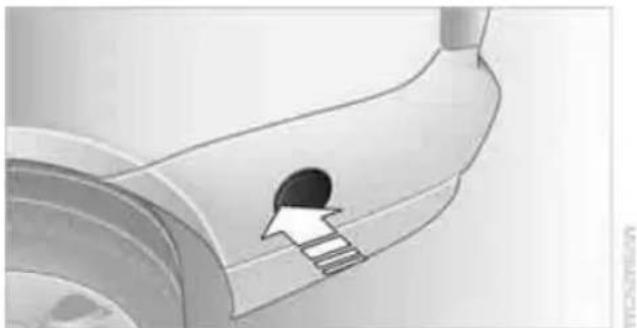
natural_image
Close-up of a curved mechanical component with a circular hole and a white arrow pointing to a stepped feature (no text or symbols visible)- Place the handle of the screwdriver from the onboard vehicle tool kit, page 229, onto the bottom cap and open the cap, arrow.
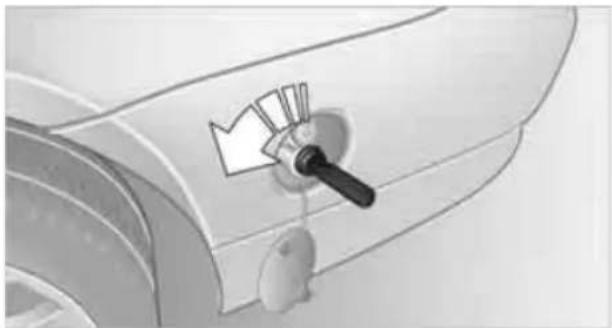
natural_image
Close-up of a mechanical component with a handle and arrow symbol (no readable text or symbols)Refilling BMW Diesel Exhaust Fluid
- Attach the bottle and screw it all the way on, see arrow. The line on the bottle should point upward.

Hold the attached bottle to prevent the thread on the vehicle from
becoming damaged by the weight of the bottle.
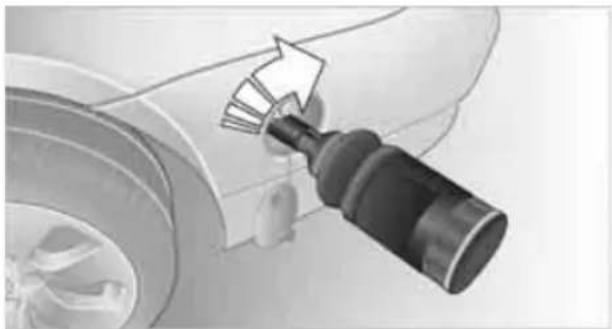
natural_image
Close-up of a car wheel with a mechanical component inserted, showing a lever mechanism (no text or symbols visible)- Press the bottle toward the vehicle, see arrow.
The reservoir in the vehicle is filled.
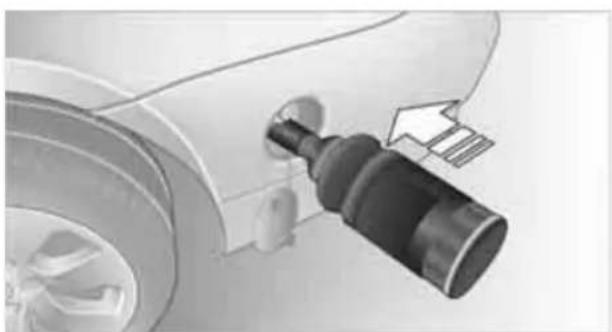
natural_image
Close-up of a car's wheel assembly with a mechanical component inserted, showing no visible text or symbols.- The reservoir is full when the filling level in the bottle stops changing. It is not possible to overfill the reservoir.
Pull back the bottle, see arrow, and unscrew it.
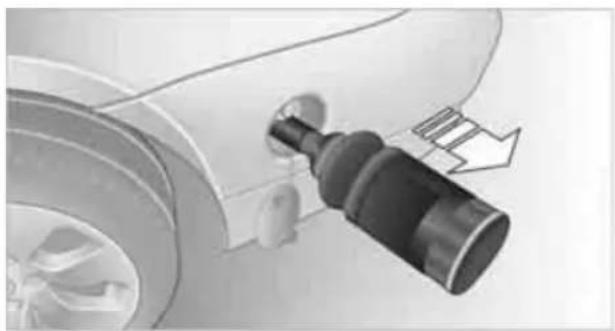
natural_image
Close-up of a car's wheel assembly with a black cylindrical component inserted, showing a directional arrow (no text or symbols)Closing the reservoir
After refilling, close the reservoir again using the handle of the screwdriver.
After refilling diesel exhaust fluid
Wrong fluid

If you add the wrong fluid, e.g. antifreeze for washer fluid, do not start the engine; wise, there is a danger of fire.
Contact your BMW center.
Disposing of the bottle

You can dispose of the bottles for diesel exhaust fluid at your BMW center.
Only dispose of empty bottles in household refuse if local regulations allow.
Reserve display
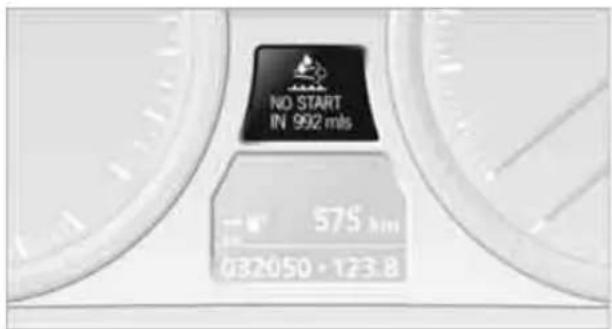
text_image
NO START IN 992 m/s 575 km 032050 · 123.8After refilling, the reserve display continues to be displayed after the engine is started. It goes out after the vehicle has been driven for several minutes.
Wheels and tires
Tire inflation pressures
Information for your safety
It is not merely the tires' service life, but also driving comfort and, to a great extent, driving safety that depend on the condition of the tires and the maintenance of the specified tire pressure.

Check the tire inflation pressure regularly and correct it, if necessary: at least twice a month and before starting long trips. If you fail to observe this precaution you may be driving on tires with incorrect tire pressures, a condition that can not only compromise your vehicle's driving stability, but also lead to tire damage and the risk of an accident. Do not drive with deflated, i.e. flat tires, except when using run-flat tires. A flat tire will seriously impair your vehicle's handling and braking response.
Attempts to drive on a flat tire can lead to loss of control over the vehicle.
Checking pressure
Only check tire inflation pressure when the tires are cold. This means after a maximum of 1.25 miles/2 km driving or when the vehicle has been parked for at least 2 hours. When tires are warm, the tire inflation pressure is higher.

After correcting the tire inflation pressure, reset the Tire Pressure Monitor, refer to page 86, or reinitialize the Flat Tire Monitor, refer to page 85.
Inflation pressure specifications
The tables below provide all the correct inflation pressures for the specified tire sizes at ambient temperature.

The inflation pressures apply to the tire sizes approved and tire brands recommended by BMW; a list of these is available from your BMW center.
For correct identification of the right tire inflation pressures, observe the following:
▶ Tire sizes for your vehicle
Load conditions
▶ Maximum allowable driving speed
Tire inflation pressures for driving up to 100 mph or 160 km/h
For normal driving up to 100 mph or 160 km/h and to achieve optimum driving comfort, adjust pressures to the respective tire inflation pressures listed on the following pages in the columns for traveling speeds up to a maximum of 100 mph or 160 km/h.
These tire inflation pressures can also be found on the driver's side door post when the driver's door is open.

natural_image
Interior view of a car showing the side panel and seatbelt mechanism (no text or symbols visible)
The maximum permissible speed for these tire pressures is 100 mph or
160 km/h. Do not exceed this speed; otherwise, tire damage and accidents could occur.
Tire inflation pressures for driving above 100 mph or 160 km/h

In order to drive at maximum speeds in excess of 100 mph or 160 km/h, adjust pressures to the respective tire inflation pressures listed on the following pages in the columns for traveling speeds including those exceeding 100 mph or 160 km/h. Otherwise, tire damage and accidents could occur.
Observe all national and local maximum speed limits; otherwise, violations of the laws could occur.
Sedan: tire inflation pressures for the 323i, for Canada only
Tire size Pressure specifications in psi/kPa
| Traveling speeds up to a max. of 100 mph / 160 km/h | Traveling speeds including those exceeding 100 mph / 160 km/h | |
| All pressure specifications in the table are indicated in psi/kilopascal with cold tires. | ||
| Cold = ambient temperature |  |  |
Without Sport Package:
| 205/55 R 16 91 H M+S | 32/220 | 36/250 | 35/240 | 42/290 |
| 225/50 R 16 92 V225/50 R 16 92 H M+S | 32/220 | 35/240 | 32/220 | 39/270 |
| 225/45 R 17 91 H M+S225/45 R 17 91 V | 32/220 | 38/260 | 35/240 | 42/290 |
| 225/45 R 17 94 V M+S XL | 32/220 | 39/270 | 36/250 | 44/300 |
| Front: 225/45 R 17 91 V 32/220 - 35/240 -Rear: 255/40 R 17 94 V | - | 35/240 | - | 38/260 |
| Front: 225/40 R 18 88 W | 32/220 | - | 35/240 | - |
| Rear: 255/35 R 18 90 W | - | 39/270 | - | 42/290 |
| Front: 225/35 R 19 88 Y XL | 36/250 | - | 36/250 | - |
| Rear: 255/30 R 19 91 Y XL | - | 44/300 | - | 44/300 |
| Tire size | Pressure specifications in psi/kPa | |||
| Traveling speeds up to a max. of 100 mph / 160 km/h | Traveling speeds including those exceeding 100 mph / 160 km/h | |||
| All pressure specifications in the table are indicated in psi/kilopascal with cold tires. Cold = ambient temperature |  |  | ||
| With Sport Package: | ||||
| 205/55 R 16 91 H M+S 32/220 36/250 36/250 44/300 | ||||
| 225/50 R 16 92 V 225/50 R 16 92 H M+S | 32/220 35/240 36/250 44/300 | |||
| 225/45 R 17 91 V 225/45 R 17 91 H M+S | 32/220 38/260 41/280 48/330 | |||
| 225/45 R 17 94 V M+S XL | 32/220 | 39/270 | 42/290 | 49/340 |
| Front: 225/45 R 17 91 V 32/220 - 41/280 - Rear: 255/40 R 17 94 V | - | 35/240 | - | 44/300 |
| Front: 225/40 R 18 88 W | 32/220 | - | 39/270 | - |
| Rear: 255/35 R 18 90 W | - | 39/270 | - | 46/320 |
| Front: 225/35 R 19 88 Y XL | 36/250 | - | 39/270 | - |
| Rear: 255/30 R 19 91 Y XL | - | 44/300 | - | 46/320 |
| More details on the permissible load and weights can be found on page 247. | ||||
Sedan: tire inflation pressures for the 328i
Tire size Pressure specifications in psi/kPa
| Traveling speeds up to a max. of 100 mph / 160 km/h | Traveling speeds including those exceeding 100 mph / 160 km/h | |
| All pressure specifications in the table are indicated in psi/kilopascal with cold tires. | ||
| Cold = ambient temperature |  |  |
| Without Sport Package: | ||||
| 205/55 R 16 91 H M+S | ||||
| 225/50 R 16 92 V | 32/220 | 36/250 | 33/230 | 41/280 |
| 225/50 R 16 92 H M+S | ||||
| 225/45 R 17 91 H M+S | ||||
| 225/45 R 17 91 V | 32/220 | 39/270 | 36/250 | 44/300 |
| 225/45 R 17 94 V M+S XL | 33/230 | 41/280 | 38/260 | 45/310 |
| Front: 225/45 R 17 91 V 32/220 - 36/250 - | ||||
| Rear: 255/40 R 17 94 V | - | 35/240 | - | 39/270 |
| Front: 225/40 R 18 88 W | 33/230 | - | 36/250 | - |
| Rear: 255/35 R 18 90 W | - | 41/280 | - | 44/300 |
| Front: 225/40 R 18 88 Y | 33/230 | - | 33/230 | - |
| Rear: 255/35 R 18 90 Y | - | 41/280 | - | 41/280 |
| Front: 225/35 R 19 88 Y XL | 38/260 | - | 38/260 | - |
| Rear: 255/30 R 19 91 Y XL | - | 45/310 | - | 45/310 |
| Tire size | Pressure specifications in psi/kPa | |||
| Traveling speeds up to a max. of 100 mph / 160 km/h | Traveling speeds including those exceeding 100 mph / 160 km/h | |||
| All pressure specifications in the table are indicated in psi/kilopascal with cold tires. Cold = ambient temperature |  |  | ||
| With Sport Package: | ||||
| 205/55 R 16 91 H M+S225/50 R 16 92 H M+S225/50 R 16 92 V | 32/220 36/250 38/260 45/310 | |||
| 225/45 R 17 91 H M+S225/45 R 17 91 V | 32/220 39/270 38/260 45/310 | |||
| 225/45 R 17 94 V M+S XL | 33/230 | 41/280 | 44/300 | 51/350 |
| Front: 225/45 R 17 91 V 32/220 - 38/260 -Rear: 255/40 R 17 94 V | - | 35/240 | - | 45/310 |
| Front: 225/40 R 18 88 W | 33/230 | - | 41/280 | - |
| Rear: 255/35 R 18 90 W | - | 41/280 | - | 48/330 |
| Front: 225/40 R 18 88 Y | 33/230 | - | 36/250 | - |
| Rear: 255/35 R 18 90 Y | - | 41/280 | - | 44/300 |
| Front: 225/35 R 19 88 Y XL | 38/260 | - | 41/280 | - |
| Rear: 255/30 R 19 91 Y XL | - | 45/310 | - | 48/330 |
| More details on the permissible load and weights can be found on page 247. | ||||
Sedan: tire inflation pressures for the 328xi
| Tire size Pressure specifications in psi/kPa | ||||
| Traveling speeds up to a max. of 100 mph / 160 km/h | Traveling speeds including those exceeding 100 mph / 160 km/h | |||
| All pressure specifications in the table are indicated in psi/kilopascal with cold tires. Cold = ambient temperature |  |  | ||
| Without Sport Package: | ||||
| 205/55 R 16 91 H M+S225/50 R 16 92 H M+S225/50 R 16 92 V225/45 R 17 91 H M+S225/45 R 17 91 W | 32/220 36/250 35/240 41/280 | |||
| 225/45 R 17 94 V M+S XL | 32/220 | 38/260 | 35/240 | 42/290 |
| Front: 225/45 R 17 91 V 32/220 - 35/240 -Rear: 255/40 R 17 94 V | - | 33/230 | - | 38/260 |
| Front: 225/40 R 18 88 W | 33/230 | - | 36/250 | - |
| Rear: 255/35 R 18 90 W | - | 38/260 | - | 41/280 |
| Front: 225/35 R 19 88 Y XL | 39/270 | - | 39/270 | - |
| Rear: 255/30 R 19 91 Y XL | - | 42/290 | - | 42/290 |
| With Sport Package: | ||||
| 205/55 R 16 91 H M+S225/50 R 16 92 H M+S225/45 R 17 91 H M+S | 32/220 36/250 35/240 41/280 | |||
| 225/50 R 16 92 V225/45 R 17 91 W | 32/220 36/250 38/260 45/310 | |||
| 225/45 R 17 94 V M+S XL | 32/220 | 38/260 | 41/280 | 48/330 |
| Front: 225/45 R 17 91 V | 32/220 | - | 38/260 | - |
| Rear: 255/40 R 17 94 V | - | 33/230 | - | 42/290 |
| Front: 225/40 R 18 88 W | 33/230 | - | 41/280 | - |
| Rear: 255/35 R 18 90 W | - | 38/260 | - | 45/310 |
| Front: 225/35 R 19 88 Y XL | 39/270 | - | 42/290 | - |
| Rear: 255/30 R 19 91 Y XL | - | 42/290 | - | 45/310 |
| More details on the permissible load and weights can be found on page 247. | ||||
Sedan: tire inflation pressures for the 335i
Tire size Pressure specifications in psi/kPa
| Traveling speeds up to a max. of 100 mph / 160 km/h | Traveling speeds including those exceeding 100 mph / 160 km/h | |
| All pressure specifications in the table are indicated in psi/kilopascal with cold tires. Cold = ambient temperature |  |  |
Without Sport Package:
| 225/45 R 17 91 H M+S225/45 R 17 91 W | 35/240 | 42/290 | 39/270 | 46/320 | |
| 225/45 R 17 94 V M+S XL | 36/250 | 44/300 | 41/280 | 48/330 | |
| Front: 225/45 R 17 91 V | 35/240 | - | 39/270 | - | |
| Rear: 255/40 R 17 94 V | - | 38/260 | - | 42/290 | |
| Front: 225/40 R 18 88 W | 35/240 | - | 39/270 | - | |
| Rear: 255/35 R 18 90 W | - | 42/290 | - | 46/320 | |
| Front: 225/40 R 18 88 Y | 35/240 | - | 35/240 | - | |
| Rear: 255/35 R 18 90 Y | - | 42/290 | - | 42/290 | |
| Front: 225/35 R 19 88 Y XL | 41/280 | - | 41/280 | - | |
| Rear: 255/30 R 19 91 Y XL | - | 48/330 | - | 48/330 |
With Sport Package:
| 225/45 R 17 91 H M+S225/45 R 17 91 W | 35/240 | 42/290 | 42/290 | 49/340 | |
| 225/45 R 17 94 V M+S XL | 36/250 | 44/300 | 44/300 | 51/350 | |
| Front: 225/45 R 17 91 V | 35/240 | - | 42/290 | - | |
| Rear: 255/40 R 17 94 V | - | 38/260 | - | 46/320 | |
| Front: 225/40 R 18 88 W | 35/240 | - | 44/300 | - | |
| Rear: 255/35 R 18 90 W | - | 42/290 | - | 51/350 | |
| Front: 225/40 R 18 88 Y | 35/240 | - | 39/270 | - | |
| Rear: 255/35 R 18 90 Y | - | 42/290 | - | 46/320 | |
| Front: 225/35 R 19 88 Y XL | 41/280 | - | 44/300 | - | |
| Rear: 255/30 R 19 91 Y XL | - | 48/330 | - | 51/350 |
More details on the permissible load and weights can be found on page 247.
Sedan: tire inflation pressures for the 335xi
Tire size Pressure specifications in psi/kPa
| Traveling speeds up to a max. of 100 mph / 160 km/h | Traveling speeds including those exceeding 100 mph / 160 km/h | |
| All pressure specifications in the table are indicated in psi/kilopascal with cold tires. | ||
| Cold = ambient temperature |  | |
Without Sport Package:
| 225/45 R 17 91 H M+S225/45 R 17 91 W | 33/230 | 39/270 | 36/250 | 44/300 | |
| 225/45 R 17 94 V M+S XL | 33/230 | 41/280 | 38/260 | 45/310 | |
| Front: 225/45 R 17 91 W 33/230 - 36/250 -Rear: 255/40 R 17 94 W | - | 35/240 | - | 38/260 | |
| Front: 225/40 R 18 88 W 36/250 - 39/270 -Rear: 255/35 R 18 90 W | - | 41/280 | - | 44/300 | |
| Front: 225/40 R 18 88 Y 36/250 - 36/250 -Rear: 255/35 R 18 90 Y | - | 41/280 | - | 41/280 | |
| Front: 225/35 R 19 88 Y XL | 42/290 | - | 42/290 | - | |
| Rear: 255/30 R 19 91 Y XL | - | 45/310 | - | 45/310 |
With Sport Package:
| 225/45 | R 17 | 91 H | M+S | ||
| 225/45 R 17 94 V M+S XL | 33/230 | 41/280 | 42/290 | 49/340 | |
| 225/45 R 17 91 W | 33/230 | 39/270 | 39/270 | 46/320 | |
| Front: 225/45 R 17 91 W 33/230 - 39/270 - Rear: 255/40 R 17 94 W | - | 35/240 | - | 42/290 | |
| Front: 225/40 R 18 88 W 36/250 - 44/300 - Rear: 255/35 R 18 90 W | - | 41/280 | - | 48/330 | |
| Front: 225/40 R 18 88 Y 36/250 - 39/270 - Rear: 255/35 R 18 90 Y | - | 41/280 | - | 44/300 | |
| Front: 225/35 R 19 88 Y XL | 42/290 | - | 45/310 | - | |
| Rear: 255/30 R 19 91 Y XL | - | 45/310 | - | 49/340 | |
| More details on the permissible load and weights can be found on page 247. | |||||
Sedan: tire inflation pressures for the 335d
Tire size Pressure specifications in psi/kPa
| Traveling speeds up to a max. of 100 m ph / 160 km/h | Traveling speeds including those exceeding 100 mph / 160 km/h | |
| All pressure specifications in the table are indicated in psi/kilopascal with cold tires. | ||
| Cold = ambient temperature |  |  |
Without Sport Package:
| 225/45 R 17 91 H M+S225/45 R 17 91 W | 33/230 41/280 39/270 46/320 | |||
| 225/45 R 17 94 V M+S XL | 35/240 | 42/290 | 39/270 | 46/320 |
| Front: 225/45 R 17 91 V | 33/230 | - | 39/270 | - |
| Rear: 255/40 R 17 94 V | - | 36/250 | - | 41/280 |
| Front: 225/40 R 18 88 W | 35/240 | - | 39/270 | - |
| Rear: 255/35 R 18 90 W | - | 41/280 | - | 45/310 |
| Front: 225/40 R 18 88 Y | 35/240 | - | 35/240 | - |
| Rear: 255/35 R 18 90 Y | - | 41/280 | - | 41/280 |
| Front: 225/35 R 19 88 Y XL | 41/280 | - | 41/280 | - |
| Rear: 255/30 R 19 91 Y XL | - | 46/320 | - | 46/320 |
With Sport Package:
| 225/45 R 17 91 H M+S225/45 R 17 91 W | 33/230 | 41/280 | 41/280 | 48/330 | |
| 225/45 R 17 94 V M+S XL | 35/240 | 42/290 | 42/290 | 49/340 | |
| Front: 225/45 R 17 91 V | 33/230 | - | 41/280 | - | |
| Rear: 255/40 R 17 94 V | - | 36/250 | - | 45/310 | |
| Front: 225/40 R 18 88 W | 35/240 | - | 42/290 | - | |
| Rear: 255/35 R 18 90 W | - | 41/280 | - | 49/340 | |
| Front: 225/40 R 18 88 Y | 35/240 | - | 38/260 | - | |
| Rear: 255/35 R 18 90 Y | - | 41/280 | - | 45/310 | |
| Front: 225/35 R 19 88 Y XL | 41/280 | - | 44/300 | - | |
| Rear: 255/30 R 19 91 Y XL | - | 46/320 | - | 49/340 |
More details on the permissible load and weights can be found on page 247.
Sports Wagon: tire inflation pressures for the 328i
| Tire size Pressure specifications in psi/kPa | ||||
| Traveling speeds up to a max. of 100 mph / 160 km/h | Traveling speeds including those exceeding 100 mph / 160 km/h | |||
| All pressure specifications in the table are indicated in psi/kilopascal with cold tires. Cold = ambient temperature |  |  | ||
| Without Sport Package: | ||||
| 225/50 R 16 92 H M+S 225/50 R 16 92 W | 32/220 | 39/270 | 36/250 | 44/300 |
| 205/55 R 16 91 H M+S | 32/220 | 39/270 | 39/270 | 46/320 |
| 225/45 R 17 91 H M+S 225/45 R 17 91 W | 33/230 | 41/280 | 39/270 | 46/320 |
| 225/45 R 17 94 V M+S XL | 35/240 | 42/290 | 41/280 | 48/330 |
| Front: 225/45 R 17 91 V 33/230 - 39/270 - Rear: 255/40 R 17 94 V | - | 36/250 | - | 42/290 |
| Front: 225/40 R 18 88 W | 36/250 | - | 39/270 | - |
| Rear: 255/35 R 18 90 W | - | 44/300 | - | 46/320 |
| Front: 225/40 R 18 88 Y | 36/250 | - | 36/250 | - |
| Rear: 255/35 R 18 90 Y | - | 44/300 | - | 44/300 |
| Front: 225/35 R 19 88 Y XL | 36/250 | - | 41/280 | - |
| Rear: 255/30 R 19 91 Y XL | - | 44/300 | - | 48/330 |
| Tire size | Pressure specifications in psi/kPa | |||
| Traveling speeds up to a max. of 100 mph / 160 km/h | Traveling speeds including those exceeding 100 mph / 160 km/h | |||
| All pressure specifications in the table are indicated in psi/kilopascal with cold tires. Cold = ambient temperature |  |  | ||
| With Sport Package: | ||||
| 205/55 R 16 91 H M+S225/50 R 16 92 H M+S225/50 R 16 92 W | 32/220 39/270 39/270 46/320 | |||
| 225/45 R 17 91 H M+S225/45 R 17 91 W | 33/230 41/280 42/290 49/340 | |||
| 225/45 R 17 94 V M+S XL | 35/240 | 42/290 | 42/290 | 49/340 |
| Front: 225/45 R 17 91 V 33/230 - 42/290 -Rear: 255/40 R 17 94 V | - | 36/250 | - | 46/320 |
| Front: 225/40 R 18 88 W | 36/250 | - | 44/300 | - |
| Rear: 255/35 R 18 90 W | - | 44/300 | - | 51/350 |
| Front: 225/40 R 18 88 Y | 36/250 | - | 39/270 | - |
| Rear: 255/35 R 18 90 Y | - | 44/300 | - | 46/320 |
| Front: 225/35 R 19 88 Y XL | 36/250 | - | 42/290 | - |
| Rear: 255/30 R 19 91 Y XL | - | 44/300 | - | 49/340 |
| More details on the permissible load and weights can be found on page 247. | ||||
Sports Wagon: tire inflation pressures for the 328xi
Tire size Pressure specifications in psi/kPa
| Traveling speeds up to a max. of 100 mph / 160 km/h | Traveling speeds including those exceeding 100 mph / 160 km/h | |
| All pressure specifications in the table are indicated in psi/kilopascal with cold tires. Cold = ambient temperature |  | [HZ7] |
| Without Sport Package: | ||||
| 205/55 R 16 91 H M+S | ||||
| 225/50 R 16 92 H M+S | 32/220 | 39/270 | 36/250 | 44/300 |
| 225/50 R 16 92 W | ||||
| 225/45 R 17 91 H M+S | ||||
| 225/45 R 17 91 W | 33/230 | 41/280 | 38/260 | 45/310 |
| 225/45 R 17 94 V M+S XL | 35/240 | 42/290 | 39/270 | 46/320 |
| Front: 225/45 R 17 91 V 33/230 - 38/260 - | ||||
| Rear: 255/40 R 17 94 V | - | 36/250 | - | 41/280 |
| Front: 225/40 R 18 88 W | 36/250 | - | 39/270 | - |
| Rear: 255/35 R 18 90 W | - | 42/290 | - | 46/320 |
| Front: 225/40 R 18 88 Y | 36/250 | - | 36/250 | - |
| Rear: 255/35 R 18 90 Y | - | 42/290 | - | 42/290 |
| Front: 225/35 R 19 88 Y XL | 39/270 | - | 39/270 | - |
| Rear: 255/30 R 19 91 Y XL | - | 46/320 | - | 46/320 |
| Tire size | Pressure specifications in psi/kPa | |||
| Traveling speeds up to a max. of 100 mph / 160 km/h | Traveling speeds including those exceeding 100 mph / 160 km/h | |||
| All pressure specifications in the table are indicated in psi/kilopascal with cold tires. Cold = ambient temperature | | | ||
| With Sport Package: | ||||
| 205/55 R 16 91 H M+S225/50 R 16 92 H M+S225/50 R 16 92 W | 32/220 39/270 38/260 45/310 | |||
| 225/45 R 17 91 H M+S225/45 R 17 91 W | 33/230 41/280 41/280 48/330 | |||
| 225/45 R 17 94 V M+S XL | 35/240 | 42/290 | 42/290 | 49/340 |
| Front: 225/45 R 17 91 V 33/230 - 41/280 -Rear: 255/40 R 17 94 V | - | 36/250 | - | 45/310 |
| Front: 225/40 R 18 88 W | 36/250 | - | 42/290 | - |
| Rear: 255/35 R 18 90 W | - | 42/290 | - | 49/340 |
| Front: 225/40 R 18 88 Y | 36/250 | - | 38/260 | - |
| Rear: 255/35 R 18 90 Y | - | 42/290 | - | 45/310 |
| Front: 225/35 R 19 88 Y XL | 39/270 | - | 42/290 | - |
| Rear: 255/30 R 19 91 Y XL | - | 46/320 | - | 49/340 |
| More details on the permissible load and weights can be found on page 247. | ||||
Tire identification marks
Knowledge of the labeling on the side of the tire makes it easier to identify and choose the right tires.
Tire size
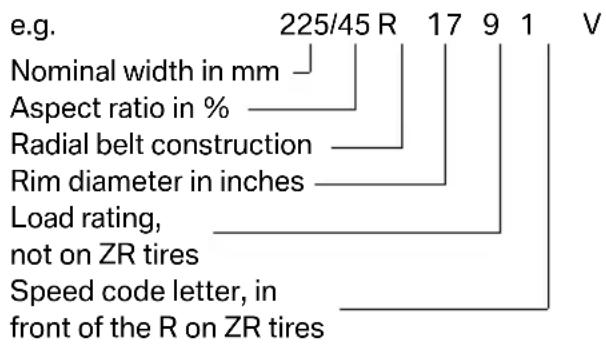
text_image
e.g. 225/45 R 17 9 1 V Nominal width in mm Aspect ratio in % Radial belt construction Rim diameter in inches Load rating, not on ZR tires Speed code letter, in front of the R on ZR tiresSpeed code letter
$$ \begin{array}{l} Q = \text { up to } 1 0 0 \mathrm{mph} \text { or } 1 6 0 \mathrm{km/h} \ T = \text { up to } 1 1 8 \mathrm{mph} \text { or } 1 9 0 \mathrm{km/h} \ H = \text { up to } 1 3 1 \mathrm{mph} \text { or } 2 1 0 \mathrm{km/h} \ V = \text { up to } 1 5 0 \mathrm{mphor} 2 4 0 \mathrm{km/h} \ W = \text { up to } 1 6 7 \mathrm{mph} \text { or } 2 7 0 \mathrm{km/h} \ Y = \text { up to } 1 8 6 \mathrm{mph} \text { or } 3 0 0 \mathrm{km/h} \ \end{array} $$
Tire Identification Number
Tires with DOT codes meet the guidelines of the US Department of Transportation.
DOT code:
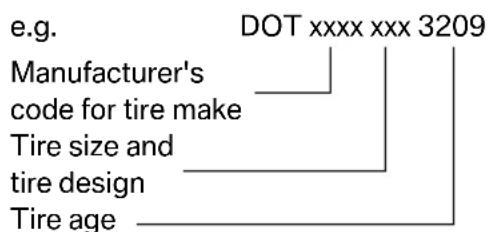
text_image
e.g. DOT xxxx xxx 3209 Manufacturer's code for tire make Tire size and tire design Tire ageTire age
The manufacturing date of tires is contained in the tire coding: DOT ... 3209 means that the tire was manufactured in week 32 of 2009.
BMW recommends that you replace all tires after 6 years at most, even if some tires may last for 10 years.
Uniform Tire Quality Grading
Quality grades can be found where applicable on the tire sidewall between tread shoulder and maximum section width. For example:
Tread wear 200 Traction AA
Temperature A
DOT Quality Grades
Tread wear
Traction AA A B C
Temperature A B C

All passenger car tires must conform to Federal Safety Requirements in addition
to these grades.
Tread wear
The tread wear grade is a comparative rating based on the wear rate of the tire when tested under controlled conditions on a specified government test course. For example, a tire graded 150 would wear one and one-half (1½) times as well on the government course as a tire graded 100. The relative performance of tires depends upon the actual conditions of their use, however, and may depart significantly from the norm due to variations in driving habits, service practices and differences in road characteristics and climate.
Traction
The traction grades, from highest to lowest, are AA, A, B, and C.
Those grades represent the tire's ability to stop on wet pavement as measured under controlled conditions on specified government test surfaces of asphalt and concrete. A tire marked C may have poor traction performance.

The traction grade assigned to this tire is based on straight-ahead braking traction
tests, and does not include acceleration, cornering, hydroplaning, or peak traction characteristics.
Temperature
The temperature grades are A, the highest, B, and C, representing the tire's resistance to the generation of heat and its ability to dissipate
heat when tested under controlled conditions on a specified indoor laboratory test wheel. Sustained high temperature can cause the material of the tire to degenerate and reduce tire life, and excessive temperature can lead to sudden tire failure. The grade C corresponds to a level of performance which all passenger car tires must meet under the Federal Motor Vehicle Safety Standard No. 109. Grades B and A represent higher levels of performance on the laboratory test wheel than the minimum required by law.

The temperature grade for this tire is established for a tire that is properly
inflated and not overloaded. Excessive speed, underinflation, or excessive loading, either separately or in combination, can cause heat buildup and possible tire failure.
RSC - run-flat tires
You will recognize run-flat tires by a circular symbol containing the letters RSC on the side of the tire, refer to page 216.
M+S
Winter and all-season tires.
These have better winter properties than summer tires.
XL
Designation for specially reinforced tires.
Tire condition
Inspect your tires frequently for tread wear, signs of damage and for foreign objects lodged in the tread. Check the tread depth.
Minimum tread depth
The tread depth should not drop below 1/8 in/3 mm, although, for example, European legislation only specifies a minimum tread depth of 1/16 in/1.6 mm. At tread depths below 1/8 in/3 mm there is an increased risk of high-speed hydroplaning, even when only small amounts of water are present on the road surface.
When winter tires wear down past a tread depth of 1/6 in/4 mm, they become perceptibly less suitable for winter conditions. In the interest of safety, new tires should be installed.
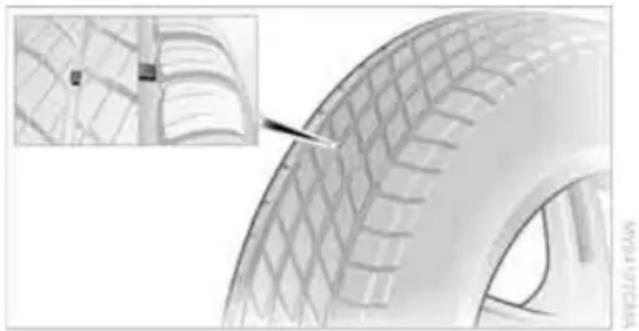
natural_image
Close-up of a car tire tread pattern with an inset showing the edge detail (no text or symbols visible)Wear indicators in the base of the tread groove are distributed around the tire's circumference; the letters TWI, for Tread Wear Indicator, on the tire's sidewalls identify tires that incorporate these wear indicators. Once the tire tread has worn down to the wear indicators, the tire has worn to a depth of 1/16 in/1.6 mm.
Wheel/tire damage
Please note that low-profile tires cause wheels, tires and suspension parts to be more susceptible to road hazard and consequential damages.
Unusual vibrations encountered during normal vehicle operation can indicate tire failure or some other vehicle defect. This can, for example, be caused by driving over curbs. The same applies to any other abnormal road behavior, such as pulling severely to the right or left.

In these cases, reduce speed immediately and have wheels and tires thor-
oughly checked. To do so, drive carefully to the nearest BMW center or tire shop that works according to BMW repair procedures with correspondingly trained personnel. If necessary, have the vehicle towed there.
Otherwise, tire damage can pose a lethal hazard to vehicle occupants and other road users.
Tire age
For various reasons, such as the development of brittleness, BMW recommends tire replacement after no more than 6 years, regardless of the actual wear of the tires.
The manufacturing date of tires is contained in the tire coding:
DOT ... 3209 means that the tire was manufactured in week 32 of 2009.
Run-flat tires

text_image
RSCThe symbol identifying run-flat tires is a circle with the letters RSC on the sidewall.
Run-flat tires comprise a conditionally self-supporting tire and a special rim. The reinforcement in the sidewalls ensures that the tire can continue to be used subject to certain restrictions, even if depressurized.
For information on continuing to drive with a flat tire, refer to Indication of a flat tire, page 85.
New wheels and tires

Have new wheels and tires installed only by your BMW center or tire shop that works according to BMW repair procedures with correspondingly trained personnel. If this work is not carried out properly, there is a danger of subsequent damage and related safety hazards. Make sure that the new wheels are balanced.
Retreaded tires

BMW recommends that you do not use retreaded tires, since driving safety may be impaired. The causes for this include potentially different tire casing structures and often wide variations in tire age, which can result in a limited service life.
Correct wheels and tires
When mounting new tires or changing over from summer to winter tires and vice versa, mount run-flat tires for your own safety. In the event of a flat, no spare wheel is available. Your BMW center will be glad to advise you.

BMW recommends that you use only wheel and tire combinations that BMW has tested and approved for your particular vehicle. Variations in factors such as manufacturing tolerances mean that even wheels and tires with identical official size ratings could actually have different dimensions, which could lead to body contact and thus to severe accidents. If non-approved wheels and tires are used, BMW cannot evaluate their suitability, and therefore cannot guarantee their driving safety.
You can inquire about the right wheel/tire combination at your BMW center.
The correct combination of wheels and tires is also necessary to ensure reliable operation of various vehicle systems such as ABS, DSC or FTM.
To maintain good handling and vehicle response, use only tires of a single brand and tread configuration. After a tire has been damaged, mount the previous wheel and tire combination again as soon as possible.
Wheels with Tire Pressure Monitor TPM electronics
When mounting new tires or changing over from summer to winter tires, or vice versa, only use wheels with TPM electronics; otherwise, the Tire Pressure Monitor may not be able to detect a puncture, refer to page 86. Your BMW center will be glad to advise you.
Recommended tire brands
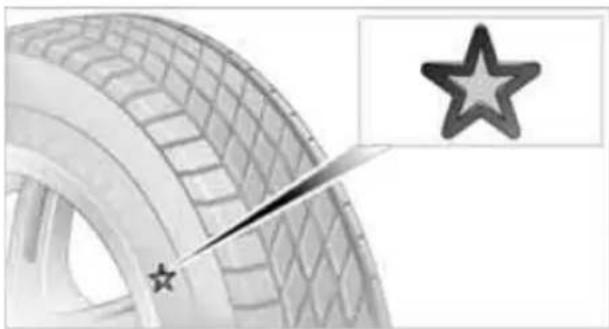
natural_image
Close-up of a tire with star markings and an arrow pointing to it, no visible text or symbols.Certain makes of tire are recommended by BMW for each tire size. They are marked with a clearly visible BMW designation on the sidewall of the tire.
When properly used, these tires meet the highest standards in terms of safety and handling characteristics.
Special characteristics of winter tires
BMW recommends winter tires for winter roads or at temperatures below +45°F/+7°C.
Although all-season M+S tires provide better winter traction than summer tires, they generally fail to provide the same levels of cold-weather performance as winter tires.
Pay attention to speed

Always comply with the speed limit for the winter tires mounted on your car; failure
to do so could result in tire damage and accidents.
If the car is capable of speeds higher than that permitted for the winter tires, a label stating the maximum permitted speed for the mounted tires must be displayed in your field of view. Specialist tire dealers and your BMW center can supply these labels.
Storage
Always store wheels and tires in a cool, dry place with as little exposure to light as possible. Always protect tires against all contact with oil, grease and fuels. Do not exceed the maximum tire inflation pressure indicated on the sidewall of the tire.
Swapping wheels between axles
BMW advises against swapping wheels between the front and rear axles, even if all tires have the same size, as this could impair driving characteristics. If the tires are of mixed sizes, swapping wheels between the axles is not permissible.
Snow chains\*
Only certain fine-link snow chains have been tested by BMW, classified as safe for use and recommended. Consult your BMW center for more information.
Snow chains must be mounted in pairs and on the rear wheels only. Observe the manufacturer's instructions when mounting snow chains. Do not exceed a speed of 30 mph or 50 km/h.

Do not initialize the Flat Tire Monitor if snow chains are mounted; otherwise, the ument might issue an incorrect reading.
When driving with snow chains, you may find it helpful to activate DTC temporarily, refer to page 82.
Under the hood

Do not work on the car unless you possess the necessary technical knowledge. If you are unfamiliar with the statutory guidelines, have any work on the vehicle performed only by a BMW center or by a workshop that work according to BMW repair procedures with correspondingly trained personnel. If this work is not carried out properly, there is a danger of subsequent damage and related safety hazards.
Hood
Releasing
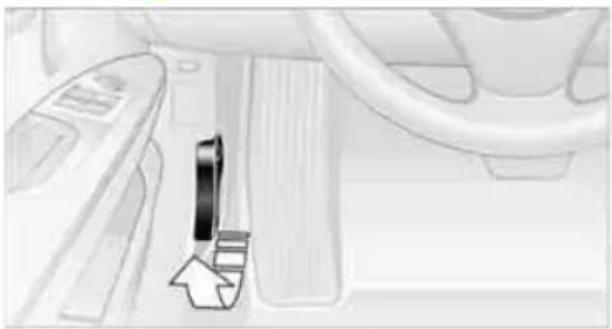
natural_image
Interior view of a car dashboard with steering wheel and side panel, showing a black arrow pointing to the dashboard (no text or symbols visible)Pull the lever.
Opening
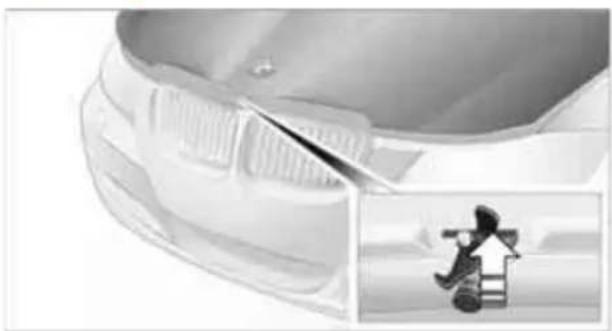
natural_image
Close-up of a car's front grille and side panel, with an inset showing a person climbing a chair (no text or symbols visible)
In order to avoid damage, make sure that the wiper arms are against the windshield before you open the hood. Do not open the engine hood before the engine has cooled down; otherwise, injuries may result.
Press the release handle and open the hood.
Closing
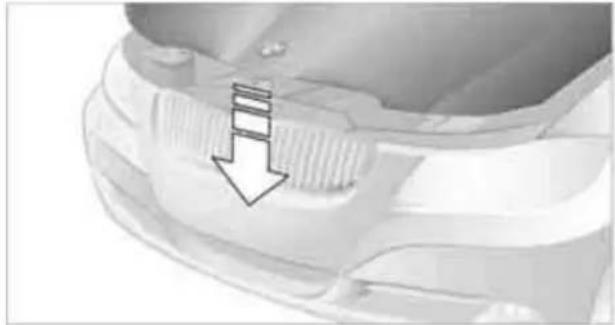
natural_image
Close-up of a car's front bumper with a downward arrow pointing to a textured surface (no text or symbols visible)Let the hood drop from a height of approx. 10 in/25 cm. It must be clearly heard to engage.

Make sure that the closing path of the hood is clear; otherwise, injuries may result.
If you see any signs while driving your vehicle that the hood is not completely closed, stop at once and close it securely.
Important parts of the engine compartment
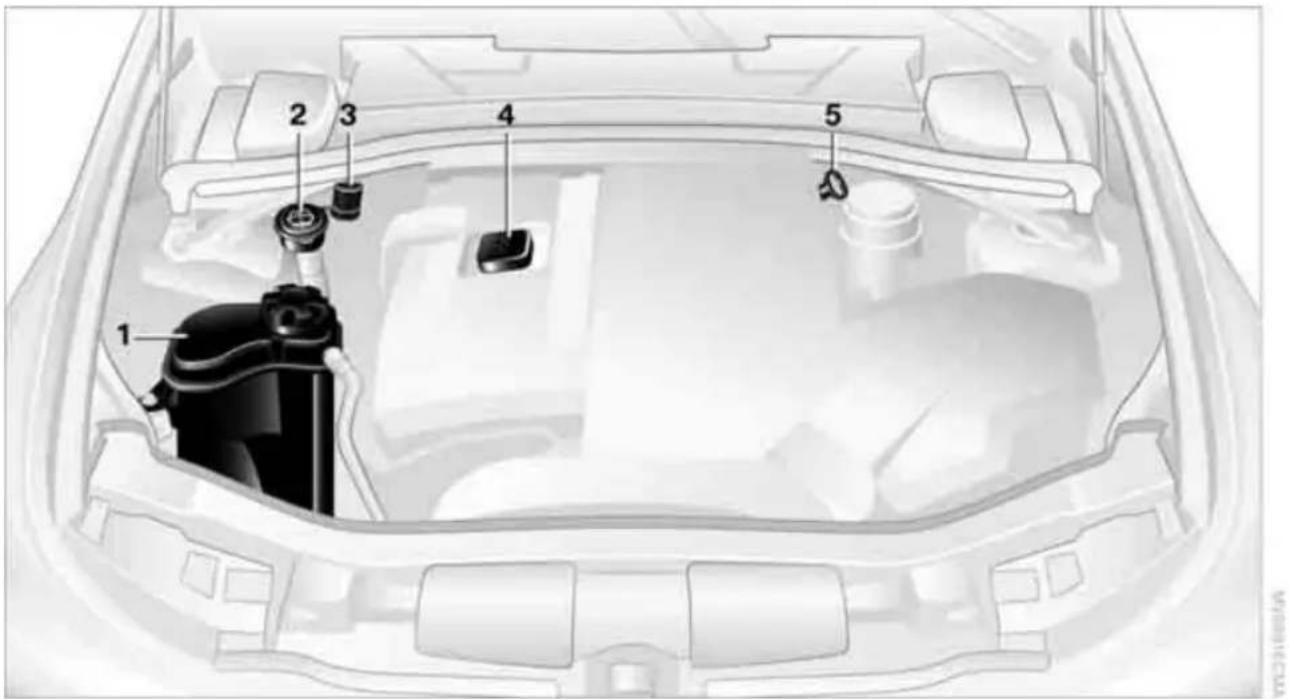
text_image
Diagram of a car engine compartment with numbered parts for identification1 Gasoline engine: expansion tank for coolant, refer to page 222
Diesel engine: the expansion tank is located on the other side of the vehicle
2 Washer fluid filler neck for headlamp cleaning system and window washer system, refer to page 60
Engine oil
The engine oil consumption is dependent on driving style and driving conditions.
Checking the engine oil level with the dipstick\*
- Park the vehicle on a level surface with the engine at operating temperature, i.e. after an uninterrupted drive of at least 6.5 miles/10 km.
- Switch off the engine.
- After approx. 5 minutes, pull out the dipstick 5 and wipe it off with a lint-free cloth, paper towel or similar material.
- Carefully push the dipstick all the way back into the measuring tube and pull it out
3 Jump-starting connection, refer to page 238
4 Filler neck for engine oil, refer to Adding engine oil
5 Dipstick for engine oil, refer to Checking oil level
again.
The oil level must be between the two markings on the dipstick.
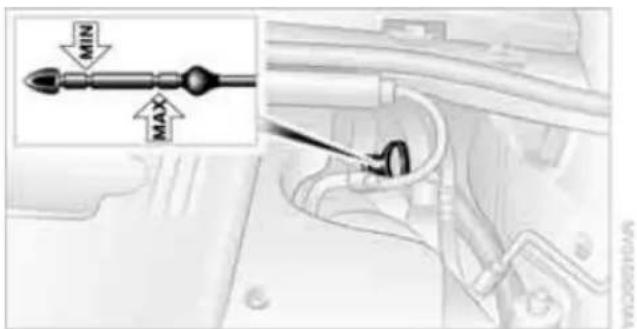
text_image
MIN MAXThe oil quantity between the two markings on the dipstick is equivalent to approx. 1 US quart/1 liter.

The oil level must not be above the upper marking of the dipstick. Too much oil will the engine.
Checking the engine oil level electronically\*
Your car is equipped with an electronic oil-level monitor.
For a precise measurement and display of the oil level, it is necessary that the engine be at operating temperature, i.e. after uninterrupted driving for at least approx. 6.5 miles/10 km. You can have the oil level displayed while you are driving, or while the vehicle is at a standstill on a level surface and the engine is running.
Display in the instrument cluster

text_image
1 2 1 OIL- Push button 1 in the turn indicator lever up or down repeatedly until the appropriate symbol is shown in the display, accompanied by the word "OIL".
- Press button 2 in the turn indicator lever. The oil level is checked and the reading displayed.
Possible displays

text_image
1 OK sin max 2 + 1 qts sin max 3 > MAX sin max 4 INACTIVE sin max 5 OK1 Oil level OK
2 Oil level is being checked.
This can take about 3 minutes if the car is at a standstill on a level surface, or about 5 minutes while the car is on the move.
3 Oil level down to minimum:
Add engine oil as soon as possible, but no more than 1 US quart/1 liter, refer also to Adding engine oil on page 221.
4 Oil level is too high.

Too much oil will harm the engine. Have the vehicle checked without
delay.
5 The oil level sensor is defective.
Do not add engine oil. You can continue your journey. Note the newly calculated distance remaining to the next oil service, refer to page 73. Have the system checked as soon as possible.
Display via iDrive
- "Vehicle Info"
- "Vehicle status"

text_image
Vehicle Info Onboard info ✓ Trip computer Vehicle status- "Engine oil level"
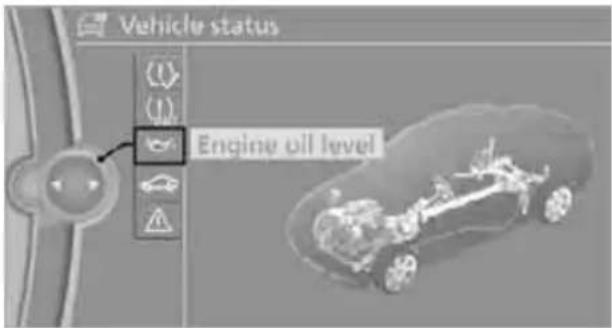
text_image
Vehicle status Engine oil levelPossible messages
"Engine oil level OK"
"Measurement not possible at this time."
"Measuring engine oil level...":
This can take about 3 minutes if the car is at a standstill on a level surface and the engine is running, and about 5 minutes while the car is moving.
If engine oil was added, it may take up to 30 minutes to obtain an oil level reading.
"Engine oil level below minimum. Add 1 quart!"
Add engine oil as soon as possible, but no more than 1 US quart/1 liter, refer also to Adding engine oil below.
If the oil level is below the minimum value, add engine oil immediately to avoid engine damage.
"Engine oil level too high! Have this checked."

Too much oil will harm the engine. Have the vehicle checked without
"Measurement inactive. Have this checked."
Do not add engine oil. You can continue your journey. Note the newly calculated distance remaining to the next oil service, refer to page 73. Have the system checked as soon as possible.
Adding engine oil
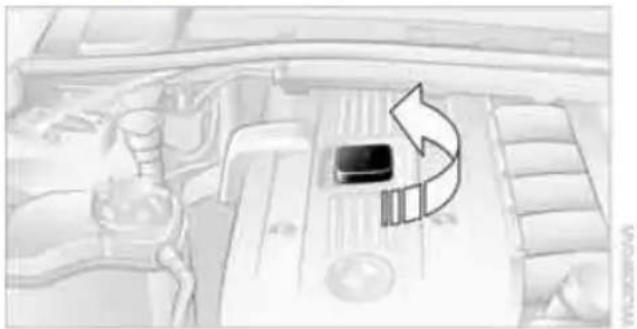
natural_image
Interior view of a car engine bay with a battery and directional arrow indicating airflow or flow (no text or symbols)Add a maximum of 1 US quart/1 liter of engine oil no earlier than when a corresponding message appears on the Control Display or, if the car has a diesel engine, when the oil level has dropped to just above the lower marking on the dipstick, refer to page 219.

Add oil within the next 125 miles/200 km; otherwise, the engine could be dam-

Keep oils, greases, etc. out of the reach of children and comply with the relevant ngs on the containers. Otherwise, health ds may result.
Oil change
Have oil changed only at your BMW center or at a workshop that works according to BMW repair procedures with correspondingly trained personnel.
Oil types

Do not use oil additives as this could result in engine damage.
Specified engine oils
Your service center can advise you on which engine oils have been approved by the manufacturer of your vehicle.
The engine oil quality is critical for the life of the engine.
Approved oils can be identified by the following specification:
Gasoline engine
Preferred: BMW Longlife-01
BMW Longlife-01 FE
Alternatively: BMW Longlife-98
Diesel engine
Preferred: BMW Longlife-04
Approved oils belong to the following viscosity classes: SAE 0W-40, SAE 0W-30, SAE 5W-40 and SAE 5W-30.
Alternative oil types
If the approved engine oils are not available, up to 1 US quart/1 liter of another oil with the following specification may be used:
API SM or higher
BMW recommends
Castrol
Coolant

Do not add coolant to the cooling system when the engine is hot. Escaping coolant can cause burns.
Coolant consists of half water and half additive. Not all commercially available additives are suitable for your BMW. Ask your BMW center for suitable additives.

Only use suitable additives; otherwise, engine damage may result. Because additives are harmful to your health, it is important to follow the instructions on the containers.

Comply with the appropriate environmental protection regulations when dis- g of coolant additives.
Checking coolant level
- Do not open the engine hood before the engine has cooled down.
- Turn the cap of the expansion tank a little counterclockwise to allow any accumulated pressure to escape, then continue turning to open.
- The coolant level is correct if it is between the maximum and minimum marks in the filler neck, refer also to the diagram next to the filler neck.

natural_image
Close-up of a mechanical component with a magnified inset showing a threaded component (no visible text or symbols)- If the coolant is low, slowly add coolant up to the specified level; do not overfill.
- Turn the cap until there is an audible click.
- Have the reason for the coolant loss eliminated as soon as possible.
Maintenance
BMW Maintenance System

text_image
Vehicle status Service requiredThe BMW Maintenance System supports the preservation of the traffic and operating safety of your BMW. The objective is to optimize efforts with respect to minimal vehicle maintenance costs.
If and when you come to sell your BMW, a comprehensive record of servicing will prove a significant benefit.
Condition Based Service CBS
Sensors and special algorithms take the different driving conditions of your BMW into account. Condition Based Service uses this to determine the current and future service requirements. By letting you define a service and maintenance regimen that reflects your own individual requirements, the system builds the basis for trouble-free driving.
On the Control Display, you can have the remaining times or distances for selected maintenance tasks and any legally prescribed dates displayed, refer to page 73:
Engine oil
▶ Brake pads: separately for front and rear
Brake fluid
▶ Vehicle check
Legally mandated inspections depending on local regulations
Diesel particulate filter*
Service data in the remote control
Your vehicle continuously stores service-requirement information in the remote control while you are driving. Your BMW Service Advisor can read out this data from the remote control unit, and propose an optimized maintenance approach. Whenever you take your car in for servicing you should therefore hand your BMW Service Advisor the remote control unit that you last used.
Make sure that the date is always set correctly, refer to page 76; otherwise, the effectiveness of Condition Based Service CBS is not assured.
Service and Warranty Information Booklet for US models and Warranty and Service Guide Booklet for Canadian models
Please consult your Service and Warranty Information Booklet for US models and Warranty and Service Guide Booklet for Canadian models for additional information on service requirements.
BMW recommends that you have service and repair operations performed at your BMW center.
Take the time to ensure that these service procedures are confirmed by entries in your vehicle's Service and Warranty Information Booklet for US models and Warranty and Service Guide Booklet for Canadian models. These entries verify that your vehicle has received the specified regular maintenance.
Socket for Onboard Diagnosis OBD

natural_image
Interior view of a car dashboard with steering wheel and directional arrow (no text or symbols)On the driver's side is an OBD socket for checking components relevant to the composition of the vehicle's emissions.
Emissions
SERVICE ENGINE SOON
The warning lamp lights up:
The vehicle is producing higher emissions. The trip can be continued. Have
the car checked as soon as possible.

Canadian models display this warning lamp.
The lamp flashes under certain conditions. This indicates excessive misfiring in the engine. If this happens, you should reduce your speed and visit your nearest BMW center as soon as possible. Severe engine misfiring can quickly lead to serious damage of emissions-related components, especially the catalytic converter.
The warning lamp comes on if the gas cap is not properly tightened and the OBD system assumes that fuel vapor
is escaping. Make sure that the gas cap is correctly positioned and close it until it audibly clicks.
Data recorders
Your vehicle may be equipped with one or several measuring or diagnostic modules or a device for recording or sending certain vehicle data or information. In addition, if you have signed a service contract for BMW Assist, certain vehicle data may be transmitted or recorded in order to facilitate the corresponding services.
Care
Care products
Regular cleaning and care contributes significantly to the value retention of your BMW.
BMW recommends cleaning and caring for your vehicle with products that are approved by BMW for this purpose.
Your BMW center will be happy to advise you on the products and services available for cleaning and caring for your BMW.

Original BMW Care Products have been material tested, laboratory checked and in the field, and offer optimal care and action for your vehicle.

Do not use cleaners that contain alcohol or solvents as these may result in dam-

Cleaning agents can contain substances that are dangerous or hazardous to your
health. Therefore, follow the warning and safety instructions on the packaging. When cleaning inside the vehicle, always open the doors or windows of the vehicle. In enclosed areas, provide for sufficient ventilation. Only use products designed for cleaning vehicles.
Exterior care
Washing the vehicle

Especially during the winter months, ensure that the vehicle is washed more
frequently. Heavy soiling and road salt can lead to vehicle damage.

After washing the vehicle, apply the brakes briefly to dry them; otherwise,
water can reduce braking efficiency over the short term and the brake discs can corrode.
Automatic car washes
Preference should be given to cloth car washes.
Before driving into a car wash, ensure that it is suitable for your BMW. Check the following:
Dimensions of your vehicle, refer to page 245.
If necessary: fold in the exterior mirrors, refer to page 47.
▶ Maximum permissible tire width.

Avoid car washes with guide rail heights over 4 in/10 cm; otherwise, there is the er of damaging chassis parts.
Preparations before driving into an automatic car wash:
▷ Unscrew the rod antenna*.
Deactivate the rain sensor* to prevent unintentional wiping.
Sports Wagon: deactivate the rear window wiper and protect it against damage. If necessary, ask the operator of the car wash about protective measures you should take.
Remove additional add-on parts, e.g. spoilers or phone antennas, if they could be damaged.
Automatic transmission
Before driving into an automatic car wash, perform the following steps to ensure that the vehicle can roll:
- Insert the remote control into the ignition lock, even with Comfort Access.
- Move the selector lever to position N.
- Release the parking brake.
- Switch off the engine.
- Leave the remote control in the ignition lock so that the vehicle can roll.
Steam jets/high-pressure washers

When using steam jets or high-pressure washers, ensure that you maintain suffi-clearance to the vehicle and do not exceed temperature of 140 °F /60 °C.
Insufficient clearance or excessive pressure or temperature can lead to component damage or
water penetration. Follow the operating instructions of the high-pressure washer.
When using high-pressure washers, do not spray against the sensors and cameras, e.g. of the Park Distance Control or Rear View Camera, for an extended period and maintain a distance of at least 1 ft/30 cm.
Manual car wash
When washing the vehicle by hand, use large quantities of water and car shampoo if necessary. Clean the vehicle with a sponge or washing brush, applying light pressure only.
Before cleaning the windshield, deactivate the rain sensor or switch off the ignition to prevent unintentional activation of the wipers.
Observe local regulations pertaining to washing vehicles by hand.
Headlamps
Do not rub them dry and do not use abrasive or corrosive cleaning agents.
Loosen dirt, e.g. insects, with shampoo or insect remover and wash away with copious quantities of water.
Thaw ice with a windshield deicer and do not use an ice scraper.
Windows
Clean the inside and outside surfaces of the windows and the mirrors with window cleaner.

Do not clean the mirrors with cleaners containing quartz.
Paintwork care
Regular care contributes to value retention and protects the paintwork against the long-term effects of damaging substances.
Region-specific environmental influences can damage the vehicle paintwork. Therefore, it is important to adapt the frequency and scope of car care accordingly.
Immediately remove aggressive materials such as spilled fuel, oil, grease, brake fluid, tree sap or bird droppings to prevent damage to the paint-work.
Repairing paintwork damage
Immediately repair scratches or similar damage, such as that caused by stones hitting the vehicle, where necessary to prevent rusting.
BMW recommends having paintwork damage repaired by a professional paint repair workshop according to BMW specifications using original BMW paint materials.
Preservation
A preservation treatment is necessary when water no longer beads off the clean paintwork surface. Only use products for paintwork preservation that contain carnauba or synthetic waxes.
Rubber seals
Treat only with water or rubber care products.

Do not use silicon-containing care products on rubber seals; otherwise, noise damage could occur.
Chrome parts
Carefully clean vehicle parts such as the radiator grill, door handles or window frames with copious quantities of water and a shampoo additive, especially when roads are treated with deicing salt. For additional treatment, use a chrome polish.
Light-alloy wheels
For technical reasons, dust is generated during braking that is deposited on the light-alloy wheels. Remove the dust regularly using acid-free rim cleaner.

Do not use aggressive, acidic, strongly alkaline and abrasive cleaning agents or n jets over 140 °F /60 °C; otherwise, damnay occur.
Outside sensors/cameras

Keep the sensors and cameras on the outside of the vehicle, e.g. those for Park
Distance Control, clean and free of ice to ensure that they remain fully functional.
Interior care
Upholstery fabrics/cloth trims/Alcantara fabrics
Vacuum regularly with a vacuum cleaner to remove superficial dirt.
To remove severe spots such as stains from beverages, use a soft sponge or lint-free microfiber cloth and suitable interior cleaners. Follow the instructions on the packaging.

Clean the upholstery down to the seams using a sweeping motion. Avoid strong
rubbing.

Opened Velcro fasteners on pants or other articles of clothing can damage the
seat covers. Ensure that Velcro fasteners are closed.
Leather/leather trim

The leather used by BMW is a high quality natural product. Slight irregularities in the
leather are a typical characteristic of natural leather.
Dust and road grit in the pores and folds of the leather have an abrasive effect, leading to increased wear and causing the leather surface to become brittle prematurely. Therefore, frequently clean the leather of dust using a cloth or vacuum cleaner.
Clean light-colored leather more frequently as dust and dirt are more noticeable.
Treat the leather at least once every two months using a leather lotion as dirt and grease will gradually attack the leather's protective layer.
Carpets/cargo area
You can vacuum the carpets and floor mats or clean them with interior cleaner if heavily soiled.
The floor mats can be removed for cleaning. When replacing the mats, ensure that the seat rails do not extend over the floor mats, as this may damage the mats.
Lint on the floor mats occurs for technical reasons and can be removed by vacuuming repeatedly.
Interior plastic parts
▶ Imitation leather surfaces
Lamp glasses
▶ Display pane of instrument cluster
Matte parts
Clean with water and solvent-free plastic cleaner if necessary.
Fine wood parts
Clean fine wood trim and fine wood parts with a damp cloth. Wipe dry with a soft cloth.
Safety belts
Dirty belt straps impede the reeling action and thus have a negative impact on safety.

Do not clean chemically, as this may destroy the webbing.
Interior sensors/cameras
To clean interior sensors and cameras, e.g. of the high-beam assistant, use a lint-free cloth moistened with glass cleaner.
Displays
To clean displays, e.g. of the radio or instrument cluster, use a cleaning cloth for displays or a soft, non-abrasive, lint-free cloth.

Avoid applying excessive pressure when cleaning the displays; otherwise, damage occur.

Do not use chemical or abrasive household cleaning agents. Keep all types of
fluid away from the device. Otherwise, surfaces or electrical components may be corroded or damaged.
CD/DVD drives

Do not use a cleaning CD, as it may damage parts of the drive.
Vehicle storage
If your vehicle is to be decommissioned for longer than three months, your BMW center or a workshop that operates according to BMW specifications will be glad to advise you.
Replacing components
Onboard vehicle tool kit
Sedan
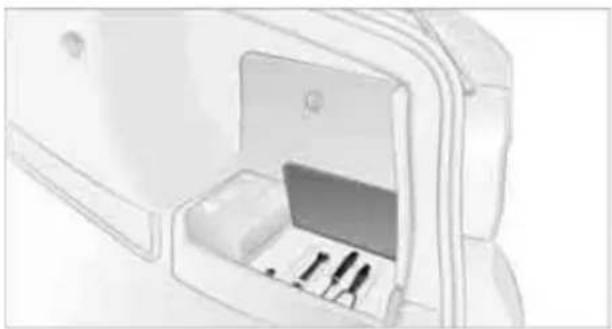
natural_image
Line drawing of a closed storage unit with internal compartments and accessories (no text or symbols)The onboard vehicle tool kit is stored in a compartment on the right-hand side of the cargo area. Remove the cover.
Sports Wagon

natural_image
Top-down view of a car trunk with a small inset showing a vehicle (no text or symbols visible)The onboard vehicle tool kit is stored in a compartment on the left-hand side underneath the cargo area floor panel.
Wiper blades

natural_image
Medical procedure image showing a catheter insertion into a tube with an inset highlighting the insertion point (no text or symbols present)- Fold out the wiper arm and hold it.
- Press together the locking spring, arrows 1, and fold out the wiper blade, arrow 2.
- Take the wiper blade out of the catch mechanism, pulling the blade toward the front.

To avoid damage, make sure that the wiper arms are against the windshield
before you open the engine compartment.
Sports Wagon: changing rear wiper blade

natural_image
Technical illustration of a car's frontview assembly with a close-up inset showing internal components (no text or symbols)- Fold up the wiper arm.
- Pull off the wiper blade, see arrow.
- Insert the new wiper blade and press it on until it audibly engages.
Lamps and bulbs
Lamps and bulbs make an essential contribution to vehicle safety. They should, therefore, be handled carefully. BMW recommends having your BMW center perform any work that you
do not feel competent to perform yourself or that is not described here.
Never touch the glass of new bulbs with your bare fingers, as even minute amounts of contamination will burn into the bulb's surface and reduce its service life. Use a clean tissue, cloth or something similar, or hold the bulb by its base.
You can obtain a selection of replacement bulbs at your BMW center.
Only change bulbs while they are cool to the touch; otherwise, you could suffer burns.
When working on electrical systems, always begin by switching off the consumer in question; otherwise, short-circuits could result. To avoid possible injury or equipment damage when replacing bulbs, observe any instructions provided by the bulb manufacturer.
For care of the headlamps, please follow the instructions in the chapter entitled 'Care'.
If the routine for changing a particular bulb is not described here, please contact your BMW center or a workshop that works according to BMW repair procedures with correspondingly trained personnel.
Light-emitting diodes LED
Light-emitting diodes installed behind translucent lenses serve as the light source for many of the controls and displays in your vehicle. These light-emitting diodes, which operate using a concept similar to that applied in conventional lasers, are officially designated as Class 1 light-emitting diodes.
Do not remove the covers or expose the eyes directly to the unfiltered light source for several hours; otherwise, this could cause irritation of the retina.
Xenon lamps\*
These bulbs have a very long service life and are highly unlikely to fail. If a xenon lamp fails nevertheless, switch on the fog lamps and continue the journey with great care, provided that local legislation does not prohibit this.
Have any work on the xenon lamp system, including bulb replacements, performed only by a BMW center or a workshop that works according to BMW repair procedures with correspondingly trained personnel. Otherwise, if such work is carried out improperly, the high voltage in the system presents the danger of fatal injuries.
Replacing parking lamps, roadside parking lamps, and daytime running lights
H8 bulb, 35 watts
-
Switch off the lamps and take the remote control out of the ignition lock.
-
Turn the cover to the left, see arrow, and remove it.

natural_image
Top-down view of a vehicle or road intersection with curved railings and a highlighted directional arrow (no text or symbols)- Turn the bulb approx. 90^ , see arrow, and take it out.
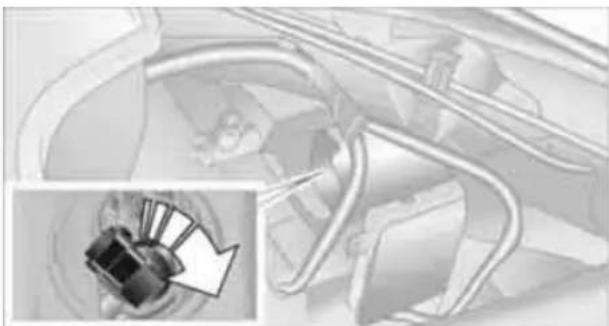
natural_image
Mechanical component diagram showing internal parts and a magnified inset of a component (no text or symbols)-
Disconnect the plug, change the bulb and reconnect the plug.
-
Insert the bulb and turn it until it stops.
-
Reattach the cover.
Replacing the corner-illuminating lamp\*
H3 bulb, 55 watts
- Switch off the lamps and take the remote control out of the ignition lock.
- Remove the upper cover from the head-lamp. To do so, pull the rubber seal up and off and unscrew the cover using the screw-driver from the onboard vehicle tool kit, see arrow.

natural_image
Diagram of a mechanical component with directional arrows indicating movement or force (no text or symbols present)- Release the wire bracket from the anchor, see arrow, and fold it up.
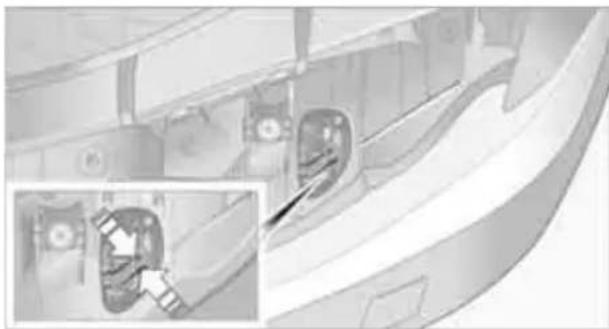
natural_image
Diagram of a vehicle interior showing gear shift and gear assembly (no text or labels)- Disconnect the plug, change the bulb and reconnect the plug.
- Insert the bulb.
- Fold the wire bracket down and engage it.
- Reattach the cover.

Be careful when installing the cover; otherwise, leaks could occur and cause dam-
age to the headlamp system.
Halogen lamps
H7 bulb, 55 watts

Always wear gloves and eye protection; the atmosphere within the H7 bulb is
pressurized. Otherwise, there is a risk of injury if the bulb is damaged.
There are separate headlamp covers for low-beam headlamps and high-beam headlamps.

Be careful when installing the covers; otherwise, leaks could occur and cause dam- to the headlamp system.

For checking and adjusting headlamp aim, please contact your BMW center.
Access to the lamps
The high-beam headlamp can be accessed from the engine compartment, whereas the low-beam headlamp is accessed through a flap in the wheel well.

text_image
Diagram of a car interior with labeled components and directional arrows indicating flow or movement1 Cover for high-beam headlamp
2 Cover for low-beam headlamp
3 Turn signal bulb socket
To remove the covers:
- Fold the respective wire bracket to the side, see arrows.
- Flip open the cover and take it out of the guide.
Follow the same steps in reverse order to reattach the covers.
Access through the wheel well
Only for low-beam headlamps and turn signals:
- Turn the wheel inwards.
- Open the flap in the wheel well. To do so, turn the fastener counterclockwise using a coin, for example.
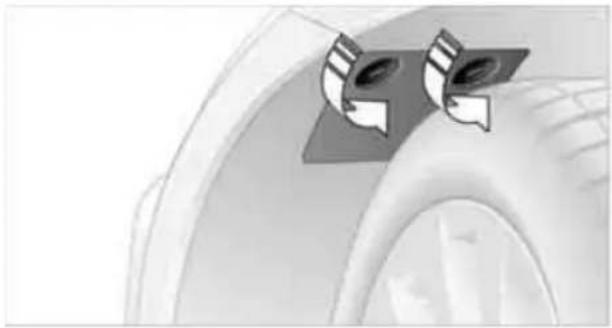
natural_image
Close-up of a car wheel with two circular buttons and directional arrows indicating rotation (no text or symbols)Changing low-beam and high-beam bulbs
- Remove the relevant cover for the head-lamp.
- Disconnect the plug from the lamp.
- Push the wire bracket to the side out of the mounting, arrow 1, and fold it down, arrow 2.

text_image
Diagram showing a mechanical component with labeled parts and an inset view of a circular component.- Remove the bulb.
- Insert new bulb as shown in the detail of the illustration above.
- Fold up the wire bracket and engage it.
- Connect the plug.
- Reattach the cover.
Parking lamps, roadside parking lamps W5W bulb, 5 watts
- Remove the cover for the high-beam head-lamp.
- Pull out the bulb socket, see arrow.
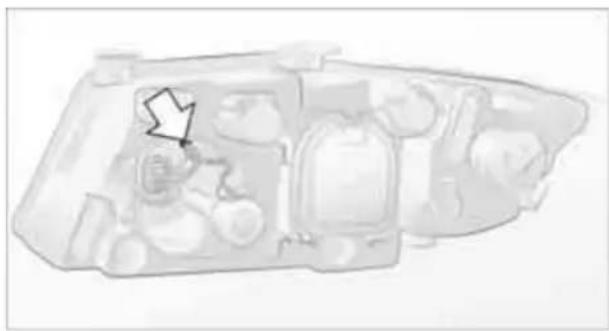
natural_image
Interior view of a vehicle's internal compartments with no visible text or symbols- Remove and replace the bulb.
- Insert bulb socket.
- Reattach the cover.
Turn signals, front
PY24W bulb, 24 watts
- Open the flap in the wheel well, refer to Access through the wheel well on page 231.

natural_image
Diagram showing car wheel assembly with tool and component details (no text or symbols)- Rotate turn signal bulb socket 1 to the left and remove.
- Apply gentle pressure to the bulb while turning it to the left for removal and replacement.
- Insert turn signal bulb socket 1.
- Attach the flap to the wheel well.
Tail lamps
Sedan
Brake lamp in the trunk lid: H21W bulb, 21 watts
Backup lamp: W16W bulb, 16 watts
Other lamps: P21W bulb, 21 watts
The tail lamps are divided in two parts. One part is in the trunk lid, the other is in the fender.

text_image
1 2 3 4 5 61 Brake lamp
2 Roadside parking lamp/tail lamp, LED
3 Turn signal, LED
4 Backup lamp
5 Tail lamp, LED
6 Brake lamp
If one of the bulbs 2, 3 or 5 malfunctions, please contact your BMW center or a workshop that works according to BMW repair procedures with correspondingly trained personnel.
Sports Wagon
Brake lamp in the tailgate: H21W bulb, 21 watts
Backup lamp: W16W bulb, 16 watts
Other lamps:
P21W bulb, 21 watts
The tail lamps are divided in two parts. One part is in the tailgate, the other is in the fender.
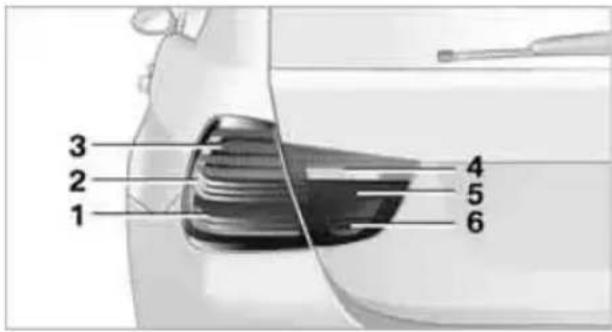
text_image
1 2 3 4 5 61 Brake lamp
2 Roadside parking lamp/tail lamp, LED
3 Turn signal, LED
4 Backup lamp
5 Tail lamp, LED
6 Brake lamp
If one of the bulbs 2, 3 or 5 malfunctions, please contact your BMW center or a workshop that works according to BMW repair procedures with correspondingly trained personnel.
Fender-mounted lamps
Sedan
- Using a screwdriver, pry off the cover in the cargo area or release the turn-lock fastener by turning it counterclockwise and remove the cover.
- Loosen the bulb holder at the clip, see arrow, and pull out.
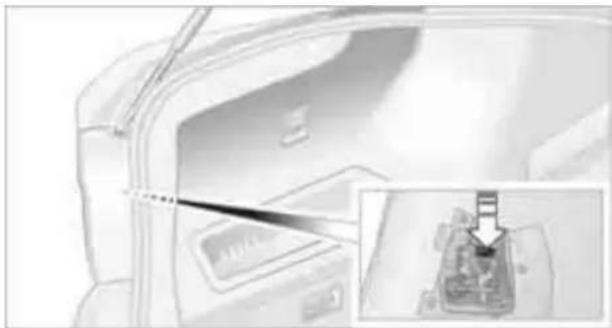
natural_image
Diagram showing a device with a tool inserted into a container, with an inset close-up of the internal component (no text or symbols visible)- Apply gentle pressure to the bulb while turning it to the left for removal and replacement.
- Re-engage the bulb holder so that it audibly clicks into place.
- Reattach the cover in the cargo area.
Sports Wagon
1. Left-hand lamps:
Open the flap on the left-hand side of the cargo area.
Right-hand lamps:
Open the cargo area floor panel. Turn the screws on the cover, arrows 1, 90° and take out the cover, arrow 2.

text_image
Diagram showing airflow direction with numbered arrows indicating movement from inside to outer air- Loosen the bulb holder at the clip, see arrow, and pull out.

natural_image
Technical illustration of a mechanical component with an inset showing a detail view (no text or symbols)- Apply gentle pressure to the bulb while turning it to the left for removal and replacement.
- Re-engage the bulb holder so that it audibly clicks into place.
- Reattach the cover in the cargo area.
Lamps in the trunk lid/tailgate
Sedan
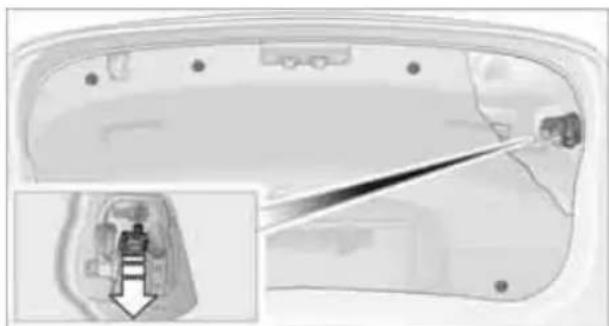
natural_image
Interior view of a car door with a close-up inset showing a tool interacting with the door (no text or symbols visible)- Take the warning triangle out of its holder, refer to page 238. Unscrew the holder using the screwdriver from the onboard vehicle tool kit.
- Pry out the plastic plugs in the trim of the trunk lid using a screwdriver and remove the trim.
- Release the bulb holder at the clip, see arrow, and remove.
- Apply gentle pressure to the bulb while turning it to the left for removal and replacement.
- Re-engage the bulb holder so that it audibly clicks into place.
- Reattach the trim of the trunk lid and the holder for the warning triangle.
Sports Wagon
- Use a screwdriver to press out the cover at the clips, see arrows, and fold it downward.

natural_image
Diagram showing three directional arrows pointing downward on a curved surface, with no visible text or symbols.-
Fold away the foam insulating material.
-
Release the bulb holder at the clip, see arrow, and remove.
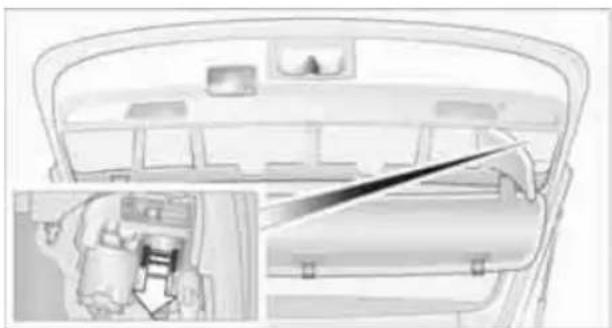
natural_image
Interior view of a car showing the dashboard, rear seats, and a close-up of the interior panel with a hand inserting a tool (no text or symbols visible)- Apply gentle pressure to the bulb while turning it to the left for removal and replacement.
- Re-engage the bulb holder so that it audibly clicks into place.
- Reattach the trim of the tailgate.
License plate lamp, center brake lamp, parking/tail lamp and turn signal\*
These lamps use LED technology for operation. In the event of a malfunction, please contact your BMW center or a workshop that works according to BMW repair procedures with correspondingly trained personnel.
Changing wheels
Your BMW is equipped with run-flat tires as standard. This removes the need to change a wheel immediately in the event of a puncture.
For information on continuing to drive with a damaged tire, refer to Indication of a flat tire on page 85.
The symbol identifying run-flat tires is a circle with the letters RSC on the sidewall, refer to Run-flat tires, page 216.
When mounting new tires or changing over from summer to winter tires and vice versa, mount run-flat tires for your own safety. In the event of a flat, no spare wheel is available. Your BMW center will be glad to advise you. Refer also to New wheels and tires, page 216.
The tools for changing wheels are available as optional accessories from your
BMW center.
Jack mounting points
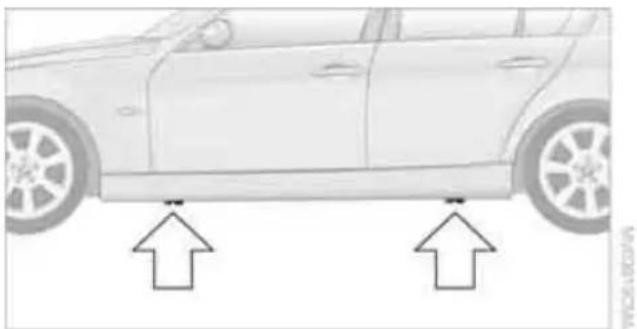
natural_image
Side view of a car with two arrows pointing to the front side (no text or symbols present)The jacking points are at the positions shown in the illustration.
Vehicle battery
Battery care
The battery is 100% maintenance-free, the electrolyte will last for the life of the battery when the vehicle is operated in a temperate climate. Your BMW center will be glad to advise in all matters concerning the battery.
Replacing the battery
Only use vehicle batteries that have been approved for your vehicle by the manufacturer; otherwise, the vehicle could be damaged and systems or functions may not be fully available.
After a battery replacement, have the battery registered on the vehicle by your service center to ensure that all comfort functions are fully available.
Charging the battery
Only charge the battery in the vehicle via the terminals in the engine compartment with the engine off. Connections, refer to Jump-starting on page 238.
Disposal

Have old batteries disposed of by your BMW center or bring them to a recycling center. Maintain the battery in an upright position for transport and storage. Always secure the battery against tipping over during transport.
Power failure
After a temporary power loss, the functioning of some equipment may be limited and require reinitialization. Individual settings may likewise have been lost and will have to be programmed:
Time and date
These values must be updated, refer to page 75.
Radio
In some cases, stations may have to be stored again, refer to page 147.
▶ Navigation system
Operability must be waited for, refer to page 124.
Glass roof
It may happen that the roof can only be raised. The system must be initialized.
Please contact your BMW center.
Panorama glass roof
It may happen that the roof can only be raised. The system must be initialized.
Please contact your BMW center.
Seat and mirror memory
The positions must be stored again, refer to page 45.
Inside rearview mirror with digital compass The system must be calibrated, refer to page 104.
Active steering
The system automatically initializes itself briefly during a trip. The system is deactivated during this time, refer to page 88.
xDrive
The system automatically initializes itself during a trip. Indicator lamps light up during this time. If the lamps do not go out during the current trip, have the system checked.
Fuses

Never attempt to repair a blown fuse and do not replace a defective fuse with a substitute of another color or amperage rating; otherwise, this could lead to a circuit overload, ultimately resulting in a fire in the vehicle.
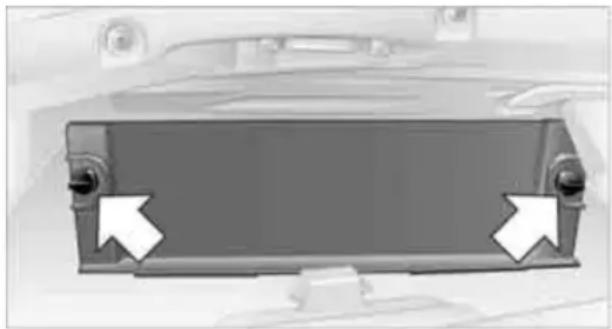
natural_image
Front view of a car front panel with two white arrows pointing to the side (no text or symbols visible)Open the cover in the glove compartment and remove it.
Plastic tweezers are located on the distributor box.
See the rear of the cover for information on fuse assignment.
Spare fuses are available from your BMW center.
Giving and receiving assistance
Emergency Request\*
Conditions for an Emergency Request:
Full preparation package mobile phone: this equipment makes it possible to send an Emergency Request even if no mobile phone is paired with the vehicle.
BMW Assist is activated. Activating BMW Assist, refer to page 190.
Radio readiness is on.
The BMW Assist system is logged on to a mobile phone network.
The Emergency Request system is operable.
Once your service contract for BMW Assist expires, the BMW Assist system can be deactivated by a BMW center without you having to visit a workshop. Once the BMW Assist system has been deactivated, Emergency Requests are not possible. The BMW Assist system can be reactivated by a BMW center after a new contract has been signed.
Sending an Emergency Request
- Briefly press the cover flap to open.

text_image
SOS- Press the SOS button until the LED in the button lights up.
As soon as the voice connection to the BMW Assist Response Center has been established, the LED flashes.
Once the BMW Assist Response Center has received your Emergency Request, the BMW Assist Response Center contacts you
and takes further steps to help you. Even if you are unable to respond, the BMW Assist Response Center will be able to initiate further steps to assist you under certain conditions.
If the circumstances allow this, remain in the vehicle until the connection has been established. You will then be able to provide a detailed description of the situation.
Data for determining the necessary rescue measures are transmitted to the BMW Assist Response Center, e.g. the current position of your vehicle, if it can be determined.
If the LED is flashing but the BMW Assist Response Center cannot be heard over the hands-free system, it is possible that the hands-free system is malfunctioning. You may still be heard by the BMW Assist Response Center, however.
Under certain conditions, an Emergency Request is sent automatically immediately after a severe accident. This Automatic Collision Notification is not affected by the button being pressed.

For technical reasons, the Emergency Request service cannot be guaranteed
for the most unfavorable conditions.
Roadside Assistance
The BMW Roadside Assistance is there to assist you around the clock in the event of a breakdown, including on weekends and public holidays.
The phone numbers of Roadside Assistance in your home country can be found in the Contact brochure.
First aid pouch\*
Some of the articles contained in the first aid pouch have a limited service life. Therefore, check the expiration dates of the contents reg-
ularly and replace any items in good time, if necessary.
Sedan
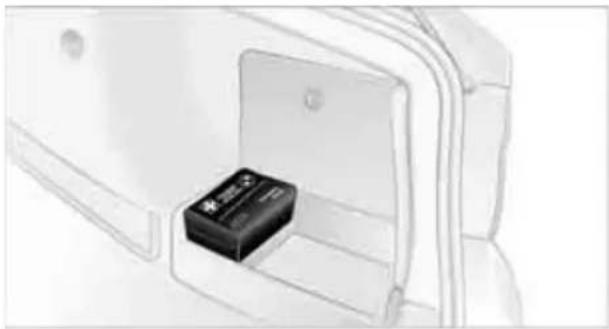
natural_image
Line drawing of a battery inside a device housing (no text or symbols)The first aid pouch is located on the right-hand side of the cargo area in a storage area.
Sports Wagon
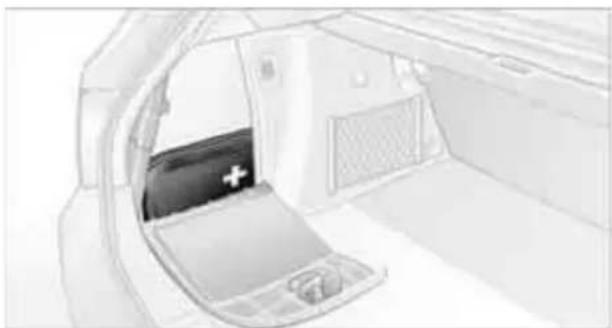
natural_image
Interior view of a car showing the rear door, front panel, and side window with a medical cross symbol (no text or labels)The first aid pouch is located in the cargo area behind the left-hand trim panel.
Warning triangle\*
Sedan
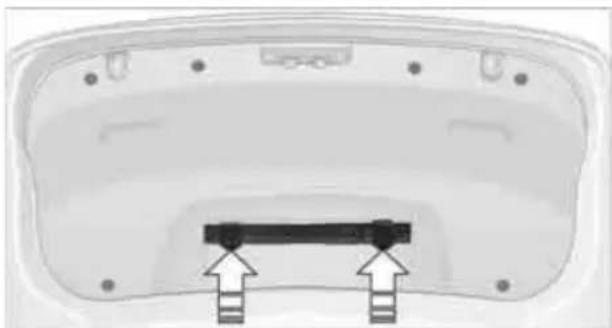
natural_image
Top-down view of a white car trunk with two black arrows pointing to the interior panel (no text or symbols visible)The warning triangle is located in a holder in the trunk lid. Press the tabs to take it out.
Sports Wagon

natural_image
Interior view of a vehicle showing a door opening and a seatbelt with an arrow pointing to the side (no text or symbols)The warning triangle is located behind the left-hand trim panel in the cargo area. Press the tab to take it out.
Jump-starting
If the car's own battery is flat, your BMW's engine can be started by connecting two jumper cables to another vehicle's battery. You can also use the same method to help start another vehicle. Only use jumper cables with fully-insulated clamp handles.

Do not touch any electrically live parts when the engine is running, or a fatal accident may occur. Carefully adhere to the follow-quence, both to prevent damage to one or several vehicles, and to guard against possible occasional injuries.
Preparation
- Check whether the battery of the other vehicle has a voltage of 12 volts and approximately the same capacitance in Ah. This information can be found on the battery.
- Switch off the engine of the assisting vehicle.
- Switch off any consumers in both vehicles.
There must not be any contact between the bodies of the two vehicles; otherwise, is a danger of shorting.

Connecting jumper cables

Connect the jumper cables in the correct order, so that no sparks which could cause injury occur.
Your BMW has a jump-starting connection in the engine compartment which acts as the battery's positive terminal, refer also to the Engine compartment overview on page 219. The cap is marked with +.
- Pull the cap of the BMW jump-starting connection up to remove.
natural_image
Interior view of a vehicle showing dashboard, seatbelt, and camera (no text or symbols visible)- Attach one terminal clamp of the plus/+ jumper cable to the positive terminal of the battery or a starting-aid terminal of the vehicle providing assistance.
- Attach the second terminal clamp of the plus/+ jumper cable to the positive terminal of the battery or a starting-aid terminal of the vehicle to be started.
- Attach one terminal clamp of the minus/- jumper cable to the negative terminal of the battery or to an engine or body ground of the assisting vehicle.
Your BMW has a special nut as body ground or negative pole.
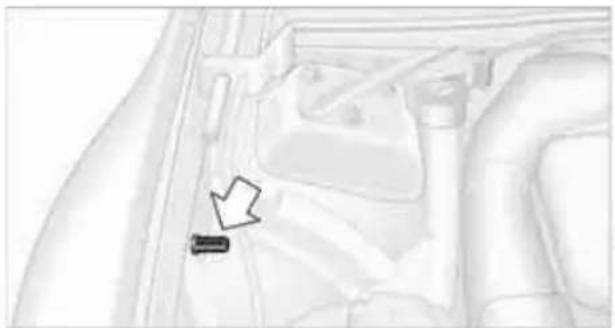
natural_image
Interior view of a vehicle showing a small black object on the side of the window (no text or symbols visible)- Attach the second terminal clamp of the minus/- jumper cable to the negative termi-
nal of the battery or to the engine or body ground of the vehicle to be started.
Starting the engine
- Start the engine of the donor vehicle and allow it to run for a few minutes at slightly increased idle speed.
- Start the engine on the other vehicle in the usual way. If the first start attempt is not successful, wait a few minutes before another attempt in order to allow the discharged battery to recharge.
- Let the engines run for a few minutes.
- Disconnect the jumper cables by reversing the above connecting sequence.
If necessary, have the battery checked and recharged.

Never use spray fluids to start the engine.
Tow-starting, towing away

Observe the applicable laws and regulations for tow-starting and towing vehi-

Do not transport any passengers other than the driver in a vehicle that is being
Using a tow fitting
The screw-in tow fitting must always be carried in the car. It can be screwed in at the front or rear of the BMW.
Sedan: it is stored in the onboard vehicle tool kit underneath the cover on the right-hand side of the cargo area, refer to page 229.
Sports Wagon: it is stored in the onboard vehicle tool kit underneath the cover on the left-hand side of the cargo area, refer to page 229.

Use only the tow fitting provided with the vehicle and screw it all the way in. Use the tting for towing on paved roads only. Avoid I loading of the tow fitting, e.g. do not lift
the vehicle by the tow fitting. Otherwise, the tow fitting and the vehicle could be damaged.
Access to screw thread
Release the cover panel in the bumper: Press on the upper part of the cover panel.
Front
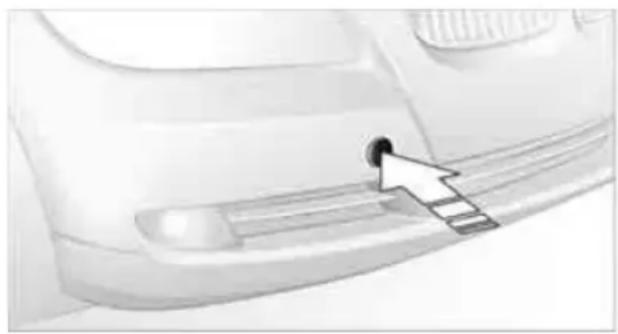
natural_image
Close-up of a car's side panel with a cursor pointing to the grille (no text or symbols visible)Rear

natural_image
Close-up of a car's side profile with a white arrow pointing to the nose area (no text or symbols visible)Being towed

Make sure that the ignition is switched on, refer to page 54; otherwise, the low-beam headlamps, tail lamps, turn signal indicators and windshield wipers may be unavailable.
Power steering assistance is not available when the engine is not running. Thus, braking and steering will require increased effort. Active steering is not active and it will be necessary to turn the steering wheel further.
Manual transmission
Gearshift lever in neutral position.
Automatic transmission
Selector lever in position N. Changing selector lever positions, refer to page 57.
Do not exceed a towing speed of 45 mph or 70 km/h and a towing distance of 90 miles/150 km; otherwise, the automatic transmission may be damaged.
Towing methods
Do not lift the vehicle by a tow fitting or body and chassis parts; otherwise, damage may result.
With a tow bar
The towing vehicle must not be lighter than the towed vehicle; otherwise, it may be impossible to maintain control.
The tow fittings used should be on the same side on both vehicles. Should it prove impossible to avoid mounting the tow bar at an angle, please observe the following:
Clearance and maneuvering capability will be sharply limited during cornering.
The tow bar will generate lateral forces if it is attached offset.
Attach the tow bar to the tow fittings only, as attaching it to other parts of the vehicle could result in damage.
With a tow rope
When starting off in the towing vehicle, make sure that the tow rope is taut.
To avoid jerking and the associated stresses on vehicle components when towing, always use nylon ropes or nylon straps. Attach the tow rope to the tow fittings only, as attaching it to other parts of the vehicle could result in damage.
With a tow truck: vehicle without xDrive

text_image
Diagram showing three types of cars: a tow truck, a flatbed car, and a sedan with a cross symbol crossed out.Have the BMW transported with a tow truck with a so-called lift bar, or on a flatbed.
Do not tow the vehicle with just the rear axle raised as this may cause the steering to turn.
With a tow truck: vehicle with xDrive

Do not tow a BMW with xDrive with just the front or rear axle raised; otherwise, the
wheels could lock up and the transfer case could be damaged.

text_image
Diagram showing three types of car loading trucks with diagonal lines indicating no loading, alongside a separate flatbed truck.Have the BMW transported on a flatbed surface only.
Tow-starting
Avoid tow-starting the vehicle whenever possible; instead, jump-start the engine, refer to page 238. Vehicles with a catalytic converter should only be tow-started when the engine is cold, vehicles with an automatic transmission cannot be tow-started at all.
- Switch on hazard warning flashers, comply with local regulations.
- Switch on the ignition, refer to page 54.
- Shift into 3rd gear.
- Have the vehicle tow-started with the clutch depressed and slowly release the clutch.
After the engine starts, immediately depress the clutch completely again.
- Stop at a suitable location, remove the tow bar or rope and switch off the hazard warning flashers.
- Have the vehicle checked.
With xDrive: do not activate Hill Descent Control HDC when the vehicle is being tow-started, page 83.
text_image
TOMBERY HAGLTIK Online Edition for Part no. 01 41 2 603 048 - © 08/09 BMW AGReference
This chapter contains technical data, short commands for the voice activation system and an index that will help you find information most quickly.
Technical data
Engine data
Sedan
| 323i (Canada) 328i/xDrive 335i/xDrive 335d | |||||
| Displacement | cu in/cm3 | 152.4/2,497 | 182.8/2,996 | 181.8/2,979 | 182.6/2,993 |
| N u | m | b | e | r | o |
| Maximum power output hp 200 230 300 265 | |||||
| at engine speed rpm 6,000 6,500 5,800 4,200 | |||||
| Maximum torque | lb ft/Nm | 180/244 | 200/270 | 300/407 | 425/580 |
| at engine speed | rpm | 4,000 - 5,000 | 2,750 | 1,400 - 5,000 | 1,750 - 2,250 |
Sports Wagon
| 328i/xDrive | ||
| Displacement | cu in/cm ^3 | 182.8/2,996 |
| Number of cylinders | 6 | |
| Maximum power output hp | 230 | |
| at engine speed rpm | 6,500 | |
| Maximum torque | lb ft/Nm | 200/270 |
| at engine speed rpm | 2,750 |
Dimensions
Sedan
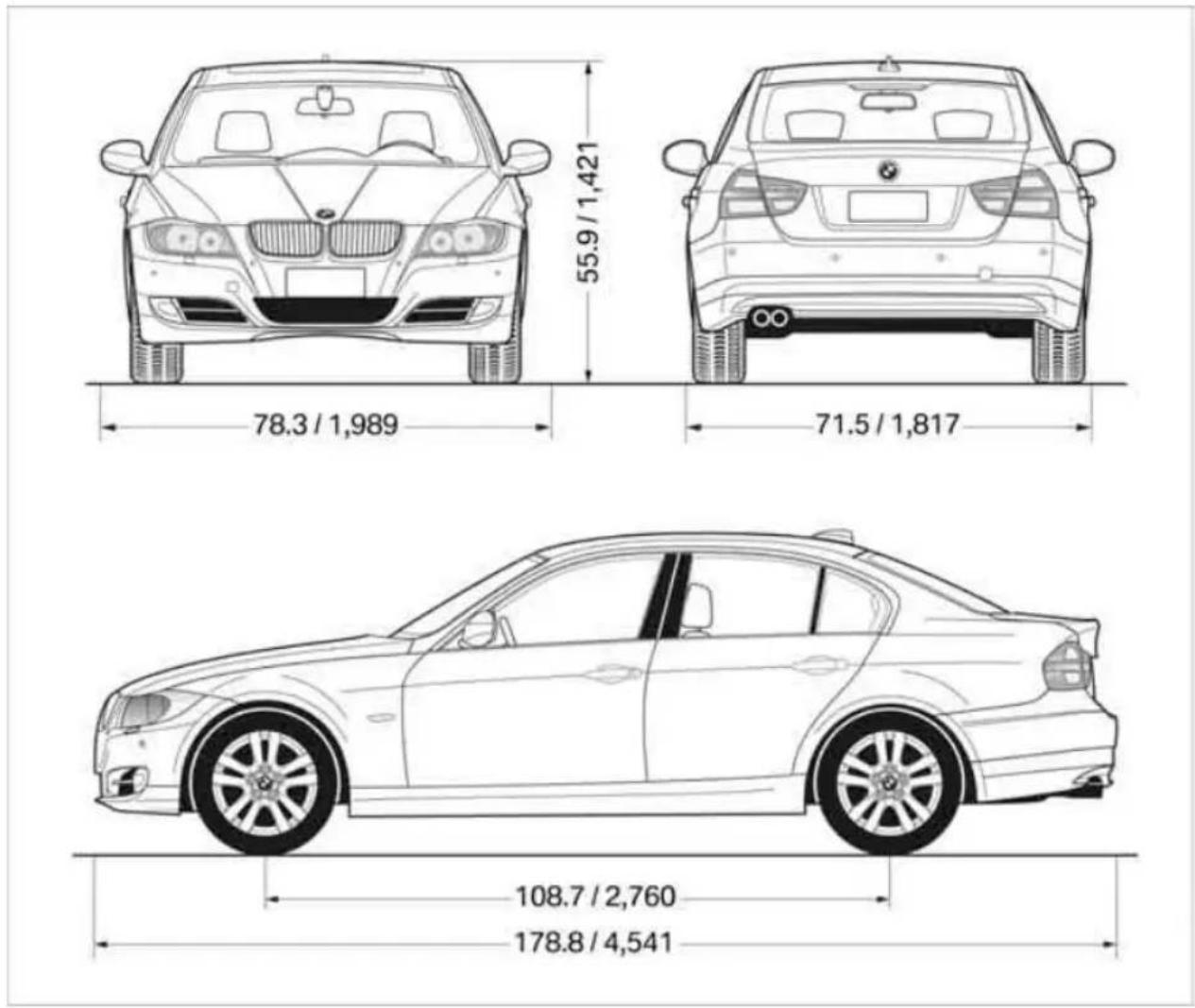
text_image
55.9 / 1,421 78.3 / 1,989 71.5 / 1,817 108.7 / 2,760 178.8 / 4,541All dimensions given in inches/mm.
Smallest turning circle dia.: 36.1 ft/11.0 m, with xDrive: 38.7 ft/11.8 m.
Sports Wagon
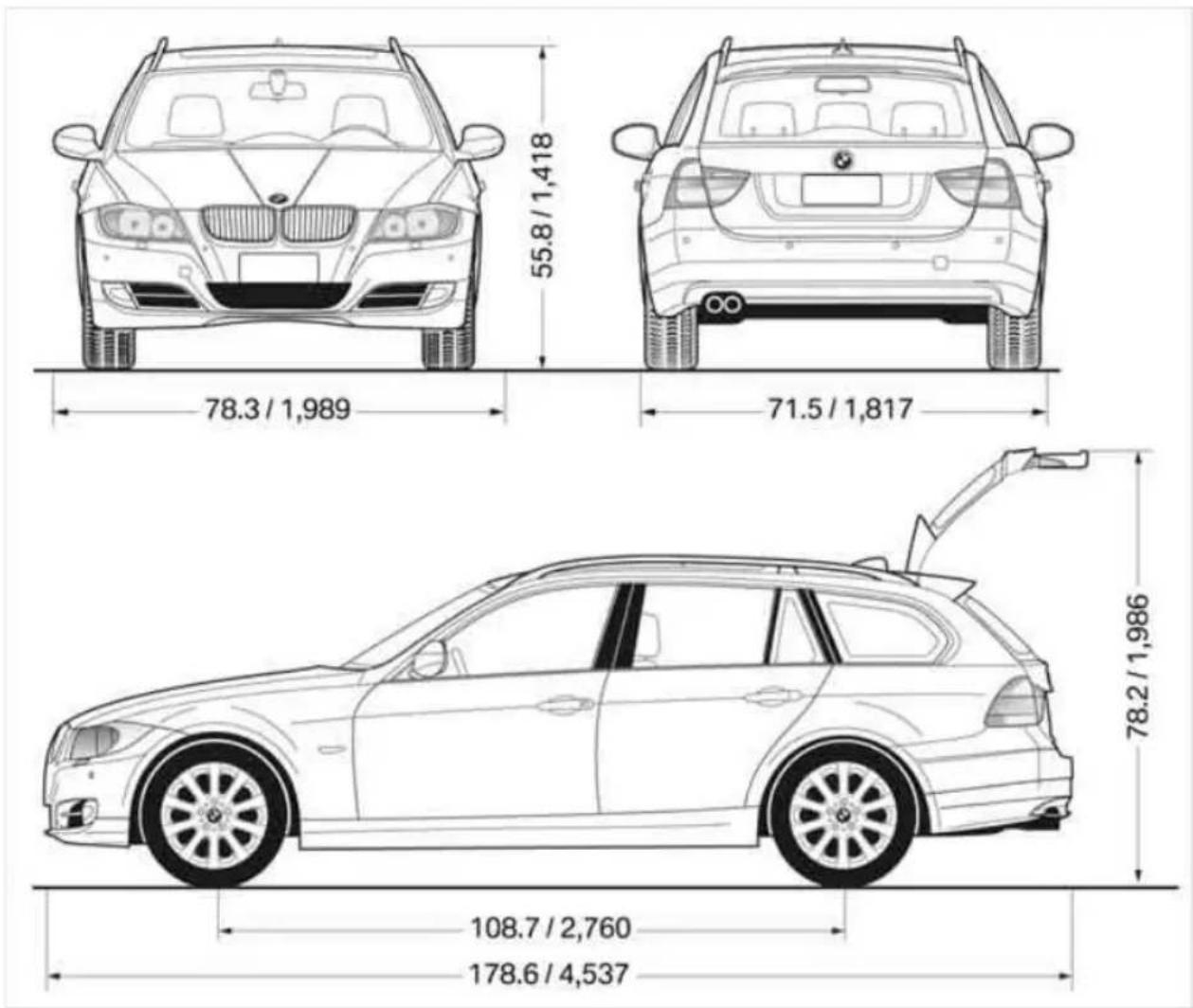
text_image
55.8 / 1,418 78.3 / 1,989 71.5 / 1,817 78.2 / 1,986 108.7 / 2,760 178.6 / 4,537All dimensions given in inches/mm.
Smallest turning circle dia.: 36.1 ft/11.0 m, with xDrive: 38.7 ft/11.8 m.
328i xDrive width with mirrors: 79.3 inches/2,013 mm.
Weights
Sedan
| 323i(Canada) | 328i 328i | xDrive | |
| Approved gross weight | |||
| ▷ with manual transmission lbs/kg 4,365/1,980 4,420/2,005 4,663/2,115 | |||
| ▷ with automatic transmission lbs/kg 4,431/2,010 4,486/2,035 4,707/2,135 | |||
| Load lbs/kg 1,014/460 1,014/460 1,014/460 | |||
| Approved front axle load lbs/kg 2,105/955 2,127/965 2,304/1,045 | |||
| Approved rear axle load | lbs/kg 2,425/1,100 2,469/1,120 2,513/1,140 | ||
| Approved roof load capacity | lbs/kg | 165/75 | 165/75 |
| Cargo area capacity | cu ft/liters | 16.2/460 | 16.2/460 |
| 335i 335i | 335d | |||
| xDrive | ||||
| Approved gross weight | ||||
| ▷ with manual transmission | Ibs/kg | 4,652/2,110 | 4,872/2,210 | - |
| ▷ with automatic transmission | Ibs/kg 4,663/2,115 | 4,883/2,215 | 4,883/2,215 | |
| Load Ibs/kg 1,014/460 | 1,014/460 | 1,014/460 | ||
| Approved front axle load | Ibs/kg 2,238/1,015 | 2,436/1,105 | 2,381/1,080 | |
| Approved rear axle load | Ibs/kg 2,546/1,155 | 2,546/1,155 | 2,646/1,200 | |
| Approved roof load capacity | Ibs/kg | 165/75 | 165/75 | 165/75 |
| Cargo area capacity | cu ft/liters | 15.9/450 | 15.9/450 | 15.9/450 |
Never exceed either the approved axle loads or the gross vehicle weight.
Sports Wagon
| 328i 328i | xDrive | |||
| Approved gross weight | ||||
| ▷ with manual transmission lbs/kg 4,630/2,100 4,872/2,210 | ||||
| ▷ with automatic transmission lbs/kg 4,696/2,130 4,916/2,230 | ||||
| Load lbs/kg 1,058/480 1,058/480 | ||||
| Approved front axle load lbs/kg 2,127/965 2,326/1,055 | ||||
| Approved rear axle load lbs/kg 2,646/1,200 2,646/1,200 | ||||
| Approved roof load capacity lbs/kg 165/75 165/75 | ||||
| Cargo area capacity | cu ft/liters | 16.2 - 48.9/460 -1385 | 16.2 - 48.9/460 -1385 | |
Never exceed either the approved axle loads or the gross vehicle weight.
Capacities
| Notes | |||
| Fuel tankincluding reserve of | US gal/liters | approx. 16.1/61 | Fuel grade: page 197 |
| Gasoline engine | US gal/liters | approx. 2.1/8.0 | |
| Diesel engine US gal/liters | approx. 1.7/6.5 | ||
| Window washer systemincluding headlamp washers | US qt/liters | approx. 6.3/6.0 | For more details: page 60 |
Short commands for the voice activation system\*
With short commands you can carry out certain functions directly, regardless of which menu
item is selected. Here are the important short commands for the voice activation system.
Useful short commands
| Function Command | |
| Opening a music collection | >Music collection< |
| Opening the tone control >Tone< | |
| Opening the settings >Settings< | |
| Opening the computer | >Onboard info< |
| Opening the contacts * | >Contacts< |
| Displaying the phone book* | >Phonebook< |
| Opening services* | >Assist< |
| Opening BMW Assist* | >B M W Assist< |
| Opening the home address * | >Home address< |
| Opening destination entry * | >Enter address< |
| Opening destination guidance * | >Guidance< |
CD/Multimedia
CD/DVD drive
| Function Command | |
| Playing back a CD | >C D on< |
| Selecting a CD | >Select C D< |
| Selecting a CD and track | >C D ... track ...< e.g. CD 3 track 5 |
| Selecting a track | >C D track ...< e.g. track 5 |
| Opening the CD and Multimedia menu | >C D and multimedia< |
| CD and DVD* | >C D and D V D< |
| Displaying entertainment details on the split screen* | >Entertainment details< |
Music collection
| Function Command | |
| Calling up the current playback | >Current playback< |
| Opening a music collection | >Music collection< |
| Playing back a music collection | >Music collection on< |
| Searching for music; opening the menu | >Music search< |
| Playing back the most frequently played tracks | >Top fifty< |
External devices
| Function Command | |
| Opening external devices | >External devices< |
Tone control
| Function Command |
| Opening the tone control > Tone< |
Radio
FM
| Function Command | |
| Calling up the radio >Radio< | |
| Calling up an FM station | >F M< |
| Opening manual search | >Manual search< |
| Selecting the frequency range | >Select frequency< |
| Calling up a station | >Select station< e.g. W-PLJ |
AM
| Function Command | |
| Calling up an AM station | >A M< |
| Opening manual search | >Manual search< |
Satellite radio
| Function Command | |
| Calling up the satellite radio | >Satellite radio< |
| Switching on the satellite radio | >Satellite radio on< |
| Selecting a satellite radio channel | >Satellite radio channel ...< e.g. channel 2 |
Presets
| Function Command | |
| Opening the stored stations >Presets< | |
| Choosing a stored station | >Select preset< |
| Selecting a stored station | >Preset ...< e.g. stored station 2 |
Telephone
| Function Command | |
| Opening the Telephone menu >Telephone< | |
| Displaying the phone book >Phonebook< | |
| Redialing >Redial< | |
| Displaying accepted calls | >Received calls< |
| Dialing a phone number | >Dial number< |
| Displaying the list of messages | >Messages< |
| Displaying Bluetooth devices | >Bluetooth< |
Navigation
General information
| Function Command | |
| Navigation menu | >Navigation< |
| Opening destination entry | >Enter address< |
| Entering an address | >Enter address< |
| Opening destination guidance >Guidance< | |
| Starting destination guidance | >Start guidance< |
| Ending destination guidance | >Stop guidance< |
| Opening the home address | >Home address< |
| Opening the route criteria | >Route preference< |
| Opening the route | >Route information< |
| Switching on the voice instructions | >Switch on voice instructions< |
| Repeating a voice instruction | >Repeat voice instructions< |
| Switching off the voice instructions | >Switch off voice instructions< |
| Displaying the address book | >Address book< |
Function Command
| Displaying the last destinations | >Last destinations |
| Opening the traffic bulletins | >Traffic Info |
| Special destinations | >Points of interest |
Map
| Function Command | |
| Displaying the map >Map< | |
| Map facing north | >Map facing north< |
| Map in the direction of travel | >Map in direction of travel< |
| Perspective map | >Map perspective view< |
| Automatic map scaling* | >Map with automatic scaling< |
| Changing the scale | >Map scale< |
Split screen* settings
| Function Command | |
| Split screen | >Switch on splitscreen< |
| Switching off the split screen | >Turn off split screen< |
| Adapting the split screen | >Split screen content< |
| Split screen, current position | >Split screen current position< |
| Split screen, map facing north | >Split screen map facing north< |
| Split screen, direction of travel | >Split screen map in direction of travel< |
| Split screen, perspective | >Split screen perspective< |
| Expanded intersection zoom on the split screen | >Splitscreen Exit ramp view< |
| Split screen scale ... meters* | >Split screen scale ... meters< e.g. split screen scale of 100 meters |
| Split screen scale ... kilometers* | >Split screen scale ... kilometers< e.g. split screen scale of 5 kilometers |
| Split screen, highlighting traffic bulletins | >Split screen, Traffic Info map< |
| Split screen, computer | >Split screen on board info< |
| Split screen, trip computer | >Splitscreen trip computer< |
| Automatically scaling the split screen | >Split screen automatic scaling< |
Destination guidance with intermediate destinations
| Function Command | |
| Entering a new destination | >Enter address< |
| Trip list | >Stored trips< |
Contacts
| Function Command | |
| Opening the contacts >Contacts< | |
| My contacts | >My contacts< |
| New contact | >New contact< |
BMW Assist
| Function Command | |
| Opening BMW Assist* | >B M W Assist< |
| Opening BMW Search* | >B M W Search< |
Vehicle information
| Function Command | |
| Opening the computer | Onboard info |
| Opening the trip computer | Trip computer |
| Opening the vehicle information | Vehicle info |
| Opening the vehicle status | Vehicle status |
Settings
Vehicle
| Function Command | |
| Opening the main menu | >Main menu< |
| Opening the settings | >Settings< |
| Opening the options | >Options< |
| Settings on the Control Display | >Control display< |
| Opening the time and date settings | >Time and date< |
| Opening the language and unit settings | >Language and units< |
| Opening the speed limit settings | >Speed< |
| Opening the light settings | >Lighting< |
| Opening the door lock settings | >Door locks< |
Equipment
| Function Command | |
| Opening the air conditioning settings | >Climate< |
Everything from A-Z
Index
A
ABS Antilock Brake System 82
ACC, refer to Active cruise control 62
Accident, refer to Sending an Emergency Request 237
Activated-charcoal filter for automatic climate control 100
Active cruise control 62
- indicator lamps 65
- malfunction 66
-selecting distance 64
- sensor 66
Active steering 88
Adaptive brake light
- Brake Force Display 89
Adaptive light control 93
Additives
- coolant 222
Address, entering 125, 131
Address for navigation
- entering 125
Adjusting temperature inside the car, refer to Automatic climate control 98
Adjusting the thigh support 42
Airbags 90
– indicator/warning lamp 91
- sitting safely 41
Air conditioning mode
- automatic climate control 98
- ventilation 100
Air distribution
- automatic 98
Airing, refer to Ventilation 100
Air pressure, refer to Tire inflation pressure 201
Air recirculation, refer to Recirculated-air mode 99
Air supply
- automatic climate control 98
- ventilation 100
Air vents 97
Air volume 98
AKI, refer to Fuel specifications 197
Alarm system 33
- avoiding unintentional alarms 34
- interior motion sensor 33
- switching off an alarm 33
- tilt alarm sensor 33
Albums of music collection 164
ALL program 99
All-season tires, refer to Winter tires 217
All-wheel drive, refer to xDrive 83
AM, waveband 147
Ambient air, refer to Recirculated-air mode 99
Antenna for mobile phone 174
Antifreeze
- coolant 222
- washer fluid 60
Antilock Brake System ABS 82
Anti-theft alarm system, refer to Alarm system 33
Anti-theft system 27
Approved axle loads, refer to Weights 247
Approved gross vehicle weight, refer to Weights 247
Armrest, refer to Center armrest 106
Arrival time, refer to Computer 71
Ashtray 107
Assistance systems, refer to Driving stability control systems 82
AUC Automatic recirculated-air control 99
Audio 144
- controls 144
- switching on/off 144
-tone control 144
- volume 144
Audio device, external 106
Automatic
– air distribution 98
- air volume 98
– cruise control 61, 62
- headlamp control 92
Automatic car washes 225
Automatic climate control 97
– automatic air distribution 98
Automatic curb monitor 48
Automatic high beams and low beams, refer to High-beam assistant 94
Automatic recirculated-air control AUC 99
Automatic Service Request 192
Automatic transmission with Steptronic 56
- interlock 56, 57
- overriding selector lever lock 58
- shiftlock, refer to Changing selector lever position 57
- sport program 57
- towing 239
-tow-starting 239
AUTO program for automatic climate control 98
AUX-IN
- port 106
AUX-IN port 167
Available services 192
Average fuel consumption 71
- setting the units 73
Average speed 71
Avoid highways in navigation 134
Avoiding unintentional alarms 34
Axle loads, refer to Weights 247
B
Backrest contour, refer to Lumbar support 43
Backrests, refer to Seat adjustment 42
Backrest width adjustment 43
Back seats
– refer to Rear seats 44
Backup lamps
– replacing bulb 233, 234
Band-aids, refer to First aid pouch 237
Bar, refer to Towing methods 240
Base plate for telephone or mobile phone
– refer to Snap-in adapter 184
– refer to Snap-in adapter in the center armrest storage compartment 106
Bass, tone setting 144
Battery 235
- charging 235
- disposal 35, 236
-jump-starting 238
- remote control 26
- replacing 235
- temporary power failure 236
Battery for mobile phone 185
Battery renewal
- remote control 35
- remote control for vehicle 35
Being towed 240
Belts, refer to Safety belts 46
Belt tensioner, refer to Safety belts 46
Beverage holders, refer to Cupholders 107
Blower, refer to Air volume 98
Bluetooth, activating/deactivating 176
BMW
- car shampoo 227
BMW Advanced Diesel 198
BMW Assist 188
BMW Assist, activating 190, 192
BMW Homepage 4
BMW Maintenance System 223
BMW Search 190
BMW webpage 4
Bottle holders, refer to Cupholders 107
Brake Assist, refer to Dynamic Brake Control DBC 82
Brake fluid, refer to Service requirements 73
Brake Force Display 89
Brake lamps
- Brake Force Display 89
- replacing bulb 233, 234
Brake pads 116
- breaking in 116
Brake rotors 118
- brakes 116
- breaking in 116
Brakes
- ABS 82
– BMW Maintenance System 223
- Brake Force Display 89
- breaking in 116
- parking brake 56
– service requirements 73
Brakes, refer to Braking safely 118
Brake system 116
– BMW Maintenance System 223
- breaking in 116
- disc brakes 118
Breakdown services, refer to Roadside Assistance 237
Breaking in the clutch 116
Breaking in the differential, refer to Engine and differential 116
Break-in period 116
Brightness of the Control Display 80
Bulb changing, refer to Lamps and bulbs 229
Button for starting the engine, refer to Start/stop button 54
Buttons on the steering wheel 11
C
California Proposition 65 warning 5
Call
-accepting 177
- ending 178
-rejecting 178
Calling, refer to Phone numbers, dialing 178
Can holders, refer to Cupholders 107
Capacities 248
Capacity of the cargo area 247
Car battery, refer to Vehicle battery 235
Car care, refer to Care 225
Care 225
- automatic car washes 225
- care products 225
- carpets 227
- CD/DVD drives 228
-chrome parts 226
- displays 227
- exterior 225
– fine wood parts 227
- headlamps 226
– high-pressure washer 225
- interior 227
- leather 227
– light-alloy wheels 226
- paintwork 226
- plastic parts 227
- rubber seals 226
- safety belts 227
- sensors and cameras 227
– upholstery and cloth trim 227
- washing the car manually 226
- windows 226
Cargo, securing 120
Cargo area 110
- capacity 247
- Comfort Access 35
– folding up the floor panel 112
– lamp, refer to Interior lamps 96
- opening from inside 30
- opening from outside 31
- partition net 111
- roller cover 110
Cargo area lid, refer to Trunk lid/tailgate 30
Cargo area net, refer to Partition net 111
Cargo loading 119
-securing cargo 120
- stowing cargo 119
- vehicle 119
Car jack
-jacking points 235
Car key, refer to Integrated key/remote control 26
Car phone
- installation location, refer to Center armrest 106
– refer to separate Owner's Manual
Car phone, refer to Telephone 174
Car radio, refer to Radio 147
Car shampoo 227
Catalytic converter, refer to Hot exhaust system 117
CD, audio playback 155
CD changer 155, 159
- controls 144
-fast forward/reverse 157
- filling or emptying the magazine 160
– random play sequence 156
-selecting a track 155
-switching on/off 144
-tone control 144
-volume 144
CD player 155
- controls 144
– fast forward/reverse 157
– random play sequence 156
-selecting a track 155
-switching on/off 144
-tone control 144
-volume 144
Center armrest 106
Center brake lamp
-replacing bulb 235
Center console, refer to Around the center console 14
Central locking
- from inside 30
– from outside 27
Central locking system 27
- Comfort Access 34
– hotel function 31
– setting unlocking characteristics 27
Changes, technical, refer to For your own safety 5
Changing bulbs, refer to Lamps and bulbs 229
Changing the language on the Control Display 79
Changing the measurement units on the Control Display 73
Changing wheels 235
Chassis number, refer to Engine compartment 219
Check Control 77
Check Gas Cap 196
Child restraint fixing system LATCH 51
Child restraint systems 50
Child safety locks 53
Child seats, refer to Transporting children safely 50
Chrome parts 227
Chrome polish 227
Cigarette lighter, refer to Lighter 108
Cleaning headlamps 60
- washer fluid 60
Cleaning your BMW, refer to Care 225
Clock 69
- 12h/24h mode 76
- setting the time and date 76
- setting time 75
Closing
- from inside 30
– from outside 27
Clothes hooks 107
Cockpit 10
Cold start, refer to Starting the engine 55
Combined instrument, refer to Instrument cluster 12
Comfort Access 34
-replacing the battery 35
Comfort access, refer to Comfort Access 34
Comfort area, refer to Around the center console 14
Compartment for remote control, refer to Ignition lock 54
Compass 104
Computer 71
– displays on Control Display 71
Computer, refer to iDrive 16
Condensation, refer to When the vehicle is parked 119
Condition Based Service CBS 223
Configuring settings, refer to Personal Profile 26
Confirmation signals for locking/unlocking the vehicle 28
Congestion
– refer to Route, bypassing sections 135
Connecting vacuum cleaner, refer to Connecting electrical appliances 108
Consumption, refer to Average consumption 71
Consumption display
- average consumption 71
- Energy Control 70
Contacts
-creating 186
Control Center, refer to iDrive 16
Control Display, refer to iDrive 16
- adjusting brightness 80
-switching on/off 19
Controller, refer to iDrive 16
Controls and displays 10
Control unit, refer to iDrive 16
Convenient operation
- glass roof 28
-windows 28
Coolant 222
-checking level 222
Coolant temperature 70
Cooling, maximum 98
Cooling fluid, refer to Coolant 222
Cooling system, refer to Coolant 222
Copyright 2
Corner-illuminating lamps
- replacing bulbs 231
Corner-illuminating lamps, refer to Adaptive light control 93
Cornering lamps, refer to Adaptive light control 93
Correct tires 216
Country codes DVD 157
Courtesy lamps, refer to Interior lamps 96
Criteria for route 134
Cross-hairs in navigation 130
Cruise control 61
- active 62
- malfunction 62
Cruising range 71
Cupholders 107
Curb weight, refer to Weights 247
Current fuel consumption, refer to Energy Control 70
Current playback – external devices 169
- of music collection 164
Customer Relations 191
D
Dashboard, refer to Cockpit 10
Dashboard, refer to Instrument cluster 12
Dashboard lighting, refer to Instrument lighting 95
Data, technical 244
- capacities 248
-dimensions 245
- engine 244
- weights 247
Data transfer 192
Date
- date format 77
- setting 76
Daytime running lights 93
-replacing bulbs 230
DBC Dynamic Brake Control 82
Deactivating front passenger airbags 90
Deadlocking, refer to Locking 28
Defect
- door lock 29
– fuel filler flap 196
-glass roof 37
- panorama glass roof 39
Destination, entering by town/ city name 125
Destination address
- entering 125, 131
Destination entry via BMW Assist 129
Destination for navigation
- entering by voice 131
- entering via map 130
- entry 125
– home address 128
-manual entry 125
Destination guidance 134
– bypassing a route section 135
– changing specified route 134
-continuing134
-starting 134
- voice instructions 135
– volume of voice instructions 136
Diesel exhaust fluid 199
Diesel fuel 197
Diesel particulate filter 117
Digital clock 69
Digital compass 104
Digital radio, refer to HD Radio 148
Dimensions 245
Dipstick, engine oil 219
Directional indicators, refer to Turn signals 58
Direction instructions, refer to Voice instructions 135
Directory for navigation, refer to Address book 127
Displacement, refer to Engine data 244
Display, refer to iDrive controls 16
Display lighting, refer to Instrument lighting 95
Displays
-on the Control Display 16
Displays, refer to Instrument cluster 12
Displays and controls 10
Disposal
- coolant 222
- remote control battery 35
- vehicle battery 236
Distance control, refer to Active cruise control 62
Distance remaining to service, refer to Service requirements 73
Distance warning, refer to Park Distance Control PDC 81
Door key, refer to Remote control with integrated key 26
Door lock 29
Doors, emergency operation 29
DOT Quality Grades 214
Draft-free ventilation 100
Drinks holders, refer to Cupholders 107
Drive-off assistance, refer to Dynamic Stability Control DSC 82
Drive-off assistant 84
Driving lamps, refer to Parking lamps/low beams 92
Driving notes 116
Driving off on hills, refer to Drive-off assistant 84
Driving stability control systems 82
Driving through water 118
Driving tips, refer to Driving notes 116
Dry air, refer to Cooling function 99
DSC Dynamic Stability Control 82
DTC Dynamic Traction Control 82
-indicator/warning lamp 82
DVD
– country codes 157
- settings 158
– video playback 157
DVD menu 158
DVD player, refer to CD player 155
DVD video 157
Dynamic Brake Control DBC 82
Dynamic destination guidance 135
Dynamic Stability Control DSC 82
– indicator/warning lamp 82
Dynamic Traction Control DTC
– indicator/warning lamp 83
E
EBV Electronic brake-force distribution 82
Eject button, refer to Buttons on the CD/DVD player 144
Electrical malfunction
-door lock 29
- driver's door 29
– fuel filler flap 196
- glass roof 37
- panorama glass roof 39
- trunk lid 31
Electric seat adjustment 42
Electric steering wheel lock
– with Comfort Access 34
Electronic brake-force distribution EBV 82
Electronic oil level check 220
Electronic Stability Program ESP, refer to Dynamic Stability Control DSC 82
Emergency actuation, automatic transmission, refer to Overriding selector lever lock 58
Emergency operation
– fuel filler flap, manual release 196
Emergency operation, refer to Closing manually
-glass roof 37
- panorama glass roof 39
Emergency operation, refer to Manual operation
- door lock 29
Emergency release
- trunk lid from inside 32
Emergency Request 237
Emergency services, refer to Roadside Assistance 237
Energy, saving
– saving fuel 116
Energy-conscious driving, refer to Energy Control 70
Energy Control 70
Engine
- breaking in 116
-data 244
– overheated, refer to Coolant temperature 70
-speed 244
-starting 55
-starting, Comfort Access 34
- switching off 55
Engine compartment 219
Engine coolant, refer to Coolant 222
Engine oil
- adding 221
- alternative oil types 222
– BMW Maintenance System 223
-capacity248
-checking level 219
-dipstick 219
- intervals between changes, refer to Service requirements 73
Engine output, refer to Engine data 244
Engine speed, refer to Engine data 244
Engine starting, refer to Starting the engine 55
Entry lamps, refer to Interior lamps 96
Entry map for destination 130
Environmentally friendly driving, refer to Energy Control 70
Equalizer, tone setting 145
Error messages, refer to Check Control 77
ESP Electronic Stability Program, refer to Dynamic Stability Control DSC 82
Event data recorders 224
Exhaust system, refer to Hot exhaust system 117
Expanding the cargo area 110
Extended connectivity of the music player in the mobile phone 167
Exterior mirrors 47
-adjusting 47
- automatic dimming feature 48
- automatic heating 47
– folding in and out 47
External audio device 106
External devices
- random sequence 169
Eyes
– for tow-starting and towing away 239
– for tying down loads 120
F
Failure messages, refer to Check Control 77
Failure of an electrical consumer 236
False alarm
- avoiding unintentional alarm 34
– switching off an alarm 33
Fastening safety belts, refer to Safety belts 46
Fastest route for navigation 134
Fast forward
- CD changer 157
- CD player 157
Filter
– refer to Microfilter/activated-charcoal filter for automatic climate control 100
First aid pouch 237
Fixture for remote control, refer to Ignition lock 54
Flash when locking/unlocking 28
Flat tire
- run-flat tires 216
- Tire Pressure Monitor TPM 86
Flat Tire Monitor FTM 84
- indicating a flat tire 85
-indicator/warning lamp 85
- initializing the system 85
- snow chains 84, 217
- system limits 84
Flat tires, refer to Tire condition 215
Fluid reservoir, refer to Washer fluid reservoir 60
FM, waveband 147
Fog lamps 95
-indicator lamp 13,95
Folding rear seat backrest 110
Folding up the floor panel 112
Footbrake, refer to Braking safely 118
Footwell lamps, refer to Interior lamps 96
For your own safety 5
Four-wheel drive, refer to xDrive 83
Free memory capacity, music collection 165
Front airbags 90
FTM, refer to Flat Tire Monitor 84
Fuel 197
- additives 198
- average consumption 71
-gauge 70
– high-quality brands 197
- quality 197
– specifications 197
- tank contents, refer to Capacities 248
Fuel clock, refer to Fuel gauge 70
Fuel display, refer to Fuel gauge 70
Fuel-efficient driving, refer to Energy Control 70
Fuel filler flap 196
– releasing in the event of electrical malfunction 196
Fuses 236
G
Garage door opener, refer to Integrated universal remote control 102
Gasoline
– refer to Average consumption 71
Gasoline, refer to Required fuel 197
Gasoline display, refer to Fuel gauge 70
Gas station recommendations 135
Gear indicator, automatic transmission with Steptronic 57
Gearshift lever
– automatic transmission with Steptronic 57
– manual transmission 56
Gearshifts
– automatic transmission with Steptronic 57
– manual transmission 56
General driving notes 117
Glass roof, electric 37
– closing after electrical malfunction 37
- Convenient operation 28, 29
- initializing 37
- opening, closing 37
– pinch protection system 37
-power failure 37
- raising 37
- remote control 28
Glove compartment 105
GPS navigation, refer to Navigation system 124
Grills 97
Gross vehicle weight, refer to Weights 247
H
Halogen lamps
- replacing bulbs 231
Handbrake, refer to Parking brake 56
Hands-free system 14
Hazard warning flashers 14
HDC Hill Descent Control 83
HD Radio 148
Head airbags 90
Headlamp control, automatic 92
Headlamp cover 231
Headlamp flasher 58
-indicator lamp 11, 13
Headlamps
-replacing bulbs 231
Head restraints 43
- rear, removing 44
- sitting safely 41
Heated
- mirrors 47
- rear window 99
- seats 45
- steering wheel 49
Heating
-mirrors 47
- rear window 99
- seats 45
- steering wheel 49
Heating and ventilation, refer to Climate 97
Heavy loads, refer to Stowing cargo 119
Height, refer to Dimensions 245
Height adjustment
-seats42
- steering wheel 48
High-beam assistant 94
High beams 94
- headlamp flasher 94
-indicator lamp 13
-replacingbulbs231
High beams and low beams, automatic, refer to High-beam assistant 94
High-pressure washer 225, 226
High water, refer to Driving through water 118
Highways, refer to Route criteria 134
Hill Descent Control HDC 83
Hills 118
Holders for cups 107
Homepage BMW 4
Hood 218
Hooks for shopping bags 111, 112
Horn 10, 11
Hotel function, refer to Locking or unlocking separately 31
Hot exhaust system 117
Hydraulic brake assist, refer to Dynamic Brake Control DBC 82
Hydroplaning 118
I
IBOC, refer to HD Radio 148
Ice warning, refer to Outside temperature warning 69
Identification marks
– run-flat tires 216
- tire coding 214
iDrive 16
-adjusting brightness 80
- changing language 79
- changing settings 79
– changing units of measure and display format 73
- controls 16
- menu guidance 17
- operating principle 16
- overview 16
- setting the date and time 76
- start menu 17
- status information 19
iDrive operating principle 16
Ignition 54
- switched off 55
-switched on 54
Ignition key, refer to Remote control with integrated key 26
Ignition key position 1, refer to Radio readiness 54
Ignition key position 2, refer to Ignition on 54
Ignition lock 54
Imprint 2
Indicator and warning lamps 13
– Tire Pressure Monitor TPM 87
Inflation pressure, refer to Tire inflation pressure 201
Inflation pressure monitoring, refer to Tire Pressure Monitor TPM 86
Initializing
– after power failure 236
- compass, refer to Calibrating 104
- Flat Tire Monitor FTM 85
-glass roof 37
- panorama glass roof 39
– radio, refer to Station, storing 147
– refer to Setting the time and date 76
Installation location
- telephone 106
Instructions for navigation system, refer to Voice instructions 135
Instrument cluster 12
Instrument lighting 95
Instrument panel, refer to Cockpit 10
Integrated key 26
Integrated universal remote control 102
Interactive map 130
Interior lamps 96
- remote control 28
Interior motion sensor 33
Interior rearview mirror 48
- automatic dimming feature 48
- compass 104
Interlock, refer to Disengaging the remote control 56
Intermittent mode of the wipers 59
Intersection, entering, navigation 126
iPod, connecting, refer to AUX-IN port 167
iPod, connecting, refer to USB audio interface 167
J
Jacking points 235
Joystick, refer to iDrive 16
Jumpering, refer to Jump-starting 238
Jump-starting 238
K
Key, refer to Integrated key/remote control 26
Keyless go, refer to Comfort Access 34
Keyless opening and closing, refer to Comfort Access 34
Key Memory, refer to Personal Profile 26
Kickdown 57
- automatic transmission with Steptronic 57
Knock control 197
L
Lamps
- automatic headlamp control 92
- parking lamps/low beams 92
Lamps and bulbs, replacing bulbs 229
Lap-and-shoulder belt, refer to Safety belts 46
Lashing eyes, refer to Securing cargo 120
Last destinations 128
LATCH child restraint fixing system 51
Leather care 227
LED Light-emitting diodes 230
Length, refer to Dimensions 245
License plate lamp, replacing bulb 235
Light
– high-beam assistant 94
Light-alloy wheels 226
Light-emitting diodes LED 230
Lighter 108
- connecting electrical appliances 108
Lighting
-instruments 95
- lamps and bulbs 229
- vehicle, refer to Lamps 92
Light switch 92
Limit, refer to Speed limit 79
Load 119
Load securing equipment, refer to Securing cargo 120
Lock buttons, doors, refer to Locking 30
Locking
- adjusting confirmation signal 28
- from inside 30
- from outside 28
– without remote control, refer to Comfort Access 34
Locking and unlocking doors
- confirmation signals 28
- from inside 30
- from outside 27
Low beam control, refer to High-beam assistant 94
Low-beam headlamps 92
- automatic 92
-replacing bulbs 231
Lower back support, refer to Lumbar support 43
Luggage rack, refer to Roof-mounted luggage rack 120
Lumbar support 43
M
M+S tires, refer to Winter tires 217
Maintenance, refer to Service Booklet
Maintenance system 223
Malfunction
- automatic transmission with Steptronic 58
- tires 85
- trunk lid 31
Malfunction warnings, refer to Check Control 77
Manual car wash 226
Manual mode, automatic transmission with Steptronic 57
Manual operation
- door lock 29
– driver's door 29
– fuel filler flap 196
-glass roof 37
- panorama glass roof 39
– transmission lock, automatic transmission 58
- trunk lid 31
Manual transmission 56
Map for navigation
- changing scale 137
- entering destination 130
Map view 136
Master key, refer to Remote control with integrated key 26
Maximum cooling 98
Maximum speed
– with winter tires 217
Measurements, refer to Dimensions 245
Memory, refer to Seat and mirror memory 45
MENU button 16
Menus, refer to iDrive 16
Messages 180
Messages from the concierge service 181
Microfilter
– BMW Maintenance System 223
– for automatic climate control 100
Microfilter/activated-charcoal filter
- BMW Maintenance System 223
Microphone
- telephone 14
- voice commands 14
Mirror dimming feature 48
Mirrors 47
- automatic curb monitor 48
- exterior mirrors 47
- heating 47
- interior rearview mirror 48
– memory, refer to Seat and mirror memory 45
Mirrors, folding in before entering a car wash 47
Mobile phone
- adjusting volume 177
- connecting, refer to Mobile phone, pairing 174
– installation location, refer to Center armrest 106
– operation via iDrive 177
-pairing 174
– refer to separate Owner's Manual
Mobile phone, installation location, refer to Center armrest 106
Mobile phone, refer to Telephone 174
Mobile phone, refer to the separate Owner's Manual
Modifications, technical, refer to For your own safety 5
Monitor, refer to iDrive controls 16
Monitoring system for tire pressures, refer to Flat Tire Monitor 84
MP3 player, connecting, refer to AUX-IN port 167
MP3 player, connecting, refer to USB audio interface 167
Multi-channel playback 145
Multifunctional steering wheel, refer to Buttons on the steering wheel 11
Multifunction switch
– refer to Turn signals/headlamp flasher 58
– refer to Wiper system 59
Multimedia screen, refer to iDrive 16
Music, managing 165
Music collection 162
- backup 166
-deleting 166
-random sequence 165
- restoring 166
Music player, connecting, refer to AUX-IN port 167
Music player, connecting, refer to USB audio interface 167
Music search 163
My Info 181
N
Navigation
– starting destination guidance after entering a destination 127
– storing current position 127
- voice activation 131
Navigation announcements, refer to Switching voice instructions on/off 135
Navigation data 124
Navigation system 124
- address book 127
– bypassing a route section 135
– continuing destination guidance 134
-destinationentry125
– dynamic destination guidance 135
- entering a destination by voice 131
- entering a destination manually 125
– frequently asked questions 140
– gas station recommendations 135
- planning a trip 132
- route list 135
– selecting destination via map 130
– selecting route criteria 134
– special destinations 128
– starting destination guidance 134
- terminating destination guidance 134
- traffic bulletins 137
- voice instructions 135
– volume adjustment 136
Neck support, refer to Head restraints 43
Nets, refer to Storage compartments 106
New tires 216
North-facing map 136
Nozzles 97
Number of cylinders, refer to Engine data 244
Nylon rope, refer to Tow rope 240
O
OBD socket, refer to Socket for Onboard Diagnosis 224
Octane ratings, refer to Fuel specifications 197
Odometer 69
Oil, refer to Engine oil 219
Oil consumption 219
Oil level 219
Old batteries, refer to Disposal 236
Onboard vehicle tool kit 229
Opening and closing
- Comfort Access 34
- from inside 30
– from outside 27
- using the door lock 29
– via the remote control 27
Options, selecting for navigation 134
Orientation menu, refer to Start menu 17
Outlets
– refer to Ventilation 100
Output, refer to Engine data 244
Outside-air mode
- automatic climate control 99
Outside temperature display 69
- changing units of measure 73
-in computer 73
Outside temperature warning 69
Overheated engine, refer to Coolant temperature 70
Overriding selector lever lock 58
Overview
- radio control 144
P
Paintwork care 226
Panorama glass roof 38
- closing after electrical malfunction 39
- comfort position 39
- Convenient operation 28
- initializing 39
- opening, closing 38
-pinch protection system 39
-power failure 39
- raising 38
- remote control 28
Park assistant, refer to Park Distance Control 81
Park Distance Control PDC 81
Parked car ventilation 100
– preselecting switch-on times 101
- switching on and off directly 101
Parking
- vehicle 55
Parking aid, refer to Park Distance Control PDC 81
Parking brake 56
-indicator lamp 56
Parking lamps 92
- replacing bulbs 230, 232
Parking lamps/low beams 92
Particulate filter, refer to Diesel particulate filter 117
Partition net 111
Passenger side mirror tilt function 48
Pathway lighting 93
Personal Profile 26
Phone book 177
Phone numbers
-dialing 178
Pinch protection system
-glass roof,electric 37
- panorama glass roof 39
- windows 36
Placing a call, refer to telephone owner's manual
Playing music 163
Polish 227
Pollen
– refer to Microfilter/activated-charcoal filter for automatic climate control 100
Postal code, entering for navigation 126
Power failure 236
Power windows 36
- safety switch 36
Power windows, refer to Windows 36
Preheating, refer to Diesel engine 55
Pressure, tires 201
Pressure monitoring, tires 84
- Flat Tire Monitor 84
Pressure monitoring of tires, refer to Tire Pressure Monitor TPM 86
Programmable buttons on the steering wheel 11
Protection function, refer to Pinch protection system
-glass roof,electric 37
- panorama glass roof 39
- windows 36
Providing medical assistance, refer to First aid pouch 237
Puncture
- Flat Tire Monitor 84
R
Radio
- controls 144
-HD Radio 148
– satellite radio 150
-selecting a waveband 147
-storing stations 147
-switching on/off 144
-tone control 144
-volume 144
Radio position, refer to Radio readiness 54
Radio readiness 54
- switched off 55
- switched on 54
Radio-remote key, refer to Remote control with integrated key 26
Rain sensor 59
Random sequence
- external devices 169
- music collection 165
Rapeseed-oil methyl ester RME 197
Reading lamps 96
Rear lamps, refer to Tail lamps 232
Rear seat backrest, folding 110
Rear seats
- adjusting head restraints 44
-folding 110
– folding down backrests 109, 110
– folding head restraint down and up 44
Rear ventilation 100
Rearview mirror, refer to Mirrors 47
Rear window
- cleaning 60
- opening 32
Rear window blind, refer to Roller sun blinds 105
Rear window defroster 99
Rear window safety switch 36
Rear window wiper 60
- changing rear wiper blade 229
Receiving level of mobile phone, refer to Status information 19
Reception
- quality 148
– radio station 148
Recirculated-air mode 99
Recirculation of air, refer to Recirculated-air mode 99
Reclining seat, refer to Backrest 42
Refueling 196
Releasing
- hood 218
Remaining distance, refer to Cruising range 71
Remote control 26
-battery renewal 35
- Comfort Access 34
- garage door opener 102
– malfunction 28, 35
- removing from the ignition lock 54
-service data 223
-tailgate 28
- trunk lid 28
Replacement fuses, refer to Fuses 236
Replacement remote control 26
Replacing bulbs, refer to Lamps and bulbs 229
Replacing tires 216
Replacing tires, refer to New wheels and tires 216
Reporting safety defects 6
Reserve warning, refer to Fuel gauge 70
Reset, refer to Resetting tone settings 146
Restraint systems
– for children 50
– refer to Safety belts 46
Reverse
- CD changer 157
- CD player 157
Reverse gear
- automatic transmission with Steptronic 57
- manual transmission 56
RME, refer to Rapeseed-oil methyl ester 197
Road map 136
Roadside Assistance 189, 237
Roadside parking lamps 94
– replacing bulbs 230, 232
Roadworthiness test, refer to Service requirements 73
Roller blind
- sun blinds 105
Roof load capacity 247
Roof-mounted luggage rack 120
Rope, refer to Tow-starting, towing away 240
Rotary/pushbutton, refer to iDrive 16
Route 134, 135
– bypassing sections 135
- changing 134, 135
- changing criteria 134
– displaying streets or towns/cities 135
- map view 136
-selecting 134
Route instructions, refer to Destination guidance through voice instructions 135
Route map, refer to Map view 136
Route section, changing 135
Route selection 134
RSC Runflat System Component, refer to Run- flat tires 216
Runflat System Component RSC, refer to Run-flat tires 216
Run-flat tires 216
– continuing driving with a damaged tire 85
- flat tire 85
- Flat Tire Monitor 85
– new tires 216
-replacing 216
– tire inflation pressure 201
- winter tires 217
S
Safety-belt height adjustment 46
Safety belts 46
- damage 46
-indicator/warning lamp 46
- reminder 46
– sitting safely 41
Safety systems
-airbags 90
- Antilock Brake System ABS 82
- brake system 82
– driving stability control systems 82
– Dynamic Stability Control DSC 82
- safety belts 46
Safety tires, refer to Run-flat tires 216
Satellite radio 150
- enabling or unsubscribing from a channel 150
-favorites 152
-selecting channel 151
-storing channel 151
- timeshift 152
– Traffic Jump 153
Saving fuel 116
Screen, refer to iDrive controls 16
Screw thread for tow fitting 240
SDARS, refer to Satellite radio 150
Seat adjustment
-electric 42
-mechanical 42
Seat and mirror memory 45
Seat belt reminder, refer to "Fasten safety belts" reminder 46
Seat heating 45
Seats 42
- adjusting electrically 42
- adjusting the seats 42
- heating 45
– memory, refer to Seat and mirror memory 45
– saving a setting, refer to Seat and mirror memory 45
- sitting safely 41
Securing cargo 113
Securing the vehicle
- from inside 30
- from outside 27
Selecting a detour 139
Selecting distance for active cruise control 64
Selecting new scale for navigation 137
Selector lever
- automatic transmission with Steptronic 57
Selector lever lock, refer to Changing selector lever positions, shiftlock 57
Selector lever positions
– automatic transmission with Steptronic 57
Service, refer to Roadside Assistance 237
Service car, refer to Roadside Assistance 237
Service data in the remote control 223
Service Interval Display, refer to Condition Based Service CBS 223
Service Request 191
Service requirement display, refer to Condition Based Service CBS 223
Service requirements 73
Service status 192
Settings
- changing on Control Display 79
– clock, 12h/24h format 76
- DVD 158
- language 79
Settings and information 72
Settings for the map view 137
Setting times, refer to Preselecting switch-on times 101
Shifting gears
– automatic transmission with Steptronic 57
– manual transmission 56
Shiftlock
– automatic transmission, refer to Changing selector lever positions 57
Short commands for the voice activation system 249
Short route in navigation, refer to Selecting route 134
Shuffled, refer to Random
- CD changer 156
- CD player 156
Side airbags 90
Side window blind, refer to Roller sun blinds 105
Side windows, refer to Windows 36
Signal horn, refer to Horn 10, 11
Sitting safely 41
- with airbags 41
– with head restraint 41
– with safety belts 41
Ski bag 112
Sliding/tilt sunroof
– refer to Panorama glass roof 38
Sliding/tilt sunroof, refer to Glass roof, electric 37
Slot for remote control 54
Smokers' package, refer to Ashtray 108
Snap-in adapter
-inserting/removing 184
-use 174
Snap-in adapter, refer to Center armrest storage compartment 106
Socket, Onboard Diagnosis OBD 224
Socket, refer to Connecting electrical appliances 108
Soot particulate filter, refer to Diesel particulate filter 117
SOS, refer to Sending an Emergency Request 237
Sound, adjusting during audio playback, refer to Tone control 144
Sound output for entertainment on/off 144
Spare fuses 236
Special destinations 128
Special destinations, displaying 130
Special destinations, entering by name 129
Speed
-run-flat tires 85
– with winter tires 217
Speed limit 79
Speed limit warning, refer to Speed limit 79
Speedometer 12
Speed Volume 145
Split rear seat backrest, refer to Expanding the cargo area 110
Split screen, refer to Control Display, switching on/off 19
Split screen content, refer to Display for split screen content, selecting 19
Spray nozzles, refer to Cleaning windshield and headlamps 60
Stability control, refer to Driving stability control systems 82
Start/stop button 54
-starting the engine 55
- switching off the engine 55
Starting, refer to Starting the engine 55
Starting assistance, refer to Jump-starting 238
Starting difficulties
-jump-starting 238
Starting the engine
-start/stop button 54
Start menu 17
State/province, for navigation 125
Station, selecting
- radio 147
Status of this Owner's Manual at time of printing 5
Steam jet 225, 226
Steering wheel 48
- adjustment 48
- buttons on steering wheel 11
- heating 49
-lock 54
- locking with Comfort Access 34
Steering with variable ratio, refer to Active steering 88
Steptronic, refer to Automatic transmission with Steptronic 56
Storage 228
Storage compartments 106
Storage nets 111
Stored trip, calling up 133
Storing a destination in the address book 127
Storing music 162
Storing seat positions, refer to Seat and mirror memory 45
Storing tires 217
Stowage, refer to Storage compartments 106
Street, entering, navigation 126
Summer tires, refer to Wheels and tires 201
Sun blinds 105
Surface ice, refer to Outside temperature warning 69
Surround 145
SVCD 157
SW, waveband 147
Switches, refer to Cockpit 10
Switching off
- engine 55
Switching off the engine
-start/stop button 54
Switching on
- audio 144
- CD changer 144
- CD player 144
- radio 144
Switching the cooling function on and off 99
Switch-on times of parked car ventilation, preselecting 101
Symbols 4
- status information 19
T
Tachometer 69
Tailgate 30
- Comfort Access 35
– emergency operation, refer to Opening manually 31
– opening from inside 30
– opening from outside 31
- opening manually 31
- remote control 28
Tailgate, refer to Trunk lid/ tailgate 30
Tail lamp
-replacing bulb 235
Tail lamp, refer to Tail lamps 232
Tail lamps 232
-replacing bulb 233,234
Tank contents, refer to Capacities 248
Technical data 244
-dimensions 245
Technical modifications, refer to For your own safety 5
Telephone 174
- installation location, refer to Center armrest 106
– refer to separate Owner's Manual
TeleService 188
TeleService Diagnosis 190
TeleService Help 190
Temperature
- automatic climate control 98
- changing unit of measure 73
– coolant, refer to Coolant temperature 70
Temperature display
- outside temperature 69
- outside temperature warning 69
- setting the units 73
Tempomat, refer to Cruise control 61
Tensioning straps, refer to Securing cargo 120
The individual vehicle 5
Third brake lamp, refer to Center brake lamp 235
Through-loading system 109
Through-loading system, refer to Expanding the cargo area 110
Tilt alarm sensor 33
Tilt function, passenger side mirror 48
Timer, refer to Preselecting switch-on times 101
Tire inflation pressure 201
- loss 85, 86
Tire pressure monitoring, refer to Flat Tire Monitor 84
Tire Pressure Monitor TPM 86
- resetting the system 86
– system limitations 86
- warning lamp 87
Tire puncture, refer to Flat Tire Monitor 85
Tire Quality Grading 214
Tires
- age 214, 215
- air loss 87
- breaking in 116
- changing, refer to Changing wheels 235
- condition 215
- damage 215
– inflation pressure 201
- labels 214
- minimum tread depth 215
- new wheels and tires 216
– pressure monitoring, refer to Flat Tire Monitor 84
– pressure monitoring, refer to Tire Pressure Monitor TPM 86
- puncture 85
-replacing 216
- run-flat 216
-size214
- storage 217
-tread depth 215
- wear indicators, refer to Minimum tread depth 215
- wheel/tire combination, refer to Correct wheels and tires 216
- winter tires 217
TMC station, refer to Traffic bulletins 137
Tone
- control 144
-middle setting 146
Tools, refer to Onboard vehicle tool kit 229
Top 50 of music collection 164
Torque, refer to Engine data 244
Tow bar 240
Tow fitting 239
- screw thread 240
Tow fittings for tow-starting and towing away 239
Towing 239
- car with automatic transmission 239
-methods 240
Towing and tow-starting 239
Town/city, for navigation 125
Tow rope 240
Tow-starting 239, 241
TPM, refer to Tire Pressure Monitor 86
Track
-selecting on CD 155
Traction control, refer to Dynamic Stability Control DSC 82
Traffic bulletins
-categories 139
Traffic bulletins, filtering 139
Traffic bulletins for navigation 137
– during destination guidance 139
-in map view 139
Traffic jam
– displaying traffic bulletins 137
Transmission
– automatic transmission with Steptronic 56
- manual transmission 56
- overriding selector lever lock for automatic transmission with Steptronic 58
Transmission interlock
– refer to Changing selector lever position 57
– refer to P Park 57
Transporting children safely 50
Transport securing devices, refer to Securing cargo 120
Travel instructions, refer to Voice instructions 135
Tread depth, refer to Minimum tire tread 215
Trip, deleting 133
Trip, storing 132
Trip computer, refer to Displays on the Control Display 71
Trip-distance counter, refer to Trip odometer 69
Triple turn signal activation 59
Trip odometer 69
Trips, changing 133
Trunk, refer to Cargo area 110
Trunk lid 30
- Comfort Access 35
- emergency release 32
- locking or unlocking separately 31
- opening from inside 30
- opening from outside 31
- remote control 28
Turning circle, refer to Dimensions 245
Turn signal indicators
-indicator/warning lamp 12
Turn signals 58
-replacing bulbs 232
– triple turn signal 59
Tying down loads, refer to Cargo loading 120
U
Uniform Tire Quality Grading/UTQR 214
Units of measure
- average consumption 73
- temperature 73
Universal garage door opener, refer to Integrated universal remote control 102
Universal mobile phone preparation package, refer to separate Owner's Manual
Universal remote control 102
Unlatching, refer to Unlocking 34
Unlocking
– from inside 30
- from outside 27
- setting unlocking characteristics 27
-tailgate 35
- trunk lid 35
– without remote control, refer to Comfort Access 34
Updating the navigation data 124
USB audio interface 167
V
VCD 157
Vehicle
-battery 235
- breaking in 116
- cargo loading 119
– Identification Number, refer to Engine compartment 219
– measurements, refer to Dimensions 245
- parking 55
- weight 247
Vehicle jack 235
Vehicle storage 228
Ventilation 100
-draft-free 100
-in the rear 100
Ventilation, refer to Climate 97
Ventilation while at a standstill 100
Vents, refer to Ventilation 100
Video menu 158
Video playback 157
Voice, refer to Destination guidance through voice instructions 135
Voice commands
- overview 22
– short commands 249
Voice instructions from navigation system 135
- repeating 136
-switching on/off 135
-volume 136
Voice phone book 183
Volume 144
- audio sources 144
– fuel tank, refer to Capacities 248
- mobile phone 177
- voice instructions 136
Volume balance, tone setting 145
W
Warning and indicator lamps 13
Warning messages, refer to Check Control 77
Warning triangle 238
Washer fluid 60
– content of the reservoir 61
Washer fluid reservoir 60
Waste tray, refer to Ashtray 107
Water on roads, refer to Driving through water 118
Water penetration 225, 226
Waveband with the radio 147
Wear indicators in tires, refer to Minimum tread depth 215
Weights 247
Welcome lamps 92
Wheel/tire combination, refer to Correct wheels and tires 216
Wheelbase, refer to Dimensions 245
Wheels, new 216
Wheels and tires 201
Width, refer to Dimensions 245
Windows 36
- Convenient operation 28
- opening, closing 36
– pinch protection system 36
- rear window 32
- safety switch 36
Windows, indicator on Control Display 16
Windshield
- cleaning 60
Windshield wash 59
– filling capacity, reservoir 248
- nozzles 60
- rear window 60
- reservoir for washer fluid 60
- washer fluid 60
Windshield wiper blades, changing 229
Windshield wipers, refer to Wiper system 59
Winter diesel 198
Winter tires 217
- setting speed limit 79
- storage 217
Wiper blade replacement 229
Wiper system 59
Word-matching principle for navigation 133
Work in the engine compartment 218
Wrench/screwdriver, refer to Onboard vehicle tool kit 229
X
xDrive 83
Xenon lamps
- replacing bulb 230
Y
Your individual vehicle
- settings, refer to Personal Profile 26

text_image
More about BMW bmwusa.com The Ultimate Driving Machine01 41 2 603 048 Ue iDrive