GXP2200 - Phone GRANDSTREAM - Free user manual and instructions
Find the device manual for free GXP2200 GRANDSTREAM in PDF.


User questions about GXP2200 GRANDSTREAM
0 question about this device. Answer the ones you know or ask your own.
Ask a new question about this device
Download the instructions for your Phone in PDF format for free! Find your manual GXP2200 - GRANDSTREAM and take your electronic device back in hand. On this page are published all the documents necessary for the use of your device. GXP2200 by GRANDSTREAM.
USER MANUAL GXP2200 GRANDSTREAM
natural_image
Black rectangular office phone with keypad and screen displaying app interface (no visible text or symbols on device body)Grandstream Networks, Inc.
GXP2200
Enterprise Multimedia Phone for Android™ User Manual
GXP2200 User Manual
Index
GNU GPL INFORMATION....10
CHANGE LOG....11
FIRMWARE VERSION 1.0.3.16 ....11
FIRMWARE VERSION 1.0.3.2....11
FIRMWARE VERSION 1.0.1.9 12
WELCOME 13
PRODUCT OVERVIEW.... 14
FEATURE HIGHLIGHTS 14
GXP2200 TECHNICAL SPECIFICATIONS....15
INSTALLATION 17
EQUIPMENT PACKAGING....17
CONNECTING YOUR PHONE....17
GXP2200 EXTENSION MODULE (GXP2200EXT) 18
SAFETY COMPLIANCES....20
WARRANTY 20
GETTING TO KNOW GXP2200 21
USING THE TOUCHSCREEN....21
IDLE SCREEN....22
SETTING UP HOME SCREEN....22
ADDING IDLE SCREENS 23
DELETING IDLE SCREENS 23
IDLE SCREEN ICONS 24
ONSCREEN KEYBOARD....26
USING THE KEYPAD 29
USING THE MESSAGE WAITING INDICATOR....31
MANAGING STATUS BAR 31
MAKING PHONE CALLS 35
REGISTERING SIP ACCOUNTS....35
HANDSET, SPEAKER AND HEADSET MODE 36
MAKING A CALL....36
DIRECT IP CALL 39
ANSWERING A CALL....40
CALL HOLD 43
CALL WAITING....44
CALL TRANSFER....44
5-WAY CONFERENCE....48
VOICEMAIL (MESSAGE WAITING INDICATION) 50
CALL RECORDING 51
MUTE....52
DND 53
CALL FORWARD....53
MULTI-PURPOSE KEYS 55
SHARED CALL APPEARANCE (SCA) 55
CALL FEATURES 56
GXP2200 APPLICATIONS....58
CUSTOMIZING IDLE SCREENS....58
ADDING AN ITEM TO IDLE SCREEN....58
MOVING AN ITEM ON IDLE SCREEN....59
REMOVING AN ITEM FROM IDLE SCREEN 59
CHANGING IDLE SCREEN WALLPAPER 60
MANAGING APPS AND WIDGETS....60
OPENING APPS....62
SWITCHING TO RECENTLY USED APP....62
MANAGING APPS....62
MANAGING DOWNLOADS....64
PLAYING WITH APPS....65
BLACKLIST 65
BROSWER 69
CALCULATOR....70
CALENDAR 71
CALL HISTORY....72
CLOCK 74
CONTACTS 75
EMAIL 80
FILE MANAGER....82
GALLERY 83
GS MARKET 84
IP LOCATION 86
LDAP BOOK 87
MEDIA PLAYER 89
MESSAGE....94
MUSIC....97
SEARCH....99
VOICE ASSIST....101
VOICE DIALER....104
TURNING WI-FI ON OR OFF....107
ADDING WI-FI NETWORKS 108
USING STATIC IP WITH WI-FI.... 108
BLUETOOTH....108
TURNING BLUETOOTH ON OR OFF....109
CHANGING BLUETOOTH DEVICE NAME....109
PAIRING GXP2200 WITH A BLUETOOTH DEVICE 109
CONNECTING TO A BLUETOOTH DEVICE....110
SENDING AND RECEIVING FILES VIA BLUETOOTH....110
DISCONNECTING A BLUETOOTH DEVICE 110
UNPAIRING A BLUETOOTH DEVICE....111
EHS HEADSET 111
USB 111
SD CARD....112
GXP2200 WEB GUI SETTINGS....113
ACCESSING GXP2200 WEB GUI....113
DEFINITIONS....115
STATUS PAGE DEFINITIONS....115
STATUS/ACCOUNT STATUS....115
STATUS/NETWORK STATUS....115
STATUS/SYSTEM INFO....116
ACCOUNT PAGE DEFINITIONS....116
ACCOUNT/GENERAL SETTINGS....116
ACCOUNT/NETWORK SETTINGS....117
ACCOUNT/SIP SETTINGS 118
ACCOUNT/CODEC SETTINGS 120
ACCOUNT/CALL SETTINGS 121
ADVANCED SETTINGS PAGE DEFINATIONS.... 125
ADVANCED SETTINGS/GENERAL SETTINGS 125
ADVANCED SETTINGS/CALL FEATURES 126
ADVANCED SETTINGS/VIDEO SETTINGS 127
ADVANCED SETTINGS/TONE GENERATOR.... 127
ADVANCED SETTING/MPK GENERAL SETTINGS (FOR MPK APP) 128
ADVANCED SETTING/MPK LCD SETTINGS (FOR MPK APP) 128
ADVANCED SETTING/MPK EXT SETTINGS (FOR GXP2200EXT BOARD 1/2/3/4)....129
MAINTENANCE PAGE DEFINATION....130
MAINTENANCE/NETWORK SETTINGS 130
MAINTENANCE/TIME SETTINGS.... 131
MAINTENANCE/WEB/SSH ACCESS.... 132
MAINTENANCE/UPGRADE.... 132
MAINTENANCE/SYSLOG....134
MAINTENANCE/LOGCAT 134
MAINTENANCE/DEBUG.... 134
MAINTENANCE/LANGUAGE.... 135
MAINTENANCE/TR-069....135
MAINTENANCE/CONTACTS 135
MAINTENANCE/LDAP BOOK 136
MAINTENANCE/DEVICE MANAGER 138
GXP2200 LCD SETTINGS.... 141
OPENING SETTINGS 141
PERSONALIZED ACCOUNT....141
NETWORK 142
SOUND 143
DISPLAY....143
SECURITY SETTINGS....143
APPLICATIONS 144
ACCOUNT & SYNC 144
STORAGE 147
LANGUAGE & KEYBOARD....148
DATE & TIME....148
ABOUT PHONE 149
ADVANCED SETTINGS 149
REBOOT 150
UPGRADING AND PROVISIONING 151
UPGRADE AND PROVISIONING CONFIGURATION 151
CONFIRM UPGRAGE TO START 152
Table of Figures GXP2200 User manual
Figure 1: GXP2200 Front View .... 14
Figure 2: GXP2200 Back View....17
Figure 3: GXP2200 Back View with GXP2200EXT....19
Figure 4: GXP2200 Default Main Screen....21
Figure 5: GXP2200 Onscreen Menu....21
Figure 6: Set GXP2200 HOME Screen....23
Figure 7: Delete GXP2200 Idle Screen....24
Figure 8: GXP2200 Onscreen Keyboard - English Keyboard 27
Figure 9: GXP2200 Onscreen Keyboard - Chinese Input Method 27
Figure 10: GXP2200 Onscreen Keyboard - English Input Method....27
Figure 11: GXP2200 Onscreen Keyboard - Lowercase 28
Figure 12: GXP2200 Onscreen Keyboard - Capital Uppercase 28
Figure 13: GXP2200 Onscreen Keyboard - All Uppercase 28
Figure 14: English Keyboard - Number and Symbols 29
Figure 15: Chinese Keyboard - Number and Symbols....29
Figure 16: GXP2200 Keyboard....30
Figure 17: GXP2200 Status Bar....32
Figure 18: GXP2200 Status Bar - Notification....32
Figure 19: GXP2200 Status Bar - Process....33
Figure 20: GXP2200 Status Bar - System Settings....33
Figure 21: GXP2200 Account Registration Status....35
Figure 22: GXP2200 Call Screen....36
Figure 23: GXP2200 Call History Screen - One Entry Selected....37
Figure 24: GXP2200 Contacts Screen....38
Figure 25: GXP2200 Messages Screen....38
Figure 26: Making Call Via Bluetooth Headset....39
Figure 27: Single Incoming Call 40
Figure 28: Multiple Incoming Calls....41
Figure 29: Auto Answer Option in Web GUI....42
Figure 30: Auto Answer Option in LCD 42
Figure 31: Switching To Bluetooth Headset 43
Figure 32: Call On Hold....43
Figure 33: GXP2200 Multiple Calls Screen....44
Figure 34: Blind Transfer.... 45
Figure 35: Auto Attended Transfer 46
Figure 36: Auto Attended Transfer - Transferring 46
Figure 37: Auto Attended Transfer - Split 47
Figure 38: Attended Transfer....47
Figure 39: GXP2200 Conference Screen 48
Figure 40: Invite Party to Conference 49
Figure 41: 3-way Conference Call Established .... 49
Figure 42: New Voicemail Notification....51
Figure 43: Press Message Button to Retrieve Voicemail 51
Figure 44: Start Voice Record....52
Figure 45: Stop Voice Record 52
Figure 46: Call Forwarding on GXP2200 LCD 53
Figure 47: Call Forward - Unconditional....54
Figure 48: Call Forward - Time Based ....54
Figure 49: Call Forward - Busy/No Answer 54
Figure 50: GXP2200 MPK APP....55
Figure 51: GXP2200 Shared Call Appearance Web GUI Settings....56
Figure 52: Add Item to Home Screen....58
Figure 53: Set Wallpaper From Live Wallpapers....60
Figure 54: Move Clock App to Desktop....61
Figure 55: Sort And Categorize Apps....61
Figure 56: Manage Application Screen....62
Figure 57: Running Application Screen....63
Figure 58: GXP2200 Downloads App 64
Figure 59: GXP2200 Blacklist - Block History 65
Figure 60: GXP2200 Blacklist....66
Figure 61: Add Number to Blacklist....66
Figure 62: Manually Add Number to Blacklist....67
Figure 63: Add Number From Contacts....67
Figure 64: Add Number From Call History ...... 68
Figure 65: Delete Entry From Blacklist....68
Figure 66: Delete Entry From Blacklist....69
Figure 67: GXP2200 Web Browser....69
Figure 68: GXP2200 Web Browser-Bookmarks....70
Figure 69: GXP2200 Calculator - Basic Panel 70
Figure 70: GXP2200 Calculator - Advanced Panel 71
Figure 71: View Calendar Events by Month....71
Figure 72: View Calendar Events by Day....72
Figure 73: GXP2200 Calendar Screen - Edit Event....72
Figure 74: GXP2200 Call History - All Calls....73
Figure 75: GXP2200 Call History - Entry Details....73
Figure 76: GXP2200 Call History - Entry Operations....74
Figure 77: GXP2200 Clock Screen....75
Figure 78: GXP2200 Alarm Screen....75
Figure 79: GXP2200 Contacts Screen....76
Figure 80: GXP2200 Contacts - New Contact....76
Figure 81: GXP2200 Contacts - Edit Contact....77
Figure 82: GXP2200 Contacts - Storage Status....78
Figure 83: GXP2200 Contacts - Import File 78
Figure 84: GXP2200 Contacts - Export File....79
Figure 85: GXP2200 Contacts - Download File 79
Figure 86: GXP2200 Contacts Options - Display Options....80
Figure 87: GXP2200 Contacts Options- Accounts 80
Figure 88: GXP2200 Email Setup Wizard - Set Up Email....81
Figure 89: GXP2200 Email Setup Wizard - Press Next or Manual For Quick Setup....81
Figure 90: GXP2200 Email Setup Wizard - Select IMAP 81
Figure 91: GXP2200 Gallery....83
Figure 92: GXP2200 GS Market - Game 84
Figure 93: GXP2200 GS Market - Search App....85
Figure 94: GXP2200 GS Market - Download 85
Figure 95: GXP2200 GS Market - Installed....86
Figure 96: GXP2200 GS Market - Confirm Uninstall....86
Figure 97: GXP2200 Location....87
Figure 98: GXP2200 LDAP Setting....87
Figure 99: GXP2200 LDAP Search Result....88
Figure 100: Add LDAP Result To Local Phonebook....88
Figure 101: GXP2200 Media Player 89
Figure 102: GXP2200 Media Player - Scan....89
Figure 103: GXP2200 Media Player - Sort Music Files....90
Figure 104: GXP2200 Media Player - Edit Music Files 90
Figure 105: GXP2200 Media Player - Music File Options....91
Figure 106: GXP2200 Media Player - Playing....91
Figure 107: GXP2200 Media Player - Lyrics 92
Figure 108: GXP2200 Media Player - Folder 92
Figure 109: GXP2200 Media Player - Folder 93
Figure 110: GXP2200 Media Player - Playlist 93
Figure 111: GXP2200 Media Player - Create New Playlist....94
Figure 112: GXP2200 Media Player - Playlist Options....94
Figure 113: GXP2200 Message....95
Figure 114: View Dialog 95
Figure 115: Message Options....96
Figure 116: GXP2200 Message - Send SMS....96
Figure 117: GXP2200 Message – SMS Draft List....97
Figure 118: GXP2200 Message - Storage Status....97
Figure 119: GXP2200 Music - Now Playing 98
Figure 120: GXP2200 Music - Now Playing: MENU Options 99
Figure 121: GXP2200 Search - Search on Web 99
Figure 122: GXP2200 Search - Search on GXP2200.... 100
Figure 123: GXP2200 Search - Dial Number 100
Figure 124: GXP2200 Voice Assist .... 101
Figure 125: GXP2200 Voice Assist - Call Number/Contact.... 101
Figure 126: GXP2200 Voice Assist - Call Number/Contact Result.... 102
Figure 127: GXP2200 Voice Assist - Search.... 102
Figure 128: GXP2200 Voice Assist - Search Result.... 103
Figure 129: GXP2200 Voice Assist - Send Text.... 103
Figure 130: GXP2200 Voice Assist - Send Text Result.... 104
Figure 131: GXP2200 Voice Dialer....104
Figure 132: GXP2200 Voice Dialer Result....105
Figure 133: GXP2200 Voice Recorder....105
Figure 134: GXP2200 Voice Recorder - Save File.... 106
Figure 135: GXP2200 Web GUI - Login....113
Figure 136: GXP2200 Main Screen - IP Address....114
Figure 137: GXP2200 Account & Sync....145
Figure 138: GXP2200 Account & Sync - Add An Account.... 145
Figure 139: GXP2200 Account & Sync - Sign In With Google Account.... 146
Figure 140: GXP2200 Account & Sync - Linked With Google Account.... 146
Figure 141: Google Play Store Sign In With Linked Account.... 147
Figure 142: Contacts Display Options - Choose Contacts To Display.... 147
Figure 143: GXP2200 Storage....148
Figure 144: GXP2200 Upgrade Configuration via LCD.... 151
Figure 145: Start GXP2200 Upgrade....152
Figure 146: Upload GXP2200 Firmware via Web GUI.... 153
Figure 147: GXP2200 Firmware Uploading .... 153
Figure 148: GXP2200 LCD - Factory Reset....157
Figure 149: GXP2200 LCD - Confirm Factory Reset 157
Figure 150: GXP2200 Web GUI - Confirm Factory Reset.... 158
GNU GPL INFORMATION
GXP2200 firmware contains third-party software licensed under the GNU General Public License (GPL). Grandstream uses software under the specific terms of the GPL. Please see the GNU General Public License (GPL) for the exact terms and conditions of the license.
Grandstream GNU GPL related source code can be downloaded from Grandstream web site from: http://www.grandstream.com/support/faq/gnu_gpl.
CHANGE LOG
This section documents significant changes from previous versions of GXP2200 user manuals. Only major new features or major document updates are listed here. Minor updates for corrections or editing are not documented here.
FIRMWARE VERSION 1.0.3.16
• Software Matrix: System 1.0.3.16, Boot 1.0.3.4, Kernel 1.0.3.4, Recovery 1.0.3.4
• GXP2200EXT software version 1.0.0.21
• Hardware version: GXP2200 V2.2A or higher, GXP2200EXT V1.2B or higher (Not supported on V1.1)
- Added MPK EXT settings via GXP2200 web GUI for GXP2200EXT. [ADVANCED SETTING/MPK EXT SETTINGS (FOR GXP2200EXT BOARD 1/2/3/4)]
- Added option "Disable DialPlan". [ADVANCED SETTINGS/CALL FEATURES]
- Added options "Disable Missed Call Indicator", "Disable MWI Indicator", "Disable New Message Indicator", "Disable Contact or Message Full Indicator" and "Disable Indicator When LCD is Off". [MAINTENANCE/DEVICE MANAGER]
- Added support for custom incoming call ring tone from LCD. [PERSONALIZED ACCOUNT]
- Added feature code *50 for enable call waiting and *51 for disable call waiting. [CALL FEATURES]
- Added local Music On Hold support. [ACCOUNT/CALL SETTINGS]
- Added hard key listener event API in GXP2200 SDK
FIRMWARE VERSION 1.0.3.2
• Software Matrix: System 1.0.3.2, Boot 1.0.3.1, Kernel 1.0.3.1, Recovery 1.0.3.1
• Hardware version: GXP2200 V2.2A or higher, GXP2200EXT V1.3A
- Updated GXP2200EXT information. [GXP2200 EXTENSION MODULE (GXP2200EXT)]
- Updated GXP2200 onscreen keyboard information. [ONSCREEN KEYBOARD]
- Added new LED indicator status for screen off. [USING THE MESSAGE WAITING INDICATOR]
- Added video call support.
- Added USB camera support.
- Updated transfer behavior for auto attended transfer. [CALL TRANSFER]
- Added Auto Conference information for 5 way conference. [5-WAY CONFERENCE]
- Added Call Recording support. [CALL RECORDING]
• Added MPK APP support. [MULTI-PURPOSE KEYS]
- Added Broadsoft Shared Call Appearance support. [SHARED CALL APPEARANCE (SCA)]
- Added Call Features support. [CALL FEATURES]
- Updated widgets and shortcuts information for idle screen. [ADDING AN ITEM TO IDLE SCREEN]
• Added LDAP support. [LDAP BOOK]
• Added Voice Assist support. [VOICE ASSIST] - Added Voice Dialer support. [VOICE DIALER]
- Added Voice Recorder support. [VOICE RECORDER]
- Updated Web GUI option definitions for Broadsoft Call Center, SCA, BLF, Call Park Notification, Hoteling features, Enable Call Features, Dial Plan Prefix and etc. [DEFINITIONS]
- Added Account & Sync. [ACCOUNT & SYNC]
• Added Storage. [STORAGE] - Added generic XML file provisioning support. [CONFIGURATION FILE DOWNLOAD]
- Added ADB support.
FIRMWARE VERSION 1.0.1.9
• This is the initial version.
WELCOME
Thank you for purchasing Grandstream GXP2200 Enterprise Multimedia Phone for Android™. GXP2200 represents the future of enterprise business telephones in modern Internet age. Featuring Android™ operating system 2.3 and its vast number of 3rd party applications, a 480x272 capacitive touch screen TFT LCD, dual Gigabit network ports, integrated PoE and Bluetooth. The GXP2200 delivers superior HD audio quality, leading edge telephony features, integration of rich Web content with access to the rapidly growing Android™ applications base and automated provisioning. Built with advanced security protection for privacy, this enterprise application phone also features broad interoperability with most 3rd party SIP based devices, IP PBX and major IMS platforms. The GXP2200 is an innovative smart desk phone loaded with tremendous value for Web-integrated business communications as well as unprecedented power for advanced custom business applications development and personalization.
This user manual is designed to help you understand how to configure and manage the GXP2200 Enterprise Application Phone. Besides demonstrating how to install this unit with ease, this manual will explain how to fully utilize the phone's voice calling features as well as explore all the built-in feature-rich applications.

Caution:
Changes or modifications to this product not expressly approved by Grandstream, or operation of this product in any way other than as detailed by this User Manual, could void your manufacturer warranty.

Warning:
Please do not use a different power adaptor with the GXP2200 as it may cause damage to the products and void the manufacturer warranty.
This document is subject to change without notice. The latest electronic version of this user manual is available for download here:
http://www.grandstream.com/support
Reproduction or transmittal of the entire or any part, in any form or by any means, electronic or print, for any purpose without the express written permission of Grandstream Networks, Inc. is not permitted.
PRODUCT OVERVIEW
FEATURE HIGHTLIGHTS
• 480x272 pixel capacitive touch screen TFT LCD
- HD wideband audio, superb full-duplex hands-free speakerphone with advanced acoustic echo cancellation and excellent double-talk performance
- 6 lines with up to 6 SIP accounts, up to 5-way conference, phonebook with up to 1000 contacts, call history with up to 500 records
- Support Android operating system 2.3 and the vast number of 3rd party Android applications (including Skype, Google Voice, Microsoft Lync Client, Youtube, Facebook, Twitter, Pandora, etc), advanced SDK toolkit for custom business application development and deployment control
- Dual switched auto-sensing 10/100/1000Mbps network ports, PoE, Bluetooth, USB, SD, EHS (Electronic Hook-Switch) with Plantronics headsets, capability to connect/power up to 4 cascaded extension modules with LCD display (GXP2200 EXT)
- Automated provisioning using TR-069 or AES encrypted XML configuration file, TLS/SRTP/HTTPS for advanced security and privacy
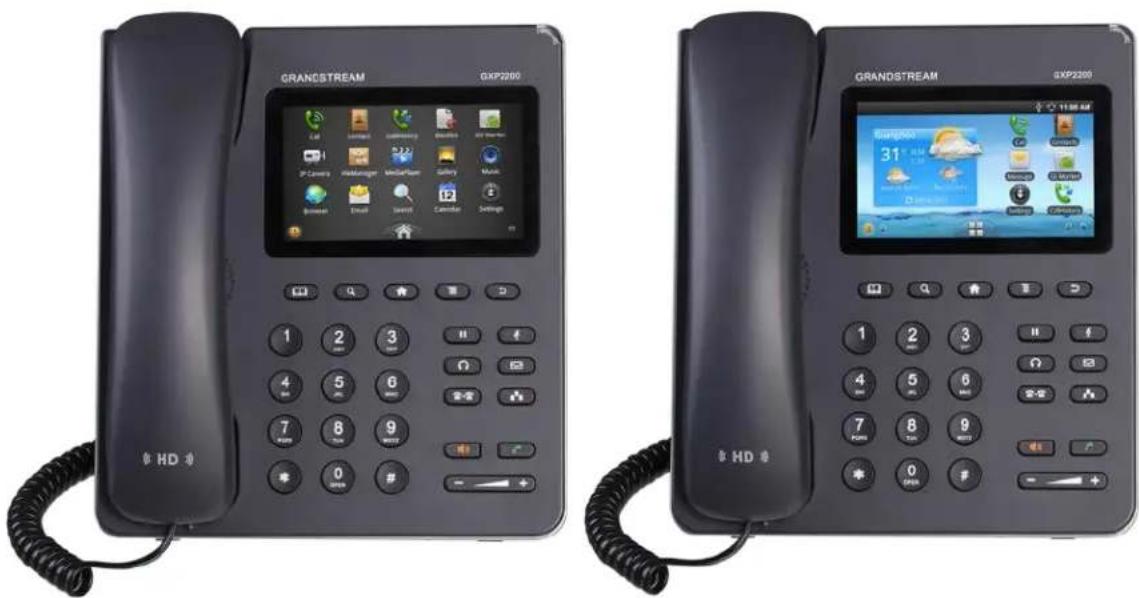
text_image
GRANDSTREAM GXP2200 HD GRANDSTREAM GXP2200 1 2 3 4 5 6 7 8 9 0 # 1 2 3 2 3 3 3 4 5 6 5 6 6 6 7 8 9 0 +Figure 1: GXP2200 Front View
Table 1: GXP2200 Technical Specifications
| Protocols and Standards | SIP RFC3261, TCP/IP/UDP, RTP/RTCP, HTTP/HTTPS, ARP, ICMP, DNS (A record, SRV, NAPTR), DHCP, PPPoE, SSH, TFTP, NTP, STUN, SIMPLE, LLDP, LDAP, TR-069, 802.1x, TLS, SRTP |
| Network Interfaces | Dual switched 10/100/1000Mbps ports with integrated PoE |
| Graphic Display | 480x272 capacitive touch screen TFT LCD |
| Bluetooth Yes, integrated | |
| Auxiliary Ports | RJ9 headset jack (allowing EHS with Plantronics headsets), USB, SD, extension module port |
| Feature Keys | 10 function keys for MUTE, HOLD, PHONEBOOK, MESSAGE, HEADSET, TRANSFER, CONFERENCE, VOLUME, SPEAKERPHONE, SEND/REDIAL, 4 Android navigations control keys for HOME, MENU, SEARCH, RETURN |
| Voice Codec | Support for G.711u/a, G.722 (wide-band), G.729A/B in-band and out-of-band DTMF (in audio, RFC2833, SIP INFO) |
| Audio Codec | AAC, MP3, WMA, Real, Ogg-Vortis, FLAC |
| Video Decoder | H.264 BP/MP/HP, H.263/H.263+, MPEG4, up to 1080p resolution |
| Telephony Features | Hold, transfer, forward (unconditional/no-answer/busy), call park/pickup, 5-way conference, shared-call-appearance (SCA)/bridged-line-appearance (BLA), virtual BLF/speed-dial extensions, downloadable phone book (XML, LDAP, up to 1000 items), call waiting, call log (up to 500 records), boss-secretary virtual button, flexible dial plan, hot desking, personalized music ringtones, server redundancy and fail-over |
| Sample Applications | Skype, Google Voice, Microsoft LYNC, Web browser, Adobe Flash, Facebook, Twitter, Youtube, news, weather, stock, Internet Radio, Pandora, Last.fm, Yahoo Flickr, Photobucket, alarm clock, Google Calendar, mobile phone data import/export via Bluetooth and etc. API/SDK available for advanced custom application development |
| Applications Deployment | Allow various Android operating system 2.3 compliant applications to be developed, downloaded and run in the embedded device with provisioning control |
| HD Audio | Yes, HD handset and speakerphone with support for wideband audio |
| Extension Module | Yes, can power up to 4 GXP2200EXT modules which feature a 128x384 graphic LCD, 20 quick-dial/BLF keys with dual-color LED, 2 navigation keys, and less than1.2W power consumption per unit |
| Base Stand | Yes, integrated stand with 2 adjustable angles |
| QoS | Layer 2 (802.1Q, 802.1p) and Layer 3 (ToS, DiffServ, MPLS) QoS |
| Security | User and administrator level passwords, MD5 and MD5-sess based authentication, 256-bit AES encrypted configuration file, TLS, SRTP, HTTPS, 802.1x media access control |
| Multi-language | English, German, Italian, French, Spanish, Portuguese, Russian, Croatian, Chinese, Korean, Japanese and etc |
| Upgrade and Provisioning | Firmware upgrade via TFTP/HTTP/HTTPS or local HTTP upload, mass provisioning using TR-069 or AES encrypted XML configuration file |
| Power and Green Energy Efficiency | Universal power adapter: Input: 100-240VAC 50-60Hz;Output: 12VDC, 1.5A (supplying power for up to 4 cascaded GXP2200EXT);Integrated Power-over-Ethernet (802.3af, class 0);Max power consumption 10W (power adapter, no GXP2200EXT), 12W (PoE, no GXP2200EXT), or 18W (power adapter only, with 4 cascaded GXP2200EXT) |
| Physical | Unit dimension: 188mm (W) x 210mm (H) x 85mm (D) (handset on-hook)Unit weight: 0.86kgPackage weight: 1.42kg |
| Temperature and Humidity | Operating: 32 - 104°F / 0 - 40°C, 10-90% (non-condensing);Storage: 14 - 140°F / -10 - 60°C |
| Package Content | GXP2200 phone, handset with cord, universal power supply, network cable, quick installation guide |
| Compliance | FCC Part 15 (CFR 47) Class B; EN55022 Class B, EN55024, EN61000-3-2, EN61000-3-3, EN60950-1; AS/NZS CISPR 22 Class B, AS/NZS CISPR 24, RoHS; UL 60950 (power adapter) |
INSTALLATION
EQUIPMENT PACKAGING
Table 2: GXP2200 Equipment Packaging
| Main Case | Yes (1) |
| Handset | Yes (1) |
| Phone Cord | Yes (1) |
| Power Adaptor | Yes (1) |
| Ethernet Cable | Yes (1) |
| Phone Stand | Yes (1) |
| Quick Installation Guide | Yes (1) |
CONNECTING YOUR PHONE
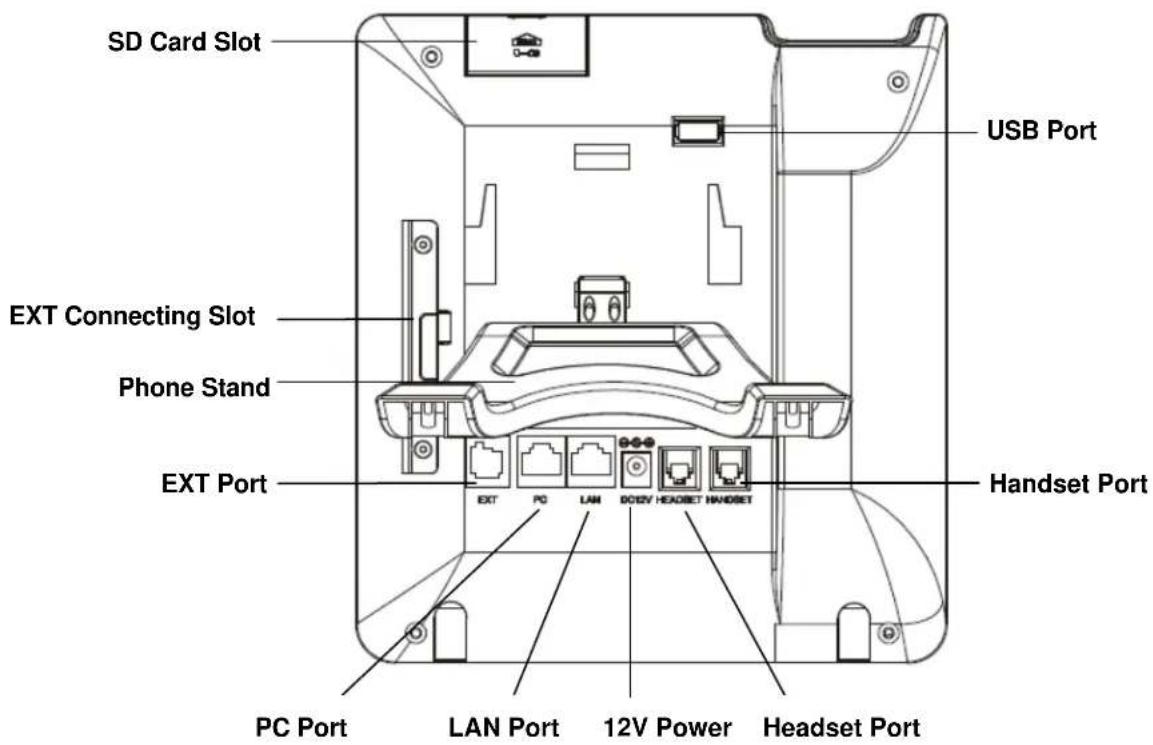
text_image
SD Card Slot USB Port EXT Connecting Slot Phone Stand EXT Port Handset Port PC Port LAN Port 12V Power Headset PortFigure 2: GXP2200 Back View
Table 3: GXP2200 Connectors
| SD Card Slot SD Card Slot | |
| USB Port | USB devices can be connected via the USB port. |
| For example:Connect a USB flash drive to save captured pictures;Connect a USB Wi-Fi dongle to the GXP2200. | |
| Headset Port | RJ9 headset connector port (supporting EHS with Plantronics headset) |
| Handset Port | RJ9 handset connector port |
| PC Port | 10/100/1000Mbps RJ-45 port connecting to PC |
| LAN Port | 10/100/1000Mbps RJ-45 port connecting to Ethernet |
| Power Jack | 12V DC Power connector port |
| EXT Port | RJ11 connector port to connect the GXP2200 Extension Board |
To set up the GXP2200, follow the steps below:
- Attach the phone stand to the back of the phone where there is a slot for the phone stand. Upper part and bottom part are available for two angels;
- Connect the handset and main phone case with the phone cord;
- Connect the LAN port of the phone to the RJ-45 socket of a hub/switch or a router (LAN side of the router) using the Ethernet cable;
- Connect the 12V DC output plug to the power jack on the phone; plug the power adapter into an electrical outlet. If PoE switch is used in step 3, this step could be skipped;
- The LCD will display the booting up screen. Before continuing, please wait for the main screen display to show up.
GXP2200 EXTENSION MODULE (GXP2200EXT)
The GXP2200 extension module (GXP2200EXT) is an ideal solution for the busy enterprise environment looking to add the ability to receive and dispatch calls efficiently. Each extension module has 20 programmable buttons, Left and Right buttons, supporting 40 Multiple Purpose Keys to be configured. GXP2200 supports up to 4 extension modules, adding 160 fully programmable phone extensions to the phone.
Table 4: GXP2200EXT Packaging
| GXP2200EXT Main Case | Yes (1) |
| GXP2200EXT Stand | Yes (1) |
| RJ11-RJ11 Cable | Yes (1) |
| Connector Plate | Yes (1) |
| Screws Yes (4) | |
| Quick Installation Guide | Yes (1) |

Note:
The GXP2200EXT is an additional accessory for the GXP2200 and is not included in the GXP2200 box.
To set up the GXP2200EXT with the GXP2200, please follow the steps below:
- On the back of the GXP2200 and the GXP2200EXT, there are slots for connector plate. Attach the connector plate between the slots for GXP2200 and the GXP2200EXT;
- Apply the screws provided and securely tighten them in (See Figure 3: GXP2200 Back View with GXP2200EXT);
- Connect the GXP2200EXT to the GXP2200 via EXT port using the RJ11-RJ11 cable provided;
- Install the phone stand on the GXP2200 and the GXP2200EXT;
- Power up the GXP2200. The GXP2200EXT will show the booting up screen with version information and connecting status;
- After successfully booting up, the GXP2200EXT will stay in idle. Press and hold the Left button for 3 to 5 seconds to check the version information and status.

natural_image
Technical line drawing of a device casing with internal components and mounting holes (no text or symbols)Figure 3: GXP2200 Back View with GXP2200EXT
The GXP2200EXT can be configured via the web GUI of the GXP2200 connected. After successfully configured, press Left or Right button on the GXP2200EXT and users could browse all the MPK's status in different pages.
For more information on installing, connecting and configuring the GXP2200EXT with GXP2200, please refer to the GXP2200EXT user manual:
http://www.grandstream.com/support
SAFETY COMPLIANCES
The GXP2200 phone complies with FCC/CE and various safety standards. The GXP2200 power adapter is compliant with the UL standard. Use the universal power adapter provided with the GXP2200 package only. The manufacturer's warranty does not cover damages to the phone caused by unsupported power adapters.
WARRANTY
If the GXP2200 phone was purchased from a reseller, please contact the company where the phone was purchased for replacement, repair or refund. If the phone was purchased directly from Grandstream, please contact Grandstream Support for a RMA (Return Materials Authorization) number before the product is returned. Grandstream reserves the right to remedy warranty policy without prior notification.

Warning:
Use the power adapter provided with the phone. Do not use a different power adapter as this may damage the phone. This type of damage is not covered under warranty.
GETTING TO KNOW GXP2200
When the phone boots up in HOME screen, the LCD will display as below. A registered account is shown in the following figure and users might need register their own account to have the account status displayed.
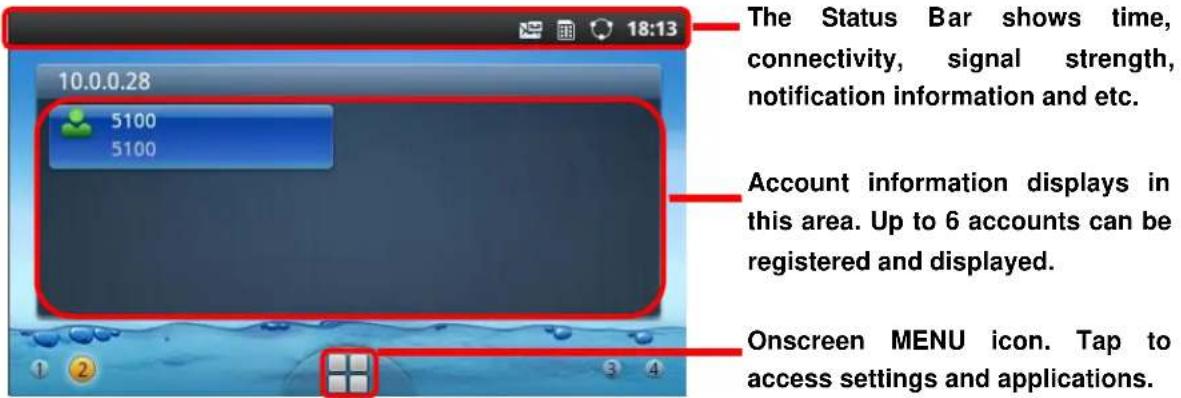
text_image
10.0.0.28 5100 5100 The Status Bar shows time, connectivity, signal strength, notification information and etc. Account information displays in this area. Up to 6 accounts can be registered and displayed. Onscreen MENU icon. Tap to access settings and applications.Figure 4: GXP2200 Default Main Screen
Tap the onscreen MENU icon, the settings and applications menu will be brought up as shown below.

text_image
Phone Contacts Call History Blacklist GS Market File Manager Media Player Gallery Music Browser Email Search Calendar Settings DiagnosisFigure 5: GXP2200 Onscreen Menu
To fully manipulate the GXP2200 capacitive touch screen, use your fingers operate the following on the GXP2200 icons, buttons, menu items, onscreen keyboard and etc.
- Tap
To select items on the screen (e.g., setting options, apps);
To press onscreen buttons (e.g., "End" or "Options" softkey during the call);
To type letters and symbols using the onscreen keyboard.
- Touch and Hold
Touch the item on the screen and hold it without lifting your finger from the screen till an action occurs. For example, touch and hold on a picture to bring up operation options such as "Open", "Copy", "Move", "Rename" and etc.
- Drag
Touch and hold an item for a few seconds first. Once the item has a red frame activated, or a move option shows up, keep your finger on the screen and move it until the target position is reached. Then lift your finger up to release.
- Slide
Move your finger across the screen to slide. To view different idle screens or menu pages, slide left on right; to view the status bar on top of the screen, place your finger on the bar and slide it down. If your finger stays on the screen for too long, the item may be selected and sliding won't occur.
- Pinch
Place two fingers on the screen, then pinch them together (zoom out) or spread them apart (zoom in). This could be used in main screen, or apps like Browser and Gallery.
IDLE SCREEN
SETTING UP HOME SCREEN
By default, the HOME screen is the one with account registration status displayed. Users could change it by specifying the HOME screen as preferred. Follow the steps below to set up the HOME screen.
• GXP2200 is up and running on idle screen;
- Press the MENU button and tap on "Edit" option. Or users could place two fingers on the screen and them pinch together. Then it will zoom out all the screens as shown in Figure 6: Set GXP2200 HOME Screen.
- The screen with 🔗 selected in a red frame is the HOME screen. Others are shown with icon 🔗. Tap on the icon 🔗 to select the corresponding screen as the new HOME screen.
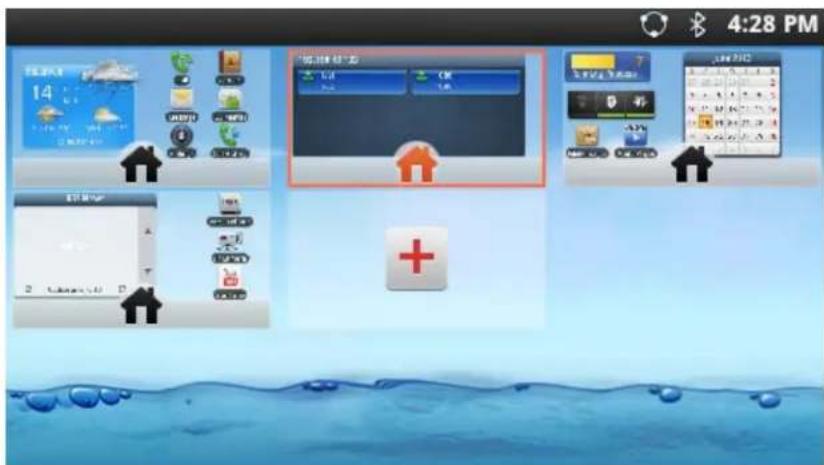
By default, there are four idle screens. To add more screens, firstly pinch on the idle screen, or press the MENU button and then touch "Edit" option to bring up the display in Figure 6: Set GXP2200 HOME Screen. Then tap on the icon + so one more idle screen will be added. To adjust the sequence for the idle screens to display, drag the screen and move to insert it before or after other screens.
DELETING IDLE SCREENS
The idle screens could be deleted. To delete, firstly remove all the widgets/shortcuts on that screen by dragging the icon to Recycle Bin at the bottom. Then pinch on the idle screen, or press the MENU button and then touch "Edit" option to bring up the display as the following figure shows. Now tap on the icon for the screen you would like to delete.

text_image
5:51 PM 14 欢迎光临 3:24 AM +Figure 7: Delete GXP2200 Idle Screen

Note:
Removing the widgets/shortcuts from the screen to be deleted is necessary. Otherwise, users won't see

show up for the screen.
IDLE SCREEN ICONS
The following table describes the icons used on the GXP2200 idle screen and MENU screen.
Table 5: GXP2200 Onscreen Icons
 | Onscreen MENU icon. Displayed on the bottom of each idle screen. Tap on it to access settings and all the installed applications. |
 | HOME icon. Displayed on the bottom of onscreen Menu screen. Tap on it to go back to the HOME screen. |
 | Screen indicator. Displayed on the bottom of each idle screen. Grey: The indicated screen is not the current displayed screen. |
| [WACC] | Screen indicator. Displayed on the bottom of each idle screen. Orange: The current displayed screen. |
 | Account registered. Displayed on the default HOME screen when the account is registered. Tap on it to make calls via this account. |
 | Account unregistered. Displayed on the default HOME screen if the account is configured but not registered. |
| [03X8] | SCA Account. Displayed on the default HOME screen if the account is registered as a SCA account. |
 | Recycle Bin. Displayed when holding and dragging a widget on idle screen. Drag the widget to Recycle Bin to remove it from the idle screen. |
| [035C] | Speaker. Displayed in status bar when speaker is being used. |
| [0168] | Tone silent. Displayed in status bar when speaker is turned off. When it's on silent, the incoming call/message won't produce ring tone/notification tone from phone's speaker. |
| [0W55] | Headset. Displayed in status bar when headset is being used. |
 | Handset. Displayed in status bar when handset is off hook. |
| [0AK4] | Call forward (Account 1). Displayed in status bar when call forward is set up for account 1. |
 | Call forward (Account 2). Displayed in status bar when call forward is set up for account 2. |
| [X7KG] | Call forward (Account 3). Displayed in status bar when call forward is set up for account 3. |
| [HSKG] | Call forward (Account 4). Displayed in status bar when call forward is set up for account 4. |
| [3CGA] | Call forward (Account 5). Displayed in status bar when call forward is set up for account 5. |
| 6 | Call forward (Account 6). Displayed in status bar when call forward is set up for account 6. |
| Alarm. Displayed in status bar when there is alarm set up. | |
| DND. Displayed in status bar when DND is on. | |
| Mute. Displayed in status bar when the ongoing call is muted. | |
| Network disconnected. Displayed in status bar when network is not connected. | |
| Network connected. Displayed in status bar when network is connected. | |
| USB connected. Displayed in status bar when USB storage device is connected. | |
| SD Card inserted. Displayed in status bar when SD card is inserted. | |
| SD Card space full. Displayed in status bar when the inserted SD card's space is full. | |
| Voicemail. Displayed in status bar when there is new voicemail. | |
| Bluetooth. Displayed in status bar when Bluetooth is enabled. | |
| Calendar event. Displayed in status bar when calendar has event scheduled. | |
| Playing. Media Player is currently playing files. | |
| Wi-Fi signal strength. Displayed in status bar when Wi-Fi is used. |
ONSCREEN KEYBOARD
The GXP2200 onscreen keyboard can be activated by tapping on an input field.
- English Keyboard
This is the default keyboard on GXP2200. Tap on 🔒 to change keyboard/input options.

text_image
q 1 w 2 e 3 r 4 t 5 y 6 u 7 i 8 o 9 p a s d f g h j k l ↑ z x c v b n m ?123 GoFigure 8: GXP2200 Onscreen Keyboard - English Keyboard
- Chinese Keyboard
When using Chinese Keyboard, users could input English and Chinese by switching input method. To switch input method to English when the current method is Chinese, tap on CN.

text_image
Q W E R T Y U I O P A S D F G H J K L , Z X C V B N M DEL CN ?123 / • GoFigure 9: GXP2200 Onscreen Keyboard - Chinese Input Method
To switch input method to Chinese when the current method is English, tap on EN

text_image
q w e r t y u i o p a s d f g h j k l ↑ z x c v b n m DEL EN ?123 GoFigure 10: GXP2200 Onscreen Keyboard - English Input Method
- Lowercase and Uppercase
When using English input method, to switch input among lowercase, capital uppercase and all uppercase, tap on ↑, or ↑.
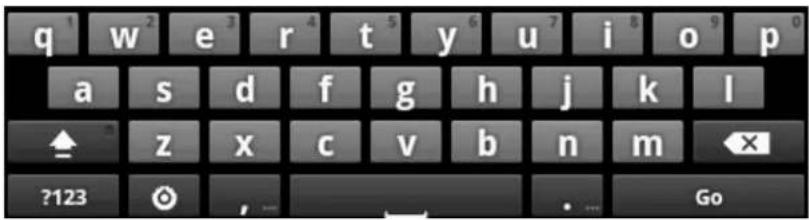
text_image
q 1 w 2 e 3 r 4 t 5 y 6 u 7 i 8 o 9 p 0 a s d f g h j k l ↑ z x c v b n m ?123 🔒 , GoFigure 11: GXP2200 Onscreen Keyboard - Lowercase
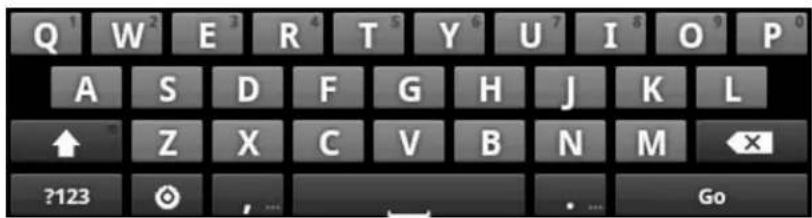
text_image
Q W E R T Y U I O P A S D F G H J K L ↑ Z X C V B N M ?123 GoFigure 12: GXP2200 Onscreen Keyboard - Capital Uppercase
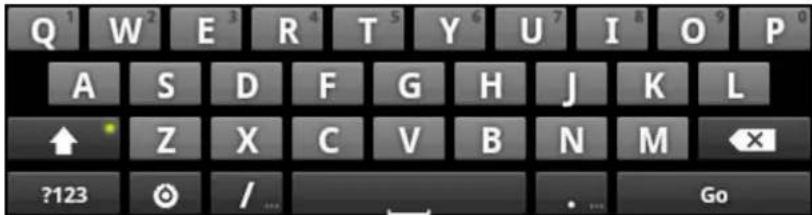
text_image
Q¹ W² E³ R⁴ T⁵ Y⁶ U⁷ I⁸ O⁹ P⁰ A S D F G H J K L ↑ Z X C V B N M ←× ?123 ⓞ / GoFigure 13: GXP2200 Onscreen Keyboard - All Uppercase
• Number and symbols
To input number and symbols, tap on ?123 to switch the mode and tap on ALT to go to another page for more symbols.
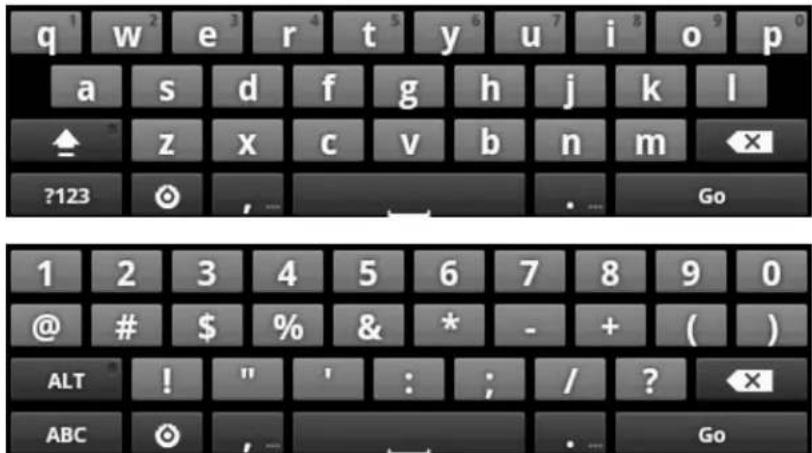
text_image
q 1 w 2 e 3 r 4 t 5 y 6 u 7 i 8 o 9 p a s d f g h j k l ↑ z x c v b n m ←x ?123 ⓞ , - - - - . Go 1 2 3 4 5 6 7 8 9 0 @ # $ % & * - + ( ) ALT ! " ' : ; / ? ←x ABC ⓞ , - - - - . Go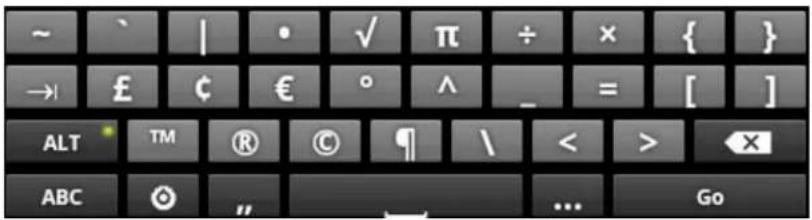
text_image
~ → £ ¢ € ° ^ _ = [ ] ALT TM ® © ¶ \ < > X ABC GoFigure 14: English Keyboard - Number and Symbols

text_image
1 2 3 4 5 6 7 8 9 0 @ # ¥ % " * — 、 ( ) ALT ! " " : ; , ? DEL CN Sym ?123 ~ ± × ÷ • ° < > { } © £ € ^ & °C _ = 【 ] ALT TM ' ' + | \ ✓ DEL CN Sym ?123 ...... GoFigure 15: Chinese Keyboard - Number and Symbols

Note:
- To configure keyboard and input options, users could go to Settings -> Language & Keyboard -> Keyboard Settings.
- Users could press and hold on the input field for 2-4 seconds to activate the window for Input method configuration.
USING THE KEYPAD

text_image
Message Waiting Indicator GRANDSTREAM GXP230 Menu Back Home Search Contacts Standard Keypad 1 2 3 4 5 6 7 8 90 #
Hold Mute Headset Message Conference Transfer Speaker Send VolumeFigure 16: GXP2200 Keyboard
Table 6: GXP2200 Keypad Buttons
 | Contacts. Press to view and edit contact information. |
 | Search. Press to search. |
 | Home. Press to go back to Home screen; or press and hold it for about 2 seconds, the current running applications and a Manage Applications button will show. |
 | Menu. Press to view options for different screen or applications. |
 | Back. Press to go back. |
 | Hold. Press to put call on hold or resume the call. |
 | Mute. Press to mute or unmute the call. |
 | Headset. Press to switch to headset mode. |
 | Message. Press to view voicemail messages. |
 | Transfer. Press to transfer call. |
 | Conference. Press to conference call. |
 | Speaker. |
Send/Redial.
Volume.

Note:
To capture a screenshot, press the MENU and SEARCH button at the same time. Then the screenshot picture will be saved under File Manager->user_data->screenshot folder.
USING THE MESSAGE WAITING INDICATOR
The GXP2200 message waiting indicator LED is on the top right corner of the device. It could notify the users with different messages and status of the phone. Please refer to the status description below. The priority for the LED indicator is from high to low in the following table.
Table 7: GXP2200 MWI LED Status
| Color | LED Status | Description |
| Fast F | ashing Incoming | call |
| Solid | Calling, Talking | |
| Slow Flashing | Call on hold | |
| Flashing | Missed call (s), New voicemail (s), New SIP Message (s) | |
| Solid | High memory usage, Maximum number of messages,Maximum contact storage | |
| Solid | Phone is on but the screen is off | |
| OFF | OFF | Normal |
MANAGING STATUS BAR
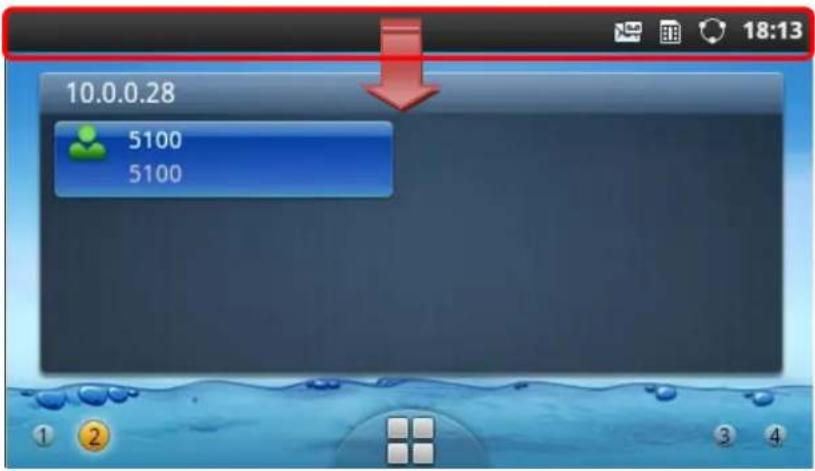
The GXP2200 status bar is located on the top of the screen. Touch the bar and slowly drag it down to display the full status list.
text_image
10.0.0.28 5100 5100Figure 17: GXP2200 Status Bar
Once the status bar is opened, users could view the notifications, process and system settings.
- Notification
Users could tap on the notification message to open it and view the details. To remove all the notifications, tap on Clear button.

text_image
03/19/2013 Notification Process System Settings Notifications Clear Voice Mail You have new Voice Mail 03-18-2013Figure 18: GXP2200 Status Bar - Notification
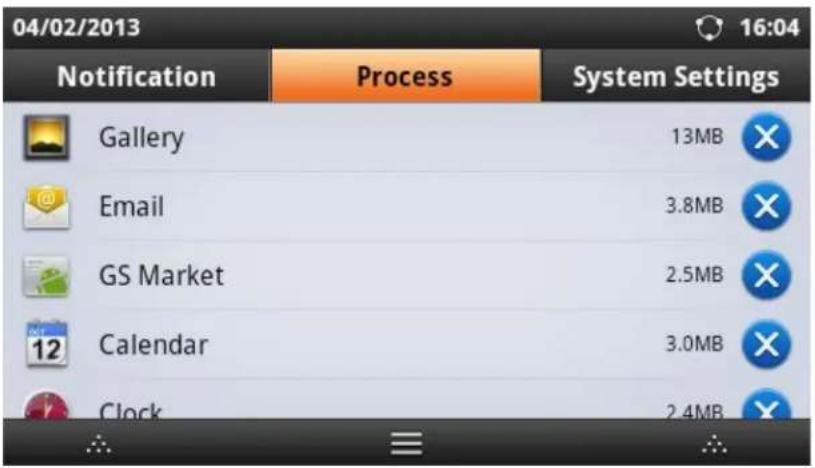
- Process
Tap on Process tab then users could view all the running processes on the GXP2200. Press on the
process to open it, or tap on

to close the process.
text_image
04/02/2013 16:04 Notification Process System Settings Gallery 13MB Email 3.8MB GS Market 2.5MB Calendar 3.0MB Clock 2.4MBFigure 19: GXP2200 Status Bar - Process
- System Settings
Users could access some of the frequently used features from system settings. For each option, please see the description below.

text_image
Turn on/off DND. When DND is on, all the calls to the registered accounts will be blocked. Turn on/off BlueTooth. 03/19/2013 15:28 Turn on/off Wi-Fi. Scroll left/right to adjust LCD brightness. Select Media Channel when playing audio or video. Notification Process System Settings Wi-Fi BlueTooth DND Voice Screen Off Enabled Media Channel: Headset Speaker Handset Tone on/off on incoming call/message. Handset mode: Enabled/Disabled/ Auto. This is used when running 3rd party app. Turn on/off LCD display.Figure 20: GXP2200 Status Bar - System Settings

Note:
Handset Mode is for audio path and GXP2200 dialer control when running 3rd party app that uses media path. Currently there are three options supported:
- Enabled: Default mode. When handset is lifted, audio will come through handset and the GXP2200 default call screen will show.
- Disabled: In this mode, when running the 3rd party app, if handset is lifted, the audio path will switch to handset but GXP2200 default call screen won't show (users won't hear dial tone either). Onhook the handset, the audio path will be switched to speaker. Under this mode, even the GXP2200 is not using the 3rd party app, picking up the handset will not activate the GXP2200 dialer. (Users can still use Speaker button to activate GXP2200 dialer under this mode.)
- Auto: In this mode, the GXP2200 will automatically detect if the audio path is used by 3rd party app first. If so, it will use the handset mode "Disabled". Otherwise, keep it in "Enabled" mode. Please note that running the 3rd party app doesn't necessarily mean the audio path is used by the 3rd party app. If the audio path is not occupied by the 3rd party app, the GXP2200 will still use the handset mode "Enabled".
MAKING PHONE CALLS
REGISTERING SIP ACCOUNTS
The GXP2200 supports up to 6 independent SIP accounts. Each account may have separate SIP servers, usernames and NAT configurations.
For example, the user has configured 4 SIP accounts on GXP2200: Account 1, Account 2, Account 3 and Account 4. The registration status for each account is displayed on the main screen. The icon next to the
account name will indicate the registration status ( Green: registered; Grey: unregistered;
Yellow: registered as SCA account). The following figure shows Account 1 and Account 2 are registered, while Account 3 and Account 4 are configured but not registered.

text_image
192.168.40.163 Account1 6000 Account2 5000 Account3 1090 Account4 1091Figure 21: GXP2200 Account Registration Status
To register the account, users could directly configure from MENU button->Settings->Advanced Settings->Account. Or users could log in the GXP2200 web GUI->Account page to fill in the necessary registration information, i.e., Account active, Account name, SIP Server, SIP User ID, SIP Auth ID, SIP Auth Password and etc. Once the correct information is entered and saved, the account registration status will show on the main screen.

Note:
For web GUI login and configuration information, please refer to section [GXP2200 WEB GUI SETTINGS].
HANDSET, SPEAKER AND HEADSET MODE
The GXP2200 allows users to switch among handset, speaker or headset when making calls. Press the Hook Switch to switch to handset; press the Headset button ☐ to switch to headset; or press the Speaker button ☐ to switch to speaker.
MAKING A CALL
Once the account is successfully registered, users could use the following ways to make a call.
1. Onhook dialing
- When the phone is in idle, press the digits to bring up the call screen and select the account on the right panel. Or, users could tap on the registered account icon in idle screen to select the account; - Enter the necessary digits. When there is digit matching call history, or contacts name/number, the dropdown list will show the numbers. For example, if "John" is saved in the GXP2200 contacts, entering 5 (JKL) 6 (MNO) 4 (GHI) 6 (MNO) will show call log with 5646 as the first four digits, as well as John's number. Users could then directly select one of them from the list, instead of entering all the digits;
- To send the digits and call via Speaker, press 📋 button or 🏠 Send button or tap on (audio call) / 📞 (video call). To use handset, lift the handset up from the hook switch. If headset is used, press 📄 to call via headset.

text_image
Enter Number 5101 john doe 5101 john doe 5101 Mode Call Conf Room 5100 5103 No CallFigure 22: GXP2200 Call Screen
2. Off hook and dial
• Take the handset off hook, or press the speaker button , or press the headset button
to bring up the call screen;
- Select the account by tapping on the account name in the right panel;
- Enter the number;
- Tap on 📞 (audio call) or 📞 (video call) or 📞 to send. If no key is pressed, the call will be automatically dialed out after 4 seconds timeout.
3. Redial
- When the phone is idle or offhook, press SEND button to dial the last dialed-out number;
- For redialing, the phone will use the account that was used to call the last number. Therefore, if the last number dialed uses the third SIP account, the phone will also use the third SIP account when redialing.
4. Via Call History
- Access the Call History by tapping on the onscreen Menu icon->Call History icon
• The LCD will display all call history types: "All", "Outgoing", "Incoming" and "Missed" calls;
- Select the call history you would like to view by sliding up/down and tapping on the corresponding number;
- Press on the dial icon to dial out.

text_image
Call History Yumeng 5101-5100 09:46 5101-5100 Duration 00:00 09:45 5101-5100 Duration 00:00 09:45 5101-5100 Duration 00:00 Add a cont... Delete allFigure 23: GXP2200 Call History Screen - One Entry Selected
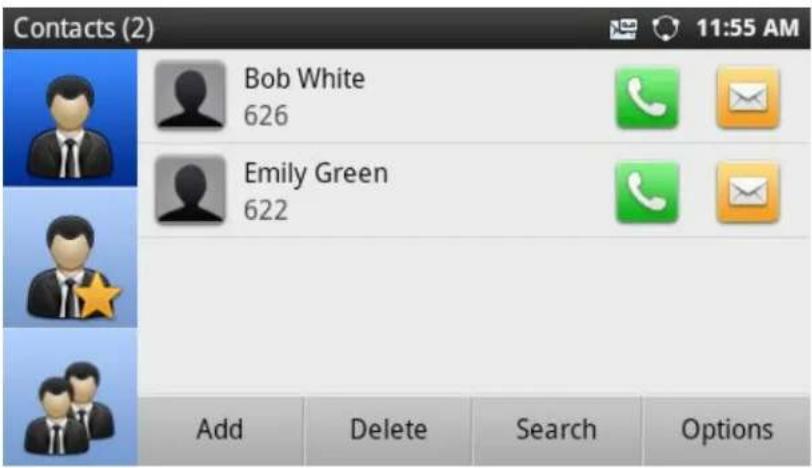
5. Via Contacts
- Access the contacts information by tapping on the onscreen Menu icon->Contacts icon

• The LCD screen will display the records in the contacts;
- Navigate to the contacts by sliding up/down on the screen;
- Tap on the dial key 📞 to dial the corresponding contact.
text_image
Contacts (2) Bob White 626 Emily Green 622 Add Delete Search OptionsFigure 24: GXP2200 Contacts Screen
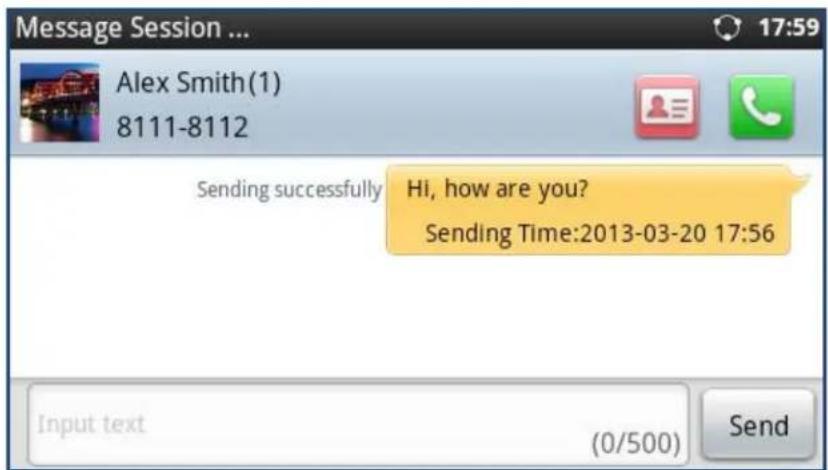
6. Via Messages
- Access the SMS by tapping on the onscreen Menu icon->Message ;
- The LCD screen will display the message information. Tap on the person you would like to call;
- Then the detailed information for the message will be displayed;
- Tap on to dial.
text_image
Message Session ... Alex Smith(1) 8111-8112 Sending successfully Hi, how are you? Sending Time:2013-03-20 17:56 Input text (0/500) SendFigure 25: GXP2200 Messages Screen
7. Making Call Via Bluetooth Headset
- Connect Bluetooth headset with the GXP2200;
• Make an outgoing call;
- If the call is dialed out using Speaker, the Bluetooth headset will be activated and connected automatically;
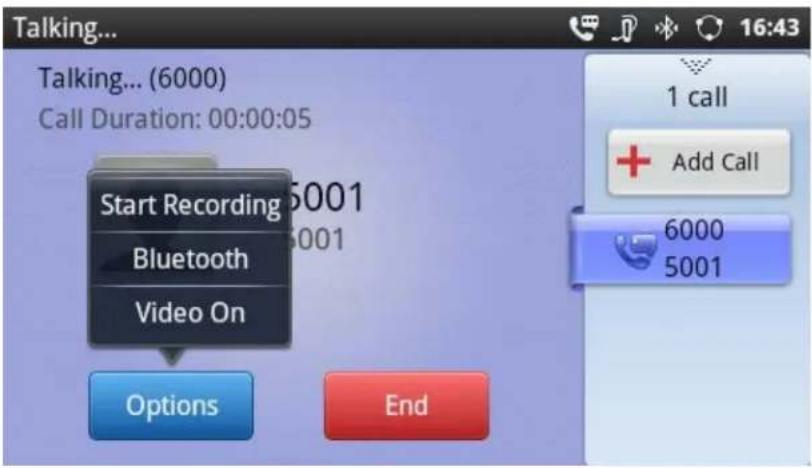
- If the call is dialed using handset, users can press "Options" and tap on "Bluetooth" to switch to Bluetooth headset;
- Press the Bluetooth headset call control button can hang up the call.

text_image
Talking... Talking... (6000) Call Duration: 00:00:05 Start Recording 5001 Bluetooth Video On Options End 1 call Add Call 6000 5001Figure 26: Making Call Via Bluetooth Headset
DIRECT IP CALL
Direct IP Call allows two phones to talk to each other in an ad-hoc fashion without a SIP proxy. VoIP calls can be made between two phones if:
- Both phones have public IP addresses; Or
- Both phones are on the same LAN/VPN using private or public IP addresses; Or
- Both phones can be connected through a router using public or private IP addresses (with necessary port forwarding or DMZ).
To make a direct IP call, please follow the steps below:
- Off hook the phone or select account in the idle screen to bring up call screen on GXP2200;
• Under "Mode" button in the call screen, tap on it and select the mode as "IP Call";
- Input the 12-digit target IP address. For example, if the target IP address is 192.168.1.60 and the port is 5062 (i.e., 192.168.1.60:5062), input the following:
192*168*1*60#5062
The * key represents the dot (.) and the # key represents the colon (:).
- Press "SEND" [icon] key or tap on (audio call) / (video call) button to dial.

Note:
- The # will represent colon ":" in direct IP call rather than SEND key as in normal phone call;
• Port number is not mandatory when making direct IP call; - Users need activate the first account on the GXP2200 to complete direct IP call;
- If you have a SIP server configured, direct IP call still works. If the devices are behind NAT, users might need configure NAT Traversal before using direct IP call. If you are using STUN, direct IP call will also use STUN;
- The phone needs to configure option "User Random Port" to "No" to accept direct IP calls;
- In GXP2200 Contacts, if the number is using IP address, direct IP call can be made by dialing this contact.
ANSWERING A CALL
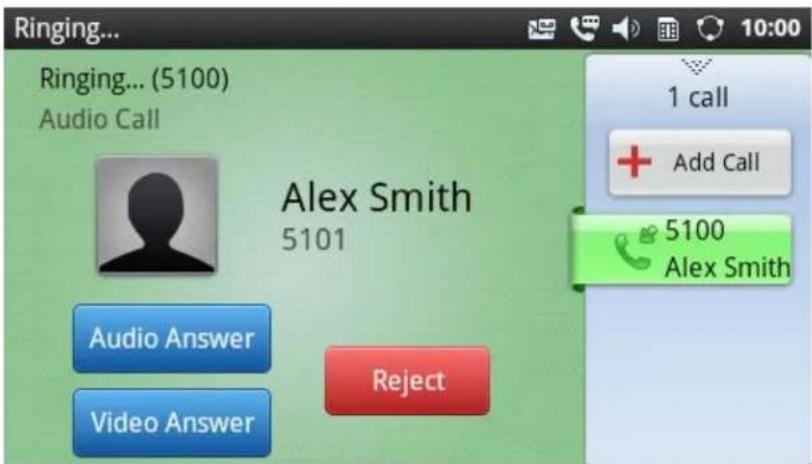
1. Single incoming call
When the phone rings, users could use the headset, handset or speaker to answer the call. Select "Accept audio" or "Accept video" to answer the call via Speaker.
text_image
Ringing... Ringing... (5100) Audio Call Alex Smith 5101 Audio Answer Video Answer Reject 1 call Add Call 5100 Alex SmithFigure 27: Single Incoming Call
2. Multiple Incoming Calls
- When there is another incoming call, users will hear a call waiting tone, with the LCD displaying the caller name and ID. In the right panel, the bar in green is the ringing line from "Alex Smith"; the bar in blue is the current active call with "John Doe". "5100" is the callee account name;
- Also, the LCD will show Answer buttons (if it's a video call, users can select "Audio Answer" or "Video Answer") and Reject button for the new call. If the call is answered, the current call will be placed on hold.

text_image
Ringing... Ringing... (5100) Audio Call Alex Smith 5101 Audio Answer Video Answer Reject 2 calls Add Call 5100 Alex Smith 5100 John Doe New incoming call from "Alex Smith" to "5100". The current call with John Doe.Figure 28: Multiple Incoming Calls
3. Missed Call
When there is missed call, a missed call window will pop out. Tap on it to check the missed call details.
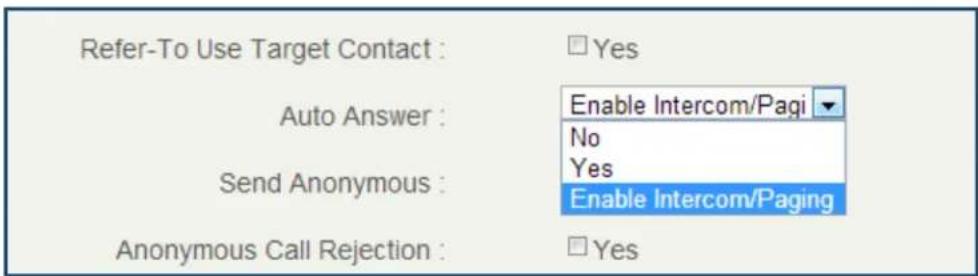
4. Auto-Answer/Paging/Intercom
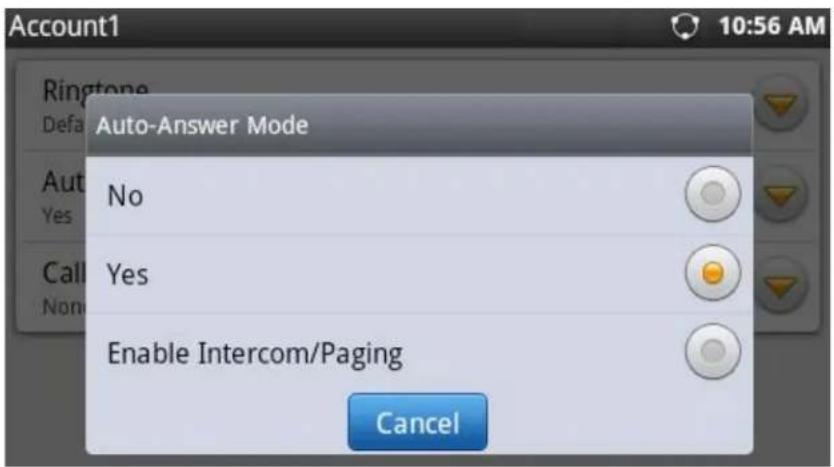
To enable auto-answer/paging/intercom feature, user could login GXP2200 Web GUI->Account page->Call Settings to select the options for "Auto Answer".
Or, users could use LCD onscreen MENU->Settings->Personalized Account->select Account Name to enable auto-answer.
text_image
Refer-To Use Target Contact : Auto Answer : Send Anonymous : Anonymous Call Rejection : □ Yes Enable Intercom/Pagi No Yes Enable Intercom/Paging □ YesFigure 29: Auto Answer Option in Web GUI
text_image
Account1 Auto-Answer Mode No Yes Enable Intercom/Paging CancelFigure 30: Auto Answer Option in LCD
Auto Answer options:
- No: Disable Auto-Answer feature. This is the default setting. Users can select to answer or reject the incoming call;
- Yes: Enable Auto-Answer feature. Incoming calls will be answered automatically via speaker if the phone is in idle;
- Enable Intercom/Paging: Incoming Paging/Intercom Call will be automatically answered via speaker if the phone is in idle. Other regular calls won't be automatically answered.
5. Incoming Call Using Bluetooth Headset
If the Bluetooth headset is connected to the GXP2200, users will hear the ring tone from Bluetooth headset when there is incoming call. Tap on the call button on the Bluetooth headset to pick up the call.
If the call is answered by handset or speakerphone already, users could switch to Bluetooth headset during the call. To switch the audio channel to Bluetooth headset during the call, press the "Options" softkey and tap on "Bluetooth" to enable Bluetooth headset channel (see figure below).
text_image
Talking... Talking... (6000) Call Duration: 00:00:05 Start Recording Bluetooth Video On Options End 1 call Add Call 6000 5001Figure 31: Switching To Bluetooth Headset
Press the Bluetooth headset call button to hang up the call.
CALL HOLD
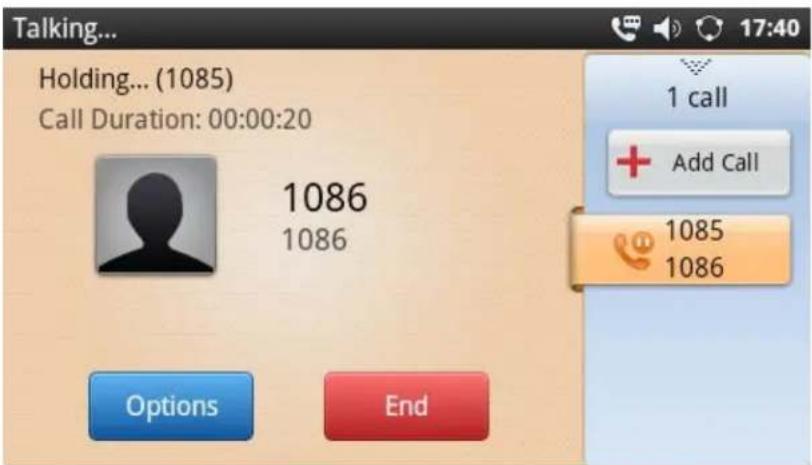
During the active call, press HOLD button ☐ to put the call on hold. The LCD screen will show pink
background and icon 🤨 on the right panel indicates the call is on hold. To resume to call, press HOLD button again and the LCD will go back to the talking screen in green background.
text_image
Talking... Holding... (1085) Call Duration: 00:00:20 1086 1086 1 call Add Call 1085 1086 Options EndFigure 32: Call On Hold
CALL WAITING
When there is an active call, tap on the right panel to open up another line or accept the new incoming call. This will automatically put the current call on hold. Touch the bars indicating different lines on the right panel to toggle among multiple calls.

text_image
Calling... Calling... (605) Audio Call 2040 2040 Cancel 2 calls Add Call 605 2040 1085 1086Figure 33: GXP2200 Multiple Calls Screen
CALL TRANSFER
The GXP2200 supports blind transfer and attended transfer. The default transfer mode is blind transfer. Users could configure the "Default Transfer Mode" to be used on the GXP2200 under web GUI->Advanced Settings->Call Features.
1. Blind Transfer
- During the active call, press TRANSFER button ☐ to bring up the transfer screen;
- The default transfer mode is "Blind". Users could also select transfer mode by tapping on the mode selection bar (see figure below);
- Enter the digits and then press the "Send" soft key on the right;
• The call will be transferred and GXP2200 will hang up the call.

text_image
Talking... Blind Send Blind AttendedFigure 34: Blind Transfer

Note:
- If wrong digits are entered, tap on ✗ to delete the digit one by one;
- If users would like to cancel the transfer, press 📋 button to go back to the previous talking screen.
2. Auto Attended Transfer
The GXP2200 support auto attended transfer which provides users a fast and easy way to complete attended transfer.
- During the active call, press TRANSFER button ☐ to bring up the transfer screen;
- Select transfer mode by tapping on the mode selection bar (see figure below);

text_image
Talking... Attended Blind AttendedFigure 35: Auto Attended Transfer
- Enter the digits and then press the "Send" soft key on the right;
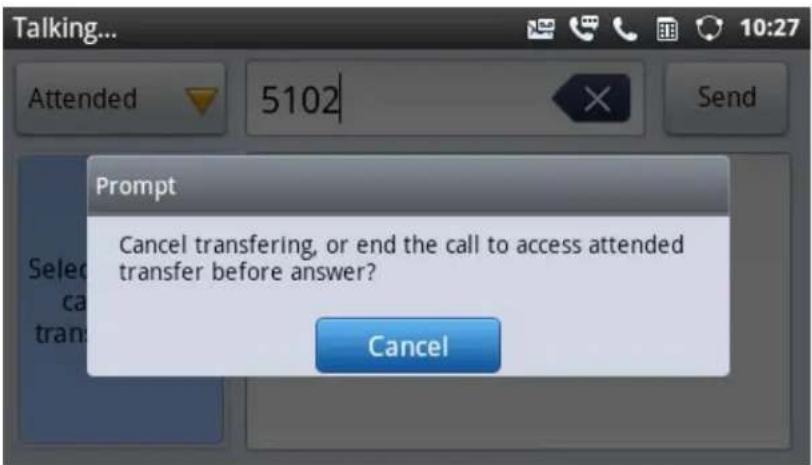
- When the GXP2200 hears the ringback tone, the following screen will show. Users could tap on "Cancel" to cancel the transfer or simply hang up the call to complete call transfer before answer;
text_image
Prompt Cancel transferring, or end the call to access attended transfer before answer? CancelFigure 36: Auto Attended Transfer - Transferring
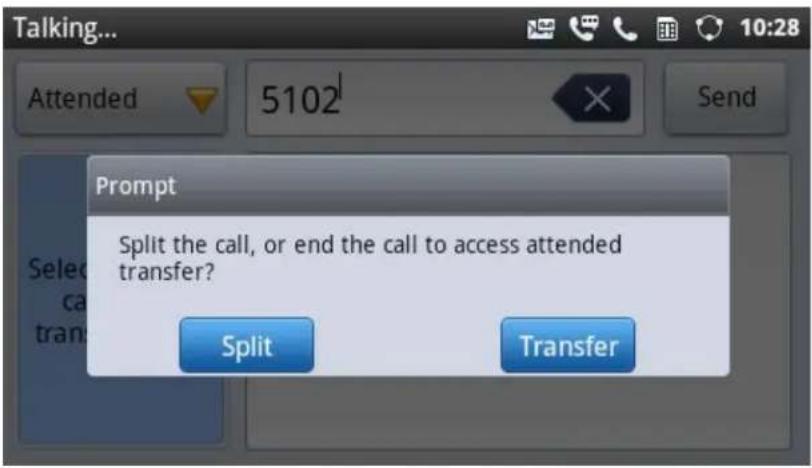
- If the call is answered, users could then simply hang up or press the "Transfer" soft key to complete the transfer. Also, before hanging up, users can tap on Split in the following screen to separate the calls when talking to the second established call.
text_image
Prompt Split the call, or end the call to access attended transfer? Split TransferFigure 37: Auto Attended Transfer - Split
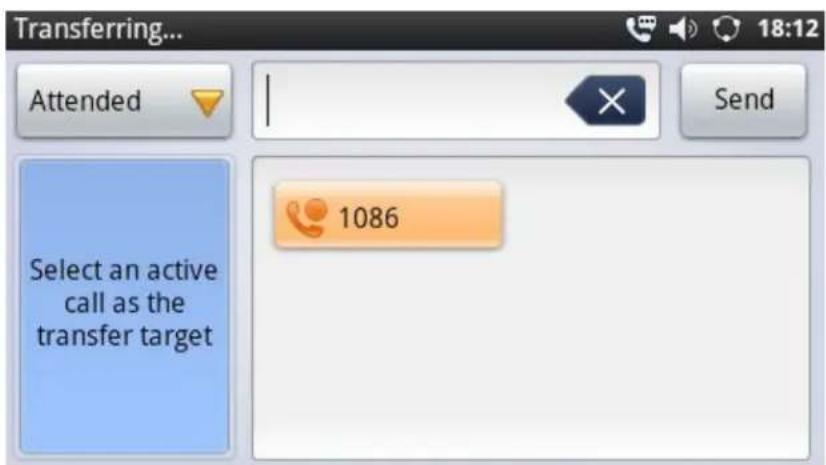
3. Attended Transfer with 1 Line on Hold and 1 Line Talking
- During the active call, tap on + Add Call in the right panel to make the second call. This will place the current call on hold;
• Dial the number for the second call; - Press TRANSFER button ☐ to bring up transfer screen with the line on hold;
- Tap on the line on hold 1086 to transfer the call;
• The call will be transferred and GXP2200 will hang up the call.
text_image
Transferring... Attended Send Select an active call as the transfer target 1086Figure 38: Attended Transfer

Note:
- To transfer calls across SIP domains, SIP service providers must support transfer across SIP domains;
- If users would like to cancel the transfer, press 📋 button to go back to the previous talking screen.
5-WAY CONFERENCE
The GXP2200 supports up to 5-way conferencing.
1. Initiate conference
- When the phone is in idle, call screen, or during an active call, press CONFERENCE button to bring up conference screen; users could also press CONF button in call screen right after off hook the phone;
- Tap on + to start adding party in conference;

text_image
Conf Room Monitor End 2 calls Add Call 1085 1086 1085 2040Figure 39: GXP2200 Conference Screen
- Users could manually select account, enter digits and then tap on the Invite icon, or select the call
(on hold 🤒 or active 🤒) to add to the conference;

text_image
Add Member 1085 2088 Invite Select an active call to join the conference. 2040 1086Figure 40: Invite Party to Conference
- Repeat the above step to add more parties in. The following figure shows a 3-way conference established.

text_image
Conf Room Monitor 00:00:20 End 2 calls Add Call 1085 2040 1085 1086Figure 41: 3-way Conference Call Established
2. Remove party from conference
To remove a party from the conference, tap on the ✗ on the right top corner for the corresponding party. Then it will be disconnected.
3. End conference
To end the conference, tap on End to disconnect all the parties from the conference. GXP2200 will hang up the call. If the remote party hangs up the call itself, it will be disconnected from the conference but other parties on GXP2200 will stay in the existed conference.
4. Hold/Resume conference
During the conference, users could press the HOLD button ☐ to hold or resume the conference at any time.
5. Auto Conference Mode
The GXP2200 also supports "Auto Conference" which allows users to establish conference call in a quick and easy way, instead of adding the other parties one by one. To enable Auto Conference feature, go to web GUI->Advanced Settings->Call Features and set "Auto Conference" to "Yes". To establish call with auto conference when there are 1 or more calls on the GXP2200, simply press the conference button

and all the calls on GXP2200 will be brought into the conference.

Note:
- For 4-way conference and 5-way conference, PCMA and PCMU are the supported codec in current firmware version.
- During the 3-way conference, if the initiator of the conference hangs up, the conference will end. If users wish to allow the remaining 2 parties to stay in conversation after the initiator hangs up, the conference initiator should set "Transfer on 3-way Conference Hang up" to "Yes" in web GUI->Account page->Call Settings. This would allow the remaining parties to stay in the conference after the initiator exists the conference.
VOICEMAIL (MESSAGE WAITING INDICATION)
When there is new voicemail, the Message Waiting Indication (MWI) LED icon will blink in red on the upper right corner of the GXP2200. Also in the status bar, Voice Mail icon will shows up as a notification. To
retrieve the voicemail, press the Message button 📧 and tap on the account to dial into the voicemail box. Then follow the Interactive Voice Response (IVR) for the message retrieval process.
For each account, the Voicemail User ID can be set up under web GUI->Account X->General Settings: "Voice Mail UserID". When dialing out, this Voicemail User ID will be used to access the voicemail message.

text_image
05/06/2012 Notification Process System Settings Notifications Clear Voice Mail You have new Voice Mail 3:43 PMFigure 42: New Voicemail Notification

text_image
Voice Mail Account1 (1/1) 715 (0/0) Account2 (1/1) 716 (0/0) Account3 (0/0) 717 (0/0) Account4 (0/0) 718 (0/0) Regular voicemail. Urgent voicemail.Figure 43: Press Message Button to Retrieve Voicemail
CALL RECORDING
During the call, users could select to record the call and the recording file will be automatically saved to SD card storage or USB storage.
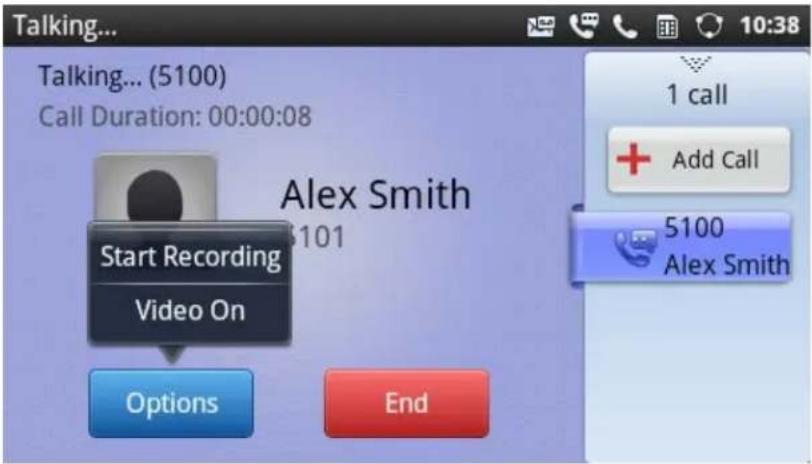
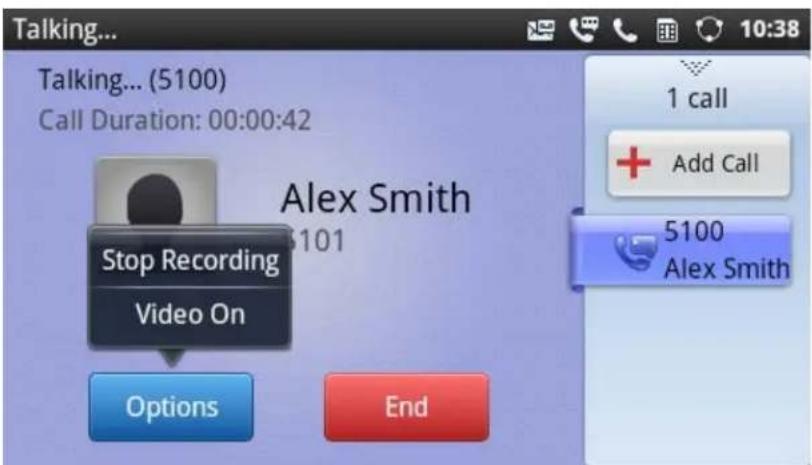
To record the call, insert SD card or USB flash drive to the GXP2200 first. During the established call, tap on "Options"->"Start Recording" and the recorded file will be automatically saved in "Record" folder under SD card storage or USB flash drive. Tap on "Options"->"Stop Recording" or simply hang up the call to stop recording.
If both SD card and USB flash drive are inserted to the GXP2200, the recording file will be save in the SD card first.
text_image
Talking... Talking... (5100) Call Duration: 00:00:08 Alex Smith Start Recording Video On Options End 1 call Add Call 5100 Alex SmithFigure 44: Start Voice Record
text_image
Talking... Talking... (5100) Call Duration: 00:00:42 Alex Smith Stop Recording Video On Options End 1 call Add Call 5100 Alex SmithFigure 45: Stop Voice Record
MUTE
During an active call, press the Mute button 📁 to mute the call. The mute icon will be displayed
in the status bar. Press the Mute button 📄 again to unmute the call.
DND
To turn on DND, tap on the status bar->System Settings on the GXP2200 LCD. Then touch the DND icon to turn it on/off. When DND is on, the incoming calls to the GXP2200 will be blocked for all registered accounts with a reminder ring produced. To disable the reminder ring, configure the option under GXP2200 web GUI->Advanced Settings->Call Features: "Disable DND Reminder Ring".
CALL FORWARD
Call forward feature can be set up from GXP2200 LCD or web GUI.
- From LCD
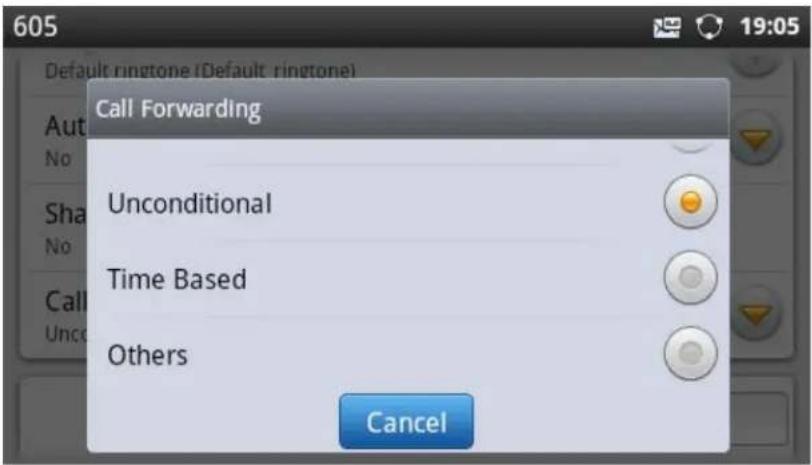
Go to onscreen Menu->Settings->Personalized Account->Select account name and tap on Call Forwarding to activate the feature. Then a list of options will show. Select the option to configure the call forward type (None, Unconditional, Time Based, Others) and then enter necessary number in the fields.
text_image
605 Default rington (Default rington) Call Forwarding Unconditional Time Based Others CancelFigure 46: Call Forwarding on GXP2200 LCD
- From Web GUI
Log in GXP2200 web GUI and go to Account page->Call Settings. By default, Call Forward feature is set to "None". The Call Forward feature options are:
Unconditional Forward: All the incoming calls will be forwarded to the number set up in "All To" field.

text_image
Call Forward Type : Unconditional All To : 23455432Figure 47: Call Forward - Unconditional
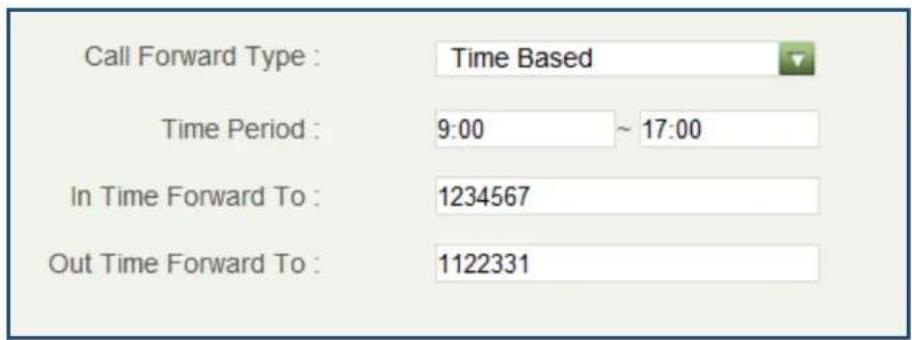
Time Based Forward: All the incoming calls will be forwarded to the number as schedule in the time period. During the setup time, the call will be forwarded to the number in "In Time Forward To:" field. Other period the call will be forwarded to the number in "Out Time Forward To:" field.
text_image
Call Forward Type : Time Based Time Period : 9:00 ~ 17:00 In Time Forward To : 1234567 Out Time Forward To : 1122331Figure 48: Call Forward - Time Based
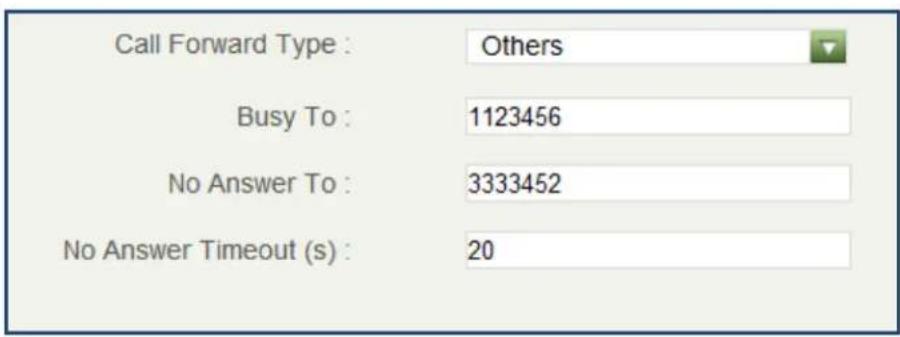
Call Forward on Busy / Call Forward No Answer: The incoming call will be forwarded when the GXP2200 is busy or no answer after certain interval "Delayed Call Forward Wait Time (s)".
text_image
Call Forward Type : Others Busy To : 1123456 No Answer To : 3333452 No Answer Timeout (s) : 20Figure 49: Call Forward - Busy/No Answer
MULTI-PURPOSE KEYS
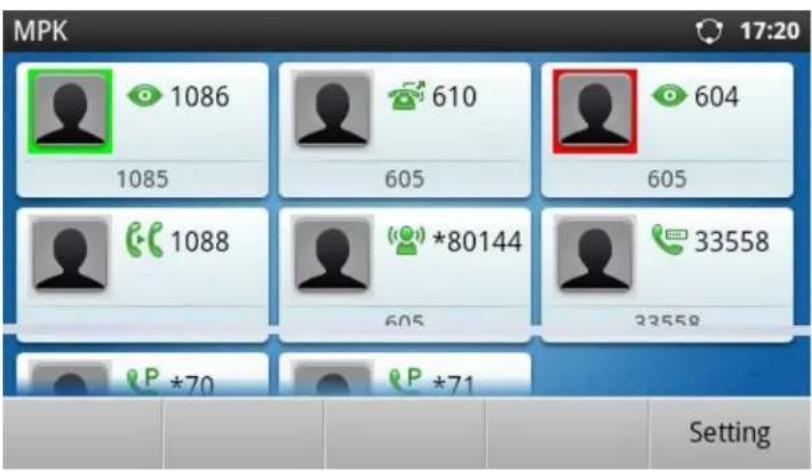
The GXP2200 supports multi-purpose keys (MPK) without extension board (GXP2200EXT) by downloading MPK app from GS Market. After downloading the MPK app, users could configure the MPK from MPK settings via LCD Menu->MPK app, or via web GUI->Advanced Settings->MPK LCD Settings. Users could then use Speed Dial, Busy Lamp Field (BLF), Call Transfer, Call Intercom, Speed Dial via active account, Dial DTMF, Call Park by tapping on the configured virtual MPK.
text_image
MPK 1086 1085 610 605 604 605 1088 *80144 33558 P *70 P *71 SettingFigure 50: GXP2200 MPK APP
SHARED CALL APPEARANCE (SCA)
The GXP2200 supports shared call appearance by Broadsoft standard. This feature allows members of the SCA group to shared SIP lines and provides status monitoring (idle, active, progressing, hold) of the shared line. When there is an incoming call designated for the SCA group, all of the members of the group will be notified of an incoming call and will be able to answer the call from the phone with the SCA extension registered.
All the users that belong to the same SCA group will be notified by visual indicator when a user seizes the line and places an outgoing call, and all the users of this group will not be able to seize the line until the line goes back to an idle state or when the call is placed on hold (with the exception of when multiple call appearances are enabled on the server side).
In the middle of the conversation, there are two types of hold: Public Hold and Private Hold. When a member of the group places the call on public hold, the other users of the SCA group will be notified of this by the yellow-flashing button and they will be able to resume the call from their phone by pressing the line button. However, if this call is placed on private-hold, no other member of the SCA group will be able to resume that call.
To enable shared call appearance, the user would need to register the shared line account on the phone. In addition, they would need to enable SCA and configure SCA options via LCD or web GUI.
To configure SCA via LCD, go to Settings->Personalized Account and select one account first. The tap on "Shared Call Appearance (SCA)". To configure SCA via web GUI, go to Account page->SIP Settings to fill out the options in the following figure.

text_image
Enable SCA (Shared Call Appearance) : Yes Enable Bargeln : Yes Auto-filling Pickup Feature Code : Yes Pickup Feature Code : Line-seize Timeout : 15Figure 51: GXP2200 Shared Call Appearance Web GUI Settings
CALL FEATURES
The GXP2200 supports traditional and advanced telephony features including caller ID, caller ID with caller Name, call waiting, call forward and etc. Before using the following feature code, please make sure "Enable Call Features" option is set to "Yes" under web GUI->Account page->Call Settings.
Table 8: GXP2200 Feature Code
| *30 | Block Caller ID (for all subsequent calls)• Dial *30. |
| *31 | Send Caller ID (for all subsequent calls)• Dial *31. |
| *50 | Enable Call Waiting• Dial *50. |
| *51 | Disable Call Waiting• Dial *51. |
| *67 | Block Caller ID (per call)Enter *67 and the number to call;Dial out. |
| *82 | Send Caller ID (per call)Enter *82 and the number to call;Dial out. |
| *70 | Disable Call Waiting (per Call)Enter *70 and the number to call;Dial out. |
| *71 | Enable Call Waiting (per Call)Enter *71 and the number to call;Dial out. |
| *72 | Unconditional Call Forward. To set up unconditional call forward:Enter *72 and the number to forward the call;Dial out. |
| *73 | Cancel Unconditional Call Forward. To cancel the unconditional call forward:Dial *73. |
| *90 | Busy Call Forward. To set up busy call forward:Enter *90 and the number to forward the call;Dial out. |
| *91 | Cancel Busy Call Forward. To cancel the busy call forward:Dial *91. |
| *92 | Delayed Call Forward. To set up delayed call forward:Enter *92 and the number to forward the call;Dial out. |
| *93 | Cancel Delayed Call Forward. To cancel the delayed call forward:Dial *93. |
GXP2200 APPLICATIONS
CUSTOMIZING IDLE SCREENS
On the GXP2200 idle screens, users could add app icons, shortcuts, widgets, and other items when there is free space on the desktop.
ADDING AN ITEM TO IDLE SCREEN
- Select and open up the screen where you would like to add the item;
- Touch and hold the empty area on the screen, or press Menu button → Add. A list of options for Add to Home screen will show up;

text_image
Add to Home screen Shortcuts Widgets Folders WallpapersFigure 52: Add Item to Home Screen
- Tap on the category Shortcuts, Widgets, Folders or Wallpapers to select the item you would like to add;
- Shortcuts for Bookmark, Contact, Direct Dial, Direct Message and Settings;
- Widgets are tools and apps like Account (for up to 6 accounts), Account 2x1 (for up to 2 accounts), Account 4x1 (for up to 4 accounts), Analog clock, Calendar, Music, Picture frame, Process State, RSS News, Search, System Setting (for 3 options), System Setting 5x1 (for 5 options), Weather Forecast, and etc. Slide up or down on the screen to select the item and place on the screen for easy access;
- Folders for New folder, All contacts, Bluetooth received, Contacts with phone numbers and Starred contacts. Select the folder so shortcut can be created and placed on the screen;
- Wallpapers are images from Gallery, Live wallpapers and system embedded wall paper files. Once selected and set up, it will display as the background of the screen;
- Once the item is selected, it will be placed on the first available spot on the current screen. Please make sure there is enough space on the idle screen for the selected item. Otherwise, the item won't be placed.

Note:
Some items might require the users to select specific entry before added to the Home screen. For example, pick up the Browser bookmark for Bookmarks, select the contact person for Contacts.
MOVING AN ITEM ON IDLE SCREEN
- Touch and hold the item you would like to move, for example, Media Player. Do not lift your fingers until the background grid is activated in grey;
- Drag the item to a new location on the same idle screen, or all the way to left/right so another idle screen will appear for you to place the item;
- Lift your finger to release when the item is on the desired spot.
REMOVING AN ITEM FROM IDLE SCREEN
- Touch and hold the item you would like to remove, for example, Media Player. Do not lift your fingers
until the background grid is activated in grey with the Recycle Bin icon displayed on the bottom;
- Drag the item to the Recycle Bin;
- When the item gets close to the Recycle Bin, it will turn red. Now lift your finger to release.

Note:
When the item is removed from the idle screen, it still exists on GXP2200. Users could always add it back to display on the idle screen.
CHANGING IDLE SCREEN WALLPAPER
-
Follow the steps in Add an item to idle screen and select Wallpapers:
-
Tap on Gallery, Live wallpapers, or Wallpapers for image source.
Gallery: to use a picture from local or external folders. Users could crop the picture before setting it as wallpaper:
Live wallpapers: to open a list of animated wallpapers embedded in the GXP2200:
Wallpapers: to open a list of sample wallpapers embedded in the GXP2200. Slide to left/right to view the samples:
- Tap on Set wallpaper.
Users could also open a picture file from Gallery, tap on Gallery "Menu" -> "More", select "Set as" and then crop the picture to set it as the idle screen wallpaper.

text_image
Live wallpaper pr... 5:07 PM Set wallpaperFigure 53: Set Wallpaper From Live Wallpapers
MANAGING APPS AND WIDGETS
All the GXP2200 apps (including any apps downloaded and installed from GS Market or other sources) can be accessed by tapping on the onscreen MENU . Touch and hold the app's icon until the Move to Desktop bar is displayed on the bottom. Then drag the app's icon there without lifting your finger up.

text_image
Phone Contacts Call History Blacklist GS Market File Manager Media Player Gallery Music Browser Email Search Calendar Settings Diagnosis Move to DesktopFigure 54: Move Clock App to Desktop
Press Menu button, then users could sort the apps by Time, Name or create New Folder to categorize the apps in the menu.

text_image
Phone Contacts Call History Blacklist GS Market File Manager Media Player Gallery Music Browser Sort by Time Sort by Name New FolderFigure 55: Sort And Categorize Apps

Note:
The widgets are miniature apps that can be placed on the idle screens. It could be an application itself or it provide quick access and control for the related applications.
OPENING APPS
When the GXP2200 is in idle screen, tap on the onscreen MENU icon to access the list for all the apps. Touch an app's icon to open it. Or touch an app's widget icon on the idle screen (if already added) to quickly launch it.
SWITCHING TO RECENTLY USED APP
- In idle screen, tap on the top status bar and slowly drag it down;
- Tap on Notification or Process tab to have a list of apps shown up;
- Touch the name or thumbnail of the item in the list to open the corresponding app.
Users could also press and hold on the HOME button to show recently used apps.
MANAGING APPS
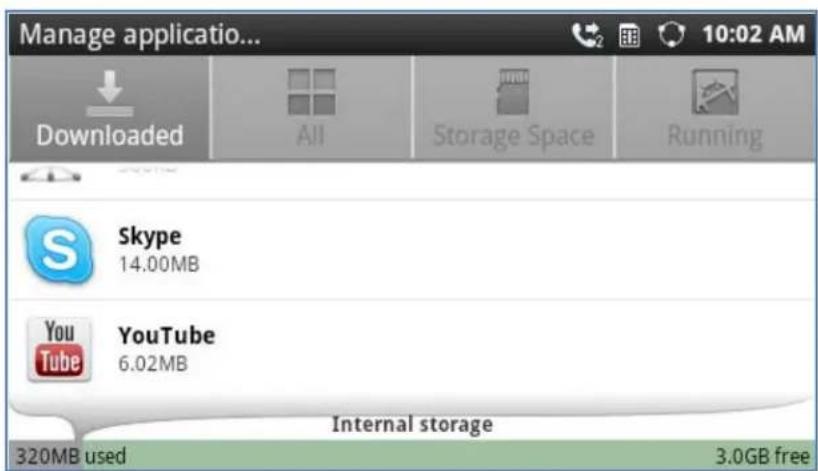
1. Open Manage Applications
When the GXP2200 is in idle, press MENU button and select Settings. Tap on
Applications->Manage applications.
text_image
Manage applicatio... Downloaded All Storage Space Running Skype 14.00MB YouTube 6.02MB Internal storage 320MB used 3.0GB freeFigure 56: Manage Application Screen
The Manage applications screen has four tabs, with lists of apps and their components in each. At the bottom of each tab is the memory usage information for the selected tab. The four tabs are:
Downloaded: to view the apps you've downloaded from GS Market or other sources;
All: to view all the apps installed on the GXP2200;
Storage Space: to view the apps stored on the phone and external storage device, e.g., SD card;
Running: to view the running or cached apps.
2. View apps' details
In the Manage applications screen, touch an app, process or service to open it. The Application Info screen for each app lists its name, version, size and etc. Depending on the app, it may also include options for managing the app's data, forcing the app to stop, and uninstalling the app. Usually the options are:
Use the Force stop button to stop an app that is misbehaving;
Use the Uninstall button to remove the app (along with all its data and settings) if the app is installed via GS Market;
Storage provides storage information that an app uses on the GXP2200;
➢ Delete an app's settings and other data by touching the Clear data;
If the app stores data in a temporary space of the GXP2200's memory, Cache lists how much information is stored. Tap on Clear cache to clear the cache;
➢ Launch by default. If the app is configured to launch certain file type by default, tap on Clear defaults could reset this;
Permissions lists information of the data that the app has access to. For example, the application might access the location information, storage, phone calls and etc.
3. Stop a misbehaving app
The running applications could be monitored and stopped if necessary. Open the Manage applications screen the touch the Running tab. It will show the apps, processes and services that are currently running or cached. The bottom bar will show the total RAM in use and the free amount.
Tap on the misbehaving app, process or service in the list to open it. In the following figure, touch the Stop button to stop it. Or touch the Report button (if available) to send the developer information for the misbehaving app.

text_image
Running application 18:12 Calendar Storage 3.2MB 1 process and 1 service 1:05:01 Services EventLoadService 1:05:01 Started by application. This service was started by its application. Stopping it may cause the application to fail. Stop ReportFigure 57: Running Application Screen

Note:
Stopping an app, operating system processes or services might disable one or more dependent functions on GXP2200. Users may need restart the GXP2200 to restore full functionality.
4. Uninstall an app
Apps can be uninstalled from GS Market or other sources where they are downloaded/installed. Or users could open the Manage applications screen, select the Downloaded tab and tap on the Uninstall button. Touch OK in the screen when asked to confirm if you would like to uninstall the app.
MANAGING DOWNLOADS
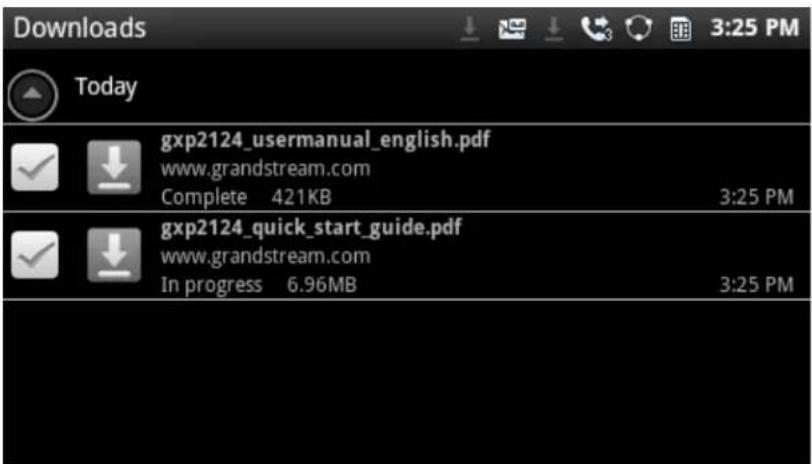
The files (such as PDF documents, pictures) downloaded from GXP2200 browser will be stored on GXP2200's internal storage. Users could use the Downloads app under the onscreen MENU->Downloads to view, open or delete the downloaded files.
- Tap on the file to open it;
- Check to select the file, and tap on Delete to delete it;
- Press button and tap on Sort by size or Sort by time to sort the downloaded files.
text_image
Downloads Today gxp2124_usermanual_english.pdf www.grandstream.com Complete 421KB 3:25 PM gxp2124_quick_start_guide.pdf www.grandstream.com In progress 6.96MB 3:25 PMFigure 58: GXP2200 Downloads App
PLAYING WITH APPS
In this section, the apps that come with GXP2200 are described in details.
BLACKLIST
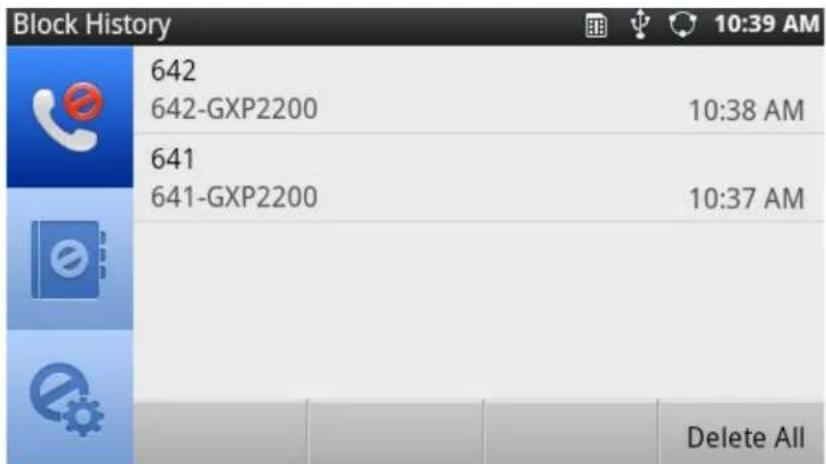
GXP2200 Blacklist app helps users to manage the blacklist and block settings. There are three options on the left panel when you open the Blacklist app.
• : Block History
Block History shows the detailed information for the blocked calls: caller number, caller name and calling time. To clear all the logs in Block History, tap on the Delete All button.
text_image
Block History 642 642-GXP2200 10:38 AM 641 641-GXP2200 10:37 AM Delete AllFigure 59: GXP2200 Blacklist - Block History
- : Blacklist
To display blacklist information, tap on the icon 📊 to enter the Blacklist screen. Each entry contains the caller name and caller number of the blocked contact. The number of blocked calls for the contact is displayed on the right hand side too.

text_image
Blacklist 641 641 Blocked: Calls(1) 642 642 Blocked: Calls(1) Add DeleteFigure 60: GXP2200 Blacklist
To add number in Blacklist, Tap the Add button. Once Add is touched, there are three ways to add number to GXP2200 Blacklist: Add Manually, Add from contacts and Add from call history.

text_image
Blacklist 641 641 Blocked: Calls(1) Add number to blacklist Add Manually Add from contacts Add from call history Add DeleteFigure 61: Add Number to Blacklist
The following figure shows manually adding number to blacklist. Once Add Manually option is selected, a window will be prompted for users to enter the phone number in the first field and name/other note information in the second field (optional). Tap on Save to finish the adding operation.

text_image
Blacklist Steven Jobs Add number to blacklist 719 Ted Save Cancel Add Delete 12:03 AMFigure 62: Manually Add Number to Blacklist
The following figure shows Add from contacts to blacklist. Once Add from contacts option is touched, the contacts information will show. Check/uncheck on the contacts entry to make selections. Then tap on Select to add it/them into the blacklist. You can also Check All entries, Uncheck All entries and Invert All the selection by tapping on the corresponding buttons on the bottom.
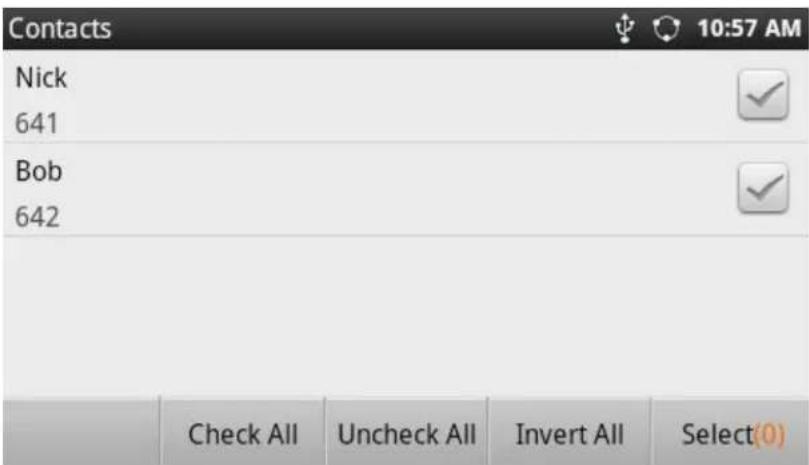
text_image
Contacts Nick 641 Bob 642 Check All Uncheck All Invert All Select(0)Figure 63: Add Number From Contacts
The following figure shows Add from Call history to blacklist. Once Add from Call history option is touched, the Call history information will show. Check/uncheck on the call history entry to make selections. Then tap on Select to add it/them into the blacklist. You can also Check All entries, Uncheck All entries and Invert All the selection by tapping on the corresponding buttons on the bottom.

text_image
Call History Bob White 641 643 643 642 642 Louis Huynh Check All Uncheck All Invert All Select(1)Figure 64: Add Number From Call History
To delete blacklist entry, tap on Delete button in Figure 60: GXP2200 Blacklist. The following screen with all the blacklist entries will show. Select the number you would like to remove from by tapping on the checkbox on the right hand side. Then touch the Delete button on the bottom. You can also Check All entries, Uncheck All entries and Invert All the selection by tapping on the corresponding buttons on the bottom.

text_image
Blacklist 641 641 642 642 Check All Uncheck All Invert All Delete(1)Figure 65: Delete Entry From Blacklist
- : Blacklist Settings.
➢ DND Mode: Turn on/off DND mode;
Block Mode: Turn on/off Block Mode. Once it's turned on, the Block Options will be activated;
Block Options: Tap on it and the options will show. Users could select Block All, Block Blacklist
Only, Block Anonymous or Block Anonymous And Blacklist. Then tap on OK;
Block Notification: Turn on/off Block Notification;
Time Settings: Set up the block schedule. Select Block 24 Hours or Modify Time by specifying the Starting Time and Ending Time.
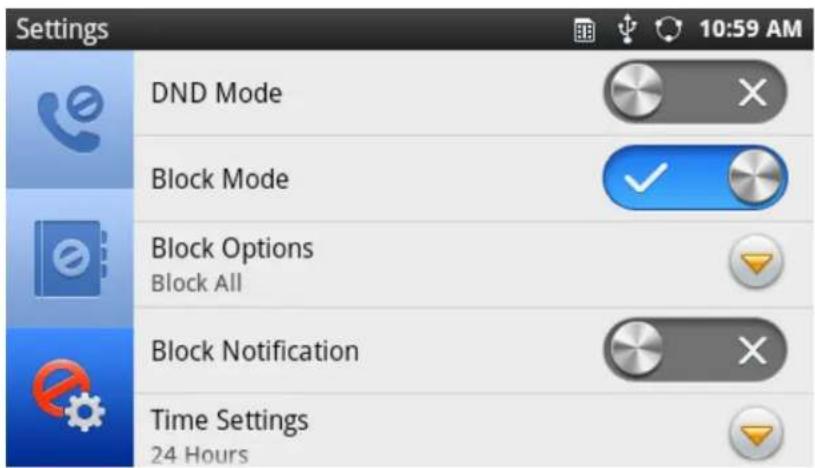
text_image
Settings DND Mode Block Mode Block Options Block All Block Notification Time Settings 24 Hours 10:59 AMFigure 66: Delete Entry From Blacklist
BROSWER
GXP2200 browser could be used in a similar way as a PC-based web browser, i.e., open web pages, bookmarks, view history, select the most visited pages, search and etc. In the Browser app, press on the MENU button then users could open new windows, manage the windows, refresh the page, forward, exit or select text from the web page.

text_image
Browser 4:52 PM http://www.grandstream.com/ Products Support Partners Company Search... 10 Celebrating 10 Years of Growth and InnovationFigure 67: GXP2200 Web Browser
To open Bookmarks, Most visited pages, History, tap the icon 📂 on the top right in the figure above. To zoom in/zoom out, place two fingers on the blank area of the web page, then pinch together or spread out.

text_image
Bookmarks Bookmarks Most visited History Grandstream Google Grandstream Yahoo!Figure 68: GXP2200 Web Browser-Bookmarks
CALCULATOR
Calculator app could be used to solve simple arithmetic problems as well as more complex equations. Tap on the MENU button then users could switch the operation between "Basic panel" and "Advanced panel". Or users could simply slide to the left and right to switch between Basic panel and Advanced panel.
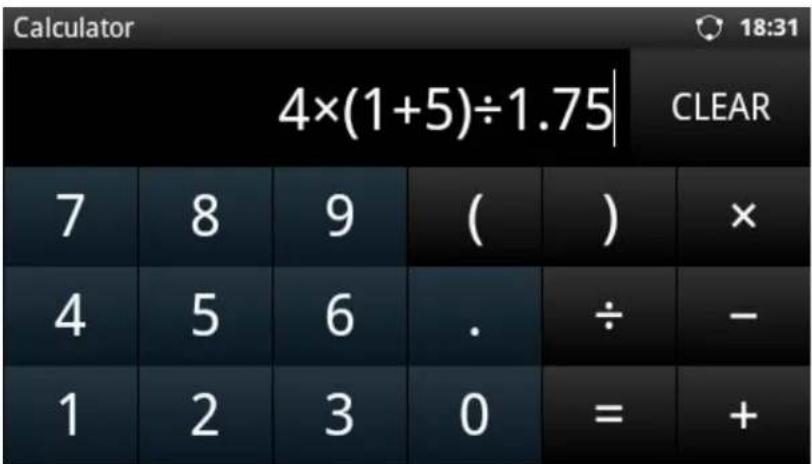
text_image
Calculator 4×(1+5)÷1.75 CLEAR 7 8 9 ( ) × 4 5 6 . ÷ - 1 2 3 0 = + 18:31Figure 69: GXP2200 Calculator - Basic Panel
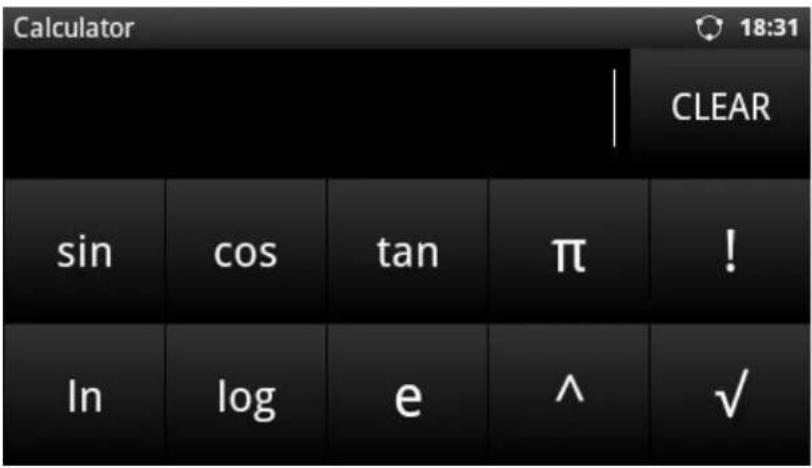
text_image
Calculator 18:31 CLEAR sin cos tan π ! In log e ^ ✓Figure 70: GXP2200 Calculator - Advanced Panel
CALENDAR
In Calendar app, users could create, modify and view the events as well as configure the Calendar to provide notification for the upcoming events.
- In Calendar app, press the MENU button 📊. Users could add New event, view events by Month, view events by Day, view events by Agenda, specify a particular date via GoToDay, and sync up with Google Calendar by tapping on Settings;
| June 2012 | |||||||
| W | Sun | Mon | Tue | Wed | Thu | Fri | Sat |
| 22 | 27 | 28 | 29 | 30 | 31 | 1 | 2 |
| 23 | 3 | 4 | 5 | 6 | 7 | 8 | 9 |
| 24 | 10 | 11 | 12 | 13 | 14 | 15 | 16 |
| 25 | 17 | 18 | 19 | 20 | 21 | 22 | 23 |
| 26 | 24 | 25 | 26 | 27 | 28 | 29 | 30 |
| 27 | 1 | 2 | 3 | 4 | 5 | 6 | 7 |
Figure 71: View Calendar Events by Month
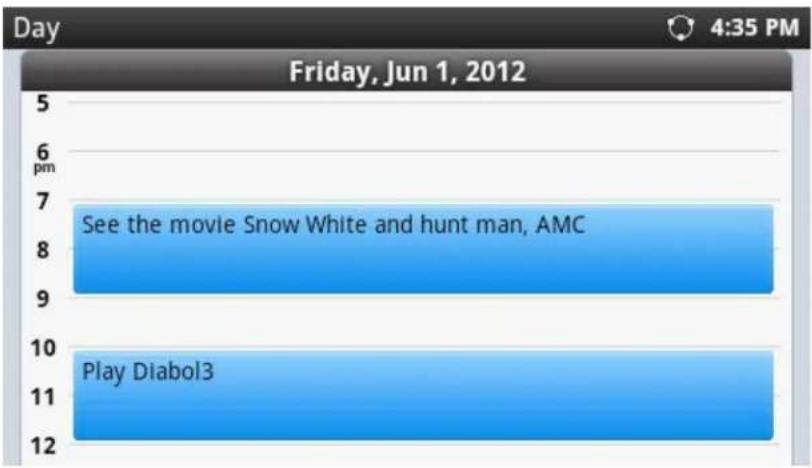
text_image
Friday, Jun 1, 2012 See the movie Snow White and hunt man, AMC Play Diabol3Figure 72: View Calendar Events by Day
- When viewing Calendar by Month or by Day, slide left/right to view different month or date.
- When viewing the Calendar, tap on the date (view by Month) or time (view by Day) could bring up option to create event. Tap on New event and event details window will show.

text_image
Event details 4:39 PM What Event name From Fri, Jun 1, 2012 6:00pm To Fri, Jun 1, 2012 7:00pmFigure 73: GXP2200 Calendar Screen - Edit Event
CALL HISTORY
Call History App provides users access to phone's call records with different categories on the left panel.
•

All calls
• Incoming calls, indicated by 📞 per call;
• Outgoing calls, indicated by per call;
• Missed calls, indicated by 🤒 per call.

text_image
Call History(258) 2040 2040-1085 Duration 17:48 00:00 1086 1086-1085 Duration 17:48 00:00 Cindy 608-605 Duration 17:36 08:15 *73 *73-6003 Duration 15:32 00:00 Delete allFigure 74: GXP2200 Call History - All Calls
In Call History app, the following operations could be done:
- To delete call log. Tap on Delete all to delete all call logs displayed on the current screen. Or Tap on one entry and touch icon ✗ to delete a single log;
• To view more details. Tap on one entry displayed in the call history list to view the details;

text_image
Call History 2040 2040-1085 17:48 2040-1085 Duration 00:00 03/19 19:29 2040-1085 Duration 00:08 03/19 19:29 2040-1085 Duration 00:00 Add a cont... Delete allFigure 75: GXP2200 Call History - Entry Details
• To add contact. Tap on one entry and touch Add a contact;
• To dial out the number from Call History. Tap on one entry and touch to dial out;
- To edit number based on the selected entry in Call History. Tap on one entry and touch up call screen and edit the number;
- To send SMS to the number from Call History. Tap on one entry and touch 📋 to bring up the SMS screen and create message there.
All of the above operations as well as Add to BlackList could also be done by touching and holding on one entry. The operation list will show options View Details, Edit number before calling, Add to Contacts, Add to Blacklist, Send text message, Delete call history.

text_image
Call History(258) 2040 Operations View Details Edit number before calling Add to Contacts Add to Blacklist 17:48 17:48 17:36 15:32 00:00 00:00 08:15 00:00 00:00 00:00 00:00 00:00 00:00 00:00 00:00 00:00 00:00 00:00 00:00 00:00 00:00 00:00 00:00 00:00 00: 18:50Figure 76: GXP2200 Call History - Entry Operations
CLOCK
• Use Clock to display the date and time on your screen;

text_image
Clock 4:46 PM 4:46 PM Friday, June 1Figure 77: GXP2200 Clock Screen
• Turn on night mode by tapping on
• Set up alarm by tapping on the icon


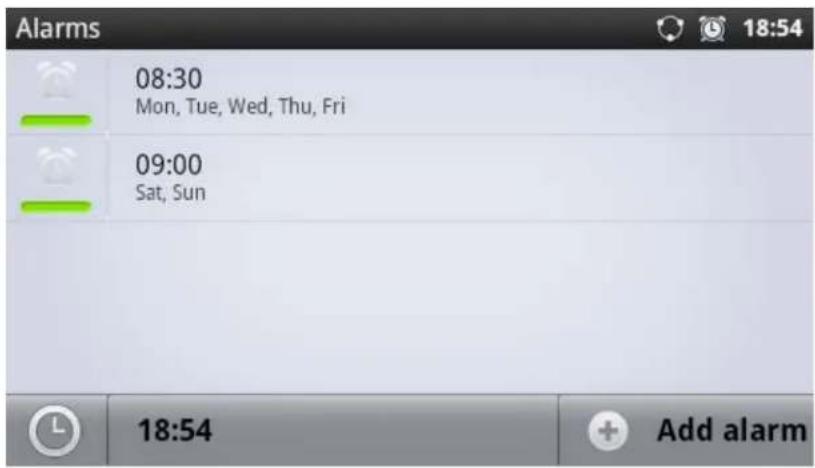
text_image
Alarms 08:30 Mon, Tue, Wed, Thu, Fri 09:00 Sat, Sun 18:54 Add alarmFigure 78: GXP2200 Alarm Screen
CONTACTS
GXP2200 supports up to 1000 entries in contacts. Users can manage their contacts by adding, deleting, modifying, downloading from the TFTP/HTTP server, importing and exporting the contact to external storage.

text_image
Contacts(3) 2:59 PM B Bob White 771 E Emily Green 718 J James Bond Add Delete Search OptionsFigure 79: GXP2200 Contacts Screen
- Add contact. Tap on Add to bring up screen to edit New contact. Enter contact information (e.g., First name, Last name, Phone number, Email address and etc). When there are more than one Phone number added for the contact, the first one will be used and displayed by default.
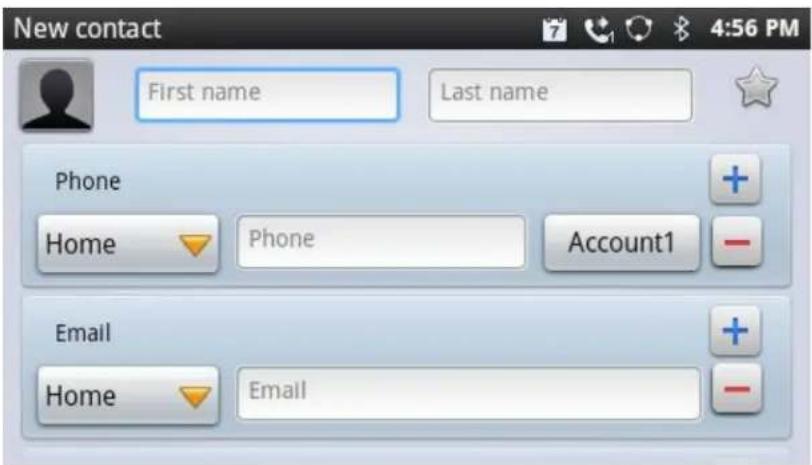
text_image
New contact First name Last name Phone Home Phone Account1 + - Email Home EmailFigure 80: GXP2200 Contacts - New Contact
- Edit Contact. Touch the contact you would like to edit, and tap on Edit. Add or modify the contact information. Tap on Done to save the change;

text_image
Contact details Emily Green Call home: 645 Account1 Email home: superstar@gr... Edit Call Mode DeleteFigure 81: GXP2200 Contacts - Edit Contact
- Delete Contact. Tap the contact you would like to delete and tap on Delete;
- Make calls via Contacts. Tap 📋 on the contact you would like to call; or select "Call Mode" and tap on 📋 to edit number before dialing out;
- Send SMS via Contacts. Tap 📧 on the contact you would like to send message to;
- Add to Favorite category. Tap on so the selected contact will be added to the Favorite category;
- Edit contacts in Favorite category. Touching 🎨 on the left panel, to view, add, delete or search the contacts;
- Edit contacts in Group category. Touching 📄 on the left panel, to view, add or delete groups;
- Check Storage Status. Tap on Options->Storage status;
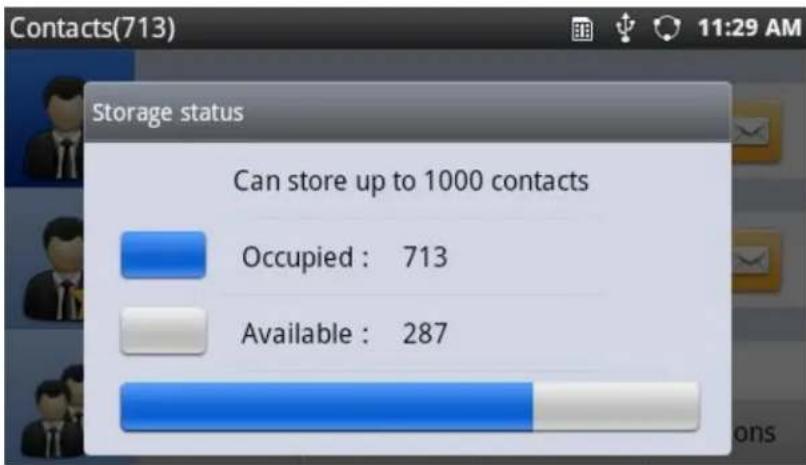
bar
| Status | Contacts | | ---------- | -------- | | Occupied | 713 | | Available | 287 |Figure 82: GXP2200 Contacts - Storage Status
- Import contacts. XML/Vcard/CSV format phonebook could be imported to GXP2200. Tap on Options->Import. And you would see the screen in the following figure for you to import your file;

text_image
Contacts Clear the old contacts: Replace the duplicated items: File Encoding: UTF-8 File Type: xml Choose FileFigure 83: GXP2200 Contacts - Import File
- Export contacts. Contacts information in GXP2200 could be converted to Vcard/XML/CSV files and exported to external device such as PC. Tap Options->Export, select the format and choose the directory you would like to save the file. Then tap on OK.

text_image
Contacts File Encoding: UTF-8 File Type: xml Choose Folder OK CancelFigure 84: GXP2200 Contacts - Export File
- Download phonebook. The GXP2200 supports remote downloading phonebook from HTTP/TFTP server. Tap Options->Download, and the following figure will show. Specify the Download Mode and Download Server where the phonebook is located.
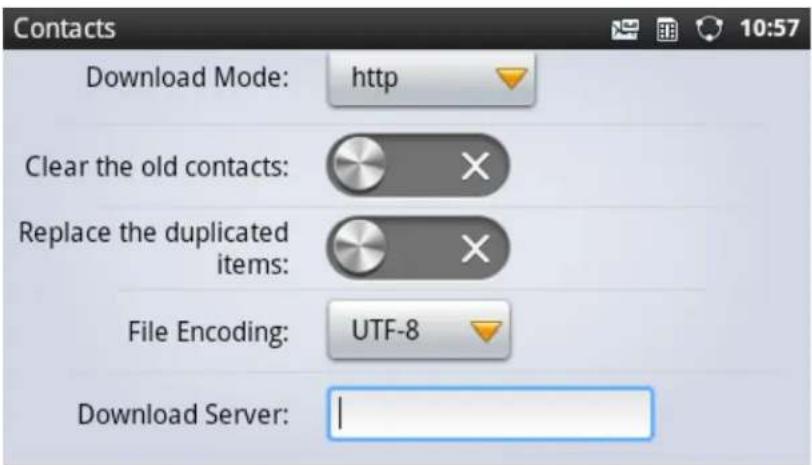
text_image
Contacts Download Mode: http Clear the old contacts: Replace the duplicated items: File Encoding: UTF-8 Download Server:Figure 85: GXP2200 Contacts - Download File
- Change display options. The GXP2200 contacts can be configured to display entries with different settings. Tap Options->Display options, and the following figure will show. Configure the display options based on users' preference.

text_image
Display options 20:56 Only contacts with phones Only display contacts that have phone numbers Sort list by First name View contact names as First name first Choose contacts to display grandstreamemily Done RevertFigure 86: GXP2200 Contacts Options - Display Options
- Add account to sync up contacts. The GXP2200 can use synced up accounts from Google, Skype, Corporate and etc to synchronize contact information into the local contacts. To add account, tap on Options->Accounts, and the following figure will show for users to start adding account. Users could also access this from Menu->Settings->Account & Sync.
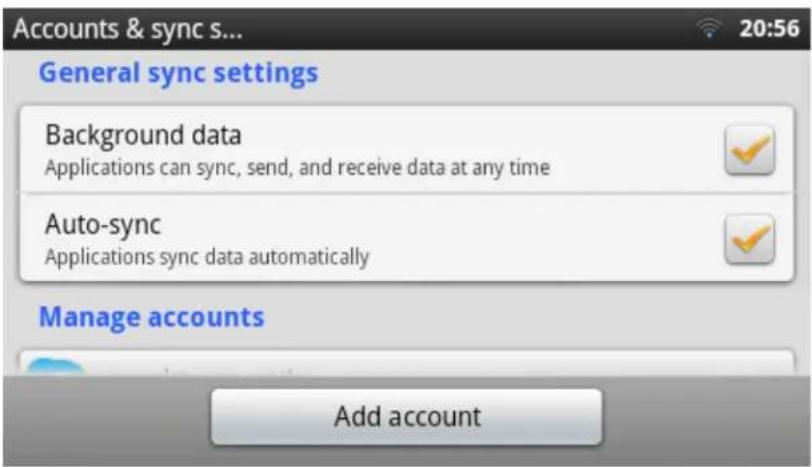
text_image
Accounts & sync s... 20:56 General sync settings Background data Applications can sync, send, and receive data at any time Auto-sync Applications sync data automatically Manage accounts Add accountFigure 87: GXP2200 Contacts Options- Accounts
The GXP2200 Email app provides users easy access to business or personal email account. When opening it for the first time, a wizard will be provided for users to configure the email account on GXP2200.
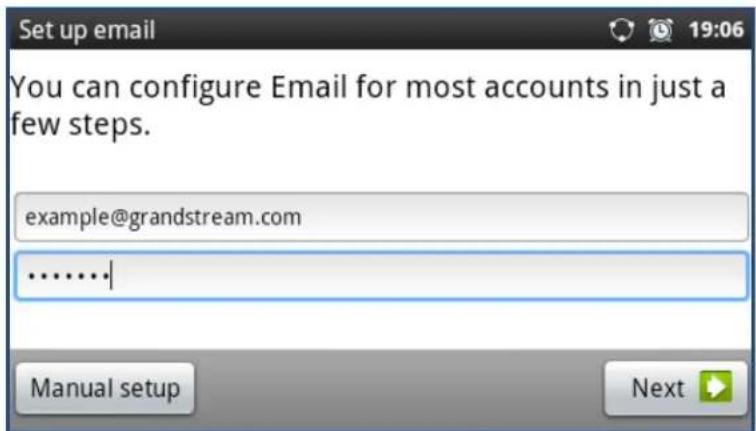
text_image
You can configure Email for most accounts in just a few steps. example@grandstream.com ..........Figure 88: GXP2200 Email Setup Wizard - Set Up Email
Press "Next" for quick setup. Or press "Manual setup" to configure more options manually.
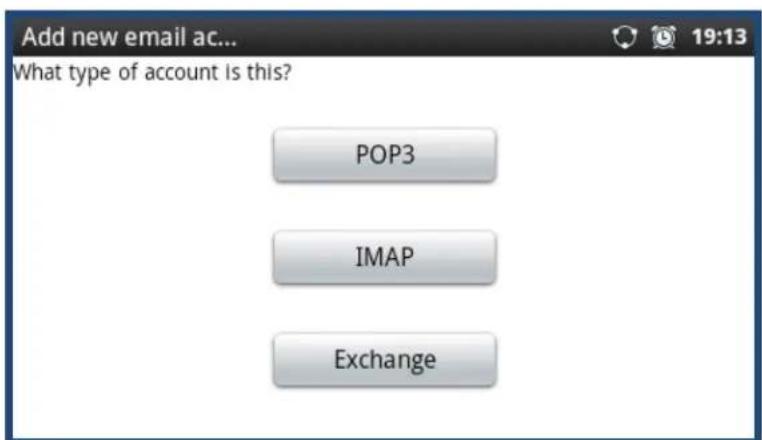
text_image
Add new email ac... What type of account is this? POP3 IMAP ExchangeFigure 89: GXP2200 Email Setup Wizard - Press Next or Manual For Quick Setup
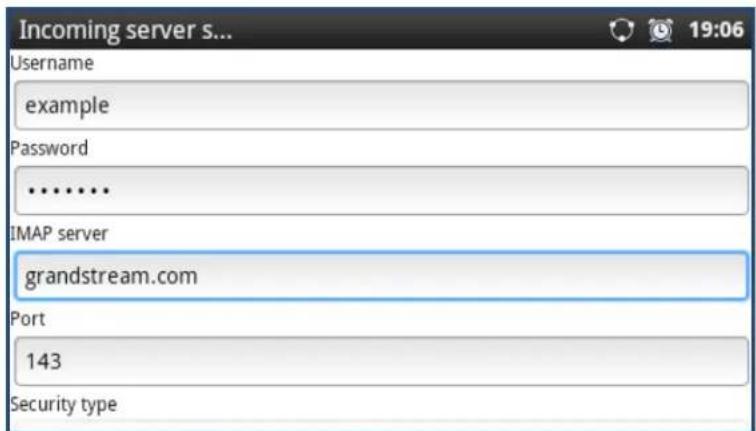
text_image
Incoming server s... Username example Password .......... IMAP server grandstream.com Port 143 Security typeFigure 90: GXP2200 Email Setup Wizard - Select IMAP
Once the Email account is successfully set up, users could press MENU button 📄 and bring up the Refresh, Compose, Folders, Accounts and Account settings options.
FILE MANAGER
File Manager is a tool that helps manage folders and files such as pictures, music, video and other files on GXP2200.
- The root directory for File Manager app shows screensaver, user_data folders by default. If USB flash drive or SD card is inserted into the GXP2200, the folder 📋 for USB or 📋 for SD card will also be displayed here. Under root directory, users could sort the folders by Name, Last Modified, Size or Type. Search option is also available by tapping on Search or pressing Search 🔒 button on GXP2200;
- Under each sub folder, users could access files, create new folder, search file/folder, sort the files/folders, copy and paste to manage the files.
Create New Folder. Tap on New Folder, input new folder's name and touch OK;
Copy files/folders. Tap on Options and the files/folders will show check option on each icon. Check on the files/folders you would like to copy. Then tap on Copy;
➢ Paste files/folders. After copying the files/folders, Paste option will show. Without pressing Back button, tap on the folder to select the destination directory you would like to paste to. Then tap on Paste;
Move files/folders. Tap on Options and the files/folders will show check option on each icon. Check on the files/folders you would like to move. Then tap on Move. Paste option will show. Without pressing Back button, tap on the folder to select the destination directory you would like to move to. Then tap on Paste. The files/folders will be moved;
Send files/folders via Bluetooth. Tap on Options and the files/folders will show check option on each icon. Check on the files/folders you would like to send. Then tap on Send;
Delete files/folders. Tap on Options and the files/folders will show check option ☑ on each icon. Check on the files/folders you would like to delete. Then tap on Delete.
- Users could also tap and hold a file/folder icon until Options list is activated. Then the following
operations could be done:
Open. Tap on Open to open the file/folder;
Copy. Tap on Copy to copy the file/folder. Paste option will show. Without pressing Back button, tap on the folder to select the destination directory you would like to paste to. Then tap on Paste;
Move. Tap on Move. Paste option will show. Without pressing Back button, tap on the folder to select the destination directory you would like to move to. Then tap on Paste. The files/folders will be moved;
➢ Rename. Tap on Rename and enter the new name. Once done, tap on OK;
Delete. Tap on Delete to delete the file/folder;
Properties. Tap on Properties to view the detailed information, i.e., size, last modified time, permission, location and etc.

Note:
Under the File Manager root directory, screensaver is a system folder that users could not create or delete files/folders there.
GALLERY
Gallery app could be used to view pictures and play videos from GXP2200 internal storage or USB/SD card storage. Users could also perform basic editing tasks on pictures and set them as wallpaper or picture for contacts. The pictures can be easily shared with friends in Gallery app by sending via Bluetooth, and Email too.
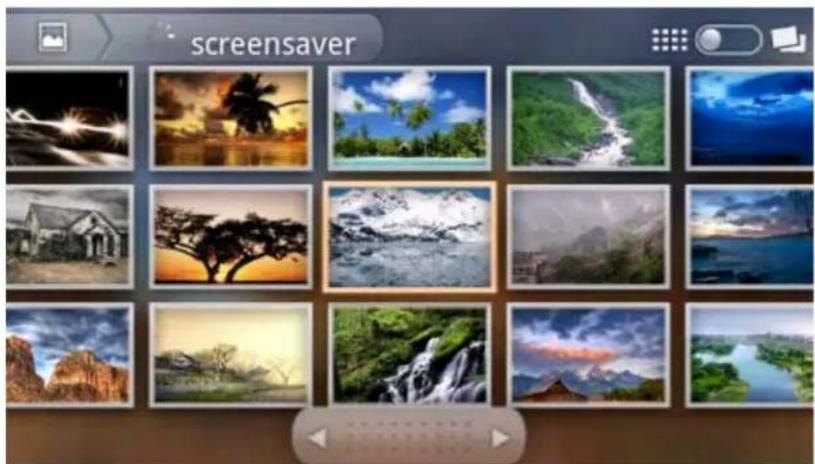
natural_image
Grid of 20 nature and landscape photos including natural landscapes, forests, and waterfalls (no text or symbols)Figure 91: GXP2200 Gallery
GS MARKET
GXP2200 provides direct access to apps via built-in GS Market app. Users could browse, search, download and install the apps from there for tools and games.
- Browse apps. Select the tabs on the top menu to view apps in different categories: Hot, Apps, Games, Tools. For example, selecting Games category will have all the game apps show up.

text_image
GS Market Hot Apps Games Tools Free Rail Maze Free Plants vs Zo... Free Ninja Chicken 11.14M 2.38M 4.90M Free Bunny Shoo... Free FruitNinja Free Fishingjoy 10.53M 10.7M 15.9M Market Download Installed ExitFigure 92: GXP2200 GS Market - Game
- Search an app. To search an app in GS Market, tap on 🔒 at the upper right or press the Search button. Then touch the input field to activate the onscreen keyboard. Enter the keyword of the app and touch Go on the onscreen keyboard. Or press 🔒 again to start the search.

text_image
GS Market 11:15 AM pandoral Free AngryBirds 19.5M Free FlashPlayer 4.6M Free YouTube You Tube 2.13M q w e r t y u i o p a s d f g h j k l z x c v b n m DEL x EN ?123 GoFigure 93: GXP2200 GS Market - Search App
- Download an app. To download an app, tap the icon right next to the app. The downloading process will be automatically started. In GS Market, tap on Downlaod option to view the downloaded apps and downloading process. For example, in the following figure, YouTube app and FlashPlayer have been downloaded and installed already, while FruitNinja app is still in downloading process. Progress bar will show in downloading process and you could cancel the downloading by tapping on the Cancel icon.

text_image
Download App FruitNinja 48% Downloading... Cancel AngryBirds 12-09-12 10:00:21 Version:1.6.3 Storage:18.60 M Installed Skype 12-09-12 10:00:02 Version:2.6.0.95 Storage:11.55 M Installed YouTube 12-09-12 09:59:20 Version:2.5.16 Storage:3.42 M Installed Market Download Installed ExitFigure 94: GXP2200 GS Market - Download
- Uninstall an app. Tap on the Installed option in GS Market, a list of installed apps will show. Touch Uninstall icon on the right hand side of the installed app, then confirm to uninstall.
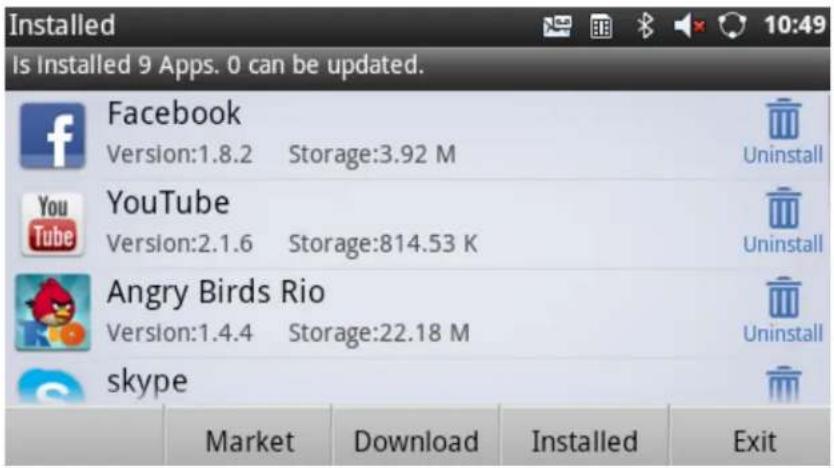
text_image
Installed Is Installed 9 Apps. 0 can be updated. Facebook Version:1.8.2 Storage:3.92 M YouTube Version:2.1.6 Storage:814.53 K Angry Birds Rio Version:1.4.4 Storage:22.18 M skype Market Download Installed ExitFigure 95: GXP2200 GS Market - Installed
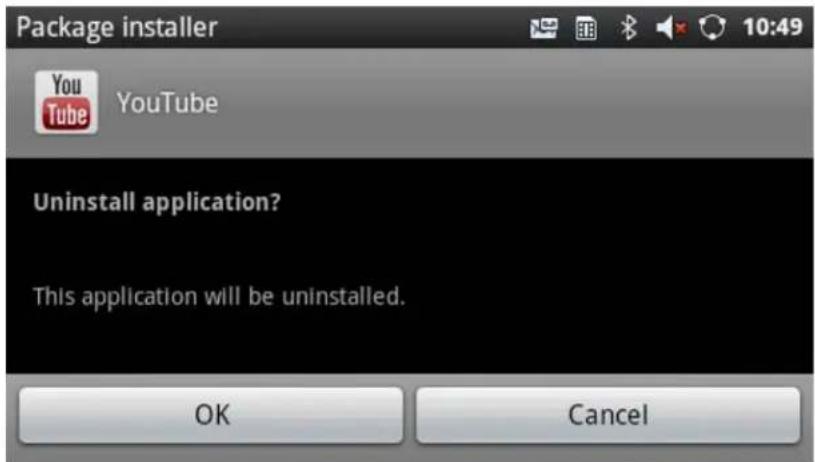
text_image
Package installer YouTube You Tube Uninstall application? This application will be uninstalled. OK CancelFigure 96: GXP2200 GS Market - Confirm Uninstall
IP LOCATION
The IP Location app provides users with a tool to resolve the IP address to the location. Users could simply enter the IP address and then tap on Search to view the result. Based on the IP address provided, the following information will be given: Country, Region, City, Latitude, Longitude, Time Zone and Weather Code. This information is useful when configuring the phone to provide personalized settings based on user's location.
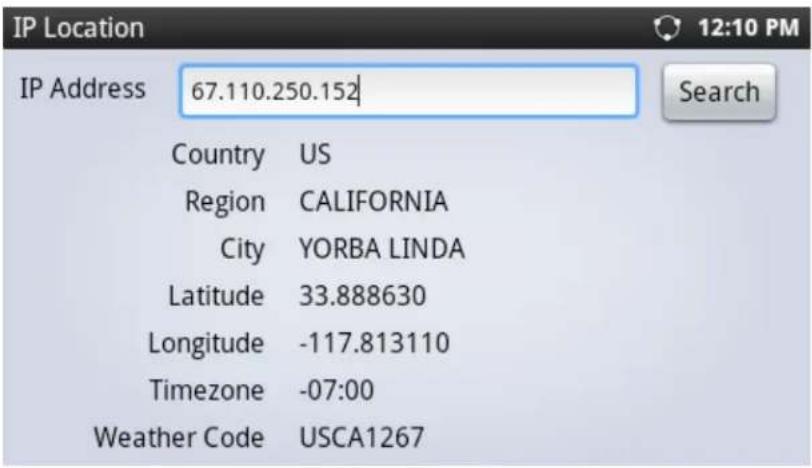
text_image
IP Location IP Address 67.110.250.152 Search Country US Region CALIFORNIA City YORBA LINDA Latitude 33.888630 Longitude -117.813110 Timezone -07:00 Weather Code USCA1267Figure 97: GXP2200 Location
For example, in the above figure, the IP address 67.110.250.152 is mapped to Yorba Linda in California, USA. The time zone is UTC-07:00 and the weather code is USA1267.
LDAP BOOK
GXP2200 supports LDAP (Lightweight Directory Access Protocol).
- LDAP Setting
Users could configure the LDAP settings via LCD Menu->LDAP Book->Setting, or from web GUI->Maintenance->LDAP Book. Save the settings after the configuration.
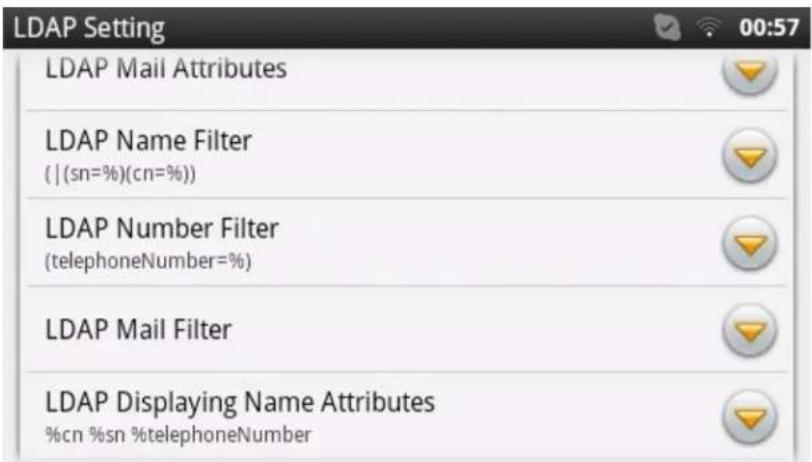
text_image
LDAP Setting LDAP Mail Attributes LDAP Name Filter ( | (sn=%)(cn=%)) LDAP Number Filter (telephoneNumber=%) LDAP Mail Filter LDAP Displaying Name Attributes %cn %sn %telephoneNumberFigure 98: GXP2200 LDAP Setting
- Search
Tap on "Search" or 🔒 button and enter the keyword to start searching contact information from the LDAP server as configured. The result will be returned and displayed in a real-time manner.

text_image
LDAP Contacts melody 612 Search Add SettingsFigure 99: GXP2200 LDAP Search Result
- Add LDAP Contact to Local Phonebook
After the LDAP contact result is displayed, users could tap on "Add" to add the contact to local phonebook (see figure below).
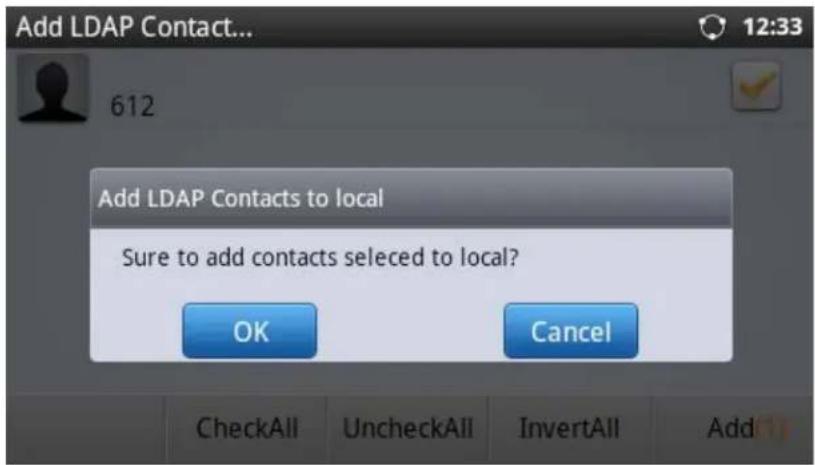
text_image
Add LDAP Contact... 612 Add LDAP Contacts to local Sure to add contacts selected to local? OK Cancel CheckAll UncheckAll InvertAll AddFigure 100: Add LDAP Result To Local Phonebook
MEDIA PLAYER
GXP2200 Media Player supports video format in MP4 and 3GP, audio format in AAC, MP3, AMR, WAVE, MIDI and Vorbis to be displayed. Users could scan the media files by tapping on Scan and files detected from internal storage and USB/SD card storage will be displayed.
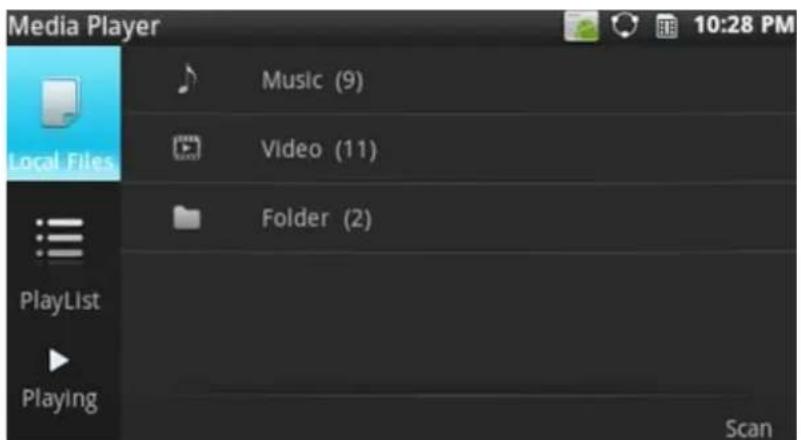
text_image
Media Player Local Files Music (9) Video (11) Folder (2) PlayList Playing ScanFigure 101: GXP2200 Media Player
Tap on Scan then users could define the scan methods: Scan All Media Files, Scan The Specified File and Scan The Specified Folder. Select the targeting folder if Scan The Specified File or Scan The Specified Folder is selected.

text_image
Media Player Music (0) Scan Scan All Media Files Scan the Specified File Scan the Specified FolderFigure 102: GXP2200 Media Player - Scan
- Music. On Local Files tab, Select Music to bring up the screen for the detected audio files. User could select to sort music files by Song, Artist, Album, File when tapping on Sort button.

text_image
Music (5) Sleep Away.mp3 Bob Acri Bob Acri Enrique Iglesias - Hero.mp3 Escape Enrique Iglesias Mald with the Flaxen Hair.mp3 Fine Music, Vol. 1 Richard St Kalimba.mp3 Ninja Tuna Mr. Scruff Eric Clapton - Tears In Heaven Song Artist Album File Sort EditFigure 103: GXP2200 Media Player - Sort Music Files
To edit music files, tap on Edit option. Then users could click on the checkbox for each file and perform operations to Send the file, Add to Playlist, and Delete. The Members (number) indicates the selected music files.

text_image
Music (5) Enrique Iglesias - Hero.mp3 Escape Enrique Iglesias Eric Clapton - Tears In Heaven.mp3 usbFigure 104: GXP2200 Media Player - Edit Music Files
Also, users could simply tap and hold onto the music file to bring up options list to edit the file. Besides Add to Playlist, Delete and Send, users could also set the music as local ringtone by selecting Set as Ringtone.

text_image
Music (5) Enrique Iglesias - Hero.mp3 Options Add to Playlist Delete Send Set as RingtoneFigure 105: GXP2200 Media Player - Music File Options
To play the music, simply touch the music file you would like to play.
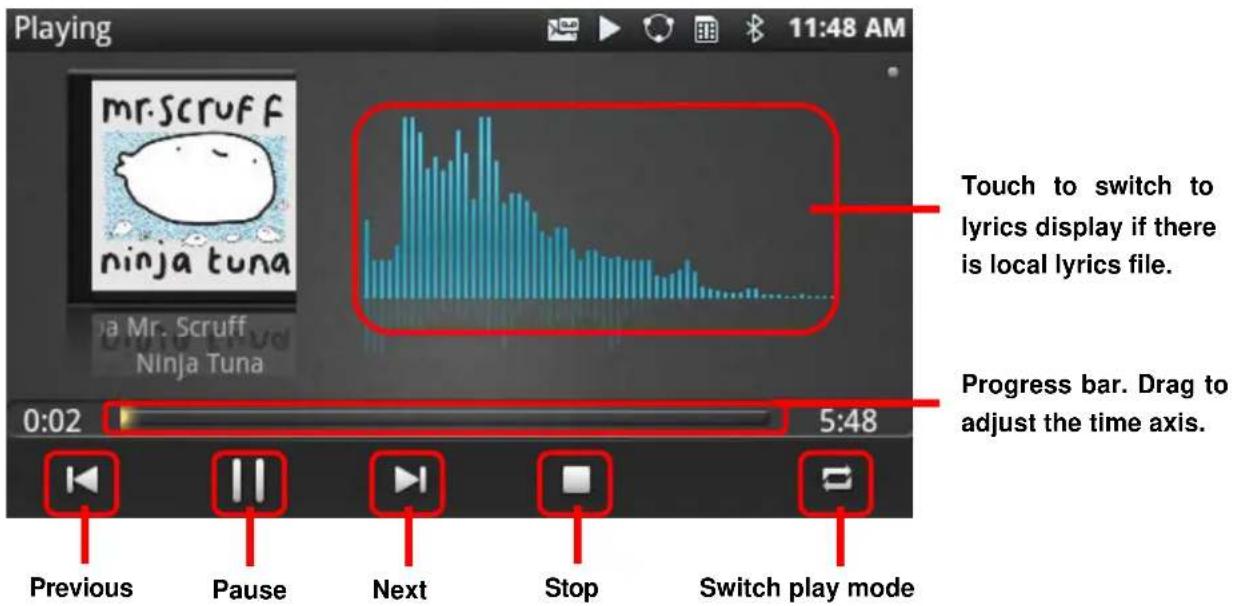
text_image
Playing mr.scruff ninja tuna Mr. Scruff Ninja Tuna 0:02 5:48 Touch to switch to lyrics display if there is local lyrics file. Progress bar. Drag to adjust the time axis. Previous Pause Next Stop Switch play modeFigure 106: GXP2200 Media Player - Playing
To view the lyrics, touch the frequency bar on the above figure. Local lyrics file is required to display the lyrics.

text_image
Playing I must be strong and carry on 'Cause I know I don't belong Here In heaven Would you hold my hand If I saw you in heaven Would you help me stand If I saw you in heaven ears In Heaven < usb 1:05 2:39 6:51 PMFigure 107: GXP2200 Media Player - Lyrics
- Video. On Local Files tab, Select Video to bring up the screen for the detected video files. User could Sort or Edit the video files, similar to the operations for Music files as described above.
- Folder. On Local Files tab, Select Folder to display the folders where all the media files are located. The directory path and number of media files in each folder will show in the list so users could easily locate the files.

text_image
/mnt/usb 9 Files /mnt/usb/Movie Trailers/Movie Trailers 11 Files EditFigure 108: GXP2200 Media Player - Folder
Users could add the media files in a folder to Playlist here. Tap on Edit button and following screen will show. Click on the checkbox on the right hand side of the folder to select. Then touch Add to Playlist. An option list will show for users to select a Playlist to add the files to. The Member (number) indicates the number of selected folders in the list.
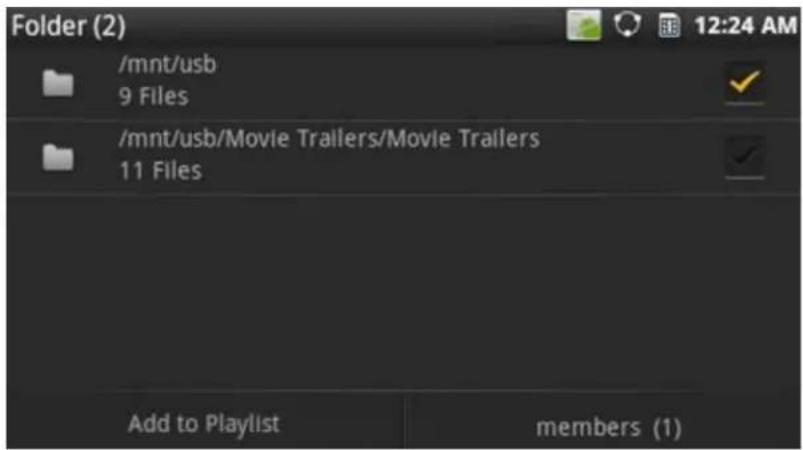
text_image
/mnt/usb 9 Files /mnt/usb/Movie Trailers/Movie Trailers 11 Files Add to Playlist members (1)Figure 109: GXP2200 Media Player - Folder
- Playlist. Tap on the Playlist tab on the left panel to bring up Playlist screen.

text_image
Media Player Local Files Playlist Playing Recent Playlist (2) Classical (2) Examples (3) New Playlist 12:30 AMFigure 110: GXP2200 Media Player - Playlist
To create New Playlist, tap on the New Playlist button. Type the name of new Playlist and Save it.
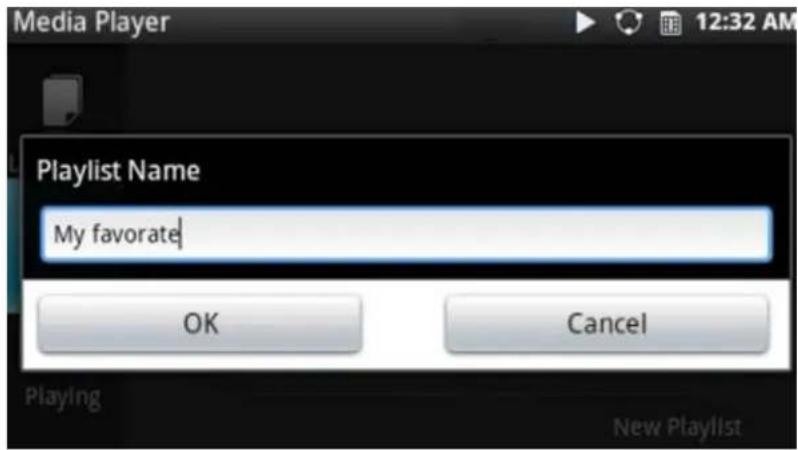
text_image
Media Player 12:32 AM Playlist Name My favorite OK Cancel Playing New PlaylistFigure 111: GXP2200 Media Player - Create New Playlist
To edit or play a Playlist, touch and hold onto one of the Playlist. Then options Play, Clear All, Delete, Rename will show.
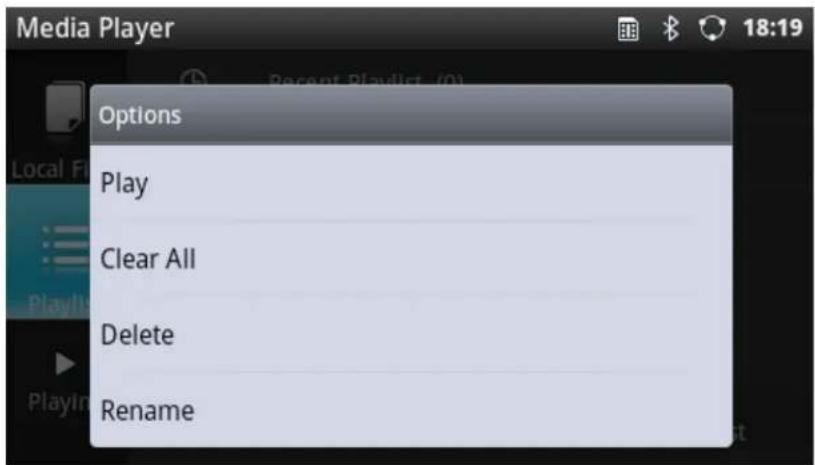
text_image
Media Player Options Play Clear All Delete RenameFigure 112: GXP2200 Media Player - Playlist Options
MESSAGE
GXP2200 has built-in Message app, which could be used with SIP server's support. If two parties (1 of them is GXP2200, or both are GXP2200) are registered on the same SIP server, text messages can be sent/received between them. Users can create, edit draft, delete and check the storage status of SMS. The Message app supports up to 1000 messages.
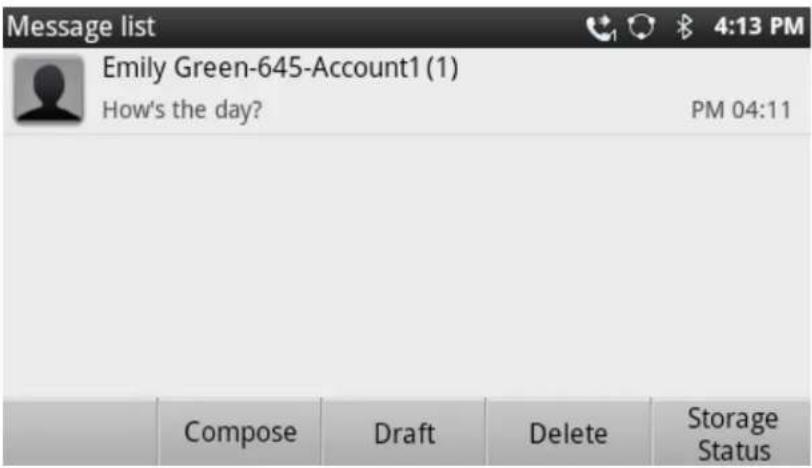
text_image
Message list Emily Green-645-Account1 (1) How's the day? PM 04:11 Compose Draft Delete Storage StatusFigure 113: GXP2200 Message
• View Dialog
Tap on the contact you have pervious chatted with to view the message dialog.
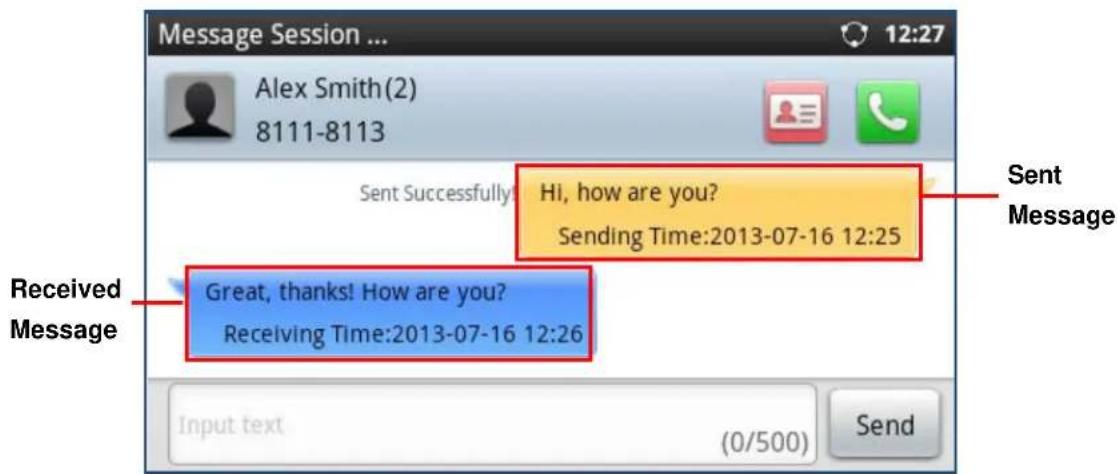
text_image
Message Session ... Alex Smith(2) 8111-8113 Sent Successfully! Hi, how are you? Sending Time:2013-07-16 12:25 Sent Message Received Message Great, thanks! How are you? Receiving Time:2013-07-16 12:26 Input text (0/500) SendFigure 114: View Dialog
Touch and hold at the "Sent Message" dialog to bring up the operation options including Lock/Unlock, Forward, Copy, Delete and Resend.
Touch and hold at the "Received Message" to bring up the operation options including Lock/Unlock, Forward, Copy and Delete.
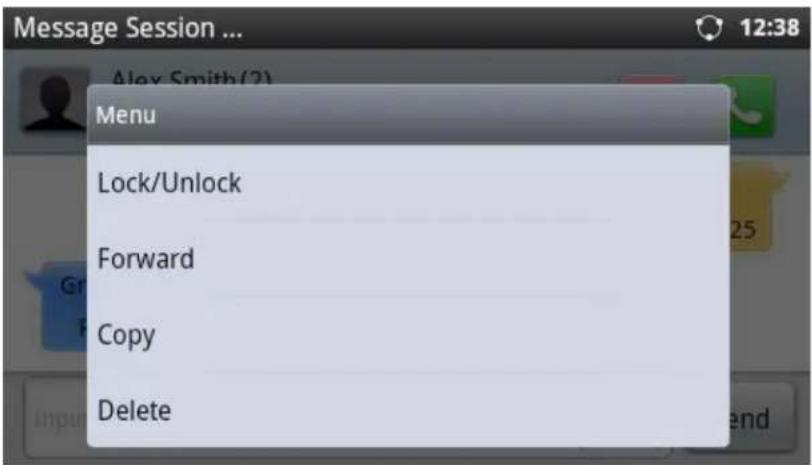
text_image
Message Session ... Alex Smith(2) Menu Lock/Unlock Forward Copy DeleteFigure 115: Message Options
If uses select Lock/Unlock for the message, by default this message will still remain on the phone when users delete the dialog with the contact. To delete a locked message, users could select on the checkbox for this message and then press the delete option.
- Send SMS
Tap on Create, select the contact, input the message, and then touch Send;
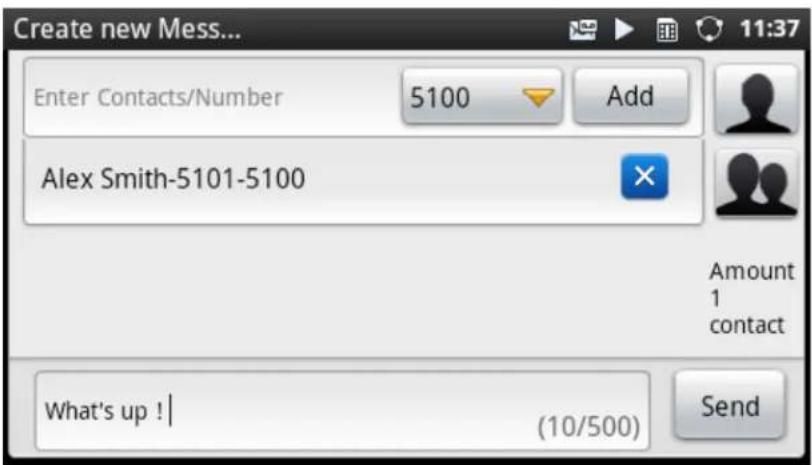
text_image
Create new Mess... Enter Contacts/Number 5100 Add Alex Smith-5101-5100 Amount 1 contact What's up ! | (10/500) SendFigure 116: GXP2200 Message - Send SMS
• View Draft
Tapping on Draft in Figure 113: GXP2200 Message will show you the SMS Draft List, which saves the messages edited but not sent yet. Tap to select the draft, then you could edit and send it.

text_image
Drafts 5:33 PM No Contact No excuse! PM 05:33 Emily Green-Account1 How is the meeting going? PM 05:33 Bob White-Account1 Dinner tonight ? PM 05:31 Clear AllFigure 117: GXP2200 Message – SMS Draft List
- Delete SMS
Tap on Delete in Figure 113: GXP2200 Message and select the message you would like to delete. Then Tap on Delete again.
- Check Storage Status
In Figure 113: GXP2200 Message, tap on Storage Status to display storage information. The maximum storage capacity for GXP2200 message is 1000 messages.
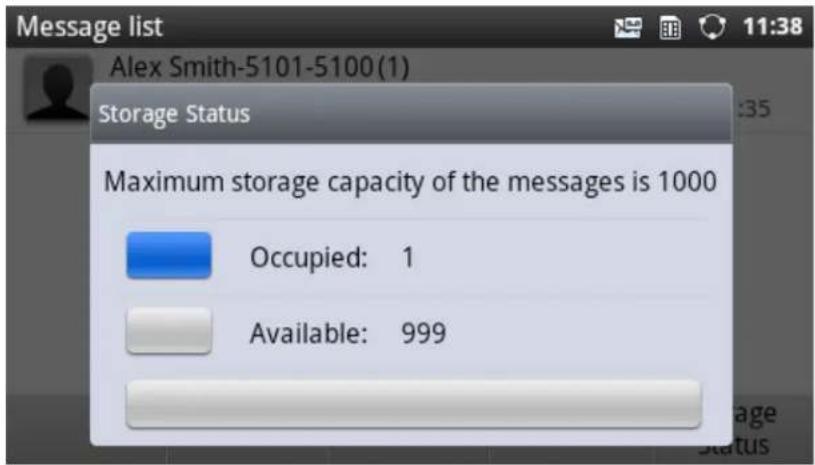
text_image
Message list Alex Smith-5101-5100(1) Storage Status Maximum storage capacity of the messages is 1000 Occupied: 1 Available: 999Figure 118: GXP2200 Message - Storage Status
MUSIC
Use Music app on GXP2200 to listen to music and other audio files. When Music app is launched, it will scan and detect the files in internal storage and USB/SD storage. The files could be displayed by Artist, Albums, or per song. Tap on Playlists, users could check the recently added files. To play the file, touch the file in the list.
Tap on Now playing, users could perform the following operations:
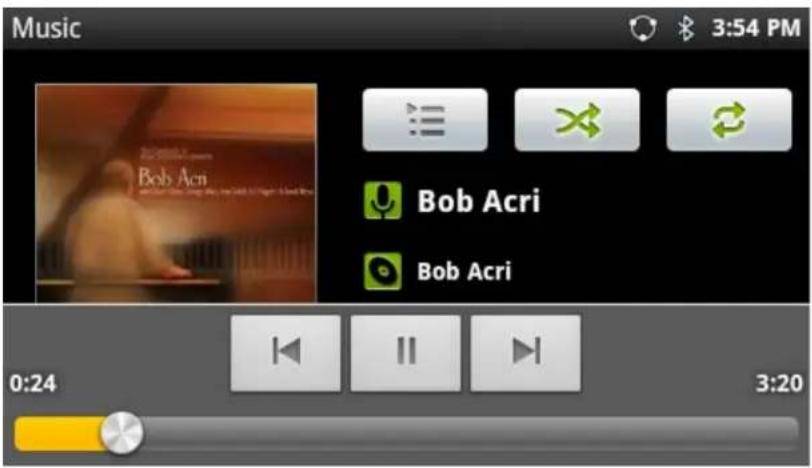
text_image
Music 3:54 PM Bob Acri Bob Acri 0:24 3:20Figure 119: GXP2200 Music - Now Playing
- Pause. Tap on II to pause. When paused, tap on ▶ to resume playing;
• Play previous. Tap on - Play next. Tap on
- Go to Playlist. Tap on
- Shuffle. Tap on
- Repeat the current music. Tap on
- More options. Press the MENU button ☐, options such as Add to Playlist, Use as ringtone, Delete will show;
- Play music in background. When the music is playing, tap on HOME button to go back to main screen. The music will still be played in the MUSIC app running in background.

text_image
Music Bob Acri Bob Acri Library Party shuffle Add to playlist Use as ringtone Delete 3:53 PMFigure 120: GXP2200 Music - Now Playing: MENU Options
SEARCH
GXP2200 Search app could be used to search information in web or in GXP2200.
- Launch Search app. Return to HOME 📤 first and press the search button 🔒. Or directly open the Search app from onscreen MENU.
- Type to Search.
➢ Search on Web. Type in the content you would like to search from the onscreen keyboard and then press Go. A new web page will be opened listing the searching result.

text_image
Search grandsream grandstream q w e r t y u i o p a s d f g h j k l z x c v b n m DEL EN ?123 GoFigure 121: GXP2200 Search - Search on Web
➢ Search in GXP2200. Type in the content you would like to search. If it's an app in GXP2200,
suggestions will display, tap on the suggestion to launch the app. If it's number, "Dial number" using the entered digits will display, tap on it the call will be made via the first registered account.
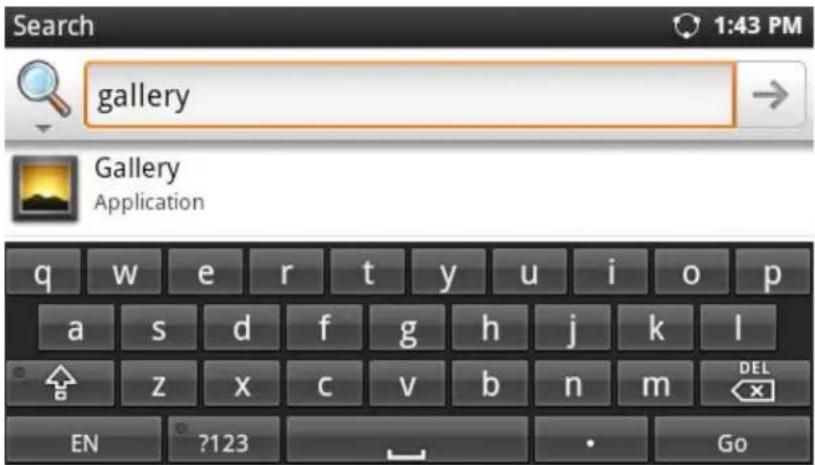
text_image
Search 1:43 PM gallery Gallery Application q w e r t y u i o p a s d f g h j k l z x c v b n m DEL x EN ?123 GoFigure 122: GXP2200 Search - Search on GXP2200

text_image
Search 123 Dial number using 123 q w e r t y u i o p a s d f g h j k l z x c v b n m DEL x EN ?123 GoFigure 123: GXP2200 Search - Dial Number
- Turn on/off Web search suggestions. In Search app, tap on MENU button and touch Search Settings. Under Web, tap on Google search. And then check or uncheck to enable/disable Show web suggestions when typing in the content.
- Set searchable items in GXP2200. In Search app, tap on MENU button and touch Search Settings. Under Phone, tap on Searchable items. And then check or uncheck to select the searchable items on the phone.
- Manage search privacy. In Search app, tap on MENU button and touch Search Settings.
Under Phone, tap on Clear shortcuts. The suggestions that have been recently selected in Search app will be cleared.
VOICE ASSIST
GXP2200 Voice Assist allows users to dial number, send text message or access Google search in seconds. To use it, open the app and simply speak to the microphone icon with the following format:

text_image
Voice Assist 10:41 Please Speak English CancelFigure 124: GXP2200 Voice Assist
- Call number/contact.
For example, speak "call 1234" or "call John". The detected result will show. Users could select "Quit" or tap on the result in the following picture. If no selection is made, after 3 seconds timeout, the command will be sent out with the first matching result and call screen will show with an outgoing call to John.
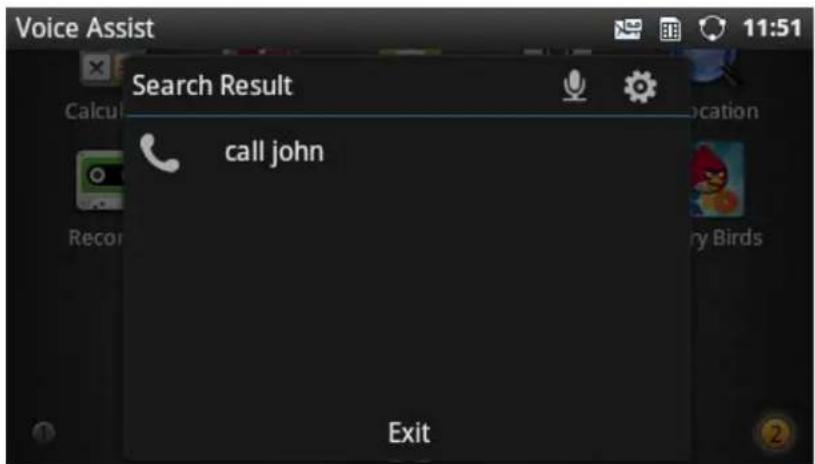
text_image
Voice Assist Search Result call john ExitFigure 125: GXP2200 Voice Assist - Call Number/Contact
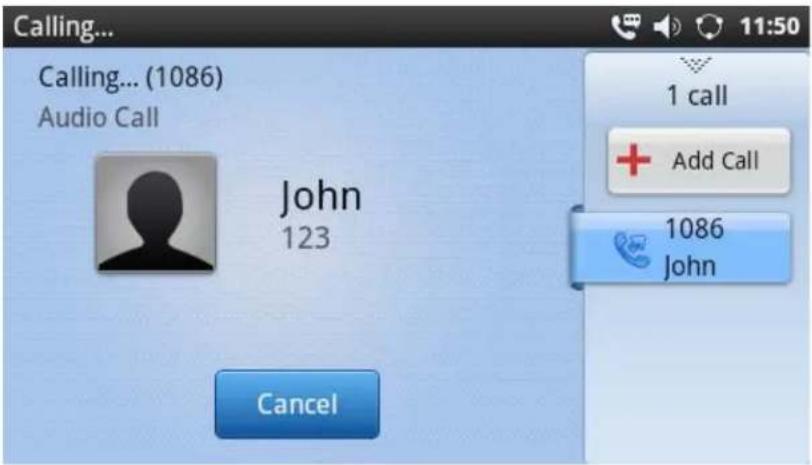
text_image
Calling... Calling... (1086) Audio Call John 123 Cancel 1 call Add Call 1086 JohnFigure 126: GXP2200 Voice Assist - Call Number/Contact Result
- Search text.
For example, speak "search Boston". The detected result will show. Users could select "Exit" or tap on the result in the following picture. If no selection is made, after 3 seconds timeout, the command will be sent out with the first matching result and "Boston" will be searched in browser.
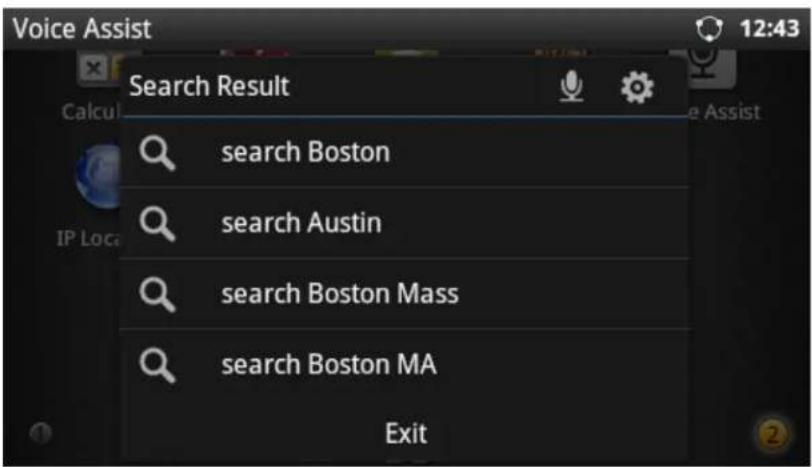
text_image
Voice Assist Search Result search Boston search Austin search Boston Mass search Boston MA ExitFigure 127: GXP2200 Voice Assist - Search
Here is the result after speaking "search Boston".
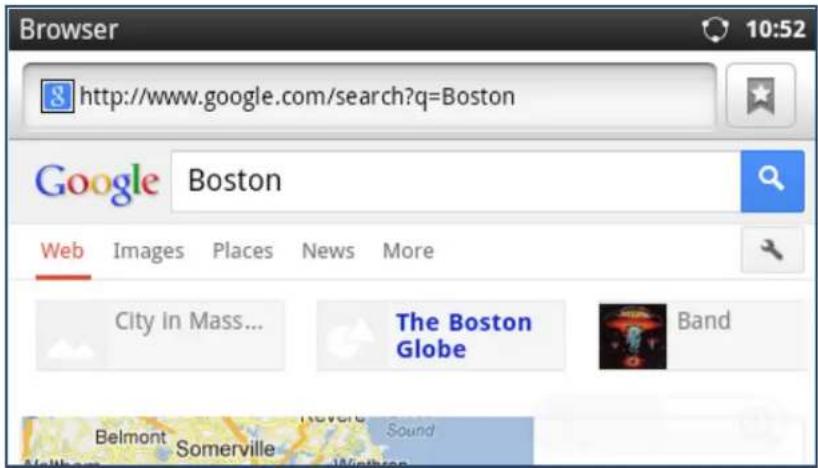
text_image
Browser http://www.google.com/search?q=Boston Google Boston Web Images Places News More City In Mass... The Boston Globe Band Belmont Somerville SoundFigure 128: GXP2200 Voice Assist - Search Result
- Send name/number Text content.
For example, speak "send John text hello". The detected result will show. Users could select "Exit" or tap on the result in the following picture. If no selection is made, after 3 seconds timeout, the command will be sent out with the first matching result and SMS will be opened with the name/number and the message content.
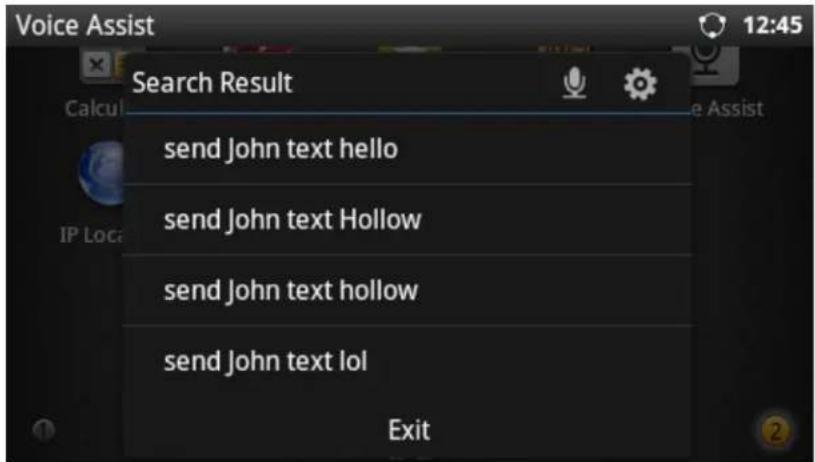
text_image
Voice Assist 12:45 Search Result send John text hello send John text Hollow send John text hollow send John text lol ExitFigure 129: GXP2200 Voice Assist - Send Text

text_image
SMS Create Enter Contact/Number 1086 Add John-123-1086 Amount 1 contacts hello (5/500) SendFigure 130: GXP2200 Voice Assist - Send Text Result
VOICE DIALER
GXP2200 Voice Dialer allows users to make calls by directly speaking the number or contact name. To use it, open the app and simply speak to the microphone icon with number or contact name. Multiple languages are supported in GXP2200 Voice Dialer. Users could tap on 📋 to change language settings. The default language is English.

text_image
Voice Dialer Please Speak English (United States) CancelFigure 131: GXP2200 Voice Dialer
For example, speak "1234" and the detected result will show. Users could select "Quit" or tap on the desired result. If no selection is made, after 3 seconds timeout, the call will be made with the first matching number/contact.

text_image
Talking... Talking... (1086) Call Duration: 00:00:01 1234 1234 1 call Add Call 1086 1234 Options EndFigure 132: GXP2200 Voice Dialer Result
For example, speak "1234" and the detected result will show. Users could select "Quit" or tap on the desired result. If no selection is made, after 3 seconds timeout, the call will be made with the first matching number/contact.
VOICE RECORDER
GXP2200 Voice Recorder is a simple and easy app for users to record audio and voice. It can be used to record meeting, lectures, personal notes. There is no time limits on the voice recorder as long as there is enough space to save the recording file.
To start/stop recording, press the

button.

text_image
Recording...... 00:14Figure 133: GXP2200 Voice Recorder
After the recording is done, press the button to save the file. The recording file will be saved to File Manager->user_data->recording.
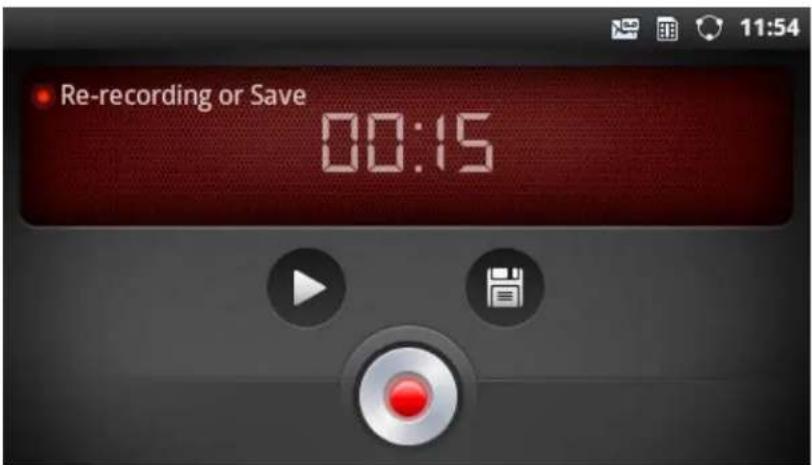
text_image
Re-recording or Save 00:15Figure 134: GXP2200 Voice Recorder - Save File
CONNECTING TO NETWORK AND DEVICES
The GXP2200 supports a variety of network connections (Ethernet, Wi-Fi) and device connections, including EHS headset (Plantronics), USB, SD card and Bluetooth device. Users can connect the GXP2200 to transfer files from/to the GXP2200 using a USB connection, SD card or Bluetooth.
ETHERNET
Ethernet connection is turned on as DHCP by default. To configure Ethernet settings on GXP2200 LCD, go to GXP2200's Settings application->Network. Or users could configure Ethernet settings from GXP2200 web GUI->Maintenance->Network Settings.
TURNING ETHERNET ON OR OFF
- Go to GXP2200's Settings;
- Touch Network;
- Check or uncheck the option for Ethernet.
CONFIGURING DHCP OR STATIC IP
- Go to GXP2200's Settings;
- Touch Network;
- Touch Ethernet Settings;
- Select Address Type. If Static IP is used, enter IP Address, Subnet Mask, Default Gateway, DNS Server and Alternative DNS server for the GXP2200 to correctly connect to network.
WI-FI
WI-FI is supported on GXP2200 with WI-FI adaptor plugged in. Insert the USB WI-FI adaptor to the USB port on the back of GXP2200 first and then go to GXP2200's Settings application->Network.
TURNING WI-FI ON OR OFF
-
Go to GXP2200's Settings;
-
Touch Network:
- Check or uncheck the option for Wi-Fi.
Or, users could open the top status bar->System Settings and tap on WI-FI icon

to turn it on/off.
ADDING WI-FI NETWORKS
- Once Wi-Fi is turned on, GXP2200 will automatically start the scanning within the range;
- Go to GXP2200's Settings;
- Touch Network;
- Touch Wi-Fi Settings;
- A list of Wi-Fi networks will be displayed as scanning result. Tap on the SSID and enter the correct password information to connect to the selected Wi-Fi network;
- The phone will start connecting to the Wi-Fi. The status bar will show Wi-Fi signal strength;
- Once it's added and the password is remembered, the GXP2200 will connect to it again when the SSID is within the range.
USING STATIC IP WITH WI-FI
Static IP could be used for Wi-Fi connection. To configure static IP settings with Wi-Fi, following the steps below.
- Go to GXP2200's Settings;
- Touch Network;
- Touch Wi-Fi Settings;
- Press Menu button and tap on "Advanced" to bring up advanced options;
- Under "IP settings" section, select "Use static IP" to enable static IP first. Then configure IP address, Gateway, Netmask, DNS 1 and DNS 2 address;
- Once completed, the Static IP settings will be saved and used for Wi-Fi connection.
BLUETOOTH
Bluetooth is a proprietary, open wireless technology standard for exchanging data over short distances from fixed and mobile devices, creating personal area networks with high levels of security. On GXP2200, users could use Bluetooth to transfer files, share contact information with other Bluetooth portable devices, or use Bluetooth headset for making calls as well as listening to media (music or other audio output) from the GXP2200.
To connect to a Bluetooth device, turn on GXP2200's Bluetooth radio first. The first time when using a new Bluetooth device with the GXP2200, "pair" the device with GXP2200 so that both devices know how to connect securely to each other. After that, users could simply connect to a paired device. Turn off Bluetooth if it's not used.
Bluetooth related settings are under GXP2200's Settings application->Network. Users could access it via the following two ways:
- On Home screen, press button ->Settings->Network;
or
- Press onscreen MENU icon and tap on Settings App->Network.
TURNING BLUETOOTH ON OR OFF
-
Go to GXP2200's Settings;
-
Touch Network;
-
Check or uncheck the option for Bluetooth.
Or, users could open the top status bar->System Settings and tap on Bluetooth icon

to turn it on/off.
CHANGING BLUETOOTH DEVICE NAME
The GXP2200 uses "GXP2200" as Bluetooth device name by default. The device name will be visible to other devices when connecting them. Follow the steps below to change the name:
- Go to GXP2200's Settings;
- Select Network->Bluetooth settings;
- Check Bluetooth to turn it on;
- Tap on Device name and enter a name. Once done, tap on OK.
PAIRING GXP2200 WITH A BLUETOOTH DEVICE
Before connecting GXP2200 with other Bluetooth device, users must pair them first. They will stay paired afterwards unless they are unpaired.
- Go to GXP2200's Settings;
-
Select Network->Bluetooth settings;
-
Check Bluetooth to turn it on:
-
The GXP2200 scans and displays the IDs of all available Bluetooth devices in range. If the device you would like to pair with does not show up in the list, ensure that the other device is turned on and set to be discoverable;
-
If the GXP2200 stops scanning before the other device is ready, touch Scan for devices:
-
The discovered device will show in the scan result list with device ID. If it's unpaired, it will show "Pair with this device" under the device ID. Make sure the Bluetooth device is active in pairing mode. Then tap on the device ID on GXP2200 to pair them. Confirm the passkey in the prompted message (if any). Or If passcode is required, please refer to the device's documentation or other procedures to obtain the passcode.
CONNECTING TO A BLUETOOTH DEVICE
After successfully paired, the GXP2200 will show "Paired but not connected" under the Bluetooth device ID in the scan list. Tap on it to connect. For example, after successfully connecting a Bluetooth headset, the GXP2200 will show "Connected to phone and media audio".
Once it's connected, users could also press and hold on to the Bluetooth device ID, then options Disconnect, Disconnect & unpair, and Options will show. Tap on Options, users could select different profiles for the connected devices (e.g., for Bluetooth headset, users could check or uncheck connect to phone audio, connect to media audio).
SENDING AND RECEIVING FILES VIA BLUETOOTH
After pairing successful, users could use GXP2200 to share pictures, contact information and other data between Bluetooth devices. When there is a file coming from other Bluetooth devices, GXP2200 will display notification "Bluetooth share: File transfer". Tap on "Accept" to receive the file. Once the file transferring is done, users could slide the top status bar down and tap on the received file to open it. Or users could access all the received files via Bluetooth from File Manager->user_data->bluetooth.
DISCONNECTING A BLUETOOTH DEVICE
-
In the Bluetooth settings, tap and hold on the Bluetooth device ID you want to disconnect for 2-4 seconds:
-
In the prompted message, touch Disconnect.
Users could also press and hold on to the Bluetooth device ID, then options Disconnect, Disconnect & unpair, and Options will show.
UNPAIRING A BLUETOOTH DEVICE
- In the Bluetooth settings, tap and hold on the Bluetooth device ID you want to unpair for 2-4 seconds:
- In the prompted message, touch Unpair.
Or, once the device is disconnected, users could press and hold on to the Bluetooth device ID, then options connect, unpair will show.
EHS HEADSET
The GXP2200 supports normal RJ11 headset and Plantronics EHS headset. To use Plantronics EHS headset, go to the GXP2200 web GUI->Maintenance->Device Manager: Headset Type. Select "Plantronics EHS" and reboot the phone to take effect.
-
Connect EHS Headset (Plantronics) to GXP2200. Insert headset connector into the RJ11 headset port on the back of GXP2200;
-
To use headset mode, press headset button on the GXP2200. A headset icon will show on the GXP2200 status bar. There are two different headset mode for users to select from web GUI->Maintenance->Device Manager: Headset Key Mode. After selecting the desired mode, save the change and reboot the phone to take effect. Please refer to section GXP2200 Web GUI Settings for the key mode details.
USB
The GXP2200 supports USB connection for mouse, keyboard, USB storage devices and USB camera. To use USB mouse or keyboard, simply plug it into the USB port on the back of the GXP2200 and it will be ready to use.
To connect and access USB storage device:
- Insert USB storage device into USB port at the back of the GXP2200:
- It will take a few seconds for the GXP2200 to prepare the connection. Then the USB storage icon will show on the status bar:
- To access USB storage, go to GXP2200 MENU->File Manager->usb. Tap on it to access and manage your data.
To connect and use USB camera:
- Insert USB camera into USB port at the back of the GXP2200;
- It will take a few seconds for the GXP2200 to prepare the connection.
- To check the connection and compatibility of the USB camera with the GXP2200, go to GS Market and download Camera.apk. Run Camera.apk with the USB camera plugged in to check the image from the camera.
- If the USB camera is compatible after step 3, users could then start using it for SIP video call.

Note:
The GXP2200 doesn't support video call using 3rd party apps. Please check the FAQ information in the following link for a list of compatible cameras on GXP2200.
http://www.grandstream.com/support/faq/gxp2200
SD CARD
- Insert your SD card into SD Card slot at the back of GXP2200. Please make sure the SD Card is inserted with right direction on GXP2200;
- It will take a few seconds for the GXP2200 to prepare the connection. Then the SD Card icon will show on the status bar;
- To access SD Card, go to GXP2200 MENU->File Manager->sdcard. Tap on it to access and manage your data.
GXP2200 WEB GUI SETTINGS
The GXP2200 embedded Web server responds to HTTP/HTTPS GET/POST requests. Embedded HTML pages allow users to configure the application phone through a Web browser such as Microsoft's IE, Mozilla Firefox, Google Chrome and etc.
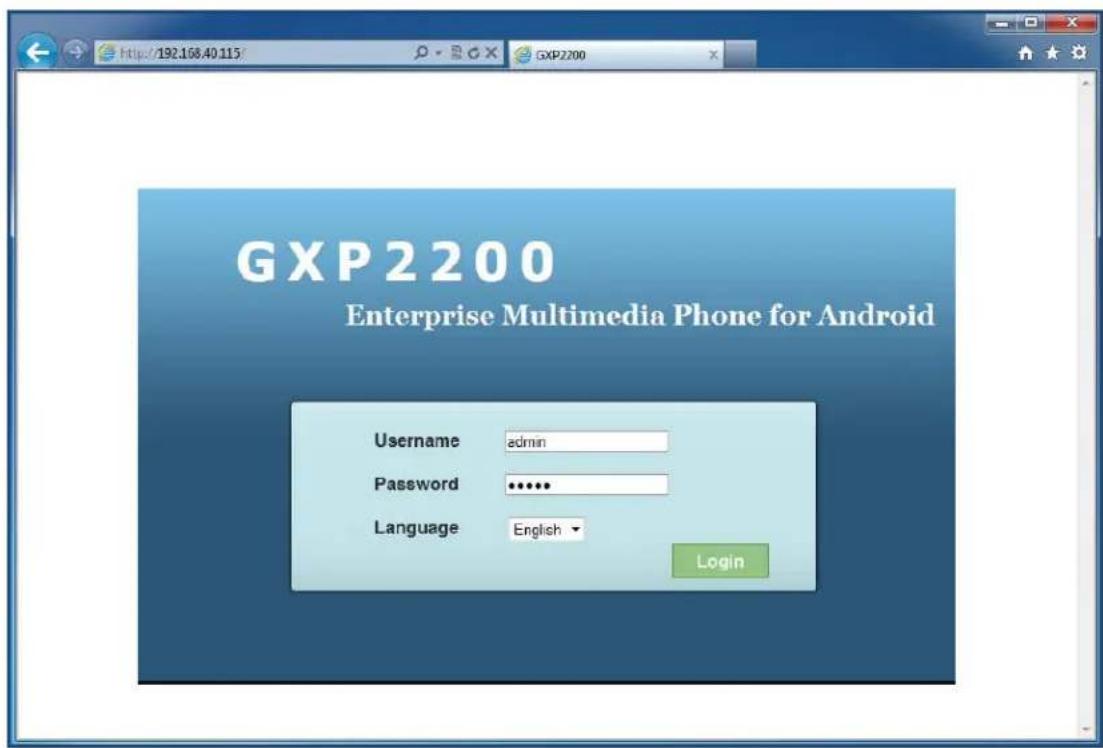
text_image
GXP2200 Enterprise Multimedia Phone for Android Username admin Password ****** Language English LoginFigure 135: GXP2200 Web GUI - Login
ACCESSING GXP2200 WEB GUI
The GXP2200 Web GUI URL is http://Phone-IP-Address, where the Phone-IP Address is the IP address displayed on the GXP2200 desktop account widget.
To access the GXP2200 Web GUI:
- Connect the computer to the same network as the phone;
-
Make sure the phone is turned on and shows its IP address on the desktop;
-
Open a Web browser on your computer;
-
Enter the phone's IP address in the address bar of the browser;
-
Enter the administrator's login and password to access the Web Configuration Menu.

text_image
10.0.0.28 5100 5100Figure 136: GXP2200 Main Screen - IP Address

Note:
- The computer has to be connected to the same sub-network as the phone. This can be easily done by connecting the computer to the same hub or switch as the phone connected to. In absence of a hub/switch (or free ports on the hub/switch), please connect the computer directly to the PC port on the back of the phone:
- If the phone is properly connected to a working Internet connection, the phone will display its IP address. This address has the format: xxx.xxx.xxx.xxx, where xxx stands for a number from 0-255. Users will need this number to access the Web GUI. For example, if the phone shows 192.168.40.154, please enter "http://192.168.40.154" in the address bar of the browser;
- The default login name for the administrator is "admin". The default administrator password is set to "admin". The default login name for end-users is "user" while the default user password is set to "123";
- When changing any settings, always SUBMIT them by pressing the Save button on the bottom of the page, and then clicking the Apply button on the top of the page to apply the configuration changes.
For those options with ⚠️ next to it in the Web page, users must reboot the phone for the changes to take effect.
DEFINITIONS
This section describes the options in the GXP2200 Web GUI. As mentioned, you can log in as an administrator or an end user.
• Status: Displays the Account Status, Network Status, and System Info of the phone;
• Account (1-6): To configure each of the SIP accounts;
- Advanced Settings: To configure General Settings, Call Features, Video Settings, Tone Generator and MPK Settings for MPK App as well as GXP2200EXT;
- Maintenance: To configure Network Settings, Time Settings, Web/SSH Access, Upgrade, Syslog, Logcat, Debug, Language, TR-069, Contacts, LDAP Book and Device Manager.
STATUS PAGE DEFINITIONS
STATUS/ACCOUNT STATUS
| Account | All the SIP accounts on the phone. Each account will show it's status in this page. |
| Number SIP User ID for the account. | |
| SIP Server | URL or IP address, and port of the SIP server. |
| Status | Registration status for the SIP account. |
STATUS/NETWORK STATUS
| MAC Address | Global unique ID of device, in HEX format. The MAC address will be used for provisioning and can be found on the label coming with original box and on the label located on the back of the device. |
| Address Type | The configured address type: DHCP, Static IP or PPPoE. |
| IP Address IP address of the phone. | |
| Subnet Mask | Subnet mask of the phone. |
| Default Gateway | Default gateway of the phone. |
| DNS Server 1 | DNS Server 1 of the phone. |
| DNS Server 2 | DNS Server 2 of the phone. |
| NAT Type | The type of NAT connection used by the phone. |
STATUS/SYSTEM INFO
| Product Model | Product model of the phone. |
| Hardware Revision Hardware version number. | |
| Part Number Product part number. | |
| System Version | Firmware version. This is the main software release version. |
| Recovery Version | Recovery image version. |
| Boot Version Booting code version. | |
| Kernel Version Kernel version. | |
| Android^TM Version | Android^TM OS version: 2.3.5. |
| System Up Time | System up time since the last reboot. |
ACCOUNT PAGE DEFINITIONS
The GXP2200 has six lines that can be configured to accommodate independent SIP accounts. Every SIP account has an individual configuration page.
ACCOUNT/GENERAL SETTINGS
| Account Active | This field indicates whether the account is active. The default value for the primary account (Account 1) is "Yes" and the default value for the other five accounts is "No". |
| Account Name | The name associated with each account to be displayed on the LCD. |
| SIP Server | The URL or IP address, and port of the SIP server. This is provided by your VoIP service provider (ITSP). |
| SIP User ID | User account information, provided by your VoIP service provider (ITSP). It's usually in the form of digits similar to phone number or actually a phone number. |
| SIP Authentication ID | SIP service subscriber's Authenticate ID used for authentication. It can be identical to or different from the SIP User ID. |
| SIP Authentication Password | The account password required for the phone to authenticate with the ITSP (SIP) server before the account can be registered. After it is saved, this will appear as hidden for security purpose. |
| Voice Mail UserID | This parameter allows you to access voice messages by pressing the MESSAGE button on the phone. This ID is usually the VM portal access number. For example, in Asterisk server, 8500 could be used. |
| Name | The SIP server subscriber's name (optional) that will be used for Caller ID display. |
| Tel URI | If the phone has an assigned PSTN telephone number, this field should be set to "User=Phone". Then a "User=Phone" parameter will be attached to the Request-Line and "TO" header in the SIP request to indicate the E.164 number. If set to "Enable", "Tel:" will be used instead of "SIP:" in the SIP request. The default setting is "Disable". |
ACCOUNT/NETWORK SETTINGS
| Outbound Proxy | IP address or Domain name of the Primary Outbound Proxy, Media Gateway, or Session Border Controller. It's used by the phone for Firewall or NAT penetration in different network environments. If a symmetric NAT is detected, STUN will not work and ONLY an Outbound Proxy can provide a solution. |
| Secondary Outbound Proxy | IP address or Domain name of the Secondary Outbound Proxy, Media Gateway, or Session Border Controller. Secondary outbound proxy will be used when the primary outbound proxy fails. |
| DNS Mode | This parameter controls how the Search Appliance looks up IP addresses for hostnames. There are three modes: A Record, SRV, NATPTR/SRV. The default setting is "A Record". If the user wishes to locate the server by DNS SRV, the user may select "SRV" or "NATPTR/SRV". |
| NAT Traversal | This parameter configures whether the NAT traversal mechanism is activated. Users could select the mechanism from NAT NO, STUN, Keep-alive, UPnP, Auto or VPN.If set to "STUN" and STUN server is configured, the phone will route according to the STUN server. If NAT type is Full Cone, Restricted Cone or Port-Restricted Cone, the phone will try to use public IP addresses and port number in all the SIP&SDP messages. The phone will send empty SDP packet to the SIP server periodically to keep the NAT port open if it is configured to be "Keep-alive". Configure this to be "NAT NO" if an outbound proxy is used. "STUN" cannot be used if the detected NAT is symmetric NAT. Set this to "VPN" if OpenVPN is used.The default setting is "Keep-alive". |
| Proxy-Require | A SIP Extension to notify the SIP server that the phone is behind a NAT/Firewall. Do not configure this parameter unless this feature is supported on the SIP server. |
ACCOUNT/SIP SETTINGS
| SIP Registration | Selects whether or not the phone will send SIP Register messages to the proxy/server. The default setting is "Yes". |
| Unregister On Reboot | If set to "Yes", the SIP user's registration information will be cleared when the phone reboots. The SIP Contact header will contain "*" to notify the server to unbind the connection. The default setting is "No". |
| Register Expiration (m) | Specifies the frequency (in minutes) in which the phone refreshes its registration with the specified registrar. The default setting is 60. The maximum value is 64800 minutes (about 45 days). |
| Wait Time Retry Registration (s) | The amount of time (in seconds) in which the phone will retry the registration process in the event that is failed. The default setting is 20. |
| Local SIP Port | Defines the local SIP port used to listen and transmit. The default setting is 5060 for Account 1, 5062 for Account 2, 5064 for Account 3, 5066 for Account 4, 5068 for Account 5, and 5070 for Account 6. |
| SUBSCRIBE for MWI | When set to "Yes", a SUBSCRIBE for Message Waiting Indication will be sent periodically. The phone supports synchronized and non-synchronized MWI. The default setting is "No". |
| Session Expiration (s) | The SIP Session Timer extension (in seconds) that enables SIP sessions to be periodically "refreshed" via a SIP request (UPDATE, or re-INVITE). If there is no refresh via an UPDATE or re-INVITE message, the session will be terminated once the session interval expires. Session Expiration is the time (in seconds) where the session is considered timed out, provided no successful session refresh transaction occurs beforehand. The default setting is 180. |
| Min-SE (s) | The minimum session expiration (in seconds). The default setting is 90. |
| UAC Specify Refresher | As a Caller, select UAC to use the phone as the refresher; or select UAS to use the Callee or proxy server as the refresher. The default setting is "Omit". |
| UAS Specify Refresher | As a Callee, select UAC to use caller or proxy server as the refresher; or select UAS to use the phone as the refresher. The default setting is "UAC". |
| Force INVITE | The Session Timer can be refreshed using the INVITE method or the UPDATE method. Select "Yes" to use the INVITE method to refresh the session timer. The default setting is "No". |
| Caller Request Timer | If set to "Yes" and the remote party supports session timers, the phone will use a session timer when it makes outbound calls. The default setting is "No". |
| Callee Request Timer | If set to "Yes" and the remote party supports session timers, the phone will use a session timer when it receives inbound calls. The default setting is "No". |
| Force Timer | If Force Timer is set to "Yes", the phone will use the session timer even if the remote party does not support this feature. If Force Timer is set to "No", the phone will enable the session timer only when the remote party supports this feature. To turn off the session timer, select "No". The default setting is "No". |
| Enable 100rel | The use of the PRACK (Provisional Acknowledgment) method enables reliability to SIP provisional responses (1xx series). This is very important in order to support PSTN internetworking. To invoke a reliable provisional response, the 100rel tag is appended to the value of the required header of the initial signaling messages. The default setting is "No". |
| Use Privacy Header | Controls whether the Privacy Header will present in the SIP INVITE message or not. The default setting is "default", which is when "Huawei IMS" special feature is on, the Privacy Header will not show in INVITE. If set to "Yes", the Privacy Header will always show in INVITE. If set to "No", the Privacy Header will not show in INVITE. The default setting is "Default". |
| Use P-Preferred-Identity Header | Controls whether the P-Preferred-Identity Header will present in the SIP INVITE message or not. The default setting is "default", which is when "Huawei IMS" special feature is on, the P-Preferred-Identity Header will not show in INVITE. If set to "Yes", the P-Preferred-Identity Header will always show in INVITE. If set to "No", the P-Preferred-Identity Header will not show in INVITE. The default setting is "Default". |
| SIP Transport | Determines the network protocol used for the SIP transport. Users can choose from TCP/UDP/TLS. |
| Symmetric RTP | Defines whether symmetric RTP is supported or not. The default setting is "No". |
| Support SIP Instance ID | Defines whether SIP Instance ID is supported or not. The default setting is "Yes". |
| Validate Incoming SIP Messages | Defines whether the incoming messages will be validated or not. The default setting is "No". |
| Authenticate Incoming INVITE | If set to "Yes", the phone will challenge the incoming INVITE for authentication with SIP 401 Unauthorized response. The default setting is "No". |
| SIP T1 Timeout | SIP T1 Timeout (in seconds). The default setting is 0.5 sec. |
| SIP T2 interval | SIP T2 Interval (in seconds). The default setting is 4 sec. |
| Remove OBP from route | Configures to remove outbound proxy from route. This is used for the SIP Extension to notify the SIP server that the device is behind a NAT/Firewall. The default setting is "No". |
| Enable SCA (Shared Call Appearance) | If set to "Yes", the Shared Call Appearance (Broadsoft Standard) will be used for the registered account. The default setting is "No". |
| Enable Bargeln | If set to "Yes", the user could barge onto an active call on a shared line. The default setting is "No". |
| Auto-filling Pickup Feature Code | If set to "Yes", the call park feature code will be automatically filled in. The default setting is "Yes". |
| Pickup Feature Code | Configures the pickup feature code for call park. |
| Line-seize Timeout | Configures the timeout before the line can be seized (in seconds). The default setting is 15. |
ACCOUNT/CODEC SETTINGS
| DTMF | This parameter specifies the mechanism to transmit DTMF digits. There are 3 supported modes: in audio which means DTMF is combined in the audio signal (not very reliable with low-bit-rate codecs), via RTP (RFC2833), or via SIP INFO. The default setting is "RFC2833". |
| DTMF Payload Type | This parameter sets the payload type for DTMF using RFC2833. Default is 101. |
| Preferred Vocoder | 4 different vocoder types are supported on the phone, including G.711 A-law (PCMA), G.711 U-law (PCMU), G.722 and G.729A/B. Users can configure vocoders in a preference list that is included with the same preference order in SDP message. Arrange your preferred vocoder orders using the Up and Down button. |
| Enable RFC5168 Support | If set to "Yes", RFC5168 support will be enabled for video call. The default setting is "No". |
| Video Bit Rate | Configures bit rate for video call. The default setting is 500 kbps. |
| H.264 Payload Type | Configures H.264 codec payload type (ranging from 96 - 127). The default setting is 99. |
| SRTP Mode | Enables the SRTP mode based on your selection from the drop-down menu. The default setting is "Disable". |
| Silence Suppression | Controls the silence suppression/VAD feature of the audio codec G.723 and G.729. If set to "Yes", when silence is detected, a small quantity of VAD packets (instead of audio packets) will be sent during the period ofno talking. If set to "No", this feature is disabled. The default setting is "No". |
| Voice Frames Per TX | Configures the number of voice frames transmitted per packet. When configuring this, it should be noted that the "ptime" value for the SDP will change with different configurations here. This value is related to the codec used and the actual frames transmitted during the in payload call. For end users, it is recommended to use the default setting, as incorrect settings may influence the audio quality. The default setting is 2. |
| Jitter Buffer Type | Selects either Fixed or Adaptive based on network conditions. The default setting is "Adaptive". |
| Jitter Buffer Length | Selects Low, Medium, or High based on network conditions. The default setting is "Medium". |
ACCOUNT/CALL SETTINGS
| Start Video Automatically | If set to "Yes", the video will be started automatically when answering SIP video call. The default setting is "Yes". |
| Remote Video Request | Configures the preference of video request handling during an audio call. Users could select "prompt", "accept" automatically or "deny" automatically. The default setting is "prompt". |
| Dial Plan Prefix | Configures the prefix to be added to each dialed number. |
| Dial Plan | A dial plan establishes the expected number and pattern of digits for a telephone number. This parameter configures the allowed dial-plan for the phone.Dial Plan Rules:1. Accepted Digits: 1,2,3,4,5,6,7,8,9,0 , *, #, A,a,B,b,C,c,D,d;2. Grammar: x - any digit from 0-9;a) xx+ - at least 2 digit numbersb) xx. - only 2 digit numbersc) ^ - excluded) [3-5] - any digit of 3, 4, or 5e) [147] - any digit of 1, 4, or 7f) <2=011> - replace digit 2 with 011 when dialingg) | - the OR operandh) \+ - the + at the beginning of the number to be dialed,e.g., +861234567890Example 1: {[369]11 | 1617xxxxxxx} |
Allow 311, 611, and 911 or any 10 digit numbers with leading digits 1617;
• Example 2: {^1900x+ | <=1617>xxxxxxx}
Block any number of leading digits 1900 or add prefix 1617 for any dialed 7 digit numbers;
• Example 3: {1xxx[2-9]xxxxxx | <2=011>x+}
Allows any number with leading digit 1 followed by a 3 digit number, followed by any number between 2 and 9, followed by any 7 digit number OR Allows any length of numbers with leading digit 2, replacing the 2 with 011 when dialed.
Example of a simple dial plan used in a Home/Office in the US:
{ ^1900x. | <=1617>[2-9]xxxxxx | 1[2-9]xx[2-9]xxxxxx | 011[2-9]x. | [3469]11 }
Explanation of example rule (reading from left to right):
- ^1900x. - prevents dialing any number started with 1900;
- <=1617>[2-9]xxxxxx - allows dialing to local area code (617) numbers by dialing 7 numbers and 1617 area code will be added automatically;
- 1[2-9]xx[2-9]xxxxxx | - allows dialing to any US/Canada Number with 11 digits length;
• 011[2-9]x - allows international calls starting with 011;
• [3469]11 - allow dialing special and emergency numbers 311, 411, 611 and 911.
The default dial plan on the GXP2200 is { x+ | +x+ | *x+ | *xx*x+ }.
- x+ - at least 1 digit;
- +x+ - at least 1 digit number with + at the beginning, e.g., +861234567890;
• *x+ - at least 1 digit number with * at the beginning, e.g., *73; - *xx*x+ - two-digit star * feature code and then * followed by at least 1 digit number.
Note:
In some cases where the user wishes to dial strings such as *123 to activate voice mail or other applications provided by their service provider, the * should be predefined inside the dial plan feature. An example dial plan will be: { *x+ } which allows the user to dial * followed by any length of numbers.
Refer-To Use Target Contact
If set to "Yes", the "Refer-To" header uses the transferred target's Contact header information for attended transfer. The default setting is
| "No". | |
| Auto Answer | If set to "Yes", the phone will automatically turn on the speaker phone to answer incoming calls after a short reminding beep. If set to "Enable Intercom/Paging", it will answer the call based on the SIP info header sent from the server/proxy. The default setting is "No". |
| Send Anonymous | If set to "Yes", the "From" header in outgoing INVITE messages will be set to anonymous, essentially blocking the Caller ID to be displayed. The default setting is "No". |
| Anonymous Call Rejection | If set to "Yes", anonymous calls will be rejected. The default setting is "No". |
| Call Log | Configures Call Log setting on the phone. You can log all calls, only log incoming/outgoing calls or disable call log. The default setting is logging all calls. The default setting is "Log All". |
| Special Feature | Different soft switch vendors have special requirements. Therefore users may need select special features to meet these requirements. Users can choose from Standard, Broadsoft, CBCOM, RNK, China Mobile, ZTE IMS, Mobotix, ZTE NGN, or Huawei IMS depending on the server type. The default setting is "Standard". |
| Feature Key Synchronization | This feature is used for Broadsoft call feature synchronization. When it's set to Broadsoft, DND and Call Forward features can be synchronized with Broadsoft server. |
| Enable Call Features | If set to "Yes", the local call feature code on the phone can be used. Otherwise, the feature code will need to be provided from the server side. The default setting is "No". |
| No Key Entry Timeout (s) | Defines the timeout (in seconds) for no key entry. If no key is pressed after the timeout, the digits will be sent out. The default value is 4 seconds. |
| Ring Timeout (s) | Defines the timeout (in seconds) for the rings on no answer. The default setting is 60. |
| Transfer on 3-way Conference Hang up | If set to "Yes", when the phone hangs up as the conference initiator, the conference call will be transferred to the other parties so that other parties will remain in the conference call. |
| Use # as Dial Key | Allows users to configure the "#" key as the "Send" key. If set to "Yes", the "#" key will immediately dial out the input digits. In this case, this key is essentially equivalent to the "Send" key. If set to "No", the "#" key is included as part of the dialing string. |
| Conference URI | Configures Conference URI for N-way conference (Broadsoft standard). |
| Broadsoft Call Center | Enables Broadsoft Call Center feature. The default setting is "No". |
| Hoteling Event | Enables Broadsoft Hoteling Event feature. The default setting is "No". The "Broadsoft Call Center" option needs to be enabled first. |
| Call Center Status | Enables Broadsoft Call Center Status. The default setting is "No". The "Broadsoft Call Center" option needs to be enabled first. |
| Account Ring Tone | Allows users to configure the ringtone for the account. Users can choose from different ringtones from the dropdown menu. If there is custom ring tone imported from GXP2200 LCD menu, the ring tone file name will be displayed in this dropdown menu as well for users to select. |
| Call Forward Type | Specifies the Call Forward Type:1. None: Disable Call Forward2. Unconditional: Forward all calls to particular number3. Time based: Set a time range. In the time range, calls are forwarded to the number specified in In Time Forward To; out the time range, calls are forwarded to the number specified in Out Time Forward To.4. Others: when phone is busy, calls are forwarded to the number specified in Busy To; when incoming calls are not answered, those calls are forwarded to the number specified in No Answer To; the waiting time for answering calls is specified in Delayed Call Forward Wait Time (s). |
| All To | Specifies the number to be forwarded to when "Unconditional" Call Forward Type is used. |
| Time Period | Configures the period of time to forward the call when "Time based" Call Forward Type is used. |
| In Time Forward To | When "Time based" Call Forward Type is used, specifies the number to be forwarded to within the configured Time Period above. |
| Out Time Forward To | When "Time based" Call Forward Type is used, specifies the number to be forwarded to when it's not within the configured Time Period. |
| Busy To | Specifies the number to be forwarded to for Call Forward On Busy. |
| No Answer To | Specifies the number to be forwarded to for Call Forward On No Answer. |
| No Answer Timeout (s) | Defines the timeout (in seconds) before the call is forwarded on no answer. The default value is 20 seconds. |
| Matching Incoming Caller ID | Specifies matching rules with number, pattern or Alert Info text. When the incoming caller ID or Alert Info matches the rule, the phone will ring with selected distinctive ringtone. Matching rules:Specific caller ID number. For example, 8321123;A defined pattern with certain length using x and + to specify, where x could be any digit from 0 to 9. Samples:xx+ : at least 2-digit number;xx : only 2-digit number;[345]xx: 3-digit number with the leading digit of 3, 4 or 5;[6-9]xx: 3-digit number with the leading digit from 6 to 9.• Alert Info textUsers could configure the matching rule as certain text (e.g., priority) and select the custom ring tone mapped to it. The custom ring tone will be used if the phone receives SIP INVITE with Alert-Info header in the following format:Alert-Info:; info=priority |
| Distinctive Ring Tone | Selects the distinctive ring tone for the matching rule. When the incoming caller ID or Alert Info matches the rule, the phone will ring with the selected ring. |
| Upload Local MOH Audio File | Click on "Browse" button to upload the music file from local PC. The MOH audio file has to be in .wav or .mp3 format.Note:Please be patient while the audio file is being uploaded. It could take more than 3 minutes to finish the uploading especially the file size is large. The button will show as "Processing" during the uploading. Once done, it will show as "Browse" again. Click on "Save" on the bottom of the web page and "Apply" on the top of the web page to save the change. |
| Enable Local MOH | If set to "Yes", local MOH will be turned on. Users will need upload a local MOH audio file so it can be played on the other party when the user puts the other party on hold. The default setting is "No". |
ADVANCED SETTINGS PAGE DEFINATIONS
ADVANCED SETTINGS/GENERAL SETTINGS
| Local RTP Port | Defines the local RTP-RTCP port pair used to listen and transmit. It is the base RTP port for channel 0. When configured, for audio, channel 0 will use this port_value for RTP and the port_value+1 for its RTCP; channel 1 will use port_value+4 for RTP and port_value+5 for its RTCP. For video, channel 0 will use port_value+2 for RTP and port_value+3 for its RTCP; channel 1 will use port_value+6 for RTP and port_value+7 for RTCP. The default value is 5004. |
| Use Random Port | When set to "Yes", this parameter will force random generation of both |
| the local SIP and RTP ports. This is usually necessary when multiple phones are behind the same full cone NAT. The default setting is "Yes" (This parameter must be set to "No" for Direct IP Calling to work). | |
| Disable in-call DTMF display | When it's set to "Yes", the DTMF digits entered during the call will not display. The default setting is "No". |
| Keep-alive Interval (s) | Specifies how often the phone sends a blank UDP packet to the SIP server in order to keep the "ping hole" on the NAT router to open. The default setting is 20 seconds. |
| STUN Server | The IP address or Domain name of the STUN server. STUN resolution results are displayed in the STATUS page of the Web GUI. Only non-symmetric NAT routers work with STUN. |
| Use NAT IP | The NAT IP address used in SIP/SDP messages. This field is blank at the default settings. It should ONLY be used if it's required by your ITSP. |
| SIP TLS Certificate | Defines the SSL certificate used for SIP over TLS. |
| SIP TLS Private Key | Defines the SSL Private key used for SIP over TLS. |
| SIP TLS Private Key Password | Defines the SSL Private key password used for SIP over TLS. |
ADVANCED SETTINGS/CALL FEATURES
| Always Ring Speaker | If set to "Yes", the phone will always ring speaker when headset is used at the same time. The default setting is "No". |
| Auto Conference | If set to "Yes", users could press CONFERENCE button to establish conference call when there are 2 or more calls on the phone, instead of adding each party one by one. The default setting is "No". |
| Disable Call-Waiting | Disables the call waiting feature. The default setting is "No". |
| Disable DialPlan | Disables dial plan check on the GXP2200 when dialing out. This can be used when dialing out phone number which contains alphabet characters from imported contacts. The default setting is "No". |
| Disable Call-Waiting Tone | Disables the call waiting tone when call waiting is on. The default setting is "No". |
| Disable DND Reminder Ring | Disables the DND reminder ring. If set to "Yes", the ring splash that indicates an incoming call when DND is enabled will not be played. The default setting is "No". |
| Disable Direct IP Call | Disables Direct IP Call. The default setting is "No". |
| Use Quick IP-Call mode | When set to "Yes", users can dial an IP address under the same LAN/VPN segment by entering the last octet in the IP address. To dial quick IP call, offhook the phone and dial #XXX (X is 0-9 and XXX<=255), phone will make direct IP call to aaa.bbb.ccc.XXX where aaa.bbb.ccc comes from the local IP address REGARDLESS of subnet mask. #XX or #X are also valid so leading 0 is not required (but OK). No SIP server is required to make quick IP call. The default setting is "No". |
| Disable Conference | Disables the Conference function. The default setting is "No". |
| Disable Transfer | Disables the Transfer function. The default setting is "No". |
| Default Transfer Mode | Selects default transfer mode. The default setting is "Blind Transfer". |
| Escape # as %23 in SIP URI | Replaces “#” by “%23” for some special situations. The default setting is "Yes". |
| Offhook Auto Dial | Configures a User ID/extension to dial automatically when the phone is offhook. The phone will use the first account to dial out. The default setting is "No". |
| Offhook Timeout (s) | If configured, when the phone is on hook, it will go off hook after the timeout (in seconds). The default setting is 30. |
ADVANCED SETTINGS/VIDEO SETTINGS
| Video Frame Rate | Configures video frame rate for SIP video call. The default setting is 15 frames/second. |
ADVANCED SETTINGS/TONE GENERATOR
| Call Progress Tones:Dial ToneRing Back ToneBusy ToneReorder ToneConfirmation ToneCall-Waiting TonePSTN Disconnect Tone | Using these settings, users can configure ring or tone frequencies based on parameters from the local telecom provider. By default, they are set to the North American standard.Frequencies should be configured with known values to avoid uncomfortable high pitch sounds.Syntax: f1=val,f2=val [,c=on1/off1[-on2/off2[-on3/off3]]];(Frequencies are in Hz and cadence on and off are in 10ms)ON is the period of ringing (“On time” in ‘ms’) while OFF is the period of silence. In order to set a continuous ring, OFF should be zero. Otherwise it will ring ON ms and a pause of OFF ms and then repeat the pattern. Up to three cadences are supported. |
| Call-Waiting Tone Gain | This adjusts the call waiting tone volume. The default setting is “Low”. |
| Default Ring Cadence | This defines the ring cadence for the phone. The default setting is: c=2000/4000. |
ADVANCED SETTING/MPK GENERAL SETTINGS (FOR MPK APP)
| BLF Call-pick Prefix | Configures the prefix prepended to the BLF extension when the phone picks up a call with BLF key. The default setting is ** for each account. |
| Event List URI | Configures the eventlist BLF URI on the phone to monitor the extensions in the list with multi-purpose keys. The server side has to support this feature. Users need configure an eventlist BLF URI on the service side first (i.e., BLF1006@myserver.com) with a list of extension included. On the phone, in this "eventlist BLF URI" field, fill in the URI without the domain (i.e., BLF1006). |
ADVANCED SETTING/MPK LCD SETTINGS (FOR MPK APP)
| Key Mode | Assigns a function to the Multi Purpose Key from the MPK App installed on the GXP2200. The MPK App can be downloaded from GS Market.The key mode options are:Speed DialPress to dial the extension configured in UserID field.Busy Lamp Field (BLF)Monitor the extension status as configured in UserID field.Call TransferTransfer the current active call to the extension configured in UserID field.Call IntercomIntercom/paging to the extension configured in UserID field.Speed Dial via Active AccountSimilar to Speed Dial but it will dial based on the current active account. For example, if the phone is offhook and account 2 is active, it will call the configured extension using account 2.Dial DTMFDial the DTMF digits filled in UserID field during the call.Call ParkConfigure the call park feature code to park or pick up the call. |
| MPK List | The configured MPK will show in the MPK List. Users could select "Up" "Down" and "More" to select, edit and delete the MPK. |
| Account | Selects the SIP Account used for the multi-purpose keys. |
| Name | Configures the display name for the multi-purpose key. |
| UserID | Configures the UserID for the corresponding multi-purpose key mode. |
| Display Format | Configures the display format for the multi-purpose keys. Users could select display "Phonebook Name", "UserID", or "UserID(Phonebook Name)". The "Phonebook Name" is the name saved in GXP2200 Contacts. The default setting is "Phonebook Name". |
ADVANCED SETTING/MPK EXT SETTINGS (FOR GXP2200EXT BOARD 1/2/3/4)
| Key Mode | Assigns a function to the Multi Purpose Key on the GXP2200EXT.The key mode options are:Speed DialPress to dial the extension configured in UserID field.Busy Lamp Field (BLF)Monitor the extension status as configured in UserID field.Call TransferTransfer the current active call to the extension configured in UserID field.Call IntercomIntercom/paging to the extension configured in UserID field.Speed Dial via Active AccountSimilar to Speed Dial but it will dial based on the current active account.For example, if the phone is offhook and account 2 is active, it will call the configured extension using account 2.Dial DTMFDial the DTMF digits filled in UserID field during the call.Eventlist BLFSimilar to the BLF option but in this mode the PBX collects the information from the phones and sends it out in one single SIP NOTIFY message. The PBX server has to support this feature. When selected, eventlist URI needs to be filled out under web GUI->Advanced Settings->MPK General Settings.Call ParkEnter the UserID as the call park/pickup extension provided from the PBX server to park or pick up the call. The PBX server has to support this feature. |
| Account | Selects the SIP Account used for the multi-purpose keys. |
| Name | Configures the display name for the multi-purpose key. |
| UserID | Configures the UserID for the corresponding multi-purpose key mode. |
| MPK ID | This identifies the "MPK ID x" for "MPK x". The default number is from 1-160 for 160 MPKs in 4 GXP2200EXT boards.For example, if MPK 1 's MPK ID is changed from 1 to 5, users will see the configuration saved on MPK 5. |
| Display Format | Configures the display format for the multi-purpose keys. Users could select display "Phonebook Name", "UserID", or "UserID(Phonebook Name)". The "Phonebook Name" is the name saved in GXP2200 Contacts. The default setting is "Phonebook Name". |

Note:
For more details on GXP2200EXT and GXP2200EXT Multi-Purpose Key configurations, please refer to the GXP2200EXT user manual in the website:
http://www.grandstream.com/support
MAINTENANCE PAGE DEFINATION
MAINTENANCE/NETWORK SETTINGS
| Address Type | Allows users to configure the appropriate network settings on the phone.Users could select "DHCP", "Static IP" or "PPPoE". By default, it is set to "DHCP". |
| DHCP Host name (Option 12) | Specifies the name of the client. This field is optional but may be required by some Internet Service Providers. |
| DHCP Vendor Class ID (Option 60) | Used by clients and servers to exchange vendor class ID. The default setting is GXP. |
| IP Address | Enter the IP address when static IP is used. |
| Subnet Mask Enter the Subnet | Mask when static IP is used. |
| Default Gateway | Enter the Default Gateway when static IP is used. |
| DNS Server 1 | Enter the DNS Server 1 address when static IP is used. |
| DNS Server 2 | Enter the DNS Server 2 address when static IP is used. |
| Enable PPPoE Select "Yes" to enable PPPoE. | |
| PPPoE Account ID | Enter the PPPoE account ID. |
| PPPoE Password | Enter the PPPoE Password. |
| Layer 3 QoS for SIP | Defines the Layer 3 QoS parameter for SIP packets. This value is used for IP Precedence, Diff-Serv or MPLS. |
| Layer 3 QoS for Audio | Defines the Layer 3 QoS parameter for Audio packets. This value is used for IP Precedence, Diff-Serv or MPLS. |
| Layer 2 QoS 802.1Q/VLAN Tag | Assigns the VLAN Tag of the Layer 2 QoS packets for LAN port. The default value is 0. |
| Layer 2 QoS 802.1p Priority Value | Assigns the priority value of the Layer2 QoS packets for LAN port. The Default value is 0. |
| Disable PC Port | If set to "Yes", the PC port function on the GXP2200 will be disabled. The default setting is "No". |
| PC Port VLAN Tag | Assigns the VLAN Tag of the Layer 2 QoS packets for PC port. |
| PC Port Priority Value | Assigns the priority value of the Layer2 QoS packets for PC port. |
| 802.1x mode | Allows the user to enable/disable 802.1x mode on the phone. The default setting is "Disable". |
| Identity | Enter the Identity information for the 802.1x mode. |
| MD5 Password Enter the MD5 Password for the 802.1x mode. | |
| CA Certificate | Enter the CA Certificate for the 802.1x mode. |
| Client Certificate | Enter the Client Certificate for the 802.1x mode. |
MAINTENANCE/TIME SETTINGS
| Assign NTP Server Address | Defines the URL or IP address of the NTP server. The phone may obtain the date and time from the server. The default setting is us.pool.ntp.org. |
| DHCP Option 42 override NTP server | Defines whether DHCP Option 42 should override NTP server or not. When enabled, DHCP Option 42 will override the NTP server if it's set up on the LAN. The default setting is "Yes". |
| DHCP Option 2 to override Time Zone setting | Allows device to get provisioned for Time Zone from DHCP Option 2 in the local server automatically. The default setting is "No". |
| Time Zone | Controls the date/time display according to the specified time zone. |
| Time Display Format | 12-hour or 24-hour time display format |
| Date Display Format | Configures the date display format on the LCD. The following formats |
are supported:
• Normal (M/DD/YYYY): 1/31/2012
• YYYY/MM/DD: 2012/01/31
• MM/DD/YYYY: 01/31/2012
• DD/MM/YYYY: 31/01/2012
The default setting is DD/MM/YYYY.
MAINTENANCE/WEB/SSH ACCESS
| Disable SSH | If set to “Yes”, the phone will not allow any SSH access to the phone. The default setting is "No". |
| Access Method | Allows users to select HTTP or HTTPS for Web Access. The default setting is HTTP. |
| Port | By default, HTTP uses port 80 and HTTPS uses port 443. This field is for customizing the web port. |
| Admin Password | Allows users to change the admin password. The password field is purposely hidden after clicking the Save button for security purpose. This field is case sensitive with a maximum length of 32 characters. The default admin password is "admin". |
| Confirm Admin Password | Type the new Admin Password again to confirm. |
| User Password | Allows the administrator to set the password for user-level web GUI access. This field is case sensitive with a maximum length of 32 characters. The default user password is "123". |
| Confirm User Password | Type the new User Password again to confirm. |
MAINTENANCE/UPGRADE
| Lock Keypad for Update | If set to "Yes", the configuration changes via keypad will not be allowed. The default setting is "No".Caution:When it's set to "Yes", the phone could get LOCKED if the administrator password is lost or forgotten. |
| XML Config File Password | The password for encrypting the XML configuration file using OpenSSL.This is required for the phone to decrypt the encrypted XML configuration file. |
| HTTP/HTTPS User Name | The user name for the HTTP/HTTPS server. |
| HTTP/HTTPS Password | The password for the HTTP/HTTPS server. |
| Upgrade Via | Allows users to choose the firmware upgrade method: TFTP, HTTP orHTTPS. |
| Firmware Server Path | Defines the server path for the firmware server. It could be different from the configuration server for provisioning. |
| Config Server Path | Defines the server path for provisioning. It could be different from the firmware server for upgrading. |
| Firmware File Prefix | Enables your ITSP to lock firmware updates. If configured, only the firmware with the matching encrypted prefix will be downloaded and flashed into the phone. |
| Firmware File Postfix | Enables your ITSP to lock firmware updates. If configured, only the firmware with the matching encrypted postfix will be downloaded and flashed into the phone. |
| Config File Prefix | Enables your ITSP to lock configuration updates. If configured, only the configuration file with the matching encrypted prefix will be downloaded and flashed into the phone. |
| Config File Postfix | Enables your ITSP to lock configuration updates. If configured, only the configuration file with the matching encrypted postfix will be downloaded and flashed into the phone. |
| mDNS Override Server | Allows mDNS override config/firmware server setting on the phone if present. The default setting is "Yes". |
| DHCP Option 66 Override Server | If DHCP option 66 is enabled on the LAN side, the TFTP server can be redirected. The default setting is "Yes". |
| DHCP Option 120 Override SIP Server | Enables DHCP Option 120 from local server to override the SIP Server on the phone. The default setting is "Yes". |
| 3CX Auto Provision | Enables automatic provision feature on the phone when 3CX is used as the SIP server. The default setting is "Yes". |
| Automatic Upgrade | Enables automatic upgrade and provisioning. The default setting is "No". |
| Automatic Upgrade Check Interval (m) | Specifies the time period to check for firmware upgrade (in minutes). The default setting is 10080 minutes (7 days). |
| Hour of the Day (0-23) | Defines the hour of the day to check the HTTP/TFTP server for firmware upgrades or configuration files changes. |
| Day of the Week (0-6) | Defines the day of the week to check the HTTP/TFTP server for firmware upgrades or configuration files changes. |
| Automatic Upgrade Rule | Defines the rules for automatic upgrade: Always Check at bootup, when F/W pre/suffix changes, Skip the Firmware Check. |
| Auto Reboot to Upgrade Without Prompt | If set to "Yes", the phone will automatically start upgrading after downloading the firmware files. Otherwise, users would need confirm in the prompted message in LCD to start upgrading process. The defaultvalue is "Yes". |
| Authenticate Conf File | Authenticates configuration file before acceptance. The default setting is "No". |
| Factory Reset | Restore to factory default settings. |
MAINTENANCE/SYSLOG
| Syslog Server The URL/IP address for the syslog server. | |
| Syslog Level | Selects the level of logging for syslog. The default setting is "None". There are 4 levels: DEBUG, INFO, WARNING AND ERROR. Syslog messages are sent based on the following events:product model/version on boot up (INFO level);NAT related info (INFO level);sent or received SIP message (DEBUG level);SIP message summary (INFO level);inbound and outbound calls (INFO level);registration status change (INFO level);negotiated codec (INFO level);ethernet link up (INFO level);SLIC chip exception (WARNING and ERROR levels);memory exception (ERROR level). |
MAINTENANCE/LOGCAT
| Clear Log | Press the clear log button to clear log. |
| Log Tag | Specifies the log tag to filter the log. |
| Log Priority | Selects the log priority. The log priority options are: Verbose, Debug, Info, Warn, Error, Fatal, Silent (suppress all output). |
MAINTENANCE/DEBUG
| Capture Trace | Press START to start capturing a trace, and press STOP to stop the capture process. |
| View Trace | Press LIST to view the list of captured traces. It will show the time when the trace was captured. Click on the name of the file to download and view the trace. |
MAINTENANCE/LANGUAGE
| Language | Select the language displayed on the phone. |
MAINTENANCE/TR-069
| Enable TR-069 | Enables TR-069. The default setting is "No". |
| ACS URL | URL for TR-069 Auto Configuration Servers (ACS). |
| ACS Username | ACS username for TR-069. |
| ACS Password | ACS password for TR-069. |
| Periodic Inform Enable | Enables periodic inform. If set to "Yes", device will send inform packets to the ACS. The default setting is "No". |
| Periodic Inform Interval (s) | Sets up the periodic inform interval to send the inform packets to the ACS. |
| Connection Request Username | The user name for the ACS to connect to the phone. |
| Connection Request Password | The password for the ACS to connect to the phone. |
| Connection Request Port | The port for the ACS to connect to the phone. |
| CPE Cert File | The Cert File for the phone to connect to the ACS via SSL. |
| CPE Cert Key | The Cert Key for the phone to connect to the ACS via SSL. |
| Import/Export | |
| File Encoding | Selects the file encoding format for phonebook file import/export. The default setting is UTF-8. |
| File Type | Selects the file format for phonebook file import/export. The default setting is "XML". |
| Save Phonebook to PC | Press "Save" to open the XML file and save it to PC. |
| Clear The Old List | If set to "Yes", when the phonebook file is imported to the phone, the old phonebook entries will be removed. The default setting is "No". |
| Replace Duplicate Items | If set to "Yes", when the phonebook file is imported to the phone, the duplicate entries will be removed. The default setting is "No". |
| Local File | Press "Browse" to select phonebook file from local PC and upload to the phone. |
| Download (XML Phonebook) | |
| Clear The Old List | If set to "Yes", when the phonebook XML file is downloaded to thephone, the old phonebook entries will be removed. The default setting is "No". |
| Replace Duplicate Items | If set to "Yes", when the XML phonebook file is downloaded to the phone, the duplicate entries will be removed. The default setting is "No". |
| Download Mode | Selects "OFF" to disable XML phonebook download, or "TFTP"/"HTTP" to download the phonebook from a remote server. The default setting is "OFF". |
| File Encoding | Selects the file encoding format for XML phonebook download The default setting is UTF-8. |
| Download Server | Specifies server address to download the XML phonebook file. |
| Download Now | Press "Download" button to start downloading the XML phonebook to the phone. |
| Download Interval | Specifies download interval (in minutes). The phone will automatically send download request to the download server based on the download interval. |

Note:
For more information on XML Based Downloadable Phonebook on GXP2200, please refer to the GXP2200 XML Phonebook Guide in the following link:
http://www.grandstream.com/products/gxp_series/gxp2200/documents/gxp2200_xml_phonebook_guide.pdf
| Server Address | Configures the IP address or domain name of the LDAP server. |
| Port | Configures the LDAP server port. The default port number is 389. |
| Base DN | Configures the LDAP search base. This is the location in the directory where the search is requested to begin.Example:dc=grandstream, dc=comou=Boston, dc=grandstream, dc=com |
| User Name | Configures the bind "Username" for querying LDAP servers. Some LDAP servers allow anonymous binds in which case the setting can be left blank. |
| Password | Configures the bind "Password" for querying LDAP servers. The field can be left blank if the LDAP server allows anonymous binds. |
| LDAP Name Attributes | Specifies the "name" attributes of each record which are returned in the LDAP search result. This field allows the users to configure multiple space separated name attributes.Example:gncn sn description |
| LDAP Number Attributes | Specifies the "number" attributes of each record which are returned in the LDAP search result. This field allows the users to configure multiple space separated number attributes.Example:telephoneNumbertelephoneNumber Mobile |
| LDAP Mail Attributes | Specifies the "mail" attributes of the each record which are returned in the LDAP search result.Example:mail |
| LDAP Name Filter | Configures the filter used for name lookups.Examples:(|(cn=%)(sn=%) ) returns all records which has the "cn" or "sn" field starting with the entered prefix;(!(sn=%)) returns all the records which do not have the "sn" field starting with the entered prefix;(&(cn=%) (telephoneNumber=*)) returns all the records with the "cn" field starting with the entered prefix and "telephoneNumber" field set. |
| LDAP Number Filter | Configures the filter used for number lookups.Examples:(|(telephoneNumber=%)(Mobile=%) returns all records which has the "telephoneNumber" or "Mobile" field starting with the entered prefix;(&(telephoneNumber=%) (cn=*) ) returns all the records with the "telephoneNumber" field starting with the entered prefix and "cn" field set. |
| LDAP Mail Filter | Configures the filter used for mail lookups. Example: (mail=%) |
| LDAP Displaying Name Attributes | Configures the entry information to be shown on phone's LCD. Up to 3 fields can be displayed. Example: %cn %sn %telephoneNumber |
| Max Hits | Specifies the maximum number of results to be returned by the LDAP server. If set to 0, server will return all search results. The default setting is 50. |
| Search Timeout | Specifies the interval (in seconds) for the server to process the request and client waits for server to return. The default setting is 30 seconds. |
| LDAP Lookup For Dial | Configures to enable LDA P number searching when making outgoing calls. The default setting is "No". |
| LDAP Lookup For Incoming Call | Configures to enable LDAP number searching when receiving incoming calls. The default setting is "No". |
MAINTENANCE/DEVICE MANAGER
| Disable Missed Call Backlight | If set to "Yes", the screen won't turn off on screen timeout when there is unchecked missed call on the phone. The default setting is "No". |
| Disable Missed Call Indicator | If set to "Yes", the LED indicator on the upper right corner of the GXP2200 will not light up when there is missed call on the phone. The default setting is "No". |
| Disable MWI Indicator | If set to "Yes", the LED indicator on the upper right corner of the GXP2200 will not light up when there is new voicemail on the phone. The default setting is "No". |
| Disable New Message Indicator | If set to "Yes", the LED indicator on the upper right corner of the GXP2200 will not light up when there is new message on the phone. The default setting is "No". |
| Disable Contact or Message Full Indicator | If set to "Yes", the LED indicator on the upper right corner of the GXP2200 will not light up when the contactstorage or message storage is full. The default setting is "No". |
| Disable Indicator When LCD is Off | If set to "Yes", the LED indicator on the upper right corner of the GXP2200 will not light up when the LCD screen is off. The default setting is "No". |
| Headset TX Gain (dB) | The transmission gain of the headset. The default value is 0dB. |
| Headset RX Gain (dB) | The receive gain of the headset. The default value is 0dB. |
| Headset Type | Selects whether the connected headset is normal RJ11 headset or Plantronics EHS headset. |
| Headset Key Mode | When headset is connected to the phone, users could use the HEADSET button in two different modes:1. Default ModeWhen the phone is in idle, press HEADSET button to offhook the phone and make calls by using headset. Headset icon will display on the top of the call screen in dialing/talking status;When there is an incoming call, press HEADSET button to pick the call by using headset;When there is an active call using headset, press HEADSET button to hang up the call;When Speaker/Handset is used in dialing/talking status, press HEADSET button to switch to headset. Press it again to hang up the call, or press Speaker/Handset to switch back to previous mode.2. Toggle Headset/SpeakerWhen the phone is in idle, press HEADSET button to switch to Headset mode. The idle screen will display a Headset icon. In this mode, if pressing Speaker button or entering digits, headset will be used by default;When there is an incoming call, press Answer icon on the screen or Speaker button, headset will be used;When there is an active call, press HEADSET button to toggle between Headset and Speaker. |
SAVING THE CONFIGURATION CHANGES
After users makes changes to the configuration, press the Save button on the bottom of the Web GUI page and then apply the change by pressing the Apply bottom on the top of the page. If the option you have changed has the icon next to it, please reboot the phone after pressing Save for the new settings to take effect.
REBOOTING FROM REMOTE LOCATIONS
Press the Reboot button at the top right-hand corner of the Web GUI to reboot the phone remotely. The web browser will then display a message window to confirm with the user if they wish to reboot the phone or not. Click on OK and the phone will reboot. Wait for approximately 1 minute to log in again.
GXP2200 LCD SETTINGS
The GXP2200 LCD MENU provides easy access to the settings on the phone. Most of the settings from Web GUI could be configured on the LCD settings as well.
OPENING SETTINGS
- Go to LCD onscreen MENU and then tap on Settings; Or
- On GXP2200 idle screen, press MENU button 📋 and then tap on Settings.
PERSONALIZED ACCOUNT
In Personalized Account menu, all the six accounts will show up with registration status on the right side. Tap on one of the account to enter the settings.
- Ringtone. Select ring tone for the incoming call. If "Custom Ringtone" is selected, File Manager will be opened for users to choose their own music files to be configured as the incoming call ring tone. Users will see the music file name as the ring tone name in account ring tone settings in LCD as well as in web GUI.
- Auto-Answer. If it's set to Yes, the phone will automatically turn on the speaker phone to answer incoming calls. If it's set to Enable Intercom/Paging mode, it will answer the call based on the SIP info header sent from the server/proxy;
• Shared Call Appearance (SCA).
Shared Call Appearance (SCA). Enable or disable SCA on the account;
➢ Enable Barge-in. If set to "Yes", the user could barge onto an active call on a shared line.
Auto Fill Call Park Code. If set to "Yes", the call park feature code will be automatically filled in.
➢ Call Park Service Code. Configures the pickup feature code for call park.
Seize Line Timeout (s). Configures the timeout before the line can be seized (in seconds). The default setting is 15 seconds.
- Call Forwarding.
None. Call forwarding feature is disabled. This is the default setting:
Unconditional. Forward all calls to particular number:
Time based. Set a time range. In the time range, calls are forwarded to the number specified in In Time Forward To; out the time range, calls are forwarded to the number specified in Out Time Forward To:
➢ Others. When phone is busy, calls are forwarded to the number specified in Busy To; when incoming calls are not answered, those calls are forwarded to the number specified in No Answer To; the waiting time for answering calls is specified in No Answer Timeout (s).
NETWORK
Users can configure Ethernet, Wi-Fi Bluetooth, VPN, PPPoE and other advanced settings under Network.
- Ethernet. Check/uncheck to turn on/off Ethernet so that users can connect to LAN networks; - Ethernet Settings. Configure Ethernet Devices, Address Type (DHCP or Static IP). If Static IP is used, enter the information for IP Address, Subnet Mask, Default Gateway, DNS Server and Alternative DNS server;
• Wi-Fi. Check/uncheck to turn on/off Wi-Fi so that users can connect to Wi-Fi networks:
- Wi-Fi Settings. Check/uncheck to turn on/off Wi-Fi, Network notification. Select the scanned SSID in the detected list or Add Wi-Fi network. Then enter the correct password to connect using Wi-Fi:
- Bluetooth. Check/uncheck to turn on/off Bluetooth so that you can connect with other Bluetooth devices:
- Bluetooth settings. Check/uncheck to turn on/off BlueTooth. Set up Device name, Discoverable, Discoverable timeout. Scan for devices:
- VPN settings. Add VPN using different protocols (PPTP, L2TP, L2TP/IPSec PSK, L2TP/IPSec CRT). Once selected, set up the VPN name, VPN server, Encryption information and DNS search domains:
- PPPoE. Check/uncheck to turn on/off PPPoE. Enter PPPoE Account ID and PPPoE Password to connect:
• Additional Networks Settings.
Layer 3 QoS for SIP. This field defines the layer 3 QoS parameter for SIP packets. It is the value used for IP Precedence, Diff-Serv or MPLS. The Default value is 48:
Layer 3 QoS for Audio. This field defines the layer 3 QoS parameter for audio packets. It is the value used for IP Precedence, Diff-Serv or MPLS. The Default value is 48:
Layer 2 QoS 802.1Q/VLAN Tag. This field contains the value used for layer 2 VLAN tagging. The Default value is 0:
Layer 2 QoS 802.1P/Priority Value. This assigns the priority value of the Layer2 QoS packets. The Default value is 0:
802.1x mode. This option allows the user to enable/disable 802.1x mode on the phone. The default setting is disabled. To enable 802.1x mode, this field should be set to EAP-MD5. Once enabled, the user would be required to enter the Identity and MD5 Password to be authenticated
on the network.
SOUND
Use the Sound settings to configure how the GXP2200 rings, plays music or other media with audio, notification ringtones and alarms.
- Silent mode. Check/uncheck to turn on/off the ring from speaker when there is incoming call;
- Volume. Tap on Volume and scroll left/right to adjust the volume for Ringtone, Media, Alarm and Notification;
• Phone ringtone. Select phone's ringtone for incoming call; - Notification ringtone. Select notification ringtone;
DISPLAY
- Brightness. Tap on Brightness and scroll left/right to adjust the brightness on the GXP2200 LCD;
- Screen timeout. Tap to open the dialog where you can set the screen timeout interval before the LCD turns dark;
- Screensaver settings;
Use Network Images. The picture will be downloaded from Internet if the option is checked;
Network Image Path. If Use Network Images is checked, set the download URL for the pictures from Internet;
Use Local Images. If Use Network Images is unchecked, set the path of local pictures to be displayed;
Preview. Tap to preview the setup screen saver;
➢ Screensaver Timeout. Tap and select the screen saver timeout;
➢ Animation Intervals. Tap to set display interval between every two pictures.
- Landscape Screen. Tap on the checkbox to enable/disable landscape display on all the screens.
SECURITY SETTINGS
- Networks Location. Tap on the checkbox to enable/disable location determined by Network on the device;
- Set up screen lock. Set up pattern or password for screen lock. Wizard will be provided to set up the pattern. The screen will be locked after booting up or the screen is off (i.e., screen saver screen
activated, or manually slide down Status Bar->System Settings->Screen Off to turn off LCD). Users will then be required to enter password or pattern to login. When the screen is locked, users can still be able to answer or reject incoming call.
• Visible passwords. Check/uncheck to show/hide password as you type;
- Select device administrators. Add or remove device administrators;
- Use secure credentials. Check/uncheck to allow/disallow applications to access secure certificates and other credentials;
• Install from SD card. Install encrypted certificates from SD card:
- Set password. Set or Change the credential storage password;
• Clear storage. Clear credential storage of all contents and reset its password.
APPLICATIONS
Use the Applications settings to view details about the applications installed on the GXP2200, to manage their data, to force them to stop if they misbehave, and to set permission for the installations.
- Unknown sources. Check/uncheck to enable/disable permission to install applications that you obtain from web sites, email, or other locations other than GS Market and Google Play;

Warning:
To protect the GXP2200 and personal data, it is recommended to download applications only from GS Market.
- Manage applications. Tap to open a list of all the applications and other software installed on the GXP2200, along with their sizes and tools to manage them;
- Running services. Tap to open a list of applications, processes, and services that are currently running or cached;
- Storage use. Tap to open a list of all applications on the GXP2200 with information about the storage they use.
ACCOUNT & SYNC
Account & Sync allows users to add account from Google, Corporate, Skype (installed by users first) and etc. Users could also configure the sync settings for the GXP2200 to use those account for Google Play and Contacts.
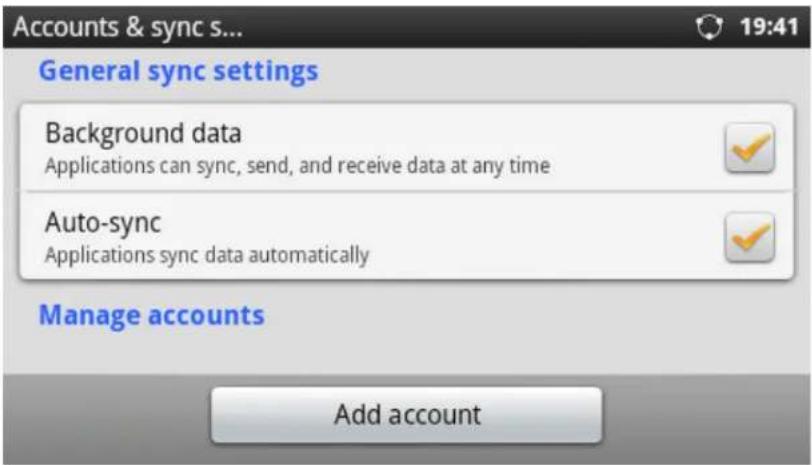
text_image
Accounts & sync s... 19:41 General sync settings Background data Applications can sync, send, and receive data at any time Auto-sync Applications sync data automatically Manage accounts Add accountFigure 137: GXP2200 Account & Sync
Tap "Add account" on the above figure and follow the setup wizard to add account. The following example shows adding a Google account.

text_image
Add an account Skype™ Corporate GoogleFigure 138: GXP2200 Account & Sync - Add An Account

text_image
Setup Wizard 20:46 Add a Google Account Sign in with your Google Account: Username Password Back Sign inFigure 139: GXP2200 Account & Sync - Sign In With Google Account

text_image
Setup Wizard 20:47 Add a Google Account Your Google Account is now linked to this phone. Google applications are syncing data now. Finish setupFigure 140: GXP2200 Account & Sync - Linked With Google Account
Once the account is set up, users will be able to sync up with the following:
- Google Play. Download Google Play Store from GS Market and tap to open it. The linked Google account will be used to sign in Play Store automatically.
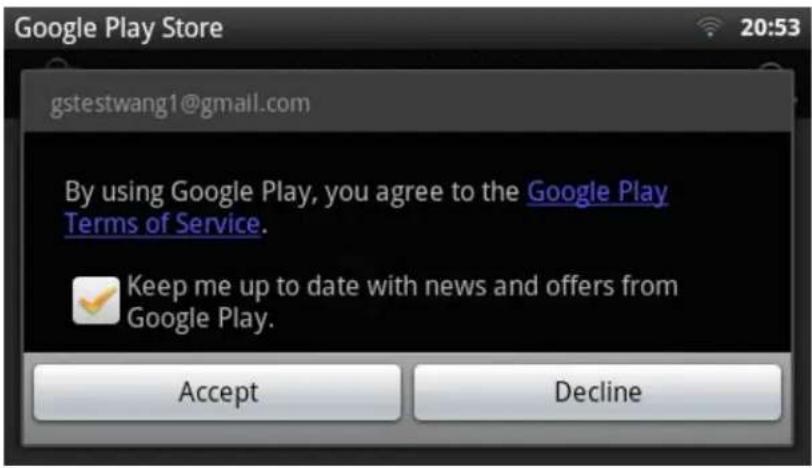
text_image
Google Play Store 20:53 gstestwang1@gmail.com By using Google Play, you agree to the Google Play Terms of Service. Keep me up to date with news and offers from Google Play. Accept DeclineFigure 141: Google Play Store Sign In With Linked Account
- Contacts. Users will see contacts sync up from the linked account in Menu->Contacts. Users could also "Choose contacts to display" and change the display settings for contacts under Menu->Contacts->Options->Display options.
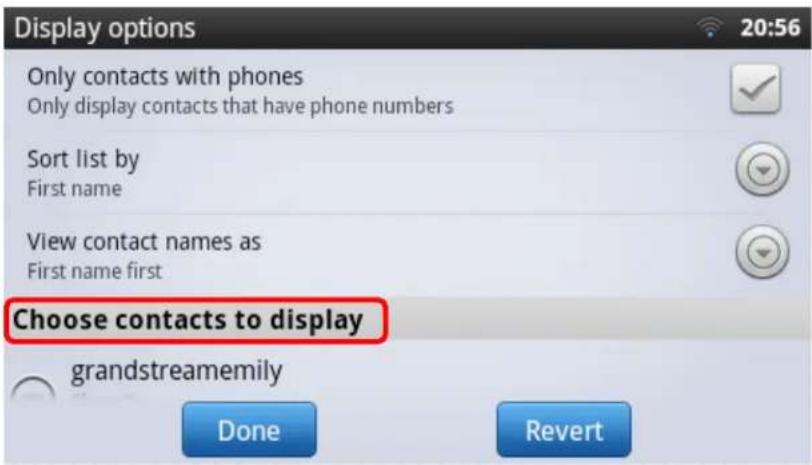
text_image
Display options Only contacts with phones Only display contacts that have phone numbers Sort list by First name View contact names as First name first Choose contacts to display grandstreamemily Done RevertFigure 142: Contacts Display Options - Choose Contacts To Display
STORAGE
Storage shows the internal storage status on the GXP2200.
• Total Space. Total internal storage space on GXP2200.
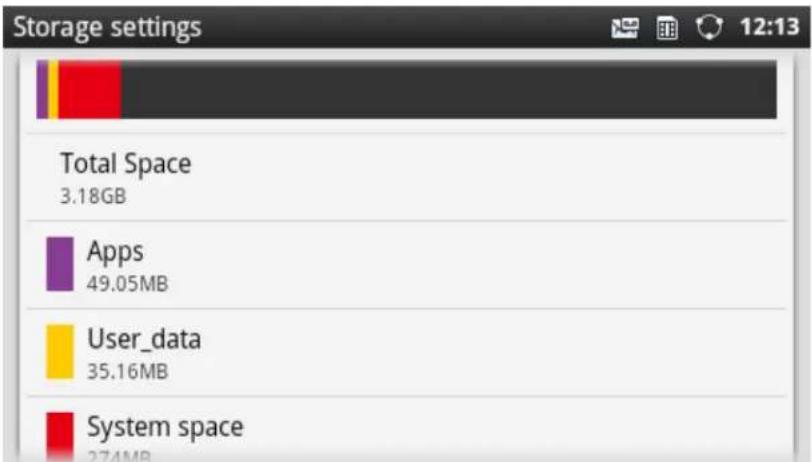
text_image
Storage settings 12:13 Total Space 3.18GB Apps 49.05MB User_data 35.16MB System space 274MBFigure 143: GXP2200 Storage
- Apps. Storage status for Apps installed on the GXP2200.
- User_data. Storage status on User_data directory. Tap on User_data to access the files in File Manager.
• System space. Storage status of system space on the GXP2200.
• Available. Available storage space on the GXP2200.
LANGUAGE & KEYBOARD
- Select language. Tap to open the a list of language options for GXP2200 to display with.
- Select Input Method. Tap and users could select English keyboard or Chinese Keyboard.
- English Input Method. Tap to configure English keyboard settings (Sound on keypress, Popup on keypress, touch to correct works, Auto-capitalization, Show settings key, Input languages and Word suggestion settings).
- Chinese Input Method. Tap to configure Chinese keyboard settings (Audible Touch Tone and Language Switch Button).
DATE & TIME
- Specify NTP Server Address. Assign the URL or IP Address of NTP Server.
- Set date. Set the current date for the GXP2200.
- Select time zone. Select time zone for the GXP2200.
- Set time. Set the current time for the GXP2200.
• Use 24-hour format. Check/uncheck to display the time using 24-hour time format or not. For
example, in 24-hour format, 13:00 will be displayed instead of 1:00 pm.
- Select date format. Select the format of year, month and day for the date to be displayed.
ABOUT PHONE
About Phone lists the GXP2200's account information, network status and system information.
• Account Status. Displays the account name and registration status on the GXP2200.
• Network Status. MAC Address, Address Type, IP Address, Subnet Mask, Default Gateway, DNS Server, Alternative DNS server, NAT Type, VPN IP information will be displayed.
• System Information. Displays the system version of the GXP2200.
ADVANCED SETTINGS
Users could open Advanced Settings to set up advanced features for Account, configure Upgrade settings, Syslog and perform Factory Reset.
- Account. Tap on one account and fill in the necessary information to register the account, which includes Account Active, Account Name, SIP Server, SIP User ID, SIP Auth ID, SIP Auth Password, Voice Mail User ID and Display Name.
- Upgrade.
Upgrade Mode.
This field allows the user to choose the firmware upgrade method: TFTP, HTTP or HTTPS.
➢ Firmware Upgrade and Provisioning.
Defines the rules for automatic upgrade: Always Check at bootup, when F/W pre/suffix changes, Skip the Firmware Check.
HTTP/HTTPS User Name. The user name for the HTTP/HTTPS server.
HTTP/HTTPS Password. The password for the HTTP/HTTPS server.
➢ Firmware Server Path. This defines the server path for the firmware server. It can be different from the configuration server for provisioning.
➢ Config Server Path. This defines the server path for provisioning. It can be different from the firmware server for upgrading.
- Syslog.
Syslog Level. Select the level of logging for syslog. The default setting is None. There are 4 levels: DEBUG, INFO, WARNING AND ERROR.
➢ Syslog Server Address. The URL/IP address for the syslog server.
• Factory Reset. Open and tap on Factory Reset to restore the GXP2200 to factory default settings.
REBOOT
Tap on "Reboot" to reboot the device.
UPGRADING AND PROVISIONING
The GXP2200 can be upgraded via TFTP/HTTP/HTTPS by configuring the URL/IP Address for the TFTP/HTTP/HTTPS server and selecting a download method. Configure a valid URL for TFTP, HTTP or HTTPS; the server name can be FQDN or IP address.
Examples of valid URLs:
firmware.grandstream.com
fw.ipvideotalk.com/gs
UPGRADE AND PROVISIONING CONFIGURATION
There are two ways to setup upgrade and provisioning on GXP2200. They are Keypad Menu and Web GUI.
- Configure via keypad Menu
In GXP2200 Settings, select Advanced Settings->Upgrade. Users may then select the upgrade mode and enter the IP address or FQDN for the Firmware server and the Config server. After making the changes, tap Save button to save the change. Then reboot the phone.

text_image
Upgrade Name: HTTP/HTTPS Password: Firmware Server Path: firmware.grandstream.com| Config Server Path: fm.grandstream.com/gs Save CancelFigure 144: GXP2200 Upgrade Configuration via LCD
- Configure via Web GUI
Open a web browser on PC and enter the IP address for the GXP2200. Then login with the
administrator username and password. Go to Maintenance section, select Upgrade tab. In the Upgrade web page, enter the IP address or the FQDN for the upgrade server and choose to upgrade via TFTP, HTTP or HTTPS. Save and apply the changes, then reboot the phone.
CONFIRM UPGRAGE TO START
After configuring correct upgrading and provisioning information on the GXP2200, reboot the phone. The phone will boot up and start downloading the new files. This might take 1-5 minutes depending on the network environment. Once downloading is done, the phone will start upgrading. If the option "Auto Reboot to Upgrade Without Prompt" under web GUI->Maintenance->Upgrade is set to "No", an upgrading message will show on the LCD (see Figure below). Confirm the message by tapping on "Yes" to start the upgrading process.

text_image
192.168.40.163 Account1 Account2 Upgrade Prompt New firmware version found. Do you want to reboot for upgrade now? Yes NoFigure 145: Start GXP2200 Upgrade

Note:
Please do not interrupt or power cycle the GXP2200 when the upgrading process is on.
If there is no HTTP/TFTP server, users could also upload the firmware to the GXP2200 directly via Web GUI. Please follow the steps below to upload firmware to GXP2200 locally.
- Download the latest GXP2200 firmware file from the following link and save it in your PC; http://www.grandstream.com/support/firmware
• Log in the Web GUI as administrator in the PC; - Go to Web GUI->Maintenance->Upgrade, configure Upgrade Via as "Manually Upload";
- Press the "Upload" button, a window will be prompted to select firmware file to upload;
- Select the firmware file from your PC. Then uploading progress will show at the button where it was "Upload" in the above step;
- When uploading is done, users can see the upgrading process starts on the GXP2200 LCD.
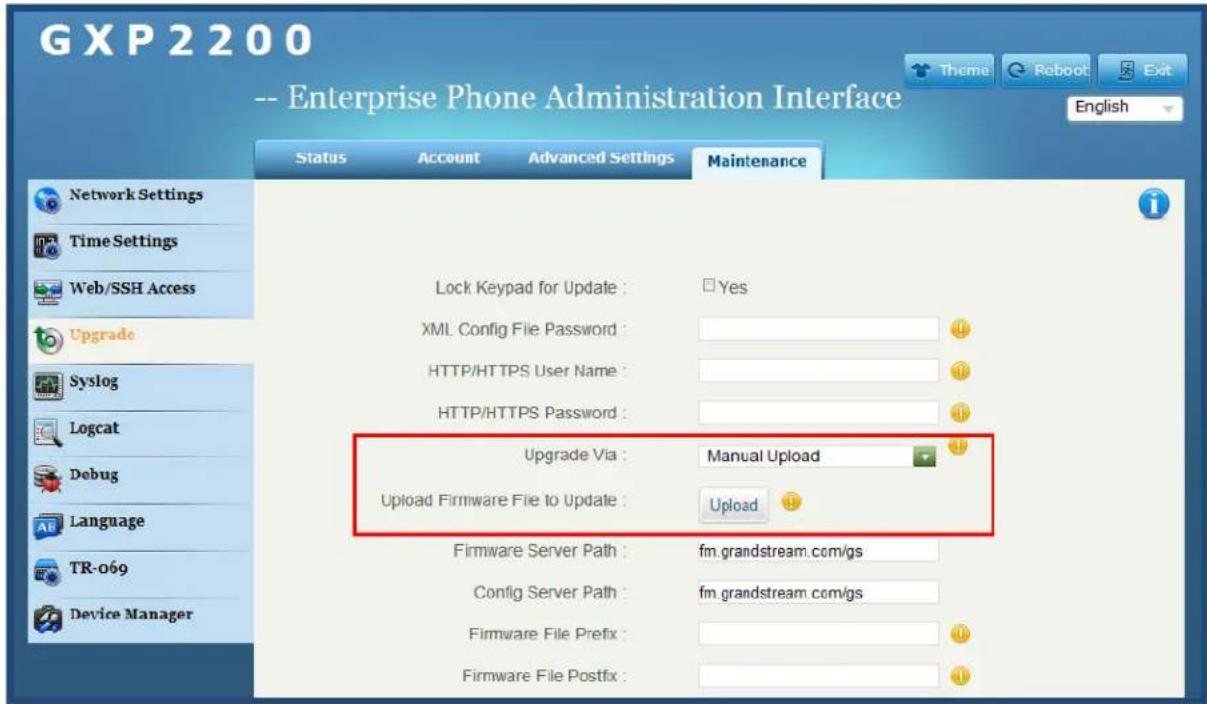
text_image
GXP2200 -- Enterprise Phone Administration Interface Theme Reboot Exit English Status Account Advanced Settings Maintenance Network Settings Time Settings Web/SSH Access Upgrade Syslog Logcat Debug Language TR-069 Device Manager Lock Keypad for Update : Yes XML Config File Password : HTTP/HTTPS User Name : HTTP/HTTPS Password : Upgrade Via : Manual Upload Upload Firmware File to Update : Upload Firmware Server Path : fm.grandstream.com/gs Config Server Path : fm.grandstream.com/gs Firmware File Prefix : Firmware File Postfix :Figure 146: Upload GXP2200 Firmware via Web GUI

text_image
Upgrade Via : Manual Upload Upload Firmware File to Update : Uploading...Figure 147: GXP2200 Firmware Uploading
UPGRADE VIA SD CARD
For users that could not use remote upgrade or could not access the phone's Web GUI to upload firmware, upgrading via SD card is an alternative. Follow the steps below to upgrade GXP2200 via SD card.
• Download the firmware file to PC and save it in SD card;
- Insert the SD card to GXP2200;
• Power cycle the GXP2200;
- When the phone starts booting up, press and hold both * and # keys at the same time for about 5 seconds;
• The GXP2200 will display the upgrading process in the screen;
- Wait until the upgrading is done;
• The GXP2200 will reboot itself;
- Check the firmware status and remove the SD card.
For users that would like to use remote upgrading without a local TFTP server, Grandstream offers a NAT-friendly HTTP server. This enables users to download the latest software upgrades for their phone via this server. Please refer to the webpage:
http://www.grandstream.com/support/firmware.
Alternatively, users can download a free TFTP or HTTP server and conduct a local firmware upgrade. A free windows version TFTP server is available for download from:
http://www.solarwinds.com/products/freetools/free_tftp_server.aspx http://tftpd32.jounin.net/
Instructions for local firmware upgrade via TFTP:
- Unzip the firmware files and put all of them in the root directory of the TFTP server:
- Connect the PC running the TFTP server and the GXP2200 device to the same LAN segment;
- Launch the TFTP server and go to the File menu->Configure->Security to change the TFTP server's default setting from "Receive Only" to "Transmit Only" for the firmware upgrade;
- Start the TFTP server and configure the TFTP server in the phone's web configuration interface;
- Configure the Firmware Server Path to the IP address of the PC;
- Update the changes and reboot the GXP2200.
End users can also choose to download a free HTTP server from http://httpd.apache.org/ or use Microsoft IIS web server.

Note:
When the GXP2200 boots up, it will issue TFTP or HTTP request to download a configuration XML file named "cfgxxxxxxxxxxxxx" followed by "cfgxxxxxxxxxxxxx.xml", where "xxxxxxxxxxxxx" is the MAC address of the phone, i.e., "cfg000b820102ab" and "cfg000b820102ab.xml". If the download of "cfgxxxxxxxxxxxxx.xml" file is not successful, the provision program will download a generic cfg.xml file. The configuration file name should be in lower case letters.
Grandstream SIP Devices can be configured via the Web Interface as well as via a Configuration File (binary or XML) through TFTP or HTTP/HTTPS. The "Config Server Path" is the TFTP, HTTP or HTTPS server path for the configuration file. It needs to be set to a valid URL, either in FQDN or IP address format. The "Config Server Path" can be the same or different from the "Firmware Server Path".
A configuration parameter is associated with each particular field in the web configuration page. A parameter consists of a Capital letter P and 2 to 3 (Could be extended to 4 in the future) digit numeric numbers. i.e., P2 is associated with the "Admin Password" in the Web GUI->Maintenance->Web/SSH Access page. For a detailed parameter list, please refer to the corresponding firmware release configuration template.
When a Grandstream Devices boots up or reboots, it will issue a request for a configuration XML file named "cfgxxxxxxxxxxxx.xml" followed by a file named "cfgxxxxxxxxxxxx", where "xxxxxxxxxxxx" is the MAC address of the device, i.e., "cfg000b820102ab". The configuration file name should be in lower case letters.
For more details on XML provisioning, please refer to the following document:
http://www.grandstream.com/general/gs_provisioning_guide_public.pdf
FACTORY FUNCTIONS AND FACTORY RESET
FACTORY FUNCTIONS
To check the functions of GXP2200 LED, LCD, Keyboard and Audio, open the GXP2200 onscreen MENU->Diagnosis to perform the diagnosis when troubleshooting the device. Tap on the option and follow the instructions on each to perform:
- LCD Diagnosis
- LCD Off
- Keypad Diagnosis
- Touch Screen Diagnosis
- LED Diagnosis
• BLF Expansion Board Diagnosis - Audio Loopback
RESTORE TO FACTORY DEFAULT VIA LCD MENU

Warning:
Restoring the Factory Default Settings will delete all configuration information on the phone. Please backup or print all the settings before you restore to the factory default settings. Grandstream is not responsible for restoring lost parameters and cannot connect your device to your VoIP service provider.
There are two methods to restore the GXP2200 to the factory default settings.
- On GXP2200 idle screen, press MENU button 📊 and tap on Settings. Or go to onscreen MENU->Settings;
- Tap on Advanced Settings->Factory Reset, the following figure will show;

text_image
Factory Reset Factory reset will erase all your configurations Factory ResetFigure 148: GXP2200 LCD - Factory Reset
- Tap on Factory Reset, a confirmation message will show. Tap on OK to confirm.
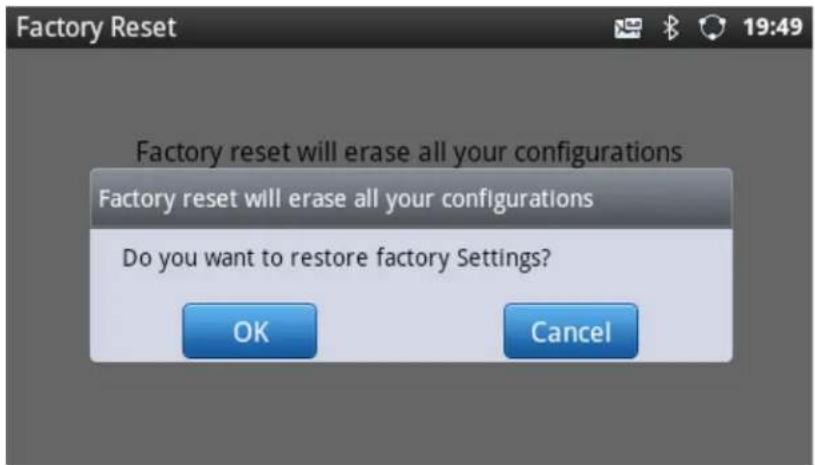
text_image
Factory Reset Factory reset will erase all your configurations Factory reset will erase all your configurations Do you want to restore factory Settings? OK CancelFigure 149: GXP2200 LCD - Confirm Factory Reset
RESTORE TO FACTORY DEFAULT VIA THE WEB GUI
- Login GXP2200 Web GUI and go to Maintenance->Upgrade page;
- At the bottom of the page, click on the Reset button for Factory reset. A dialog box will pop up;
- Click OK to restore the phone to factory settings.
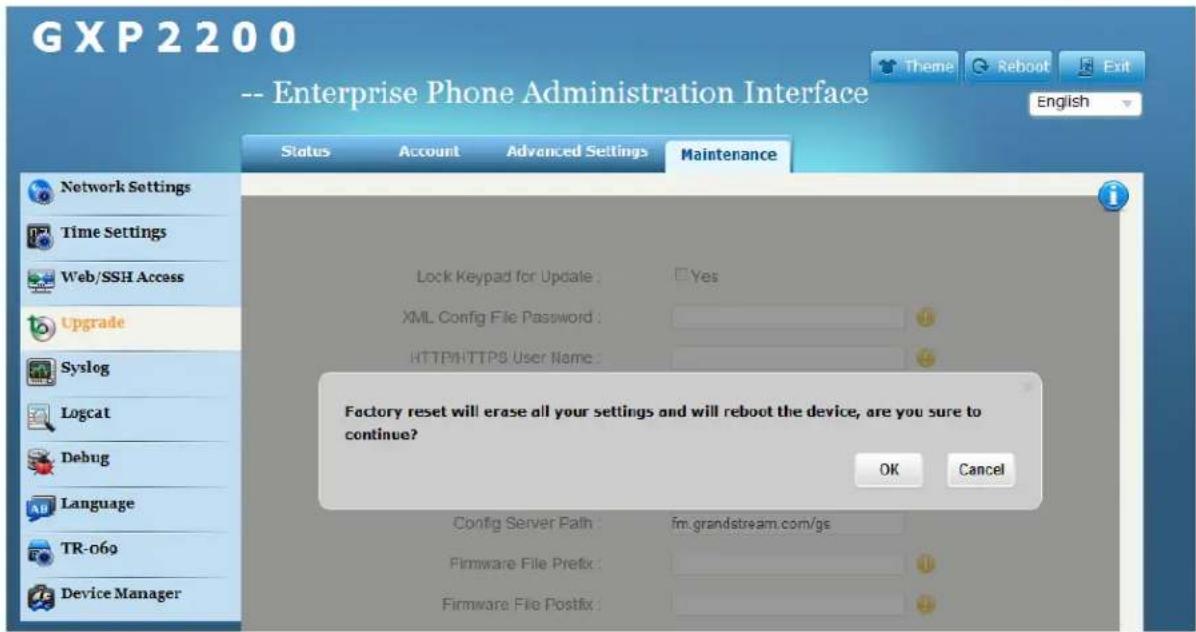
text_image
GXP2200 -- Enterprise Phone Administration Interface Theme Reboot Exit English Status Account Advanced Settings Maintenance Network Settings Time Settings Web/SSH Access Upgrade Syslog Logcat Debug Language TR-069 Device Manager Lock Keypad for Update: Yes XML Config File Password: HTTP/HTTPS User Name: Factory reset will erase all your settings and will reboot the device, are you sure to continue? OK Cancel Config Server Path: fm.grandstream.com/gs Firmware File Prefix: Firmware File Postfix:Figure 150: GXP2200 Web GUI - Confirm Factory Reset
RESTORE TO FACTORY DEFAULT VIA HARD KEYS
If users could not access web GUI for factory reset, or when the GXP2200 cannot bootup, pressing and holding 1 and 9 at the same time for about 5 seconds could reset the GXP2200 before it boots up. Follow the steps below to reset the GXP2200 via hard keys.
• Power cycle the GXP2200;
- When the phone starts booting up, press and hold both 1 and 9 keys at the same time for about 5 seconds;
• The GXP2200 will stay in the booting up screen with the Grandstream logo displayed;
- Wait for about 1 minute till the GXP2200 boots up again;
• The GXP2200 will boot up with factory default settings.
EXPERIENCING THE GXP2200 APPLICATION PHONE
Please visit our website: http://www.grandstream.com to receive the most up-to-date updates on firmware releases, additional features, FAQs, documentation and news on new products.
We encourage you to browse our product related documentation, FAQs and User and Developer Forum for answers to your general questions. If you have purchased our products through a Grandstream Certified Partner or Reseller, please contact them directly for immediate support.
Our technical support staff is trained and ready to answer all of your questions. Contact a technical support member or submit a trouble ticket online to receive in-depth support.
Thank you again for purchasing Grandstream Enterprise Application phone, it will be sure to bring convenience and color to both your business and personal life.
* Android is a trademark of Google Inc.