ViviCam F529 - Camera VIVITAR - Free user manual and instructions
Find the device manual for free ViviCam F529 VIVITAR in PDF.


User questions about ViviCam F529 VIVITAR
0 question about this device. Answer the ones you know or ask your own.
Ask a new question about this device
Download the instructions for your Camera in PDF format for free! Find your manual ViviCam F529 - VIVITAR and take your electronic device back in hand. On this page are published all the documents necessary for the use of your device. ViviCam F529 by VIVITAR.
USER MANUAL ViviCam F529 VIVITAR
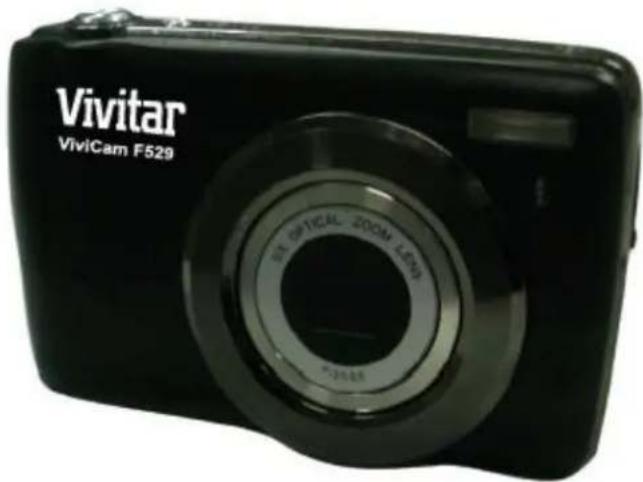
ViviCam F529 Digital Camera
User Manual
text_image
Vivitar ViviCam F529 BY OFFICIAL ZOOM LOOVivitar
we make it easy
© 2010 Sakar International, Inc. All rights reserved.
Windows and the Windows logo are registered trademarks of Microsoft Corporation.
All other trademarks are the property of their respective companies.
Contents
Introduction 2
What Your Camera Includes.... 2
Parts of the Camera 3
Initial Camera Setup....4
Main Camera Modes 6
Camera Technical Specifications....7
Computer System Requirements – Windows 8
Computer System Requirements – Macintosh 8
Using Your Digital Camera 9
Changing Camera Mode 9
Navigating the Menus.... 10
Photo Capture Mode 11
Photo Playback Mode 27
Video Capture Mode 33
Video Playback Mode.... 45
Installing the Software 49
Connecting the Camera to the Computer.... 50
Getting Photos and Videos from your Camera to Your Computer 51
Get started! 52
Transfer media from my camera to my computer manually (Using Windows).... 52
Transfer media from my camera to my computer manually (Using Macintosh)....53
Camera Maintenance 53
Sakar Warranty Card.... 54
Technical Support....55
Troubleshooting.... 55
Introduction
Thank you for purchasing this camera. Everything you need to take quality digital photos and videos is included with your camera.
Vivitar makes capturing those special moments as easy as possible.
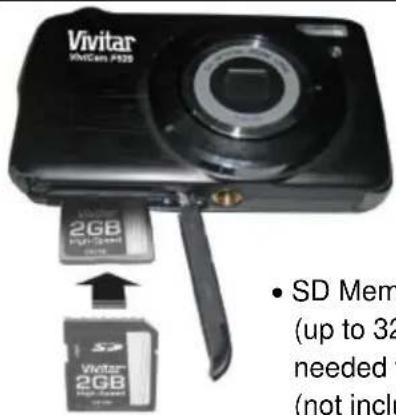
Note: Your camera needs an SD Memory card (up to 32GB) for normal use.
SD Memory cards are not included and need to be purchased separately.
Please read this manual carefully first in order to get the most out of your digital camera.
What Your Camera Includes
- Digital Camera
- Lithium Battery
- USB cable
- Vivitar Experience Image Manager software Installation CD
- Wrist Strap

text_image
Vivitar VIViCam F529 ① ② ③ ④ ⑤Note: SD Memory Card not included
Parts of the Camera
- Power button
- Shutter button
- LCD Screen
- LED
- Zoom Out
- Zoom In
- Up / Flash / Slideshow
- Right / Delete button
- Down / ViviLink button
- Menu / SET button
- Left / Scene button
- MODE button
- Microphone
- Flash Light
- USB Slot
- Tripod Socket
- Digital Lens
- Wrist Strap connector
-
Speaker
-
Battery/ SD Memory Card slot

text_image
Vivitar ViviCam F529 13 14 13 12 6 5 4 3 2 1 2 1 7 8 10 9 11 15 20 16 17 18 19Initial Camera Setup
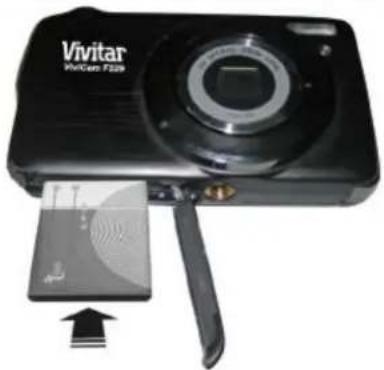
Installing the Batteries
natural_image
Black Vivitar 529 digital camera with attached card and antenna (no visible text or symbols on device body)Installing the Memory Card
text_image
Vivitar VIVITAR P325 2GB VIVITAR 2GB • SD Mem (up to 32 needed (not incl- SD Memory card (up to 32GB) needed for normal use (not included)
Turning On the Camera

natural_image
Close-up of a car's head and torso with a magnified inset showing internal components (no visible text or symbols)Using the Camera

text_image
Vivitar® we make it easy Selecting the modes Accessing the menuWhen powering the camera ON for the first time the camera will take you through the initial camera setup.
Powering the Camera ON
1) Make sure the batteries have been inserted properly into your digital camera.
2) Make sure an SD card has been inserted into your camera.
3) Press the POWER ⏻ button to turn on the camera.
Setting the Camera Language
1) You will first be prompted to select a language for the camera. The Language selection menu will appear. Select the language of your choice and press the M (MENU)/SET button to confirm the selection.
2) After selecting a language, you will be asked if you would like to continue with the initial camera setup. A message will appear: "Continue with Camera Setup?" Select "Yes" to continue or "No" to exit the setup.
Note: If you select "No" and decide to leave the camera setup, the camera will be set to its default settings. These settings can be adjusted at any time manually through the menus in the camera.
Setting the Date and Time
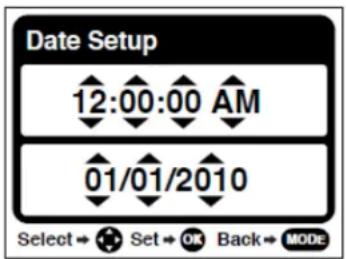
The next step in the initial camera setup is to set the date and time on the camera.
text_image
Date Setup 12:00:00 AM 01/01/2010 Select → ✕ Set → OK Back → MODESet the Date and Time as Desired and press the M (MENU)/SET button to confirm the selection and move to the next part of the camera setup.
Setting the ViviLink Default Option
Once the Date and Time have been set, you will be asked to set the default ViviLink destination for photos and videos taken with your camera.
The ViviLink technology allows you to quickly and easily upload your camera's photos and videos to the social networks of your choice with the accompanying software application.
1) First you will be asked to choose the default ViviLink social network for Photos. Highlight the desired default social network and press the M (MENU)/SET button to confirm the selection.
2) Next you will be asked to choose the default ViviLink social network for Videos. Highlight the desired default social network and press the M (MENU)/SET button to confirm the selection.
3) After the ViviLink Video option is confirmed the camera is now ready to use.
Main Camera Modes
Your camera has different modes for the various camera functions.
You can switch modes by pressing the MODE button on your camera after the camera has been powered ON.

Photo Capture Mode
Use this mode to capture pictures with your camera.
This is the default mode when the camera is powered ON.
To take a picture, aim your camera as desired and press the "Shutter" button.
The picture will be automatically saved to your camera's memory card.
To access the various menus for the Photo Capture mode, press the M (MENU)/SET button while in the Photo Capture mode.

Video Capture Mode
Use this mode to capture videos with your digital camera.
After turning on your camera, press the MODE button once to open the Video Capture mode. To take a video, aim your camera as desired and press the “Shutter” button to start the record. A red record indicator will appear on the LCD screen while record is in progress. To stop the record, press the “Shutter” button again. The video will be automatically saved to your camera’s memory card.
To access the various menus for the Video Capture mode, press the M (MENU)/SET button while in the Video Capture mode.

Playback Mode (Photos & Videos)
Use this mode to view and manage the photos and videos on your camera.
After turning on your camera, press the MODE button twice to open the Playback mode for photos and videos. You can scroll through the photos and videos that you've previously taken to view, edit or delete them as desired.
To access the various menus for the Playback mode for photos and videos, press the M (MENU)/SET button while in the Playback mode.
Camera Technical Specifications
| Image Sensor | CMOS Sensor |
| Image Resolution | (14M) 4416 x 3312, (12M) 4000 x 3000 pixels, (10M) 3648 x 2736 pixels, (8M) 3264 x 2448 pixels, (7M HD) 3648 x 2048 pixels, (5M) 2592 x 1944 pixels, (3M) 2048 x 1536 pixels, (2M HD) 1920 x 1080 pixels and (VGA) 640 x 480 pixels |
| Video Resolution | 640X480 pixels (30 fps), 320X240 (30 fps) |
| File Format | JPEG/AVI |
| Internal Memory | 1 Test Photo Use Only |
| External Memory | SD Card (up to 32GB) |
| LCD Display | 2.7 Inch TFT |
| Lens | F=3.0-5.5 |
| Zoom | 4X Digital Zoom, 5X Optical Zoom |
| Exposure | -3.0EV ~ +3.0EV |
| White Balance | Auto, Daylight, Cloudy, Incandescent , Fluorescent |
| ISO | Auto / 100 / 200 / 400 |
| Scene | Auto / Scenery / Portrait / Night Scenery / Night Portrait / High Sensitivity / Sport / Beach / Party |
| Flash | Auto/Force/Red Eye/Off |
| Self-Timer | 2, 5 or 10 second delay |
| Anti-Shake | Yes |
| Print Photos | Yes |
| Face Detect | Yes |
| Smile Capture | Yes |
| Interface | USB 2.0 |
| System Requirements | Windows XP and above / Mac OSX 10.5 and above |
| Battery | Lithium Battery (BL-5B) |
| Working Temperature | 0~40 °C |
Computer System Requirements – Windows
To be able to download photos and videos to your PC, you will need the following minimum configuration:
- Pentium 4 processor or above with Windows XP service pack 2, Windows Vista or Windows 7
- 512 MB RAM, with 100MB of free disk space
• 1024 x 768 Recommended screen resolution
• 16-bit color or higher display adaptor - CD-ROM Drive
- QuickTime 6 or higher
• Microsoft Internet Explorer 7 or higher
• Windows Media Player 10 or higher - Internet connection required
Computer System Requirements – Macintosh
Macintosh with Intel processor running Mac OS X v10.5 or later
• 256 MB RAM, 100 MB free disk space
• Display: 1024 x 768 or higher-resolution monitor
- QuickTime 6 or higher
- Internet connection required
Using Your Digital Camera
Make sure the batteries have been inserted properly into your digital camera. If your camera comes with a rechargeable lithium battery, make sure it is fully charged before the first use.
Powering the camera ON
Press the Power button to turn your camera ON. The camera will be in Photo Capture mode to start.
Powering the camera OFF
While the camera is on, you can press the Power button 📍 again at any point to turn your camera OFF. You will see a “Goodbye” splash screen and then the camera will power off completely.
Note: Your digital camera also has an Auto Power Off feature that will automatically turn off your camera after a specific period of time that your camera is left idle. The Auto Power Off settings can be set from the Auto Power Off settings menu.
Changing Camera Mode
Your camera has three main modes:
1) Photo Capture Mode - Use this mode to capture photos with your camera.
2) Video Capture Mode - Use this mode to capture videos with your camera.
3) Playback Mode (for photos and videos) - Use this mode to view the photos and videos you have already taken with your camera.
When the camera is first powered ON, the Photo Capture Mode will be active. The icons that appear on the LCD screen are the best default settings so that you can begin to capture and enjoy clear quality photos.
To change the active camera mode, make sure the camera is powered ON and press the MODE button on the back of the camera.

When in Photo Capture Mode, this icon will display on the top-left corner of the LCD display

When in Video Capture Mode, this icon will display on the top-left corner of the LCD display

When in Playback Mode, this icon will display on the top-left corner of the LCD display
Navigating the Menus
Each camera mode has a set of menus specific to that mode.
1) Press the M (Menu)/SET button to open the menus for the current mode.
2) Press the LEFT or RIGHT direction control buttons to scroll between the various menus for the current mode.
3) Press the UP or DOWN direction control buttons to highlight the desired menu selection.
4) Press the M (Menu) / SET button to confirm and select the highlighted menu option.
5) If the selection can be remembered by the camera, a selection icon will appear to the right of the selected menu option. Changes made to these options will remain as is until you decide to change them again at a later time.
6) Some menu options are single-use functions that are not remembered by the camera and do not display this icon when selected.
7) At any time you can press the MODE button to exit the menus and return to the previous screen.
Photo Capture Mode
The Photo Capture mode allows you to capture pictures with your digital camera.
Taking a Picture
1) While in Photo Capture mode, use the LCD display on the back of the camera to direct the camera at the scene you would like to capture.
2) Click the T/Zoom In and W/Zoom Out buttons to zoom in/out if desired.
Note: The actual shape of these buttons may vary per camera model.
3) Click the Shutter button on the top of the camera to take the picture.
4) The picture will automatically be saved to the memory or SD card.
Photo Capture Mode Quick Function Buttons
Your digital camera has a four-directional pad that functions as Quick Function buttons:
| Button | Icon appearing and Action | |
 | Left | Scene Selection - Opens the Scene menu |
 | Up | Flash Options - Toggles the Flash options appearing on the LCD |
 | Right | Delete Last Photo – Allows you to delete the last photo taken |
 | Down | ViviLink – Opens the ViviLink for Photos menu |
Hide/Show the LCD Icons
The display of the icons on the LCD screen can be hidden or visible as desired.
1) Hold the MODE button for 2 seconds to hide the display of the icons on the screen.
2) Press the MODE button again to redisplay the icons on the screen.
Flash Options
There are several Flash options available on your camera. The options appear on the Photo Capture Mode LCD screen in the sequence.
To change the Flash mode, press the Up Quick Function button until you arrive at your desired settings.
 |  |  |  |
| Forced Off (Default) | Auto Flash | Forced On | Red Eye |
Photo Capture Mode Menus
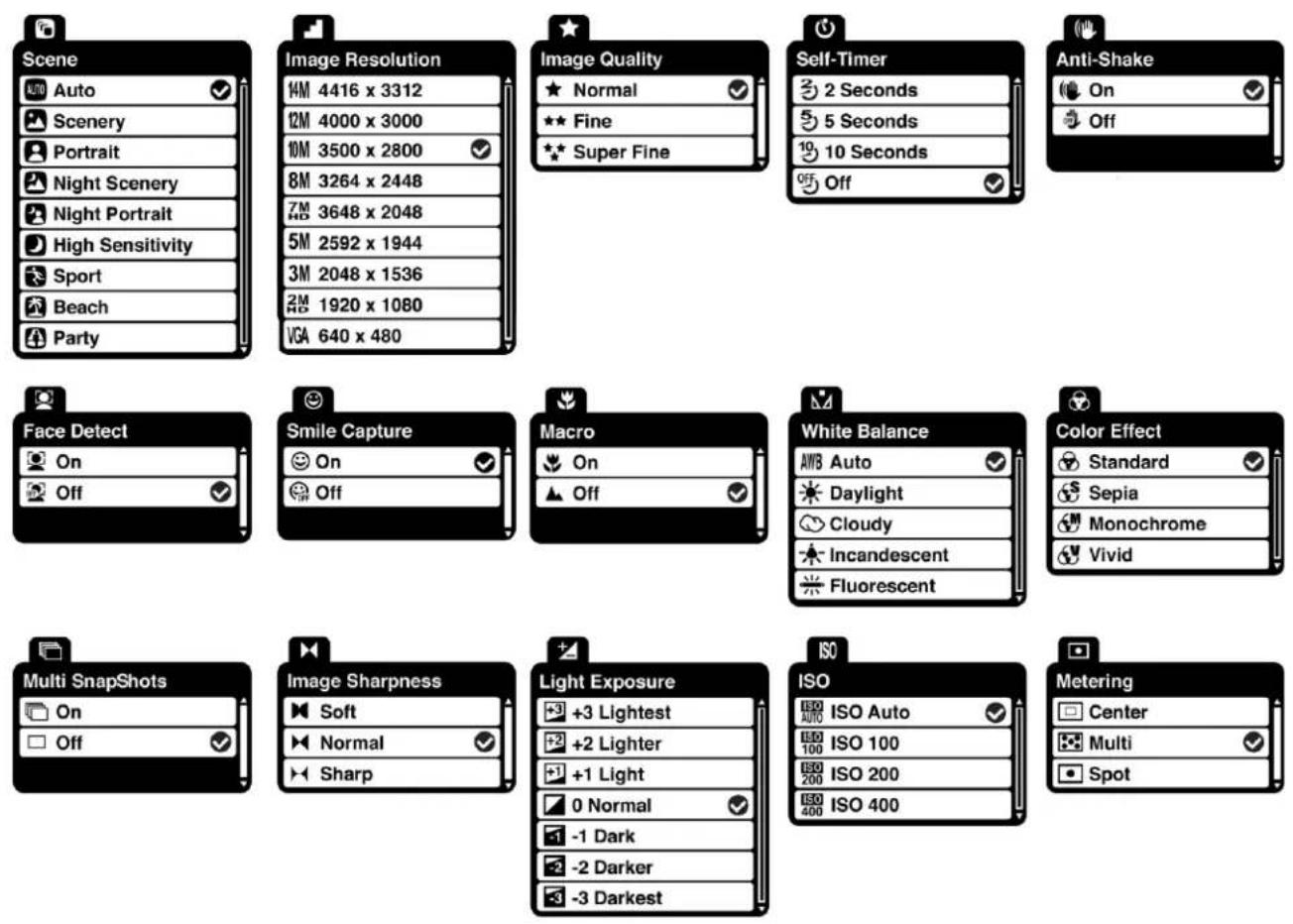
The following are the menus that appear in your camera's Photo Capture Mode:
text_image
Language English Français Español Português Deutsch Nederlands Italiano Русский Türkçe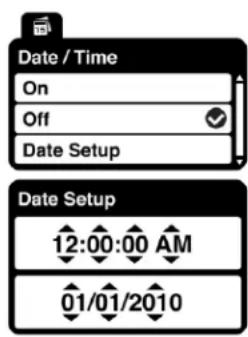
text_image
Date / Time On Off Date Setup 12:00:00 AM 01/01/2010
text_image
Silent Mode Yes No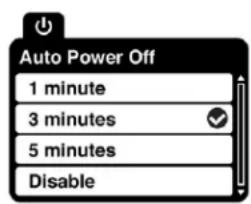
text_image
Auto Power Off 1 minute 3 minutes 5 minutes Disable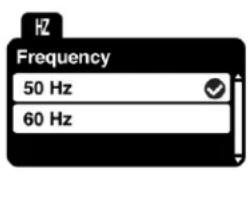
text_image
Hz Frequency 50 Hz 60 Hz
text_image
Format Memory Card Yes Cancel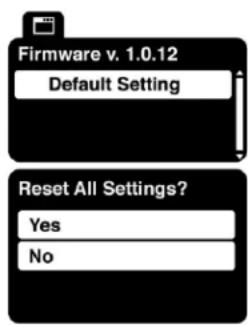
text_image
Firmware v. 1.0.12 Default Setting Reset All Settings? Yes NoScene Menu
The Scene Menu allows you to choose scene settings that allow your camera to adapt properly to your current environment.
1) Press the M (Menu)/SET button to open the menus for the current mode.
2) Press the LEFT or RIGHT direction control buttons to scroll and select the chosen menu.
3) Press the UP or DOWN direction control buttons to scroll through the menu options.
4) Press the M (MENU)/SET button to select the desired option.
5) A √ selected option icon will appear on the selected item.
6) Press the LEFT or RIGHT button to select the next menu item.
7) Press the MODE button to exit the menu and return to your previous mode.
8) An icon reflecting your selection will display on the LCD screen.
9) Remember that this setting will be saved by your camera until you manually change the setting or restore the camera's default factory settings.
Image Resolution Menu
The Image Resolution menu allows you to choose the desired size of the images taken by your camera. Keep in mind that images with a higher resolution will also take up more of your camera's memory.
1) Press the M (MENU)/SET button to open the menus for the current mode.
2) Press the LEFT or RIGHT direction control buttons to scroll and select the chosen menu.
3) Press the UP or DOWN direction control buttons to scroll through the menu options.
4) Press the M (MENU)/SET button to select the desired option.
5) A √ selected option icon will appear on the selected item.
6) Press the LEFT or RIGHT button to select the next menu item.
7) Press the MODE button to exit the menu and return to your previous mode.
8) An icon reflecting your selection will display on the LCD screen.
9) Remember that this setting will be saved by your camera until you manually change the setting or restore the camera's default factory settings.
Image Quality Menu ★
The Image Quality menu allows you to select the desired quality level of the images taken by your camera. Keep in mind that images with a higher image quality level will also take up more memory on your camera.
1) Press the M (MENU)/SET button to open the menus for the current mode.
2) Press the LEFT or RIGHT direction control buttons to scroll and select the chosen menu.
3) Press the UP or DOWN direction control buttons to scroll through the menu options.
4) Press the M (MENU)/SET button to select the desired option.
5) A √ selected option icon will appear on the selected item.
6) Press the LEFT or RIGHT button to select the next menu item.
7) Press the MODE button to exit the menu and return to your previous mode.
8) An icon reflecting your selection will display on the LCD screen.
9) Remember that this setting will be saved by your camera until you manually change the setting or restore the camera's default factory settings.
Self-Timer Menu

The Self-Timer menu allows you to set a delay between the time that the camera's shutter button is pressed and the actual capture of the picture.
This is an optimal feature if you don't just want to take the picture but would also would like to be in the picture yourself. Just set the desired self-timer delay, press the shutter button on your camera and position yourself in front of the camera as desired.
1) Press the M (MENU)/SET button to open the menus for the current mode.
2) Press the LEFT or RIGHT direction control buttons to scroll and select the chosen menu.
3) Press the UP or DOWN direction control buttons to scroll through the menu options.
4) Press the M (MENU)/SET button to select the desired option.
5) A selected option icon will appear on the selected item.
6) Press the LEFT or RIGHT button to select the next menu item.
7) Press the MODE button to exit the menu and return to your previous mode.
8) An icon reflecting your selection will display on the LCD screen.
9) Remember that this setting will be saved by your camera until you manually change the setting or restore the camera's default factory settings.
Anti-Shake Menu

The Anti-Shake feature reduces image distortion that can be caused by movement of the camera while capturing the image.
1) Press the M (MENU)/SET button to open the menus for the current mode.
2) Press the LEFT or RIGHT direction control buttons to scroll and select the chosen menu.
3) Press the UP or DOWN direction control buttons to scroll through the menu options.
4) Press the M (MENU)/SET button to select the desired option.
5) A √ selected option icon will appear on the selected item.
6) Press the LEFT or RIGHT button to select the next menu item.
7) Press the MODE button to exit the menu and return to your previous mode.
8) An icon reflecting your selection will display on the LCD screen.
9) Remember that this setting will be saved by your camera until you manually change the setting or restore the camera's default factory settings.
Face Detect Menu

The Face Detect feature when set to ‘On’ allows the camera to use a subject’s face as the basis for balancing the other colors and focus in the camera’s display. This feature is meant to ensure that the color and focus of your pictures will be consistently sharp and high-quality.
Note: To properly use the Face Detect option please ensure the following:
- Macro mode off - Face Detect will not work if the camera is in Macro mode. Select the Macro 'Off'option in the Macro menu. The mountain ▲icon will appear on the LCD.
- Anti-Shake - Ensure that the Anti-Shake option is set to 'On'. The Anti-Shake option is 'On' by default when you start using your camera and assists you in properly focussing the image.
- Distance from the camera – The subject's face must be no further than 8 to 9 feet (3.5 meters) from the camera and the face must cover at least 20% (1 / 5th) of the picture as ‘seen’ on the LCD screen.
- Facing the camera - The face of the subject(s) you are photographing must be facing the camera and must hold the pose for at least 4 to 5 seconds until the green square(s) appears around the subject's face.
Face Detect will not work with a side shot of the subject's head.
1) Press the M (MENU)/SET button to open the menus for the current mode.
2) Press the LEFT or RIGHT direction control buttons to scroll and select the chosen menu.
3) Press the UP or DOWN direction control buttons to scroll through the menu options.
4) Press the M (MENU)/SET button to select the desired option.
5) A √ selected option icon will appear on the selected item.
6) Press the LEFT or RIGHT button to select the next menu item.
7) Press the MODE button to exit the menu and return to your previous mode.
8) An icon reflecting your selection will display on the LCD screen.
9) Remember that this setting will be saved by your camera until you manually change the setting or restore the camera's default factory settings.
Smile Capture Menu 😊
The Smile Capture feature when set to ‘On’ allows the camera to automatically take a picture when it detects that a subject in the picture is smiling.
Note: To properly use the Smile Capture feature please ensure the following:
- Macro mode off – Smile Capture will not work if the camera is in Macro mode. Select the Macro 'Off' option in the Macro menu. The mountain ▲icon will appear on the LCD.
- Anti-Shake - Ensure that the Anti-Shake option is set to 'On'. The Anti-Shake option is 'On' by default when you start using your camera and assists you in properly focussing the image.
- Distance from the camera – The subject's face must cover a majority of the picture as 'seen' on the LCD screen.
- Facing the camera - The face of the subject(s) you are photographing must be facing the camera and must hold the pose for at least 4 to 5 seconds until the green square(s) appears around the subject's face.
Once a smile is detected the camera will automatically take the picture.
Smile Capture will not work with a side shot of the subject's head.
1) Press the M (MENU)/SET button to open the menus for the current mode.
2) Press the LEFT or RIGHT direction control buttons to scroll and select the chosen menu.
3) Press the UP or DOWN direction control buttons to scroll through the menu options.
4) Press the M (MENU)/SET button to select the desired option.
5) A √ selected option icon will appear on the selected item.
6) Press the LEFT or RIGHT button to select the next menu item.
7) Press the MODE button to exit the menu and return to your previous mode.
8) An icon reflecting your selection will display on the LCD screen.
9) Remember that this setting will be saved by your camera until you manually change the setting or restore the camera's default factory settings.
Macro Menu

The Macro mode allows you to capture images at very close range. When enabled, the Macro mode will allow your camera to focus on an object that is very close to the camera. The flower icon 🖼️ will appear on the LCD and indicates that the Macro mode is on.
To capture photos in the regular mode, select the Macro 'Off' option. The mountain icon ▲ will appear on the LCD.
Note: The Macro mode must be turned off when you want to use the following features of your camera: Flash, Face Detect and Smile Capture.
To turn Macro mode off, select the Macro 'Off'option. The mountain icon ▲will appear on the LCD.
1) Press the M (MENU)/SET button to open the menus for the current mode.
2) Press the LEFT or RIGHT direction control buttons to scroll and select the chosen menu.
3) Press the UP or DOWN direction control buttons to scroll through the menu options.
4) Press the M (MENU)/SET button to select the desired option.
5) A selected option icon will appear on the selected item.
6) Press the LEFT or RIGHT button to select the next menu item.
7) Press the MODE button to exit the menu and return to your previous mode.
8) An icon reflecting your selection will display on the LCD screen.
9) Remember that this setting will be saved by your camera until you manually change the setting or restore the camera's default factory settings.
White Balance Menu
The White Balance feature allows your camera to adjust the coloring of the captured images depending on the type of light source in the current environment.
Properly adjusting the White Balance setting to match your current environment will allow the camera to properly balance the colors in the images that are taken with your camera.
1) Press the M (MENU)/SET button to open the menus for the current mode.
2) Press the LEFT or RIGHT direction control buttons to scroll and select the chosen menu.
3) Press the UP or DOWN direction control buttons to scroll through the menu options.
4) Press the M (MENU)/SET button to select the desired option.
5) A √ selected option icon will appear on the selected item.
6) Press the LEFT or RIGHT button to select the next menu item.
7) Press the MODE button to exit the menu and return to your previous mode.
8) An icon reflecting your selection will display on the LCD screen
9) Remember that this setting will be saved by your camera until you manually change the setting or restore the camera's default factory settings.
Color Effect Menu
You can choose to add a color effect to the images taken with your camera.
1) Press the M (MENU)/SET button to open the menus for the current mode.
2) Press the LEFT or RIGHT direction control buttons to scroll and select the chosen menu.
3) Press the UP or DOWN direction control buttons to scroll through the menu options.
4) Press the M (MENU)/SET button to select the desired option.
5) A √ selected option icon will appear on the selected item.
6) Press the LEFT or RIGHT button to select the next menu item.
7) Press the MODE button to exit the menu and return to your previous mode.
8) Remember that this setting will be saved by your camera until you manually change the setting or restore the camera's default factory settings.
Multi SnapShots Menu

When enabled, the Multi SnapShots feature allows you to take five rapid snapshots in a row with a single click of the shutter button.
This feature can be effective when trying to capture a particular moment in a sporting event or other scenes with quick movements.
1) Press the M (MENU)/SET button to open the menus for the current mode.
2) Press the LEFT or RIGHT direction control buttons to scroll and select the chosen menu.
3) Press the UP or DOWN direction control buttons to scroll through the menu options.
4) Press the M (MENU)/SET button to select the desired option.
5) A √ selected option icon will appear on the selected item.
6) Press the LEFT or RIGHT button to select the next menu item.
7) Press the MODE button to exit the menu and return to your previous mode.
8) An icon reflecting your selection will display on the LCD screen
9) Remember that this setting will be saved by your camera until you manually change the setting or restore the camera's default factory settings.
Image Sharpness Menu
You can set the level of sharpness in the images taken with your camera. The sharpness level dictates if the edges of objects in the image are more or less distinct.
1) Press the M (MENU)/SET button to open the menus for the current mode.
2) Press the LEFT or RIGHT direction control buttons to scroll and select the chosen menu.
3) Press the UP or DOWN direction control buttons to scroll through the menu options.
4) Press the M (MENU)/SET button to select the desired option.
5) A √ selected option icon will appear on the selected item.
6) Press the LEFT or RIGHT button to select the next menu item.
7) Press the MODE button to exit the menu and return to your previous mode.
8) An icon reflecting your selection will display on the LCD screen
9) Remember that this setting will be saved by your camera until you manually change the setting or restore the camera's default factory settings.
Light Exposure Menu
The Light Exposure setting helps you control the amount of light that enters your camera's lens. This setting should be adjusted when the environment is lighter or darker than normal.
When the environment has more light than is needed, reduce the exposure setting (by using the negative - count) to reduce the amount of light allowed into the lens by your camera.
If the environment has less light (darker) than is needed, increase the exposure setting (by using the positive + count) to increase the amount of light allowed into the lens by your camera.
1) Press the M (MENU)/SET button to open the menus for the current mode.
2) Press the LEFT or RIGHT direction control buttons to scroll and select the chosen menu.
3) Press the UP or DOWN direction control buttons to scroll through the menu options.
4) Press the M (MENU)/SET button to select the desired option.
5) A √ selected option icon will appear on the selected item.
6) Press the LEFT or RIGHT button to select the next menu item.
7) Press the MODE button to exit the menu and return to your previous mode.
8) An icon reflecting your selection will display on the LCD screen
9) Remember that this setting will be saved by your camera until you manually change the setting or restore the camera's default factory settings.
ISO Menu ISO
The ISO menu allows you to set the level of sensitivity that your camera has to light in the surrounding environment. When the ISO level is increased, the image sensor in your camera will be more sensitive to light and allow you to capture images in lower-light situations. The higher sensitivity to light however, may reduce the quality of the images that are taken.
When the ISO is reduced, the image sensor in your camera will be less sensitive to light and will optimize the image quality in environments with bright lighting.
1) Press the M (MENU)/SET button to open the menus for the current mode.
2) Press the LEFT or RIGHT direction control buttons to scroll and select the chosen menu.
3) Press the UP or DOWN direction control buttons to scroll through the menu options.
4) Press the M (MENU)/SET button to select the desired option.
5) A √ selected option icon will appear on the selected item.
6) Press the LEFT or RIGHT button to select the next menu item.
7) Press the MODE button to exit the menu and return to your previous mode.
8) An icon reflecting your selection will display on the LCD screen
9) Remember that this setting will be saved by your camera until you manually change the setting or restore the camera's default factory settings.
Metering Menu
The Metering setting will affect how your camera focuses when capturing an image. Depending on your selection, the camera will be more sensitive to focusing on particular areas in the display and adjust the image color and lighting accordingly.
Center – Averages the light metered from the entire frame, but giving greater weight to the subjectin the center
Multi – Used in standard conditions the camera divides and adjusts the settings of the image into several zones for light metering such as complex light conditions, position of subject, brightness, background, direct light and scenes
Spot – Meters the area within the spot point frame at the center of the LCD to set the exposure on the subject in the center of the monitor.
1) Press the M (MENU)/SET button to open the menus for the current mode.
2) Press the LEFT or RIGHT direction control buttons to scroll and select the chosen menu.
3) Press the UP or DOWN direction control buttons to scroll through the menu options.
4) Press the M (MENU)/SET button to select the desired option.
5) A √ selected option icon will appear on the selected item.
6) Press the LEFT or RIGHT button to select the next menu item.
7) Press the MODE button to exit the menu and return to your previous mode.
8) An icon reflecting your selection will display on the LCD screen
9) Remember that this setting will be saved by your camera until you manually change the setting or restore the camera's default factory settings.
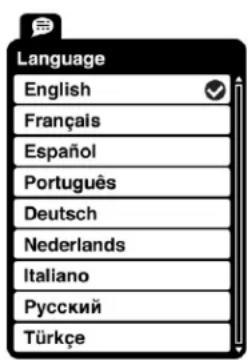
Language Menu

You can select your camera's language setting by selecting the desired language from the Language menu.
1) Press the M (MENU)/SET button to open the menus for the current mode.
2) Press the LEFT or RIGHT direction control buttons to scroll and select the chosen menu.
3) Press the UP or DOWN direction control buttons to scroll through the menu options.
4) Press the M (MENU)/SET button to select the desired option.
5) A √ selected option icon will appear on the selected item.
6) Press the LEFT or RIGHT button to select the next menu item.
7) Press the MODE button to exit the menu and return to your previous mode.
8) Remember that this setting will be saved by your camera until you manually change the setting or restore the camera's default factory settings.
Date/Time Menu

When you capture an image with your camera, the image will include a time stamp with the date and time that the image was taken.
The Date/Time menu allows you to set your camera's date and time as desired. You can also disable the timestamp for future images that will be taken with your camera.
On – The timestamp will appear on photos taken
Off – The date stamp will not appear on photos taken
To Enable/Disable the Timestamp:
1) Press the M (MENU)/SET button to open the menus for the current mode.
2) Press the LEFT or RIGHT direction control buttons to scroll and select the chosen menu.
3) Press the UP or DOWN direction control buttons to scroll through the menu options.
4) Press the M (MENU)/SET button to select the desired option.
5) A √ selected option icon now appears to the right of the option name.
6) Press the LEFT or RIGHT button to select the next menu item.
7) Press the MODE button to exit the menu and return to your previous mode.
8) Remember that this setting will be saved by your camera until you manually change the setting or restore the camera's default factory settings.
To Set the Date and Time:
1) Press the M (MENU)/SET button to open the menus for the current mode.
2) Press the LEFT or RIGHT direction control buttons to scroll and select the chosen menu.
3) Press the UP or DOWN direction control buttons to scroll through the menu options.
4) Highlight the "Date Setup" menu option.
5) Press the M (MENU)/SET button to select the desired option.
6) The Date Setup submenu will open.
7) Scroll through the window with the RIGHT and LEFT navigation buttons. For each field in the menu, use the UP and DOWN navigation buttons to set the time and date.
8) Press the MODE button to exit the menu and return to your previous screen.
Silent Mode Menu
You have the option of activating the camera's silent mode to disable all of the sound effects that the camera emits when performing camera functions.
1) Press the M (MENU)/SET button to open the menus for the current mode.
2) Press the LEFT or RIGHT direction control buttons to scroll and select the chosen menu.
3) Press the UP or DOWN direction control buttons to scroll through the menu options.
4) Press the M (MENU)/SET button to select the desired option.
5) A √ selected option icon will appear on the selected item.
6) Press the LEFT or RIGHT button to select the next menu item.
7) Press the MODE button to exit the menu and return to your previous mode.
8) Remember that this setting will be saved by your camera until you manually change the setting or restore the camera's default factory settings.
Auto Power Off Menu ⏻
You can use the Auto Power Off feature in order to conserve you camera's battery life. The designated time represents when your camera will automatically power off.
When the camera sits idle for the designated period of time, the camera will shut off completely and will need to be powered on again with the power button before the next use.
1) Press the M (MENU)/SET button to open the menus for the current mode.
2) Press the LEFT or RIGHT direction control buttons to scroll and select the chosen menu.
3) Press the UP or DOWN direction control buttons to scroll through the menu options.
4) Press the M (MENU)/SET button to select the desired option.
5) A √ selected option icon will appear on the selected item.
6) Press the LEFT or RIGHT button to select the next menu item.
7) Press the MODE button to exit the menu and return to your previous mode.
8) Remember that this setting will be saved by your camera until you manually change the setting or restore the camera's default factory settings.
Frequency Menu HZ
The options in the Frequency menu represent the frequency of the electrical current in flourescent lighting sources in your locale. If your camera is set to a frequency that does not match your country's electric current, you may see waves on the images taken by your camera.
1) Press the M (MENU)/SET button to open the menus for the current mode.
2) Press the LEFT or RIGHT direction control buttons to scroll and select the chosen menu.
3) Press the UP or DOWN direction control buttons to scroll through the menu options.
4) Press the M (MENU)/SET button to select the desired option.
5) A selected option icon will appear on the selected item
6) Press the LEFT or RIGHT button to select the next menu item.
7) Press the MODE button to exit the menu and return to your previous mode.
8) Remember that this setting will be saved by your camera until you manually change the setting or restore the camera's default factory settings.
Format Memory Card Menu

You can use the Format Memory Card menu to delete all of the content that is currently on your camera's memory card.
Keep in mind that formatting the memory card will permanently delete all of the content on your camera's memory card.
This option will delete all of the content at one time. If you would like to delete individual images, use the delete menu in the camera's Playback mode.
1) Press the M (MENU)/SET button to open the menus for the current mode.
2) Press the LEFT or RIGHT direction control buttons to scroll and select the chosen menu.
3) Press the UP or DOWN direction control buttons to highlight the menu options. While scrolling down the selected option will be highlighted.
4) If you would like to proceed with the format, select "Yes" and press the M (MENU)/SET button.
5) You will be asked to confirm your wish to format your memory card.
6) Select "No" to exit without formatting.
7) Select "Yes" and press the M (MENU)/SET button to begin the format.
8) The memory card will be completely formatted.
9) A message will appear confirming that your memory card has been formatted clean.
Firmware Menu
Use this menu to view the Firmware version on your camera or to reset your camera settings to the factory default settings.
1) Press the M (MENU)/SET button to open the menus for the current mode.
2) Press the LEFT or RIGHT direction control buttons to scroll and select the chosen menu.
3) The "Default Setting" is selected.
4) Press the M (MENU)/SET button to reset the camera to the factory default settings.
5) You will be asked to confirm your wish to restore all of the factory settings.
6) Press the UP or DOWN buttons to select "Yes" and press the M (MENU)/SET button to begin the format.
7) The camera will be reset.
8) A message will appear indicating that the settings have been reset successfully.
Photo Playback Mode
When you first turn on the camera, the camera will be in Photo Capture mode by default. Press the MODE button twice to open the Playback Mode. The playback mode will allow you to review and edit photos and videos that you've already taken with you camera.
Viewing Photos on Your Camera
Once in the Playback mode, press the LEFT or RIGHT direction buttons to scroll through the images on your camera's memory card. Photos appear with a JPEG icon on the top left of the LCD screen.
Zooming In/Out on a Photo
Press the T / Zoom In button to zoom in on a photo on your camera. Use the direction buttons to navigate around the photo.
Press the W/Zoom Out button to zoom out on a photo on your camera.
Thumbnail View
Easily navigate and select the image you wish to view by using the Thumbnail View.
The images on your camera will be displayed in a 3 X 3 matrix where you can use the direction buttons to scroll and select images normally from the thumbnails.
1) Press the W/Zoom Out button
2) All the images on your camera will appear in the Thumbnail View.
3) Use the direction buttons to scroll and select the image you wish to view.
4) Press the M (MENU)/SET button to enlarge the image full size.
Photo Playback Mode Quick Function Buttons
Your digital camera has a four-directional pad that functions as Quick Function buttons.
| Button | Action | |
 | Left | Displays the PREVIOUS image |
 | Up | Views all the Photos as a Slide Show with 3, 5 or 10 second intervals |
 | Right | Displays the NEXT image |
 | Down | Opens the ViviLink menu |
Photo Playback Mode Menus
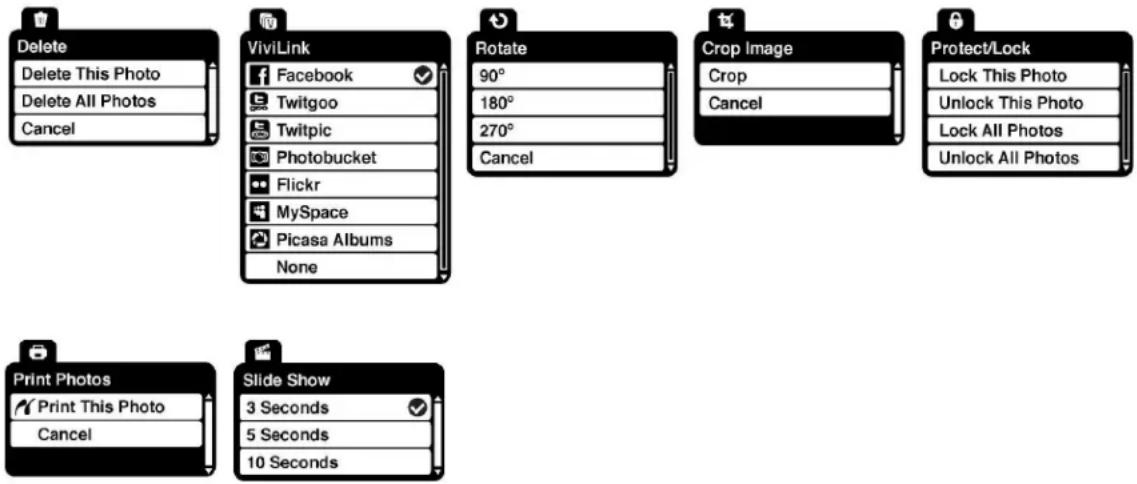
The following are the menus that appear in your camera's Photo Playback Mode:
text_image
Delete Delete This Photo Delete All Photos Cancel ViviLink Facebook Twitgoo Twitpic Photobucket Flickr MySpace Picasa Albums None Rotate 90° 180° 270° Cancel Crop Image Crop Cancel Protect/Lock Lock This Photo Unlock This Photo Lock All Photos Unlock All Photos Print Photos Print This Photo Cancel Slide Show 3 Seconds 5 Seconds 10 SecondsDelete Menu
While in the Playback Mode, you can delete pictures from your camera through the delete menu.
1) Use the LEFT or RIGHT buttons to select the image you would like to delete.
2) Press the M (MENU)/SET button to open the menus.
3) Scroll to the Delete Menu.
4) Press the UP or DOWN direction control buttons to scroll through the menu options.
5) To delete this one photo, select "Delete This Photo"
6) To delete all the images (including all unlocked photos and videos) on your camera's memory card, select "Delete All Images".
7) Press the M (MENU)/SET button to select the desired option.
8) You will be asked to confirm your selection.
9) The photos will be deleted as desired.
ViviLink Menu
The ViviLink technology allows you to quickly and easily upload your camera's photos and videos to the social networks of your choice with the accompanying Vivitar Experience Image Manager application.
1) Press the M (MENU)/SET button to open the menus for the current mode.
2) Press the LEFT or RIGHT direction control buttons to scroll and select the chosen menu.
3) Press the UP or DOWN direction control buttons to scroll through the menu options.
4) Press the M (MENU)/SET button to select the desired option.
5) A selected option icon will appear on the selected item.
6) An icon will appear on the image with the selected ViviLink destination site when you return to the Playback display.
7) Remember that the ViviLink feature is deactivated by default. A ViviLink destination will only be assigned to a photo or video if you manually set it from this menu or from the ViviLink menu in Capture mode (accessible with the Vivilink Quick-Function button in Capture mode).
8) Changing the ViviLink destination site will also make the selected site the new default ViviLink option. A new default can be selected at any time through this menu.
9) Press the LEFT or RIGHT button to select the next menu item.
10) Press the MODE button to exit the menu and return to your previous mode.
Rotate Menu
Use this menu to rotate the pictures that you've taken with your camera.
1) Press the M (MENU)/SET button to open the menus for the current mode.
2) Press the LEFT or RIGHT direction control buttons to scroll and select the chosen menu.
3) Press the UP or DOWN direction control buttons to scroll through the menu options.
4) Press the M (MENU)/SET button to select the desired option.
5) The selected picture will now appear rotated in the Playback mode.
6) Press the LEFT or RIGHT button to select the next menu item.
7) Press the MODE button to exit the menu and return to your previous mode.
Crop Image Menu 4
You can crop any picture on your camera with the Crop feature.
1) Press the M (MENU)/SET button to open the menus for the current mode.
2) Press the LEFT or RIGHT direction control buttons to scroll and select the chosen menu.
3) Press the UP or DOWN to highlight the Crop option.
4) Press the M (MENU)/SET button to open the crop option.
5) The crop window will open on the selected picture.
6) Use the directional buttons to move the crop box to define the desired crop area.
7) Use the W/T Zoom buttons on the camera to enlarge or shrink the crop box.
8) When you are ready to crop, press the Shutter button.
9) When you see the cropped picture appear, press the Shutter button again to save or press the M (MENU)/SET button to cancel and return to the previous menu.
10) If you selected to save, the cropped picture will now be saved as a new picture to your memory card.
Protect/Lock Menu
Pictures and Videos taken with your camera can be protected or "locked" to prevent any deletion or alteration being made to the files.
1) Press the M (MENU)/SET button to open the menus for the current mode.
2) Press the LEFT or RIGHT direction control buttons to scroll and select the chosen menu.
3) Press the UP or DOWN direction control buttons to scroll through the menu options.
4) Press the M (MENU)/SET button to select the desired option.
5) Press the LEFT or RIGHT button to select the next menu item.
6) Press the MODE button to exit the menu and return to your previous mode.
7) Any image that is locked will display a lock symbol on the LCD screen when viewing that image in the playback mode. Photos that are not locked will not display the lock symbol.
8) Remember that you cannot delete or edit photos while they are locked.
Print Photos Menu
You can use the Print Photos menu to print the photos that are on your camera directly to a Pictbridge compatible printer.
1) Scroll through your pictures and find the one you would like to print.
2) Press the M (MENU)/SET button to open the menus for the current mode.
3) Press the LEFT or RIGHT direction control buttons to scroll and select the chosen menu.
4) Press the UP or DOWN direction control buttons to scroll through the menu options.
5) Press the M (MENU)/SET button when highlighting the "Print This Photo" option to print the selected photo.
6) You will be asked to connect the camera to the Pictbridge printer.
7) Connect the USB cable provided in the package form the camera to the Pictbridge port of the printer.
8) Once connected, follow the instructions on the printer to proceed with the printing process.
9) Select the "Cancel" option to exit the menu and return to the previous mode.
Slide Show Menu
You can view a slideshow of all the pictures taken with your camera by pressing the "Up" Quick Function button while in Playback mode.
The Slideshow menu allows you to set the interval length of time that each picture will display during the slideshow.
1) Press the M (MENU)/SET button to open the menus for the current mode.
2) Press the LEFT or RIGHT direction control buttons to scroll and select the chosen menu.
3) Press the UP or DOWN direction control buttons to scroll through the menu options.
4) Press the M (MENU)/SET button to select the desired option.
5) A √ selected option icon will appear on the selected item.
6) Press the LEFT or RIGHT button to select the next menu item.
7) Press the MODE button to exit the menu and return to your previous mode.
8) While in Playback mode, press the "Up" Quick Function button to initiate the slideshow.
9) Press any button to exit the slideshow and return to the previous mode.
Video Capture Mode
The Video Capture Mode allows you to capture videos with your digital camera. When the camera is first powered ON, the camera will be in Photo Capture Mode. Press the MODE button once to access the Video Capture Mode.
Taking a Video
1) While in Video Capture Mode use the LCD display on the back of the camera to direct the camera at the scene you would like to capture.
2) Click the T/Zoom In and W/Zoom Out buttons to better set the camera display if desired.
Note: The actual shape of these buttons may vary per camera model.
3) Press the Shutter button on the top of the camera to start the video capture.
4) You will see a red icon at the top of the LCD indicating that the record is in progress.
5) To stop the video record, press the Shutter button again.
6) The video will automatically be saved to the camera's memory or SD card.
Video Capture Mode Quick Function Buttons
Your digital camera has a four-directional pad that functions as Quick Function buttons.
| Button | Icon appearing and Action | |
 | Left | Scene Selection - Opens the Scene menu |
 | Up | Opens the Light Exposure menu |
 | Right | Opens the Video Playback Delete menu with the ‘Delete Last Video’ option highlighted |
 | Down | Opens the ViviLink menu |
Video Capture Mode Menus
The following are the menus that appear in your camera's Video Capture Mode:

Scene Menu
The Scene Menu allows you to choose scene settings that allow your camera to adapt properly to your current environment.
1) Press the M (MENU)/SET button to open the menus for the current mode.
2) Press the LEFT or RIGHT direction control buttons to scroll and select the chosen menu.
3) Press the UP or DOWN direction control buttons to scroll through the menu options.
4) Press the M (MENU)/SET button to select the desired option.
5) A √ selected option icon will appear on the selected item.
6) Press the LEFT or RIGHT button to select the next menu item.
7) Press the MODE button to exit the menu and return to your previous mode.
8) An icon reflecting your selection will display on the LCD screen.
9) Remember that this setting will be saved by your camera until you manually change the setting or restore the camera's default factory settings.
Image Size Menu
The Image Resolution menu allows you to choose the desired size of the images taken by your camera. Keep in mind that images with a higher resolution will also take up more of your camera's memory.
1) Press the M (MENU)/SET button to open the menus for the current mode.
2) Press the LEFT or RIGHT direction control buttons to scroll and select the chosen menu.
3) Press the UP or DOWN direction control buttons to scroll through the menu options.
4) Press the M (MENU)/SET button to select the desired option.
5) A √ selected option icon will appear on the selected item.
6) Press the LEFT or RIGHT button to select the next menu item.
7) Press the MODE button to exit the menu and return to your previous mode.
8) An icon reflecting your selection will display on the LCD screen.
9) Remember that this setting will be saved by your camera until you manually change the setting or restore the camera's default factory settings.
Image Quality Menu ★
The Image Quality menu allows you to select the desired quality level of the images taken by your camera. Keep in mind that images with a higher image quality level will also take up more memory on your camera.
1) Press the M (MENU)/SET button to open the menus for the current mode.
2) Press the LEFT or RIGHT direction control buttons to scroll and select the chosen menu.
3) Press the UP or DOWN direction control buttons to scroll through the menu options.
4) Press the M (MENU)/SET button to select the desired option.
5) A √ selected option icon will appear on the selected item.
6) Press the LEFT or RIGHT button to select the next menu item.
7) Press the MODE button to exit the menu and return to your previous mode.
8) An icon reflecting your selection will display on the LCD screen.
9) Remember that this setting will be saved by your camera until you manually change the setting or restore the camera's default factory settings.
Anti-Shake Menu

The Anti-Shake feature reduces image corruption that can be caused by movement of the camera while capturing the image.
1) Press the M (MENU)/SET button to open the menus for the current mode.
2) Press the LEFT or RIGHT direction control buttons to scroll and select the chosen menu.
3) Press the UP or DOWN direction control buttons to scroll through the menu options.
4) Press the M (MENU)/SET button to select the desired option.
5) A √ selected option icon will appear on the selected item.
6) Press the LEFT or RIGHT button to select the next menu item.
7) Press the MODE button to exit the menu and return to your previous mode.
8) An icon reflecting your selection will display on the LCD screen.
9) Remember that this setting will be saved by your camera until you manually change the setting or restore the camera's default factory settings.
Macro Menu
With the Macro feature, you can capture images at very close range. When enabled, the Macro mode will allow your camera to focus on an object that is very close to the camera. The flower icon will appear on the LCD and indicates that the Macro mode is on.
Note: The Macro mode must be turned off when you want to use the following features of your camera: Flash, Face Detect and Smile Capture.
To turn Macro mode off, select the Macro 'Off'option. The mountain icon ▲will appear on the LCD.
1) Press the M (MENU)/SET button to open the menus for the current mode.
2) Press the LEFT or RIGHT direction control buttons to scroll and select the chosen menu.
3) Press the UP or DOWN direction control buttons to scroll through the menu options.
4) Press the M (MENU)/SET button to select the desired option.
5) A √ selected option icon will appear on the selected item.
6) Press the LEFT or RIGHT button to select the next menu item.
7) Press the MODE button to exit the menu and return to your previous mode.
8) An icon reflecting your selection will display on the LCD screen.
9) Remember that this setting will be saved by your camera until you manually change the setting or restore the camera's default factory settings.
White Balance Menu
The White Balance feature allows your camera to adjust the coloring of the captured images depending on the type of light source in the current environment.
Properly adjusting the White Balance setting to match your current environment will allow the camera to properly balance the colors in the images that are taken with your camera.
1) Press the M (MENU)/SET button to open the menus for the current mode.
2) Press the LEFT or RIGHT direction control buttons to scroll and select the chosen menu.
3) Press the UP or DOWN direction control buttons to scroll through the menu options.
4) Press the M (MENU)/SET button to select the desired option.
5) A √ selected option icon will appear on the selected item.
6) Press the LEFT or RIGHT button to select the next menu item.
7) Press the MODE button to exit the menu and return to your previous mode.
8) An icon reflecting your selection will display on the LCD screen.
9) Remember that this setting will be saved by your camera until you manually change the setting or restore the camera's default factory settings.
Color Effect Menu
You can choose to add a color effect to the images taken with your camera.
1) Press the M (MENU)/SET button to open the menus for the current mode.
2) Press the LEFT or RIGHT direction control buttons to scroll and select the chosen menu.
3) Press the UP or DOWN direction control buttons to scroll through the menu options.
4) Press the M (MENU)/SET button to select the desired option.
5) A √ selected option icon will appear on the selected item.
6) Press the LEFT or RIGHT button to select the next menu item.
7) Press the MODE button to exit the menu and return to your previous mode.
8) An icon reflecting your selection will display on the LCD screen.
9) Remember that this setting will be saved by your camera until you manually change the setting or restore the camera's default factory settings.
Image Sharpness Menu
You can set the level of sharpness in the images taken with your camera. The sharpness level dictates if the edges of objects in the image are more or less distinct.
1) Press the M (MENU)/SET button to open the menus for the current mode.
2) Press the LEFT or RIGHT direction control buttons to scroll and select the chosen menu.
3) Press the UP or DOWN direction control buttons to scroll through the menu options.
4) Press the M (MENU)/SET button to select the desired option.
5) A √ selected option icon will appear on the selected item.
6) Press the LEFT or RIGHT button to select the next menu item.
7) Press the MODE button to exit the menu and return to your previous mode.
8) An icon reflecting your selection will display on the LCD screen
9) Remember that this setting will be saved by your camera until you manually change the setting or restore the camera's default factory settings.
Light Exposure Menu

The Light Exposure setting helps you control the amount of light that enters your camera's lens. This setting should be adjusted when the environment is lighter or darker than normal.
When the environment has more light than is needed, reduce the exposure setting (by using the negative - count) to reduce the amount of light allowed into the lens by your camera.
If the environment has less light (darker) than is needed, increase the exposure setting (by using the positive + count) to increase the amount of light allowed into the lens by your camera.
1) Press the M (MENU)/SET button to open the menus for the current mode.
2) Press the LEFT or RIGHT direction control buttons to scroll and select the chosen menu.
3) Press the UP or DOWN direction control buttons to scroll through the menu options.
4) Press the M (MENU)/SET button to select the desired option.
5) A selected option icon will appear on the selected item.
6) Press the LEFT or RIGHT button to select the next menu item.
7) Press the MODE button to exit the menu and return to your previous mode.
8) An icon reflecting your selection will display on the LCD screen.
9) Remember that this setting will be saved by your camera until you manually change the setting or restore the camera's default factory settings.
ISO Menu ISO
The ISO menu allows you to set the level of sensitivity that your camera has to light in the surrounding environment. When the ISO level is increased, the image sensor in your camera will be more sensitive to light and allow you to capture images in lower-light situations. The higher sensitivity to light however, may reduce the quality of the images that are taken.
When the ISO is reduced, the image sensor in your camera will be less sensitive to light and will optimize the image quality in environments with bright lighting.
1) Press the M (MENU)/SET button to open the menus for the current mode.
2) Press the LEFT or RIGHT direction control buttons to scroll and select the chosen menu.
3) Press the UP or DOWN direction control buttons to scroll through the menu options.
4) Press the M (MENU)/SET button to select the desired option.
5) A selected option icon will appear on the selected item.
6) Press the LEFT or RIGHT button to select the next menu item.
7) Press the MODE button to exit the menu and return to your previous mode.
8) An icon reflecting your selection will display on the LCD screen.
9) Remember that this setting will be saved by your camera until you manually change the setting or restore the camera's default factory settings.
Metering Menu
The Metering setting will affect how your camera focuses when capturing an image. Depending on your selection, the camera will be more sensitive to focusing on particular areas in the display and adjust the image color and lighting accordingly.
Center – Averages the light metered from the entire frame, but giving greater weight to the subject in the center
Multi – Used in standard conditions the camera divides and adjusts the settings of the image into several zones for light metering such as complex light conditions, position of subject, brightness, background, direct light and scenes
Spot – Meters the area within the spot point frame at the center of the LCD to set the exposure on the subject in the center of the monitor.
1) Press the M (MENU)/SET button to open the menus for the current mode.
2) Press the LEFT or RIGHT direction control buttons to scroll and select the chosen menu.
3) Press the UP or DOWN direction control buttons to scroll through the menu options.
4) Press the M (MENU)/SET button to select the desired option.
5) A selected option icon will appear on the selected item.
6) Press the LEFT or RIGHT button to select the next menu item.
7) Press the MODE button to exit the menu and return to your previous mode.
8) An icon reflecting your selection will display on the LCD screen.
9) Remember that this setting will be saved by your camera until you manually change the setting or restore the camera's default factory settings.
Language Menu

You can select your camera's language setting by selecting the desired language from the Language menu.
1) Press the M (MENU)/SET button to open the menus for the current mode.
2) Press the LEFT or RIGHT direction control buttons to scroll and select the chosen menu.
3) Press the UP or DOWN direction control buttons to scroll through the menu options.
4) Press the M (MENU)/SET button to select the desired option.
5) A selected option icon will appear on the selected item.
6) Press the LEFT or RIGHT button to select the next menu item.
7) Press the MODE button to exit the menu and return to your previous mode.
8) Remember that this setting will be saved by your camera until you manually change the setting or restore the camera's default factory settings.
Date/Time Menu

When you capture an image with your camera, the image will include a time stamp with the date and time that the image was taken.
The Date/Time menu allows you to set your camera's date and time as desired. You can also disable the timestamp for future images that will be taken with your camera.
On – The timestamp will appear on photos taken.
Off – The date stamp will not appear on photos taken.
To Enable/Disable the Timestamp:
1) Press the M (MENU)/SET button to open the menus for the current mode.
2) Press the LEFT or RIGHT direction control buttons to scroll and select the chosen menu.
3) Press the UP or DOWN direction control buttons to scroll through the menu options.
4) Press the M (MENU)/SET button to select the desired option.
5) A selected option icon will appear on the selected item.
6) Press the LEFT or RIGHT button to select the next menu item.
7) Press the MODE button to exit the menu and return to your previous mode.
8) Remember that this setting will be saved by your camera until you manually change the setting or restore the camera's default factory settings.
To Set the Date and Time:
1) Highlight the "Date Setup" menu option.
2) Press the M (MENU)/SET button to select the desired option.
3) The "Date Setup" submenu will open.
4) Scroll through the window with the right and left navigation buttons. For each field in the menu, use the UP and DOWN navigation buttons to set the time and date.
5) Press the MODE button to exit the menu and return to your previous screen.
Audio Menu
The Audio menu allows you to control the camera's ability to record audio in the video clips recorded with your camera in addition to the video record.
1) Press the M (MENU)/SET button to open the menus for the current mode.
2) Press the LEFT or RIGHT direction control buttons to scroll and select the chosen menu.
3) Press the UP or DOWN direction control buttons to scroll through the menu options.
4) Press the M (MENU)/SET button to select the desired option.
5) A selected option icon will appear on the selected item.
6) Press the LEFT or RIGHT button to select the next menu item.
7) Press the MODE button to exit the menu and return to your previous mode.
8) An icon reflecting your selection will display on the LCD screen.
9) Remember that this setting will be saved by your camera until you manually change the setting or restore the camera's default factory settings.
Auto Power Off Menu ⏻
You can use the Auto Power Off feature in order to conserve you camera's battery life. The designated time represents when your camera will automatically power off.
When the camera sits idle for the designated period of time, the camera will shut off completely and will need to be turned on again with the power button before the next use.
1) Press the M (MENU)/SET button to open the menus for the current mode.
2) Press the LEFT or RIGHT direction control buttons to scroll and select the chosen menu.
3) Press the UP or DOWN direction control buttons to scroll through the menu options.
4) Press the M (MENU)/SET button to select the desired option.
5) A selected option icon will appear on the selected item.
6) Press the LEFT or RIGHT button to select the next menu item.
7) Press the MODE button to exit the menu and return to your previous mode.
8) Remember that this setting will be saved by your camera until you manually change the setting or restore the camera's default factory settings.
Frequency Menu HZ
The options in the Frequency menu represent the frequency of the electrical current in fluorescent lighting sources in your locale. If your camera is set to a frequency that does not match your country's electric current, you may see flickering or waves on the images taken by your camera.
50Hz – UK, Europe and Australia
60Hz – US, Canada and South America
1) Press the M (MENU)/SET button to open the menus for the current mode.
2) Press the LEFT or RIGHT direction control buttons to scroll and select the chosen menu.
3) Press the UP or DOWN direction control buttons to scroll through the menu options.
4) Press the M (MENU)/SET button to select the desired option.
5) A selected option icon will appear on the selected item.
6) Press the LEFT or RIGHT button to select the next menu item.
7) Press the MODE button to exit the menu and return to your previous mode.
8) Remember that this setting will be saved by your camera until you manually change the setting or restore the camera's default factory settings.
Format Memory Card Menu

You can use the Format Memory Card menu to delete all of the content that is currently on your camera's memory card.
Keep in mind that formatting the memory card will permanently delete all of the content on your camera's memory card.
This option can only delete all of the content at one time. If you would like to delete individual images, use the delete menu in the camera's Playback mode.
1) Press the M (MENU)/SET button to open the menus for the current mode.
2) Press the LEFT or RIGHT direction control buttons to scroll and select the chosen menu.
3) Press the UP or DOWN direction control buttons to highlight the menu options. While scrolling down the selected option will be highlighted.
4) If you would like to proceed with the format, select "Yes" and press the M (MENU)/SET button.
5) You will be asked to confirm your wish to format your memory card.
6) Select "No" to exit without formatting.
7) Select "Yes" and press the M (MENU)/SET button to begin the format.
8) The memory card will be completely formatted.
9) A message will appear confirming that your memory card has been formatted clean.
Firmware Menu
Use this menu to view the Firmware version on your camera or to reset your camera settings to the factory default settings.
1) Press the M (MENU)/SET button to open the menus for the current mode.
2) Press the LEFT or RIGHT direction control buttons to scroll and select the chosen menu.
3) Select the "Default Setting".
4) Press the M (MENU)/SET button.
5) You will be asked to confirm your wish to restore all of the factory settings.
6) The settings will be reset.
7) A message will appear indicating that the settings have been reset successfully.
Video Playback Mode
When you first turn on the camera, the camera will be in Photo Capture mode by default. Press the MODE button twice to open the Playback Mode. The Playback Mode will allow you to review and edit photos and videos that you've already taken with you camera.
Playing Videos on Your Camera
Once in Playback mode, press the LEFT or RIGHT direction buttons to scroll through the images on your camera's memory card. Each image will display on the LCD screen.
When you find a video that you would like to play, press the Shutter button to start playing the video.
Press the Shutter button again to pause the video and continue playing and pausing as needed. While the Video is playing all the icons on the top section of the LCD disappear.
To fully stop the video and restore the icons to the LCD, press the UP button on the Direction Controls.
Thumbnail View
Use the W/Zoom Out button to display the images on your camera in Thumbnail View – the images on your camera will be displayed in a 3 X 3 matrix where you can scroll and select images normally from the thumbnails.
Video Playback Mode Quick Function Buttons
Your digital camera has a four-directional pad that functions as Quick Function buttons.
| Button | Action | |
 | Left | Displays the PREVIOUS image |
 | Up | Stops a playing video |
 | Right | Displays the NEXT image |
 | Down | Opens the ViviLink menu |
Video Playback Mode Menus
The following are the menus that appear in your camera's Video Playback Mode:

text_image
Delete Delete This Video Delete All Videos Cancel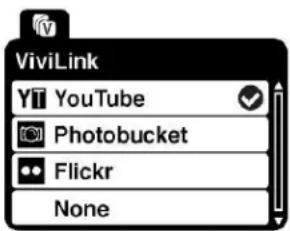
text_image
ViviLink Y! YouTube Photobucket Flickr None
text_image
Protect/Lock Lock This Video Unlock This Video Lock All Videos Unlock All VideosDelete Menu 📁
While in the Playback mode, you can delete videos from your camera through the delete menu.
1) View the image you would like to delete.
2) Press the M (MENU)/SET button to open the menus for the current mode.
3) Press the LEFT or RIGHT direction control buttons to scroll and select the chosen menu.
4) Press the UP or DOWN direction control buttons to scroll through the menu options.
5) To delete this one video, select "Delete This Video".
6) To delete all the images (including all unlocked photos and videos) on your camera's memory card, select "Delete All Images".
7) Press the M (MENU)/SET button to select the desired option.
8) You will be asked to confirm your selection.
9) The videos will be deleted as desired.
ViviLink Menu
The ViviLink technology allows you to quickly and easily upload your camera's photos and videos to the social networks of your choice with the accompanying Vivitar Experience Image Manager application.
1) Press the M (MENU)/SET button to open the menus for the current mode.
2) Press the LEFT or RIGHT direction control buttons to scroll and select the chosen menu.
3) Press the UP or DOWN direction control buttons to scroll through the menu options.
4) Press the M (MENU)/SET button to select the desired option.
5) A selected option icon will appear on the selected item
6) Press the MODE button to exit the menu and return to your previous mode.
7) An icon will appear on the image with the selected ViviLink destination site.
8) Remember that the ViviLink feature is deactivated by default. A ViviLink destination will only be assigned to a photo or video if you manually set it from this menu or from the ViviLink menu in Capture mode (accessible with the Vivilink Quick-Function button in Capture mode).
9) Changing the ViviLink destination site will also make the selected site the new default ViviLink option. A new default can be selected at any time through this menu.
Protect/Lock Menu
Pictures and Videos taken with your camera can be protected or "locked" to prevent any deletion or alteration being made to the files.
1) Press the M (MENU)/SET button to open the menus for the current mode.
2) Press the LEFT or RIGHT direction control buttons to scroll and select the chosen menu.
3) Press the UP or DOWN direction control buttons to scroll through the menu options.
4) Press the M (MENU)/SET button to select the desired option.
5) Press the MODE button to exit the menu and return to your previous mode.
6) Any image that is locked will display a lock symbol on the LCD screen when viewing that image in the playback mode. Videos that are not locked will not display the lock symbol.
7) Remember that you cannot delete locked videos.
Installing the Software
You must be connected to the internet to install and run the Vivitar Experience Image Manager software.
1) Insert the installation CD into your CD-ROM drive. The installation screen should automatically open.
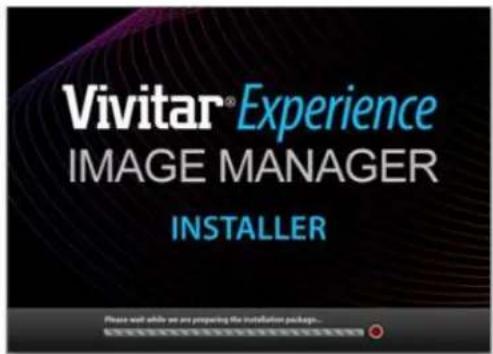
text_image
Vivitar®Experience IMAGE MANAGER INSTALLER Please wait while we are preparing the installation package...2) On PC: The Vivitar Experience Image Manager Installer window appears. If the window does not appear, open the application's CD/DVD drive and click on "Setup.exe" to launch the installer.
3) On Macintosh: Click the icon that appears on the desktop to install the Vivitar Experience Image Manager.
4) If you do not have internet access at the time of inserting the CD-ROM, connect to the internet and then click the "Install Vivitar Experience Image Manager" button to begin the installation.

text_image
You are not connected to the internet at this time You must be connected to the internet to install and run the Vivitar Experience Image manager Please re-connect to the internet and try again! INSTALL Vivitar® Experience IMAGE MANAGER I do not have access to the internet How to transfer photos and videos from my camera to my computerNote: If you do not have internet access, you can still download media from the camera. Click the "How to transfer photos and videos from my camera to my computer" button for instructions.
5) If you have internet access, the "Choose your language" window opens, choose your language and click "Next" to open the next window.
6) Select your camera model from the list and click "Next" to open the next window.
7) Click "Next" to confirm your camera model selection and to install the application.
8) Please wait while the application is being installed on your computer.
9) Please review the license terms.
On PC and Macintosh: Click the “I accept the terms of this license agreement” and then click “Next” to continue.
10) On PC only: Let the "Vivitar Experience Image Manager" installer create the folder to where the program will be installed, and then click "Install".
11) Please wait while the application continues the installation process on your computer.
12) On PC: Click the "Close" button when the installation is complete. Click the "Launch Vivitar Experience Image Manager" to open the application.
13) On Macintosh: Click the "Quit" button when the installation is complete. Click the "Launch Vivitar Experience Image Manager" to open the application.
14) If you close the application you can run the Vivitar Experience Image Manager from the Programs (PC) or Applications (Mac) menu on your computer.
Connecting the Camera to the Computer
1) Use the USB cable that came with your camera to connect your camera to your computer.
2) Power the camera ON.
3) The first time you connect the device to the computer you will have to wait a few seconds until the computer recognizes the device.
Getting Photos and Videos from your Camera to Your Computer
An SD card needs to be inserted. Do not disconnect the cable during transfer. Doing so will cancel the transfer of any files on their way to your computer.
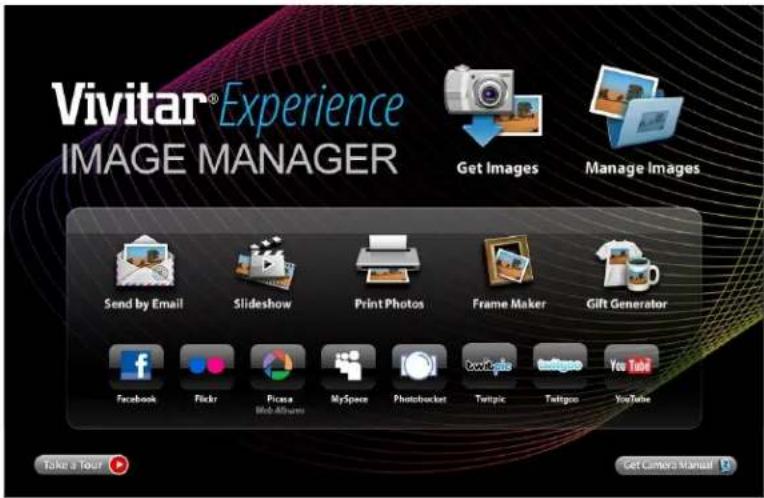
1) Select the "Get Images" button from the Main menu.
text_image
Vivitar® Experience IMAGE MANAGER Get Images Manage Images Send by Email Slideshow Print Photos Frame Maker Gift Generator Facebook Flickr Picasa Web Albums MySpace Photobucket Google Instagram YouTube Tortpic Tattnogon YouTube Take a Tour Get Camera Manual2) The "Get Images from device" window opens.
3) You can select to download photos, videos or both.
4) Select your camera (removable disk) from the device window. If your camera is the only USB device connected then it will be selected automatically.
5) Select a location on the computer where to place the new photo and video files.
6) Add the new photo and video files to albums if desired.
7) Select to remove the media files from the selected device (removable disk) after the import.
8) Click the "Get Images" button to transfer the photos and videos from your camera to your computer.
9) A media download progress bar appears on the bottom left showing the number of media files downloading to your computer. A message appears when the download is complete.
10) The photo and video files that you selected are now downloaded to your computer to the selected folder and albums ready for your use.
Get started!
Using the Vivitar Experience Image Manager, you can:
- Upload and manage photos and videos to and from the most popular photo sharing and social networking sites - Facebook, Flickr, Picasa, MySpace, Photobucket, Twitpic, Twitgoo and YouTube
- Seamlessly transfer photos and videos from one social network to another
- Organize your images by creating offline and online albums
- Edit images using automatic and manual tools
- Use automatic "Geotagging" with built in Google Maps
For more details on how to use the Vivitar Experience Image Manager open the Help file or click the “Take the Tour” button on the application’s Home page.
Transfer media from my camera to my computer manually (Using Windows)
1) Use the USB cable that came with your camera to connect your camera to your computer.
2) MSDC appears on the LCD.
3) A window appears with a list of options, select "Open folder to view files" and click OK.
4) Open the DCIM folder and the folder inside to view the media files.
5) Select the media and copy the files from this folder into your computer. Optionally, select the files and choose Copy from the Edit menu. Then select a folder and choose Paste from the Edit menu.
6) We recommend that you copy the images into the Pictures/My Pictures folder and the videos into the Videos/My Videos folder.
7) Do not disconnect the cable during transfer. Doing so will cancel the transfer of any files on their way to your computer.
Transfer media from my camera to my computer manually (Using Macintosh)
1) Use the USB cable that came with your camera to connect your camera to your computer.
2) MSDC appears on the LCD.
3) The camera's device icon appears on the desktop.
4) Click on the device icon and open the DCIM folder and the folder inside to view the media files.
5) Select the files and drag them into your computer. Optionally, select the files and choose Copy from the Finder's Edit menu. Then select a folder and choose Paste from the Edit menu.
6) We recommend that you copy the images into the Pictures folder and the videos into the Movies folder.
7) Do not disconnect the cable during transfer. Doing so will cancel the transfer of any files on their way to your computer.
Camera Maintenance
The digital camera is a delicate device. Please handle your camera with care to avoid damaging it.
Do not expose your camera to heat sources.
Do not use you camera in wet or moist conditions.
Sakar Warranty Card
This warranty covers for the original consumer purchaser only and is not transferable. Products that fail to function properly UNDER NORMAL USAGE, due to defects in material or workmanship will be repaired at no charge for parts or labor for a period of one year from the time of purchase.
What Is Not Covered By Warranty:
Damages or malfunctions not resulting from defects in material or workmanship and damages or malfunctions from other than normal use, including but limited to, repair by unauthorized parties, tampering, modification or accident.
What To Do When Service Is Required:
When returning your defective product (postage pre-paid) for service, your package should include:
1) Copy of original bill of sale
2) A detailed written description of the problem.
3) Your return address and telephone number (Daytime)
MAIL TO ADDRESS BELOW:
| Sakar US | Sakar UK/Europe | Sakar Australia |
| Sakar International Attention: Service Department 195 Carter Drive Edison, NJ 08817 | Attention: Service Department 2D, Siskin Parkway East 4020 Middlemarch Business Park Coventry, CV3 4PE | Return faulty camera to the Refund Counter at the store where purchased |
Technical Support
For technical support issues please visit our website at www.vivitar.com. You can find manuals, software and FAQ's at the website. Can't find what you are looking for? E-mail us at support@vivitar.com and one of our technical support team members will answer your questions. For phone support in the US please call 1-800-592-9541, in the UK call 0800 917 4831, in Australia call 1800-006-614. If you would like to call from anywhere else, please visit www.vivitar.com for your local toll free number.
Troubleshooting
Q: I have taken photos and selected the "Get Images" button. I get a message that the images were successfully transferred but the photos do not appear on my computer. What do I do?
First ensure that you have in fact taken photos. Press the Shutter button to take some sample photos and then try downloading them again.
With test photos if the camera powers off before you upload them to the computer the photos are not stored in the camera's memory. These photos should be uploaded quickly before the camera powers off. If the photos are saved to the SD memory card then all the photos should appear.
Q: How do I make sure I don't lose important pictures?
This camera requires an SD card for normal use. If the camera powers off nothing will happen to the images stored on the SD memory card. We recommend always downloading your photos to your computer as soon as possible to prevent unintentional data loss.
Q: I deleted images using the Vivitar Experience Image Manager. The images where also deleted from my computer. How do I recover images that I accidentally deleted?
All images deleted using the Vivitar Experience Image Manager are sent to your computer's Recycle or Trash Bin and can be retrieved from there.
V7024-250410-TA