
ZE-NC2011D - Browser ZENEC - Free user manual and instructions
Find the device manual for free ZE-NC2011D ZENEC in PDF.


| Product Type | Car Navigation & Multimedia Receiver |
| Brand | Zenec |
| Model | ZE-NC2011D |
| Display Size | 6.5" (16.5 cm) 16:9 HD TFT-LCD |
| Display Resolution | 800 x 480 pixels |
| Touchscreen | Yes |
| Power Supply | 12V DC (negative ground vehicle battery) |
| Amplifier Power | 4 x 50 Watts Class-D |
| Navigation | 3D High-Definition with TMC/TMC Pro, 8GB internal flash, 43 European maps |
| Bluetooth | Parrot hands-free module, up to 5 phones, 1000 contacts |
| Media Playback | DVD, CD, USB, SD/SDHC (up to 32GB), iPod/iPhone |
| Supported File Formats | MP3, WMA, AVI, Xvid, H.264, JPEG |
| Tuner | RDS dual tuner (FM/AM), 30 presets |
| Steering Wheel Control | Yes (via CAN bus) |
| Rear View Camera Input | Yes (with auto-switching) |
| Dimensions (approx.) | 178 x 100 x 150 mm (Double DIN) |
| Weight (approx.) | 1.5 kg |
| Safety | Class 1 laser; use only original accessories; do not disassemble |
| Maintenance | Clean with soft cloth; avoid liquids; use only specified fuses |
| Warranty | 2 years from date of purchase (original consumer) |
Frequently Asked Questions - ZE-NC2011D ZENEC
User questions about ZE-NC2011D ZENEC
0 question about this device. Answer the ones you know or ask your own.
Ask a new question about this device
Download the instructions for your Browser in PDF format for free! Find your manual ZE-NC2011D - ZENEC and take your electronic device back in hand. On this page are published all the documents necessary for the use of your device. ZE-NC2011D by ZENEC.
USER MANUAL ZE-NC2011D ZENEC
SAFETY INSTRUCTIONS .... 3
FRONT PANEL BUTTONS 4-5
OPERATION OF STEERING WHEEL CONTROLS....6-7
BASIC OPERATION 8-9
RADIO MODE 10-13
PLAYBACK OF A/V SOURCES 14-19
BLUETOOTH MODE 20-27
NAVIGATION MODE....28-29
SYSTEM SETUP....30-39
REMOTE CONTROL MAIN 40-41
REMOTE CONTROL M-ZONE 42-43
EXTERNAL PLAYBACK AND SOURCES 44-45
GLOSSARY......46
TROUBLESHOOTING 47-48
SPECIFICATIONS......49
WARRANTY 98-99
EC DECLARATION OF CONFORMITY 102
⚠ Navigation manual is separate.
SAFETY INSTRUCTIONS
- Read these instructions entirely.
- Keep these instructions within reach. Whoever uses the unit should have access to this manual.
- Heed all warnings. Follow the instructions.
- This unit is designed to be used in a vehicle with 12V DC battery and negative ground.
- Do not operate the unit in any other way than described in this manual. Failure to follow the instructions within this manual may void your warranty.
- Do not disassemble or alter the unit in any way, because it will void your warranty. Do not attempt to repair or to service the unit yourself, but contact an authorized ZENEC dealer instead.
- Use only original accessories which are designed and manufactured for the unit, otherwise you will risk damage. Install the unit according to the mounting manual, using the supplied mounting accessories. The forces of acceleration for accidents are sometimes huge. Incorrect mounted units are a big risk for the driver and the car passengers, during an accident.
- Protect the unit from water and other liquids, which can enter the casing. A short circuit or even fire could be the result.
- To prevent a short circuit, never insert or stick any metallic objects (such as coins or metal tools) into the unit.
- Before you replace a defective fuse, try to find the cause for the short circuit. Please pay attention to the cables of the power supply! If the short circuit doesn't result from a failure of the power supply or wiring, you can replace the defective fuse with a new one (same values). If the short-circuit is still existing, please contact an authorized ZENEC dealer.
- When connecting to any other device, read its user's guide for detailed safety instructions. Do not connect incompatible products.
- Be careful not to drain the car battery while using the unit when the car engine is turned off. Because the unit uses a considerable amount of energy and the battery will be charged only while the engine is running, it might happen that the battery will discharge to a point where it's not longer possible to start the engine.
- According to the law in different European countries, driving with monitors which are showing movies in the viewing range of the driver is not allowed, because the driver might be distracted from the traffic. Please respect the traffic regulations of your country, or you might face penalties in case of an accident or even loose your insurance coverage. Please pay attention to the volume inside your vehicle, because you are obliged to notice exterior sounds like police sirens etc.
- Don't expose the unit to hard impacts. A mechanical or electrical malfunction of the unit could be the result.
- Should any problems or questions occur during installation, please consult your ZENEC dealer/importer.
- This unit utilizes a class 1 laser. Use of controls or adjustments or performance of procedures other than those specified herein may result in hazardous exposure to coherent light. Do not open covers and do not repair yourself. Refer servicing to qualified personnel.
FRONT PANEL BUTTONS
Front Panel


FRONT PANEL BUTTONS
-
POWER ON/OFF
-
INTERNAL MICROPHONE
-
DISC INDICATOR
-
DISC SLOT
-
IR RECEIVER
-
EJECT
Eject disc
- ALT
Function can be set in Setup Press and hold to open the Video setup
- PREVIOUS
Press to choose previous Track|Chapter|Station Press and hold to fast rewind
- NEXT
Press to choose next Track|Chapter|Station Press and hold to fast forward
10.BT
Press to switch to BT source
11.SMARTDIAL
Rotate to move a cursor up and down Press to confirm a selection
- RESET
Press to initiate a hardware reset
-
SD CARD SLOT
-
POWER/VOL
Rotate to increase/decrease volume
15.NAV
Press to switch between Navigation and playback page Press and hold to fade in/out the infobars manually
16.DVD
Press to switch to DVD source
17.FM/AM
Press to switch to FM/AM source Press and hold to de- and activate TA funktion
- HOME
Press to open Main Menu, hold to open EQ page
OPERATION OF STEERING WHEEL CONTROLS


PERATION OF STEERING WHEEL CONTROLS
1. VOL+
Press to increase volume
2. VOL-
Press to decrease volume
3. MUTE
Press to mute/unmute audio
4. PREVIOUS
Rotate down to choose previous
Track | Chapter | Station
Press and hold to fast rewind
5. TELEPHONY
Press to answer or hang up a call
Press and hold to deny an incoming call
6. NEXT
Rotate up to choose next
Track | Chapter | Station
Press and hold to fast forward
BASIC OPERATION
POWER ON/OFF
Correctly installed, your device will power on together with the ignition of the vehicle. Ignition off: Device does not receive power. When the ignition is activated, you may also switch the device On and Off using the front panel power button.
SELECT A SOURCE
Enter main menu:
- Via Touchscreen:
Touch the icon in the upper left corner of the screen.
- Via "HOME" button:
Push "HOME" button to enter main menu.
Operation at main menu:
The main menu consists of three pages: 2 main pages and 1 M-Zone page.
There are two basic ways to get there:
- Slide You can slide the two main pages back and forth.
Just slide your fingertip onscreen in the respective direction.
The M-Zone page (backseat area) cannot be accessed via sliding.
- Bar Tap on any of the three rectangular markers in the top area of the
screen to navigate through all three main menu pages. M-Zone included.
Entering the main menu you have access to all playback sources and settings.

Main menu 1
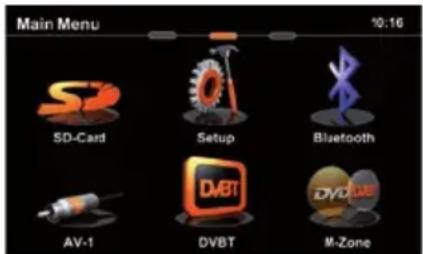
Main menu 2

M-Zone page
Tap center header button or slide to second main menu page. Choose SETUP > GENERAL > LANGUAGE and adjust to your likings. You might want to adjust some other basic settings. See chapter "Setup".

BASIC OPERATION
Basic elements (for all playback sources)
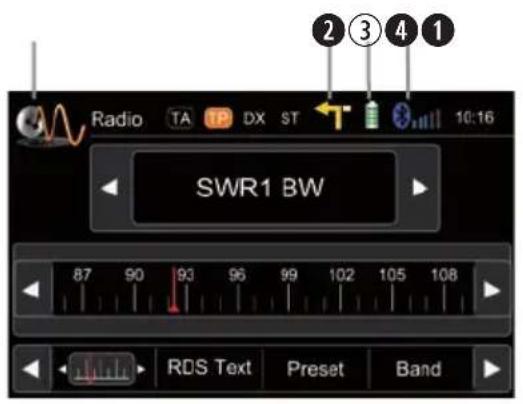
Display & control elements:
① Indicates current source
- Tap to enter main menu
② Indicates when NAV infobar is available
- Tap to display NAV infobar
- Tap again to hide it
③ Connected mobile phone battery status.
4 Mobile phone GSM reception fi eld strength
Three infobar styles:
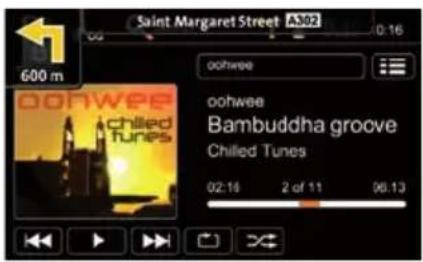


NAV infobar Playback infobar BT infobar
NOTE:
■ Press and hold the NAV button to fade in/out the infobars manually. Touch the 📋 icon to fade out the infobars manually.
■ NAV infobar is only available during active route guidance.
■ An incoming call or new playback information triggers the automatic pop-up of the other infobar types at NAV screen. They will fade out after fi ve seconds.
RADIO MODE

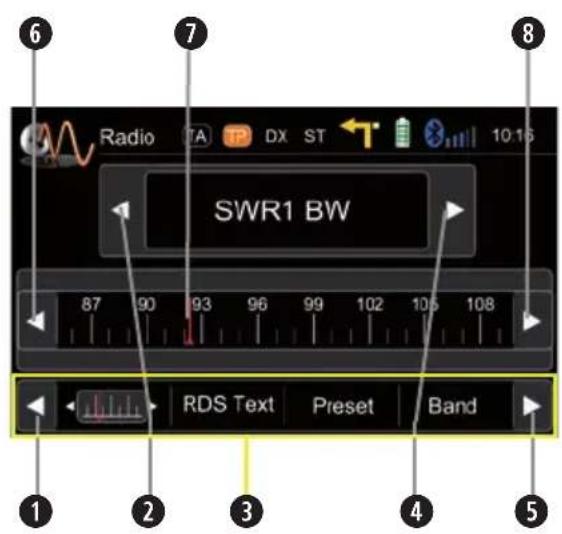
Display elements:
① Red line marks current frequency
② Frequency or station name
③ Traffi c announcement status
④ Traffic announcements on carrier
⑤ LOC/DX status
⑥ Stereo reception indicator
Control elements:
① Scroll left
② Previous station
3 Tap to select center display content
④ Next station
⑤ Scroll right
⑥ 100 kHz down
⑦ Drag to adjust frequency
8 100 kHz up
RADIO MODE

RDS text allows a radio station to transmit free-form textual information that can be either static e.g. station slogans or in sync with the programming such as the title and artist of the currently playing song or even short ads. Availability depends on region, reception quality and carrier.
RADIO MODE

Select preset or save a preset. Press and hold a center button to enter a new frequency as preset.
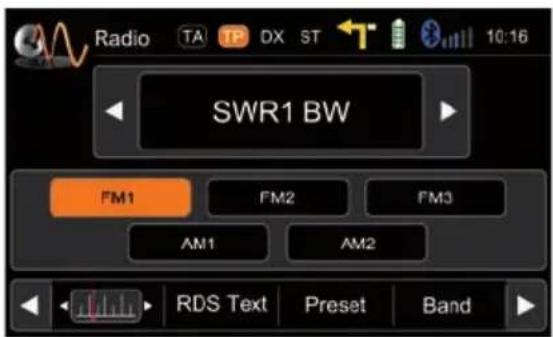
To select a radioband tap on a center button.

DIO MODE
Lower bar options:
The selected item is highlighted in orange on the screen:
AF ON/OFF: When activated, AF function automatically switches to an alternative frequency (AF) of your chosen station, in order to always offer the best possible reception quality.
TA ON/OFF: When activated, the radio temporarily switches, for the duration of the traffic announcement, to tuner mode.
AS Searches for the six strongest stations and saves them as preset.
SCAN Intro-scan of all stations in reception range. You can hear each station for a short moment. Lock to the one you like by pressing scan again.
REG ON/OFF: At certain daytimes some stations divide their program into regional subprograms. The REG function prevents your receiver from switching to an alternative frequency with different content.
LOC Touch LOC/DX to omit or allow reception of stations with weak signals. /DX If LOC is activated it will exclusively tune to strong stations.
NOTE:
This unit features an RDS tuner. RDS is a system which transmits data on top of the FM radio signal. Availability and content of the RDS data depend on the respective broadcast station and its signal strength. RDS does, for example, transmit alternative frequencies, which allow for frequency changes without user interaction. AM band doesn't support RDS functions.
■ You need to have the AF function activated in order to use the RDS feature. However, the AF function is deactivated ex factory. We recommend to activate it directly after mounting/installation of your device.
Playback page:

Display elements:
① Source
② Current folder/playlist
③ ID3 tag info
④ Progress bar
⑤ Album Art
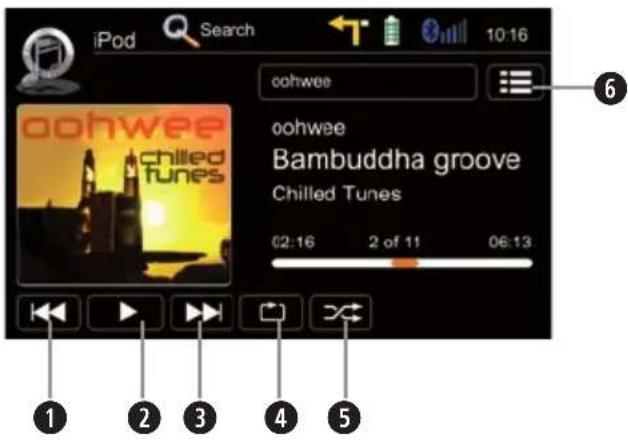
Control elements:
① Previous track
② Play/Pause
③ Next track
④ Repeat
⑤ Shuffle
6 Switch to playlist page
PLAYBACK
IPOD/USB/SD/DISC
Playlist page iPod:
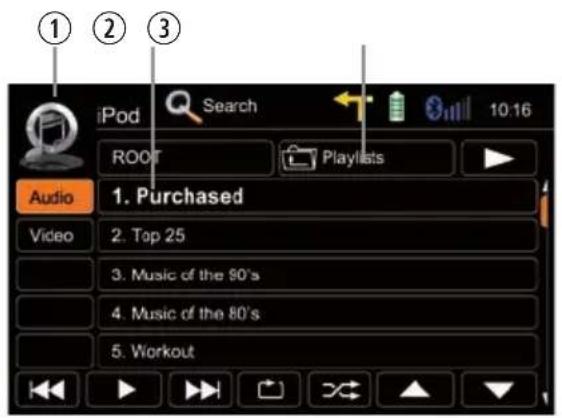
Display elements:
① iPod mode
② Track/folder/playlist
③ Current folder

Control elements:
① Previous track
② Play/Pause
③ Next track
④ Repeat
⑤ Shuffle
⑥ Cursor up
⑦ Cursor down
8 Switch to playback page
9 Switch to iPod audio mode
10 Switch to iPod video mode
11 Go to root directory
⑫ Search
13 Folder/playlist up
Playlist page USB/SD/Disc:

Display elements:
① Track index
② Track/folder
③ Current folder

Control elements:
① Previous track
② Play/Pause
③ Next track
④ Repeat track
⑤ Shuffle
⑥ Cursor up
⑦ Cursor down
8 Switch to playback page
⑨ Go to root directory
10 Search
11 Folder up
PLAYBACK
IPOD/USB/SD/DISC
Search function:

iPod search:
Tapping on Search pops up an alphabetic keyboard, allowing you to enter an initial letter. Alphabetic search is unique for iPod mode.
Tapping on 📋 pops up the keyboard option allowing you to select your preferred keyboard language.

USB/SD/Disc modi search:
Tapping on 📄 Search pops up an numeric keyboard, allowing you to enter track numbers. Numeric search is unique for USB/SD/Disc modi.
Elements to control playback of video fi les:

Display elements:
① Current temporal position in track
② Total duration of track

Control elements:
① Previous title/track/chapter
② Play/Pause
③ Next title/track/chapter
4 To playlist/root menu of DVD
5 Full screen mode
⑥ DVD settings

PLAYBACK
IPOD/USB/SD/DISC
USB/SD/Disc mode:
■ Make sure your mass storage device is FAT32 formatted.
■ Depending on directory structure and contents the total number of available folders is limited.
■ Sorting and reaction time depends on speed and capacity of the mass storage used, as well as on the amount of stored data.
■ Connected USB hard disks have to be formatted with FAT32 and are only allowed to consume a maximum of 400mA (peak) current. Otherwise they must be considered incompatible and can't be used with the device.
■ Only iPod mode supports album art.
iPod mode:
■ Depending on the size of the search list, results may be delayed during first search. That is due to the iPod, which takes a moment to setup and provide the search index.
■ iPods/iPhones display, depending on content and sorting, an extended set of information on the playlist page.
NOTE:
See www.zenec.com for:
■ Compatible fi le formats and their possible restrictions.
■ iPod/iPhone compatibility list.
BLUETOOTH MODE
Bluetooth main menu:
Tap icon to select element.

Control elements:
① Onscreen keypad
② Call Log
3 Favourites
4 Audiostreaming (A2DP) toggle
⑤ Contacts
6 Bluetooth settings
A2DP (de-)activation:

Control elements:
1 Control Playback
② A2DP On/Off (highlighted=ON)
BLUETOOTH MODE
Accept call, dial, hang up, switch between calls:
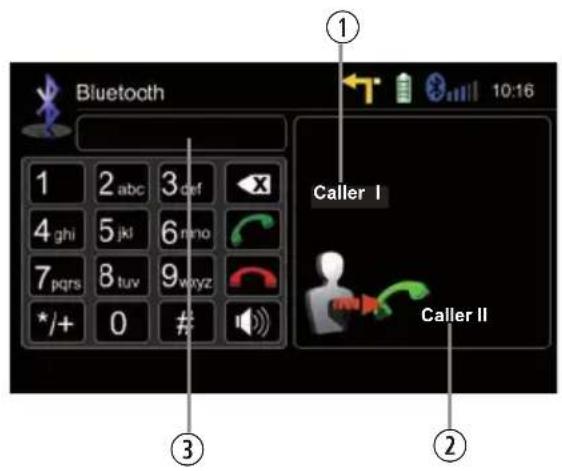
Display elements:
① First incoming call
② Second incoming call
③ Dialled number

Control elements:
① Keypad
② Delete last digit
③ Pick up call / Switch to second call
④ Toggle to shift call between handsfree and mobile phone (privacy mode)
⑤ Hang up active call / Back to first call
6 Back to BT main menu
BLUETOOTH MODE
Pairing a mobile phone:
1 Enter BT settings > Device

2 Tap on "Add" to trigger a search for BT devices.

3 Choose your mobile phone from the list or retry searching. Press "Add".
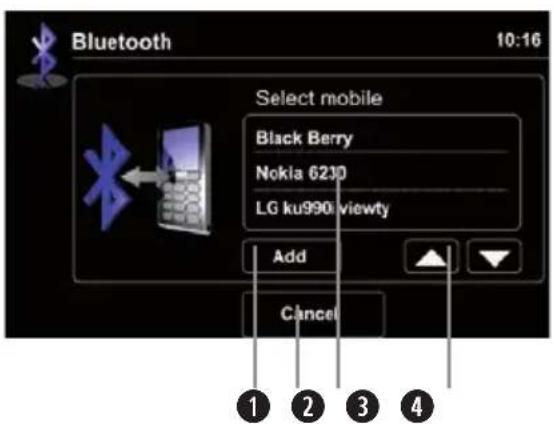
Control elements:
① Add a mobile phone and input PIN for pairing
② Back to BT settings
③ Tap to select mobile phone
④ Browse list (up/down)
BLUETOOTH MODE
4 Enter PIN code and tap OK or retry.

① PIN code
② Deletes the last digit
③ Acknowledge PIN code and continue
5 Upon request enter identical PIN code on your mobile and acknowledge. You should now get a screen saying "Device successfully paired".
NOTE:
If you are trying to pair more than one mobile phone:
■ Switch off the "auto connect" function while pairing additional mobile phones with the device.
■ Use different PIN code twins for each paired mobile phone.
BLUETOOTH MODE
Contacts - Manage phonebook:

Control elements:
① Back to BT main menu
② Tap a contact number to start a call
③ Search
4 Tap on star to save as favourite
5 Choose contact name from list
6 Select preferred keyboard language
Search for an entry:

① No function, when keypad is active
② Quit keypad
③ Display input
4 Tap to delete last character
⑤ Switch to next page of keypad
NOTE:
■ You may search for up to 15 leading characters.
BLUETOOTH MODE
Manage phonebook:
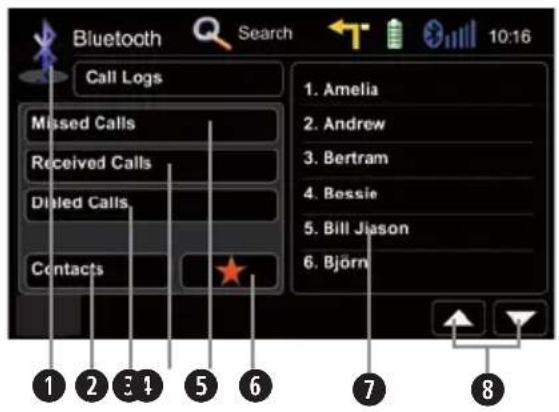
Control elements:
① Go back to BT main menu
② Go to contacts page
③ Tap to display outgoing call list
4 Tap to display incoming call list
⑤ Tap to display missed call list
6 Go to favourites page
⑦ Tap on contact name to call
⑧ Page up/down
NOTE:
■ The synchronisation, the transferring, the sorting as well as the display of the phone book entries depend on the mobile phone brand and model. If the synchronisation doesn't work properly, disconnect the mobile phone and repeat the pairing process.
If automatic phone book synchronisation does not work, consult the manual of your mobile phone. Some mobile phones require explicit activation of that function.
■ After entering the BT main menu press & hold either the Contacts or Call-Log icon in order to force a resync of the entire phone book (if you have experienced syncing problems).
BLUETOOTH MODE
Manage favourites:

Control elements:
① Tap on contact name to call a favourite
② Delete favourite
NOTE:
- Be aware that solely terminating the connection, or deleting a connected mobile phone, does not affect the list of favorites. Favourites have to be explicitly deleted one by one.
Setup settings:

① Back to BT main menu
② Options
③ BT device settings
4 Microphone selection
⑤ Tap +/- to adjust microphone gain

UETOOTH MODE
NOTE:
If your mobile phone is compatible and still does not appear in the device list, make sure Bluetooth is turned on and set to "visible for all devices".
■ Bluetooth connections usually work within a range of approx. 8 m. Obstacles in the way may shorten the distance.
■ You can pair up to five mobile phones, and synchronise up to a thousand phonebook contacts each.
In order to use the built-in handsfree function you need to pair your mobile phone first.
It cannot be guaranteed, that all mobile phones can be paired and that all functions will work.
For the "BT compatibility list" of tested and compatible mobile phones as well as the latest software updates look out on www.zenec.com.
NAVIGATION MODE
How to input a destination and start a route guidance:

Tap on "Find".

Choose your preferred destination search method. Here, in our example, choose "Find address".

Type in a city, street name, house number and confirm each step by tapping OK.
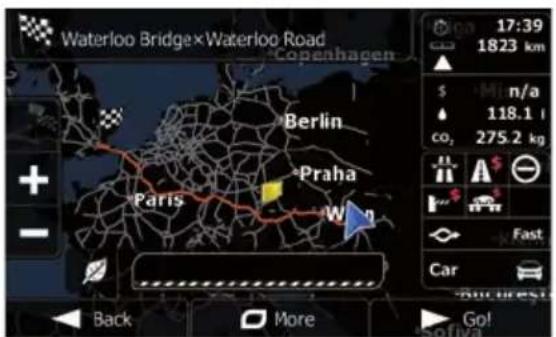
The program is now calculating the desired route. Once route calculation has completed just tap "GO!" to enter active route guidance mode.

VIGATION MODE
NOTE:
■ For operation and detailed description of navigation features, please refer to the separate navigation manual.
■ You may listen to any playback source in route guidance mode. The navigation software automatically manages volume levels of voice guidance.
If you change the volume level during voice guidance, the chosen volume level gets stored for later route guidance.
■ Audio playback is, during voice guidance, capped to volume 10. If the preset audio volume is below 10, it will be muted.
SYSTEM SETUP: MAIN / FIRST SETTINGS
Main setup screen:

Control elements:
① Return to the previous menu. Works with all four submenus.
② See chapter Setup Video.
③ See chapter Setup Audio.
4 See chapter Setup General.
⑤ See chapter Setup Misc.
Settings to attempt after mounting and initial startup:
Set OSD language: Go to Setup>General>Language
to choose your desired OSD language. Animated picture visualises your setting.
Set Reverse Camera: Go to Setup>General>Driver Assist
Needs to be enabled to use the camera. Animated picture visualises your setting.

SYSTEM SETUP: IMPORT/EXPORT SYSTEM SETTINGS
Go to Setup>Misc>Help
Export system settings:

- Format USB flash drive with FAT32.
- Connect USB flash drive to device.
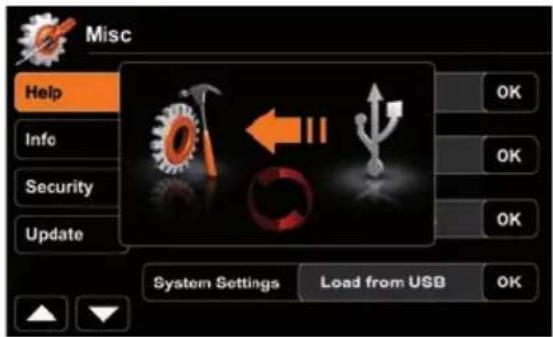
- Tap "OK", at System Settings-Export option, to launch file export.
Import system settings:

- Connect USB flash drive to device.
- Tap "OK", at System Settings-Import option, to launch import.
- Restart device upon import completion.
NOTE:
■ Make sure the USB flash drive has been FAT32 formatted.
■ Refrain from manually modifying the generated export file. Re-import relies on proper file integrity.
■ After adding new functions, by means of a system update, they will always be initialised with standard default values. That compensates for lacking values from the import file content.
■ After a firmware update, check the update installation instructions for notes on system settings import and take them into consideration.
SYSTEM SETUP: VIDEO

Animated picture visualises TV shape settings.

Animated picture visualises your setting during adjusting TFT screen brightness.
Day-/Night TFT screen brightness is controlled by GPS time signal.
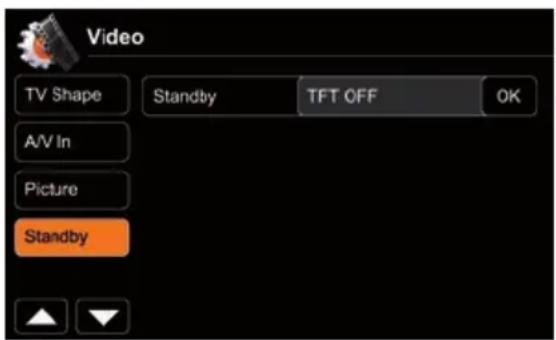
Standby activation turns screen OFF. Apart from that, the device operates in a normal manner.
Tap on the screen to exit standby.
| Name Descriptor Function Choice/Range | |||
| TV-Shape | Video display setting | TV-Shape | Normal |
| Cinema | |||
| Picture | TFT brightness control | Brightness Day 0..20 |
| Brightness Night 0..20 |
| Standby TFT OFF |
SYSTEM SETUP: AUDIO

Audio mixer:
Choose "Last" to adjust to last volume. Choose "Set" to adjust to an arbitrary value.

Level adjustments for sources:
Adjust volume relative to other sources.

Animated picture visualises fader and balance settings.

EQ frequency adjustments
Adjust EQ bands.

Animated picture visualises sub-out level.

If your vehicle is equipped with an integrated OE Soundsystem, activate parameter "OE Soundsystem" in order to avoid audio distortion.
Tap "OK" at EQ to open equalizer page.
| Volume | Descriptor Function Choice/Range | |
| Audio mixer | Start volume last value, set value | |
| Set start volume 0...40 | ||
| TA volume last value, set value | ||
| Set TA volume 0...40 | ||
| NAV volume last value, set value | ||
| Set NAV volume 0...40 | ||
| Level adjustment of sources | Tuner rel. 0...14 | |
| CD/DVD rel. 0...14 | ||
| USB/SD/iPod rel. 0...14 | ||
| A/V In rel. 0...14 |
| Sound | Level assignment | Fader | front 9, center 0, rear -9 |
| Balance | left -9, center 0, right 9 | ||
| EQ frequencies | Set bass frequency | 50, 100, 200 Hz | |
| Set mid frequency | 0.5, 1, 2 kHz | ||
| Set treble frequency | 5, 10, 15 kHz | ||
| Loudness | On, Off | ||
| Sub-Out | Sub-Out settings | Level | rel. -7...+7 |
| Crossover | 55, 80, 120 Hz |
| Speaker | Speaker system settings | OE Soundsystem | On, Off |
| Open Equalizer | OK |
SYSTEM SETUP: GENERAL

System time gets periodically updated by GPS time stamp.

Animated picture visualises your driver assist settings. Example: Reverse Camera.
Reverse mute: Mute audio when reverse gear is engaged.
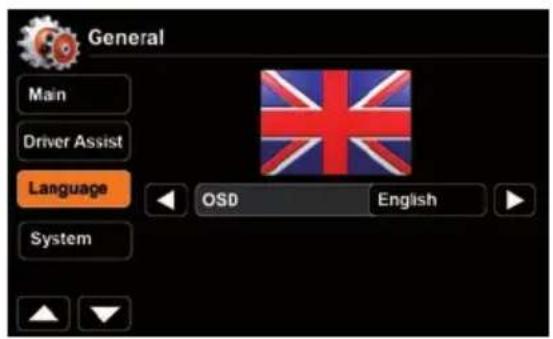
Shown flag visualises the chosen OSD language.
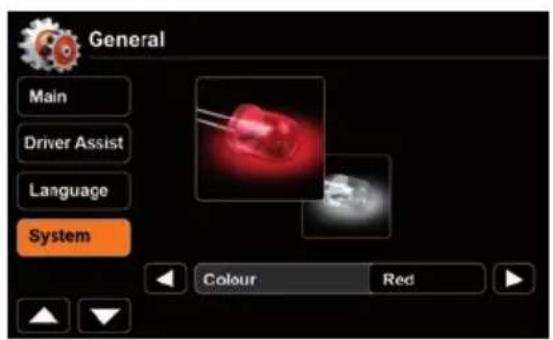
Choose between red or white key illumination.
| Name Function Choice/Range | ||
| Main | Beep On, Off | |
| Radio area Europe | USA, Latin (America) | |
| Bluetooth On, Off | ||
| Volume Pop-Up On, Off | ||
| Antenna supply On, Off | ||
| A/C status or Climatronic On, Off | ||
NOTE:
■ Switch above mentioned antenna supply parameter to "Off", if your vehicle does not deploy an active antenna.
| Driver assist | Parking assist | Off, Rear view camera, OPS |
| Alt button | Infobar, Standby | |
| Reverse mute | On, Off |
| Language | OSD | Set OSD language |
| System | Colour | Red, White |
SYSTEM SETUP: MISC

You may export/import your system settings to/from a USB flash drive. A nice feature, to restore your device settings after a firmware update, or a complete power disconnection.

Tap "OK" to display corresponding software version.

Activate password function to secure device in case of temporary disconnection from power supply (theft). Use an arbitrary 4-digit code. To reset the code enter "0000" instead.
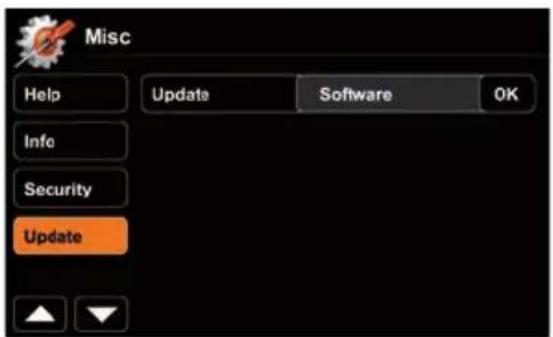
Press "OK" to launch a software update. For preparations and details, consult the accompanying update installation instructions BEFORE you run software updates.

NOTE:
| Help | Calibrate TS OK starts touchscreen calibration | |
| Load factory OK loads factory settings | ||
| System settings | Export settings to USB | |
| System settings | Load settings from USB | |
| Info | Show Info Software | |
| Show Info | BT Software | |
| Show Info | RDS |
| Security | Password enable On, Off | |
| Password | OK sets password | |
| Update Update OK starts software update |
NOTE:
■ Compare installed software versions with potentially newer versions on www.zenec.com (see support and download area for updates).
REMOTE CONTROL MAIN
Remote Control Buttons


REMOTE CONTROL MAIN
1. POWER
Device ON/OFF
2. EJECT
Eject disc
3. MUTE
Mute/Un-mute audio output
4. SRC
Change sources
5. KEYPAD
Input track/chapter/title
6. VOL+
Increase volume
7. VOL-
Decrease volume
8. INFO
Show DVD info
9. GOTO
Open numeric onscreen keypad
10.STOP/BAND
Stop DVD/change radio band
11. SEL
Open EQ
12. ESC
Close menu/EQ
13. MENU
Open main menu
14.PIC
No function
15. REPEAT A B
Set start and end point at DVD to repeat
16. OK
Play/Pause; Confirm
17. DIRECTION BUTTONS
Select item; move cursor
18. TITLE
Open DVD Title menu
19. ROOT
Open DVD main menu
20. REPEAT
Repeat track/chapter/title
21. SKIP NEXT
Jump to next track/preset/chapter/title
22. SKIP PREVIOUS
Jump to previous track/preset/chapter/title
23. FAST REVERSE
Fast reverse; 50kHz down at tuner mode
24. FAST FORWARD
Fast forward, 50kHz up at tuner mode
25. AUDIO
Change DVD audio language
26. ZOOM
Zoom in/out
27. ANGLE
Change DVD viewing angle
28. SUB-T
Change DVD subtitle
NOTE:
■ Some functions may not be available; depending on selected mode and type of media.
REMOTE CONTROL M-ZONE
Remote Control Buttons


REMOTE CONTROL M-ZONE
1. MODE
Change source
2. KEYPAD
Input track/chapter/title
3. MUTE
Mute/un-mute audio output
4. GOTO
Open numeric onscreen keypad
5. TITLE
Open DVD Title menu
6. ROOT
Open DVD main menu
7. OK
Play/Pause; Confirm
8. DIRECTION BUTTONS
Select item; move cursor
9. SKIP PREVIOUS
Jump to previous track/preset/chapter/title
10. SKIP NEXT
Jump to next track/preset/chapter/title
11. STOP
Stop playback
12. PLAY/PAUSE
Play/pause playback
13. ZOOM
Zoom in/out
14. FAST REVERSE
Fast reverse
15. FAST FORWARD
Fast forward
16. SLOW
Slow motion playback
17. REPEAT
Repeat track/chapter/title
18. AUDIO
Change DVD audio language
19. SUB-T
Change DVD subtitle
20. ANGLE
Change DVD viewing angle
21. REPEAT A->B
Set start and end point at DVD to repeat
NOTE:
■ Some functions may not be available; depending on selected mode and type of media.
EXTERNAL PLAYBACK AND SOURCES
M-Zone

Control elements:
① Direct access to DVB-T
② Direct access to M-Zone
Control elements:
① Direct access to main menu
② Choose DVD
3 Choose DVB-T
4 Deactivate M-Zone
NOTE:
■ With deactivated M-Zone you will not see any signal on connected M-Zone monitors (blackscreen).
■ The M-Zone volume cannot be adjusted on the device. Use the control elements of the connected peripherals (i.e. roof monitor) instead, to adjust the volume.
If the M-Zone and the front zone get both fed by one and the same media source, the M-Zone stereo output will be muted.
■ The headunit does not memorize that the M-Zone has been activated after shutting off. Therefore you have to reselect the M-Zone after each re-start.
EXTERNAL PLAYBACK AND SOURCES
DVB-T

Control elements:
① Direct access to DVB-T
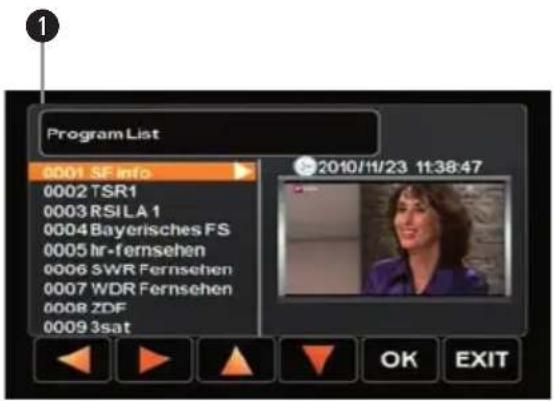
① Tap into the upper right corner to return to the main menu
NOTE:
■ For DVB-T reception you need to connect an external ZENEC DVB-T receiver. For a perfect compatibility match check out the manual and the compatibility list in advance.
■ Compatible DVB-T devices offer direct operation via touchscreen of the headunit.
■ The headunit does not memorize that the DVB-T receiver has been activated after shutting off. Therefore you have to reselect DVB-T after each re-start.
GLOSSARY
A2DP Advanced Audio Distribution Profile, Bluetooth Audio
AC-Control Optical indication showing air condition status information
A/V In Audio-Video Input
AUX In Auxiliary Input, Audio only Input
CAN-Bus Controller Area Network-Bus; Automotive industrial standard bus system
CAN/Stalk IF Interface to communicate with CAN-Bus
DVB-T Digital Video Broadcasting – Terrestrial; TV transmission standard
EQ Equalizer
FAT32 File allocation table 32-bit
GSM Global System for Mobile Communications, Mobile phone network
GUI Graphical User Interface
HMI Human Machine Interface (graphical part = GUI)
ID3-Tag Format to display additional info together with MP3 audio files
Media Link box Box to reroute some inputs from the back of the headunit to easier accessible locations
M-Zone Rear seat entertainment area
OBC On Board Computer, Menu to control board computer
OE Original Equipment > OEM Original Equipment Manufacturer
OPS Optical Parking system (shows parking radar)
OSD On Screen Display
POI Navigation: Point of interest
Phantom pow. "In-line" antenna power supply; Power and antenna signals use the same wire
TMC/TMC Pro Traffic Message Channel/Traffic Message Channel Professional Pro with extended pay content
TROUBLESHOOTING
| Problem Cause Solution | ||
| GENERAL | ||
| Unit will not power on. | Radio fuse blown. Install new fuse with correct rating. | |
| Car battery fuse blown. Install new fuse with correct rating. | ||
| Illegal operation. Press the RESET button. | ||
| No/low audio output. | Improper audio output connection. Check wiring and correct. | |
| Volume set too low. Increase volume level. | ||
| Speakers damaged. Replace speakers. | ||
| Only one channel is playing. | Check the balance and fader adjustments. | |
| Speaker wiring is in contact with metal part of car. | Insulate all speaker wiring connections or replace the speaker cable. | |
| Mute is activated. Turn off the Mute function. | ||
| Poor sound quality or distortion. | Unauthorized disc is in use. Use original disc. | |
| Speaker power rating not compatible with unit. | Connect proper speakers. | |
| Speaker is shorted. Check speaker connections. | ||
| TFT MONITOR | ||
| No image. | The parking brake is not engaged. | Stop vehicle in a safe place and apply parking brake. |
| The "Monitor off"-function is activated. | Touch the monitor to activate the display. | |
| Prolonged image or improper height/ width ratio. | Improper aspect ratio setup. | Use correct aspect ratio setting. |
| TUNER | ||
| Weak station searching. | Auto antenna not properly connected. | Connect the auto antenna cable properly. |
| REG function is activated. Turn REG function off. | ||
| The AF function is not activated. Activate the AF function. | ||
| MP3 | ||
| The ID3 tags are shown incorrectly. | Message is longer than LCD can display or ID3 tag is not compatible. | Use proper ID3 tag information. |
| DVD-PLAYER | |||
| Disc does not play back. | [Bad Disc] Disc is warped or scratched. Use disc in good condition. | ||
| [Bad Disc] Disc is dirty or wet. Clean disc with soft cloth. | |||
| [Unknown Disc] | Incompatible disc is used. Use compatible disc. | ||
| [Unknown Disc] | Disc rating exceeds parental lock rating limit. | Change parental lock settings to lower restriction. | |
| [Region Error] | Disc region code is not compatible with unit. | Use disc with proper region code. | |
| [Bad Disc] Disc is inserted upside down. Insert disc with label side up. | |||
| Cannot insert disc. Disc already inside unit. | Eject current disc and insert new one. | ||
SPECIFICATIONS ZE-NC2011D
• 3D High-Definition navigation system
• TMC and TMC Pro receiver
• External GPS antenna
- 8 GB internal flash memory with map data for 43 Eastern and Western European countries and Premium POI database
• Graphical user interface and voice guidance in 28 different languages
- 2D or 3D map view with auto-zoom and display of 3D terrains and 3D landmarks
- Eco and Smart Route Planning, Outlook address import, Real Junction View and Real Signpost rendering etc.
• Text to Speech function
PARROT BLUETOOTH HANDS-FREE MODULE
- Synchronization of up to 1,000 contacts with max. 5 telephone numbers per contact
• Alphabetical search function for contacts - Internal and external microphone
• Future-proof upgradable Bluetooth firmware
MULTIMEDIA PLAYER
- DVD loader
• USB 2.0 port (via Media Link box)
• SD/SDHC card reader (up to 32 GB)
• Made for iPod/Made for iPhone - Playback DVD loader: CD, CD-R/RW, MP3, WMA, DVD, DVD±R/RW, DVD-MP3, AVI, Xvid and JPEG
- Playback SD/USB: MP3, WMA, AVI, Xvid, H.264 and JPEG
GENERAL FEATURES
- Intuitive, user friendly HMI in 20 different languages
- 6.5"/16.5 cm 16:9 HD TFT-LCD display with 800 x 480 pixels resolution and touchscreen control
- RDS dual tuner with 30 preset stations (18 FM/12 AM)
- Multi zone function
- 4 x 50 watts class-D amplifier
- 2 x IR-remote control
A/V-CONNECTIONS
• 4.1-CH preamp line outputs
• 2-CH preamp line outputs without volume adjustment
• 2 x composite video outputs (NTSC)
- 1 x A/V-input
- 1 x video input for rear view camera with switching function
- Connectivity for compatible external DVB-T or DAB+ receivers
BRAND/VEHICLE SPECIFIC FEATURES
• Steering wheel remote control integration via CAN
- Multifunctional display (MFD+) integration via CAN*
• Optical Park System (OPS) integration via CAN*
- Climatronic control status, integration via CAN*
• DYNAUDIO Soundsystem integration
- Red or white key illumination (user selectable)
*Functionality only provided if feature specific CAN Data present.

NOTE: SPECIFICATIONS AND DESIGNS OF THIS MODEL ARE NECESSARILY SUBJECT TO CHANGE WITHOUT NOTICE.
INHALTSVERZEICHNIS
BLUETOOTH MODUS....68-75
NAVIGATIONS MODUS....76-77
SYSTEM SETUP....78-87
HAUPTFERNBEDIENUNG....88-89
M-ZONE FERNBEDIENUNG....90-91
Anzeigeelemente:
Bedienelemente:
iPod Suche:
Anzeigeelemente:
Bedienelemente:
Bedienelemente:
① Eingabetastatur
② Anrufl iste
③ Favoriten
4 A2DP Audiostreaming
5 Telefonbuch
⑥ Bluetooth Einstellungen
Bedienelemente:
① Wiedergabe Bedienelemente
② A2DP an/aus (orange hinterlegt=an)
BLUETOOTH MODUS
Bedienelemente:
Bedienelemente:
Bedienelemente:
SYSTEM SETUP: IMPORT/EXPORT SYSTEM SETTINGS
Export System Settings:

Import System Settings:
Audio Mixer:
SYSTEM SETUP: GENERAL

SYSTEM SETUP: DIVERSE

| Update Update | OK startet Software Update | Date |
HINWEIS:
Thank you for purchasing this ZENEC product. It is advisable to keep the original packaging material for any future transporting of the product. Should your ZENEC product require warranty service, please return it to the retailer from whom it was purchased or the distributor in your country. This ZENEC product is warranted against defective materials or workmanship for a period of TWO years from date of purchase at retail to the original purchaser.
WARRANTY LIMITATIONS
This warranty does not cover any damage due to:
- Improper installation, incorrect audio or mains connection(s).
- Exposure to excessive humidity, fluids, heat sun rays or excessive dirt or dust.
- Accidents or abuse, unauthorized repair attempts and modifications not explicitly authorized by the manufacturer.
This warranty is limited to the repair or the replacement of the defective product at the manufacturer's option and does not include any other form of damage, whether incidental, consequential or otherwise. The warranty does not cover any transport costs or damages caused by transport or shipment of the product. Warranty work will not be carried out unless this warranty certificate is presented fully completed with model, serial number, purchaser's address, purchasing date and dealer stamp together with the original sales slip!
2 JAHRE GARANTIE
Date of purchase: ....
Your name: ....
Your address: ....
City: ....
State: ZIP or postal code:
Country:
Dealer's address & stamp

The packing material of this item and the finished product contained inside are fully compliant with RoHS 2 directive. Halogenated flame retardants are not used in any of the plastic injection parts of the product, nor for the printed circuit boards.
This item incorporates copy protection technology that is protected by U.S. patents and other intellectual party rights of Rovi corporation. Reverse engineering and disassembly are prohibited.
The Bluetooth word mark and logos are owned by the Bluetooth SIG, Inc. and any use of such marks by Parrot S.A. is under license. Other trademarks and trade names are those of their respective owners.
The Parrot trademarks appearing on this giftbox artwork are the sole and exclusive property of Parrot S.A. All the others trademarks are the property of their respective owners and are used under license by Parrot S.A.
The SD logo is a trademark of the SD Card Association.
All other trademarks and commercial names are the property of their respective owners.
Dolby, Dolby Surround, Prologic and the double-D symbol are trademarks of Dolby Laboratories.
Microsoft Windows and MS Windows CE logos are trademarks / registered trademarks of Microsoft Corporation in the United States and other countries.
"Made for iPod" and "Made for iPhone" mean that an electronic product has been designed to connect specifically to iPod or iPhone, respectively, and has been certified by the developer to meet Apple performance standards. Apple is not responsible for the operation of this device or its compliance with safety and regulatory standards. Please note that the use of this product with iPod or iPhone may affect wireless performance.
iPod, iPhone, iPad and iTunes are trademarks of Apple Computer, Inc., registered in the United States and other countries.
If at any time in the future you should need to dispose this product, please note that waste electrical products are not be disposed with the household waste. Please recycle where facilities exist.
Check with your Local Authority or retailer for recycling advice (Waste Electrical and Electronic Equipment Directive).
Great care was taken in preparing this user manual. Constant product development may mean that some information is not entirely up to date. The information in this document is subject to change without prior notice. ZENEC shall not be liable for technical or editorial errors or omissions contained herein; nor for incidental or consequential damages resulting from the performance or use of this user manual.
Check www.zenec.com for compatibility of your mobile phone model and its compatibility with the Parrot BT section of your ZENEC device.
Check www.zenec.com for the compatibility and potential limitations of devices to be connected – i.e. iPod/iPhone models listed to be compatible with the ZENEC device of choice.
The driver of a car with a ZENEC navigation or multimedia system installed should know and follow the local traffic laws/traffic regulations existing in the country of use.
EC DECLARATION OF CONFORMITY

ZENEC by
ACR Braendli + Voegeli AG
Bohrturmweg 1
5330 Bad Zurzach
Switzerland
Hereby declares under our sole responsibility that the products:
Description of object: In-Car Navigation Device
Name of object: ZENEC E>GO
Type name of objects: ZE-NC2011D, ZE-NC2051D, ZE-NC2041D, ZE-NC3131D,
ZE-NC3141D, ZE-3811D, ZE-NC3711D, ZE-NC5011D,
and identical/similar devices based on C9D hardware platform
are conform to the essential requirements of the:
European Vehicle EMC Directive 72/245 /EEC, including all modifications up to 2009/19/EC dated 12.03.2009 including proof for compliance with following standards: CISPR25 (2 ^nd edition 2002)
ISO 11452-2 ( 2^d edition 2004)
Radio and Telecommunications Terminal equipment Directive, R&TTE 1999/5/EC
The following harmonized European Standards have been applied:
ECE R10 V02 Type approval of an electrical / electronic sub-assembly under Regulation
Nr. 10
EN 55022:2006 Class B Information Technology equipment - Emission Limits and Methods
EN 55024:1998 + A1:2001 + A2:2003 Information Technology equipment Immunity Limits and Methods
EN 61000-3-2:2006 Class D Electromagnetic compatibility (EMC). Limits. Limits for harmonic current emissions (equipment input current ≤ 16 A per phase)
EN 61000-3-3:1995 + A1:2001 + A2:2005 Electromagnetic compatibility (EMC) - Part 3: Limits - Section 3: Limitation of voltage fluctuations and flicker in low-voltage supply systems for equipment with rated current <= 16 A
EN 301 489 EMC and Radio Spectrum Matters (ERM)
Part 1 V1.5.1 Common Technical Requirements
Part 17 V1.2.1 Specific Conditions for 2,4 GHz Wideband Transmission Systems and 5GHz high Performance RLAN equipment
ISO 7637-2:2004 Road vehicles - Electrical disturbances from conduction and coupling - Part 2: Electrical transient conduction along supply lines only
EN 60950-1:2006 Information technology equipment - Safety - Part 1: General requirements (IEC 60950-1:2005, modified)
2002/96/EC Restriction of the use of certain hazardous substances in electrical and electronic equipment (RoHS), Product is in accordance with the European WEEE Directive, RoHS Directive and the German ElektroG.
RoHS2 Directive, revised and extended by Annex II.
Declared by:
Andre Grossenbacher, Chief Technology Officer
Bad Zurzach
11.04.12
(Place)
(Date)
Roland Braendli, Managing Director
Bad Zurzach
11.04.12
(Place)
(Date)
a.gelod (Signature)
(Signature)
(Signature)
NOTES/NOTIZEN

ZENEC
ZENEC by ACR AG · Bohrturmweg 1 · Bad Zurzach · Switzerland
www.zenec.com

- SAFETY INSTRUCTIONS
- FRONT PANEL BUTTONS
- OPERATION OF STEERING WHEEL CONTROLS
- PERATION OF STEERING WHEEL CONTROLS
- VOL+
- VOL-
- MUTE
- PREVIOUS
- TELEPHONY
- NEXT
- BASIC OPERATION
- POWER ON/OFF
- SELECT A SOURCE
- NOTE:
- RADIO MODE
- Display elements:
- Control elements:
- DIO MODE
- Lower bar options:
- PLAYBACK
- IPOD/USB/SD/DISC
- USB/SD/Disc mode:
- iPod mode:
- BLUETOOTH MODE
- Enter PIN code and tap OK or retry.
- Upon request enter identical PIN code on your mobile and acknowledge. You should now get a screen saying "Device successfully paired".
- UETOOTH MODE
- NAVIGATION MODE
- VIGATION MODE
- SYSTEM SETUP: MAIN / FIRST SETTINGS
- SYSTEM SETUP: IMPORT/EXPORT SYSTEM SETTINGS
- SYSTEM SETUP: VIDEO
- SYSTEM SETUP: AUDIO
- SYSTEM SETUP: GENERAL
- SYSTEM SETUP: MISC
- REMOTE CONTROL MAIN
- POWER
- EJECT
- SRC
- KEYPAD
- VOL+
- VOL-
- INFO
- GOTO
- 10.STOP/BAND
- SEL
- ESC
- MENU
- 14.PIC
- REPEAT A B
- OK
- DIRECTION BUTTONS
- TITLE
- ROOT
- REPEAT
- SKIP NEXT
- SKIP PREVIOUS
- FAST REVERSE
- FAST FORWARD
- AUDIO
- ZOOM
- ANGLE
- SUB-T
- REMOTE CONTROL M-ZONE
- MODE
- KEYPAD
- GOTO
- TITLE
- ROOT
- OK
- DIRECTION BUTTONS
- SKIP PREVIOUS
- SKIP NEXT
- STOP
- PLAY/PAUSE
- ZOOM
- FAST REVERSE
- FAST FORWARD
- SLOW
- REPEAT
- AUDIO
- SUB-T
- ANGLE
- REPEAT A->B
- EXTERNAL PLAYBACK AND SOURCES
- DVB-T
- GLOSSARY
- SPECIFICATIONS ZE-NC2011D
- PARROT BLUETOOTH HANDS-FREE MODULE
- MULTIMEDIA PLAYER
- GENERAL FEATURES
- A/V-CONNECTIONS
- BRAND/VEHICLE SPECIFIC FEATURES
- INHALTSVERZEICHNIS
- Anzeigeelemente:
- Bedienelemente:
- BLUETOOTH MODUS
- SYSTEM SETUP: DIVERSE
- HINWEIS:
- WARRANTY LIMITATIONS
- JAHRE GARANTIE
- EC DECLARATION OF CONFORMITY
- Hereby declares under our sole responsibility that the products:
- are conform to the essential requirements of the:
- The following harmonized European Standards have been applied:
- Declared by:
- ZENEC
Brand : ZENEC
Model : ZE-NC2011D
Category : Browser