nuLink! 1695 - GPS Navigator GARMIN - Free user manual and instructions
Find the device manual for free nuLink! 1695 GARMIN in PDF.


User questions about nuLink! 1695 GARMIN
0 question about this device. Answer the ones you know or ask your own.
Ask a new question about this device
Download the instructions for your GPS Navigator in PDF format for free! Find your manual nuLink! 1695 - GARMIN and take your electronic device back in hand. On this page are published all the documents necessary for the use of your device. nuLink! 1695 by GARMIN.
USER MANUAL nuLink! 1695 GARMIN
text_image
Goodwin St 0.3m ↑↑ Margaret St Copeland St Osceola St Stockton St Arrival 5:07m Speed 30m LIMIT 30 GARMIN nüLink!01102436
All rights reserved. Except as expressly provided herein, no part of this manual may be reproduced, copied, transmitted, disseminated, downloaded or stored in any storage medium, for any purpose without the express prior written consent of Garmin. Garmin hereby grants permission to download a single copy of this manual onto a hard drive or other electronic storage medium to be viewed and to print one copy of this manual or of any revision hereto, provided that such electronic or printed copy of this manual must contain the complete text of this copyright notice and provided further that any unauthorized commercial distribution of this manual or any revision hereto is strictly prohibited.
Information in this document is subject to change without notice. Garmin reserves the right to change or improve its products and to make changes in the content without obligation to notify any person or organization of such changes or improvements. Visit the Garmin Web site (www.garmin.com) for current updates and supplemental information concerning the use and operation of this and other Garmin products.
Garmin ^® , the Garmin logo, and MapSource ^® are trademarks of Garmin Ltd. or its subsidiaries, registered in the USA and other countries. myGarmin ^™ , myGarmin Agent ^™ , Garmin Lock ^™ , Hotfix ^™ , nüLink! ^™ , nüMaps Guarantee ^™ , nüMaps Lifetime ^™ , ecoRoute ^™ , cityXplorer ^™ , trafficTrends ^™ , myTrends ^™ , nüRoute ^™ , and Ciao! ^™ are trademarks of Garmin Ltd. or its subsidiaries. These trademarks may not be used without the express permission of Garmin.
The Bluetooth ^® word mark and logos are owned by the Bluetooth SIG, Inc., and any use of such name by Garmin is under license. microSD ^™ is a trademark of SanDisk or its subsidiaries. Windows ^® and Windows NT ^® are registered trademarks of Microsoft Corporation in the United States and other countries. Mac ^® is a trademark of Apple Computer, Inc., registered in the U.S. and other countries.
Table of Contents
Getting Started .... 1
About Your Device 1
Using the Main Menu.... 1
About the Main Menu Toolbar .... 2
Setting Up Your Device...... 2
Transportation Modes 4
Adjusting the Screen Brightness 4
Locking the Screen 5
Powering Off Your Device ..... 5
Resetting Your Device 5
Adjusting the Volume 5
Navigating the Screens .... 5
Using the On-Screen Keyboard 6
About Points of Interest ...... 6
Navigating Off Road 8
Taking a Detour 9
Stopping the Route 9
Finding Locations ...... 10
Finding an Address 10
Using the Go! Page ......11
Setting a Home Location ...... 12
Viewing a List of Recently Found Locations .... 14
Finding a Destination Using Phone Book Listings .... 14
Finding Fuel Prices 15
Checking Movie Times 15
Finding Local Events 15
Finding Parking...... 15
Finding an Intersection ...... 16
About Favorites 16
Planning a Trip...... 17
Using the Map Buttons ...... 19
Browsing the Map by Touching the Screen 19
Sending Found Places to Your Device 19
Simulating a Route to a Location 20
Entering Coordinates ..... 20
Table of Contents
About the Map Pages ..... 21
Viewing the Map While Navigating 21
Viewing Trip Information ..... 22
Viewing the Turn List 22
Viewing the Next Turn 23
Viewing the Junction View ..... 23
Using the Pedestrian Navigation Map 24
About Traffic 25
About the Traffic Icon.... 25
Traffic on Your Route 26
Viewing the Traffic Map ...... 26
Searching for Traffic Delays .... 26
Disabling Traffic 27
About Offers 27
About nüLink! Services ... 28
Purchasing Additional nüLink! Services 28
Checking Your nüLink! Store Account Status 28
Renewing nüLink! Services ..... 29
Viewing myGarmin Messages 29
About Safety Cameras 29
About the Hands-Free Features.... 31
Pairing Using Your Phone Settings 31
Receiving a Call 32
Using the Device During a Call 33
Accessing the Phone Menu ..... 33
About Ciao! ^™ 36
About Ciao! Networks 36
Enabling Ciao! 36
About the Ciao! Friend List ..... 36
Updating Your Ciao! Status Message 37
Updating Your Ciao! Status Message on Social Networking Sites 37
Changing Your Ciao! Visibility 38
Accepting or Declining a Ciao! Invitation .... 38
Inviting a Friend by Phone Number 38
Inviting a Friend by E-mail Address 39
Viewing a Friend's Ciao! Details 39
Viewing the Location of a Friend 39
Removing a Friend 40
Disabling Ciao! 40
Data Management ...... 41
Compatible File Types 41
About Memory Cards...... 41
Connecting Your Device to Your Computer 42
Transferring Files to Your Computer 42
Deleting Files from Your Device 43
Using the Tools 44
Accessing the Device Settings 44
Viewing Current Location Information 44
Using Help 44
About ecoRoute™ 44
Using ecoRoute 45
Viewing Weather Information 48
Viewing Flight Information ..... 49
Using the Picture Viewer ..... 50
Using the Currency Converter 51
Using the World Clock ..... 51
Using the Calculator 52
Using the Unit Converter ..... 52
Table of Contents
Customizing the Device ... 53
System Settings...... 53
Automobile Navigation Settings 54
Changing the Map Perspective 55
Proximity Points Settings ..... 55
Route Preferences.... 56
About trafficTrends™ 57
About myTrends ^TM .....57
Pedestrian Navigation Settings 58
Display Settings 59
Language Settings...... 60
Restoring the Original Device Settings 60
Appendix 61
About GPS Satellite Signals .... 61
Caring for Your Device 61
Enabling Garmin Lock™ 62
Calibrating the Screen 63
Clearing User Data 64
Battery Information 64
Mounting on Your Dashboard 64
Removing the Device and Mount 65
nüMaps Guarantee™ 66
nüMaps Lifetime™ 66
Purchasing Additional Maps .... 66
About Extras 66
Garmin Travel Guide 67
Contacting Garmin Product Support 67
Registering Your Device ...... 68
Updating the Software 68
Specifications 69
Troubleshooting 70
Index 72
Getting Started
About Your Device
WARNING
See the Important Safety and Product Information guide in the product box for product warnings and other important information.

text_image
① 400 Santa Fe St ② 2.5ft ③ 30h 25h GARMIN| 1 | Power key |
| 2 | microSDTM card slot |
| 3 | Microphone |
| 4 | Micro-USB connector |
Using the Main Menu

text_image
Where To? View Map- Touch① to find a destination.
- Touch② to view the map.
- Touch③ to make a call when connected to a compatible mobile phone.
See www.garmin.com/bluetooth for more information. - Touch④ to adjust the volume.
- Touch⑤ to use tools such as settings, help, and weather.
About the Main Menu Toolbar
| Icon Description | |
 | GPS signal status. Touch and hold to view satellite information. |
| [36SW] | Bluetooth® technology status (appears when connected to a compatible device. Touch to change Bluetooth settings). |
| [H490] | Transportation mode indicator. Touch to select a transportation mode. |
 | Current time. Touch to change time settings. |
| [DBWT] | Current temperature. Touch to view weather information. |
 | nüLink! services signal status. |
| [2XHW] | Battery status. |
Setting Up Your Device
When using the device for the first time, complete these tasks.
- Mount the device.
- Charge the device (page 3).
- Acquire satellites (page 4).
Mounting Your Device
! WARNING
This product contains a lithium-ion battery. To prevent the possibility of personal injury or product damage caused by battery exposure to extreme heat, remove the device from the vehicle when exiting or store it out of direct sunlight.
NOTICE
Before mounting the device, see the Important Safety and Product Information guide for information about laws pertaining to windshield mounting.
-
Remove the clear plastic from the suction cup ①.
-
Place the suction cup on the windshield.
-
Flip the lever back toward the windshield.
-
Plug the vehicle power cable ② into the back of the cradle.
-
Snap the cradle ③ onto the suction cup arm.

text_image
Diagram showing three labeled parts of a mechanical clamp or bracket, with arrows indicating transformation from component ② to ①.-
Plug the other end of the vehicle power cable into a power outlet in your vehicle.
-
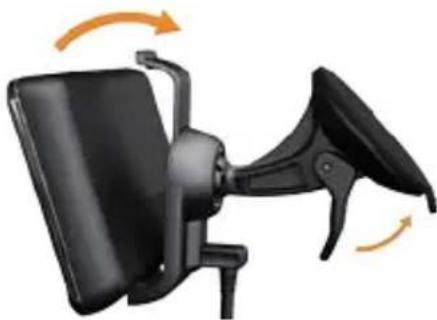
Fit the bottom of your device into the cradle.
-
Tilt your device back until it snaps into place.
natural_image
Black office chair with orange scroll arrows indicating rotation (no text or symbols)Charging Your Device
Charge your device for at least 4 hours before using it on battery power.
Your device can be powered three ways.
- Connect the vehicle power cable to the mount while the device is in the mount.
- Connect the USB cable.
- Connect an AC adapter (available on some device models).
Acquiring Satellites
To navigate with your device, you must acquire satellites.
- Turn on your device.
- If necessary, go outdoors to an open area, away from tall buildings and trees.
Acquiring satellite signals can take a few minutes.
Transportation Modes
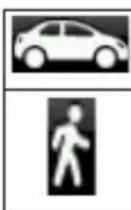
Automobile mode
Pedestrian mode
Your device offers several transportation modes for navigation methods. Routing is calculated differently based on your transportation mode. For example, in Pedestrian mode with cityXplorer™ maps loaded, your device calculates
a route that uses a combination of public transit options, such as riding a bus or subway, and walking. cityXplorer maps are not included with your device.
Go to www.garmin.com to purchase cityXplorer maps.
Changing Your Transportation Mode
- Touch the transportation mode icon.
- Touch a mode.
- Touch Save.
Adjusting the Screen Brightness
- Press and quickly release the Power key.
- Touch and drag the scroll bar to adjust screen brightness.
Locking the Screen
- Press and quickly release the Power key.
- Touch Lock Screen to prevent accidental screen touches.
Powering Off Your Device
- Press and quickly release the Power key to view additional options.
- Touch Power Off to turn off your device. You can also turn off the device by holding the Power key for two seconds.
Resetting Your Device
You can reset your device if it stops functioning.
Press and hold the Power key for 10 seconds.
Adjusting the Volume
- From the main menu, touch Volume.
- Use the slider bar to adjust the volume.
Muting the Audio
Touch Volume > mute all audio.
Navigating the Screens
- Touch to view more options.
- Touch and to see more choices.
- Touch and hold ↑ and to scroll faster.
- Touch and hold no quickly return to the main menu.
Using the On-Screen Keyboard
NOTE: See “Customizing the Device” to change the keyboard layout (page 53).
- Touch a character on the keyboard to enter a letter or number.
- Touch to add a space.
- Touch in the text field to move the cursor.
- Touch to delete a character.
- Touch and hold to erase the entire entry.
- Touch to select the keyboard language mode.
- Touch to enter special characters, such as punctuation marks.
About Points of Interest
The detailed maps loaded in your device contain millions of points of interest (POIs), such as restaurants, hotels, and auto services.
Finding a Point of Interest by Category
- From the main menu, touch
Where To? > Points of Interest. - Touch a category.
- If necessary, touch a subcategory.
TIP: To narrow the search, touch 🔒, enter text, and touch Done.
A list of items near your current location appears. - Touch an item.
Finding a Point of Interest by Spelling the Name
Local Search may not be available in all areas or countries.
- From the main menu, touch Where To? > Points of Interest > Local Search.
- Enter all or part of the name.
- Touch Done.
-
Select an option:
-
Touch a Local Search result.
-
Touch the Garmin tab to search the Garmin map data loaded on your device.
-
Touch an item.
Finding Points of Interest in Pedestrian Mode
While in Pedestrian mode in certain cities, you may use cityXplorer maps to navigate using public transit.
Go to www.garmin.com to purchase cityXplorer maps.
- Select Pedestrian transportation mode (page 4).
- From the main menu, touch Where To? > Points of Interest.
- Touch a category.
- If necessary, touch a subcategory.
- Touch an item.
-
Select an option:
-
Touch Drive to calculate a route you will navigate by driving.
- Touch Walk to calculate a route you will navigate by walking.
Getting Started
- Touch Public Transit (if available) to calculate a route that uses public transit and walking.
- Touch Go!.
Adding a Points to the Active Route
- While navigating a route, touch
→ to return to the main menu. - Touch Where To?.
- Touch a category.
- If necessary, touch a subcategory.
- Touch a destination.
- Touch Go! > Add to Current Route to add the new destination to the active route as a point of interest, also called a via point.
Changing the Destination of the Active Route
- While navigating a route, touch → to return to the main menu.
- Touch Where To?.
- Search for the location.
- Touch Go! > Start New Route.
Navigating Off Road
If you are not following roadways as you navigate, use Off Road mode.
-
From the main menu, touch Tools > Settings > Navigation
Automobile > nüRoute >
Calculation Mode. -
Touch Off Road > Save.
Taking a Detour
While navigating a route, you can use detours to avoid obstacles ahead of you, such as construction zones.
- While navigating a route, touch → to return to the main menu.
- Touch Detour (or Recalculate in Pedestrian mode).
If the route you are currently taking is the only reasonable option, the device might not calculate a detour.
Stopping the Route
-
While navigating a route, touch → to return to the main menu.
-
Touch Stop.
Finding Locations
The Where To? menu provides several different categories you can use to search for locations. To perform a simple search, see page 6.
Finding an Address
NOTE: Depending on the version of the maps loaded on your device, the button names and the order of steps could be different from the steps below.
- From the main menu, touch Where To? > Address.
- If necessary, change the state, country, or province.
- Touch Spell City.
- Enter the name of the city.
- Touch Done.
- If necessary, touch the city/postal code.
NOTE: Not all map data provides postal code searching.
- Enter the number of the address.
- Touch Done.
- Enter the street name.
- Touch Done.
- If necessary, touch the street.
- If necessary, touch the address.
Using the Go! Page
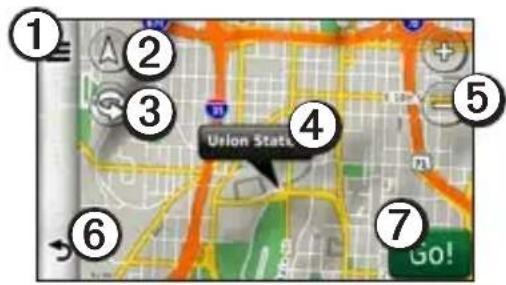
The Go! page opens when you select a location.
text_image
① ② ③ ④ ⑤ ⑥ ⑦ Union State Go!- Touch① to call the selected location when your device is connected to a phone, or to save the location to your favorites.
- Touch② to switch between 2-D and 3-D view.
- Touch③ to rotate the view.
- Touch④ to view more information for the location.
-
Touch⑤ to zoom in and out.
-
Touch⑥ to return to the previous page.
Touch and hold to return to the main menu. - Touch⑦ to create a turn-by-turn route to this location.
Reporting an Incorrect Point of Interest
When your search results contain an outdated or incorrect point of interest, you can remove the location from future searches.
-
From the Go! page, touch the information balloon.
-
Touch ≡ > Report Error > Yes.
The location is removed from future searches.
Editing the Phone Number for a Point of Interest
If your search results contain an outdated or incorrect phone number for a point of interest, you can edit the phone number.
- From the Go! page, touch the information balloon.
- Touch ▶ Edit Phone Number.
- Enter the phone number.
- Touch Done.
The phone number updates on your device.
Rating a Point of Interest
When available, you can view and change the star rating for a point of interest.
- From the Go! page, touch the information balloon. If available, the star ratings for
the point of interest appear to the left of Go!.
- Touch the stars to rate the point of interest.
The star rating updates on your device.
Setting a Home Location
You can set your home location for the location you return to most often.
- From the main menu, touch Where To? > Go Home.
- Select an option to set your home location:
- Touch Enter My Address to enter your home address.
- Touch Use My Current Location to set your current location as your home location.
- Touch Recently Found to set a recently found location as your home location.
Going Home
Before you can navigate to home, you must set a home location.
From the main menu, touch Where To? > Go Home.
Resetting Your Home Location
-
From the main menu, touch Where To? >Set Home Location.
-
Touch an option to change your address.
Editing Your Home Location
- From the main menu, touch Where To? > Favorites > Home.
- Touch Edit.
- Enter your changes.
- Touch Done.
Searching for a Location in a Different Area
- From the main menu, touch Where To? >Near.
-
Touch a search area:
-
Touch Where I Am Now to search for places near your current location.
- Touch A Different City to search for places near the city you enter.
- Touch A Recent Destination to search near a recently found location.
- Touch Favorite Destination to search near a Favorite destination.
- Touch My Current Route to search for places along your current route.
Finding Locations
- Touch My Destination to search for places near your current route destination.
Viewing a List of Recently Found Locations
Your device stores the last 50 locations you have found.
From the main menu, touch Where To? > Recently Found.
Clearing the List of Recently Found Locations
From the main menu, touch Where To? > Recently Found > ≡> Yes.
Finding a Destination Using Phone Book Listings
Phone book listings may not be available in all areas or countries.
- From the main menu, touch Where To? > White Pages.
-
Select an option:
-
Touch By Name to search for a listing using first and last names.
-
Touch By Phone Number to search for a listing using a phone number.
-
Enter a name or a phone number.
- Touch Done.
- If necessary, touch a listing in the search results.
Finding Fuel Prices
Fuel prices may not be available in all areas or countries.
- From the main menu, touch Where To? > Fuel Prices.
- Touch ≧ Fuel Type.
- Touch a fuel type.
- Touch Save.
A list of fuel prices at nearby gas stations appears. - Touch a gas station.
Checking Movie Times
Movie times may not be available in all areas or countries.
- From the main menu, touch Where To? > Movie Times.
- Touch >Select Day.
- Touch an upcoming day.
- Touch Find By Movie Title or Find by Theater Name.
nüLink! 1695 Owner's Manual 15
- Touch a movie title or a theater name.
Finding Local Events
Local events may not be available in all areas or countries.
- From the main menu, touch Where To? > Local Events.
- Touch >Select Day.
- Touch a category.
- Touch an event.
Finding Parking
- From the main menu, touch Where To? > Parking > Find Parking.
- Touch a parking location.
Finding Your Last Parking Spot
The device saves your parking spot when you remove the device from the mount while it is operating on external power.
From the main menu, touch Where To? > Parking > Last Spot.
Finding an Intersection
- From the main menu, touch Where To? > Intersection.
-
Select an option:
-
Touch State or Country to select a different country, state, or province.
- Touch Spell City to enter the name of a city.
-
Touch Search All to search all cities in the selected country, state, or province.
-
Enter the first street name.
- Enter the second street name.
- If necessary, touch an intersection in the list.
About Favoritesvorites
You can save places in your Favorites so you can quickly find them and create routes to them. Your home location is also stored in Favorites.
Saving Your Current Location to Favorites
- From the map page, touch the vehicle icon.
- Touch Save.
- Enter a name.
- Touch Done.
The location is saved in Favorites.
Saving Locations to Favorites
- Search for the location (page 6).
- From the Go! page, touch Save > OK.
Finding Favorites
- From the main menu, touch Where To?.
- If necessary, touch a category.
- Touch a saved location.
Editing Favorites
- From the main menu, touch Where To? > Favorites.
- Touch a category.
- Touch a favorite.
- Touch the information balloon.
- Touch Edit.
- Select an option:
- Edit the information.
- Touch Done.
Planning a Trip
You can use the Trip Planner to create and save a trip with multiple destinations.
- From the main menu, touch Where To? > Trip Planner.
- Touch +
- Touch Select Start Location.
- Find a location for your starting point.
- Touch Select.
- Touch + to add additional locations to your map.
- Touch Next.
- Enter a name for your trip.
- Touch Done.
Scheduling a Trip
Trip Planner allows you to set a departure time and trip duration.
- From the main menu, touch Where To? > Trip Planner.
- Touch a trip.
- Touch a location.
- Touch Departure Time (or Arrival Time if the location is not the first stop in the trip).
- Touch a date and time.
- Touch Save.
- Touch Duration.
- Select the amount of time you will spend at the location.
- Touch Save.
- If necessary, repeat steps 2–7 for each location.
Navigating a Saved Trip
-
From the main menu, touch Where To? > Trip Planner.
-
Touch a trip.
-
Touch Go!.
Editing a Saved Trip
-
From the main menu, touch Where To? > Trip Planner.
-
Touch a trip.
-
Touch
-
Select an option:
-
Touch Edit Destinations to add or delete locations.
- Touch Optimize Order to arrange your trip locations in the most-efficient order.
- Touch Delete Trip to delete the entire trip.
- Touch Rename Trip to edit the trip name.
Using the Map Buttons
- From the main menu, touch Where To? > Browse Map.
-
Touch anywhere on the map.
-
Touch and to zoom in and out.
- Touch to switch between 2-D and 3-D views.
- Touch to rotate the view.
Browsing the Map by Touching the Screen
From the main menu, touch Where To? > Browse Map.
- Touch an area on the map to select a location.
An information balloon appears next to the location. - Touch and drag the map to view different parts of the map.
- Tap the map twice to zoom in and center on a location.
Finding a Location Using the Map
- From the main menu, touch Where To? > Browse Map.
- Touch a location.
An information balloon appears next to the location.
- Touch the information balloon.
- Touch Go!.
Sending Found Places to Your Device
You can send locations to your device from various online sources, including http://connect.garmin.com.
- Find a location on a supported Web site.
- Follow instructions on the Web site to send the location to your myGarmin™ account.
- Find a location on a supported Web site.
Finding Locations
- Connect your device to your computer using a USB cable (page 42) to manually transfer locations to your device.
Locations sent to your myGarmin account are transferred automatically to Favorites (page 16) on your device through nüLink! services.
Simulating a Route to a Location
- From the main menu, touch Tools > Settings > System > GPS Simulator > On > Save.
- From the main menu, touch Where To? > Browse Map.
- Touch an area on the map.
- Touch Go!.
Entering Coordinates
If you know the geographic coordinates of your destination, you can use your device to navigate to your destination using the latitude and longitude coordinates. This can be especially helpful when geocaching.
- From the main menu, touch Where To? > Coordinates.
- Touch Format to select the correct coordinate format for the type of map you are using.
- Touch the coordinate you want to adjust.
- Enter the coordinates.
- Touch Done.
- Touch Next. The coordinates are displayed on a map.
- Touch >Set Location.
About the Map Pages
Viewing the Map While Navigating
NOTICE
In no event shall Garmin be liable for any incidental, special, indirect, or consequential damages, including, without limitation, damages for any traffic fines or citations, whether resulting from the use, misuse, or inability to use the product or from defects in the product. Some states do not allow the exclusion of incidental or consequential damages, so the above limitations may not apply to you.
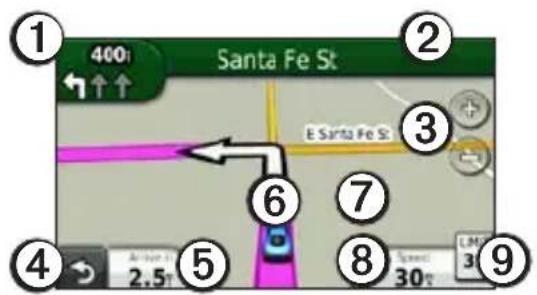
Your route is marked with a magenta line. A checkered flag marks your destination.
As you travel, your device guides you to your destination with voice prompts, arrows on the map, and directions at the top of the map. If you depart from the original route, your device recalculates the route and provides new directions.
A speed limit icon displaying the current speed limit may appear as you travel on major roadways.
text_image
① 400t Santa Fe St ② E Santa Fe St ③ ⑥ ⑦ ④ 2.5t ⑤ 30t ⑧ LM 3t ⑨- Touch① to view the next turn or junction view.
- Touch② to view the turn list.
- Touch③ to zoom in and out.
- Touch④ to return to the main menu.
About the Map Pages
- Touch⑤ to change the data field.
- Touch⑥ to view information about your current location.
- Touch⑦ and drag the map to view a different area of the map.
- Touch⑧ to view trip information.
- Touch⑨ to report a safety camera.
Viewing Trip Information

text_image
Trip A 0002667 N 0° Trip B 0002667 Max. Speed 77° Moving Avg. 29° Overall Avg. 0.9° Stopped 272:36 Moving Time 9:07 Total Time 281:43The trip information page displays your current speed and provides statistics about your trip.
TIP: If you make frequent stops, leave the device turned on so it can accurately measure elapsed time during the trip.
From the map, touch Speed.
Resetting Trip Information
-
From the map, touch Speed > ≡.
-
Select an option:
-
Touch Reset Trip Data to reset the trip information.
- Touch Reset Max. Speed to reset the maximum speed.
- Touch Reset Trip B to reset the odometer.
Viewing the Turn List
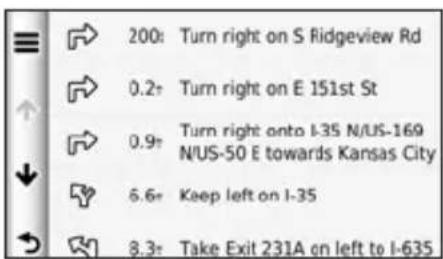
While navigating a route, you can view all of the turns for your entire route and the distance between turns.
- While navigating a route, touch the text bar on the top of the map.
text_image
200: Turn right on S Ridgeview Rd 0.2+ Turn right on E 151st St 0.9+ Turn right onto I-35 N/US-169 N/US-50 E towards Kansas City 6.6+ Keep left on I-35 8.3+ Take Exit 231A on left to I-6352. Select an option:
- Touch a turn on the list to view the next turn.
- Touch ≡ Show Map to view the entire route on the map.
Viewing the Next Turn
text_image
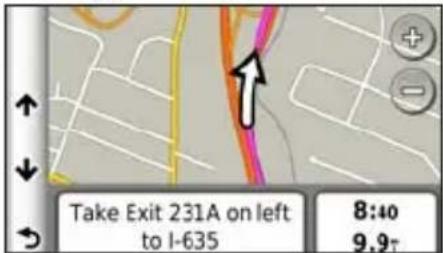
Take Exit 231A on left to I-635 8:40 9.9TYour next turn shows the turn on the map along with the distance and time left before you reach the turn.
While navigating a route, touch
nüLink! 1695 Owner's Manual 23
the turn indicator in the upper-left corner to view the next turn.
Viewing the Junction View
text_image
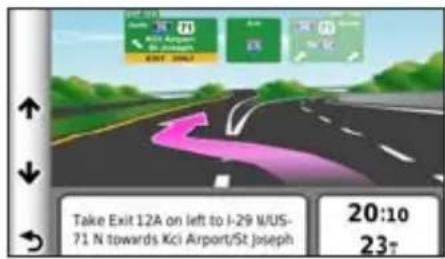
Take Exit 12A on left to I-29 U/US- 71 N towards Kci Airport/St Joseph 20:10 23TOn some device models, the junction view displays a view of some upcoming junctions and While navigating a route which lane you should be driving.
While navigating a route, touch the turn indicator in the upper-left corner to view the junction view.
Using the Pedestrian Navigation Map

text_image
Transfer to bus 130 at Lasalle & Wacker/Laks- Sb towards Adams & Wacker ① ② ① ③ ④ ⑤In Pedestrian mode, your route is displayed on a two-dimensional map.
- Touch① to view the next step in the route.
- Touch② to view all of the steps in the route.
- Touch③ to center the map on your current location
- Touch④ to zoom in and zoom out.
- Touch⑤ to change the data field.
Public Transit Options
If you have cityXplorer maps installed, your device calculates a route that uses a combination of public transit options, such as riding a bus or subway, and walking.
Go to www.garmin.com to purchase cityXplorer maps.
The 🎥, 🎥, 🎥 and 🎥 🎥 🎥 🎥 icons indicate the navigation method for that section of the route. For example, when you see 🎥 board a bus at that point in the route.
The black dots on the map are public transit stops along your route.
About Traffic
NOTICE
The speed limit icon feature is for information only and does not replace the driver's responsibility to abide by all posted speed limit signs and to use safe driving judgment at all times. Garmin will not be responsible for any traffic fines or citations that you may receive for failing to follow all applicable traffic laws and signs.
Traffic information may not be available in all areas or countries.
About the Traffic Icon
When you are receiving traffic information, a traffic icon appears on the map. The traffic icon changes color to indicate the severity of traffic conditions on your route or on the road you are currently traveling.
| Color Description Meaning | ||
| Green Low severity | Traffic is flowing normally. | |
| Yellow | Medium severity | Traffic is slightly congested. |
| Red High severity | Traffic is heavily congested or stopped. | |
| Gray No data | Traffic data has not updated. | |
Traffic on Your Route
When calculating your route, the device examines the current traffic and automatically optimizes the route for the shortest time. If a severe traffic delay occurs on your route while you are navigating, the device automatically recalculates the route.
You might still be routed through traffic if no better alternative routes exist.
Manually Avoiding Traffic on Your Route
- While navigating a route, touch
- Touch Traffic On Route.
- If necessary, touch the arrows to view other traffic delays on your route.
- Touch ≥Avoid.
Viewing the Traffic Map
The traffic map shows color-coded traffic flow and delays on nearby roads.
- From the map, touch
- Touch Traffic Map to view the traffic incidents on a map.
Searching for Traffic Delays

- From the map, touch
- Touch Traffic Search to view a list of traffic delays.
- Touch an item in the list to view delays on the road.
- If there is more than one delay, touch the arrows to view additional delays.
Disabling Traffic
-
From the main menu, touch Tools > Settings > System > Position Reporting > Off.
-
Touch Save.
About Offers
While you are receiving traffic information, you will receive location-relevant offers and coupons with your traffic information. Ad-based traffic is only available in North America.
The traffic receiver must be connected to external power and you must be in a coverage area to receive ad-based traffic information.
Viewing Offers
CAUTION
Do not attempt to write down the coupon codes while driving.
- Touch an offer that appears on the screen to search for the nearest location related to that offer.
- If the offer shows an icon, touch the icon on the Go! page to receive a coupon code.
- Write down this code and present it when you arrive at the location.
Viewing a List of Offers Received.
Touch Tools > Offers to view a list of offers you have received.
Disabling Offers
You must disable traffic in order to disable offers.
-
From the main menu, touch Tools > Settings > System > Position Reporting > Off.
-
Touch Save.
About nüLink! Services
nüLink! services may not be available in all areas or countries.
Your device includes a basic nüLink! subscription, which is activated when you first turn on your device. nüLink! services allow you to receive current information on fuel prices, flight times, and more.
To use these features, you must have a current nüLink! subscription, and your device must be receiving a nüLink! signal.
See www.garmin.com/nulink for more information.
Purchasing Additional nüLink! Services
You can purchase premium nüLink! services, such as real-time safety cameras and weather radar.
- From the main menu, touch Tools > nüLink!™ Store.
- Touch an option to view more details.
- Touch Upgrade to purchase premium content.
Checking Your nüLink! Store Account Status
You can check the status of your nüLink! services subscription, including the billing status of your basic subscription and your premium content.
-
From the main menu, touch Tools > nüLink!™ Store > Account Status.
-
Touch an item in the list to view details.
Renewing nüLink! Services
After your subscription ends, you can renew your subscription to continue receiving nüLink! services.
-
From the main menu, touch Tools > nüLink!™ Store > Account Status.
-
Touch an item in the list.
- Touch Renew.
- Touch a purchase option:
- Touch Purchase.
- Enter your myGarmin password.
Viewing myGarmin Messages
nüLink! services allow you to receive messages from myGarmin.
If you have unread messages, the number of unread messages appears in a blue oval on the myGarmin icon.
myGarmin may not be available in all areas or countries.
- From the main menu, touch Tools > myGarmin.
- Touch a message.
About Safety Cameras
For available locations, the device includes the locations of hundreds of safety cameras. Your device alerts you when you are approaching a safety camera and can warn you if you are driving too fast.
You can purchase a new region or extend an existing subscription at any time. Each region that you purchase has an expiration date.
Safety Camera Availability
Safety camera information may not be available in all areas or countries. Check http://my.garmin.com for availability. Safety camera information is not available in Switzerland. Safety camera information is disabled by default in Germany and Austria.
Use of the safety camera database may be a misdemeanor in certain European countries. Prior to using or enabling the safety camera database, inquire about the legal situation and possible legal consequences of using this database in the countries in which you intend to use it.
Garmin International and its affiliates accept no liability for the use of this safety camera database. Garmin International and its affiliates do not warrant or guarantee in any way as to the accuracy or exhaustiveness of
the safety camera database.
Reporting Safety Cameras
You can report safety cameras, including red light cameras and radar guns, as you encounter them.
From the map, touch Report Safety Camera.
NOTE: If does not appear, you can touch the speed limit icon to report safety cameras.
The location of the safety camera is shared with other users.
Turning Off Safety Cameras
- From the main menu, touch Tools Settings > Navigation > Automobile > Alerts.
- Clear the Garmin Safety Cameras check box.
- Touch Save.
About the Hands-Free Features
To use the hands-free features, you must pair your phone and your device. For more information, see www.garmin.com/bluetooth.
Pairing Using Your Phone Settings
Before you can pair and connect, your phone and the device must be turned on and within 33 ft. (10 m) of each other.
- Enable the Bluetooth component on your phone.
- On your device, touch Tools > Settings > Bluetooth > Bluetooth.
- Touch Enabled > Save.
- Touch Add Phone > OK.
-
Select your phone.
-
Touch OK.
- Enter the device Bluetooth PIN (1234) into your phone.
Pairing Using the Device Settings
- From the main menu of the device, touch Tools > Settings > Bluetooth > Phone > +
- Enable the Bluetooth component on your phone.
- Enable Find Me/Discoverable/Visible mode on your phone. NOTE: This might be in a menu called Settings, Bluetooth, Connections, or Hands-free.
- Touch OK on the device.
- Select your phone from the list of devices.
- Touch OK on the device.
- Enter the device Bluetooth PIN (1234) in your phone.
About Paired Devices
• After the initial pairing, the two devices can connect automatically each time you turn them on.
- You might have to set your mobile phone to connect to the device automatically when it is turned on.
- When your phone is connected to your device, you are ready to make phone calls.
- When you turn on the device, it attempts to connect to the last phone to which it was connected.
Calling a Number
Before you can call a number using your device, you must pair your phone and your device.
- From the main menu, touch Phone > Dial.
- Enter the number.
- Touch Dial.
Receiving a Call
When you receive a call, the Incoming Call window appears.
- Touch Answer to answer the call.
- Touch Ignore to ignore the call.
Using the Device During a Call
During a call, appears on the map and Phone appears on the main menu. Depending on the screen shown on your device, the In Call icon could look different.
- On the map, touch
-
Select an option:
-
Touch Use Handset to turn off the device but remain on the call.
- Touch Keypad to view a keypad page for using automated systems such as voice mail.
- Touch Mute to mute the microphone.
- Touch End Call to end the call.
Using Call Waiting
When you are on a call and you receive a second call, the Incoming Call screen appears.
- Touch
- Touch Switch To.
- When you are finished with the call, touch End Call to hang up. This does not disconnect the call on hold.
Accessing the Phone Menu
From the main menu, touch Phone.
NOTE: Not all phones support all features of the device Phone menu.
About Your Phone Book
Each time your phone connects with the device, the phone book is automatically loaded into the device. It can take a few minutes for the phone book to be available. Phone book transfer is not available on all phones.
Using Your Phone Book
- From the main menu, touch Phone > Phone Book.
- Touch the phone book entry (contact) you want to call.
Dialing a Point of Interest
- From the main menu, touch Phone > Points of Interest.
- Search for the point of interest you want to call.
- Touch Call or touch the phone number.
Dialing a Number
- From the main menu, touch Phone > Dial.
- Enter the number.
- Touch Dial.
Viewing Your Call History
Each time your phone connects to the device, your call history is automatically transferred to the device. It may take a few minutes to transfer this data to the device.
- From the main menu, touch Phone > Call History.
- Touch a category. The calls are listed in chronological order. The most- recent calls are at the top of the list.
- Touch an entry.
- Touch Dial.
Entering Your Phone Number
You can enter the phone number you want the device to call when you touch Call Home.
- From the main menu, touch Phone > Call Home.
- Touch Enter Phone Number.
- Enter the phone number.
- Touch Done > Yes.
The device dials your home phone number.
Calling Home
From the main menu, touch Phone > Call Home.
Placing Calls Using Voice Dial
Before you can place calls by speaking the name of the contact, you may need to train your phone to recognize your voice dial commands. Refer to your phone instructions.
- From the main menu, touch Phone > Voice Dial.
- Speak the contact name.
Checking the Phone Battery Level and Signal Strength
From the main menu, touch Phone > Phone Status.
About Ciao!™
Ciao! periodically sends your location to our partner networks and downloads the most-recent location of your friends. This application only submits your location when you tell it to, unless you enable automatic updates. See www.garmin.com/nulink for more information.
Ciao! may not be available in all areas or countries.
About Ciao! Networks
CAUTION
Use caution when sharing your location information with others.
Ciao! may support multiple location-based social networks.
When you enable Ciao!, the network or networks you will be registered with appear in the terms of service.
Enabling Ciao!
Before you can join Ciao!, you must register your device (page 68).
- From the main menu, touch Tools > Ciao! > Agree.
- On your computer, go to the URL that appears on the device screen, and read the Terms of Service.
- Touch Continue to accept the Terms of Service.
About the Ciao! Friend List
When you start Ciao!, the friend list appears.
If you are receiving updates from a friend, the distance and direction to the friend appears on the right side of the screen.
The status of a friend appears below their name. If you are receiving updates from a friend, their custom
status message appears. These statuses may appear if you are not receiving updates from a friend.
- Invited—You have invited this friend, but he or she has not yet accepted your invitation.
- Pending—This friend has invited you, but you have not yet accepted his or her invitation.
- Hidden—This friend has temporarily disabled updates.
Updating Your Ciao! Status Message
- From the main menu, touch Tools > Ciao! > Update.
- Enter a status message with up to 255 characters.
- Touch Done.
Updating Your Ciao! Status Message on Social Networking Sites
NOTE: You must set up and configure your social networking sites on myGarmin before you can publish your status to them using Ciao!.
-
From the main menu, touch Tools > Ciao! > Publishing Settings.
-
Select the name of the social networking site.
-
Touch Done.
Changing Your Ciao! Visibility
You can choose whether to send location updates to your Ciao! friends by changing your visibility.
- From the main menu, touch Tools > Ciao! > □ ▶ de > Yes.
Your friends will not be able to view your location and status information.
- Touch ≡ > Show > Yes to make your information visible again.
Accepting or Declining a Ciao! Invitation
- From the main menu, touch Tools > Ciao!.
- Touch the friend who sent you the invitation.
- Touch Accept or Decline.
Inviting a Friend by Phone Number
- From the main menu, touch Tools >+> Invite by phone number.
- Enter the name of the country where your friend is located.
- Touch a country.
- Touch Save.
- Enter a phone number in the proper format for the country you selected.
For example, for the United States, enter a ten-digit phone number, including the area code.
- Touch Done.
- Touch Send Invite.
The friend you invited appears in your friends list. Your friend must accept your invitation before you can view your friend's location.
Inviting a Friend by E-mail Address
- From the main menu, touch Tools > Ciao! > + Invite by E-mail address.
- Enter the e-mail address that your friend has registered with Ciao!.
- Touch Done.
The friend you invited appears in your friends list. Your friend must accept your invitation before you can view your friend's location.
Viewing a Friend's Ciao! Details
- From the main menu, touch Tools > Ciao!. The friends list appears.
- Touch a friend in the list.
Viewing the Location of a Friend
- From the main menu, touch Tools > Ciao!.
- Touch a friend in the list.
-
Select an option:
-
Touch ➕ View Map to view your friend's location on the map.
- Touch Save to save your friend's location as a favorite.
- Touch Go! start a route to your friend's location.
- Touch Call to call your friend on a connected mobile phone (page 31).
- If the GPS simulator is enabled, touch Set Location to set your friend's location as your current location.
Removing a Friend
To stop sharing location information with a friend, you can remove that friend from Ciao!.
- From the main menu, touch Tools > Ciao!.
- Touch a friend in the list.
- Touch ▷Remove.
- Touch Yes.
Disabling Ciao!
You can disable the Ciao! service on your device if you no longer want to use it.
NOTICE
If you disable Ciao!, you will be unregistered from Ciao! and our partner networks, and all Ciao! friends and Ciao! data will be removed from your device.
- From the main menu, touch Tools > Ciao! >
- Touch ≡ > Disable Ciao! > Yes.
Data Management
You can store files, such as JPEG image files, on your device. The device has a memory card slot for additional data storage.
NOTE: The device is not compatible with Windows® 95, 98, Me, Windows NT®, and Mac® OS 10.3 and earlier.
Compatible File Types
The device supports multiple file types.
• .jpg image files.
- Maps and .gpx waypoint files from MapSource® (page 66).
• .gpi custom POI files from Garmin POI Loader (page 66).
About Memory Cards
You can purchase memory cards from an electronics supplier, or purchase preloaded MapSource detailed map data cards from your Garmin dealer. In addition to map and data storage, the memory card can be used to store files such as maps, images, geocaches, routes, waypoints, and custom POIs.
Installing a Memory Card
- Insert a memory card into the slot.
- Press it in until it clicks.
Connecting Your Device to Your Computer
- Connect the larger end of the USB cable to a USB port on your computer.
- Connect the micro-USB connector to the device.
The myGarmin Agent™ appears. This service monitors your computer USB ports and allows you to easily check for available updates.
Two additional drives (volumes) appear in the list of drives on your computer. One is the internal memory of the device. The other is the memory card.
NOTE: Some computers with multiple network drives may not display your device drives. See your operating system Help file to learn how to map the drives.
Transferring Files to Your Computer
- Connect your device to your computer.
- Browse your computer for the file you want to copy.
- Highlight the file.
- Click Edit > Copy.
- Open the “Garmin” or memory card drive/volume.
- Select Edit > Paste Item.
The file appears in the list of files in the device memory or on the memory card. - Repeat steps 1–6 to transfer additional files.
Deleting Files from Your Device
NOTICE
If you do not know the purpose of a file, do not delete it. Your device memory contains important system files that should not be deleted. Be especially cautious of folders entitled “Garmin.”
- Connect your device to your computer (page 42).
- Open the “Garmin” drive or volume.
- If necessary, open a folder or volume.
- Select a file.
- Press the Delete key on your keyboard.
Disconnecting the USB Cable
1. Complete an action:
- For Windows computers, click in your system tray.
- For Mac computers, drag the volume icon into the Trash
2. Disconnect the cable from your computer.
Using the Tools
Accessing the Device Settings
For information about the settings, see pages 53–60.
Viewing Current Location Information
Use the Where Am I? page to view information about your current location. This feature is helpful if you need to tell emergency personnel your location.
- From the main menu, touch Tools > Where Am I?.
- Touch Hospitals, Police Stations, or Fuel to view the nearest locations in that category.
Using Help
From the main menu, touch Tools > Help to get information about using your device.
Searching Help Topics
- From the main menu, touch Tools > Help >
- Enter a search term.
- Touch Done.
About ecoRoute™
The ecoRoute feature calculates your vehicle fuel economy, carbon footprint, and the fuel price of navigating to a destination, and offers tools for improving fuel efficiency.
The data provided by the ecoRoute feature are estimates only. The data is not actually read from your vehicle. To receive more-accurate fuel reports for your specific vehicle
and driving habits, calibrate the fuel economy (page 45).
Using ecoRoute
The first time you use the ecoRoute features, you must enter vehicle information.
- From the main menu, touch Tools > ecoRoute.
- If necessary, enter fuel and mileage information.
- Touch Done.
Calibrating the Fuel Economy
Calibrate the fuel economy to receive more accurate fuel reports for your specific vehicle and driving habits. Calibrate when you fill up your fuel tank.
- From the main menu, touch Tools > ecoRoute > At the Pump.
- Enter the current fuel price.
- Enter how much fuel your vehicle has used since the last fill up.
- Enter the distance you have traveled since the last fill up.
- Touch Next.
The device calculates your average fuel economy.
About ecoChallenge
ecoChallenge helps you maximize your fuel economy by scoring your driving habits. The higher your ecoChallenge scores, the more fuel you save. ecoChallenge collects data and calculates a score whenever your device is moving and in Automobile transportation mode.
Viewing Your ecoChallenge Scores
From the main menu, touch Tools > ecoRoute > ecoChallenge.
About Your ecoChallenge Score
The leaf color on the ecoChallenge icon changes depending on your performance in the challenge.
Overall—displays an average of the speed, acceleration, and braking score.
Speed—displays your score for driving at the optimal speed for conserving fuel (45-60 mph for most vehicles).
Acceleration—displays your score for smooth and gradual acceleration. You lose points for rapid acceleration.
Braking—displays your score for smooth and gradual braking. You lose points for hard braking.
Removing the ecoChallenge Score From the Map
- From the map, touch Settings > Hide.

- Touch Save.
Resetting ecoChallenge
- From the map, touch Reset.
- Touch Yes.
Viewing Fuel Economy Information
- From the main menu, touch Tools > ecoRoute > Fuel Economy.
- Touch a section of the graph to zoom in.
Resetting Your Vehicle Profile
-
From the main menu, touch Tools > ecoRoute > Vehicle Profile.
-
Touch >Reset.
-
Touch Yes.
Viewing the Mileage Report
Mileage reports provide the distance, the time, the average fuel economy, and the fuel cost of navigating to a destination.
A mileage report is created for every route that you drive. If you stop a route on your device, a mileage report is created for the distance you traveled.
You can view up to 20 mileage reports on your device. You can also access mileage reports in the Reports folder on your device drive/volume.
- From the main menu, touch Tools > ecoRoute > Mileage Report.
- Touch a report.
Resetting ecoRoute Data
- From the main menu, touch Tools > ecoRoute.
- Touch the category you want to reset.
- Touch Reset.
Viewing Weather Information
CAUTION
The weather information provided through this product is subject to service interruptions and may contain errors, inaccuracies, or outdated information, and consequently should not be relied upon exclusively. Always use common sense while driving or navigating, and check alternate weather information sources prior to making safety-related decisions. By purchasing, you acknowledge and agree that you shall be solely responsible for use of the weather information and all decisions made with respect to driving or navigating in unsafe weather conditions.
Weather information may not be available in all areas or countries.
- From the main menu, touch Tools > Weather.
Weather data for your current location appears.
You can also view the weather by touching the current temperature icon in the status bar at the top of the main menu.
- Touch a day in the forecast to view weather information for that day.
Viewing Weather for a Different Location
From the main menu, touch Tools > Weather.
- Touch Current Location to change your current location.
- Touch Current Location > Add City to view weather information for a different location.
- Touch ➞ Favorite Cities to view weather information for cities you have added.
Viewing the Weather Radar
The weather radar service is available through your nüLink! subscription as premium content. For more information about purchasing nüLink! subscriptions, see page 28.
You can view a weather map that displays precipitation (if any) near a location.
-
From the main menu, touch Tools > Weather.
-
Touch ➕ Weather Radar.
TIP: The weather radar icon ( ) may appear on the map page. The weather icon changes to notify you when inclement weather (rain, snow, rain/snow mix, high winds, hail, or thunderstorms) is near your
current location. For example, the weather icon changes to H rain is near your current location.
About Weather Alerts
Weather alerts are available through your nüLink! subscription as premium content. Weather alerts appear on the map to warn you of severe weather conditions.
For more information about purchasing nüLink! subscriptions, see page 28.
Viewing Flight Information
Flight information may not be available in all areas or countries.
-
From the main menu, touch Tools > Flight Status.
-
Touch a nearby airport.
-
Select an option to find a flight:
Using the Tools
- Touch Check Flight Number to search by flight number.
- Touch Search Arrivals to search by arrival.
-
Touch Search Departures to search by departure.
-
Touch a flight.
-
If your flight has multiple connections, touch Next Leg to check the next flight.
Using the Picture Viewer
View pictures that you have stored in your device or on a memory card.
-
From the main menu, from the main menu, touch Tools > Picture Viewer.
-
Select an option:
-
Touch the arrows to scroll through the images.
-
Touch a picture to view a larger image of it.
-
Touch ▶o view a slide show of the pictures.
- Touch anywhere on the screen to stop the slide show.
Showing a Picture at Startup
- From the main menu, touch Tools > Picture Viewer.
- Touch a picture.
- Touch ▷ Show at Startup.
- Touch Yes.
- Touch Save.
Deleting Pictures
- From the main menu, touch Tools > Picture Viewer.
- Touch a picture.
- Touch >Delete.
- Touch Yes.
Using Photo Navigation
You can navigate to photos that include location information, called geotags. Go to http://connect.garmin.com/photos for more information.
- From the main menu, touch Where To? > Favorites > Photos.
- Touch a photo.
- Touch an option.
Using the Currency Converter
Currency conversion rates update automatically through your nüLink! service (page 28).
NOTE: nüLink! services are not available in all areas or countries.
- From the main menu, touch Tools > Currency.
- Touch a currency button to change the currency.
nüLink! 1695 Owner's Manual 51
- Touch a currency.
- Touch Save.
- Touch the amount next to the currency you want to convert.
- Touch Done.
Using the World Clock
The World Clock displays the time at your current location and at three selected cities.
- From the main menu, touch Tools > World Clock.
- Touch one of the cities to change a listed city.
- Enter a city name.
- Touch Done.
- If necessary, select the correct city.
Viewing the World Map
Touch to view the world map. Nighttime hours are shown in the shaded area.
Using the Calculator
Touch Tools > Calculator.
Using the Unit Converter
- From the main menu, touch Tools > Unit Converter.
- Touch the button next to Convert.
- Touch a type of measurement.
- Touch Save.
- Touch a unit of measure that you want to change.
- Touch a unit of measure.
- Touch OK.
- Touch the number field.
- Enter a value.
- Touch Done.
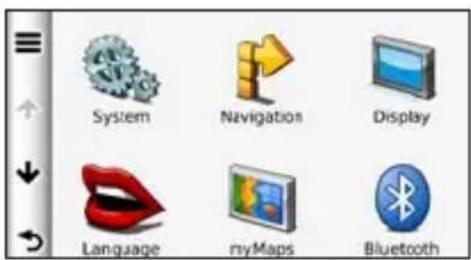
Customizing the Device
- Touch Tools > Settings.
text_image
System Navigation Display Language myMaps Bluetooth- Touch the setting you want to change.
System Settings
From the main menu, touch Tools > Settings > System.
• GPS Simulator—stops the device from receiving a GPS signal, and saves battery power.
- Units—allows you to change the units of measure to kilometers or miles.
• Time Format—allows you to
select a 12-hour, 24-hour, or UTC display time.
- Current Time—allows you to manually change the time.
- Position Reporting—sends your position data to Garmin to improve the quality of received content.
NOTE: If you turn off position reporting, you will not receive traffic information.
- Safe Mode—disables all functions that require significant operator attention and could become a distraction while driving.
• Garmin Lock—locks the device (page 62). - About—displays the device software version number, unit ID number, and information on several other software features. You need this information when
Customizing the Device
you update the system software or purchase additional map data (pages 66).
- End User License Agreements—displays the device end user license agreements.
Automobile Navigation Settings
From the main menu, touch Tools > Settings > Navigation > Automobile.
- nüRoute™—(page 56)
- Map Detail—sets the level of detail on the map. More detail may result in slower map drawing.
-
Map View—sets the perspective on the map page.
-
Map Theme—changes the color of the map data.
- Map Data Layout—changes the amount of data visible on the map.
- Vehicle—changes the icon used to display your position on the map. Go to www.garmingarage.com for more icons.
- Trip Log:
- Show on Map—displays the path of your travels on the map.
- Clear Trip Log—clears the trip log.
- Proximity Points— changes the proximity points setting.
Changing the Map Perspective
- From the main menu, touch Settings > Navigation > Automobile > Map View.
-
Select an option:
-
Touch Track Up to display the map in two dimensions (2-D) with your direction of travel at the top.
- Touch North Up to display the map in 2-D with North at the top.
- Touch 3–D to display the map in three dimensions (3-D) in Track Up.
- Touch Save.
Proximity Points Settings
This option is visible only if you have proximity points or safety cameras loaded on your device. Proximity points include custom POIs and safety camera databases. Go to www.garmin.com /extras for more information.
Touch Tools > Settings > Navigation > Automobile > Proximity Points.
- Alerts—enables or disables alerts that sound as you approach proximity points.
- Audio—sets the type of alerts that sounds as you approach proximity points.
Route Preferences
The route calculation is based on road speeds and vehicle acceleration data for a given route.
From the main menu, touch Tools > Settings > Navigation > Automobile > nüRoute > Calculation Mode.
- Faster Time—calculates routes that are faster to drive but could be longer in distance.
- Shorter Distance—calculates routes that are shorter in distance but could take more time to drive.
- Less Fuel—calculates routes that could use less fuel than other routes.
- Prompted—calculates the Faster Time, Shorter Distance, and Less Fuel routes and allows you to view them all on the map prior to selecting the route.
- Off Road—calculates point-to-point routes (without regard to roads).
Using Prompted Route Calculation
Prompted route calculation creates routes in multiple modes, and allows you to select the mode you want.
- From the main menu, touch Tools > Settings > Navigation > Automobile > nüRoute.
- Touch Calculation Mode > Prompted > Save.
When you start a route, your device calculates the route using Faster Time, Shorter Distance, and Less Fuel calculation modes. A preview of each route type appears on the screen. - Use the arrows to select a route type.
- Touch Go!.
Avoiding Road Features
- From the main menu, touch Tools > Settings > Navigation > Automobile > nüRoute > Avoidances.
- Touch the road features to avoid on your routes.
- Touch Save.
About trafficTrends™
When the trafficTrends feature is enabled, your device uses historic traffic information to calculate more-efficient routes. Different routes may be calculated based on traffic trends for the day of the week or based on the time of day.
The historic traffic information used by trafficTrends is uploaded to Garmin when you connect your device to myGarmin using your computer. Go to http://my.garmin.com for more information.
Enabling trafficTrends
- From the main menu, touch Tools > Settings > Navigation > Automobile > nüRoute > trafficTrends.
- Touch Enabled.
- Touch Save.
About myTrends™
When you enable myTrends, estimated travel times and traffic information for your frequent destinations appear in the navigation bar at the top of the map.
To activate my Trends information, you must add your frequent destinations to Favorites.
After you have completed routes to your frequent destinations on multiple occasions, myTrends information appears in the navigation bar.
Enabling myTrends
- From the main menu, touch Tools > Settings > Navigation > Automobile > nüRoute > myTrends.
- Touch Enabled.
- Touch Save.
Creating a Route with myTrends
- When myTrends information appears in the navigation bar, touch the navigation bar to view a route summary for the suggested destination.
- Touch Go! to start a route to that destination.
Pedestrian Navigation Settings
From the main menu, touch Tools > Settings > Navigation > Pedestrian.
- Limit Walking—controls how much of a public transit route will include walking.
- Public Transit—avoids selected transit types.
- Trip Log—displays the path of your travels on the map.
Avoiding Transit Types
Transit types are only available when cityXplorer maps are loaded.
Go to www.garmin.com to purchase cityXplorer maps.
- From the main menu, touch Tools > Settings > Navigation > Pedestrian > Public Transit.
- Touch the transit type to avoid on your routes.
- Touch Save.
Display Settings
From the main menu, touch Tools > Settings > Display.
- Color Mode—sets a light background (Day), a dark background (Night), or automatically switches between the two based on the sunrise time and the sunset time for your current location (Auto).
- Brightness—changes the brightness of the screen. Decreasing the brightness can save battery power.
- Display Timeout—sets how the screen automatically shuts off if the device is inactive for the selected length of time.
- Screenshot—allows you to take a picture of the device screen.
Taking Screenshots
- From the main menu, touch Tools > Settings > Display > Screenshot.
- Touch Enabled.
- Touch Save.
- Touch the camera icon in the upper-right corner of the screen to save an image of the content on the screen.
The picture bitmap file is saved in the screenshots folder on the device drive (page 42).
Language Settings
From the main menu, touch Tools > Settings > Language.
• Voice Language—sets the language for voice prompts.
- Text Language—sets all on-screen text to the selected language.
NOTE: Changing the text language does not change the language of user-entered data or map data, such as street names.
- Keyboard Language—sets the language for your keyboard.
- Keyboard Layout—sets the keyboard layout.
Restoring the Original Device Settings
- From the main menu, touch Tools.
- Touch a setting.
- Touch ≧Restore.
Appendix
About GPS Satellite Signals
The icon in the upper-left corner of the status bar indicates the GPS signal strength. When at least one of the lines is green, your device has acquired satellite signals.
The more green lines, the stronger the GPS signal. If the device is not receiving GPS signals, a red x appears.
For troubleshooting information about acquiring satellites, see page 70.
For more information about GPS, go to www.garmin.com/aboutGPS.
Viewing Detailed GPS Signal Information
- From the application tray, touch Where Am I?.
- Touch the information balloon.
- Touch >Satellite Info.
Caring for Your Device
- Avoid dropping your device and operating it in high-shock and high-vibration environments.
- Do not expose the device to water. Contact with water can cause this device to malfunction.
- Do not store the device where prolonged exposure to extreme temperatures can occur, because it can cause permanent damage.
- Never use a hard or sharp object to operate the touchscreen, or damage may result.
Appendix
Cleaning the Unit
The device is constructed of high-quality materials and does not require user maintenance other than cleaning.
- Clean the outer casing of the unit (not the touchscreen) using a cloth dampened with a mild detergent solution, and then wipe it dry.
- Avoid chemical cleaners and solvents that can damage plastic components.
Cleaning the Touchscreen
- Apply water, isopropyl alcohol, or eyeglass cleaner to a soft, clean, lint-free cloth.
- Gently wipe the touchscreen.
Avoiding Theft
- Remove the device and mount from sight when not in use.
- Do not keep your unit in the glove compartment.
- Remove the residue on the windshield left by the suction cup.
- Register your product at http://my.garmin.com.
• Use the Garmin Lock feature.
Enabling Garmin Lock™
If you forget your PIN and your security location, you must send your device to Garmin to get it unlocked. You must also send a valid product registration or proof of purchase.
- Go to your security location. Ensure your device is receiving satellite signals.
- From the main menu, touch Tools > Settings > System > Garmin Lock > Lock Device.
-
Touch Enabled.
-
Touch Save.
- Enter a four-digit PIN.
- Touch Done.
Each time you turn on the device, you must enter the PIN or drive to the security location.
Retrieving Your PIN
If you forget your PIN and your security location, you must send your device to Garmin to get it unlocked. You must also send a valid product registration or proof of purchase.
About the Security Location
Your security location should be a location you return to often, such as your home. If the device has satellite signals and you are at the security location, you do not need to enter the PIN.
Calibrating the Screen
If the touchscreen is not responding properly, calibrate the touchscreen.
- Turn off the device.
- Press and hold the upper-left corner of the screen.
- Turn on the device.
- Continue pressing the upper-left corner of the screen for about 30 seconds, until the calibration page appears.
- Follow the on-screen instructions.
Clearing User Data
NOTICE
This deletes all user-entered information.
- Hold your finger on the lower-right corner of the device screen while turning on the device.
- Keep your finger pressed until a message appears.
- Touch Yes to clear all user data. All original settings are restored.
Battery Information
in the status bar indicates the status of the internal battery.
Fully discharge the battery and then fully charge it to increase the accuracy of the battery gauge.
Do not unplug the device until it is totally charged.
Maximizing the Battery Life
- From the application tray, touch Settings > Display > Brightness to turn down the backlight.
- From the application tray, touch Settings > Display > Screen Timeout to reduce the timeout length.
- Do not leave your device in direct sunlight.
- Avoid prolonged exposure to excessive heat.
Mounting on Your Dashboard
NOTICE
The permanent mounting adhesive is extremely difficult to remove after it is installed.
A mounting disk is included in some device packages. Use the mounting disk to mount your device to the
dashboard and comply with certain state and local regulations.
- Clean and dry the dashboard where you are placing the disk.
- Remove the backing from the adhesive on the bottom of the disk.
- Place the disk on the dashboard.
- Remove the clear plastic cover from the top of the disk.
- Place the suction cup mount on top of the disk.
- Flip the lever down (toward the disk).
Removing the Device and Mount
Removing the Device from the Cradle
- Press up on the tab on the top of the cradle.
- Tilt the device forward.
nüLink! 1695 Owner's Manual 65
Removing the Cradle from the Mount
- Turn the cradle to the right or left.
- Apply pressure until the socket on the cradle releases the ball on the mount.
Removing the Suction Cup Mount from the Windshield
- Flip the lever on the suction cup mount toward you.
- Pull the tab on the suction cup toward you.
nüMaps Guarantee™
To receive one free map update (if available), register your device at http://my.garmin.com within 60 days of acquiring satellites while driving with your device. You are not eligible for the free map update if you register by phone or wait longer than 60 days after the first time you acquire satellites while driving with your device. For more information, go to www.garmin.com/numaps.
nüMaps Lifetime™
For a one-time payment, you can receive up to four map updates each year for the life of your device. For more information, go to www.garmin.com, and click on Maps.
Purchasing Additional Maps
You can purchase maps of other areas for your device.
- Go to your device product page on the Garmin Web site (www.garmin.com).
- Click the Maps tab.
- Follow the on-screen instructions.
About Extras
You can download additional content, such as custom POIs, from www.garmin.com/extras.
Custom POIs are customized points on the map. They can contain alerts that let you know if you are near a designated point or if you are traveling faster than a specified speed.
You can create or download custom POI lists and install them on your
device using POI loader software available at www.garmin.com/products/poiloader. See the POI Loader help file for more information.
Finding Extras
-
From the main menu, touch Where To? > Extras.
-
Touch a category.
Garmin Travel Guide
The Garmin Travel Guide provides detailed information about places, such as restaurants and hotels. To purchase an accessory, go to http://buy.garmin.com or contact your Garmin dealer.
Using the Garmin Travel Guide
-
Insert the memory card containing the Garmin Travel Guide into your device.
-
From the main menu, touch Where To? > Extras.
-
Touch the name of your travel guide to open it.
Contacting Garmin Product Support
You can contact Garmin Product Support if you have any questions about this product.
- In the USA, go to www.garmin.com/support, or contact Garmin USA by phone at (913) 397.8200.
- In the UK, contact Garmin (Europe) Ltd. by phone at 0808 2380000.
- In Europe, go to www.garmin.com/support and click Contact Support for in-country support information, or contact Garmin (Europe) Ltd. by phone at +44 (0) 870.8501241.
Registering Your Device
Help us better support you by completing our online registration today.
- Go to http://my.garmin.com.
- Keep the original sales receipt, or a photocopy, in a safe place.
Updating the Software
- Connect the device to your computer using the micro-USB cable.
The AutoPlay menu opens.
-
Select an option:
-
If you are using a PC, double-click to open the myGarmin Agent Web page.
- If you are on a Mac® computer, go to www.garmin.com/agent.
- If the AutoPlay menu does not open, go to www.garmin.com/agent.
- Follow the on-screen instructions.
After you have installed myGarmin Agent, you will be prompted to open myDashboard when you connect your device to your computer.
myDashboard checks your device for current software and provides additional information about your device.
Specifications
Physical size (W × H × D): 5.52 × 3.45 × 0.74 in. (14.02 × 8.76 × 1.89 cm)
Weight: 8.17 oz. (231.6 g)
Display: 5.0 in. diagonal, 480 × 272 pixels; 64K colors; bright WQVGA TFT landscape display; white backlight; touchscreen
Case: Not waterproof (IPXO)
Operating temperature range: From 32°F to 140°F (From 0°C to 60°C)
Charging temperature range: From 32°F to 113°F (From 0°C to 45°C)
Data storage: Internal memory and optional removable microSD card. Data stored indefinitely.
Computer interface: USB 2.0 full speed mass storage
nüLink! 1695 Owner's Manual 69
Operating system: Garmin
Charge time: Up to 4 hours
Power input: Vehicle power using included vehicle power cable or AC power using an optional accessory
Usage: 7 Watts max.
Battery life: Up to 3 hours
Battery type: Non-user-replaceable, rechargeable lithium-ion battery
GPS receiver: High-sensitivity with HotFix ^TM
Acquisition times ^* : Warm: <1 second Cold: <38 seconds Factory Reset: <45 seconds
*Average acquisition times for a stationary receiver with a clear view of the sky.
Troubleshooting
| Problem/Question Solution/Answer | |
| My device never gets satellite signals. | Ensure the GPS simulator is turned off.1. From the main menu, touch Settings > System > General > GPS Simulator > Off.2. Take your device out of parking garages and away from tall buildings and trees.3. Remain stationary for several minutes. |
| My device does not charge in my vehicle. | Ensure the vehicle is turned on and is supplying power to the power outlet.Your device can only charge between 32°F and 113°F (between 0°C and 45°C). If the device is placed in direct sunlight or a hot environment, it cannot charge. |
| My battery does not stay charged for very long. | To maximize the time between charges, turn down the backlight. Touch Tools > Settings > Display > Brightness. |
| How do I clear all of my user data? | 1. Hold your finger on the lower-right corner of the device screen while it is turning on.2. Keep your finger pressed until the message appears.3. Touch Yes to clear all user data. |
| My battery gauge does not seem accurate. | Allow the unit to fully discharge, and fully charge it (without interrupting the charge cycle). |
| The touchscreen is not responding to my touches. | Calibrate the touchscreen as described on page 63. |
| How do I know my device is in USB mass storage mode? | When your device is in USB mass storage mode, a picture of a device connected to a computer is shown. Also, you should see two new removable disk drives listed in My Computer. |
| My computer never senses that the device is connected. | 1. Unplug the USB cable from your computer.2. Turn off the device.3. Plug the USB cable into a USB port on your computer and into your device. The device automatically turns on and goes into USB mass storage mode. |
| I cannot see any new removable drives in my list of drives. | If you have several network drives mapped on your computer, Windows can have trouble assigning drive letters to your device drives. See your operating system Help file to learn how to map or assign drive letters. Ensure your device is connected to a USB port and not to a USB hub. |
| How can I find restaurants near the hotel I will be staying at in the future? | 1. From the main menu, touch Where To? >Near.2. Touch A Favorite Destination.3. Touch a destination.4. Touch Points of Interest >Food and Drink.5. Touch a category. Your device searches for locations near the hotel.6. Touch a restaurant. |
| My phone will not connect to the device. | From the main menu, touch Tools >Settings >Bluetooth. Verify that the Bluetooth field is set to Enabled.Ensure your phone is turned on and is less than 33 feet (about 10 meters) away from your device. See www.garmin.com/bluetooth for more help. |
Index
Symbols
2-D, 3-D map view 55
A
additional maps 66
address
white pages 10
alerts
safety camera 29
audio version 53
avoiding
road types 57
B
background color 59
battery 64
Bluetooth
technology 31–35
pairing with
phone 31
brightness 4
browsing the map 19
C
calculator 52
call
answering 32
call waiting 33
history 34
home 35
caring for your device 61
charging your device 3
Ciao!
decline invite 38
enable 36
hide location 38
invite by e-mail address 39
invite by phone number 38
remove a friend 40
status 37
view friends 39
city maps 4, 7, 24, 58
cityXplorer maps 7
clearing recently found locations 14
computer, connecting 42
converting
currency 51
units 52
coordinates 20
currency converter 51
current location, save 16
customizing the device 53–5
custom POIs 66
D
data management 41
deleting
character 6
trips 18
detour 9
device
charging 3
cleaning 62
mounting 64
resetting 5
diacritical characters 6
display settings 59
E
ecoRoute 44
calibrate fuel economy 45
ecoChallenge score 46
mileage report 47
editing
destinations 18
saved trips 18
editing a phone number 12
extras 66–67
F
Favorites 16, 17
files
deleting 43
supported types 41
finding an intersection 16
finding locations
using the map 19
finding parking 15
finding points of interest by address 10
by category 6
by coordinates 20
by postal code 10
by spelling the name 7, 13
in pedestrian mode 7
recent selections 14
saved places (Favorites) 17
finding your parking spot 16
flight information, viewing 49
fuel economy information 47
fuel prices 15
G
Garmin Travel Guide 67
gas prices 15
geocaching 20
Go! page 11
go home 13
GPS
about GPS 61
off/on 53
H
Help 44
home
setting a location 12
J
JPEG image files 41
Junction View 23
K
keyboard 6
language mode 6, 60
layout 60
kilometers 53
L
language settings 60
latitude 20
lithium-ion
battery 64, 69
local events 15
Index
lock
the screen 5
longitude 20
M
map
adding 66
detail level 54
pedestrian 24
viewing 54
maps
browsing 19
zooming 19
MapSource 41, 66
measurements,
converting 52
memory cards 41
installing 41
mileage report 47
miles 53
mounting
on dashboard 64
removing from
mount 65
movie times 15
mute
audio 5
myGarmin Agent 42
myGarmin messages 29
myTrends 57
N
navigation 21
offroad 8
settings 54
next turn 23
nüLink! services 28
account status 28
Ciao! 36
currency converter 51
Flight Status 49
fuel prices 15
local events 15
movie times 15
myGarmin 29
weather 48
white pages 14
nüMaps Guarantee 66
nüRoute 56
0
off-road navigation 8
offers 27
off road, routing 56
on-screen keyboard 6
output, audio 5
P
pairing a mobile phone 31
parking 15
pedestrian navigation
mode
avoiding transit
types 58
finding points of
interest 7
settings 58
phone book 34
picture viewer 50
PIN
Bluetooth 31
points of interest
POI loader 41
POI rating 12
position icon 54
prompted, routing 56
public transit city maps 7, 24, 58 options 24
R
rating a POI 12
recalculating routes 9
recently found locations 14
registering 62
removing from the cradle 65
removing the mount 65
removing the suction cup 65
renaming trips 18
reporting map errors 11
resetting the max speed 22 trip data 22 your device 5
routes
off road 8,56
prompted 56
stopping 9
S
safety cameras 29
availability 30
reporting 30
turning off 30
saving
places you find 17
your current location 16
screen
brightness 59
screen shots 59
searching a different area 13
security
location 63
send to GPS 19
settings 53–60
simulating a route 53
software
updating 68
version 53
specifications 69
speed limit icon 21
startup picture 50
storing the device 61
supported file types 41
system settings 53
T
text language 60
theft, ways to avoid 62
time zone 53
tools 44–49
touchscreen calibrating 63 cleaning 62
Track Up 55
traffic 25–27 trafficTrends 57
transferring files 42
transportation mode 4
trip information 22
Index
trip planner 17
saved trips 18
scheduling 18
turn list 22
U
unit converter 52
unit ID 53
upcoming events 15
updating
maps 66
software 68
user data, delete 64
V
vehicle icon 54
vehicle profile 47
voice dial 35
voice language 60
voice mail 33
volume 5
W
weather
different location 48
radar 49
Where Am I? 44
Where To? 10–20
world clock 51
Z
zoom 19
For the latest free software updates (excluding map data) throughout the life of your Garmin products, visit the Garmin Web site at www.garmin.com.

text_image
GARMIN® (€0682© 2010 Garmin Ltd. or its subsidiaries
Garmin International, Inc.
1200 East 151 ^st Street, Olathe, Kansas 66062, USA
Garmin (Europe) Ltd.
Liberty House, Houndown Business Park, Southampton, Hampshire, SO40 9LR UK
Garmin Corporation
No. 68, Jangshu 2 ^nd Road, Sijhih, Taipei County, Taiwan
www.garmin.com
July 2010 Part Number 190-01200-00 Rev. A Printed in Taiwan