SH100 - Sports Watch INVENTUM - Free user manual and instructions
Find the device manual for free SH100 INVENTUM in PDF.


User questions about SH100 INVENTUM
0 question about this device. Answer the ones you know or ask your own.
Ask a new question about this device
Download the instructions for your Sports Watch in PDF format for free! Find your manual SH100 - INVENTUM and take your electronic device back in hand. On this page are published all the documents necessary for the use of your device. SH100 by INVENTUM.
USER MANUAL SH100 INVENTUM
text_image
SAMSUNG User Manual SH100This user manual includes detailed usage instructions for your camera. Please read this manual thoroughly.
Click a topic
Basic troubleshooting
Quick reference
Contents
Basic functions
Extended functions
Shooting options
Playback/Editing
Wireless network
Settings
Appendixes
Index
Health and safety information
Always comply with the following precautions and usage tips to avoid dangerous situations and ensure peak performance of your camera.

Warning—situations that could cause injury to yourself or others
Do not disassemble or attempt to repair your camera.
This may result in electric shock or damage to the camera.
Do not use your camera near flammable or explosive gases and liquids.
This may cause a fire or explosion.
Do not insert flammable materials into the camera or store these materials near the camera.
This may cause a fire or electric shock.
Do not handle your camera with wet hands.
This may result in electric shock.
Prevent damage to subjects' eyesight.
Do not use the flash in close proximity (closer than 1 m/3 ft) to people or animals. If you use the flash too close to your subject's eyes, this can cause temporary or permanent eyesight damage.
Keep your camera away from small children and pets.
Keep your camera and all accessories out of the reach of small children and animals. Small parts may cause choking or serious injury if swallowed. Moving parts and accessories may present physical dangers as well.
Do not expose the camera to direct sunlight or high temperatures for an extended period of time.
Prolonged exposure to sunlight or extreme temperatures can cause permanent damage to your camera's internal components.
Avoid covering the camera or charger with blankets or clothes.
The camera may overheat, which may distort the camera or cause a fire.
If liquid or foreign objects enter your camera, immediately disconnect all power sources, such as the battery or charger, and then contact a Samsung service center.
Comply with any regulations that restrict the use of a camera in a certain area.
- Avoid interference with other electronic devices.
- Turn off the camera when in an aircraft. Your camera can cause interference with aircraft equipment. Follow all airline regulations and turn off your camera when directed by airline personnel.
- Turn off the camera near medical equipment. Your camera can interfere with medical equipment in hospitals or health care facilities. Follow all regulations, posted warnings, and directions from medical personnel.
Avoid interference with pacemakers.
Maintain a minimum of 15 cm (6 inches) between this camera and all pacemakers to avoid potential interference, as recommended by the manufacturer and the independent research group, Wireless Technology Research. If you have any reason to suspect that your camera is interfering with a pacemaker or other medical device, turn off the camera immediately and contact the manufacturer of the pacemaker or medical device for guidance.

Caution—situations that could cause damage to your camera or other equipment
Remove the batteries from your camera when storing it for an extended period of time.
Installed batteries may leak or corrode over time and cause serious damage to your camera.
Use only authentic, manufacturer-recommended, Lithium-ion replacement batteries. Do not damage or heat the battery.
Inauthentic, damaged, or heated batteries may cause a fire or personal injury.
Use only Samsung-approved batteries, chargers, cables and accessories.
- Using unauthorized batteries, chargers, cables or accessories can cause batteries to explode, damage your camera, or cause injury.
- Samsung is not responsible for damages or injuries caused by unauthorized batteries, chargers, cables or accessories.
Use the battery only for its intended purpose.
Misusing the battery may cause a fire or electric shock.
Do not touch the flash while it fires.
The flash is very hot when fired and may burn your skin.
When you use AC charger, turn off the camera before you disconnect the power to the AC charger.
Failing to do so may result in fire or electric shock.
Disconnect the charger from the wall socket when not in use.
Failing to do so may result in fire or electric shock.
Do not use a damaged power supply cord, plug, or loose outlet when you charge batteries.
These may cause a fire or electric shock.
Do not allow the AC charger to come in contact with the +/- terminals on the battery.
This may cause a fire or electric shock.
Do not force the camera's parts or apply pressure to the camera.
This may cause your camera to malfunction.
Exercise caution when you connect cables or adapters and install batteries and memory cards.
If you force the connectors, improperly connect cables, or improperly install batteries and memory cards, you can damage ports, connectors, and accessories.
Keep cards with magnetic strips away from the camera case.
Information stored on the card may be damaged or erased.
Never use a damaged charger, battery, or memory card.
This may result in electric shock or camera malfunction or cause a fire.
Check that the camera is operating properly before use.
The manufacturer takes no responsibility for any loss of files or damage that may result from camera malfunction or improper use.
You must plug the end of the USB cable with the indicator light (▲) into your camera.
If the cable is reversed, it may damage your files. The manufacturer is not responsible for any loss of data.
Avoid interference with other electronic devices.
Your camera emits radio frequency (RF) signals that may interfere with unshielded or improperly shielded electronic equipment, such as pacemakers, hearing aids, medical devices, and other electronic devices in homes or vehicles. Consult the manufacturers of your electronic devices to solve any interference problems you experience. To prevent unwanted interference, use only Samsung-approved devices or accessories.
Use your camera in the normal position.
Avoid contact with your camera's internal antenna.
Data transference and your responsibilities
- Data transferred via WLAN could be leaked, so avoid transferring sensitive data in public areas or on open networks.
- The camera manufacturer is not liable for any data transfers that infringe on copyrights, trademarks, intellectual property laws, or public decency ordnances.
Copyright information
- Microsoft Windows and the Windows logo are registered trademarks of the Microsoft Corporation.
• Mac is a registered trademark of the Apple Corporation. - microSD™, microSDHC™ are registered trademarks of the SD Association.
- Wi-Fi®, the Wi-Fi CERTIFIED logo, and the Wi-Fi logo are registered trademarks of the Wi-Fi Alliance.
-
Trademarks and trade names used in this manual are the property of their respective owners.
-
Camera specifications or contents of this manual may be changed without prior notice due to upgrade of camera functions.
• We recommend using your camera within the country where you purchase it. - You are not allowed to reuse or distribute any part of this manual without prior permission.
- For Open Source License information, refer to the 'OpenSourceInfo.pdf' in the provided CD-ROM.
Outline of the User Manual
Basic functions 14
Learn about your camera's layout, icons, and basic functions for shooting.
Extended functions 35
Learn how to capture a photo, record a video, and voice memo by selecting a mode.
Shooting options 52
Learn how to set the options in Shooting mode.
Playback/Editing 80
Learn how to play back photos, videos, or voice memos and edit photos or videos. Also, learn how to connect your camera to your computer, photo printer, or TV.
Wireless network 107
Learn to connect to wireless local area networks (WLANs) and use functions.
Settings 127
Refer to options to configure your camera's settings.
Appendixes 133
Get information about error messages, specifications, and maintenance.
Icons used in this manual
| Icon Function | |
| Additional information | |
| Safety warnings and precautions | |
| [ ] | Camera buttons. For example, [Shutter] represents the shutter button. |
| ( ) | Page number of related information |
| → | The order of options or menus you must select to perform a step; for example: Touch MENU → Photo Size (represents Touch MENU, and then touch Photo Size). |
| * Annotation | |
Abbreviations used in this manual
| Abbreviation Definition | |
| ACB | Auto Contrast Balance |
| AEB | Auto Exposure Bracket |
| AF | Auto Focus |
| AP | Access Point |
| DIS | Digital Image Stabilization |
| DPOF | Digital Print Order Format |
| EV | Exposure Value |
| ISO | International Organization for Standardization |
| WB | White Balance |
Expressions used in this manual
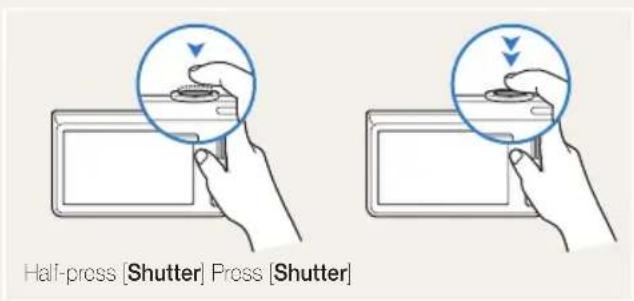
Pressing the shutter
• Half-press [Shutter]: press the shutter halfway down
- Press [Shutter]: press the shutter all the way down
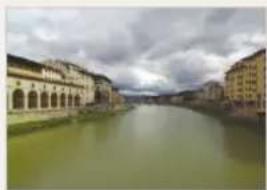
Exposure (Brightness)
The amount of light that enters your camera determines the exposure. You can alter the exposure with shutter speed, aperture value, and ISO sensitivity. By altering the exposure, your photos will be darker or lighter.
natural_image
Scenic view of a river with buildings and hills under a cloudy sky (no visible text or symbols)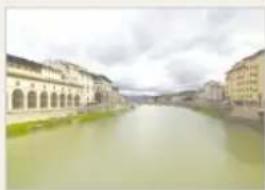
natural_image
River scene with classical buildings and a cloudy sky (no visible text or symbols)Normal exposure Overexposure (too bright)
Subject, background, and composition
- Subject: the main object in a scene, such as a person, animal, or still life
• Background: the objects around the subject - Composition: the combination of a subject and background

text_image
Background Subject CompositionBasic troubleshooting
Learn to solve common problems by setting shooting options.
 | The subject's eyes appear red. | Red eye is caused by the oyes reflecting light from the camera flash.· Set the flash option to Red-eye or Red-eye Fix. (p. 57)· If the photo has already been captured, select Red-eye Fix in the edit menu. (p. 97) |
 | Photos have dust spots. | If dust particles are present in the air, you may capture them in photos when you use the flash.· Turn off the flash or avoid capturing photos in a dusty place.· Set ISO sensitivity options. (p. 59) |
 | Photos are blurred. | Blurring can occur if you capturing photos in low light conditions or hold the camera incorrectly. Use the DIS function or half-press [Shutter] to ensure the subject is focused. (p. 33) |
 | Photos are blurred when shooting at night. | As the camera tries to let in more light, the shutter speed slows. This can make it difficult to hold the camera steady long enough to take a clear picture and may result in camera shake.· Select Night Shot mode. (p. 39)· Turn on the flash. (p. 57)· Set ISO sensitivity options. (p. 59)· Use a tripod to prevent your camera from shaking. |
 | Subjects come out too dark because of backlighting. | When the light source is behind the subject or when there is a high contrast between the light and dark areas, the subject may appear too dark.· Avoid shooting toward the sun.· Select Backlight in Scene mode. (p. 38)· Set the flash option to Fill in. (p. 57)· Adjust the exposure. (p. 68)· Set the Auto Contrast Balance (ACB) option. (p. 69)· Set the metering option to Spot if a bright subject is in the center of the frame. (p. 69) |
Quick reference

Capturing photos of people
- Beauty Shot mode ▶ 39
- Red-eye/Red-eye Fix (to prevent or correct red-eye) ▶ 57
- Face Detection ▶ 63

Capturing photos at night or in the dark
• Scene mode > Sunset, Dawn ▶ 38
• Night Shot mode ▶ 39
- Flash options ▶ 5/
• ISO sensitivity (to adjust the sensitivity to light) ▶ 59

Capturing action photos
• Continuous, Motion Capture ▶ 72

Adjusting the exposure (brightness)
• ISO sensitivity (to adjust the sensitivity to light) ▶ 59
• EV (to adjust exposure) ▶ 68
- ACB (to compensate for subjects against bright backgrounds) ▶ 69
- Metering ▶ 69
- AEB (to take 3 photos of the same scene with different exposures) ▶72

Capturing photos of text, insects, or flowers
- Scene mode > Text ▶ 38
- Close Up mode ▶ 38
- Macro ▶ 60

Applying effects to photos
- Object Highlight mode ▶ 44
• Magic Frame shot mode ▶ 45
• Photo Filter mode ▶ 45 - Vignelling mode ▶ 48
• Smart Filter effects ▶ 73 - Image Adjust (to adjust Saturation, Sharpness, or Contrast) ▶ 76

Applying effects to videos
• Movie Filter mode ▶ 47
- Vignetting mode ▶ 48
• Palette Effect Shot mode ▶ 49

Reducing camera shake
• Digital Image Stabilization (DIS) ▶ 32
• Viewing files by category in Smart album ▶ 84
• Viewing files in 3D view ▶ 85
- Viewing files as thumbnails
▶ 86
- Deleting files on the memory card ▶ 87
• Viewing files as a slide show
▶ 89
• Viewing files on a TV ▶ 98
- Connecting your camera to a computer ▶ 99
- Sending photos via email
▶ 111
• Using photo or video sharing websites ▶ 115
- Adjusting sound and volume
▶ 129
- Adjusting the brightness of the display ▶ 130
- Changing the display language ▶ 131
- Selling the date and time
▶ 131
• Before contacting a service center ▶ 143
Contents
Basic functions 14
Unpacking 15
Camera layout 16
Inserting the battery and memory card 18
Charging the battery and turning on your camera ..... 19
Charging the battery 19
Turning on your camera 19
Performing the initial setup 20
Learning icons 22
Using the touch screen 23
Setting the touch screen and sound 25
Setting the display type for the touch screen 25
Setting the sound 25
Using the Home screen 26
Accessing the Home screen 26
Icons on the Home screen 26
Rearranging icons 28
Capturing photos 29
Zooming 30
Reducing camera shake (DIS) 32
Tips for getting a clearer photo 33
Extended functions 35
Using shooting modes 36
Using the Smart Auto mode 36
Using the Simple Shot mode 37
Using the Scene mode 38
Using the Close Up mode 38
Using the Night Shot mode 39
Using the Beauty Shot mode 39
Using the Program mode 40
Using the Movie mode 41
Using the Smart movie mode 42
Using effect modes 44
Using the Object Highlight mode 44
Using the Magic Frame Shot mode 45
Using the Photo Filter mode 45
Using the Movie Filter mode 47
Using the Vignetting mode 48
Using the Palette Effect mode 49
Recording voice memos 50
Recording a voice memo 50
Adding a voice memo to a photo 51
Shooting options 52
Selecting a resolution and quality 53
Selecting a resolution 53
Selecting image quality 54
Using the timer 56
Shooting in the dark 57
Preventing red-eye 57
Using the flash 57
Adjusting the ISO sensitivity 59
Changing the camera's focus 60
Using macro 60
Using Smart Touch focus 61
Using one touch shooting 62
Adjusting the focus area 62
Using face detection 63
Detecting faces 63
Capturing a self portrait shot 64
Capturing a smile shot 64
Detecting eye blinking 65
Using Smart Face Recognition 65
Registering faces as your favorites (My Star) 66
Adjusting brightness and color 68
Adjusting the exposure manually (EV) 68
Compensating for backlighting (ACB) 69
Changing the metering option 69
Selecting a light source (White balance) 70
Using burst modes 72
Applying effects/Adjusting images 73
Applying Smart Filter effects 73
Adjusting your photos 76
Reducing the zoom sound 77
Available shooting options by shooting mode 78
Playback/Editing 80
Viewing photos or videos in Playback mode 81
Starting Playback mode 81
Viewing photos 88
Playing a video 90
Playing a voice memo 92
Editing a photo 93
Resizing photos 93
Rotating a photo 94
Using Smart Crop 94
Applying Smart Filter effects 95
Adjusting your photos 95
Creating a print order (DPOF) 97
Viewing files on a TV 98
Transferring files to your Windows computer 99
Transferring files with Intelli-studio 100
Transferring files by connecting the camera as a
removable disk 102
Disconnecting the camera (for Windows XP) 103
Transferring files to your Mac computer 104
Printing photos with a PictBridge photo printer ..... 105
Wireless network 107
Connecting to a WLAN and configuring network
settings 108
Connecting to a WLAN 108
Setting network options 109
Manually setting the IP address 109
Network connection tips 110
Sending photos via email 111
Changing email settings 111
Sending photos via email 113
Entering text 114
Using photo or video sharing websites 115
Accessing a website 115
Uploading photos or videos 115
Using a smart phone as a remote shutter release .... 116
Viewing photos or videos on a AllShare-enabled TV 118
Viewing photos or videos on a TV I 118
Viewing photos or videos on a TV II 120
Sending or receiving photos or videos with another camera 121
Sending photos or videos to another camera 121
Receiving photos or videos from another camera ..... 121
Using Auto Backup to send photos or videos 123
Installing the program for Auto Backup on your PC ..... 123
Sending photos or videos to a PC 123
Sending photos or videos to a Blu-ray disc Player ..... 124
About the Wakeup on LAN (WOL) feature 125
Settings 127
Settings menu 128
Accessing the settings menu 128
Sound 129
Display 129
Connectivity 130
General 131
Appendixes 133
Error messages 134
Camera maintenance 135
Cleaning your camera 135
Using or storing the camera 136
About memory cards 137
About the battery 139
Before contacting a service center 143
Camera specifications 146
Glossary 150
FCC notice 155
Declaration sentence in official languages 158
Index 160
Basic functions
Learn about your camera's layout, icons, and basic functions for shooting.
Unpacking 15
Camera layout 16
Inserting the battery and memory card ... 18
Charging the battery and turning on your camera 19
Charging the battery 19
Turning on your camera 19
Performing the initial setup 20
Learning icons 22
Using the touch screen 23
Setting the touch screen and sound ..... 25
Setting the display type for the touch screen 25
Setting the sound 25
Using the Home screen 26
Accessing the Home screen 26
Icons on the Home screen 26
Rearranging icons 28
Capturing photos 29
Zooming 30
Reducing camera shake (DIS) 32
Tips for getting a clearer photo 33
Unpacking
The following items are included in your product box.
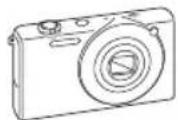
Camera AC adapter/USB cable


Rochargeable battery Strap
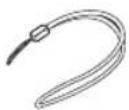
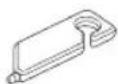
Touch pen User Manual CD-ROM
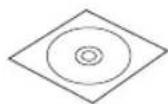

Quick Start Manual
Optional accessories
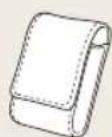
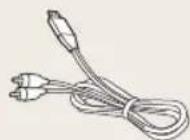
Camera case AW cable


Battery charger Memory card/Memory card adapter

The illustrators may differ slightly from the items shipped with your product.
Camera layout
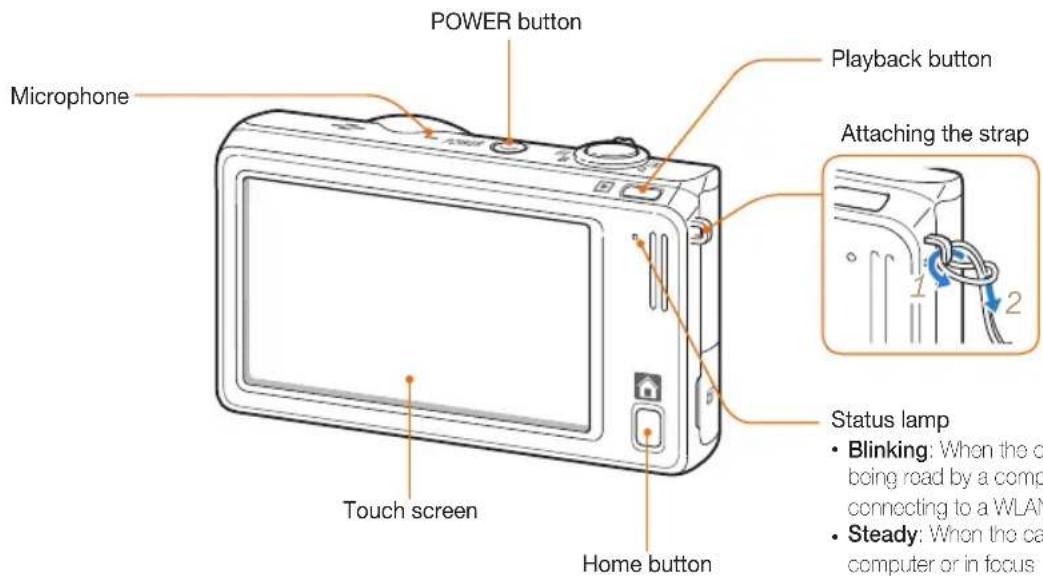
Before you start, familiarize yourself with your camera's parts and their functions.

text_image
Shutter button Flash SAMSUNG Lens Speaker AF-assist light/Timer lamp Internal antenna* * Avoid contact with the internal antenna while using the wireless network. USB and A/V port Accepts USB cable and A/V cable Tripod mount Battery chamber cover Insert a memory card and battery Zoom button • In Shooting mode: Zoom in or out • In Playback mode: Zoom in on part of a photo or view files as thumbnailsBasic functions 16
text_image
POWER button Microphone Playback button Attaching the strap 1 2 Touch screen Home button Status lamp • Blinking: When the o being road by a comp connecting to a WLAN • Steady: When the ca computer or in focusInserting the battery and memory card
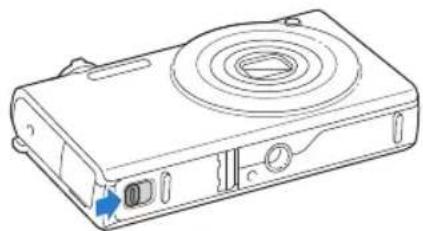
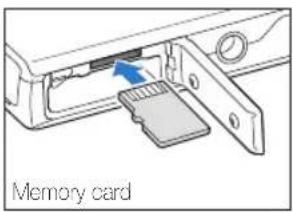
Learn how to insert the battery and an optional memory card into the camera.
natural_image
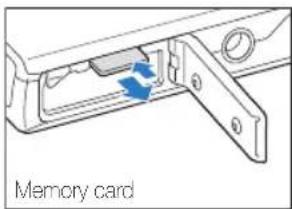
Line drawing of a portable electronic device with a circular top and control buttons (no text or symbols)Insert a memory card with the gold-colored contacts facing up.
Insert the battery with the Samsung logo facing down.
text_image
Memory card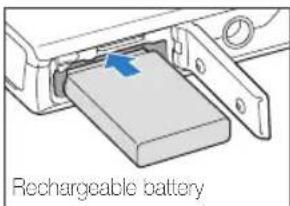
text_image
Rechargeable battery
natural_image
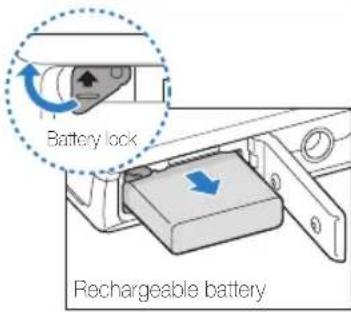
Mechanical component diagram showing a lever mechanism with a blue curved arrow indicating rotation (no text or symbols)Removing the battery and memory card
text_image
Memory cardPush the card gently until it disengages from the camera, and then pull it out of the slot.
text_image
Battery lock Rechargeable batterySlide the lock up to release the battery.

You can use the internal memory for temporary storage if a memory card is not inserted.
Charging the battery and turning on your camera
Charging the battery
Before you use the camera for the first time, you must charge the battery. Attach the USB cable to the AC adaptor, and then plug the end of cable with the indicator light into your camera.

text_image
Indicator lightIndicator light
- Red: Charging
- Orange: Error
- Green: Fully charged
Turning on your camera
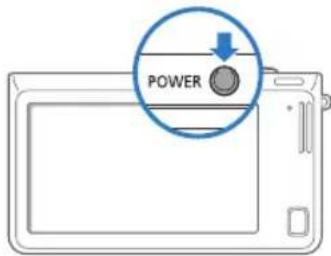
Press [POWER] to turn your camera on or off.
- The initial setup screen appears when you turn on the camera for the first time. (p. 20)
text_image
POWERTurning on your camera in Playback mode
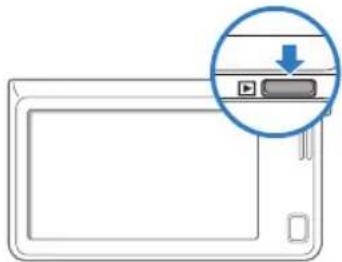
Press [Playback]. The camera turns on and immediately accesses Playback mode.
natural_image
Illustration of a device with a play button and a download icon, no text or symbols present
If you turn on your camera by pressing and holding [Playback] for about 5 seconds, the camera does not emit any sounds.
Performing the initial setup
When the initial setup screen appears, follow the steps below to configure the camera's basic settings.
1 Touch Language.
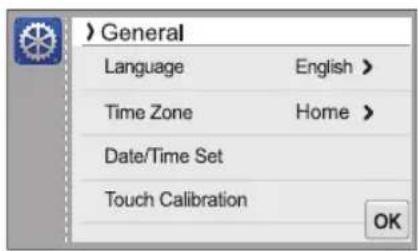
text_image
> General Language English > Time Zone Home > Date/Time Set Touch Calibration OK2 Select a language, and then touch OK.
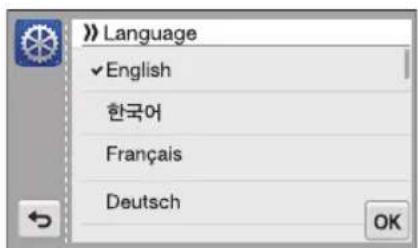
text_image
> Language ✓ English 한국어 Français Deutsch OK3 Touch Time Zone.
4 Touch Home, and then touch < or > to select a time zone.
- When you travel to another country, touch Visit, and then select a new time zone.
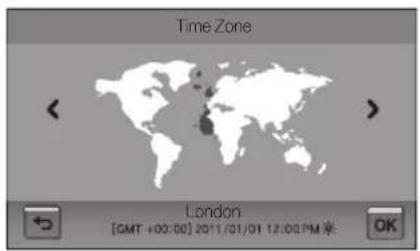
text_image
Time Zone London [GMT +00:00] 2011/01/01 12:00 PM 星 OK5 Touch OK to save.
6 Touch Date/Time Set.
7 Touch the up or down arrows to set the date.

text_image
Date/Time Set 2011 01 01 DayYear Month OK8 Touch; and then set the time.
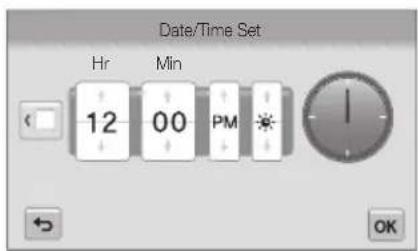
text_image
Date/Time Set Hr Min PM 1 12 00 PM OK• To set daylight-saving time, touch 🙏
9 Touch OK to save.
10 Touch Touch Calibration.
11 Touch the target on the screen with your touch pen.

text_image
Touch Calibration +
Touch directly in the center of the target for optimal performance.
12 Touch OK to save settings.
Learning icons
The icons the camera displays on the screen change according to the mode you select or the options you set.

text_image
2011/01/01 10:00 AM F3.3 1/45s MENU 1 00:05 ① ② ③1 Option icons (touch)
| Icon Description | |
| Flash option | |
| Auto focus option | |
| Timer option | |
| Shooting options | |
| Display type | |
② Status icons
| Icon Description | |
| Shooting mode | |
| 2011/01/01 | Current date |
| Icon Description | |
| 10:00 AM | Current time |
| F3.3 | Aperture value |
| 1/45s | Shutter speed |
| Voice memo | |
| Timer | |
| Auto focus frame | |
| Camera shake | |
| Zoom indicator | |
| X5.5 | Zoom ratio |
| PHm | Photo resolution when Intelli zoom is on |
| Grid lines | |
3 Status icons
| Icon Description | |
| 1 | Available number of photos |
| 00:05 | Available recording time |
| Memory card not inserted (Internal memory) | |
| Memory card inserted | |
| Icon Description | |
| Fully chargedPartially chargedEmpty (Recharge) | |
| Photo resolution | |
| 1280 | Video resolution |
| Frame rate | |
| Audio recording | |
| Metering | |
| Digital Image Stabilization (DIS) | |
| Exposure value adjusted | |
| ISO sensitivity | |
| White balance | |
| Burst type | |
| Flash | |
| Intelli zoom is on | |
| Smart filter | |
| Imago adjust | |
| Face detection | |
| Auto focus | |
Basic functions 22
Using the touch screen
Learn how to use the touch screen. Use the supplied touch pen to touch or drag on the screen.

Do not use sharp objects, such as pens or pencils, to touch the screen. You can damage the screen.
Touching
Touch an icon to select a menu or option.
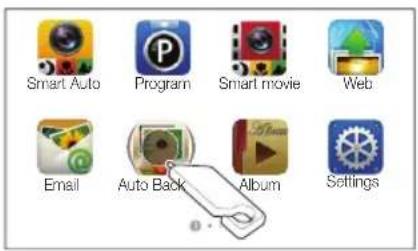
text_image
Smart Auto Program Smart movie Web Email Auto Back Album SettingsFlicking
Gently flick the touch pen across the screen.

natural_image
Silhouettes of two people with raised hands, one holding a clipboard (no text or symbols visible)Dragging
Touch and hold a part of the screen, and then drag the touch pen.

text_image
White Balance Auto WB Daylight Cloudy OKSelecting an option
- Drag the option list up or down until you find the desired option. Touch the option, and then touch OK.
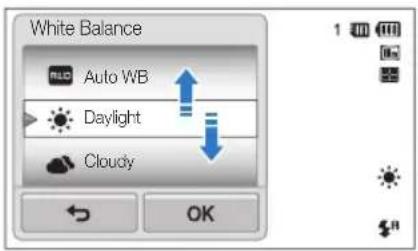
text_image
White Balance Auto WB Daylight Cloudy OK- If an option has a setting button, touch the button to turn it on or off.
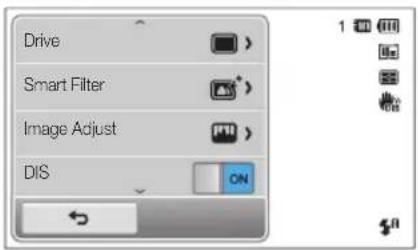
text_image
Drive Smart Filter Image Adjust DIS ON
- The touch screen may not recognize your inputs if you touch multiple items at the same time.
- The touch screen may not recognize your inputs if you touch the screen with your finger.
- When you touch or drag the screen, discolorations may occur. This is not a malfunction, but a characteristic of the touch screen. Touch or drag lightly to minimize the effect.
- The touch screen may not work properly if you use the camera in extremely humid environments.
- The touch screen may not work properly if you apply screen protection film or other accessories to the screen.
- Depending on the viewing angle, the screen may appear dim. Adjust the brightness or viewing angle to improve the resolution.
Setting the touch screen and sound
Learn how to change the screen display type and the sound settings.
Setting the display type for the touch screen
You can select from three screen display types. Each displays differently,
1 In Shooting mode, touch
2 Select an option, and then touch OK.

text_image
Display Set Full Hide Guide Line OK| Icon Description | |
| Full: Icons are always displayed. | |
| Hide: Icons are hidden if you perform no operation for 5 seconds (touch the screen to display the icons again). | |
| Guide Line: Grid lines are displayed. The grid lines are helpful for getting the photo aligned with a surface, such as the horizon or the edges of buildings. | |
Setting the sound
Set your camera to omit or not to omit a sound when you perform functions.
1 On the Home screen, touch
2 Touch Sound.
3 Touch the setting button next to Beep Sound to turn the beep on or off.
Using the Home screen
You can select a shooting mode or access the settings menu by touching the icons on the Home screen.
Accessing the Home screen
In Shooting or Playback mode, press [HOME]. Press [HOME] again to return to the previous mode.
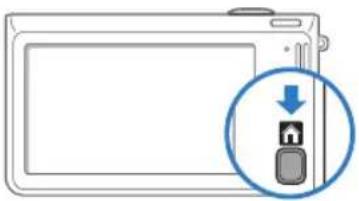
natural_image
Diagram of a smartphone with a lock icon and download arrow, no text or symbols present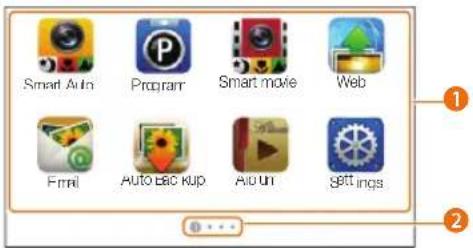
text_image
Smart Auto Program Smart movie Web Email Auto Backup Audio SettingsNo. Description
| 1 | Touch an icon to access a mode or function.• Scroll to another page by dragging or flicking the touch pen on the screen. |
| 2 | The number of the current page. ( ) 2 3 4 |
Icons on the Home screen
| Icon Description | |
| Smart Auto: Capture a photo by letting the camera select a scene mode automatically. (p. 36) | |
| Program: Capture a photo by manually setting options. (p. 40) | |
| Smart movie: Record a video by letting the camera select a scene mode automatically. (p. 42) | |
| Web: Access a web site to upload photos and videos stored on the camera. (p. 115) | |
| Email: Send photos stored on the camera as email attachments. (p. 111) | |
| Auto Backup: Send new photos and videos to a PC or Blu-ray disc player wirelessly. (p. 123) | |
| Album: View files by category in Smart album. (p. 84) | |
| Settings: Adjust settings to match your preferences. (p. 128) | |
| Remote Viewfinder: Use a mobile phone as a remote shutter release via an ad-noc wireless network. (p. 116) | |
| Camera to Camera : Connect your camera to another camera via a wireless network to share photos and videos. (p. 121) | |
| AllShare: Connect your camera to an AllShare-enabled device via a wireless network and view your files on the connected device. (p. 118) | |
| Movie: Record a video. (p. 41) | |
| Scene: Capture a photo with options that are preset for a specific scene. (p. 38) | |
| Vignetting: Capture a photo or record a video with a vignetting effect. (p. 48) | |
| Beauty Shot: Capture a portrait with options to hide facial imperfections. (p. 39) | |
| Photo Editor: Edit photos with various effects. (p. 95) | |
| Magic Frame shot: Capture a photo with various frame effects. (p. 45) | |
| Photo Filter: Capture a photo with various filter effects. (p. 45) | |
| Movie Filter: Record a video with various filter effects. (p. 47) | |
| Night Shot: Capture a night scene by adjusting shutter speed and aperture value. (p. 39) | |
| Palette Effect Shot: Record a video with palette effects. (p. 49) | |
| Close Up: Capture close-up photos of subjects. (p. 38) | |
| Icon Description | |
| Simple Shot: Capture a photo with simple adjustments to brightness and color. (p. 37) | |
| Object Highlight: Capture a photo with the subject's background blurred. (p. 41) | |
| 3D Album: View files with 3D effects. (p. 85) | |
| Slide Show: View photos as a slide show with effects and music. (p. 89) | |
| Voice Recorder: Record and save a voice memo. (p. 50) | |
| Magazine View: View files with page flip effect. (p.85) | |
Rearranging icons
You can rearrange the icons on the Home screen in any order.
1 Touch and hold an icon.
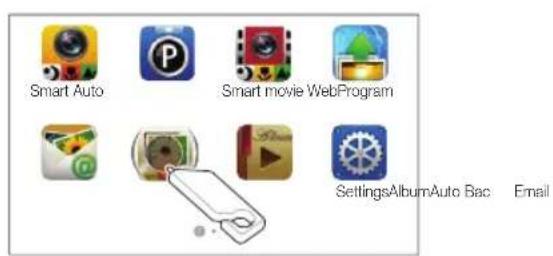
text_image
Smart Auto Smart movie WebProgram SettingsAlbumAuto Bac Email2 Drag it to a new location.
- To move an icon to another page, drag it to the left or right edge of the screen. When you drop the icon to a new location, the other icons will neatly slide out of the way.
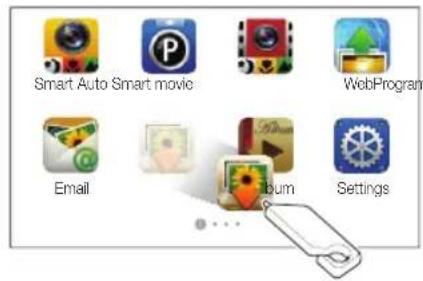
text_image
Smart Auto Smart movie WebProgram Email Album SettingsCapturing photos
Learn how to capture photos easily and quickly in Smart Auto mode.
1 On the Home screen, touch
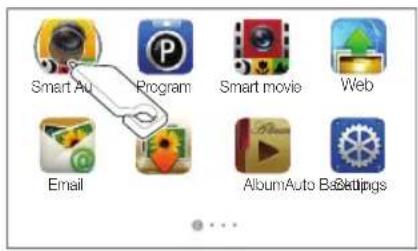
text_image
Smart Auto Program Smart movie Web Email AlbumAuto Settings2 Align your subject in the frame.

natural_image
Line drawing of two hands holding a digital camera (no text or symbols)3 Half-press [Shutter] to focus.
• A green frame means the subject is in focus.
• A red frame means the subject is out of focus.
![INVENTUM SH100 - Half-press [Shutter] to focus. - 1](/content/2026/06/1240082/images/d5cc689fe6e1da235922666f0fa1fb5b4f82b132154737ff147297fc64ede3e6.jpg)
natural_image
Simple grayscale flower illustration with no text or symbols on the flower itself4 Press [Shutter] to capture a photo.
See page 33 for tips to get clearer photos.
Zooming
You can capture close-up photos by adjusting the zoom. Your camera has a 5X Optical zoom, 2X Intelli zoom, and 5X Digital zoom. The Intelli zoom and Digital zoom cannot be used at the same time.

text_image
Zoom cut Zoom in Zoom ratio
The available zoom ratio for videos differs from photo zoom ratio.
Digital zoom
If the zoom indicator is in the digital range, your camera is using the Digital zoom. By using both the Optical zoom and Digital zoom, you can zoom in up to 25 times.

text_image
Zoom indicator Optical range Digital range ×9.0
- The Digital zoom is available only in Program and Scene (except Text) modes.
- The Digital zoom is not available with a Smart Filter effect or Smart Touch AF option.
- If you capture a photo with the Digital zoom, the photo quality may deteriorate.
Intelli zoom
If the zoom indicator is in the Intelli range, your camera is using the Intelli zoom. Photo resolution varies according to the zoom rate if you use the Intelli zoom. By using both the Optical zoom and Intelli zoom, you can zoom in up to 10 times.

text_image
Zoom indicator Optical range Intelli range ×5.5 Hm Photo resolution when the Intelli zoom is on
- The Intelli zoom is available only in Smart Auto, Program, and Scene (except. Text) modes.
- The Intelli zoom is available only when you set a 4:3 resolution ratio. If you set another resolution ratio with Intelli zoom on, the Intelli zoom will be turned off automatically.
- The Intelli zoom is not available with the Smart Filter effect, or Smart Touch AF option.
- The Intelli zoom helps you capture a photo with loss quality deterioration than the Digital zoom. However, the photo quality may be lower than when you use the Optical zoom.
Setting Intelli zoom
1 In Shooting mode, touch MENU.
2 Touch the setting button next to Intelli Zoom.
Reducing camera shake (DIS)
Reduce camera shake digitally in Shooting mode.

natural_image
Two people smiling and posing together, no visible text or symbols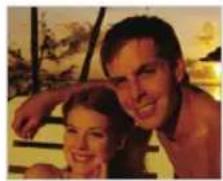
natural_image
Close-up of a smiling couple in a warm setting (no visible text or symbols)Before correction After correction
1 In Shooting mode, touch MENU.
2 Touch the setting button next to DIS.
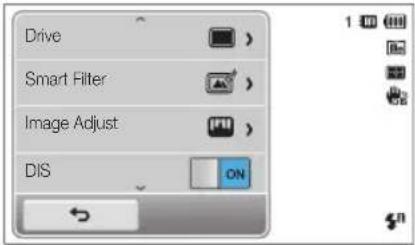
text_image
Drive Smart Filter Image Adjust DIS ON
• DIS may not function properly when.
- you move your camera to follow a moving subject
- you use the Digital zoom
- there s too much camera shake
- the shutter speed is slow (for example, when you capture night scenes)
the battery is low
you capture a close-up shot
- If the camera is hit or dropped, the display will be blurry. If this occurs, turn off the camera, and then turn it on again.
Tips for getting a clearer photo

Holding your camera correct

natural_image
Line drawings of two hands holding a game controller (no text or symbols present)Ensure nothing is blocking the lens.

Half-pressing the shutter butto

natural_image
Illustration of a hand holding a tablet with a circular icon showing a pointing finger (no text or symbols)Half-press [Shutter] to adjust the focus. The camera adjusts the focus and exposure automatically.

text_image
F3,3 1/45s MENUThe camera sets the aperture value and shutter speed automatically.
Focus frame
- Press [Shutter] to capture the photo if the focus frame appears in green.
- Change the composition and half-press [Shutter] again if the focus frame appears in red.

Reducing camera shake

Set the Digital Image Stabilization option to reduce camera shake. (p. 32)

When is displayed
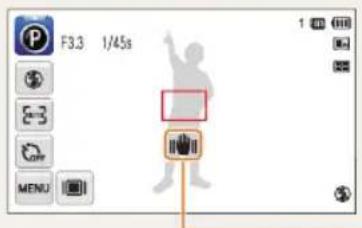
text_image
F3.3 1/45s MENUCamera shake
When you shoot in the dark, avoid setting the flash option to Slow Sync or Off. The aperture remains open longer and it may be harder to hold the camera steady long enough to take a clear picture.
- Use a tripod or set the flash option to Fill in. (p. 57)
- Set ISO sensitivity options. (p. 59)

Preventing your subject from being out of focus
It may be difficult to get your subject in focus when: - there is little contrast between the subject and background (for example, when your subject is wearing clothing that is similar in color to the background) -the light source behind the subject is too bright -the subject is shiny or reflective -the subject includes horizontal patterns, such as blinds -the subject is not positioned in the center of the frame
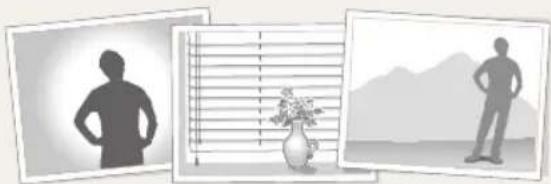
natural_image
Three grayscale illustrations: a silhouette of a person standing in front of a window, a vase with flowers, and a person standing on the ground with mountains in the background (no text or symbols)Use the focus lock
Half-press [Shutter] to focus. When the subject is in focus, you can reposition the frame to change the composition. When you are ready, press [Shutter] to capture your photo.
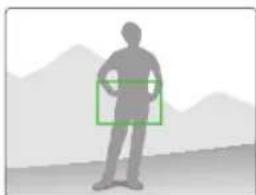
natural_image
Silhouette of a human figure standing against a mountainous background (no text or symbols)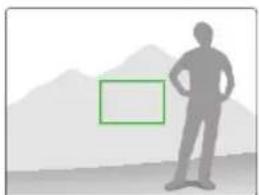
natural_image
Silhouette of a person standing with hands on hips, against a mountainous background (no text or symbols)- When you capture photos in low light

natural_image
Silhouette of a person standing in front of a city skyline with crescent moon and stars (no text or symbols)Turn on the flash. (p. 57)
- When subjects are moving rapidly
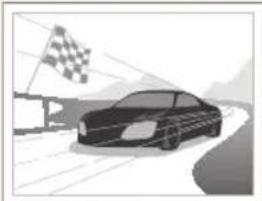
natural_image
Illustration of a car on a road with a checkered flag in the background (no text or symbols)Use the Continuous or Motion Capture function. (p. 72)
Extended functions
Learn how to capture a photo, record a video, and record a voice memo by selecting a mode.
Using shooting modes 36
Using the Smart Auto mode 36
Using the Simple Shot mode 37
Using the Scene mode 38
Using the Close Up mode 38
Using the Night Shot mode 39
Using the Beauty Shot mode 39
Using the Program mode 40
Using the Movie mode 41
Using the Smart movie mode 42
Using effect modes 44
Using the Object Highlight mode 44
Using the Magic Frame Shot mode ..... 45
Using the Photo Filter mode 45
Using the Movie Filter mode 47
Using the Vignetting mode 48
Using the Palette Effect mode 49
Recording voice memos 50
Recording a voice memo 50
Adding a voice memo to a photo 51
Using shooting modes
Capture photos or record videos by selecting the best shooting mode for the conditions.
Using the Smart Auto mode
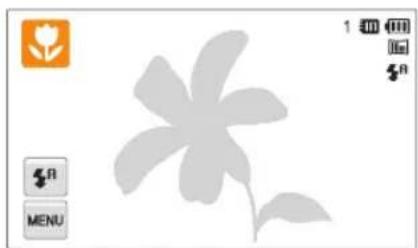
In Smart Auto mode, your camera automatically chooses the appropriate camera settings based on the type of scene it detects. The Smart Auto mode is helpful if you are not familiar with the camera settings for various scenes.
1 On the Home screen, touch
2 Align your subject in the frame.
- The camera automatically selects a scene and adjusts its settings. An appropriate scene icon appears at the top left of the screen. The icons are listed below.
natural_image
Gray silhouette of a flower with petals and leaves, displayed in a software interface (no text or symbols on the flower itself)Icon Description


Landscapes
Scenes with bright white backgrounds
Landscapes at night (when the flash is off)
| Icon Description | |
| Portraits at night | |
| Landscapes with backlighting | |
| Portraits with backlighting | |
| Portraits | |
| Close-up photos of objects | |
| Close-up photos of text. | |
| Sunsets | |
| Clear skies | |
| Forested areas | |
| Close-up photos of colorful subjects | |
| Camera is stabilized or on a tripod (when shooting in the dark) | |
| Fireworks (when using a tripod) | |
| Actively moving subjects | |
3 Half-press [Shutter] to focus.
- In several scenes, the camera automatically captures a photo when you half-press [Shutter].
4 Press [Shutter] to capture the photo.
![INVENTUM SH100 - Press [Shutter] to capture the photo. - 1](/content/2026/06/1240082/images/de2f9c26428707387e25dc6c5a59a8dd3d42bad2ae74924fccdde0559a79edd8.jpg)
- If the camera does not recognize an appropriate scene mode, it uses the default settings for the Smart Auto mode.
- Even if it detects a face, the camera may not select a portrait mode depending on the subject's position or lighting.
- The camera may not select the correct scene depending on the shooting conditions, such as camera shake, lighting, or distance to the subject.
- Even if you use a tripod, the camera may not detect the ✿rode if the subject is moving.
- In Smart Auto mode, the camera consumes more battery power, because it changes settings often to select appropriate scenes.
Using the Simple Shot mode
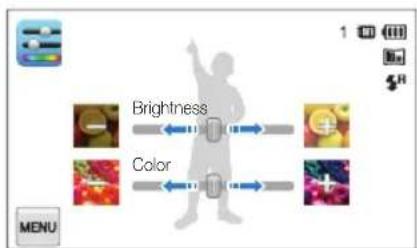
In Simple Shot mode, you can capture photos with simple adjustments to brightness and color.
1 On the Home screen, touch
2 Drag the sliders or touch the sample photos to adjust Brightness and Color.
flowchart
graph LR
    A["Brightness"] <--> B["Color"]
    C["Image 1"] --> D["Image 2"]
    E["Image 3"] --> F["Image 4"]
    G["Image 5"] --> H["Image 6"]
    I["Image 7"] --> J["Image 8"]
3 Align your subject in the frame, and then half-press [Shutter] to focus.
4 Press [Shutter] to capture the photo.
Using the Scene mode
In Scene mode, you can capture a photo with options that are preset for a specific scene.
1 On the Home screen, touch

2 Touch a scene.
Option Description

Landscape: Capture still-life scenes and landscapes.

Sunset: Capture scenes at sunset, with natural-looking rods and yellows.

Dawn: Capture scenes at sunrise.

Backlight: Capture backlit subjects.

Beach & Snow: Reduce underexposure of subjects caused by sunlight reflected from sand or snow.

Text: Clearly capture text from printed or electronic documents.
3 Align your subject in the frame, and then half-press [Shutter] to focus.
4 Press [Shutter] to capture the photo.
Using the Close Up mode
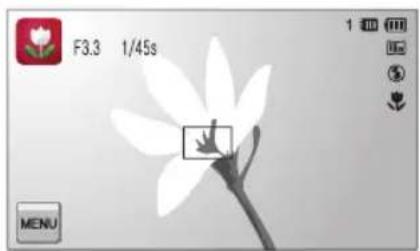
In Close Up mode, you can capture close-up photos of subjects, such as flowers or insects.
1 On the Home screen, touch
2 Align your subject in the frame, and then half-press [Shutter] to focus.
natural_image
White flower illustration with no text or symbols on the flower itself3 Press [Shutter] to capture the photo.
Using the Night Shot mode
In Night Shot mode, you can use a slow shutter speed to extend the time the shutter stays open. Increase the aperture value to prevent overexposure.
1 On the Home screen, touch
2 Drag the dials on the screen to the arrow directions below to adjust shutter speed and aperture value.


text_image
Shutter speed Auto 1x LS 4.5 Avio Aperture value MENU3 Align your subject in the frame, and then half-press [Shutter] to focus.
4 Press [Shutter] to capture the photo.

Use a tripod to prevent blurry photos.
Using the Beauty Shot mode
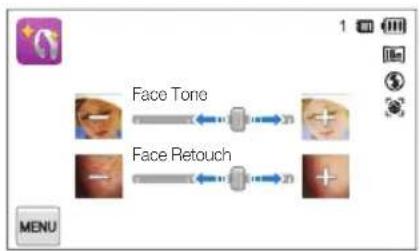
In Beauty Shot mode, you can capture a portrait with options to hide facial imperfections.
1 On the Home screen, touch
2 Drag the sliders or touch the sample photos to adjust Face Tone and Face Retouch.
- For example, increase the Face Tone setting to make skin appear lighter.
flowchart
graph LR
    A["Face Tone"] --> B["Facial Contact"]
    C["Face Retouch"] --> D["Facial Contact"]
    B --> E["Measurement 21"]
    D --> F["Measurement 21"]
3 Align your subject in the frame, and then half-press [Shutter] to focus.
4 Press [Shutter] to capture the photo.

When using the Beauty Shot mode, the focus distance will be set to Auto Macro.
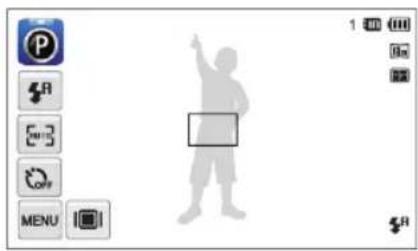
Using the Program mode
In Program mode, you can set most options, except the shutter speed and aperture value, which the camera sets automatically.
1 On the Home screen, touch
2 Touch MENU, and then set desired options. (For a list of options, refer to page 52.)
text_image
Mobile app interface screenshot showing a person silhouette icon with control buttons and status bar3 Align your subject in the frame, and then half-press [Shutter] to focus.
4 Press [Shutter] to capture the photo.
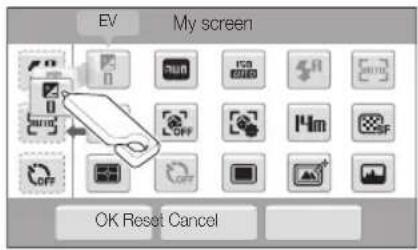
Setting the user buttons
In Program mode, you can add shortcuts for your favorite options to the left side of the screen.
1 In Shooting mode, touch MENU → My screen → OK.
2 Touch and hold any icon, except one of the icons in the column on the far left.

text_image
EV My screen OK Cancel Reset3 Drag the icon into a desired box on the left.
• To remove shortcuts, drag an icon to the right.
text_image
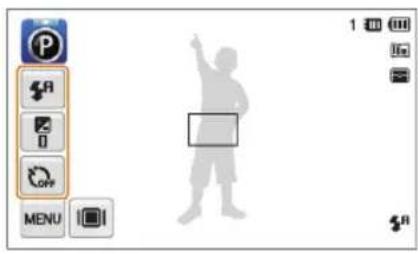
EV My screen OK Reset Cancel4 Touch OK to save.
text_image
Screenshot of a software interface showing a toolbar with icons and a silhouette of a person pointing upward.
You can create up to 3 shortcuts.
Using the Movie mode
In Movie mode, you can record high-definition videos of up to 20 minutes in length. The camera saves recorded videos as MP4 (H.264) files.

- H.264 (MPEG-4 part10/AVC) is a high-compression video format established by the international standard organizations ISO IEC and ITU-T.
- Some memory cards may not support high definition recording. In this case, set a lower resolution.
- Memory cards with slow writing speeds will not support high-resolution videos and high-speed videos. To record high-resolution or high-speed videos, use memory cards with faster writing speeds.
1 On the Home screen, touch
2 Touch MENU, and then set desired options. (For a list of options, refer to page 52.)
3 Press [Shutter] or touch ●to start recording.
4 Press [Shutter] again or touch to stop recording.
Pause recording
The camera allows you to temporarily pause a video while recording. With this function, you can record separate scenes as a single video.

text_image
00:02 00:05- Touch to pause while recording.
- Touch to resume.
Using the Smart movie mode
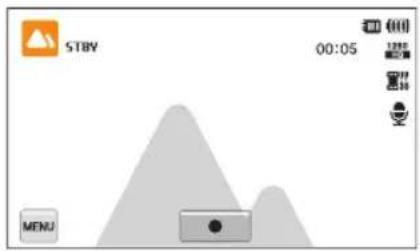
In Smart movie mode, your camera automatically chooses the appropriate camera settings based on the scene it has detected.
1 On the Home screen, touch
2 Align your subject in the frame.
- The camera automatically selects a scene and adjusts its settings. An appropriate scene icon will appear at the top left of the screen. The icons are listed below.
text_image
STBY 00:05 MENUIcon Description
| Landscapes | |
| Sunsets | |
| Clear skies | |
| Forested areas |
3 Press [Shutter] or touch ● to start recording.
4 Press [Shutter] again or touch ■ to stop recording.

- If the camera does not recognize an appropriate scene mode, it uses the default settings for the Smart movie mode.
- The camera may not select the correct scene depending on the shooting conditions, such as camera shake, lighting, and distance to the subject.
• Smart filter effects are not available in Smart Movie mode.
Using effect modes
Capture photos or record videos with various effects.
Using the Object Highlight mode
The Object Highlight mode makes the subject more discernible by adjusting the depth of field.
1 On the Home screen, touch
2 Position the camera according to the optimum distance displayed on the screen.
- The optimum distance will vary, based on the zoom ratio you use.
3 Drag the sliders or touch the sample photos to adjust Blur and Tone.

text_image
Blur Tone4 Half-press [Shutter] to focus.
- When the camera can apply the Object Highlight effect, will appear.
- When the camera cannot apply the Object Highlight effect, will appear. If this occurs, adjust the distance from the camera to the subject.
5 Press [Shutter] to capture the photo.
- Available resolutions in Object Highlight mode are and . In
- If the shooting distance is not within the optimum range, you can capture a photo but the Object Highlight effect will not be applied.
• The Object Highlight effect cannot be used in dark places. - The Object Highlight effect cannot be used with the Optical zoom at 3X or higher.
• Digital zoom is not available in Object Highlight mode. - Use a tripod to prevent camera shake as the camera captures 2 consecutive photos to apply the effect.
- The subject and the background should have a significant contrast in color.
- Subjects should be positioned far away from the background for the greatest effect.
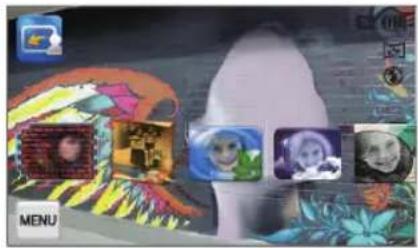
Using the Magic Frame Shot mode
In Magic Frame Shot mode, you can apply various frame effects to your photos. The shape and the feel of the photos will change according to the frame you select.
1 On the Home screen, touch

2 Select a desired frame.
text_image
MENU3 Align your subject in the frame, and then half-press [Shutter] to focus.
4 Press [Shutter] to capture the photo.

In Magic Frame shot mode, the resolution is automatically set to
Using the Photo Filter mode
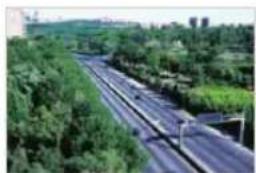
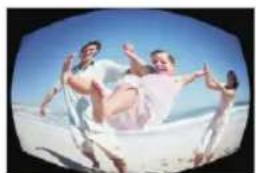
In Photo Filter mode, you can apply various filter effects to your photos.
natural_image
Aerial view of a multi-lane highway surrounded by greenery and trees (no visible text or signage)
natural_image
Top-down view of three smiling people lying on the ground, surrounded by green foliage (no text or symbols visible)Miniature Vignetting
natural_image
Two people joyfully jumping on a beach under a clear blue sky (no text or symbols visible)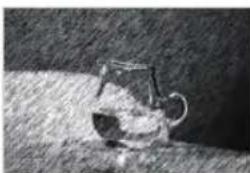
natural_image
Black-and-white sketch of a glass pitcher on a surface, no text or symbols visibleFish-eye Sketch
1 On the Home screen, touch
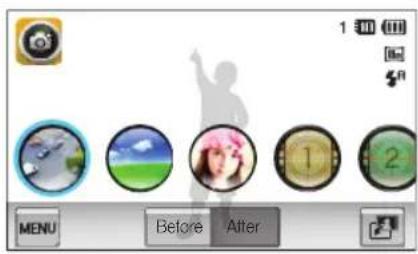
2 Touch a desired filter.
• To view the original photo, touch Before.
• To view the photo with the filter effect, touch After.
text_image
1 50 MENU Before AfterOption Description
| Miniature | Apply a tilt-shift effect to make the subject appear in miniature. |
| Vignetting | Apply the retro-locking colors, high contrast, and strong vignette effect of Lomo cameras. |
| Soft-Focus | Hide facial imperfections or apply dreamy effects. |
| Old Film 1 | Apply vintage film effect 1. |
| Old Film 2 | Apply vintage film effect 2. |
| Half Tone Dot | Apply a halftone effect. |
| Sketch | Apply a pon sketch effect. |
| Fish-eye | Blacken the edges of the frame and distort objects to imitate the visual effect of a fisheye lens. |
Option Description
| Defog | Make image clearer. |
| Classic | Apply a black and white effect. |
| Retro | Apply a sepia tone effect. |
| Negative | Apply a negative film effect. |
3 Align your subject in the frame, and then half-press [Shutter] to focus.
4 Press [Shutter] to capture the photo.

• To apply filter effects to saved photos, touch
- When you select Sketch, the resolution will change to save below.
- When you select Fish-eye, the resolution will change to and below.
Using the Movie Filter mode
In Movie Filter mode, you can record videos with various filter effects.
1 On the Home screen, touch
2 Touch a desired filter.
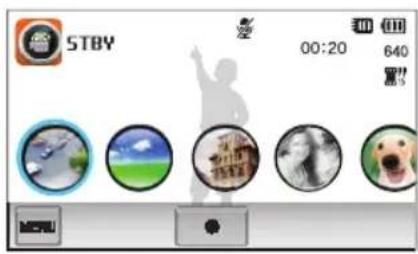
text_image
STBY 00:20 640Option Description
| Miniature | Apply a tilt-shift effect to make the subject appear in miniature. |
| Vignetting | Apply the retro-looking colors, high contrast, and strong vignette effect of Lomo cameras. |
| Half Tone Dot | Apply a halftone effect. |
| Sketch | Apply a pon sketch effect. |
| Fish-eye | Distort close objects to imitate the visual effect of a fisheye lens. |
| Defog | Make the image clearer. |
Option Description
| Classic | Apply a black and white effect. |
| Retro | Apply a sepia tone effect. |
| Negative | Apply a negative film effect. |
3 Press [Shutter] or touch ●to start recording.
4 Press [Shutter] again or touch ■ to stop recording.
- If you select Miniature, the speed of the video will increase. - If you select Miniature, the camera will not record sound. - If you select Miniature, Vignetting, Half Tone Dot, Sketch, Fish-eye, or Defog, the recording speed will be set to find the recording resolution will be set to less than 640
Using the Vignetting mode
In Vignetting mode, you can capture a photo or record a video with a vignetting effect.
1 On the Home screen, touch
2 Select (photo) or (movie).
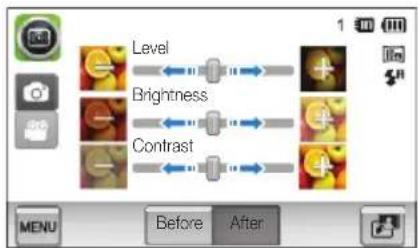
3 Drag the sliders or touch the sample photos to adjust Level, Brightness, and Contrast.
• To view the original photo, touch Before.
• To view the photo with the Vignetting effect, touch After.
flowchart
graph LR
    A["Level"] --> B["Brightness"]
    B --> C["Contrast"]
4 Align your subject in the frame, and then half-press [Shutter] to focus.
5 Press [Shutter] to capture the photo.
To apply the Vignetting effect to saved photos in Shooting mode, touch
Using the Palette Effect mode
In Palette Effect mode, you can record a video with effects to make specific colors stand out.
1 On the Home screen, touch
2 Touch a desired palette.

text_image
STBY 00:05 12:00 12:30 MENU| Option Description | |
| Palette Effect 1 | Create a vivid look with sharp contrast and a red color. |
| Palette Effect 2 | Make scenes clean and clear by applying a soft blue tone. |
| Palette Effect 3 | Apply a soft brown tone. |
| Palette Effect 4 | Create a cold and monotone effect. |
3 Press [Shutter] or touch ●to start recording.
4 Press [Shutter] again or touch ■ to stop recording.
Recording voice memos
Learn how to record a voice memo that you can play back later. You can also add a voice memo to a photo to remind you of shooting conditions.

You will get the best sound quality when you speak 16 in (40 cm) away from the camera.
Recording a voice memo
1 On the Home screen, touch
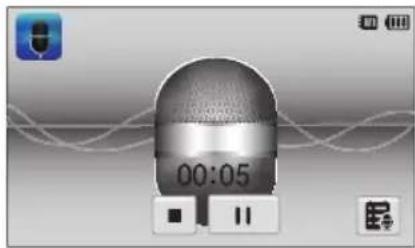
2 Press [Shutter] or touch ● to start recording.
- Touch 10 pause or touch ● resume.
• Each memo can be up to 10 hours long if memory is available.
natural_image
Digital audio workstation interface showing a speaker icon with time and playback controls (no readable text or symbols)3 Press [Shutter] again or touch ■ to stop recording.

To view the list of saved voice memos, touch
Adding a voice memo to a photo
In Program mode, you can add a voice memo to a captured photo.
1 On the Home screen, touch
2 Touch MENU, and then touch the setting button next to Memo.
3 Align your subject in the frame, and then capture a photo.
- The camera begins to record a voice memo right after you capture the photo.
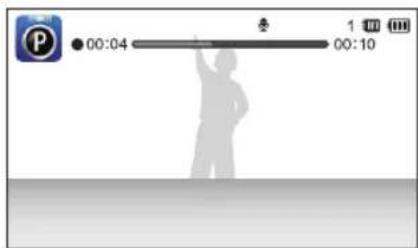
text_image
00:04 1 00:104 Record a short voice memo (10 seconds maximum).
- Press [Shutter] to stop recording a voice memo before the 10 seconds are up.
You cannot add voice memos to photos in the burst mode.
Shooting options
Learn how to set the options in Shooting mode.
Selecting a resolution and quality 53
Selecting a resolution 53
Selecting image quality 54
Using the timer 56
Shooting in the dark 57
Preventing red-eye 57
Using the flash 57
Adjusting the ISO sensitivity 59
Changing the camera's focus 60
Using macro 60
Using Smart Touch focus 61
Using one touch shooting 62
Adjusting the focus area 62
Using face detection 63
Detecting faces 63
Capturing a self portrait shot 64
Capturing a smile shot 64
Detecting eye blinking 65
Using Smart Face Recognition 65
Registering faces as your favorites
(My Star) 66
Adjusting brightness and color 68
Adjusting the exposure manually (EV) ..... 68
Compensating for backlighting (ACB) ..... 69
Changing the metering option 69
Selecting a light source (White balance) ... 70
Using burst modes 72
Applying effects/Adjusting images 73
Applying Smart Filter effects 73
Adjusting your photos 76
Reducing the zoom sound 77
Available shooting options by shooting mode 78
Selecting a resolution and quality
Learn how to change the image resolution and quality settings.
Selecting a resolution
As you increase the resolution, your photo or video will include more pixels, so it can be printed on larger paper or displayed on a larger screen. When you use a high resolution, the file size will also increase.
Setting a photo resolution
1 In Shooting mode, touch MENU → Photo Size.
2 Select an option, and then touch OK.

text_image
Photo Size 4320 X 2880 4320 X 2432 3648 X 2736| Icon Description | |
| 14m | 4320 X 3240: Print on A1 paper. |
| 4320 X 2880: Print on A1 paper in wide ratio (3:2). | |
| 4320 X 2432: Print on A2 paper in panorama ratio(16:9) or play back on an HDTV. | |
| 10m | 3648 X 2736: Print on A2 paper. |
| 5m | 2592 X 1944: Print on A4 paper. |
| 3m | 1984 X 1488: Print on A5 paper. |
| 1920 X 1080: Print on A5 paper in panorama ratio (16:9) or play back on an HDTV. | |
| lm | 1024 X 768: Attach to an email. |
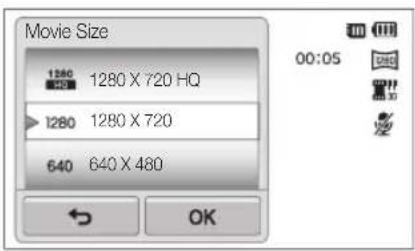
Setting a video resolution
1 In Shooting mode, touch MENU → Movie Size.
2 Select an option, and then touch OK.
text_image
Movie Size 1280 1280 X 720 HQ 1280 1280 X 720 640 640 X 480 ← OKIcon Description
| 1280HQ | 1280 X 720 HQ: Play back high- quality files on an HDTV. |
| 1280 | 1280 X 720: Play back on an HDTV. |
| 640 | 640 X 480: Play back on an analog TV. |
| 320 | 320 X 240: Post on a web page. |
| 320WHD | For Sharing: Post on a website using the wireless network (30 seconds maximum). |
Selecting image quality
Set the photo and video quality settings. Higher image quality settings will result in larger file sizes.
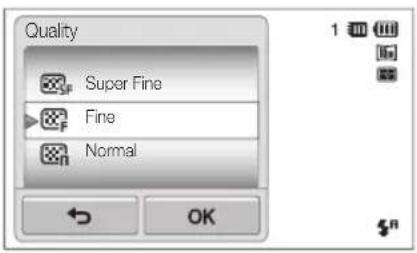
Setting the photo quality
The camera compresses and saves the photos you capture in the JPEG format.
1 In Shooting mode, touch MENU → Quality.
2 Select an option, and then touch OK.
text_image
Quality Super Fine Fine Normal OKIcon Description
| Super Fine: Capture photos in super high quality. | |
| Fine: Capture photos in high quality. | |
| Normal: Capture photos in normal quality. |
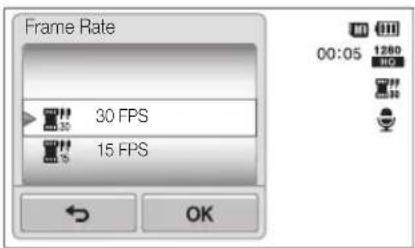
Setting the video quality
The camera compresses and saves the videos you record in the MP4 (H.264) format.
1 In Shooting mode, touch MENU → Frame Rate.
2 Select an option, and then touch OK.
- As the frame rate increases, action appears more natural, but the file size also increases.
text_image
Frame Rate 30 FPS 15 FPS 00:05 1280 OKIcon Description
| 30 FPS: Record 30 frames per second. | |
| 15 FPS: Record 15 frames per second. |
Using the timer
Learn how to set the timer to delay shooting.
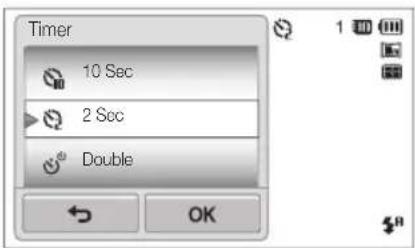
1 In Shooting mode, touch MENU → Timer.
2 Select an option, and then touch OK.
text_image
Timer 10 Sec 2 Sec Double OKIcon Description
| Off: The timer is not active. | |
| 10 Sec: Capture a photo after a 10-second delay. | |
| 2 Sec: Capture a photo after a 2-second delay. | |
| Double: Capture one photo after a 10-second delay and another photo after a 2-second delay. |
Available options may differ depending on the shooting mode.
3 Press [Shutter] to start the timer.
- The AF-assist light/timer lamp blinks. The camera will automatically capture a photo at the specified time.
![INVENTUM SH100 - Press [Shutter] to start the timer. - 1](/content/2026/06/1240082/images/11269f78d8a5cf05734e57d5ec3df1f6840a31dc1ba6ee0b050b7e862088a2d3.jpg)
- Press [Shutter] to cancel the timer.
- Depending on the Face Detection option you have selected, the timer function or some of its options may not be available.
- Timer options are not available if you set Burst options.
Shooting in the dark
Learn how to capture photos at night or in low light conditions.
Preventing red-eye
If the flash fires when you capture a photo of a person in the dark, a red glow may appear in the person's eyes. To prevent this, select Red-eye or Red-eye Fix. Refer to flash options in "Using the flash."

natural_image
Close-up portrait of a woman with blonde hair (no visible text or symbols)
natural_image
Close-up portrait of a woman with blonde hair and green eyes (no visible text or symbols)
This option is available in Program, Beauty Shot and Night Shot modes.
Using the flash
Use the flash when you capture photos in the dark or when you need more light on your photos.
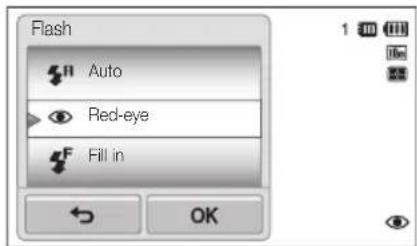
1 In Shooting mode, touch MENU > Flash.
2 Select an option, and then touch OK.
text_image
Flash Auto Red-eye Fill in OKIcon Description
| Off:The flash will not fire.The camera will display the shake warning when you are shooting in low light. | |
| Auto: The flash will fire automatically when the subject or background is dark. |
Icon Description
| Red-eye:The flash will fire twice when the subject or background is dark to reduce the red-eye effect.There is an interval between the 2 bursts of the flash.Do not move until the flash fires a second time. | |
| Fill in:The flash always fires.The camera automatically adjusts the flash's intensity. | |
| Slow Sync:The flash fires and the shutter stays open longer.This option is recommended when you want to capture ambient light to reveal more details in the background.Use a tripod to prevent your photos from blurring.The camera will display the shake warning when you are shooting in low light. | |
| Red-eye Fix:The flash fires twice when the subject or background is dark, and the camera corrects red-cyes through its advanced software analysis.There is an interval between the 2 bursts of the flash.Do not move until the flash fires a second time. |
Available options may differ depending on the shooting mode.

Flash cotions are not available if you set burst options or select Self-Portrait or Blink Detection.
- Make sure that your subjects are within the recommended distance from the flash. (p. 146)
- If light from the flash is reflected or there is a substantial amount of dust in the air, tiny spots may appear in your photo.
Adjusting the ISO sensitivity
The ISO sensitivity is the measure of a film's sensitivity to light as defined by the International Organization for Standardization (ISO). The higher the ISO sensitivity you select, the more sensitive to light your camera becomes. With a higher ISO sensitivity, you can get a better photo without using the flash.
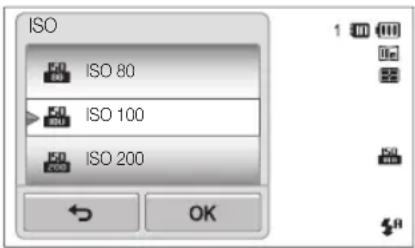
1 In Shooting mode, touch MENU → ISO.
2 Select an option, and then touch OK.
- Select Auto to have the camera select an appropriate ISO sensitivity based on the brightness of the subject and lighting.
text_image
ISO ISO 80 ISO 100 ISO 200 OK
Higher ISO sensitivities may result in more image noise.
Changing the camera's focus
Learn how to adjust the camera's focus to suit the subject and the shooting conditions.
Using macro
Use macro to capture close-up photos of subjects, such as flowers or insects.

natural_image
Silhouette of a person taking a photo of a blooming magnolia branch (no text or symbols)
- Try to hold the camera firmly to prevent blurry photos.
- Turn off the flash if the distance to the subject is less than 16 in (40 cm).
1 In Shooting mode, touch MENU → Focus.
2 Select Macro, and then touch OK.

text_image
Focus Normal (AF) Macro OKIcon Description
| Normal (AF): Focus on a subject farther than 32 in (80 cm). | |
| Macro: Manually focus on a subject that is 2-32 in (5-80 cm) from the camera. 39-59 in (100-150 cm) when you use the zoom. |
Using Smart Touch focus
Smart Touch AF allows you to track and auto focus on your subject, even when you are moving.
1 In Shooting mode, touch MENU → Focus Area.
2 Select Smart Touch AF, and then touch OK.
3 Touch the subject you want to track in the touch area.
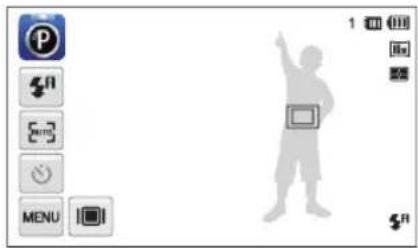
text_image
Screenshot of a software interface with a user profile icon and control buttons, likely from an older application.- The white frame means that your camera is tracking the subject.
- The green frame means that your subject is in focus when you half-press [Shutter].

- If you do not touch any area on the screen, the focus frame will appear in the center of the screen.
- Tracking a subject may fall when:
- the subject is too small
- the subject moves excessively
- the subject is backlit or you are shooting in a dark place
- colors or patterns on the subject and the background are the same
- the subject includes horizontal patterns, such as blinds
- the camera shakes excessively
- When tracking a subject falls, the focus frame will appear as a white single-line frame.
- If the camera fails to track the subject, you must reselect the subject to track.
- If the camera fails to focus, the focus frame will change to a red single-line frame (1).
- If you use this function, you cannot set sell timer options, Face Detection options, Smart Filter options, and burst options.
Using one touch shooting
You can focus on a subject and capture a photo with the touch of your finger.
1 In Shooting mode, touch MENU → Focus Area.
2 Select One Touch Shooting, and then touch OK.
3 Touch a subject to capture the photo.
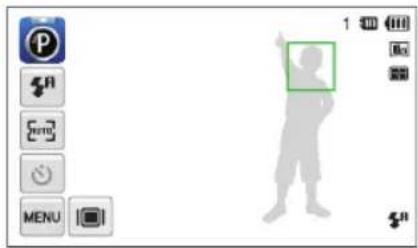
text_image
Screenshot of a software interface showing a toolbar with icons and a silhouette of a person pointing to a highlighted square.
If you use this function, you cannot set Self Timer options, burst options, and Smart Filter effects.
Adjusting the focus area
You can get clearer photos by selecting an appropriate focus area according to your subject's location in the scene.
1 In Shooting mode, touch MENU → Focus Area.
2 Select an option, and then touch OK.
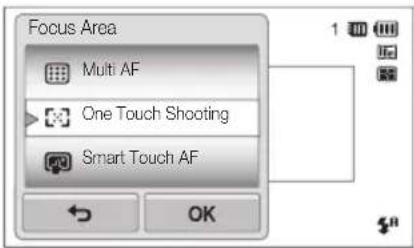
text_image
Focus Area Multi AF One Touch Shooting Smart Touch AF OKIcon Description
| Center AF: Focus on the center of the frame (suitable when subjects are located at or near the center). | |
| Multi AF: Focus on one or more of 9 possible areas. | |
| One Touch Shooting: Focus on the subject by touching the image on the screen. Touch and hold the subject to capture the photo. (p. 62) | |
| Smart Touch AF: Focus on and track the subject that you touch on the screen. (p. 61) |
Using face detection
If you use Face Detection options, your camera can automatically detect a human face. When you focus on a human face, the camera adjusts the exposure automatically. Use Blink Detection to detect closed eyes or Smile Shot to capture a smiling face. You can also use Smart Face Recognition to register faces and prioritize the focus on them.

• The camera automatically tracks the registered face.
• Face detection may not be effective when:
- the subject is far from the camera (The locus frame will appear orange for Smile Shot and Blink Detection.)
- it is too bright or too dark
- the subject is not facing the camera
- the subject is wearing sunglasses or a mask
- the subject's facial expression changes drastically
-
the subject is backlit or the lighting conditions are unstable
-
Face Detection is not available when you set Smart Filter effects or Smart Touch AF.
- Depending on the shooting options, available Face Detection options may differ.
- Depending on the Face Detection options you selected, the timer function may not be available or available a timer options may differ.
- When you set the Face Detection options, some burst options are not available.
- When you capture photos of detected faces, they will be registered in the face list.
- You can view registered faces in order of priority in Playback mode. (p. 84) Even though faces are registered successfully, they may not be classified in Playback mode.
- A face detected in Shooting mode may not appear in the face list or Smart Album.
Detecting faces
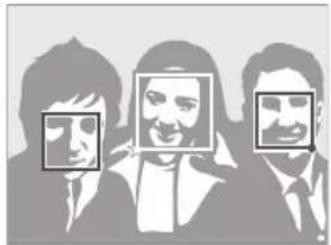
Your camera automatically detects up to 10 human faces in one scene.
1 In Shooting mode, touch MENU → Face Detection.
2 Select Normal, and then touch OK.
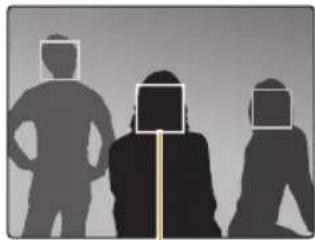
natural_image
Silhouettes of three human figures with face masks, no text or symbols presentThe nearest face appears in a white focus frame and the rest of the faces appear in gray focus frames.

- The closer you are to the subjects, the quicker your camera will detect faces.
- To focus on a subject in a gray focus frame, touch the face in the frame.
- The camera may not register detected faces if you set burst options such as Continuous, Motion Capture, and AEB.
Capturing a self portrait shot
Take photos of yourself. The focus distance will be set to close-up and your camera will emit a beep.
1 In Shooting mode, touch MENU → Face Detection.
2 Select Self-Portrait, and then touch OK.
3 When you hear a quick beep, press [Shutter].
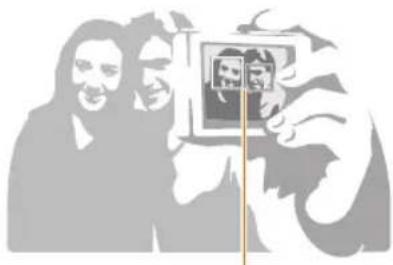
natural_image
Silhouette illustration of two people taking a selfie with a framed picture (no text or symbols)When faces are located in the center, the camera beeps rapidly.

If you turn Volume off in the sound settings, the camera will not emit a beep. (p. 129)
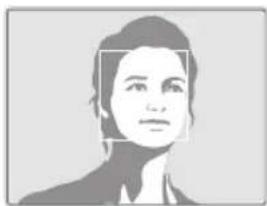
Capturing a smile shot
The camera automatically releases the shutter when it detects a smiling face.
1 In Shooting mode, touch MENU → Face Detection.
2 Select Smile Shot, and then touch OK.
3 Compose your shot.
- The camera automatically releases the shutter when it detects a smiling face.
natural_image
Portrait of a person with no visible text or symbols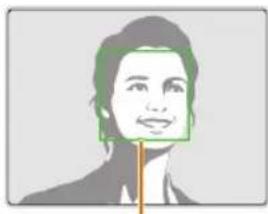
natural_image
Portrait illustration of a person with green hair and a wooden stick (no text or symbols)When your subject smiles broadly, your camera can detect the smile more easily.
Detecting eye blinking
If your camera detects closed eyes, it will automatically capture 2 photos in succession.
1 In Shooting mode, touch MENU → Face Detection.
2 Select Blink Detection, and then touch OK.
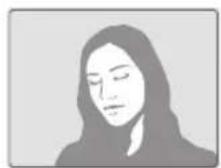


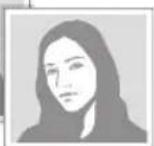

- Hold your camera still while "Capturing" is displayed on the screen.
- If blink detection fails, the "Picture taken with eyes closed." message appears. Capture another photo.
Using Smart Face Recognition
The camera automatically registers faces that you frequently photograph. The Smart Face Recognition feature will automatically prioritize the focus on those faces and on favorite faces. The Smart Face Recognition feature is available only when you use a memory card.
1 In Shooting mode, touch MENU → Face Detection.
2 Select Smart Face Recognition, and then touch OK.
natural_image
Three stylized human faces with bounding boxes, no text or symbols presentThe nearest face appears in a white focus frame and the rest of the faces appear in gray focus frames.
- Faces that you have registered as favorites. (To register faces as favorites, refer to page 66.)
- Faces that the camera automatically registers.

- The camera may recognize and register faces incorrectly depending on lighting conditions, drastic changes in the subject's pose or face, and whether or not the subject is wearing glasses.
- The camera can automatically register up to 14 faces. If the camera recognizes a new face when 14 faces have already been registered, it will replace the lowest priority face with the new one.
• The camera can detect up to 5 favorite faces in one scene.
Registering faces as your favorites (My Star)
You can register your favorite faces to prioritize the focus and exposure on those faces. This feature is available only when you use a memory card.
1 In Shooting mode, touch MENU → Smart FR Edit.
2 Select My Star, and then touch OK.
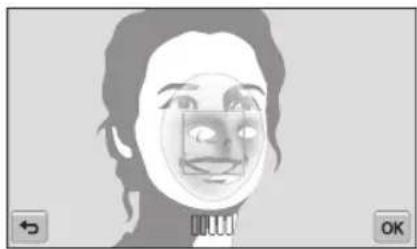
3 Align your subject's face with the oval guideline, and then press [Shutter] to register the face.
natural_image
Illustration of a person's face with facial features and a mouth, shown in grayscale (no text or symbols)
- If the subject's face is not aligned with the oval guideline, the white frame will not appear.
• Capture photos of one person at a time when registering faces. - Capture 5 photos the subject's face for best results: one each from the front, left, right, above, and below.
- When capturing photos from the left, right, above, and below, instruct the subject not to turn his or her face more than 30 degrees.
- You can register a face even if you capture one photo of the subject's face.
4 Touch←when the face list appears.
- Your favorite faces are indicated with a ★ on the face list.

• You can register up to 6 favorite faces.
• The flash will not fire when you register a favorite face.
- If you register the same face twice, you can delete one of the faces in the face list.
Viewing your favorite faces
1 In Shooting mode, touch MENU → Smart FR Edit.
2 Select Face List, and then touch OK.

• To change the ranking of your favorite laces, touch (ip. 83)
• To delete a favorite face, touch ★
Adjusting brightness and color
Learn how to adjust the brightness and color for better image quality.
Adjusting the exposure manually (EV)
Depending on the intensity of the ambient light, your photos may be too bright or dark. In these cases, you can adjust the exposure to get a better photo.
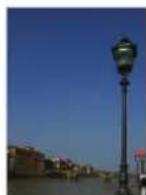
Darker (-)
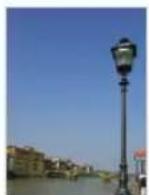
Neutral (0)
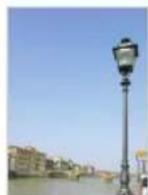
Brighter (+)
1 In Shooting mode, touch MENU → EV.
2 Select a desired value, and then touch OK.
• The photo will be brighter as exposure increases.
- When you adjust the exposure value, the icon will appear as shown below.
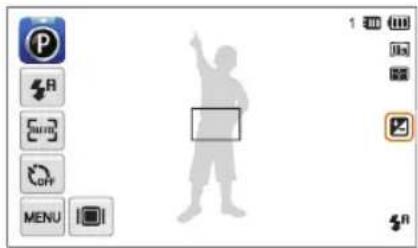
text_image
Screenshot of a software interface with a silhouette icon and control buttons, including a 'P' icon and icons like 'R', 'Auto', and 'Menu'.
Once you adjust the exposure, the setting will be stored automatically. You may need to change the exposure value later to avoid overexposure or underexposure.
- If you cannot decide on an appropriate exposure, select AEB (Auto Exposure Bracket). The camera will capture 3 consecutive photos, each with a different exposure: normal, underexposed, and overexposed. (p. 72)
Compensating for backlighting (ACB)
When the light source is behind your subject or there is high contrast between your subject and the background, your subject is likely to appear dark in the photo. In this case, set the Auto Contrast Balance (ACB) option.
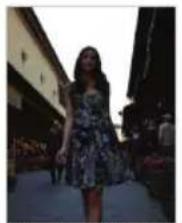
natural_image
Woman walking in a narrow alleyway with traditional buildings in the background (no visible text or signage)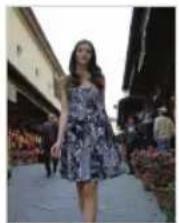
natural_image
Woman walking on a paved path in front of a building with floral decorations (no visible text or symbols)Without ACB With ACB
1 In Shooting mode, touch MENU.
2 Touch the setting button next to ACB.

text_image
Smart FR Edit Photo Size Quality ACB ON
- The ACB feature is always on in Smart Auto, Scene (Beach & Snow) modes.
- The ACB feature is not available when you set Continuous, Motion Capture, or AEB options.
Changing the metering option
The metering mode refers to the way in which a camera measures the quantity of light. The brightness and lighting of your photos will vary depending on the metering mode you select.
1 In Shooting mode, touch MENU → Metering.
2 Select an option, and then touch OK.

text_image
Metering Multi Spot Center-weighted OKIcon Description
| Multi:Your camera divides the frame into several areas, and then measures the light intensity of each area.Suitable for general photos. | |
| Spot:Your camera measures only the light intensity of the very center of the frame.If a subject is not in the center of the frame, your photo may be improperly exposed.Suitable for a subject with backlighting. | |
| Center-weighted:Your camera averages the meter reading of the entire frame with emphasis placed on the center.Suitable for photos with subjects in the center of the frame. |
Selecting a light source (White balance)
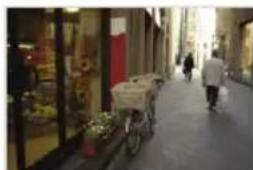
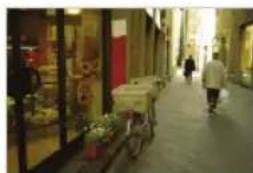
The color of your photo depends on the type and quality of the light source. If you want the color of your photo to be realistic, select a white balance setting that is appropriate for the lighting conditions, such as Auto WB, Daylight, Cloudy, or Tungsten.

natural_image
Street view of a narrow alleyway with glass storefronts and a cart carrying goods (no visible text or signage)Auto WB
natural_image
Street view of a narrow alleyway with a cart on the ground and storefronts in the background (no visible text or signage)Daylight
natural_image
Interior view of a dimly lit alleyway with pedestrians and decorative shelves (no visible text or signage)Cloudy

natural_image
Street scene with a person pushing a cart on a blue sidewalk, flanked by glass storefronts and pedestrians (no visible text or signage)Tungsten
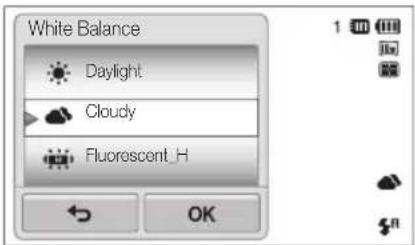
1 In Shooting mode, touch MENU → White Balance.
2 Select an option, and then touch OK.
text_image
White Balance Daylight Cloudy Fluorescent_H OKIcon Description
| Auto WB: Automatically set the White Balance based on the lighting conditions. | |
| Daylight: For outdoor photos on a sunny day. | |
| Cloudy: For outdoor photos on a cloudy day or in shadows. | |
| Fluorescent_H: For shooting under a daylight fluorescent or 3-way fluorescent light. | |
| Fluorescent_L: For shooting under white fluorescent light. | |
| Tungsten: For shooting indoor photos under incandescent bulbs or halogen lamps. | |
| Custom Set: Use White Balanco settings that you defined. |
Defining your own white balance
You can customize the White Balance by capturing a photo of a white surface, such as a piece of paper, under the lighting conditions in which you intend to capture a photo. The White Balance feature will help your camera reproduce the colors that are in the scene accurately in your photo.
1 In Shooting mode, touch MENU → White Balance.
2 Select Custom Set, and then touch OK.
3 Aim the lens at a piece of white paper, and then press [Shutter].
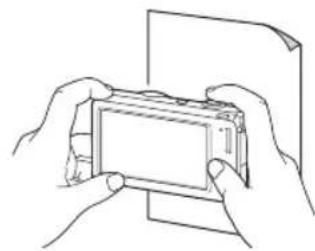
natural_image
Line drawing of two hands holding a smartphone (no text or symbols visible)Using burst modes
It can be difficult to capture photos of fast-moving subjects or capture natural facial expressions and gestures of your subjects in photos. In these cases, select one of the burst modes to rapidly capture multiple photos.
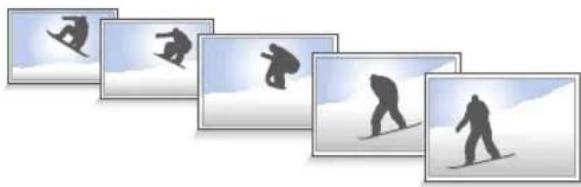
natural_image
Sequence of five grayscale snowboard silhouettes showing different actions (no text or symbols)1 In Shooting mode, touch MENU → Drive.
2 Select an option, and then touch OK.
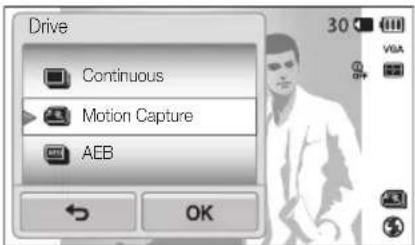
text_image
Drive Continuous Motion Capture AEB 30 VIA OK| Icon Description | |
| Single: Capture a single photo. | |
| [037X] | Continuous:While you are pressing [Shutter], the camera continuously captures photos.The maximum number of photos depends on the capacity of your memory card. |
| [508K] | Motion Capture: While you are pressing [Shutter], the camera captures VGA photos (6 photos per second; maximum of 30 photos). |
 | AEB:Capture 3 consecutive photos, each with a different exposure: normal, underexposed, and overexposed.Use a tripod to prevent blurry photos. |

- You can use the flash, timer, ACB, and Smart Filter only when you select Single.
- When you select Motion Capture, your camera will set the resolution to VGA and set the ISO sensitivity to Auto.
- Depending on the Face Detection option you selected, some burst options may not be available.
Applying effects/Adjusting images
Applying Smart Filter effects
Apply various filter effects to your photos and videos to create unique images.
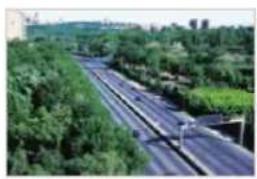
natural_image
Aerial view of a multi-lane highway surrounded by dense green trees (no visible text or signage)
natural_image
Group of three people lying on the ground, smiling and looking upward (no text or symbols visible)Miniature Vignetting

natural_image
Three people joyfully jumping on a beach under a clear blue sky (no text or symbols visible)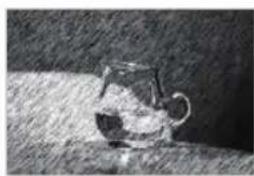
natural_image
Black-and-white sketch of a glass teapot on a surface, no text or symbols visibleFish-eye Sketch
1 In Shooting mode, touch MENU → Smart Filter.
2 Select a filter, and then touch OK.
Available filters in Program mode
| Icon Description | |
| Normal: No effect | |
| Miniature: Apply a tilt-shift effect to make the subject appear in miniature. | |
| Vignetting: Apply the retro-looking colors, high contrast, and strong vignette effect of Lomo cameras. | |
| Soft-Focus: Hide facial imperfections or apply dreamy effects. | |
| Old Film 1: Apply vintage film effect 1. | |
| Old Film 2: Apply vintage film effect 2. | |
| Half Tone Dot: Apply a halftone effect. | |
| Sketch: Apply a pen sketch effect. | |
| Fish-eye: Blacken the edges of the frame and distort objects to imitate the visual effect of a fisheye lens. | |
| Defog: Make a photo clearer. | |
| Classic: Apply a black and white effect. | |
| Retro: Apply a sepia tone effect. | |
| Negative: Apply a negative film effect. | |
| Custom RGB: Customize a color value. | |
Available filters in Movie mode
| Icon Description | |
| Normal: No effect | |
| Palette Effect 1: Create a vivid look with sharp contrast and red color. | |
| Palette Effect 2: Make scenes clean and clear by applying a soft blue tone. | |
| Palette Effect 3: Apply a soft brown tone. | |
| Palette Effect 4: Create a cold and monotone effect. | |
| Icon Description | |
| Miniature: Apply a tilt-shift effect to make the subject appear in miniature. | |
| Vignetting: Apply the retro-looking colors, high contrast, and strong vignette effect of Lomo cameras. | |
| Half Tone Dot: Apply a halftone effect. | |
| Sketch: Apply a pen sketch effect. | |
| Fish-eye: Distort close objects to imitate the visual effect of a fisheye lens. | |
| Defog: Make image clearer. | |
| Classic: Apply a black and white effect. | |
| Retro: Apply a sepia tone effect. | |
| Negative: Apply a negative film effect. | |
| Custom RGB: Customize a color value. | |
Defining your own RGB tone
1 In Shooting mode, touch MENU → Smart Filter.
2 Select Custom RGB, and then touch OK.
3 Drag up or down to adjust the values of each color.
• The higher the value, the brighter the photo.
• The lower the value, the darker the photo.

text_image
Custom RGB R G B +1 +1 0 > 0 0 -1 -1 -1 -2 ← OK4 Touch OK to save your changes.

- If you select Miniature when you are recording a video, the speed of the video will increase.
- If you select Miniature when you are recording a video, the camera will not record sound.
- If you select Miniature, Vignetting, Half Tone Dot, Sketch, Fish-eye, or Defog while recording a video, the recording speed will be set to 📄 and the recording resolution will be set to less than 640
- If you see, Smart Filler effects, you cannot use the Face Recognition options, ACB, burst options, Image Adjustment options, Intell zoom, or Smart Touch AF.
Adjusting your photos
Adjust the sharpness, saturation, or contrast of your photos.
1 In Shooting mode, touch MENU → Image Adjust.
2 Drag up or down to adjust each value.
- Sharpness
•: Contrast
• : Saturation

text_image
Image Adjust +1 0 0 0 -1 -1 -1 -2 OK3 Touch OK to save your changes.
| Sharpness Description | |
| - | Soften the edges on your photos (suitable for editing the photos on your computer). |
| + | Sharpen the edges to improve the clarity of your photos. This may also increase the noise on your photos. |
| Contrast Description | |
| - | Decrease the color and brightness. |
| + | Increase the color and brightness. |
| Saturation Description | |
| - | Decrease the saturation. |
| + | Increase the saturation. |
- Select 0 if you do not want to apply any officers (suitable for printing). - If you set adjustment functions, you cannot use Smart Filter options.
Reducing the zoom sound
When you use the zoom while recording videos, the camera can record the sound of the zoom in the videos. Use the Sound Alive function to reduce the zoom noise.
1 In Shooting mode, touch MENU → Voice.
2 Select an option, and then touch OK.

text_image
Voice Sound Alive On Sound Alive Off Mute 00:05 1280 OFF OKIcon Description
| Sound Alive On: Turn on the Sound Alive function. | |
| Sound Alive Off: Turn off the Sound Alive function. | |
| Mute: Do not record sounds. |

- Do not block the microphone when you use the Sound Alive function.
- Recordings made with Sound Alive may differ from actual sounds.
Available shooting options by shooting mode
For details about shooting options, refer to "Shooting options".
| Smart Auto Simple Shot Scene Close Up Night Shot Beauty Shot Program Movie | ||||||||
| Resolution | ○ | ○ | ○ | ○ | ○ | ○ | ○ | ○ |
| Quality | - | ○ | ○ | ○ | ○ | ○ | ○ | |
| Timer | △ | ○ | ○ | ○ | ○ | ○ | ○ | △ |
| Flash | △ | △ | △ | - | △ | △ | ○ | - |
| ISO sensitivity | - | - | - | - | - | - | ○ | - |
| Macro | △ | △ | △ | △ | - | △ | ○ | ○ |
| Focus area | - | - | - | - | - | - | ○ | - |
| Face detection | △ | - | △ | - | - | △ | ○ | - |
| EV | - | - | - | - | - | - | ○ | ○ |
| ACB | △ | - | △ | - | - | - | ○ | - |
| Metering | - | - | - | - | - | - | ○ | ○ |
| White balance | - | - | - | - | - | - | ○ | ○ |
| Drive | - | - | - | - | - | - | ○ | - |
| Smart filter | - | - | - | - | - | - | △ | △ |
| Image adjust | - | - | - | - | - | - | ○ | - |
| Sound Alive | - | - | - | - | - | - | - | ○ |
| Digital zoom | - | - | △ | - | - | - | ○ | - |
| Intelli zoom | △ | - | △ | - | - | - | △ | - |
| DIS | ○ | ○ | ○ | ○ | ○ | ○ | ○ | |
| Voice memo | - | - | - | - | - | - | ○ | - |
O All options are available. △ In these modes, some options are limited or a certain option is set by default.
| Smart movie | Object Highlight | Magic Frame shot | Photo Filter Movie Filter | Vignetting (photo) | Vignetting (movie) | Palette Effect Shot | ||
| Resolution | ○ | △ | - | ○ | ○ | ○ | ○ | |
| Quality | ○ | ○ | ○ | ○ | - | ○ | ||
| Timer | △ | ○ | ○ | ○ | △ | ○ | △ | △ |
| Flash | - | △ | ○ | △ | - | △ | - | - |
| ISO sensitivity | - | - | - | - | - | - | - | - |
| Macro | △ | - | - | - | △ | - | △ | △ |
| Focus Area | - | - | - | - | - | - | - | - |
| Face detection | - | - | - | - | - | - | - | - |
| EV | - | - | - | - | - | - | - | - |
| ACB | - | - | - | - | - | - | - | - |
| Metering | - | - | - | - | - | - | - | - |
| White balance | - | - | - | - | - | - | - | - |
| Drive | - | - | - | - | - | - | - | - |
| Smart filter | - | - | - | △ | △ | - | - | △ |
| Image adjust | - | - | - | - | - | - | - | - |
| Sound Alive | ○ | - | - | - | ○ | - | ○ | ○ |
| Digital zoom | - | - | - | - | - | - | - | - |
| Intelli zoom | - | - | - | - | - | - | - | - |
| DIS | - | - | - | - | - | - | - | - |
| Voice memo | - | - | - | - | - | - | - | - |
O All options are available. △ In these modes, some options are limited or a certain option is set by default.
Playback/Editing
Learn how to play back photos, videos, or voice memos and edit photos or videos.
Also, learn how to connect your camera to your computer, photo printer, or TV.
Viewing photos or videos in
Playback mode 81
Starting Playback mode 81
Viewing photos 88
Playing a video 90
Playing a voice memo 92
Editing a photo 93
Resizing photos 93
Rotating a photo 94
Using Smart Crop 94
Applying Smart Filter effects 95
Adjusting your photos 95
Creating a print order (DPOF) 97
Viewing files on a TV 98
Transferring files to your Windows computer 99
Transferring files with Intelli-studio 100
Transferring files by connecting the camera as a removable disk 102
Disconnecting the camera (for Windows XP) 103
Transferring files to your Mac computer 104
Printing photos with a PictBridge photo printer 105
Viewing photos or videos in Playback mode
Learn how to play back photos, videos, or voice memos and how to manage files.
Starting Playback mode
View photos or play videos and voice memos stored in your camera.
1 Press [Playback].
![INVENTUM SH100 - Press [Playback]. - 1](/content/2026/06/1240082/images/afb67e7d0f3b6b975a6c93c764ea4b9a14e6909a96ecff856e55a5366678b28e.jpg)
text_image
100-0001 MENU• The most recent file will be displayed.
- If the camera is off, it will turn on and display the most recent file.
![INVENTUM SH100 - Press [Playback]. - 2](/content/2026/06/1240082/images/7317dddb4c6031591ce05373757af13934a3d0f61d6cc105731eeffc4c4b2914.jpg)
• To view files by category, touch on the Home screen. (p. 84)
- To send an email, touch MEN → Share → Email. To upload the file to the web sites, touch MEN → Share → an web site.
2 Drag the image left or right to move to another file.
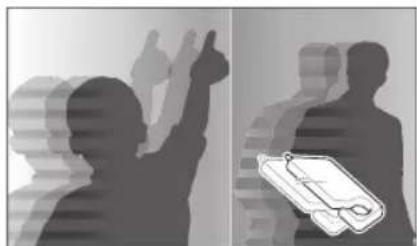
natural_image
Silhouettes of two people, one raising a hand and the other holding a clipboard (no text or symbols visible)- To skip files quickly, tilt the camera to the direction you want to flip files. (p. 82)
- You can also touch and hold the left end or right end of the screen to skip files quickly.
- You can also drag the slider left or right to move to the previous or next file.
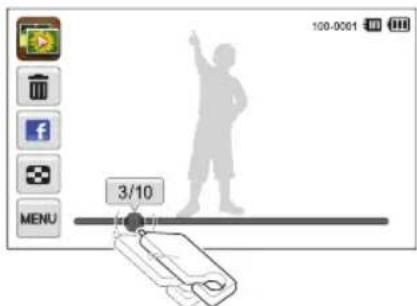
text_image
100-0001 MENU 3/10
- If you want to view files stored in the internal memory, remove your memory card.
- The camera will not properly play back files of unsupported sizes or files that were captured with other cameras.
Viewing files with motion recognition
You can view files by tilting the camera in Playback mode.
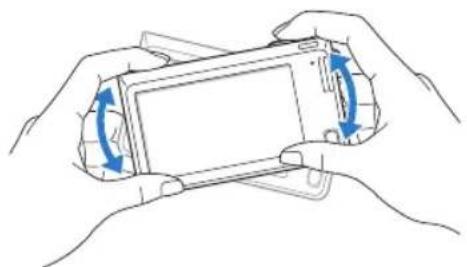
natural_image
Line drawing of two hands holding a smartphone with blue arrows indicating rotation or movement (no text or symbols)- Motion recognition may not work well if you hold the camera with the screen parallel to the ground.
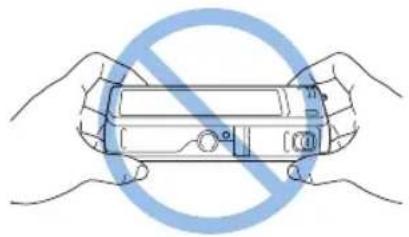
natural_image
Illustration of two hands holding a car with a blue prohibition symbol (no text or labels)- When you rotate the camera 90^ or 180^ while you view a photo, the camera will automatically change the orientation of the displayed photo. (p.132) - To deactivate motion recognition, touch MENU, and then touch the setting button next to Gesture View.
Display in Playback mode
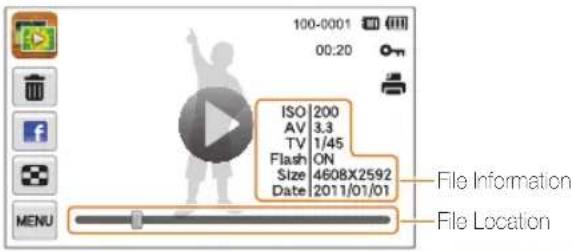
text_image
100-0001 00:20 ISO 200 AV 3.3 TV 1/45 Flash ON Size 4608X2592 Date 2011/01/01 File Information File Location MENUIcon Description
| Photo includes a voice memo | |
| Play videos (p. 90) or voice memos (p. 92) | |
| 100-0001 | Folder name – File name |
| 00:20 | Video length |
| Protected file | |
| Print order has been set (DPOF) | |
| Delete files (p. 87) | |
| Upload the current file to Facebook | |
| View files as thumbnails (p. 86) |

To display file information on the screen, touch MENU, and then touch the setting button next to File Information.
Ranking your favorite faces
You can rank your favorite faces or delete them. The favorite face feature is available only when you have inserted a memory card into the camera.
1 In Playback mode, touch MENU → Face List.
- You can also rank your favorite faces in Thumbnail view by touching MENU → Face List.

text_image
Face List 1 2 3 4 5 62 To change the rank of a face, touch ★123 Yes, and then drag the face to a new location.
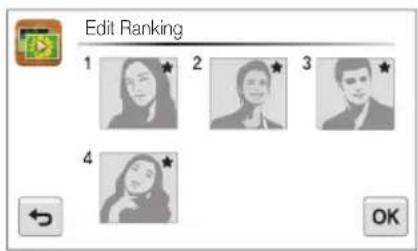
text_image
Edit Ranking 1 2 3 4 OK3 Touch OK to save your changes.
- To delete a face from the list, touch ✝ touch a face, and then touch OK.

Touch the view only your favorite face in the face list.
Viewing files in Smart album as thumbnails
View files by category, such as date, face, or file type.
1 On the Home screen, touch
2 Touch Alt a category option.

text_image
Screenshot of a media player interface showing a grid of video thumbnails with play controls and icons, likely from an older media player.Icon Description
| ALL | View all files. |
| View files by the date they were saved. | |
| View files by recognized faces and favorite faces. | |
| View files by the file type. |

- It may take some time for the camera to open Smart album, change the category, or reorganize files.
- If you delete a category, all files in the category will be deleted.
Viewing files in 3D view
1 On the Home screen, touch

2 Drag images left or right to move to the previous or next file.
- Flick screen left or right to move files switch quickly. The faster you flick the screen, the more files you will scroll through at a time.
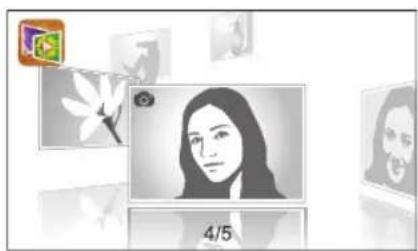
natural_image
Illustration of a person's face with floral background and image editing icons (no readable text or symbols)
- You cannot play movies or voice memos in 3D view.
• The 3D feature is not available while the camera is connected to a TV.
Viewing files with the page flip effect
You can flip through files by dragging or flicking the touch pen across the screen. You can also apply a page flip effect to a slide show.
1 On the Home screen, touch
2 Touch a theme.
3 Drag images left or right to move to the previous or next file.

natural_image
Illustration of a computer monitor with a silhouette of a person, a magnifying glass, and a smartphone (no text or symbols visible)Icon Description
| Play a slide show.• Touch the screen to pause the slide show and adjust the volume or mute the sound.• Touch ▶to stop the slide show. | |
| Return to the theme selection screen. |

You can view only photos when you use the page flip effect.
Viewing files as thumbnails
Scan thumbnails of files.
[QR]
In Playback mode, rotate [Zoom] to the left to view thumbnails (9 at a time). Rotate [Zoom] to the left once or twice more to display more thumbnails (16 or 36 at a time).
Rotate [Zoom] to the right to return to the previous view.

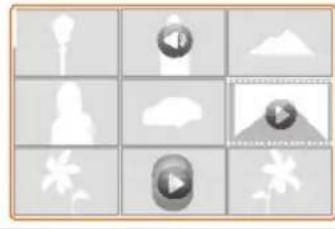
natural_image
Grid of nine grayscale UI icons including a rocket, cloud, person silhouette, cloud, mountain, flower, play button, and fan (no text or symbols)Touch a file to display it in full screen view.
Icon Description
| Delete files | |
| Select files to upload to Facebook | |
| Photo includes a voice memo | |
| Video file | |
| Voice memo file |

Drag the screen up or down to move to the previous or next page of thumbnails.
Protecting files
Protect your files to prevent accidental deletion.
1 In Playback mode, locate the file you want to protect, and then touch MENU.
2 Touch the setting button next to Protect.
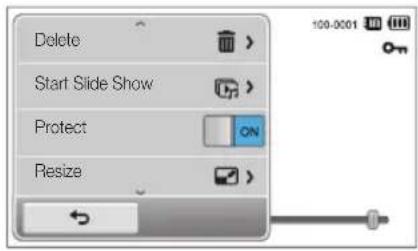
text_image
Delete Start Slide Show Protect ON Resize
You cannot delete or rotate a protected file.
Deleting files
Select files to delete in Playback mode.
Deleting a single file
You can select one file, and then delete it.
1 In Playback mode, locate the file you want to delete, and then touch 📄.
2 When the pop-up message appears, touch Yes.

You can also delete a file by touching MENU → Delete → Delete → OK.
Deleting multiple files
You can select multiple files, and then delete them at once.
1 In Thumbnail view, touch 📄
2 Select the files you want to delete, and then touch 🔒
3 When the pop-up message appears, touch Yes.
Deleting all files
You can select all files, and then delete them at once.
1 In Playback mode, touch MENU → Delete.
- You can also delete files in Thumbnail view by touching MENU → Delete.
2 Select All, and then touch OK.
3 When the pop-up message appears, touch Yes.
Copying files to a memory card
Copy files from the internal memory to a memory card.
1 In Playback mode, touch MENU.
- You can also copy files to a memory card in Thumbnail view or in Smart Albumby touching MENU > Copy to Card.
2 Touch Copy to Card.
3 When the pop-up message appears, touch Yes.
Viewing photos
Enlarge part of a photo or view photos as a slide show.
Enlarging a photo
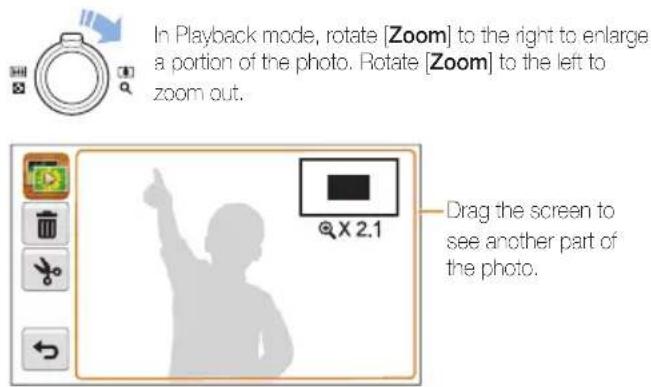
text_image
In Playback mode, rotate [Zoom] to the right to enlarge a portion of the photo. Rotate [Zoom] to the left to zoom out. X 2.1 Drag the screen to see another part of the photo.| Icon Description | |
| Delete the file. | |
| Crop the photo (the camera will save it as a new file). | |
| Return to the original view. | |
| X2.1 | Zoom ratio (The maximum zoom ratio differs depending on the photo resolution.) |
Playing a slide show
Apply effects and audio to a slide show of your photos. The slide show function does not work for videos or voice memos.
1 On the Home screen, touch
2 Touch and then select individual photos that you want to include in the slide show.
- Touch to select all.
- Touch to cancel your selection.
• You cannot select video files.
• You can select up to 2,000 files.
3 Touch OK.
4 Touch MENU, and then set a slide show effect.
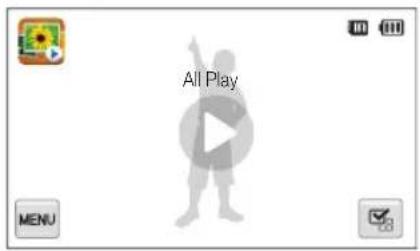
text_image
All Play MENU* Default
Icon Description
| Play Mode: Set whether or not to repeat the slide show. (One Play+, Repeat) | |
| Interval:Set the interval between photos.(1 sec*, 3 sec, 5 sec, 10 sec)You must set the Effect option to set the interval. | |
| Music: Set background audio.(Off*, Mist, Drops, Muse, Trip, Fall) | |
| Effect:Set a scene change effect between photos.(Off*, Calm, Shine, Relax, Lively, Sweet)Select cancel effects.When you use the Effect option, the interval between photos will be set to 1 second. |
5 Touch to start the slide show.
- Touch the screen to pause the slide show.
- Touch 🔔 adjust the volume or mute the sound.
- Touch ← to stop the slide show.
Playing a video
In Playback mode, you can view a video, and then capture or trim parts of the playing video. You can save the captured or trimmed segments as new files.
1 In Playback mode, locate a video, and then touch
2 View the video.

text_image
00:04 100-0002 00:10Icon Description
| Scan backward. | |
| Pause or resume playback. | |
| Scan forward. | |
| Adjust the volume or mute the sound. | |
| Return to Playback mode. |
Trimming a video
1 While viewing a video, touch at the point where you want the trimming to begin.
2 Touch
3 Touch at the point where you want the trimming to end.
- You can also adjust the scene to be cropped by dragging the handles that appear on the progress bar.

text_image
100-0002 11 00:04 00:104 Touch
5 When the pop-up message appears, touch Yes.

• The original video should be at least 10 seconds long.
• The camera will save the edited video as a now file.
Capturing an image from video
1 While viewing a video, touch at the point where you want to capture an image.
2 Touch
3 When the pop-up message appears, touch Yes.

- The file resolution of the captured image will be the same as the original video.
• The captured image is saved as a new file.
Playing a voice memo
Listening to a voice memo
1 In Playback mode, locate a voice memo file, and then touch ▶.
2 Listen to the voice memo.

text_image
00:04 100-0003 00:10Icon Description
| Scan backward. | |
| Pause or resume playback. | |
| Scan forward. | |
| Adjust the volume or mute the sound. | |
| Return to Playback mode. |
Playing voice memos that are attached to photos
1 In Playback mode, locate a photo that includes a voice memo, and then touch 📄.
2 Listen to a voice memo.

text_image
00:04 00:10 100-2021 IIIcon Description
| 11/▶ | Pause or resume playback. |
| Adjust the volume or mute the sound. | |
| Return to Playback mode. |
Editing a photo
Learn how to edit photos.

• The camera will save edited photos as new files.
- When you edit photos, the camera will automatically convert them to a lower resolution. Photos that you rotate or resize manually are not automatically converted to a lower resolution.
Resizing photos
Change the size of a photo and save it as a new file. You can also select a photo to be displayed when the camera turns on.
1 In Playback mode, locate a photo, and then touch MENU.
2 Touch Resize, and then select a size option.
- Select Start Image to save the photo as a start image. (p. 129)
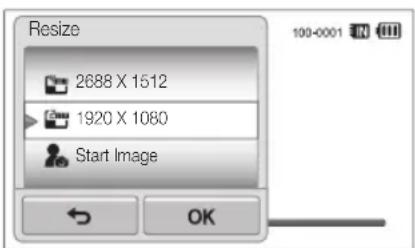
text_image
Resize 2688 X 1512 1920 X 1080 Start Image OK3 Touch OK to save.

Available resize options differ depending on the original size of the photo.
Rotating a photo
1 In Playback mode, locate a photo, and then touch MENU.
2 Touch Rotate, and then select a rotate option.
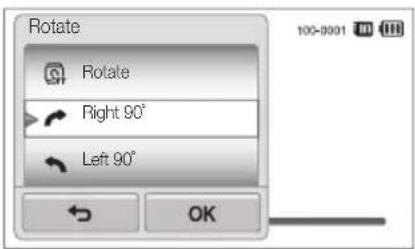
text_image
Rotate Rotate Right 90° Left 90°3 Touch OK to save.

The camera will overwrite the original file.
Using Smart Crop
Use Smart Crop to select objects in a photo and save the cropped area as a new file.
1 In Playback mode, locate a photo, and then touch MENU.
2 Touch Smart Crop.
3 Touch 4 points on the screen to select an area.
• You can re-select the area by dragging the 4 points.
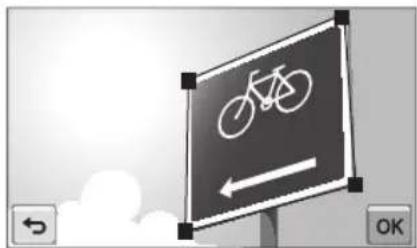
text_image
Traffic sign indicating bicycle lane with directional arrow and OK/← buttons4 Touch OK to save.
• The cropped photo is saved as a new file.

The size of the new file may be smaller than the original.
Applying Smart Filter effects
Apply special effects to your photos.
1 On the Home screen, touch
• The most recent file will be displayed.
2 Touch→a photo.
3 Touch MENU → Smart Filter.
4 Select a filter.
• To see available filter options, refer to page 73.
• To view the original photo, touch Before.
• To view the photo with the filter effect, touch After.

text_image
Miniature OFF MENU Before After5 Touch 📁 to save your changes.
Adjusting your photos
Learn how to adjust the brightness, contrast, or saturation or how to correct the red-eye effect. If the center of a photo is dark, you can adjust it to be brighter. The camera will save an edited photo as a new file, but may convert it to a lower resolution.

- You can adjust brightness, contrast, and saturation and apply Smart Filter effects at the same time.
- You cannot apply the ACB, Face Retouch, and Rod-eye Fix effects at the same time.
Adjusting brightness, contrast, or saturation
1 On the Home screen, touch 📄
• The most recent file will be displayed.
2 Touch → a photo.
3 Touch MENU → an adjusting option.
| Icon Description | |
| Brightness | |
| Contrast | |
| Saturation | |
4 Drag the sliders or touch the sample photos to adjust the option.
• To view the original photo, touch Before.
• To view the adjusted photo, touch After.
5 Touch 📁 to save your changes.
Adjusting dark subjects (ACB)
1 On the Home screen, touch
• The most recent file will be displayed.
2 Touch a photo.
3 Touch MENU → ACB.
• To view the original photo, touch Before
• To view the adjusted photo, touch After.
4 Touch 📁 to save your changes.
Retouching faces
1 On the Home screen, touch 📄 • The most recent file will be displayed.
2 Touch a photo.
3 Touch MENU → Face Retouch.
4 Drag the sliders or touch the sample photos to adjust the skin tone.
• As the slider moves to the right, the skin tone becomes brighter.
• To view the original photo, touch Before.
• To view the adjusted photo, touch After.
5 Touch 📁 to save your changes.
Removing red-eye
1 On the Home screen, touch
• The most recent file will be displayed.
2 Touch a photo.
3 Touch MENU → Red-eye Fix.
• To view the original photo, touch Before.
• To view the adjusted photo, touch After.
4 Touch 📁 to save your changes.
Creating a print order (DPOF)
Select photos to print and save print options in the Digital Print Order Format (DPOF). This information is saved in the MISC folder on your memory card for convenient printing on DPOF-compatible printers.
1 In Playback mode, locate a photo, and then touch MENU.
2 Touch DPOF.
3 Touch + to select the number of copies, and then touch OK.

text_image
100-0001 ← - 1 + OK
- You can take the memory card to a print shop that supports DPOF (Digital Print Order Format) or you can print photos directly through a DPOF-compatible printer at home.
- Photos with dimensions that are wider than the paper may be cut off on the loft and right ooges. Ensure that your photo dimensions are compatible with the paper you select.
- You cannot set DPOF options for photos stored in the internal memory.
Viewing files on a TV
Play back photos or videos by connecting your camera to a TV with the A/V cable.
1 On the Home screen, touch
2 Touch Connectivity → Video Out.
3 Select the appropriate video signal output for your country or region. (p. 130)
4 Turn off your camera and TV.
5 Connect your camera to your TV with the A/V cable.
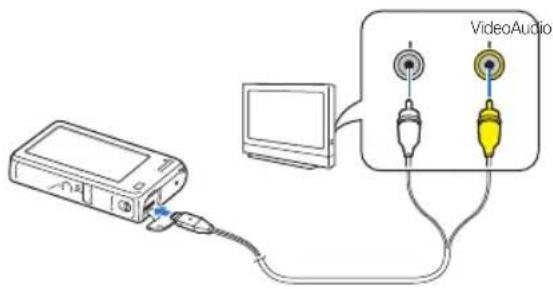
text_image
Diagram showing audio connection between a device and a video audio output, with labeled components and cable connections.6 Turn on your TV, and then select a video output mode with the TV remote control.
7 Turn on your camera.
- The camera automatically enters into Playback mode when you connect it to a TV.
8 Playback the photos or videos using the touch screen on your camera.

- Depending on the TV model, you may see some digital noise or part of an image may not appear.
- Images may not be centered on the TV screen depending on your TV settings.
Transferring files to your Windows computer
Transfer files to your Windows computer, edit them with Intelli-studio, and upload them to the web.
Requirements
| Item Requirements | |
| CPU | Intel Pentium 4, 3.2 GHz or higher/AMD AthlonTM FX 2.6 GHz or higher |
| RAM | Minimum 512 MB RAM (1 GB or more recommended) |
| OS | Windows XP SP2, Windows Vista, or Windows 7 (32-bit editions) |
| Hard disk capacity | 260 MB or more (1 GB and above recommended) |
| Others | CD-ROM drive1024 X 768 pixels, 16-bit color display compatible monitor (1280 X 1024 pixels, 32-bit color display recommended)USB 2.0 portnVIDIA Goforco 7600GT or higher/ATI X1600 series or higherMicrosoft DirectX 9.0c or higher |
* The programs may not work properly on 64-bit editions of Windows XP, Windows Vista, and Windows 7.

- The requirements are recommendations only. Intelli-studio may not work properly even when the computer meets the requirements, depending on the condition of your computer.
- If your computer does not meet the requirements, videos may not play correctly or it may take longer to edit videos.
• Install DirectX 9.0c or above before you use the program. - Your computer must be running Windows XP, Windows Vista or Windows 7 for you to connect the camera as a removable disk. (See p. 102 and p. 104.)

The manufacturer is not responsible for any damage that results from using an unqualified computer such as a computer you assembled yourself.
Transferring files with Intelli-studio
Intelli-studio will start automatically when you connect the camera to your computer with the USB cable.

The battery will charge while the camera is connected to a computer with the USB cable.
1 On the Home screen, touch
2 Touch Connectivity, and then turn on PC Software by touching the setting button.
3 Turn off the camera.
4 Connect the camera to your computer with the USB cable.

You must plug the end of the cable with the indicator light (▲) into your camera. If the cable is reversed, it may damage your files. The manufacturer is not responsible for any loss of data.
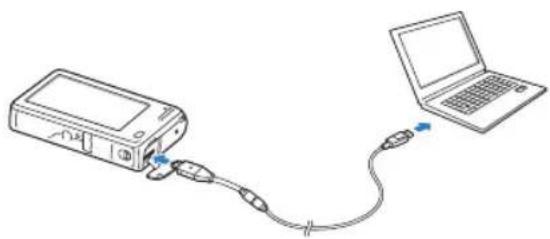
natural_image
Diagram showing a device connected to a laptop via cable, no text or symbols present5 Turn on the camera.
- The computer recognizes the camera automatically and Intelli-studio launches automatically.

If you set the USB option to Select Mode, select Computer in the pop-up window.
6 Select a destination folder on your computer, and then select Yes.
- New files stored on the camera will automatically transfer to the selected folder.
- If your camera has no new files, the pop-up window for saving new files will not appear.

For Windows Vista and Windows 7, select Run iStudio.exe from the Auto Play window to start Intelli-studio.
Using Intelli-studio
Intelli-studio is a built-in program that allows you to play back and edit files. For details, select Help → Help from the program toolbar.

- To enjoy more features, such as creating slide shows with templates, install the full version of Intelli-studio by selecting Web Support > Update Intelli-studio > Start Update from the program toolbar.
- You can update the firmware of your camera by selecting Web Support > Upgrade firmware for the connected device from the program toolbar.
- If you install Intelli-studio on your computer, the program will launch more quickly. To install the program, select Tool → Install Intelli-studio on PC.
- You cannot edit files directly on the camera. Transfer files to a folder on your computer before editing.
• Intelli-studio supports the following formats:
Videos: MP4 (Video: H.264, Audio: AAC), WMV (WMV 7/8/9), AM (MJPEG)
- Photos: JPG, GIF, BMP, PNG, TIFF

text_image
File / Fair View Tools Web Support Help 1 2 3 4 5 Entelli-studio Library Photo Edit Movie Edit Share 6 7 15 14 Contexts Manager Folder Date Color Location Paste 2011-01-01 SAYL_4375.JPG SAYL_4376.JPG SAYL_4377.JPG SAYL_4378.JPG SAYL_4379.JPG 8 13 My Computer C: D: Connected Device Bancourg Camera G: DCIM 100%KOTO SAYL_4369.JPG SAYL_4370.JPG SAYL_4371.JPG SAYL_4374.JPG SAYL_4375.JPG 9 12 Save New File 10 11 Thermal Global MapPlayback/Editing 101
| No. | Description |
| 1 | Open menus. |
| 2 | Display files in the selected folder. |
| 3 | Switch to the Photo edit mode. |
| 4 | Switch to the Video edit mode. |
| 5 | Switch to the Sharing mode. (to send files by email or upload files to websites, such as Flickr or YouTube) |
| 6 | Enlarge or reduce the thumbnails in the list. |
| 7 | Select a file type. |
| 8 | View files in the selected folder on your computer. |
| 9 | Show or hide files on the connected camera. |
| 10 | View files in the selected folder on the camera. |
| 11 | View files as thumbnails or on a map. |
| 12 | Browse folders stored on the camera. |
| 13 | Browse folders stored on your computer. |
| 14 | Move to the previous or next folder. |
| 15 | Print files, view files on a map, store files in My Folder, or register faces. |
Transferring files by connecting the camera as a removable disk
Connect the camera to your computer as a removable disk.
1 On the Home screen, touch
2 Touch Connectivity, and then turn off PC Software by touching the setting button.
3 Turn off the camera.
4 Connect the camera to your computer with the USB cable.
You must plug the end of the cable with the indicator right (▲) into your camera. If the cable is reversed, it may damage your files. The manufacturer is not responsible for any loss of data.
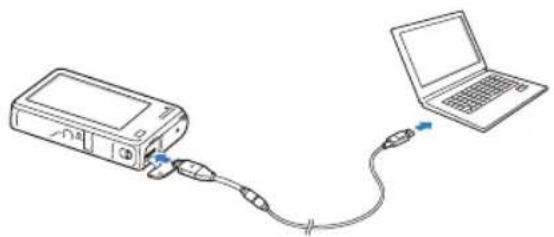
natural_image
Line drawing of a device connected to a laptop via cable (no text or symbols)5 Turn on the camera.
• The computer recognizes the camera automatically.

If you set the USB option to Select Mode, select Computer in the pop-up window.
6 On your computer, select My Computer → Removable Disk → DCIM → 100PHOTO.
7 Drag or save files to your computer.
Disconnecting the camera (for Windows XP)
With Windows Vista and Windows 7, the methods for disconnecting the camera are similar.
1 If the status lamp on your camera is blinking, wait until it stops.
2 Click on the tool bar at the bottom right of your computer screen.

3 Click the pop-up message.
4 Click the message box indicating safely removed.
5 Remove the USB cable.

The camera may not disconnect safely while Intelli-studio is running. End the program before disconnecting the camera.
Transferring files to your Mac computer
When you connect the camera to a Macintosh computer, the computer will automatically recognize the device. You can transfer files directly from the camera to the computer without installing any programs.

Mac OS 10.4 or later is supported.
1 Connect your camera to a Macintosh computer with the USB cable.

You must plug the end of the cable with the indicator light (▲) into your camera. If the cable is reversed, it may damage your files. The manufacturer is not responsible for any loss of data.
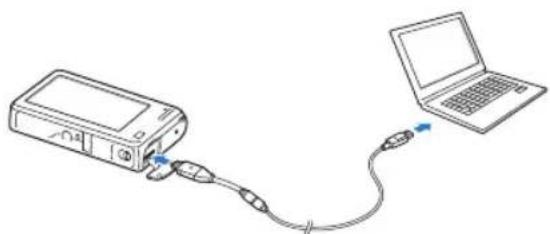
natural_image
Line drawing of a device connected to a laptop via cable (no text or symbols)2 Turn on the camera.
- The computer recognizes the camera automatically and displays a removable disk icon.

If you set the USB option to Select Mode, select Computer in the pop-up window.
3 Double-click the removable disk icon.
4 Drag or save files to your computer.
Printing photos with a PictBridge photo printer
Print photos with a PictBridge-compatible printer by connecting your camera directly to the printer.
1 On the Home screen, touch
2 Touch Connectivity → USB → Printer.
3 Turn on the printer, and then connect your camera to the printer with the USB cable.
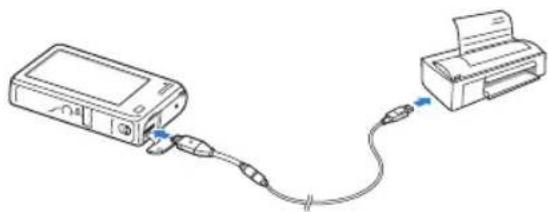
natural_image
Line drawing of a printer connected to a digital device via cable (no text or symbols)4 If the camera is off, press [POWER] or [Playback] to turn it on.
• The printer recognizes the camera automatically.
5 Select a file to print.
6 Touch + to select the number of copies.
• To set printer options, touch MENU . (p. 106)
7 Touch to print.
- Touch is print all photos.
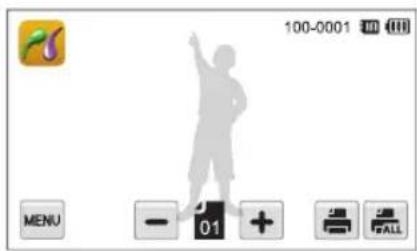
text_image
100-0001 MENU - 01 + 温 FALL8 When the pop-up window appears, touch Yes to begin printing.
• To cancel printing, touch Cancel on the pop-up window.
Configuring print settings
Touch MENU to configure print settings.
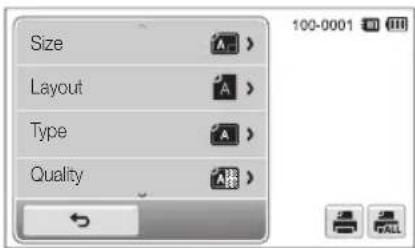
text_image
Size Layout Type QualityIcon Description
| A | Size: Set the print size. |
| A | Layout: Set the number of photos to be printed on a single sheet of paper. |
| A | Type: Set the type of paper. |
| A | Quality: Set the print quality. |
| R | Date: Set to print the date. |
| T | File Name: Set to print the file name. |
| No | Reset: Reset settings to their default values. |

Some options may not be supported by some printers.
Wireless network
Learn to connect to wireless local area networks (WLANs) and use functions.
Connecting to a WLAN and configuring network settings 108
Connecting to a WLAN 108
Setting network options 109
Manually setting the IP address 109
Network connection tips 110
Sending photos via email 111
Changing email settings 111
Sending photos via email 113
Entering text 114
Using photo or video sharing websites 115
Accessing a website 115
Uploading photos or videos 115
Using a smart phone as a remote shutter release 116
Viewing photos or videos on a AllShare-enabled TV 118
Viewing photos or videos on a TV I ..... 118
Viewing photos or videos on a TV II ..... 120
Sending or receiving photos or videos with another camera 121
Sending photos or videos to another camera 121
Receiving photos or videos from another camera 121
Using Auto Backup to send photos or videos 123
Installing the program for Auto Backup on your PC 123
Sending photos or videos to a PC ..... 123
Sending photos or videos to a Blu-ray disc Player 124
About the Wakeup on LAN (WOL) feature 125
Connecting to a WLAN and configuring network settings
Learn to connect via an access point (AP) when you are in a range of a WLAN. You can also configure network settings.
Connecting to a WLAN
1 On the Home screen, touch


2 Touch

• The camera automatically searches for available AP devices.
3 Touch an AP.

text_image
AP Setting WPS PBC ✓ Samsung 1 Samsung 2 Samsung 3 Samsung 4 Samsung 5| Icon Description | |
| Ad hoc AP | |
| Secured AP | |
| WPS | WPS AP |
| Signal strength | |
| AP setting options | |
| WPS PBC | Connecting WPS AP |
| Refreshing connectable APs | |
- When you select a secured AP, a pop-up window appears. Input the required passwords to connect to the WLAN (for information about entering text, refer to page 114).
- When you select an unsecured AP, the camera will connect to the WLAN.
- If you select a WPS profile supported AP, touch WPS PIN, and then enter a PIN on the AP device. You can also connect to a WPS profile supported AP by touching WPS PBC on the camera, and then pressing WPS button on the AP device.
Setting network options
1 On the Home screen, touch


2 Touch
• The camera automatically searches for available AP devices.
3 Touch next to an AP.
4 Touch each option and enter the required information.
| Option Description | |
| Authentication | Select a network authentication type. |
| Data Encryption | Select an encryption type. |
| Network Key | Enter the network key. |
| IP Setting | Set the IP address manually. |
5 When you are finished, touch OK.
Manually setting the IP address
1 On the Home screen, touch


2 Touch
• The camera automatically searches for available AP devices.
3 Touch next to an AP to change settings.
4 Touch IP Setting → Manual.
5 Touch each option and enter the required information.
| Option Description | |
| IP | Enter the static IP address. |
| Subnet Mask | Enter the subnet mask. |
| Gateway | Enter the gateway. |
| DNS Server | Enter the DNS address. |
6 Touch OK to save your changes.
Network connection tips
- The quality of the network connection will be determined by the AP.
- The further the distance between your camera and the AP, the longer it will take to connect to the network.
- If a nearby device is using the same radio frequency signal as your camera, it may interrupt your connection.
- If your AP name is not in English, the camera may not be able to locate the device or the name may appear incorrectly.
- For network settings or a password, contact your network administrator or network service provider.
- If a WLAN requires authentication from the service provider, you may not be able to connect to it. To connect the WLAN, contact your network service provider.
- Depending on the encryption type, the number of digits in the password may differ.
- A WLAN connection may not be possible in all surroundings.
- The camera may display a WLAN-enabled printer may be shown on the AP lists. However, you cannot connect to the network via a printer.
- You cannot connect your camera to a network and a TV simultaneously. Also, you cannot view photos or videos on a TV while connected to a network.
-
Connecting to a network may incur additional charges. Costs will vary based on the conditions of your contract.
-
You can use only free WLANs with your camera. If you use free WLANs that require a user agreement and additional information when you connect to a web browser, some features may be limited when connecting to websites or sending email.
• Available network connections may differ by country. - The WLAN feature of your camera must comply with radio transmission laws in your region. To ensure compliance, use the WLAN feature only in the country where you purchased the camera.
- For network profiles and a password, contact your network administrator or network service provider.
- The process for adjusting network settings may differ, depending on network conditions.
- Do not access a network that you are not authorized to use.
- Before you connect to a network, ensure your battery is fully charged.
- When a DHCP server is not available you must make an autoip.txt file and copy it to the inserted memory card to connect to the network using Auto IP.
Sending photos via email
You can change settings in the email menu, and send photos stored on the camera via email.
Changing email settings
In the email menu, you can change settings for storing your information or saving email addresses. You can also set or change the email password. See p. 114 for information about entering text.
Storing your information
1 On the Home screen, touch
2 Touch MENU → User Setting.
3 Touch the Name box, input your name, and then touch OK.

text_image
User Setting Name Touch Email Touch4 Touch the Email box, input your email address, and then touch OK.
5 Touch OK to save your changes.
• To delete your information, touch 📄
Saving email addresses
1 On the Home screen, touch
2 Touch MENU → Email Address.
3 Touch + to open the email address.
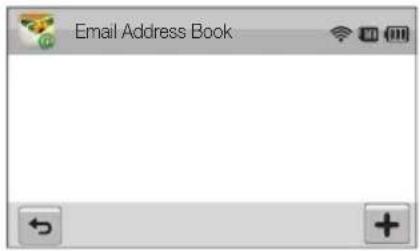
text_image
Email Address Book4 Touch the Name box, input a name, and then touch OK.
5 Touch the Email box, input an email address, and then touch OK.
6 Touch OK to save the new email address.
- Touch +to add an address.
- Touch 📄 to delete the address from the list.
Setting an email password

1 On the Home screen, touch
2 Touch MENU, and then touch the setting button next to Setting Password.
3 When the pop-up appears, touch Confirm.
4 Enter a 4-digits password.
5 Enter the password again.
6 When the pop-up appears, touch Confirm.
Changing the email password
1 On the Home screen, touch
2 Touch MENU → Change Password.
3 Enter your current 4-digit password.
4 Enter a new 4-digit password.
5 Enter the new password again.
6 When the pop-up appears, touch Confirm.

If you do not want to use a password to access email options, touch the setting button next to Setting Password to deactivate it.
Sending photos via email
You can send photos stored on the camera via email. See p. 114 for information about entering text.
1 On the Home screen, touch
2 Touch the Sender box, input your email address, and then touch OK.
- If you have previously saved your information, it will be inserted automatically. (p. 111)
3 Touch the Receiver box, input an email address, and then touch OK.
- Touch to use an address from your address book. (p. 111)
- Touch the Touch box to add additional recipients. You can input up to 10 recipients.
- Touch to delete an address from the list.
4 Touch OK.
5 Select photos to send, and then touch OK.
- You can select up to 20 photos. The total size must be 10 MB or less.
6 Touch the Text box, input your comments, and then touch OK.
• For information about entering text, refer to page 114.
7 Touch Send to connect to the network and send the photos.
- The camera will automatically attempt to connect to a WLAN via the most recently connected AP device and send the photo.
- If the camera has not previously been connected to a WLAN, it will search for available AP devices. (p. 108)

- You may not be able to send an email if no network connection is available or if your email account settings are incorrect.
- The camera will display the Transfer completed, message, even when the photos cannot be sent or will be recognized as spam due to an error with the recipient's email account.
- The maximum photo resolution you can send is 2n you select a photo with resolution that is higher than 2n will be automatically resized.
- If you cannot send an email because of firewall or user authentication settings, contact your network administrator or network service provider.
- When there are no photos in the camera memory, you cannot use this feature.
Entering text
Learn how to enter text. The icons in the table below let you move the cursor, change the case, etc.
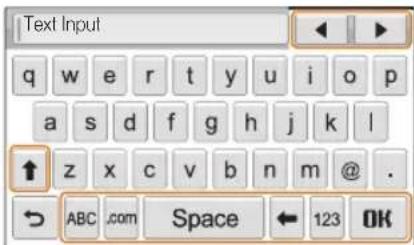
text_image
Text Input q w e r t y u i o p a s d f g h j k l ↑ z x c v b n m @ . → ABC .com Space ← 123 OKIcon Description
| Move the cursor. | |
| ↑ | In ABC mode, change the case.In 123 mode, view more symbols. |
| ABC | Switch to ABC mode. |
| .com | Enter ".com". |
| Space | Enter a space. |
| ← | Delete the last letter. |
| 123 | Switch to 123 mode. |
| OK | Save the displayed text. |

You can enter only English alphacets, regardless of the display language.
Using photo or video sharing websites
Upload your photos or videos to file sharing websites. Available websites will be displayed on your camera.
Accessing a website
1 On the Home screen, touch

2 Select a website.
- The camera will automatically attempt to connect to a WLAN via the most recently connected AP device.
- If the camera has not previously been connected to a WLAN, it will search for available AP devices. (p. 108)
3 Input your ID and password, and then touch Login.
- You may be logged in automatically, if you have previously logged in to the website.

You must have an existing account on the file sharing website to use this feature.
Uploading photos or videos
1 Access the website with your camera, and then touch Upload.
2 Select files to upload from the list, and then touch OK.
- You can select up to 20 photos and the total size must be 10 MB or less.
3 Touch the Comment box, input your comments, and then touch OK.
4 Touch Upload.

- The maximum photo resolution you can upload is 2nd the longest video you can upload is 30 seconds at 320 resolution or a video recorded using 25th the selected photo resolution is higher than . . 2m it will be automatically resized to a lower resolution.
- The method of uploading photos or videos may differ depending on the selected website.
- If you cannot access a website because of firewall or user authentication settings, contact your network administrator or network service provider.
- If you are unable to upload photos or videos due to server errors, touch Retry.
- Uploaded photos or videos may be automatically filled with the date they were captured.
- The speed of your internet connection may affect how quickly photos upload or web pages open.
Using a smart phone as a remote shutter release
The camera connects to a smart phone via a WLAN. Use the smart phone as a remote shutter release with the Remote Viewfinder feature. The captured photo will display on the smart phone.

- This feature is supported only by Galaxy S smart phones with the Android 2.2 OS or higher. If your smart phone uses the Android 2.1 OS, upgrade your smart phone to Android 2.2. This feature is also supported by 7 inch. Galaxy Tab and iPhone 4 with the iOS 4.3.
- You can download the application from Samsung Apps, Android market, or Apple App Store.
1 On your smart phone, turn on the Remote Viewfinder application.
- If you are using an iPhone, activate Personal Hotspot before using the application.
2 On the Home screen of the camera, touch
3 Select your smart phone from the list of available devices found by the camera.
- If the smart phone connected to the camera recently, it will reconnect to the camera automatically.
• You can choose only one camera at a time.
• If you are using an iPhone, enter your password.
4 On the smart phone, set the following shooting options.
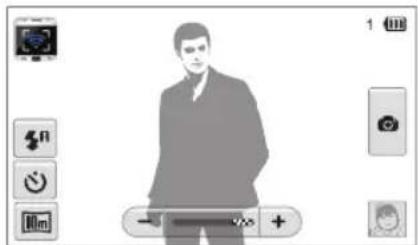
natural_image
Illustration of a person in a suit with a progress bar and control buttons (no text or symbols)| Icon Description | |
| Flash option | |
| Timer option | |
| Photo size | |
- While using this feature, only the touch screen and [POWER] are available on your camera.
- The zoom button and the shutter button on your smart phone will not function when using this feature.
- Remote Viewfinder mode supports the 📂 and photo sizes only.
5 On the smart phone, touch and hold focus.
• The focus is automatically set to multi-AF.
6 Release 📄 to capture the photo.
• The photo will be saved in your camera.
- Touch the photo in the bottom right corner of the screen to save it to the smart phone. The photo will be resized to VGA (640x480) size.

- When you use this feature, the ideal distance between the camera and the smart phone may vary, depending on your surroundings.
- The smart phone must be within 30 ft/10 m of the camera to use this feature.
-
It will take some time to capture the photo after you release 📋 the smart phone.
• The Remote Viewfinder function will deactivate when: -
there is an incoming call on the smart phone
- either of the camera or the smart phone turn off
- memory is full
- either device loses connection to the WLAN
-
the Wi-Fi connection is poor or unstable
-
To rotate the scene by rotating the smart phone, turn on the rotation feature on your smart phone.
- When you take a self image shot, the display will show a reflected image, just like a mirror.
Viewing photos or videos on a AllShare-enabled TV
AllShare is an international technology standard for sharing media files between networked devices in your home. With this technology, you can view your photos or videos on a widescreen TV. You cannot send or receive voice memos.
Viewing photos or videos on a TV I
View your photos or videos on a TV that supports the AllShare function. Your camera acts as a server and you can search for shared photos or videos with the TV remote control.
1 On the Home screen, touch
2 Touch Broadcast files.
- The camera will automatically attempt to connect to a WLAN via the most recently connected AP device.
- If the camera has not previously been connected to a WLAN, it will search for available AP devices. (p. 108)
- To store your camera's name, in AllShare mode, touch MENU → Device Name, and then input a name by touching the Device Name box.
3 Connect your TV to a wireless network via an AP device.
• Refer to your TV's user manual for more information.
4 On the TV, search for the camera and browse the shared photos or videos.
- For information about searching for the camera and browsing the photos or videos on the TV, refer to the TV user manual.
- Videos may not play smoothly depending on the type of TV or network condition. (p. 55) If this happens, re-record the video in 640 or 320 quality and play it again. If videos do not play smoothly on your TV over the wireless connection, try connecting the camera to the TV with an A/V cable.
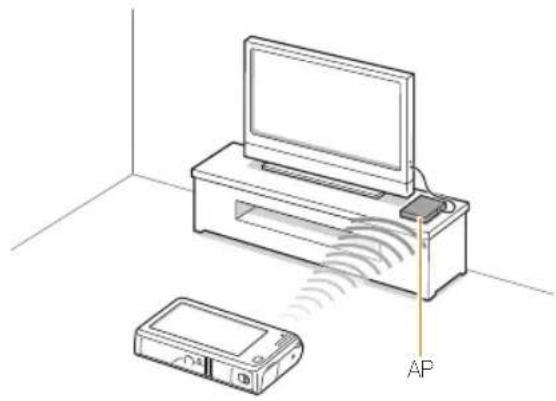
natural_image
Diagram showing a TV set with an attached device and signal waves, labeled 'AP' (no text or symbols beyond label)
• You can share up to 1,000 photos.
- On a TV screen, you can view only photos or videos captured with your camera.
- The range of the wireless connection between your camera and a TV may vary depending on the specifications of the AP.
- If the camera is connected to 2 TVs, playback may be slower.
• Photos will be shared according to the size you set.
• Videos will be shared in their original sizes.
- You can use this feature only with AllShare-enabled TVs.
- Shared photos or videos will not be stored on the TV, but they can be stored according to the TV specifications.
- Transferring photos or videos to the TV may take some time depending on the network connection, the number of files to be shared, or sizes of the files.
- If you power off the camera aionormally while viewing photos or videos on a TV (for example, by removing the battery), the TV considers the camera to still be connected.
- The order of photos or videos on the camera may be different than on the TV.
- Depending on the number of photos or videos you want to share, it may take some time to load your photos or videos and complete the initial set-up process.
- While viewing photos or videos on the TV, continuously using the TV remote or performing additional operations on the TV may prevent this feature from working property.
- If you reorder or sort files on the camera while viewing them on a TV, you must repeat the initial set-up process to update the list of files on the TV.
- When there are no photos or videos in the camera memory, you cannot use this feature.
Viewing photos or videos on a TV II
View your photos or videos on a TV that supports the AllShare function. The TV acts as a display device and you can search photos or videos via the camera.
1 On the Home screen, touch

2 Touch Send files.
- The camera will automatically attempt to connect to a WLAN via the most recently connected AP device.
- If the camera has not previously been connected to a WLAN, it will search for available AP devices. (p. 108)
3 Connect your TV to the wireless network via an AP device and activate AllShare.
• Refer to your TV's user manual for more information.
4 On your camera, select photos or videos to view.
5 From the list on your camera, select the TV to use for displaying files.
- The camera will transfer the files. Touch Cancel to stop the transfer.

- When searching for AllShare-enabled devices in the area, the camera may not list all available devices.
- If you power off the TV abnormally while viewing photos or videos on a TV, the cameras consider the TV to still be connected.
• Photos will be shared according to the size you set.
• Videos will be shared in their original sizes. - You can use this feature only with AllShare-enabled TVs
- Shared photos or videos will not be stored on the TV, but they can be stored according to the TV specifications.
- Transferring photos or videos to the TV may take some time depending on the network connection, the number of files to be shared, or sizes of the files.
- You can transfer files one by one.
- When there are no photos or videos in the camera memory, you cannot use this feature.
- On a TV screen, you can view only photos or videos captured with your camera.
- Network conditions will affect how long the camera searches for devices. If the search takes an unusually long time, try reconnecting the camera to the network.
Sending or receiving photos or videos with another camera
Learn to send or receive photos or videos to or from Samsung cameras that support network connections. You cannot send or receive voice memos.
Sending photos or videos to another camera
1 On the Home screen, touch
2 Touch Send.
- The camera generates a password and displays it on the screen while waiting to make a connection with the receiving camera.
- To store your camera's name, in Camera to Camera mode, touch MENU → Device Name, and then input a name by touching the Device Name box.
3 On the receiving camera, activate the camera to camera function, and then select Receive.
4 On the receiving camera, select your camera from the list of available devices.
5 On the receiving camera, enter the 4-digit password displayed on your camera in step 2.
- When the connection is made, the selection area automatically appears on the sending camera.
6 Select photos or videos to send, and then touch
• The camera will send the files.
Receiving photos or videos from another camera
1 On the Home screen, touch
2 On the sending camera, activate the camera to camera function.
3 On the sending camera, select Send, and then on your camera, touch Receive.
4 Select the sending camera from the list of available devices.
5 Enter the 4-digit password displayed on the sending camera.
6 On the sending camera, send photos or videos.
- Your camera will receive the files from the sending camera.

• This feature uses an ad hoc wireless network.
- If you most recently used your camera to receive files, you must end the connection and reassign your camera as the sender to send files.
- The range of the wireless connection between two cameras may vary, depending on the conditions of the wireless ad hoc network.
- If you power off the camera acnormally while sending or receiving photos or videos, the other camera considers the camera to still be connected.
- Cameras will be disconnected after some time.
- Transferring photos or videos to the device may take some time depending on the network connection and the file size.
- If you fail to receive or send a photo or video, it will not be saved on the receiving camera.
- If no photos have been stored on the camera, you cannot use this feature.
- You can send and receive photos or videos taken with your camera.
• Photos larger than 2 will automatically be resized
• The maximum video file size you can send or receive is 36 MB.
Using Auto Backup to send photos or videos
You can send photos or videos that you captured with the camera to a PC or Blu-ray disc player wirelessly. Before sending files to your PC, connect the camera to the PC with the USB cable, so that the camera can store information about the PC. The Auto Backup feature works only with the Windows OS.
Installing the program for Auto Backup on your PC
1 Connect the camera to the PC with the USB cable.
2 Turn on the camera.
- The computer recognizes the camera and Intelli-studio launches automatically.
3 When the pop-up appears, click OK.
• The program will be installed automatically.

- Before install program, ensure that the PC is connected to a network. If no internet connection is available, you must install the program from the provided CD.
- This program is for backing up files to the PC. You do not need a program to send files to the Blu-ray disc player.
Sending photos or videos to a PC
1 On the Home screen of your camera, touch
2 Touch Confirm.
3 Select options, and then touch Confirm.
- The camera will prepare to connect to the network and send files.
4 The camera will send files.
- You cannot select individual files to send. This function is available only for newly stored files on the camera.
• The progress will be shown on the PC monitor.

- If the PC supports the Wake on LAN(WOL) feature, you can turn on the PC automatically by searching for the PC from your camera. (p.125)
- When you connect the camera to the WLAN, select the AP that is connected to the PC.
- The camera will search for available access points even if you are connecting to the same access point again.
- If you turn off the camera or remove the battery while sending files, the file transfer will be interrupted.
- While you are using this feature, the buttons on the camera will be disabled.
- You can connect any one camera to the PC at a time for sending files.
• The backup may be canceled due to network conditions. - Photos or videos can be sent to a PC or Bu-ray player one time only. Files cannot be sent again even if you reconnect your camera.
Sending photos or videos to a Blu-ray disc Player
You can send photos from your camera to the Samsung Blu-ray disc player that has an HDD.
1 On the Home screen, touch
2 Touch to connect to the AP.
- Select the AP that is connected to the Blu-ray player.
3 Search for available devices, and then select your Blu-ray player.
4 When the camera is connected to the Blu-ray player and a pop-up appears on the player's display, select Allow.
5 On the Blu-ray player, select Menu → Settings → Network → AllShare Server Management → Device Access Control → your camera. Then, set the Blu-ray player to be accessible by other devices.
- The Blu-ray player will remember the most recent access settings. If the connection conditions are the same as the last connection, the camera will automatically access the Blu-ray player.
6 Touch Confirm to send files.
- Transferred files will be stored on the hard disk of the Blu-ray player.

- Before you backup the files, connect the Blu-ray disc player to a wirec AP. Select Menu → Settings → Network → Network Setting to view the player's IP allocation.
- Even when you have set the Blu-ray player to be accessed by other devices, you may be prompted to change the access setting again. To set the access setting, refer to steps 4 – 5.
- This feature works with Samsung Blu-ray players that support Auto Backup.
- The Auto Backup function cannot be used when the Blu-ray player is: - playing back files or access to browser, in My Contents or My Device menu
-upgrading the software
recording files or time-shifting files (reservation recordings will function normally during automatic backups.) - formatting the player's hard disk or when you are testing the device or its capabilities
About the Wakeup on LAN (WOL) feature
With the WOL feature, you can automatically turn on or wake up a PC with your camera. This feature has been available for Samsung desktop PCs for the last 5 years (not available for all-in-one PCs).

Setting the PC to wake up from sleep mode
1 Click Start, and then open the Control Panel.
2 Configure the network connection.
- Windows 7:
Click Network and Internet → Network and Sharing Center → Change adapter settings.
- Windows Vista:
Click Network and Internet → Network and Sharing Center → Manage network connections.
- Windows XP:
Click Network and Internet Connection > Network Connection.
3 Right click Local Area, and then click Properties.
4 Click Configure → the Power manage tab → Allow this device to wake the computer.
5 Click OK.
6 Restart the PC.

Setting the PC to turn on
1 Turn on the PC and press F2 while the PC is booting.
• The BIOS setting menu will appear.
2 Select Advanced tab → Power management Setup.
3 Select Resume on PME → Enabled.
4 Press F10 to save your changes and continue booting.
5 Click Start, and then open the Control Panel.
6 Configure the network connection.
- Windows 7:
Click Network and Internet → Network and Sharing Center → Change adapter settings.
- Windows Vista:
Click Network and Internet → Network and Sharing Center → Manage network connections.
- Windows XP:
Click Network and Internet Connection > Network Connection.
7 Select drivers related to network adapter.
8 Click Advanced tab and then set WOL menus.

- You cannot use this feature across a firewall or if a security program has been installed.
- To turn on the PC with the WOL feature, the PC must have an active connection to the LAN. Ensure that the indicator light on the PC's LAN port is on, which shows that the LAN connection is active.
- Depending on your PC model, the camera may only be able to wake the PC.
- Depending on your PC's OS or drivers, the names of the WOL setting menu may vary.
- examples of setting menu names : Enable PME, Wake on LAN etc.
- examples of setting menu values : Enable, Magic packet etc.

Any changes to your PC's BIOS settings other than the ones described below may damage your PC. The manufacturer is not responsible for damage caused by your changing your PC's BIOS settings.
Settings
Refer to options to configure your camera's settings.
Settings menu 128
Accessing the settings menu 128
Sound 129
Display 129
Connectivity 130
General 131
Settings menu
Learn to configure your camera's settings.
Accessing the settings menu
1 On the Home screen, touch
2 Touch a menu.
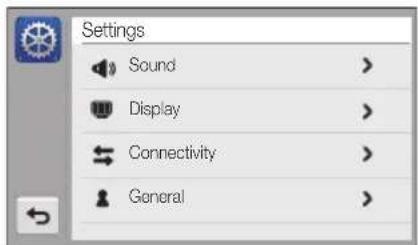
text_image
Settings Sound > Display > Connectivity > General >| Icon Description | |
| Sound: Set various camera sounds and the volume. (p. 129) | |
| Display: Customize the display settings. (p. 129) | |
| Connectivity: Set the connection options. (p. 130) | |
| General: Change the settings for the camera system such as memory format and default file name. (p. 131) | |
3 Touch an item.
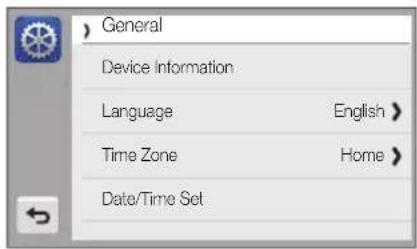
text_image
General Device Information Language English > Time Zone Home > Date/Time Set4 Select an option, and then touch OK.

text_image
Date Type YYYY/MM/DD MM/DD/YYYY DD/MM/YYYY Off OK5 Touch to return to the previous screen.
Sound
* Delault
| Item Description | |
| Volume | Set the volume of any sound. (Off, Low, Medium*, High) |
| Beep Sound | Set to emit sounds when you touch the screen or switch modes. (Off, On*) |
| Shutter Sound | Set the sound the camera emits when you press the shutter button. (Off, 1*, 2, 3) |
| Start Sound | Set the sound the camera emits when you turn on your camera. (Off*, 1, 2, 3) |
| AF Sound | Set to emit a sound when you half-press the shutter button. (Off, On*) |
Display
* Default
| Item Description | |
| Start Image | Set a start image to display when the camera turns on.Off*: Display no start image.Logo: Display a default image stored in the internal memory.User Image: Display a custom image. (p. 93)The camera will save only one User Image in the internal memory at a time.If you select a now photo as a User Image or reset your camera, the camera will delete the current image. |
| Grid Line | Set a grid to help you compose a scono. (2 × 2^+, 3 × 3, X, +) |
* Delault
| Item Description | |
| Display Brightness | Adjust the brightness of the screen.(Auto, Dark, Normal, Bright*)Normalis fixed in Playback mode even if you have selectedAuto. |
| Quick View | Set the duration for reviewing a captured image before returning to the Shooting mode.(Off, 0.5 sec*, 1 sec, 3 sec) |
| Power Save | If you perform no operations for 30 seconds, the camera automatically switches to Power save mode. (Off*, On)In Power save mode, press any button other than [POWER] to resume using the camera.Even if you do not set, the Power save mode, the screen will dim in 30 seconds after the last operation to save power. |
Connectivity
* Default
| Item Description | |
| Video Out | Set the video signal output for your region.NTSC*: USA, Canada, Japan, Korea, Mexico, TaiwanPAL(supports only BDGHI): Australia, Austria, Belgium, China, Denmark, England, Finland, Germany, Italy, Kuwait, Malaysia, Netherlands, New Zealand, Norway, Singapore, Spain, Sweden, Switzerland, Thailand |
| USB | Select the mode to use when you connect the camera to a computer or printer with a USB cable.Computer*: Connect your camera to a computer for transferring files.Printer: Connect your camera to a printer for printing files.Select Mode: Manually select the USB mode when you connect your camera to a device. |
| PC Software | Set Intelli-studio to launch automatically when you connect your camera to your computer. (Off, On*) |
General
* Delault
| Item Description | |
| Device Information | See the Mac address and serial number of your camera. |
| Language | Set a language for the display text. |
| Time Zone | Set the time zone for your location. When you travel to another country, touchVisit, and then touch the appropriate time zone. |
| Date/Time Set | Set the date and time. |
| Date Type | Set a date format. (YYYY/MM/DD, MM/DD/YYYY, DD/MM/YYYY, Off*) |
* Default
| Item Description | |
| File No. | Specify how to name files.Reset: Set the file number to start from 0001 when you insert a new memory card, format a memory card, or delete all files.Series*: Set the file number to resume from the previous file number when you insert a new memory card, format a memory card, or delete all files.The default name of the first folder is 100PHOTO and the default name of the first file is SAM_0001.The file number increases one at a time from SAM_0001 to SAM_9999.The folder number increases one at a time from 100PHOTO to 999PHOTO.The maximum number of files that can be stored in one folder is 8,999.The camera defines file names according to the Design rule for Camera File system (DCF) standard. If you intentionally change file names, the camera may not play back the files. |
* Default * Default
| Item Description | |
| Auto Rotate | Set to automatically rotate photos as you rotaete the camera. (Off, On*) |
| Imprint | Set to display the date and time on capturedphotos. (Off*, Date, Date & Time)[W=46] ·The date and time will be displayed on thebottom right corner of the photo.·Some printer models may not print the date andtime properly.·If you select Text in Scene mode, the camerawill not display the date and time. |
| Auto Power Off | Set the camera to automatically turn off when youperform no operations for a specified period.(Off, 1 min, 3 min*, 5 min, 10 min)[ZWST] ·Your settings will not change when you replacethe battery.·The camera will not automatically turn off whonthe camera is connected to a computer orprinter, when you are playing a slide show orvideos, and when you are recording a voicememo. |
| Item Description | |
| AF Lamp | Set a light to automatically turn on in dark places to help the camera focus. (Off, On*) |
| Format | Format the internal memory and the memory card (formatting will delete all files, including protected files). (Yes, No)Errors can occur if you use a memory card formatted by another brand of camera, a memory card reader, or a computer. Please format memory cards in the camera before using them to capture photos. |
| Reset | Reset menus and shooting options (date and time, language, and video output settings will not be reset). (Yes, No) |
| Touch Calibration | Calibrate the touch screen so that your camera will properly recognize your inputs. |
Appendixes
Get information about error messages, specifications, and maintenance.
Error messages 134
Camera maintenance 135
Cleaning your camera 135
Using or storing the camera 136
About memory cards 137
About the battery 139
Before contacting a service center 143
Camera specifications 146
Glossary 150
FCC notice 155
Declaration sentence in official languages 158
Index 160
Error messages
When the following error messages appear, try these remedies.
| Error message Suggested remedies | |
| Card Error | Turn off your camera, and then turn it on again.Remove your memory card, and then insert it again.Format your memory card. |
| Card not supported. | The inserted memory card is not supported by your camera. Insert a microSD or microSDHC memory card. |
| Connection failed. | The camera cannot connect to the network using the selected access point. Select another and try again.The camera fails to connect to the other camera. Try connecting again. |
| DCF Full Error | File names do not match the DCF standard.Transfer the files on the memory card to your computer, and then format the card. |
| File Error | Delete the damaged file or contact a service center. |
| File system not supported. | Your camera does not support the FAT file structure of the inserted memory card. Format the memory card on the camera. |
| Error message Suggested remedies | |
| Initialization failed. | Turn on AllShare enabled devices on the network.The camera has failed to locate an AllShare-enabled device. |
| Invalid password. | The password for transferring files to another camera is wrong. Enter the correct password again. |
| Low Battery | Insert a charged battery or recharge the battery. |
| Memory Full | Delete unnecessary files or insert a new memory card. |
| No Image File | Capture photos or insert a memory card that contains some photos. |
| Photo transfer failed. | The camera has failed to receive a photo from the sending camera. Ask the other person to send the file again. |
| Photo reception failed. | Network connection disconnected while transferring photos. Try turning on the AllShare feature again. |
Camera maintenance
Cleaning your camera
Camera lens and touch screen
Use a blower brush to remove dust and wipe the lens gently with a soft cloth. If any dust remains, apply lens cleaning liquid to a piece of lens cleaning paper and wipe gently.
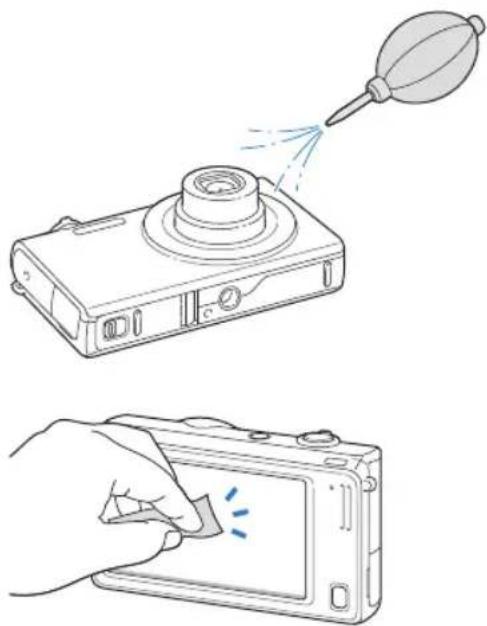
natural_image
Illustration showing a digital camera with a dropper tip and its application to touch a screen (no text or symbols present)Camera body
Wipe gently with a soft, dry cloth.
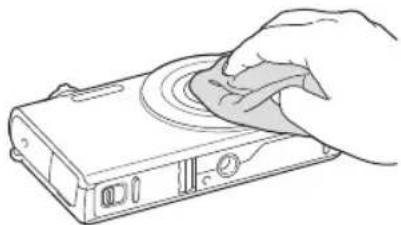
natural_image
Line drawing of a hand holding a device with a scroll wheel (no text or symbols)
- Never use benzene, thinners, or alcohol to clean the camera. These solutions can damage the camera or cause it to malfunction.
- Do not press on the lens cover or use a blower brush on the lens cover.
Using or storing the camera
Inappropriate places to use or store the camera
- Avoid exposing the camera to very cold or very hot temperatures.
- Avoid using your camera in areas with extremely high humidity, or where the humidity changes drastically.
- Avoid exposing the camera to direct sunlight and storing it in hot, poorly-ventilated areas, such as in a car during summertime.
- Protect your camera and the display from impact, rough handling, and excessive vibration to avoid serious damage.
- Avoid using or storing your camera in dusty, dirty, humid, or poorly-ventilated areas to prevent damage to moving parts and internal components.
- Do not use your camera near fuels, combustibles, or flammable chemicals. Do not store or carry flammable liquids, gases, or explosive materials in the same compartment as the camera or its accessories.
- Do not store the camera where there are mothballs.
Using on beaches or shores
- Protect your camera from sand and dirt when you use it on beaches or in other similar areas.
- Your camera is not waterproof. Do not handle the battery, adapter, or memory card with wet hands. Operating the camera with wet hands may cause damage to your camera.
Storing for extended period of time
- When you store the camera for an extended period, place it in a sealed container with an absorbent material, such as silica gel.
- Remove the batteries from your camera when storing it for an extended period. Installed batteries may leak or corrode over time and cause serious damage to your camera.
• Over time, unused batteries will discharge and must be recharged before use.
Using the camera with caution in humid environments
When you transfer the camera from a cold environment to a warm one, condensation can form on the lens or internal components of the camera. In this situation, turn off the camera and wait for at least 1 hour. If condensation forms on the memory card, remove the memory card from the camera and wait until all moisture has evaporated before reinserting it.
Other cautions
- Do not swing your camera by the strap. This may cause injury to yourself or others or damage to your camera.
- Do not paint your camera, as paint can clog moving parts and prevent proper operation.
- Turn off the camera while not in use.
- Your camera consists of delicate parts. Avoid impacts to the camera.
- Protect the display from external force by keeping it in the case when not in use. Protect the camera from scratches by keeping it away from sand, sharp implements, or loose change.
- Do not expose the lens to direct sunlight, as this may discolor the image sensor or cause it to malfunction.
- Protect your lens from fingerprints and scratches. Clean your lens with a soft, clean, debris-free lens cloth.
- The camera may turn off if subjected to a sudden impact. This is to protect the memory card. Turn on the camera to use it again.
- While you use the camera, it may heat up. This is normal and should not affect your camera's lifespan or performance.
-
When you use the camera in low temperatures, it may take some time to turn on, the screen color may be changed temporarily, or after-images may appear. These conditions are not malfunctions and they will correct themselves when the camera is returned to normal temperatures.
-
Paint or metal on the outside of the camera may cause allergies, itchy skin, oozema, or swelling for people with sensitive skin. If you experience any of these symptoms, stop using the camera immediately and consult a doctor.
- Do not insert foreign objects into any of your camera's compartments, slots, or access points. Damage due to improper use may not be covered by your warranty.
- Do not allow unqualified personnel to service the camera or attempt to service the camera yourself. Any damage that results from unqualified service is not covered by your warranty.
About memory cards
Supported memory cards
Your camera supports microSD (Secure Digital) or microSDHC (Secure Digital High) memory cards.

To read data with a PC or memory card reader, insert the memory card into a memory card adapter.
Memory card capacity
The memory capacity may differ from the the capacities listed below depending on the scenes you shoot or the shooting conditions. These capacities are based on a 1 GB microSD card:
| Size Super Fine Fine Normal 30 FPS 15 FPS | ||||||
| Photos | 14m | 119 233 343 -- | ||||
| 12m | 133 260 380 -- | |||||
| 11m | 159 311 458 -- | |||||
| 10m | 166 323 469 -- | |||||
| Sm | 319 607 858 -- | |||||
| 3m | 522 954 1,336 -- | |||||
| 742 1,336 1,878 -- | ||||||
| Im | 1,582 2,505 3,006 -- | |||||
| Videos | 1280H0 | - | - | - | Approx.13' 08" | Approx.22' 57" |
| 1280 | - | - | - | Approx.14' 55" | Approx.28' 54" | |
| 640 | - | - | - | Approx.34' 55" | Approx.65' 40" | |
| 320 | - | - | - | Approx.134' 34" | Approx.231' 14" | |
| 320MID | - | - | - | Approx.134' 34" | - | |
* Available recording time may vary if you use the zoom. Several videos were recorded in succession to determine the total recording time.
Cautions when using memory cards
- Insert a memory card in the correct direction. Inserting a memory card in the wrong direction may damage your camera and memory card.
- Do not use memory cards that have been formatted by other cameras or by a computer. Reformat the memory card with your camera.
- Turn off the camera when you insert or remove the memory card.
- Do not remove the memory card or turn off your camera while the lamp is blinking, as this may damage your data.
- When the lifespan of a memory card has expired, you cannot store any more photos on the card. Use a new memory card.
- Do not bend, drop, or subject memory cards with heavy impact or pressure.
- Avoid using or storing memory cards near strong magnetic fields.
- Avoid using or keeping memory cards in areas with high temperature, high humidity, or corrosive substances.
- Prevent memory cards from making contact with liquids, dirt, or foreign substances. If dirty, wipe the memory card clean with a soft cloth before you insert the memory card in your camera.
-
Do not allow liquids, dirt, or foreign substances to come in contact with memory cards or the memory card slot. Doing so may cause memory cards or the camera to malfunction.
-
When you carry a memory card, use a case to protect the card from electrostatic discharges.
- Transfer important data to other media, such as a hard disk, CD, or DVD.
- When you use the camera for an extended period, the memory card may become warm. This is normal and does not indicate a malfunction.

The manufacturer is not responsible for any loss of data.
About the battery
Use only Samsung-approved batteries.
Battery specifications
| Specification Description | |
| Model | BP85A |
| Type | Lithium-ion battery |
| Cell capacity | 850 mAh |
| Voltage | 3.7 V |
| Charging time*(when the camera is switched off) | Approximately 180 min |
* Charging the battery by connecting it to a computer may take longer.
Battery life
| Average shooting time / Number of photos | Test conditions (when the battery is fully charged) | |
| Photos | Approximately 110 min/ Approximately 220 photos | This is measured under the following conditions: in Program mode, at [In] resolution, with DIS off, on Fino quality.1. Set the flash option toFill in, take a single shot, and zoom in or out.2. Set the flash option toOff, take a single shot, and zoom in or out.3. Perform steps 1 and 2 for 30 seconds and repeat for 5 minutes. Then turn off the camera for 1 minute.4. Repeat steps 1 to 3. |
| Videos | Approximately 90 min | Record videos at 1280 X 720 HQ resolution and 30 FPS. |
- The figures above are measured using Samsung's standards. Your results may differ, depending on your actual usage.
- Several videos were recorded in succession to determine the total recording time.
- When using network functions, the battery will be depleted more quickly.
Low battery message
When the battery has fully discharged, the battery icon will turn red and the "Low Battery" message will appear.
Notes about using the battery
- Avoid exposing batteries or memory cards to very cold or very hot temperatures (below 0 °C/32 °F or above 40 °C/104 °F). Extreme temperatures can reduce the charging capacity of your batteries and can cause memory cards to malfunction.
- When you use the camera for an extended period, the area around the battery chamber may become warm. This does not affect the normal use of the camera.
- Do not pull the power supply cord to disconnect the plug from the power outlet, as this may cause a fire or electric shock.
- In temperatures below 0 °C/32 °F, battery capacity and battery life may decrease.
- Battery capacity may decrease in low temperatures but will return to normal in milder temperatures.
Cautions about using the battery
Protect batteries, chargers, and memory cards from damage
Prevent batteries from making contact with metal objects, as this can create a connection between the + and - terminals of your battery and lead to temporary or permanent battery damage and may cause a fire or electric shock.
Notes about charging the battery
- If the indicator light is off, make sure that the battery is inserted correctly.
- If the camera is on while battery is charging, the battery may not fully charge. Turn off the camera before charging the battery.
- Do not use your camera when you charge the battery. This may cause a fire or electric shock.
- Do not pull the power supply cord to disconnect the plug from the power outlet, as this may cause a fire or electric shock.
- Lot the battery charge for at least 10 minutes before turning on the camera.
-
If you connect the camera to an external power source while the battery is depleted, using some high energy-consuming functions will cause the camera to turn off. To use the camera normally, recharge the battery.
-
Using the flash or recording videos depletes the battery quickly. Charge the battery until the indicator light turns green.
- If the indicator light blinks in orange or does not illuminate, reconnect the cable, or remove the battery and insert it again.
- If you charge the battery when the cable is overheated or the temperature is too high, the indicator light may turn orange. Charging will start when the battery cools down.
• Overcharging batteries may shorten battery life. After charging is finished, disconnect the cable from your camera. - Do not bend or place heavy objects on the AC cable. Doing so may damage the cable.
Notes about charging with a computer connected
- Use only the provided USB cable.
- The battery may not charge when: you use a USB hub other USB devices are connected to your computer you connect the cable to the port on the front side of your computer the USB port of your computer does not support the power output standard (5 V, 500 mA)
Handle and dispose of batteries and chargers with care
- Never dispose of batteries in a fire. Follow all local regulations when you dispose of used batteries.
- Never place batteries or cameras on or in heating devices, such as microwave ovens, stoves, or radiators. Batteries may explode when they are overheated.

Personal injury or death can occur if the battery is handled carelessly or improperly. For your safety, follow these instructions for proper battery handling:
- The battery can ignite or explode if not handled properly. If you notice any deformities, cracks, or other abnormalities in the battery, immediately discontinue use of the battery and contact a service center.
- Use only authentic, manufacturer-recommend battery chargers and adapters and charge the battery only by the methods described in this user manual.
- Do not place the battery near heating devices or expose it to excessively warm environments, such as the inside of an enclosed car in the summertime.
- Do not place the battery in a microwave oven.
- Avoid storing or using the battery in hot, humid places, such as spas or shower enclosures.
- Do not rest the device on flammable surfaces, such as bedding, carpets, or electric blankets for a prolonged period.
- When the device is switched on, do not leave it in any confined space for a prolonged period.
- Do not allow battery terminals to come in contact with metallic objects, such as necklaces, coins, keys, or watches.
-
Use only authentic, manufacturer-recommended, Lithium-ion replacement batteries.
-
Do not disassemble the battery or puncture the it with any sharp object.
- Avoid exposing the battery to high pressure or crushing forces.
- Avoid exposing the battery to major impacts, such as dropping it from high places.
- Do not expose the battery to temperatures of 60 °C (140 °F) or above.
- Do not allow the battery to come in contact with moisture or liquids.
- Do not expose the battery to sources of excessive heat such as direct sunshine, fire or the like.
Disposal guidelines
- Dispose of the battery with care.
• Do not dispose of the battery in a fire. - Disposal regulations may differ by country or region. Dispose of the battery in accordance with all local and federal regulations.
Guidelines for charging the battery
Charge the battery only by the method described in this user manual. The battery can ignite or explode if not charged properly.
Before contacting a service center
If you are having trouble with your camera, try these troubleshooting procedures before you contact a service center. If you have attempted the suggested remedy and are still having problems with your device, contact your local dealer or service center.

When you leave your camera at a service center, be sure to also leave the other components that may have contributed to the malfunction, such as the memory card and battery.
| Situation Suggested remedies | |
| Cannot turn on the camera | · Ensure that the battery is inserted.· Ensure that the battery is inserted correctly. (p. 18)· Charge the battery. |
| The power turns off suddenly | · Charge the battery.· Your camera may be in Power save mode. (p. 130)· The camera may turn off to prevent the memory card from being damaged due to an impact. Turn on your camera again. |
| The camera is losing battery power quickly | · The battery may lose power more quickly in low temperatures (below 0 °C). Keep the battery warm by putting it into your pocket.· Using the flash or recording videos depletes the battery quickly. Recharge if needed.· Batteries are consumable parts that must be replaced over time. Get a new battery if the battery life is diminishing quickly. |
| Situation Suggested remedies | |
| Cannot capture photos | There is no space on the memory card.Delete unnecessary files or insert a new card.Format the memory card.The memory card is defective. Get a new memory card.Make sure that the camera is switched on.Charge the battery.Make sure that the battery is inserted correctly. |
| The camera freezes | Remove the battery and insert it again. |
| The camera heats up | While you use the camera, it may heat up.This is normal and should not affect your camera's lifespan or performance. |
| The flash does not work | The flash option may be set to off. (p. 57)You cannot use the flash in some modes. |
| The flash fires unexpectedly | The flash may fire due to static electricity. The camera is not malfunctioning. |
| The date and time are incorrect | Set the date and time in the display settings. (p. 131) |
| The touch screen or buttons do not work | Remove the battery and insert it again. |
| The camera screen responds poorly | If you use your camera at very low temperatures, it may cause the camera screen to malfunction or discolor. For better performance of your camera screen, use your camera in moderate temperatures. |
| The memory card has an error | Turn off your camera and then turn it on again.Remove your memory card and insert it again.Format your memory card.Soc "Cautions when using memory cards" for more detail. (p. 138) |
| Cannot play back files | If you change the name of a file, your camera may not play the file (the name of the file should meet the DCF standard). If you encounter this situation, play back the files on your computer. |
| Situation Suggested remedies | |
| The photo is blurry | Make sure that the focus option you set is suitable for close-up shots. (p. 60)Make sure that the lens is clean. If not, clean the lens. (p. 135)Make sure that the subject is within range of the flash. (p. 146) |
| The colors in the photo do not match the actual scene | An incorrect white balance can create unrealistic color. Select the proper white balance option to suit the light source. (p. 70) |
| The photo is too bright | Your photo is overexposed.Tum off the flash. (p. 57)Adjust the ISO sensitivity. (p. 59)Adjust the exposure value. (p. 68) |
| The photo is too dark | Your photo is underexposed.Tum on the flash. (p. 57)Adjust the ISO sensitivity. (p. 59)Adjust the exposure value. (p. 68) |
| The TV does not display your photos | Make sure that the camera is correctly connected to the TV with the A/V cable.Make sure that your memory card contains photos. |
| Your computer does not recognize your camera | Make sure that the USB cable is connected correctly.Make sure that your camera is switched on.Make sure that you are using a supported operating system. |
| Your computer disconnects the camera while transferring files | The file transmission may be interrupted by static electricity. Disconnect the USB cable and connect it again. |
| Your computer cannot play videos | Videos may not play on some video player programs. To play video files captured with your camera, install and use the Intelli-studio program on your computer. (p. 100) |
| Situation Suggested remedies | |
| Intelli-studio is not functioning properly | End Intell-studio and restart the program.You cannot use Intell-studio on Macintosh computers.Make sure thatPC Softwareis turned on in the settings menu. (p. 130)Depending on your computer's specifications and environment, the program may not launch automatically. In this case, clickStart → My Computer → Intelli-studio → iStudio.exeon your computer. |
Camera specifications
| Image sensor | |
| Type 1/2.3" (Approximately 7.76 mm) CCD | |
| Effective pixels Approximately 14.2 mega-pixels | |
| Total pixels Approximately 14.48 mega-pixels | |
| Lens | |
| Focal length | Samsung Lens f = 4.7 mm-23.5 mm(35 mm film equivalent: 26 mm-130 mm) |
| F-stop range F3.3 (W)-F5.9 (T) | |
| Digital zoom | • Still image mode: 1.0X-5.0X(Optical Zoom x Digital Zoom: 25.0X)• Playback mode: 1.0X-14.4X |
| Display | |
| Type TFT LCD | |
| Feature 3.0' (7.6 cm) WQVGA, 230K | |
| Focusing | |
| Type | TTL auto focus (Multi AF, Center AF, Smart Face Recognition AF, Face Detection AF, Smart Touch AF, One Touch Shooting AF) |
| Range | Wide (W) Tele (T) | |
| Normal (AF) 80 cm-infinity 150 cm-infinity | ||
| Macro 5 cm-80 cm 100 cm-150 cm | ||
| Auto Macro 5 cm infinity 100 cm-infinity | ||
| Shutter speed | ||
| • Smart Auto: 1/8-1/2,000 sec.• Program: 1-1/2,000 sec.• Night Shot: 8-1/2,000 sec. | ||
| Exposure | ||
| Control Program AE | ||
| Metering Multi, Spot, Center-weighted, Face Detection | ||
| Compensation ± 2EV (1/3 EV Step) | ||
| ISO equivalent | Auto, ISO 80, ISO 100, ISO 200, ISO 400, ISO 800, ISO 1600, ISO 3200. | |
| Flash | ||
| Mode Auto, Red-cyc, Fill in, Slow Sync, Off, Red-cyc Fix | ||
| Range | • Wide: 0.2 m-3.2 m (ISO Auto)• Tele: 0.5 m-1.8 m (ISO Auto) | |
| Recharging time Approximately 4 sec. | ||
| Digital Image Stabilization (DIS) | ||
| Digital Image Stabilization (DIS) | ||
| Effect | ||
| Photo Shooting mode | Photo Filter (Smart Filter): (Normal), Miniature, Vignetting, Soft-Focus, Old Film 1, Old Film 2, Half Tone Dot, Sketch, Fish-eye, Defog, Classic, Retro, Negative, (Custom RGB)Image Adjust: Sharpness, Contrast, Saturation | |
| Video Shooting mode | Palette Effect: Palette Effect 1, Palette Effect 2, Palette Effect 3, Palette Effect 4Movie Filter (Smart Filter): (Normal), Miniature, Vignetting, Half Tone Dot, Sketch, Fish-eye, Defog, Classic, Retro, Negative, (Custom RGB) | |
| White Balance | ||
| Auto WB, Daylight, Cloudy, Fluorescent_H, Fluorescent_L, Tungsten, Custom Set | ||
| Date Imprinting | ||
| Date & Time, Date, Off | ||
| Shooting | |
| Photos | Modes: Smart Auto*, Program, Scene*,Simple Shot, Magic Frame shot, Beauty Shot,Ooject Highlight, Night Shot, Close Up, Vignetting,Photo FilterSmart Auto:Macro, Macro text, Portrait, White, Landscape,Action, Tripod, Night, Night Portrait, Backlight,Backlight Portrait, Blue Sky, Sunset, Macro Color,Natural Green, FireworksScene:Landscape, Text, Sunset, Dawn, Backlight,Beach & SnowDrive: Single, Continuous, Motion Capture, AEBTimer: 2 Sec, 10 Sec, Double (2 sec., 10 sec.) |
| Videos | • Modes: Movie, Smart movie*, Vignetting, Movie Filter, Palette Effect Shot* Smart movie: Landscape, Blue Sky, Natural Green, Sunset• Format: MP4 (H.264)(Maximum recording time: 20 min)• Size: 1280 X 720 HQ (30 FPS, 15 FPS), 1280 X 720 (30 FPS, 15 FPS), 640 X 480 (30 FPS, 15 FPS), 320 X 240 (30 FPS, 15 FPS), 320 X 240 WEB (30 FPS)• Frame rate: 30 FPS, 15 FPS• Voice: Mute, Sound Alive On, Sound Alive Off• Video editing (embedded): Pause during recording, Still image capture, Time trimming |
| Playback | |
| Type | Single image, Thumbnails, Multi-slide show with music and effect, Movie clip, Smart Album*, 3D Album, Magazine View* Smart Album category: Type, Date, Face |
| Edit | Resize, Rolale, Image Adjust, Smart Filler, Trim, Smart Crop |
| Effect | Image Adjust: Face Rotouch, Brightness, Saturation, Contrast, Red-eye Fix, ACBSmart Filter: Normal, Miniature, Vignetting, Soft-Focus, Old Film 1, Old Film 2, Half Tone Dot, Sketch, Fish-eye, Dofog, Classic, Retro, Negative, Custom RGB | |||
| Voice recording | ||||
| Voice Recording (Maximum 10 hours)Voice Memo in a photo (Maximum 10 sec.) | ||||
| Storage | ||||
| Media | Internal memory: Approximately 6.9 MBExternal memory (Optional): microSD card (up to 2 GB guaranteed), microSDHC card (up to 8 GB guaranteed)Internal memory capacity may not match these specifications. | |||
| File format | DCF, EXIF 2.21, DPOF 1.1, PictBridge 1.0Still Image: JPEG (DCF)Movie Clip: MP4 (Video: MPEG-4.AVC/H.264, Audio: AAC)Audio file: WAV | |||
| Image size | For 1 GB microSD: Number of photos | |||
| Super Fine Fine Normal | ||||
| Hm | 4320 X 3240 | 119 233 343 | ||
| 4320 X 2880 | 133 260 380 | |||
| 4320 X 2432 | 159 311 458 | |||
| IIm | 3648 X 2736 | 166 323 469 | ||
| Sm | 2592 X 1944 | 319 607 858 | ||
| 1984 X 1488 | 522 954 1,336 | |||
| 1920 X 1080 | 742 1,336 1,878 | |||
| In | 1024 X 768 | 1,582 2,505 3,006 | ||
| These figures are measured under Samsung's standard conditions. Your results may vary depending on the shooting conditions and camera settings. | ||||
| Wireless network | ||||
| Wi-Fi (IEEE 802.11 b/g/n), AllShare, Web Upload, Emailing, Camera to Camera, AP Connection, Auto Backup, Remote Viewfinder | ||||
| Interface | ||||
| Digital output connector | USB 2.0 | |||
| Audio input/output | Internal speaker (Mono), Microphone (Mono) | |||
| Video output A/V: NTSC, PAL (selectable) | |
| DC power input connector | 20 pin, 4.2 V |
| Power source | |
| Rechargeable battery | Lithium-ion battery (BP85A, 850 mAh) |
| The power source may differ depending on your region. | |
| Dimensions (W x H x D) | |
| 93 X 53.9 X 18.9 mm (without protrusions) | |
| Weight | |
| 110.2 g (without battery and memory card) | |
| Operating Temperature | |
| 0-40 °C | |
| Operating Humidity | |
| 5-85 % | |
| Software | |
| Intoli-studio, PC Auto Backup | |
Specifications may change without notice to improve performance.
Glossary
ACB (Auto Contrast Balance)
This feature automatically improves the contrast of your images when the subject is backlit or when there is a high contrast between your subject and the background.
AEB (Auto Exposure Bracket)
This feature automatically captures several images at different exposures to help you capture a properly exposed image.
AF (Auto Focus)
A system that automatically focuses the camera lens on the subject. Your camera uses the contrast to focus automatically.
Aperture
The aperture controls the amount of light that reaches the camera's sensor.
Camera shake (Blur)
If the camera is moved while the shutter is open, the entire image may appear blurred. This occurs more often when the shutter speed is slow. Prevent camera shake by raising the sensitivity, using the flash, or using a faster shutter speed. Alternately, use a tripod, the DIS or OIS function to stabilize the camera.
Composition
Composition in photography means arranging objects in a photo. Usually, abiding by the rule of thirds leads to a good composition.
DCF (Design rule for Camera File system)
A specification to define a file format and file system for digital cameras created by the Japan Electronics and Information Technology Industries Association (JEITA).
Depth of field
The distance between the nearest and farthest points that can be acceptably focused in a photograph. Depth of field varies with lens aperture, focal length, and distance from the camera to the subject. Selecting a smaller aperture, for example, will increase the depth of field and blur the background of a composition.
Digital zoom
A feature that artificially increases the amount of zoom available with a zoom lens (Optical zoom). When using the Digital zoom, the image quality will deteriorate as the magnification increases.
DPOF (Digital Print Order Format)
A format for writing printing information, such as selected images and number of prints, on a memory card. DPOF-compatible printers, sometimes available at photo shops, can read the information from the card for convenient printing.
EV (Exposure Value)
All the combinations of the camera's shutter speed and lens aperture that result in the same exposure.
EV Compensation
This feature allows you to quickly adjust the exposure value measured by the camera, in limited increments, to improve the exposure of your photos. Set the EV compensation to -1.0 EV to adjust the value one step darker and 1.0 EV to one stop brighter.
Exif (Exchangeable Image File Format)
A specification to define an image file format for digital cameras created by the Japan Electronic Industries Development Association (JEIDA).
Exposure
The amount of light allowed to reach the camera's sensor. Exposure is controlled by a combination of the shutter speed, the aperture value, and ISO sensitivity.
Flash
A speed light that helps to create adequate exposure in low-light conditions.
Focal length
The distance from the middle of the lens to its focal point (in millimeters). Longer focal lengths result in narrower angles of view and the subject is magnified. Shorter focal lengths result in wider angles of view.
Histogram
A graphical representation of the brightness of an image. The horizontal axis represents the brightness and the vertical axis represents the number of pixels. High points at the left (too dark) and right (too bright) on the histogram indicate a photo that is improperly exposed.
H.264/MPEG-4
A high-compression video format established by international standard organizations ISO-IEC and ITU-T. This codec is capable of providing good video quality at low bit rates developed by the Joint Video Team (JVT).
Image sensor
The physical part of a digital camera that contains a photosite for each pixel in the image. Each photosite records the brightness of the light that strikes it during an exposure. Common sensor types are CCD (Charge-coupled Device) and CMOS (Complementary Metal Oxide Semiconductor).
ISO sensitivity
The sensitivity of the camera to light, based on the equivalent film speed used in a film camera. At higher ISO sensitivity settings, the camera uses a higher shutter speed, which can reduce blur caused by camera shake and low light. However, images with high sensitivity are more susceptible to noise.
JPEG (Joint Photographic Experts Group)
A lossy method of compression for digital images. JPEG images are compressed to reduce their overall file size with minimal deterioration of the image resolution.
LCD (Liquid Crystal Display)
A visual display commonly used in consumer electronics. This display needs a separate backlight, such as CCFL or LED, to reproduce colors.
Macro
This feature allows you to capture close-up photos of very small objects. When using the macro feature, the camera can maintain a sharp focus on small objects at a near life-size ratio (1:1).
Metering
The metering refers to the way in which the camera measures the quantity of light to set the exposure.
MJPEG (Motion JPEG)
A video format which is compressed as a JPEG image.
Noise
Misinterpreted pixels in a digital image that may appear as misplaced or random, bright pixels. Noise usually occurs when photos are shot with a high sensitivity or when a sensitivity is automatically set in a dark place.
Optical zoom
This is a general zoom which can enlarge images with a lens and does not degrade image quality.
Quality
An expression of the rate of compression used in a digital image. Higher quality images have a lower rate of compression, which usually results in a larger file size.
Resolution
The number of pixels present in a digital image. High resolution images contain more pixels and typically show more detail than low resolution images.
Shutter speed
Shutter speed refers to the amount of time it takes to open and close the shutter, and it is an important factor in the brightness of a photo, as it controls the amount of light which passes through the aperture before it reaches the image sensor. A fast shutter speed allows less time to let light in and the photo becomes darker and more easily freezes subjects in motion.
Vignetting
A reduction of an image's brightness or saturation at the periphery (outer edges) compared to the center of the image. Vignetting can draw interest to subjects positioned in the center of an image.
White balance (color balance)
An adjustment of the intensities of colors (typically the primary colors red, green, and blue), in an image. The goal of adjusting the white balance, or color balance, is to correctly render the colors in an image.

Correct Disposal of This Product (Waste Electrical & Electronic Equipment)
(Applicable in the European Union and other European countries with separate collection systems)
This marking on the product, accessories or literature indicates that the product and its electronic accessories (e.g. charger, headset, USB cable) should not be disposed of with other household waste at the end of their working life. To prevent possible harm to the environment or human health from uncontrolled waste disposal, please separate these items from other types of waste and recycle them responsibly to promote the sustainable reuse of material resources. Household users should contact either the retailer where they purchased this product, or their local government office, for details of where and how they can take these items for environmentally safe recycling. Business users should contact their supplier and check the terms and conditions of the purchase contract. This product and its electronic accessories should not be mixed with other commercial wastes for disposal.
Correct disposal of batteries in this product
(Applicable in the European Union and other European countries with separate battery return systems)
This marking on the battery, manual or packaging indicates that the batteries in this product should not be disposed of with other household waste at the end of their working life. Where marked, the chemical symbols Hg, Cd or Pb indicate that the battery contains mercury, cadmium or lead above the reference levels in EC Directive 2006/66. If batteries are not properly disposed of, these substances can cause harm to human health or the environment.
To protect natural resources and to promote material reuse, please separate batteries from other types of waste and recycle them through your local, free battery return system.
This Class [B] digital apparatus complies with Canadian ICES-003.

PlanetFirst represents Samsung Electronics' commitment to the sustainable development and social responsibility through eco-driven business and management activities.
Dispose unwanted electronics through an approved recycler. To find the nearest recycling location, go to our website: www.samsung.com/recyclingdirect Or call, (877) 278 - 0799

FCC ID:A3LSH100B
This device complies with part 15 of the FCC Rules. Operation is subject to the following two conditions: (1) This device may not cause harmful interference, and (2) this device must accept any interference received, including interference that may cause undesired operation.
Caution:
Any changes or modifications in construction of this device which are not expressly approved by the party responsible for compliance could void the user's authority to operate the equipment.
NOTE:
This equipment has been tested and found to comply with the limits for a Class B digital device, pursuant to part 15 of the FCC Rules. Those limits are designed to provide reasonable protection against harmful interference in a residential installation. This equipment generates, uses and can radiate radio frequency energy and, if not installed and used in accordance with the instructions, may cause harmful interference to radio communications. However, there is no guarantee that interference will not occur in a particular installation. If this equipment does cause harmful interference to radio or television reception, which can be determined by turning the equipment off and on, the user is encouraged to try to correct the interference by one or more of the following measures:
- Recorientate, or relocate, the receiving antenna.
- Increase the distance between the equipment and receiver.
- Connect the equipment into an outlet on a circuit different from that to which the receiver is connected.
- Consult the dealer or an experienced radio / TV technician for help.
RF exposure statements:
This device is for handheld operation only. The antenna(s) used for this transmitter must be installed to provide a separation distance of at least 20 cm from all persons and must not be co-located or operating in conjunction with any other antenna or transmitter.
• Declaration of Conformity
Trade Name : Samsung Electronics America, Inc.
Model No. : Samsung SH100
Responsible Party : Samsung Electronics America, Inc.
Address : 85 Challenger Road, Ridgefield Park, NJ 07660
Telephone No. : 1-800-SAMSUNG (726-7864)
This device complies with Part 15 of the FCC Rules.
Operation is subject to the following two conditions:
(1) This device may not cause harmful interference, and (2) this device must accept any interference received, including interference that may cause undesired operation.
CAUTION
RISK OF EXPLOSION IF BATTERY IS REPLACED BY AN INCORRECT TYPE.
DISPOSE OF USED BATTERIES ACCORDING TO THE INSTRUCTIONS.
Operation is subject to the following two conditions:
(1) This device may not cause harmful interference, and (2) This device must accept any interference received, including interference that may cause undesired operation.
Caution:
Any changes or modifications to the equipment not expressly approved by the party responsible for compliance could void user's authority to operate the equipment. IC: 649E-SH100
This equipment may be operated in all EU countries. In France, this equipment may only be used indoors.
Complies with IDA Standards DA100790
Approved by PTA, year 2010



TA-2010/1576 APPROVED
NO-L-14041/01/2010/ETA/2010 890 /2010/WRLO

Declaration of Conformity
Product details
For the following
Product : DIGITAL CAMERA
Model(s) : SAMSUNG SH100
Manufactured at:
Manufacturer: SAMSUNG ELECTRONICS CO., LTD. 416, Maetan-3dong, Yeongtong-gu, Suwon City, Gyeonggi-do, 443-742, Korea
Factory: TianJin Samsung Opto-Electronics Co., Ltd. No.9 ZhangHeng Street, Micro-Electronic Industrial Park, JinCang Road, Tianjin, China. 300385
(Factories name and address)
Declaration & Applicable standards
We hereby declare, that the product above is in compliance with the essential requirements of the R&TTE Directive (1999/5/EC), the EMC Directive (2004/108/EC) and the LVD Directive (2006/95/EC) by application of:
EN 60950-1:2006+A11:2009 EN 55024:1998+A1:2001+A2:2003
EN 55022:2006+A1:2007 EN 301 489-1 v1.8.1:2008
EN 300 328-1 v1.7.1 EN 301 489-17 v2.1.1:2009
and the Eco-Design Directive (2009/125/EC) implemented by Regulations (EC) No 1275/2008 for standby and off mode electric power consumption and (EC) No 278/2009 for external power supplies.
Representative in the EU
Samsung Electronics Euro QA Lab, Blackbushe Business Park Saxony Way, Yateley, Hampshire GU16 6QC, UK
17 October, 2010
(Place and date of issue)

Joong-Hoon Choi / Lab. Manager
(Name and signature of authorized person)
Declaration sentence in official languages
| NationDeclaration | |
| Cesky | Samsung Electronics timto prohlašuje, že tento digitální fotoaparát je ve shodě se základními požadavky a dalšími příslušnými ustanoveními směrnice 1999/5/ES. |
| Dansk | Samsung Electronics erklærer herved, at digitale kameraer overholder de væsentlige krav og øvrige relevante krav i direktiv 1999/5/ EF. |
| Deutsch | Hiermit erklärt Samsung Electronic, dass sich die Digitalkamera in Übereinstimmung mit den grundlegenden Anforderungen und den übrigen einschlägigen Bestimmungen der Richtlinie 1999/5/EG befindet. |
| Eesti | Käesolevaga kinnitab Samsung Electronics digitaalkaamera vastavust direktiivi 1999/5/EÜ põhinõuetele ja nimetatud direktiivist tulenevatele teistele asjakohastele sätetele. |
| English | Hereby, Samsung Electronics declares that this digital camera is in compliance with the essential requirements and other relevant provisions of Directive 1999/5/EC. |
| Español | Por medio de la presente Samsung Electronics declara que la cámara digital cumple con los requisitos esenciales y cualesquiera otras disposiciones aplicables o exigibles de la Directiva 1999/5/CE. |
| Ελληνική | ΜΕ ΤΗΝ ΠΑΡΟΥΣΑ η Samsung Electronics ΔΗΛΩΝΕΙ ΟΤΙ η ψηφιακή φωτογραφική μηχανή ΣΥΜΜΟΡΦΩΝΕΤΑΙ ΠΡΟΣ ΤΙΣ ΟΥΣΙΩΔΕΙΣ ΑΠΑΙΤΗΣΕΙΣ ΚΑΙ ΤΙΣ ΛΟΙΠΕΣ ΣΧΕΤΙΚΕΣ ΔΙΑΤΑΞΕΙΣ ΤΗΣ ΟΔΗΓΙΑΣ 1999/5/ΕΚ. |
| Français | Par la présente Samsung Electronic déclare que l'appareil photo numérique est conforme aux exigences essentielles et aux autres dispositions pertinentes de la directive 1999/5/CE. |
| Italiano | Con la presente Samsung Electronicsdichiara che questa fotocamera digitale è conforme ai requisiti essenziali e alle altre disposizioni stabilite dalla Direttiva 1999/5/CE. |
| Latviski | Ar šo Samsung Electronics deklarē, ka digitālā kamera atbilst Direktīvas 1999/5/EK būtiskajām prasībām un citiem ar to saistītajiem noteikumiem. |
| Lletuvlu | Šiuo Samsung Electronics deklaruoja, kad šis skaitmeninis fotoaparatas, atitinka esminius reikalavimus ir kitas 1999/5/EB Direktyvos nuostatas. |
| Nederlands | Hierbij verklaart Samsung Electronics dat de digitale camera in overeenstemming is met de essentiële eisen en de andere relevante bepalingen van richtlijn 1999/5/EG. |
| Malti | Hawnhekk, Samsung Electronics, tiddikjara li din il-kamera digitali hi konformi mar-rekwiziti essenzjali u ma' dispożizzjonijiet rilevanti oħrajn ta' Direttiva 1999/5/KE. |
| Magyar | A Samsung Electronics kijelenti, hogy ez a digitális fényképezőgép megfelel az 1999/5/EK irányelv alapvető követelményeinek és egyéb vonatkozó előírásainak. |
| Polski | Niniejszym firma Samsung Electronics oświadcza, że ten aparat cyfrowy jest zgodny z zasadniczymi wymogami oraz pozostałymi stosownymi postanowieniami Dyrektywy 1999/5/WE. |
| Português | Samsung Electronics declara que esta câmera digital está conforme os requisitos essenciais e outras disposições da Directiva 1999/5/CE. |
| Slovensko | Samsung Electronics izjavlja, da je ta digitalni fotoaparat v skladu z bistvenimi zahtevami in ostalimi relevantnimi določili direktive 1999/5/ES. |
| Slovensky | Samsung Electronics týmto vyhlasuje, že tento digitálny fotoaparát splňa základné požiadavky a všetky príslušné ustanovenia Smernice 1999/5/ES. |
| Suomi | Samsung Electronics vakuuttaa täten että tämä digitaalikamera on direktiivin 1999/5/EY oleellisten vaatimusten ja sită koskevien direktiivin muiden ehtojen mukainen. |
| Svenska | Härmed intygar Samsung Electronicsatt dessa digitalkameror står i överensstämmelse med de väsentliga egenskapskrav och övriga relevanta bestämmelser som framgår av direktiv 1999/5/EG. |
| Български | С настоящото Samsung Electronics декларира, че този цифров фотоапарат е в съответствие със съществените изисквания и другите приложими разпоредби на Директива 1999/5/EK. |
| Română | Prin prezenta, Samsung Electronics, declară că această cameră foto digitală este în conformitate cu cerințele esențiale și alte prevederi relevante ale Directivei 1999/5/CE. |
| Norsk | Samsung Electronicserklærer herved at dette digitalkameraet er i samsvar med de grunnleggende krav og øvrige relevante krav i direktiv 1999/5/EF. |
| Türkiye | Bu belge ile, Samsung Electronics bu dijital kameranın 1999/5/EC Yönetmeliginin temel gerekliliklerine ve ilgili hükümlerine uygun olduğunu beyan eder. |
| Íslenska | Hér með lýsir Samsung Electronics því yfir að þessi stafræna myndavél sé lí samræmi við grunnkröfur og önnur ákvæði tilskipunar 1999/5/EB. |
Index
A
AF-assist light
location 16
settings 132
AF Sound 129
AllShare 118
Aperture value 39
Auto Backup 123
Auto contrast balance (ACB)
Playback mode 96
Shooting mode 68
Auto Exposure Bracket (AEB) 72
A/V port 16
B
Battery
caution 140
charging 19
inserting 18
Beauty Shot mode 39
Blink detection 65
Brightness
Playback mode 95
Shooting mode 68
Burst modes
auto exposure bracket 72
continuous 72
motion capture 72
C
Camera maintenance 135
Camera specifications 146
Charging 19
Cleaning
camera body 135
lens 135
touch screen 135
Close up shot
Close up mode 38
macro 60
Connecting to a computer
Mac 104
Windows 99
Contrast
Playback mode 95
Shooting mode 76
D
Date/Time set 131
Deleting files 87
Digital Image Stabilization (DIS) 32
Digital Print Order Format 97
Digital zoom 30
Disconnecting the
camera 103
Display brightness 130
Display set 25
E
Editing photos 93
Editing videos
capturing 91
trimming 91
Enlarging 88
Error messages 134
F
Face detection 63
Flash
auto 57
fill in 58
off 57
red-eye 58
red-eye fix 58
slow sync 58
Focus area
center AF 62
multi AF 62
one touch shooting 62
smart touch AF 62
Focus sound 129
Formatting 132
G
Guide lines 129
H
Half-press shutter 33
Home button 17
Home screen 26
1
Icons
Home screen 26
Playback mode 83
Shooting mode 22
Image adjustment
brightness
Playback mode 95
Shooting mode 68
contrast
Shooting mode 76
red-eye 97
saturation
Playback mode 95
Shooting mode 76
sharpness 76
Image quality 54
Imprint 132
Intelli-studio 101
Intelli zoom 31
ISO sensitivity 59
L
Language settings 131
Learning icons 22
M
Macro 60
Magic Frame shot mode 45
Memory card
caution 138
Insert 18
Metering
center-weighted 70
multi 70
spot 70
Motion recognition 82
Movie Filter mode 47
My star
ranking 83
registering 66
N
Night Shot mode 39
0
Object Highlight mode 44
One touch shooting 62
Optional accessories 15
P
Palette effect mode 49
Photo Filter mode 45
Index
PictBridge 105
Playback button 17
Playback mode 81
Power button 17
Power save mode 130
Printing photos 105
Program mode 40
Protecting files 87
Q
Quick view 130
R
Red-eye
Playback mode 97
Shooting mode 57
Remote Viewfinder 116
Reset 132
Resolution
Playback mode 93
Shooting mode 53
Retouching faces
Playback mode 96
Shooting mode 39
Rotating 94
S
Saturation
Playback mode 95
Shooting mode 76
Scene mode 38
Self portrait shot 64
Service center 143
Settings 128
Sharpness 76
Shooting portraits
Beauty Shot mode 39
blink detection 65
face detection 63
red-eye 58
red-eye fix 58
self portrait 64
Smart Face Recognition 65
smile shot 64
Shutter button 16
Simple Shot mode 37
Slide show 89
Smart album 84
Smart Auto mode 36
Smart Crop 94
smart face recognition 65
Smart Filter
Playback mode 95
Shooting mode 73
Smart Movie mode 42
Smile shot 64
Sound settings 25
Start image 93, 129
Status lamp 17
T
Thumbnails 84
Timer
timer lamp 16
Time settings 20, 131
Time zone settings 20, 131
Touch calibration 21, 132
Touch screen 17
Transferring files
Auto Backup 123
Camera to Camera 121
Email 111
Mac 104
Windows 99
Tripod mount 16
U
Unpacking 15
USB port 16
User buttons 40
Using the touch screen
flicking 23
scrolling 23
touching 23
V
Video
playing 90
shooting 41
Viewing files
page flip effect 85
slide show 89
smart album 84
thumbnails 86
TV 98
Vignetting mode 48
Voice memo
playing 92
recording 50
W
Website
Accessing 115
Uploading photos or
videos 115
White balance 70
Wireless network 108
Z
Zoom
using the zoom 30
zoom button 16
zoom sound settings 77

Please refer to the warranty that came with your product or visit our website www.samsung.com/ for after-sales service or inquiries.
CE0678①