
XA-MP51 - CD Player JVC - Free user manual and instructions
Find the device manual for free XA-MP51 JVC in PDF.

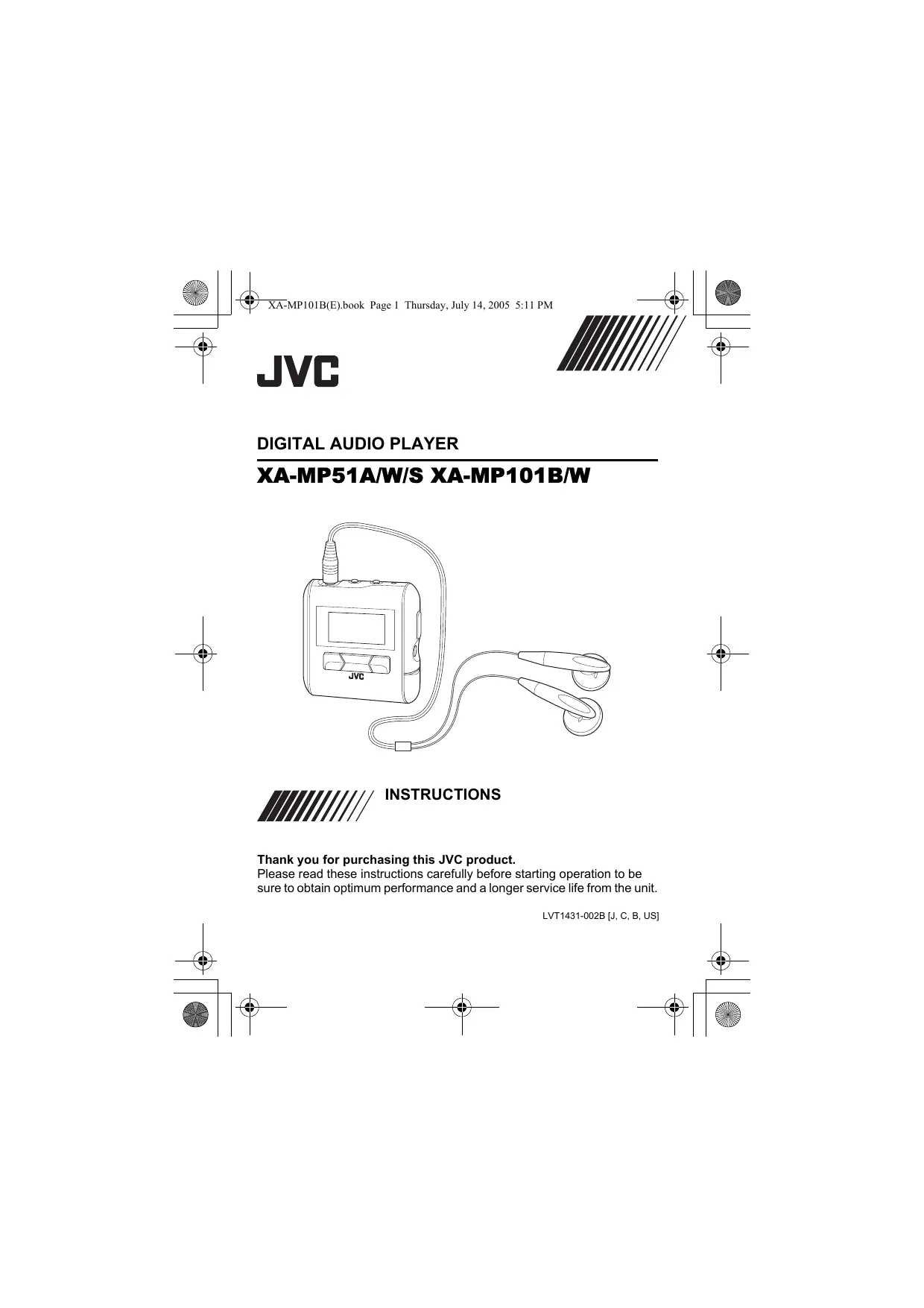

| Product Type | CD Player |
| Brand | JVC |
| Model | XA-MP51 |
| Dimensions (W x D x H) | Approx. 280 x 250 x 80 mm |
| Weight | Approx. 2.5 kg |
| Power supply | 230 V, 50 Hz |
| Supported CD formats | CD, CD-R, CD-RW |
| Main functions | Play, pause, stop, next/previous track, repeat, shuffle, program |
| Audio outputs | Headphone jack (3.5 mm mini-jack), line output (RCA) |
| Maintenance and cleaning | Use a soft, dry cloth. Do not use abrasive products. |
| Safety | Do not expose to moisture or heat sources. Unplug before cleaning. |
| Spare parts and repairability | Repair by a JVC approved center. Contact after-sales service. |
| General information | This Class B digital apparatus complies with Canadian ICES-003. |
Frequently Asked Questions - XA-MP51 JVC
User questions about XA-MP51 JVC
0 question about this device. Answer the ones you know or ask your own.
Ask a new question about this device
Download the instructions for your CD Player in PDF format for free! Find your manual XA-MP51 - JVC and take your electronic device back in hand. On this page are published all the documents necessary for the use of your device. XA-MP51 by JVC.
USER MANUAL XA-MP51 JVC
Thank you for purchasing this JVC product.
Please read these instructions carefully before starting operation to be sure to obtain optimum performance and a longer service life from the unit.
CAUTIONS
Listening precautions
- Do not play your Headphones at a high volume.
- Hearing experts advise against continuous extended play.
- If you experience a ringing in your ears, reduce volume or discontinue use.
- Do not use while operating a motorized vehicle. It may create traffic hazard and is illegal in many areas.
- You should use extreme caution or temporarily discontinue use in potentially hazardous situations.
- Even if your Headphones are an open-air type designed to let you hear outside sounds, do not turn up the volume so high that you cannot hear what is around you.
- Once you have established a comfortable sound level, leave the level there.
Dry cell batteries
To prevent damage to the batteries and electrolyte leakage, heed the following points.
- Align the and polarities properly when inserting the battery.
- Remove the battery if you do not plan to use the player for a long period of time.
- Do not throw batteries into a fire, and do not short-circuit, disassemble or subject them to excessive heat.
- Do not attempt to recharge dry cell batteries.
For U.S.A
This equipment has been tested and found to comply with the limits for a Class B digital device, pursuant to part 15 of the FCC Rules.
These limits are designed to provide reasonable protection against harmful interference in a residential installation.
This equipment generates, uses and can radiate radio frequency energy and, if not installed and used in accordance with the instructions, may cause harmful interference to radio communications. However, there is no guarantee that interference will not occur in a particular installation. If this equipment does cause harmful interference to radio or television reception, which can be determined by turning the equipment off and on, the user is encouraged to try to correct the interference by one or more of the following measures:
Reorient or relocate the receiving antenna.
Increase the separation between the equipment and receiver.
Connect the equipment into an outlet on a circuit different from that to which the receiver is connected.
Consult the dealer or an experienced radio/TV technician for help.
For the main unit:
Declaration of Conformity
Model Number: XA-MP51A/W
XA-MP101B
Trade Name: JVC
Responsible Party: JVC Americas Corp.
Address: 1700 Valley Road, Wayne
New Jersey 07470
Telephone Number: 973-317-5000
This device complies with Part 15 of FCC Rules. Operation is subject to the following two conditions: (1) This device may not cause harmful interference, and (2) this device must accept any interference received, including interference that may cause undesired operation.
Carrying dry cell batteries around
When putting dry cell batteries in a pocket or bag, ensure that no other metal objects such as a necklace are placed together with them. Contact with any metal may cause short-circuiting which may cause a fire.
Player
- No altering or remodeling
This can cause malfunctioning. - No dropping or strong impacts
This may damage the player. - Locations to be avoided
Avoid using the player in the following locations since they can cause malfunctioning.
- Bathrooms and other moisture-prone places
- Warehouses and other dusty places
- Very hot places near heating appliances, etc.
Do not leave the player exposed to direct sunlight for long periods of time
This may deform or discolor the player and may also cause malfunctioning.
CAUTION:
- Do not place any naked flame sources, such as lighted candles, on the apparatus.
- When discarding batteries, environmental problems must be considered and local rules or laws governing the disposal of these batteries must be followed strictly.
- Do not expose this apparatus to rain, moisture, dripping or splashing.
For Canada Only:
This Class B digital apparatus complies with Canadian ICES-003.
This digital apparatus does not exceed the Class B limits for radio noise emissions from digital apparatus as set out in the interference-causing equipment standard entitled "Digital Apparatus", ICES-003 of the Department of Communications.
- We have no responsibility for any improper recording or playback incurred by equipment malfunction.
- It is recommended to store backup copy of your important data in your PC or the like.
TABLE OF CONTENTS
CAUTIONS 1
TABLE OF CONTENTS 4
GETTING STARTED 5
INSTALLING BATTERY 5
INSTALLING USB DRIVER (FOR WINDOWS 98SE ONLY) 6
CONNECTING TO PC 7
CONNECTING EXTERNAL AUDIO EQUIPMENT 8
PARTS OF THE DIGITAL AUDIO PLAYER 9
TURING POWER ON/OFF 10
DISPLAY OVERVIEW 11
BASIC OPERATIONS 12
USING THE MAIN MENU 12
PLAYING MUSIC 13
RECORDING VOICE MESSAGES 14
PLAYING MESSAGES 15
LISTENING TO FM BROADCASTS 16
RECORDING FM BROADCASTS 18
DELETING FILES 19
ADVANCED FEATURES 20
SET MENU ITEMS 20
EQUALIZER 21
PLAYMODE 23
SLEEP TIMER 24
AUTO POWER OFF 25
BACKLIGHT 26
CONTRAST 27
MENULANGUAGES 28
FONTS 29
ABOUT 30
RESETTING THE UNIT 31
NAVIGATE 32
LOCKING BUTTONS (HOLD) 34
TROUBLESHOOTING 35
SPECIFICATIONS 36
ACCESSIONS 37
GETTING STARTED
INSTALLING BATTERY
Remove the battery compartment cover and insert one LR03 (AAA) alkaline battery (not supplied) matching the polarities (+ and -) indicated on the rear side of the player, then replace the compartment cover.
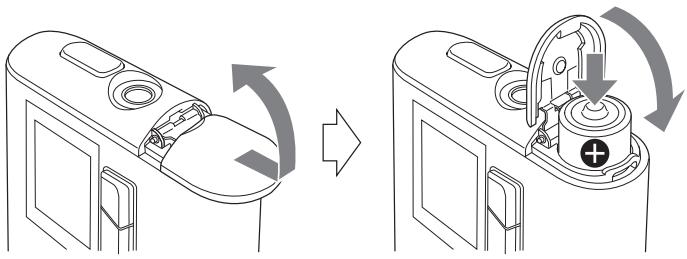
Battery indicator
The battery indicator shows the remaining battery level. When the battery level becomes low, "Low Battery" appears on the display. In this case, you need to replace the battery with a new one.
Low Battery
Important Battery Information
- Dispose of batteries in the proper manner, according to federal, state, and local regulations.
- Discard leaky batteries immediately. They can cause skin burn or other personal injury.
- Use only alkaline batteries. Do not use manganese dioxide batteries or a charger since the battery life becomes extremely short or the player may malfunction.
INSTALLING USB DRIVER (FOR WINDOWS 98SE ONLY)
Follow these instructions to load software that enables a computer to recognize the Digital Audio Player.
Make sure that no programs, such as games or anti-virus software, are running on the PC. If programs are open, close and exit from the programs before proceeding.
- Insert the CD-ROM into the CD-ROM drive of your PC.
- Turn off the Digital Audio Player and connect it to your PC with the USB connector.
- Follow the on-screen instructions to install the driver from the CD-ROM. On a screen to search for the location of the Digital Audio Player's driver, click the [Browse] button and select the XA-MP51-101 folder from the CD-ROM drive (If drive is "D", the folder path will be "D:_XA-MP51-101") and then proceed to the next screen:
- Be sure that the installation completion screen appears.
- Reboot the PC.
CONNECTING TO PC
You can transfer MP3 and WMA format music files from the PC to your Digital Audio Player through USB port. USB2.0 (480Mbps speed is not supported.)
For Windows 98SE user:
Before connecting your player to the computer for the first time, you need to install the USB driver from the supplied CD-ROM into your computer. For details, see "INSTALLING USB DRIVER" on page 6.
Connecting Digital Audio Player to PC
- Open the rubber cap of the USB connector.
- Connect the player to the USB port on your PC using USB cable.
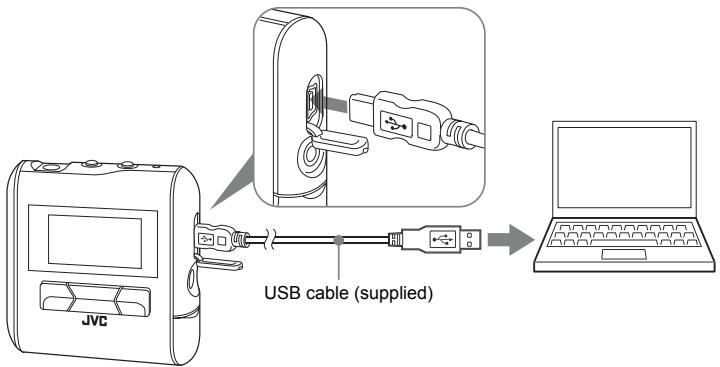
Transferring music files from PC to Digital Audio Player
- Open the player's folder (removable disk or device) from My Computer or Explorer.
- Copy and paste or drag and drop the music files from the PC to the player's folder. During copying files, "WRITING" appears on the player's display. After completion, "READY" continuously appears.
NOTE
- When you transfer a WMA-DRM file from the PC, use Windows Media© Player 9 or later. If you transfer it by drag and drop, it cannot be played with the player.
Disconnecting from PC
For Windows 2000/Me/XP users:
Left-click the icon in the task bar, and follow the on-screen instructions.
For Windows 98SE users
Open "My Computer" and select "Removable Disk", then right-click to select "EJECT".
- Microsoft, Windows and Windows Media are either trademarks or registered trademarks of Microsoft Corporation in the United States and other countries.
- Other names of systems and products mentioned in these instructions are usually registered trademarks of the manufacturers who developed the system or product concerned.
NOTES
- The player supports MP3 ID3 V1.0, 1.1 tags, ID3 V2.3 tags and WMA tags. ID3 tags and WMA tags are the data including music names and artist names recorded in MP3 files and WMA files.
- When the player is connected to the PC, it is recognized as an external USB memory (removal disk) and shown on the PC. You can treat the player as an external USB memory.
CONNECTING EXTERNAL AUDIO EQUIPMENT
You can listen to the music output from the player with external audio equipment. Before listening, connect an audio cable with stereo mini jack (not supplied) between the Line output jack of the player and the external audio equipment.
NOTES
- For operation of the external audio equipment, refer to its Instructions.
- When you connect an audio cable to the Line output jack of the player, no sound will come out of the earphones.
PARTS OF THE DIGITAL AUDIO PLAYER
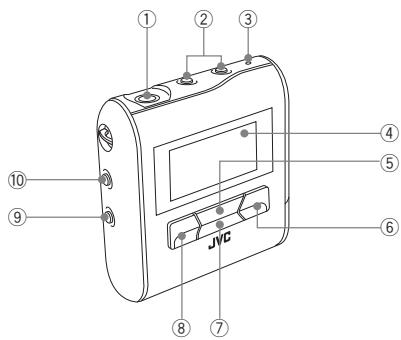
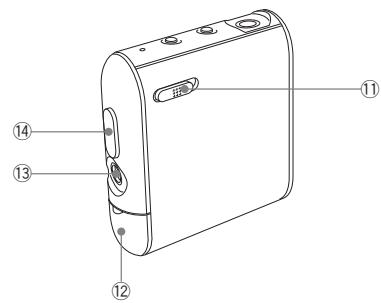
① Headphone jack
② VOL+/- (Volume) buttons
③ MIC
④ Display
⑤ / (Play/Pause) button
(6) (Forward) button
(7) (Stop) button
(Reverse) button
⑨ REC button
10 MENU button
⑪ Hold switch
⑫ Battery compartment cover
Line output jack
USB connector
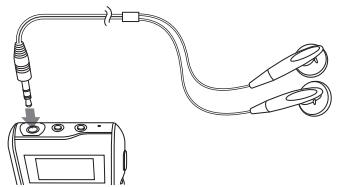
Connect the headphones to the (headphones) jack on the player.
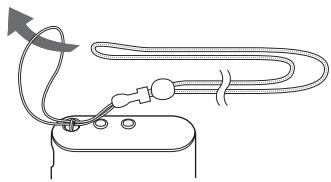
You can use the neck strap for easy carrying.
TURING POWER ON/OFF
To turn power ON
Press and hold / 山 button till "welcome" appears. After a while, the following screen appears.
DIGITAL
AUDIO
PLAYER
To turn power OFF
Press and hold (Stop) button.
SEE YOU
NOTES
- When the player is turned on, it resumes the mode it was in when it was last turned off.
- The settings you have made and preset FM stations are stored in the player when you turn off the player. (If you remove the battery before turning off the player, these settings are not stored.) It is recommended to turn off the player once when you change the setting or preset FM stations.
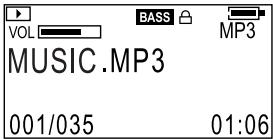
DISPLAY OVERVIEW
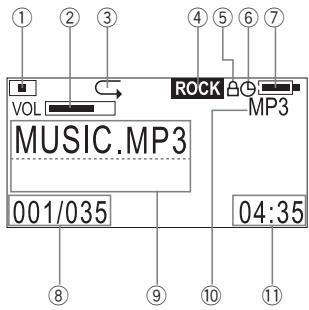
MUSIC mode/VOICE mode
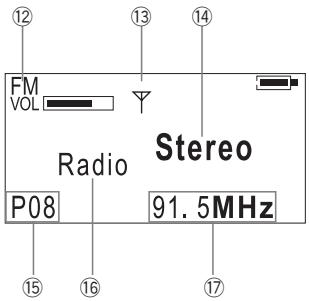
FM mode
① Play indicator
② Volume level
③ Play mode indicator
④ EQ (sound mode)
⑤ Lock icon
⑥ Sleep Timer icon
⑦ Battery indicator
⑧ Track number/Total number of tracks
⑨ File information*
10 Mode indicator
⑪ Track time
⑫ FM mode indicator
13 Antenna icon
14 Mono/Stereo indicator
15 Preset number
16 Current status of the FM mode
⑦ Frequency
- If the file information is long and displayed over two lines, it scrolls. During scrolling, the file name may not be correctly displayed.
BASIC OPERATIONS
USING THE MAIN MENU
There are number of modes you can operate using MAIN MENU.
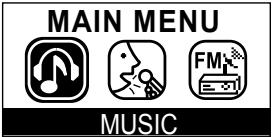
Types of modes

MUSIC mode
Select to play music. (See page 13.)

VOICE mode
Select to record and play messages and recorded FM broadcast. (See pages 14, 15 and 18.)

FM mode
Select to listen to and record FM broadcast. (See pages 16 to 18.)

SET mode
Select to set advanced settings. (See pages 20 to 29.)

DELETE mode
Select to delete files. (See page 19.)

ABOUT mode
Select to display about the player. (See page 30.)

RESET mode
Select to reset the settings you have made. (See page 31.)

NAVIGATE mode
Select to easily search for the desired music. (See page 32.)
PLAYING MUSIC
You can play the music files.
Before playing music, adjust the volume level with the volume +/- buttons.
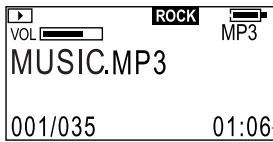
Track time (in stop mode)
Playback time (during playing)
To play music
- After turning on the player, press MENU button and / 口 button to select MUSIC mode from Main Menu, and then press button to enter that mode.
- Press button
To stop: Press button.
To pause: Press button.
To select track:
During playback or in stop mode, press /1-4 button.
To fast-forward/reverse track:
During playback, press and hold / 口 button.
To exit MUSIC mode:Press MENU button.
NOTES
- If no audio files are stored, "NO FILES" appears.
- When the player is turned off in stop mode or during playback and then turned on again, it will resume playback from the beginning of the track lastly played when you start playback.
- The menu mode returns to the previous display before this menu is displayed if no operation is made for approx. 10 seconds.
RECORDING VOICE MESSAGES

You can store your voice as voice files by talking into built-in microphone.
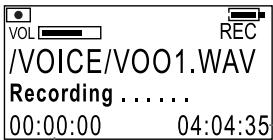
Recording remaining time
Recording time (hour.min:sec)
To record voice messages
- After turning on the player, press MENU button and / button to select VOICE mode from Main Menu, and then press button to enter that mode.
- Press and hold REC button until "Recording" appears.
To pause: Press button.
To stop: Press button.
To playback recorded messages:
Refer to see "PLAYING MESSAGES" on page 15.
To exit VOICE mode: Press MENU button.
NOTES
- The recorded voice track is converted into monaural WAV files. (The "VOICE" folder is automatically generated and the files are stored in it.)
- If "Low Battery" appears when you press and hold REC button, it is recommended to replace the battery with new one.
- During playback, the recorded files are sorted and treated as the FM files and voice files.
- During recording, volume button operation is disabled.
- The recorded files can be copied to the PC by accessing from the PC through USB.
PLAYING MESSAGES

You can play the recorded messages (voice files and recorded FM broadcasts).
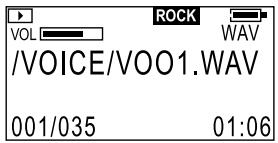
(Voice message)
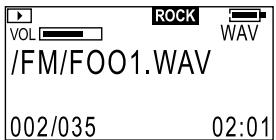
(FM broadcast program)
To play messages
- After turning on the player, press MENU button and / 丨 button to select VOICE mode from Main Menu, and then press / 山 button to enter that mode.
- Press button.
To stop: Press button.
To pause: Press button.
To select messages:
Press 1/1按钮.
To fast-forward/reverse message: Press and hold 1 / 1 button.
To exit VOICE mode: Press MENU button.
NOTES
- When the player is turned off in stop mode or during playback and then turned on again, it will resume playback from the beginning of the track lastly played when you start playback.
- If no voice files are stored, "NO FILES" appears.
LISTENING TO FM BROADCASTS

You can listen to a preset (registered) FM station after presetting FM stations. The following two operation modes are available:
Scan mode: Used to tune in to a station. A.Scan, M.Scan and S.Scan modes are available for tuning and then presetting.
Radio mode: Used to listen to a preset (registered) FM station. ("Radio" appears.)
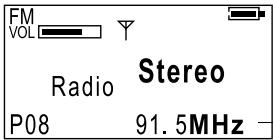
91.50MHz for England and Singapore
Automatic presetting (Scan mode: A.Scan)
Using A.Scan (Automatic Scan) function, you can automatically preset all detected stations (up to 20) to preset Nos. P01 to P20.
- After turning on the player, press MENU button and / button to select FM mode from Main Menu, and then press button to enter that mode.
- Press button to enter scan mode. ("Scan" appears.)
- Press and hold button and then release it. "A.Scan" appears and automatic scanning starts. After completion, the player enters radio mode.
To exit scan mode: Press MENU button.
To switch between scan mode and radio mode:
Press button while "Radio" or "Scan" is displayed.
To tune and preset station (Scan mode: M.Scan, S.Scan):
You can listen to the desired station using M.Scan (Manual Scan) or S.Scan (Search Scan) functions. After tuning, you can preset the station to the desired preset No., as required.
- After turning on the player, press MENU button and / button to select FM mode from Main Menu, and then press button to enter that mode. ("Radio" appears.)
- Press button to enter scan mode. ("Scan" appears.)
- To manually scan: Press / button. ("M.Scan" appears. Then, each time the button is pressed, the frequency increases or decreases step by step.) To search for a station: Press and hold / button. ("S.Scan" appears and an available station is automatically detected.)
- You cannot use M.Scan and S.Scan functions at a time.
- When you use MSCAN, press button. When you use SSCAN, press button. ("Store" and preset No. appear.) To cancel store, press button to return to scan mode.
- Press / button to select the desired preset No. you want to store.
- Press button to store the station. The player enters radio mode. ("Radio" appears.)
- Repeat Steps 2 to 7 to continue preset operation.
To tune to preset station (Radio mode):
You can listen to up to 20 preset stations. Before use, you need to preset stations in scan mode.
- After turning on the player, press MENU button and / button to select FM mode from Main Menu, and then press button to enter that mode. ("Radio" and Preset No. appear.)
- Press /按钮 to select the desired preset No. (P01 to P20). To switch between Stereo and Mono, press button.
To delete preset station (Radio mode):
In radio mode, select the desired preset No. and then press and hold / button until "Delete" appears.
The preset No. temporarily disappears and the default station is set.
To exit radio mode: Press MENU button.
RECORDING FM BROADCASTS

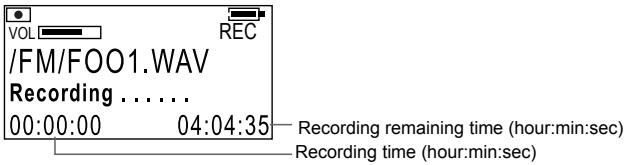
To record FM broadcasts
- After turning on the player, tune to the desired FM station for recording, referring to "LISTENING TO FM RADIO BROADCASTS" on page 16.
- Press and hold REC button until "Recording" appears.
To pause: Press button.
To stop: Press button.
To playback recorded FM broadcast station:
Refer to see "PLAYING MESSAGES" on page 15.
To exit FM mode: Press MENU button.
NOTES
- The recorded music from FM broadcast station is converted into stereo WAV files. (The "FM" folder is automatically generated and the files are stored in it.)
- If "Low Battery" appears when you press and hold REC button, it is recommended to replace the battery with new one.
- During playback, the recorded files are sorted and treated as the FM files and voice files.
- During recording, volume button operation is disabled.
- The recorded files can be copied to the PC by accessing from the PC through USB.
DELETING FILES
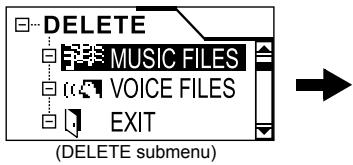
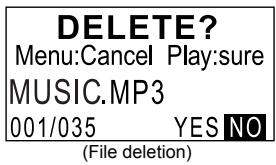
To delete files
- After turning on the player, press MENU button and / 丨 button to select DELETE mode from Main Menu, and then press / 山 button to enter that mode.
- Press / button to select types of files you want to delete from the DELETE menu.
- Press button.
- Press button to select a file you want to delete.
- Press button to select "YES". To cancel the operation, select "NO".
- Press button to delete the file. "File Deleted" appears. If you try to delete a read-only file, "Operation Failed" appears. (Each time you press button, the status switches between "YES" and "NO".)
To return to DELETE menu: Press MENU button once.
To exit DELETE mode:
Press MENU button again (or select "EXIT" and press button in DELETE submenu).
NOTE
- When all files in a folder are deleted, the folder disappears from the player. However, it is not erased and remains in the player. You can erase this folder by PC through USB.
ADVANCED FEATURES
SET MENU ITEMS
In SET mode, you can set the following SET MENU items:
EQ SET (Equalization Set), PLAYMODE, SLEEP TIMER, A.POwer OFF (Auto Power OFF), BACKLIGHT, CONTRAST, MENU LANGUAGE (Menu Language) and FONTS
To set each item, see the relevant later page.
EQUALIZER
You can select from one of 6 different preset sound modes or one customized sound mode.
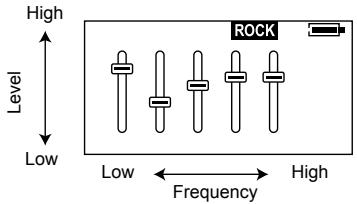
Types of sound modes
NORM NORMAL
No sound effect applies.
CLASS
Good for classical music
JAZZ
Good for jazz music
ROCK ROCK
Boosts low and high frequency.
POP POP
Good for vocal music
BASS BASS
Empowers bass sound.
CUSTOMIZED
You can create your own sound mode.
To select sound mode
- After turning on the player, press MENU button and / 丨 button to select SET mode from Main Menu, and then press / II button to enter that mode.
- Press / button to select "EQ SET".
- Press button.
- Press /1 button to select the sound mode.
- Press button to return to SET MENU.
To create sound mode (CUST)
- After turning on the player, press MENU button and / 丨 button to select SET mode from Main Menu, and then press / II button to enter that mode.
- Press / button to select "EQ SET".
- Press button.
- Press 1 / 1 button to select "CUST".
- Press MENU button briefly to start editing. The indicator of the lowest frequency is highlighted.
- Press 1 / 1 button to select the frequency you want to edit.
- Press button. The indicator starts to blink.
- Press button to set the level up or down and then press button to store it.
- Repeat Steps 6 through 8 to edit for other frequencies.
- Press MENU button briefly. The highlight disappears and the setting is completed.
- Press button to return to SET MENU.
To exit SET mode:
Press MENU button (or select "EXIT" and press button) in the SET MENU.
PLAYMODE
You can select various play modes. However, for voice file playback, only NORMAL, REPEAT ONE and REPEAT ALL are selectable.
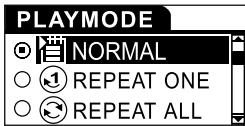
Types of playback modes

NORMAL
Normal play

REPEAT ONE
Repeats one track.

REPEAT ALL
Repeats all tracks.

RANDOM
Plays all tracks in random order.

RANDOM RPT
Repeats all tracks in random order.

INTRO
Plays first 10 seconds for each tracks.
To select play mode
- After turning on the player, press MENU button and / button to select SET mode from Main Menu, and then press button to enter that mode.
- Press button to select "PLAYMODE".
- Press button.
- Press / button to select the play mode.
- Press button to return to SET MENU.
To exit SET mode:
Press MENU button (or select "EXIT" and press button) in the SET MENU.
SLEEP TIMER

Use the sleep timer to turn off the player after a certain period of time during playback. You can set the period of time to 15, 30, 45, 60 minutes, or OFF (default). The sleep timer works temporarily. Once it has worked, it is canceled. When the sleep timer is set, the sleep timer icon ( ) appears on the upper right of the display.
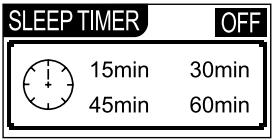
To set sleep timer
- After turning on the player, press MENU button and / 丨 丨 button to select SET mode from Main Menu, and then press / II button to enter that mode.
- Press /按钮 to select "SLEEP TIMER".
- Press button.
- Press button to select the time.
- Press button to return to SET MENU.
To exit SET mode:
Press MENU button (or select "EXIT" and press button) in the SET MENU.
AUTO POWER OFF

Use the auto power off to turn off the player after a certain period of time when no operation is made. You can set the period of time to 2, 5, or 10 minutes, or OFF (default).
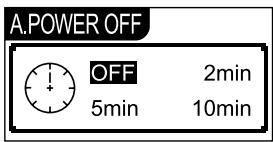
To set auto power off
- After turning on the player, press MENU button and /I button to select SET mode from Main Menu, and then press /II button to enter that mode.
- Press /按钮 to select "A.POwER OFF".
- Press button.
- Press / 口 button to select the time.
- Press button to return to SET MENU.
To exit SET mode:
Press MENU button (or select "EXIT" and press button) in the SET MENU.
BACKLIGHT
Use to adjust the backlighting extension time (0 to Max) after finishing the last operation. (Default: 5 seconds) When "Max" is set, the backlighting remains on for approx. two hours.
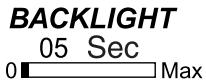
To set back light
- After turning on the player, press MENU button and / 丨 button to select SET mode from Main Menu, and then press / II button to enter that mode.
- Press / button to select "BACKLIGHT".
- Press button.
- Press / button to select the time.
- Press button to return to SET MENU.
To exit SET mode:
Press MENU button (or select "EXIT" and press button) in the SET MENU.
NOTE
- When "Low Battery" appears, backlighting goes out and, after that, it does not light again.
CONTRAST
Use to adjust the contrast of the display.
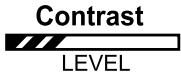
To set contrast
- After turning on the player, press MENU button and / button to select SET mode from Main Menu, and then press button to enter that mode.
- Press /按钮 to select "CONTRAST".
- Press button.
- Press /按钮 to select the level.
- Press button to return to SET MENU.
To exit SET mode:
Press MENU button (or select "EXIT" and press button) in the SET MENU.
MENULANGUAGES
Use to set the language for the menu. You can select English (default), simplified Chinese or traditional Chinese.
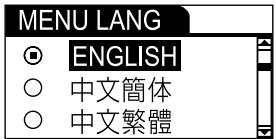
To set menu language
- After turning on the player, press MENU button and / 丨 button to select SET mode from Main Menu, and then press / II button to enter that mode.
- Press /按钮 to select "MENU LANG".
- Press button.
- Press /1 button to select the language.
- Press button to return to SET MENU.
To exit SET mode:
Press MENU button (or select "EXIT" and press button) in the SET MENU.
FONTS 1D3
Use to set the language for the file name and ID3 tags. You can select one of 27 languages (default: English).
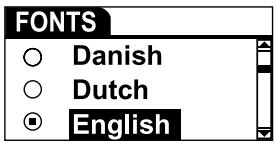
To set fonts
- After turning on the player, press MENU button and / button to select SET mode from Main Menu, and then press button to enter that mode.
- Press button to select "FONTS".
- Press button.
- Press / button to select the fonts.
- Press button to return to SET MENU.
To exit SET mode:
Press MENU button (or select "EXIT" and press button) in the SET MENU.
NOTE
- For details of ID3 tags, see page 8.
ABOUT
Use to display firmware version and status of the player.
| About VER: X.XXXX INT: 1 GB FREE: 52 MB | Amount of memory installed Available memory space to store further music files |
To display:
After turning on the player, press MENU button and /1 button to select ABOUT mode from Main Menu, and then press / button to enter that mode.
To exit ABOUT mode: Press MENU button.
Upgrading firmware version:
To upgrade the firmware of your player, please visit our website.
RESETTING THE UNIT (1 0)
Use to reset all the settings you have made to default.
RESET?
Menu:Cancel Play:sure
To reset the unit
- After turning on the player, press MENU button and / 丨 button to select RESET mode from Main Menu, and then press / 山 button to enter that mode.
- Press button to reset the unit. All the settings are reset and "RESET OK!" appears.
To cancel and exit RESET mode: Press MENU button.
Default value of each SET MENU item:
| EQ SET | Normal |
| PLAYMODE | Normal |
| SLEEP TIMER | OFF |
| A.POwer OFF | OFF |
| BACKLIGHT | 5 Sec |
| CONTRAST | Factory-set level |
| MENU LANGUAGE | ENGLISH |
| FONTS | ENGLISH |
NAVIGATE

Use to display the hierarchical tree structure of music folders and files () . From this tree structure, you can easily locate a desired music file and play it back.
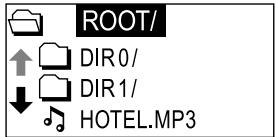
To locate a music file
- After turning on the player, press MENU button and / 丨 button to select NAVIGATE mode from Main Menu, and then press / II button to enter that mode.
- Press / , / buttons to locate the desired file.
/ : Moves the cursor (highlight) vertically. The cursor scrolls through the files and folders in the selected folder.
/ / : 1) Move the cursor to the desired folder and press / button to open it. Then, the files in the folder can be selected.
2) When the cursor is inside the folder, press button to close the folder. Then, the hierarchical structure appears including that folder.
- Press button to play it back. (Press button to pause and button to stop.)
To exit NAVIGATE mode: Press MENU button.
Music file playing order in Music mode:
From the hierarchical tree structure, you can easily understand the playing order of music files when you normally play them in Music mode. You will see that the music files are played back in the order from the higher hierarchy to the lower one.
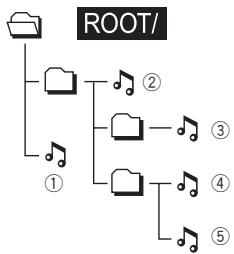
NOTES
Maximum number of folders that can be recognized by the player is 50.
- Maximum number of hierarchies that can be recognized by the player is 8, including the highest-order folders.
- You can change the playback order of music files by adding numbers at the head of folder names or file names on PC. (For example, add numbers like 01xxxx, 02yyyy, ...)
- The maximum number of files (WMA, MP3 and WAV files) that can be displayed or operated is 550. On a file exceeding 550, its operation is not guaranteed.
LOCKING BUTTONS (HOLD)
Slide the HOLD switch to the right to lock all controls.
When the hold function is activated, the appears in the upper right of the display.
To unlock: Slide the HOLD switch to the left.
NOTE
- When the player is turned on with the HOLD switch set to ON position, "HOLD" appears after the initial message "DIGITAL AUDIO PLAYER". Then, the player automatically shuts off. To use the player, set the HOLD switch to OFF position and turn on the player again.
TROUBLESHOOTING
| Problem | Solution |
| The player does not function. | ·Make sure the HOLD switch is off. ·This player provides versatile operations under microcomputer control. If the player cannot be properly operated by pressing any button, remove the battery and insert it again after a while. ·Battery may be drained. Replace the battery. |
| There is no sound or a lot of noise. | ·Make sure the Headphone is correctly connected to the player. ·Wipe the Headphone plug with a clean cloth. ·Keep the player away from other equipment, such as mobile phones or televisions. ·Turn the volume up. |
| The player suddenly stops working. | ·Take the battery out for about 10 seconds and re-insert it. |
| The display is too dark or too bright. | ·Adjust the contrast. |
| The player automatically shuts off. | ·Auto power off function is set in effect. See page 25. (This is not a malfunction.) |
| Your computer does not recognize the player. | ·If your operating system is Windows 98SE, be sure to install the USB driver from the supplied CD-ROM in your computer. |
SPECIFICATIONS
| Model Name | XA-MP101 | XA-MP51 |
| Type | Digital audio player | |
| Built-in memory size | 1 GB | 512 MB |
| Display | LCD with backlighting (4-line display) | |
| FM radio | FM reception frequency: 87.5 MHz to 108.0 MHz (Wide band) Frequency step: 0.1 MHz (for USA and Canada), 50 kHz (for England and Singapore) FM recording: ADPCM system | |
| Voice recording | ADPCM system, with built-in monaural microphone | |
| Music playback format | MP3/WMA/WMA-DRM*1 | |
| Bit rate | MP3: 8 kbps to 320 kbps, WMA: 32 kbps to 192 kbps | |
| Maximum number of tracks*2 | Approx. 500 | Approx. 250 |
| Frequency response | 60 Hz to 20 kHz, +0 dB to -3 dB (Audio) | |
| Output terminal | Headphone/Line output (stereo mini jack) | |
| Line output | 330 mV/100 ohms | |
| Power supply | DC 1.5V "LR03" or "AAA" size battery × 1 | |
| Continuous playback time | Approx. 17 hours (Audio playback)*3 | |
| Dimensions (Approx.) | 50 (L) × 15 (W) × 50 (H) mm (excluding protruding parts) | |
| Mass (Approx.) | 30 g (without battery), 42 g (with battery) | |
1 WMA-DRM: A WMA file with reproduction restriction for copyright protection of digital data.
2 Condition: WMA: 64 kbps, 1 track: 4 minutes.
*3 Condition: MP3 (128 kbs, fs=44.1 kHz) file playback, backlighting OFF, Equalization: normal
Design and specifications are subject to change without notice.
OS supported: Microsoft® Windows® XP (Home Edition/Professional), Windows® Me, Windows® 2000 Professional, Windows® 98SE ( Installation of USB driver is necessary using CD-ROM supplied)
ACCESSORIES
Headphones
USB CABLE
CD-ROM (USB Driver for Windows 98SE)
NECK STRAP
Information for Users on Disposal of Old Equipment
[European Union]
![JVC XA-MP51 - [European Union] - 1](/content/2025/01/123946/images/d33e964ceaf5c0d7eec14798315dd1c89cc5f606f9b7bb3d7e4313e20fc38b6f.jpg)
![JVC XA-MP51 - [European Union] - 2](/content/2025/01/123946/images/9b3097fde6ba87a7421743558ff5b8e1e3ec4acf3975d34812ee2abd0376a79e.jpg)
Attention:
This symbol is only valid in the European Union.
This symbol indicates that the electrical and electronic equipment should not be disposed as general household waste at its end-of-life. Instead, the product should be handed over to the applicable collection point for the recycling of electrical and electronic equipment for proper treatment, recovery and recycling in accordance with your national legislation.
By disposing of this product correctly, you will help to conserve natural resources and will help prevent potential negative effects on the environment and human health which could otherwise be caused by inappropriate waste handling of this product. For more information about collection point and recycling of this product, please contact your local municipal office, your household waste disposal service or the shop where you purchased the product.
Penalties may be applicable for incorrect disposal of this waste, in accordance with national legislation.
(Business users)
If you wish to dispose of this product, please visit our web page www.jyc-europe.com to obtain information about the take-back of the product.
[Other Countries outside the European Union]
If you wish to dispose of this product, please do so in accordance with applicable national legislation or other rules in your country for the treatment of old electrical and electronic equipment.
JVC
- Thank you for purchasing this JVC product.
- CAUTIONS
- Listening precautions
- Dry cell batteries
- For U.S.A
- For the main unit:
- Carrying dry cell batteries around
- Player
- Do not leave the player exposed to direct sunlight for long periods of time
- CAUTION:
- For Canada Only:
- TABLE OF CONTENTS
- GETTING STARTED
- INSTALLING BATTERY
- Battery indicator
- Low Battery
- Important Battery Information
- INSTALLING USB DRIVER (FOR WINDOWS 98SE ONLY)
- CONNECTING TO PC
- For Windows 98SE user:
- Connecting Digital Audio Player to PC
- Transferring music files from PC to Digital Audio Player
- NOTE
- Disconnecting from PC
- For Windows 2000/Me/XP users:
- For Windows 98SE users
- NOTES
- CONNECTING EXTERNAL AUDIO EQUIPMENT
- PARTS OF THE DIGITAL AUDIO PLAYER
- TURING POWER ON/OFF
- To turn power ON
- To turn power OFF
- DISPLAY OVERVIEW
- BASIC OPERATIONS
- USING THE MAIN MENU
- Types of modes
- MUSIC mode
- VOICE mode
- FM mode
- SET mode
- DELETE mode
- ABOUT mode
- RESET mode
- NAVIGATE mode
- PLAYING MUSIC
- To play music
- To select track:
- To fast-forward/reverse track:
- To exit MUSIC mode:Press MENU button.
- RECORDING VOICE MESSAGES
- To record voice messages
- To playback recorded messages:
- PLAYING MESSAGES
- To play messages
- To select messages:
- LISTENING TO FM BROADCASTS
- Automatic presetting (Scan mode: A.Scan)
- To switch between scan mode and radio mode:
- To tune and preset station (Scan mode: M.Scan, S.Scan):
- To tune to preset station (Radio mode):
- To delete preset station (Radio mode):
- To exit radio mode: Press MENU button.
- RECORDING FM BROADCASTS
- To record FM broadcasts
- DELETING FILES
- To delete files
- To exit DELETE mode:
- ADVANCED FEATURES
- SET MENU ITEMS
- EQUALIZER
- Types of sound modes
- To select sound mode
- To create sound mode (CUST)
- To exit SET mode:
- PLAYMODE
- Types of playback modes
- To select play mode
- SLEEP TIMER
- To set sleep timer
- AUTO POWER OFF
- To set auto power off
- BACKLIGHT
- To set back light
- CONTRAST
- To set contrast
- MENULANGUAGES
- To set menu language
- FONTS 1D3
- To set fonts
- ABOUT
- To display:
- Upgrading firmware version:
- RESETTING THE UNIT (1 0)
- RESET?
- To reset the unit
- NAVIGATE
- To locate a music file
- Music file playing order in Music mode:
- LOCKING BUTTONS (HOLD)
- SPECIFICATIONS
- ACCESSORIES
- Information for Users on Disposal of Old Equipment
- [European Union]
- Attention:
- (Business users)
- [Other Countries outside the European Union]
- JVC
Brand : JVC
Model : XA-MP51
Category : CD Player