fi-5950 - To scan FUJITSU - Free user manual and instructions
Find the device manual for free fi-5950 FUJITSU in PDF.


User questions about fi-5950 FUJITSU
0 question about this device. Answer the ones you know or ask your own.
Ask a new question about this device
Download the instructions for your To scan in PDF format for free! Find your manual fi-5950 - FUJITSU and take your electronic device back in hand. On this page are published all the documents necessary for the use of your device. fi-5950 by FUJITSU.
USER MANUAL fi-5950 FUJITSU
fi-5950 Image Scanner
Operator's Guide
natural_image
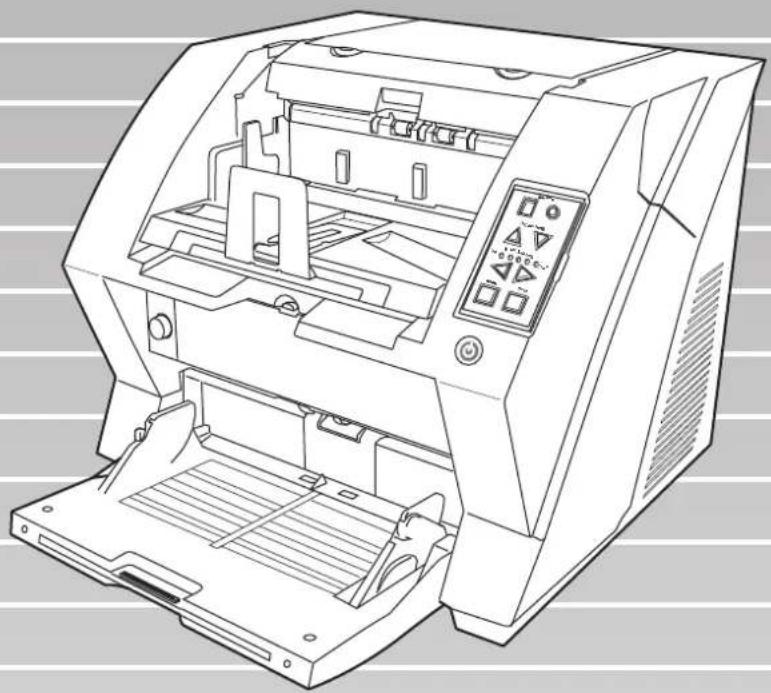
Line drawing of a printer with open lid and control panel (no text or symbols)Thank you for purchasing the fi-5950 Image Scanner.
The fi-5950 is an image scanner designed to scan various documents in large quantities.
The fi-5950 has the following features.
■ Improvement of color scanning speed (105 sheets or 210 pages per minute) with high resolution (300dpi)
By the newly-developed high speed CCD and high speed image processing circuit, scanning speed (A4 color, 300dpi) of 105 sheets/210 pages per minute) is improved. Now you can scan a large amount of documents which is about 100,000 sheets a day!
■ Efficient pre-processing and post-processing!
This scanner is able to scan mixed documents stables of papers of different color, density, size and thickness. This makes the scanning process even simpler and economic, since you no not have to sort out the documents before scanning any more! Furthermore, this scanner is equipped with an "Elevator" Stacker, moving automatically into the appropriate height, according to the amount of loaded documents. This will make the documents be easily and elegantly handled and also increases your scanning efficiency!
■ Prevention of data loss because of improved multi feed detection
This scanner is equipped with ultrasonic multi feed detection sensors, which detect reliably the feeding of 2 or more documents together into the scanner. Those multi feed can also be detected surely, when scanning documents of different thickness, size, color or density. This will help you to increase your efficiency, since the data loss caused by multi feed is detected immediately. This gives you the opportunity to correct the scanning without too much troubles and loss of time.
■ High image processing function
The automatic detection function of this scanner is able to detect if the loaded documents are color or monochrome and according to the detection the appropriate settings will be automatically chosen for the image creation. Since the scanner does this automatically, you do not have to set the image settings each time before scanning. Furthermore, The Kofax VRS image processing board is installed as standard equipment for this scanner. This VRS board which has a good reputation for image processing on a high level, enables you to create images of high quality and provides advanced functions like the "Automatic direction correction" and "Background equalization function".
■ Pre- and Post imprinter option can be installed
In today's document business, imprinters provide a vital tool for archiving, controlling and verification processes. For this scanner, you can select two optional types of imprinters, depending on your needs. The Pre-Imprinter Option prints information on the front side of the documents prior to the scanning. When using Pre-imprinter, the printed information will also be stored on the generated image. The Post-Imprinter on the other hand, will print after the scanning on the back sides of your documents. So only the originals, and not the images, will contain the imprint.
About this manual
The manual provides the following information.
1. NAMES AND FUNCTIONS OF PARTS
This chapter describes names and functions of parts.
2. BASIC OPERATIONS
This chapter describes basic scanner operations and basic document scanning.
3. SCANNING VARIOUS TYPES OF DOCUMENTS
This chapter describes how to scan various types of documents.
4. DAILY CARE
This chapter describes how to clean the scanner.
5. REPLACING CONSUMABLES
This chapter describes how to replace consumables.
6. SOLVING COMMON PROBLEMS
This chapter describes how to remedy document jams, other trouble, and items to check before contacting the agent where you bought the scanner, and how to check device labels.
7. ADF DOCUMENT SPECIFICATIONS
This chapter describes documents that can be used with this scanner.
8. SCANNER SETTINGS
This chapter explains the how settings can be done for the scanner using the Software Operation Panel.
9. OPTIONS
This chapter describes the options available for this product.
10. SCANNER SPECIFICATIONS
This chapter lists the scanner specifications.
The "Getting Started" is supplied to this Scanner.
This guide contains necessary information for getting started the scanner, also read the Getting Started.
1. PREPARING THE SCANNER
This chapter describes how to prepare the scanner for use.
2. INSTALLATION OF THE SCANNER
This chapter describes how to install and connect the scanner, and how to install the scanner application.
We hope that this manual is useful in taking full advantage of the fi-5950 Image Scanner features.
■ Regulatory Information
FCC Regulations
This equipment has been tested and found to comply with the limits for a Class B digital device, pursuant to Part 15 of the FCC Rules. These limits are designed to provide reasonable protection against harmful interference in a residential installation. This equipment generates, uses, and can radiate radio frequency energy and, if not installed and used in accordance with the instruction manual, may cause harmful interference to radio communications. However, there is no guarantee that interference will not occur in a particular installation. If this equipment does cause harmful interference to radio or television reception, which can be determined by turning the equipment off and on, the user is encouraged to try to correct the interference by one or more of the following measures:
•Reorient or relocate the receiving antenna.
- Increase the separation between the equipment and receiver.
- Connect the equipment into an outlet on a circuit different from that to which the receiver is located.
- Consult your dealer or an experienced radio/TV technician.
FCC warning: Changes or modifications not expressly approved by the party responsible for compliance could void the user's authority to operate the equipment.
ATTEN

- The use of a shielded interface cable is required to comply with the Class B limits of Part 15 of FCC rules. The length of the SCSI interface cable must be 1.5 meters (5 feet) or less.
- The length of the AC cable must be 3 meters (10 feet) or less.
Canadian DOC Regulations
This digital apparatus does not exceed the Class B limit for radio noise emissions from digital apparatus set out in the Radio interference Regulations of the Canadian Department of Communications.
This Class B digital apparatus complies with Canadian ICES-003.
PFU LIMITED, a Fujitsu company, has determined that this product meets the ENERGY STAR ^® guidelines for energy efficiency.
ENERGY STAR ^® is a registered trademark of the United States.

text_image
energy ENERGY STARUse in High-safety Applications
This product has been designed and manufactured on the assumption that it will be used in office, personal, domestic, regular industrial, and general-purpose applications. It has not been designed and manufactured for use in applications (simply called “high-safety applications” from here on) that directly involve serious danger to life and health when an extremely high degree of safety is required, for example, in the control of nuclear reactions at nuclear power facilities, automatic flight control of aircraft, air traffic control, operation control in mass-transport systems, medical equipment for sustaining life, and missile firing control in weapons systems, and when provisionally the safety in question is not ensured. The user should use this product with adopting measures for ensuring safety in such high-safety applications. PFU LIMITED assumes no liability whatsoever for damages arising from use of this product by the user in high-safety applications, and for any claims or compensation for damages by the user or a third party.
About the use of mercury

Lamp(s) inside this product contain mercury and must be recycled or disposed of according to local, state, or federal laws.
To avoid unexpected injuries;
- Do not put the substance contained in the lamp in your mouth as it has mercury.
- Do not breathe the chemical liquid contained in the scanner lamps.
- Do not incinerate, crush, or shred the lamps or scanner parts.
Illegal Copying
Reproducing bills, coins, government securities and passports, licenses issued by public author or civilian organizations, official documents, private paper is illegal and brought to justice
Copyright
Literary works like books, paintings, wood block prints, maps, drawings, and photographs should not be reproduced without the rightful person's permission.
Trademarks
Microsoft, Windows, Windows Server and Windows Vista are registered trademarks of Microsoft Corporation in the United States and/or other countries.
ISIS and QuickScan are trademarks or registered trademarks of EMC Corporation in the United States.
Adobe, the Adobe logo, and Acrobat are either registered trademarks of Adobe Systems Incorporated in the United States and/or other countries.
Kofax and VRS are either registered trademarks or trademarks of Kofax, Inc.
Other product names are the trademarks or registered trademarks of the respective companies.
How Trademarks Are Indicated In This Manual
References to operating systems (OS) are indicated as follows:
| Product Indication | ||
| Windows^® 2000 Professional (Service Pack 4 or later) | Windows 2000 | Windows (*1) |
| Windows^® XP Professional (Service Pack 2 or later), Windows^® XP Professional x64 Edition, Windows^® XP Home Edition (Service Pack 2 or later) | Windows XP | |
| Windows Server^® 2003 Standard Edition, Windows Server^® 2003 Standard x64 Edition, Windows Server^® 2003 R2 Standard Edition, Windows Server^® 2003 R2 Standard x64 Edition | Windows Server 2003 | |
| Windows Vista^® Home Basic (32/64-bit), Windows Vista^® Home Premium (32/64-bit), Windows Vista^® Business (32/64-bit), Windows Vista^® Enterprise (32/64-bit), Windows Vista^® Ultimate (32/64-bit) | Windows Vista | |
| Windows Server^® 2008 Standard (32/64-bit), Windows Server^® 2008 R2 Standard | Windows Server 2008 | |
| Windows^® 7 Home Premium (32/64-bit), Windows^® 7 Professional (32/64-bit), Windows^® 7 Enterprise (32/64-bit), Windows^® 7 Ultimate (32/64-bit) | Windows 7 | |
| Adobe^® Acrobat® | Adobe Acrobat (*2) | |
*1 Where there is no distinction between the different versions of the above operating system, the general term “Windows” is used.
*2 All the descriptions in this manual assume the usage of Adobe Acrobat bundled with this product.
However, Adobe Acrobat may be upgraded without notice. If the descriptions differ from the screens actually displayed, refer to the Acrobat's "Help".
Manufacturer
PFU LIMITED
International Sales Dept., Imaging Business Division, Products Group
Solid Square East Tower, 580 Horikawa-cho, Saiwai-ku, Kawasaki-shi Kanagawa 212-8563, Japan
Phone: (81-44) 540-4538
All Rights Reserved, Copyright© PFU LIMITED 2010
■ Note of Liability
READ ALL OF THIS MANUAL CAREFULLY BEFORE USING THIS PRODUCT.
IF THIS PRODUCT IS NOT USED CORRECTLY, UNEXPECTED INJURY MAY BE CAUSED TO USERS OR BYSTANDERS.
Also, store this manual in a convenient and safe place so that it can be easily referred to during use of this product.
While all efforts have been made to ensure the accuracy of all information in this manual, PFU assumes no liability to any party for any damage caused by errors or omissions or by statements of any kind in this manual, its updates or supplements, whether such errors are omissions or statements resulting from negligence, accidents, or any other cause. PFU further assumes no liability arising from the application or use of any product or system described herein; nor any liability for incidental or consequential damages arising from the use of this manual. PFU disclaims all warranties regarding the information contained herein, whether expressed, implied, or statutory.
Preface
Safety Precautions
This manual describes important details for ensuring the safe and correct use of this product. Thoroughly read this manual before you start to use this product. In particular, be sure to read and fully understand the Safety Precautions described in this manual before you use this product.
Warning Indications Used In This Manual
This manual uses the following indications to ensure safe and correct use of this product, and to prevent possible danger and injury to the Operator and other persons.

This indication alerts operators to an operation that, if not strictly observed, may result in severe injury or death.

This indication alerts operators to an operation that, if not strictly observed, may result in safety hazards to personnel or damage to equipment.
Symbols Used In This Manual
This manual uses the following symbols in explanations in addition to warning indications.


This symbol alerts operators to particularly important information. Be sure to read this information.

This symbol alerts operators to helpful advice regarding operation.

A TRIANGLE symbol indicates that special care and attention is required. The drawing inside the triangle shows the specific caution.

A CIRCLE with a diagonal line inside shows action which users may not perform. The drawing inside or under the circle shows the specific action that is not allowed.

Outline characters on a colored background show instructions users should follow. It may also include the drawing that shows the specific instruction.
Screen Examples In This Manual
The screen examples in this manual are subject to change without notice in the interest of product improvement.
If the actual displayed screen differs from the screen examples in this manual, operate by following the actual displayed screen while referring to the User's Manual of the scanner application you are using.
Furthermore, the screenshots in this manual are for the TWAIN driver, ScandAll PRO Image Capturing Utility Software, ISIS driver and Adobe Acrobat.
The Operator Panel Language Display
Apart from English, the operator panel can also display French, German, Italian, Spanish, and Chinese (Simplified). In this manual, the language display of the operator panel is shown in English.
About Maintenance
The user must not perform repairs on this scanner. Contact the store where you purchased the scanner or an authorized FUJITSU Image Scanner service provider to make repairs to this product.
■ Safety Precautions

The following describes important warnings described in this manual.

Do not insert or drop any foreign objects (water, liquids, small metal objects, etc.) into the opening sections on the scanner.
If foreign objects get inside the scanner, immediately disconnect the power cable from the AC outlet.
Then, contact your FUJITSU scanner dealer or an authorized FUJITSU scanner service provider. Pay particular attention to this warning in households where there are small children.

If the scanner is damaged for any reason, immediately disconnect the power cable from the AC outlet. Then, contact your FUJITSU scanner dealer or an authorized FUJITSU scanner service provider.

In the following situation, immediately disconnect the power cable from the AC outlet. Not doing so may cause a fire or electric shock.
- Smoke or heat coming from the scanner is detected.
- Strange noise or smell is detected.
- Foreign objects (water, liquids, small metal objects, etc.) get inside the scanner.
- Other problems which indicate a scanner failure are detected.
Then, contact your FUJITSU scanner dealer or an authorized FUJITSU scanner service provider. Never try fixing such problems by yourself. Doing so is dangerous.

Do not take apart or modify the scanner as high-voltage components inside the scanner are dangerous. PFU assumes no liability to any damage caused by taking apart the scanner, as doing so is not covered under the warranty.

The area around the part to which this warning label is affixed can become very hot. To avoid burns, never touch around the area indicated by this label.

Firmly insert the power cable into the AC outlet. Not doing so may cause a fire or electric shock.

Use the scanner only at the indicated power voltage and current. Do not connect to multiplepower strips. Improper power voltage or current might cause a fire or electric shock.

Use only power cables provided with the scanner. Do not use any extension cords. Not following these instructions may cause abnormal heat or a fire. Do not also use the power cable provided with the scanner for other devices, since this might cause problems such as an equipment failure, or an electric shock.

Do not install in places that are damp or subject to smoke, steam, or dust, as this may cause a fire or electric shock.

Do not install the scanner in the following locations which are subject to high temperature, humidity, less ventilation, or dust. If placed in an area subject to high temperature, the cover may become overheated and deformed, causing the scanner to become hot, resulting in a fire.
- A place near heat-radiating devices such as stoves or electric heaters, or flammable items such as volatile inflammable materials or curtain.
- A place such as a bathroom, shower room, or swimming pool where it may easily get wet.
- A place under direct sunlight, in a car under the scorching sun, or near heating apparatus where it may get hot.

To avoid injuries, do not place the scanner in an area where small children may be able to reach.

Before moving the scanner, be sure to disconnect the power cable from the AC outlet, and all other interface cables. Make sure that the floor is free of any obstructions. Do not move the scanner with the power and interface cables connected as this can damage the cables, which can later cause a fire, electric shock as well as injuries.

Do not touch the power cable with wet hands. Doing so might cause an electric shock.

When removing the power cable from the AC outlet, make sure to hold the power plug and not the cable. Pulling the power cable may damage it, which may cause a fire or electric shock.

Do not use a damaged power cable. Also, do not insert any cables or power plugs into loose sockets. Doing so may cause a fire or electric shock.
Be careful of the following when handling the power cable:
- Do not modify the power cable.
- Do not place heavy objects on the power cable.
- Do not pull or bend the power cable.
If the power cable is damaged, contact your FUJITSU scanner dealer or an authorized FUJITSU scanner service provider.

Do not place heavy objects on the scanner or perform other work on top of the scanner. Doing so might cause injuries or an equipment failure.

Do not use the scanner while covered with a blanket, etc. Doing so may raise the temperature inside and cause a fire.

Avoid getting a sleeve, necktie, or hair caught up in any scanner mechanism during scanning since this may cause injuries.

Do not touch the heated section such as the bottom of the scanner for a long time. Doing so may cause a low-temperature burn on your skin.

When the scanner is not going to be used for a long period of time, be sure to disconnect the power cable from the AC outlet. Not doing so may cause a fire or electric shock.

Do not use any aerosol sprays or alcohol based sprays to clean the scanner. Dust blown up by strong air from the spray may enter the inside of the scanner. This may cause the scanner to fail or malfunction. Sparks, caused by static electricity, generated when blowing off dust and dirt from the outside of the scanner may cause a fire.

Check the following items once a month:
- The power cable is firmly inserted into the AC outlet.
- The power cable is not emitting abnormal heat, or the power cable is not rusted or bent.
- Dust is not accumulated on the power cable. If so, wipe off any dust with a soft, dry cloth.
- The power cable does not have any cracks or scratches.
If any abnormality is detected, contact your FUJITSU scanner dealer or an authorized FUJITSU scanner service provider.

Make sure to ground to avoid electric shock. Be sure to ground before plugging into the AC outlet. Unplug from the outlet before removing the ground connection.

The following describes important cautions described in this manual.

When installing the scanner on a table, make sure that the table is flat and level. Place the scanner so that none of its parts extend beyond the edge of the table, otherwise it may fall or collapse and cause injuries.

Install the scanner away from strong magnetic fields and other sources of electronic noise. Protect the scanner against any static electricity and choose a static-free place to install the scanner.
Static electricity can cause the scanner to malfunction.

If there is an electrical storm, disconnect the power cable from the AC outlet. Lightening can travel through wires and water pipes and damage the scanner, which may damage your property.

Do not supply the power from the AC outlet where the devices requiring much power such as copying machines or paper shredders are connected.

Do not block the ventilation ports. Blocking the ventilation ports generates heat inside of the scanner, which may result in a fire or scanner failure.

Do not use the scanner immediately after moving it from a cold place into a warm room. Condensation may occur, which might lead to scanning errors. Let the scanner dry for one or two hours before you use it.

When handling documents, be careful not to cut your fingers with them.

When carrying the scanner outside while it is raining or snowing, pay special attention so the scanner does not get wet. If the scanner gets wet, wipe it or wait until it dries.

When transporting the scanner, never carry it alone. The scanner is heavy.
INTRODUCTION ...... i
Regulatory Information .... iii
Note of Liability ...... vii
Preface vii
Safety Precautions ix
1 NAMES AND FUNCTIONS OF PARTS..... 1
1.1 Names and Functions of Parts ....2
1.2 Operator panel ....5
2 BASIC SCANNER OPERATIONS...... 7
2.1 Turning the Scanner ON /OFF 8
2.2 Opening and Closing the Hopper 10
2.3 Opening and Closing ADF 12
2.4 Opening and Closing Top Cover ....14
2.5 Setting the Hopper Height 15
2.6 Loading Documents on the Hopper .....17
2.7 Setting up the Stacker .....22
2.8 Using the Document smoother .....27
2.9 Setting the Paper Thickness .....29
2.10 Scanning Documents ....30
2.11 Starting Scanning with Button 35
2.12 Feeding Documents Manually ....36
2.13 Configuring the Scan Settings ....43
2.14 Before Using [Scan] / [Send to] button ....60
2.15 Resuming from Power Saving Mode 62
3 SCANNING VARIOUS TYPES OF DOCUMENTS 63
3.1 Double Sided Scanning 64
3.2 Scanning Documents Longer than A3 ....65
3.3 Scanning Documents with different widths .....67
3.4 Saving Scanned Images in PDF Format ....70
3.5 Excluding a Color from the image (drop out color) .....76
3.6 Skipping blank Pages 79
3.7 Detecting Multifeeds 82
3.8 Correcting skewed Documents .....84
3.9 Setting Auto Correction for Document Page Orientations 86
3.10 Multi Image Output 89
3.11 Color/monochrome Auto Detection .....92
3.12 Not detecting Multifeed for fixed format .....95
4 DAILY CARE.... 103
4.1 Cleaning Materials and Areas Requiring Cleaning ....104
4.2 Cleaning the Pad ....106
4.3 Cleaning the Rollers (using the cleaning sheet) .....107
4.4 Cleaning the Rollers (with a lint-free cloth) .....110
4.5 Cleaning the Transport path and the sensors .....114
5 REPLACEMENT OF CONSUMABLES ... 119
5.1 Consumables and Replacement Cycle ....120
5.2 How to check and reset the Consumable/Cleaning Counter 121
5.3 Replacing the Pad ....125
5.4 Replacing the Pick Roller .....126
5.5 Replacing the Separator Rollers .....128
5.6 Replacing the Brake Roller ....131
6 SOLVING COMMON PROBLEMS ...... 133
6.1 Clearing Document Jams 134
6.2 Error messages of the Operator panel .....136
6.3 Troubleshooting ....140
6.4 Before Contacting a Service Provider ....153
6.5 Labels on the Scanner ....155
7 DOCUMENT SPECIFICATIONS...... 157
7.1 Document Size 158
7.2 Document Quality ....159
7.3 Maximum Document Loading Capacity .....162
7.4 Hole-punching Prohibited Areas .....163
7.5 Multifeed Detection Conditions .....164
7.6 Background Color Areas ....166
7.7 Job Separation Sheet 167
7.8 Scanning Mixed Documents .....168
8 SCANNER SETTINGS.... 171
8.1 Scanner Settings 173
8.2 Power saving setting 187
8.3 Offset/Scan scale 188
8.4 Multifeed Detection 190
8.5 Multifeed detection when scanning in manual feed mode ....195
8.6 Page Edge Filler (ADF) 196
8.7 Dropout Color 198
8.8 Pre-Pick 199
8.9 Page Edge Filler (Automatic Page Size Detection) ...200
8.10 Intelligent Multifeed Function 202
8.11 Paper feeding retry times ....203
8.12 Retaining current paper thickness after Power off ...204
8.13 Cleaning Cycle 205
8.14 Life counter setting 206
8.15 Document clearance setting 207
8.16 Thin Paper Mode 208
8.17 Soft Pick Setting 209
8.18 Paper Jam Detection 210
8.19 AutoCrop Boundary ......211
8.20 SCSI Bus Width 212
8.21 Auto Color Detection .....213
8.22 Alarm Setting 214
8.23 Jam Detection Outside of Scannable Area When Transporting paper 215
8.24 Imprinter Selection 216
8.25 Timeout for Manual Feeding 217
8.26 Scan Setting for Document with Tab 218
8.27 Paper Stop Position at Multifeed Error ......219
8.28 Overscan Control 220
9 OPTIONS 223
9.1 Options ......224
9.2 fi-590PRF (Pre-imprinter) 225
9.3 fi-590PRB (Post-imprinter) 226
9.4 Other Options ......227
10 SCANNER SPECIFICATIONS...... 229
10.1 Basic Product Specifications ....230
10.2 Installation Specifications 232
10.3 Dimensions ......233
INDEX IN-1
1NAMES AND FUNCTIONS OF PARTS
This chapter describes names and functions of various parts of the scanner.
1.1 Names and Functions of Parts....2
1.2 Operator panel 5
1.1 Names and Functions of Parts
This section describes the names of parts.
■ Front side
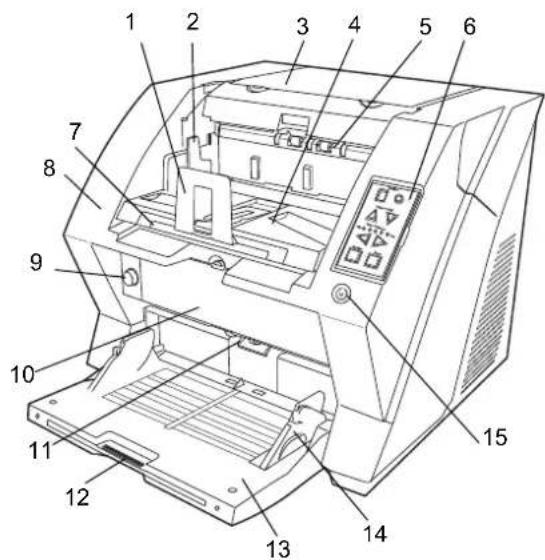
text_image
Technical diagram of a printer with numbered parts for identification| No. | Name Function | |
| 1 | Stopper Prevents ejected documents from | dropping off the scanner. |
| 2 | Stacker side guide | For aligning ejected documents to a certain width. |
| 3 | Top cover | Cover to access the consumables storage box and Post-Imprinter option (sold separately). |
| 4 | Stacker | Documents will be ejected into the Stacker after scanning. |
| 5 | Ejector For ejecting the documents after scanning. | |
| 6 | Operator panel For operating the scanner. | |
| 7 | Stacker extension | For scanning long documents. Pull the extension out according to the document's length. |
| 8 | ADF cover | Open the cover for cleaning the inner parts of the ADF or for replacing consumables. |
| 9 | ADF cover open button Button used to open the ADF | |
| 10 | Pre-imprinter cover | For the Pre imprinter option |
| 11 | ADF(Automatic document feeder) | The documents loaded onto the Hopper will be fed sheet by sheet for scanning. |
| 12 | Hopper extension | Pull the Hopper extension out for loading long documents. |
| 13 | Hopper | Documents to be scanned are loaded onto the Hopper. |
| 14 | Hopper side guides | Sheet Guides used to make sure that the paper to be scanned is fed into the scanner straight, avoiding skew. |
| 15 | Power button | Switch the scanner ON&OFF. |
■ Rear side

text_image
1 2 3 4 5 6 7 8| No. | Name Function | |
| 1 | Main power switch For switching the power supply ON/OFF. | |
| 2 | Power connector For connecting the AC cable. | |
| 3 | SCSI ID Switch Sets the scanner's SCSI ID. | |
| 4 | SCSI connector For connecting the SCSI cable. | |
| 5 | USB connector For connecting the USB cable. | |
| 6 | Extended memory slot | For connecting an extension memory (sold separately). For details see section 9.4. |
| 7 | VRS slot The VRS board has been installed in this slot. | |
| 8 | Extended slot A spare slot for a third party board | |
■ Removable Parts

text_image
Technical diagram of a printer with labeled parts including internal components and exploded views| No. | Name Description | |
| 1 | Document smoother | Attached when the stacker position is set to align the ejected document by the leading edge (see page 24), or when scanning documents with different widths (see page 67). |
| 2 | Pick Rollers | Rollers that pick the paper from the hopper into the ADF. This is a consumable item. |
| 3 | Separator rollers | Roller used to help separate the paper as the feeding begins. This is a consumable item. |
| 4 | Brake rollers | Roller used to help separate the paper as the feeding begins. This is a consumable item. |
| 5 Pad | Separation Pad used to help | separate the paper as the feeding begins. This is a consumable item. |
1.2 Operator panel
The operator panel is located on the right side of the scanner. The panel consists of a Function Number Display, buttons and LEDs.
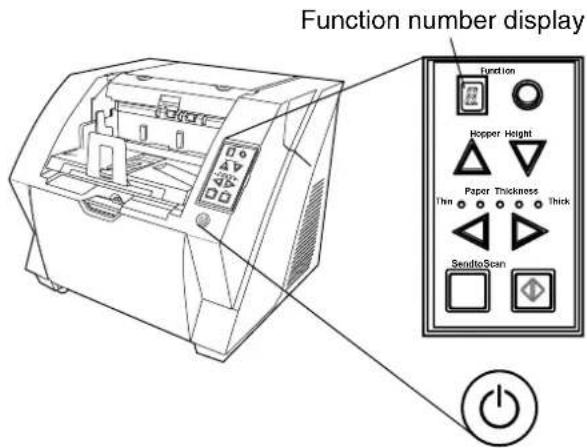
text_image
Function number display Function Hopper Height Thm Paper Thickness Thick SendtoScan| Name Function | |
Function Number display and Function button | Shows the status of the scanner.For details, refer to "Indications on the Function Number Display" (page 6). |
Hopper height adjustment button | Use these buttons to adjust the height of the Hopper to the Upper/Middle/Lower Positions.The hopper moves automatically to the right position after recieving a scanning command. However, this may cause a delay before the actual scanning starts. To avoid unnecessary waiting time, it is recommended to set the hopper height prior to scanning. For details, refer to “2.5 Setting the Hopper Height” on page 15. |
| Document thickness adjustment buttonPaper ThicknessThin ○○○○○○Thick[IMAGE] | Use this buttons, to set the paper thickness of the documents.(Normally no need to change from the default setting)For details, refer to “2.9 Setting the Paper Thickness” on page 29. |
[Send to] button Use this button to start linked application. | When this button is pressed at manual feed mode, the scanning stops immediately.(* About the settings, refer to section “2.14 Before Using [Scan] / [Send to] button” on page 60, or the TWAIN Driver help.) |
[Scan] button Use this button to start linked application. | When this button is pressed during scanning operation, the scanning is cancelled.(* About the settings, refer to section “2.14 Before Using [Scan] / [Send to] button” on page 60, or the TWAIN Driver help.) |
Power button Use this button to turn the power ON/OFF. | When the power is turned on, the button is illuminated in blue. |

Operator Panel Overlays sheets in French, German, Italian, Spanish and Chinese (Simplified) are provided with the scanner. To change the overlay, open the plastic cover of the Operator Panel.
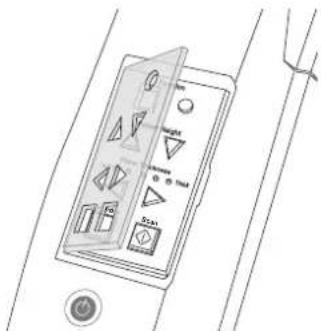
text_image
Diagram of a device control panel with labeled buttons and indicators, including symbols like 'OK', 'Cancel', and directional arrows.■ Indications on the Function Number Display
The following shows the indications on the Function Number Display.
| No. Descriptions | |
| (DYW4) | Lights only one time upon turning on the scanner. |
| (GEEC) | Indicates that the scanner has been turned ON and is being initialized. |
| (HRTC) | Indicates that initialization has been completed successfully.This status is called “Ready Status”. |
| (7XWW)or(C2196) | Indicates that a temporary error (that users can solve) has occurred during the initialization or scanning of documents.“J” or “U” and an error number (1, 2, 4, 6, 8, 0) are displayed alternately.To return the scanner to the ready status (“1”), press the “Scan” or “Send to” button while the error is indicated. |
| (SSAT) | Indicates that a device alarm (that users can not solve) has occurred during the initialization or scanning of documents.“E” and an alarm number (0, 2 to 9, and A, c, d, F, 10 to 12, 15 to 19, 1A, 1b) are indicated alternately.To return the scanner to the ready status (“1”), press the “Scan” or “Send to” button.If this alarm occurs, turn the power off and then on again. If the alarm is indicated after turning on the power again, contact your service engineer. |
2BASIC SCANNER OPERATIONS
This chapter describes basic scanner operations.
This chapter explains operations using the screens of Windows XP.
Depending on your OS, your PC's screen shots and the operation may be different from this manual. Be aware that when the TWAIN driver, or the ISIS driver is updated, the screens and operations noted in this chapter may be changed slightly. In this case, refer to the User's Guide provided with the update.
2.1 Turning the Scanner ON /OFF 8
2.2 Opening and Closing the Hopper 10
2.3 Opening and Closing ADF....12
2.4 Opening and Closing Top Cover....14
2.5 Setting the Hopper Height 15
2.6 Loading Documents on the Hopper....17
2.7 Setting up the Stacker....22
2.8 Using the Document smoother .....27
2.9 Setting the Paper Thickness ....29
2.10 Scanning Documents....30
2.11 Starting Scanning with Button ....35
2.12 Feeding Documents Manually....36
2.13 Configuring the Scan Settings....43
2.14 Before Using [Scan] / [Send to] button ....60
2.15 Resuming from Power Saving Mode ....62
2.1 Turning the Scanner ON /OFF
■ Turning the Power ON

text_image
ATTENTION When SCSI interface is used, turn on the scanner power first. Turn on the PC when the scanner displays "1" on the Function number display.- Press "I" side of the main power switch located on the back of the scanner.
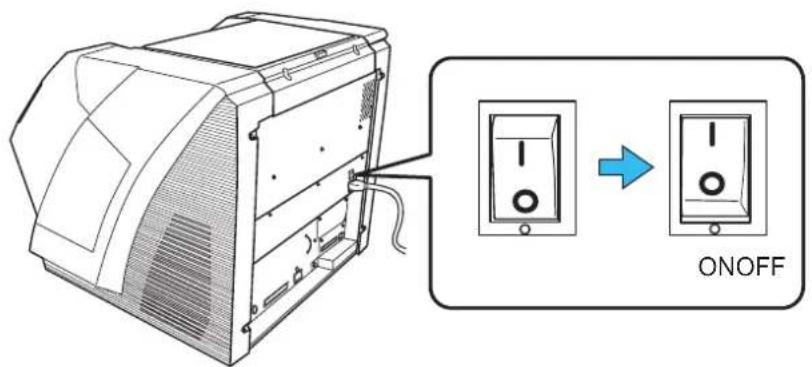
text_image
Diagram showing a computer tower connected to an ON/OFF switch, with a blue arrow indicating the transformation.- Open the Hopper.

- Refer to "2.2 Opening and Closing the Hopper" on page 10 to open the Hopper.
-
Be sure to open the Hopper before turning on the scanner by the Power button.
-
Press the Power button on the Operator panel.
The power turns on and the Power button lights up.
During initialization, the Function No. Display changes from "8" --> "P" to "1" in order. When "1" shows, it means the scanner is ready.
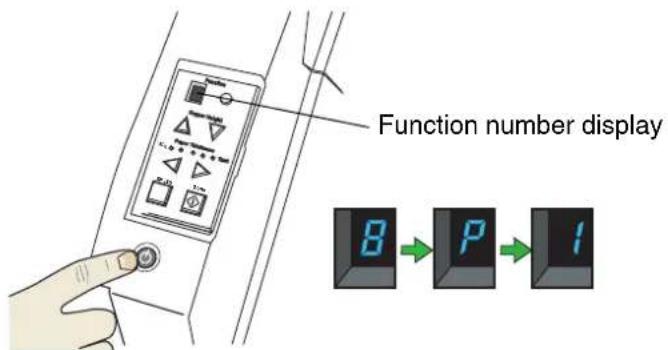
text_image
Function number display B → P → I■ Turning the Power OFF
Hold the Power button for at least two seconds.
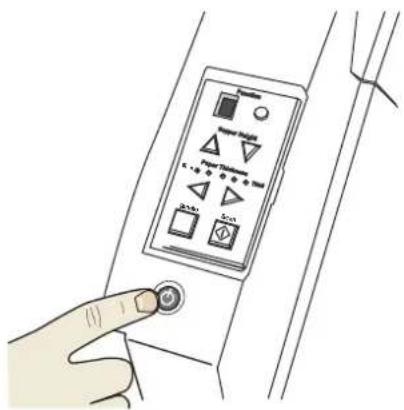
text_image
Hand holding a control panel with icons and labels, showing various function buttons and a button indicator.⇒The Power button light goes off and the scanner becomes disconnected.

If the scanner will not be used for an extended period, turn off the scanner's main power switch on the back and unplug the power cable.
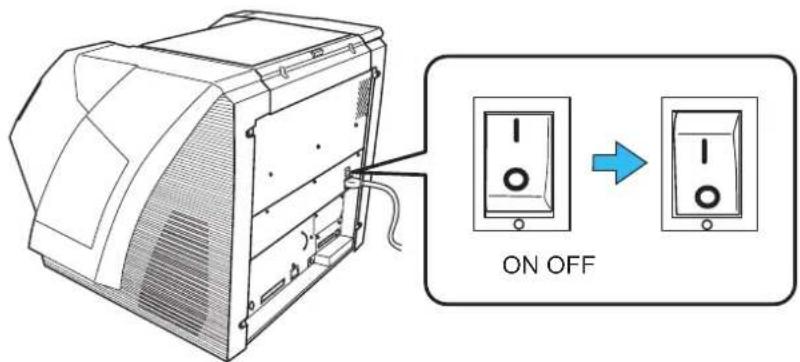
text_image
ON OFF2.2 Opening and Closing the Hopper
■ Opening the Hopper
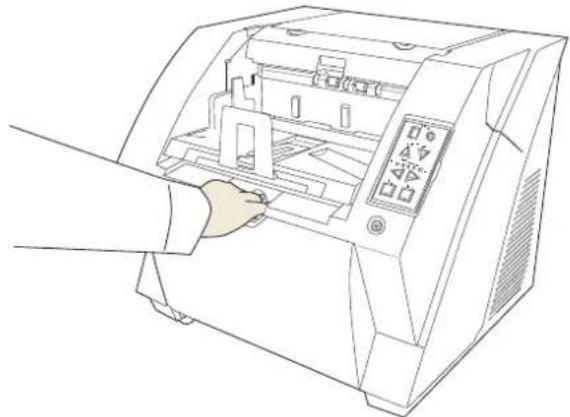
- Hold the centrer of the upper part of the Hopper.
natural_image
Line drawing of a hand operating a printer with control panel (no text or symbols)- Flip down the Hopper gently.

natural_image
Illustration of a printer being inserted into a paper airplane, showing the process from opening to closing (no text or symbols present)■ Closing the Hopper
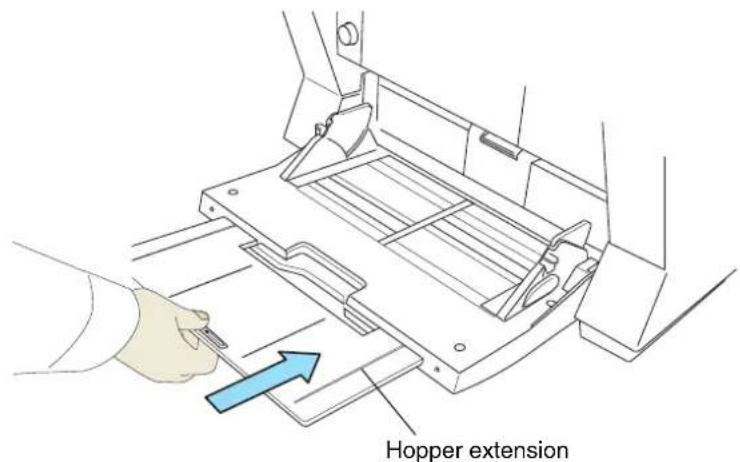
- Remove the document if there is any on the Hopper.
- Slide the extension in the Hopper.
text_image
Hopper extension- Restore the original position of the hopper if the height of Hopper is adjusted.
Lower the hopper to the bottom by pressing the button. (Refer to "2.5 Setting the Hopper Height" on page 15)
- Close the Hopper.

natural_image
Diagram showing a hand inserting a device into an open base, with a blue arrow indicating the process (no text or symbols present)
text_image
ATTENTION Push the hopper until it's securely locked in place.2.3 Opening and Closing ADF
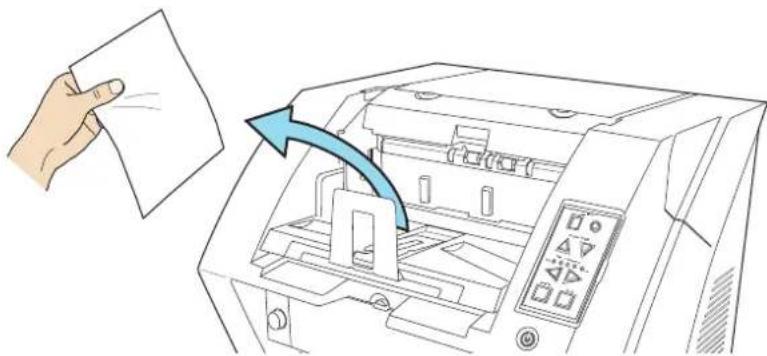
■ Opening ADF
- Remove the document if there is any on the stacker.
natural_image
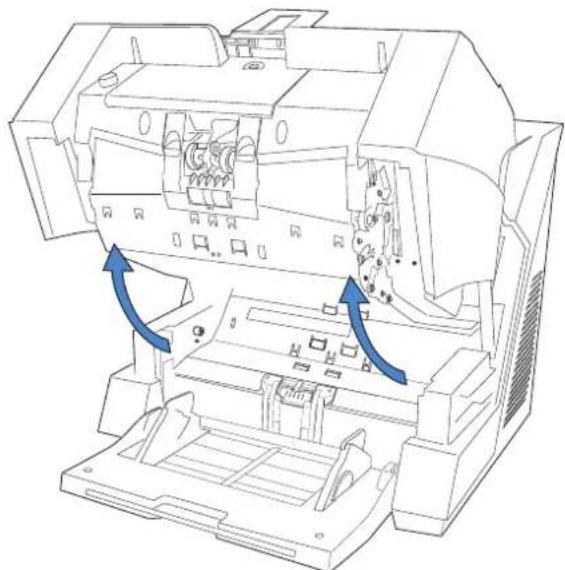
Illustration of a hand holding a sheet of paper next to an open printer with a blue arrow indicating the process (no text or symbols present)- Press the ADF cover open button.

natural_image
Line drawing of a hand inserting a button into a printer drawer (no text or symbols)⇒ The cover is slowly opened.
natural_image
Technical line drawing of a mechanical device with internal components and blue arrows indicating motion or assembly (no text or symbols)■ Closing ADF
- Hold the ADF cover with both hands and press it down slowly.
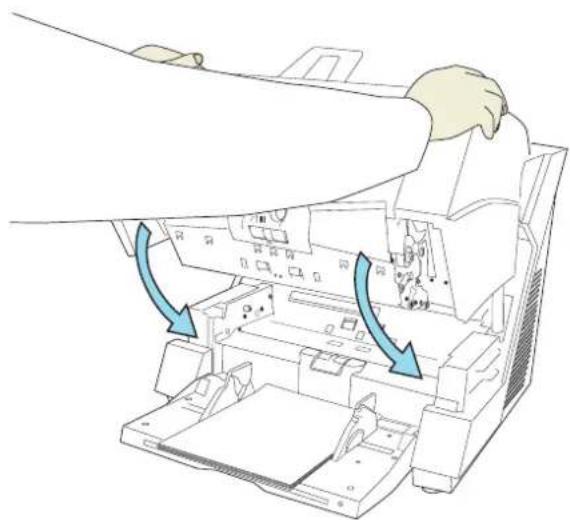
natural_image
Illustration of a printer's internal structure with blue arrows indicating process flow (no text or symbols)Press the ADF cover until it is fixed.

text_image
ATTENTION • When closing the ADF, make sure that nothing is left inside the ADF. • Be careful not to have your fingers caught.2.4 Opening and Closing Top Cover
Under the Top cover, there are a storage tray for storing the consumables and cleaning goods and a space for installing the Post-Imprinter. When you use the tray or access the Post-Imprinter, open the top cover as follows.
■ Opening the Top Cover
Press the tabs of the Top cover and open the top cover.
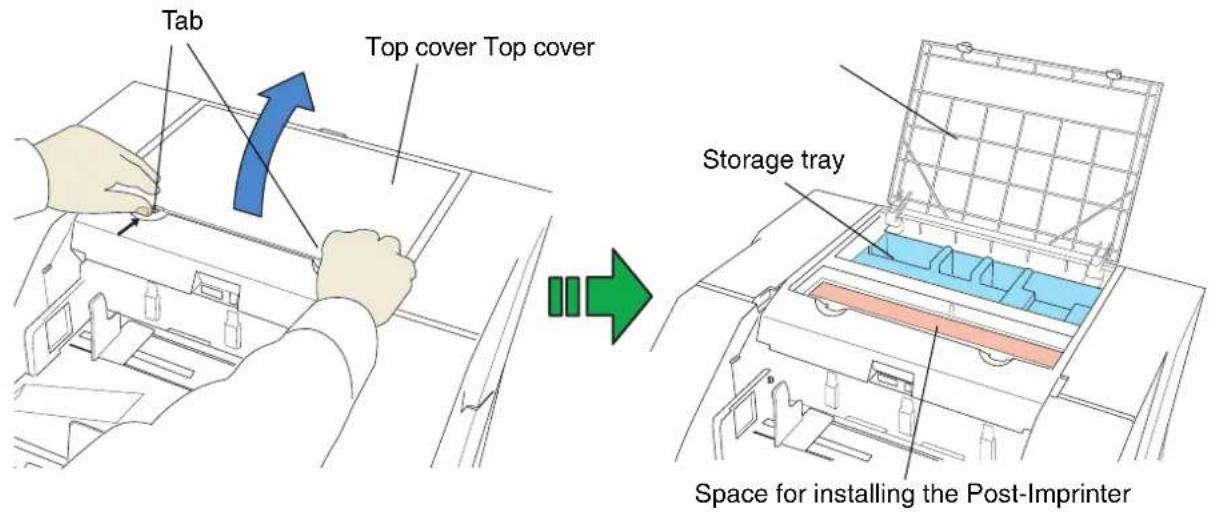
text_image
Tab Top cover Top cover Storage tray Space for installing the Post-Imprinter■ Closing the Top cover
Close the Top cover and press lightly until it is fixed with the tab.

natural_image
Illustration of a hand pressing down on a printer's front panel with a blue arrow indicating the process (no text or symbols present)2.5 Setting the Hopper Height
When there is no alarm (the function number display is showing “1”), the Hopper height can be adjusted. When the scanning load is not very heavy, setting the hopper higher will shorten the time it moves to the feeding position.

text_image
ATTENTION Do not touch the hopper when it is being adjusted. Your finger(s) may be pinched. Do not load anything onto the hopper when it is moving. If something gets into the mechanism, the scanner may be damaged. Do not place anything under the hopper. The hopper may collide with it and become damaged. Do not press the [Hopper Height] button (△▽) when the hopper is closed. The hopper may be damaged.Adjustment is not possible when:
•The scanner is scanning
•The hopper is closed.
- When using Software Operation Panel (see page 173).
Three hopper heights are available and the corresponding capacities are as follows.
High: Up to 100* sheets
Middle: Up to 300* sheets
Low: Up to 500* sheets
*: Estimated using paper of 80g/m ^2 (20lb).

text_image
High Middle Low
Depending on the thickness of the document, the loading capacity differs. Refer to "7.3 Maximum Document Loading Capacity" on page 162.
The adjustment is done by using the Operator Panel on the scanner.
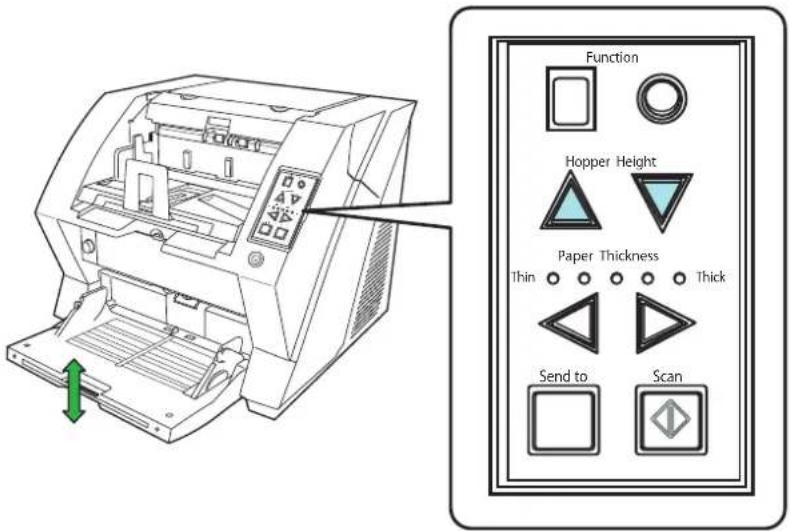
text_image
Function Hopper Height Paper Thickness Thin Thick Send to ScanWhen you press the △ button, the hopper is raised one step higher.(Low → Middle → High) When pressing the ▽ button, the hopper is lowered one step lower.(High → Middle → Low)

Immediately after the scanner is turned on, the Hopper is initially set to Low.
2.6 Loading Documents on the Hopper
■ Preparing the Document
- Align both edges of the documents.

For how to scan the document with different widths, refer to "3.3 Scanning Documents with different widths" on page 67.
- Fan the documents.
1) Take a stack of documents about 15mm to 20mm thick (1/2 to 3/4 inch).
2) Hold both ends and bend the documents into an arch.
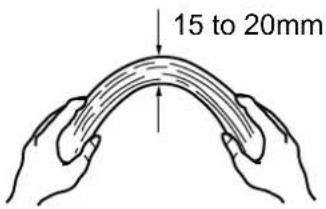
text_image
15 to 20mm3) Firmly holding the document with both hands, bend back the document as follows so that the bent section rises up in the middle of the document as follows.

natural_image
Illustration of two hands holding a smooth, curved object with layered lines (no text or symbols)4) Repeat steps 1) to 3) for a few times.
5) Rotate the document 90 degrees, and fan again.
- Align the leading edges of the documents.
■ Setting the Document
There are 2 ways to set documents on the hopper.
(1) Set the document at the center of the hopper (mainly for document of equal size pages).
(2) Set the document by either side of the hopper (mainly for document of different size pages, or you want to align the document by the side instead of the center line).
(1) Setting the document at the center of the hopper
1. Load the document on the hopper.
Place the document face-up on the hopper.
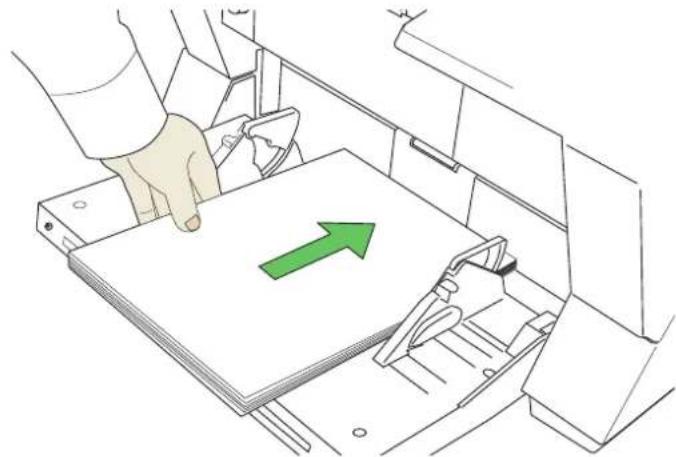
natural_image
Illustration of a hand pressing down on a document into a printer drawer with a green arrow indicating direction (no text or symbols present)2. Adjust the Side guides to the document width.
Pressing the lock lever, slide the Side guides so that they contact the document sides.
If there is space between the document edges and the guides, the scanned images may be skewed.
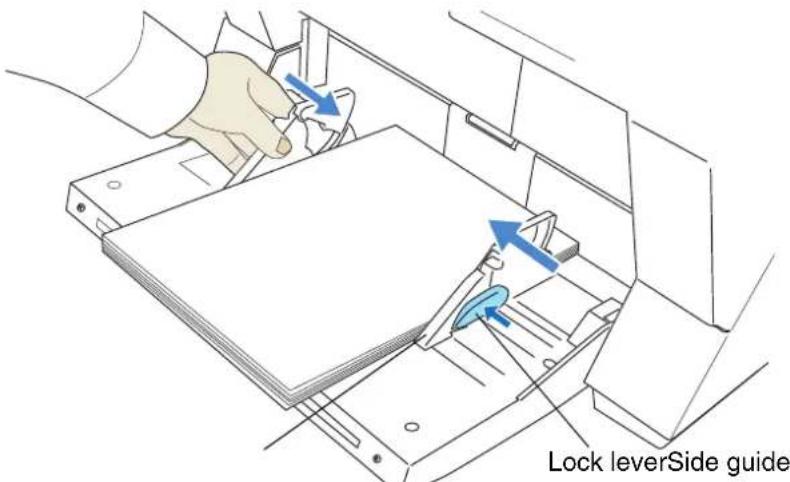
text_image
Lock leverSide guide
- Make sure that the document stack does not exceed the maximum height mark on the inner side of the Side guides.
- For long documents, use the hopper extension.
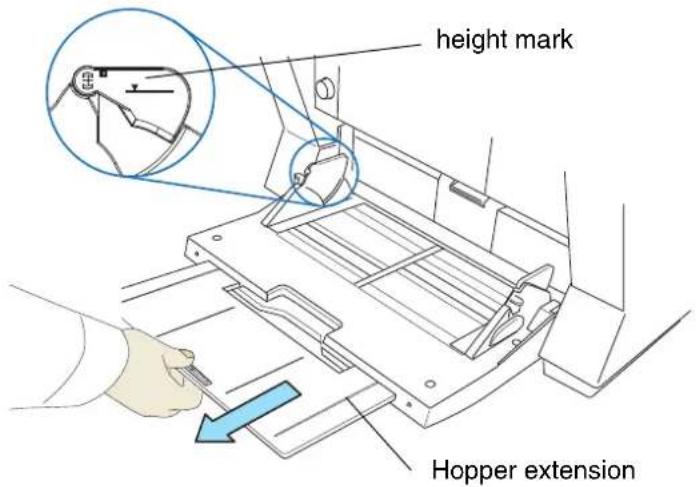
text_image
height mark Hopper extension3. Start the scanner application and scan the document.
For the details on how to scan using ScandAll PRO, refer to "2.10 Scanning Documents" on page 30.
(2)Setting the document by either Side Guide of the hopper.
For scanning documents with pages of different sizes, see section "7.8 Scanning Mixed Documents" on page 168.
1. Move the hopper side guides to their outermost positions.

text_image
Side Guide2. Lock the side guide not to be used.
Flip up the lock switch on the front side of the side guide to lock it.

text_image
Locked! Lock Switch3. Move the other side guide to the desired position while pressing down the lock lever.
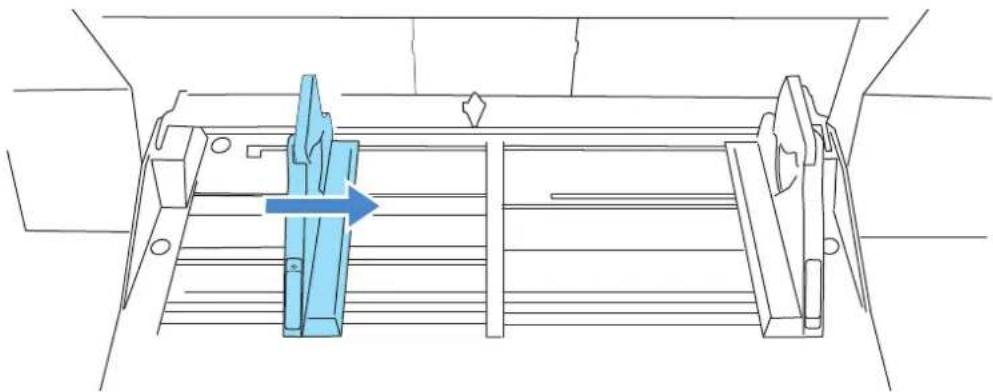
natural_image
Technical line drawing of a mechanical assembly with a blue arrow indicating direction (no text or symbols)4. Set the document against the side guide.
Set the documents with the front side (scanning side) facing up.
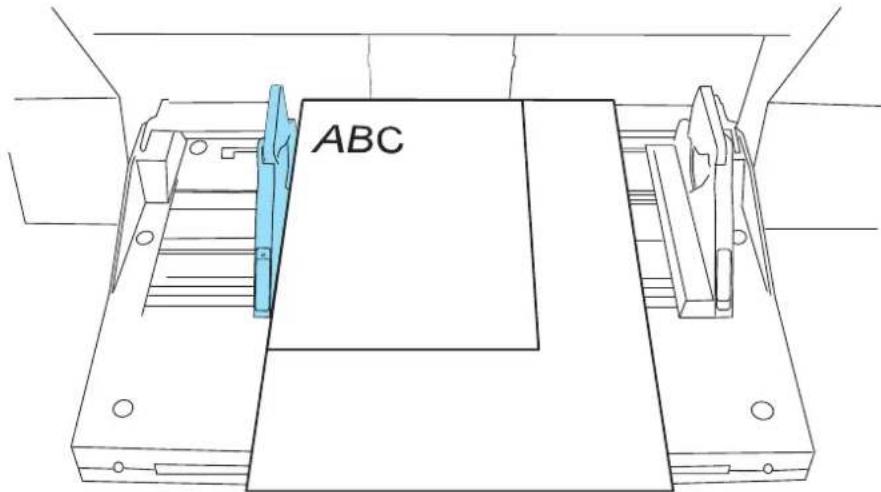
text_image
ABC

Make sure that all the pages fall under the pick roller. (Otherwise they will not be picked)
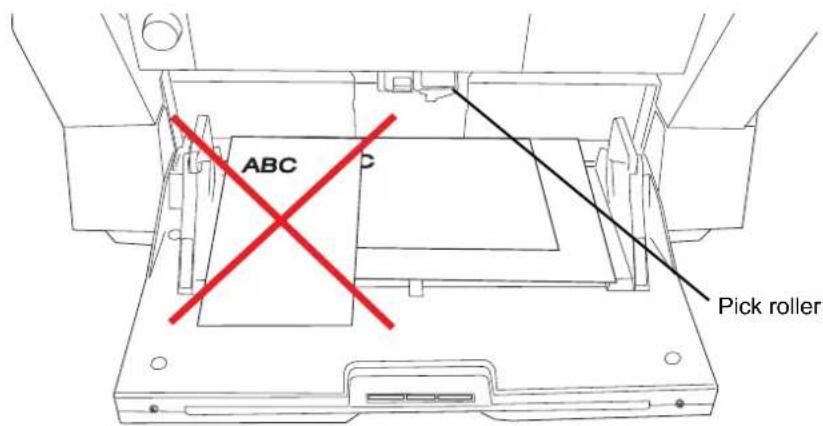
text_image
ABC C Pick roller5. Start the scanner application and scan the document.
For the details on how to scan using ScandAll PRO, refer to “2.10 Scanning Documents” on page 30.

If you want to unlock side guides, follow the steps below:
- Release the locked side guide by flipping down the switch.
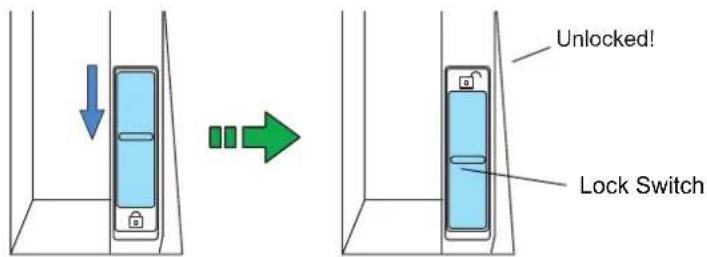
text_image
Unlocked! Lock Switch- Move both side guides toward the center while pressing the lock lever.
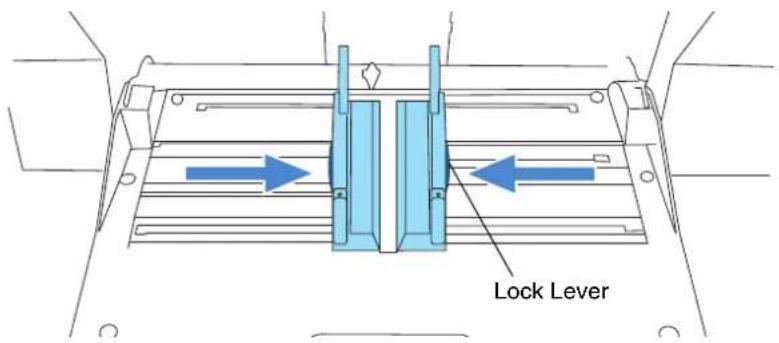
text_image
Lock Lever- Release the lever.
⇒Now the two sides will move symmetrically as before.
2.7 Setting up the Stacker
The document set on the hopper, once scanned, will be ejected onto the stacker.
You can adjust the inclination of Stacker table to align the leading edge of document or not. Also you can fix the height of Stacker table for thin paper stacking.
Set up the Stacker by adjusting the Stacker extension, Stopper, Side Guides and Stacker's inclination.
■ Stacking the document
- Pull out the stacker extension in accordance with document length.

text_image
Stacker extension Stopper
- Do not use the stopper to pull out the stacker extension. It may be damaged.
- Be sure to extend the stopper longer than the document.

For short documents, use the small stopper.

text_image
Small Stopper
When scanning long pages (longer than A3), the document may be longer than the stacker extension even if it's pulled to the outermost position. In case like this, place a thick paper about the size of A4 on the stopper and make a slope as depicted below.

text_image
Thick Paper Stopper Stacker Extension(The scanner can scan document up to 3,048mm (120inch) long. Refer to "7.1 Document Size" on page 158.)
2. Adjust the stacker side guides to the document width.

text_image
Stacker side guideATTENTION

Be sure to set the stacker side guides a little wider than the document width.
■ Changing Stacker inclination/motion
The location of the stacker can be switched when ejecting documents by fixing the stacker height in the appropriate position, or by using either the horizontal setting for bottom edge alignment or the tilting forward setting for leading edge alignment. The factory default is set to the horizontal setting. When using the tilting forward setting for leading edge alignment, follow the procedure below to switch the position of the stacker.

text_image
ABC ABC ABC Bottom edge alignment by horizontal stacker setting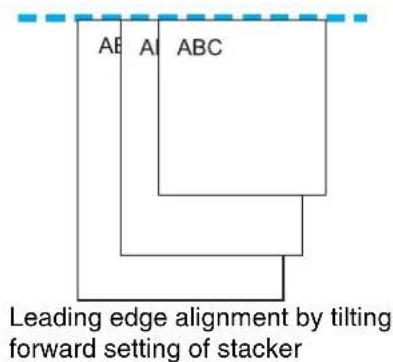
text_image
AB AI ABC Leading edge alignment by tilting forward setting of stacker- Slide the stacker out towards you.
- Push down the part of the stacker which is closer to you.
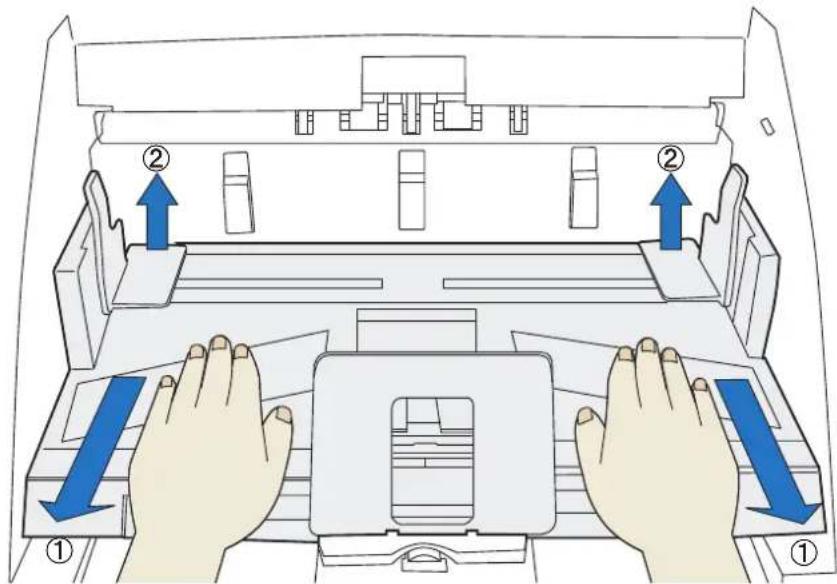
text_image
Diagram illustrating a printer's internal structure with labeled parts and directional arrows indicating movement or force.⇒ The stacker inclines towards you.
3. Move your hands away from the stacker slowly.
⇒The stacker will be fixed in a position tilting forward.

- When set to "Bottom edge" position, the stacker does not move up or down and becomes immovable even during scanning operation.
- In this position, the stacker's maximum load will be 200 sheets.
- If the pages do not stack well, use the Document Smoother. ("2.8 Using the Document smoother" on page 27)

When you align the documents from the leading edge (by tilting forward setting of stacker), the documents must meet the following conditions:
$$ (L e n g t h) \div (W i d t h) < 1. 5 $$
1. Slide the stacker out towards you.
2. Push down the inner part of the stacker.

text_image
Diagram illustrating a printer press mechanism with labeled components and directional arrows indicating movement or force.
⇒ The stacker goes back into its horizontal position.
3. Move your hands away from the stacker slowly.
⇒The stacker will be fixed in a horizontal position.

\- When set to the "bottom edge alignment" position, the stacker will automatically adjust its height according to its load.
\- When set to the "Bottom edge alignment" position, the stacker's maximum load will be 500 sheets.

\- On both sides walls of the stacker, photo sensors are installed to detect document height on the stacker. Make sure these sensors are not blocked.

text_image
Photo sensors
\- The stacker may move up or down when the scanner is in the ready status up or when scanning starts. Do not touch the stacker or place anything on it at those times.
Thin paper sometimes curles when it is ejected to the stacker. This method may be effective to improve the stacking capability by fixing the stacker hight in the appropriate position.
1. Close the scanner driver dialog box if it is displayed on the PC monitor.
2. Press both Hopper Height buttons on operator panel ( and ) for more than 2 seconds.
⇒Every time this is done, the stacker table moves between the lowest position and the position little a bit above. Set the stacker table at the position little a bit above the lowest position.
2.8 Using the Document smoother
The ejected document may not stack correctly when the stacker's angle is adjusted to the tilting forward setting (see page 24), or when scanning document of different size pages (see page 67). If that is the case, install the Document Smoother as described below.
The Document Smoother will suppress the splattering of ejected pages so they will stack correctly.
1. Prepare the Document Smoother.

text_image
Tab
2. Insert one of the tabs into the slit in the scanner.

text_image
Document Smoother
3. While bending the center part, insert the other tab into the scanner slit.
⇒ It will look like this when installed.

text_image
Document Smoother
2.9 Setting the Paper Thickness
When multifeeds or paper jam occurs frequently, adjust the paper thickness by using the Paper Thickness button on the operator's panel. (Under normal circumstances, use the default setting.)
Set the paper thickness on the Operator Panel.

text_image
Function
Hopper Height
Paper Thickness
Thin
Thick
Send to
Scan
When pressing the ▷ button, the scanner is set for one level thicker document.
When pressing the button, the scanner is set for one level thinner document.
The following five (5) steps of document thickness are selectable.
Thin Thick
●○○○○:
Thin
↑ Prevent picking failure and paper jam
○●○○○: Medium thin
○○●○○:
Medium (Documents with thickness of 52 through 127g / m^2 )
○○○●○: Medium thick
○○○○●:
Thick
↓ Prevent multifeeding

- When multifeeds occur frequently, set the thickness level thicker.
- When picking failure or paper jams frequently occur, set the thickness level thinner.
- Multifeeds, picking failures and paper jams can also occur due to worn-out of the consumables and dirt of the rollers. When such problems are not cleared, change the consumables or clean inside of the scanner.
2.10 Scanning Documents
This section explains about the basic flow of scanning operations.
In order to use the scanner to scan documents, you need a scanner driver and an application that supports the driver.
The scanner is bundled with the TWAIN-compliant driver called "TWAIN Driver", the ISIS-compliant driver called "ISIS Driver", the image processing software "Kofax VRS", and the "ScandAllPRO (TWAIN driver/ISIS driver)" application which supports the "TWAIN Driver", the "ISIS Driver", and "Kofax VRS".

\- For details about the scanner drivers, refer to the following:
\- "2.13 Configuring the Scan Settings" on page 43
\- TWAIN Driver Help
\- ISIS Driver Help
\- For details about Kofax VRS, refer to the following:
\- Virtual ReScan (VRS) User Guide
\- Read Before Using VRS
\- For details about ScandAll PRO, refer to the following:
\- How to Use ScandAll PRO
\- ScandAll PRO Help
1. Load the documents on the hopper.
Refer to the section “2.6 Loading Documents on the Hopper” on page 17.
2. Adjust the stacker table to the document size.

\- When loading long documents on the hopper, extend the stacker extension.
\- When loading short documents on the hopper, adjust the stacker length with the small stopper.
3. Start up the application to use for scanning.
ScandAll PRO will be used here as an example to explain the procedure.

text_image
ScandAll PRO - Untitled
File Scan Edit View Page Mark Zoom Tool Help
When ScandAll PRO is launched
For information on how to launch ScandAll PRO, refer to "How to Use ScandAll PRO".
4. Select a scanner driver to use for scanning.

text_image
Setup
Print Scan View Hot Key Event Password
Device Driver
TWAIN
Enable automatic search of scanners
ISIS /VRS
Report Scan Result
Do not output
File Name: C:\Documents and Settings\bs2\My Documents\ Browse...
Temporary Directory
C:\Documents and Settings\bs2\Local Settings\Temp Browse...
5. Select a scanner.
For TWAIN Driver

text_image
ScandAll PRO - Untitled
File Scan Edit View Page Mark Zoom Tool Help
Scan
Scan Settings... Ctrl+N
Batch Scan
Batch Scan Settings... Ctrl+B
Save Batch Scan
Restore Batch Scan...
Delete Saved Data
Scanner Setting
Select Scanner...
Cancel(P)
Select Scanner
Device:
FUJITSU Fi-5950d
Select
Cancel
Select Scanner
Device:
Fujitsu fi-5950
Select
Cancel
Settings...
For ISIS Driver
6. Launch a scanner driver from the application.

text_image
ScandAll PRO - Untitled
File Scan Edit View Page Mark Zoom
Scan
Scan Settings... Ctrl+N
Batch Scan
Batch Scan Settings... Ctrl+B
Save Batch Scan
Restore Batch Scan...
Delete Saved Data
Scanner Setting...
Select Scanner...
Cancel(P)
For TWAIN Driver

text_image
TWAIN Driver (32)
Image Scanner: F:\69504
SIPO 512MB
Browse...
Setting Files:
00 Current Setting
Config...
Resolution
Scan Type:
300 x 300
ADF (Front Side)
Paper Size:
Presetise
Letter (8.5x4.1m)
Enable Software IPC
Enable Multi Image
Front
Immacron Settings
Image Mode:
Black & White
Black/White:
Static Threshold
Contrast
128
128
128
128
Scan
Preview
Close
Reset
Options...
Help
About...
Select the resolution for scanning
Data Size about 1.1MB
For ISIS Driver

text_image
Properties for Fujitsu 6.50 on STI - 0000
Compression
Online
About
Main
Layout
Image Processing
Paper Handling
Gamma
Color Dropout
Image Mode
Camera
Front Image #1
Front Image #2
Back Image #1
Back Image #2
Dots per inch
200
Other
None
Cropping
Fixed
Mode
Image Processing
Black and White
16-level Gray
256 level Gray
24-bit Color
Auto Detect 16-level Gray
Auto Detect 256 level Gray
Auto Detect 24-bit Color
Brightness
Automatic
Manual
Auto
Contact
Automatic
Manual
1:30
Setup F...
Default
OK
Cancel
7. In the scanner driver's setup dialog box, configure the scan settings.
8. Perform a scan.
For information on how to scan using ScandAll PRO, refer to "How to Use ScandAll PRO".
9. Save the scanned images in a file.

Procedures and operations slightly vary depending on the application used. For details about how to scan using ScandAll PRO, refer to "How to Use ScandAll PRO".
To perform scanning with other applications, refer to the manual bundled with the application.
2.11 Starting Scanning with Button
Pressing the [Scan] / [Send to] button can start an application previously linked.
However, you need to set the application for [Scan] and [Send to] button referring to "2.14 Before Using [Scan] / [Send to] button" on page 60.
1. Load the documents on the hopper.
Refer to the section "2.6 Loading Documents on the Hopper" on page 17.
2. Adjust the stacker table to the document size.
Refer to "2.7 Setting up the Stacker" on page 22.
3. Press the [Scan] or [Send to] button.
When using the [Scan] button, press the button.
When using the [Send to] button, you can set from [Send to 1 to 9] of nine (9) kinds of settings.
Each pressing the [Function] button increases the number of Function Number display as 1 2 3 .... Set the number that links the application software you want to use for scanning and press the [Send to] button.

text_image
Function Number display [Function] button
Function
B
Hopper Height
Paper Thickness
Thin
Thick
Sendto
Scan
⇒ The application previously set for the number is started.

text_image
ATTENTION
If the [Send to] button is pressed when "C" is displayed in the Function Number Display, the Software Operation Panel will start (see page 173).
2.12 Feeding Documents Manually
Besides the “Automatic Feed Mode” which automatically scans the document set on the hopper, the scanner can also scan documents in the “Manual Feed Mode”.
In addition, the “Manual Feed Mode” is divided into 2 types:
<1> Single Feed: Only one sheet is manually fed and scanned. This is suitable for
- thick paper, envelopes and folded paper and other types of documents that are difficult to scan using Automatic Feed Mode. (In case of folded paper, make the folding line as the leading edge).
•reducing the load on the hopper.
- making sure a certain page is scanned.
<2> Continuous Feed: Multiple sheets of document are manually fed one at a time and continuously scanned. This is suitable for
- manual feed, even if multiple sheets are mistakenly fed, the scanner will scan one at a time.
- selectively scanning a stack of document.
- making sure certain pages are scanned.
The procedure is described below.
■ Single Feed
1. Lift up the Pick roller unit.
Lift up the small plate on the left side using your finger.

text_image
Pick Roller Unit
Hopper
⇒ The Pick roller unit will click into place.
⇒The hopper will move up to the manual feed position.
ATTENTION

- If there is any document loaded on the Hopper, remove it before adjusting.
- Be careful not to get your fingers or anything caught in the mechanism when the hopper table moves up.
2. Place documents face-up at the center of the hopper table.
At this moment, do not stick the top edge of the document against the inner side of the hopper, instead set them a bit apart.
3. Start the application and display the scanner driver screen.
Set the scanning condition.
For the information about how to run the scanner driver, refer to “2.10 Scanning Documents” on page 30.
4. Start scanning.
When using the TWAIN driver, click the [Scan] button on the following screen.

text_image
TWAIN Driver (32)
Image Scanner: Fi-5950d
SIPC 512MB Browse...
Setting Files: 00 : Current Setting
Config...
Resolution
Scan Type:
300 x 300
ADF (Front Side)
300 dpi
Paper Size:
Predefine
Letter (85x11n)
Enable Software IPC
Enable Multi Image
Front
Individual Setting
Image Mode:
Black & White
Brightness: 128
Black/White:
Threshold: 128
Stotic Threshold
Haltone: 128
Contrast: 128
Advance...
Scanning Area[ inch ]
Left 0.000 Top: 0.000
Width: 8.500 Length: 11.000
Scan Preview
Close Reset
Option...
Help About...
Select the resolution for scanning.
Data Size about 1.1MB
5. Insert the document until the top edge touches the rollers on the inside.
When more than one sheet is loaded, only the one on the top of the stack will be fed.

text_image
Roller
⇒The document is picked up and ejected onto the stacker after scanning.
6. Repeat the procedure 5 until all the documents are scanned.
After a certain time period of inactivity or at pressing of [Send to] button, the scanner will recognize it as “no document” and stop scanning.

For setting the timeout for feeding the document manually, refer to section "8.25 Timeout for Manual Feeding" on page 217.
7. To deactivate "Manual Feed Mode" (Single Feed), return the Pick roller unit to its original position.
Flip down the small plate on the left using your finger.

text_image
Pick Roller Unit
■ Continuous Feed
1. Open the hopper if it is closed.
Refer to section "2.2 Opening and Closing the Hopper" on page 10.
2. Press down the Hopper Height Button (△) on the Operator Panel for more than 3 seconds.

text_image
Function
Hopper Height
Paper Thickness
Thin
Thick
Sendto
Scan
⇒ Hopper will move up to the manual feed position.

text_image
ATTENTION
• Be careful not to get your fingers or anything caught in the mechanism when the hopper table moves up.
• To deactivate the "Manual Feed Mode" (Continuous Feed) in the middle of an operation, press down the Hopper Height Button (∇) on the Operator Panel for more than 3 seconds.
3. Place documents face-up at the center of the hopper table.
At this moment, do not stick the top edge of the document against the inner side of the hopper, instead set them a bit apart.
4. Start the application and display the scanner driver screen.
Set the scanning condition.
For the information about how to run the scanner driver, refer to “2.10 Scanning Documents” on page 30.
5. Start scanning.
When using the TWAIN driver, click the [Scan] button on the following screen.

text_image
TWAIN Driver (32)
Image Scanner: Fi-5950d
SIPC 512MB Browse...
Setting Files: 00 : Current Setting
Config...
Resolution
300 x 300
Scan Type:
ADF (Front Side)
300 dpi
Paper Size:
Letter (8.5x11n)
Predefine
Enable Software IPC
Enable Multi Image
Front
Individual Setting
Image Mode:
Black & White
Brightness: 128
Black/White: Threshold: 128
Static Threshold
Haltone: Contrast: 128
Width: 8.500 Length: 11.000
Advance...
Scanning Area[ inch ]
Left 0.000 Top: 0.000
Width: 8.500 Length: 11.000
Scan Preview
Close Reset
Option...
Help About...
Select the resolution for scanning.
Data Size about 1.1MB
6. Load the documents towards the back of the hopper.
When more than one sheet is loaded, only the one on the top of the stack will be fed.

natural_image
Line drawing of a printer's internal structure with a hand pressing a paper (no text or symbols)
⇒The document is picked up and ejected onto the stacker after scanning.

In "Manual Feed Mode" (Continuous Feed), even if multiple sheets are mistakenly fed, the scanner will scan only one sheet at a time.
7. Repeat the procedure 6 until all the documents are scanned.
⇒After a certain time period of inactivity or at pressing of [send to] button, the scanner will recognize it as “no document” and stop scanning.

For setting the timeout for feeding the document manually, refer to section "8.25 Timeout for Manual Feeding" on page 217.
8. To deactivate the "Manual Feed Mode" (Continuous Feed), press down the Hopper Height Button (▽) on the Operator Panel for more than 3 seconds.
2.13 Configuring the Scan Settings
■ TWAIN Driver
The TWAIN driver is a software driver that conforms to the TWAIN standard. This driver can be used with an application that supports TWAIN to perform scanning.
Normally, the scanner driver is launched via an application, and then the scan settings are configured in the setup dialog box of the driver (some applications may not display the setup dialog box).

Ways to launch the scanner driver differ depending on the application. For more details, refer to the manual or the Help files of the application.

text_image
TWAIN Driver (32)
Image Scanner: F-5950d
SIPC 512MB Browse...
Setting Files: 00 : Current Setting
Config...
Resolution
300 x 300
Scan Type:
ADF (Front Side)
Paper Size:
300 dpi
Letter (8.5x11n)
Predefige
Enable Software IPC
Enable Multi Image
Front
Indvlogar Setting
Image Mode
Black & White
Brightness: 128
Black/White
Static Threshold
Threshold: 128
Haltone: 128
Contrast: 128
Advance...
Scan Preview
Close Reset
Select the resolution for scanning.
Data Size about: 1.1MB
Main screen
You can perform settings for the TWAIN Driver on this window.
The following describes the main setting items.
\- For details on each functions, refer to "TWAIN Driver Help" (appears by pressing [Help] or [F1] button).
Resolution
Specifies the resolution of scanning.
It can be specified by selecting a default value from the list or customizing (specifies any resolution in 1 dpi unit, within a range of 50 to 600 dpi).
By marking the [Predefine] checkbox, you can select one from three predefined settings as [Normal], [Better], [Best] to scan documents instead of setting details by yourself.
Otherwise, you can change the details of the predefined settings on the [Resolution Setting] window, which appears when you click on the [...] button.
Scan Type
Specifies the feeding method, the side(s) to be scanned (Front Side, Back Side, Duplex) or details of Long page (Front Side, Duplex) details of Long page (Front Side, Duplex) \*.
\* Refers to documents larger than Double Letter (11 × 17 in.)/A3.
Paper Size
Select the size of documents to be scanned from this list.
Windows for customizing the paper size will appear when you click on [...] besides the list. You can save any document size as a customized setting (up to three) or for changing the order of the paper size in the list.
Image Mode
Specifies the image type for the scanned documents.
Black & White Documents are scanned in binary (black and white).
Halftone Documents are scanned with halftone processing in black and white.
Gray scale Documents are scanned in gradations from black to white. For this mode you can select 8 bit (256 gradations) or 4 bit (16 gradations).
Color Documents are scanned in color. For this mode, you can select 24 bit Color, 256 bit Color or 8bit Color.
SEE
(Selectable Edge Enhancement)
Documents with line drawings and photographs are scanned using halftone processing, and only the line drawings and text are emphasized.
This mode is most suitable for emphasizing only text of documents containing both photographs and text.
[Scan] button
Starts scanning documents with the current settings.
[Preview] button
Documents are scanned preliminarily before the actual scanning.
You can confirm the image of the documents in the preview window.
[Close] button
Saves the current settings and closes this window.
[Reset] button
Used to undo changes of settings.
[Help] button
Opens the “TWAIN Driver Help” window. The window also opens by pushing the [F1] key.
[About...] button
Opens an information window about the TWAIN Driver's version.
[Option...] button
You can set up the details of optional functions on the window below.

text_image
Option
Rotation | Job/Cache | Imprinter(Endorser) | Generic | Startup | Filter | Compt |
Flip Side Rotation
Book Fanfold
Rotation
Rotation Degree: 0.0 degree Hole punch removal:
Do not remove
Automatic Size and Skew detection :
Disable
Priority Speed Accuracy Split Image(V)
0 2 3 Rectangular document
1 Document without tab
2 Document with tab
Overscan
OK
Cancel
Help
[Rotation] tab
Select this tab when setting items such as flip side rotation, image rotation, hole punch removal, skew correction, size and length detection, black background, and overscan.
[Job/Cache] tab
Select this tab when setting cache mode, job controls, multifeed detection, blank page skipping, etc.
[Imprinter (Endorser)] tab
Select this tab when setting printing configuration for imprinter (sold separately). Only shows when an imprinter is installed.
[Generic] tab
Select this tab to change the unit displayed on the Setting Window for the TWAIN Driver. (Millimeters, Inches, and Pixels are available)
[Startup] tab
Select this tab for setting the Scanner Operation Panel.
[Filter] tab
Select this tab for setting the image processing filter(s).
Page Edge Filler: Fills up the margins of the scanned documents with a selected color.
Digital Endoser: A character string, such as the alphabet and numbers, can be added in the scanned document.
[Compression] tab
Select this tab for setting the compression rate of JPEG Transfer.
[Advance...] button
Click this button for settings of the advanced image processing.
You can set Edge Extract, Gamma Pattern, White Level Follower, Dropout Color, Reverse, etc.
[Config...] button
Click this button for configuring the Setting Files.
You can save the changed settings as a Setting File. From next scanning, the settings are quickly changed by using these Setting Files.
For details of each function, refer to the "TWAIN Driver Help".
ISIS Driver
The ISIS driver is a software driver which conforms to the ISIS standard. This driver can be used with an application that supports ISIS to perform scanning.
Normally, the scanner driver is launched via an application, and then the scan settings are configured in the setup dialog box of the driver (some applications may not display the setup dialog box).

Ways to launch the scanner driver differ depending on the application. For more details, refer to the manual or the Help files of the application.

text_image
Properties for Fujitsu fi:5950 on STI - 0000
Compression
Imprinter
About
Main
Layout
Image Processing
Paper Handling
Gamma
Color Dropout
Image Mode
Camera:
✓ Front Image #1
☐ Front Image #2
☐ Back Image #1
☐ Back Image #2
Mode:
IFC
Black and White
16-level Grayscale
256-level Grayscale
24-bit Color
Auto Detect 16-level Grayscale
Auto Detect 256-level Grayscale
Auto Detect 24-bit Color
Setup IPC...
Dots per inch:
200
Dither:
None
Crooping:
Fixed
Priority:
Speed
Accuracy
0
2
Brightness
120
1
255
Contract
50
1
100
OK
Cancel
Default
Help
Settings for the ISIS driver are configured in the above dialog box.
For more details, refer to the ISIS Driver Help.
[Main] tab

text_image
Properties for Fujitsu fi-5950 on STI - 0000
Main
Compression
Imprinter
About
Layout
Image Processing
Paper Handling
Gamma
Color Dropout
Image Mode
Camera:
✓ Front Image #1
☐ Front Image #2
☐ Back Image #1
☐ Back Image #2
Mode:
IPC
Black and white
16-level Grayscale
256-level Grayscale
24-bit Color
Auto Detect 16-level Grayscale
Auto Detect 256-level Grayscale
Auto Detect 24-bit Color
Setup IPC...
Dots per inch:
200
Dither:
None
Cropping
Fixed
Priority:
Speed
Accuracy
0
255
Brightness
123
Contrast
50
1
100
OK
Cancel
Default
Help
Camera
Selects the document's side (front or back) to be scanned.
The check-marked side(s) will be scanned.
By marking only the checkbox(es) of Front Image, you can scan the one side of the documents (simplex scan), and by marking the checkboxes of both Front and Back Images, you can scan the both sides of the documents (duplex scan).
Moreover, you can select color/gray scale scanning and black and white scanning (\#1/#2) for both the Front and Back Images so that two different types of images are output at a scan. (Multi Image)
The settings you have made on this window are applied to the selected side(s) (Front Image #1, Front Image #2, Back Image #1, and/or Back Image #2).

If you select color or gray scale mode for a side (Front or Back) #1, you can select only black and white mode for the same side #2. In turn, if you select black and white mode for a side (Front or Back) #1, you can select either color or gray scale mode for the same side #2.
Mode
Select a color mode suitable for the purpose from the menu.
Image Processing Scans data in binary (black and white) using Image Processing Software Option. When this mode is selected, the [Setup IPC...] button below becomes available.(Note that only when Image Processing Software Option is installed in the computer, it is displayed.) Black and White Scans data in binary (black and white). Distinguishes black from white according to the fixed threshold. This scanning mode is suitable for scanning line drawings and text documents. 16-level Gray Scans data with 16 gradations from black to white. This mode uses 4 bits per pixel. 256-level Gray Scans data with 256 gradations from black to white. This mode uses 8 bits per pixel. 24-bit Color Scans data as full-color images using 24 bits per pixel. This mode is suitable for scanning color photographs. However, more memory space is needed compared to gray scale scanning. Auto Detect 16-/256- level, Auto Detect 24-bit Color Distinguishes between color data and black and white data, and outputs documents as they are; that is, color data is output in color (or gray scale) mode and white and black data is output in black and white mode.Configure settings for color documents using Front/Back Image #1, and for black and white documents using Front/Back Image #2, under “Camera”.
[Setup IPC] button
You can configure settings for scanning with Image Processing Software Option.

For details on how to configure settings for Image Processing Software Option, refer to "Image Processing Software Option User's Guide".
To display the "Image Processing Software Option User's Guide", select [Start] > [All Programs] > [Image Processing Software Option] > [User's Guide].
Dots per inch
Specifies the number of pixels (dots) per inch.
Select a fixed resolution from the list or input a number from 50 to 600.
The higher the resolution, the more memory is required.
Dither
Select the halftone pattern for halftone scanning. This setting is available when “Black and White” is selected in the “Mode”.
Pattern 1 This setting is suitable for scanning dark photographs.
Pattern 2 This setting is suitable for scanning dark-colored documents containing both text and photographs.
Pattern 3 This setting is suitable for scanning light photographs.
Pattern 4 This setting is suitable for scanning light-colored documents containing both text and photographs.
Error Diffusion This function minimizes the differences of color levels.
Cropping
Select how to crop scanned documents to output.
Fixed Outputs the document in the specified size.
Detect Length Detects the rear end of the document to scan the whole length of the document. When shorter pages are included in the document, the output images of them are adjusted to the original size.
Automatic Automatically detects the paper size of the document and outputs in the original size. In addition, document skews are automatically detected and corrected to output the image data.
Deskew Corrects document skews after scanning to output correct image data.
Long page Scans long documents and outputs the deskewed / cropped image data.
Brightness
Sets the brightness of the entire image. Specify the brightness as a number within the range of 1 (dark) to 255 (bright). To brighten the entire image, increase the value of the setting. To darken the entire image, decrease the value.
Contrast
Sets the contrast between light and shadow of the scanned image. Specify the contrast as a number within the range of 1 (low [soft]) to 100 (high [sharp]). Increasing this value makes the contrast sharper.
[Layout] tab

text_image
Properties for Fujitsu fi-5950 on STI - 0000
Compression
Main Layout Image Processing Paper Handling Gamma Color Dropout
Page Orientation
● Portrait
○ Landscape
Page Size:
Letter - 8.5 x 11 in
Feed Direction
● Top first
○ Bottom first
○ Left first
○ Right first
Scan Area...
OK Cancel Default Help
Page Orientation
Specifies the page orientation (Portrait or Landscape).
Paper Size
Selects a paper size according to the size of the document to be scanned. Select any size from the list.
[Scan Area...] button
Opens the [Scan Area] dialog box.
You can specify the area to be scanned.

text_image
Scan Area
Page Size:
Letter: 8.5 x 11 in
Page Layout
● Portrait
○ Landscape
Area
✓ Snap
×: 0"
Y: 0"
Width: 8 1/2"
Height: 11"
Units
Inches
OK Cancel
Both
[Image Processing] tab

text_image
Properties for Fujitsu fi-5950 on STI - 0000
Compression
Main Layout Image Processing Imprinter About
Paper Handling Gamma Color Dropout
Image Mode
Camera:
✓ Front Image #1
☐ Front Image #2
☐ Back Image #1
☐ Back Image #2
Mode:
IFC
Black and White
16-level Grayscale
256-level Grayscale
24-bit Color
Auto Detect 16-level Grayscale
Auto Detect 256-level Grayscale
Auto Detect 24-bit Color
Setup IFC...
Quick Set
Normal documents (default)
Use Brightness Control
Standard 0 (Minimum)
Advanced 0 (Light COA)
Reverse Image Format
Background Removal
Background/Foreground Enhancement
Overscan
Options
Image Emphasis:
None
White Level Follow:
Off
Hole Punch Removal
On
Fill with white
Background color
OK Cancel Default Help
Quick Set
You can select a preset pattern for image enhancement. By selecting the one from the list, you can quickly set the details of the image enhancement processing. Available patterns are as follows:
Normal documents (default) This item is suitable for scanning the documents like the ones used in offices.
Advanced DTC This option scans any kind of documents by binary processing to produce data with good scanning quality.
Documents containing thin letters, characters with the colored background, and colored charts cannot be scanned sufficiently clearly by ordinary binary processing. By using this option, however, you can achieve good scanning quality.
Background/Foreground Enhancement This option makes image contours soft by disabling the Outline Extraction, and the whole image blurs.
NCR forms with back-ground removed This option removes background of scanned images and smooths outline, giving an effect of anti-aliasing on the images.
Cleanup noisy documents This option removes noise on the data.
Magazines, Brochures, etc. This option is suitable for scanning documents which have texts and photos (e.g. magazines, brochures).
Reverse Image Format
Converts colors from/to negative to/from positive.
Overscan
Scans the document allowing more margins than the ones of paper size specified at [Paper Size:]. Thus, the result of scanning is bigger than the specified paper size.
Image Emphasis
This option processes the outline of the scanned image as follows:
Low, Mid, High Emphasizes the contour of images. You can select the degree of emphasis from low, mid, and high.
Smooth Smooths jaggy images.
White Level Follow
Use this option when the basic color of documents is not white; for example, when scanning newspaper.
Auto Automatically switches between “On” and “Off”; when the “Mode” is “Black and White”, this option is “On”, and when the “Mode” is “Color/Gray scale”, it is “Off”.
On Scans the document, adjusting the white balance of its background. (Line drawing mode)
Off Scans the document with a predetermined value for the white balance.(Photograph mode)
Hole Punch Removal
When scanning punched documents that have punch holes on them, their images are output with punch holes removed. The background color is "black."
Fill with white Punch hole marks are filled with white.
Background color Punch hole marks are filled with the most used color around the punch holes.
When scanning a color document, select [Background color]. If you select [Fill with white], punch holes will be filled with white.
[Paper Handling] tab

text_image
Properties for Fujitsu fi-5950 on STI - 0000
Compression
Image Processing
Paper Handling
Main Layout Image Processing About
Gamma Color Dropout
Pre-pick:
Operator Panel Setting
Backing:
White
Multifored Detection
Enable
Detect based on:
Paper Overlap
Skew
Paper Length
+/- 20mm
Do not stop scanning upon detection
Multifored Recovery
On
Auto-cancel Time:
0
0fi 60
OK Cancel Default Help
Pre-pick
With this option, you can enable or disable Pre-picking. Pre-picking is an operation that feeds documents into the ADF (to the scanning position) before starting actual scanning operation. Select "On" to shorten the required time for scanning.
Backing
With this option you can set the background color (Black/White).
Multi-feed Detection
Multi-feed is an error that occurs when two or more sheets are fed simultaneously. You can set conditions so that the scanner will stop its operation and display an error message when Multi-feed is detected.
Multi-feed can be detected based on the "Paper Overlapping" or "Paper Length".
Skew
With this option, you can set the scanner so that it will stop its operation and display error messages when any skewed document is detected.
Do not stop scanning upon detection
With this option, you can set the scanner so that it continues scanning even if any Multi-feed or skew is detected.
Multifeed Recovery
Scanning is not restarted for the set period (minutes) of time after a multifeed error. This period is specified here. If scanning is not started after the set minutes, the application is notified of the error by the driver. If Auto-cancel timer is set to 0, the application will never be notified of the error.
[Gamma] tab

text_image
Properties for Fujitsu fi-5950 on STI - 0000
Compression
Imprinter
About
Main Layout Image Processing Paper Handling Gamma Color Dropout
Image Mode
Camera:
✓ Front Image #1
☐ Front Image #2
☐ Back Image #1
☐ Back Image #2
Mode:
IPC
Black and White
16-level Grayscale
256-level Grayscale
24-bit Color
Auto Detect 16-level Grayscale
Auto Detect 256-level Grayscale
Auto Detect 24-bit Color
Setup IPC...
Pattern:
Default
Normal
Soft
Sharp
Custom Properties
Gamma:
< > 0.0
Brightness:
< > 2
Contrast:
< > Auto
Shadow:
< > 0
Highlight:
< > 255
Reset
OK Cancel Default Help
Pattern
Specifies how to correct Gamma. Available correction patterns are: "Normal", "Soft", "Sharp". "Custom" is selectable when "Color" is selected on the Main tab.
Camera
Specifies side(s) to which you want to apply the settings made on this window.
Custom Properties
Can be specified when “Cutom” is selected in the “Pattern” list.
You can specify the numeric values of items such as “Gamma”, “Brightness”, “Contrast”, “Shadow” and “Highlight”.
[Color Dropout] tab
Red, Green, Blue (Light's three primary colors) or any color can be selected to drop out from the documents to be scanned. For example, if you specify "Red" when scanning black letters with red outlines, only the black part of the letters are scanned.
You can use this function when black and white or gray scale is selected.

text_image
Properties for Fujitsu fi-5950 on STI - 0000
Compression
Main Layout Image Processing Paper Handing Gamma About
Image Mode
Camera:
Front Image #1
Front Image #2
Back Image #1
Back Image #2
Mode:
IFC
Black and white
16-level Grayscale
256-level Grayscale
24-bit Color
Auto Detect 16-level Grayscale
Auto Detect 256-level Grayscale
Auto Detect 24-bit Color
Setup IPC...
Enable Color Dropout
Dropout Red
Dropout Green
Dropout Blue
Use Custom Color Dropout
Custom Color Dropout
Red: < > 175
Green: < > 175
Blue: < > 175
Edit...
Priority Black
Sensitivity: 30
OK Cancel Default Help
Enable Color Dropout
Color Dropout is enabled.
Dropout Red An image in which red color dropout has occurred is output.
Dropout Green An image in which green color dropout has occurred is output.
Dropout Blue An image in which blue color dropout has occurred is output.
Use Custom Color Dropout An image in which a selected color dropout has occurred is output.
Custom Color Dropout
Any color to drop out can be specified when "Use Custom Color Dropout" is selected.
[Edit...] button
Clicking this button displays the “Select Dropout Color” window and you can specify any color to drop out as checking Dropout Image.

text_image
Select Dropout color
Original Image
Dropout Image
Color 1 Color 2 Color 3
✓ Default
Red: 0 Sample
Green: 0 color
Blue: 0
✓ Empty Block
Sensitivity:
15 degrees
15 100
File... Spot Cancel
Original Image
The sample color is shown. By clicking colors in Original Image, you can select the color to drop out from the image.
Dropout Image
The image after color dropout is shown.
Dropout Color
Both the numeric values and the sample color of the specified color to drop out are shown.
You can change the numeric values by directly inputting them or using ▲/▼.
Priority Black
Mark this checkbox when you want no color dropout for scanning letters.
Marking this checkbox avoids dropout of colors with low saturation such as black, which is often used for letters.
Sensitivity
You can specify the degree of color dropout.
The range of sensitivity: 15 - 180 degree (30 degree by default)
The larger the degree, the broader the range of colors to drop out.
[File...] button
You can select an image file (\*.bmp format) to display it in "Original Image".
[Apply] button
Changes made are applied and the "Select Dropout color" window is closed.
[Cancel] button
Changes are voided and the "Select Dropout color" window is closed.
[Compression] tab
You can configure compression settings for scanning images in color or gray scale on this tab.

text_image
Properties for Fujitsu fi:5950 on STI - 0000
Main Layout Image Processing Paper Handling Gamma Color Dropout
Compression Impenter About
JPEG Quality:
Extremely High Compression, Low Image Quality
Very High Compression, Low Image Quality
High Compression, Low Image Quality
Medium Compression, Medium Image Quality
Low Compression, High Image Quality
Very Low Compression, High Image Quality
Extremely Low Compression, High Image Quality
Sample Ratio:
YUV 4.4.4
YUV 4.2.2
OK Cancel Default Help
JPEG Quality:
Specify the compression level and image quality.
Sample Ratio:
Specify the sample ratio by which images are compressed. The file size of images compressed by the ratio of YUV4:2:2 is smaller than that of images compressed by the ratio of YUV4:4:4.
[About] tab
You can check the version number of the ISIS driver as well as hardware information of the scanner connected to the personal computer.

text_image
Properties for Fujitsu fi-5950 on None
Main Layout Image Processing Paper Handling Games Color Dropout
Compression Inprinter About
ISIS
CERTIFIED
IS550 Version 2.1
Fujitsu fi-5950
Copyright © EMC Corporation
QuickDriver Version 1.6.1007.2008
Device Information:
EMC2 and ISIS are registered trademarks and QuickDriver is a trademark of EMC Corporation. All other trademarks used herein are the property of their respective owners.
Copyright © 1998: EMC Corporation. All Rights Reserved.
OK Cancel Default Help
[Imprinter] tab
You can make settings for Pre-/Post-Imprinter Options (to be purchased separately). Unless Imprinter Option is installed, this tab will be unshown.

text_image
Properties for Fujitsu fi-5950 on STI - 0000
Main Layout Image Processing Paper Handling Gamma Color Dropout
Compression Imprinter About
Impinter Mode: Print on the back of document after scanning
Format Template
Top Margin: 0.5 in
Date
Format Definite:
MMDDYYYY None
Units:
Inches
Font
Normal
Counter
Initial Value: 0
FieldWidth: 8
Number Control: Increase by 1
Rotation 90 degrees
Example:
OK Cancel Default Help
Do not print Imprinter is not used.
Print before scanning
With Pre-Imprinter, printing is done on the front face of the document.
Print after scanning
With Post-Imprinter, printing is done on the rear face of the document.
Format Template:
Letters typed in this text box are printed on the document.
You can use the following characters.
Alphabet A to Z, a to z
Numeric 0, 1 to 9
Symbol!“ \( # % & ' ( ) \* + , - . / : ; <= > ? @ [ \ ] ^ \_ ' { | } \~
Year/Month/Day %Y
Time %T
Counter %S (You can select 3-digit to 8-digit.
You can be placed the counter at the first, middle or end of the string.)
Other One byte space
Up to 43 characters can be typed in.
ATTENTION

To print characters "#" and "%", you have to type letters ## and %% respectively because these are special characters. Please be reminded that typing only one letter (#) displays the counter.
Date
Specifies how to display the date.
Format: You can specify how to display the date.
Delimiter: You can select delimiters (grouping separators).
Counter
Specifies the rule of display.
Initial Value: You can specify the initial vale.
Field Width: You can specify the number of digits for the counter. (3 to 8 digits).
Number Control: You can specify the number by which the counter is incriminated/decremented.
Top Margin:
Specifies the location where the printed string of characters starts.
Setting range: 0.5 to 10.5 in.(1.27 to 26.7cm)
Minimum unit: 0.1 in.(0.01cm)
Units:
Selects a unit for Top Margin values i(nch, cm, or pixel).
Font:
Selects the font to use for printing (Normal, Bold, or Narrow).
Rotation:
Specifies the orientation of strings of characters.
2.14 Before Using [Scan] / [Send to] button
By setting the link of the application software to the [Scan] button and [Send to] button, you can launch the linked application by simply pushing the button.
1. Select [Control panel] from the [Start] menu.
2. Select [Property] from [Scanner and Cameras].

For Windows XP, when the control panel is displayed in "Category" mode, select [Printer and other hardware] and then click [Scanner and camera].
3. Display the "fi-5950" properties.
For Windows XP, Windows Server 2003, Windows Vista, Windows Server 2008 and Windows 7, right-click the "fi-5950d" icon.
For Windows 2000, double-click the "fi-5950d" icon.
4. Select the [Event] tab.
5. Select the event to launch the application.
For Windows XP, Windows Server 2003, Windows Vista, Windows Server 2008 and Windows 7, select event to be performed by the application from the [Select event] menu.

text_image
fi-5950d Properties
Diagnosis Device Info Device Set About
General Events Color Management
Choose an event below, then select the action to take when that event occurs.
Select an event:
Scan Button
Scan Button
Send to 1
Send to 2
Send to 3
Start this program
Prompt for which program to run
Take no action
Save all pictures to this folder
D:\Documents and Settings\scanner\My Documents Browse...
Create a subtolder using today's date
Delete pictures from camera after saving them
OK Cancel Apply
With this function, the next events can be selected.
Scan button (When clicking on [Scan] button)
Send to 1-9 (When clicking the [Send to] button)
6. Select the application executed by the event.
For Windows XP, Windows Server 2003 and Windows Vista, select [Performing selected program] under [Performing] and then select the application to be processed.
7. Click OK.
2.15 Resuming from Power Saving Mode
Power saving mode saves the power consumption of the scanner while the power is turned on. When the scanner is left without operation for 15 minutes or more (factory initial setting), it automatically enters the power saving mode.
When the scanner entered the power saving state, the LCD indication of Operation panel becomes off and the green LED lamps for Power button and Paper Thickness keeps lighting.
If you want to resume the scanner from the power saving mode, take any of these actions below.
- Set documents on the hopper.
- Press any button on the Operator panel (except the Power button\*).
\* If you press the power button for two seconds or longer, the power is turned off.
\- Execute any command from the scanner driver screen in the PC.

The waiting time for entering the power saving mode can be set in a range from 15 to 55 minutes in steps of 5 minutes. To set the power saving mode, refer to "8.2 Power saving setting" on page 187.
3 SCANNING VARIOUS TYPES OF DOCUMENTS
This chapter describes how to scan various types of documents.
This chapter explains operations using the screens of Windows XP. Depending on your OS, your PC's screen shots and the operation may be different from this manual. Be aware that when the TWAIN driver or the ISIS driver is updated, the screens and operations noted in this chapter may change. In that case, refer to the User's Guide provided with the update.
3.1 Double Sided Scanning ....64
3.2 Scanning Documents Longer than A3 ....65
3.3 Scanning Documents with different widths....67
3.4 Saving Scanned Images in PDF Format....70
3.5 Excluding a Color from the image (drop out color) .....76
3.6 Skipping blank Pages ....79
3.7 Detecting Multifeeds ....82
3.8 Correcting skewed Documents....84
3.9 Setting Auto Correction for Document Page Orientations.... 86
3.10 Multi Image Output ....89
3.11 Color/monochrome Auto Detection....92
3.12 Not detecting Multifeed for fixed format .....95
3.1 Double Sided Scanning
When you want both sides of a document to be scanned at the same time, set the feeding option to "Duplex".
Below is the procedure with TWAIN driver.
1. Set the document on the hopper.
Refer to section "2.6 Loading Documents on the Hopper" on page 17.
2. Adjust stacker in accordance with document size.
Refer to section "2.7 Setting up the Stacker" on page 22.
3. Start TWAIN driver with the application used.
Refer to section "2.10 Scanning Documents" on page 30.
4. Set the [Scan Type:] to "ADF (Duplex)".

text_image
TWAIN Driver (32)
Image Scanner: Fi-5950d
SIPC 512MB Browse...
Setting Files: 00 : Current Setting
Config...
Resolution
Scan Type
600 x 600
ADF (Duplex)
600 dpi
ADF (Front Side)
ADF (Duplex)
Predefine
Enable Software IPC
Duplex
Long page (Front Side)
Long page (Duplex)
Image Mode:
Black & White
ADF (Back Side)
Black/White:
Static Threshold
Threshold: 128
Haltone: 128
Contrast: 128
Advance...
Scanning Area[ inch ]
Left 0.000 Top: 0.000
Width: 8.500 Length: 11.000
Scan Preview
Close Reset
Option...
Help About...
Select an scanning method.
Data Size about 4.2MB
5. Set resolution and document size and so on, and then click [Scan] button.
3.2 Scanning Documents Longer than A3
When scanning documents longer than A3, set the feeding option to "Long Page". This scanner can scan documents up to 3,048mm (120inch) long.
Below is the procedure with TWAIN driver.
1. Set the document on the hopper.
Refer to section "2.6 Loading Documents on the Hopper" on page 17.
2. Adjust stacker in accordance with document size.
Refer to section "2.7 Setting up the Stacker" on page 22.

When scanning long pages (longer than A3), the document may be longer than the stacker extension even if it's pulled to the outermost position. In case like this, place a thick paper about the size of A4 on the stopper and make a slope as depicted below.

text_image
Thick Paper
Stopper
Stacker Extension
3. Start TWAIN driver with the application used.
Refer to section "2.10 Scanning Documents" on page 30.
4. Set [Scan Type:] to "Long Page (Front Side)" or "Long Page (Duplex)".
Choose "Long Page (Front Side)" when scanning one side; "Long Page (Duplex)", both sides.

text_image
TWAIN Driver (32)
Image Scanner: Fi-5950d
SIPC 512MB Browse...
Setting Files: 00 : Current Setting
Config...
Resolution
Scan Type:
600 x 600
ADF (Duplex)
600 dpi
ADF (Front Side)
ADF (Duplex)
Enable Software IPC
Long page (Front Side)
Duplex
Long page (Duplex)
ADF (Back Side)
Image Mode:
Black & White
Black/White:
Stochastic Threshold
Threshold: 128
Haltone
Contrast: 128
Advance...
Select an scanning method.
Open...
Help
About...
Data Size about 4.2MB
Scanning Area[ inch ]
Left 0.000 Top: 0.000
Width: 8.500 Length: 11.000
Scan Preview
Close Reset
⇒ The “Set the document size” screen will appear.
5. Click [OK] after setting the document
When excessively long length is specified, the scanning speed may be slow. So, it is recommended to specify the closest length to the actual document.

text_image
Long Page Paper Size Setting
Width: 12.000 inch
Length: 17.000 inch
OK Cancel Help
6. Set resolution and document size and so on, and then click [Scan] button.
3.3 Scanning Documents with different widths
When you scan a batch of documents with different widths, follow the instruction below.
1. Align the leading edge of the documents.

flowchart
graph TD
    A["ABC"] --> B["ABC"]
    C["ABC"] --> D["ABC"]
    E["AI"] --> F["ABC"]
    style E stroke-dasharray: 5 5
    style F stroke-dasharray: 5 5
    note1["Aligning the document alongside their center line"]
    note2["Downward arrow"]

flowchart
graph TD
    A["Aligning the document with its left (or right) edge"] --> B["ABC"]
    B --> C["ABC"]
    C --> D["ABC"]
    D --> E["Downward Arrow"]
    E --> F["ABC"]
This section describes the procedure to align the document alongside their center line.
For the procedure to align the document with its left (or right) edge, refer to “(2)Setting the document by either Side Guide of the hopper.” on page 19.
2. Load the documents on the center of the hopper.

text_image
AB ABC
Pick roller


Load the documents so that each sheet can be reached by the pick roller. (If the documents are not placed below the Pick roller, the document feeding will not be possible.)

text_image
ABC
C
Pick roller
3. Align the side guides to the width of the widest document.

text_image
AI ABC
4. Align the stacker's position.
Refer to “2.7 Setting up the Stacker” on page 22 for details.
5. Start up the scanner driver.
Refer to “2.10 Scanning Documents” on page 30 for further information about how to start up the scanner driver.
6. Perform the settings for the scanning on the scanner driver's configuration window.
For the TWAIN driver
Paper size: (Main display)
Set the width of the widest, and the length of the longest document.
Automatic size and skew detection: ([Option] Screen → [Rotation] tab)
Select Automatic Page Size Detection.
For the ISIS driver
Cropping: (on the [Main] tab)
Select [Automatic].
7. Scan
⇒The images of each document will be generated according to their size and displayed on the screen.

flowchart
graph LR
    A["Originals"] --> B["ABC"]
    A --> C["ABC"]
    A --> D["ABC"]
    E["Images"] --> F["ABC"]
    E --> G["ABC"]
    E --> H["ABC"]

- When scanning mixed size document, because the hopper side guides will not function, the scanned images are easily skewed. We recommend you to enable "Automatic Page Size Detection".
- Multifeed Detection by length cannot be used together with "Automatic Page Size Detection".
- Refer to "7.8 Scanning Mixed Documents" on page 168 for details on scannable mixed size documents.
3.4 Saving Scanned Images in PDF Format
To save scanned images in PDF format, Adobe Acrobat must be installed on your PC. Adobe Acrobat can be installed from the provided Adobe Acrobat DVD-ROM.
There are two ways to create PDF files:
(1) By ScandAll PRO(page 71)
Recommended when you want to create PDF files according to your business needs, by scanning in color or grayscale mode.
Reduce the data size of the PDF file
Easily create PDF files without any special operations
(2) By Adobe Acrobat (page 71)
Recommended when you want to create PDF files quickly, by scanning in binary mode (black & white).
Quickly create PDF data in the same resolution as the original image
Create PDF data in an arbitrary size by changing the compression rate
Although the data size is usually very large for color documents, you can drastically reduce the data size by using Acrobat Distiller before saving the image.
For more details, refer to "How to reduce the file size by Acrobat Distiller" on page 75.


Notes on the use of Adobe Acrobat
- For [Resolution], [Scan Type], and [Image Mode], Adobe Acrobat's settings are given priority over the scanner driver settings, thus the scanned image may not be displayed as previously configured in the scanner driver.
- The following functions are not available:
- [256 Color] and [8 Color] modes
- [Rotation Degree] specified when [End of Page Detection] is selected
- Long Page Scanning
- Automatic Page Size Detection
\- When you use Adobe Acrobat to scan and convert a document into PDF, the output image may not turn out as intended:
\- When the [Edge shadow removal] option of Acrobat and [Digital Endorser] or [Black Background] of TWAIN driver are enabled, character strings embedded in the image or the background may be lost.
Solution 1:
1. In Acrobat, select [File] → [Create PDF] → [From Scanner] → [Custom Scan].
2. In the [Custom Scan] dialog box, click the [Options] button next to the [Small Size/High Quality] slide bar under [Document].
3. In the [Optimization Options] dialog box, either set [Edge shadow removal] to [Off], or set [Color/Grayscale] and [Monochrome] under [Compression] to a setting other than [Adaptive].
Solution 2:
Adjust the scanning density of the TWAIN driver.
\- When you scan in a resolution lower than Adobe's recommended resolution with [Color/Grayscale] and/or [Monochrome] under [Compression] set to [Adaptive] in Acrobat, the output image may not be satisfactory.
Solution:
Under [Compression], set [Color/Grayscale] and/or [Monochrome] to a setting other than [Adaptive].
\- Since scanning of documents longer than A3 or Double-Letter (11 × 17 in.) size is not supported in Acrobat, you may not be able to perform scanning successfully when [Overscan] is enabled in the TWAIN driver.
Solution:
To scan a Double-Letter (11 × 17 in.) or A3 sized document, do not enable [Overscan] in the TWAIN driver.
\- For more details on using Acrobat and other information, refer to the Adobe Acrobat Help ("Create a PDF file from a scanned document") or http://www.adobe.com/support/acrobat/ from the Adobe website.
■ By ScandAll PRO
For information on how to create PDF files by ScandAll PRO, refer to "How to Use ScandAll PRO".
■ By Adobe Acrobat
Following shows the procedure for saving scanned images in PDF format.
1. Load the documents on the hopper.
For information on how to load documents, refer to “2.6 Loading Documents on the Hopper” on page 17.
2. Start up Adobe Acrobat.
Select [Programs] - [Adobe Acrobat] from the [Start] menu. This starts up Adobe Acrobat.
3. From the [File] menu, select [Create PDF] - [From Scanner] - [Custom Scan].

text_image
Adobe Acrobat
File Edit View Document Comments Forms Tools Advanced Window Help
Open... Ctrl+O
Organizer
Create PDF Portfolio
Modify PDF Portfolio
Create PDF
Combine
Collaborate
Save Ctrl+S
Save As... Shift+Ctrl+S
Save as Certified Document...
Export
From File... Ctrl+N
From Scanner
From Web Page... Shift+Ctrl+O
From Clipboard
From Blank Page
Assemble PDF Portfolio...
Merge Files into a Single PDF...
Custom Scan...
Black & White Document
Grayscale Document
Color Document
Color Image...
Configure Presets...
[Custom Scan] dialog box appears.
4. Select "FUJITSU Fi-5950d" at [Scanner].

text_image
Custom Scan
Input
Scanner: FUJITSU Fi-5950 d Options...
Sides: Front Sides
Color Mode:

If your document is scanned by the default settings, the output image may not be satisfactory. It is recommended to change the settings as follows:
1. Clear the [Make Searchable (Run OCR)] check box.
2. Click the [Options] button for [Small Size / High Quality] under [Document].
⇒ The [Optimization Options] dialog box appears.
3. Select [Custom Settings] and configure the following settings:
- Color/Grayscale: none
- Monochrome: JBIG2 or CCITT Group 4
- Background removal: Off
- Edge shadow removal: Off
5. Click the [Options] button.

text_image
Custom Scan
Input
Scanner: FUJITSU Fi-5950 d
Options...
Sides: Front Sides
⇒ The [Scanner Options] dialog box appears.
6. Select [Show Scanner's Native Interface] for [User Interface], and then click the [OK] button.

text_image
Scanner Options
Data Transfer Method: Native Mode
User Interface: Show Scanner's Native Interface
□ Invert Black and White
Show Scanner's Native Interface
Mode: Screenactive Interface
OK Cancel
⇒The [Scanner Options] dialog box closes and it returns to The [Custom Scan] dialog box.
7. Click the [Scan] button.

text_image
Custom Scan
Input
Scanner: FUJITSU Fi-5950 d
Options...
Sides: Front Sides
Color Mode:
Resolution:
Paper Size:
Width: Height:
Prompt for scanning more pages
Output
New PDF Document
Multiple Files More Options...
Append to existing file or portfolio
Select:
Browse
Document
Small Size High Quality Options...
Make Searchable (Run OCR) Options...
Make PDF/A compliant Add Metadata
Scan
Help Defaults Cancel
⇒The [TWAIN Driver (32)] dialog box appears.
8. Configure settings such as [Resolution] and [Paper Size], and then click the [Scan] button.

text_image
TWAIN Driver (32)
Image Scanner: Fi-5950d
SIPC 512MB Browse...
Setting Files: 00 : Current Setting
Config...
Resolution
Scan Type:
300 x 300
ADF (Front Side)
300 dpi
Paper Size:
Predefige
Letter (8.5x11in)
Enable Software IPC
Enable Multi Image
Front
Individual Setting
Image Mode:
Black & White
Brightness: 128
Black/White: Static Threshold
Threshold: 128
Halftone: Contrast: 128
Advance...
Scanning Area[ inch ]
Left: 0.000 Top: 0.000
Width: 8.500 Length: 11.000
Scan Preview
Close Reset
Option...
Help About...
Select the resolution for scanning.
Data Size about: 1.1MB
⇒ The scanned image is displayed.

text_image
Untitled PDF - Adobe Acrobat
File Edit View Document Comments Paste Tools Advanced Window Help
Create Create Create Collaborate Secure Sign Paste Content
Pages ABC
1
9. Select [Save as...] from [File] menu to save the scanned image.
For the details on Adobe Acrobat operations, refer to the Adobe Acrobat Help.
● How to reduce the file size by Acrobat Distiller
Depending on the scan setting, the file size may be greatly increased.
To reduce the data size, try saving the scanned image by the following method (note that this takes longer than usual to save):
1. From the [File] menu, select [Print].
2. In the [Print] dialog box, select [Adobe PDF] for [Name].

text_image
Print
Printer
Name: Adobe PDF
Status: Ready
Type: Adobe PDF Converter
Properties
Comments and Forms:
Document and Markups
Print Range
All
Current view
Current page
Pages 1 - 3
Subset: All pages in range
Reverse pages
Page Handling
Copies: 1 Collate
Page Scaling: Shrink to Printable Area
Auto-Rotate and Center
Choose paper source by PDF page size
Use custom paper size when needed
Print to file
Preview: Composite
8.5
ABC
Units: Inches Zoom : 94%
1/1
Printing Tips Advanced Summarize Comments OK Cancel
3. Click the [Properties] button.
⇒ [Adobe PDF Document Properties] dialog box is displayed.
4. Click the [Adobe PDF Settings] tab.
5. Select a job option in the [Adobe PDF Settings] tab.
For example, select [Smallest File Size].
6. Click the [OK] button.
7. In the [Print] dialog box, click the [OK] button.
[Save PDF File As] dialog box is displayed.
8. Type in a file name and click the [Save] button to save.
3.5 Excluding a Color from the image (drop out color)
One of the primary colors: red, green, blue or any other color can be removed (dropped out) from the scanned image data. For example, if the document contains black text in a green frame, you can set the scanner to read only the text and eliminate (drop out) the green frame.(Dropout color will only work when scanning in monochrome or grayscale mode).

text_image
ABC ABC
Original

text_image
Output
Example: the result of "dropping out" green.
To set the scanner to drop out a color, change the settings in the [TWAIN Driver] dialog box before scanning.
The following shows the procedure for changing the settings in this dialog box.
1. Start TWAIN Driver from your scanning application.
Refer to "2.10 Scanning Documents" on page 30.
2. Click [Advance...] button in the [TWAIN Driver] dialog box.

text_image
TWAIN Driver (32)
Image Scanner: Fi-5950d
SIPC 512MB Browse...
Setting Files: 00 - Current Setting
Config...
Resolution
300 x 300
Scan Type:
ADF (Front Side)
3.00 dpi
Paper Signs:
Letter (8.5x11in)
Predefine
Enable Software IPC
Enable Multi Image
Front
Individual Setting
Image Mode:
Black & White
Brightness: 128
Black/White: Static Threshold
Threshold: 128
Haltone: Contrast: 128
Width: 8.500 Length: 11.000
Advance...
Scan Preview
Close Reset
Select the resolution for scanning.
Data Size about: 1.1MB
⇒ The [Advance] dialog box appears.
3. Select the color to be dropped out from [Dropout Color] under [More].
For example, if the document contains black text in green frame, select [Green] so that the scanner only reads the text and eliminates the frames.
If you do not wish to have any colors dropped out, select "None".

text_image
Advance (Front)
Image Mode: Black & White - Static Threshold
Gray | Image Filter |
Gamma
Gamma Pattern: Normal
Custom: 1.6
More
White Level Follower: Auto
Dropout Color: Green
Reverse
Default OK Cancel Help
If you wish to drop out a customed color, please select [custom pattern 1-3]. When selecting [custom pattern 1-3], the following screen will be displayed.

text_image
Select Dropout color
Original Image
Dropout Image
Color 1 Color 2 Color 3
Red: 0 Sample color
Green: 0
Blue: 0 Priority Black
Sensitivity:
15 degrees
180
File...
Apply
Cancel
Original Image
Color samples are displayed. Click on the color you wish to exclude from the image. This will set the dropout color.
Dropout Image
The image as it will be generated after the dropout is displayed.
Dropout color
The selected dropout color will be shown as numeric value and as color sample.
You can enter a numeric value directly or use the [▲]/[▼] buttons to change the dropout color.
Priority Black
If you do not wish to drop out text from the image, please mark "Priority Black".
Colors of low saturation (like black), that are used normally for texts will not be dropped out by this function.
Sensitivity:
The sensitivity for the detection of the selected color to be dropped can be adjusted.
Setting range: 15 - 180 degree (default setting: 15 degrees)
The bigger the value for the sensitivity is set, the color range (tones) of the selected dropout color becomes wider (i. c. the tolerance for the color detection gets bigger).
[File...] button
An arbitrary image file (\*.bmp format) can be displayed in [Original Image].
[Apply] button
The settings made in this screen will be applied and the window is closed.
[Cancel] button
The settings made in this screen will be aborted and the window is closed.
4. Click [OK] button.
[TWAIN Driver] dialog box will be redisplayed.
Then, scan the documents using this dialog box.
3.6 Skipping blank Pages
If enabled, the scanner will automatically detect blank pages of the documents and remove them from the scanned image. For example, when double sided and single sided pages are scanned together, the blank side of the single sided pages will be skipped during scanning. Change settings in the [TWAIN Driver] dialog box to enable skipping blank pages at scanning documents.
1. Start TWAIN Driver from your scanning application.
Refer to "2.10 Scanning Documents" on page 30.
2. Click the [Option...] button in the [TWAIN Driver] dialog box.

text_image
TWAIN Driver (32)
Image Scanner: Fi-5950d
SIPC 512MB Browse...
Setting Files: 00 : Current Setting
Config...
Resolution
Scan Type:
300 x 300
ADF (Front Side)
300 dpi
Paper Size:
Predefine
Letter (8.5x11n)
Enable Software IPC
Enable Multi Image
Front
Individual Setting
Image Mode:
Black & White
Brightness
128
Black/White:
Static Threshold
Threshold:
128
Haltone:
Contrast:
128
Open...
Advance...
Select the resolution for scanning.
Data Size about 1.1MB
Scanning Area[ inch ]
Left 0.000 Top: 0.000
Width: 8.500 Length: 11.000
Scan Preview
Close Reset
Option... Help About...
⇒ The [Option] dialog box appears.
3. Click the [Job/Cache] tab.
4. Check the [Blank Page Skip] box.

text_image
Option
Rotation Job/Cache | Epimer(Endoser) | Generic Startup Filter Compt
Ceching
Cache Mode Use Both Memory
Memory Size 10 MB
ADF Option
Batch Detection None
Multifed Detection None
Pro Pick Enable
Check Over-skew
Paper Protection
Blank Page Skip
Blank Page Skip
Black Dolo Ratio: %
White Dolo Ratio: %
When the check box is marked, "Cache Mode" will change to "Use both memory".
5. Using the slider control under [Blank Page Skip], specify the Blank Page Skip degree.

text_image
Black Dots Ratio:
White Dots Ratio:
For white pages, use the [Black Dots Ratio] slider bar to set the skip condition. For black pages, use the [White Dots Ratio] scroll bar to set the skip condition.
The value displayed to the right of the scroll bar displays the noise ratio(\*1). If a scanned document is below this value, it is recognized as a blank page. The range is OFF(- - ) and from 0.2% to 3.0% (in increments of 0.2%).
\*1: Ratio of black dots included in the scanning area. (for white pages)

text_image
Sensitivity:
Low High
The [TWAIN Driver] dialog box will be redisplayed. Then, perform the scanning operation on the dialog box.
Use the slider bar to set the skip condition in five stages from 1 to 5. The bigger the value, the more likely a page will be detected as blank.
6. Click [OK] when done.
The [TWAIN Driver] dialog box will return. continue from there.
3.7 Detecting Multifeeds
“Multifeed” is an error that occurs when two or more sheets are accidentally fed into the ADF at the same time. You can set the scanner to display an error message or ring the buzzer when the scanner detects a multifeed.
Multifeed Detection can be set either through the scanner driver dialog box or through “Software Operation Panel”. Refer to “8.4 Multifeed Detection” on page 190 for details on set up multifeed detection through “Software Operation Panel”.
The following shows the procedure for changing the settings in the [TWAIN Driver] dialog box.
1. Start TWAIN Driver from your scanning application.
Refer to "2.10 Scanning Documents" on page 30.
2. Click the [Option...] button in the [TWAIN Driver] dialog box.

text_image
TWAIN Driver (32)
Image Scanner: Fi-5950d
SIPC 512MB Browse...
Setting Files: 00 : Current Setting
Config...
Resolution
Scan Type:
300 x 300
ADF (Front Side)
300 dpi
Paper Size:
Predefine
Letter (8.5x11n)
Enable Software IPC
Enable Multi Image
Front
Individual Setting
Image Mode:
Black & White
Brightness: 128
Black/White: Static Threshold
Threshold: 128
Hajbone: Contrast: 128
Open...
Close Preview Help About...
Reset
Scanning Area[ inch ]
Left 0.000 Top: 0.000
Width: 8.500 Length: 11.000
Advance...
Select the resolution for scanning.
Data Size about 1.1MB
⇒ The [Option] dialog box appears.
3. Click the [Job/Cache] tab.
4. Select the detection conditions from [Multifeed Detection] under [ADF Option].

text_image
Option
Rotation Job/Cache Impatient(Endoser) Generic Startup Filter Compt
Caching
Cache Mode None
Memory Size 10 MB
ADF Option
Batch Detection None
Multifeed Detection None
Pre-Pick Enable
Check Over-skew
Paper Protection
Blank Page Ship
Blank Page Ship
Block Date Rate
Work Date Rate
OK
Cancel
Help
You can choose the following:
None Multifeed detection is not performed.
Check overlapping
The scanner monitors for the overlapping of documents. The scanner detects a multifeed by differences in ultrasonic propagation. When this method is selected, two more options are available specified by other sections.
\- Multifeed detection areas can be narrowed separately for left/middle/right Ultrasonic sensors to avoid unintentional multifeed detection of sticked photograph or something on the document. To specify this, go to Step 4 in Section "8.4 Multifeed Detection" on page 190.
- If photograph or something is sticked on the document and its size and/or position are same, you can easily let the scanner memorize its size and/or position just scanning those document. To use this function, go to Section "8.10 Intelligent Multifeed Function" on page 202 or Section "3.12 Not detecting Multifeed for fixed format" on page 95.
Check length
The scanner monitors the length of documents. It detects a multifeed by differences in the document length when two or more document sheets are fed overlapping.
Check overlapping and length
The scanner monitors both document overlapping and length to detect multifeeds.
Hardware settings
The scanner will detect multifeeds according the settings configured on the Software Operator Panel. Refer to "8.4 Multifeed Detection" on page 190.
Furthermore, refer to "7.5 Multifeed Detection Conditions" on page 164 for detailed information about the document for multifeed detection.
5. Click the [OK] button.
The display returns to the [TWAIN Driver] dialog box. Then, perform the scanning operation on the dialog box.
The scanner will stop scanning if a multifeed is detected. When this happens, press the [Send to] button on the Operator panel to eject the multifeed document.
3.8 Correcting skewed Documents
You can set the scanner to automatically detect and correct skewed documents that are fed into the ADF. The configuration is done through the scanner driver.
The following shows the procedure for changing the setting from the [TWAIN Driver] dialog box.
1. Start TWAIN Driver from your scanning application.
Refer to "2.10 Scanning Documents" on page 30.
2. Click the [Option...] button in the [TWAIN Driver] dialog box.

text_image
TWAIN Driver (32)
Image Scanner: Fi-5950d
SIPC 512MB Browse...
Setting Files: 00 : Current Setting
Config...
Resolution
Scan Type:
300 x 300
ADF (Front Side)
300 dpi
Paper Size:
Predefine
Letter (8.5x11n)
Enable Software IPC
Enable Multi Image
Front
Individual Setting
Image Mode:
Black & White
Brightness:
128
Black/White:
Stochastic Threshold
Threshold:
128
Haltone:
Contrast:
128
Open...
Close Preview Help About...
Reset
Scan
Select the resolution for scanning.
Data Size about 1.1MB
⇒ The dialog box appears.
3. Click the [Rotation] tab.
4. Select the [Automatic Page Size Detection] from the [Automatic Size and Skew Detection] menu.

text_image
Option
Rotation | Job/Cache | Impairio(Endoser) | Generic | Startup | Filter | Comp1
Flip Side Rotation
Book
Farfoid
Rotation
Rotation Degree:
0.0 degree
Hole punch removal:
Do not remove
Automatic Size and Skew detection:
Automatic Page Size Detection
Priority:
Speed Accuracy
2 0 Rotangular document
1 Document without tab
0 2 2 Document with tab
Split Image(V)
Decisions
OK
Cancel
Help
5. Click the [OK] button.
The display returns to the scanning operation [TWAIN Driver] dialog box.

When using either of the following documents, the Automatic page size detection may not function correctly.
1. Paper of weight 52g/m ^2 or less.
2. Non-rectangular documents.
3. Documents with the margin filled with dark colors.

Depending on the condition of the document, a black frame appears around the perimeter of a page. If you find it obtrusive, you can remove the edge by using the "Page Edge Filler" function. For information about this function, refer to "8.9 Page Edge Filler (Automatic Page Size Detection)" on page 200.
3.9 Setting Auto Correction for Document Page Orientations
You can direct the scanner to automatically correct a batch of documents with a mixture of page orientations.

flowchart
graph LR
    A["Originals"] --> B["Output images"]
    A --> C["Def"]
    A --> D["Abcdefg"]
    A --> E["Hijklmn"]
    A --> F["O"]
    A --> G["V"]
    A --> H["O"]
    A --> I["Def"]
    A --> J["Opqrstu"]
The following shows the procedure for changing the setting from the [TWAIN Driver] dialog box.
1. Start TWAIN Driver from your scanning application.
Refer to "2.10 Scanning Documents" on page 30.
2. Click the [Option...] button in the [TWAIN Driver] dialog box.

text_image
TWAIN Driver (32)
Image Scanner: Fi-5950d
SIPC 512MB Browse...
Setting Files: 00 : Current Setting
Config...
Resolution
Scan Type
300 x 300
ADF (Front Side)
300 dpi
Paper Size:
Predefine
Letter (8.5x11n)
Enable Software IPC
Enable Multi Image
Front
Individual Setting
Image Mode:
Black & White
Brightness: 128
Black/White: Static Threshold
Threshold: 128
Haltone:
Contract: 128
Advance...
Open...
Select the resolution for scanning.
Data Size about 1.1MB
Scanning Area[ inch ]
Left 0.000 Top: 0.000
Width: 8.500 Length: 11.000
Scan Preview
Close Reset
⇒ The dialog box appears.
3. Select the [Rotation] tab, and then select [Automatic] under [Rotation Degree].

text_image
Option
Rotation
Job/Cache Impenter(Endorser) Generic Startup Filter Compi
Flip Side Rotation
Book Fanfold
Rotation
Rotation Degree:
Automatic
0.0 degree
90.0 degree
-90.0 degree
180.0 degree
Automatic
Hole punch removal:
Do not remove
Split image(V)
Rectangular document
Document without tab
Document with tab
Overscan
OK
Cancel
Help

\- This function determines a document page orientation based on the characters printed on it. So it may not work properly for the following kinds of documents:
– Documents with a resolution for scanning not between:
300 dpi and 600 dpi (in Black & White mode) or
200 dpi and 600 dpi (in Color or Grayscale mode)
- Documents with many extremely-large/small characters
- Documents on which the pitches of lines or characters are extremely narrow, or characters are overlapped
—Documents with many photographs or figures and only a few characters
– Documents on which characters are printed in various directions such as drawings
– Documents written only in capital characters
- Handwritten documents
- Skewed documents
– Documents written in a non-supported language. The supported languages are: Japanese, English, German, French, Spanish, Italian, Korean, Traditional Chinese, Simplified Chinese, Russian, and Portuguese
- Documents with uneven colors, design and/or patterns in background
– Documents with intricate design
– Documents with a lot of noise
- To judge text in documents, use a language that is set in Windows's Regional and Language Options.
- The image orientation may not be corrected properly depending on the scanner driver setting at scanning (e.g. dithering).
- If you cannot correct the image orientation properly, use the Edge Emphasis function of the drivers to correct it.
- Shadows may remain on the edge of the scanned image.
- [Automatic] in [Rotation Degree] is available only when ScandAll PRO is installed.
4. Click the [OK] button.
The display returns to the scanning operation [TWAIN Driver] dialog box
3.10 Multi Image Output
It is possible to get an output both in Color/Grey scale and binary black and white. This function may not work properly depending on the application software you use.

flowchart
graph LR
    A["Original"] --> B["Process Step"]
    B --> C["Output"]
    style A fill:#f9f,stroke:#333
    style B fill:#ccf,stroke:#333
    style C fill:#cfc,stroke:#333
Example : Color document scanned with Multi Image.
The Multi Image setting can be done on the Scanner Driver.
The following operation uses the TWAIN driver.
1. Start TWAIN Driver from your scanning application.
Refer to "2.10 Scanning Documents" on page 30.
2. Please check the [Enable Multi Image] checkbox in the [TWAIN Driver] window.
\* When [Long Page..] is specified at [Scan Type:], you can not check this checkbox.

text_image
TWAIN Driver (32)
Image Scanner: Fi-5950d
SIPC 512MB Browse...
Setting Files: 00 : Current Setting
Config...
Resolution
Scan Type:
300 x 300
ADF (Front Side)
300 dpi
Paper Size:
Letter (8.5x11n)
Predefine
Enable Software IPC
Enable Multi Image
Front
Individual Setting
Image Mode:
Black & White
Brightness: 128
Black/White: 128
Threshold: 128
Static Threshold
Haltone: 128
Contrast:
Advance...
Scanning Area[ inch ]
Left 0.000 Top 0.000
Width: 8.500 Length: 11.000
Scan Preview
Close Reset
Option...
Help About...
Select the resolution for scanning.
Data Size about 1.1MB
Main screen
⇒ The [Multi image output] dialog box will be displayed.

text_image
Multi Image
Output mode
• Multi Image Output
• Auto Color Detection
Order (for Multi Image Output)
• Primary: Color/Grayscale
Secondary: Binary
• Primary: Binary
Secondary: Color/Grayscale
Select Current Image Setting
• Front: Primary
• Front: Secondary
• Back: Primary
• Back: Secondary
3. Select [Multi image output] under "Output mode".

text_image
Output mode
• Multi Image Output
○ Auto Color Detection
4. Set the order of the output in "Order (for Multi image output)".

text_image
Order (for Multi Image Output)
○ Primary: Color/Grayscale
Secondary: Binary
● Primary: Binary
Secondary: Color/Grayscale
Primary: Color/Grayscale Secondary: Binary
The output order will be: [Color or Grey scale images] → [Binary monochrome images]
Primary: Binary Secondary: Color/Grayscale
The output order will be: [Binary monochrome images] → [Color or Grey scale images]
5. Select under "Select Current face" the side of your choice and perform then for each scan settings on the main configuration screen.

text_image
Select Current Image Setting
● Front: Primary
○ Front: Secondary
○ Back: Primary
○ Back: Secondary
6. Click the [Scan] button to scan the document.

text_image
TWAIN Driver (32)
Image Scansec: Fi-5850d
SIPC 51.2MB Browse...
Setting Files: 00: Current Setting
Config...
Resolution
300 x 300
Scan Type:
ADF (Front Side)
Paper Size:
Predefige
Letter (6.5x11in)
Enable Software IPC
Enable Multi Image
Front
Individual Setting
Image Mode
Ae
Black & White
Brightness
Black/White
Threshold
Static Threshold
120
Hillone
Contact:
120
Advance...
Scanning Area[inch ]
Left: 0.000 Too: 0.000
Width: 6.500 Length: 11.000
Scan
Preview
Close Reset
Select the resolution for scanning.
Data Size about: 1.1MB

text_image
Multi Image
Output node
• Multi Image Output
○ Auto Color Detection
Order (for Multi Image Output)
○ Primary: Color/Grayscale
Secondary: Binary
● Primary: Binary
Secondary: Color/Grayscale
Select Current Image Setting
● Front: Primary
○ Front: Secondary
○ Back: Primary
○ Back: Secondary
3.11 Color/monochrome Auto Detection
The scanner detects whether the scanned document is color or binary monochrome. According to this detection, the images will be output in color (or grey scale) for colored documents, ide binary black and white for monochrome documents.
\*Depending on the application, this function may not operate properly.
The settings for Multi Image can be done on the Scanner Driver.
The following operation uses the TWAIN driver.
1. Start up TWAIN driver from the application you are using
Refer to "2.10 Scanning Documents" on page 30.
2. Please check the [Enable Multi Image] checkbox in the [TWAIN Driver] window.
\* When [Long Page..] is specified at [Scan Type:], you can not check this checkbox.

text_image
TWAIN Driver (32)
Image Scanner: Fi-5950d
SIPC 512MB Browse...
Setting Files: 00 : Current Setting
Config...
Resolution
Scan Type:
300 x 300
ADF (Front Side)
300 dpi
Paper Size:
Predefine
Leiter (8.5x11n)
Enable Software IPC
Enable Multi Image
Front
Individual Setting
Image Mode:
Black & White
Brightness:
128
Black/White:
Static Threshold
Threshold:
128
Hajbone:
Contrast:
128
Advance...
Scanning Area[ inch ]
Left 0.000 Top 0.000
Width: 8.500 Length: 11.000
Open...
Close Preview
Reset
Select the resolution for scanning.
Data Size about 1.1MB
Main screen
⇒ The [Multi Image output] dialog box will be displayed.

text_image
Multi Image
Output mode
○ Multi Image Output
● Auto Color Detection
Order (for Multi Image Output)
○ Primary: Color/Grayscale
Secondary: Binary
● Primary: Binary
Secondary: Color/Grayscale
Select Current Image Setting
○ Front: Color/Grayscale
○ Front: Binary
○ Back: Color/Grayscale
○ Back: Binary
3. Under [Output Mode Selection], check [Color/Monochrome Auto Detection].

text_image
Output mode
○ Multi Image Output
● Auto Color Detection
4. Select under [Current Side Selection] the side of your choice and perform then for each scan settings on the main configuration screen.
The scan settings are done in advance, for the case documents are detected as [Color/Grey scale] or [Monochroe (binary black and white)].

text_image
Select Current Image Setting
● Front: Color/Grayscale
○ Front: Binary
○ Back: Color/Grayscale
○ Back: Binary
5. Click the [Scan] button to scan the document.

text_image
TWAIN Driver (32)
Image Scanner: FI-5950d
SIPC 512MB Browse...
Setting Files: 00 : Current Setting
Config...
Resolution
Scan Type:
300 x 300
ADF (Front Side)
300 dpi
Paper Size:
Letter (8.5x11in)
Predeline
Enable Software IPC
Enable Multi Image
Front
Individual Setting
Image Mode:
Black & White
Brightness
128
Black/White:
Static Threshold
Threshold
128
Haltone:
Contrast
128
Advance...
Scanning Area[ inch ]
Left 0.000 Top 0.000
Width 8.500 Length: 11.000
Scan
Preview
Close Reset
Option...
Help About...
Select the resolution for scanning
Data Size about: 1.1MB

text_image
Multi Image
Output mode
Multi Image Output
Auto Color Detection
Order (for MultiImage Output)
Primary: Color/Grayscale
Secondary: Binary
Primary: Binary
Secondary: Color/Grayscale
Select Current Image Setting
Front: Color/Grayscale
Front: Binary
Back: Color/Grayscale
Back: Binary
3.12 Not detecting Multifeed for fixed format
When sheets with glued photographs or sticky notes are scanned, the scanner can accidentally detect a multifeed error, and scanning is interrupted. This section explains "Intelligent Multifeed Function", or a resolution function that eliminates such a problem (hereinafter referred to as "this function"). This function has one manual mode and two automatic modes as follows:
- Manual mode in which multifeed error detection is disabled by manipulating the Operator Panel
- Automatic mode in which the scanner ignores multifeed errors based on information about the glued photos and labels. The above information is stored in memory; it refers to the position and length of those slips (hereinafter referred to as the "glued paper").
- Manual mode in which multifeed error detection is disabled by manipulating the Operator Panel
- Automatic mode in which the scanner ignores multifeed errors based on information about the glued photos and labels. The above information is stored in memory; it refers to the position and length of those slips (hereinafter referred to as the "glued paper").

text_image
Sticky note
Glued photos or labels
■ Intelligent Multifeed Function
There are three modes; select one according to your needs.
Select a mode by using the Software Operation Panel. For how to select a mode, see section 2.
Item in Software Operation Panel Method to bypass Multifeed Applicable case Comments Manual mode (Bypass by front panel button) When a Multifeed error occurs, press [Send to] to eject sheet in the scanner's transport path. Examine the last sheet scanned.If no paper is glued on the ejected sheet, return the sheet to the Hopper and press the [Scan] button.If glued paper is present on the ejected sheet, return the sheet to the Hopper, press the [Function] button once (Slow Blink rate of the function number display will change to Fast Blink rate) and press the [Scan] button. The scanner will not check for a Multifeed error on the first sheet being scanned.The following sheets are checked for Multifeed errors with the already-existing Multifeed settings in the Software Operation Panel or driver. (Default) Use this mode when you want to continue scanning, while checking for glued paper every time a multifeed error is detected. Pages scanned before errors are sent to memory.Extraneous images may be generated during a Multifeed error. Automode 1 (Bypass by combination of length and position) When a Multifeed error occurs, press [Send to] to eject sheet in the scanner's transport path. Examine the last sheet scanned.If no paper is glued on the ejected sheet, return the sheet to the Hopper and press the [Scan] button.If glued paper is present on the ejected sheet, return the sheet to the Hopper, press the [Function] button once (Slow Blink rate of the function number display will change to Fast Blink rate) and press the[Scan] button. The scanner will record the length and position of the glued paper that caused the error.The following sheets are checked for Multifeed errors and then the scanner bypasses Multifeed, if the scanned overlap pattern is same as already recorded pattern(s). Use this mode when you scan many sheets in a fixed format; for example, when every sheet has the same size glued paper at the same position. Pages scanned before errors are sent to memory.Extraneous images may be generated during a Multifeed error. Automode 2 (Bypass by length) When a Multifeed error occurs, press [Send to] to eject paper in the scanner's transport path. Examine the last sheet scanned.If no paper is glued on the ejected sheet, return the sheet to the Hopper and press the [Scan] button.If glued paper is present on the ejected sheet, return the sheet to the Hopper, press the [Function] button once (Slow Blink rate of the function number display will change to Fast Blink rate) and press the [Scan] button. The scanner will record the length of the glued paper that caused the error.The following sheets are checked for Multifeed errors and then the scanner bypasses Multifeed, if the scanned overlap pattern is the same or shorter than the already recorded pattern. Use this mode when you scan multiple sheets, each having different-size glued paper at a different position. Pages scanned before errors are sent to memory.Extraneous images may be generated during a Multifeed error.
■ How to Configure Settings with Software Operation Panel
1. First, make sure that the scanner is connected to the personal computer, and then turn on the scanner. Second, press the [Function] button until "C" is displayed on the Operator Panel. Third, press the [Send to] button. Finally, the Software Operation Panel window will appear. (When VRS is used, display the Software Operation Panel window by using the Start menu in Windows.)

If the [Software Operation Panel] is password protected, enter the password to cancel the View Only mode.
For details on how to enter the password to cancel the View Only mode, refer to "Password Setting" on page 175.
2. Select the "Device setting 2" tab, and then select "Intelligent Multifeed Function" under "Device Setting". Using this tab, do the following:
\- Intelligent Multifeed Function
Select one of three modes described above.
\- Clear overlap pattern When this checkbox is selected, the overlap pattern (length and position) remembered by Auto mode is deleted from memory. If [Do not remember] is specified for [Remember multifeed pattern at power-off], the overlap pattern is automatically deleted upon changing the mode. However, changing the mode does not delete the overlap pattern if [Remember] is specified.
\- Enable Scan button (VRS)
You can specify whether you want to use the [Scan] button to restart scanning after a multifeed error when VRS is used. Select [Enable] to use the [Scan] button. (When [Disable] is selected, scanning is restarted using the Autoresolve function of VRS. Note that this button is grayed out when VRS is not used.

text_image
FLJITSU Software Operation Panel
Diagnoses
Device Info
Device Setting
Device Setting 2
- Multileed
- Multileed detection when scanning in manual feeding mode
- Page Edge Files (ADF)
- Dropout color
- Pre-Pick
- Page Edge File (Automatic Page Size Detection)
- Document check area specification for Multileed Detection
Reported Multileed Function
Number of paper feeding notes
Ferrain current paper thickness
Cleaning Cycle
Use Counter Alert Setting
Set the interval for feeding sheets
Thin Paper Mode
Soft Pick Setting
Paper ion detection
AutoCrop Boundary
SCSI Bus Width
Auto color Detection
Alarm setting
Use detection outside of scanable area when transporting paper
Imprint selection
Timeout for manual feeding
Scan Setting for Document with Tab (Automatic Page Size Detection)
Paper stop position or multileed error
Overscan Control
Manual mode
(Bypass by front panel button)
Auto mode 1
(Bypass by combination of length and position)
Auto mode 2
(Bypass by length)
Over contrast pattern
Enable Remotion (PSI) Enable
Remember multiseed pattern at power off
Remember
Do not remember
OK Cancel Apply
\- Remember multifeed pattern at power-off
Specify whether or not to remember the multifeed pattern upon turning off the power. When [Remember] is specified, the multifeed pattern used before the power-off remains available after turning the power back on (Up to 8 patterns can be stored in memory).
■ Before Using This Function
Configure the following settings before using this function:
1. When the TWAIN driver is used, select [Use Memory on Scanner] or [Use both Memory] as [Cache Mode] on the [Job/Cache] tab of the "Option" dialog box. Otherwise you can not continue scanning after a multifeed error.
2. When ISIS or the TWAIN driver is used, if you want to start scanning by using the [Scan] button after a multifeed error, configure the driver settings as described below.
[TWAIN driver] Mark the [Enable Scanner Panel] and "Enable [Scan] Button" checkboxes on the [Startup] tab of the "Option" dialog box.

text_image
Option
Rotation | Job/Cache | Generic Startup Filter | Compression |
Scanner Operation Panel
Enable Scanner Panel
Function
8
Hopper Height
Paper Thickness
Thin 0 0 0 Thick
SendTo Scan
Enable [SendTo] Button
Enable [Scan] Button
Prefer Scanning Speed
OK
Cancel
Help
[ISIS driver] Mark the "On" checkbox under "Multifeed Recovery" and set "Auto-cancel Timer" to 0 or any value (minutes) on the [Paper Handling] tab of "Properties for Fujitsu fi-5950..." dialog box.

text_image
Properties for Fujitsu fi-5950 on STI - 0001
Compression
Inprinter
About
Main Layout Image Processing Paper Handling Gamma Color Dropout
Pre-pick:
Operator Panel Setting
Backing:
White
Multifeed Detection
Enable
Detect based on
Paper Overlap
Slew
Paper Length
+/- 20min
Do not stop scanning upon detection
Multifeed Recovery
On
Auto-cancel Timer
0
Off 60
Auto-cancel Timer:
Scanning is not restarted for the set period of time (minutes) after a multifeed error. If scanning is not started after the set minutes, the application is notified of the error by the driver. Note that if the Auto-cancel Timer is set to 0, the application will never be notified of the error.
OK Cancel Default Help
3. In the Software Operation Panel or driver dialog box, select [Check Overlapping] or [Check Overlapping and length difference].
■ Descriptions
1. After a multifeed error, press the [Send to] button to eject sheets from the transport path, or open the cover and remove sheets from the transport path. Return the ejected or removed sheets onto the hopper. When the sheets are removed, the function number displayed changes as follows:
Multifeed error No sheets in the transport path
"U" and "2" is indicated alternately A function number blinks
If no paper is glued on a sheet but a multifeed error is detected, press the [Scan] button or restart scanning by using the personal computer (in this case, do not press the [Function] button).
If glued paper is present on a removed/ejected sheet, and you think it caused a multifeed error, go to step2.
2. [When using this function] Press the [Function] button, and then make sure that the function number blinks at shorter intervals before you press the [Scan] button or restart scanning by using the personal computer.
From then on, the blinking speed of the function number is increased or decreased (switches between "fast" and "slow") every time the [Function] button is pressed. When sheets are scanned while the function number blinks at shorter intervals, the scanner operates according to the mode selected as follows:

text_image
Function number
Function
Hopper Height
Paper Thickness
Thin Thick
Send to Scan
Operator panel
\- Manual mode (Bypass by front panel button)
The first sheet is scanned without a multifeed error being detected. When the second and later sheets are scanned, multifeed errors are detected based on the settings that have been configured in the Software Operation Panel or driver dialog box.
•Auto mode1 (Bypass by combination of length and position)
The scanner remembers the length and location of glued paper (overlap pattern) that caused a multifeed error and continues scanning. When glued paper of a similar pattern is detected, the scanner automatically ignores it to avoid multifeed error detection. (Note 1)(Note 2)
•Auto mode2 (Bypass by length)
The scanner remembers the length of the glued paper that caused a multifeed error and continues scanning. When glued paper of the same or shorter length is scanned, the scanner automatically ignores it to avoid multifeed error detection. (Note 2)
Note 1: In this mode, up to 32 overlap patterns can be remembered (stored in memory). When the 33rd overlap pattern is detected, the first-remembered pattern is deleted from memory.
Note 2: The remembered overlap patterns can be deleted from memory by pressing the [Function] button for 2 seconds or longer while the function number is blinking. After all overlap patterns are deleted, the display indicates "o". By doing so, you can delete all 32 overlap patterns. Be careful not to delete necessary overlap patterns, too.
4DAILY CARE
This chapter describes how to clean the scanner.


- Take care not to pinch your fingers inside the ADF.
- The glass inside the ADF becomes hot during operation. Be careful not to get burned.
4.1 Cleaning Materials and Areas Requiring Cleaning .....104
4.2 Cleaning the Pad ....106
4.3 Cleaning the Rollers (using the cleaning sheet) .....107
4.4 Cleaning the Rollers (with a lint-free cloth) ....110
4.5 Cleaning the Transport path and the sensors .... 114
4.1 Cleaning Materials and Areas Requiring Cleaning
■ Cleaning materials
Cleaning materials Part No. Remarks Cleaning sheet CA99501-00 
16 (*1) 20 sheets/pack Cleaner F1 PA03950-0352 
(*1)(*2) 1 bottle, 100ml/bottle Moisten cloth with this fluid and wipe the scanner to clean. Cotton swab Commercially 
available Cleaning Wipe PA03950-041 
9 (*1) (*3) 24 sheets/pack Lint-free dry cloth Commercially available (*4)
\*1) For the purchase of the cleaning material, contact the FUJITSU scanner dealer where you purchased the scanner.
\*2) It may take long before the cleaner vaporizes if a large quantity is used. When cleaning the scanner parts, dampen a cloth with modest quantities of the cleaner. In addition, wipe off the cleaner completely with a soft lint-free cloth to leave no residue on the surface of the cleaned parts.
\*3) Pre-moistened with Cleaner F1, Cleaning wipes are used instead of moistened cloths.
\*4) Any lint-free cloth can be used.
■ Locations requiring Cleaning and Cleaning Frequency
The following shows the standard cleaning frequency for each area requiring cleaning.
cleaning method cleaning sheet cloth moistened with cleaner F1 cleaning cycle every 10,000 scanned pages (*1) every 10,000 scanned pages (*1) Pad √ Pick rollers √ √ Brake roller √ √ Separator rollers √ √ Feed roller √ √ Pinch roller √ √ Transport path √ √ Glass √ Skew-detection sensor √ Document sensors √
\*1) During scanning, toner, paper dust, oil from carbonless paper, and glue stick to scanner rollers. If the rollers are not cleaned regularly, these will become more difficult to remove. Therefore, it is strongly recommended that the rollers be cleaned after daily use.
ATTENTION

\- The scanner must be cleaned more frequently if you scan any of the following types of sheets:
- Documents of coated paper
- Documents that are almost completely covered with printed text or graphics
• Paper whose back side has carbon.
- Chemically treated documents such as carbonless paper
- Documents containing a large amount of calcium carbonate
- Documents filled in with pencil
\- Do not use aerosol sprays to clean the scanner. The air from the spray may cause dirt and dust to enter the scanner mechanism and resulting scanner failure or malfunction.
\- You must clean the following area more thoroughly when you use fi-590PRF or fi-590PRB imprinters. The imprinter ink tends to stick to the document transport path.
- Removable sheet guide
- Glass sheet guide
- Feed rollers
- Pinch rollers
\- You can confirm the number of scanned sheets after the last cleaning by "5.2 How to check and reset the Consumable/Cleaning Counter" on page 121.
4.2 Cleaning the Pad
1. Open the ADF cover.
For details, refer to "2.3 Opening and Closing ADF" on page 12.

text_image
ADF cover
Pad
2. Wipe the Pad (the parts of rubber) with a lint-free cloth, moistened with cleaner F1, in the direction indicated by the arrows.

text_image
Pad
ATTENTION

It may take long before the cleaner vaporizes if a large quantity is used. When cleaning the scanner parts, dampen a cloth with modest quantities of the cleaner. In addition, wipe off the cleaner completely with a soft lint-free cloth to leave no residue on the surface of the cleaned parts.
3. Close the ADF.
If all the cleaning is done, reset the Cleaning counter by referring “5.2 How to check and reset the Consumable/Cleaning Counter” on page 121.
4.3 Cleaning the Rollers (using the cleaning sheet)
Use the cleaning sheet to clean the upper and lower ADF transport path and the rollers.
1. Open the Pre-Imprinter Cover when the power is off.

text_image
Pre-Imprinter Cover
2. While pressing the [Scan] button, press the power button to switch on the scanner.

⇒ The function number display will change as shown below.

flowchart
graph LR
    A["8"] --> B["P"]
    B --> C["-"]
3. Stop pressing the [Scan] button .

⇒ The scanner will be started up in the test mode.
4. Close the Pre-Imprinter Cover.
5. Set the side guide of the hopper to B4 width.
For details, refer to “2.6 Loading Documents on the Hopper” on page 17.
6. Pull out the stacker extension and adjust it to the length of the cleaning sheet.
For details, refer to "2.7 Setting up the Stacker" on page 22.
7. Remove the protective paper from the cleaning sheet.

natural_image
Abstract blue curved arrow on light blue background, no text or symbols present
8. Place the same cleaning sheet with the adhesive side facing up on the hopper table, aligning its left side with the side guide, as shown in the illustration below.

natural_image
Simple diagram showing a blue rectangular block with two side blocks and an upward arrow, no text or symbols present.
9. Press the [Scan] button 2 times (3 times, if Imprinter option is installed.)
⇒The function number display will change as shown below and the cleaning sheet will be fed and ejected into the stacker.

flowchart
graph LR
    A["Blue State"] -->|①| B["Blue State"]
    B -->|②| C["Blue State"]
    C -->|③| D["Blue State"]
10. Place the same cleaning sheet with the adhesive side facing up on the hopper table, aligning the right side with the side guide, as shown in the illustration below.

natural_image
Simple diagram showing a blue rectangular block with directional arrows and a vertical bar on the left, no text or symbols present.
11. Press the [Scan] button installed.)
Scan 2 times (3 times, if Imprinter option is
The cleaning sheet will be fed and ejected into the stacker.
12. Remove the protective paper from a new cleaning sheet and place it with the adhesive side facing down on the hopper table, aligning its left side with the side guide.
13. Press the [Scan] button installed.)
Scan 2 times (3 times, if Imprinter option is
⇒ The cleaning sheet will be fed and ejected into the stacker.
14. Place the same cleaning sheet with its adhesive side facing down on the hopper table, aligning its right side with the side guide.
15. Press the [Scan] button installed.)
Scan 2 times (3 times, if Imprinter option is
⇒ The cleaning sheet will be fed and ejected into the stacker.
If all the cleaning is done, reset the Cleaning counter by referring “5.2 How to check and reset the Consumable/Cleaning Counter” on page 121.
16. Press the power button
to turn off the scanner.
4.4 Cleaning the Rollers (with a lint-free cloth)
1. Move the Hopper down to the "low" position if it is set in an upper level.
For details, refer to "2.5 Setting the Hopper Height" on page 15.
2. Open the ADF cover.
For details, refer to "2.3 Opening and Closing ADF" on page 12.

text_image
ADF Cover
Roller Cover
Pad Cover
3. Open the roller cover.
Grab the depression on the left and right side with your fingers and pull towards you to open the cover.

text_image
Roller cover
4. Clean the Pick roller and the rubber surface of the Separator rollers using the cleaner F1.

text_image
Pick roller
Separator roller
Roller cover
ATTENTION

It may take long before the cleaner vaporizes if a large quantity is used. When cleaning the scanner parts, dampen a cloth with modest quantities of the cleaner. In addition, wipe off the cleaner completely with a soft lint-free cloth to leave no residue on the surface of the cleaned parts.
5. Close the roller cover after the cleaning is finished.
6. Open the Pad cover.
Grab both sides of the cover, press to the inside and pull down (towards you), as shown in the illustration below.

text_image
Pad cover
7. Remove the Brake roller.
Move the roller slightly to the right, then pull it upwards to remove it, as shown below.

text_image
①
②
Brake roller
8. Clean the rubber surface of the Brake roller using a lint-free cloth, moistened with the cleaner F1.

text_image
Brake roller
9. Install the Brake roller again after cleaning.

text_image
①
②
Brake roller
10. Close the Pad cover.
11. Clean the Feed rollers (metal rollers, each set consists of 2 rollers, 9 locations) on the upper side of the lower transport path using a lint-free cloth moistened with the cleaner F1.
Take care especially to remove black stains on the rollers, since such stains are deteriorating the feeding performance.

text_image
Feed rollers
12. Clean the Pinch rollers (rubber rollers, each set consists of 2 rollers, 9 locations) on the upper side of the upper transport path using a lint-free cloth moistened with the cleaner F1.

text_image
Pinch roller
13. Close the ADF cover.
For details, refer to "2.3 Opening and Closing ADF" on page 12.
If all the cleaning is done, reset the Cleaning counter by referring “5.2 How to check and reset the Consumable/Cleaning Counter” on page 121.
4.5 Cleaning the Transport path and the sensors
1. Open the ADF cover.
For details, refer to "2.3 Opening and Closing ADF" on page 12.
2. Clean the whole transport path (stainless and glass parts) using a lint-free cloth moistened with the cleaner F1.

If the transport path is stained with paper dust or other debris, please vacuum-clean it carefully.
Upper transport path

natural_image
Illustration of a hand cleaning or cleaning sheet with plastic clips, no text or symbols present
Lower transport path

natural_image
Illustration of a hand cleaning or cleaning a window with plastic clips (no text or symbols)

text_image
ATTENTION
It may take long before the cleaner vaporizes if a large quantity is used.
When cleaning the scanner parts, dampen a cloth with modest quantities
of the cleaner. In addition, wipe off the cleaner completely with a soft lint-
free cloth to leave no residue on the surface of the cleaned parts.
3. Clean the supersonic sensors (three pieces), pick sensor (one piece), and skew sensors (six pieces) installed in the lower transport path using a cloth moistened with the cleaner F1.

text_image
Pick sensor Supersonic sensor
Skew sensor
4. Clean the supersonic sensors (three pieces) and the reflectors for the pick sensor (one piece) and skew sensors (six pieces) installed in the upper transport path using a cloth moistened with the cleaner F1.

text_image
Reflector for Skew sensor
Supersonic sensor Reflector for Pick sensor
5. Clean the IMP top-sensor (one piece), RED top-sensor (one piece), and REJ sensor (one piece) installed in the lower transport path using a cloth moistened with the cleaner F1.

text_image
REJ sensor
RED top-sensor
IMP top-sensor
6. Clean the IMP top-sensor (one piece), RED top-sensor (one piece), and REJ sensor (one piece) installed in the upper transport path using a cloth moistened with the cleaner F1.

text_image
IMP top-sensor
RED top-sensor
REJ sensor
7. Clean the EXT sensor (one piece) located near the outlet in the upper transport path using a cotton swab moistened with the cleaner F1.

text_image
EXT sensor
8. Clean the surface of two pads on the Hopper with a lint-free cloth, moistened with cleaner F1.

natural_image
Technical line drawing of a mechanical device with internal components and mounting holes (no text or symbols)
Friction seat
9. Close the ADF cover.
For details, refer to "2.3 Opening and Closing ADF" on page 12.
If all the cleaning is done, reset the Cleaning counter by referring “5.2 How to check and reset the Consumable/Cleaning Counter” on page 121.
5REPLACEMENT OF CONSUMABLES
This chapter describes how to replace consumables.
5.1 Consumables and Replacement Cycle....120
5.2 How to check and reset the Consumable/Cleaning Counter....121
5.3 Replacing the Pad ....125
5.4 Replacing the Pick Roller 126
5.5 Replacing the Separator Rollers .....128
5.6 Replacing the Brake Roller....131
5.1 Consumables and Replacement Cycle
The following table lists the Part No. and the standard replacement cycle of the consumables. It is recommended that you stock extra consumables before the ones in the scanner reach the end of Their service life. The consumables must be replaced periodically. You can check the number of scanned pages for the Pad, the Pick roller, the Brake roller, the Separation roller and the Print Cartridge. For further details, refer to “5.2 How to check and reset the Consumable/Cleaning Counter” on page 121.
Part Name Part No. Standard replacement cycle Pad PA03450-K014 600,000 sheets or 1 year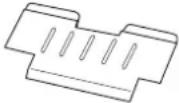
Pick Rollers PA03450-K011 600,000 sheets or 1 year
Brake Roller PA03450-K013 600,000 sheets or 1 year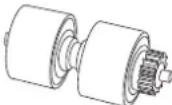
Separator Rollers PA03450-K012 600,000 sheets or 1 year
Print Cartridge CA00050-0262 - 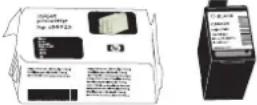
4,000,000 characters
The replacement cycle is based on the printing on Letter/A4 woodfree paper or wood containing paper documents (80 g/m ^2 ). The replacement cycle may differ due to paper quality, print density or paper type. The print cartridge is a consumable for the imprinter option (sold separately). It can be used for the Pre- and Post-imprinter.
Please understand that some parts may need replacement by service engineer depending on scanned document type or its duty of scanning. For further information, contact the FUJITSU scanner service provider. For the purchase of the consumables, contact the FUJITSU scanner dealer where you purchased your scanner.
ATTENTION

Use only the consumables specified by PFU Limited. Do not use any consumables from other manufacturers.
5.2 How to check and reset the Consumable/Cleaning Counter
This section describes the procedure of the following items using Software Operation Panel in PC.
- Confirmation of consumable usage and cleaning cycle.
- Counter reset after replacing the consumable or cleaning the scanner.


If the [Software Operation Panel] is password protected, enter the password to cancel the View Only mode.
For details on how to enter the password to cancel the View Only mode, refer to "Password Setting" on page 175.

■ Checking consumable or cleaning counter
1. Turn on the scanner and confirm if it is connected correctly to you PC.
2. From the [Start] menu select [All Programs] → [Scanner Utility for Microsoft Windows] → [Software Operation Panel].

text_image
Scaner Utility for Microsoft Windows
Software Operation Panel
T/WAIN Driver Help
Road Me
Gamma Pattern Editor
All Programs
Log Off
Turn Off Computer
start
⇒ The [Software Operation Panel] window will be displayed.

text_image
FLJITSU Software Operation Panel
Diagnosis
Device Info
Device Setting
Device Setting 2
Multifed
Multifed detection when scanning in manual feeding mode
Page Edge Filter (ADF)
Dropout color
Pre-Pick
Page Edge Filter (Automatic Page Size Detection)
Document check area specification for Multifed Detection
Intelligent Multifed Function
Number of paper feeding relies
Retain current paper thickness
Cleaning Cycle
Life Counter Alarm Setting
Set the interval for feeding sheets
Thin Paper Mode
Soft Pick Setting
Paper fan detection
Auto-Crop Boundary
SCSI Bus Widths
Auto color Detection
Alarm setting
Data detection outside of accessible area when transporting paper
Imprinter selection
Timeout for manual feeding
Scan Setting for Document with Tab (Automatic Page Size Detection)
Paper stop position at multifed error
Overscan Control
To diagnose the scanner
Diagnose
Report
not diagnosis yet
OK Cancel Apply OK
3. Select the [Device Settings] tab.

text_image
FLJITSU Software Operation Panel
Diagnosis
Musterline
Device Setting
Multifold
Multiload detection when scanning in manual feeding mode
Page Edge Files (ADF)
Dropout color
Fire Pick
Page Edge Filter (Automatic Page Size Detection)
Document check area specification for Multifed Detection
Intelligent Multifed Function
Number of paper feeding letters
Return current paper thickness
Cleaning Cycle
Life Countes Alarm Setting
Set the interval for feeding sheets
Thin Paper Mode
Soft Pick Setting
Paperion detection
AutoCrop Boundays
SCSI Bus Width
Auto color Detection
Alarm setting
Jam detection outside of scannable area when transporting paper
Impinator selection
Timeout for manual feeding
Scan Setting for Document with Tab (Automatic Page Size Detection)
Paper stop position or multiload error
Overscan Control
Page Counter
Total Page Count(ADF) 106490 pages
pages
After cleaning: 0 pages Cies[1]
Blake Roller: 5500 pages Cies[2]
Pick Roller: 5500 pages Cies[3]
Separator Roller: 5500 pages Cies[4]
Padd: 5500 pages Cies[5]
Remaining Ink (Pow): 100 % Cies[6]
Cies[7]
Power saving:
15 minutes
Offset
OK Cancel Apply (A)
In this window, the following items can be confirmed.
Total Page Count(ADF): The total number of scanned sheets. After cleaning: The number of sheets, scanned since last scanner cleaning. Pad: The number of sheets, scanned since last exchange of the Pad. Brake Roller: The number of sheets, scanned since last exchange of the Brake roller. Pick Roller: The number of sheets, scanned since last exchange of the Pick rollers. Separator Roller: The number of sheets, scanned since last exchange of the Separator rollers. Remaining Ink (Post): Remaining Ink (Pre): The remaining ink of the imprinter (sold separately) ink cartridge. (Only displayed when the imprinter option is used)
■ Resetting of the consumable/cleaning counters
Reset the consumable/cleaning counter(s) every time you replace the consumable or clean the scanner, following the procedure given below.

text_image
ATTENTION
In View Only mode, the Software Operation Panel cannot be reset. For details on "View Only mode", refer to "Password Setting" on page 175.
1. Click the [Clear] button beside the replaced consumable.

text_image
FLUJITSU Software Operation Panel
Diagnose
Device Info
Device Setting
Device Setting 2
Multiload
Multilead detection when scanning in manual leading mode
Page Edge Filter (ADF)
Dropout color
Pre-Pick
Page Edge Filter (Automatic Page Sits Detection)
Document check area specification for Multifed Detection
Intelligent Multifed Function
Number of paper feeding cables
Retain current paper thickness
Cleaning Cycle
Lite Counter Alarm Setting
Set the interval for feeding sheets
Thin Paper Mode
Soft Pick Setting
Paper fan detection
AutoCrop Boundary
SCSI Bus Width
Auto color Detection
Alarm setting
Low detection outside of scannable area when transporting paper
Impinder selection
Timeout for manual feeding
Scan Setting for Document with Tab (Automatic Page Size Detection)
Paper stop position at multilead error
Overscan Control
Page Counter:
Total Page Count(ADF) 105490 pages
After cleaning: 0 pages Clear(1)
Brake Roller: 55500 pages Clear(2)
Pick Rollac: 55500 pages Clear(3)
Separator Roller: 55500 pages Clear(4)
Pad: 55500 pages Clear(5)
Remaining Ink (Post): 100 %
Power saving:
15 minutes
Offset...
OK Cancel Apply (E)
2. Click the [OK] button on the displayed confirmation message.
⇒The value of the counter will be reset to "0". ("100", in case of "Remaining Ink").
3. To close the window of the [Software Operation Panel], click the [OK] button.

text_image
Imprinter selection
Timeout for manual feeding
Scan Setting for Document with Tab (Automatic Page Size Detection)
Paper stop position or multilevel error
Overcan Control
OK Cancel Apply (S)
■ Consumable/Cleaning message
The following message may appear while using the scanner:
Consumable message:

text_image
FJTWAIN
It is about time to replace the consumable.
Please replace Pick Roller in paper feeder if the
feeding capability is deteriorated.
Regarding how to replace the pad, please refer to the
Operator's Guide. (Code: DS42005)
This message not display again
Wains again after scanning 1000 pages
Ignore Cancel Help
Cleaning message:

text_image
TWAIN driver
Clean the inside of the scanner.
After cleaning, start up Software Operation Panel. Under [Device Setting], reset the count for [After cleaning:] by clicking the [Clear(1)] button.
(Code: DS42009)
OK
Replace the consumable or clean the scanner when this message is sisplayed.
After clicking the [Ignore] button, this message will disappear and scanning will continue.
Replace the consumable as soon as possible.
To stop scanning and replace the consumable, click the [Cancel] button.
For the replacement of consumables, refer to the following sections.
Pad: "5.3 Replacing the Pad" on page 125
Pick rollers: "5.4 Replacing the Pick Roller" on page 126
Separator rollers: "5.5 Replacing the Separator Rollers" on page 128
Brake roller: "5.6 Replacing the Brake Roller" on page 131
For the scanner cleaning, refer to "4 DAILY CARE" on page 103.
5.3 Replacing the Pad
1. Open the ADF cover.
Refer to "2.3 Opening and Closing ADF" on page 12.

text_image
Pad
2. Move the Pad to the left, than pull it up in order to remove it from the scanner.

natural_image
Illustration showing two hands adjusting a mechanical component with blue arrows indicating direction (no text or symbols)
3. Install the new Pad in the reversed order of the removable.
4. Close the ADF cover.
Refer to "2.3 Opening and Closing ADF" on page 12.
5. Reset the Pad counter.
Refer to “5.2 How to check and reset the Consumable/Cleaning Counter” on page 121.
5.4 Replacing the Pick Roller
1. Open the ADF cover.
Refer to "2.3 Opening and Closing ADF" on page 12.

text_image
Roller cover
2. Open the roller cover.
Put your fingers in the depression on the left and right side and pull the cover towards you to open it.

text_image
Roller cover
Depression
3. While pulling up the tab away from the shaft, slide the Pick rollers (2 rollers, left and right) from the shaft for removal.

text_image
Pick Roller
4. Install the new Pick rollers (2 rollers, left and right) in the reversed order of the detachment.
Put the roller correctly on the shaft, until it is locked in place.
5. Close the roller cover.
6. Close the ADF cover.
Refer to "2.3 Opening and Closing ADF" on page 12.
7. Reset the Pick roller counter
Refer to "5.2 How to check and reset the Consumable/Cleaning Counter" on page 121.
5.5 Replacing the Separator Rollers
1. Open the ADF cover.
Refer to "2.3 Opening and Closing ADF" on page 12.

text_image
Roller cover
2. Open the Roller cover.
Put your fingers in the depressions on the left and right side and pull the cover towards you to open it.

text_image
Roller cover
Depression
3. Slide Separator rollers (2 rollers, left and right) away from each other along the shafts for removal as shown below.

text_image
Separator roller
Shaft
⇒The shaft will be locked in outer position and stays there.
4. Remove the rollers from their shafts.
Remove both, the left and the right rollers.

text_image
Separator roller
Shaft
5. Put the new rollers (2 rollers, left and right) on the shafts.
Align the screw with the groove on the Separation roller to put the roller on the shaft.

text_image
Screw
Groove
6. Close the roller cover.
⇒The Separator rollers will move to their original position automatically.

text_image
Roller cover
Separator roller
7. Close the ADF cover.
Refer to "2.3 Opening and Closing ADF" on page 12.
8. Reset the counter of the Separation roller.
Refer to "5.2 How to check and reset the Consumable/Cleaning Counter" on page 121.
5.6 Replacing the Brake Roller
1. Move the Hopper down to the "low" position if it is set in an upper level.
For details, refer to "2.5 Setting the Hopper Height" on page 15.
2. Open the ADF cover.
Refer to "2.3 Opening and Closing ADF" on page 12.

text_image
Pad cover
3. Open the Pad cover on the lower transport path.
Grab both sides of the cover, press to the inside and pull down (towards you), as shown in the illustration below.

text_image
Pad Cover
4. Remove the Brake roller
Lift up the left side of the Brake roller and remove the left shaft. Then pull the right shaft out of its hole to remove it.

text_image
①
②
Brake roller
5. Install the new Brake roller.
After inserting the right end of the shaft into the hole, attach the left end.

text_image
②
①
Brake roller
6. Close the Pad cover.
7. Close the ADF cover.
Refer to "2.3 Opening and Closing ADF" on page 12.
8. Reset the Brake roller counter.
Refer to "5.2 How to check and reset the Consumable/Cleaning Counter" on page 121.
6SOLVING COMMON PROBLEMS
This chapter describes how to clear document jams, how to remedy other problems, items to be checked before contacting an authorized service provider and how to check labels on the scanner.
6.1 Clearing Document Jams ......134
6.2 Error messages of the Operator panel....136
6.3 Troubleshooting ....140
6.4 Before Contacting a Service Provider....153
6.5 Labels on the Scanner 155
6.1 Clearing Document Jams
When documents have been jammed during scanning, use the following procedure to remove them from the scanner.


• Take care not to pinch your fingers inside the ADF.
- The glass inside the ADF becomes hot during operation. Take care not to burn yourself.
- Do not use force to remove jammed papers. Remove jammed documents after opening the ADF cover.
1. Remove all remaining documents from the scanner before removing jammed documents.

natural_image
Illustration of a hand holding a paper next to an open printer with a blue arrow indicating the process (no text or symbols present)
2. Open the ADF cover.
Refer to "2.3 Opening and Closing ADF" on page 12.

natural_image
Technical line drawing of a printer internal structure with blue arrows indicating assembly or movement (no text or symbols present)
3. Remove the jammed documents.

natural_image
Line drawing of a printer internal structure with a hand placing a component (no text or symbols)
ATTENTION

Clips and staples cause the documents to jam when fed through the scanner. Therefore, remove all staples and clips from the documents before scanning, and examine if the transport path is free from any debris.
4. Close the ADF cover.
Refer to . "2.3 Opening and Closing ADF" on page 12.
6.2 Error messages of the Operator panel
When a problem occurs, [J] or [U] followed by a number will be displayed on the function number display in case of an temporary error. In case of an hardware alarm, [E] and a number will be displayed alternately. A temporary error can be solved by the user, the resolving of hardware alarms requires professional service support from an authorized FUJITSU scanner service partner.

text_image
Function number display
[Function] button
Function
8
Hopper Height
Paper Thickness
Thin
Thick
Sendto
Scan
Operator panel
When the Error Recovery Guide is installed on your PC, its window will be displayed when stating up Windows. When hardware alarms or temporary errors occur, the name and code of the error, as well as further information will be displayed.
Note down the displayed information and click the [Details] button to obtain further solutions for troubleshooting.

text_image
Fujitsu fi-Scanner Error Recovery Guide
No Information on the scanner hardware status.
Page count Error More Info...

Error Recovery Guide is stored on the SETUP DVD-ROM. More details about the installation can be found in the fi-5950 Getting Started under "2.3 Installing the Scanner Software".
■ Temporary Errors
[J] or [U] and a number will be displayed alternately.
(When pushing the [Scan] or [Send to] button, the error indication on the function number display will disappear and the scanner goes into the ready status.)
Display Meaning Solution J0 The paper feeding stopped to protect jammed paper from damage. Remove the jammed document. Refer to “6.1 Clearing Document Jams” on page 134.Confirm if the document conditions are appropriate for scanning with the ADF. (Refer to “7.2 Document Quality” on page 159) U1 A paper jam occurred. U2 A Multifcdd occurred. When pushing the [Send to] on the Operator panel,the multi fed papers will be ejected.(*1) U4 The ADF or the Pre-Imprinter cover is opened. Close the ADF cover or Pre-Imprinter cover correctly. U6 The print cartridge of the imprinter (sold separately) is not set. This error occurs only when the imprinter option (sold separately) is used.Refer to the “fi-590PRF/fi-590PRB Imprinter Operator Guide” for further details. U8 One of the following error occurred:1. Document sensors are dirty.2. The stacker is full.3. The Brake roller or Separator rollers are not installed properly. Clean the document sensors.For details, refer to “4.5 Cleaning the Transport path and the sensors” on page 114.Verify that the number of sheets ejected to the stacker is below stacker’s capacity, and that the Pick roller is not set for manual feeding.Verify that the both rollers are installed properly.For details, refer to “5.5 Replacing the Separator Rollers” on page 128 and “5.6 Replacing the Brake Roller” on page 131.
(\*1) If you press the [Send to] button before the error message is displayed on the PC screen, multifed documents are not ejected.
Hardware Alarms
[E] and a number will be displayed alternately.
Display Meaning Solution E0 Error in the Hopper or Stacker 1. When you encounter any alarm, turn off and on the scanner.2. If doing this (step 1) does not improve the situation, press the and buttons, which are labeled as “Paper thickness” on the operator panel, for at least 2 seconds. Write down two characters displayedthis case, “64” is displayed on the
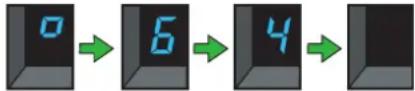 Report the two codes from the "Display" column and from the procedure above to the dealer where you purchased the scanner or an authorized FUJITSU scanner service provider.
 E2 Optical system error (front) E3 Optical system error (back) E4 The motor fuse has blown out. E5 The lamp fuse has blown out. E6 Operator panel error E7 Trouble occurred in the internal memory (EEPROM). E8 The SCSI fuse has blown out. (*1) E9 Image memory error EA Imprinter error (*2) Ec Image memory error Ed SCSI interface or USB interface controller error EF Background switching mechanism error E10 ROM error E11 Cooling fan error E12 Heater error E15 Extended memory error Confirm the following: 1. Is the used additional memory compatible?2. Is the additional memory installed correctly?3. Is the additional memory damaged?Note that this error will be displayed only three times after powering the scanner on. After that, the scanner will perform scanning in the state of no additional memory installed.When you encounter this E15 error, turn off and on the scanner. If the alarm is still displayed on the Function Number Display, contact the dealer where you purchased the scanner or an autho-rized FUJITSU scanner service provider. E16 Option board error (*3) When you encounter any alarm, turn off and on the scanner. If the alarm is still displayed on the Function Number Display, contact the dealer where you purchased the scanner or an authorized FUJITSU scanner service provider. E17 The imprinter fuse has blown out. E18 Sensor error (*4) E19 LSI error E1A Troubles occurred in the communication inside of the scanner. E1b 5-volt control board fuse has blown out.
\*1 Turn off the scanner. Check that the SCSI cable is plugged firmly, and then turn on the scanner again.
\*2 Turn off the scanner. Reinstall the ink cartridge according to the Operator's Guide of Imprinter, and then turn on the scanner again.
\*3 Turn off the scanner. Reinstall the option board properly, and then turn on the scanner again.
\*4 1. If any abnormality occurs, turn off the scanner once, and then turn it on again.
2. If doing this (step 1) does not improve the situation, press the ◀ and ▷ buttons, which are labeled as “Paper thickness” on the operator panel, for at least 2 seconds. Write down two characters dis-
played between and .
Example: In this case, “14” is displayed on the panel.

flowchart
graph LR
    A["0"] --> B["1"]
    B --> C["4"]
3. According to section "4.5 Cleaning the Transport path and the sensors" on page 114, clean respective sensors for each code as shown in the table below.
Code Sensor Name 1b Supersonic sensor (three pieces in the upper and lower transport paths; respectively) 11 Pick sensor (one piece in the lower transport path)Reflector for pick sensor (one piece in the upper transport path) 17 Skew sensor (six pieces in the lower transport path)Reflector for skew sensor (six pieces in the upper transport path) 12 IMP top-sensor (one piece in the upper and lower transport paths; respectively) 13 RED top-sensor (one piece in the upper and lower transport paths; respectively) 15 REJ sensor (one piece in the upper and lower transport paths; respectively) 14 EXT sensor (one piece in the upper transport path)
6.3 Troubleshooting
This section describes common troubles during usage and how to remedy the troubles.
Before you ask for repair service, check the following flowchart to determine the trouble.
If you can not resolve the trouble after following the flowcharts, check the items in section "6.4 Before Contacting a Service Provider" on page 153, and then contact an authorized FUJITSU Scanner service provider.

flowchart
graph TD
    A["Symptom 1"] --> B{Is the power cable connected correctly?}
    B -->|NO| C["Connect the power cable correctly."]
    B -->|YES| D{Have you press the main power switch?}
    D -->|NO| E["Press the [I"] side of the main power switch.]
    D -->|YES| F{Have you press the power button on the operator panel?}
    F -->|NO| G["Press the power button."]
    F -->|YES| H["If the problem can not be resolved with this flowchart, refer to "6.4 Before Contacting a Service Provider." After checking the items given in section 6.4, contact an authorized FUJITSU scanner service provider or your dealer."]

flowchart
graph TD
A["Symptom 2"] --> B{The indication of the Function Number Display went blank.}
B -->|YES| C["Has a long time passed since you used the scanner the last time?"]
B -->|NO| D{The power is in power saving mode. To reactivate the scanner, press any button on the operator panel. (*)}
C --> E{Does the display remain blank, even after turning on the scanner again?}
E -->|YES| F["If the problem can not be resolved with this flowchart, refer to "6.4 Before Contacting a Service Provider."<br>After checking the items given in section 6.4, contact an authorized FUJITSU scanner service provider or your dealer."]
E -->|NO| G{The scanner operation is normal.}
(\*) Press any button except the Power button.

flowchart
graph TD
A["Symptom 3"] --> B{Are the documents loaded correctly onto the hopper?}
B -->|YES| C["Is the ADF cover closed completely?"]
B -->|NO| D["Load the documents correctly."]
C -->|YES| E{Is the interface cable connected correctly?}
C -->|NO| F["Close ADF cover completely."]
E -->|YES| G["<When using the SCSI interface> Is the SCSI ID set correctly?"]
E -->|NO| H["Connect the interface cable correctly. (*1)"]
G -->|YES| I{Does the scanning start after turning the scanner on again?}
G -->|NO| J["Set the SCSI ID correctly and restart the scanner and PC. (*1)"]
I -->|YES| K["The scanner operation is normal."]
I -->|NO| L["If the problem can not be resolved with this flowchart, refer to "6.4 Before Contacting a Service Provider."<br>After checking the items given in section 6.4, contact an authorized FUJITSU scanner service provider or your dealer."]
(\*1) Refer to fi-5950 Getting Stated, "2.2 Connecting the scanner to your PC".

flowchart
graph TD
A["Symptom 4"] --> B{The quality of scanned pictures or photos is not satisfactory when scanning in black and white.}
B -->|NO| C["Did you select "Halftone" or "Greyscale" for scanning?"]
B -->|Yes| D{On the scanner driver, select "Halftone" or "Greyscale" before performing the scanning again.(*1)}
D --> E["Is the glass inside the ADF clean?"]
D -->|NO| F["Clean the dirty locations. (*2)"]
E -->|YES| G["If the problem can not be resolved with this flowchart, refer to "6.4 Before Contacting a Service Provider."<br>After checking the items given in section 6.4, contact an authorized FUJITSU scanner service provider or your dealer."]
E -->|YES| G
(\*1) When scanning pictures or photos simply with binary black and white, the generated image might differ from the original. If possible, set the image type on the scanner driver to "halftone" or "grayscale" before scanning.
(\*2) Refer to "4.5 Cleaning the Transport path and the sensors" on page 114.

flowchart
graph TD
A["Symptom 5"] --> B{Did you choose an appropriate value for the resolution setting?}
B -->|NO| C["Increase the value for the resolution setting on the scanner driver."]
B -->|YES| D{Did you select "Binary black and white"?}
D -->|NO| E["Select "Binary black and white" on the scanner driver. (*1)"]
D -->|YES| F{Is the glass inside the ADF clean?}
F -->|NO| G["Clean the dirty locations. (*2)"]
F -->|YES| H["If the problem can not be resolved with this flowchart, refer to "6.4 Before Contacting a Service Provider."<br>After checking the items given in section 6.4, contact an authorized FUJITSU scanner service provider or your dealer."]
(\*1) When scanning with halftone, grey scale or color, the images might not become sharp and clear. If possible, set the image type on the scanner driver to "Binary black and white".
(\*2) Refer to "4.5 Cleaning the Transport path and the sensors" on page 114.

flowchart
graph TD
A["Symptom 6"] --> B["Images are distorted or blurred."]
B --> C["Are the transport path, the glass surface, the rollers and the Pad clean?"]
C -->|NO| D["Clean the dirty locations. (*)"]
C -->|YES| E["Is the scanner exposed to vibrations during scanning?"]
E -->|YES| F["Do not shake or move the scanner when scanning."]
E -->|NO| G["Is the scanner installed on a flat, sturdy surface?"]
G -->|NO| H["Install the scanner on a flat, sturdy surface."]
G -->|YES| I["If the problem can not be resolved with this flowchart, refer to "6.4 Before Contacting a Service Provider."<br>After checking the items given in section 6.4, contact an authorized FUJITSU scanner service provider or your dealer."]
(\*) Refer to "4 DAILY CARE" on page 103.

flowchart
graph TD
A["Symptom 7"] --> B{Do the lines appear always on the same location?}
B -->|YES| C["Clean the glass surface inside the ADF. (*)"]
B -->|NO| D{Do the lines disappear when scanning with a lower resolution?}
D -->|YES| E["Set the resolution to a lower value and scan the document again."]
D -->|NO| F["If the problem can not be resolved with this flowchart, refer to "6.4 Before Contacting a Service Provider."<br>After checking the items given in section 6.4, contact an authorized FUJITSU scanner service provider or your dealer."]
A --> G["Vertical lines appear in the scanned image."]
(\*) Refer to "4.5 Cleaning the Transport path and the sensors" on page 114.

flowchart
graph TD
    A["Symptom 8"] --> B{Do the documents satisfy the conditions described under the "Precautions" in "7.2 Document Paper Quality"?}
    B -->|YES| C["Do the documents satisfy the conditions described in "7.5 Multifeed Detection Conditions"?"]
    B -->|NO| D["Use documents that satisfy the requirements. (*1)"]
    C -->|YES| E["Did you fan the documents, before loading them on the hopper?"]
    C -->|NO| F["Use documents that satisfy the requirements. (*2) Specify a range for multifeed detection if necessary. (*3)"]
    E -->|YES| G["Have the documents just been printed out by a copier or laser printer?"]
    E -->|NO| H["Fan the documents before loading (*4)"]
    G -->|YES| I["Is the document stack thicker than 50mm?"]
    G -->|NO| J["Is the weight of the batch of documents more than 5kg?"]
    G -->|YES| K["Reduce the number of sheets until the thickness becomes 50mm or less."]
    I -->|NO| L["Are the Pad and the Brake roller clean?"]
    I -->|YES| M["Clean the Pad and the Brake roller (*5)"]
    L -->|NO| N["Continued on the next page"]
    L -->|YES| N

flowchart
graph TD
A["Is the Pad or the Brake roller worn out?"] -->|YES| B["Replace the worn out Pad or Brake roller. (*6)"]
A -->|NO| C["Have you set the document thickness on the operator panel?"]
C -->|YES| D["If the problem can not be resolved with this flowchart, refer to "6.4 Before Contacting a Service Provider."<br>After checking the items given in section 6.4, contact an authorized FUJITSU scanner service provider or your dealer."]
C -->|NO| E["Set the document thickness to a thicker value (*7)"]
A --> F["continued from the previous page"]
(\*1) Refer to "7.2 Document Quality" on page 159.
(\*2) Refer to "7.5 Multifeed Detection Conditions" on page 164.
(\*3) Refer to "3.7 Detecting Multifeeds" on page 82.
(\*4) Refer to "2.6 Loading Documents on the Hopper" on page 17.
(\*5) Refer to "4 DAILY CARE" on page 103.
(\*6) Refer to "5 REPLACEMENT OF CONSUMABLES" on page 119.
(\*7) Refer to "2.9 Setting the Paper Thickness" on page 29.

flowchart
graph TD
    A["Symptom 9"] --> B["Do the documents satisfy the conditions described under the "Precautions" in "7.2 Document Quality"?"]
    B -->|YES| C["Did you fan the documents before loading them on the Hopper?"]
    C -->|NO| D["Use documents that satisfy the requirements. (*1)"]
    C -->|YES| E["Fan the documents before loading. (*2)"]
    E --> F["Are the consumables (Pad/Pick roller/ Separation roller/Brake roller) attached correctly?"]
    F -->|NO| G["Attach the consumables correctly (*3)"]
    F -->|YES| H["Is the Pick roller or Separation roller clean?"]
    H -->|NO| I["Clean the Pick and Separation roller. (*4)"]
    H -->|YES| J["Is the Pick roller or Separation roller worn out?"]
    J -->|YES| K["Replace the worn out Pick and Separation roller. (*5)"]
    J -->|NO| L["Are their any debris in the transport path?"]
    L -->|YES| M["Remove all debris from the transport path."]
    L -->|NO| N["Continued on the next page"]

flowchart
graph TD
A["continued from the previous page"] --> B["Have you set the Paper Thickness on the operator panel?"]
B -->|NO| C["Set the document thickness to a thicker value (*6)"]
B -->|YES| D["If the problem can not be resolved with this flowchart, refer to "6.4 Before Contacting a Service Provider."<br>After checking the items given in section 6.4, contact an authorized FUJITSU scanner service provider or your dealer."]
(\*1) Refer to "7.2 Document Quality" on page 159.
(\*2) Refer to "2.6 Loading Documents on the Hopper" on page 17.
(\*3) Refer to "5 REPLACEMENT OF CONSUMABLES" on page 119.
(\*4) Refer to "4 DAILY CARE" on page 103.
(\*5) Refer to "5 REPLACEMENT OF CONSUMABLES" on page 119.
(\*6) Refer to "2.9 Setting the Paper Thickness" on page 29.

flowchart
graph TD
    A["Symptom 10"] --> B{The scanned images are elongated.}
    B -->|NO| C["Clean the rollers. (*1)"]
    B -->|YES| D{Do the documents satisfy the conditions described under the "Precautions" in "7.2 Document Quality"?}
    D -->|NO| E["Use documents that satisfy the requirements. (*2)"]
    D -->|YES| F{Have you adjusted the scan scale?}
    F -->|NO| G["Use the Software Operation Panel to adjust the scan scale. (*3)"]
    F -->|YES| H{If the problem can not be resolved with this flowchart, refer to "6.4 Before Contacting a Service Provider."
After checking the items given in section 6.4, contact an authorized FUJITSU scanner service provider or your dealer.}
(\*1) Refer to "4 DAILY CARE" on page 103.
(\*2) Refer to "7.2 Document Quality" on page 159.
(\*3) Refer to "8 SCANNER SETTINGS" on page 171.

flowchart
graph TD
A["Symptom 11"] --> B{Did you adjust the offset (starting position for scanning the document)?}
B -->|NO| C["Use the Software Operation Panel to adjust the offset. (*1)"]
B -->|YES| D{Have you used the "Page Edge Filler" function?}
D -->|NO| E["When you use this function, the shadow on the leading edge can be filled white.<br>Use the Software Operation Panel to set the page edge filling area. (*1)"]
D -->|YES| F["If the problem can not be resolved with this flowchart, refer to "6.4 Before Contacting a Service Provider."<br>After checking the items given in section 6.4, contact an authorized FUJITSU scanner service provider or your dealer."]
(\*1) Refer to "8 SCANNER SETTINGS" on page 171.
6.4 Before Contacting a Service Provider
Check the following items before contacting an authorized FUJITSU Scanner service provider or the dealer where you bought the scanner.
■ General descriptions
Items to check Information Model example: fi-5950 Check the labels on the scanner for the model name.Refer to “6.5 Labels on the Scanner” on page 155. Serial Number example: 000001 Check the labels on the scanner for the Serial Number.Refer to “6.5 Labels on the Scanner” on page 155. Manufacturing date example 2010-03 (March 2010) Check the labels on the scanner for the manufacturing date.Refer to “6.5 Labels on the Scanner” on page 155. Date of purchase Symptom Frequency of trouble Do you have warranty for this product? Name of option product used example fi-590PRFFor more details about the options.Refer to “9.1 Options” on page 224.
■ Error Descriptions
■ Problem at the time of PC connection.
Items to check Findings OS (Windows) type Displayed error message Interface (example) SCSI Interface controller (example) Adaptec SCSI Card 29160
■ Document feeding trouble
Items to check Findings Document type Main purpose of use Last cleaning date Last consumable replacement date Operator panel status at trouble
■ Imaging quality trouble
Items to check Findings Type and version of scanner driver Interface controller (example) Adaptec SCSI Card 29160 OS (Windows) type Application software (example) ScanAll PRO, Adobe Acrobat Scanning side (s) (example) font, back, duplex Resolution (example) 600 dpi, 75 dpi Image mode (example) Color, Grayscale, Binary (black & white)
■ Others
Items to check Findings Can you send both the output results and photographs that show the condition of the document by e-mail or FAX?
6.5 Labels on the Scanner
This section describes how to check the labels on the scanner.
The following shows where the two labels are located on the scanner.

text_image
Label B
Label A
Label A (example): Indicates scanner information.

text_image
MODEL f1-5950
PART NO. PA03450-B50*
SER.NO. ******
DATE ****-** 50ts
AC100-240V 50/60Hz
1# 3.6 -1.6 A
Rev.
Label
0 1 2 3 4 5 6 7 8 9
0 1 2 3 4 5 6 7 8 9
0 1 2 3 4 5 6 7 8 9
Barcode Area
PFU Limited
a Fujitsu company
MADE IN JAPAN
Label B (example): Indicates various standards that the scanner conforms with.

text_image
CE
Péduit Basing
C US
175525
FC
N124
This Class B digital apparatus couples with Caneden ICES-003.
Cet apparel nuérique de la classé B est conforme à la norme
NMB-003 du Canada.
7 DOCUMENT SPECIFICATIONS
This chapter describes the sizes and qualities of documents required for the satisfactory performance of the scanner.
7.1 Document Size....158
7.2 Document Quality....159
7.3 Maximum Document Loading Capacity 162
7.4 Hole-punching Prohibited Areas....163
7.5 Multifeed Detection Conditions....164
7.6 Background Color Areas ....166
7.7 Job Separation Sheet....167
7.8 Scanning Mixed Documents....168
7.1 Document Size
The following shows the supported document sizes.

text_image
A
Feeding Direction
B
Maximum Minimum A B A B 304.8 mm(12 in) 431.8 mm *(17 in) 53 mm(2.087 in) 74 mm(2.913 in)
\*When scanning on “long page”, following length is available.
- 201 dpi to 400 dpi: : 863 mm (34 in)
- 200 dpi and under : 3,048 mm (120 in)
This section describes the types and thickness of documents this scanner supports.
■ Document type
The recommended document types are as follows.
- Wood free paper
- Wood containing paper
When using documents of a paper type other than the above, perform a test-scanning with a few sheets of the same type before executing the actual task in order to check whether or not the documents can be scanned.
■ Document thickness
Paper thickness is expressed by “paper weight.” The following shows the paper weights that can be used on this scanner:
31 to 209 g/m ^2 (For paper sizes equal or bigger than B4 : 52 to 157 g/m ^2 )
■ Precautions
The following documents may not be scanned successfully.
- Document of non-uniform thickness (e.g. envelopes and documents with photographs attached)
- Wrinkled or curled documents (Refer to HINT on page 161)
•Folded or torn documents
- Tracing paper
•Coated paper
•Carbon paper
•Carbonless paper
•Photosensitive paper
•Perforated or punched documents
- Documents that are not square or rectangular
• Very thin documents
•Photographs
Do not use the following documents:
•Paper-clipped or stapled documents
- Documents on which the ink is still wet
- Documents smaller than A8 or larger than A3
- Documents other than paper such as fabric, metal foil, or transparencies

- When scanning semi-transparent documents, set the density to light to avoid a bleed through.
- To prevent the rollers from becoming dirty, avoid scanning documents containing large areas written or filled with pencil. If scanning of such documents is inevitable, clean the rollers more frequently.
- When feeding errors, paper jams and multifeeds occur frequently, refer to "2.9 Setting the Paper Thickness" on page 29.
ATTENTION

\- Carbonless paper contains chemical substances that may damage the Pad or rollers (e.g. Pick roller) when documents are fed. Pay attention to the following:
Cleaning:
If pick errors occur frequently, clean the Pad and the Pick roller. For details on cleaning the Pad and the Pick roller, refer to "4 DAILY CARE" on page 103.
Replacing parts:
The service life of the Pad and Pick roller may be shortened compared to the case of scanning wood containing paper documents.
- If paper containing wood is scanned, the service life of the Pad and Pick roller may become shorter than that of the Pad and Pick roller used for scanning only woodfree paper.
- The pad or rollers of the scanner could be damaged if photographs or sheets of paper attached to the scanned document have contact with the pad or rollers during scanning.
- Scanning documents of calendered paper such as photographs may damage the surface of them.

When using the ADF, the leading edge of all document sheets must be evenly aligned. Make sure that curling at the leading edge is within the following tolerances:

text_image
More than 30mm
Less than 3mm
Top of the paper
Read surface
Feed direction

text_image
More than 30mm
Less than
5mm
Top of the paper
Read surface
Feed direction
7.3 Maximum Document Loading Capacity
The maximum number of sheets that can be loaded on the ADF paper chute is determined by the size and weight of the documents. The following graph shows the maximum document loading capacity of ADF with respect to paper weight.

line
| Paper weight (g/m²) | Hopper height : Low | Hopper height : Middle | Hopper height : High |
| ------------------- | ------------------- | ---------------------- | -------------------- |
| 31 | 500 | 300 | 100 |
| 209 | 500 | 300 | 100 |
| 80 | 500 | 300 | 100 |
| 157 | 250 | 150 | 50 |
| 156 | 225 | 125 | 45 |
Paper weight conversion table
Unit Conversion g/m^2 31 52 64 75 80 90 104 127 1 57 209 lb 10 14 17 20 21 24 28 34 42 56
7.4 Hole-punching Prohibited Areas
Punched holes in the shaded areas may cause errors.
For job separation sheet requirements, refer to "7.7 Job Separation Sheet" on page 167.

text_image
Reference Point
15
35
Leading edge
Feeding Direction
Front Side
Center line
Bottom edge
(Unit : mm)

If there are any holes in the 35mm wide central column, you can set the document a bit to the left or right to avoid detecting error.
7.5 Multifeed Detection Conditions
The following describes the conditions required for Multifeed detection:
■ Check overlapping
•Paper weight: 31 - 209 g/m ^4 (8.3 to 56.1 lb)
- Punched holes are not allowed within 35 mm (1.4 in) of the vertical lines of the center, right and left sides of the the document as shown in Fig. 1.
- Other paper shall not be glued within 35 mm (1.4 in) of the vertical lines of the center, right and left sides of the document as shown in Fig. 1.
■ Check length
(Load only documents of the same length onto the hopper.)
- Document length deviation: 1% or less
- Punched holes are not allowed within 35mm (1.4 in) of the vertical center line of the document as shown in Fig. 2.
■ Check overlapping and length
(Load only documents of the same length and thickness onto the hopper.)
•Paper weight: 31 - 157 g/m² (8.3 to 42 lb)
- Document length deviation: 1% or less
- Punched holes are not allowed within 35 mm (1.4 in) of the vertical lines of the center, right and left sides of the the document as shown in Fig. 1.
- Other paper shall not be glued within 35 mm (1.4 in) of the vertical lines of the center, right and left sides of the document as shown in Fig. 1.

bar
| Feeding Direction | Value |
| ----------------- | ----- |
| 35 | 35 |
| 60 | 60 |
Fig.1 Fig.2

text_image
Feeding Direction
35
(Unit: mm)

- When you want to detect overlapping, be sure that paper documents are not clinging to each other. Those clinging documents (glued or with static cling) may cause a lower multifeed-detection ratio.
- The area shown in Fig. 1 can be changed using the Software Operation Panel. For details, please refer to "8.4 Multifeed Detection" on page 190.
7.6 Background Color Areas
Paper white detection is performed in the shaded area as shown in the Figure below. The top 3mm on both sides of a document, should have no printing in this area.
When using dropout color, the color can be in this area. If this cannot be followed, turn the white level follower off when reading.

text_image
Reading reference position
Feeding direction
Grounding color (white) or drop-out color area
3 mm (0.12")
scanned side
7.7 Job Separation Sheet
1. Shape
The following shows the typical format of the job separation sheet.

text_image
Feeding direction
15
(0.59")
15
(0.59")
Center of document
more than 210 (8.27")
(Unit : mm)
2. Document Specifications
Document width must be A4 width (210mm/8.27") or wider.
7.8 Scanning Mixed Documents
When scanning documents of different thickness/Friction Coefficients/sizes using this scanner, the following restrictions apply. Before you scan any mixed documents, always test scan a few pages to see if the mixed document can be properly fed.
(For details on how to scanning mixed documents, refer to “3.3 Scanning Documents with different widths” on page 67.)
■ Types of Documents
It is recommended to align the paper direction (how the fibers are lying in the sheet) with the feeding direction.
■ The Thickness of Documents
The mixed documents' paper weight (thickness) should be in the range below:
31 to 209g/m ^2 (8.3 to 56.1lb; 0.04 to 0.25mm)
For paper sizes equal or bigger than B4: 52 to 157g / m^2 (14 to 42 lb)
■ The Friction Coefficients
Paper of same manufacturer's same brand is recommended. When paper of different manufacturerers/ brands are mixed, the differences of their friction coefficients become very large, which will adversely affecting the feeding performance.
Generally speaking, the friction coefficients of different kinds of paper shall be in the range of 0.35 - 0.64.
■ Document Sizes
Refer to the table below when mixing documents of different sizes.

- When scanning mixed size document, because the hopper side guides will not function, the scanned images are easily skewed. We recommend you to enable "Automatic Page Size Detection".
- Multifeed Detection by length cannot be used together with "Automatic Page Size Detection".

A 4 B 5
DL: 11 × 17 in., LTR: Letter size.
Because of friction, smaller document under larger document will be moved when the larger document is being picked up, adversely affecting feeding performance.
When setting the document, try to meet the following condition:

text_image
Pick Roller
Document
<10mm
Bottom of Hopper
8SCANNER SETTINGS
This chapter explains the how settings can be done for the scanner using the Software Operation Panel.
8.1 Scanner Settings ...... 173
8.2 Power saving setting....187
8.3 Offset/Scan scale....188
8.4 Multifeed Detection ..... 190
8.5 Multifeed detection when scanning in manual feed mode195
8.6 Page Edge Filler (ADF)....196
8.7 Dropout Color 198
8.8 Pre-Pick 199
8.9 Page Edge Filler (Automatic Page Size Detection) .....200
8.10 Intelligent Multifeed Function....202
8.11 Paper feeding retry times....203
8.12 Retaining current paper thickness after Power off .....204
8.13 Cleaning Cycle....205
8.14 Life counter setting....206
8.15 Document clearance setting....207
8.16 Thin Paper Mode....208
8.17 Soft Pick Setting....209
8.18 Paper Jam Detection....210
8.19 AutoCrop Boundary ......211
8.20 SCSI Bus Width 212
8.21 Auto Color Detection....213
8.22 Alarm Setting....214
8.23 Jam Detection Outside of Scannable Area When Transporting paper.... 215
8.24 Imprinter Selection.... 216
8.25 Timeout for Manual Feeding 217
8.26 Scan Setting for Document with Tab.... 218
8.27 Paper Stop Position at Multifeed Error 219
8.28 Overscan Control 220
8.1 Scanner Settings
The Software Operation Panel will be installed together with the scanner driver (TWAIN driver/ISIS driver).
With this application, you can configure settings and functions for the fi-5950.

text_image
ATTENTION
• Do not use the operator panel while the Software Operation Panel is running.
• If you connect multiple scanners, the second scanner and so forth will not be recognized. Connect only one scanner at a time.
■ Start up the Software Operation Panel
Start up via PC
1. Confirm if the scanner is connected correctly to the PC, then power on the scanner.
2. From the [Start] menu, select [All Programs] - [Scanner Utility for Microsoft Windows] - [Software Operation Panel].

text_image
Scanner Utility for Microsoft Windows
Software Operation Panel
T/WATN Driver Help
Read Me
Gamma Pattern Editor
All Programs
Log Off
Turn Off Computer
start
⇒ The [Software Operation Panel] window will be displayed.

text_image
FUJITSU Software Operation Panel
- Diagnostics
- Device Info
- Device Setting
- Device Setting 2
Multied
- Multireed detection when scanning in manual feeding mode
- Page Edge Files (ADF)
- Drostral color
- Fine Pick
- Page Edge Files (Automatic Page Size Detection)
- Document check area specification for Multireed Detection
- Intelligent Multireed Function
- Number of paper feeding retires
- ReISM current paper thickness
- Cleaning Cycle
Life Counter Alarm Setting
Set the interval for feeding sheets
Thin Paper Mode
Soft Pick Setting
Paper jam detection
AutoCrop Boundary
SCSI Bus Width
Auto color Detection
Alarm setting
Jam detection outside of scanable area when transporting paper
Impinder selection
Manual for manual feeding
Scan Setting for Document with Tab (Automatic Page Size Detection)
Paper stop position at multifred error
Overscan Control
None
Check Overlapping(Ultrasonic)
Check Length
Check Overlapping and Length
Length 10 mm
OK Cancel Apply
Start up via Scanner
1. Confirm if the scanner is connected correctly to the PC, then power on the scanner.
2. Press the [Function] button on the Operator Panel. The Function
Number Display will show

When pressing the [Function] button, the Function Number Display will change in the following way:
$$
[ 1 ] \rightarrow [ 2 ] \rightarrow \dots \rightarrow [ 9 ] \rightarrow [ C ].
$$
3. Press the [Send to]

⇒ The [Software Operation Panel] window will be displayed.

text_image
FLJITSU Software Operation Panel
Diagnosis
Device Info
Device Setting
Device Setting 2
MultiBox
MultiBox detection when scanning in manual feeding mode
Page Edge Filter (KDF)
Dropout color
Pre-Pick
Page Edge Filter (Automatic Page Size Detection)
Document check area specification for Multifeed Detection
Intelligent Multifeed Function
Number of paper feeding cables
Retain current paper thickness
Cleaning Cycle
Lite Counter Alarm Setting
Set the interval for feeding sheets
Thin Paper Mode
Soft Pick Setting
Paper Jam detection
AutoCrop Boundary
SCSI Bus Width
Auto color Detection
Alarm setting
Jam detection outside of scannable areas when transporting paper
Imprinter selection
Timeout for manual feeding
Scan Settings for Document with Tab (Automatic Page Size Detection)
Paper stop position at multifield error
Overscan Control
None
Check Overlapping (Ultrasonic)
Check Length
Check Overlapping and Length
Length 10 um
OK Cancel Apply
■ Password Setting
By setting a password, the Software Operation Panel can run in [View Only mode] which allows users to only view the scanner settings.
The scanner settings can be configured if no password is set.
In order to prevent unnecessary changes to the settings, a password can be used to restrict user operations.

text_image
1. The user must configure password settings and perform initialization.
2. Keep the password you set written down in order not to forget it.
Setting a Password
Set a password in the following procedure.
1. Right-click the Software Operation Panel icon in the taskbar, and select [Password Setting] from the menu.

text_image
Software Operation Panel(O)...
About...
Password Setting...
View Only mode
Exit
⇒ The [Password setting] dialog box appears.
2. Enter a password then again to confirm, and click the [OK] button.
Up to 32 characters can be used for the password.
Note that only alphanumeric characters (a to z, A to Z, 0 to 9) are allowed.

text_image
Password setting
Enter a new password.
OK
Cancel
Enter the new password again to confirm.
⇒ A message dialog box appears.
3. Click the [OK] button.
⇒ The password is set.
Setting the [View Only mode]
Set the Software Operation Panel to [View Only mode] in the following procedure.
1. Set a password.
⇒For details, refer to "Setting a Password" on page 175.
2. Right-click the Software Operation Panel icon in the taskbar, and select [View Only mode] from the menu.

text_image
Software Operation Panel(O)...
About...
Password Setting...
View Only mode
Exit
⇒ The Software Operation Panel enters the [View Only mode].

text_image
FLJITSU Software Operation Panel (View mode)
-- Diagnose
Device Info
Device Setting
Device Setting 2
Preferences Value 1
Multifed Check OverlappingUI...
Multifed detection when scanning in ma. Disable
Page Edge Filter (AOF) T:0 B:0 R:0 L:0 mm
Dropout color Gross
Pre-Pick Yes
Page Edge Filter Automatic Page Size... T:0 B:0 R:0 L:0 x0
Document check area specification for...
Left
- Modes of Selection Specify non-detection...
- Specify area 0 - 0 mm
Middle
- Modes of Selection Specify non-detection...
- Specify area 0 - 0 mm
Right
- Modes of Selection Specify non-detection...
- Specify area 0 - 0 mm
Intelligent Multifed Function Manual mode
Number of paper feeding ratios 12 times
Return current paper thickness Don not remember
Cleaning Cycle 10000 pages
Life Counter Alarm Setting
Pick Rollers 60000 pages
Default Save Before
OK Cancel Apply OK

In [View Only mode], a check mark appears next to [View Only mode] in the menu that is displayed by right-clicking the Software Operation Panel icon.

text_image
Software Operation Panel(O)...
About...
Password Setting...
✓ View Only mode
Exit
Clearing the [View Only mode]
Clear the [View Only mode] in the following procedure.
1. Right-click the Software Operation Panel icon in the taskbar, and select [View Only mode] from the menu.

text_image
Software Operation Panel(O)...
About...
Password Setting...
✓ View Only mode
Exit
⇒ The [Password setting] dialog box appears.
2. Enter the password and click the [OK] button.

text_image
Password setting
Enter your current password.
OK
Cancel
⇒ [View Only mode] is cleared, and the scanner settings can now be changed.

text_image
FLUJITSU Software Operation Panel
Diagnose
Device Info
Device Setting
Device Setting 2
MultiSeq
Multifed detection when scanning in manual feeding mode
Page Edge Files (ADF)
Dropout color
File Pick
Page Edge File (Automatic Page Size Detection)
Document check area specification for Multifed Detection
Intelligent Multifed Function
Number of paper feeding retics
Return current paper thickness
Cleaning Cycle
File Counter Alert Setting
Set the interval for feeding sheets
Thin Paper Mode
Soft Pick Setting
Paper from detection
AutoCrop Boundary
SCSI Base Width
Auto color Detection
Alarm setting
Jam detection outside of scannable sets when transporting paper
Impinator reduction
Timeout to manual feeding
Scan Setting for Document with Tab (Automatic Page Size Detection)
Paper stop position or multiled error
Overscan Control
None
Check Overlapping(Ultrasonic)
Check Length
Check Overlapping and Length
Length 10 mm
OK Cancel Apply OK

When you exit [View Only mode], the check mark next to [View Only mode] disappears from the menu that is displayed by right-clicking the Software Operation Panel icon.

text_image
Software Operation Panel(O)...
About...
Password Setting...
View Only mode
Exit
Changing the Password
Change the password in the following procedure.
1. Right-click the Software Operation Panel icon in the taskbar, and select [Password Setting] from the menu.

text_image
Software Operation Panel(O)...
About...
Password Setting...
View Only mode
Exit
⇒ The [Password setting] dialog box appears.
2. Enter the current password and click the [OK] button.

text_image
Password setting
Enter your current password.
OK
Cancel
⇒ The [Password setting] dialog box appears.
3. Enter a new password then again to confirm, and click the [OK] button.
Up to 32 characters can be used for the password.
Note that only alphanumeric characters (a to z, A to Z, 0 to 9) are allowed.

text_image
Password setting
Enter a new password.
OK
Cancel
Enter the new password again to confirm.
⇒ A message dialog box appears.
4. Click the [OK] button.
⇒ The password is set.
Clearing the Password
Clear the password in the following procedure.
1. Right-click the Software Operation Panel icon in the taskbar, and select [Password Setting] from the menu.

text_image
Software Operation Panel(O)...
About...
Password Setting...
View Only mode
Exit
⇒ The [Password setting] dialog box appears.
2. Enter the password and click the [OK] button.

text_image
Password setting
Enter your current password.
OK
Cancel
⇒ The [Password setting] dialog box appears.
3. Leave both fields blank and click the [OK] button.

text_image
Password setting
Enter a new password.
OK
Cancel
Enter the new password again to confirm.
⇒ A message dialog box appears.
4. Click the [OK] button.
⇒ The password is cleared.
Resetting the Password
In case you forgot your password, it can be reset in the following procedure.
1. Right-click the Software Operation Panel icon in the taskbar, and select [Password Setting] from the menu.

text_image
Software Operation Panel(O)...
About...
Password Setting...
View Only mode
Exit
⇒ The [Password setting] dialog box appears.
2. Enter the default password which is "fi-scanner", and click the [OK] button.

text_image
Password setting
Enter your current password.
OK
Cancel
⇒ The [Password setting] dialog box appears.
3. Enter a new password then again to confirm, and click the [OK] button.
Up to 32 characters can be used for the password.
Note that only alphanumeric characters (a to z, A to Z, 0 to 9) are allowed.

text_image
Password setting
Enter a new password.
OK
Cancel
Enter the new password again to confirm.
⇒ A message dialog box appears.
4. Click the [OK] button.
⇒ The password is set.
■ Settings
Using the Software Operation Panel, you can configure the following settings for the scanner connected to the PC.


In View Only mode, the Software Operation Panel cannot be set. For details on "View Only mode", refer to "Password Setting" on page 175
[Device setting]

text_image
FLUITSU Software Operation Panel
Diagnosis
Device Setting
Multifed
Multifed detection when scanning in manual feeding mode
Page Edge Filter (ADF)
Dropout color
PrePick
Page Edge Filter (Automatic Page Size Detection)
Document check area specification for Multifed Detection
Intelligent Multifed Function
Number of paper feeding ratios
Retain current paper thickness
Cleaning Code
Life Count/ Alarm Setting
Set the interval for feeding sheets
Thin Paper Mode
Soft Pick Setting
Paper jam detection
AutoCrop Boundary
SCSI Bus Width
Auto color Detection
Alarm setting
Jam detection outside of scanable area when transporting paper
Impactor selection
Timeout for manual feeding
Scan Setting for Document with Tab (Automatic Page Size Detection)
Paper stop position at multifed error
Duration Control
Page Count:
Total Page Count(ADF): 105450 pages
After cleaning: 0 pages Clear()
Buckle Roller: 99500 pages Clear()
Pick Roller: 99500 pages Clear()
Separator Roller: 99500 pages Clear()
Fast: 99500 pages Clear()
Remaining Ink (Past): 100 % Clear()
Power saving:
15 minutes
Offset
Offset Setting
Unit ΔDF(front) Main: 0 x0.5mm
Sub: 0 x0.5mm
Vertical magnification Adjustment
Ugt ΔDF
-6.3% 6.3% | -6.3% - 6.3%
0.0 %
OK Cancel Apply All
OK Cancel Apply All
Item Explanation Selectable parameter Default Page Counter (Consumables counter) For evaluating the consumable replacement cycle or cleaning cycle. Use this function to reset the counters after replacing consumables or the cleaning.Refer to “5.1 Consumables and Replacement Cycle” on page 120. After Cleaning/Pad/Pick roller/Separator Roller/Brake roller/Remaining ink level (only for the imprinter option) - Power saving Select the waiting time before entering the Power saving mode.Refer to “8.2 Power saving setting” on page 187. Setting range 15 to 55 minutes (set in steps of 5 min.) 15 min. Offset setting Adjust the start position for the document scanning.Refer to “8.3 Offset/Scan scale” on page 188. Left right: setting range -2 to 3mm (set in 0.5mm steps)Up down: setting range -2 to 3mm (set in steps of 0.5mm) left right0mup down0mm Vertical magnification Adjustment Adjust the magnification in the feeding direction.Refer to “8.3 Offset/Scan scale” on page 188. Setting range -6.3% to 6.3% (set in 0.1% steps) 0%
[Device settings 2]

text_image
FLJITSU Software Operation Panel
Diagnosis
Device Info
Device Setting
Device Setting 2
- Multileed
- Multileed detection when scanning in manual feeding mode
- Page Edge Filter (ADF)
- Dropout color
- Pre-Pick
- Page Edge Filter (Automatic Page Size Detection)
- Document check area specification for Multileed Detection
- Intelligent Multilifted Function
- Number of paper feeding relies
- Retain current paper thickness
- Cleaning Cycle
- Life Counter Alarm Setting
- Set the interval for feeding sheets
- Thin Paper Mode
- Soft Pick Setting
- Paper pin detection
- AutoDrop Boundary
- SCSI Bus Width
- Auto color Detection
- Alarm setting
- Jam detection outside of scanable area when transporting paper
- Imprinter selection
- Timeout for manual feeding
- Scan Setting for Document with Tab (Automatic Page Size Detection)
- Paper stop position or multileed error
- Oversean Control
Preferences Value 1
Multileed Check Overlapping(UL)
Multileed detection when scanning in m... Disable
Page Edge Filter (ADF) T.0 B.0 R.0 L.0 mm
Dropout color Green
PrePick Yes
Page Edge Filter (Automatic Page Size... T.0 B.0 R.0 L.0 x0...
Document check area specification for...
Left
- Modes of Selection Soscolly non detection...
- Specify area 0 - 0 mm
Middle
- Modes of Selection Soscolly non detection...
- Specify area 0 - 0 mm
Right
- Modes of Selection Soscolly non detection...
- Specify area 0 - 0 mm
Intelligent Multilifted Function Manual mode
Number of paper feeding relies 12 times
Retain current paper thickness Do not remember
Cleaning Cycle 1000 pages
Life Counter Alarm Setting
Pick Rollers 600000 pages
- Brake Rollers 600000 pages
- Pad 600000 pages
- Separator Rollers 600000 pages
Default Save Restore
OK Cancel Apply(A)
Selecting each item displays detailed settings (parameters) in the right part of the dialog box.
Item Explanation Selection Selectable parameter Default Multifeed“Section 8.4” Select the method to detect Multifeed.(Check either of overlapping or document length, or both of document length and overlapping) None/Check Overlapping[Ultrasonic]/Check Length/Check Overlapping and Length.Selectable length (to be detected as length difference):10, 15 or 20mm Check overlapping Multifeed detection when scanning in manual feeding mode“Section 8.5” Multifeed can be detected by this setting,even if the manual feeding is set. Disable/Follow driver settings Disable Page Edge Filler(ADF)“Section 8.6” Fill the end sections of a specified-mm-wide with white or black on the scanned image.When the backing (background) color is white, the end sections are filed with white;and when the background color is black, filled with black. Top/left/right: 0 to 15mmBottom: -7 to 7mm (can be set in increments of 1mm)![FUJITSU fi-5950 - [Device settings 2] - 1](/content/2026/06/1239263/images/32a5735de1c3288dc0000e9aae0c11a9f3d2c11c29c13a9bcac68522e6297494.jpg) (A: Image area B: Filled area A+B: Area to be output)
(A: Image area B: Filled area A+B: Area to be output) Top/Bottom/Left/Right:0mm Item Explanation Selectable parameter Default Dropout color “Section 8.7” Drop out a preselected color for the scanned image. (Binary black & white/grayscale mode only) Red/Green/Blue/None Green Pre-Pick “Section 8.8” To give a higher priority to processing speed, select [Yes], if not, select [No]. Yes/No Yes Page Edge Filler (Automatic Page Size Detection) “Section 8.9” Fill the end sections of a specified-mm-wide with white when the paper size is automatically detected.The end sections of a specified-mm-wide are filled with white. Top/Left/Right/Bottom: 0 to 7.5mm (can be set in increments of 0.5mm)![FUJITSU fi-5950 - [Device settings 2] - 2](/content/2026/06/1239263/images/85d5ed984caddb31077b29ca36e9b1cafda855ea66ccf1f7b02b9c8beb1032ec.jpg) (A: Image area B: Filled area A+B: Area to be output)
(A: Image area B: Filled area A+B: Area to be output) Top/Bottom/ Left/Right: 0mm Document check area specification for Multifeed Detection “Section 8.4” Selected range: This is checked to make following checking area specification effective. Selected range Not checked Enable/Disable: Specifies whether left/middle/right each ultrasonic sensor is enabled or disabled. Enable/Disable Invalid Start: The start point of the check area in length (mm) from top edge of the document is specified. 0 to 510 mm, with 2 mm increment 0 mm End: The end point of the check area in length (mm) from top edge of the document is specified. 0 to 510 mm, with 2 mm increment 0 mm Intelligent Multi-feed Function “Section 8.10” “Section 3.12” When a fixed size of paper is pasted on the same location in multiple sheets, the scanner can memorize the size and location of the pasted paper so it will not be detected as a multifeed. To use this function, you need to select [Check Overlapping] as the multifed setting by the procedure described in “Section 3.7” or “Section 8.4” in advance. Manual mode/Auto mode 1/ Auto mode 2 Manual mode Specify whether or not to remember the multifeed pattern at power-off. Remember/Do not remember Do not remember Number of paper feeding retries “Section 8.11” This is specified to decrease picking retry times for earlier jam detection. 1 to 12 times 12 times Item Explanation Selection Selectable parameter Default Retain current paper thickness "Section 8.12" The Paper thickness setting on the Operator panel is memorized and displayed after turning off and on the power. Remember/Do not remember Do not remember Cleaning Cycle "Section 8.13" The cleaning cycle of the scanner is specified by this setting. When Page counter (Consumable counter) exceeds the value specified here, the background color of the counter becomes yellow, and the message to ask user to clean the scanner may appear. 1,000 to 255,000 sheets,with 1,000 sheets increment Show cleaning instructions: Yes/No 10,000 sheets No Life Counter Alarm Setting "Section 8.14" When the Page counter (Consumable counter) described in Section 5.2 exceeds the value specified here, the counter background color becomes yellow. For each consumable 10,000 to 2,550,000 with 10,000 increment 600,000 sheets Set the interval for feeding sheets "Section 8.15" If the document is skewed and a section of the scanned image will be cut off, Automatic Page Size Detection automatically selects a page size to ensure that all the image is scanned successfully. As a result, scanning time may take longer due to the page size selected. 4 steps from Short (Default) to Long Short Thin Paper Mode "Section 8.16" To scan thin paper documents, enable this mode. Disable/Thin paper mode/ Super-thin paper mode Disable Soft Pick Setting "Section 8.17" When a number of sheets are picked at a time and multi-feed is detected frequently, this setting may be effective. Enable/Disable Disable Paper jam detection "Section 8.18" Specify the degree of jam detection at the feeder. Normal/Sensitivity-Low Sensitivity-Low AutoCrop Boundary "Section 8.19" Specify the AutoCrop Boundary processing for when “Automatic Page Size Detection” is selected. Round Up/Round Down/Optimize Round Down SCSI Bus Width "Section 8.20" Specify the data transfer width for SCSI connection. 16 bit (Wide)/8 bit 16 bit (Wide) Auto color Detection "Section 8.21" Specify the slice level for automatically detecting Color/Monochrome 1 to 255 (steps) 5 Alarm setting "Section 8.22" For the beeper to sound the alarm of a paper jam or multifeed, select Alarm at error. Disable alarm/Enable alarm Disable alarm Jam detection outside of scan-nable area when transporting paper "Section 8.23" By selecting “Enable”, such a case in which the document is fed outside the scannable area due to abnormal skew can be judged as a paper jam. Enable/Disable Disable Imprinter selec-tion "Section 8.24" Select the Pre-imprinter option or the Post-imprinter option if you have installed the options (to be purchased separately). Normal (obey Host specifica-tion)/Forcibly select Pre-imprinter/Forcibly select Post-imprinter Normal (obey Host specifica-tion) Item Explanation Selectable parameter Default Timeout for manual feeding“Section 8.25” Specify the standby time period. After the predetermined time period has elapsed, manual feeding mode is canceled. 5, 10, 20, 30, 40, 50, 60, 70, 80, 90, 100, 110, 120, 180, 240, 300, 360, 420, 480, 540, 600, 900, 1200, 1800, 1999 (seconds) 10 seconds Scan Setting for Document with Tab(Automatic Page Size Detection)“Section 8.26” When the document has tab on the bottom edge of the image, the tab image remains even if the document is scanned with Automatic Page Size Detection. When “Tab-attached document” is specified, the tab image remains in the scanned data but the scanning speed may be rather slow. Document with tab/Document without tab Document without tab Paper stop position at multifeed error“Section 8.27” When a multifeed error is detected by overlapping of documents, the position to stop the documents on which the multifeed occurred can be selected. Normal / Paper output slot Normal Overscan Control“Section 8.28” Specify the optimal amount of black margins for overscan. Normal / Optimize Normal
[Default] button
Resets the current settings to the factory setting.
[Save]button
Saves contents of various settings onto the computer.
(Use this button to apply the same settings to other fi-5950 scanners.)


Saving outputs the EEPROM value currently written in the scanner. Click the [Apply] button first if you have changed the value immediately before saving.
[Restore] button
Restores contents of the settings saved onto the computer back to the scanner.
8.2 Power saving setting
When not using this scanner for a certain time, it will enter automatically the power saving mode.
Configure the Power saving mode as follows:
1. Start up the Software Operation Panel.
Refer to "8.1 Scanner Settings" on page 173.
2. Select [Device Setting] from left side list in the window.

text_image
FLJITSUI Software Operation Panel
Diagnosis:
Device Setting
Multilead
Multilead detection when scanning in manual feeding mode
Page Edge Filter (ADF)
Dropout color
Pre-Pick
Page Edge Filter (Automatic Page Size Detection)
Document check area specification for Multiseed Detection
Intelligent Multiseed Function
Number of paper feeding relies
Return current paper thickness
Cleaning Cycle
Use Counter Alarm Setting
Set the interval for feeding sheets
Thin Paper Mode
Soft Pick Setting
Paper fan detection
AutoCrop Boundary
SCSI Bus Width
Auto color Detection
Alarm setting
Join detection outside of accessible area when transporting paper
Importer selection
Timeout for manual feeding
Scan Setting for Document with Tab (Automatic Page Size Detection)
Paper stop position at multiseed error
Overscan Control
Page Counter:
Total Page Count(ADF): 105480 pages
pages
After cleaning: 0 pages Clear(1)
Brake Roller: 55500 pages Clear(2)
Pick Roller: 55500 pages Clear(3)
Separator Roller: 55500 pages Clear(4)
Pad: 55500 pages Clear(5)
Remaining Ink (Post): 100 % Clear(6)
Power saving:
15 minutes
After...
OK Cancel Apply (A)
3. Use the slide control bar to set the waiting time before entering the power saving mode.
Setting range 15 - 55 minutes. (Set in steps of 5 minutes)
8.3 Offset/Scan scale
When the position of the scanned image is not correct or the image is elongated, use the following procedure to adjust the Offset and the Scan scale for correction.
ATTENTION

The factory default setting are appropriate, so normally there is no need to make any adjustment.
1. Start up the Software Operation Panel.
Refer to "8.1 Scanner Settings" on page 173.
2. Select [Device Setting] from left side list in the window, and press [Offset...].

text_image
FLJITSU Software Operation Panel
Diagnose
Device Setting
Multi-LED
Multiload detection when scanning in manual feeding mode
Page Edge Files (ADF)
Dropout color
Pre Pick
Page Edge Filter (Automatic Page Size Detection)
Document check area specification for Multiload Detection
Intelligent Multiload Function
Number of paper feeding notes
Return current paper thickness
Cleaning Cycle
Lite Counter Alarm Setting
Set the interval for feeding sheets
Thin Paper Mode
Soft Pick Setting
Paper join detection
AutoCrop Boundary
SCSI Bus Width
Auto color Detection
Alarm setting
Low detection outside of scannable areas when transporting paper
Impinter selection
Timeout for manual feeding
Scan Setting for Document with Tab (Automatic Page Size Detection)
Paper stop position or multiload error
Overscan Control
Page Counter:
Total Page Count(ADF) 105490 pages
pages
pages
After cleaning: 0 pages Clear(1)
Blake Roller: 55000 pages Clear(2)
Pick Roller: 55000 pages Clear(3)
Separator Roller: 55000 pages Clear(4)
Pack: 55000 pages Clear(5)
pages
Remaining Ink (Port): 100 % Clear(6)
% Clear(7)
Power saving:
15 minutes
Offset
OK Cancel Apply (A)
3. Adjust the Offset/Scan scale as necessary.

text_image
Offset
Offset Setting:
Unit: ADF(front)
Main: 0 x0.5mm
Sub: 0 x0.5mm
Vertical magnification Adjustment
Unit: ADF
-6.3% 6.3% (-6.3% - 6.3%)
0.0 %
OK Cancel
Offset Setting
Unit: Select ADF front or ADF back as target.
Main: Adjusts the horizontal Offset.
Setting range -2mm to +3mm, in steps of 0.5mm.
Sub: Adjusts the vertical Offset.
Setting range -2mm to +3mm, in steps of 0.5mm.
Vertical magnification
Adjustment
Unit: Select ADF front or ADF back as target.
-6.3%/6.3%: Adjusts the vertical (document length) Scan scale.
Setting range -6.3% to +6.3%, in steps of 0.1%.
8.4 Multifeed Detection
Multifeed refers to the phenomenon, when two or more documents are fed overlapping at once into the scanner.
This may cause the loss of important data.
To prevent this, this scanner is equipped with a Multifeed detection function.
When function is activated, a message will be displayed and the scanning interrupted in case a Multifeed has been detected.
Configure the settings for the Multifeed detection as follows.
1. Start up the Software Operation Panel.
Refer to "8.1 Scanner Settings" on page 173.
2. Select [Device Setting 2] from left side list in the window, and select [Multifeed] from its lower level.

text_image
FLJITSU Software Operation Panel
Diagnosis
Device Info
Device Setting
Device Setting 2
Multiscale
Includes detection when scanning in manual feeding mode
Page Edge Flex (ADF)
Dropout color
Pre-Pick
Page Edge Flex (Automatic Page Sits Detection)
Document check area specification for Multiseed Detection
Intelligent Multiseed Function
Number of paper feeding relives
Rotate current paper thickness
Cleaning Cycle
Ulo Counter Alarm Setting
Set the interval for feeding sheets
Thin Paper Mode
Soft Pick Setting
Paper Jam detection
AutoCrop Boundary
SCSI Bus Width
Auto color Detection
Alarm setting
Jam detection outside of scannable area when transporting paper
Imprint selection
Timeout for manual feeding
Scan Setting for Document with Tab (Automatic Page Size Detection)
Paper stop position at multiseed error
Overscan Control
None
Check Overlapping(Ultrasound)
Check Length
Check Overlapping and Length
Length 10 mins
OK Cancel Apply OK
3. Select the detection method.
None : No Multifeed detection will be performed.
Check Overlapping : Document overlapping will be monitored.
(Ultrasonic)
When this method is selected, two more options are available specified by other sections.
- Multifeed detection areas can be narrowed separately for left/middle/right Ultrasonic sensors to avoid unintentional multifeed detection of sticked photograph or something on the document. To specify this, go to Step 4.
- If photograph or something is sticked on the document and its size and/or position are same, you can easily let the scanner memorize its size and/or position just scanning those document. To use this function, go to Section "8.10 Intelligent Multifeed Function" or Section "3.12 Not detecting Multifeed for fixed format".
Check Length: : The difference of the documents length will be monitored.
Check Overlapping : [Check Overlapping] and [Check Length], both parameters will be used for monitoring and Length ing the fed documents.
Length
: When checking the document length, select the length difference for which a Multifeed will be detected. Select 10/15/20mm. If the detected document length is smaller than the selected size, it will be recognized as a Multifeed.


- When scanning documents of different length together in the same stack, select [Checking Overlapping].
- If something is glued to the documents (stamps, memo or photos), they will be recognized as Multifeed when using [Checking Overlapping]. When scanning such documents, use [Checking Length] instead.
However, when using the [detection area/none-detection area] function, you can also use [Checking Overlapping].
\- The setting above can be done as well on the scanner driver configuration window.
(In this case, the scanner driver selection will have priority)
Following setting is available only when [Check Overlapping] is specified above.
4. Select [Device Setting 2] from left side list in the window, and select [Document check area specification for Multifeed Detection] from its lower level.

text_image
FUJITSU Software Operation Panel
Diagnosis
Device Info
Device Settings
Device Setting 2
Multi-level detection when scanning in manual feeding mode
Page Edge Files (ADF)
Dropout color
Pre-Pick
File Edit Options (AutoCAD Connection)
Document check ona specification for Multi-level Detection
Number of paper feeding retics
Return current paper thickness
Cleaning Cycle
Use Counter Alarm Setting
Set the interval for feeding sheets
Thin Paper Mode
Soft Pick Setting
Paper ion detection
AutoCrop Boundary
SCSI Bus Width
Auto color Detection
Alarm setting
Jam detection outside of scantable area when transporting paper
Impinator selection
Timeout for manual feeding
Scan Setting for Document with Tab (Automatic Page Size Detection)
Paper stop position or multilead color
Overscan Control
Left
Middle
Right
Selected range
Enable
Cancel
Enable
Start
End
OK
Cancel
Apply OK
5. Speficy the detection area.
Selected range: Add check mark to this checkbox first. The following setting becomes available.

text_image
Left
35
Middle
35
Right
Feeding direction
Detection areas
Document
60
60
Unit: mm
Enable/Disable : Select [Enable], if the area from [Start] to [End] is a Multifeed detection area. Select [Disable], if the area from [Start] to [End] is not a Multifeed detection area, but other area is a Multifeed detection area.
Start : You can specify the starting position of the selected range by the length from the edge of the paper document.
Range: 0 to 510mm, in increments of 2mm, Start positionSetting Example 1:
text_image
Diagram illustrating a printer press mechanism with labeled components and directional arrows indicating movement or force.3. Move your hands away from the stacker slowly.
⇒The stacker will be fixed in a horizontal position.  \- When set to the "bottom edge alignment" position, the stacker will automatically adjust its height according to its load. \- When set to the "Bottom edge alignment" position, the stacker's maximum load will be 500 sheets.  \- On both sides walls of the stacker, photo sensors are installed to detect document height on the stacker. Make sure these sensors are not blocked. text_image
Photo sensors1. Close the scanner driver dialog box if it is displayed on the PC monitor.
2. Press both Hopper Height buttons on operator panel ( and ) for more than 2 seconds.
⇒Every time this is done, the stacker table moves between the lowest position and the position little a bit above. Set the stacker table at the position little a bit above the lowest position.2.8 Using the Document smoother
The ejected document may not stack correctly when the stacker's angle is adjusted to the tilting forward setting (see page 24), or when scanning document of different size pages (see page 67). If that is the case, install the Document Smoother as described below. The Document Smoother will suppress the splattering of ejected pages so they will stack correctly.1. Prepare the Document Smoother.
text_image
Tab2. Insert one of the tabs into the slit in the scanner.
text_image
Document Smoother3. While bending the center part, insert the other tab into the scanner slit.
⇒ It will look like this when installed. text_image
Document Smoother2.9 Setting the Paper Thickness
When multifeeds or paper jam occurs frequently, adjust the paper thickness by using the Paper Thickness button on the operator's panel. (Under normal circumstances, use the default setting.) Set the paper thickness on the Operator Panel. text_image
Function Hopper Height Paper Thickness Thin Thick Send to Scan2.10 Scanning Documents
This section explains about the basic flow of scanning operations. In order to use the scanner to scan documents, you need a scanner driver and an application that supports the driver. The scanner is bundled with the TWAIN-compliant driver called "TWAIN Driver", the ISIS-compliant driver called "ISIS Driver", the image processing software "Kofax VRS", and the "ScandAllPRO (TWAIN driver/ISIS driver)" application which supports the "TWAIN Driver", the "ISIS Driver", and "Kofax VRS".  \- For details about the scanner drivers, refer to the following: \- "2.13 Configuring the Scan Settings" on page 43 \- TWAIN Driver Help \- ISIS Driver Help \- For details about Kofax VRS, refer to the following: \- Virtual ReScan (VRS) User Guide \- Read Before Using VRS \- For details about ScandAll PRO, refer to the following: \- How to Use ScandAll PRO \- ScandAll PRO Help1. Load the documents on the hopper.
Refer to the section “2.6 Loading Documents on the Hopper” on page 17.2. Adjust the stacker table to the document size.
 \- When loading long documents on the hopper, extend the stacker extension. \- When loading short documents on the hopper, adjust the stacker length with the small stopper.3. Start up the application to use for scanning.
ScandAll PRO will be used here as an example to explain the procedure. text_image
ScandAll PRO - Untitled File Scan Edit View Page Mark Zoom Tool Help When ScandAll PRO is launched4. Select a scanner driver to use for scanning.
text_image
Setup Print Scan View Hot Key Event Password Device Driver TWAIN Enable automatic search of scanners ISIS /VRS Report Scan Result Do not output File Name: C:\Documents and Settings\bs2\My Documents\ Browse... Temporary Directory C:\Documents and Settings\bs2\Local Settings\Temp Browse...5. Select a scanner.
For TWAIN Driver text_image
ScandAll PRO - Untitled File Scan Edit View Page Mark Zoom Tool Help Scan Scan Settings... Ctrl+N Batch Scan Batch Scan Settings... Ctrl+B Save Batch Scan Restore Batch Scan... Delete Saved Data Scanner Setting Select Scanner... Cancel(P) Select Scanner Device: FUJITSU Fi-5950d Select Cancel Select Scanner Device: Fujitsu fi-5950 Select Cancel Settings...6. Launch a scanner driver from the application.
text_image
ScandAll PRO - Untitled File Scan Edit View Page Mark Zoom Scan Scan Settings... Ctrl+N Batch Scan Batch Scan Settings... Ctrl+B Save Batch Scan Restore Batch Scan... Delete Saved Data Scanner Setting... Select Scanner... Cancel(P)text_image
TWAIN Driver (32) Image Scanner: F:\69504 SIPO 512MB Browse... Setting Files: 00 Current Setting Config... Resolution Scan Type: 300 x 300 ADF (Front Side) Paper Size: Presetise Letter (8.5x4.1m) Enable Software IPC Enable Multi Image Front Immacron Settings Image Mode: Black & White Black/White: Static Threshold Contrast 128 128 128 128 Scan Preview Close Reset Options... Help About... Select the resolution for scanning Data Size about 1.1MBtext_image
Properties for Fujitsu 6.50 on STI - 0000 Compression Online About Main Layout Image Processing Paper Handling Gamma Color Dropout Image Mode Camera Front Image #1 Front Image #2 Back Image #1 Back Image #2 Dots per inch 200 Other None Cropping Fixed Mode Image Processing Black and White 16-level Gray 256 level Gray 24-bit Color Auto Detect 16-level Gray Auto Detect 256 level Gray Auto Detect 24-bit Color Brightness Automatic Manual Auto Contact Automatic Manual 1:30 Setup F... Default OK Cancel2.11 Starting Scanning with Button
Pressing the [Scan] / [Send to] button can start an application previously linked. However, you need to set the application for [Scan] and [Send to] button referring to "2.14 Before Using [Scan] / [Send to] button" on page 60.1. Load the documents on the hopper.
Refer to the section "2.6 Loading Documents on the Hopper" on page 17.2. Adjust the stacker table to the document size.
Refer to "2.7 Setting up the Stacker" on page 22.3. Press the [Scan] or [Send to] button.
When using the [Scan] button, press the button. When using the [Send to] button, you can set from [Send to 1 to 9] of nine (9) kinds of settings. Each pressing the [Function] button increases the number of Function Number display as 1 2 3 .... Set the number that links the application software you want to use for scanning and press the [Send to] button. text_image
Function Number display [Function] button Function B Hopper Height Paper Thickness Thin Thick Sendto Scantext_image
ATTENTION If the [Send to] button is pressed when "C" is displayed in the Function Number Display, the Software Operation Panel will start (see page 173).2.12 Feeding Documents Manually
Besides the “Automatic Feed Mode” which automatically scans the document set on the hopper, the scanner can also scan documents in the “Manual Feed Mode”. In addition, the “Manual Feed Mode” is divided into 2 types:<1> Single Feed: Only one sheet is manually fed and scanned. This is suitable for
- thick paper, envelopes and folded paper and other types of documents that are difficult to scan using Automatic Feed Mode. (In case of folded paper, make the folding line as the leading edge). •reducing the load on the hopper. - making sure a certain page is scanned.<2> Continuous Feed: Multiple sheets of document are manually fed one at a time and continuously scanned. This is suitable for
- manual feed, even if multiple sheets are mistakenly fed, the scanner will scan one at a time. - selectively scanning a stack of document. - making sure certain pages are scanned. The procedure is described below.■ Single Feed
1. Lift up the Pick roller unit.
Lift up the small plate on the left side using your finger. text_image
Pick Roller Unit Hopper2. Place documents face-up at the center of the hopper table.
At this moment, do not stick the top edge of the document against the inner side of the hopper, instead set them a bit apart.3. Start the application and display the scanner driver screen.
Set the scanning condition. For the information about how to run the scanner driver, refer to “2.10 Scanning Documents” on page 30.4. Start scanning.
When using the TWAIN driver, click the [Scan] button on the following screen. text_image
TWAIN Driver (32) Image Scanner: Fi-5950d SIPC 512MB Browse... Setting Files: 00 : Current Setting Config... Resolution Scan Type: 300 x 300 ADF (Front Side) 300 dpi Paper Size: Predefine Letter (85x11n) Enable Software IPC Enable Multi Image Front Individual Setting Image Mode: Black & White Brightness: 128 Black/White: Threshold: 128 Stotic Threshold Haltone: 128 Contrast: 128 Advance... Scanning Area[ inch ] Left 0.000 Top: 0.000 Width: 8.500 Length: 11.000 Scan Preview Close Reset Option... Help About... Select the resolution for scanning. Data Size about 1.1MB5. Insert the document until the top edge touches the rollers on the inside.
When more than one sheet is loaded, only the one on the top of the stack will be fed. text_image
Roller6. Repeat the procedure 5 until all the documents are scanned.
After a certain time period of inactivity or at pressing of [Send to] button, the scanner will recognize it as “no document” and stop scanning.  For setting the timeout for feeding the document manually, refer to section "8.25 Timeout for Manual Feeding" on page 217.7. To deactivate "Manual Feed Mode" (Single Feed), return the Pick roller unit to its original position.
Flip down the small plate on the left using your finger. text_image
Pick Roller Unit■ Continuous Feed
1. Open the hopper if it is closed. Refer to section "2.2 Opening and Closing the Hopper" on page 10. 2. Press down the Hopper Height Button (△) on the Operator Panel for more than 3 seconds. text_image
Function Hopper Height Paper Thickness Thin Thick Sendto Scantext_image
ATTENTION • Be careful not to get your fingers or anything caught in the mechanism when the hopper table moves up. • To deactivate the "Manual Feed Mode" (Continuous Feed) in the middle of an operation, press down the Hopper Height Button (∇) on the Operator Panel for more than 3 seconds.5. Start scanning.
When using the TWAIN driver, click the [Scan] button on the following screen. text_image
TWAIN Driver (32) Image Scanner: Fi-5950d SIPC 512MB Browse... Setting Files: 00 : Current Setting Config... Resolution 300 x 300 Scan Type: ADF (Front Side) 300 dpi Paper Size: Letter (8.5x11n) Predefine Enable Software IPC Enable Multi Image Front Individual Setting Image Mode: Black & White Brightness: 128 Black/White: Threshold: 128 Static Threshold Haltone: Contrast: 128 Width: 8.500 Length: 11.000 Advance... Scanning Area[ inch ] Left 0.000 Top: 0.000 Width: 8.500 Length: 11.000 Scan Preview Close Reset Option... Help About... Select the resolution for scanning. Data Size about 1.1MB6. Load the documents towards the back of the hopper.
When more than one sheet is loaded, only the one on the top of the stack will be fed. natural_image
Line drawing of a printer's internal structure with a hand pressing a paper (no text or symbols)7. Repeat the procedure 6 until all the documents are scanned.
⇒After a certain time period of inactivity or at pressing of [send to] button, the scanner will recognize it as “no document” and stop scanning.  For setting the timeout for feeding the document manually, refer to section "8.25 Timeout for Manual Feeding" on page 217.8. To deactivate the "Manual Feed Mode" (Continuous Feed), press down the Hopper Height Button (▽) on the Operator Panel for more than 3 seconds.
2.13 Configuring the Scan Settings
■ TWAIN Driver
The TWAIN driver is a software driver that conforms to the TWAIN standard. This driver can be used with an application that supports TWAIN to perform scanning. Normally, the scanner driver is launched via an application, and then the scan settings are configured in the setup dialog box of the driver (some applications may not display the setup dialog box).  Ways to launch the scanner driver differ depending on the application. For more details, refer to the manual or the Help files of the application. text_image
TWAIN Driver (32) Image Scanner: F-5950d SIPC 512MB Browse... Setting Files: 00 : Current Setting Config... Resolution 300 x 300 Scan Type: ADF (Front Side) Paper Size: 300 dpi Letter (8.5x11n) Predefige Enable Software IPC Enable Multi Image Front Indvlogar Setting Image Mode Black & White Brightness: 128 Black/White Static Threshold Threshold: 128 Haltone: 128 Contrast: 128 Advance... Scan Preview Close Reset Select the resolution for scanning. Data Size about: 1.1MBMain screen
You can perform settings for the TWAIN Driver on this window. The following describes the main setting items. \- For details on each functions, refer to "TWAIN Driver Help" (appears by pressing [Help] or [F1] button).Resolution
Specifies the resolution of scanning. It can be specified by selecting a default value from the list or customizing (specifies any resolution in 1 dpi unit, within a range of 50 to 600 dpi). By marking the [Predefine] checkbox, you can select one from three predefined settings as [Normal], [Better], [Best] to scan documents instead of setting details by yourself. Otherwise, you can change the details of the predefined settings on the [Resolution Setting] window, which appears when you click on the [...] button.Scan Type
Specifies the feeding method, the side(s) to be scanned (Front Side, Back Side, Duplex) or details of Long page (Front Side, Duplex) details of Long page (Front Side, Duplex) \*. \* Refers to documents larger than Double Letter (11 × 17 in.)/A3.Paper Size
Select the size of documents to be scanned from this list. Windows for customizing the paper size will appear when you click on [...] besides the list. You can save any document size as a customized setting (up to three) or for changing the order of the paper size in the list.Image Mode
Specifies the image type for the scanned documents. Black & White Documents are scanned in binary (black and white). Halftone Documents are scanned with halftone processing in black and white. Gray scale Documents are scanned in gradations from black to white. For this mode you can select 8 bit (256 gradations) or 4 bit (16 gradations). Color Documents are scanned in color. For this mode, you can select 24 bit Color, 256 bit Color or 8bit Color. SEE (Selectable Edge Enhancement) Documents with line drawings and photographs are scanned using halftone processing, and only the line drawings and text are emphasized. This mode is most suitable for emphasizing only text of documents containing both photographs and text.[Scan] button
Starts scanning documents with the current settings.[Preview] button
Documents are scanned preliminarily before the actual scanning. You can confirm the image of the documents in the preview window.[Close] button
Saves the current settings and closes this window.[Reset] button
Used to undo changes of settings.[Help] button
Opens the “TWAIN Driver Help” window. The window also opens by pushing the [F1] key.[About...] button
Opens an information window about the TWAIN Driver's version.[Option...] button
You can set up the details of optional functions on the window below. text_image
Option Rotation | Job/Cache | Imprinter(Endorser) | Generic | Startup | Filter | Compt | Flip Side Rotation Book Fanfold Rotation Rotation Degree: 0.0 degree Hole punch removal: Do not remove Automatic Size and Skew detection : Disable Priority Speed Accuracy Split Image(V) 0 2 3 Rectangular document 1 Document without tab 2 Document with tab Overscan OK Cancel Help[Rotation] tab
Select this tab when setting items such as flip side rotation, image rotation, hole punch removal, skew correction, size and length detection, black background, and overscan.[Job/Cache] tab
Select this tab when setting cache mode, job controls, multifeed detection, blank page skipping, etc.[Imprinter (Endorser)] tab
Select this tab when setting printing configuration for imprinter (sold separately). Only shows when an imprinter is installed.[Generic] tab
Select this tab to change the unit displayed on the Setting Window for the TWAIN Driver. (Millimeters, Inches, and Pixels are available)[Startup] tab
Select this tab for setting the Scanner Operation Panel.[Filter] tab
Select this tab for setting the image processing filter(s). Page Edge Filler: Fills up the margins of the scanned documents with a selected color. Digital Endoser: A character string, such as the alphabet and numbers, can be added in the scanned document.[Compression] tab
Select this tab for setting the compression rate of JPEG Transfer.[Advance...] button
Click this button for settings of the advanced image processing. You can set Edge Extract, Gamma Pattern, White Level Follower, Dropout Color, Reverse, etc.[Config...] button
Click this button for configuring the Setting Files. You can save the changed settings as a Setting File. From next scanning, the settings are quickly changed by using these Setting Files. For details of each function, refer to the "TWAIN Driver Help".ISIS Driver
The ISIS driver is a software driver which conforms to the ISIS standard. This driver can be used with an application that supports ISIS to perform scanning. Normally, the scanner driver is launched via an application, and then the scan settings are configured in the setup dialog box of the driver (some applications may not display the setup dialog box).  Ways to launch the scanner driver differ depending on the application. For more details, refer to the manual or the Help files of the application. text_image
Properties for Fujitsu fi:5950 on STI - 0000 Compression Imprinter About Main Layout Image Processing Paper Handling Gamma Color Dropout Image Mode Camera: ✓ Front Image #1 ☐ Front Image #2 ☐ Back Image #1 ☐ Back Image #2 Mode: IFC Black and White 16-level Grayscale 256-level Grayscale 24-bit Color Auto Detect 16-level Grayscale Auto Detect 256-level Grayscale Auto Detect 24-bit Color Setup IPC... Dots per inch: 200 Dither: None Crooping: Fixed Priority: Speed Accuracy 0 2 Brightness 120 1 255 Contract 50 1 100 OK Cancel Default Help[Main] tab
text_image
Properties for Fujitsu fi-5950 on STI - 0000 Main Compression Imprinter About Layout Image Processing Paper Handling Gamma Color Dropout Image Mode Camera: ✓ Front Image #1 ☐ Front Image #2 ☐ Back Image #1 ☐ Back Image #2 Mode: IPC Black and white 16-level Grayscale 256-level Grayscale 24-bit Color Auto Detect 16-level Grayscale Auto Detect 256-level Grayscale Auto Detect 24-bit Color Setup IPC... Dots per inch: 200 Dither: None Cropping Fixed Priority: Speed Accuracy 0 255 Brightness 123 Contrast 50 1 100 OK Cancel Default HelpCamera
Selects the document's side (front or back) to be scanned. The check-marked side(s) will be scanned. By marking only the checkbox(es) of Front Image, you can scan the one side of the documents (simplex scan), and by marking the checkboxes of both Front and Back Images, you can scan the both sides of the documents (duplex scan). Moreover, you can select color/gray scale scanning and black and white scanning (\#1/#2) for both the Front and Back Images so that two different types of images are output at a scan. (Multi Image) The settings you have made on this window are applied to the selected side(s) (Front Image #1, Front Image #2, Back Image #1, and/or Back Image #2).  If you select color or gray scale mode for a side (Front or Back) #1, you can select only black and white mode for the same side #2. In turn, if you select black and white mode for a side (Front or Back) #1, you can select either color or gray scale mode for the same side #2.Mode
Select a color mode suitable for the purpose from the menu.| Image Processing | Scans data in binary (black and white) using Image Processing Software Option. When this mode is selected, the [Setup IPC...] button below becomes available.(Note that only when Image Processing Software Option is installed in the computer, it is displayed.) |
| Black and White | Scans data in binary (black and white). Distinguishes black from white according to the fixed threshold. This scanning mode is suitable for scanning line drawings and text documents. |
| 16-level Gray Scans | data with 16 gradations from black to white. This mode uses 4 bits per pixel. |
| 256-level Gray Scans | data with 256 gradations from black to white. This mode uses 8 bits per pixel. |
| 24-bit Color Scans | data as full-color images using 24 bits per pixel. This mode is suitable for scanning color photographs. However, more memory space is needed compared to gray scale scanning. |
| Auto Detect 16-/256- level, Auto Detect 24-bit Color | Distinguishes between color data and black and white data, and outputs documents as they are; that is, color data is output in color (or gray scale) mode and white and black data is output in black and white mode.Configure settings for color documents using Front/Back Image #1, and for black and white documents using Front/Back Image #2, under “Camera”. |
[Setup IPC] button
You can configure settings for scanning with Image Processing Software Option.  For details on how to configure settings for Image Processing Software Option, refer to "Image Processing Software Option User's Guide". To display the "Image Processing Software Option User's Guide", select [Start] > [All Programs] > [Image Processing Software Option] > [User's Guide].Dots per inch
Specifies the number of pixels (dots) per inch. Select a fixed resolution from the list or input a number from 50 to 600. The higher the resolution, the more memory is required.Dither
Select the halftone pattern for halftone scanning. This setting is available when “Black and White” is selected in the “Mode”. Pattern 1 This setting is suitable for scanning dark photographs. Pattern 2 This setting is suitable for scanning dark-colored documents containing both text and photographs. Pattern 3 This setting is suitable for scanning light photographs. Pattern 4 This setting is suitable for scanning light-colored documents containing both text and photographs. Error Diffusion This function minimizes the differences of color levels.Cropping
Select how to crop scanned documents to output. Fixed Outputs the document in the specified size. Detect Length Detects the rear end of the document to scan the whole length of the document. When shorter pages are included in the document, the output images of them are adjusted to the original size. Automatic Automatically detects the paper size of the document and outputs in the original size. In addition, document skews are automatically detected and corrected to output the image data. Deskew Corrects document skews after scanning to output correct image data. Long page Scans long documents and outputs the deskewed / cropped image data.Brightness
Sets the brightness of the entire image. Specify the brightness as a number within the range of 1 (dark) to 255 (bright). To brighten the entire image, increase the value of the setting. To darken the entire image, decrease the value.Contrast
Sets the contrast between light and shadow of the scanned image. Specify the contrast as a number within the range of 1 (low [soft]) to 100 (high [sharp]). Increasing this value makes the contrast sharper.[Layout] tab
text_image
Properties for Fujitsu fi-5950 on STI - 0000 Compression Main Layout Image Processing Paper Handling Gamma Color Dropout Page Orientation ● Portrait ○ Landscape Page Size: Letter - 8.5 x 11 in Feed Direction ● Top first ○ Bottom first ○ Left first ○ Right first Scan Area... OK Cancel Default HelpPage Orientation
Specifies the page orientation (Portrait or Landscape).Paper Size
Selects a paper size according to the size of the document to be scanned. Select any size from the list.[Scan Area...] button
Opens the [Scan Area] dialog box. You can specify the area to be scanned. text_image
Scan Area Page Size: Letter: 8.5 x 11 in Page Layout ● Portrait ○ Landscape Area ✓ Snap ×: 0" Y: 0" Width: 8 1/2" Height: 11" Units Inches OK Cancel Both[Image Processing] tab
text_image
Properties for Fujitsu fi-5950 on STI - 0000 Compression Main Layout Image Processing Imprinter About Paper Handling Gamma Color Dropout Image Mode Camera: ✓ Front Image #1 ☐ Front Image #2 ☐ Back Image #1 ☐ Back Image #2 Mode: IFC Black and White 16-level Grayscale 256-level Grayscale 24-bit Color Auto Detect 16-level Grayscale Auto Detect 256-level Grayscale Auto Detect 24-bit Color Setup IFC... Quick Set Normal documents (default) Use Brightness Control Standard 0 (Minimum) Advanced 0 (Light COA) Reverse Image Format Background Removal Background/Foreground Enhancement Overscan Options Image Emphasis: None White Level Follow: Off Hole Punch Removal On Fill with white Background color OK Cancel Default HelpQuick Set
You can select a preset pattern for image enhancement. By selecting the one from the list, you can quickly set the details of the image enhancement processing. Available patterns are as follows: Normal documents (default) This item is suitable for scanning the documents like the ones used in offices. Advanced DTC This option scans any kind of documents by binary processing to produce data with good scanning quality. Documents containing thin letters, characters with the colored background, and colored charts cannot be scanned sufficiently clearly by ordinary binary processing. By using this option, however, you can achieve good scanning quality. Background/Foreground Enhancement This option makes image contours soft by disabling the Outline Extraction, and the whole image blurs. NCR forms with back-ground removed This option removes background of scanned images and smooths outline, giving an effect of anti-aliasing on the images. Cleanup noisy documents This option removes noise on the data. Magazines, Brochures, etc. This option is suitable for scanning documents which have texts and photos (e.g. magazines, brochures).Reverse Image Format
Converts colors from/to negative to/from positive.Overscan
Scans the document allowing more margins than the ones of paper size specified at [Paper Size:]. Thus, the result of scanning is bigger than the specified paper size.Image Emphasis
This option processes the outline of the scanned image as follows: Low, Mid, High Emphasizes the contour of images. You can select the degree of emphasis from low, mid, and high. Smooth Smooths jaggy images.White Level Follow
Use this option when the basic color of documents is not white; for example, when scanning newspaper. Auto Automatically switches between “On” and “Off”; when the “Mode” is “Black and White”, this option is “On”, and when the “Mode” is “Color/Gray scale”, it is “Off”. On Scans the document, adjusting the white balance of its background. (Line drawing mode) Off Scans the document with a predetermined value for the white balance.(Photograph mode)Hole Punch Removal
When scanning punched documents that have punch holes on them, their images are output with punch holes removed. The background color is "black." Fill with white Punch hole marks are filled with white. Background color Punch hole marks are filled with the most used color around the punch holes. When scanning a color document, select [Background color]. If you select [Fill with white], punch holes will be filled with white.[Paper Handling] tab
text_image
Properties for Fujitsu fi-5950 on STI - 0000 Compression Image Processing Paper Handling Main Layout Image Processing About Gamma Color Dropout Pre-pick: Operator Panel Setting Backing: White Multifored Detection Enable Detect based on: Paper Overlap Skew Paper Length +/- 20mm Do not stop scanning upon detection Multifored Recovery On Auto-cancel Time: 0 0fi 60 OK Cancel Default HelpPre-pick
With this option, you can enable or disable Pre-picking. Pre-picking is an operation that feeds documents into the ADF (to the scanning position) before starting actual scanning operation. Select "On" to shorten the required time for scanning.Backing
With this option you can set the background color (Black/White).Multi-feed Detection
Multi-feed is an error that occurs when two or more sheets are fed simultaneously. You can set conditions so that the scanner will stop its operation and display an error message when Multi-feed is detected. Multi-feed can be detected based on the "Paper Overlapping" or "Paper Length".Skew
With this option, you can set the scanner so that it will stop its operation and display error messages when any skewed document is detected.Do not stop scanning upon detection
With this option, you can set the scanner so that it continues scanning even if any Multi-feed or skew is detected.Multifeed Recovery
Scanning is not restarted for the set period (minutes) of time after a multifeed error. This period is specified here. If scanning is not started after the set minutes, the application is notified of the error by the driver. If Auto-cancel timer is set to 0, the application will never be notified of the error.[Gamma] tab
text_image
Properties for Fujitsu fi-5950 on STI - 0000 Compression Imprinter About Main Layout Image Processing Paper Handling Gamma Color Dropout Image Mode Camera: ✓ Front Image #1 ☐ Front Image #2 ☐ Back Image #1 ☐ Back Image #2 Mode: IPC Black and White 16-level Grayscale 256-level Grayscale 24-bit Color Auto Detect 16-level Grayscale Auto Detect 256-level Grayscale Auto Detect 24-bit Color Setup IPC... Pattern: Default Normal Soft Sharp Custom Properties Gamma: < > 0.0 Brightness: < > 2 Contrast: < > Auto Shadow: < > 0 Highlight: < > 255 Reset OK Cancel Default HelpPattern
Specifies how to correct Gamma. Available correction patterns are: "Normal", "Soft", "Sharp". "Custom" is selectable when "Color" is selected on the Main tab.Camera
Specifies side(s) to which you want to apply the settings made on this window.Custom Properties
Can be specified when “Cutom” is selected in the “Pattern” list. You can specify the numeric values of items such as “Gamma”, “Brightness”, “Contrast”, “Shadow” and “Highlight”.[Color Dropout] tab
Red, Green, Blue (Light's three primary colors) or any color can be selected to drop out from the documents to be scanned. For example, if you specify "Red" when scanning black letters with red outlines, only the black part of the letters are scanned. You can use this function when black and white or gray scale is selected. text_image
Properties for Fujitsu fi-5950 on STI - 0000 Compression Main Layout Image Processing Paper Handing Gamma About Image Mode Camera: Front Image #1 Front Image #2 Back Image #1 Back Image #2 Mode: IFC Black and white 16-level Grayscale 256-level Grayscale 24-bit Color Auto Detect 16-level Grayscale Auto Detect 256-level Grayscale Auto Detect 24-bit Color Setup IPC... Enable Color Dropout Dropout Red Dropout Green Dropout Blue Use Custom Color Dropout Custom Color Dropout Red: < > 175 Green: < > 175 Blue: < > 175 Edit... Priority Black Sensitivity: 30 OK Cancel Default HelpEnable Color Dropout
Color Dropout is enabled. Dropout Red An image in which red color dropout has occurred is output. Dropout Green An image in which green color dropout has occurred is output. Dropout Blue An image in which blue color dropout has occurred is output. Use Custom Color Dropout An image in which a selected color dropout has occurred is output.Custom Color Dropout
Any color to drop out can be specified when "Use Custom Color Dropout" is selected.[Edit...] button
Clicking this button displays the “Select Dropout Color” window and you can specify any color to drop out as checking Dropout Image. text_image
Select Dropout color Original Image Dropout Image Color 1 Color 2 Color 3 ✓ Default Red: 0 Sample Green: 0 color Blue: 0 ✓ Empty Block Sensitivity: 15 degrees 15 100 File... Spot CancelOriginal Image
The sample color is shown. By clicking colors in Original Image, you can select the color to drop out from the image.Dropout Image
The image after color dropout is shown.Dropout Color
Both the numeric values and the sample color of the specified color to drop out are shown. You can change the numeric values by directly inputting them or using ▲/▼.Priority Black
Mark this checkbox when you want no color dropout for scanning letters. Marking this checkbox avoids dropout of colors with low saturation such as black, which is often used for letters.Sensitivity
You can specify the degree of color dropout. The range of sensitivity: 15 - 180 degree (30 degree by default) The larger the degree, the broader the range of colors to drop out.[File...] button
You can select an image file (\*.bmp format) to display it in "Original Image".[Apply] button
Changes made are applied and the "Select Dropout color" window is closed.[Cancel] button
Changes are voided and the "Select Dropout color" window is closed.[Compression] tab
You can configure compression settings for scanning images in color or gray scale on this tab. text_image
Properties for Fujitsu fi:5950 on STI - 0000 Main Layout Image Processing Paper Handling Gamma Color Dropout Compression Impenter About JPEG Quality: Extremely High Compression, Low Image Quality Very High Compression, Low Image Quality High Compression, Low Image Quality Medium Compression, Medium Image Quality Low Compression, High Image Quality Very Low Compression, High Image Quality Extremely Low Compression, High Image Quality Sample Ratio: YUV 4.4.4 YUV 4.2.2 OK Cancel Default HelpJPEG Quality:
Specify the compression level and image quality.Sample Ratio:
Specify the sample ratio by which images are compressed. The file size of images compressed by the ratio of YUV4:2:2 is smaller than that of images compressed by the ratio of YUV4:4:4.[About] tab
You can check the version number of the ISIS driver as well as hardware information of the scanner connected to the personal computer. text_image
Properties for Fujitsu fi-5950 on None Main Layout Image Processing Paper Handling Games Color Dropout Compression Inprinter About ISIS CERTIFIED IS550 Version 2.1 Fujitsu fi-5950 Copyright © EMC Corporation QuickDriver Version 1.6.1007.2008 Device Information: EMC2 and ISIS are registered trademarks and QuickDriver is a trademark of EMC Corporation. All other trademarks used herein are the property of their respective owners. Copyright © 1998: EMC Corporation. All Rights Reserved. OK Cancel Default Help[Imprinter] tab
You can make settings for Pre-/Post-Imprinter Options (to be purchased separately). Unless Imprinter Option is installed, this tab will be unshown. text_image
Properties for Fujitsu fi-5950 on STI - 0000 Main Layout Image Processing Paper Handling Gamma Color Dropout Compression Imprinter About Impinter Mode: Print on the back of document after scanning Format Template Top Margin: 0.5 in Date Format Definite: MMDDYYYY None Units: Inches Font Normal Counter Initial Value: 0 FieldWidth: 8 Number Control: Increase by 1 Rotation 90 degrees Example: OK Cancel Default HelpPrint before scanning
With Pre-Imprinter, printing is done on the front face of the document.Print after scanning
With Post-Imprinter, printing is done on the rear face of the document.Format Template:
Letters typed in this text box are printed on the document. You can use the following characters. Alphabet A to Z, a to z Numeric 0, 1 to 9 Symbol!“ \( # % & ' ( ) \* + , - . / : ; <= > ? @ [ \ ] ^ \_ ' { | } \~ Year/Month/Day %Y Time %T Counter %S (You can select 3-digit to 8-digit. You can be placed the counter at the first, middle or end of the string.) Other One byte space Up to 43 characters can be typed in. ATTENTION  To print characters "#" and "%", you have to type letters ## and %% respectively because these are special characters. Please be reminded that typing only one letter (#) displays the counter.Date
Specifies how to display the date. Format: You can specify how to display the date. Delimiter: You can select delimiters (grouping separators).Counter
Specifies the rule of display. Initial Value: You can specify the initial vale. Field Width: You can specify the number of digits for the counter. (3 to 8 digits). Number Control: You can specify the number by which the counter is incriminated/decremented.Top Margin:
Specifies the location where the printed string of characters starts. Setting range: 0.5 to 10.5 in.(1.27 to 26.7cm) Minimum unit: 0.1 in.(0.01cm)Units:
Selects a unit for Top Margin values i(nch, cm, or pixel).Font:
Selects the font to use for printing (Normal, Bold, or Narrow).Rotation:
Specifies the orientation of strings of characters.2.14 Before Using [Scan] / [Send to] button
By setting the link of the application software to the [Scan] button and [Send to] button, you can launch the linked application by simply pushing the button. 1. Select [Control panel] from the [Start] menu. 2. Select [Property] from [Scanner and Cameras].  For Windows XP, when the control panel is displayed in "Category" mode, select [Printer and other hardware] and then click [Scanner and camera]. 3. Display the "fi-5950" properties. For Windows XP, Windows Server 2003, Windows Vista, Windows Server 2008 and Windows 7, right-click the "fi-5950d" icon. For Windows 2000, double-click the "fi-5950d" icon. 4. Select the [Event] tab. 5. Select the event to launch the application. For Windows XP, Windows Server 2003, Windows Vista, Windows Server 2008 and Windows 7, select event to be performed by the application from the [Select event] menu. text_image
fi-5950d Properties Diagnosis Device Info Device Set About General Events Color Management Choose an event below, then select the action to take when that event occurs. Select an event: Scan Button Scan Button Send to 1 Send to 2 Send to 3 Start this program Prompt for which program to run Take no action Save all pictures to this folder D:\Documents and Settings\scanner\My Documents Browse... Create a subtolder using today's date Delete pictures from camera after saving them OK Cancel Apply6. Select the application executed by the event.
For Windows XP, Windows Server 2003 and Windows Vista, select [Performing selected program] under [Performing] and then select the application to be processed.7. Click OK.
2.15 Resuming from Power Saving Mode
Power saving mode saves the power consumption of the scanner while the power is turned on. When the scanner is left without operation for 15 minutes or more (factory initial setting), it automatically enters the power saving mode. When the scanner entered the power saving state, the LCD indication of Operation panel becomes off and the green LED lamps for Power button and Paper Thickness keeps lighting. If you want to resume the scanner from the power saving mode, take any of these actions below. - Set documents on the hopper. - Press any button on the Operator panel (except the Power button\*). \* If you press the power button for two seconds or longer, the power is turned off. \- Execute any command from the scanner driver screen in the PC.  The waiting time for entering the power saving mode can be set in a range from 15 to 55 minutes in steps of 5 minutes. To set the power saving mode, refer to "8.2 Power saving setting" on page 187.3 SCANNING VARIOUS TYPES OF DOCUMENTS
This chapter describes how to scan various types of documents. This chapter explains operations using the screens of Windows XP. Depending on your OS, your PC's screen shots and the operation may be different from this manual. Be aware that when the TWAIN driver or the ISIS driver is updated, the screens and operations noted in this chapter may change. In that case, refer to the User's Guide provided with the update. 3.1 Double Sided Scanning ....64 3.2 Scanning Documents Longer than A3 ....65 3.3 Scanning Documents with different widths....67 3.4 Saving Scanned Images in PDF Format....70 3.5 Excluding a Color from the image (drop out color) .....76 3.6 Skipping blank Pages ....79 3.7 Detecting Multifeeds ....82 3.8 Correcting skewed Documents....84 3.9 Setting Auto Correction for Document Page Orientations.... 86 3.10 Multi Image Output ....89 3.11 Color/monochrome Auto Detection....92 3.12 Not detecting Multifeed for fixed format .....953.1 Double Sided Scanning
When you want both sides of a document to be scanned at the same time, set the feeding option to "Duplex". Below is the procedure with TWAIN driver. 1. Set the document on the hopper. Refer to section "2.6 Loading Documents on the Hopper" on page 17. 2. Adjust stacker in accordance with document size. Refer to section "2.7 Setting up the Stacker" on page 22. 3. Start TWAIN driver with the application used. Refer to section "2.10 Scanning Documents" on page 30. 4. Set the [Scan Type:] to "ADF (Duplex)". text_image
TWAIN Driver (32) Image Scanner: Fi-5950d SIPC 512MB Browse... Setting Files: 00 : Current Setting Config... Resolution Scan Type 600 x 600 ADF (Duplex) 600 dpi ADF (Front Side) ADF (Duplex) Predefine Enable Software IPC Duplex Long page (Front Side) Long page (Duplex) Image Mode: Black & White ADF (Back Side) Black/White: Static Threshold Threshold: 128 Haltone: 128 Contrast: 128 Advance... Scanning Area[ inch ] Left 0.000 Top: 0.000 Width: 8.500 Length: 11.000 Scan Preview Close Reset Option... Help About... Select an scanning method. Data Size about 4.2MB3.2 Scanning Documents Longer than A3
When scanning documents longer than A3, set the feeding option to "Long Page". This scanner can scan documents up to 3,048mm (120inch) long. Below is the procedure with TWAIN driver.1. Set the document on the hopper.
Refer to section "2.6 Loading Documents on the Hopper" on page 17.2. Adjust stacker in accordance with document size.
Refer to section "2.7 Setting up the Stacker" on page 22.  When scanning long pages (longer than A3), the document may be longer than the stacker extension even if it's pulled to the outermost position. In case like this, place a thick paper about the size of A4 on the stopper and make a slope as depicted below. text_image
Thick Paper Stopper Stacker Extension3. Start TWAIN driver with the application used.
Refer to section "2.10 Scanning Documents" on page 30.4. Set [Scan Type:] to "Long Page (Front Side)" or "Long Page (Duplex)".
Choose "Long Page (Front Side)" when scanning one side; "Long Page (Duplex)", both sides. text_image
TWAIN Driver (32) Image Scanner: Fi-5950d SIPC 512MB Browse... Setting Files: 00 : Current Setting Config... Resolution Scan Type: 600 x 600 ADF (Duplex) 600 dpi ADF (Front Side) ADF (Duplex) Enable Software IPC Long page (Front Side) Duplex Long page (Duplex) ADF (Back Side) Image Mode: Black & White Black/White: Stochastic Threshold Threshold: 128 Haltone Contrast: 128 Advance... Select an scanning method. Open... Help About... Data Size about 4.2MB Scanning Area[ inch ] Left 0.000 Top: 0.000 Width: 8.500 Length: 11.000 Scan Preview Close Reset5. Click [OK] after setting the document
When excessively long length is specified, the scanning speed may be slow. So, it is recommended to specify the closest length to the actual document. text_image
Long Page Paper Size Setting Width: 12.000 inch Length: 17.000 inch OK Cancel Help3.3 Scanning Documents with different widths
When you scan a batch of documents with different widths, follow the instruction below.1. Align the leading edge of the documents.
flowchart
graph TD
A["ABC"] --> B["ABC"]
C["ABC"] --> D["ABC"]
E["AI"] --> F["ABC"]
style E stroke-dasharray: 5 5
style F stroke-dasharray: 5 5
note1["Aligning the document alongside their center line"]
note2["Downward arrow"]
flowchart
graph TD
A["Aligning the document with its left (or right) edge"] --> B["ABC"]
B --> C["ABC"]
C --> D["ABC"]
D --> E["Downward Arrow"]
E --> F["ABC"]
2. Load the documents on the center of the hopper.
text_image
AB ABC Pick rollertext_image
ABC C Pick rollertext_image
AI ABC5. Start up the scanner driver.
Refer to “2.10 Scanning Documents” on page 30 for further information about how to start up the scanner driver.6. Perform the settings for the scanning on the scanner driver's configuration window.
For the TWAIN driver
Paper size: (Main display) Set the width of the widest, and the length of the longest document. Automatic size and skew detection: ([Option] Screen → [Rotation] tab) Select Automatic Page Size Detection.For the ISIS driver
Cropping: (on the [Main] tab) Select [Automatic].7. Scan
⇒The images of each document will be generated according to their size and displayed on the screen. flowchart
graph LR
A["Originals"] --> B["ABC"]
A --> C["ABC"]
A --> D["ABC"]
E["Images"] --> F["ABC"]
E --> G["ABC"]
E --> H["ABC"]
3.4 Saving Scanned Images in PDF Format
To save scanned images in PDF format, Adobe Acrobat must be installed on your PC. Adobe Acrobat can be installed from the provided Adobe Acrobat DVD-ROM. There are two ways to create PDF files:(1) By ScandAll PRO(page 71)
Recommended when you want to create PDF files according to your business needs, by scanning in color or grayscale mode. Reduce the data size of the PDF file Easily create PDF files without any special operations(2) By Adobe Acrobat (page 71)
Recommended when you want to create PDF files quickly, by scanning in binary mode (black & white). Quickly create PDF data in the same resolution as the original image Create PDF data in an arbitrary size by changing the compression rate Although the data size is usually very large for color documents, you can drastically reduce the data size by using Acrobat Distiller before saving the image. For more details, refer to "How to reduce the file size by Acrobat Distiller" on page 75.  Notes on the use of Adobe Acrobat
- For [Resolution], [Scan Type], and [Image Mode], Adobe Acrobat's settings are given priority over the scanner driver settings, thus the scanned image may not be displayed as previously configured in the scanner driver. - The following functions are not available: - [256 Color] and [8 Color] modes - [Rotation Degree] specified when [End of Page Detection] is selected - Long Page Scanning - Automatic Page Size Detection \- When you use Adobe Acrobat to scan and convert a document into PDF, the output image may not turn out as intended: \- When the [Edge shadow removal] option of Acrobat and [Digital Endorser] or [Black Background] of TWAIN driver are enabled, character strings embedded in the image or the background may be lost.Solution 1:
1. In Acrobat, select [File] → [Create PDF] → [From Scanner] → [Custom Scan]. 2. In the [Custom Scan] dialog box, click the [Options] button next to the [Small Size/High Quality] slide bar under [Document]. 3. In the [Optimization Options] dialog box, either set [Edge shadow removal] to [Off], or set [Color/Grayscale] and [Monochrome] under [Compression] to a setting other than [Adaptive].Solution 2:
Adjust the scanning density of the TWAIN driver. \- When you scan in a resolution lower than Adobe's recommended resolution with [Color/Grayscale] and/or [Monochrome] under [Compression] set to [Adaptive] in Acrobat, the output image may not be satisfactory.Solution:
Under [Compression], set [Color/Grayscale] and/or [Monochrome] to a setting other than [Adaptive]. \- Since scanning of documents longer than A3 or Double-Letter (11 × 17 in.) size is not supported in Acrobat, you may not be able to perform scanning successfully when [Overscan] is enabled in the TWAIN driver.Solution:
To scan a Double-Letter (11 × 17 in.) or A3 sized document, do not enable [Overscan] in the TWAIN driver. \- For more details on using Acrobat and other information, refer to the Adobe Acrobat Help ("Create a PDF file from a scanned document") or http://www.adobe.com/support/acrobat/ from the Adobe website.■ By ScandAll PRO
For information on how to create PDF files by ScandAll PRO, refer to "How to Use ScandAll PRO".■ By Adobe Acrobat
Following shows the procedure for saving scanned images in PDF format.1. Load the documents on the hopper.
For information on how to load documents, refer to “2.6 Loading Documents on the Hopper” on page 17.2. Start up Adobe Acrobat.
Select [Programs] - [Adobe Acrobat] from the [Start] menu. This starts up Adobe Acrobat.3. From the [File] menu, select [Create PDF] - [From Scanner] - [Custom Scan].
text_image
Adobe Acrobat File Edit View Document Comments Forms Tools Advanced Window Help Open... Ctrl+O Organizer Create PDF Portfolio Modify PDF Portfolio Create PDF Combine Collaborate Save Ctrl+S Save As... Shift+Ctrl+S Save as Certified Document... Export From File... Ctrl+N From Scanner From Web Page... Shift+Ctrl+O From Clipboard From Blank Page Assemble PDF Portfolio... Merge Files into a Single PDF... Custom Scan... Black & White Document Grayscale Document Color Document Color Image... Configure Presets...4. Select "FUJITSU Fi-5950d" at [Scanner].
text_image
Custom Scan Input Scanner: FUJITSU Fi-5950 d Options... Sides: Front Sides Color Mode:5. Click the [Options] button.
text_image
Custom Scan Input Scanner: FUJITSU Fi-5950 d Options... Sides: Front Sides6. Select [Show Scanner's Native Interface] for [User Interface], and then click the [OK] button.
text_image
Scanner Options Data Transfer Method: Native Mode User Interface: Show Scanner's Native Interface □ Invert Black and White Show Scanner's Native Interface Mode: Screenactive Interface OK Cancel7. Click the [Scan] button.
text_image
Custom Scan Input Scanner: FUJITSU Fi-5950 d Options... Sides: Front Sides Color Mode: Resolution: Paper Size: Width: Height: Prompt for scanning more pages Output New PDF Document Multiple Files More Options... Append to existing file or portfolio Select: Browse Document Small Size High Quality Options... Make Searchable (Run OCR) Options... Make PDF/A compliant Add Metadata Scan Help Defaults Canceltext_image
TWAIN Driver (32) Image Scanner: Fi-5950d SIPC 512MB Browse... Setting Files: 00 : Current Setting Config... Resolution Scan Type: 300 x 300 ADF (Front Side) 300 dpi Paper Size: Predefige Letter (8.5x11in) Enable Software IPC Enable Multi Image Front Individual Setting Image Mode: Black & White Brightness: 128 Black/White: Static Threshold Threshold: 128 Halftone: Contrast: 128 Advance... Scanning Area[ inch ] Left: 0.000 Top: 0.000 Width: 8.500 Length: 11.000 Scan Preview Close Reset Option... Help About... Select the resolution for scanning. Data Size about: 1.1MBtext_image
Untitled PDF - Adobe Acrobat File Edit View Document Comments Paste Tools Advanced Window Help Create Create Create Collaborate Secure Sign Paste Content Pages ABC 1● How to reduce the file size by Acrobat Distiller
Depending on the scan setting, the file size may be greatly increased. To reduce the data size, try saving the scanned image by the following method (note that this takes longer than usual to save): 1. From the [File] menu, select [Print]. 2. In the [Print] dialog box, select [Adobe PDF] for [Name]. text_image
Print Printer Name: Adobe PDF Status: Ready Type: Adobe PDF Converter Properties Comments and Forms: Document and Markups Print Range All Current view Current page Pages 1 - 3 Subset: All pages in range Reverse pages Page Handling Copies: 1 Collate Page Scaling: Shrink to Printable Area Auto-Rotate and Center Choose paper source by PDF page size Use custom paper size when needed Print to file Preview: Composite 8.5 ABC Units: Inches Zoom : 94% 1/1 Printing Tips Advanced Summarize Comments OK Cancel3.5 Excluding a Color from the image (drop out color)
One of the primary colors: red, green, blue or any other color can be removed (dropped out) from the scanned image data. For example, if the document contains black text in a green frame, you can set the scanner to read only the text and eliminate (drop out) the green frame.(Dropout color will only work when scanning in monochrome or grayscale mode). text_image
ABC ABC Originaltext_image
Output1. Start TWAIN Driver from your scanning application.
Refer to "2.10 Scanning Documents" on page 30.2. Click [Advance...] button in the [TWAIN Driver] dialog box.
text_image
TWAIN Driver (32) Image Scanner: Fi-5950d SIPC 512MB Browse... Setting Files: 00 - Current Setting Config... Resolution 300 x 300 Scan Type: ADF (Front Side) 3.00 dpi Paper Signs: Letter (8.5x11in) Predefine Enable Software IPC Enable Multi Image Front Individual Setting Image Mode: Black & White Brightness: 128 Black/White: Static Threshold Threshold: 128 Haltone: Contrast: 128 Width: 8.500 Length: 11.000 Advance... Scan Preview Close Reset Select the resolution for scanning. Data Size about: 1.1MB3. Select the color to be dropped out from [Dropout Color] under [More].
For example, if the document contains black text in green frame, select [Green] so that the scanner only reads the text and eliminates the frames. If you do not wish to have any colors dropped out, select "None". text_image
Advance (Front) Image Mode: Black & White - Static Threshold Gray | Image Filter | Gamma Gamma Pattern: Normal Custom: 1.6 More White Level Follower: Auto Dropout Color: Green Reverse Default OK Cancel Helptext_image
Select Dropout color Original Image Dropout Image Color 1 Color 2 Color 3 Red: 0 Sample color Green: 0 Blue: 0 Priority Black Sensitivity: 15 degrees 180 File... Apply Cancel4. Click [OK] button.
[TWAIN Driver] dialog box will be redisplayed. Then, scan the documents using this dialog box.3.6 Skipping blank Pages
If enabled, the scanner will automatically detect blank pages of the documents and remove them from the scanned image. For example, when double sided and single sided pages are scanned together, the blank side of the single sided pages will be skipped during scanning. Change settings in the [TWAIN Driver] dialog box to enable skipping blank pages at scanning documents. 1. Start TWAIN Driver from your scanning application. Refer to "2.10 Scanning Documents" on page 30. 2. Click the [Option...] button in the [TWAIN Driver] dialog box. text_image
TWAIN Driver (32) Image Scanner: Fi-5950d SIPC 512MB Browse... Setting Files: 00 : Current Setting Config... Resolution Scan Type: 300 x 300 ADF (Front Side) 300 dpi Paper Size: Predefine Letter (8.5x11n) Enable Software IPC Enable Multi Image Front Individual Setting Image Mode: Black & White Brightness 128 Black/White: Static Threshold Threshold: 128 Haltone: Contrast: 128 Open... Advance... Select the resolution for scanning. Data Size about 1.1MB Scanning Area[ inch ] Left 0.000 Top: 0.000 Width: 8.500 Length: 11.000 Scan Preview Close Reset Option... Help About...4. Check the [Blank Page Skip] box.
text_image
Option Rotation Job/Cache | Epimer(Endoser) | Generic Startup Filter Compt Ceching Cache Mode Use Both Memory Memory Size 10 MB ADF Option Batch Detection None Multifed Detection None Pro Pick Enable Check Over-skew Paper Protection Blank Page Skip Blank Page Skip Black Dolo Ratio: % White Dolo Ratio: %5. Using the slider control under [Blank Page Skip], specify the Blank Page Skip degree.
text_image
Black Dots Ratio: White Dots Ratio:text_image
Sensitivity: Low High6. Click [OK] when done.
The [TWAIN Driver] dialog box will return. continue from there.3.7 Detecting Multifeeds
“Multifeed” is an error that occurs when two or more sheets are accidentally fed into the ADF at the same time. You can set the scanner to display an error message or ring the buzzer when the scanner detects a multifeed. Multifeed Detection can be set either through the scanner driver dialog box or through “Software Operation Panel”. Refer to “8.4 Multifeed Detection” on page 190 for details on set up multifeed detection through “Software Operation Panel”. The following shows the procedure for changing the settings in the [TWAIN Driver] dialog box.1. Start TWAIN Driver from your scanning application.
Refer to "2.10 Scanning Documents" on page 30.2. Click the [Option...] button in the [TWAIN Driver] dialog box.
text_image
TWAIN Driver (32) Image Scanner: Fi-5950d SIPC 512MB Browse... Setting Files: 00 : Current Setting Config... Resolution Scan Type: 300 x 300 ADF (Front Side) 300 dpi Paper Size: Predefine Letter (8.5x11n) Enable Software IPC Enable Multi Image Front Individual Setting Image Mode: Black & White Brightness: 128 Black/White: Static Threshold Threshold: 128 Hajbone: Contrast: 128 Open... Close Preview Help About... Reset Scanning Area[ inch ] Left 0.000 Top: 0.000 Width: 8.500 Length: 11.000 Advance... Select the resolution for scanning. Data Size about 1.1MB3. Click the [Job/Cache] tab.
4. Select the detection conditions from [Multifeed Detection] under [ADF Option].
text_image
Option Rotation Job/Cache Impatient(Endoser) Generic Startup Filter Compt Caching Cache Mode None Memory Size 10 MB ADF Option Batch Detection None Multifeed Detection None Pre-Pick Enable Check Over-skew Paper Protection Blank Page Ship Blank Page Ship Block Date Rate Work Date Rate OK Cancel Help5. Click the [OK] button.
The display returns to the [TWAIN Driver] dialog box. Then, perform the scanning operation on the dialog box. The scanner will stop scanning if a multifeed is detected. When this happens, press the [Send to] button on the Operator panel to eject the multifeed document.3.8 Correcting skewed Documents
You can set the scanner to automatically detect and correct skewed documents that are fed into the ADF. The configuration is done through the scanner driver. The following shows the procedure for changing the setting from the [TWAIN Driver] dialog box. 1. Start TWAIN Driver from your scanning application. Refer to "2.10 Scanning Documents" on page 30. 2. Click the [Option...] button in the [TWAIN Driver] dialog box. text_image
TWAIN Driver (32) Image Scanner: Fi-5950d SIPC 512MB Browse... Setting Files: 00 : Current Setting Config... Resolution Scan Type: 300 x 300 ADF (Front Side) 300 dpi Paper Size: Predefine Letter (8.5x11n) Enable Software IPC Enable Multi Image Front Individual Setting Image Mode: Black & White Brightness: 128 Black/White: Stochastic Threshold Threshold: 128 Haltone: Contrast: 128 Open... Close Preview Help About... Reset Scan Select the resolution for scanning. Data Size about 1.1MBtext_image
Option Rotation | Job/Cache | Impairio(Endoser) | Generic | Startup | Filter | Comp1 Flip Side Rotation Book Farfoid Rotation Rotation Degree: 0.0 degree Hole punch removal: Do not remove Automatic Size and Skew detection: Automatic Page Size Detection Priority: Speed Accuracy 2 0 Rotangular document 1 Document without tab 0 2 2 Document with tab Split Image(V) Decisions OK Cancel Help3.9 Setting Auto Correction for Document Page Orientations
You can direct the scanner to automatically correct a batch of documents with a mixture of page orientations. flowchart
graph LR
A["Originals"] --> B["Output images"]
A --> C["Def"]
A --> D["Abcdefg"]
A --> E["Hijklmn"]
A --> F["O"]
A --> G["V"]
A --> H["O"]
A --> I["Def"]
A --> J["Opqrstu"]
text_image
TWAIN Driver (32) Image Scanner: Fi-5950d SIPC 512MB Browse... Setting Files: 00 : Current Setting Config... Resolution Scan Type 300 x 300 ADF (Front Side) 300 dpi Paper Size: Predefine Letter (8.5x11n) Enable Software IPC Enable Multi Image Front Individual Setting Image Mode: Black & White Brightness: 128 Black/White: Static Threshold Threshold: 128 Haltone: Contract: 128 Advance... Open... Select the resolution for scanning. Data Size about 1.1MB Scanning Area[ inch ] Left 0.000 Top: 0.000 Width: 8.500 Length: 11.000 Scan Preview Close Reset3. Select the [Rotation] tab, and then select [Automatic] under [Rotation Degree].
text_image
Option Rotation Job/Cache Impenter(Endorser) Generic Startup Filter Compi Flip Side Rotation Book Fanfold Rotation Rotation Degree: Automatic 0.0 degree 90.0 degree -90.0 degree 180.0 degree Automatic Hole punch removal: Do not remove Split image(V) Rectangular document Document without tab Document with tab Overscan OK Cancel Help4. Click the [OK] button.
The display returns to the scanning operation [TWAIN Driver] dialog box3.10 Multi Image Output
It is possible to get an output both in Color/Grey scale and binary black and white. This function may not work properly depending on the application software you use. flowchart
graph LR
A["Original"] --> B["Process Step"]
B --> C["Output"]
style A fill:#f9f,stroke:#333
style B fill:#ccf,stroke:#333
style C fill:#cfc,stroke:#333
1. Start TWAIN Driver from your scanning application.
Refer to "2.10 Scanning Documents" on page 30.2. Please check the [Enable Multi Image] checkbox in the [TWAIN Driver] window.
\* When [Long Page..] is specified at [Scan Type:], you can not check this checkbox. text_image
TWAIN Driver (32) Image Scanner: Fi-5950d SIPC 512MB Browse... Setting Files: 00 : Current Setting Config... Resolution Scan Type: 300 x 300 ADF (Front Side) 300 dpi Paper Size: Letter (8.5x11n) Predefine Enable Software IPC Enable Multi Image Front Individual Setting Image Mode: Black & White Brightness: 128 Black/White: 128 Threshold: 128 Static Threshold Haltone: 128 Contrast: Advance... Scanning Area[ inch ] Left 0.000 Top 0.000 Width: 8.500 Length: 11.000 Scan Preview Close Reset Option... Help About... Select the resolution for scanning. Data Size about 1.1MBtext_image
Multi Image Output mode • Multi Image Output • Auto Color Detection Order (for Multi Image Output) • Primary: Color/Grayscale Secondary: Binary • Primary: Binary Secondary: Color/Grayscale Select Current Image Setting • Front: Primary • Front: Secondary • Back: Primary • Back: Secondarytext_image
Output mode • Multi Image Output ○ Auto Color Detectiontext_image
Order (for Multi Image Output) ○ Primary: Color/Grayscale Secondary: Binary ● Primary: Binary Secondary: Color/Grayscaletext_image
Select Current Image Setting ● Front: Primary ○ Front: Secondary ○ Back: Primary ○ Back: Secondarytext_image
TWAIN Driver (32) Image Scansec: Fi-5850d SIPC 51.2MB Browse... Setting Files: 00: Current Setting Config... Resolution 300 x 300 Scan Type: ADF (Front Side) Paper Size: Predefige Letter (6.5x11in) Enable Software IPC Enable Multi Image Front Individual Setting Image Mode Ae Black & White Brightness Black/White Threshold Static Threshold 120 Hillone Contact: 120 Advance... Scanning Area[inch ] Left: 0.000 Too: 0.000 Width: 6.500 Length: 11.000 Scan Preview Close Reset Select the resolution for scanning. Data Size about: 1.1MBtext_image
Multi Image Output node • Multi Image Output ○ Auto Color Detection Order (for Multi Image Output) ○ Primary: Color/Grayscale Secondary: Binary ● Primary: Binary Secondary: Color/Grayscale Select Current Image Setting ● Front: Primary ○ Front: Secondary ○ Back: Primary ○ Back: Secondary3.11 Color/monochrome Auto Detection
The scanner detects whether the scanned document is color or binary monochrome. According to this detection, the images will be output in color (or grey scale) for colored documents, ide binary black and white for monochrome documents. \*Depending on the application, this function may not operate properly. The settings for Multi Image can be done on the Scanner Driver. The following operation uses the TWAIN driver.1. Start up TWAIN driver from the application you are using
Refer to "2.10 Scanning Documents" on page 30.2. Please check the [Enable Multi Image] checkbox in the [TWAIN Driver] window.
\* When [Long Page..] is specified at [Scan Type:], you can not check this checkbox. text_image
TWAIN Driver (32) Image Scanner: Fi-5950d SIPC 512MB Browse... Setting Files: 00 : Current Setting Config... Resolution Scan Type: 300 x 300 ADF (Front Side) 300 dpi Paper Size: Predefine Leiter (8.5x11n) Enable Software IPC Enable Multi Image Front Individual Setting Image Mode: Black & White Brightness: 128 Black/White: Static Threshold Threshold: 128 Hajbone: Contrast: 128 Advance... Scanning Area[ inch ] Left 0.000 Top 0.000 Width: 8.500 Length: 11.000 Open... Close Preview Reset Select the resolution for scanning. Data Size about 1.1MBtext_image
Multi Image Output mode ○ Multi Image Output ● Auto Color Detection Order (for Multi Image Output) ○ Primary: Color/Grayscale Secondary: Binary ● Primary: Binary Secondary: Color/Grayscale Select Current Image Setting ○ Front: Color/Grayscale ○ Front: Binary ○ Back: Color/Grayscale ○ Back: Binarytext_image
Output mode ○ Multi Image Output ● Auto Color Detectiontext_image
Select Current Image Setting ● Front: Color/Grayscale ○ Front: Binary ○ Back: Color/Grayscale ○ Back: Binary5. Click the [Scan] button to scan the document.
text_image
TWAIN Driver (32) Image Scanner: FI-5950d SIPC 512MB Browse... Setting Files: 00 : Current Setting Config... Resolution Scan Type: 300 x 300 ADF (Front Side) 300 dpi Paper Size: Letter (8.5x11in) Predeline Enable Software IPC Enable Multi Image Front Individual Setting Image Mode: Black & White Brightness 128 Black/White: Static Threshold Threshold 128 Haltone: Contrast 128 Advance... Scanning Area[ inch ] Left 0.000 Top 0.000 Width 8.500 Length: 11.000 Scan Preview Close Reset Option... Help About... Select the resolution for scanning Data Size about: 1.1MBtext_image
Multi Image Output mode Multi Image Output Auto Color Detection Order (for MultiImage Output) Primary: Color/Grayscale Secondary: Binary Primary: Binary Secondary: Color/Grayscale Select Current Image Setting Front: Color/Grayscale Front: Binary Back: Color/Grayscale Back: Binary3.12 Not detecting Multifeed for fixed format
When sheets with glued photographs or sticky notes are scanned, the scanner can accidentally detect a multifeed error, and scanning is interrupted. This section explains "Intelligent Multifeed Function", or a resolution function that eliminates such a problem (hereinafter referred to as "this function"). This function has one manual mode and two automatic modes as follows: - Manual mode in which multifeed error detection is disabled by manipulating the Operator Panel - Automatic mode in which the scanner ignores multifeed errors based on information about the glued photos and labels. The above information is stored in memory; it refers to the position and length of those slips (hereinafter referred to as the "glued paper"). - Manual mode in which multifeed error detection is disabled by manipulating the Operator Panel - Automatic mode in which the scanner ignores multifeed errors based on information about the glued photos and labels. The above information is stored in memory; it refers to the position and length of those slips (hereinafter referred to as the "glued paper"). text_image
Sticky note Glued photos or labels■ Intelligent Multifeed Function
There are three modes; select one according to your needs. Select a mode by using the Software Operation Panel. For how to select a mode, see section 2.| Item in Software Operation Panel | Method to bypass Multifeed Applicable case Comments | ||
| Manual mode (Bypass by front panel button) | When a Multifeed error occurs, press [Send to] to eject sheet in the scanner's transport path. Examine the last sheet scanned.If no paper is glued on the ejected sheet, return the sheet to the Hopper and press the [Scan] button.If glued paper is present on the ejected sheet, return the sheet to the Hopper, press the [Function] button once (Slow Blink rate of the function number display will change to Fast Blink rate) and press the [Scan] button. The scanner will not check for a Multifeed error on the first sheet being scanned.The following sheets are checked for Multifeed errors with the already-existing Multifeed settings in the Software Operation Panel or driver. (Default) | Use this mode when you want to continue scanning, while checking for glued paper every time a multifeed error is detected. | Pages scanned before errors are sent to memory.Extraneous images may be generated during a Multifeed error. |
| Automode 1 (Bypass by combination of length and position) | When a Multifeed error occurs, press [Send to] to eject sheet in the scanner's transport path. Examine the last sheet scanned.If no paper is glued on the ejected sheet, return the sheet to the Hopper and press the [Scan] button.If glued paper is present on the ejected sheet, return the sheet to the Hopper, press the [Function] button once (Slow Blink rate of the function number display will change to Fast Blink rate) and press the[Scan] button. The scanner will record the length and position of the glued paper that caused the error.The following sheets are checked for Multifeed errors and then the scanner bypasses Multifeed, if the scanned overlap pattern is same as already recorded pattern(s). | Use this mode when you scan many sheets in a fixed format; for example, when every sheet has the same size glued paper at the same position. | Pages scanned before errors are sent to memory.Extraneous images may be generated during a Multifeed error. |
| Automode 2 (Bypass by length) | When a Multifeed error occurs, press [Send to] to eject paper in the scanner's transport path. Examine the last sheet scanned.If no paper is glued on the ejected sheet, return the sheet to the Hopper and press the [Scan] button.If glued paper is present on the ejected sheet, return the sheet to the Hopper, press the [Function] button once (Slow Blink rate of the function number display will change to Fast Blink rate) and press the [Scan] button. The scanner will record the length of the glued paper that caused the error.The following sheets are checked for Multifeed errors and then the scanner bypasses Multifeed, if the scanned overlap pattern is the same or shorter than the already recorded pattern. | Use this mode when you scan multiple sheets, each having different-size glued paper at a different position. | Pages scanned before errors are sent to memory.Extraneous images may be generated during a Multifeed error. |
■ How to Configure Settings with Software Operation Panel
1. First, make sure that the scanner is connected to the personal computer, and then turn on the scanner. Second, press the [Function] button until "C" is displayed on the Operator Panel. Third, press the [Send to] button. Finally, the Software Operation Panel window will appear. (When VRS is used, display the Software Operation Panel window by using the Start menu in Windows.)  If the [Software Operation Panel] is password protected, enter the password to cancel the View Only mode. For details on how to enter the password to cancel the View Only mode, refer to "Password Setting" on page 175. 2. Select the "Device setting 2" tab, and then select "Intelligent Multifeed Function" under "Device Setting". Using this tab, do the following: \- Intelligent Multifeed Function Select one of three modes described above. \- Clear overlap pattern When this checkbox is selected, the overlap pattern (length and position) remembered by Auto mode is deleted from memory. If [Do not remember] is specified for [Remember multifeed pattern at power-off], the overlap pattern is automatically deleted upon changing the mode. However, changing the mode does not delete the overlap pattern if [Remember] is specified. \- Enable Scan button (VRS) You can specify whether you want to use the [Scan] button to restart scanning after a multifeed error when VRS is used. Select [Enable] to use the [Scan] button. (When [Disable] is selected, scanning is restarted using the Autoresolve function of VRS. Note that this button is grayed out when VRS is not used. text_image
FLJITSU Software Operation Panel Diagnoses Device Info Device Setting Device Setting 2 - Multileed - Multileed detection when scanning in manual feeding mode - Page Edge Files (ADF) - Dropout color - Pre-Pick - Page Edge File (Automatic Page Size Detection) - Document check area specification for Multileed Detection Reported Multileed Function Number of paper feeding notes Ferrain current paper thickness Cleaning Cycle Use Counter Alert Setting Set the interval for feeding sheets Thin Paper Mode Soft Pick Setting Paper ion detection AutoCrop Boundary SCSI Bus Width Auto color Detection Alarm setting Use detection outside of scanable area when transporting paper Imprint selection Timeout for manual feeding Scan Setting for Document with Tab (Automatic Page Size Detection) Paper stop position or multileed error Overscan Control Manual mode (Bypass by front panel button) Auto mode 1 (Bypass by combination of length and position) Auto mode 2 (Bypass by length) Over contrast pattern Enable Remotion (PSI) Enable Remember multiseed pattern at power off Remember Do not remember OK Cancel Apply■ Before Using This Function
Configure the following settings before using this function: 1. When the TWAIN driver is used, select [Use Memory on Scanner] or [Use both Memory] as [Cache Mode] on the [Job/Cache] tab of the "Option" dialog box. Otherwise you can not continue scanning after a multifeed error. 2. When ISIS or the TWAIN driver is used, if you want to start scanning by using the [Scan] button after a multifeed error, configure the driver settings as described below. [TWAIN driver] Mark the [Enable Scanner Panel] and "Enable [Scan] Button" checkboxes on the [Startup] tab of the "Option" dialog box. text_image
Option Rotation | Job/Cache | Generic Startup Filter | Compression | Scanner Operation Panel Enable Scanner Panel Function 8 Hopper Height Paper Thickness Thin 0 0 0 Thick SendTo Scan Enable [SendTo] Button Enable [Scan] Button Prefer Scanning Speed OK Cancel Helptext_image
Properties for Fujitsu fi-5950 on STI - 0001 Compression Inprinter About Main Layout Image Processing Paper Handling Gamma Color Dropout Pre-pick: Operator Panel Setting Backing: White Multifeed Detection Enable Detect based on Paper Overlap Slew Paper Length +/- 20min Do not stop scanning upon detection Multifeed Recovery On Auto-cancel Timer 0 Off 60 Auto-cancel Timer: Scanning is not restarted for the set period of time (minutes) after a multifeed error. If scanning is not started after the set minutes, the application is notified of the error by the driver. Note that if the Auto-cancel Timer is set to 0, the application will never be notified of the error. OK Cancel Default Help■ Descriptions
1. After a multifeed error, press the [Send to] button to eject sheets from the transport path, or open the cover and remove sheets from the transport path. Return the ejected or removed sheets onto the hopper. When the sheets are removed, the function number displayed changes as follows: Multifeed error No sheets in the transport path "U" and "2" is indicated alternately A function number blinks If no paper is glued on a sheet but a multifeed error is detected, press the [Scan] button or restart scanning by using the personal computer (in this case, do not press the [Function] button). If glued paper is present on a removed/ejected sheet, and you think it caused a multifeed error, go to step2. 2. [When using this function] Press the [Function] button, and then make sure that the function number blinks at shorter intervals before you press the [Scan] button or restart scanning by using the personal computer. From then on, the blinking speed of the function number is increased or decreased (switches between "fast" and "slow") every time the [Function] button is pressed. When sheets are scanned while the function number blinks at shorter intervals, the scanner operates according to the mode selected as follows: text_image
Function number Function Hopper Height Paper Thickness Thin Thick Send to Scan4DAILY CARE
This chapter describes how to clean the scanner.   - Take care not to pinch your fingers inside the ADF. - The glass inside the ADF becomes hot during operation. Be careful not to get burned. 4.1 Cleaning Materials and Areas Requiring Cleaning .....104 4.2 Cleaning the Pad ....106 4.3 Cleaning the Rollers (using the cleaning sheet) .....107 4.4 Cleaning the Rollers (with a lint-free cloth) ....110 4.5 Cleaning the Transport path and the sensors .... 1144.1 Cleaning Materials and Areas Requiring Cleaning
■ Cleaning materials
| Cleaning materials | Part No. Remarks | |
| Cleaning sheet CA99501-00 | 16 (*1) 20 sheets/pack | |
| Cleaner F1 PA03950-0352 | (*1)(*2) 1 bottle, 100ml/bottle | Moisten cloth with this fluid and wipe the scanner to clean. |
| Cotton swab Commercially | available | |
| Cleaning Wipe PA03950-041 | 9 (*1) (*3) 24 sheets/pack | |
| Lint-free dry cloth Commercially available (*4) | ||
■ Locations requiring Cleaning and Cleaning Frequency
The following shows the standard cleaning frequency for each area requiring cleaning.| cleaning method cleaning sheet cloth moistened with cleaner F1 | ||
| cleaning cycle every 10,000 scanned pages (*1) | every 10,000 scanned pages (*1) | |
| Pad | √ | |
| Pick rollers | √ | √ |
| Brake roller | √ | √ |
| Separator rollers | √ | √ |
| Feed roller | √ | √ |
| Pinch roller | √ | √ |
| Transport path | √ | √ |
| Glass | √ | |
| Skew-detection sensor | √ | |
| Document sensors | √ | |
4.2 Cleaning the Pad
1. Open the ADF cover.
For details, refer to "2.3 Opening and Closing ADF" on page 12. text_image
ADF cover Padtext_image
Pad3. Close the ADF.
If all the cleaning is done, reset the Cleaning counter by referring “5.2 How to check and reset the Consumable/Cleaning Counter” on page 121.4.3 Cleaning the Rollers (using the cleaning sheet)
Use the cleaning sheet to clean the upper and lower ADF transport path and the rollers. 1. Open the Pre-Imprinter Cover when the power is off. text_image
Pre-Imprinter Coverflowchart
graph LR
A["8"] --> B["P"]
B --> C["-"]
natural_image
Abstract blue curved arrow on light blue background, no text or symbols presentnatural_image
Simple diagram showing a blue rectangular block with two side blocks and an upward arrow, no text or symbols present.flowchart
graph LR
A["Blue State"] -->|①| B["Blue State"]
B -->|②| C["Blue State"]
C -->|③| D["Blue State"]
natural_image
Simple diagram showing a blue rectangular block with directional arrows and a vertical bar on the left, no text or symbols present.4.4 Cleaning the Rollers (with a lint-free cloth)
1. Move the Hopper down to the "low" position if it is set in an upper level. For details, refer to "2.5 Setting the Hopper Height" on page 15. 2. Open the ADF cover. For details, refer to "2.3 Opening and Closing ADF" on page 12. text_image
ADF Cover Roller Cover Pad Covertext_image
Roller covertext_image
Pick roller Separator roller Roller covertext_image
Pad cover7. Remove the Brake roller.
Move the roller slightly to the right, then pull it upwards to remove it, as shown below. text_image
① ② Brake rollertext_image
Brake rollertext_image
① ② Brake rollertext_image
Feed rollerstext_image
Pinch roller4.5 Cleaning the Transport path and the sensors
1. Open the ADF cover.
For details, refer to "2.3 Opening and Closing ADF" on page 12.2. Clean the whole transport path (stainless and glass parts) using a lint-free cloth moistened with the cleaner F1.
 If the transport path is stained with paper dust or other debris, please vacuum-clean it carefully. Upper transport path natural_image
Illustration of a hand cleaning or cleaning sheet with plastic clips, no text or symbols presentnatural_image
Illustration of a hand cleaning or cleaning a window with plastic clips (no text or symbols)text_image
ATTENTION It may take long before the cleaner vaporizes if a large quantity is used. When cleaning the scanner parts, dampen a cloth with modest quantities of the cleaner. In addition, wipe off the cleaner completely with a soft lint- free cloth to leave no residue on the surface of the cleaned parts.text_image
Pick sensor Supersonic sensor Skew sensortext_image
Reflector for Skew sensor Supersonic sensor Reflector for Pick sensortext_image
REJ sensor RED top-sensor IMP top-sensortext_image
IMP top-sensor RED top-sensor REJ sensortext_image
EXT sensornatural_image
Technical line drawing of a mechanical device with internal components and mounting holes (no text or symbols)5REPLACEMENT OF CONSUMABLES
This chapter describes how to replace consumables. 5.1 Consumables and Replacement Cycle....120 5.2 How to check and reset the Consumable/Cleaning Counter....121 5.3 Replacing the Pad ....125 5.4 Replacing the Pick Roller 126 5.5 Replacing the Separator Rollers .....128 5.6 Replacing the Brake Roller....1315.1 Consumables and Replacement Cycle
The following table lists the Part No. and the standard replacement cycle of the consumables. It is recommended that you stock extra consumables before the ones in the scanner reach the end of Their service life. The consumables must be replaced periodically. You can check the number of scanned pages for the Pad, the Pick roller, the Brake roller, the Separation roller and the Print Cartridge. For further details, refer to “5.2 How to check and reset the Consumable/Cleaning Counter” on page 121.| Part Name Part No. | Standard replacement cycle |
| Pad PA03450-K014 600,000 sheets or 1 year | |
| Pick Rollers PA03450-K011 600,000 sheets or 1 year | |
| Brake Roller PA03450-K013 600,000 sheets or 1 year | |
| Separator Rollers PA03450-K012 600,000 sheets or 1 year | |
| Print Cartridge CA00050-0262 - | 4,000,000 characters |
5.2 How to check and reset the Consumable/Cleaning Counter
This section describes the procedure of the following items using Software Operation Panel in PC. - Confirmation of consumable usage and cleaning cycle. - Counter reset after replacing the consumable or cleaning the scanner.   If the [Software Operation Panel] is password protected, enter the password to cancel the View Only mode. For details on how to enter the password to cancel the View Only mode, refer to "Password Setting" on page 175. ■ Checking consumable or cleaning counter
1. Turn on the scanner and confirm if it is connected correctly to you PC. 2. From the [Start] menu select [All Programs] → [Scanner Utility for Microsoft Windows] → [Software Operation Panel]. text_image
Scaner Utility for Microsoft Windows Software Operation Panel T/WAIN Driver Help Road Me Gamma Pattern Editor All Programs Log Off Turn Off Computer starttext_image
FLJITSU Software Operation Panel Diagnosis Device Info Device Setting Device Setting 2 Multifed Multifed detection when scanning in manual feeding mode Page Edge Filter (ADF) Dropout color Pre-Pick Page Edge Filter (Automatic Page Size Detection) Document check area specification for Multifed Detection Intelligent Multifed Function Number of paper feeding relies Retain current paper thickness Cleaning Cycle Life Counter Alarm Setting Set the interval for feeding sheets Thin Paper Mode Soft Pick Setting Paper fan detection Auto-Crop Boundary SCSI Bus Widths Auto color Detection Alarm setting Data detection outside of accessible area when transporting paper Imprinter selection Timeout for manual feeding Scan Setting for Document with Tab (Automatic Page Size Detection) Paper stop position at multifed error Overscan Control To diagnose the scanner Diagnose Report not diagnosis yet OK Cancel Apply OK3. Select the [Device Settings] tab.
text_image
FLJITSU Software Operation Panel Diagnosis Musterline Device Setting Multifold Multiload detection when scanning in manual feeding mode Page Edge Files (ADF) Dropout color Fire Pick Page Edge Filter (Automatic Page Size Detection) Document check area specification for Multifed Detection Intelligent Multifed Function Number of paper feeding letters Return current paper thickness Cleaning Cycle Life Countes Alarm Setting Set the interval for feeding sheets Thin Paper Mode Soft Pick Setting Paperion detection AutoCrop Boundays SCSI Bus Width Auto color Detection Alarm setting Jam detection outside of scannable area when transporting paper Impinator selection Timeout for manual feeding Scan Setting for Document with Tab (Automatic Page Size Detection) Paper stop position or multiload error Overscan Control Page Counter Total Page Count(ADF) 106490 pages pages After cleaning: 0 pages Cies[1] Blake Roller: 5500 pages Cies[2] Pick Roller: 5500 pages Cies[3] Separator Roller: 5500 pages Cies[4] Padd: 5500 pages Cies[5] Remaining Ink (Pow): 100 % Cies[6] Cies[7] Power saving: 15 minutes Offset OK Cancel Apply (A)| Total Page Count(ADF): The total number of scanned sheets. | |
| After cleaning: | The number of sheets, scanned since last scanner cleaning. |
| Pad: | The number of sheets, scanned since last exchange of the Pad. |
| Brake Roller: | The number of sheets, scanned since last exchange of the Brake roller. |
| Pick Roller: | The number of sheets, scanned since last exchange of the Pick rollers. |
| Separator Roller: The number of sheets, scanned since last exchange of the Separator rollers. | |
| Remaining Ink (Post): Remaining Ink (Pre): | The remaining ink of the imprinter (sold separately) ink cartridge. (Only displayed when the imprinter option is used) |
■ Resetting of the consumable/cleaning counters
Reset the consumable/cleaning counter(s) every time you replace the consumable or clean the scanner, following the procedure given below. text_image
ATTENTION In View Only mode, the Software Operation Panel cannot be reset. For details on "View Only mode", refer to "Password Setting" on page 175.text_image
FLUJITSU Software Operation Panel Diagnose Device Info Device Setting Device Setting 2 Multiload Multilead detection when scanning in manual leading mode Page Edge Filter (ADF) Dropout color Pre-Pick Page Edge Filter (Automatic Page Sits Detection) Document check area specification for Multifed Detection Intelligent Multifed Function Number of paper feeding cables Retain current paper thickness Cleaning Cycle Lite Counter Alarm Setting Set the interval for feeding sheets Thin Paper Mode Soft Pick Setting Paper fan detection AutoCrop Boundary SCSI Bus Width Auto color Detection Alarm setting Low detection outside of scannable area when transporting paper Impinder selection Timeout for manual feeding Scan Setting for Document with Tab (Automatic Page Size Detection) Paper stop position at multilead error Overscan Control Page Counter: Total Page Count(ADF) 105490 pages After cleaning: 0 pages Clear(1) Brake Roller: 55500 pages Clear(2) Pick Rollac: 55500 pages Clear(3) Separator Roller: 55500 pages Clear(4) Pad: 55500 pages Clear(5) Remaining Ink (Post): 100 % Power saving: 15 minutes Offset... OK Cancel Apply (E)text_image
Imprinter selection Timeout for manual feeding Scan Setting for Document with Tab (Automatic Page Size Detection) Paper stop position or multilevel error Overcan Control OK Cancel Apply (S)■ Consumable/Cleaning message
The following message may appear while using the scanner:Consumable message:
text_image
FJTWAIN It is about time to replace the consumable. Please replace Pick Roller in paper feeder if the feeding capability is deteriorated. Regarding how to replace the pad, please refer to the Operator's Guide. (Code: DS42005) This message not display again Wains again after scanning 1000 pages Ignore Cancel HelpCleaning message:
text_image
TWAIN driver Clean the inside of the scanner. After cleaning, start up Software Operation Panel. Under [Device Setting], reset the count for [After cleaning:] by clicking the [Clear(1)] button. (Code: DS42009) OK5.3 Replacing the Pad
1. Open the ADF cover.
Refer to "2.3 Opening and Closing ADF" on page 12. text_image
Pad2. Move the Pad to the left, than pull it up in order to remove it from the scanner.
natural_image
Illustration showing two hands adjusting a mechanical component with blue arrows indicating direction (no text or symbols)3. Install the new Pad in the reversed order of the removable.
4. Close the ADF cover.
Refer to "2.3 Opening and Closing ADF" on page 12.5. Reset the Pad counter.
Refer to “5.2 How to check and reset the Consumable/Cleaning Counter” on page 121.5.4 Replacing the Pick Roller
1. Open the ADF cover.
Refer to "2.3 Opening and Closing ADF" on page 12. text_image
Roller cover2. Open the roller cover.
Put your fingers in the depression on the left and right side and pull the cover towards you to open it. text_image
Roller cover Depressiontext_image
Pick Roller5.5 Replacing the Separator Rollers
1. Open the ADF cover.
Refer to "2.3 Opening and Closing ADF" on page 12. text_image
Roller cover2. Open the Roller cover.
Put your fingers in the depressions on the left and right side and pull the cover towards you to open it. text_image
Roller cover Depressiontext_image
Separator roller Shafttext_image
Separator roller Shafttext_image
Screw Groove6. Close the roller cover.
⇒The Separator rollers will move to their original position automatically. text_image
Roller cover Separator roller7. Close the ADF cover.
Refer to "2.3 Opening and Closing ADF" on page 12.8. Reset the counter of the Separation roller.
Refer to "5.2 How to check and reset the Consumable/Cleaning Counter" on page 121.5.6 Replacing the Brake Roller
1. Move the Hopper down to the "low" position if it is set in an upper level. For details, refer to "2.5 Setting the Hopper Height" on page 15. 2. Open the ADF cover. Refer to "2.3 Opening and Closing ADF" on page 12. text_image
Pad covertext_image
Pad Cover4. Remove the Brake roller
Lift up the left side of the Brake roller and remove the left shaft. Then pull the right shaft out of its hole to remove it. text_image
① ② Brake roller5. Install the new Brake roller.
After inserting the right end of the shaft into the hole, attach the left end. text_image
② ① Brake roller6SOLVING COMMON PROBLEMS
This chapter describes how to clear document jams, how to remedy other problems, items to be checked before contacting an authorized service provider and how to check labels on the scanner. 6.1 Clearing Document Jams ......134 6.2 Error messages of the Operator panel....136 6.3 Troubleshooting ....140 6.4 Before Contacting a Service Provider....153 6.5 Labels on the Scanner 1556.1 Clearing Document Jams
When documents have been jammed during scanning, use the following procedure to remove them from the scanner.   • Take care not to pinch your fingers inside the ADF. - The glass inside the ADF becomes hot during operation. Take care not to burn yourself. - Do not use force to remove jammed papers. Remove jammed documents after opening the ADF cover. 1. Remove all remaining documents from the scanner before removing jammed documents. natural_image
Illustration of a hand holding a paper next to an open printer with a blue arrow indicating the process (no text or symbols present)natural_image
Technical line drawing of a printer internal structure with blue arrows indicating assembly or movement (no text or symbols present)3. Remove the jammed documents.
natural_image
Line drawing of a printer internal structure with a hand placing a component (no text or symbols)4. Close the ADF cover.
Refer to . "2.3 Opening and Closing ADF" on page 12.6.2 Error messages of the Operator panel
When a problem occurs, [J] or [U] followed by a number will be displayed on the function number display in case of an temporary error. In case of an hardware alarm, [E] and a number will be displayed alternately. A temporary error can be solved by the user, the resolving of hardware alarms requires professional service support from an authorized FUJITSU scanner service partner. text_image
Function number display [Function] button Function 8 Hopper Height Paper Thickness Thin Thick Sendto Scan Operator paneltext_image
Fujitsu fi-Scanner Error Recovery Guide No Information on the scanner hardware status. Page count Error More Info...■ Temporary Errors
[J] or [U] and a number will be displayed alternately. (When pushing the [Scan] or [Send to] button, the error indication on the function number display will disappear and the scanner goes into the ready status.)| Display | Meaning Solution | |
| J0 The paper | feeding stopped to protect jammed paper from damage. | Remove the jammed document. Refer to “6.1 Clearing Document Jams” on page 134.Confirm if the document conditions are appropriate for scanning with the ADF. (Refer to “7.2 Document Quality” on page 159) |
| U1 A paper | jam occurred. | |
| U2 A Multifcdd occurred. When pushing the [Send to] on the Operator panel,the multi fed papers will be ejected.(*1) | ||
| U4 | The ADF or the Pre-Imprinter cover is opened. | Close the ADF cover or Pre-Imprinter cover correctly. |
| U6 The print cartridge of the imprinter (sold separately) is not set. | This error occurs only when the imprinter option (sold separately) is used.Refer to the “fi-590PRF/fi-590PRB Imprinter Operator Guide” for further details. | |
| U8 One of the following error occurred:1. Document sensors are dirty.2. The stacker is full.3. The Brake roller or Separator rollers are not installed properly. | Clean the document sensors.For details, refer to “4.5 Cleaning the Transport path and the sensors” on page 114.Verify that the number of sheets ejected to the stacker is below stacker’s capacity, and that the Pick roller is not set for manual feeding.Verify that the both rollers are installed properly.For details, refer to “5.5 Replacing the Separator Rollers” on page 128 and “5.6 Replacing the Brake Roller” on page 131. | |
Hardware Alarms
[E] and a number will be displayed alternately.| Display Meaning Solution | ||
| E0 Error in | the Hopper or Stacker | 1. When you encounter any alarm, turn off and on the scanner.2. If doing this (step 1) does not improve the situation, press the and buttons, which are labeled as “Paper thickness” on the operator panel, for at least 2 seconds. Write down two characters displayedthis case, “64” is displayed on theReport the two codes from the "Display" column and from the procedure above to the dealer where you purchased the scanner or an authorized FUJITSU scanner service provider. |
| E2 Optical | system error (front) | |
| E3 Optical | system error (back) | |
| E4 The motor fuse has blown out. | ||
| E5 The lamp fuse has blown out. | ||
| E6 Operator panel error | ||
| E7 Trouble | occurred in the internal memory (EEPROM). | |
| E8 The SCSI fuse has blown out. (*1) | ||
| E9 Image memory error | ||
| EA Imprinter error (*2) | ||
| Ec Image memory error | ||
| Ed SCSI interface or USB interface controller error | ||
| EF Background switching mechanism error | ||
| E10 ROM error | ||
| E11 Cooling fan error | ||
| E12 Heater error | ||
| E15 Extended memory error Confirm the following: | 1. Is the used additional memory compatible?2. Is the additional memory installed correctly?3. Is the additional memory damaged?Note that this error will be displayed only three times after powering the scanner on. After that, the scanner will perform scanning in the state of no additional memory installed.When you encounter this E15 error, turn off and on the scanner. If the alarm is still displayed on the Function Number Display, contact the dealer where you purchased the scanner or an autho-rized FUJITSU scanner service provider. | |
| E16 | Option board error (*3) | When you encounter any alarm, turn off and on the scanner. If the alarm is still displayed on the Function Number Display, contact the dealer where you purchased the scanner or an authorized FUJITSU scanner service provider. |
| E17 The imprinter fuse has blown out. | ||
| E18 Sensor error (*4) | ||
| E19 LSI error | ||
| E1A | Troubles occurred in the communication inside of the scanner. | |
| E1b 5-volt control board fuse has blown out. | ||
flowchart
graph LR
A["0"] --> B["1"]
B --> C["4"]
| Code Sensor Name | |
| 1b | Supersonic sensor (three pieces in the upper and lower transport paths; respectively) |
| 11 Pick sensor | (one piece in the lower transport path)Reflector for pick sensor (one piece in the upper transport path) |
| 17 | Skew sensor (six pieces in the lower transport path)Reflector for skew sensor (six pieces in the upper transport path) |
| 12 | IMP top-sensor (one piece in the upper and lower transport paths; respectively) |
| 13 | RED top-sensor (one piece in the upper and lower transport paths; respectively) |
| 15 | REJ sensor (one piece in the upper and lower transport paths; respectively) |
| 14 EXT sensor | (one piece in the upper transport path) |
6.3 Troubleshooting
This section describes common troubles during usage and how to remedy the troubles. Before you ask for repair service, check the following flowchart to determine the trouble. If you can not resolve the trouble after following the flowcharts, check the items in section "6.4 Before Contacting a Service Provider" on page 153, and then contact an authorized FUJITSU Scanner service provider. flowchart
graph TD
A["Symptom 1"] --> B{Is the power cable connected correctly?}
B -->|NO| C["Connect the power cable correctly."]
B -->|YES| D{Have you press the main power switch?}
D -->|NO| E["Press the [I"] side of the main power switch.]
D -->|YES| F{Have you press the power button on the operator panel?}
F -->|NO| G["Press the power button."]
F -->|YES| H["If the problem can not be resolved with this flowchart, refer to "6.4 Before Contacting a Service Provider." After checking the items given in section 6.4, contact an authorized FUJITSU scanner service provider or your dealer."]
flowchart
graph TD
A["Symptom 2"] --> B{The indication of the Function Number Display went blank.}
B -->|YES| C["Has a long time passed since you used the scanner the last time?"]
B -->|NO| D{The power is in power saving mode. To reactivate the scanner, press any button on the operator panel. (*)}
C --> E{Does the display remain blank, even after turning on the scanner again?}
E -->|YES| F["If the problem can not be resolved with this flowchart, refer to "6.4 Before Contacting a Service Provider."<br>After checking the items given in section 6.4, contact an authorized FUJITSU scanner service provider or your dealer."]
E -->|NO| G{The scanner operation is normal.}
flowchart
graph TD
A["Symptom 3"] --> B{Are the documents loaded correctly onto the hopper?}
B -->|YES| C["Is the ADF cover closed completely?"]
B -->|NO| D["Load the documents correctly."]
C -->|YES| E{Is the interface cable connected correctly?}
C -->|NO| F["Close ADF cover completely."]
E -->|YES| G["<When using the SCSI interface> Is the SCSI ID set correctly?"]
E -->|NO| H["Connect the interface cable correctly. (*1)"]
G -->|YES| I{Does the scanning start after turning the scanner on again?}
G -->|NO| J["Set the SCSI ID correctly and restart the scanner and PC. (*1)"]
I -->|YES| K["The scanner operation is normal."]
I -->|NO| L["If the problem can not be resolved with this flowchart, refer to "6.4 Before Contacting a Service Provider."<br>After checking the items given in section 6.4, contact an authorized FUJITSU scanner service provider or your dealer."]
flowchart
graph TD
A["Symptom 4"] --> B{The quality of scanned pictures or photos is not satisfactory when scanning in black and white.}
B -->|NO| C["Did you select "Halftone" or "Greyscale" for scanning?"]
B -->|Yes| D{On the scanner driver, select "Halftone" or "Greyscale" before performing the scanning again.(*1)}
D --> E["Is the glass inside the ADF clean?"]
D -->|NO| F["Clean the dirty locations. (*2)"]
E -->|YES| G["If the problem can not be resolved with this flowchart, refer to "6.4 Before Contacting a Service Provider."<br>After checking the items given in section 6.4, contact an authorized FUJITSU scanner service provider or your dealer."]
E -->|YES| G
flowchart
graph TD
A["Symptom 5"] --> B{Did you choose an appropriate value for the resolution setting?}
B -->|NO| C["Increase the value for the resolution setting on the scanner driver."]
B -->|YES| D{Did you select "Binary black and white"?}
D -->|NO| E["Select "Binary black and white" on the scanner driver. (*1)"]
D -->|YES| F{Is the glass inside the ADF clean?}
F -->|NO| G["Clean the dirty locations. (*2)"]
F -->|YES| H["If the problem can not be resolved with this flowchart, refer to "6.4 Before Contacting a Service Provider."<br>After checking the items given in section 6.4, contact an authorized FUJITSU scanner service provider or your dealer."]
flowchart
graph TD
A["Symptom 6"] --> B["Images are distorted or blurred."]
B --> C["Are the transport path, the glass surface, the rollers and the Pad clean?"]
C -->|NO| D["Clean the dirty locations. (*)"]
C -->|YES| E["Is the scanner exposed to vibrations during scanning?"]
E -->|YES| F["Do not shake or move the scanner when scanning."]
E -->|NO| G["Is the scanner installed on a flat, sturdy surface?"]
G -->|NO| H["Install the scanner on a flat, sturdy surface."]
G -->|YES| I["If the problem can not be resolved with this flowchart, refer to "6.4 Before Contacting a Service Provider."<br>After checking the items given in section 6.4, contact an authorized FUJITSU scanner service provider or your dealer."]
flowchart
graph TD
A["Symptom 7"] --> B{Do the lines appear always on the same location?}
B -->|YES| C["Clean the glass surface inside the ADF. (*)"]
B -->|NO| D{Do the lines disappear when scanning with a lower resolution?}
D -->|YES| E["Set the resolution to a lower value and scan the document again."]
D -->|NO| F["If the problem can not be resolved with this flowchart, refer to "6.4 Before Contacting a Service Provider."<br>After checking the items given in section 6.4, contact an authorized FUJITSU scanner service provider or your dealer."]
A --> G["Vertical lines appear in the scanned image."]
flowchart
graph TD
A["Symptom 8"] --> B{Do the documents satisfy the conditions described under the "Precautions" in "7.2 Document Paper Quality"?}
B -->|YES| C["Do the documents satisfy the conditions described in "7.5 Multifeed Detection Conditions"?"]
B -->|NO| D["Use documents that satisfy the requirements. (*1)"]
C -->|YES| E["Did you fan the documents, before loading them on the hopper?"]
C -->|NO| F["Use documents that satisfy the requirements. (*2) Specify a range for multifeed detection if necessary. (*3)"]
E -->|YES| G["Have the documents just been printed out by a copier or laser printer?"]
E -->|NO| H["Fan the documents before loading (*4)"]
G -->|YES| I["Is the document stack thicker than 50mm?"]
G -->|NO| J["Is the weight of the batch of documents more than 5kg?"]
G -->|YES| K["Reduce the number of sheets until the thickness becomes 50mm or less."]
I -->|NO| L["Are the Pad and the Brake roller clean?"]
I -->|YES| M["Clean the Pad and the Brake roller (*5)"]
L -->|NO| N["Continued on the next page"]
L -->|YES| N
flowchart
graph TD
A["Is the Pad or the Brake roller worn out?"] -->|YES| B["Replace the worn out Pad or Brake roller. (*6)"]
A -->|NO| C["Have you set the document thickness on the operator panel?"]
C -->|YES| D["If the problem can not be resolved with this flowchart, refer to "6.4 Before Contacting a Service Provider."<br>After checking the items given in section 6.4, contact an authorized FUJITSU scanner service provider or your dealer."]
C -->|NO| E["Set the document thickness to a thicker value (*7)"]
A --> F["continued from the previous page"]
flowchart
graph TD
A["Symptom 9"] --> B["Do the documents satisfy the conditions described under the "Precautions" in "7.2 Document Quality"?"]
B -->|YES| C["Did you fan the documents before loading them on the Hopper?"]
C -->|NO| D["Use documents that satisfy the requirements. (*1)"]
C -->|YES| E["Fan the documents before loading. (*2)"]
E --> F["Are the consumables (Pad/Pick roller/ Separation roller/Brake roller) attached correctly?"]
F -->|NO| G["Attach the consumables correctly (*3)"]
F -->|YES| H["Is the Pick roller or Separation roller clean?"]
H -->|NO| I["Clean the Pick and Separation roller. (*4)"]
H -->|YES| J["Is the Pick roller or Separation roller worn out?"]
J -->|YES| K["Replace the worn out Pick and Separation roller. (*5)"]
J -->|NO| L["Are their any debris in the transport path?"]
L -->|YES| M["Remove all debris from the transport path."]
L -->|NO| N["Continued on the next page"]
flowchart
graph TD
A["continued from the previous page"] --> B["Have you set the Paper Thickness on the operator panel?"]
B -->|NO| C["Set the document thickness to a thicker value (*6)"]
B -->|YES| D["If the problem can not be resolved with this flowchart, refer to "6.4 Before Contacting a Service Provider."<br>After checking the items given in section 6.4, contact an authorized FUJITSU scanner service provider or your dealer."]
flowchart
graph TD
A["Symptom 10"] --> B{The scanned images are elongated.}
B -->|NO| C["Clean the rollers. (*1)"]
B -->|YES| D{Do the documents satisfy the conditions described under the "Precautions" in "7.2 Document Quality"?}
D -->|NO| E["Use documents that satisfy the requirements. (*2)"]
D -->|YES| F{Have you adjusted the scan scale?}
F -->|NO| G["Use the Software Operation Panel to adjust the scan scale. (*3)"]
F -->|YES| H{If the problem can not be resolved with this flowchart, refer to "6.4 Before Contacting a Service Provider."
After checking the items given in section 6.4, contact an authorized FUJITSU scanner service provider or your dealer.}
flowchart
graph TD
A["Symptom 11"] --> B{Did you adjust the offset (starting position for scanning the document)?}
B -->|NO| C["Use the Software Operation Panel to adjust the offset. (*1)"]
B -->|YES| D{Have you used the "Page Edge Filler" function?}
D -->|NO| E["When you use this function, the shadow on the leading edge can be filled white.<br>Use the Software Operation Panel to set the page edge filling area. (*1)"]
D -->|YES| F["If the problem can not be resolved with this flowchart, refer to "6.4 Before Contacting a Service Provider."<br>After checking the items given in section 6.4, contact an authorized FUJITSU scanner service provider or your dealer."]
6.4 Before Contacting a Service Provider
Check the following items before contacting an authorized FUJITSU Scanner service provider or the dealer where you bought the scanner.■ General descriptions
| Items to check Information | |
| Model example: fi-5950 | Check the labels on the scanner for the model name.Refer to “6.5 Labels on the Scanner” on page 155. |
| Serial Number example: 000001 | Check the labels on the scanner for the Serial Number.Refer to “6.5 Labels on the Scanner” on page 155. |
| Manufacturing date example 2010-03 (March 2010) | Check the labels on the scanner for the manufacturing date.Refer to “6.5 Labels on the Scanner” on page 155. |
| Date of purchase | |
| Symptom | |
| Frequency of trouble | |
| Do you have warranty for this product? | |
| Name of option product used | example fi-590PRFFor more details about the options.Refer to “9.1 Options” on page 224. |
■ Error Descriptions
■ Problem at the time of PC connection.| Items to check Findings | |
| OS (Windows) type | |
| Displayed error message | |
| Interface | (example) SCSI |
| Interface controller (example) Adaptec SCSI Card 29160 | |
| Items to check Findings | |
| Document type | |
| Main purpose of use | |
| Last cleaning date | |
| Last consumable replacement date | |
| Operator panel status at trouble |
| Items to check Findings | |
| Type and version of scanner driver | |
| Interface controller (example) Adaptec SCSI Card | 29160 |
| OS (Windows) type | |
| Application software (example) ScanAll PRO, Adobe Acrobat | |
| Scanning side (s) (example) font, back, duplex | |
| Resolution (example) 600 dpi, 75 dpi | |
| Image mode (example) Color, Grayscale, Binary (black & white) | |
| Items to check Findings | |
| Can you send both the output results and photographs that show the condition of the document by e-mail or FAX? |
6.5 Labels on the Scanner
This section describes how to check the labels on the scanner. The following shows where the two labels are located on the scanner. text_image
Label B Label Atext_image
MODEL f1-5950 PART NO. PA03450-B50* SER.NO. ****** DATE ****-** 50ts AC100-240V 50/60Hz 1# 3.6 -1.6 A Rev. Label 0 1 2 3 4 5 6 7 8 9 0 1 2 3 4 5 6 7 8 9 0 1 2 3 4 5 6 7 8 9 Barcode Area PFU Limited a Fujitsu company MADE IN JAPANtext_image
CE Péduit Basing C US 175525 FC N124 This Class B digital apparatus couples with Caneden ICES-003. Cet apparel nuérique de la classé B est conforme à la norme NMB-003 du Canada.7 DOCUMENT SPECIFICATIONS
This chapter describes the sizes and qualities of documents required for the satisfactory performance of the scanner. 7.1 Document Size....158 7.2 Document Quality....159 7.3 Maximum Document Loading Capacity 162 7.4 Hole-punching Prohibited Areas....163 7.5 Multifeed Detection Conditions....164 7.6 Background Color Areas ....166 7.7 Job Separation Sheet....167 7.8 Scanning Mixed Documents....1687.1 Document Size
The following shows the supported document sizes. text_image
A Feeding Direction B| Maximum Minimum | |||
| A B A B | |||
| 304.8 mm(12 in) | 431.8 mm *(17 in) | 53 mm(2.087 in) | 74 mm(2.913 in) |
■ Document type
The recommended document types are as follows. - Wood free paper - Wood containing paper When using documents of a paper type other than the above, perform a test-scanning with a few sheets of the same type before executing the actual task in order to check whether or not the documents can be scanned.■ Document thickness
Paper thickness is expressed by “paper weight.” The following shows the paper weights that can be used on this scanner: 31 to 209 g/m ^2 (For paper sizes equal or bigger than B4 : 52 to 157 g/m ^2 )■ Precautions
The following documents may not be scanned successfully. - Document of non-uniform thickness (e.g. envelopes and documents with photographs attached) - Wrinkled or curled documents (Refer to HINT on page 161) •Folded or torn documents - Tracing paper •Coated paper •Carbon paper •Carbonless paper •Photosensitive paper •Perforated or punched documents - Documents that are not square or rectangular • Very thin documents •Photographs Do not use the following documents: •Paper-clipped or stapled documents - Documents on which the ink is still wet - Documents smaller than A8 or larger than A3 - Documents other than paper such as fabric, metal foil, or transparencies  - When scanning semi-transparent documents, set the density to light to avoid a bleed through. - To prevent the rollers from becoming dirty, avoid scanning documents containing large areas written or filled with pencil. If scanning of such documents is inevitable, clean the rollers more frequently. - When feeding errors, paper jams and multifeeds occur frequently, refer to "2.9 Setting the Paper Thickness" on page 29. ATTENTION  \- Carbonless paper contains chemical substances that may damage the Pad or rollers (e.g. Pick roller) when documents are fed. Pay attention to the following: Cleaning: If pick errors occur frequently, clean the Pad and the Pick roller. For details on cleaning the Pad and the Pick roller, refer to "4 DAILY CARE" on page 103. Replacing parts: The service life of the Pad and Pick roller may be shortened compared to the case of scanning wood containing paper documents. - If paper containing wood is scanned, the service life of the Pad and Pick roller may become shorter than that of the Pad and Pick roller used for scanning only woodfree paper. - The pad or rollers of the scanner could be damaged if photographs or sheets of paper attached to the scanned document have contact with the pad or rollers during scanning. - Scanning documents of calendered paper such as photographs may damage the surface of them.  When using the ADF, the leading edge of all document sheets must be evenly aligned. Make sure that curling at the leading edge is within the following tolerances: text_image
More than 30mm Less than 3mm Top of the paper Read surface Feed directiontext_image
More than 30mm Less than 5mm Top of the paper Read surface Feed direction7.3 Maximum Document Loading Capacity
The maximum number of sheets that can be loaded on the ADF paper chute is determined by the size and weight of the documents. The following graph shows the maximum document loading capacity of ADF with respect to paper weight. line
| Paper weight (g/m²) | Hopper height : Low | Hopper height : Middle | Hopper height : High | | ------------------- | ------------------- | ---------------------- | -------------------- | | 31 | 500 | 300 | 100 | | 209 | 500 | 300 | 100 | | 80 | 500 | 300 | 100 | | 157 | 250 | 150 | 50 | | 156 | 225 | 125 | 45 || Unit Conversion | ||||||||||
| g/m^2 | 31 52 64 | 75 80 90 | 104 127 1 | 57 209 | ||||||
| lb 10 14 17 20 21 | 24 28 34 | 42 56 | ||||||||
7.4 Hole-punching Prohibited Areas
Punched holes in the shaded areas may cause errors. For job separation sheet requirements, refer to "7.7 Job Separation Sheet" on page 167. text_image
Reference Point 15 35 Leading edge Feeding Direction Front Side Center line Bottom edge (Unit : mm)7.5 Multifeed Detection Conditions
The following describes the conditions required for Multifeed detection:■ Check overlapping
•Paper weight: 31 - 209 g/m ^4 (8.3 to 56.1 lb) - Punched holes are not allowed within 35 mm (1.4 in) of the vertical lines of the center, right and left sides of the the document as shown in Fig. 1. - Other paper shall not be glued within 35 mm (1.4 in) of the vertical lines of the center, right and left sides of the document as shown in Fig. 1.■ Check length
(Load only documents of the same length onto the hopper.) - Document length deviation: 1% or less - Punched holes are not allowed within 35mm (1.4 in) of the vertical center line of the document as shown in Fig. 2.■ Check overlapping and length
(Load only documents of the same length and thickness onto the hopper.) •Paper weight: 31 - 157 g/m² (8.3 to 42 lb) - Document length deviation: 1% or less - Punched holes are not allowed within 35 mm (1.4 in) of the vertical lines of the center, right and left sides of the the document as shown in Fig. 1. - Other paper shall not be glued within 35 mm (1.4 in) of the vertical lines of the center, right and left sides of the document as shown in Fig. 1. bar
| Feeding Direction | Value | | ----------------- | ----- | | 35 | 35 | | 60 | 60 |text_image
Feeding Direction 35 (Unit: mm)7.6 Background Color Areas
Paper white detection is performed in the shaded area as shown in the Figure below. The top 3mm on both sides of a document, should have no printing in this area. When using dropout color, the color can be in this area. If this cannot be followed, turn the white level follower off when reading. text_image
Reading reference position Feeding direction Grounding color (white) or drop-out color area 3 mm (0.12") scanned side7.7 Job Separation Sheet
1. Shape
The following shows the typical format of the job separation sheet. text_image
Feeding direction 15 (0.59") 15 (0.59") Center of document more than 210 (8.27") (Unit : mm)2. Document Specifications
Document width must be A4 width (210mm/8.27") or wider.7.8 Scanning Mixed Documents
When scanning documents of different thickness/Friction Coefficients/sizes using this scanner, the following restrictions apply. Before you scan any mixed documents, always test scan a few pages to see if the mixed document can be properly fed. (For details on how to scanning mixed documents, refer to “3.3 Scanning Documents with different widths” on page 67.)■ Types of Documents
It is recommended to align the paper direction (how the fibers are lying in the sheet) with the feeding direction.■ The Thickness of Documents
The mixed documents' paper weight (thickness) should be in the range below: 31 to 209g/m ^2 (8.3 to 56.1lb; 0.04 to 0.25mm) For paper sizes equal or bigger than B4: 52 to 157g / m^2 (14 to 42 lb)■ The Friction Coefficients
Paper of same manufacturer's same brand is recommended. When paper of different manufacturerers/ brands are mixed, the differences of their friction coefficients become very large, which will adversely affecting the feeding performance. Generally speaking, the friction coefficients of different kinds of paper shall be in the range of 0.35 - 0.64.■ Document Sizes
Refer to the table below when mixing documents of different sizes.  - When scanning mixed size document, because the hopper side guides will not function, the scanned images are easily skewed. We recommend you to enable "Automatic Page Size Detection". - Multifeed Detection by length cannot be used together with "Automatic Page Size Detection".  A 4 B 5 DL: 11 × 17 in., LTR: Letter size. Because of friction, smaller document under larger document will be moved when the larger document is being picked up, adversely affecting feeding performance. When setting the document, try to meet the following condition: text_image
Pick Roller Document <10mm8SCANNER SETTINGS
This chapter explains the how settings can be done for the scanner using the Software Operation Panel. 8.1 Scanner Settings ...... 173 8.2 Power saving setting....187 8.3 Offset/Scan scale....188 8.4 Multifeed Detection ..... 190 8.5 Multifeed detection when scanning in manual feed mode195 8.6 Page Edge Filler (ADF)....196 8.7 Dropout Color 198 8.8 Pre-Pick 199 8.9 Page Edge Filler (Automatic Page Size Detection) .....200 8.10 Intelligent Multifeed Function....202 8.11 Paper feeding retry times....203 8.12 Retaining current paper thickness after Power off .....204 8.13 Cleaning Cycle....205 8.14 Life counter setting....206 8.15 Document clearance setting....207 8.16 Thin Paper Mode....208 8.17 Soft Pick Setting....209 8.18 Paper Jam Detection....210 8.19 AutoCrop Boundary ......211 8.20 SCSI Bus Width 212 8.21 Auto Color Detection....213 8.22 Alarm Setting....214 8.23 Jam Detection Outside of Scannable Area When Transporting paper.... 215 8.24 Imprinter Selection.... 216 8.25 Timeout for Manual Feeding 217 8.26 Scan Setting for Document with Tab.... 218 8.27 Paper Stop Position at Multifeed Error 219 8.28 Overscan Control 2208.1 Scanner Settings
The Software Operation Panel will be installed together with the scanner driver (TWAIN driver/ISIS driver). With this application, you can configure settings and functions for the fi-5950. text_image
ATTENTION • Do not use the operator panel while the Software Operation Panel is running. • If you connect multiple scanners, the second scanner and so forth will not be recognized. Connect only one scanner at a time.■ Start up the Software Operation Panel
Start up via PC
1. Confirm if the scanner is connected correctly to the PC, then power on the scanner. 2. From the [Start] menu, select [All Programs] - [Scanner Utility for Microsoft Windows] - [Software Operation Panel]. text_image
Scanner Utility for Microsoft Windows Software Operation Panel T/WATN Driver Help Read Me Gamma Pattern Editor All Programs Log Off Turn Off Computer starttext_image
FUJITSU Software Operation Panel - Diagnostics - Device Info - Device Setting - Device Setting 2 Multied - Multireed detection when scanning in manual feeding mode - Page Edge Files (ADF) - Drostral color - Fine Pick - Page Edge Files (Automatic Page Size Detection) - Document check area specification for Multireed Detection - Intelligent Multireed Function - Number of paper feeding retires - ReISM current paper thickness - Cleaning Cycle Life Counter Alarm Setting Set the interval for feeding sheets Thin Paper Mode Soft Pick Setting Paper jam detection AutoCrop Boundary SCSI Bus Width Auto color Detection Alarm setting Jam detection outside of scanable area when transporting paper Impinder selection Manual for manual feeding Scan Setting for Document with Tab (Automatic Page Size Detection) Paper stop position at multifred error Overscan Control None Check Overlapping(Ultrasonic) Check Length Check Overlapping and Length Length 10 mm OK Cancel ApplyStart up via Scanner
1. Confirm if the scanner is connected correctly to the PC, then power on the scanner. 2. Press the [Function] button on the Operator Panel. The Function Number Display will show  When pressing the [Function] button, the Function Number Display will change in the following way: $$ [ 1 ] \rightarrow [ 2 ] \rightarrow \dots \rightarrow [ 9 ] \rightarrow [ C ]. $$3. Press the [Send to]
 ⇒ The [Software Operation Panel] window will be displayed. text_image
FLJITSU Software Operation Panel Diagnosis Device Info Device Setting Device Setting 2 MultiBox MultiBox detection when scanning in manual feeding mode Page Edge Filter (KDF) Dropout color Pre-Pick Page Edge Filter (Automatic Page Size Detection) Document check area specification for Multifeed Detection Intelligent Multifeed Function Number of paper feeding cables Retain current paper thickness Cleaning Cycle Lite Counter Alarm Setting Set the interval for feeding sheets Thin Paper Mode Soft Pick Setting Paper Jam detection AutoCrop Boundary SCSI Bus Width Auto color Detection Alarm setting Jam detection outside of scannable areas when transporting paper Imprinter selection Timeout for manual feeding Scan Settings for Document with Tab (Automatic Page Size Detection) Paper stop position at multifield error Overscan Control None Check Overlapping (Ultrasonic) Check Length Check Overlapping and Length Length 10 um OK Cancel Apply■ Password Setting
By setting a password, the Software Operation Panel can run in [View Only mode] which allows users to only view the scanner settings. The scanner settings can be configured if no password is set. In order to prevent unnecessary changes to the settings, a password can be used to restrict user operations. text_image
1. The user must configure password settings and perform initialization. 2. Keep the password you set written down in order not to forget it.Setting a Password
Set a password in the following procedure. 1. Right-click the Software Operation Panel icon in the taskbar, and select [Password Setting] from the menu. text_image
Software Operation Panel(O)... About... Password Setting... View Only mode Exittext_image
Password setting Enter a new password. OK Cancel Enter the new password again to confirm.Setting the [View Only mode]
Set the Software Operation Panel to [View Only mode] in the following procedure. 1. Set a password. ⇒For details, refer to "Setting a Password" on page 175. 2. Right-click the Software Operation Panel icon in the taskbar, and select [View Only mode] from the menu. text_image
Software Operation Panel(O)... About... Password Setting... View Only mode Exittext_image
FLJITSU Software Operation Panel (View mode) -- Diagnose Device Info Device SettingDevice Setting 2
Preferences Value 1 Multifed Check OverlappingUI... Multifed detection when scanning in ma. Disable Page Edge Filter (AOF) T:0 B:0 R:0 L:0 mm Dropout color Gross Pre-Pick Yes Page Edge Filter Automatic Page Size... T:0 B:0 R:0 L:0 x0 Document check area specification for... Left - Modes of Selection Specify non-detection... - Specify area 0 - 0 mm Middle - Modes of Selection Specify non-detection... - Specify area 0 - 0 mm Right - Modes of Selection Specify non-detection... - Specify area 0 - 0 mm Intelligent Multifed Function Manual mode Number of paper feeding ratios 12 times Return current paper thickness Don not remember Cleaning Cycle 10000 pages Life Counter Alarm Setting Pick Rollers 60000 pages Default Save Before OK Cancel Apply OKtext_image
Software Operation Panel(O)... About... Password Setting... ✓ View Only mode ExitClearing the [View Only mode]
Clear the [View Only mode] in the following procedure. 1. Right-click the Software Operation Panel icon in the taskbar, and select [View Only mode] from the menu. text_image
Software Operation Panel(O)... About... Password Setting... ✓ View Only mode Exittext_image
Password setting Enter your current password. OK Canceltext_image
FLUJITSU Software Operation Panel Diagnose Device Info Device Setting Device Setting 2 MultiSeq Multifed detection when scanning in manual feeding mode Page Edge Files (ADF) Dropout color File Pick Page Edge File (Automatic Page Size Detection) Document check area specification for Multifed Detection Intelligent Multifed Function Number of paper feeding retics Return current paper thickness Cleaning Cycle File Counter Alert Setting Set the interval for feeding sheets Thin Paper Mode Soft Pick Setting Paper from detection AutoCrop Boundary SCSI Base Width Auto color Detection Alarm setting Jam detection outside of scannable sets when transporting paper Impinator reduction Timeout to manual feeding Scan Setting for Document with Tab (Automatic Page Size Detection) Paper stop position or multiled error Overscan Control None Check Overlapping(Ultrasonic) Check Length Check Overlapping and Length Length 10 mm OK Cancel Apply OKtext_image
Software Operation Panel(O)... About... Password Setting... View Only mode ExitChanging the Password
Change the password in the following procedure. 1. Right-click the Software Operation Panel icon in the taskbar, and select [Password Setting] from the menu. text_image
Software Operation Panel(O)... About... Password Setting... View Only mode Exittext_image
Password setting Enter your current password. OK Canceltext_image
Password setting Enter a new password. OK Cancel Enter the new password again to confirm.Clearing the Password
Clear the password in the following procedure. 1. Right-click the Software Operation Panel icon in the taskbar, and select [Password Setting] from the menu. text_image
Software Operation Panel(O)... About... Password Setting... View Only mode Exittext_image
Password setting Enter your current password. OK Canceltext_image
Password setting Enter a new password. OK Cancel Enter the new password again to confirm.Resetting the Password
In case you forgot your password, it can be reset in the following procedure. 1. Right-click the Software Operation Panel icon in the taskbar, and select [Password Setting] from the menu. text_image
Software Operation Panel(O)... About... Password Setting... View Only mode Exittext_image
Password setting Enter your current password. OK Canceltext_image
Password setting Enter a new password. OK Cancel Enter the new password again to confirm.■ Settings
Using the Software Operation Panel, you can configure the following settings for the scanner connected to the PC.   In View Only mode, the Software Operation Panel cannot be set. For details on "View Only mode", refer to "Password Setting" on page 175[Device setting]
text_image
FLUITSU Software Operation Panel Diagnosis Device Setting Multifed Multifed detection when scanning in manual feeding mode Page Edge Filter (ADF) Dropout color PrePick Page Edge Filter (Automatic Page Size Detection) Document check area specification for Multifed Detection Intelligent Multifed Function Number of paper feeding ratios Retain current paper thickness Cleaning Code Life Count/ Alarm Setting Set the interval for feeding sheets Thin Paper Mode Soft Pick Setting Paper jam detection AutoCrop Boundary SCSI Bus Width Auto color Detection Alarm setting Jam detection outside of scanable area when transporting paper Impactor selection Timeout for manual feeding Scan Setting for Document with Tab (Automatic Page Size Detection) Paper stop position at multifed error Duration Control Page Count: Total Page Count(ADF): 105450 pages After cleaning: 0 pages Clear() Buckle Roller: 99500 pages Clear() Pick Roller: 99500 pages Clear() Separator Roller: 99500 pages Clear() Fast: 99500 pages Clear() Remaining Ink (Past): 100 % Clear() Power saving: 15 minutes Offset Offset Setting Unit ΔDF(front) Main: 0 x0.5mm Sub: 0 x0.5mm Vertical magnification Adjustment Ugt ΔDF -6.3% 6.3% | -6.3% - 6.3% 0.0 % OK Cancel Apply All OK Cancel Apply All| Item | Explanation | Selectable parameter | Default |
| Page Counter (Consumables counter) | For evaluating the consumable replacement cycle or cleaning cycle. Use this function to reset the counters after replacing consumables or the cleaning.Refer to “5.1 Consumables and Replacement Cycle” on page 120. | After Cleaning/Pad/Pick roller/Separator Roller/Brake roller/Remaining ink level (only for the imprinter option) | - |
| Power saving Select the waiting time before entering the Power saving mode.Refer to “8.2 Power saving setting” on page 187. | Setting range 15 to 55 minutes (set in steps of 5 min.) | 15 min. | |
| Offset setting Adjust the start position for the document scanning.Refer to “8.3 Offset/Scan scale” on page 188. | Left right: setting range -2 to 3mm (set in 0.5mm steps)Up down: setting range -2 to 3mm (set in steps of 0.5mm) | left right0mup down0mm | |
| Vertical magnification Adjustment | Adjust the magnification in the feeding direction.Refer to “8.3 Offset/Scan scale” on page 188. | Setting range -6.3% to 6.3% (set in 0.1% steps) | 0% |
[Device settings 2]
text_image
FLJITSU Software Operation Panel Diagnosis Device Info Device Setting Device Setting 2 - Multileed - Multileed detection when scanning in manual feeding mode - Page Edge Filter (ADF) - Dropout color - Pre-Pick - Page Edge Filter (Automatic Page Size Detection) - Document check area specification for Multileed Detection - Intelligent Multilifted Function - Number of paper feeding relies - Retain current paper thickness - Cleaning Cycle - Life Counter Alarm Setting - Set the interval for feeding sheets - Thin Paper Mode - Soft Pick Setting - Paper pin detection - AutoDrop Boundary - SCSI Bus Width - Auto color Detection - Alarm setting - Jam detection outside of scanable area when transporting paper - Imprinter selection - Timeout for manual feeding - Scan Setting for Document with Tab (Automatic Page Size Detection) - Paper stop position or multileed error - Oversean Control Preferences Value 1 Multileed Check Overlapping(UL) Multileed detection when scanning in m... Disable Page Edge Filter (ADF) T.0 B.0 R.0 L.0 mm Dropout color Green PrePick Yes Page Edge Filter (Automatic Page Size... T.0 B.0 R.0 L.0 x0... Document check area specification for... Left - Modes of Selection Soscolly non detection... - Specify area 0 - 0 mm Middle - Modes of Selection Soscolly non detection... - Specify area 0 - 0 mm Right - Modes of Selection Soscolly non detection... - Specify area 0 - 0 mm Intelligent Multilifted Function Manual mode Number of paper feeding relies 12 times Retain current paper thickness Do not remember Cleaning Cycle 1000 pages Life Counter Alarm Setting Pick Rollers 600000 pages - Brake Rollers 600000 pages - Pad 600000 pages - Separator Rollers 600000 pages Default Save Restore OK Cancel Apply(A)| Item Explanation | Selection Selectable parameter Default | ||
| Multifeed“Section 8.4” | Select the method to detect Multifeed.(Check either of overlapping or document length, or both of document length and overlapping) | None/Check Overlapping[Ultrasonic]/Check Length/Check Overlapping and Length.Selectable length (to be detected as length difference):10, 15 or 20mm | Check overlapping |
| Multifeed detection when scanning in manual feeding mode“Section 8.5” | Multifeed can be detected by this setting,even if the manual feeding is set. | Disable/Follow driver settings | Disable |
| Page Edge Filler(ADF)“Section 8.6” | Fill the end sections of a specified-mm-wide with white or black on the scanned image.When the backing (background) color is white, the end sections are filed with white;and when the background color is black, filled with black. | Top/left/right: 0 to 15mmBottom: -7 to 7mm (can be set in increments of 1mm)(A: Image area B: Filled area A+B: Area to be output) | Top/Bottom/Left/Right:0mm |
| Item Explanation Selectable parameter Default | |||
| Dropout color “Section 8.7” | Drop out a preselected color for the scanned image. (Binary black & white/grayscale mode only) | Red/Green/Blue/None Green | |
| Pre-Pick “Section 8.8” | To give a higher priority to processing speed, select [Yes], if not, select [No]. | Yes/No Yes | |
| Page Edge Filler (Automatic Page Size Detection) “Section 8.9” | Fill the end sections of a specified-mm-wide with white when the paper size is automatically detected.The end sections of a specified-mm-wide are filled with white. | Top/Left/Right/Bottom: 0 to 7.5mm (can be set in increments of 0.5mm)(A: Image area B: Filled area A+B: Area to be output) | Top/Bottom/ Left/Right: 0mm |
| Document check area specification for Multifeed Detection “Section 8.4” | Selected range: This is checked to make following checking area specification effective. | Selected range Not checked | |
| Enable/Disable: Specifies whether left/middle/right each ultrasonic sensor is enabled or disabled. | Enable/Disable Invalid | ||
| Start: The start point of the check area in length (mm) from top edge of the document is specified. | 0 to 510 mm, with 2 mm increment | 0 mm | |
| End: The end point of the check area in length (mm) from top edge of the document is specified. | 0 to 510 mm, with 2 mm increment | 0 mm | |
| Intelligent Multi-feed Function “Section 8.10” “Section 3.12” | When a fixed size of paper is pasted on the same location in multiple sheets, the scanner can memorize the size and location of the pasted paper so it will not be detected as a multifeed. To use this function, you need to select [Check Overlapping] as the multifed setting by the procedure described in “Section 3.7” or “Section 8.4” in advance. | Manual mode/Auto mode 1/ Auto mode 2 | Manual mode |
| Specify whether or not to remember the multifeed pattern at power-off. | Remember/Do not remember Do not remember | ||
| Number of paper feeding retries “Section 8.11” | This is specified to decrease picking retry times for earlier jam detection. | 1 to 12 times 12 times | |
| Item Explanation | Selection Selectable parameter Default | ||
| Retain current paper thickness "Section 8.12" | The Paper thickness setting on the Operator panel is memorized and displayed after turning off and on the power. | Remember/Do not remember Do not remember | |
| Cleaning Cycle "Section 8.13" | The cleaning cycle of the scanner is specified by this setting. When Page counter (Consumable counter) exceeds the value specified here, the background color of the counter becomes yellow, and the message to ask user to clean the scanner may appear. | 1,000 to 255,000 sheets,with 1,000 sheets increment Show cleaning instructions: Yes/No | 10,000 sheets No |
| Life Counter Alarm Setting "Section 8.14" | When the Page counter (Consumable counter) described in Section 5.2 exceeds the value specified here, the counter background color becomes yellow. | For each consumable 10,000 to 2,550,000 with 10,000 increment | 600,000 sheets |
| Set the interval for feeding sheets "Section 8.15" | If the document is skewed and a section of the scanned image will be cut off, Automatic Page Size Detection automatically selects a page size to ensure that all the image is scanned successfully. As a result, scanning time may take longer due to the page size selected. | 4 steps from Short (Default) to Long | Short |
| Thin Paper Mode "Section 8.16" | To scan thin paper documents, enable this mode. | Disable/Thin paper mode/ Super-thin paper mode | Disable |
| Soft Pick Setting "Section 8.17" | When a number of sheets are picked at a time and multi-feed is detected frequently, this setting may be effective. | Enable/Disable Disable | |
| Paper jam detection "Section 8.18" | Specify the degree of jam detection at the feeder. | Normal/Sensitivity-Low Sensitivity-Low | |
| AutoCrop Boundary "Section 8.19" | Specify the AutoCrop Boundary processing for when “Automatic Page Size Detection” is selected. | Round Up/Round Down/Optimize | Round Down |
| SCSI Bus Width "Section 8.20" | Specify the data transfer width for SCSI connection. | 16 bit (Wide)/8 bit 16 bit (Wide) | |
| Auto color Detection "Section 8.21" | Specify the slice level for automatically detecting Color/Monochrome | 1 to 255 (steps) 5 | |
| Alarm setting "Section 8.22" | For the beeper to sound the alarm of a paper jam or multifeed, select Alarm at error. | Disable alarm/Enable alarm Disable alarm | |
| Jam detection outside of scan-nable area when transporting paper "Section 8.23" | By selecting “Enable”, such a case in which the document is fed outside the scannable area due to abnormal skew can be judged as a paper jam. | Enable/Disable Disable | |
| Imprinter selec-tion "Section 8.24" | Select the Pre-imprinter option or the Post-imprinter option if you have installed the options (to be purchased separately). | Normal (obey Host specifica-tion)/Forcibly select Pre-imprinter/Forcibly select Post-imprinter | Normal (obey Host specifica-tion) |
| Item Explanation Selectable parameter Default | |||
| Timeout for manual feeding“Section 8.25” | Specify the standby time period. After the predetermined time period has elapsed, manual feeding mode is canceled. | 5, 10, 20, 30, 40, 50, 60, 70, 80, 90, 100, 110, 120, 180, 240, 300, 360, 420, 480, 540, 600, 900, 1200, 1800, 1999 (seconds) | 10 seconds |
| Scan Setting for Document with Tab(Automatic Page Size Detection)“Section 8.26” | When the document has tab on the bottom edge of the image, the tab image remains even if the document is scanned with Automatic Page Size Detection. When “Tab-attached document” is specified, the tab image remains in the scanned data but the scanning speed may be rather slow. | Document with tab/Document without tab | Document without tab |
| Paper stop position at multifeed error“Section 8.27” | When a multifeed error is detected by overlapping of documents, the position to stop the documents on which the multifeed occurred can be selected. | Normal / Paper output slot Normal | |
| Overscan Control“Section 8.28” | Specify the optimal amount of black margins for overscan. | Normal / Optimize Normal | |
[Default] button
Resets the current settings to the factory setting.[Save]button
Saves contents of various settings onto the computer. (Use this button to apply the same settings to other fi-5950 scanners.)   Saving outputs the EEPROM value currently written in the scanner. Click the [Apply] button first if you have changed the value immediately before saving.[Restore] button
Restores contents of the settings saved onto the computer back to the scanner.8.2 Power saving setting
When not using this scanner for a certain time, it will enter automatically the power saving mode. Configure the Power saving mode as follows: 1. Start up the Software Operation Panel. Refer to "8.1 Scanner Settings" on page 173. 2. Select [Device Setting] from left side list in the window. text_image
FLJITSUI Software Operation Panel Diagnosis: Device Setting Multilead Multilead detection when scanning in manual feeding mode Page Edge Filter (ADF) Dropout color Pre-Pick Page Edge Filter (Automatic Page Size Detection) Document check area specification for Multiseed Detection Intelligent Multiseed Function Number of paper feeding relies Return current paper thickness Cleaning Cycle Use Counter Alarm Setting Set the interval for feeding sheets Thin Paper Mode Soft Pick Setting Paper fan detection AutoCrop Boundary SCSI Bus Width Auto color Detection Alarm setting Join detection outside of accessible area when transporting paper Importer selection Timeout for manual feeding Scan Setting for Document with Tab (Automatic Page Size Detection) Paper stop position at multiseed error Overscan Control Page Counter: Total Page Count(ADF): 105480 pages pages After cleaning: 0 pages Clear(1) Brake Roller: 55500 pages Clear(2) Pick Roller: 55500 pages Clear(3) Separator Roller: 55500 pages Clear(4) Pad: 55500 pages Clear(5) Remaining Ink (Post): 100 % Clear(6) Power saving: 15 minutes After... OK Cancel Apply (A)8.3 Offset/Scan scale
When the position of the scanned image is not correct or the image is elongated, use the following procedure to adjust the Offset and the Scan scale for correction. ATTENTION  The factory default setting are appropriate, so normally there is no need to make any adjustment.1. Start up the Software Operation Panel.
Refer to "8.1 Scanner Settings" on page 173.2. Select [Device Setting] from left side list in the window, and press [Offset...].
text_image
FLJITSU Software Operation Panel Diagnose Device Setting Multi-LED Multiload detection when scanning in manual feeding mode Page Edge Files (ADF) Dropout color Pre Pick Page Edge Filter (Automatic Page Size Detection) Document check area specification for Multiload Detection Intelligent Multiload Function Number of paper feeding notes Return current paper thickness Cleaning Cycle Lite Counter Alarm Setting Set the interval for feeding sheets Thin Paper Mode Soft Pick Setting Paper join detection AutoCrop Boundary SCSI Bus Width Auto color Detection Alarm setting Low detection outside of scannable areas when transporting paper Impinter selection Timeout for manual feeding Scan Setting for Document with Tab (Automatic Page Size Detection) Paper stop position or multiload error Overscan Control Page Counter: Total Page Count(ADF) 105490 pages pages pages After cleaning: 0 pages Clear(1) Blake Roller: 55000 pages Clear(2) Pick Roller: 55000 pages Clear(3) Separator Roller: 55000 pages Clear(4) Pack: 55000 pages Clear(5) pages Remaining Ink (Port): 100 % Clear(6) % Clear(7) Power saving: 15 minutes Offset OK Cancel Apply (A)3. Adjust the Offset/Scan scale as necessary.
text_image
Offset Offset Setting: Unit: ADF(front) Main: 0 x0.5mm Sub: 0 x0.5mm Vertical magnification Adjustment Unit: ADF -6.3% 6.3% (-6.3% - 6.3%) 0.0 % OK CancelOffset Setting
Unit: Select ADF front or ADF back as target. Main: Adjusts the horizontal Offset. Setting range -2mm to +3mm, in steps of 0.5mm. Sub: Adjusts the vertical Offset. Setting range -2mm to +3mm, in steps of 0.5mm.Vertical magnification
Adjustment
Unit: Select ADF front or ADF back as target. -6.3%/6.3%: Adjusts the vertical (document length) Scan scale. Setting range -6.3% to +6.3%, in steps of 0.1%.8.4 Multifeed Detection
Multifeed refers to the phenomenon, when two or more documents are fed overlapping at once into the scanner. This may cause the loss of important data. To prevent this, this scanner is equipped with a Multifeed detection function. When function is activated, a message will be displayed and the scanning interrupted in case a Multifeed has been detected. Configure the settings for the Multifeed detection as follows.1. Start up the Software Operation Panel.
Refer to "8.1 Scanner Settings" on page 173.2. Select [Device Setting 2] from left side list in the window, and select [Multifeed] from its lower level.
text_image
FLJITSU Software Operation Panel Diagnosis Device Info Device Setting Device Setting 2 Multiscale Includes detection when scanning in manual feeding mode Page Edge Flex (ADF) Dropout color Pre-Pick Page Edge Flex (Automatic Page Sits Detection) Document check area specification for Multiseed Detection Intelligent Multiseed Function Number of paper feeding relives Rotate current paper thickness Cleaning Cycle Ulo Counter Alarm Setting Set the interval for feeding sheets Thin Paper Mode Soft Pick Setting Paper Jam detection AutoCrop Boundary SCSI Bus Width Auto color Detection Alarm setting Jam detection outside of scannable area when transporting paper Imprint selection Timeout for manual feeding Scan Setting for Document with Tab (Automatic Page Size Detection) Paper stop position at multiseed error Overscan Control None Check Overlapping(Ultrasound) Check Length Check Overlapping and Length Length 10 mins OK Cancel Apply OK3. Select the detection method.
None : No Multifeed detection will be performed. Check Overlapping : Document overlapping will be monitored. (Ultrasonic) When this method is selected, two more options are available specified by other sections. - Multifeed detection areas can be narrowed separately for left/middle/right Ultrasonic sensors to avoid unintentional multifeed detection of sticked photograph or something on the document. To specify this, go to Step 4. - If photograph or something is sticked on the document and its size and/or position are same, you can easily let the scanner memorize its size and/or position just scanning those document. To use this function, go to Section "8.10 Intelligent Multifeed Function" or Section "3.12 Not detecting Multifeed for fixed format". Check Length: : The difference of the documents length will be monitored. Check Overlapping : [Check Overlapping] and [Check Length], both parameters will be used for monitoring and Length ing the fed documents. Length : When checking the document length, select the length difference for which a Multifeed will be detected. Select 10/15/20mm. If the detected document length is smaller than the selected size, it will be recognized as a Multifeed.   - When scanning documents of different length together in the same stack, select [Checking Overlapping]. - If something is glued to the documents (stamps, memo or photos), they will be recognized as Multifeed when using [Checking Overlapping]. When scanning such documents, use [Checking Length] instead. However, when using the [detection area/none-detection area] function, you can also use [Checking Overlapping]. \- The setting above can be done as well on the scanner driver configuration window. (In this case, the scanner driver selection will have priority) Following setting is available only when [Check Overlapping] is specified above.4. Select [Device Setting 2] from left side list in the window, and select [Document check area specification for Multifeed Detection] from its lower level.
text_image
FUJITSU Software Operation Panel Diagnosis Device Info Device Settings Device Setting 2 Multi-level detection when scanning in manual feeding mode Page Edge Files (ADF) Dropout color Pre-Pick File Edit Options (AutoCAD Connection) Document check ona specification for Multi-level Detection Number of paper feeding retics Return current paper thickness Cleaning Cycle Use Counter Alarm Setting Set the interval for feeding sheets Thin Paper Mode Soft Pick Setting Paper ion detection AutoCrop Boundary SCSI Bus Width Auto color Detection Alarm setting Jam detection outside of scantable area when transporting paper Impinator selection Timeout for manual feeding Scan Setting for Document with Tab (Automatic Page Size Detection) Paper stop position or multilead color Overscan Control Left Middle Right Selected range Enable Cancel Enable Start End OK Cancel Apply OK5. Speficy the detection area.
Selected range: Add check mark to this checkbox first. The following setting becomes available. text_image
Left 35 Middle 35 Right Feeding direction Detection areas Document 60 60 Unit: mmLeft, Disable, Start=50 mm, End=200 mm
Middle, Enable, Start=50 mm, End=200 mm
Right, Disable, Start=50 mm, End=200 mm
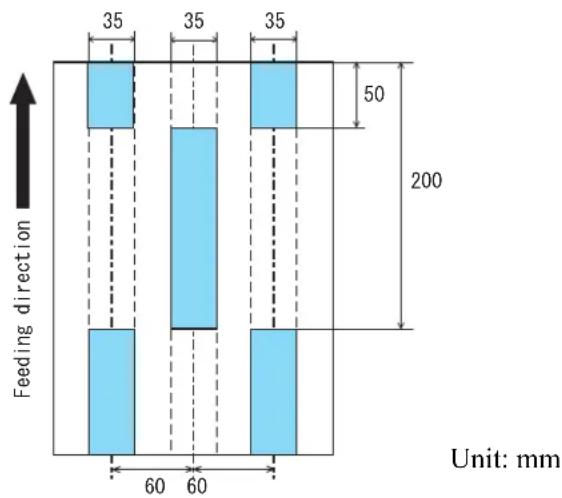
bar
| Feeding direction | Value | |---|---| | Category 1 | 35 | | Category 2 | 35 | | Category 3 | 35 | | Category 4 | 50 | | Category 5 | 200 | Unit: mmSetting Example 2:
Left, Disable, Start=0 mm, End=300 mm Middle, Enable, Start=0 mm, End=0 mm Right, Disable, Start=0 mm, End=0 mm
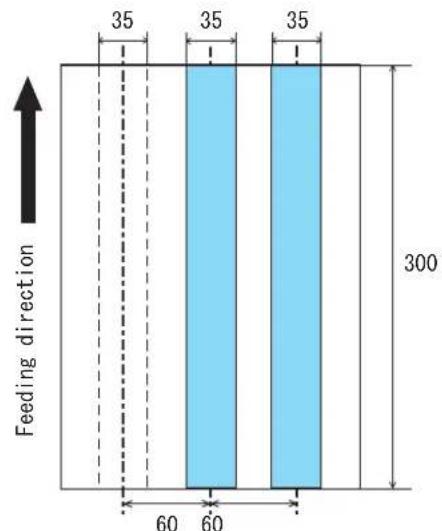
bar
| Category | Value | |---|---| | 35 | 35 | | 60 | 60 | | 35 | 35 | | 300 | |Unit: mm

When you want to detect overlapping, be sure that paper documents are not clinging to each other. Those clinging documents (glued or with static cling) may cause a lower multifeed-detection ratio.
Setting Example 3 (showing a setting which should not be done):
Left, Disable, Start=310 mm, End=400 mm
Middle, Enable, Start=320 mm, End=450 mm
Right, Enable, Start=100 mm, End=102 mm

bar
| Feeding direction | Value | | ----------------- | ----- | | 35 | 35 | | 60 | 60 | | 300 | 300 |* Since the range for the detection area (length) on the right does not meet 5mm, the multifeed detection cannot be performed correctly.
8.5 Multifeed detection when scanning in manual feed mode
Set whether to detect multifeed during manual feed mode or not.
- Start up the Software Operation Panel.
Refer to "8.1 Scanner Settings" on page 173.
- Select [Device Setting 2] from left side list in the window, and select [Multifeed detection when scanning in manual feeding mode] from its lower level.
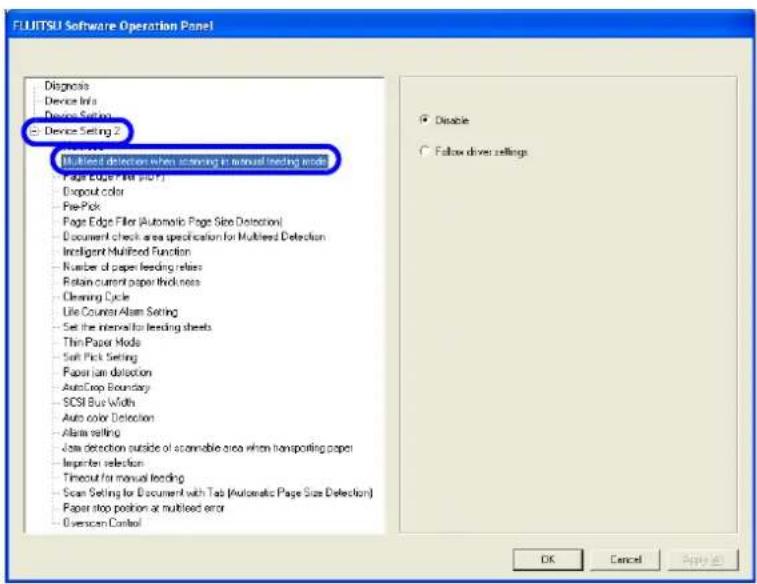
text_image
FLJITSUI Software Operation Panel Diagnosis Device Info Device Setting Device Setting 2 Multiled detection when scanning in manual feeding mode Page Edge Filter (all prior) Dropout color Pre-Pick Page Edge Filter (Automatic Page Size Detection) Document check area specification for Multiled Detection Intelligent Multiled Function Number of paper feeding relies Retain current paper thickness Cleaning Cycle Life Counter Alan Setting Set the interval for feeding sheets Thin Paper Mode Soft Pick Setting Paper fan detection Auto-Crop Boundary SCSI Blue Width Auto color Detection Alan setting Java detection outside of scasmable area when transporting paper Inprinter selection Timeout for manual feeding Scan Setting for Document with Tab (Automatic Page Size Detection) Paper stop position at multiled error Overscan Control Disable Follow driver settings OK Cancel Apply- Select one of the following option.
Disable : Does not detect multifeed at manual feed mode.
Follow driver settings : Multifeed detection is valid only when device driver allows multi-feed detection.
8.6 Page Edge Filler (ADF)
Depending on the state of the documents, the shadow of the scanned document appears in the end portion of the output image and black thin lines may be generated.
If this is the case, you can improve the output image by using the "Page Edge Filler" function. This function fills the end portion of the image so that it looks clean.
Configure the settings for the Page Edge Filler as follows:
1. Start up the Software Operation Panel.
Refer to "8.1 Scanner Settings" on page 173.
2. Select [Device Setting 2] from left side list in the window, and select [Page Edge Filter (ADF)] from its lower level.
![FUJITSU fi-5950 - Select [Device Setting 2] from left side list in the window, and select [Page Edge Filter (ADF)] from its lower level. - 1](/content/2026/06/1239263/images/53841b3986d1c08361328304aa006714d496078b010836600db11aaa0dbe6e39.jpg)
text_image
FLUITSU Software Operation Panel Diagnosis Device Info Device Setting E Device Setting 2 Rotates Page Edge Film (AD) File Edit Tools - Pre-Pick Page Edge Filter (Automatic Page Size Detection) - Document check area specification for Multifed Detection - Intelligent Multifed Function - Number of paper feeding retires - Rotain current paper thicknesses - Cleaning Cycle - Ulc Counter Alarm Setting - Set the interval for feeding sheets Thin Paper Mode - Soft Pick Setting Paper Jam detection AutoCrop Boundary - SCSI Bus Width Auto color Detection - Alarm setting Jam detection outside of scannable areas when transporting paper - Imprinter selection Timeout for manual feeding Scan Setting for Document with Tab (Automatic Page Size Detection) Paper stop position at multifed error Overscan Control Top 0 mm Left 0 mm Right 0 mm Bottom 0 mm OK Cancel Apply3. Specify the length for each end section; top, bottom, right, and left, to fill the end sections.
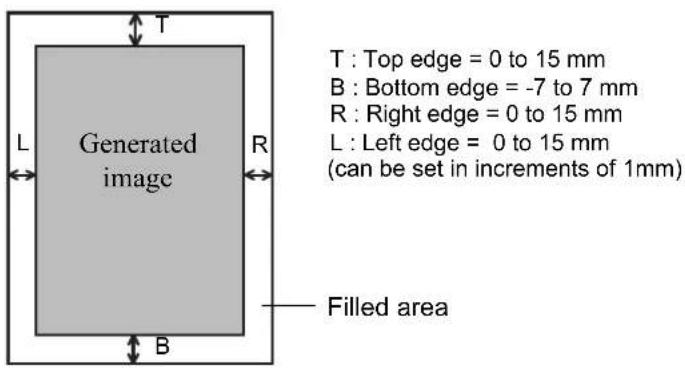
text_image
T Top edge = 0 to 15 mm B : Bottom edge = -7 to 7 mm R : Right edge = 0 to 15 mm L : Left edge = 0 to 15 mm (can be set in increments of 1mm) Generated image R Filled area L BThe specified areas are filled with white when the backing (background) is white, and with black when the backing is black.

Unless otherwise specified, the background color is white. You can also change it to the "Black background" using the scanner driver.
If you are using the TWAIN driver, do the following to change the background color to black: Select the [Option] button, and then select [Black background] from [Automatic Size and Skew detection] on the [Rotation] tab.

Note that if the Page Edge Filler is too wide, some characters in the vicinity of the boundary may be cut out.
When "Automatic Page Size Detection" is set, "Page Edge Filler (Automatic Page Size Detection)" automatically becomes valid instead of this setting.
8.7 Dropout Color
By using the "Dropout Color" function, you can scan documents with the specified color removed from the light's three primary colors, or red, green, blue.
(This function is available for the binary black and white setting as well as the grayscale setting.)
For example, you can scan only the black part of letters when scanning the document containing black letters each with a green frame.
Configure the settings for the Dropout Color as follows:
1. Start up the Software Operation Panel.
Refer to "8.1 Scanner Settings" on page 173.
2. Select [Device Setting 2] from left side list in the window, and select [Dropout Color] from its lower level.
![FUJITSU fi-5950 - Select [Device Setting 2] from left side list in the window, and select [Dropout Color] from its lower level. - 1](/content/2026/06/1239263/images/8bbf65f1ab0aa3385a80bac08af01f2230b9981dd902e8252e88e05f5b77a1c7.jpg)
text_image
FLJITSU Software Operation Panel Diagnosis Device Info Device Setting Device Setting 2 Middlet Multilead detection when scanning in manual feeding mode Papier - Copy (PAP) (ADF) Discount color Prior file Page Edge Filter (Automatic Page Size Detection) Document check area specification for Multilead Detection Intelligent Multiford Function Number of paper feeding retires Retain current paper thickness Cleaning Cycle Wide Counter Alarm Setting Set the interval for feeding sheets Thin Paper Mode Soft Pick Setting Paper Jam detection AutoCrop Boundary SCSI Bus Width Auto color Detection Alarm setting Low detection outside of scannable area when transporting paper Imprint selection Timeout for manual feeding Scan Setting for Document with Tab (Automatic Page Size Detection) Paper stop position or multiseal error Overscan Control Red Green Blue None OK Cancel Apply3. Select a color to drop out.
Red, Green, Blue: Red, green, or blue is dropped out.
None: No dropout occurs.

The Dropout Color setting can also be configured using the scanner driver setting window. (The scanner driver setting window is given a priority over Software Operation Panel.)
When configuring the setting through Software Operation Panel, you cannot select other colors than red, green, and blue. If you want to drop out any other colors, use the scanner driver setting window.
For details on how to configure settings through the scanner driver setting window, refer to "3.5 Excluding a Color from the image (drop out color)".
8.8 Pre-Pick
To scan documents consecutively, you can previously pick the document to be scanned next. This operation is called Pre-Pick. By enabling Pre-Pick, the time interval between the scanning of two separate documents can be shortened.
Configure the settings for the Pre-Pick as follows:
1. Start up the Software Operation Panel.
Refer to "8.1 Scanner Settings" on page 173.
2. Select [Device Setting 2] from left side list in the window, and select [Pre-Pick] from its lower level.
![FUJITSU fi-5950 - Select [Device Setting 2] from left side list in the window, and select [Pre-Pick] from its lower level. - 1](/content/2026/06/1239263/images/d7c4d82b3fa643c7211861dc6b2c88006a1fe06d1782142d0810a8796e35f43b.jpg)
text_image
FLJITSU Software Operation Panel Diagnosis Device Info Device Setting Device Setting 2 Minesets Multiseed detection when scanning in manual feeding mode Page Edge Filter (AOF) Minesets for Paper Page Filter Page Edge Filter (Automatic Page Size Detection) Document check area specification for Multiseed Detection Intelligent Multiseed Function Number of paper feeding relies Retain current paper thickness Cleaning Cycle Life Counter Alan Seling Set the interval to feeding sheets Thin Paper Mode Soft Pick Setting Paper fan detection AutoCrop Boundary SCSI Bus Width Auto color Detection Alan setting Java detection outside of accessible area when transporting paper Inprinter selection Timeout for manual feeding Scan Setting for Document with Tab (Automatic Page Size Detection) Paper stop position at multiseed error Overscan Control Yes No OK Cancel Help OK Cancel Help OK Cancel Help OK Cancel Help OK Cancel Help OK Cancel Help OK Cancel Help OK Cancel Help OK Cancel Help OK Cancel Help OK Cancel Help OK Cancel Help OK Cancel Help OK Cancel Help OK Cancel Help OK Cancel Help OK Cancel Help OK Cancel Help Ok Cancel Help OK Cancel Help OK Cancel Help OK Cancel Help OK Cancel Help OK Cancel Help OK Cancel Help OK Cancel Help OK Cancel Help OK Cancel Help OK Cancel Help OK Cancel Help OK Cancel Help OK Cancel Help OK Cancel Help OK Cancel Help OK Cancel Help3. Select "Yes" or "No" for Pre-Pick.
Select "Yes" to make Pre-pick valid, and select "No" to make it invalid.

By enabling Pre-Pick, faster scanning can be achieved. While Pre-Pick is valid, if you cancel scanning in process, you have to reload the document after ejecting all the pre-picked document.
- This setting is also available by device driver setting. In this case device driver setting has a priority to the setting by this section.
8.9 Page Edge Filler (Automatic Page Size Detection)
When the scanner is set to detect paper size automatically, depending on the state of the documents, the black frame may be generated on the output image.
If this is the case, you can improve the output image by using the "Page Edge Filler (Automatic Page Size Detection)" function. This function fills the end portion of the image with white so that it looks clean.
Configure the settings for "Page Edge Filler (Automatic Page Size Detection)" as follows:
- Start up the Software Operation Panel.
Refer to "8.1 Scanner Settings" on page 173.
- Select [Device Setting 2] from left side list in the window, and select [Page Edge Filter (Automatic Page Size Detection)] from its lower level.

text_image
FLUJITSU Software Operation Panel Diagnosis Device Info Device Setting 2 Multifold Multilevel detection when scanning in manual feeding mode Page Edge File (ADF) Dropout color Page Edge Filter (Automatic Page Size Detection) Continuous Filter and Screen-Default/Unilateral Multifold Detection Inelligent Multifold Function Number of paper feeding retires Retain current paper thickness Cleaning Cycle Life Counter Alarm Setting Set the interval for feeding sheets Thin Paper Mode Soft Pick Setting Paper Jam detection AutoCrop Boundary SCSI Bus Width Auto color Detection Alarm setting Jam detection outside of scannable area when transporting paper Imprinter reflection Timeout for manual feeding Scan Setting for Document with Tab (Automatic Page Size Detection) Paper stop position at multilevel error Overscan Control Top 0 x0.5mm Left 0 x0.5mm Right 0 x0.5mm Bottom 0 x0.5mm OK Cancel Apply- Specify the Top, Bottom, Right, and Left widths to fill.
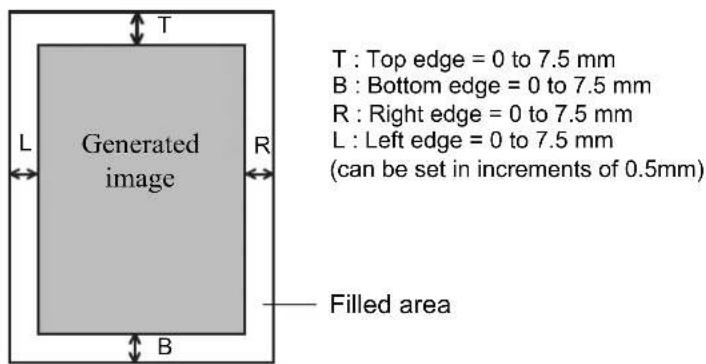
text_image
T Top edge = 0 to 7.5 mm B : Bottom edge = 0 to 7.5 mm R : Right edge = 0 to 7.5 mm L : Left edge = 0 to 7.5 mm (can be set in increments of 0.5mm) Generated image Filled area L RThe specified range is filled with white.

The "Automatic Page Size Detection" setting can be configured on the scanner driver setting window.
For details on how to set the setting, refer to "3.8 Correcting skewed Documents" on page 84.

Note that if the Page Edge Filler is too wide, some characters in the vicinity of the boundary may be cut.
When you scan the document based on the other settings than "Automatic Page Size Detection", "Page Edge Filler (ADF)" automatically becomes valid instead of this setting.
8.10 Intelligent Multifeed Function
When a fixed size of paper is pasted on the same location in multiple sheets, the scanner can memorize the size and location of the pasted paper so it will not be detected as a multifeed. To use this function, you need to select [Check Overlapping] as the multifeed setting by the procedure described in "Section 3.7" or "Section 8.4" in advance.
- Start up the Software Operation Panel.
Refer to "8.1 Scanner Settings" on page 173.
- Select [Device Setting 2] from left side list in the window, and select [Intelligent Multifeed Function] from its lower lebel.
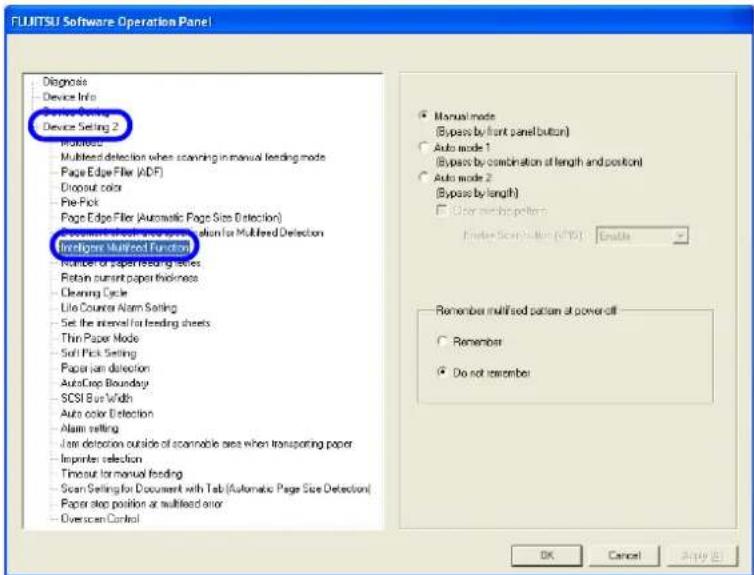
text_image
FLJITSU Software Operation Panel Diagnosis Device Info Power Setting Device Setting 2 Multiless Multilead detection when scanning in manual feeding mode Page Edge Flow (ADF) Dropout color Pre-Pick Page Edge Flow (Automatic Page Sites Detection) Recommended Multisevel Connection for Multisevel Detection Developer Multisevel Function Number of paper residues Retain current paper thickness Cleaning Cycle Life Counter Alarm Setting Set the interval for feeding sheets Thin Paper Mode Soft Pick Setting Paper fan detection AutoCrop Boundary SCSI Bus Width Auto color Detection Alarm setting Low detection outside of scannable area when transporting paper Imprinter selection Timeout for manual feeding Scan Setting for Document with Tab (Automatic Page Size Detection) Paper stop position at multisevel error Overscan Control Manual mode (Bypass by front panel button) Auto mode 1 (Bypass by combination of length and position) Auto mode 2 (Bypass by length) User screen pattern Create Scan Solution (C:\10) Enable Remember multisevel pattern at power off Remember Do not remember OK Cancel Apply OK- Select one of the following option and press [OK]. Refer to Section 3.11 for subsequent proceduers.
Manual mode : Scanner detects multifeed and stops document feeding. User can specify whether to bypass the multifeed or not, and starts scanning by pressing [Scan] button.
Auto mode 1 : Scanner detects multifeed and stops document feeding. The length and position of the sticked paper is memorized by restarting the scanning. Multifeed is bypassed, if the same-length paper is sticked at the same position on the document.
Auto mode 2 : Scanner detects multifeed and stops document feeding. The length of the sticked paper is memorized by restarting the scanning. Multifeed is bypassed, if the sticked paper is same or smaller than memorized length.
- Specify whether or not to remember the multifeed pattern at power-off under [Remember multifeed pattern at power-off].
Selecting [Remember] allows you to use the last-remembered multifeed pattern before power-off. (Eight patterns can be memorized at power-off.)
8.11 Paper feeding retry times
This is specified to decrease feeding (picking) retry times to detect jam earlier.
- Start up the Software Operation Panel.
Refer to "8.1 Scanner Settings" on page 173.
- Select [Device Setting 2] from left side list in the window, and select [Number of paper feeding retries] from its lower level.

text_image
FLUITSUI Software Operation Panel Diagnosis Device Info Device Setting Device Setting 2 Multi-lead Multi-led detection when scanning in manual feeding mode Page Edge Filter (ADF) Dropout color Fire-Pick Page Edge Filter (Automatic Page Size Detection) Document check area specification for Multimed Detection Inspection-Multured Detection Number of paper feeding ratio Read control paper interfaces Cleaning Cycle Life Counter Alarm Setting Set the interval for feeding sheets Thin Paper Mode Soft Pick Setting Paper Jam detection AutoCrop Boundary SCSI Bus Width Auto color Detection Alarm setting Data detection outside of a car-mobile area when transporting paper Inprinter selection Timeout for manual feeding Scan Setting for Document with Tab (Automatic Page Size Detection) Paper stop position at multised error Overscan Control Number of paper feeding ratios 12 times OK Cancel Apply (A)- Specify retry times from 1 to 12.
8.12 Retaining current paper thickness after Power off
The Paper thickness setting on the Operator panel is memorized and displayed after turning off and on the power.
- Start up the Software Operation Panel.
Refer to "8.1 Scanner Settings" on page 173.
- Select [Device Setting 2] from left side list in the window, and select [Retain current paper thickness] from its lower level.
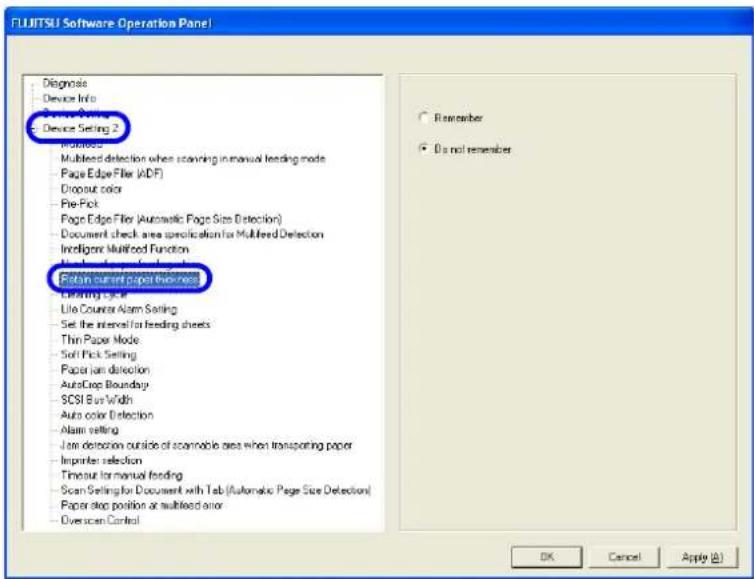
text_image
FLUJITSU Software Operation Panel Diagnosis Device Info Device Setting 2 Modules Multihead detection when scanning in manual feeding mode Page Edge Filter (ADF) Dropout color Pre-Pick Page Edge Filter (Automatic Page Size Detection) Document check area specification for Multifeed Detection Intelligent Multifeed Function New document set to the device Retain current paper thickness Drawing Cycle Life Counter Alarm Setting Set the interval for feeding sheets Thin Paper Mode Soft Pick Setting Paper fan detection AutoCrop Boundary SCSI Bus Width Auto color detection Alarm setting Air detection outside of scamable area when transporting paper Impulse selection Timeout for manual feeding Scan Setting for Document with Tab (Automatic Page Size Detection) Paper stop position at multilead error Overscan Control Remember Do not remember OK Cancel Apply (A)- Specify whether to remember the setting or not.
If [Remember] is specified, the paper thickness setting at power off is used at next power on.
8.13 Cleaning Cycle
The cleaning cycle of the scanner is specified by this setting. When Page counter (Consumable counter) exceeds the value specified here, the background color of the counter in the window on page 124 becomes yellow, and the message to ask user to clean the scanner may appear as described in Section "5.2 How to check and reset the Consumable/Cleaning Counter" on page 121.
1. Start up the Software Operation Panel.
Refer to "8.1 Scanner Settings" on page 173.
2. Select [Device Setting 2] from left side list in the window, and select [Cleaning Cycle] from its lower level.
![FUJITSU fi-5950 - Select [Device Setting 2] from left side list in the window, and select [Cleaning Cycle] from its lower level. - 1](/content/2026/06/1239263/images/593a90618bfae14e26ae992cb7ac71a01fd39c71f70926c113ca001585ffcba1.jpg)
text_image
FUJITSU Software Operation Panel Diagnosis Device Info Device Setting 2 Multi-lead Multi-led detection when scanning in manual feeding mode Page Edge Filter (AID F) Dropout color Pre-Pick Page Edge Filter (Automatic Page Size Detection) Document check area specification for Multilead Detection Intelligent Multilined Function Number of paper feeding relies Before measurement or thickness Drawing Cycle On Color/Power Setting Set the interval for feeding sheets Thin Paper Mode Soft Pick Setting Paper fan detection AutoCrop Boundary SCSI Bus Width Auto color Detection Alarm setting Java detection outside of scasmable area when transporting paper Inprinter selection Timeout for manual feeding Scan Setting for Document with Tab (Automatic Page Size Detection) Paper stop position at multilead error Overscan Control Cleaning Cycle 10 x1000 Show cleaning instructions: OK Cancel Apply (S)3. Specify the cleaning cycle to change the background color for each consumable.
Setting is available from 1,000 to 255,000 with 1,000 increment. Default is 10,000. Also, specify whether to display the message to ask operator clean the scanner.
8.14 Life counter setting
This counter specifies the page count to ask operator to replace the consumable. When the page count exceeds the value specified here, the background color of the counter in the window on page 124 becomes yellow, or replacement message window on page 124 appears.
- Start up the Software Operation Panel.
Refer to "8.1 Scanner Settings" on page 173.
- Select [Device Setting 2] from left side list in the window, and select [Life Counter Alarm Setting] from its lower level.

text_image
FLUJITSU Software Operation Panel Diagnose Device Info Device Setting 2 Multifold detection when scanning in manual feeding mode Page Edge Filter (ADF) Dropout color Pre-Pick Page Edge Filter (Automatic Page Site Detection) Document check area specification for Multifed Detection Intelligent Multifed Function Number of paper feeding holes Retain current paper thickness Dipson Drop Life Counter Alarm Setting Set the following reading sheets Thin Paper Mode Soft Pick Setting Paper jam detection AutoCrop Boundary SCSI Bus Width Auto color Detection Alarm setting Jam detection outside of scamable area when transporting paper Imprinter selection Timeout for manual feeding Scan Setting for Document with Tab (Automatic Page Size Detection) Paper stop position at multifed error Overscan Control Pick Rollers 60 ×10000 Blake Rollers 60 ×10000 Pad 60 ×10000 Separator Rollers 60 ×10000 OK Cancel Apply (A)- Specify the counter value to change its color for each consumable (Pick roller, Brake roller, Separation pad, separator roller).
Setting is available from 10,000 to 2,550,000 with 10,000 increment.
8.15 Document clearance setting
Scanned image may be chipped at the bottom area, if the document is fed with large skew. This trouble can be avoided by setting the document clearance wider.
1. Start up the Software Operation Panel.
Refer to "8.1 Scanner Settings" on page 173.
2. Select [Device Setting 2] from left side list in the window, and select [Set the interval for feeding sheets] from its lower level.
![FUJITSU fi-5950 - Select [Device Setting 2] from left side list in the window, and select [Set the interval for feeding sheets] from its lower level. - 1](/content/2026/06/1239263/images/9790e1d14ad16adc04de55bb6f0373ed5d8e959aea7c110fdd18222a9ef9b9eb.jpg)
text_image
FLJITSU Software Operation Panel Diagnosis Device Info Device Setting Device Setting 2 Multi-lead Multilead detection when scanning in manual feeding mode Page Edge Filter (AID F) Dropout color Pre-Pick Page Edge Filter (Automatic Page Size Detection) Document check area specification for Multiseed Detection Intelligent Multiseed Function Number of paper feeding relies Retain current paper thickness Cleaning Cycle Auto-Cooling & Setting Set the Minneapolis loading sheets Soft Paper Mode Soft Pick Setting Paper fan detection Auto-Crop Boundary SCSI Bus Width Auto color Detection Alarm setting Low detection outside of scannable area when transporting paper Inprinter selection Timeout for manual loading Scan Setting for Document with Tab (Automatic Page Size Detection) Paper stop position at multiseed error Overscan Control Shot Long Default OK Cancel Apply (a)3. Select a document clearance from 4 steps from Short (Default) to Long.
8.16 Thin Paper Mode
If nonstandard thin paper cannot be fed and scanned smoothly, use this mode.
In this mode, sheets of paper are fed at a slower speed so that thin paper can be fed and scanned properly.
Follow the steps below to switch to the Thin Mode.
1. Start up the Software Operation Panel.
Refer to "8.1 Scanner Settings" on page 173.
2. Select [Device Setting 2] from left side list in the window, and select [Thin Paper Mode] from its lower level.
![FUJITSU fi-5950 - Select [Device Setting 2] from left side list in the window, and select [Thin Paper Mode] from its lower level. - 1](/content/2026/06/1239263/images/db619da1cc23078d7500d824d03c50001b494e9e2430fa099c261f06b26e8fc8.jpg)
text_image
FLUJITSU Software Operation Panel Diagnose Device Info Device Setting 2 Multiless Multiless detection when scanning in manual feeding mode Page Edge Filter (ADF) Dropout color Pre-Pick Page Edge Filter (Automatic Page Size Detection) Document check area specification for Multifed Detection Intelligent Multifed Function Number of paper feeding retires Retain current paper thickness Cleaning Cycle Life Counter Alarm Setting Thin Paper Mode Scan to Print Setting Paper Jam detection AutoDrop Boundary SCSI Bus Width Auto color Detection Alarm setting Jam detection outside of scannable areas when transporting paper Imprinter selection Timeout for manual funding Scan Setting for Document with Tab (Automatic Page Size Detection) Paper stop position at multisead error Overscan Control Disable Thin paper mode Superthin paper mode OK Cancel Apply (A)3. Select one of the following option.
Disable : For the document described in the Document specification.
Thin paper mode : For the thin document than described in the Document specification.
Super-thin paper mode : For very thin document rather than the Thin paper above.

text_image
ATTENTION In Thin Paper Mode, the document is scanned at a lower speed, and thus it takes longer. This mode should be used only for thin paper. Set the setting to "Disable" while you use paper of standard thickness. About the paper thickness, refer to "7.2 Document Quality" on page 159.8.17 Soft Pick Setting
When a number of sheets are picked at a time and multi-feed is detected frequently, enable this setting. When this setting is enabled, the pick roller does not move up and down at the paper picking to decrease the number of sheets at picking, and multi-feed may decrease.
This setting may be effective for the document in small size.

text_image
ATTENTION When this setting is enabled and the document thickness is smaller than the specified in "7.2 Document Quality" on page 159, paper jam may occuré.- Start up the Software Operation Panel.
Refer to "8.1 Scanner Settings" on page 173.
- Select [Device Setting 2] from left side list in the window, and select [Soft Pick Setting] from its lower level.

text_image
FLJITSU Software Operation Panel Diagnosis Device Info Device Setting Device Setting 2 Multiused Multiused detection when scanning in manual feeding mode Page Edge Filter (ADF) Dropout color Fire Pick Page Edge Filter (Automatic Page Size Detection) Document check area specification for Multiseed Detection Intelligent Multiseed Function Number of paper feeding retires Return current paper thickness Cleaning Cycle Lite Courier Alert Setting Set the interval for feeding sheets Soft Stick Setting Auto-Drop Connection Auto-Drop Boundary SOSI Bus Width Auto color Detection Alarms setting Java detection outside of scramable area when transporting paper Impinator selection Timeout for manual feeding Scan Setting for Document with Tab (Automatic Page Size Detection) Paper stop position or multiseed error Overscan Control Enable Disable OK Cancel Apply (A)- Specify whether to enable or disable Soft Pick Setting.
Default is "Disable".
8.18 Paper Jam Detection
You can set the degree of detection sensitivity for a jam at the feeder.
Configure the settings for Paper Jam Detection as follows:
- Start up the Software Operation Panel.
Refer to "8.1 Scanner Settings" on page 173.
- Select [Device Setting 2] from left side list in the window, and select [Paper jam detection] from its lower level.

text_image
FLUJITSU Software Operation Panel Diagnose Device Info Device Setting 2 Includes Multifeed detection when scanning in manual feeding mode Page Edge Filter (ADF) Dropout color Pre-Pick Page Edge Filter (Automatic Page Size Detection) Document check area specification for Multifeed Detection Intelligent Multifeed Function Number of paper feeding retires Retain current paper thickness Cleaning Cycle Lite Counter Alarm Setting Set the interval for feeding sheets Thin Paper Mode Position detection Sectional tabimony SCSI Bus Width Auto color detection Alarm setting Jam detection outside of scannable area when transporting paper Imprint selection Timeout for manual feeding Scan Setting for Document with Tab (Automatic Page Size Detection) Paper stop position at multifeed error Overscan Control Normal Sensitivity-Low OK Cancel Apply (A)- Set the degree of detection sensitivity for a jam occurred at the feeder.
If you encounter frequent jams, set the setting to "Sensitivity-Low".

text_image
ATTENTION Setting to "Sensitivity-Low" reduces the detection accuracy for a paper jam. If you don't want to get your important document ripped or crumpled, be sure to set the setting to "Normal" to scan the document.8.19 AutoCrop Boundary
Scanning documents using the "Automatic Page Size Detection" function may produce incomplete image data; the edge of the image data may be lost, or shadows may be produced on the bottom or right edge of the data. To prevent or improve such a problem, use this "AutoCrop Boundary."
Configure the settings for the AutoCrop Boundary as follows:
1. Start up the Software Operation Panel.
Refer to "8.1 Scanner Settings" on page 173.
2. Select [Device Setting 2] from left side list in the window, and select [AutoCrop Boundary] from its lower level.
![FUJITSU fi-5950 - Select [Device Setting 2] from left side list in the window, and select [AutoCrop Boundary] from its lower level. - 1](/content/2026/06/1239263/images/f5622fee20bc71072c35fca6646c30ac15cf17f53dc8473715a08f7b02ff207a.jpg)
text_image
FLJITSU Software Operation Panel Diagnosis Device Info Device Setting Device Setting 2 AutoRed Multiless detection when scanning in manual feeding mode Page Edge Filter (AIDF) Dropout color Pre-Pick Page Edge Filter (Automatic Page Size Detection) Document check area specification for Multiseed Detection Intelligent Multiseed Function Number of paper feeding relies Retain current paper thickness Cleaning Cycle Life Counter Alarm Setting Set the interval to feeding sheets Thin Paper Mode Soft Pick Setting AutoDrive Boundary Auto Color Detection Alarm setting Java detection outside of accessible area when transporting paper Inprinter selection Timeout for manual feeding Scan Setting for Document with Tab (Automatic Page Size Detection) Paper stop position at multiseed error Overscan Control Round Up Round Down Optimize OK Cancel Apply (a)3. To prevent the output image from chipping during AutoCrop Boundary processing, select "Round Up", and select "Round Down" to delete unnecessary details.
To prevent the marginal data from being lost or minimize shadows on the bottom or right edge of the data during the AutoCrop Boundary processing, select [Optimize].

text_image
ATTENTION When the document is scanned with "Round Down" selected, the characters in the vicinity of the rear end of the document, if any, may be cut out. Selecting "Round Up" can prevent data from chipping, but it may generate black lines near the rear end. Some applications may display scanned image data incorrectly when [Optimize] is selected. In such a case, select [Normal]. For details on how to set the Automatic Page Size Detection setting, refer to "3.8 Correcting skewed Documents" on page 84.When using the SCSI-connected scanner, you can select a data transfer width.

text_image
For Kofax VRS, this setting is not displayed. The SCSI Bus Width is automatically set to [8 bit].Configure the settings for the SCSI Bus Width as follows:
- Start up the Software Operation Panel.
Refer to "8.1 Scanner Settings" on page 173.
- Select [Device Setting 2] from left side list in the window, and select [SCSI Bus Width] from its lower level.

text_image
FLUJITSU Software Operation Panel Diagnose Device Info Device Setting 2 Mutilized Multiplied detection when scanning in manual feeding mode Page Edge Files (ADF) Dropout color Pre-Pick Page Edge Filter (Automatic Page Size Detection) Document check once specification for Multiford Detection Intelligent Multifed Function Number of paper feeding retics Return current paper thickness Cleaning Cycle Life Counter Alarm Setting Set the interval for feeding sheets Thin Paper Mode Soft Pick Setting Paper join detection Scan Settings - SSCI Bus Width Auto-Scan Detection Alarm setting Use detection outside of scanable area when transporting paper Imprint collection Timeout for manual feeding Scan Setting for Document with Tab (Automatic Page Size Detection) Paper stop position or multiford order Overscan Control 16 bit (Wide) 0 bit OK Cancel Apply (A)- Select either 16 bit or 8 bit.

text_image
To use SCSI cards and/or SCSI cables that do not support Ultra Wide SCSI, select "8 bit".8.21 Auto Color Detection
You can adjust the slice level for auto color detection.
Configure the settings for the Auto Color Detection as follows:
1. Start up the Software Operation Panel.
Refer to "8.1 Scanner Settings" on page 173.
2. Select [Device Setting 2] from left side list in the window, and select [Auto color Detection] from its lower level.
![FUJITSU fi-5950 - Select [Device Setting 2] from left side list in the window, and select [Auto color Detection] from its lower level. - 1](/content/2026/06/1239263/images/34024f03269d37a076e623c72ec594499910d9dbd9def3064280ee7659a4182d.jpg)
text_image
FLUJITSU Software Operation Panel Diagnosis Device Info Service Setting Device Setting 2 Multifold Multifold detection when scanning in manual feeding mode Page Edge Filter (ADF) Dropout color Fire Pick Page Edge Filter (Automatic Page Size Detection) Document check area specification for Multifold Detection Intelligent Multifold Function Number of paper feeding relies Return current paper thickness Cleaning Cycle Life Counter Alarm Setting Set the interval to feeding sheets Thin Paper Mode Soil Pick Setting Paper Jam detection Auto-Crop Boundary Auto-Crop Detection Alure color detection Main finding Jam detection outside of scamable area when transporting paper Impeller selection Timeout for manual feeding Scan Settings for Document with Tab (Automatic Page Size Detection) Paper stop position at multiseal error Overscan Control Slice 5 OK Cancel Apply (S)3. Select the Slice value.
You can select the Slice value from 1 to 255 (255 levels).
In the case that black and white documents are judged as color documents, select larger values. In the case that color documents are judged as black and white, select smaller values.

The auto color detection setting can be configured on the scanner driver setting window.
For details on how to set the setting, refer to "3.11 Color/monochrome Auto Detection" on page 92.
8.22 Alarm Setting
You can make the alarm to sound beeps when a jam or multifeed occurs, as well as disabling the alarm.
Configure the settings for the Alarm setting as follows:
- Start up the Software Operation Panel.
Refer to "8.1 Scanner Settings" on page 173.
- Select [Device Setting 2] from left side list in the window, and select [Alarm setting] from its lower level.
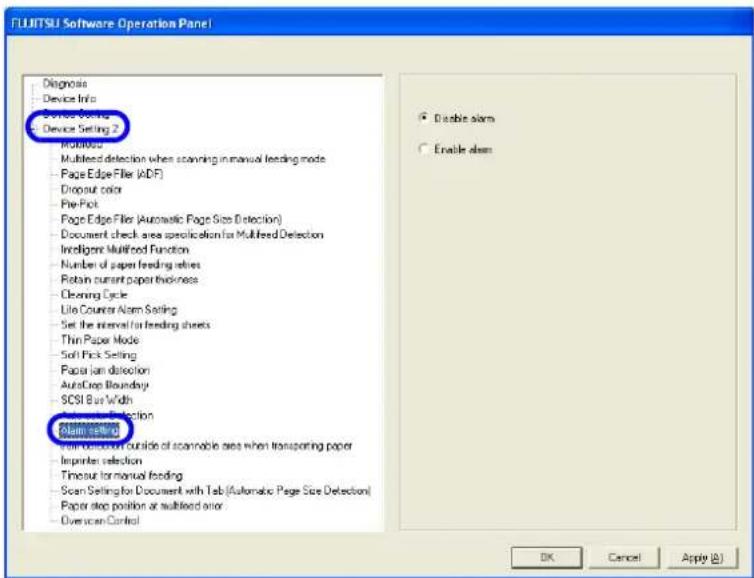
text_image
FLJITSU Software Operation Panel Diagnosis Device Info Device Setting 2 Mobile Multilead detection when scanning in manual feeding mode Page Edge File (ADF) Dropout color Pre-Pick Page Edge File (Automatic Page Size Detection) Document check area specification for Multifeed Detection Intelligent Multifeed Function Number of paper feeding retires Retain current paper thickness Cleaning Cycle Lite Counter Alarm Setting Set the interval for feeding sheets Thin Paper Mode Soft Pick Setting Paper Jam detection AutoCrop Boundary SCSI Bus Width Automotive Detection Automotive System With detection outside of scannable area when transporting paper Imprinter selection Timeout for manual feeding Scan Setting for Document with Tab (Automatic Page Size Detection) Paper stop position at multilead error Overscan Control Disable alarm Enable alarm OK Cancel Apply (A)- Select "Enable alarm" to sound beeps when a jam or multifeed occurs. Select "Disable alarm" to disable the alarm.
8.23 Jam Detection Outside of Scannable Area When Transporting paper
If this function is turned On, such a case, in which the documents are fed outside of the scannable area due to over-skew, is judged as a jam. You can turn it On and Off.
Configure the settings for the Jam detection outside of scannable area when transporting paper as follows:
- Start up the Software Operation Panel.
Refer to "8.1 Scanner Settings" on page 173.
- Select [Device Setting 2] from left side list in the window, and select [Jam detection outside of scannable area when transporting paper] from its lower level.

text_image
FLUJITSUI Software Operation Panel Diagnosis Device Info Device Setting Device Setting 2 Multilined Multileased detection when scanning in manual feeding mode Page Edge Filter (AID F) Dropout color Pre-Pick Page Edge Filter (Automatic Page Size Detection) Document check area specification for Multileased Detection Intelligent Multilined Function Number of paper feeding relaxes Retain current paper thickness Cleaning Cycle Use Counter Alarms Setting Set the interval to feeding sheets Thin Paper Mode Soft Pick Setting Paper fan detection AutoCrop Boundary SCSI Blue Widths Auto color Detection Auto detection Data detection outside of automobile area when transporting paper Organic Detection Timeout for manual feeding Scan Setting for Document with Tab (Automatic Page Size Detection) Paper stop position at multilined error Overscan Control Enable Disable OK Cancel Apply (A)- Select "Enable" to judge such a scan as a jam, and select "Disable" not to judge it as a jam.
8.24 Imprinter Selection
You can specify which imprinter to use; Pre-imprinter or Post-imprinter, if you already have installed these options.
Configure the settings for the Imprinter Selection as follows:
- Start up the Software Operation Panel.
Refer to "8.1 Scanner Settings" on page 173.
- Select [Device Setting 2] from left side list in the window, and select [lmprinter selection] from its lower level.
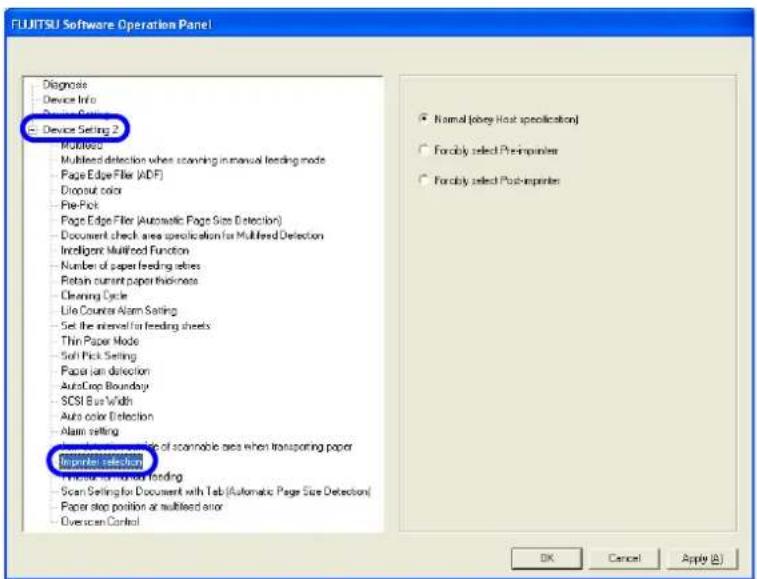
text_image
FLUJITSU Software Operation Panel Diagnosis Device Info Device Setting 2 Multifold Multilead detection when scanning in manual feeding mode Page Edge Filter (ADF) Dropout color Pre-Pick Page Edge Filter (Automatic Page Size Detection) Document check area specification for Multilead Detection Intelligent Multifood Function Number of paper feeding retires Retain current paper thickness Cleaning Cycle Life Counter Alarm Setting Set the interval for feeding sheets Thin Paper Mode Soft Pick Setting Paper fan detection AutoCrop Boundary SCSI Bus Width Auto color detection Alarm setting Unprint selection File to monitor finding Scan Setting for Document with Tab (Automatic Page Size Detection) Paper stop position at multilead error Overscan Control Normal (obey Host specification) Forably select Post-inprimer Forably select Post-inprimer OK Cancel Apply (A)- Select the Imprinter to use.
Normal (obey Host specification) : Complies with the scanner driver setting.
Forcibly select Pre-imprinter : Pre-imprinter is forcibly used to print unless directed by the scanner driver.
Forcibly select Post-imprinter : Post-imprinter is forcibly used to print unless directed by the scanner driver.

For details on the specifications of the imprinter, refer to "9 OPTIONS" on page 223.
8.25 Timeout for Manual Feeding
In manual feeding mode, if the scanner is left without loading the next document to scan for an extended time period, the scanner completes the scanning once and cancel the manual feeding mode. The time period is called “timeout”.
Configure the settings for the Timeout for Manual as follows:
1. Start up the Software Operation Panel.
Refer to "8.1 Scanner Settings" on page 173.
2. Select [Device Setting 2] from left side list in the window, and select [Timeout for manual feeding] from its lower level.
![FUJITSU fi-5950 - Select [Device Setting 2] from left side list in the window, and select [Timeout for manual feeding] from its lower level. - 1](/content/2026/06/1239263/images/0b1e657dcd343c55a825c4907e9734494250de30cf0b247fc66d2803225dab2a.jpg)
text_image
FLJITSUI Software Operation Panel Diagnosis Device Info Device Setting Device Setting 2 Multi-Box Multi-lead detection when scanning in manual feeding mode Page Edge Filter (ADF) Dropout color Pre-Pick Page Edge Filter (Automatic Page Size Detection) Document check area specification for Multiseed Detection Intelligent Multiseed Function Number of paper feeding relies Return current paper thickness Cleaning Cycle Life Counter Alarm Setting Set the interval for feeding sheets Thin Paper Mode Soft Pick Setting Paper Jam detection Auto-Crop Boundary SCSI Bus Width Auto color Detection Alarm setting Data detection outside of accessible area when transporting paper Auto detection Timeout for manual feeding Clean Setting for document with Tab (Automatic Page Size Detection) Paper stop position at multiseed error Overscan Control Timeout for manual feeding 10 seconds OK Cancel Apply (A)3. Select the timeout period for manual feeding.
You can specify the timeout period by seconds. Scanning will be complete when the specified time period has elapsed after the last sheet of paper was loaded onto the Hopper.
Select a timeout period from the following:
5, 10, 20, 30, 40, 50, 60, 70, 80, 90, 100, 110, 120, 180, 240, 300, 360, 420, 480, 540, 600, 900, 1200, 1800, 1999 (seconds)

For details on how to scan the document manually, refer to "2.12 Feeding Documents Manually" on page 36.
8.26 Scan Setting for Document with Tab
When the document has tab on the bottom edge of the image, the tab image remain even if the document is scanned with Automatic Page Size Detection. When “Scan Setting for Document with Tab” is specified, the tab image remains in the scanned data but the scanning speed may be rather slow.
- Start up the Software Operation Panel.
Refer to "8.1 Scanner Settings" on page 173.
- Select [Device Setting 2] from left side list in the window, and select [Scan Setting for Document with Tab(Automatic Page Size Detection)] from its lower level.

text_image
FLUJITSU Software Operation Panel Diagnoses Device Info Device Setting 2 Mobilized Multihead detection when scanning in manual feeding mode Page Edge Filter (ADF) Dropout color Pre-Pick Page Edge Filter (Automatic Page Size Detection) Document check area specification for Multihead Detection Intelligent Multifoid Function Number of paper feeding retires Retain current paper thickness Cleaning Cycle Lite Counter Alarm Setting Set the interval for feeding sheets Thin Paper Mode Soft Pick Setting Paper Jam detection AutoDrop Boundary SCSI Bus Width Auto color detection Alarm setting Jam detection outside of scannable area when transporting paper Imprintset selection Scan Settings for Document with Tab (Automatic Page Size Detection) Paper Jam position at software port Diverscan Control Document with tab Document without tab OK Cancel Apply (A)- Specify whether the document is "Document with tab" or "Document without tab".
Default is "Document without tab".

When scanning the document with tab, load the document on the Hopper so that the tab is on the far side of the Pick roller. If the document is not loaded in this way, paper jam may occur as the tab is caught in ADF.
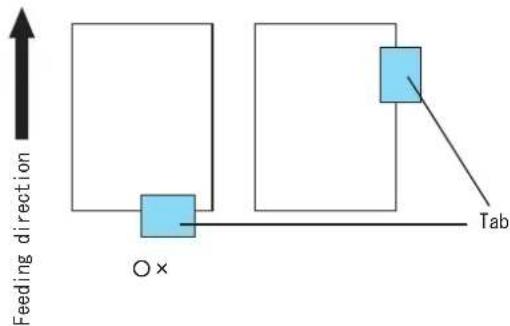
text_image
Feeding direction O × Tab8.27 Paper Stop Position at Multifeed Error
When a multifeed error is detected by overlapping of documents, the position to stop the documents on which the multifeed occurred can be selected.
To configure this setting, [Check by overlapping (US sensor)] must be specified for multifeed detection ("8.4 Multifeed Detection" on page 190).
Configure the settings for Paper Stop Position at Multifeed Error as follows.
1. Start up the Software Operation Panel.
Refer to "8.1 Scanner Settings" on page 173.
2. Select [Device Setting 2] from left side list in the window, and select [Paper stop position at multifeed error] from its lower level.
![FUJITSU fi-5950 - Select [Device Setting 2] from left side list in the window, and select [Paper stop position at multifeed error] from its lower level. - 1](/content/2026/06/1239263/images/c6fb32f3254a5680e1fb55ba375d52099a6afaed8ca32d8f8aec34ef60f98588.jpg)
text_image
FLJITSUI Software Operation Panel Diagnosis Device Info Device Setting Device Setting 2 Mullhead Multilead detection when scanning in manual feeding mode Page Edge Filter (ADF) Dropout color Pre-Pick Page Edge Filter (Automatic Page Size Detection) Document check area specification for Multilead Detection Intelligent Multilined Function Number of paper feeding relays Return current paper thickness Cleaning Cycle Life Counter Alarm Setting Set the interval to feeding sheets Thin Paper Mode Soft Pick Setting Paper Jam detection AutoCrop Boundary SCSI Bus Width Auto color Detection Alarm setting Java detection outside of accessible area when transporting paper Impeller selection Timeout for manual feeding Paper Stop Position at Multilead error Microsoft Control Normal Pages output slot OK Cancel Apply (A)3. Select one of the following modes and click the [OK] button.
Normal : Stops feeding when a multifeed error is detected by overlapping.
Paper output slot : Feeds the documents to the Paper output slot and stops when a multi-feed error is detected by overlapping.
This setting makes it easier to identify on which document a multifeed error occurred.
8.28 Overscan Control
Specify [Optimize] when you use Overscan and the image is partially missing due to an abnormal skew. You can detect abnormal image skew and set sufficient amount of black margins on the top and the bottom so that the whole image is contained.

text_image
missing Added margin Added marginWhen parts of the image are missing
When [Optimize] is specified
Configure the settings for Overscan Control as follows.
1. Start up the Software Operation Panel.
Refer to "8.1 Scanner Settings" on page 173.
2. Select [Device Setting 2] from left side list in the window, and select [Overscan Control] from its lower level.
![FUJITSU fi-5950 - Select [Device Setting 2] from left side list in the window, and select [Overscan Control] from its lower level. - 1](/content/2026/06/1239263/images/832f5dc194eed15eaba63f6da2ddd811a77408205a7545f959d1cd76cb31767e.jpg)
text_image
FLUJITSU Software Operation Panel Diagnose Device Info Device Setting Device Setting 2 Machines Multifold detection when scanning in manual feeding mode Page Edge Files (ADF) Dropout color File Pick Page Edge Filter (Automatic Page Size Detection) Document check area specification for Multifed Detection Intelligent Multifed Function Number of paper feeding retics Return current paper thickness Cleaning Cycle Use Counter Alarm Setting Set the internal for feeding sheets Thin Paper Mode Soft Pick Setting Paper ion detection AutoCrop Boundary SCSI Bus Width Auto color Detection Alarm setting Low detection outside of scannable areas when transporting paper Imprint or failure Timeout for manual feeding Scan Setting for Document with Tab (Automatic Page Size Detection) Scanning to be multifold error Device Control Name Optimize OK Cancel Apply (A)3. Select [Optimize].
![FUJITSU fi-5950 - Select [Optimize]. - 1](/content/2026/06/1239263/images/d94f343a110e493db50fd5f052cc5de0e3602c509efced4d5ba3abdb26376882.jpg)
- It is recommended to use Overscan together with "8.15 Document clearance setting" on page 207 (The scanning speed slows down when you select this function).
- The scanning speed may slow down depending on the paper size of the documents you scan.
![FUJITSU fi-5950 - Select [Optimize]. - 2](/content/2026/06/1239263/images/c4aac3e40ff49f6ad49a039e62a4c39e261e8ef72893a5e5e8235e8970901345.jpg)
- This setting does NOT appear when Kofax VRS is used.
- When you scan using Overscan, specify a larger size than the actual document size and scan.
9OPTIONS
This chapter describes options for fi-5950.
9.1 Options....224
9.2 fi-590PRF (Pre-imprinter) 225
9.3 fi-590PRB (Post-imprinter)....226
9.4 Other Options ......227
9.1 Options
The following lists options available for the scanner.
| Name Part No. | Description | |
| fi-590PRF Pre-Imprinter | PA03450-D700 | Prints an alphanumeric string on the document to be scanned.The printing is done on the front side of the document and before it is scanned.As a result, both the document and the generated image will bear the same string of your choice (name, date, serial number etc.) for archiving. |
| fi-590PRB Post-Imprinter | PA03450-D710 | Prints an alphanumeric string on the document scanned.The printing is done on the back side of the document and after it is scanned.Only the document will bear the string of your choice (name, date, serial number etc.). |
For the details, contact FUJITSU scanner dealer where you purchased the scanner or FUJITSU group company responsible for your country.


Both imprinters can be installed on the scanner at the same time.
However, only one of them can print at a time.
Select the appropriate imprinter depending on your needs,.
9.2 fi-590PRF (Pre-imprinter)
fi-590PRF is installed at the front side of the Transport path, inside of the scanner. It prints prior to scanning. fi-590PRF (Pre-imprinter) specifications are described below.
| Item Descriptions | |
| Printing Method Thermal Ink Jet | |
| Printable characters Alphabet letters: A to Z, a to zNumeric characters: 0,1 to 9Symbols: !” # $ % & ’ () * +, - . / : ; <= > ? @ [ \ ] ^ _ ` { | }- | |
| Maximum printable characters per line | 43 characters |
| Print Orientation | Normal: 0°, 180° (horizontal), 90°, 270° (vertical)Narrow: 0°, 180° (horizontal) |
| Character size Normal: Height 2.91mm × width 3.03mm / 0.1146 × 0.1193 in (horizontal)Height 3.03mm × width 2.91mm / 0.1193 × 0.1146 in (vertical)Narrow: Height 2.91mm × width 1.71mm / 0.1146 × 0.0673 in (horizontal) | |
| Character pitch 3.79mm / 0.1492in (Normal), 2.46mm /0.0968in (Narrow) | |
| Font Style Regular, Bold | |
| Character Width Normal, Narrow | |
| Printing area | 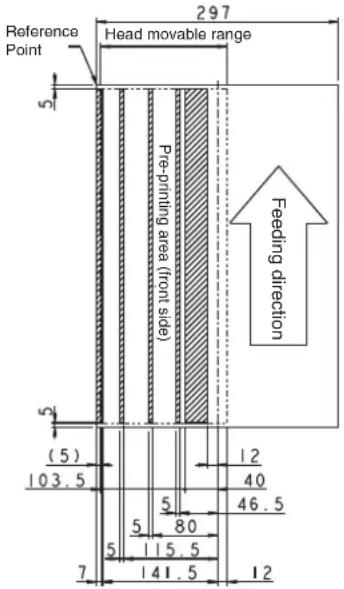 Unit: mm* The document stains with ink when printing in the shaded areas (shown in the illustration). Therefore, correct printing operations in such areas are not guaranteed. Unit: mm* The document stains with ink when printing in the shaded areas (shown in the illustration). Therefore, correct printing operations in such areas are not guaranteed. |
| Printing Position Accuracy | Vertical: ±4mmHorizontal: ±4mm |
| Consumables Print Cartridge | |
As for the operations and functions of fi-590PRF (Pre-imprinter), refer to the fi-590PRF Operator's Guide attached to fi-590PRF.
9.3 fi-590PRB (Post-imprinter)
fi-590PRB is installed at the rear side of the Transport path, inside of the scanner. It prints after the scanning. fi-590PRB (Post-imprinter) Specifications are described below.
| Item Descriptions | |
| Printing Method Thermal Ink Jct | |
| Printable characters Alphabet letters: A to Z, a to zNumeric characters: 0,1 to 9Symbols: ! " # $ % & ' () * +, - . / :; <= > ? @ [ \ ] ^ _ ` { | }- | |
| Maximum printable characters per line | 43 characters |
| Print Orientation Normal: 0°, 180° (horizontal), 90°, 270° (vertical)Narrow: 0°, 180° (horizontal) | |
| Character size | Normal: Height 2.91mm × width 3.03mm / 0.1146 × 0.1193 in (horizontal)Height 3.03mm × width 2.91mm / 0.1193 × 0.1146 in (vertical)Narrow: Height 2.91mm × width 1.71mm / 0.1146 × 0.0673 in (horizontal) |
| Character pitch 3.79mm / 0.1492in (Normal), 2.46mm /0.0968in (Narrow) | |
| Font Style Regular, Bold | |
| Character Width Normal, Narrow | |
| Printing area | 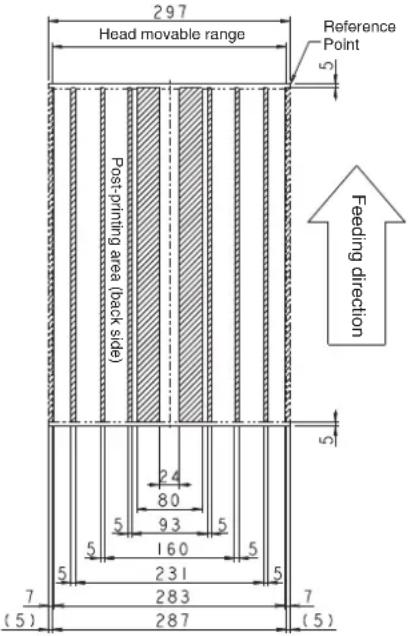 Unit: mm* The document stains with ink when printing in the shaded areas (shown in the illustration). Therefore, correct printing operations in such areas are not guaranteed. Unit: mm* The document stains with ink when printing in the shaded areas (shown in the illustration). Therefore, correct printing operations in such areas are not guaranteed. |
| Printing Position Accuracy | Vertical: ±4mmHorizontal: ±4mm |
| Consumables Print Cartridge | |
As for the operations and functions of fi-590PRB (Post-imprinter), refer to the fi-590PRB Operator's Guide attached to fi-590PRB.
9.4 Other Options
■ Extended Memory
Increasing memory is an effective way to improve the scanner's processing speed when scanning at high resolutions. (For example, this may prevent the scanner from pausing when scanning double-sided color A3 documents at resolutions higher than 400 dpi).

text_image
ATTENTION Before you install extended memory, please first touch metal objects to release static.- Switch off the scanner's main power switch, unplug all connecting cables.
- Unscrew the back cover of the scanner and take it off.
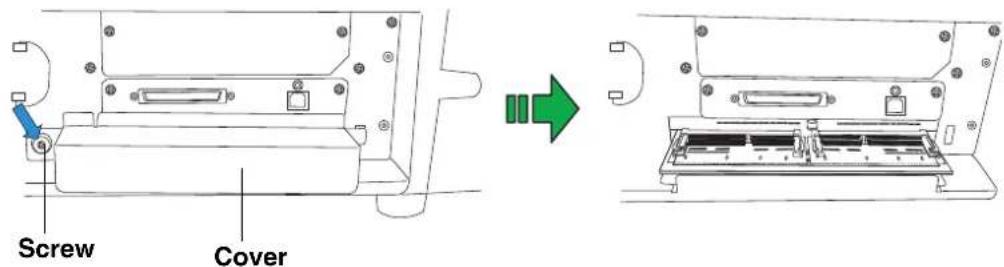
text_image
Screw Cover- Insert the memory into the slot, and push down the module until it locks in position.

text_image
Technical diagram showing a device rear panel with labeled ports and directional arrows indicating assembly or status.- Put back the cover and tighten the screw.
The memory listed below is recommended. Two modules of the same specification must be installed at the same time.
The memory modules are not provided with the scanner.
Memory type: 144-pin Unbuffered DODIMM
| Manufacturer Model | Size | |
| Micron Technology MT8L | SDT3264HY-133D2 256MB |

The scanner may not function properly if two modules of different types are installed at the same time.

You can confirm whether the memory modules are installed properly or not through the [Software Operation Panel]:
Click the [Device Setting] tab and check the value of scanner memory under "Standard Information". (Default: 512MB)
10 SCANNER SPECIFICATIONS
This chapter describes the Scanner Specifications.
10.1 Basic Product Specifications....230
10.2 Installation Specifications ....232
10.3 Dimensions ......233
10.1 Basic Product Specifications
| 1 Scanner Type ADF (Automatic Document | Feeder) and Manual feed | - | |||
| 2 Image sensor Color CCD × 2 Front/Back | |||||
| 3 Light source Incandescent cold cathode | fluorescent lamp | Front/Back | |||
| 4 Scanning area Minimum 5 mm × 74 mm, 2.1 in. × 2.9 in. | - | ||||
| Maximum 304.8 × 431.8 mm, 12 × 17 in. - | |||||
| 5 Document thickness | 31 g/m2 to 209 g/m2 | (* 1) | |||
| 6 Scanning speed (A4 Portrait) (* 2) Binary (Black and White) Grayscale Color | Simplex ppm Duplex ipm (* 3) | Grayscale, Color | |||
| 200 dpi 105 210 | |||||
| 300 dpi | 105 210 | ||||
| 400 dpi | 60 | 120 | |||
| 600 dpi | 30 | 60 | |||
| 7 ADF capacity (* 4) 500 sheets | 80 g/m2(Hopper set to lower position) | ||||
| 8 Optical resolution 600 dpi | |||||
| 9 Output resolution Binary (Black and White) | 50 to 600 dpi | scalable in steps of 1 dpi | |||
| Grayscale | 50 to 600 dpi | ||||
| Color | 50 to 600 dpi | ||||
| 10 | Grayscale level | 8 bits for each color | 10 bits/color during internal processing | ||
| 11 | Output mode of halftone patterns | Dither/Error diffusion | - | ||
| 12 | Interface (* 5) | USB 2.0/1.1(* 6) | B type | ||
| Ultra Wide SCSI (* 7) | Shielded, 68 pin half density (High Density DB68) | ||||
| 13 | Other functions | JPEG compression | - | ||
| 14 | Option | Imprinter | fi-590PRF/fi-590 PRB | (* 8) | |
(* 1) For details, refer to "7.2 Document Quality" on page 159.
(* 2) The scanning speed is the maximum speed of the scanner hardware. The actual speed may be slower due to the system overhead such as data transfer time.
(* 3) With JPEG compression enabled
(* 4) The maximum capacity varies depending on the document thickness. Refer to "7.3 Maximum Document Loading Capacity" on page 162.
(* 5) The SCSI and USB interface cannot be used together.
(* 6) When using USB 2.0, you have to use a port compatible to USB 2.0. When connecting to USB 1.1, the scanning speed will decrease.
(* 7) Avoid connecting other SCSI devices to the same bus. It can reduce the scanner throughput.
(* 8) You can imprint alphabetic characters and number on the scanned document.
The fi-590PRF (pre-imprinter) will print prior to scanning on the front side of the document.
The fi-590PRB (post-imprinter) will print after the scanning on the back side of the document.
You can install both the fi-590PRF and fi-590PRB, but you cannot use them at the same time.
10.2 Installation Specifications
| Item Specification | ||||
| Dimensions(With hopper and stacker retracted) | Depth Width Height | |||
| 540 mm,21 in | 540 mm,21 in | 500 mm,20 in | ||
| Space requirements |  | |||
| Weight (kg) 50 kg (110.4lb) | ||||
| Input power Voltage | AC100 - 240 V±10% | |||
| Phase Single-phase | ||||
| Frequency 50/60 Hz ±3Hz | ||||
| Power consumption 250 W or less | ||||
| Ambient condition | Device status Operating Not operating | |||
| Temperature 15 to | 35 degreesCelsius59 to 95 degreesFahrenheit | -20 to +60 degreesCelsius-4 to +140 degreesFahrenheit | ||
| Humidity | 20 - 80% | 8 - 95% | ||
| Heat capacity | Operating | 216 kcal/Hr or less | ||
| Not operating 113 kcal/Hr or less | ||||
| Power Saving | TWAIN/ISIS: 5.2 kcal/Hr or lessVRSIF: 6.05 kcal/Hr or less | |||
| Total Package Weight (kg) | 70 | |||
10.3 Dimensions
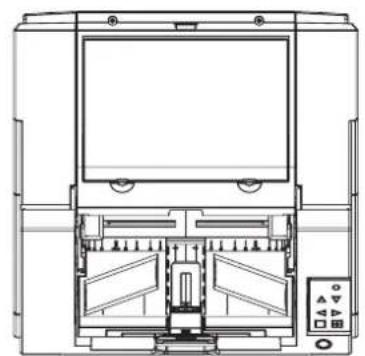
natural_image
Technical line drawing of a mechanical device with internal components and control panel (no text or symbols)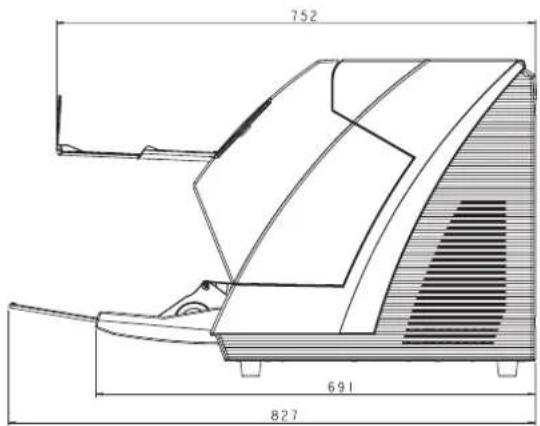
text_image
752 691 827
natural_image
Technical line drawing of a mechanical device with no visible text or symbols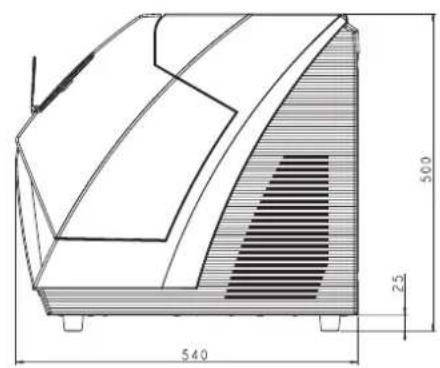
text_image
540 500 25unit: mm
A
ADF cover open button.... 2
Alarm Setting 214
Auto Color Detection...... 213
AutoCrop Boundary 211
B
Basic Operations
Inserting documents...... 36
Lifting/ lowering hopper 10
Loading documents...... 17
Power on 8
Scanning documents...... 30
Basic Scanner Operations...... 7
Brake roller....4,131
Brake roller unit.... 128
C
Cleaner F1 104
Cleaning
Pad 106
Cleaning materials .....104
Cleaning sheet 104
Consumable
Abrasion counters 121
Consumables 120
Replacement cycle.... 120
Correcting the skewed Documents 84
D
Daily Care 103
Detecting Double-Feeds.... 82
Dimensions 232, 233
Document
Document quality...... 159
Document size...... 158
Document thickness...... 159
Document type 159
Grounding color area 166
Hole-punching, area.....163
Job separation sheet ......167
Precautions....160
Document jams 134
Document smoother......4
Document thickness....5
Dropout Color....198
E
Ejector 2
F
fi-590PRB 224, 226
fi-590PRF 224, 225
Function Number display ....5
H
Hopper....2, 10, 17
Hopper extension....2, 19
Hopper height adjustment button.....5
How to use the Scanner Driver.....43
|
Imprinter Selection ......216
Installation Specifications
Ambient condition....232
Dimensions....232
Input power 232
Power consumption......232
Space requirements .....232
Weight......232
ISIS Driver 46
J
Jam Detection Outside of Scannable
Area When Transporting......215
L
Labels on the scanner....155
Lifting or lowering the hopper .....10
M
Main power switch 3
Manual Feed Mode.... 36
Multifeed detection 190
0
Offset 188
Operator panel.... 2
P
Pad....4, 105, 106
Pad ASSY.... 125
Page Edge Filler (ADF) 196
Paper Jam Detection...... 210
Paper weight...... 162
PDF....70
Pick roller....4, 37, 110, 126
Power button....2, 5, 8
Power on....8
Power saving 187
Pre-Pick 199
R
Replacing
Brake roller.... 131
Brake roller unit.... 128
Pad ASSY 125
Pick roller 126
s
Scan button.... 5
Scanner Settings 173
Scanner Specifications.... 229
Scanning documents
Different-size 67
Dropout color.... 76
PDF 70
SCSI Bus Width 212
SCSI ID Switch 3
Send to button.... 5
Separation roller.... 105
Separator roller 4
Service provider.... 153
Side guide 2
Side guides 18
Skipping blank Pages 79
Specifications....230
ADF capacity 230
Document thickness...... 230
Grayscale level.... 230
Image sensor.... 230
Interface.... 230
Light source.... 230
Optical resolution......230
Other functions 230
Output mode.... 230
Output resolution.... 230
Scanner Type 230
Scanning area 230
Scanning speed.... 230
Stacker extension 2, 22
Stopper....2, 22, 23, 26
T
Thin Paper Mode 208
Timeout for Manual Feeding...... 217
TWAIN Driver.... 43
fi-5950 Image Scanner Operator's Guide
P3PC-3052-01ENZ0
Issue date: June, 2010
Issued by: PFU LIMITED
- Copying of the contents of this manual in whole or in part and copying of the scanner application is forbidden under the copyright law.
- The contents of this manual are subject to change without notice.
- PFU LIMITED assumes no liability for incidental or consequential damages arising from the use of this manual, and any claims by a third party.