Pick your language and provide your email: we'll send you a specifically translated version.
This manual is not available in your language
User questions about AVR-4308CI DENON
0 question about this device. Answer the ones you know or ask your own.
Ask a new question about this device
No questions yet. Be the first to ask one.
Download the instructions for your Receiver in PDF format for free! Find your manual AVR-4308CI -
DENON and take your electronic device back in hand. On this page are published all the documents necessary for the use of your device. AVR-4308CI by DENON.
USER MANUAL AVR-4308CI DENON
Use this manual in combination with the operating guide displayed on the GUI screen.
GUI Menu Operation (page 23)
GUI Menu Map (page 24)
SAFETY PRECAUTIONS
CAUTION RISK OF ELECTRIC SHOCK DO NOT OPEN
CAUTION:
TO REDUCE THE RISK OF ELECTRIC SHOCK, DO NOT REMOVE COVER (OR BACK). NO USER-SERVICEABLE PARTS INSIDE. REFER SERVICING TO QUALIFIED SERVICE PERSONNEL.
The lightning flash with arrowhead symbol, within an equilateral triangle, is intended to alert the user to the presence of uninsulated "dangerous voltage" within the product's enclosure that may be of sufficient magnitude to constitute a risk of electric shock to persons.
The exclamation point within an equilateral triangle is intended to alert the user to the presence of important operating and maintenance (servicing) instructions in the literature accompanying the appliance.
WARNING:
TO REDUCE THE RISK OF FIRE OR ELECTRIC SHOCK, DO NOT EXPOSE THIS APPLIANCE TO RAIN OR MOISTURE.
SAFETY INSTRUCTIONS
Read Instructions – All the safety and operating instructions should be read before the product is operated.
Retain Instructions - The safety and operating instructions should be retained for future reference.
Heed Warnings – All warnings on the product and in the operating instructions should be adhered to.
Follow Instructions – All operating and use instructions should be followed.
Cleaning – Unplug this product from the wall outlet before cleaning. Do not use liquid cleaners or aerosol cleaners.
Attachments – Do not use attachments not recommended by the product manufacturer as they may cause hazards.
Water and Moisture – Do not use this product near water – for example, near a bath lub, wash bowl, kitchen sink, or laundry tub; in a wet basement, or near a swimming pool; and the like.
Accessories - Do not place this product on an unstable cart, stand, tripod, bracket, or table. The product may fall, causing serious injury to a child or adult, and serious damage to the product. Use only with a cart, stand, tripod, bracket, or table recommended by the manufacturer, or sold with the product. Any mounding of the product should follow the manufacturer's instructions, and should use a mounting accessory recommended by the manufacturer.
A product and cart combination should be moved with care. Quick stops, excessive force, and uneven surfaces may cause the product and cart combination to overturn.
Ventilation - Slots and openings in the cabinet are provided for ventilation and to ensure reliable operation of the product and to protect it from overheating, and these openings must not be blocked or covered. The openings should never be blocked by placing the product on a bed, sofa, rug, or other similar surface. This product should not be placed in a built-in installation such as a bookcase or rack unless proper ventilation is provided or the manufacturer's instructions have been adhered to.
Power Sources - This product should be operated only from the type of power source indicated on the marking label. If you are not sure of the type of power supply to your home, consult your product dealer or local power company. For products intended to operate from battery power, or other sources, refer to the operating instructions.
Grounding or Polarization - This product may be equipped with a polarized alternating-current line plug (a plug having one blade wider than the other). This plug will fit into the power outlet only one way. This is a safety feature. If you are unable to insert the plug fully into the outlet, try reversing the plug. If the plug should still fail to fit, contact your electrician to replace your obsolete outlet. Do not defeat the safety purpose of the polarized plug.
Power-Cord Protection - Power-supply cords should be routed so that they are not likely to be walked on or pinched by items placed upon or against them, paying particular attention to cords at plugs, convenience receptacles, and the point where they exit from the product.
Curocor Antenna Grounding - If an outside antenna or cable system is connected to the product, be sure the antenna or cable system is grounded so as to provide some protection against voltage surges and built-up static charges. Article B10 of the National Electrical Code, ANSINFPA 70, provides information with regard to proper grounding of the mast and supporting structure, grounding of the lead-in wire to an antenna discharge unit, size of grounding conductors, location of antenna-discharge unit, connection to grounding electrodes, and requirements for the grounding electrode. See Figure A.
Lightning - For added protection for this product during a lightning storm, or when it is left unattended and unused for long periods of time, unplug it from the wall outlet and disconnect the antenna or cable system. This will prevent damage to the product due to lightning and power-line surges.
Power Lines - An outside antenna system should not be located in the vicinity of overhead power lines or other electric light or power circuits, or where it can fall into such power lines or circuits. When installing an outside antenna system, extreme care should be taken to keep from touching such power lines or circuits as contact with them might be fatal.
Overloading - Do not overload wall outlets, extension cords, or integral convenience receptacles as this can result in a risk of fire or electric shock.
Object and Liquid Entry – Never push objects of any kind into this product through openings as they may touch dangerous voltage points or short-out parts that could result in a fire or electric shock. Never spill liquid of any kind on the product.
Servicing – Do not attempt to service this product yourself as opening or removing covers may expose you to dangerous voltage or other hazards. Refer all servicing to qualified service personnel.
Damage Requiring Service – Unplug this product from the wall outlet and refer servicing to qualified service personnel under the following conditions:
a) When the power-supply cord or plug is damaged,
b) If liquid has been spilled, or objects have fallen into the product,
c) If the product has been exposed to rain or water.
d) If the product does not operate normally by following the operating instructions. Adjust only those controls that are covered by the operating instructions as an improper adjustment of other controls may result in damage and will often require extensive work by a qualified technician to restore the product to its normal operation.
e) If the product has been dropped or damaged in any way, and
f) When the product exhibits a distinct change in performance – this indicates a need for service.
Replacement Parts - When replacement parts are required, be sure the service technician has used replacement parts specified by the manufacturer or have the same characteristics as the original part. Unauthorized substitutions may result in fire, electric shock, or other hazards.
Safety Check – Upon completion of any service or repairs to this product, ask the service technician to perform safety checks to determine that the product is in proper operating condition.
Wall or Ceiling Mounting - The product should be mounted to a wall or ceiling only as recommended by the manufacturer.
Heat - The product should be situated away from heat sources such as radiators, heat registers, stoves, or other products (including amplifiers) that produce heat.
text_image
FIGURE 4
EXAMPLE OF ANTERIOR GROUNDING
AS PER NATIONAL ELECTRICAL CODE
GROUND CLAYP
ELECTRIC
OFF-IN-FLAME
TOMINANT
ANTenna
LOAD IN
FIRE
ANTenna
DISCUENCE UNIT
(PEE SECTION 804)
EQUIPMENT CONDUCTORS
(ART SECTION 1000)
PUMS FOR POWER
PUMS FOR POWER
PUMS FOR POWER
NEUT RATIONAL ELEC. MEAL CODE
NEUT RATIONAL ELEC. MEAL CODE
FCC Information (For US customers)
1. COMPLIANCE INFORMATION
Product Name: AV Surround Receiver
Model Number: AVR-4308CI
This product contains FCC ID: BV2-MPGBR052.
This product complies with Part 15 of the FCC Rules. Operation is subject to the following two conditions: (1) this product may not cause harmful interference, and (2) this product must accept any interference received, including interference that may cause undesired operation.
Denon Electronics (USA), LLC
100 Corporate Drive, Marwah, NJ 07430-2041
Tel. 201-762-6500 (Main)
2. IMPORTANT NOTICE: DO NOT MODIFY THIS PRODUCT
This product, when installed as indicated in the instructions contained in this manual, meets FCC requirements. Modification not expressly approved by DENON may void your authority, granted by the FCC, to use the product.
3. CAUTION
- To comply with FCC RF exposure compliance requirement, separation distance of at least 20 cm must be maintained between the antenna of this product and all persons.
- This product and its antenna must not be co-located or operating in conjunction with any other antenna or transmitter.
4. NOTE
This product has been tested and found to comply with the limits for a Class B digital device, pursuant to Part 15 of the FCC Rules. These limits are designed to provide reasonable protection against harmful interference in a residential installation.
This product generates, uses and can reduce radio frequency energy and, if not installed and used in accordance with the instructions, may cause harmful interference to radio communications. However, there is no guarantee that interference will not occur in a particular installation. If this product does cause harmful interference to radio or television reception, which can be determined by turning the product OFF and ON, the user is encouraged to try to correct the interference by one or more of the following measures:
■ Recrient or relocate the receiving antenna.
- Increase the separation between the equipment and receiver.
- Connect the product into an outlet on a circuit different from that to which the receiver is connected
- Consult the local retailer authorized to distribute this type of product or an experienced radio/TV technician for help.
IC Information (For Canadian customers)
1. PRODUCT
This product contains IC 6963A-MPGBR052.
This product complies with RSS-210 of industry Canada. Operation is subject to the following two conditions: (1) this product may not cause harmful interference, and (2) this product must accept any interference received, including interference that may cause undesired operation.
This Class B digital apparatus complies with Canadian ICES 003.
APPAREIL
To reduce potential radio interference to other users, the antenna type and its gain should be so chosen that the equivalent isotropically radiated power (a.i.r.p.) is not more than that permitted for successful communication.
ATTENTION
Accessories 2
Cautions on Handling 3
Cautions on Installation 3
About the Remote Control Unit 3
Inserting the Batteries 3
Operating Range of the Remote Control Unit 3
Part Names and Functions 4
Front Panel 4
Display 4
Rear Panel 5
Remote Control Unit 6
Connections
Preparations 7
Cables Used for Connections 7
Video Conversion Function 8
Speaker Connections 9
Speaker Installation 9
Speaker Connections 9, 10
Connecting Equipment with HDMI connectors 11
Connecting the Monitor 12
Connecting the Playback Components 12
DVD Player 12
Record Player 13
CD Player 13
Pod ^® 13
TV/CABLE Tuner 14
Satellite Receiver 14
Connecting the Recording Components 15
Digital Video Recorder 15
Video Cassette Recorder 15
CD Recorder / MD Recorder / Tape Deck 16
Connections to Other Devices 16
Components Equipped with a DENON LINK connector 16
Video Camera / Game Console 17
Component with Multi-channel Output connectors 17
External Power Amplifier 17
USB Port 18
XM Connector 18
Antenna terminals 19
Network Audio 20
Multi Zone 21
External Controller 21
Connecting the Power Cord....22
Once Connections are Completed 22
GUI Menu Operations
Example of the Display of the GUI Mark at a Title....23
Example of Display of Default Values 23
Examples of GUI Screen Displays 23
Example: Browse Menu (Top Menu) 23
Example: Menus with Illustrations (Auto Setup) 23
Cursor Position Display 23
Operations 22
GUI Menu Map 24
Auto Setup
Preparations 25
uto Setup 26
1 Auto Setup 26
Error Messages 27
2 Option 27
3 Parameter Check 27
Manual Setup
Speaker Setup....28
1 Speaker Configuration 28
2 Subwoofer Mode 28
3 Distance 28
4 Channel Level 29
5 Crossover Frequency 29
6 Surround Speaker 29
HDMI Setup 30
1 Vp Scaler 30
2 Resolution 30
3 Progressive Mode 30
4 Aspect 30
5 Color Space 30
6 RGB Range 30
7 Auto Lip Sync 30
8 Audio 30
9 Monitor Out 30
Audio Satup 21
Audio Setup 31
1 EXT. IN Setup ....31
2 2ch Direct/Stereo 31
3 Downmix Option ....31
4 Auto Surround Mode 31
Manual EQ 32
Network Setup 32
Network Setup 32 - 35
2 Other 35
Network Information 35
one Setup 36
1 ZONE2 36
2 ZONE9 90
ZONE3 36
Option Setup 37
Option Setup 37
1. Area Assign 37
2 Amp Assign 37
Volume Control 37
3
Source Delete
37
4
GUI
37
5
Quick Select Name
37
6
Trigger Out 1
38
7
Trigger Out 2
38
8
Digital Out
38
9
Remote ID
38
10
2Way Remote
38
11
Dimmer
38
12
Setup Lock
38
13
Maintenance Mode
38
14
Firmware Update
38, 39
15
Add New Feature
39
language
39
Source Select
Input Source Selection 39,40
Settings Related to Playing Input Sources 40
1
Play
40
2
Auto Preset
40
3
Preset Skip
40
4
Preset Name
40
5
Input Mode
41
6
Rename
41
7
Other
41
8
Playback Mode (iPod)
41
9
Assign
42
10
Playback Mode
42
11
Still Picture
43
12
Antenna Aiming
43
Surround Modes
Standard Playback
43
Surround Playback of 2-channel Sources
43
Playing Multi-channel Sources (Doiby Digital, DTS, etc.)
43
DSP Simulation Playback
44
Stereo Playback
44
Direct Playback
44
Playback in the Pure Direct Mode
44
Parameter
Audio
44
1 Surround Parameters
44 - 46
2 Tone
46
3 Room EQ
46
4 RESTORER
46
5 Night Mode
47
6 Audio Delay
47
Picture Adjust
47
1 Contrast
47
2 Brightness
47
3 Chroma Level
47
4 Hue
47
Information
Status 47
1 MAIN ZONE 47
2 ZONE2/3/4 47
Audio Input Signal 49
HDMI Information 48
1 Signal Information 48
2 Monitor1 48
3 Monitor2 48
Auto Surround 48
Quick Select 48
Preset Station 48
Playback
Preparations 49
Turning the Power On 49
Operations During Playback 49
Playing Video and Audio Equipment 49
Basic Operation 49
Listening to FM/AM Broadcasts 50
Basic Operation 50
Presetting Radio Stations (Preset Memory) 50
Listening to Preset Stations 50
Listening to XM Satellite Radio Programs 51
Basic Operation 51
Checking the XM Signal Strength and Radio ID 52
Searching Categories 52
Accessing XM Radio Channels Directly 52
Listening to HD Radio Stations 52
Basic Operation 52
Selecting Audio Programs 53
Check the HD Radio Reception Information 53
iPod®Playback 53
Basic Operation 53, 54
Listening to Music 54
Viewing Still Pictures or Videos on the iPod 54
Playing Network Audio or USB Memory Devices 55
Basic Operation 56
Listening to Internet Radio 57
Presetting Internet Radio Stations 57
Registering Internet Radio Stations as Your Favorites 58
Playing Files Stored on a Computer 58
Playing Files Stored on USB Memory Devices 58, 59
Operating the AVR-4308CI Using a Browser (Web control)
59\~60
Other Operations and Functions
Other Operations....61
Playing Super Audio CD 61
Recording on an External Device (REC OUT mode)....61, 62
Convenient Functions 62
Channel Level 62
Fader Function 62
Quick Select Function 62
Personal Memory Plus Function 63
Last Function Memory 63
Backup Memory 63
Resetting the Microprocessor 63
Remote Control Unit Operations
Main Remote Control Unit 64
Operating DENON Audio Components 64
Presetting 64
Operating Preset Components 64 \~ 66
Setting the Remote ID 67
Learning Function 67
System Call Function 68
Punch Through Function 68
Setting the Time the Backlight Stays Lit 68
Adjusting the Backlight's Brightness 69
Resetting the Main Remote Control Unit 69
Sub Remote Control Unit Operations 70, 71
Switching Zones 72
Setting the Zone for Which the Sub Remote Control Unit
is Used (ZONE SELECT LOCK Mode) 72
Setting the Remote ID 72
Resetting the Settings 72
Amp Assign / Multi Zone Connections and Operations
Multi-Zone Settings with the Amp Assign Function .....72 - 75
Multi-Zone Settings and Operations with Zone Pre-out Output
Multi-Zone Operations 76
Turning the Power On and Off 76
Selecting the Input Source 76
Adjusting the Volume 76
Turning off the Sound Temporarily 76
Other Information 77 - 88
Troubleshooting 89 \~ 92
Specifications 93
List of preset codes End of this manual
Getting Started
Thank you for purchasing this DENON product. To ensure proper operation, please read this owner's manual carefully before using the product.
After reading them, be sure to keep them for future reference.
Accessories
Check that the following parts are supplied with the product.
① Owner's manual 1
② Warranty (for North America model only) 1
③ Service station list 1
④ Power cord (Cord length: Approx. 5 ft /1.5 m) ...... 1
⑤ Main remote control (RC-1068) 1
⑥ LR6/AA batteries (for RC-1068) 2
⑦ Sub remote control (RC-1070) 1
⑧ R03/AAA batteries (for RC-1070) 2
⑨ FM indoor antenna 1
⑩ AM loop antenna (small, for AM broadcasts) 1
⑪ AM loop antenna (large, for HD Radio broadcasts) ..... 1
⑫ Dipole antenna (for HD Radio broadcasts) 1
⑬ Rod antenna for wireless LAN connection 1
⑭ Setup microphone (Cord length: Approx. 25 ft / 7.6 m) ..... 1
text_image
Illustration of various household appliances with numbered labels for identification.
Cautions on Handling
• Before turning the power switch on
Check once again that all connections are correct and that there are no problems with the connection cables.
- Power is supplied to some of the circuitry even when the unit set to the standby mode. When traveling or leaving home for long periods of time, be sure to unplug the power cord from the power outlet.
- About condensation
If there is a major difference in temperature between the inside of the unit and the surroundings, condensation (dew) may form on the operating parts inside the unit, causing the unit not to operate properly.
If this happens, let the unit sit for an hour or two with the power turned off and wait until there is little difference in temperature before using the unit.
• Cautions on using mobile phones
Using a mobile phone near this unit may result in noise. If so, move the mobile phone away from this unit when it is in use.
- Moving the unit
Turn off the power and unplug the power cord from the power outlet.
Next, disconnect the connection cables to other system units before moving the unit.
- Note that the illustrations in these instructions may differ from the actual unit for explanation purposes.
Cautions on Installation
Note:
For proper heat dispersal, do not install this unit in a confined space, such as a bookcase or similar enclosure.
About the Remote Control Unit
In addition to the AVR-4308C, the included main remote control unit (RC-106B) can also be used to operate the equipment listed below.
① DENON system components
is② Non-DENON system components
- By setting the preset memory (page 64 - 66)
- By using the learn function (page 67)
Inserting the Batteries
① Lift the clasp and remove the rear lid.
(RC-1068) (RC-1070)
② Load the two batteries properly as indicated by the marks in the battery compartment.
(RC-1068) (RC-1070)
③ Put the rear cover back on.
NOTE
- Replace the batteries with new ones if the set does not operate even when the remote control unit is operated close to the unit.
• The supplied batteries are only for verifying operation.
- When inserting the batteries, be sure to do so in the proper direction, following the "⊕" and "⊖" marks in the battery compartment.
• To prevent damage or leakage of battery fluid:
- Do not use a new battery together with an old one.
- Do not use two different types of batteries.
- Do not attempt to charge dry batteries.
- Do not short-circuit, disassemble, heat or dispose of batteries in flames.
- If the battery fluid should leak, carefully wipe the fluid off the inside of the battery compartment and insert new batteries.
- Remove the batteries from the remote control unit if it will not be in use for long periods.
- When replacing the batteries, have the new batteries ready and insert them as quickly as possible.
Operating Range of the Remote Control Unit
Point the remote control unit at the remote sensor when operating it.
The set may function improperly or the remote control unit may not operate if the remote control sensor is exposed to direct sunlight, strong artificial light from an inverter type fluorescent lamp or infrared light.
Part Names and Functions
For buttons not explained here, see the page indicated in parentheses ( ).
text_image
Labeled diagram of a device control panel with numbered components and connections
① Power operation button
(ON/STANDBY)....(49)
② Power indicator
③ Power switch (ON OFF) ..... (49)
4 QUICK SELECT buttons / indicators......(62)
⑤ MASTER VOLUME control knob......(49)
⑥ Master volume indicator
⑦ Display
8 Remote control sensor....(3)
⑨ SOURCE SELECT knob....(39)
⑩ SOURCE button....(39)
⑪ TUNING PRESET button …… (50)
⑫ ZONE 2/3/4 / REC SELECT button……(61, 76)
13 VIDEO SELECT button ...... (41)
14 Headphones jack (PHONES)....(49)
⑮ ZONE2 ON/OFF button ..... (76)
16 ZONE3 ON/OFF button ..... (76)
17 ZONE4 ON/OFF button ..... (76)
18 MENU button....(23)
19 Cursor buttons (△▽◀▷)……(23)
20 CH SEL / ENTER button (23, 62)
② RETURN button …… (23)
22 V.AUX INPUT connectors.... (17)
23 SETUP MIC jack (25)
24 ROOM EQ button (46)
25 DIMMER button....(38)
26 USB port (18)
27 STATUS button ..... (48)
28 INPUT MODE button ..... (41)
29 RESTORER button (46)
30 DIRECT/STEREO button....(44)
③1 PURE DIRECT button....(44)
③2 DSP SIMULATION button ..... (44)
35 STANDARD button ...... (43)
Display
text_image
DD DIGITAL
ACD
DSD
DCB
FET
S
R
G
AUTO
MP3
STERS
TUNUM
AIDS
EOG
DH
ANA
FET
F
S
R
G
DH
DH
AUTO HD
NEO.6 96/24
DD DIGITAL+
DDIPL II x
18
17
16
15
14
13
12
11
10
9
8
8
7
6
5
4
3
2
1
0
MONITOR 1:2
SW
FL C F3
SL A B SP
FL S R SB
① Input signal indicators
② Input signal channel indicators
These light when digital signals are input
③ Information display
The input source name, surround mode, setting values and other information are displayed here.
4 Output signal channel indicators
⑤ Surround speaker indicators
These light according to the settings of the surround A and B speakers.
⑥ Monitor output indicators
These light according to the HDMI monitor output setting. When set to "Auto (Dual)", the indicators light according to the connection status.
⑦ Master volume indicator
⑧ AUDYSSEY MULTEQ XT indicator
This lights when the room equalizer is selected.
9 Recording output source indicator
This lights when the REC OUT mode is selected.
⑩ NIGHT indicator
This lights when the night mode is selected
⑪ Multi zone indicators
These light when the power for the respective zone is turned on.
⑫ RESTORER indicator
This lights when the RESTORER mode is selected.
⑬ ADVANCED AL24 indicator
This lights when Advanced AL24 Processing is activated ( page 791.
14 D.LINK indicator
This lights when playing using DENON LINK connections.
⑮ Input mode indicators
⑯ HDMI indicator
This lights when playing using HDMI
connections.
⑰ Decoder indicators
These light when the respective decoders are operating.
18 Tuner reception mode indicators
These light according to the reception conditions when the input source is set to "TUNER" or "HD Radio".
• AUTO
This lights when in the auto tuning mode.
• STEREO
In the FM mode, this lights when receiving analog stereo broadcasts.
• TUNED
This lights when the broadcast is properly tuned in.
Rear Panel
text_image
10 11 12 13 14 15 16
HDMI
ASSEMBL
1 10VDD 2 DDPY 3 (TV/DR) 4 DVRI 1
MONITOR
COMPONENT VIDEO AUDIOLE
1 HND IN 3 CIVOLI
ZONE 2
12
VIDEO
VIDEO
AUDIO
RND HDD TV/CBL SAT VCR/PGM DVR VCR DVR ZONE 3 ZONE 2 FR SM DR SW FR SW SR SR
DIANA
DIANA
DIANA
DIANA
DIANA
DIANA
DIANA
DIANA
DIANA
DIANA
DIANA
DIANA
DIANA
DIANA
DIANA
DIANA
DIANA
DIANA
DIANA
DIANA
DIANA
DIANA
DIANA
DIANA
DIANA
DIANA
DIANA
DIANA
DIANA
DIANA
DIANA
DIANA
DIANA
DIANA
The AUX-1, AUX-2, AUX-3, DVR-2 and OPTION buttons cannot be used.
Connections
Connections for all compatible audio and video signal formats are described in these operating instructions. Please select the types of connections suited for the equipment you are connecting. With some types of connections, certain settings must be made on the AVR-4308CI. For details, refer to the instructions for the respective connection items below.
NOTE
Do not plug in the power cord until all connections have been completed.
When making connections, also refer to the operating instructions of the other components.
Be sure to connect the left and right channels properly (left with left, right with right).
Do not bundle power cords together with connection cables. Doing so can result in humming or noise.
Preparations
Cables Used for Connections
Select the cables according to the equipment being connected.
Audio cables Video cables
Coaxial digital connections
This function automatically converts various formats of video signals input to the AVR-4308CI into the format used to output the video signals from the AVR-4308CI to a monitor.
The AVR-4308CI's video input/output circuitry is compatible with the following four types of video signals:
Digital video signals: HDMI
Analog video signals: Component video, S-Video and Video
[Flow of video signals inside the AVR-4308CI]
flowchart
graph TD
    A["Main zone"] --> B["High picture quality playback"]
    B --> C["Video inputs Video outputs"]
    C --> D["Monitor"]
    subgraph_HDI1["HDMI connector"]
        E["Y Pa/Cr Pn/Cr"]
        F["Component video connectors"]
        G["S-Video connector"]
        H["Video connector"]
    end
    subgraph_HDI2["HDMI connector"]
        I["Y Pa/Cr Pn/Cr"]
        J["Component video connectors"]
        K["S-Video connector"]
        L["Video connector"]
    end
    C -.->|When 480i/576i signals are input in the main zone| M["Monitor"]
[Flow of video signals for ZONE2]
flowchart
graph TD
    A["Input Device 1"] --> B["High picture quality playback"]
    C["Input Device 2"] --> B
    D["Input Device 3"] --> B
    B --> E["Video inputs Video outputs"]
    E --> F["Video connector"]
    F --> G["Component video connectors"]
    G --> H["Video connector"]
    H --> I["Video outputs"]
    I --> J["Component video connectors"]
    J --> K["Video connector"]
    K --> L["ZONE2 monitor"]
    M["Zone2"] --> N["Output"]
When not using this function, connect a monitor output with the same type of connector as the video input connector.
The resolution of the HDMI input-compatible monitor connected to the AVR-4308CI can be checked at GUI menu "Information" - "HDMI Information" - "Monitor1" or "Monitor2" (page 48).
NOTE
HDMI signals cannot be converted into analog signals.
1080p component input video signals cannot be output to anything other than component video connectors.
480p/576p, 1080i and 720p component video input signals cannot be converted into S-Video or Video format.
- When using the component video output connectors for connection to the ZONE2 monitor, the ZONE2's on-screen display is not displayed.
- When a non-standard video signal from a game machine or some other source is input, the video conversion function might not operate.
Speaker Connections
Speaker Installation
The illustration below shows a basic example of installation of the amplifier combined with 8 speakers and a monitor.
text_image
Subwoofer Center speaker
Surround back speakers
Skers
front speakers to the
monitor or screen and
Surround speakers
Front speakers
Place the front speakers to the sides of the monitor or screen and as flush with the screen surface as possible.
The table below shows a typical speaker configuration for the AVR-4308CI.
Front
Center
Surround A
Surround B
Surround back
Subwoofer
L
R
L
R
L
R
L
R
1 only
7.1-channels (Surround A+BI)
○
○
○
○
○
○
○
-
○
7.1-channels
○
○
○
○
○
-
-
○
○
-
6.1-channels
○
○
○
○
○
-
-
-
-
○
5.1-channels
○
○
○
○
○
-
-
-
-
○
3.1-channels
○
○
○
-
-
-
-
-
-
○
2.1-channels
○
○
-
-
-
-
-
-
-
-
○
2-channels
○
○
-
-
-
-
-
-
-
-
-
Speaker Connections
Example: 7.1-channels (Surround A+B) and ZONE2 use
text_image
Front speakers
Center speaker
Surround back
Subwoofer
Subwoofer with built-in
amplifier
※ L : Left
R : Right
Surround speakers
A
Surround speakers
B
ZONE2 speakers
ZONE2
When using just one surround back speaker, connect it to the left channel (SBL).
NOTE
By default, the AVR-4308CI's "Amp Assign" setting is set to "ZONE2", so sound is not output simply by connecting a speaker to the surround back terminal. To use as the surround back speaker for the main zone, either turn the ZONE2 power off or change the "Amp Assign" setting (17 page 73, 74).
Connecting the Speaker Cables
Carefully check the left (L) and right (R) channels and + (red) and (black) polarities on the speakers being connected to the AVR-4308CI, and be sure to interconnect the channels and polarities correctly.
1 Peel off about 0.03 ft/10 mm of sheathing from the tip of the speaker cable, then either twist the core wire tightly or terminate it.
2 Turn the speaker terminal counterclockwise to loosen it.
3 Insert the speaker cable's core wire to the hilt into the speaker terminal.
4 Turn the speaker terminal clockwise to tighten it.
When using a banana plug
Tighten the speaker terminal firmly before inserting the banana plug.
NOTE
Use speakers with an impedance of 6 to 16 Ω/ohms. When using surround A and B speakers simultaneously, use speakers with an impedance of 8 to 16 Ω/ohms.
Connect the speaker cables in such a way that they do not stick out of the speaker terminals. The protection circuit may be activated if the core wires touch the rear panel or if the + and - sides touch each other (“Protection circuit”).
Never touch the speaker terminals while the power supply is connected. Doing so could result in electric shock.
Protection circuit
If speakers with an impedance lower than specified (for example 4 Ω/ohms speakers) are used for an extended period of time with the volume turned up high, the temperature may rise, activating the protection circuit.
When the protection circuit is activated, the speaker output is shut off and the power indicator flashes red. If this happens, unplug the power cord, then check the speaker cable and input cable connections. If the set is extremely hot, wait for it to cool off and improve ventilation around it. Once this is done, plug the power cord back in and turn the set's power back on.
If the protection circuit is activated again even though there are no problems in the ventilation around the set nor in the connections, the set may be damaged. Turn the power off, then contact a DENON service center.
Connecting Equipment with HDMI connectors
With HDMI connections, the video and audio signals can be transferred with a single cable.
text_image
HDMI
OUT
MonitorDVD pla
HDMI
IN
MonitorDVD player
The AVR-4308CI is equipped for HDMI version 1.3a. This version is compatible with other versions, allowing connection to all components equipped with an HDMI connector.
※ The AVR-4308CI is compatible with 30- and 36-bit Deep Color.
Compatible audio format
Details
Discs (examples)
2-channel linear PCM
2ch 32-192 kHz16/20/24 bits
CD, DVD-Video,DVD-Audio
Multi-channel linear PCM
8ch 32-192 kHz16/20/24 bits
DVD-Audio
Dolby Digital, DTS
Bitstream DVD-Video
DSD
2/5.1cn2.8224 MHz1 bit
SACD
Dolby Digital Plus,Dolby TrueHD,DTS-HD
Bitstream
HD DVD,Blu-ray Disc
Copyright protection system (HDCP)
In order to play the digital video and audio signals of a DVD-Video or DVD-Audio disc using HDMI/DVI connections, both the connected DVD player and monitor must be equipped for a copyright protection system called "HDCP" (High-bandwidth Digital Content Protection).
HDCP is a copy protection technology consisting of data encoding and mutual identification of the devices.
The AVR-4308CI is HDCP-compatible. For details on the DVD player or monitor you are using, refer to its operating instructions.
By default, the HDMI audio signals are output from the speakers connected to the AVR-4308CI.
To output the sound from the TV, make the settings at GUI menu "Manual Setup" - "HDMI Setup" - "Audio" - "TV" (page 30).
NOTE
Use a CPPM-compatible DVD player to play DVD-Audio discs that are copyright-protected by CPPM.
• The AVR-4308CI cannot be controlled from another device via the HDMI cable.
The audio signals output from the HDMI connector (sampling frequency, bit rate, etc.) may be restricted by the connected device.
Video signals are not output properly when using devices that are not HDCP-compatible.
Video signals are not output if the input video signals do not match the monitor's resolution. In this case, switch the DVD player's resolution to a resolution with which the monitor is compatible.
If the GUI menu "Manual Setup" - "HDMI Setup" - "Audio" setting (12 page 30) is set to "Amp," the sound may be interrupted when the monitor's power is turned off.
Use a cable on which the HDMI logo is indicated (a certified HDMI product) for connection to the HDMI connector. Normal playback may not be possible when using a cable other than one on which the HDMI logo is indicated (a non-HDMI-certified product).
If the monitor or DVD player does not support deep color, deep color signal transfer is not possible.
If the monitor or DVD player does not support xvYCC, xvYCC signal transfer is not possible.
If the monitor does not support "Auto Lipsync Correction" function, this function will not work.
When the AVR 4308CI and DVD player are connected using an HDMI cable, also connect the AVR-4308CI and monitor using an HDMI cable.
If the connected monitor or DVD player only has a DVI-D connector, use an HDMI/DVI converter cable. When using a DVI cable, no audio signals are transmitted.
Use a Deep Color compatible cable for connection to Deep Color compatible devices.
When connecting with an HDMI/DVI converter cable (adapter)
HDMI video signals are theoretically compatible with the DVI format.
When connecting to a monitor, etc., equipped with a DVI-D connector, connection is possible using an HDMI/DVI converter cable, but depending on the combination of components in some cases the video signals will not be output.
When connecting using an HDMI/DVI converter adapter, the video signals may not be output properly due to poor connections with the connected cable, etc.
Connecting the Monitor
Connect the cables to be used (page 8 "Video Conversion Function").
With HDMI connections, the video and audio signals can be transferred with a single cable.
To output the audio signals to the monitor with HDMI connections, set GUI menu "Manual Setup" - "HDMI Setup" - "Audio" to "TV" (page 30).
text_image
Monitor
HDMI
IN
VIDEO
VIDEO IN
S VIDEO
IN IN
COMPONENT VIDEO
V Ps Ps
COMPOSER
V
V
V
V
V
V
V
V
V
V
V
V
V
V
V
V
V
V
V
V
V
V
V
V
V
V
V
V
V
V
V
V
V
V
V
V
V
V
V
V
V
V
V
V
V
V
V
V
V
V
W10000000000000000000000000000000000000000000000000000000000000000000000000000000000000000000000000000
NOTE
The component video connectors may be indicated differently on your monitor. For details, see the monitor's operating instructions.
The audio signals output from the HDMI connectors are only the HDMI input signals.
Connecting the Playback Components
Carefully check the left (L) and right (RI) channels and the inputs and outputs, and be sure to interconnect correctly.
DVD Player
Connect the cables to be used.
With HDMI connections, the video and audio signals can be transferred with a single cable.
text_image
DVD player
HDMI
VIDEO
OUT
S VIDEO
OUT
COMPONENT VIDEO
V Pe Pe
AUDIO
OUTPUT
L R
CONVIAL
OUT
AUDIO
OUTPUT
S VIDEO
OUT
COMPONENT VIDEO
V Pe Pe
AUDIO
OUTPUT
L R
CONVIAL
OUT
Connect an HDP (High-Definition Player) in the same way.
When using an optical cable for the digital audio connection, make the settings at GUI menu "Source Select" - "DVD" - "Assign" - "Digital" (page 42).
Record Player
text_image
Turntable (MM cartridge)
AUDIO
OUT
SND
When connecting a record player with an MC cartridge, use a
commercially available MC head amplifier or a step-up transformer.
Induction humming (a booming sound) may be produced from the speakers if the volume is raised with no record player connected.
With some record players, noise may be generated when the ground wire is connected. If so, disconnect the ground wire.
NOTE
The AVR-4308CI's SIGNAL GND terminal is meant to reduce noise when a record player is connected. This is not a safety ground terminal.
CD Player
Connect the cables to be used.
text_image
CD player
AUDIO
AUDIO
R
COXIAL
OUT
O2
When using an optical cable for the digital audio connection, make the settings at GUI menu "Source Select" - "CD" - "Assign" - "Digital" (page 42).
iPod®
Use a DENON Control Dock for iPod (ASD-1R, sold separately) to connect the iPod to the AVR-4308CI. For instructions on the Control Dock for iPod settings, refer to the Control Dock for iPod's operating instructions.
Example :
text_image
iPod
A&D 1R
With the default settings, the iPod can be used connected to the VCR (iPod) connector.
To assign the iPod to a connector other than VCR (iPod), make the settings at GUI menu "Source Select" – "input source to which iPod dock assigned)" – "Assign" – "iPod dock" (25 page 421).
TV/CABLE Tuner
Connect the cables to be used.
text_image
TV tuner
VIDEO OUT
S VIDEO OUT
COMPONENT VIDEO
AUDIO OUT
L
H
COVAXIAL OUT
When using an optical cable for the digital audio connection, make the settings at GUI menu "Source Select" - "TV/CBL" - "Assign" - "Digital" (page 42).
Satellite Receiver
Connect the cables to be used.
text_image
DBS / BS tuner
VIDEO OUT
S VIDEO OUT
COMPONENT VIDEO
AUDIO OUT
OPTICAL
L R
Y P5 P1
COMPONENT VIDEO
AUDIO OUT
OPTICAL
When using a coaxial digital cable for the digital audio connection, make the settings at GUI menu "Source Select" - "SAT" - "Assign" - "Digital" (E2 page 42).
When using a component video cable for the video connection, make the settings at GUI menu "Source Select" - "SAT" - "Assign" - "Component" (page 42).
Connecting the Recording Components
Carefully check the left (LI) and right (R) channels and the inputs and outputs, and be sure to interconnect correctly.
Digital Video Recorder
Connect the cables to be used.
text_image
Digital video recorder
8 VIDEO
IN
OUT
AUDIOVIDEO
INPUT OUT
OPTICAL
IN
OUT
OR
OR
OR
OR
OR
ON/OFFIC/ON/OFFIC/ON/OFFIC/ON/OFFIC/ON/OFFIC/ON/OFFIC/ON/OFFIC/ON/OFFIC/ON/OFFIC/ON/OFFIC/ON/OFFIC/ON/OFFIC/ON/OFFIC/ON/OFFIC/ON/OFFIC/ON/OFFIC/ON/OFFIC/ON/OFFIC/ON/OFFIC/ON/OFFIC/ON/OFFIC/
ON/OFFIC/ON/OFFIC/ON/OFFIC/ON/OFFIC/ON/OFFIC/ON/OFFIC/ON/OFFIC/ON/OFFIC/ON/OFFIC/ON/OFFIC/ON/OFFIC/ON/OFFIC/ON/OFFIC/ON/OFFIC/ON/OFFIC/ON/OFFIC/ON/OFFIC/ON/OFFIC/ON/OFFIC/ON/OFFIC
- Make analog connections if you wish to record analog audio signals.
- When recording to a digital video recorder, it is necessary that the type of cable used with the playback source equipment be the same type that is connected to the AVR-430BCI DVR OUT connector.
Example: TV IN → S-Video cable : DVR OUT → S-Video cable
TV IN → Video cable : DVR OUT → Video cable
- When using a component video cable for the video connection, make the settings at GUI menu "Source Select" - "DVR" - "Assign" - "Component" ( page 42).
NOTE
Do not connect the output of the component connected to the AVR-4308CI's OPTICAL2 output connector to any input connector other than OPTICAL2.
Video Cassette Recorder
Connect the cables to be used.
text_image
Video cassette recorder
VIDEO
S VIDEO
IN
OUT
AUDIO
AUDIO
INNOUT
RL PL
OPTICAL
INOUT
OF
OF
- When recording to a VCR, it is necessary that the type of cable used with the playback source equipment be the same type that is connected to the AVR-4308CI VCR OUT connector.
Example: TV IN → S-Video cable : VCR OUT → S-Video cable
TV IN → Video cable : VCR OUT → Video cable
- When using a component video cable for the video connection, make the settings at GUI menu "Source Select" - "VCR" - "Assign" - "Component" (page 42).
NOTE
Do not connect the output of the component connected to the AVR-4308CI's OPTICAL3 output connector to any input connector other than OPTICAL3.
CD Recorder / MD Recorder / Tape Deck
Make analog connections if you wish to record analog audio signals, or digital connections if you wish to record digital audio signals, depending on the types of connectors on the components being used.
text_image
CD recorder / MD recorder / Tape deck
AUDIO
OUT IN
IN
FL RL
OPTICAL
IF
IF
IF
IF
NOTE
Do not connect the output of the component connected to the AVR-1308CI's OPTICAL3 output connector to any input connector other than OPTICAL3.
Connections to Other Devices
Carefully check the left (LI) and right (RI) channels and the inputs and outputs, and be sure to interconnect correctly.
Components Equipped with a DENON LINK connector
Multi-channel playback is possible with DVD-Audio discs, Super Audio CD, etc.
text_image
DVD player
AUDIO
DENON LINK
To use with DENON LINK connections, make the settings at GUI menu "Source Select" - "Assign" - "Digital" - "DENON LINK" (page 42).
Video Camera / Game Console
text_image
Video camera / Game console
AUDIO/VIBLED
S VIDEO
OUT
OUT
OUT
CUT
L
H
OPTICAL AUDIO
VCC
VCC
VCC
VCC
VCC
VCC
VCC
VCC
VCC
VCC
VCC
VCC
VCC
VCC
VCC
VCC
VCC
VCC
VCC
VCC
VCC
VCC
VCC
VCC
VCC
VCC
VCC
VCC
VCC
VCC
VCC
VCC
VCC
VCC
Component with Multi-channel Output connectors
text_image
DVD player /
Super Audio CD player / External decoder
ALDO
SUB-
WOOD-LH
FRONT
CENTER
SERBROONSO
L H
L H
L H
BACK
DND
External Power Amplifier
text_image
Power amplifier
AUDIO
SUB-
WOOFER
FRONT
CENTER
SUPHOLDERS
L R
L R
BACK
L R
L R
L R
L R
L R
L R
L R
L R
L R
L R
L R
L R
L R
L R
L R
L R
L R
L R
L R
L R
L R
L R
L R
L R
L R
L R
L R
L R
L R
L R
L R
L R
L R
L R
When using just one surround back speaker, connect it to the left channel (SBLI).
To play the analog input signals input to the EXT. IN connectors, press the INPUT MODE button on the main unit or INPUT button on the main remote control unit and select "EXT. IN" or make the settings at GUI menu "Source Select" - "Input source" - "Input Mode" - "Input Mode" - "EXT. IN" (page 41).
The video signal can be connected in the same way as a DVD player (page 12).
To play copyright-protected discs, connect the AVR-4308CI's EXT. IN connector with the DVD player's analog multi-channel output connector.
USB Port
□ Front panel □ Rear panel
text_image
USB memory device USB memory device
text_image
Diagram of an electronic device control panel with labeled ports and connectors, showing connections between ports like USB, USB, and network switches.
In the initial status, USB memory devices can be used by connecting them to the USB port on the front panel.
• To change the port to be used, see USB Select on page 42.
For instructions on playing the files on a USB memory device, see page 58, 59.
NOTE
Set to the USB port you want to use.
The AVR-4308CI is equipped with two USB ports, one each on the front and rear panels. It is not possible to use the set with USB memory devices connected to both the ports at the same time. Select the USB port you want to use at the "Source Select" - "NET/USB" - "Playback Mode" - "USB Select" menu.
Do not use the extension cable for connecting the USB memory device to the AVR-4308CI's USB port. Use of the extension cable may cause harmful interference.
XM Connector
The AVR-4308CI is an XM Ready receiver. You can receive XM Satellite Radio by connecting to the XM Mini-Tuner and Home Dock (includes home antenna, each sold separately) and subscribing to the XM service.
Plug the XM Mini-Tuner and Home Dock into the XM connector on the rear panel.
Position the Home Dock antenna near a south-facing window to receive the best signal.
For details, see "Listening to XM Satellite Radio Programs" (page 51, 52).
When making connections, also refer to the operating instructions of the XM Mini-Tuner and Home Dock.
text_image
XM Mini-Tuner and Home Dock
NOTE
Keep the power cord unplugged until the XM Mini-Tuner and Home Dock connection have been completed.
The XM name and related logo are registered trademarks of XM Satellite Radio Inc. All rights reserved.
• XM Ready is a registered trademark of XM Satellite Radio Inc. All rights reserved.
Antenna terminals
An F-type FM antenna cable plug can be connected directly.
AM/FM
text_image
Direction of broadcasting station
FM antenna
75 Ω/ohms
Coaxial cable
FM indoor antenna
(supplied)
AM loop antenna
(small, supplied)
Ground
AM outdoor antenna
Note to CATV system installer:
This reminder is provided to call the CATV system installer's attention to Article 820-40 of the NEC which provides guidelines for proper grounding and, in particular, specifies that the cable ground shall be connected to the grounding system of the building, as close to the point of cable entry as practical.
AM loop antenna assembly
text_image
①
Move the vinyl tie and take
the connection line.
④ a. With the antenna on top of
any stable surface.
Mount
HD Radio
HD Radio is a service that is only available within the United States.
AM loop antenna
(large, for HD Radio broadcasting, supplied)
- To prevent interference, install at least 3.3 feet/1 m away from the antenna connected to the AVR-430BCI's other AM tuner terminal.
text_image
Direction of broadcasting station
FM antenna
75 Ω/ohms
Coaxial cable
FM indoor antenna
Idipole, for HD Radio
broadcasting, supplied
AVH-4308CI's other AM tuner terminal.
(White/Black)
Ground
AM outdoor antenna
Connect to the AM antenna terminals.
b. With the antenna attached to a wall.
Installation hole Mount on wall, etc.
Connection of AM antennas
flowchart
graph LR
    A["1. Push the lever."] --> B["2. Insert the conductor."]
    B --> C["3. Return the lever."]
NOTE
Do not connect two FM antennas simultaneously.
Even if an external AM antenna is used, do not disconnect the AM loop antenna.
Make sure the AM loop antenna lead terminals do not touch metal parts of the panel.
Network Audio
[Wired LAN]
flowchart
graph TD
    A["Internet"] --> B["Modem"]
    B --> C["Router"]
    C --> D["To LAN port"]
    C --> E["To LAN port side"]
    F["Computer"] --> G["LAN port/Ethernet connector"]
    G --> H["Switch/Link"]
    style A fill:#f9f,stroke:#333
    style F fill:#ccf,stroke:#333
    style G fill:#cfc,stroke:#333
[Wireless LAN]
text_image
Internet
Modem
Computer
To WAN side
Router with access point
Pod antenna
(supplied)
Turn clockwise
Required system
□ Broadband Internet connection
A broadband line connection to the Internet is required in order to use the AVR-4308CI's Internet radio function and firmware update.
Modem
This is a device that is connected to the broadband line to communicate with the Internet. Some are integrated with the router.
Router
When using the AVR-4308CI, we recommend you use a router equipped with the following functions:
Built-in DHCP (Dynamic Host Configuration Protocol) server
This function automatically assigns IP addresses on the LAN.
· Built-in 100 BASE-TX switch
When connecting multiple devices, we recommend a switching
hub with a speed of 100 Mbps or greater
When using with a wireless LAN, prepare a broadband router with built-in access point.
☐ Ethernet cable (CAT-5 or greater recommended)
Use for wired LAN.
• The AVR-4308CI does not come with an Ethernet cable.
- Some flat type Ethernet cables are easily affected by noise.
We recommend using a normal type cable.
- If the sound is broken in an environment in which there is much power supply noise from electric products or in a noisy network environment, use a shielded type Ethernet cable.
Computer
A computer with the following specifications is required to use a music server:
• OS
Windows® XP Service Pack2, Windows Vista
- Software (Prepare one of the following.)
. .NET Framework 1.1 and Windows Media Connect (Windows XP)
- Windows Media Player ver.11
DLNA-compatible server software
- Internet browser
Microsoft Internet Explorer 5.01 or later
• LAN port
• 300 MB or more free disk space
※ Free disk space is required to store music and video files. The following sizes are approximate.
Format
Bit rate
Per minute
Per hour
MP3 / WMA
128 kbps
Approx. 1 MB
Approx. 60 MB
192 kbps
Approx. 1.5 MB
Approx. 90 MB
MPEG-4 AAC
256 kbps
Approx. 2 MB
Approx. 120 MB
392 kbps
Approx. 3 MB
Approx. 180 MB
WAV (LPCM)
1400 kbps
Approx. 10 MB
Approx. 600 MB
FLAC
1080 kbps
Approx. 77 MB
Approx. 464 MB
For connections to the Internet, contact an ISP (Internet Service Provider) or a computer shop.
NOTE
- A contract with an ISP is required to connect to the Internet. No additional contract is needed if you already have a broadband connection to the Internet.
The types of routers that can be used depend on the ISP. Contact an ISP or a computer shop for details.
Depending on the server, video files may be displayed, but they cannot be played on the AVR-1308CI.
□ Others
If you have an Internet provider contract for a line on which network settings are made manually, make the settings at GUI menu "Manual Setup" - "Network Setup" (page 32 \~ 35).
With the AVR 4308CI, it is possible to use the DHCP and Auto IP functions to make the network settings automatically.
When using a broadband router (DHCP function), the AVR-4308CI sets the IP address, etc., automatically.
When using the AVR-4308CI connected to a network with no DHCP function, make the settings for the IP address, etc.. at GUI menu: "Manual Setup" – "Network Setup" (GB page 32 - 35).
The AVR-4308CI is not compatible with PPPoE. A PPPoE-compatible router is required if you have a contract for a line of the type with which the PPPoE is set.
Depending on the ISP with which you have your contract, it may be necessary to make proxy server settings to use the Internet radio function. If you made proxy server settings on the computer to connect to the Internet, make the proxy server settings on the AVR-4308CI in the same way.
Multi Zone
ZONE2 or ZONE3 Pre-out Connections
If another power amplifier or pre-main (integrated) amplifier is connected, the ZONE2 or ZONE3 pre-out (variable or fixed level) connectors can be used to play a different program source in ZONE2 or ZONE3 the same time (page 72 - 76).
When using a component video cable to connect the AVR-4308CI and input device, connect the ZONE2 monitor output to the component video connectors. When using an S-Video cable or a video cable, please connect the cable to the video connectors.
• The ZONE2 video put is only for ZONE2.
text_image
Monitor (ZONE2)
VIDEO
IN
COMPONENT VIDEO
IN
V Ps Pa
Power amplifier
(ZONE2 or ZONE3)
AUDIO
IN
L R
AUDIO
VIDEO
AUDIO
IN
R
Infrared
retransmitter
Input
Output
Infrared
sensor
Extension jack for future use.
NOTE
For the audio output, use high quality pin-plug cords so that no induction humming or noise is produced.
For instructions on installing and operating separately sold devices, refer to the respective devices' operating instructions.
• To conduct multi-zone playback, see "Amp Assign / Multi-Zone Connections and Operations" (page 72 - 761.
External Controller
text_image
Control panel interface with multiple circular gauges and labeled buttons, likely for industrial or control system monitoring
RS-232C connector
This connector is used for an external controller.
※ If you wish to control the AVR-4308CI from an external controller using the RS-232C connector, perform the operation below beforehand.
① Turn on the AVR 4308CI's power.
② Turn off the AVR-4308CI's power from the external controller.
③ Check that the AVR-4308CI is in the standby mode.
When using in combination with an RF Remote Controller (RC-7000CI, sold separately) or RF Remote Receiver (RC-7001RCI, sold separately) two-way communication with an RF Remote Controller is possible.
The AVR-4308CI's status information as well as iPod and Internet audio music files can be browsed watching the RF Remote Controller's display. For details, refer to the operating instructions of the respective devices.
When used in combination with an RF Remote Controller or RF Remote Receiver, make the settings at GUI menu "Manual Setup" - "Option Setup" - "2Way Remote" - "Used" ( page 38).
text_image
Control panel interface with multiple rotary switches and labeled buttons, showing system status and function labels
Trigger output jacks
The power of an external device equipped with a trigger input jack can be turned on and off in association with operations on the AVR-4308C. For details, see GUI menu "Manual Setup" - "Option Setup" - "Trigger Out 1" or "Trigger Out 2" (page 38).
- Output level: 150 mA/12 V
Check the trigger input conditions of the connected device.
- If the trigger input level of the connected device is higher than 150 mA/12 V and depending on the short-circuiting conditions, the AVR-430BCI's protection circuit may be activated, in which case "TRIGGER PROTECT" appears on the display. If this happens, turn off the AVR-430BCI's power and disconnect the connected device.
Connecting the Power Cord
Wait until all connections have been completed before connecting the power cord.
text_image
Power cord
(included)
To household
power outlet
(AC 120 V, 60 Hz)
Connection to the AC outlets
• These outlets supply power to external audio
devices.
• The power supplied from these outlets turns on
and off together with the set's power switch.
• Audio equipment with a total power consumption
of 120 W (1 AI can be connected.
NOTE
Insert the AC plugs securely. Incomplete connections could cause noise.
Only use the AC outlets to plug in audio devices. Do not use them as power supplies for hairdryers or anything other than audio equipment.
Once Connections are Completed
Turning the Power On (page 49)
GUI Menu Operations
With the AVR-4308CI, settings and operations for most functions can be performed by operating while looking at the GUI menus displayed on the monitor screen.
The GUI cannot be superimposed when xvYCC signals and component 1080p signal, computer's resolution (e.g. VGA) are input.
Example of the Display of the GUI Mark at a Title
Items for which this mark is indicated at the title can be operated from the GUI.
We recommend performing such operations from the GUI.
text_image
Auto Setup
Optimize settings for speakers in use.
This is the GUI icon for this setting item or for the menu series to which this item belongs.
Example of Display of Default Values
In lists of selectable items or adjustable ranges, the item surrounded by a border is the default value.
[Selectable items] 7.1 (B) 7.1 5.1
Examples of GUI Screen Displays
Some typical examples are described below.
Example: Browse Menu (Top Menu)
text_image
SOURCE SELECT
TUNER
PHONO
CD
DVD
HDP
TV/CBL
DENON
Selected item name
List of subsequent items
Guidance text for item at cursor position
Select input source and make playback
settings
Example: Menus with Illustrations (Auto Setup)
text_image
Operation guidance text
AUTO SETUP
STIPT Speaker Detection
Please place the microphone at ear
height at main listening position.
Start
Config. 7.1(R)
Amp Assign
Start Auto Setup
Enter Cancellation
Guidance text for item at cursor
position
Operation step indicators
DENON
Illustration
Operation button guidance
Cursor Position Display
flowchart
graph TD
    A["Icon"] --> B["Switch the selected item"]
    A --> C["Switch to the next item"]
    A --> D["Selected item"]
    A --> E["Switch the selected item"]
    F["List"] --> G["Selected item"]
    G --> H["Assign Input Mode Rename Other"]
    H --> I["Switch to the next item"]
    I --> J["※ Switch the selected item using △▽."]
Operations
The same operation is possible on the main unit or remote control unit.
1 Press the MENU button. The GUI menu is displayed.
※ To operate from the main remote control unit, be sure to set the remote control unit to the AMP mode.
2 Press the △ ∇ ▷ button to select the menu to be set or operated.
※ To return to the previous item, press the ◀ or RETURN button.
3 Press the ENTER button to enter the setting.
4 Press the MENU button to finish.
When "Screensaver" is set to "ON", the screensaver is activated if no operation is performed for about 3 minutes.
GUI Menu Map
Information
( page 47, 48)
J Status
• MAIN ZONE
• ZONE2/3/4
Audio Input Signal
□ HDMI Information
1 Auto Surround Mode
1Quick Select
1 Preset Station
Audyssey MultEQ® XT automatically measures the acoustical problems in the listening environment to create the best audio experience for your home theater.
It optimizes a large listening area where one or more listeners are seated.
Measurements are performed by placing the calibrated microphone (DM-A505Z) successively at multiple positions throughout the listening area as shown in Example ①. For best results, it is strongly recommended to measure 6 or more positions so that the measurements have the proper spatial weighting.
Even if the listening environment is small as shown in Example (2), measuring at multiple points throughout the listening environment results in more effective correction.
Example ① Example ②
text_image
(■Measuring positions)
natural_image
Simple diagram with a central icon and surrounding stars and sound waves, no text or symbols present.
About the main listening position (\*M)
The main listening position refers to the most central position where one would normally sit within the listening environment. MultEQ XT uses the measurements from this position to calculate speaker distance, level, polarity, and the optimum crossover value for the subwoofer.
To make manual adjustments to the settings, see pages 2B - 30.
Preparations
1 Connect the included calibrated setup microphone to the SETUP MIC jack on the main unit.
The auto setup screen appears automatically.
text_image
Sound
receptor
2 Place the microphone at ear height on a tripod or stand with the microphone pointing directly up towards the ceiling.
text_image
Setup
microphone
※ It is not recommended to hold it in your hand. Be sure that the path from microphone to the speakers is not blocked by objects. Avoid placing the microphone close to a seat back or wall as sound reflections may give inaccurate results.
When using a subwoofer, make the following settings before starting the auto setup procedure:
Defeat the volume and crossover controls if possible
If this is not possible then set
• Volume: "12 o'clock" position
• Crossover frequency: "Maximum/Highest Frequency"
Low pass filter: "Off"
Standby mode: "Off"
NOTE
Do not disconnect the setup microphone until the auto setup procedure is completed.
When using headphones, unplug the headphones before starting the auto setup procedure.
text_image
Auto Setup
Optimize settings for speakers in use.
Menu tree
Auto Setup
1 Auto Setup
2 Option
3 Parameter
flowchart
graph TD
    A["STEP1: Speaker Detection"] --> B["STEP2: Measurement (2 to 8 positions)"]
    B --> C["STEP3: Calculation"]
    C --> D["STEP4: Check"]
    D --> E["STEP5: Store"]
Start
Start Auto Setup.
The Audyssey MultEQ XT Auto Setup process automatically calculates the size, level, distance, bass management crossover frequency, and optimal settings for each speaker and subwoofer. Audyssey MultEQ XT corrects acoustical distortions within the listening area.
Before starting, connect and position all your speakers.
Once started, MultEQ XT will play a series of test tones through each speaker.
If an error message appears during the measurements, check "Error Messages" (28 page 27), take the advised action, then start the measurements again.
Configuration
The speaker system to be measured can be selected ahead of time here.
[Selectable items] 7.1 (B) 7.1 5.1
Setting the correct speaker configuration can reduce the time required to measure during the auto setup procedure as the system will not have to look for speakers that are not connected.
Amp Assign
Advanced setting : changes power amplifier assignment.
NOTE
The items selectable at "Config." differ according to the "Amp Assign" settings.
STEP1: Speaker Detection
The speaker connection and polarity are detected at the first measurement position. The following attributes are also determined at this time: "Speaker Size", "Speaker Distance", "Channel Level", "Crossover Frequency".
Once the measurements are completed, the results are displayed.
NOTE
Loud test tone may be played during Audyssey MultEQ XT Automatic Speaker Setup. This is part of normal operation. If there is background noise in room, these test tones will increase in volume.
Do not stand between the speakers and setup microphone or allow obstacles in the path while the measurements are being made. This will cause inaccurate readings.
Quiet the listening environment before beginning measurements and refrain from talking. Turn off air conditioning units or other devices that emit noise if at all possible as measurements may be affected by these sounds.
Operating the MASTER VOLUME knob on the main unit or the VOL +/- buttons on the remote control unit during the measurements will cancel the measurements.
Do not change the speaker connections or subwoofer volume after "STEP1."
STEP2: Measurement
After completing a measurement position, move the microphone to the next position.
Measure at least 6 positions (main listening position and at least 5 other surrounding positions). For best results it is recommend measuring 6 or more positions (with a maximum of 8 positions).
STEP3: Calculation
When "Calculate" is selected at "STEP2", the measurements taken are analyzed automatically to determine how the speaker system interacts with the room.
The time required for this analysis depends on the number of speakers connected. The higher the number of speakers, the longer the time required for analysis.
STEP4: Check
Once the auto setup procedure is complete, a measuring result check screen appears.
Select any item whose results you want to check to review the results.
Values that are different from the actual distance may be set for speakers with built-in filters (subwoofers, etc.). This is because filters add electrical delay to the signal that should be compensated.
STEP5: Store
The auto setup measurement results are stored in the AVR-4308CI.
NOTE
Do not turn the power off while the settings are being stored.
Error Messages
If the auto setup procedure could not be completed due to speaker installation, the measuring environment, etc., an error message is displayed. If this happens, check the relevant items, be sure to take the necessary measures, then perform the auto setup procedure over again.
Error messages (examples) Cause Measures
No microphone or speaker •
Included setup microphone is not connected.• Not all speakers could be detected.
• Connect the included setup microphone to the SETUP MIC jack on the main unit.• Check the speaker connections.
Ambient noise is too high or Level is too low
• Too much noise in the room for accurate measurements to be made.• Speaker or subwoofer sound is too low for accurate measurements to be made.
• Either turn off any device generating noise or move away.• Try again when the surroundings are quieter.• Check the speaker installation and the direction in which the speakers are facing.• Adjust the subwoofer's volume.
None • Displayed speaker could not be detected.
• The front L and front R speakers were not properly detected.• Only one channel of the surround (A) and surround (BI) speakers was detected.• Sound was output from the R channel when only one surround back speaker was connected.• The surround back or the surround (BI) speaker was detected, but the surround (A) speaker was not detected.
• Check the connections of the displayed speaker.
Phase
• Displayed speaker connected with the polarities reversed.
• Check the polarities of the displayed speaker.• For some speakers, this error message may be displayed even if the speaker is properly connected. If you are sure that the wiring is correct, select "Skip".
Select "Retry" to make the measurements again.
NOTE
Be sure to turn the power off before checking the speaker connections.
2 Option
Select settings for room EQ, mic, etc.
Room EQ
Select room EQ setting method.
[Selectable items] All Assign
Direct Mode
Select room EQ use for DIRECT or PURE DIRECT mode.
[Selectable items] ON OFF
Mic Select
Select the microphone type if not using supplied mic. The microphone connected to V.AUX Lch is used.
[Selectable items] Mic V.AUX L
Only a professionally certified installer should ever connect a professionally-calibrated microphone to the V.AUX L input on the front panel.
3 Parameter Check
Check auto setup measurement results.
This is displayed after the auto setup procedure is completed.
[Items to be checked]
Spkr Config Check Distance Check
Ch. Level Check Crossover Check
EQ Check
The auto setup results can be reset to what was originally calculated by MultEO XT when "Restore" is selected.
Manual Setup
Make detail settings for various parameters.
Speaker Setup
Use this procedure to set the speakers manually or if you wish to change the settings made with the auto setup procedure.
Select speaker configuration and size, (pass reproduction capability)
Front
Select front speaker size.
[Selectable items]
Small
Center
Select center speaker use and size.
[Selectable items] Large
Small None
Subwoofer
Select subwoofer use.
[Selectable items]
No
Surround A
Select surround speakers A use and size.
[Selectable items]
Large
Small
None
Surround B
Select surround speakers B use and size.
[Selectable items]
Large
Small
None
Surround Back
Select surround back speaker use and size.
[Selectable items]
Large
Small
None
2spkrs
1spkr
Large
: Select this for a large speaker with strong bass reproduction.
Small
: Select this for a smaller speaker with weaker bass reproduction.
Select "Large" or "Small" not according to the physical size of the speaker but according to the low frequency reproduction capabilities based on the frequency set at "Crossover Frequency" ( page 291.
When "Front" is set to "Small", "Subwoofer" is automatically set to "Yes".
If "Subwoofer" is set to "No," "Front" is automatically set to "Large".
If "Surround A" is set to "None", "Surround B" and "Surround Back" are automatically set to "None".
When using just one surround back speaker, connect it to the left channel (SBL).
2 Subwoofer Mode
Select low range signal to be reproduced by subwoofer.
[Selectable items]
LFE+Main
This can be set when GUI menu "Speaker Configuration" - "Subwoofer" is set to "Yes".
Play music or a movie source and select the mode offering the strongest bass.
Select "LFE+Main" if you want the base signals to always be produced from the subwoofer.
3 Distance
Set distance from listening position to speakers.
Before making the settings, measure the distance from the listening position to the different speakers.
Feet / Meters
Select unit for distance.
Step
Select step. (smallest distance)
[Selectable items]
1ft
0.1ft
Can be selected when "Feet" is set.
0.1m
0.01m
Can be selected when "Meters" is set.
Default
Resets the settings to the default values.
Distance measurement
Select the speaker you want to set, then set the distance. Set the value closest to the measured distance.
[Variable range]
0.0ft
0.0ft
Display when "Feel" is set.
0.00m
8.00m : Display when "Meters" is set.
Set the distance between the listening position and the various speakers to no more than 20.0 ft (6.00 meters).
Adjust channel levels to obtain equal volume from all speakers.
Select test tone playback method.
[Selectable items] Auto Manual
Select surround speaker from which test tone is output.
[Selectable items] A B A+B
Output test tone.
[Variable range] -12dB \~ 0dB \~ +12dB
Resets the settings to the default values.
Adjusting with the main remote control unit using the test tones only possible in the "Auto" mode and only effective in the STANDARD (Dolby / DTS Surround) mode. The adjusted levels for the different modes are automatically stored in the memory.
① Press the TEST button.
Test tones are output from the various speakers.
② Use the ◀ button to adjust so that the volume is equal for all speakers.
③ When the adjustments are completed, press the TEST button again.
4 Channel Level
Mode
Surround
Start
Default
Operating from the main remote control unit
[Adjusting using test tones]
When the GUI menu "Speaker Configuration" – "Surround Back" setting (127 page 28) is set to "1spkr", the surround back speak display is set to "Surround Back".
Speakers set to "None" in the "Speaker Configuration" settings are not displayed.
"Surround" can be set when GUI menu "Speaker Configuration" – "Surround A" or "Surround B" is set to "Large" or "Small" (page 28).
When using surround speakers, be sure to adjust the volume of the different speakers.
When "Channel Level" is adjusted, the adjusted values are set for all the surround modes. To adjust the channel level separately for the different surround modes, use the operation see page 62.
5 Crossover Frequency
Select crossover frequency from which subwoofer handles low range signal.
Only the portion of the bass sound of the various speakers output from the subwoofer that has a frequency below the frequency set here is output.
^3 Set this according to the low frequency reproduction capabilities of the speakers you are using.
Advanced
Set the crossover frequency separately for the different speakers.
The "Crossover Frequency" can be set when there are speakers that have been set to "Small" at GUI menu "Speaker Setup" - "Speaker Configuration" or when "Subwoofer" is set to "Yes" ( page 28).
If in the "Advanced" settings, GUI menu "Subwoofer Mode" is set to "LFE", it is possible to make this setting for speakers set to "Small" at "Speaker Configuration". If set to "LFE+Main", this setting can be made regardless of the speaker size.
For speakers set to "Small", sound below the crossover frequency is cut from the sound output. The cut bass sound is output from the subwoofer or front speakers.
Always set the crossover frequency to "80 Hz". When using small speakers, however, we recommend setting the crossover frequency to a higher frequency.
6 Surround Speaker
Select surround speakers to use for each surround mode.
[Selectable items] A B A+B
Operating from the main remote control unit
Press the SPKR button.
This can be set when GUI menu "Speaker Configuration" - "Surround A" and "Surround B" are used (page 28).
When using the pre-out connectors, select and use either "Surround A" or "Surround B".
Make the surround speaker settings when the input mode is set to "EXT. IN" at GUI menu "Manual Setup" – "Audio Setup" – "EXT. IN Setup" (page 31).
About Speaker Type Setting when Using Both Surround speakers A and B
If "Small" is set for either surround speakers A or B, the output is the same as when "Small" is set for both A and B.
text_image
HDMI Setup
Make settings for HDMI video/audio output.
Menu tree
Manual Setup
HDMI Setup
1 i/p Scaler
2 Resolution
3 Progressive Mode
4 Aspect
5 Color Space
6 RGB Range
7 Auto Lip Sync
8 Audio
9 Monitor Out
[Selectable items] A to H A to H & H to H OFF
A to H & H to H setting
- Deep color (10 bit/12 bit) signals are converted into 8-bit signals.
- The i/p scaler function does not work if xvYCC or computer's resolution signals are input.
[Selectable items] Auto 480p/576p 1080i 720p 1080p
This can be set when "ip Scaler" is set to anything other than "OFF".
NOTE
It is not possible to convert "1080i" signals into "720p" format.
It is not possible to convert "720p" signals into "1080i" format.
[Selectable items] Auto Video1 Video2
This can be set when "i/p Scaler" is set to anything other than "OFF"
[Selectable items] Full Normal
This can be set when "i/p Scaler" is set to anything other than "OFF".
[Selectable items] YCbCr RGB
When connected to a monitor with a DVI-D connector (HDCP compatible) using an HDMI/DVI converter cable, the signals are output in RGB format, regardless of this setting.
[Selectable items] Normal Enhanced
When "YCbCr" is selected under "Color Space", "RGB Range" will have no effect.
[Selectable items] ON OFF
[Selectable items] Amp TV
[Selectable items] Auto (Dual) Monitor 1 Monitor 2
- When "Monitor Out" is set to "Auto [Dual]", connections with the MONITOR 1 or MONITOR 2 connectors are recognized automatically.
- If both the MONITOR 1 and 2 connectors are connected and "Resolution" is set to "Auto", the signals are output with a resolution compatible with both monitors.
- If "Resolution" is set to something other than "Auto", check the resolutions with which your monitor is compatible at GUI menu "Information" - "HDMI Information" - "Monitor 1" and "Monitor 2" and set accordingly (page 48).
NOTE
Depending on the monitor you have connected, the display may not be correct when you set to "Auto (Dual)". In such a case, set to either "Monitor 1" or "Monitor 2".
text_image
Audio Setup
Make settings for audio playback.
Menu tree
Manual Setup
Audio Setup
1 EXT.IN Setup
2 2ch Direct/Stereo
3 Downmix Option
4 Auto Surround Mode
5 Manual EQ
Surround Speaker
Select the surround speakers to use.
[Selectable items] A B A+B
Subwoofer Level
Set the subwoofer level for playback.
Select according to the player in use.
[Selectable items] 0dB +5dB +10dB +15dB
We recommend setting to "+15 dB".
2 2ch Direct/Stereo
Make speaker settings for 2-channel mode playback.
Setting
To change the settings, select "Custom".
[Selectable items] Basic * Custom
*: Use the same settings as in "Speaker Setup".
Front
Select front speaker size.
[Selectable items] Large Small
Subwoofer
Select subwoofer use.
[Selectable items] Yes No
Subwoofer Mode
Select low range signal to be reproduced by subwoofer.
[Selectable items] LFE LFE+Main
Crossover
Select crossover frequency from which subwoofer handles low range signal.
Set distance from listening position to front left speaker.
[Variable range] 0.0ft \~ 60.0ft
Distance FR
Set distance from listening position to front right speaker.
[Variable range] 0.0ft \~ 60.0ft
3 Downmix Option
Set dynamic range for downmix playback of Dolby Digital sources.
[Selectable items] ON OFF
- Set this to "ON" if the sound from the front speakers seems distorted.
- When not using the center speaker or surround speakers, the playback sound is down-mixed and output from the front speakers.
4 Auto Surround Mode
Make setting for memorizing surround mode setting for each input signal type.
[Selectable items] ON OFF
- The auto surround mode function lets you store in the memory the surround mode last used for playing the four types of input signals listed below.
① Analog and PCM 2-channel signals
② Doloy Digital and DTS 2-channel signals
③ Dolby Digital and DTS multi-channel signals
④ Multi-channel signals other than Doloy Digital and DTS (PCM, DSD, etc.)
- When playing in the PURE DIRECT mode, the surround mode does not change even if the input signal is changed.
5 Manual EQ
Adjust tonal quality for each speaker using graphic equalizer.
Adjust CH
Select speaker adjustment method.
[Selectable items] Each L/R All
Manual EQ
Select the speaker and frequency band and adjust the level.
[Selectable items] 63 125 250 500 1k 2k 4k
8k 16k
[Variable range] -20dB \~ 0dB \~ +6dB
Curve Copy
Copy "Audyssey Flat" curve from Room EQ.
[Selectable items] Yes No
"Curve Copy" is displayed after the auto setup procedure has been performed.
Default
Resets the settings to the default values.
text_image
Network Setup
Make network settings.
Menu tree
Manual Setup
Network Setup
1 Network Setup
2 Other
3 Network Information
If you are using a broadband router (DHCP function), there is no need to make the settings at "Setting the IP Address" and "Setting the Proxy", since the DHCP function is set to "ON" in the AVR-4308CI's default settings.
If the AVR-4308CI is being used connected to a network without the DHCP function, the network settings must be made. In this case, some knowledge of networks is required. For details, consult a network administrator.
If you cannot connect to the Internet, recheck the connections and settings (37 page 20).
If you do not understand about Internet connection, contact your ISP (Internet Service Provider) or the store from which you purchased your computer.
• DHCP (Dynamic Host Configuration Protocol)
These are systems by which the IP address and other network settings are automatically set for the AVR-4308CI, computer, broadband router and network devices.
• DNS (Domain Name System)
This is a system for converting the domain names used when browsing Internet sites (for example, "www.denon.jp") into the IP addresses actually used for communications (for example, "202.221.192.106").
1 Network Setup
Make settings for wired or wireless LAN.
Wired LAN settings
Use this procedure to configure the Wired LAN settings.
1 Connect the LAN cable ( page 20).
Turn on the AVR-4308CI (page 49).
Z AVR-430BCI performs automatic network setup due to the DHCP function.
When connecting to a network that has no DHCP function, perform the setting in step 3.
3 Set the IP address at the GUI menu "Manual Setup" "Network Setup" – "Network Setup".
text_image
NETWORK SETLP
DHCP ON
IP Address 102.168.11.3
① Select "Detail".
② Set "OFF".
③ Input the address.
NETWORK SETLP
IP Address 102.168.011.003
Default Mask 265.255.255.000
Default Gateway 000.000.000.000
Primary DNS 000.000.000.000
Secondary DNS 000.000.000.000
Primary DNS 000.000.000.000
④ Select "Exit".
Get IP address manually
BIME Cancel
① Select "Detail" and press the ENTER button.
② Use the ◀▷ button to set "DHCP" to "OFF", then press the ▼ button.
The DHCP function is disabled.
③ Use the ▷ button to input the address and press the ENTER button.
IP Address
Set the IP address within the ranges shown below. The Network Audio function cannot be used if other IP addresses are set.
CLASS A: 10.0.0.0 - 10.255.255.255
CLASS B: 172.16.0.0 - 172.31.255.255
CLASS C: 192.168.0.0 \~ 192.168.255.255
Subnet Mask
When connecting an xDSL modem or terminal adapter directly to the AVR-4308CI, input the subnet mask indicated in the documentation supplied by your provider. Normally input 255.255.255.0.
Default Gateway
When connected to a gateway (router), input its IP address,
Primary DNS Secondary DNS
If there is only one DNS address indicated in the documentation supplied by your provider, input it at "Primary DNS". If there are two or more DNS addresses, input the first one at "Secondary DNS".
④ Use the ▽ button to select "Exit" and press the ENTER button. Setup is complete.
※ When connecting to the network via a Proxy server, select "Proxy" and press the ENTER button ( page 35 "Proxy settings").
Wireless LAN settings
Use this procedure to configure the Wireless LAN settings.
1 Fitting a rod antenna (page 20).
※ If a LAN cable is connected, remove it.
2 Turn on the AVR-4308CI ( page 49).
3 Set the access point at the GUI menu "Manual Setup" – "Network Setup" – "Network Setup".
When searching access points to connect automatically, refer to "Automatic settings".
When searching access points to connect manually, refer to "Manual settings".
□ Automatic settings
text_image
NETWORK SETUP
Automatically search for access
① Select "Search".
DenON
Start search
② Select the access point.
Example) DENON
Network
Please select access point to connect.
Comp
1 DENON
000008579F34
None
0%
##m#
Search
Power
OK/Cancel
Select access point to comment
① Select "Search" and press the ENTER button. The access point you have set is displayed.
② Use the button to select the access point, and then press the ENTER button.
※If the access points are not detected automatically, use the ▼ button to select the "Manual" and press the ENTER button. Setting becomes manual. For details, see "Manual settings" (IF page 34, 35).
text_image
NETWORK SETUP
Please select access point to a
DENON
00008579F34
Select when access
points cannot be set
automatically.
Network Setup
Enter Cancel
※ If the access points are repeat search, use the ▽ button to select the "Search" and press the ENTER button.
text_image
NETWORK SETUP
DENON
Please select access point to connect.
DENON
00000578F34
Select when search
access points again
Report search
Enter
Cancel
③ If there is an encryption setting for the access point you selected in step ②, enter same encryption key as used for the access point. If there is no encryption setting, proceed to step ⑤.
text_image
NETWORK SETUP
Enter same encryption key (security) key as up
for access point
③ Enter encryption key.
NET Key
Default Key
Connection
④ Set only during
"WEP" in step ②.
t "Connection".
Use the △▽◀▷ button to input the "Key" (encryption key) and press the ENTER button,
Enter the same encryption key as used for the access point.
[Characters that can be input]
When no security settings have been used in the Internet connection settings, this step is not necessary.
④ When encryption is by "WEP", select the "Default Key" using the ▽ button, and then press the ◀ ➤ button.
[Selectable items] 1 2 3 4
Select the same default key as used for the access point. This should normally be set to "1".
⑤ Use the button to select "Connection" and press the ENTER button.
Network connection starts.
When connection is established with the access point, "Connection completed." is displayed.
text_image
NETWORK SETUP
DENON
Connection completed:
SHOP ON
IP Address 192.158.11.3
OK
Cancel
Termiseate setup Enter
AVR-4308CI performs automatic network setup due to the DHCP function.
When connecting to a network that has no DHCP function, perform the setting in step 4.
□ Manual settings
text_image
NETWORK SETUP
Automatically search for access point to connect
① Select "Detail".
② Select the communication mode.
Examples Infrastructure
③ Input the SSID.
④ Select the encryption method.
Example WEP
⑤ Enter encryption key.
⑥ Set only during "WEP" in step ④.
⑦ Select "Connection".
① Select "Detail" and press the ENTER button.
② Use the ◀ ▷ button to select the Mode and press the ▽ button.
[Selectable items]
Infrastructure : Select when communication is via an access point.
Ad-hoc : Select during direct communication, when an access point is not used.
③ Use the button to input the name of the wireless network (SSID) and press the ENTER button.
When no security settings have been used in the Internet connection settings, this step is not necessary.
⑥ When encryption is by "WEP", select the "Default Key" using the ▽ button, and then press the ◀ ▷ button.
[Selectable items] 1 2 3 4
Select the same default key as used for the access point. This should normally be set to "1".
⑦ Use the button to select "Connection" and press the ENTER button.
Network connection starts.
When connection is established with the access point, "Connection completed," is displayed.
text_image
3D NETWORK SETUP
DENON
Connection completed.
DHCP ON
IP Address 192.158.11.3
Exit
Detail
Terminate setup Enter
AVR-4308CI performs automatic network setup due to the DHCP function.
When connecting to a network that has no DHCP function, perform the setting in step 4.
4 Set the IP address.
※ For details, see page 32, 33 "Wired LAN settings" in step 3.
If you are using a router with no DHCP function to automatically assign the IP address, set the IP address manually.
□ Proxy settings
Make this setting when connecting to the Internet via a proxy server.
text_image
NETWORK SETUP
AUTOMATICALLY SEARCH FOR ACCESS POINT TO CONNECT
① Select "Detail".
Network Setup
DNCP
IP Address
392 198 000 007
Subset Mask
395
Default Gateway
392
Primary DNS
392 198 000 007
Secondary DNS
8 000 000 000
Primary
Exit
② Select "Proxy".
NETWORK SETUP
[3/2] DENON
text_image
④ Selecting the input method.
Example1 Address
⑤ Input the address or domain name.
⑥ Input the port number.
③ Set "ON".
TIP
RESET
Proxy
Address
Port
Exit
Proxy server
Cancel
⑦ Select "Exit".
① On the GUI menu, select "Manual Setup" - "Network Setup"
- "Network Setup" - "Detail" and press the ENTER button.
② Use the △▽ button to set "Proxy" and press the ENTER button.
③ Use the ◀ ▷ button to set "Proxy" to "ON" and press the ▽
button.
The proxy server is enabled.
④ Use the ◀ ▷ button to select the proxy server input method, and then press the ▽ button.
[Selectable items]
Address : Select when inputting by address.
Name : Select when inputting by domain name.
⑤ Use the ▷ button to input the proxy server address or domain name and press the ENTER button.
⑥ Use the △▽◀▷ button to input the proxy server port number and press the ENTER button.
⑦ Use the ▽ button to select "Exit" and press the ENTER button. Setup is complete.
2 Other
Make setting for amp power save mode and computer language environment.
Power Saving
Make setting for power saving when not connected to network.
[Selectable items] ON OFF
Character
Set the character code type of the MP3 ID3-Tag played by USB.
[Selectable items] Auto Latin Japanese
If the characters are not properly displayed when set to "Auto", set to "Latin" or "Japanese".
PC Language
Select computer environment language.
[Selectable items] ara
chi (smpI)
chi (trad)
cze
dan
dut
eng
fin
fre
ger
gre
heb
hun
ita
jpn
kor
nor
pol
por
por (BR)
rus
spa
swe
tur
3 Network Information
Display network information
[Items to be checked]
Wired or Wireless
SSID
DHCP=ON or OFF
IP Address
MAC Address
text_image
Zone Setup
Make settings for audio playback in a multi-
zone system.
Menu tree
Manual Setup
Zone Setup
1 ZONE2
2 ZONE3
text_image
1 ZONE2
Make settings for audio playback in a ZONE2 system.
2 ZONE3
Make settings for audio playback in a ZONE3 system.
Bass
Adjust low frequency range (bass).
[Variable range] -10dB \~ 0dB \~ +10dB
Treble
Adjust high frequency range (treble).
[Variable range] -10dB \~ 0dB \~ +10dB
HPF
When using speakers that cannot satisfactorily play low frequencies, distortion of the bass sound can be reduced by setting "HPF" "ON".
[Selectable items] ON OFF
Lch Level
Adjust the left channel output level.
[Variable range] -12dB \~ 0dB \~ +12dB
Rch Level
Adjust the right channel output level.
[Variable range] -12dB \~ 0dB \~ +12dB
Channel
Switch between stereo and mono output.
[Selectable items] Stereo Mono
When GUI menu "Manual Setup" - "Option Setup" - "Amp Assign" (page 37) is set to "ZONE (MONO)", "Bi-Wiring & ZONE (MONO)" or "ZONE2/3 (MONO)", the "Channel" setting is automatically set to "Mono".
Volume Level
Adjust the main volume level.
[Selectable items] Variable -40dB 0dB
"Variable" is displayed when a power amplifier is assigned to the ZONE2 output channel at GUI menu "Manual Setup" - "Option Setup" - "Amp Assign" (page 37).
Volume Limit
Make a setting for maximum volume.
[Selectable items] OFF -20dB -10dB 0dB
Power On Level
Define the volume setting that is active when the power is turned on.
[Selectable items] Last --- -70dB \~ 18dB
Mute Level
Set the amount of attenuation when muting is on.
[Selectable items] Full -40dB -20dB
text_image
Option Setup
Make various other settings.
Menu tree
Manual Setup
Option Setup
1 Amp Assign
2 Volume Control
3 Source Delete
4 GUI
5 Quick Select Name
6 Trigger Out 1
7 Trigger Out 2
8 Digital Out
9 Remote ID
10 2Way Remote
11 Dimmer
12 Setup Lock
13 Maintenance Mode
14 Firmware Update
15 Add New Feature
1 Amp Assign
Define how the amplifier for the surround and/or surround back speaker channels is used.
The places where the surround amplifier and surround back amplifier are used can be set freely according to the usage environment. This makes it possible to output sound to rooms other than the room (the MAIN ZONE) where surround playback is performed (multi-zone playback) or play the sound with high quality using the front speakers (bi-wiring/bi-amp connections).
[Selectable items]
For details, see "Amp Assign / Multi Zone Connections and Operations" ( page 72 - 75).
2 Volume Control
Set the main zone volume setting.
Volume Limit
Make a setting for maximum volume.
[Selectable items] OFF -20dB -10dB 0dB
Power On Level
This sets the volume set when the main zone's power is turned on.
[Selectable items] Last --- -80dB \~ +18dB
Mute Level
This sets the amount of attenuation of the volume when the mute mode is set in the main zone.
[Selectable items] Full -40dB -20dB
3 Source Delete
Remove input sources that are not used from the display.
[Selectable items] ON Delete
NOTE
Input sources being used in the various zones cannot be deleted.
Input sources set to "Delete" cannot be selected from GUI menu
"Source Select" or using the SOURCE SELECT knob on the main unit or SOURCE SELECT button on the remote control unit.
4 GUI
Make GUI related settings.
Screensaver
Make screensaver settings.
Use the screensaver to prevent burn-in on the monitor screen.
When set to "ON", the screensaver is activated if there is no activity for about 3 minutes.
[Selectable items] ON OFF
Wall Paper
Change the GUI background.
[Selectable items] Picture Black Gray Blue
Format
Select the video output signal format to match the monitor.
[Selectable items] NTSC PAL
NOTE
When a format other than the video format of the connected monitor is set, the picture will not be displayed properly. Use the procedure described below to change the video format.
Operating from the main unit
① Press and hold the STATUS and RETURN buttons for at least 3 seconds.
"Video Format" appears on the display.
② Use the ◀ ▷ button to make the setting.
③ Press the ENTER, MENU or RETURN button to complete the setting.
*Video Format
< NTSC >
Text
Text information display.
[Selectable items] ON OFF
Master Volume
Master volume display during adjustment.
[Selectable items] ON OFF
NET/USB / iPod / Tuner
This sets the time the on-screen display is displayed when an operation is performed.
[Selectable items] Always 30s 10s OFF
5 Quick Select Name
Change the Quick Select name.
Up to 16 characters can be input
[Input characters] A \~ Z a \~ z 0 \~ 9
! " # % & ' ( ) * + , - . / : ; <= > ? @ [ \ ] (space)
6 Trigger Out 1
Select the conditions to turn on the trigger out 1 with respect to the zone, input source, surround mode, HDMI monitor, etc.
For details about the trigger out function, see page 21.
7 Trigger Out 2
This sets the conditions to turn on the trigger out 2, in the same way as "Trigger Out 1" above.
[Selectable items] ON
Setting with Respect to the Zone
When the power of the zone turned or/off, the trigger out turns on.
Associated with the power supply of zones set to "ON".
Setting with Respect to the Input Source
- When the input source set to on is selected, the trigger out turns on.
- Associated with respect to the input source for zones set to "ON" at "Setting with Respect to the Zone".
Setting with Respect to the Surround Mode
When the surround mode set to on is selected, the trigger out turns on.
Associated with respect to surround modes that are set to "ON".
This can be set if the "MAIN ZONE" setting at "Setting with Respect to the Zone" is set to "ON".
Associated when an input source for which "Setting with Respect to the Input Source" is set to "ON" is selected.
Setting with Respect to the Monitor
When the HDMI monitor set to on is selected, the trigger cut turns on.
Associated with respect to HDMI monitor that are set to "ON".
This can be set if the "MAIN ZONE" setting at "Setting with Respect to the Zone" is set to "ON".
Associated when an input source for which "Setting with Respect to the Input Source" is set to "ON" is selected.
8 Digital Out
Set usage of OPT3 OUT.
[Selectable items]
ZONE4 Select
Rec Select
NOTE
The ZONE4 operations cannot be performed when set to "Rec Select".
9 Remote ID
Set remote control ID.
Match the ID setting of the remote control unit and the receiver.
[Selectable items]
When changing the remote ID, also change the "AMP", "iPod", "TU" and NET/DTU modes of the main remote control unit at the same time (page 67).
When changing the remote ID, also change the sub remote control unit at the same time (page 72).
10 2Way Remote
Make setting for 2-way remote control unit.
[Selectable items]
Used Not Us
d
When using a 2-way remote control unit (RC-7000CI and RC-7001RCI, sold separately), set this to "Used".
11 Dimmer
Adjust display brightness of the receiver.
[Selectable items]
Bright Dim
Dark OFF
Operating from the main unit
Press the DIMMER button.
12 Setup Lock
Protect settings from inadvertent change.
[Selectable items]
- When "Setup Lock" is set to "ON", the settings listed below can no longer be changed. Also, "SETUP LOCKED!" is displayed if you attempt to operate related buttons.
- GUI menu operations
- RESTORER
- Night Mode
Parameter
Room EQ
Channel Level
Audio Delay
- To cancel the setting, press the MENU button to re-display the "Setup Lock" screen, then change the setting to "OFF".
13 Maintenance Mode
This sets the function for maintenance by a DENON serviceperson or installer. (For professional use only.)
This function allows a DENON serviceperson or installer to check the AVR-4308CI's status and make settings via the Internet.
NOTE
Only use this function if so instructed by a DENON serviceperson or installer.
14 Firmware Update
Update the firmware of the receiver.
Check for Update
You can check for fi mware updates. You can also check approximately how long it will take to complete an update.
Start
Execute the update process.
When updating starts, the power indicator becomes red and the GUI screen is shut down. The amount of update time which has elapsed is displayed.
When updating is complete the power indicator becomes green and normal status is resumed.
※ If the display reads as shown below, check the settings and network environment, then update again.
Display Description
Updating failed Updating failed.
Login failed Failure to log into server
Server is busy Server is busy. Wait a while then try again.
Connection fail Failure connecting to server.
15 Add New Feature
Display the new functions (payment required) which can be purchased for downloading to the AVR-4308CI and upgrade.
When you purchase a new function and register your user information, "Registered" is displayed on this menu and you can proceed with the upgrade.
When "Not Registered" is displayed on the Add New Feature screen, you cannot upgrade.
To use the upgrade function, you should purchase an upgrade package from the DENON website.
To purchase the package, you will need the ID number shown on this screen.
To display the ID number on the screen, hold the <> and buttons down for 3 seconds or more.
Upgrade
Execute the upgrade process.
When updating starts, the power indicator becomes red and the GUI screen is shut down. The amount of update time which has elapsed is displayed.
When updating is complete the power indicator becomes green and normal status is resumed.
※ If the upgrade is not successful, an error message identical to those in "Firmware Update" will appear on the display, check the settings and network environment, then update again.
Upgrade Status
A list of the additional functions provided by the Upgrade will be displayed.
Notes concerning use of "Firmware Update" and "Add New Feature"
In order to use these functions, you must have the correct system requirements and settings for a broadband Internet connection.
Do not turn off the power until updating or upgrading is completed.
Even with a broadband connection to the Internet, approximately 1 hour is required for the updating/upgrading procedure to be completed.
Once updating/upgrade starts, normal operations on the AVR-4308CI cannot be performed until updating/upgrading is completed.
Furthermore, updating/upgrading the firmware may reset the backup data for the parameters, etc., set for the AVR-4308CI.
Information regarding the "Firmware Update" function and "Add New Feature" will be announced on the DENON web site each time related plans are defined.
text_image
Language
This sets the language used on the display screens.
Menu tree
Manual Setup
Language
[Selectable items]
English Français
Operating from the main unit
① Press and hold the STATUS and RETURN buttons for at least 3 seconds.
"Video Format" appears on the display.
② Use the button to set "GUI Language".
② Use the ◀ ▷ button to make the setting
③ Press the ENTER, MENU or RETURN button to complete the setting.
*GUI Language
< ENGLISH >
text_image
Source Select
Use this procedure to select the input source and make the settings related to playing input sources.
Input Source Selection
text_image
Menu tree
Source Select
TUNER
PHONO
CD
DVD
HDP
TV/CBL
SAT
VCR
DVR
V.AUX
NET/USB
XM
HD Radio
Operating from the main unit or main remote control unit
[Operation on the main unit]
Turn the SOURCE SELECT knob.
※ If "Rec Select" or "Video Select" is selected for the input source, press the SOURCE button before turning the SOURCE SELECT knob.
[Operation on the main remote control unit]
Press the SOURCE SELECT button.
The desired input source can be selected directly.
(Main unit)
(Main remote control unit)
To operate the AVR-4308CI using the main remote control unit, set the remote control unit to the AMP mode (IC) page 64 "Remote Control Unit Operations").
text_image
Settings Related to Playing
Input Sources
Menu tree
Source Select
TUNER
1 Play
2 Auto Preset
3 Preset Skip
4 Preset Name
5 Input Mode
6 Rename
7 Other
PHONO
5 Input Mode
6 Rename
7 Other
CD, DVD, HDP, TV/CBL, SAT, VCR, DVR, V.AUX
1 Play*
2 Playback Mode (iPod)*
3 Assign
5 Input Mode
6 Rename
7 Other
NET/USB
1 Play
2 Playback Mode
3 Still Picture
5 Input Mode
6 Rename
7 Other
flowchart
graph TD
    A["Source Select"] --> B["XM"]
    B --> C1["Play"]
    B --> C2["Preset Skip"]
    B --> C3["Antenna Alming"]
    B --> C4["Input Mode"]
    B --> C5["Rename"]
    B --> C6["Other"]
    D["HD Radio"] --> E1["Play"]
    D --> E2["Auto Preset"]
    D --> E3["Preset Skip"]
    D --> E4["Preset Name"]
    D --> E5["Input Mode"]
    D --> E6["Rename"]
    D --> E7["Other"]
* : "Play" and "Playback Mode (iPod)" are displayed for input sources for which "iPod dock" is assigned.
[Input source] TUNER NET/USB XM HD Radio (iPod)
[Input source] TUNER HD Radio
[Selectable items] Start
If an FM station cannot be preset automatically, select the desired station by tuning it in manually, then preset it manually.
A\~G
Select the preset channel(s) you do not want to display.
[Selectable items] ON Skip
When set to "All" to "Skip", it is possible to skip entire preset memory blocks (A to G).
4 Preset Name
Assign name to a preset memory.
Names containing up to 8 characters can be input.
Make input mode and decode mode settings for this source.
The selectable input modes depend on the input source and "Assign" setting ( page 42).
Input Mode
Set the input mode for this source.
[Input source]
[Selectable items]
Analog EXT.IN
[Input source]
[Selectable items]
Auto EXT.IN
[Input source]
[Selectable items]
- When a digital signal is properly input, the "DIG" indicator lights on the display. If the DIG indicator does not light, check the digital input connector assignment and the connections.
- The surround mode cannot be set if the input mode is set to "EXT, IN"
Operating from the main unit or main remote control unit
Press the INPUT MODE button on the main unit or the INPUT button on the main remote control unit.
*1: This can be selected for input sources for which the GUI menu "Assign" setting is set to "HDMI" (page 42). Excluding CD.
*2: This can be selected for input sources for which the GUI menu "Assign" setting is set to "Digital" (Xpage 42).
Decode Mode
Set the decode mode for this source.
[Input source] CD
[Selectable items]
This can be selected for input sources for which the GUI menu "Assign" setting is set to "HDMI" or "Digital" (1 page 42).
Only set "PCM" and "DTS" when playing the respective signals.
6 Rename
Change the display name for this source.
Names containing up to 8 characters can be input.
Switch video input source while listening to audio signal.
[Selectable items]
Operating from the main unit
Press the VIDEO SELECT button, then turn the SOURCE SELECT knob until the desired picture appears.
※ To cancel, press the main unit's VIDEO SELECT button, then turn the main unit's SOURCE SELECT knob and select "SOURCE".
NOTE
It is not possible to select HDMI input signals.
When playing HDMI video input signals, the analog video signal of another input source cannot be selected for the HDMI video output
Input sources for which "Delete" is selected at "Source Delete cannot be selected.
Video Convert
Automatically convert video input signal to monitor output format.
NOTE
When a non-standard video signal from a game machine or some other source is input, the video conversion function might not operate. If this happens, please set the conversion mode to "OFF".
Source Level
Corrects the playback level of the selected input source's audio input.
For input sources for which "HDMI" or "Digital" are set at the GUI menu "Assign" setting, the analog input level and digital input level can be set separately.
8 Playback Mode (iPod)
Make settings for "iPod" playback.
Repeat
Make settings for repeat mode.
Shuffle
Make settings for shuffle mode.
This can be selected for input sources for which "Assign" is assigned at the "iPod dock" setting.
9 Assign
Assign input sources to input connectors.
HDMI
Select HDMI connector to assign to this source.
[Input source]
DVD
HDP
TV/CBL
SAT
VCR
DVD
HDP
TV/CBL
SAT
VCR
DVR
V.AUX
[Selectable items]
1
2
3
4
None
Input source
DVD HDI TV/CBL SAT VCR DVR VAUX
Default setting
HDMI1
HDMI2
HDMI3
None
None
HDMI4
None
With HDMI, the video and audio signals are transferred simultaneously. To play the video signal assigned at "HDMI" combined with the audio signal assigned at "Digital", select "Digital" at GUI menu "Input Mode" (IF) page 41).
When the AVR-4308CI and monitor are connected with an HDMI cable, if the monitor is not compatible with HDMI audio signal playback, only the video signals are output to the monitor.
The audio signals input from the analog, digital and EXT. IN connectors are not output to the monitor.
NOTE
This cannot be set for input sources for which "iPod dock" is assigned.
Digital
Select digital input connector to assign to this source.
[Input source]
CD
DVD
HDP
TV/CBL
SAT
VCR
DVR
V.AUX
[Selectable items]
Coaxial1 ~ 3
Optical1 ~ 4
DENON LINK
* None
Input source
CD
DVD
HOP
TV/CBL
SAT
VCR
DVR
VAUX
Default setting
Coaxial 3
Coaxial 1
None
Coaxial 2
Optical 1
Optical 3
Optical 2
Optical 4
*: When a DENON DVD player and the DENON LINK have been connected, be sure to make a setting to "DENON LINK".
NOTE
- This cannot be set for input sources for which "iPod dock" is assigned.
- When an input source to which "DENON LINK" has been assigned is selected in the MAIN ZONE, the PCM signal and network audio signal (Internet radio, music server or USB) input from the digital input connector cannot be output to the analog REC OUT connector or multizone.
Component
Select component video input to assign to this source.
[Input source]
DVD
HDP
TV/CBL
SAT
VCR
DVR
V.AUX
[Selectable items]
1
2
3
None
Input source
DVD HOP TV/CBL
SAT VCR DVR VAUX
Default setting
Component 1
Component 2
Component 3
None
None
None
None
NOTE
This cannot be set for input sources for which "iPod dock" is assigned.
iPod dock
Assign Control Dock for iPod to this source.
[Input source]
CD
DVD
HDP
TV/CBL
SAT
VCR
DVR
V.AUX
[Selectable items]
Assign None
With the default settings, the Control Dock for iPod can be used connected to the VCR (iPod) connector.
Even if "iPod dock" is set to "Assign", if the set is not connected to a Control dock for iPod, the input source can be used as the normal input source.
10 Playback Mode
Make settings for "NET/USB" playback.
[Input source]
NET/USB
USB Select
Select USB port to use.
[Selectable items] Front Rear
Match the port to be used and the setting.
Repeat
Make settings for repeat mode.
[Selectable items]
All
One
OFF
Random
Make random mode settings.
[Selectable items]
ON
OFF
Direct Play
Set the folder to be played using the DIRECT PLAY button on the sub remote control unit.
[Selectable items]
Favorites
All Music
11 Still Picture
Make settings for still picture (JPEG) playback.
[Input source]
Slide Show
Make slideshow settings.
[Selectable items]
Interval
Set the playback time per image.
[Variable range]
12 Antenna Aiming
Adjust the XM radio reception sensitivity.
[Input source]
Satellite
Indicate satellite signal strength.
Terrestrial
Indicate terrestrial signal strength.
Display
Condition
Signal strength is strong
Signal strength is good
Signal strength is marginal
Signal strength is weak
No signal
Surround Modes
Standard Playback
This is the standard mode for enjoying surround sound according to the program source.
Surround Playback of 2-channel Sources
To select these surround modes using the buttons on the main unit and main remote control unit, press the STANDARD button. The mode switches each time the button is pressed.
- When using a surround back speaker
[Selectable items]
DOLBY PLIIx
DTS NEO:6
neural
- When not using a surround back speaker
[Selectable items]
DOLBY PLII
DTS NEO:6
neural
DOLBY PLIIx or DOLBY PLII
:The signals are decoded in DOLBY PLIIx or DOLBY PLII for playback.
This mode is suited for movie sources.
This mode is suited for music sources.
This mode is suited for games.
: This is the Pro Logic playback mode. This can be selected when playing with a DOLBY PLII decoder. When this mode is selected, "DOLBY PL" is displayed.
DTS NEO:6
: The signals are decoded in DTS NEO:6 for playback.
This mode is suited for movie sources.
This mode is suited for music sources.
neural
It is possible to play analog input signals and PCM (2-channel, 48kHz or less) in the surround mode.
This is the optimum mode for playing sources recorded in XM HD Surround ( page 79).
Select the "Cinema", "Music", "Game" and "Pro Logic" modes at GUI menu "Parameter" - "Audio" - "Surround Parameters" - "Mode" (page 44).
Playing Multi-channel Sources (Dolby Digital, DTS, etc.)
[Selectable items]
STANDARD
This mode is for decoding the input signals according to their format and playing surround sound.
The display when the STANDARD mode is selected depends on the input signal and surround back output playback mode.
*1: This is displayed when the input signal is "DTS-ES Matrix 6.1"
and the AVR-4308CI's "AFDM" setting is set to "ON"
*2: This is displayed when the input signal is "DTS-ES Discrete 6.1".
*3: This is displayed when the input signal is "DTS 96/24".
For details, see page 82.
DSP Simulation Playback
The desired mode according to the program source and viewing situation can be selected from among 10 DENON original surround modes.
The surround parameters can be adjusted (page 80, 81) to achieve an even more realistic, powerful sound field.
[Selectable items]
7CH STEREO
WIDE SCREEN
SUPER STADIUM
ROCK ARENA
JAZZ CLUB
CLASSIC CONCERT
MONO MOVIE
VIDEO GAME
MATRIX
VIRTUAL
This mode is for enjoying stereo sound from all speakers.
This mode is for enjoying the atmosphere of viewing a movie on a large screen.
This mode is suited for viewing sports programs.
This mode is for enjoying the atmosphere of a live concert in an arena.
This mode is for enjoying the atmosphere of a live concert in a jazz club.
This mode is for appreciating classical concert programs.
This mode is for playing monaural movie sources with surround sound.
This mode is suited for achieving surround sound with video games.
This mode lets you add a sense of expansion to stereo music sources.
This mode is for enjoying surround effects using only the front speakers or headphones.
*: When playing sources recorded in monaural in the MONO MOVIE mode, the sound will be off balance with a single channel (left or right), so input to both channels.
- To select these surround modes using the buttons on the main unit or main remote control unit, press the [SIMULATION] button. The mode switches each time the button is pressed.
- Depending on the program source being played, it may not be possible to achieve a satisfactory surround effect. In this case, try other modes to achieve a sound field suited to your tastes.
Stereo Playback
[Selectable items]
STEREO
This is the mode for playing in stereo. The tone can be adjusted. Sound is output from the front left and right speakers and subwoofer.
Direct Playback
[Selectable items]
DIRECT
In this mode the signals bypass the tone control circuitry for high quality sound.
The sound is output to the same channels as the input signal. The display when the DIRECT mode is selected depends on the input signal.
For multi-channel sources, the display depends on the surround back output's play mode.
Input signal
Display
Analog signal /PCM (2ch) /Dolby Digital source /DTS source /Other 2-channel digital signals
DIRECT
DSD (2ch) DSD DIRECT
T (*)
PCM (multi ch)
MULTI CH DIRECT
M DIRECT + PLIIx CINEMA
M DIRECT + PLIIx MUSIC
M DIRECT 7.1
DSD (multi ch) DSD MULTI DIRECT ( *)
* : When DSD signals are converted to PCM signals as set by the audio parameters and speaker settings, "DIRECT" or "MULTI CH DIRECT" is displayed.
For details, see page 83.
Playback in the Pure Direct Mode
This is the mode that recreates the original sound most faithfully, providing extremely high quality sound.
Press the PURE DIRECT button.
When in the PURE DIRECT mode, the GUI screen is not displayed and the display on the main unit is turned off.
If the HDMI input connector is selected, video outputs are output in the PURE DIRECT mode.
The channel level and surround parameters in the PURE DIRECT mode are the same as in the DIRECT mode.
text_image
Parameter
GUI
Parameters can be called out directly by pressing the PARA button on the main remote control unit.
text_image
Audio
Adjust various audio parameters.
Menu tree
Parameter
Audio
1 Surround Parameters
2 Tone
3 Room EQ
4 RESTORER
5 Night Mode
6 Audio Delay
1 Surround Parameters
Adjust surround sound parameters.
The adjustable parameters differ for the different surround modes (1-2 page 80, 81).
Mode
Select the mode according to the playback source.
[Selectable items]
In the PLLIx or PLLI mode:
Cinema Music Game
Pro Logic *
In the DTS NEO:6 mode:
Cinema Music
*: Can be selected in the PLII mode.
The "Music" mode is also effective for movie sources including a lot of stereo music.
Cinema EQ
Soften the treble range of movie soundtracks for better understanding.
[Selectable items] ON OFF
DRC
Compress dynamic range (difference between loud and soft sounds).
[Selectable items] Auto Low Middle High OFF
This can be set in the Dolby TrueHD mode.
D.COMP
Compress dynamic range (difference between loud and soft sounds).
[Selectable items] OFF Low Middle High
When playing DTS sources, this is only displayed for compatible software.
LFE
Adjust the low-frequency effects level (LFE).
[Variable range] -10dB \~ 0dB
For proper playback of the different program sources, we recommend setting to the values below.
• Dolby Digital sources: "0 dB"
• DTS movie sources: "0 dB"
• DTS music sources: "-10 dB"
Center Image
Assign center channel signal to front left and right channels for wider sound.
[Variable range] 0.0 \~ 0.3 \~ 1.0
Panorama
Assign front L/R signal also to surround channels, for wider sound.
[Selectable items] ON OFF
Dimension
Shift sound image center to front or rear, to adjust playback balance.
[Variable range] 0 \~ 3 \~ 6
Center Width
Assign center channel signal to front left and right channels for wider sound.
[Variable range] 0 \~ 3 \~ 7
Delay Time
Adjust delay time to control sound stage size.
[Variable range] 0 ms \~ 30 ms \~ 300 ms
Effect
Switch effect signal for multi-surround speakers on and off.
[Selectable items] ON OFF
Effect Level
Adjust effect signal level.
[Variable range] 1 \~ 10 \~ 15
Set to a lower level if the positioning and sense of phase of the surround signals seems unnatural.
Room Size
Determine size of acoustic environment.
[Selectable items] Small Medium small Medium
Medium large Large
NOTE
"Room Size" does not indicate the size of the room in which sources are played.
AFDM
Auto-select surround mode by source.
This function only works for software containing a special identification signal.
If the software being played is recorded in Dolby Digital EX or DTS-ES, it is played in 6.1-channels. If not, it is played in 5.1-channels.
ON OFF[Selectable items]
Example : Playing Dolby Digital software (with EX flag)
- When "AFDM" is set to "ON", the surround mode is automatically set to the DOLBY D + PLIIx C mode.
- To play in the DOLBY DIGITAL EX mode, set "AFDM" to "OFF" and "SB CH Out" to "MTRX ON".
Some Dolby Digital EX sources do not include EX flags. If the playback mode does not switch automatically even when "AFDM" is set to "ON", set "SB CH Out" to "MTRX ON" or "PLIIx CINEMA".
SB CH Out (for Multi-channel sources)
Select playback mode for surround back channels.
[Selectable items]
NON MTRX MTRX ON PLIIx CINEMA *1 PLIIx MUSIC *2
ES MTRX *3 ES DSCRT *4 DSCRT ON OFF
*1: This can be selected when "Surround Back" is set to "2spkrs" at the GUI menu "Manual Setup" - "Speaker Setup" - "Speaker Configuration" setting (page 28).
*2: This can be selected when "Surround Back" is set to "2spkrs" or "1spkr" at the GUI menu "Manual Setup" - "Speaker Setup" - "Speaker Configuration" setting.
*3: This can be selected when playing DTS sources.
*4: This can be selected when playing DTS sources including a discrete 6.1-channel signal identification signal.
When using the surround back speaker, you can change the "SB CH Out" setting by pressing the STANDARD button.
SB CH Out (for 2-channel sources)
Determine whether to use surround back speakers.
ON OFF[Selectable items]
Subwoofer Att.
Attenuate subwoofer level when using EXT. IN mode.
ON OFF[Selectable items]
Set this to "ON" if the subwoofer channel level seems too high when playing Super Audio CD.
Subwoofer
Turn subwoofer output on and off.
[Selectable items] ON OFF
Default
Resets the settings to the default values.
Adjust the tonal quality of the sound.
Tone Defeat
Tum tone adjustments off.
ON OFF[Selectable items]
The tone cannot be adjusted when in the DIRECT mode.
Bass
Adjust low frequency range (bassi).
[Variable range] -6dB \~ +6dB
Treble
Adjust high frequency range (treble)
[Variable range] -6dB \~ +6dB
"Bass" and "Treble" can be set when "Tone Defeat" is set to "OFF".
3 Room EQ
Select room equalizer for current environment.
[Selectable items]
Audyssey
Audyssey Byp. L/R
: Optimize frequency response of all speakers.
:Optimize frequency response of speakers except front L and R speakers.
Audyssey Flat
: Optimize frequency response of all speakers to flat response.
Manual
: Apply frequency response set with "Manual EQ" (page 32).
OFF
: Turn equalizer off.
Operating from the main unit or main remote control unit
Press the ROOM EQ button on the main unit or the EQ button on the main remote control.
When "Audyssey" is selected, "AUDYSSEY MULTEQ XT" lights.
When "Audyssey Byp. L/R" or "Audyssey Flat" is selected, or when the auto setup measuring results have changed, "AUDYSSEY MULTEQ XT" lights.
"Audyssey", "Audyssey Byp. L/R" and "Audyssey Flat" can be selected after the auto setup procedure has been performed.
If the settings of the speakers for which "None" has been determined at "Auto Setup" are changed, "Audyssey", "Audyssey Byp. L/R" and "Audyssey Flat" cannot be selected and measurements have to be taken again to include the newly-added speakers.
When using headphones, "Room EQ" is always set to "OFF".
4 RESTORER
This function restores compressed audio signals to how they were before compression and corrects the sense of volume of the bass and treble to obtain richer playback sound.
[Selectable items]
OFF
Mode1 (RESTORER 64)
Mode2 (RESTORER 96)
Mode3 (RESTORER HQ)
The default setting for "NET/USB" and "iPod" is "Mode3". All others are set to "OFF".
Operating from the main unit or main remote control unit
During playback, press the RESTORER button on the main unit or the RSTR button on the main remote control unit.
When set to something other than "OFF", RESTOBER is played.
About the RESTORER function
Such compressed audio formats as MP3, WMA (Windows Media Audiol and MPEG-4 AAC reduce the amount of data by eliminating signal components that are hard for the human ear to hear. The RESTORER function generates the signals eliminated upon compression, restoring the sound to conditions near those of the original sound before compression. It also corrects the sense of volume of the base to obtain richer sound with compressed audio signals.
This is displayed on the GUI menu and can be set when the input source is set to "XM", "HD Radio" or "NET/USB", or when analog signals (including AM/FM signals) or PCM signals (fs = 44.1/48 kHz) are input.
text_image
5 Night Mode
Optimized setting for late-night listening.
[Selectable items] OFF Low Middle High
Operating from the main remote control unit
Press the NGT button.
The "NIGHT" bater lights when "Low", "Middle" or "High" is selected.
OFF Low Midella
High
text_image
6 Audio Delay
Compensate for mismatched timing between video and audio.
Delay audio.
This sets the delay time for audio signals.
[Variable range] 0 ms ~ 200 ms
text_image
Operating from the main remote control unit
① Press the A.DL button.
② Use the ◀▶ button to set.
• This cannot be adjusted when playing in the EXT. IN, DIRECT STEREO mode (with "Front" set to "Large", "Tone Defeat" to "ON" and "Room EQ" to "OFF").
• The adjustment range is 0 to 100 ms when the Auto Lipsync Correction function is activated.
text_image
Information
Status
Shows information about current settings.
Menu tree
Information
Status
1 MAIN ZONE
2 ZONE2/3/4
text_image
MAIN ZONE
Shows information about settings for main zone.
The items displayed differ according to the input source.
[Items to be checked]
Select Source Name Surround Mode Input Mode
Assign Room EQ Video Select Src Level Rec Select
Night Mode RESTORER etc.
text_image
2 ZONE2/3/4
Shows information about settings for multi-zone.
[Items to be checked] Power Select Source Volume Level
text_image
Audio Input Signal
Shows information about audio input signals.
Menu tree
Information
Audio Input Signal
[Items to be checked]
Surround Mode : The currently set surround mode is displayed.
Signal
The input signal type is displayed.
fs
The input signal's sampling frequency is displayed.
Format
The number of channels in the input signal (front, surround, LFE) is displayed.
Offset
The dialogue normalization correction value is displayed.
Flag
"MATRIX" is displayed if the input signal has undergone matrix processing, "DISCRETE" if the input signal has undergone discrete processing.
Dialogue normalization function
This is automatically activated when playing Dolby Digital sources. This function automatically corrects the standard signal level for individual program sources.
The correction value can be checked using the STATUS button on the main unit.
The figure is the correction value when the standard level is corrected.
text_image
HDMI Information
Shows information about HDMI input/output
signals and monitor.
Menu tree
Information
HDMI Information
1 Signal Information
2 Monitor1
3 Monitor2
text_image
1 Signal Information
The HDMI input/output signal information is displayed.
[Items to be checked] Resolution Color Space Pixel Depth
2 Monitor1
The HDMI monitor 1 information is displayed.
3 Monitor2
The HDMI monitor 2 information is displayed.
[Items to be checked] Interface Supported resol.
text_image
Auto Surround
Shows information about auto surround
mode settings.
The surround mode for which the last
memory function was used for the different
input signal types is displayed.
Menu tree
Information
Auto Surround
[Items to be checked]
Analog/PCM 2ch Digital 2ch Digital 5.1ch Multi ch
text_image
Quick Select
Shows information about quick select
settings.
Menu tree
Information
1
2
3
text_image
About the button names in these explanations
< > : Buttons on the main unit
[ ] : Buttons on the remote control unit
Button name only:
Buttons on the main unit and remote control unit
Playback
Preparations
Turning the Power On
1 Press .
The power indicator lights red and the power is set to the standby mode.
2 Press or [POWER ON].
The power indicator flashes green and the power turns on.
To operate the AVR-4308CI using the main remote control unit, set the remote control unit to the AMP mode (27 page 64 "Remote Control Unit Operations").
Turning the Power Off
①Press or [POWER OFF].
The power is set to the standby mode.
②Press
The power indicator turns off, and so does the power.
NOTE
Power continues to be supplied to some of the circuitry even when the power is in the standby mode. When leaving home for long periods of time or when traveling, either press to turn off the power, or unplug the power cord from the power outlet.
Operations During Playback
Adjusting the Master Volume
Either turn or press [MASTER VOLUME].
Turning Off the Sound Temporarily (Muting)
Press [MUTE].
To cancel, press [MUTE] again. Muting can also be canceled by adjusting the master volume.
Listening with Headphones
Plug the headphones into .
The sound from the speakers and pre-out connectors is automatically cut.
Be careful not to set the volume too high when using headphones.
Playing Video and Audio Equipment
Basic Operation
1 Prepare the equipment.
①Load the DVD, CD or other software in the player.
See the operating instructions of the respective devices.)
②To play a video device, switch the monitor input.
(See the monitor's operating instructions.)
2 To operate using the main remote control unit, set the remote control unit to the AMP mode.
page 64 "Remote Control Unit Operations")
3 Use SOURCE SELECT to select the input source.
GUI : "Source Select" (page 39, 40)
A Start playback.
See the operating instructions of the respective devices.
Listening to FM/AM Broadcasts
Basic Operation
1 Either turn or press [TUNER] (AMP mode) to select "TUNER".
GUI : "Source Select" (page 39, 40)
2 To operate using the main remote control unit, set the remote control unit to the TUNER (DEVICE1) mode.
page 64 "Remote Control Unit Operations")
3 Press [BAND] to select "FM" or "AM".
4 Tune in the desired broadcast station.
① To tune in automatically (Auto Tuning)
Press [MODE] to light the "AUTO" indicator on the display, then use
[▲▼] to select the station you want to hear.
② To tune in manually (Manual Tuning)
Press [MODE] to turn off the display's "AUTO" indicator, then use
[▲▼] to select the station you want to hear.
#
It is also possible to switch to "FM" or "AM" in step 1 by pressing [TUNER].
If the desired station cannot be tuned in with auto tuning, tune it in manually.
When tuning in stations manually, press and hold [▲▼] to change frequencies continuously.
The time for which the GUI menus are displayed can be set at GUI menu "Manual Setup" - "Option Setup" - "GUI" - "Tuner" (page 37).
Presetting Radio Stations (Preset Memory)
Your favorite broadcast stations can be preset so that you can tune them in easily. Up to 56 stations can be preset.
1 Tune in the broadcast station you want to preset.
2 Press [MEMO].
3 Press [A \~ G] to select the block in which the station is to be preset, then press [CHANNEL] or [1 \~ 8] to select the preset number.
※ The memory block can also be selected by pressing [SHIFT].
4 Press [MEMO] again to complete the setting.
The image is too blurry to recognize any text content.
• To preset other stations, repeat steps 1 to 4.
- Stations can be preset automatically at GUI menu "Source Select" - "Tuner" - "Auto Preset" (page 40).
NOTE
Preset stations are erased by overwriting them.
Listening to Preset Stations
Operation on the Main Unit
Press , then turn to select the preset radio station.
Operation on the Main Remote Control Unit
☐ Recalling preset stations from the remote control unit
1 Press [A \~ G] to select the memory block.
2 Press [CHANNEL] or [1 8] to select the desired preset channel.
About the button names in these explanations
< > : Buttons on the main unit
[ ] : Buttons on the remote control unit
Button name only:
Buttons on the main unit and remote control
Listening to XM Satellite Radio Programs
About XM Radio
XM is North America's number one satellite radio company, offering an extraordinary variety of commercial-free music, plus the best in premier sports, news, talk radio, comedy, children's and entertainment programming, broadcast in superior digital audio quality coast to coast. For more information, or to subscribe, U.S. customers visit xmradio.com or call XM Listener Care at 1-800-XMRADIO (1-800-967-2346); Canadian customers visit xmradio.ca or call XM Listener Care at 1-877-GETXMSR (1-877-438-9677).
Once you have installed the XM Mini-Tuner Home Dock, inserted the XM Mini-Tuner, connected the XM Mini-Tuner Home Dock to your XM Ready® audio system, and installed the antenna, you are ready to subscribe and begin receiving XM programming. There are three places to find your eight character XM Radio ID: On the XM Mini-Tuner, on the XM Mini-Tuner package, and on XM Channel 0. Record the Radio ID below for reference.
Note: The XM Radio ID does not use the letters "I", "O", "S" or "F". Activate your XM Satellite Radio service in the U.S. online at http://activate.xmradio.com or call 1-800-XMRADIO (1-800-967-2346). Activate your XM Satellite Radio service in Canada online at https://activate.xmradio.ca or call 1-877-GET-XMSR (1-877-438-9677). You will need a major credit card. XM will send a signal from the satellites to activate the full channel lineup. Activation normally takes 10-15 minutes, but during peak busy periods you may need to keep your XM Ready audio system on for up to an hour. When you can access the full lineup on your XM Ready audio system you are done.
Basic Operation
1 Either turn or press [SAT TU] (AMP mode) to select "XM".
GUI : "Source Select" (1 page 39, 40)
2 To operate using the main remote control unit, set the remote control unit to the TUNER (DEVICE2) mode.
page 64 "Remote Control Unit Operations")
Use [▲▼] to select the channel.
When the channel is tuned in, the name of the song and artist are displayed.
The channel switches continuously when [▲▼] is pressed and held.
XM Radio channels can be preset using the same procedure as for FM/AM stations (page 50 "Presetting Radio Stations (Preset Memory)" and "Listening to Preset Stations").
The artist name, song title, category and reception level can be checked by pressing .
The time for which the GUI menus are displayed can be set at GUI menu "Manual Setup" - "Option Setup" - "GUI" - "Tuner" (page 37).
Checking the XM Signal Strength and Radio ID
1 Either turn or press [SAT TU] (AMP mode) to select "XM".
2 Press until "SIGNAL" appears on the display.
The display will switch as shown below, depending on the reception conditions.
Display
GUI
Status
GOOD
Signal strength is good
MARGINAL
Signal strength is marginal
WEAK
Signal strength is weak
NO
No signal
3 Adjust the position of the antenna until "SIGNAL: GOOD" is shown on the display.
4 Press until the channel (example: "XM001") is displayed.
5 Press [▼] and select channel 0 (XM000). The radio ID is shown on the display.
The strength of both the XM satellite and terrestrial signals can be checked at GUI menu "Source Select" - "XM" - "Antenna Aiming" (page 43).
Searching Categories
2 Use ◀▷ to select the category, then use △▽ to select the desired channel.
※ If no button is pressed within several seconds, the channel automatically switches to the one whose number has been input.
3 Press [ENTER] to set that channel. Reception switches to the selected channel.
- "LOADING" is displayed while channels or data are being received.
- "UPDATING" is displayed while the encoding code is being updated.
- "XM ---" is displayed if the selected channel cannot be used.
Listening to HD Radio Stations
HD radio stations offer higher sound quality than conventional FM/AM broadcasts. It is also possible to receive data services and select broadcasts from among up to eight multicast programs.
Using the HD Radio™ Receiver
HD Radio technology provides higher quality sound than conventional broadcasts and allows reception of data services.
• FM sounds as sensational as CDs
• AM sounds as rich as analog FM stereo
- A variety of "data services", including text-based information, song title, artist name, album name, genre, etc. can be received.
Furthermore, in addition to conventional broadcasts, with HD Radio broadcasting it is possible to choose from up to 8 multicast programs.
For detailed information on HD Radio technology, please go to "www.ibiquity.com".
HD Radio®
HD Radio™ technology manufactured under license from iBiquity Digital Corporation, iBiquity Digital, the HD Radio logo, and the HD logo are registered trademarks of iBiquity Digital Corporation. HD Radio™ is a trademark of iBiquity Digital Corporation, U.S. and Foreign Patents.
Basic Operation
1 Either turn or press [DTU] (AMP mode) to select "IID Radio".
GUI : "Source Select" (1 page 39, 40)
2 To operate using the main remote control unit, set the remote control unit to the NET/DTU (DEVICE2) mode.
page 64 "Remote Control Unit Operations"
3 Press [BAND] to select "FM" or "AM".
4 Tune in the desired broadcast station.
①To tune in automatically (Auto Tuning)
Press [MODE] to select "HD Auto" or "Auto", then use [▲▼] to select the station you want to hear.
- The "HD" indicator lights on the display when an HD Radio station is tuned in.
- When "HD Auto" (tuning mode) is selected, only HD Radio stations are tuned in.
- If "Auto" (tuning model) is selected, both HD Radio and analog stations are tuned in.
② To tune in manually (Manual Tuning)
Press [MODE] to select "Manual", then use [▲▼].
It is also possible to switch to "FM" or "AM" at step 1 by pressing [DTU].
If the desired station cannot be tuned in with auto tuning, tune it in manually.
When tuning in stations manually, press and hold [▲▼] to change frequencies continuously.
HD Radio stations can be preset using the same procedure as for FM/AM stations (page 50 "Presetting Radio Stations (Preset Memory)" and "Listening to Preset Stations"). In addition, with HD Radio, multicasts can also be preset.
The time for which the GUI menu is displayed can be set at GUI menu "Manual Setup" - "Option Setup" - "GUI" - "Tuner" (page 37).
text_image
(Main remote control unit)
[■] [▶/■]
[◀] [▶▶]
[REPEAT] DEMON
[RAMDOM]
(Sub remote control unit)
About the button names in these explanations
< > : Buttons on the main unit
[ ] : Buttons on the remote control unit
tton name only:
Buttons on the main unit and remote control
Selecting Audio Programs
HD Radio includes up to 9 audio programs (HD1 to HD8 and Analog). The different audio programs also have data programs.
Press [SEARCH] or to select the audio program.
If the station you are listening to has multiple audio programs, "HD1" is indicated on the display. If it only has one audio program, "HD" is indicated.
If an audio program from HD2 to HD8 has been interrupted or if a program is called out using the preset buttons after it has been interrupted, HD1 is automatically selected after about 20 seconds.
Check the HD Radio Reception Information
Press while an HD Radio broadcast is being received.
The current reception information is shown on the display.
① Normal
② Frequency / Signal strength
③ Long station name / Program and Program type
④ Title name / Artist name
⑤ Album name / Genre name
NOTE
If the station signal weakens while receiving a digital broadcast (while "HD" and text is displayed), the mode automatically switches to the analog reception mode (the reception frequency is displayed). Because of this, the "HD" indicator and text may flicker if the station signal level is weak and unstable.
The music on an iPod can be played by using the Control Dock for iPod (ASD-1R, sold separately). The operation can also be performed using the buttons on the main unit or remote control unit while watching the GUI menus.
iPod is a trademark of Apple Inc., registered in the U.S. and other countries.
※ The iPod may only be used to copy or play contents that are not copyrighted or contents for which copying or playback is legally permitted for your private use as an individual. Be sure to comply with applicable copyright legislation.
Basic Operation
1 Make the necessary preparations.
① Set the iPod in the DENON Control Dock for iPod.
(See the Control Dock for iPod's operating instructions.)
② Assign the Control Dock for iPod's input.
3 To operate using the main remote control unit, set the remote control unit to the iPod mode. ( page 64 "Remote Control Unit Operations")
4 Press [SEARCH] and hold it down for a 2 seconds or more to select the display mode.
To switch between modes, press and hold down the button. When remote mode is active, "Remote" is displayed.
[Display mode]
Browse mode
Remote mode
Display location
Main unit display
iPod display
playable files
Audio file
○
○
Video file
×
○*
Active buttons
Remote control unit (AVR-4308CI)
○
○
iPod
×
○
* : Video may not be output, depending on the combination of ASD-1R and iPod.
-
With the default settings, the iPod can be used connected to the VCR (iPod) connector.
Use the RESTORER mode to expand the low and high frequency components of compressed audio files and achieve a richer sound. The default setting is "Mode3".
Press or [POWER OFF] and set the AVR-4308CI's power to the standby mode before disconnecting the iPod. Also switch the input source to one to which the GUI menu "iPod dock" is not assigned before disconnecting the iPod.
NOTE
Depending on the type of iPod and the software version, some functions may not operate.
DENON will accept no responsibility whatsoever for any loss of iPod data.
Listening to Music
1 Use △▽ to select the menu, then press ENTER or ▷ to select the music file to be played.
2 Press ENTER or ▷. Playback starts.
Stopping playback temporarily
During playback, press ENTER or [▶].
Press again to resume playback.
Fast-forwarding or fast-reversing
During playback, either press and hold (to fast-reverse) or (to fast-forward), or press [◀◀] or [▶▶].
To cue to the beginning of a track
During playback, either press (to cue to the previous track) or (to cue to the next track), or press [1◄◄] or [►►].
To stop
During playback, either press and hold ENTER or press [■].
Playing repeatedly
Press [CHANNEL -] or [REPEAT] on the sub remote control unit.
The title name, artist name and album name can be checked by pressing during playback.
On the AVR-4308CI, folder and file names can be displayed as titles. Any characters that cannot be displayed are replaced with ". (period)".
The time for which the GUI menus are displayed can be set at GUI menu "Manual Setup" - "Option Setup" - "GUI" - "iPod" (1 page 37).
Viewing Still Pictures or Videos on the iPod
Photo and video data on the iPod can be viewed on the monitor. (Only for iPod equipped with slideshow or video functions.)
1 Press and hold [SEARCH] to set the Remote mode. "Remote iPod" is displayed on the AVR-4308CI's display.
2 Watching the iPod's screen, use to select "Photos" or "Vidcos".
3 Press ENTER until the image you want to view is displayed.
-
"TV Out" at the iPod's "Slideshow Settings" or "Video Settings" must be set to "On" in order to display the iPod's photo data or videos on the monitor. For details, see the iPod's operating instructions.
When unable to operate by the remote control unit, use the iPod unit.
Playing Network Audio or USB Memory Devices
This procedure can be used to play Internet radio stations or music or still picture (JPEG) files stored on a computer or USB memory device.
☐ About the Internet radio function
- Internet radio refers to radio broadcasts distributed over the Internet. Internet radio stations from around the world can be tuned in.
The AVR-4308CI is equipped with the following Internet radio functions:
- Stations can be selected by genre and region.
- Up to 56 Internet radio stations can be preset.
- Internet radio stations in MP3 and WMA (Windows Media Audio) format can be listened to.
- Your favorite radio stations can be registered by accessing an exclusive DENON Internet radio URL from a Web browser on a computer.
※ The function is managed for individual users, so you must provide your MAC or e-mail address.
Exclusive URL: http://www.radiodenon.com
※ The radio station database service may be suspended without notice.
- The AVR-4308CI's Internet radio station list is created using a radio station database service (vTuner). This database service provides a list edited and created for the AVR-4308CI.
Music server
This function lets you play music files and playlists (m3u, wpl) stored on a computer (music server) connected to the AVR-4308CI via a network.
With the AVR-4308CI's network audio playback function, connection to the server is possible using one of the technologies below.
Windows Media Player Network Sharing Service
Windows Media DRM10
When a WMA (Windows Media Audio), MP3 or MPEG-4 AAC file includes album art data, the album art can be displayed while the music files are playing.
For music files in WMA (Windows Media Audio) format, the album art is only played when using Windows Media Player ver. 11.
Still picture (JPEG) files stored in folders on a music server can be played as slide shows.
The time for which each picture is displayed can be set.
When still picture (JPEG) files are played on the AVR-4308CI, they are played in the direction in which they are stored in the folder, so store in them in the direction in which you want them to play.
Installing Windows Media Player ver. 11
① If Windows XP Service Pack 2 has not yet been installed, either download it free of charge from Microsoft or install it via a Windows update installer.
② Download the latest version of Windows Media Player ver. 11, either directly from Microsoft or using a Windows update installer.
※ When using Windows Vista, there is no need to download a new version of Windows Media Player.
□ USB memory devices
A USB memory device can be connected to the AVR-4308CI's USB port to play music and still picture (JPEG) files stored on the USB memory device.
Only USB memory devices conforming to mass storage class and MTP (Media Transfer Protocol) standards can be played on the AVR-430BCI.
- The AVR-4308CI is compatible with USB memory devices in "FAT16" or "FAT32" format.
[Album art function]
When an MP3 music file includes album art data, the album art can be displayed while playing the file.
Still picture IJPEGI files stored on USB memory devices can be played as slide shows.
The time for which each picture is displayed can be set.
When still picture (JPEG) files are played on the AVR-4308CI, they are played in the direction in which they are stored in the folder, so store in them in the direction in which you want them to play.
[Compatible formats]
Internet radio
Music server*
USB*
WMA (Windows Media Audio)
○ ○ ○
○
*
MP3 (MPEG-1 Audio Layer-3)
○ ○ ○
WAV –
○
○
MPEG-4 AAC
–
○*
○*
FLAC (Free Lossless Audio Codec)
–
○
○
JPEG
–
○
○
A server or server software compatible with distribution in the corresponding formats is required to play music files via a network.
*: Only files that are not protected by copyright can be played on the AVR-4308CI.
Contents downloaded from pay sites on the Internet are copyright protected. Also, files encoded in WMA format when ripped from a CD, etc., on a computer may be copyright protected, depending on the computer's settings.
※ Music server and USB
• The AVR-4308CI is compatible with MP3 ID3-Tag (Ver. 2) standards.
• The AVR-430BCI is compatible with WMA META tags.
[Playable formats]
Sampling frequency
Bit rate
Extension
WMA (Windows Media Audio)
32/44.1/48 kHz
48~192 kbps
.wma
MP3 (MPEG-1 Audio Layer-3)
32/44.1/48 kHz
32~320 kbps
.mp3
WAV
32/44.1/48 kHz
-
.wav
MPEG-4 AAC
32/44.1/48 kHz
16~320 kbps
.aac/.m4a/.mp4
FLAC (Free Lossless Audio Codec)
32/44.1/48 kHz
-
.flac
WAV format Quantization bit rate: 16 bits.
text_image
△▽◀◀
ENTER
text_image
[NEE/DTU]
(DEVICE1 mode)
△▽◀◀
[SEARCH]
ENTER
[NET/USB]
(AMP mode)
About the button names in these explanations
< > : Buttons on the main unit
[ ] : Buttons on the remote control unit
Button name only:
Buttons on the main unit and remote control unit
Basic Operation
1 Make the necessary preparations.
① Check the network environment, then turn on the AVR-4308CI's power. ( page 20 "Network Audio")
② If settings are required, make the network settings. ( page 32 - 35 "Network Setup")
③ Prepare the computer. (Computer's operating instructions) Install "Windows Media Player ver. 11".
2 Either turn or press [NET/USB] (AMP mode) to select "NET/USB".
3 To operate using the main remote control unit, set the remote control unit to the NET/DTU (DEVICE 1) mode.
page 64 "Remote Control Unit Operations"
4 Use △▽ to select the menu, then press ENTER or ▷ to select the file you want to play.
5 Press ENTER or ▷. Playback starts.
Stopping playback temporarily During playback, press ENTER.
Press again to resume playback.
To stop
During the play or pause mode, press and hold ENTER
Searching up or down pages
Press [SEARCH], then press ◀ (down) or ▷(up). To cancel, press △▽ or [SEARCH].
Searching by first letter (Character search)
This operation is convenient for choosing items from the menu screens for Internet radio stations or files stored on the computer.
① When the menu screen is displayed, press [SEARCH] twice.
② Use ◀ ▷ to select the first letter you want to search for.
If there are multiple items starting with the selected letter, they are displayed in alphabetical order.
If it is not possible to search the list, "unsorted list." is displayed.
Use the RESTORER mode to expand the low and high frequency components of compressed audio files and achieve a richer sound. The default setting is "Mode3".
The time for which the GUI menus are displayed can be set at GUI menu "Manual Setup" - "Option Setup" - "GUI" - "NET/USB" (C) page 37
• The display can be switched between the artist name, track name, album name.
The track display order differs with the server specification. When, due to the server specification, track display is not in alphabetical order, character search may not operate correctly.
1 Use to select “Internet Radio”, then press ENTER or .
2 Use △▽ to select the item you want to play, then press ENTER or ▷.
The station list is displayed.
3 Use △▽ to select the station, then press ENTER or ▷.
Playback starts once buffering reaches "100%".
- There are many Internet radio stations on the Internet, and the quality of the programs they broadcast as well as the bit rate of the tracks varies widely.
Generally, the higher the bit rate, the higher the sound quality, but depending on the communication lines and server traffic, the music or audio signals being streamed may be interrupted. Inversely, lower bit rates mean a lower sound quality but less tendency for the sound to be interrupted.
"Server Full" or "Connection Down" is displayed if the station busy or not broadcasting.
On the AVR-4308CI, folder and file names can be displayed as titles. Any characters that cannot be displayed are replaced with ", (period)".
Recently Played Internet Radio Stations
Recently played internet radio stations can be selected from "Recently Played" in top menu.
1 Use △▽ to select "Recently Played", then press ENTER or ▷.
2 Use △▽ to select the item you want to play, then press ENTER or ▷.
NOTE
Up to 20 stations stored in "Recently Played".
Presetting Internet Radio Stations
Preset Internet radio stations can be selected directly.
1 While the Internet radio station you want to preset is playing, press [MEMO].
2 Use to select “Preset”, then press ENTER.
3 Press [A \~ G], then press [1 \~ 8] to select the desired preset number.
The Internet radio station is now preset.
NOTE
If registered at a number that has already been preset, the previously registered setting is cleared.
Listening to Preset Internet Radio Stations
With the input source set to "NET/USB", press [A \~ G], then press [1 \~ 8].
The AVR 4308CI automatically connects to the Internet and playback begins.
Registering Internet Radio Stations as Your Favorites
Favorites are listed at the top of the menu screen, so when a station is registered as a favorite it can be tuned in easily.
1 Press [MEMO] while the Internet radio station you want to register is playing.
2 Use to select “Favorites”, then press ENTER.
3 Press ◀ to select "Yes". The Internet radio station is registered. If you do not want to register it, press ▷.
Listening to Internet Radio Stations Registered in Your Favorites
1 Use to select “Favorites”, then press ENTER or .
2 Use △▽ to select the Internet radio station, then press ENTER or ▷.
The AVR-4308CI automatically connects to the Internet and playback begins.
Clearing Internet Radio Stations from Your Favorites
1 Use to select “Favorites”, then press ENTER or .
2 Use to select the Internet radio station you want to clear, then press [MEMO].
3 Press ◀ to select "Delete".
The selected Internet radio station is cleared.
To cancel the operation without clearing the station, press ▷.
3 Press ◀ to select "Delete".
The selected Internet radio station is cleared.
To cancel the operation without clearing the station, press ▷.
Playing Files Stored on a Computer
Use this procedure to play music files, image files or playlists.
1 Use to select the host name of the computer on which the music file you want to play is located, then press ENTER or ▷.
2 Use △▽ to select the search item or folder, then press ENTER or ▷.
3 Use △▽ to select the file, then press ENTER or ▷. Playback starts once buffering reaches "100%".
Selecting tracks
During playback, either press (previous track) or (next track).
When playing still picture (JPEG) files, files can also be selected using the operation described below.
During playback, either press [▲] (previous file) or [▼] (next file).
Connections to the required system and specific settings must be made in order to play music files (page 20).
Before starting, you must launch the computer's server software and set the files as server contents. For details, see the operating instructions of your server software.
Depending on the size of the still picture (JPEG) file, some time may be required for the file to be displayed.
Playing files that have been Preset or Registered in Your Favorites
Files can be preset, registered in your favorites and played using the same operations as for Internet radio stations.
NOTE
Presettings are erased by overwriting them.
When the operation described below is performed, the music server's database is updated and it may no longer be possible to play preset or favorite music files.
When you quit the music server and then restart it.
When music files are deleted or added on the music server.
When using an ESCIENT server, place "ESCIENT" before the server name.
Playing Files Stored on USB Memory Devices
Only USB memory devices conforming to mass storage class and MTP (Media Transfer Protocol) standards can be played on the AVR-4308CI.
Basic Operation
1 Make the necessary preparations.
• Set the USB port to be used.
- Connect the USB memory device to the set USB port.
2 Use to select “USB”, then press ENTER or .
3 Use △▽ to select the search item or folder, then press ENTER or ▷.
4 Use △▽ to select the file, then press ENTER or ▷. Playback starts once buffering reaches "100%".
- By default, the front panel's USB port will be used.
- Depending on the size of the still picture (JPEG) file, some time may be required for the file to be displayed.
text_image
Diagram of a CD-ROM front panel with control buttons and a triangular indicator pointing to the right button.
text_image
[NET/DTU]
(DEVICE1 mode)
[▲▼]
△▼
(Main remote control unit)
text_image
[REPEAT]
[RANDOM]
[USB]
(Sub remote control unit)
About the button names in these explanations
< > : Buttons on the main unit
[ ] : Buttons on the remote control unit
Button name only:
During playback, either press (previous track) or (next track).
When playing still picture (JPEG) files, tracks can also be selected using the operation described below.
During playback, either press [▲] (previous file) or [▼] (next file).
If the USB memory device is divided into multiple partitions, only the top partition can be selected.
The AVR-4308CI is compatible with MP3 files conforming to "MPEG-1 Audio Layer-3" standards.
If [USB] on the sub remote control unit is pressed when the US memory device or folder is selected, all the tracks on the USB memory device or in the folder are played.
NOTE
The AVR-4308CI is equipped with two USB ports, one each on the front and rear panels. It is not possible to use the set with USB memory devices connected to both the ports at the same time. Select the USB port you want to use at the "Source Select" - "NET/USB" - "Playback Mode" - "USB Select" menu.
DENON will accept no responsibility whatsoever for any loss or damage to data on USB memory devices when using the USB memory device connected to the AVR-4308CI.
• USB memory devices will not work via a USB hub.
DENON does not guarantee that all USB memory devices will operate or receive power. When using a USB connection type portable hard disk of the type for which power can be supplied by connecting an AC adapter, we recommend using the AC adapter.
It is not possible to connect and use a computer via the AVR-4308CI's USB port using a USB cable.
• The AVR-4308CI is not compatible with the iPod shuffle.
Operating the AVR-4308CI Using a Browser (Web control)
This function lets you operate the AVR-4308CI using Internet Explorer.
1 Switch "OFF" the "Power Saving" setting under "Manual Setup" - "Network Setup" - "Other" on the GUI menu (page 35).
2 Check the AVR-4308CI's IP address with "Manual Setup" - "Network Setup" - "Network Information" on the GUI menu (page 35).
text_image
NETWORK INFO
Wired
DECP On
IP Address 197.108.13,
*MAC Address 0006e4105057
Checking the IP address.
Return
3 Enter the AVR-4308CI IP address in Internet Explorer's address box.
For example, if the IP address of AVR-430BCI is "192.168.011.003", enter "http://192.168.11.3".
text_image
PDEX - Microsoft Internet Explorer
File Edit View Favorites Tools Help Search Favorites Media
Add new http://2021/16.11/modes.org/
DENON Web Controller
Entering the IP address.
Control
Multi-7ex2 Control
4 When the top menu is displayed, click on the menu you want to operate.
flowchart
graph TD
    A["Click when you operate the setup menu. (Example 2)"] --> B["Multi Zone Control"]
    A --> C["Multi Zone2 Control"]
    A --> D["Multi Zone3 Control"]
    A --> E["Multi Zone4 Control"]
    F["Click when you operate each zone. (Example 1)"] --> G["Set to Start"]
    F --> H["Zone Resume"]
    F --> I["End to Stop"]
    J["Click when you operate a small screen such as a PDA screen, etc. (Example 4)"] --> K["End to Stop"]
    L["Click to change zone name. (Example 3)"] --> M["End to Stop"]
5 Operate.
text_image
DENON MAIN ZONE
Click when you update to the latest information. (*1)
Click to perform each operation.
Changes to each operation screen.
Example 5)
Click to return to the top menu. (*2)
Click to add a setting to the "Favorites" in your browser. (*3)
*1: Normally, there is a change to the latest information each time you operate. When operated from the main unit, click because the screen is not updated.
*2: Displayed when setting "Top Menu Link Setup" to "ON" in [Example 3].
*3: To avoid mistakenly performing menu operations of a zone you are not operating, we recommend that you register the setting contents for each zone under Favorites in your browser.
text_image
Click to
determine a
setting.
[Example 2] Setup menu screen
Click "v" and select from
the displayed items.
After entering
characters, click "Set"
to set, or click "Def" to
return to initial setting.
Enter figures or click
"<" or "> " to make
the setting, and then
click "Set".
Click the menu from which you want to make
settings.
The display on the right becomes each setting
screen.
Click "SAVE" when you want to save settings, and click
"LOAD" when you want to call settings.
Becomes each operation screen.
flowchart
graph TD
    A["Click "ON" when performing Top Menu Link Setup. When set up, return to the top menu from each operation screen (Default setting: "OFF")"] --> B["Multi Zone 1"]
    A --> C["Multi Zone 2"]
    A --> D["Multi Zone 3"]
    A --> E["Multi Zone 4"]
    A --> F["Enter zone name."]
    A --> G["Click to set zone name."]
    A --> H["Top Menu Link Setup"]
    H --> I["Color Choice"]
    H --> J["Back Top Menu."]
    H --> K["Click to return to the top menu."]
    style A fill:#f9f,stroke:#333
    style H fill:#ccf,stroke:#333
text_image
[Example 4] PDA menu screen
SON Web Controller
Select to operate each zone.
Main Zone Control
Multi Zone2 Control
Multi Zone3 Control
Multi Zone4 Control
NOTE
You cannot change setup menu operations and zone name on the PDA menu screen.
[Example 5] Net Audio operating screen
No Action
PAGE DOWN PAGE UP
Click to move up/down the menu pages.
Click the menu from which you want to make settings.
Click when selecting menu.
Click to stop play.
Click to repeat play.
Click to random play.
REPEAT1 REPEAT OFF ON OFF
When registering presets, click "v" to select the channel you want to register, and then click "MEMORY".
Click "v" to select the preset channel you want to play.
When searching using an acronym, click "v" and select from the displayed characters.
NOTE
• To perform web control, you must connect a web control device such as a PC to the same network as the AVR-430BCI.
- With web control, some network settings, etc., cannot be set.
- When updating firmware, settings made by the web controller may be reset.
About the button names in these explanations
< > : Buttons on the main unit
[ ] : Buttons on the remote control unit
Button name only:
Buttons on the main unit and remote control unit
Other Operations and Functions
Other Operations
Playing Super Audio CD
1 Assign "DENON LINK" or "HDMI" at the "Digital" or "HDMI" setting ( page 42).
2 Either turn or press [SOURCE SELECT] to select the input source assigned in step 1. The "DUNK" incl HDMI lights on the display.
3 Use INPUT MODE to select the input mode (page 41).
Select the input mode according to the program source to played.
4 Select the surround mode ( page 43, 44). We recommend playing in the DIRECT mode.
5 Start playing the Super Audio CD.
The "psd indicator lights on the display.
For operating instructions, refer to the respective equipment's operating instructions.
- When playing DSD signals in the DIRECT or PURE DIRECT mode, the DSD signals are converted as such into analog signals. When playing in other surround modes, the DSD signals are first converted into PCM format, then into analog signals.
- "DSD DIRECT" is shown on the display when playing DSD 2-channel signals in the DIRECT mode. "DSD MULTI DIRECT" is shown on the display when playing DSD multi-channel signals in the DIRECT mode.
Recording on an External Device (REC OUT mode)
You can listen to one program source while recording a different program source.
text_image
1 Press .
"ZONE2 SOURCE" is shown on the display.
ZONE2 SOURCE ↔ ZONE2 TUNER ↔ ... ↔ ZONE2 HD Radio
↑
RECOUT HD Radio ↔ RECOUT XM ↔ ... ↔ RECOUT SOURCE
2 Turn until "RECOUT SOURCE" is displayed.
The "REC" indicator lights.
3 Turn to choose the input source to be recorded.
4 Play the program source.
For operating instructions, refer to the respective equipment's operating instructions.
To record FM or AM broadcasts, select the broadcast (25 page 50).
5 Start recording.
For operating instructions, refer to the respective equipment's operating instructions.
To cancel, press , then turn until "ZONE2 SOURCE" is displayed.
• Make a test recording before starting the actual recording.
Signals are only output to the analog REC OUT connectors when the digital signals input to the digital input connectors (OPTICAL/COAXIAL) are PCM (2-channel) signals.
Digital audio signals input to the DENON LINK or HDMI connectors are not output to the REC OUT connectors, so connect using OPTICAL or COAXIAL connectors.
Sources selected with the REC OUT mode are output from ZONE2 as well.
In the REC OUT mode, the remote control unit's ZONE2 mode buttons cannot be operated.
When the "Digital Out" setting is set to "ZONE4 Select", the OPTICAL3 output connector becomes the ZONE4 output. When using for recording, set to "Rec Select".
The "XM" and "HD Radio" digital audio output signals are not output from the OPTICAL2 or OPTICAL3 output connectors. Also, network audio signals (Internet radio, music server, USB) are not output if they are copyright-protected.
NOTE
Recordings you make are for your personal enjoyment and should not be used for other purposes without permission of the copyright holder.
When "DENON LINK" is assigned at the GUI menu "Assign" setting the PCM signals, network audio signals (Internet radio, music server and USB), XM signals and HD Radio signals input from the digital input connectors cannot be output from the analog REC OUT connectors.
Input sources for which "Delete" is selected at "Source Delete" cannot be selected.
Convenient Functions
Channel Level
You can adjust the channel level either according to the playback sources or to suit your taste, as described below.
Press CH SELECT.
Use or CH SELECT to select the speaker.
The speaker that can be set switches each time one of the buttons is pressed.
Use ◀ ▷ to adjust the volume.
OFF" can be set by pressing ◀ when the subwoofer's volume is set to -12 dB.
ader Function
This function lets you adjust (fade) the sound from all the front or rear speakers at once.
Press CH SELECT.
Press or CH SELECT to select "Fader".
Use ◀▷ to adjust the volume of the speakers.
(◀: front, ▷: rear)
The fader function does not affect the subwoofer.
The fader can be adjusted until the volume of the speaker adjusted to the lowest value is -12 dB.
Quick Select Function
With this function, the currently playing input source, input mode, surround mode, room EQ settings and volume can be stored in the memory.
1 Set the input source, input mode, surround mode, room EQ settings and volume to the conditions you want to store.
2 Press and hold the desired QUICK SELECT. Keep pressing the button until the quick select indicator lights.
[Quick Select Defaults]
Input Source Volume
Quick Select 1 DVD
-40 dB
Quick Select 2 TV/CBL
-40 dB
Quick Select 3
VCR
-40 dB
• To call out the settings, press QUICK SELECT at which the desired settings were stored.
• The Quick Select name can be changed (page 37).
NOTE
Input sources stored with the quick select function cannot be selected if they have been deleted at GUI menu "Manual Setup" - "Option Setup" - "Source Delete" (12 page 37). In this case, store them again.
text_image
Personal Memory Plus Function
This function sets the settings (input mode, surround mode, etc.) last selected for the individual input sources. When you switch to an input source, the settings are automatically set to the ones that were set the last time that input source was used.
The surround parameters, tone control, room EO settings and the volumes of the different speakers are stored for the individual surround modes.
Last Function Memory
This stores the settings as they were directly before the standby mode was set.
When the power is turned back on, the settings are restored to as they were directly before the standby mode was set.
Backup Memory
The various settings are backed up for about 1 week, even if the power is turned off or the power cord is disconnected.
Resetting the Microprocessor
Perform this procedure if the display is abnormal or if operations cannot be performed.
When the microprocessor is reset, all the settings are reset to their default values.
Turn off the power using .
Press while simultaneously pressing and .
Once the display starts flashing at intervals of about 1 second, release the two buttons.
If in step 3 the display does not flash at intervals of about 1 second, start over from step 1.
Remote Control Unit Operations
Main Remote Control Unit
On the main remote control unit, the display switch, according to the device being operated and the mode.
In modes other than iPod, the mode switches between "DEVICE1" and "DEVICE2" each time the [MODE SELECTOR] is pressed.
In the AMP, TUNER, NET/DTU and iPod modes, when the remote ID is set, the AVR-4308CI can be used independently even in an environment containing multiple DENON amplifiers.
1 Press [MODE SELECTOR] for the component to be operated.
The indicator for the component to be operated flashes.
1951ZONE5/ZONE5/ZONE4
AMP : AMP / ZONE2 / ZONE3 / ZONE4 ☐ : IPSB
/ SYSTEM CALL
TUNERIEM/AM/XM
10 : TUNER (FM/AM)/XM DVD : DVD player (Recorder);
NETWORK/USB1 CD p
NET NETWORK(SHA)
DTU
DIGITAL TUNED (HD Radial)
VCR VCR
DIGITAL TUNER (HD Radio)
SAT/CBL : Satellite Receiver / Cable TV TV : TV
※ The mode switches each time [AMP] is pressed.
flowchart
graph TD
    A["AMP mode"] --> B["ZONE2 mode"]
    B --> C["ZONE3 mode"]
    C --> D["SYSTEM CALL mode"]
    D --> E["ZONE4 mode"]
2 Operate the component.
※ For details, refer to the component's operating instructions.
[HOME] is used to return to the AMP mode (AMP, ZONE2, ZONE3, ZONE4 or SYSTEM CALLI when in any mode other than AMP.
Presetting
The included main remote control unit can be preset to operate devices of various brands.
1 Press [MODE SELECTOR] for the device you want to preset.
2 Press and hold in [RC SETUP] for at least 3 seconds. The signal transmission indicator flashes twice.
3 Press [NUMBER] and input the 5-digit number of the brand of the component to be preset. The numbers are shown in the Preset Code Table (End of the this manual).
When the code is registered, the signal transmission indicator flashes twice.
When the preset code is transmitted, the mode indicator for the component to which that code belongs flashes.
※The input mode is canceled if no button is operated for 10 seconds.
Some brands have more than one preset code. If the component does not operate, try inputting a different code.
Operating Preset Components
1 Press [MODE SELECTOR] for the component to be operated.
The mode indicator of the device to be operated flashes.
2 Operate the component.
※ For details, refer to the component's operating instructions.
Depending on the model and year of manufacture of your equipment, some buttons may not operate.
NOTE
The device mode ("DEVICE1" or "DEVICE2") cannot be changed while the setting is being made.
① Only one component can be preset for each mode. If a new code is preset, the previous code is automatically cleared.
② The names of the functions for the DVD remote control buttons differ from brand to brand. Check beforehand.
NOTE
Preset a DVD player or DVD recorder for the "DVD" - "DEVICE1" mode. Preset a CD player or CD recorder for the "DVD" - "DEVICE2" mode.
Preset a VCR for the "VCR" - "DEVICE1" mode. Preset a tape deck for the "VCR" - "DEVICE2" mode.
Punch through Punch through Punch through Punch through
|◀◀ ▶▶|
◀◀ ▶▶
■
SOURCE ON
Power on
Power on
Power on
Power on
SOURCE OFF
Power off
Power off
Power off
Power off
Buttons
MENU
Menu/guide
Menu/guide
Menu/guide
Menu/guide
△ ∨ ◀ ▷
Cursor
Cursor
Cursor
Cursor
ENTER
Enter setting
Enter setting
Enter setting
Enter setting
SETUP
Set up
Set up
Set up
Set up
DISPLAY
Display
Display
Display
Display
CH + / -
Switch channels
Switch channels
Switch channels
Switch channels
0 - 9, +10
Channel selection
Channel selection
Channel selection
Channel selection
TV/VCR
Switch inputs
Switch inputs
-
-
Special Remarks
1, 3
1, 4
1, 5
1, 3
[Special Remarks]
① Only one component can be preset for each mode. If a new code is preset, the previous code is automatically cleared.
③ The CD, VCR or DVD buttons (one only set) can be assigned to the monitor, satellite receiver and cable TV (page 68 "Punch Through Function").
text_image
Signal transmission indicator
[—] AMP
[—] TU
[—] NET/DTU
[—] SYSTEM CALL
[—] iPod
[—] MODE SELECTOR
[—] POWER ON
[—] NUMBER
[—] RC SETUP
[—] TV
[—] [▶▶], [▶▶], [▶], [▶▶], [▶▶], [▶▶], [▶▶], [▶▶]
Setting the Remote ID
When using multiple DENON AV receivers in the same room, make this setting so that only the desired AV receive operates.
1 Press [AMP] to set the main remote control unit to the AMP mode.
2 Press and hold in [RC SETUP] for at least 3 seconds. The signal transmission indicator flashes twice.
3 Refer to the table at the right, and use [NUMBER] to input the 5-digit number corresponding to the remote ID to be changed.
4 Press [TU], [iPod] or [NET/DTU] to select the mode to be set.
5 Repeat steps 2 to 4 to set the remote IDs for all modes.
MODE SELECTOR Remote ID
AMP (MAIN)
TUNER
iPod
NET/OTU
DEVICE 1 (Analog TUNER)
DEVICE 2 (XM)
DEVICE 1 (Net Audio)
DEVICE 2 (HD Radio)
1 (Default)
81001
52863 52864
72815 62895 62840
2 82001
52795 52812
72816
62837 62841
3 83001
52800 52813
72817
62838 62842
4 84001
52805 52814
72818
62839 62843
NOTE
When changing a setting, be sure to set the same remote ID as the AVR-4308CI's (I-P page 38).
When changing the AMP mode's remote ID, also change the "TUNER", "iPod" and "NET/DTU" remote ID at the same time.
Set the remote ID of an analog tuner for "TUNER" - "DEVICE1", the XM remote ID for "DEVICE2".
Learning Function
If your AV devices are of a brand other than DENON or if they cannot be operated with the preset memory function, their remote control signals can be transferred to stored in the AVR-4308CI's main remote control unit.
1 Press [MODE SELECTOR] for the device you want to set.
2 Press and hold in [RC SETUP] for at least 3 seconds. The signal transmission indicator flashes twice.
3 Press [9], [7] and [5], in that order.
The signal transmission indicator flashes twice and the learning mode is set.
4 Press the button to be set.
The main remote control unit's display turns off.
※ If a button that cannot be learned is pressed, the signal transmission indicator lights but the signal is not learned.
5 Point the main remote control units directly at each other and press and hold the button on the other device's remote control unit that you want to learn.
Once learning is completed normally, the display lights and the signal transmission indicator flashes twice.
text_image
Other
rem
AVR-4308CI's
control unit (R)
※ If you want to learn other buttons, repeat steps 4 and 5.
※ The mode can be switched by pressing [MODE SELECTOR].
※ The signal transmission indicator lights once for a long time if learning was not possible
6 Press and hold in [RC SETUP] for at least 3 seconds. The signal transmission indicator flashes twice and the setting is completed.
With some remote control units, the signals cannot be learned or the device will not operate properly even when the signals have been learned. In this case, use the device's own remote control unit.
Learned buttons have priority over the preset memory. If you no longer need the learned setting, reset the learning function (1 page 691).
NOTE
• [HOME] cannot be learned.
- Do not learn any remote control signals at [RC SETUP].
- The AMP, ZONE2, ZONE3, ZONE4 and SYSTEM CALL modes cannot be learned.
System Call Function
This function lets you register a series of operations at a single button.
For example, the amplifier can be turned on, the input source selected, the monitor's power turned on, the source device's power turned on and the play mode set all by pressing a single button.
Up to 32 signals each can be registered at [SYSTEM CALL] (1, 2 or 3).
Registering
1 Press [MODE SELECTOR] for the device you want to register.
2 Press and hold in [RC SETUP] for at least 3 seconds. The signal transmission indicator flashes twice.
Press [9], [7] and [8], in that order.
The signal transmission indicator flashes twice and the system call registration mode is set.
4 Press [SYSTEM CALL] (1, 2 or 3) at which you want to register the signals.
5 Press the buttons you want to register in the same sequence as the operations you want to perform.
The signal transmission indicator lights when a button is pressed.
Example : Press [POWER ON].
↓
Press [MODE SELECTOR] - [DVD].
↓
Press [▶].
※ The mode can be switched by pressing [MODE SELECTOR].
※ Perform the registration procedure for all the buttons you want to register.
6 Press and hold in [RC SETUP] for at least 3 seconds. The signal transmission indicator flashes twice and the setting is completed.
Calling out
1 Press [AMP], to select "SYSTEM CALL".
2 Press [SYSTEM CALL] (1, 2 or 3) at which the signals were registered.
The registered signals are transmitted in the registered sequence.
Punch Through Function
CD, DVD or VCR mode buttons can be stored at unused TV or SAT/CBL mode buttons.
For example, when DVD mode buttons are assigned to the TV mode, the DVD mode operations can be performed while in the TV mode.
1 Press [MODE SELECTOR] for the device you want to punch through (CD, DVD or VCR).
2 Press and hold in [RC SETUP] for at least 3 seconds. The signal transmission indicator flashes twice.
Press [9], [8] and [4], in that order.
3 The signal transmission indicator flashes twice and the punch through setting mode is set.
4 Press the button you want to punch through (▶, ■, ◀◀, ▶▶, |◀◀, ▶▶| or ||).
5 Press [MODE SELECTOR] for the device you want to punch through (TV or SAT/CBL).
6 Press and hold in [RC SETUP] for at least 3 seconds. The signal transmission indicator flashes twice and the setting is completed.
Setting the Time the Backlight Stays Lit
1 Press and hold in [RC SETUP] for at least 3 seconds. The signal transmission indicator flashes twice.
Press [9], [7] and [3], in that order.
The signal transmission indicator flashes twice and the backlight on time setting mode is set.
Set the light on time.
3 The signal transmission indicator flashes twice.
The display's brightness can be adjusted in 5 steps. (Default: Step 3)
1 Press and hold in [RC SETUP] for at least 3 seconds. The signal transmission indicator flashes twice.
2 Press [CHANNEL+] or [CHANNEL-]. The display gets one step brighter when [+] is pressed. The display gets one step darker when [-] is pressed.
3 Press [RC SETUP] to complete the setting.
Resetting the Main Remote Control Unit
Learning Function
[Resetting button by button]
1 Press [MODE SELECTOR] for the device you want to reset.
2 Press and hold in [RC SETUP] for at least 3 seconds. The signal transmission indicator flashes twice.
3 Press [9], [7] and [6], in that order. The signal transmission indicator flashes twice.
4 Press the button you want to reset twice. The signal transmission indicator flashes twice.
[Resetting by device mode]
1 Press [MODE SELECTOR] for the device you want to reset.
2 Press and hold in [RC SETUP] for at least 3 seconds. The signal transmission indicator flashes twice.
3 Press [9], [7] and [6], in that order. The signal transmission indicator flashes twice.
4 Press [MODE SELECTOR] for the device you want to reset twice.
The signal transmission indicator flashes twice.
System call function
1 Press and hold in [RC SETUP] for at least 3 seconds. The signal transmission indicator flashes twice.
2 Press [9], [7] and [8], in that order. The signal transmission indicator flashes twice.
3 Press [SYSTEM CALL] (1, 2 or 3) you want to reset.
4 Press and hold in [RC SETUP] for at least 3 seconds. The signal transmission indicator flashes twice.
Punch-through function
1 Press [MODE SELECTOR] for the device you want to reset (TV or SAT/CBL).
2 Press and hold in [RC SETUP] for at least 3 seconds. The signal transmission indicator flashes twice.
3 Press [9], [8] and [4], in that order. The signal transmission indicator flashes twice.
4 Press and hold in [RC SETUP] for at least 3 seconds. The signal transmission indicator flashes twice.
All settings
1 Press and hold in [RC SETUP] for at least 3 seconds. The signal transmission indicator flashes twice.
2 Press [9], [8] and [1], in that order. The signal transmission indicator flashes 4 times. All the settings are restored to their defaults.
Sub Remote Control Unit Operations
The sub remote control unit is equipped with frequently used buttons, so it can be used for simple remote control unit operations.
The sub remote control unit can also be used for multi-zone, so you can use it to control the AVR-4308CI from other rooms.
The operations listed below can be performed with the sub remote control unit.
• Switching the input source
• Adjusting the volume
• Tuner (AM/FM), XM, HD Radio and iPod operations
• NET/USB direct play
• GUI menu and ZONE2 on-screen display operations
• Zone power on/off
- It is not possible to operate devices other than the amplifier.
※1: Affects the currently selected zone.
*2: In ZONE4, it is not possible to select "XM", "HD Radio", or sources with no digital input signals ("TUNER", "PHONO", "iPod", etc.).
Network audio signals (Internet radio, music server, USB) can be played as long as they are not copyright-protected.
※3: The input source switches to "NET/USB" and the files on the USB memory device are played.
※4: The input source switches to "NET/USB" and the files in "All Music" on the music server are played.
※5: The input source switches to "NET/USB" and the files in "Favorites" are played.
Whether "All Music" or "Favorites" is selected depends on the "Direct Play" setting (1-7 page 42).
DIRECT PLAY button
• Playback is possible in the mode selected at GUI menu "Source Select" – "NET/USB" – "Playback Mode" – "Direct Play".
FAVORITES: Playback starts from the first track registered in the favorites.
ALL MUSIC: Playback starts from the first track registered in the "All Music" folder.
- When [USB] is pressed, playback starts from the first track on the USB memory device.
NOTE
When the music server is stopped or restarted, it may no longer be possible to play tracks stored in the favorites.
Page forward screen / Browse/Remote mode switching (press and hold)
–
RETURN
–
File operations
–
–
I◀◀ ▶▶▶, TUNING ▲ ▼
Channel selection
–
Track search
Track search
–
■
–
Stop
Stop
–
▶/II
–
Play/pause
Play/pause
–
REPEAT
–
1-track/All-track repeat play (USB)
1-track/All-track repeat play
–
RANDOM
–
1-track random play (USB)
1-track/album shuffle play
–
USB
※3
–
※3
※3
–
ALL MUSIC * (Music server only)
※4
–
※4
※4
–
FAVORITES *
※5
–
※5
※5
–
*1: Affects the currently selected zone.
※2: In ZONE4, it is not possible to select "XM", "HD Radio", or sources with no digital input signals ("TUNER", "PHONO", "iPod", etc.).
Network audio signals (Internet radio, music server, USB) can be played as long as they are not copyright protected.
※3: The input source switches to "NET/USB" and the files on the USB memory device are played.
※4: The input source switches to "NET/USB" and the files in "All Music" on the music server are played.
※5: The input source switches to "NET/USB" and the files in "Favorites" are played
: Whether "All Music" or "Favorites" is selected depends on the "Direct Play" setting ( page 42).
Switching Zones
Use this procedure to select the zone to be operated by the sub remote control unit.
1 Press [ZONE SELECT]. The currently selected multi-zone indicator lights.
2 While the multi-zone indicator is light, p SELECT] to select the zone to be operated. The currently selected multi-zone indicator lights.
Setting the Zone for Which the Sub Remote Control Unit is Used (ZONE SELECT LOCK Mode)
We recommend always using the sub remote control unit for the same room. When this is done, the unit can be set so that the zone does not switch when buttons are operated.
1 Use the tip of a pen to press [ADVANCED SETUP]. All the multi-zone indicators light.
2 Select the multi-zone to be set. The selected multi-zone indicator lights.
① To set to "MAIN ZONE": Press [REPEAT].
② To set to "ZONE2" : Press [RANDOM].
③ To set to "ZONE3" : Press [USB].
④ To set to "ZONE4" : Press [ALL MUSIC/FAVORITES].
3 Use the tip of a pen to press [ADVANCED SETUP]. The multi-zone indicator turns off.
To Cancel
1 Use the tip of a pen to press [ADVANCED SETUP]. The currently selected multi-zone indicator lights.
2 Press [ZONE SELECT]. All the multi-zone indicators light.
3 Use the tip of a pen to press [ADVANCED SETUP]. The multi-zone indicator turns off.
Setting the Remote ID
When using multiple DENON AV receivers in the same room, make this setting so that no AV receiver other than the desired one operates.
1 While pressing [MENU], press [ADVANCED SETUP] with the tip of a pen.
The multi-zone indicator corresponding to the currently selected remote ID flashes.
2 Select the remote ID to be set.
① To set to 1 : Press [REPEAT]. The "M" indicator flashes.
② To set to 2 : Press [RANDOM]. The "Z2" indicator flashes.
③ To set to 3 : Press [USB]. The "Z3" indicator flashes.
④ To set to 4 : Press [ALL MUSIC/FAVORITES]. The "Z4" indicator flashes.
3 While pressing [MENU], press [ADVANCED SETUP] with the tip of a pen.
The multi-zone indicator turns off
NOTE
When changing a setting, be sure to set the same remote ID as the AVR-4308CI's (27 page 38).
Resetting the Settings
While pressing [ZONE OFF], press [ADVANCED SETUP] with the tip of a pen.
All the multi-zone indicators flash 4 times, then all the settings are restored to their defaults.
Amp Assign / Multi Zone Connections and Operations
The AVR-4308CI is compatible with the following types of playback:
For bi-amp and bi-wiring playback, use speakers compatible with that type of connection.
When conducting bi-amp or bi-wiring playback, remove the short circuiting boards (or wires) from the speaker terminals.
Multi-Zone Settings with the Amp Assign Function
The amp assign function lets you assign the amplifiers for the different channels built into the AVR-4308CI to the speaker outputs for the different zones.
Select the desired playback environment from among "Setting 1" to "Setting 6", then set the corresponding "Amp Assign" mode at GUI menu "Manual Setup" - "Option Setup" - "Amp Assign" (page 37).
Connect the speakers as described at "Speaker connections".
With "Setting 4" to "Setting 6", it is possible to switch the Amp Assign mode between the 71-channel mode and the multizone mode without changing the speaker connections.
Setting 1: With this setting it is possible to switch between the following two playback modes.
● 7.1-channel playback
● Switching between bi-amp and bi-wiring playback using speakers exclusively for 2-channel playback
Switching —— Surround Mode switching
flowchart
graph LR
    A["Main zone"] -->|7.1ch SL-ASR-A| B["Main zone"]
    B -->|Direct / Stereo| C["Multi Channel / Surround"]
    C --> D["For 2-channel bi-amp playback"]
    C --> E["For 2-channel bi-wiring playback"]
    D --> F["Amp Assign mode: 2CH Bi-Amp"]
    E --> G["2CH Bi-Wiring"]
☐ Speaker connections
Speaker terminal
FRONT
CENTER
SURR-A
SURR. BACK
SURR-B/AMP ASSIGN
AMP ASSIGN-2
R
L
R
L
R
L
R
L
R
L
Speaker to connect
FR
FL
C
SR-A
SL-A
SBR
SBL
R
L
R
L
2ch L/R Bi-Amp connection or 2ch L/R Bi-Wiring connection
☐ Channels outputting to the various speaker terminals
Amp Assign mode\Speaker terminal
Status
FRONT
CENTER
SURR-A
SURR-BACK
SURR-B/AMP ASSIGN
AMP ASSIGN-2
Surround Mode
R
L
R
L
R
L
R
L
R
L
2CH Bi-Amp
DIRECT / STEREO
-
-
-
-
-
-
-
R
L
R
L
2ch L/R Bi-Amp connection
2CH Bi-Wiring
R
L
R
L
2ch L/R Bi-Wiring connection
2CH Bi-Amp
Multi Channel / Surround
FR
FL
C
SR-A
SL-A
SBR
SBL
-
-
-
-
2CH Bi-Wiring
Setting 2:
● Making bi-amp connections for the FL and FR channels in the main zone and conducting 5.1-channel playback
(switching with other modes not possible)
Setting 3:
● Making bi-wiring connections for the FL and FR channels in the main zone and conducting 7.1-channel playback
(switching with other modes not possible)
text_image
Main zone
5.1ch
FL/FR
Bi Amp
SL
A
B
SR
→ Bi-Amp
Both A and B can be installed
for SR and SL.
Main zone
7.1ch
FL/FR
Bi Wiring
SL
A
B
SR
→ Bi-Wiring
Both A and B can be installed
for SR and SL.
☐ Speaker connections
Amp Assign mode
Speaker terminal
FRONT
CENTER
SURR-A
SURR. BACK
SURR-B / AMP ASSIGN
AMP ASSIGN-2
R
L
R
L
R
L
R
L
R
L
Bi-Amp
Speaker to connect
FR
FL
C
SR-A
SL-A
-
-
SR-B
SL-B
FR FL
FL/FR Bi-Amp connection
Bi-Wiring
FR
FL
C
SR-A
SL-A
SBR
SBL
SR-B
SL-B
FR FL
FL/FR Bi-Wiring connection
☐ Channels outputting to the various speaker terminals
Speaker terminalAmpAssign mode
FRONT
CENTER
SURR-A
SURR-BACK
SURR-B / AMPASSIGN
AMPASSIGN-2
R
L
R
L
R
L
R
L
R
L
Bi-Amp
FR
FL
C
SR-A
SL-A
-
-
SR-B
SL-B
FR FLFL/FRBi-Ampconnection
Bi-Wiring
FR
FL
C
SR-A
SL-A
SBR
SBL
SR-B
SL-B
FR FLFL/FRBi-Wiringconnection
Setting 4: With this setting it is possible to switch between the following two playback modes.
● 7.1-channel playback
● Multi-zone playback
5.1 channel playback + ZONE2 or ZONE3 stereo playback with bi-wiring connections
graph LR
    A["Main zone"] --> B["7.1ch"]
    B --> C["3.1ch"]
    C --> D["ZONE2"]
    C --> E["ZONE3"]
    D --> F["Output: ZONE2/3"]
    E --> G["Output: ZONE2/3 (MONO)"]
    H["AMP Assign mode: ZONE2/3"] --> I["Output: ZONE2/3 (MONO)"]
    J["ZONE2 & 3 POWER"] --> K["ON"]
    L["OFF"] --> M["ON"]
    N["FL 5W C TR"] --> O["+"]
    P["SL-A SRL SBR"] --> Q["+"]
    R["STEFO"] --> S["STEFO"]
    T["STEFO"] --> U["STEFO"]
    V["STEFO"] --> W["STEFO"]
When the ZONE2 ON/OFF button is set to "ON" and the ZONE3 ON/OFF button is set to "OFF", the main zone is set to 5.1 channel playback.
When the ZONE3 ON/OFF button is set to "ON", the main zone is set to 3.1-channel playback.
☐ Speaker connections
Speaker terminal
FRONT
CENTER
SURR-A
SURR. BACK
SURR-B / AMP ASSIGN
AMP ASSIGN-2
R
L
R
L
R
L
R
L
R
L
Speaker to connect
FR
FL
C
SR-A
SL-A
SBR
SBL
Z3R
Z3L
Z2R
Z2L
Z3 (MONO)
Z2 (MONO)
☐ Channels outputting to the various speaker terminals
Amp Assign mode\Speaker terminal
Status
FRONT
CENTER
SURR-A
SURR. BACK
SURR-B / AMP ASSIGN
AMP ASSIGN-2
ZONE2 & ZONE3
R
L
R
L
R
L
R
L
R
L
ZONE2/3
ON
FR
FL
C
-
-
-
-
Z3R
Z3L
Z2R
Z2L
ZONE2/3 (MONO)
Z3 (MONO)
Z2 (MONO)
ZONE2/3
OFF
FR
FL
C
SR-A
SL-A
SBR
SBL
-
-
-
-
ZONE2/3 (MONO)
Multi-Zone Settings and Operations with Zone Pre-out Output
Prepare power amplifiers for ZONE2 and ZONE3, an amplifier that is compatible with bit-stream input for ZONE4.
Connectors for audio output
Audio signals Connectors
for video output
ZONE2 ZONE2 PRE OUT
Stereo
ZONE2 VIDEO OUT,ZONE2 COMPONENT VIDEO OUT
ZONE3 ZONE3 PRE OUT
Stereo
-
ZONE4
ZONE4 OPTICAL3 OUT
Bit-stream
-
flowchart
graph TD
    subgraph_MAIN_ZONE["MAIN ZONE (7.1-channel system)"]
        A["FL SW SWHR"] --> B["DVD player"]
        B --> C["AVR 4308CI"]
        C --> D["Power amplifier"]
        D --> E["ZONE2 video output"]
        E --> F["ZONE2 audio output"]
        F --> G["Remote control unit"]
        G --> H["SB L"]
    end

    subgraph_ZONE_2["ZONE2"]
        I["Monitor"] --> J["Power amplifier"]
        J --> K["ZONE3"]
        K --> L["Power amplifier"]
        L --> M["ZONE3 audio output"]
    end

    subgraph_ZONE_4["ZONE4"]
        N["FL FR"] --> O["AV amplifier"]
        P["SB"] --> Q["Power amplifier"]
        Q --> R["ZONE4 digital output"]
    end

    style MAIN_ZONE fill:#f9f,stroke:#333
    style ZONE_2 fill:#ccf,stroke:#333
    style ZONE_4 fill:#cfc,stroke:#333
- When only using one speaker for ZONE2 or ZONE3, set to "Mono". In this case, the ZONE2 (ZONE3) monaural output is output from the ZONE2 (ZONE3) pre-out L and R connectors, so connect as desired.
- Separate power amplifiers are needed for ZONE2 and ZONE3.
text_image
About the button names in these explanations
< > : Buttons on the main unit
[ ] : Buttons on the remote control unit
Button name only:
Buttons on the main unit and remote control unit
Multi-Zone Operations
Turning the Power On and Off
[Operation on the main unit]
Press , or for the zone to be operated.
When the power turns on, the multi-zone indicator lights on the display.
[Operation on the remote control unit]
In the zone mode you want to operate, press [ON] or [OFF].
Selecting the Input Source
[Operation on the main unit]
① Press and select the zone to be adjusted.
② Turn .
[Operation on the remote control unit]
In the zone mode you want to operate, press [SOURCE SELECT].
Adjusting the Volume
[Operation on the main unit]
① Press and select the zone to be adjusted.
② Turn to adjust.
[Operation on the remote control unit]
In the zone mode whose volume you want to adjust, press [VOLUME]
The volume can be adjusted when GUI menu "Manual Setup" - "Zone Setup" - "(select the zone)" - "Volume Level" is set to "Variable". The volume can be increased up to the value set at GUI menu "Manual Setup" - "Zone Setup" - "(select the zone)" - "Volume Limit" (page 36).
The volume for ZONE2 and ZONE3 can be adjusted with the remote control unit.
Turning off the Sound Temporarily
In the zone mode for which you want to mute the sound, press [MUTE].
The sound is reduced to the level set at GUI menu "Manual Setup" - "Zone Setup" - "(select the zone)" - "Mute Level" (page 36).
To cancel, either adjust the volume or press [MUTE] again. The setting is canceled when the zone's power is turned off.
The source selected for ZONE2 is also output from the recording output connectors.
For ZONE2, the "Zone Setup" can be made while watching the on-screen display. Also, when ZONE3 is operated, the on-screen display appears on the ZONE2 monitor, so operation can be performed watching this on-screen display.
ZONE2 MENU
INPUT : DVD
SIGNAL : ANALOG
VOL. :-40dB
> Bass
0 dBI
Treble
0 dBI
HPF
OFF I
Lch Lev.
0 dBI
Rch Lev.
0 dBI
ZONE2 MENU
>Channel
STEREO
Vol. Lev.
VAR
Vol. Limit
OFF
P. On Lev.
LAST
Mute Lev.
FULL
NOTE
When connected to the component video output connectors, the on-screen display is not displayed.
When the input source to which the digital input connectors (OPTICAL/COAXIAL) are assigned is selected in ZONE2 or ZONE3, mayback is only possible if the digital signal being input is in PCM 12-channel format.
Digital audio signals input from the DENON LINK or HDMI connectors cannot be played in multi-zone.
In ZONE4, it is not possible to select "XM", "HD Radio", or sources with no digital input signals ("TUNER", "PHONO", "iPod", etc.). Network audio signals (Internet radio, music server, USB) can be played as long as they are not copyright-protected.
When certain digital signals are being input, noise may be output from the ZONE2 and ZONE3 audio output connectors.
When "DENON LINK" is assigned at the GUI menu "Assign" setting, the PCM signals, network audio signals (Internet radio, music server and USB), XM signals and HD Radio signals input from the digital input connectors cannot be output from the ZONE2 and ZONE3 audio output connectors.
Other Information
About Speaker Installation
Surround back speakers
Sound positioning directly to the rear can be achieved easily by adding a surround back speaker to a 5.1-channel system.
In addition, the acoustic image extending between the sides and the rear is narrowed, thus greatly improving the expression of the surround signals for sounds moving from the sides to the back and from the front to the point directly behind the listening position.
text_image
Change of positioning and acoustic image
with 5.1-channel systems
Movement of acoustic image from SR to SL
Change of positioning and acoustic image
with 6.1-channel systems
SL ch
SMH
SS ch
Movement of acoustic image from SR to SB to SL
In addition to sources recorded in 6.1-channels, the surround effect of conventional 2- to 5.1-channel sources can also be enhanced.
Number of surround back speakers
We recommend using 2 speakers.
When using dipolar speakers in particular, be sure to use 2 speakers.
Placement of the surround left and right channels when using surround back speakers
We recommend installing the speakers for the surround "L" and "R" channels a bit forward.
Examples of speaker layouts
Below we introduce examples of speaker layouts. Refer to these to arrange your speakers according to their type and how you want to use them.
[1] Using surround back speaker(s)
① When mainly playing movies
Recommended when your surround speakers are single or 2-way speakers.
flowchart
graph TD
    A["Front speakers Center speaker"] --> B["Monitor Subwoofer"]
    B --> C["Surround speakers"]
    C --> D["60°"]
    D --> E["60°"]
    E --> F["60°"]
    F --> G["60°"]
    G --> H["60°"]
    H --> I["60°"]
    I --> J["60°"]
    J --> K["60°"]
    K --> L["60°"]
    L --> M["60°"]
    M --> N["60°"]
    N --> O["60°"]
    O --> P["60°"]
    P --> Q["60°"]
    Q --> R["60°"]
    R --> S["60°"]
    S --> T["60°"]
    T --> U["60°"]
    U --> V["60°"]
    V --> W["60°"]
    W --> X["60°"]
    X --> Y["60°"]
    Y --> Z["60°"]
Surround back speakers
[As seen from above]
[As seen from the side]
② Setting for primarily watching movies using diffusion type speakers for the surround speakers
For the greatest sense of surround sound envelopment, diffuse radiation speakers such as bipolar types, or dipolar types, provide a wider dispersion than is possible to obtain from a direct radiating speaker (monopolar). Place these speakers at either side of the prime listening position, mounted above ear level.
Path of the surround sound from the speakers to the listening position
text_image
Surround
speakers
60°
Surround back speakers
[As seen from above]
[As seen from the side]
③ When playing movies and music
text_image
Front speakers
Center speaker
Monitor
Subwoofer
45° ~ 60°
Surround
Speaker A
120°
Surround back
Speaker
Surround Speaker B
[As seen from above]
[As seen from the side]
[2] When not using surround back speakers
text_image
Front speakers
Center speaker
Monitor
Subwooor
60°
120°
Surround speakers
[As seen from above]
[As seen from the side]
Surround
The AVR-4308CI is equipped with a digital signal processing circuit that lets you play program sources in the surround mode to achieve the same sense of presence as in a movie theater.
Dolby Surround
Dolby Digital
Dolby Digital is a multichannel digital signal format developed by Dolby Laboratories.
A total of 5.1-channels are played: 3 front channels ("FL", "FR" and "C"), 2 surround channels ("SL" and "SR") and the "LFE" channel for low frequencies.
Because of this, there is no crosstalk between channels and a realistic sound field with a "three-dimensional" feeling (sense of distance, movement and positioning) is achieved.
A real, overpowering sense of presence is achieved when playing movie sources in AV rooms as well.
Dolby Digital Plus
Dolby Digital Plus is an improved Dolby Digital signal format that is compatible with up to 7.1-channels of discrete digital sound and also improves sound quality thanks to extra data bit rate performance. It is upwardly compatible with conventional Dolby Digital, so it offers greater flexibility in response to the source signal and the conditions of the playback equipment.
Dolby TrueHD
Dolby TrueHD is a high definition audio technology developed by Dolby Laboratories, using lossless coding technology to faithfully reproduce the sound of the studio master.
This format is compatible with a maximum sampling frequency of 96 kHz and up to 7.1-channels, so it is used for applications particular prioritizing sound quality.
Dolby Pro Logic II
Dolby Pro Logic II is a matrix decoding technology developed by Dolby Laboratories.
Regular music such as that on CDs is encoded into 5-channels to achieve an excellent surround effect.
The surround channel signals are converted into stereo and full band signals (with a frequency response of 20 Hz to 20 kHz or greater to create a "three-dimensional" sound image offering a rich sense of presence for all stereo sources.
Dolby Pro Logic IIx
Dolby Pro Logic IIx is a further improved version of the Dolby Pro Logic II matrix decoding technology.
Audio signals recorded in 2-channels are decoded to achieve a natural sound with up to 7.1-channels.
There are 3 modes: "Music" suited for playing music, "Cinema" suited for playing movies, and "Game" which is optimized for playing games.
Dolby Digital EX
Dolby Digital EX is a 6.1-channel surround format proposed by Dolby Laboratories that allows users to enjoy in their homes the "DOLBY DIGITAL SURROUND EX" audio format jointly developed by Dolby Laboratories and Lucas Films.
The 6.1 channels of sound, including surround back channels, provide improved sound positioning and expression of space.
※ Sources recorded in Dolby Surround
Sources recorded in Dolby Surround are indicated with the following logo marks.
Dolby Surround support mark : DO DOLEY SURROUND
Manufactured under license from Dolby Laboratories.
"Dolby", "Pro Logic" and the double-D symbol are trademarks of Dolby Laboratories.
DTS Surround
DTS Digital Surround
DTS Digital Surround is the standard digital surround format of DTS, Inc., compatible with a sampling frequency of 44.1 or 48 kHz and up to 5.1-channels of digital discrete surround sound.
DTS-HD High Resolution Audio
DTS-HD. High Resolution Audio is an improved version of the conventional DTS, DTS-ES and DTS 96/24 signals formats, compatible with sampling frequencies of 96 or 48 kHz and up to 7.1-channels of discrete digital sound. High data bit rate performance provides high quality sound. This format is fully compatible with conventional products, including conventional DTS digital surround 5.1-channel data.
DTS-HD Master Audio
DTS-HD Master Audio is DTS, Inc's lossless audio format compatible with up to 96 kHz/7.1-channels. The lossless audio coding technology faithfully reproduces the sound of the studio master. It is fully compatible with conventional products, including conventional DTS digital surround 5.1-channel data.
DTS-ES™ Discrete 6.1
DTS-ESTM Discrete 6.1 is a 6.1-channel discrete digital audio format adding a surround back (SB) channel to the DTS digital surround sound. Decoding of conventional 5.1-channel audio signals is also possible according to the decoder.
DTS-ES™ Matrix 6.1
DTS-ES™ Matrix 6.1 is a 6.1-channel discrete digital audio format inserting a surround back ISBI channel to the DTS digital surround sound through matrix encoding. Decoding of conventional 5.1-channel audio signals is also possible according to the decoder.
DTS NEO:6 ^TM Surround
DTS NEO:6™ is a matrix decoding technology for achieving 6.1-channel surround playback with 2-channel sources. It includes "DTS NEO:6 CINEMA" suited for playing movies and "DTS NEO:6 MUSIC" suited for playing music.
DTS 96/24
DTS 96/24 is a digital audio format enabling high sound quality playback in 5.1-channels with a sampling frequency of 96 kHz and 24 bit quantization on DVD-Video.
Neural Surround™, a breakthrough in audio technology, will bring the excitement of surround music to more of America's listening audience. It provides the rich envelopment and discrete image detail of surround sound in a format 100 % compatible with stereo. With superior spectral resolution and channel separation, Neural Surround™ draws the brain's attention to sonic details in musical instruments, vocals and ambience that are typically masked by other playback systems. This allows the listener to fully experience the richness and subtleties in recorded performance as never before. As the chosen format for XM Satellite Radio's new XM HD surround programming, Neural Surround will help deliver more surround music to more listeners than any other broadcast format. XM Satellite Radio will be the first radio company to broadcast surround sound on the radio 24 hours a day and will offer three channels fully dedicated to Neural Surround™ music. This alone will amount to more than 25,000 hours of Neural Surround™ music each year.
neural SURROUND
This product is manufactured under license from Neural Audio Corporation.
D&M Holdings Inc. hereby grants the user a non-exclusive, nontransferable, limited license right exercisable to use the NA SURROUND Technology and other US and World Wide Patents Pending technology.
"Neural" and "Neural Audio" and "Neural Surround" are trademarks of Neural Audio Corporation. All Rights Reserved.
Audyssey MultEQ® XT
Audyssey MultEQ ^® XT is the first technology to properly measure sour information throughout a listening area, then combine this information to accurately represent the acoustical problems in the room. Based on these measurements, MultEQ XT calculates an equalization solution that corrects for both time and frequency response problems in every seat. Audyssey MultEQ XT not only corrects frequency response problem in a large listening area but also performs a fully automated surround system setup.
For a detailed description, see page 25.
AUDYSSEY MULTEQ XT
Audyssey MultEQ ^® XT is a trademark of Audyssey Laboratories. It is licensed under U.S. and National Patent Applications 20030235318 and 10/700,220. Additional U.S. and Foreign Patents pending. MultEQ XT and the Audyssey MultEQ XT logo are trademarks of Audyssey Laboratories, Inc. All rights reserved.
HDCD® (High Definition Compatible Digital®)
HDCD ^® is an encoding/decoding technology that greatly reduces the distortion that occurs upon digital recording while maintaining compatibility with the conventional CD format, thus expanding the dynamic range and achieving a high resolution.
Conventional CDs and HDCD compatible CDs are identified automatically to select the optimum digital processing.
HDCD ^® , HDCD ^® , High Definition Compatible Digital ^® and Microsoft ^® are either registered trademarks or trademarks of Microsoft Corporation, Inc. in the United States and/or other countries. HDCD system manufactured under license from Microsoft Corporation, Inc. This product is covered by one or more of the following: In the USA: 5,479,168, 5,638,074, 5,640,161, 5,808,574, 5,838,274, 5,854,600, 5,864,311, 5,872,531, and in Australia: 669114. Other patents pending.
DENON LINK
DENON LINK is a unique digital, balanced transfer type interface developed by DENON. It offers high speed, high quality transfer of digital audio data with low signal loss. It can be used together with DENON DVD players equipped with a special DENON LINK connector using a single cable to enable playback with high sound quality. It allows digital transfer of the 192 kHz/24 bit 2-channel digital signals of DVD-Audio discs, PCM multi-channel signals, etc. Full-spec digital transfer of the audio contents of Super Audio CD is possible by connecting a player equipped for DENON LINK 3rd Edition.
Advanced AL24 Processing Multi channel
Equipped with "Advanced AL24 Processing" time axis region information volume expansion
In addition to the existing "AL24 Processing Plus" bit expansion technology, DENON has also developed "Advanced AL24 Processing" that dramatically improves information volume in the time axis region using high-speed signal detection and processing technology. In addition to expanding original 16-bit digital data to 24 bits, "Advanced AL24 Processing" uses data interpolation along the time axis or upconverted sampling to achieve natural interpolation without losing the original data. A digital filter is used to further expand adaptability and perform optimum filtering calculations for ringing-free pulse response, pulsive music data and attack sounds.
This results in the reproduction of such spatial information as the delicate nuances in the music, the positions of the performers, and the breadth, height, and depth of the concert hall. "Advanced AL24 Processing" is conducted for all channels and modes other than DSD DIRECT.
HDMI (High-Definition Multimedia Interface)
HDMI is a digital interface standard for next generation TVs based on DVI (Digital Visual Interface) standards and optimized for use in consumer equipment.
Non-compressed digital video and multi-channel audio signals are transmitted with a single connection.
HDMI is also compatible with HDCP (High-bandwidth Digital Contents Protection), a technology for protecting copyrights that encrypts digital video signals in the same was as with DVI.
Deep Color
Eliminates on-screen color banding, for smooth tonal transitions and subtle gradations between colors.
Enables increased contrast ratio.
Can represent many times more shades of gray between black and white.
At 30-bit pixel depth, a four times improvement would be the minimum, and the typical improvement would be eight times or more.
xvYCC
Next-generation "xvYCC" color space supports 1.8 times as many colors as existing HDTV signals.
Lets HDTV's display colors more accurately.
Enables displays with natural, vivid colors.
Lip Sync
Because consumer electronics devices are using increasingly complex digital signal processing to enhance the clarity and detail of the content, synchronization of video and audio in user devices has become a greater challenge and could potentially require complex end-user adjustments. HDMI 1.3 incorporates an automatic video/audio synching capability that allows devices to perform this synchronization automatically with total accuracy.
"HDMI", "HDMI logo" and "High-Definition Multimedia Interface are trademarks or registered trademarks of HDMI Licensing LLC.
Surround Modes and Parameters
○: Signal / Adjustable
× : No signal / Not adjustable
: Turned on or off by speaker configuration setting
NOTE1: This parameter is available when the GUI menu "Parameter" - "Audio" - "Surround Parameters" - "Mode" is set to "Cinema" (page 44).
NOTE2: This parameter is available when the GUI menu "Parameter" - "Audio" - "Surround Parameters" - "Mode" is set to "Cinema" or "Pro Logic" IGB page 441.
NOTE:
*1.: When playing Dolby Digital and DTS signals.
*2: When playing Dolby TrueHD signal.
*3: When playing Dolby Digital, DTS, DVD-Audio and Super Audio CD.
Surround Mode
Signals and adjustability in the different modes
Parameter (default values are shown in parentheses)
Mode Room Size Effect Level Delay Time Subwoofer
PRO LOGIC III/X MUSIC mode only
NEO-B MUSIC mode only
EXT. IN only
Tone Night Mode Room TO RESTORER
Panorama Dimension Center Width Center
Image Subwoofer Art.
PURE DIRECT, DIRECT
×
×
×
×
○
×
×
×
×
×
×
×
○ (OFF)
○ (NOTE5)
DSD DIRECT
×
×
×
×
○
×
×
×
×
×
×
×
×
×
DSD MULTI DIRECT
×
×
×
×
×
×
×
×
×
×
×
×
×
×
MULTI CH DIRECT
×
×
×
×
×
×
×
×
×
×
×
○ (OFF)
○ (NOTE5)
×
STEREO
×
×
×
×
×
×
×
×
×
×
○ (10 dB)
○ (OFF)
○ (OFF)
○
EXT. IN
×
×
×
×
×
×
×
×
×
○
×
×
×
×
MULTI CH IN
×
×
×
×
×
×
×
×
×
×
○ (10 dB)
○ (OFF)
○ (OFF)
×
WIDE SCREEN
×
×
○ (ON, 10)
×
×
×
×
×
×
×
○ (10 dB)
○ (OFF)
○ (OFF)
○
DOLBY PRO LOGIC IIx
○ (Cinema)
×
×
×
×
○ (OFF)
○ (3)
○ (3)
×
×
○ (10 dB)
○ (OFF)
○ (OFF)
○
DOLBY PRO LOGIC II
○ (Cinema)
×
×
×
×
○ (OFF)
○ (3)
○ (3)
×
×
○ (10 dB)
○ (OFF)
○ (OFF)
○
DTS NEO-6
○ (Cinema)
×
×
×
×
×
×
×
○ (10.3)
×
○ (10 dB)
○ (OFF)
○ (OFF)
○
DOLBY DIGITAL
×
×
×
×
×
×
×
×
×
×
○ (10 dB)
○ (OFF)
○ (OFF)
×
DOLBY DIGITAL Plus
×
×
×
×
×
×
×
×
×
×
○ (10 dB)
×
○ (OFF)
×
DOLBY TrueHD
×
×
×
×
×
×
×
×
×
×
○ (10 dB)
×
○ (OFF)
×
DTS SURROUND
×
×
×
×
×
×
×
×
×
×
○ (10 dB)
○ (OFF)
○ (OFF)
×
DTS 96/24
×
×
×
×
×
×
×
×
×
×
○ (10 dB)
○ (OFF)
○ (OFF)
×
DTS-HD
×
×
×
×
×
×
×
×
×
×
○ (10 dB)
×
○ (OFF)
×
ncural
×
×
×
×
×
×
×
×
×
×
○ (10 dB)
○ (OFF)
○ (OFF)
○
7CH STEREO
×
×
×
×
×
×
×
×
×
×
○ (10 dB)
○ (OFF)
○ (OFF)
○
SUPER STADIUM
×
○ (Medium)
○ (10)
×
×
×
×
×
×
×
○ (NOTE3)
○ (OFF)
○ (OFF)
○
ROCK ARENA
×
○ (Medium)
○ (10)
×
×
×
×
×
×
×
○ (NOTE4)
○ (OFF)
○ (OFF)
○
JAZZ CLUB
×
○ (Medium)
○ (10)
×
×
×
×
×
×
×
○ (10 dB)
○ (OFF)
○ (OFF)
○
CLASSIC CONCERT
×
○ (Medium)
○ (10)
×
×
×
×
×
×
×
○ (10 dB)
○ (OFF)
○ (OFF)
○
MONO MOVIE
×
○ (Medium)
○ (10)
×
×
×
×
×
×
×
○ (10 dB)
○ (OFF)
○ (OFF)
○
VIDEO GAME
×
○ (Medium)
○ (10)
×
×
×
×
×
×
×
○ (10 dB)
○ (OFF)
○ (OFF)
○
MATRIX
×
×
×
○ (30 msec)
×
×
×
×
×
×
○ (10 dB)
○ (OFF)
○ (OFF)
○
VIRTUAL
×
×
×
×
×
×
×
×
×
×
○ (10 dB)
○ (OFF)
○ (OFF)
○
○: Signal / Adjustable
× : No signal / Not adjustable
NOTE3: BASS -6 dB, TREBLE 0 dB
NOTE4: BASS-6 dB, TREBLE+4 dB
NOTES: Can be used according to the "Direct Mode" setting.
Differences in Surround Mode Names Depending on the Input Signals
DTS-HD DTS DOLEY DOLEY DIGITAL DVD-AUDIO Super Audio CD
DTS-ID Master Audio
DTS-HD High Resolution Audio
DTS FS DSCRIT (With Flag)
DTS FS MTRX (With Flag)
DTS (5 1ch)
CTS 96/24
DOLEY TrueID
DOIRY DIGITAL Plus
DOIRY DIGITAL EX (With Flag)
DOIRY DIGITAL EX (With no Flag)
DOIRY DIGITAL EX (5 1/5/4ch)
DOIRY DIGITAL EX (4/5ch)
DOIRY DIGITAL EX (2ch)
DVD-Audio (multi ch)
DVD-Audio (2ch)
DSD (multi ch)
DSD (2ch)
STANDARD
DTS SURROUND
DTS-HD MSTR
×
×
×
●
×
×
×
×
×
×
×
×
×
×
×
×
×
×
×
DTS-HD HI RES
×
×
×
×
●
×
×
×
×
×
×
×
×
×
×
×
×
×
×
DTS ES DSCRIT6.1
*1
×
×
×
×
×
●
○
×
×
×
×
×
×
×
×
×
×
×
×
DTS ES MTRX6.1
*1
×
×
×
×
×
×
●
○
×
×
×
×
×
×
×
×
×
×
×
DTS SURROUND
×
×
×
×
×
○
○
●
×
×
×
×
×
×
×
×
×
×
×
DTS 96/24
×
×
×
×
×
×
×
×
●
×
×
×
×
×
×
×
×
×
×
DTS (-HD) + PLIIx CINEMA
*2
×
×
×
○
○
○
○
○
○
×
×
×
×
×
×
×
×
×
×
DTS (-HD) + PLIIx MUSIC
*1
×
×
×
○
○
○
○
○
○
×
×
×
×
×
×
×
×
×
×
DTS (-HD) + NEO.6
*1
×
×
×
○
○
×
○
○
○
×
×
×
×
×
×
×
×
×
×
DTS NEO.6 CINEMA
○
○
○
×
×
×
×
×
×
×
×
×
×
×
×
○
×
○
×
DTS NEO.6 MUSIC
○
○
○
×
×
×
×
×
×
×
×
×
×
×
×
○
×
○
×
DOLBY SURROUND
DOLBY TrueHD
×
×
×
×
×
×
×
×
×
●
×
×
×
×
×
×
×
×
×
DOLBY DIGITAL+
×
×
×
×
×
×
×
×
×
×
●
×
×
×
×
×
×
×
×
DOLBY DIGITAL EX
*1
×
×
×
×
×
×
×
×
×
×
×
○
○
○
○
×
×
×
×
DOLBY (D+I) (HD) +EX
*1
×
×
×
×
×
×
×
×
×
○
○
×
×
×
×
×
×
×
×
DOLBY DIGITAL
×
×
×
×
×
×
×
×
×
×
×
○
●
●
●
×
×
×
×
DOLBY (D+I) (HD) +PLIIx CINEMA
*2
×
×
×
×
×
×
×
×
×
○
○
●
○
○
○
×
×
×
×
DOLBY (D+I) (HD) +PLIIx MUSIC
*1
×
×
×
×
×
×
×
×
×
○
○
○
○
○
○
×
×
×
×
DOLBY PRO LOGIC IIx CINEMA
○
○
○
×
×
×
×
×
×
×
×
×
×
×
×
○
×
○
×
DOLBY PRO LOGIC IIx MUSIC
○
○
○
×
×
×
×
×
×
×
×
×
×
×
×
○
×
○
×
DOLBY PRO LOGIC IIx GAME
○
○
○
×
×
×
×
×
×
×
×
×
×
×
×
○
×
○
×
DOLBY PRO LOGIC II CINEMA
○
○
○
×
×
×
×
×
×
×
×
×
×
×
×
○
×
○
×
DOLBY PRO LOGIC II MUSIC
○
○
○
×
×
×
×
×
×
×
×
×
×
×
×
○
×
○
×
DOLBY PRO LOGIC II GAME
○
○
○
×
×
×
×
×
×
×
×
×
×
×
×
○
×
○
×
DOLBY PRO LOGIC
○
○
○
×
×
×
×
×
×
×
×
×
×
×
×
○
×
○
×
neural
○
○
○
×
×
×
×
×
×
×
×
×
×
×
×
×
×
×
×
MULTI CH IN
MULTI CH IN
×
×
×
×
×
×
×
×
×
×
×
×
×
×
×
×
●
×
●
MULTI IN + PLIIx CINEMA
*2
×
×
×
×
×
×
×
×
×
×
×
×
×
×
×
×
○
×
○
MULTI IN + PLIIx MUSIC
*1
×
×
×
×
×
×
×
×
×
×
×
×
×
×
×
×
○
×
○
MULTI IN + Dolby EX
*1
×
×
×
×
×
×
×
×
×
×
×
×
×
×
×
×
○
×
○
MULTI CH IN 7.1
×
×
×
×
×
×
×
×
×
×
×
×
×
×
×
×
● (7.1) × ×
NOTE:
*1: This mode is not available when the surround back speaker setup is set to "None".
*2: This mode is not available when the surround back speaker setup is set to "1spkr" or "None".
● : Mode selectable in initial status
○ : Mode fixed when "AFDM" is "ON"
○: Selectable mode
×: Non-selectable mode
* : HDMI input only
NOTE
*1: This mode is not available when the surround back speaker setup is set to "None".
*2. This mode is not available when the surround back speaker setup is set to "1apk" or "None".
*3: If the surround back speaker setup is set to "None", then "5CH STEREO" is displayed.
● : Mode selectable in initial status
○: Selectable mode
×: Non selectable mode
About Networks
Windows Media Player Ver.11
This is a media player distributed free of charge by Microsoft Corporation.
It can be used to play playlists created with Windows Media Player Ver. 11 as well as files in such formats as WMA, DRM WMA, MP3 and WAV.
vTuner
This is a free online contents server for Internet radio. Note that usage fees are included in upgrade costs.
For inquiries about this service, visit the vTuner site below. vTuner website: http://www.radiodenon.com
This product is protected by certain intellectual property rights of Nothing Else Matters Software and BridgeCo. Use or distribution of such technology outside of this product is prohibited without a license from Nothing Else Matters Software and BridgeCo or an authorized subsidiary.
DLNA
- DLNA and DLNA CERTIFIED are trademarks and/or service marks of Digital Living Network Alliance.
- Some contents may not be compatible with other DLNA CERTIFIED™ products.
Windows Media DRM
A copyright-protected technology developed by Microsoft.
• Windows Vista and the Windows logo are trademarks of the Microsoft group of companies.
- The PlaysForSure logo, Windows Media and the Windows logo are trademarks or registered trademarks of Microsoft Corporation in the United States and/or other countries.
- Content providers are using the digital rights management technology for Windows Media contained in this device (WM-DRM) to protect the integrity of their content (Secure Content) so that their intellectual property, including copyright, in such content is not misappropriated. This device uses WM-DRM software to play Secure Content (WM-DRM Software). If the security of the WM-DRM Software in this device has been compromised, owners of Secure Content (Secure Content Owners) may request that Microsoft revoke the WM-DRM Software's right to acquire new licenses to copy, display and/or play Secure Content. Revocation does not alter the WM-DRM Software's ability to play unprotected content. A list of revoked WM-DRM Software is sent to your device whenever you download a license for Secure Content from the Internet or from a PC. Microsoft may, in conjunction with such license, also download revocation list onto your device on behalf of Secure Content Owners.
About Wireless LAN
Wi-Fi®
Wi-Fi Certification assures tested and proven interoperability by the Wi-Fi Alliance, a group certifying interoperability among wireless LAN devices.
IEEE 802.11b
This is one wireless LAN standard set by the 802 working group that establishes LAN technology standards at the IEEE (Institute of Electrical and Electronics Engineers) of the United States. It uses the 2.4 GHz band usable freely without a radio frequency license (ISM band), enabling communications at a maximum speed of 11 Mbps.
The value indicated above is the maximum theoretical value for the wireless LAN standard, and does not indicate the actual data transfer rate.
IEEE 802.11g
This is another wireless LAN standard set by the 802 working group that establishes LAN technology standards at the IEEE (Institute of Electrical and Electronics Engineers) of the United States, and is compatible with IEEE 802.11b. It also uses the 2.4 GHz band, but enables communications at a maximum speed of 54 Mbps.
The value indicated above is the maximum theoretical value for the wireless LAN standard, and does not indicate the actual data transfer rate.
Infrastructure Communications
"Infrastructure Communications" refers to networks using wireless LAN access points.
This function can be used to connect to the Internet or a wired LAN via a wireless LAN access point. Wireless LAN access points include wireless broadband routers.
Ad-hoc Communications
Signal transfer through wireless interconnection of computers is referred to as "ad hoc communications". With such ad hoc communications there is no connection to the Internet. Ad hoc communications are suited for establishing simple temporary networks.
Network Names (SSID: Security Set Identifier)
When forming wireless LAN networks, groups are formed to prevent interference, data theft, etc. This grouping is done by "SSID" or "Security Set Identifiers." For further security, a WEP key is set and signal transfer is not possible unless the SSID and WEP key match.
WEP Key (Network Key)
This is key information used for encrypting data when conducting data transfer. On the AVR-4308CI, the same WEP key is used for data encryption and decryption, so the same WEP key must be set on both devices in order for communications to be established between them.
WPA (Wi-Fi Protected Access)
This is a security standard established by the Wi-Fi Alliance. In addition to the conventional SSID (network name) and WEP key (network key), it also uses a user identification function and encrypting protocol for stronger security.
WPA2 (Wi-Fi Protected Access 2)
This is a new version of the WPA established by the Wi-Fi Alliance, compatible with more secure AES encryption.
WPA-PSK/WPA2-PSK (Pre-shared Key)
This is a simple authentication system for mutual authentication when a preset character string matches on the wireless LAN access point and client.
Passphrase
This refers to the code key used for WPA-PSK/WPA2-PSK authentication, a WPA authentication method.
TKIP (Temporal Key Integrity Protocol)
This is a network key used for WPA. The encryption algorithm is RC4, the same as for WEP, but the security level is increased by changing the network key used for encryption for each packet.
AES (Advanced Encryption Standard)
This is a next generation standard encryption method replacing the current DES and 3DES, and because of its high security it is expected to be applied widely to wireless LANs in the future. It uses the "Rijndael" algorithm developed by two Belgian cryptographers to divide the data into blocks of fixed lengths and encrypt each block. It supports data lengths of 128, 192 and 256 bits and key lengths of 128, 192 and 256 bits as well, offering extremely high encryption security.
Relationship Between Video Signals and Monitor Output
□ MAIN ZONE
○: Signal present
X: No signal
480p - 720p : 480p / 576p / 1080i / 720p
× : No output
*1: The "Picture Adjust" setting can be made.
*2 Superimposed over video signal
*3: Only displayed when the MENU button is
pressed
*4. If the input signal is in SECAM format, it is
converted to PAL for output
Output according to "Resolution" setting (vp Scaler: When "A to H" is set) (page 30).
Wallpaper or set background color displayed
Output according to "Resolution" setting (p Scaler: When "H to H" is set) (page 30).
GUI menu not displayed
• The MAIN ZONE video conversion function is compatible with the following formats: NTSC, PAL, SECAM, NTSC4,43, PAL -N, PAL -M and PAL -60
- When SECAM signals of video input are up converted, the signals are output in PAL format from the S-Video connector.
- If the input signal is a component 1080p signal, up-converting to HDMI is not possible.
• The GUI menu display cannot be superimposed when xvYCC signals and component 1080p signal, computer's resolution (e.g. VGA) are input.
○: Signal present
×: No signal
○: Output present
×: No output
*2: Superimposed over video signal
To display the GUI menu on an HDMI monitor, output with a resolution of 480p/576p.
ZONE2
O: Signal present
×: No signal
: Output present
No output
: On-screen display not displayed
Relationship Between Amp Assign Setting and Speaker Output
STEREO or DIRECT (2ch) Mode
Setting
Status Speaker terminal
Surround mode
SURROUND A
SURROUND BACK
SURROUND B/ASSIGN
ASSIGN-2
2ch Bi-Wiring
STEREO/DIRECT-Other SLASBA SBL/S3B -
-
FL/IR
FL/IR
-
2ch Bi-Amp
STEREO/DIRECT-Other SLASBA SBL/S3B -
-
FL/IR
FL/IR
-
Multi-Zone Power On/Off
Setting
Status Speaker terminal
ZONE2
ZONE3 SURROUND A
SURROUND BACK
SURROUND B/ASSIGN
ASSIGN-2
ZONE2
ON
ON SLA/SRA - SLB/SRB Z2 L/R
OFF SLA/SRA - SLB/SRB Z2 L/R
OFF
ON SLA/SRA SBL/SBR SLB/SRB -
OFF SLA/SRA SBL/SBR SLB/SRB -
ZONE3
ON
ON SLA/SRA - SLB/SRB Z3 L/R
OFF SLA/SRA SBL/SBR SLB/SRB -
OFF
ON SLA/SRA - SLB/SRB Z3 L/R
OFF SLA/SRA SBL/SBR SLB/SRB -
ZONE (MONO)
ON
ON SLA/SRA - SLB/SRB Z2/Z3
OFF SLA/SRA - SLB/SRB Z2/Z3
OFF
ON SLA/SRA - SLB/SRB Z2/Z3
OFF SLA/SRA SBL/SBR SLB/SRB -
Bi-Wiring & ZONE2
ON
ON SLA/SRA -
FL/FR
Z2 L/R
OFF SLA/SRA -
FL/FR
Z2 L/R
OFF
ON SLA/SRA SBL/SBR
FL/FR
-
OFF SLA/SRA SBL/SBR
FL/FR
-
Bi-Wiring & ZONE3
ON
ON SLA/SRA -
FL/FR
Z3 L/R
OFF SLA/SRA SBL/SBR
FL/FR
-
OFF
ON SLA/SRA -
FL/FR
Z3 L/R
OFF SLA/SRA SBL/SBR
FL/FR
-
Bi-Wiring & ZONE(MONO)
ON
ON SLA/SRA
FL/FR
Z2/Z3
OFF SLA/SRA -
FL/FR
Z2/Z3
OFF
ON SLA/SRA -
FL/FR
Z2/Z3
OFF SLA/SRA SBL/SBR
FL/FR
-
ZONE2/ ZONE3
ON
ON -
-
Z3 L/R
Z2 L/R
OFF SLA/SRA - SLB/SRB Z2 L/R
OFF
ON -
-
Z3 L/R
Z2 L/R
OFF SLA/SRA SBL/SBR SLB/SRB -
ZONE2/3 (MONO)
ON
ON -
-
Z3/MONCI
Z2/MONCI
OFF SLA/SRA - SLB/SRB
Z2/MONCI
OFF
ON -
-
Z3/MONCI
-
OFF SLA/SRA SBL/SBR SLB/SRB -
Troubleshooting
If a problem should arise, first check the following:
Are the connections correct?
Is the set being operated as described in the owner's manual?
Are the other components operating properly?
If this unit does not operate properly, check the items listed in the table below. Should the problem persist,
there may be a malfunction
In this case, disconnect the power immediately and contact your store of purchase.
[General]
Symptom Cause Countermeasure Page
Power does not turn on, or turns off directly after it was turned on.
• Connection of the power cord is faulty.
• Check that the power plugs are securely inserted into the AVR-4308CI's AC inlets and the wall power outlet.
22
No sound is produced from speakers.
• Connection with the input devices or connection of the speaker cables is faulty.• Device you want to play and set input source do not match.• Master volume is turned too low.• Mute mode is set.• Headphones are connected.• No digital signals are being input.• The connectors to which the digital inputs are assigned and the settable input modes do not match.
• Check the connections.• Select an appropriate input source.• Adjust the master volume to an appropriate level.• Cancel the mute mode.• Disconnect the headphones.• Select an input source for which the digital input setting has been made.• Set the input mode.
939, 404949494242
Display is off.
• The "Dimmer" setting is set to "OFF":• The PURE DIRECT mode is set.
• Set to something other than "OFF":• Set a surround mode other than the PURE DIRECT mode.
3843, 44
"DOLBY DIGITAL" indicator does not appear on display.
• DVD player's digital audio output setting is not proper.
• Check the DVD player's audio output setting. For details, read the DVD player's operating instructions.
-
Symptom
Cause Countermeasure Page
Power turns of suddenly and power indicator flashes red.
Protection circuit activated due to rise of internal temperature.Core wires of two speakers are touching each other or a core wire is sticking out of the terminal and touching the set's rear panel, activating the protection circuit.Speakers with an impedance other than specified are being used.Set is damaged.
Turn off the power, wait for the set to fully cool down, then turn the power back on.Place the set in a well-ventilated place.First unplug the power cord, then twist the core wires tightly or terminate the speaker cables, then reconnect.Use speakers with the specified impedance.Turn off the power and contact a DENON service center.
[Remote Control Unit]
Symptom
Cause Countermeasure Page
Set does not work properly when remote control unit operated.
Batteries are worn.You are operating outside of the specified range.Obstacle between main unit and remote control unit.The batteries are not inserted in the proper direction, as indicated by the polarity marks in the battery compartment.The set's remote control sensor is exposed to strong light (direct sunlight, inverter type fluorescent bulb light, etc.).The remote ID of the main unit and remote control unit do not match.
Replace with new batteries.Operate within the specified range.Remove the obstacle.Insert the batteries in the proper direction, following the polarity marks in the battery compartment.Move the set to a place in which the remote control sensor will not be exposed to strong light.Set the same remote IDs for the main unit and remote control unit.
33333338, 67
[Audio]
Symptom Cause Countermeasure Page
No sound is produced from center speaker.
You are playing a monaural source (TV, AM radio broadcast etc.) in the STANDARD (Dolby/DTS Surround) mode.
The mode is set to something other than “STANDARD” (Dolby/DTS Surround).
44
No sound is produced from surround speakers.
The surround mode is set to “STEREO”, “DIRECT” or “PURE DIRECT”.The surround speaker’s power amplifier is assigned to a different channel.
Set to a surround playback mode.Check the setting and change it as necessary.
43, 4437
No sound is produced from surround back speaker.
Surround back speaker setting is set to “None”.Surround mode not set to a mode for 6.1- or 7.1-channel playback.The surround back speaker’s power amplifier is assigned to a different channel.
Set to something other than “None”.Select a surround playback mode.Check the setting and change it as necessary.
2843, 4437
No sound is produced from subwoofer.
Subwoofer’s power not turned on.The “Subwoofer” setting at “Speaker configuration” is set to “No”.The subwoofer is not properly connected.The subwoofer’s volume is turned off.
Turn on the subwoofer’s power.Set to “Yes”.Check the connections.Adjust the subwoofer’s volume to an appropriate level.
–28962
No test tones are produced when main remote control unit’s TEST TONE button is pressed.
Surround mode not set to “STANDARD” (Dolby/DTS Surround).
Set to the “STANDARD” (Dolby/DTS Surround) mode.
43
DTS sound is not output.
DVD player’s audio output setting is not set to bitstream.DVD player is not compatible with DTS sound playback.The AVR 4308CI’s “Decode Mode” setting is set to “PCM”.
Set the DVD player. For details, refer to the DVD player’s operating instructions.Use a DTS-compatible player.Set to the “Auto” or “DTS” mode.
––41
HDMI audio signals are not output from speakers.
The “Manual Setup” – “HDMI Setup” – “Audio” setting is set to “TV”.
Set to “Amp”.
30
Symptom Cause Countemearasure Page
No sound is output from the monitor connected with HDMI connections.
• The "Manual Setup" – "HDMI Setup" – "Audio" setting is set to "Amp".
• Set to "TV".
30
[Video]
Symptom Cause Countermeasure Page
The on-screen display does not appear.
• The format of the GUI and TV (NTSC or PALI) do not match.
• Match the format of the GUI and TV.
37
No picture appears.
• The connections between the AVR-4308CI and monitor are faulty.• The monitor's input setting is wrong.• PURE DIRECT mode is set.• The player is connected using the component input connectors, the monitor is connected using the video (yellow) or S-Video output connectors.
• Check the connections.• Set properly.• Cancel the PURE DIRECT mode.• High definition (1080/720p) and progressive (480p/576p) video signals are not down-converted. Set the player to interlace (480/576p) signals.
11 ~ 22–43, 44–
No picture appears with HDMI connections.
• The connections to the HDMI connectors are faulty.• HDMI input setting is improper.• The monitor is not compatible with copyright protection (HDCPI).• The HDMI format of the player and monitor do not match.• Depending on the monitor you have connected, the display may not be correct when you set to 'Auto IDual'.
• Check the connections.• Check the HDMI input setting.• Connect a monitor that is compatible with copyright protection (HDCPI).• Match the HDMI format of the player and monitor.• Set to either "Monitor 1" or "Monitor 2".
1142111130
Picture cannot be recorded.
• Input source does not match recorder's video connection connector (video or S-Video).
• The video conversion function does not work for the REC OUT connectors. Match the input source and recorder connections.
15
DVDs cannot be copied on a VCR.
–
• This is not a malfunction. Most movie software includes copy prevention signals and cannot be copied.
–
[iPod]
Symptom
Cause
Countermeasure
Page
iPod cannot be played.
The input source assigned to "iPod dock" is not selected.Cable is not properly connected.Control Dock for iPod's AC adapter is not connected to power outlet.
Switch to the input source assigned at "iPod dock".Reconnect.Plug the Control Dock for iPod's AC adapter into a power outlet.
4213-
【NET/USB】
Symptom Cause Countermeasure Page
When a USB memory device is connected, “USB” is not displayed on the GUI menu.
The set cannot recognize a USB memory device.A USB memory device not conforming to mass storage class or MTP standards is connected.The set port and the connected port do not match.A USB memory device that the set cannot recognize is connected.USB memory device is connected via USB hub.
Check the connection.Connect a USB memory device conforming to mass storage class or MTP standards.Connect to the port set at “USB Select”;This is not a malfunction. DENON does not guarantee that all USB memory devices will operate or receive power.Connect the USB memory device directly to the USB port.
18--42--
Files on a USB memory device cannot be played.
USB memory device is in format other than FAT16 or FAT32.USB memory device is divided into multiple partitions.Files are stored in a non-compatible format.You are attempting to play a file that is copyright protected.
Set the format to FAT16 or FAT32. For details, refer to the USB memory device’s operating instructions.When divided into multiple partitions, only files stored in the top partition can be played.Record the files in a compatible format.Files that are copyright protected cannot be played on this set.
-----5555
The file names are not displayed properly (“...”, etc.).
Characters that cannot be displayed are used.
This is not a malfunction. On this set, characters that cannot be displayed are replaced with a “.. (period)”.
-
Symptom
Cause
Countermeasure
Page
Internet radio cannot be played.
· Ethernet cable is not properly connected or network is disconnected.· Program is being broadcast in non-compatible format.· The computer's or router's firewall is activated.· Radio station is not currently broadcasting.· IP address is wrong.
· Check the connection status.· Only Internet radio programs in MP3 and WMA can be played on this set.· Check the computer's or router's firewall settings.· Choose a radio station that is currently broadcasting.· Check the set's IP address.
2055-5735
Files stored on a computer cannot be played.
· Files are stored in a non-compatible format.· You are attempting to play a file that is copyright protected.· Set and computer are connected by USB cable.
· Record in a compatible format.· Files that are copyright protected cannot be played on this set.· The set's USB port cannot be used for connection to a computer.
5555-
Server is not found, or it is not possible to connect to the server.
· The computer's or router's firewall is activated.· Computer's power is not turned on.· Server is not running.· Set's IP address is wrong.
· Check the computer's or router's firewall settings.· Turn on the power.· Launch the server.· Check the set's IP address.
--32 ~ 35
Cannot connect to preset or favorite radio stations.
· Radio station is not currently broadcasting.· Radio station is not currently in service.
· Wait a while before trying again.· It is not possible to connect to radio stations that are no longer in service.
--
For some radio stations, "Server Full" or "Connection Down" is displayed and station cannot be connected to.
· Station is congested or not currently broadcasting.
· Wait a while before trying again.
-
Sound is broken during playback.
· Network's signal transfer speed is slow or communications lines or radio station is congested.
· This is not a malfunction. When playing broadcast data with a high bit rate, the sound may be broken, depending on the communications conditions.
-
Sound quality is poor or played sound is noisy.
· File being played has a low bit rate.
· This is not a malfunction.
-
【Wireless LAN】
Symptom Cause Countermeasure Page
Cannot connect to network.
The settings of the SSID and network key (WEP) are incorrect.The reception is poor and the signals cannot be received.There are multiple networks and the usable channels overlap.
Match the network settings with the AVR-4308CI's settings.Shorten the distance from the wireless LAN's access point, remove any obstacles and otherwise improve visibility, then try reconnecting. Also install away from microwave ovens and the access points of other networks.Set the access point's channel settings away from the channels used for other networks. Alternatively, connect using a network cable.
33 ~ 35--
Played sound is interrupted or sound cannot be played.
There are multiple networks and the usable channels overlap.
Set the access point's channel settings away from the channels used for other networks. Alternatively, connect using a network cable.
--
[XM Satellite Radio]
Symptom Cause Countermeasure Page
“CHECK XM TUNER” is displayed.
The XM Mini-Tuner is not installed or not fully seated in the XM Mini-Tuner Dock or the XM Mini-Tuner dock is not connected to the AVR-4308CI.
Confirm the XM Mini-Tuner is fully seated in the dock and check the XM Mini-Tuner dock cable is connected to the AVR-4308CI.
18
“CHECK ANTENNA” is displayed.
AVR-4308CI’s XM connector and the XM Mini-Tuner and Home Dock is not properly connected.
Check that the connections are correct.
18
“NO SIGNAL” is displayed.
The signal cannot be received.
Reposition your XM Mini-Tuner and Home Dock antenna.
52
“OFF AIR” is displayed.
The selected channel is not currently broadcasting.
Select another channel.
-
Receiving only XM channels 0 and 1.
The XM Mini-Tuner is not activated.
Contact XM Radio.
-
“XM---” is displayed.
The selected channel is not available. The channel may have been reassigned to a different channel number. This message may occur initially with a new radio or a radio that has not received XM’s signal for an extended period.
Consult the latest channel guide atwww.xmradio.comorwww.xmradio.cafor the current list of channels. For cases of a new radio or a radio that has not received XM’s signal for an extended period, allow the radio to receive the XM satellite signal for at least 5 minutes and then try to select the channel again.
-
“UPDATING” is displayed.
You selected an XM channel that is blocked or cannot be received with your XM subscription package.
Consult the latest channel guide atwww.xmradio.comorwww.xmradio.cafor the current list of channels. For information on receiving this channel, visitwww.xmradio.comorwww.xmradio.cacontact XM Satellite Radio at 1-800-967-2346 or 1-877-438-9677.
💬 Hi! I'm your manual assistant.I know your DENON AVR-4308CI.
How can I help you? (use, settings, error codes, maintenance, explaining a step from the manual, etc.)💡 Examples :
• How do I use it ?
• Error code E3 ?
• How do I clean it ?


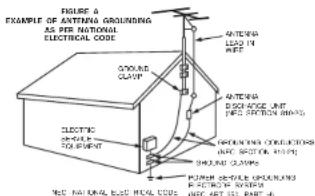
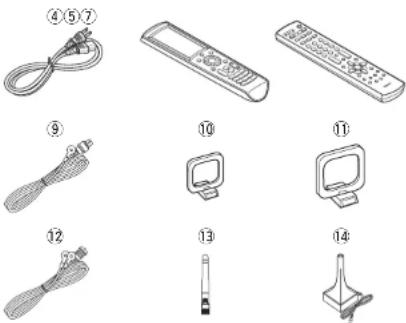
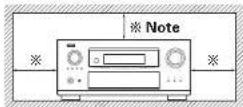

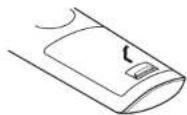


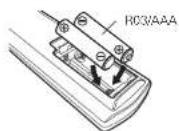


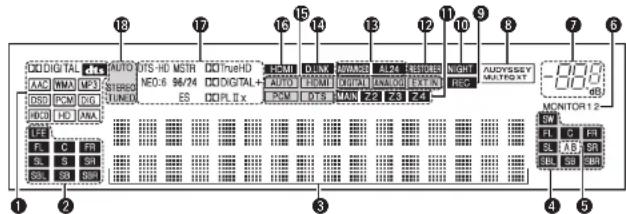

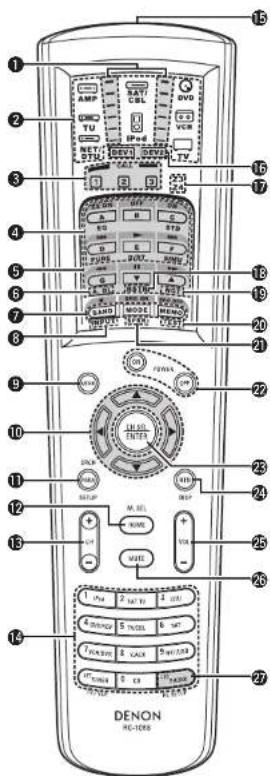

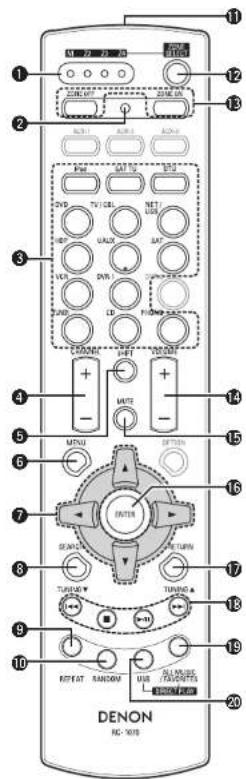


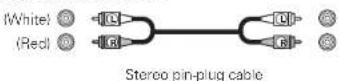





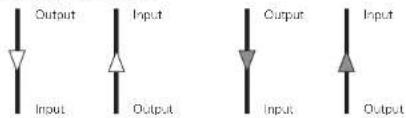
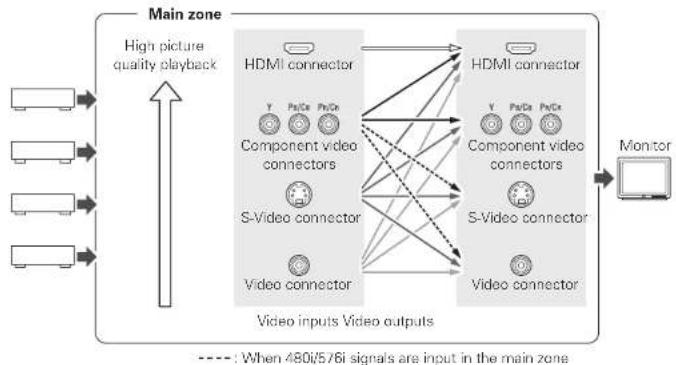


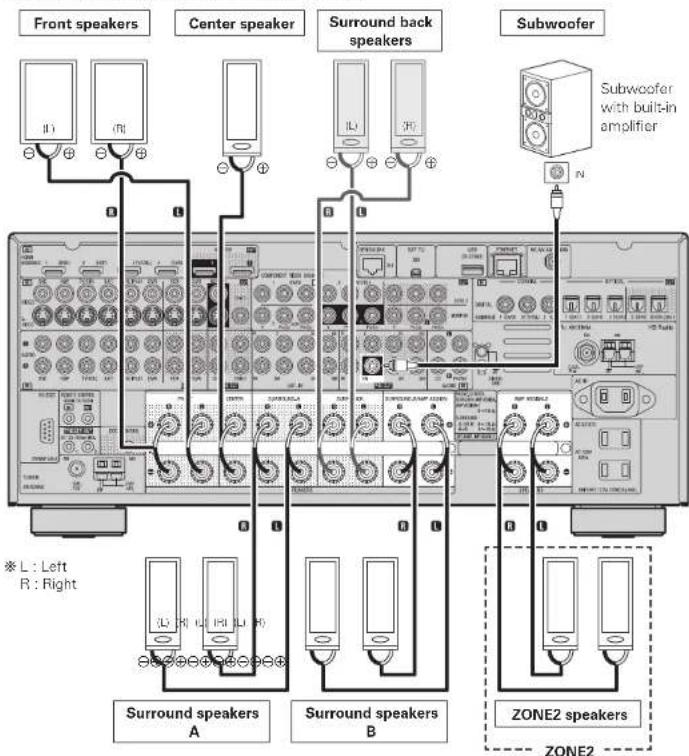


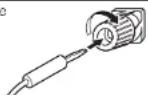


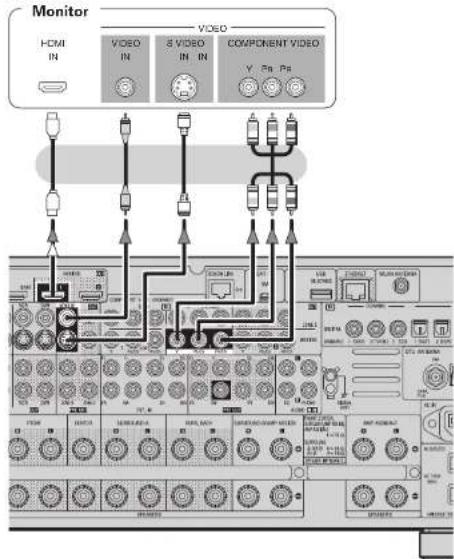
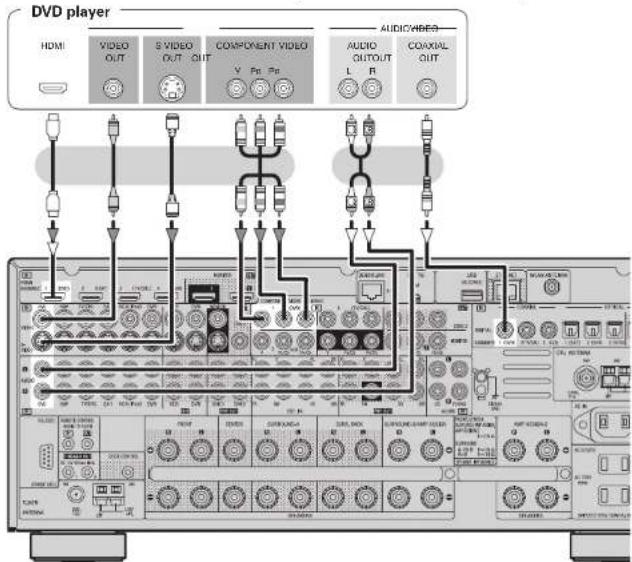


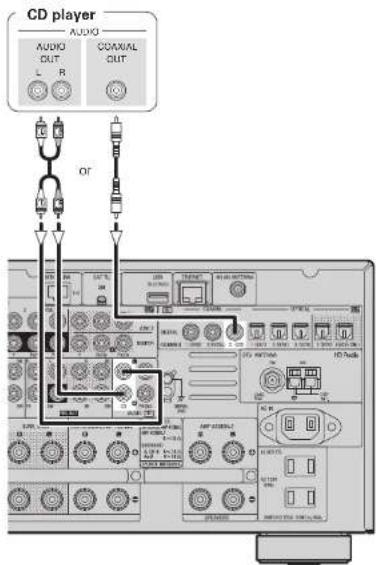

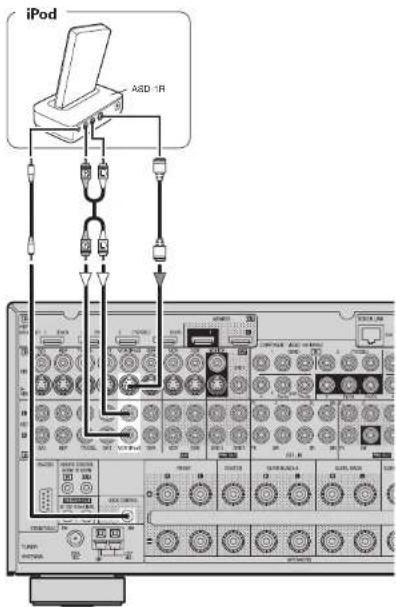


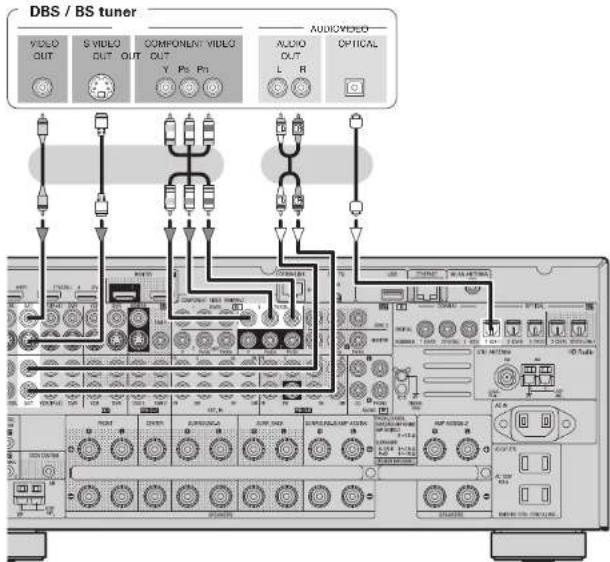


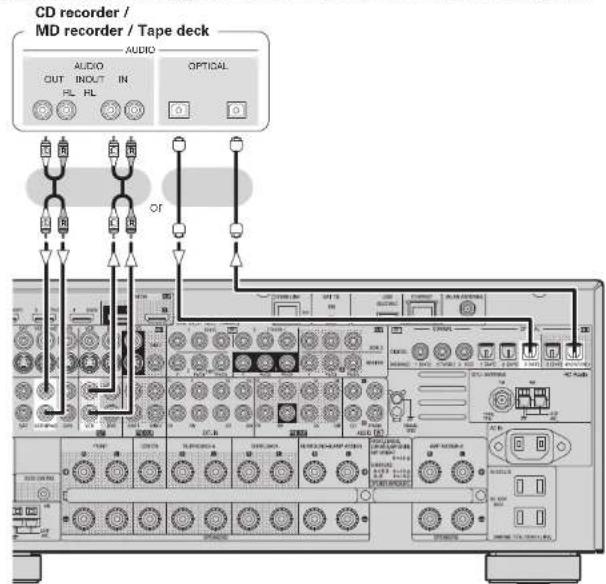
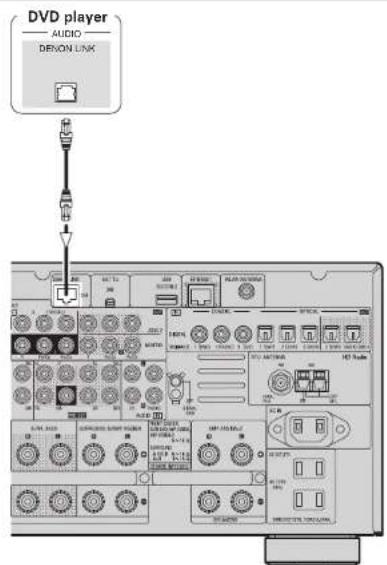


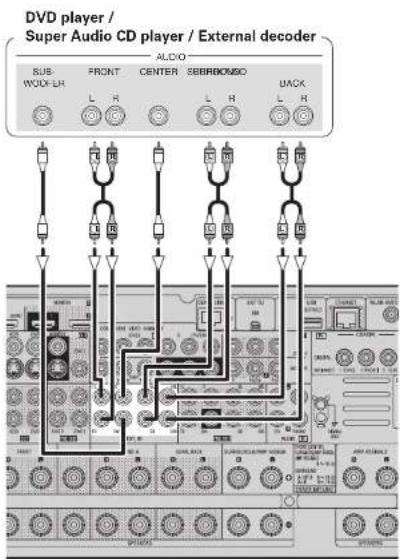


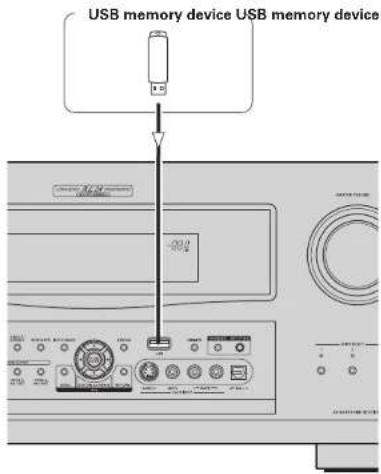
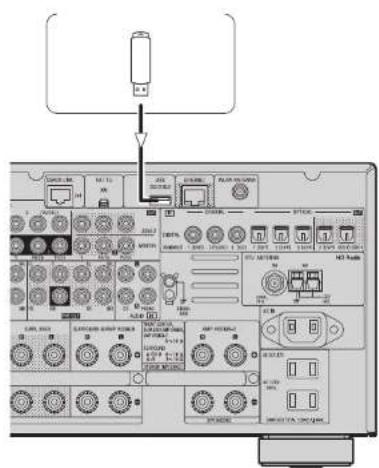

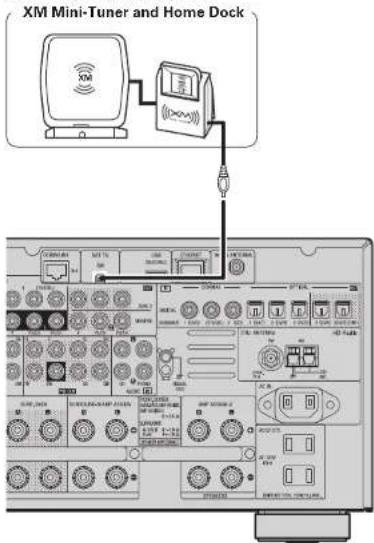
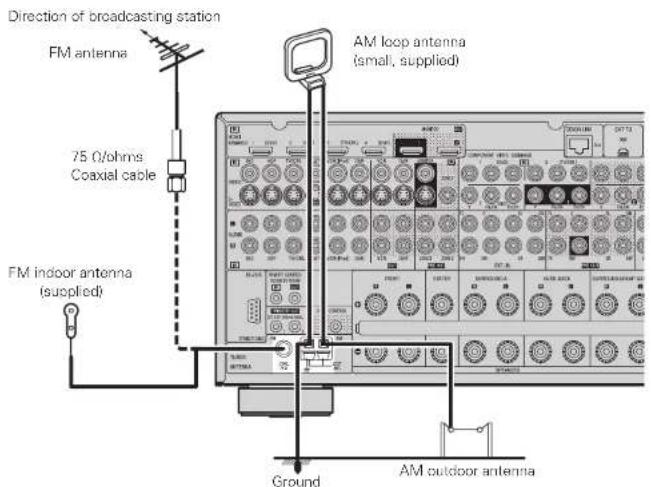
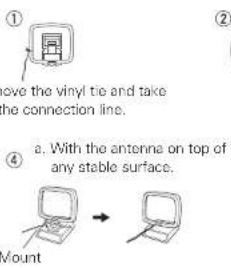
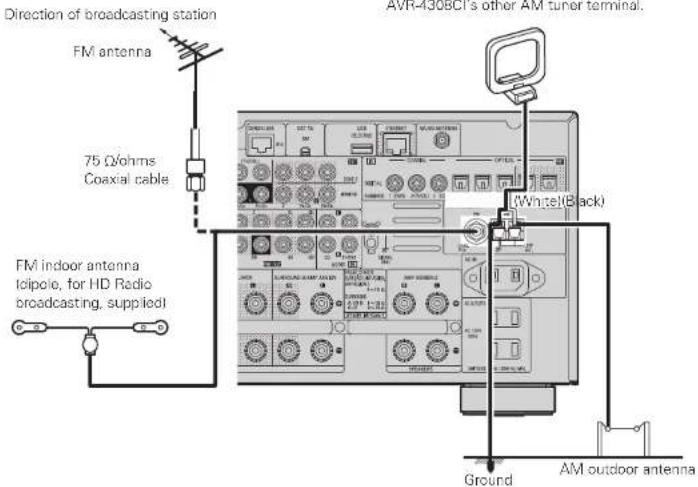


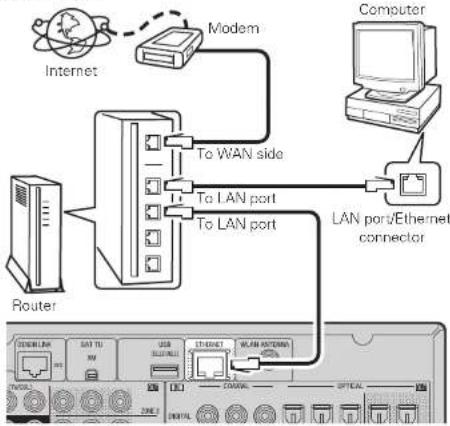
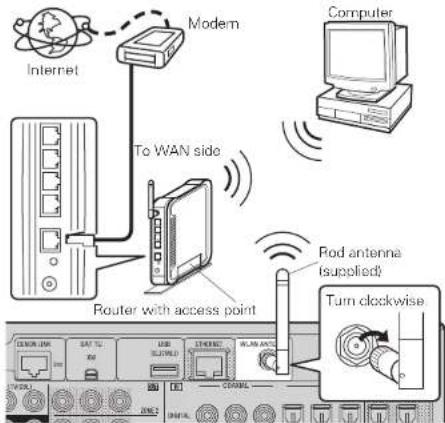


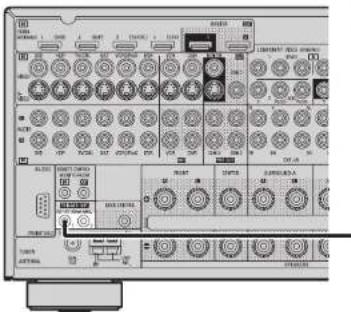


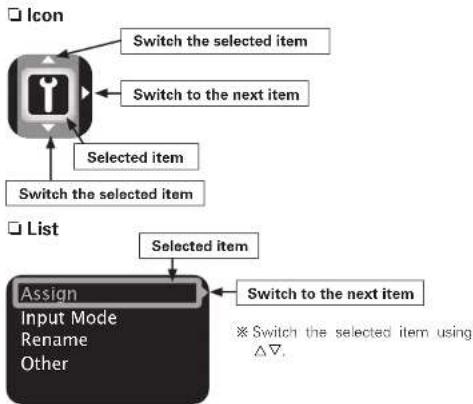


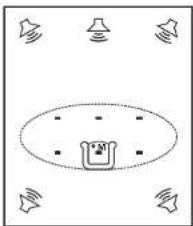

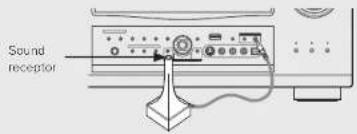
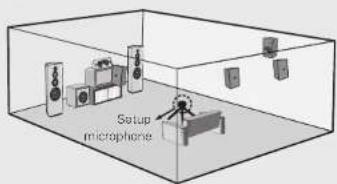





![DENON AVR-4308CI - [Variable range] - 1](/content/2026/06/1239194/images/46777e0d303676cd7cc77d0937bed39854594742523d1f251069343dbeb89854.jpg)

![DENON AVR-4308CI - [Adjusting using test tones] - 1](/content/2026/06/1239194/images/c1753f35bd99d8200f96d7afe3cea29adb6a752f5965118c45afb6f6205be240.jpg)
















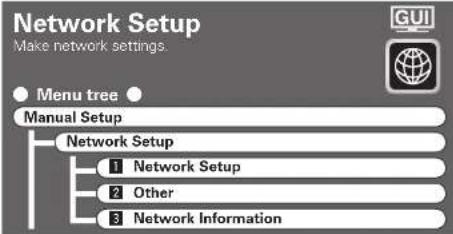


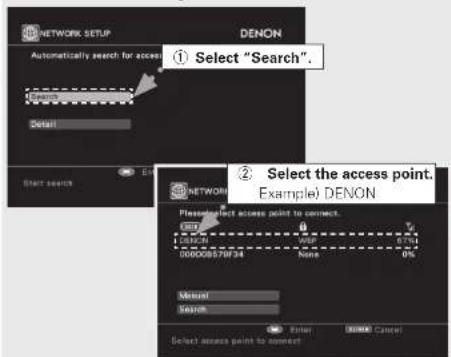

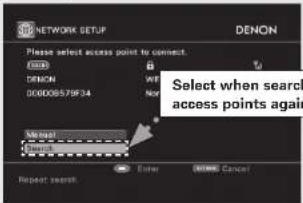

![DENON AVR-4308CI - [Characters that can be input] - 1](/content/2026/06/1239194/images/bffc99610516124b2477519e54ef8111048e7a0aab9f9ef8026a4a2e9e2f4686.jpg)
![DENON AVR-4308CI - [Characters that can be input] - 2](/content/2026/06/1239194/images/6f4faf73fff2b10797df1afc331680c56d03992a8c85cc540a23b3e62d27c587.jpg)
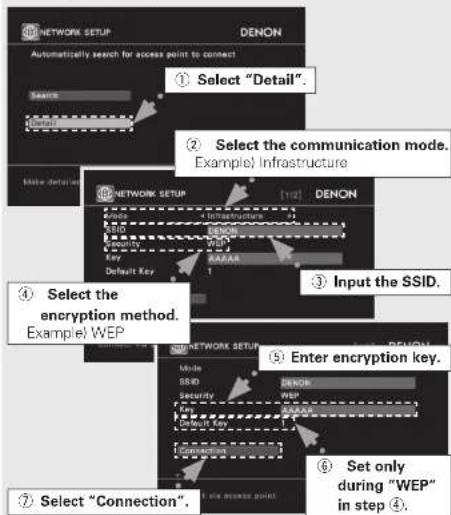
![DENON AVR-4308CI - [Characters that can be input] - 1](/content/2026/06/1239194/images/7cfecb725ddc3556b52022c82ab99dbc5e496b9bb6030de21e4dae0922be2154.jpg)


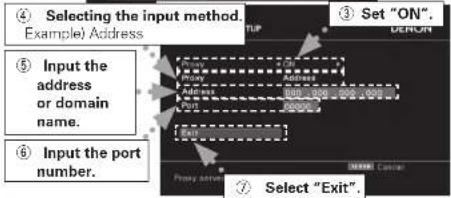

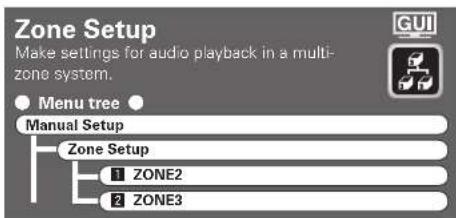


![DENON AVR-4308CI - [Selectable items] - 1](/content/2026/06/1239194/images/d86f9f9f001efb4f649c4f3a7af9b20bad95f5d7522de29ffe037d14036aee91.jpg)
![DENON AVR-4308CI - [Selectable items] - 2](/content/2026/06/1239194/images/ed4971e2aecc2791f1bcbfef63b6d7b0d5420e84e8e9d949bc0006d99da2a645.jpg)





![DENON AVR-4308CI - [Selectable items] - 1](/content/2026/06/1239194/images/190e86391d435402da38f2244eb401c2472a5c22b747c49d9e2f372fc1a68a88.jpg)
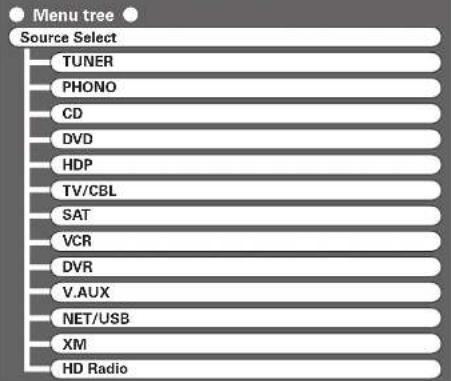

![DENON AVR-4308CI - [Operation on the main remote control unit] - 1](/content/2026/06/1239194/images/58deb37f32018961da2b196175a433b8952836b07650e3c019f276b4c84bace3.jpg)
![DENON AVR-4308CI - [Operation on the main remote control unit] - 2](/content/2026/06/1239194/images/63ea438455da8bc34b89bd9c65c8e48ff6613165d124ffff306e085becb613b5.jpg)
![DENON AVR-4308CI - [Operation on the main remote control unit] - 3](/content/2026/06/1239194/images/aee095159ebcc20fc0b1f17f40b0edaab6811523f07d352e2b101e9673585449.jpg)
![DENON AVR-4308CI - [Operation on the main remote control unit] - 4](/content/2026/06/1239194/images/126cda275b5320a4917648f7925fbd1b35671b2b29e7f0cb6936e559dfb17c0a.jpg)
![DENON AVR-4308CI - [Operation on the main remote control unit] - 5](/content/2026/06/1239194/images/106f3dd691c3e1cc3dbbcfe4588f5171f864943769ddcb523fba79c9ad00f898.jpg)
![DENON AVR-4308CI - [Operation on the main remote control unit] - 6](/content/2026/06/1239194/images/f4d910fc496e1faa0fa3f665f412fc8d04faec1d2d8fbe0c74c7cdb2c86a16b6.jpg)
![DENON AVR-4308CI - [Operation on the main remote control unit] - 7](/content/2026/06/1239194/images/f318cf9d4659512c66500baa214635cc8ae015a7f56f8d86402724baebf3337b.jpg)
![DENON AVR-4308CI - [Operation on the main remote control unit] - 8](/content/2026/06/1239194/images/79156702cf06128611c8b7f13baa5dd6c08909b4ec714cb6e1227de437b9c856.jpg)
![DENON AVR-4308CI - [Operation on the main remote control unit] - 9](/content/2026/06/1239194/images/6f4d3b7c420d8d1132662a3c4d17a91f21eef39920e042fdef82fc2e74fc738a.jpg)























![DENON AVR-4308CI - [Selectable items] - 1](/content/2026/06/1239194/images/d4b0d1d34c7eb2f0c5ac2a0ca3718b88a05f5fcfa5db86a1f4f4f54d590ab4fb.jpg)




![DENON AVR-4308CI - [Selectable items] - 1](/content/2026/06/1239194/images/82ad83f60232a81ddd772097f1e3692ae6e023a5a4b02f9d65740e35a8631a81.jpg)
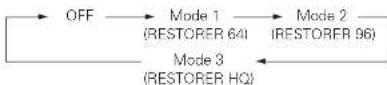


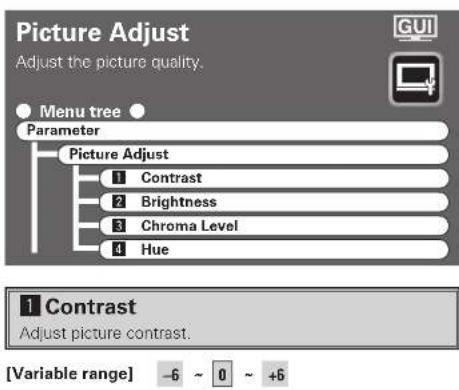


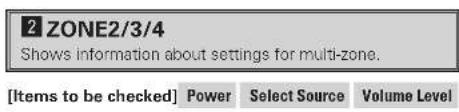

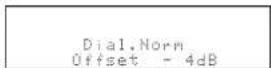

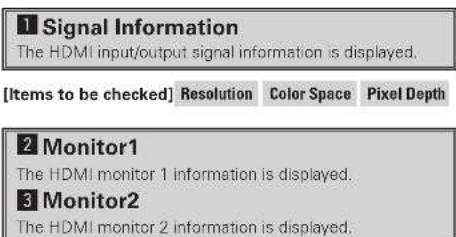


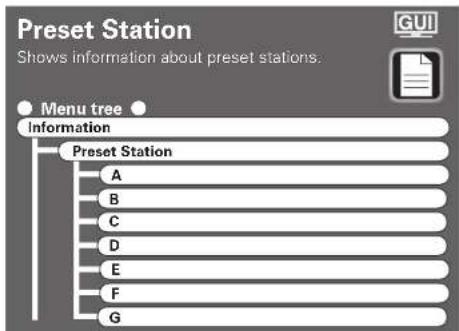

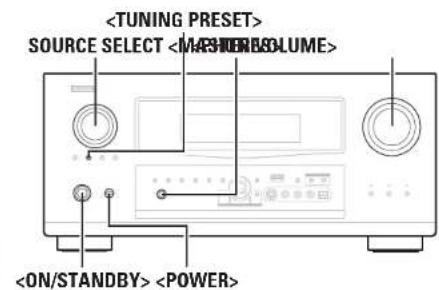
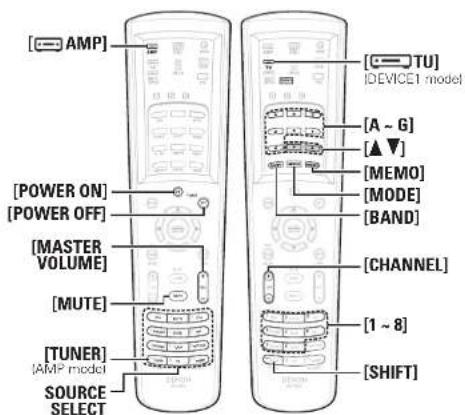
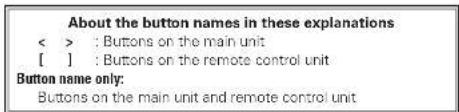


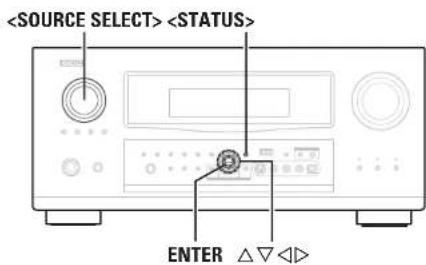
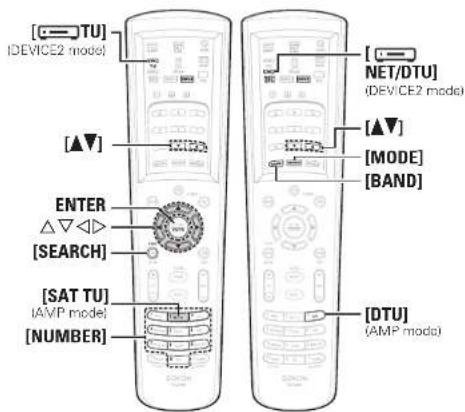



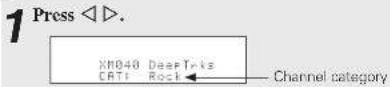


![DENON AVR-4308CI - Press [SEARCH] or to select the audio program. - 1](/content/2026/06/1239194/images/b3028e73ba2d7b9eed83be81962cf19dc5186e3347cf391c4f5176b417315f87.jpg)


![DENON AVR-4308CI - Either turn or press [iPod] (AMP mode) to select the input source assigned in step 1-② above. - 1](/content/2026/06/1239194/images/24f06ddf556f3a47991a89dc69a165ec00953a6332ff8335787ce747a266b608.jpg)
![DENON AVR-4308CI - Either turn or press [iPod] (AMP mode) to select the input source assigned in step 1-② above. - 2](/content/2026/06/1239194/images/7c694e8990957b96d034b5702b8daa59b0910d33e8e72896beeb175e609b8000.jpg)


![DENON AVR-4308CI - [Album art function] - 1](/content/2026/06/1239194/images/b027990df72a733c170b5277a8507bf54c73ec3a4c4ad6fa15c03d06b93b50f2.jpg)
![DENON AVR-4308CI - [Album art function] - 2](/content/2026/06/1239194/images/154b1a1bfc955f2a76b0c6da4e731fe805bbdb6423979bbfcb9db0610cdf8c06.jpg)
![DENON AVR-4308CI - [Album art function] - 3](/content/2026/06/1239194/images/cbaaf5378fe36582330648ac443e1f616fde24be399e59b602eb7883dbfa3175.jpg)

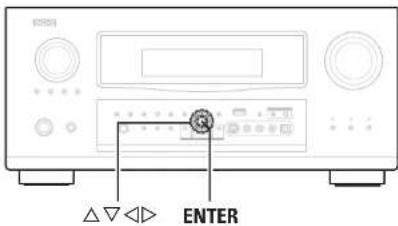
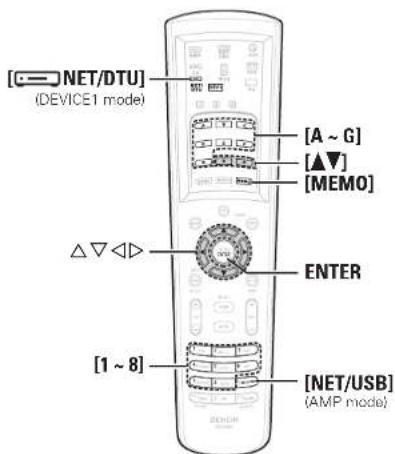


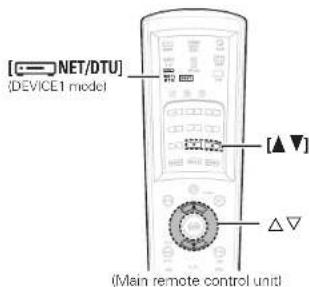
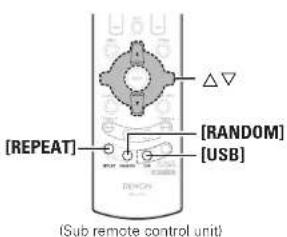


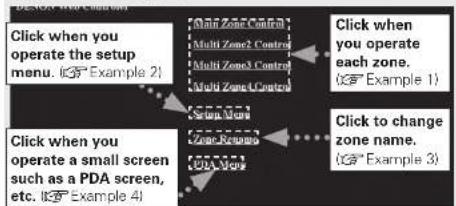


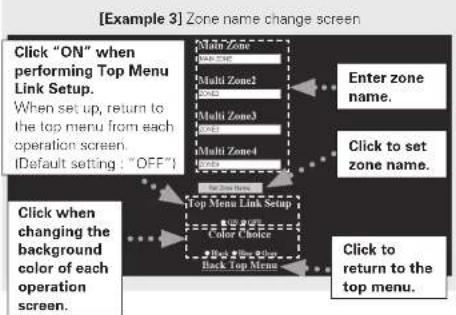


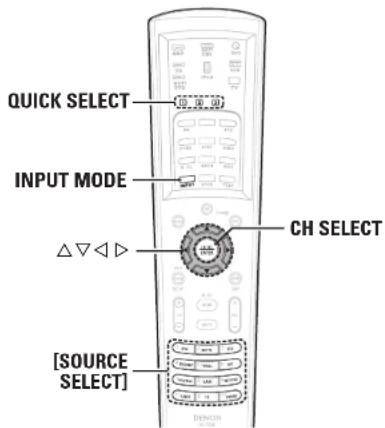


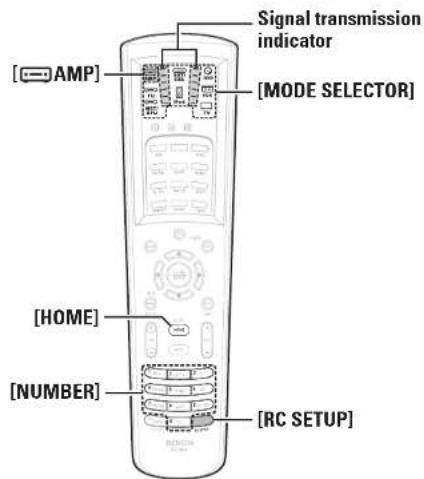


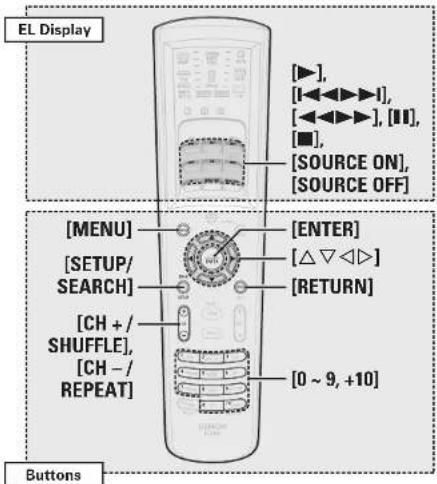
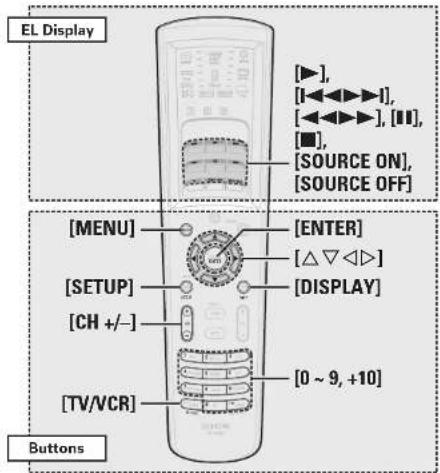
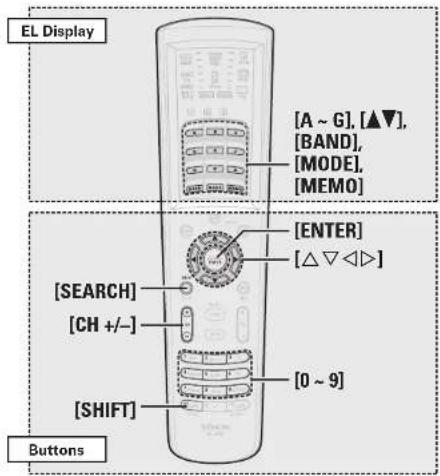


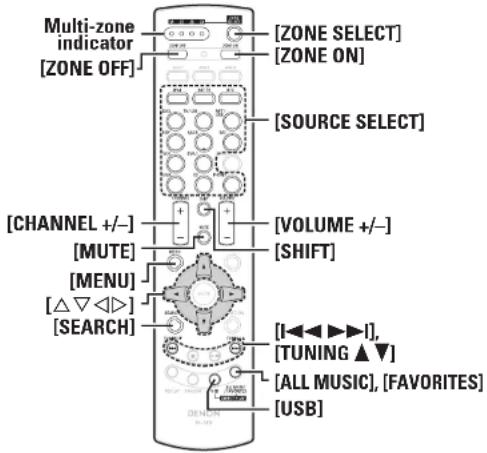
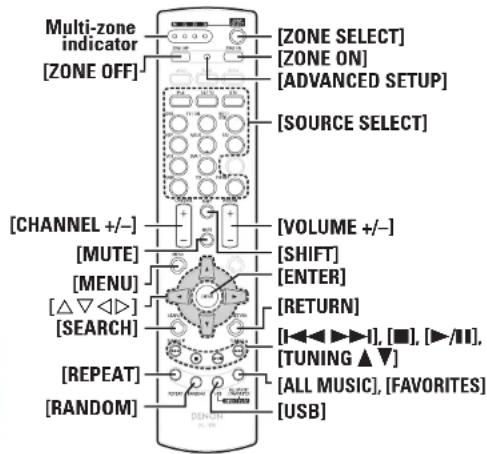


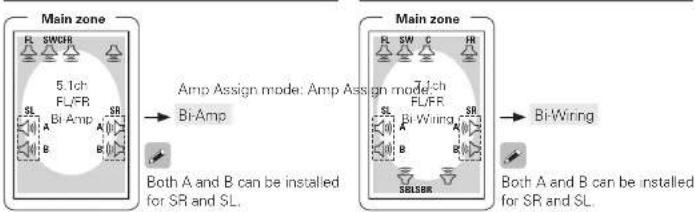
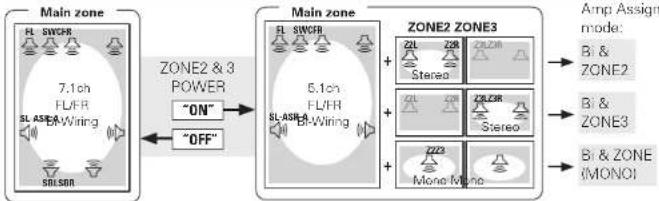


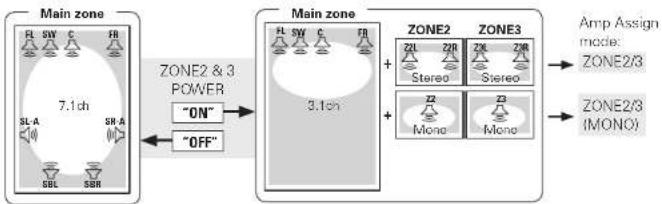


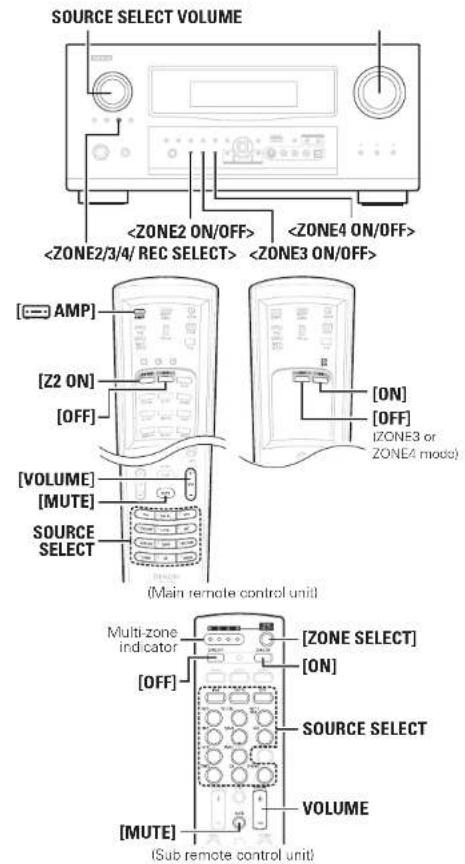
![DENON AVR-4308CI - [Operation on the remote control unit] - 1](/content/2026/06/1239194/images/ea6b482451efde933be6c75d50411257153917a00d9b120524a7b335b0a71c86.jpg)
![DENON AVR-4308CI - [Operation on the remote control unit] - 2](/content/2026/06/1239194/images/d9bbe5af21550066d251e3394c4aff07fc0f742f9d454bcd2b395dd137e692ac.jpg)

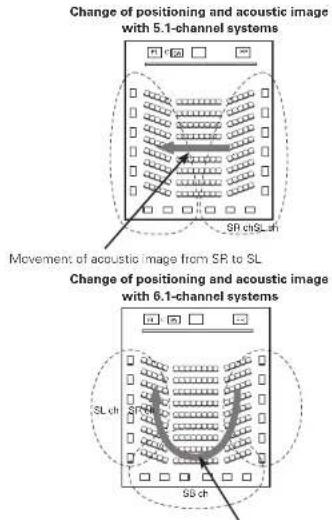
![DENON AVR-4308CI - [1] Using surround back speaker(s) - 1](/content/2026/06/1239194/images/088f089ded6246a81d2febe0369570d5d035908934ca084c1996b1c8f6a169a6.jpg)
![DENON AVR-4308CI - [1] Using surround back speaker(s) - 2](/content/2026/06/1239194/images/4531ff9257a376a743d772521aa2ef37a9558f602462953fc72f96af8a691fe2.jpg)
![DENON AVR-4308CI - [1] Using surround back speaker(s) - 3](/content/2026/06/1239194/images/3218cc38638b37c85bafd29c930c99de24f84a58ade4849061e270e3cc500d1f.jpg)
![DENON AVR-4308CI - [1] Using surround back speaker(s) - 4](/content/2026/06/1239194/images/7ab7f38cad4b910962e21c0e73f554c441da41f057102ae2c79b9be0e95ad936.jpg)
![DENON AVR-4308CI - [1] Using surround back speaker(s) - 5](/content/2026/06/1239194/images/f1d8b2953bc52e0e136285ae3c352be8511402638dadbb9f5e17393be0b650ee.jpg)
![DENON AVR-4308CI - [1] Using surround back speaker(s) - 6](/content/2026/06/1239194/images/af6bcf7d5ab32ffcbefbea1877109990e6b560fe39553e020364d9b95e11be8a.jpg)
![DENON AVR-4308CI - [1] Using surround back speaker(s) - 7](/content/2026/06/1239194/images/4fe16d97888d62c428e0bf118513ed98cd7386e3e717c11ee28d2ecab92b2364.jpg)
![DENON AVR-4308CI - [1] Using surround back speaker(s) - 8](/content/2026/06/1239194/images/147315720187e5c97512805d079237bd4c12ab0408d06a632d4d0cb7105a8802.jpg)


