WLM-2600 - Router SITECOM - Free user manual and instructions
Find the device manual for free WLM-2600 SITECOM in PDF.


User questions about WLM-2600 SITECOM
0 question about this device. Answer the ones you know or ask your own.
Ask a new question about this device
Download the instructions for your Router in PDF format for free! Find your manual WLM-2600 - SITECOM and take your electronic device back in hand. On this page are published all the documents necessary for the use of your device. WLM-2600 by SITECOM.
USER MANUAL WLM-2600 SITECOM
natural_image
Black wireless router device with yellow internal ports and ports, mounted on a stand (no visible text or symbols)User Manual
Table of Contents
Introduction....3
Key Features.... 4
Package Contents 5
Cautions....6
Product Layout 7
Network + System Requirements ....10
Setup your Router ....11
Setup your Computer....12
Login to your Router 15
Configure your Internet connection....16
Status....19
TOOLBOX 43
Addendum A: GNU/GPL Leaflet....47
Addendum B: GNU/GPL....49
Addendum C: Declaration of Conformity 57





Revision 1.0
© Sitecom Europe BV 2013
Note: All the information contained in this manual was correct at the time of publication.
However, as our engineers are always updating and improving the product, your device's software may have a slightly different appearance or modified functionality than presented in this manual.
Introduction
Congratulations on your purchase of the WLM-2600 Wireless ADSL2+ Modem. This modem is fully compliant with 802.11b, 802.11g and 802.11n. This modem provides the best performance when used in combination with 802.11n client adapters.
The WLM-2600 is not only a Modem or Wireless Access Point, but can also be used to connect wired Ethernet devices at 10/100 Mbit speeds.
For data protection and privacy, the WLM-2600 can encode all wireless transmissions with WEP, WPA or WPA2 encryption. By default, the modem is secured with a WPA2 (AES) encryption key. (The WPA2-key is printed on the label underneath the modem.)
With a built-in DHCP Server & powerful SPI firewall the WLM-2600 protects your computers against intruders and known Internet attacks, and also provides safe VPN pass-through.
Key Features
| Features | Advantages |
| Incredible Data Rate up to 300Mbps* | Heavy data payloads such as MPEG video streaming |
| IEEE 802.11n Compliant and backwards compatible with 802.11b/g | Fully Interoperable with IEEE 802.11b / IEEE802.11g compliant devices with legacy protection |
| Four 10/100 Mbps Switch Ports (Auto-Crossover) | Scalability, extend your network. |
| Firewall supports Virtual Server Mapping, DMZ, IP Filter, ICMP Blocking, SPI | Avoids the attacks of Hackers or Viruses from Internet |
| Support 802.1x authenticator, 802.11i (WPA/WPA2, AES), VPN pass-through | Provide mutual authentication (Client and dynamic encryption keys to enhance security |
* Theoretical wireless signal rate based on IEEE standard of 802.11a, b, g, n chipset used. Actual throughput may vary. Network conditions and environmental factors lower actual throughput rate. All specifications are subject to change without notice.
Package Contents
Open the package carefully, and make sure that none of the items listed below are missing. Do not discard the packing materials, in case of return; the unit must be shipped back in its original package.
• The WLM-2600 WiFi Modem Router N300
- A 110V\~240V to 12V 1A Switching Power Adapter
• A Quick Install Guide
- An UTP cable
- A RJ11 cable
Cautions
This router's design and manufacturer has your safety in mind. In order to safely and effectively use this router, please read the following before usage.
Usage Cautions
The user should not modify this router. The environmental temperature should be within +5 \~ +35 degrees Celsius.
Power
The router's power voltage is DC 12V 1A.
When using this router, please connect the supplied AC adapter or AC adapter cable to the router's power jack. When placing the adapter cable, make sure it can't get damaged or be subject to pressure. To reduce the risk of electric shock, unplug the adapter first before cleaning it. Never connect the adapter to the router in a humid or dusty area. Do not replace the adapter or cable's wire or connector.
Repair
If the router has a problem, you should take it to an appointed repair center and let the specialists do the repair. Never repair the router yourself, you might damage the router or endanger yourself.
Disposing of the Router
When you dispose of the router, be sure to dispose it appropriately. Some countries may regulate disposal of an electrical device, please consult with your local authority.
Others
When using this router, please do not let it come into contact with water or other liquids. If water is accidentally spilled on the router, please use a dry cloth to absorb the spillage. Electronic products are vulnerable, when using please avoid shaking or hitting the router, and do not press the buttons too hard.
- Do not let the router come into contact with water or other liquid.
- Do not disassemble, repair or change the design of the router; any damage done will not be included in the repair policy.
- Avoid hitting the router with a hard object, avoid shaking the router and stay away from magnetic fields.
- If during electrostatic discharge or a strong electromagnetic field the product will malfunction, unplug the power cable. The product will return to normal performance the next time it is powered on.
Product Layout
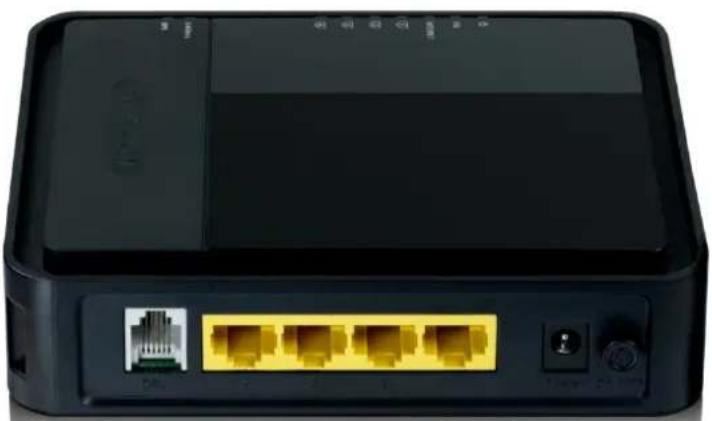
natural_image
Front view of a black wireless router with four Ethernet ports and a USB port (no visible text or labels)Port Description
ADSL (Grey) Connect your ADSL cable to this port
LAN (Yellow) Connect your PCs or network devices to these ports
Power connector Connect the 12V DC adapter to this port
Backlabel and Network Details Folder
The Network Details Folder describes the IP address, login details, network name, security code and OPS button functionality.

text_image
All your network details in one safe place Wi-Fi Modem Router N300 WLM-2600 v1001 NEW network name NEW password If you have changed your network name or password you can write it down here. Do you want to customize your network names and passwords? Easily login to your modem router: 1. Type the following address in your browser: http://sitecom.modem 2. Log-in to your user-interface: Username admin Password 3. Go to 2.4GHz WiFi 4. Go to Wireless Settings to change your network name Go to Security Settings to change your password Check FAQs online for instructions in your local language: www.sitecom.com/help/desk Reset your modem router with one push of a button: Press 2 sec = OPS mode Press 15+ sec = Factory defaultButton
Description
OPS BUTTON
Press 0-5 seconds for OPS mode
Press 15 Seconds to reset the router to factory defaults.
LED Definition
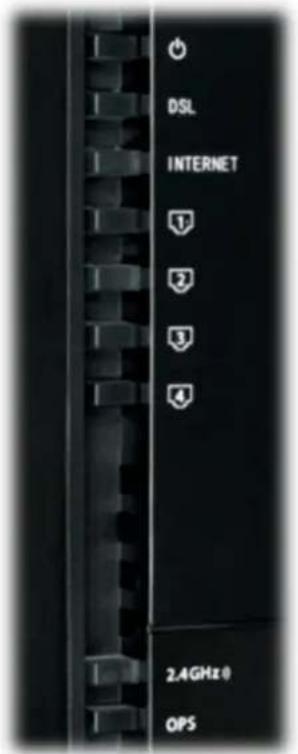
text_image
DSL INTERNET 1 2 3 4 2.4GHz OPSAs shown from the top to the bottom.
| Port | Description |
| Power (Red) | Shows the device is turned on. |
| DSL (Green) | Shows the DSL signal is synchronized. |
| Internet (Blue) | Shows the Internet connection is active. |
| LAN (Blue) | Shows the cable is connected. |
| LAN (Blue) | Shows the cable is connected. |
| LAN (Blue) | Shows the cable is connected. |
| LAN (Blue) | Shows the cable is connected. |
| 2.4GHz (Blue) | Shows 2.4GHz WiFi activity. |
| OPS (White) | Shows OPS activity. |
Network + System Requirements
To begin using the router, make sure you meet the following as minimum requirements:
- PC/Notebook.
- Operating System – Microsoft Windows XP/VISTA/7 or Mac OSX
• 1 Free Ethernet port. - WiFi card/USB dongle (802.11 a/b/g/n) – optional.
• PC with a Web-Browser (Internet Explorer, Safari, Firefox, Opera) - Ethernet compatible CAT5e cables.
Setup your Router
You can place the router on a desk or other flat surface, or you can mount it on a wall. For optimal performance, place your router in the center of your home (or your office) in a location that is away from any potential source of interference, such as a metal wall or microwave oven. This location must be close to a power connection and your ADSL connection.
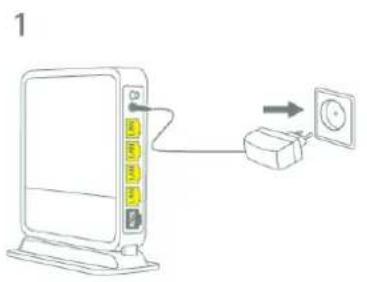
text_image
1
text_image
2 ADSL connection
text_image
3 ON ADSL connectionConnect the supplied power-adapter to the power inlet port and connect it to a wall outlet. Switch the router on by flipping the switch on the back of the device. The router automatically enters the self-test phase. During self-test phase, the Power LED will be lit continuously to indicate that this product is in normal operation.
Setup your Computer
Windows, Manual Connection
- Click on the icon for wireless connectivity. This is usually located in the System Tray, next to the clock.
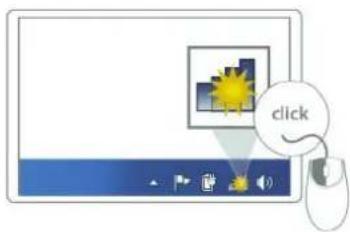
natural_image
Computer monitor with icon buttons and a mouse, no readable text or symbols- Select the Sitecom network. The correct network name can be found on the sticker on bottom of the router, or in the Network Details Folder.
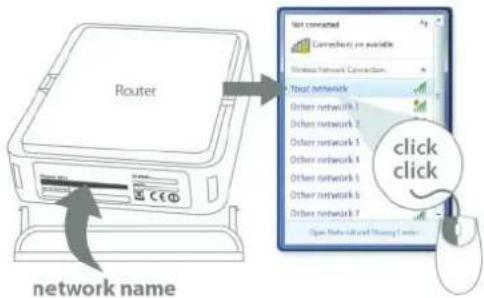
text_image
Router Network name Not connected Connecticut or available Wireless Network Connection Total network Other network 1 Other network 2 Other network 3 Other network 4 Other network 5 Other network 6 Other network 7 Open Network and Sharing Center- Fill in the password for the wireless network. The correct password can be found on the sticker on the bottom of the router, or in the Network Details Folder.
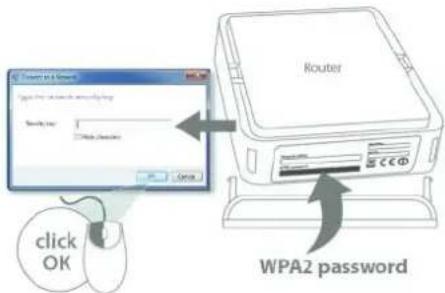
text_image
WPA2 password Enter your account password Save up: Make a password click OK- Wait for the icon to display that it's connected to the network.

text_image
= OKWindows, OPS Connection
- Click on the icon for wireless connectivity. This is usually located in the System Tray, next to the clock.

text_image
click- Select the Sitecom network. The correct network name can be found on the sticker on bottom of the router, or in the Network Details Folder.
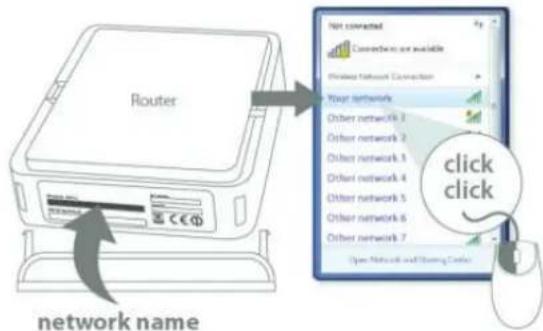
text_image
Router Not connected Connections are available Router Network Connection Your network Other network 1 Other network 2 Other network 3 Other network 4 Other network 5 Other network 6 Other network 7 Open Network and Ordering Center click click network name- Push the OPS Button on the router. Keep the button pushed for 0-5 seconds.
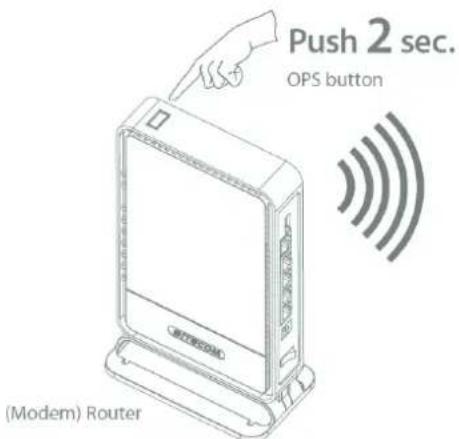
text_image
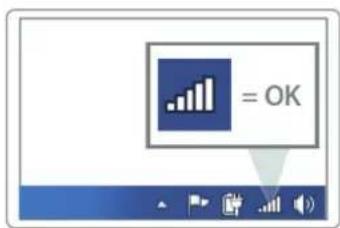
Push 2 sec. OPS button (Modem) Router- Wait for the icon to display that it's connected to the network.
text_image
= OKMac OSX
- Click on the icon for wireless connectivity. This is usually located in the System Tray, next to the clock.

text_image
click- Select the Sitecom network. The correct network name can be found on the sticker on bottom of the router, or in the Network Details Folder.

text_image
Router Network name Wi-Fi Off Turn Wi-Fi Off No network selected Other network 1 Other network 2 Tour Networks Other network 4 Other network 5 Other network 6 Other network 7 Other network 8 Other network 9 Other network 10 Join Other Network Create Network Open Network Preview click- Fill in the password for the wireless network. The correct password can be found on the sticker on the bottom of the router, or in the Network Details Folder.
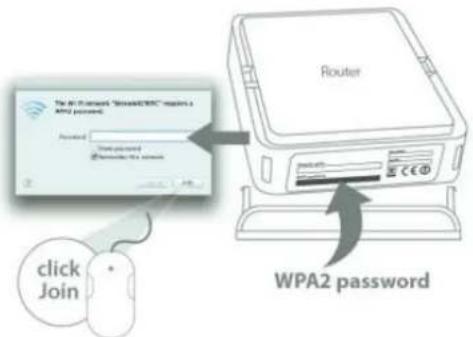
text_image
For all networks "WPSA2WPC" applies a AMD password. Password: Down password Remove the security click Join Router WPA2 password- Wait for the icon to display that it's connected to the network.

text_image
= OKLogin to your Router
LOGIN procedure
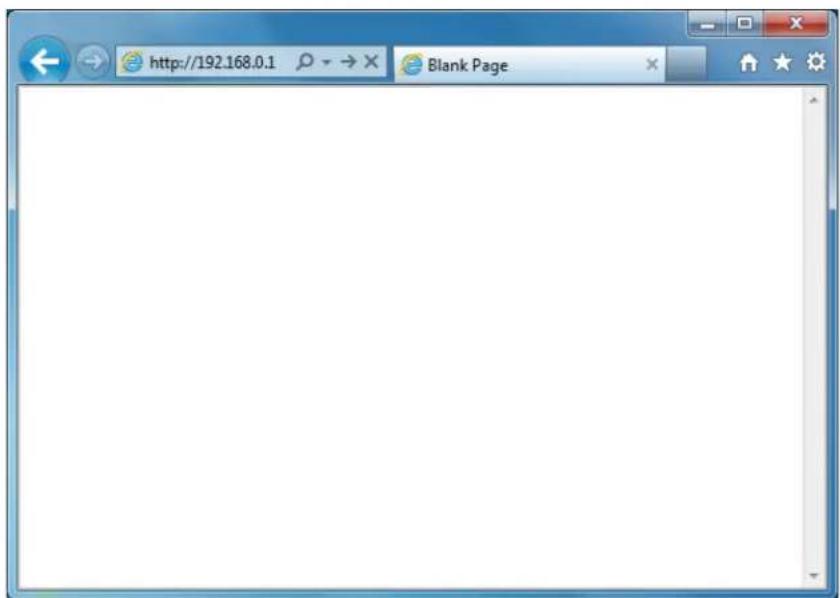
- OPEN your browser (e.g. Internet Explorer).


- Type http://sitecom.modem or http://192.168.0.1 in the address bar and press [Enter].
text_image
http://192.168.0.1 Blank Page- Type user name and password. The default username is admin, the password can be found on the back label on the bottom of your router.
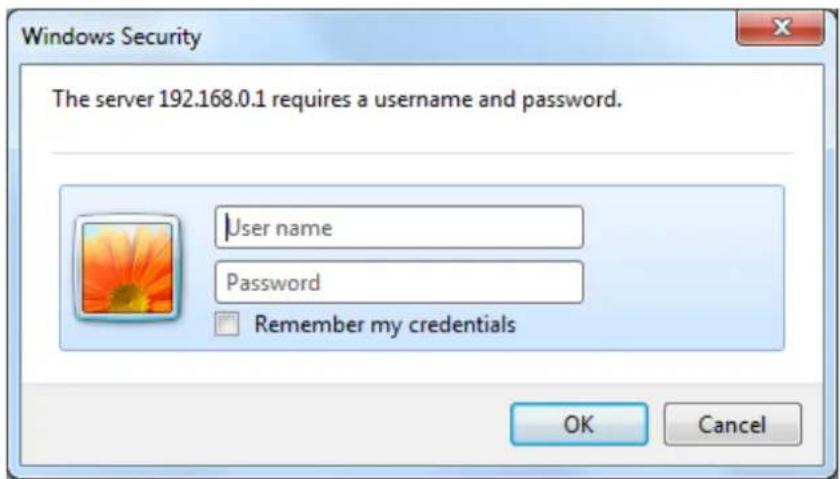
text_image
Windows Security The server 192.168.0.1 requires a username and password. User name Password Remember my credentials OK Cancel- Click OK.
- You will see the home page of the WLM-2600.
Configure your Internet connection
From the menu, select "Internet Settings".
Wi-Fi Router X3 N300


text_image
Status | Internet Settings | 2.4GHz WiFi | Firewall | Advanced Settings | Toolbox | Choose your languageIPv4 Settings
Use this section to configure your IPv4 Connection type. If you are unsure of your connection method, please contact your Internet Service Provider.
IPv4 Connection Type
Choose the IPv4 mode to be used by the router for the internet connection.

text_image
Login Method : Dynamic IP Address Hostname : MAC Address : 000000000000 Clone MAC address
Depending on the chosen setting, you may need to enter your user name and password, MAC address or hostname in the following window. After you have entered the correct information, click Apply.
IPv4 Settings
Use this section to configure your IPv4 Connection type. If you are unsure of your connection method, please contact your Internet Service Provider.
IPv4 Connection Type
Choose the IPv4 mode to be used by the router for the internet connection.

text_image
Login Method : PPP over Ethernet Username : Password : Service : MTU : 1492 (512<=MTU Value<=1492) Connection Type : Keep connection Idle Time : 10 (1-1000 Minutes) Connect Disconnect
IPv6 Configuration
The IPv6 (Internet Protocol version 6) section is where you configure your IPv6 Connection type.
IPv6 Connection Type
There are several connection types to choose from: Static IPv6, Autoconfiguration, 6RD and Link-local only. If you are unsure of your connection method, please contact your IPv6 Internet Service Provider.
Static IPv6 Mode
This mode is used when your ISP provides you with a set IPv6 addresses that does not change. The IPv6 information is manually entered in your IPv6 configuration settings. You must enter the IPv6 address, Subnet Prefix Length, Default Gateway, Primary DNS Server and Secondary DNS Server. Your ISP provides you with all this information.
IPv4 Settings
IPv6 Settings
Use this section to configure your IPv6 Connection type. If you are unsure of your connection method, please contact your Internet Service Provider.
IPv6 Connection Type
Choose the IPv6 mode to be used by the router for the internet connection.
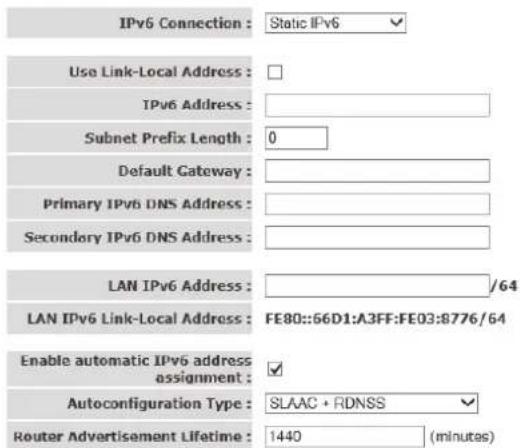
text_image
IPv6 Connection : Static IPv6 Use Link-Local Address : IPv6 Address : Subnet Prefix Length : 0 Default Gateway : Primary IPv6 DNS Address : Secondary IPv6 DNS Address : LAN IPv6 Address : /64 LAN IPv6 Link-Local Address : FE80::66D1:A3FF:FE03:B776/64 Enable automatic IPv6 address assignment : ✓ Autoconfiguration Type : SLAAC + RDNSS ✓ Router Advertisement Lifetime : 1440 (minutes)6RD Mode
In the 6RD mode, no additional configuration is necessary.
IPv4 Settings IPv6 Settings
Use this section to configure your IPv6 Connection type. If you are unsure of your connection method, please contact your Internet Service Provider.
IPv6 Connection Type
Choose the IPv6 mode to be used by the router for the internet connection.
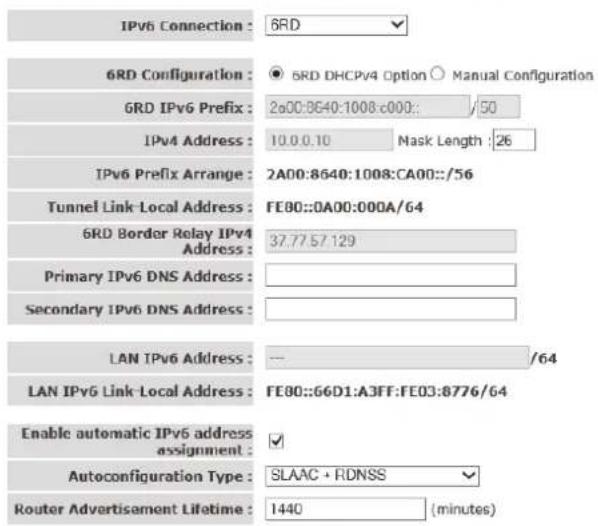
text_image
IPv6 Connection : 6RD 6RD Configuration : ● 6RD DHCPv4 Option ○ Manual Configuration GRD IPv6 Prefix : 2a00:8640:1008:c000:: /50 IPv4 Address : 10.0.0.10 Mask Length : 26 IPv6 Prefix Arrange : 2A00:8640:1008:CA00::/56 Tunnel Link-Local Address : FE80::0A00:000A/64 6RD Border Relay IPv4 Address : 37.77.57.129 Primary IPv6 DNS Address : Secondary IPv6 DNS Address : LAN IPv6 Address : -- /64 LAN IPv6 Link-Local Address : FE80::66D1:A3FF:FE03:8776/64 Enable automatic IPv6 address assignment : ✓ Autoconfiguration Type : SLAAC + RDNSS ✓ Router Advertisement Lifetime : 1440 (minutes)Apply Cancel
Link-local Mode
The Link-local address is used by nodes and routers when communicating with neighboring nodes on the same link. This mode enables IPv6-capable devices to communicate with each other on the LAN side.
IPv4 Settings IPv6 Settings
Use this section to configure your IPv6 Connection type. If you are unsure of your connection method, please contact your Internet Service Provider.
IPv6 Connection Type
Choose the IPv6 mode to be used by the router for the internet connection.
IPv6 Connection : Link-local only
WAN IPv6 Link-Local Address : FE80::66D1:A3FF:FE03:8778/64
LAN IPv6 Link-Local Address: FE80::66D1:A3FF:FE03:8776/64
Apply Cancel
Status
The pages in the status section provide you general information about the operational status of your device.
Status
Wi-Fi Modem Router X3 N300


text_image
Home | Wizard | Basic Settings | 2.4G WiFi | Advanced Settings | Firewall | Toolbox | Language Status Statistics DHCP List DiagnosticsADSL Router Status
This page shows the current status and some basic settings of the device.
System Info
Hardware Version: WLM-3600
Software Version: 1.00
Model Name: WLM-3600/v1001
LAN Configuration
MAC Address: 64:d1:a0:07:a6:9d
IP Address: 192.168.0.1
Subnet Mask: 255.255.255.0
DHCP Server : Enable
The System status section allows you to monitor the current status of your modem/router: the UP time, hardware information, serial number as well as firmware version information is displayed here. The page also shows extensive information concerning the ADSL status and current settings.
Statistics
Wi-Fi Modem Router X3 N300


text_image
Home | Wizard | Basic Settings | 2.4G WiFi | Advanced Settings | Firewall | Toolbox | Language Status Statistics DHCP List DiagnosticsStatistics
This information reflects the current status of your all connection.
WLAN
| Interface | Transmitted | Received | ||||||
| Bytes | Bits | Errs | Dx drop | Bytes | Bits | Errs | Dx drop | |
| Sitecom07A69E | 0 | 582 | 0 | 0 | 1561194 | 7147 | 0 | 0 |
Ethernet LAN
| Interface | Transitional | Received | ||||||
| Bytes | Pits | Firs | To drop | Bytes | Pits | Firs | Rx drop | |
ADSL WAN
| Service | Protocol | Transmitted | Rackhead | ||||||
| Bytes | Plks | Errs | Tx drop | Bytes | Plks | Errs | Rx drop | ||
Refresh
You can view statistics on the processing of IP packets on the networking interfaces. You will not typically need to view this data, but you may find it helpful when working with your ISP to diagnose network and Internet data transmission problems. To display statistics for any new data, click "Refresh".
DHCP List
Wi-Fi Modem Router X3 N300


text_image
Home | Wizard | Basic Settings | 2.4G WiFi | Advanced Settings | Firewall | Toolbox | Language
Active DHCP Clients table
This table shows the assigned IP Address, corresponding MAC Address and expiration time of the connected clients.
| e | Hexbase | MAC address | IP address | Expiration time |
| 1 | EdgePC | c8:0a:e9:10 bf:0c | 192.168.0.100 | 85498 |
This page shows all DHCP clients (LAN PCs) currently connected to your network. The table shows the assigned IP address, MAC address and expiration time for each DHCP leased client.
Diagnostics
Wi-Fi Modem Router X3 N300


text_image
Home | Wizard | Basic Settings | 2.4G WiFi | Advanced Settings | Firewall | Toolbox | Language Status Statistics DHCP List DiagnosticsDiagnostics test
This page offers some diagnostic tool to test the connection.
Virtual Circuit : PPPoA_0_2 ▼
Local Network
| Testing Ethernet LAN 1 Connection : | FAIL |
| Testing Ethernet LAN 2 Connection : | FAIL |
| Testing Ethernet LAN 3 Connection : | PASS |
| Testing Ethernet LAN 4 Connection : | FAIL |
DSL Service Provider
| Testing ADSL Synchronization : FAIL |
| Testing ATM OAM F5 Segment Loopback : FAIL |
| Testing ATM OAM F5 End to End Loopback : FAIL |
The Diagnostics page allows you to test the current configuration.
Click 'Start' to let the modem router perform several tasks to verify if the connection is operational.
Configuration Wizard
Wi-Fi Modem Router X3 N300

Home | Wizard | Basic Settings | 2.4G WiFi | Advanced Settings | Firewall | Toolbox
Language
Automatic detection Internet settings
Click the "Start Scan" button to automatically start scanning your ADSL configuration settings, or click "Skip Scan" to select your ADSL settings manually.
Start Scan Skip Scan
Click Wizard to configure the modem. The Setup wizard will now be displayed; check that the adsl line is connected and click "Start Scan" to do an automatic detection of the ADSL settings. If you want to configure the modem manually you can click "Skip Scan".
Wi-Fi Modem Router X3 N300

Home | Wizard | Basic Settings | 2.4G WiFi | Advanced Settings | Firewall | Toolbox
Language
Select your country and ISP

Previous Next
Select your country from the Country list. Select your internet provider. Click Next.
Wi-Fi Modem Router X3 N300

Home | Wizard | Basic Settings | 2.4G WiFi | Advanced Settings | Firewall | Toolbox
Language
PPP Settings

Previous Finish
Depending on the chosen provider, you may need to enter your user name and password or hostname in the following window. After you have entered the correct information, click Next.
Click Finish to complete the configuration.
Basic Settings
LAN Settings
Wi-Fi Modem Router X3 N300


text_image
Home | Wizard | Basic Settings | 2.4G WiFi | Advanced Settings | Firewall | Toolbox | Language LAN Settings DHCP Settings WAN SettingsLAN Settings
This page is used to configure the LAN interface of ADSL Router. Here you may change the setting for IP addresses, subnet mask, etc.
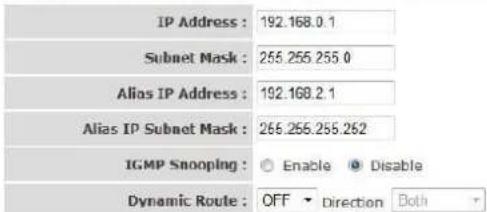
text_image
IP Address : 192.168.0.1 Subnet Mask : 255.255.255.0 Alias IP Address : 192.168.2.1 Alias IP Subnet Mask : 266.266.266.262 IGMP Snooping : ○ Enable ● Disable Dynamic Route : OFF ▼ Direction BothIPv6 Address

text_image
IPv6 Address : fe80:1 / 64 Save CancelThis page is used to configure the LAN interface of your ADSL Router. You can set IP address, subnet mask, and IGMP Snooping or modify the IPv6 address range.
DHCP Settings

text_image
Home | Wizard | Basic Settings | 2.4G WiFi | Advanced Settings | Firewall | Toolbox | Language LAN Settings DHCP Settings WAN SettingsDHCP Settings
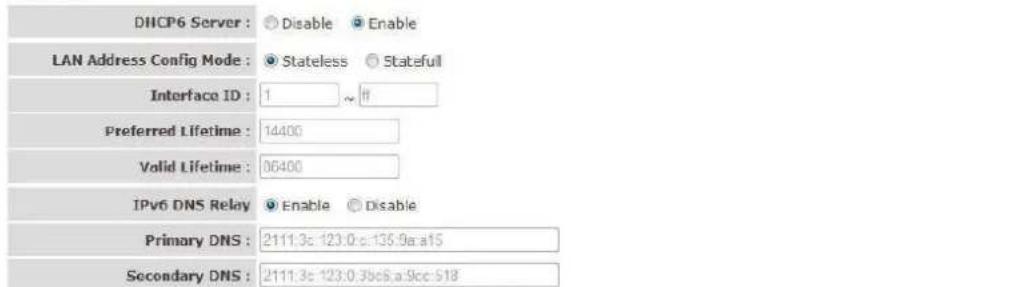
This page is used to configure the DHCP Server and DHCP Relay Settings.
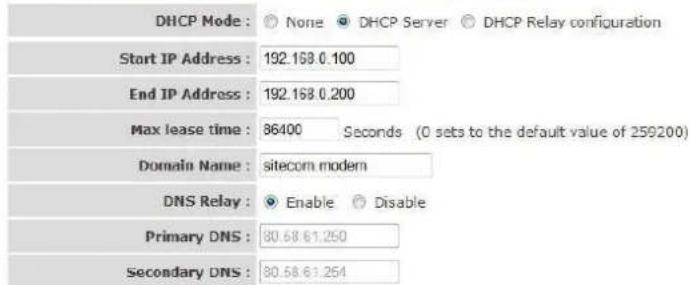
text_image
DHCP Mode : None DHCP Server DHCP Relay configuration Start IP Address : 192.168.0.100 End IP Address : 192.168.0.200 Max lease time : 86400 Seconds (0 sets to the default value of 259200) Domain Name : sitecom modem DNS Relay : Enable Disable Primary DNS : 80.68.61.250 Secondary DNS : 80.58.61.254DHCPv6
text_image
DHCP6 Server : ○ Disable ○ Enable LAN Address Config Mode : ○ Stateless ○ Statefull Interface ID : 1 ~ If Preferred Lifetime : 14400 Valid Lifetime : 86400 IPv6 DNS Relay ○ Enable ○ Disable Primary DNS : 2111.3c: 123.0.c:135.9a:a15 Secondary DNS : 2111.3c: 123.0.3bc6.a:9cc:518Prefix

text_image
Get Prefix Mode : From WAN Static Prefix/Length : / 64 Save CancelAdd DHCP Reservation
| # | IP Address | MAC Address | Edit | Drop |
| Add |
www.sitacom.com | © 1995 - 2012 Sitecom Europe BV, all rights reserved
You can configure your network and the router to use the Dynamic Host Configuration Protocol (DHCP). This page allows you to select the DHCP mode that this router will support.
There are two different DHCP Modes: DHCP Server and DHCP Relay. When the router is acting as DHCP server, please configure the router in the "DHCP Server" page; while acting as DHCP Relay, you can setup the relay in the "DHCP Relay" page.
WAN Settings
Wi-Fi Modem Router X3 N300


text_image
Home | Wizard | Basic Settings | 2.4G WiFi | Advanced Settings | Firewall | Toolbox | Language LAN Settings DHCP Settings WAN SettingsWAN Settings
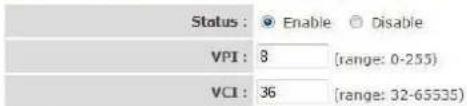
This page is used to configure basic WAN settings like ADSL and DNS Settings.
text_image
Status : Enable Disable VPI : 8 (range: 0-255) VCI : 36 (range: 32-65535)QoS
text_image
ATM QoS : ubr PCR : 0 cells/second SCR : 0 cells/second MBS : 0 cellsEncapsulation

text_image
ISP : Dynamic IP Address Static IP Address IPoA FPPoE FPPoA Bridge ModeDynamic IP
IP Common Options

text_image
Service Type : Internet Encapsulation : 1483 Routed IP LLC 802.1Q VLAN ID : 0 (0 = disable, 1 - 4094) Priority : 0 (0 - 7) NAT : Enable Dynamic Route : OFF Direction Both IGMP Proxy : ☑ Enable ☑ Disable Service Name : DHCP_0_3
www.site.com | © 1995 - 2012 Sitecom Europe BV, all rights reserved
This page allows you to manually configure the ADSL/WAN settings. The settings on this page require some knowledge concerning the WAN configuration. We advise less-experienced users to configure the WAN settings using the Wizard.
VPI (Virtual Path Identifier) and VCI (Virtual Channel Identifier) define a virtual circuit.
VPI: The valid range for the VPI is 0 to 255. Enter the VPI assigned to you. This field may already be configured.
VCI: The valid range for the VCI is 32 to 65535. Enter the VCI assigned to you. This field
may already be configured.
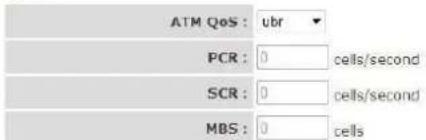
ATM QoS: Select CBR to specify fixed (always-on) bandwidth for voice or data traffic. Select UBR for applications that are non-time sensitive, such as e-mail. Select VBR for burst traffic and bandwidth sharing with other applications.
PCR: Divide the DSL line rate (bps) by 424 (the size of an ATM cell) to find the Peak Cell Rate (PCR). This is the maximum rate at which the sender can send cells.
SCR: The Sustain Cell Rate (SCR) sets the average cell rate (long-term) that can be transmitted.
MBS: Maximum Burst Size (MBS) refers to the maximum number of cells that can be sent at the peak rate. Type the MBS, which is less than 65535
Encapsulation:
Select the encapsulation type your ISP uses from the Encapsulation list. Choices vary depending on what you select in the Mode field. If you select Bridge in the Mode field, select 1483 Bridged IP. If you select Routing in the Mode field, select PPPoA, 1483 Bridged IP, 1483 Router IP or PPPoE.
PPPoE/PPPoA
User Name: Enter the user name exactly as your ISP assigned.
Password: Enter the password associated with the user name above.
Encapsulation: select Bridge in the Mode field, select either PPPoA or RFC 1483. Select Routing in the Mode field, select PPPoA, RFC 1483, ENET ENCAP or PPPoE.
Multiplex: Select the method of multiplexing used by your ISP. Choices are VC or LLC.
Connection: The schedule rule(s) have priority over your Connection settings.
Always on: Select Always on Connection when you want your connection up all the time.
Connect on Demand: Select Connect on Demand when you don't want the connection up all the time and specify an idle time-out in the Max Idle Timeout field
Get IP Address: Choose Static or Dynamic
Static IP Address: Enter the IP address of ADSL Router in dotted decimal notation, for example, 192.168.1.254 (factory default).
IP Subnet Mask: The default is 255.0.0.0. User can change it to other such as 255.255.255.0.Type the subnet mask assigned to you by your ISP (if given).
Gateway: You must specify a gateway IP address (supplied by your ISP) when you use 1483 Bridged IP in the Encapsulation field in the previous screen.
Network Address Translation: Select None, Many to One or Many to Many from the drop-sown list box. Refer to the NAT chapter for more details.
RIP Version: Select the RIP version from RIP-1, RIP-2B and RIP-2M.
RIP Direction: Select the RIP direction from None, Both, In Only and Out Only.
Multicast: IGMP (Internet Group Multicast Protocol) is a network-layer protocol used to establish membership in a Multicast group - it is not used to carry user data.
2.4GHz WiFi
Wi-Fi Modem Router X3 N300


text_image
Home | Wizard | Basic Settings | 2.4G WiFi | Advanced Settings | Firewall | Toolbox | Language
Wireless Basic Settings
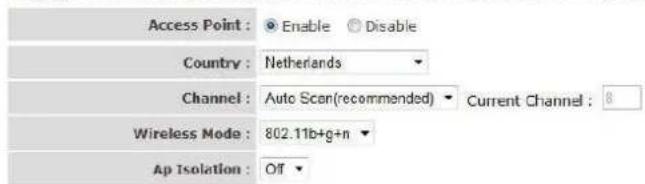
This page is used to configure the parameters for the wireless LAN like wireless encryption settings, channel and band.
text_image
Access Point : Enable Disable Country : Netherlands Channel : Auto Scan(recommended) Current Channel : 8 Wireless Mode : 802.11b+g+n Ap Isolation : Off11n Settings

SSID Settings
text_image
SSID index : 1 SSID : Sitecom07A69E Visibility Status : Visible Invisible Max User Index : 16 User Isolation : Off
www.sitecom.com © 1995-2012 Sitecom Europe BV, all rights reserved
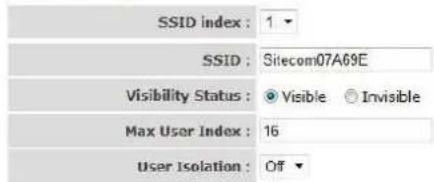
This section provides the wireless network settings for your router. You can enable and configure the wireless AP function here.
SSID: The SSID (up to 32 printable ASCII characters) is the unique name identified in a WLAN. The ID prevents the unintentional merging of two co-located WLANs.
Channel Width: Set channel width of wireless radio. Do not modify default value if you don't know what it is, default setting is 'Auto 20/40 MHz'.
Channel Number: It is the radio channel used by the wireless LAN. All devices in the same wireless LAN should use the same channel. Please select the country you are located and designate a channel that the router will use. If you want to let the router automatically to find an available channel with the highest signal strength, please select "Auto".
When you finish, click 'Save' to save the settings made and restart the router so the settings will take effect after it reboots.
Security Settings
Wi-Fi Modem Router X3 N300


text_image
Home | Wizard | Basic Settings | 2.4G WiFi | Advanced Settings | Firewall | Toolbox Language Wireless Settings Security Settings Wireless ACL Advanced Wireless Wireless WDS Wireless WPSWireless Security Settings
This page allows you to change security settings.
Wireless SSID : Sitecom07A69E
Authentication Type: WPA2 only
WPA2

text_image
WPA Mode : WPA2-Personal Encryption : AES Group Key Update Interval : 100 (60 - 65535) Pre-Shared Key : C75232B5 (8-63 characters or 64 Hex strings) Save CancelThis router provides complete wireless LAN security functions, include WEP, IEEE 802.1x, IEEE 802.1x with WEP, WPA with pre-shared key and WPA with RADIUS. With these security functions, you can prevent your wireless LAN from illegal access. Please make sure your wireless stations use the same security function.
Encryption: You can choose "None" to disable the encryption or select "WEP", "WPA(TKIP)", "WPA2(AES)" or "WPA2 Mixed" mode for security. When "WEP" is enabled, please click "Set WEP Key" button to choose the default key and set the four sets of WEP keys.
WEP: WEP is less level of security than WPA. WEP supports 64-bit and 128-bit key lengths to encrypt the wireless data.
WPA(TKIP): WPA uses Temporal Key Integrity Protocol (TKIP) for data encryption. TKIP utilized a stronger encryption method and incorporates Message Integrity Code (MIC) to provide protection against hackers.
WPA2(AES): WPA2, also known as 802.11i, uses Advanced Encryption Standard (AES) for data encryption. AES utilized a symmetric 128-bit block data encryption.
WPA Mixed: The router supports WPA (TKIP) and WPA2 (AES) for data encryption. The actual selection of the encryption methods will depend on the clients.
Use 802.1x Authentication: IEEE 802.1x is an authentication protocol. Every user must use a valid account to login to this wireless router before accessing the wireless LAN. The authentication is processed by a RADIUS server. Check this box to authenticates user by IEEE 802.1x.
WEP-64Bits: WEP is less level of security than WPA. WEP supports 64-bit and 128-bit key lengths to encrypt the wireless data. The longer key length will provide higher security. When "WEP-64Bits" is selected, you have to enter exactly 5 ASCII characters ("a-z" and "0-9") or 10 hexadecimal digits ("0-9", "a-f") for each Key (1-4).
WEP-128Bits: When "WEP-128Bits" is selected, you have to enter exactly 13 ASCII characters ("a-z" and "0-9") or 26 hexadecimal digits ("0-9", "a-f") for each Key (1-4).
WPA Authentication Mode: There are two types of authentication mode for WPA.
Enterprise (RADIUS): It uses an external RADIUS server to perform user authentication. To use RADIUS, enter the IP address of the RADIUS server, the RADIUS port (default is 1812) and the shared secret from the RADIUS server. Please refer to "Authentication RADIUS Server" setting below for RADIUS setting.
Personal (Pre-Shared Key): Pre-Shared Key authentication is based on a shared secret that is known only by the parties involved. To use WPA Pre-Shared Key, select key format and enter a password in the "Pre-Shared Key Format" and "Pre-Shared Key" setting respectively.
Pre-Shared Key Format: You may select to select Passphrase (alphanumeric format) or Hexadecimal Digits (in the "A-F", "a-f" and "0-9" range) to be the Pre-shared Key. For example:
Passphrase: "iamguest"
Hexadecimal Digits: "12345abcde"
Pre-Shared Key: Please enter 8-63 characters as the "Pre-Shared Key".
Authentication RADIUS Server: Enter the port (default is 1812), the IP address and the password of external RADIUS server are specified here.
When you finish, click 'save' to save the settings made and restart the router so the settings will take effect after it reboots.
Wireless ACL
Wi-Fi Modem Router X3 N300


text_image
Home | Wizard | Basic Settings | 2.4G WiFi | Advanced Settings | Firewall | Toolbox | Language Wireless Settings Security Settings Wireless ACL Advanced Wireless Wireless WDS Wireless WPSWireless Access Control
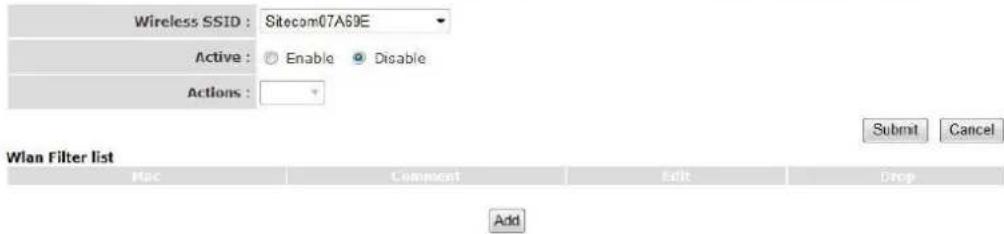
If you choose 'Allowed Listed', only those clients whose wireless MAC addresses are in the access control list will be able to connect to your Access Point. When 'Deny Listed' is selected, these wireless clients on the list will not be able to connect the Access Point.
text_image
Wireless SSID : Sitecom07A69E Active : Enable Disable Actions : Wlan Filter list Mac Component Edit Drop AddThis wireless router supports MAC Address Control, which prevents unauthorized clients from accessing your wireless network.
Active: Choose to either Enable or Disable the Wireless Access Control
Allow: Only allow the wireless clients with the MAC Address you have specified can access to the router.
Deny: The wireless clients with the MAC Address you have specified will be denied accessing to the router.
MAC Address: Enter the MAC Address of the wireless clients for the filtering control.
When you finish, click 'Submit' to save the settings made and restart the router so the settings will take effect after it reboots.
Advanced Wireless
Wi-Fi Modem Router X3 N300


text_image
Home | Wizard | Basic Settings | 2.4G WiFi | Advanced Settings | Firewall | Toolbox | Language Wireless Settings Security Settings Wireless ACL Advanced Wireless Wireless WDS Wireless WPSWireless Advanced Settings
These settings are only for more technically advanced users who have a sufficient knowledge about wireless LAN. These settings should not be changed unless you know what effect the changes will have on your Access Point.
text_image
Transmit Power : 100% Beacon Interval : 100 (range: 20~1023) RTS/CTS Threshold : 2346 (range: 1~2347) Fragment Threshold : 2346 (range: 256~2346, only even numbers) DTIM : 10 (range: 1~255) Preamble Type : short
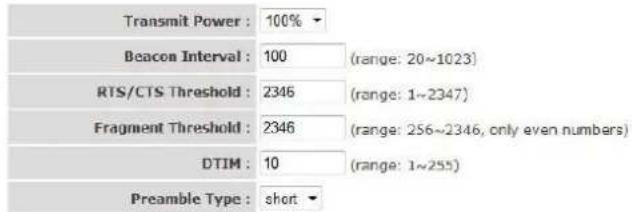
This page allows advanced users who have sufficient knowledge of wireless LAN. These setting shall not be changed unless you know exactly what will happen for the changes you made on your router.
Transmit Power: Set the maximum output power of the router. The higher output power, the wider the coverage range is.
Beacon Interval: The interval of time that this wireless router broadcast a beacon.
Beacon is used to synchronize the wireless network. The range for the beacon period is between 20 and 1024 with a default value of 100 (milliseconds).
RTS/CTS Threshold: This value should remain at its default setting of 2347. Should you encounter inconsistent data flow, only minor modifications are recommended. If a network packet is smaller than the preset "RTS threshold" size, the RTS/CTS mechanism will not be enabled. The wireless router sends Request to Send (RTS) frames to a particular receiving station and negotiates the sending of a data frame. After receiving an RTS, the wireless station responds with a Clear to Send (CTS) frame to acknowledge the right to begin transmission.
Fragment Threshold: Fragment Threshold specifies the maximum size of packet during the fragmentation of data to be transmitted. If you set this value too low, it will result in bad performance. Enter a value from 256 to 2346.
When you finish, click 'Save' to save the settings made and restart the router so the settings will take effect after it reboots.
Wireless WPS
Wi-Fi Protected Setup (WPS) is the simplest way to establish a connection between the wireless clients and the wireless router. You don't have to select the encryption mode and fill in a long encryption passphrase every time when you try to setup a wireless connection. You only need to press a button on both wireless client and wireless router, and WPS will do the rest for you.
Wi-Fi Modem Router X3 N300


text_image
Home | Wizard | Basic Settings | 2.4G WiFi | Advanced Settings | Firewall | Toolbox | Language Wireless Settings Security Settings Wireless ACL Advanced Wireless Wireless WDS Wireless WPSWPS Settings
This page allows you to change WPS settings, and the WPS condition must be WPA-PSK or WPA2-PSK security mode, and the SSID should be broadcasted.

WPS Config

text_image
Use WPS : Enable Disable Push Button : PSC Input PIN Number : WPS Session Status :
SSID: This is the network broadcast name (SSID) of the router.
Use WPS: Check the box to enable WPS function and uncheck it to disable the WPS function.
Push Button: Press the button to start the WPS process. The router will wait for the WPS request from the wireless devices within 2 minutes.
Input PIN Number: You can fill-in the PIN code of the wireless device and press the button to start the WPS process. The router will wait for the WPS request from the wireless device within 2 minutes.
Advanced Settings
QoS
Wi-Fi Modem Router X3 N300


text_image
Home | Wizard | Basic Settings | 2.4G WiFi | Advanced Settings | Firewall | Toolbox | Language DNS ADSL Settings QoS UPnP Routing DDNS MLD ALG IP Tunnel TR-69 USB Port DLNAQuality of Service
Configuration of classification table for IP QoS.
QoS: ☐ Enable ☑ Disable
QoS Queue
text_image
Direction : @ Uplink(LAN -> WAN) ○ Downstream(WAN -> LAN) Use Enable : @ Enable ○ Disable Bandwidth : 0 kbps (0 means no limit bandwidth) Discipline : @ WRR @ Strict Priority RR weight : Highest: 0 High: 0 Medium: 0 Low: 0 (sum should be less or equal than 100) P ReMark : □ p ReMark : □Save Cancel
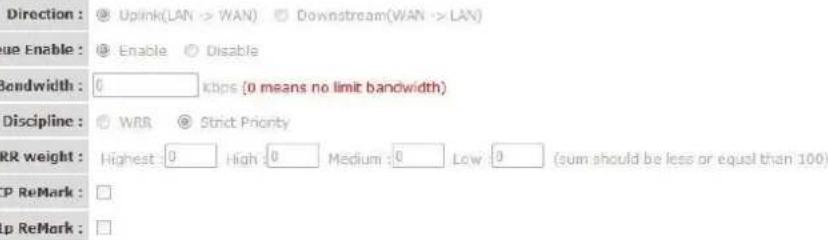
QoS allows you to classify Internet application traffic by source/destination IP address and port number. You can assign priority for each type of application and reserve bandwidth for it. The packets of applications with higher priority will always go first. Lower priority applications will get bandwidth after higher priority applications get enough bandwidth. This can let you have a better experience in using critical real time services like Internet phone, video conference ...etc. All the applications not specified by you are classified as rule name "Others". The rule with a smaller priority number has a higher priority; the rule with a larger priority number has a lower priority. You can adjust the priority of the rules by moving them up or down.
Enable/Disable QoS: You can check "Enable QoS" to enable QoS functionality for the WAN port.
Add a rule: Enter all the data required for the rule you wish to set and click Add to save this rule.
Edit a QoS rule: Select the rule you want to edit and click "Edit", then enter the detail form of the QoS rule. Click "Apply" after editing the form and the rule will be saved.
Discipline: Save allows to save the selected Qos discipline without changing the current rules.
Click 'Add' To save and apply the new rule.
UPnP
Wi-Fi Modem Router X3 N300


text_image
Home | Wizard | Basic Settings | 2.4G WiFi | Advanced Settings | Firewall | Toolbox | Language DNS ADSL Settings QoS UPnP Routing DDNS MLD ALG IP Tunnel TR-69 USB Port DLNAUPnP Configuration
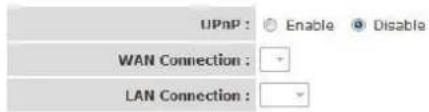
This page is used to configure UPnP. The system acts as a daemon when you enable it.
text_image
UPnP : Enable Disable WAN Connection : LAN Connection :
When the UPnP function is enabled, the router can be detected by UPnP compliant system such as Windows 7. The router will be displayed in the Neighborhood of Windows 7, so you can directly double click the router or right click the router and select "Invoke" to configure the router through web browser.
UPnP: Enable or disable UPnP feature.
When you finish, click 'Save' to save the settings made and restart the router so the settings will take effect after it reboots.
Routing
Wi-Fi Modem Router X3 N300


text_image
Home | Wizard | Basic Settings | 2.4G WiFi | Advanced Settings | Firewall | Toolbox | Language DNS ADSL Settings QoS UPnP Routing DDNS MLD ALG IP Tunnel TR-69 USB Port DLNARouting Table List
This page displays routing information.
| # | Destination | Subset Mask | Gateway Address | Metric | Device | Use | Lift | Urop |
| 1 | 192.168.2.0 | 255.255.255.252 | 0.0.0.0 | 0 | br0 | 0 | ||
| 2 | 192.168.0.0 | 255.255.255.0 | 0.0.0.0 | 0 | br0 | 0 |

The page enables you to define specific route for your Internet and network data.
Most users do not need to define routes. On a typical small home or office LAN, the existing routes that set up the default gateways for your LAN hosts and for the router provide the most appropriate path for all your Internet traffic.
You may need to define routes if your home setup includes two or more networks or subnets, if you connect to two or more ISP services, or if you connect to a remote corporate LAN.
Click 'Add route' to add a self-defined route.

text_image
DNS ADSL Settings QoS UPnP Routing DDNS MLD ALG IP Tunnel TR-59 USB Port DLNAStatic Route

text_image
Destination IP : Subnet Mask : Use Gateway Address : Use Interface : PFP@A_0_2 Metric :Save Back Cancel
Destination IP: The destination can be specified as the IP address of a subnet or a specific host in the subnet. It can also be specified as all zeros to indicate that this route should be used for all destinations for which no other route is defined (this is the route that creates the default gateway).
Subnet Mask: The network mask of the destination subnet. The default gateway uses a mask of 0.0.0.0.
Gateway Adress: The Gateway IP that should be used enter an address or select a pvc channel
Metric: Defines the number of hops between network nodes that data packets travel. The default value is 0, which means that the subnet is directly one hop away on the local LAN network.
When you finish, click 'Save' to save the settings and restart the router so the settings will take effect after it reboots.
DDNS
Wi-Fi Modem Router X3 N300


text_image
Home | Wizard | Basic Settings | 2.4G WiFi | Advanced Settings | Firewall | Toolbox | Language DNS ADSL Settings QoS UPnP Routing DDNS MLD ALG IP Tunnel TR-69 USB Port DLNADynamic DNS Configuration
This page is used to configure the Dynamic DNS.
| ■ | Hostname | Username | Service | Interface | Edit. | Drop |
| Add |
Dynamic DNS (DDNS) allows you to map the static domain name to a dynamic IP address. You must get an account, password and your static domain name from the DDNS service providers.
Wi-Fi Modem Router X3 N300


text_image
Home | Wizard | Basic Settings | 2.4G WiFi | Advanced Settings | Firewall | Toolbox | Language

text_image
DDNS provider : DynDNS org Hostname : Interface : PPPcA_0_2 Username : Password :
DDNS Provider: Select your DDNS service provider here.
Host Name: Enter the domain name you've obtained from DDNS service provider.
Username: Enter the username assigned by the DDNS service provider.
Password: Enter the password assigned by the DDNS service provider.
When you finish, click 'Save' to save the settings made and restart the router so the settings will take effect after it reboots.
Wi-Fi Modem Router X3 N300


text_image
Home | Wizard | Basic Settings | 2.4G WiFi | Advanced Settings | Firewall | Toolbox | Language DNS ADSL Settings QoS UPnP Routing DDNS MLD ALG IP Tunnel TR-69 USB Port DLNACWMP Setup
This page is used to configure TR-069.
CWMP: Enable Disable
ACS Login Information
URL :
Username :
Password:
Connection Request Information
Connection Request
Authentication:
Username :
Password:

96999
Periodic Inform Config
Periodic Inform : Enable Disable
Interval : (10-4294967295)
Apply Cancel
www.sitacom.com © 1995-2012 Sitecom Europe BV, all rights reserved
As a bidirectional SOAP/HTTP-based protocol, it provides the communication between customer-premises equipment (CPE) and Auto Configuration Servers (ACS). It includes both a safe auto configuration and the control of other CPE management functions within an integrated framework. In the course of the boom of the broadband market, the number of different Internet access possibilities grew as well (e.g. modems, routers, gateways, set-top box, VoIP-phones). At the same time the configuration of this equipment became more complicated -- too complicated for the end-users. For this reason the TR-069 standard was developed. It provides the possibility of auto configuration of these access types. The technical specifications are managed and published by the Broadband Forum. Using TR-069, the terminals can get in contact with the Auto Configuration Servers (ACS) and establish the configuration automatically. Accordingly other service functions can be provided. TR-069 is the current standard for activation of terminals in the range of DSL broadband market.
Firewall
The Broadband router provides extensive firewall protection by restricting connection parameters, thus limiting the risk of hacker attacks, and defending against a wide array of common Internet attacks. However, for applications that require unrestricted access to the Internet, you can configure a specific client/server as a Demilitarized Zone (DMZ).
ACL
Wi-Fi Modem Router X3 N300


text_image
Home | Wizard | Basic Settings | 2.4G WiFi | Advanced Settings | Firewall | Toolbox | Language
ACL Configuration
This page is used to configure the IP Address for Access Control List. If ACL is enabled, only these IP address that in the ACL Table can access CPE. Here you can add/delete IP Address.
Interface: PPPoA_0_2
ACL Table
| Service | Enable | Source IP Address | Source Mask Address | Protocol | Destination Port |
| HTTP | 0.0.0.0 | 0.0.0.0 | TCP | 80 | |
| ICMP | 0.0.0.0 | 0.0.0.0 | ICMP | 0 | |
| SNMP | 0.0.0.0 | 0.0.0.0 | UDP | 161 | |
| SSH | 0.0.0.0 | 0.0.0.0 | TCP | 22 | |
| TELNET | 0.0.0.0 | 0.0.0.0 | TCP | 23 | |
| TFIP | 0.0.0.0 | 0.0.0.0 | UDP | 69 | |
| DNS | 0.0.0.0 | 0.0.0.0 | UDP | 53 |
This page is used to IP addresses for Access Control. If ACL is enabled only the IP Addresses that are in the ACL Table can access the CPE.
IP Filter
Wi-Fi Modem Router X3 N300


text_image
Home | Wizard | Basic Settings | 2.4G WiFi | Advanced Settings | Firewall | Toolbox | Language ACL IPv4 Filter IPv6 Filter URL Filter MAC Filter DMZ DoS Virtual Server Port TriggeringIPv4 Filter Configuration
Use this page to configure a filter that allows or blocks IPv4 network traffic that matches a specified address or protocol.(WARNING: If you enabled SPI, all traffic initiated from WAN will be blocked. Including REMOTE ACL INPUT.)

Filter Model


Click "Add a rule" to add a filtering rule.

text_image
ACL IPv4 Filter IPv6 Filter URL Filter MAC Filter DMZ DoS Virtual Server Port TriggeringIP Filter Configuration
text_image
Connection : PPPoA_0_2 Enable : ✓ Protocol : TCP Source IP : Source Mask : Source Port : - Destination IP : Destination Mask : Destination Port : - Description :
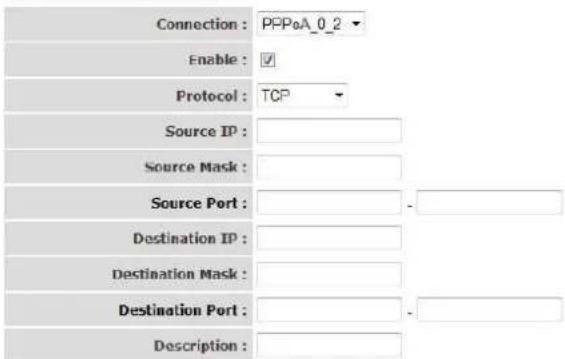
Enable: Select to enable IP filter rule.
Source IP: The source IP address or range of packets to be monitored.
Subnet Mask: It is the destination IP addresses based on above destination subnet IP
Source Port: This Port or Port Ranges defines the port allowed to be used by the Remote/WAN to connect to the application. Default is set from range 0 \~ 65535. It is recommended that this option be configured by an advanced user.
Destination IP: This is the destination subnet IP address.
Subnet Mask: It is the destination IP addresses based on above destination subnet IP
Destination Port: This is the Port or Port Ranges that defines the application.
When you finish, click 'Submit' to save the settings made.
IP Filter Listing

text_image
ACL IPv4 Filter IPv6 Filter URL Filter MAC Filter DMZ DoS Virtual Server Port TriggeringIPv4 Filter Configuration
Use this page to configure a filter that allows or blocks IPv4 network traffic that matches a specified address or protocol.(WARNING: if you enabled SPI, all traffic initiated from WAN will be blocked. Including REMOTE ACL INPUT.)

text_image
Enable IP Filter : ✓ Enable SPI : ✓ Security Level : Low ▼ Filter Model WAN → LAN : White ● Black LAN → WAN : White ● Black Submit RefreshAdd IP filter rules :

text_image
Choose : WAN → LAN ▼ Add a rule Enable IP/Port (source) IP/Port (destination) Protocol Description Device Name Edit Draw: Item number.
Enable: Whether the connection is currently active.
Src IP Mask: The source IP address or range of packets to be monitored.
Dest IP Mask: This is the destination subnet IP address.
Protocol: It is the packet protocol type used by the application, select either TCP or UDP or ICMP
Src port: This Port or Port Ranges defines the port allowed to be used by the Remote/WAN to connect to the application. Default is set from range 0 \~ 65535. It is recommended that this option be configured by an advanced user.
Dest Port: This is the Port or Port Ranges that defines the application.
URL Filter
Here it's possible to block certain websites.
Wi-Fi Modem Router X3 N300


text_image
Home | Wizard | Basic Settings | 2.4G WiFi | Advanced Settings | Firewall | Toolbox | Language ACL IPv4 Filter IPv6 Filter URL Filter MAC Filter DMZ DoS Virtual Server Port TriggeringURL Filter
This page allows you to block websites. If enabled, the websites listed here will be denied access to clients trying to browse that website.
Block Website
| # | URL | Schedule | Edit | Drop |
| Add |
Enter the website you wish to block and make sure the rule is active.
Click 'Save' to apply the new rule.
DMZ
Wi-Fi Modem Router X3 N300


text_image
Home | Wizard | Basic Settings | 2.4G WiFi | Advanced Settings | Firewall | Toolbox | Language ACL IPv4 Filter IPv6 Filter URL Filter MAC Filter DMZ DoS Virtual Server Port TriggeringDMZ
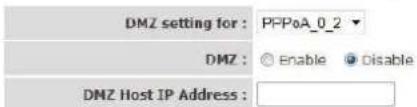
A Demilitarized Zone is used to provide Internet services without sacrificing unauthorized access to its local private network. Typically, the DMZ host contains devices accessible to Internet traffic, such as Web (HTTP) servers, FTP servers, SMTP (e-mail) servers and DNS servers.
text_image
DMZ setting for : PFPoA_0_2 DMZ : Enable Disable DMZ Host IP Address :
The DMZ Host is a local computer exposed to the Internet. When setting a particular internal IP Address as the DMZ Host, all incoming packets will be checked by the firewall and NAT algorithms then passed to the DMZ Host.
Enable DMZ and enter the IP address for which you want unrestricted access to the internet in the DMZ Host IP address. Click Apply to save and apply the settings.
Virtual Server
Use the Virtual Server function when you want different servers/clients in your LAN to handle different service/Internet application type (e.g. Email, FTP, Web server etc.) from the Internet. Computers use numbers called port numbers to recognize a particular service/Internet application type. The Virtual Server allows you to re-direct a particular service port number (from the Internet/WAN Port) to a particular LAN private IP address and its service port number.
Wi-Fi Modem Router X3 N300


text_image
Home | Wizard | Basic Settings | 2.4G WiFi | Advanced Settings | Firewall | Toolbox | Language ACL IPv4 Filter IPv6 Filter URL Filter MAC Filter DMZ DoS Virtual Server Port TriggeringVirtual Server
Virtual Server allows you to direct incoming traffic from the WAN side (identified by protocol and external port) to the internal server with a private IP address on the LAN side. The internal port is required only if the external port needs to be converted to a different port number used by the server on the LAN side. A maximum of 16 entries can be configured.
Virtual Server Listing
| Server Name | Wax Connection | External Port Start/End | Protocol | Internal Port Start/End | Server IP Address | Schedule Rate | Remote IP | Edit Crop |
| Add | ||||||||
Virtual Server Listing
| Server Name | Was Connection | External Port Start/End | Protocol | Internal Port Start/End | Server IP Address | Schedule Rule | Remote IP | Edit | Drop |
| Add | |||||||||
Add Virtual Server Rule(s)
| WAN Connection(s) : PFPoA_0_2 ▼ | ||||||
| Server Name : | ||||||
| Schedule : Always ▼ | ||||||
| Server IP Address (Host Name) : 192.168.0 | ||||||
| External Port Start | External Port End | Protocol | Internal Port Start | Internal Port End | Remote In | |
| TCP ▼ | ||||||
| TCP ▼ | ||||||
| TCP ▼ | ||||||
| TCP ▼ | ||||||
| TCP ▼ | ||||||
| TCP ▼ | ||||||
| TCP ▼ | ||||||
| TCP ▼ | ||||||
| TCP ▼ | ||||||
Server Name: Assign a name to the virtual server.
Server IP: This is the LAN client/host IP address that the Public Port number packet will be sent to.
External/Internal Port Start: Here the starting port number must be entered.
External/Internal Port End: Here the end port number must be entered
Note : The ports from the start port till the End port will be opened
Click 'Apply' for the changes to take effect.
TOOLBOX
Password
You can change the password required to log into the router's system web-based management. Passwords can contain 0 to 12 alphanumeric characters, and are case sensitive.
Wi-Fi Modem Router X3 N300
SITECOM

text_image
Home | Wizard | Basic Settings | 2.4G WiFi | Advanced Settings | Firewall | Toolbox | Language Sitecom Cloud Security Password Ping Time Settings Firmware Roboot System LogPassword settings
This page is used to set the account to access the web server of ADSL Router. Empty user name and password will disable the protection.
| Username: | admin |
| Old Password: | |
| New Password: | |
| Confirmed Password: |
Save
Cancel
Old Password: Fill in the current password to allow changing to a new password.
New Password: Enter your new password.
Confirmed Password: Enter your new password again for verification purposes.
Click Apply at the bottom of the screen to save the above configuration.
Time Settings
The Time Zone allows your router to set its time; especially for recording System Log.

text_image
Home | Wizard | Basic Settings | 2.4G WiFi | Advanced Settings | Firewall | Toolbox | Language Sitecom Cloud Security Password Ping Time Settings Firmware Reboot System LogTime Zone Setting
You can maintain the system time by synchronizing with a public time server over the Internet.

text_image
Current Time : 1970-01-01 02:04(Can't find NTP server) Time Synchronization Synchronize time with : NTP Server automatically PC 's Clock Manually NTP time server : europe.pool.ntp.org Time Zone Select : (GMT+01:60) Amsterdam, Berlin, Rome, Stockholm, Vienna, Paris Automatically adjust clock for daylight saving changes Enable : Start time : 03 / 11 - 2012 / 02 ; 00 (Month/Date/Year-Hour:Minute)Current Time: The current time of the specified time zone. You can set the current time by yourself or configure by NTP server.
NTP server: The IP address or the host name of the NTP server. You can select from the list or set it manually.
Time Zone Select: Select the time zone of the country you are currently in. The router will set its time based on your selection.
When you finish, click 'Save'.so the settings will take effect after it reboots.
Firmware Upgrade
Wi-Fi Modem Router X3 N300


text_image
Home | Wizard | Basic Settings | 2.4G WiFi | Advanced Settings | Firewall | Toolbox | Language Sitecom Cloud Security Password Ping Time Settings Firmware Reboot System LogAutomatic Firmware Upgrade Setting
On this options you can setting enable/disable the automatic firmware upgrade function.
Automatic upgrade : ☑ Enable ☑ Disable
Firmware upgrade
On this options you can upgrade the routers firmware to a newer version (when available).
New Firmware Location :
Browse.
Clear Config :
Upgrade Firmware
Enable Automatic firmware update: When enabled the router will check for updates on the firmware if an updated firmware has been released the router will inform you that a newer firmware is available and offers to download and install the firmware.
This page also allows you to manually upgrade the firmware for the router. Click the "Browse" button to select the firmware file and click the "Upgrade Firmware" button to start upgrading.
IMPORTANT! Do not turn off your router while this procedure is in progress.
Reboot
Wi-Fi Modem Router X3 N300


text_image
Home | Wizard | Basic Settings | 2.4G WiFi | Advanced Settings | Firewall | Toolbox | Language Sitecom Cloud Security Password Ping Time Settings Firmware Reboot System LogSystem Restart
This page is used to apply changes to system memory and reboot the router, or reset to factory defaults.
System Restart with : Current Settings Factory Default Settings
RESTART
Whenever you use the Web configuration to change system settings, the changes are initially placed in temporary storage. To save your change for future use, you have to click "Apply" to reboot the router. If you have encountered problems during the configuration, you can click the "OPS" button in the top panel of the router over 15 seconds to reset default settings.
Addendum A: GNU/GPL Leaflet
Licensing Information
Parts of the firmware of the WLM-2600 WiFi Router X3 N300 are subject to the GNU general public license.
This product includes third-party software licensed under the terms of the GNU General Public License.. You can modify or redistribute this free software under the terms of the GNU General Public License. Please see Appendix B for the exact terms and conditions of this license.
Specifically, the following part of this product is subject to the GNU GPL:
| # | Package name | Source |
| 1 | Linux v2.6.34 | www.kernel.org |
| 2 | busybox v1.7.x | http://www.busybox.net/ |
| 3 | termcap v1.3.1 | ftp://ftp.gnu.org/gnu/termcap |
| 4 | libupnp v1.6.0 | http://pupnp.sourceforge.net/ |
| 7 | pcre v6.x | http://www.pcre.org/ |
| 8 | popt v1.7 | http://freecode.com/projects/popt |
| 9 | flex-2.5.x | http://flex.sourceforge.net/ |
| 10 | dnsmasq v2.5 | http://thekelleys.org.uk/dnsmasq/doc.html |
| 11 | iproute2 v2.6.34 | http://www.linuxfoundation.org/en/Net:Iproute2 |
| 12 | rp-pppoe v3.x | http://www.roaringpenguin.com/products/pppoe |
| 13 | iptables v1.4.4 | http://www.netfilter.org/projects/iptables/index.html |
| 14 | wireless_tools v28 | http://www.hpl.hp.com/personal/Jean_Tourrilhes/Linux/Tools.html |
| 15 | igmpproxy v0.1-beta2 | http://sourceforge.net/projects/igmpproxy |
| 16 | pptp-client v1.7.1 | http://pptpclient.sourceforge.net/ |
| 17 | accel-pptp/pppd-plugin | http://accel-pptp.sourceforge.net/ |
| 18 | ppp v2.4.3 | http://ppp.samba.org/ |
| 19 | udhcp v0.9.9-pre | http://sources.busybox.net/index.py/trunk/udhcp- |
| 20 | ez-ipupdate v3.0.11b8 | http://ez-ipupdate.com |
| 21 | uboot v1.1.4 | http://www.denx.de/wiki/U-Boot |
| 22 | gcc v4.3.4 | http://gcc.gnu.org/ |
| 23 | uclibc v0.9.29 | http://www.uclibc.org |
| 24 | zlib v1.2.3 | http://www.zlib.net/ |
| 25 | mtd-utils v1.2 | http://git.infradead.org |
| 26 | radvd-1.x | http://www.litech.org/radvd/ |
| 27 | wide-dhcpv6 | http://wide-dhcpv6.sourceforge.net/ |
| 28 | ndisc6-1.0.x | http://freecode.com/projects/ndisc6 |
| 29 | ippool-1.x | http://sourceforge.net/projects/openl2tp/files/ippool/1.3/ |
| 30 | rpcbind-0.2.x | http://rpcbind.sourceforge.net/ |
| 31 | openl2tp-1.x | http://www.openl2tp.org/downloads |
| 32 | libtirpc-0.2.x | http://sourceforge.net/projects/libtirpc/ |
| 33 | Libreadline-5.1 | http://cnsswww.cns.cwru.edu/php/chet/readline/rltop.html |
Availability of source code
Sitecom Europe BV has made available the full source code of the GPL licensed software, including any scripts to control the compilation and installation of the object code on the Sitecom website.
No Warranty
The free software included in this product is distributed in the hope that it will be useful, but WITHOUT ANY LIABILITY OF OR ANY WARRANTY FROM THE LICENSOR.
Addendum B: GNU/GPL
Version 3, 29 June 2007 Copyright © 2007 Free Software Foundation, Inc. http://fsf.org/
Everyone is permitted to copy and distribute verbatim copies of this license document, but changing it is not allowed.
Preamble
The GNU General Public License is a free, copyleft license for software and other kinds of works.
The licenses for most software and other practical works are designed to take away your freedom to share and change the works. By contrast, the GNU General Public License is intended to guarantee your freedom to share and change all versions of a program--to make sure it remains free software for all its users. We, the Free Software Foundation, use the GNU General Public License for most of our software; it applies also to any other work released this way by its authors. You can apply it to your programs, too.
When we speak of free software, we are referring to freedom, not price. Our General Public Licenses are designed to make sure that you have the freedom to distribute copies of free software (and charge for them if you wish), that you receive source code or can get it if you want it, that you can change the software or use pieces of it in new free programs, and that you know you can do these things.
To protect your rights, we need to prevent others from denying you these rights or asking you to surrender the rights. Therefore, you have certain responsibilities if you distribute copies of the software, or if you modify it: responsibilities to respect the freedom of others.
For example, if you distribute copies of such a program, whether gratis or for a fee, you must pass on to the recipients the same freedoms that you received. You must make sure that they, too, receive or can get the source code. And you must show them these terms so they know their rights.
Developers that use the GNU GPL protect your rights with two steps: (1) assert copyright on the software, and (2) offer you this License giving you legal permission to copy, distribute and/or modify it.
For the developers' and authors' protection, the GPL clearly explains that there is no warranty for this free software. For both users' and authors' sake, the GPL requires that modified versions be marked as changed, so that their problems will not be attributed erroneously to authors of previous versions.
Some devices are designed to deny users access to install or run modified versions of the software inside them, although the manufacturer can do so. This is fundamentally incompatible with the aim of protecting users' freedom to change the software. The systematic pattern of such abuse occurs in the area of products for individuals to use, which is precisely where it is most unacceptable. Therefore, we have designed this version of the GPL to prohibit the practice for those products. If such problems arise substantially in other domains, we stand ready to extend this provision to those domains in future versions of the GPL, as needed to protect the freedom of users.
Finally, every program is threatened constantly by software patents. States should not allow patents to restrict development and use of software on general-purpose computers, but in those that do, we wish to avoid the special danger that patents applied to a free program could make it effectively proprietary. To prevent this, the GPL assures that patents cannot be used to render the program non-free.
The precise terms and conditions for copying, distribution and modification follow.
TERMS AND CONDITIONS
0. Definitions.
"This License" refers to version 3 of the GNU General Public License.
"Copyright" also means copyright-like laws that apply to other kinds of works, such as semiconductor masks.
"The Program" refers to any copyrightable work licensed under this License. Each licensee is addressed as "you". "Licensees" and "recipients" may be individuals or organizations.
To "modify" a work means to copy from or adapt all or part of the work in a fashion requiring copyright permission, other than the making of an exact copy. The resulting work is called a "modified version" of the earlier work or a work "based on" the earlier work.
A "covered work" means either the unmodified Program or a work based on the Program.
To "propagate" a work means to do anything with it that, without permission, would make you directly or secondarily liable for infringement under applicable copyright law, except executing it on a computer or modifying a private copy. Propagation includes copying, distribution (with or without modification), making available to the public, and in some countries other activities as well.
To "convey" a work means any kind of propagation that enables other parties to make or receive copies. Mere interaction with a user through a computer network, with no transfer of a copy, is not conveying.
An interactive user interface displays "Appropriate Legal Notices" to the extent that it includes a convenient and prominently visible feature that (1) displays an appropriate copyright notice, and (2) tells the user that there is no warranty for the work (except to the extent that warranties are provided), that licensees may convey the work under this License, and how to view a copy of this License. If the interface presents a list of user commands or options, such as a menu, a prominent item in the list meets this criterion.
1. Source Code.
The "source code" for a work means the preferred form of the work for making modifications to it. "Object code" means any non-source form of a work.
A "Standard Interface" means an interface that either is an official standard defined by a recognized standards body, or, in the case of interfaces specified for a particular programming language, one that is widely used among developers working in that language.
The "System Libraries" of an executable work include anything, other than the work as a whole, that (a) is included in the normal form of packaging a Major Component, but which is not part of that Major Component, and (b) serves only to enable use of the work with that Major Component, or to implement a Standard Interface for which an implementation is available to the public in source code form. A "Major Component", in this context, means a major essential component (kernel, window system, and so on) of the specific operating system (if any) on which the executable work runs, or a compiler used to produce the work, or an object code interpreter used to run it.
The "Corresponding Source" for a work in object code form means all the source code needed to generate, install, and (for an executable work) run the object code and to modify the work, including scripts to control those activities. However, it does not include the work's System Libraries, or general-purpose tools or generally available free programs which are used unmodified in performing those activities but which are not part of the work. For example, Corresponding Source includes interface definition files associated with source files for the work, and the source code for shared libraries and dynamically linked subprograms that the work is specifically designed to require, such as by intimate data communication or control flow between those subprograms and other parts of the work.
The Corresponding Source need not include anything that users can regenerate automatically from other parts of the Corresponding Source.
The Corresponding Source for a work in source code form is that same work.
2. Basic Permissions.
All rights granted under this License are granted for the term of copyright on the Program, and are irrevocable provided the stated conditions are met. This License explicitly affirms your unlimited permission to run the unmodified Program. The output from running a covered work is covered by this License only if the output, given its content, constitutes a covered work. This License acknowledges your rights of fair use or other equivalent, as provided by copyright law.
You may make, run and propagate covered works that you do not convey, without conditions so long as your license otherwise remains in force. You may convey covered works to others for the sole purpose of having them make modifications exclusively for you, or provide you with facilities for running those works, provided that you comply with the terms of this License in conveying all material for which you do not control copyright. Those thus making or running the covered works for you must do so exclusively on your behalf, under your direction and control, on terms that prohibit them from making any copies of your copyrighted material outside their relationship with you.
Conveying under any other circumstances is permitted solely under the conditions stated below. Sublicensing is not allowed; section 10 makes it unnecessary.
3. Protecting Users' Legal Rights From Anti-Circumvention Law.
No covered work shall be deemed part of an effective technological measure under any applicable law fulfilling obligations under article 11 of the WIPO copyright treaty adopted on 20 December 1996, or similar laws prohibiting or restricting circumvention of such measures.
When you convey a covered work, you waive any legal power to forbid circumvention of technological measures to the extent such circumvention is effected by exercising rights under this License with respect to the covered work, and you disclaim any intention to limit operation or modification of the work as a means of enforcing, against the work's users, your or third parties' legal rights to forbid circumvention of technological measures.
4. Conveying Verbatim Copies.
You may convey verbatim copies of the Program's source code as you receive it, in any medium, provided that you conspicuously and appropriately publish on each copy an appropriate copyright notice; keep intact all notices stating that this License and any non-permissive terms added in accord with section 7 apply to the code; keep intact all notices of the absence of any warranty; and give all recipients a copy of this License along with the Program.
You may charge any price or no price for each copy that you convey, and you may offer support or warranty protection for a fee.
5. Conveying Modified Source Versions.
You may convey a work based on the Program, or the modifications to produce it from the Program, in the form of source code under the terms of section 4, provided that you also meet all of these conditions:
a) The work must carry prominent notices stating that you modified it, and giving a relevant date.
b) The work must carry prominent notices stating that it is released under this License and any conditions added under section 7. This requirement modifies the requirement in section 4 to "keep intact all notices".
c) You must license the entire work, as a whole, under this License to anyone who comes into possession of a copy. This License will therefore apply, along with any applicable section 7 additional terms, to the whole of the work, and all its parts, regardless of how they are packaged. This License gives no permission to license the work in any other way, but it does not invalidate such permission if you have separately received it.
d) If the work has interactive user interfaces, each must display Appropriate Legal Notices; however, if the Program has interactive interfaces that do not display Appropriate Legal Notices, your work need not make them do so.
A compilation of a covered work with other separate and independent works, which are not by their nature extensions of the covered work, and which are not combined with it such as to form a larger program, in or on a volume of a storage or distribution medium, is called an "aggregate" if the compilation and its resulting copyright are not used to limit the access or legal rights of the compilation's users beyond what the individual
works permit. Inclusion of a covered work in an aggregate does not cause this License to apply to the other parts of the aggregate.
6. Conveying Non-Source Forms.
You may convey a covered work in object code form under the terms of sections 4 and 5, provided that you also convey the machine-readable Corresponding Source under the terms of this License, in one of these ways:
a) Convey the object code in, or embodied in, a physical product (including a physical distribution medium), accompanied by the Corresponding Source fixed on a durable physical medium customarily used for software interchange.
b) Convey the object code in, or embodied in, a physical product (including a physical distribution medium), accompanied by a written offer, valid for at least three years and valid for as long as you offer spare parts or customer support for that product model, to give anyone who possesses the object code either (1) a copy of the Corresponding Source for all the software in the product that is covered by this License, on a durable physical medium customarily used for software interchange, for a price no more than your reasonable cost of physically performing this conveying of source, or (2) access to copy the Corresponding Source from a network server at no charge.
c) Convey individual copies of the object code with a copy of the written offer to provide the Corresponding Source. This alternative is allowed only occasionally and noncommercially, and only if you received the object code with such an offer, in accord with subsection 6b.
d) Convey the object code by offering access from a designated place (gratis or for a charge), and offer equivalent access to the Corresponding Source in the same way through the same place at no further charge. You need not require recipients to copy the Corresponding Source along with the object code. If the place to copy the object code is a network server, the Corresponding Source may be on a different server (operated by you or a third party) that supports equivalent copying facilities, provided you maintain clear directions next to the object code saying where to find the Corresponding Source. Regardless of what server hosts the Corresponding Source, you remain obligated to ensure that it is available for as long as needed to satisfy these requirements.
e) Convey the object code using peer-to-peer transmission, provided you inform other peers where the object code and Corresponding Source of the work are being offered to the general public at no charge under subsection 6d.
A separable portion of the object code, whose source code is excluded from the Corresponding Source as a System Library, need not be included in conveying the object code work.
A "User Product" is either (1) a "consumer product", which means any tangible personal property which is normally used for personal, family, or household purposes, or (2) anything designed or sold for incorporation into a dwelling. In determining whether a product is a consumer product, doubtful cases shall be resolved in favor of coverage. For a particular product received by a particular user, "normally used" refers to a typical or common use of that class of product, regardless of the status of the particular user or of the way in which the particular user actually uses, or expects or is expected to use, the product. A product is a consumer product regardless of whether the product has substantial commercial, industrial or non-consumer uses, unless such uses represent the only significant mode of use of the product.
"Installation Information" for a User Product means any methods, procedures, authorization keys, or other information required to install and execute modified versions of a covered work in that User Product from a modified version of its Corresponding Source. The information must suffice to ensure that the continued functioning of the modified object code is in no case prevented or interfered with solely because modification has been made.
If you convey an object code work under this section in, or with, or specifically for use in, a User Product, and the conveying occurs as part of a transaction in which the right of possession and use of the User Product is transferred to the recipient in perpetuity or for a fixed term (regardless of how the transaction is characterized), the Corresponding Source conveyed under this section must be accompanied by the Installation Information. But this requirement does not apply if neither you nor any third party retains the ability to install modified object code on the User Product (for example, the work has been installed in ROM).
The requirement to provide Installation Information does not include a requirement to continue to provide support service, warranty, or updates for a work that has been modified or installed by the recipient, or for the
User Product in which it has been modified or installed. Access to a network may be denied when the modification itself materially and adversely affects the operation of the network or violates the rules and protocols for communication across the network.
Corresponding Source conveyed, and Installation Information provided, in accord with this section must be in a format that is publicly documented (and with an implementation available to the public in source code form), and must require no special password or key for unpacking, reading or copying.
7. Additional Terms.
"Additional permissions" are terms that supplement the terms of this License by making exceptions from one or more of its conditions. Additional permissions that are applicable to the entire Program shall be treated as though they were included in this License, to the extent that they are valid under applicable law. If additional permissions apply only to part of the Program, that part may be used separately under those permissions, but the entire Program remains governed by this License without regard to the additional permissions.
When you convey a copy of a covered work, you may at your option remove any additional permissions from that copy, or from any part of it. (Additional permissions may be written to require their own removal in certain cases when you modify the work.) You may place additional permissions on material, added by you to a covered work, for which you have or can give appropriate copyright permission.
Notwithstanding any other provision of this License, for material you add to a covered work, you may (if authorized by the copyright holders of that material) supplement the terms of this License with terms:
a) Disclaiming warranty or limiting liability differently from the terms of sections 15 and 16 of this License; or
b) Requiring preservation of specified reasonable legal notices or author attributions in that material or in the Appropriate Legal Notices displayed by works containing it; or
c) Prohibiting misrepresentation of the origin of that material, or requiring that modified versions of such material be marked in reasonable ways as different from the original version; or
d) Limiting the use for publicity purposes of names of licensors or authors of the material; or
e) Declining to grant rights under trademark law for use of some trade names, trademarks, or service marks; or
f) Requiring indemnification of licensors and authors of that material by anyone who conveys the material (or modified versions of it) with contractual assumptions of liability to the recipient, for any liability that these contractual assumptions directly impose on those licensors and authors.
All other non-permissive additional terms are considered "further restrictions" within the meaning of section 10. If the Program as you received it, or any part of it, contains a notice stating that it is governed by this License along with a term that is a further restriction, you may remove that term. If a license document contains a further restriction but permits relicensing or conveying under this License, you may add to a covered work material governed by the terms of that license document, provided that the further restriction does not survive such relicensing or conveying.
If you add terms to a covered work in accord with this section, you must place, in the relevant source files, a statement of the additional terms that apply to those files, or a notice indicating where to find the applicable terms.
Additional terms, permissive or non-permissive, may be stated in the form of a separately written license, or stated as exceptions; the above requirements apply either way.
8. Termination.
You may not propagate or modify a covered work except as expressly provided under this License. Any attempt otherwise to propagate or modify it is void, and will automatically terminate your rights under this License (including any patent licenses granted under the third paragraph of section 11).
However, if you cease all violation of this License, then your license from a particular copyright holder is reinstated (a) provisionally, unless and until the copyright holder explicitly and finally terminates your license,
and (b) permanently, if the copyright holder fails to notify you of the violation by some reasonable means prior to 60 days after the cessation.
Moreover, your license from a particular copyright holder is reinstated permanently if the copyright holder notifies you of the violation by some reasonable means, this is the first time you have received notice of violation of this License (for any work) from that copyright holder, and you cure the violation prior to 30 days after your receipt of the notice.
Termination of your rights under this section does not terminate the licenses of parties who have received copies or rights from you under this License. If your rights have been terminated and not permanently reinstated, you do not qualify to receive new licenses for the same material under section 10.
9. Acceptance Not Required for Having Copies.
You are not required to accept this License in order to receive or run a copy of the Program. Ancillary propagation of a covered work occurring solely as a consequence of using peer-to-peer transmission to receive a copy likewise does not require acceptance. However, nothing other than this License grants you permission to propagate or modify any covered work. These actions infringe copyright if you do not accept this License. Therefore, by modifying or propagating a covered work, you indicate your acceptance of this License to do so.
10. Automatic Licensing of Downstream Recipients.
Each time you convey a covered work, the recipient automatically receives a license from the original licensors, to run, modify and propagate that work, subject to this License. You are not responsible for enforcing compliance by third parties with this License.
An "entity transaction" is a transaction transferring control of an organization, or substantially all assets of one, or subdividing an organization, or merging organizations. If propagation of a covered work results from an entity transaction, each party to that transaction who receives a copy of the work also receives whatever licenses to the work the party's predecessor in interest had or could give under the previous paragraph, plus a right to possession of the Corresponding Source of the work from the predecessor in interest, if the predecessor has it or can get it with reasonable efforts.
You may not impose any further restrictions on the exercise of the rights granted or affirmed under this License. For example, you may not impose a license fee, royalty, or other charge for exercise of rights granted under this License, and you may not initiate litigation (including a cross-claim or counterclaim in a lawsuit) alleging that any patent claim is infringed by making, using, selling, offering for sale, or importing the Program or any portion of it.
11. Patents.
A "contributor" is a copyright holder who authorizes use under this License of the Program or a work on which the Program is based. The work thus licensed is called the contributor's "contributor version".
A contributor's "essential patent claims" are all patent claims owned or controlled by the contributor, whether already acquired or hereafter acquired, that would be infringed by some manner, permitted by this License, of making, using, or selling its contributor version, but do not include claims that would be infringed only as a consequence of further modification of the contributor version. For purposes of this definition, "control" includes the right to grant patent sublicenses in a manner consistent with the requirements of this License.
Each contributor grants you a non-exclusive, worldwide, royalty-free patent license under the contributor's essential patent claims, to make, use, sell, offer for sale, import and otherwise run, modify and propagate the contents of its contributor version.
In the following three paragraphs, a "patent license" is any express agreement or commitment, however denominated, not to enforce a patent (such as an express permission to practice a patent or covenant not to sue for patent infringement). To "grant" such a patent license to a party means to make such an agreement or commitment not to enforce a patent against the party.
If you convey a covered work, knowingly relying on a patent license, and the Corresponding Source of the work is not available for anyone to copy, free of charge and under the terms of this License, through a publicly available network server or other readily accessible means, then you must either (1) cause the Corresponding Source to be so available, or (2) arrange to deprive yourself of the benefit of the patent license for this particular work, or (3) arrange, in a manner consistent with the requirements of this License, to extend the
patent license to downstream recipients. "Knowingly relying" means you have actual knowledge that, but for the patent license, your conveying the covered work in a country, or your recipient's use of the covered work in a country, would infringe one or more identifiable patents in that country that you have reason to believe are valid.
If, pursuant to or in connection with a single transaction or arrangement, you convey, or propagate by procuring conveyance of, a covered work, and grant a patent license to some of the parties receiving the covered work authorizing them to use, propagate, modify or convey a specific copy of the covered work, then the patent license you grant is automatically extended to all recipients of the covered work and works based on it.
A patent license is "discriminatory" if it does not include within the scope of its coverage, prohibits the exercise of, or is conditioned on the non-exercise of one or more of the rights that are specifically granted under this License. You may not convey a covered work if you are a party to an arrangement with a third party that is in the business of distributing software, under which you make payment to the third party based on the extent of your activity of conveying the work, and under which the third party grants, to any of the parties who would receive the covered work from you, a discriminatory patent license (a) in connection with copies of the covered work conveyed by you (or copies made from those copies), or (b) primarily for and in connection with specific products or compilations that contain the covered work, unless you entered into that arrangement, or that patent license was granted, prior to 28 March 2007.
Nothing in this License shall be construed as excluding or limiting any implied license or other defenses to infringement that may otherwise be available to you under applicable patent law.
12. No Surrender of Others' Freedom.
If conditions are imposed on you (whether by court order, agreement or otherwise) that contradict the conditions of this License, they do not excuse you from the conditions of this License. If you cannot convey a covered work so as to satisfy simultaneously your obligations under this License and any other pertinent obligations, then as a consequence you may not convey it at all. For example, if you agree to terms that obligate you to collect a royalty for further conveying from those to whom you convey the Program, the only way you could satisfy both those terms and this License would be to refrain entirely from conveying the Program.
13. Use with the GNU Affero General Public License.
Notwithstanding any other provision of this License, you have permission to link or combine any covered work with a work licensed under version 3 of the GNU Affero General Public License into a single combined work, and to convey the resulting work. The terms of this License will continue to apply to the part which is the covered work, but the special requirements of the GNU Affero General Public License, section 13, concerning interaction through a network will apply to the combination as such.
14. Revised Versions of this License.
The Free Software Foundation may publish revised and/or new versions of the GNU General Public License from time to time. Such new versions will be similar in spirit to the present version, but may differ in detail to address new problems or concerns.
Each version is given a distinguishing version number. If the Program specifies that a certain numbered version of the GNU General Public License "or any later version" applies to it, you have the option of following the terms and conditions either of that numbered version or of any later version published by the Free Software Foundation. If the Program does not specify a version number of the GNU General Public License, you may choose any version ever published by the Free Software Foundation.
If the Program specifies that a proxy can decide which future versions of the GNU General Public License can be used, that proxy's public statement of acceptance of a version permanently authorizes you to choose that version for the Program.
Later license versions may give you additional or different permissions. However, no additional obligations are imposed on any author or copyright holder as a result of your choosing to follow a later version.
15. Disclaimer of Warranty.
THERE IS NO WARRANTY FOR THE PROGRAM, TO THE EXTENT PERMITTED BY APPLICABLE LAW. EXCEPT WHEN OTHERWISE STATED IN WRITING THE COPYRIGHT HOLDERS AND/OR OTHER PARTIES PROVIDE THE PROGRAM "AS IS" WITHOUT WARRANTY OF ANY KIND, EITHER EXPRESSED OR IMPLIED, INCLUDING, BUT NOT LIMITED TO, THE IMPLIED WARRANTIES OF MERCHANTABILITY AND FITNESS FOR A PARTICULAR PURPOSE. THE ENTIRE RISK AS TO THE QUALITY AND PERFORMANCE OF THE PROGRAM IS WITH YOU. SHOULD THE PROGRAM PROVE DEFECTIVE, YOU ASSUME THE COST OF ALL NECESSARY SERVICING, REPAIR OR CORRECTION.
16. Limitation of Liability.
IN NO EVENT UNLESS REQUIRED BY APPLICABLE LAW OR AGREED TO IN WRITING WILL ANY COPYRIGHT HOLDER, OR ANY OTHER PARTY WHO MODIFIES AND/OR CONVEYS THE PROGRAM AS PERMITTED ABOVE, BE LIABLE TO YOU FOR DAMAGES, INCLUDING ANY GENERAL, SPECIAL, INCIDENTAL OR CONSEQUENTIAL DAMAGES ARISING OUT OF THE USE OR INABILITY TO USE THE PROGRAM (INCLUDING BUT NOT LIMITED TO LOSS OF DATA OR DATA BEING RENDERED INACCURATE OR LOSSES SUSTAINED BY YOU OR THIRD PARTIES OR A FAILURE OF THE PROGRAM TO OPERATE WITH ANY OTHER PROGRAMS), EVEN IF SUCH HOLDER OR OTHER PARTY HAS BEEN ADVISED OF THE POSSIBILITY OF SUCH DAMAGES.
17. Interpretation of Sections 15 and 16.
If the disclaimer of warranty and limitation of liability provided above cannot be given local legal effect according to their terms, reviewing courts shall apply local law that most closely approximates an absolute waiver of all civil liability in connection with the Program, unless a warranty or assumption of liability accompanies a copy of the Program in return for a fee.
END OF TERMS AND CONDITIONS
©
UK CE COMPLIANCE
Hereby Sitecom Europe BV declares that this product is in accordance with essential requirements and other relevant terms of the European regulation 1999/5/EC.
CONFORMITE CE
CONFORMITA ALLE NORME CE
CONFORMIDAD CON LA CE
This product may be used in the following countries:
AT BE HU CZ IT RO EE ES
FI FR IS NL GR CY DE
LT LU LV MT GB SQ TR PT
SE SK PL DK CH BG NO LI
For non EU countries please check with the local
authorities for restrictions of using wireless products