WL-366 - Router SITECOM - Free user manual and instructions
Find the device manual for free WL-366 SITECOM in PDF.


User questions about WL-366 SITECOM
0 question about this device. Answer the ones you know or ask your own.
Ask a new question about this device
Download the instructions for your Router in PDF format for free! Find your manual WL-366 - SITECOM and take your electronic device back in hand. On this page are published all the documents necessary for the use of your device. WL-366 by SITECOM.
USER MANUAL WL-366 SITECOM
natural_image
White Siemens 3.5G router with two black antennas and ports (no visible text or symbols on body)User Manual
Revision: 1
TABLE OF CONTENTS
1KEY FEATURES....4
2PACKAGE CONTENTS....5
3PRODUCT LAYOUT....6
4NETWORK + SYSTEM REQUIREMENTS....8
5WL-366 PLACEMENT....8
6SETUP LAN, WAN....9
7PC NETWORK ADAPTER SETUP....10
8BRINGING UP THE WL-366....14
9 INITIAL SETUP WL-366....14
10 CONFIGURATION WIZARD....22
11 WIRELESS SETTINGS....24
12 FIREWALL SETTINGS....35
13 ADVANCED SETTINGS....41
14 TOOLBOX SETTINGS....47
Introduction
Congratulations on your purchase of the WL-366 Wireless Network Broadband Router. The WL-366 is compliant with 802.11n v2.0 and up to 6 times faster than standard 802.11g based routers while still being compatible with 802.11g & 802.11b devices. The WL-366 is not only a Wireless Access Point, but also doubles as a 4-port full-duplex Switch that connects your wired-Ethernet devices together.
At 300 Mbps wireless transmission rate, the Access Point built into the Router uses advanced MIMO (Multi-Input, Multi-Output) technology to transmit multiple streams of data in a single wireless channel, giving you seamless access to multimedia content. Robust RF signals travel farther, eliminating dead spots and extending network range. For data protection and privacy, the WL-366 encodes all wireless transmissions with WEP, WPA, or WPA2 encryption.
With an inbuilt DHCP Server & powerful SPI firewall the WL-366 protects your computers against intruders and most known Internet attacks but provides safe VPN pass-through. With the incredible speed and the QoS function of 802.11n, the WL-366 is ideal for media-centric applications like streaming video, gaming, and VoIP telephony to run multiple media-intense data streams through the network at the same time, with no degradation in performance.
1 Key Features
| Features Advantages | |
| Incredible Data Rate up to 300Mbps* | Heavy data payloads such as MPEG video streaming |
| IEEE 802.11n draft 2.0 Compliant and backward compatible with 802.11b/g | Fully Interoperable with IEEE 802.11b / IEEE802.11g compliant devices with legacy protection |
| Four 10/100 Mbps Fast Switch Ports (Auto-Crossover) | Scalability, extend your network. |
| Firewall supports Virtual Server Mapping, DMZ, IP Filter, ICMP Blocking, SPI. | Avoids the attacks of Hackers from Internet. |
| Support 802.1x authenticator, 802.11i (WPA/WPA2, AES), VPN pass-through | Provide mutual authentication (Client and dynamic encryption keys to enhance security) |
| WDS (Wireless Distribution System) | Make wireless AP and Bridge mode simultaneously as a wireless repeater. |
* Theoretical wireless signal rate based on IEEE standard of 802.11a, b, g, n chipset used. Actual throughput may vary. Network conditions and environmental factors lower actual throughput rate. All specifications are subject to change without notice.
2 Package Contents
Open the package carefully, and make sure that none of the items listed below are missing. Do not discard the packing materials, in case of return; the unit must be shipped back in its original package.
1.WL-366 Router
2. 220V\~240V Power Adapter
3. Quick Install Guide
4. CD (User's Manual)
5. Warranty card
6. UTP cable
3 Product Layout

natural_image
White Siemens 5G network switch with four Ethernet ports and a blue port, no visible text or symbols on the device body.| Port Description | |
| Power connector Connect the DC adapter here. | |
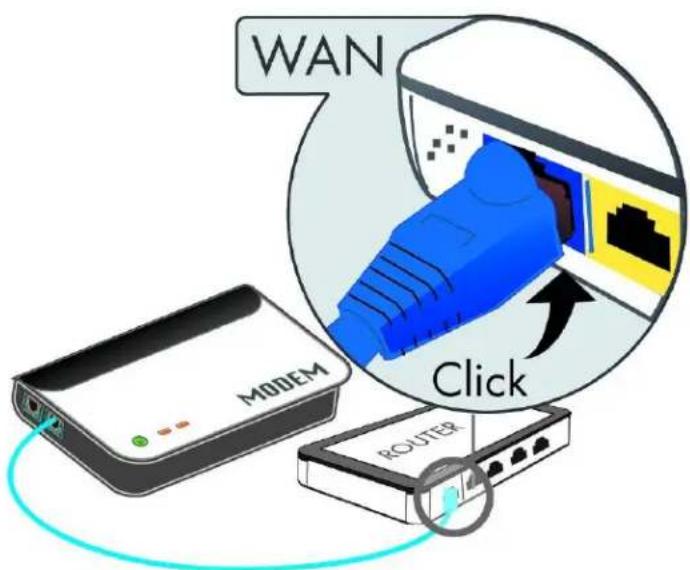
| WAN[Blue] | Connect the cable from your ADSL/Cable modem to this port. |
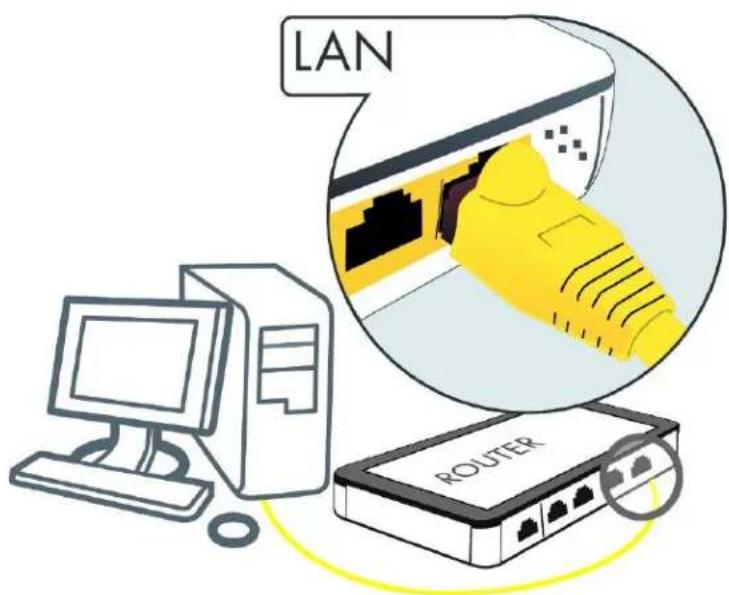
| LAN[Yellow] | Connect the cable from your PC's or network devices to this port. |
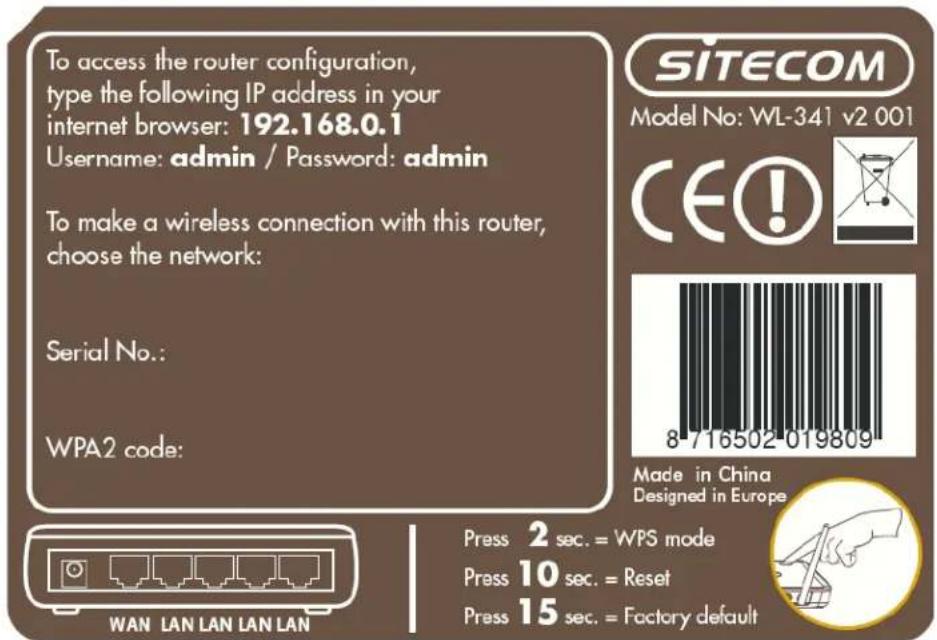
Back label
The back label describes the corresponding LED indications and port functionality.
text_image
To access the router configuration, type the following IP address in your internet browser: 192.168.0.1 Username: admin / Password: admin To make a wireless connection with this router, choose the network: Serial No.: WPA2 code: SITECOM Model No: WL-341 v2 001 CE! 8716502-019809 Made in China Designed in Europe Press 2 sec. = WPS mode Press 10 sec. = Reset Press 15 sec. = Factory default WAN LAN LAN LAN| LED Description | |
| WLAN | Lights up in yellow when WLAN is enabled, blinks yellow when WPS is set and lights up blue when WLAN is connected. |
| LINK/ACTIVY Blinks | on traffic for specific LAN PORT |
| WAN | Lights up in yellow when WAN port is connected, lights up in blue when internet connection is established. |
| WPS BUTTON | Press 2 seconds for WPS modePress 10 seconds to reset the routerPress 15 seconds to reset the router to factory defaults. |
4 Network + System Requirements
To begin using the WL-366, make sure you meet the following as minimum requirements:
- PC/Notebook.
- Operating System – Microsoft Windows XP/2000/VISTA/7.
• 1 Free Ethernet port. - WiFi card/USB dongle (802.11 b/g/n) – optional.
- External xDSL (ADSL) or Cable modem with an Ethernet port (RJ-45).
- PC with a Web-Browser (Internet Explorer, Safari, Firefox, Opera).
- Ethernet compatible CAT5 cables.
5 WL-366 Placement
You can place the WL-366 on a desk or other flat surface, or you can mount it on a wall. For optimal performance, place your Wireless Broadband Router in the center of your home (or your office) in a location that is away from any potential source of interference, such as a metal wall or microwave oven. This location must be close to a power connection and your ADSL/Cable modem.
6 Setup LAN, WAN
WAN connection:
text_image
WAN MODEM Click ROJTERLAN connection:
text_image
LAN ROUTER7 PC Network Adapter setup
Windows XP
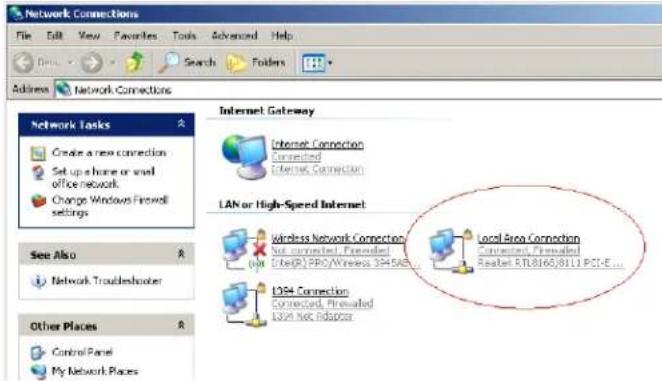
- Enter [Start Menu] → select [Control panel] → select [Network].
text_image
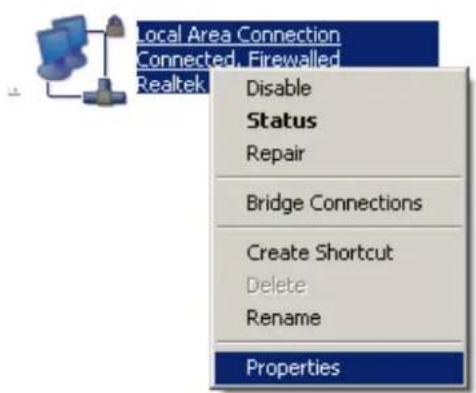
Network Connections File Edit View Favorites Tools Advanced Help Address Network Connections Network Tasks Create a new connection Set up a home or small office network. Change Windows Firewall settings See Also Network Troubleshooter Other Places Control Panel My Network Places Internet Gateway Internet Connection Connected External Connection LAN or High-Speed Internet wireless Network Connection Not connected, Preloaded Inter(R) PRO/Wireless 3945AB... Local Area Connection Connected, Preloaded Realtek RTL8165/8111 PCI-E... 1054 Connection Connected, Preloaded LISA Not Adaptor- Select [Local Area Connection]) icon=>select [properties]
text_image
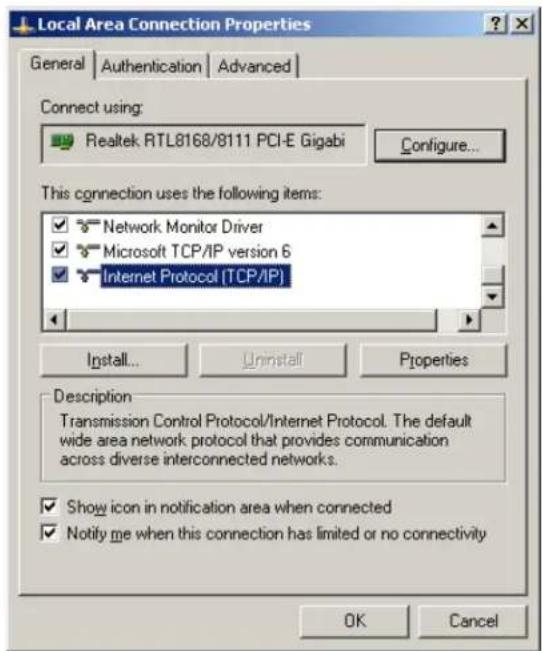
Local Area Connection Connected, Firewalled Realtek Disable Status Repair Bridge Connections Create Shortcut Delete: Rename Properties- Select [Internet Protocol (TCP/IP)] =>Click [Properties].
text_image
Local Area Connection Properties General | Authentication | Advanced | Connect using: Realtek RTL8168/8111 PCI-E Gigabi Configure... This connection uses the following items: ✓ Network Monitor Driver ✓ Microsoft TCP/IP version 6 ✓ Internet Protocol (TCP/IP) Install... Uninstall Properties Description Transmission Control Protocol/Internet Protocol. The default wide area network protocol that provides communication across diverse interconnected networks. ✓ Show icon in notification area when connected ✓ Notify me when this connection has limited or no connectivity OK Cancel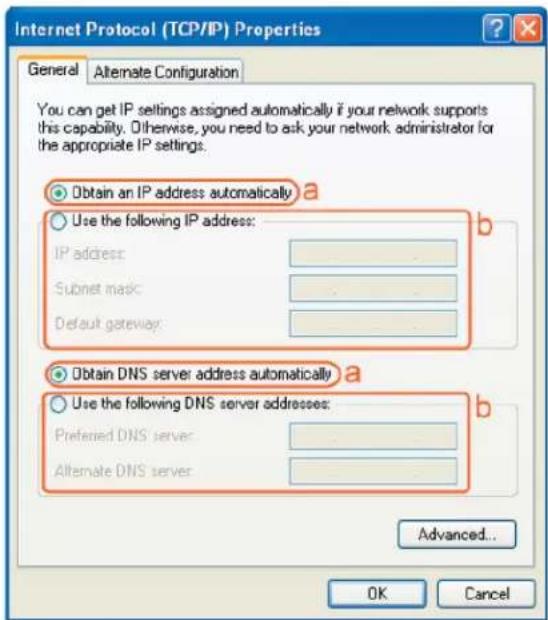
text_image
Internet Protocol (TCP/IP) Properties General Alternate Configuration You can get IP settings assigned automatically if your network supports this capability. Otherwise, you need to ask your network administrator for the appropriate IP settings. Obtain an IP address automatically a Use the following IP address: IP address: Subnet mask: Default gateway: Obtain DNS server address automatically a Use the following DNS server addresses: Preferred DNS server: Alternate DNS server: Advanced... OK Cancel- Select the [General] tab.
a. The router supports [DHCP] function, please select both [Obtain an IP address automatically] and [Obtain DNS server address automatically].
Windows Vista/7
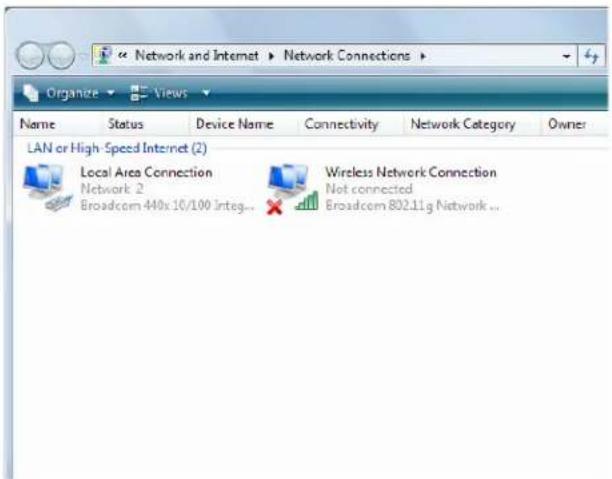
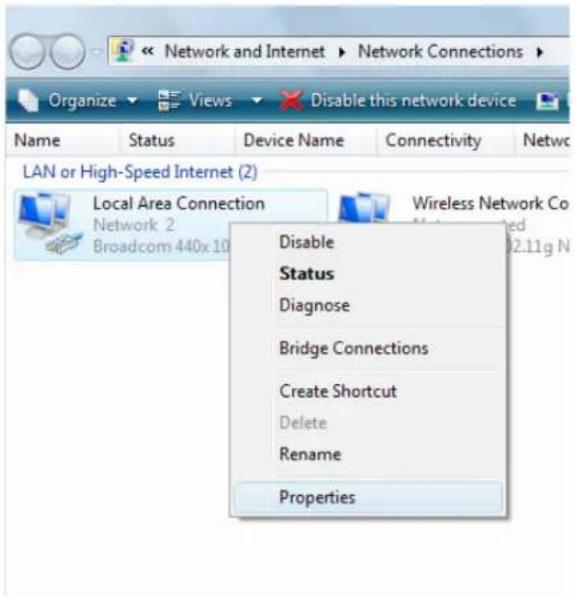
- Enter [Start Menu] → select [Control panel] → select [View network status and tasks] -> select [Manage network connections].
text_image
Network and Internet ▶ Network Connections ▶ Organize ▶ Views ▶ Name Status Device Name Connectivity Network Category Owner LAN or High-Speed Internet (2) Local Area Connection Network 2 Broadcom 440x10/100 integ... Wireless Network Connection Not connected Broadcom 802.11g Network ...- Select [Local Area Connection]) icon =>select [properties]
text_image
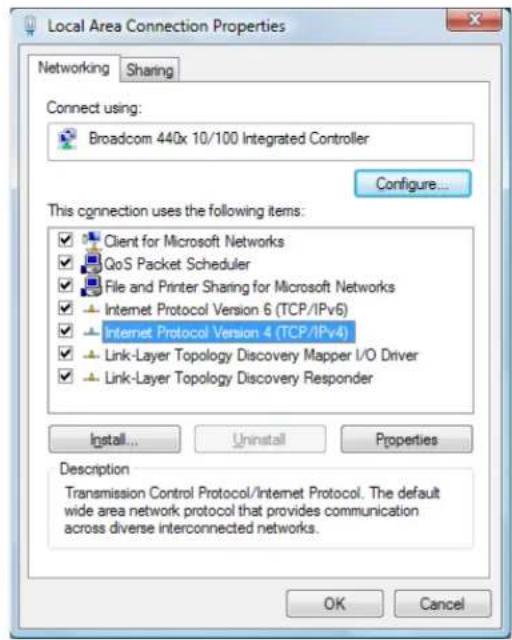
Network and Internet ▶ Network Connections ▶ Organize ▼ Views ▼ Disable this network device Name Status Device Name Connectivity Netw LAN or High-Speed Internet (2) Local Area Connection Network 2 Broadcom 440x10 Disable Status Diagnose Bridge Connections Create Shortcut Delete Rename Properties- Select [Internet Protocol Version 4 (TCP/IPv4)] =>Click [Properties].
text_image
Local Area Connection Properties Networking Sharing Connect using: Broadcom 440x 10/100 Integrated Controller Configure... This connection uses the following items: Client for Microsoft Networks QoS Packet Scheduler File and Printer Sharing for Microsoft Networks Internet Protocol Version 6 (TCP/IPv6) Internet Protocol Version 4 (TCP/IPv4) Link-Layer Topology Discovery Mapper I/O Driver Link-Layer Topology Discovery Responder Install... Uninstall Properties Description Transmission Control Protocol/Internet Protocol. The default wide area network protocol that provides communication across diverse interconnected networks. OK Cancel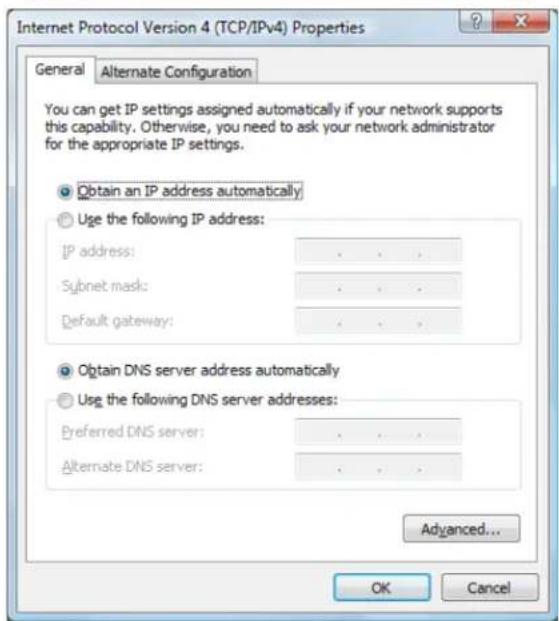
text_image
Internet Protocol Version 4 (TCP/IPv4) Properties General Alternate Configuration You can get IP settings assigned automatically if your network supports this capability. Otherwise, you need to ask your network administrator for the appropriate IP settings. Obtain an IP address automatically Use the following IP address: IP address: . Subnet mask: . Default gateway: . Obtain DNS server address automatically Use the following DNS server addresses: Preferred DNS server: . Alternate DNS server: . Advanced... OK Cancel- Select the [General] tab.
The router supports [DHCP] function, please select both [Obtain an IP address automatically] and [Obtain DNS server address automatically].
8 Bringing up the WL-366
Connect the supplied power-adapter to the power inlet port and connect it to a wall outlet. The router automatically enters the self-test phase. During self-test phase, the Power LED will be lit continuously to indicate that this product is in normal operation.
9 Initial Setup WL-366
LOGIN procedure
- Click to OPEN your browser (e.g. Internet Explorer).

natural_image
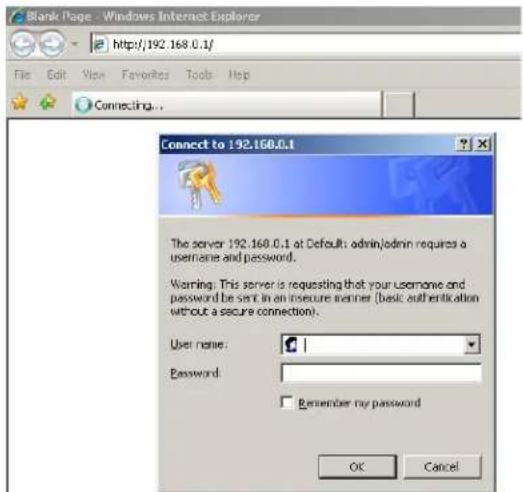
Five computer browser logos (e, globe, grid, compass, 0) displayed side by side without any text or symbols on them.- Type http://192.168.0.1 in the address bar and press [Enter].
text_image
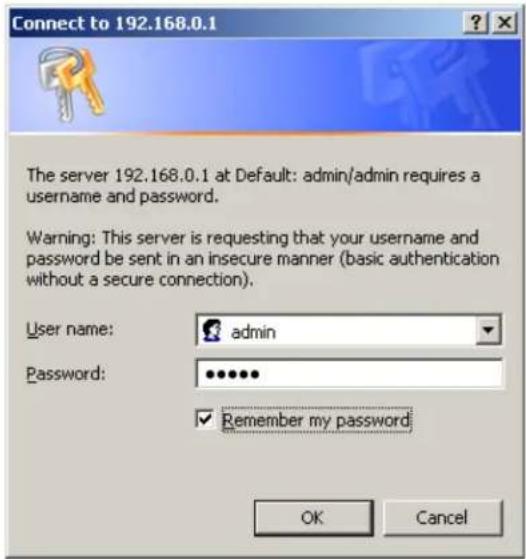
Blank Page - Windows Internet Explorer http://192.168.0.1/ File Edit View Favorites Tools Hop Connecting... Connect to 192.168.0.1 The server 192.168.0.1 at Default: admin/admin requires a username and password. Warning: This server is requesting that your username and password be sent in an insecure manner (basic authentication without a secure connection). User name: Password: Remember my password OK Cancel- Type user name and password (default is admin/admin).
text_image
Connect to 192.168.0.1 The server 192.168.0.1 at Default: admin/admin requires a username and password. Warning: This server is requesting that your username and password be sent in an insecure manner (basic authentication without a secure connection). User name: admin Password: •••••• ✓ Remember my password OK Cancel4.Click OK.
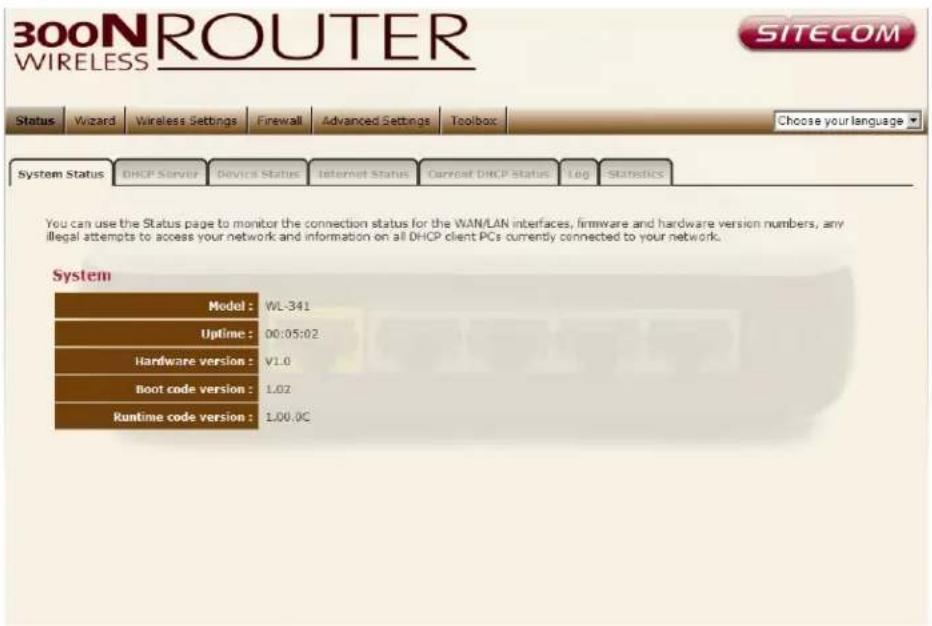
- You will see the home page of the WL-366.
text_image
300N ROUTER WIRELESS SITECOM Status Wizard Wireless Settings Firewall Advanced Settings Toolbox Choose your language System Status DHCP Server Device Status Internet Status Carrot DHCP Status Log Statistics You can use the Status page to monitor the connection status for the WAN/LAN interfaces, firmware and hardware version numbers, any illegal attempts to access your network and information on all DHCP client PCs currently connected to your network. System Model: WL-341 Uptime: 00:05:02 Hardware version: V1.0 Boot code version: 1.02 Runtime code version: 1.00.0CThe System status section allows you to monitor the current status of your router.
The UP time, hardware information, serial number as well as firmware version information is displayed here.
DHCP Server
The DHCP server tab gives you the opportunity to change the IP settings of the WL-366.

text_image
300N ROUTER WIRELESS SITECOM Status Wizard Wireless Settings Firewall Advanced Settings Toolbox Choose your language System Status DHCP Server Device Status Internet Status Current DHCP Status Log Statistics You can enable the Broadband routers DHCP server to dynamically allocate IP Addresses to your LAN client PCs. The broadband router must have an IP Address for the Local Area Network. LAN IP IP address : 192 .168 .0 .1 IP Subnet Mask : 255 .255 .255 .0 DHCP Server : Enable Lease time : Forever DHCP Server Start IP : 192 .168 .0 .100 End IP : 192 .168 .0 .200 Domain name : SitecomWL341 Apply CancelIP address 192.168.0.1. It is the router's LAN IP address (Your LAN clients default gateway IP address).
IP Subnet Mask 255.255.255.0 Specify a Subnet Mask for your LAN segment.
DHCP Server Enabled by default. You can enable or disable the DHCP server. When DHCP is disabled no ip-addresses are assigned to clients and you have to use static ip-addresses. When DHCP server is enabled your computers will be assigned an ip-address automatically until the lease time expires.
Lease Time Forever. In the Lease Time setting you can specify the time period that the DHCP lends an IP address to your LAN clients. The DHCP will change your LAN client's IP address when this time threshold period is reached.
Start IP/End IP You can select a particular IP address range for your DHCP server to issue IP addresses to your LAN Clients.
Note: default IP range 192.168.0.100 192.168.0.199. If you want your PC(s) to have a static/fixed IP address, then you'll have to choose an IP address outside this IP address Pool
Domain Name You can specify a Domain Name for your LAN. Or just keep the default (SitecomWLxxx).
Click
Device Status
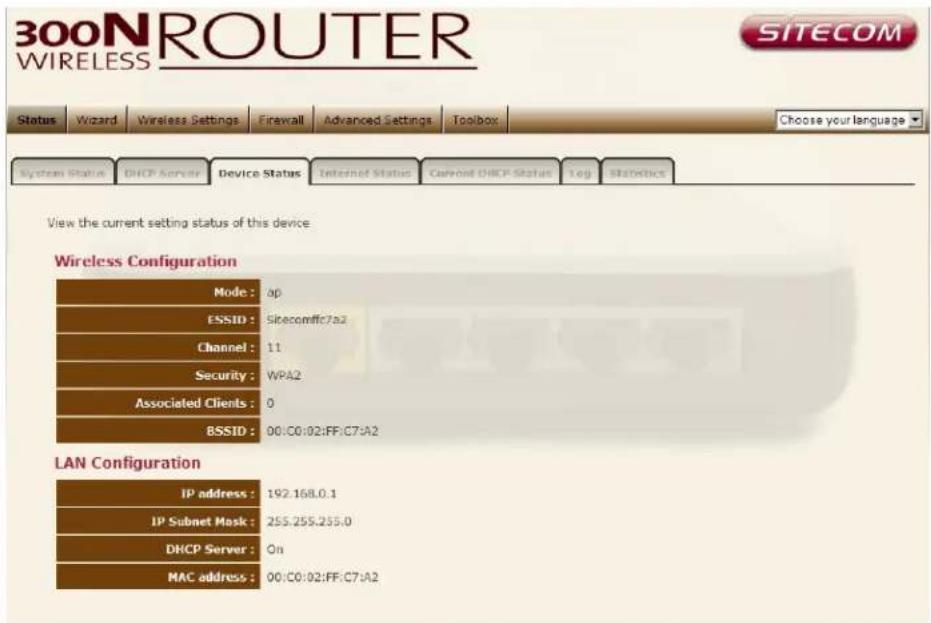
View the Broadband router's current configuration settings. Device Status displays the configuration settings you've configured in the Wizard / Basic Settings / Wireless Settings section.
text_image
300N ROUTER WIRELESS SITECOM Status Wizard Wireless Settings Firewall Advanced Settings Toolbox Choose your language System Status DHCP Server Device Status Internet Status Cannot DHCP Status Log Statistics View the current setting status of this device. Wireless Configuration Mode: op ESSID: Sitecomfic7a2 Channel: 11 Security: WPA2 Associated Clients: 0 BSSID: 00:C0:02:FF:C7:A2 LAN Configuration IP address: 192.168.0.1 IP Subnet Mask: 255.255.255.0 DHCP Server: On MAC address: 00:C0:02:FF:C7:A2Internet Status
This page displays whether the WAN port is connected to a Cable/DSL connection. It also displays the router's WAN IP address, Subnet Mask, and ISP Gateway as well as MAC address, the Primary DNS. Press Renew button to renew your WAN IP address.

text_image
300N ROUTER WIRELESS SITECOM Status Wizard Wireless Settings Firewall Advanced Settings Toolbox Choose your language System Status DHCP Server Device Status Internet Status Current DHCP Status Tag Statistics View the current setting status of this device Attain IP Protocol : DHCP IP address : 192.168.1.72 Subnet Mask : 255.255.255.0 Default Gateway : 192.168.1.254 MAC address : 00:0;02:ff:c7:a3 Primary DNS : 192.168.1.254DHCP Client Status
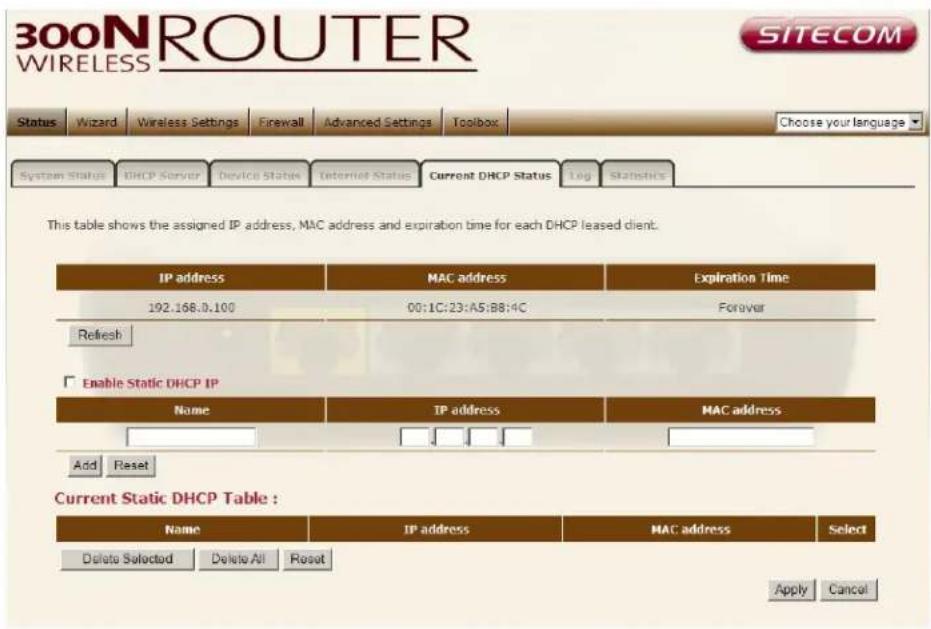
This page shows all DHCP clients (LAN PCs) currently connected to your network. The table shows the assigned IP address, MAC address and expiration time for each DHCP leased client. Use the Refresh button to update the available information.
text_image
300N ROUTER WIRELESS SITECOM Status Wizard Wireless Settings Firewall Advanced Settings Toolbox Choose your language System Status DHCP Server Device Status Internet Status Current DHCP Status Log Statistics This table shows the assigned IP address, MAC address and expiration time for each DHCP leased client. IP address MAC address Expiration Time 192.168.0.100 00:1C:23:A5:B8:4C Forever Refresh Enable Static DHCP IP Name IP address MAC address Add Reset Current Static DHCP Table : Name IP address MAC address Select Delete Selected Delete All Reset Apply CancelWL-366 Log
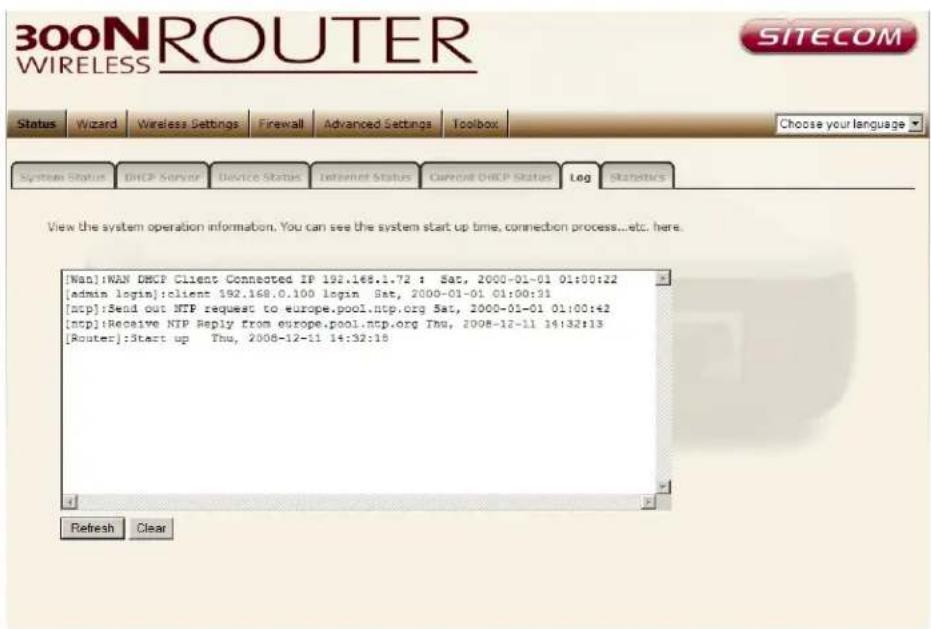
View the operation log of the WL-366. This page shows the current system log of the Broadband router. It displays any event occurred after system start up. At the bottom of the page, the system log can be cleared
text_image
[Wan]:WAN DHCP Client Connected IP 192.168.1.72 : Sat, 2000-01-01 01:00:22 [admin login]:client 192.168.0.100 login Sat, 2000-01-01 01:00:31 [ncp]:Send out NTP request to europe.pool.ntp.org Sat, 2000-01-01 01:00:42 [ncp]:Receive NTP Reply from europe.pool.ntp.org Thu, 2008-12-11 14:32:13 [Router]:Start up Thu, 2008-12-11 14:32:18 Refresh Clear SITECOM10 Configuration Wizard
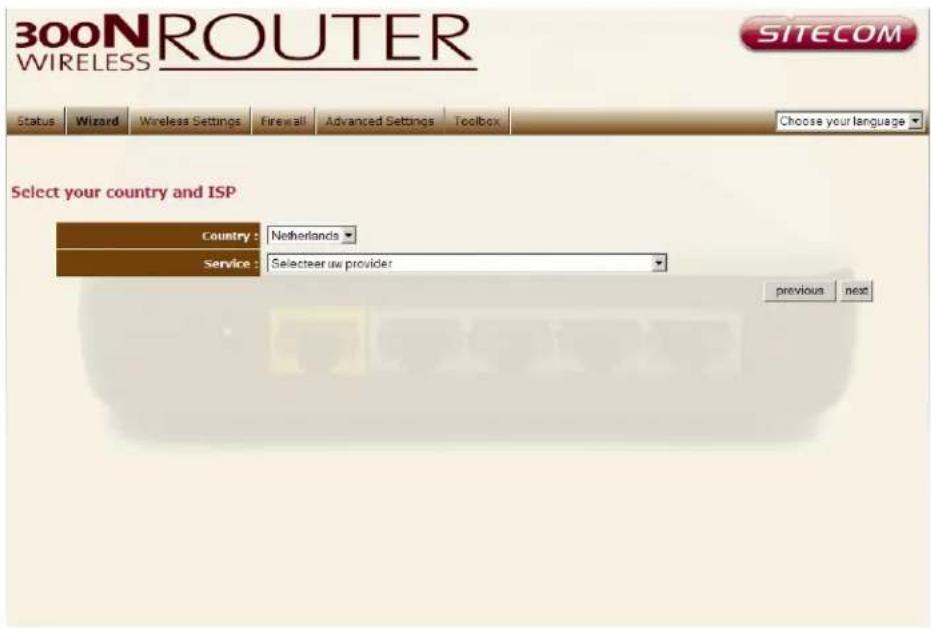
Click Wizard to configure the router. The Setup wizard will now be displayed; check that the modem is connected and click Next.

text_image
300N ROUTER WIRELESS SITECOM Status Wizard Wireless Settings Firewall Advanced Settings Toolbox Choose your language Wizard The Setup Wizard will guide you step by step through a basic configuration procedure. next >Select your country from the Country list. Select your internet provider. Click Next.
text_image
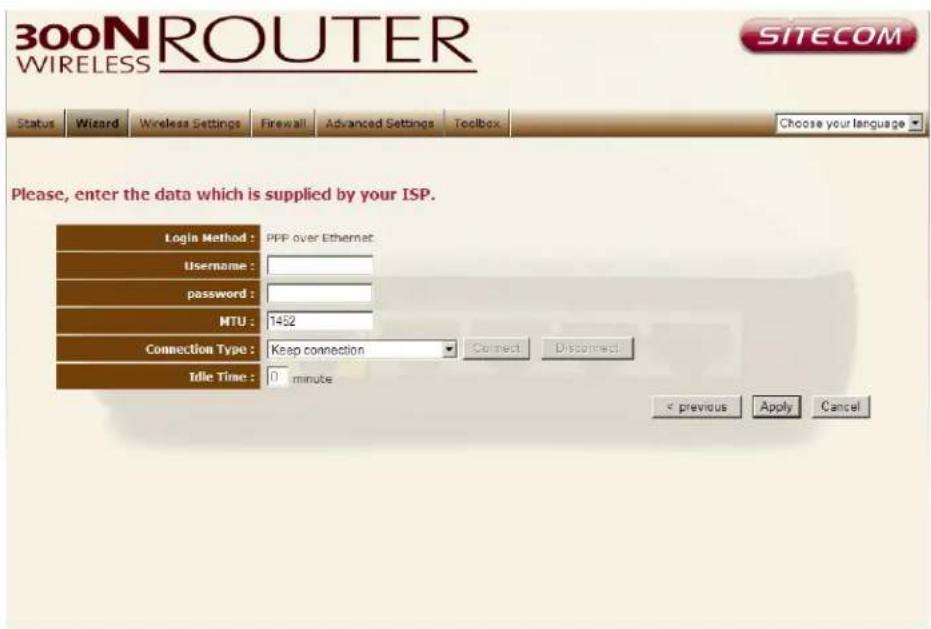
300N ROUTER WIRELESS SITECOM Status Wizard Wireless Settings Firewall Advanced Settings Toolbox Choose your language Select your country and ISP Country : Netherlands Service : Selecteer uw provider previous nextDepending on the chosen provider, you may need to enter your user name and password, MAC address or hostname in the following window. After you have entered the correct information, click Next.
text_image
300N ROUTER WIRELESS SITECOM Status Wizard Wireless Settings Firewall Advanced Settings Toolbox Choose your language Please, enter the data which is supplied by your ISP. Login Method : PPF over Ethernet Username : password : MTU : 1452 Connection Type : Keep connection Connect Disconnect Idle Time : 0 minute < previous Apply CancelClick APPLY to complete the configuration.
11 Wireless Settings
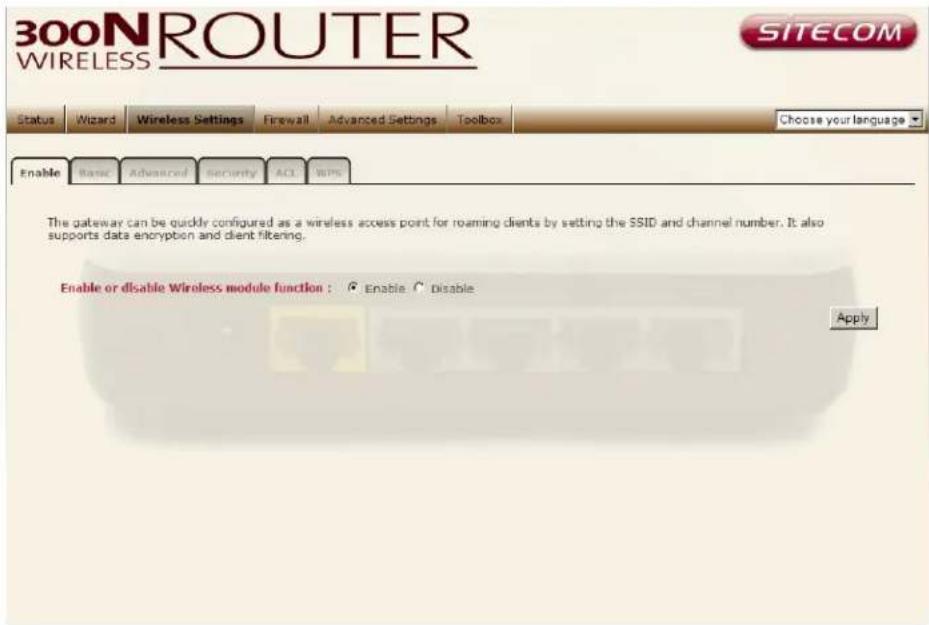
You can set parameters that are used for the wireless stations to connect to this router. The parameters include Mode, ESSID, Channel Number and Associated Client.
Wireless Function
text_image
300N ROUTER WIRELESS SITECOM Status Wizard Wireless Settings Firewall Advanced Settings Toolbox Choose your language Enable Basic Advanced Security ACL WPS The gateway can be quickly configured as a wireless access point for roaming clients by setting the SSID and channel number. It also supports data encryption and client filtering. Enable or disable Wireless module function : Enable C Disable ApplyEnable or Disable Wireless function here. Click Apply and wait for module to be ready & loaded.
Basic Settings
text_image
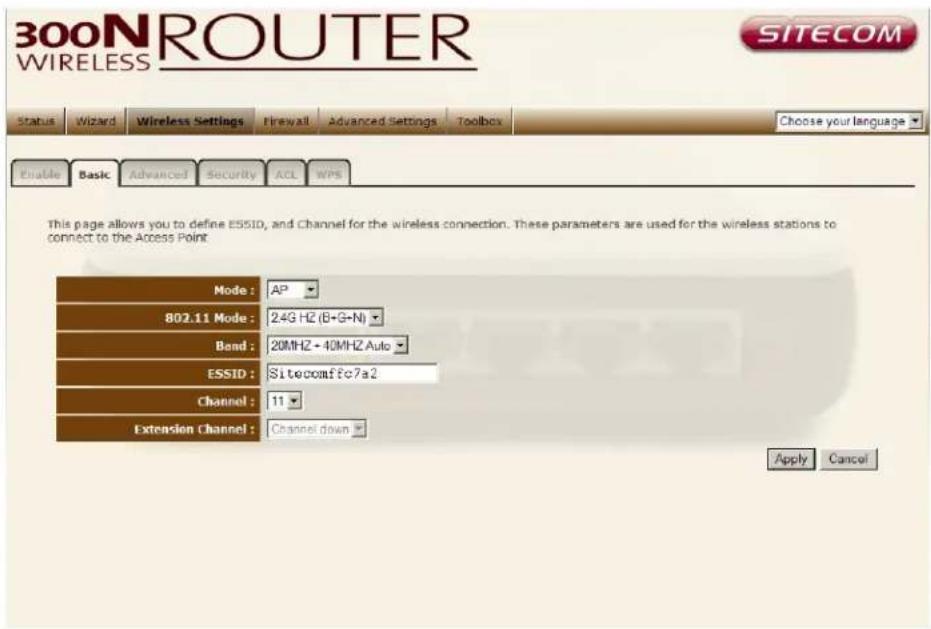
300N ROUTER WIRELESS SITECOM Status Wizard Wireless Settings Firewall Advanced Settings Toolbox Choose your language Enable Basic Advanced Security ACL WPS This page allows you to define ESSID, and Channel for the wireless connection. These parameters are used for the wireless stations to connect to the Access Point Mode : AP 802.11 Mode : 24G HZ (B+G-N) Band : 20MHZ + 40MHZ Auto ESSID : Sitecomffc7a2 Channel : 11 Extension Channel : Channel down Apply CancelMode Allows you to set the AP to AP or WDS mode.
802.11 Mode Allows you to set the AP fixed at 802.11b or 802.11g mode. You can also select B+G mode to allow 802.11b and 802.11g clients at the same time.
Band Allows you to choose the channel bandwidth 20 MHz or 20/40 MHz.
ESSID This is the name of the wireless signal which is broadcasted. All the devices in the same wireless LAN should have the same ESSID.
Channel The channel used by the wireless LAN. All devices in the same wireless LAN should use the same channel.
Extension Channel Allows you to select the extension channel when Channel bandwidth is set to 20/40 MHz.
Advanced Settings
This tab allows you to set the advanced wireless options. The options included are Authentication Type, Fragment Threshold, RTS Threshold, Beacon Interval, and Preamble Type. You should not change these parameters unless you know what effect the changes will have on the router.

text_image
300N ROUTER WIRELESS SITECOM Status Wizard Wireless Settings Firewall Advanced Settings Toolbox Choose your language Enable Rate Advanced Security ACK GPS These settings are only for more technically advanced users who have a sufficient knowledge about wireless LAN. These settings should not be changed unless you know what effect the changes will have on your Broadband router Fragment Threshold : 2346 (258-2346) RTS Threshold : 2347 (0-2347) Beacon Interval : 100 (20-1024 ms) DTIM Period : 10 (1-10) Data rate : Auto N Data rate : Auto Broadcast ESSID : ✓ Preamble Type : Long Preamble Short Preamble Tx Power : 100% WMM : ✓ Apply CancelFragment Threshold "Fragment Threshold" specifies the maximum size of a packet during the fragmentation of data to be transmitted. If you set this value too low, it will result in bad performance.
RTS Threshold When the packet size is smaller then the RTS threshold, the wireless router will not use the RTS/CTS mechanism to send this packet.
Beacon Interval is the interval of time that this wireless router broadcasts a beacon. A Beacon is used to synchronize the wireless network.
Broadcast ESSID If you enabled "Broadcast ESSID", every wireless station located within the coverage of this access point can discover this access point easily. If you are building a public wireless network, enabling this feature is recommended. Disabling "Broadcast ESSID" can provide better security.
Preamble Type The "Long Preamble" can provide better wireless LAN compatibility while the "Short Preamble" can provide better wireless LAN performance.
WMM WiFi Multi Media if enabled supports QoS for experiencing better audio, video and voice in applications.
Security
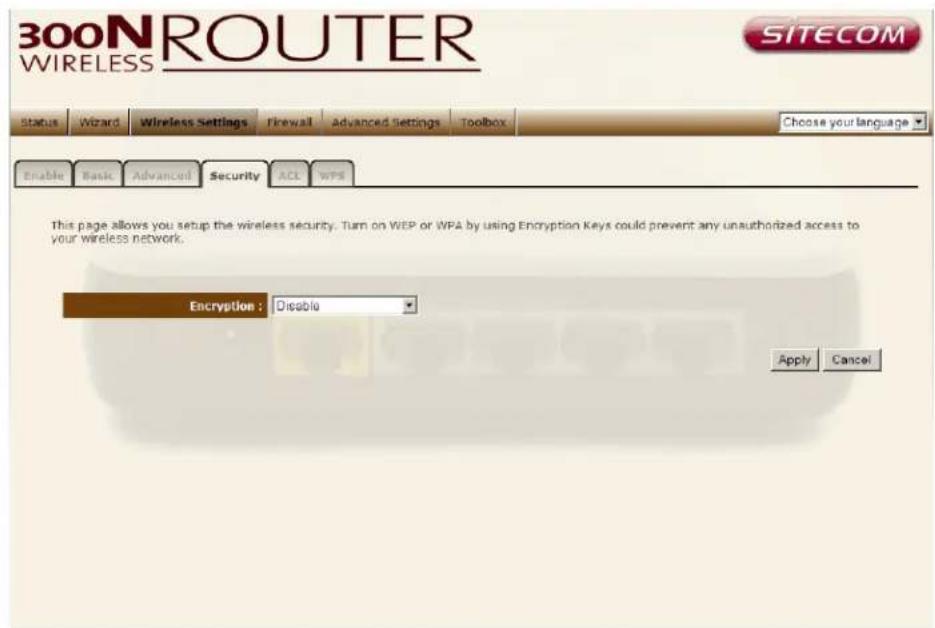
This Access Point provides complete wireless LAN security functions, included are WEP and WPA with pre-shared key. With these security functions, you can prevent your wireless LAN from illegal access. Please make sure your wireless stations use the same security function, and are setup with the same security key.
Disable
When you choose to disable encryption, it is very insecure to operate the WL-366.
text_image
300N ROUTER WIRELESS SITECOM Status Wizard Wireless Settings Firewall Advanced Settings Toolbox Choose your language Enable Basic Advanced Security ACL WPS This page allows you setup the wireless security. Turn on WEP or WPA by using Encryption Keys could prevent any unauthorized access to your wireless network. Encryption : Disable Apply CancelWEP
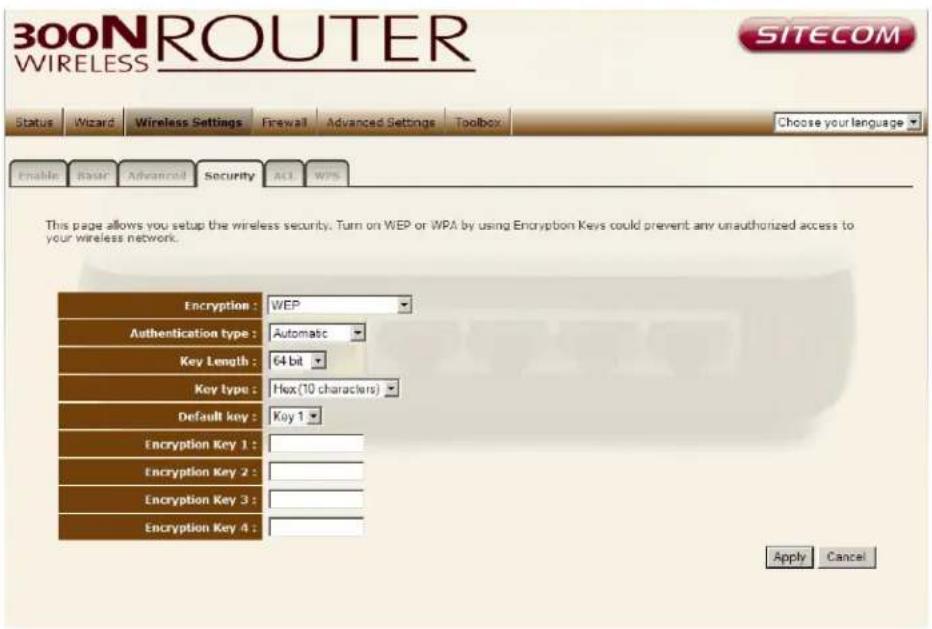
When you select 64-bit or 128-bit WEP key, you have to enter WEP keys to encrypt data. You can generate the key by yourself and enter it. You can enter four WEP keys and select one of them as a default key. Then the router can receive any packets encrypted by one of the four keys.
text_image
300N ROUTER WIRELESS SITECOM Status Wizard Wireless Settings Firewall Advanced Settings Toolbox Choose your language Enable Basic Advanced Security Act WPS This page allows you setup the wireless security. Turn on WEP or WPA by using Encryption Keys could prevent any unauthorized access to your wireless network. Encryption : WEP Authentication type : Automatic Key Length : 64 bit Key type : Hex(10 characters) Default key : Key 1 Encryption Key 1 : Encryption Key 2 : Encryption Key 3 : Encryption Key 4 : Apply CancelKey Length You can select the WEP key length for encryption, 64-bit or 128-bit. The larger the key will be the higher level of security is used, but the throughput will be lower.
Key Type You may select ASCII Characters (alphanumeric format) or Hexadecimal Digits (in the "A-F", "a-f" and "0-9" range) to be the WEP Key.
Key1 - Key4 The WEP keys are used to encrypt data transmitted in the wireless network. Use the following rules to setup a WEP key on the device. 64-bit WEP: input 10-digits Hex values (in the "A-F", "a-f" and "0-9" range) or 5-digit ASCII character as the encryption keys. 128-bit WEP: input 26-digit Hex values (in the "A-F", "a-f" and "0-9" range) or 13-digit ASCII characters as the encryption keys.
Click
WPA Pre-shared Key
Wi-Fi Protected Access (WPA) is an advanced security standard. You can use a pre-shared key to authenticate wireless stations and encrypt data during communication. It uses TKIP or CCMP (AES) to change the encryption key frequently. So the encryption key is not easy to be cracked by hackers. This is the best security available.

text_image
300N ROUTER WIRELESS SITECOM Status Wizard Wireless Settings Firewall Advanced Settings Toolbox Choose your language Enable Basic Advanced Security AC1 WPS This page allows you setup the wireless security. Turn on WEP or WPA by using Encryption Keys could prevent any unauthorized access to your wireless network. Encryption : WPA Passphrase Key WPA type : ○ WPA(TKIP) ● WPA2(AES) ○ WPA2 Mixed Pre-Shared Key : Passphrase Passphrase Key : 55588812 Apply CancelACL
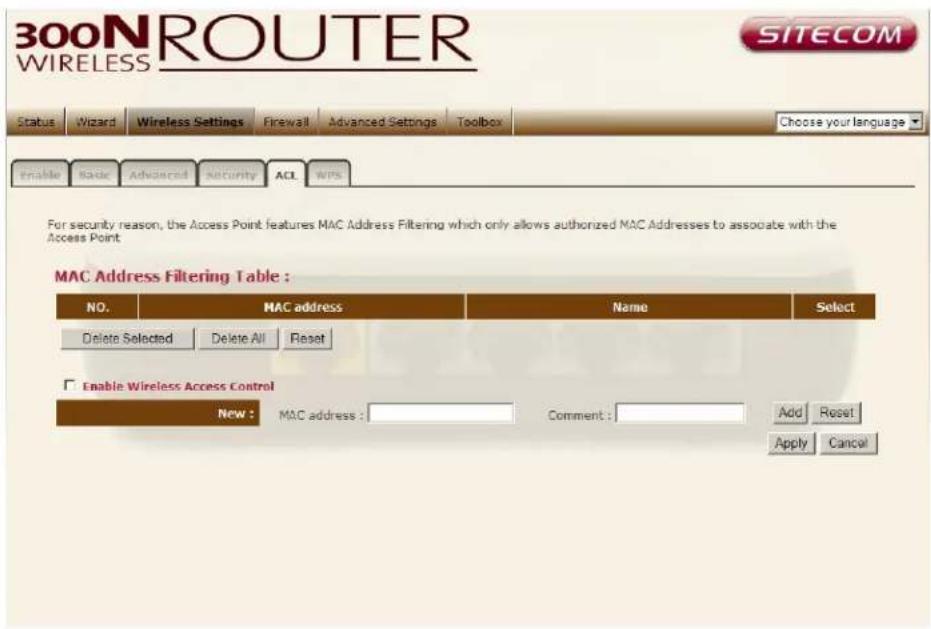
This wireless router supports MAC Address Control, which prevents unauthorized clients from accessing your wireless network.
text_image
300N ROUTER WIRELESS SITECOM Status Wizard Wireless Settings Firewall Advanced Settings Toolbox Choose your language Enable Basic Advanced Security ACL WPS For security reason, the Access Point features MAC Address Filtering which only allows authorized MAC Addresses to associate with the Access Point. MAC Address Filtering Table : NO. MAC address Name Select Delete Selected Delete All Reset Enable Wireless Access Control New: MAC address : Comment: Add Reset Apply CancelEnable wireless access control Enables the wireless access control function
Adding an address into the list Enter the "MAC Address" of the wireless station to be added and then click "Add". The wireless station will now be added into the "MAC Address Filtering Table" below.
Remove an address from the list If you want to remove a MAC address from the "MAC Address Filtering Table", select the MAC address that you want to remove in the list and click "Delete".
Click
WPS
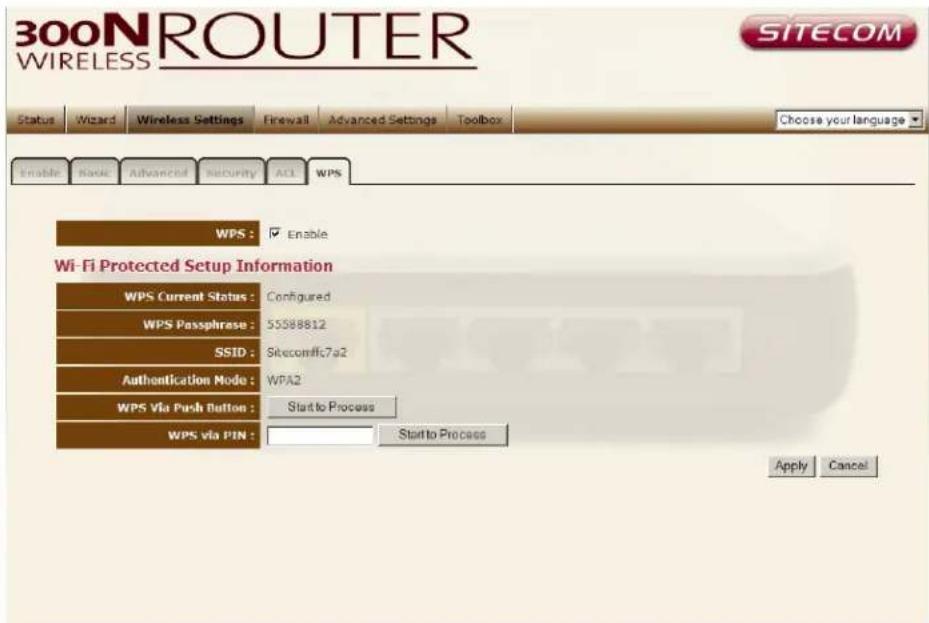
Wi-Fi Protected Setup (WPS) is the simplest way to establish a connection between the wireless clients and the wireless router. You don't have to select the encryption mode and fill in a long encryption passphrase every time when you try to setup a wireless connection. You only need to press a button on both wireless client and wireless router, and WPS will do the rest for you.
The wireless router supports two types of WPS: WPS via Push Button and WPS via PIN code. If you want to use the Push Button, you have to push a specific button on the wireless client or in the utility of the wireless client to start the WPS mode, and switch the wireless router to WPS mode. You can simply push the WPS button of the wireless router, or click the 'Start to Process' button in the web configuration interface. If you want to use the PIN code, you have to know the PIN code of the wireless client and switch it to WPS mode, then fill-in the PIN code of the wireless client through the web configuration interface of the wireless router.
text_image
300N ROUTER WIRELESS SITECOM Status Wizard Wireless Settings Firewall Advanced Settings Toolbox Choose your language Enable Basic Advanced Security ACL WPS WPS : ✓ Enable Wi-Fi Protected Setup Information WPS Current Status : Configured WPS Passphrase : 55588812 SSID : Sitecomffc7a2 Authentication Mode : WPA2 WPS Via Push Button : Start to Process WPS via PIN : Start to Process Apply CancelWPS Check the box to enable WPS function and uncheck it to disable the WPS function.
WPS Current Status If the wireless security (encryption) function of this wireless router is properly set, you'll see a 'Configured' message here. Otherwise, you'll see 'UnConfigured'.
WPS Passphrase It shows the passphrase key that is randomly generated by the wireless router during the WPS process. You may need this information when using a device which doesn't support WPS.
SSID This is the network broadcast name (SSID) of the router.
Authentication Mode It shows the active authentication mode for the wireless connection.
WPS via Push Button Press the button to start the WPS process. The router will wait for the WPS request from the wireless devices within 2 minutes.
WPS via PIN You can fill-in the PIN code of the wireless device and press the button to start the WPS process. The router will wait for the WPS request from the wireless device within 2 minutes.
12 Firewall Settings
The Broadband router provides extensive firewall protection by restricting connection parameters, thus limiting the risk of hacker attacks, and defending against a wide array of common Internet attacks. However, for applications that require unrestricted access to the Internet, you can configure a specific client/server as a Demilitarized Zone (DMZ).
Note: To enable the Firewall settings select Enable and click Apply

text_image
300N ROUTER WIRELESS SITECOM Status Wizard Wireless Settings Firewall Advanced Settings Toolbox Choose your language Enable DMZ Use Access OBL Blocking Schedule The Broadband router provides extensive firewall protection by restricting connection parameters, thus limiting the risk of a hacker attack, and defending against a wide array of common attacks. However, for applications that require unrestricted access to the Internet, you can configure a specific client/server as a Demilitarized Zone (DMZ) Enable or disable Firewall module function : ☑ Enable ○ Disable ApplyDMZ
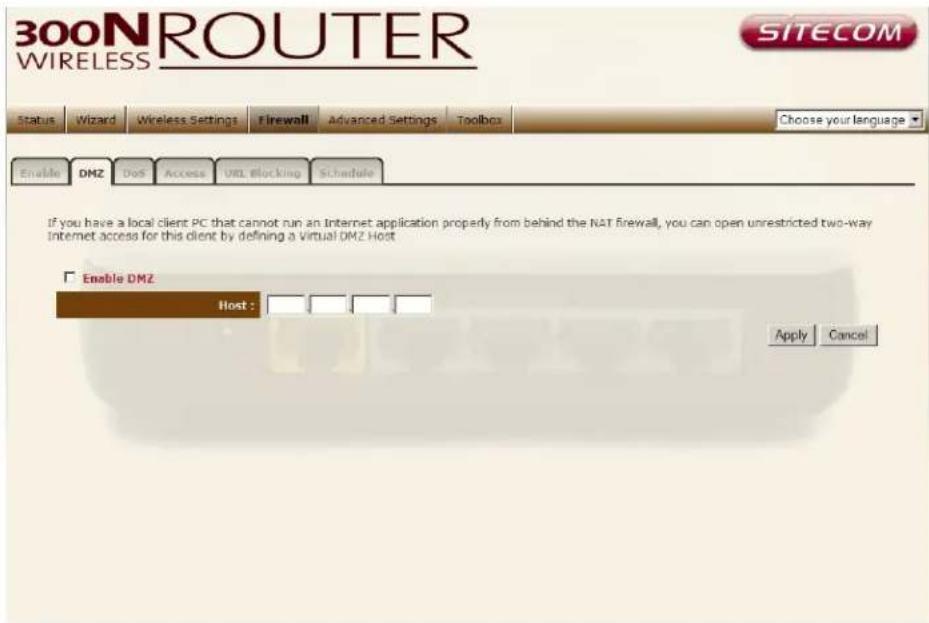
If you have a client PC that cannot run an Internet application (e.g. Games) properly from behind the NAT firewall, then you can open up the firewall restrictions to unrestricted two-way Internet access by defining a DMZ Host. The DMZ function allows you to re-direct all packets going to your WAN port IP address to a particular IP address in your LAN. The difference between the virtual server and the DMZ function is that the virtual server re-directs a particular service/Internet application (e.g. FTP, websites) to a particular LAN client/server, whereas DMZ re-directs all packets (regardless of services) going to your WAN IP address to a particular LAN client/server.
text_image
300N ROUTER WIRELESS SITECOM Status Wizard Wireless Settings Firewall Advanced Settings Toolbox Choose your language Enable DMZ Dot Access URL Blocking Schedule If you have a local client PC that cannot run an Internet application properly from behind the NAT firewall, you can open unrestricted two-way Internet access for this client by defining a Virtual DMZ Host Enable DMZ Host : Apply CancelEnable DMZ Enable/disable DMZ
Host Enter the IP address of a particular host in your LAN that will receive all the packets originally going to the WAN port/Public IP address above.
Click
Denial of Service (DoS)
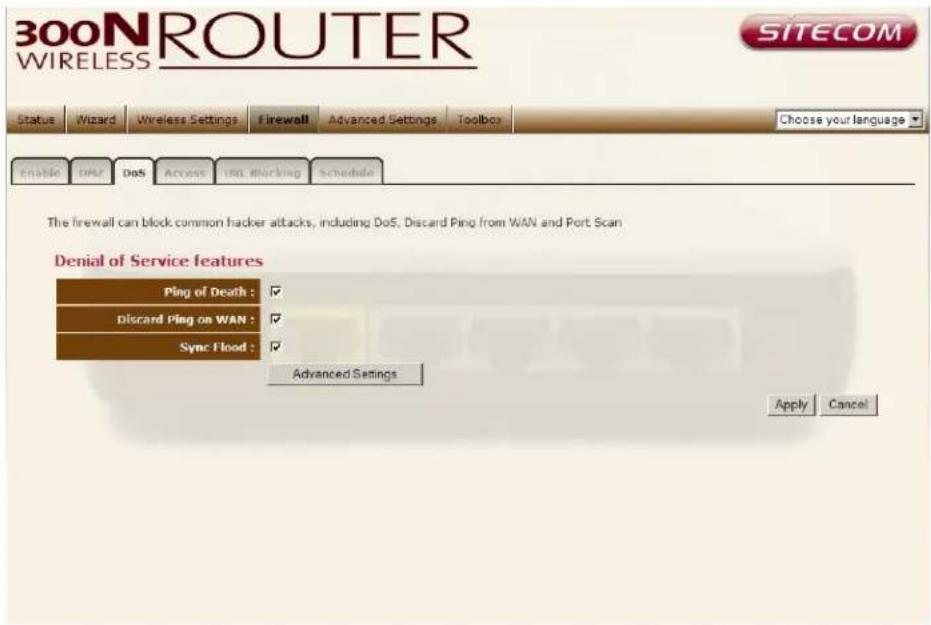
The Broadband router's firewall can block common hacker attacks, including Denial of Service, Ping of Death, Port Scan and Sync Flood. If Internet attacks occur the router can log the events.
text_image
300N ROUTER WIRELESS SITECOM Status Wizard Wireless Settings Firewall Advanced Settings Toolbox Choose your language Enable DNS DoS Access Our Blocking Schedule The firewall can block common hacker attacks, including DoS, Discard Ping from WAN and Port Scan Denial of Service features Ping of Death : ✓ Discard Ping on WAN : ✓ Sync Flood : ✓ Advanced Settings Apply CancelDiscard Ping on WAN The router's WAN port will not respond to any Ping requests.
Access
You can restrict users from accessing certain Internet applications/services (e.g. Internet websites, email, FTP etc.), Access Control allows users to define the traffic type permitted in your LAN. You can control which PC client can have access to these services.

text_image
300N ROUTER WIRELESS SITECOM Status Wizard Wireless Settings Firewall Advanced Settings Toolbox Choose your language Enable DMAC Don Access Unit blocking Schedule Access Control allows users to define the traffic type permitted or not permitted in your LAN. You can control which PC uses what services or has access to Enable Schedule Enable MAC Filtering ▼ Deny ▼ Allow Client PC MAC Address Comment Add Reset MAC Address Filtering Table : NO. Client PC MAC Address Comment Select Delete Selected Delete All Reset Enable IP Filtering Table (up to 20 computers) ▼ Deny ▼ Allow NO. PC Description PC IP Address Client Service Protocol Port range Select Add Delete Selected Delete AllDeny If you select "Deny" then all clients will be allowed to access Internet accept for the clients in the list below.
Allow If you select "Allow" then all clients will be denied to access Internet accept for the PCs in the list below.
Filter client PCs by IP Fill in "IP Filtering Table" to filter PC clients by IP.
Add PC You can click Add PC to add an access control rule for users by IP addresses.
Remove PC If you want to remove some PCs from the "IP Filtering Table", select the PC you want to remove in the table and then click "Delete Selected". If you want to remove all PCs from the table, just click the "Delete All" button.
Filter client PC by MAC Check "Enable MAC Filtering" to enable MAC Filtering.
Add PC Fill in "Client PC MAC Address" and "Comment" of the PC that is allowed to access the Internet, and then click "Add". If you find any typo before adding it and want to retype again, just click "Reset" and the fields will be cleared.
Remove PC If you want to remove some PC from the "MAC Filtering Table", select the PC you want to remove in the table and then click "Delete Selected". If you want to remove all PCs from the table, just click the "Delete All" button. If you want to clear the selection and re-select again, just click "Reset".
Click
URL block
You can block access to some Web sites from particular PCs by entering a full URL address or just keywords of the Web site.

text_image
300N ROUTER WIRELESS SITECOM Status Wizard Wireless Settings Firewall Advanced Settings Toolbox Choose your language Enable OR Data Access URL Blocking Schedule You can block access to certain Web sites for a particular PC by entering either a full URL address or just a keyword of the Web site Enable URL Blocking : Disable Block Always Block By Schedule URL /keyword : Add Reset Current URL Blocking Table : NO. URL /keyword Select Delete Selected Delete All Reset Apply CancelEnable URL Blocking Enable/disable URL Blocking
Add URL Keyword Fill in "URL/Keyword" and then click "Add". You can enter the full URL address or the keyword of the web site you want to block.
Remove URL Keyword If you want to remove some URL keywords from the "Current URL Blocking Table", select the URL keyword you want to remove in the table and then click "Delete Selected". If you want remove all URL keywords from the table, just click "Delete All" button. If you want to clear the selection and re-select again, just click "Reset".
Click
13 Advanced Settings
Network Address Translation (NAT) allows multiple users at your local site to access the Internet through a single Public IP Address or multiple Public IP Addresses. NAT provides Firewall protection from hacker attacks and has the flexibility to allow you to map Private IP Addresses to Public IP Addresses for key services such as Websites and FTP. Select Disable to disable the NAT function.
Virtual Server
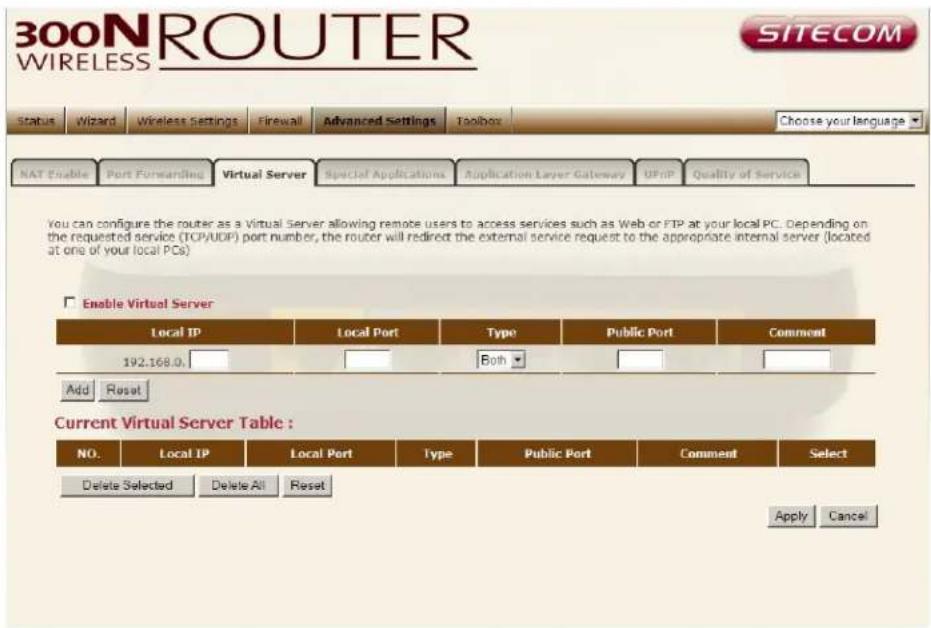
Use the Virtual Server function when you want different servers/clients in your LAN to handle different service/Internet application type (e.g. Email, FTP, Web server etc.) from the Internet. Computers use numbers called port numbers to recognize a particular service/Internet application type. The Virtual Server allows you to re-direct a particular service port number (from the Internet/WAN Port) to a particular LAN private IP address and its service port number.
text_image
300N ROUTER WIRELESS SITECOM Status Wizard Wireless Settings Firewall Advanced Settings Toolbox Choose your language NAT Enable Port Forwarding Virtual Server Special Applications Application Layer Gateway UFP Quality of Service You can configure the router as a Virtual Server allowing remote users to access services such as Web or FTP at your local PC. Depending on the requested service (TCP/UDP) port number, the router will redirect the external service request to the appropriate internal server (located at one of your local PCs) Enable Virtual Server Local IP Local Port Type Public Port Comment 192.168.0 Both Add Reset Current Virtual Server Table : NO. Local IP Local Port Type Public Port Comment Select Delete Selected Delete All Reset Apply CancelEnable Enable Virtual Server.
Local IP This is the LAN client/host IP address that the Public Port number packet will be sent to.
Local Port This is the port number (of the above Private IP host) that the below Public Port number will be changed to when the packet enters your LAN (to the LAN Server/Client IP)
Type Select the port number protocol type (TCP, UDP or both). If you are unsure, then leave it to the default "both" setting. Public Port Enter the service (service/Internet application) port number from the Internet that will be re-directed to the above Private IP address host in your LAN Comment The description of this setting.
Add Virtual Server Fill in the "Local IP", "Local Port", "Type", "Public Port" and "Comment" of the setting to be added and then click "Add". Then this Virtual Server setting will be added into the "Current Virtual Server Table" below.
Remove Virtual Server If you want to remove Virtual Server settings from the "Current Virtual Server Table", select the Virtual Server settings you want to remove in the table and then click "Delete Selected". If you want to remove all Virtual Server settings from the table, just click the "Delete All" button. Click "Reset" will clear your current selections.
Click
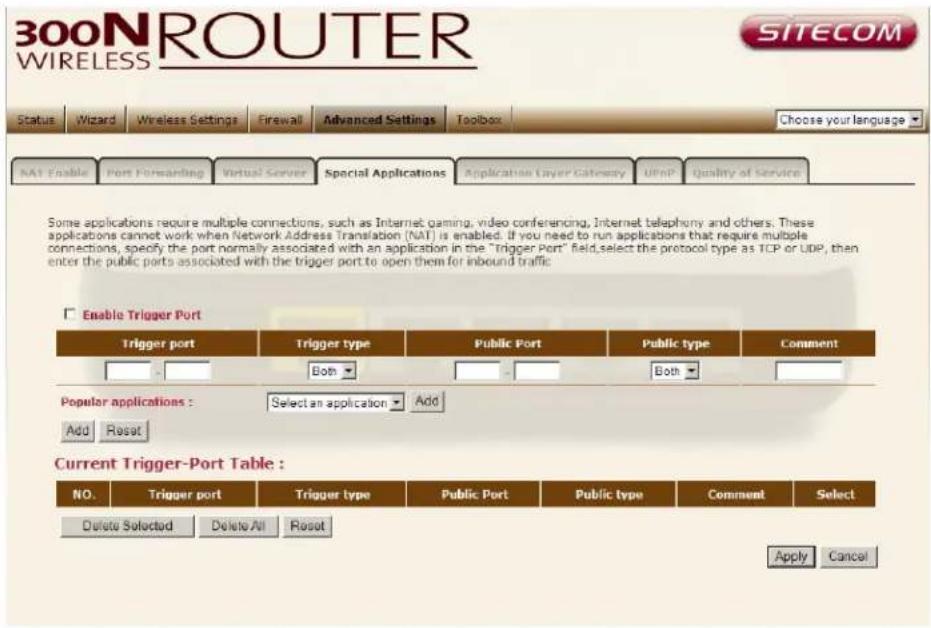
Special Applications
Some applications require multiple connections, such as Internet games, video Conferencing, Internet telephony and others. In this section you can configure the router to support multiple connections for these types of applications.
text_image
300N ROUTER WIRELESS SITECOM Status Wizard Wireless Settings Firewall Advanced Settings Toolbox Choose your language NAT Enable Port Forwarding Virtual Server Special Applications Application Layer Gateway UFP Quality of Service Some applications require multiple connections, such as Internet gaming, video conferencing, Internet telephony and others. These applications cannot work when Network Address Translation (NAT) is enabled. If you need to run applications that require multiple connections, specify the port normally associated with an application in the "Trigger Port" field, select the protocol type as TCP or UDP, then enter the public ports associated with the trigger port to open them for inbound traffic. Enable Trigger Port Trigger port Trigger type Public Port Public type Comment Both Both Popular applications : Select an application Add Add Reset Current Trigger-Port Table : NO. Trigger port Trigger type Public Port Public type Comment Select Delete Selected Delete All Reset Apply CancelTrigger Port This is the out going (Outbound) range of port numbers for this particular application.
Trigger Type Select whether the outbound port protocol is "TCP", "UDP" or both.
Public Port Enter the In-coming (Inbound) port or port range for this type of application (e.g. 2300-2400, 47624)
Public Type Select the Inbound port protocol type: "TCP", "UDP" or both
Enable Trigger Port Enable the Special Application function.
Popular applications This section lists the more popular applications that require multiple connections. Select an application from the Popular
Applications selection. Once you have selected an application, select a location (1-10) in the Copy to selection box and then click the Copy to button. This will automatically list the Public Ports required for this popular application in the location (1-10) you specified.
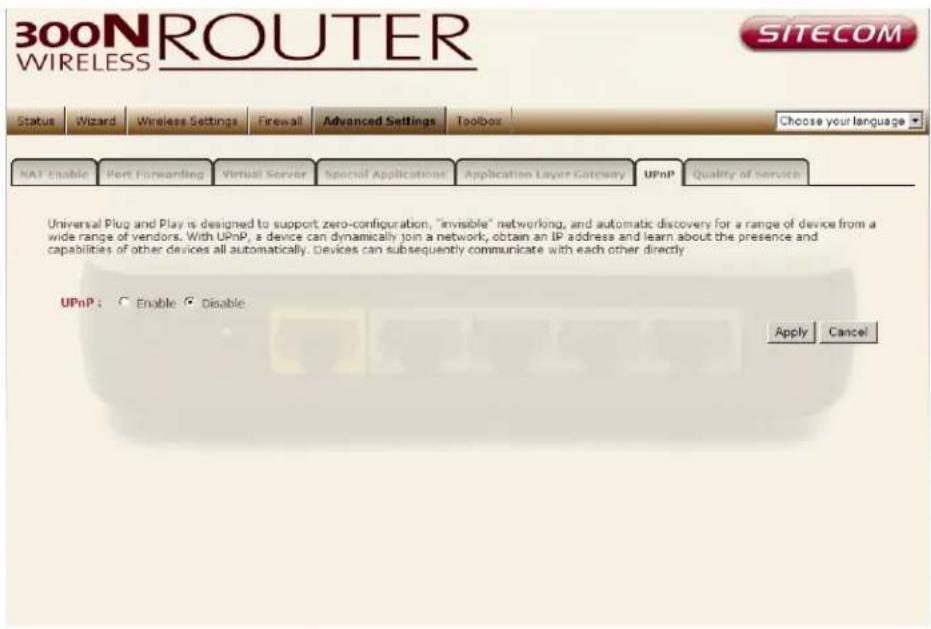
UPnP
With UPnP, all PCs in you Intranet will discover this router automatically. So, you don't have to configure your PC and it can easily access the Internet through this router.
text_image
300N ROUTER WIRELESS SITECOM Status Wizard Wireless Settings Firewall Advanced Settings Toolbox Choose your language NAT Enable Port Forwarding Virtual Server Special Applications Application Layer Gateway UPnP Quality of Service Universal Plug and Play is designed to support zero-configuration, "invisible" networking, and automatic discovery for a range of device from a wide range of vendors. With UPnP, a device can dynamically join a network, obtain an IP address and learn about the presence and capabilities of other devices all automatically. Devices can subsequently communicate with each other directly UPnP: Enable Disable Apply CancelUPnP You can enable or Disable the UPnP feature here. After you enable the UPnP feature, all client systems that support UPnP, like Windows XP, can discover this router automatically and access the Internet through this router without having to configure anything. The NAT Traversal function provided by UPnP can let applications that support UPnP connect to the internet without having to configure the virtual server sections.
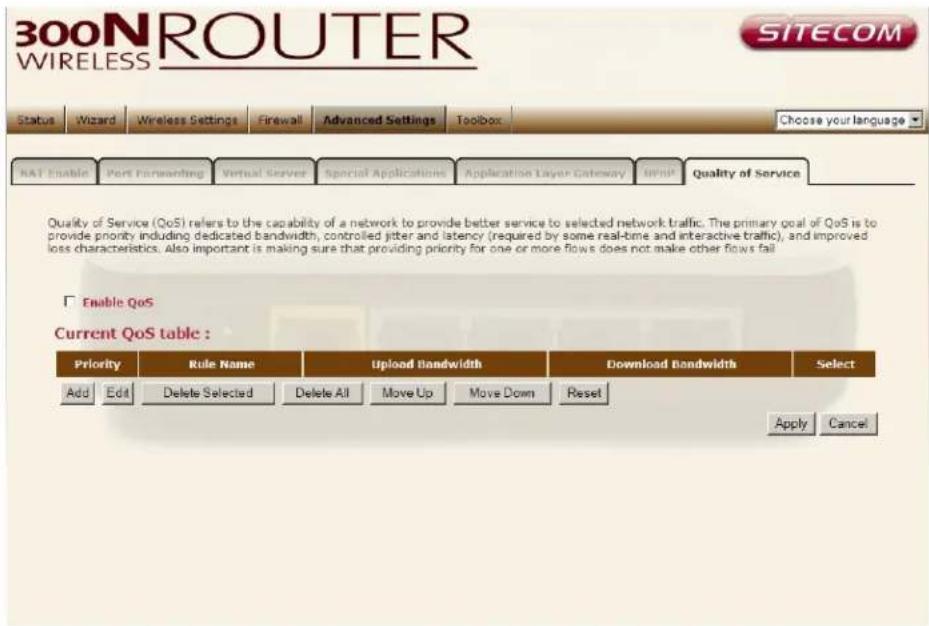
QoS
QoS can let you classify Internet application traffic by source/destination IP address and port number. You can assign priority for each type of application and reserve bandwidth for it. The packets of applications with higher priority will always go first. Lower priority applications will get bandwidth after higher priority applications get enough bandwidth. This can let you have a better experience in using critical real time services like Internet phone, video conference ...etc. All the applications not specified by you are classified as rule name "Others". The rule with a smaller priority number has a higher priority; the rule with a larger priority number has a lower priority. You can adjust the priority of the rules by moving them up or down.
text_image
300N ROUTER WIRELESS SITECOM Status Wizard Wireless Settings Firewall Advanced Settings Toolbox Choose your language NAT Enable Port Forwarding Virtual Server Special Applications Application Layer Gateway BHP Quality of Service Quality of Service (QoS) refers to the capability of a network to provide better service to selected network traffic. The primary goal of QoS is to provide priority including dedicated bandwidth, controlled jitter and latency (required by some real-time and interactive traffic), and improved loss characteristics. Also important is making sure that providing priority for one or more flows does not make other flows fail Enable QoS Current QoS table : Priority Rule Name Upload Bandwidth Download Bandwidth Select Add Edit Delete Selected Delete All Move Up Move Down Reset Apply CancelEnable/Disable QoS You can check "Enable QoS" to enable QoS functionality for the WAN port.
Traffic mapping Click "Add traffic class" then enter a form of the QoS rule. Click "Apply" after filling out the form the rule will be added into the table.
Edit a QoS rule Select the rule you want to edit and click "Edit", then enter the detail form of the QoS rule. Click "Apply" after editing the form and the rule will be saved.
Adjust QoS rule priority. You can select the rule and click "Move Up" to make its priority higher. You also can select the rule and click "Move Down" to make its priority lower.
14 TOOLBOX Settings
Password change options
You can change the password required to log into the broadband router's system web-based management. By default, the password is: admin.
Passwords can contain 0 to 12 alphanumeric characters, and are case sensitive.
Current Password Fill in the current password to allow changing to a new password.
New Password Enter your new password
Confirmed Password Enter your new password again for verification purposes
Click

text_image
300N ROUTER WIRELESS SITECOM Status Wizard Wireless Settings Firewall Advanced Settings Toolbox Choose your language password Time Zone Remote Firmware Back-up Reset DONS You can change the password which is required to log on to the router. By default, the password is admin. Passwords can contain 0 to 30 alphanumeric characters, and are case sensitive Current password : New password : Confirm password : Apply CancelTime Zone
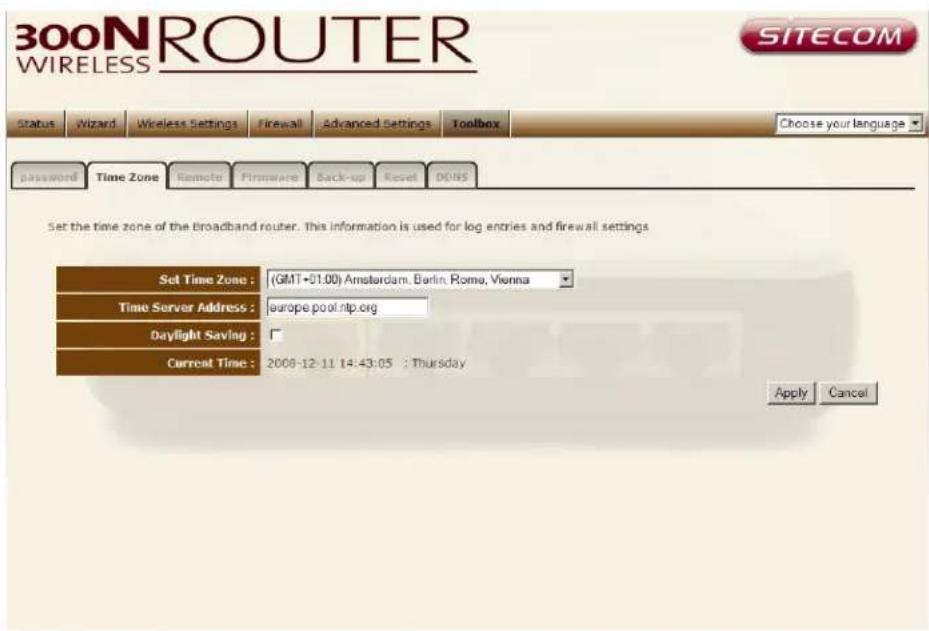
The Time Zone allows your router to base its time on the settings configured here, which will affect functions such as Log entries and Firewall settings.
text_image
300N ROUTER WIRELESS SITECOM Status Wizard Wireless Settings Firewall Advanced Settings Toolbox Choose your language Password Time Zone Remote Firmware Back-up Reset DOS Set the time zone of the broadband router. This information is used for log entries and firewall settings Set Time Zone : (GMT+01.00) Amsterdam, Berlin, Rome, Vienna Time Server Address : europe pool.rntp.org Daylight Saving : Current Time : 2008-12-11 14:43:05 : Thursday Apply CancelSet Time Zone Select the time zone of the country you are currently in. The router will set its time based on your selection.
Time Server Address You can set an NTP server address.
Enable Daylight Savings The router can also take Daylight savings into account. If you wish to use this function, you must check/tick the enable box to enable your daylight saving configuration (below).
Click
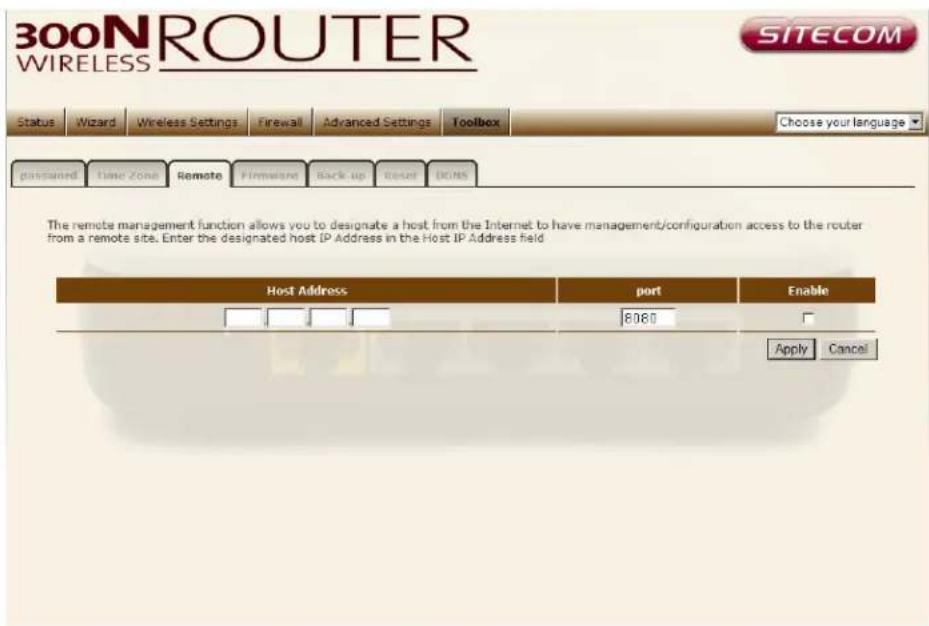
Remote Management
The remote management function allows you to designate a host in the Internet the ability to configure the Broadband router from a remote site. Enter the designated host IP Address in the Host IP Address field.
text_image
300N ROUTER WIRELESS SITECOM Status Wizard Wireless Settings Firewall Advanced Settings Toolbox Choose your language Passwd Time Zone Remote Firmware Back-up Reset Options The remote management function allows you to designate a host from the Internet to have management/configuration access to the router from a remote site. Enter the designated host IP Address in the Host IP Address field Host Address port Enable 8060 Apply CancelHost Address This is the IP address of the host in the Internet that will have management/configuration access to the Broadband router from a remote site. If the Host Address is left 0.0.0.0 this means anyone can access the router's web-based configuration from a remote location, providing they know the password.
Port The port number of the remote management web interface.
Enable Select "Enable" to enable the remote management function.
Click
Firmware Upgrade
This page allows you to upgrade the router's firmware.

text_image
300N ROUTER WIRELESS SITECOM Status Wizard Wireless Settings Firewall Advanced Settings Toolbox Choose your language password Time Zone Remote Firmware Back-up Master OINS This tool allows you to upgrade the Routers firmware. Browse to and select the upgrade file and click APPLY. You will be prompted to confirm the upgrade Browse... Apply CancelFirmware Upgrade This tool allows you to upgrade the Broadband router's system firmware. To upgrade the firmware of your Broadband router, you need to download the firmware file to your local hard disk, and enter that file name and path in the appropriate field on this page. You can also use the Browse button to find the firmware file on your PC.
Once you've selected the new firmware file, click
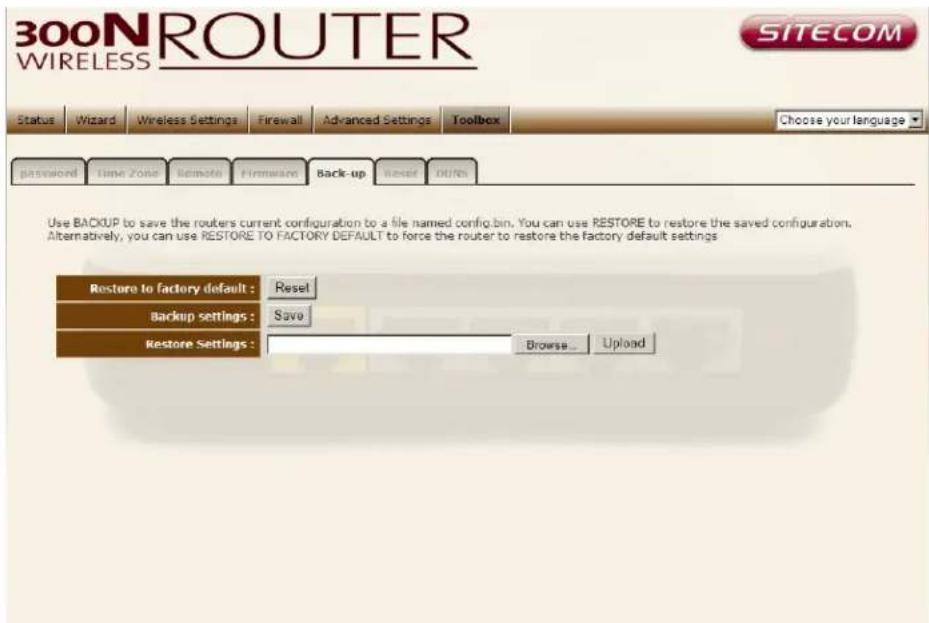
Backup Settings
The Backup screen allows you to save (Backup) the router's current configuration settings. When you save the configuration setting (Backup) you can re-load the saved configuration into the router through the Restore selection. If extreme problems occur you can use the Restore to Factory Defaults selection, this will set all configurations to its original default settings (e.g. when you first purchased the router).
text_image
300N ROUTER WIRELESS SITECOM Status Wizard Wireless Settings Firewall Advanced Settings Toolbox Choose your language password Time Zone Remote Firmware Back-up Reset RUNs Use BACKUP to save the routers current configuration to a file named config.bin. You can use RESTORE TO restore the saved configuration. Alternatively, you can use RESTORE TO FACTORY DEFAULT to force the router to restore the factory default settings Restore to factory default : Reset Backup settings : Save Restore Settings : Browse... UploadUse the "Backup" tool to save the Broadband router current configuration to a file named "Routercfg.cfg" on your PC. You can then use the "Restore" tool to restore the saved configuration to the Broadband router. Alternatively, you can use the "Restore to Factory Defaults" tool to force the Broadband router to perform a power reset and restore the original factory settings.
Reset
You can reset the router's system should any problem exist. The reset function essentially re-boots your router's system.

text_image
300N ROUTER WIRELESS SITECOM Status Wizard Wireless Settings Firewall Advanced Settings Toolbox Choose your language Password Time Zone Remote Firmware Back-up Reset OONS In the event the system stops responding correctly or stops functioning, you can perform a reset. Your settings will not be changed. To perform the reset, click on the APPLY button. You will be asked to confirm your decision. The reset will be completed when the LED Power light stops blinking Apply CancelDDNS
DDNS allows you to map the static domain name to a dynamic IP address. You must get an account, password and your static domain name from the DDNS service providers. This router supports DynDNS, TZO and other common DDNS service providers.

text_image
300N ROUTER WIRELESS SITECOM Status Wizard Wireless Settings Firewall Advanced Settings Toolbox Choose your language password Time Zone Update Firmware Back-up Master DONS DDNS allows users to map a static domain name to a dynamic IP address. You must get an account, password and your static domain name from the DDNS service provider. The router has DDNS support for www.dyndns.org and www.tzo.co Dynamic DNS : Enable Disable Provider : DynDNS.org (Dynamic) Web site Domain name : Account/E-mail : Password/Key : Apply CancelEnable/Disable Enable/Disable the DDNS function of this router
Provider Select a DDNS service provider
Domain name Fill in your static domain name that uses DDNS
Account/E-mail The account that your DDNS service provider assigned to you
Password/Key The password you set for the DDNS service account above
Click